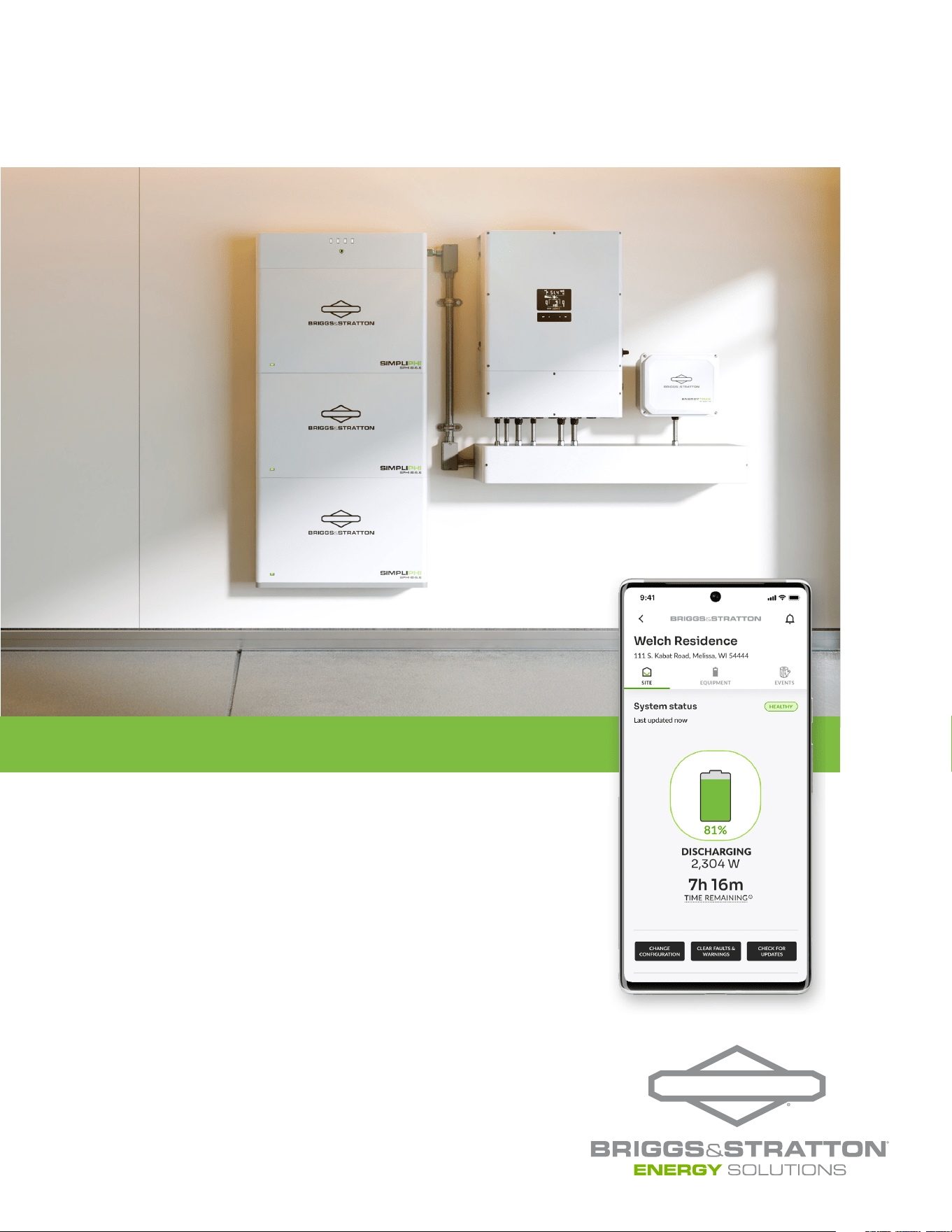
EnergyTrak
™
Installation and
User Manual

Table of Contents
Important Safety Instructions ............................................................3
Product Compatibility ...................................................................4
Site Network and Internet Requirements ................................................5
EnergyTrak Quick Start Guide ...........................................................6
EnergyTrak Gateway Installation .......................................................10
EnergyTrak App ........................................................................14
Getting Started with EnergyTrak for Pros ...............................................16
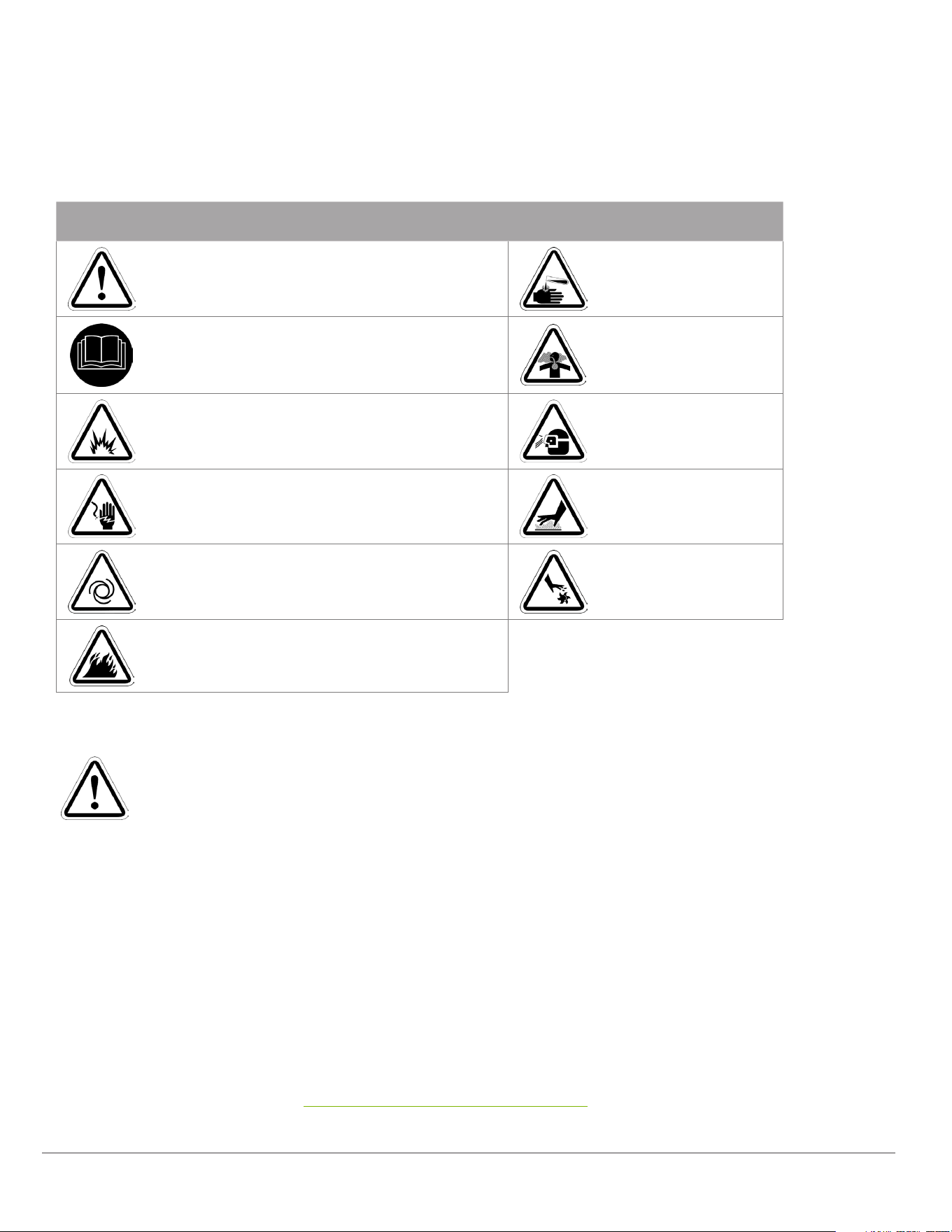
Safety Alert Symbol and Signal Words
This safety alert symbol identifies safety information about hazards that could result in personal injury
or damage to the system. A signal word (DANGER, WARNING, or CAUTION) is used to indicate the
likelihood and the potential severity of injury. In addition, a hazard symbol is used to represent the type of
hazard.
DANGER indicates a hazard which, if not avoided, will result in death or serious injury.
WARNING indicates a hazard which, if not avoided, could result in death or serious injury.
CAUTION indicates a hazard which, if not avoided, could result in minor or moderate injury.
NOTICE indicates information considered important but not hazard-related.
Warranty Statement
The following abbreviated guidelines do NOT encompass all EnergyTrak Warranty details. Failure to adhere to the
Warranty and Installation Manual requirements will violate the terms of the Warranty. Read the complete Warranty
and Installation Manual related to EnergyTrak and its connected Briggs & Stratton Energy Solutions products prior to
installation, which can be found at www.energy.briggsandstratton.com.
Important Safety Instructions
Symbol Meaning Symbol Meaning
Safety alert symbol shows a possible personal
injury hazard or damage to the system.
Chemical Burn
Read Manual. Failure to obey warnings,
instructions, installation manual, and Operator’s
Manual could result in death or serious injury.
Toxic Fume
Explosion Eye Protection
Electric Shock Hot Surface
Auto-Start Rotating Parts
Fire
ENERGYTRAK USER MANUAL | 3
ENERGYTRAK USER MANUAL | 4
Product Compatibility
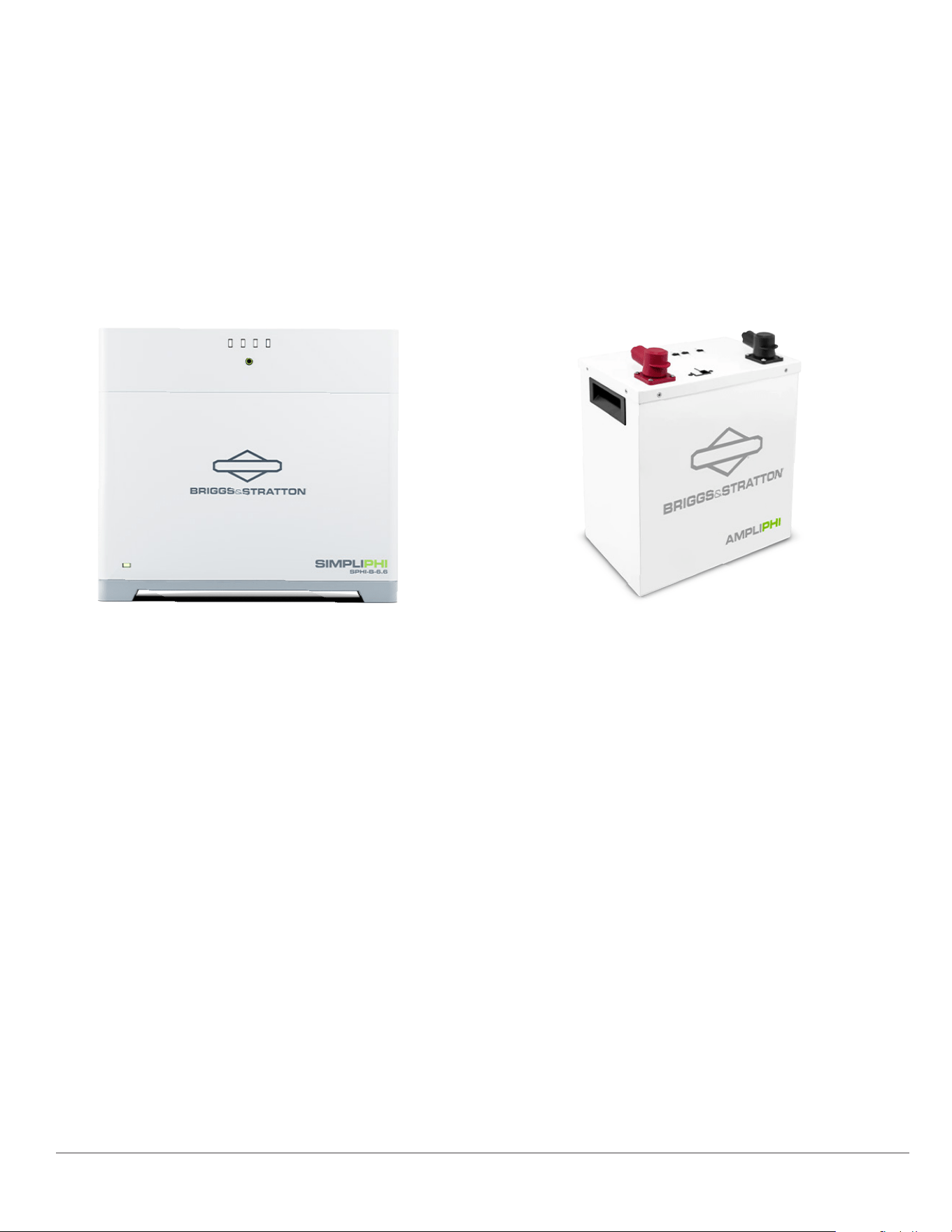
This manual is written for EnergyTrak installations with the following compatible products: SimpliPHI 6.6 Battery
System and AmpliPHI 3.8 Battery.
SimpliPHI® 6.6 Battery System AmpliPHI™ 3.8 Battery
REV202412110001
Site Network and
Internet Requirements
General Network & Internet Requirements
At the site of installation, the system owner is responsible for providing an internet connection to the EnergyTrak
Gateway using one of the following:
• Hardwired network connection using an ethernet cable (RECOMMENDED), or
• Wi-Fi network connection with a strong signal at the location of the EnergyTrak Gateway.
All network equipment associated with connecting the EnergyTrak Gateway to the Internet (i.e.,
router, modem, network switches) should be powered from a backed-up loads panel so that these
systems maintain operation in all power scenarios.
Hardwired Network Requirements (recommended)
A hardwired network connection to the EnergyTrak Gateway requires:
• Available Ethernet port for the Gateway to connect to the local area network, and
• A Cat-5e or Cat-6 ethernet cable (100 meters or less in length).
Wi-Fi Network Requirements
A Wi-Fi network connection to the EnergyTrak Gateway requires:
• Frequency band of either 2.4 or 5 GHz, and
• Adequate signal strength at the installed location
of the EnergyTrak Gateway.
An internet connection is
REQUIRED for using EnergyTrak
>>>
NOTICE: An unreliable Wi-Fi network connection can disrupt timely firmware updates,
which could lead to critical system failures. It is important that owners maintain the Wi-Fi
network being used to connect EnergyTrak to the Internet.
>>>
>>>
ENERGYTRAK USER MANUAL | 5
ENERGYTRAK USER MANUAL | 6
EnergyTrak Quick
Start Guide
Before You Start
There are several preparations and pieces of information
to collect before you set up battery systems from the
EnergyTrak app.
Energy Storage System Installation
Ensure your energy storage system has been properly
installed as outlined in the product installation manuals.
Gateway Installation
Ensure the EnergyTrak Gateway has been installed properly
as outlined in the section above titled EnergyTrak Gateway
Installation.
Wi-Fi Info (optional)
If using a Wi-Fi network connection to connect the EnergyTrak Gateway to the Internet, confirm the Wi-Fi
network credentials (network name/SSID and password) for the site’s network.
WARNING: An unreliable wireless network connection can disrupt timely firmware
updates, which could lead to critical system failures. Therefore, Briggs & Stratton
does not recommend the use of a wireless connection.
Gateway Proximity
Ensure you are within Bluetooth range (10 feet) of the EnergyTrak Gateway.
Site Info
The connected equipment will be registered to a "site" within EnergyTrak. To create a new site, you will need:
• Site name
• Street address
• City
• State
• Zip code
A new site can be created at any time prior to commissioning the system.
System Owner Info
Towards the end of setup, you can optionally create a System Owner user account to provide them access to
EnergyTrak. This is the only way which an owner can view their site with EnergyTrak. Confirm the owner’s full
name, email address, and phone number in order to complete this.
>>>
REV202412110001

Mobile Device Battery Level
Ensure the mobile device being used to perform setup in the EnergyTrak app has at least 50% battery level.
Battery Charge Level
Ensure that the connected battery (or batteries) have at least a 30% charge level (SoC) prior to beginning. This
ensures that critical processes are not interrupted due to a loss of power.
Create a New Site
To create a new site, navigate to the sites list and press the CREATE NEW SITE button at the bottom of the
screen.
More information: Before you are able to set up the battery using the EnergyTrak app, you will first need
to create a new site in the app. A site represents the physical location where the product is being installed
(typically, a residence or a business).
Setup Equipment
Once the site has been created, open the site in the EnergyTrak app and click the SETUP button.
Establish Power to the Gateway
Before continuing further, establish power to the gateway. The gateway is powered from the battery bank.
Connect to Gateway
Select the appropriate gateway from the list for the EnergyTrak Gateway that was installed, and then press
the CONTINUE button. If prompted by the mobile device, be sure to allow both the Bluetooth connection and
location services.
More information: EnergyTrak uses a Bluetooth connection between the EnergyTrak Gateway and the
mobile device running the EnergyTrak app. The Bluetooth list will show all available EnergyTrak Gateways
that are in range of the mobile device. The name of the gateway’s Bluetooth network matches its ID#, which is
printed on the label of the gateway.
Resolving Connection Issues
If you have issues while attempting to connect to the EnergyTrak Gateway over Bluetooth, follow the below
steps to attempt to resolve the issues:
1. Force close the EnergyTrak app on your mobile device.
2. Use the Bluetooth menu on your mobile device to forget all previously paired EnergyTrak Gateways.
3. Reboot the EnergyTrak Gateway by power cycling it. The gateway can be power cycled by opening the
fuse holder door or disconnecting the power cable, waiting 15 seconds, and then reestablishing power to
the gateway. Note: It can take up to two (2) minutes for the gateway to begin transmitting its Bluetooth
network after power cycling.
4. Reopen the EnergyTrak app and restart the setup process.
If you are still experiencing problems with the Bluetooth connection after attempting the previous steps,
uninstall the EnergyTrak app from your mobile device, reinstall it, and then try again.
ENERGYTRAK USER MANUAL | 7
ENERGYTRAK USER MANUAL | 8
Connect Gateway to the Internet
If the EnergyTrak Gateway has already been connected to the Internet using a hardwired Ethernet cable
connection, then this step can be skipped. Optionally, the Wi-Fi network connection can also be set up as a
redundant connection to the Ethernet connection.
If using Wi-Fi as the primary network for the Internet connection (NOT RECOMMENDED), this step must NOT
be skipped.
To set up the Wi-Fi network connection, select the appropriate Wi-Fi
network from the list, press CONNECT, enter the network’s password,
and then press the JOIN button.
Note: EnergyTrak requires an Internet connection to operate.
Establishing an Internet connection to the EnergyTrak Gateway does
rely on the site’s local network and its Internet connection. This requires
the system owner to provide and maintain a healthy, reliable network
and Internet connection for EnergyTrak. See the section above titled Site
Network and Internet Requirements for specific requirements.
Equipment Details
Ensure the proper equipment has been detected, including all expected quantities of battery controllers and
modules.
More information: The EnergyTrak Gateway will automatically search for and detect the compatible equipment
which is (a) powered ON and (b) properly connected to the gateway. The Equipment Details screen will show
each individual component it is able to detect.
Update Firmware
If the software running on the connected equipment (battery and gateway) are up-to-date, press the CONTINUE
button (it will be the only button shown).
If the software running on any of the connected equipment needs to be updated, the EnergyTrak app will
indicate the update is available and walk you through options for updating the equipment. Follow the app’s on-
screen instructions to apply the updates as desired.
Add System Owner
Enter the required information for the System Owner and press the ADD button. This will create a new
EnergyTrak System Owner user account.
More information: If the email address is NOT associated with an existing EnergyTrak account, an email
invitation will be sent to the provided email address (from [email protected]). It is recommended to
confirm that the customer received the email before completing the job.
If the email address is already associated with an EnergyTrak account, you must skip this step and add the
System Owner from the Site Dashboard screen once commissioning is complete.
WARNING: An
unreliable wireless
network connection
can disrupt timely
firmware updates, which could
lead to critical system failures.
Therefore, Briggs & Stratton
does not recommend the use of
a wireless connection.
>>>
REV202412110001

Setup Confirmation
Setup complete! At this time, the EnergyTrak Gateway should be connected to the Internet and reporting system
status through the EnergyTrak app.
The site should be viewable from the Sites screen in the EnergyTrak app, and the status of the site should be
HEALTHY unless something needs to be addressed.
The Site Dashboard and Change Configuration features can be used to view and validate the settings which have
been applied to the system. Pros are highly encouraged to review this detail and validate the system’s operation prior
to completing their work.
Troubleshooting
At this point, if the system is producing any faults, or the system is not operating as intended, the technician should
troubleshoot the system using the self-help resources available. Technical Support from Briggs & Stratton is also
available to assist technicians with troubleshooting. The Help screen in the EnergyTrak app (found in the primary
menu) includes links to resources and contact information for Technical Support, if needed.
ENERGYTRAK USER MANUAL | 9
ENERGYTRAK USER MANUAL | 10
WARNING: Connecting the EnergyTrak Gateway to an Energy Storage System (ESS)
requires physical contact with the inverter and battery that could result in shock or serious
injury. Follow proper safety precautions as laid out in the product installation manuals.
>>>
EnergyTrak Gateway Installation
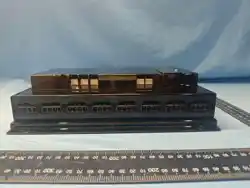
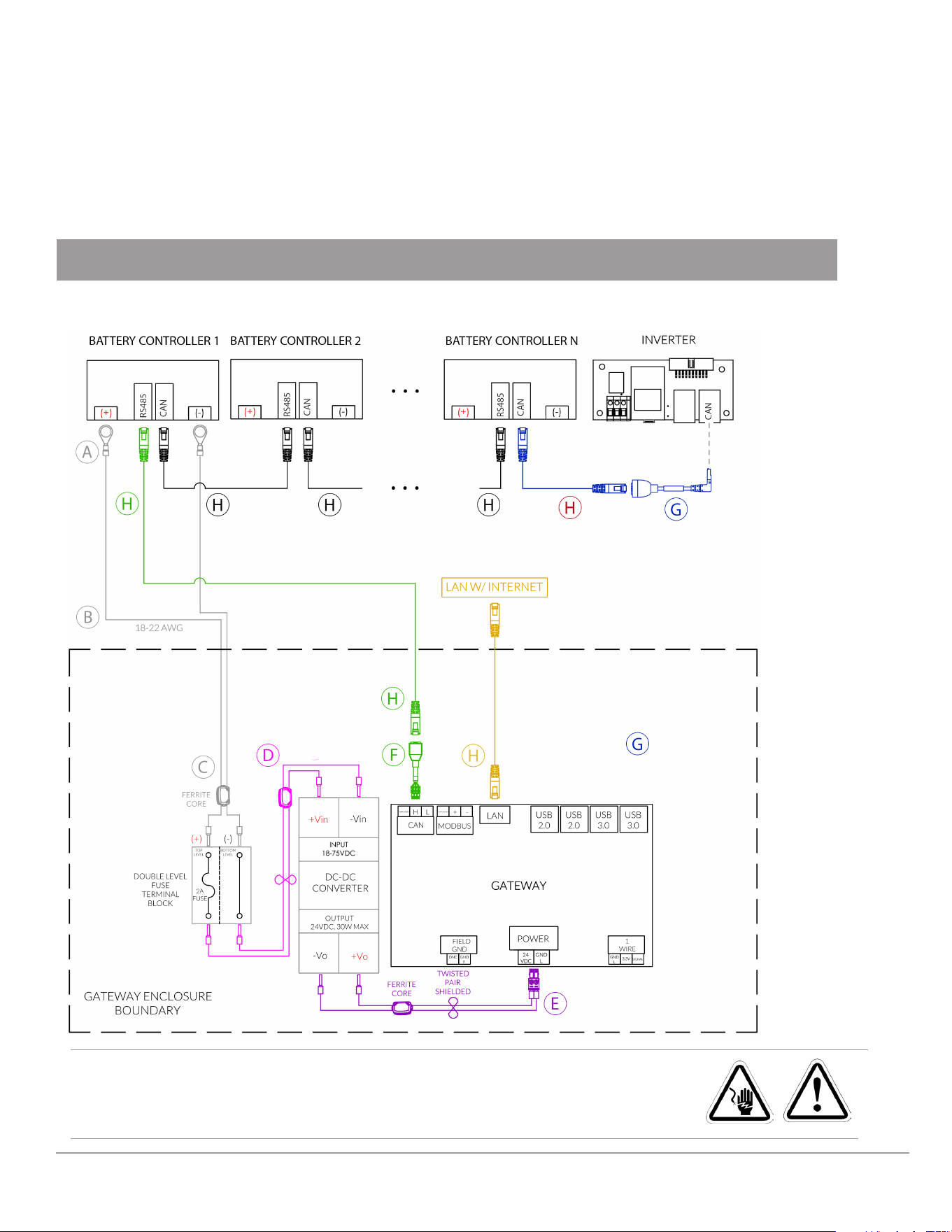
The EnergyTrak gateway integrates with multiple Briggs & Stratton battery systems and supports various numbers
of batteries per system. Follow the wiring diagram appropriate to your battery type. Note that the Gateway CAN
bus dongles are specific to battery type and are not interchangeable.
Systems with Multiple SimpliPHI 6.6 Battery Stacks
Installation Diagram
REV202412110001
Required Cables and Adapters
*48VDC power for the gateway may be connected to alternative locations such as the DC combiner, provided this power source remains active when the batteries
are providing output. The gateway power draw is ~5W.
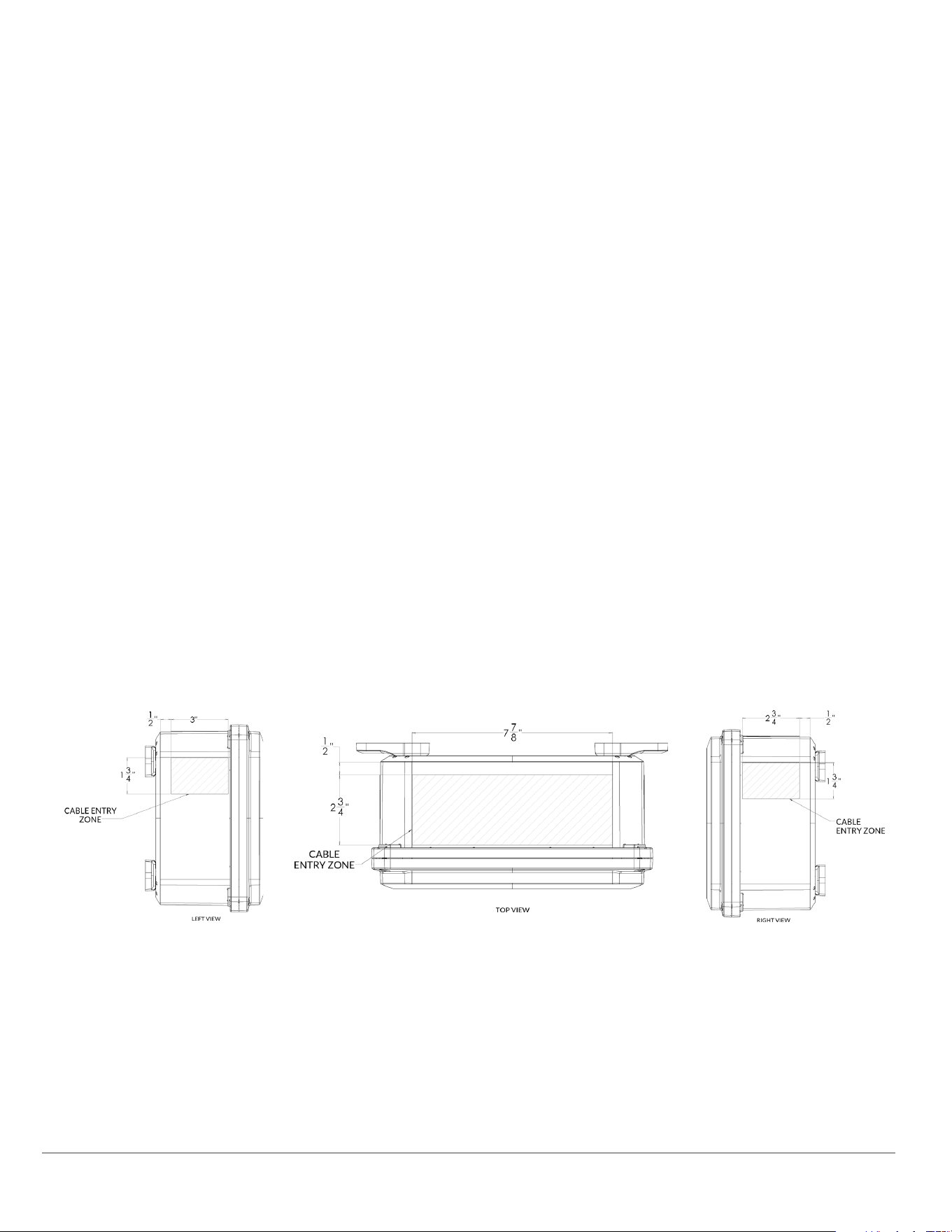
Gateway Enclosure Conduit Entry Points
1. Entry points for cabling should be drilled into the flat surface plane on the top of the gateway enclosure and/or the
upper sides of the gateway enclosure. Use the visual diagrams in this section for more specific guidance on proper
entry point locations.
2. It is recommended to drill the fewest possible entry points to accommodate the required cabling based on the
specific installation.
3. Use the appropriate conduit fittings for the installation to maintain the outdoor rating per local AHJ (authority having
jurisdiction).
Not Included (Customer Provided)
G. Battery To Gateway Electrical Wires (Two (2)
Wires, Shielded Grounded Twisted Pair)
H. Ethernet Cable (Cat-5e Or Cat-6)
Included Cables and Adapters
A. Battery Power 10mm Ring Terminals*
(2 Included With Gateway)
B. Ferrite Core For Electrical Wires
C. Fuse Dc Jumper Cable (Pre-Installed)
D. Gateway Power Cables (Pre-Installed)
E. CAN To RJ45 Adapter Specific To SimpliPHI 6.6
(p/n 80134966 Included With SimplipPHI 6.6
Controller)
F. SimpliPHI 6.6 Battery CAN To Sol-Ark Adapter
(p/n 80134942 Included With SimpliPHI 6.6 Controller)
ENERGYTRAK USER MANUAL | 11
ENERGYTRAK USER MANUAL | 12
WARNING: Connecting the EnergyTrak Gateway to an Energy Storage System (ESS)
requires physical contact with the inverter and battery that could result in shock or serious
injury. Follow proper safety precautions as laid out in the product installation manuals.
>>>
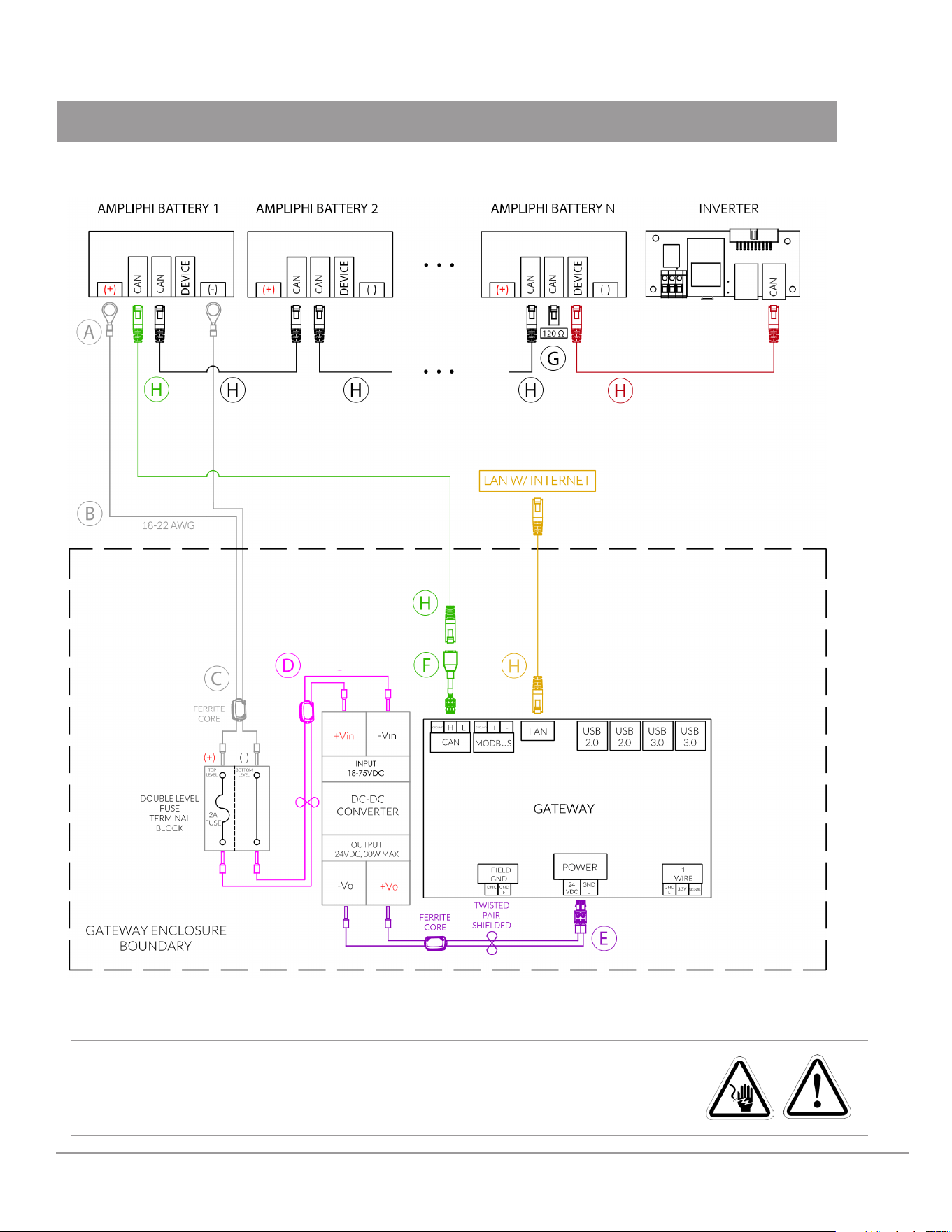
Systems with Multiple AmpliPHI 3.8 Batteries
Installation Diagram
REV202412110001

Required Cables and Adapters
*48VDC power for the gateway may be connected to alternative locations such as the DC combiner, provided this power source remains active when the batteries
are providing output. The gateway power draw is ~5W.
Not Included (Customer Provided)
G. Battery To Gateway Electrical Wires (Two (2)
Wires, Shielded Grounded Twisted Pair)
H. Ethernet Cable (Cat-5e Or Cat-6)
Included Cables and Adapters
A. Battery Power 10mm Ring Terminals (2 Included)
B. Ferrite Core For Electrical Wires
C. Fuse Dc Jumper Cable (Pre-Installed)
D. Gateway Power Cables (Pre-Installed)
E. CAN To RJ45 Adapter Specific To AmpliPHI 3.8 (p/n
80134966 Included With ET Gateway)
F. Terminating Resistor Specific To AmpliPHI
(Included With AmpliPHI 3.8 Battery)
ENERGYTRAK USER MANUAL | 13
ENERGYTRAK USER MANUAL | 14
EnergyTrak App
Installing the EnergyTrak App
You can download the EnergyTrak app from the respective app store for your Android or Apple mobile device. Scan
the QR code below from your mobile device for easy access. You can also navigate to www.energytrak.app/mobile
in your browser for quick forwarding to the app store for your device.
Alternatively, you can search “EnergyTrak” in the respective app store to find and install the app.
User Creation and Management
Users can be managed and created from the Users screen in the EnergyTrak app. User account types include:
Pro Admins
With the most permissions available to Pro users within their business, Pro Admins have the ability to:
• Create and manage users, including Pro Admins, Pro Technicians, and System Owners
• Create and manage customer sites
• Add or remove sites to Pro Technician user accounts
• Setup new products
• View all customer sites
• Receive notifications for all registered sites
Pro Technicians
Designed for Pro users who are working with customer products every day, Pro Technicians have a streamlined
feature set to help them focus on what needs to get done:
• Create new sites
• Create new System Owner users (during commissioning only)
• Setup new products
• View assigned customer sites
• Reconfigure installed products at assigned customer sites
• Receive notifications from assigned customer sites
System Owners
For users purchasing an EnergyTrak-enabled product and installing it at their site, System Owners get the information
and control they need over their site and installed products, including:
• View site and product details
• Change Wi-Fi network settings
• Receive notifications from registered sites
>>>
EnergyTrak
Briggs & Stratton
REV202412110001
Site Fleet Tracking
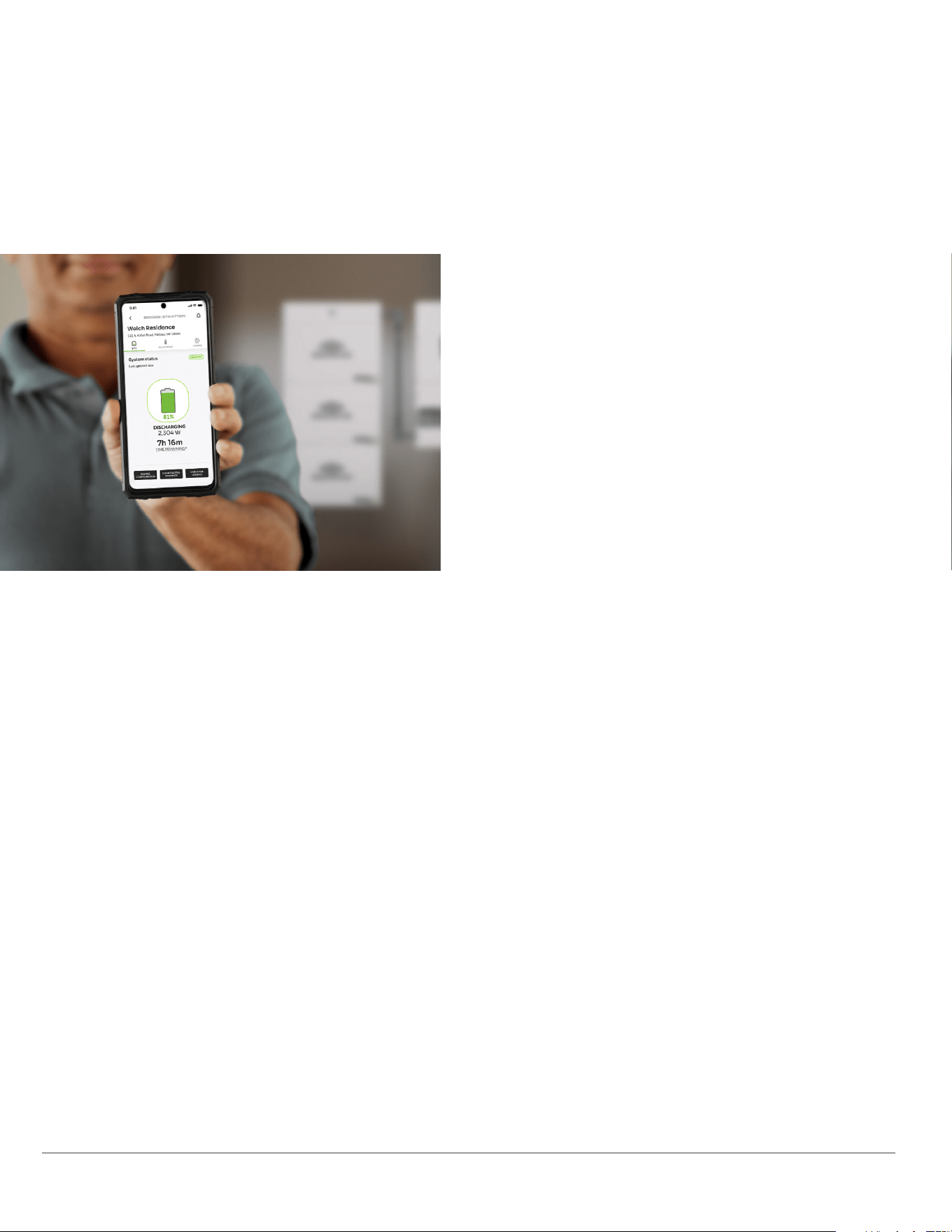
Pro users can monitor the status of their customer sites from the Sites screen in the EnergyTrak app. Each site has a
health status that indicates its current operating state, including:
Healthy: All systems are functional and operating as
configured
Warning: Some non-essential systems have been lost, but
no reported critical failures
Critical: Essential failures with a system have been
detected
Ready for Setup: The site has been created and is ready
for device setup
Disconnected: Gateway has lost its connection to the
EnergyTrak server
Deactivated: Site has been unregistered from the
EnergyTrak platform
The Sites screen is also where Pro users can create new
sites for new installations.
Site Dashboard
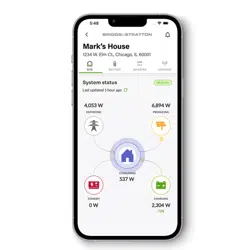
The Site Dashboard will show a live view of the site's operation, a list of the connected equipment, and a historical log
of system events.
Health Status Screen
When viewing the dashboard for a particular site, you can click on the health status badge in the corner to get more
information about the site’s status. If the system is in WARNING or CRITICAL status, the app will show details about
the specific warnings or faults that were detected from the connected devices.
Change Configuration
The Change Configuration feature allows users to adjust settings at a specific site related to EnergyTrak site and Wi-Fi
connection. This capability can be accessed from the Change Configuration button found on the Site Dashboard. A
particular user can only access this feature on sites which they are registered to.
ENERGYTRAK USER MANUAL | 15
BRIGGS & STRATTON
POST OFFICE BOX 702
MILWAUKEE, WI 53201 USA
Copyright © 2024 Briggs & Stratton. All rights reserved.
BS1485 - 12-17-24
Getting Started with
EnergyTrak for Pros
Creating Your Company’s
First EnergyTrak Pro User Account
To begin using the EnergyTrak app
as a Pro, you will need to create your
company’s first Pro user account: a
Pro Admin. For improved security,
creating your first EnergyTrak Pro
Admin account is controlled by
Briggs & Stratton.
To request the creation of your company’s first Pro Admin account, complete the form found
at www.energy.briggsandstratton.com/energytrak-pro. You will receive a welcome
email from notify@energytrak.io once your account has been created. Contact Briggs &
Stratton Technical Support for help with this process, or to check on the status of your
request.
This manual step is only required to create your first Pro Admin account. You will then be
able to use that account to create additional Pro Admin users and Pro Technician users
(more information on user types in the below section titled EnergyTrak for Pros). Once your
Pro Admin account has been created, you will receive instructions via email for logging in to
your account on the EnergyTrak app.
Complete this
initial step well in
advance of your
first EnergyTrak
installation.
>>>