
Instruction Manual

2
1. The Appliance is not intended for use by
persons(including children)with reduced
physical, sensory or mental capabilities, or
lack of experience and knowledge, unless
they have been given supervision or
instruction concerning use of the Appliance
by a person responsible for their safety.Clear
the area to be cleaned. Remove power cords
and small objects from the oor that could
entangle the Appliance. Tuck rug fringe under
the rug base, and lift items such as curtains
and tablecloths off the oor.
2. Clear the area to be cleaned. Remove power
cords and small objects from the oor that
could entangle the Appliance.
3. Tuck rug fringe under the rug base, and lift
items such as curtains and tablecloths off the
oor.
4. If there is a drop off in the cleaning area due to a
step or stairs, you should operate the Appliance
to ensure that it can detect the step without
falling over the edge. It may become necessary
to place a physical barrier at the edge to keep
the unit from falling. Make sure the physical
barrier is not a trip hazard.
5. Only use as described in this manual. Only
use attachments recommended or sold by the
manufacturer.
6. For INDOOR household use ONLY. Do not
use the Appliance in outdoor, commercial or
industrial environments.
7. Do not use without dust bin and/or lters in place.
8. Turn OFF the Power Switch before removing
the Dust Bin.
9. Do not operate the Appliance in an area
where there are lit candles or fragile objects.
10. Keep hair, loose clothing, ngers, and all parts
of body away from any openings and moving
parts.
11. Do not operate the Appliance in a room where
IMPORTANT SAFETY INSTRUCTIONS
IMPORTANT SAFETY INSTRUCTIONS
When using an electrical Appliance, basic
precautions should always be followed, including
the following:
READ ALL INSTRUCTIONS BEFORE
USING THIS APPLIANCE
SAVE THESE INSTRUCTIONS

3
rated capacity 4,800mAh.The battery must be
removed and discarded according to local laws
and regulations before disposal of the Appliance.
20. Please dispose of used batteries according to
local laws and regulations.
21. Do not incinerate the Appliance even if it is
severely damaged. The batteries can explode
in a re.
22. The Appliance must be used in accordance
with the directions in this Instruction Manual.
Ecovacs Home Service Robotics cannot be
held liable or responsible for any damages or
injuries caused by improper use.
23. The robot contains batteries that are only
replaceable by skilled persons. To replace the
robot’s battery, please contact Customer Service.
24. Please make sure your power supply source
voltage matches the power voltage marked
on the OMNI Station.
25. Use only the original rechargeable battery and
OMNI Station provided with the Appliance
from the manufacturer. Non-rechargeable
batteries are prohibited.
26. Take care not to damage the power cord. Do not
pull on or carry the Appliance or OMNI Station
an infant or child is sleeping.
12. Do not use Appliance on wet surfaces or
surfaces with standing water.
13. Do not allow the Appliance to pick up large
objects like stones, large pieces of paper or
any item that may clog the Appliance.
14. Do not use Appliance to pick up ammable or
combustible materials such as gasoline, printer
or copier toner, or use in areas where they may
be present.
15. Do not use Appliance to pick up anything that
is burning or smoking, such as cigarettes,
matches, hot ashes, or anything that could
cause a re.
16. Do not put objects into the suction intake. Do
not use if the suction intake is blocked. Keep
the intake clear of dust, lint, hair, or anything
that may reduce air ow.
17. If the power cord is damaged, it must be
replaced by the manufacturer or its service
agent in order to avoid a hazard.
18. Turn OFF the power switch before cleaning or
maintaining the Appliance.
19. The lithium battery type suitable for CH2453B
is Max. 8 cells, max. nominal voltage DC 14.4V,

4
by the power cord, use the power cord as a
handle, close a door on the power cord, or pull
power cord around sharp edges or corners. Do
not run Appliance over the power cord. Keep
power cord away from hot surfaces.
27. Do not use the OMNI Station if it is damaged.
The power supply is not to be repaired and not to
be used any longer if it is damaged or defective.
28. Do not use with a damaged power cord or
receptacle. Do not use the Appliance or OMNI
Station if it is not working properly, has been
dropped, damaged, left outdoors, or come in
contact with water. It must be repaired by the
manufacturer or its service agent in order to
avoid a hazard.
29. The plug must be removed from the
receptacle before cleaning or maintaining the
OMNI Station.
30. Remove the Appliance from the OMNI
Station, and turn OFF the power switch to
the Appliance before removing the battery for
disposal of the Appliance.
31. When not using the OMNI Station for a long
period of time, please unplug it.
32. If the robot will not be used for a long time,
power OFF the robot for storage and unplug
the OMNI Station.
33. WARNING-Add clean water into the clean
tank only.
34. WARNING: For the purposes of recharging
the battery, only use the detachable supply
unit CH2453B provided with the Appliance.
To satisfy RF exposure requirements, a separation
distance of 20 cm or more should be maintained
between this device and persons during device
operation.
To ensure compliance, operations at closer than
this distance is not recommended. The antenna
used for this transmitter must not be co-located in
conjunction with any other antenna or transmitter.
Device Update
Typically, some devices are updated bi-monthly,
but not always so specic.
Some devices, especially those that went on sale
more than three years ago, will only be updated if
a critical vulnerability is found and xed.
5
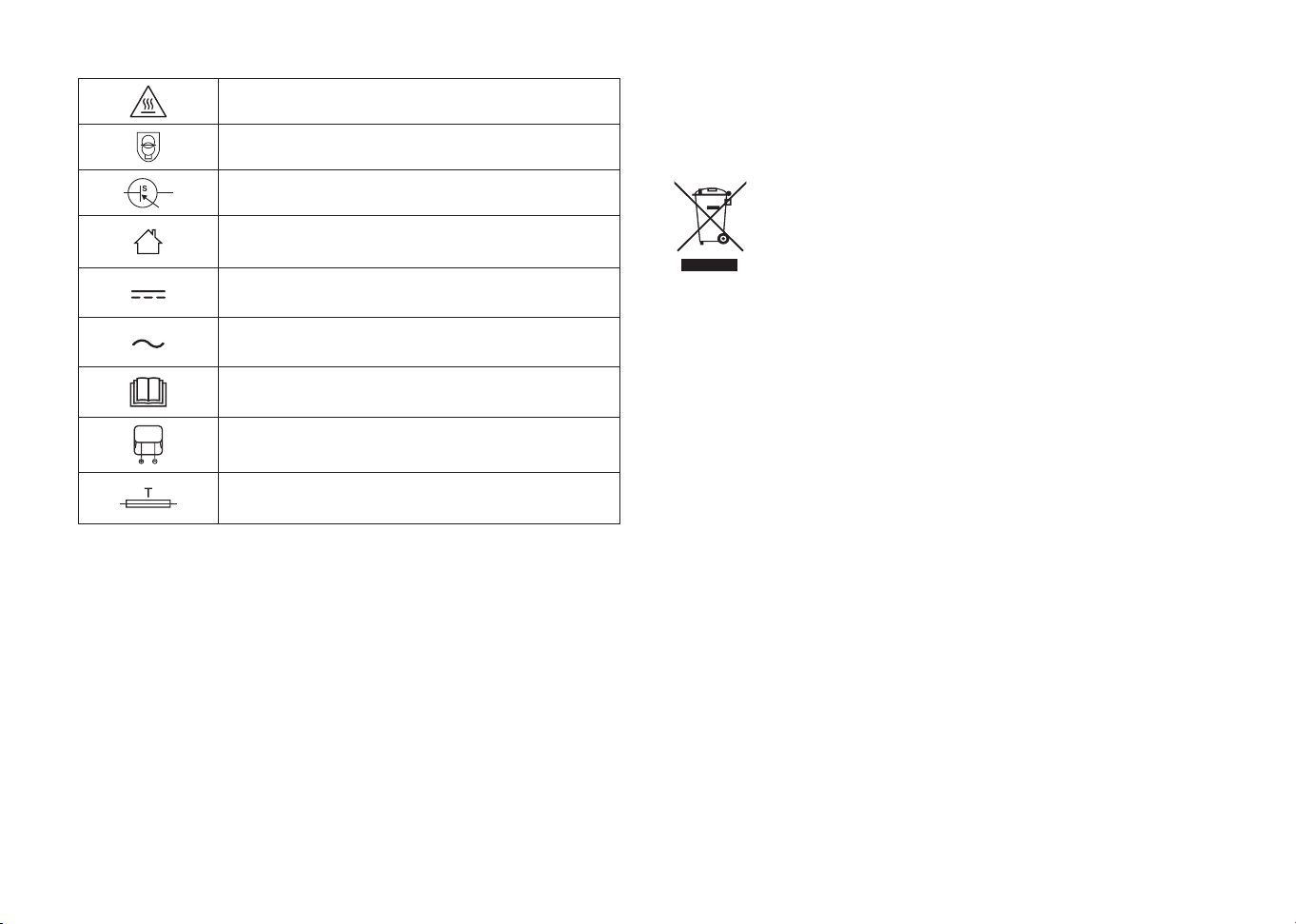
Caution: hot surface
Short-circuit-proof safety isolating transformer
Switch mode power supply
For indoor use only
Direct current
Alternating current
Before charging, read the instructions.
Polarity of the charging port
Time-lag miniature fuse-link
The remote surveillance is for the absolute private
use of non-public, private owned places for the pure
self-protection and single control intended only.
Please be aware of the local data protection based
legal obligations in case of use. No surveillance of
public places, especially with clandestine intent
and/or on the part of the employer without justied
reasons. Such not justied use is in the risk and
responsibility of the user only.
European Union Compliance Statement
Information on Disposal for Users of Waste
Electrical & Electronic Equipment
This symbol on the product or on its packaging
indicates that used electrical and electronic products
should not be mixed with unsorted municipal waste.
For proper treatment, it is your responsibility to
dispose of your waste equipment by arranging to
return it to designated collection points.
Disposing of this product correctly will help save
valuable resources and prevent any potential
negative effects on human health and the
environment, which could otherwise arise from
inappropriate waste handling.
To return your used device, please use the return
and collection systems or contact the retailer where
the product was purchased, which is free of charge,
please contact your local authority for further details
of your nearest designated collection point.
Penalties may be applicable for incorrect disposal
of this waste, in accordance with your national
legislation.
6
Information on Disposal for Users of used
batteries
This symbol means that batteries and accumulators,
at their end-of-life, should not be mixed with
unsorted municipal waste. Your participation is an
important part of the effort to minimize the impact
of batteries and accumulators on the environment
and on human health. For proper recycling you can
return this product or the batteries or accumulators
it contains to your supplier or to a designated
collection point, which is free of charge.
Disposing of this product correctly will help save
valuable resources and prevent any potential
negative effects on human health and the
environment, which could otherwise arise from
inappropriate waste handling.
Penalties may be applicable for incorrect disposal of
this waste, in accordance with your national .legislation.
there are separate collection systems for used
batteries and accumulators.
Please, dispose of batteries and accumulators
correctly at your local community waste collection/
recycling center.
Restriction of the use of certain hazardous
substances (RoHS) Directive
Radio Equipment Directive
Europe Authorised Representative:
Ecovacs Home Service Robotics Co., Ltd. hereby
declares the whole product including parts (cables,
cords, and so on) meets the requirements of RoHS
Directive 2011/65/EU and amendment Commission
Delegated Directive (EU) 2015/863 on the restriction
of the use of certain hazardous substances in
electrical and electronic equipment ("RoHS recast"
or "RoHS 2.0").
Ecovacs Home Service Robotics Co., Ltd. hereby
declares that the product listed in this section
comply with the essential requirements and other
relevant provisions of the Radio Equipment Directive
2014/53/EU.
Ecovacs Home Service Robotics Co., Ltd. hereby
declares that the product comply with the essential
requirements and other relevant provisions of
the RoHS Directive 2011/65/EU and amendment
Commission Delegated Directive (EU) 2015/863, the
Radio Equipment Directive 2014/53/EU.
The declaration of conformity can be viewed at
the following address: https://www.ecovacs.com/
global/compliance.
ECOVACS Europe GmbH
Holzstrasse 2 | D-40221 Düsseldorf | Germany
7
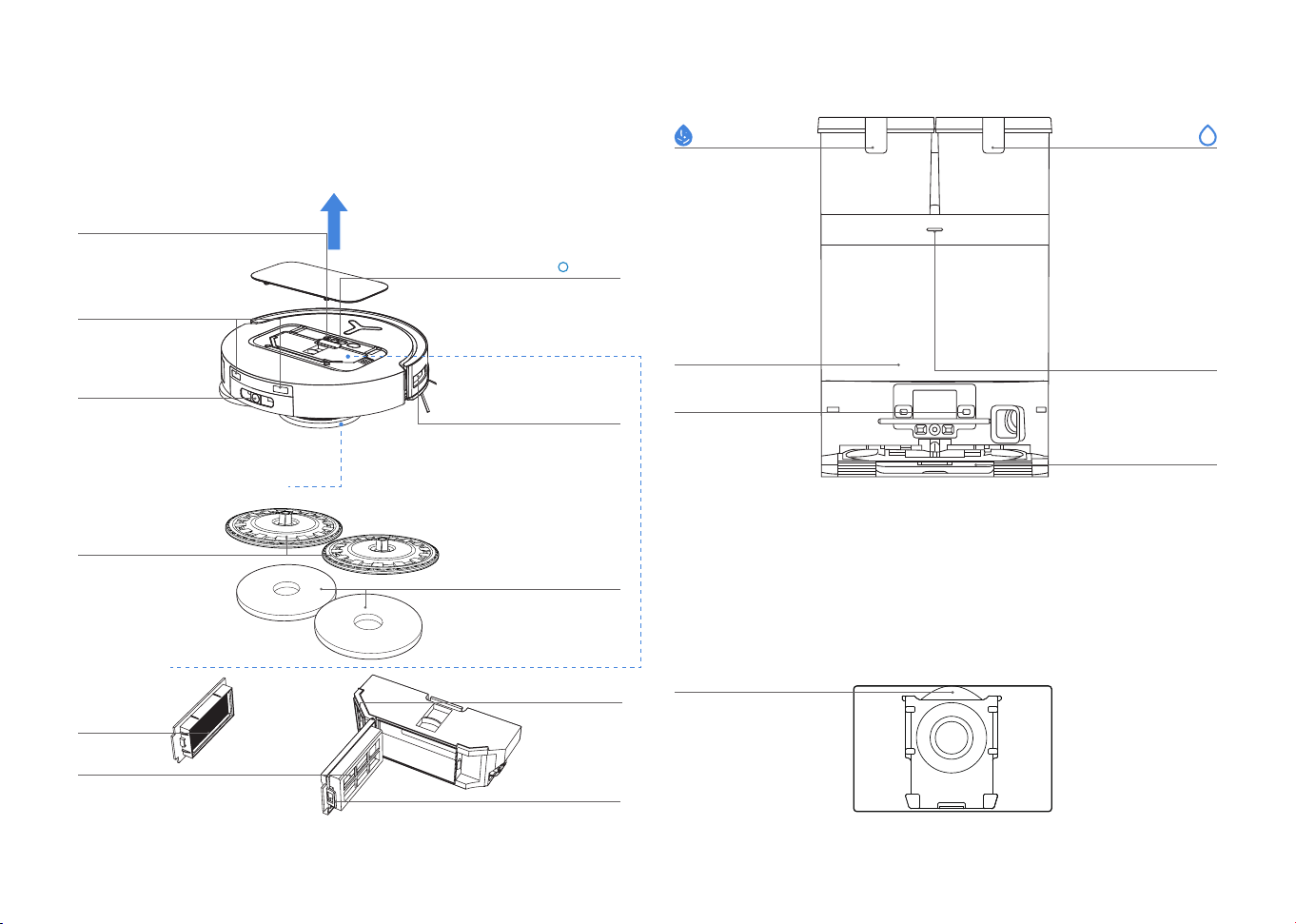
3D Structure Light
Sensor
1. Robot Front View
Top Cover
Button on DEEBOT
Press: Start/Pause
Press and hold for 3s: Return to charge
Bumper
2
PRODUCT DIAGRAM
d-ToF Laser Module
2. Robot Bottom View
Driving Wheels
Universal Wheel
Side Brush
Carpet Detection Sensor
Roller Brush
Anti-drop Sensors
Brush Release Button
Mounting Slots for
Mopping Pad Assembly
Package Contents
Robot OMNI Station (with Dust Bag) Base
Instruction Manual
Side Brush Power Cord
1
PACKAGE CONTENTS
Instruction Manual
Note: Figures and illustrations are for reference only and may differ from actual product appearance.
Product design and specications are subject to changes without notice.
8
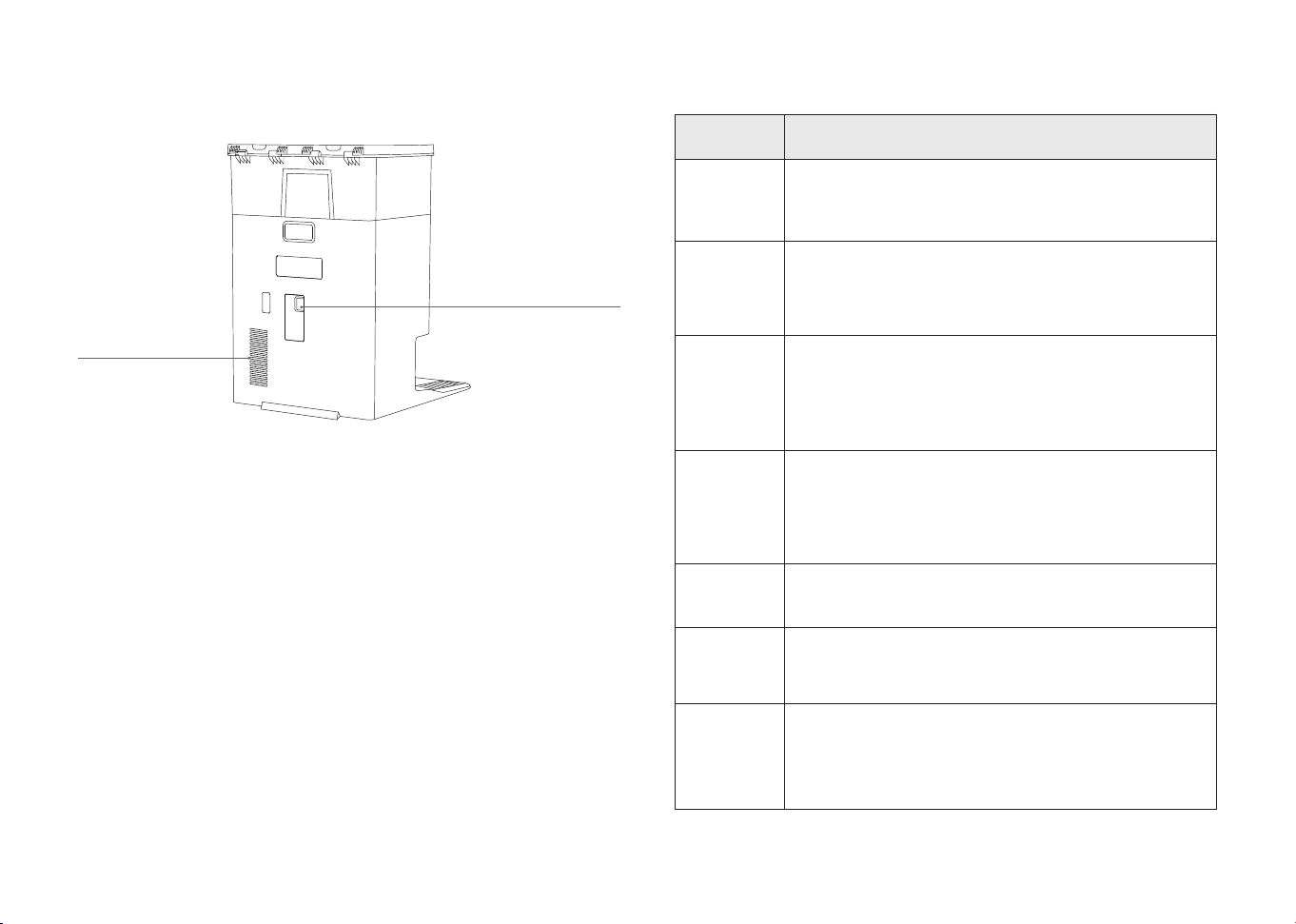
3. Under the Cover
Power Switch
"I" = ON
"
" = OFF
RESET Button
Network Setup: Press the RESET Button and follow the voice prompt to set up the
network.
Restore to default settings: Press and hold the RESET button for 5 seconds, and you
will hear a prompt sound. After that, the startup music will play, and the robot will be
restored to default settings.
Wi-Fi Status Indicator/
RESET Button
5. Dust Bin
Water Filling Port
Edge Sensor
Charging Contacts
6. Station Front View
Dirty Water Tank
Dust
Collection Cabin
Note:
7. Dust Bag
Indicator
Solid White:
Standby/Running
Flashing Red:
Malfunction
Goes out:
Power Outage/ Deep
Sleep Mode
Mop Washing Tray
Clean Water Tank
Charging
Contacts on Station
• If the Indicator ashes red, go to the ECOVACS HOME App for details about the
malfunction.
• If the robot cannot charge, wipe the corresponding charging contacts on the
OMNI Station with a dry cloth.
Dust Bag Handle
4. Mopping Pad Assembly
Mopping Pad Plates
Washable Mops
Filter
Filter Net
Dust Disposal Port
Release Button
9
8. Station Back View
Air Vent
Power Socket
9. Sensors
Product
Diagram
Functional Description
d-ToF
Laser Module
Laser Ranging is applied to measure the distance between the
robot and surrounding objects based on the time difference
of reection, allowing the module to map against the objects
around while the robot is moving. The detection range is 10 m.
3D Structure
Light Sensor
Infrared Ranging and similar triangles are applied to measure
the distance between the surrouding objects and the robot.
When the sensor detects an object nearby, the robot will
automatically take a turn to avoid bumping into the object. The
detection range is 0.4 m.
Anti-drop
Sensors
Infrared Ranging is applied by the sensor at the bottom of the
robot to measure the height between the bottom of the robot
and the ground. When there is a height difference, for example,
a height above 55 mm on white-colored ground or a height
above 30 mm on black-colored ground, the robot will stop
advancing, fullling the feature of Anti-drop.
Carpet
Detection
Sensor
The ultrasound probe can emit ultrasonic waves with a
frequency of 300KHZ. The energy of the ultrasonic waves can
be absorbed by carpets. If the reected energy is below the
threshold, the robot will recognize the presence of a carpet.
According to ECOVACS lab tests, currently, over 50 types of
carpets available on the market can be identied.
Anti-collision
Sensor
When the transmitted signal is blocked by an object, the signal
receiver will not be able to receive it. With this principle, the
robot will avoid obstacles when encountering them.
Edge Sensor
With Infrared Ranging, the robot can detect the distance
between itself and objects on its right side. When there is a wall
or an obstacle on the right side, the robot will perform edge
cleaning to avoid missed spots or collisions.
Microphone
Human voices cause vibrations in the diaphragm of the
microphone through air. As a result, the microphone utilizes the
collection and algorithms of sound models to achieve sound
recording and voice control of the robot to complete specic
tasks. The effective wake-up distance is 5 m.
10
NOTES BEFORE CLEANING
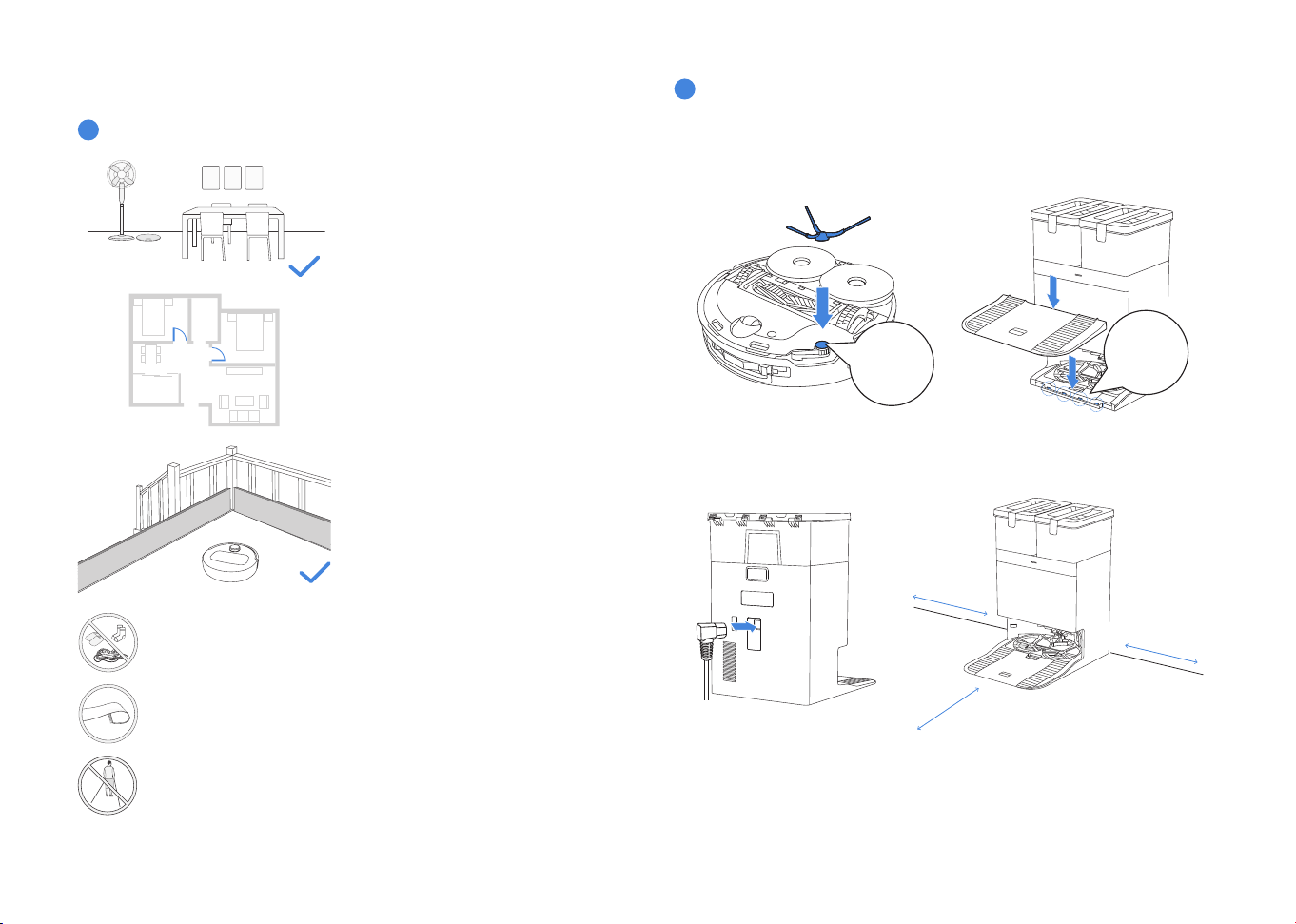
1
Before Cleaning
Put away objects including cables, cloths, slippers, etc. on the oor
to improve the cleaning efciency.
Tuck the edges of tasseled rugs underneath before cleaning.
Please do not stand in tight spaces such as doorways and hallways,
and make sure not to block the robot's path when it's identifying areas.
Tidy up the area to be cleaned by putting
furniture, such as chairs, in their proper
place.
During the rst use, make sure each room
door is open to help the robot fully explore
your home.
It
may be necessary to place a physical
barrier at the edge of a drop to prevent the
robot from falling over the edge.
1. Installation of Robot and Station
Before using, please remove all protective materials from the robot and OMNI
Station.
The sound of Click indicates proper installation.
2. Power Cord Connection and Station Placement
Note:
• If there are re ective objects, such as mirrors, or re ective skirting lines near the
Station, cover them from the ground up to the height of 14 cm.
• Do not place the Station under direct sunlight.
• Place the Station in a location with a strong Wi-Fi signal.
Place the Station against a wall on a level, hard ground. Ensure there are no
objects within 0.05 m on either side or 0.8 m in front of it.
≥
0.05m (0.16’)
≥
0.05m (0.16’)
≥
0.8m (2.62’)
2
Quick Start
click
click
11
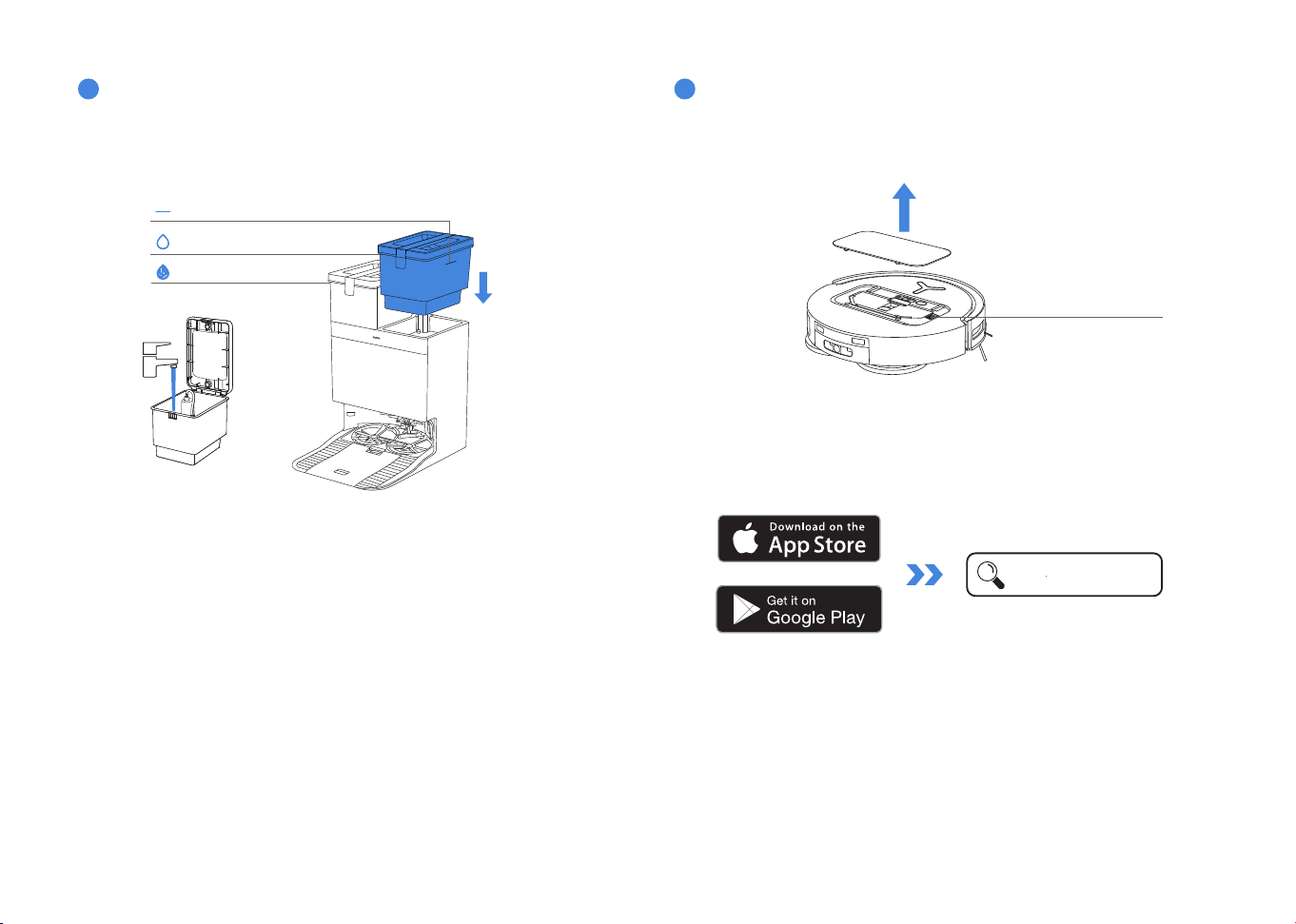
Note:
• Use a clean, dry cloth to wipe off the water on the surface of the tank before
putting it in place.
• Please lock the top covers of both water tanks tightly before use.
• Water marks, if any, in the water tanks are from the function test. Please rest
assured to use.
• Please use only the ofcial ECOVACS cleaning solution to avoid potential
machine malfunctions. To purchase, please visit the ECOVACS HOME App or
the ECOVACS ofcial website.
Take out the Clean Water Tank and ll it up to the max water level. After lling the
tank, lock its cover and put it back to the Station.
3
Fill Clean Water Tank
Note: Follow the guide of the App to register, log in, and connect the product with the App.
4
Download the ECOVACS HOME App
You may scan the QR Code on the robot to download the App.
Download ECOVACS HOME App to enjoy more features.
Under the Top Cover
Or search for the ECOVACS HOME in your mobile app store to download the App.
ECOVACS HOME
Dirty Water Tank
Clean Water Tank
Max Water Level
12
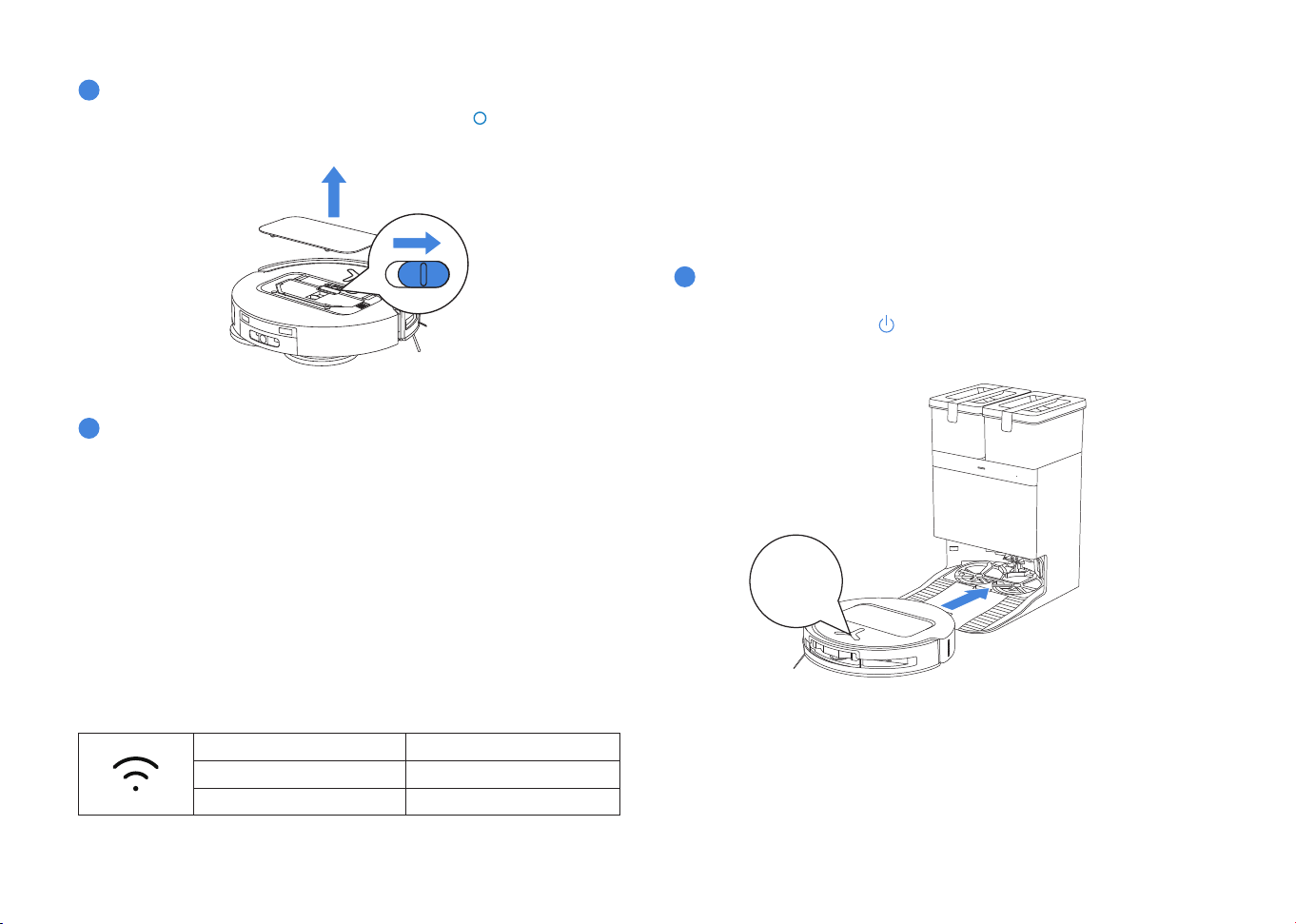
Wi-Fi Indicator Light
Quick Flashing White Connecting
Slow Flashing White Disconnected from Wi-Fi
Solid White Connected to Wi-Fi
6
Connect DEEBOT with App
7
Charge DEEBOT
Wi-Fi Network Requirements:
• You are using a 2.4GHz or 2.4/5 GHz mixed network.
• Your router supports 802.11b/g/n and IPv4 protocol.
• Do not use a VPN (Virtual Private Network) or Proxy Server.
• Do not use a hidden network.
• WPA and WPA2 using TKIP, PSK, AES/CCMP encryption.
• WEP EAP (Enterprise Authentication Protocol) is not supported.
• Use Wi-Fi channels 1-11 in North America and channels 1-13 outside North
America (refer to local regulatory agency).
• If you are using a network extender/repeater, the network name (SSID) and
password are the same as that of your primary network.
• Please enable the WPA2 on your router.
Please note that to access smart features such as remote startup, voice interaction,
2D/3D map display and control settings, and personalized cleaning (features may
vary depending on the product), you'll need to download and use the ECOVACS
HOME App, which receives constant updates. You must agree to our Privacy Policy
and User Agreement before we can process some of your basic and necessary
information and enable you to operate the product via the ECOVACS HOME App.
Without your agreement, some of the aforementioned smart features cannot be
accessed through the ECOVACS HOME App. Nevertheless, you can still use the
product's basic functions for manual operation.
Use the ECOVACS HOME App or Voice Control to recall the robot, or press and
hold the Button on DEEBOT
for 3 seconds, to allow the robot to dock for
charging.
Note:
• The robot cannot be charged when the power is turned off.
• When the robot is not working, it is recommended to keep it powered ON and
charging.
• It is recommended that the robot start cleaning from the Station. Do not move the
Station while cleaning.
3 s
Turn on the power switch under the robot cover ("I" = ON, " "= OFF), and place
the robot in front of the Station that is connected to power supply.
5
Power on DEEBOT
13
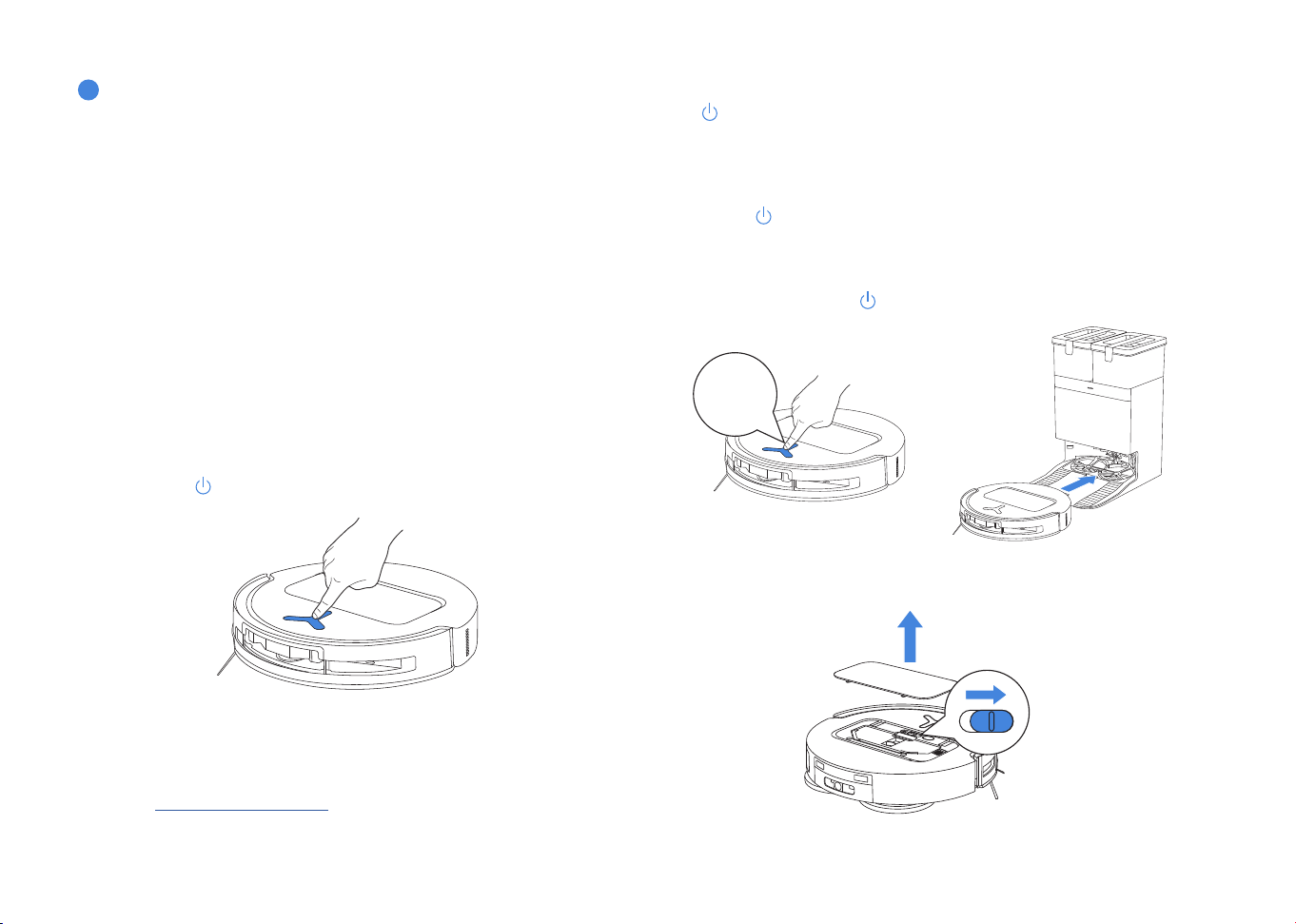
Before cleaning for the rst time, please make sure the robot is in the Station and
fully charged. Tap
on the robot to start. You can also use the ECOVACS HOME
App or Voice Control to start.
2. Start Cleaning
1. Start Mapping
When creating a map for the rst time, please follow the robot to help resolve some
minor issues.
For instance, if the robot gets stuck in a narrow space under furniture, you may refer
to the following solutions:
①
Raise the furniture to create a passage for the robot if feasible.
②
Cover the bottom of the furniture to prevent the robot from trying to enter.
③
Set up Virtual Boundary in the App to prevent the robot from entering.
8
Operate DEEBOT
• The robot's water tank is automatically relled through the Station. Manual relling
is not needed.
• When mopping, the robot will recognize oor types and is able to lift mops
automatically when encountering carpets. Please do not use the robot on shaggy
rugs or carpets with bres longer than 10 mm. It is recommended to fold up the
shaggy rugs with bres longer than 10 mm during the cleaning process, or set
the shaggy carpeted area as a No-Entry Zone by setting Virtual Boundary in the
ECOVACS HOME App.
Note:
•
Do not frequently remove washable mopping pads.
•
Do not use a rag or any other object to scratch the Moping Pad Plates.
•
When the ECOVACS HOME App prompts that the mops need to be replaced,
please replace them in time. Explore more accessories on ECOVACS HOME
App or at https://www.ecovacs.com.
Tap
on the robot to pause it while it is working. You can also use the ECOVACS
HOME App or Voice Control to pause the robot.
3. Pause
After pausing for a while, all indicator lights on the robot will go out. To wake up the
robot, press
.
4. Wake up
Use the ECOVACS HOME App or Voice Control to recall the robot, or press and
hold the Button on DEEBOT
for 3 seconds, to allow the robot to dock for
charging.
5. Return to Station
3 s
The robot will enter deep sleep mode to protect the battery if it stays outside the
Station for about 5 h. Please switch OFF and ON to wake up the robot.
6. Deep Sleep Mode
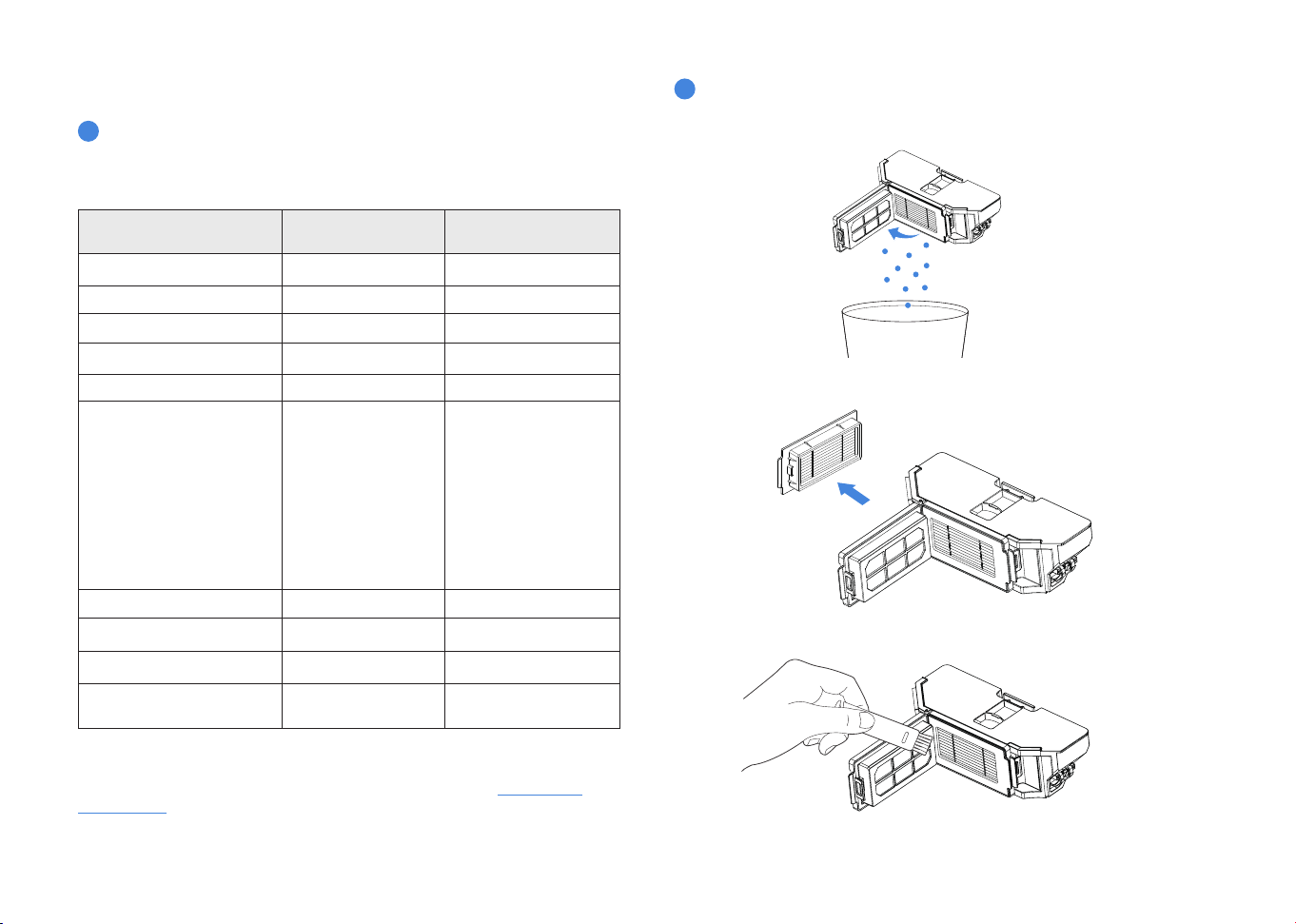
14
Regular Maintenance
To ensure optimal performance, maintain and replace parts at the following
frequencies:
Part
Maintenance
Frequency
Replacement
Frequency
Washable Mops / Every 1-2 months
Dust Bag / When App prompts
Side Brush Every 2 weeks Every 3-6 months
Roller Brush Every week Every 6-12 months
Filter Every week Every 3-6 months
3D Structure Light Sensor
Universal Wheel
Anti-drop Sensors
Bumper
Charging Contacts on
DEEBOT
Charging Contacts on OMNI
Station
d-ToF Laser Module
Approx. every month /
Clean Water Tank Every 3 months /
Dirty Water Tank Every month /
Dust Collection Cabin Every month /
Body and Bottom of the
Station
Every month /
1
Maintenance Frequency
2
Maintain Dust Bin
2. Take out the Filter.
1. Open the cover and empty the bin.
3. Clean the Dust Bin.
Note: Explore more accessories at ECOVACS HOME App or at https://www.
ecovacs.com.
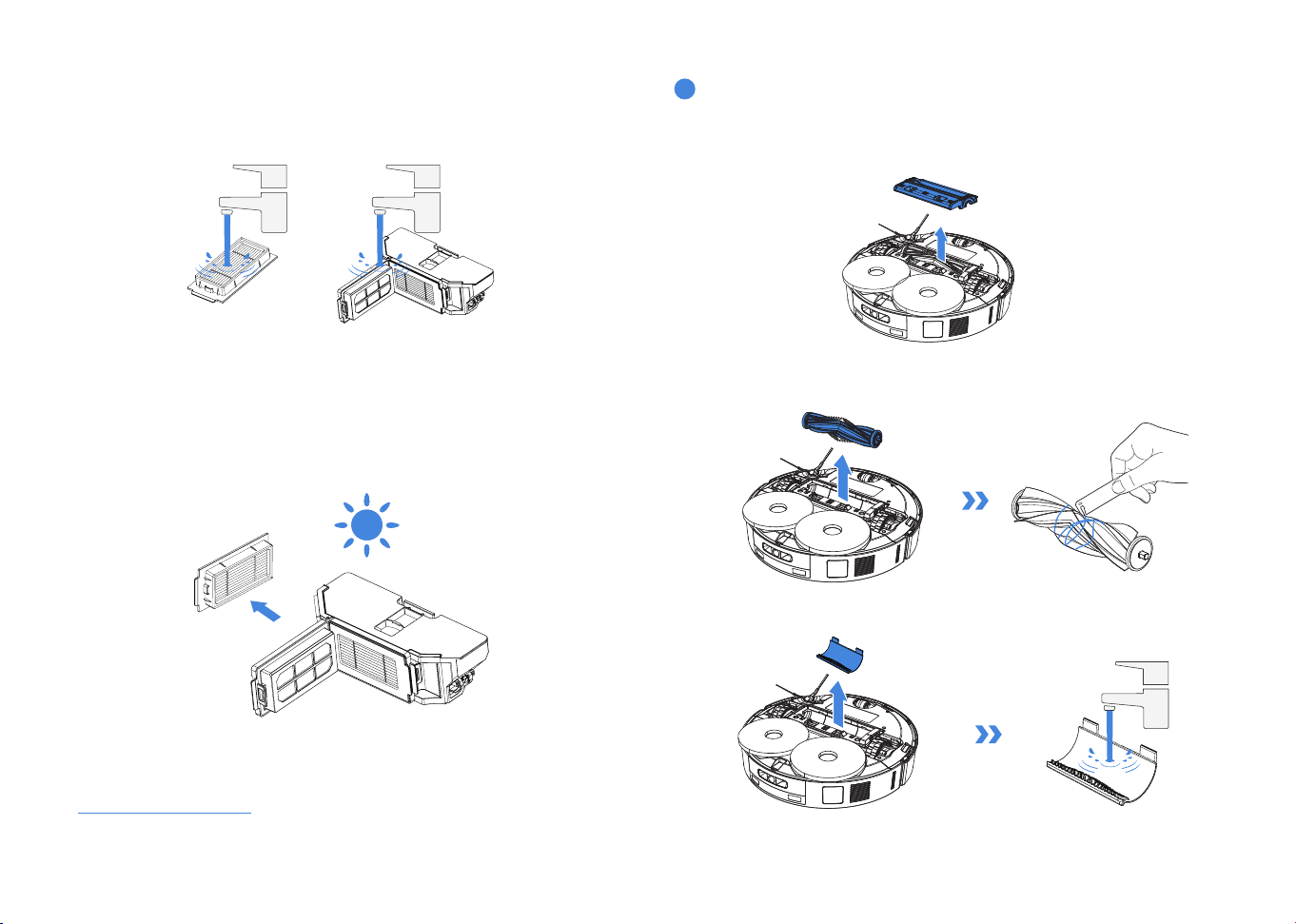
15
Note:
• Please rinse the Filter with water.
• Do not use nger or brush to clean the Filter.
5. Dry by airing.
4. You may wash the Dust Bin and the Filter with running water.
Shake off the remaining water from the parts.
Clean the Roller Brush
1. Remove the cover on the Roller Brush.
2. Remove and clean the Roller Brush.
3. Remove and clean the Brush Comb.
3
Maintain Roller Brush and Side Brush
Note: Explore more accessories at ECOVACS HOME App or at
https://www.ecovacs.com.
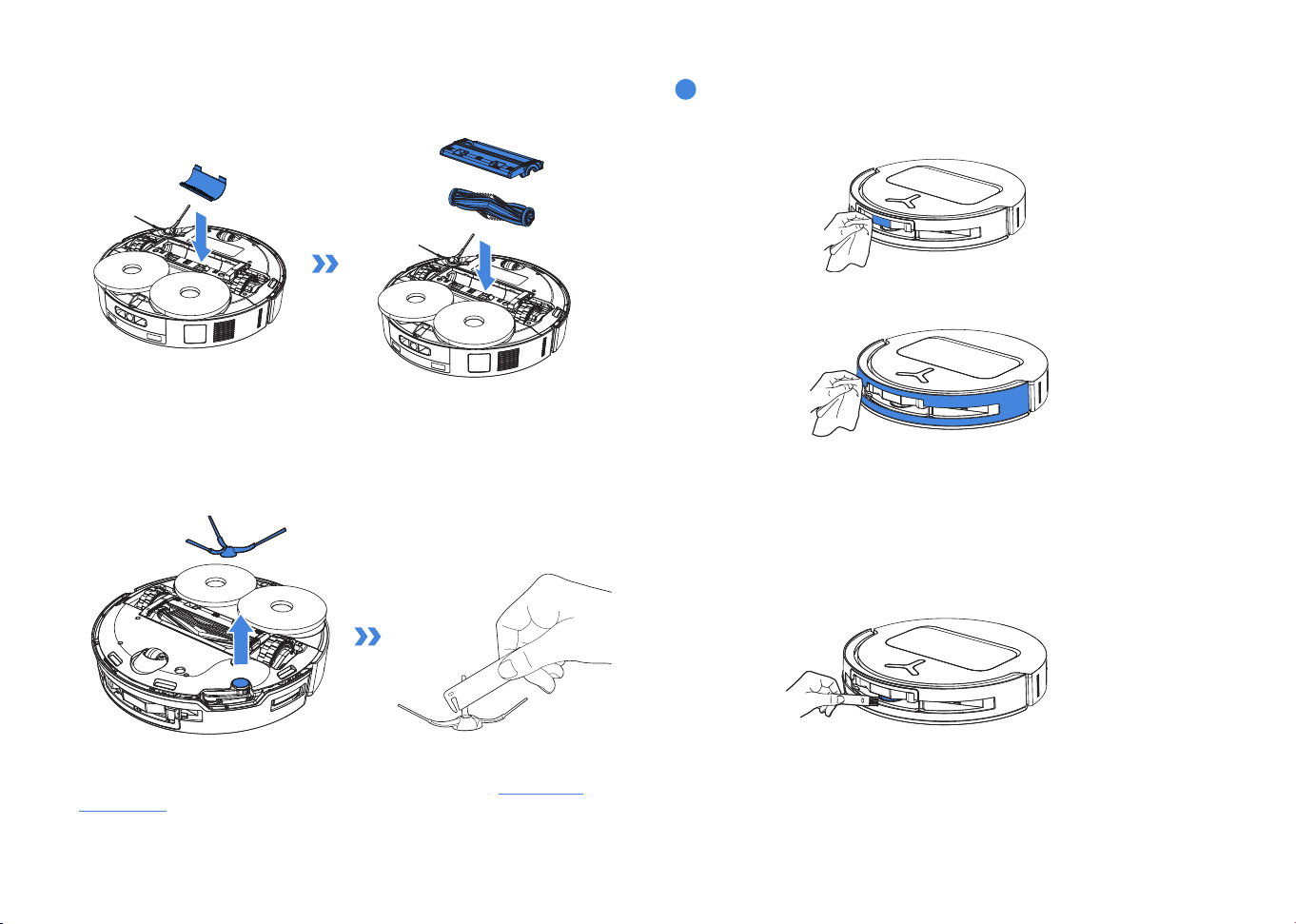
16
4. Install the Brush Comb, the Roller Brush and the Roller Brush Cover.
Clean the Side Brush
1. Remove and clean the Side Brush.
Note: Explore more accessories at ECOVACS HOME App or at https://www.
ecovacs.com
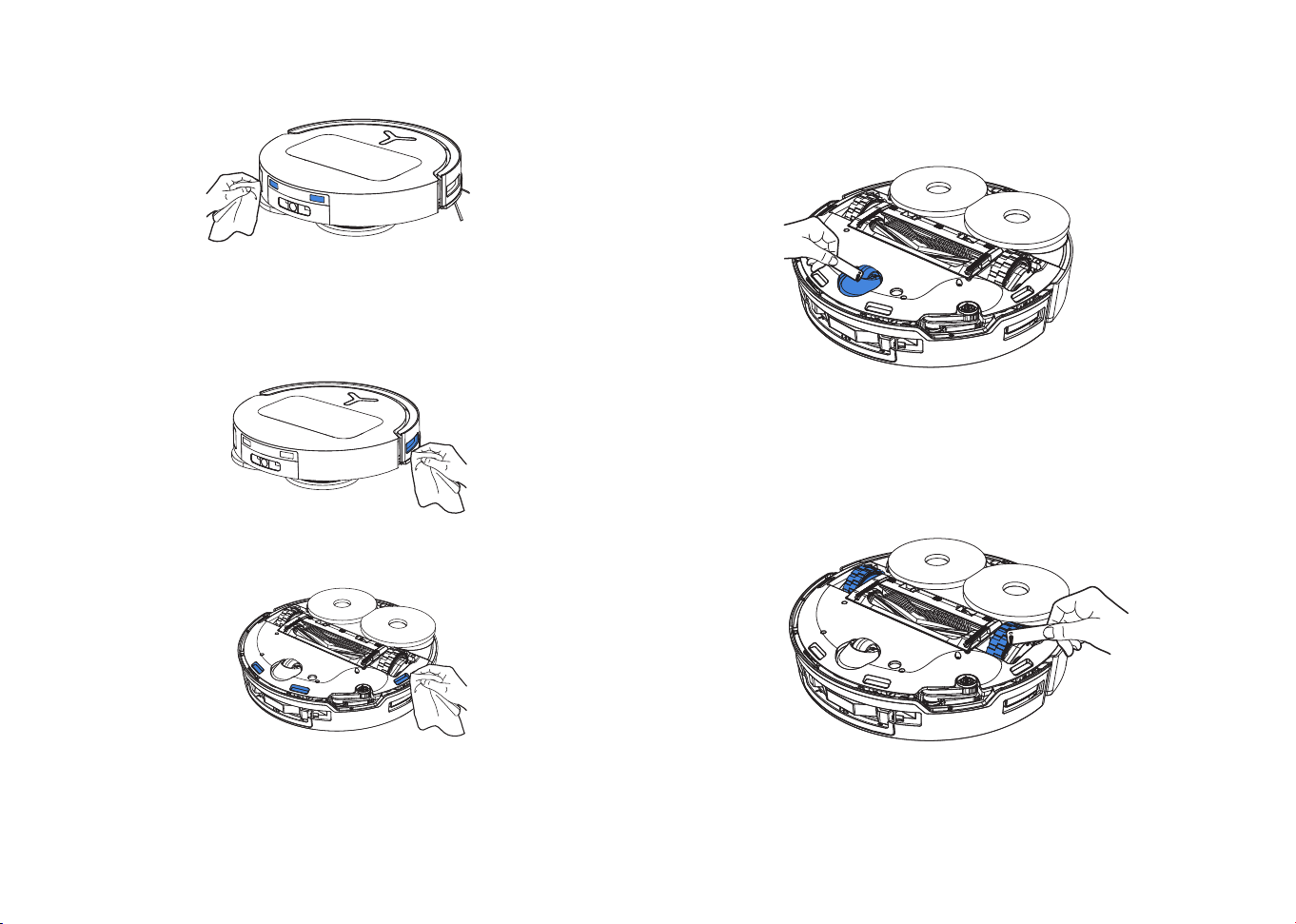
Clean the Sensor Lens
5
Maintain Other Components
Clean the Bumper
Note: Clean the sensor lens and the Bumper with a dry cloth. To prevent water
damage, avoid using a wet cloth.
Clean the d-ToF Laser Module
Note: Rotate the Module lens to the front and clean it gently with a soft brush.
17
Clean the Charging Contacts
Note: Wipe the contacts with a dry cloth. To prevent water damage, avoid using a
wet cloth.
Clean the Anti-drop Sensors
Clean the Edge Sensor
Note: Clean the sensor lens and the Bumper with a dry cloth. To prevent water
damage, avoid using a wet cloth.
Clean the Driving Wheels
Clean the Universal Wheel
18
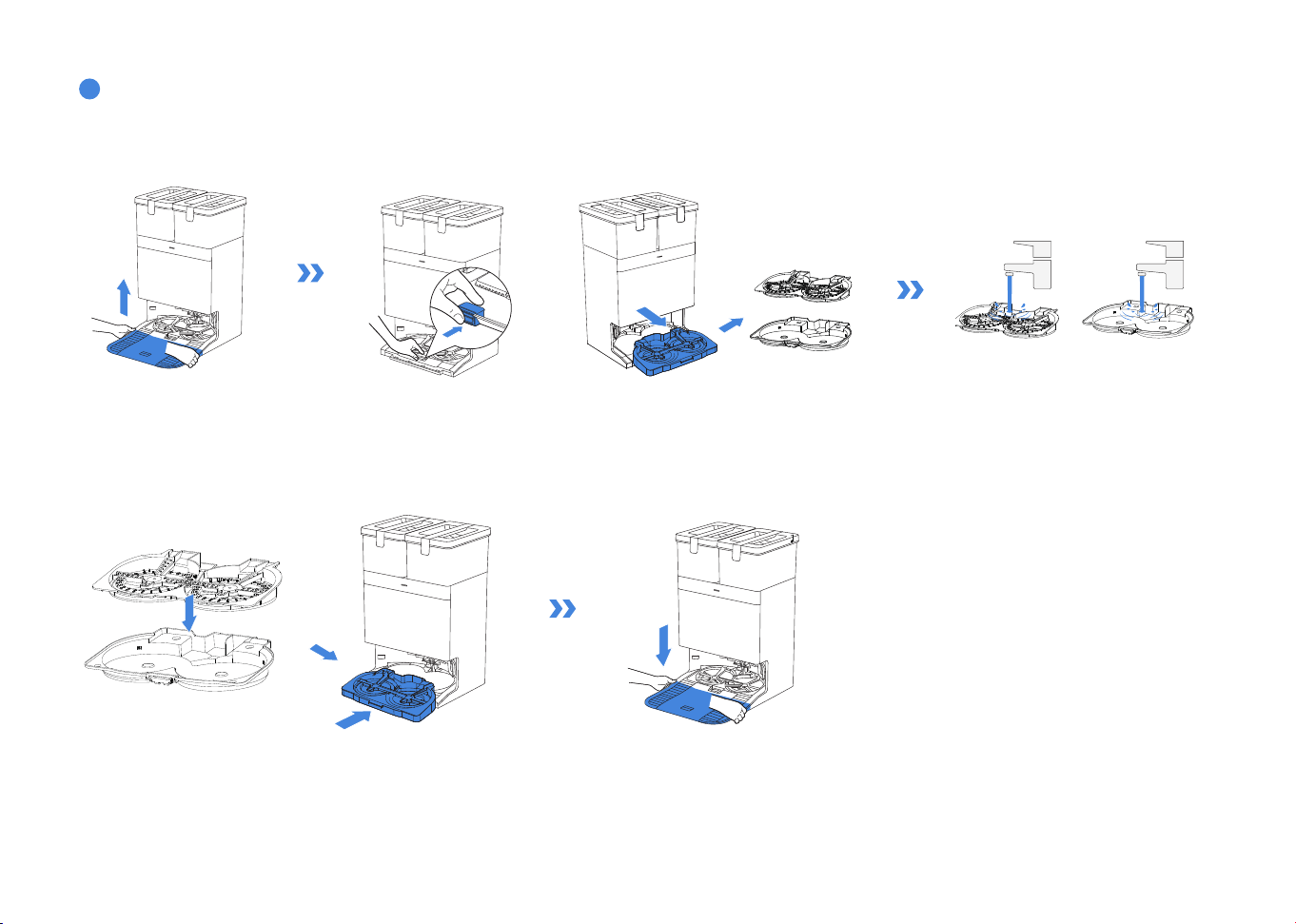
2. Install the cleaned Base and Mop Washing Tray.
1. Take off the Base and the Mop Washing Tray and clean them.
6
Mop Washing Tray
Note: Please install the Mop Washing Tray properly for smooth operation.
19
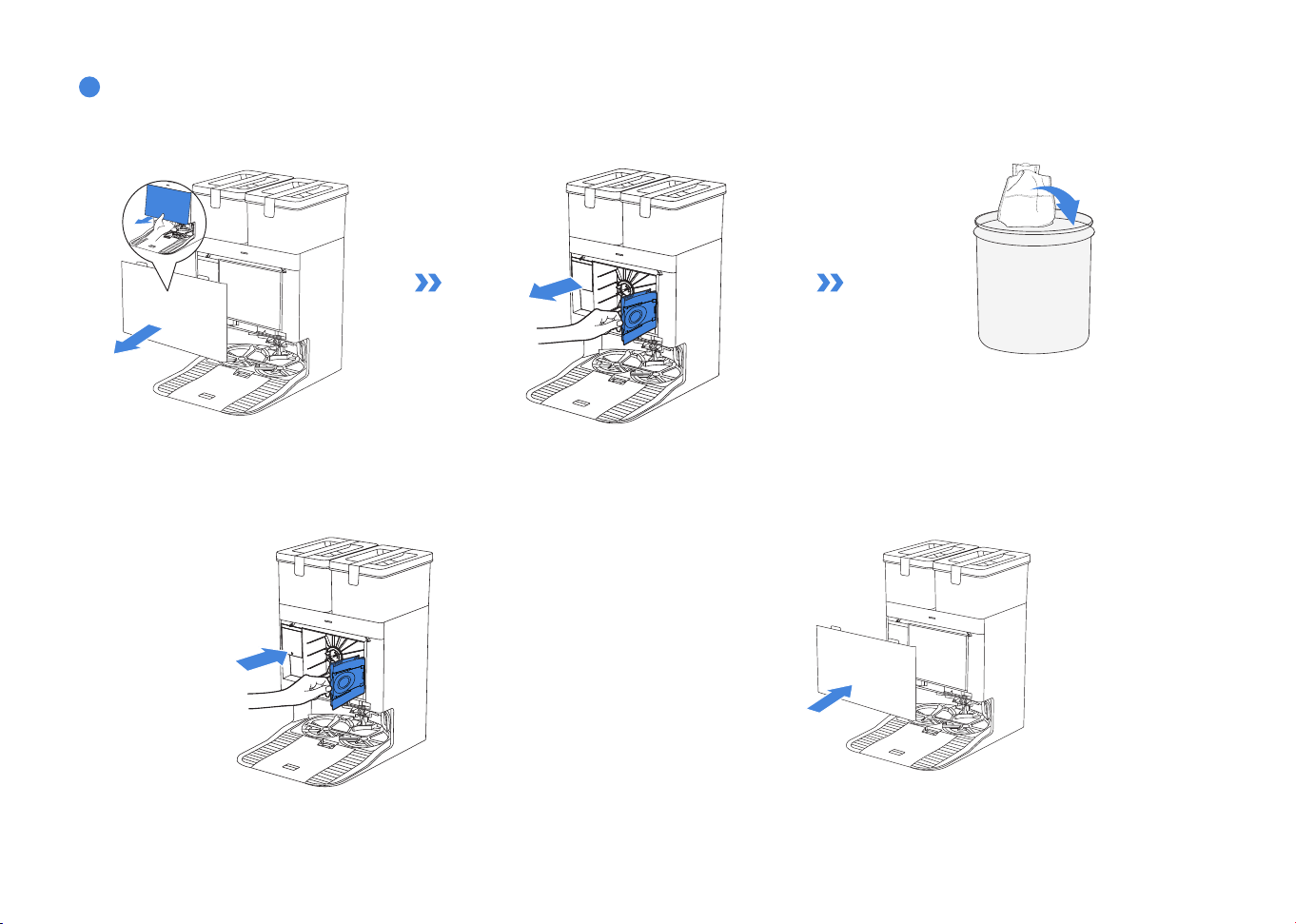
1. Discard the used Dust Bag.
Hold the handle to lift out the Dust
Bag, which can effectively prevent
dust leakage.
2. Clean the Dust Collection Cabin with a dry cloth and put a new Dust
Bag in.
3. Place the t joints at the upper edge of the Dust Cabin cover and
press the lower part of it to install it properly.
7
Dust Bag
20
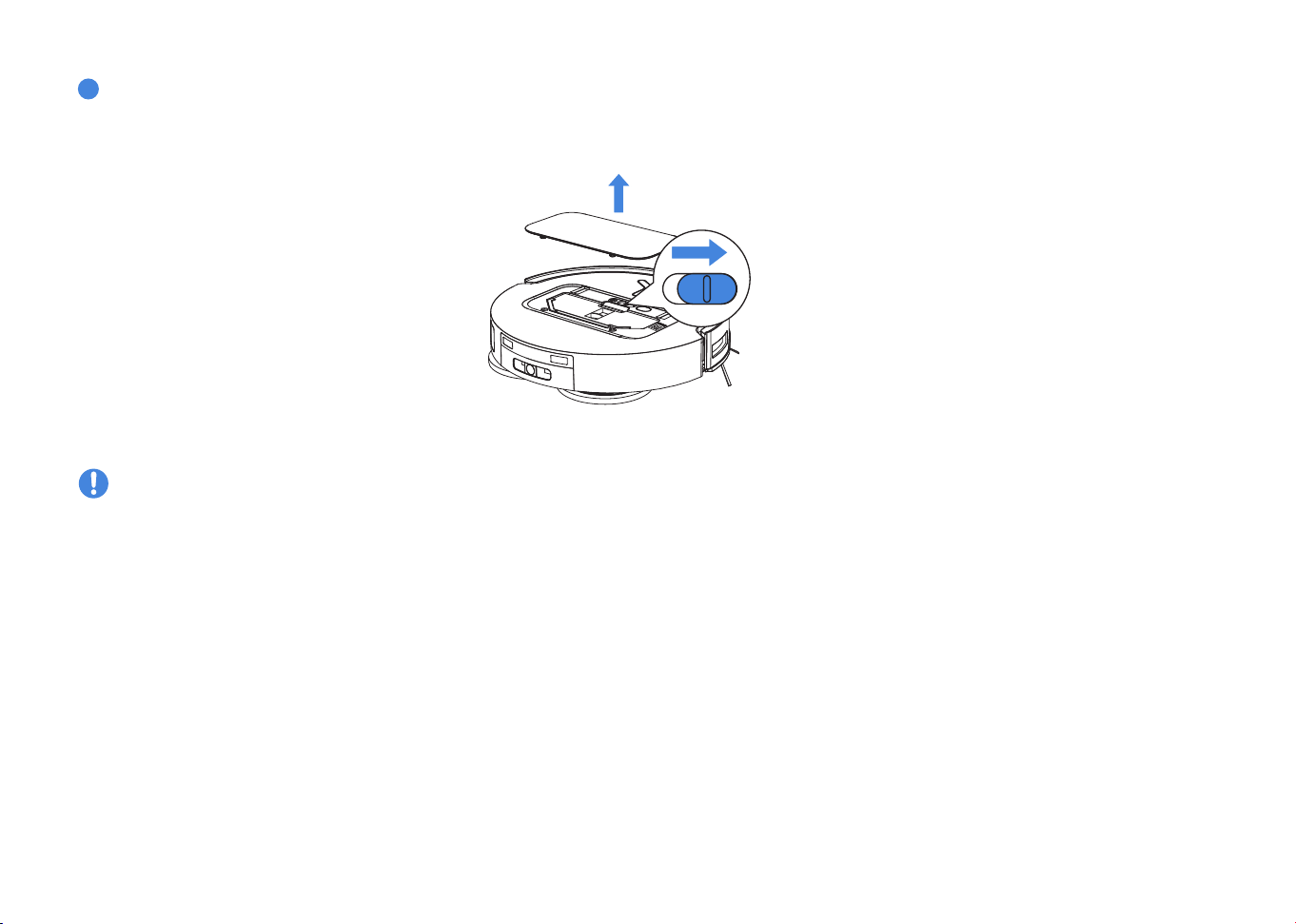
Please note that the robot cannot charge when powered OFF.
Please fully charge and switch OFF DEEBOT before storage. Please recharge it every 1.5 months to prevent the battery from over-discharge.
• When DEEBOT is not working, it is recommended to keep it powered ON and charging.
• If the battery is over-discharged or not used for a long time, DEEBOT may not be able to be charged. Please contact ECOVACS for help. Do not disassemble the battery
by yourself.
• If you do not use the product for a long time, keep the water tanks and the mops dry.
8
Storage

21
For the following possible issues, refer to the corresponding solutions
No. Malfunction Possible Cause Solution
1
DEEBOT is not able to
connect to the ECOVACS
HOME App.
Incorrect Wi-Fi username or password entered. Enter the correct Wi-Fi username and password.
DEEBOT is not within range of your home Wi-Fi signal.
Make sure DEEBOT is within range of your home Wi-Fi signal. Try to stay
as close to the router as possible.
DEEBOT is not in the conguration state.
Press the RESET button and try to connect again. In case of failure,
follow the App to reset the connection.
There is no home Wi-Fi on the Wi-Fi list.
1. Check if the Wi-Fi name contains special characters. Please do not
use special characters like ! @#&
¥
%/\
2. Do not use a 5 Ghz network.
Incorrect App installed. Please download and install the ECOVACS HOME App.
2 The map is lost.
The map might be lost if you move the robot while
cleaning.
Move the robot back to the Station to retrieve the map.
Find the saved map in Map Management on the ECOVACS HOME App
and tap “Use This Map” to retrieve it.
If this issue persists, please restart mapping.
3
Unable to create the furniture
map in the App.
Move DEEBOT when cleaning might cause the map to
be lost.
During cleaning, do not move DEEBOT.
Auto cleaning is not nished.
Make sure that DEEBOT automatically returns to the Station after
cleaning.
4
The Side Brush drops out of
place during use.
The Side Brush is not properly installed. Make sure the Side Brush clicks into place.
5
No signal found. Unable to
return to the Station.
The Station is incorrectly placed.
Please place the Station correctly according to the instructions in the
[Quick Start] section.
The Station is out of power or moved.
Check whether the Station is connected to power supply. Do not move
the Station.
DEEBOT does not start cleaning from the OMNI Station. It is recommended that DEEBOT starts cleaning from the OMNI Station.
The docking route is blocked. For example, the door is
closed to the room where the Station is placed.
Keep the route clear.
TROUBLESHOOTING

22
No. Malfunction Possible Cause Solution
6
The robot returns to the
Station before it has nished
cleaning.
The room is so large that the robot needs to return to recharge.
Please enable Auto Resume. For more details, please follow the
App instructions.
In highly complex home layouts, cleaning efciency may
decrease, possibly resulting in incomplete cleaning.
Simplify your home layout.
7 The robot is unable to charge.
DEEBOT is not switched ON. Switch ON DEEBOT.
The robot’s charging contacts are not fully in contact with the
Station's.
Make sure that the robot’s Charging Contacts have connected to
the Station's Charging Contacts and
ashes. Check whether
DEEBOT’s and OMNI Station's Charging Contacts are dirty. Please
clean these parts according to the instructions in the [Regular
Maintenance] section.
The Station is not connected to power supply. Make sure the OMNI Station is connected to power supply.
The Base of the Station is not installed properly. Refer to the [Quick Start] section for correct installation.
8
The robot is very loud during
cleaning.
The Roller Brush/Side Brush is tangled, or the Dust Bin/Filter is
blocked.
It is recommended to clean the Roller Brush, Side Brush, Dust Bin,
Filter, etc. regularly.
The robot is in Strong Mode. Switch to Standard Mode.
9
DEEBOT gets stuck while
working and stops.
DEEBOT is tangled with objects on the oor (electrical wires,
curtains, carpet fringing, etc.).
The robot will try various ways to free itself. If its attempts fail,
manually remove the obstacles and restart.
The robot might be stuck under furniture with an entrance of
similar height.
Please raise the furniture, set a physical barrier, or set a Virtual
Boundary via the ECOVACS HOME App.
DEEBOT is stuck in a narrow area.
Tidy up your home, set a physical barrier, or set a Virtual Boundary
via the ECOVACS HOME App.
10
During cleaning, the robot
may encounter issues like
a disorderly route, biased
movement, repeated cleaning
over the same spots, and
missing small areas. (If there
is a large area that has not
been cleaned temporarily,
DEEBOT will automatically
clean the missed area.
Sometimes DEEBOT will
re-enter a cleaned room,
which may not be a repeated
cleaning, but DEEBOT nding
any missed area.)
Objects such as wires and slippers placed on the ground block
DEEBOT.
Before cleaning, please tidy up scattered wires, slippers, and other
objects on the ground as possibly can. If there is any area missed
during cleaning, the robot will correct it automatically. Please refrain
from interfering (such as moving the robot or blocking its route).
The Driving Wheels may slip on the ground when DEEBOT climbs
steps, thresholds, and door bars, which can affect its judgement
of the entire home environment.
It is recommended to close the door of the affected area and clean
it separately. After cleaning, the robot will return to its starting
location.
On freshly waxed or polished oors, as well as smooth tiles, there
may be less friction between the Driving Wheels and the oor.
Please wait for the wax to dry before cleaning.
Due to variations in home layouts, some areas cannot be entered
by the robot.
Tidy up your home to ensure that the robot can enter the areas to
be cleaned.

23
No. Malfunction Possible Cause Solution
11 Delay in remote control.
The Wi-Fi signal is poor, causing the video loading to
be slow.
Use DEEBOT in areas with good Wi-Fi signal.
12
After returning to the OMNI
Station, DEEBOT does not empty
its Dust Bin.
The Auto-Empty function has not been turned on in the
ECOVACS HOME App.
Turn on the Auto-Empty function in the ECOVACS HOME App.
Dust Bag is not installed in the Station. Install the Dust Bag, and close the Dust Collection Cabin.
Manually moving the robot back to the Station may not
trigger the Auto-Empty function.
It is recommended to allow DEEBOT return to the OMNI Station on
its own. Please do not manually move it.
In Do Not Disturb mode, DEEBOT will not empty the
dust after returning back to the OMNI Station.
Turn off Do Not Disturb in the ECOVACS HOME App or manually
start dust-emptying.
If the above possible causes have been ruled out,
components of the Station may be abnormal.
Please contact customer service for assistance.
13 Auto-Empty unsuccessful.
The Station detects a decrease in empty efciency.
Replace the Dust Bag according to the [Regular Maintenance]
section and close the Dust Collection Cabin. If the Dust Bag is not
full when prompted by the App, you can put it back again.
The outlet of the Dust Bin is blocked by foreign objects. Remove the Dust Bin and clear the foreign objects on the outlet.
14
The inner side of the Dust
Collection Cabin is dirty.
Fine particles pass through the Dust Bag and
accumulate on the inner side of the Dust Collection
Cabin.
Clean the inner side of the Dust Collection Cabin.
The Dust Bag is broken. Check and replace the Dust Bag.
15
Dust leakage occurs while
DEEBOT is working.
The outlet of the Dust Bin is blocked by foreign objects. Remove the Dust Bin and clear the foreign objects on the outlet.
16 Mopping Pad Plates will not rotate.
The Mopping Pad Plates are not correctly installed.
Please install the Mopping Pad Plates correctly. A sound of Click
indicates properly installation.
The Mopping Pad Plates are blocked by foreign
objects.
Clear the foreign objects.
17
The robot does not respond to the
Station's instructions.
DEEBOT is not in the Station. Please make sure DEEBOT is in the Station.

24
No. Malfunction Possible Cause Solution
18 The Driving Wheel is stuck.
The Driving Wheel is entangled or stuck due to foreign
objects.
Rotate and press the Driving Wheel to check for any wrapping or
obstruction by foreign objects. If any foreign objects are found,
please clean them promptly. If this issue persists, please contact
customer service for assistance.
19
The Mop Washing Tray is
full of water and can't be
emptied. A voice prompt
is broadcasted to alert you
about this.
The Dirty Water Tank is not properly installed. Tap down on the Dirty Water Tank to ensure it is properly installed.
The sealing plugs in the Dirty Water Tank are not installed
properly.
Make sure that the two sealing plugs are properly installed.
The Station cannot drain water normally.
Follow the App instructions to see if the Station can drain properly.
If draining attempts fail, please check for possible foreign objects
between the Dirty Water Tank and the Station.
The suction port of the Mop Washing Tray is blocked by
foreign objects.
Ensure that there is no foreign object in the suction port of the Mop
Washing Tray.
The Mop Washing Tray is dirty. Cleaning the Mop Washing Tray with running water.
Check if the Floating Ball gets stuck when there is no water
in the Mop Washing Tray Base.
Take out the Mop Washing Tray to put the Floating Ball back in
place.
The voice alert persists after all the above solutions are
tried.
Power off and on the Station. If this issue persists, please contact
customer service for assistance.
Please contact our customer service for assistance if the problem persists despite the recommended solutions.
25
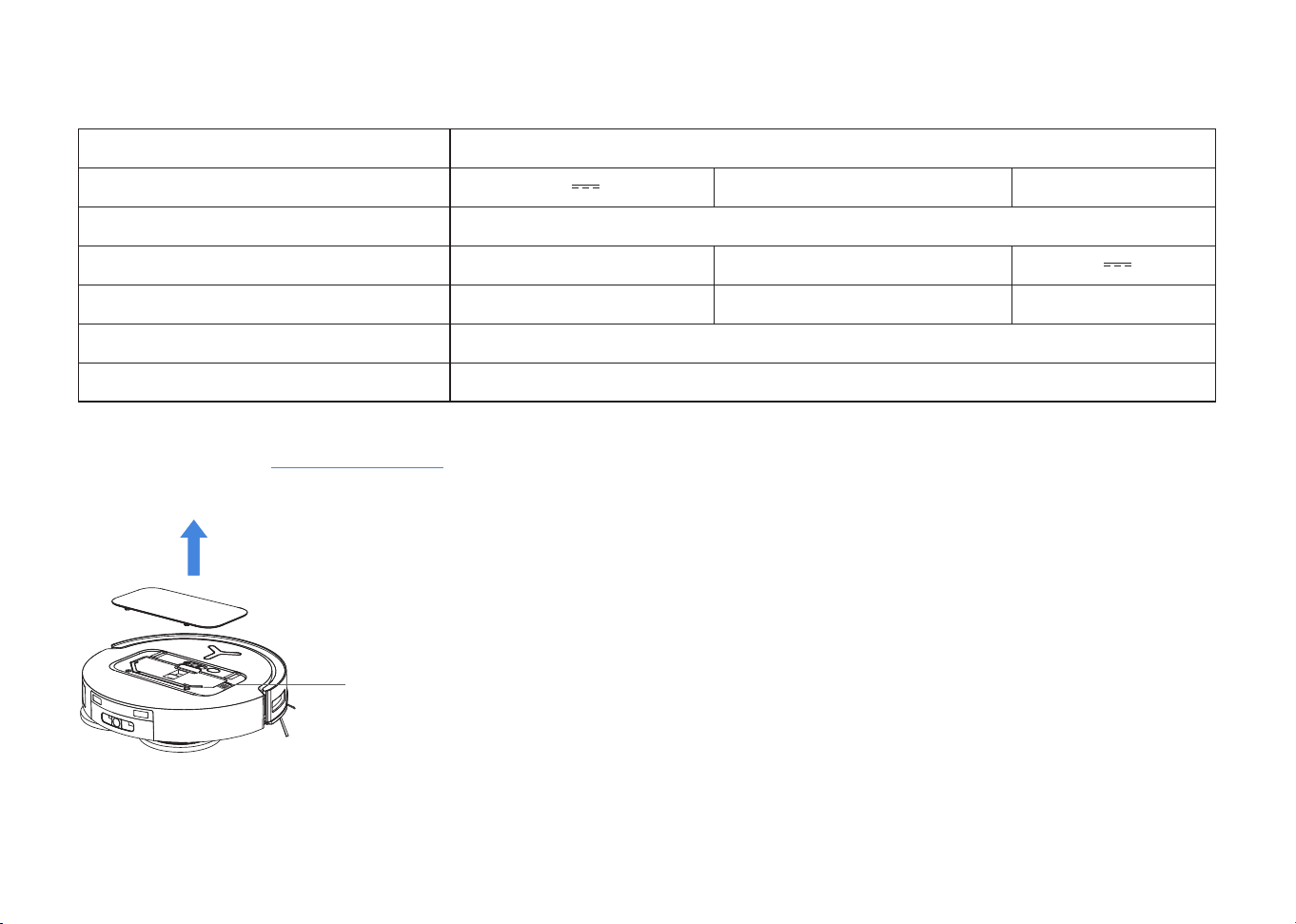
Please use the mobile camera to scan the QR code and obtain the user guide.
TECHNICAL SPECIFICATIONS
Output power of the wireless module is less than 100mW.
Note: Technical and design specications may be changed for continuous product improvement.
Explore more accessories at https://www.ecovacs.com.
Model DDX57
Rated Input 20V
2A Charging Time about 4.5h
Station Model CH2453B
Rated Input 220-240V
~
50-60Hz Rated Output 20V
2A
Rated Input Current(Charging) 0.5A Power(Emptying) 650W
Power(Hot Water Washing Mop) 1650W
Networked Standby Power Less than 2.00W

Ecovacs Home Service Robotics Co., Ltd.
No.518 Songwei Road, Wusongjiang Industry Park, Guoxiang Street,
Wuzhong District, Suzhou, Jiangsu, China.