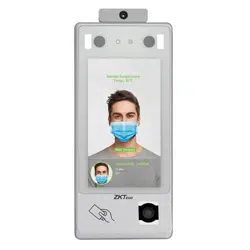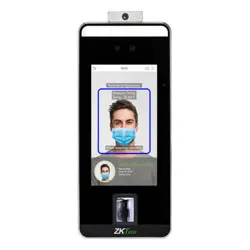
Product Name and Model Number User Manual
Page | 1 Copyright©2020 ZKTECO CO., LTD. All rights reserved.
Thank you for choosing our product. Please read the instructions carefully
before operation. Follow these instructions to ensure that the product is
functioning properly. The images shown in this manual are for illustrative
purposes only.
For further details, please visit our Company’s website
www.zkteco.com
.
User Manual
SpeedFace-V5L&H5L Series
Date: November 2023
Doc Version: 1.6
English

SpeedFace-V5L&H5L Series User Manual
Page | 1 Copyright©2023 ZKTECO CO., LTD. All rights reserved.
Copyright © 2023 ZKTECO CO., LTD. All rights reserved.
Without the prior written consent of ZKTeco, no portion of this manual can be copied or forwarded in any
way or form. All parts of this manual belong to ZKTeco and its subsidiaries (hereinafter the "Company" or
"ZKTeco").
Trademark
is a registered trademark of ZKTeco. Other trademarks involved in this manual are owned by
their respective owners.
Disclaimer
This manual contains information on the operation and maintenance of the ZKTeco equipment. The
copyright in all the documents, drawings, etc. in relation to the ZKTeco supplied equipment vests in and is
the property of ZKTeco. The contents hereof should not be used or shared by the receiver with any third
party without express written permission of ZKTeco.
The contents of this manual must be read as a whole before starting the operation and maintenance of the
supplied equipment. If any of the content(s) of the manual seems unclear or incomplete, please contact
ZKTeco before starting the operation and maintenance of the said equipment.
It is an essential pre-requisite for the satisfactory operation and maintenance that the operating and
maintenance personnel are fully familiar with the design and that the said personnel have received
thorough training in operating and maintaining the machine/unit/equipment. It is further essential for the
safe operation of the machine/unit/equipment that personnel has read, understood and followed the
safety instructions contained in the manual.
In case of any conflict between terms and conditions of this manual and the contract specifications,
drawings, instruction sheets or any other contract-related documents, the contract conditions/documents
shall prevail. The contract specific conditions/documents shall apply in priority.
ZKTeco offers no warranty, guarantee or representation regarding the completeness of any information
contained in this manual or any of the amendments made thereto. ZKTeco does not extend the warranty
of any kind, including, without limitation, any warranty of design, merchantability or fitness for a particular
purpose.
ZKTeco does not assume responsibility for any errors or omissions in the information or documents which
are referenced by or linked to this manual. The entire risk as to the results and performance obtained from
using the information is assumed by the user.
ZKTeco in no event shall be liable to the user or any third party for any incidental, consequential, indirect,
special, or exemplary damages, including, without limitation, loss of business, loss of profits, business
interruption, loss of business information or any pecuniary loss, arising out of, in connection with, or
relating to the use of the information contained in or referenced by this manual, even if ZKTeco has been
advised of the possibility of such damages.

SpeedFace-V5L&H5L Series User Manual
Page | 2 Copyright©2023 ZKTECO CO., LTD. All rights reserved.
This manual and the information contained therein may include technical, other inaccuracies or
typographical errors. ZKTeco periodically changes the information herein which will be incorporated into
new additions/amendments to the manual. ZKTeco reserves the right to add, delete, amend or modify the
information contained in the manual from time to time in the form of circulars, letters, notes, etc. for better
operation and safety of the machine/unit/equipment. The said additions or amendments are meant for
improvement /better operations of the machine/unit/equipment and such amendments shall not give any
right to claim any compensation or damages under any circumstances.
ZKTeco shall in no way be responsible (i) in case the machine/unit/equipment malfunctions due to any
non-compliance of the instructions contained in this manual (ii) in case of operation of the
machine/unit/equipment beyond the rate limits (iii) in case of operation of the machine and equipment in
conditions different from the prescribed conditions of the manual.
The product will be updated from time to time without prior notice. The latest operation procedures and
relevant documents are available on http://www.zkteco.com
.
If there is any issue related to the product, please contact us.
ZKTeco Headquarters
Address ZKTeco Industrial Park, No. 32, Industrial Road,
Tangxia Town, Dongguan, China.
Phone +86 769 - 82109991
Fax +86 755 - 89602394
For business related queries, please write to us at: [email protected]m
.
To know more about our global branches, visit www.zkteco.com.

SpeedFace-V5L&H5L Series User Manual
Page | 3 Copyright©2023 ZKTECO CO., LTD. All rights reserved.
About the Company
ZKTeco is one of the world’s largest manufacturer of RFID and Biometric (Fingerprint, Facial, Finger-vein)
readers. Product offerings include Access Control readers and panels, Near & Far-range Facial Recognition
Cameras, Elevator/floor access controllers, Turnstiles, License Plate Recognition (LPR) gate controllers and
Consumer products including battery-operated fingerprint and face-reader Door Locks. Our security
solutions are multi-lingual and localized in over 18 different languages. At the ZKTeco state-of-the-art
700,000 square foot ISO9001-certified manufacturing facility, we control manufacturing, product design,
component assembly, and logistics/shipping, all under one roof.
The founders of ZKTeco have been determined for independent research and development of biometric
verification procedures and the productization of biometric verification SDK, which was initially widely
applied in PC security and identity authentication fields. With the continuous enhancement of the
development and plenty of market applications, the team has gradually constructed an identity
authentication ecosystem and smart security ecosystem, which are based on biometric verification
techniques. With years of experience in the industrialization of biometric verifications, ZKTeco was
officially established in 2007 and now has been one of the globally leading enterprises in the biometric
verification industry owning various patents and being selected as the National High-tech Enterprise for 6
consecutive years. Its products are protected by intellectual property rights.
About the Manual
This manual introduces the operations of SpeedFace-V5L&H5L Series.
All figures displayed are for illustration purposes only. Figures in this manual may not be exactly consistent
with the actual products.
Features and parameters with
★ are not available in all devices.
SpeedFace-V5L&H5L Series User Manual
Page | 4 Copyright©2023 ZKTECO CO., LTD. All rights reserved.
Document Conventions
Conventions used in this manual are listed below:
GUI Conventions
For Software
Convention Description
Bold font Used to identify software interface names e.g., OK, Confirm, Cancel.
>
Multi-level menus are separated by these brackets. For example, File > Create >
Folder.
For Device
Convention Description
< >
Button or key names for devices. For example, press <OK>.
[ ]
Window names, menu items, data table, and field names are inside square
brackets. For example, pop up the [New User] window.
/
Multi-
level menus are separated by forwarding slashes. For example,
[File/Create/Folder].
Symbols
Convention Description
This represents a note that needs to pay more attention to.
The general information which helps in performing the operations faster.
The information which is significant.
Care taken to avoid danger or mistakes.
The statement or event that warns of something or that serves as a cautionary
example.

SpeedFace-V5L&H5L Series User Manual
Page | 5 Copyright©2023 ZKTECO CO., LTD. All rights reserved.
Table of Contents
DATA SECURITY STATEMENT ..................................................................................................................... 8
SAFETY MEASURES ..................................................................................................................................... 8
1 OVERVIEW .......................................................................................................................................... 11
2 INSTRUCTION FOR USE ..................................................................................................................... 11
FINGER POSITIONING ............................................................................................................................................................................11 2.1
STANDING POSITION, FACIAL EXPRESSION AND STANDING POSTURE ............................................................................12 2.2
FACE REGISTRATION ..............................................................................................................................................................................13 2.3
STANDBY INTERFACE.............................................................................................................................................................................14 2.4
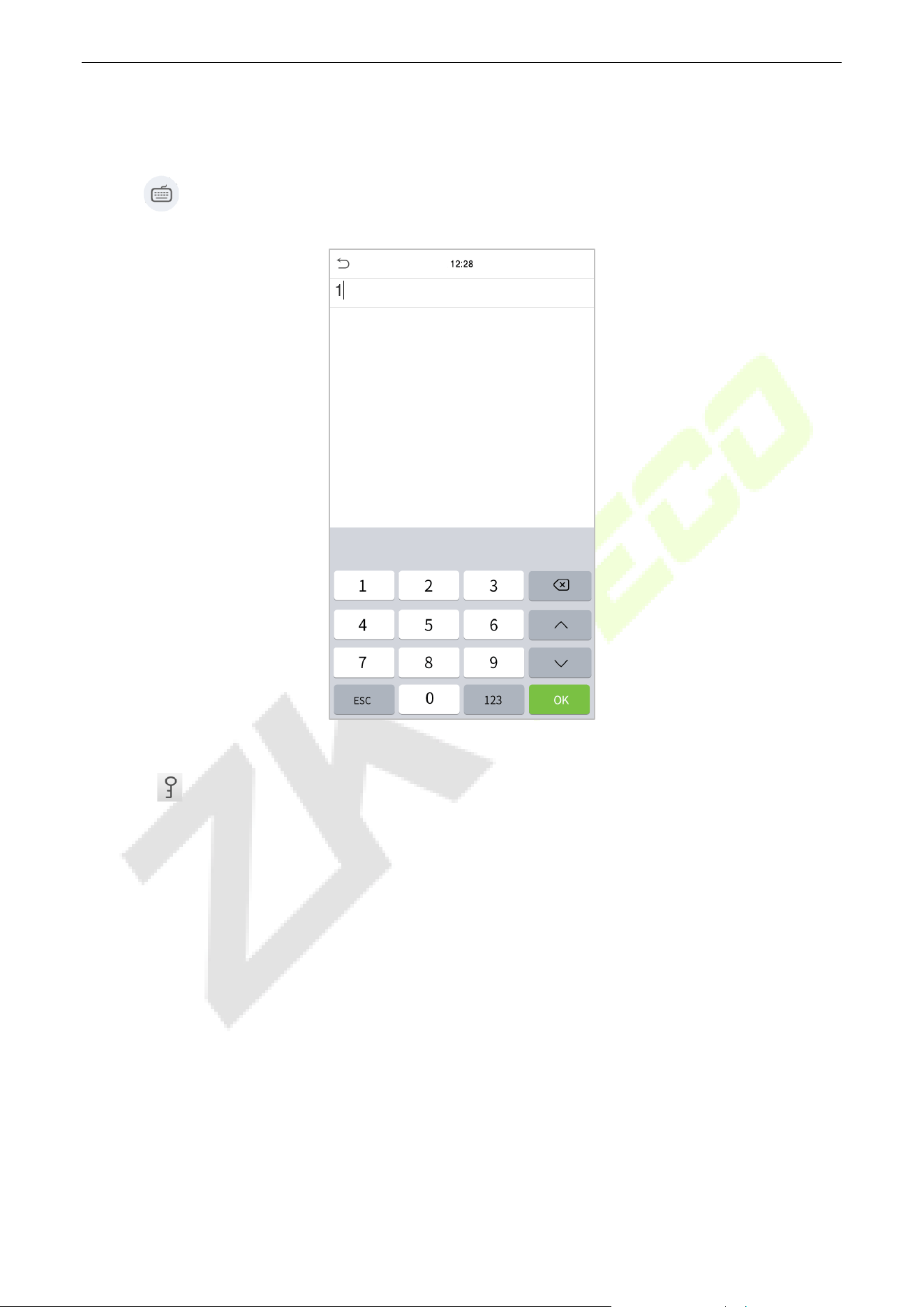
VIRTUAL KEYBOARD ...............................................................................................................................................................................16 2.5
VERIFICATION MODE .............................................................................................................................................................................17 2.6
2.6.1 FINGERPRINT VERIFICATION ..................................................................................................................................................................... 17
2.6.2 CARD VERIFICATION ................................................................................................................................................................................... 20
2.6.3 FACIAL VERIFICATION ................................................................................................................................................................................ 23
2.6.4 PASSWORD VERIFICATION ........................................................................................................................................................................ 27
2.6.5 COMBINED VERIFICATION ......................................................................................................................................................................... 29
3 MAIN MENU ....................................................................................................................................... 31
4 USER MANAGEMENT ......................................................................................................................... 33
USER REGISTRATION ..............................................................................................................................................................................33 4.1
4.1.1 REGISTER A USER ID AND NAME ............................................................................................................................................................. 33
4.1.2 SETTING THE USER ROLE ........................................................................................................................................................................... 34
4.1.3 REGISTER FINGERPRINT.............................................................................................................................................................................. 35
4.1.4 REGISTER FACE ............................................................................................................................................................................................. 36
4.1.5 REGISTER CARD NUMBER .......................................................................................................................................................................... 37
4.1.6 REGISTER PASSWORD ................................................................................................................................................................................. 38
4.1.7 REGISTER USER PHOTO .............................................................................................................................................................................. 39
4.1.8 ACCESS CONTROL ROLE ............................................................................................................................................................................ 39
SEARCH USER ............................................................................................................................................................................................40 4.2
EDIT USER ...................................................................................................................................................................................................41 4.3
DELETING USER ........................................................................................................................................................................................41 4.4
DISPLAY STYLE .........................................................................................................................................................................................42 4.5
5 USER ROLE ......................................................................................................................................... 43
6 COMMUNICATION SETTINGS ............................................................................................................ 45
NETWORK SETTINGS ..............................................................................................................................................................................45 6.1
SERIAL COMM★ ......................................................................................................................................................................................46 6.2
PC CONNECTION .....................................................................................................................................................................................47 6.3
WIRELESS NETWORK ..............................................................................................................................................................................48 6.4
CLOUD SERVER SETTING ......................................................................................................................................................................50 6.5
WIEGAND SETUP .....................................................................................................................................................................................51 6.6
6.6.1 WIEGAND INPUT .......................................................................................................................................................................................... 51
6.6.2 WIEGAND OUTPUT ...................................................................................................................................................................................... 53

SpeedFace-V5L&H5L Series User Manual
Page | 6 Copyright©2023 ZKTECO CO., LTD. All rights reserved.
NETWORK DIAGNOSIS ...........................................................................................................................................................................54 6.7
7 SYSTEM SETTINGS ............................................................................................................................. 55
DATE AND TIME .......................................................................................................................................................................................55 7.1
ACCESS LOGS SETTING .........................................................................................................................................................................57 7.2
FACE PARAMETERS .................................................................................................................................................................................58 7.3
FINGERPRINT PARAMETERS ................................................................................................................................................................60 7.4
VIDEO INTERCOM PARAMETERS .......................................................................................................................................................61 7.5
SECURITY SETTINGS ...............................................................................................................................................................................62 7.6
FACTORY RESET .......................................................................................................................................................................................63 7.7
DETECTION MANAGEMENT★............................................................................................................................................................64 7.8
8 PERSONALIZE SETTINGS ................................................................................................................... 66
INTERFACE SETTINGS.............................................................................................................................................................................66 8.1
VOICE SETTINGS.......................................................................................................................................................................................67 8.2
BELL SCHEDULES .....................................................................................................................................................................................68 8.3
PUNCH STATES OPTIONS .....................................................................................................................................................................69 8.4
SHORTCUT KEYS MAPPINGS ...............................................................................................................................................................70 8.5
9 DATA MANAGEMENT ........................................................................................................................ 71
DELETE DATA ............................................................................................................................................................................................71 9.1
10 ACCESS CONTROL .......................................................................................................................... 73
ACCESS CONTROL OPTIONS ...............................................................................................................................................................74 10.1
TIME SCHEDULE .......................................................................................................................................................................................75 10.2
HOLIDAYS ..................................................................................................................................................................................................77 10.3
COMBINED VERIFICATION ...................................................................................................................................................................78 10.4
ANTI-PASSBACK SETUP .........................................................................................................................................................................79 10.5
DURESS OPTIONS SETTINGS ...............................................................................................................................................................80 10.6
11 ATTENDANCE SEARCH .................................................................................................................. 81
12 AUTOTEST ...................................................................................................................................... 83
13 SYSTEM INFORMATION ................................................................................................................. 84
14 LAN VIDEO INTERCOM FUNCTION SETTINGS★ .......................................................................... 85
INSTALLING ZKBIO VMS PLUGIN IN THE ZKBIOACCESS IVS SOFTWARE ............................................................................85 14.1
CONFIGURATION PARAMETERS ........................................................................................................................................................86 14.2
VIDEO PREVIEW ON THE ZKBIOACCESS IVS SOFTWARE ..........................................................................................................89 14.3
MAKE A CALL ON THE DEVICE ............................................................................................................................................................90 14.4
15 CONNECT TO ZKBIOACCESS IVS SOFTWARE ............................................................................... 92
SET THE COMMUNICATION ADDRESS ............................................................................................................................................92 15.1
ADD DEVICE ON THE SOFTWARE ......................................................................................................................................................93 15.2
ADD PERSONNEL ON THE SOFTWARE ............................................................................................................................................94 15.3
REAL-TIME MONITORING ON THE ZKBIOACCESS IVS SOFTWARE ........................................................................................94 15.4
16 CONNECTING TO ZKBIO TALK SOFTWARE★ ............................................................................... 96
17 CONNECTING TO ZSMART APP★ ................................................................................................. 99

SpeedFace-V5L&H5L Series User Manual
Page | 7 Copyright©2023 ZKTECO CO., LTD. All rights reserved.
ADDING DEVICE ON THE ZSMART APP ...........................................................................................................................................99 17.1
VIDEO PHONE CONNECTION ........................................................................................................................................................... 101 17.2
18 CONNECTING TO SIP★ ................................................................................................................ 102
LOCAL AREA NETWORK USE ............................................................................................................................................................ 103 18.1
SIP SERVER .............................................................................................................................................................................................. 109 18.2
19 CONNECTING TO BLUETOOTH LOCK★ ...................................................................................... 111
BIND DEVICE ........................................................................................................................................................................................... 111 19.1
UNBIND DEVICE .................................................................................................................................................................................... 112 19.2
UNLOCK ................................................................................................................................................................................................... 114 19.3
20 CONNECTING TO ACMS★ ........................................................................................................... 115
ARMATURA CONNECT........................................................................................................................................................................ 115 20.1
20.1.1 ACTIVATE THE ACCOUNT ........................................................................................................................................................................ 115
20.1.2 DOWNLOAD AND INSTALL THE APP ................................................................................................................................................... 116
20.1.3 LOG IN THE APP .......................................................................................................................................................................................... 116
20.1.4 BIND DEVICE ................................................................................................................................................................................................ 117
20.1.5 COMPANY ASSIGN .................................................................................................................................................................................... 118
ARMATURA ID ....................................................................................................................................................................................... 118 20.2
20.2.1 DOWNLOAD THE ARMATURA ID APP ................................................................................................................................................. 119
20.2.2 ACTIVATE THE CREDENTIALS ................................................................................................................................................................. 120
20.2.3 USE OF THE MOBILE CREDENTIALS ...................................................................................................................................................... 122
APPENDIX 1 ............................................................................................................................................. 125
REQUIREMENTS OF LIVE COLLECTION AND REGISTRATION OF VISIBLE LIGHT FACE TEMPLATES .................................. 125
REQUIREMENTS FOR VISIBLE LIGHT DIGITAL FACE TEMPLATE DATA ......................................................................................... 126
APPENDIX 2 ............................................................................................................................................. 127
PRIVACY POLICY ............................................................................................................................................................................................... 127
ECO-FRIENDLY OPERATION ......................................................................................................................................................................... 130

SpeedFace-V5L&H5L Series User Manual
Page | 8 Copyright©2023 ZKTECO CO., LTD. All rights reserved.
Data Security Statement
ZKTeco, as a smart product supplier, may also need to know and collect some of your personal information
in order to better assist you in using ZKTeco's goods and services, and will treat your privacy carefully by
developing a Privacy Policy.
Please read and understand completely all the privacy protection policy regulations and key points that
appear on the device before using ZKTeco products.
As a product user, you must comply with applicable laws and regulations related to personal data
protection when collecting, storing, and using personal data, including but not limited to taking protective
measures for personal data, such as performing reasonable rights management for devices, strengthening
the physical security of device application scenarios, and so on.
Safety Measures
The below instructions intend to ensure that the user can use the product correctly to avoid danger or
property loss. The following precautions are to keep users safe and prevent any damage. Please read
carefully before installation.
Noncompliance with instructions could lead to product damage or physical injury (may even cause
death).
1. Read, follow, and retain instructions - All safety and operational instructions must be properly
read and followed before bringing the device into service.
2. Do not ignore warnings - Adhere to all warnings on the unit and in the operating instructions.
3. Accessories - Use only manufacturer-recommended or product-sold accessories. Please do not use
any other components other than manufacturer suggested materials.
4. Precautions for the installation – Do not place this device on an unstable stand or frame. It may
fall and cause serious injury to persons and damage to the device.
5. Service - Do not try to service this unit yourself. Opening or removing covers may expose you to
hazardous voltages or other hazards.
6. Damage requiring service - Disconnect the system from the Mains AC or DC power source and
refer service personnel under the following conditions:
When cord or connection control is affected.
When the liquid spilled, or an item dropped into the system.
If exposed to water or due to inclement weather (rain, snow, and more).
If the system is not operating normally, under operating instructions.
Just change controls defined in operating instructions. Improper adjustment of the controls may
result in damage and involve a qualified technician to return the device to normal operation.
And do not connect multiple devices to one power adapter as adapter overload can cause over-

SpeedFace-V5L&H5L Series User Manual
Page | 9 Copyright©2023 ZKTECO CO., LTD. All rights reserved.
heat or fire hazard.
7. Replacement parts - When replacement parts are needed, service technicians must only use
replacement parts provided by the supplier. Unauthorized substitutes can result in a burn, shock,
or other hazards.
8. Safety check - On completion of service or repair work on the unit, ask the service technician to
perform safety checks to ensure proper operation of the device.
9. Power sources - Operate the system only from the label's power source form. If the sort of power
supply to use is unclear, call your dealer.
10. Lightning - Can install external lightning conductors to protect against electrical storms. It stops
power-ups from destroying the system.
Recommended installing the devices in areas with limited access.
Electrical Safety
Before connecting an external cable to the device, complete grounding properly, and set up surge
protection; otherwise, static electricity will damage the mainboard.
Make sure that the power has been disconnected before you wire, install, or dismantle the device.
Ensure that the signal connected to the device is a weak-current (switch) signal; otherwise,
components of the device will get damaged.
Ensure that the standard voltage applicable in your country or region is applied. If you are not sure
about the endorsed standard voltage, please consult your local electric power company. Power
mismatch may cause a short circuit or device damage.
In the case of power supply damage, return the device to the professional technical personnel or
your dealer for handling.
To avoid interference, keep the device far from high electromagnetic radiation devices, such as
generators (including electric generators), radios, televisions, (especially CRT) monitors, or speakers.
Operation Safety
If smoke, odour, or noise rise from the device, turn off the power at once and unplug the power
cable, and then please contact the service centre.
Transportation and other unpredictable causes may damage the device hardware. Check whether
the device has any intense damage before installation.
If the device has major defects that you cannot solve, contact your dealer as soon as possible.
Dust, moisture, and abrupt temperature changes can affect the device's service life. You are
advised not to keep the device under such conditions.
Do not keep the device in a place that vibrates. Handle the device with care. Do not place heavy
objects on top of the device.

SpeedFace-V5L&H5L Series User Manual
Page | 10 Copyright©2023 ZKTECO CO., LTD. All rights reserved.
Do not apply rosin, alcohol, benzene, pesticides, and other volatile substances that may damage
the device enclosure. Clean the device accessories with a piece of soft cloth or a small amount of
cleaning agent.
If you have any technical questions regarding usage, contact certified or experienced technical
personnel.
No
te:
Make sure whether the positive polarity and negative polarity of the DC 12V power supply is
connected correctly. A reverse connection may damage the device. It is not advisable to connect
the AC 24V power supply to the DC 12V input port.
Make sure to connect the wires following the positive polarity and negative polarity shown on the
device's nameplate.
The warranty service does not cover accidental damage, damage caused by mis-operation, and
damage due to independent installation or repair of the product by the user.
SpeedFace-V5L&H5L Series User Manual
Page | 11 Copyright©2023 ZKTECO CO., LTD. All rights reserved.
1 Overview
SpeedFace-V5L&H5L Series using intelligent engineering facial recognition algorithms and the latest
computer vision technology. It supports Fingerprint, facial verification with large capacity and speedy
recognition, also the facial camera support QR code with Mobile App, as well as improves security
performance in all aspects.
SpeedFace-V5L Series adopts touchless recognition technology and masked individual identification
which eliminates hygiene concerns effectively. It is also equipped with ultimate antispoofing algorithm for
facial recognition against almost all types of fake photos and videos attack. Besides, its facial camera
supports QR code, PDF417, Data Matrix, MicroPDF417, Aztec, and so on, with ZKBioAccess IVS Mobile App
support Dynamic QR code for T&A/A&C.
The TD/TI Version with mask detection help reduce the spread of germs and help prevent infections
straightly at each access point of any premises and public areas such as hospitals, factories, schools,
commercial buildings, stations during the recent global public health issue with its masked individual
identification function during facial verification.
SpeedFace-V5L Series support video intercom both via mobile App ZSmart and via PC software ZKBioTalk,
also they are integrated ONVIF Video protocol, so that they can connect to Onvif NVR to Video surveillance
and recording.
2 Instruction for Use
Before getting into the device features and functions, it is recommended to be familiar with the below
fundamentals.
Finger Positioning 2.1
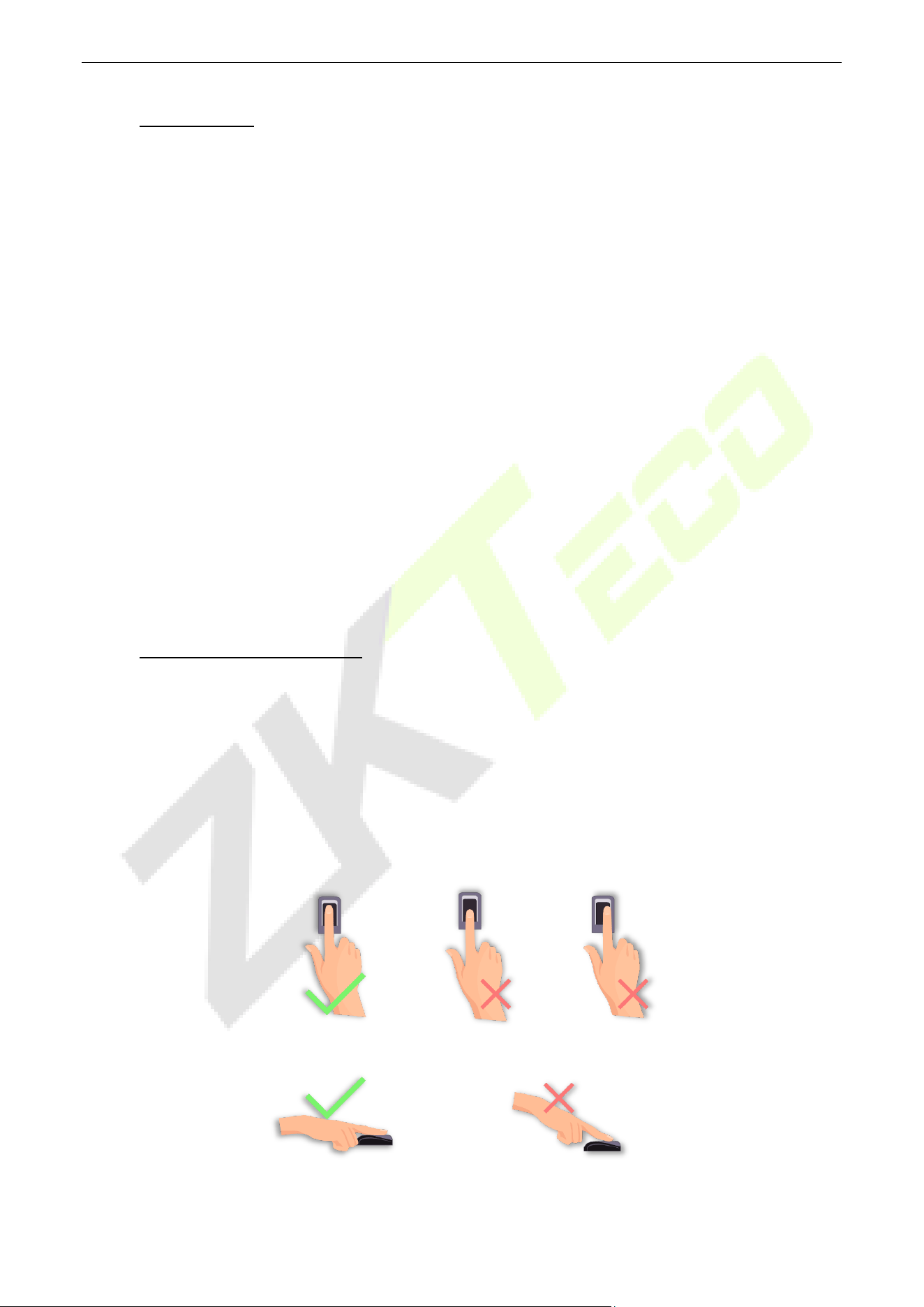
Recommended fingers: Index, middle, or ring fingers; avoid using the thumb or pinky, as they are difficult
to accurately press onto the fingerprint reader.
Too close to the edge
Vertical
Too low
SpeedFace-V5L&H5L Series User Manual
Page | 12 Copyright©2023 ZKTECO CO., LTD. All rights reserved.
Note: Please use the correct method when pressing your fingers onto the fingerprint reader for
registration and identification. Our company will assume no liability for recognition issues that may result
from incorrect usage of the product. We reserve the right of final interpretation and modification
concerning this point.
Standing Position, Facial Expression and Standing Posture 2.2
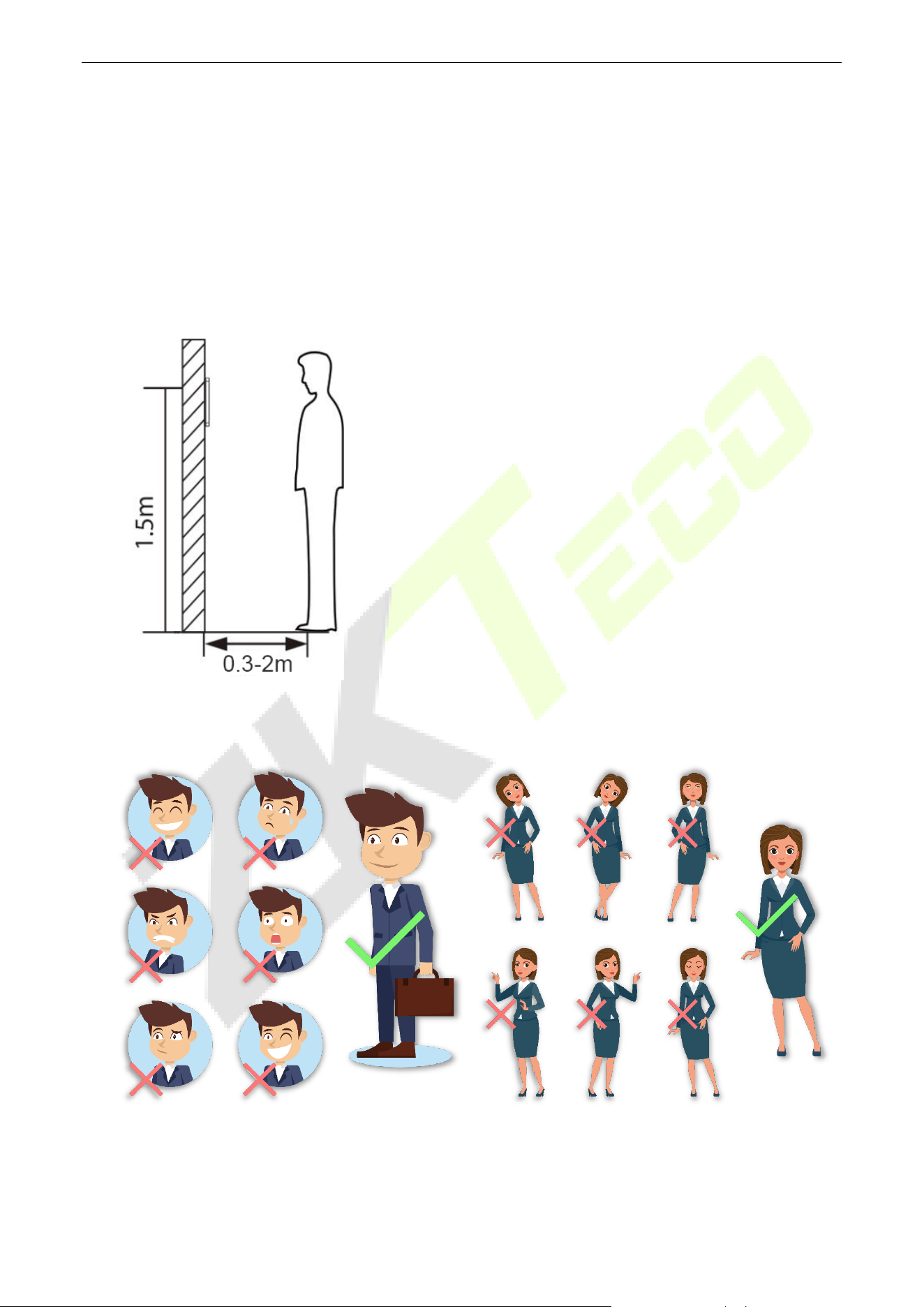
The Recommended Distance
Recommended Standing Posture and Facial Expression
Facial Expression
Standing Posture
Note: Please keep your facial expression and standing posture natural while enrolment or verification.
The distance between the device and a user whose height is
in a range of 1.55m to 1.85m is recommended to be 0.3 to
2.5m. Users may slightly move forward or backward to
improve the character of facial images captured.
SpeedFace-V5L&H5L Series User Manual
Page | 13 Copyright©2023 ZKTECO CO., LTD. All rights reserved.
Face Registration 2.3
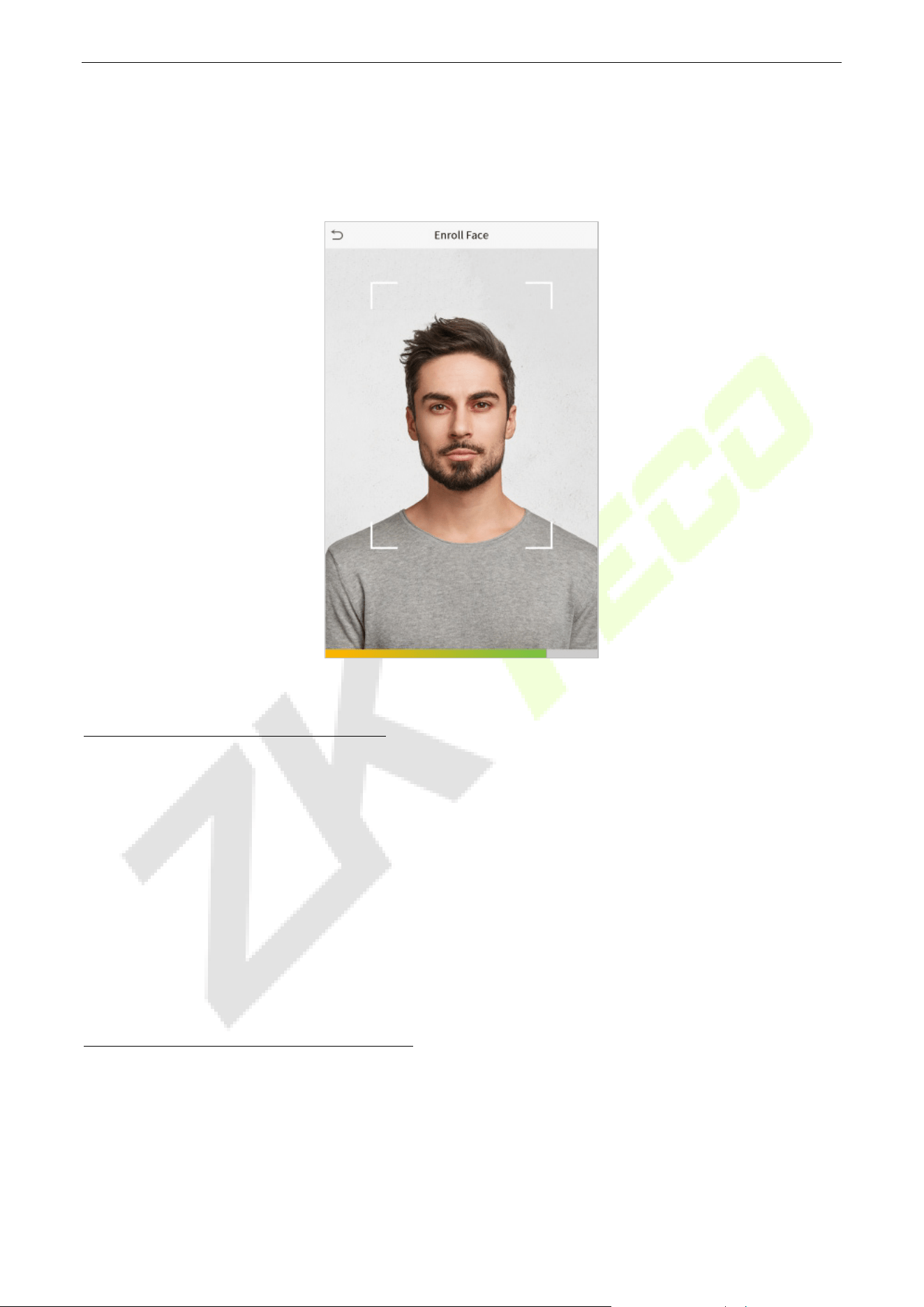
Try to keep the face in the centre of the screen during registration. Please face the camera and stay still
during face registration. The screen looks like this:
Correct Face Registration and Authentication Method
Recommendation for Registering a Face
When registering a face, maintain a distance of 40cm to 80cm between the device and the face.
Be careful to keep your facial expression natural and not to change. (smiling face, drawn face, wink,
etc.)
If you do not follow the instructions on the screen, the face registration may take longer or may fail.
Be careful not to cover the eyes or eyebrows.
Do not wear hats, masks, sunglasses or eyeglasses.
Be careful not to display two faces on the screen. Register one person at a time.
It is recommended for a user wearing glasses to register both faces with and without glasses.
Recommendation for Authenticating a Face
Ensure that the face appears inside the guideline displayed on the screen of the device.
Sometimes, authentication may fail due to the change in the wearing glasses then the one used while
registration. In such a case, you may require authenticating your face with the previously worn glasses.
If your face was registered without glasses, you should authenticate your face without glasses further.
SpeedFace-V5L&H5L Series User Manual
Page | 14 Copyright©2023 ZKTECO CO., LTD. All rights reserved.
If a part of the face is covered with a hat, a mask, an eye patch, or sunglasses, authentication may fail.
Do not cover the face, allow the device to recognize both the eyebrows and the face.
Standby Interface 2.4
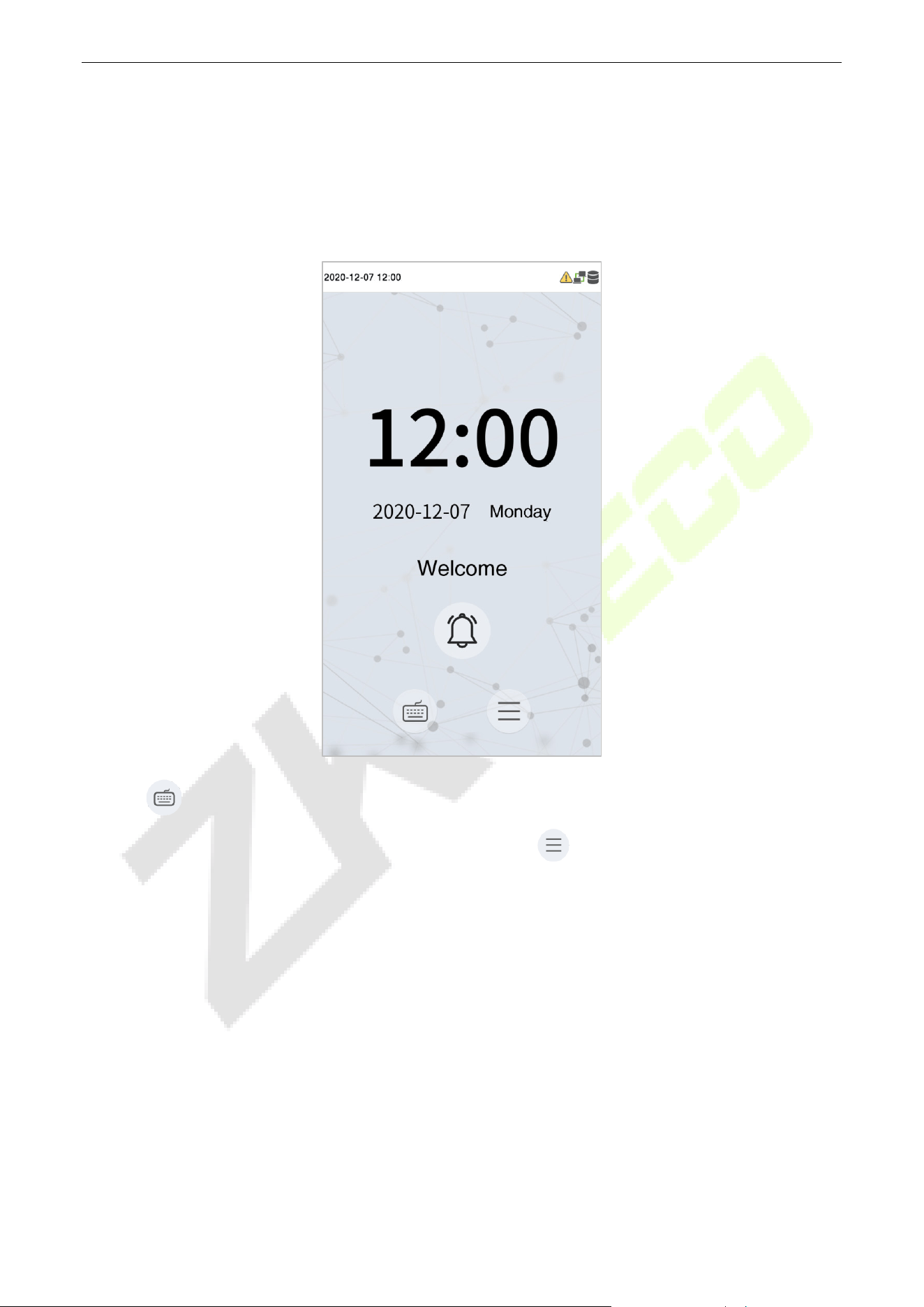
After connecting the power supply, the following standby interface is displayed:
Tap to enter the User ID input interface.
When there is no Super Administrator set in the device, tap to go to the menu.
After adding a Super Administrator on the device, it requires the Super Administrator’s verification
before opening the menu functions.
Note: For the security of the device, it is recommended to register a super administrator the first time
you use the device.
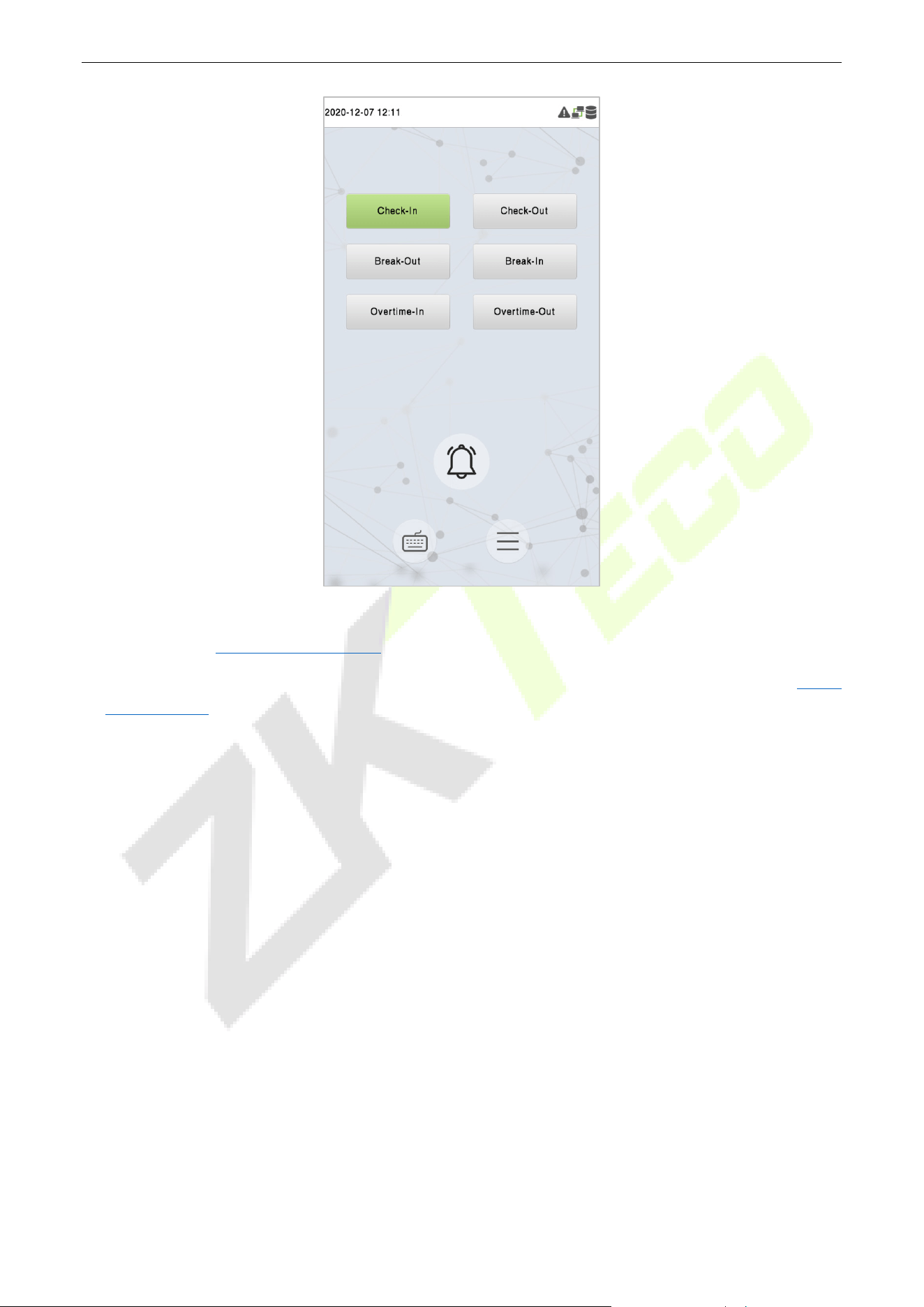
The punch state options can also be displayed and used directly on the standby interface. Tap
anywhere on the screen apart from the icons, and six shortcut keys appears on the screen, as shown in
the figure below:
SpeedFace-V5L&H5L Series User Manual
Page | 15 Copyright©2023 ZKTECO CO., LTD. All rights reserved.
Press the corresponding punch state key to select your current punch state, which is displayed in green.
Please refer to "Shortcut Key Mappings
" for the specific operation method.
Note: The punch state options are off by default and need to select other mode options in the "Punch
States Options" to get the punch state options on the standby screen.
SpeedFace-V5L&H5L Series User Manual
Page | 16 Copyright©2023 ZKTECO CO., LTD. All rights reserved.
Virtual Keyboard 2.5
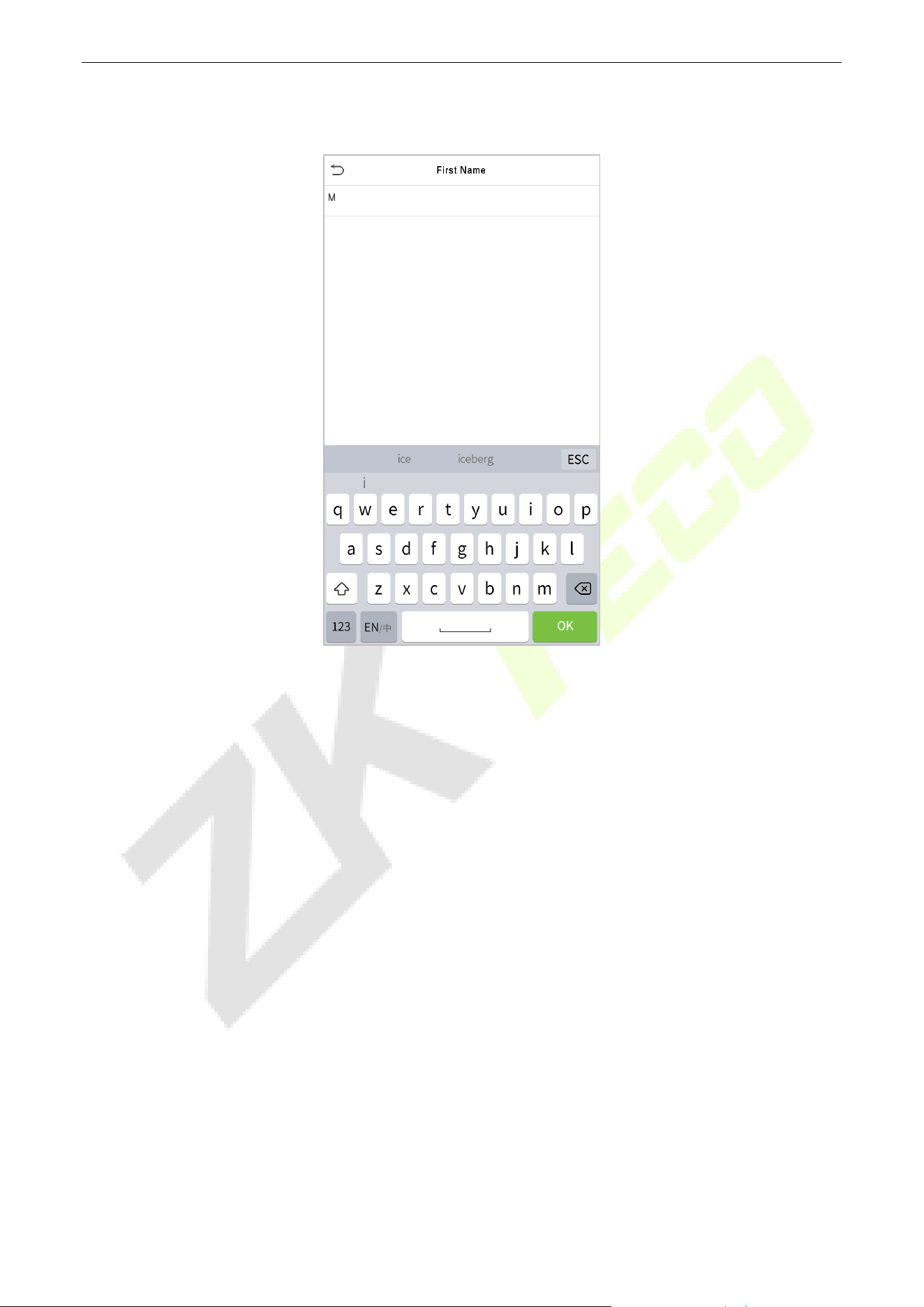
Note: The device supports the input in Chinese language, English language, numbers, and symbols.
Tap En to switch to the English keyboard.
Press 123 to switch to the numeric and symbolic keyboard.
Tap ABC to return to the alphabetic keyboard.
Tap the input box, a virtual keyboard appears.
Tap ESC to exit the virtual keyboard.
SpeedFace-V5L&H5L Series User Manual
Page | 17 Copyright©2023 ZKTECO CO., LTD. All rights reserved.
Verification Mode 2.6
2.6.1 Fingerprint Verification
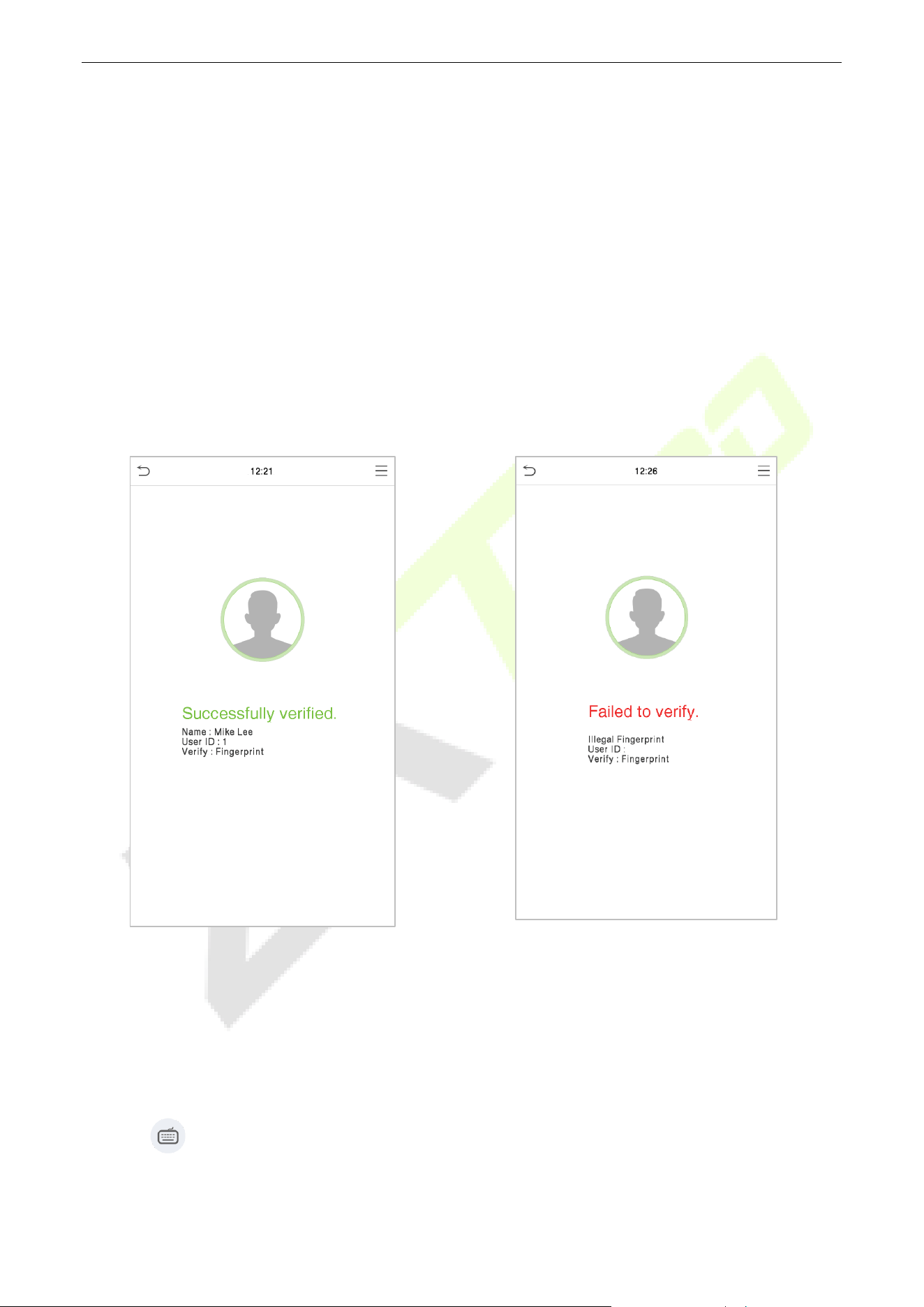
1: N Fingerprint Verification Mode
Compares the fingerprint that is being pressed onto the fingerprint reader with all of the fingerprint data
that is stored in the device.
The device enters the fingerprint authentication mode when a user presses his/her finger onto the
fingerprint scanner.
Please follow the correct way to place your finger onto the sensor. For details, please refer to section
Finger Positioning.
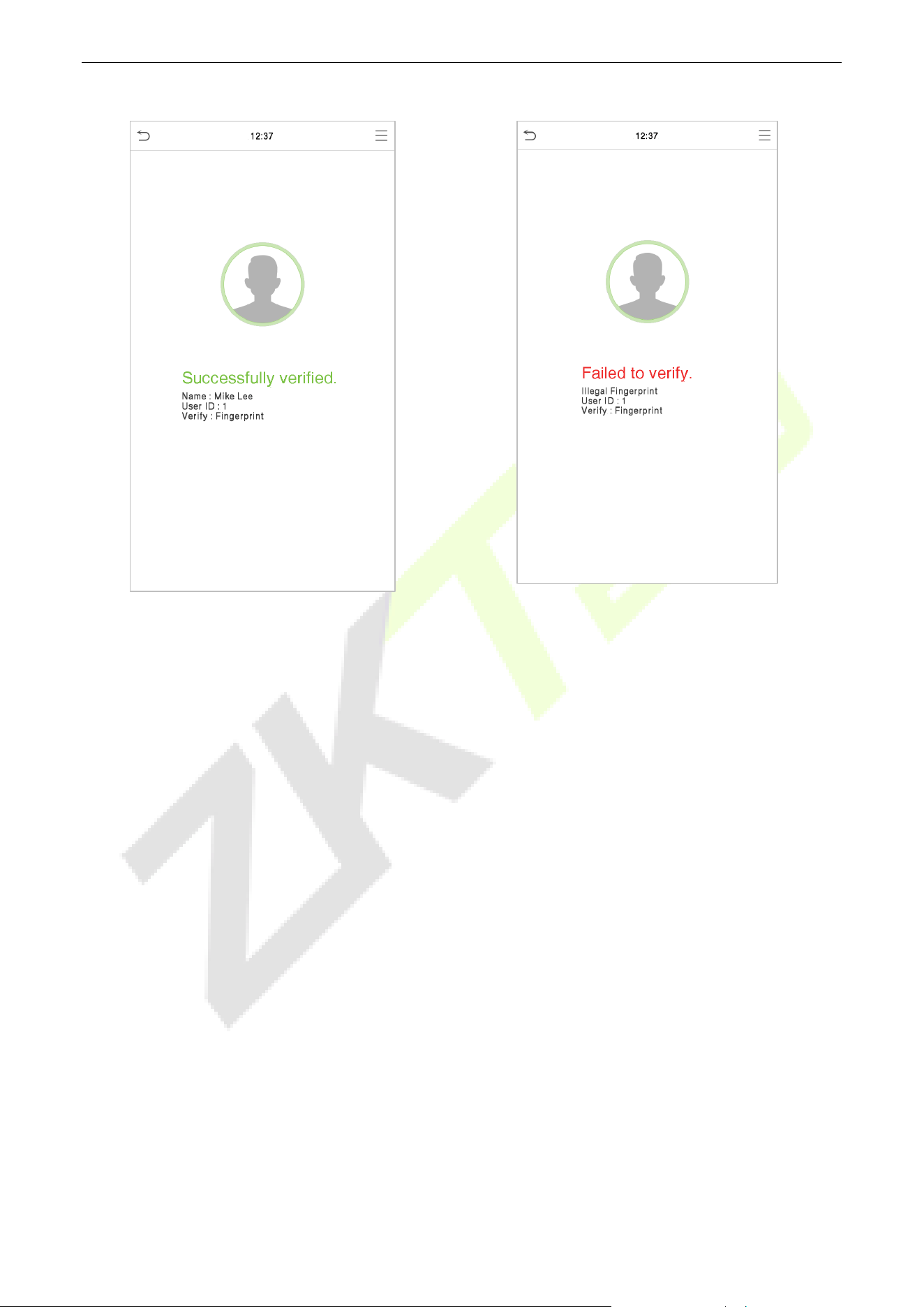
Verification is successful:
Verification is failed:
1: 1 Fingerprint Verification Mode
Compares the fingerprint that is being pressed onto the fingerprint reader with the fingerprints that are
linked to User ID input via the virtual keyboard.
Users may verify their identities with 1:1 verification mode when they cannot gain access with 1: N
authentication method.
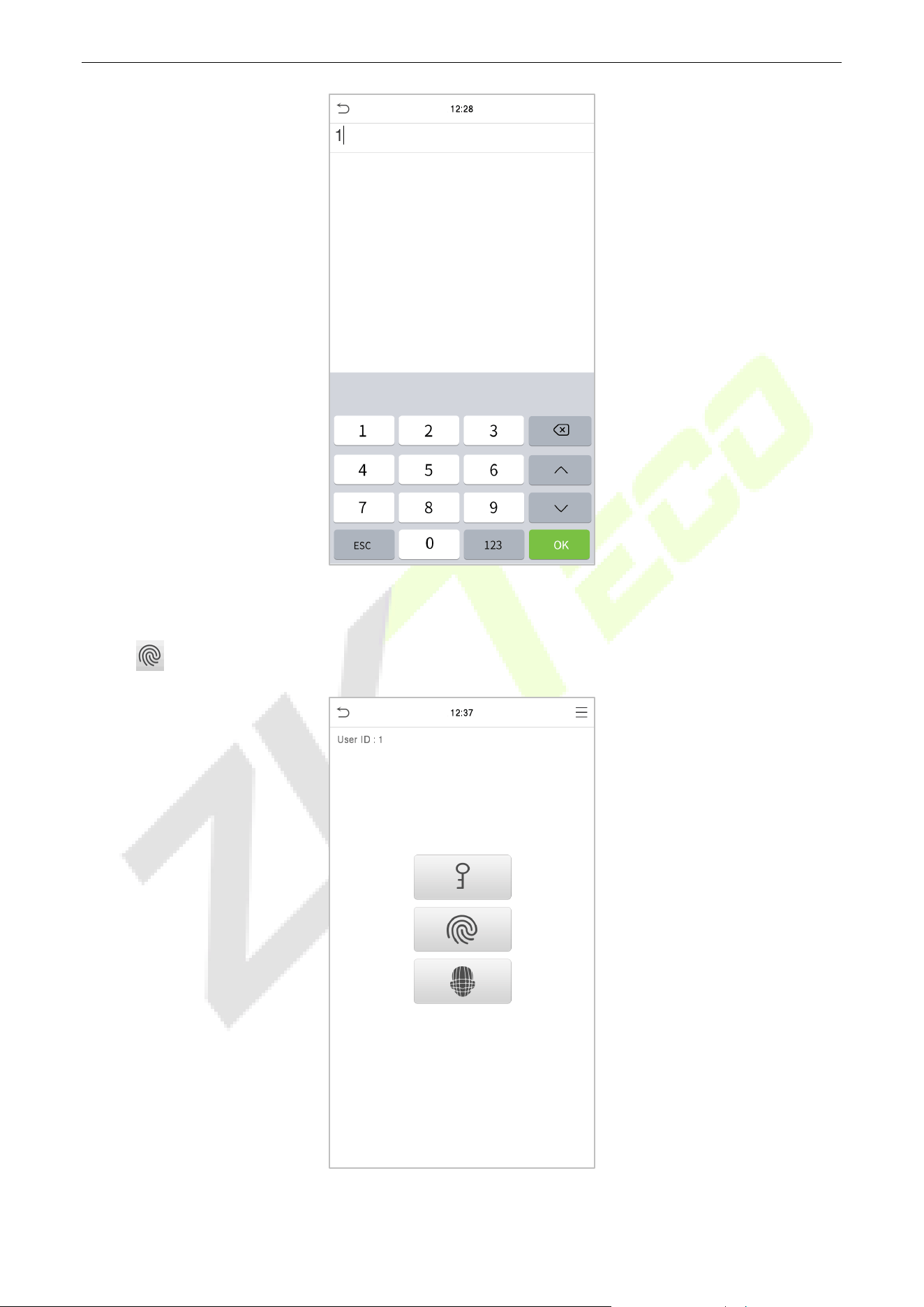
Click the button on the main screen to enter 1:1 fingerprint verification mode.
Input the user ID and press OK.
SpeedFace-V5L&H5L Series User Manual
Page | 18 Copyright©2023 ZKTECO CO., LTD. All rights reserved.
If the user has registered face and password in addition to his/her fingerprints and the verification method
is set to Password/Fingerprint/Face verification, the following screen will appear. Select the fingerprint
icon to enter fingerprint verification mode.
Press the fingerprint to verify.
SpeedFace-V5L&H5L Series User Manual
Page | 19 Copyright©2023 ZKTECO CO., LTD. All rights reserved.
Verification is successful:
Verification is failed:
SpeedFace-V5L&H5L Series User Manual
Page | 20 Copyright©2023 ZKTECO CO., LTD. All rights reserved.
2.6.2 Card Verification
1:N Card Verification
It compares the acquired card information with all card data registered in the device. The following is the
pop-up prompt box of comparison results.
1:1 Card Verification
Compares the card that is being put onto the card reader with the card data that related to the entered
user ID.
Press on the main interface and enter the 1:1 card verification mode.
SpeedFace-V5L&H5L Series User Manual
Page | 21 Copyright©2023 ZKTECO CO., LTD. All rights reserved.
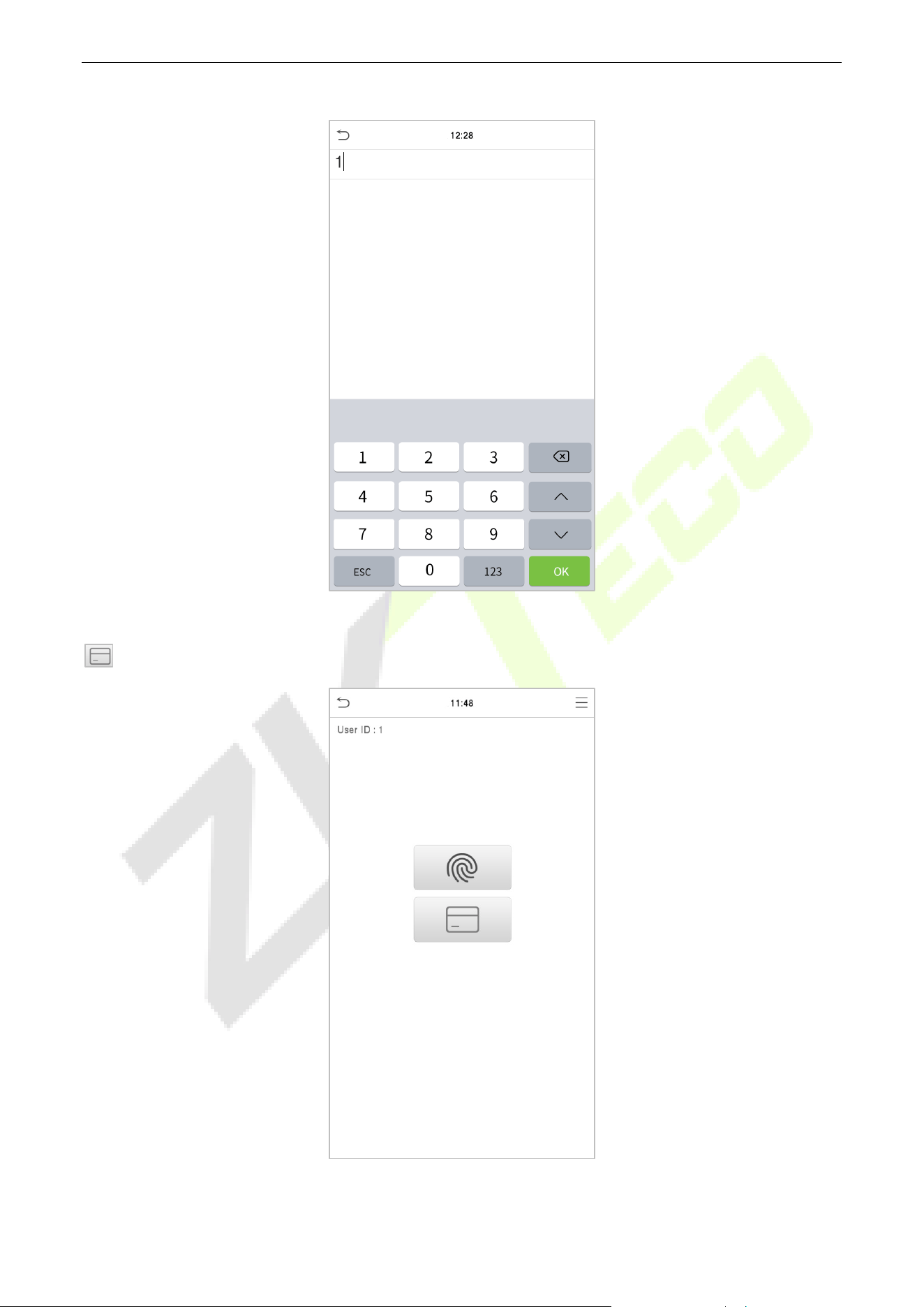
Enter the user ID and click OK.
If an employee registers a fingerprint in addition to the card, the following screen will appear. Select the
icon to enter card verification mode.
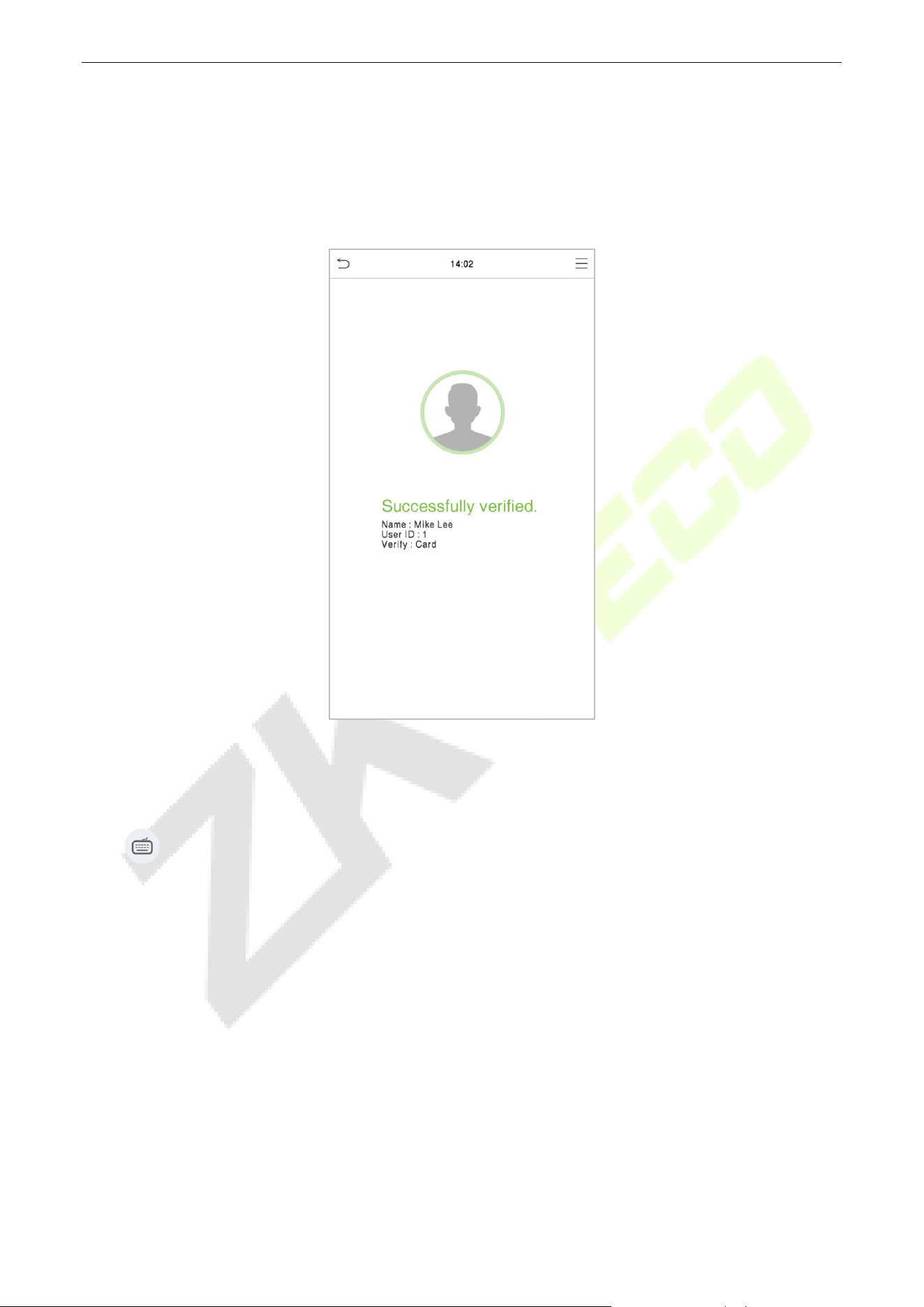
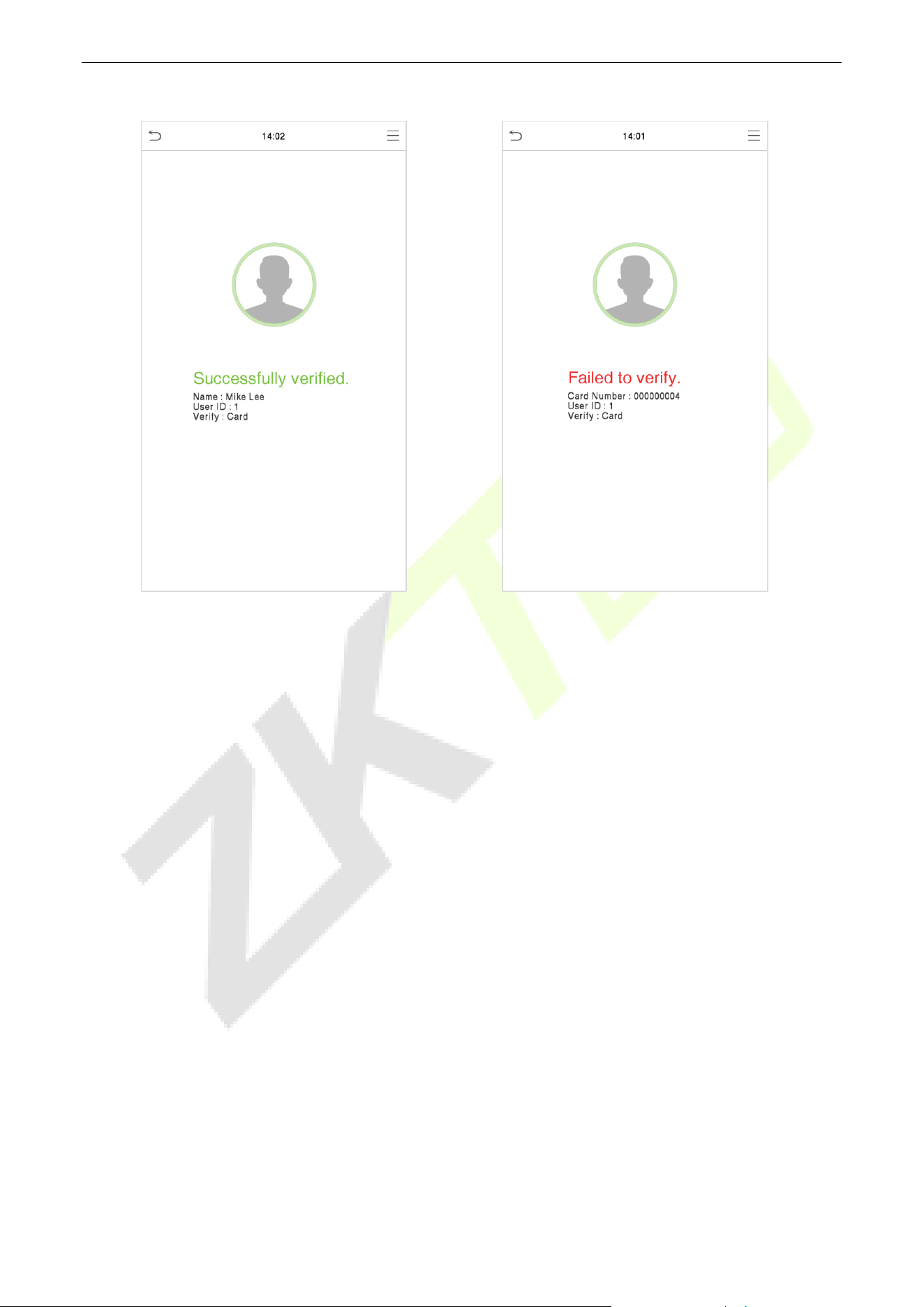
Following are the display screen after putting a correct card and a wrong card respectively.
SpeedFace-V5L&H5L Series User Manual
Page | 22 Copyright©2023 ZKTECO CO., LTD. All rights reserved.
Verification is successful:
Verification is failed:
SpeedFace-V5L&H5L Series User Manual
Page | 23 Copyright©2023 ZKTECO CO., LTD. All rights reserved.
2.6.3 Facial Verification
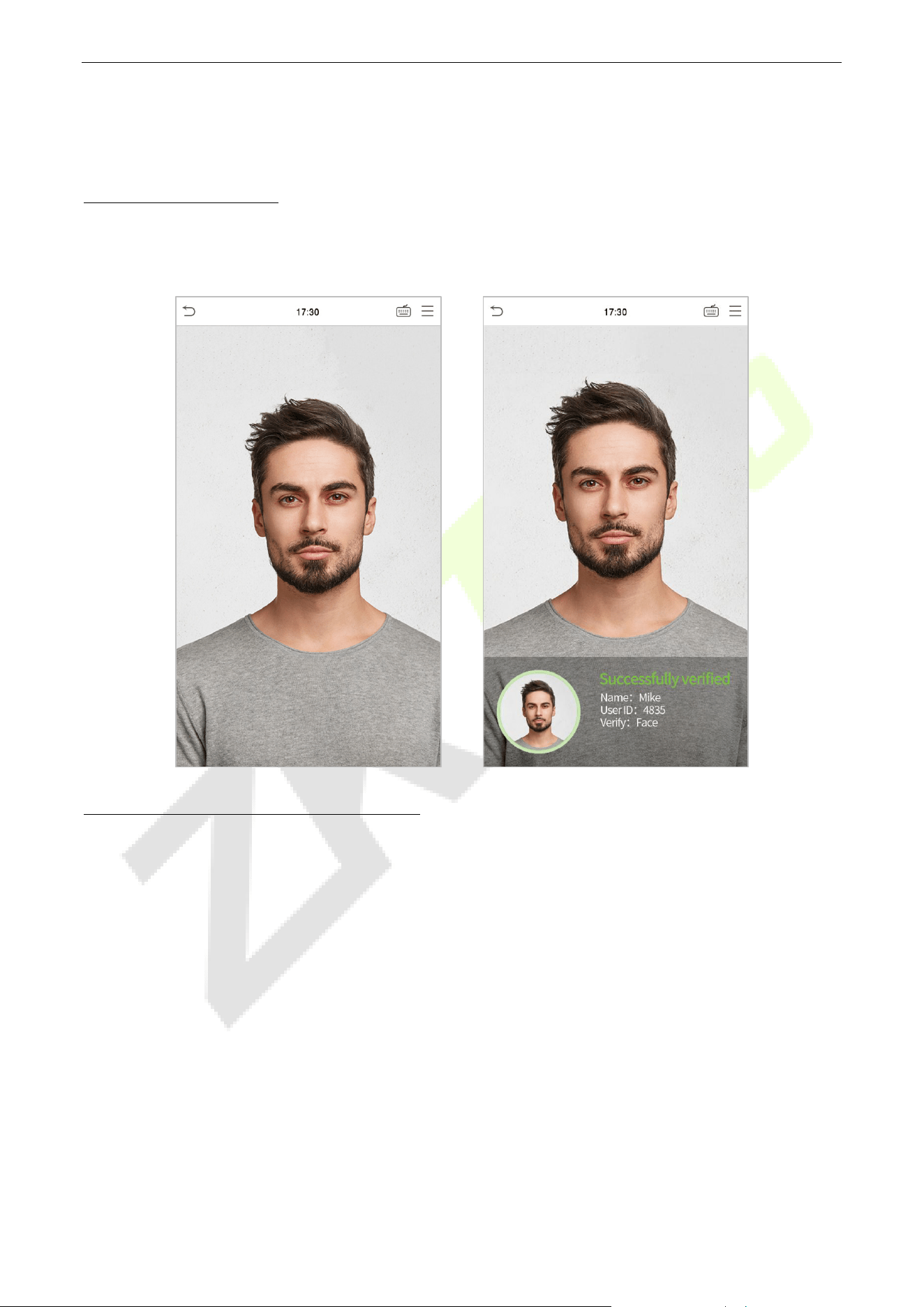
1:N Facial Verification
Conventional Ve
rification
In this verification mode, the device compares the collected facial images with all face data registered in
the device. The following is the pop-up prompt of a successful comparison result.
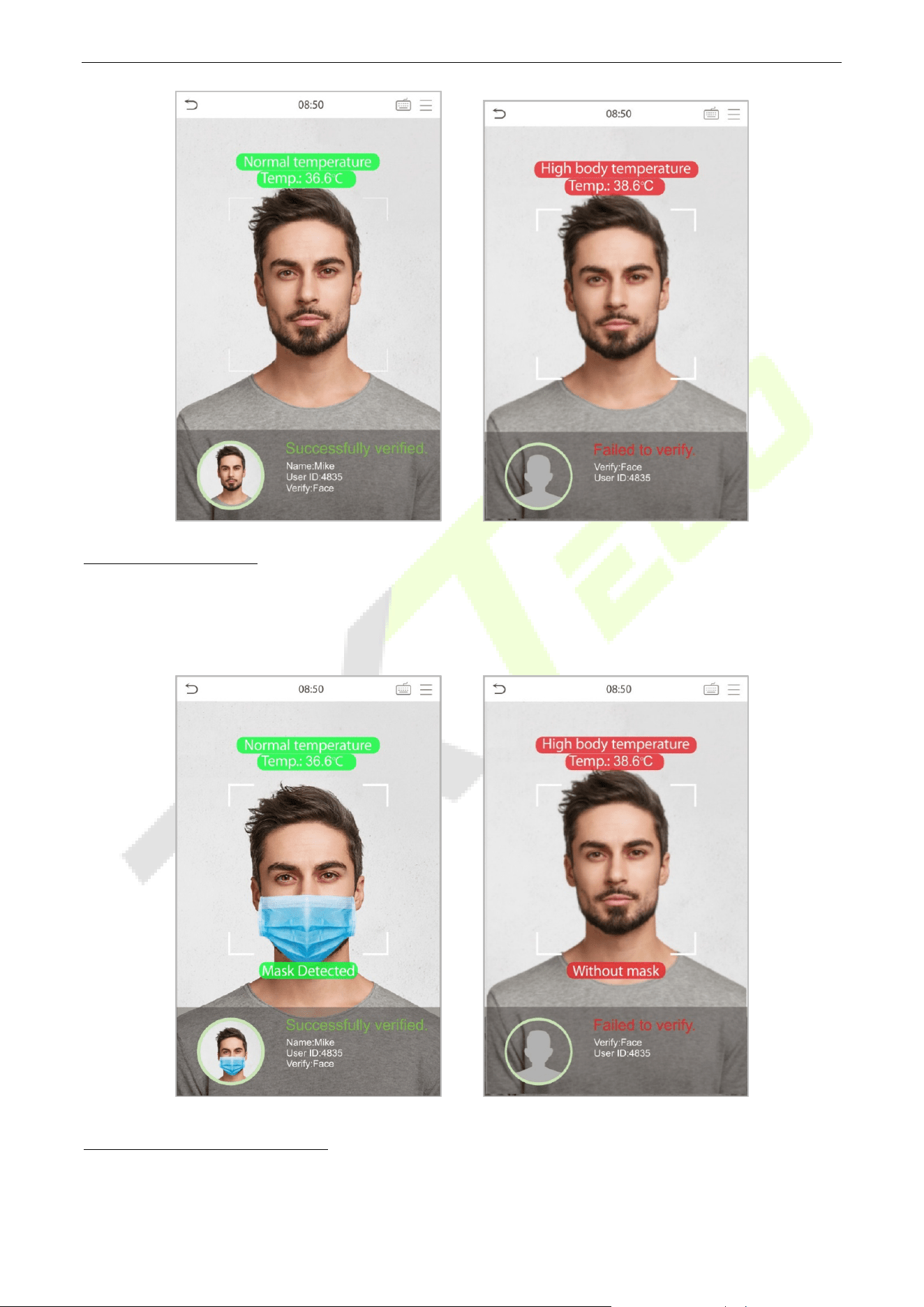
Enable Temperature Screening with Infrared
When the user enables the Enable temperature screening with infrared function, during user
verification, in addition to the conventional verification method, the user's face must be aligned with the
temperature measurement area to measure the body temperature before the verification can be
conducted. The following are the popups of the comparison result prompt interface. (Note: This function is
only applicable to products with temperature measurement module.)
SpeedFace-V5L&H5L Series User Manual
Page | 24 Copyright©2023 ZKTECO CO., LTD. All rights reserved.
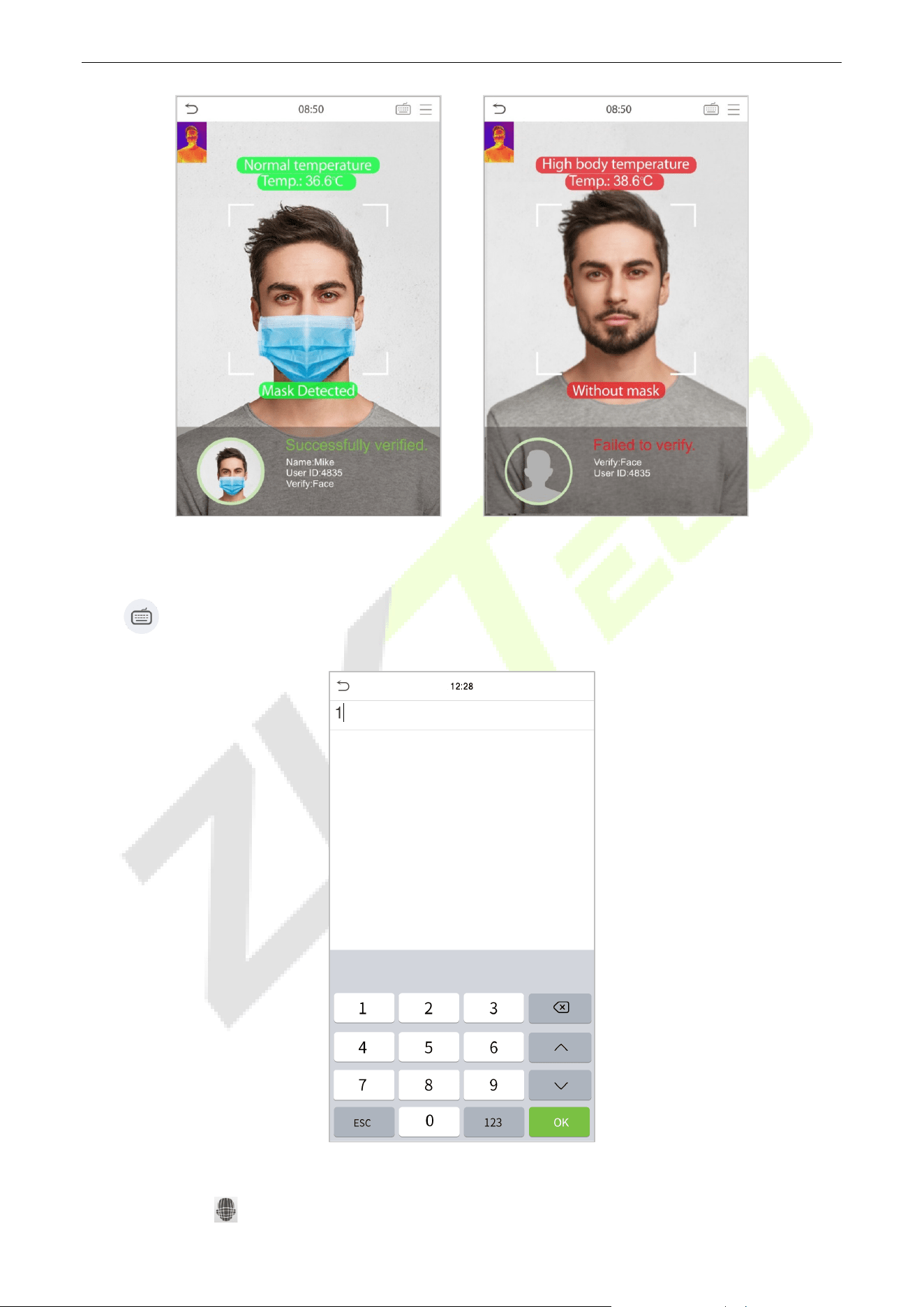
Enable Mask Det
ection
When the user enables the Enable mask detection function, the device will identify whether the user is
wearing a mask or not while verification. The following are the popups of the comparison result prompt
interface. (Note: This function is only applicable to products with temperature measurement module.)
Display Thermodynamics Figure
When the user enables the Display Thermodynamics Figure function, the thermal image of the person is
displayed in the upper left corner of the device, while verification. As shown in the images below:
SpeedFace-V5L&H5L Series User Manual
Page | 25 Copyright©2023 ZKTECO CO., LTD. All rights reserved.
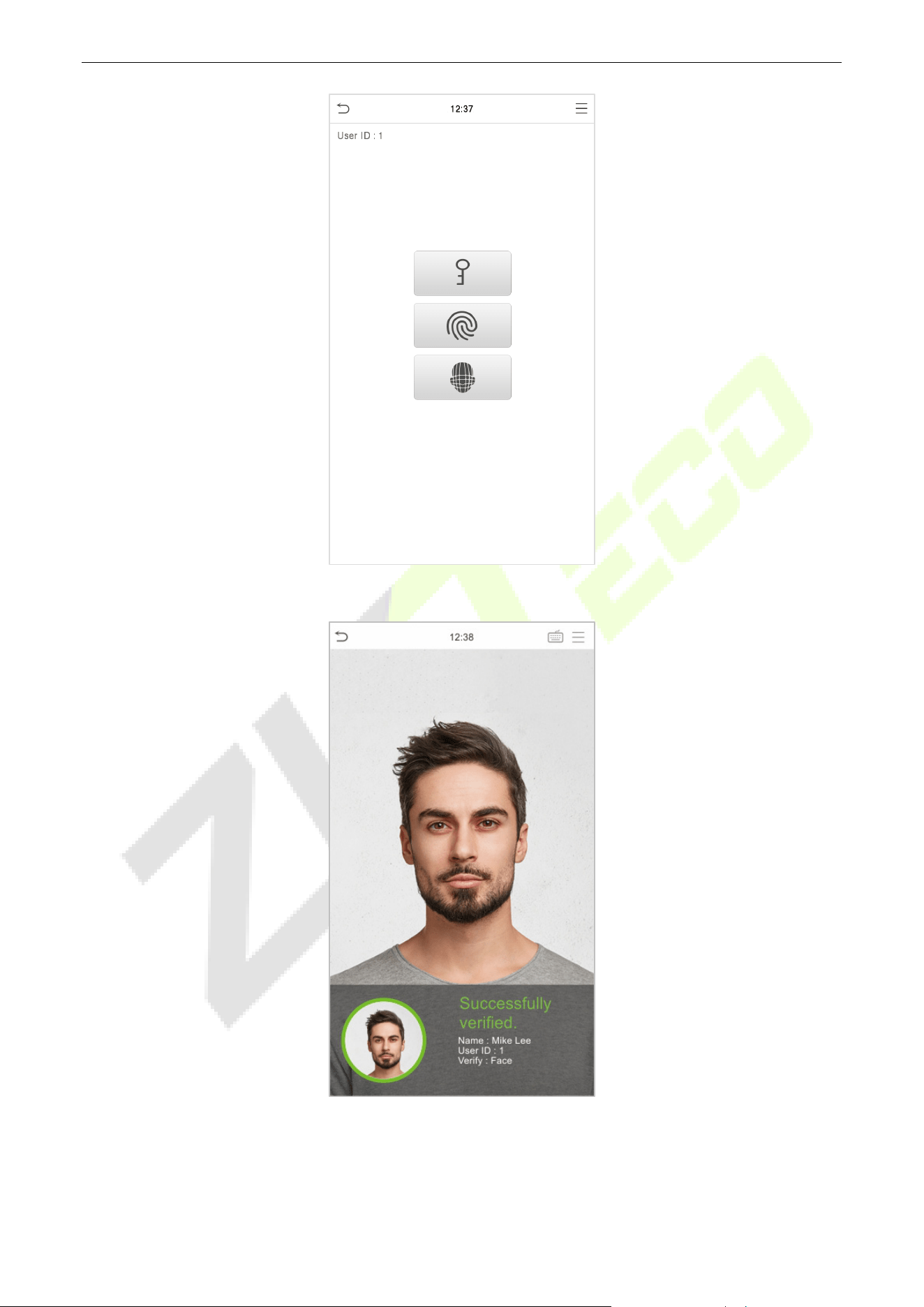
1:1 Facial Verification
Compare the face captured by the camera with the facial template related to the entered user ID.
Press on the main interface and enter the 1:1 facial verification mode.
Enter the user ID and click OK.
If an employee registers a fingerprint and password in addition to the face, the following screen will
appear. Select the icon to enter face verification mode.
SpeedFace-V5L&H5L Series User Manual
Page | 26 Copyright©2023 ZKTECO CO., LTD. All rights reserved.
After successful verification, the prompt box displays "Successfully Verified", as shown below:
If the verification is failed, it prompts "Please adjust your position!".
SpeedFace-V5L&H5L Series User Manual
Page | 27 Copyright©2023 ZKTECO CO., LTD. All rights reserved.
2.6.4 Password Verification
The device compares the entered password with the registered password of the given User ID.
Tap the button on the main screen to enter the 1:1 password verification mode. Then, input the user
ID and press OK.
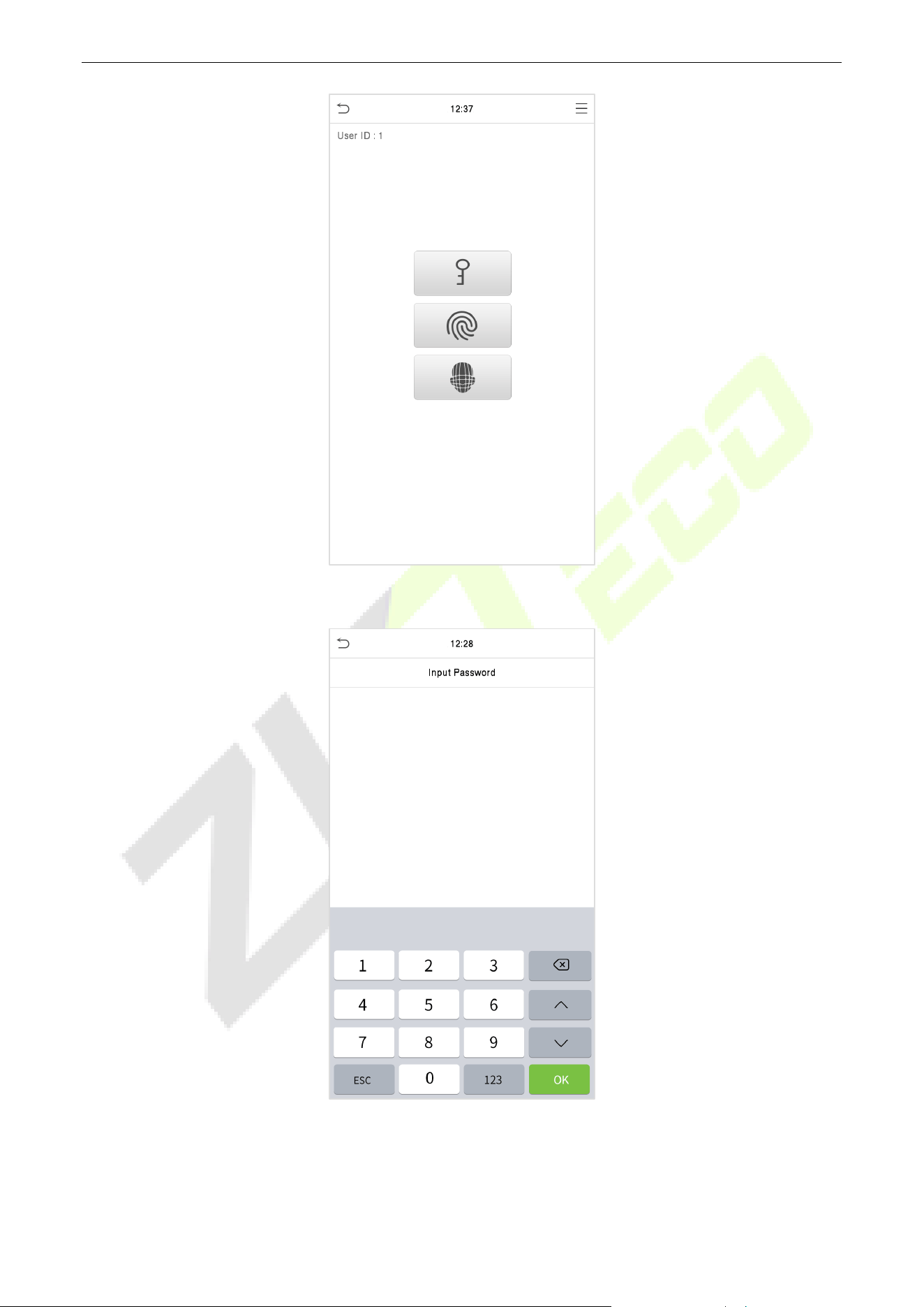
If an employee registers fingerprint and face in addition to password, the following screen will appear.
Select the icon to enter password verification mode.
SpeedFace-V5L&H5L Series User Manual
Page | 28 Copyright©2023 ZKTECO CO., LTD. All rights reserved.
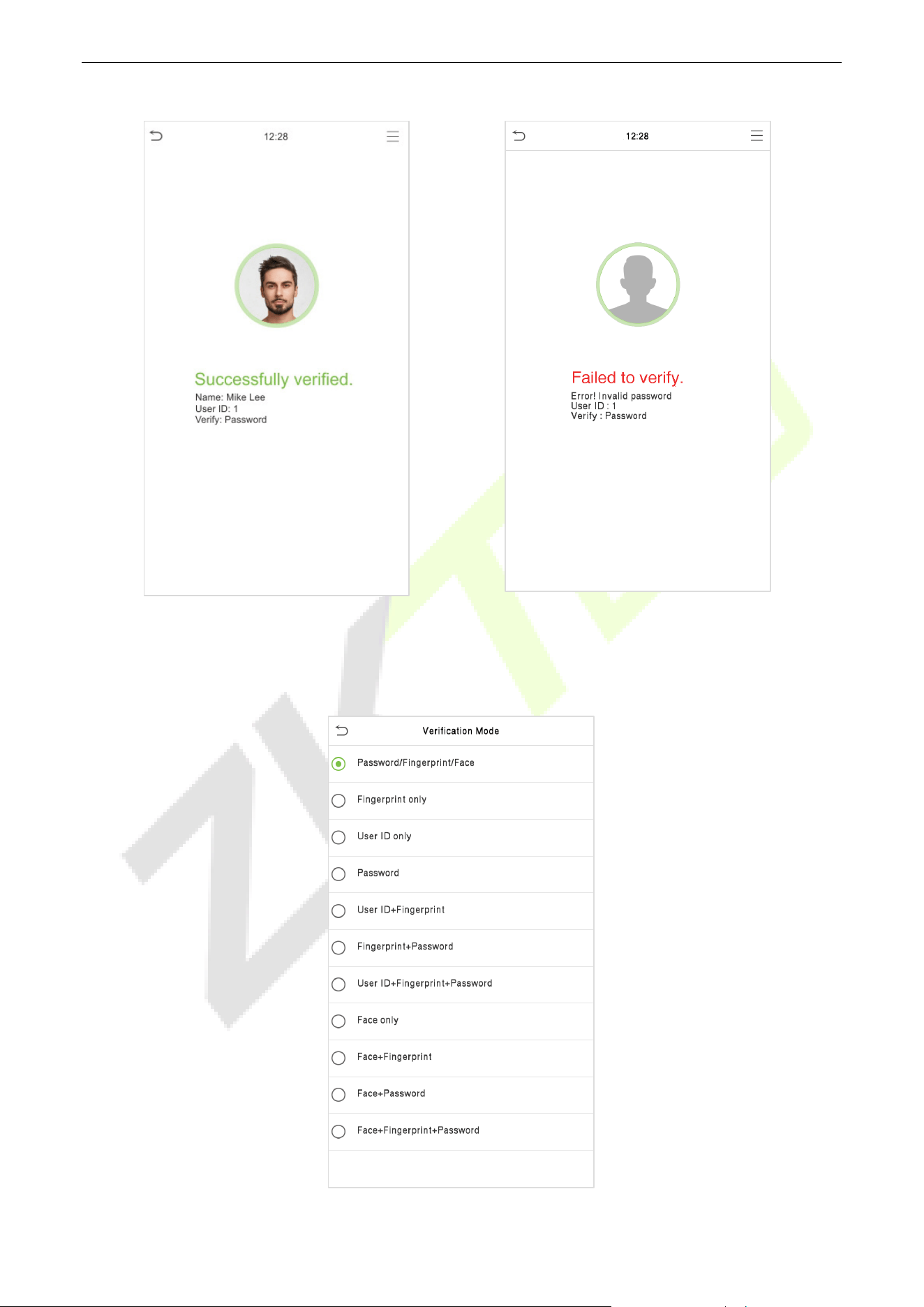
Input the password and press OK.
Following are the display screen after entering a correct password and a wrong password respectively.
SpeedFace-V5L&H5L Series User Manual
Page | 29 Copyright©2023 ZKTECO CO., LTD. All rights reserved.
Verification is successful:
Verification is failed:
2.6.5 Combined Verification
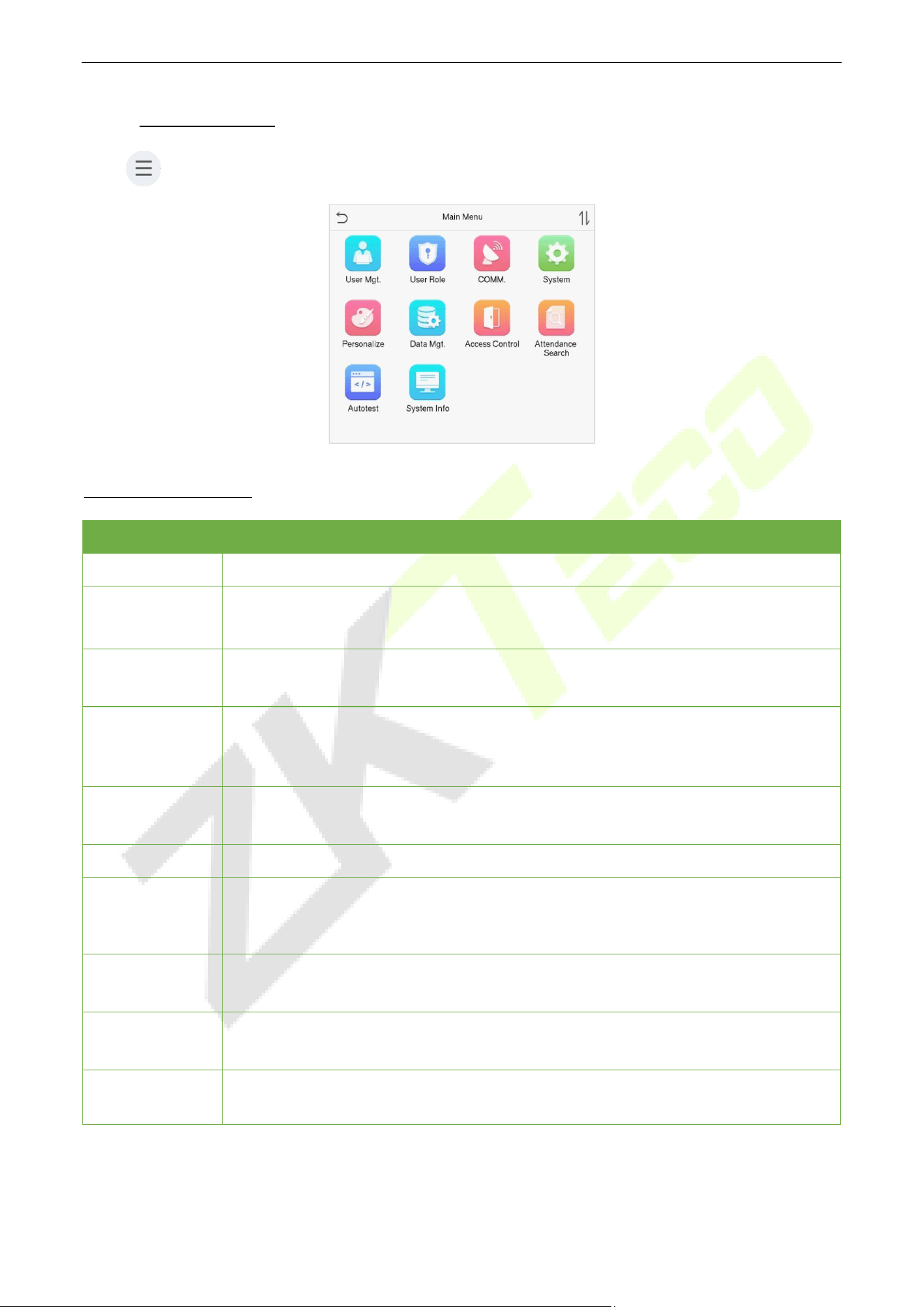
To increase security, this device offers the option of using multiple forms of verification methods.

SpeedFace-V5L&H5L Series User Manual
Page | 30 Copyright©2023 ZKTECO CO., LTD. All rights reserved.
Procedure to Set for Combined Verification Mode
Combined verification requires personnel to register all the different verification methods. Otherwise,
employees may not be able to successfully verify through the combined verification process.
For instance, when an employee has registered only the face data, but the Device verification mode is
set as "Face + Password", the employee will not be able to complete the verification process
successfully.
This is because the Device compares the scanned face template of the person with registered
verification template (both the Face and the Password) previously stored to that Personnel ID in the
Device.
But as the employee has registered only the Face but not the Password, the verification will not get
completed and the Device displays "Verification Failed".
Note:
"/" means "or", and "+" means "and".
You must register the required verification information before using the combination verification
mode, otherwise the verification may fail. For example, if a user uses Face Registration but the
verification mode is Face + Password, this user will never pass verification.
SpeedFace-V5L&H5L Series User Manual
Page | 31 Copyright©2023 ZKTECO CO., LTD. All rights reserved.
3 Main Menu
Press on the initial interface to enter the main menu, as shown below:
Function Description
Menu Descriptions
User Mgt.
To Add, Edit, View, and Delete information of a User.
User Role
To set the permission scope of the custom role and enroller for the users, that is, the
rights to operate the system.
COMM.
To set the relevant parameters of Network, Serial Comm., PC Connection, Wireless
Network, Cloud Server, Wiegand and Network Diagnosis.
System
To set parameters related to the system, including Date & Time, Access Logs Setting,
Face, card, password and Fingerprint parameters, Video Intercom parameters,
security settings and resetting to factory settings.
Personalize
To customize settings of User Interface, Voice, Bell Schedules, Punch State Options
and Shortcut Key Mappings settings.
Data Mgt.
To delete all relevant data in the device.
Access Control
To set the parameters of the lock and the relevant access control device including
options like Time schedule, Holiday Settings, Combine verification, Anti-passback
Setup, and Duress Option Settings.
Attendance
Search
To query the specified Event logs, check Attendance Photos and Blocklist attendance
photos.
Autotest
To automatically test whether each module functions properly, including the LCD
Screen, Audio, Microphone, Fingerprint sensor, Camera, and Real-Time Clock.
System Info
To view Data Capacity, Device and Firmware information and Privacy Policy of the
device.
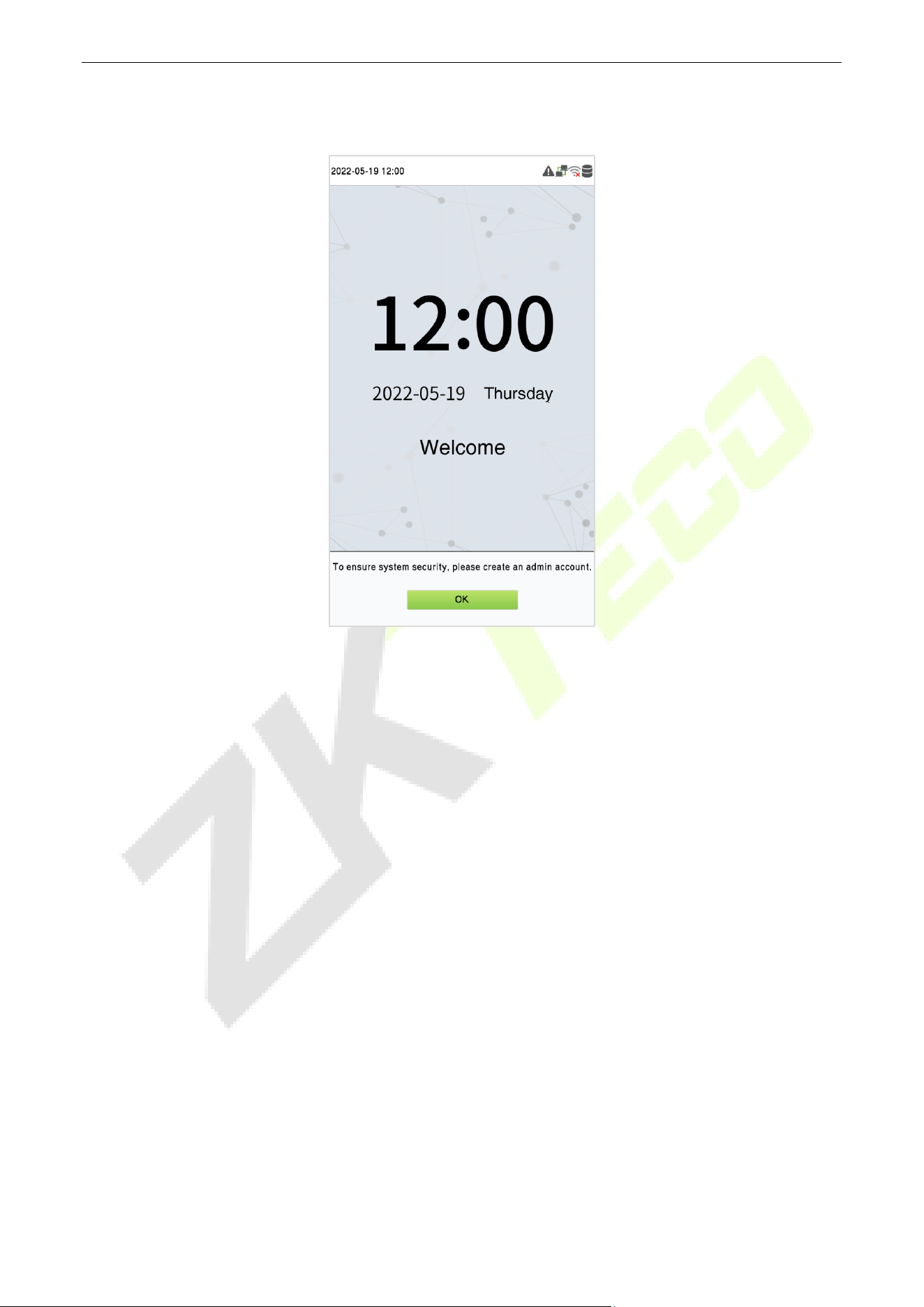
Note: When users use the product for the first time, they should operate it after setting administrator
privileges. Tap User Mgt. to add an administrator or edit user permissions as a super administrator. If the
SpeedFace-V5L&H5L Series User Manual
Page | 32 Copyright©2023 ZKTECO CO., LTD. All rights reserved.
product does not have an administrator setting, the system will show an administrator setting command
prompt every time you enter the device menu.
SpeedFace-V5L&H5L Series User Manual
Page | 33 Copyright©2023 ZKTECO CO., LTD. All rights reserved.
4 User Management
User Registration 4.1
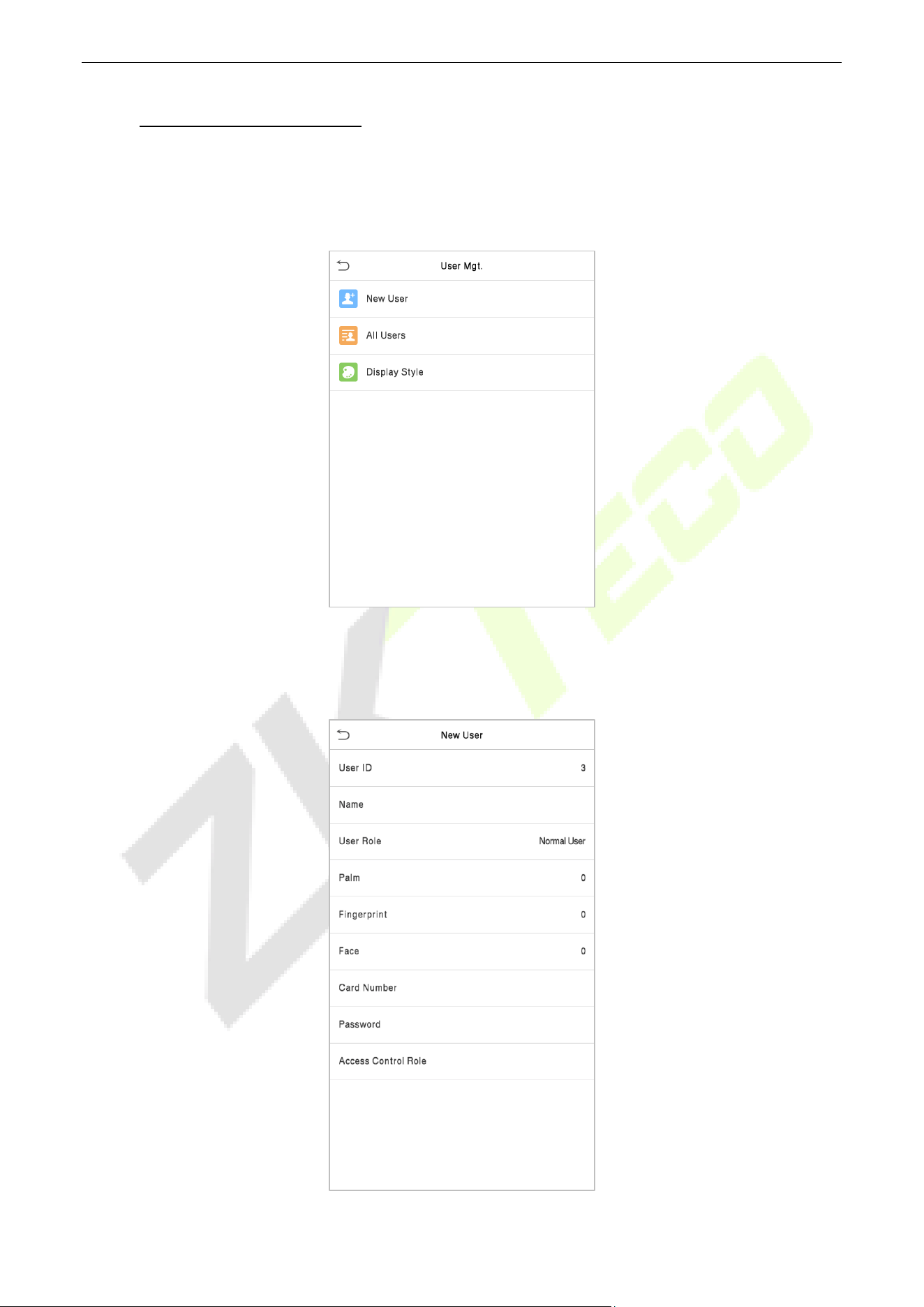
Tap User Mgt. on the main menu.
4.1.1 Register a User ID and Name
Tap New User and enter the User ID and Name.
SpeedFace-V5L&H5L Series User Manual
Page | 34 Copyright©2023 ZKTECO CO., LTD. All rights reserved.
Note:
A name can take up to 17 characters.
The user ID may contain 1-9 digits by default.
You can modify your ID during the initial registration but not after registration.
If a message "Duplicated!" pops up, you must choose another ID as the entered User ID already exists.
4.1.2 Setting the User Role
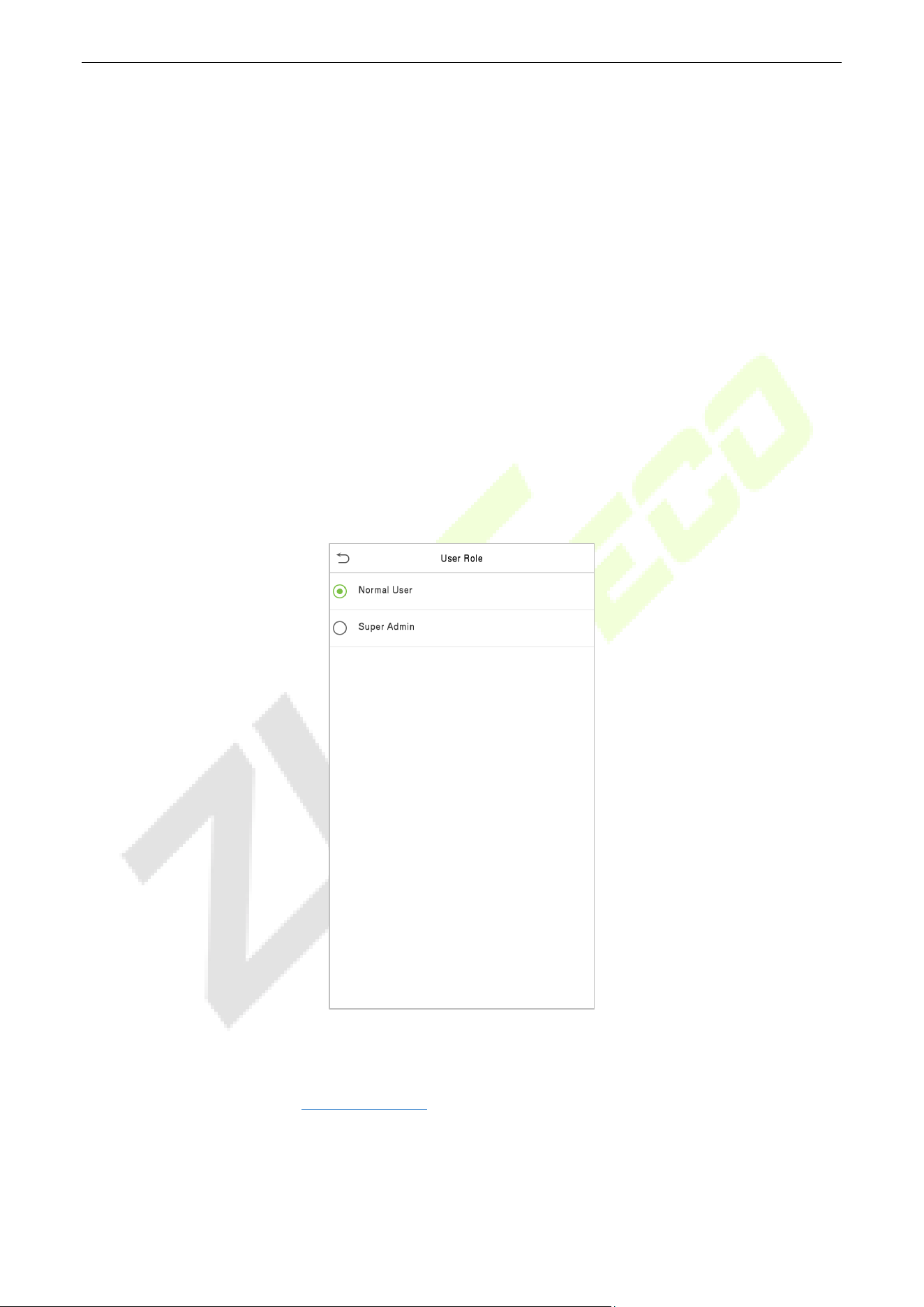
There are two types of user accounts: the Normal User and the Super Admin. If there is already a
registered administrator, the normal users have no rights to manage the system and may only access
authentication verifications. The administrator owns all management privileges. If a custom role is set, you
can also select User Defined Role permissions for the user.
Click User Role to select Normal User or Super Admin.
Note: If the selected user role is the Super Admin, the user must pass the identity authentication to access
the main menu. The authentication is based on the authentication method(s) that the super administrator
has registered. Please refer to "Verification Mode
".
SpeedFace-V5L&H5L Series User Manual
Page | 35 Copyright©2023 ZKTECO CO., LTD. All rights reserved.
4.1.3 Register Fingerprint
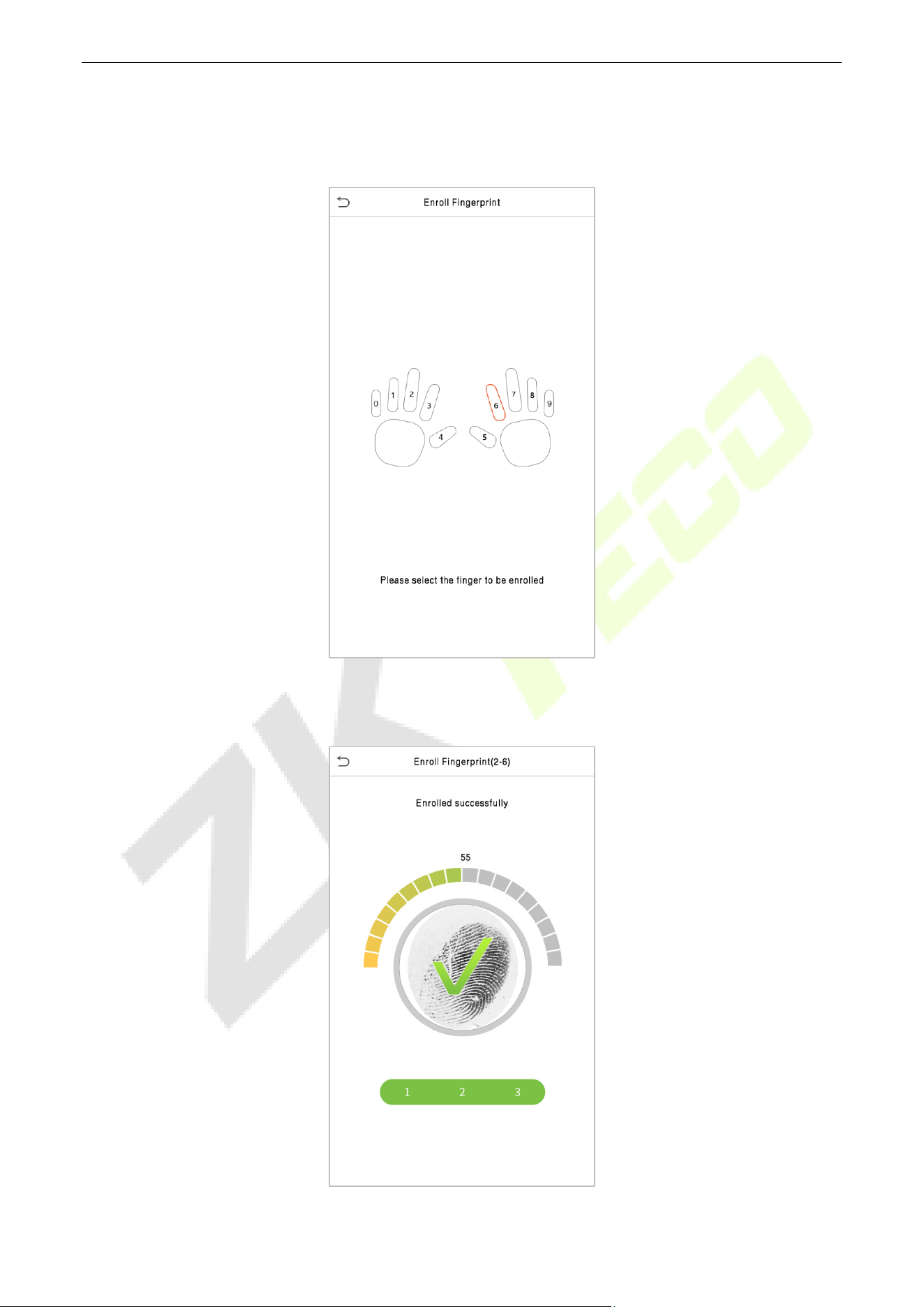
Click Fingerprint to enter the fingerprint registration page. Select the finger to be enrolled.
Press the same finger on the fingerprint reader three times. Green indicates that the fingerprint was
enrolled successfully.
SpeedFace-V5L&H5L Series User Manual
Page | 36 Copyright©2023 ZKTECO CO., LTD. All rights reserved.
4.1.4 Register Face
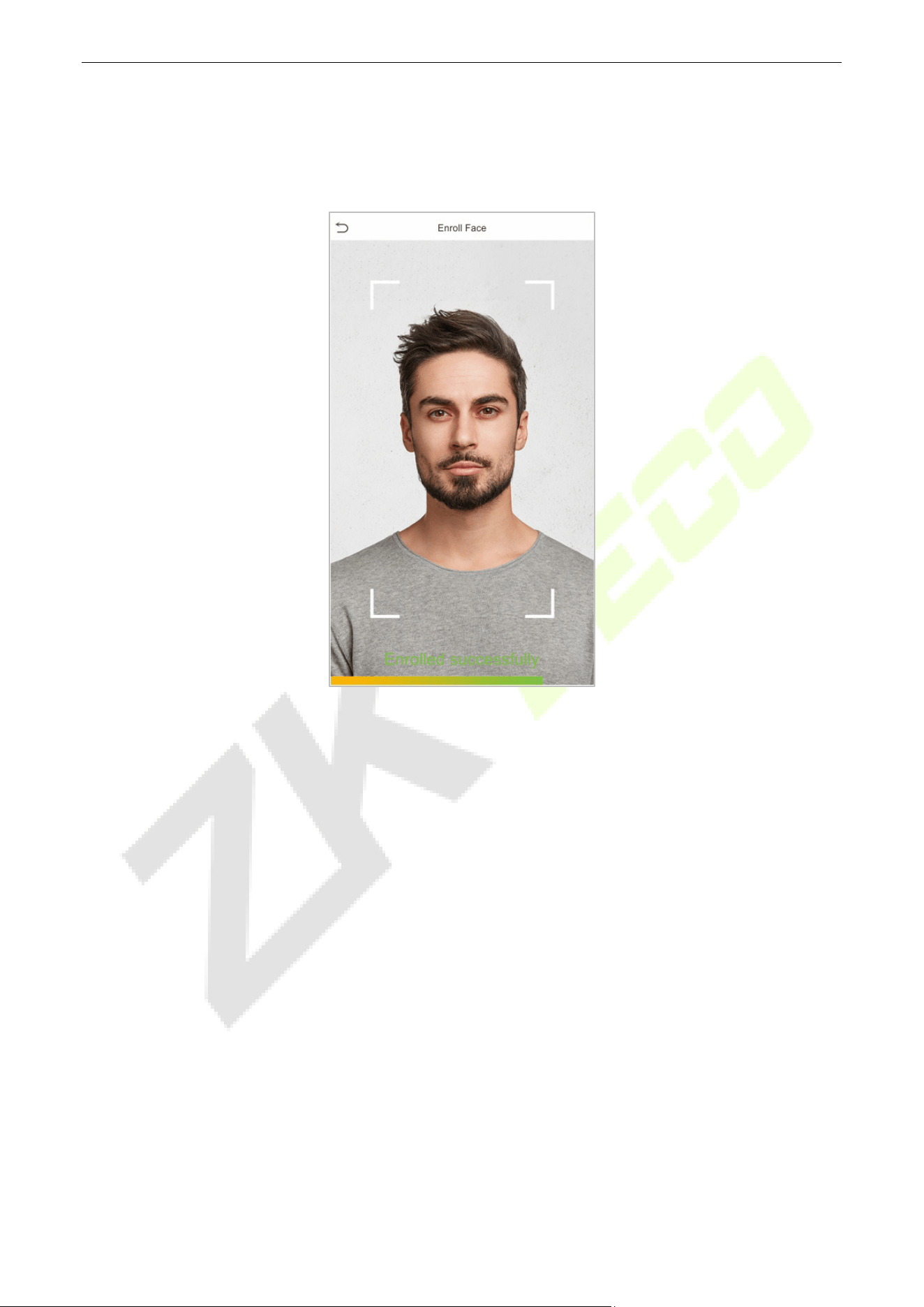
Click Face to enter the face registration page. Please face the camera and stay still during face registration.
The registration interface is as follows:
SpeedFace-V5L&H5L Series User Manual
Page | 37 Copyright©2023 ZKTECO CO., LTD. All rights reserved.
4.1.5 Register Card Number
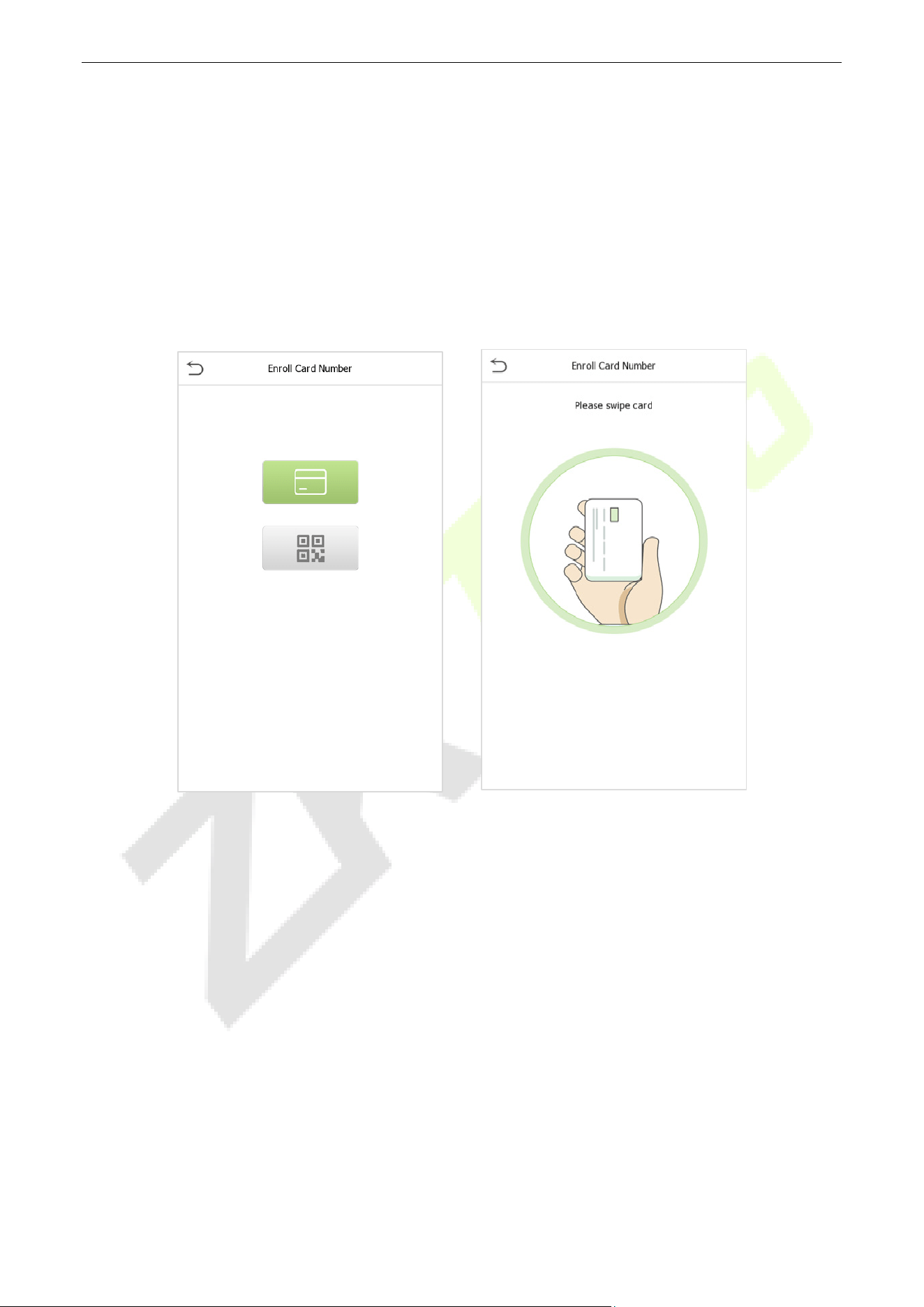
Enroll Card
Tap Card in the New User interface to enter the card registration page.
On the Card interface, swiping card underneath the card reading area. The card registration will be
successful.
If the card is registered already then the “Duplicate Card” message shows up. The registration interface
is as follows:
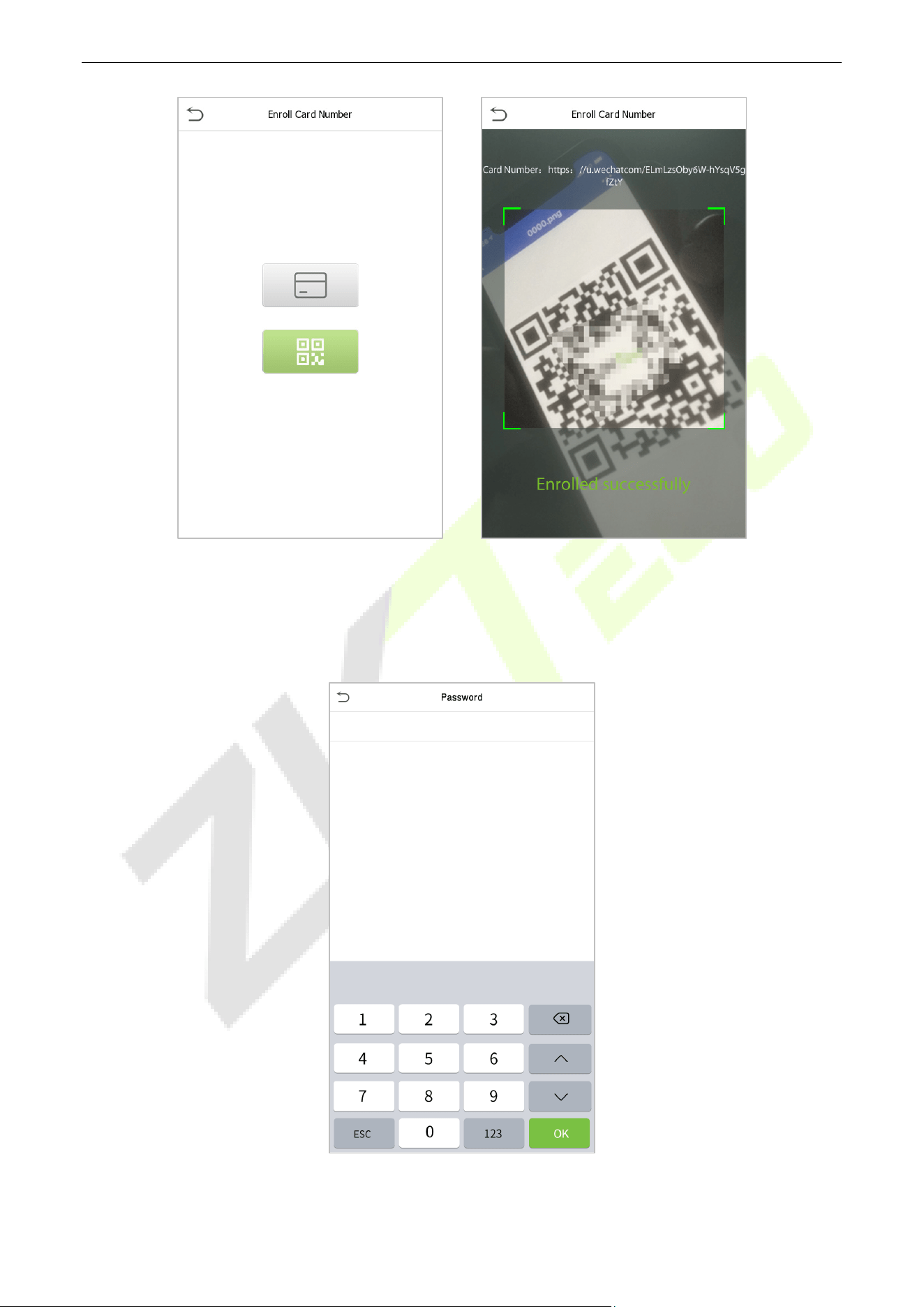
Enroll QR Code
Tap Card in the New User interface to enter the card registration page.
On the Card interface, show the QR code in front of the camera. The QR code registration will be
successful.
If the QR code is registered already then the “Error! Card already enrolled.” message shows up. The
registration interface is as follows:
SpeedFace-V5L&H5L Series User Manual
Page | 38 Copyright©2023 ZKTECO CO., LTD. All rights reserved.
4.1.6 Register Password
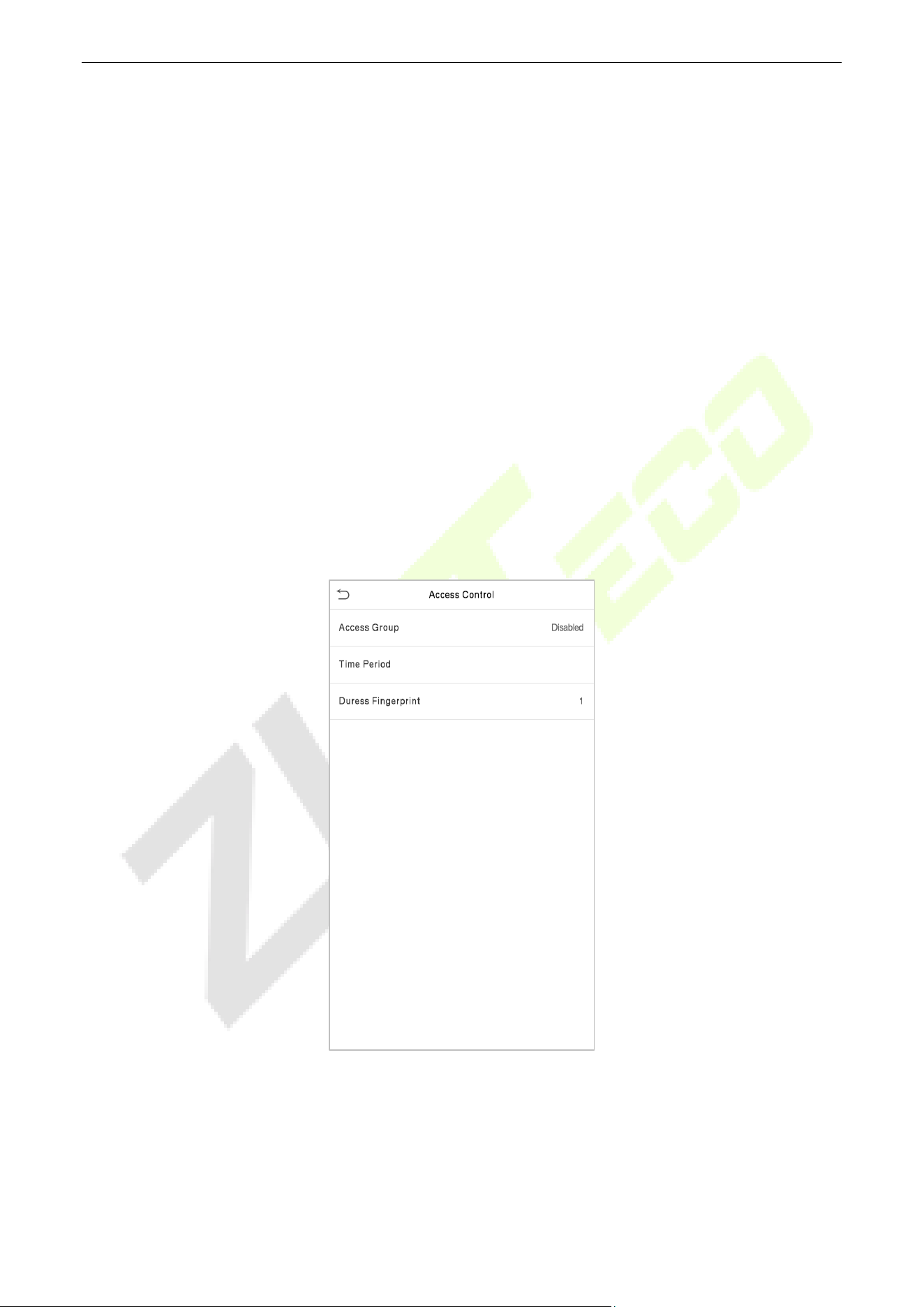
Tap Password to enter the password registration page. Enter a password and re-enter it. Tap OK. If the
two entered passwords are different, the prompt "Password not match!" will appear.
Note: The password may contain one to eight digits by default.
SpeedFace-V5L&H5L Series User Manual
Page | 39 Copyright©2023 ZKTECO CO., LTD. All rights reserved.
4.1.7 Register User Photo
When a user registered with a photo passes the authentication, the registered photo will be displayed.
Click User Photo, click the camera icon to take a photo. The system will return to the New User interface
after taking a photo.
Note: While registering a face, the system will automatically capture a picture as the user photo. If you do
not want to register a user photo, the system will automatically set the picture captured as the default
photo.
4.1.8 Access Control Role
User access control sets the door unlocking rights of each person, including the group and the time period
that the user belongs to.
Click Access Control Role > Access Group, assign the registered users to different groups for better
management. New users belong to Group 1 by default and can be reassigned to other groups. The device
supports up to 99 access control groups.
Click Time Period, select the time period to use.
SpeedFace-V5L&H5L Series User Manual
Page | 40 Copyright©2023 ZKTECO CO., LTD. All rights reserved.
Search User 4.2
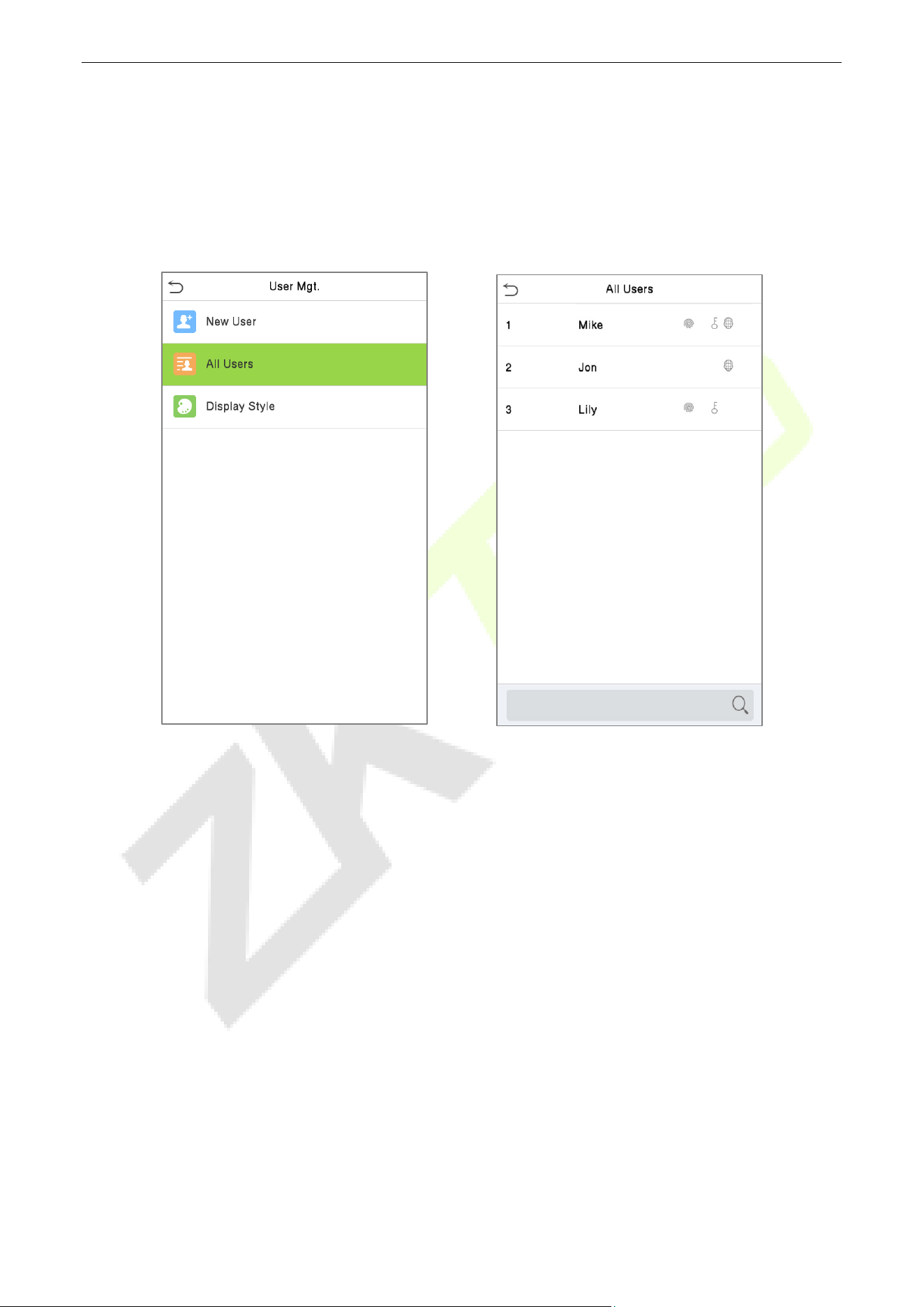
On the Main Menu, tap User Mgt., and then tap All Users to search a User.
On the All Users interface, tap on the search bar on the user’s list to enter the required retrieval keyword
(where the keyword may be the user ID, surname, or full name) and the system will search for the related
user information.
SpeedFace-V5L&H5L Series User Manual
Page | 41 Copyright©2023 ZKTECO CO., LTD. All rights reserved.
Edit User 4.3
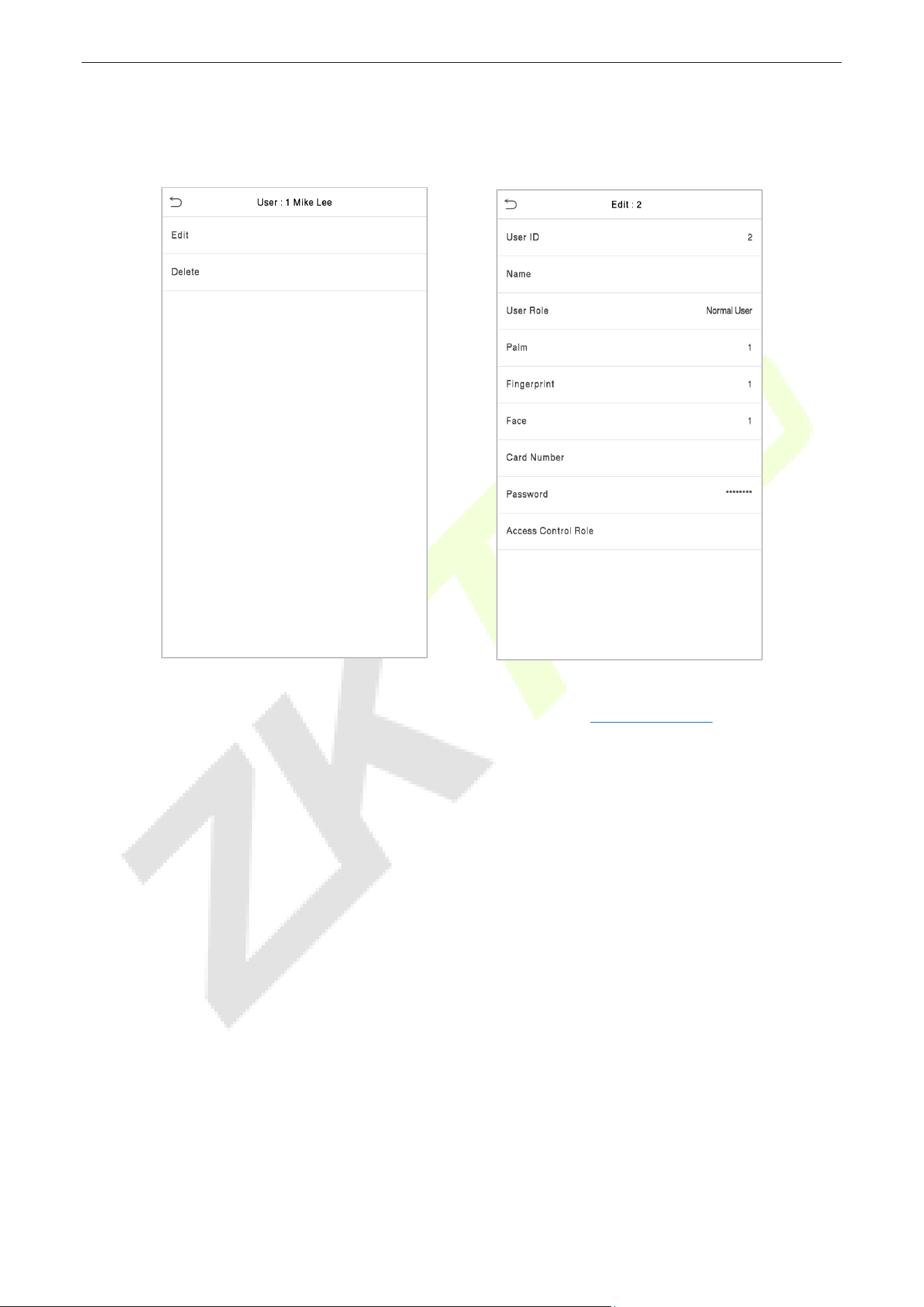
On the All Users interface, tap on the required user from the list and tap Edit to edit the user information.
Note: The process of editing the user information is the same as adding a new user, except that the User ID
cannot be modified when editing a user. The process in detail refers to "User Registration
".
Deleting User 4.4
On the All Users interface, tap on the required user from the list and tap Delete to delete the user or
specific user information from the device. On the Delete interface, tap on the required operation and then
tap OK to confirm the deletion.
Delete Operations
Delete User: Deletes all the user information (deletes the selected User as a whole) from the Device.
Delete Face Only: Deletes the Face information of the selected user.
Delete Password Only: Deletes the password information of the selected user.
Delete Fingerprint Only: Deletes the Fingerprint information of the selected user.
Note: If you select Delete User, all information of the user will be deleted.
SpeedFace-V5L&H5L Series User Manual
Page | 42 Copyright©2023 ZKTECO CO., LTD. All rights reserved.
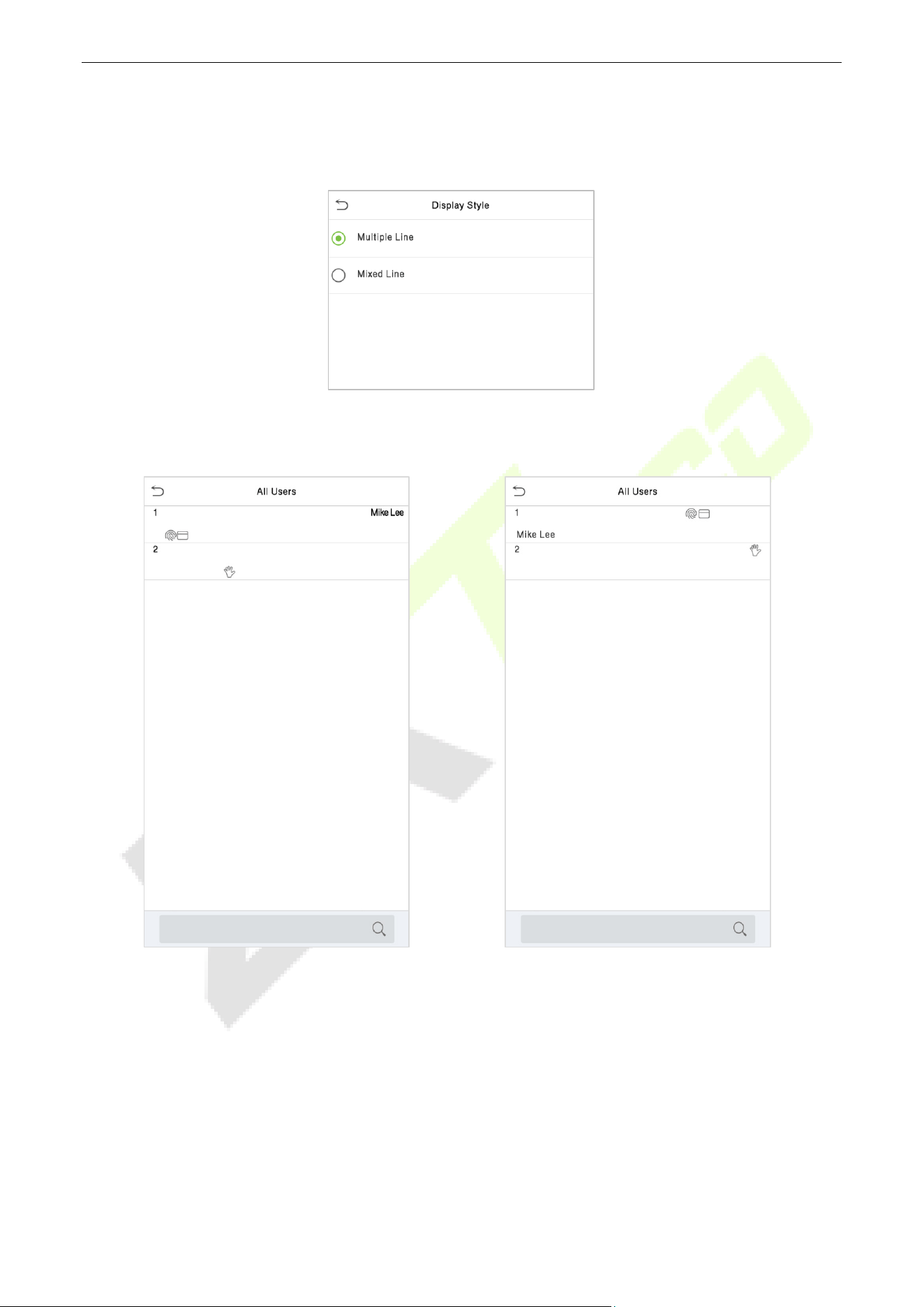
Display Style 4.5
Tap on User Mgt. > Display Style to choose the style of All Users interface’s list.
Different display styles are shown as below:
Multiple Line:
Mixed Line:
SpeedFace-V5L&H5L Series User Manual
Page | 43 Copyright©2023 ZKTECO CO., LTD. All rights reserved.
5 User Role
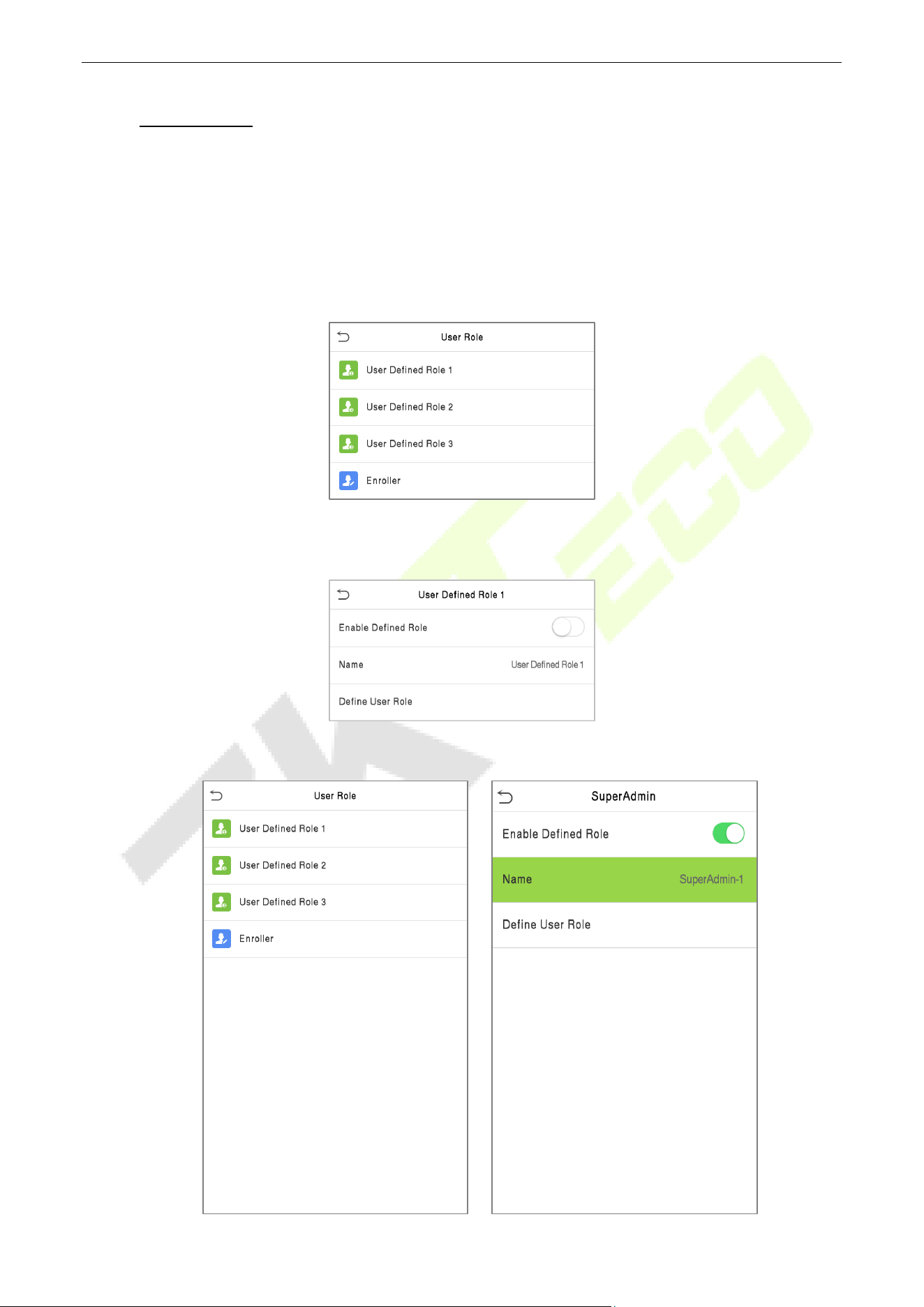
If you need to assign some specific permissions to certain users, you may edit the "User Defined Role"
under the User Role menu.
You may set the permission scope of the custom role (up to 3 roles) and enroller, that is, the permission
scope of the operation menu.
Click User Role on the main menu interface.
On the User Defined Role interface, toggle Enable Defined Role to enable or disable the user-defined
role.
Tap on Name and enter the custom name of the role.
SpeedFace-V5L&H5L Series User Manual
Page | 44 Copyright©2023 ZKTECO CO., LTD. All rights reserved.
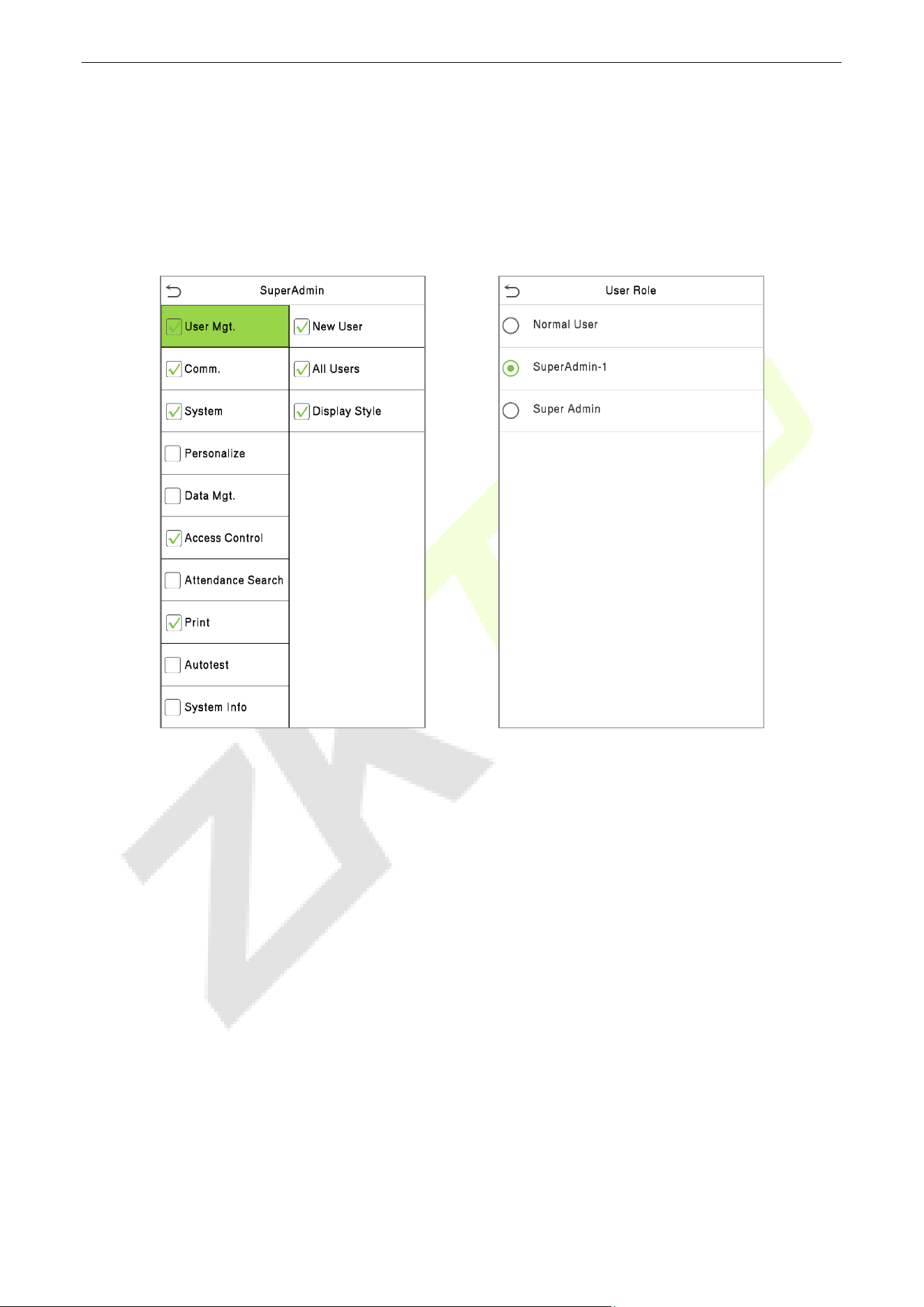
Then, tap on Define User Role and select the required privileges to assign to the new role, and then tap
on the Return button.
During privilege assignment, the Main Menu function names will be displayed on the left and its sub-
menus will be listed on its right.
First, tap on the required Main Menu functions, and then select its required sub-menus from the list which
the user can access.
Note: If the User Role is enabled for the device, tap on User Mgt. > New User > User Role to assign the
created roles to the required users. But if there is no super administrator registered in the device, then the
device will prompt "Please enroll super admin first!" when enabling the User Role function.
SpeedFace-V5L&H5L Series User Manual
Page | 45 Copyright©2023 ZKTECO CO., LTD. All rights reserved.
6 Communication Settings
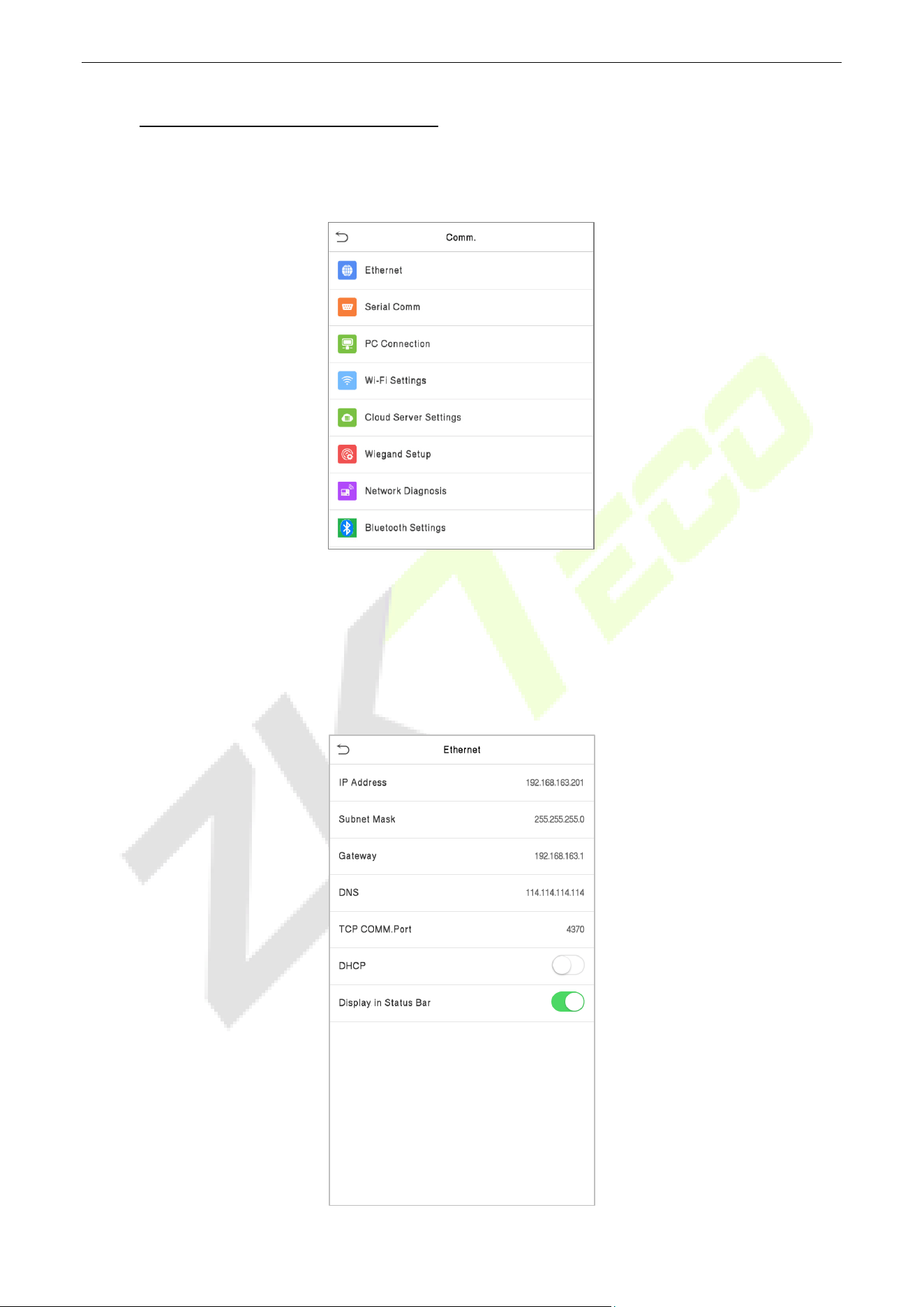
Tap COMM. on the Main Menu to set the Ethernet PC connection, Cloud Server setting, Wiegand and Network
Diagnosis.
Network Settings 6.1
When the device needs to communicate with a PC over the Ethernet, you need to configure network
settings and ensure that the device and the PC connect to the same network segment.
Tap Ethernet on the Comm. Settings interface to configure the settings.
SpeedFace-V5L&H5L Series User Manual
Page | 46 Copyright©2023 ZKTECO CO., LTD. All rights reserved.
Function Description
Function Name Descriptions
IP Address
The default IP address is 192.168.1.201. It can be modified according to the
network availability.
Subnet Mask
The default Subnet Mask is 255.255.255.0. It can be modified according to the
network availability.
Gateway
The default Gateway address is 0.0.0.0. It can be modified according to the
network availability.
DNS
The default DNS address is 0.0.0.0. It can be modified according to the
network availability.
TCP COMM. Port
The default TCP COMM Port value is 4370. It can be modified according to the
network availability.
DHCP
Dynamic Host Configuration Protocol dynamically allocates IP addresses for
clients via server.
Display in Status Bar
Toggle to set whether to display the network icon on the status bar.
Serial Comm
★
6.2
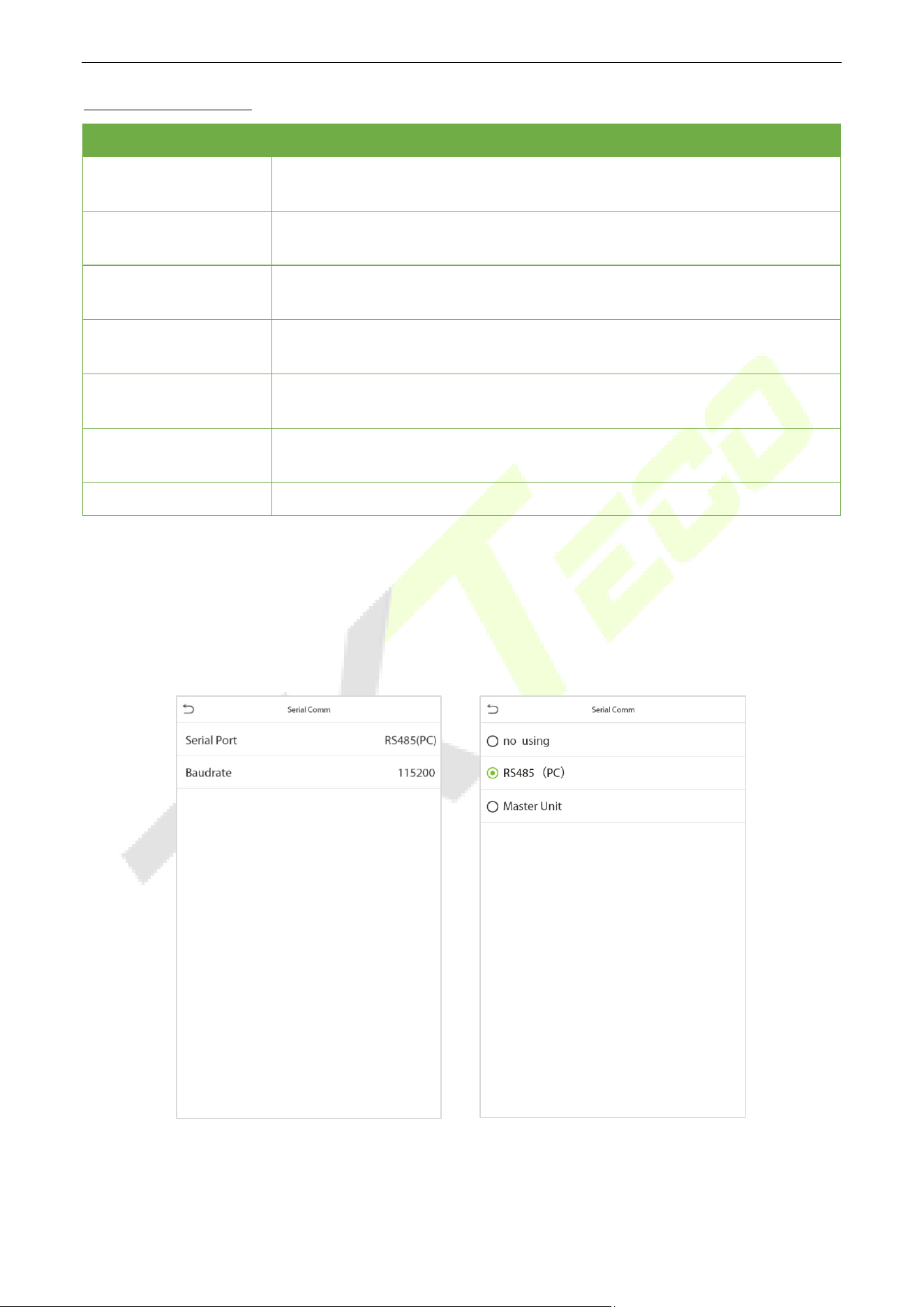
Serial Comm function facilitates to establish communication with the device through a serial port (/RS485/
Master Unit).
Tap Serial Comm. on the Comm. Settings interface.
SpeedFace-V5L&H5L Series User Manual
Page | 47 Copyright©2023 ZKTECO CO., LTD. All rights reserved.
Function Description
Function Name Descriptions
Serial Port
Disable: Do not communicate with the device through the serial port.
RS485(PC): Communicates with the device through RS485 serial port.
Master Unit: When RS485 is used as the function of “Master unit”, the device
will act as a master unit, and it can be connected to RS485 fingerprint & card
reader.
Baud Rate
The rate at which the data is communicated with PC, there are 4 options of baud
rate: 115200 (default), 57600, 38400, and 19200.
The higher is the baud rate, the faster is the communication speed, but also the
less reliable.
Hence, a higher baud rate can be used when the communication distance is
short; when the communication distance is long, choosing a lower baud rate
would be more reliable.
PC Connection 6.3
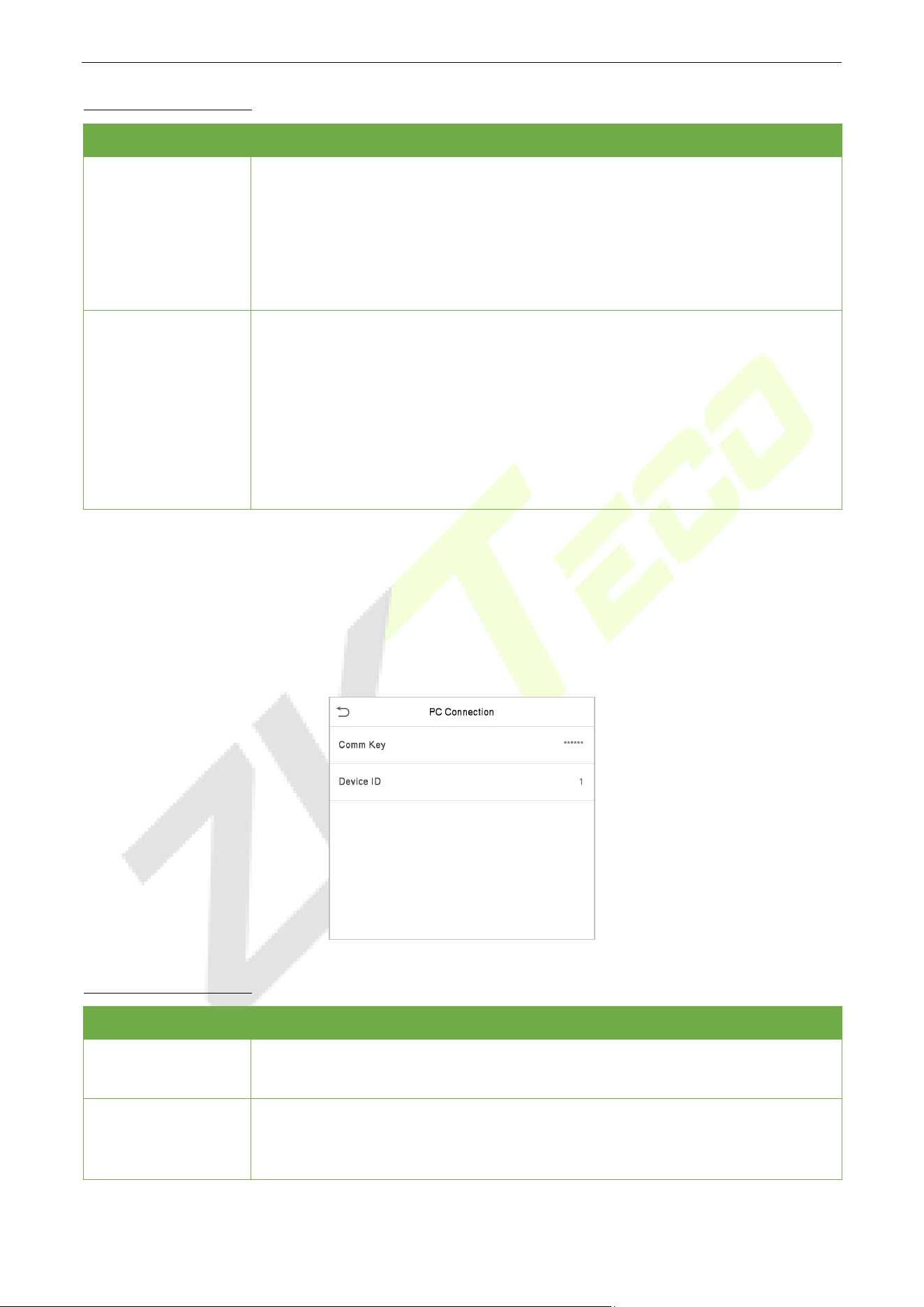
Comm Key facilitates to improve the security of data by setting the communication between the device
and the PC. Once the Comm Key is set, a password is required to connect the device to the PC software.
Tap PC Connection on the Comm. Settings interface to configure the communication settings.
Function Description
Function Name Descriptions
Comm Key
The default password is 0 and can be changed.
The Comm Key can contain 1-6 digits.
Device ID
It is the identification number of the device, which ranges between 1 and 254.
If the communication method is RS232/RS485, you need to input this device ID
in the software communication interface.
SpeedFace-V5L&H5L Series User Manual
Page | 48 Copyright©2023 ZKTECO CO., LTD. All rights reserved.
Wireless Network 6.4
The device provides a Wi-Fi module, which can be built-in within the device mould or can be externally
connected.
The Wi-Fi module enables data transmission via Wi-Fi (Wireless Fidelity) and establishes a wireless network
environment. Wi-Fi is enabled by default in the device. If you don't need to use the Wi-Fi network, you can
toggle the Wi-Fi to disable button.
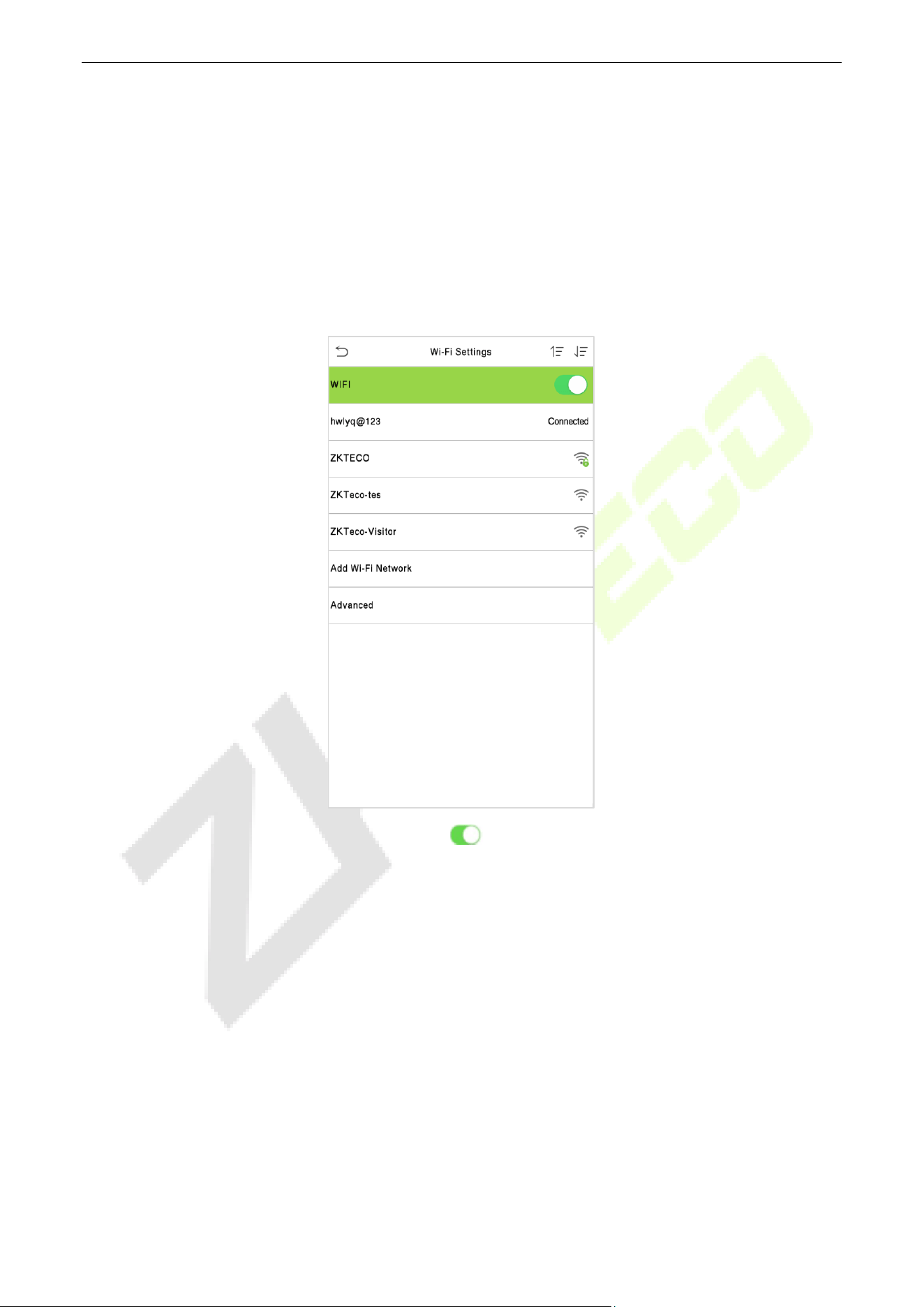
Tap Wi-Fi Settings on the Comm. Settings interface to configure the Wi-Fi settings.
Wi-Fi is enabled in the Device by default. Toggle on button to enable or disable Wi-Fi.
Once the Wi-Fi is turned on, the device will search for the available Wi-Fi within the network range.
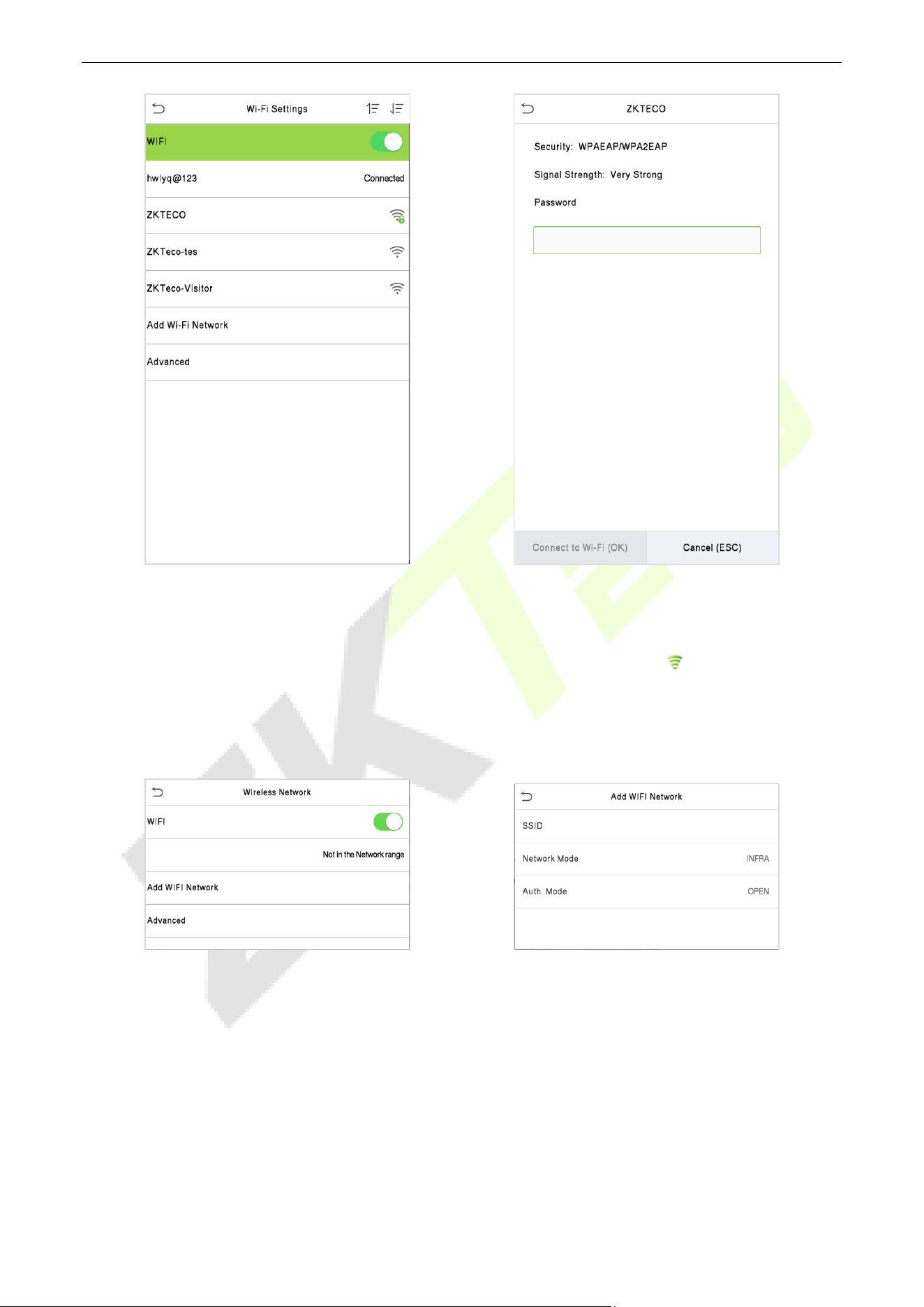
Tap on the appropriate Wi-Fi name from the available list, and input the correct password in the password
interface, and then tap Connect to Wi-Fi (OK).
SpeedFace-V5L&H5L Series User Manual
Page | 49 Copyright©2023 ZKTECO CO., LTD. All rights reserved.
When the Wi-Fi is connected successfully, the initial interface will display the Wi-Fi logo.
Add Wi-Fi Network Manually
The Wi-Fi can also be added manually if the required Wi-Fi is not displayed on the list.
Note: After successfully adding the Wi-Fi manually, follow the same process to search for the added Wi-Fi
name.
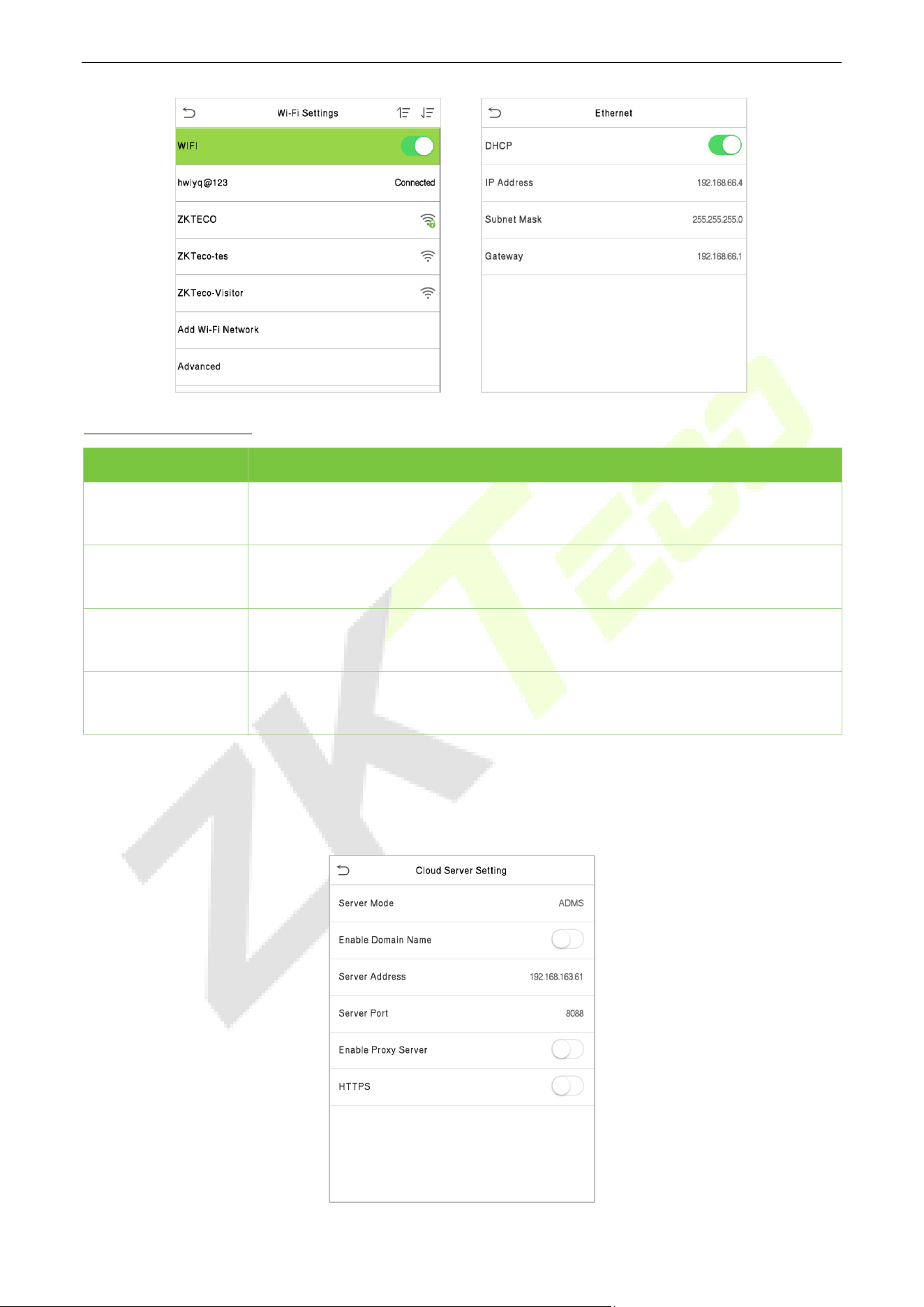
Advanced Setting
On the Wireless Network interface, tap on Advanced to set the relevant parameters as required.
WIFI Enabled: Tap on the required network
from the searched network list.
Tap on the password field to enter the password,
and then tap on Connect to Wi-Fi (OK).
Tap on Add WIFI Network to add the Wi-Fi
manually.
On this interface, enter the Wi-Fi network
parameters. (The added network must exist.)
SpeedFace-V5L&H5L Series User Manual
Page | 50 Copyright©2023 ZKTECO CO., LTD. All rights reserved.
Function Description
Function Name Description
DHCP
Dynamic Host Configuration Protocol (DHCP) dynamically allocates IP addresses
to network clients. If the DHCP is enabled, then the IP cannot be set manually.
IP Address
IP address for the Wi-Fi
network, the default is 0.0.0.0. It can be modified
according to the network availability.
Subnet Mask
The default Subnet Mask of the Wi-Fi network is 255.255.255.0. It can be modified
according to the network availability.
Gateway
The default Gateway address is 0.0.0.0. Can be modified according to the network
availability.
Cloud Server Setting 6.5
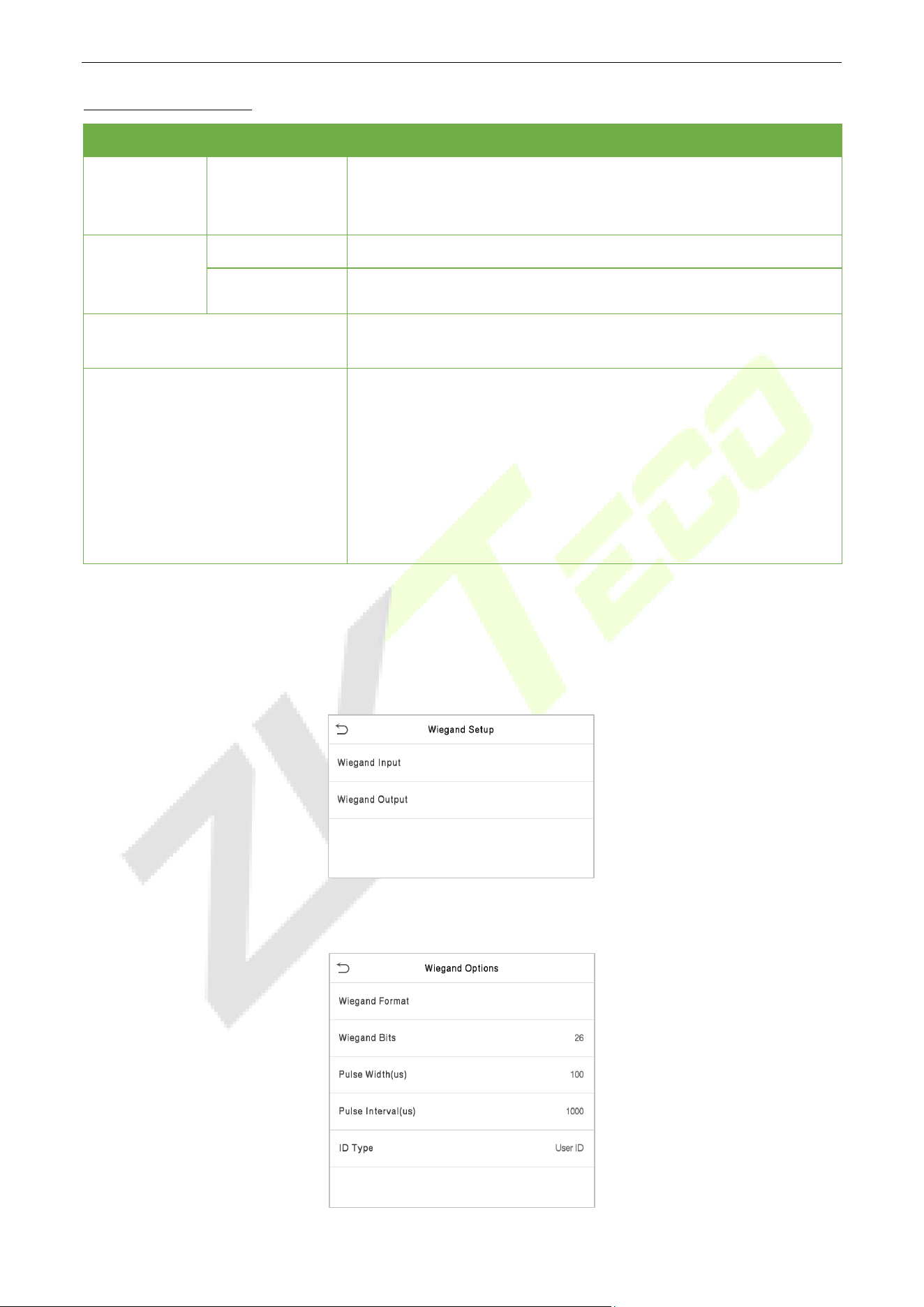
Tap Cloud Server Setting on the Comm. Settings interface to connect with the ADMS server.
SpeedFace-V5L&H5L Series User Manual
Page | 51 Copyright©2023 ZKTECO CO., LTD. All rights reserved.
Function Description
Function Name
Description
Enable
Domain
Name
Server Address
Once this mode is turned ON, the domain name mode "http://..."
will be used, such as http://www.XYZ.com, while "XYZ" denotes the
domain name.
Disable
Domain
Name
Server Address
The IP address of the ADMS server.
Server Port
Port used by the ADMS server.
Enable Proxy Server
The IP address and the port number of the proxy server is set
manually when the proxy is enabled.
HTTPS
To increase the security of browser access, users can enable the
HTTPS protocol to create a secure and encrypted network
transmission and assure the security of sent data through identity
authentication and encrypted communication.
This function is enabled by default. This function can be enabled or
disabled through the menu interface, and when changing the
HTTPS status, the device will pop up a security prompt, and restart
after confirmation.
Wiegand Setup 6.6
It is used to set the Wiegand input and output parameters.
Tap Wiegand Setup on the Comm. Settings interface to set the Wiegand input and output parameters.
6.6.1 Wiegand Input
SpeedFace-V5L&H5L Series User Manual
Page | 52 Copyright©2023 ZKTECO CO., LTD. All rights reserved.
Function Description
Function Name Descriptions
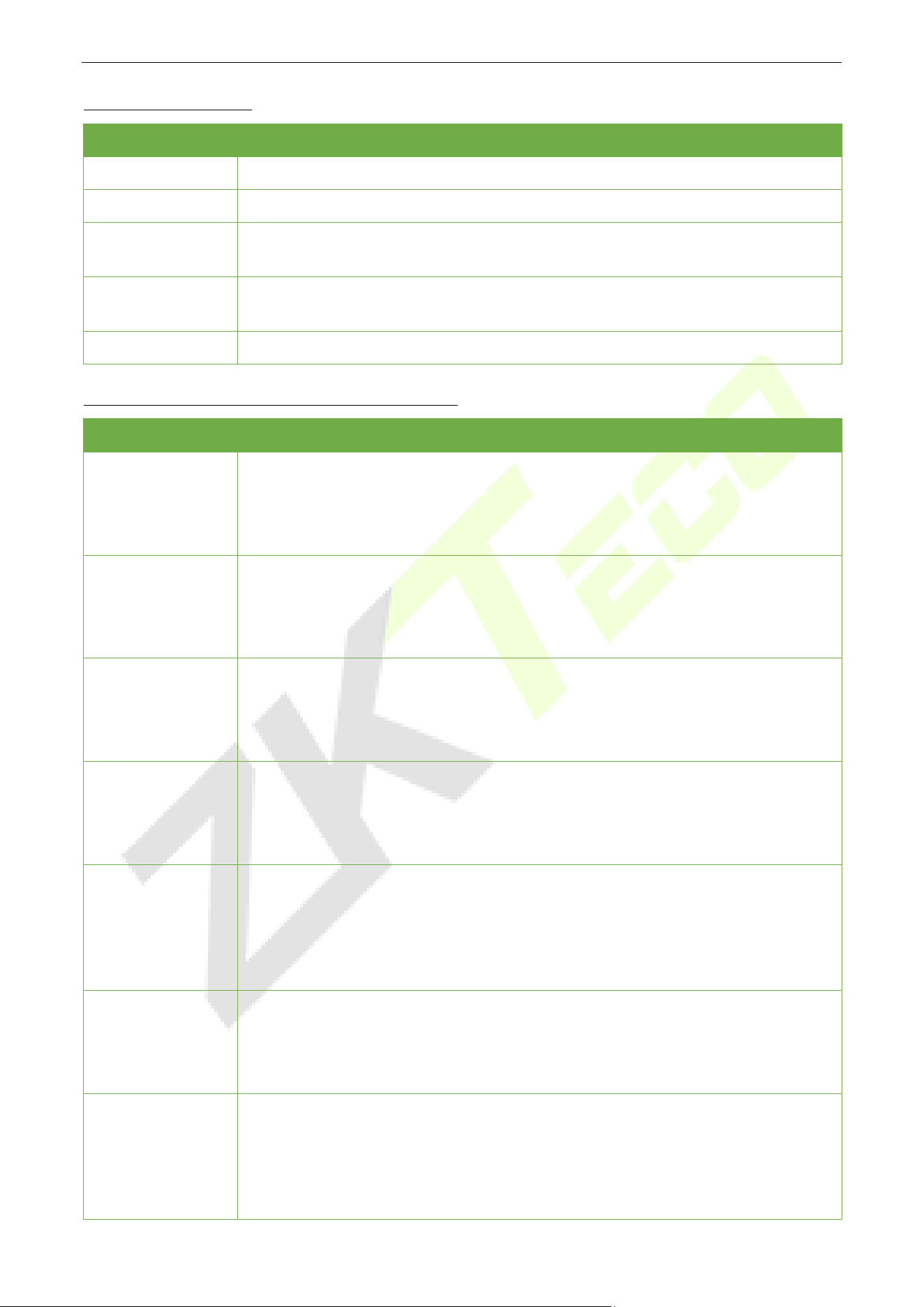
Wiegand Format
Its value can be 26 bits, 34 bits, 36 bits, 37 bits, and 50 bits.
Wiegand Bits
The number of bits of the Wiegand data.
Pulse Width (us)
The value of the pulse width sent by Wiegand is 100 microseconds by default,
which can be adjusted within the range of 20 to 100 microseconds.
Pulse Interval (us)
The default value is 1000 microseconds and can be adjusted within the range of
200 to 20000 microseconds.
ID Type
Select between the User ID and card number.
Various Common Wiegand Format Description
Wiegand Format Description
Wiegand26
ECCCCCCCCCCCCCCCCCCCCCCCCO
It consists of 26 bits of binary code. The 1
st
bit is the even parity bit of the 2
nd
to 13
th
bits, while the 26
th
bit is the odd parity bit of the 14
th
to 25
th
bits. The 2
nd
to 25
th
bits
is the card numbers.
Wiegand26a
ESSSSSSSSCCCCCCCCCCCCCCCCO
It consists of 26 bits of binary code. The 1
st
bit is the even parity bit of the 2
nd
to 13
th
bits, while the 26
th
bit is the odd parity bit of the 14
th
to 25
th
bits. The 2
nd
to 9
th
bits
is the site codes, while the 10
th
to 25
th
bits are the card numbers.
Wiegand34
ECCCCCCCCCCCCCCCCCCCCCCCCCCCCCCCCO
It consists of 34 bits of binary code. The 1
st
bit is the even parity bit of the 2
nd
to 17
th
bits, while the 34
th
bit is the odd parity bit of the 18
th
to 33
rd
bits. The 2
nd
to 25
th
bits
is the card numbers.
Wiegand34a
ESSSSSSSSCCCCCCCCCCCCCCCCCCCCCCCCO
It consists of 34 bits of binary code. The 1
st
bit is the even parity bit of the 2
nd
to 17
th
bits, while the 34
th
bit is the odd parity bit of the 18
th
to 33
rd
bits. The 2
nd
to 9
th
bits
is the site codes, while the 10
th
to 25
th
bits are the card numbers.
Wiegand36
OFFFFFFFFFFFFFFFFCCCCCCCCCCCCCCCCMME
It consists of 36 bits of binary code. The 1
st
bit is the odd parity bit of the 2
nd
to 18
th
bits, while the 36
th
bit is the even parity bit of the 19
th
to 35
th
bits. The 2
nd
to 17
th
bits is the device codes. The 18
th
to 33
rd
bits is the card numbers, and the 34
th
to
35
th
bits are the manufacturer codes.
Wiegand36a
EFFFFFFFFFFFFFFFFFFCCCCCCCCCCCCCCCCO
It consists of 36 bits of binary code. The 1
st
bit is the even parity bit of the 2
nd
to 18
th
bits, while the 36
th
bit is the odd parity bit of the 19
th
to 35
th
bits. The 2
nd
to 19
th
bits
is the device codes, and the 20
th
to 35
th
bits are the card numbers.
Wiegand37
OMMMMSSSSSSSSSSSSCCCCCCCCCCCCCCCCCCCE
It consists of 37 bits of binary code. The 1
st
bit is the odd parity bit of the 2
nd
to 18
th
bits, while the 37
th
bit is the even parity bit of the 19
th
to 36
th
bits. The 2
nd
to 4
th
bits
is the manufacturer codes. The 5
th
to 16
th
bits is the site codes, and the 21
st
to 36
th
bits are the card numbers.
SpeedFace-V5L&H5L Series User Manual
Page | 53 Copyright©2023 ZKTECO CO., LTD. All rights reserved.
Wiegand37a
EMMMFFFFFFFFFFSSSSSSCCCCCCCCCCCCCCCCO
It consists of 37 bits of binary code. The 1
st
bit is the even parity bit of the 2
nd
to 18
th
bits, while the 37
th
bit is the odd parity bit of the 19
th
to 36
th
bits. The 2
nd
to 4
th
bits
is the manufacturer codes. The 5
th
to 14
th
bits is the device codes, and15
th
to 20
th
bits are the site codes, and the 21
st
to 36
th
bits are the card numbers.
Wiegand50
ESSSSSSSSSSSSSSSSCCCCCCCCCCCCCCCCCCCCCCCCCCCCCCCCO
It consists of 50 bits of binary code. The 1
st
bit is the even parity bit of the 2
nd
to 25
th
bits, while the 50
th
bit is the odd parity bit of the 26
th
to 49
th
bits. The 2
nd
to 17
th
bits
is the site codes, and the 18
th
to 49
th
bits are the card numbers.
"C" denotes the card number; "E" denotes the even parity bit; "O" denotes the odd parity bit; "F"
denotes the facility code; "M" denotes the manufacturer code; "P" denotes the parity bit; and "S"
denotes the site code.
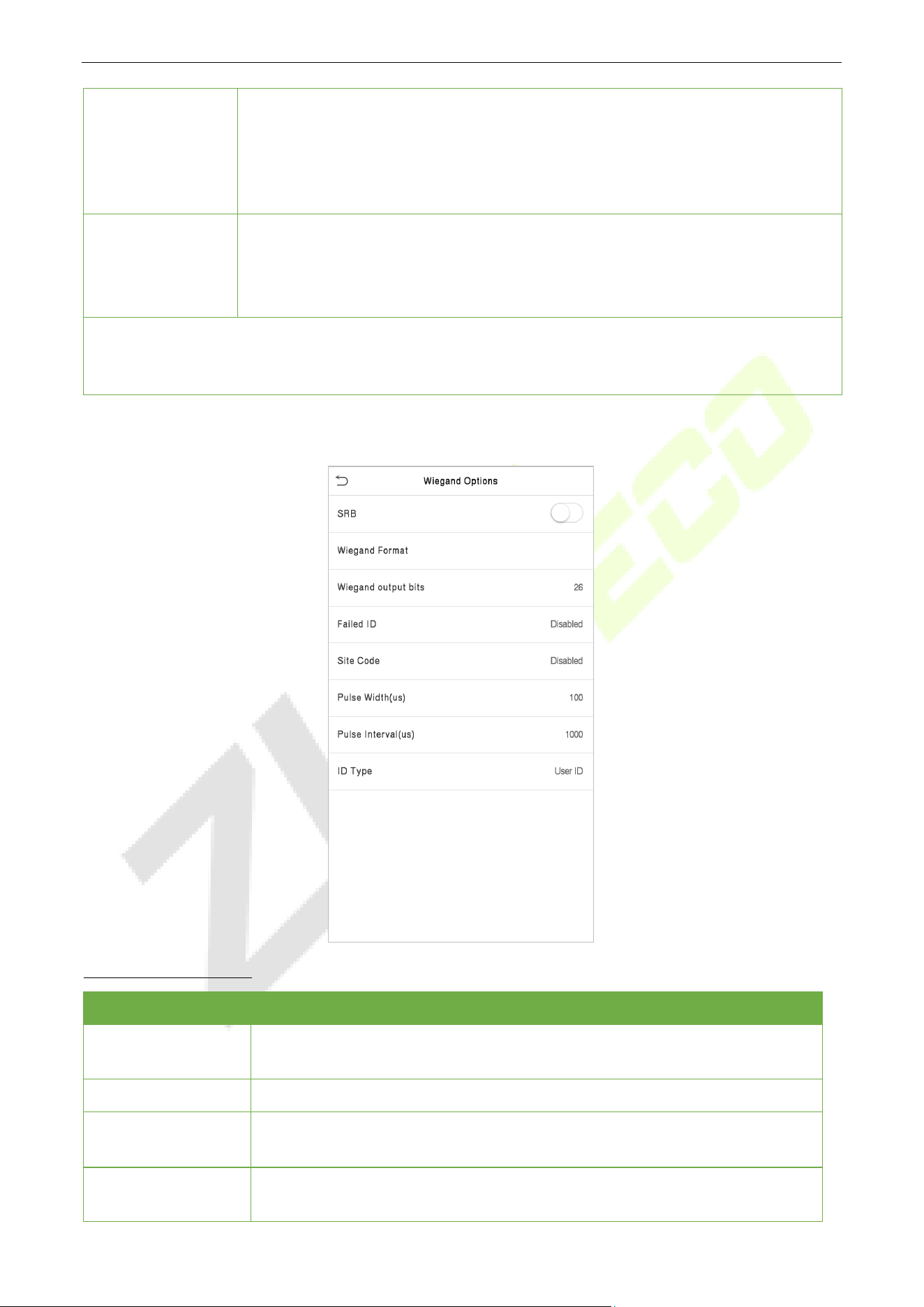
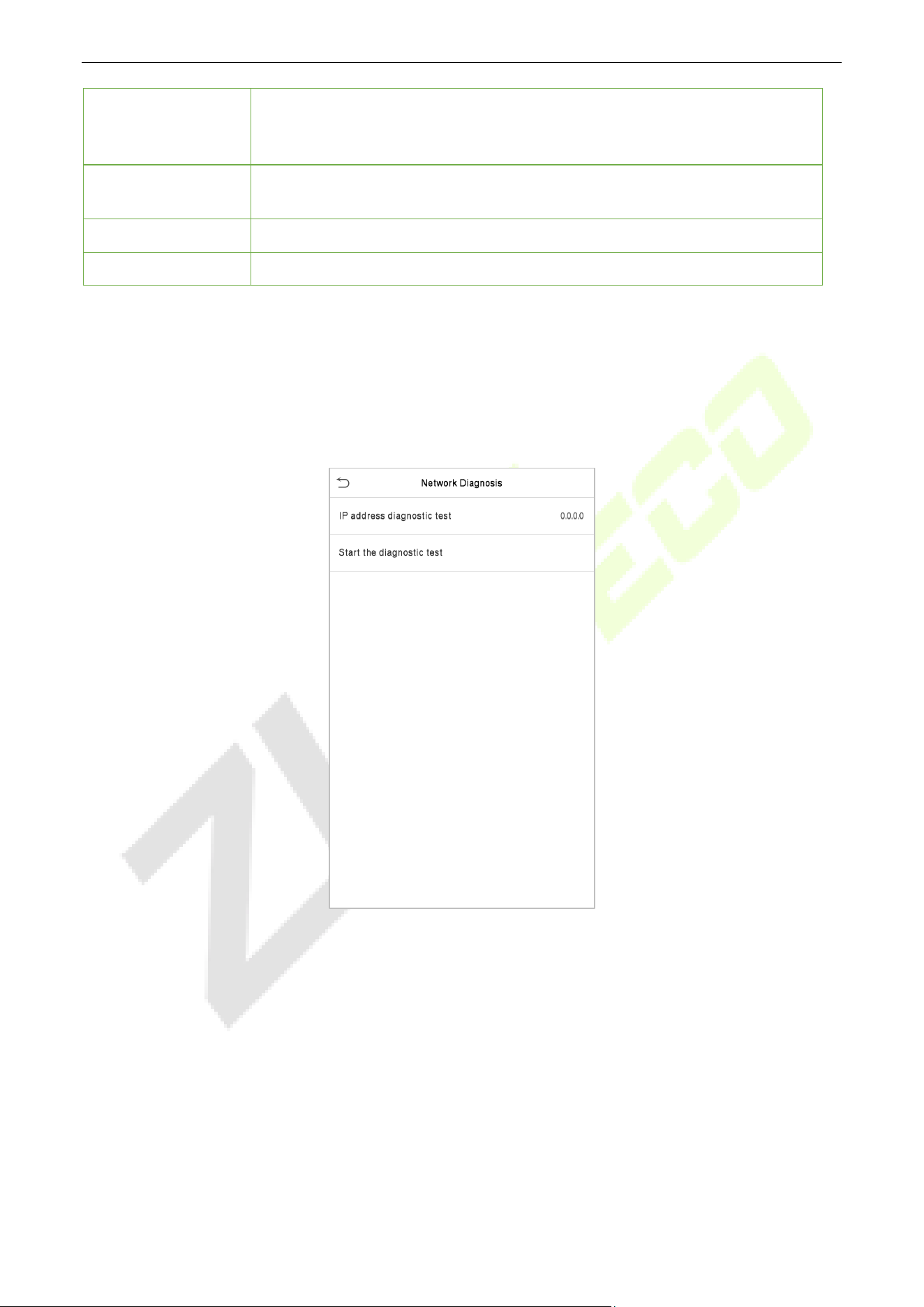
6.6.2 Wiegand Output
Function Description
Function Name Descriptions
SRB
When SRB is enabled, the lock is controlled by the SRB to prevent the lock
from opening due to device removal.
Wiegand Format
Its value can be 26 bits, 34 bits, 36 bits, 37 bits, and 50 bits.
Wiegand Output
Bits
After selecting the required Wiegand format, select the corresponding output bit
digits of the Wiegand format.
Failed ID
If the verification fails, the system will send the failed ID to the device and replace
the card number or personnel ID with the new one.
SpeedFace-V5L&H5L Series User Manual
Page | 54 Copyright©2023 ZKTECO CO., LTD. All rights reserved.
Site Code
It is similar to the device ID. The difference is that a site code can be set manually
and is repeatable on a different device. The valid value ranges from 0 to 256 by
default.
Pulse Width(us)
The time width represents the changes in the quantity of electric charge with
regular high-frequency capacitance within a specified time.
Pulse Interval(us)
The time interval between pulses.
ID Type
Select the ID types as either User ID or card number.
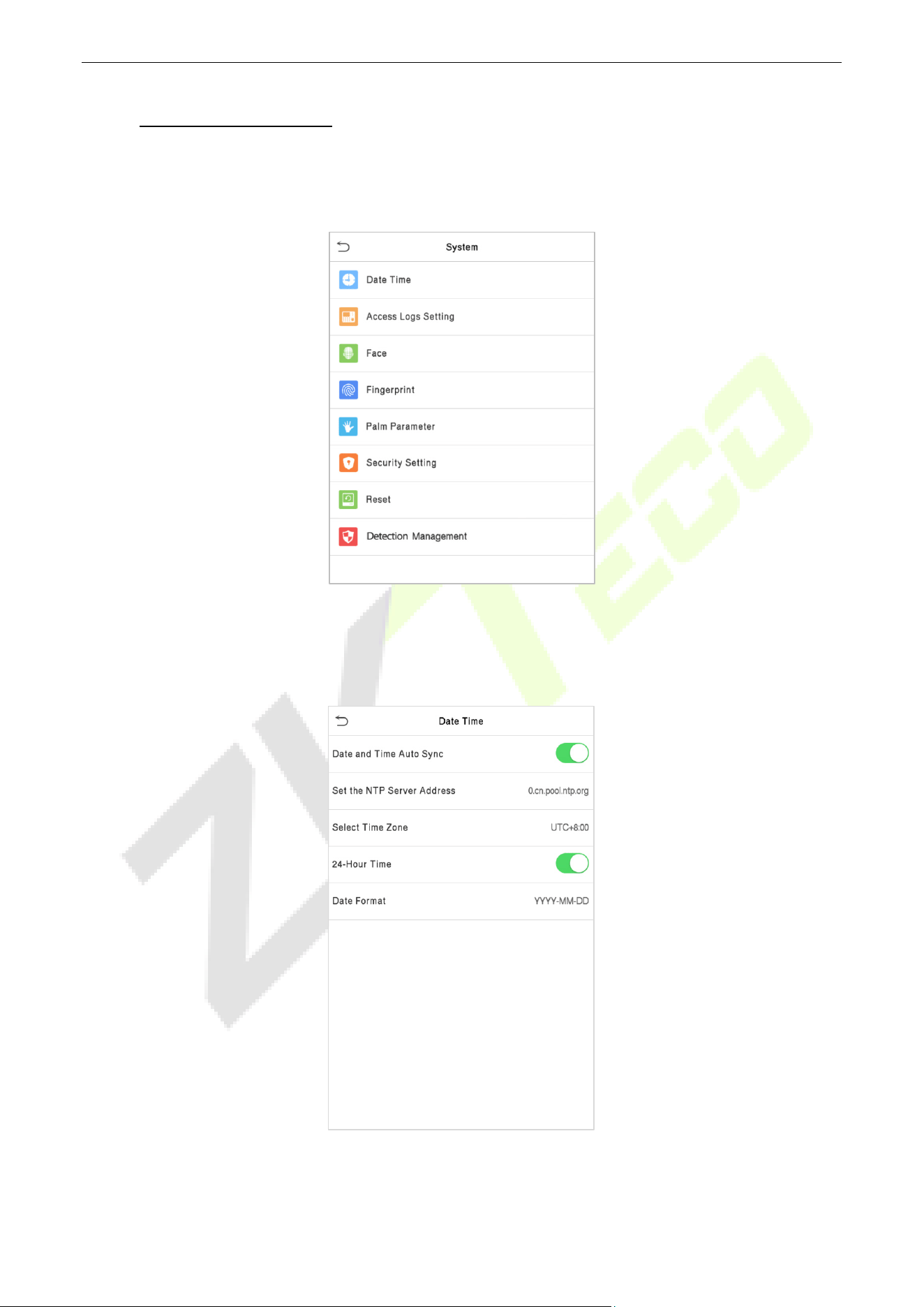
Network Diagnosis 6.7
To set the network diagnosis parameters.
Click Network Diagnosis on the Comm. Settings interface. Enter the IP address that needs to be
diagnosed, and click Start the diagnostic test to check whether the network can connect to the device.
SpeedFace-V5L&H5L Series User Manual
Page | 55 Copyright©2023 ZKTECO CO., LTD. All rights reserved.
7 System Settings
It helps to set related system parameters to optimize the accessibility of the device.
Tap System on the Main Menu interface to get into its menu options.
Date and Time 7.1
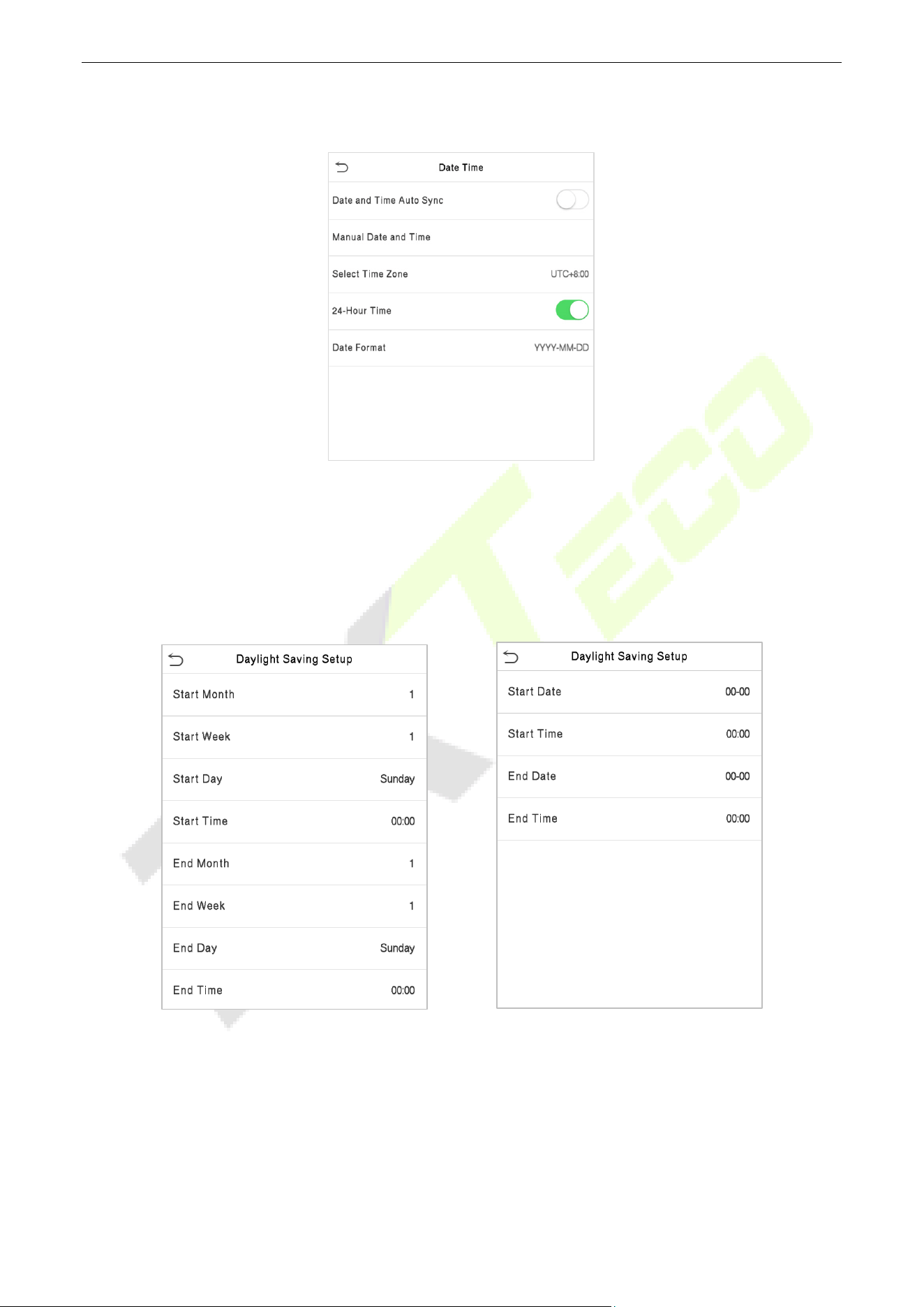
Tap Date Time on the System interface to set the date and time.
The product supports the NTP synchronization time system by default. This function takes effect after
Date and Time Auto Sync is enabled and the corresponding NTP server address link is set.
SpeedFace-V5L&H5L Series User Manual
Page | 56 Copyright©2023 ZKTECO CO., LTD. All rights reserved.
If users need to set date and time manually, disable Date and Time Auto Sync first, and then tap Manual
Time Setting to set date and time and tap Confirm to save.
Tap Select Time Zone to select a time zone then tap the return button to save and exit.
Tap 24-Hour Time to enable or disable this format. If enabled, then select the Date Format to set the date
format i.e., the way date should be displayed on the device.
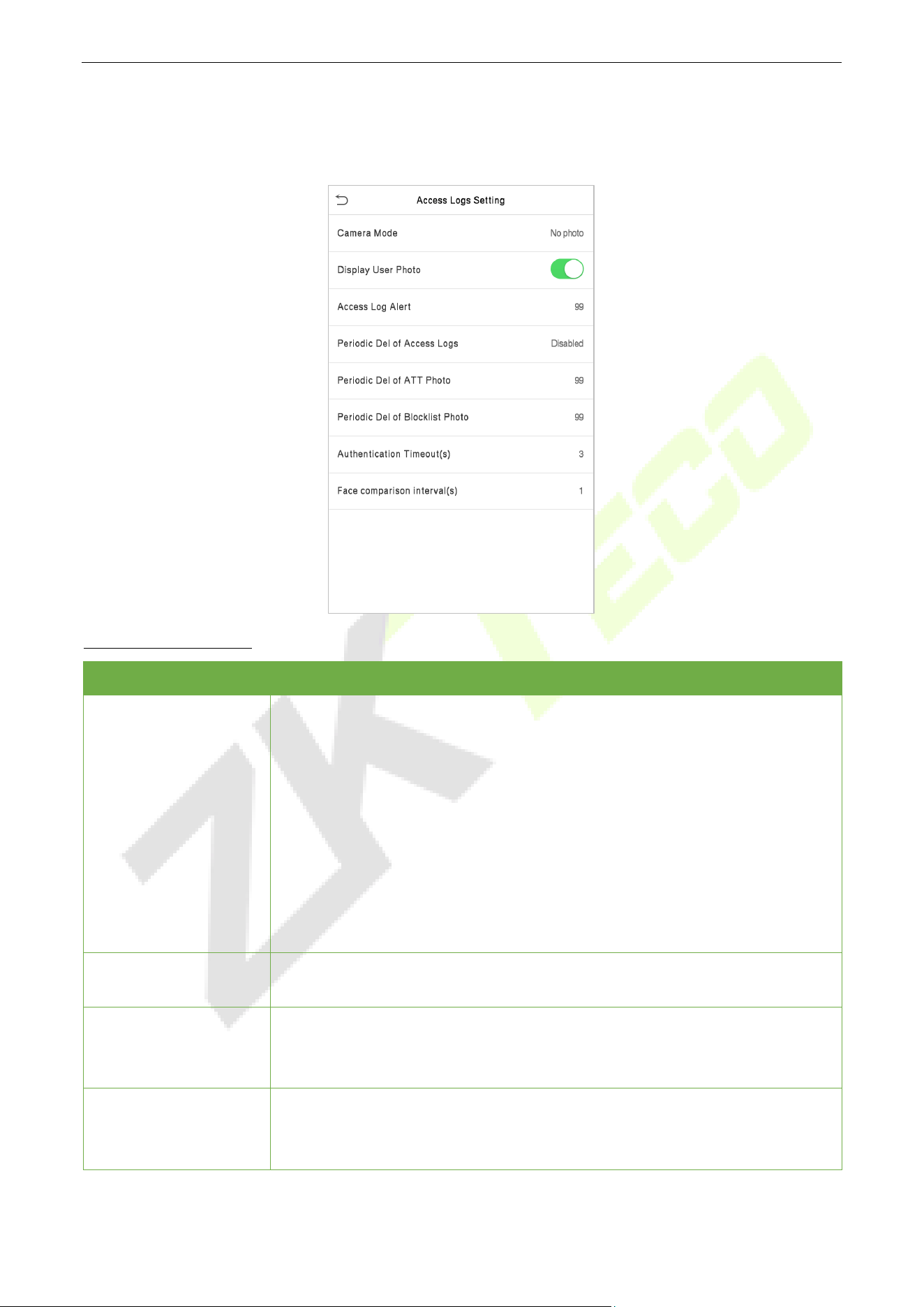
Tap Daylight Saving Time to enable or disable the function. If enabled, tap Daylight Saving Mode to
select a daylight-saving mode and then tap Daylight Saving Setup to set the switch time.
Week Mode Date Mode
When restoring the factory settings, the time (24-hour) and date format (YYYY-MM-DD) can be restored,
but the device date and time cannot be restored.
Note: For example, if a user sets the time of the device (18:35 on March 15, 2019) to 18:30 on January 1,
2020. After restoring the factory settings, the time of the device will remain at 18:30 on January 1, 2020.
SpeedFace-V5L&H5L Series User Manual
Page | 57 Copyright©2023 ZKTECO CO., LTD. All rights reserved.
Access Logs Setting 7.2
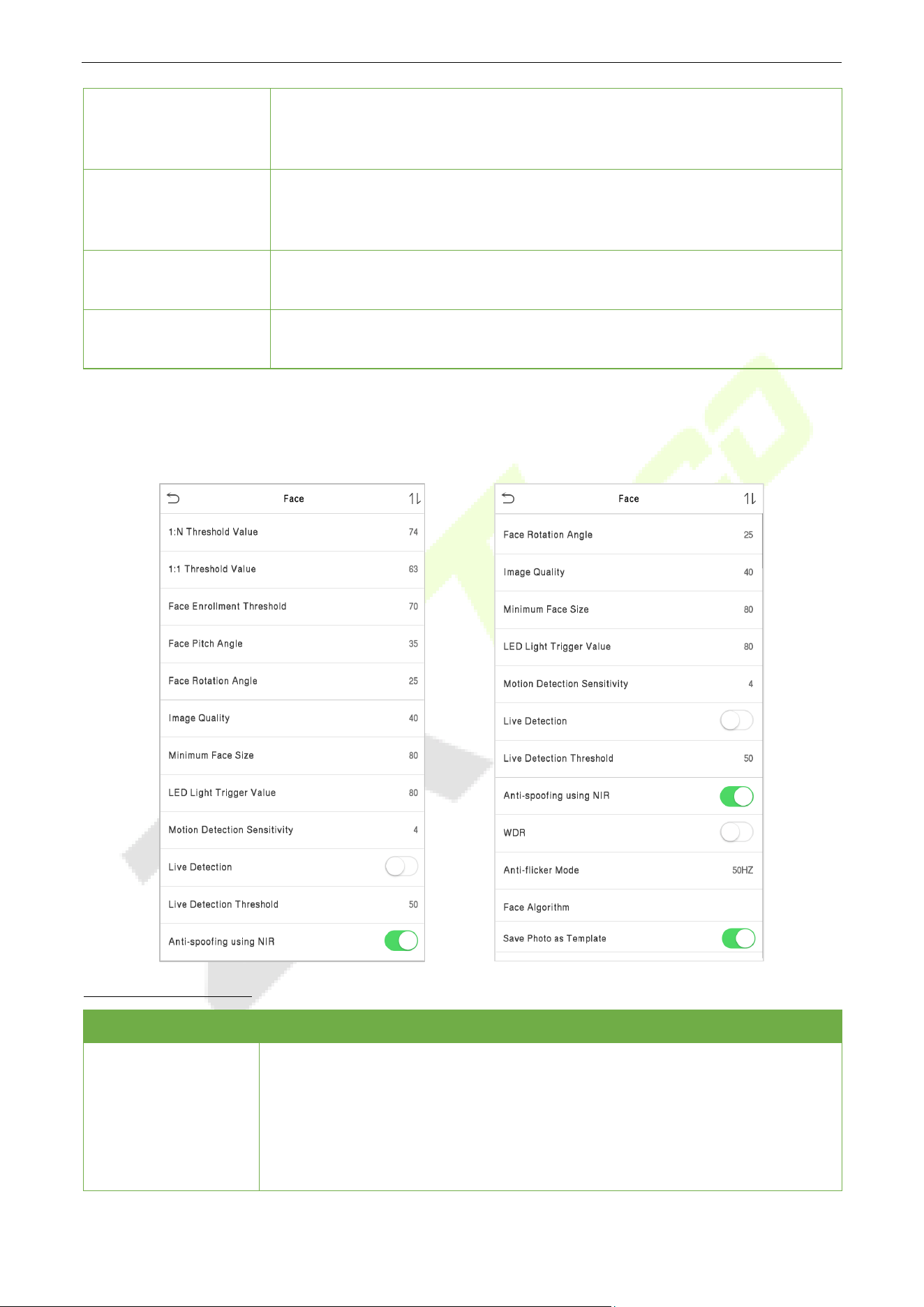
Click Access Logs Setting on the System interface.
Function Description
Function Name Description
Camera Mode
This function is disabled by default. When enabled, a security prompt will
pop-
up and the sound of shutter in the camera will turn on mandatorily.
There are 5 modes:
No Photo: No photo is taken during user verification.
Take photo, no save: Photo is taken but not saved during verification.
Take photo and save: All the photos taken during verification is saved.
Save on successful verification: Photo is taken and saved for each successful
verification.
Save on failed verification: Photo is taken and saved only for each failed
verification.
Display User Photo
This function is disabled by default.
When enabled, a security prompt will
pop-up.
Access Log Alert
When the record space of the attendance access reaches the maximum
threshold value, the device automatically displays the memory space warning.
Users may disable the function or set a valid value between 1 and 9999.
Periodic Del of Access
Logs
When access log
s reach its maximum capacity, the device automatically
deletes a set of old access logs.
Users may disable the function or set a valid value between 1 and 999.
SpeedFace-V5L&H5L Series User Manual
Page | 58 Copyright©2023 ZKTECO CO., LTD. All rights reserved.
Periodic Del of ATT
Photo
When attendance photos reach its maximum capacity, the device
automatically deletes a set of old attendance photos.
Users may disable the function or set a valid value between 1 and 99.
Periodic Del of
Blocklist Photo
When block listed photos reach its maximum capacity, the device
automatically deletes a set of old block listed photos.
Users may disable the function or set a valid value between 1 and 99.
Authentication
Timeout (s)
The amount of time taken to display a successful verification message.
Valid value: 1~9 seconds.
Face Comparison
Interval (s)
The amount of time required to compare facial templates.
Valid value: 0~9 seconds.
Face Parameters 7.3
Tap Face on the System interface to go to the face parameter settings.
Function Description
Function Name Description
1:N Match Threshold
Under 1:N verification mode, the verification will only be successful when the
similarity between the acquired facial image and all registered facial templates
is greater than the set value.
The valid value ranges from 65 to 120. The higher the thresholds, the lower the
misjudgement rate and the higher the rejection rate, and vice versa. It is
recommended to set the default value of 75.

SpeedFace-V5L&H5L Series User Manual
Page | 59 Copyright©2023 ZKTECO CO., LTD. All rights reserved.
1:1 Match Threshold
Under 1:1 verification mode, the verification will only be successful when the
similarity between the acquired facial image and the user’s facial templates
enrolled in the device is greater than the set value.
The valid value ranges from 55 to 120. The higher the thresholds, the lower the
misjudgement rate and the higher the rejection rate, and vice versa. It is
recommended to set the default value of 63.
Face Enrollment
Threshold
During face enrollment, 1:N comparison is used to determine whether the user
has already registered before.
When the similarity between the acquired facial image and all registered facial
templates is greater than the set threshold, it indicates that the face has already
been registered.
Face Pitch Angle
It is the pitch angle tolerance of a face for facial template registration and
comparison.
If a face’s pitch angle exceeds the set value, it will be filtered by the algorithm,
i.e., ignored by the terminal thus no registration and comparison interface will
be triggered.
Face Rotation Angle
It is the rotation angle tolerance of a face for facial template registration and
comparison.
If a face’s rotation angle exceeds the set value, it will be filtered by the
algorithm, i.e., ignored by the terminal thus no registration and comparison
interface will be triggered.
Image Quality
It is the image quality for facial registration and comparison. The higher the
value, the clearer image is required.
Minimum Face Size
It sets the minimum face size required for facial registration and comparison.
If the minimum size of the captured image is smaller than the set value, then it
will be filtered off and not recognized as a face.
This value can also be interpreted as the face comparison distance. The farther
the individual is, the smaller the face, and the smaller number of pixels of the
face obtained by the algorithm. Therefore, adjusting this parameter can adjust
the farthest comparison distance of faces. When the value is 0, the face
comparison distance is not limited.
LED Light Trigger
Threshold
This value controls the turning on and off of the LED light. The larger the value,
the LED light will turn on or off more frequently.
Motion Detection
Sensitivity
It sets the value for the amount of change in a camera’s field of view known as
potential motion detection that wakes up the terminal from standby to the
comparison interface.
The larger the value, the more sensitive the system would be, i.e., if a larger
value is set, the comparison interface activates with much ease, and the motion
detection is frequently triggered.
Live Detection
It detects the spoof attempt using visible light images to determine if the
provided biometric source sample is of a real person (a live human being) or a
false representation.
Live Detection
Threshold
It facilitates judging whether the captured visible image is a real person (a live
human being). The larger the value, the better the anti-spoofing performance
using visible light.
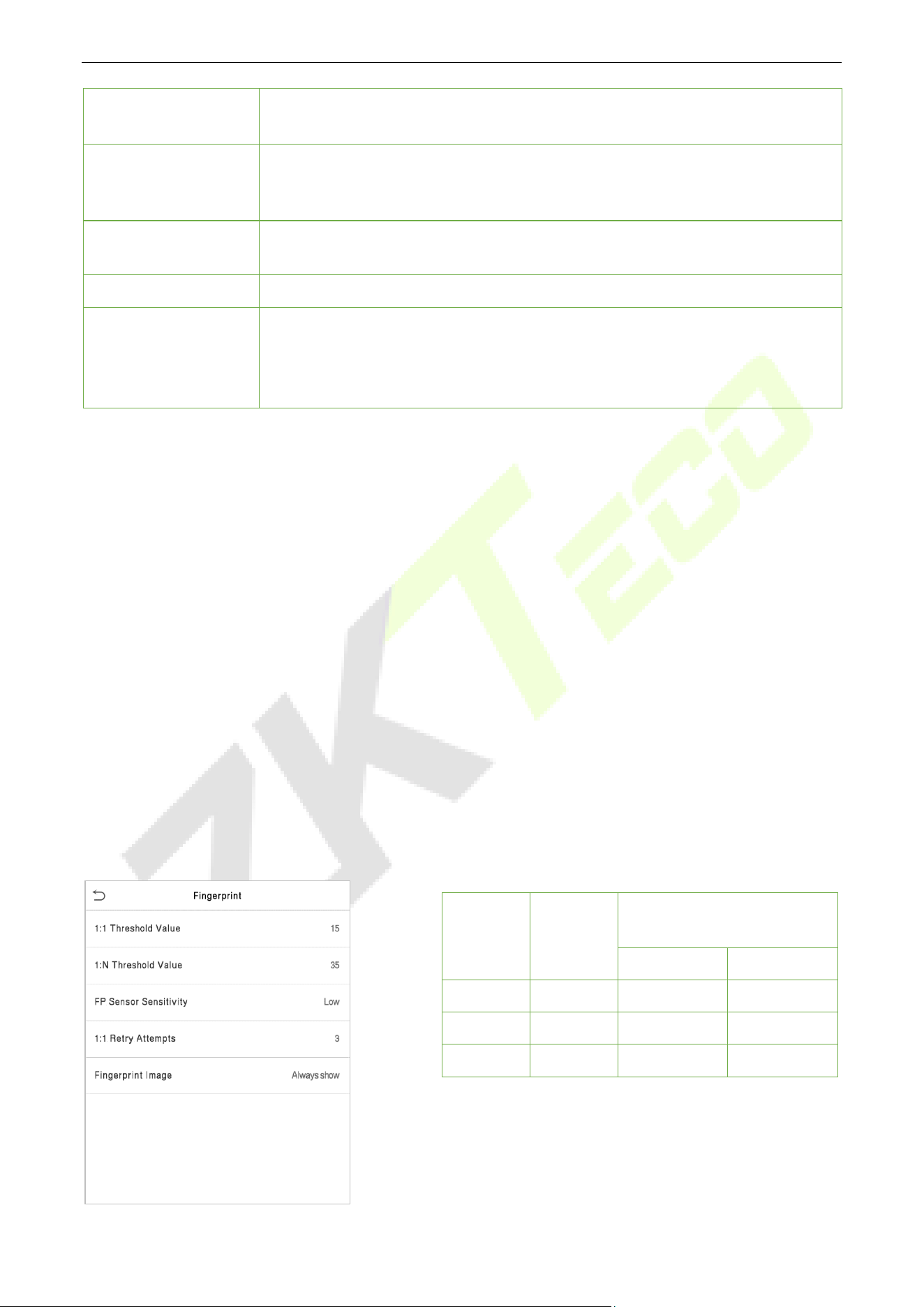
SpeedFace-V5L&H5L Series User Manual
Page | 60 Copyright©2023 ZKTECO CO., LTD. All rights reserved.
Anti-counterfeiting
with NIR
Using near-infrared spectra imaging to identify and prevent fake photos and
videos attack.
WDR
Wide Dynamic Range (WDR) balances light and extends image visibility for
surveillance videos under high contrast lighting scenes and improves object
identification under bright and dark environments.
Anti-flicker Mode
It is used when WDR is turned off. It helps to reduce flicker when the device’s
screen flashes at the same frequency as the light.
Face Algorithm
It has facial algorithm related information and pause facial template update.
Save Photo as
Template
This function is enabled by default, and the menu interface supports enabling
or disabling this function, and there is a security prompt when switching. When
this function is disabled, it will indicate that there is a risk reminder: “Face re-
registration is required after an algorithm upgrade.”
Note: Improper adjustment of the exposure and quality parameters may severely affect the performance
of the device. Please adjust the exposure parameter only under the guidance of the after-sales service
personnel of our company.
Process to modify the Face Recognition Accuracy
On the System interface, tap on Face and then toggle to enable Anti-Spoofing using NIR to set the
anti-spoofing.
Then, on the Main Menu, tap Auto-Test > Test Face and perform the face test.
Tap three times for the scores on the right upper corner of the screen, and the red rectangular box appears
to start adjusting the mode.
Keep one arm distance between the device and the face. It is recommended not to move the face in a wide
range.
Fingerprint Parameters 7.4
Click Fingerprint on the System interface.
FRR FAR
Recommended matching
thresholds
1:N 1:1
High Low 45 25
Medium Medium 35 15
Low High 25 10
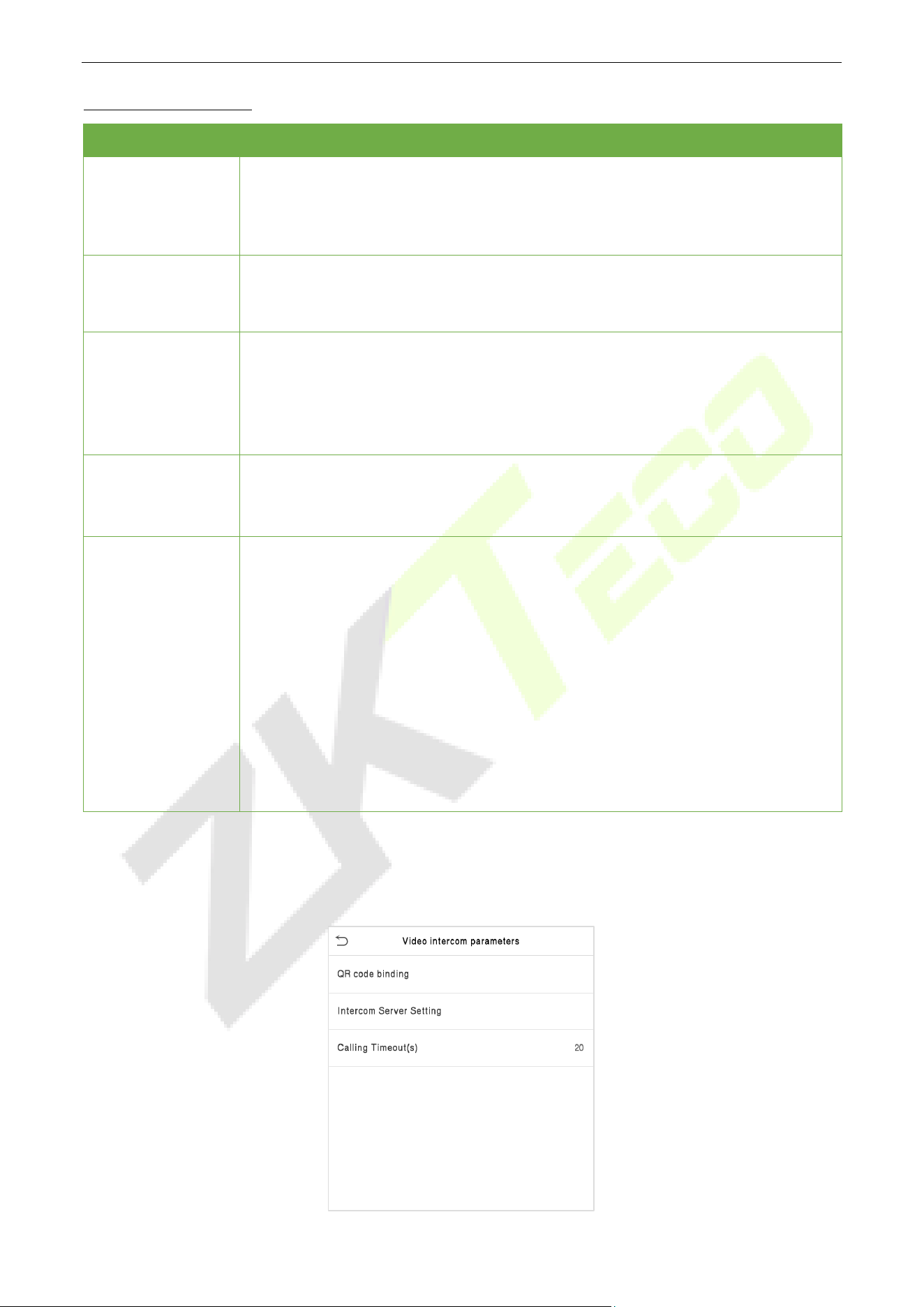
SpeedFace-V5L&H5L Series User Manual
Page | 61 Copyright©2023 ZKTECO CO., LTD. All rights reserved.
Function Description
Function Name Descriptions
1:1 Match
Threshold
Under 1:1 verification method, the verification will only be successful when the
similarity between the acquired fingerprint data and the fingerprint template
associated with the entered user ID enrolled in the device is greater than the set
value.
1:N Match
Threshold
Under 1:N verification method, the verification will only be successful when the
similarity between the acquired fingerprint data and the fingerprint templates
enrolled in the device is greater than the set value.
FP Sensor
Sensitivity
To set the sensibility of fingerprint acquisition. It is recommended to use the
default level "Medium". When the environment is dry, resulting in slow fingerprint
detection, you can set the level to "High" to raise the sensibility; when the
environment is humid, making it hard to identify the fingerprint, you can set the
level to "Low".
1:1 Retry Times
In 1:1 Verification, users might forget the registered fingerprint, or press the finger
improperly. To reduce the process of re-entering user ID, retry is allowed.
Fingerprint Image
This function is disabled by default. After disabling it, the fingerprint image will
not be displayed when registering and verifying fingerprints. The menu interface
allows to enable or disable this function, and there are security prompts when
switching. Four choices are available:
Show for enroll: to display the fingerprint im
age on the screen only during
enrollment.
Show for match
: to display the fingerprint image on the screen only during
verification.
Always show: to display the fingerprint image on screen during enrollment and
verification.
None: not to display the fingerprint image.
Video Intercom Parameters 7.5
Click Video intercom parameters on the System interface.
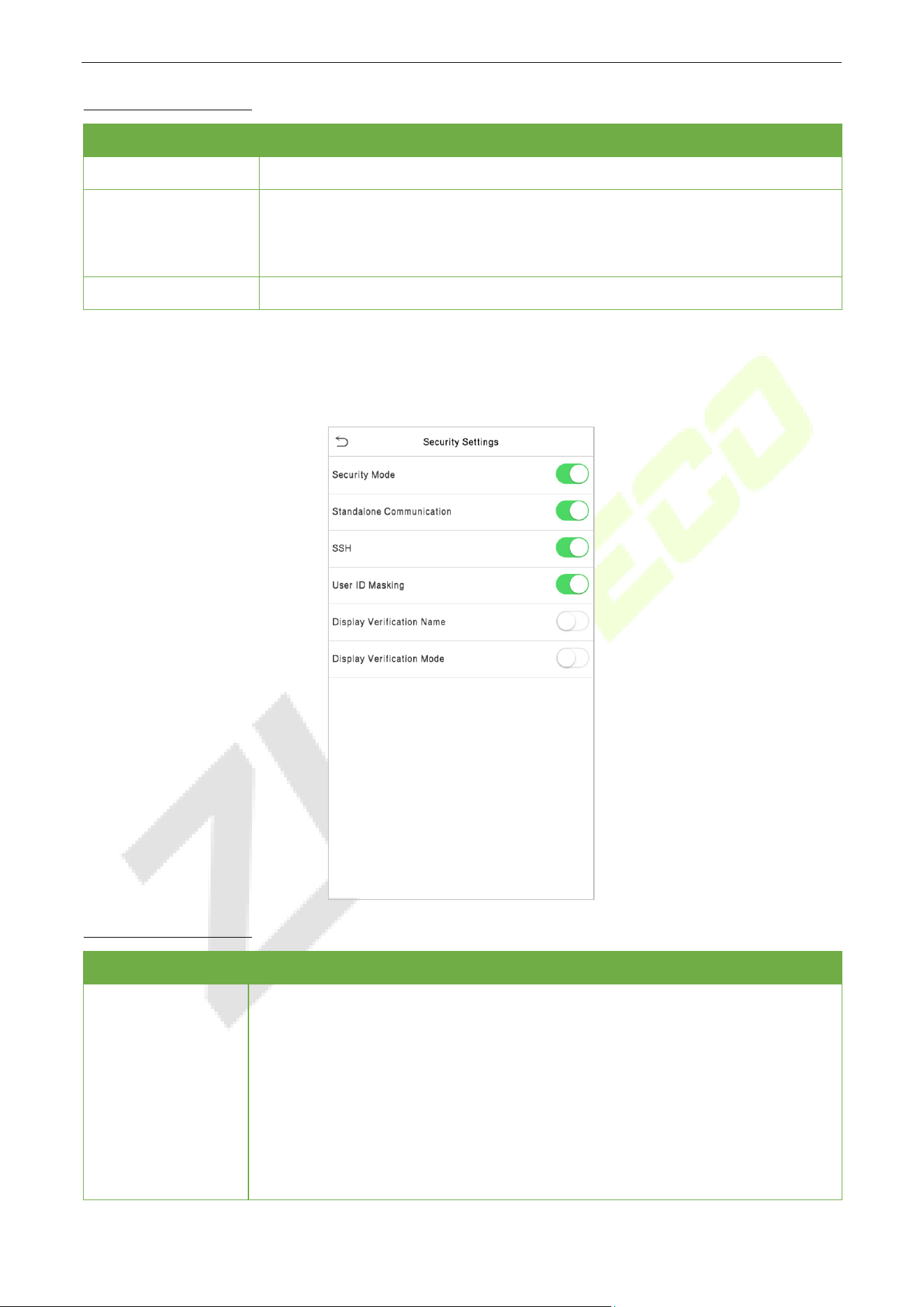
SpeedFace-V5L&H5L Series User Manual
Page | 62 Copyright©2023 ZKTECO CO., LTD. All rights reserved.
Function Description
Function Name Description
QR Code Binding
Use the ZSmart App client to scan the QR code to connect and bind the device.
Intercom Server
Setting
Set the IP address and port number of the intercom server.
Server Address: Enter the sever installation IP address.
Server Port: It is the service port set during installation (not the ADMS port).
Calling Timeout (s)
If the call is not answered within a specified time, it exits to the main interface.
Security Settings 7.6
Tap Security Settings on the System interface.
Function Description
Function Name Description
Security Mode
When enabled, user information
verification has a high level of security. This
function can be enabled or disabled via the menu interface. When switching on
and off, there are security prompts. All data will be deleted and the device will be
restarted after confirmation.
Note: After turning on the security mode, the product will forcibly enable the
function of returning to the standby interface when the menu times out by
default (default 60s). It does not support disabling in security mode, but it does
support disabling in non-security mode. To configure, go to Personalize > User
Interface > Menu Screen Timeout(s).
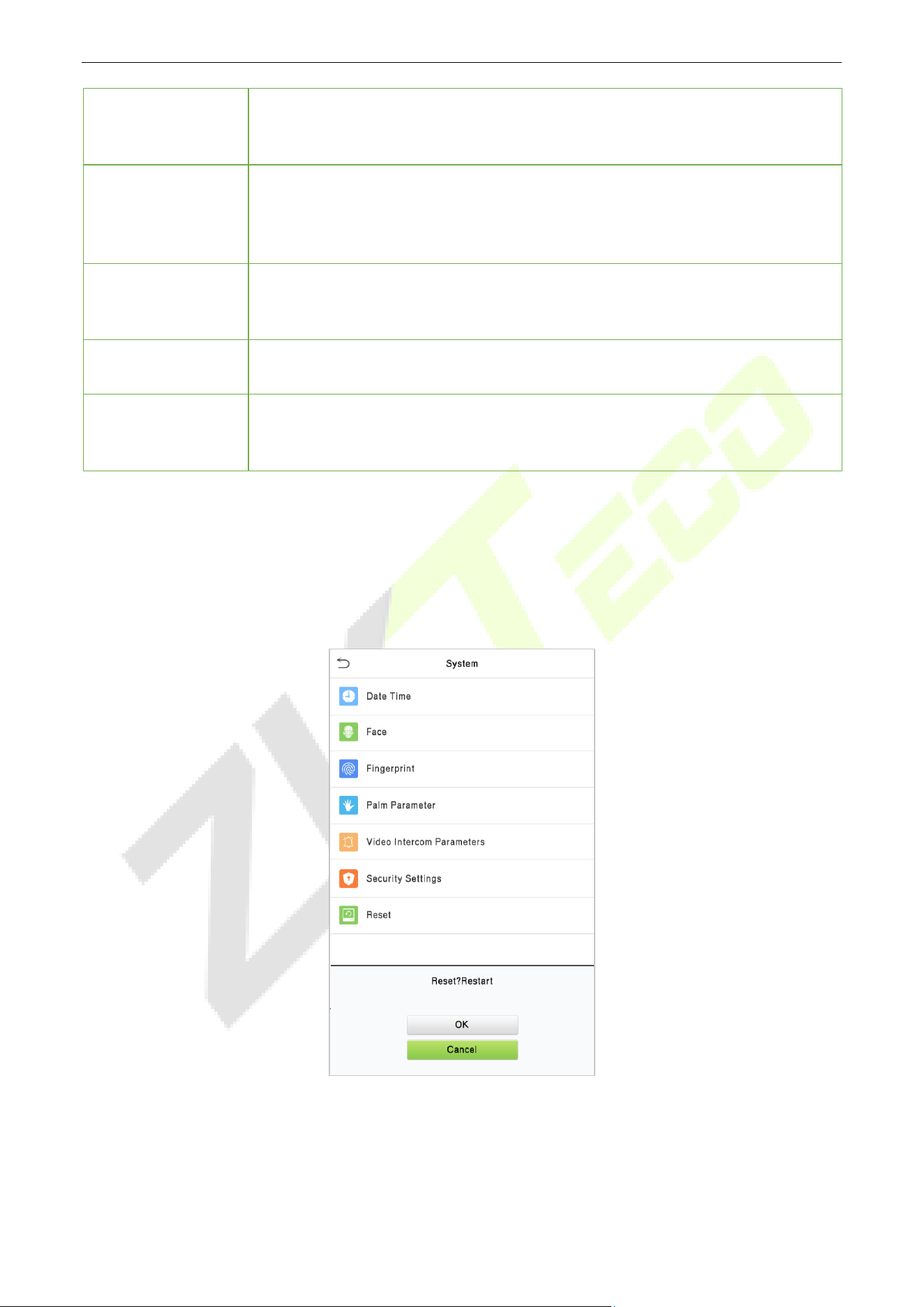
SpeedFace-V5L&H5L Series User Manual
Page | 63 Copyright©2023 ZKTECO CO., LTD. All rights reserved.
Standalone
Communication
By default, this function is disabled. This function can be enabled or disabled via
the menu interface. When it is switched on, a security prompt appears, and the
device will restart after you confirm.
SSH
The device does not support the Telnet feature, hence SSH is typically used for
remote debugging. By default, SSH is enabled. The menu interface allows you to
enable and disable SSH. When enabled, there will be a security prompt, but the
device will not need to be restarted after confirmation.
User ID Masking
After enabled, the User ID will be partially displayed after the personnel
verification result (only the User ID with more than 2 digits supports the masking
display), and it is enabled by default.
Display
Verification Name
After enabled, the user's name will be displayed after the personnel verification
result. The verification result will not show the name after disabling it.
Display
Verification Mode
After enabled, the personnel verification result will show the user's verification
mode. The verification result will not show the verification mode after you
disable it.
Factory Reset 7.7
The Factory Reset function restores the device settings such as communication settings and system
settings, to the default factory settings (this function does not clear registered user data).
Tap Reset on the System interface and then tap OK to restore the default factory settings.
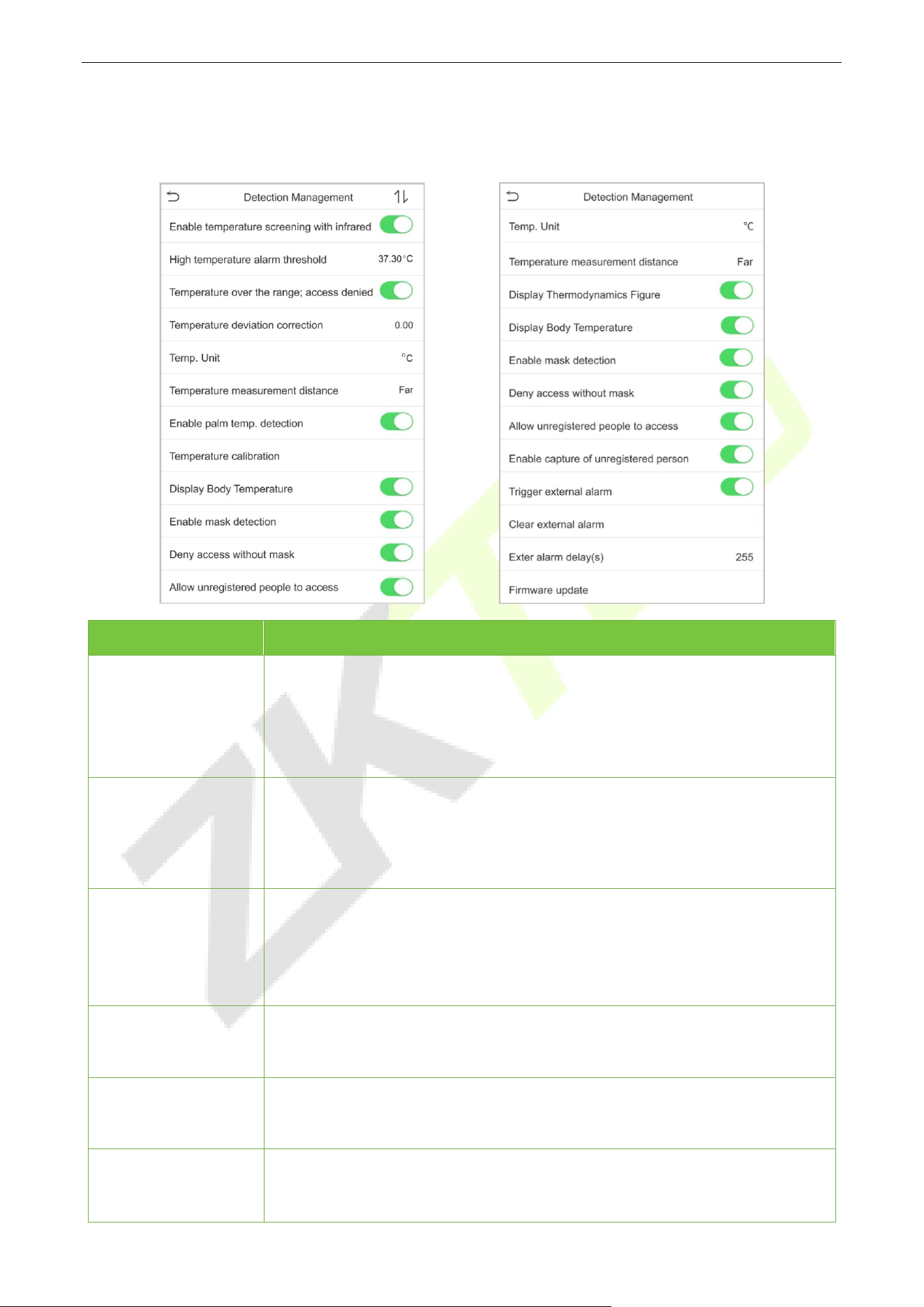
SpeedFace-V5L&H5L Series User Manual
Page | 64 Copyright©2023 ZKTECO CO., LTD. All rights reserved.
Detection Management
★
7.8
Click Detection Management on the System interface.
Function Name Description
Enable Temperature
Screening with
Infrared
To enable or disable the infrared temperature measurement function.
When this function is enabled, before the access is granted, users must pass
the temperature screening in addition to identity verification.
To measure body temperature, users’ faces must be aligned with the
temperature measurement area.
High Temperature
Alarm Threshold
To set the value of the alarm threshold of high body temperature.
When the temperature measured during verification is higher than the set
value, the device will give a prompt and audio alarm.
The default alarm threshold is 37.30℃.
Temperature Over
the Range; Access
Denied
When this function is enabled, if the user’s body temperature measured is
above (or below) the alarm threshold, the user will not be granted access even
if his/her identity is verified.
If this function is disabled, the user is allowed to access the restricted area
when his/her identity is verified, regardless of his/her body temperature.
Temperature
Deviation Correction
As the temperature measurement module allows a small range of errors
(disturbance) of an observed value under different environments (humidity,
room temperature and such), users may set the deviation value here.
Temp. Unit
The unit of body temperature can be switched between Celsius (℃
) and
Fahrenheit (℉).
Temperature
Measurement
Distance
When measuring temperature during the verification process, there are three
modes: Near, Close and Far.

SpeedFace-V5L&H5L Series User Manual
Page | 65 Copyright©2023 ZKTECO CO., LTD. All rights reserved.
Display
Thermodynamics
Figure
★
To enable or disable the display of the thermal image of a person.
When enabled, the thermal image of the person is be displayed in the upper
left corner of the device during the detection process.
Enable Palm Temp.
Detection
★
To enable or disable the palm temperature detection function.
When enabled, the device will display the user's palm temperature during the
verification process.
Note: This f
unction is not enabled by default, and can be upgraded to
support.
Temperature
Calibration
★
Calibrate the temperature by comparing the current temperature value with
the surface temperature value of the device.
Enable Mask
Detection
To enable or disable the mask detection function.
When it’s enabled, the device will identify whether the user is wearing a mask
or not during verification.
Display Body
Temperature
To enable or disable the display body temperature function.
When enabled, the device will display the user's specific temperature value
during the verification process.
Enable Mask
Detection
To enable or disable the mask detection function.
When it’s enabled, the device will identify whether the user is wearing a mask
or not during verification.
Deny Access without
Mask
To enable or disable the deny access without mask function.
When it’s enabled, even if the body temperature is normal, the person who
does not wear a mask will not allow the person to enter.
Allow Unregistered
People to Access
To enable or disable the unregistered people to access function.
When enabled, as long as the person who passes the detection, the device
allows the personnel to enter without registration.
Enable Capture of
Unregistered Person
To enable or disable the capture of unregistered person function.
When enabled, the device will automatically capture the photo of the
unregistered person, enabling this feature requires to enable Allow
Unregistered People to Access.
Trigger External
Alarm
★
When enabled, if the user's temperature is higher than the set threshold value
or the mask detection is enabled, but the mask is not worn by the person, it
will trigger an alarm.
Clear External Alarm
★
It clears the triggered alarm records of the device.
External Alarm
Delay(s)
★
The delay (s) time for triggering an external alarm. It can be set in seconds.
Users may disable the function or set a value between 1 to 255.
Firmware Update
★
Choose whether to update the thermal imaging temperature detection
module software version.
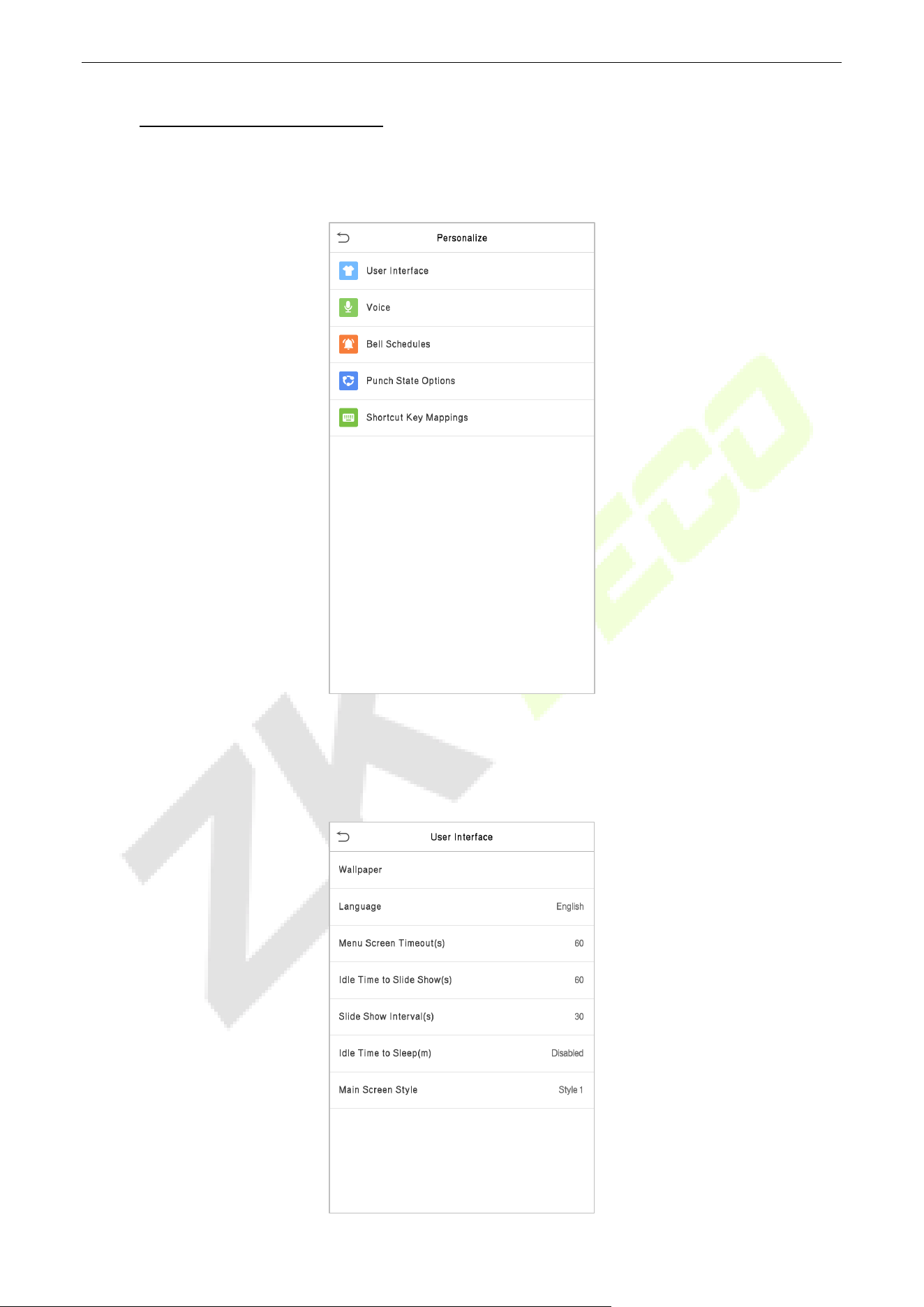
SpeedFace-V5L&H5L Series User Manual
Page | 66 Copyright©2023 ZKTECO CO., LTD. All rights reserved.
8 Personalize Settings
Tap Personalize on the Main Menu interface to customize interface settings, voice, bell, punch state
options, and shortcut key mappings.
Interface Settings 8.1
Tap User Interface on the Personalize interface to customize the display style of the main interface.
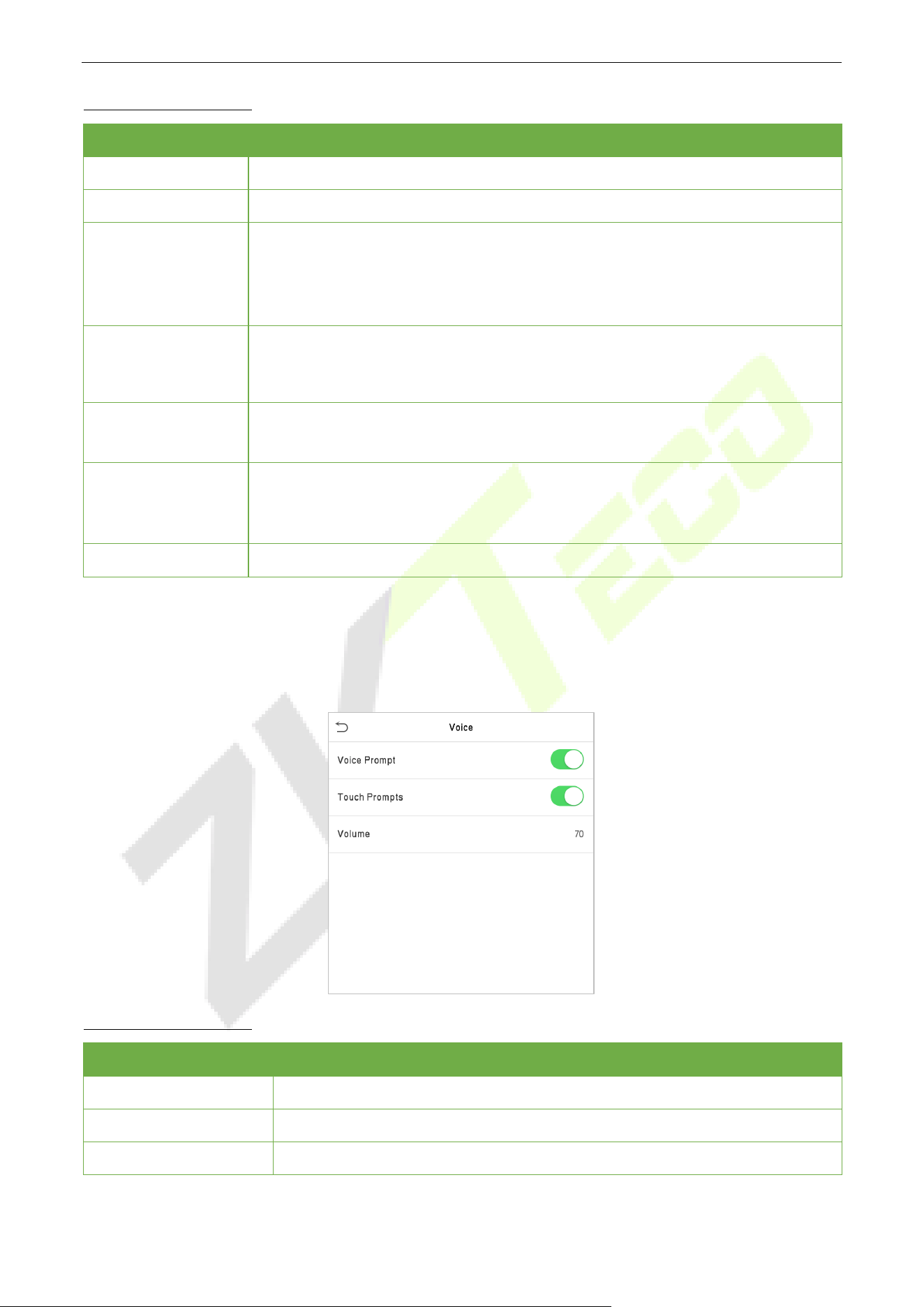
SpeedFace-V5L&H5L Series User Manual
Page | 67 Copyright©2023 ZKTECO CO., LTD. All rights reserved.
Function Description
Function Name Description
Wallpaper
It helps to select the main screen wallpaper according to the user preference.
Language
It helps to select the language of the device.
Menu Screen
Timeout (s)
When there is no operation, and the time exceeds the set value, the device
automatically goes back to the initial interface.
The function can either be disabled or set the required value between 60 and
99999 seconds.
Idle Time To
Slide Show (s)
When there is no operation, and the time exceeds the set value, a slide show is
displayed. The function can be disabled, or you may set the value between 3 and
999 seconds.
Slide Show
Interval (s)
It is the time interval in switching between different slide show pictures. The
function can be disabled, or you may set the interval between 3 and 999 seconds.
Idle Time To
Sleep (m)
If the sleep mode is activated, and when there is no operation in the device, then
the device will enter standby mode.
This function can be disabled or set a value within 1-999 minutes.
Main Screen Style
The style of the main screen can be selected according to the user preference.
Voice Settings 8.2
Tap Voice on the Personalize interface to configure the voice settings.
Function Description
Function Name Description
Voice Prompt
Select whether to enable voice prompts during operating.
Touch Prompt
Select whether to enable keypad sounds.
Volume
Adjust the volume of the device; valid value: 0-100.
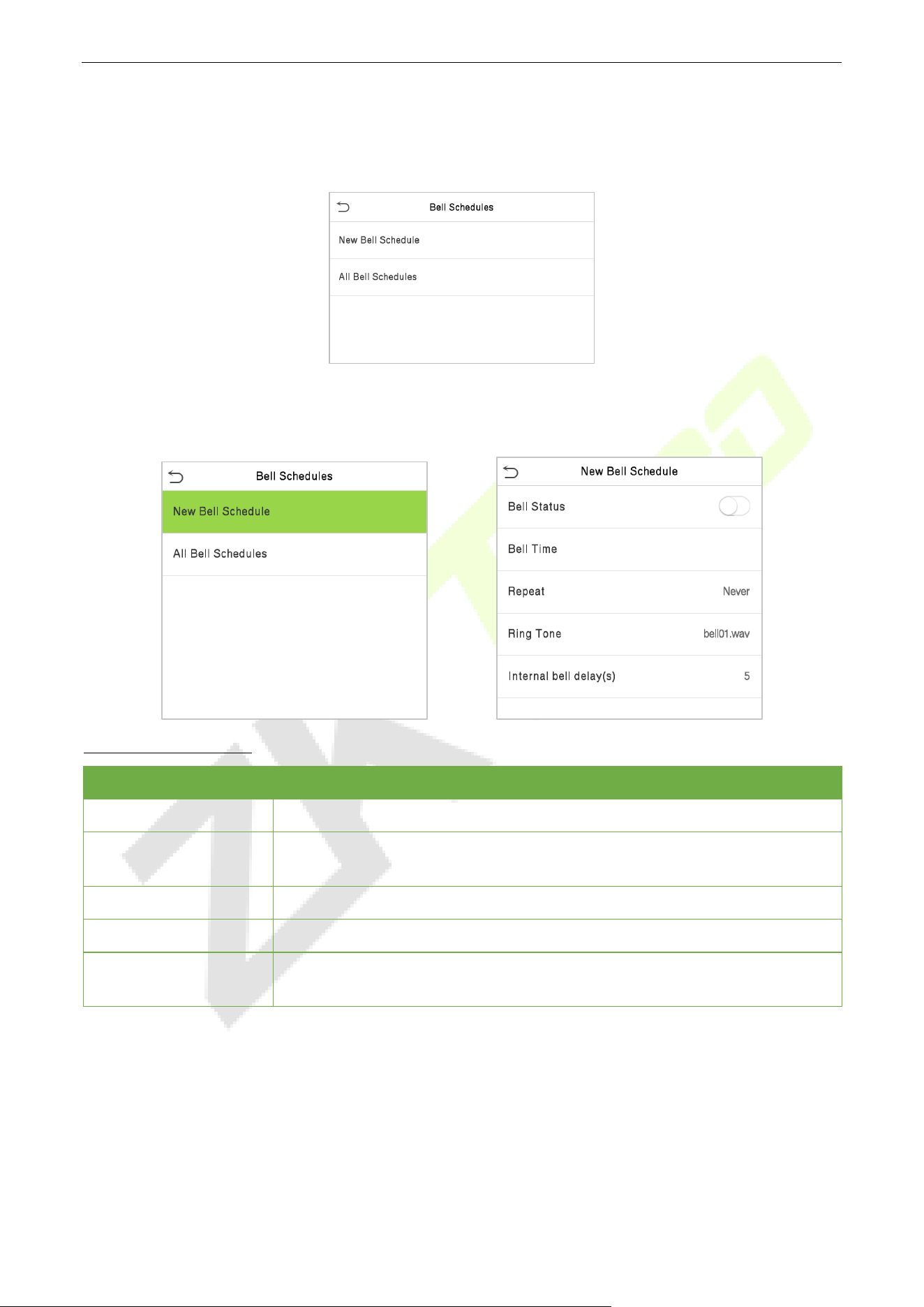
SpeedFace-V5L&H5L Series User Manual
Page | 68 Copyright©2023 ZKTECO CO., LTD. All rights reserved.
Bell Schedules 8.3
Tap Bell Schedules on the Personalize interface to configure the Bell settings.
New Bell Schedule
Tap New Bell Schedule on the Bell Schedule interface to add a new bell schedule.
Function Description
Function Name Description
Bell Status
Toggle to enable or disable the bell status.
Bell Time
Once the required time is set, the device automatically triggers to ring the bell
during that time.
Repeat
Set the required number of counts to repeat the scheduled bell.
Ring Tone
Select a ringtone.
Internal Bell Delay(s)
Set the replay time of the internal bell. Valid values range from 1 to 999
seconds.
All Bell Schedules
Once the bell is scheduled, on the Bell Schedules interface, tap All Bell Schedules to view the newly
scheduled bell.
Edit the Scheduled Bell
On the All Bell Schedules interface, tap on the required bell schedule, and tap Edit to edit the selected
bell schedule. The editing method is the same as the operations of adding a new bell schedule.
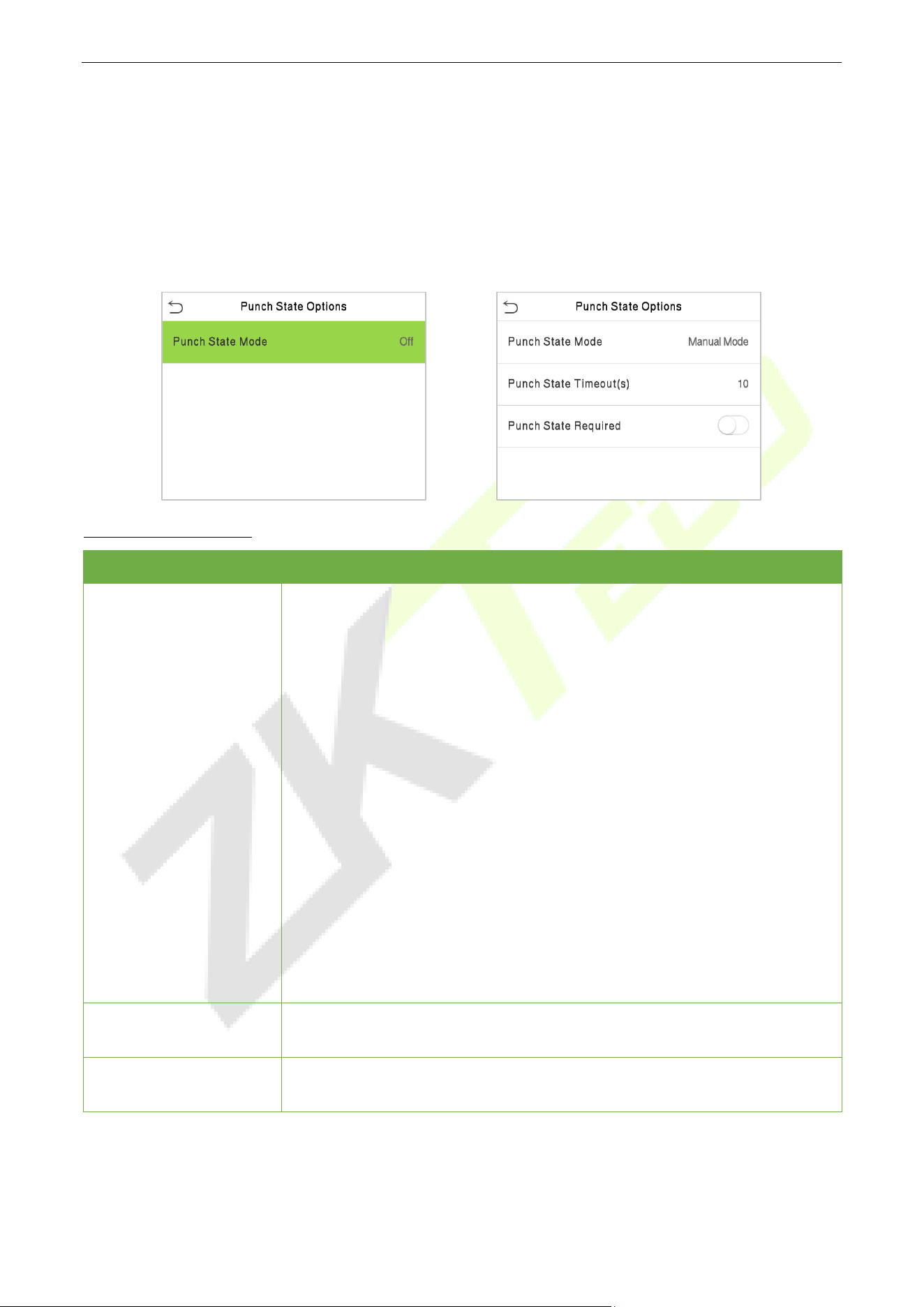
SpeedFace-V5L&H5L Series User Manual
Page | 69 Copyright©2023 ZKTECO CO., LTD. All rights reserved.
Delete a Bell
On the All Bell Schedules interface, tap the required bell schedule, and tap Delete, and then tap Yes to
delete the selected bell.
Punch States Options 8.4
Tap Punch States Options on the Personalize interface to configure the punch state settings.
Function Description
Function Name Description
Punch State Mode
Select a punch state mode, which can be:
Off: It disables the punch state function. And the punch state key set under
the Shortcut Key Mappings menu becomes invalid.
Manual Mode: Switch the punch state key manually, and the punch state
key will disappear after Punch State Timeout.
Auto Mode:
The punch state key will automatically switch to a specific
punch status according to the predefined schedule which can be set in the
Shortcut Key Mappings.
Manual and Auto Mode: The main interface will display the auto-switch
punch state key. However, the users will still be able to select an alternative
that is the manual attendance stat
us. After the timeout, the manual
switching punch state key will become an auto-switch punch state key.
Manual Fixed Mode:
After the punch state key is set manually to a
particular punch status, the function will remain unchanged until manually
switched again.
Fixed Mode:
Only the manually fixed punch state key is shown. Users
cannot change the status by pressing any other keys.
Punch State Timeout (s)
It is the amount of time for which the punch state is displayed. The value
ranges from 5~999 seconds.
Punch State Required
To choose whether an attendance state needs to be selected during
verification.
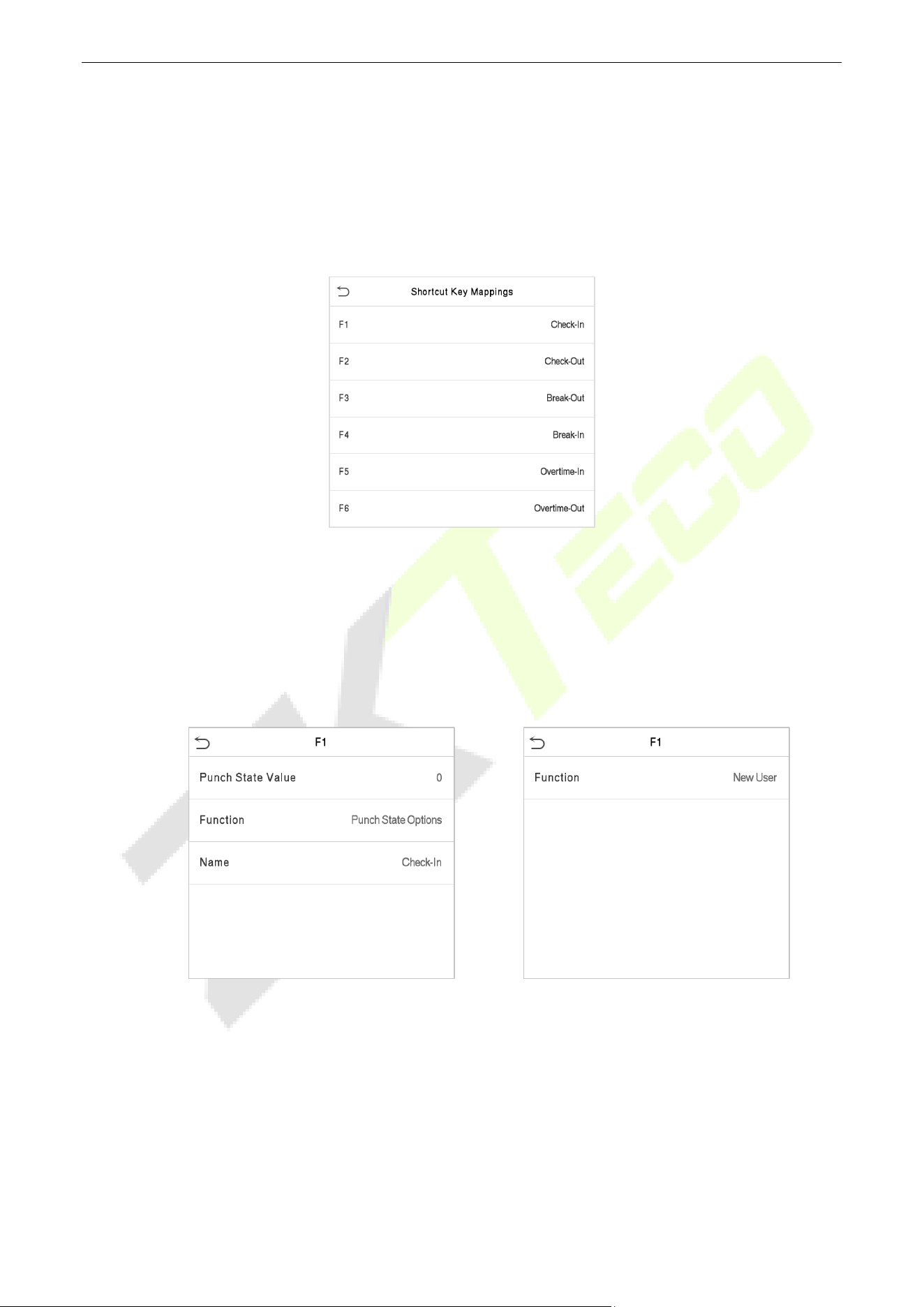
SpeedFace-V5L&H5L Series User Manual
Page | 70 Copyright©2023 ZKTECO CO., LTD. All rights reserved.
Shortcut Keys Mappings 8.5
Users may define shortcut keys for attendance status and functional keys on the main interface. So, on the
main interface, when the shortcut keys are pressed, the corresponding attendance status or the function
interface displays directly.
Tap Shortcut Key Mappings on the Personalize interface to set the required shortcut keys.
On the Shortcut Key Mappings interface, tap on the required shortcut key to configure the shortcut
key settings.
On the Shortcut Key ("F1") interface, tap function to set the functional process of the shortcut key
either as punch state key or function key.
If the Shortcut key is defined as a function key (such as New user, All users, etc.), the configuration is
done as shown in the image below.
If the Shortcut key is set as a punch state key (such as check-in, check-out, etc.), then it is required to
set the punch state value (valid value 0~250), name, and switch time.
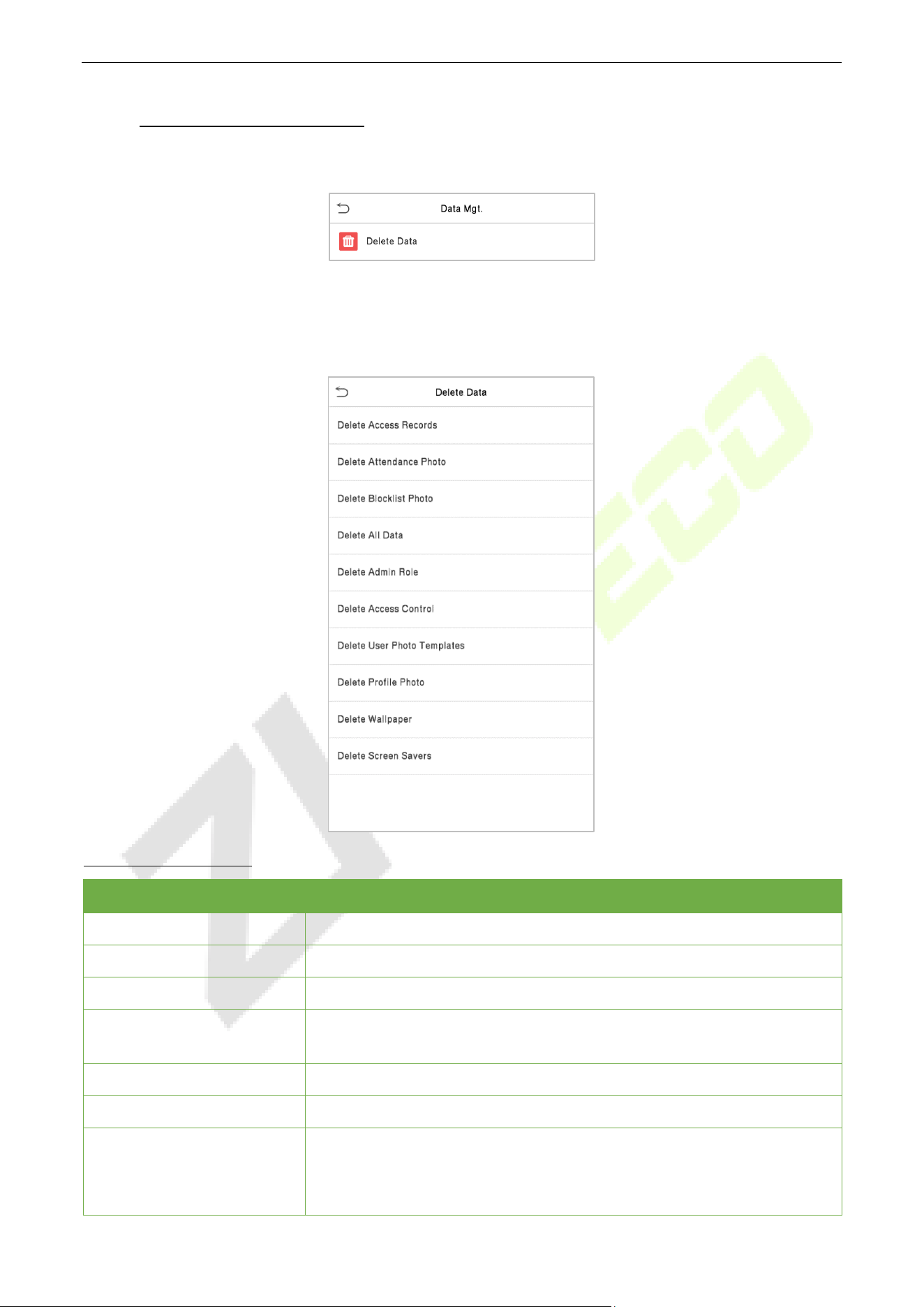
SpeedFace-V5L&H5L Series User Manual
Page | 71 Copyright©2023 ZKTECO CO., LTD. All rights reserved.
9 Data Management
On the Main Menu, tap Data Mgt. to delete the relevant data in the device.
Delete Data 9.1
Tap Delete Data on the Data Mgt. interface to delete the required data.
Function Description
Function Name Description
Delete Access Records
To delete attendance data/access records conditionally.
Delete Attendance Photo
To delete attendance photos of designated personnel.
Delete Blocklist Photo
To delete the photos taken during failed verifications.
Delete All Data
To delete
information and attendance logs/access records of all
registered users.
Delete Admin Role
To remove all administrator privileges.
Delete Access Control
To delete all access data.
Delete User Photo
Templates
To delete user photo templates in the device. When deleting template
photos, there is a risk reminder: “Face re-registration is required after
an algorithm upgrade.”
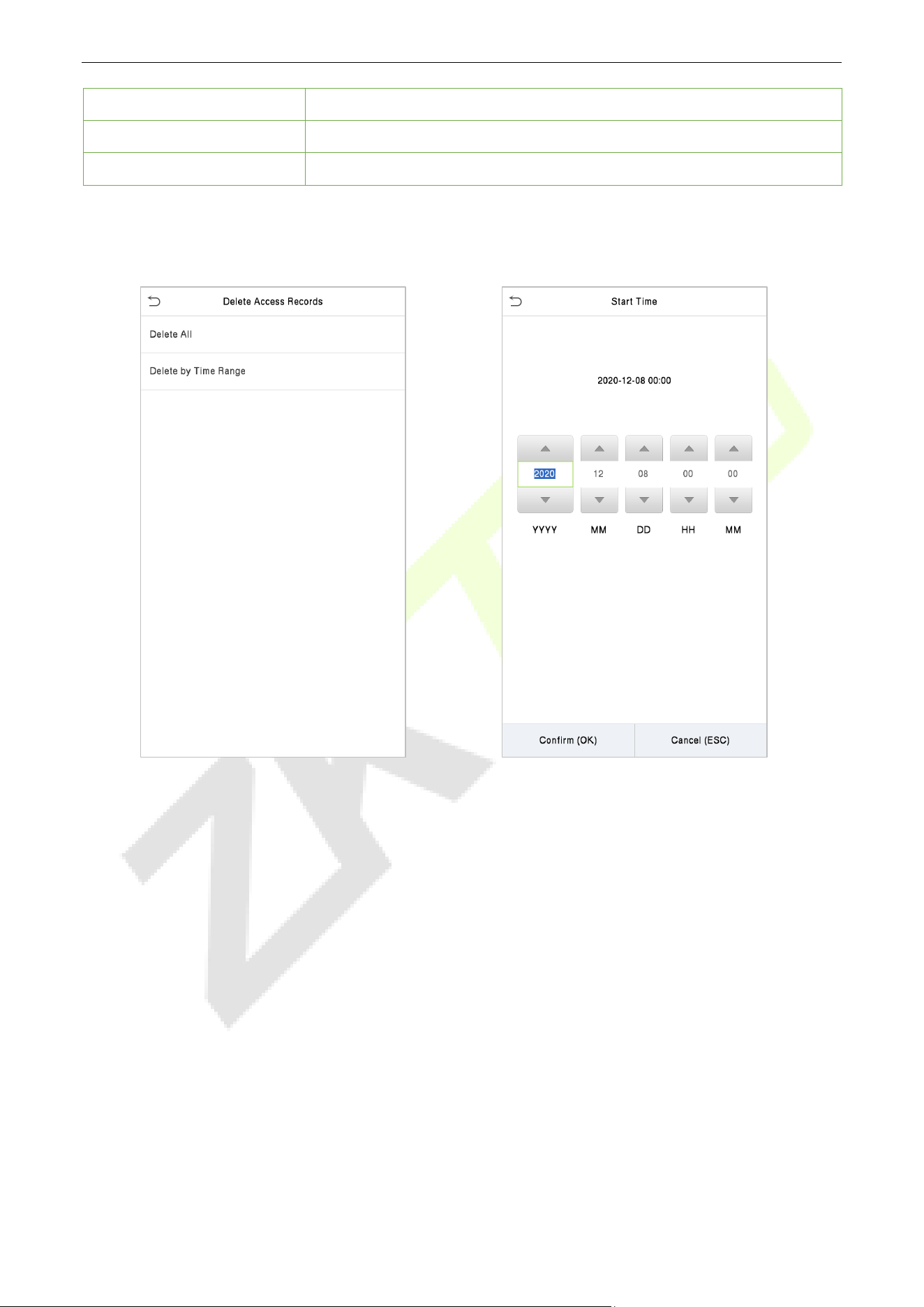
SpeedFace-V5L&H5L Series User Manual
Page | 72 Copyright©2023 ZKTECO CO., LTD. All rights reserved.
Delete Profile Photo
To delete all user photos in the device.
Delete Wallpaper
To delete all wallpapers in the device.
Delete Screen Savers
To delete the screen savers in the device.
The user may select Delete All or Delete by Time Range when deleting the access records, attendance
photos or block listed photos. Selecting Delete by Time Range, you need to set a specific time range to
delete all data within a specific period.
Select Delete by Time Range
Set the time range and click OK
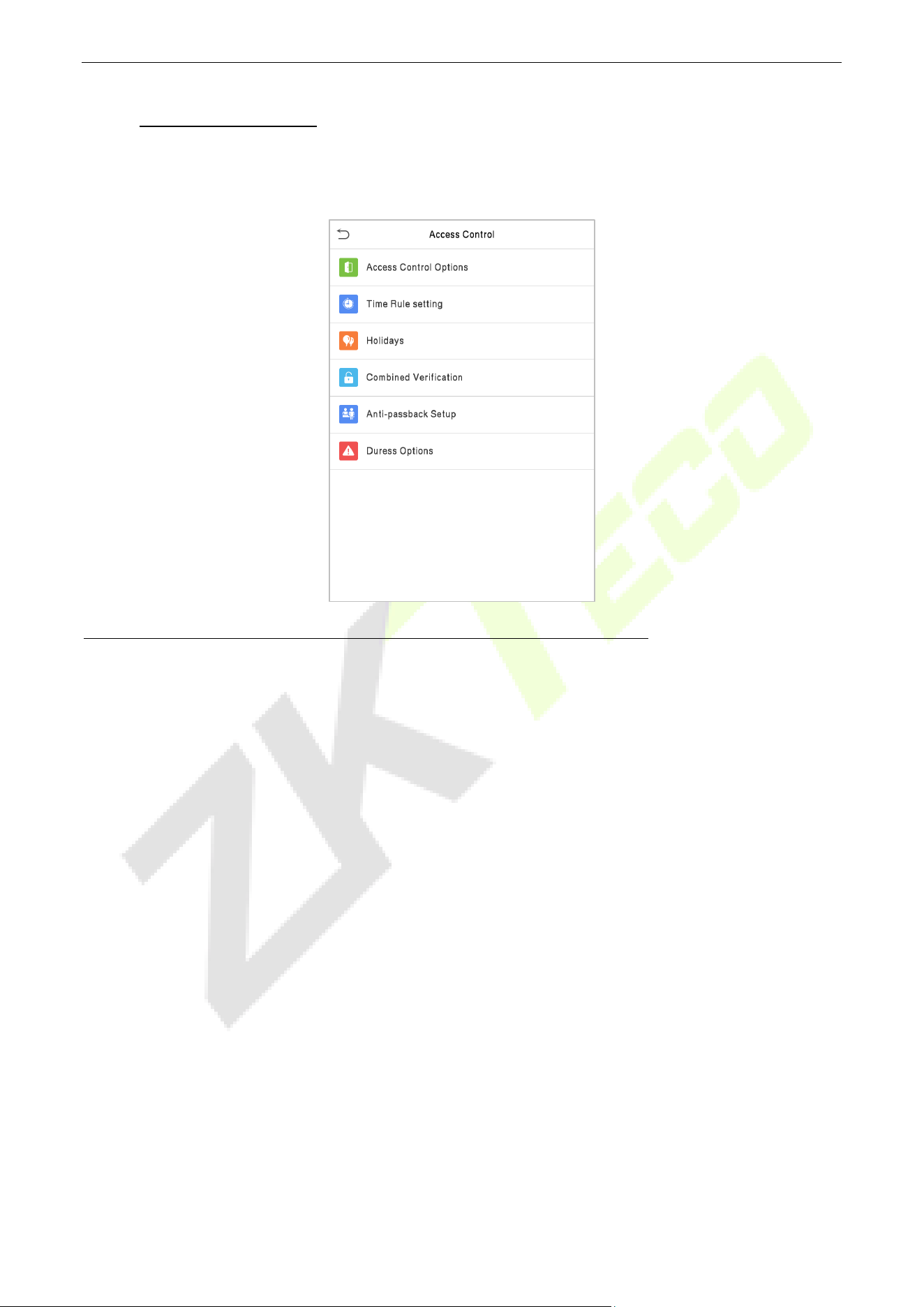
SpeedFace-V5L&H5L Series User Manual
Page | 73 Copyright©2023 ZKTECO CO., LTD. All rights reserved.
10 Access Control
On the Main Menu, tap Access Control to set the schedule of the door opening, locks control and to
configure other parameters settings related to access control.
To gain access, the registered user must meet the following conditions:
The relevant door’s current unlock time should be within any valid time zone of the user’s time period.
The corresponding user’s group must be already set in the door unlock combination (and if there are
other groups, being set in the same access combo, then the verification of those group’s members is
also required to unlock the door).
In default settings, new users are allocated into the first group with the default group time zone,
where the access combo is "1" and is set in unlock state by default.
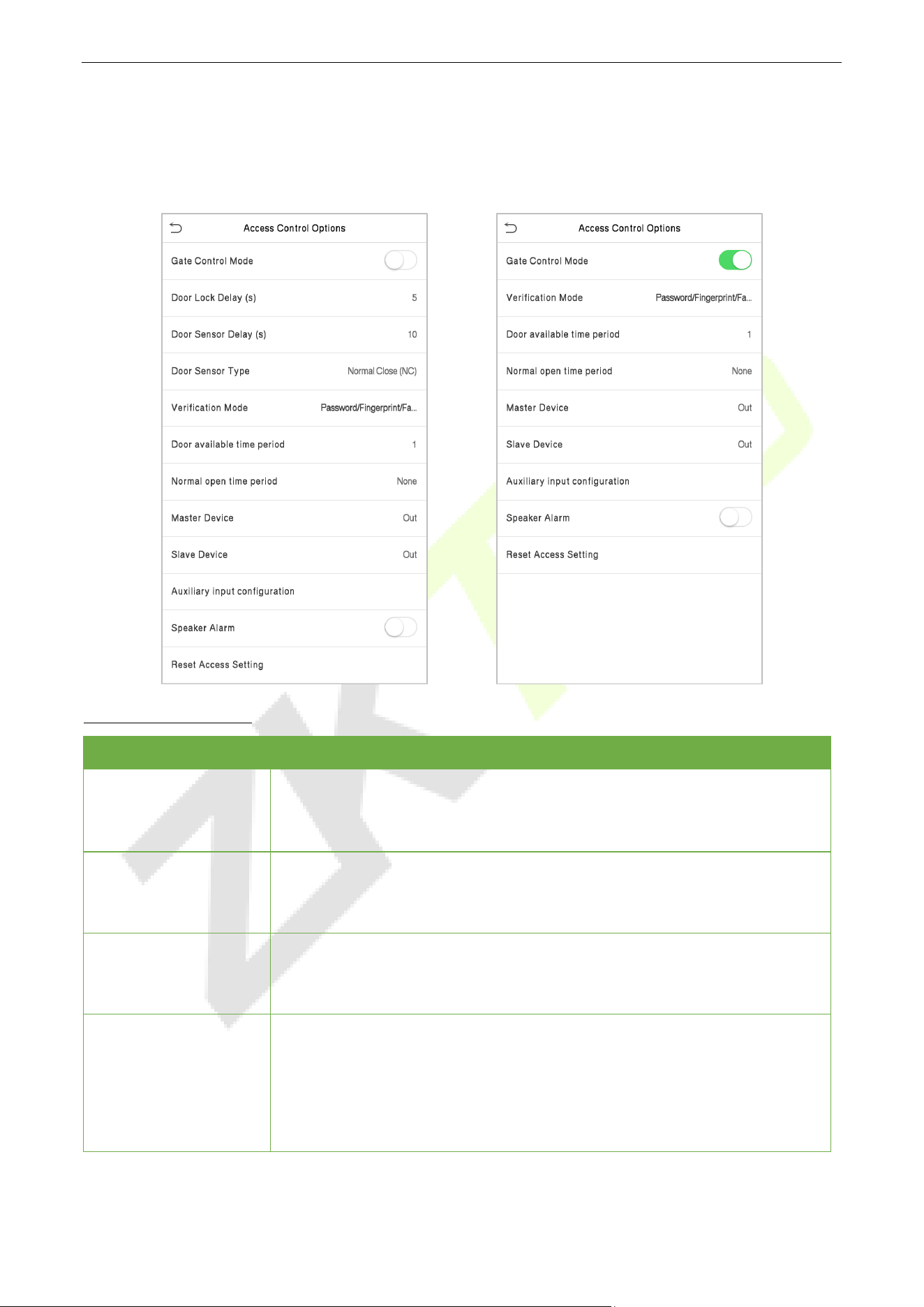
SpeedFace-V5L&H5L Series User Manual
Page | 74 Copyright©2023 ZKTECO CO., LTD. All rights reserved.
Access Control Options 10.1
Tap Access Control Options on the Access Control interface to set the parameters of the control lock of
the terminal and related equipment.
Function Description
Function Name Description
Gate Control Mode
It toggles between ON or OFF switch to get into gate control mode or not.
When set to ON, the interface removes the Door lock relay, Door sensor
relay, and Door sensor type options.
Door Lock Delay (s)
The length of time that the device controls the electric lock to be in unlock
state.
Valid value: 1~10 seconds; 0 seconds represents disabling the function.
Door Sensor Delay (s)
If the door is not locked and is left open for a certain duration (Door Sensor Delay),
an alarm will be triggered.
The valid value of Door Sensor Delay ranges from 1 to 255 seconds.
Door Sensor Type
There are three Sensor types: None, Normal Open, and Normal Closed.
None: It means the door sensor is not in use.
Normally Open: It means the door is always left open when electric power is on.
Normally Closed: It means the door is always left closed when electric power is
on.

SpeedFace-V5L&H5L Series User Manual
Page | 75 Copyright©2023 ZKTECO CO., LTD. All rights reserved.
Verification Mode
The supported verification mode includes Password/Fingerprint/Face,
Fingerprint only, User ID only, Password, User ID + Fingerprint, Fingerprint +
Password, User ID + Fingerprint + Password, Face only, Face + Fingerprint,
Face + Password, Face + Fingerprint + Password.
Door Available Time
Period
It sets the timing for the door so that the door is accessible only during that
period.
Normal Open Time
Period
It is the scheduled time-period for "Normal Open" mode so that the door is
always open during this period.
Master Device
While configuring the master and slave devices, you may set the state of the
master as Out or In.
Out: A record of verification on the master device is a check-out record.
In: A record of verification on the master device is a check-in record.
Slave Device
While configuring the master and slave devices, you may set the state of the
slave as Out or In.
Out: A record of verification on the slave device is a check-out record.
In: A record of verification on the slave device is a check-in record.
Auxiliary Input
Configuration
Sets the door unlock time period and auxiliary output type of the auxiliary
terminal device. Auxiliary output types include None, Trigger door open,
Trigger Alarm, Trigger door open and Alarm.
Speaker Alarm
It transmits a sound alarm or disassembly alarm from the local. When the
door is closed or the verification is successful, the system cancels the alarm
from the local.
Reset Access Setting
The access control reset parameters include door lock delay, door sensor
delay, door sensor type, verification mode, door available time period,
normal open time period, master device, and alarm. However, erased access
control data in Data Mgt. is excluded.
Time Schedule 10.2
Tap Time Rule Setting on the Access Control interface to configure the time settings.
The entire system can define up to 50 Time Periods.
Each time-period represents 10 Time Zones, i.e., 1 week and 3 holidays, and each time zone is a
standard 24 hour period per day and the user can only verify within the valid time-period.
One can set a maximum of 3 time periods for every time zone. The relationship among these time-
periods is "OR". Thus, when the verification time falls in any one of these time-periods, the verification
is valid.
The Time Zone format of each time-period is HH MM-HH MM, which is accurate to minutes according
to the 24-hour clock.
Tap the grey box to search the required Time Zone and specify the required Time Zone number (maximum
up to 50 zones).
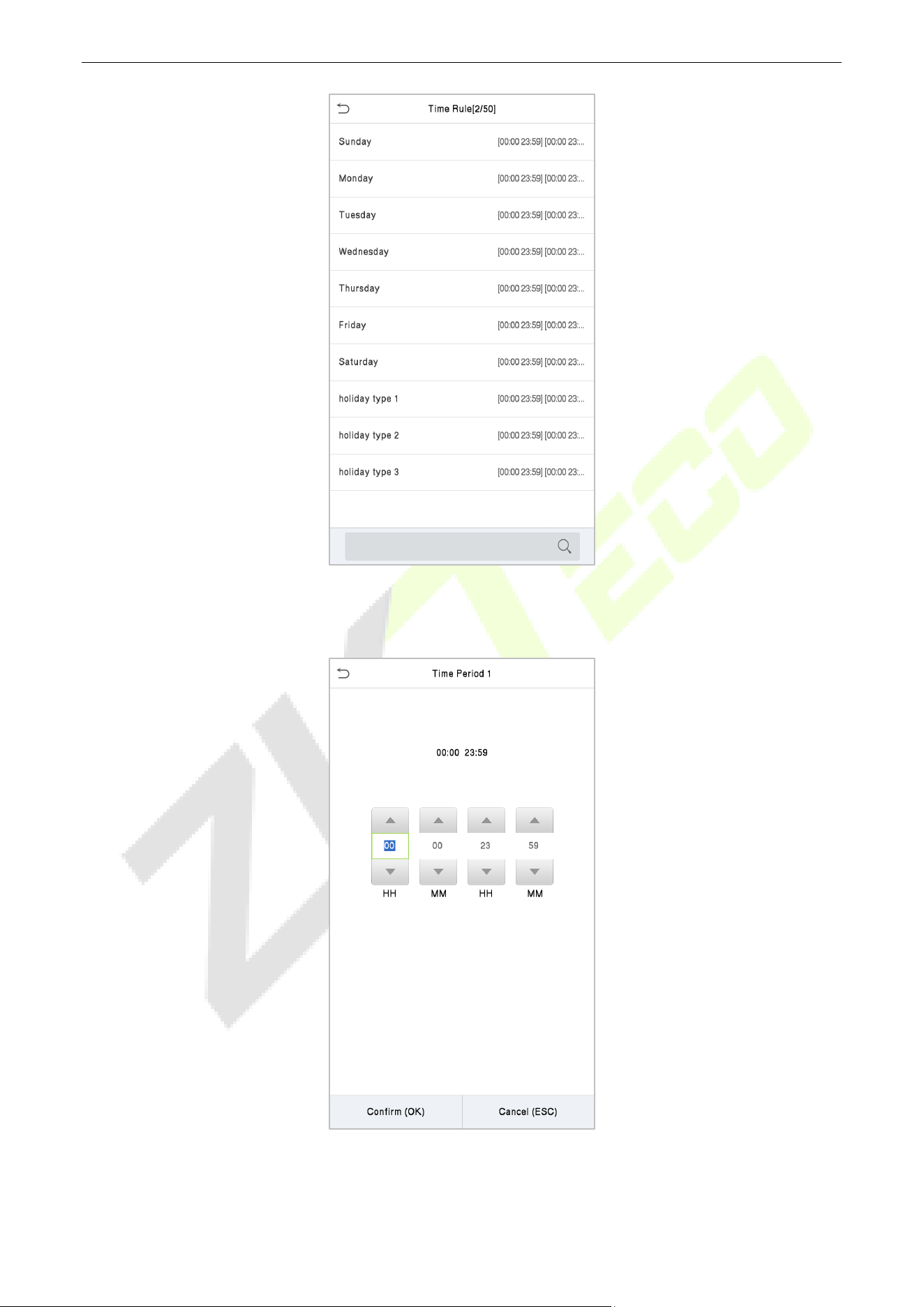
SpeedFace-V5L&H5L Series User Manual
Page | 76 Copyright©2023 ZKTECO CO., LTD. All rights reserved.
On the selected Time Zone number interface, tap on the required day (that is Monday, Tuesday, etc.) to set
the time.
Specify the start and the end time, and then tap OK.
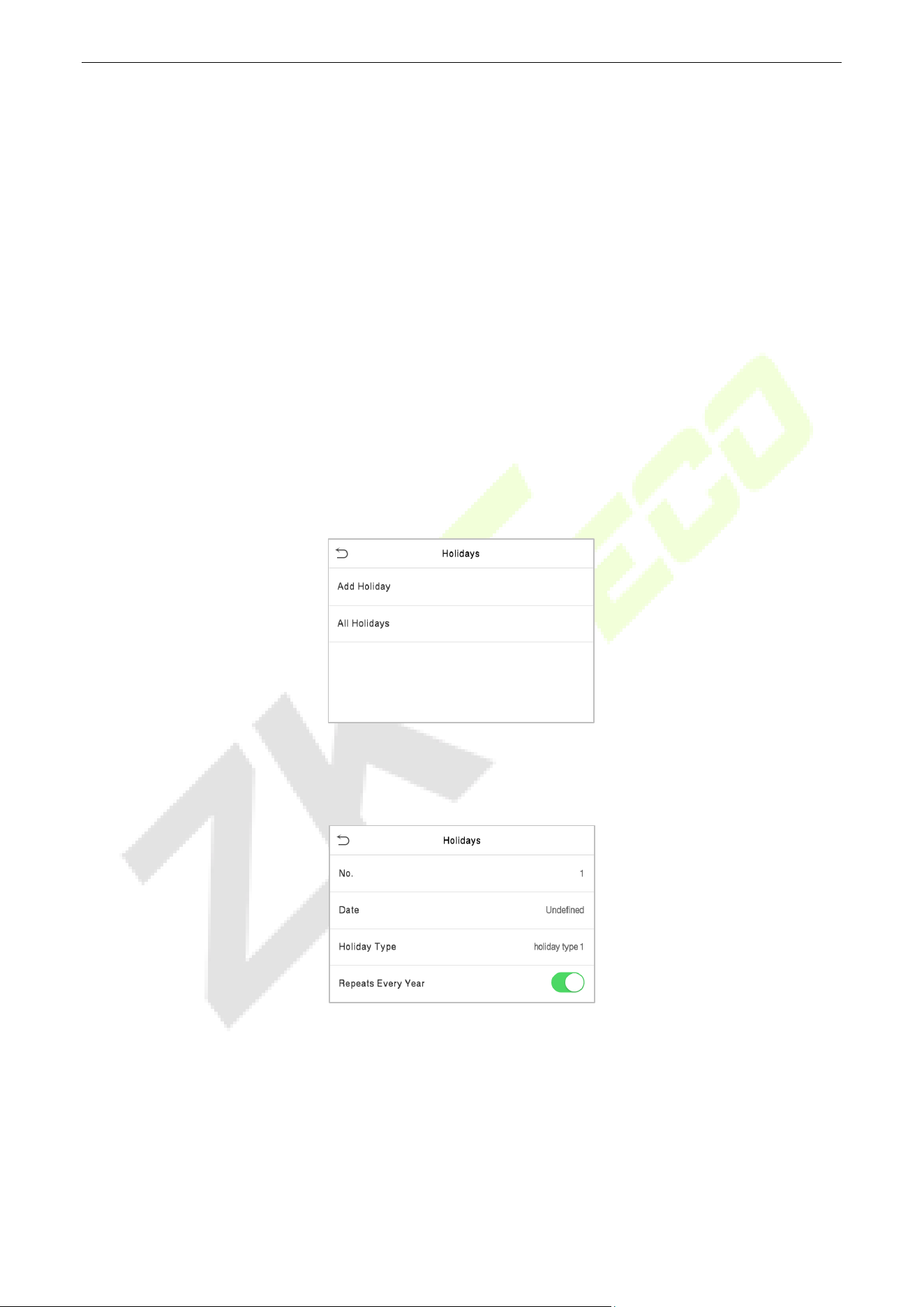
SpeedFace-V5L&H5L Series User Manual
Page | 77 Copyright©2023 ZKTECO CO., LTD. All rights reserved.
Note:
The door is inaccessible for the whole day when the End Time occurs before the Start Time (such as
23:57~23:56).
It is the time interval for valid access when the End Time occurs after the Start Time (such as
08:00~23:59).
The door is accessible for the whole day when the End Time occurs after the Start Time (such that
Start Time is 00:00 and End Time is 23:59).
The default Time Zone 1 indicates that the door is open all day long.
Holidays 10.3
Whenever there is a holiday, you may need a distinct access time; but changing everyone's access time
one by one is extremely cumbersome, so a holiday access time can be set that applies to all employees
and the user will be able to open the door during the holidays.
Tap Holidays on the Access Control interface to set the Holiday access.
Add a New Holiday
Tap Add Holiday on the Holidays interface and set the holiday parameters.
Edit a Holiday
On the Holidays interface, select a holiday item to be modified. Tap Edit to modify holiday parameters.
Delete a Holiday
On the Holidays interface, select a holiday item to be deleted and tap Delete. Press OK to confirm the
deletion. After deletion, this holiday does not display on the All Holidays interface.
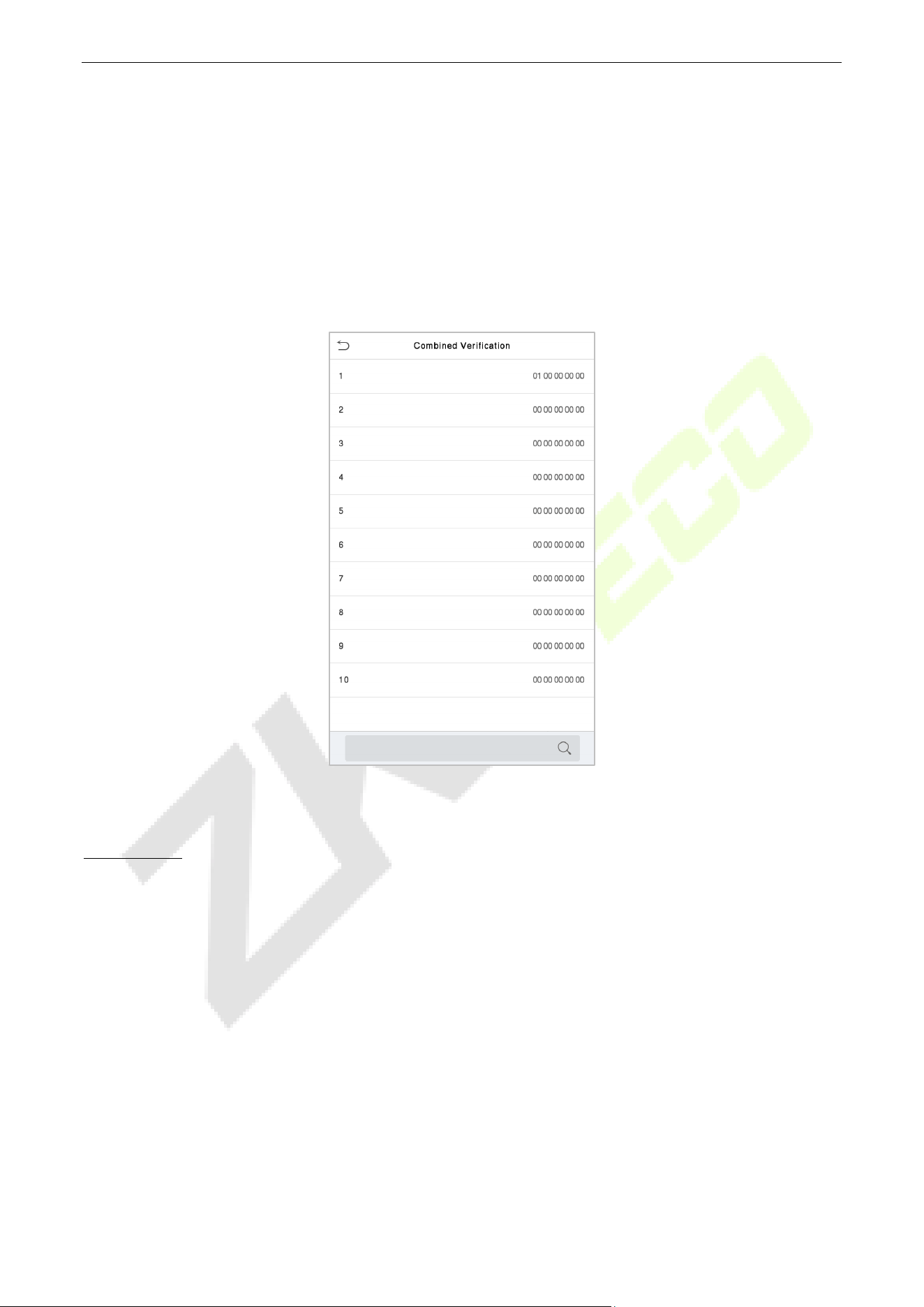
SpeedFace-V5L&H5L Series User Manual
Page | 78 Copyright©2023 ZKTECO CO., LTD. All rights reserved.
Combined Verification 10.4
Access groups are arranged into different door-unlocking combinations to achieve multiple verifications
and strengthen security.
In a door-unlocking combination, the range of the combined number N is 0 ≤ N ≤ 5 and the number of
members N may all belong to one access group or may belong to five different access groups.
Tap Combined Verification on the Access Control interface to configure the combined verification
setting.
On the combined verification interface, tap the Door-unlock combination to be set, and tap the up and
down arrows to input the combination number, and then press OK.
For Example:
If the Door-unlock combination 1 is set as (01 03 05 06 08). It indicates that the unlock combination
1 consists of 5 people and all the 5 individuals are from 5 groups, namely, AC Group 1, AC Group 3, AC
Group 5, AC Group 6, and AC Group 8, respectively.
If the Door-unlock combination 2 is set as (02 02 04 04 07). It indicates that the unlock combination
2 consists of 5 people; the first two are from AC Group 2, the next two are from AC Group 4, and the
last person is from AC Group 7.
If the Door-unlock combination 3 is set as (09 09 09 09 09). It indicates that there are 5 people in
this combination; all of which are from AC Group 9.
If the Door-unlock combination 4 is set as (03 05 08 00 00). It indicates that the unlock combination
4 consists of only three people. The first person is from AC Group 3, the second person is from AC
Group 5, and the third person is from AC Group 8.
Note: To delete the door-unlock combination, set all Door-unlock combinations to 0.
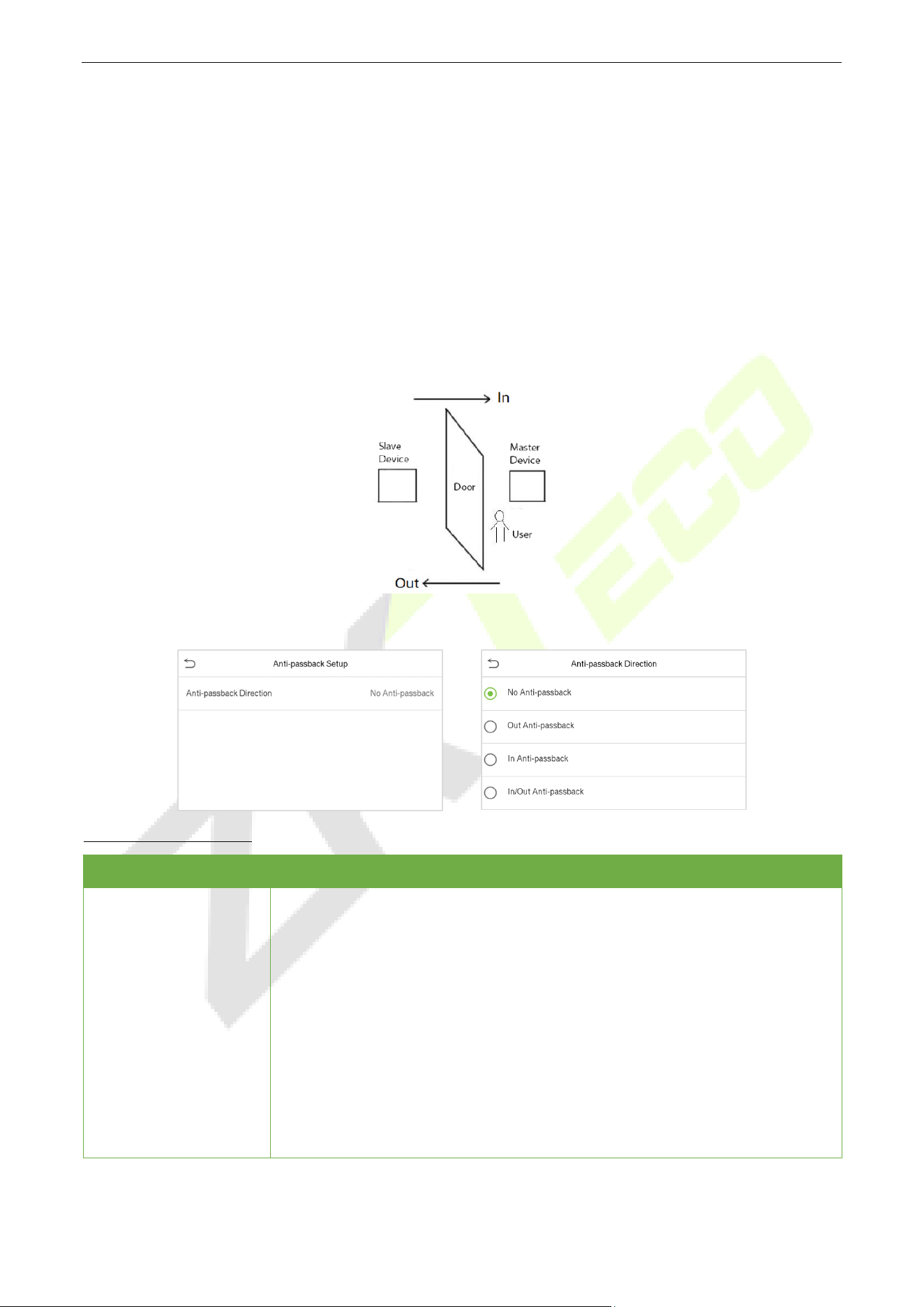
SpeedFace-V5L&H5L Series User Manual
Page | 79 Copyright©2023 ZKTECO CO., LTD. All rights reserved.
Anti-passback Setup 10.5
A user may be followed by some person(s) to enter the door without verification, resulting in a security
breach. So, to avoid such situations, the Anti-Passback option was developed. Once it is enabled, the
check-in and check-out record must occur alternatively to open the door to represent a consistent pattern.
This function requires two devices to work together:
One device is installed on the indoor side of the door (master device), and the other one is installed on the
outdoor side of the door (the slave device). The two devices communicate via the Wiegand signal. The
Wiegand format and Output type (User ID / Card Number) adopted by the master device and slave device
must be consistent.
Tap Anti-Passback Setup on the Access Control interface.
Function Description
Function Name Description
Anti-passback
Direction
No Anti-Passback: The Anti-
Passback function is disabled, which means
successful verification through either the master device or slave device can
unlock the door. The attendance state is not saved in this option.
Out Anti-Passback: The user can check-out only if the last record is a check-in
record otherwise an alarm is raised. However, the user can check-in freely.
In Anti-Passback: The user can check-
in again only if the last record is a
check-out record otherwise an alarm is raised. However, the user can check-
out freely.
In/Out Anti-Passback: In this case, a user can check-in only if the last record is
a check-out or the user can check-out only if the last record is a check-in
otherwise the alarm is triggered.
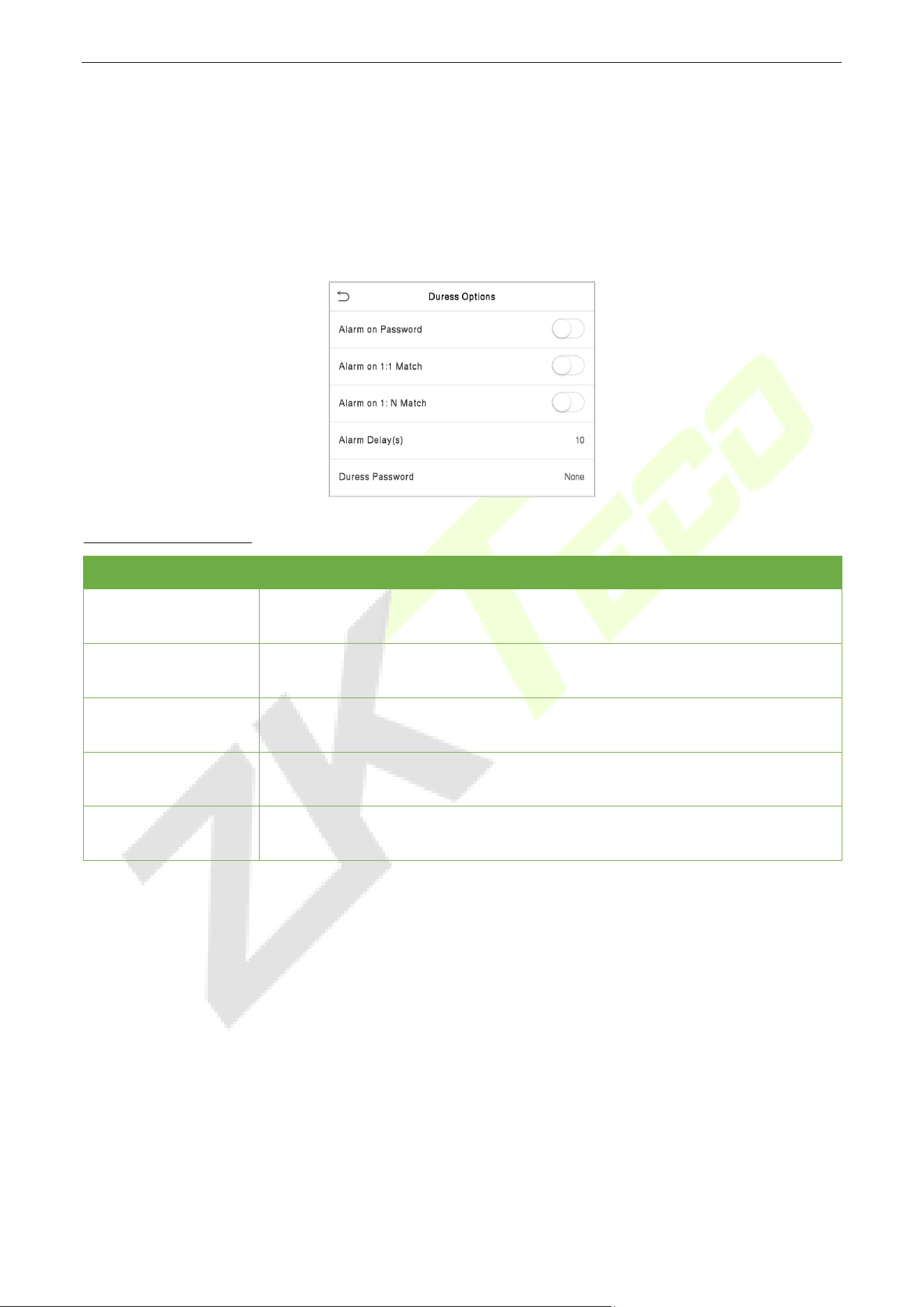
SpeedFace-V5L&H5L Series User Manual
Page | 80 Copyright©2023 ZKTECO CO., LTD. All rights reserved.
Duress Options Settings 10.6
Once a user activates the duress verification function with a specific authentication method(s), and when
he/she is under coercion and authenticates using duress verification, the device unlocks the door as usual.
At the same time, a signal is sent to trigger the alarm as well.
On the Access Control interface, tap Duress Options to configure the duress settings.
Function Description
Function Name Description
Alarm on Password
When a user uses the password verification method, an alarm signal will be
generated, otherwise there will be no alarm signal.
Alarm on 1:1 Match
When a user uses the 1:1 verification method, an alarm signal will be generated,
otherwise there will be no alarm signal.
Alarm on 1:N Match
When a user uses the 1:N
verification method, an alarm signal will be
generated, otherwise there will be no alarm signal.
Alarm Delay (s)
Alarm signal will not be transmitted until the alarm delay time is elapsed. The
value ranges from 1 to 999 seconds.
Duress Password
Set the 6-digit duress password. When the user enters this duress password for
verification, an alarm signal will be generated.
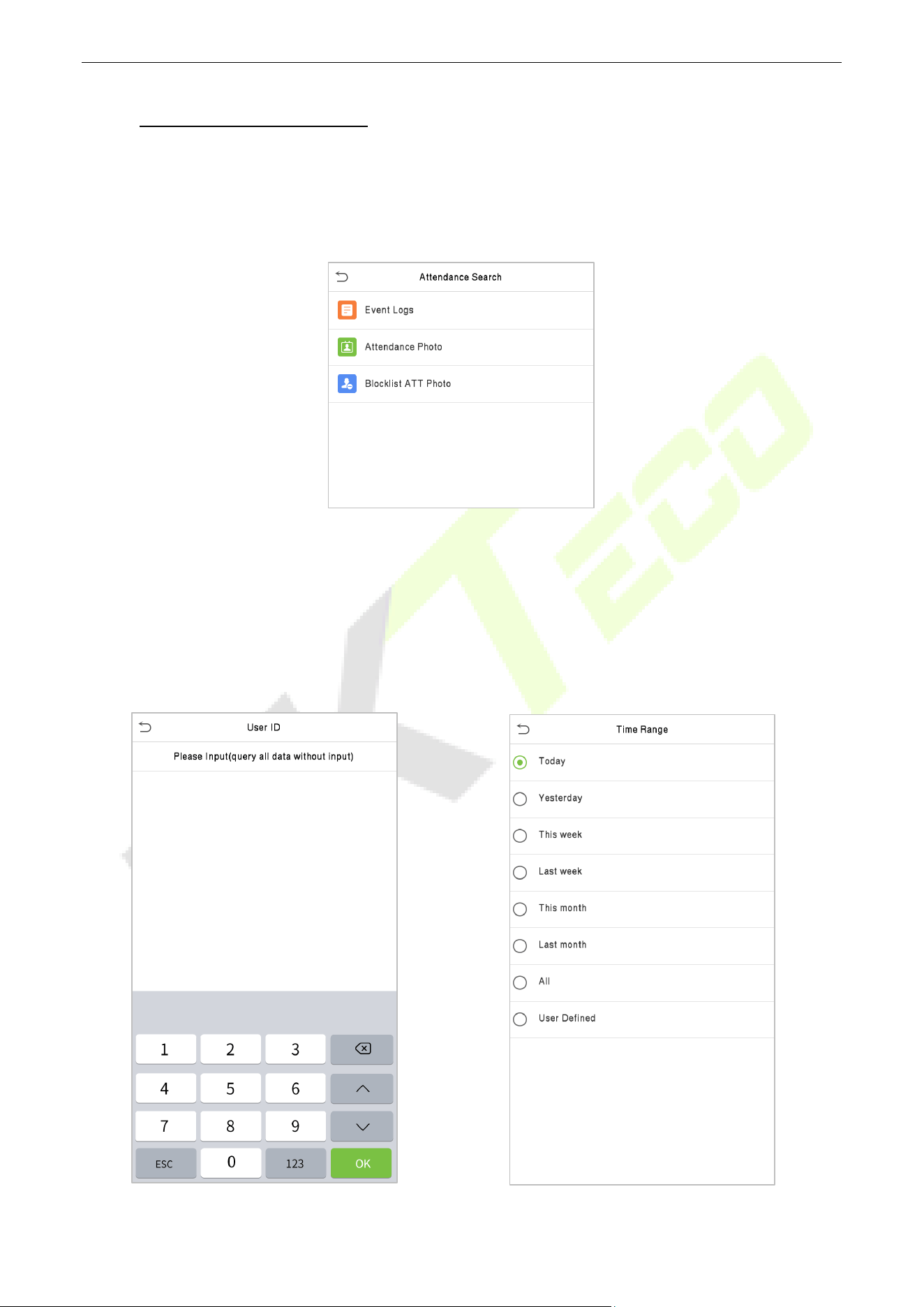
SpeedFace-V5L&H5L Series User Manual
Page | 81 Copyright©2023 ZKTECO CO., LTD. All rights reserved.
11 Attendance Search
Once the identity of a user is verified, the access record is saved in the device. This function enables users
to check their event logs.
Select Attendance Search on the Main Menu interface to search for the required event Logs.
The process of searching for attendance and blocklist photos is similar to that of searching for event logs.
The following is an example of searching for event logs.
On the Attendance Search interface, tap Event Logs to search for the required record.
1. Enter the user ID to be searched and tap OK. If
you want to search for records of all users, tap
OK without entering any user ID.
2. Select the time range in which the records
need to be searched.
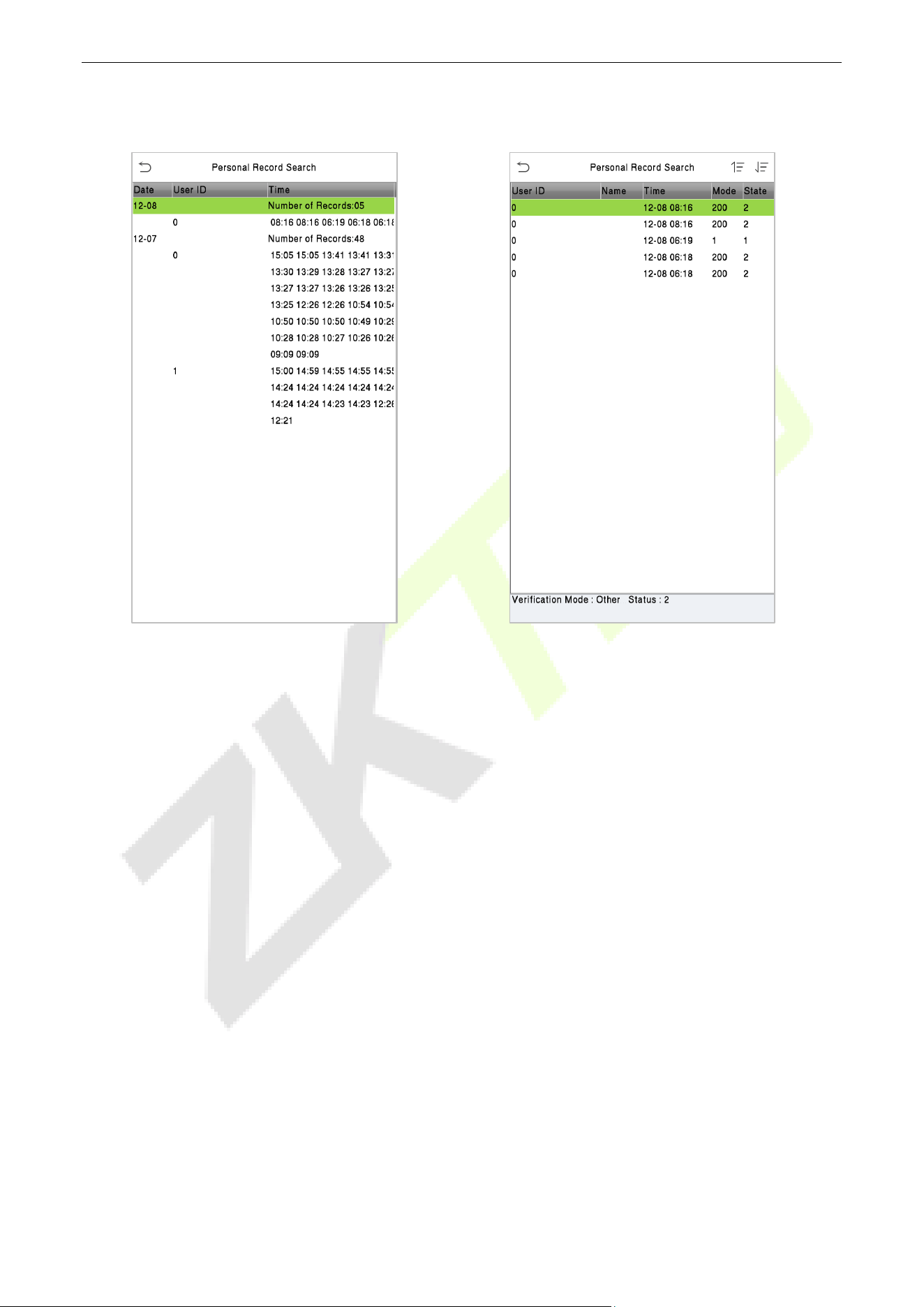
SpeedFace-V5L&H5L Series User Manual
Page | 82 Copyright©2023 ZKTECO CO., LTD. All rights reserved.
3. Once the record search completes. Tap the
record highlighted in green to view its details.
4. The below figure shows the details of the
selected record.
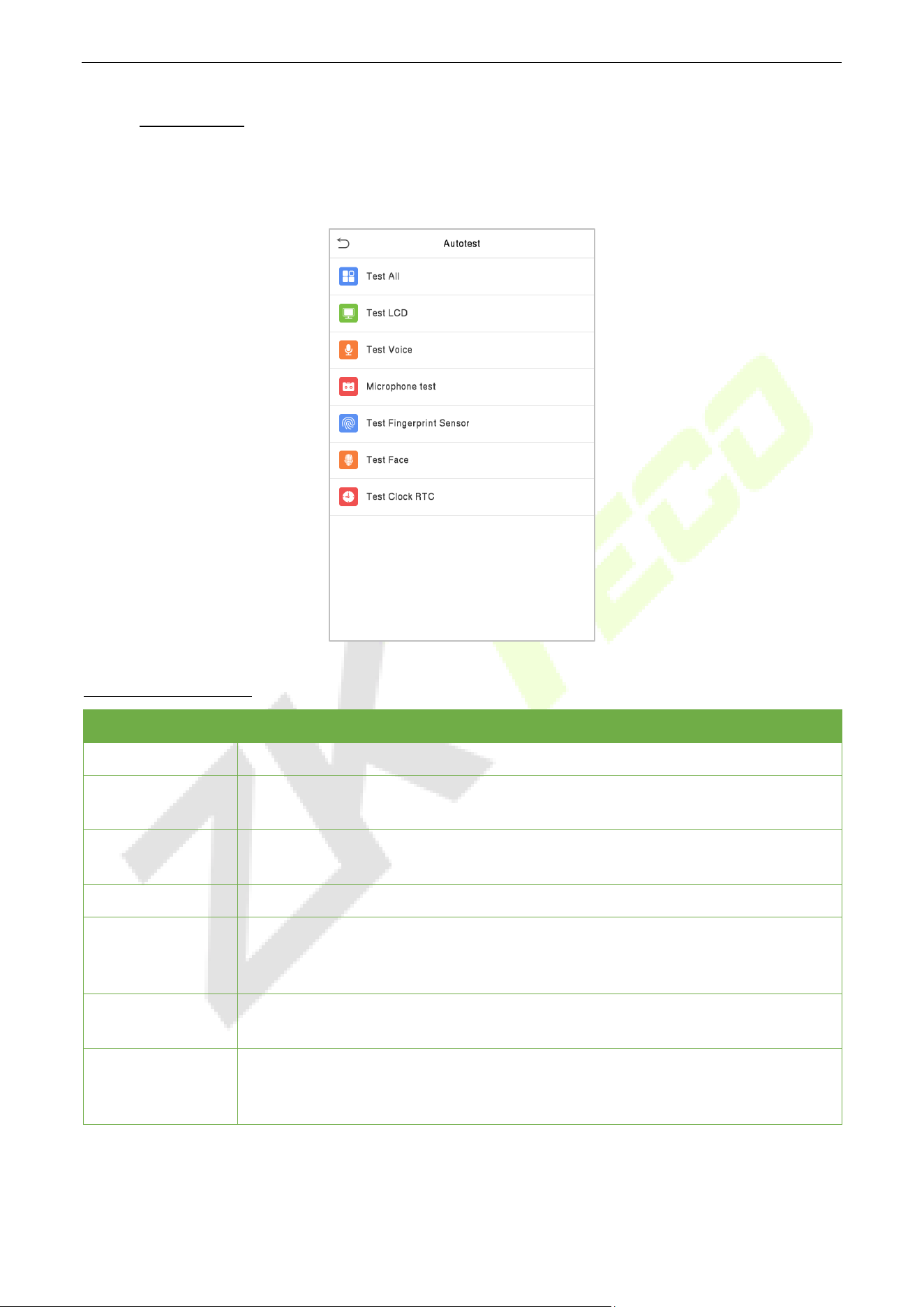
SpeedFace-V5L&H5L Series User Manual
Page | 83 Copyright©2023 ZKTECO CO., LTD. All rights reserved.
12 Autotest
Select Main Menu, tap Autotest. It enables the system to automatically test whether the functions of
various modules are working normally, including the LCD, Voice, Camera, and Real-Time Clock (RTC).
Function Description
Function Name Description
Test All
To automatically test whether the LCD, audio, camera and RTC are normal.
Test LCD
To automatically test the display effect of LCD screen by displaying full-color, pure
white, and pure black to check whether the screen displays colors normally.
Test Voice
To automatically test whether the audio files stored in the device are complete
and the voice quality is good.
Microphone Test
To test if the microphone is working properly by speaking into the microphone.
Test Fingerprint
Sensor
To test the fingerprint sensor by pressing a finger on the scanner to check if the
acquired fingerprint image is clear. When you are pressing a finger on the scanner,
the fingerprint image will display on the screen.
Test Face
To test if the camera functions properly by checking the pictures taken to see if
they are clear enough.
Test Clock RTC
To test the RTC. The device tests whether the clock works normally and accurately
with a stopwatch. Touch the screen to start counting and press it again to stop
counting.
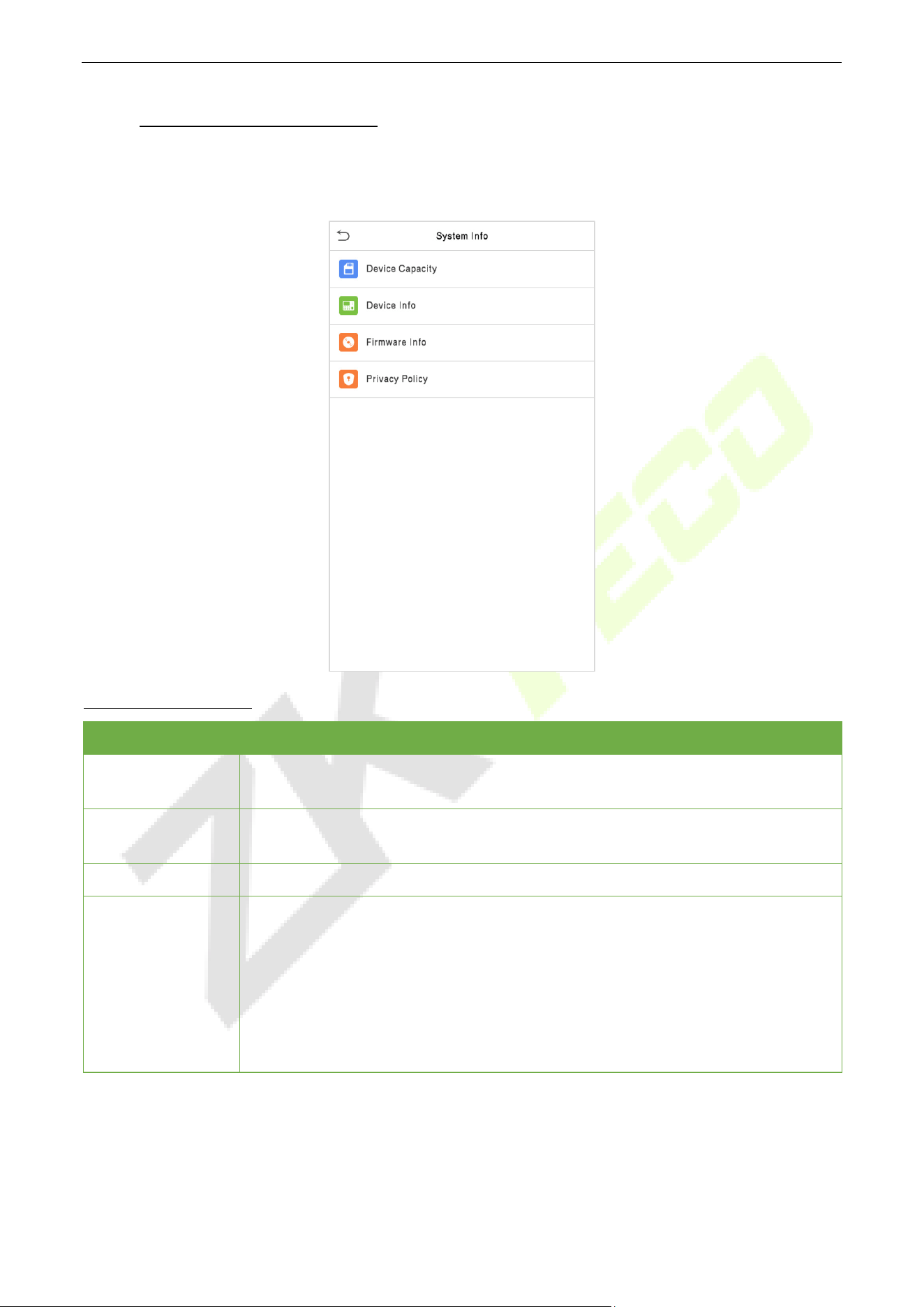
SpeedFace-V5L&H5L Series User Manual
Page | 84 Copyright©2023 ZKTECO CO., LTD. All rights reserved.
13 System Information
On the Main Menu, tap System Info to view the storage status, the version information of the device, and
firmware information.
Function Description
Function Name Description
Device Capacity
Displays the current device's user
storage, password, and face storage,
administrators, access records, attendance and blocklist photos, and user photos.
Device Info
Displays the device's name, serial number, MAC address, face algorithm, platform
information, and manufacturer and manufacture date.
Firmware Info
Displays the firmware version and other version information of the device.
Privacy Policy
The privacy policy control will appear when the gadget turns on for the first time.
After clicking "I have read it," the customer can use the product regularly. Click
System Info -> Privacy Policy
to view the content of the privacy policy. The
privacy policy's content does not allow for U disc export.
Note: The current privacy policy's text is only available in Simplified
Chinese/English. However, translation of other multi-language content is
underway, with more iterations.
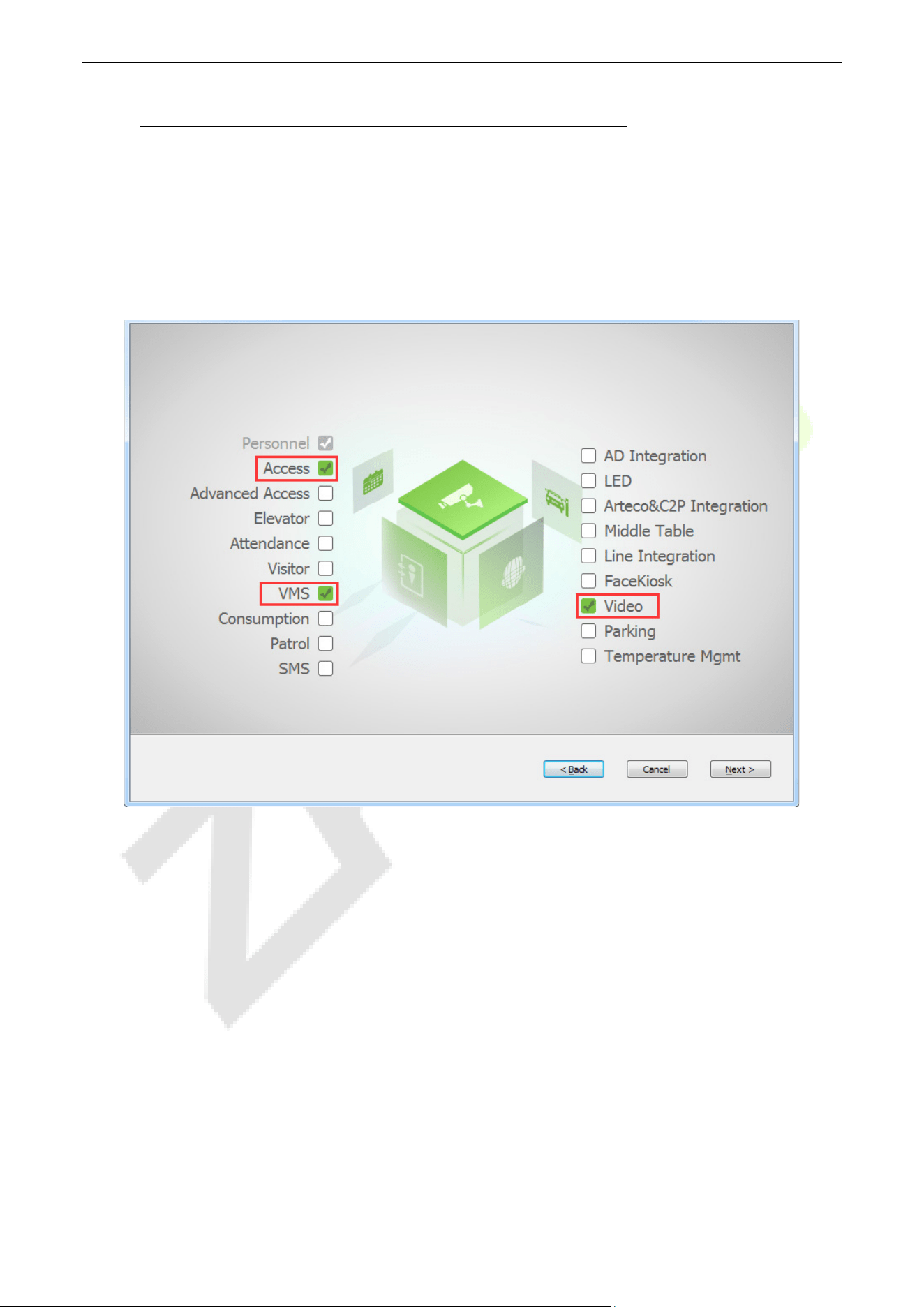
SpeedFace-V5L&H5L Series User Manual
Page | 85 Copyright©2023 ZKTECO CO., LTD. All rights reserved.
14 LAN Video Intercom Function Settings
★
Installing ZKBio VMS Plugin in the ZKBioAccess IVS Software 14.1
Install the ZKBioAccess IVS Software
While installing, select the "VMS" module of the ZKBioAccess IVS software to install, as shown in the
following installation interface.
Note: The Video module and the VMS module cannot be selected at the same time.
Installing the ZKBio VMS Plugin
Double-click on the provided ZKBioVMSPlugin_sqlite.exe file to install the ZKBio VMS Plugin.
Note: The ZKBioAccess IVS software and ZKBio VMS Plugin need to be opened simultaneously to
recognize the intercom function.
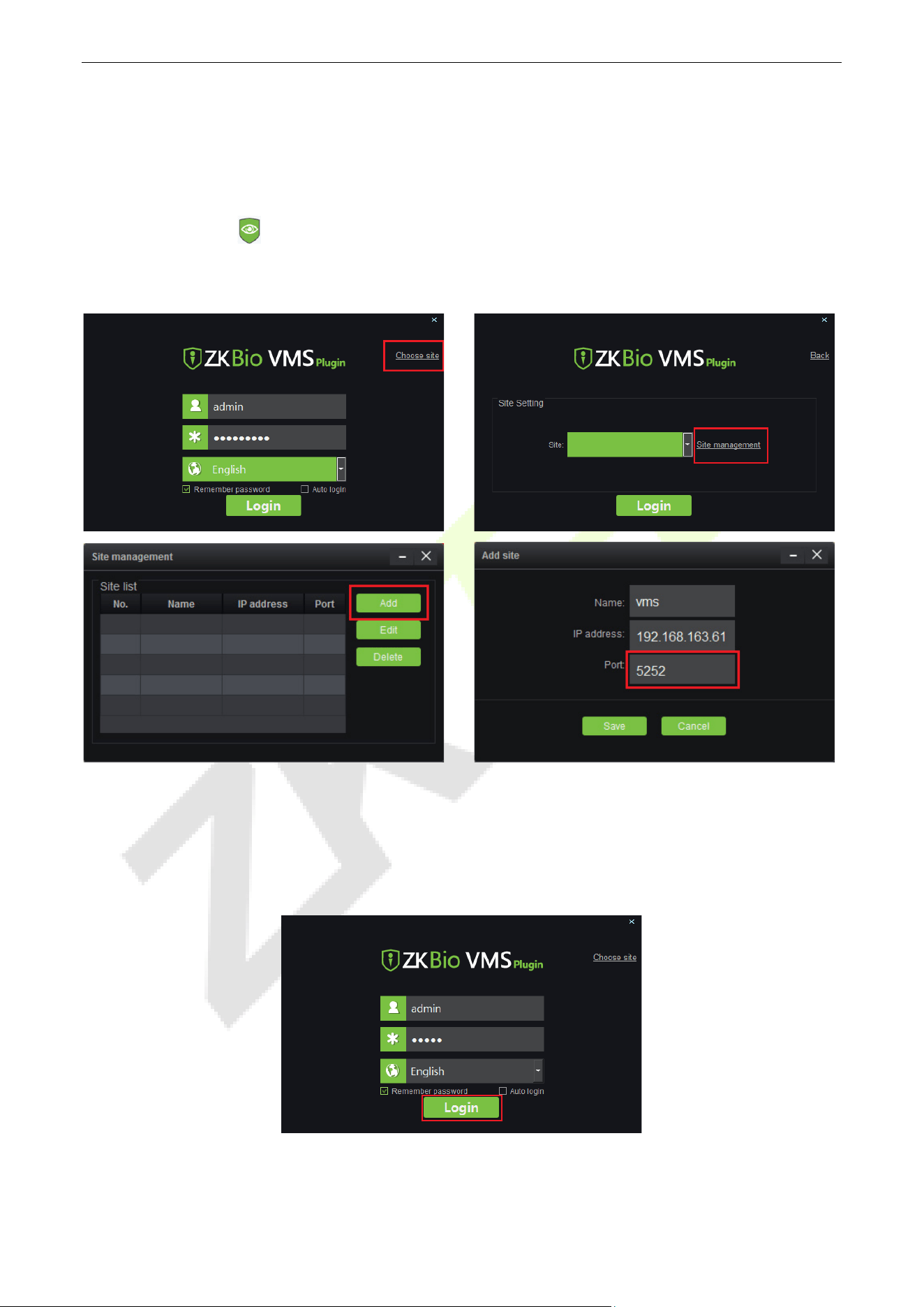
SpeedFace-V5L&H5L Series User Manual
Page | 86 Copyright©2023 ZKTECO CO., LTD. All rights reserved.
Configuration Parameters 14.2
Set the required parameters correctly to ensure a connection between the device and the software.
1. Add site on the Video-VMS plugin
a. Double click the icon to open the Video-VMS Plugin. Click *Choose site > Site management >
Add on the login interface. Then, enter the Name, IP address, and Port to add a site, as shown in the
following figure.
IP address: Enter the local IP address.
Port: The default port is 5252.
b. Enter the username and the password after adding the site and click Login to login the Video-VMS
plugin. The username and the initial password are both admin.
Note: When the Video-VMS plugin is connected successfully to the ZKBioAccess IVS, the password
changes synchronously to the admin user password of the ZKBioAccess IVS.
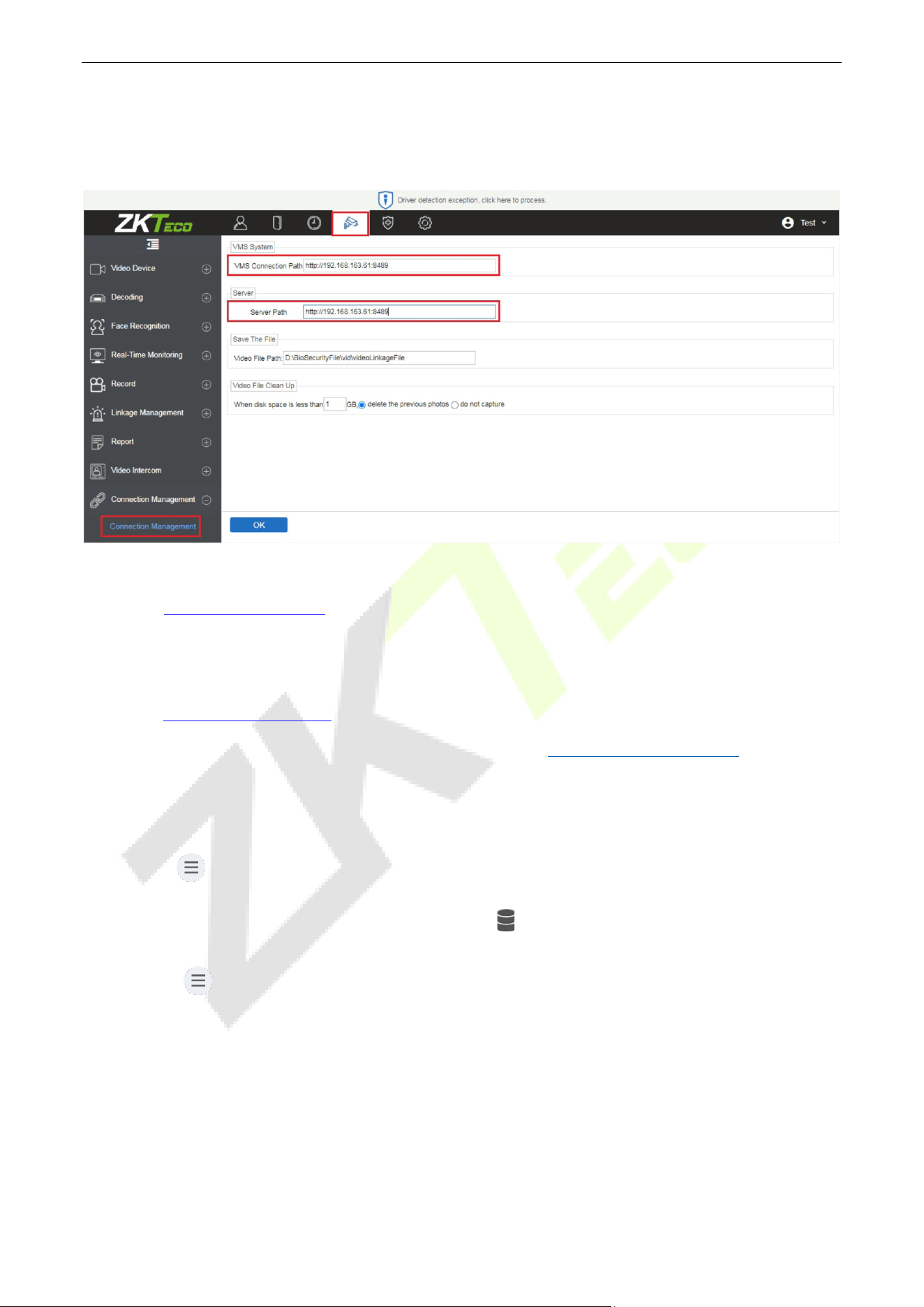
SpeedFace-V5L&H5L Series User Manual
Page | 87 Copyright©2023 ZKTECO CO., LTD. All rights reserved.
2. Configure the connection path of the ZKBioAccess and VMS plugin
Click Video > Connection > Connection Management on the ZKBioAccess IVS software to change the
path, as shown in the following image:
VMS Connection Path
URL:
"http://local IP address: port"
Port: It is 8489 by default (e.g., http://192.168.163.61:8489).
Server Path
URL:
"http://server IP address: port"
Port: The port is the service port set during installation (e.g., http://192.168.163.61:8098) (not the
ADMS port).
3. Configure the parameters on the device
a. Click on > COMM. > Cloud Server Setting on device to set the server address and server port, i.e.,
the IP address and port number of the server after the software is installed. If the device
communicates with the server successfully, the icon is displayed in the upper right corner of the
standby interface.
b. Click on > System > Video Intercom Parameters > Intercom Server Setting to set the server
address and server port.
Server Address: Enter the ZKBioAccess IVS installation IP address.
Server Port: The port is the service port set during installation (not the ADMS port).
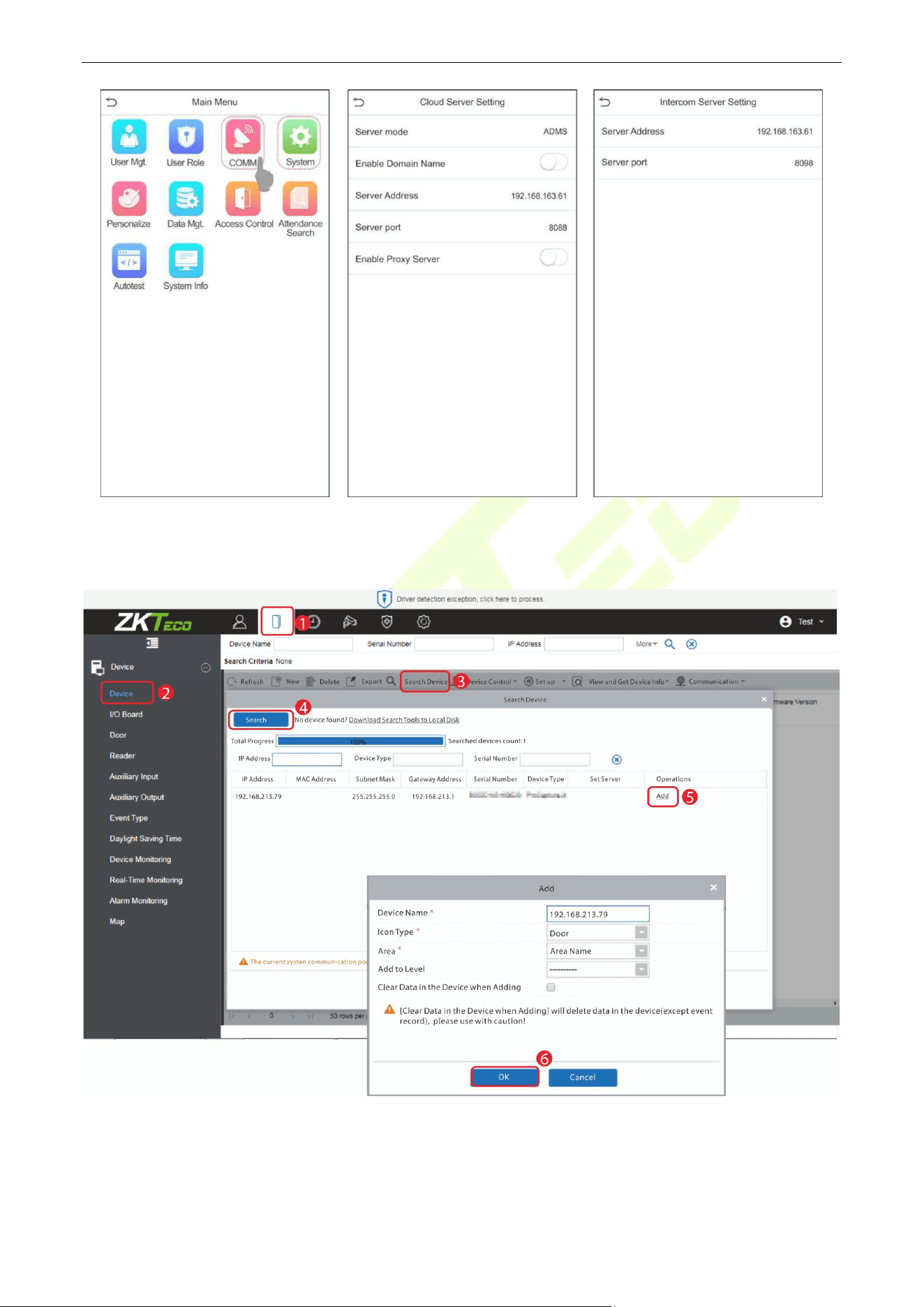
SpeedFace-V5L&H5L Series User Manual
Page | 88 Copyright©2023 ZKTECO CO., LTD. All rights reserved.
4. Adding device on the ZKBioAccess IVS software
a. Click Access > Device > Device > Search to add the device on the ZKBioAccess IVS software.
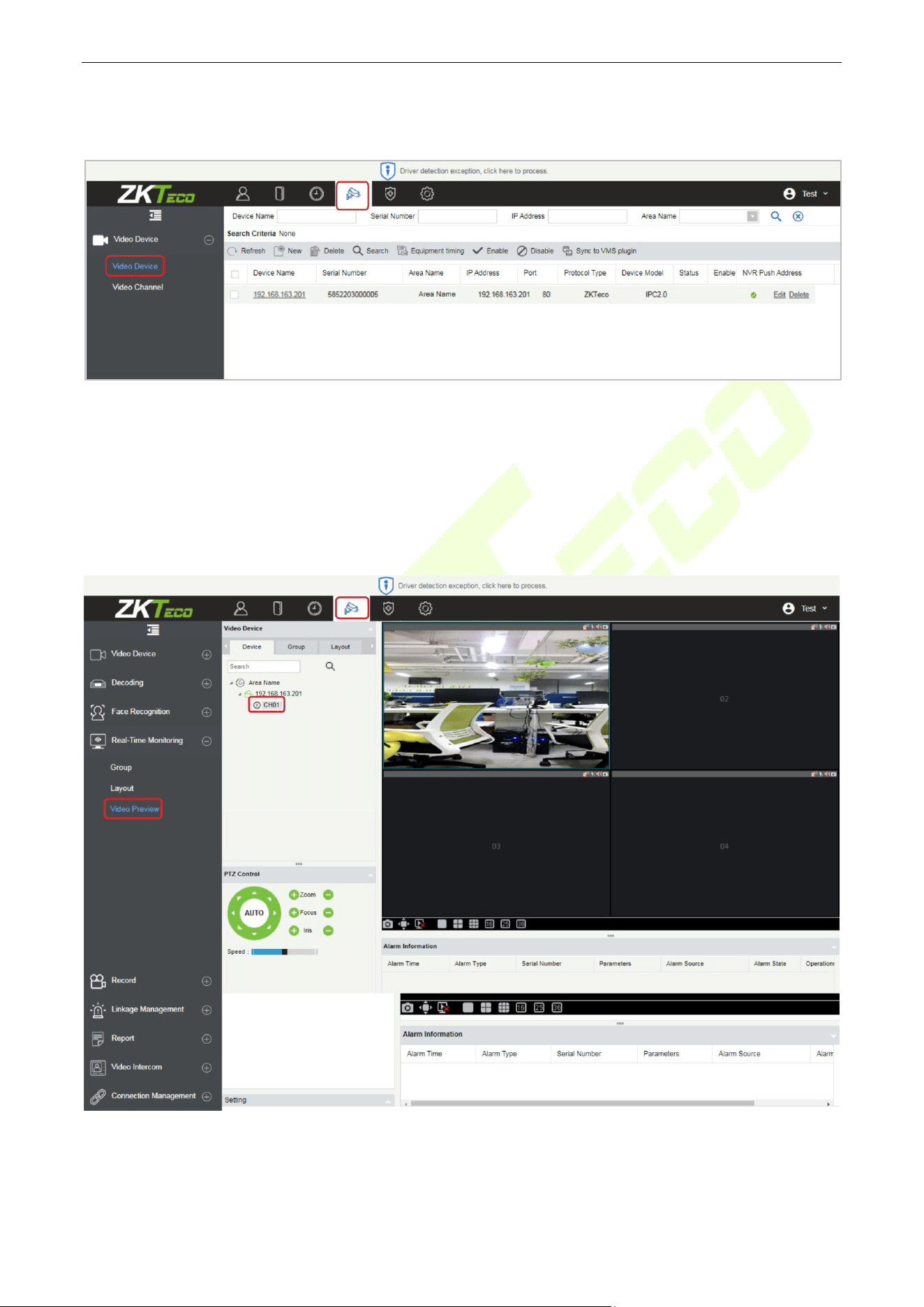
SpeedFace-V5L&H5L Series User Manual
Page | 89 Copyright©2023 ZKTECO CO., LTD. All rights reserved.
b. After the device is added successfully to the access module, it automatically adds to the video module.
User can click Video > Video Device > Search to view.
Note: If the device is not added to the Video module, please check whether the parameter settings are
correct.
Video Preview on the ZKBioAccess IVS Software 14.3
Click Video > Real-Time Monitoring > Video Preview to enter the preview interface of the device.
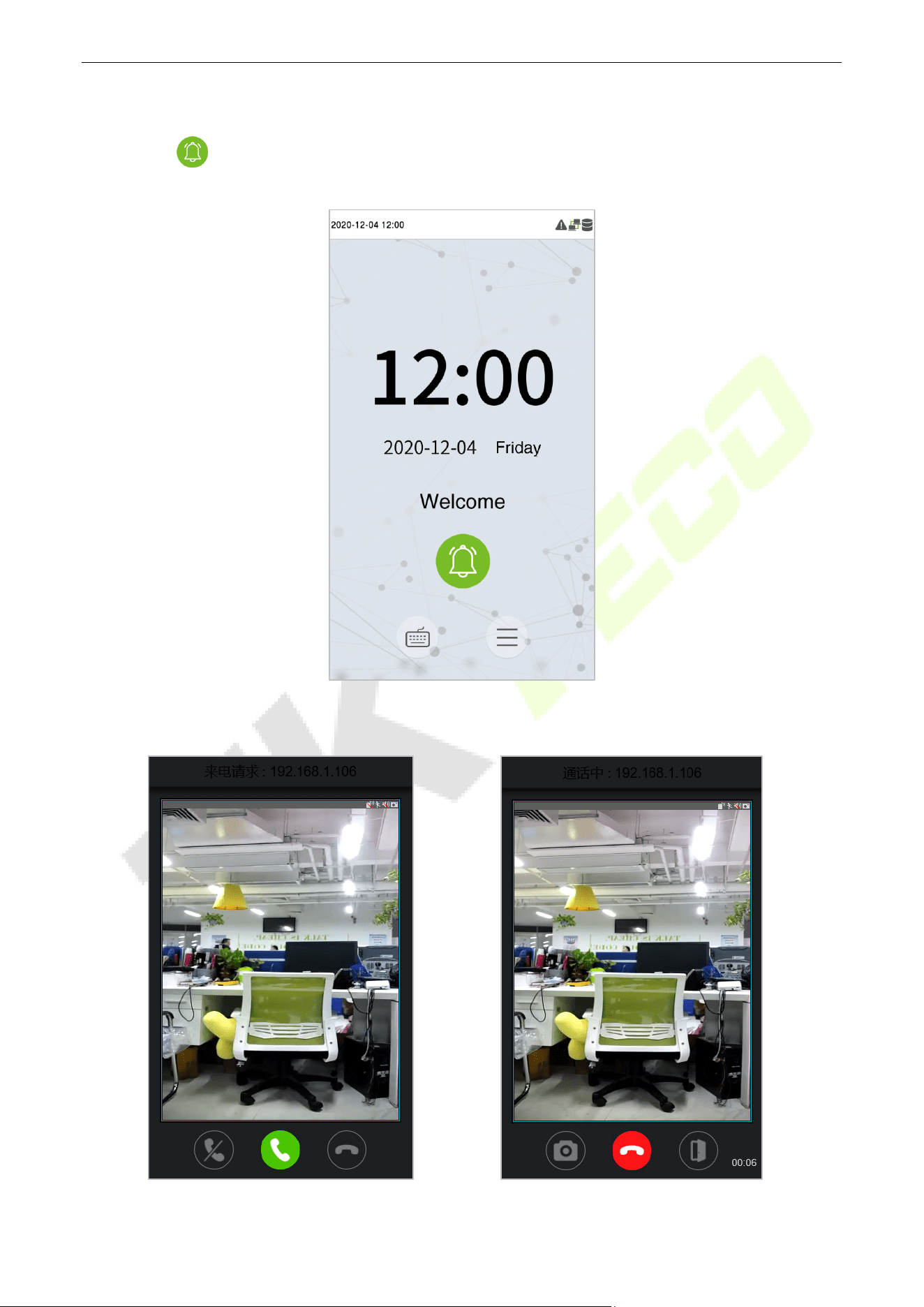
SpeedFace-V5L&H5L Series User Manual
Page | 90 Copyright©2023 ZKTECO CO., LTD. All rights reserved.
Make a Call on the Device 14.4
1. Click on icon on the welcome screen of the device to make a call.
2. The server page pops up the call window by default, as shown in the following figure.
Call Interface
In-call Interface
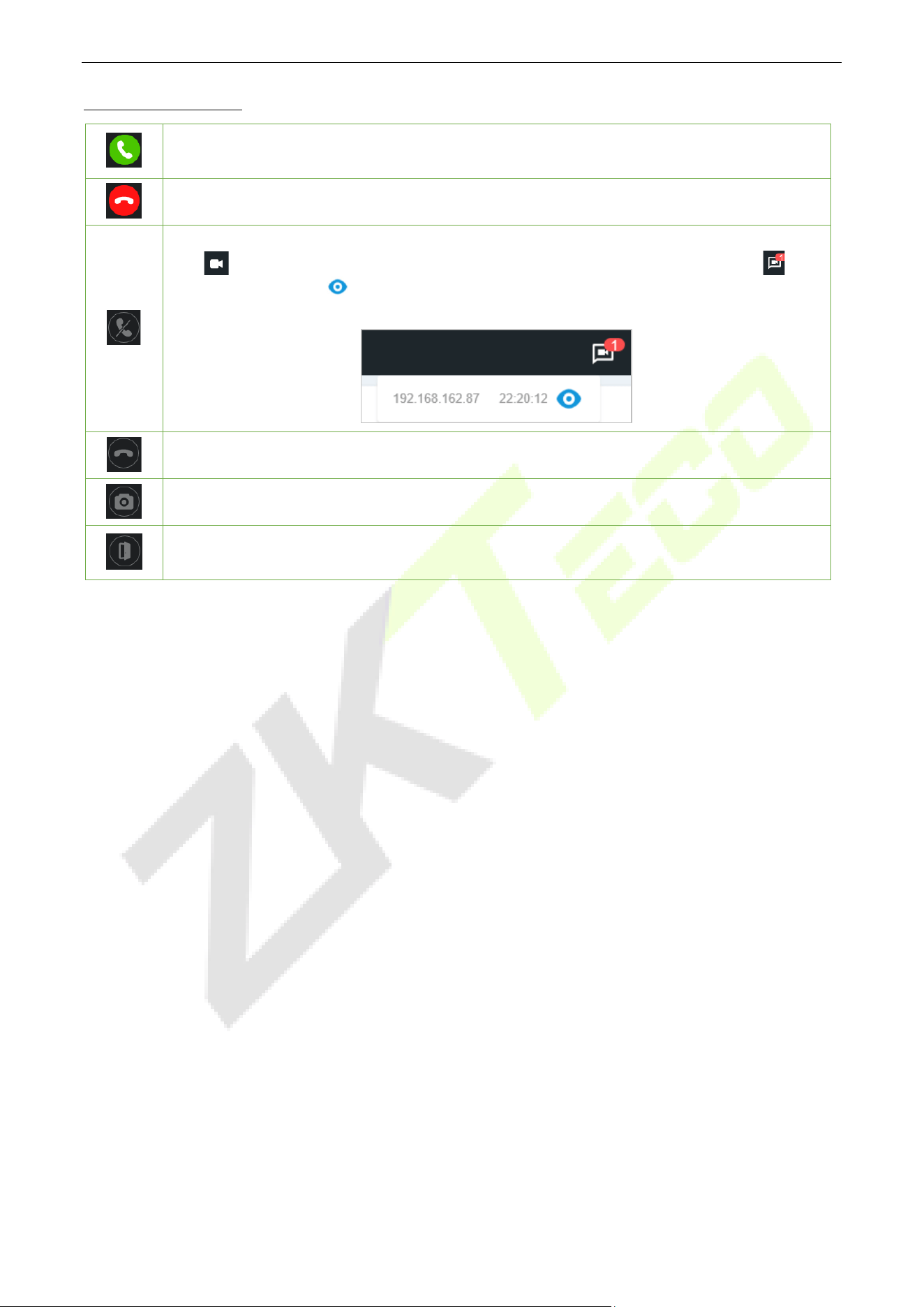
SpeedFace-V5L&H5L Series User Manual
Page | 91 Copyright©2023 ZKTECO CO., LTD. All rights reserved.
Function Description
It is the Answer key, the user can click to answer the current call. After answering, enter the
window during the call, and turn on audio and video by default.
It is the Hang up key. After hanging up, immediately end the current call.
It is the Ignore key, used to ignore the current call. Click it to close the call window, and the
icon in the upper right corner will display the number of pending calls, like this
The user can click the icon in the drop-down menu to open the call window of the
current device again and choose to answer, as shown following figure.
It is the Hang up key, used to hang up the current call.
It is the Snapshot key, used to take a snapshot.
It is the Remote Open key, used to open the door remotely. The default lock drive time is 5
seconds.
Note: If the device preview interface is opened on the ZKBioAccess IVS software, the call interface will no
longer be displayed in this call window.
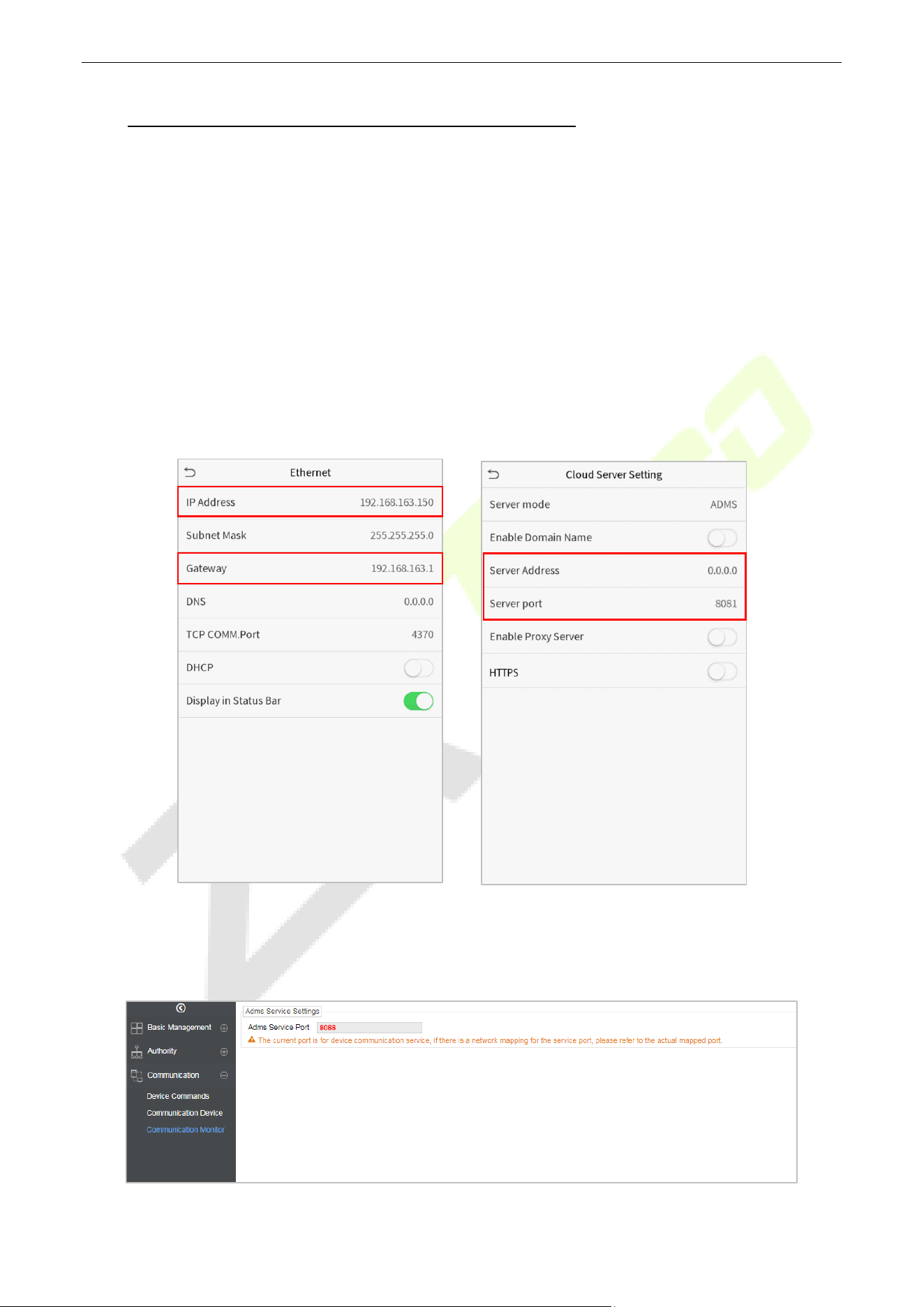
SpeedFace-V5L&H5L Series User Manual
Page | 92 Copyright©2023 ZKTECO CO., LTD. All rights reserved.
15 Connect to ZKBioAccess IVS Software
Set the Communication Address 15.1
Device Side
1. Tap COMM. > Ethernet in the main menu to set the IP address and gateway of the device.
(Note: The IP address should be able to communicate with the ZKBioAccess IVS server, preferably in the
same network segment with the server address)
2. In the main menu, click COMM. > Cloud Server Setting to set the server address and server port.
Server address: Set the IP address as of ZKBioAccess IVS server.
Server port: Set the server port as of ZKBioAccess IVS (The default is 8088).
Software Side
Login to ZKBioAccess IVS software, click System > Communication > Communication Monitor to set the
ADMS service port, as shown in the figure below:
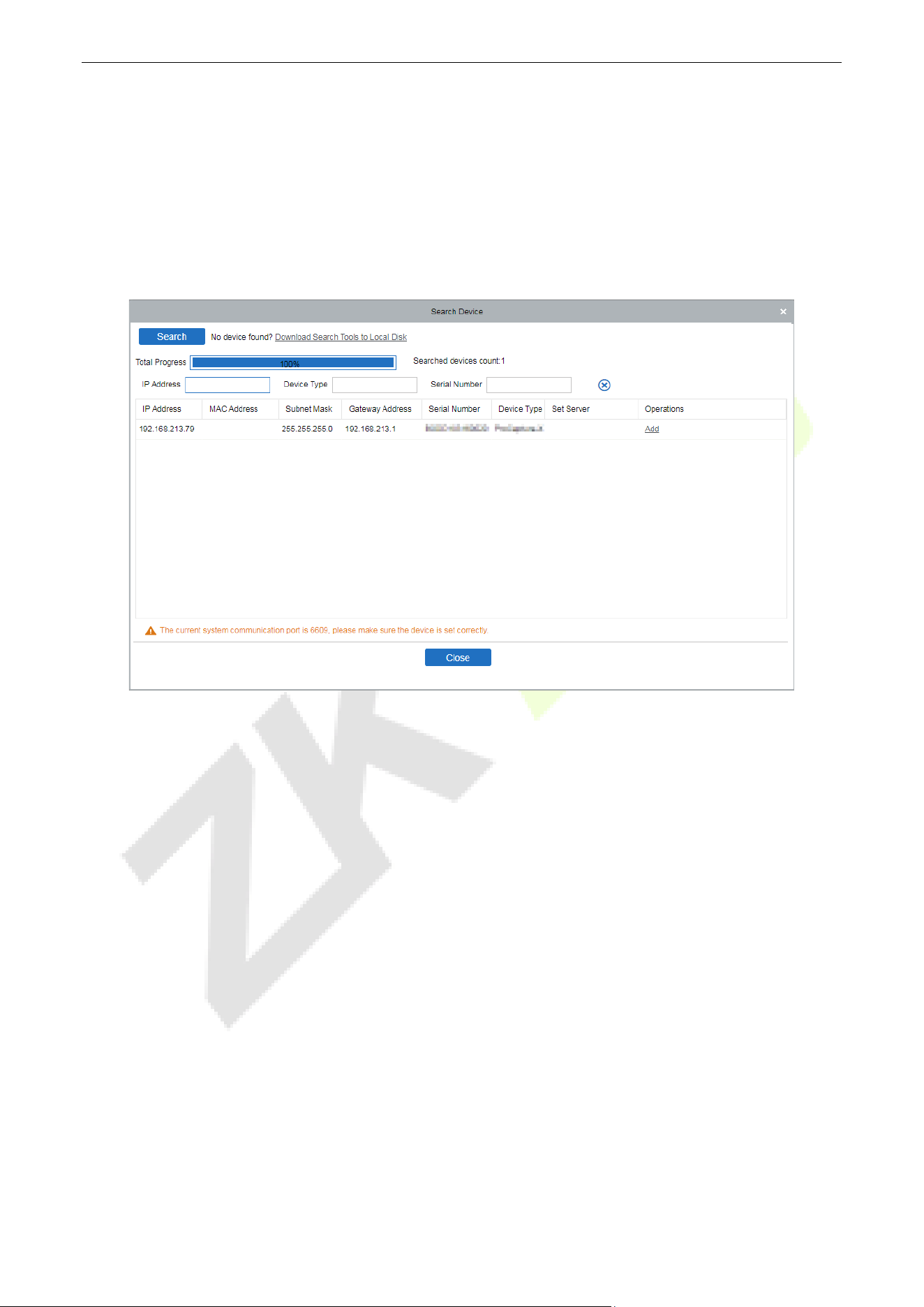
SpeedFace-V5L&H5L Series User Manual
Page | 93 Copyright©2023 ZKTECO CO., LTD. All rights reserved.
Add Device on the Software 15.2
Add the device by searching. The process is as follows:
1. Click Access Control > Device > Search Device to open the Search interface in the software.
2. Click Search, and it will prompt “Searching……”.
3. After searching, the list and total number of access controllers will be displayed.
4. Click Add in operation column, a new window will pop-up. Select Icon type, Area, and Add to Level
from each dropdown and click OK to add the device.
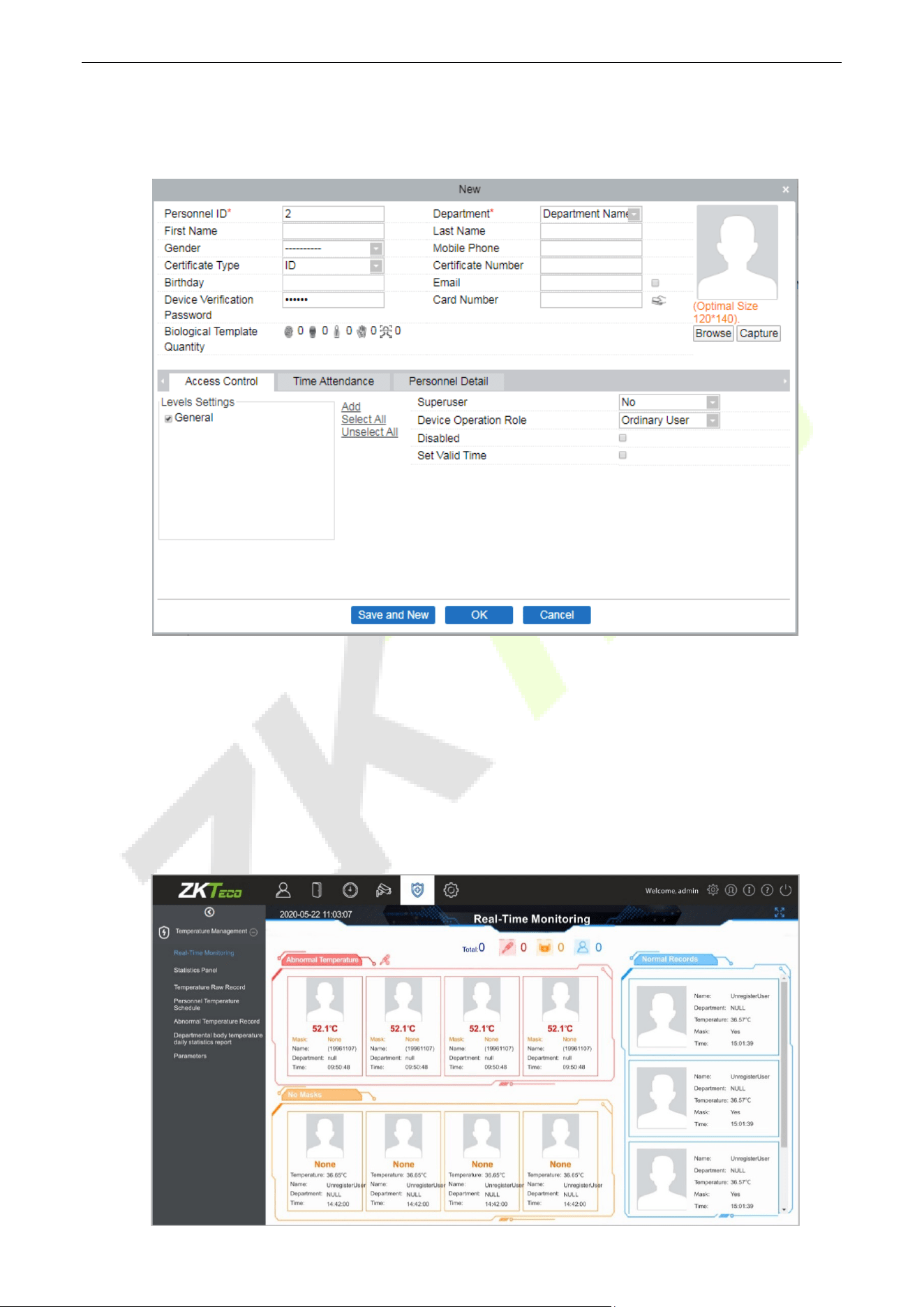
SpeedFace-V5L&H5L Series User Manual
Page | 94 Copyright©2023 ZKTECO CO., LTD. All rights reserved.
Add Personnel on the Software 15.3
1. Click Personnel > Person > New:
2. Fill in all the required fields and click OK to register a new user.
3. Click Access > Device > Device Control > Synchronize All Data to Devices to synchronize all the
data to the device including the new users.
Real-time monitoring on the ZKBioAccess IVS Software 15.4
1. Click Prevention > Epidemic > Temperature Detection > Real-time monitoring to view all the
personnel's events present under the Abnormal Temperature, No Masks, and Normal Records.
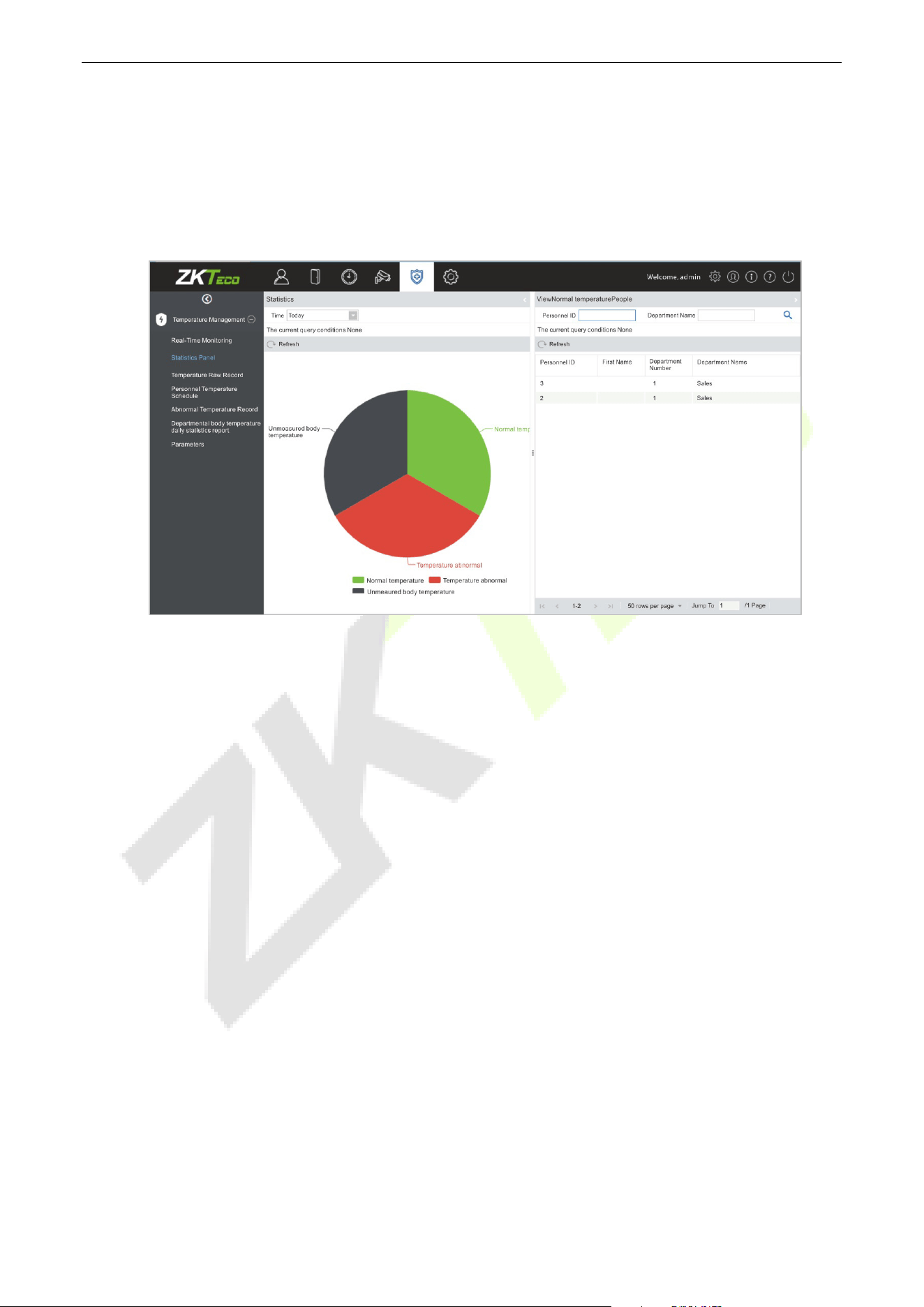
SpeedFace-V5L&H5L Series User Manual
Page | 95 Copyright©2023 ZKTECO CO., LTD. All rights reserved.
The user data of abnormal body temperature is displayed on the Abnormal Temperature information
bar automatically according to the Temperature Threshold Setting is set.
2. Click Epidemic > Temperature Management > Statistics Panel to view the analysis of statistical
data in the form of a pie-chart and view the personnel with normal temperature, abnormal
temperature, and unmeasured body temperature. Also, detailed information of the personnel can be
seen on the right by clicking on the particular category on the pie-chart.
Note: For other specific operations, please refer to ZKBioAccess IVS User Manual.
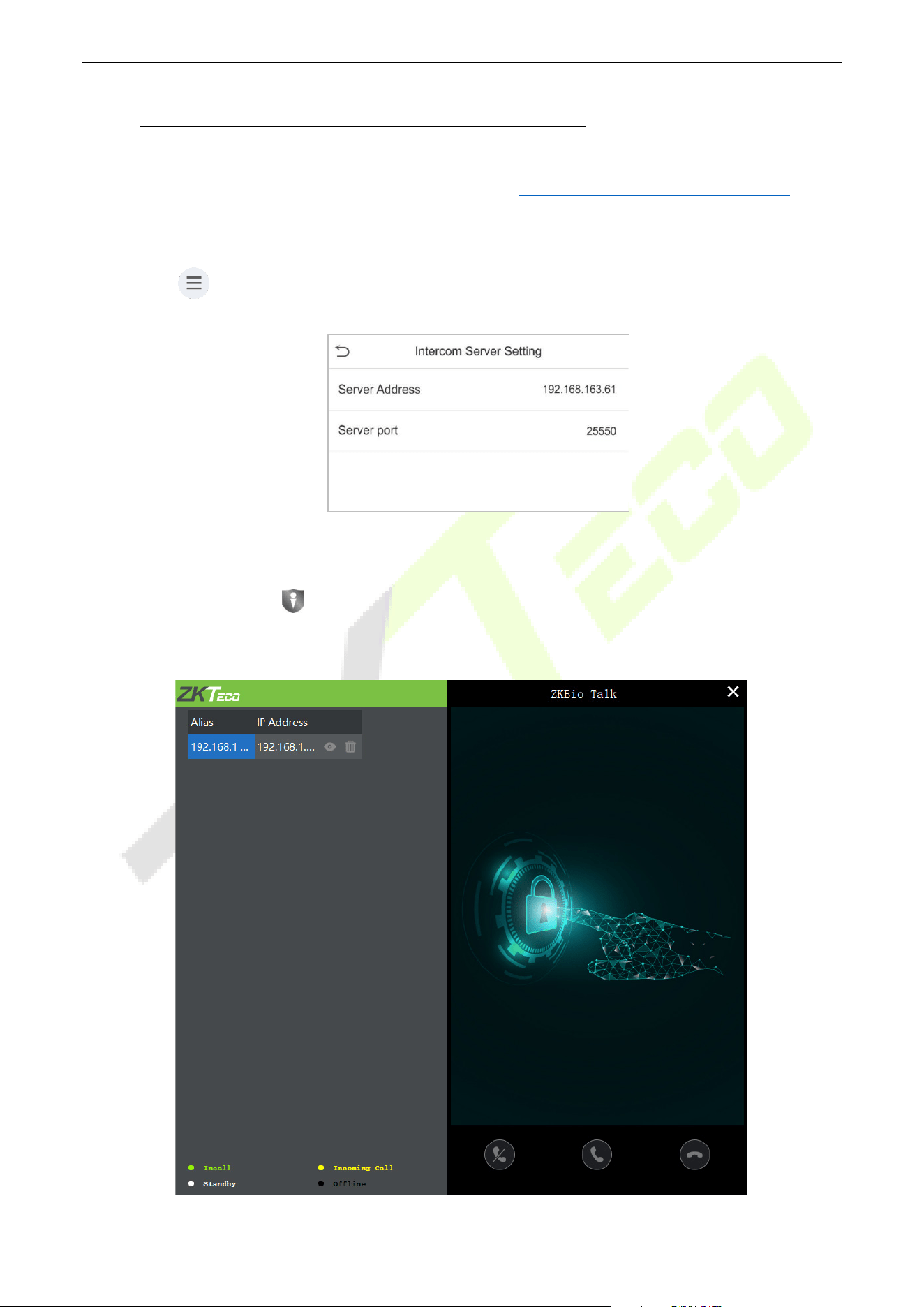
SpeedFace-V5L&H5L Series User Manual
Page | 96 Copyright©2023 ZKTECO CO., LTD. All rights reserved.
16 Connecting to ZKBio Talk Software
★
Download and install the ZKBio Talk software. Then, keep the parameter settings of ZKBioAccess IVS
software unchanged for the relevant settings. (Please refer to LAN Video Intercom Function Settings
).
Following are the steps to connect ZKBio Talk to the ZKBioAccess IVS software:
1. Firstly, change the parameter on the device.
Tap on > System > Video intercom parameters > Intercom Server Setting on the device to
change the server address and server port, as shown in the following figure.
Server Address: Enter the current server installation IP address.
Server Port: The default server port is 25550.
2. Double click the icon to open the ZKBio Talk software. When the device-side video intercom
parameters are set correctly, the device automatically pushes the device list on the left, as shown in
following figure.
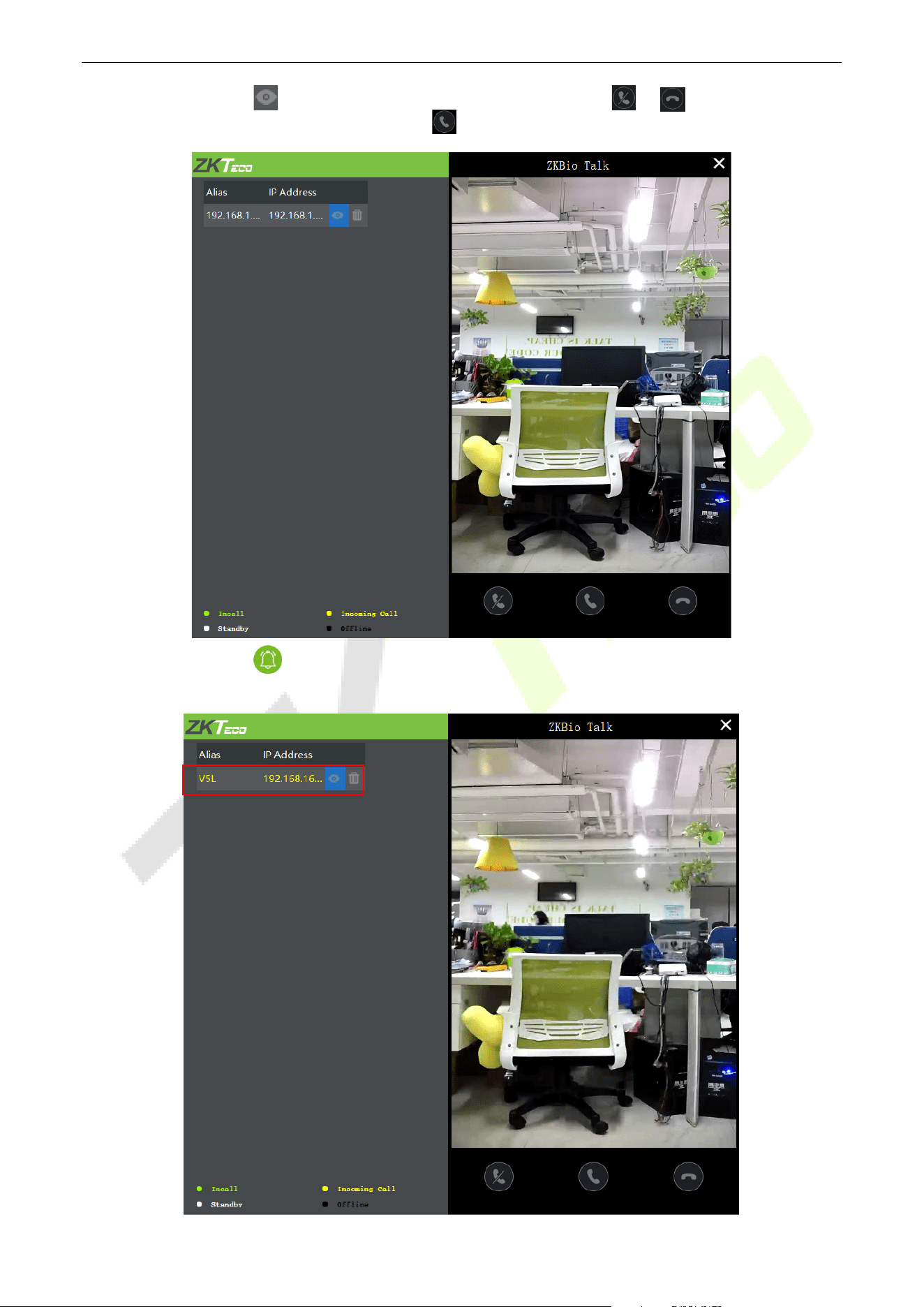
SpeedFace-V5L&H5L Series User Manual
Page | 97 Copyright©2023 ZKTECO CO., LTD. All rights reserved.
3. A user can click on to preview the video on the right. On clicking or icon, a user can close
the preview screen. No action is taken when is clicked.
4. When a user clicks icon on the main interface of the device to make a call, the software interface
displays the IP address of the calling device in yellow.
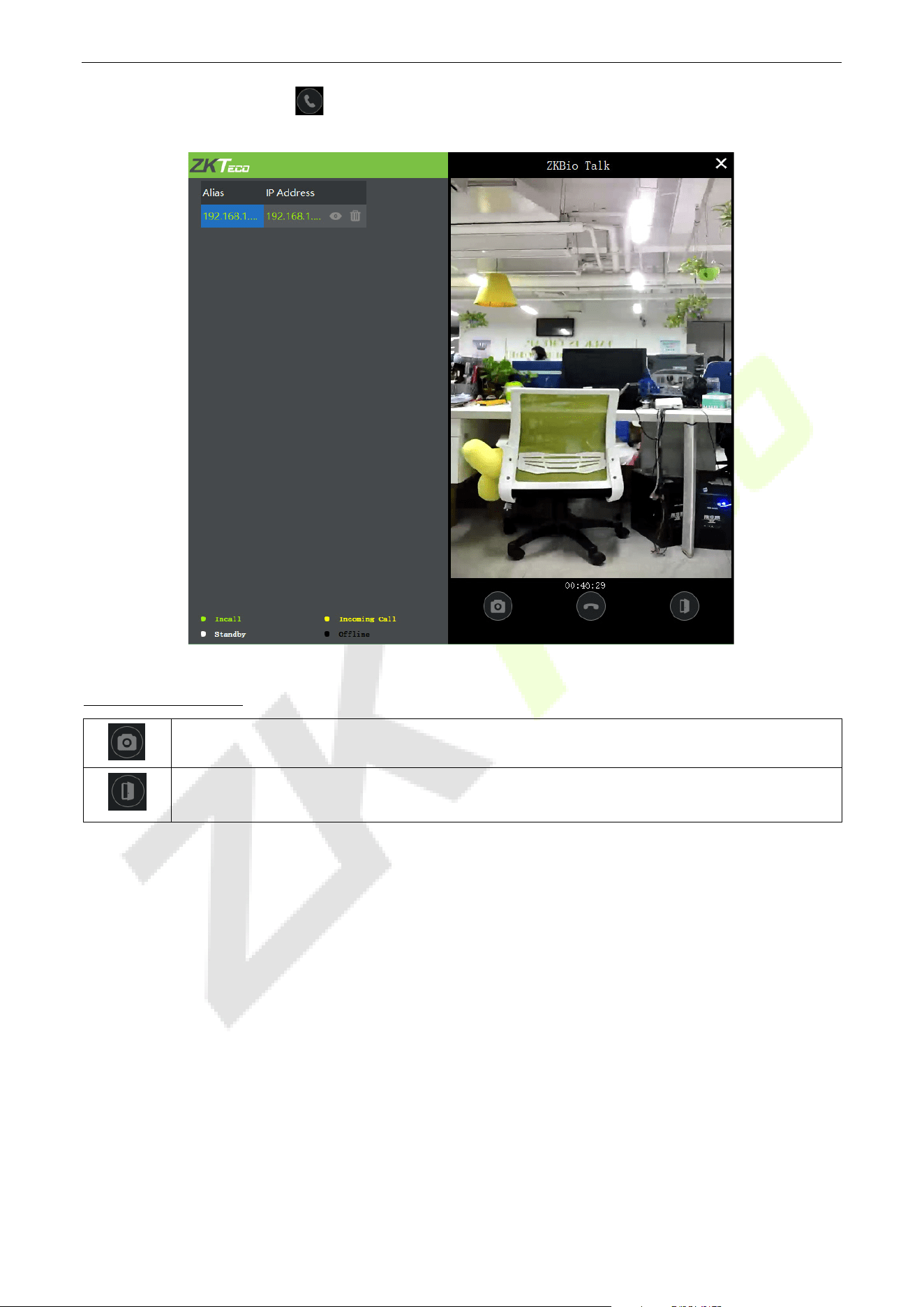
SpeedFace-V5L&H5L Series User Manual
Page | 98 Copyright©2023 ZKTECO CO., LTD. All rights reserved.
5. When the user clicks the icon to answer the call, the IP address is displayed in green while on the
call. The call duration is also displayed just above the icon.
Function Description:
This is the Snapshot key, used to take a snapshot
This is the Remote open key, used to open the door remotely. The default lock drive time is
5 seconds
Note: Only the offline devices can be removed.
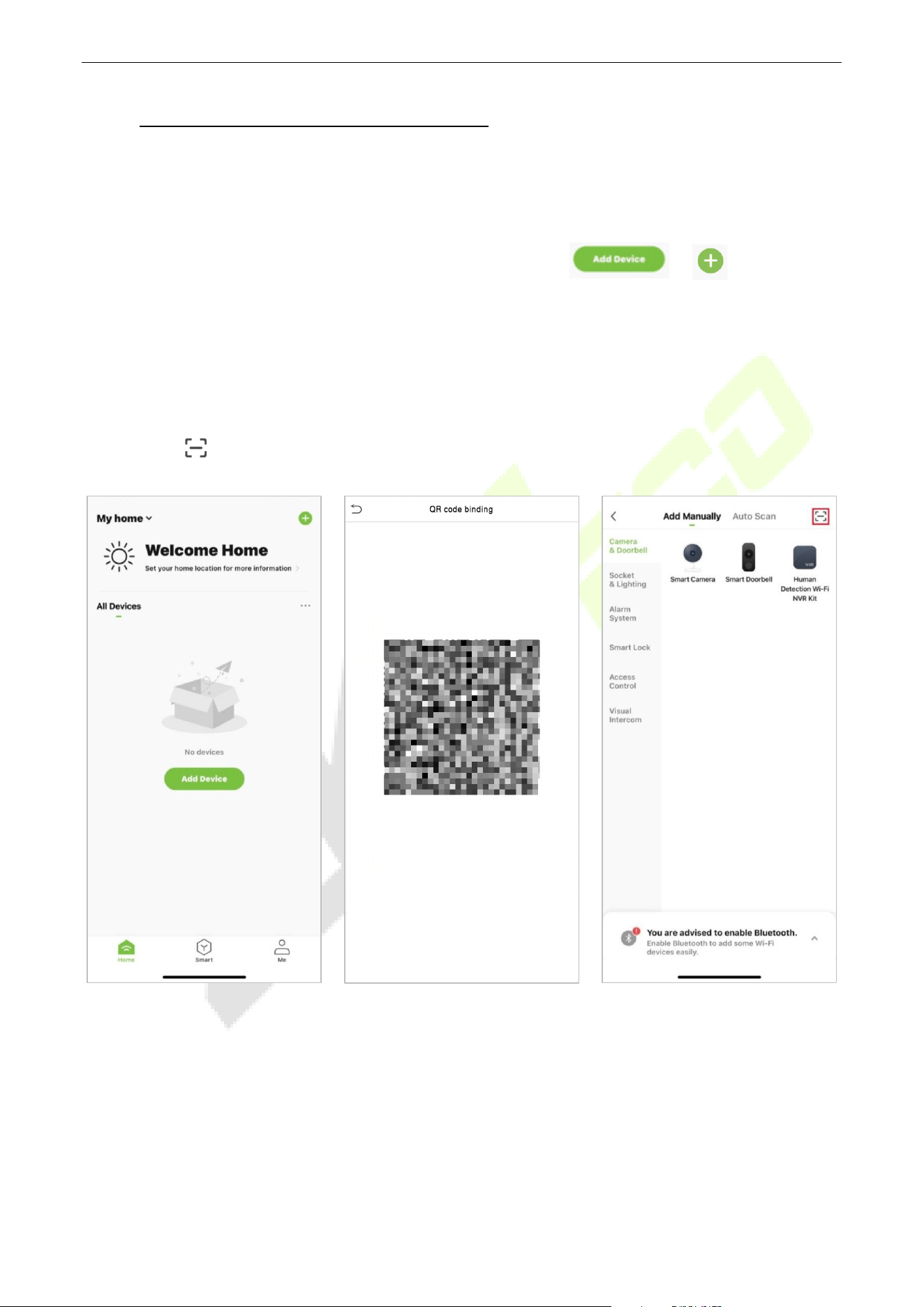
SpeedFace-V5L&H5L Series User Manual
Page | 99 Copyright©2023 ZKTECO CO., LTD. All rights reserved.
17 Connecting to ZSmart App
★
Adding Device on the ZSmart App 17.1
After downloading and installing the ZSmart App on your phone, create a User account initially with your
Email ID. After creating the User account, log in to the App, and click or icon on the top
right corner of the screen to add a device. The process is as follows:
1. Click Add Device on the Home page.
2. Tap on System > Video Intercom Parameters > QR Code Binding to show the QR code of the
device.
3. Click the icon in the upper right corner.
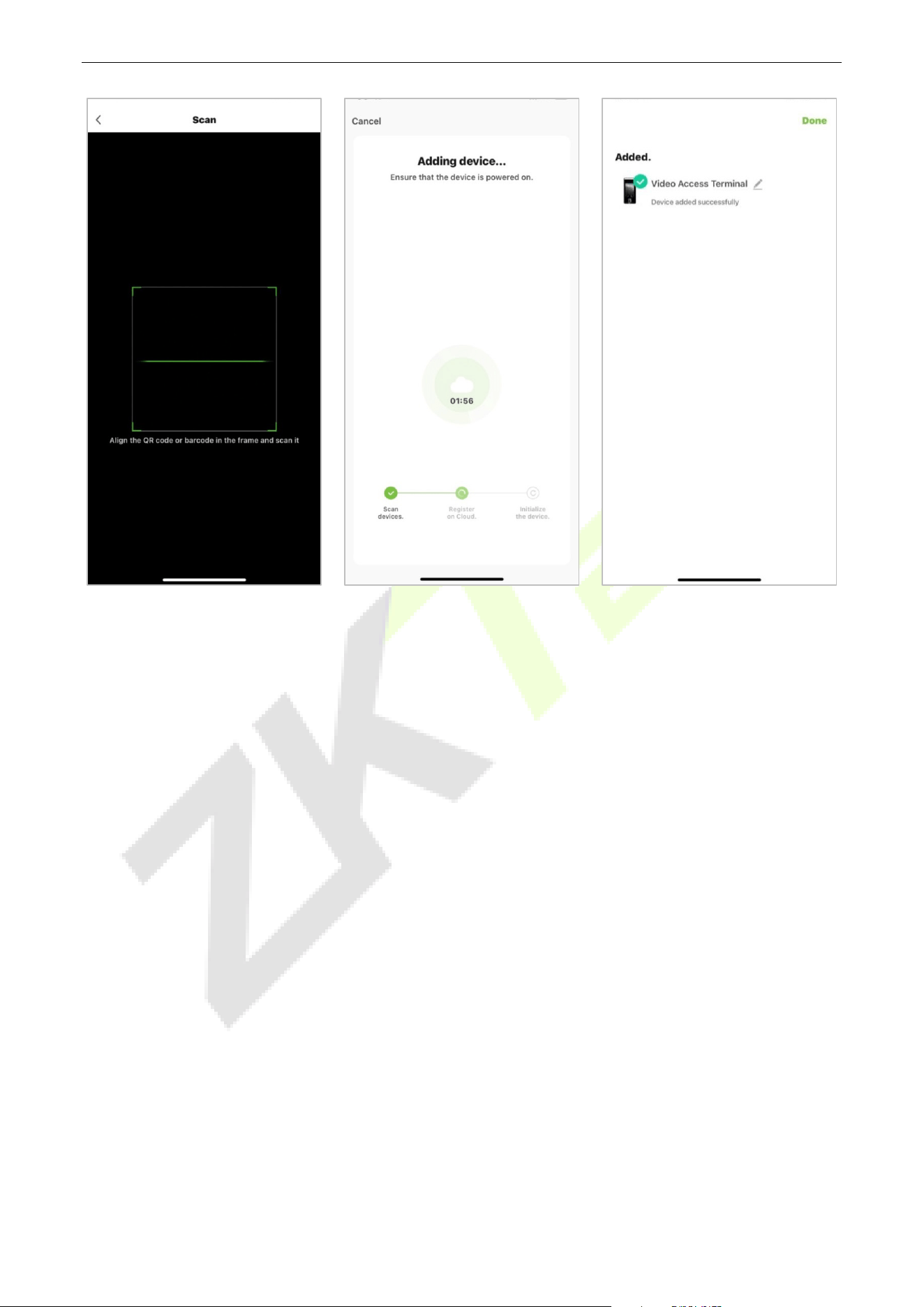
SpeedFace-V5L&H5L Series User Manual
Page | 100 Copyright©2023 ZKTECO CO., LTD. All rights reserved.
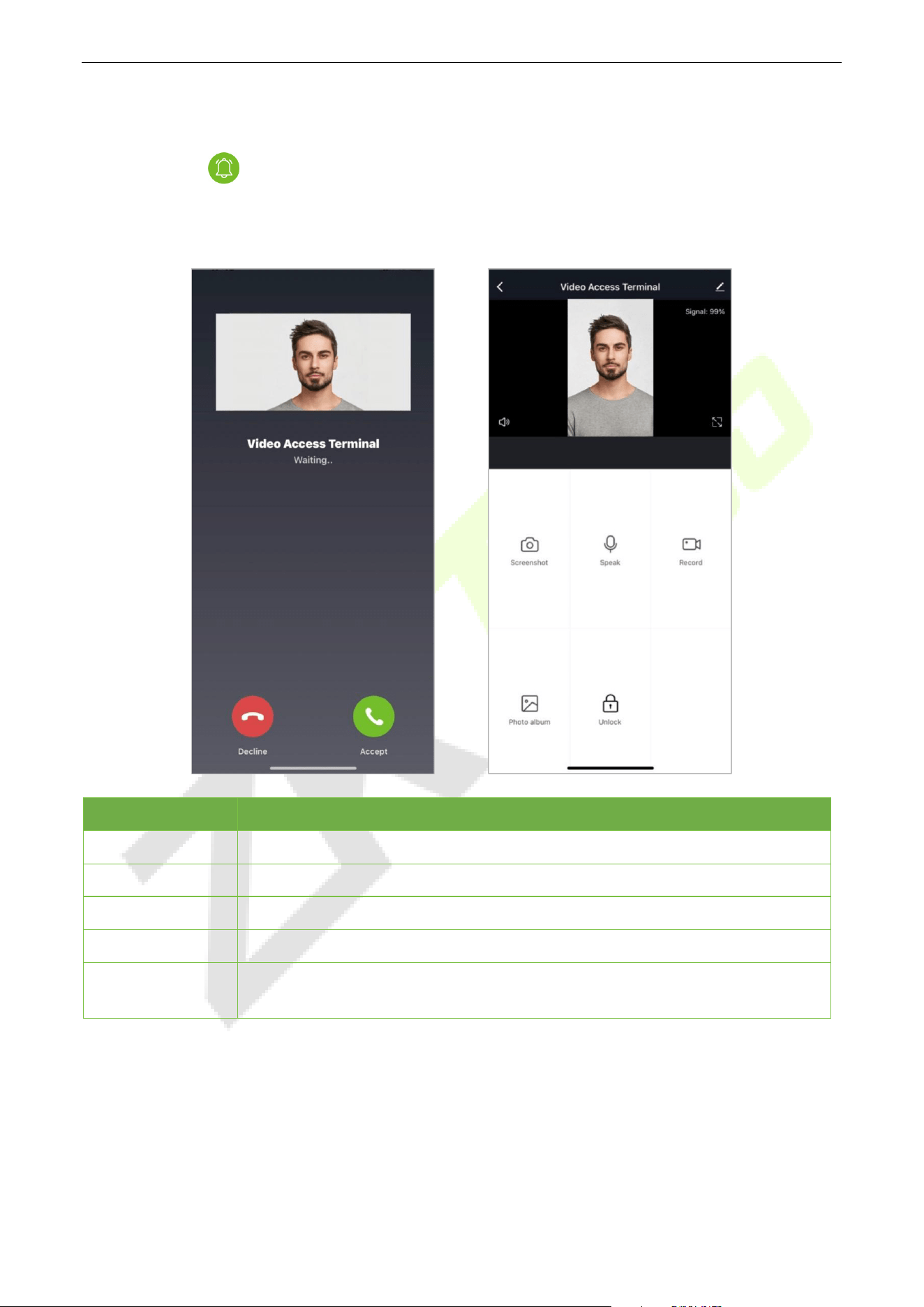
SpeedFace-V5L&H5L Series User Manual
Page | 101 Copyright©2023 ZKTECO CO., LTD. All rights reserved.
Video Phone Connection 17.2
Visitors press the button on the device to make a call and the phone will ring. The user can accept or
decline the call. After the user accepts the call, it will open the video door phone interface. Enter the
password to unlock the door.
Parameter Description
Screenshot
Click to take a screenshot.
Speak
The icon becomes blue when click it, and you can talk to the device at this time.
Record
Click to make a record video.
Photo album
View and delete screenshots and recorded videos.
Unlock
Click to open the door remotely. The unlocking record is saved in Me > Message
Center.
Note: For other specific operations, please refer to the ZSmart App User Manual.
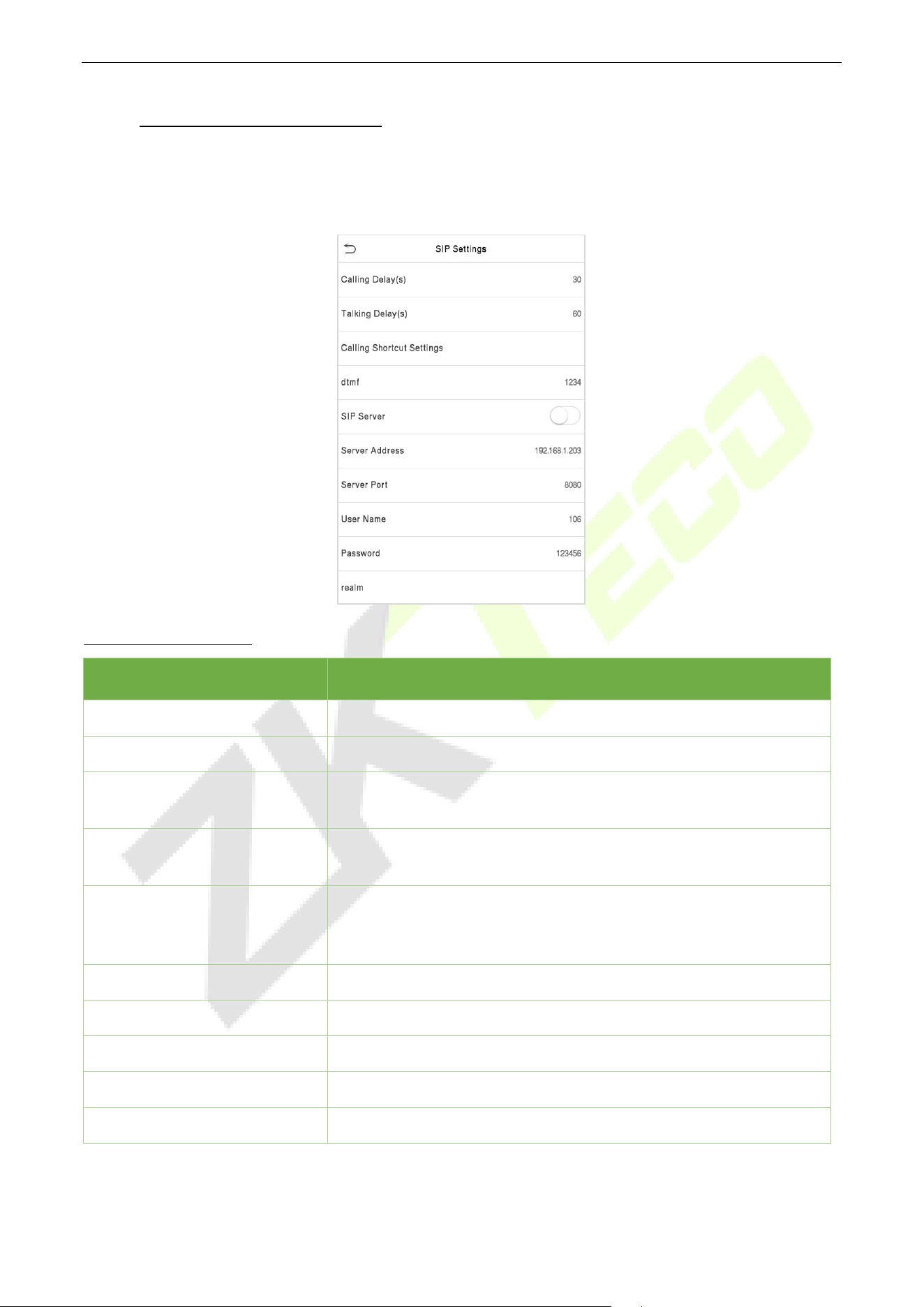
SpeedFace-V5L&H5L Series User Manual
Page | 102 Copyright©2023 ZKTECO CO., LTD. All rights reserved.
18 Connecting to SIP
★
Tap Video Intercom Parameters on the System interface to go to the monitoring parameter settings.
Note: This function needs to be used with the indoor station Vpad A2.
Function Description
Function Name Description
Calling Delay(s) Set the time of call, valid value 30 to 60 seconds.
Talking Delay(s) Set the time of intercom, valid value 60 to 120 seconds.
Calling Shortcut Settings
You can set a shortcut key to call the indoor station quickly without
entering the IP address of the indoor unit each time.
dtmf
The value of WebServer is the same as the value of DMTF in the
device in order to unlock it.
SIP Server
Select whether to enable the server address.
Once you have
connected to the server, you can call it by entering the username of
the indoor station.
Server Address Enter the server address.
Server Port Enter the server port.
User Name Enter the Username of server.
Password Enter the password of server.
realm Enter the realm of server.
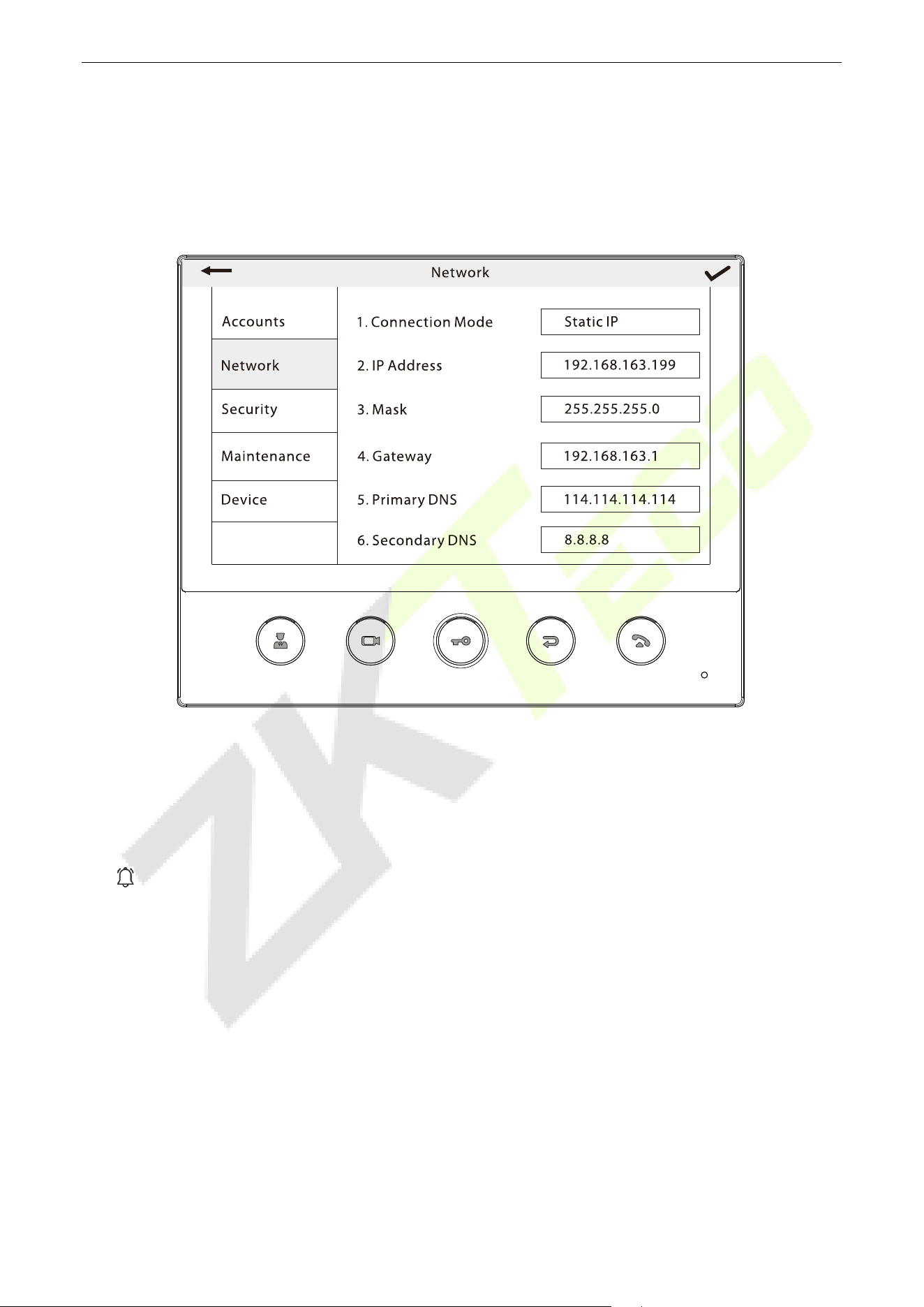
SpeedFace-V5L&H5L Series User Manual
Page | 103 Copyright©2023 ZKTECO CO., LTD. All rights reserved.
The SpeedFace-V5L and the indoor station to achieve video intercom there are two modes, respectively,
the LAN and SIP server.
Local Area Network Use 18.1
Set the IP address on the indoor station, Tap Menu > Advanced > Network > 1. Network > 1. IPv4.
Note: In LAN, the IP addresses of the indoor station and the SpeedFace-V5L must be in the same network
segment.
Directly Enter the IP Address of the Indoor Station
Once the indoor station is configured with the network, the video intercom function can be realized by tap
the icon on the SpeedFace-V5L screen and entering the IP address of the indoor station in the jumping
interface.
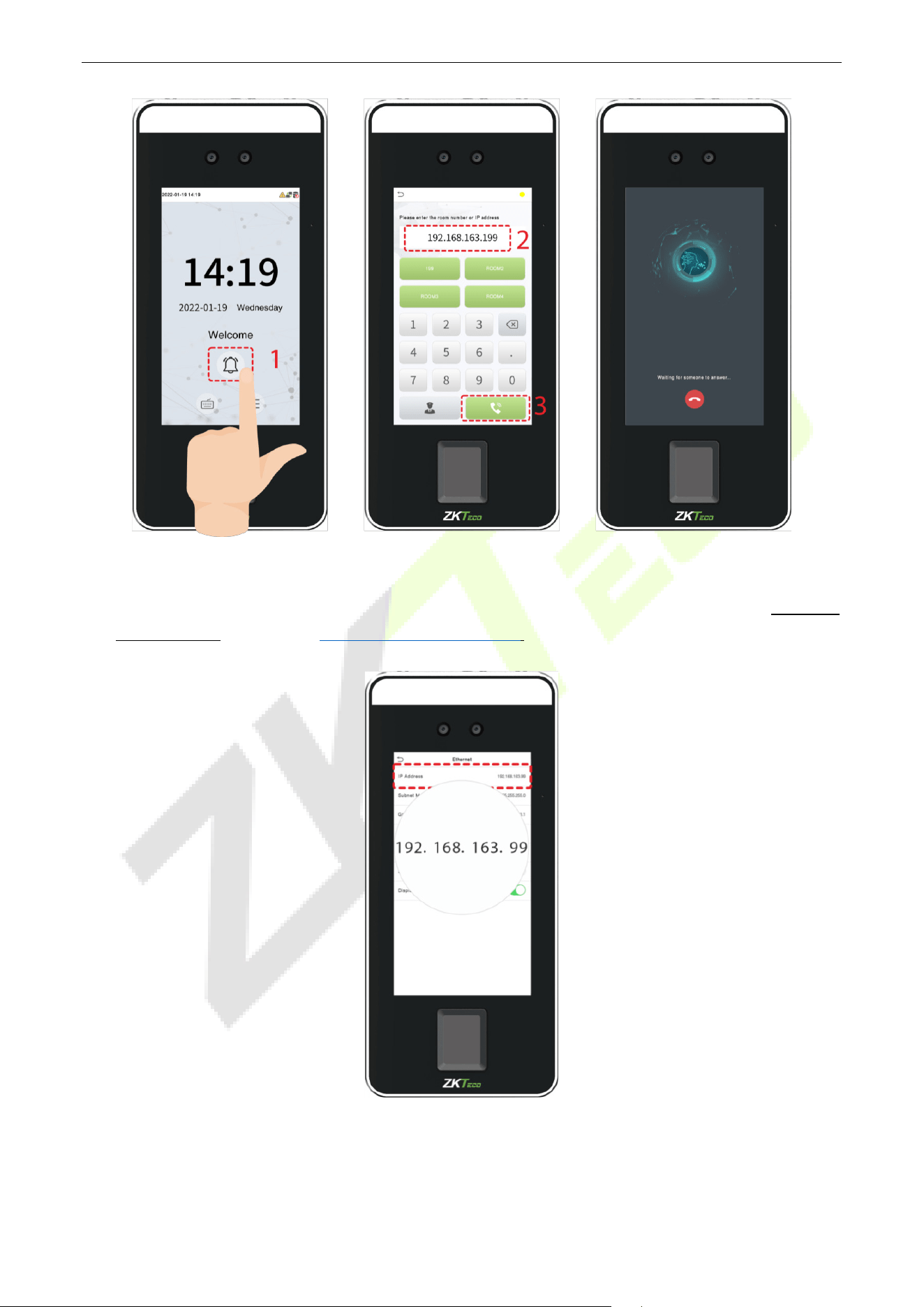
SpeedFace-V5L&H5L Series User Manual
Page | 104 Copyright©2023 ZKTECO CO., LTD. All rights reserved.
Custom the Punch Status Options
1. Use your browser to enter the address to log into WebSever, the address is the Serial IP
Address:1443, for example: https: //192.168.163.99:1443.
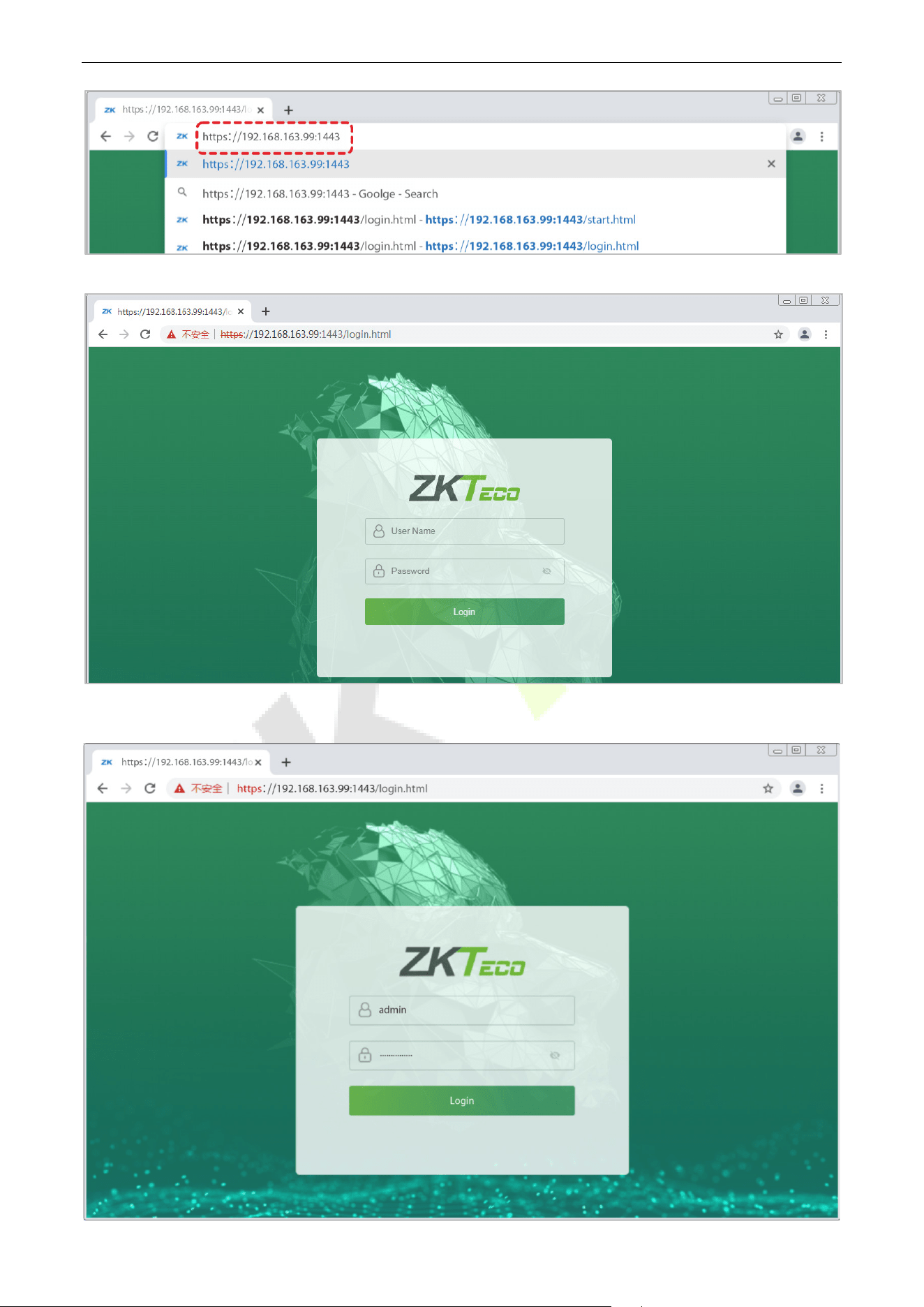
SpeedFace-V5L&H5L Series User Manual
Page | 105 Copyright©2023 ZKTECO CO., LTD. All rights reserved.
2. Enter the WebSever account and password, the initial account is: admin, password: admin@123.
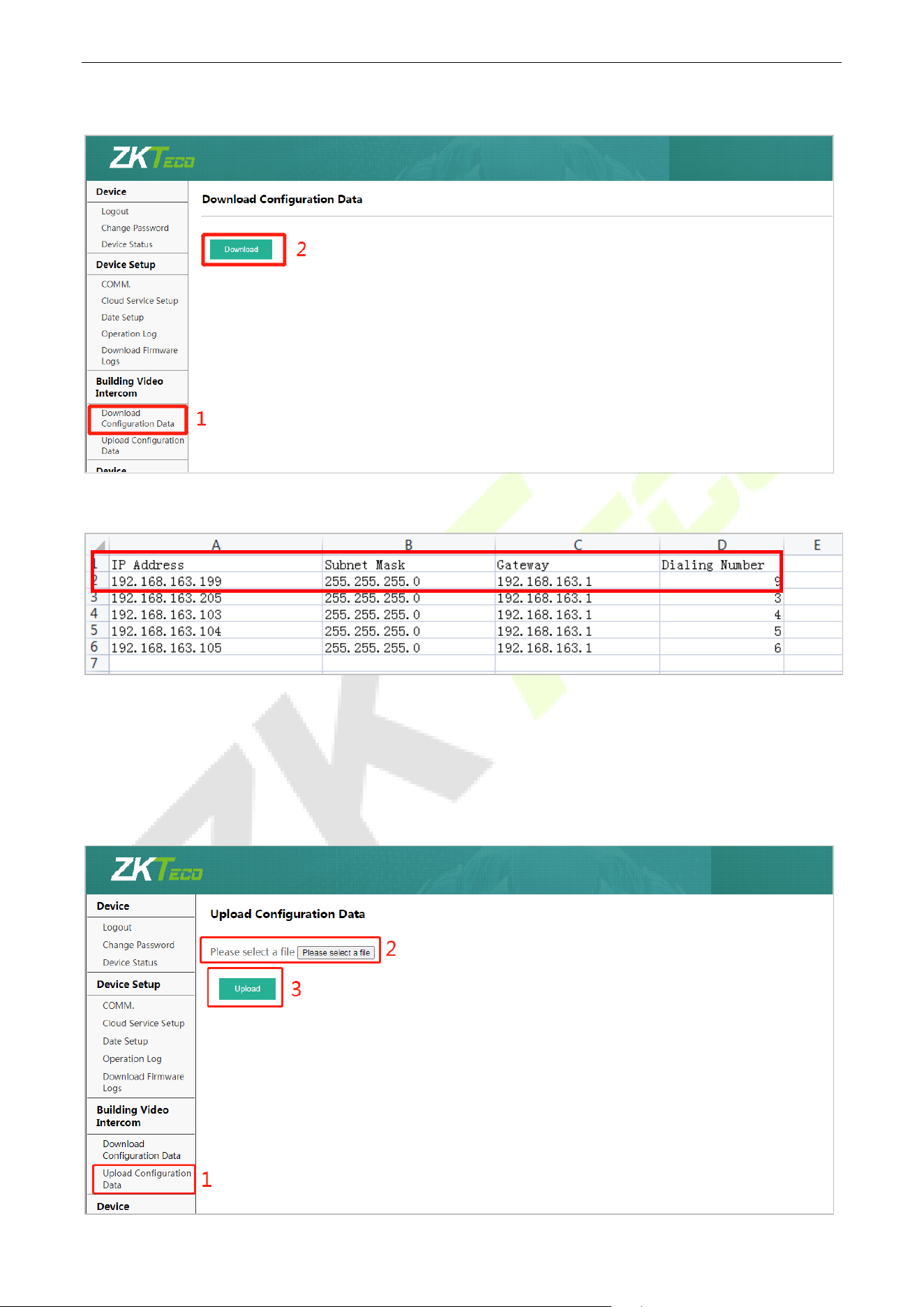
SpeedFace-V5L&H5L Series User Manual
Page | 106 Copyright©2023 ZKTECO CO., LTD. All rights reserved.
3. Download configuration data.
4. Enter the indoor station's communication address and device number in the downloadable form.
IP Address/Subnet Mask/Gateway: Must be the same as the indoor station to be connected.
Dialing Number: Customize the number of the indoor station, you can enter the value on SpeedFace-V5L
to call the indoor station quickly for video intercom.
5. Once the form is set up and saved, upload the configuration form in WebSever.
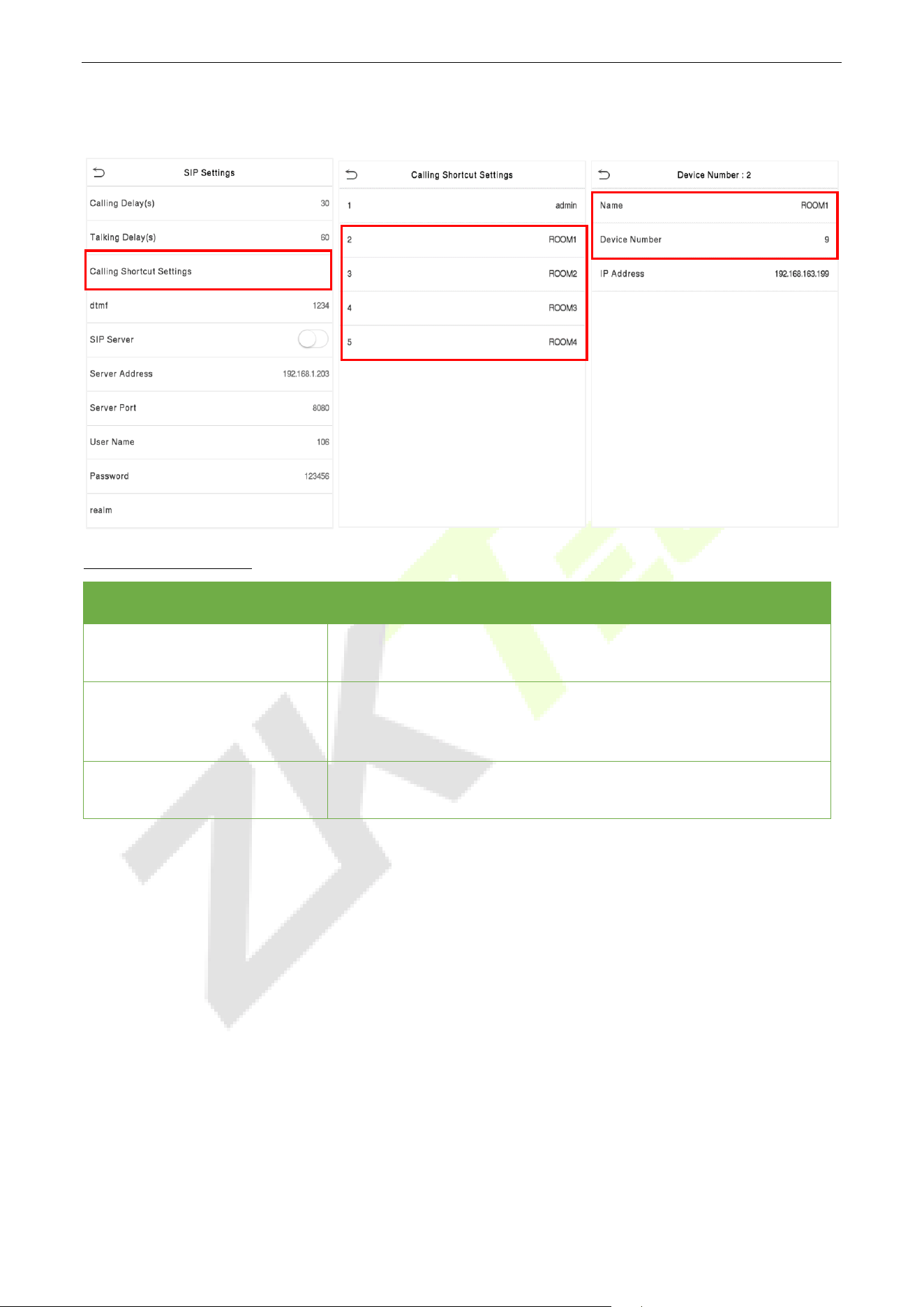
SpeedFace-V5L&H5L Series User Manual
Page | 107 Copyright©2023 ZKTECO CO., LTD. All rights reserved.
6. On SpeedFace-V5L, tap Calling Shortcut Settings, select any item except admin, and enter the form
information you just uploaded.
Function Description
Function Name Description
Name
You can customize any character (support Chinese, English,
numbers, symbols, etc.) that will be displayed on the call page.
Device Number
It is the dialing number in the configuration data, you can enter the
value on SpeedFace-V5L to call the indoor station quickly for video
intercom.
IP Address
After entering the dialing number, the corresponding IP address in
the configuration data will be automatically paired.
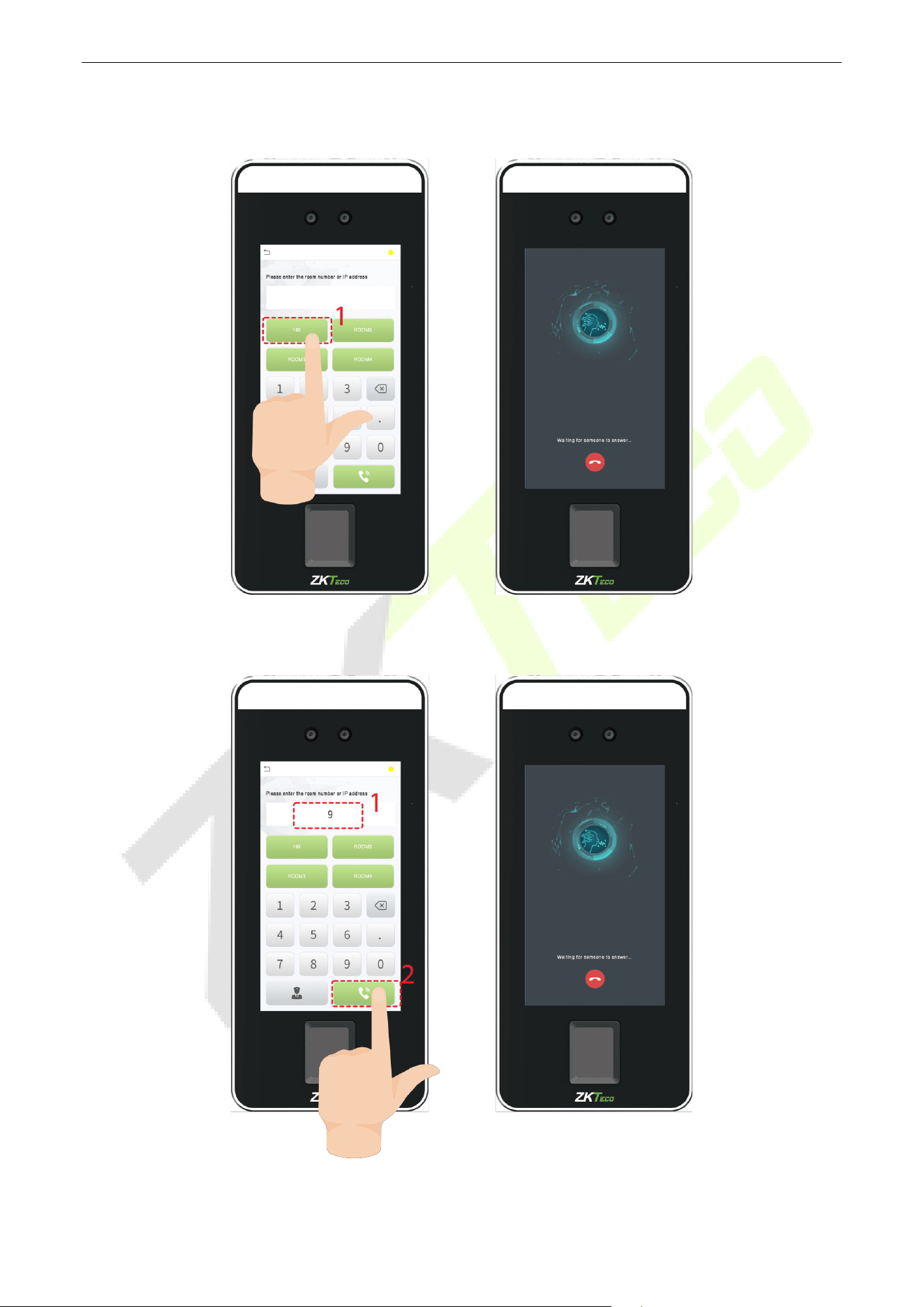
SpeedFace-V5L&H5L Series User Manual
Page | 108 Copyright©2023 ZKTECO CO., LTD. All rights reserved.
Name
You can then tap 199 on the punch status options to directly implement the video intercom.
Device Number
Enter the device number in the call screen.
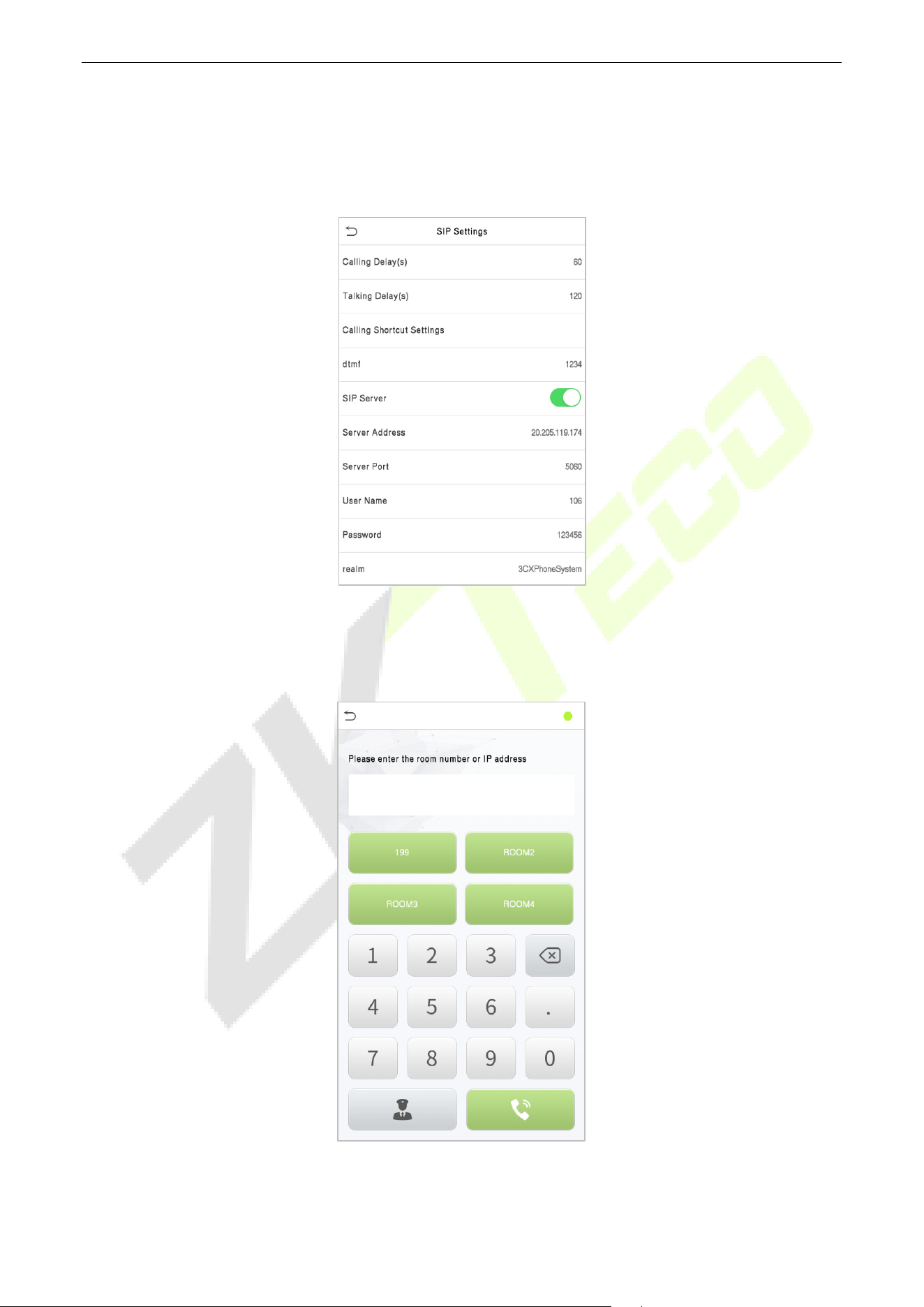
SpeedFace-V5L&H5L Series User Manual
Page | 109 Copyright©2023 ZKTECO CO., LTD. All rights reserved.
SIP Server 18.2
On SpeedFace-V5L, tap SIP Server, after the device is rebooted, enter the server-related parameters, as
shown below:
Once the SIP is set up correctly, a green dot will appear in the upper right corner of the call page to
indicate that the SpeedFace-V5L is connected to the server. You can call the account name of the indoor
station.
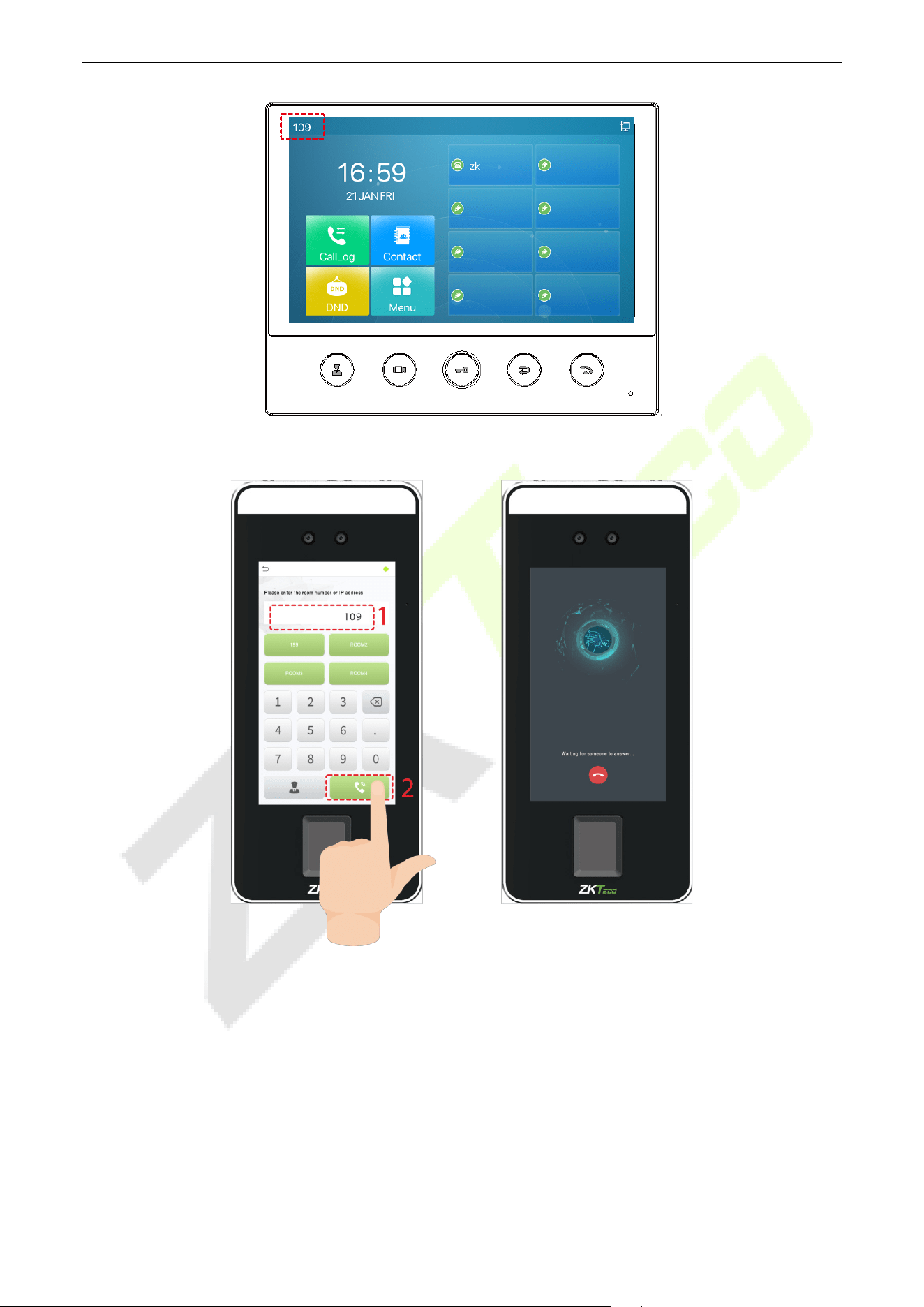
SpeedFace-V5L&H5L Series User Manual
Page | 110 Copyright©2023 ZKTECO CO., LTD. All rights reserved.
For details on the operation and use of the indoor station, please refer to the Indoor Station User Manual.
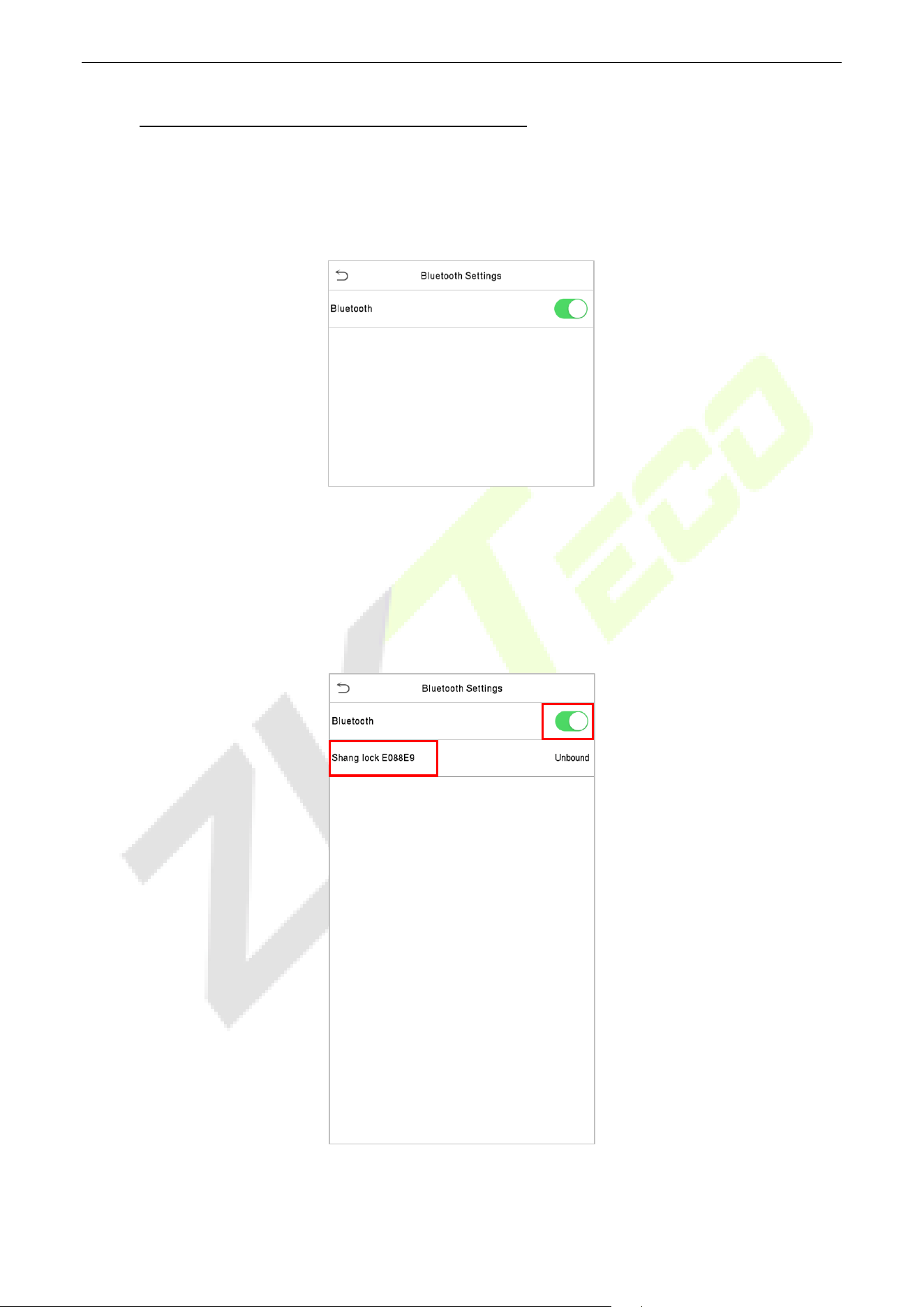
SpeedFace-V5L&H5L Series User Manual
Page | 111 Copyright©2023 ZKTECO CO., LTD. All rights reserved.
19 Connecting to Bluetooth Lock
★
Through this Bluetooth function, the Bluetooth lock can be bound to the device, and when the user passes
the verification on the device or enters the correct Bluetooth lock code, the lock can be unlocked remotely.
Tap Bluetooth Settings on the Comm. Settings interface to set the Bluetooth.
Bind Device 19.1
Click Bluetooth to enable the Bluetooth function.
You need to wake up the lock, the device will search through Bluetooth and display the Bluetooth
lock to be bound on the Bluetooth Settings interface.
Select the unbound Bluetooth lock again to enter the Details interface.
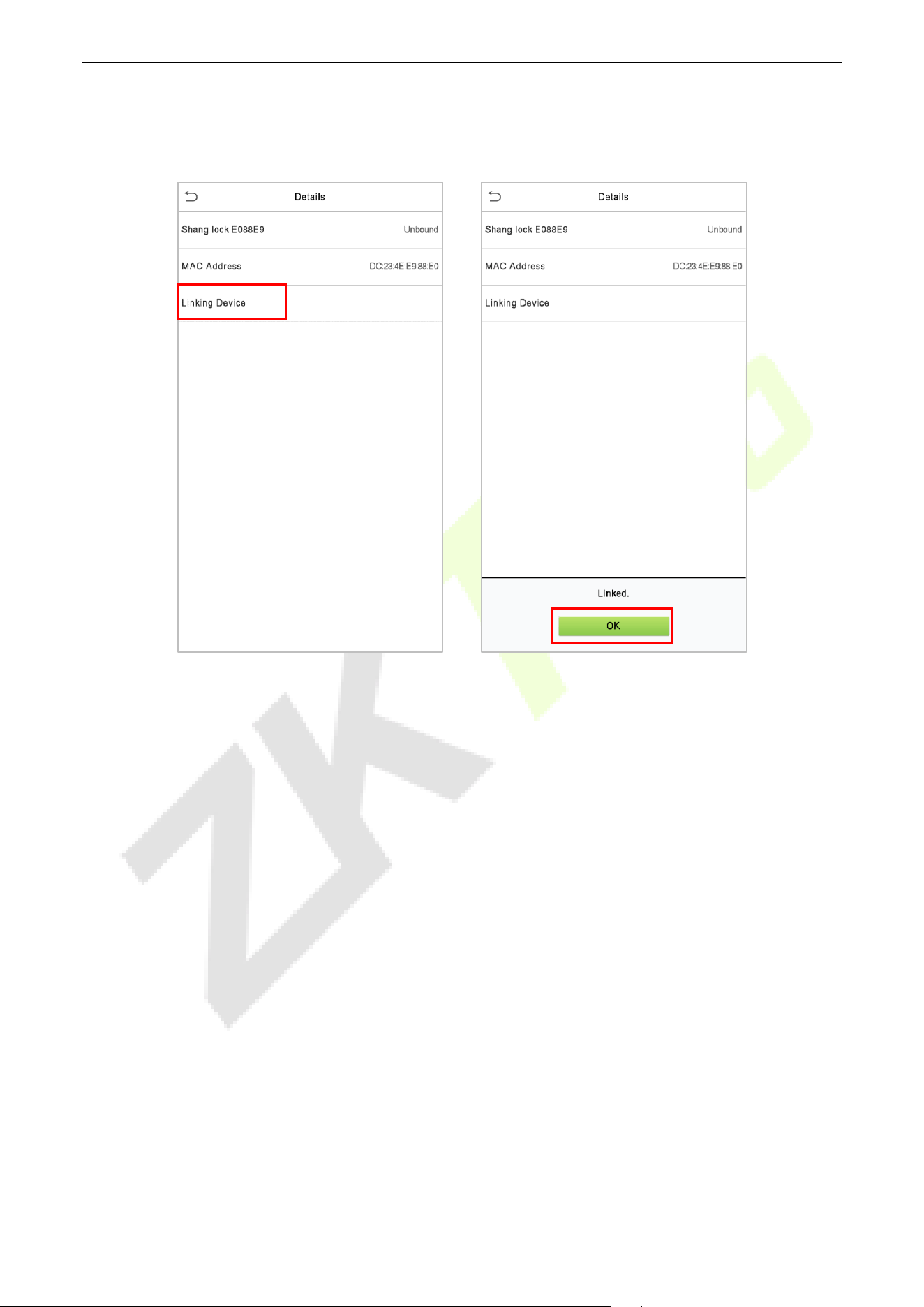
SpeedFace-V5L&H5L Series User Manual
Page | 112 Copyright©2023 ZKTECO CO., LTD. All rights reserved.
Please touch the Bluetooth lock keyboard to wake up the device first, and then click Linking Device,
the Bluetooth lock will emit a beep sound, and the interface will pop up a "Linked" prompt, indicating
that the device is successfully bound.
Unbind Device 19.2
Tap on Comm. > Bluetooth Settings, select the bound Bluetooth lock, and enter the Details
interface.
Please wake up the device first, and then click Unlink Device on the Details interface. The interface
will pop up a “Are you sure to unlink the device?” prompt, then click OK.
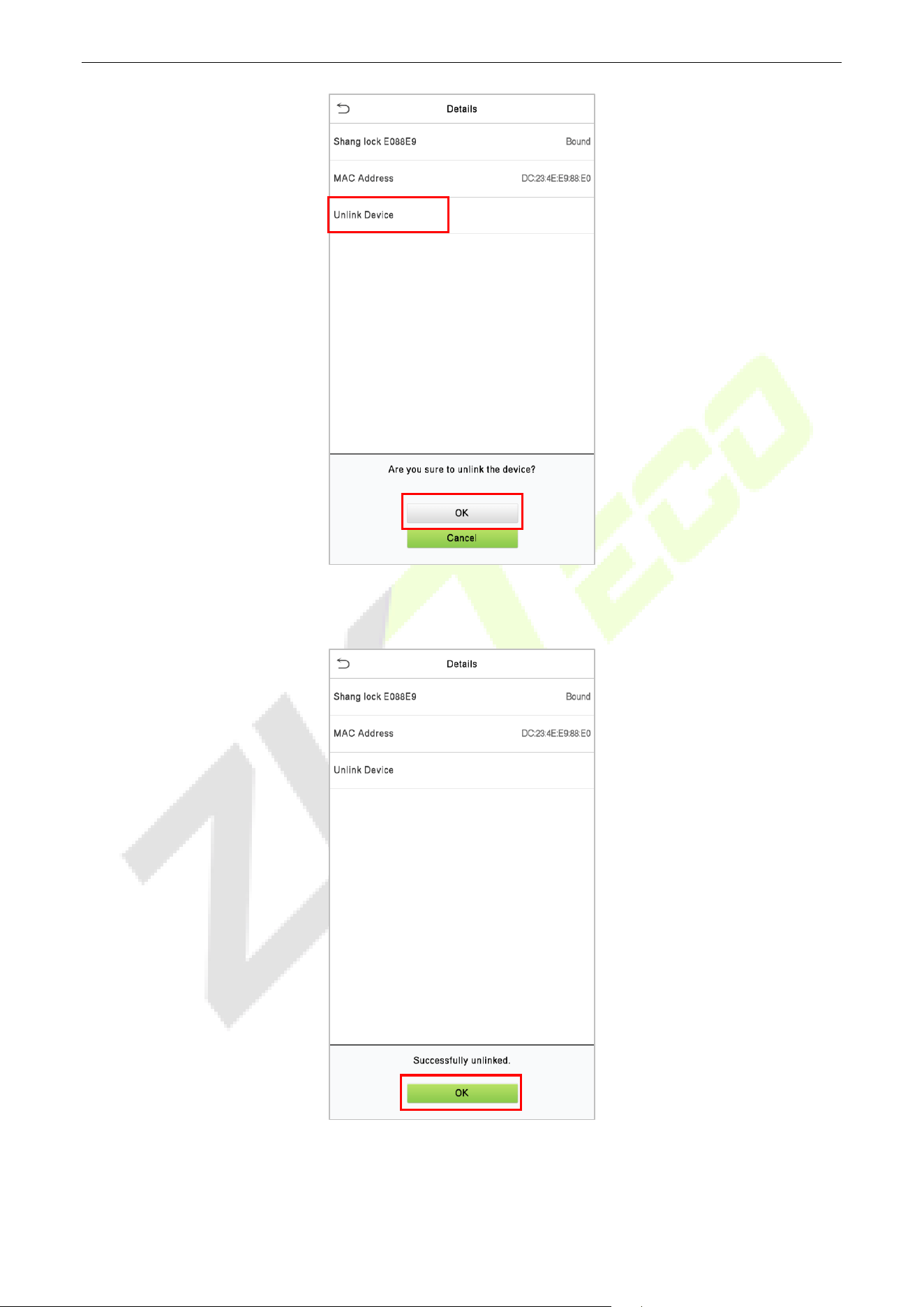
SpeedFace-V5L&H5L Series User Manual
Page | 113 Copyright©2023 ZKTECO CO., LTD. All rights reserved.
After the Bluetooth lock emits three beep sound, the interface will pop up a "Successfully unlinked."
prompt, indicating that the unbinding of the device is complete.
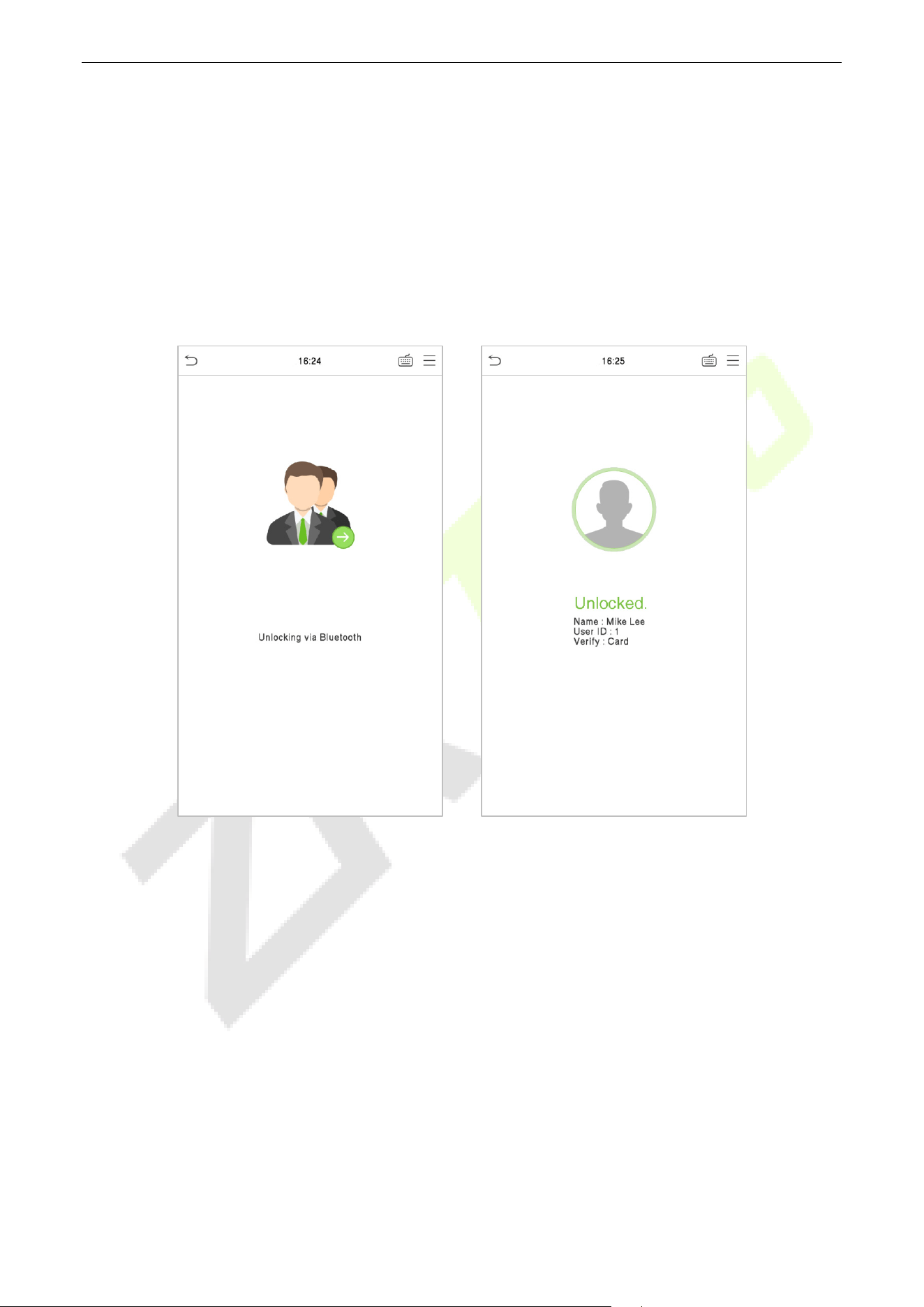
SpeedFace-V5L&H5L Series User Manual
Page | 114 Copyright©2023 ZKTECO CO., LTD. All rights reserved.
Unlock 19.3
After the user binds the Bluetooth lock to the device, the lock can be unlocked through the device.
Unlock via SpeedFace-V5L
After binding the Bluetooth lock to the device, the Bluetooth lock can be opened remotely when the user
verifies that the face, card, fingerprint or password on the device.
After verification, the interface pops up an "Unlocking via Bluetooth" prompt, and the lock is opened
after 5 seconds.
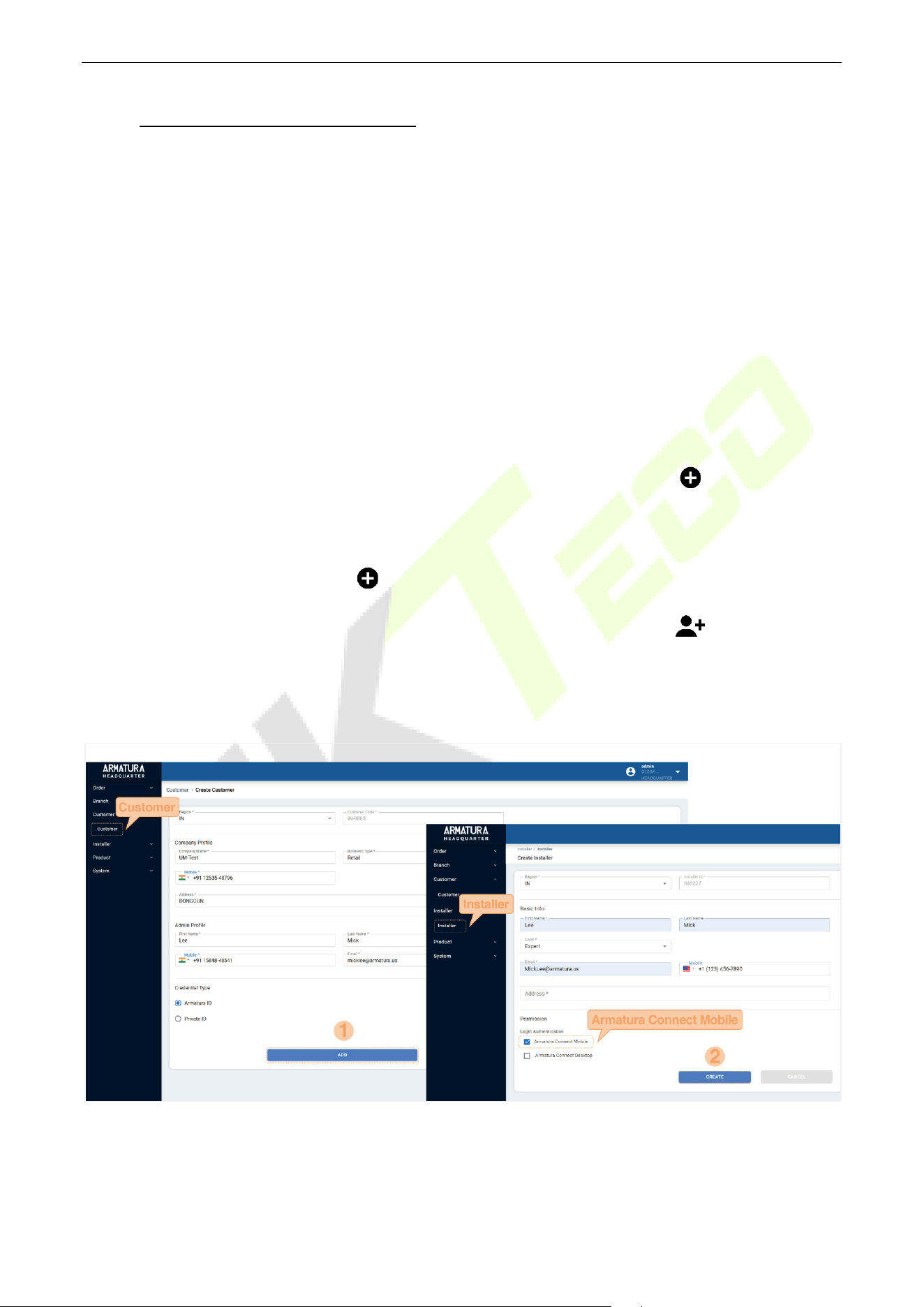
SpeedFace-V5L&H5L Series User Manual
Page | 115 Copyright©2023 ZKTECO CO., LTD. All rights reserved.
20 Connecting to ACMS
★
ACMS (Armatura Credential Management System) facilitates integrators to use the ARMATURA CONNECT
App with SpeedFace-V5L Series. The ACMS can be used by customers & integrators to manage & issue
credentials.
ARMATURA CONNECT 20.1
20.1.1 Activate the Account
The Branch/Partner needs to create a customer on the ACMS first. Then add an installer and assign the
installer to the customer. Once the installer has activated the account, the SpeedFace-V5L Series can be
assigned. The operation steps are as follows:
1. The Branch/Partner log in to the ACMS and click Customer > Customer > to register a new
customer. Enter information including customer code, company profile, admin profile and credential
type, etc.
2. Then click Installer > Installer > to add an installer.
3. Click Customer to enter the customer list and select a specific customer. Click icon to assign the
installer selected in the installer selection bar to this customer.
4. The installer opens the email sent by Armatura Credential Management System to activate the
account. Click Activate Account to activate the account.
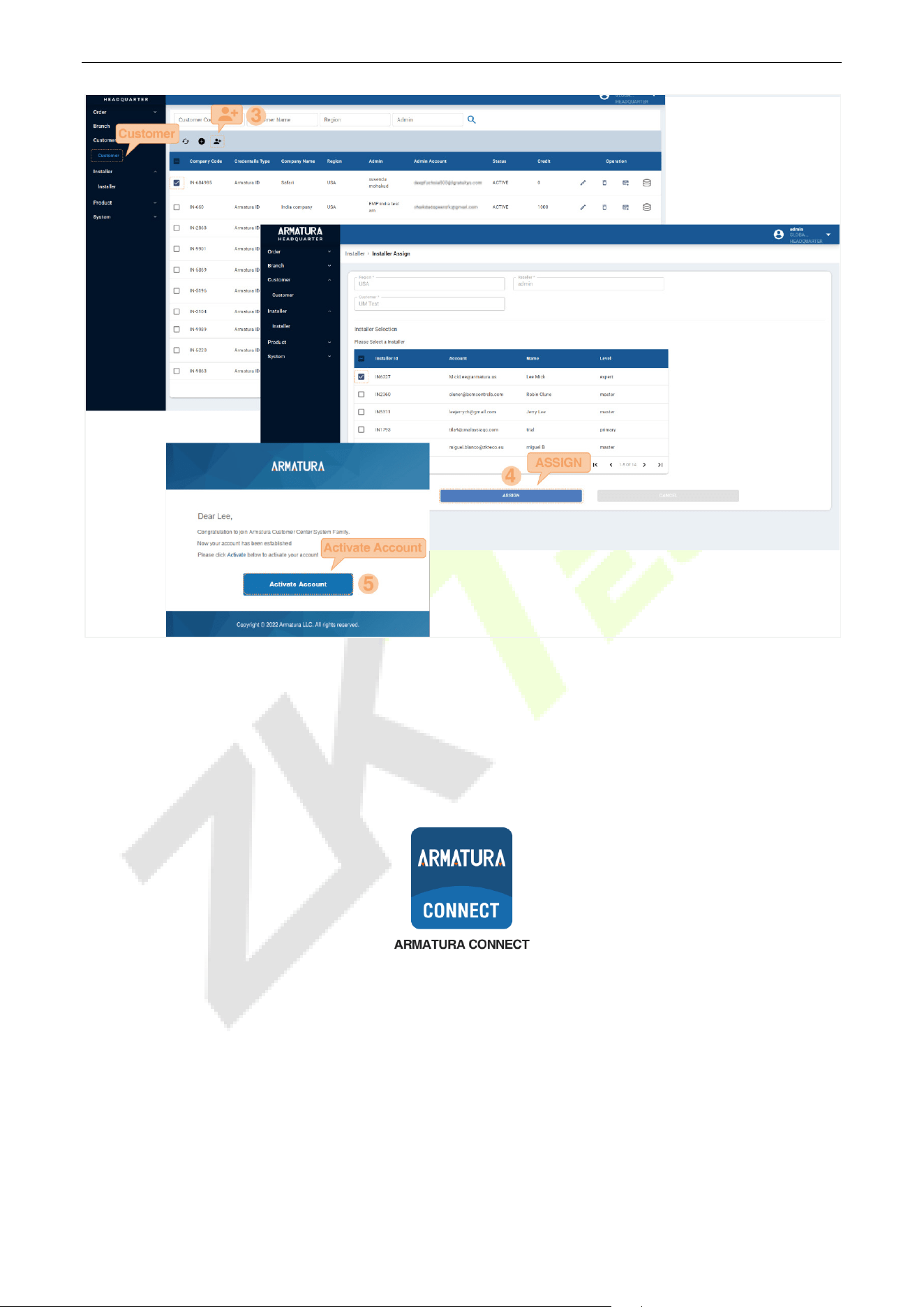
SpeedFace-V5L&H5L Series User Manual
Page | 116 Copyright©2023 ZKTECO CO., LTD. All rights reserved.
20.1.2 Download and Install the App
1. Ensure your mobile device is connected to the internet via a mobile or Wi-Fi network.
2. On your mobile device open the Google Play (Android) or Apple (iOS) store.
3. Search for ARMATURA CONNECT App.
4. Download and install the App on your mobile device.
20.1.3 Log In the App
After the account activation process is complete, you can log in to the ARMATURA CONNECT App with
your account and password.
1. Enter the account and the password. Click Sign In to log into the ARMATURA CONNECT App. The
password is set when the account was activated.
2. If you have forgotten your login password, tap Forgot Password?. Enter your email address and tap
Send Link. Your password will be reset through the ACMS mailbox.
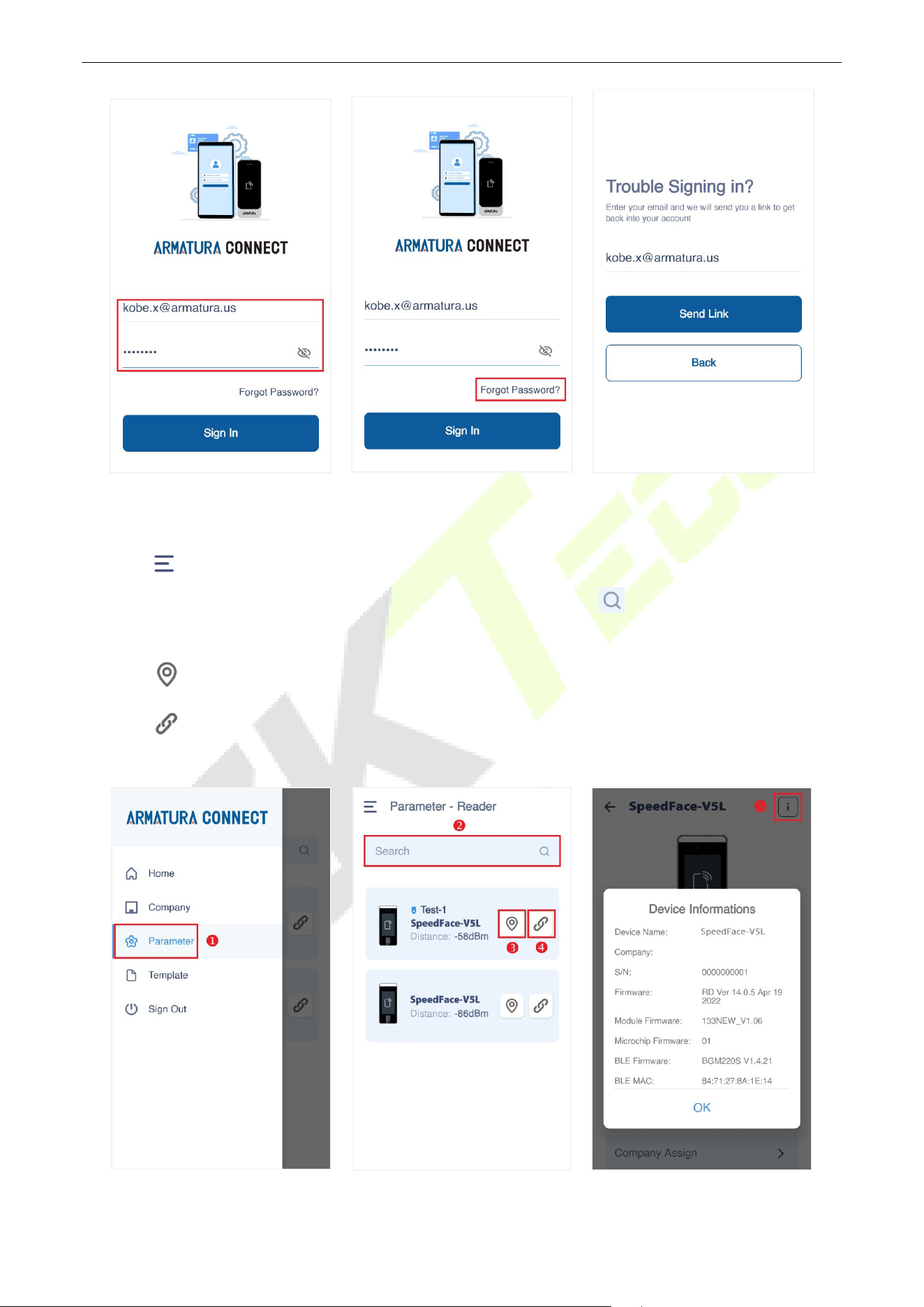
SpeedFace-V5L&H5L Series User Manual
Page | 117 Copyright©2023 ZKTECO CO., LTD. All rights reserved.
20.1.4 Bind Device
1. Click > Parameter to enter the parameter setting screen.
2. Turn on the Bluetooth function of the mobile device, and click to search for the device. All
searched devices will be displayed in the list.
3. Click to confirm your device.
4. Click to enter the device parameter setting screen. Here you can set the relevant parameters of
the device.
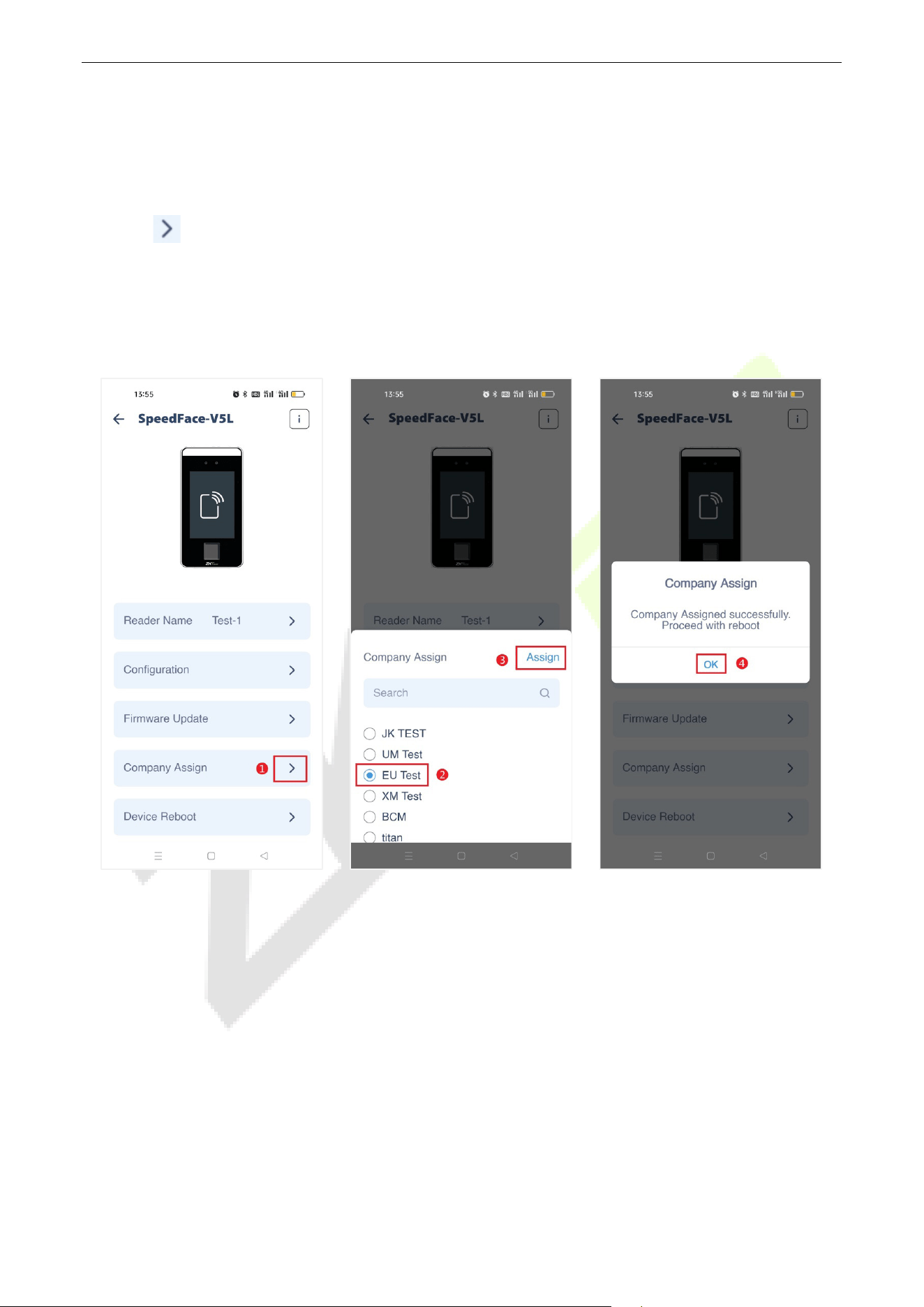
SpeedFace-V5L&H5L Series User Manual
Page | 118 Copyright©2023 ZKTECO CO., LTD. All rights reserved.
20.1.5 Company Assign
This function is used to assign the device to the company. The Bluetooth function of the mobile device
needs to be turned on before operation.
1. Click of the Company Assign item to open the setting interface. And the Assignment window
will pop up. Select the company and click Assign to assign the device to the selected company.
2. Click OK when prompted that the assignment is successful.
3. After completing the above steps, please wait for the device to reboot. Note: After each configuration
of the reader parameters, the reader will reboot.
After the device configuration is complete, employees of the company can use the mobile credentials to
operate on the Armatura ID App.
ARMATURA ID 20.2
ARMATURA ID allows end users to use their mobile devices (smartphones) to securely and conveniently
enter the workplace by extending access control capabilities to smart devices.
When the user approaches the SpeedFace-V5L, the following interaction modes can be performed
through their mobile device to access:
Card Mode: When using this mode, the end user's mobile device is brought very close to, or touching
the reader (a similar user experience to using a physical credential).
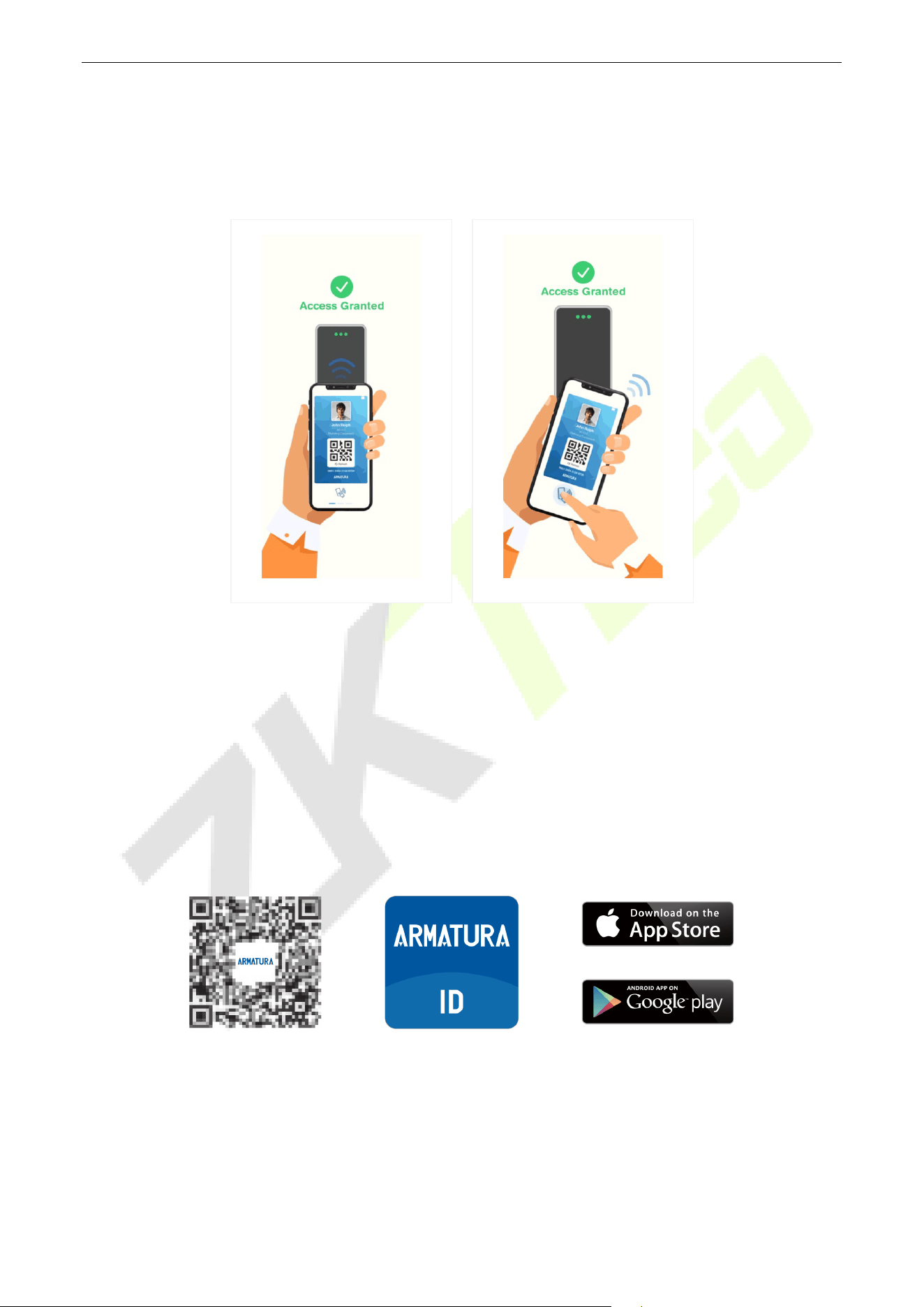
SpeedFace-V5L&H5L Series User Manual
Page | 119 Copyright©2023 ZKTECO CO., LTD. All rights reserved.
Remote Mode: This mode allows end users to use mobile devices to perform remote control within
the set range.
Note: The effective distance of Card Mode is 0 to 20 inches (0 to 50 centimeters). The effective distance of
Remote Mode is 0 to 394 inches (0 to 1000 centimeters).
Card Mode Remote Mode
20.2.1 Download the ARMATURA ID App
Ensure the mobile device is connected to the internet (either via mobile data network or Wi-Fi) during
device registration and Mobile ID delivery. Both Android and iOS versions are available, please download
the App according to the following instructions.
1. Search for the ARMATURA ID App in the Apple App Store (for iOS devices), Google Play Store (for
Android devices) or scan the QR code below to download the App on your mobile phone.
2. You can also download the App by clicking on the store icons in the activation code email sent by the
server mailbox Armatura Credential Management System.
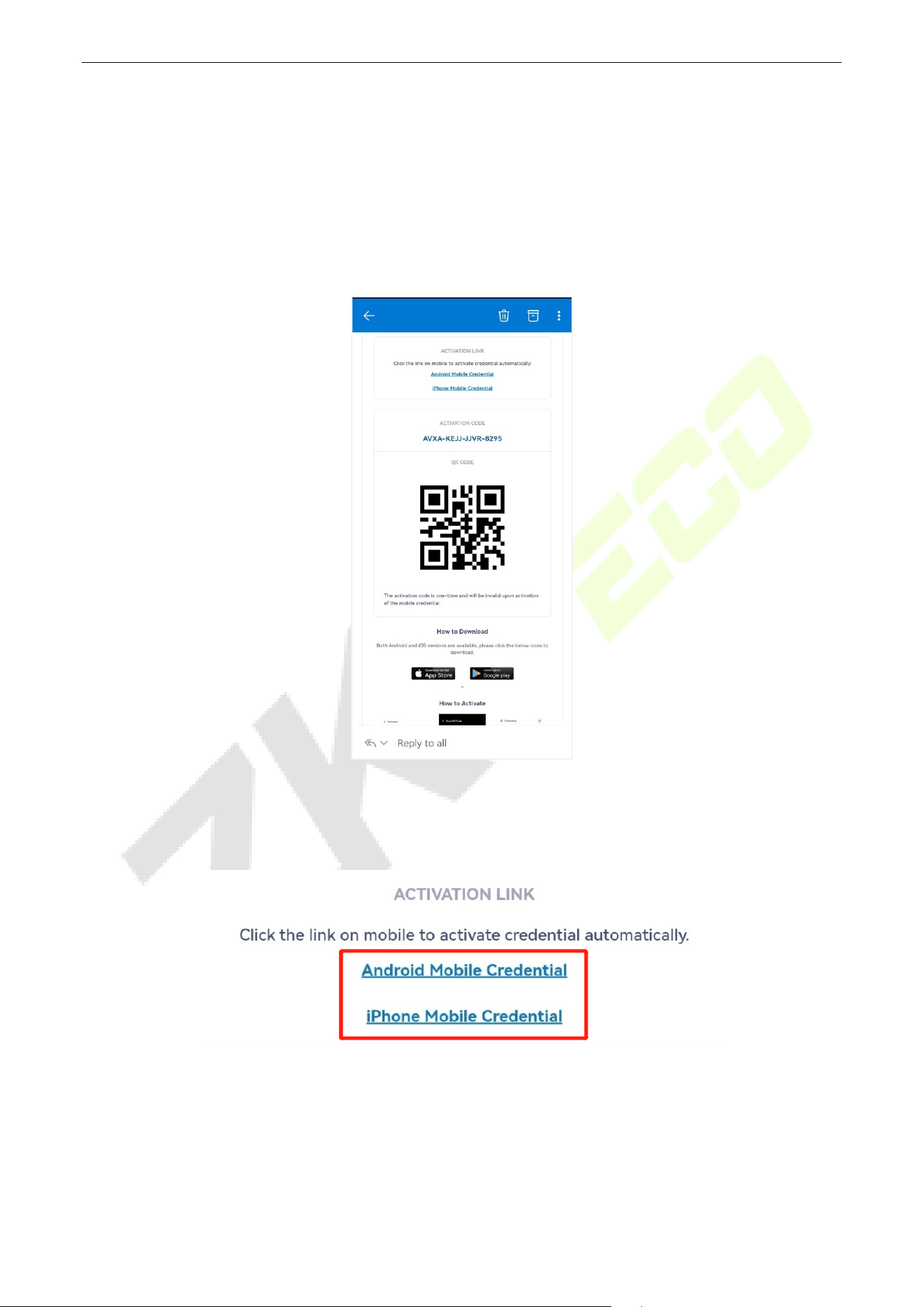
SpeedFace-V5L&H5L Series User Manual
Page | 120 Copyright©2023 ZKTECO CO., LTD. All rights reserved.
20.2.2 Activate the Credentials
After completing the installation of the App, you first need to activate the credentials. There are three ways
to activate the credentials: click the activation link to activate automatically, enter the activation code to
activate, and scan the QR code to activate. The specific operation steps are as follows.
First, please open the activation code email sent by Armatura Credential Management System. It is sent by
the site administrator of your company via ACMS.
Click the Activation Link to Activate
Click the link on mobile to activate credential automatically. Follow the prompts.
Enter the Activation Code to Activate
1. Open the ARMATURA ID App and enter the Credentials interface. Click Activate.
2. Manually enter the activation code from the email in the input field.
3. Click Activate on the Activation interface.
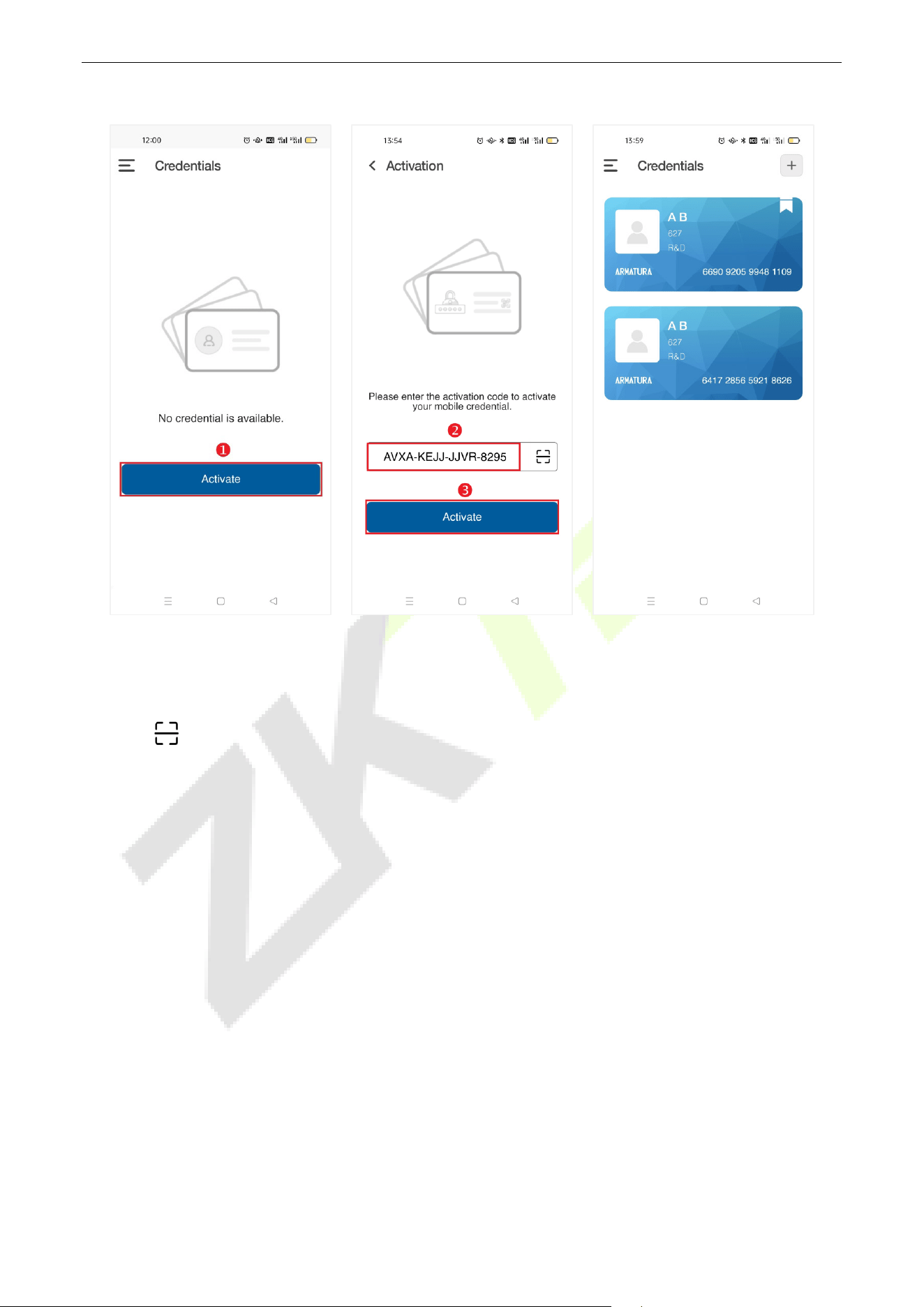
SpeedFace-V5L&H5L Series User Manual
Page | 121 Copyright©2023 ZKTECO CO., LTD. All rights reserved.
4. A mobile credential will be displayed after successful activation.
Scan the QR Code to Activate
1. Open the ARMATURA ID App and enter the Credentials interface. Click Activate.
2. Click to scan the QR code on the email. And the system will automatically enter the activation
code.
3. Then click Activate to activate the credential.
4. A mobile credential will be displayed after successful activation.
Note:
1. Please turn on the Bluetooth function of your mobile phone before scanning.
2. In order to allow access for users' devices, the site administrators need to assign devices under their
company beforehand.
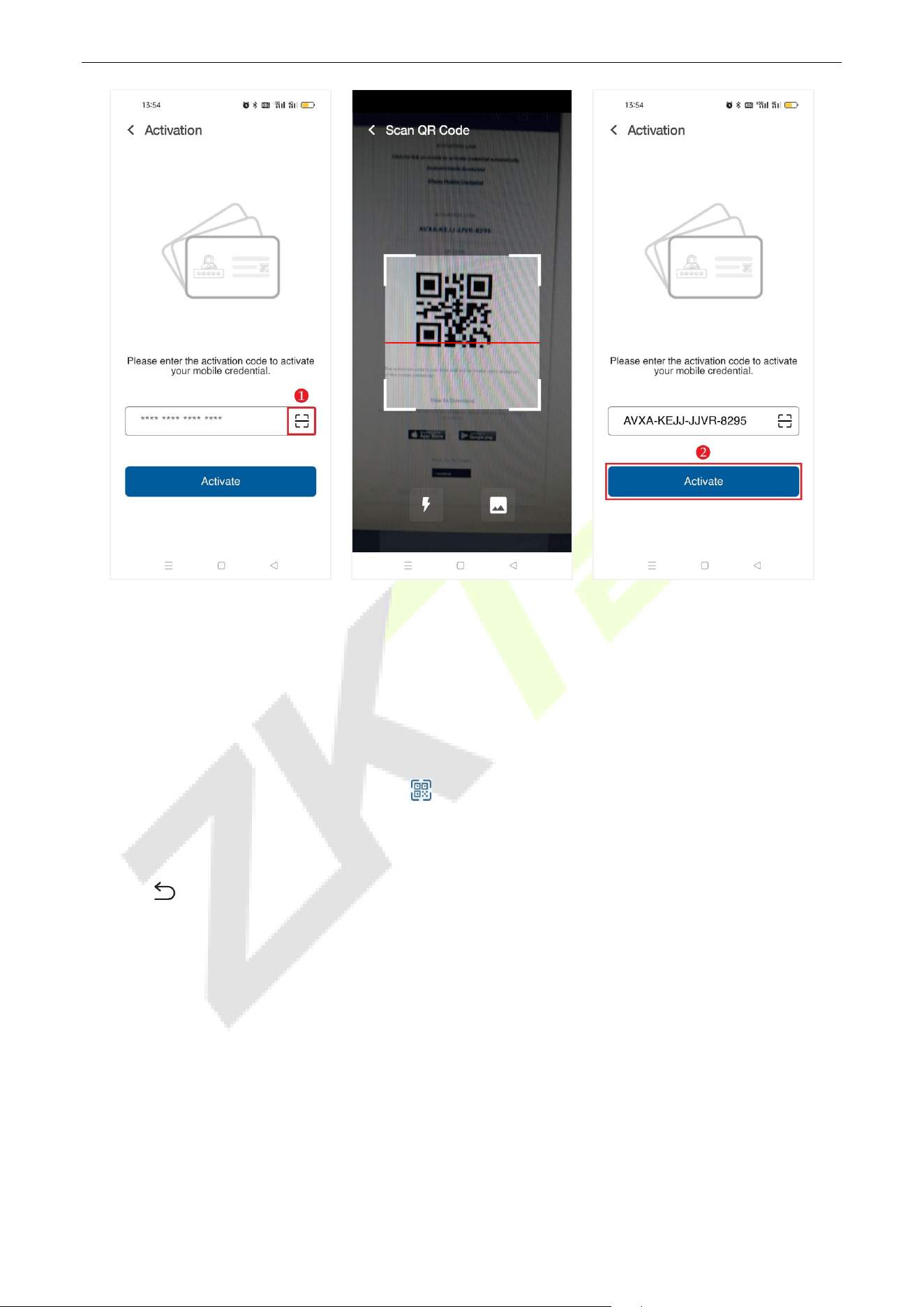
SpeedFace-V5L&H5L Series User Manual
Page | 122 Copyright©2023 ZKTECO CO., LTD. All rights reserved.
20.2.3 Use of the Mobile Credentials
The end users can swipe their cards through QR code, NFC and Bluetooth.
Swipe the card through QR code
1. Click Parameters - Style on the main menu to modify the display style.
2. Under the card style, you need to click to call up the dynamic QR code. In the tiled style, the
dynamic QR code can be seen directly on the card.
3. You just need to swipe the QR code on your mobile phone on the SpeedFace-V5L to open the door.
4. Click to return to the previous interface.
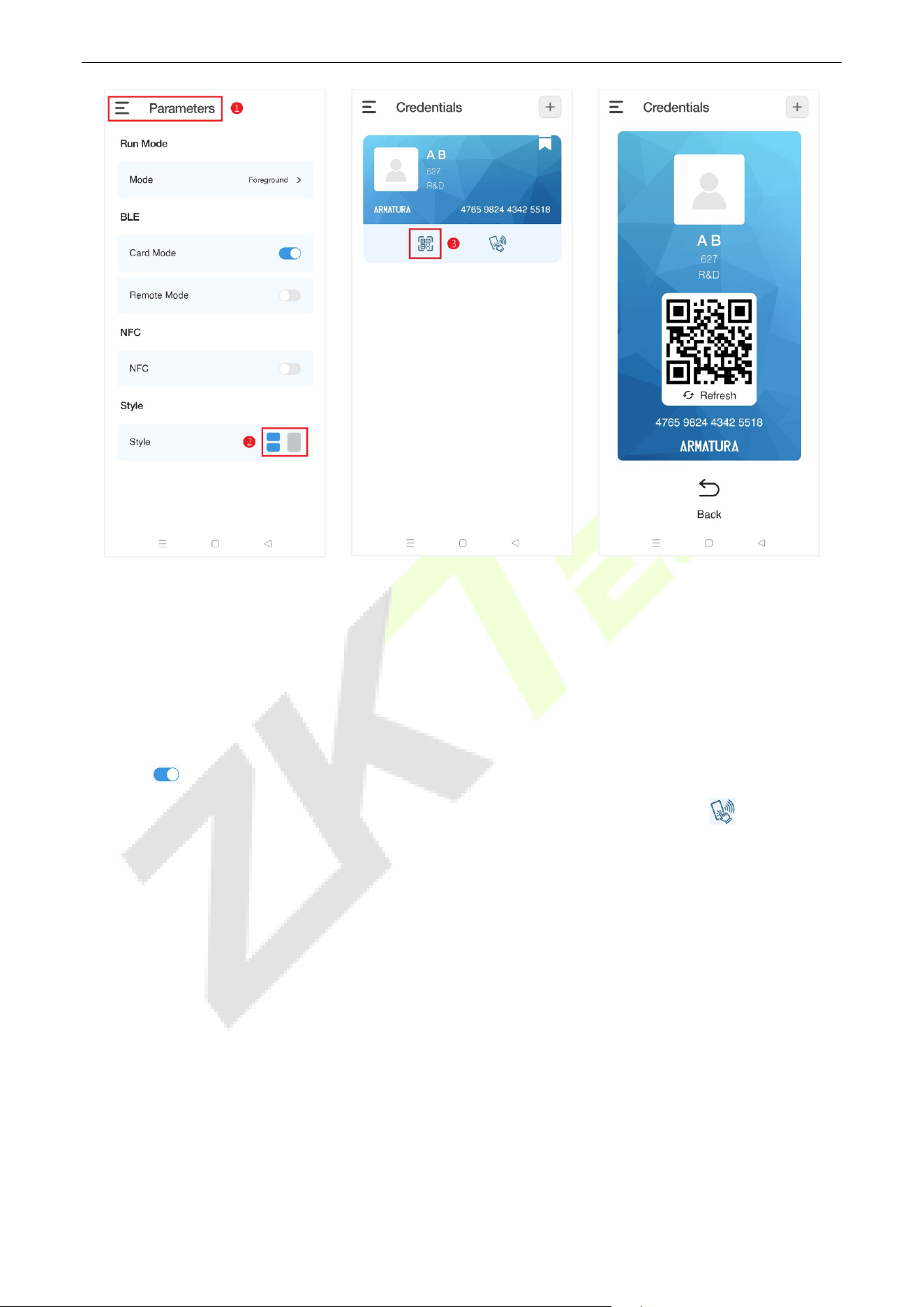
SpeedFace-V5L&H5L Series User Manual
Page | 123 Copyright©2023 ZKTECO CO., LTD. All rights reserved.
Swipe the card through Bluetooth
Card mode functions requires the end user to hold the mobile device close to the card reader to swipe the
card. Remote mode functions like a remote control. With the remote mode, you don't need to swipe the
card on the reader, just get close to the reader within the effective range.
1. Turn on the Bluetooth functions on your mobile phone.
2. Click Parameters on the Main Menu screen to enter the parameter setting interface.
3. Click of the Card Mode or Remote Mode to enable the function.
4. Then you can swipe the card with the mobile phone close to the reader, or click of the card to
swipe the card remotely within the set range.
5. At the same time, the reader beeps twice and the LED turns green. And the mobile device screen
prompts that the verification is successful.
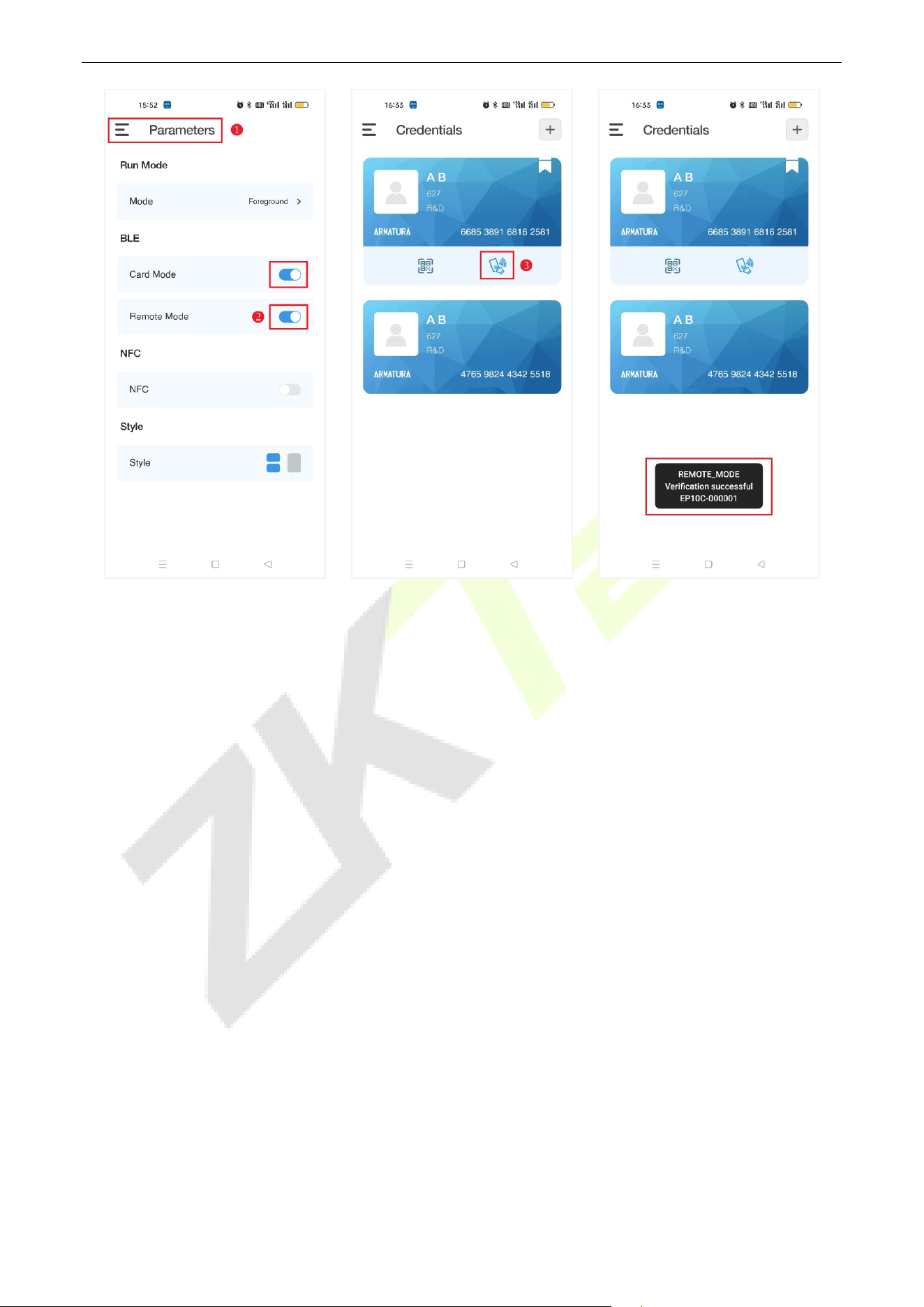
SpeedFace-V5L&H5L Series User Manual
Page | 124 Copyright©2023 ZKTECO CO., LTD. All rights reserved.
Note: For other specific operations, please refer to Armatura CONNECT User Manual and Armatura ID
User Manual.
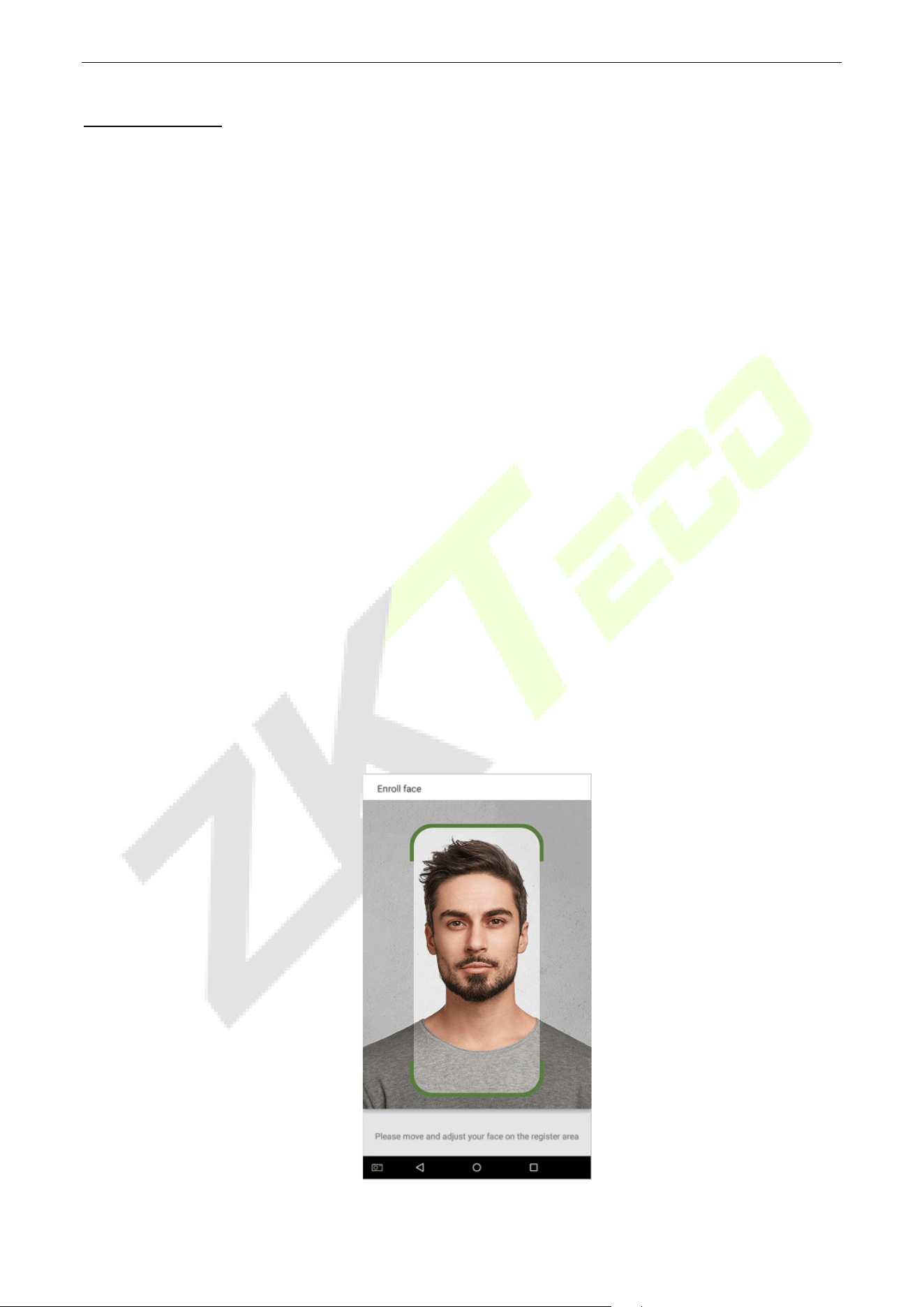
SpeedFace-V5L&H5L Series User Manual
Page | 125 Copyright©2023 ZKTECO CO., LTD. All rights reserved.
Appendix 1
Requirements of Live Collection and Registration of Visible Light Face
Templates
1) It is recommended to perform registration in an indoor environment with an appropriate light
source without underexposure or overexposure on the face.
2) Do not place the device towards outdoor light sources like door or window or other harsh light
sources.
3) Dark-color apparels other than the background color are recommended for registration.
4) Expose your face and forehead properly and do not cover your face and eyebrows with your hair.
5) It is recommended to show a normal facial expression. (A smile is acceptable, but do not close your
eyes, or incline your head to any orientation).
6) Two images are required for persons with eyeglasses, one image with eyeglasses and one other
without them.
7) Do not wear accessories like scarf or mask that may cover your mouth or chin.
8) Please face right towards the capturing device and locate your face in the image capturing area as
shown in the image below.
9) Do not include more than one face in the capturing area.
10) A distance of 50cm to 80cm is recommended for capturing the image. (the distance is adjustable,
subject to body height).

SpeedFace-V5L&H5L Series User Manual
Page | 126 Copyright©2023 ZKTECO CO., LTD. All rights reserved.
Requirements for Visible Light Digital Face Template Data
The digital photo should be straight-edged, coloured, half-portrayed with only one person, and the person
should be uncharted and in casuals. Persons who wear eyeglasses should remain to put on eyeglasses for
getting photos captured.
Eye Distance
200 pixels or above are recommended with no less than 115 pixels of distance.
Facial Expression
A neutral face or smile with eyes naturally open are recommended.
Gesture and Angel
The horizontal rotating angle should not exceed ±10°, elevation should not exceed ±10°, and depression
angle should not exceed ±10°.
Accessories
Masks or coloured eyeglasses are not allowed. The frame of the eyeglasses should not cover the eyes and
should not reflect light. For persons with thick eyeglasses frames, it is recommended to capture two
images, one with eyeglasses and the other one without them.
Face
Complete face with clear contour, real scale, evenly distributed light, and no shadow.
Image Format
Should be in BMP, JPG or JPEG.
Data Requirement
Should comply with the following requirements:
1) White background with dark-coloured apparel.
2) 24bit true color mode.
3) JPG format compressed image with not more than 20kb size.
4) Resolution should be between 358 x 441 to 1080 x 1920.
5) The vertical scale of head and body should be in a ratio of 2:1.
6) The photo should include the captured person’s shoulders at the same horizontal level.
7) The captured person’s eyes should be open and with clearly seen iris.
8) A neutral face or smile is preferred, showing teeth is not preferred.
9) The captured person should be easily visible, natural in color, no harsh shadow or light spot or
reflection in the face or background. The contrast and lightness level should be appropriate.

SpeedFace-V5L&H5L Series User Manual
Page | 127 Copyright©2023 ZKTECO CO., LTD. All rights reserved.
Appendix 2
Privacy Policy
Notice:
To help you better use the products and services of ZKTeco and its affiliates, hereinafter referred as
"we", "our", or "us", the smart service provider, we consistently collect your personal information. Since
we understand the importance of your personal information, we took your privacy sincerely and we
have formulated this privacy policy to protect your personal information. We have listed the privacy
policies below to precisely understand the data and privacy protection measures related to our smart
products and services.
Before using our products and services, please read carefully and understand all the rules and
provisions of this Privacy Policy. If you do not agree to the relevant agreement or any of its
terms, you must stop using our products and services.
I. Collected Information
To ensure the normal product operation and help the service improvement, we will collect the
information voluntarily provided by you or provided as authorized by you during registration and
use or generated as a result of your use of services.
1. User Registration Information: At your first registration, the feature template (Fingerprint
template/Face template/Palm template) will be saved on the device according to the
device type you have selected to verify the unique similarity between you and the User ID
you have registered. You can optionally enter your Name and Code. The above information is
necessary for you to use our products. If you do not provide such information, you cannot use
some features of the product regularly.
2. Product information: According to the product model and your granted permission when
you install and use our services, the related information of the product on which our services
are used will be collected when the product is connected to the software, including the
Product Model, Firmware Version Number, Product Serial Number, and Product Capacity
Information. When you connect your product to the software, please carefully read the
privacy policy for the specific software.
II. Product Security and Management
1. When you use our products for the first time, you shall set the Administrator privilege before
performing specific operations. Otherwise, you will be frequently reminded to set the
Administrator privilege when you enter the main menu interface. If you still do not set the
Administrator privilege after receiving the system prompt, you should be aware of the
possible security risk (for example, the data may be manually modified).

SpeedFace-V5L&H5L Series User Manual
Page | 128 Copyright©2023 ZKTECO CO., LTD. All rights reserved.
2. All the functions of displaying the biometric information are disabled in our products by
default. You can choose Menu > System Settings to set whether to display the biometric
information. If you enable these functions, we assume that you are aware of the personal
privacy security risks specified in the privacy policy.
3. Only your user ID is displayed by default. You can set whether to display other user
verification information (such as Name, Department, Photo, etc.) under the Administrator
privilege. If you choose to display such information, we assume that you are aware of
the potential security risks (for example, your photo will be displayed on the device
interface).
4. The camera function is disabled in our products by default. If you want to enable this
function to take pictures of yourself for attendance recording or take pictures of strangers for
access control, the product will enable the prompt tone of the camera. Once you enable
this function, we assume that you are aware of the potential security risks.
5. All the data collected by our products is encrypted using the AES 256 algorithm. All the data
uploaded by the Administrator to our products are automatically encrypted using the AES
256 algorithm and stored securely. If the Administrator downloads data from our products,
we assume that you need to process the data and you have known the potential security risk.
In such a case, you shall take the responsibility for storing the data. You shall know that some
data cannot be downloaded for sake of data security.
6. All the personal information in our products can be queried, modified, or deleted. If you no
longer use our products, please clear your personal data.
III. How we handle personal information of minors
Our products, website and services are mainly designed for adults. Without consent of parents or
guardians, minors shall not create their own account. If you are a minor, it is recommended that
you ask your parents or guardian to read this Policy carefully, and only use our services or
information provided by us with consent of your parents or guardian.
We will only use or disclose personal information of minors collected with their parents' or
guardians' consent if and to the extent that such use or disclosure is permitted by law or we have
obtained their parents' or guardians' explicit consent, and such use or disclosure is for the purpose
of protecting minors.
Upon noticing that we have collected personal information of minors without the prior consent
from verifiable parents, we will delete such information as soon as possible.

SpeedFace-V5L&H5L Series User Manual
Page | 129 Copyright©2023 ZKTECO CO., LTD. All rights reserved.
IV. Others
You can visit https://www.zkteco.com/cn/index/Index/privacy_protection.html
to learn more
about how we collect, use, and securely store your personal information. To keep pace with the
rapid development of technology, adjustment of business operations, and to cope with customer
needs, we will constantly deliberate and optimize our privacy protection measures and policies.
Welcome to visit our official website at any time to learn our latest privacy policy.
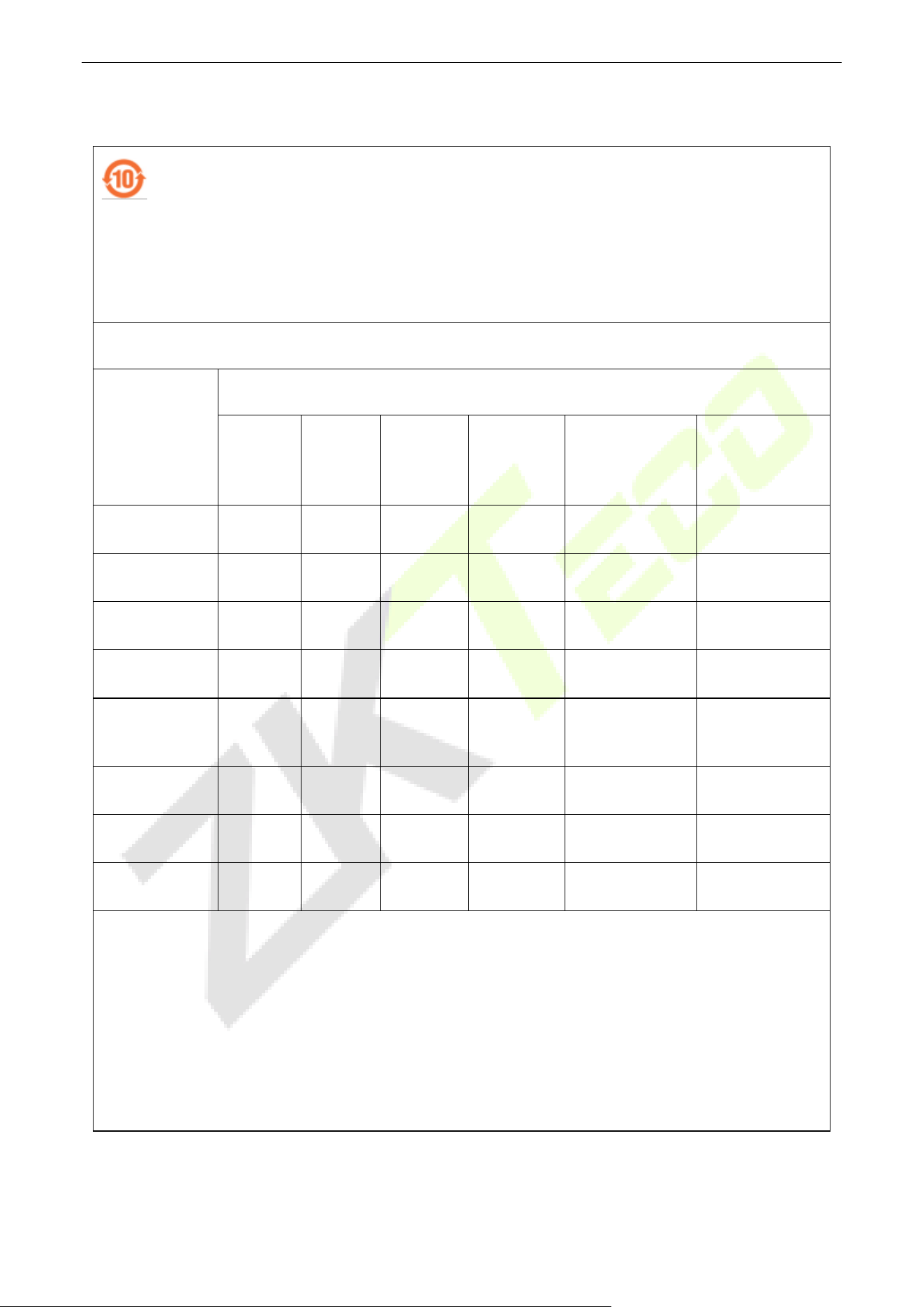
SpeedFace-V5L&H5L Series User Manual
Page | 130 Copyright©2023 ZKTECO CO., LTD. All rights reserved.
Eco-friendly Operation
The product's "eco-friendly operational period" refers to the time during which this product
will not discharge any toxic or hazardous substances when used in accordance with the
prerequisites in this manual.
The eco-friendly operational period specified for this product does not include batteries or
other components that are easily worn down and must be periodically replaced. The
battery's eco-friendly operational period is 5 years.
Hazardous or Toxic substances and their quantities
Component
Name
Hazardous/Toxic Substance/Element
Lead (Pb)
Mercury
(Hg)
Cadmium
(Cd)
Hexavalent
Chromium
(Cr6+)
Polybrominated
Biphenyls (PBB)
Polybrominated
Diphenyl Ethers
(PBDE)
Chip Resistor ×
○ ○ ○ ○ ○
Chip Capacitor ×
○ ○ ○ ○ ○
Chip Inductor ×
○ ○ ○ ○ ○
Diode ×
○ ○ ○ ○ ○
ESD
component
×
○ ○ ○ ○ ○
Buzzer ×
○ ○ ○ ○ ○
Adapter ×
○ ○ ○ ○ ○
Screws
○ ○ ○
×
○ ○
○ indicates that the total amount of toxic content in all the homogeneous materials is below the limit
as specified in SJ/T 11363—2006.
× indicates that the total amount of toxic content in all the homogeneous materials exceeds the limit
as specified in SJ/T 11363—2006.
Note: 80% of this product’s components are manufactured using non-toxic and eco-friendly
materials. The components which contain toxins or harmful elements are included due to the current
economic or technical limitations which prevent their replacement with non-
toxic materials or
elements.

ZKTeco Industrial Park, No. 32, Industrial Road,
Tangxia Town, Dongguan, China.
Phone : +86 769 - 82109991
Fax : +86 755 - 89602394
www.zkteco.com
Copyright © 2023 ZKTECO CO., LTD. All Rights Reserved.