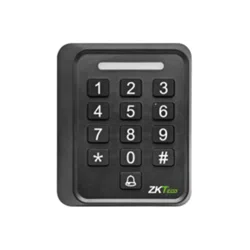
SA60 User Manual
P a g e | 1 Copyright©2020 ZKTECO CO., LTD. All rights reserved.
Thank you for choosing our product. Please read the instructions carefully
before operation. Follow these instructions to ensure that the product is
functioning properly. The images shown in this manual are for illustrative
purposes only.
For further details, please visit our Company’s website
www.zkteco.com.

SA60 User Manual
P a g e | 2 Copyright©2025 ZKTECO CO., LTD. All rights reserved.
Copyright © 2025 ZKTECO CO., LTD. All rights reserved.
Without the prior written consent of ZKTeco, no portion of this manual can be copied or forwarded in any
way or form. All parts of this manual belong to ZKTeco and its subsidiaries (hereinafter the "Company" or
"ZKTeco").
Trademark
is a registered trademark of ZKTeco. Other trademarks involved in this manual are owned by
their respective owners.
Disclaimer
This manual contains information on the operation and maintenance of the ZKTeco equipment. The
copyright in all the documents, drawings, etc. in relation to the ZKTeco supplied equipment vests in and is
the property of ZKTeco. The contents hereof should not be used or shared by the receiver with any third
party without express written permission of ZKTeco.
The contents of this manual must be read as a whole before starting the operation and maintenance of the
supplied equipment. If any of the content(s) of the manual seems unclear or incomplete, please contact
ZKTeco before starting the operation and maintenance of the said equipment.
It is an essential pre-requisite for the satisfactory operation and maintenance that the operating and
maintenance personnel are fully familiar with the design and that the said personnel have received
thorough training in operating and maintaining the machine/unit/equipment. It is further essential for the
safe operation of the machine/unit/equipment that personnel has read, understood and followed the
safety instructions contained in the manual.
In case of any conflict between terms and conditions of this manual and the contract specifications,
drawings, instruction sheets or any other contract-related documents, the contract conditions/documents
shall prevail. The contract specific conditions/documents shall apply in priority.
ZKTeco offers no warranty, guarantee or representation regarding the completeness of any information
contained in this manual or any of the amendments made thereto. ZKTeco does not extend the warranty
of any kind, including, without limitation, any warranty of design, merchantability or fitness for a particular
purpose.
ZKTeco does not assume responsibility for any errors or omissions in the information or documents which
are referenced by or linked to this manual. The entire risk as to the results and performance obtained from
using the information is assumed by the user.
ZKTeco in no event shall be liable to the user or any third party for any incidental, consequential, indirect,
special, or exemplary damages, including, without limitation, loss of business, loss of profits, business
interruption, loss of business information or any pecuniary loss, arising out of, in connection with, or

SA60 User Manual
P a g e | 3 Copyright©2025 ZKTECO CO., LTD. All rights reserved.
relating to the use of the information contained in or referenced by this manual, even if ZKTeco has been
advised of the possibility of such damages.
This manual and the information contained therein may include technical, other inaccuracies or
typographical errors. ZKTeco periodically changes the information herein which will be incorporated into
new additions/amendments to the manual. ZKTeco reserves the right to add, delete, amend or modify the
information contained in the manual from time to time in the form of circulars, letters, notes, etc. for better
operation and safety of the machine/unit/equipment. The said additions or amendments are meant for
improvement /better operations of the machine/unit/equipment and such amendments shall not give any
right to claim any compensation or damages under any circumstances.
ZKTeco shall in no way be responsible (i) in case the machine/unit/equipment malfunctions due to any
non-compliance of the instructions contained in this manual (ii) in case of operation of the
machine/unit/equipment beyond the rate limits (iii) in case of operation of the machine and equipment in
conditions different from the prescribed conditions of the manual.
The product will be updated from time to time without prior notice. The latest operation procedures and
relevant documents are available on http://www.zkteco.com
If there is any issue related to the product, please contact us.
ZKTeco Headquarters
Address ZKTeco Industrial Park, No. 32, Industrial Road,
Tangxia Town, Dongguan, China.
Phone +86 769 - 82109991
Fax +86 755 - 89602394
To know more about our global branches, visit www.zkteco.com.

SA60 User Manual
P a g e | 4 Copyright©2025 ZKTECO CO., LTD. All rights reserved.
About the Company
ZKTeco is one of the world’s largest manufacturer of RFID and Biometric (Fingerprint, Facial, Finger-vein)
readers. Product offerings include Access Control readers and panels, Near & Far-range Facial Recognition
Cameras, Elevator/floor access controllers, Turnstiles, License Plate Recognition (LPR) gate controllers and
Consumer products including battery-operated fingerprint and face-reader Door Locks. Our security
solutions are multi-lingual and localized in over 18 different languages. At the ZKTeco state-of-the-art
700,000 square foot ISO9001-certified manufacturing facility, we control manufacturing, product design,
component assembly, and logistics/shipping, all under one roof.
The founders of ZKTeco have been determined for independent research and development of biometric
verification procedures and the productization of biometric verification SDK, which was initially widely
applied in PC security and identity authentication fields. With the continuous enhancement of the
development and plenty of market applications, the team has gradually constructed an identity
authentication ecosystem and smart security ecosystem, which are based on biometric verification
techniques. With years of experience in the industrialization of biometric verifications, ZKTeco was
officially established in 2007 and now has been one of the globally leading enterprises in the biometric
verification industry owning various patents and being selected as the National High-tech Enterprise for 6
consecutive years. Its products are protected by intellectual property rights.
About the Manual
This manual introduces the operations of SA60 product.
All figures displayed are for illustration purposes only. Figures in this manual may not be exactly consistent
with the actual products.

SA60 User Manual
P a g e | 5 Copyright©2025 ZKTECO CO., LTD. All rights reserved.
Table of Contents
1 APPLICABLE MODELS ........................................................................................................................... 6
2 APPEARANCE INTRODUCTION.............................................................................................................6
2.1 DIMENSIONS.................................................................................................................................................................................................6
2.2 APPEARANCE DESCRIPTION.................................................................................................................................................................7
3 WIRING AND INSTALLATION................................................................................................................7
3.1 WIRING DEFINITIONS...............................................................................................................................................................................7
3.2 WIRING INSTRUCTIONS ..............................................................................................................................................................................8
3.3 INSTALLATION DIAGRAM....................................................................................................................................................................10
4 OPERATION INSTRUCTIONS...............................................................................................................11
4.1 OPERATION FLOW..................................................................................................................................................................................... 11
4.2 DEVICE TESTING..........................................................................................................................................................................................11
5 KEYPAD OPERATIONS........................................................................................................................ 11
5.1 USER MANAGEMENT................................................................................................................................................................................ 12
5.2 PARAMETER SETTINGS.........................................................................................................................................................................13
6 MANAGEMENT CARD AND INSTALLATION CARD OPERATIONS ..............................................................13
6.1 CARD TYPES ..................................................................................................................................................................................................14
6.2 CARD SETTINGS.......................................................................................................................................................................................... 14
7 APPENDIX ..............................................................................................................................................14
7.1 STATUS DESCRIPTIONS............................................................................................................................................................................14
7.2 PRECAUTIONS............................................................................................................................................................................................15
7.3 FACTORY RESET........................................................................................................................................................................................15
74 FREQUENTLY ASKED QUESTIONS...................................................................................................................................................15
SA60 User Manual
P a g e | 6 Copyright©2025 ZKTECO CO., LTD. All rights reserved.
1 Applicable Models
This manual applies to the access control terminal, including the following models.
Product Series
Model
Supported Card Types
SA60
AC01-SA13H
ID
AC01-SA13H
IC
2 Appearance Introduction
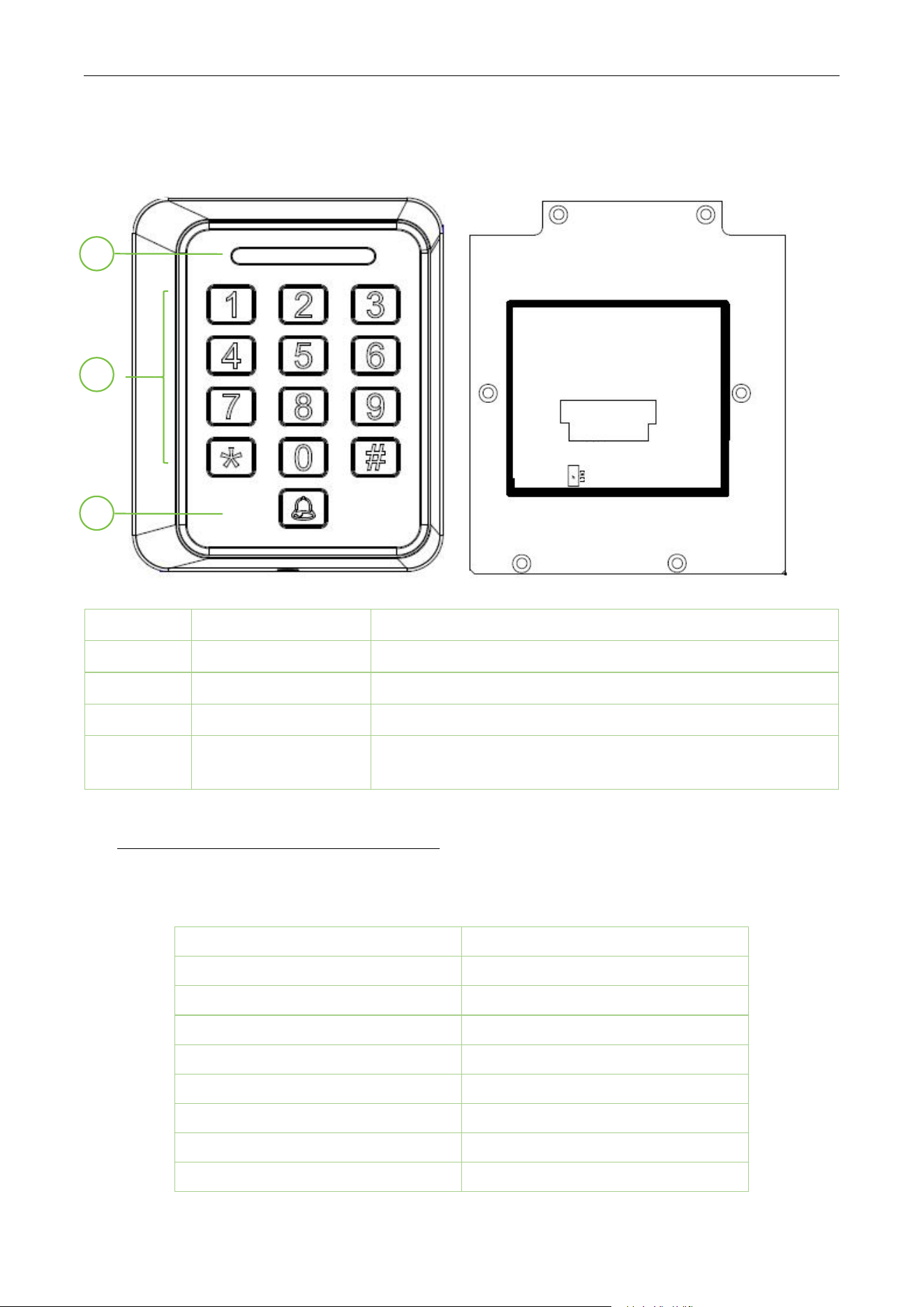
2.1 Dimensions (Unit: mm)
SA60 User Manual
P a g e | 7 Copyright©2025 ZKTECO CO., LTD. All rights reserved.
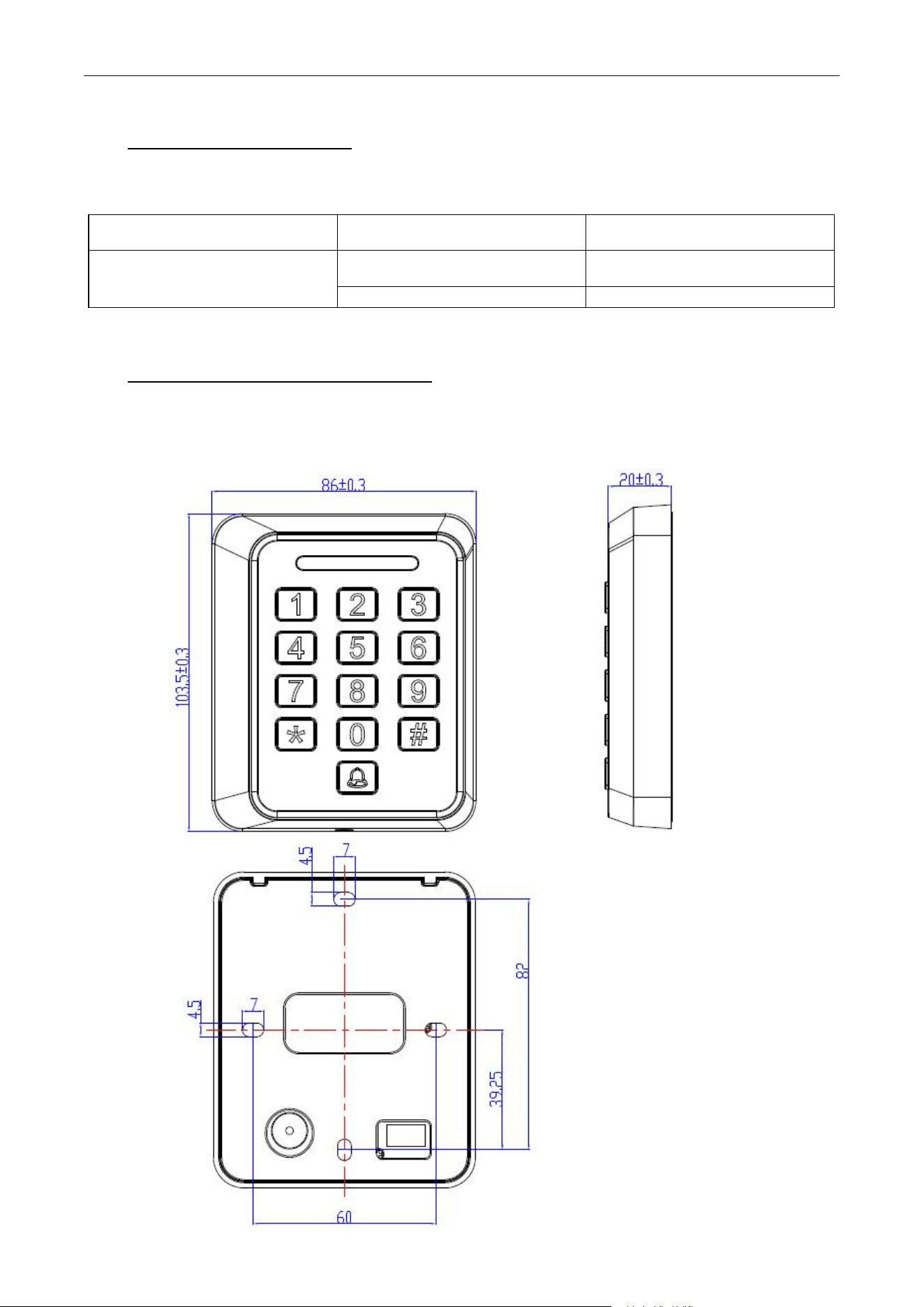
2.2 Appearance Description
No.
Name
Description
1
Status LED
Displays device status; flashes blue in standby mode.
2
Card Swiping Area
RFID smart card swiping area.
3
Doorbell
Doorbell button.
4
INIT Port
Used for factory reset (refer to Appendix - Factory Reset
Operation).
3 Wiring and Installation
3.1 Wiring Definitions
Red
Power +12V
Black
Ground (GND)
Blue
NC (Normally Closed)
Orange
COM (Common)
Gray
NO (Normally Open)
Purple
SEN (Door Sensor)
Yellow
BUT (Exit Button)
Green
BELL+ (Doorbell)
White
BELL- (Doorbell)
1
2
3
SA60 User Manual
P a g e | 8 Copyright©2025 ZKTECO CO., LTD. All rights reserved.
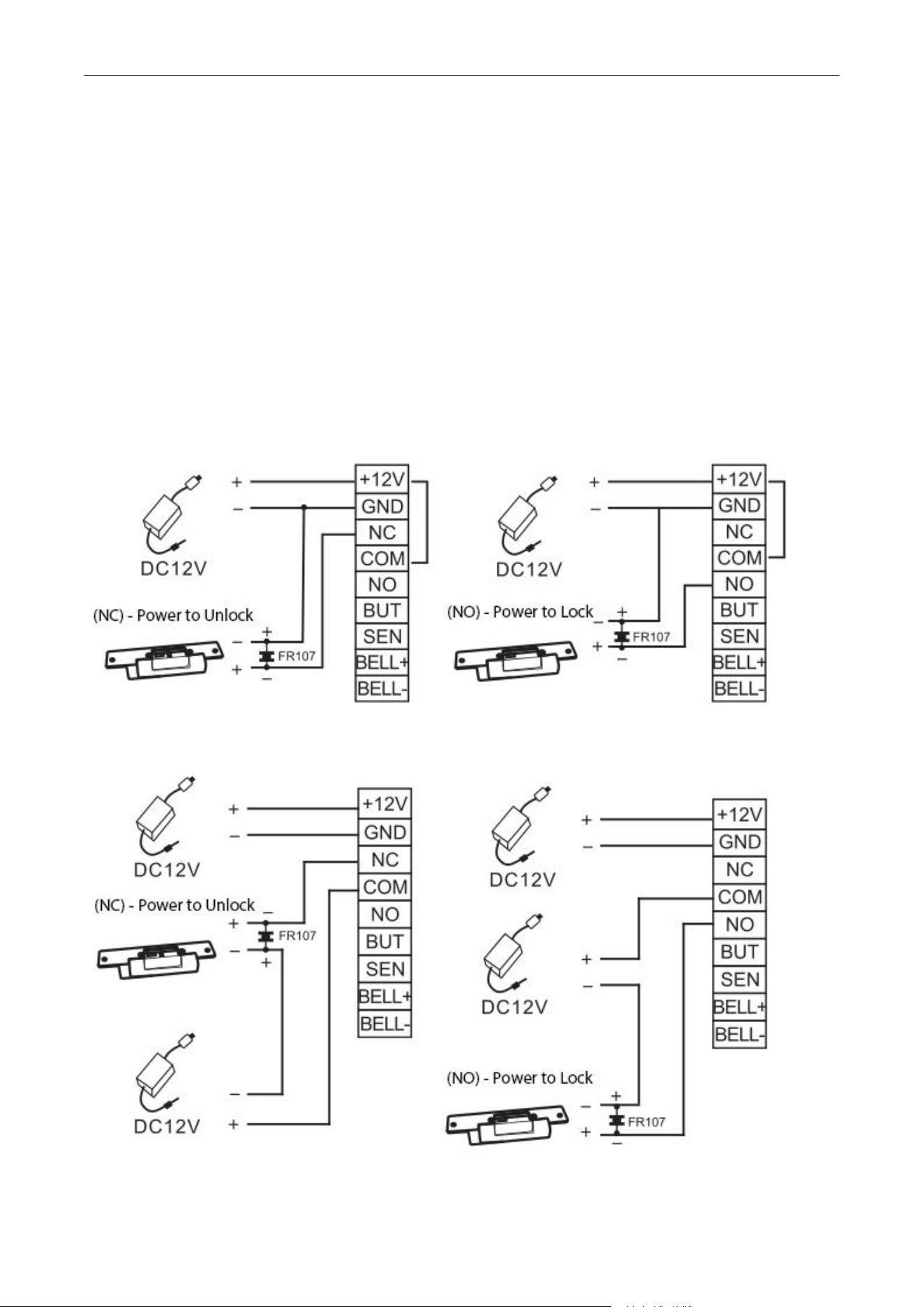
3.2 Wiring Instructions
Warning: Do not wire while powered on
Note:
①
This device supports both normally open and normally closed locks, connected to different terminals
for different functions.
②
To prevent the self-induction voltage generated by the electric lock during switching from affecting the
access control system, a FR107 diode (do not reverse the polarity) can be connected in parallel with the
electric lock to release the self-induction voltage.
(1) Device and lock sharing the same power supply, as shown below:
(2) Device and lock using separate power supplies, as shown below:
SA60 User Manual
P a g e | 9 Copyright©2025 ZKTECO CO., LTD. All rights reserved.
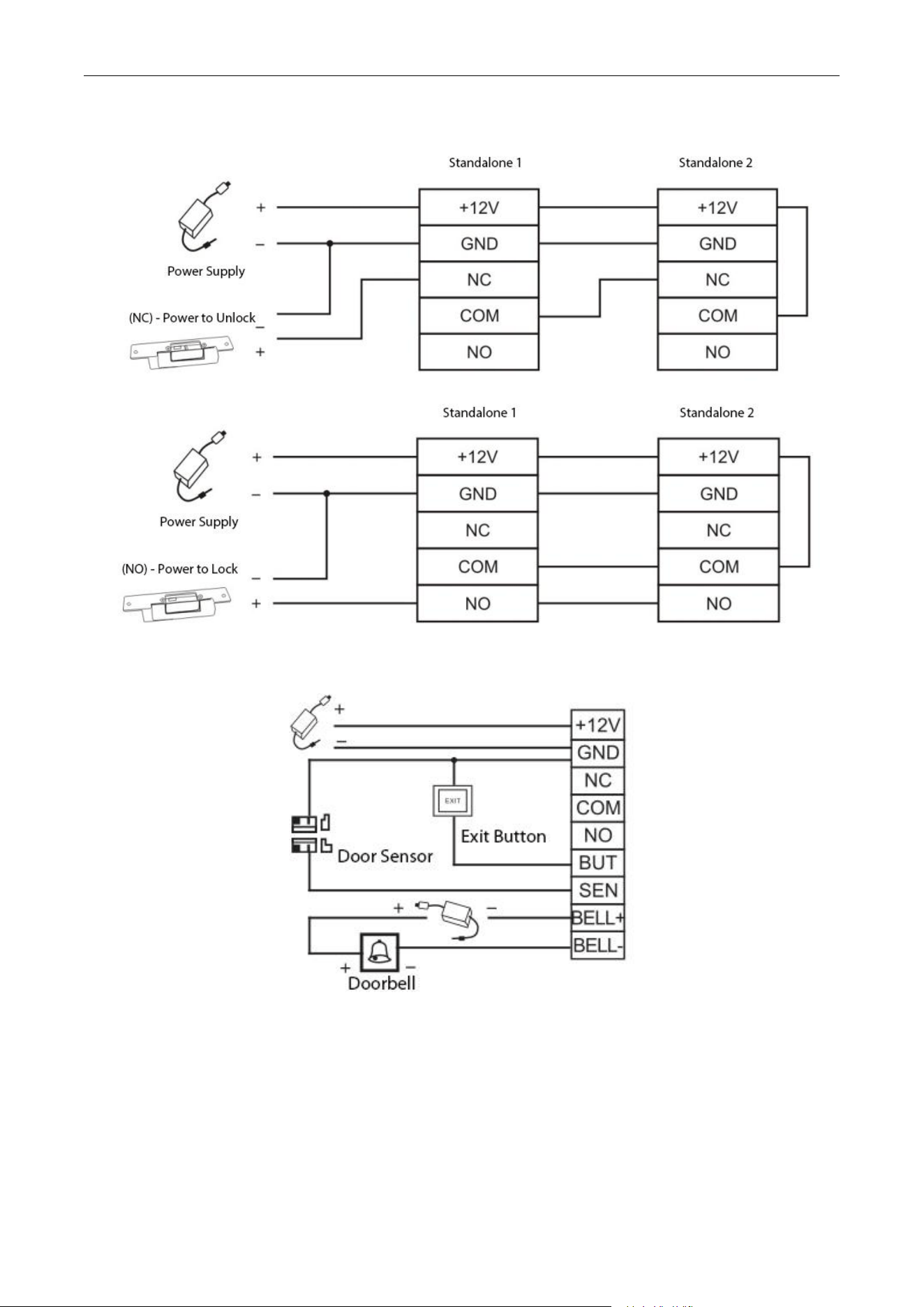
(3) Two devices connected to the same electric lock, as shown below:
(4) Connecting other devices, as shown below:
SA60 User Manual
P a g e | 10 Copyright©2025 ZKTECO CO., LTD. All rights reserved.
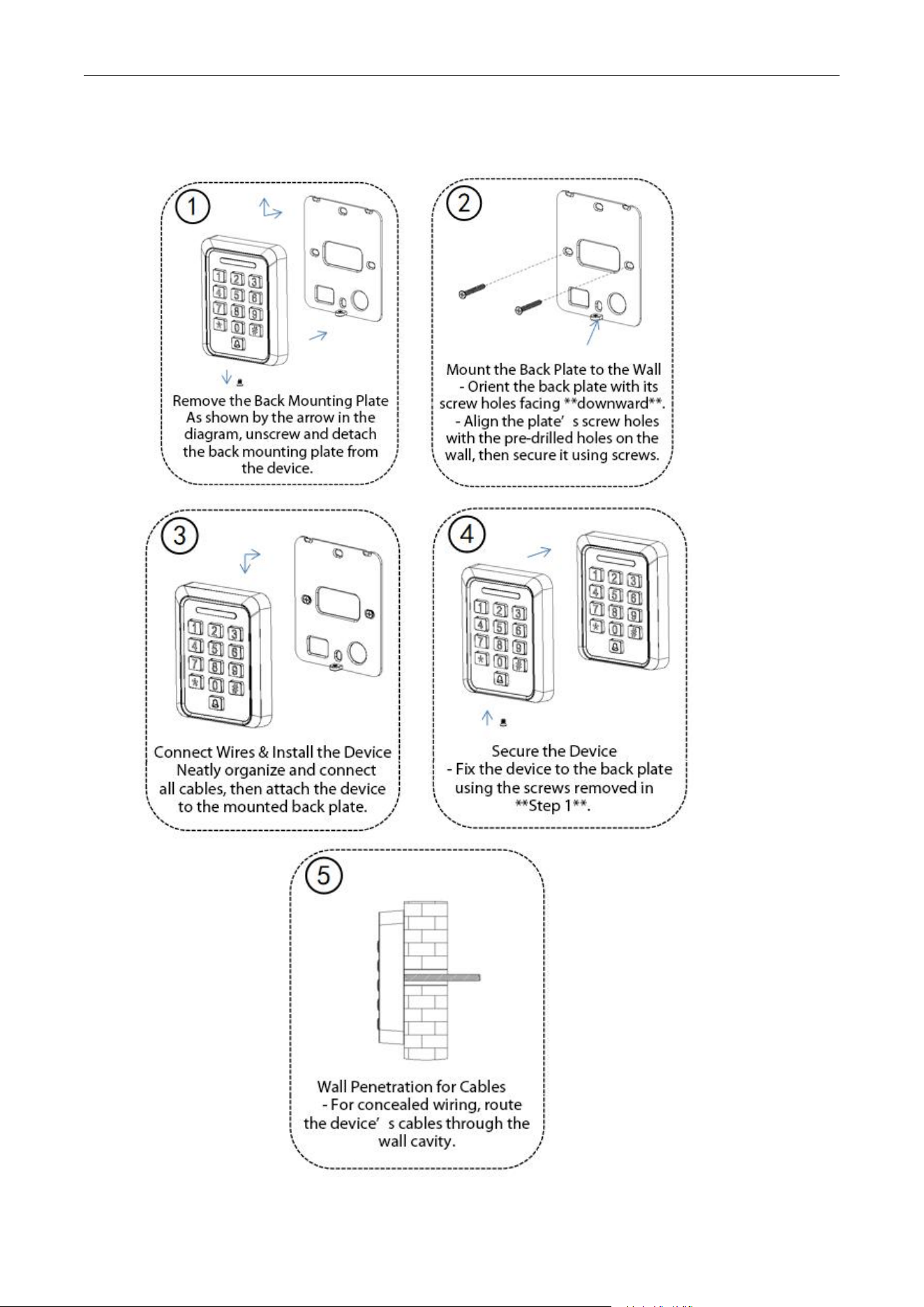
3.3 Installation Diagram
SA60 User Manual
P a g e | 11 Copyright©2025 ZKTECO CO., LTD. All rights reserved.
Note:
1. Complete wiring before installation.
2. When installing the access control terminal onto the mounting plate, avoid excessive force to prevent
bending or deformation.
4 Operation Instructions
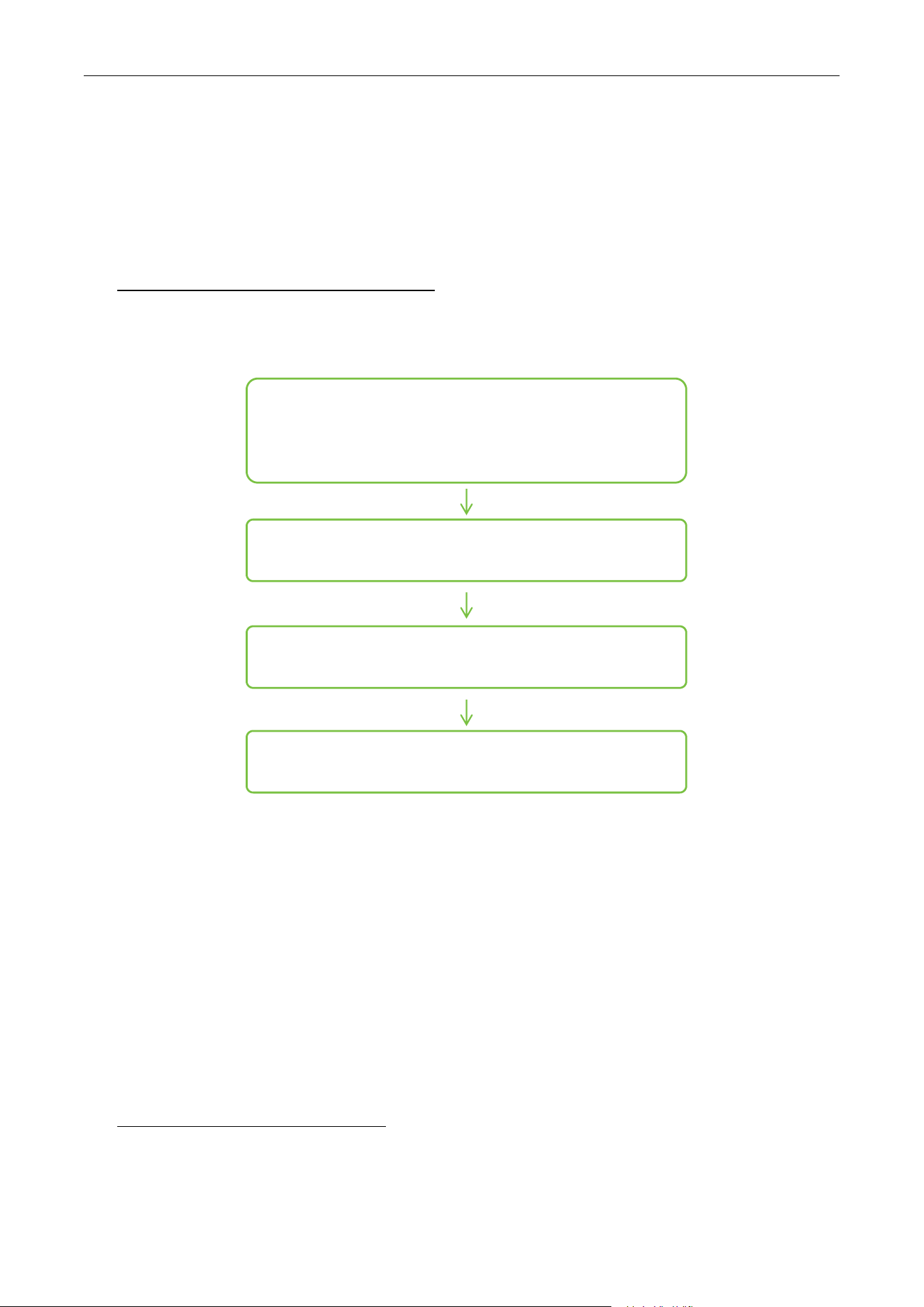
4.1 Operation Flow
4.2 Device Testing
First, connect the device to the electric lock, power supply, exit button, door sensor, etc., according to the
wiring definitions and instructions. Then, power on the device. The status LED will light up in light blue,
the buzzer will sound once, and the green LED will light up. After a moment, the status LED will flash blue,
indicating successful startup. The device is in standby mode with the blue LED flashing.
Add cards and user passwords as described in 4.1.
Swipe a card: the green LED lights up, the buzzer sounds once, and the door unlocks.
Enter a password followed by #: the green LED lights up, the buzzer sounds once, and the door unlocks.
5 Keypad Operations
1. Wiring
Connect the device to the electric lock, power supply, exit
button, door sensor, etc.
2、Installation and Power On
3、Add cards and user passwords (refer to 4.1)
4、Swipe cards or enter passwords to unlock the door

SA60 User Manual
P a g e | 12 Copyright©2025 ZKTECO CO., LTD. All rights reserved.
5.1 User Management
1. Administrator Operations
To ensure data security, users must verify the administrator password before operating the device.
Press * # + administrator password.
Note: Verification success is indicated by a green LED flash and a single buzzer sound. The default
administrator password is 1234. It is recommended to change the default password after verification.
2. Change Administrator Password
Press * # + administrator password + 0 + new password # + new password #.
Note: The default administrator password is 1234. The recommended length is 4-6 digits.
3. Default Passwords
Administrator
Default: 1234. Recommended length: 4-6 digits.
General Password
Default: 8888. Length: 4-6 digits. Only one general
password can be set.
User Password
User-added door-opening password. Length: 4-6 digits.
4. Password User Operations:
Unlock with Password
Enter password + #.
Add User Password
Press * # + admin password + 2 + 4-6 digit password #.
Delete User Password
Press * # + admin password + 4 + user password #.
Modify User Password
Press * # + admin password + 6 + old password # + new
password #.
Set General Password
Press * # + admin password + 9 + 4-6 digit password #.
Delete General Password
Press * # + admin password + 9 + 0000 #.
Note:
①
General passwords and user passwords can unlock the door; administrator passwords cannot.
②
Setting a new general password will invalidate the previous one.
5. Card User Operations:
Add
Press * # + admin password + 1 + swipe card.
Delete
Press * # + admin password + 4 + swipe card.
Unlock
Swipe card.
Note: Multiple cards can be added or deleted consecutively. Press * to exit.

SA60 User Manual
P a g e | 13 Copyright©2025 ZKTECO CO., LTD. All rights reserved.
6. Card + Password User Operations:
Add
①Press * # + admin password + 3 + swipe card + 4-6 digit
password #.
②Press \* \# + admin password + 3 + 4-6 digit password # +
swipe card.
Delete
①Press * # + admin password + 4 + swipe card.
②
Press * # + admin password + 4 + user password #.
Modify
Press * # + admin password + 6 + swipe card + 4-6 digit new
password #.
Unlock
①Swipe card + enter 4-6 digit password #.
②
Enter 4-6 digit password # + swipe card.
。
Note: Either method can be used.
7. Delete All Users
Press * # + admin password + 5 #
Note: The default administrator password is 1234
5.2 Parameter Settings
Unlock Delay
Press * # + admin password + 7 + 1 + unlock delay time #
Door Sensor Alarm
Press * # + admin password + 7 + 2 + 0 or 1 (0: off, 1: on)
Door Sensor Mode
Press * # + admin password + 7 + 4 + 0 or 1 (0: NC, 1: NO)
LED Indicator
Press * # + admin password + 7 + 6 + 0 or 1 (0: off, 1: on)
Door Sensor Alarm
Delay
Press * # + admin password + 7 + 7 + alarm delay time #
Restore Settings
Press * # + admin password + 8 # + 0 #
Note: Restoring settings resets device parameters to defaults but does not delete cards, passwords, or
reset the administrator password.
Default Parameters:
Door Sensor Alarm
On
Door Sensor Mode
Normally Open (NO)
Door Sensor Alarm Delay
15 seconds (range: 1
–
255 seconds)
Unlock Delay
3 seconds (range: 1–60 seconds)
LED Indicator
On
6 Management Card and Installation Card

SA60 User Manual
P a g e | 14 Copyright©2025 ZKTECO CO., LTD. All rights reserved.
Operations
6.1 Card Types
Card Type
Description
Installation Card
①
The first card swiped after factory reset is recognized as
the installation card.
②
Swipe once: Enter card addition mode. Subsequent swipes
add user cards.
③
Swipe twice: Enter card deletion mode. Subsequent
swipes remove user cards.
④Swipe eight times: Delete all users.
Management Card
Swipe once to enter administrator mode (equivalent to
entering * # + admin password).
Addition Card
Swipe once, then swipe user cards to authorize them (batch
authorization).
Deletion Card
Swipe once, then swipe user cards to remove authorization
(batch deletion).
Note: Press * to exit after adding or deleting cards.
6.2 Card Settings
Installation Card
The first card swiped after factory reset is recognized as the
installation card.
Management Card
Press * # + admin password + 0 + swipe card.
Addition Card
Press * # + admin password + 9 + swipe first card (addition
card).
Deletion Card
Swipe second card (deletion card).
7 Appendix
7.1 Status Descriptions
Status
Description
Buzzer sounds once, green LED flashes once
Card verification successful.
Buzzer sounds three times, blue LED flashes twice
Incorrect password, verification failed
Light blue LED flashes four times, green LED
flashes once, buzzer sounds five times
Factory reset performed.
Blue LED flashes
Standby mode.

SA60 User Manual
P a g e | 15 Copyright©2025 ZKTECO CO., LTD. All rights reserved.
7.2 Precautions
① Use a non-switching linear DC power supply for the access control terminal. The recommended power
supply distance is within 100 meters. For distances exceeding 100 meters, use a separate power supply.
②
Ensure the input voltage is within 12V
±
10% for normal operation.
③ Maintain a minimum distance of 30 cm between two access control terminals.
④ To reduce long-distance noise, connect the shield layer of the transmission line to the ground shared by
the access control terminal and controller.
7.3 Factory Reset
Power off the device and remove the back cover. Locate the two INIT ports. Use tweezers, a needle, or a
thin wire to connect the two ports. Power on the device. The buzzer will sound five times, indicating a
successful factory reset.
After resetting, remove the connection tool and restart the device.
Note: Factory reset deletes all cards, passwords, and other data, and resets the administrator password to
the default 1234. Proceed with caution.
7.4 Frequently Asked Questions
1
Q
Forgot administrator password.
A
If a management card is available, use it to reset the password. Otherwise,
perform a factory reset to restore the default password (1234). Note: This
will delete all user data.
2
Q
Any password can unlock the door.
A
The administrator password may have been leaked, allowing
unauthorized additions of user passwords. Delete all user data, change
the administrator password, and add new user passwords.
3
Q
Device emits a continuous alarm after power-on.
A
Likely caused by a door sensor alarm. Disable the alarm via keypad or set
the door sensor mode to normally closed (NC).

SA60 User Manual
P a g e | 16 Copyright©2025 ZKTECO CO., LTD. All rights reserved.
ZKTeco Industrial Park, No. 32, Industrial Road,
Tangxia Town, Dongguan, China.
Phone : +86 769 - 82109991
Fax : +86 755 - 89602394
www.zkteco.com
Copyright © 2025 ZKTECO CO., LTD. All Rights Reserved.






