ION Audio Party Splash™ User Guide 2
INTRODUCTION ......................................................................... 3
Box Contents ....................................................................................................... 3
Support ................................................................................................................. 3
S
ETUP ........................................................................................ 4
Use and Care ....................................................................................................... 4
Charging & Battery Information ..................................................................... 5
F
EATURES ................................................................................. 6
Top Panel ............................................................................................................. 6
Rear Panel ............................................................................................................ 8
O
PERATION ............................................................................... 9
App Control ......................................................................................................... 9
Pairing a Bluetooth® Device ........................................................................... 10
Call Answering ................................................................................................... 11
Stereo-Link
TM
: Linking Two Speakers ........................................................... 12
Using the Radio ................................................................................................. 13
T
ROUBLESHOOTING ............................................................... 14
A
PPENDIX ................................................................................. 15
Technical Specifications .................................................................................. 15
Trademarks & Licenses .................................................................................... 15
TABLE OF CONTENTS
ION Audio Party Splash™ User Guide 3
Thank you for purchasing the Party Splash
TM
. At ION, your entertainment is as important to us
as it is to you. That’s why we design our products with one thing in mind—to make your life
more fun and more convenient.
Note: Before you first use the product, please fully charge the batteries. Your unit was
purposely shipped with a reduced battery charge to ensure safe transit. For optimal charging,
power o the speaker while charging.
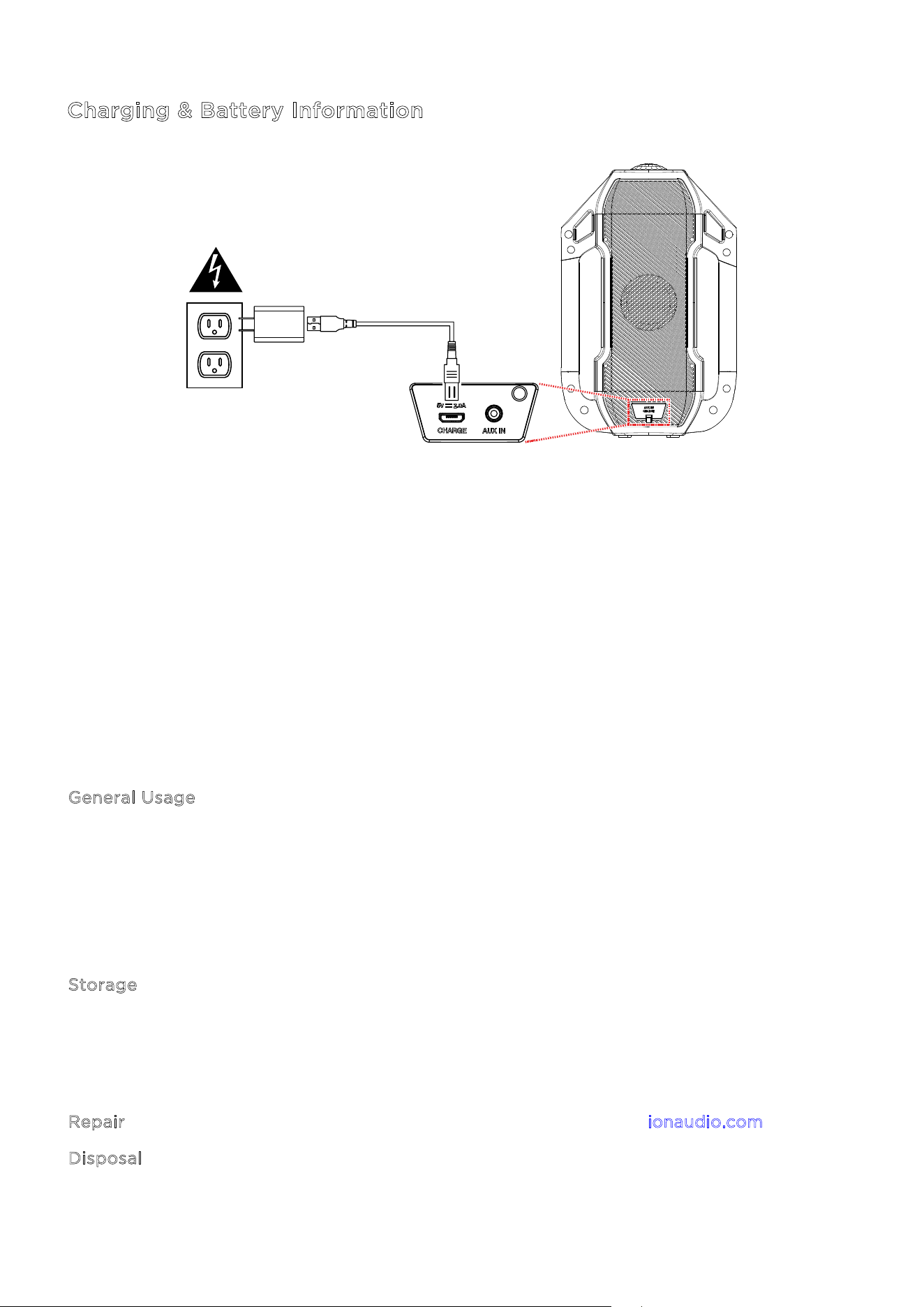
Use the included micro-USB cable to connect the unit to a 5V, 2A power adapter (not
included) connected to a power outlet and let it charge for up to 4 hours (depending on the
specifications of your adapter). This helps ensure the longest life for your battery.
Box Contents
Party Splash
TM
Micro-USB Charging Cable (3.28 ft / 1 m)
Quickstart Guide
Support
For the latest information about this product (documentation, technical specifications, system
requirements, compatibility information, etc.) and product registration, visit i
onaudio.com.
For additional product support, visit i
onaudio.com/support.
INTRODUCTION
ION Audio Party Splash™ User Guide 4
Use and Care
Please review the tips below to get the best performance from your Party Splash
TM
speaker:
•
Party Splash
TM
is IP67 waterproof, submersible up to 3 ft. (1 m) for 30 minutes, and dust-/
dirt-/sand-proof.
•
If the speaker fills with water, the sound will be mued until the water has drained.
•
If Party Splash
TM
is exposed to saltwater, we recommend that you rinse it with tap water to
maintain long-term performance of the product.
•
Place Party Splash
TM
in the upright position for the best sound experience. Party Splash
TM
will to float in the position that it was placed or tossed into the water (for example, if placed
on its side, Party Splash
TM
will continue to float on its side).
•
Please do not attempt to charge Party Splash
TM
in a wet environment. Make sure the power
input, micro-USB cable, power adapter, and power outlet are all completely dry before
making any connections.
•
WARNING: Keep any non-water-resistant devices (phones, music players, etc.) in a dry
place where they will not be aected by water and cause a risk of electric shock.
SETUP
ION Audio Party Splash™ User Guide 5
Charging & Battery Information
For the quickest charging time, power o Party Splash
TM
and use the included micro-USB
cable to connect the micro-USB charging port on the rear panel of the speaker to a USB power
adapter (DC 5V, 2A; not included) connected to a power outlet, or your computer (powered
on). A full charge can take up to 4 hours, depending on the specifications of your 5V, 2A
adapter.
If there is no audio coming from a Bluetooth device or the aux input for 15 minutes, Party
Splash
TM
will automatically power o to save battery. To wake the unit, simply resume audio
playback.
Here are some other recommendations for getting the longest life from the internal battery.
G
eneral Usage Fully charge the battery before using it.
Avoid full discharge of the battery if possible. Li-Ion batteries are
maintenance-free, and the battery will last longest when operating
between 30–80% charged.
Do not use the product while charging the battery.
Do not charge the battery in exceedingly hot (greater than 90°F/32°C) or
exceedingly cold (less than 32°F/0°C) temperatures.
S
torage For best product longevity, do not store at exceedingly hot (greater than
90°F/32°C) or exceedingly cold (less than 32°F/0°C) temperatures.
For best product longevity, store with a 50% battery charge.
If you leave the battery level low and do not charge it for 6 months, it may
permanently lose capacity.
R
epair If the battery fails to charge, contact ION Audio at ionaudio.com.
D
isposal Bring the unit to a recycling center or dispose of in accordance with local
ordinances.
ION Audio Party Splash™ User Guide 6
Top Panel
Click a control below to jump to that section.
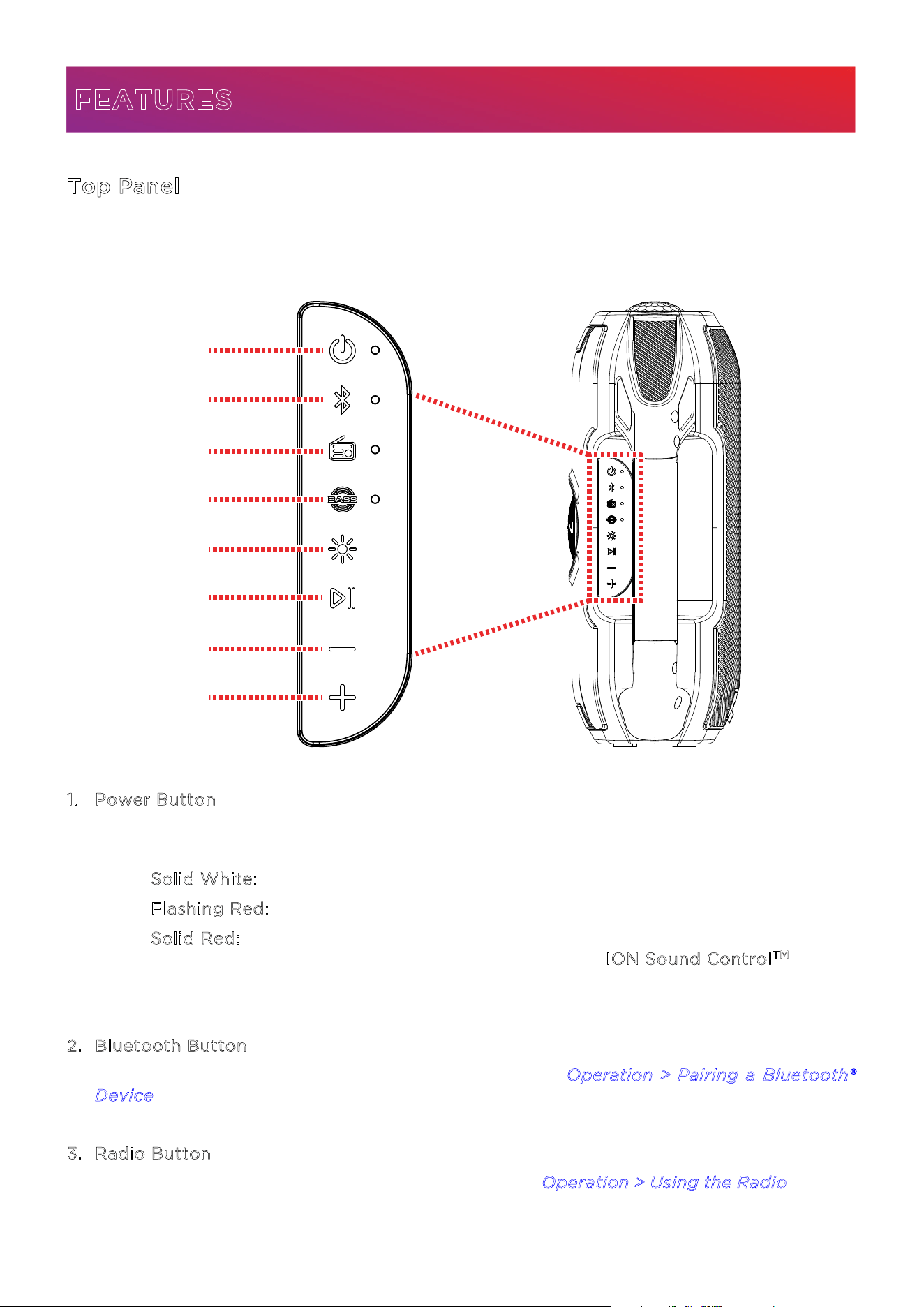
1
. Power Button
Press and hold this button to power Party Splash
TM
on and o. The LED next to this button
will change based on the current status of Party Splash
TM
:
• S
olid White: Power on.
• F
lashing Red: Low battery.
• S
olid Red: Charging. If the unit is powered o, the LED will turn o once charging
is complete. Battery status can also be seen from the I
ON Sound Control
TM
app.
Double-press this button to activate or deactivate the voice prompts.
2
. Bluetooth Button
Press this button to enter Bluetooth pairing mode. See O
peration > Pairing a Bluetooth®
D
evice to learn more.
3
. Radio Button
Press this button to enter or exit FM radio mode. See Operation > Using the Radio to learn
more.
FEATURES
1
2
3
4
5
6
7
8
ION Audio Party Splash™ User Guide 7
4
. Bass Boost Button
Press this button to activate or deactive Bass Boost, which enhances the bass EQ while in
Bluetooth mode.
5
. Light Mode Button
Press this button to cycle through the five available light modes, or to turn the lights o:
• B
eat Sync: The lights change color and flash in reaction to the beat of the music.
• C
olor Cycle: The slights slowly glow and fade through colors.
• B
eathing Color: All lights glow in the same color, fading in and out while cycling
through the full color spectrum.
• S
olid Color: The lights will all be lit in a single color (by default, blue). You can
change the color using the I
ON Sound Control
TM
app.
• R
andom: The lights cycle through the other four color modes randomly, changing
every 5–7 seconds.
• Off
6
. Play/Pause
Press this button to play or pause playback from a connected Bluetooth device.
7
. Volume Down / Previous
Press this button to increase playback volume.
In Bluetooth mode, press and hold this button to revert to the previous track, and press
again within one second to skip to the previous track.
In Radio mode, press and hold this button to seek the previous strongest station.
8
. Volume Up / Next
Press this button to increase playback volume.
In Bluetooth mode, press and hold this button to skip to the next track.
In Radio mode, press and hold this button to seek the next strongest station.
ION Audio Party Splash™ User Guide 8
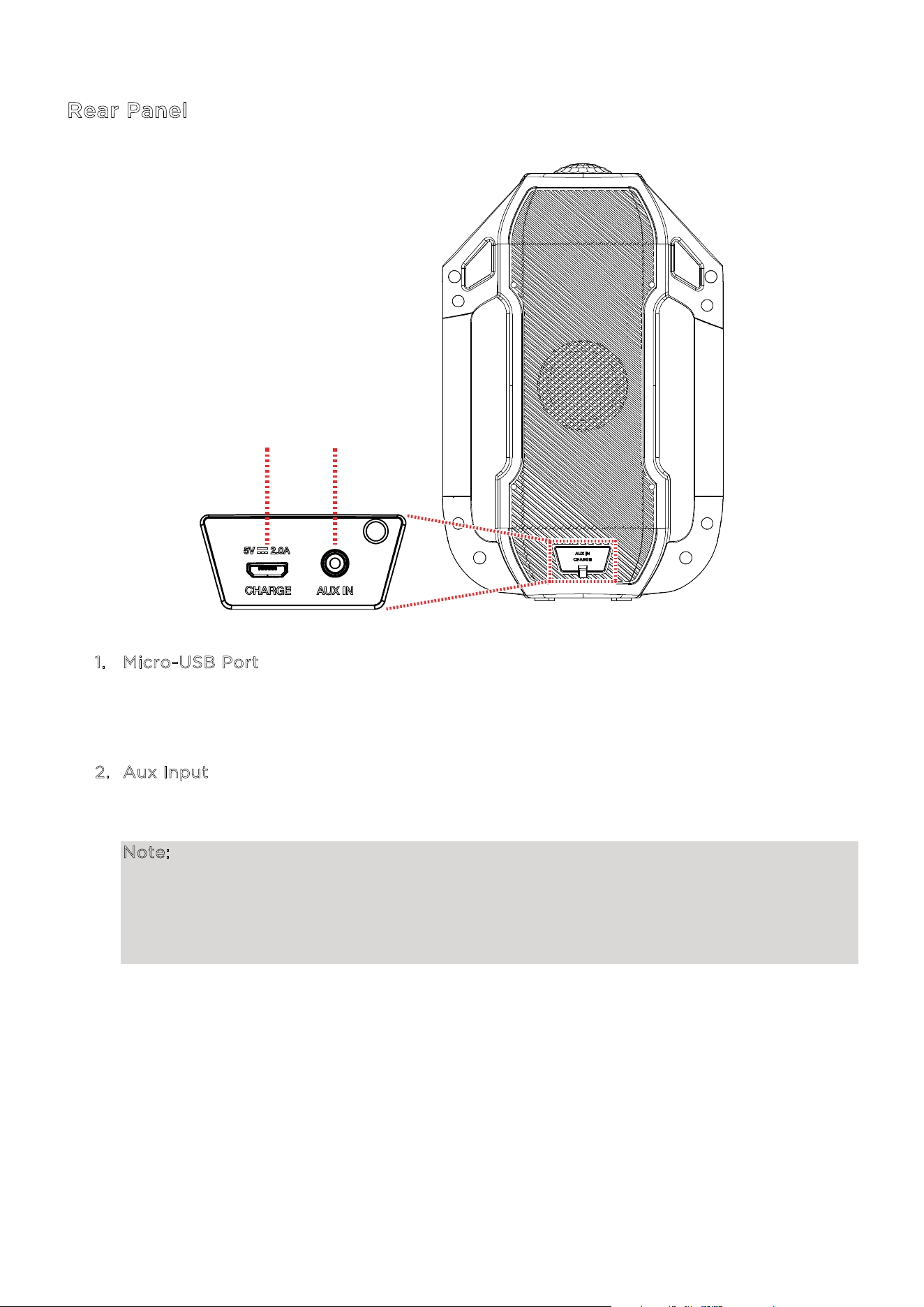
Rear Panel
1
. Micro-USB Port
To charge Party Splash
TM
, connect the included micro-USB cable from this port to a
USB power adapter (DC 5V, 2A; not included) connected to a power outlet.
2
. Aux Input
This 1/8” (3.5 mm) input can be used to connect a CD player, MP3 player, or other
auxiliary audio source.
Note:
• While in Bluetooth mode or FM mode, connecting a cable to the Aux input will
automatically switch Party Splash
TM
to Aux mode.
• If the cable is removed while in Aux mode, Party Splash
TM
will revert to the last mode
it was last in, either FM or Bluetooth.
1 2
ION Audio Party Splash™ User Guide 9
App Control
IMPORTANT: To ensure the best possible experience with the app, use the most current
Android OS or iOS on your device.
F
ollow these steps to download the free app on your device:
1. Open the Apple App Store or Google Play on your device. Then, search for the I
ON Sound
C
ontrol
TM
app.
2. Follow the on-screen instructions to download and install the app. Once downloaded, the
I
ON Sound Control
TM
app will appear on your device's home screen.
3. Connect your device to Party Splash
TM
via Bluetooth. See Operation > Pairing a Bluetooth®
D
evice to learn how to do this.
4. Open the ION Sound Control
TM
app. If prompted, allow the app to access your device's
Bluetooth and Location Services.
5. Follow the steps on screen to find and connect to your Party Splash
TM
. Once connected,
you can control various functions of the speaker, such as:
• V
olume: Adjust the speaker's volume.
• V
oice Prompts: Enable or disable the voice prompts (on by default).
• B
attery Life: Check the speaker’s battery life status.
• R
adio: Play the radio, change stations, and edit presets.
• E
Q: Adjust the speaker's equalization.
• L
ights: Change the light modes and select colors.
• S
upport: Visit ionaudio.com, contact Technical Support, and view Warranty information
and Frequently Asked Questions.
OPERATION
ION Audio Party Splash™ User Guide 10
Pairing a Bluetooth® Device
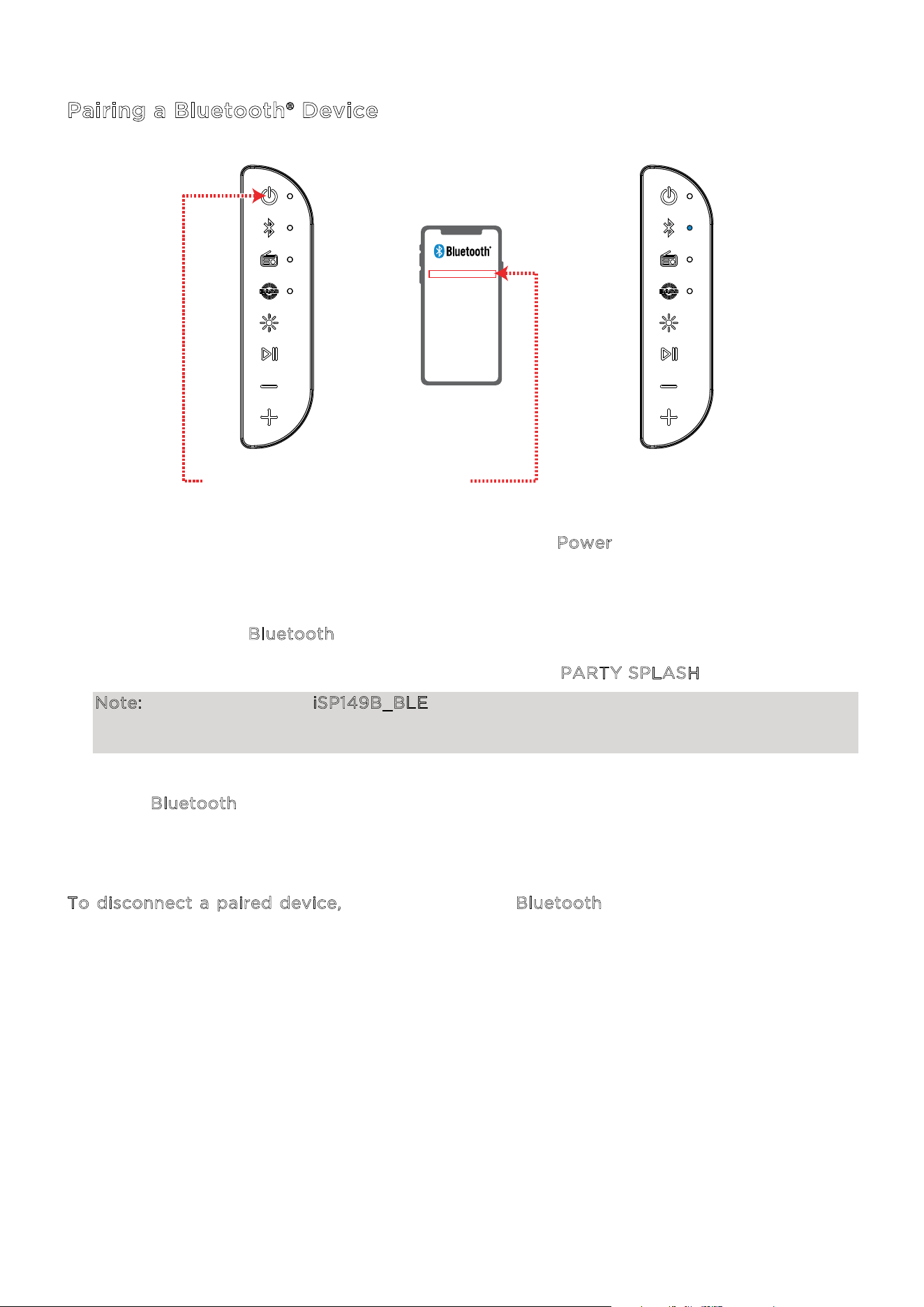
1. Turn on Party Splash
TM
by pressing and holding the Power button. Upon powering on,
Party Splash
TM
will be available to pair, so make sure your Bluetooth device is within range
of the speaker, no more than 100 ft. (30.5 m).
If Party Splash
TM
is powered on and you are in FM mode or using the Aux input, you will
need to press the B
luetooth button to switch to Bluetooth mode.
2. Navigate to your device’s Bluetooth setup screen, find P
ARTY SPLASH, and connect.
Note: Do not connect to iSP149B_BLE; this is reserved exclusively for connecting to the
ION Sound Control
TM
app. If you experience trouble in connecting, select “Forget this
Device” on your Bluetooth device and try to connect again.
3. Once paired, you will hear “Connected” (if voice prompts are enabled), and the LED next
to the B
luetooth button will become solid blue.
4. You can now press play in your music player app of choice on your device.
To disconnect a paired device, press and hold the Bluetooth button, or turn o Bluetooth
from your device’s Bluetooth settings. The speaker will enter Bluetooth pairing mode to make
it available for another device. When you disconnect a Bluetooth device, you will hear
“Disconnected” if voice prompts are enabled.
PARTY SPLASH
TM
2
1 - PRESS & HOLD
3 - CONNECTED
ION Audio Party Splash™ User Guide 11
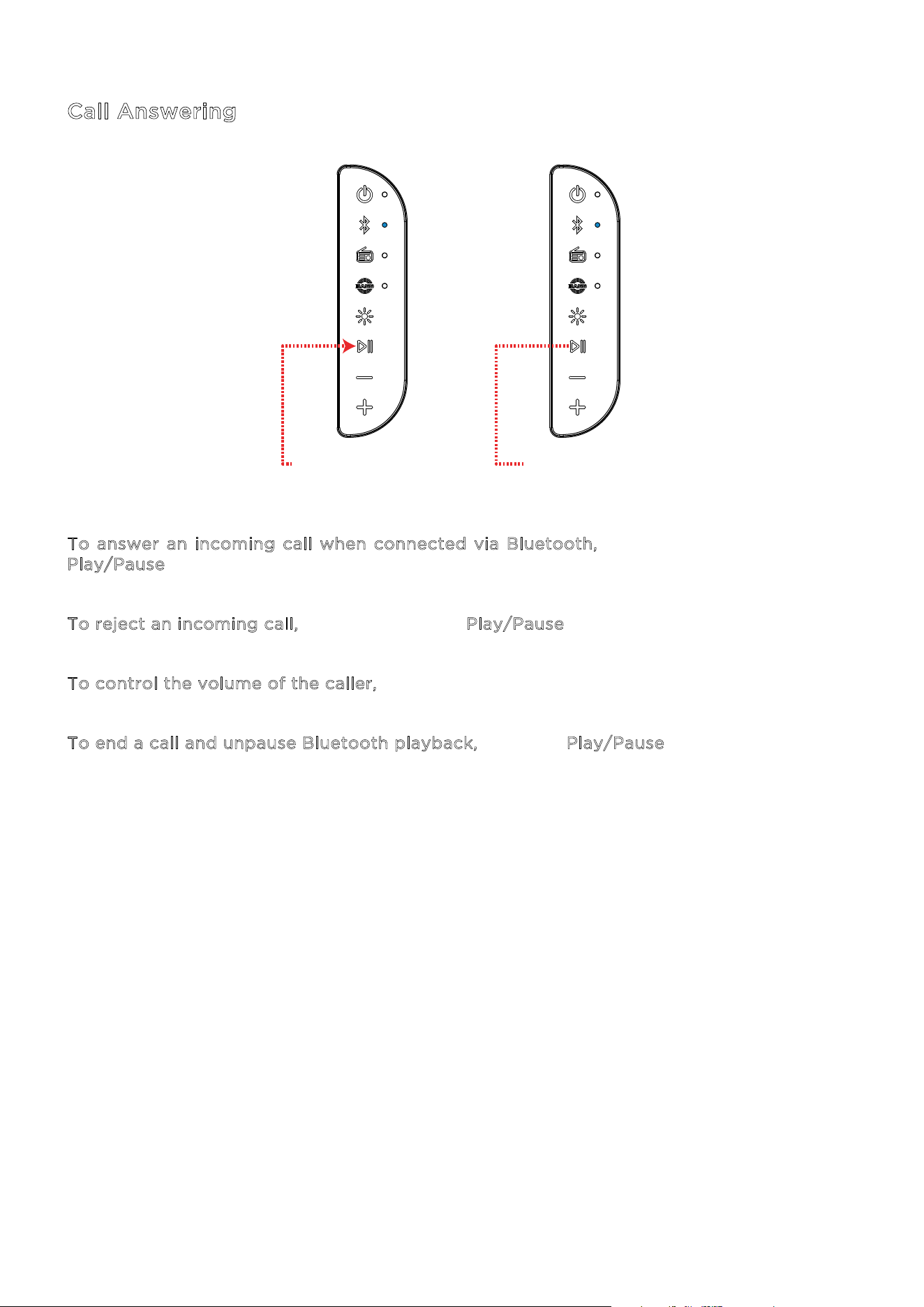
Call Answering
T
o answer an incoming call when connected via Bluetooth, quickly press and release the
P
lay/Pause button. Bluetooth playback will be paused until the call is completed or rejected.
T
o reject an incoming call, press and hold the Play/Pause button.
T
o control the volume of the caller, press the +/- buttons.
T
o end a call and unpause Bluetooth playback, press the Play/Pause button.
PRESS TO ANSWER
AND HANG UP
PRESS & HOLD
TO REJECT
ION Audio Party Splash™ User Guide 12
Stereo-Link
TM
: Linking Two Speakers
Note: In order to use Stereo-Link
TM
mode, you cannot have a Bluetooth device connected. If
another Party Splash™ is connected to a Bluetooth device, disconnect by pressing and holding
the Bluetooth button.
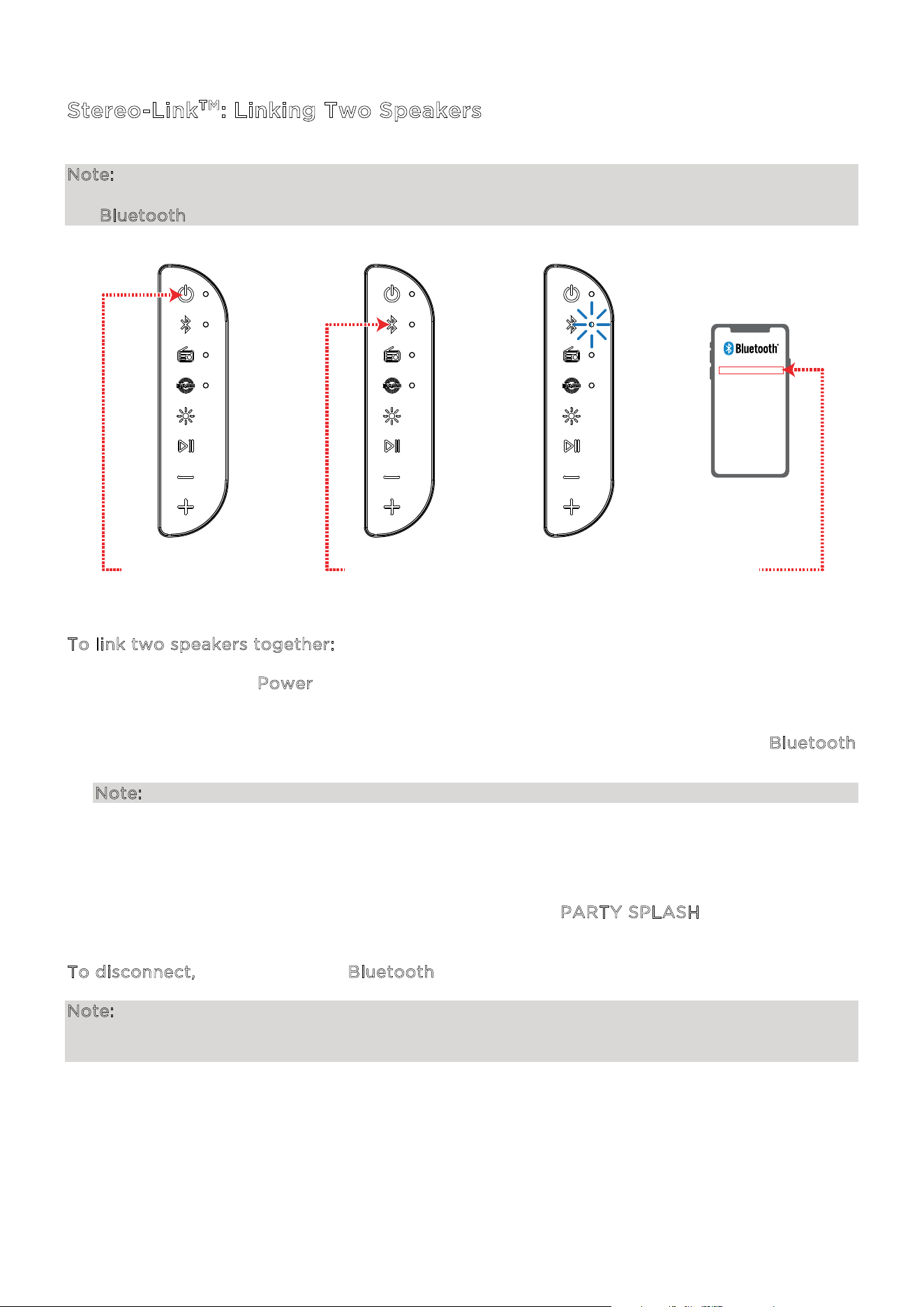
T
o link two speakers together:
1. Press and hold the P
ower buttons on both Party Splash™ speakers.
2. Double-press the Bluetooth button on one speaker. Repeat this for the second speaker.
The speakers will search for each other to link as the blue LEDs next to the B
luetooth
buttons begin to blink fast.
Note: It may take up to 1 minute to make the connection.
3. When the two speakers are “linked,” one speaker’s blue LED will be lit solid, while the other
speaker’s blue LED will blink slowly to indicate it’s ready to pair the stereo-linked speakers
to your Bluetooth device.
4. Navigate to your Bluetooth device’s setup screen, find P
ARTY SPLASH, and connect.
T
o disconnect, double press the Bluetooth button on one of the two speakers.
Note: If a speaker is in Stereo-Link
TM
mode when you power it o, it will be in Stereo-Link
TM
mode the next time you power it on (they will automatically link when you power them on as
long as they are in close range of each other and powered on within 15 seconds of each other).
PARTY SPLASH
TM
2 - PRESS x2
(speakers 1 & 2)
4
3 - READY TO PAIR
(speaker 1)
1 - PRESS & HOLD
(speakers 1 & 2)
ION Audio Party Splash™ User Guide 13
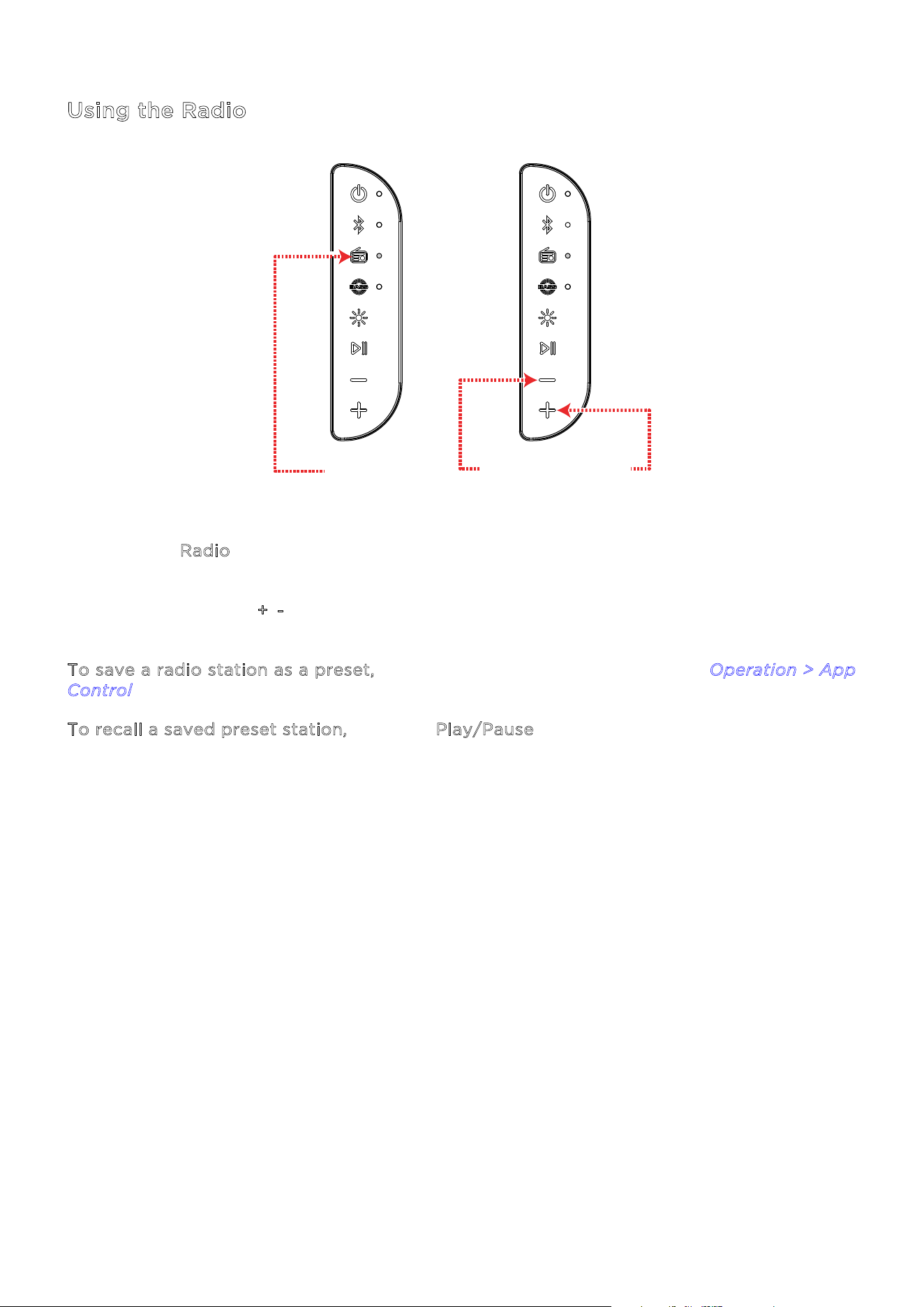
Using the Radio
1. Press the R
adio button. The LED next to this button will light up when FM radio mode is
activated.
2. Press and hold the +
/- buttons to seek to the next or previous strongest station.
T
o save a radio station as a preset, use the ION Sound Control
TM
app. See Operation > App
C
ontrol for more information.
T
o recall a saved preset station, press the Play/Pause button.
1 - PRESS
3 - PRESS & HOLD
TO SEEK

ION Audio Party Splash™ User Guide 14
If the unit is not charging: Make sure the micro-USB charging cable is properly connected to
the power input, the power adapter, and the power outlet.
If the sound is distorted: Try lowering the volume control of your sound source.
If there is too much bass: Try adjusting the tone or EQ control on your sound source or on
Party Splash
TM
via the ION Sound Control
TM
App to lower the bass level. This will allow you to
play the music louder before clipping (distortion) occurs.
If you cannot connect your audio device to Party Splash
TM
via Bluetooth:
• Have your audio device (e.g., smartphone or tablet) and Party Splash
TM
as close
together as possible while trying to connect. Make sure both the audio device and Party
Splash
TM
are unobstructed by walls, furniture, etc.
• Double-press the Bluetooth button to disconnect Party Splash
TM
from any other audio
device and restart the search process. If this does not work right away, power off Party
Splash
TM
and then power it back on. See Operation > Pairing a Bluetooth® Device for
more information.
• Reset the Bluetooth connection on your audio device by turning Bluetooth off and back
on. You can find this under the Bluetooth menu in the Settings for your phone or other
audio device.
If this does not work, and you have connected to Party Splash
TM
before, find Party
Splash
TM
in the list of available or previously connected devices in your audio device's
Bluetooth menu, tap the "gear" or “i” icon located next to it and then select Unpair or
Forget. Turn Party Splash
TM
off and back on and try pairing again once it reappears in
your available devices list.
Note: If Party Splash
TM
have been paired to another audio device recently that is still
within range, you may need to repeat this process with that audio device to fully
disconnect.
If you experience audio dropouts while playing music from a Bluetooth device, this may be
happening because your unit is trying to link to another speaker. This can occur if you power
off a speaker that was linked to your unit or if you have just turned on your unit and it is in
Stereo-Link
TM
mode. To stop the audio dropouts, exit Stereo-Link
TM
mode by double-pressing
the Bluetooth button. Alternatively, you can wait for your unit to link to another speaker if
there is one within range.
If there is a delay in the audio signal between the left and right speakers when linked, break
the link by double-pressing the Bluetooth button, and pair them again following the
instructions in the Operation > Stereo-Link
TM
: Linking Two Speakers section.
TROUBLESHOOTING
ION Audio Party Splash™ User Guide 15
Technical Specifications
Output Power 30 W (peak)
Frequency Response 125 Hz – 15 kHz
Drivers 2” (63.5 mm) x2
Water Resistance Class IP67
Bluetooth Specifications Profile: A2DP, AVRCP
Bluetooth Version: 5.0
Range: Up to 100 ft. (30.5 m) *
Stereo-Link
TM
Range: Up to 100 ft. (30.5 m) between speakers
Battery Battery life: Up to 10 hours **
Charge Time: Up to 5 Hours
Dimensions
(width x depth x height)
7.76" x 4.69" x 11.65"
197 x 119 x 296 mm
Weight 3.57 lbs.
1.62 kg
Specifications are subject to change without notice.
* Bluetooth and wireless reception and range are affected by walls, obstructions, and
movement. For optimal performance, place the product so it is unobstructed by walls or
furniture and is raised off the ground.
** Battery life may vary based on temperature, age, and volume usage of product.
Trademarks & Licenses
ION Audio is a trademark of inMusic Brands, Inc., registered in the U.S. and other countries.
The Bluetooth word mark and logos are owned by the Bluetooth SIG, Inc., and any use of such
marks by ION Audio is under license.
App Store is a trademark of Apple Inc., registered in the U.S. and other countries.
Android and Google Play are registered trademarks of Google Inc. All other product names,
company names, trademarks, or trade names are those of their respective owners.
APPENDIX