
ION Audio Party Boom
TM
Plus User Guide 2
INTRODUCTION ......................................................................... 3
Box Contents .............................................................................................................. 3
Support ......................................................................................................................... 3
SETUP ........................................................................................ 4
Charging and Battery Information ..................................................................... 4
Outdoor Use and Care ............................................................................................ 5
FEATURES ................................................................................. 6
Front Panel .................................................................................................................. 6
Rear Panel .................................................................................................................... 9
OPERATION .............................................................................. 10
Pairing a Bluetooth® Device ................................................................................ 10
Linking Two Speakers ............................................................................................. 11
Light Modes ................................................................................................................ 12
Using the Radio ......................................................................................................... 13
USB Mode .................................................................................................................... 14
Using the USB Charge Port .................................................................................. 15
App Control ................................................................................................................ 16
TROUBLESHOOTING ............................................................... 17
APPENDIX ................................................................................. 19
Technical Specifications ........................................................................................ 19
Trademarks & Licenses ........................................................................................ 20
TABLE OF CONTENTS

ION Audio Party Boom
TM
Plus User Guide 3
Thank you for purchasing the Party Boom™ Plus Speaker. At ION, your entertainment is as
important to us as it is to you. That’s why we design our products with one thing in mind—to
make your life more fun and more convenient.
Note: Before you first use the product, please fully charge the batteries. Your unit was
purposely shipped with a reduced battery charge to ensure safe transit. For optimal charging,
power off the speaker while charging.
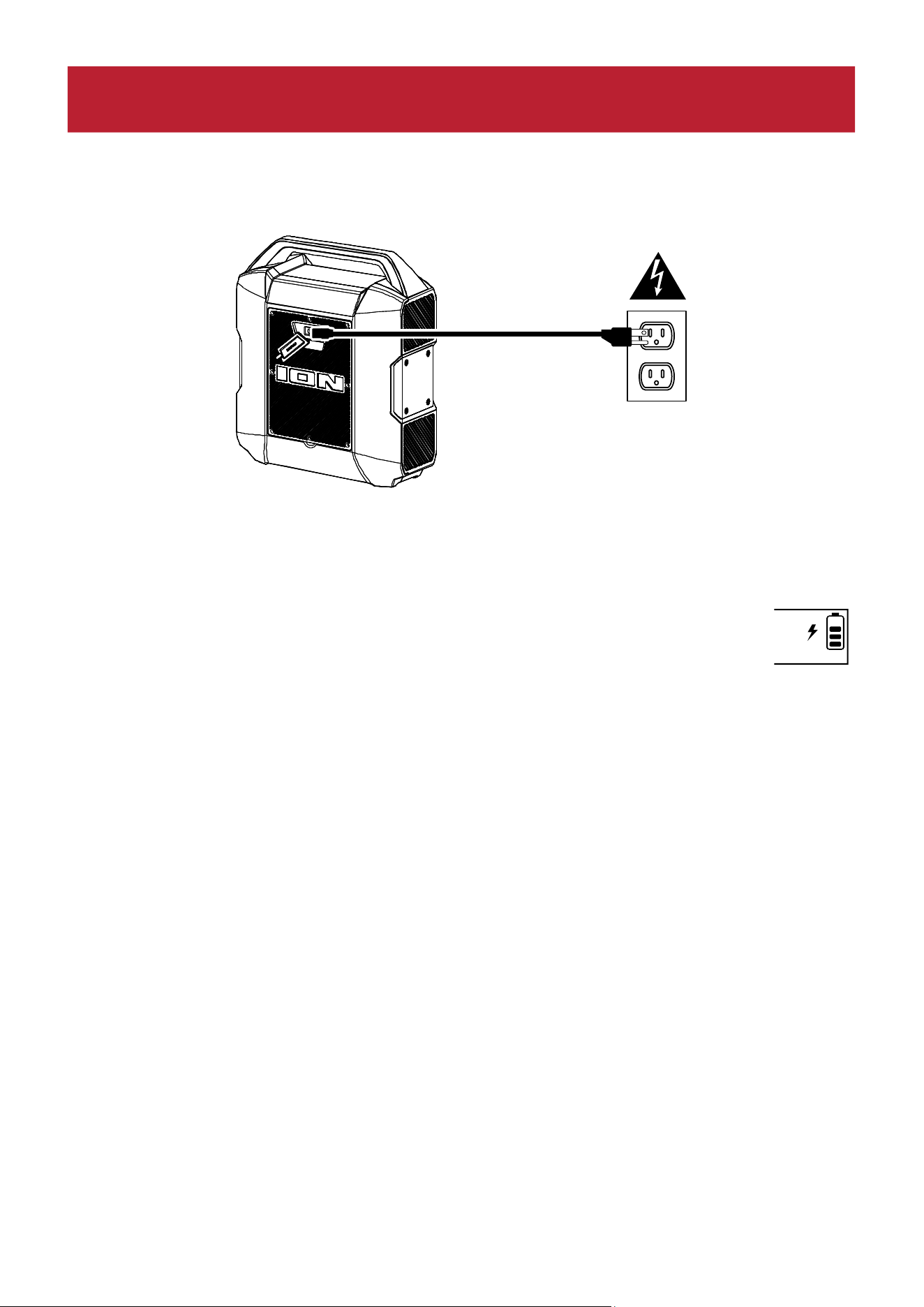
Use the included power cable to connect the unit to a power outlet and let it charge for up to
6 hours. This helps ensure the longest life for your battery.
Box Contents
Party Boom™ Plus
IEC (C7) Power Cable (4.9 ft / 150 cm)
Microphone with cable (7.5 ft. / 230 cm)
Quickstart Guide
Support
For the latest information about this product (documentation, technical specifications, system
requirements, compatibility information, etc.) and product registration, visit ionaudio.com.
For additional product support, visit ionaudio.com/support.
INTRODUCTION
ION Audio Party Boom
TM
Plus User Guide 4
Charging and Battery Information
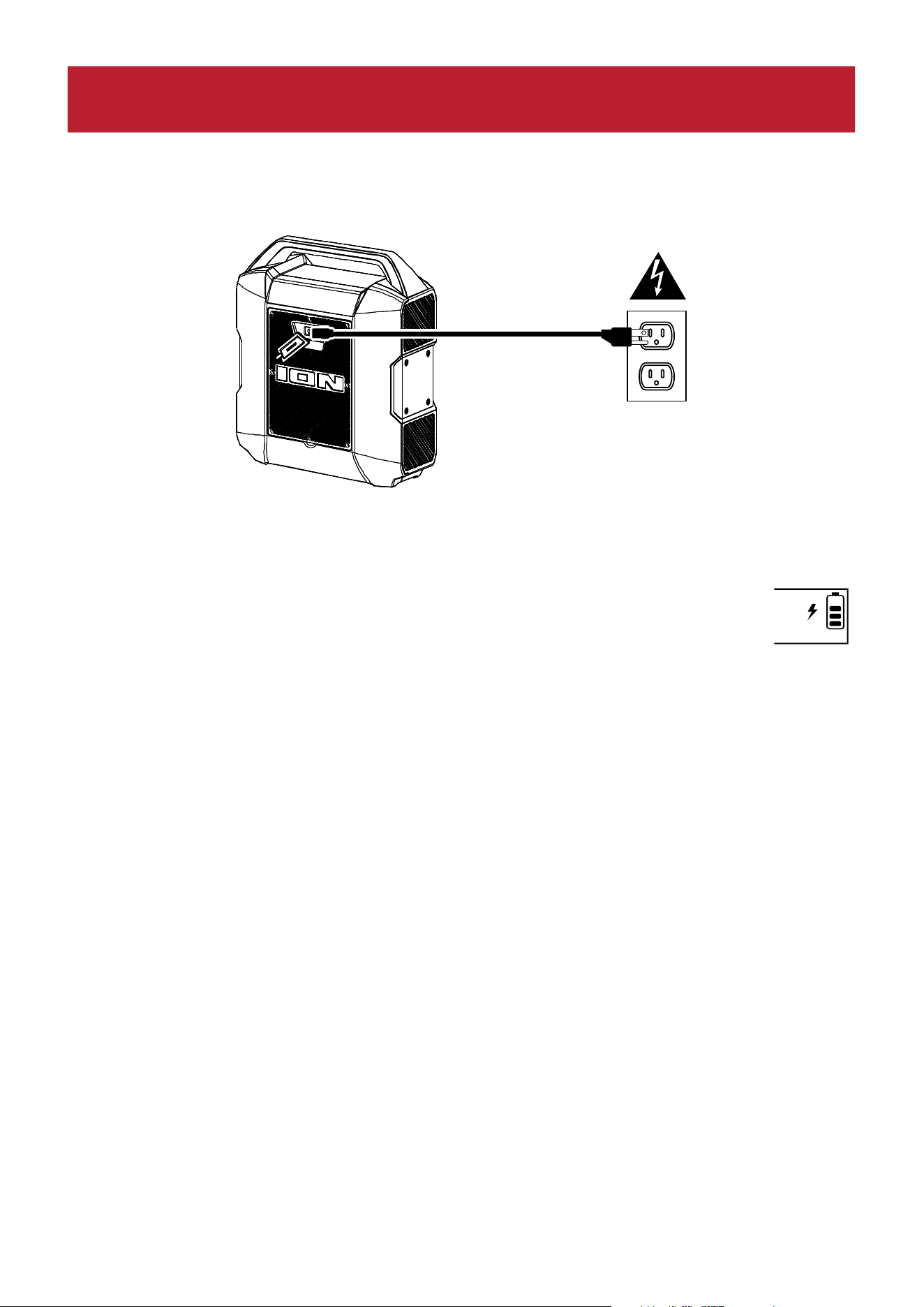
For the quickest charging time, power off Party Boom™ Plus and use the included IEC power
cable connected to a power outlet. A full charge can take up to 6 hours.
The lightning bolt icon on the display will light up when Party Boom™ Plus is
connected to a power source and charging. The battery icon will fill to display the
battery life percentage. When charging is complete, the lightning bolt icon will
disappear, and the battery icon will be completely filled.
Rechargeable lead-acid batteries are the same type used in automobiles. As with your car
battery, how you use this battery has a significant impact on its lifespan. With proper use and
treatment, a lead-acid battery can last for years. Here are some recommendations for getting
the longest life from the internal battery.
General
Usage
Fully charge the battery before using it.
Charge the battery completely after each use.
Storage For best product longevity, do not store at exceedingly hot (greater than
90°F/32°C) or exceedingly cold (less than 32°F/0°C) temperatures.
It is acceptable to leave your sound system plugged in. This will not overcharge
the battery.
If you leave the battery level low and do not charge it for 3 months, it may
permanently lose capacity.
Repair If the battery fails to charge, contact ION Audio at ionaudio.com.
Disposal Bring the unit to a recycling center or dispose of in accordance with local
ordinances.
SETUP

ION Audio Party Boom
TM
Plus User Guide 5
Outdoor Use and Care
Though Party Boom™ Plus is water-resistant and able to tolerate splashing water, please
review the tips below to get the best performance from your Party Boom™ Plus:
• Bring Party Boom™ Plus indoors during extreme weather.
• Please do not place Party Boom™ Plus in standing water.
• Please do not connect the power adapter to a Party Boom™ Plus in a wet environment.
Make sure the power input, power adapter, and power outlet are all completely dry before
making any connections.
• WARNING: Keep any non-water-resistant devices (phones, music players, etc.) in a dry
place where they will not be affected by water and cause a risk of electric shock.
ION Audio Party Boom
TM
Plus User Guide 6
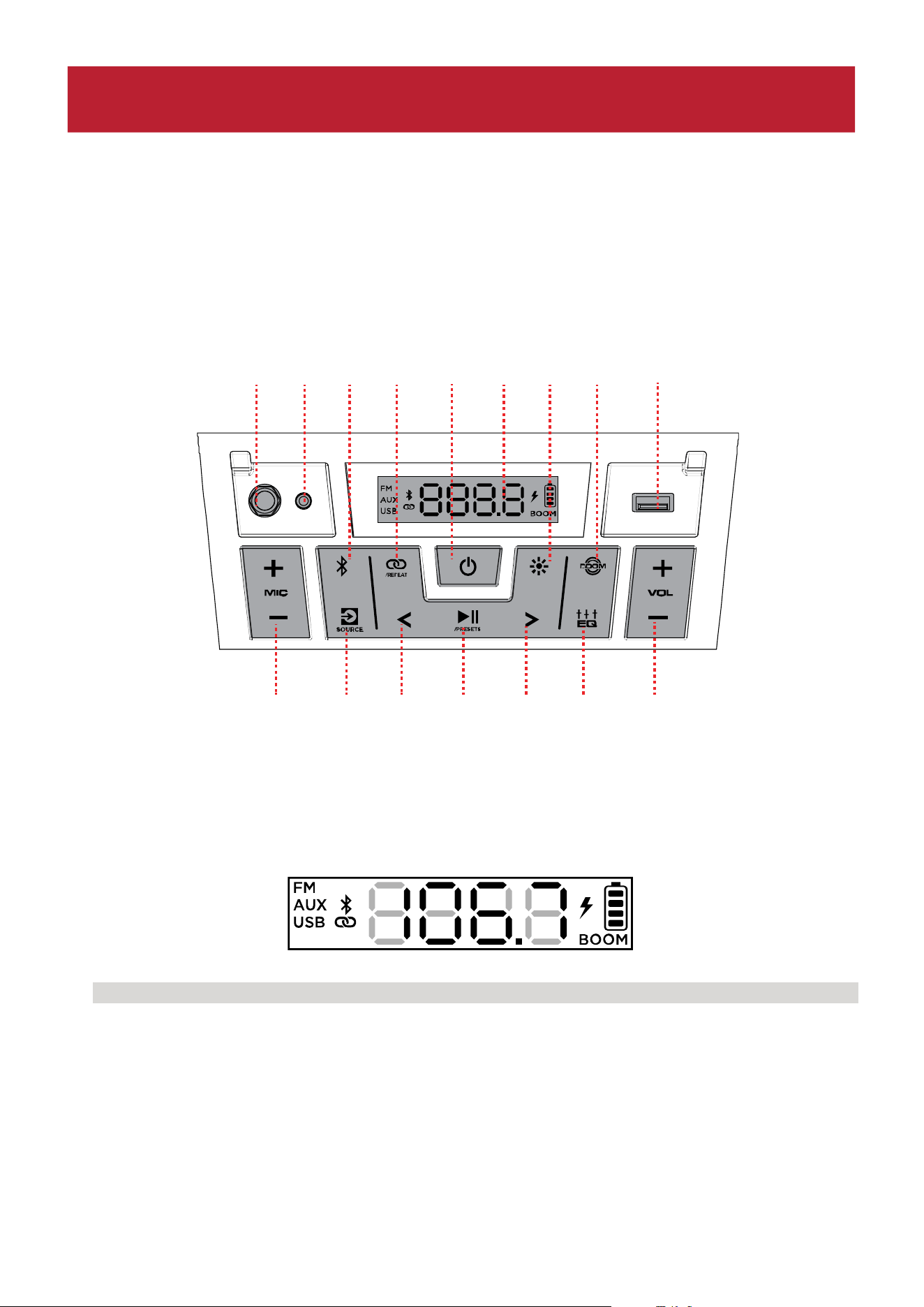
Front Panel
Click a control below to jump to that section.
1. Display
This screen shows information relevant to the current operation on Party Boom™ Plus.
Note: The Display comes with a plastic protector on it. Remove this for optimal viewing.
2. Previous / Next Buttons
In FM mode, press these buttons briefly to go to the previous or next station. Press and
hold these buttons to seek the previous or next strong station.
In Bluetooth and USB modes, press the Previous or Next button to go to the beginning of
the current track or skip to the following track, respectively. Press the Previous button
again within one second to skip to the previous track.
FEATURES
14
15 847
6
5
2
3
9
212
1 1013
11

ION Audio Party Boom
TM
Plus User Guide 7
3. Play/Pause / Presets Button
Press this button to start and stop Bluetooth or USB audio.
In FM mode, press this button to save and recall radio presets. See Operation > Using the
Radio for more details.
4. Bluetooth® Button
Press this button to enter Bluetooth pairing mode. When connected to a Bluetooth device,
press this button to disconnect a paired device and re-enter pairing mode. Once
disconnected, press this button to re-pair to the last connected device. See Operation >
Pairing a Bluetooth® Device to learn how to connect a Bluetooth device.
Press and hold this button to enable or disable voice prompts.
5. Stereo-Link™ / Repeat Button
Press and hold this button to start stereo-linking to another Party Boom™ Plus. See
Operation > Linking Two Speakers for more details.
In USB mode, press this button to change the playback mode. See Operation > USB Mode
for more details.
6. Source Button
Press this button to cycle between FM, USB, and Aux modes. The current mode will be
shown on the Display.
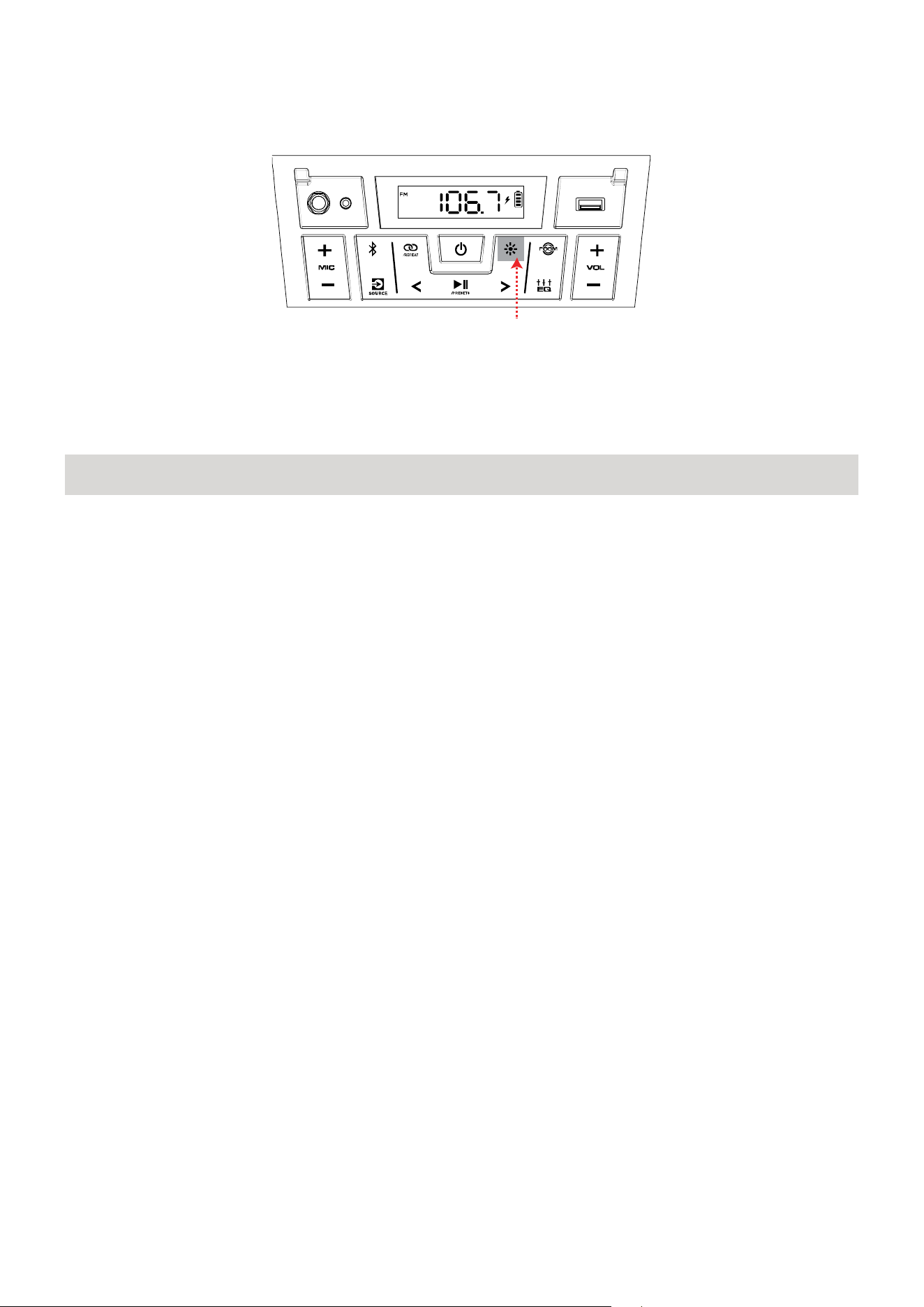
7. Lights Button
Press this button to cycle through the 10 light modes. See Operation > Light Modes for
more information.
8. BOOM Button™
Press this button to simultaneously enhance the bass EQ and volume and activate a light
show that pulses to the beat of the music.
9. EQ Button
Press this button to cycle through the Low, Mid, and Hi EQ frequencies. Then press the
VOL +/- buttons to adjust the EQ frequency settings from -12 to +12.
10. USB Charge/Playback Port
You can use this port for charging the USB device, such as a tablet or smartphone. To
charge a device that is streaming music via Bluetooth, pause the music first and then wait
for it to reconnect after the USB cable (not included) is inserted.
You can also connect a USB flash drive here to play music. See Operation > USB Mode for
more information.

ION Audio Party Boom
TM
Plus User Guide 8
11. Mic In
Connect a microphone into this into using a 1/4” (6.35 mm) cable. Press the MIC +/-
buttons to control the mic volume.
12. Mic +/- Buttons
Press these buttons to adjust the microphone volume.
13. Aux In
Connect a CD player, MP3 player, or other audio source to this 1/8” (3.5 mm) input.
14. Volume +/- Buttons
Use these buttons to raise and lower the volume of the Bluetooth, USB, radio, or aux input
from 0-30. Press and hold a button to raise or lower the volume quickly.
15. Power Button
Press and hold this button to turn Party Boom™ Plus on and off.
ION Audio Party Boom
TM
Plus User Guide 10
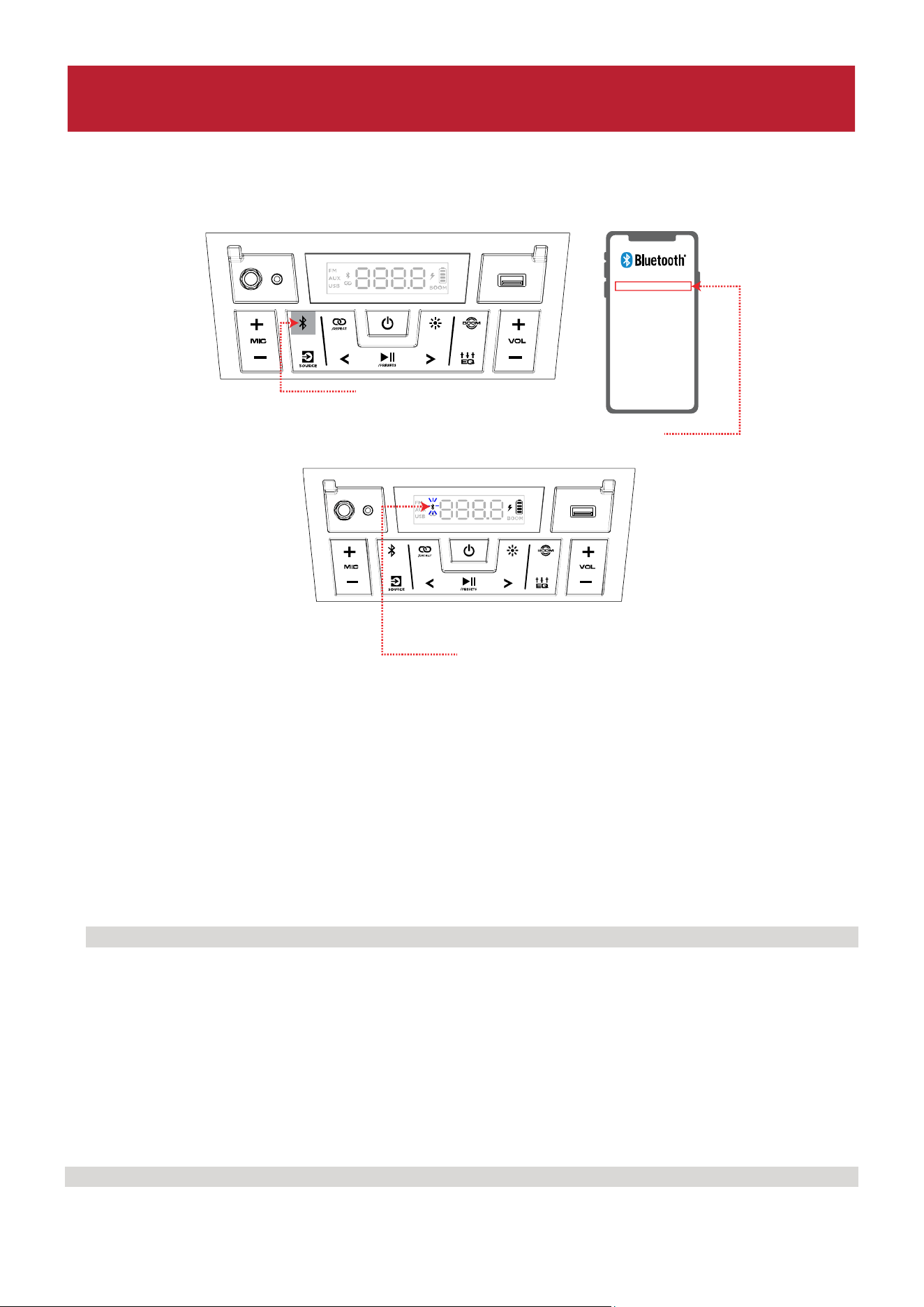
Pairing a Bluetooth® Device
1. Turn on your Bluetooth device.
2. Turn on Party Boom™ Plus by holding down the Power button for 2 seconds. When the unit
is first turned on, it will automatically enter Bluetooth pairing mode. If necessary, press the
Bluetooth button to select Bluetooth mode. The Bluetooth icon on the display will flash to
indicate the speaker is ready to pair and you will hear “Bluetooth Pairing” if voice prompts are
enabled.
3. Navigate to your device’s Bluetooth setup screen, find PARTY BOOM PLUS, and connect.
The Bluetooth icon will appear in the display, and if voice prompts are enabled, you will
hear “Bluetooth Connected”. If after 90 seconds if there is no connection, the speaker will
stop searching for a Bluetooth device and enter AUX mode.
Note: If your Bluetooth device prompts for a pairing code, enter “0000”.
To disconnect a paired device, do any of the following:
• Turn off Bluetooth from your device’s Bluetooth settings. The speaker will enter
Bluetooth pairing mode to make it available for another device.
• Press the Bluetooth button to disconnect and re-enter pairing mode.
Once you have disconnected, you will hear “Bluetooth Disconnected” if voice prompts are
enabled.
Tip: Press and hold the Bluetooth button to turn voice prompts on or off.
OPERATION
1 - PRESS
2
3
PARTY BOOM™ PLUS
ION Audio Party Boom
TM
Plus User Guide 11
Linking Two Speakers
If you would like to play music from a Bluetooth device, you can first “link” two Party Boom™
Plus speakers together in order to listen to your music in stereo. One Party Boom™ Plus will
serve as the left speaker and the other will serve as the right speaker.
To link two Party Boom™ Plus speakers together:
Note: When you begin the Stereo-Link™ process, any connected Bluetooth devices will be
automatically disconnected. You can also disconnect your device prior to beginning by
pressing the Bluetooth button.
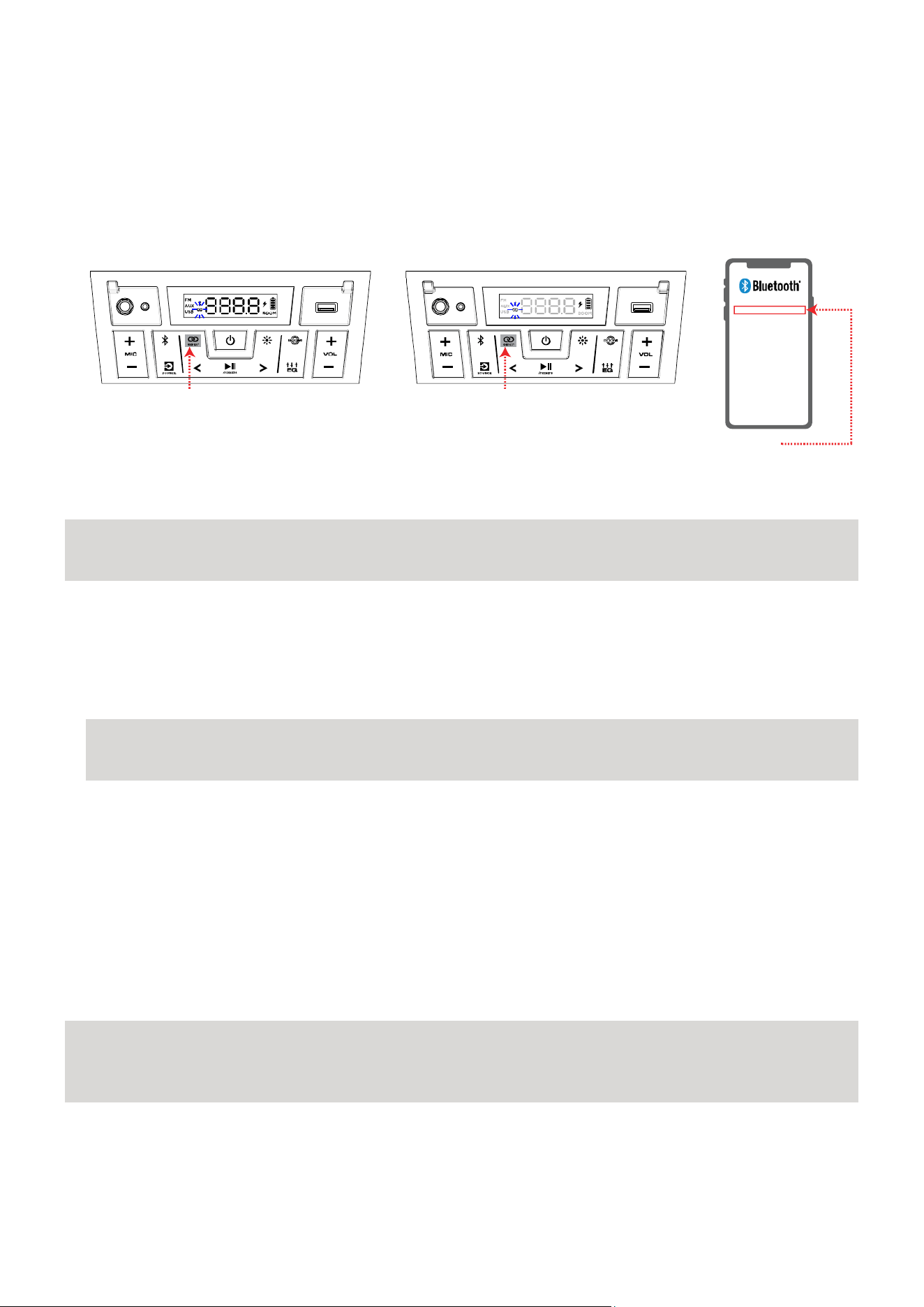
1. Press and hold the Stereo-Link™
/ Repeat button on both speakers to enter Stereo-Link™
mode. This first unit pressed will be the primary speaker (Left channel).
2. Next, press and hold the Stereo-Link™ / Repeat button on the second speaker. This will be
the secondary speaker (Right channel).
Note: The linking process can take up to 30 seconds to complete. Speakers should be within
50’ (15 m) of each other to properly link. The closer the two speakers are, the quicker the
link is established.
3. Once the speakers are linked, the primary speaker will automatically enter Bluetooth pairing
mode. Navigate to your device's Bluetooth settings screen, find PARTY BOOM PLUS, and
connect. When the connection is successful, you will hear "Bluetooth Connected" from the
primary speaker (if voice prompts are enabled). When audio playback begins, you should
hear it through both speakers. The primary speaker will play the left channel while the
secondary speaker plays the right channel. Playback controls are active on both speakers.
To disconnect two speakers or cancel linking between the two, press and hold the Stereo-
Link™
/ Repeat button on one Party Boom™ Plus. You will hear "Bluetooth Disconnected" from
the primary speaker to indicate the link has been broken (if voice prompts are enabled.)
Note: Press and hold the Power button on each speaker while in Stereo-Link™ mode to power
off the connected speakers. Party Boom™ Plus speakers powered off in Stereo-Link™ mode
will automatically enter Stereo-Link™ mode the next time they are powered on and begin
searching for secondary speakers to connect to.
1 - PRESS AND HOLD
(on the Primary speaker)
2 - PRESS AND HOLD
(on the Secondary speaker)
3
PARTY BOOM™ PLUS
ION Audio Party Boom
TM
Plus User Guide 12
Light Modes
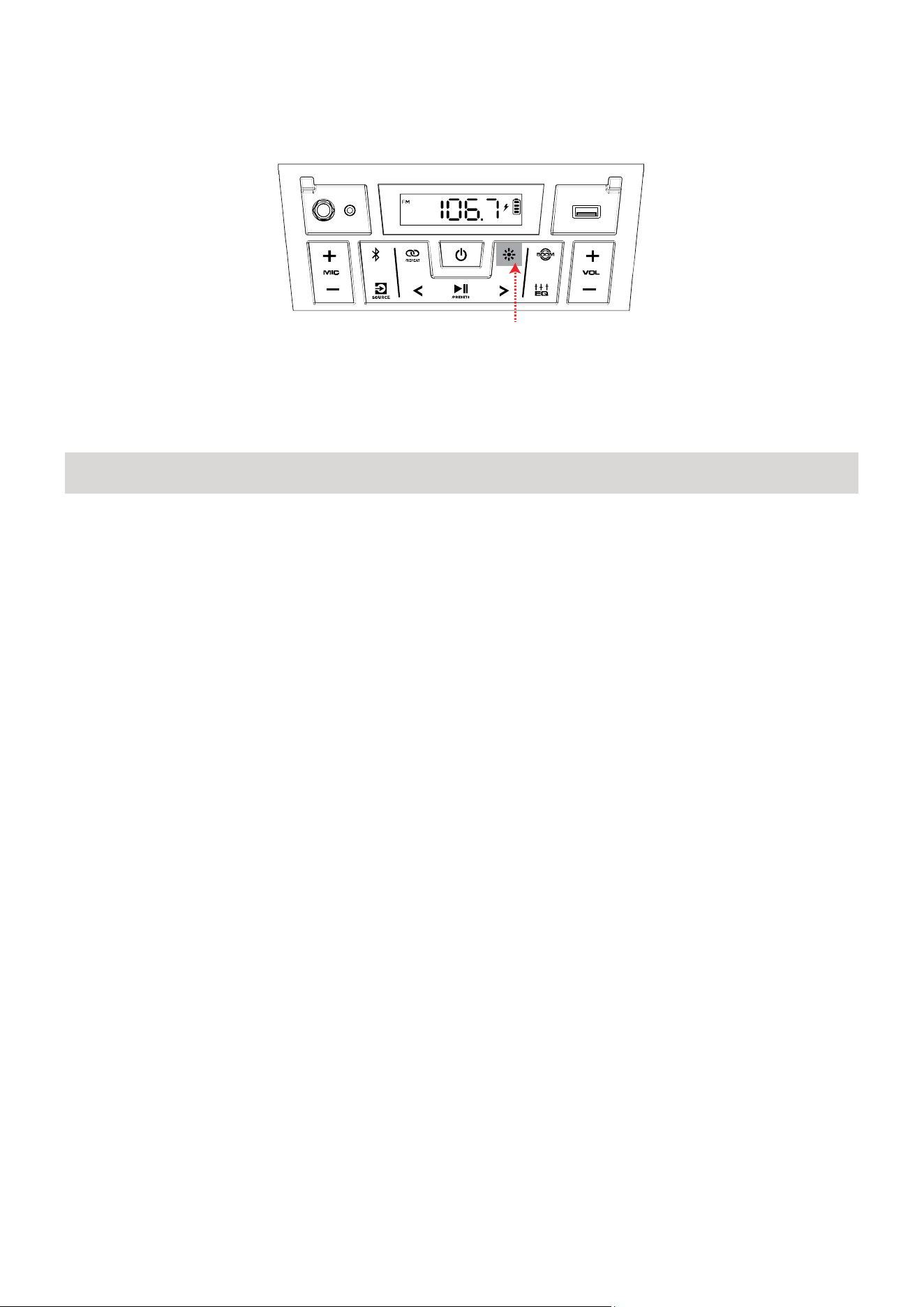
Press the Light button repeatedly to toggle between one of the modes for the LEDs on Party
Boom™ Plus.
Note: For the best lighting effect, you may need to increase the volume of your connected
device or input source.
The LED light modes are:
• Crazy Rainbow (Default mode when powered on): The four corner LEDs cycle in a circle
of rainbow colors and the backlit buttons match the top left corner LED.
• Beat Sync: All LEDs cycle through the spectrum of colors in sync with the beat of the
music.
• Fade: All LEDs fade in and out with the same color as they cycle through the spectrum
of colors.
• Flowing Rainbow: All LEDs flow down through the spectrum of colors. The backlit
buttons will only be one color.
• Fire Pit: The corner LEDs and the backlit buttons flicker red, yellow, and orange. The
lights rise up and down based on the volume of the music.
• Cyber Lighting: The LEDs flow downward, cycling through light green, blue, and purple
colors.
• Random: The side LEDs cycle through the full spectrum of colors randomly, changing
every 5-7 seconds.
• Solid: All LEDs stay the same color (the color can be adjusted from the ION Sound
Control™ app). The default color is blue unless changed in the ION Sound Control™ app.
• Backlight: Only the backlit buttons will light up with the same color (the color can be
adjusted from the ION Sound Control™ app). The default color is blue unless changed in
the ION Sound Control™ app.
• Off: All LEDs are off.
PRESS
ION Audio Party Boom
TM
Plus User Guide 13
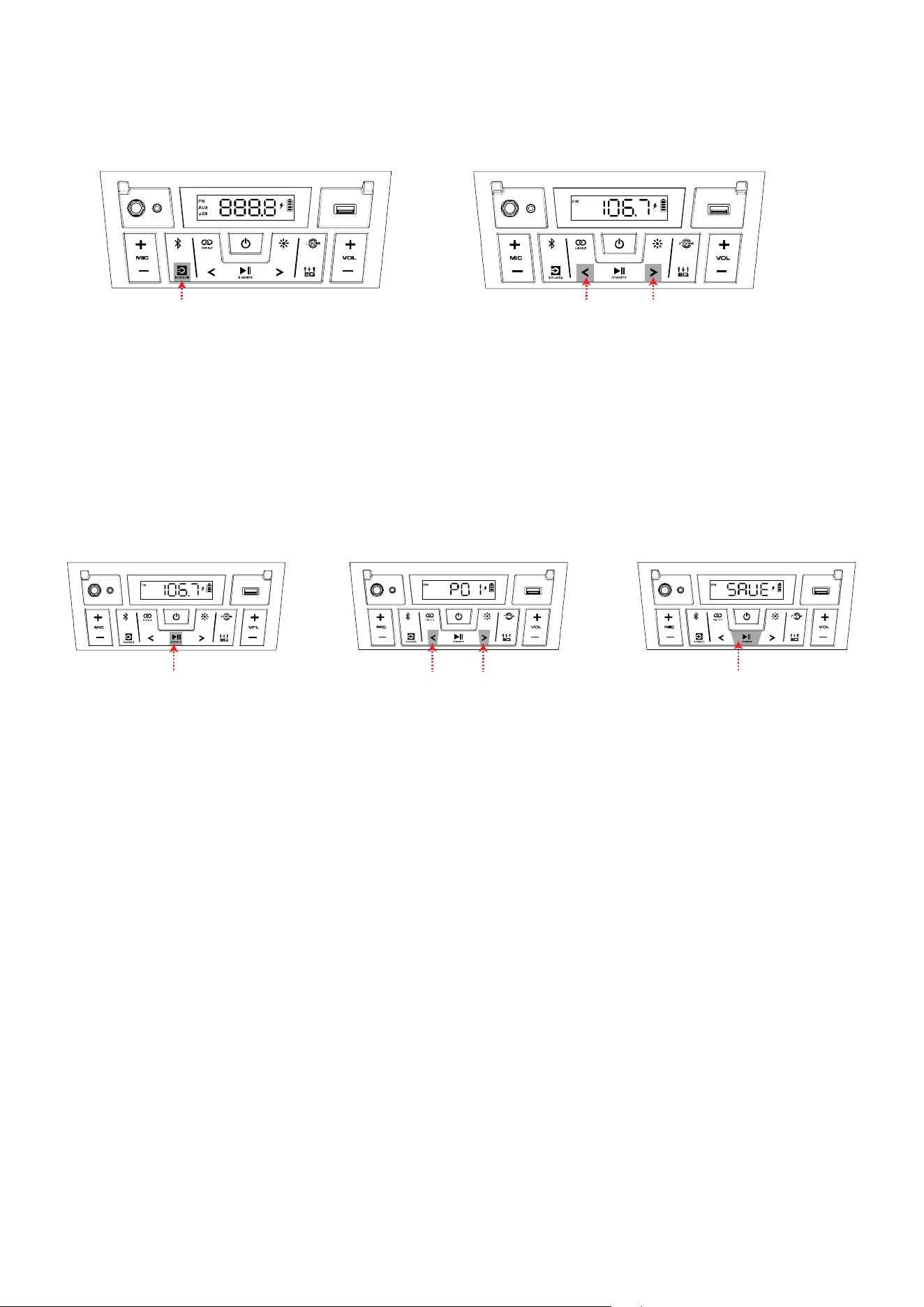
Using the Radio
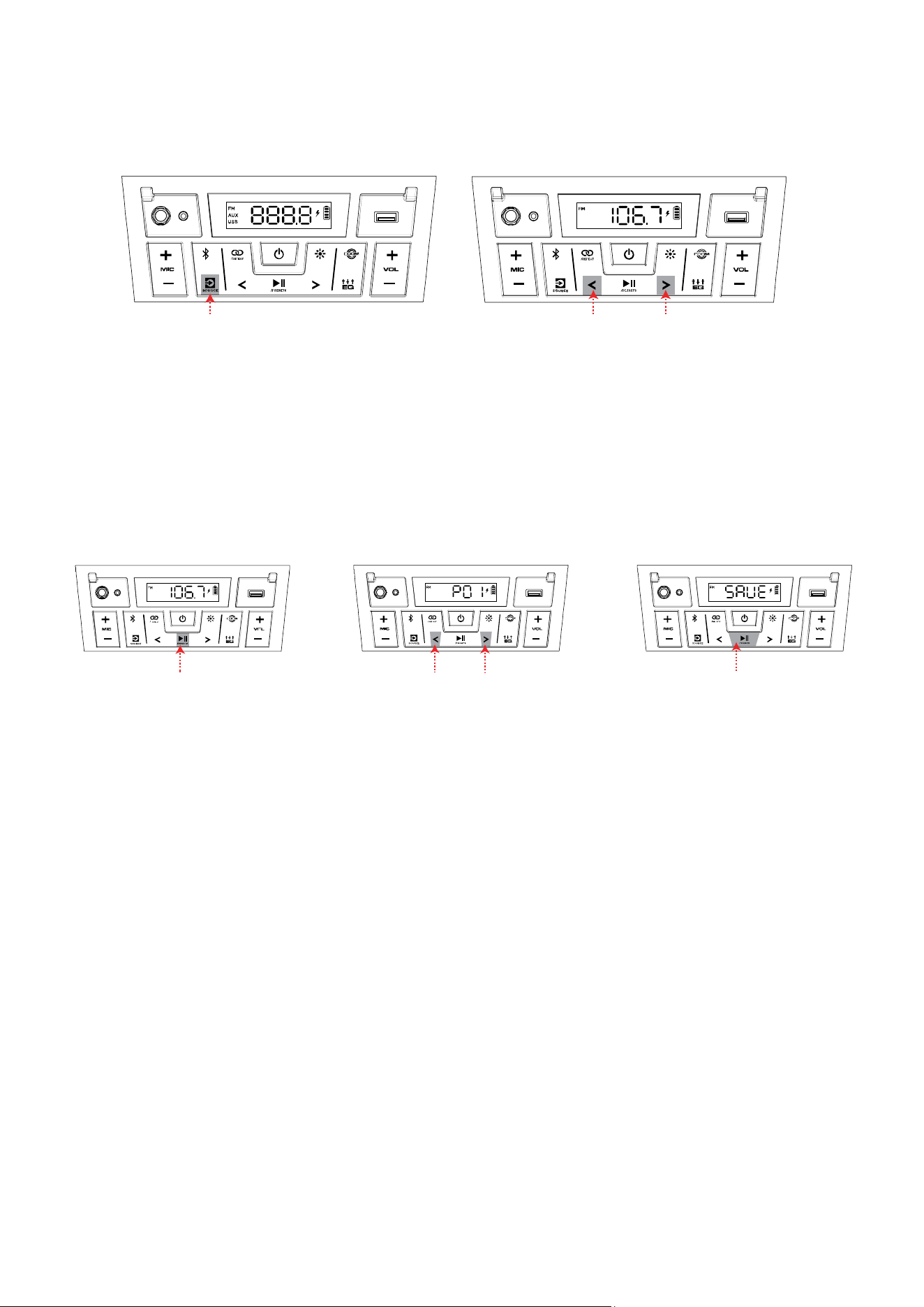
To use the radio, press the Source button so that FM is selected and shown on the display.
While in FM mode, briefly press the Previous and Next buttons (</>) to move to the previous
or next station. Press and hold the </> buttons to seek for the next strongest station in that
direction.
To save a radio station as a preset:
1. Press and hold the Play/Pause / Presets button.
2. Use the </> buttons to select a preset number, 1–12, shown on the display.
3. When you have selected the desired preset number, quickly press and release the
Play/Pause / Presets button again to save it.
To recall a previously saved preset, press and release the Play/Pause / Presets button to
cycle through the saved presets.
1 - HOLD 2 - PRESS - Select Preset
3 - PRESS
PRESS PRESS - Previous / Next Station
HOLD - Seek
ION Audio Party Boom
TM
Plus User Guide 14
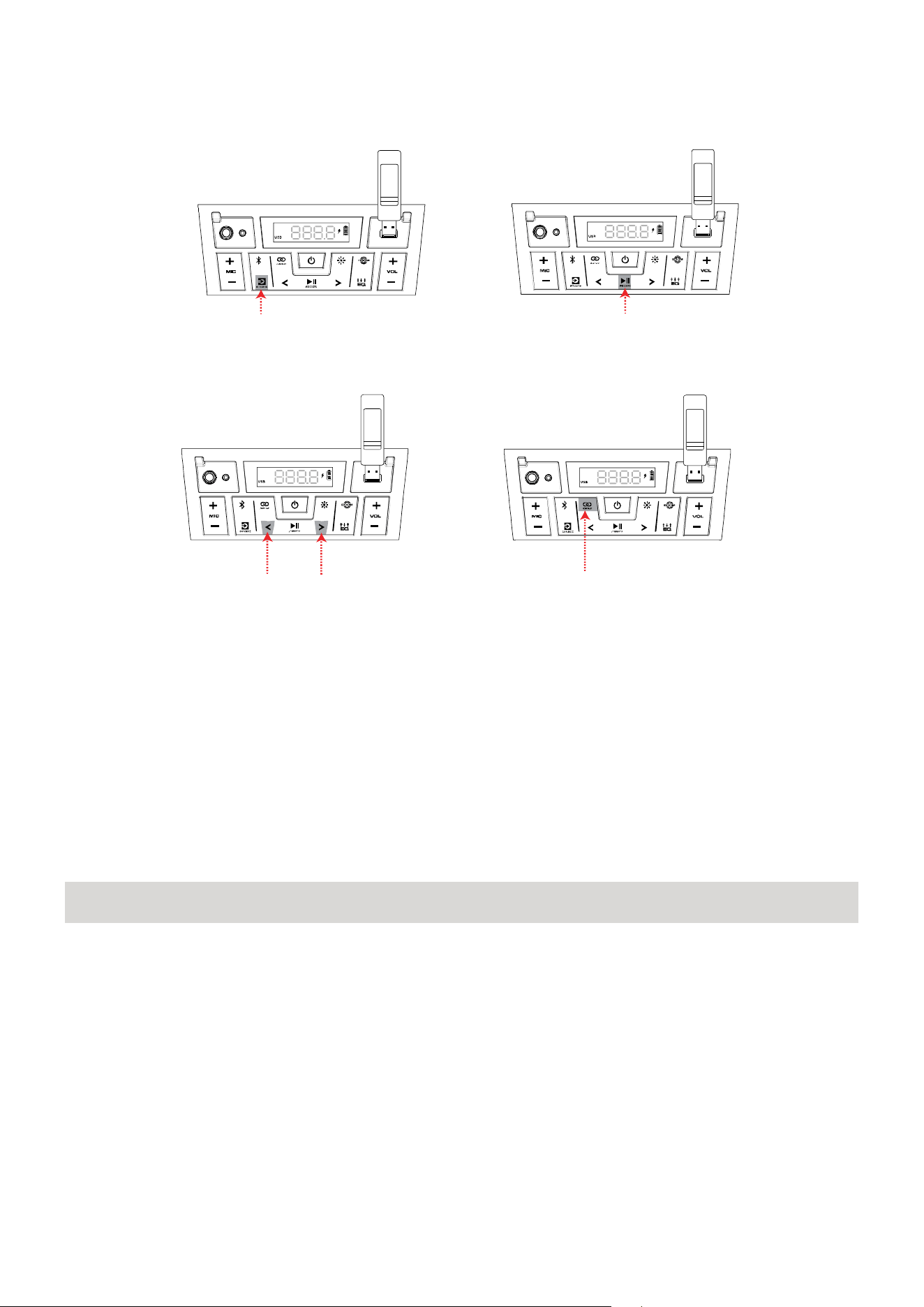
USB Mode
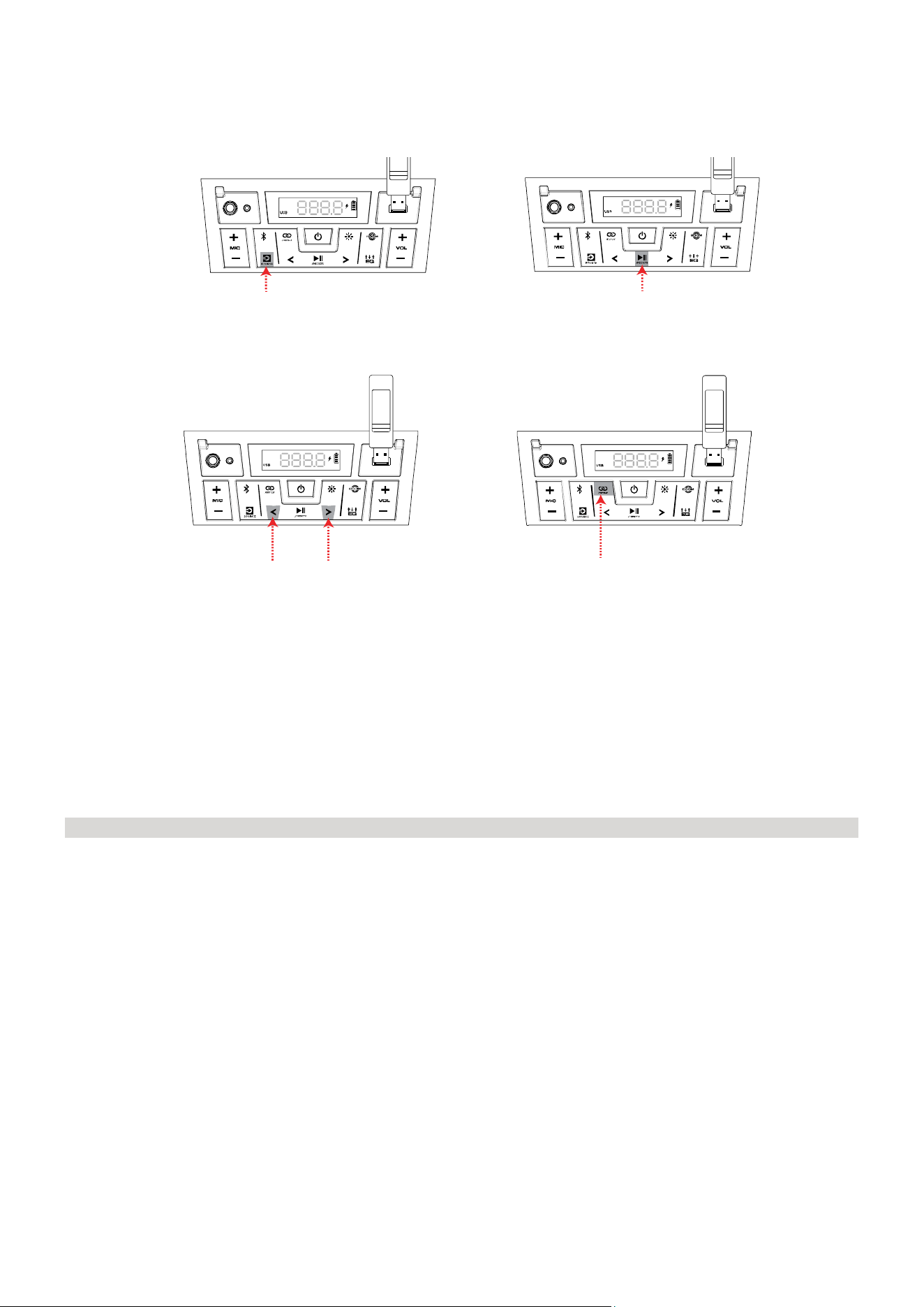
When a USB drive with compatible files is inserted into the USB Charge/Playback Port, Party
Boom™ Plus will automatically switch to USB mode. If the USB drive has already been inserted
and you are using another mode, press the Source button until USB mode is selected.
Party Boom™ Plus will automatically play the first compatible MP3 file. Files are played in
alphabetical order of what is on the root level, then alphabetical by folder, and then
alphabetical by track name. Media playback will stop when all media has been played on the
USB drive.
Note: The USB drive must have playable MP3 files for it to appear on the media panel’s display.
Press the Next and Previous (</>) buttons to go to the next or previous track. Press and hold
these buttons to fast forward or rewind within the track.
With each press of the Stereo-Link™ / Repeat button the following Repeat settings will cycle
through on the display:
• ALL: Repeat all of the tracks on the USB drive (Default mode).
• FOLd: Repeat all of the tracks in the folder.
• OnE: Repeat the current playing USB track.
• rAn: Shuffle the track order.
1 - CONNECT AND PRESS
3 - PRESS
(Previous/Next Track)
4 - PRESS TO CYCLE
(ALL, FOLDER, ONE RANDOM)
2 - PRESS
(Play/Pause Playback)
ION Audio Party Boom
TM
Plus User Guide 15
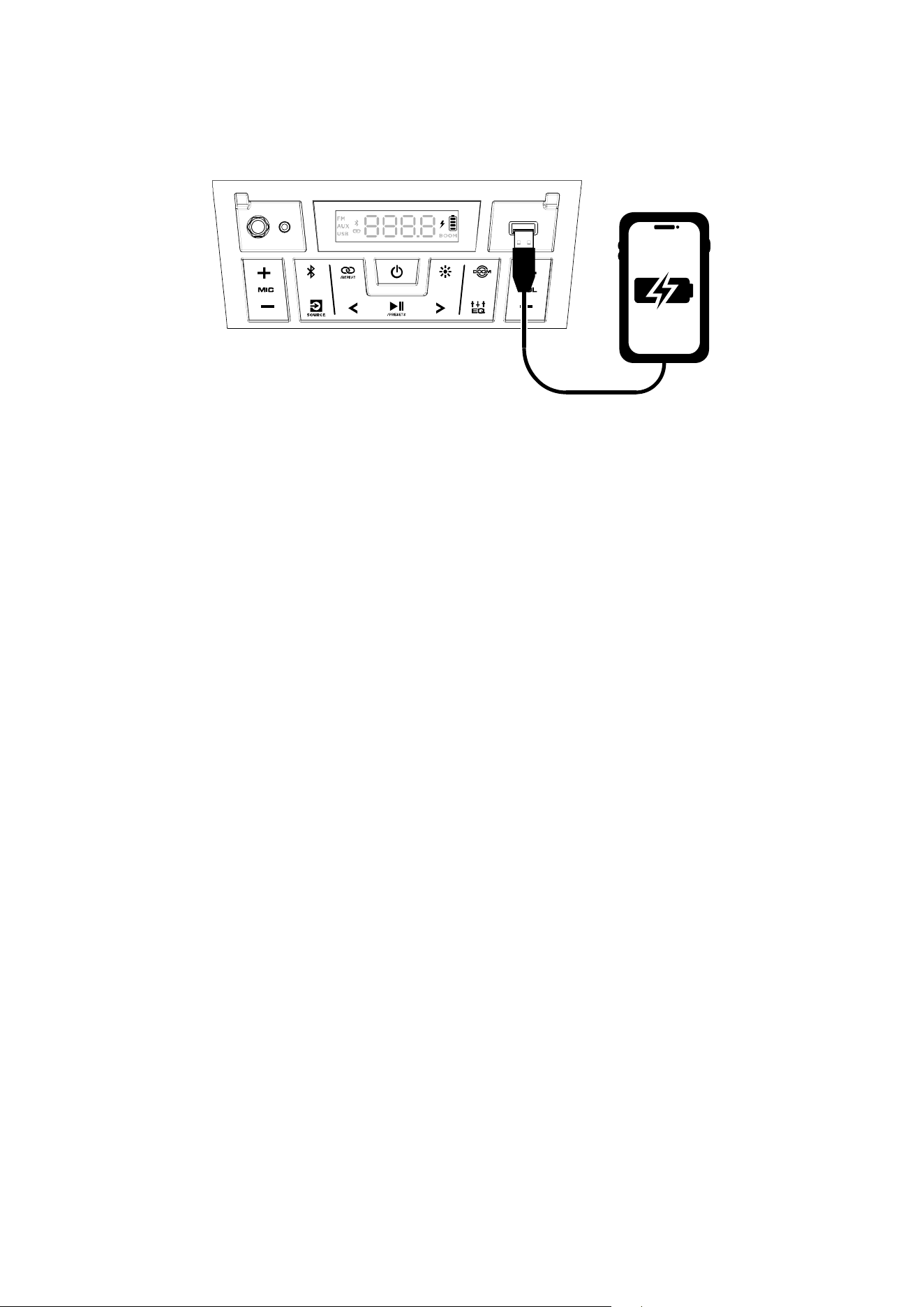
Using the USB Charge Port
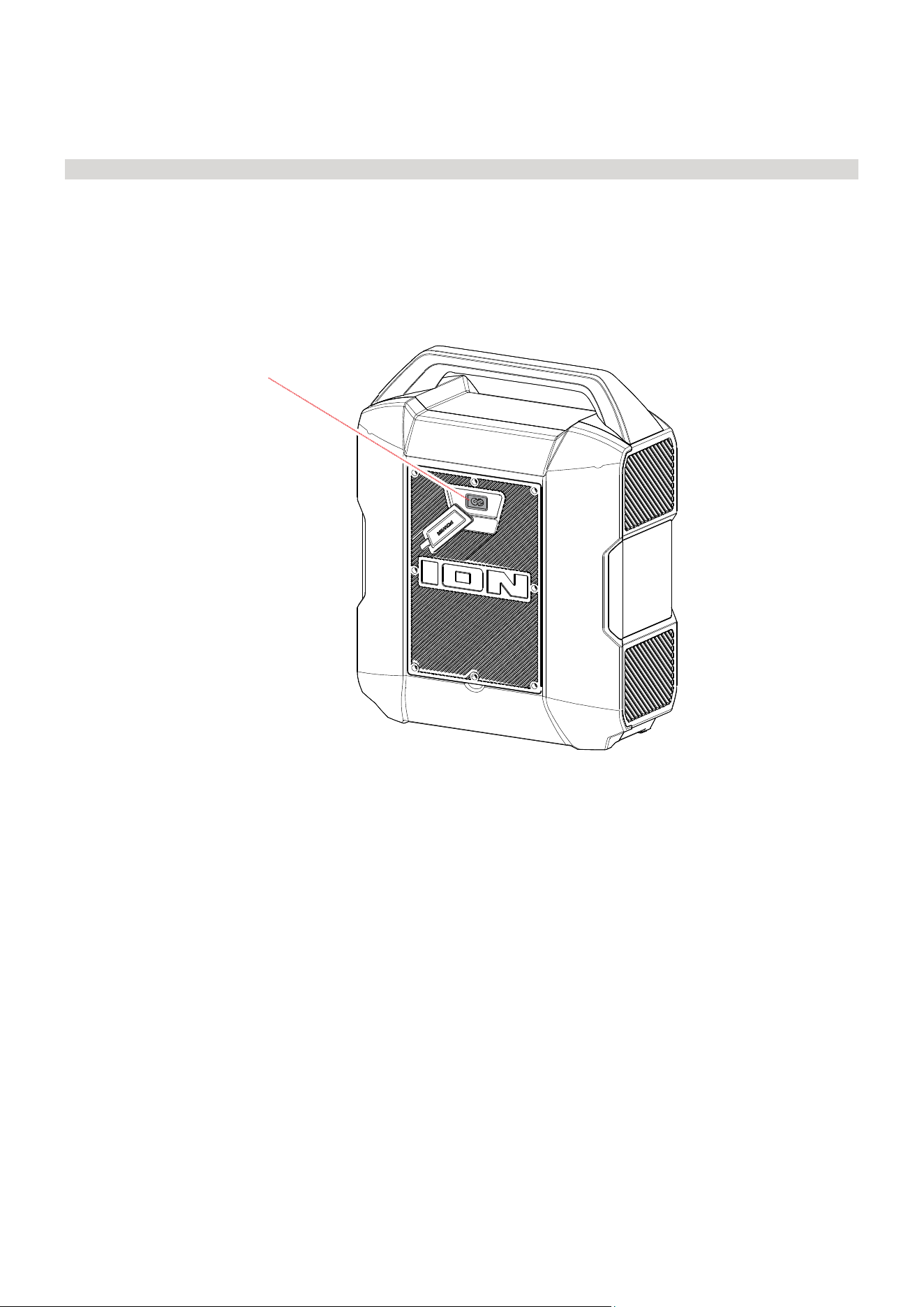
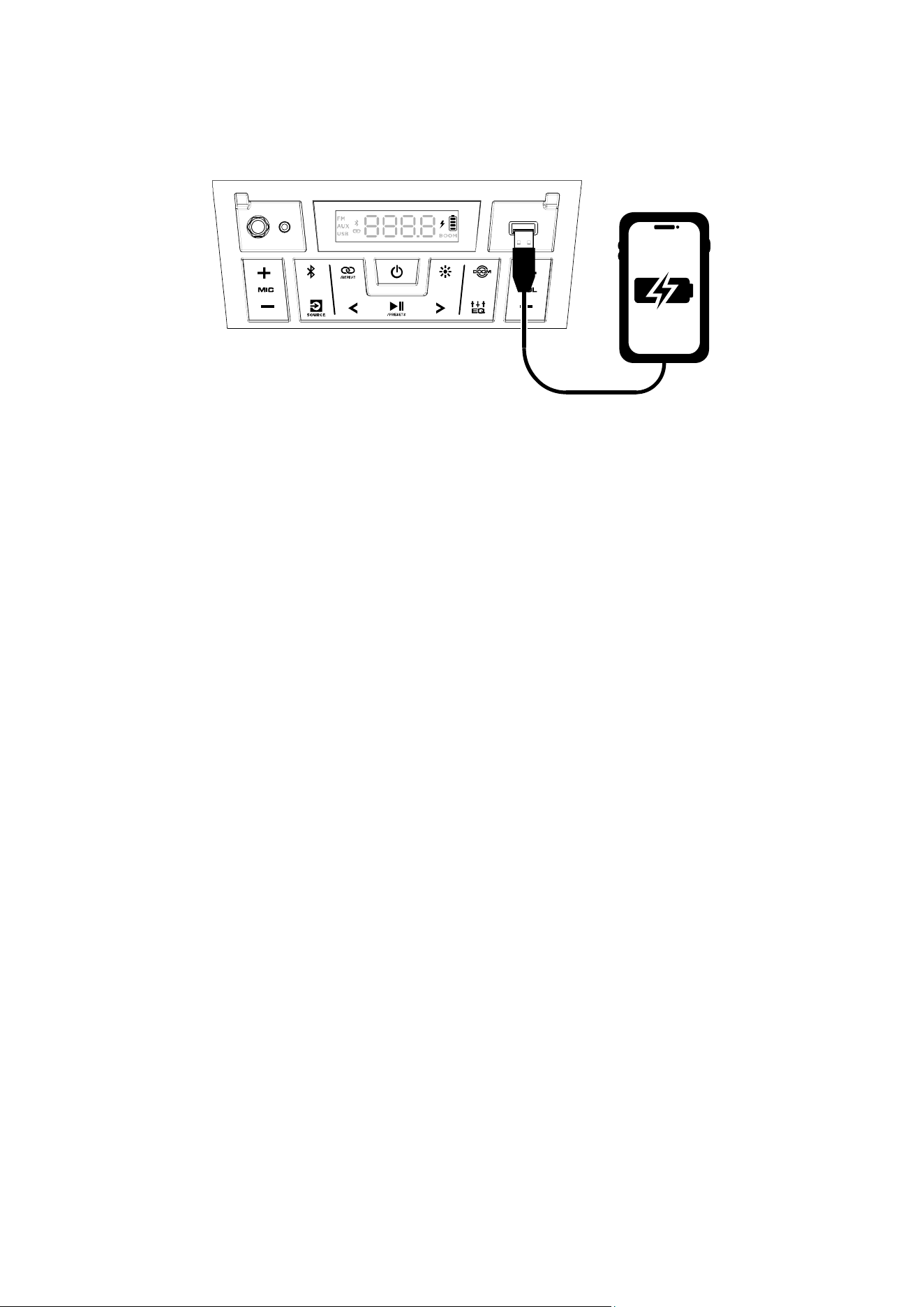
To use the USB charge port:
1. Connect a USB type-A cable to the USB Charge Port on the front panel of your Party
Boom™ Plus speaker (see image).
2. Connect the other end of the cable to the charging input on your smartphone, tablet, or
other compatible device.

ION Audio Party Boom
TM
Plus User Guide 16
App Control
IMPORTANT: To ensure the best possible experience with the app, use the most current
Android OS or iOS on your device.
Follow these steps to download the free app on your device:
1. Open the Apple App Store or Google Play on your device. Then, search for the ION Sound
Control™ app.
2. Follow the on-screen instructions to download and install the app. Once downloaded, the
ION Sound Control™ app will appear on your device's home screen.
3. Connect your device to Party Boom™ Plus via Bluetooth. See Operation > Pairing a
Bluetooth® Device to learn how to do this.
4. Open the ION Sound Control™ app. If prompted, allow the app to access your device's
Bluetooth and Location Services.
5. Follow the steps on screen to find and connect to your Party Boom™ Plus. Once connected,
you can control various functions of the speaker, such as:
• Volume: Adjust the speaker's volume.
• Mic Volume: Adjust the volume of the Mic input.
• EQ: Adjust the speaker's equalization.
• Voice Prompts: Enable or disable the voice prompts.
• Lights: Change the light modes.
• Battery Life: Check the speaker’s battery life status.
• Support: Visit ionaudio.com, contact Technical Support, and view Warranty
information and Frequently Asked Questions.
• Over-The-Air Firmware Updates: Stay up to date with the latest firmware installation.

ION Audio Party Boom
TM
Plus User Guide 17
If the unit is not charging: Make sure the power cable is properly connected to the power
input and the power outlet.
If the sound is distorted: Try lowering the volume control of your sound source.
I hear a hum when cables are connected:
• Disconnect cables from the input jacks to see if it’s a faulty cable.
• Make sure the signal cables are not placed near power cables.
• Connect all audio equipment power cables to outlets which share a common ground.
If there is a high-pitched whistling noise when using microphones: This is probably
feedback. Point the microphone away from the speaker.
If you can’t hear the microphone over the music volume: Turn down the music volume from
your source or increase the microphone volume using the Mic + button.
If there is too much bass: Try adjusting the tone or EQ control on the Party Boom™ Plus or
your sound source to lower the bass level. This will allow you to play the music louder before
clipping (distortion) occurs. You can also check to see if the BOOM function is enabled, and
disable it by pressing the BOOM button™.
If you cannot connect your audio device to Party Boom™ Plus via Bluetooth:
• Have your audio device (e.g., smartphone or tablet) and Party Boom™ Plus as close
together as possible while trying to connect. Make sure both the audio device and Party
Boom™ Plus are unobstructed by walls, furniture, etc.
• Press the Bluetooth button to disconnect Party Boom™ Plus
from any other audio device
and restart the search process. If this does not work right away, power off Party Boom™
Plus and then power it back on. See Operation > Pairing a Bluetooth® Device for more
information.
• Reset the Bluetooth connection on your audio device by turning Bluetooth off and back
on. You can find this under the Bluetooth menu in the Settings for your phone or other
audio device.
TROUBLESHOOTING

ION Audio Party Boom
TM
Plus User Guide 18
If this does not work, and you have connected to Party Boom™ Plus
before, find Party
Boom™ Plus in the list of available or previously connected devices in your audio device's
Bluetooth menu, tap the "gear" or “i” icon located next to it and then select Unpair or
Forget. Turn Party Boom™ Plus off and back on and try pairing again once it reappears in
your available devices list.
Note: If Party Boom™ Plus has been paired to another audio device recently that is still
within range, you may need to repeat this process with that audio device to fully
disconnect.
If you experience audio dropouts while playing music from a Bluetooth device, this may be
happening because your unit is trying to link to another speaker. This can occur if you power
off a speaker that was linked to your unit or if you have just turned on your unit and it is in
Stereo-Link™ mode. To stop the audio dropouts, exit Stereo-Link™ mode by double-pressing
the Stereo-Link™
/ Repeat button. Alternatively, you can wait for your unit to link to another
speaker if there is one within range.

ION Audio Party Boom
TM
Plus User Guide 19
Technical Specifications
Speakers Low Frequency: 8.0” (205 mm) woofer
High Frequency (front): 2.3” (59 mm) tweeter
Full-Range Driver (sides): (2) 3.9” (98 mm)
Frequency Response 45 Hz - 20 kHz
USB Supported File System: FAT32
Supported File Types: MP3
Maximum File Size: 4 GB
Wireless Technology Bluetooth®
- Classic Audio
Wireless Range * Bluetooth Range: Up to 100 ft. (30.5 m)
Stereo-Link™ Range: Up to 100 ft. (30.5 m) between speakers
Battery Capacity: 5Ah/12V, 60Wh
Battery Life: Up to 35 hours **
Charge Time: Up to 6 hours
Power Cable: IEC (C7) Power Cable
Input Voltage: 100-240 V~, 50/60 Hz, 120 W
Dimensions
(width x depth x height)
14.19” x 8.13” x 17.87”
368 mm x 207 mm x 454 mm
Weight 14.99 lbs.
6.8 kg
Specifications are subject to change without notice.
* Bluetooth and wireless reception and range are affected by walls, obstructions, and
movement. For optimal performance, place the product so it is unobstructed by walls or
furniture and is raised off the ground.
** Battery life may vary based on temperature, age, and volume usage of product.
APPENDIX

ION Audio Party Boom
TM
Plus User Guide 20
Trademarks & Licenses
ION Audio is a trademark of inMusic Brands, Inc., registered in the U.S. and other countries.
The Bluetooth word mark and logos are owned by the Bluetooth SIG, Inc., and any use of such
marks by ION Audio is under license.
App Store is a trademark of Apple Inc., registered in the U.S. and other countries.
Android and Google Play are registered trademarks of Google Inc. All other product names,
company names, trademarks, or trade names are those of their respective owners.

ION Audio Party Boom
TM
Plus User Guide 21
PRESENTATION ....................................................................... 22
Contenu de la boîte ................................................................................................ 22
Assistance .................................................................................................................. 22
INSTALLER............................................................................... 23
Informations sur la charge et la batterie ........................................................ 23
Utilisation extérieure et entretien ..................................................................... 24
CARACTÉRISTIQUES .............................................................. 25
Panneau avant .......................................................................................................... 25
Panneau arrière ........................................................................................................ 28
UTILISATION ........................................................................... 29
Appairage d'un appareil Bluetooth® ................................................................ 29
Relier deux haut-parleurs .................................................................................... 30
Modes lumineux ........................................................................................................ 31
Utiliser la radio ......................................................................................................... 32
Mode USB ................................................................................................................... 33
Utilisation du port de rechargement USB ..................................................... 34
Contrôle d'application ........................................................................................... 35
DEPANNAGE ............................................................................ 36
L'APPENDICE .......................................................................... 38
Spécifications techniques .................................................................................... 38
Marques de commerce et licences ................................................................... 39
TABLE DES MATIÈRES

ION Audio Party Boom
TM
Plus User Guide 22
Merci d’avoir fait l’acquisition de l’enceinte Party Boom
MC
Plus. Chez ION, votre divertissement
est aussi important pour nous qu’il l’est pour vous. C’est pourquoi nous concevons nos
produits avec une seule chose en tête — rendre la vie plus amusante et plus pratique.
Remarque : Veuillez vous assurer d'avoir complètement chargé la batterie du produit avant
sa première utilisation. L’appareil a été expressément expédié avec une charge de batterie
réduite afin d’assurer un transport sécuritaire.
Utilisez le câble inclus pour brancher l'appareil sur une prise électrique, et laissez-le en charge,
ce qui peut prendre six heures au maximum. Ceci permettra de maximiser la durée de vie de
la batterie.
Contenu de la boîte
Party Boom
MC
Plus
Câble d'alimentation IEC (C7) (150 cm)
Microphone avec câble (230 cm)
Guide d’utilisation rapide
Assistance
Pour les toutes dernières informations concernant la documentation, les spécifications
techniques, la configuration requise, la compatibilité et l’enregistrement du produit, veuillez
visiter ionaudio.com.
Pour de l’assistance supplémentaire, veuillez visiter ionaudio.com/support.
PRESENTATION
ION Audio Party Boom
TM
Plus User Guide 23
Informations sur la charge et la batterie
Pour un rechargement plus rapide, mettez la Party Boom
MC
Plus hors tension et le câble inclus
pour brancher l'appareil sur une prise électrique, et laissez-le en charge, ce qui peut prendre
six heures au maximum.
Lorsqu'il est relié à une source d'alimentation et qu'il se recharge, l'écran du Party
Boom™ Plus affiche un éclair. L'icône de batterie se remplit pour indiquer
l'autonomie restante. La charge est terminée lorsque l'icône d'éclair disparaît et
que l'icône de batterie est pleine.
Les batteries rechargeables au plomb-acide sont du même type que celles utilisées dans les
voitures. Comme pour la batterie d'une voiture, l'utilisation que vous en faites a une influence
majeure sur sa durée de vie. Utilisée correctement, une batterie au plomb peut être utilisée
pendant des années. Voici quelques recommandations pour que la batterie interne dure le
plus longtemps possible.
Utilisation générale Chargez complètement la batterie après chaque utilisation.
Rechargez la batterie complètement après chaque utilisation.
Entreposage Pour optimiser la longévité du produit, ne l’entreposez pas à des
températures chaudes (supérieur à 32 °C/90 °F) ou extrêmement
froides (moins de 0 °C/32 °F).
Vous pouvez laisser l'appareil branché. Cela ne surchargera pas la
batterie.
Si vous laissez le niveau de batterie s’affaiblir sans la recharger pendant
6 mois, elle risquerait de perdre sa capacité de charge de façon
permanente.
Réparation Si la batterie ne parvient plus à se recharger, contactez ION Audio à
ionaudio.com.
Élimination Apportez l’appareil dans un centre de recyclage ou disposez selon les
règlements de votre municipalité.
INSTALLER

ION Audio Party Boom
TM
Plus User Guide 24
Utilisation extérieure et entretien
Bien que l’enceinte Party Boom
MC
Plus soit résistante* à l'eau et tolère les éclaboussures, les
conseils ci-dessous qui vous permettront de tirer le maximum de votre Party Boom
MC
Plus :
• L’enceinte Party Boom
MC
Plus doit être rentrée à l'intérieur lors de conditions
météorologiques extrêmes.
• Veuillez ne pas placer la Party Boom
MC
Plus dans l'eau stagnante.
• Veuillez ne pas utiliser le câble d'alimentation avec la Party Boom
MC
Plus lorsqu’elle se
trouve dans un environnement humide. Veuillez vous assurer que l’entrée d’alimentation, le
câble d'alimentation et la prise secteur soient tous complètement secs avant d’effectuer
tout raccordement.
• MISE EN GARDE : Gardez tout appareil non étanche (téléphones, lecteurs, etc.) dans un
endroit sec à l’abri des éclaboussures et des risques de décharges électriques.
ION Audio Party Boom
TM
Plus User Guide 25
Panneau avant
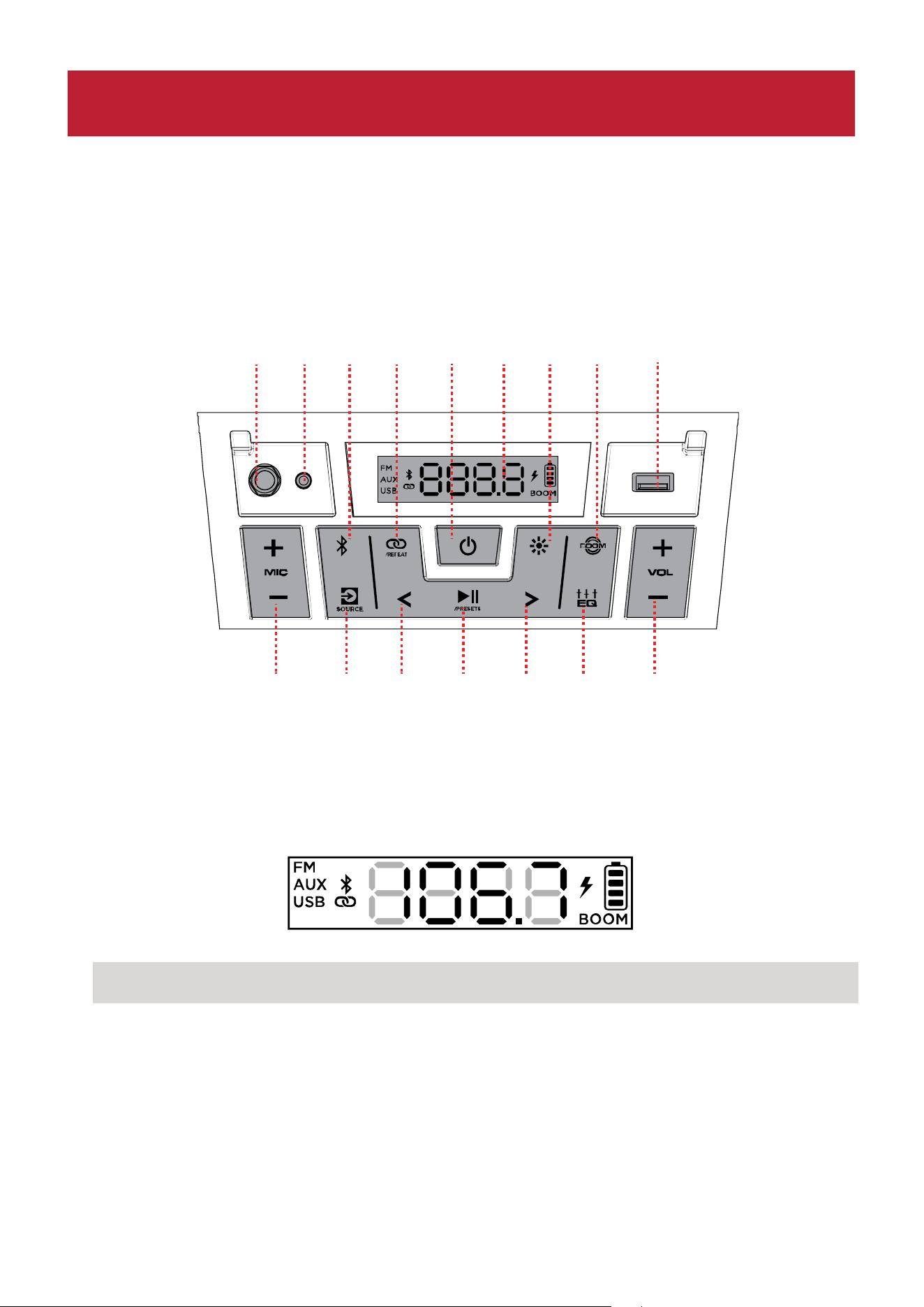
Cliquez sur une commande ci-dessous pour accéder à cette section.
1. Écran
Cet écran affiche des informations sur le fonctionnement du Party Boom
MC
Plus.
Remarque : l'écran est doté d'une protection en plastique. Retirez-la pour un affichage
optimal.
2. Boutons Précédent / Suivante
En mode FM, appuyez sur ces touches pour vous rendre à la station précédente ou
suivante. Maintenez ces touches enfoncées pour rechercher la station précédente ou
suivante ayant un signal puissant.
En mode Bluetooth ou USB, appuyez sur le bouton Précédent ou Suivant pour aller au
début de la piste actuelle ou pour passer à la piste suivante. Appuyez une deuxième fois
sur le bouton Précédent dans la seconde qui suit pour passer à la piste précédente.
CARACTÉRISTIQUES
14
15 847
6
5
2
3
9
212
1 1013
11

ION Audio Party Boom
TM
Plus User Guide 26
3. Bouton Lecture/Pause / Presets
Appuyez sur ce bouton pour lancer ou arrêter l'audio Bluetooth ou USB.
En mode FM, appuyez sur ce bouton pour enregistrer et charger des préréglages de radio.
Consultez la section Utilisation > Utiliser la radio pour plus de détails.
4. Bouton Bluetooth®
Appuyez sur ce bouton pour accéder au mode d'appairage Bluetooth. Lorsqu'un appareil
Bluetooth est connecté, appuyez sur ce bouton pour déconnecter un appareil appairé et
revenir au mode d'appairage. Lorsqu'il est déconnecté, appuyez sur ce bouton pour
appairer à nouveau le dernier appareil connecté. Consultez la section Utilisation >
Appairage d'un appareil Bluetooth® pour découvrir comment connecter un appareil
Bluetooth.
Maintenez ce bouton enfoncé pour activer ou désactiver les annonces vocales.
5. Bouton Stereo-Link
MC
/ Répétition
Maintenez ce bouton enfoncé pour lancer la connexion stéréo avec un autre Party Boom
MC
Plus. Consultez la section Relier deux haut-parleurs pour plus de détails.
En mode USB, appuyez sur ce bouton pour changer le mode de lecture. Consultez la
section Utilisation > Mode USB pour plus de détails.
6. Bouton Source
Appuyez sur ce bouton pour choisir entre les modes FM, USB et AUX. Le mode actuel
s'affiche sur l'écran.
7. Bouton Lumières
Appuyez sur ce bouton pour choisir parmi les dix modes d'éclairage. Consultez la section
Utilisation > Modes lumineux pour plus de détails.
8. Bouton BOOM
MC
Appuyez sur ce bouton pour augmenter les basses et le volume, et pour activer une
animation lumineuse qui bouge sur le rythme de la musique.
9. Bouton EQ
Appuyez sur ce bouton pour choisir parmi les fréquences basses, moyennes et hautes.
Appuyez ensuite sur les boutons VOL +/- pour ajuster les fréquences de -12 à +12.

ION Audio Party Boom
TM
Plus User Guide 27
10. Port de charge/lecture USB
Utilisez ce port pour charger un périphérique doté d'une prise USB, comme une tablette
ou un smartphone. Pour recharger un périphérique qui streame de la musique en Bluetooth,
mettez la musique en pause, puis attendez qu'il se reconnecte une fois le câble USB
branché.
Vous pouvez également y brancher un support USB pour lire de la musique. Consultez la
section Utilisation > Mode USB pour plus de détails.
11. Entrée Mic
Branchez un micro ayant une prise 6,35 mm. Appuyez sur les boutons MIC +/- pour régler
le volume du micro.
12. Boutons Mic +/-
Utilisez ces boutons pour régler le volume du micro.
13. Entrée Aux
Branchez un lecteur CD, un lecteur MP3 ou une autre source audio à cette entrée 3,5 mm.
14. Boutons Volume +/-
Utilisez ces boutons pour régler le volume de la source Bluetooth, USB, radio ou AUX de 0
à 30. Maintenez l'un des boutons enfoncés pour changer le volume plus rapidement.
15. Interrupteur d'alimentation
Maintenez ce bouton enfoncé pour allumer ou éteindre le Party Boom
MC
Plus.
ION Audio Party Boom
TM
Plus User Guide 28
Panneau arrière
Remarque : Tirez sur la languette du panneau de protection en caoutchouc pour le libérer et
accéder aux ports du panneau arrière.
1. Prise électrique : Branchez le câble électrique inclus ici pour recharger le haut-parleur.
1
ION Audio Party Boom
TM
Plus User Guide 29
Appairage d'un appareil Bluetooth®
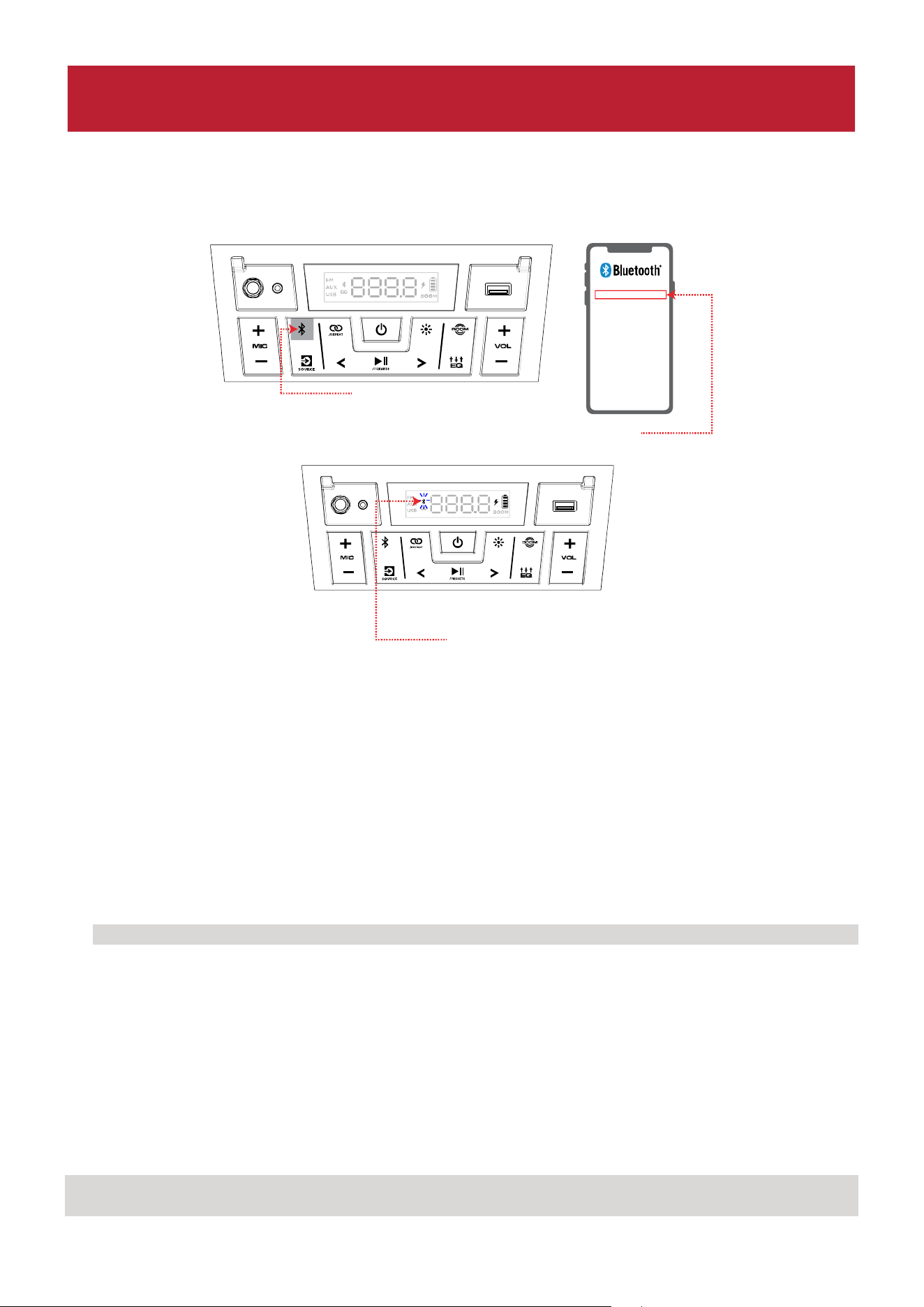
1. Mettez l’appareil Bluetooth sous tension.
2. Allumez le Party Boom
MC
Plus en maintenant le bouton d'alimentation enfoncé pendant deux
secondes. Lorsque le haut-parleur est allumé, il est automatiquement en mode d'appairage
Bluetooth. Si nécessaire, appuyez sur le bouton Bluetooth pour sélectionner le mode
Bluetooth. L'icône Bluetooth clignote à l'écran pour indiquer que le haut-parleur est prêt à
être appairé, et vous entendez « Bluetooth Pairing » si les annonces vocales sont activées.
3. Ouvrez l'écran de configuration du Bluetooth sur votre appareil, trouvez le PARTY BOOM
PLUS, puis connectez-vous. L'icône Bluetooth s'affiche à l'écran. Si les annonces vocales sont
activées, vous entendez « Bluetooth Connected ». S'il n'y a aucune connexion après
90 secondes, le haut-parleur cesse de chercher un appareil Bluetooth et passe en mode AUX.
Remarque : Si votre appareil Bluetooth vous demande un code de jumelage, entrez 0000.
Pour déconnecter un appareil appairé, suivez l'une des consignes suivantes :
• Désactivez le Bluetooth dans les paramètres Bluetooth de votre appareil. Le haut-
parleur passe alors en mode d'appairage Bluetooth pour connecter un autre appareil.
• Appuyez sur le bouton Bluetooth afin de vous déconnecter et de revenir au mode
d'appairage.
Une fois déconnecté, vous entendrez « Bluetooth Disconnected » si les annonces vocales sont
activées.
Astuce : maintenez le bouton Bluetooth enfoncé pour activer ou désactiver les annonces
vocales.
1 - APPUYEZ
2
3
PARTY BO O M PLUS
UTILISATION
ION Audio Party Boom
TM
Plus User Guide 30
Relier deux haut-parleurs
Pour lire de la musique depuis un appareil Bluetooth, vous pouvez commencer par lier deux
haut-parleurs Party Boom
MC
Plus afin de profiter de votre musique en stéréo. Un Party Boom
MC
Plus sert de haut-parleur gauche, et l'autre de haut-parleur droit.
Pour lier deux haut-parleurs Party Boom
MC
Plus :
Remarque : une fois le processus Stereo-Link
MC
lancé, tous les appareils Bluetooth connectés
sont automatiquement déconnectés. Vous pouvez aussi déconnecter votre appareil
préalablement en appuyant sur le bouton Bluetooth.
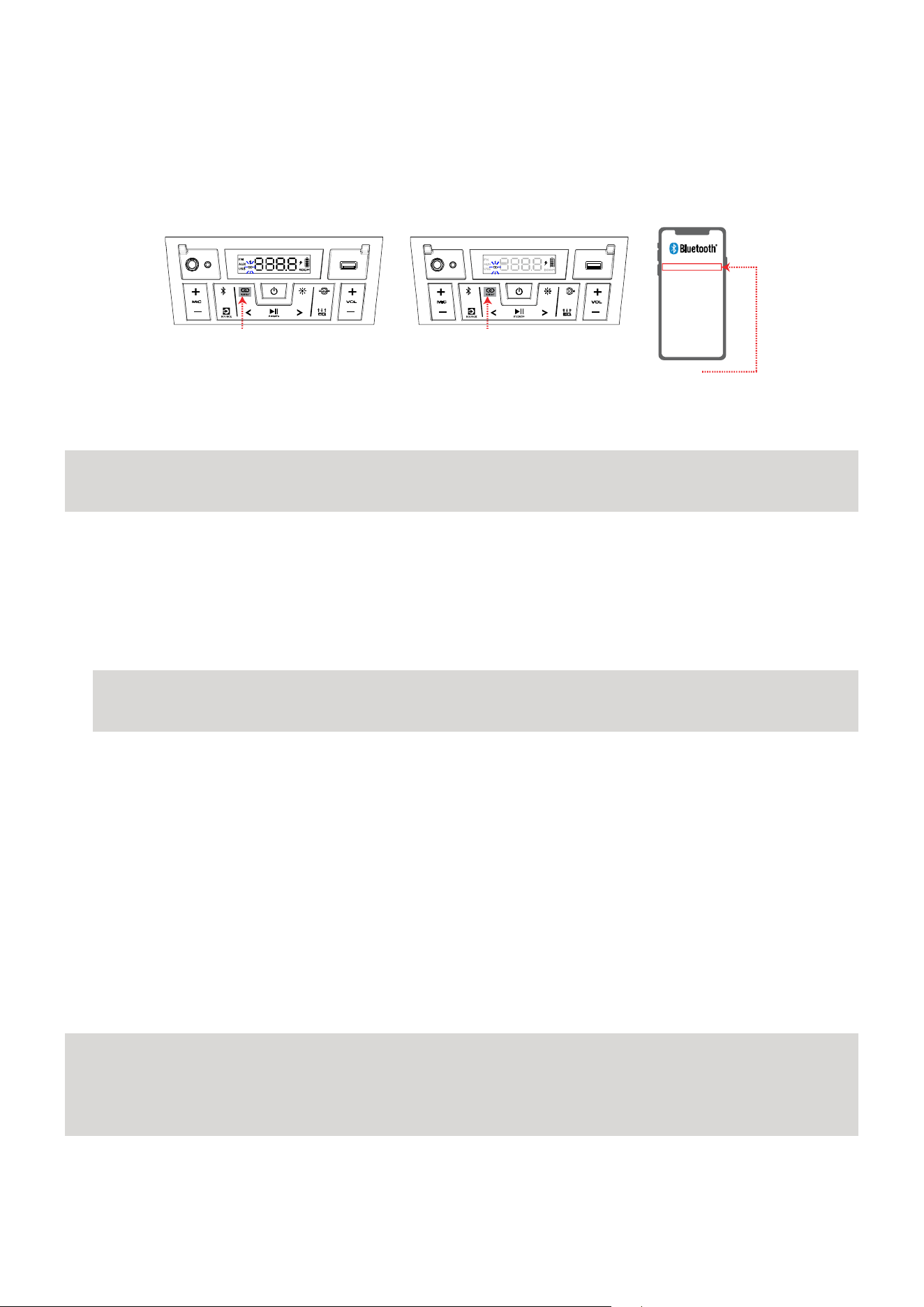
1. Maintenez le bouton Stereo-Link
MC
/Repeat enfoncé sur les deux haut-parleurs pour passer
en mode Stereo-Link
MC
. Le premier haut-parleur sur lequel le bouton est maintenu sera le
haut-parleur principal (canal gauche).
2. Maintenez ensuite le bouton Stereo-Link
MC
/Repeat sur le deuxième haut-parleur. Celui-ci
sera le haut-parleur secondaire (canal droit).
Remarque : le processus de liaison peut prendre jusqu'à 30 secondes. Les haut-parleurs
doivent être à moins de 15 m l'un de l'autre pour que la liaison s'effectue. Plus ils sont
proches, plus elle se fera rapidement.
3. Une fois les haut-parleurs liés, le haut-parleur principal entre automatiquement en mode
d'appairage Bluetooth. Ouvrez l'écran de configuration du Bluetooth sur votre appareil,
trouvez le PARTY BOOM PLUS, puis connectez-vous. Une fois la connexion effectuée, vous
entendez « Bluetooth Connected » sur le haut-parleur principal (si les annonces vocales
sont activées). Une fois la lecture lancée, vous devriez l'entendre sur les deux haut-parleurs.
Le haut-parleur principal retranscrit le canal gauche, et le haut-parleur secondaire
retranscrit le canal droit. Vous pouvez utiliser les commandes de lecture sur l'un ou l'autre
haut-parleur.
Pour déconnecter les deux haut-parleurs, ou pour annuler la liaison, maintenez le bouton
Stereo-Link
MC
/Repeat enfoncé sur l'un des haut-parleurs Party Boom
MC
Plus. Vous entendez
« Bluetooth Disconnected » sur le haut-parleur principal (si les annonces vocales sont
activées), vous indiquant que la liaison a été annulée.
Remarque : maintenez le bouton d'alimentation enfoncé sur chaque haut-parleur lorsque le
mode Stereo-Link
MC
est actif pour éteindre les haut-parleurs liés. Les haut-parleurs Party
Boom
MC
Plus qui sont éteints en mode Stereo-Link
MC
se remettront automatiquement en mode
Stereo-Link
MC
lorsqu'ils sont rallumés, et ils commenceront à chercher à se connecter à
d'autres haut-parleurs.
PARTY BOOM PLUS
1 - MAINTENEZ
(haut-parleur principal)
2 - MAINTENEZ
(haut-parleur secondaire)
3
ION Audio Party Boom
TM
Plus User Guide 31
Modes lumineux
Appuyez plusieurs fois sur le bouton Lumières pour choisir parmi les modes de LED du Party
Boom
MC
Plus.
Remarque : pour obtenir les meilleurs effets lumineux possibles, il peut être nécessaire
d'augmenter le volume de votre appareil connecté ou de la source d'entrée.
Modes LED disponibles :
• Arc-en-ciel (mode de base à l'allumage) : les lumières aux quatre coins forment un d'arc-
en-ciel mouvant, et les boutons sont rétroéclairés de la couleur de la lumière en haut à
gauche.
• Synchro : toutes les lumières changent de couleur sur le rythme de la musique.
• Fondu : toutes les lumières s'allument et s'éteignent graduellement en changeant de
couleur.
• Cascade arc-en-ciel : les lumières coulent en changeant de couleur. Les boutons
rétroéclairés gardent la même couleur.
• Feu de cheminée : les lumières des quatre coins et les boutons rétroéclairés scintillent
en rouge, jaune et orange. Les lumières montent et descendent selon le volume de la
musique.
• Cyberéclairage : les lumières s'écoulent en passant du vert clair au bleu et au violet.
• Aléatoire : les lumières latérales changent de couleur aléatoirement toutes les 5 à
7 secondes.
• Couleur fixe : toutes les lumières restent de la même couleur (celle-ci peut être définie
dans l'application ION Sound Control
MC
). Si elle n'est pas modifiée dans l'application ION
Sound Control™, la couleur de base est le bleu.
• Rétroéclairage : seuls les boutons rétroéclairés sont allumés d'une couleur fixe (celle-ci
peut être définie dans l'application ION Sound Control
MC
). Si elle n'est pas modifiée dans
l'application ION Sound Control
MC
, la couleur de base est le bleu.
• Éteint : toutes les lumières s'éteignent.
APPUYEZ
ION Audio Party Boom
TM
Plus User Guide 32
Utiliser la radio
Pour utiliser la radio, appuyez sur le bouton Source afin que l'écran affiche FM.
En mode FM, appuyez brièvement sur les boutons Précédent et Suivant (</>) pour passer
d'une station à une autre. Maintenez les boutons </> pour chercher automatiquement la
station la plus claire dans cette direction.
Pour enregistrer une station :
1. Maintenez le bouton Play/Pause / Presets enfoncé.
2. Utilisez les boutons </> pour choisir un emplacement de préréglage, de 1 à 12, affiché à
l'écran.
3. Une fois que vous avez atteint l'emplacement désiré, appuyez brièvement sur le bouton
Play/Pause / Presets pour l'enregistrer.
Pour aller sur une station enregistrée, appuyez brièvement sur le bouton Play/Pause /
Presets pour parcourir les stations enregistrées.
APPUYEZ APPUYEZ - Station précédente ou suivante
MAINTENEZ - Chercher
1 - MAINTENEZ 2 - APPUYEZ -
Choisir un préréglage
3 - APPUYEZ
ION Audio Party Boom
TM
Plus User Guide 33
Mode USB
Lorsqu'un support USB contenant des fichiers compatibles est inséré dans le port USB de
charge/lecture, le Party Boom
MC
Plus passe automatiquement en mode USB. Si le support
USB est déjà inséré et que vous utilisez actuellement un autre mode, appuyez sur le bouton
Source jusqu'à ce que le mode USB soit sélectionné.
Le Party Boom
MC
Plus lira automatiquement le premier fichier MP3 compatible. Les fichiers
sont lus sont lus dans l'ordre alphabétique à la racine, puis alphabétiquement par dossier, puis
alphabétiquement par piste. La lecture prend fin une fois que tous les fichiers du support USB
ont été lus. Maintenez appuyé le bouton Suivant ou Précédent pour avancer ou reculer dans
une piste.
Remarque : le support USB doit contenir des fichiers MP3 compatibles pour qu'elle apparaisse
à l'écran.
Appuyez sur les boutons Suivant et Précédent (</>) pour aller à la piste suivante ou
précédente. Maintenez ces boutons enfoncés pour avancer ou reculer dans une piste.
Chaque fois que vous appuyez sur le bouton Stereo-Link
MC
/Repeat, les options de répétition
suivantes défilent à l'écran :
• ALL : répète toutes les pistes présentes sur le support USB (mode par défaut).
• FOLd : répète toutes les pistes présentes dans le dossier.
• OnE : répète la piste en cours de lecture.
• rAn : lit les pistes dans un ordre aléatoire.
1 - CONNECTEZ ET APPUYEZ
3 - APPUYEZ
(Piste suivante ou précédente)
4 - APPUYEZ POUR CYCLE
(ALL, FOLDER, ONE, RANDOM)
2 - APPUYEZ
(lancer ou arrêter)
ION Audio Party Boom
TM
Plus User Guide 34
Utilisation du port de rechargement USB
Pour utiliser le port de rechargement USB :
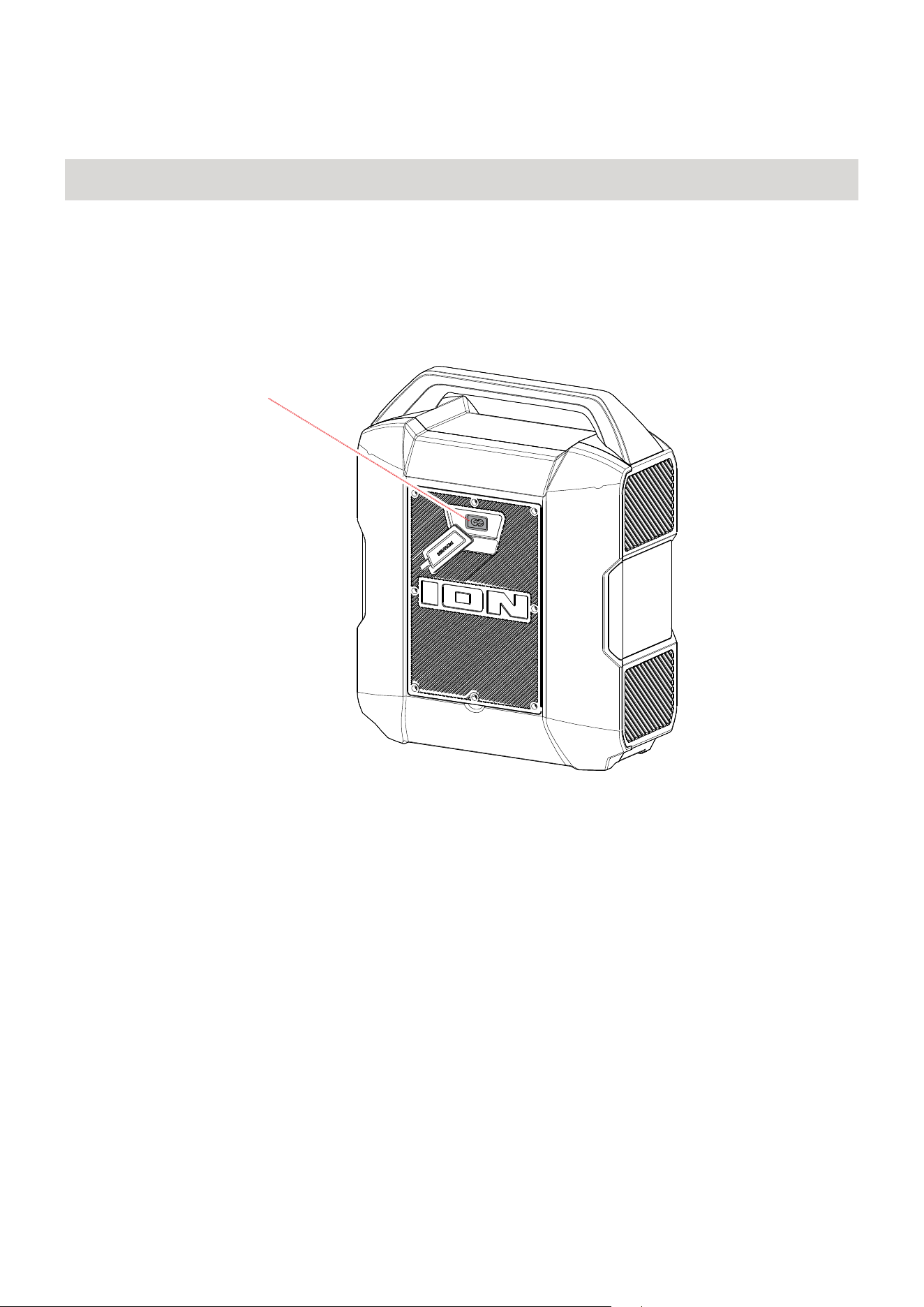
1. Branchez un câble USB de type A sur le port de rechargement USB situé sur le panneau
avant de votre enceinte Party Boom
MC
Plus (voir l'image).
2. Branchez l'autre extrémité du câble à l'entrée de rechargement de votre téléphone
intelligent, de votre tablette ou d'un autre appareil compatible.

ION Audio Party Boom
TM
Plus User Guide 35
Contrôle d'application
IMPORTANT : Afin de profiter de la meilleure expérience possible avec l’application, assurez-
vous d’avoir la toute dernière version de Android OS ou de iOS sur votre appareil.
Veuillez suivre les étapes ci-dessous afin de télécharger l’application sur votre appareil :
1. Accédez au Apple App Store ou à Google Play à partir de votre appareil. Recherchez
l’application ION Sound Control
MC
.
2. Suivez ensuite les consignes à l'écran afin de la télécharger et de l'installer. Une fois
téléchargée, l’application ION Sound Control
MC
app
s’affiche sur la fenêtre d’accueil de
votre appareil.
3. Connectez votre appareil à Party Boom
MC
Plus via Bluetooth. Voir Appairage d'un appareil
Bluetooth® pour savoir comment procéder.
4. Ouvrez l'application ION Sound Control
MC
. Si vous y êtes invité, autorisez l'application à
accéder aux services Bluetooth et de localisation de votre appareil.
5. Sélectionnez l'icône Party Boom
MC
Plus pour passer à la fenêtre suivante, où vous pouvez
utiliser l'application pour contrôler diverses fonctions de l’enceinte comme :
• Volume : Permet de régler le volume de sortie de l'enceinte.
• Volume du microphone : Permet de régler le volume du microphone
• Égalisation : Ce réglage permet d’ajuster l’égalisation de l’enceinte.
• Messages vocaux : Ce réglage permet d’activer et de désactiver les messages vocaux.
• Lights : change le mode d'éclairage.
• État de la batterie : Affiche le niveau de charge de la batterie.
• Assistance technique : Ce réglage permet d’accéder à ionaudio.com, de contacter
l’assistance technique et de consulter les informations de garantie et les questions
fréquemment posées.
• Au-dessus du d'air mises à jour du micrologiciel : Tiens-toi à jour avec les toutes
dernières installation du micrologiciel.

ION Audio Party Boom
TM
Plus User Guide 36
Si l'appareil ne se recharge pas : vérifiez que le câble d'alimentation est bien inséré dans la
prise d'alimentation de l'appareil et dans la prise de courant.
Lorsqu'il y a de la distorsion : Essayez de diminuer le volume de la source sonore.
J'entends un ronflement lorsque les câbles sont branchés :
• Débranchez les câbles des prises d'entrée pour vérifier s'il s'agit d'un câble défectueux.
• Assurez-vous que les câbles de signal ne sont pas placés à proximité de câbles
d'alimentation.
• Branchez tous les câbles d'alimentation de l'équipement audio sur des prises qui
partagent une mise à la terre commune.
Lorsqu'il y a un sifflement aigu lors de l'utilisation d'un microphone : Ceci est probablement
causé par la rétroaction (effet Larsen). Dirigez le microphone loin de l'enceinte.
Si la musique est plus forte que le micro : baissez le volume de la musique sur la source, ou
augmentez le volume du micro grâce au bouton Mic +.
S'il y a trop de basses : essayez d'ajuster l'égalisation sur le Party Boom
MC
Plus ou sur la source
afin de diminuer le niveau de basses. Cela vous permettra de jouer la musique plus fort avant
qu'elle ne sature (distorsion). Vous pouvez aussi vérifier si la fonction BOOM est activée, et la
désactiver en appuyant sur le bouton BOOM
MC
.
Si vous ne pouvez connecter votre appareil audio à la Party Boom
MC
Plus par connexion
Bluetooth :
• Veillez à ce que votre appareil audio (p. ex., téléphone intelligent ou tablette) et la Party
Boom
MC
Plus soient le plus près possible l’un de l’autre lors du jumelage. Veillez également
à ce qu’aucun obstacle ne se trouve entre l’appareil audio et la Party Boom
MC
Plus, comme
des murs, des meubles, etc.
• Appuyez sur le bouton Bluetooth afin de vous déconnecter et de revenir au mode
d'appairage. Si cela ne fonctionne pas immédiatement, mettez la Party Boom
MC
Plus hors
tension et de nouveau sous tension. Veuillez consulter la section Appairage d'un appareil
Bluetooth® afin d’en savoir plus.
• Réinitialisez la connexion Bluetooth sur l’appareil audio en désactivant et réactivant la
connexion Bluetooth. Vous pouvez effectuer ceci à partir du menu Bluetooth dans les
réglages de votre téléphone intelligent ou autre appareil audio.
DEPANNAGE

ION Audio Party Boom
TM
Plus User Guide 37
Si cela ne fonctionne pas et que vous avez déjà connecté votre appareil à la Party Boom
MC
Plus auparavant, veuillez rechercher la Party Boom
MC
Plus dans la liste des appareils
disponibles ou précédemment connectés dans le menu Bluetooth de votre appareil audio,
puis appuyer sur l'icône engrenage ou « i » située à côté de « Oublier cet appareil ». Mettez
la Party Boom
MC
Plus hors tension et de nouveau sous tension et réessayez de la jumeler
une fois qu’elle apparaît dans la liste des appareils disponibles.
Remarque : Si la Party Boom
MC
Plus a été récemment jumelée à un autre appareil audio qui
est toujours dans son champ de portée, il se peut que vous deviez répéter ce processus
avec cet appareil audio afin de supprimer Party Boom
MC
Plus la connexion.
Si vous éprouvez des pertes audio lorsque vous écoutez de la musique à partir d’un
appareil Bluetooth, il se peut que l'enceinte Party Boom
MC
Plus tente de se connecter à une
autre enceinte. Ceci peut se produire lorsque vous éteignez une enceinte reliée à l'enceinte
Party Boom
MC
Plus ou lorsque vous venez tout juste d’allumer celle-ci et qu’elle est en mode
Stereo-Link
MC
. Pour supprimer les pertes audio, quittez le mode Link en appuyant deux fois
sur la touche Stereo-Link
MC
/ Repeat. Vous pouvez également attendre qu’elle se connecte à
une autre l'enceinte Party Boom
MC
Plus s'il y en a une à sa portée.

ION Audio Party Boom
TM
Plus User Guide 38
Spécifications techniques
L’enceinte Basse fréquence : 205 mm woofer
Haute fréquence (avant) : 59 mm tweeter
Transducteur à large bande (côtés) : (2) 98 mm
Fréquence de réponse 45 Hz - 20 kHz
USB Système de fichiers : FAT32
Type de fichiers : MP3
Taille maximale des fichiers : 4 Go
Technologie sans fil Bluetooth®
- Classic Audio
Portée sans fil * Portée* Bluetooth® : jusqu'à 30,5 m
Portée Stereo-Link™ : jusqu'à 30.5 m entre haut-parleurs
Batterie Capacité : 5Ah/12V, 60Wh
Autonomie de la batterie : jusqu'à 35 heures **
Charge Time: jusqu'à 6 heures
D'alimentation Câble : Câble d'alimentation IEC (C7)
Tension d’entrée : 100-240 V~, 50/60 Hz, 120 W
Dimensions
(largeur x profondeur x hauteur)
368 mm x 207 mm x 454 mm
Poids 6,8 kg
Toutes les spécifications sont susceptibles d'être modifiées sans préavis.
*La portée Bluetooth et de la technologie sans fil sont affectées par les murs, les obstacles et
le mouvement. Pour une performance optimale, placez le produit dans le centre de la pièce
afin qu'il n’y ait aucune obstruction créée par des murs, des meubles, etc.
** La durée de vie de la batterie peut varier en fonction de la température, de l'âge et du
volume d'utilisation du produit.
L'APPENDICE

ION Audio Party Boom
TM
Plus User Guide 39
Marques de commerce et licences
ION Audio est une marque de commerce déposée de inMusic Brands, Inc., aux États-Unis et
dans d’autres pays.
Le nom et les logos Bluetooth sont des marques de commerce déposées de Bluetooth SIG. et
sont utilisées sous licence par ION Audio.
App Store est une marque de commerce déposée de Apple, Inc., enregistrée aux États-Unis
et dans d'autres pays.
Android et Google Play sont des marques de commerce déposées de Google Inc.
Tous les autres noms de produit, noms de société, marques de commerce déposées, ou
marques de fabrique sont ceux de leurs propriétaires respectifs.