Product Name and Model Number User Manual
Page | 1 Copyright©2020 ZKTECO CO., LTD. All rights reserved.
Thank you for choosing our product. Please read the instructions
carefully before operation. Follow these instructions to ensure that the
product is functioning properly. The images shown in this manual are for
illustrative purposes only.
For further details, please visit our Company’s website
www.zkteco.com.
User Manual
SC02-I565/75/86A
Date: February 2025
Doc Version: 1.0
English

SC02-I565/75/86A User Manual
Copyright©2025 ZKTECO CO., LTD. All rights reserved. Page | 1
Copyright © 2025 ZKTECO CO., LTD. All rights reserved.
Without the prior written consent of ZKTeco, no portion of this manual can be
copied or forwarded in any way or form. All parts of this manual belong to
ZKTeco and its subsidiaries (hereinafter the "Company" or "ZKTeco").
Trademark
is a registered trademark of ZKTeco. Other trademarks involved in
this manual are owned by their respective owners.
Disclaimer
This manual contains information on the operation and maintenance of the
ZKTeco equipment. The copyright in all the documents, drawings, etc. in relation
to the ZKTeco supplied equipment vests in and is the property of ZKTeco. The
contents hereof should not be used or shared by the receiver with any third party
without express written permission of ZKTeco.
The contents of this manual must be read as a whole before starting the
operation and maintenance of the supplied equipment. If any of the content(s) of
the manual seems unclear or incomplete, please contact ZKTeco before starting
the operation and maintenance of the said equipment.
It is an essential pre-requisite for the satisfactory operation and maintenance that
the operating and maintenance personnel are fully familiar with the design and
that the said personnel have received thorough training in operating and
maintaining the machine/unit/equipment. It is further essential for the safe
operation of the machine/unit/equipment that personnel has read, understood
and followed the safety instructions contained in the manual.
In case of any conflict between terms and conditions of this manual and the
contract specifications, drawings, instruction sheets or any other contract-related
documents, the contract conditions/documents shall prevail. The contract
specific conditions/documents shall apply in priority.
ZKTeco offers no warranty, guarantee or representation regarding the

SC02-I565/75/86A User Manual
Page | 2 Copyright©2025 ZKTECO CO., LTD. All rights reserved.
completeness of any information contained in this manual or any of the
amendments made thereto. ZKTeco does not extend the warranty of any kind,
including, without limitation, any warranty of design, merchantability or fitness
for a particular purpose.
ZKTeco does not assume responsibility for any errors or omissions in the
information or documents which are referenced by or linked to this manual. The
entire risk as to the results and performance obtained from using the information
is assumed by the user.
ZKTeco in no event shall be liable to the user or any third party for any incidental,
consequential, indirect, special, or exemplary damages, including, without
limitation, loss of business, loss of profits, business interruption, loss of business
information or any pecuniary loss, arising out of, in connection with, or relating
to the use of the information contained in or referenced by this manual, even if
ZKTeco has been advised of the possibility of such damages.
This manual and the information contained therein may include technical, other
inaccuracies or typographical errors. ZKTeco periodically changes the
information herein which will be incorporated into new additions/amendments
to the manual. ZKTeco reserves the right to add, delete, amend or modify the
information contained in the manual from time to time in the form of circulars,
letters, notes, etc. for better operation and safety of the machine/unit/equipment.
The said additions or amendments are meant for improvement /better
operations of the machine/unit/equipment and such amendments shall not give
any right to claim any compensation or damages under any circumstances.
ZKTeco shall in no way be responsible (i) in case the machine/unit/equipment
malfunctions due to any non-compliance of the instructions contained in this
manual (ii) in case of operation of the machine/unit/equipment beyond the rate
limits (iii) in case of operation of the machine and equipment in conditions
different from the prescribed conditions of the manual.
The product will be updated from time to time without prior notice. The latest
operation procedures and relevant documents are available on
http://www.zkteco.com.

SC02-I565/75/86A User Manual
Copyright©2025 ZKTECO CO., LTD. All rights reserved. Page | 3
If there is any issue related to the product, please contact us.
ZKTeco Headquarters
Address ZKTeco Industrial Park, No. 32, Industrial Road,
Tangxia Town, Dongguan, China.
Phone +86 769 - 82109991
Fax +86 755 - 89602394
For business related queries, please write to us at: sales@zkteco.com.
To know more about our global branches, visit www.zkteco.com.

SC02-I565/75/86A User Manual
Page | 4 Copyright©2025 ZKTECO CO., LTD. All rights reserved.
About the Company
ZKTeco is one of the world’s largest manufacturer of RFID and Biometric
(Fingerprint, Facial, Finger-vein) readers. Product offerings include Access Control
readers and panels, Near & Far-range Facial Recognition Cameras, Elevator/Floor
access controllers, Turnstiles, License Plate Recognition (LPR) gate controllers and
Consumer products including battery-operated fingerprint and face-reader door
locks. Our security solutions are multi-lingual and localized in over 18 different
languages. At the ZKTeco state-of-the-art 700,000 square foot ISO9001-certified
manufacturing facility, we control manufacturing, product design, component
assembly, and logistics/shipping, all under one roof.
The founders of ZKTeco have been determined for independent research and
development of biometric verification procedures and the productization of
biometric verification SDK, which was initially widely applied in PC security and
identity authentication fields. With the continuous enhancement of the
development and plenty of market applications, the team has gradually
constructed an identity authentication ecosystem and smart security ecosystem,
which are based on biometric verification techniques. With years of experience in
the industrialization of biometric verifications, ZKTeco was officially established
in 2007 and now has been one of the globally leading enterprises in the
biometric verification industry owning various patents and being selected as the
National High-tech Enterprise for 6 consecutive years. Its products are protected
by intellectual property rights.
About the Manual
This manual introduces the operations of SC02-I565/75/86A.
All figures displayed are for illustration purposes only. Figures in this manual may
not be exactly consistent with the actual products.
SC02-I565/75/86A User Manual
Copyright©2025 ZKTECO CO., LTD. All rights reserved. Page | 5
Document Conventions
Conventions used in this manual are listed below:
GUI Conventions
For Software
Convention Description
Bold font Used to identify software interface names e.g. OK, Confirm, Cancel.
>
Multi-level menus are separated by these brackets. For example, File >
Create > Folder.
For Device
Convention Description
< >
Button or key names for devices. For example, press <OK>.
[ ]
Window names, menu items, data table, and field names are inside
square brackets. For example, pop up the [New User] window.
/
Multi-level menus are separated by forwarding slashes. For example,
[File/Create/Folder].
Symbols
Convention Description
This represents a note that needs to pay more attention to.
The general information which helps in performing the operations
faster.
The information which is significant.
Care taken to avoid danger or mistakes.
The statement or event that warns of something or that serves as a
cautionary example.

SC02-I565/75/86A User Manual
Page | 6 Copyright©2025 ZKTECO CO., LTD. All rights reserved.
TABLE OF CONTENTS
SAFETY WARNING ........................................................................................ 7
1 CONTROL PANEL .................................................................................. 9
Prepare to Install ..................................................................................................... 9 1.1
Terminal lnterface (Rear Port) .......................................................................... 10 1.2
Terminal lnterface (Bottom Port) .................................................................... 11 1.3
2
CONNECTION AND SETTING ............................................................. 12
External Computer and Touch Connection ................................................ 12 2.1
Audio and Video Equipment ............................................................................ 13 2.2
LAN Connection .................................................................................................... 13 2.3
USB Connection ..................................................................................................... 14 2.4
AUDIO OUT Connection ..................................................................................... 14 2.5
3
SIMPLE TROUBLESHOOTING ............................................................. 14
Machine Fails to Work Normally ...................................................................... 14 3.1
PC Mode ................................................................................................................... 15 3.2
Touch Function ...................................................................................................... 15 3.3
Video Function Can't Work Normally ............................................................ 16 3.4
Audio Function Can't Work Normally ............................................................ 16 3.5
4
MAINTENANCE ................................................................................... 17

SC02-I565/75/86A User Manual
Copyright©2025 ZKTECO CO., LTD. All rights reserved. Page | 7
Safety Warning
Before operating, please read this manual thoroughly, and keep it for future
reference.
Image shown in this manual is indicative only. There may be differences between
the pictures and the actual product, please prevail in kind.
Placement
DO NOT put heavy objects on top of the unit.
DO NOT put the unit near appliances that generate magnetic fields.
DO NOT expose the unit to direct sunlight and other sources of heat.
DO NOT place the unit on an unstable cart, stand, tripod, bracket, table, or
shelf.
DO NOT put any liquid near or on the unit, make sure do not spill any liquid
inside the unit.
Power Supply
Please keep power cable from physical or mechanical damage.
Please check and ensure AC source is connected with the ground.
This power cable comes with the device exclusively for this device only.
Please unplug power supply when the weather is thunder-storm or lightning.
Check that the unit's operating voltage is identical with your local power supply.
Please use the original power cable from the accessory bag, don't modify or
lengthen it.
Please unplug power supply, when there is nobody home or the unit will be in
idle for a long time.
LED Screen
Unplug the power cable before cleaning.
Clean the screen with a soft, dustless and dry cloth.
For deep clean, please contact an authorized service center.
Never use water or the spray type detergent to clean the unit.
Never use any other hard or sharp object to replace the touch pen.

SC02-I565/75/86A User Manual
Page | 8 Copyright©2025 ZKTECO CO., LTD. All rights reserved.
Better for the panel lifetime and the display performance, do not display high
brightness image for long time.
Temperature
Normal operating temperature is 0℃~40℃.
DO NOT place the unit near or over a radiator or a heater.
If your unit is suddenly moved from a cold to a warm place, please unplug the
power cable and do not turn it on at least 2hours, making sure the moisture
inside the unit is all evaporated.
Humidity
DO NOT expose the unit in rain, or place in high humidity area.
Please make sure indoor environment is dry and cool. Normal operating
humidity is 10%~90%RH.
Ventilation
Please put the unit in a well-ventilated place, so the heating can be released
easily.
Ensure that the unit has enough space for ventilation. Space requirement: left,
right and back>10cm, top>20cm.
Earphone
Before using earphone, please turn down the volume in advance.
Using the earphone to listen loud sound for a long time might affect the hearing.
Standby
It will enter standby mode but not turn off the unit after press the standby key.
Battery
Please make sure the battery gets proper disposal or recycle after using.
Please keep the battery away from kids and don't throw the battery into fire.
Notes for Cleaning
There are vents on back cover, please do not use any liquid or spray directly
during cleaning.
SC02-I565/75/86A User Manual
Copyright©2025 ZKTECO CO., LTD. All rights reserved. Page | 9
Power Switch Status Signs
"I" means power on, “O" means power off.
Notes for Maintenance
This machine can only be maintained by certified engineer.
1 Control Panel
Prepare to Install 1.1
SC02-I565/75/86A User Manual
Page | 10 Copyright©2025 ZKTECO CO., LTD. All rights reserved.
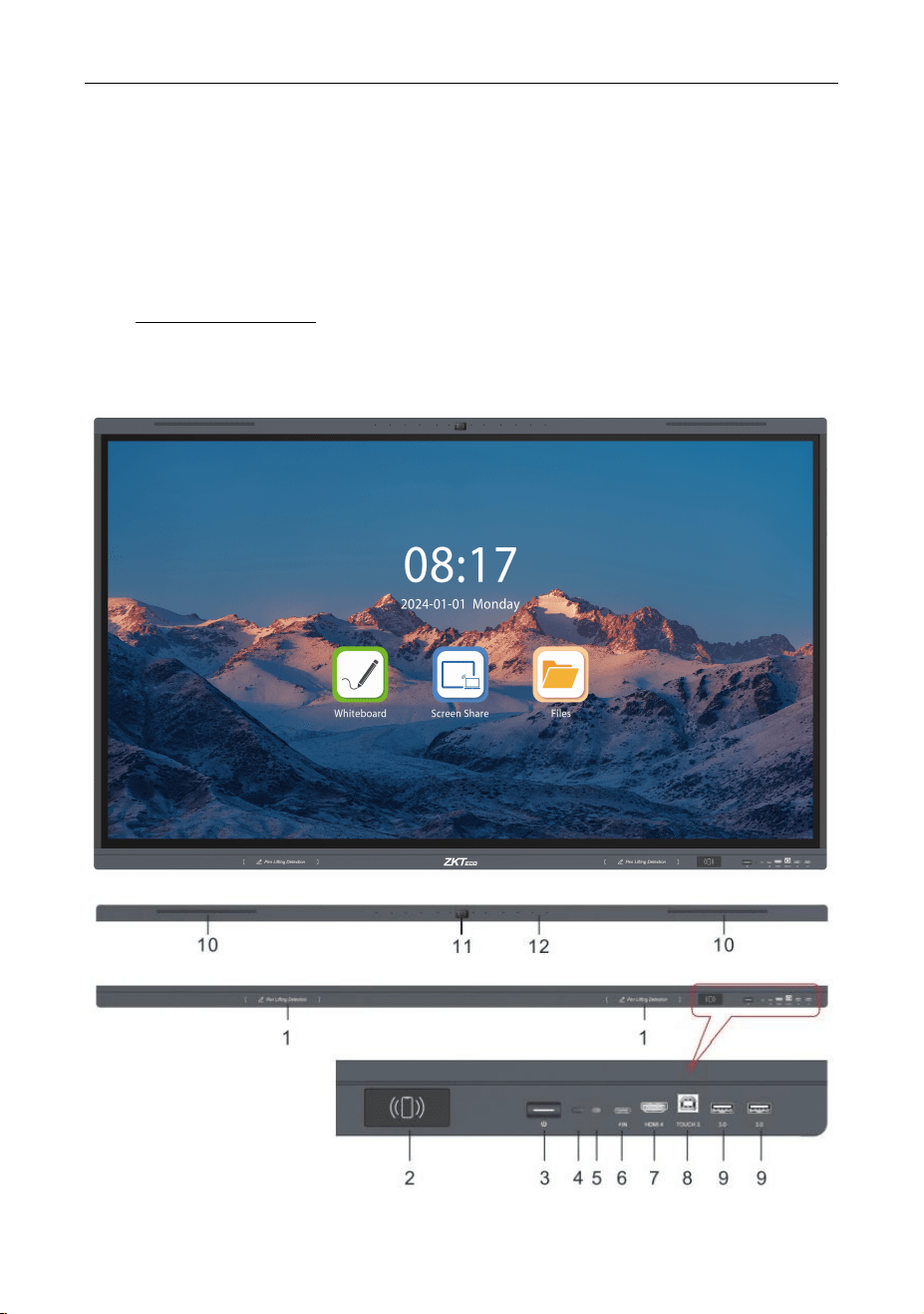
Number Ports
1 Stylus Slot
2 NFC
3 ON and OFF Switch
4 Remote Control Receiver
5 Light Sensor
6 Type C
7 HDMI
8 Touch
9 USB3.0
10 Speaker
11 Camera
12 Microphone
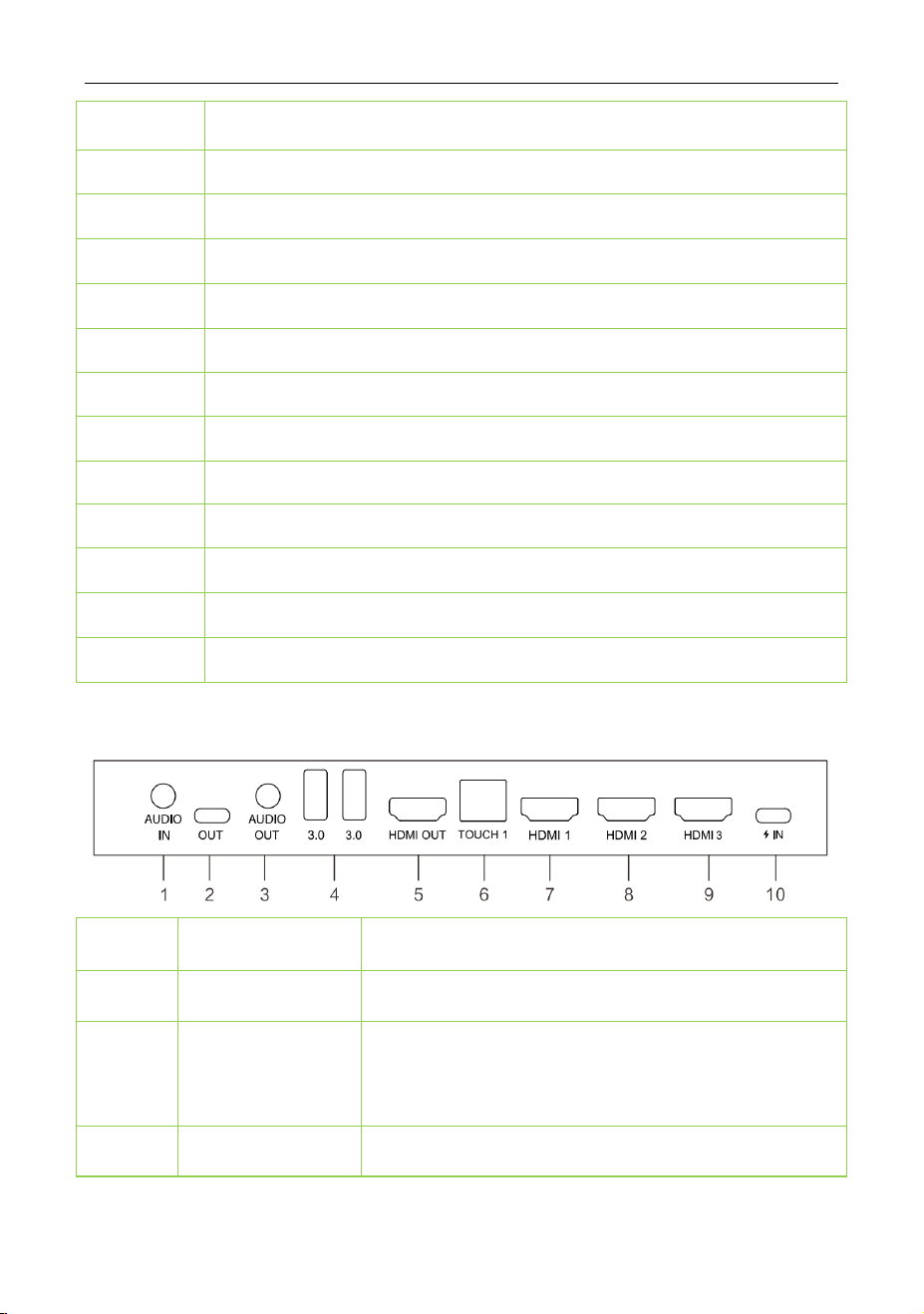
Terminal lnterface (Rear Port) 1.2
No. Ports Function Description
1 AUDIO IN Audio signal input.
2
USB TYPE-C OUT
Support charging,
reverse touch control data
transmission,
extension for audio and video
input interface, etc.
3 AUDIO OUT Audio output to the external speaker.
SC02-I565/75/86A User Manual
Copyright©2025 ZKTECO CO., LTD. All rights reserved. Page | 11
4 USB3.0
Connect USB devices, such as mobile hard disk, U
disk, USB keyboard and mouse, etc.
5
HDMI OUT
High-definition multimedia output interface,
through the HDM cable can be exported to other
devices such as image and sound signals to
playback.
6 TOUCH Touch signal output to the external computer.
7 HDMI1
High-definition multimedia interface signal input,
connect to devices with HDMI output interface
(personal computer with HDMI output, set-top
box, or another video device).
8 HDMl2
9 HDMI3
10
USB TYPE-C IN
Support charging, reverse touch control data
transmission,
extension for audio and video
output interface, etc.
(Please charge those
external devices with same or less rated charging
power with the port. Do not attempt to charge
laptops that require higher charging power than
the rated power of the USB Type-C port.
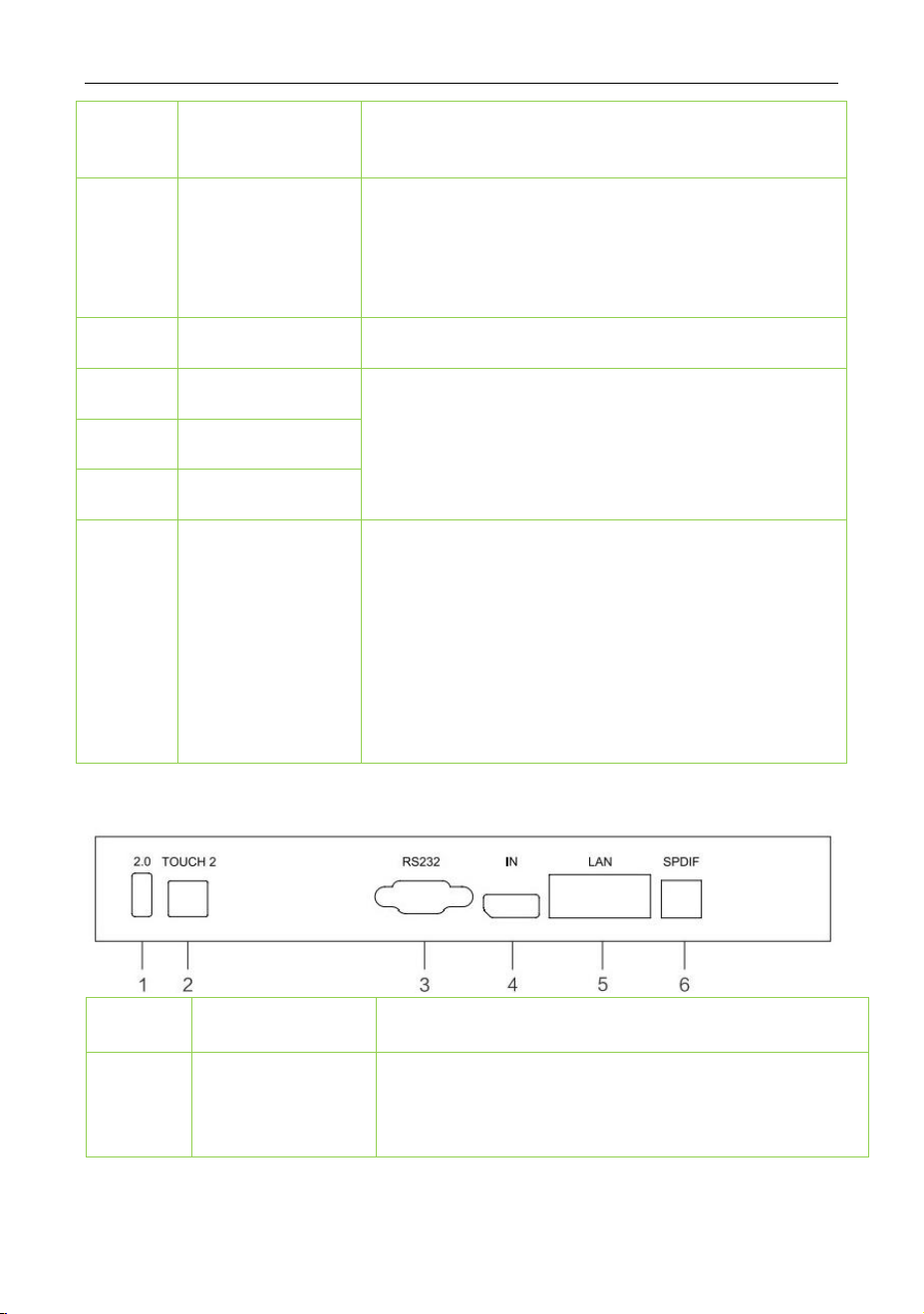
Terminal lnterface (Bottom Port) 1.3
No. Ports Function Description
1 USB 2.0
USB2.0, connect USB devices such as mobile hard
disk, U disk, USB keyboard and mouse, USB drives,
etc.
SC02-I565/75/86A User Manual
Page | 12 Copyright©2025 ZKTECO CO., LTD. All rights reserved.
2 TOUCH2 Touch signal output to the external computer.
3 RS232
Serial interface, used for mutual transfer of data
between devices.
4 DP IN
Video sources to devices such as monitors, and
also supports audio, USB and other forms of data.
5 LAN Connect to RJ45 terminal.
6 SPDIF Carry multichannel sound via optical signals.
2 Connection and Setting
For the safety of you and the machine, please do not connect any power
plug before connection.
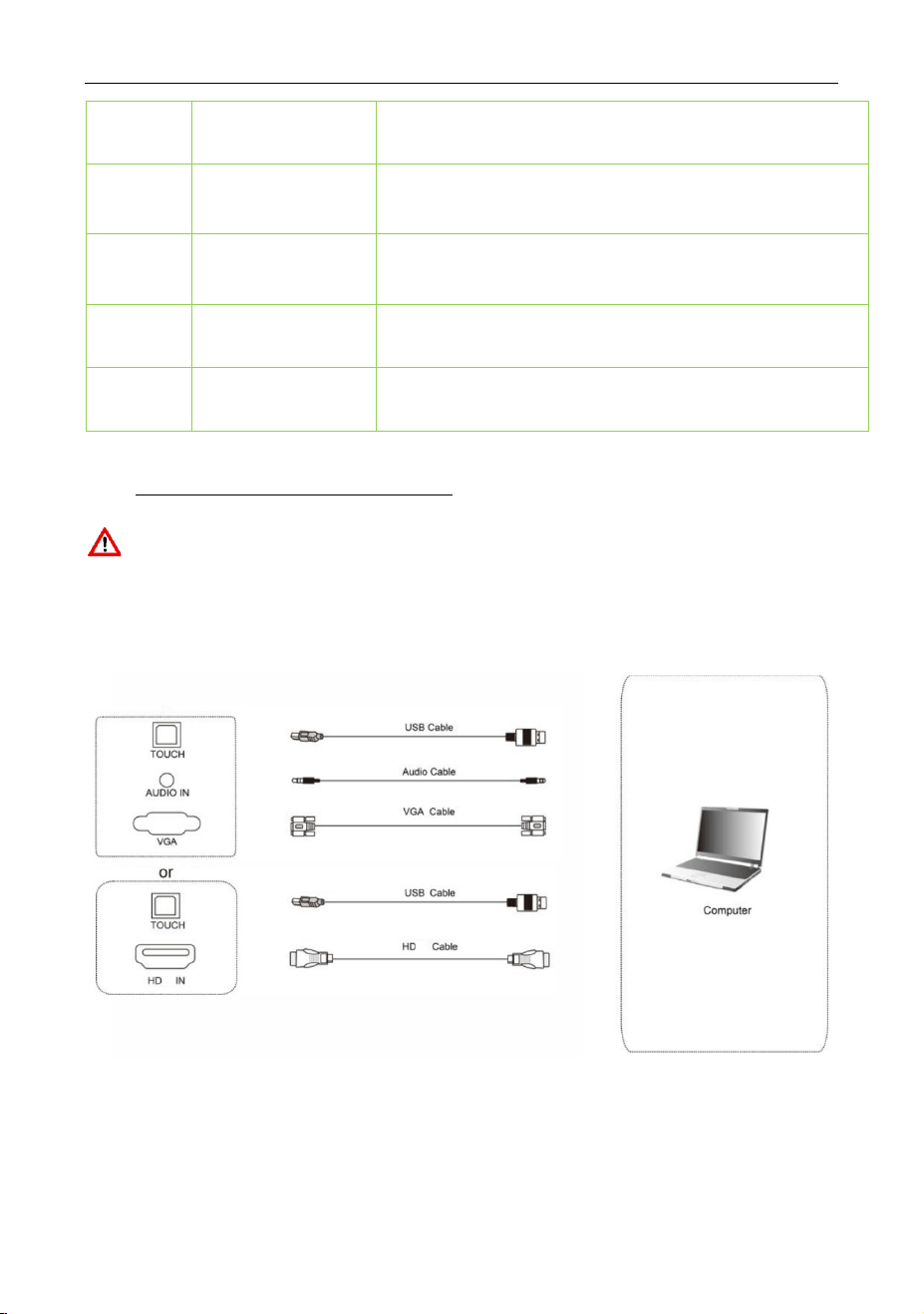
External Computer and Touch Connection 2.1
(1) Use VGA cable to connect to VGA output port of external computer, and
meanwhile use headphone audio cable to connect to external computer audio
output interface.
(Or use HD cable to connect to HD output port of external computer).
SC02-I565/75/86A User Manual
Copyright©2025 ZKTECO CO., LTD. All rights reserved. Page | 13
(2) After cable connection, plug in power cord, and switch power on.
(3) Start external computer.
(4) Press Key, and the equipment is power on.
(5) Switch the input source to the VGA/HD channel in the main menu.
NOTE:
External computer input, equipment's best resolution is 3840*2160.
Recommended computer configuration:
1GBAvailable Hard Drive
2.0GHz Processor, 1GB Memory
More than 256 color display cards
VGA OUT/HD OUT, Audio-OUT, USB Interface
Support Resolution
800×600, 1024×768, 1920×1080, 3840×2160
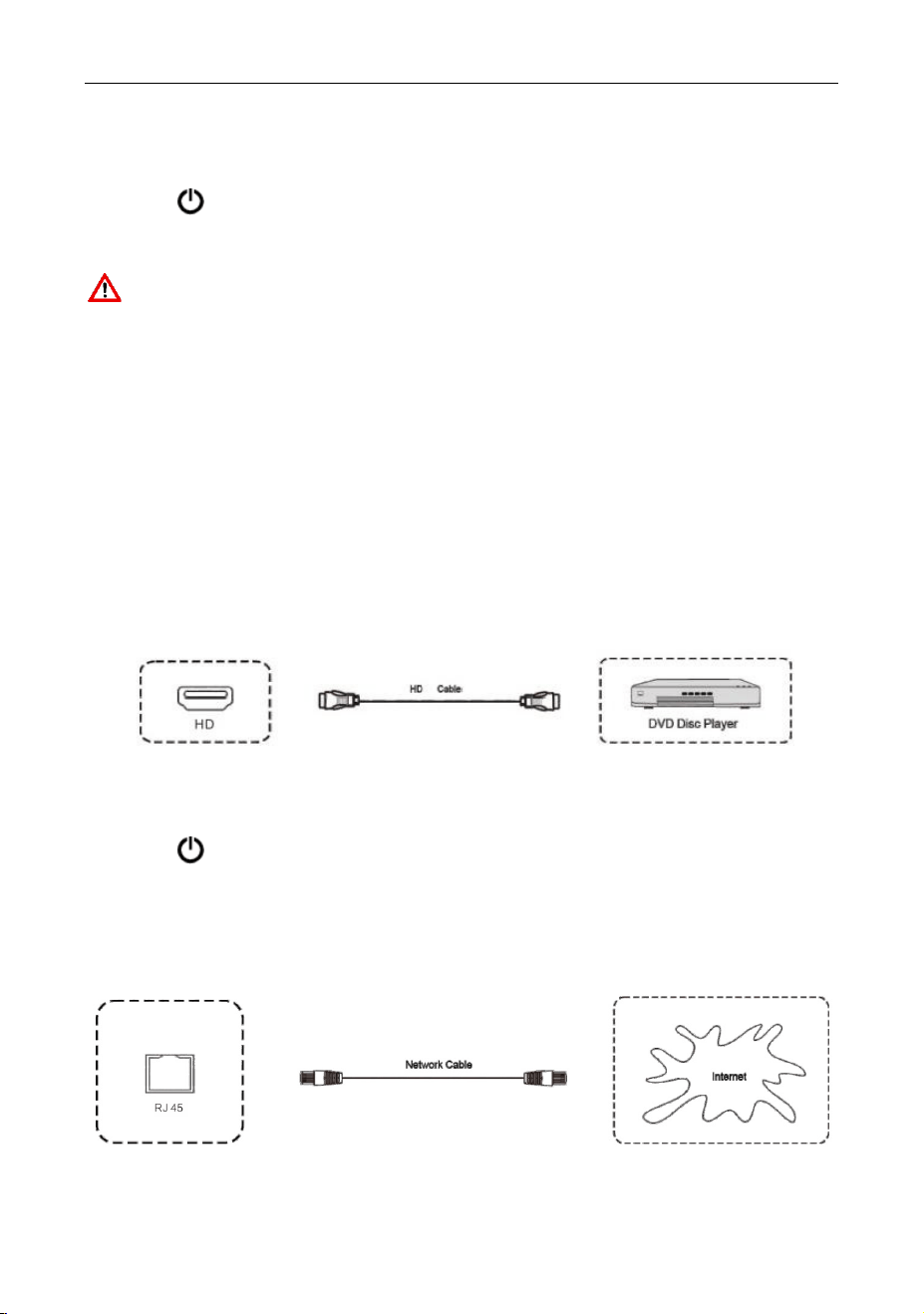
Audio and Video Equipment 2.2
(1) Use HD cable to connect audio and video equipment with HD output.
(2) After cable connection, plug in power cord, and switch power on.
(3) Press to turn equipment on.
(4) Switch the input source to the HD channel in the main menu.
LAN Connection 2.3
SC02-I565/75/86A User Manual
Page | 14 Copyright©2025 ZKTECO CO., LTD. All rights reserved.
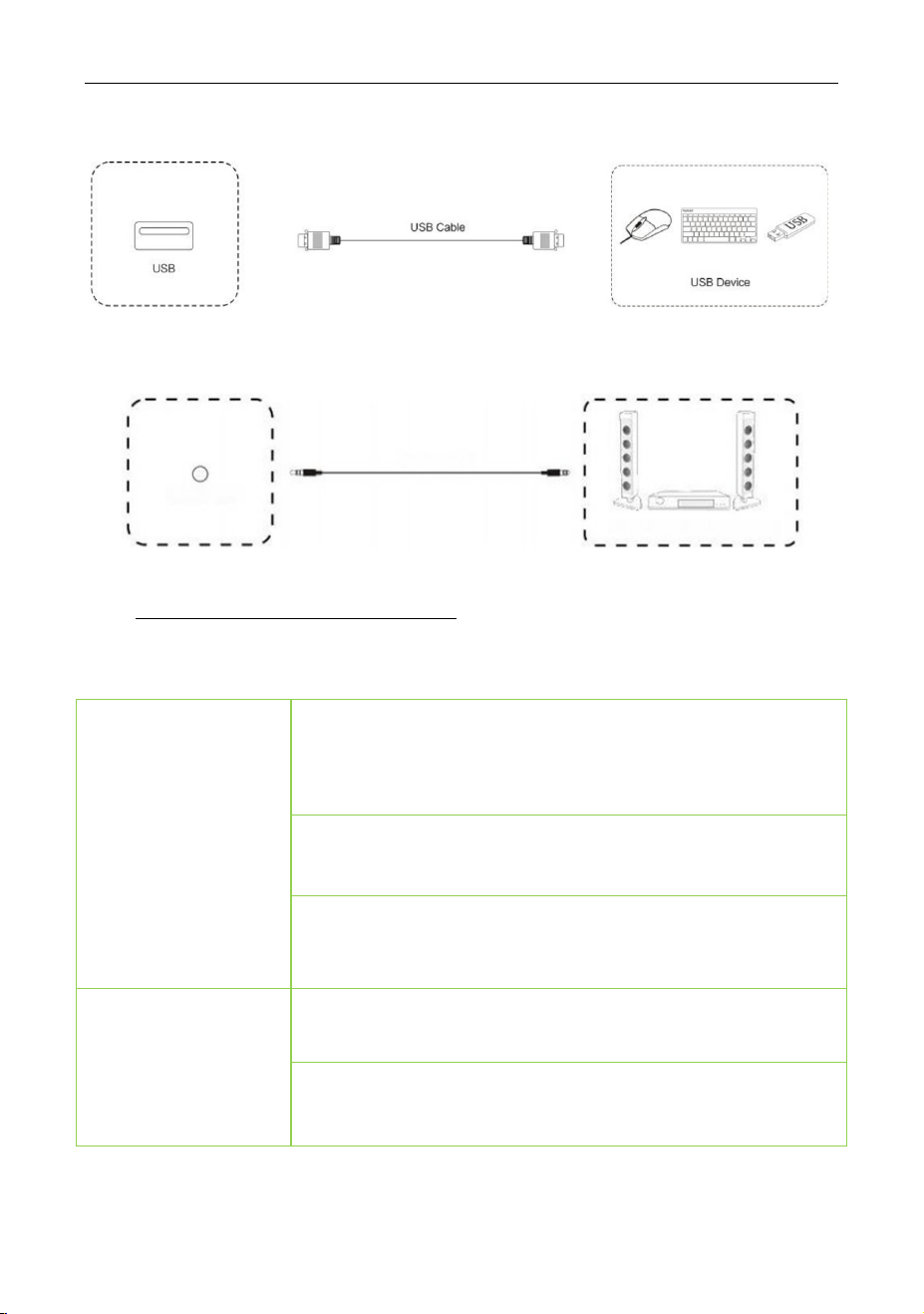
USB Connection 2.4
AUDIO OUT Connection 2.5
3 Simple Troubleshooting
Machine Fails to Work Normally 3.1
Remote control
failure
Check whether there are other objects between remote
control and equipment control receiving window, thus
leading to failure of remote.
Check whether the battery electrode in the remote
control is correct.
Check whether remote control needs to replace battery.
Machine
automatically shut
down
Whether set sleep or not.
Check whether there is sudden power outage.

SC02-I565/75/86A User Manual
Copyright©2025 ZKTECO CO., LTD. All rights reserved. Page | 15
The system will automatically shut down if the interactive
intelligent panel's external channel loses signal.
PC Mode 3.2
Signal out of range
Check whether display is set correctly.
Check whether resolution is the best resolution.
Adjust line and field synchronization in menu.
Background has
vertical lines or
streaks
Select automatic correction in menu.
Adjust clock and phase position in menu.
lmage lack of color,
color is incorrect
Check whether VGA is not well connected or has quality
problem.
Adjust chromatic and brightness or contrast in menu.
Display format that
is not supported
Select automatic correction in menu.
Adjust clock and phase position in menu.
Touch Function 3.3
Touch function
invalid
Check whether the size of article touched is comparable
with finger.
Touch positioning
not correct
Check whether touch pen is facing the screen.

SC02-I565/75/86A User Manual
Page | 16 Copyright©2025 ZKTECO CO., LTD. All rights reserved.
Video Function Can't Work Normally 3.4
No picture and no
sound
Check whether the machine is started state.
Check whether signal wire is well plugged, whether INPUT
is corresponding to it.
If in internal computer mode,
check whether internal
computer is started.
With horizontal or
vertical stripes or
mage dithering
Check whether signal wire is well connected.
Check whether other electronic
equipment or power
tools are placed around the machine.
No color, color is
weak, or image
is weak
Adjust chromatic and brightness or contrast in menu.
Check whether signal wire is well connected.
Audio Function Can't Work Normally 3.5
With image but
without sound
Check whether mute button is pressed for mute.
Press VOL+/-to adjust volume.
Check whether audio line is connected correctly.
Only one speaker
has sound
Adjust sound balance in menu.
Check whether computer sound control panel only sets
up one sound channel.
Check whether audio line is connected correctly.

SC02-I565/75/86A User Manual
Copyright©2025 ZKTECO CO., LTD. All rights reserved. Page | 17
HD output without
sound
Check whether connect external device.
4 Maintenance
Proper maintenance can avoid many early faults and regular careful cleaning can
make machine brand new.
Please unplug power plug before cleaning and maintenance, to prevent electric
shock.
Clean Screen
Please mix and stir even a little fabric softener or tableware detergent with
alcohol.
Please use a soft cloth to be completely soaked in the mixture.
Please take out cloth and twist to half dry state to wipe machine screen.
Repeat for several times, pay attention not to squeeze water flow into machine
when wiping machine.
Clean Face Frame
Please use dry, soft, lint-free cloth to wipe front frame.
No Use of Machine for A Long Time
In case of no use of machine for a long time, such as holiday, please make sure to
unplug the plug to prevent any possible dangers caused by power supply ripple
from lightning.

ZKTeco Industrial Park, No. 32, Industrial Road,
Tangxia Town, Dongguan, China.
Phone : +86 769 - 82109991
Fax : +86 755 - 89602394
www.zkteco.com
Copyright © 2025 ZKTECO CO., LTD. All Rights Reserved.






