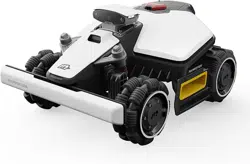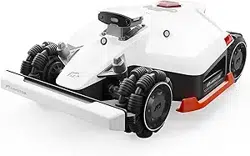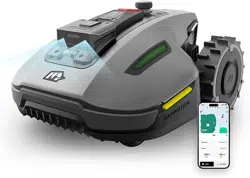

Thank you for choosing Mammotion as your garden care lawn mower. This user manual will help you learn
and operate Mammotion robot, a perimeter-free lawn mower, to cut grass and maintain your lawn.
This manual is copyrighted by Mammotion company. Without the written permission of the company, any
unit or individual shall not copy, modify, reproduce, transcribe or transmit in any way or for any reason.
This manual is subject to change without notice at any time.
Unless explicitly agreed otherwise, this manual serves solely as a usage guide, and all statements and
information contained herein do not constitute any form of warranty.
Revision Log
Date
Version
Description
2025.01
V1.0
Initial version
2025.02
V2.0
Corrected motor’s lifespan to 1500 hours in the section 5.2

i
CONTENTS
1 Safety Instructions ...........................................................................................................................- 1 -
1.1 General Safety Instructions ..................................................................................................- 1 -
1.2 Safety Instructions for Installation .......................................................................................- 2 -
1.3 Safety Instructions for Operation ........................................................................................ - 2 -
1.4 Safety Instructions for Maintenance .................................................................................... - 3 -
1.5 Battery Safety .................................................................................................................... - 4 -
1.6 Residual Risks ....................................................................................................................- 4 -
1.7 Intended Use ......................................................................................................................- 4 -
1.8 Disposal.............................................................................................................................- 4 -
2 Introduction .....................................................................................................................................- 5 -
2.1 About Mammotion YUKA mini ............................................................................................. - 5 -
2.2 In the Box ...........................................................................................................................- 9 -
2.3 Symbols on the Product ..................................................................................................... - 11 -
2.4 Product Overview ..............................................................................................................- 13 -
3 Installation ......................................................................................................................................- 19 -
3.1 Preparation ...................................................................................................................... - 19 -
3.2 Choosing a Location for RTK Reference Station .................................................................. - 19 -
3.3 Choosing a Location for Charging Station ...........................................................................- 21 -
3.4 Install ...............................................................................................................................- 22 -
4 Operation ....................................................................................................................................... - 28 -
4.1 Preparation ......................................................................................................................- 28 -
4.2 Add Your Product ............................................................................................................. - 29 -
4.3 Activate SIM Card ............................................................................................................. - 30 -
4.4 Update Firmware ............................................................................................................. - 30 -
4.5 Create a Map ..................................................................................................................... - 31 -
4.6 Mow .................................................................................................................................- 42 -
4.7 Task Schedule ..................................................................................................................- 46 -

ii
4.8 Manual Mowing ................................................................................................................ - 48 -
4.9 View Status ......................................................................................................................- 50 -
4.10 Settings ........................................................................................................................ - 60 -
4.11 Service Page .................................................................................................................... - 62 -
4.12 Me Page ........................................................................................................................ - 63 -
5 Maintenance ................................................................................................................................... - 71 -
5.1 Cleaning........................................................................................................................... - 71 -
5.2 Maintenance for Cutting Blades and Motor ......................................................................... - 73 -
5.3 Battery Maintenance .........................................................................................................- 75 -
5.4 Winter Storage ................................................................................................................. - 75 -
6 Product Specifications ..................................................................................................................- 77 -
6.1 Technical Specifications ................................................................................................... - 77 -
6.2 Fault Codes .......................................................................................................................- 81 -
7 Warranty ........................................................................................................................................ - 83 -
8 Compliance ....................................................................................................................................- 85 -

- 1 -
1 Safety Instructions
1.1 General Safety Instructions
Carefully read and understand the user manual before using the robot.
Only individuals who are legally considered adults in their state of residence are recommended to use
the robot.
Only use the equipment recommended by Mammotion with the robot. Any other usage is incorrect.
Never allow children, persons with reduced physical, sensory or mental capabilities or lack of
experience and knowledge or people unfamiliar with these instructions to use the robot, local
restrictions may restrict the age of the operator.
Do not allow children to be in vicinity or play with the robot when it is operating.
Do not use the robot in areas where people are unaware of its presence.
When manually operating the robot with the Mammotion app, do not run. Always walk, watch your
steps on slopes, and maintain balance at all times.
Avoid touching moving hazardous parts, such as the blade disk, until it has completely stopped.
Avoid using the robot when there are people, especially children or animals, in the work area.
If operating the robot in public areas, place warning signs around the work area with the following
text: "Warning! Automatic lawn mower! Keep away from the robot! Supervise children!"
Wear sturdy footwear and long trousers when operating the robot.
To prevent damage to the robot and accidents involving vehicles and individuals, do not set task
areas or channels across public pathways.
Seek medical aid in case of injury or accidents.
Set the robot to OFF and remove the security key before clearing blockages, performing maintenance,
or examining the robot. If the robot vibrates abnormally, inspect it for damage before restarting. Do

- 2 -
not use the robot if any parts are defective.
Do not connect or touch a damaged cable until it is disconnected from the power outlet. If the cable
becomes damaged during operation, disconnect the plug from the power outlet. A worn or damaged
cable increases the risk of electrical shock and should be replaced by service personnel.
Do not place cables in areas where the robot will cut.
Only use the charging station included in the package to charge the robot. Incorrect use may result in
electric shock, overheating, or corrosive liquid leakage from the battery. In case of electrolyte leakage,
flush with water/neutralizing agent and seek medical aid if the corrosive liquid comes into contact
with your eyes.
Only use original batteries recommended by Mammotion. The safety of the robot cannot be
guaranteed with non-original batteries. Do not use non-rechargeable batteries.
Keep extension cords away from moving hazardous parts to avoid damage to the cords which can
lead to contact with live parts.
The illustrations used in this document are for reference only. Please refer to the actual products.
1.2 Safety Instructions for Installation
Avoid installing the charging station in areas where people may trip over it.
Do not install the charging station in areas where there is a risk of standing water.
Do not install the charging station, including any accessories, within 60 cm/24 in of any combustible
material. Malfunctioning or overheating of the charging station and power supply can pose a fire
hazard.
For users in the USA/Canada: If installing the power supply outdoors, there is a risk of electric shock.
Only install it in a covered Class A GFCI receptacle (RCD) with a weatherproof enclosure, ensuring that
the attachment plug cap is inserted or removed.
1.3 Safety Instructions for Operation
Keep your hands and feet away from the rotating blades. Do not place your hands or feet near or

- 3 -
below the product when it is turned on.
Do not lift or move the product when it is turned on.
Ensure that there are no objects such as stones, branches, tools, or toys on the lawn. Otherwise, the
blades may be damaged when they come into contact with the object.
Do not put objects on top of the product, charging station or RTK reference station.
Do not use the product if the STOP button is not functioning.
Avoid collisions between the product and people or animals. If a person or animal comes in the path
of the product, stop it immediately.
Always power off the robot when it is not in operation.
Do not use the product simultaneously with a pop-up sprinkler. Utilize the Schedule function to
ensure that the product and pop-up sprinkler do not operate at the same time.
Avoid setting a channel where pop-up sprinklers are installed.
Do not operate the product in the presence of standing water in the task area, such as during heavy
rain or water pooling.
1.4 Safety Instructions for Maintenance
Power off the robot when performing maintenance.
Disconnect the plug from the charging station before cleaning or performing maintenance on the
charging station.
Do not use a high-pressure washer or solvents to clean the robot.
After washing, ensure that the robot is placed on the ground in its normal orientation, not upside
down.
Do not reverse the robot to wash the chassis. If you do reverse it for cleaning purposes, make sure to
restore it to its proper orientation afterward. This precaution is necessary to prevent water from
leaking into the motor and potentially affecting normal operation.

- 4 -
1.5 Battery Safety
Lithium-ion batteries can explode or cause a fire if disassembled, short-circuited, exposed to water, fire,
or high temperatures. Handle them with care, do not dismantle or open the battery, and avoid any form of
electrical/mechanical abuse. Store them away from direct sunlight.
Only use the battery charger and power supply provided by the Manufacturer. The use of an
inappropriate charger and power supply can cause electric shocks and/or overheating.
DO NOT ATTEMPT TO REPAIR OR MODIFY BATTERIES! Repair attempts may result in severe personal
injury, due to explosion or electrical shock. If a leak develops, released electrolytes are corrosive and
toxic.
This appliance contains batteries that are only replaceable by skilled persons.
1.6 Residual Risks
To avoid injuries, wear protective gloves when replacing the blades.
1.7 Intended Use
Mammotion robots are designed for residential lawn care and are not intended for commercial use.
1.8 Disposal
Dispose of this product in compliance with local electronic waste (WEEE) regulations. Do not dispose of it
with regular household waste. Instead, bring it to an authorized recycling center or collection point to
ensure safe handling and environmentally responsible disposal of electronic components.

- 5 -
2Introduction
2.1 About Mammotion YUKA mini
2.1.1About 3D Vision Module
YUKA mini is equipped with a vision module that provides 3D vision positioning, 3D vision obstacle
detection, and FPV mode.
3D vision positioning helps to guarantee positioning accuracy when RTK positioning fails due to poor
satellite signals.
3D vision obstacle detection identifies obstacles in the front.
FPV mode can be used for monitoring as a security camera.
2.1.2 About Positioning
YUKA mini is built in an RTK (real-time kinematic) navigation system and a 3D vision positioning system,
which provide more accurate positioning data.
RTK Positioning
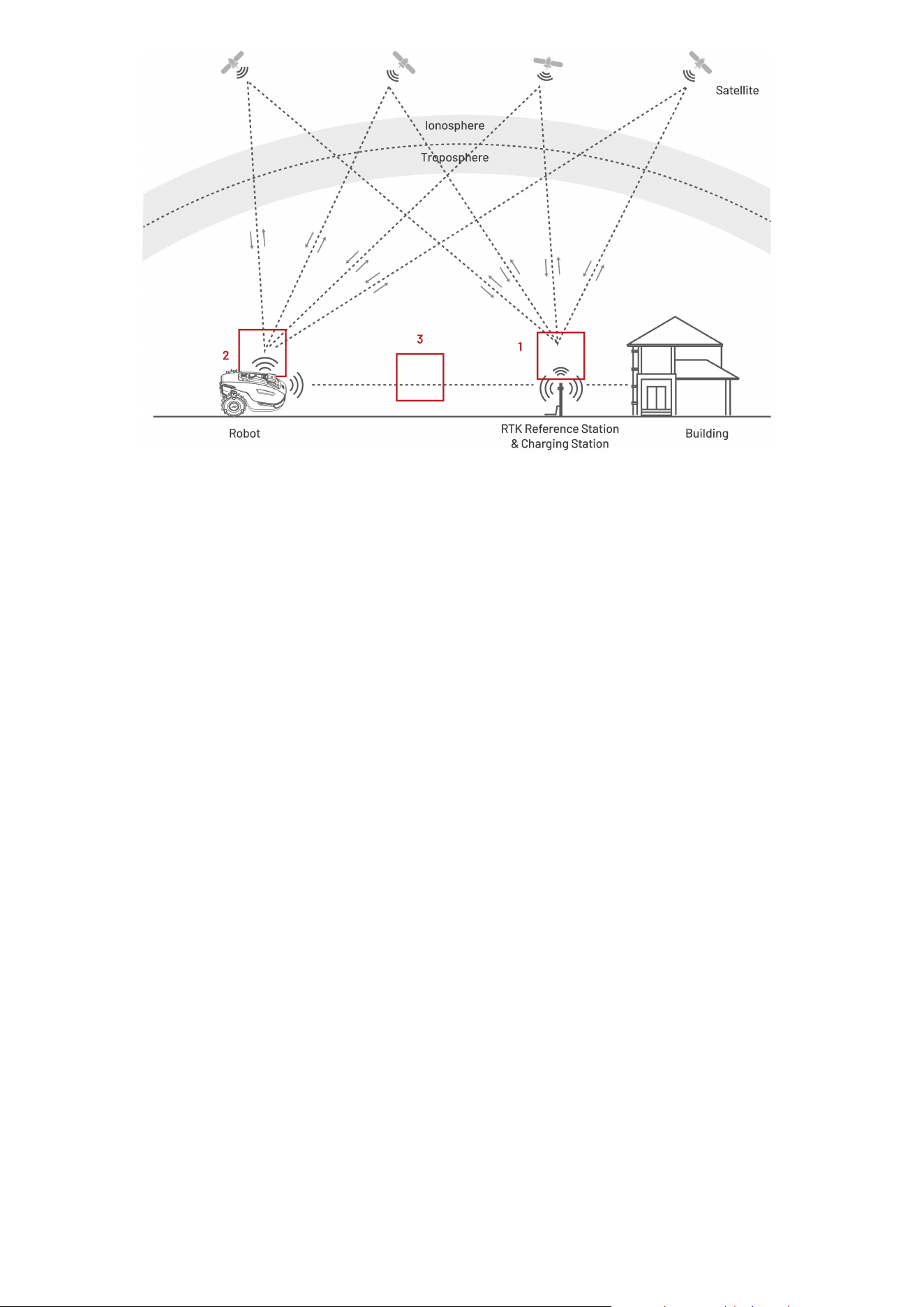
RTK is a differential GNSS positioning technology that greatly enhances positioning accuracy to
approximately 5 cm (2 in). YUKA mini accesses four global navigation systems (GPS, GLONASS, BeiDou,
and Galileo) and incorporates supplementary sensors, thus, providing nearly 100 times improved accuracy
than conventional GPS systems.
- 6 -
1. To perform its work, the RTK reference station receives satellite signals, requiring an obstruction-free
environment and open-sky view.
2. YUKA mini operates similarly, requiring an open sky view to receive satellite signals.
3. Data transmission from the RTK reference station to YUKA mini is possible. This does not imply that
there must constantly be an unobstructed view from every point on your lawn to the RTK reference
station. As long as the transmission path is not completely blocked, the data can be transmitted via
radio.
3D Vision Positioning
YUKA mini primarily uses RTK positioning to locate itself. However, in situations where satellite signals
are obstructed by obstacles such as eaves or trees during mapping and mowing, YUKA mini can still
operate effectively using the 3D vision positioning.
2.1.3 About Obstacles Detection
YUKA mini identifies obstacles through 3D vision. The 3D vision system can identify obstacles and
respond accordingly.
- 7 -
2.1.4 About Lawn Art Printing
By utilizing AI algorithms to tailor the cutting path, cutting height, and angle, YUKA mini can create special
patterns via the Mammotion app. See Create a Pattern for more information.
2.1.5 About Connectivity
YUKA mini supports three methods of connectivity, namely, Bluetooth, Wi-Fi, and 4G cellular data.
Bluetooth is used to connect the robot with your phone, while Wi-Fi and 4G cellular data are used to
access the internet.
2.1.6 About Voice Control
NOTE
The robot now supports voice commands in English, German, and French.
YUKA mini is compatible with both Alexa and Google Home voice control. Once linked, you can easily start
or stop working or recharging using simple voice commands. See Link Your Alexa Account or Link Your
Google Home Account for more information.
2.1.7 About Auto-recharge
YUKA mini supports automatically return to charge when the battery is lower than 15%.
- 8 -
2.1.8 About Anti-theft System
YUKA mini has an anti-theft system to prevent unauthorized removal.
The alarm is triggered when the robot is lifted.
Users can track the robot's location by GPS and 4G positioning through the Mammotion app, as long
as it is online. See Find My Device for more information.
Additionally, the robot's structure allows for an AirTag to be attached to track its location.
- 9 -
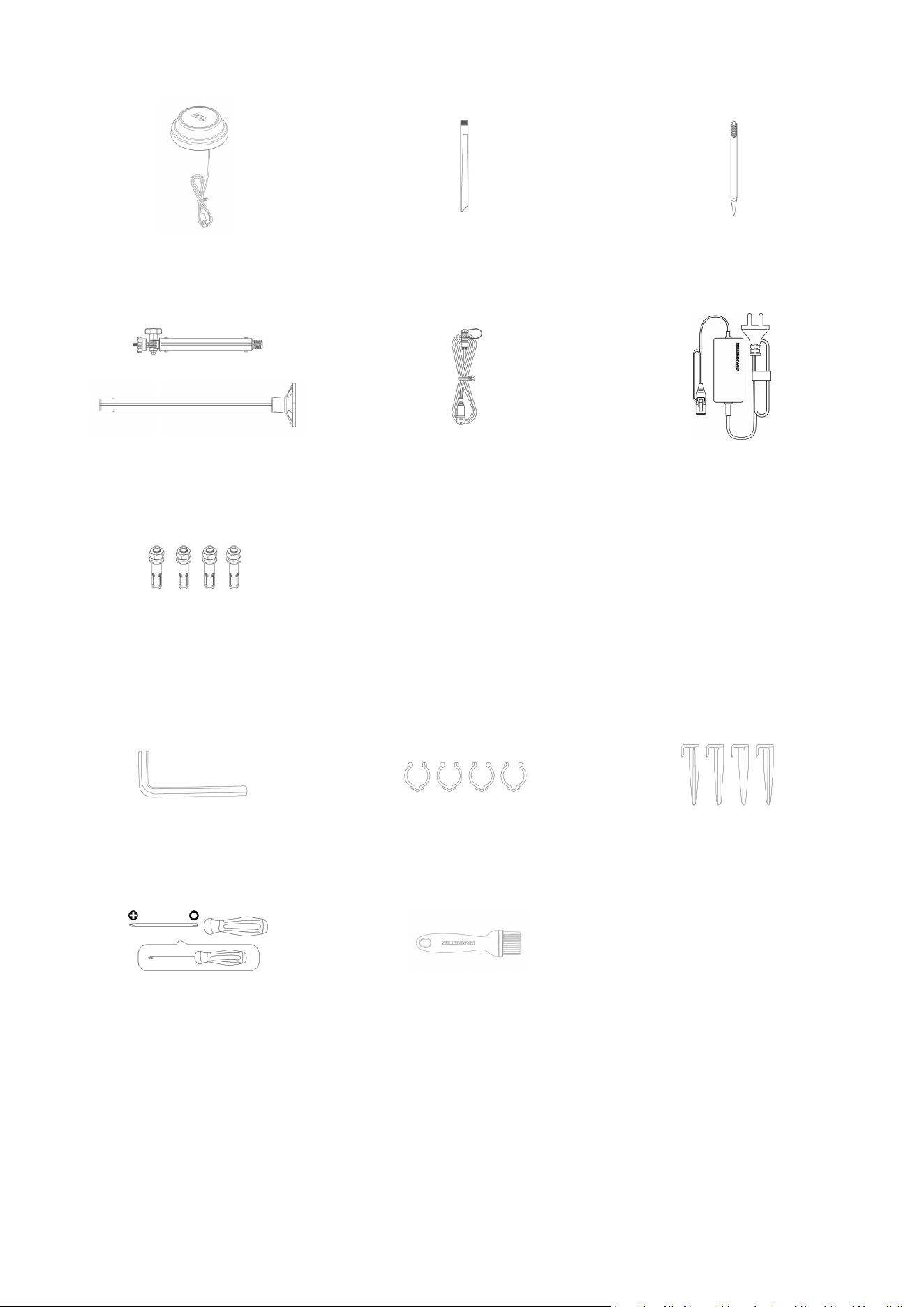
2.2 In the Box
Ensure the parts can be found in the package according to your order. If any parts are missing or
damaged, contact your local dealer or our after-sales support. Mammotion recommends you keep the
package box and foam inserts for future use.
2.2.1 YUKA mini Installation Kit
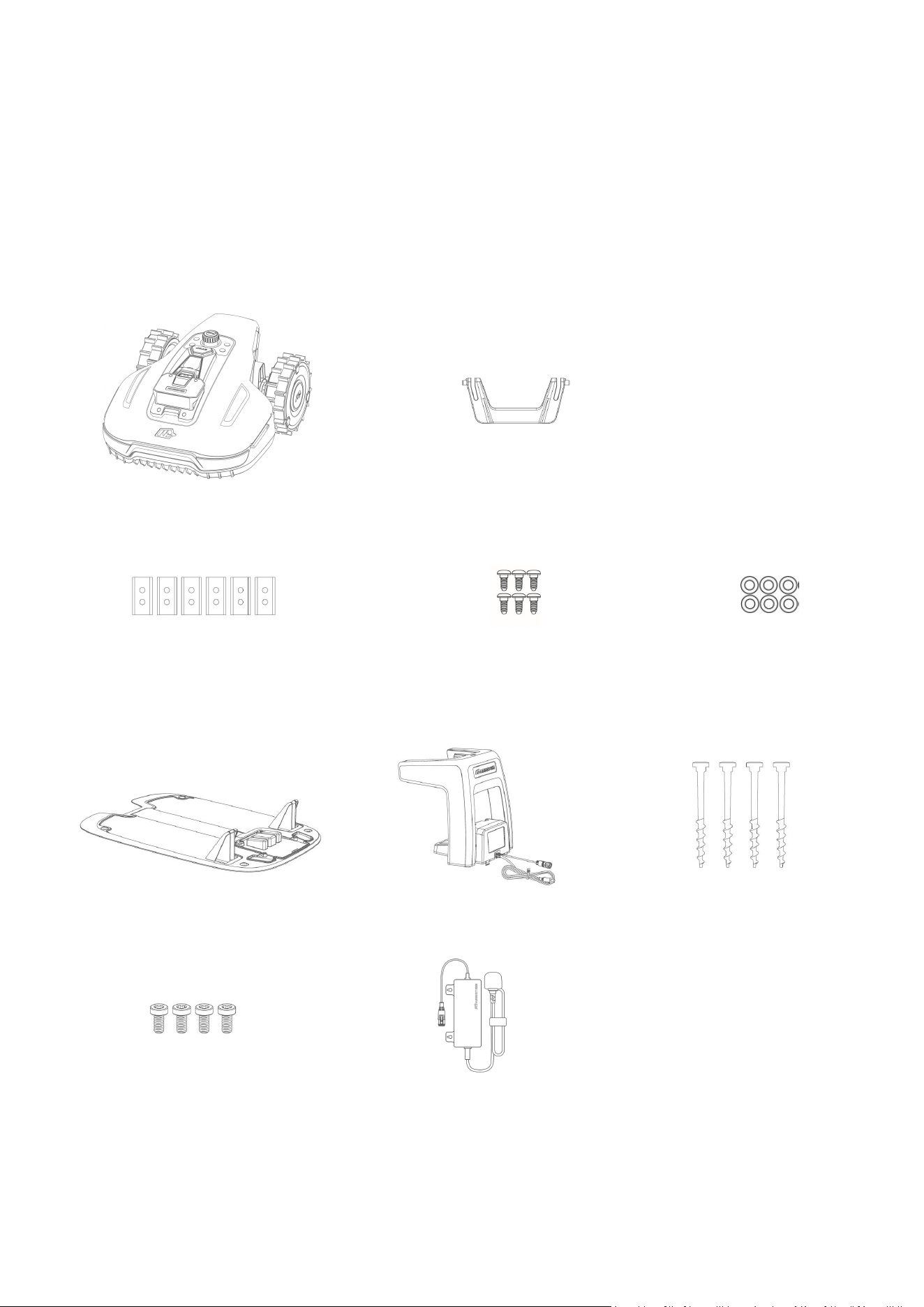
YUKA mini x1
Security Key x1 (for spare use)
Blade x6 (for spare use)
Screw x6 (for spare use)
Washer x6 (for spare use)
2.2.2 Charging Station Installation Kit
Charging Base Plate x1
Charging Tower x1
Stake x4
Screw x4
Charging Station Power Supply x1
- 10 -
2.2.3 RTK Installation Kit
RTK Reference Station x1
Radio Antenna x1
Ground Stake x1
Mounting Pole x2
RTK Reference Station Extension
Cable (5M) x1
RTK Reference Station Power
Supply x1
Expansion Bolt x4
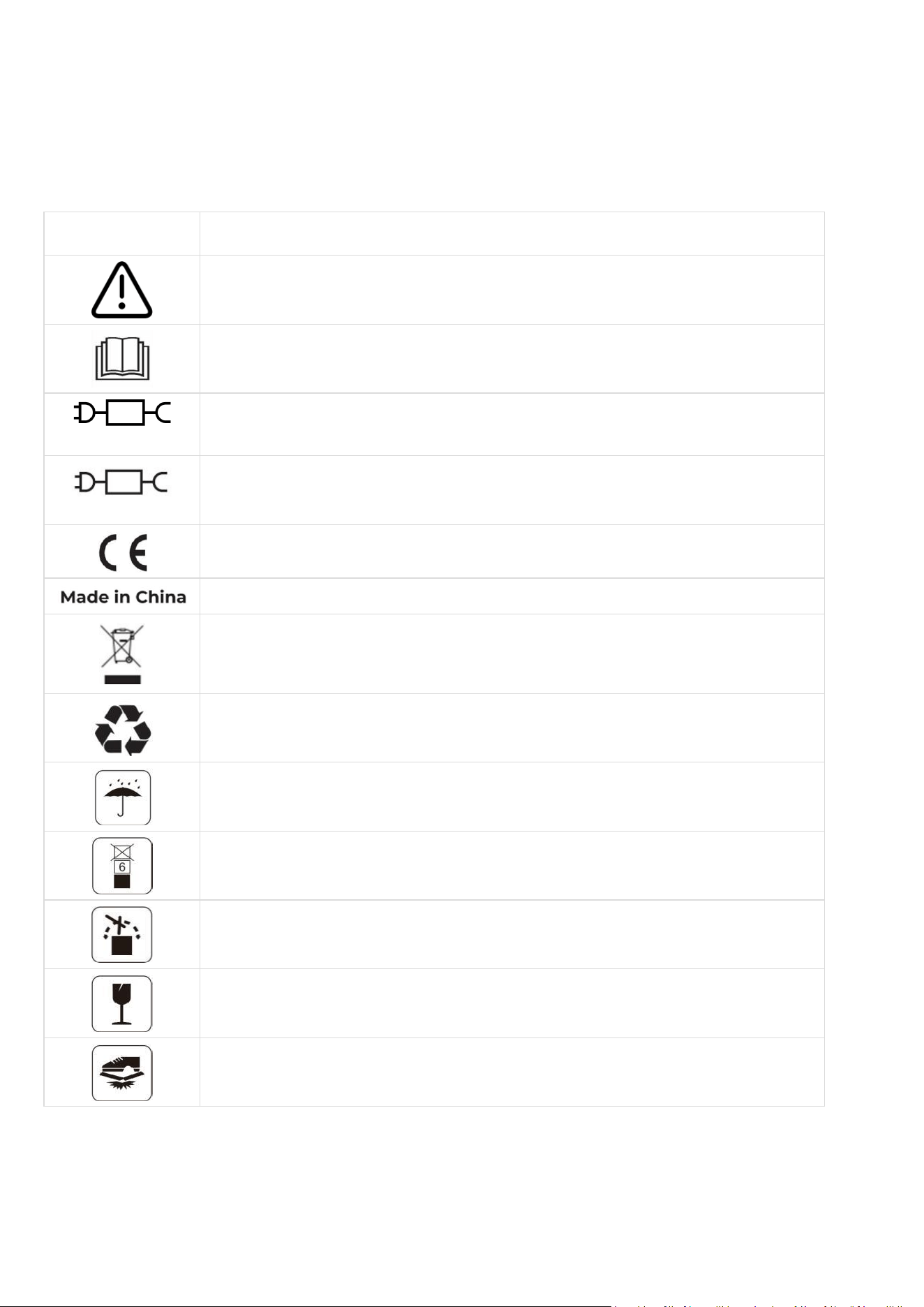
2.2.4 Tool Kit
Allen Key 8mm (0.3 in) x1
Cord Tie x4
Cable Peg x4
Screwdriver (Phillips bit+T20
bit) x1
Brush x1
- 11 -
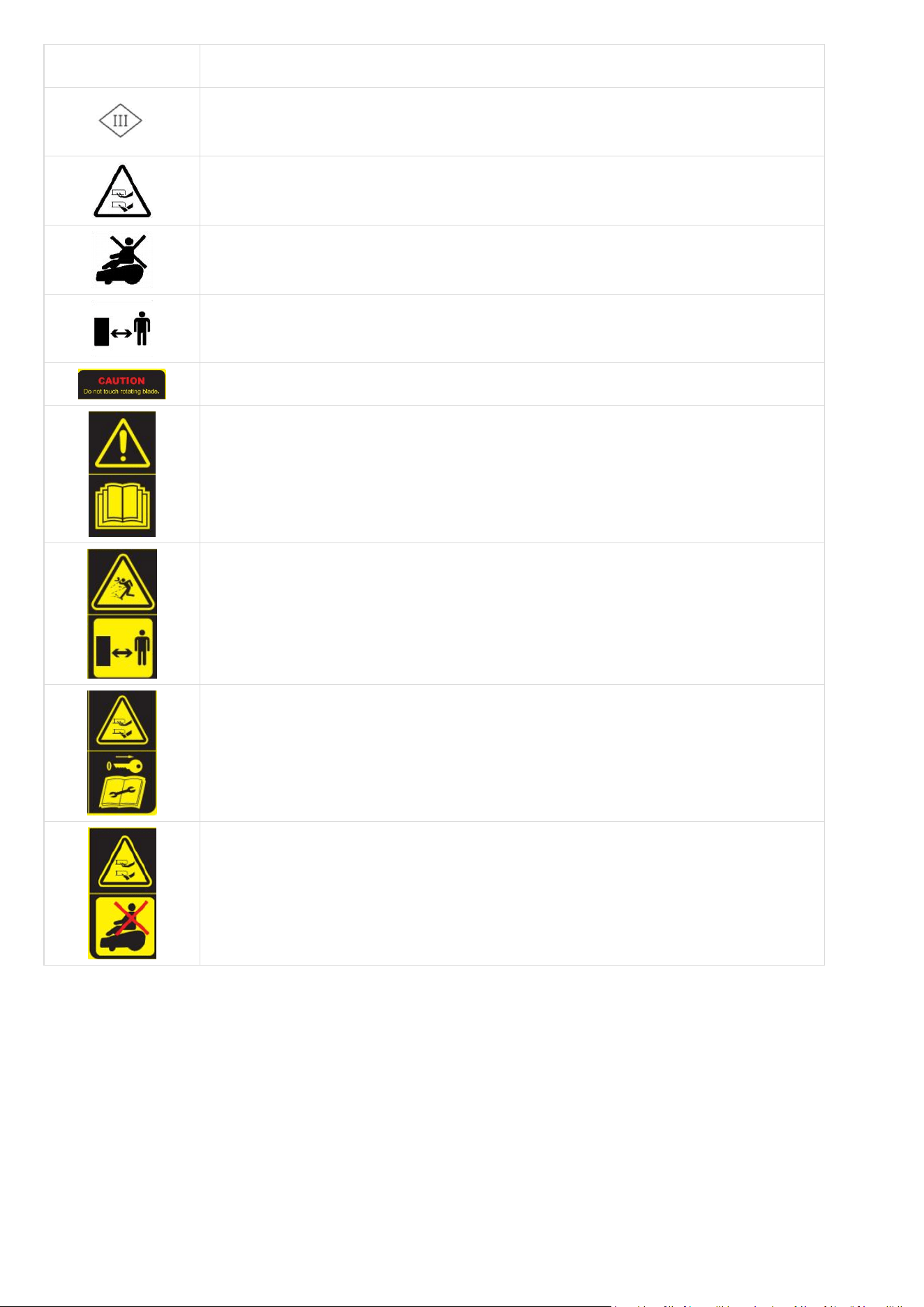
2.3 Symbols on the Product
These symbols can be found on the product. Study them carefully.
Symbol
Description
Warning.
Read user instructions before operating the product.
TS-A060-2802151
Use a detachable supply unit TS-A060-2802151.
TS-A012-1201002
Use a detachable supply unit TS-A012-1201002.
This product complies with the applicable EU Directives.
This product is manufactured in China.
It is not permitted to dispose of this product as normal household waste.
Ensure that the product is recycled in accordance with local legal
requirements.
This item can be recycled.
Keep the pack of this product dry.
The pack of this product should not be covered.
Prohibit flipping.
This product is fragile.
The pack of this product/the product should not be tread.
- 12 -
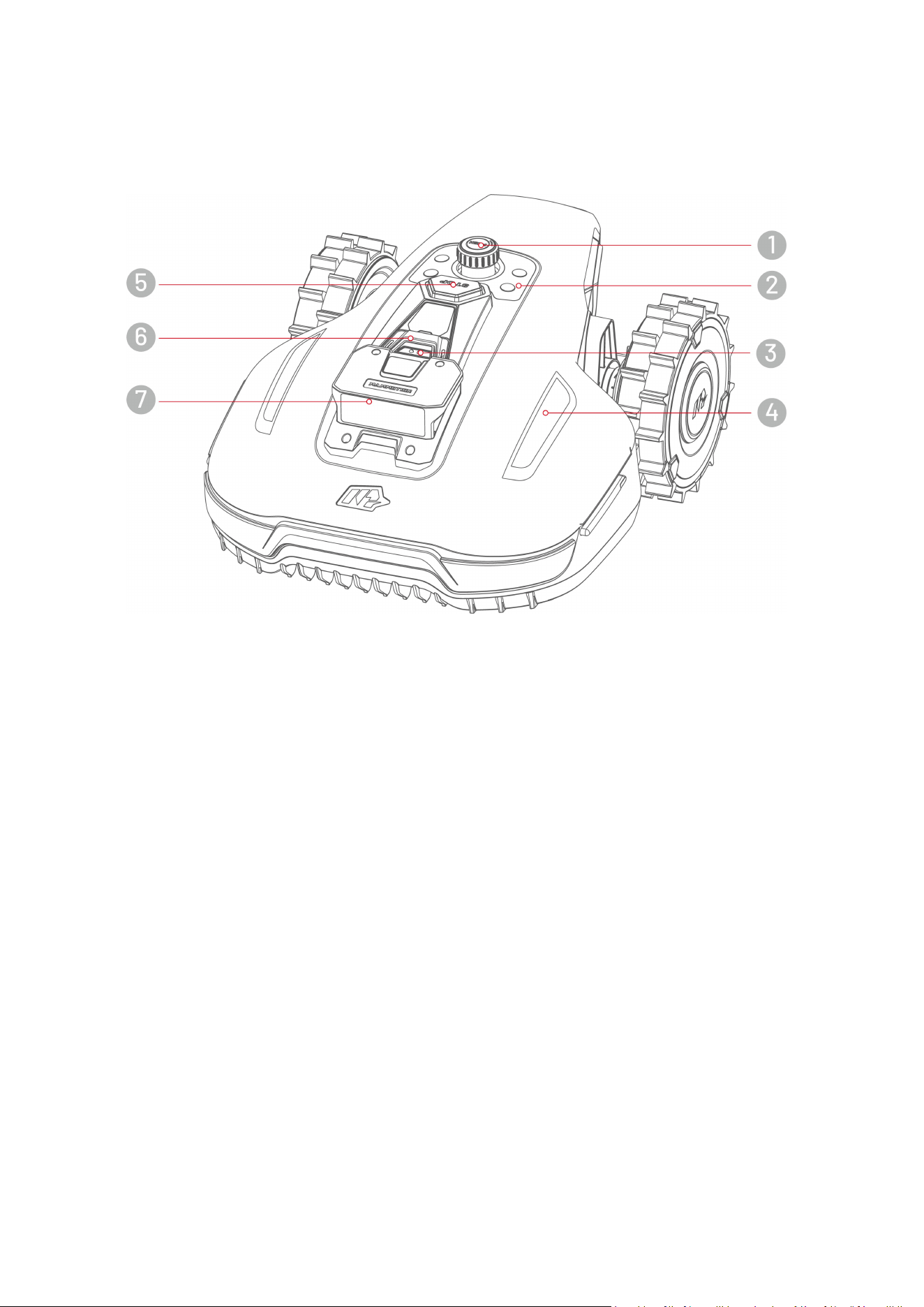
Symbol
Description
Class III appliance.
Keep hands or feet away from movable blades.
Do not ride on the product.
Keep a safe distance from your product when operating.
WARNING – Do not touch rotating blade.
WARNING – Read the user instructions before operating the product.
WARNING – Keep a safe distance from the machine when operating.
WARNING – Remove the disabling device before working on or lifting the
machine.
WARNING – Do not ride on the machine. Never put your hands or feet close to
or under the product.
- 13 -
2.4 Product Overview
2.4.1 YUKA mini
1. Cutting Height Adjustment Button — press and
turn to adjust cutting height
2. Control Center
3. Rain Sensor
4. Side LED
5. Emergency Stop Button
6. Security Key
7. Vision Module
- 14 -
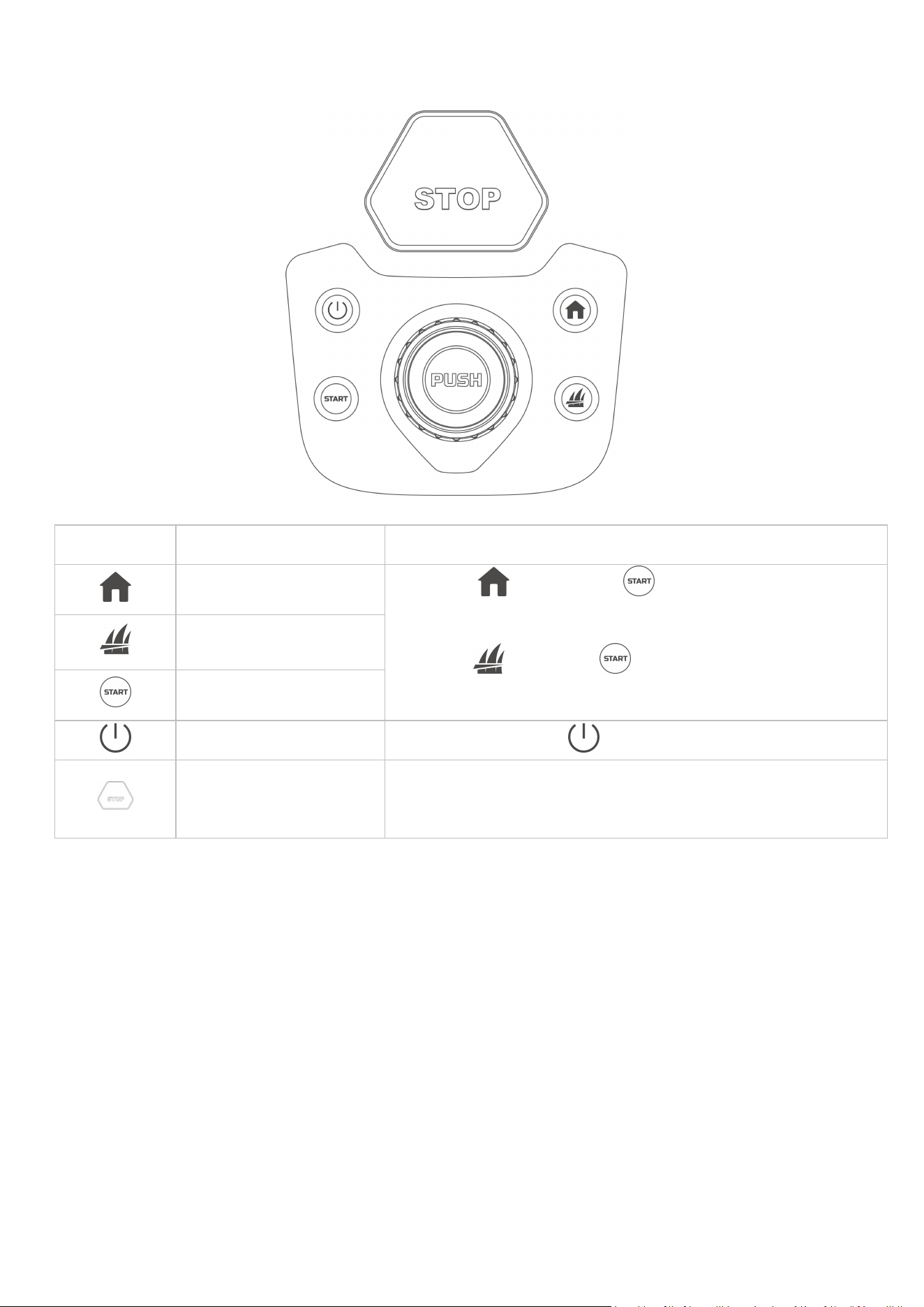
Control Center
Button
Description
Description
Home Button
Press , then press to return to the charging
station.
Press , then press to continue working/unlock the
robot.
Grass Button
Start Button
Power Button
Long press the button to turn on/off the robot.
Emergency Stop Button
If any unexpected problems arise, press the button to stop the
robot immediately.
- 15 -
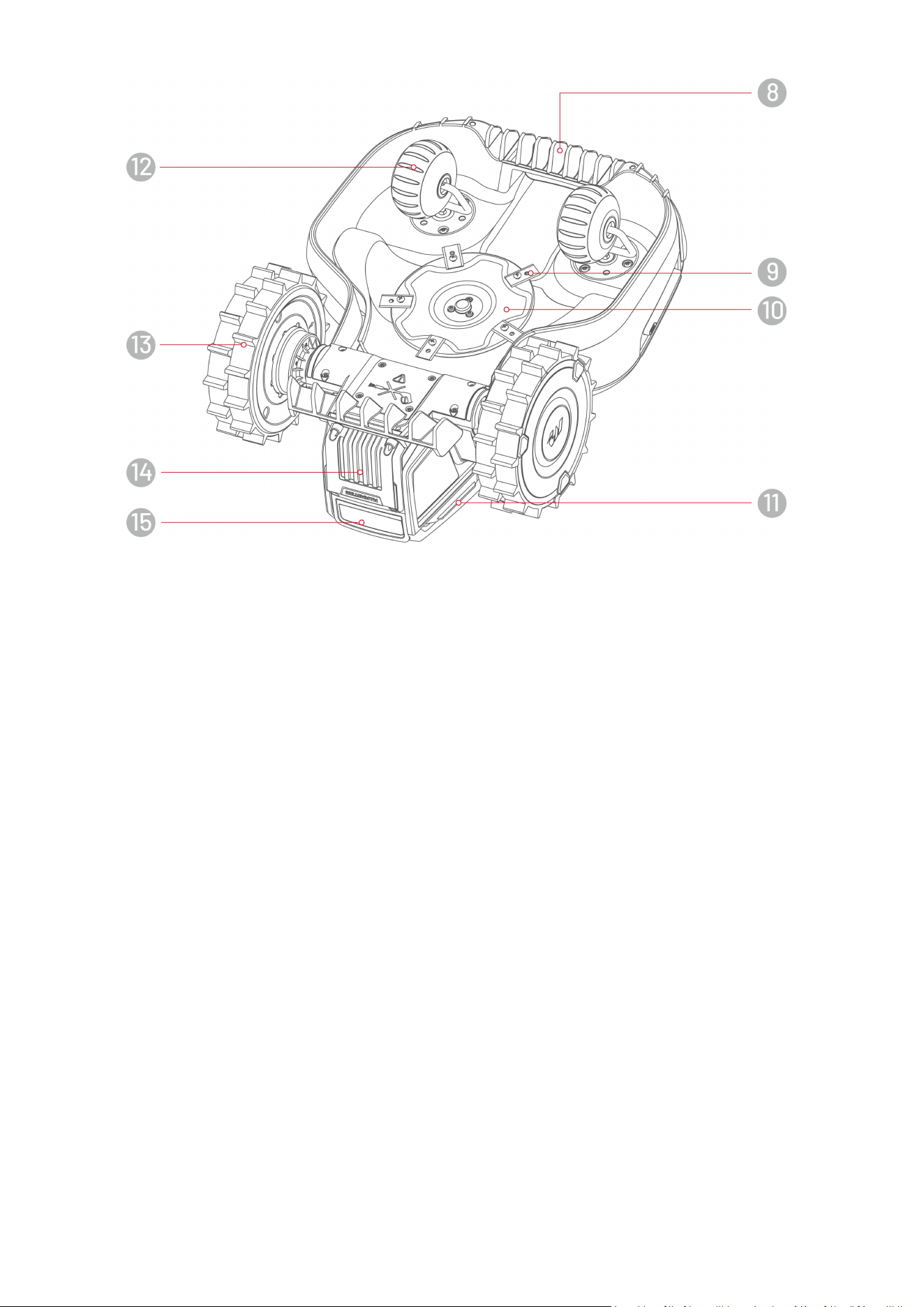
8. Handle
9. Cutting Blade
10. Cutting Disc
11. Charging Contact
12. Omni Wheel
13. Rear Wheel
14. Removable Battery
15. Infrared Receiver
- 16 -
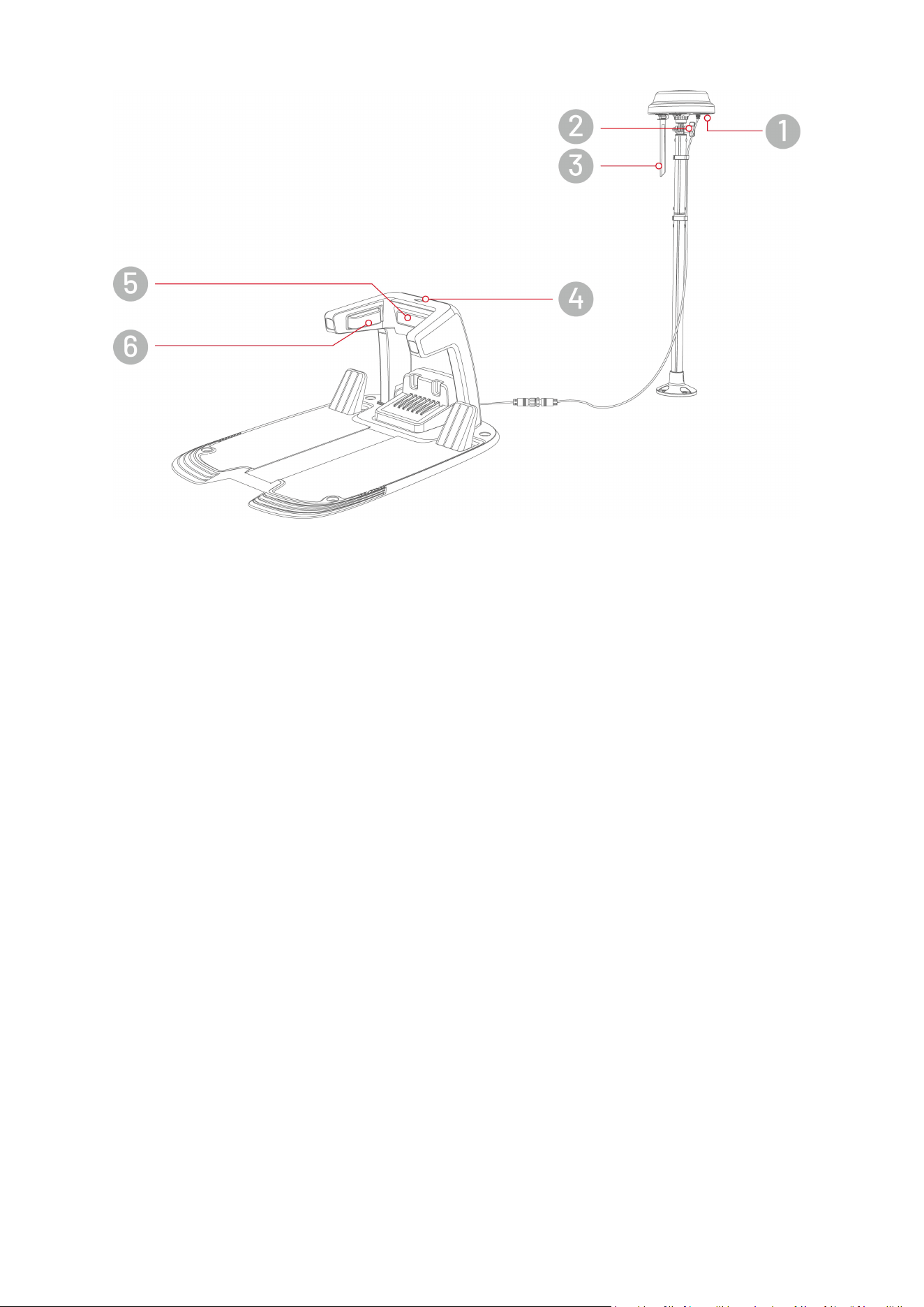
2.4.2 Charging Station and RTK Reference Station
1. RTK Reference Station LED Indicator
2. Knob
3. Radio Antenna
4. Charging Station LED Indicator
5. Infrared Transmitter
6. Charging Contact

- 17 -
2.4.3 LED Indicator Codes
YUKA Mini
Indicator
Color
Description
Side LED
Constant green
System initialization
Manual control mode
Automatic work mode
Charging finished (The robot still on the charging station)
Breathing green
OTA upgrade in progress
Slow flash green
Charging in progress
Slow flash red
Emergency stop activated
Fast flash red
Low battery
Bumper triggered
The robot got stuck
RTK positioning failed
The robot has been lifted/tilted/flipped over
Very fast flash red
System upgrade failed
Systematic error
Off
Pause
Standby
Sleeping
Positioning
Indicator
Constant green
RTK positioning is working well.
Flash green
The RTK positioning has failed, but the vision positioning is
working well.
Constant red
Both RTK and vision positioning have failed.
Flash blue
The robot's firmware is being upgrading.
Constant blue
The robot powered on successfully.

- 18 -
Charging Station
Color
Description
Flash green
The robot is being charged.
Constant green
The robot is fully charged or uncharged.
Constant red
An error has occurred.
RTK Reference Station
Color
Description
Flash blue
The reference station is powering on.
Flash green
The reference station is initializing.
Constant green
The initialization is finished and the reference station works well.
Off
The initialization is finished and the local time is between 18:00 and 8:00.
Constant red
An error has occurred.
Slow flash green
Low power consumption.
- 19 -
3 Installation
3.1 Preparation
Read and understand the safety instructions prior to installation.
Use original parts and installation materials.
Sketch your lawn and mark up obstacles. This will make it easier to examine where to place the
charging station and RTK reference station, and to set the virtual boundaries.
3.2 Choosing a Location for RTK Reference Station
To optimize the performance of the RTK system, the RTK reference station must be in an open area to
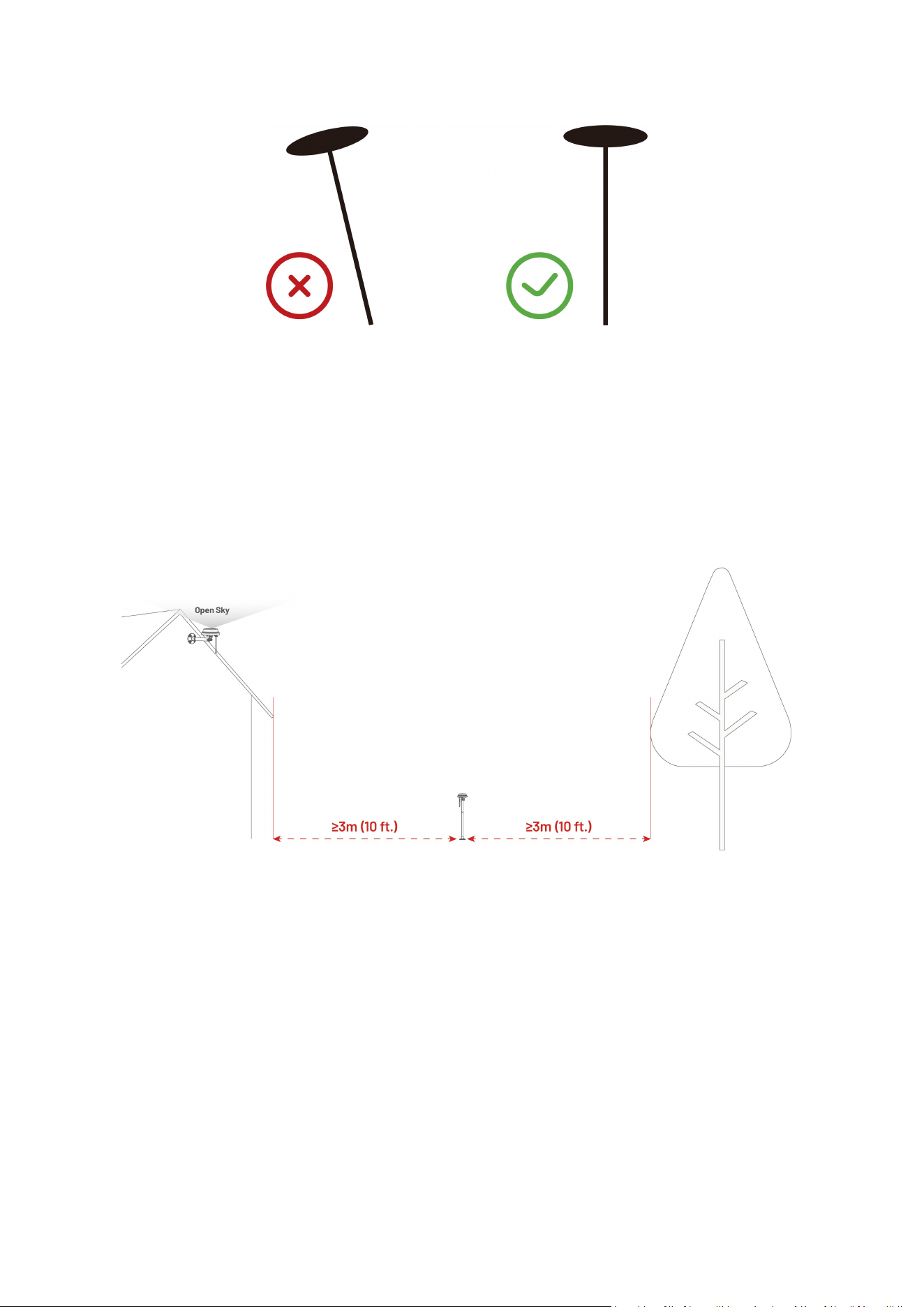
receive satellite signals. You can install the RTK reference station on flat, open ground or on an
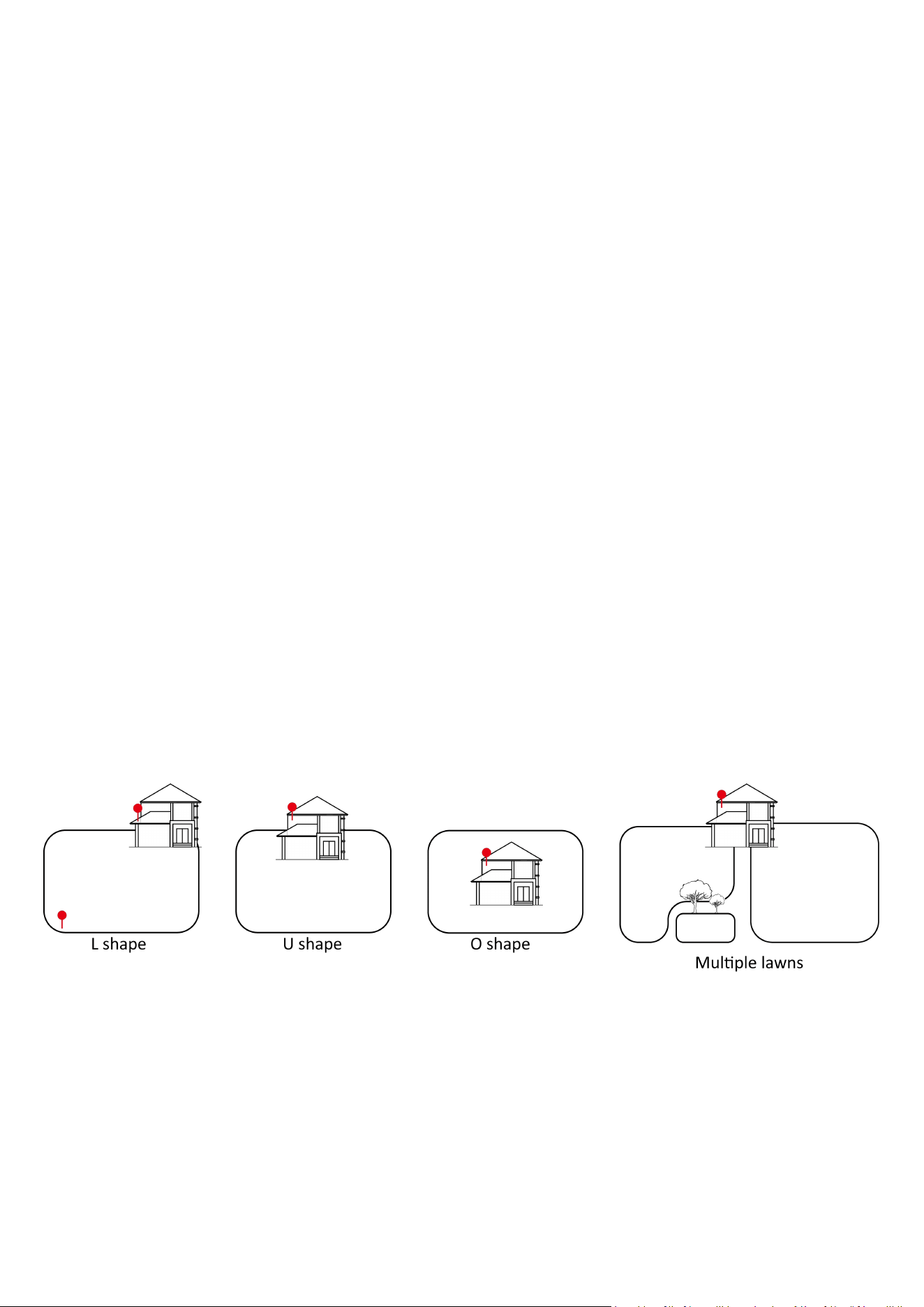
unobstructed wall or roof. In general, if your lawn is L-shaped, you can place the RTK reference station on
a wall or roof or on the ground; if your lawn is O-shaped or U-shaped, or if you have multiple lawns, we
recommend that you place the RTK reference station on a wall or roof.
- 20 -
The location requirements are as follows:
The RTK reference station should be oriented vertically, as shown below:
Place the RTK reference station on a flat, open ground or on an unobstructed wall or roof. Make sure
there are no roofs or trees that may obstruct the satellite signals.
DO NOT install the RTK reference station at the corner of an L-shaped building or on a narrow path
between two structures or under a tree.
Maintain a distance of at least 3 meters (10 feet) between the RTK reference station and any wall or
tree.
- 21 -
3.3 Choosing a Location for Charging Station
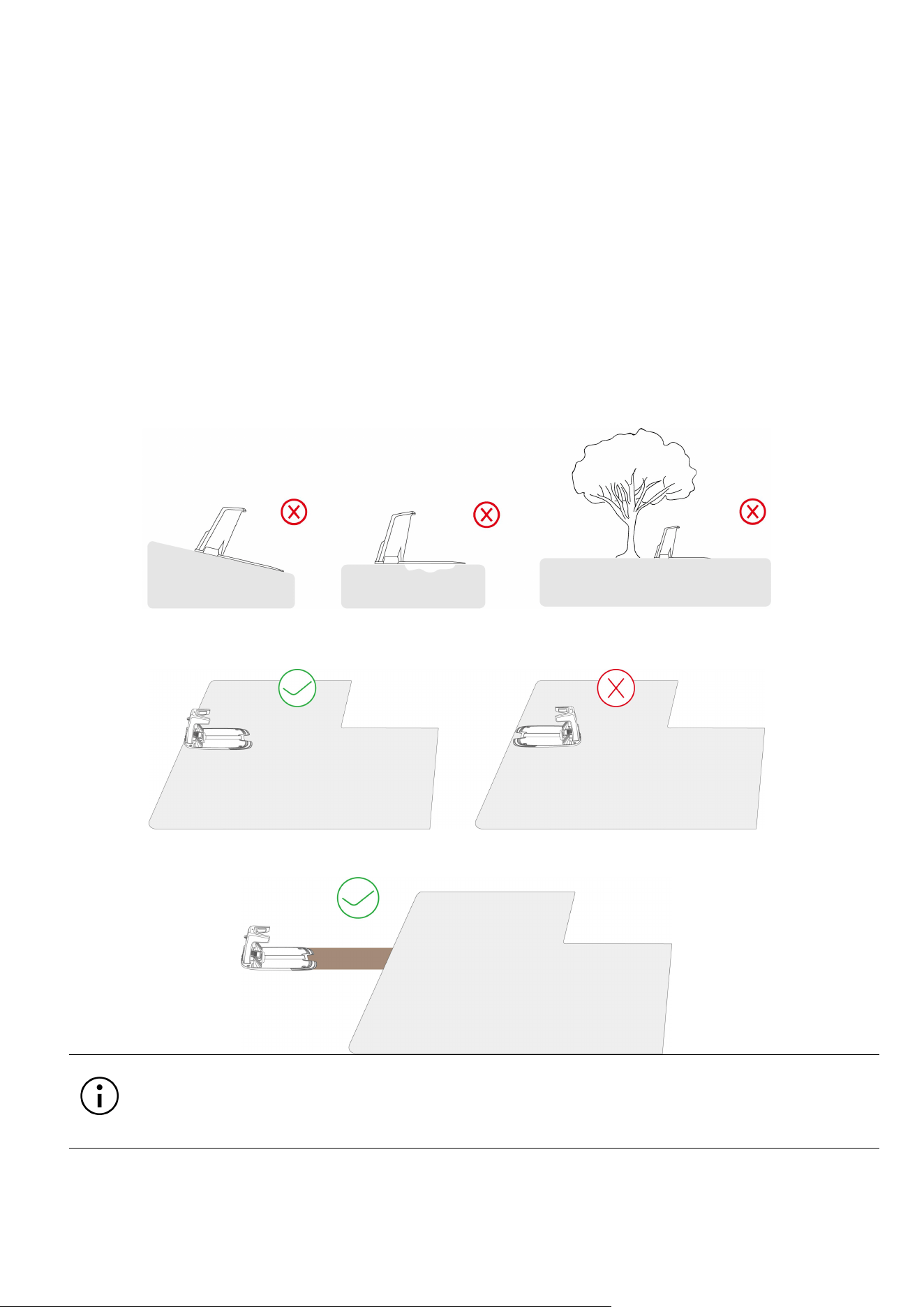
Place the charging station on a flat ground.
The charging area (1x1 m/3x3 ft. in front of the charging station) should be free from significant bumps.
The slope must be less than 5
゚
.
DO NOT install the charging station at the corner of an L-shaped building or on a narrow path between
two structures.
No obstacles or other items should be between the charging station and the docking point.
The base plate of the charging station must not be bent or tilted.
Position the charging station to face the lawn.
If the charging station is placed outside the lawn, create a channel to connect it to the lawn.
NOTE
If the charging station is installed on a concrete surface, please secure it with expansion
bolts.
- 22 -
3.4 Install
3.4.1 Install the Charging Station
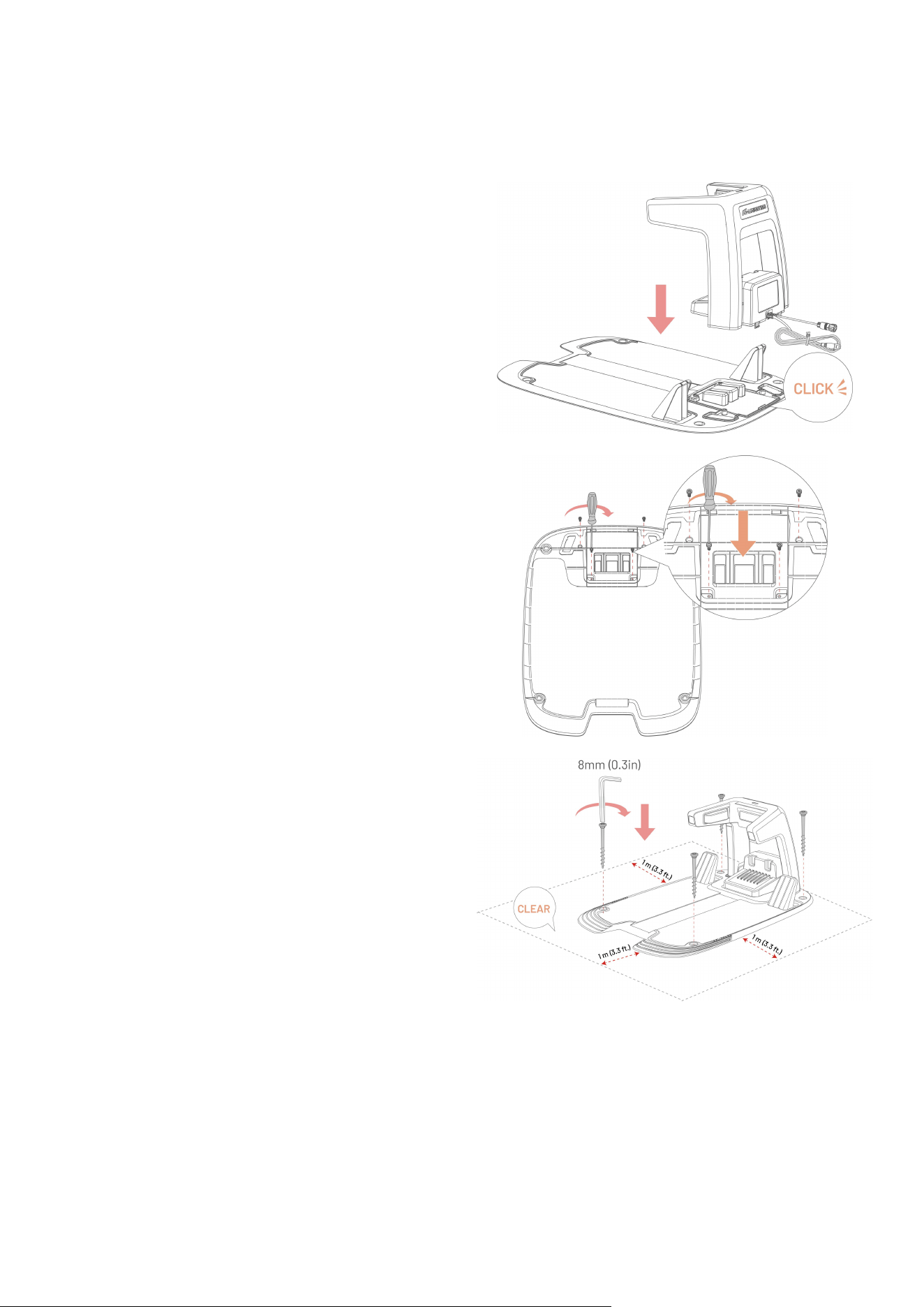
1. Insert the charging tower into the charging base
plate until you hear a CLICK sound.
2. Install and tighten the four screws from the
bottom of the charging base plate using the
screwdriver with the T20 bit.
3. Select an open spot to install the charging
station.
4. Use the four stakes to properly fasten the
charging station in the position as shown.
- 23 -
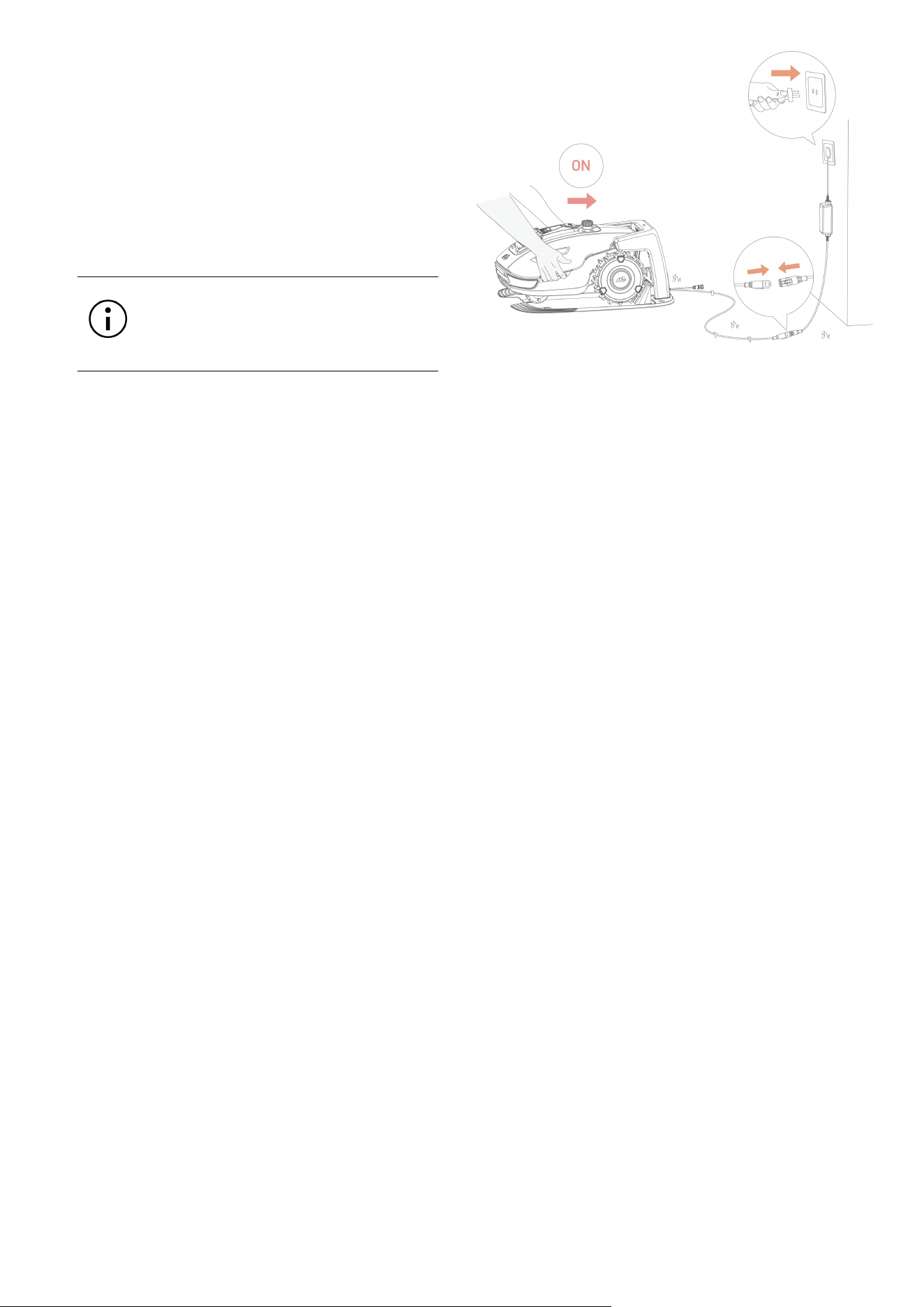
5. Connect the charging station cable (the longer
one) with the charging station power supply.
6. Plug the charging station power supply into the
wall socket.
7. Place the robot on the charging station to begin
charging.
NOTE
Charge the robot for initial use to
activate it.
- 24 -
3.4.2 Install the RTK Reference Station
The RTK reference station can be installed either on the lawn or mounted on a wall. Select the optimal
installation method based on the layout of your lawn.
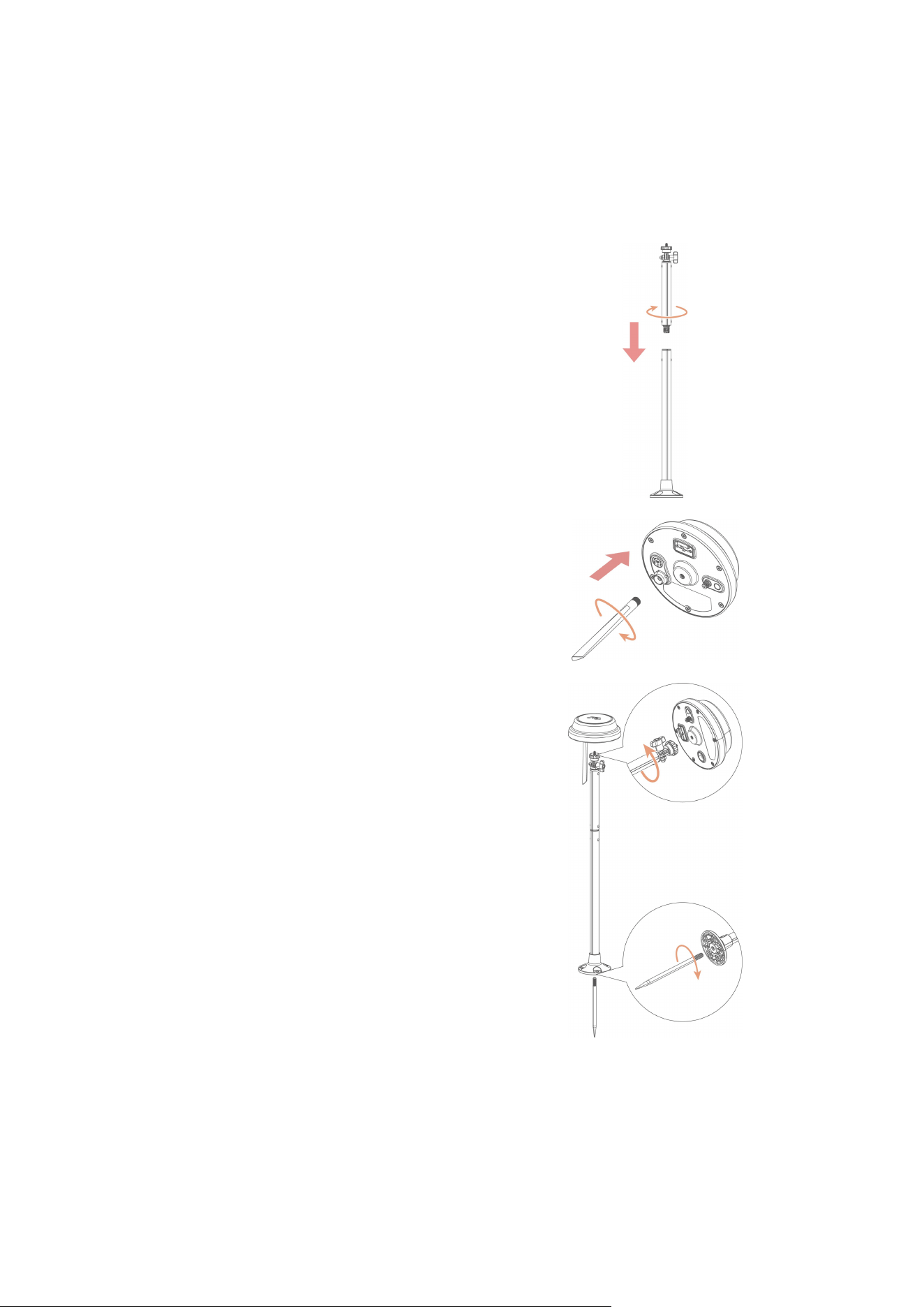
Floor Mount
1. Assemble the two mounting poles.
2. Fix the radio antenna to the RTK reference
station.
3. Screw the long stake into the mounting
pole base.
4. Mount the RTK reference station on the
mounting pole.
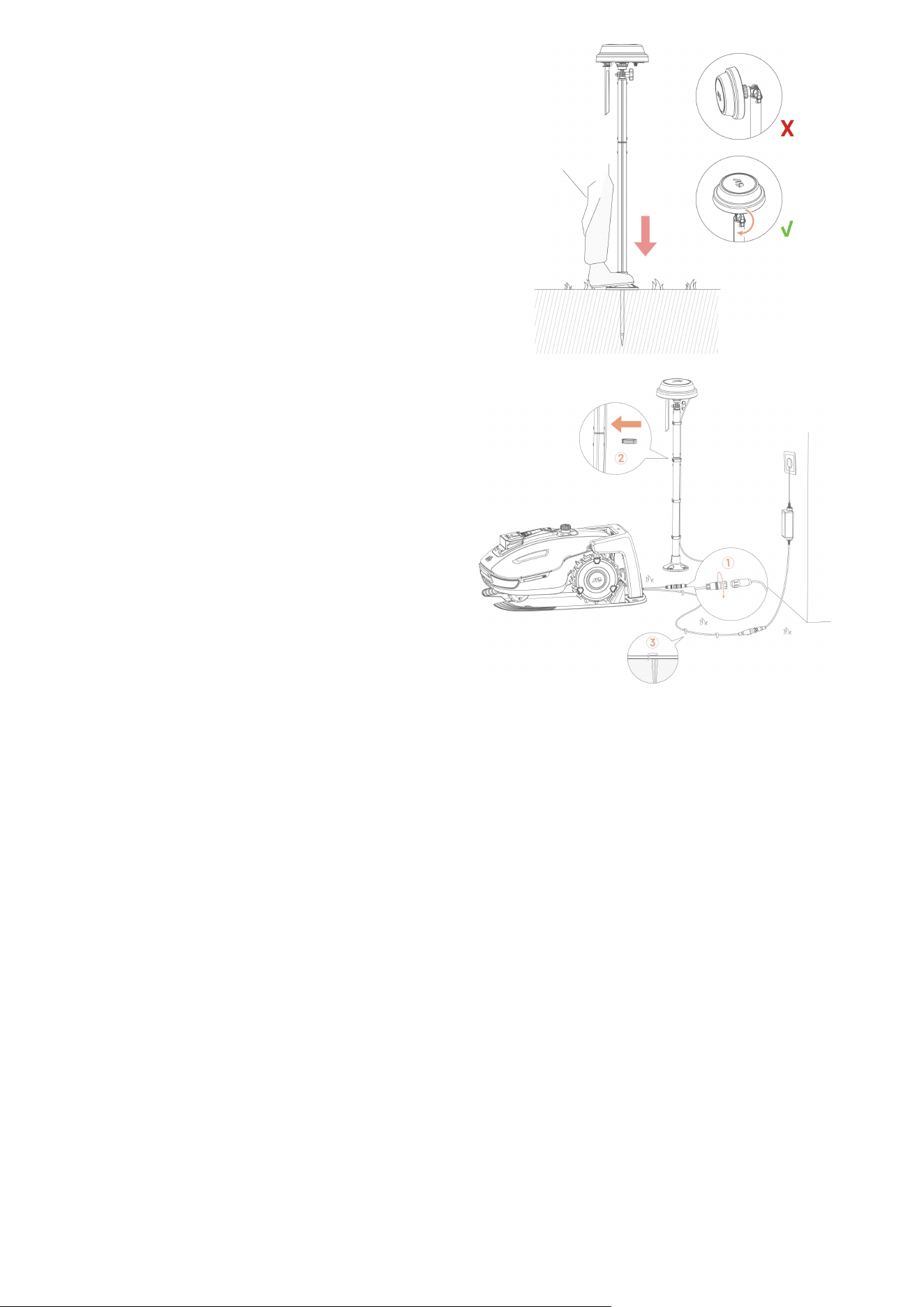
- 25 -
5. Thrust the mounting pole firmly into the
lawn near the charging station.
6. Adjust the knob to ensure the RTK
reference station is positioned upright and
stable.
7. Connect the RTK reference station cable
with the charging station cable (the shorter
one).
8. Use the cord tie and cable peg to fix the
cable.
- 26 -
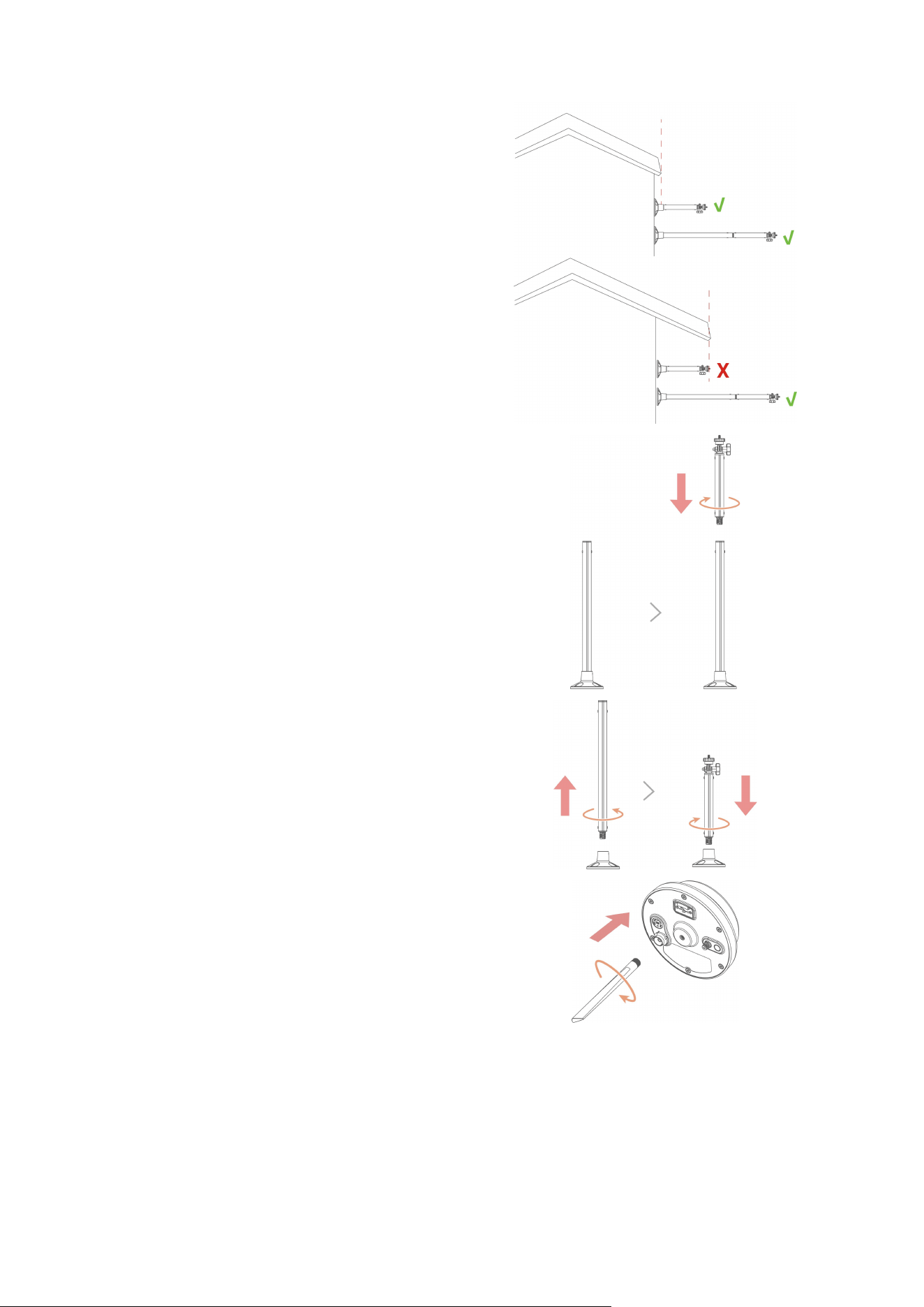
Wall Mount
1. According to the width of your eaves,
choose either the longer or shorter poles.
a1. Assemble the two mounting poles if you
have wide eaves.
a2. Detach the mounting pole base and
long pole first, then assemble the short
pole with the base.
2. Fix the radio antenna to the RTK reference
station.
- 27 -
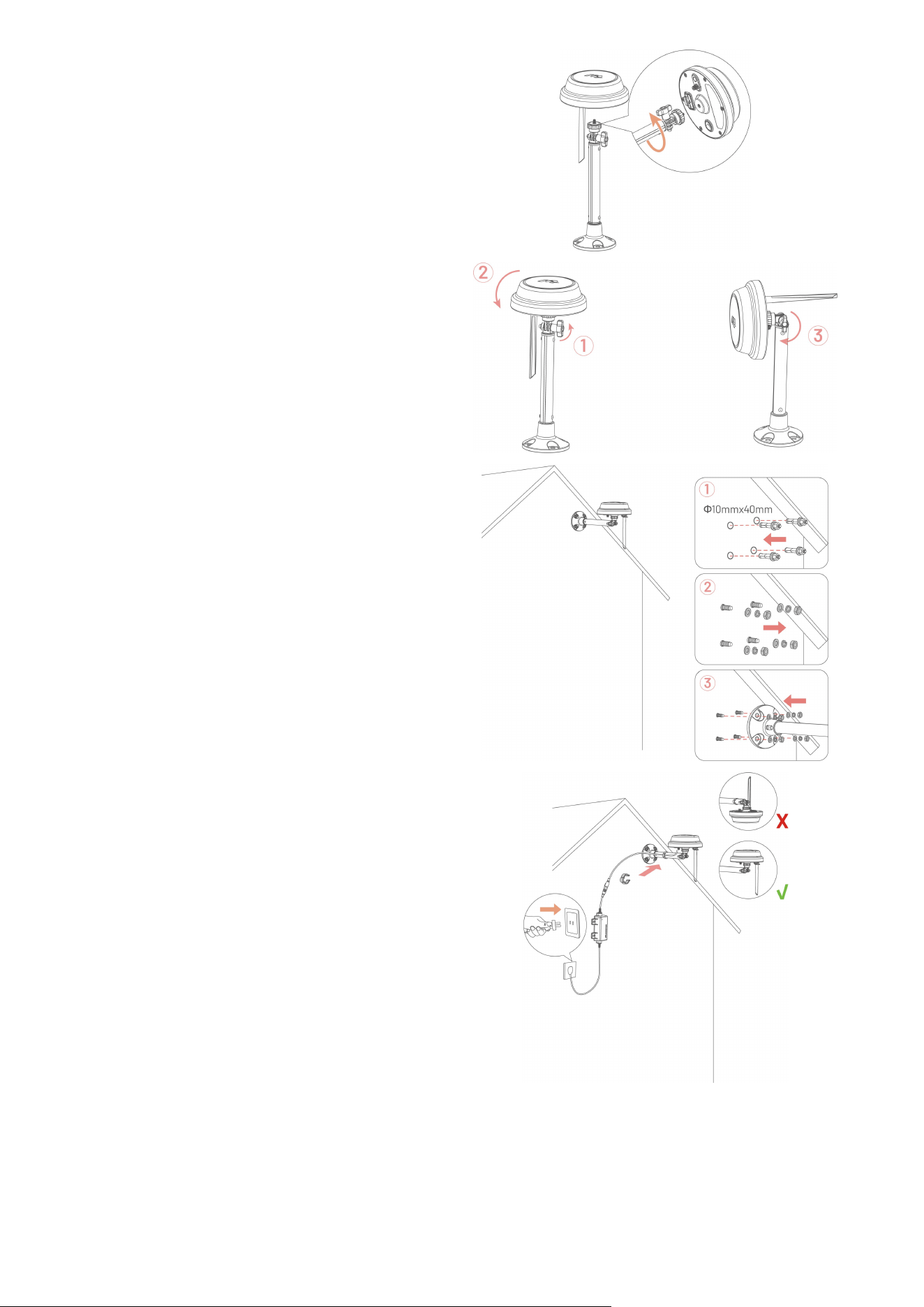
3. Attach the RTK reference station to the
mounting pole.
4. Adjust the knob to ensure the RTK
reference station is positioned upright and
stable.
5. Drill four holes (10 x 40mm/0.4 x 1.6 in) at
the appropriate position and install the
expansion bolts into the holes.
6. Attach the RTK reference station on the
wall using the four bolts (M8 x 50) and
secure the bolts firmly.
7. Plug the power supply into a wall socket.
8. Use the core tie to fix the cable on the pole.
- 28 -
4 Operation
NOTE
The screens are only for reference. Please refer to the actual ones.
4.1 Preparation
4.1.1Download Mammotion App
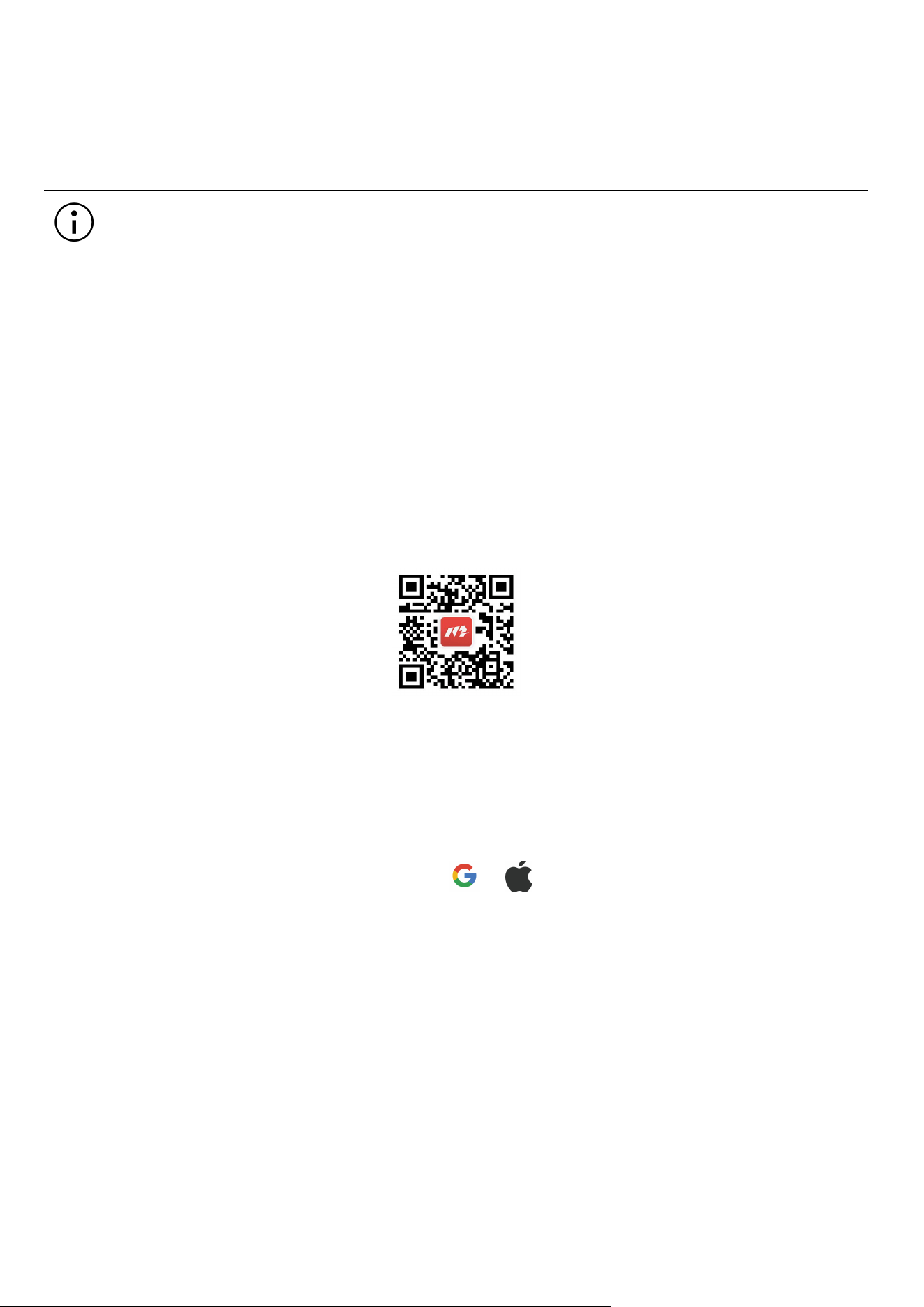
YUKA mini is designed to work with the Mammotion app, please download the free Mammotion app first.
You can scan the QR code below to get it from the Android or Apple app stores, or search for Mammotion
in these stores.
After installing the app, please sign up and log in. During use, the app may ask you for Bluetooth, Location,
and local network access when necessary. For optimal use, it is recommended to allow the above access.
For more information, please refer to our Privacy Agreement. Go to Mammotion app > Me > About
Mammotion > Privacy Agreement.
If you want to log in with a third-party account, tap or on the login page to continue. Mammotion
app now supports logging in with Google and Apple accounts.
- 29 -
4.2 Add Your Product
NOTE
Make sure the distance between your phone and the device is less than 3 m (10 ft.).
You can skip the Wi-Fi setup if you are using 4G cellular data. It is advisable to also
establish a connection to a Wi-Fi network for optimal performance.
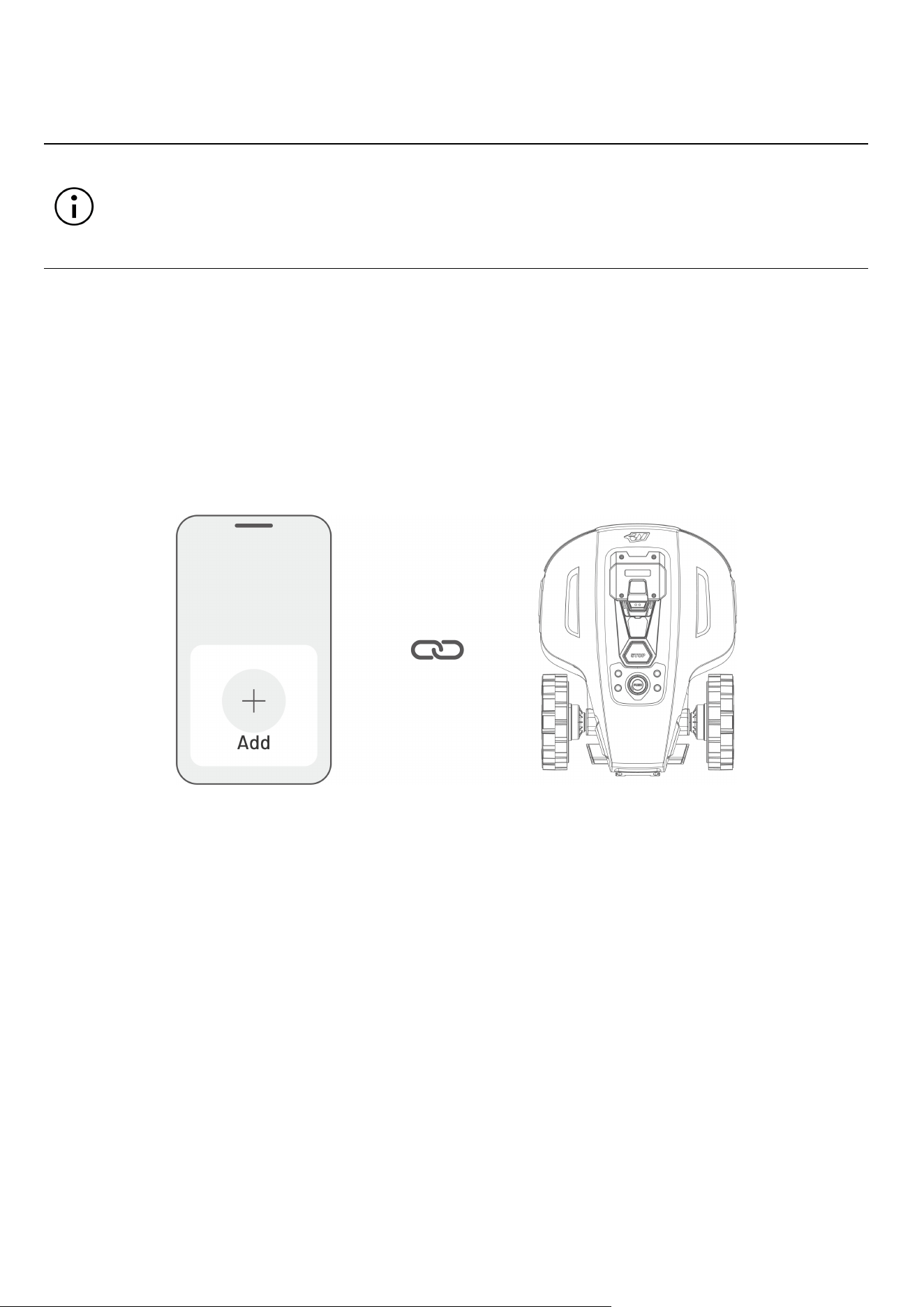
1. Tap + to add your robot or RTK reference station.
2. Select Add.
3. Follow the onscreen guidelines to set up the device.
4. Follow the onscreen instructions to connect the device and set network successfully.
5. Follow the onscreen instructions to activate the built-in SIM card.
- 30 -
4.3 Activate SIM Card
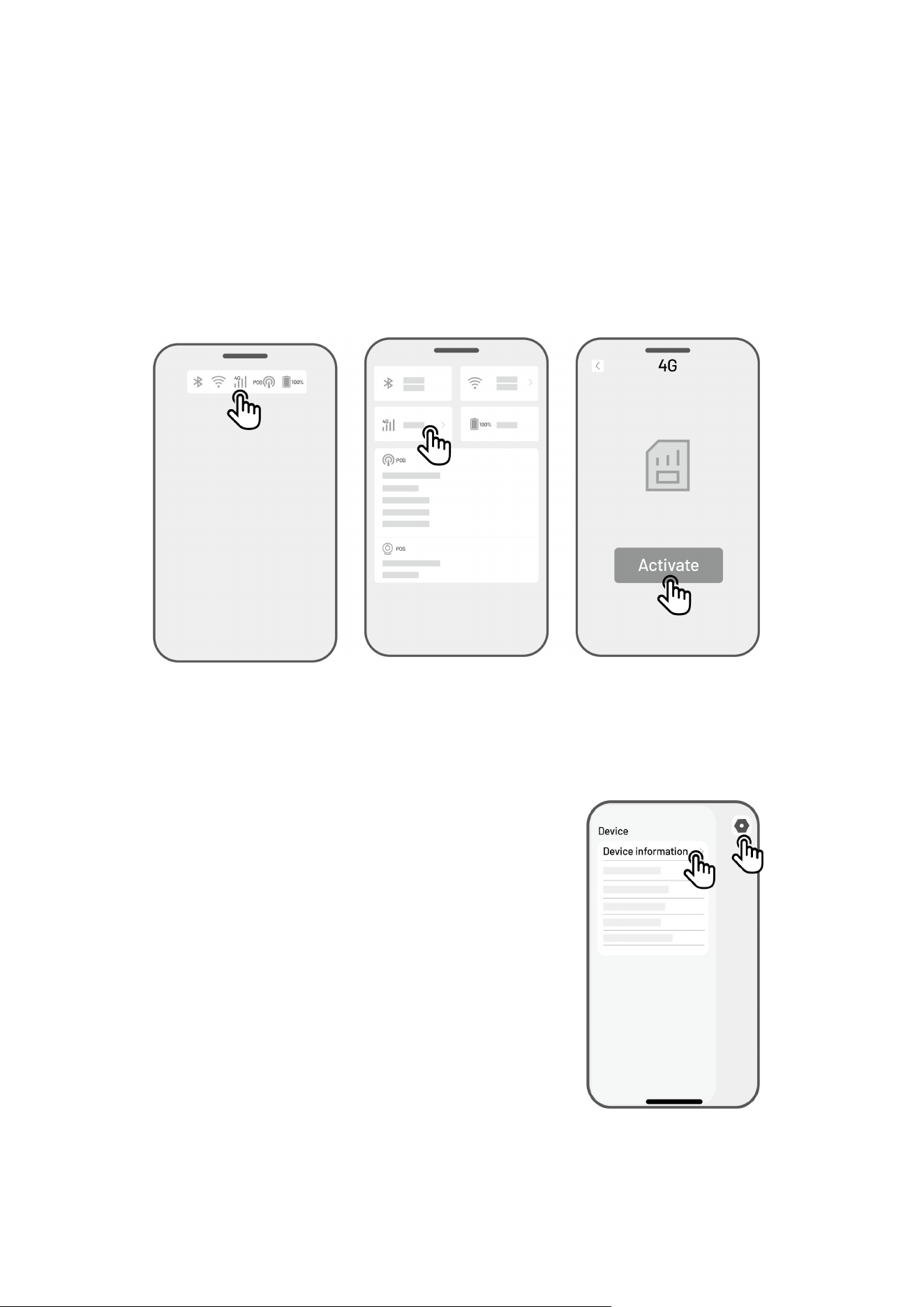
If you didn't activate the SIM card during the device binding process, you can do so by tapping the Status
Bar on the Home page:
1. Tap the Status Bar on the Home page.
2. Tap the 4G status button.
3. Tap Activate and wait for the activation to complete successfully.
4.4 Update Firmware
For optimal experience, ensure your devices are updated to the latest firmware version.
To update the firmware
1. Go to Settings > Device information >
Robot version to update the firmware.
2. Ensure the robot is connected to a stable
network.
During the update, please avoid exiting the app,
performing other operations, or turning off the
robot.
- 31 -
4.5 Create a Map
4.5.1 Map out the Task Area
Preparation
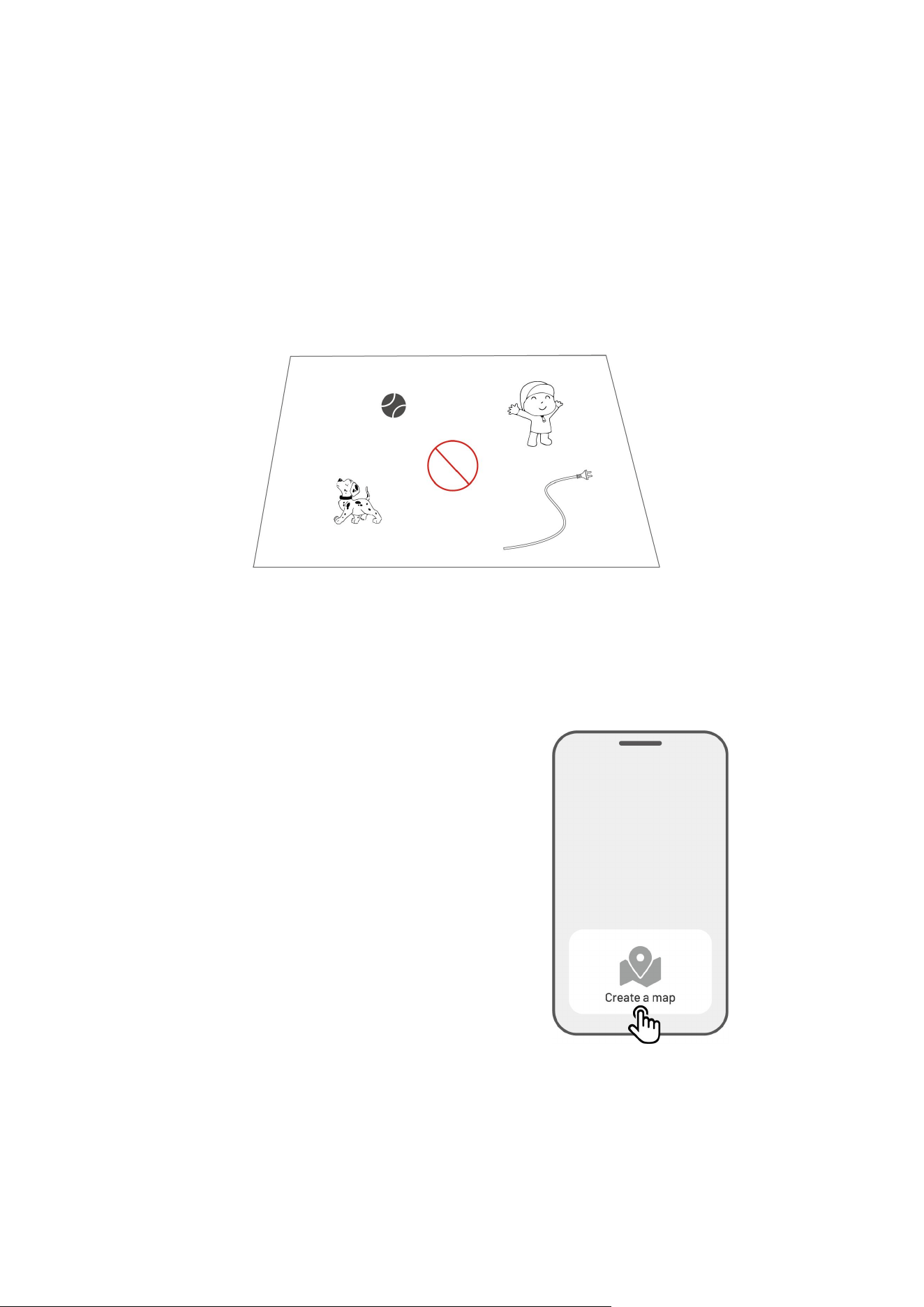
Before mapping, it is important to be aware of key considerations.
Remove debris, piles of leaves, toys, wires, stones, and other obstacles from the lawn. Make sure no
children or animals are on the lawn.
Map Your Lawn
1. Make sure the robot is powered on and your phone Bluetooth is on. Your phone will connect to the
robot automatically with a Bluetooth connection.
2. Tap Create a Map to start.
- 32 -
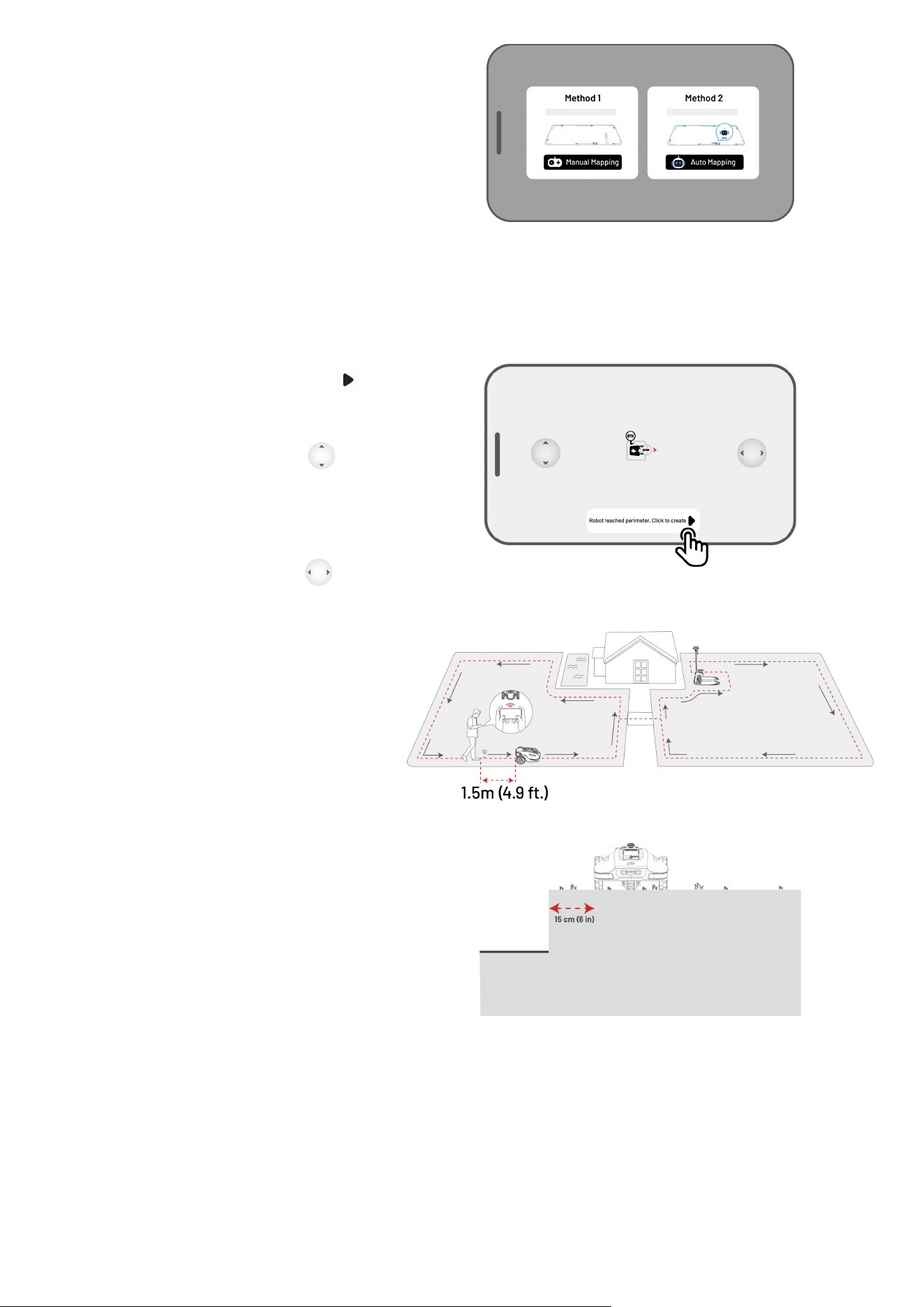
3. Select Manual Mapping or Auto
Mapping to continue.
Manual Mapping
1. Control the robot to a proper starting
point of the perimeter and tap to
start mapping.
Move the virtual joystick up or
down to control the robot's
forward or backward movement.
Move the virtual joystick left or
right to turn the robot left or right.
2. Guide the robot along the perimeter.
Keep the controller within 1.5 meters
(4.9 feet) of the robot to maintain a
stable Bluetooth connection.
a) If the perimeter meets an obstacle
such as a wall, fence, ditch, or
uneven pathway, maintain a
distance of at least 15 cm (6 in)
from the perimeter while guiding
the robot.
- 33 -
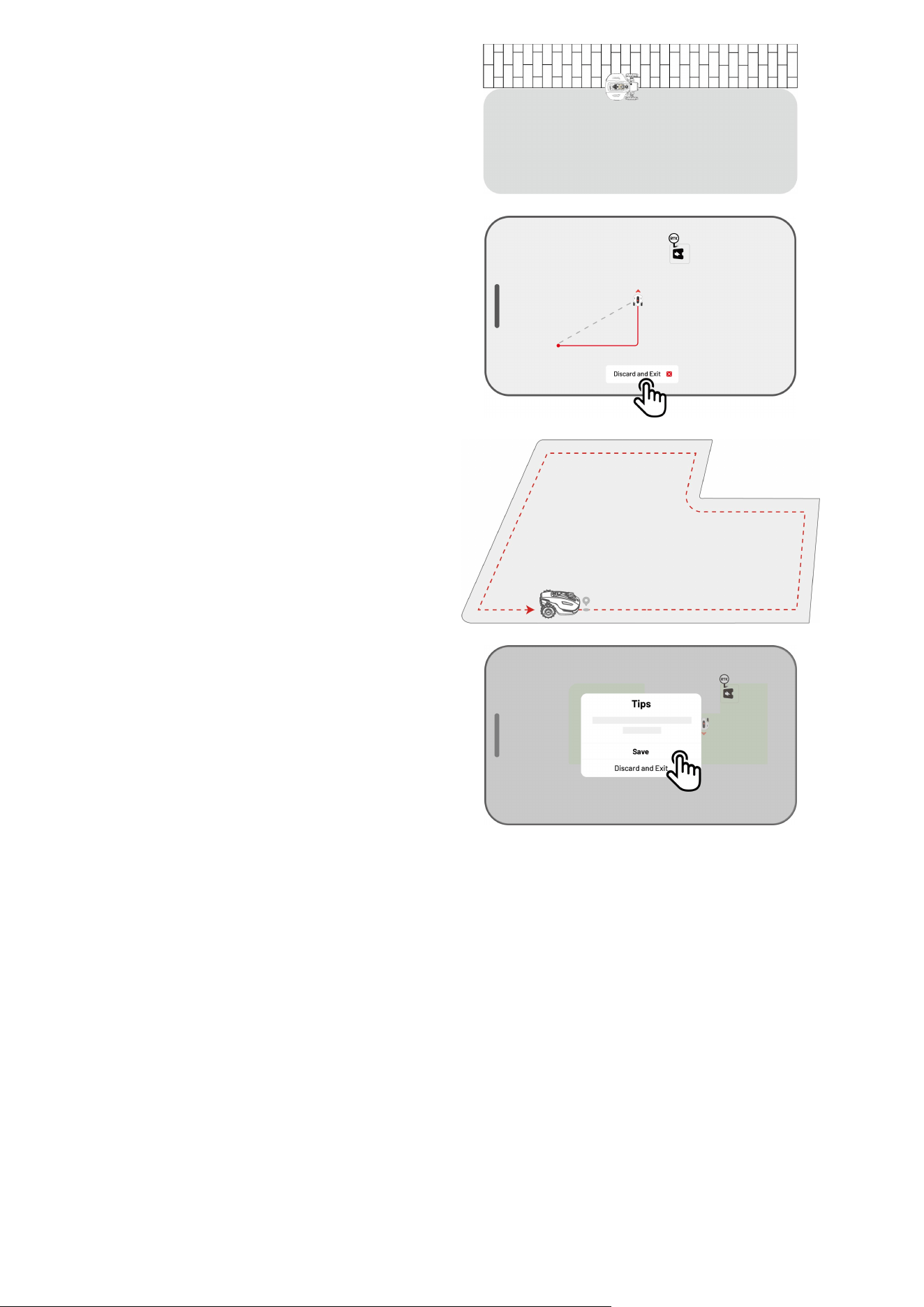
b) If the perimeter meets a level, even
pathway, it is recommended to
guide the robot on the pathway for
more efficient cutting.
3. Tap Discard and Exit to clear all
unsaved data and remap during the
mapping process if needed.
4. Control the robot back to the starting
point and tap Save to finish mapping.
- 34 -
Auto Mapping
NOTE
Remove any obstacles before starting auto mapping.
Keep your phone active and do not switch to other apps.
Follow the robot during the mapping process.
Ensure the Bluetooth connection between the robot and your phone remains
uninterrupted.
Please do not use Auto Mapping in scenes with steps, cliffs, ponds, or similar obstacles.
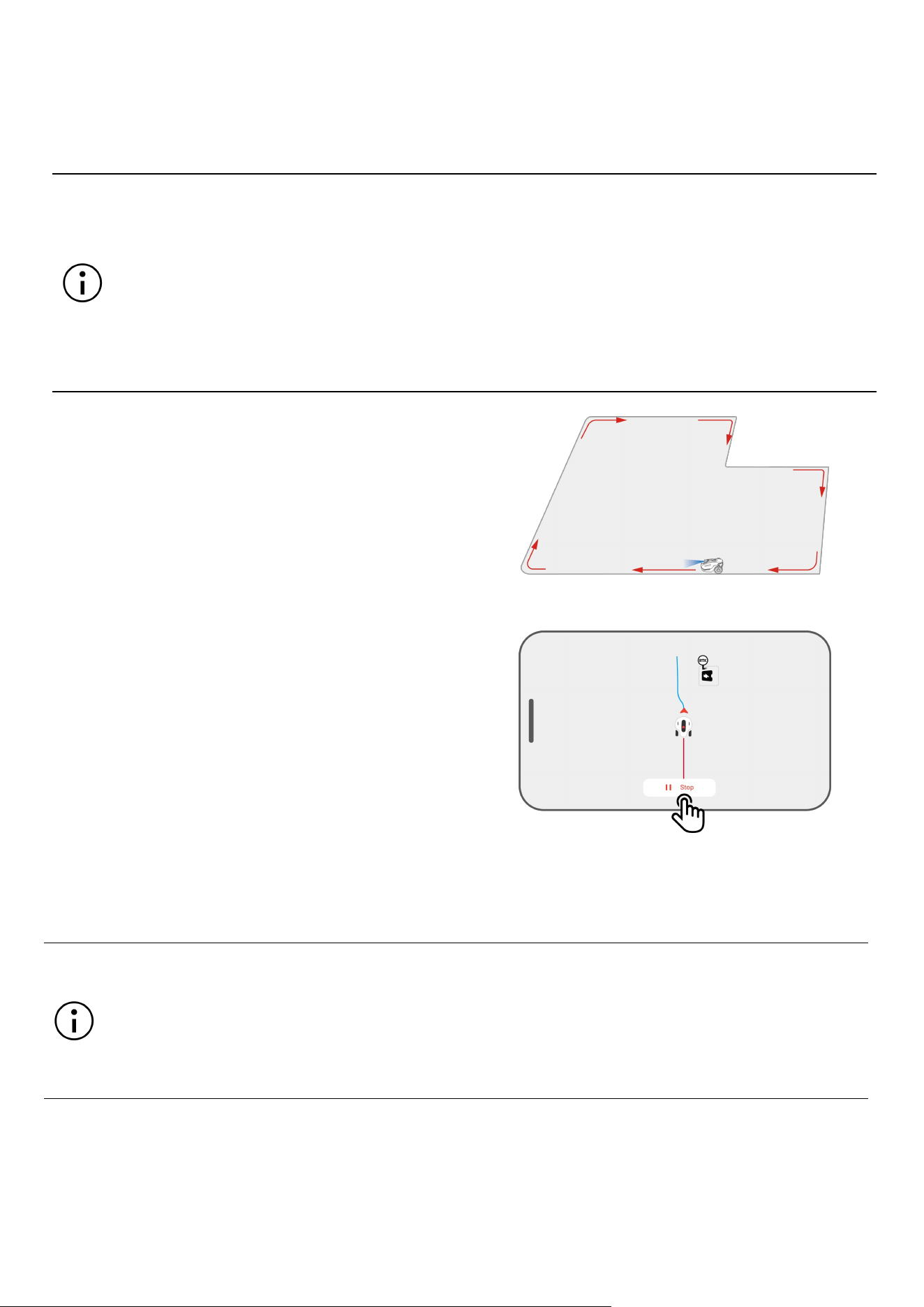
The Auto Mapping feature uses the robot’s vision
camera to detect the physical perimeter of the lawn.
When the camera identifies a clear perimeter, Auto
Mapping is activated, allowing the robot to
autonomously map the lawn’s perimeters.
Tap Auto Mapping to initiate this feature.
If the robot malfunctions, tap the Stop button and
then manually control it to continue mapping.
NOTE
When mapping, the system will estimate the area. Please ensure that the area is not more
than the upper limit (See Technical Specifications for more information), or the task area
mapping will fail.
Drive the robot out of the task area first if a new area is created.
- 35 -
4.5.2 Map out a No-go Zone
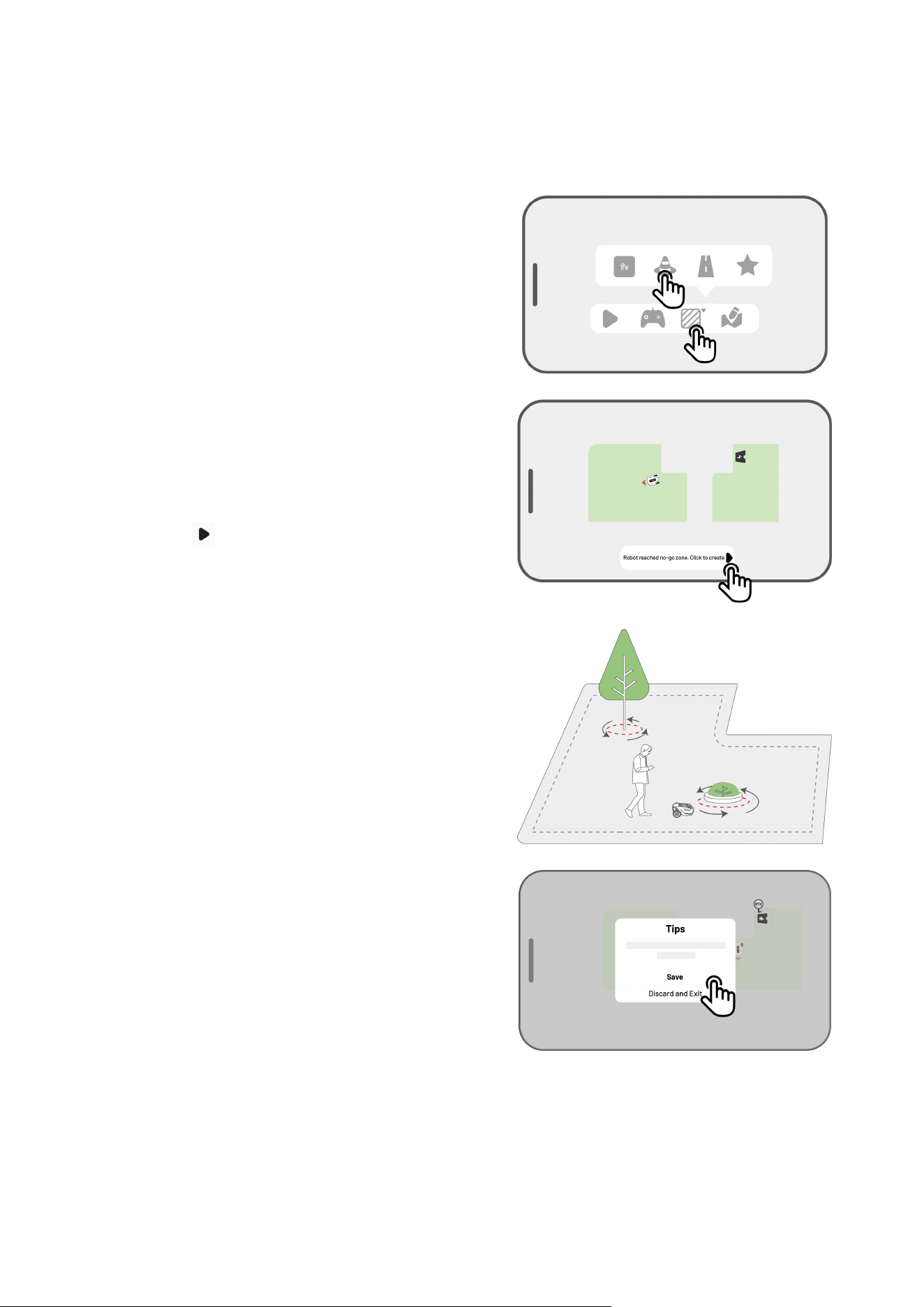
No-go zones are created for pools, flowerbeds, trees, roots, ditches, and any other obstructions present in
the lawn. The robot will avoid mowing inside these designated areas.
1. Tap Create > No-go zone on the Map page.
2. Guide the robot around the perimeter of a no-go
zone, then tap to start mapping.
3. Control the robot along the perimeter of the no-
go zone and back to the start point to complete
mapping the no-go zone.
4. Tap Save to finish the setting.
- 36 -
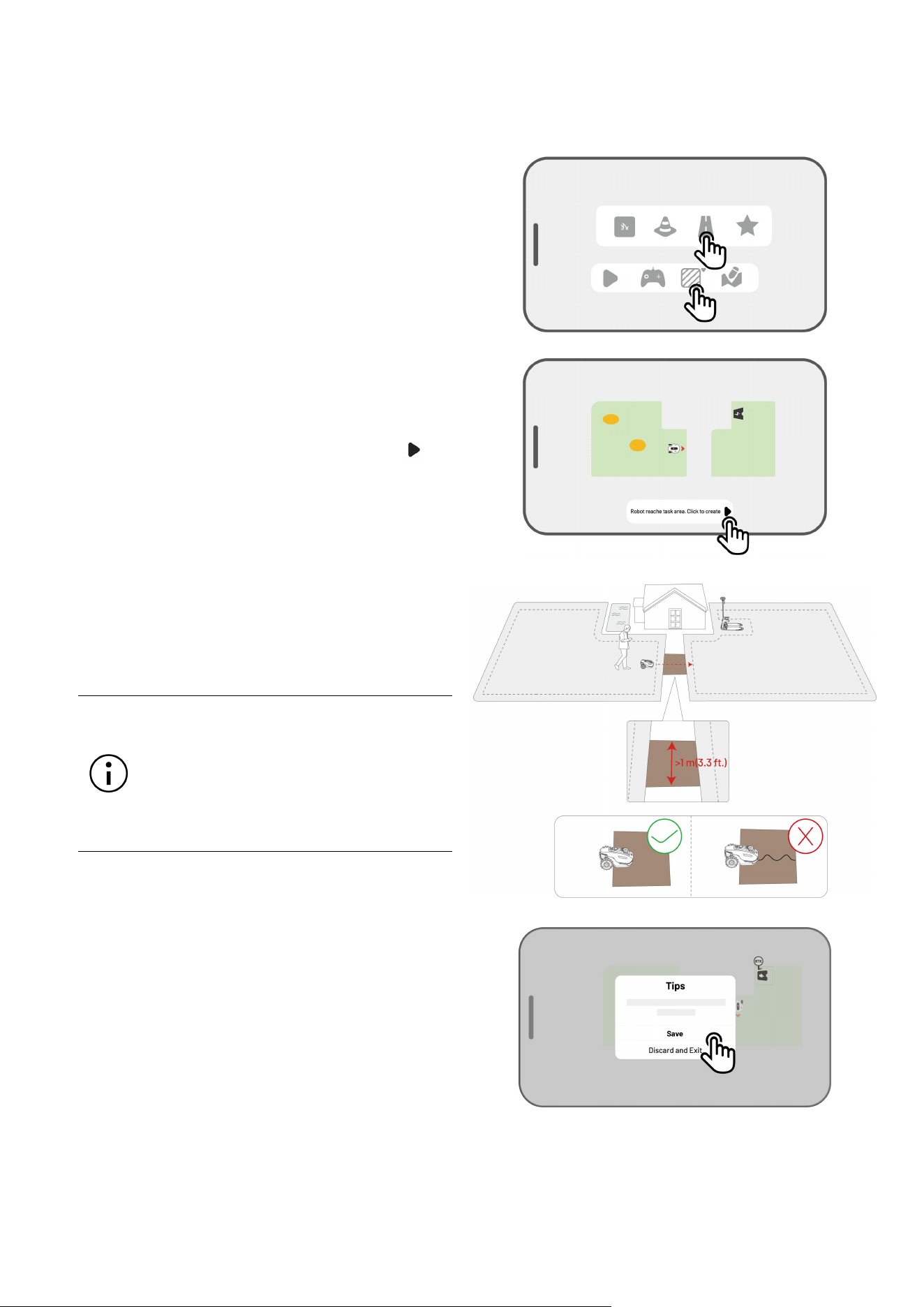
4.5.3 Map out a Channel
The channel is intended to connect various task areas or link the task area with the charging station.
1. Tap Create > Channel on the map page.
2. Control the robot into a task area. Tap to
start mapping.
3. Manually control the robot from a task area to
another task area or to the charging station.
NOTE
The channel should be wider
than 1 m (3.3 feet).
The channel should be free
from significant bumps.
4. Tap Save to finish the setting.
- 37 -
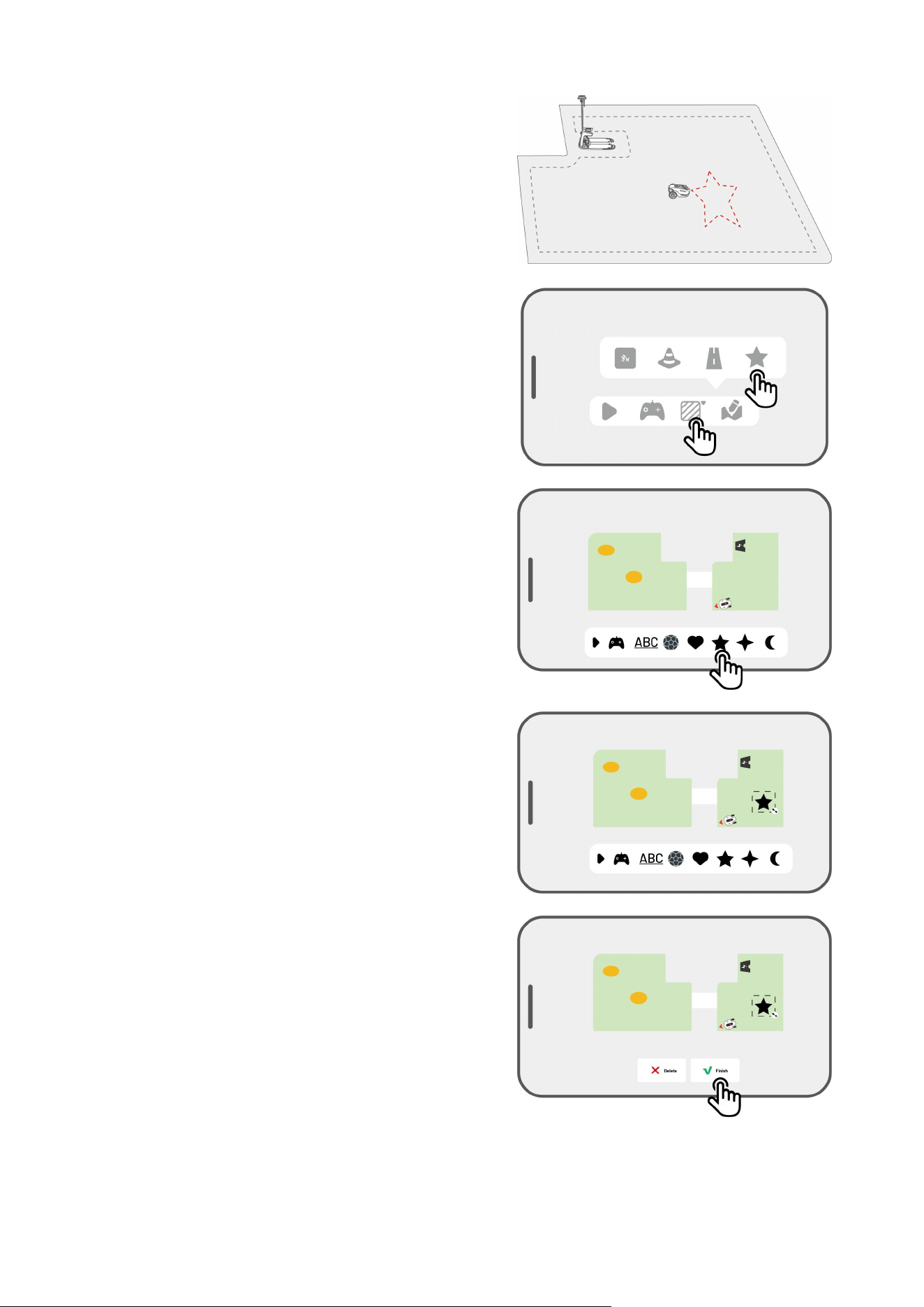
4.5.4 Create a Pattern
The pattern is designed to personalize your lawn-
cutting experience, and after it's added, the grass on
the patterned area will be preserved while cutting to
maintain its design. See the available patterns in the
app.
1. Tap Create > Pattern on the Map page.
2. Choose the pattern that you want to create.
3. Drag and zoom in/out the pattern to adjust its
location and size.
4. Tap Finish to finish the setup.
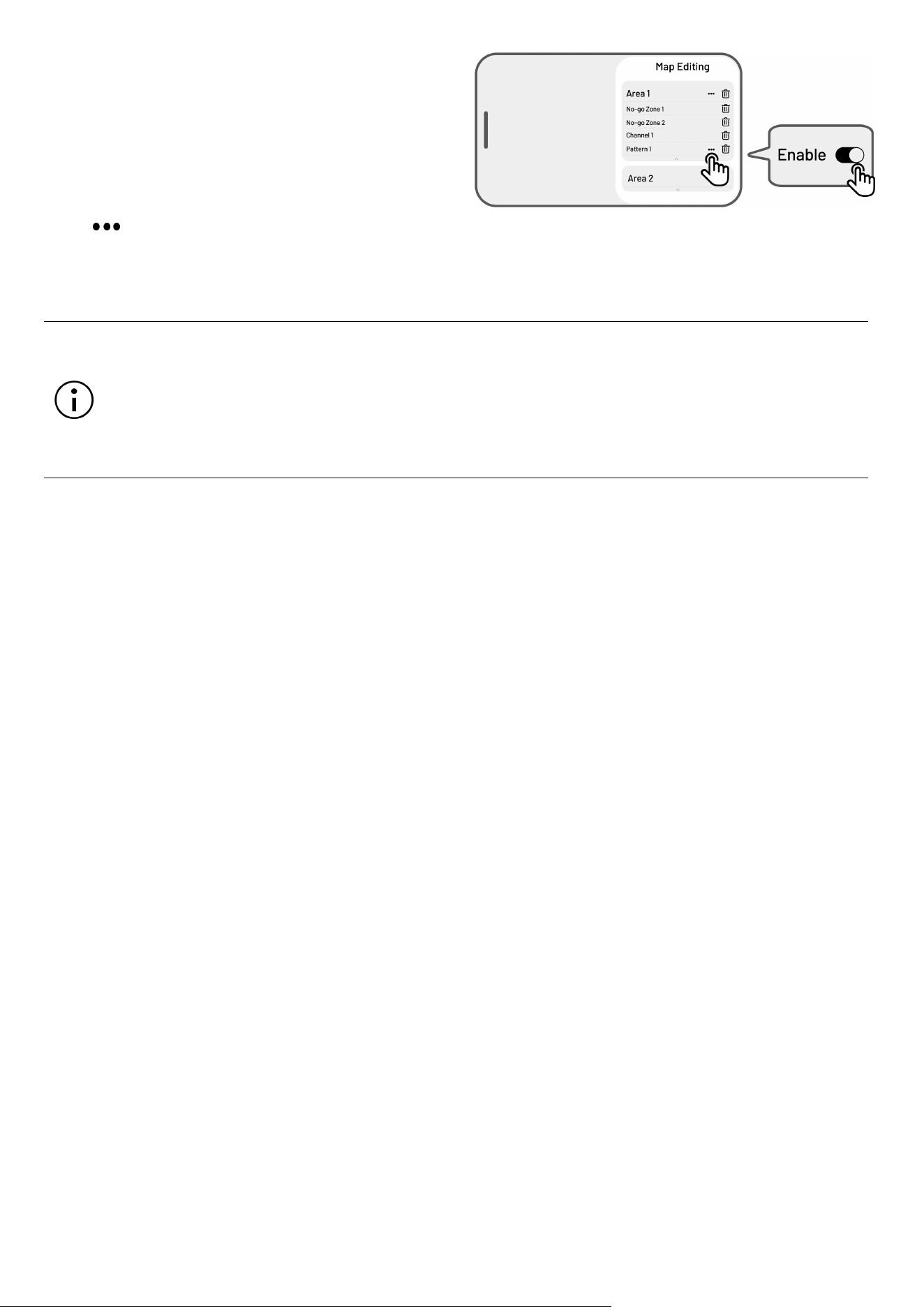
- 38 -
After creating a pattern, you can choose to enable or
disable it at any time. When enabled, the grass in the
patterned area will be preserved during mowing to
maintain its design, or mowed when disabled. Tap
Edit > to open the pop-up.
NOTE
Each task area can have a maximum of 10 patterns, with a total limit of 50 patterns overall.
The pattern should not be placed too close to the task area perimeter, no-go zone,
dumping spot, or charging station. Maintain a minimum distance equal to the width of the
robot.
- 39 -
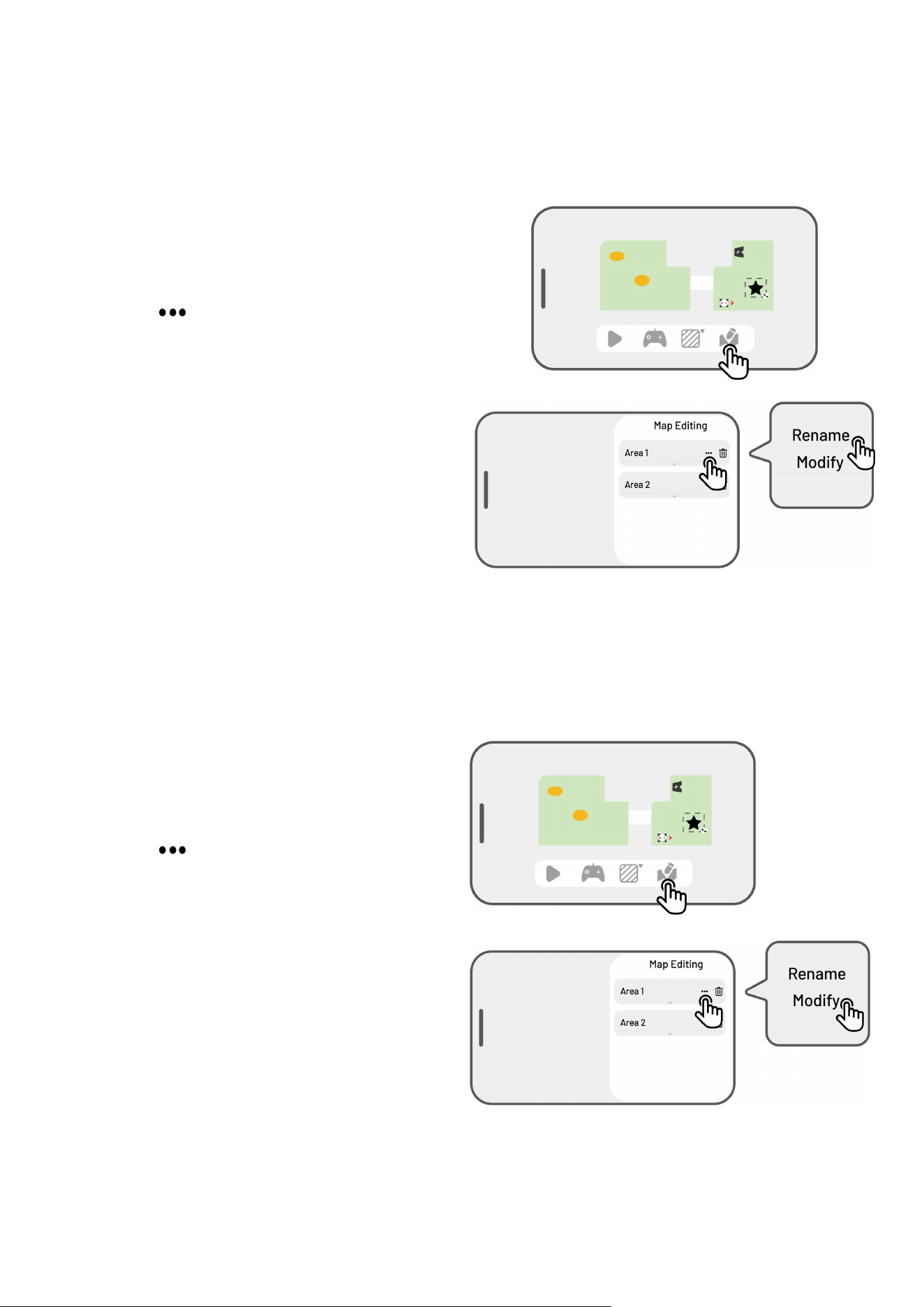
4.5.5 Edit Your Map
Rename the area
Mammotion allows you to create multiple areas. For easy management, you can rename the area.
1. Tap Edit > to open the popup.
2. Tap Rename to set a name for the area.
Modify the area
If changes occur in your lawn after mapping, such as planting a tree near the perimeter, the appearance
of a hole, or weak positioning signals, you can adjust the mapped area without needing to delete it entirely.
1. Tap Edit > to open the popup.
2. Tap Modify to re-draw the perimeter.
- 40 -
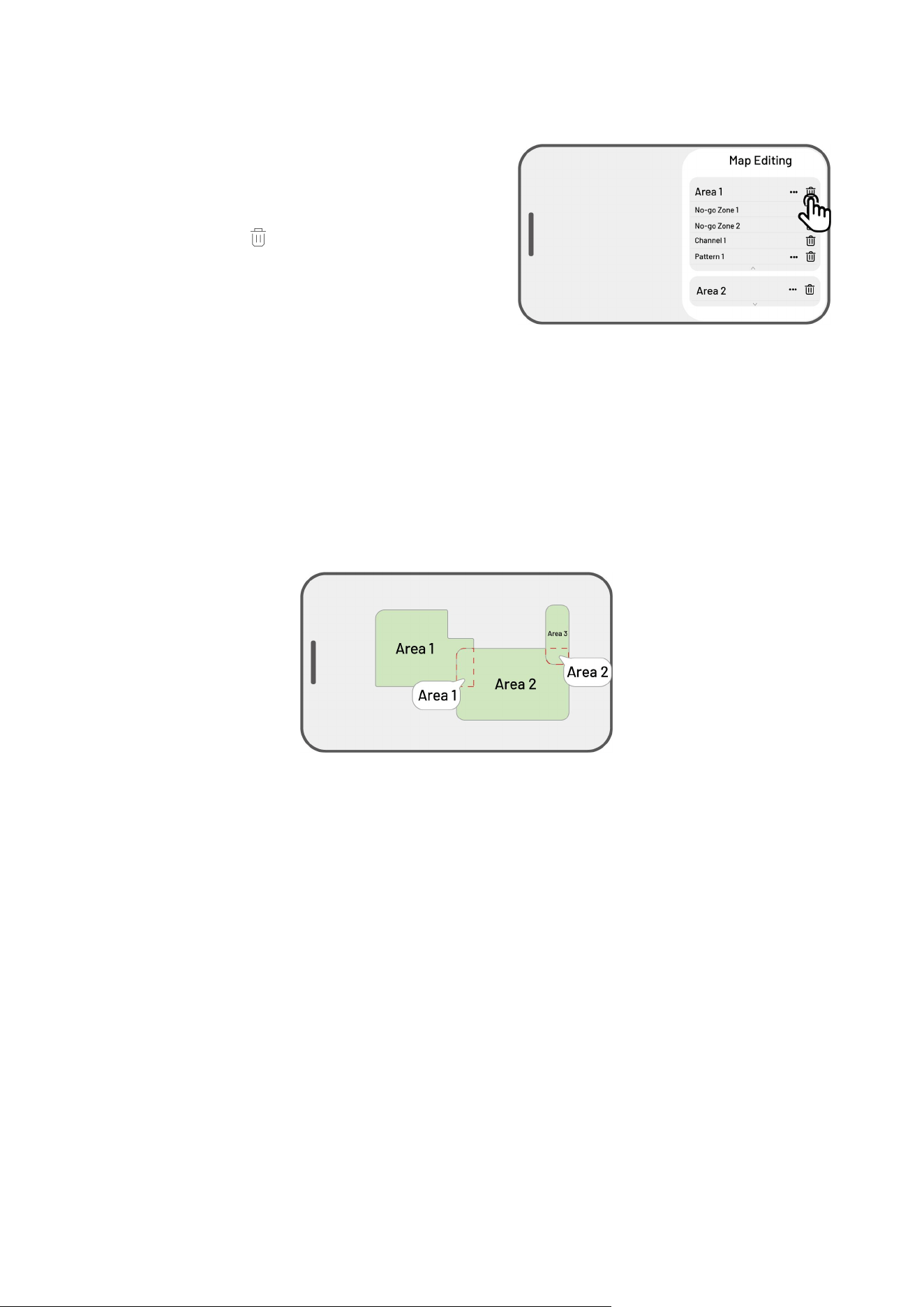
Delete the area/no-go zone/channel/pattern
To delete an area, no-go zone, channel, dumping
spot, or pattern, tap Edit > . Deleting an area will
also remove all items within it.
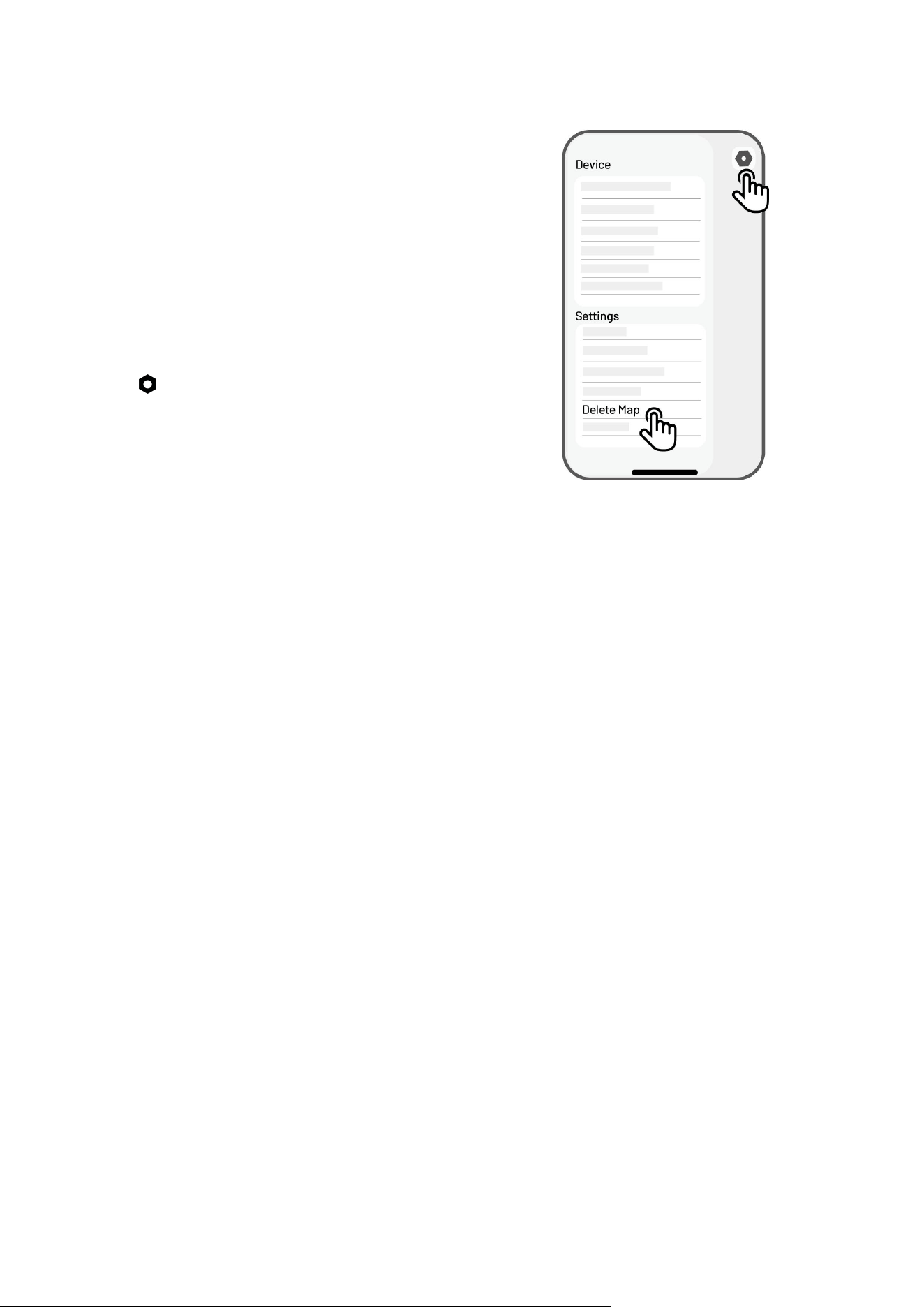
4.5.6 Multiple Task Areas with Overlapping
If you have several lawns that overlap, the shared section will be assigned to the task area that was
created first. No channel is necessary for two task areas with overlapping sections.
- 41 -
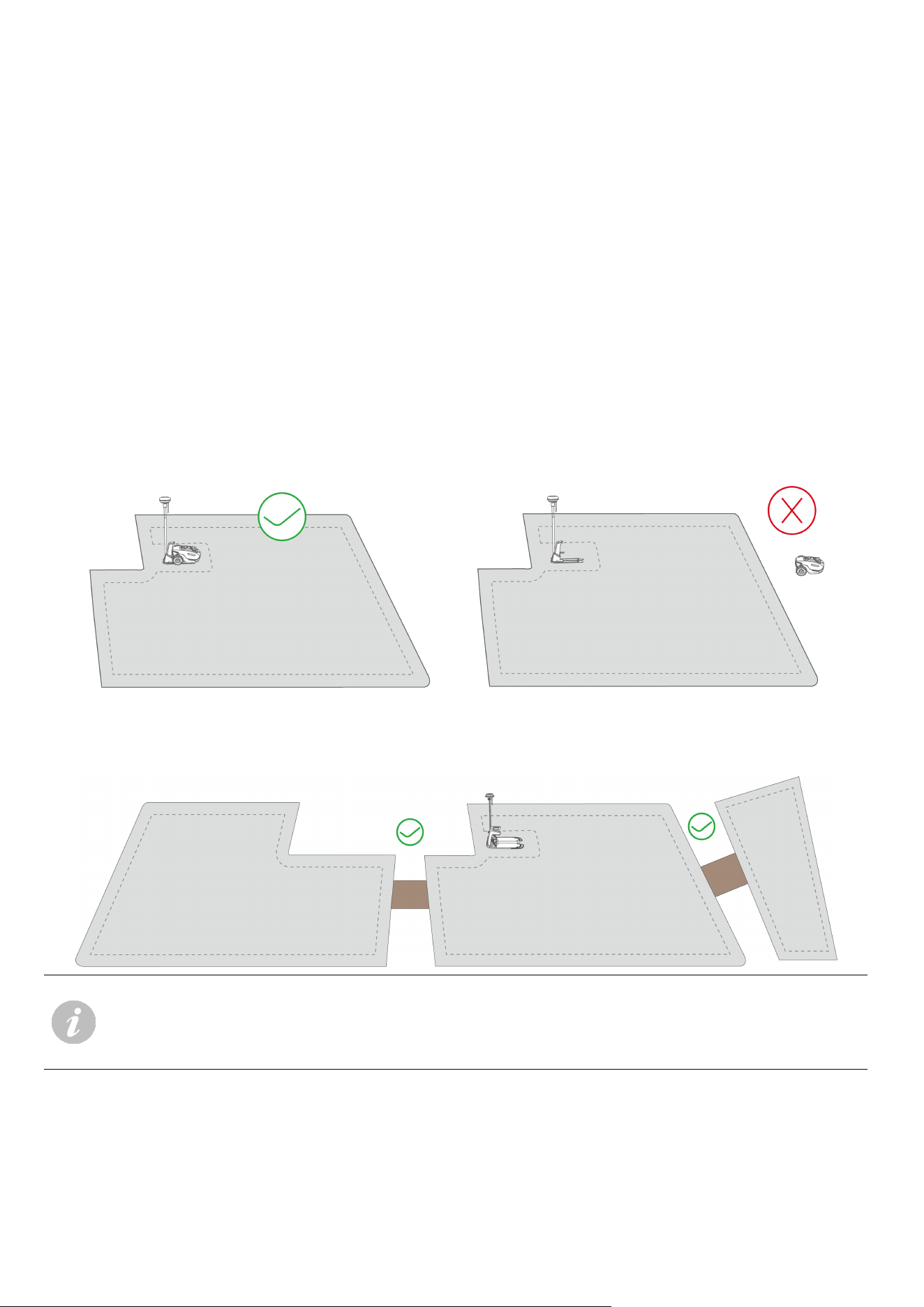
4.5.7 RTK Reference Station Cannot Be Moved Once Your Lawn Mapping is
Finished
Do not move the RTK reference station after the
map is created or the resulting working area will
diverge from the designated task area.
In the event of an RTK reference station
relocation, reinstall it in its original position, or go
to Settings > Robot settings > Delete map to
delete the current map and remap the area.
- 42 -
4.6 Mow
4.6.1 Preparation
If any unexpected problems arise, please press the STOP button and secure the robot. The STOP
button holds top priority among all commands.
If the lift sensor is activated, the robot will come to a halt. Please press the Grass button followed by
the START button to activate the robot.
Please mow the task area no more than once a day as doing so may be harmful to your lawn.
Ensure the robot is at the charging station or within the task area before mowing. If not, manually
move or guide the robot to the charging station or task area.
Ensure a channel is created between task areas or between a task area and the charging station.
Without it, the robot will not be able to automatically return for charging when the battery is low.
IMPORTANT
Adjust the cutting height by manually pressing down and turning the Cutting Height
Adjustment Knob on the robot before mowing.
- 43 -
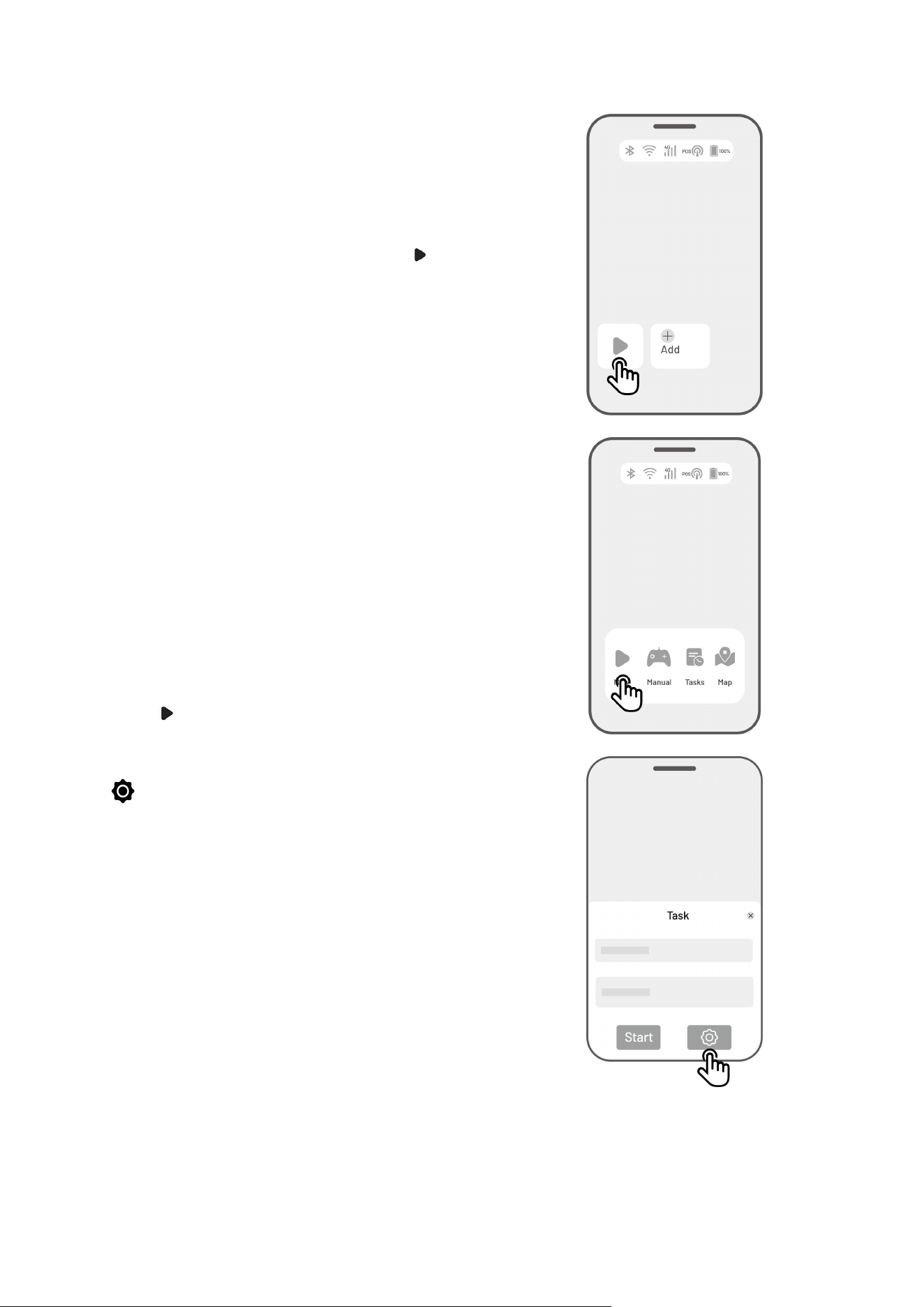
4.6.2 Start Mowing
If you prefer not to set parameters, simply tap on
the Home page to quickly start mowing.
If you prefer to customize settings before working:
1. Tap the robot image to enter the Map page.
2. Tap Mow to access the task page.
3. Select the area that you want to mow.
4. Tap to configure the parameters.
5. Tap Save to apply the settings.
6. Tap Start to commence mowing, or tap Save to
create a task schedule.
- 44 -
Task Settings
Frequency
You can set the working frequency here.
Now — The robot will commence work promptly upon configuration.
Weekly — The robot will repeat the task every week based on your preferences.
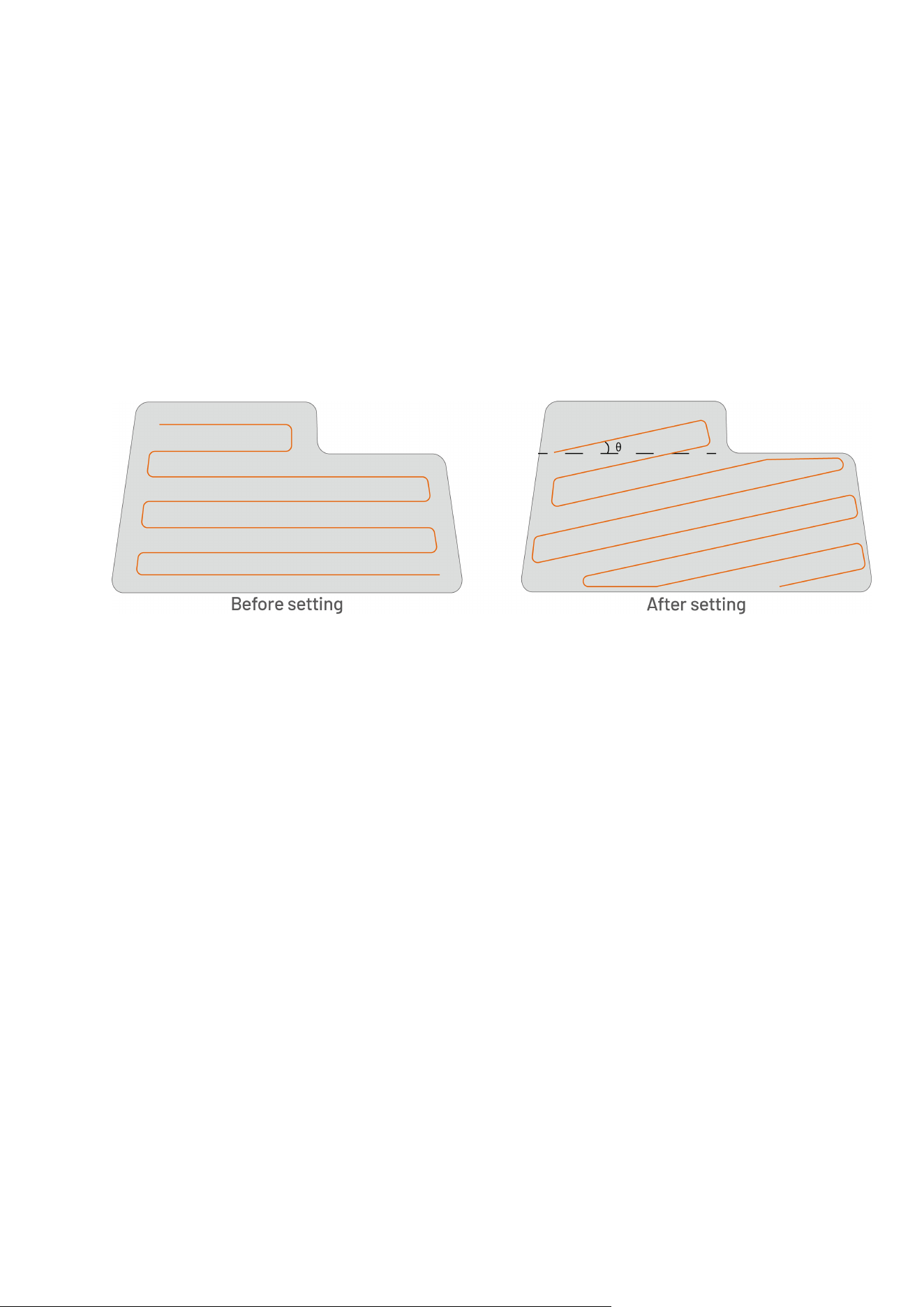
Cutting path angle (°)
Optimal
Take the most efficient path recommended by the algorithm as the 0-degree direction.
Customize
The adjustment angle range is 0 to 180°.
Perimeter working
When enabled, the robot will work along the perimeter. When disabled, the robot will avoid working at
the perimeter.
- 45 -
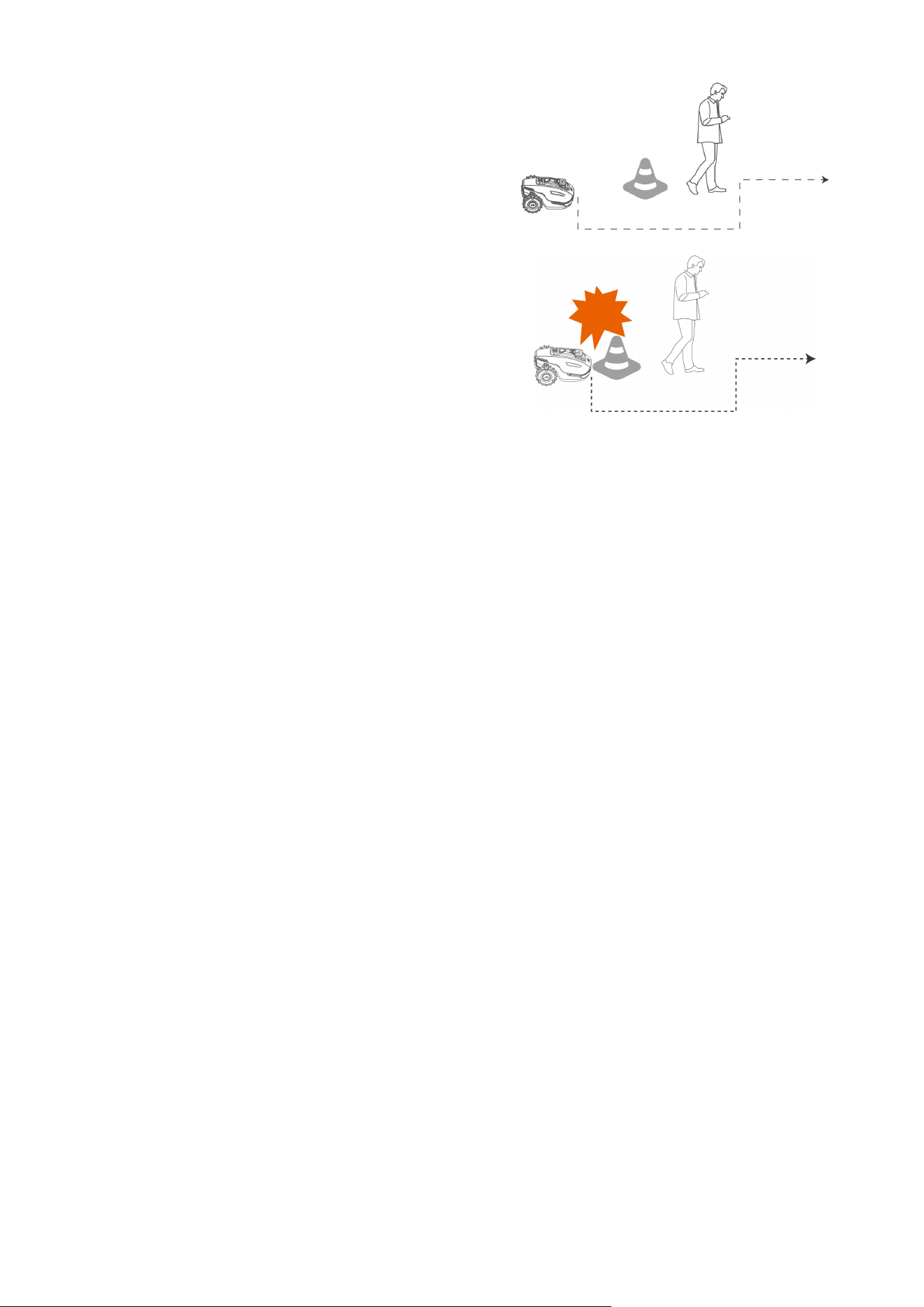
Auto obstacle avoidance
Enable auto obstacle avoidance
The robot will bypass the obstacles upon
detection.
Disable auto obstacle avoidance
Bypass the obstacles after a front bumper
collision.
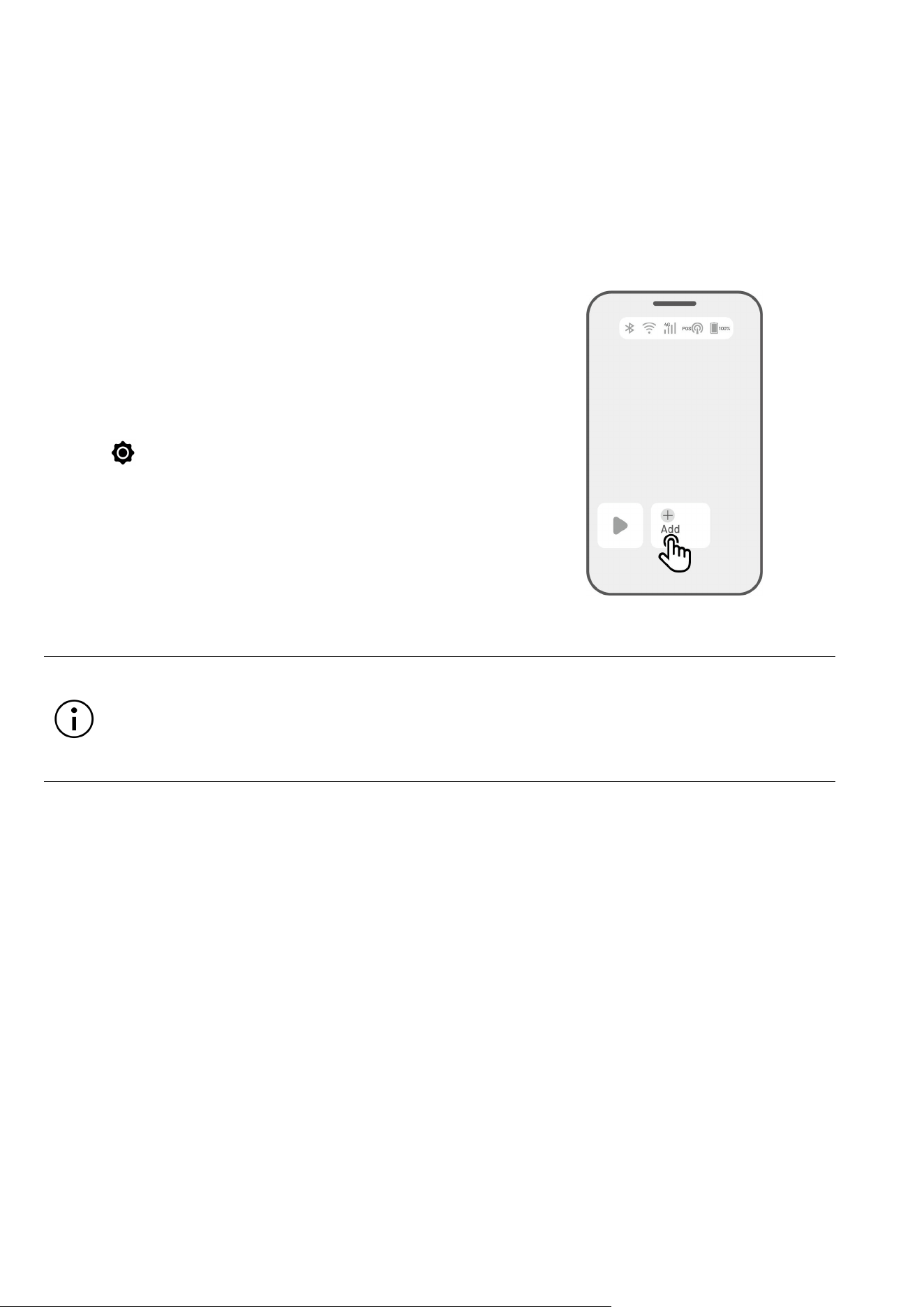
When Robot Enters an Area Where RTK Signals are Weak While Mowing
If the robot enters an area where RTK signals are weak while mowing, the multi-sensor fusion positioning
system will assist the robot in continuing to operate through the vision module. The vision navigation can
last for 300 meters (984 feet). The robot should return to an area covered by RTK signals before the vision
navigation reaches its limit, otherwise, it will come to a stop.
- 46 -
4.7 Task Schedule
With the Schedule function, you can set a regular task and the robot will automatically do its work
according to your setting.
4.7.1 Set a Schedule
1. Tap Add on the Home page or tap Tasks on the
Map page to enter the Task page.
2. Select the area that you want to mow.
3. Tap to configure the parameters.
4. Tap Save to apply the settings.
5. Tap Start to commence working, or tap Save to
create a task schedule.
NOTE
The task schedule adding is temporarily disabled when the robot is working.
A schedule can be set after a task area has been created.
See Task Settings for detailed information on parameters.
- 47 -
4.7.2 Edit a Schedule
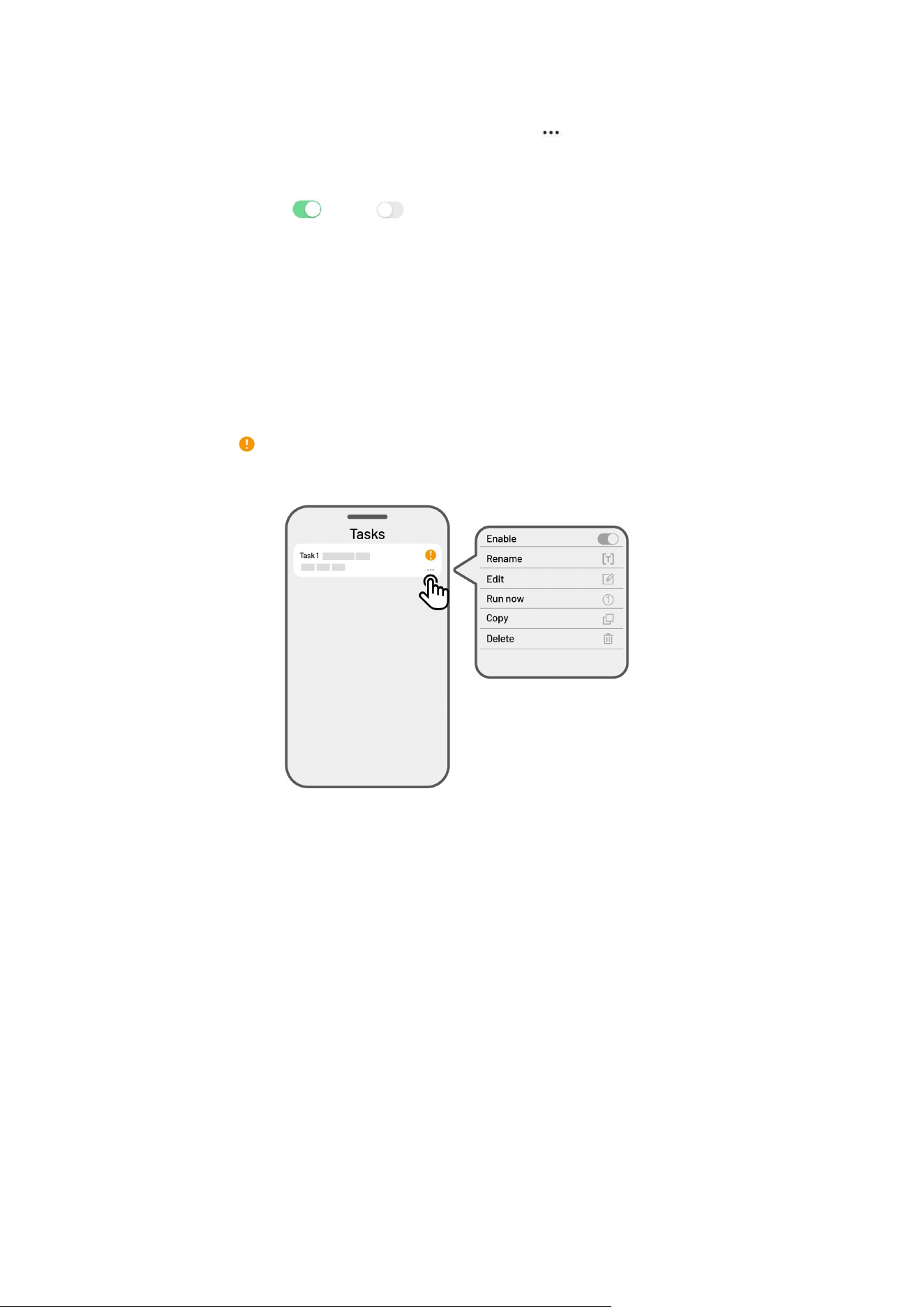
Tap Tasks on the Map page to access the schedule list. Tap on the schedule you set to open the
drop-down menu.
Enable — toggle the button to off to inactivate the schedule if needed.
Rename — tap to change the name of the schedule.
Edit — tap to change the schedule.
Run now — tap to run this schedule immediately.
Copy — tap to create a new schedule with the same settings while keeping the original schedule, then
choose one to edit.
Delete — tap to delete the schedule.
If the exclamation mark appears, it indicates that the task schedule cannot be performed due to
errors. Tap the exclamation mark for more details.
- 48 -
4.8 Manual Mowing
If you prefer to mow your lawn manually, the Manual Mowing feature is available for your use.
To ensure your safety, please use the Manual Mowing function with care and observe the following:
Minors are not permitted to use this function;
Please always supervise your children, pets, and important belongings to prevent accidents;
Take extra care when using the manual lawn mower function to avoid injury.
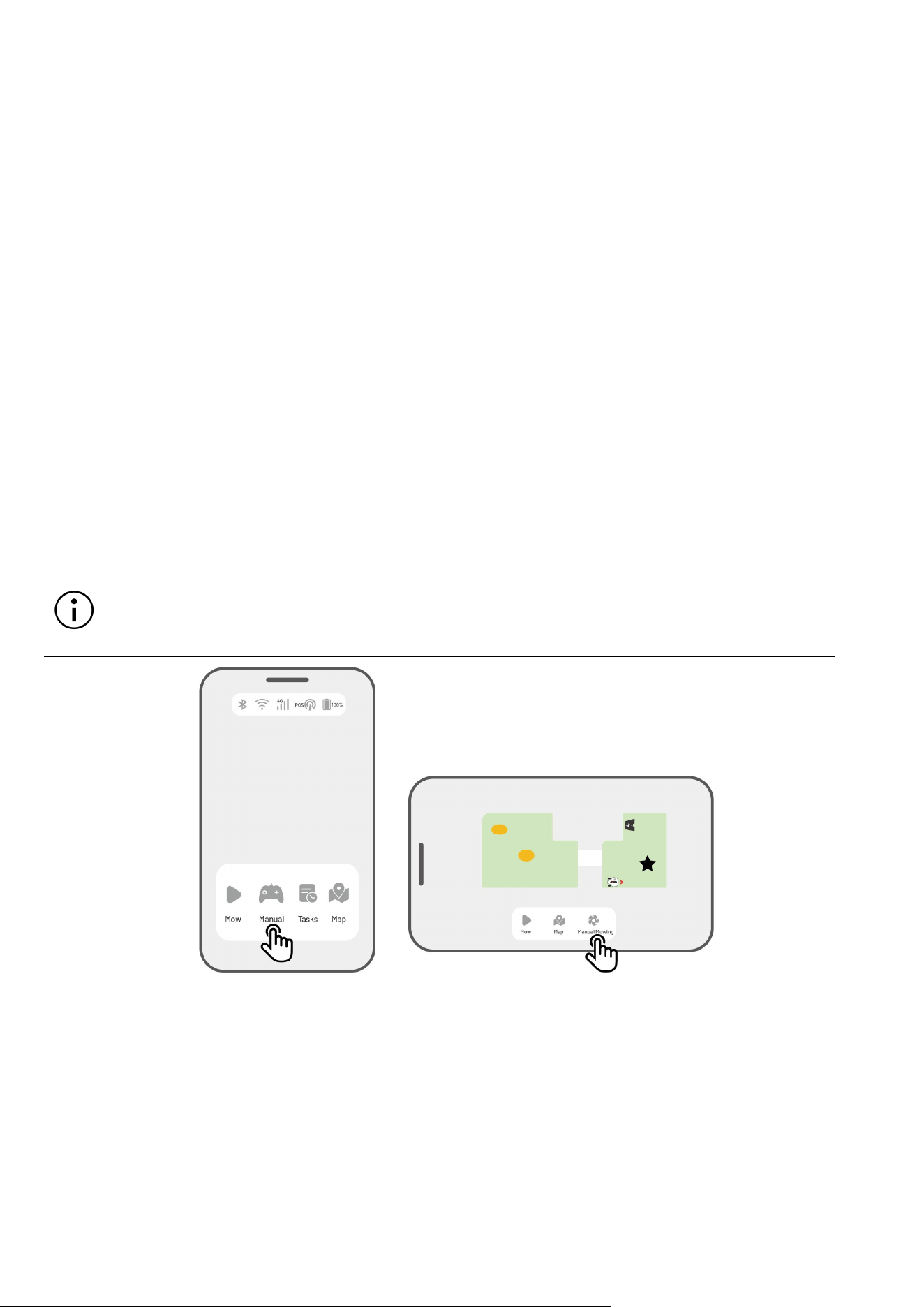
4.8.1 Activate Manual Mowing
1. Tap the robot image to enter the Map page.
2. On the Map page, select Manual.
3. Tap Manual mowing, then drag the button to the right to start the cutting disc.
4. Maneuver forwards/backward or turn left/right to start working.
NOTE
The cutting disc will automatically stop after 5 seconds of inactivity.
Drag to the right as prompted by the app to start the cutting disc after each stop.
- 49 -
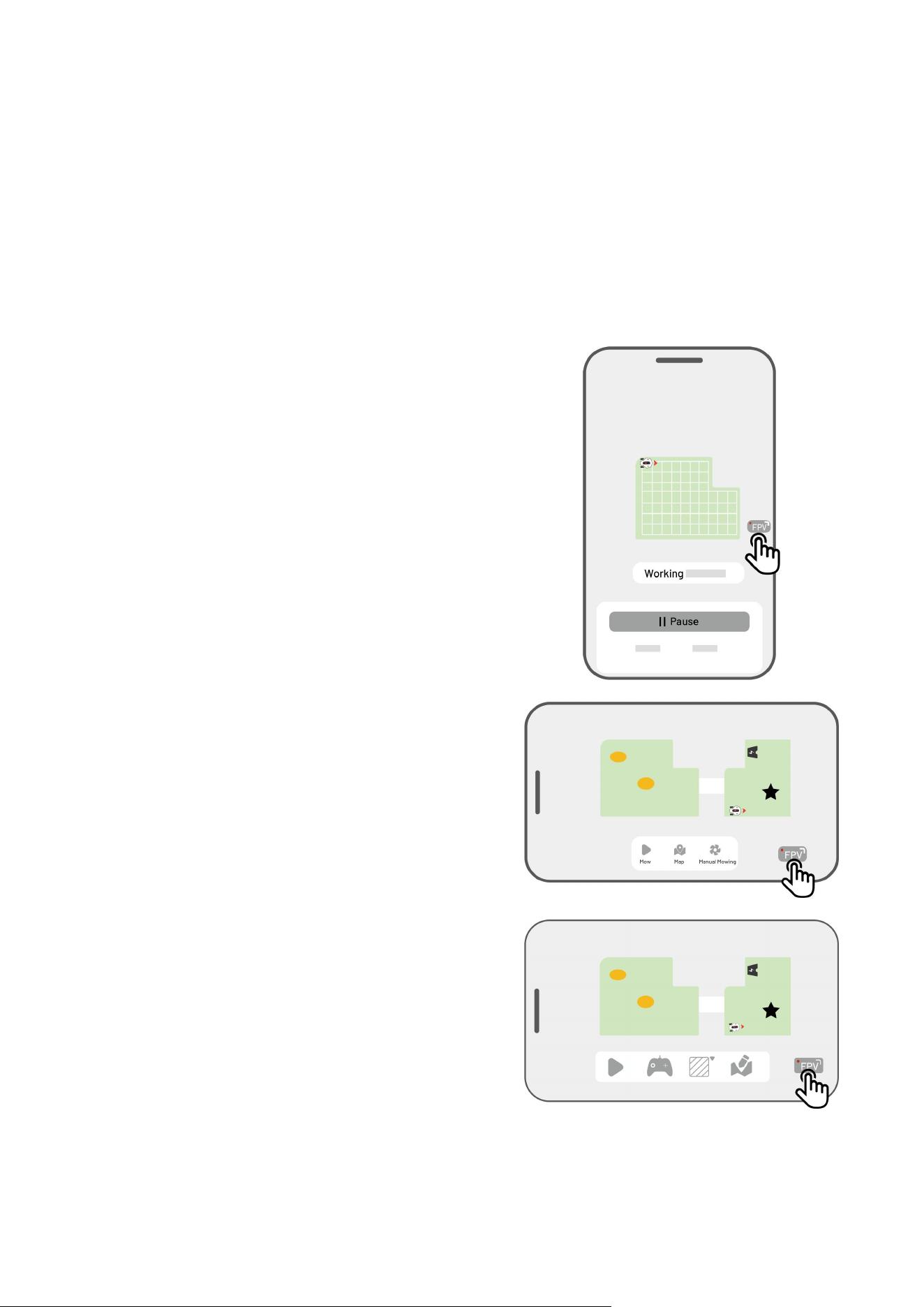
4.8.2 Activate FPV Mode
FPV Mode (First-Person View Mode) provides an immersive way to control and monitor your robot. By
activating this mode, the robot’s onboard camera streams live video, allowing you to see directly from the
robot’s perspective for enhanced control and navigation.
Additionally, FPV mode can turn your robot into a mobile security camera, providing real-time video
surveillance and enabling you to monitor various locations remotely from the robot’s viewpoint.
To activate FPV mode
When the robot is working, tap the FPV icon on the
working page.
On the Manual Mowing page, tap the FPV icon.
On the Landscape Map page, tap the FPV icon.
- 50 -
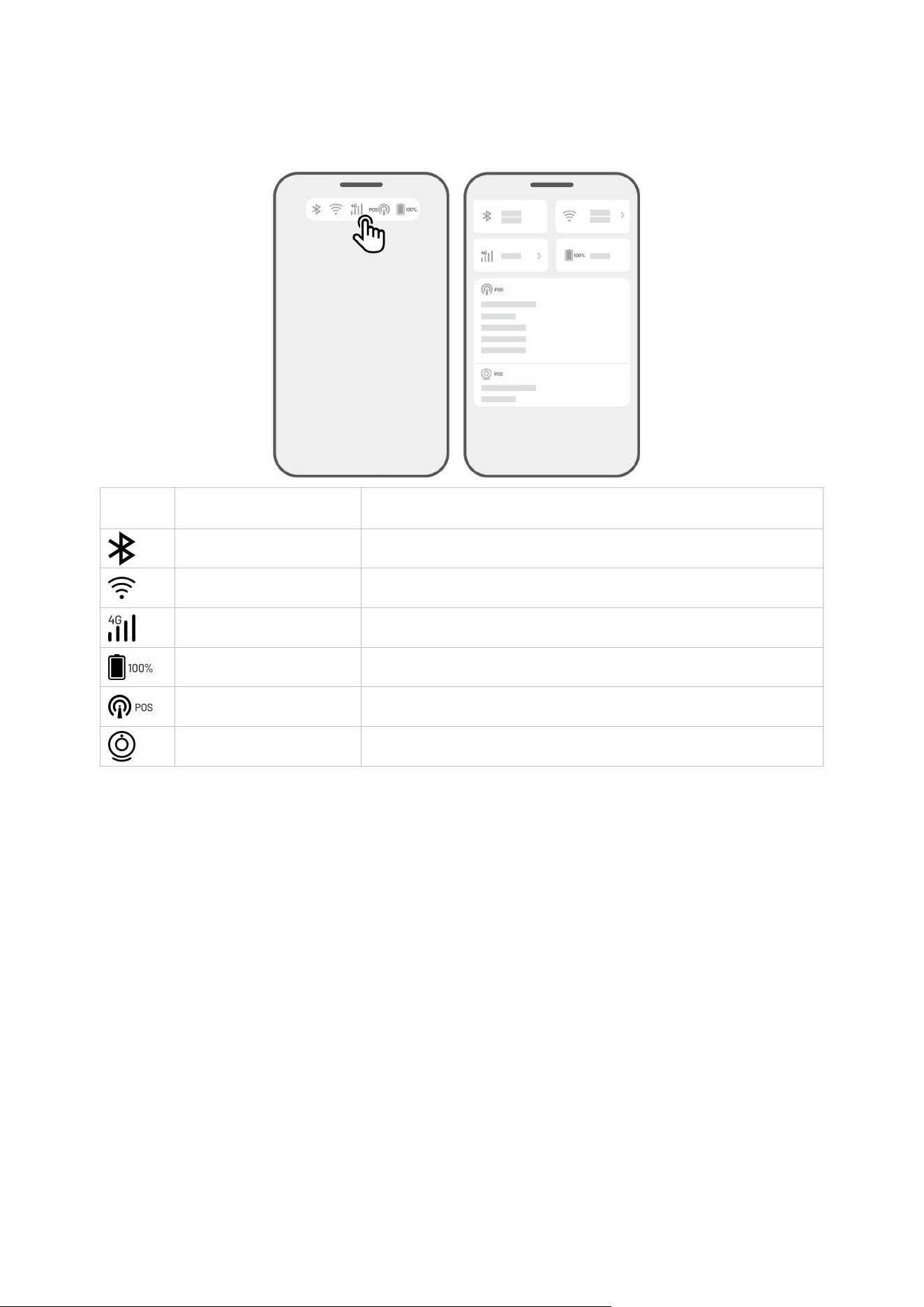
4.9 View Status
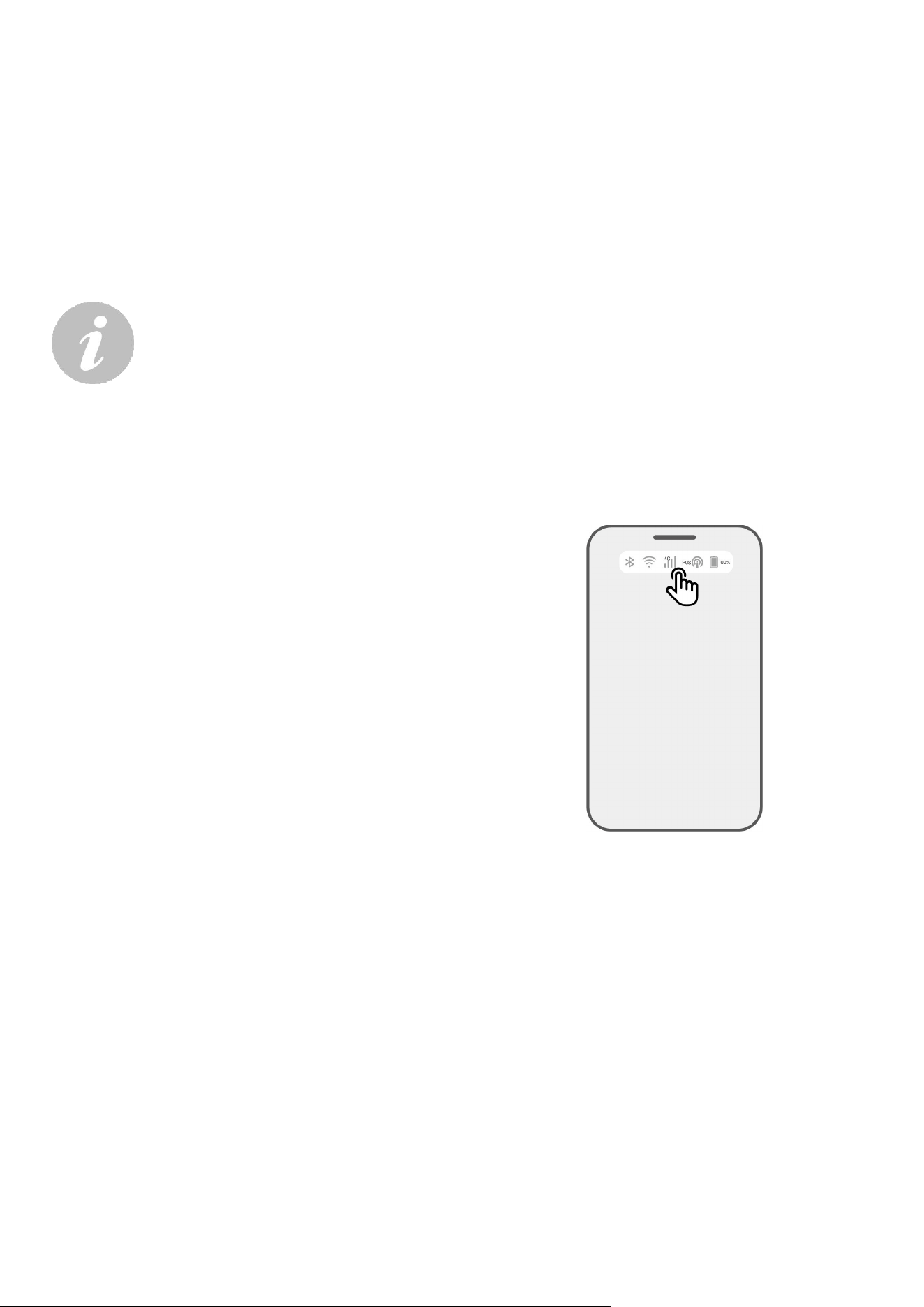
Tap the Status Bar to view the device status.
Icon
Name
Description
Bluetooth
Indicates the Bluetooth signal.
Wi-Fi Connectivity
Indicates the connected Wi-Fi signal strength.
4G Connectivity
Indicates the cellular signal strength.
Battery Level
Indicates the remaining battery level.
Positioning
Indicates the positioning status.
Vision Module Status
Indicates the vision module status.
Positioning status — shows the strength of positioning.
Fix — fine positioning status with an accuracy of less than 10 cm/4 in, up to 2 cm/1 in with a good
open-sky area.
Float — poor positioning status with an accuracy about 50-200 cm/20-79 in.
Single — bad positioning status with a meter-level accuracy.
None — no positioning status.
*Only Fix status enables automatic mowing.
Satellites — refers to the total number of satellites received by the robot and RTK reference station.
R stands for the number of satellites received by the robot.

- 51 -
B stands for the number of satellites received by RTK reference station.
C stands for the number of co-viewing satellites received by both the robot and RTK reference
station.
L1 and L2 respectively indicate the satellites operating at L1 and L2 frequencies.
Signal quality
R stands for satellite signal strength of the robot.
B stands for satellite signal strength of RTK reference station.
*The accuracy of positioning is affected by the quality of the satellite signal and the number of Co-
Viewing satellites. Objects such as trees, leaves, walls, and fences can weaken the signal and lead to
positioning errors. Despite the detection of more than 20 satellites by both the robot and RTK
reference station, the signal quality can still be deemed as Weak or Bad.
Positioning mode — shows positioning details.
RTK connection — indicates the connection status of the RTK reference station.
Vision positioning status — shows the strength of vision positioning.
Fine — vision positioning is optimal.
Bad — vision positioning is poor.
Initialization — vision module is initializing.
None — no vision positioning available.
Brightness — shows the strength of ambient light.
Fine — ample brightness for vision positioning.
Dark — insufficient brightness; vision positioning cannot operate.
- 52 -
4.9.1 Switch Positioning Mode
iNavi Service
The iNavi Service allows the robot to operate without the need for an RTK reference station. This service
enhances flexibility and reduces setup complexity, making it easier to deploy the robot in a wider range of
locations.
NOTE
The iNavi Service is currently unavailable in some regions. Please contact our after-
sales support for more information.
Ensure the 4G network or Wi-Fi network is strong and stable for optimal performance.
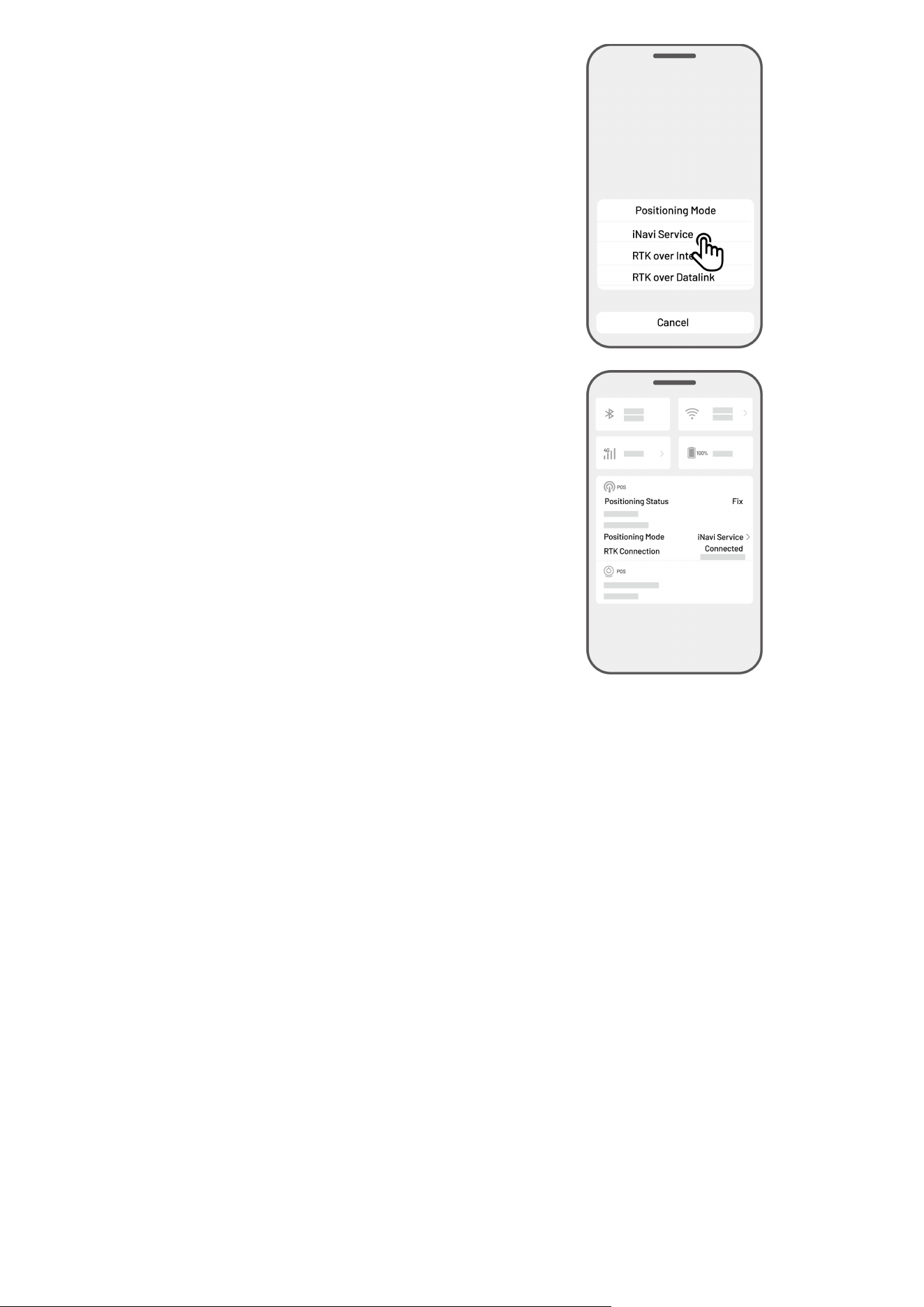
Enable iNavi Service
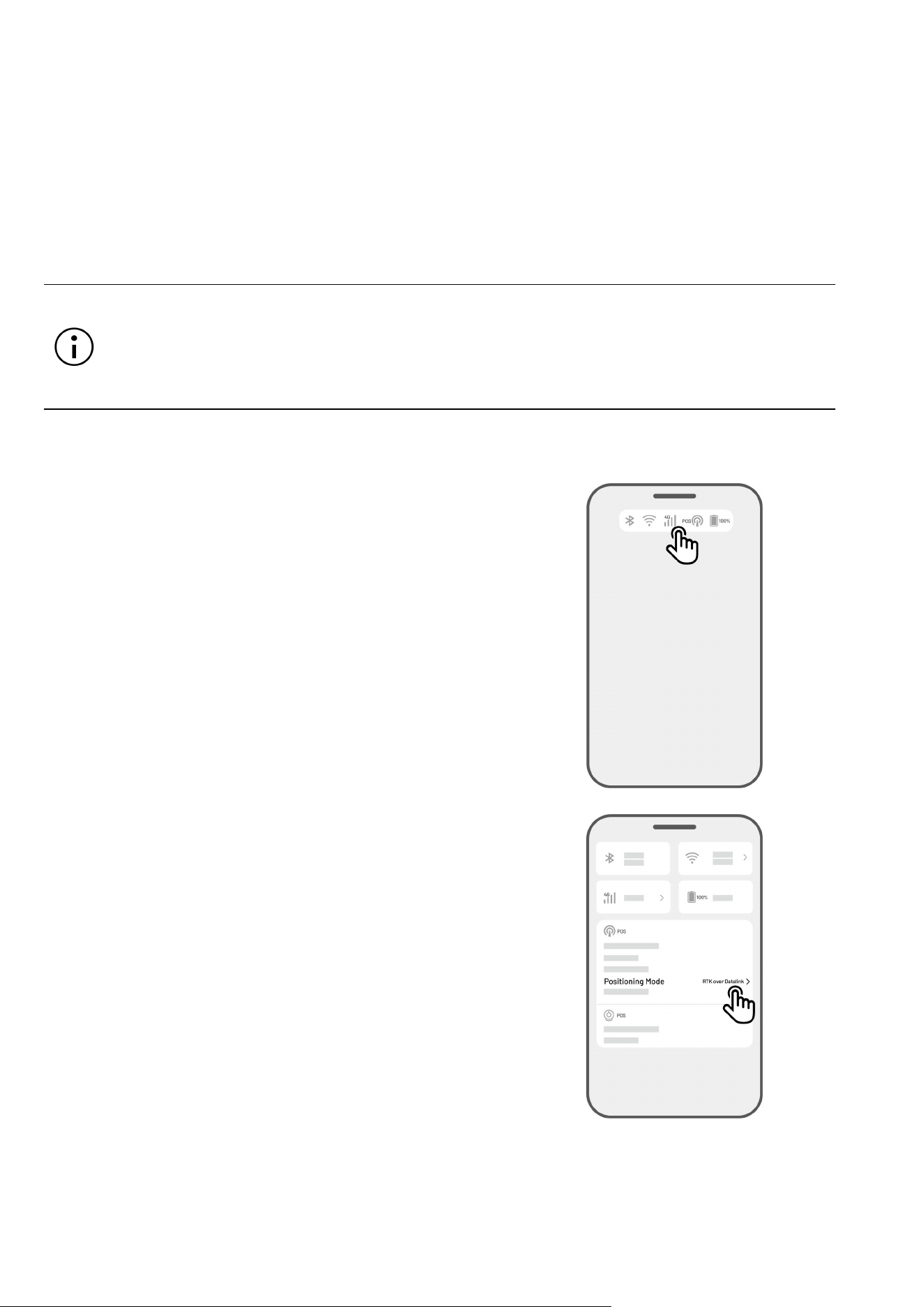
1. Tap the Status Bar to access the status
information page.
2. Tap Positioning Mode.
- 53 -
3. Select iNavi Service.
4. Return to the status information page and verify
that the RTK link mode displays 'iNavi Service',
the RTK positioning status shows 'Fix', and the
RTK connection status shows 'Connected'. Your
setup is now complete.
- 54 -
RTK over Internet
RTK over Internet utilizes the internet for data communication between the RTK reference station and the
robot. It significantly expands the range of RTK applications, enabling operation over large geographical
areas.
IMPORTANT
RTK over Internet relies on a stable 4G network. It is crucial to ensure that the robot
maintains a reliable 4G connection.
Please ensure that both the robot and RTK reference station are bound to the same
account.
For optimal operation, it is recommended to update both the robot and RTK reference
station firmware to the latest versions.
Enable RTK over Internet
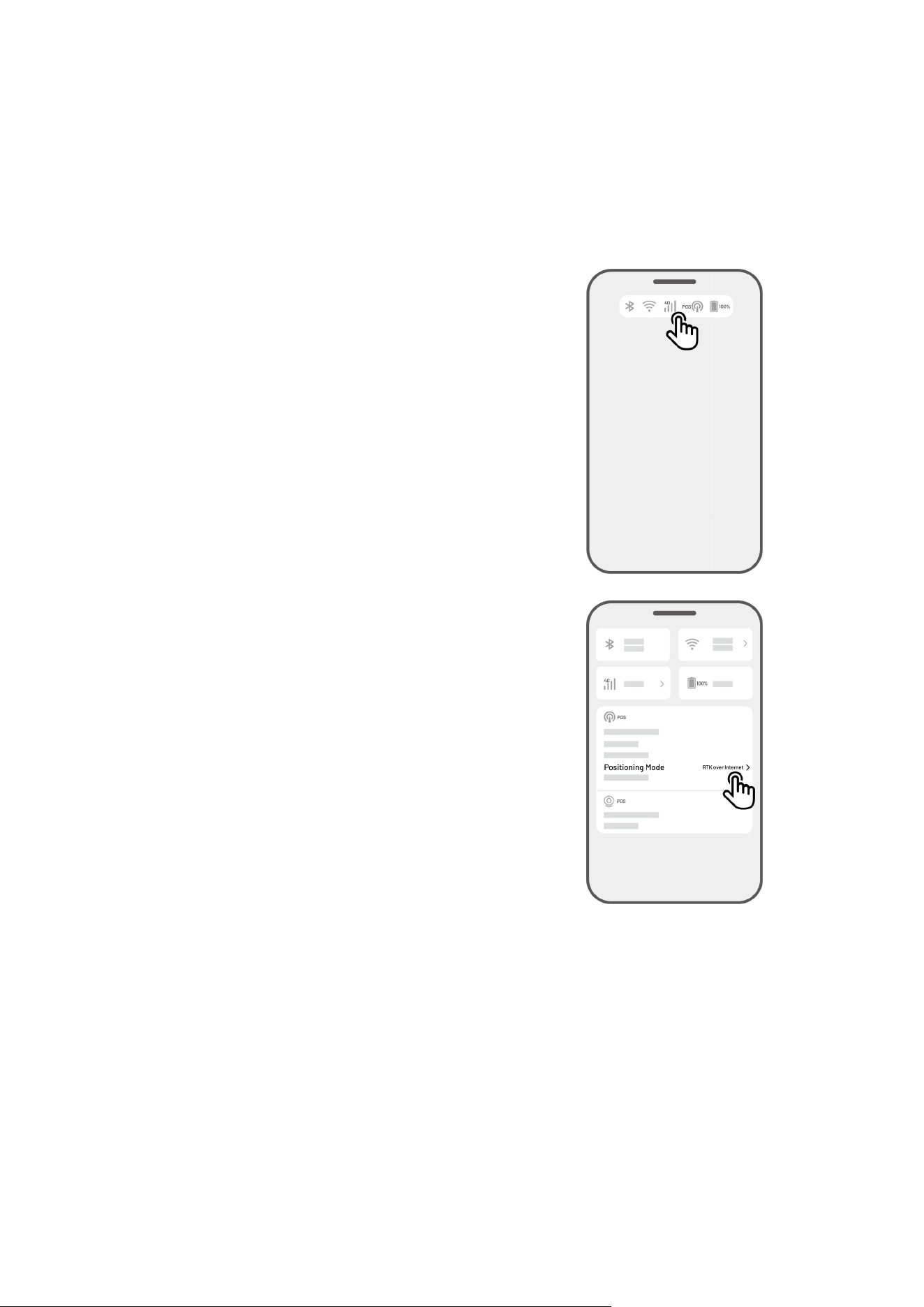
1. Verify the 4G icon on the Status bar to
illuminate, indicating successful activation of
the SIM card. Tap the Status Bar to access the
status information page.
- 55 -
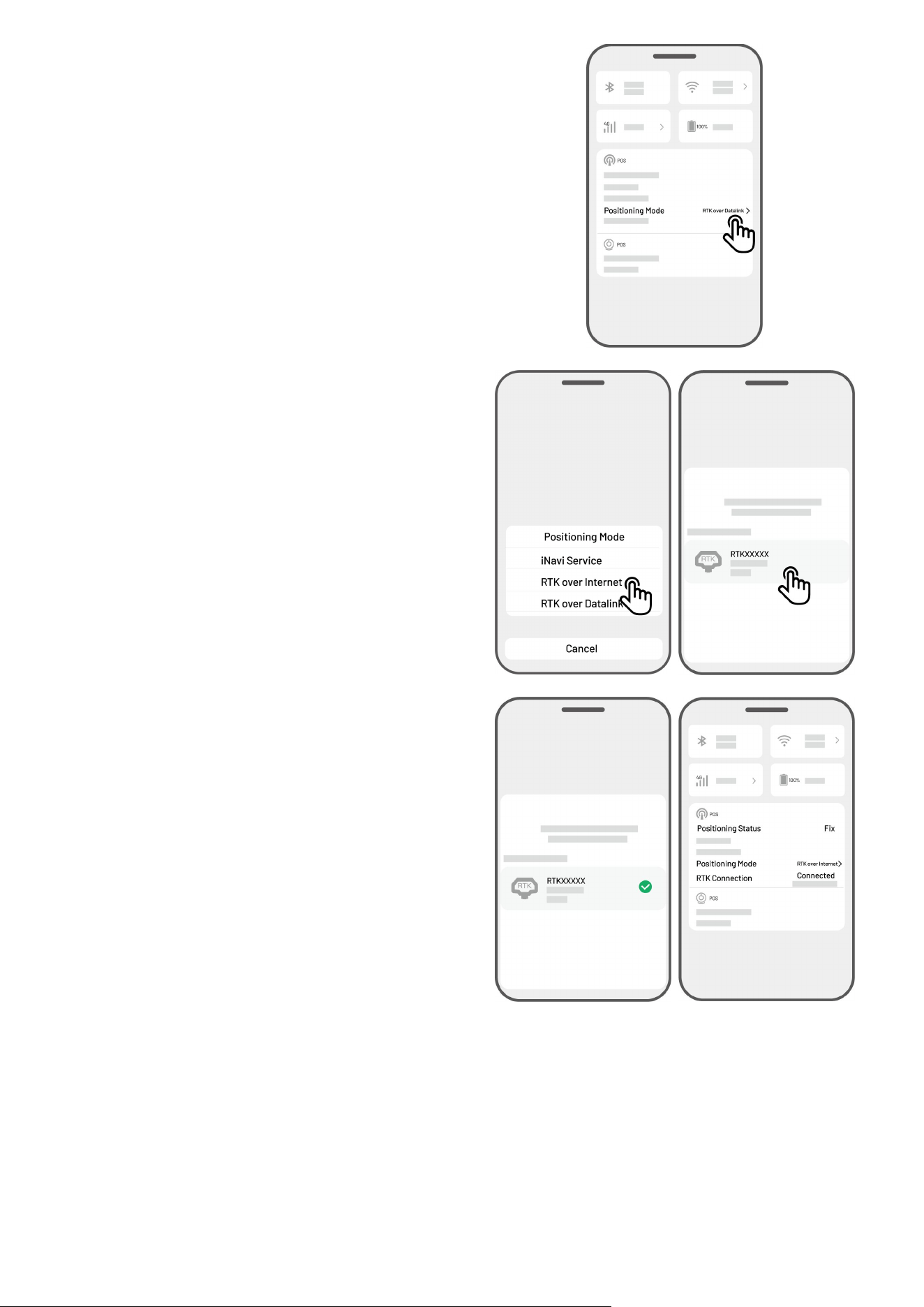
2. Tap Positioning Mode.
3. Select RTK over Internet and tap the RTK
reference station to configure your network.
4. Wait for a green check mark to appear, then
return to the status information page. Verify
that the RTK positioning status displays 'Fix'
and the RTK connection shows 'Connected'.
Your setup is now complete.
- 56 -
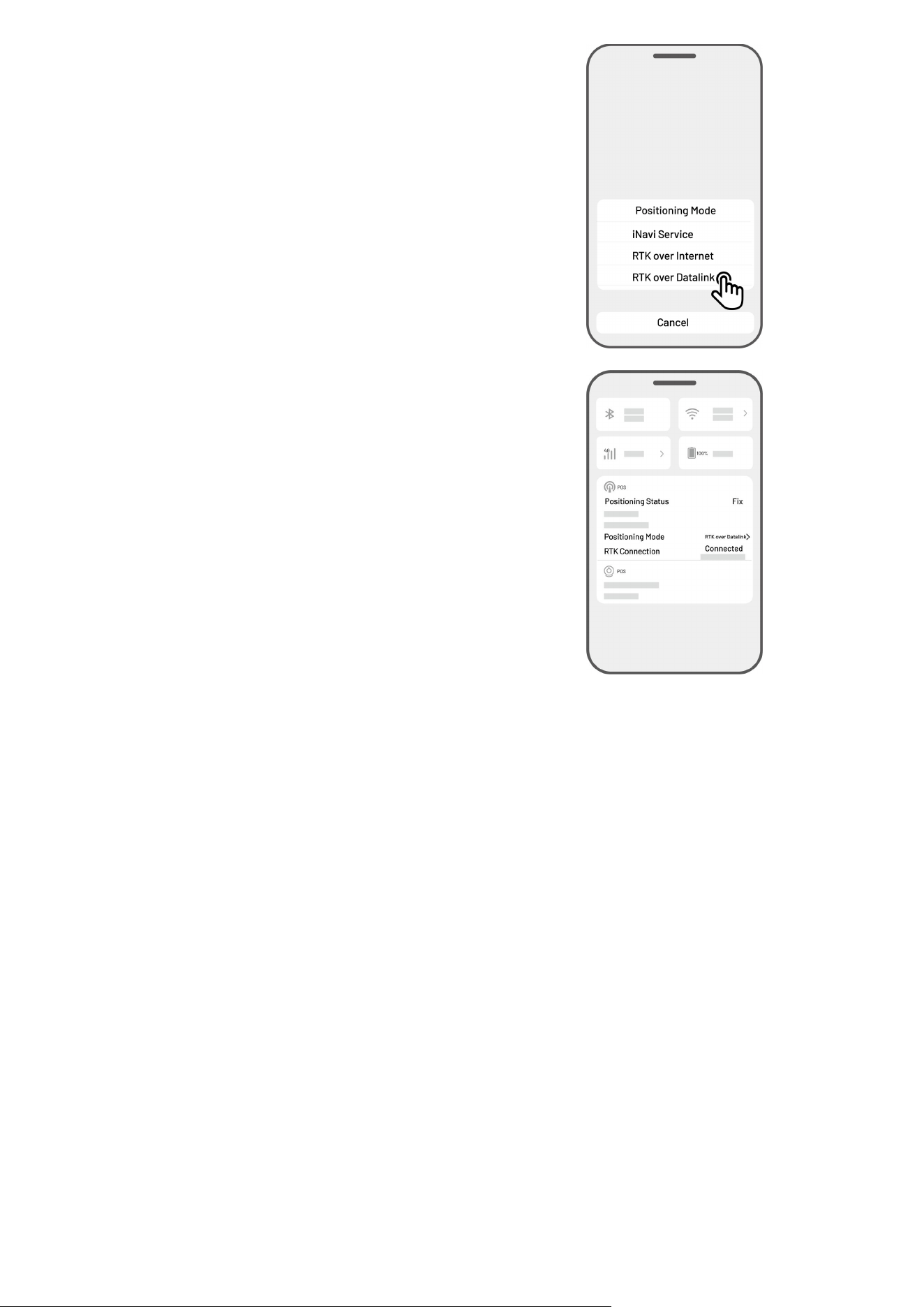
RTK over Datalink
RTK over Datalink involves data communication between the RTK reference station and the robot using
radio antennas.
Enable RTK over Datalink
1. Tap the Status Bar to access the status
information page.
2. Tap Positioning Mode.
- 57 -
3. Select RTK over Datalink, and ensure the
displayed datalink number matches the one on
the RTK reference station's nameplate. If not,
input the correct one. Tap OK to proceed.
4. Return to the status information page and verify
that the RTK link mode displays 'RTK over
Datalink', the RTK positioning status shows
'Fix', and the RTK connection status shows
'Connected'. Your setup is now complete.

- 58 -
What to do when the robot's positioning is not Fix
Satellites (B): L1 < 20, L2 < 20
Satellites (C): L1 < 20, L2 < 20
Positioning status: Float
Measures:
Place the RTK reference station in an area with unobstructed views of the sky, without any physical
obstructions within at least 5 m/16 ft. Alternatively, position the RTK reference station on a wall or roof.
Signal quality (B): Bad or Weak
Positioning status: Float
Measures:
Place the RTK reference station in an area with unobstructed views of the sky, without any physical
obstructions within at least 5 m/16 ft. Alternatively, position the RTK reference station on a wall or roof.
Satellites (B): L1:0, L2:0
Satellites (C): L1:0; L2:0
Positioning status: Single
Measures:
Ensure the power supply to the RTK reference station is functioning normally.
Verify that the indicator on the RTK reference station remains a constant green between the hours
of 8:00-18:00 local time.
Check for any defects within the RTK reference station, such as water leaks.
Confirm that the radio antenna has been installed.
Re-pair the RTK reference station and the robot to see if it can be fixed.
If you replace the RTK reference station, pair the new station with the robot on the Mammotion app.
For more details, visit https://mammotion3006.zendesk.com/hc/en-us/articles/16503733641367
Satellites (R) < 25
Satellites (C): L1 < 20, L2 < 20
Positioning status: Float
Measures:
Check if the area where the robot is situated, particularly when the robot is being charged, has tall
trees/walls/metal barriers, etc.

- 59 -
Signal quality (R): Bad or Weak
Positioning status: Float
Measures:
Check if the robot's current location is fully or partially covered.
If the robot is positioned on the charging station, relocate it to a less obstructed area.
If the robot is located on the perimeter/corner of the task area, adjust the perimeter/corner to
ensure it is not covered by obstacles.
If the robot is located within the task area and has lost its positioning due to obstacles such as
trees, iron tables or chairs, mark those obstacles as no-go zones.
Satellites (R): 0
Satellites (C): L1:0, L2:0
Positioning status: None
Measures:
Check whether the robot is inside or if its rear is covered with metal. If the robot is faulty, please contact
our after-sales team at https://mammotion3006.zendesk.com/hc/en-
us/requests/new?ticket_form_id=13773144519703
Satellites (B): L1:0, L2:0
Satellites (C): L1:0; L2:0
Positioning status: Float
Signal quality (B): None
Measures:
Check if the RTK reference station has powered off.
If the robot is too far from the RTK reference station, narrow the distance between the RTK
reference station and the robot and retry.
Verify if there are any malfunctions with the antenna, RTK reference station, or the robot receiver. If
so, please contact our after-sales team at https://mammotion3006.zendesk.com/hc/en-
us/requests/new?ticket_form_id=13773144519703
- 60 -
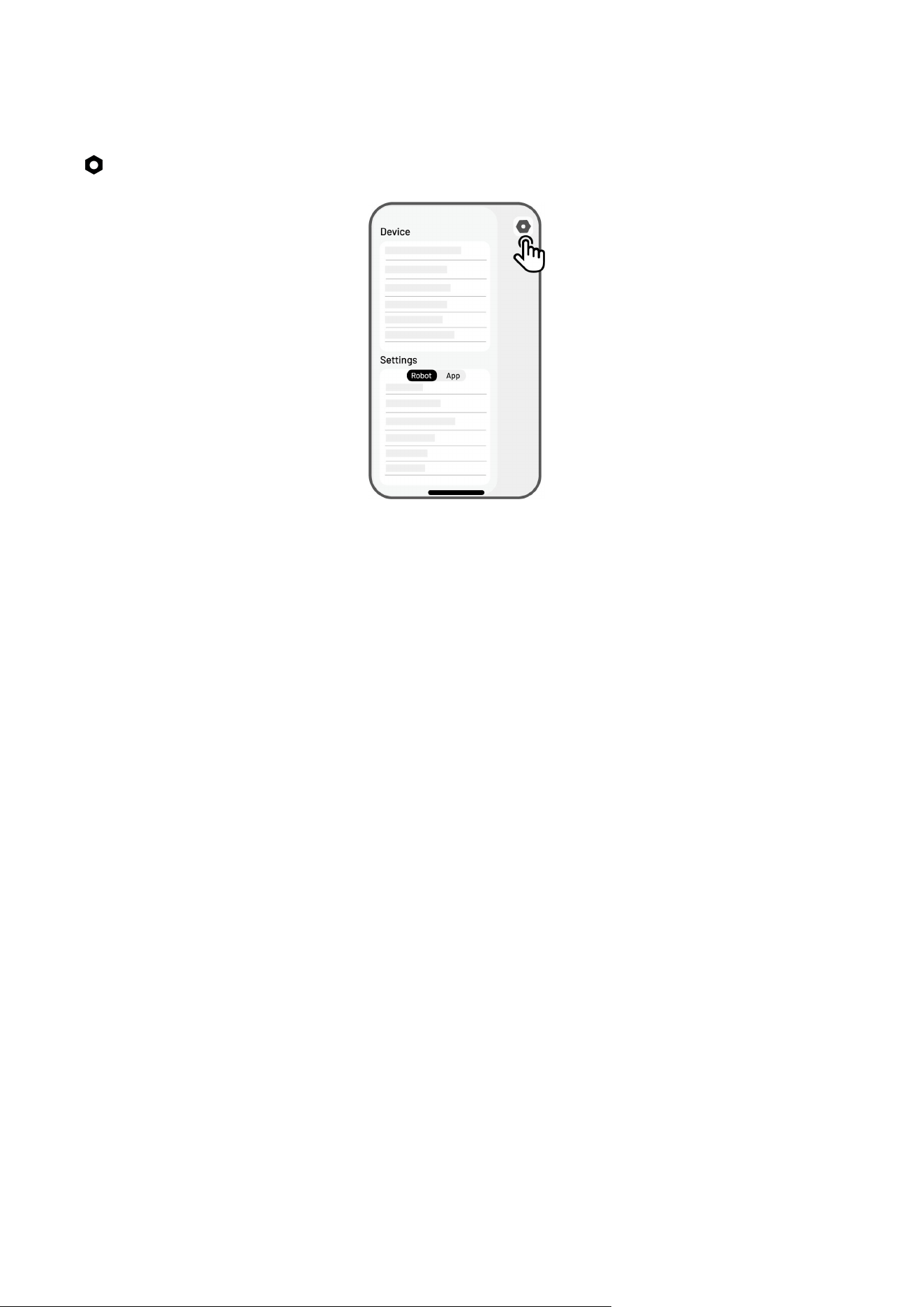
4.10 Settings
Click to enter the Settings page.
4.10.1 Device Settings
Device Information
Device Name — change the name of the robot.
Sharing Management — tap to view your sharing history and share your device with your family.
Robot Version — check the firmware version of the robot.
Network Settings — set the robot network.
Upload Logs — tap to send your issues and logs to Mammotion to target. You can attach a
maximum of 5 images and 1 video.
Factory Reset — tap to perform factory reset. All the logs and Wi-Fi passwords will be clear.
Maintenance — shows the information on total mileage, mowing duration, battery cycle, and
activation time.
Unbind — tap to unbind the current robot. A set of the robot can only be associated with one
account and cannot be operated until it is bound. If you wish to transfer ownership of the robot,
you must unbind it before proceeding.
Network Settings — set the robot network.
- 61 -
Task Record — shows the historical tasks which were completed and uncompleted.
Upload Logs — tap to send your issues and logs to Mammotion to target. You can attach a maximum
of 5 images and 1 video.
4.10.2 Robot Settings
No mowing on rainy days — when you enable this function, the robot will not mow if it rains.
Side LED — tap to turn on/off the side indicator of the robot.
Auto Lighting — when enabled, the robot's auxiliary light will automatically activate in low ambient
light conditions to enhance obstacle avoidance through the vision module.
Non-working periods — tap to set non-working period.
Positioning Mode — tap to switch positioning mode or reset RTK paring code.
Delete Map — tap to delete the existing map.
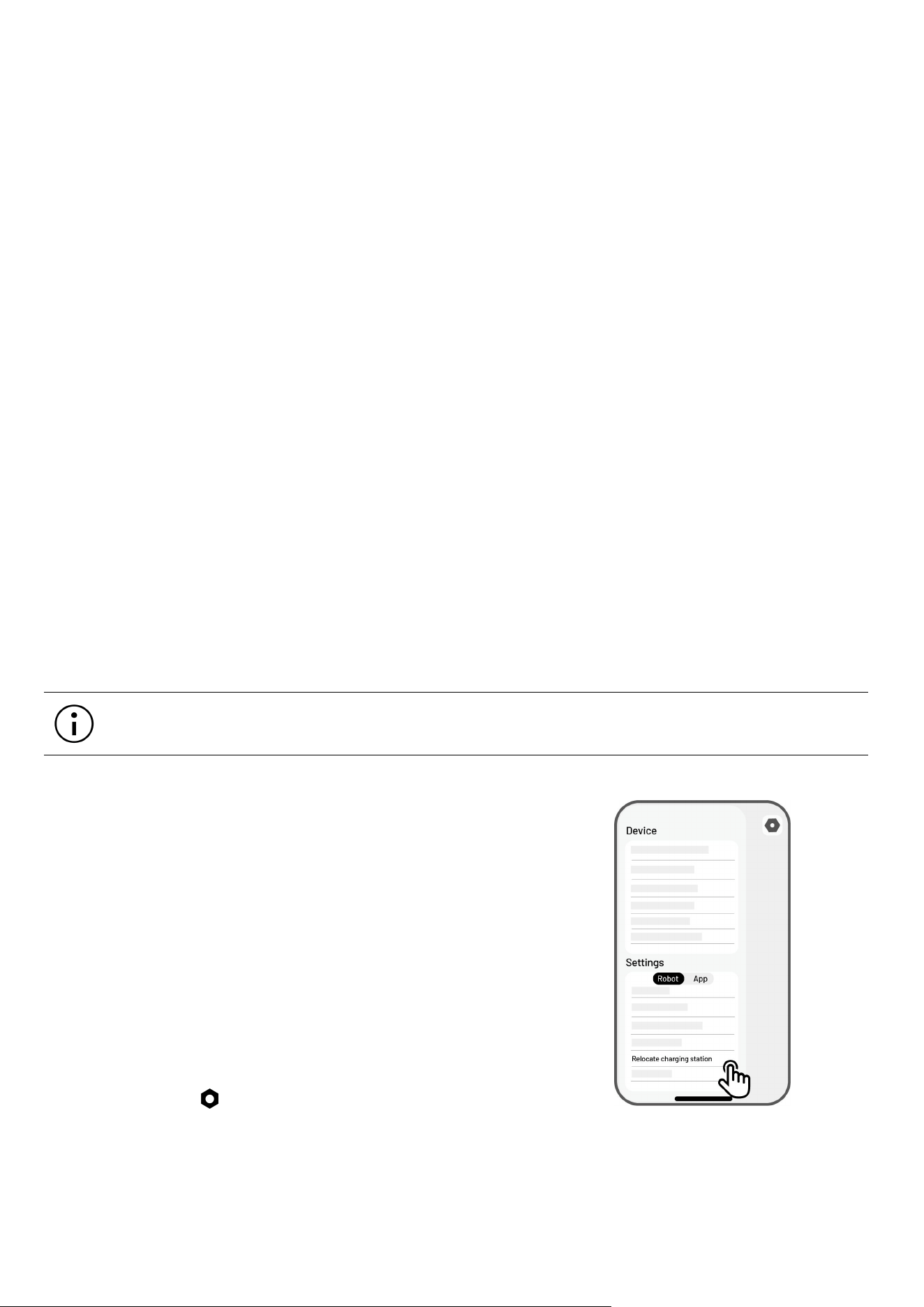
Relocate charging station — tap to relocate the charging station. See Relocate the Charging Station
for additional information.
Voice Settings — tap to switch male and female voice.
Relocate the Charging Station
NOTE
Please relocate the charging station while the robot is charging.
Generally, the charging station should be relocated if
The charging station is moved.
The docking path has a significant incline.
The recharge process consistently fails.
1. Install the charging station in a proper place.
2. Place the robot on the charging station and ensure the
positioning status is fine.
3. Select Settings > Relocate charging station.
- 62 -
4.10.3 Recharge
NOTE
When performing the recharge function, the robot must be in the task area.
To Perform Recharge
Tap on the Map page in the Mammotion app, or
Press the button on the robot, then press START to guide robot to the charging station.
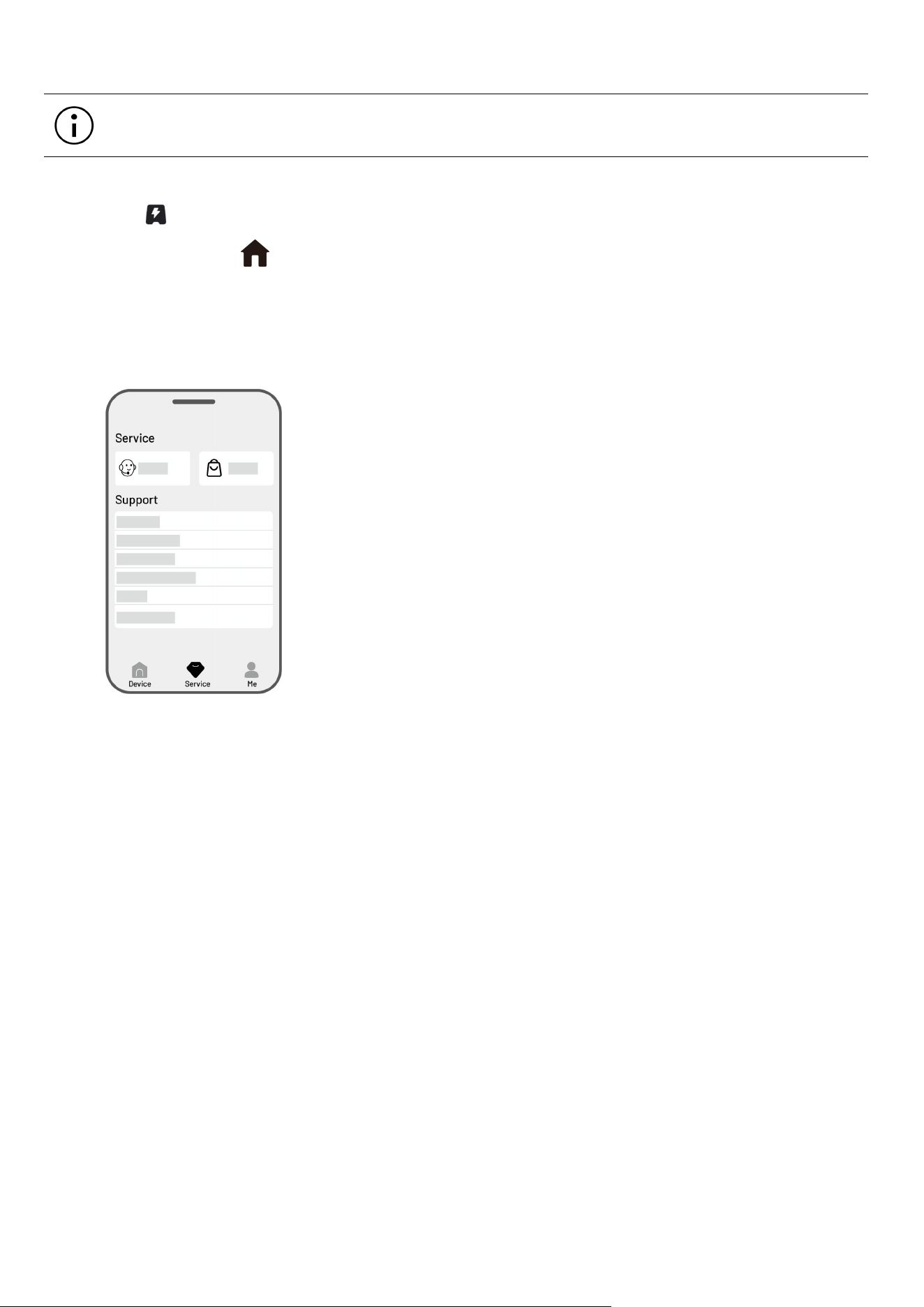
4.11 Service Page
Help — tap to access our customer service.
Store — tap to go to Mammotion mall.
Academy —tap to access user instructions.
Tutorial Videos — tap to access tutorial videos.
User Manual — tap to access the user manual.
Winter Maintenance — tap to access the winter maintenance
details.
FAQ — shows common questions and answers.
About Us — tap to access more information about
Mammotion.
- 63 -
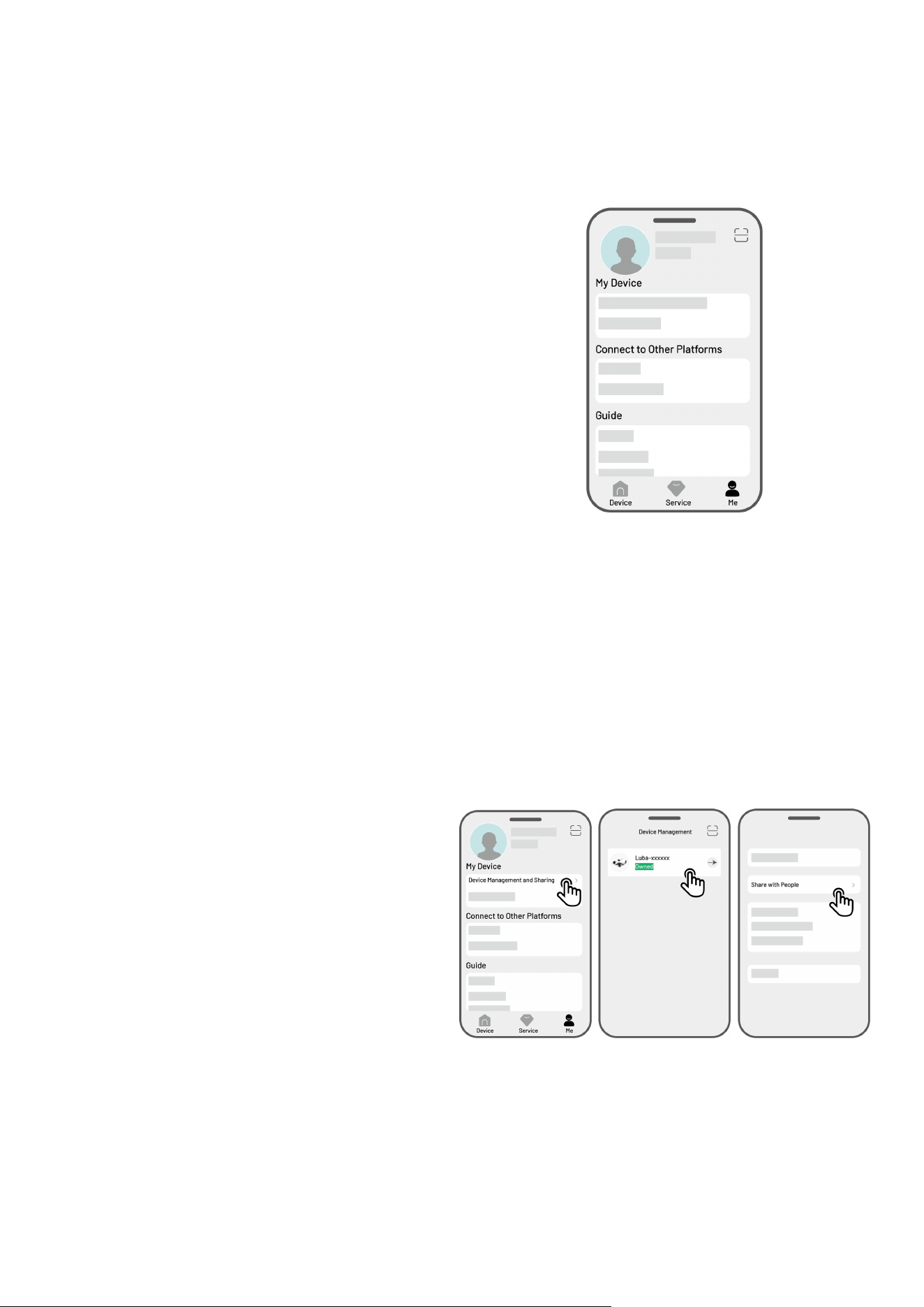
4.12 Me Page
Device Management and Sharing — tap to
share your devices.
Find My Device — tap to track your device.
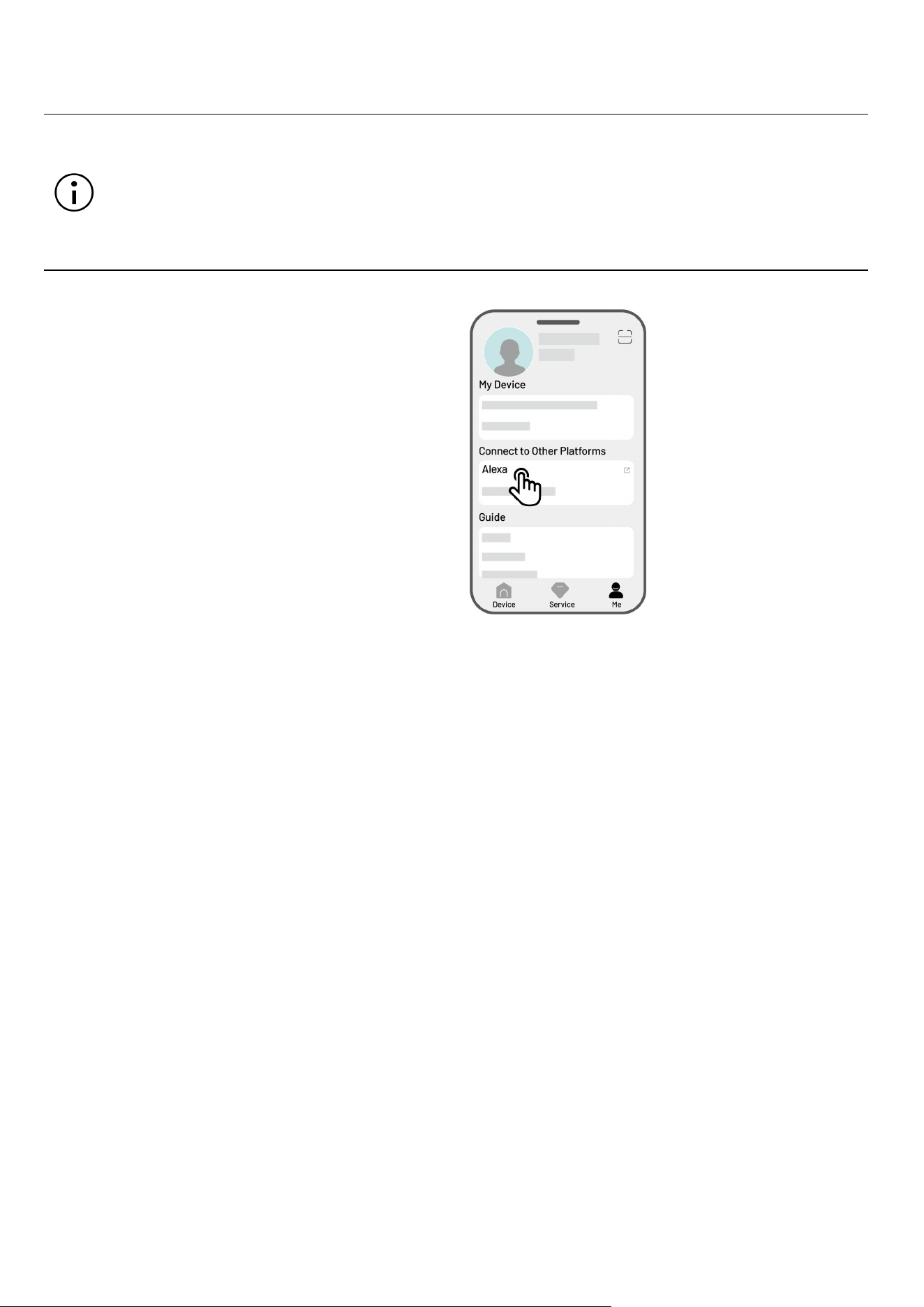
Alexa — tap to link your Alexa account.
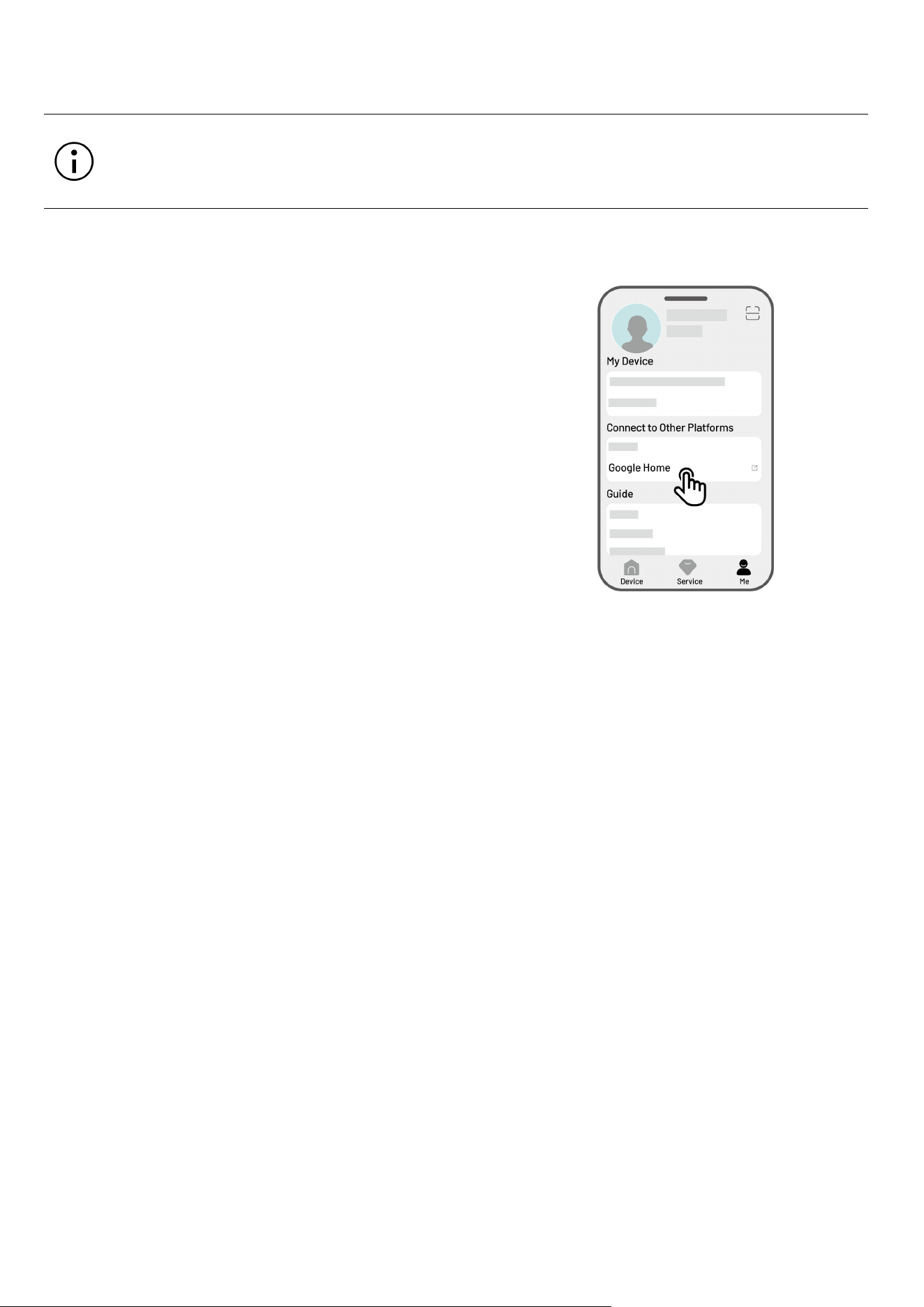
Google Home — tap to link your Google Home
account.
Guide — toggle to on/off to show/hide
guidelines.
Language — switch language.
Upload Logs — submit your issues and logs to
Mammotion to target.
About Mammotion — tap to view the app
version, User Agreement, and Privacy
Agreement.
4.12.1 Share Your Device
Sharing your device allows the recipient to control and access device information, but they cannot share
it further or use its anti-theft feature.
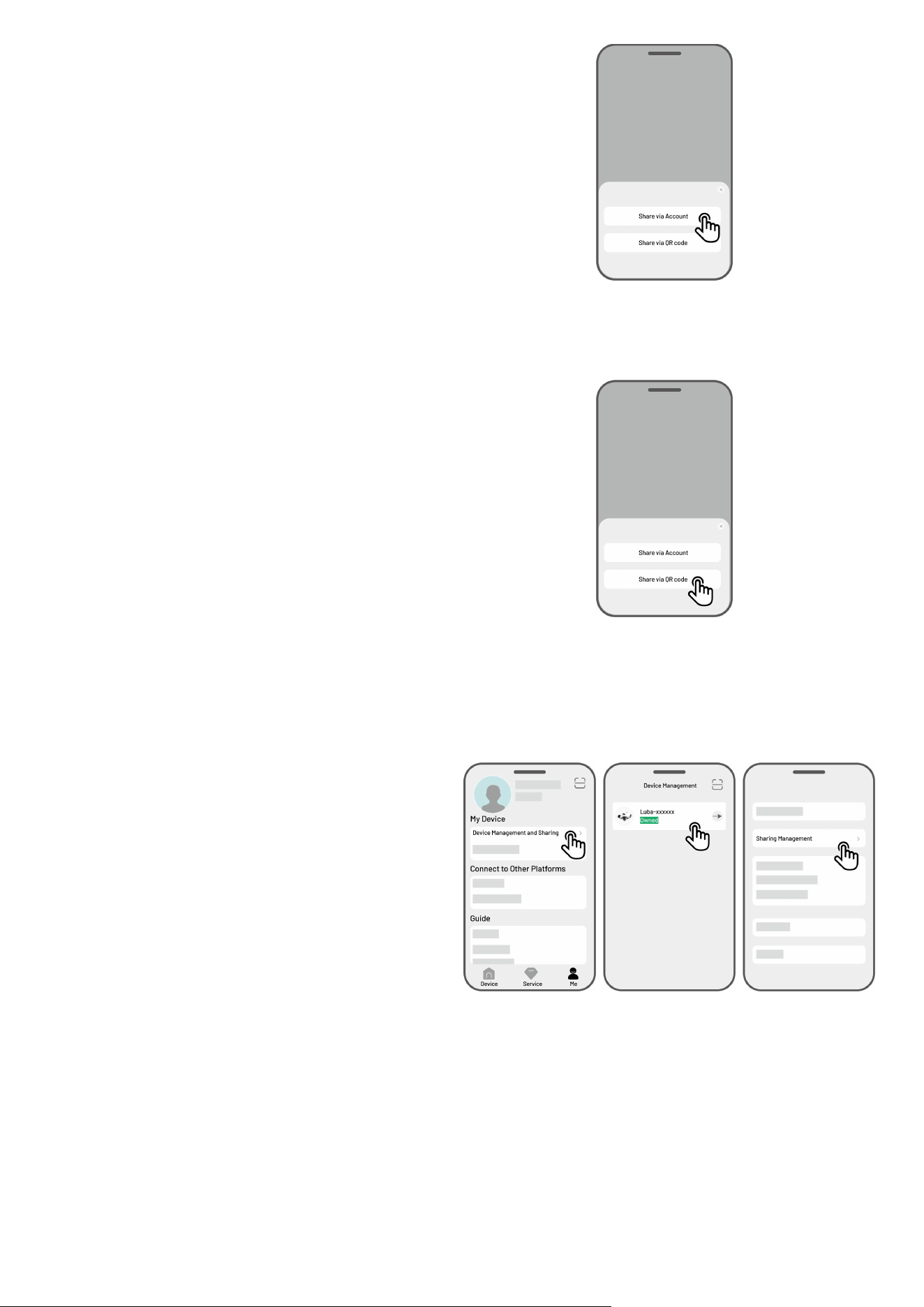
1. Go to the Me page and tap Device
management and sharing.
2. Select your own device to share.
3. Tap Share with people to go on.
- 64 -
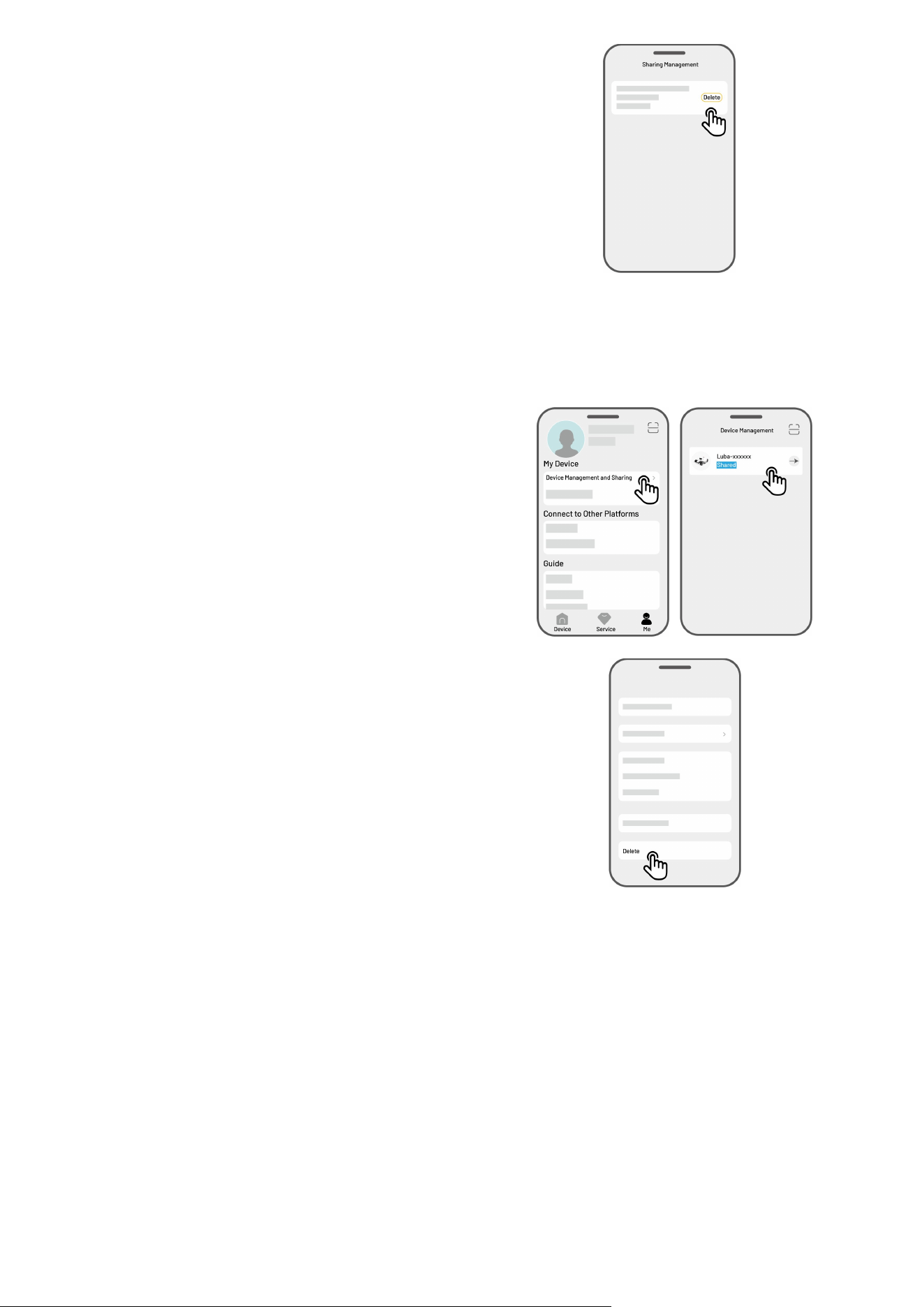
4. Select Share via account or Share via QR
code to share your device.
Share via account
a. Tap Share via account.
b. Enter the account number that you
want to share, then tap Share.
c. In the recipient’s Mammotion app,
tap Agree in the popup.
Share via QR code
a. Tap Share via QR code and a code
will appear.
b. Use the recipient’s Mammotion app
to scan the QR code and tap Agree in
the popup.
4.12.2 Stop Sharing Your Device
For Owner
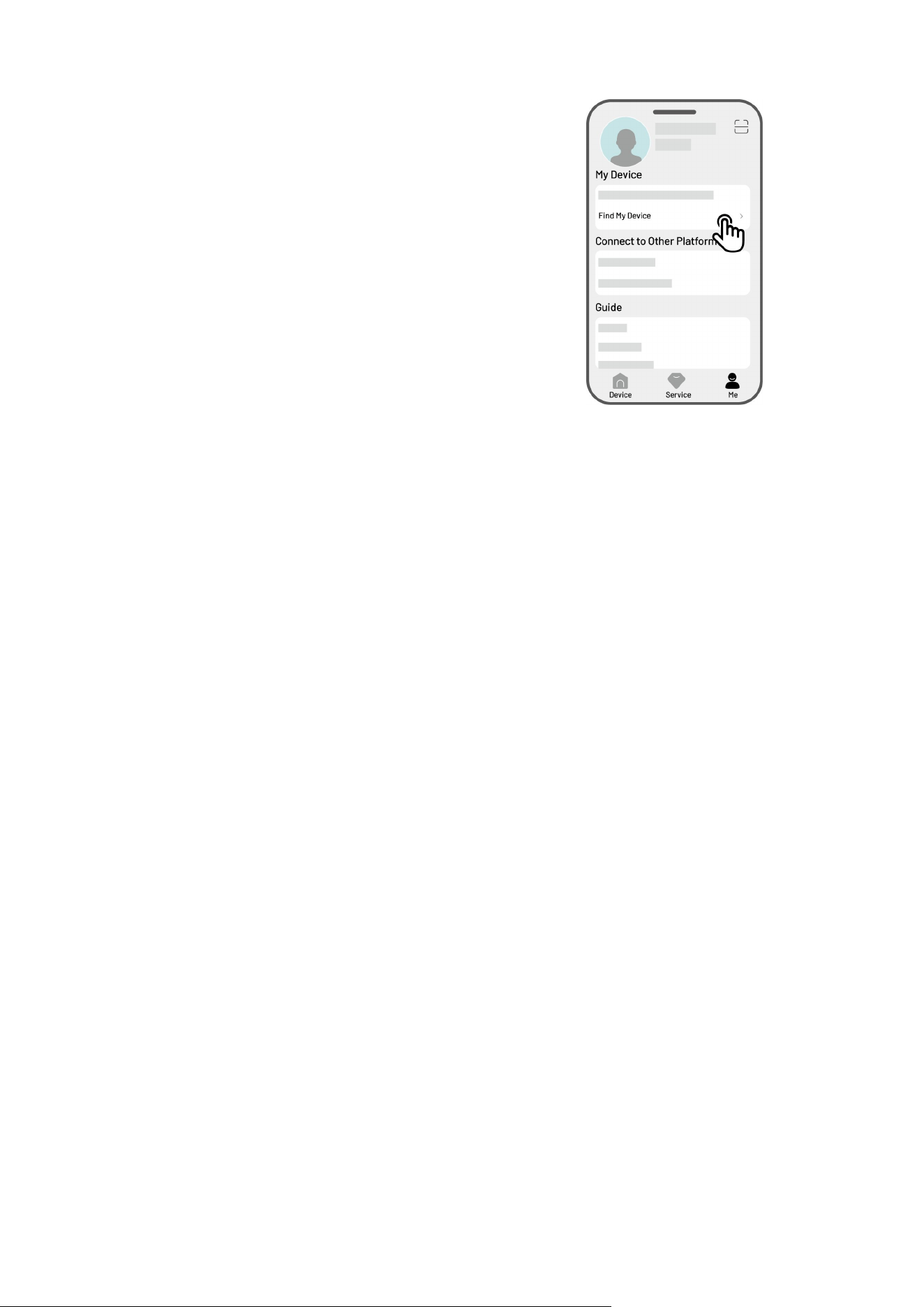
1. Go to the Me page and tap Device
management and sharing.
2. Select the device that you have shared.
3. Tap Sharing management to continue.
- 65 -
4. Select the corresponding sharing history and
tap Delete.
5. Tap Confirm to revoke the recipient’s access
to the device.
For Recipient
1. Go to the Me page and tap Device management
and sharing.
2. Select the device that has been shared with you.
3. Tap Delete.
4. Tap Confirm to stop using the device. This
action will not affect the owner’s data.
- 66 -
4.12.3 Find My Device
In the case that your Mammotion robot or RTK
reference station that has been bound with the
Mammotion app is missing, go to Me > Find my
Device to track your device.
Tap the device to enter the next page where you can enable/disable Location Notifications and Location
Recorder.
Location Notifications — You will receive a push notification when the robot is more than 50 meters
away from the working area after enabling it.
Location Recorder — Record the location history of the robot after enabling it.
- 67 -
4.12.4 Link Your Alexa Account
NOTE
Prior to starting a job using voice control, it is necessary to have created at least one task
beforehand.
In cases where more than 2 sets of robots are linked to the same Mammotion account, the
voice command will be directed to the most recently bound robot by default.
1. Go to the Me page and tap on Alexa.
2. Select YUKA to proceed.
3. Tap Link Alexa to go to the authorization page.
4. Finally, tap Link to complete the operation.
Once the linking is successful, you can control the robot with voice commands. Here are some examples
for starting, pausing, stopping, recharging, and checking the status:
Start working
-Alexa, ask YUKA to start working
-Alexa, ask YUKA to start task xx (xx means the name of the task you set)
Pause working
-Alexa, ask YUKA to pause
-Alexa, ask YUKA to hold on
-Alexa, ask YUKA to suspend
Continue working
-Alexa, ask YUKA to continue
-Alexa, ask YUKA to resume

- 68 -
Stop working
-Alexa, ask YUKA to stop working
-Alexa, ask YUKA to end the task
Recharge
-Alexa, ask YUKA to recharge
-Alexa, ask YUKA to go home
Check status
-Alexa, ask YUKA status
-Alexa, ask YUKA what it is doing
- 69 -
4.12.5 Link Your Google Home Account
NOTE
Prior to starting a job using voice control, it is necessary to have created at least one task
beforehand.
1. Go to the Me page and tap on Google Home.
2. Tap Link Google Home to go to the authorization
page.
3. Follow the instructions to complete the setup.
After linking succeeds, you can control the robot using voice commands, try the following commands:
Start working
-Hey Google, start mowing
-Hey Google, start the YUKA now
-Hey Google, let the YUKA start running
-Hey Google, make the YUKA start running
Pause working
-Hey Google, pause mowing
-Hey Google, pause the YUKA now
-Hey Google, let the YUKA pause
-Hey Google, make the YUKA pause
Continue working
-Hey Google, continue mowing

- 70 -
-Hey Google, let the YUKA continue
-Hey Google, make the YUKA continue
Stop working
-Hey Google, stop mowing
-Hey Google, stop the YUKA
-Hey Google, let the YUKA stop
-Hey Google, make the YUKA stop
Recharge YUKA
-Hey Google, dock the YUKA
-Hey Google, let the YUKA go home
-Hey Google, make the YUKA go home
Check status
-Hey Google, is the YUKA running?
- 71 -
5 Maintenance
To maintain optimal mowing performance and extend the lifespan of your robot, Mammotion advises
performing regular inspections and maintenance weekly. For safety and effectiveness, always wear
protective clothing such as trousers and work shoes; avoid wearing open sandals or going barefoot
during maintenance.
5.1 Cleaning
WARNING
Ensure the robot is completely powered off before beginning any cleaning work.
Always power off the robot before turning it upside down.
When turning the robot upside down, handle it with care to avoid damaging the vision
module.
5.1.1Clean Robot
Housing
Use a soft brush or a damp cloth to clean the robot's housing. Avoid using alcohol, gasoline, acetone, or
other corrosive or volatile solvents, as they may damage the robot’s appearance and internal components.
Bottom
Wear protective gloves while cleaning the chassis and cutting disc. Use a brush to remove debris. Check
for blade damage and ensure that the blades and cutting disc can rotate freely. DO NOT use sharp objects
to clean the bottom.

- 72 -
Front Wheel
Clean the front wheel using a brush or water hose. Remove the mud if any.
Rear Wheels
Regularly clean the rear wheels with a brush or water hose if they become too dirty.
Vision Camera
Wipe the vision camera lens with a cloth to remove any stains. A clean lens is crucial for the performance
of the vision module.
5.1.2 Clean Charging Station
Use a brush and cloth to clean the infrared transmitter and the charging pin.
5.1.3 Clean RTK Reference Station
Wipe the RTK reference station with a cloth to remove any accumulated dirt.
- 73 -
5.2 Maintenance for Cutting Blades and Motor
WARNING
Always wear protective gloves when inspecting, cleaning, or replacing the cutting blade.
DO NOT use an electrical screwdriver to tighten or loosen the cutting disc. Always use the
correct screws and original blades approved by Mammotion.
Replace all cutting blades and their screws simultaneously to ensure a safe and effective
cutting system.
DO NOT reuse the screws, which may cause serious injury.
To ensure optimal performance during long-term storage, keep the hub motor shaft dry and clean.
Regular maintenance of the motor shaft helps prevent dirt and moisture buildup, which can affect the
motor’s function. The motor has an expected lifespan of 1500 hours of operation.
Blades are considered wear parts and should be replaced if they become severely worn. It is
recommended to replace the cutting blades every 3 months or after 150 hours of use. For thicker
grass, more frequent blade replacement may be necessary.
Wet grass is more likely to stick to the blades and bottom of the robot, which can impair performance
and lead to the need for more frequent cleaning. For optimal performance and long-term lawn health,
it is recommended to avoid mowing during heavy rain or when the grass is excessively wet.
- 74 -
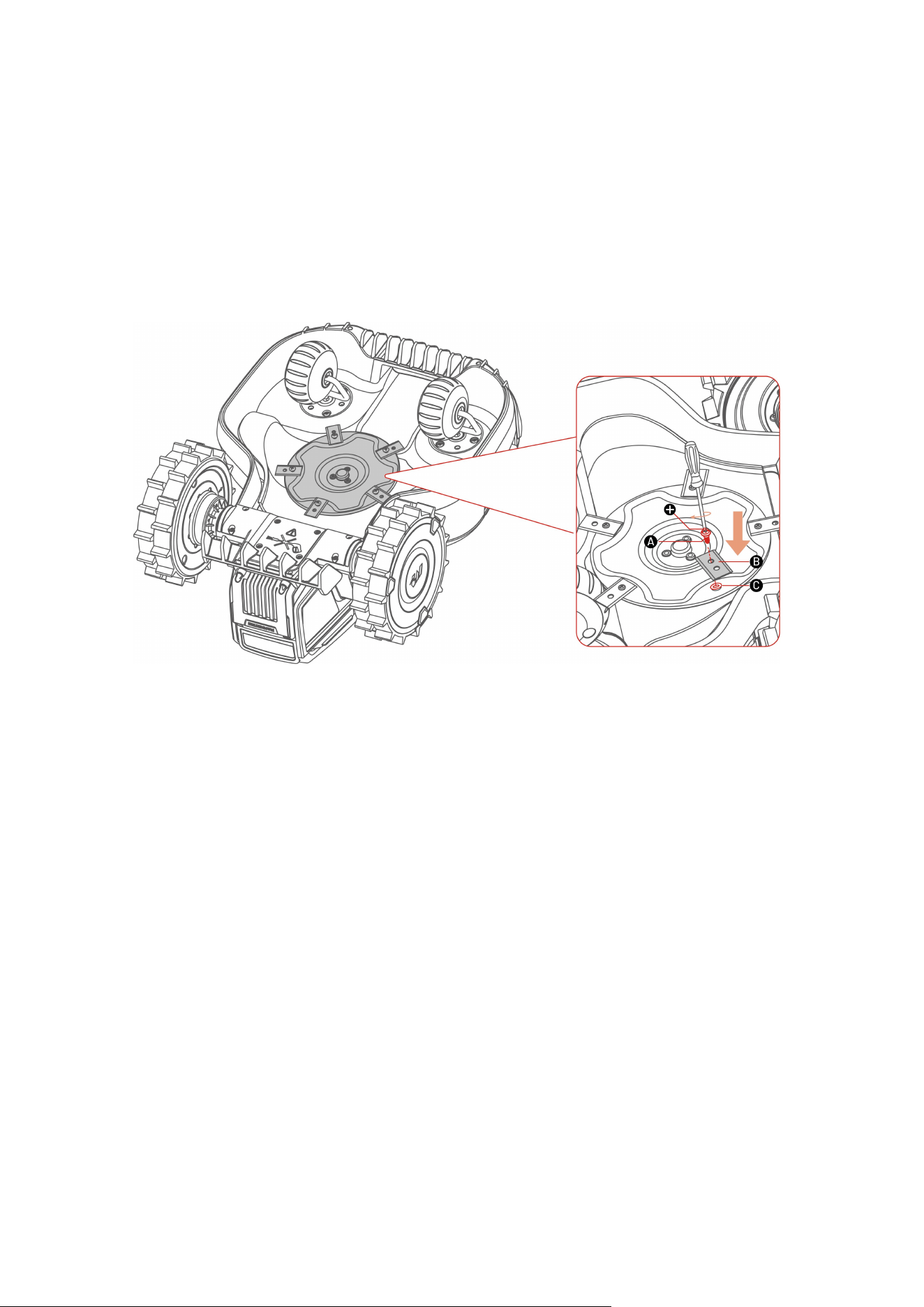
How to replace a cutting blade
1. Turn off the robot.
2. Place the robot on a soft, clean surface, ensuring it is in an upside-down position.
3. Remove the old cutting blades with the included screwdriver with Phillips bit.
4. Install the new cutting blades (B) using the included washers (C) and screws (A). Ensure that the
blades can rotate freely and are securely installed.

- 75 -
5.3 Battery Maintenance
Maintain the battery fully charged before long-term storage to prevent over-discharge.
Charge fully every 90 days, even if it is not in use.
Ensure the charging ports on the robot are clean and dry before storing or charging.
5.4 Winter Storage
To ensure your robot is in optimal condition for the next mowing season, store the robot, charging station,
and RTK reference station properly. If the ambient temperature drops below -20°C (-4°F) during winter,
keep the robot, RTK reference station, and charging station indoors.
5.4.1 Store Robot
Control the robot off the charging station, ensuring the robot has been fully charged.
Power off the robot.
Clean the robot (the housing, wheels, chassis, vision module, etc.) with a damp cloth or soft brush. You
can wash the robot if necessary. DO NOT turn the robot upside down to clean its chassis with water.
Leave the robot to get dry. DO NOT turn it upside down during this process.
Apply anti-corrosion lubricant to the charging pads. DO NOT apply the chemicals to any other parts of
the robot, especially metal contact areas, except for the connectors.
Store the robot indoors.
5.4.2 Store Charging Station
Disconnect the power supply.
Remove the stakes.
Use a brush and cloth to clean the charging station thoroughly.
Remove the charging station and the power supply.

- 76 -
Store the charging station and the power supply indoors.
In the next mowing season, reinstall the charging station, then relocate it (See Relocate the Charging
Station for more information) and remap a channel between the charging station and the task area
using the Mammotion app.
5.4.3 Store RTK Reference Station
If the ambient temperature is above -20°C (-4°F) in winter:
Unplug the RTK reference station.
Twine the RTK reference station cable around the station and tighten the protective cap.
Cover the RTK reference station with a plastic bag or cover.
If you follow these steps and do not move the RTK reference station, you will not need to delete the map
and remap for the next mowing season.
If the ambient temperature is below -20°C (-4°F) in winter:
If the RTK reference station is installed on the ground, follow the steps below:
Delete the map in the Mammotion app.
Unplug the RTK reference station.
Remove the RTK reference station from the mounting pole.
Remove the antenna.
Use a cloth to clean the RTK reference station.
Remove the mounting pole.
In the next season, reinstall the RTK reference station and remap in the Mammotion app.
If the RTK reference station is installed on the wall/roof, follow the steps below:
Unplug the RTK reference station.
Remove the RTK reference station from the wall mounting pole.
Remove the antenna.
Use a cloth to clean the RTK reference station.
In the next mowing season, reinstall the RTK reference station in its original position. There is no need
to delete the map and remap as the location of the RTK reference station remains unchanged.

- 77 -
6Product Specifications
6.1 Technical Specifications
6.1.1 General Specifications
Parameters
YUKA Mini
800/800H
700/700H
600/600H
500/500H
Max. Mowing Size
800 m
2
(0.2 acres)
700 m
2
(0.17 acres)
600 m
2
(0.15 acres)
500 m
2
(0.12 acres)
In-App Area
Storage Capacity
960 m
2
(0.24 acres)
840 m
2
(0.21 acres)
720 m
2
(0.18 acres)
600 m
2
(0.15 acres)
Max. multi-zone
Management
10
7
5
3
Engine
2 Wheel-drive
Max. Climbing
Ability
45% (24°)
Max. Slope at the
Edge
Without sweeper: 25% (14°)
Vertical Obstacle
Passing Ability
35 mm (1.4 in)
Cutting Width
190 mm (7.5 in)
Cutting Height
Adjustment
500/600/700/800: 20-60 mm (0.78-2.4 in)
500H/600H/700H/800H: 50-90 mm (2-3.5 in)
Auto-recharge
YES
Positioning &
Navigation
3D Vision & RTK
Obstacle
Avoidance
3D Vision
Voice Control
Alexa & Google Assistant

- 78 -
Parameters
YUKA Mini
800/800H
700/700H
600/600H
500/500H
Vision Monitoring
YES
Connectivity
4G & Bluetooth & Wi-Fi
RTK Signal
Coverage
5 km (3.1 mi.)
RTK Reference
Station
RTK310
Charging Station
CHG2300
Working Speed
0.3 m/s
A weighted
sound power
L
WA
=62dB, K
WA
=3dB
A weighted
sound pressure
L
PA
=54dB, K
PA
=3dB
Waterproof
Robot: IPX6
Charging Station: IPX6
RTK Reference Station: IPX6
Rain Detection
YES
OTA Upgrade
YES
GPS Theft
Tracking
YES
Geo-Alarm
YES
Vision GepFence
YES
Net Weight
10.3 kg (22.9 lbs.)
Dimensions (L x
W x H)
Robot: 525 x 413 x 281 mm (20.3 x 16.3 x 11.1 in)
6.1.2 YUKA mini Onboard Operating Bands Specifications (EU)
Operating Band
Frequency
Max. Conducted Power
BLE
2400-2483.5MHz
9.23dBm
Wi-Fi
2400-2483.5MHz
17.57dBm
5550-5700MHz
17.32dBm
5745-5825MHz
13.68dBm

- 79 -
LORA
863.1-869.85MHz
11.66dBm
BDS/GPS(L1)/Galileo(E1B)
/GLONASS(G1)
1559-1610MHz
/
6.1.3 YUKA mini 4G Module (Model: MC230) Operating Bands Specifications (EU)
Operating Band
Frequency
Max. Conducted Power
GSM900
Tx:880-915MHz, Rx:925-960MHz
33.41dBm
DCS1800
Tx:1710-1785MHz, Rx:1805-1880MHz
30.25dBm
WCDMA Band I
Tx:1920-1980MHz, Rx:2110-2170MHz
23.63dBm
WCDMA Band VIII
Tx:880-915MHz, Rx:925-960MHz
24.20dBm
LTE Band 1
Tx: 1920-1980MHz; Rx: 2110-2170MHz
22.59dBm
LTE Band 3
Tx: 1710-1785MHz; Rx: 1805-1880MHz
23.23dBm
LTE Band 7
Tx: 2500-2570MHz; Rx: 2620-2690MHz
23.28dBm
LTE Band 8
Tx: 880-915MHz; Rx: 925-960MHz
23.98dBm
LTE Band 20
Tx: 832-862MHz; Rx: 791-821MHz
22.86dBm
LTE Band 28
Tx: 703-748MHz; Rx: 758-803MHz
22.62dBm
LTE Band 38
Tx: 2570-2620MHz; Rx: 2570-2620MHz
22.54dBm
LTE Band 40
Tx: 2300-2400MHz; Rx: 2300-2400MHz
22.31dBm
6.1.4 RTK Reference Station Operating Bands Specifications (EU)
Operating Band
Frequency
Max. Conducted Power
BLE
2400-2483.5MHz
6.71dBm
Wi-Fi
2400-2483.5MHz
10.41dBm
LORA
863.1-869.85MHz
10.18dBm
BDS/GPS(L1)/Galileo(E1B)
/GLONASS(G1)
1559-1610MHz
/
- 80 -
6.1.5 Battery Specifications
Parameters
YUKA mini
800/800H
700/700H
600/600H
500/500H
Battery charger
TS-A060-2802151
Input: 100-240V~, 50/60Hz, 1.5A Max.
Output: 28Vdc, 2.15A, 60.2W
Battery pack
21.6Vdc, 6.1Ah
21.6Vdc, 4.5Ah
21.6Vdc, 2.4Ah
21.6Vdc, 2.4Ah
Battery capacity
6.1Ah
4.5Ah
2.4Ah
2.4Ah
The temperature range for charging is 4-45 °C / 39-113 °F. Too high temperatures might cause
damage to the product.
WARNING: For the purposes of recharging the battery, only use the detachable supply unit provided
with this appliance.

- 81 -
6.2 Fault Codes
The app notification displays common fault codes along with their causes and troubleshooting steps.
Here lists the most common issues.
Fault Codes
Causes
Solutions
316
The left cutting disk motor is
overheating.
The machine will return to normal once the
motor has cooled down. This process may
take several minutes.
318
The sensor for the left cutting disk
motor has failed.
Restart the robot. If the issue persists after a
few times of restart, contact the after-sale
team.
323
The right cutting disk motor is
overloaded.
Check if the cutting disk is jammed and clear
it if necessary. Alternatively, raise the cutting
height.
325
The right cutting disk motor fails to
start.
Check whether the cutting disk is jammed. If
not, restart the robot. If the issue persists
after a few times of restart, contact the after-
sale team.
326
The right cutting disk motor is
overheating.
Restart the robot. If the issue persists after a
few times of restart, contact the after-sale
team.
328
The sensor for the right cutting disk
motor has failed.
Restart the robot. If the issue persists after a
few times of restart, contact the after-sale
team.
1005
Low battery
The robot will continue working after the
battery is charged to 80%.
1300
The positioning status is poor.
Await the robot's repositioning.

- 82 -
Fault Codes
Causes
Solutions
1301
The charging station has been
moved.
Relocate the charging station.
1420
Timeout occurred while retrieving
wheel speed data.
Restart the robot. If the issue persists,
contact the after-sale team.
2713
Charging has been stopped due to
low battery voltage.
Restart the robot. If the issue persists after a
few times of restart, contact the after-sale
team.
2726
The battery is overcharged.
Stop charging immediately. If overcharging
occurs frequently, contact the after-sale
team.
2727
The battery is over discharged.
Recharge the robot.

- 83 -
7 Warranty
Shenzhen Mammotion Innovation Co., Ltd warrants that this product will be free from material and
workmanship defects under normal use in accordance with the product materials published by
Mammotion during the warranty period. The published product materials include but not limited to user
manual, quick start guide, maintenance, specifications, disclaimer, in-app notifications, etc. The warranty
period varies among different products and parts. Check the table below:
Component
Warranty
Host and Core
3 Years
Battery
Spare parts (Charging station, RTK reference
station)
If the product does not function as warranted during the warranty period, please contact Mammotion
customer service for instructions.
For products purchased from a local dealer, kindly reach out to the dealer first.
Users must present a valid proof of purchase, receipt, or order number (for Mammotion Direct Sales).
The Serial Number of the product is crucial for initiating warranty service.
Mammotion will make every effort to address concerns through phone calls, email, or online chat.
In some cases, Mammotion may advise you to download or install specific software updates.
If issues persist, you may need to send the product to Mammotion for further assessment or to a local
Mammotion-appointed service center.
The warranty period for the product commences from the original date of purchase indicated on the
sales receipt or invoice.
For pre-ordered products, the warranty period begins from the shipping date from the local

- 84 -
warehouse.
Mammotion will need users to arrange the shipment by themselves if users would like to send the
products to local service center or Mammotion factory for further diagnosis. Mammotion will repair or
replace and send back to users at no cost if the problem falls under the warranty. If not, Mammotion
or designated service center may charge a fee accordingly.
Here puts some examples of faults that warranty will not cover:
Failure to follow the instructions outlined in the user manual.
If the product arrives damaged during shipment and is not rejected upon delivery, or if no official
documentation confirming the damages is provided by the shipping company. Inability to provide
evidence of damage occurring during transit.
Product malfunction due to accidents, misuse, abuse, natural disasters like floods, fires, earthquakes,
exposure to food or liquid spills, incorrect electrical charging, or other external factors.
Damage resulting from using the product in ways not permitted or intended as specified by
Mammotion.
Modification of the product or its components that significantly alters functionality or capabilities
without obtaining written permission from Mammotion.
Loss, damage, or unauthorized access to your data.
Signs of tampering or alteration on product labels, serial numbers, etc.
Failure to provide a valid proof of purchase from Mammotion, such as a receipt or invoice, or if there
are suspicions of forgery or tampering with the documentation.

- 85 -
8 Compliance
FCC Compliance Statements
This device complies with Part 15 of the FCC Rules. Operation is subject to the following two conditions: (1)
this device may not cause harmful interference, and (2) this device must accept any interference received,
including interference that may cause undesired operation.
Caution: Changes or modifications not expressly approved by the party responsible for compliance could
void the user’s authority to operate the equipment.
Note: This equipment has been tested and found to comply with the limits for a Class B digital device,
pursuant to Part 15 of the FCC Rules. These limits are designed to provide reasonable protection against
harmful interference in a residential installation. This equipment generates, uses and can radiate radio
frequency energy and, if not installed and used in accordance with the instructions, may cause harmful
interference to radio communications. However, there is no guarantee that interference will not occur in a
particular installation.
If this equipment does cause harmful interference to radio or television reception, which can be
determined by turning the equipment off and on, the user is encouraged to try to correct the interference
by one or more of the following measures:
-- Reorient or relocate the receiving antenna.
-- Increase the separation between the equipment and receiver.
-- Connect the equipment into an outlet on a circuit different from that to which the receiver is connected.
-- Consult the dealer or an experienced radio/TV technician for help.

- 86 -
ISED Compliance Statements
This device contains licence-exempt transmitter(s)/receiver(s) that comply with Innovation, Science and
Economic Development Canada’s licence-exempt RSS(s). Operation is subject to the following two
conditions:
(1) This device may not cause interference.
(2) This device must accept any interference, including interference that may cause undesired operation
of the device.
This equipment complies with IC RSS-102 radiation exposure limits set forth for an uncontrolled
environment.
L’émetteur/récepteur exempt de licence contenu dans le présent appareil est conforme aux CNR
d’Innovation,
Sciences et Développement économique Canada applicables aux appareils radio exempts de licence.
L’exploitation est autorisée aux deux conditions suivantes:
(1) L’appareil ne doit pas produire de brouillage;
(2) L’appareil doit accepter tout brouillage radioélectrique subi, même si le brouillage est susceptible d’en
compromettre le fonctionnement.
Cet équipement est conforme aux limites d'exposition aux radiations IC CNR-102 établies pour un
environnement non contrôlé.
RF Exposure Compliance
This equipment complies with FCC/IC RSS-102 radiation exposure limits set forth for an uncontrolled
environment. This transmitter must not be co-located or operating in conjunction with any other antenna
or transmitter. This equipment should be installed and operated with minimum distance 20 cm between
the radiator and your body.
Cet équipement est conforme aux limites d'exposition aux radiations IC CNR-102 établies pour un
environnement non contrôlé.
Cet émetteur ne doit pas être colocalisé ou fonctionner en conjonction avec une autre antenne ou un
autre émetteur. Cet équipement doit être installé et utilisé avec une distance minimale de 20 cm entre le
radiateur et votre corps.

- 87 -
Simplified EU Declaration of Conformity
Hereby, Shenzhen Mammotion Innovation Co., Limited declares that the radio equipment type
[Model:500/600/700/800] is in compliance with Directive 2014/53/EU.
The full text of the EU declaration of conformity is available at the following internet address:
https://mammotion.com/pages/eu-declaration-of-conformity.