
Contents 1
USER MANUAL
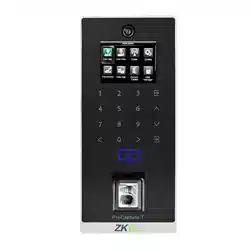
ProCapture-T
Version: 1.1
Date: September 2021

About This Manual
This manual introduces the operation of user interfaces and menu
functions of ProCapture-T Access Control terminal.
The pictures in this manual may not be exactly consistent with those of
your product; the actual product's display shall prevail.
Not all the devices have the function with , the real product prevails.

Contents I
Contents
1 Guidance Notes ..................................................................................................................................................................... 1
1.1 Method of Pressing Fingerprint ...................................................................................................................................................... 1
1.2 Verification Modes ................................................................................................................................................................................... 2
1.2.1 1:N Fingerprint Verification ........................................................................................................... 2
1.2.2 1:1 Fingerprint Verification ............................................................................................................ 2
1.2.3 Password Verification ...................................................................................................................... 3
1.2.4 Card Verification .......................................................................................................................... 4
1.3 Initial Interface ............................................................................................................................................................................................ 4
2 Main Menu ............................................................................................................................................................................... 5
3 Date/Time Settings ............................................................................................................................................................... 6
3.1 Daylight Saving Time ............................................................................................................................................................................. 6
4 User Management ................................................................................................................................................................ 8
4.1 Adding User ................................................................................................................................................................................................. 8
4.2 Setting Access Control .......................................................................................................................................................................... 9
4.3 Searching User............................................................................................................................................................................................ 9
4.4 Editing User ............................................................................................................................................................................................... 10
4.5 Deleting a User ........................................................................................................................................................................................ 10
4.6 User Display Style .................................................................................................................................................................................. 11
5 User Role ................................................................................................................................................................................ 12
5.1 Enabling User Role ................................................................................................................................................................................ 12
5.2 Rights Allocation .................................................................................................................................................................................... 12
6 Comm. Settings .................................................................................................................................................................. 14
6.1 Ethernet Settings ................................................................................................................................................................................... 14
6.2 Serial Comm. Settings ................................................................................................................................................................... 14
6.3 PC Connection ........................................................................................................................................................................................ 15
6.4 ADMS ............................................................................................................................................................................................................. 16
6.5 Wiegand Setup ....................................................................................................................................................................................... 17
6.5.1 Wiegand Input ................................................................................................................................. 17

II ProCapture-T User Manual
6.5.2 Wiegand Output ............................................................................................................................. 19
6.5.3 Card Format Detect Automatically ........................................................................................... 20
7 System Settings .................................................................................................................................................................. 22
7.1 Access Logs Settings ........................................................................................................................................................................... 22
7.2 Fingerprint Parameters ...................................................................................................................................................................... 23
7.3 Reset to Factory Settings .................................................................................................................................................................. 24
7.4 USB Upgrade ............................................................................................................................................................................................ 25
8 Personalize Settings .......................................................................................................................................................... 26
8.1 User Interface Settings ....................................................................................................................................................................... 26
8.2 Voice Settings........................................................................................................................................................................................... 27
8.3 Bell Settings ............................................................................................................................................................................................... 27
8.3.1 Adding New Bell .............................................................................................................................. 27
8.3.2 Editing a Bell ..................................................................................................................................... 28
8.3.3 Deleting a Bell .................................................................................................................................. 28
9 Data Mgt. ............................................................................................................................................................................... 29
9.1 Deleting Data ........................................................................................................................................................................................... 29
9.2 Data Backup .............................................................................................................................................................................................. 30
9.3 Data Restoration ..................................................................................................................................................................................... 31
10 Access Control .................................................................................................................................................................. 33
10.1 Access Control Options Settings .............................................................................................................................................. 33
10.2 Time Rule Settings ............................................................................................................................................................................. 35
10.3 Holidays Settings ................................................................................................................................................................................. 37
10.3.1 Adding Holiday ............................................................................................................................. 37
10.3.2 All Holidays ..................................................................................................................................... 38
10.4 Combined Verification Settings ................................................................................................................................................ 39
10.5 Anti-passback Settings .................................................................................................................................................................... 40
11 USB Manager ..................................................................................................................................................................... 42
11.1 USB Download...................................................................................................................................................................................... 42
11.2 USB Upload ............................................................................................................................................................................................. 43
12 Records Search ................................................................................................................................................................. 44

Contents III
12.1 Searching Access Records ............................................................................................................................................................ 44
12.2 Searching Attendance Photo ..................................................................................................................................................... 45
12.3 Searching Blacklist ATT Photo .................................................................................................................................................... 45
13 Autotest............................................................................................................................................................................... 46
14 System Information ........................................................................................................................................................ 47
15 Troubleshooting .............................................................................................................................................................. 48
16 Appendices ........................................................................................................................................................................ 49
16.1 Photo ID Function ......................................................................................................................................................................... 49
16.2 Wiegand Introduction ..................................................................................................................................................................... 50
16.2.1 Wiegand 26 Introduction .......................................................................................................... 51
16.2.2 Wiegand 34 Introduction .......................................................................................................... 52
16.3 Image Uploading Rule ..................................................................................................................................................................... 54
16.4 Anti-passback Settings .................................................................................................................................................................... 54
16.5 Statement on Human Rights and Privacy .......................................................................................................................... 57
16.6 Environment-Friendly Use Description ................................................................................................................................ 59
1 Guidance Notes 1
1 Guidance Notes
1.1 Method of Pressing Fingerprint
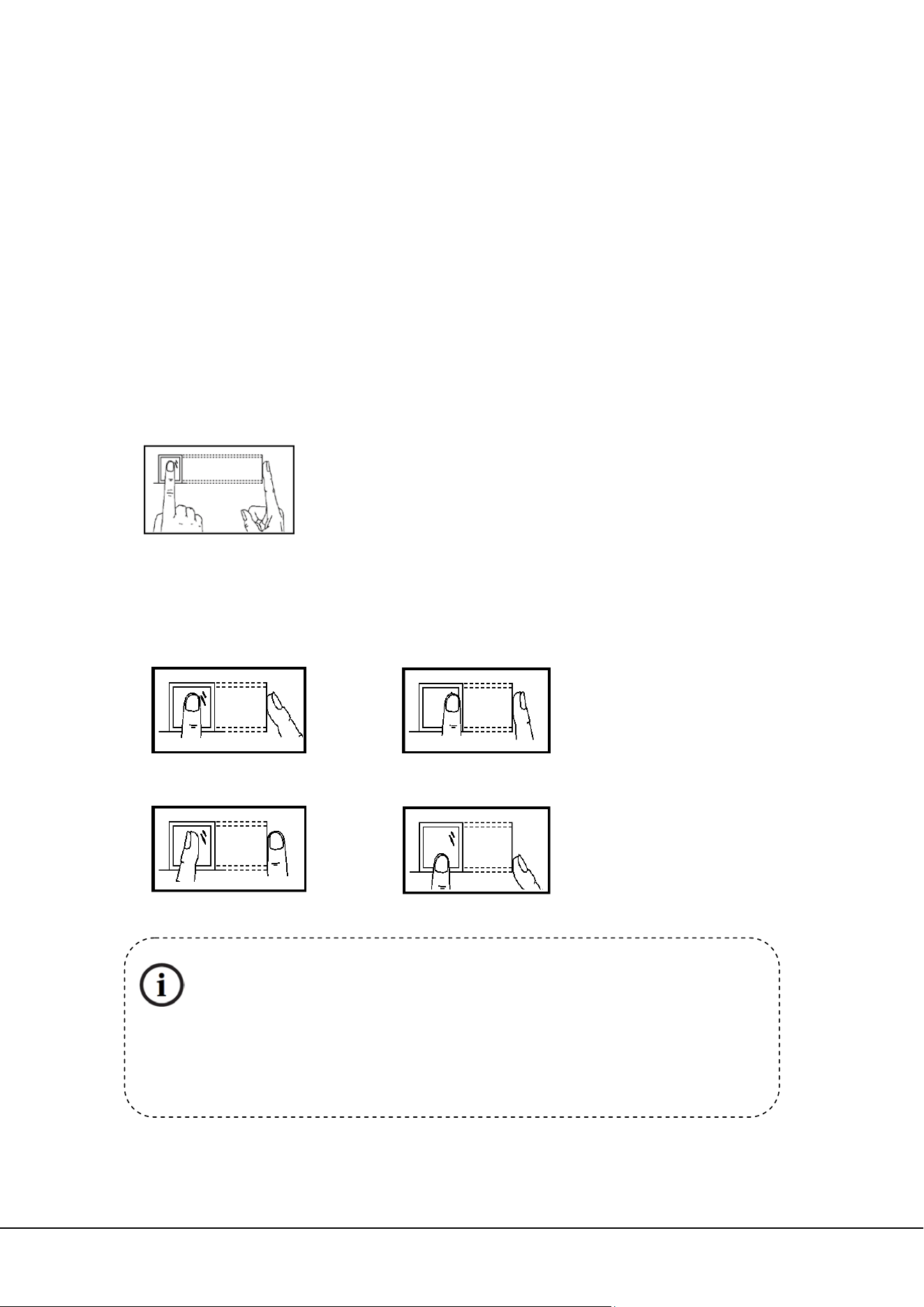
It is recommended to use the index finger, middle finger or ring finger; avoid using the thumb or
little finger.
1. Correct way to press the fingerprint:
2. Wrong ways to press the fingerprint:
Press the finger horizontally onto the fingerprint sensor; the center
of the fingerprint should be placed on that of the sensor.
Vertical
Sides
Slanted
Too Low
Please use the correct method of pressing fingerprint for registration and
verification. Our company does not undertake the responsibility for the lowered
verification performance caused by user’s improper operation. The rights to final
interpretation and amendment are reserved.
2 ProCapture-T User Manual
1.2 Verification Modes
1.2.1 1:N Fingerprint Verification
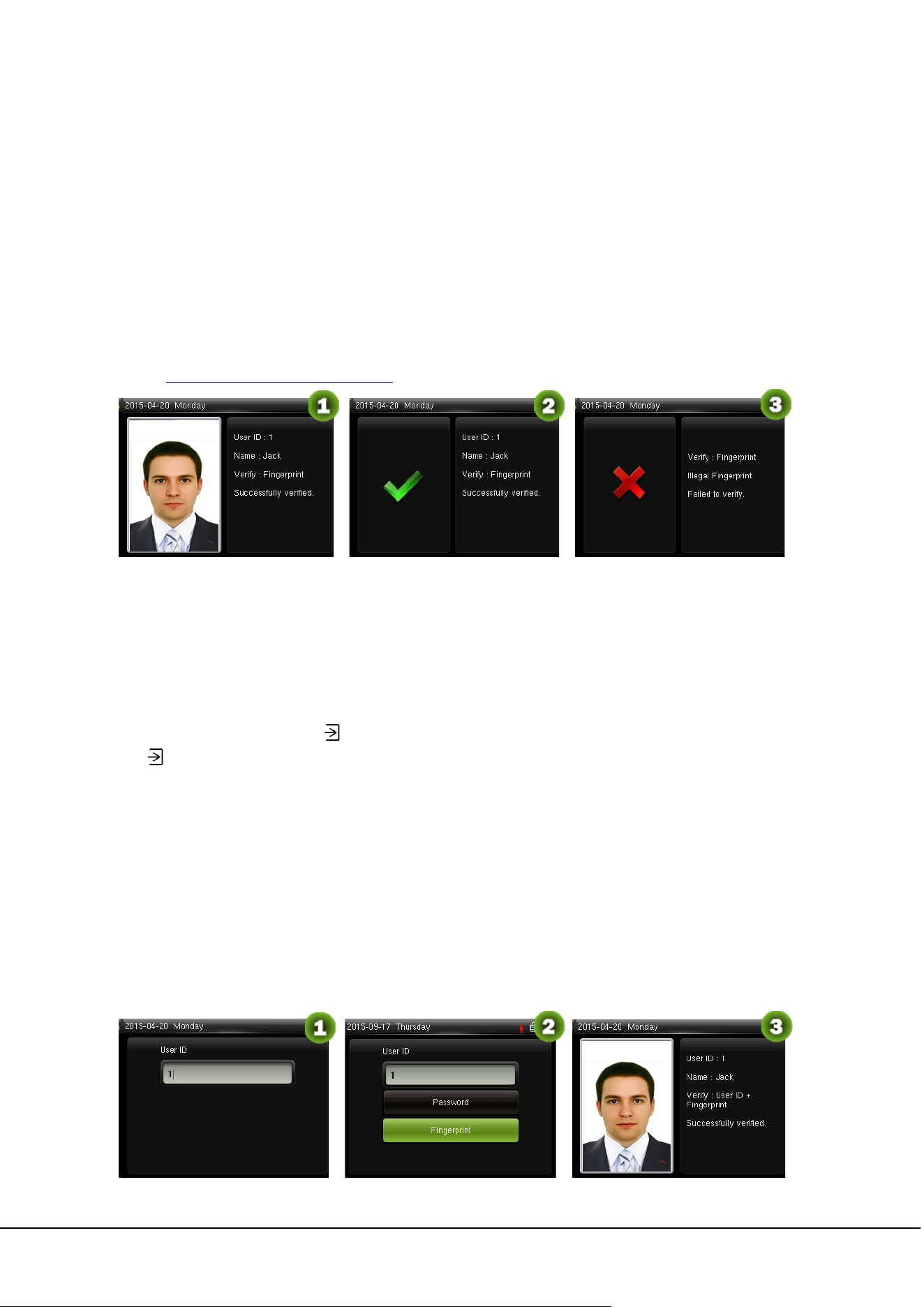
Under the fingerprint verification method, a fingerprint collected by the sensor is verified with all
fingerprints stored in the device.
Please use the correct way to press fingerprint onto the fingerprint sensor (for detailed instruction, please
refer to 1.1 Method of Pressing Fingerprint
).
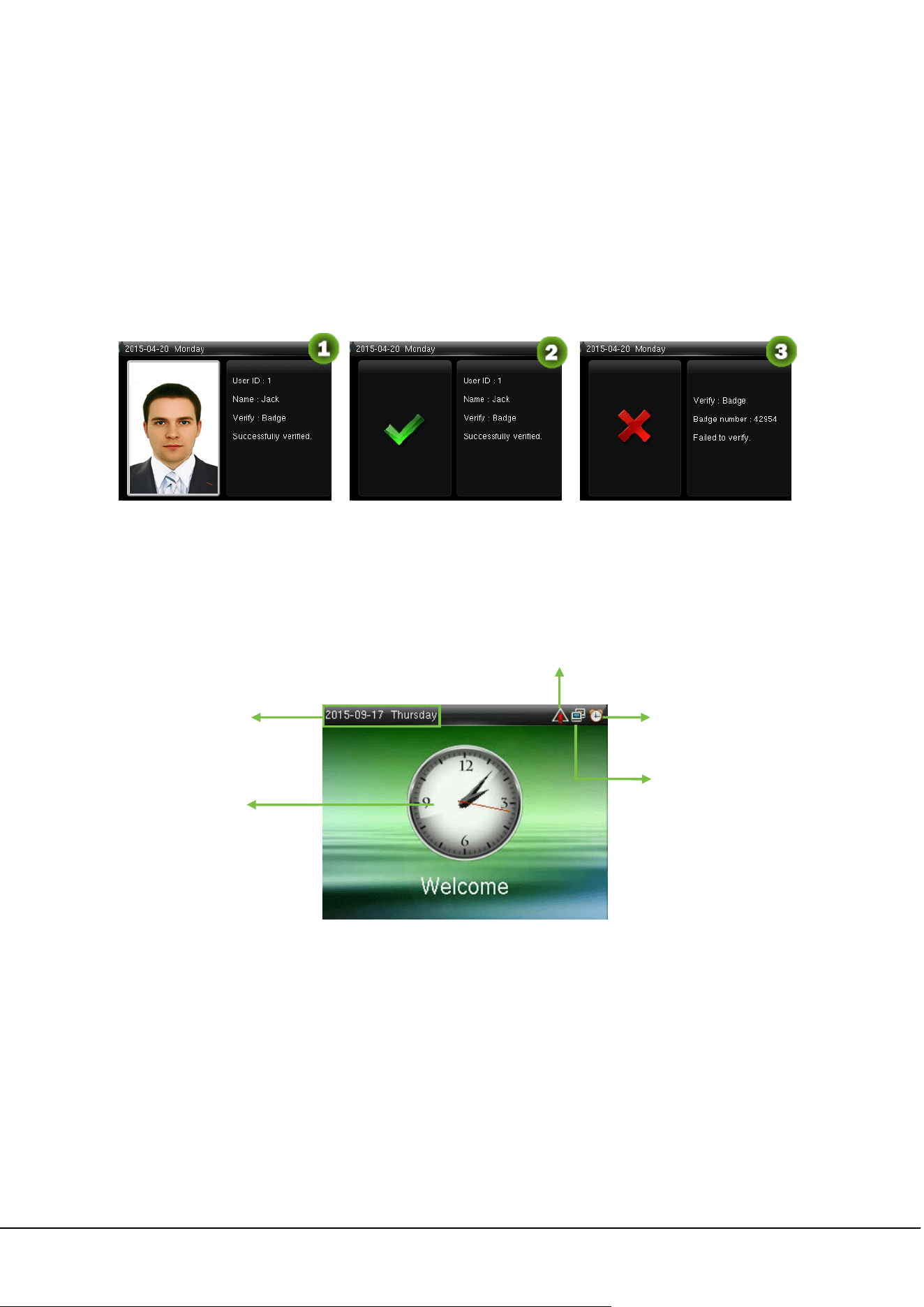
Verification Succeeds Verification Succeeds Verification Fails
Remarks
:
1. In the devices possessing Photo ID function and enabling [Display User Photo] at the same time,
figure 1 will be displayed on screen after successful verification. Disable the [Display User Photo]
option, figure 2 will be displayed after successful verification.
2. In the initial interface, press
> System > Access Logs Setting > Display User Photo, and press
to enable or disable the [Display User Photo] option.
Only some products are equipped with Photo ID function. Products without Photo ID function will not
display user photo after successful verification.
1.2.2 1:1 Fingerprint Verification
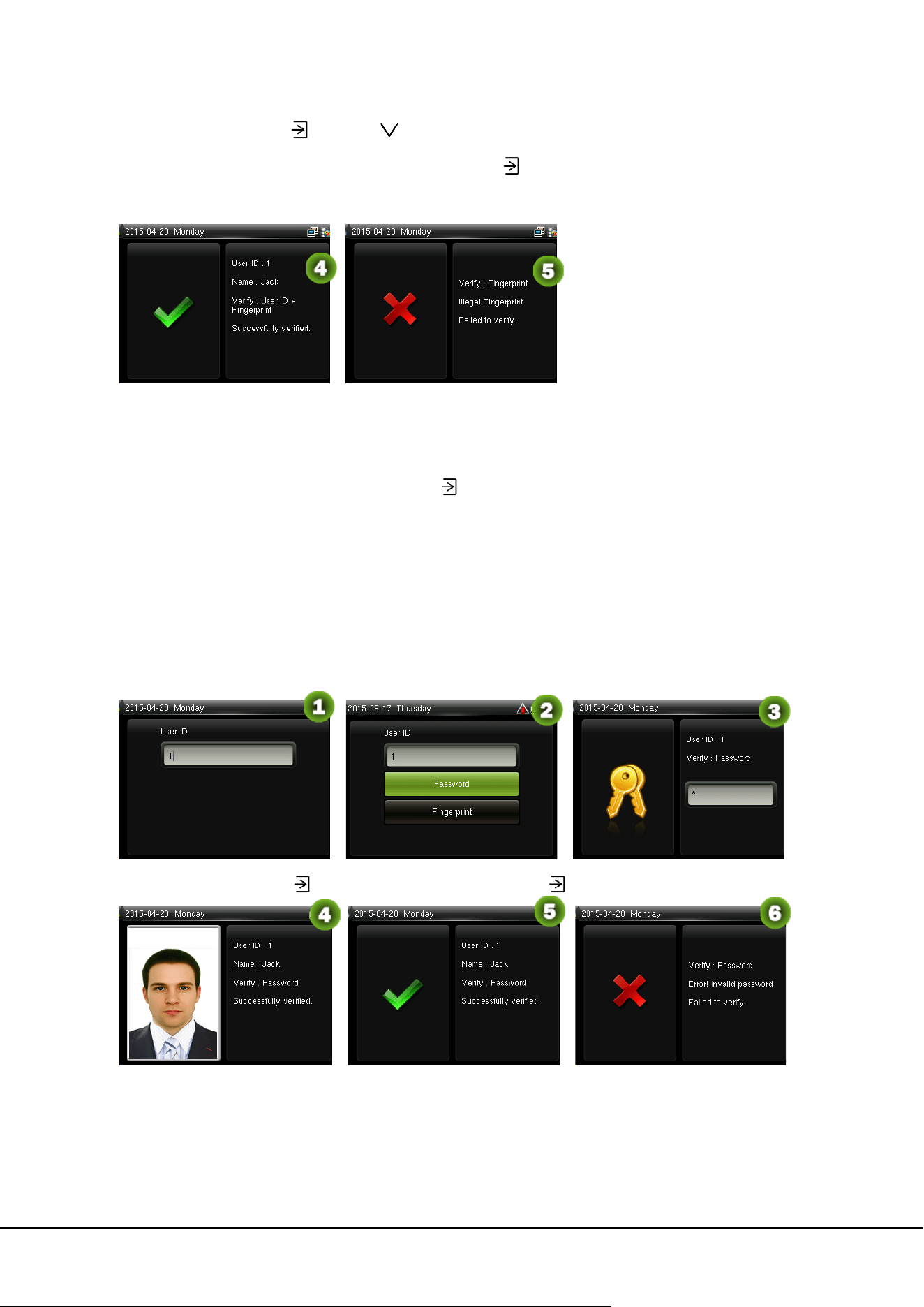
Under the fingerprint verification method, a fingerprint collected by the sensor is verified with the
fingerprint corresponding to the entered user ID. Please use this method when difficulty is encountered
in 1:N fingerprint verification.
1 Guidance Notes 3
Input the user ID and press
Press
button to choose
“Fingerprint” and press
. Press
finger onto the sensor afterwards
Verification succeeds
Verification succeeds Verification fails
Remarks:
1. Input user ID in the initial interface and press
button. If “Incorrect user ID!” is displayed, this means
the user ID does not exist.
2. When the device displays “please press your finger again”, press your finger again onto the
fingerprint sensor. If verification still fails after 2 attempts, it will exit to the initial interface.
1.2.3 Password Verification
Under this verification method, the entered password is verified with the password of the entered user ID.
Input the user ID and press
Choose “Password” and press
Input password
Verification succeeds Verification succeeds Verification fails
Remarks: If “Incorrect password” is displayed, please enter the password again. If verification still fails
after 2 attempts, it will exit to the initial interface.
4 ProCapture-T User Manual
1.2.4 Card Verification
Remarks: Card function is optional, only products with a built-in card module are equipped with
card verification function. Please contact our technical support as required.
1. Swipe the card above the card reader (the card must be registered first)
2. Verification succeeds
3. Verification fails
1.3 Initial Interface
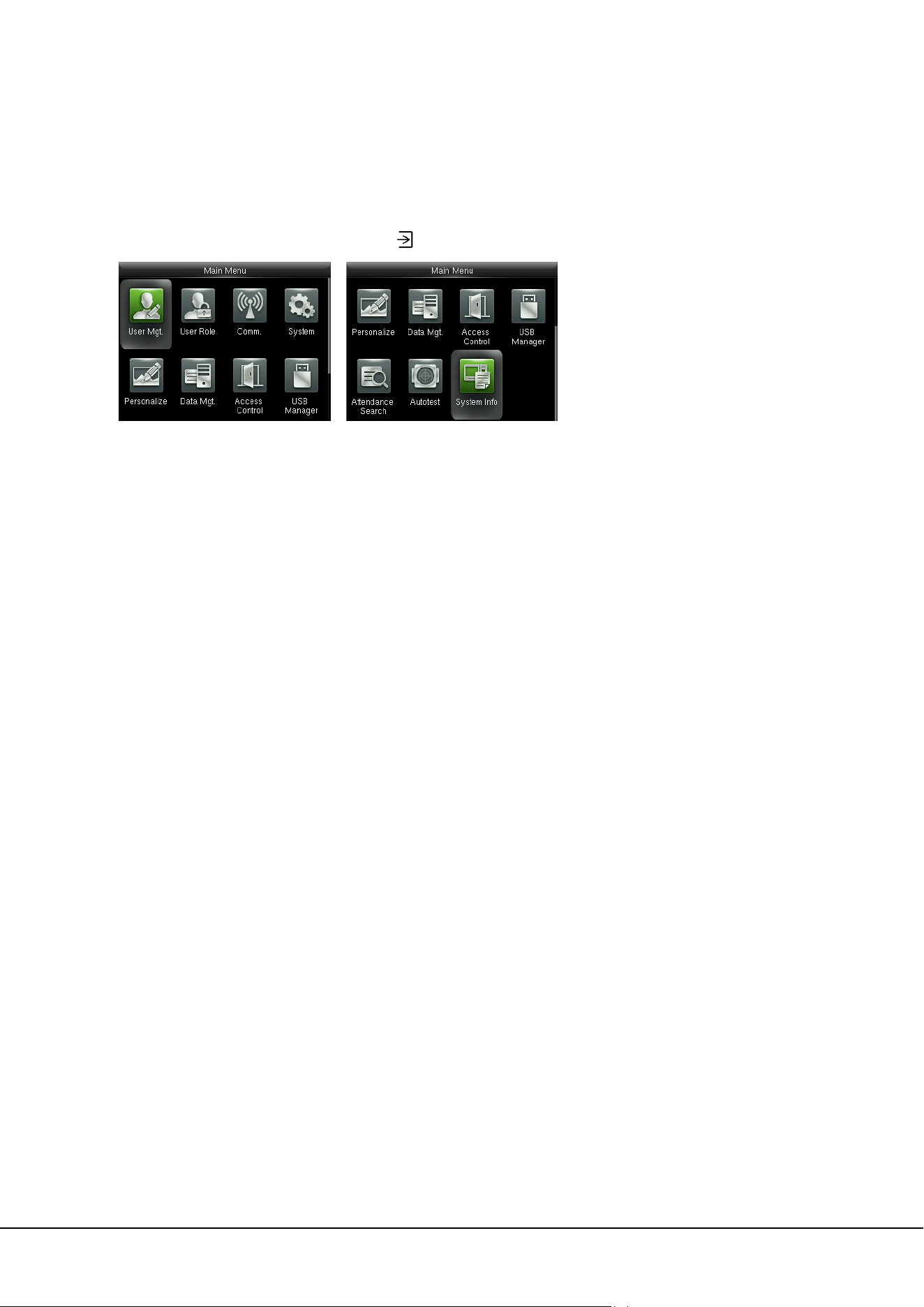
When the device is turned on, the initial interface is shown as below:
Date & Time
Alarm Signal
Bell Signal
Time
Network
Connection Signal
2 Main Menu 5
2 Main Menu
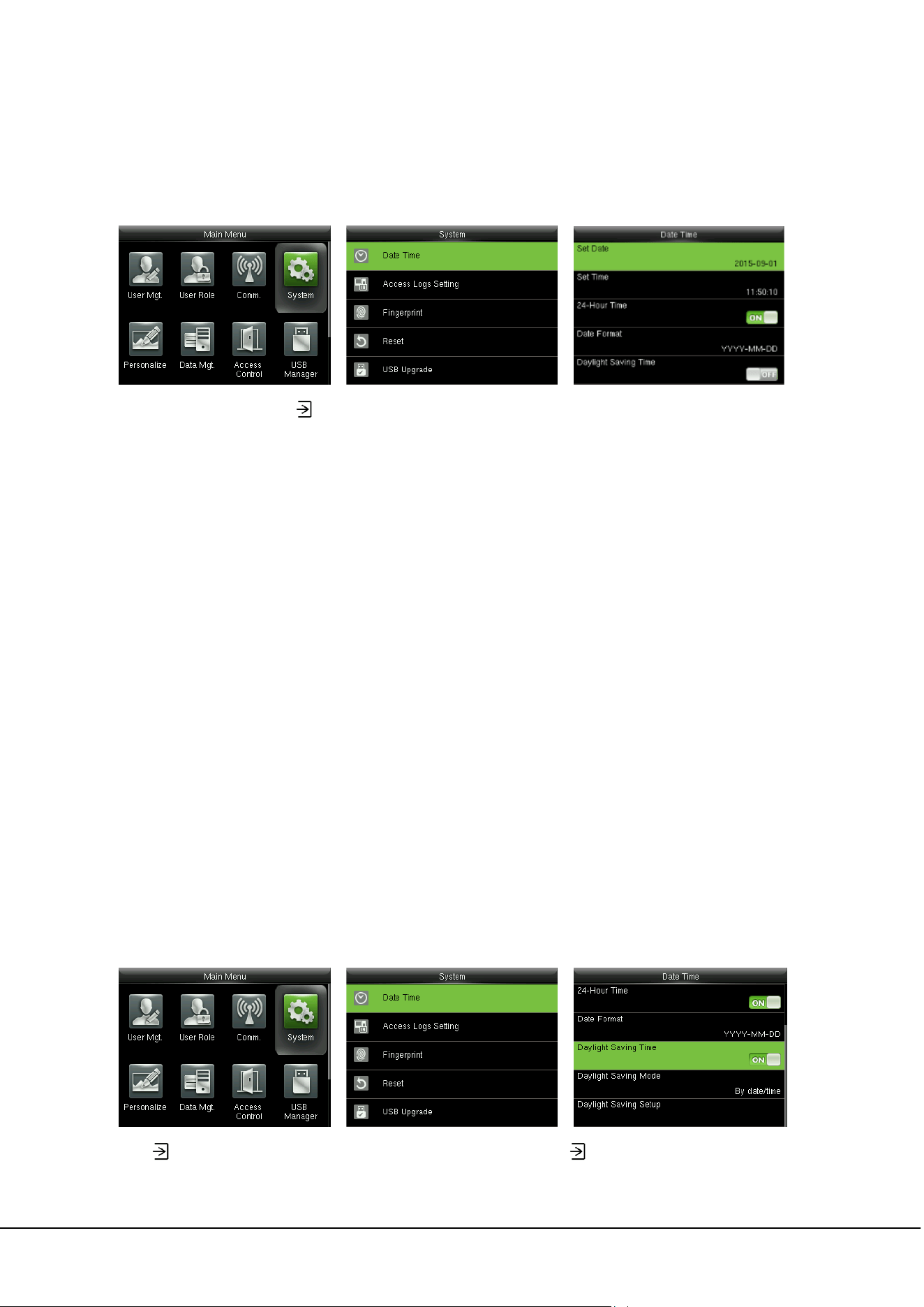
When the device is in standby mode, press to enter the Main Menu.
User Mgt.: Basic information of registered users, including user ID, user name, user role, fingerprint,
badge ★ (ID and MiFare card are optional), password, user photo★ (only products possessing Photo ID
function display this optional) and access control role.
User Role: To set user roles for accessing into the menu and changing settings.
Comm.: To set the related parameters of the communication between the device and PC, including
ethernet parameters such as IP address etc., serial Comm, PC connection,ADMS and Wiegand settings.
System: To set related parameters of the system and upgrade firmware, including setting date & time,
access logs, fingerprint parameters and resetting to factory settings.
Personalize: This includes interface display, voice and bell settings.
Data Mgt.: delete access records, delete all data, delete admin role, delete screen savers and backup,
restore data.
Access Control: To set the parameters of the control lock and access control devices, including
parameters of access control, time rules, holidays, combined unlocking, and anti-passback.
USB Manager: To transfer data such as user data and access records from the USB disk to the supporting
software or other devices.
Attendance Search: To search for the records stored in the device after successful verification.
Autotest: To automatically test different module’s functions, including the LCD, voice, keyboard,
fingerprint sensor, camera and clock RTC test.
System Info: To check device capacity, device and firmware information.
6 ProCapture-T User Manual
3 Date/Time Settings
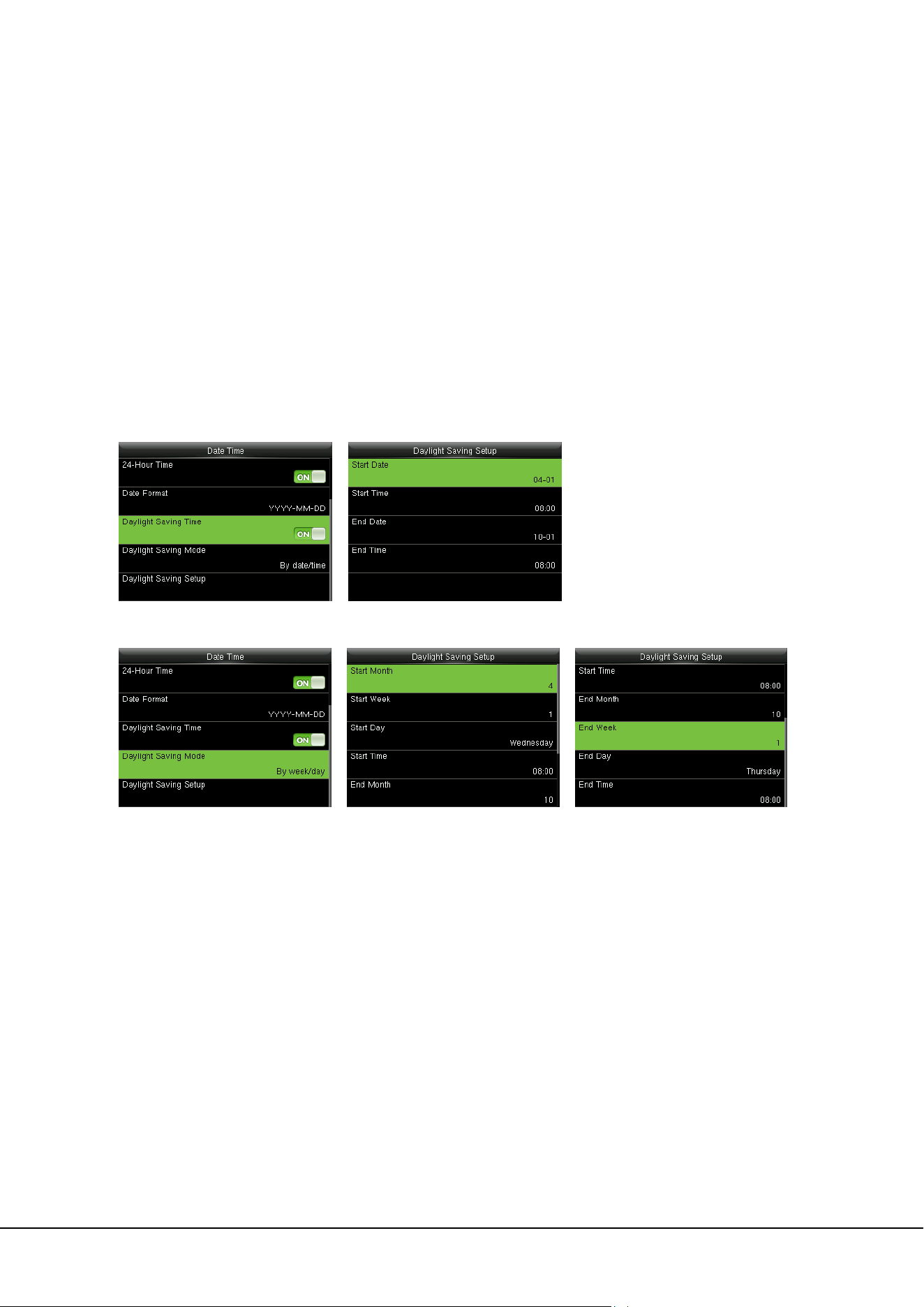
In the initial interface, press
> System > Date Time to enter the date/time setting interface. It
includes setting date, time, 24-hour clock, date format and daylight saving time.
When resetting to factory settings, the date format can be restored (YYYY-MM-DD).
Remarks: When resetting to factory settings, the device’s date/time will not be restored (if the
date/time is set to 18:30 on January 1, 2020, after settings are reset, the date/time will stay at 18:30 on
January 1, 2020.
3.1 Daylight Saving Time
DST, which is also called Daylight Saving Time, is a system adjusting local time in order to save energy.
The time adopted during the set dates is called "DST". Usually, the time will be one hour forward in
summer. This enables users to sleep or get up earlier, and also reduce device's lighting to save power. In
autumn, the time will resume the standard time. Regulations are different in different countries. At
present, nearly 110 countries adopt DST.
To meet the demand of DST, a special option can be customized. Make the time one hour forward at XX
(hour) XX (day) XX (month), and make the time one hour backward at XX (hour) XX (day) XX (month)
Press
> System > Date Time > Daylight Saving Time, then press to enable Daylight Saving Time.
3 Date/Time Settings 7
Daylight Saving Mode: Daylight Saving Time Mode, by date/time mode and by week/day mode for
selection.
Daylight Saving Setup: Set date/time or week/day of the Daylight Saving Time according to the
selection in Daylight Saving Mode.
How to set the Daylight Saving Time?
For example, adjust the clock forward one hour at 08: 00 on April 1 and backward one hour at 08: 00 on
October 1 (the system turns back to the original time).
By date/time mode:
By week/date mode:
Remarks:
1. If the month when DST starts is later than that when DST ends, DST spans two different years. For
example, the DST start time is 2014-9-1 4:00 and the DST end time is 2015-4-1 4:00.
2. Assume that the week /day mode is selected in [Daylight Saving Mode] and the DST starts from
Sunday of the sixth week of September in 2013. According to the calendar, September of 2014 does
not have six weeks but has five weeks. In this case, in 2014, DST starts at the corresponding time point
of the last Sunday of September.
Assume that the DST starts from Monday of the first week of September in 2014. According to the
calendar, the first week of September in 2015 does not have Monday. In this case, the DST starts from the
first Monday of September in 2015.
8 ProCapture-T User Manual
4 User Management
4.1 Adding User
Including adding super admin and normal user.
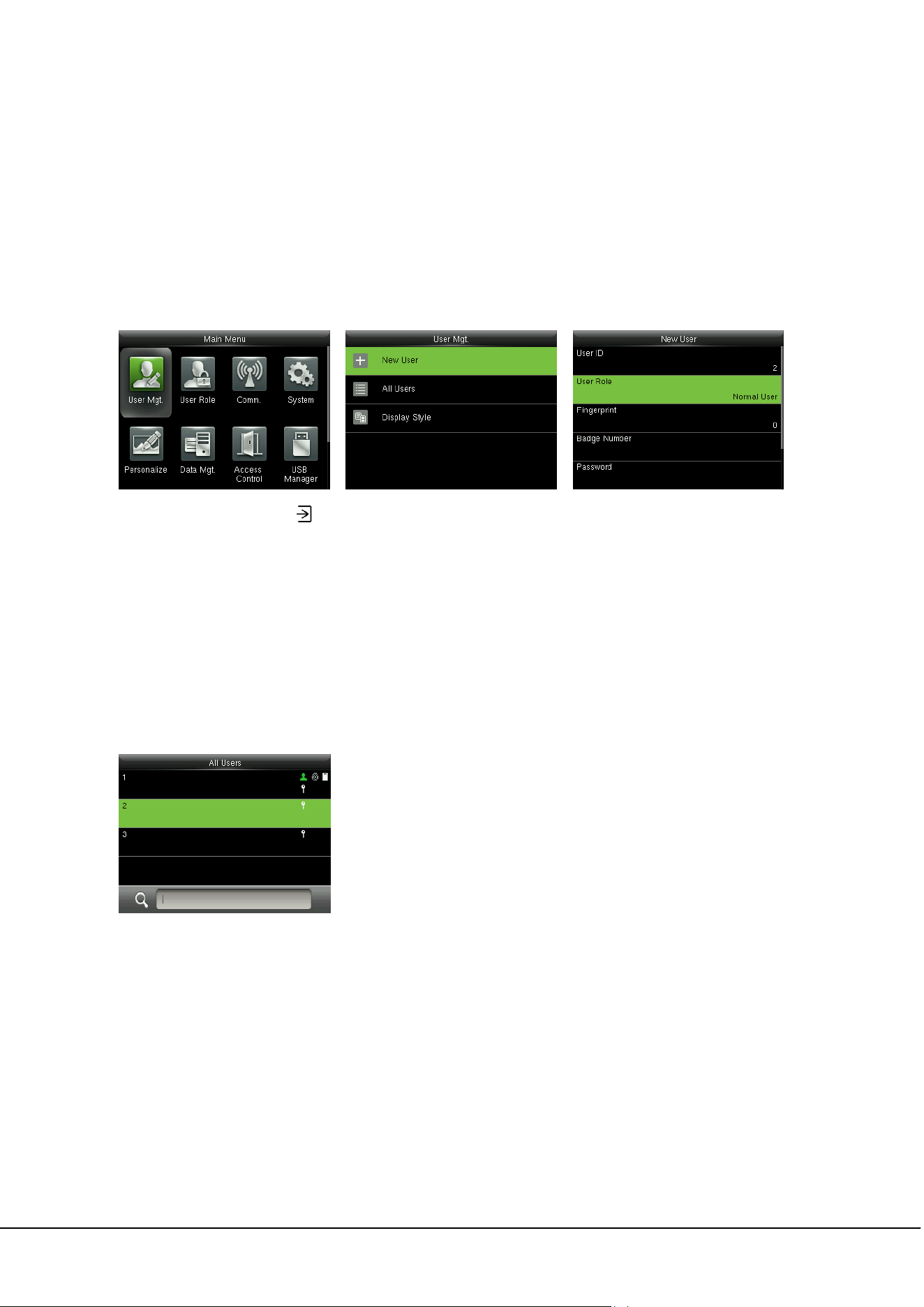
In the initial interface, press
> User Mgt. > New User to enter New User setting interface. Settings
include inputting User ID, choosing User Role (Normal User / Super Admin), registering Fingerprint and
Badge Number (ID and Mifare card are optional), setting Password, taking User Photo (only products
possessing Photo ID function display this optional) and setting Access Control Role.
Add a Super Admin: Choose “Super Admin” in [User Role], who is allowed to operate all the functions
on the menu.
As shown below, the user with User ID 1 is a super admin
Add a Normal User: Choose “Normal User” in [User Role]. When the Super Admin is set, Normal Users
can only use fingerprint, password or card for verification; when the Super Admin is not yet set, Normal
Users can operate all functions on the menu.
Password: 1 to 8 digits of password is accepted.
Remarks:
1.
The device automatically allocates user ID for users in sequence, but user can set it manually as well.
2.
The device supports user ID ranged from 1 to 9 digits.
4 User Management 9
4.2 Setting Access Control
User access control option is to set open door access aimed at everybody, including access group setting,
using time period, duress fingerprint management.
Access group: To allocate users to different access control groups for management. New users belong to
Group 1 in default settings, who can be reallocated to other groups. A valid group number ranges from 1
to 99.
Time Period: Select time rules for the user. Time rules are set under the Access Control menu and a
maximum of 50 time rules are supported. The effective door opening time period of the user is the sum
of the selected time rules.
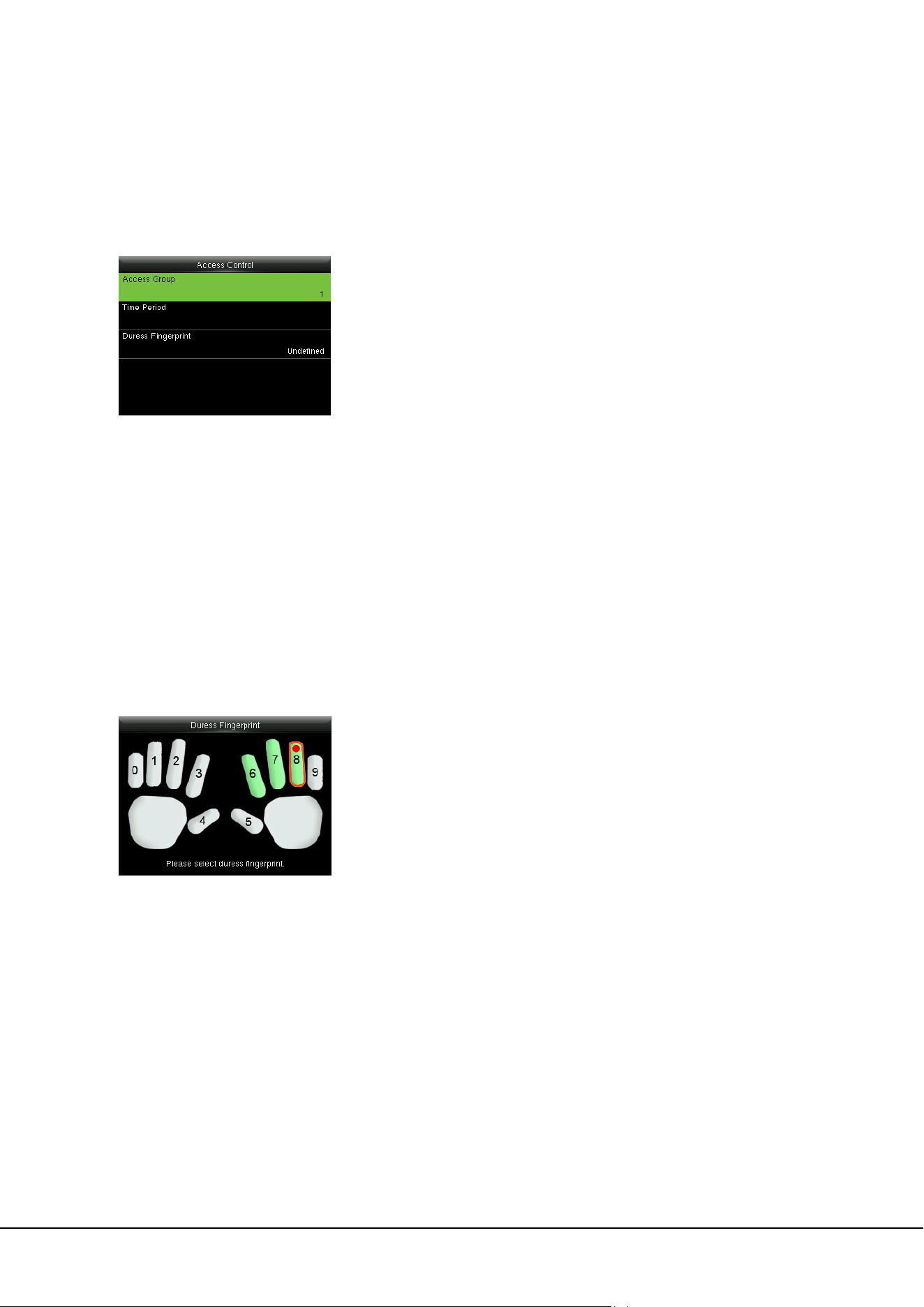
Duress Fingerprint: User can choose one or more registered fingerprint(s) as Duress Fingerprint. When
that fingerprint is verified, duress alarm will be triggered.
Example: Among those registered fingerprints (6, 7, 8), choose the 8
th
fingerprint as the duress
fingerprint.
4.3 Searching User
Enter user ID on the [All Users] List to search for a user.
10 ProCapture-T User Manual
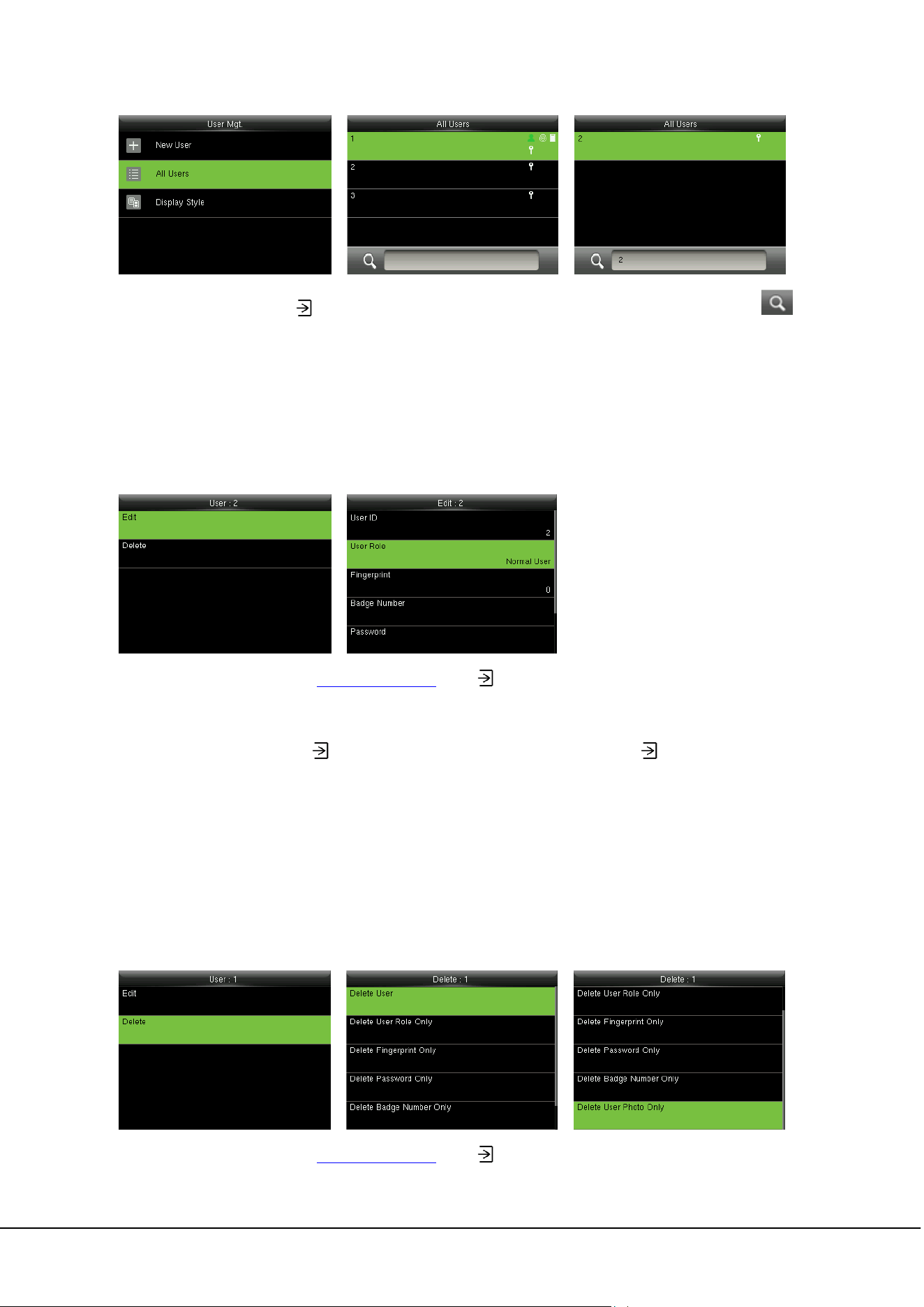
In the initial interface, press
> User Mgt. > All User to enter All User interface. Input “User ID” in ,
the corresponding user will be shown. As shown in the above figure, search for the user with the user ID
of “2”.
4.4 Editing User
After a user is chosen through 4.3 Searching User, press
and select [Edit] to enter user editing
interface.
Or in the initial interface press > User Mgt. > All User > Search a user > Press > Edit to enter user
editing interface.
The operation method of editing user is the same with that of adding user, but the user ID cannot be
edited.
4.5 Deleting a User
After a user is chosen through 4.3 Searching User, press
and select [Delete] to enter user deleting
4 User Management 11
interface.
Or in the initial interface press
> User Mgt. > All User > Search a user > Press > Delete to enter
user deleting interface. Select user information to be deleted or delete the whole user.
Note:
1. Only when the user has registered fingerprint, password, badge★ and user photo★, will the
corresponding to-be-deleted item be shown.
2. Photo ID function and card function are optional, not all products are equipped.
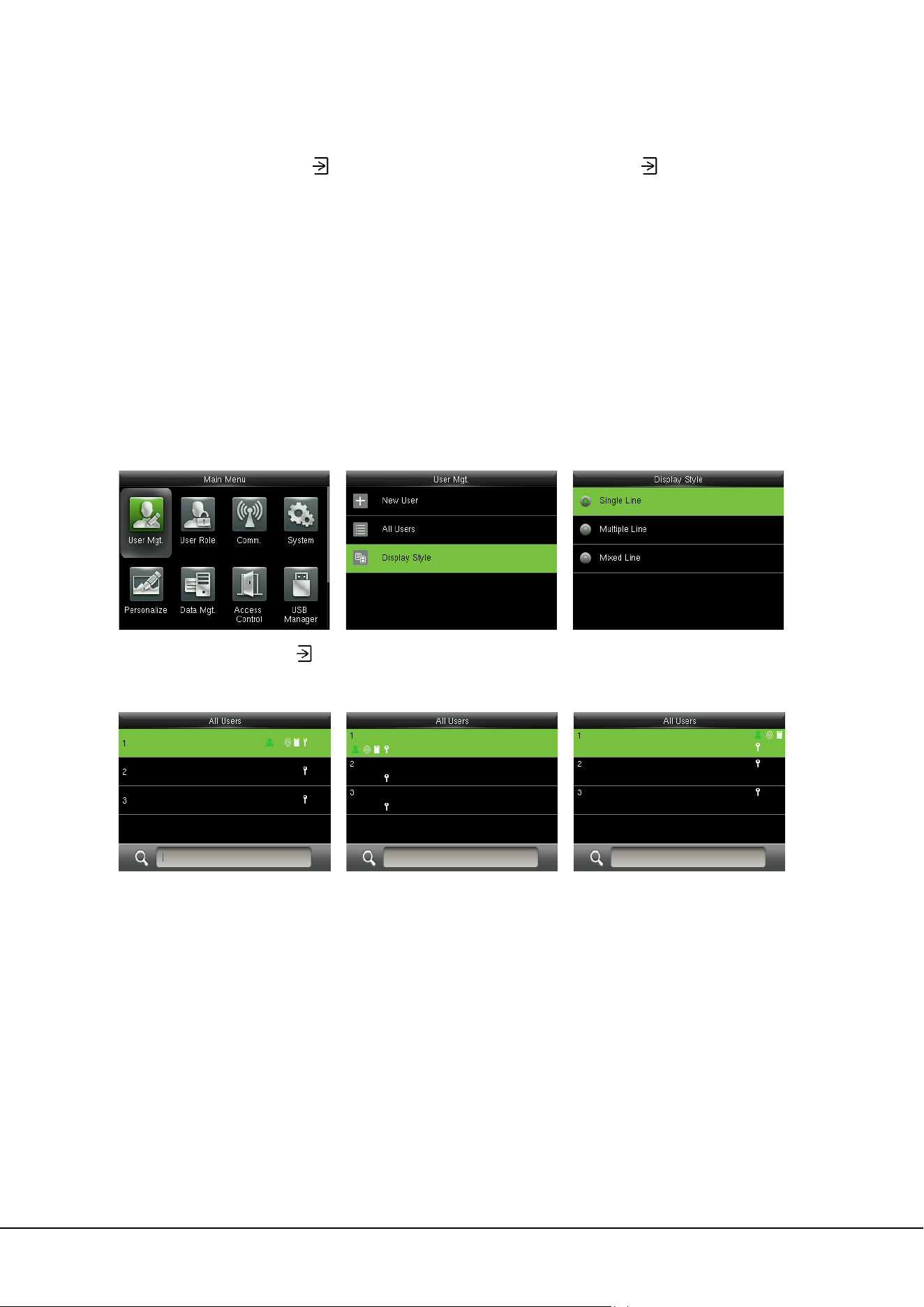
4.6 User Display Style
In the initial interface, press
> User Mgt. > Display Style to enter Display Style setting interface.
Several Display Styles are show as below:
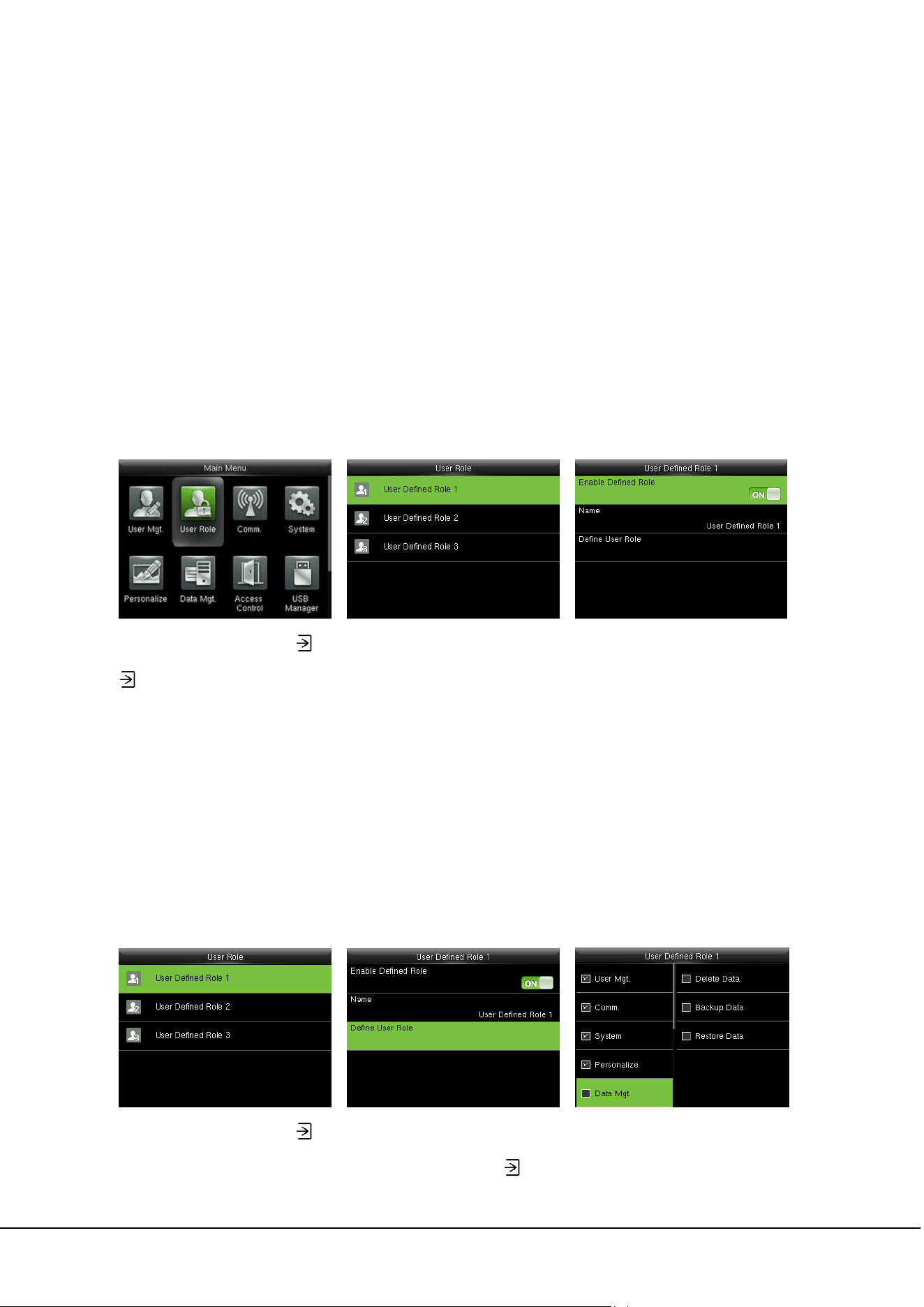
Single Line Style Multiple Line Mixed Line
12 ProCapture-T User Manual
5 User Role
Setting user rights of operating the menu (a maximum of 3 roles can be set). When user role is enabled,
in [User Mgt.] > [New User] > [User Role], you can allocate suitable user role to each user.
Role: Super user needs to allocate different rights to new users. To avoid setting rights for each user one
by one, you can set user roles to categorize different permission levels in user management.
5.1 Enabling User Role
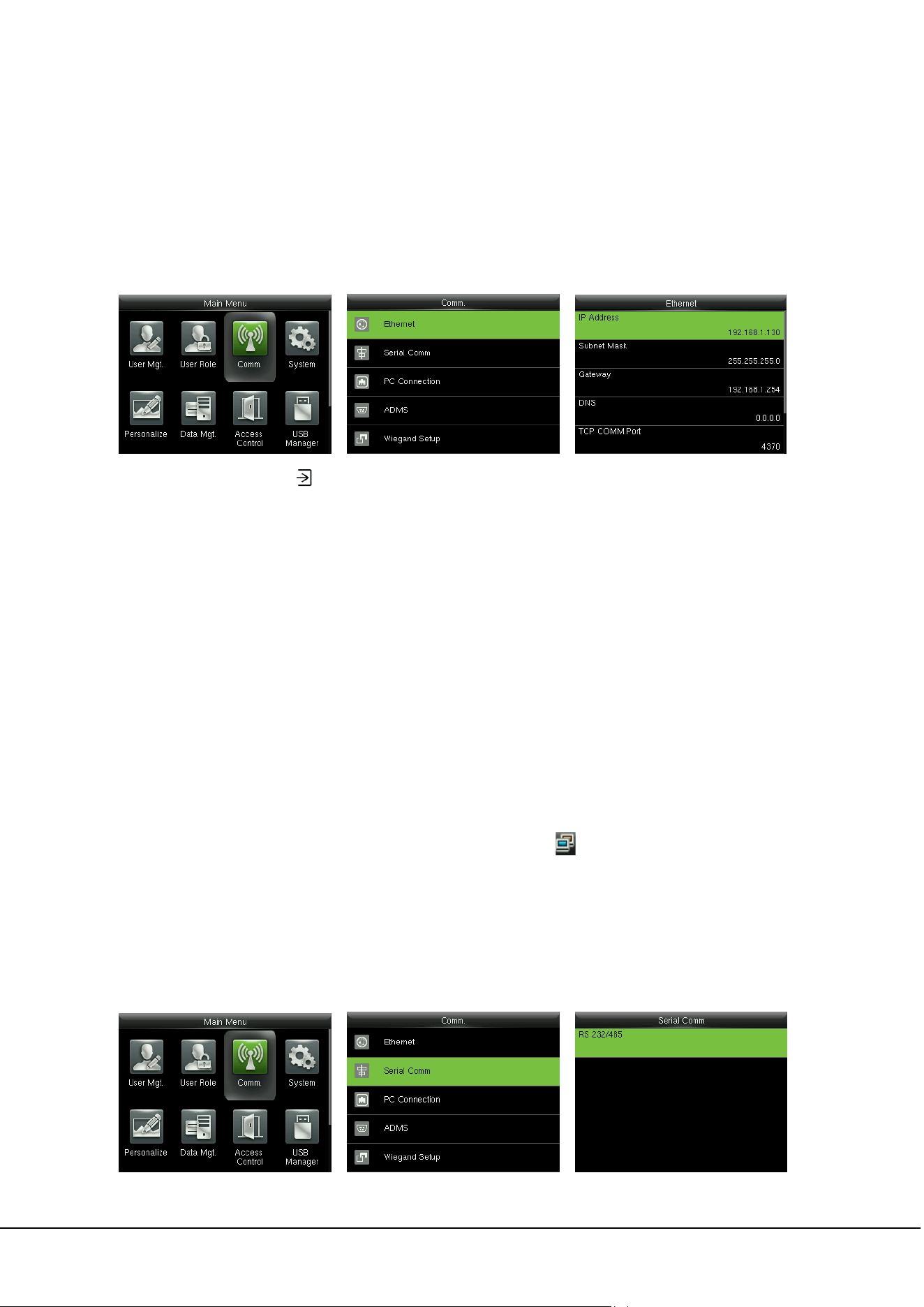
In the initial interface, press
> User Role > User Defined Role 1 (2 / 3) > Enable Defined Role, Press
to enable defined role.
After enable defined roles, you can check the enabled user roles in [User Mgt.] > [New User] > [User
Role].
Remarks: At least one registered Administrator is required to enable user role, or, the device will
prompt “Please enroll super admin first”.
5.2 Rights Allocation
In the initial interface, press
> User Role > User Defined Role 1 (2 / 3) > Define User Role to enter
User Defined Role 1 (2 /3) rights allocating interface. Press
to select or cancel the operating right to

5 User Role 13
each menu for User Defined Role 1 (2 /3). After selection, press back to User Defined Role 1 (2 /3)
editing interface.
14 ProCapture-T User Manual
6 Comm. Settings
6.1 Ethernet Settings
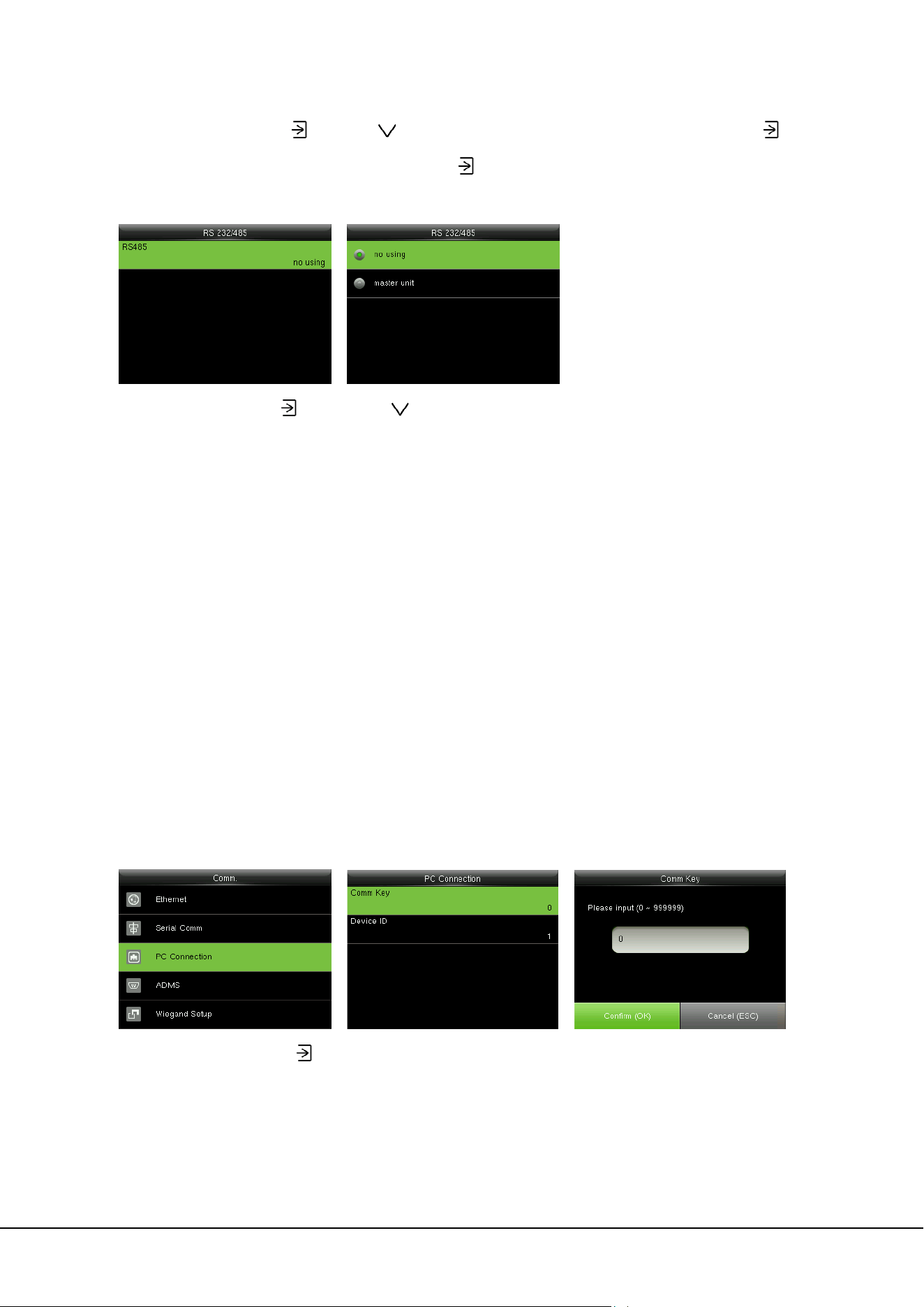
In the initial interface, press
> Comm. > Ethernet to enter the Ethernet setting interface.
The parameters below are the factory default values, please adjust them according to the actual network
situation.
IP Address: 192.168.1.201
Subnet Mask: 255.255.255.0
Gateway: 0.0.0.0
DNS: 0.0.0.0
TCP COMM. Port: 4370
DHCP: Dynamic Host Configuration Protocol, which is to dynamically allocate IP addresses for clients via
server. If DHCP is enabled, IP cannot be set manually.
Display in Status Bar: To set whether to display the network icon
on the status bar.
6.2 Serial Comm. Settings
Turning On /Off RS485 Function
6 Comm. Settings 15
In the initial interface, press
to enter main menu, and select
Comm.
Press
key to select Serial
Comm and press
to enter
Select RS232/485 and press
to enter
Select RS485 and press
to
enter
Press
key to select RS485 as
the function of “master unit” or
choose to disable RS485
Remarks:
When RS485 is used as the function of “master unit”, the device will act as “master unit”, and it can
be connected to RS485 fingerprint reader.
6.3 PC Connection
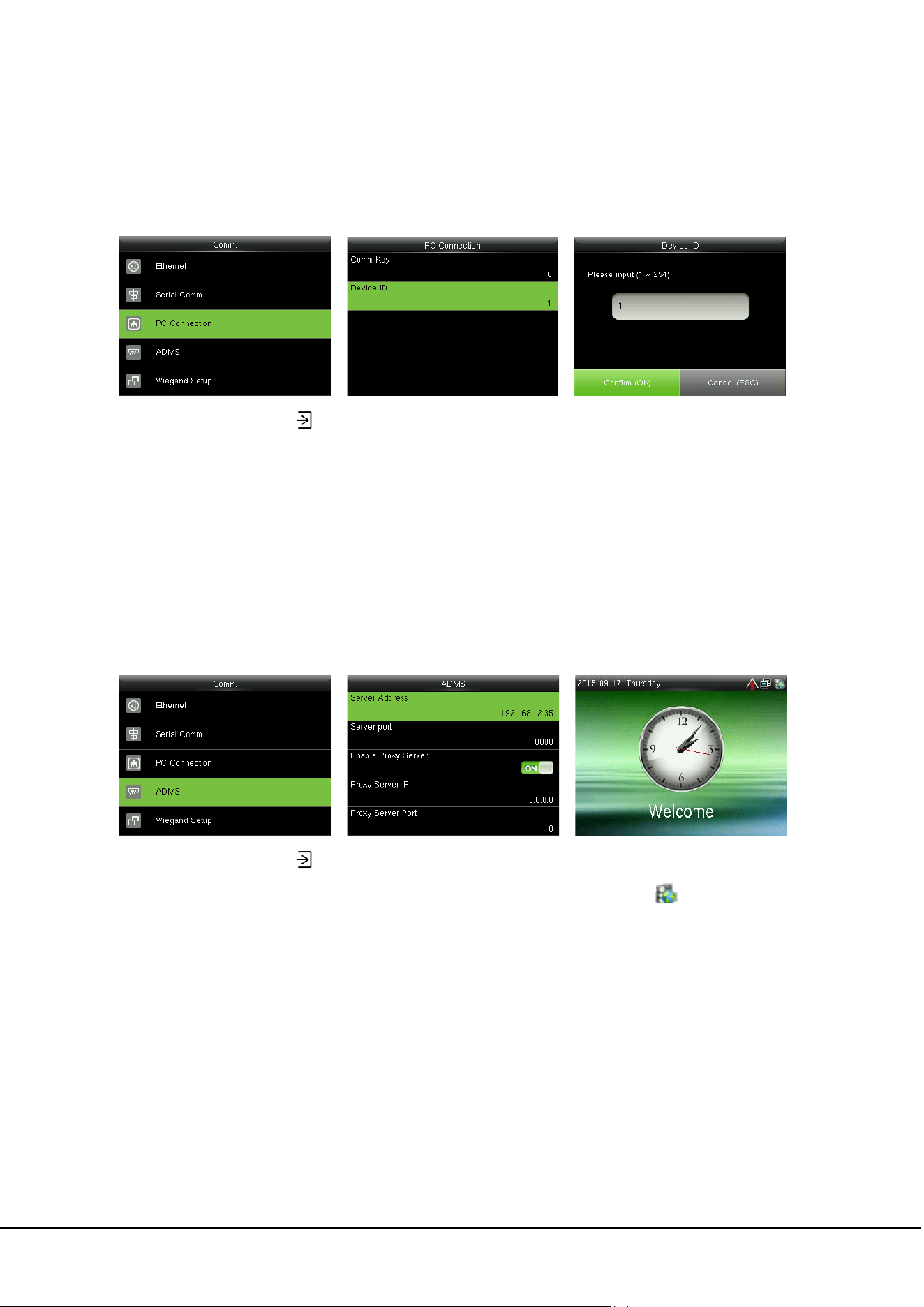
Comm key Settings
To improve security of data, Comm Key for communication between the device and PC needs to be set.
If a Comm Key is set in the device, the correct connection password needs to be entered when the
device is connected to the PC software, so that the device and software can communicate.
In the initial interface, press
> Comm. > PC Connection > Comm Key to enter the Comm Key
setting interface.
Comm Key: The default password is 0 (no password). Comm Key can be 1~6 digits and ranges between
0~999999.
16 ProCapture-T User Manual
Device ID Settings
If the communication method is RS232/RS485, inputting this device ID in the software communication
interface is required.
In the initial interface, press
> Comm. > PC Connection > Device ID to enter the Device ID setting
interface.
Device ID: Identity number of the device, which ranges between 1~254.
6.4 ADMS
Settings used for connecting with ADMS server, such as IP address and port settings, and whether to
enable proxy server etc.
In the initial interface, press
> Comm. > ADMS to enter the ADMS server setting interface.
When the Webserver is connected successfully, the main interface will display the
logo.
Server Address: Enter IP address of the ADMS server (namely, the IP address of server where the
software is installed).
Server Port: Enter Port number used by the ADMS server.
Enable Proxy Server: Method of enabling proxy. To enable proxy, please set the IP address and port
number of the proxy server. Entering proxy IP and server address will be the same.
6 Comm. Settings 17
6.5 Wiegand Setup
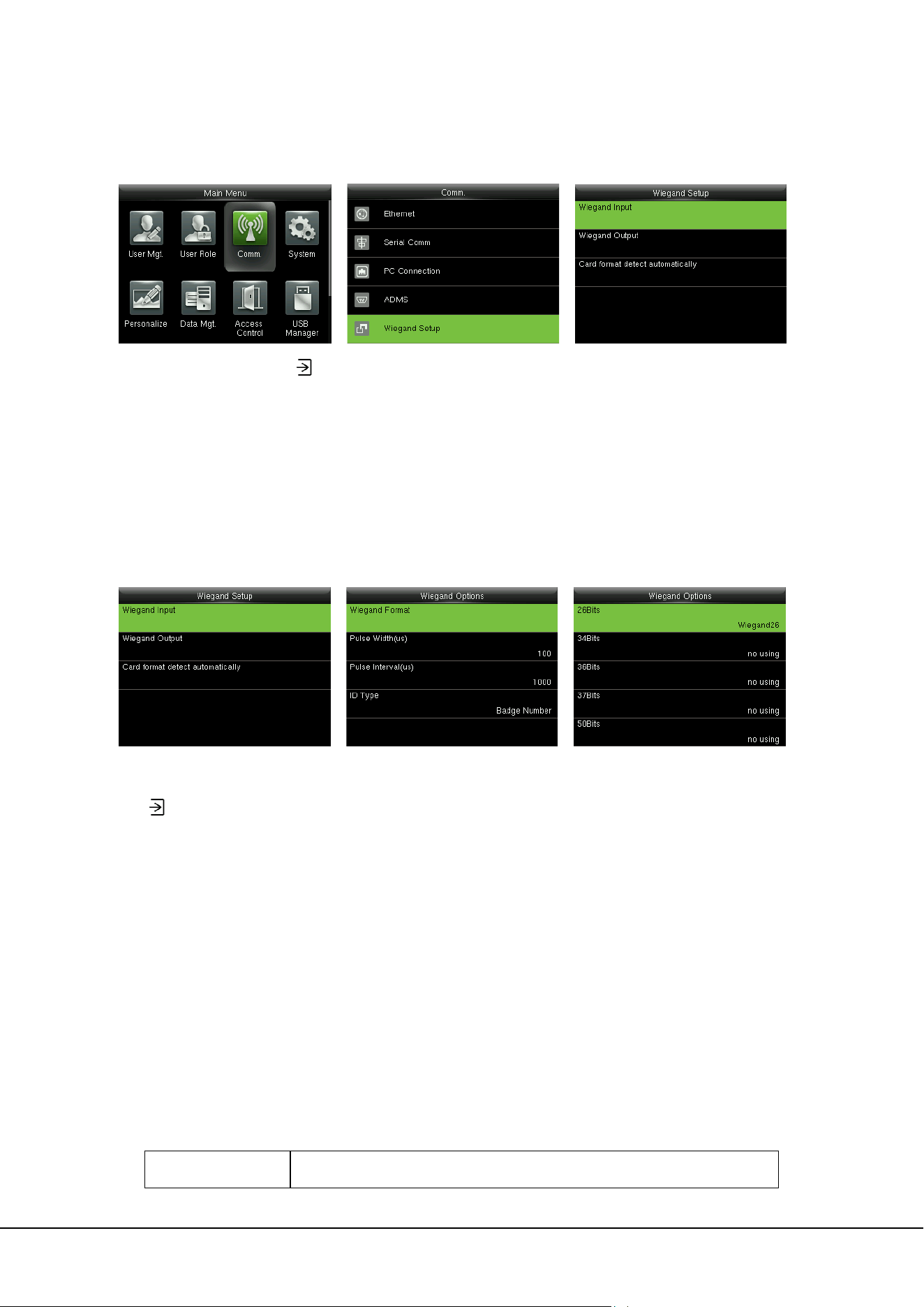
In the initial interface, press
> Comm. > Wiegand Setup to enter the Wiegand Setup setting
interface.
6.5.1 Wiegand Input
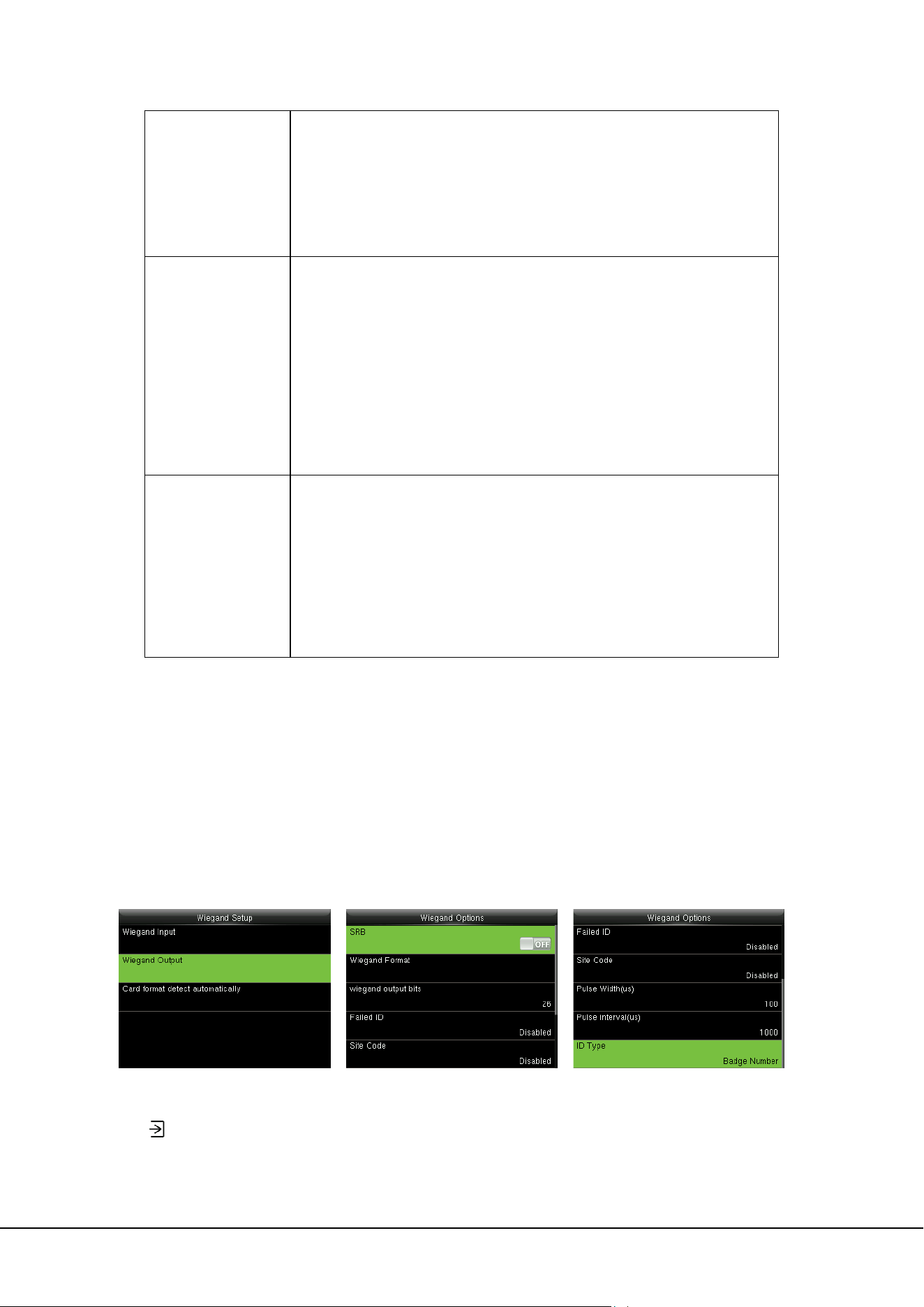
Wiegand Input connector supports card reader, or connects the device as a master device to another
device (slave device), forming a master/slave system.
Select “Wiegadn Input” and
press
to enter
Set parameters in “Wiegand Input” interface
Wiegand Format: User can choose among the following built-in Wiegand formats: Wiegand 26,
Wiegand 26a, Wiegand 34, Wiegand 34a, Wiegand 36, Wiegand 36a, Wiegand 37, Wiegand 37a and
Wiegand 50.
Pulse Width (us):
The width of pulse sent by Wiegand card reader. The default value is 100 microseconds,
which can be adjusted within the range of 20 to 100 microseconds.
Pulse Interval (us):
The default value is 1000 microseconds, which can be adjusted within the range of 200
to 20000 microseconds.
ID Type: Input content included in Wiegand input signal. User ID or Badge Number can be chosen.
Definitions of Wiegand Formats:
Wiegand Format Definition

18 ProCapture-T User Manual
Wiegand26 ECCCCCCCCCCCCCCCCCCCCCCCCO
Consists of 26 bits of binary code. The 1
st
bit is the even parity bit of the
2
nd
to 13
th
bits, while the 26
th
bit is the odd parity bit of the 14
th
to 25
th
bits. The 2
nd
to 25
th
bits are the card number.
Wiegand26a ESSSSSSSSCCCCCCCCCCCCCCCCO
Consists of 26 bits of binary code. The 1
st
bit is the even parity bit of the
2
nd
to 13
th
bits, while the 26
th
bit is the odd parity bit of the 14
th
to 25
th
bits. The 2
nd
to 9
th
bits are the site code, while the 10
th
to 25
th
bits are the
card number.
Wiegand34 ECCCCCCCCCCCCCCCCCCCCCCCCCCCCCCCCO
Consists of 34 bits of binary code. The 1
st
bit is the even parity bit of the
2
nd
to 17
th
bits, while the 34
th
bit is the odd parity bit of the 18
th
to 33
rd
bits. The 2
nd
to 25
th
bits are the card number.
Wiegand34a ESSSSSSSSCCCCCCCCCCCCCCCCCCCCCCCCO
Consists of 34 bits of binary code. The 1
st
bit is the even parity bit of the
2
nd
to 17
th
bits, while the 34
th
bit is the odd parity bit of the 18
th
to 33
rd
bits. The 2
nd
to 9
th
bits are the site code, while the 10
th
to 25
th
bits are the
card number.
Wiegand36 OFFFFFFFFFFFFFFFFCCCCCCCCCCCCCCCCMME
Consists of 36 bits of binary code. The 1
st
bit is the odd parity bit of the
2
nd
to 18
th
bits, while the 36
th
bit is the even parity bit of the 19
th
to 35
th
bits. The 2
nd
to 17
th
bits are the device code, the 18
th
to 33
rd
bits are the
card number, and the 34
th
to 35
th
bits are the manufacturer code.
Wiegand36a EFFFFFFFFFFFFFFFFFFCCCCCCCCCCCCCCCCO
Consists of 36 bits of binary code. The 1
st
bit is the even parity bit of the
2
nd
to 18
th
bits, while the 36
th
bit is the odd parity bit of the 19
th
to 35
th
bits. The 2
nd
to 19
th
bits are the device code, and the 20
th
to 35
th
bits are
the card number.
Wiegand37 OMMMMSSSSSSSSSSSSCCCCCCCCCCCCCCCCCCCE
6 Comm. Settings 19
Consists of 37 bits of binary code. The 1
st
bit is the odd parity bit of the
2
nd
to 18
th
bits, while the 37
th
bit is the even parity bit of the 19
th
to 36
th
bits. The 2
nd
to 4
th
bits are the manufacturer code, the 5
th
to 16
th
bits are
the site code, and the 21
st
to 36
th
bits are the card number.
Wiegand37a EMMMFFFFFFFFFFSSSSSSCCCCCCCCCCCCCCCCO
Consists of 37 bits of binary code. The 1
st
bit is the even parity bit of the
2
nd
to 18
th
bits, while the 37
th
bit is the odd parity bit of the 19
th
to 35
th
bits. The 2
nd
to 4
th
bits are the manufacturer code, 5
th
to 14
th
bits are the
device code, 15
th
to 20
th
bits are the site code, and the 21
st
to 36
th
bits
are the card number.
Wiegand50 ESSSSSSSSSSSSSSSSCCCCCCCCCCCCCCCCCCCCCCCCCCCCCCCCO
Consists of 50 bits of binary code. The 1
st
bit is the even parity bit of the
2
nd
to 25
th
bits, while the 50
th
bit is the odd parity bit of the 26
th
to 49
th
bits. The 2
nd
to 17
th
bits are the site code, and 18
th
to 49
th
bits are the
card number.
Note: C denotes card number, E denotes even parity bit, O denotes odd parity bit, F denotes facility
code, M denotes manufacturer code, P denotes parity position, and S denotes site code.
6.5.2 Wiegand Output
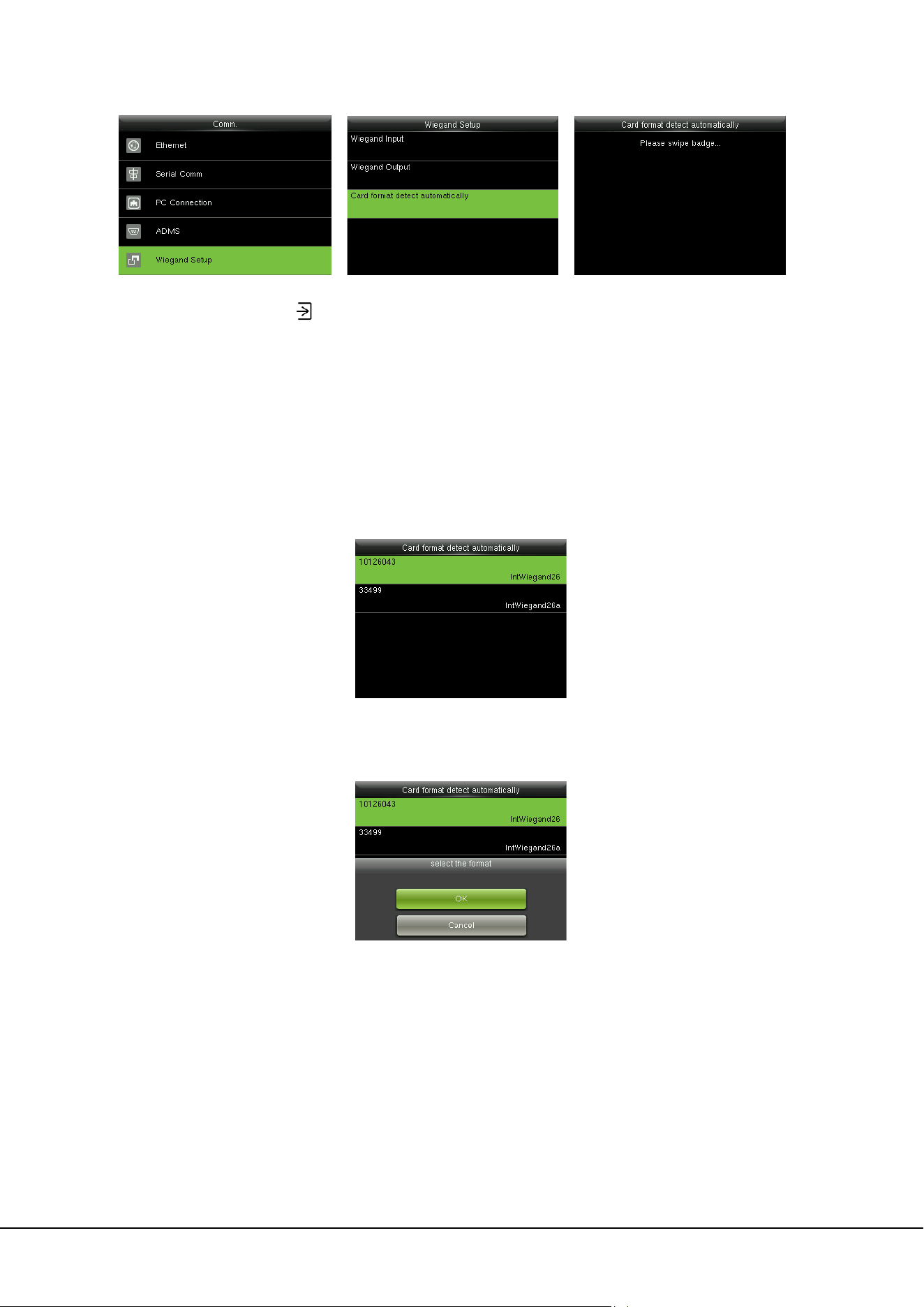
Wiegand Output connector supports SRB, or connects the device as a slave device to another device
(master device), forming a master/slave system.
Select “Wiegadn Output” and
press
to enter
Set parameters in “Wiegand Output” interface
SRB: Select [ON] to turn the SRB function on, while choosing [OFF] can disable the function.

20 ProCapture-T User Manual
Wiegand Format: User can choose among the following built-in Wiegand formats: Wiegand 26,
Wiegand 26a, Wiegand 34, Wiegand 34a, Wiegand 36, Wiegand 36a, Wiegand 37, Wiegand 37a and
Wiegand 50. Multiple selections are available, but the actual Wiegand format will depend on the option
in [Wiegand output bits].
For Example: If the 26-bit Wiegand26, 34-bit Wiegand34a, 36-bit Wiegand36, 37-bit Wiegand37a and
50-bit Wiegand50 are chosen in [Wiegand Format], but 36 bits is selected in [Wiegand output bits],
then the actual Wiegand format for use will be 36-bit Wiegand36.
Wiegand output bits: Number of bits of Wiegand data. After choosing [Wiegand output bits], the
device will use the set number of bits to find the suitable Wiegand format in [Wiegand Format].
For Example: If the 26-bit Wiegand26, 34-bit Wiegand34a, 36-bit Wiegand36, 37-bit Wiegand37a and
50-bit Wiegand50 are chosen in [Wiegand Format], but 36 bits is selected in [Wiegand output bits],
then the actual Wiegand format for use will be 36-bit Wiegand36.
Failed ID:
It is defined as the output value of failed user verification. The output format depends on the
[Wiegand Format] setting. The default value ranges from 0 to 65535.
Site Code: It is similar to device ID except that it can be set manually and repeatable with different
devices. The default value ranges from 0 to 256.
Pulse Width (us):
The width of pulse sent by Wiegand card reader. The default value is 100 microseconds,
which can be adjusted within the range of 20 to 100 microseconds.
Pulse Interval (us):
The default value is 1000 microseconds, which can be adjusted within the range of 200
to 20000 microseconds.
ID Type: Output content after successful verification. User ID or Badge Number can be chosen.
6.5.3 Card Format Detect Automatically
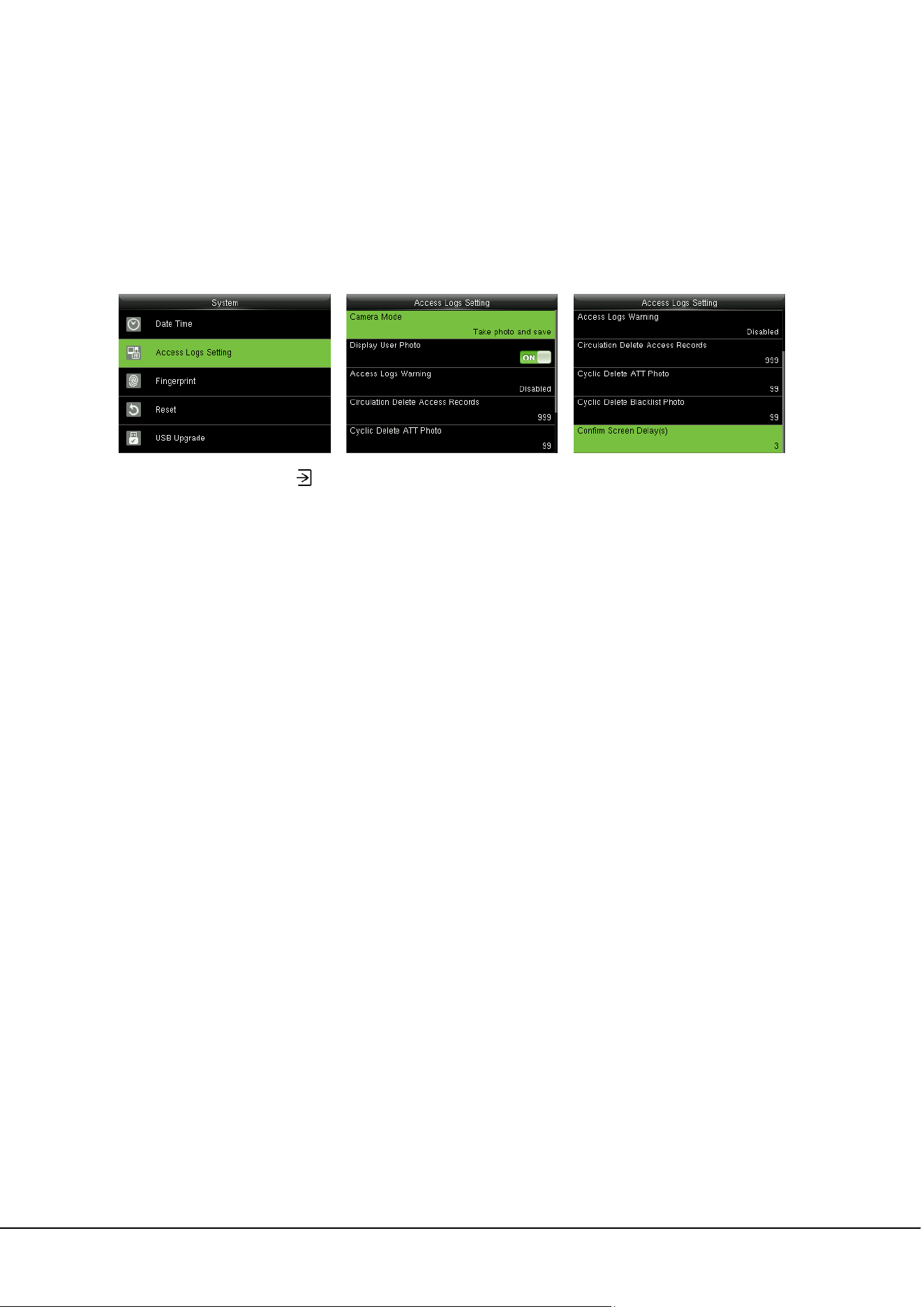
[Card Format Detect Automatically] aims at assisting user with quickly detecting the card type and its
corresponding format. Various card formats are preset in the device. After card swiping, the system will
detect it as different card numbers according to every format; user only requires to choose the item
equivalent to the actual card number, and set the format as the Wiegand format for the device. This
function is also applicable to card reading function and auxiliary Wiegand reader.
6 Comm. Settings 21
In the initial interface, press
> Comm. > Wiegand Setup > Card format detect automatically to
enter the Card format detect automatically interface.
Operating Procedure:
1. After entering the [Card Format Detect Automatically] interface of an ID device, swipe the ID card
above the card reader (on the local device or auxiliary card reader), the interface will show the
automatically detected Wiegand formats and the analyzed card numbers.
2. Choose the item corresponding to the actual card number as the device’s [Wiegand format],
which is the Wiegand format for reading that type of card.
Remarks: In the [Card format detect automatically] interface of an IC device, the device cannot
detect the card number or Wiegand format only by swiping an IC card. For detecting the Wiegand format
of an IC card, it is needed to connect an IC card reader with the device and swipe an IC card above the
auxiliary card reader, so that the device will show the card number and the Wiegand format.
22 ProCapture-T User Manual
7 System Settings
7.1 Access Logs Settings
In the initial interface, press
> System > Access Logs Setting to enter Access Logs Setting interface.
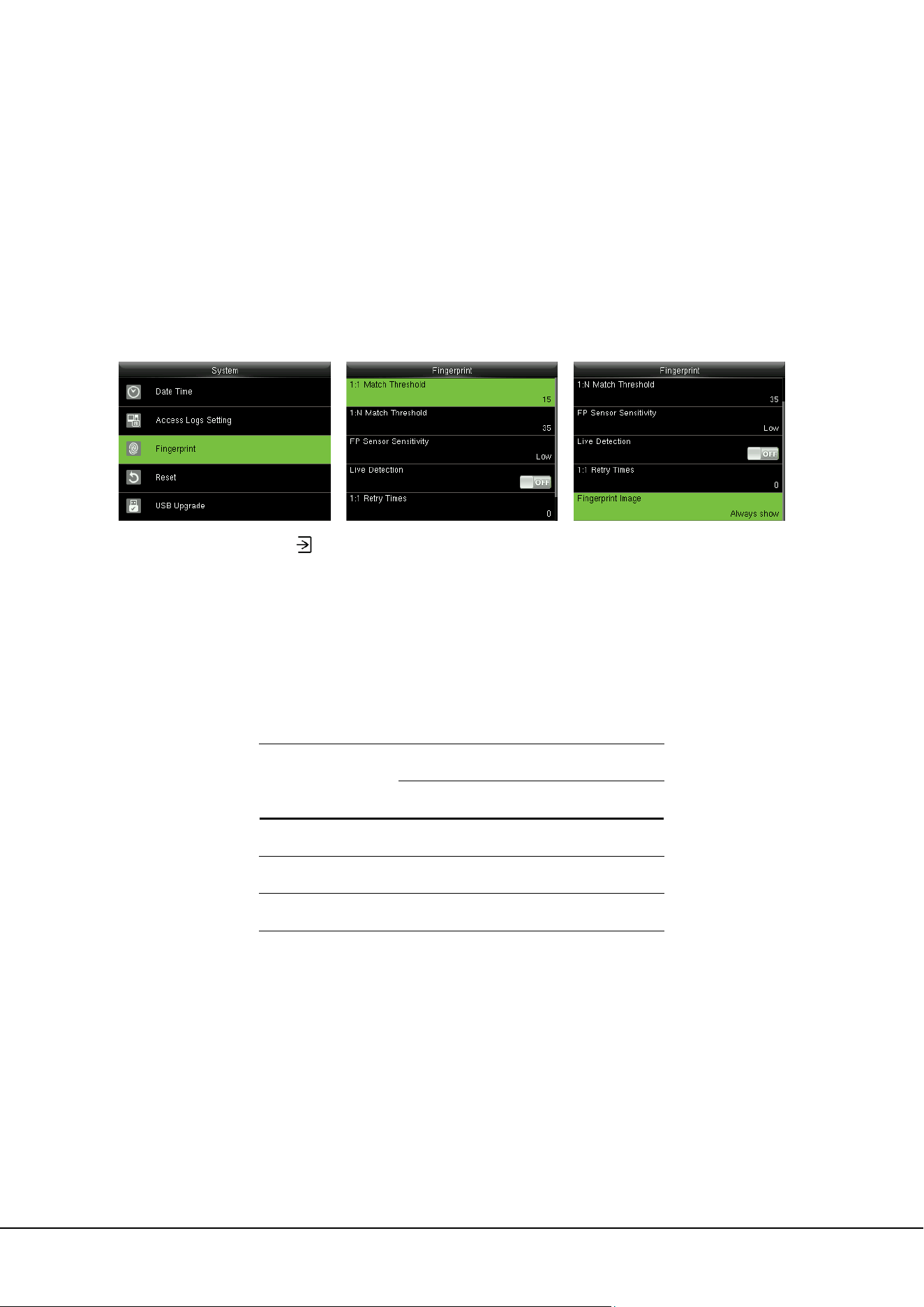
Camera Mode: To set whether to take and save photos in verification; applicable to all users. The
following 5 modes are included:
1. No Photo: No photo is taken in user verification.
2. Take photo, no save: Photo is taken but not saved in verification.
3. Take photo and save: Photo is taken and saved in verification.
4. Save on successful verification: Photo is taken and saved in successful verification.
5. Save on failed verification: Photo is taken and saved in failed verification.
Display User Photo
: To set user photo to be displayed when a user passes verification. Turn it [ON] to
display user photo and [OFF] to disable it (only products possessing Photo ID function display this
optional).
Access Logs Warning: When the residual access record capacity is smaller than the preset value, the
device automatically generates a message indicating residual record capacity. You can set it to Disabled
or set to a value ranging from 1 to 9999.
Circulation Delete Access Records: Set the number of log entries that can be deleted at a time when
existing records reach the allowed maximum log capacity. The default value is Disabled. You can set it to
a value ranging from 1 to 999.
Cyclic Delete ATT Photo: The number of attendance photos allowed to be deleted in one time when
the maximum storage is attained. It can be disabled or set to a value ranged from 1 to 99.
7 System Settings 23
Cyclic Delete Blacklist Photo: The number of blacklist photos allowed to be deleted in one time when
the maximum storage is attained. It can be disabled or set to a value ranged from 1 to 99.
Confirm Screen Delay(s): Set the duration to display messages of verification results. The valid value
range is 1-9 seconds.
7.2 Fingerprint Parameters
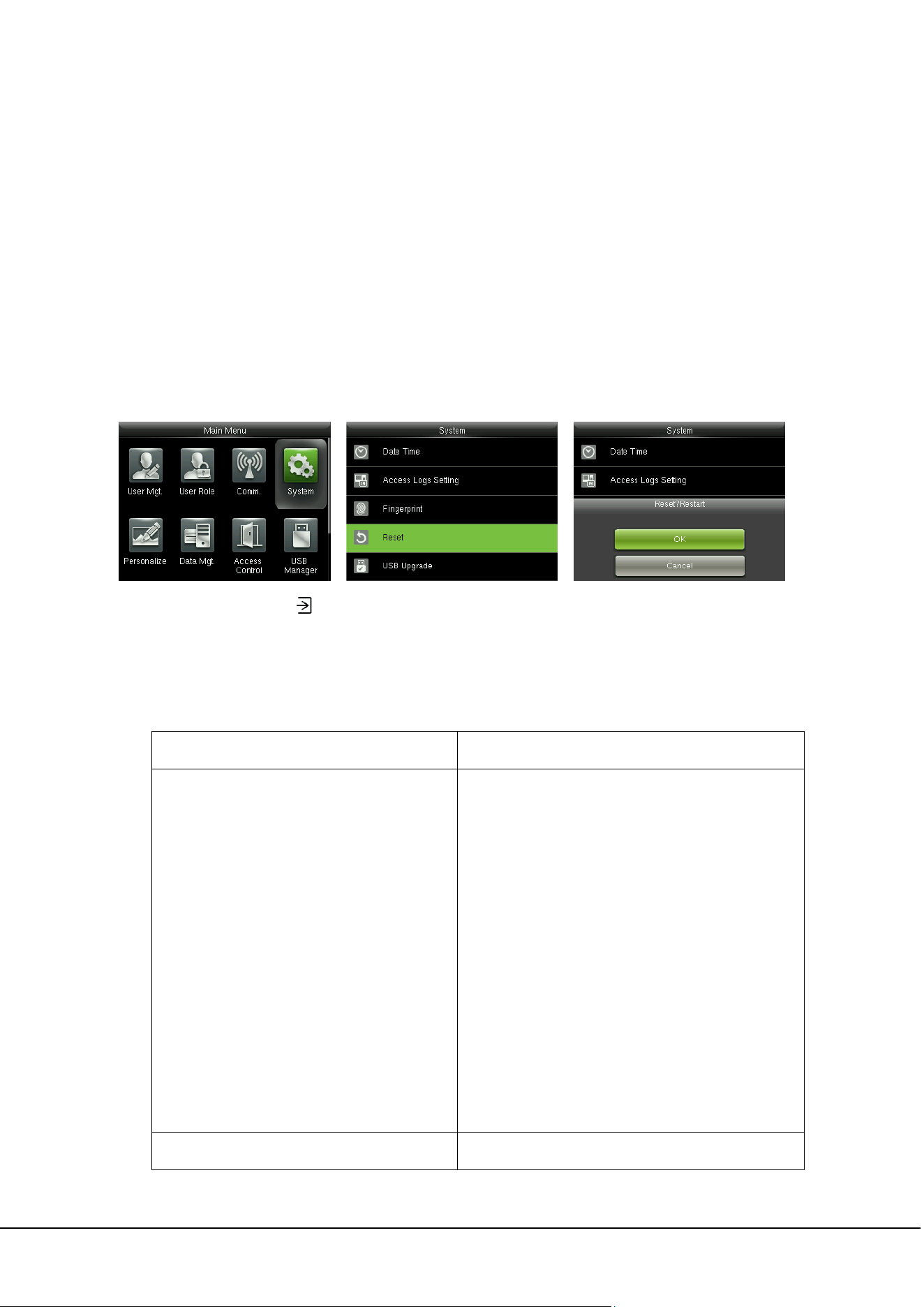
In the initial interface, press
> System > Fingerprint to enter the Fingerprint setting interface.
1:1 Match Threshold: Under 1:1 Verification Method, only when the similarity between the verifying
fingerprint and the user’s registered fingerprint is greater than this value can the verification succeed.
1:N Match Threshold: Under 1:N Verification Method, only when the similarity between the verifying
fingerprint and all registered fingerprints is greater than this value can the verification succeed.
Recommended Match Threshold:
FRR FAR
Match Threshold
1: N 1:1
High Low 45 25
Medium Medium 35 15
Low High 25 10
FP Sensor Sensitivity: To set the sensibility of fingerprint collection. It is recommended to use the
default level “Medium”. When the environment is dry, resulting in slow fingerprint detection, you can set
the level to “High” to raise the sensibility; when the environment is humid, making it hard to identify the
fingerprint, you can set the level to “Low”.
Live Detection: To set whether to detect the false fingerprint. Enable [Live Detection], the device will
detect the false fingerprint during registration and verification, so that it cannot be registered or verified
successfully.
24 ProCapture-T User Manual
1:1 Retry Times: In 1:1 Verification or Password Verification, users might forget the registered fingerprint
or password, or press the finger improperly. To reduce the process of re-entering user ID, retry is allowed;
the number of retry can be within 1~9.
Fingerprint Image: To set whether to display the fingerprint image on the screen in registration or
verification. Four choices are available: Show for enroll, Show for match, Always show, None.
7.3 Reset to Factory Settings
Reset data such as communication settings and system settings to factory settings.
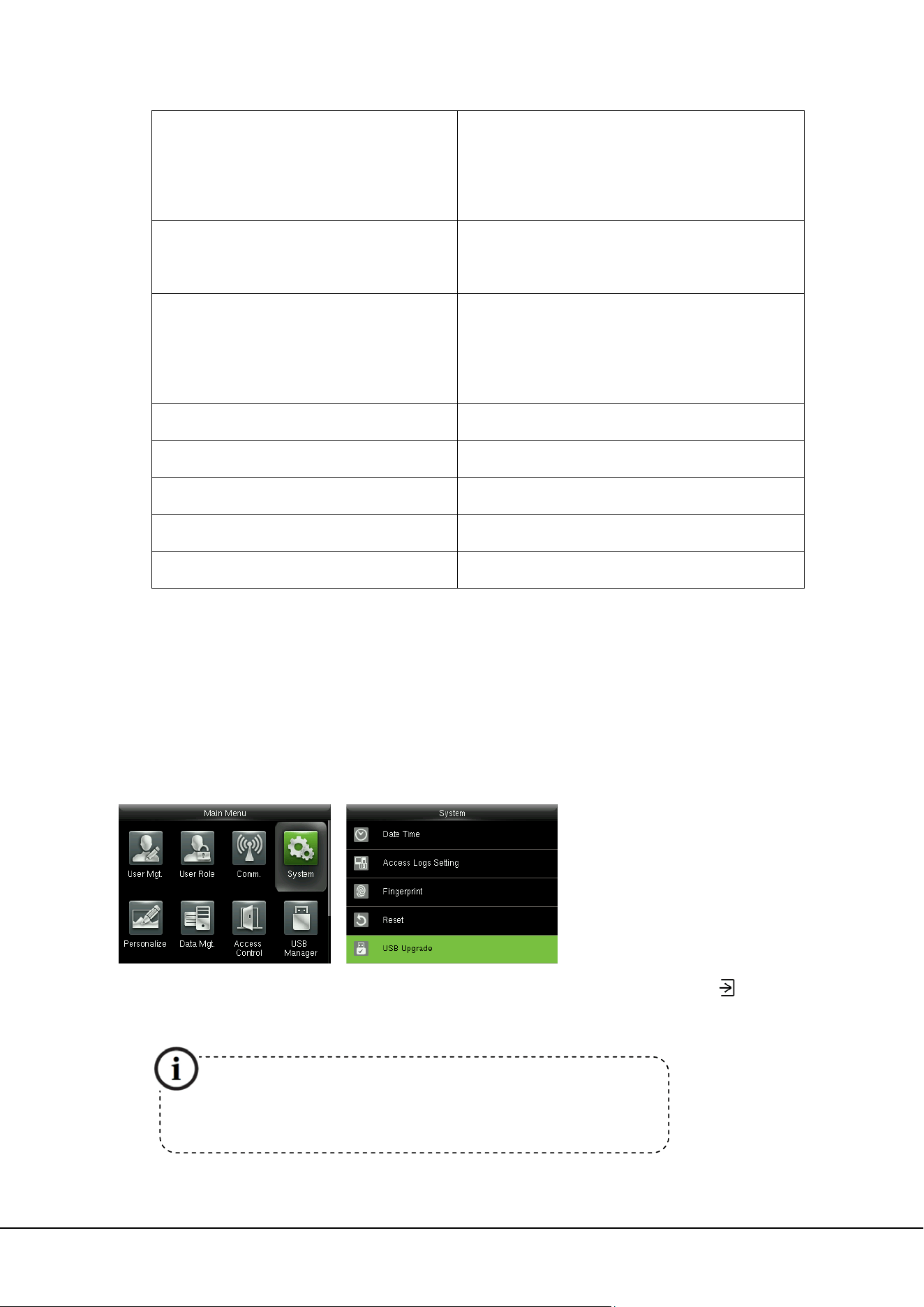
In the initial interface, press
> System > Reset > OK to finish the reset setting.
Reset parameters include Access Control Options, Anti-passback Setup, communication setting (namely,
the setting of Ethernet, Serial Comm., PC Connection and Wiegand Setup), Personalize (such as Voice
Prompt, Keyboard Prompt, Volume and Idle Time To Sleep) etc.
Parameters Factory Defaults
Access Control Options
Door Lock Delay: 5 seconds
Door Sensor Delay: 10 seconds
Door Sensor Type: Normal Open (NO)
Verification Mode: Password / Fingerprint / Badge
Door available time period: 1
NO Time Period : None
Use as master: In
Aux output / Lock open time: 255 seconds
Aux output type setting: trigger door open
Speaker Alarm: OFF
Anti-passback Direction No Anti-passback
7 System Settings 25
Ethernet
IP Address: 192.168.1.201
Subnet Mask: 255.255.255.0
Gateway: 0.0.0.0
PC Connection
Comm Key: 0
Device ID: 1
Wiegand Setup
Wiegand Input / Output ID Type: User ID
Pulse Width: 100 us
Pulse interval: 1000 us
Idle Time To Slide Show 30 seconds
Idle Time To Sleep 30 minutes
Menu Screen Timeout 60 seconds
Keyboard Prompt ON
Voice Prompt ON
Remarks: When resetting to factory settings, the date and time will not be affected. For example, if
the device date and time are set to 18:30 on January 1, 2020, the date and time will remain unchanged
after resetting to factory settings.
7.4 USB Upgrade
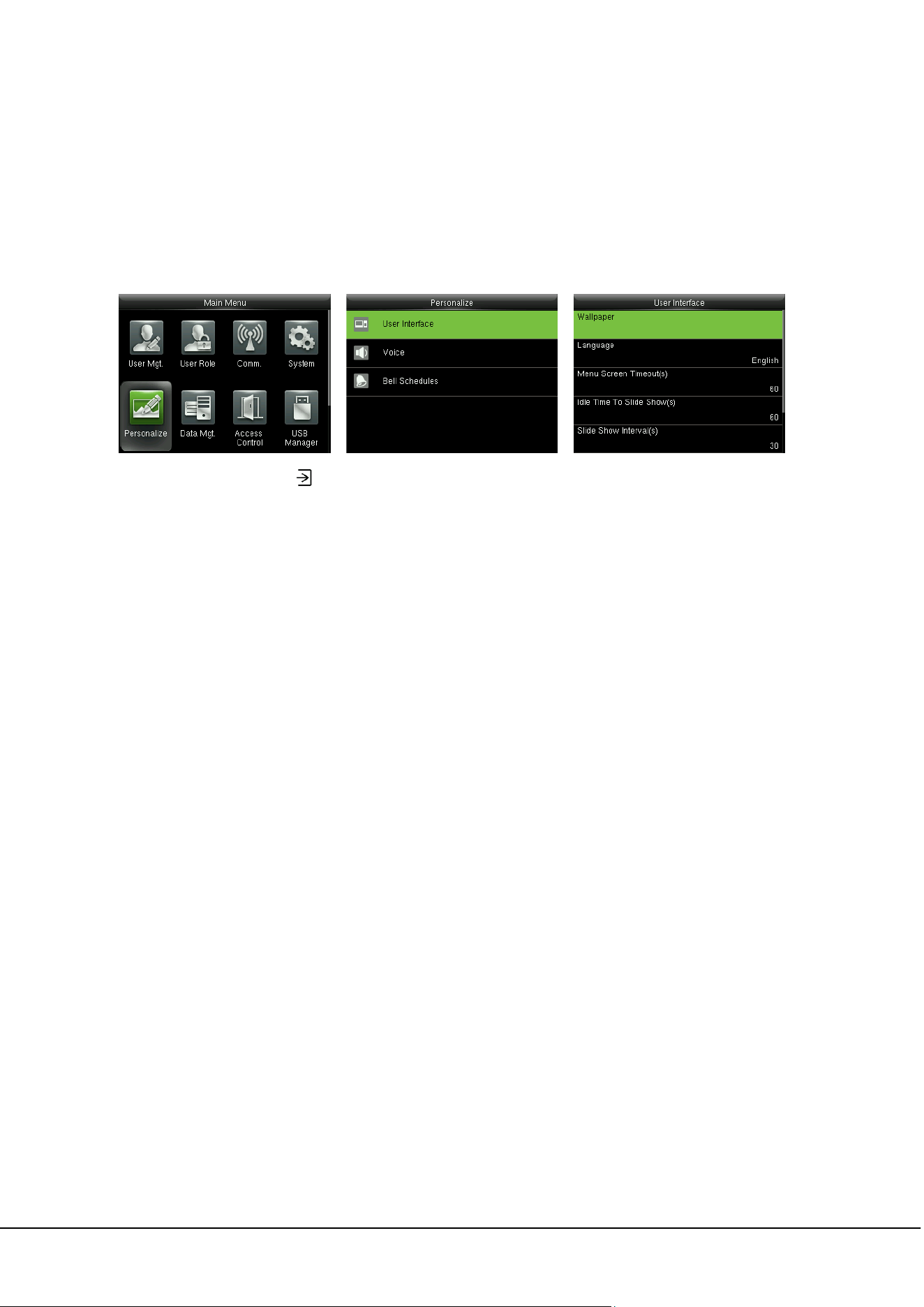
Insert the U disk with upgrade file into the device’s USB port, and in the initial interface, press
>
System > USB Upgrade to complete firmware upgrade operation.
If upgrade file is needed, please contact out technical support.
Firmware upgrade is not recommenced under normal circumstances.
26 ProCapture-T User Manual
8 Personalize Settings
8.1 User Interface Settings
In the initial interface, press
> Personalize > User Interface to set User Interface.
Wallpaper: Select the wallpaper of main screen as required, you can find wallpapers of various styles in
the device.
Language: Select the language of device as required.
Menu Screen Timeout (s): When there is no operation in the menu interface and the time exceeds the
set value, the device will automatically exit to the initial interface. You can disable it or set the value to
60~99999 seconds.
Remarks: If [Disabled] is chosen, the system will not exit the menu interface even when there is no
operation. Disabling this function is not recommended due to great power used and insecurity.
Idle Time to Slide Show (s): When there is no operation in the initial interface and the time exceeds the
set value, a slide show will be shown. It can be disabled (set to “None”) or set to 3~999 seconds.
Slide Show Interval (s): This refers to the interval between displaying different slide show pictures. It can
be disabled or set to 3~999 s.
Idle Time to Sleep (m): When there is no operation in the device and the set Sleep Time is attained, the
device will enter standby mode. Press any key or finger to cancel standby mode. You can disable this
function, or set the value to 1~999 minutes. If this function is turned to [Disabled], the device will not
enter standby mode.
Remarks: Disabling this function is not recommended due to great power used.
Main Screen Style: Choosing the position and ways of the clock and status key.
8 Personalize Settings 27
8.2 Voice Settings
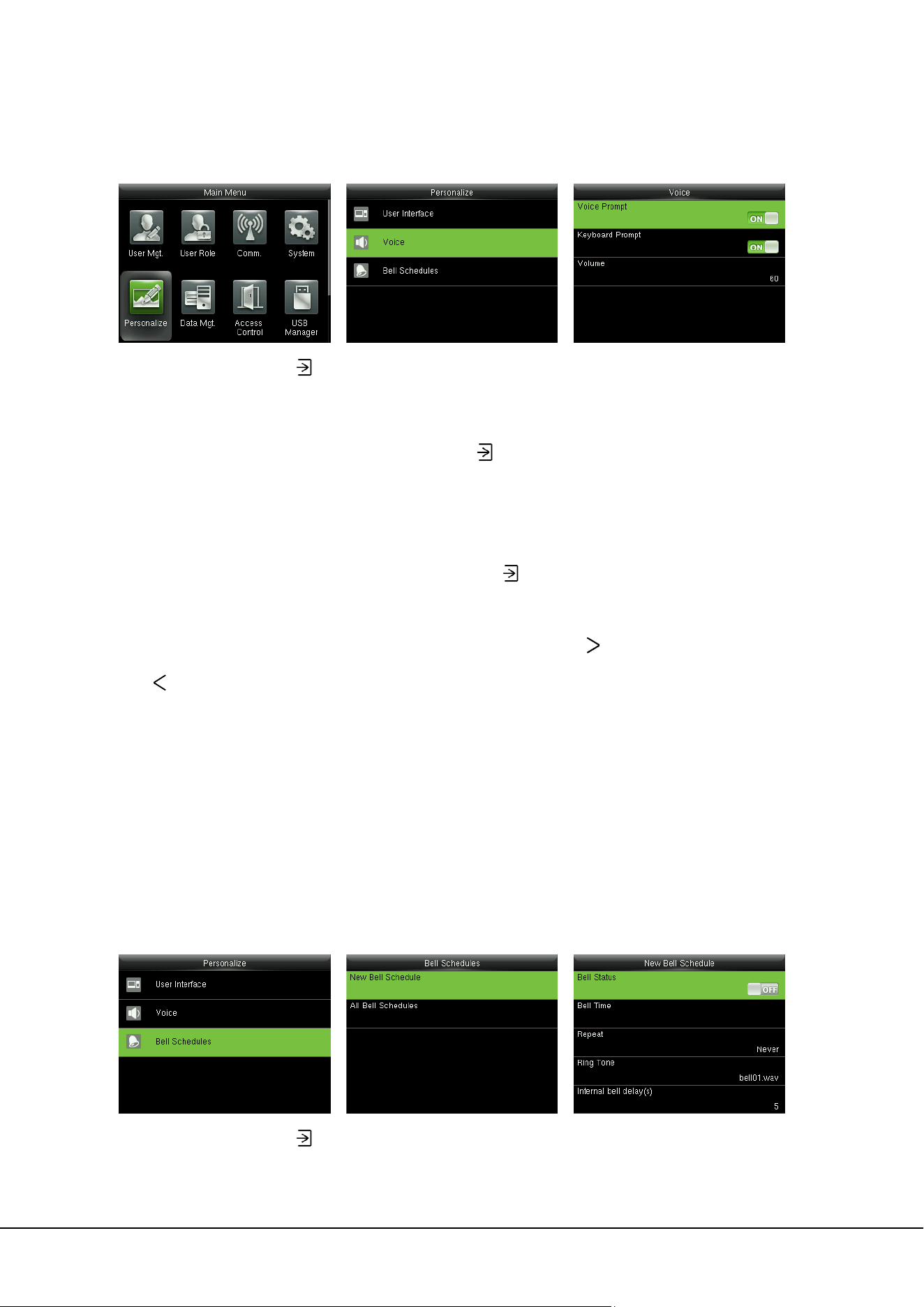
In the initial interface, press
> Personalize > Voice to enter the Voice settings interface.
Voice Prompt: Select whether to enable voice prompts during operating. The default value is [ON],
indicating that voice prompt is enabled. You may press
to switch between [ON] and [OFF]. The icon
[OFF] indicates that voice prompt is disabled.
Keyboard Prompt: Select whether to enable voice while touch the keyboard. The default value is [ON],
indicating that keyboard prompt is enabled. You may press
to switch between [ON] and [OFF]. The
icon [OFF] indicating that keyboard prompt is disabled.
Volume: Set the prompt volume of device. The default value is 70. Press
key to increase the volume,
press
key to decrease the volume.
8.3 Bell Settings
Many companies choose to use bell to signify on-duty and off-duty time. When reaching the scheduled
time for bell, the device will play the selected ringtone automatically until the ringing duration is passed.
8.3.1 Adding New Bell
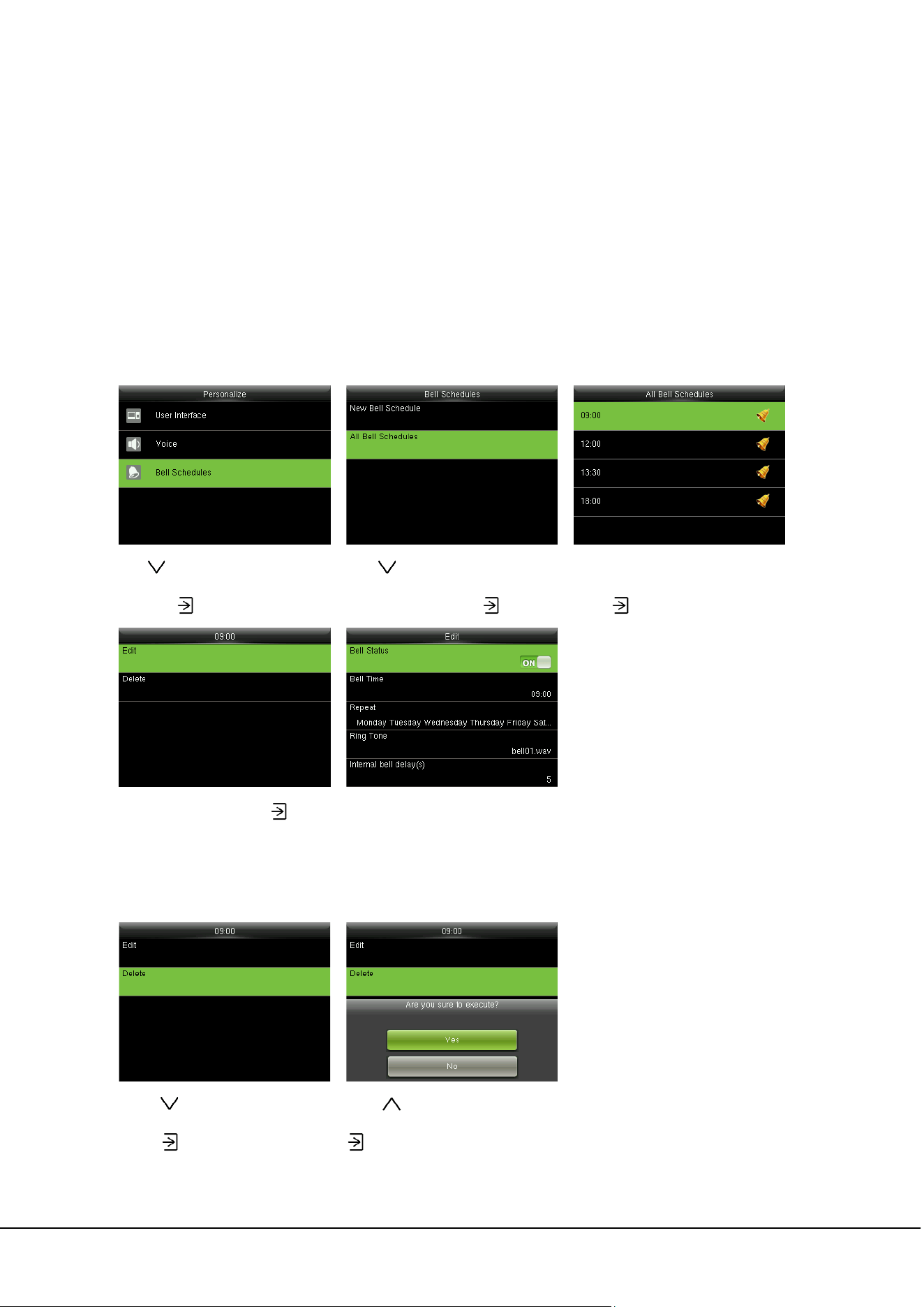
In the initial interface, press
> Personalize > Bell Schedules > New Bell Schedule to enter the New
Bell Schedule adding interface.
28 ProCapture-T User Manual
Bell Status: [ON] is to enable the bell, while [OFF] is to disable it.
Bell Time: The bell rings automatically when reaching the specified time.
Repeat: To set whether to repeat the bell from Monday to Sunday.
Ring Tone: Ringtone played for bell.
Interval bell delay (s): To set the ringing length. The value ranges from 1 to 999 seconds.
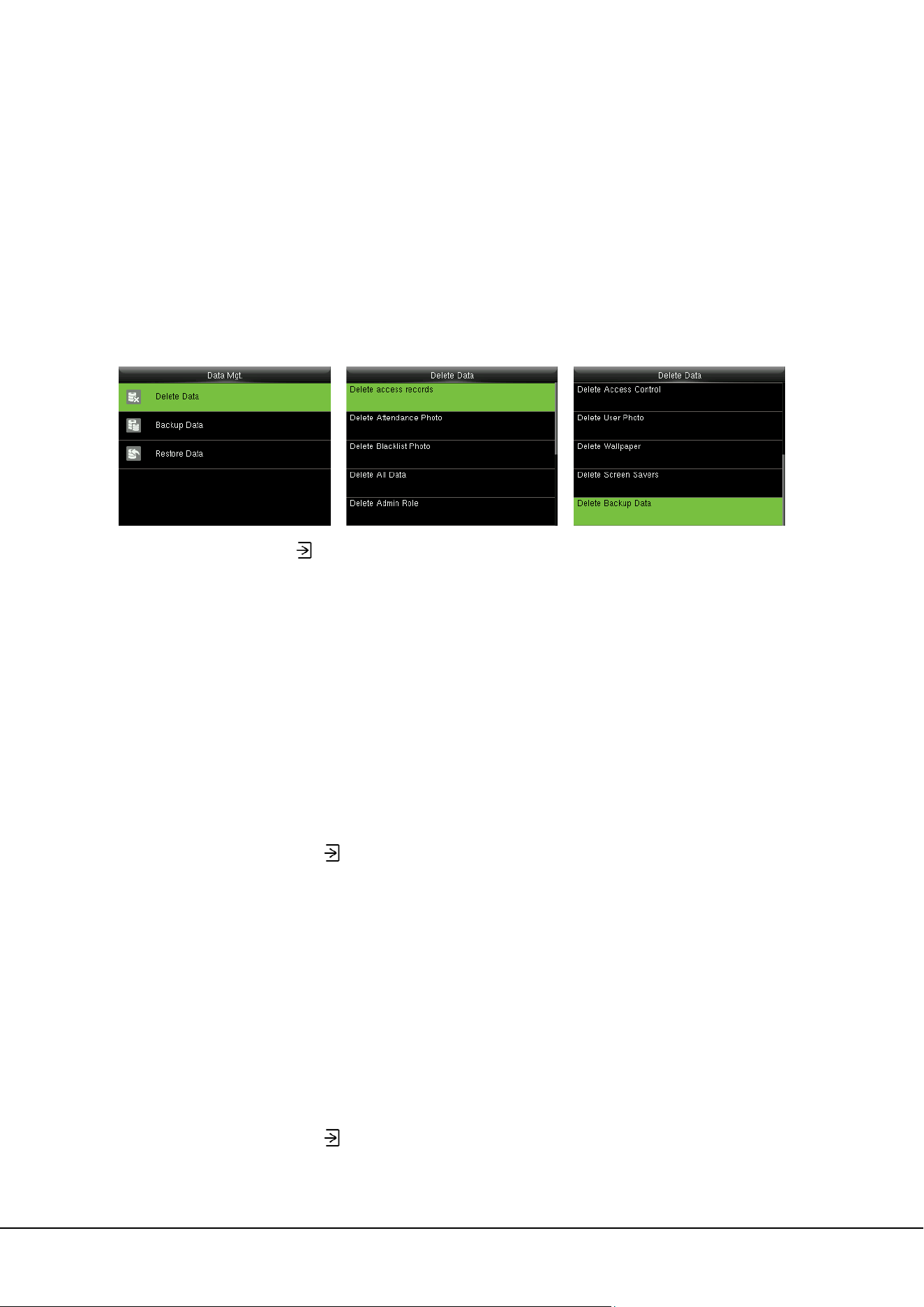
8.3.2 Editing a Bell
Press
to select “Bell Schedules”
and press
to enter
Press
to select “All Bell
Schedules” and press
to enter
Select a bell to be edited and
press to enter
Select “Edit” and press
Modify the bell parameter
8.3.3 Deleting a Bell
Press
to select “Delete” and
press
to enter
Press
to select “Yes” and press
to delete the bell
9 Data Mgt. 29
9 Data Mgt.
9.1 Deleting Data
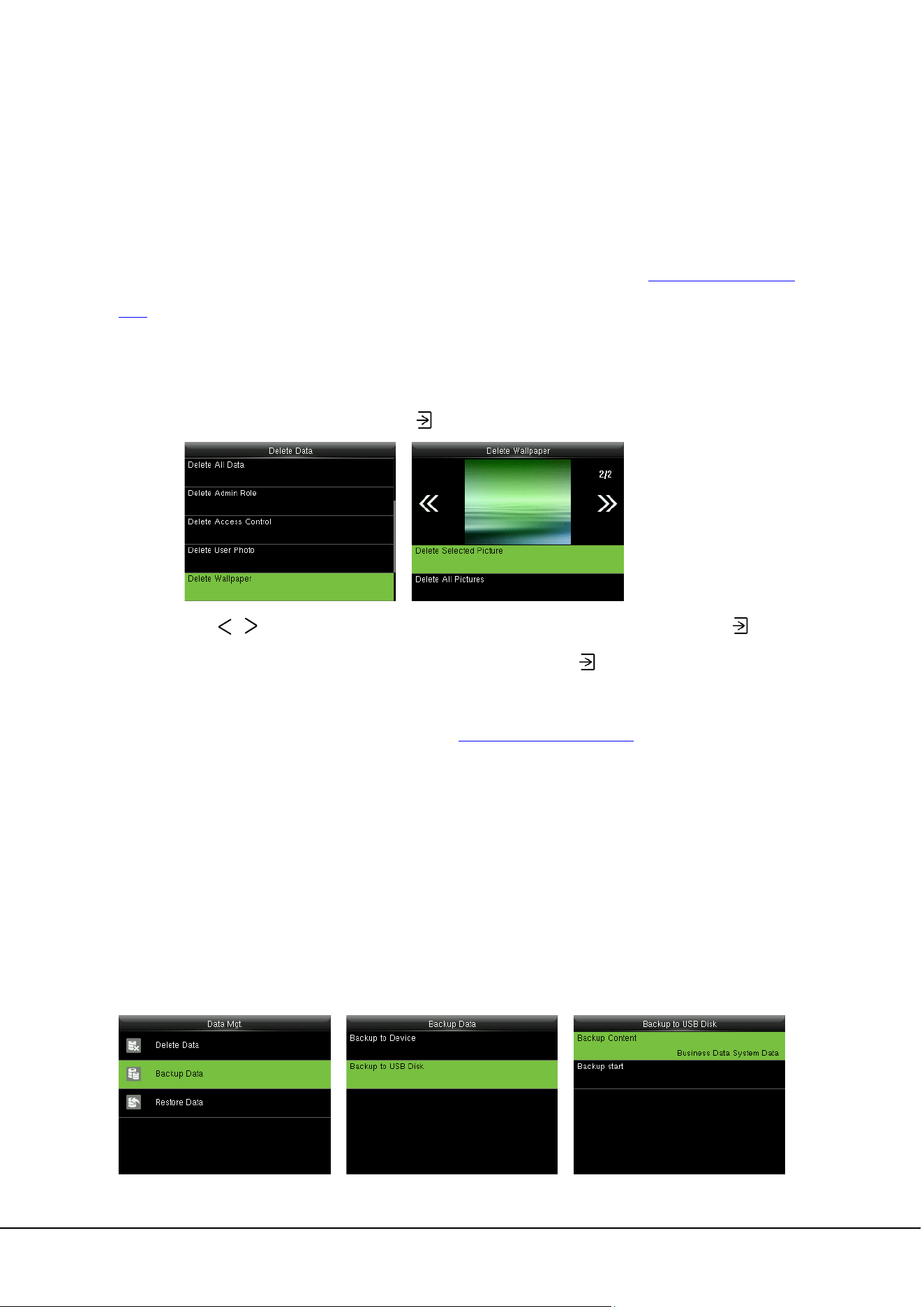
To manage data in the device, which includes delete access records, delete all data, delete admin role
and delete screen savers etc.
In the initial interface, press
> Data Mgt. > Delete Data to enter the Delete Data settings interface.
Delete access records: To delete all access records saved in the device or delete access records in
specified time range.
Delete Attendance Photo: To delete all attendance photos saved in the device or delete attendance
photos in specified time range.
Remarks:
1. Only if [Camera Mode] is selected as “Take photo and save” or “Save on successful verification” will
attendance photos be saved in the device after successful verification.
2. In the initial interface, press
> System > Access Logs Setting > Camera Mode to select it as
“Take photo and save” or “Save on successful verification”.
Delete Blacklist Photo: To delete all blacklist photos saved in the device or delete blacklist photos in
specified time range, which means the photos taken after failed verifications.
Remarks:
1. Only if [Camera Mode] is selected as “Take photo and save” or “Save on failed verification” will
blacklist photos be saved in the device after failed verification.
2. In the initial interface, press > System > Access Logs Setting > Camera Mode to select it as
“Take photo and save” or “Save on failed verification”.
30 ProCapture-T User Manual
Delete All Data: To delete all user information, fingerprints and access records etc.
Delete Admin Role: To make all Administrators become Normal Users.
Delete Access Control: To delete all access data.
Delete User Photo
: To delete all user photos in the device (only products possessing Photo ID
function display this optional). For details of uploading user photo, please refer to
16.3 Image Uploading
Rule.)
Delete Wallpaper: To delete selected or all wallpapers in the device.
Operating Procedure:
1. Select “Delete Wallpaper” and press
to enter.
2. Press
or to switch displayed wallpaper, select “Delete Selected Picture” and press to
delete the selected picture, or select “Delete All Pictures” and press
to delete all pictures.
Delete Screen Savers: To delete selected or all screen savers in the device. (For details of uploading
screen savers, please refer to 16.3 Image Uploading Rule
.)
Delete Backup Data: To delete all backup data.
9.2 Data Backup
To backup the business data, or configuration data to the device or U disk.
Backup to USB Disk (Before backing up data to a USB disk, please insert a USB disk into the USB port of
the device):
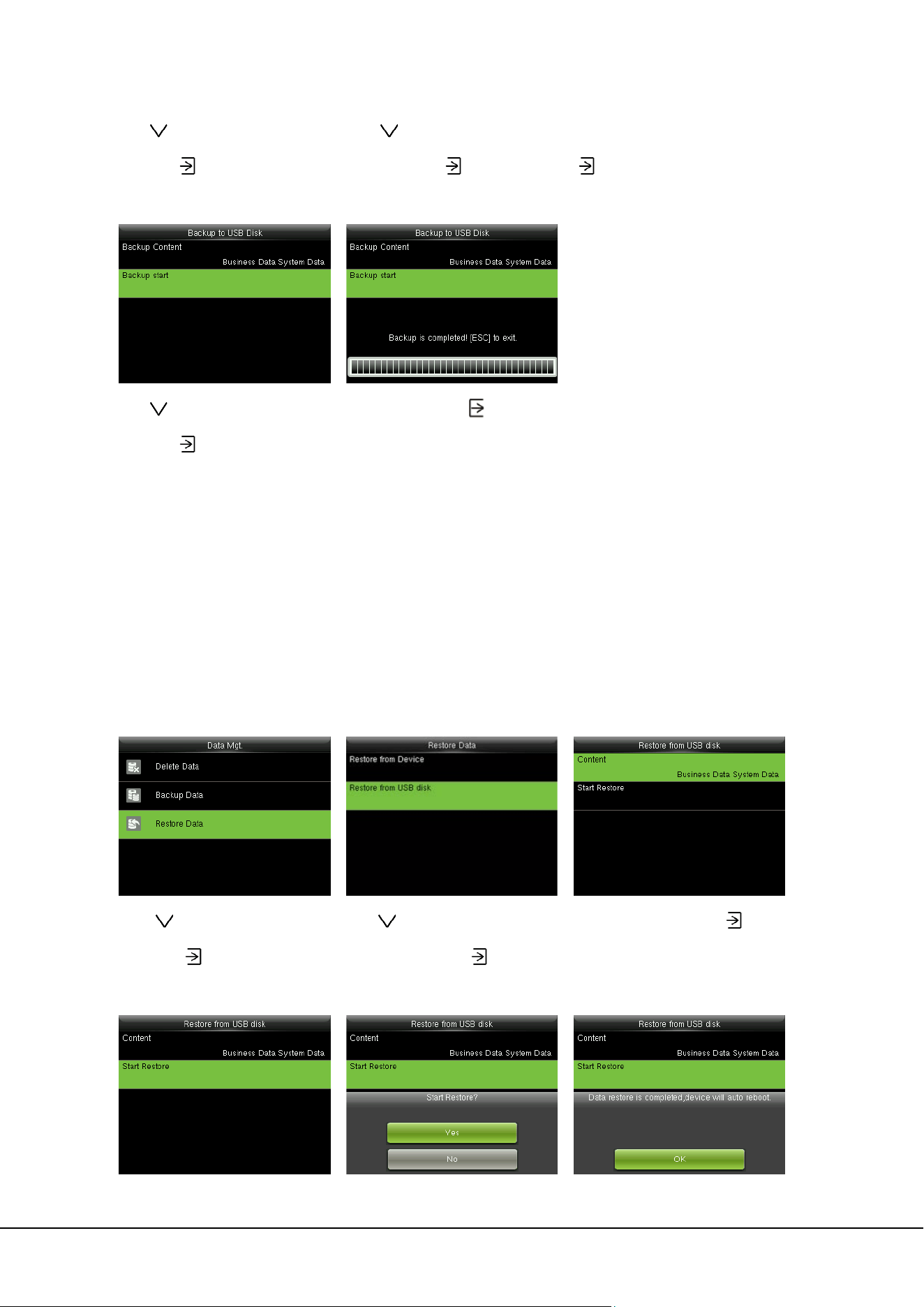
9 Data Mgt. 31
Press to select “Backup Data”
and press
to enter
Press
to select “Backup to USB
Disk” and press
Select “Backup Content” , press
to enter and tick backup
contents
Press
to select “Backup start”
and press
to start
After backup, press
to exit
Remarks: The operations of Backup to Device are the same as that of Backup to USB Disk.
9.3 Data Restoration
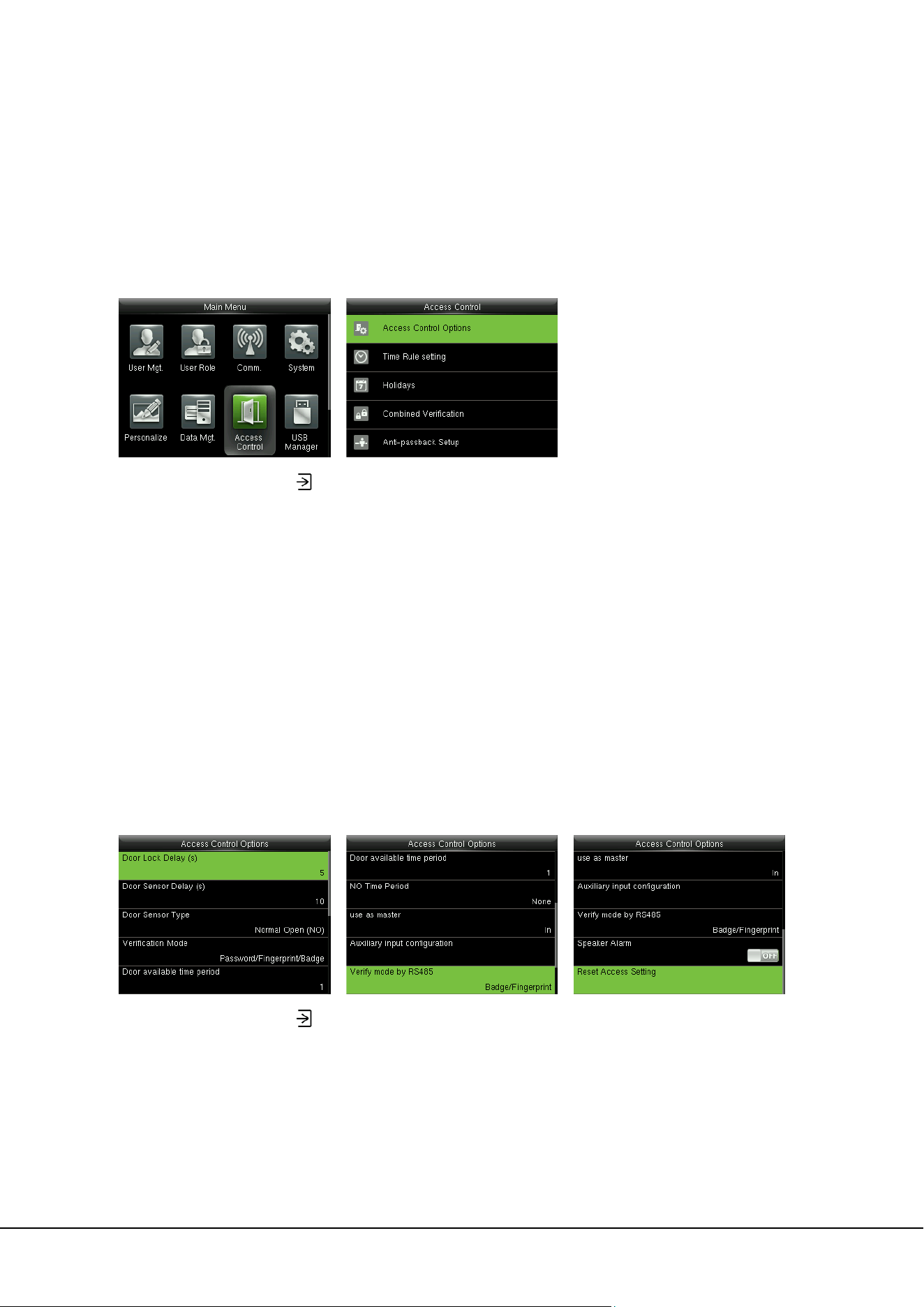
To restore the data in the device or U disk to the device.
Restore from USB disk (Before restoring data from a USB disk, insert the USB disk carrying backup data
into the USB port of the device):
Press
to select “Restore Data”
and press
Press
to select “Restore from
USB disk” and press
Select “Content” , press
to
enter and tick contents to be
restored

32 ProCapture-T User Manual
Press to select “Start Restore”
and press
to start
Press
to select “Yes” and press
to confirm
After restoration, press
to restart
device
Remarks: The operations of Restore from Device are the same as that of Restore from USB Disk.
10 Access Control 33
10 Access Control
Access Control option is used to set the Time Rule, Holidays, Combined Verification etc., the related
parameters for the device to control the lock and other devices.
In the initial interface, press
> Access Control to enter Access Control setting interface.
To gain access, the registered user must meet the following conditions:
1. User’s access time falls within either user’s personal time zone or group time zone.
2.
User’s group must be in the access combo (when there are other groups in the same access combo,
verification of members of those groups are also required to unlock the door).
In default settings, new users are allocated into the first access group with the default group time rule [1]
and access combo as “1”, and set in unlocking state.
10.1 Access Control Options Settings
In the initial interface, press
> Access Control > Access Control Options to enter the Access
Control Options setting interface.
Door Lock Delay (s): The period of time of unlocking (from door opening to closing automatically) after
the electronic lock receives an open signal sent from the device (value ranges from 1 to 10 seconds).
Door Sensor Delay (s): When the door is opened, the door sensor will be checked after a time period; if
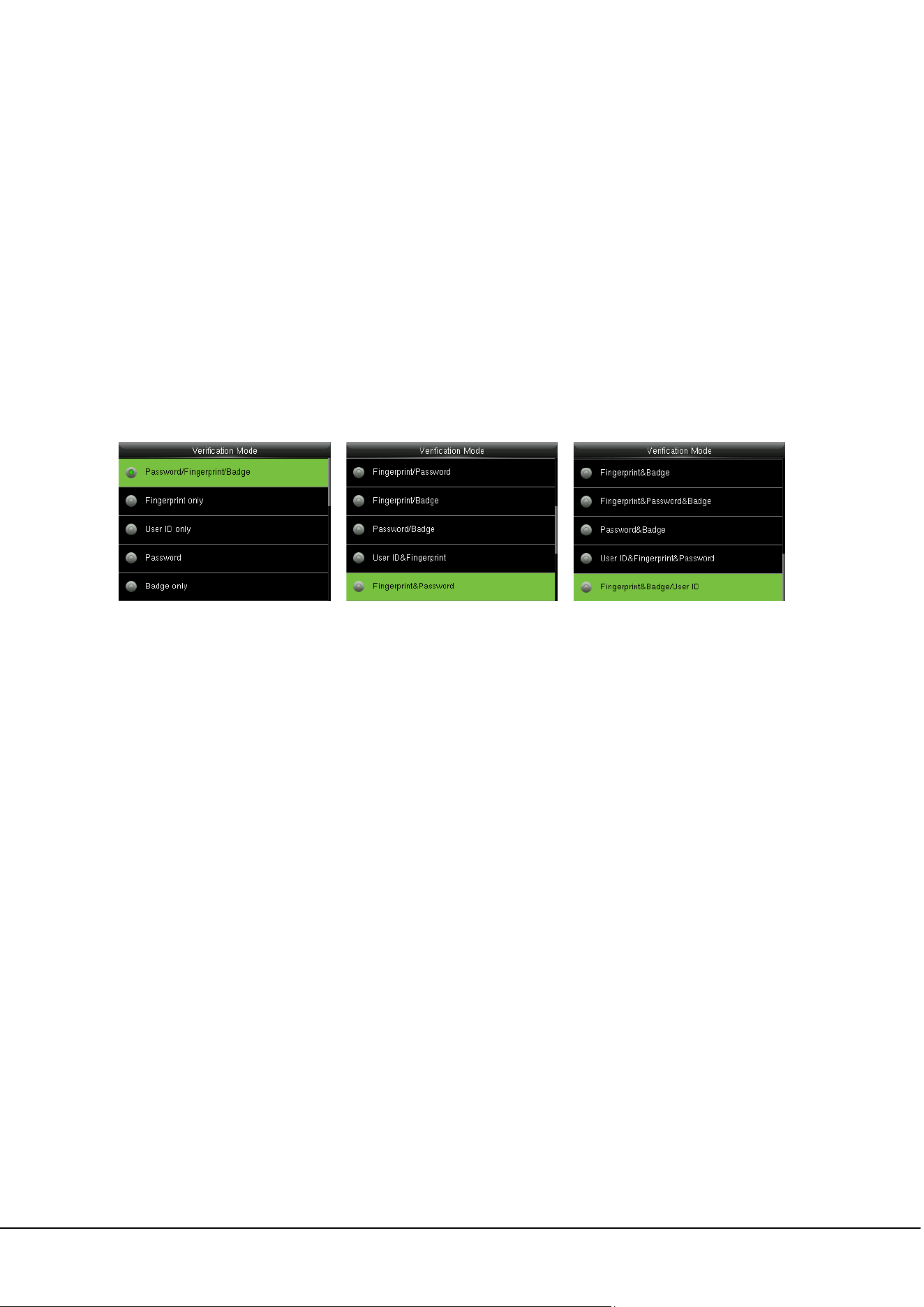
34 ProCapture-T User Manual
the state of the door sensor is inconsistent with that of the door sensor mode, alarm will be triggered.
The time period is the Door Sensor Delay (value ranges from 1 to 255 seconds).
Door Sensor Type: It includes None, Normal Open (NO) and Normal Close (NC). None means door
sensor is not in use; Normal Open means the door is opened when electricity is on; Normal Close
means the door is closed when electricity is on.
Verification Mode: Select verification mode to open door, including password / fingerprint / badge,
fingerprint only, user ID only, password, badge only, fingerprint / password, fingerprint / badge, password
/ badge, user ID & fingerprint, fingerprint & password, fingerprint & badge, fingerprint & password &
badge, password & badge, user ID & fingerprint & password, fingerprint & badge & user ID.
Remarks:
1. “/” means “or”. “&” means “and”.
2. In a combined verification mode, the corresponding verification information must be registered
first. For example: When User A registers fingerprint only, and the [Verification Mode] is set as
“Password & Badge”, User A will not pass verification.
Door Available Time Period: Set periods to open the door for users.
NO Time Period: To set time period for Normally Open, so that the door is always unlocked during this
period.
Use as master: While configuring the master and slave devices, you may set the state of the master as
Out or In.
Out: A record of verification on the master device is a check-out record.
In: A record of verification on the master device is a check-in record.
Auxiliary Input Configuration: To set the Aux output/lock open time and Aux Output type for the
device with auxiliary connector. Aux Output type includes None, trigger door open, trigger Alarm,

10 Access Control 35
and trigger Door open and Alarm.
Verify Mode by RS485
: To turn on RS485 reader function; it is the verification method used by the
device when it is the master/slave device.
Speaker Alarm: When the [Speaker Alarm] is enabled, the speaker will raise an alarm when the device
is being dismantled.
Reset Access Setting: To reset parameters of door lock delay, door sensor delay, door sensor type,
verification mode, door available time period, NO time period, auxiliary input configuration, speaker alarm,
anti-passback direction,. However, the content of the Access Data deletion in [Data Mgt.] will not be
affected.
Access Parameters Factory Default
Door Lock Delay 5 s
Door Sensor Delay 10 s
Door Sensor Type Normal Open (NO)
Verification Mode Password/Fingerprint/Badge
Door Available Time Period 1
NO Time Period None
Aux output/Lock open time 255 s
Aux output type setting Trigger door open
Speaker Alarm Off
Anti-Passback Direction No anti-passback
10.2 Time Rule Settings
Time Rule is the minimum time unit of access control settings; at most 50 Time Rules can be set for the
system. Each Time Rule consists of 7 time schedules (a week) and 3 holiday time schedules, and each
time schedule is the valid time within 24 hrs.
You may set a maximum of 3 time periods for every time schedule. The relationship among these time
periods is "or". When the verification time falls in any one of these time periods, the verification is valid.
The time period format is HH:MM-HH:MM in the 24-hour system with precision to minute.
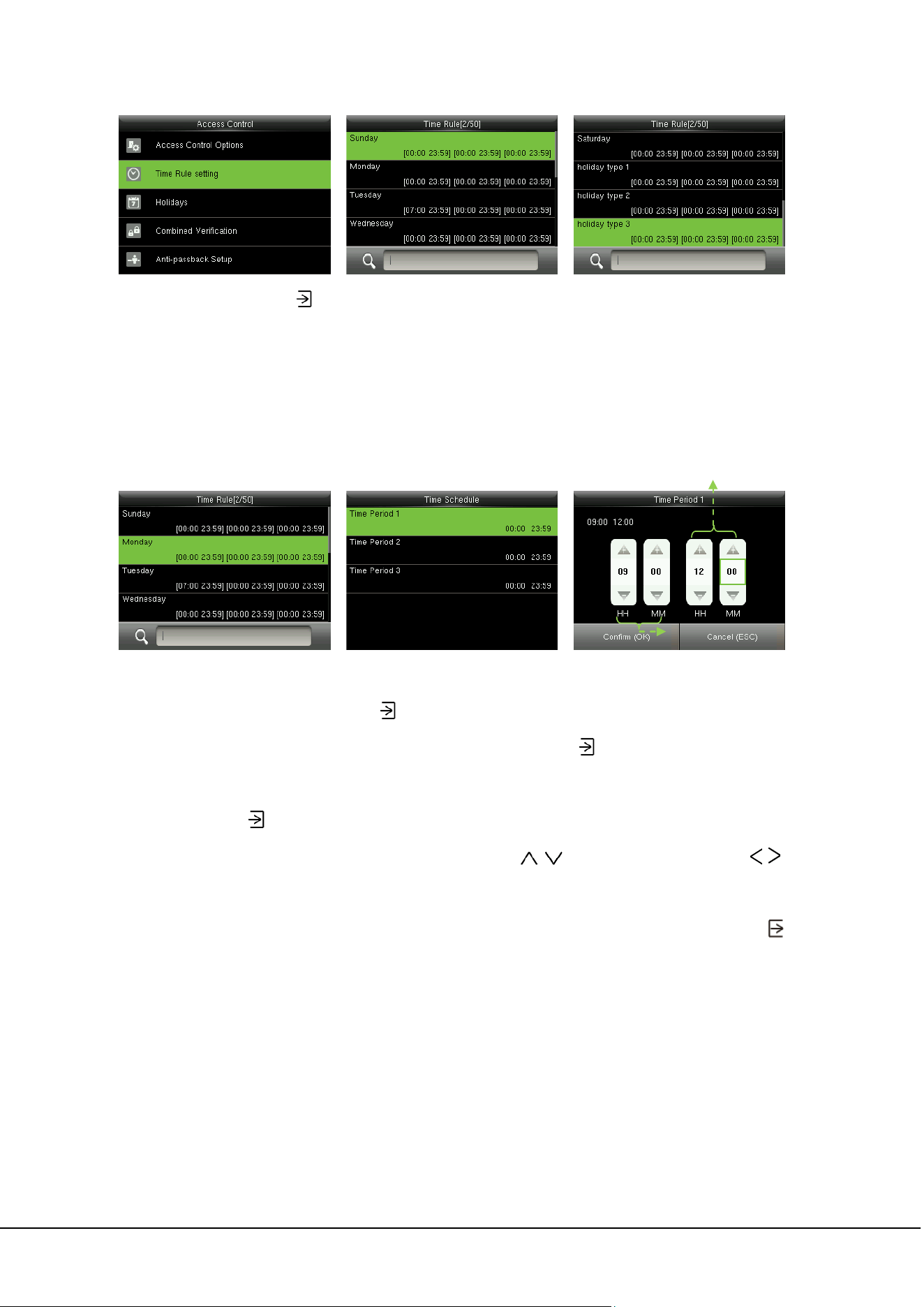
36 ProCapture-T User Manual
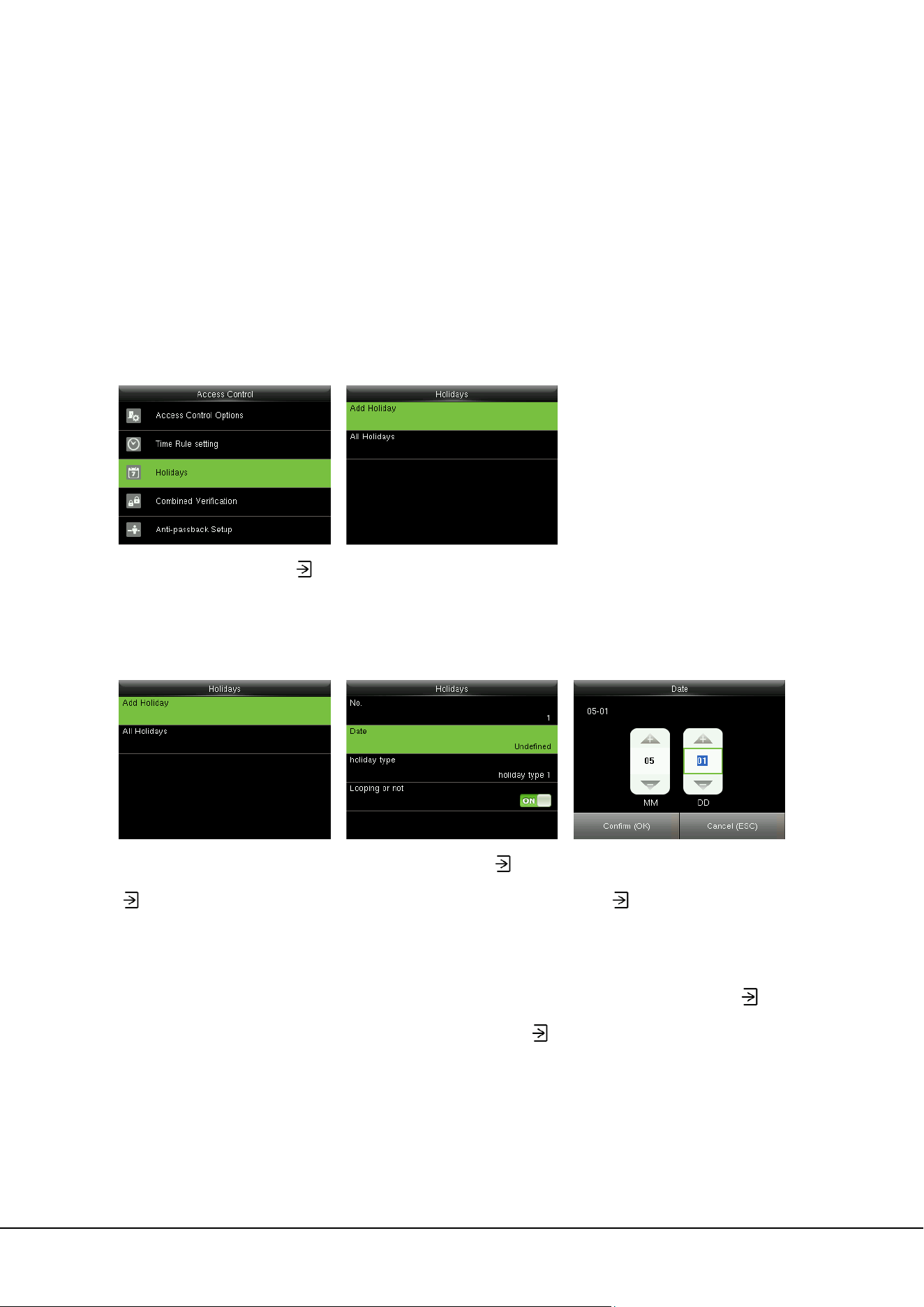
In the initial interface, press
> Access Control > Time Rule Setting to enter the Time Rule Setting
interface. The default Time Rule No. is 1 (whole-day valid), which can be edited.
Editing a Time Rule
A super administrator may edit time rules as needed. The detailed operation is as follows:
Input time rule number (such as
“2”), the time rule (2) will be
located automatically, select a
time schedule (such as
“Monday”) and press
Select “Time Period 1/2/3” and
press
to enter time period
setting interface
Set “Start Time” and “End Time”
as required, after setting, press
to save and exit
Prompt: You can set the “Start Time” and “End Time” by press
/ or input digital directly, press / to
switch editing box.
You can set other time schedules as required after setting time schedule for Monday, and then press
to
eixt.
Notes:
(1) When the end time is earlier than the start time (for example, 23:57-23:56), this means closing all day
long. When the end time is later than the start time (for example, 00:00-23:59), this means that this time
period is valid.
End Time
Start Time
10 Access Control 37
(2) Valid Time Period: 00:00-23:59 (Whole-day valid) or when the end time is later than the start time (for
example, 08:00-23:59).
(3) By default, time rule 01 indicates full-day opening (00:00-23:59).
10.3 Holidays Settings
Add access control holidays for the device and set time periods on holidays as needed. The device
controls the access control on holidays according to the holiday settings.
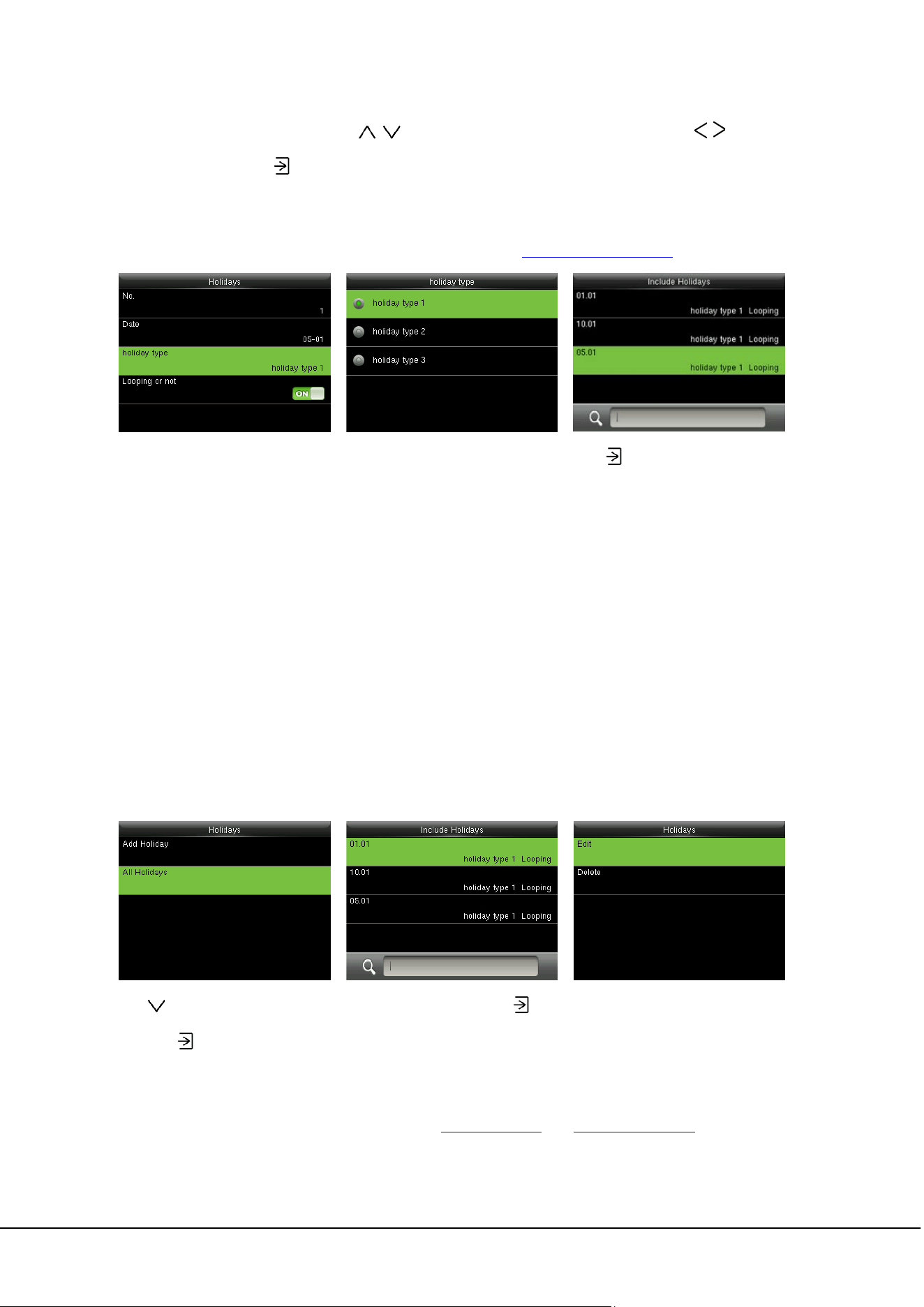
In the initial interface, press
> Access Control > Holidays to enter Holidays setting interface.
10.3.1 Adding Holiday
Select “Add Holiday” and press
to enter
Select “Date” and press
to
enter
Set date for the added holiday,
press
to save and exit
The holiday parameters are set as follows:
No.: The device automatically assigns a number to a holiday. You can also select [No.] and press
to
enter the No. interface. Enter a holiday No. as needed and press
to save the settings and return to the
Holidays interface.
Note: A holiday No. ranges from 1 to 24.
38 ProCapture-T User Manual
Date: Set the date of a holiday. Press / or input digital directly to set the date, press / to switch
editing box. Then, press to save the settings and return to the Holidays interface.
Holiday Type: Select access time schedule for holiday. Time period for holiday type 1/2/3 can be edited
in time rule. For details about editing methods, please refer to 10.2 Time Rule Settings
.
Looping or not: The default value of Looping or not is [ON]. You can press
to switch between [ON]
and [OFF].
For fixed holidays every year, for example, the New Year's Day is January 1, Looping or not can be set to
[ON] for them. For unfixed holidays every year, for example, the Mother's Day is the second Sunday of
May, the specific dates are uncertain and Looping or not can be set to [OFF] for them.
For example, when the date of a holiday is set to January 1, 2010 and holiday type is set to holiday type 1,
the access control on January 1 is conducted according to the time period settings of holiday type 1
rather than the time period settings of Friday.
10.3.2 All Holidays
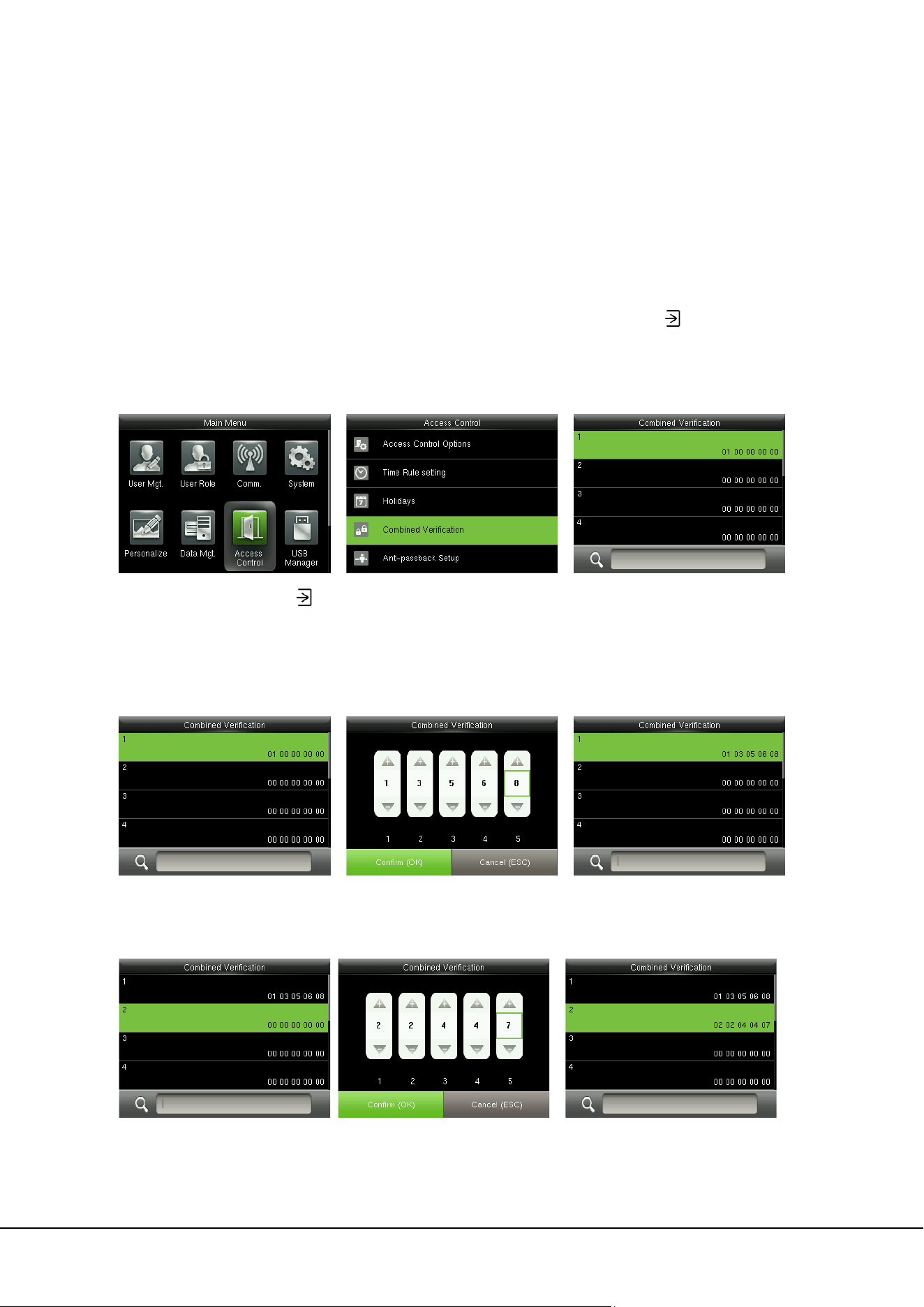
Press
to select “All Holidays”
and press
to enter
Select a holiday and press
to
enter
Edit or delete the holiday
Remarks: The methods of editing or deleting a holiday are the same as those of editing or deleting
a user and are not described here. For details, see 4.4 Editing User and 4.5 Deleting a User
.
10 Access Control 39
10.4 Combined Verification Settings
Combine two or more access groups to achieve multi-verification and improve security.
In combined verification, the range of a user number is: 0 ≤ N ≤ 5; the users can all belong to a single
group, or belong to 5 different groups at most.
Remarks: Access groups are set when adding user (in the initial interface, press > User Mgt. >
New User > Access Control Role > Access Group, to set the access group number to which the added
user belongs ), the access group number ranges from 1 to 99.
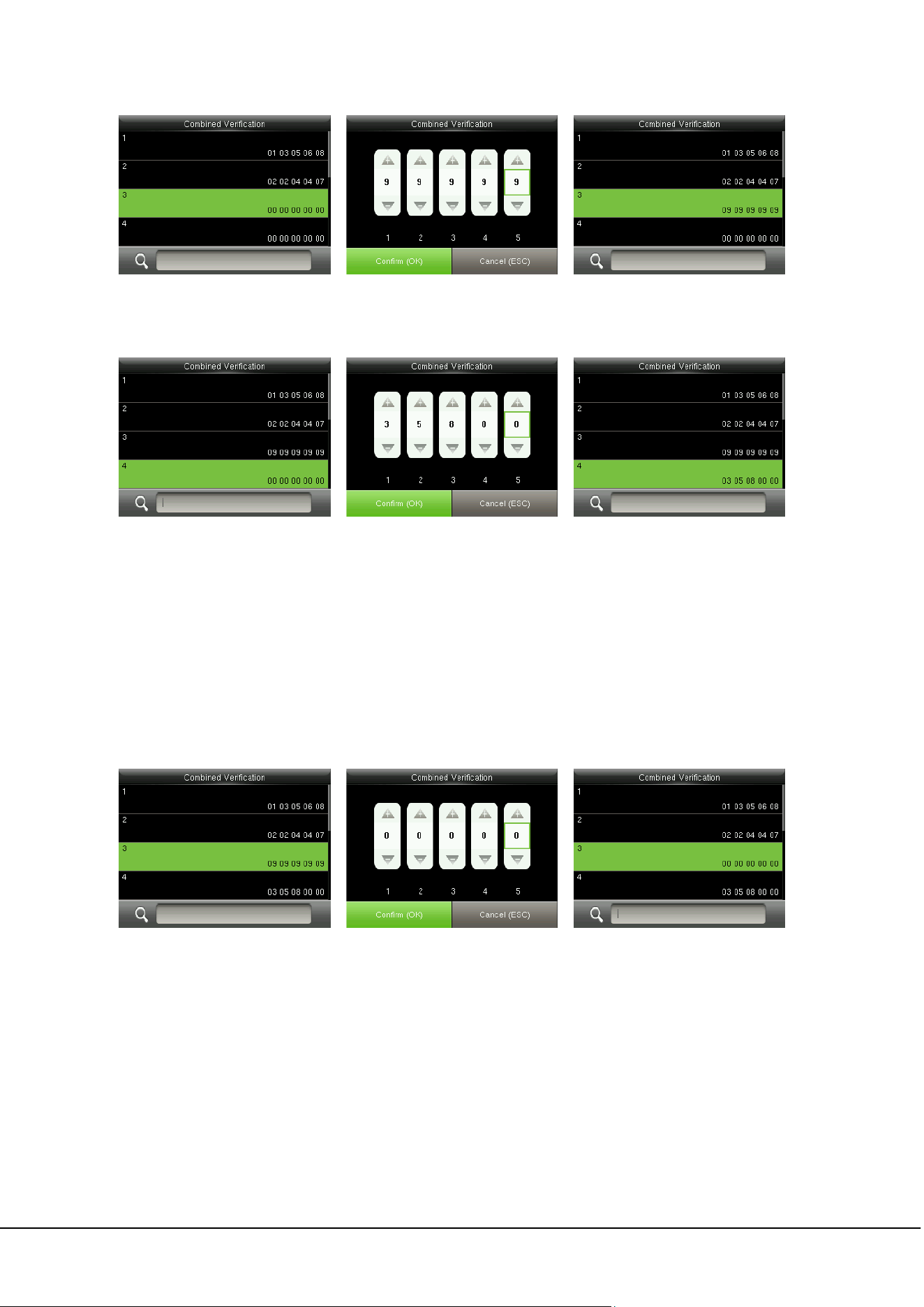
In the initial interface, press
> Access Control > Combined Verification to enter the Combined
Verification setting interface.
For Example:
As the above figure, Combined Verification 1 is made up of five members coming from five different
groups---access group 1 / 3 / 5 / 6 / 8 respectively.
As the above figure, Combined Verification 2 is made up of five members coming from three different
groups: two members from Access Group 2, two from Access Group 4, and one from Access Group 7.
40 ProCapture-T User Manual
As the above figure, Combined Verification 3 is made up of five members, and all of them come from
Access Group 9.
As the above figure, Combined Verification 4 is made up of three members coming from three different
groups -- Access Group 3, 5, 8 respectively.
Deleting a Combined Verification
To delete a Combined Verification, set all access group numbers to 0.
For example, to delete Combined Verification 3, please see the figures below:
If all access group numbers in Combined Verification 3 are set to 0, it will be deleted.
10.5 Anti-passback Settings
To avoid some persons following users to enter the door without verification, resulting in security
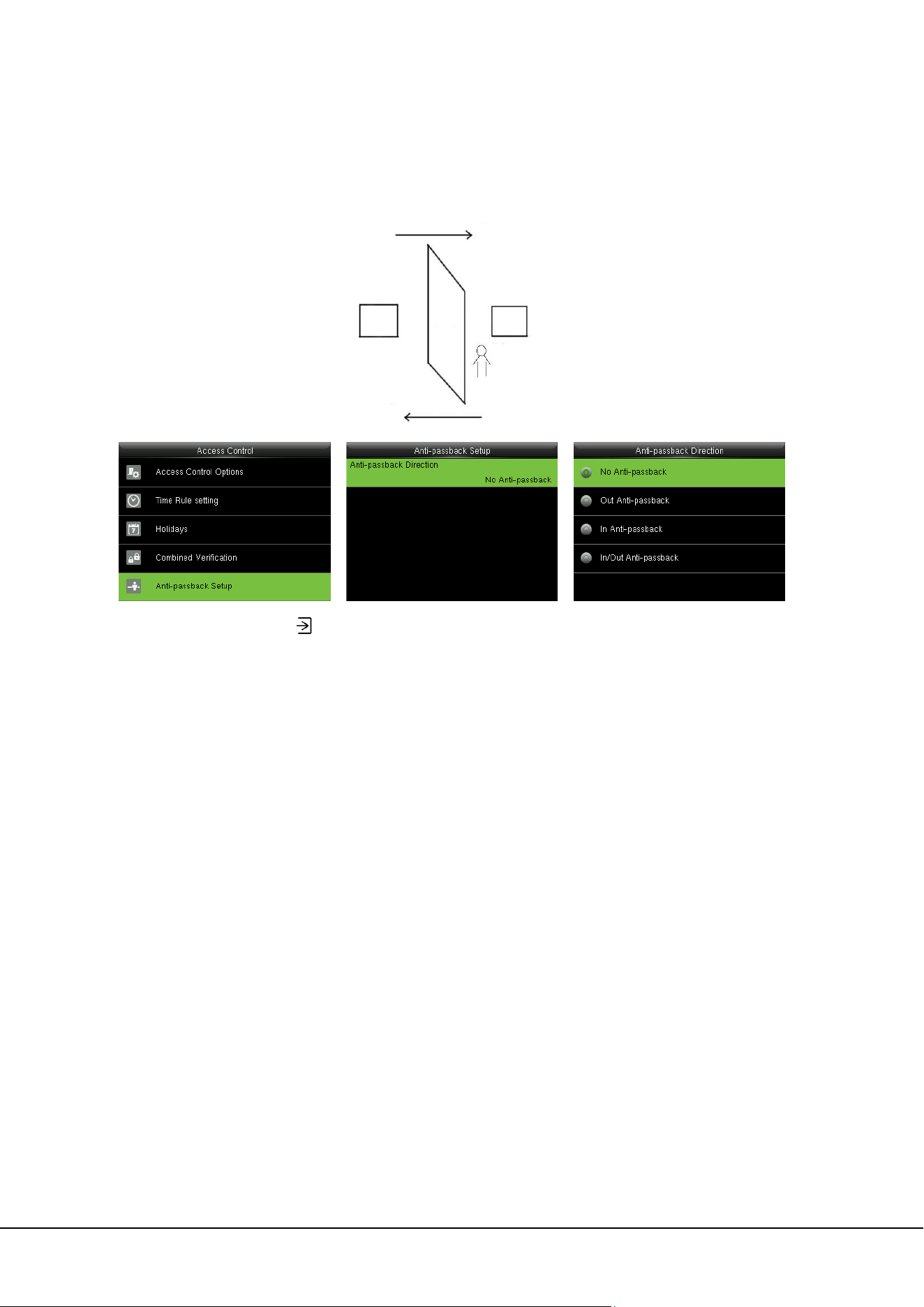
problem, users can enable anti-passback function. The check-in record must match with check- out
record so as to open the door.
This function requires two devices to work together: one is installed inside the door (master device), the
10 Access Control 41
other one is installed outside the door (slave device). The two devices communicate via Wiegand signal.
The Wiegand format and Output type (User ID / Badge Number) adopted by the master device and slave
device must be consistent.
In the initial interface, press
> Access Control > Anti-passback Setup to enter the Anti-passback
Setup interface. Select Anti-passback Direction.
Anti-Passback Direction
No Anti-passback: Anti-Passback function is disabled, which means passing verification of either master
device or slave device can unlock the door. Access records are not reserved.
Out Anti-passback: After a user checks out, only if the last record is a check-in record can the user check
out again; otherwise, the alarm will be triggered. However, the user can check in freely.
In Anti-passback: After a user checks in, only if the last record is a check-out record can the user check in
again; otherwise, the alarm will be triggered. However, the user can check out freely.
In/Out Anti-passsback: After a user checks in/out, only if the last record is a check-out record can the
user check in again, or a check-in record can the user check out again; otherwise, the alarm will be
triggered.
Out
Master Device
Slave Device
User
Door
In
42 ProCapture-T User Manual
11 USB Manager
User data, user portrait, access records and other data can be exported to relevant software for
processing through a USB disk, or import user data to the device by using a USB disk.
Remarks: Before uploading/downloading data from/to the USB disk, insert the USB disk into the
USB slot first.
11.1 USB Download
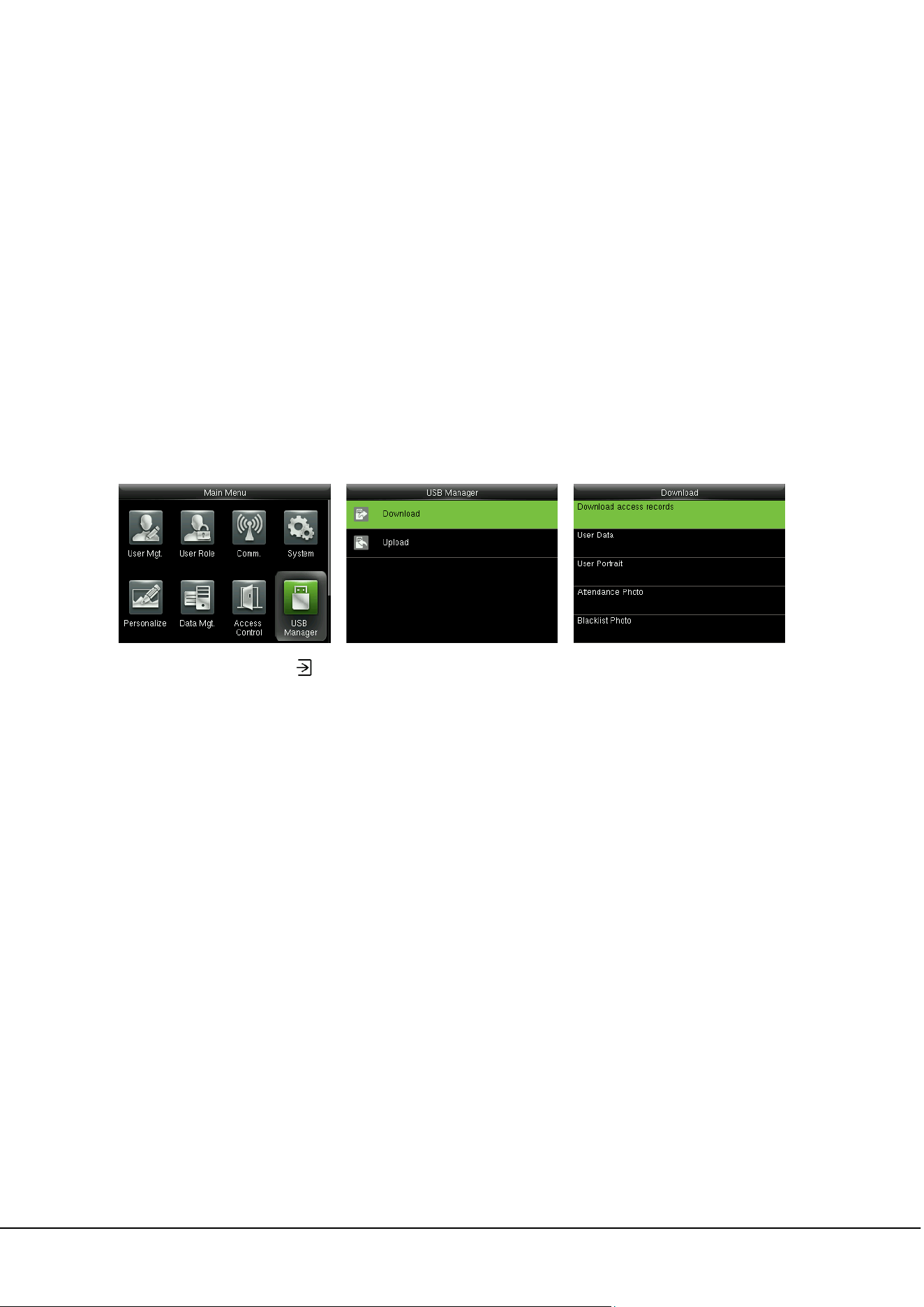
In the initial interface, press
> USB Manager > Download to enter the USB Download interface.
Download access records: To download access records in specified time period into USB disk.
User Data: To download all user information and fingerprints from the device into USB disk.
User Portrait
: To download all user photos from the device into a USB disk (only products possessing
Photo ID function display this optional).
Attendance Photo: To download attendance photos in specified time period from the device into USB
disk.
Blacklist Photo: To download blacklisted photos (photos taken after failed verifications) in specified time
period from the device into USB disk.

11 USB Manager 43
11.2 USB Upload
In the initial interface, press
> USB Manager > Upload to enter the USB Upload interface.
User Data: To upload all the user information and fingerprints from USB disk into the device.
User Portrait
: To upload user photos from USB disk into the device (only products possessing Photo ID
function display this optional). Select [Upload selected picture] or [Upload all
pictures] when uploading user portraits, for details of uploading user portraits, please
refer to 16.3 Image Uploading Rule).
Screen Saver: To upload screen savers from USB disk into the device. You can choose [Upload selected
picture] or [Upload all pictures]. The images will be displayed on the device’s main
interface after upload (for the specifications of screen savers, please refer to
16.3 Image
Uploading Rule).
Wallpaper: To upload wallpapers from USB disk into the device. You can choose [Upload selected
picture] or [Upload all pictures]. The images will be displayed on the screen after upload (for the
specifications of wallpapers, please refer to 16.3 Image Uploading Rule
).
44 ProCapture-T User Manual
12 Records Search
When users verify successfully, records are saved in the device. This function enables users to check
access records, attendance photo and blacklisted photo.
12.1 Searching Access Records
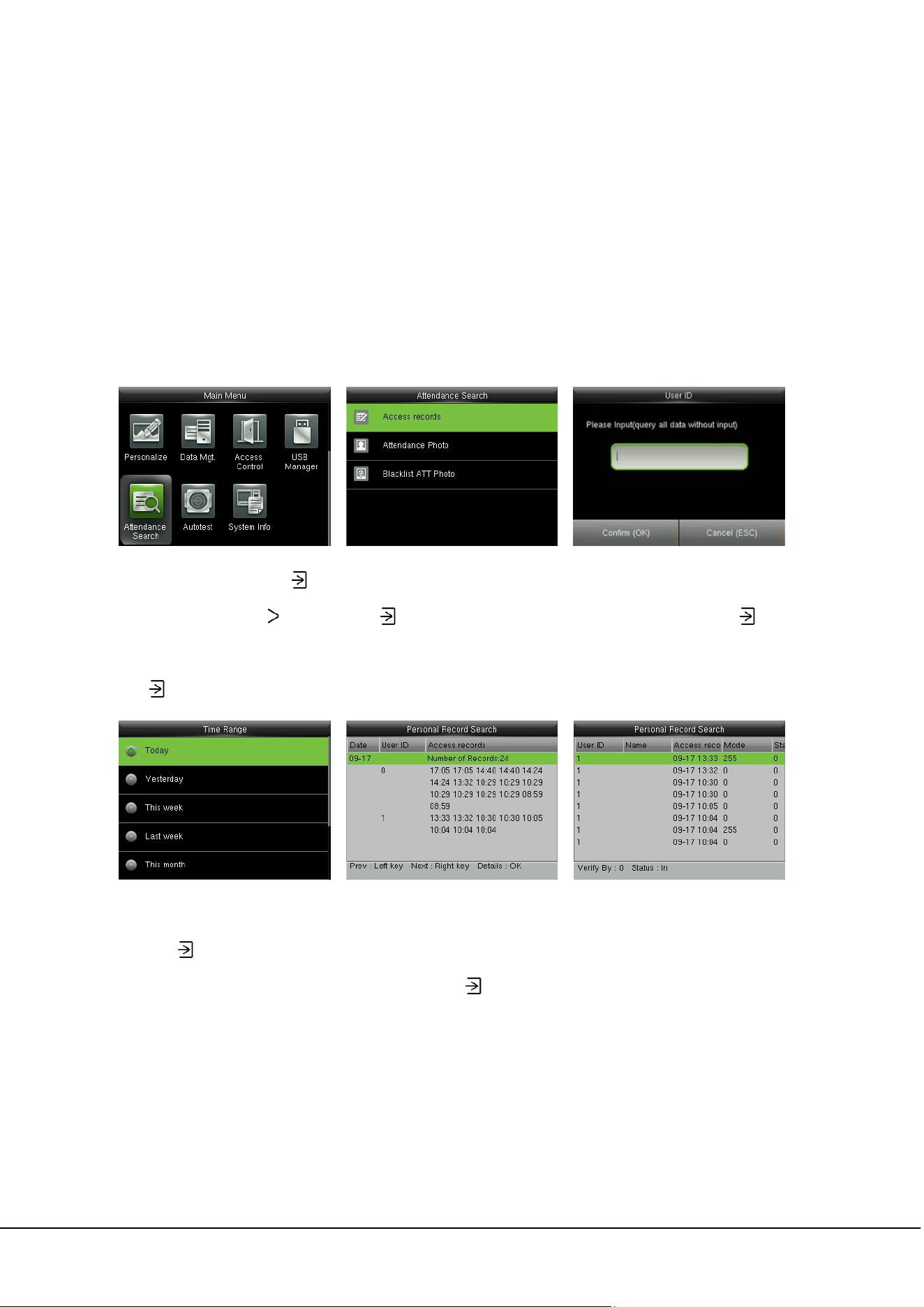
In the initial interface, press
to
enter main menu, press
to
select “Attendance Search” and
press
Select “Access records” and
press
to enter
Input user ID (query all data
without input), and press to
enter
Select time range to be searched
and press
to enter
Total access records in the time
range will display on the
screen, and press
Detail access records of each
user will display
12 Records Search 45
12.2 Searching Attendance Photo
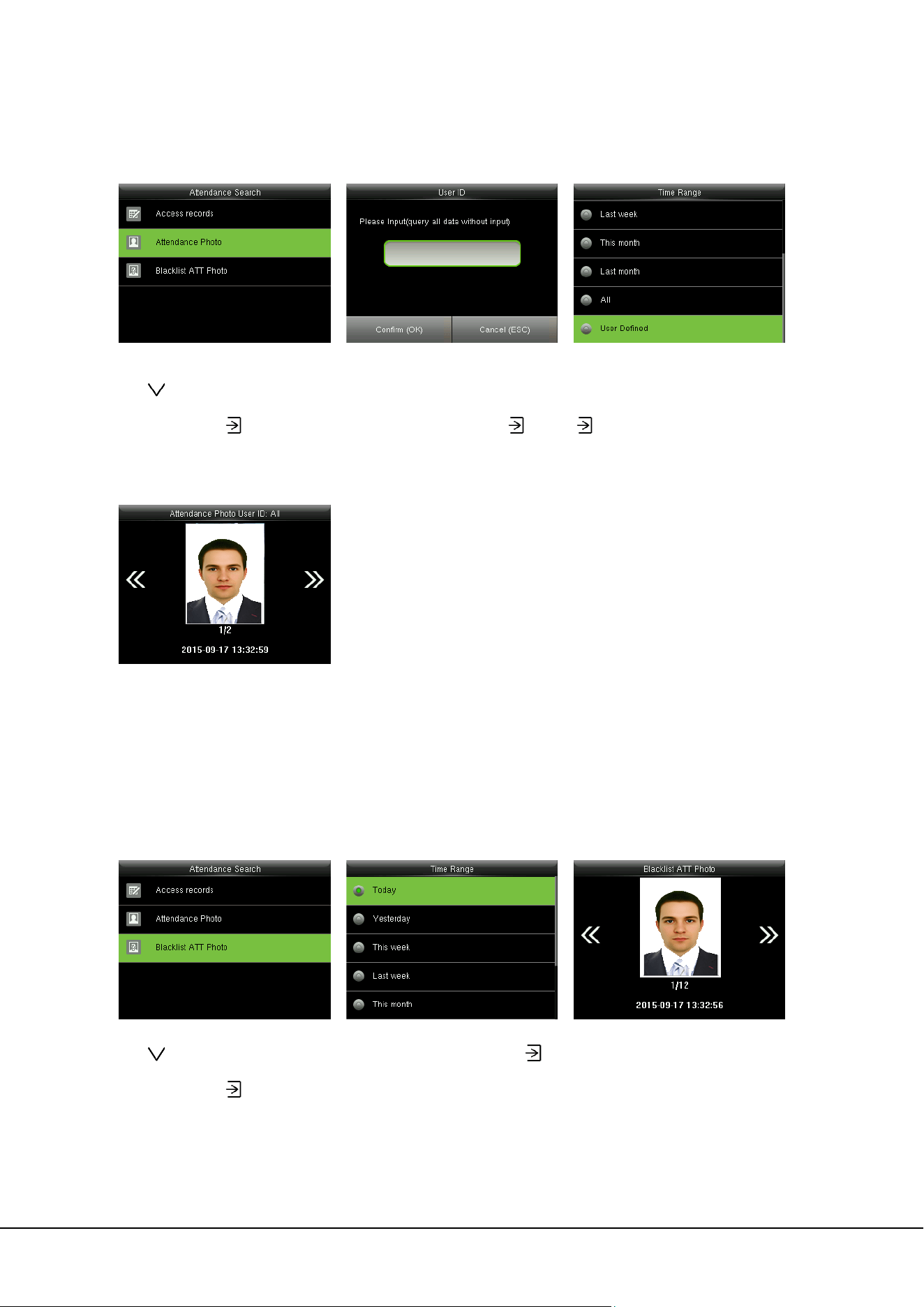
Press
to select “Attendance
photo” and press
Input user ID (query all data
without input), and press to
enter
Select time range and press
to enter
The corresponding attendance
photos will then be shown
12.3 Searching Blacklist ATT Photo
Press
to select “Blacklist ATT
photo” and press
Select time range and press
to
enter
The corresponding blacklist ATT
photos will be shown
46 ProCapture-T User Manual
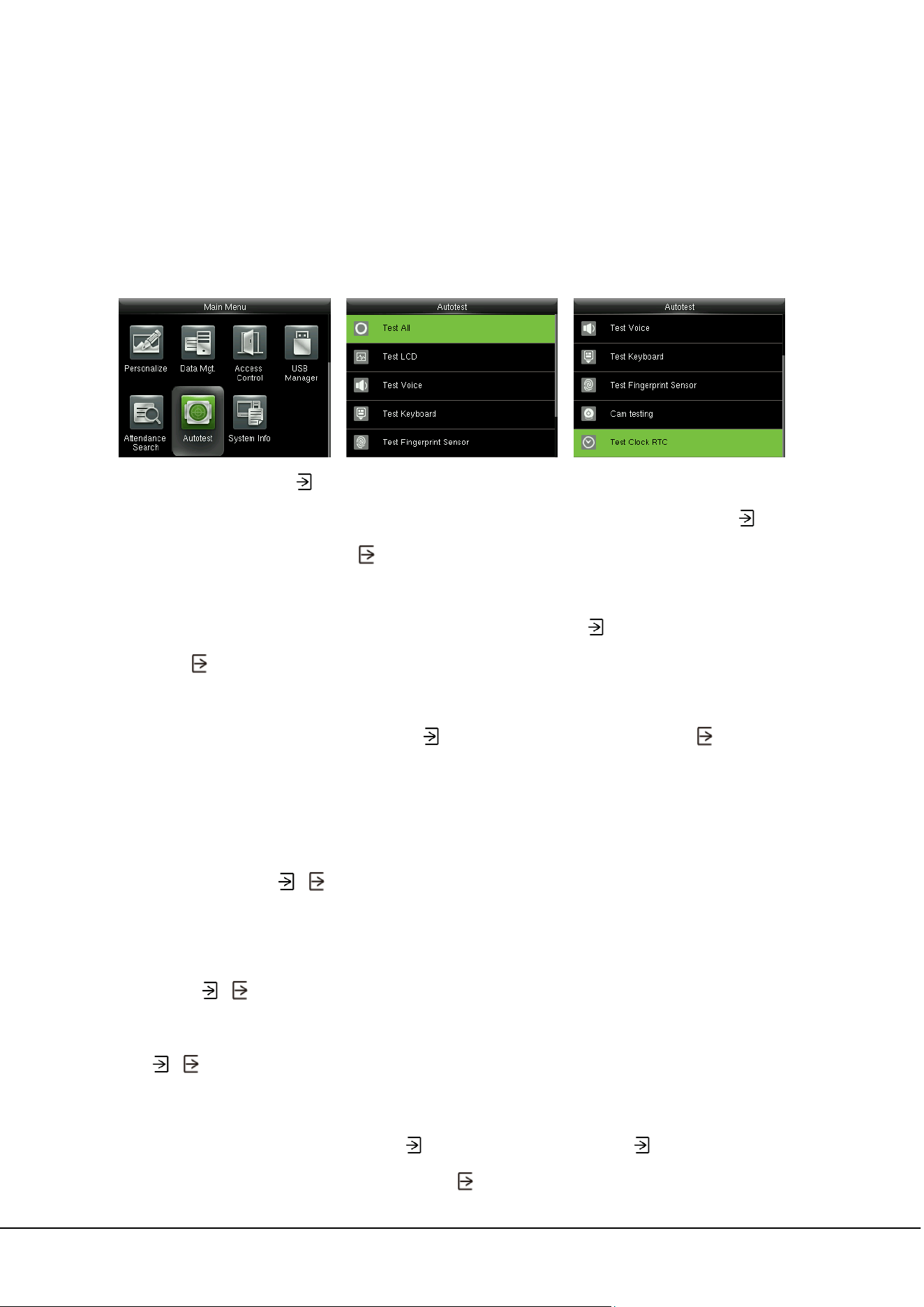
13 Autotest
To automatically test whether all modules in the device function properly, which include the LCD, voice,
keyboard, fingerprint sensort, camera and RTC (Real-Time Clock).
In the initial interface, press
> Autotest to enter the Autotest interface.
Test All: To test LCD, voice, keyboard, fingerprint sensor, camera and RTC. During the test, press
to
continue to the next test, while press
to exit the test.
Test LCD: To test the display effect of LCD screen by displaying full color, pure white, and pure black to
check whether the screen displays colors properly. During the test, press
to continue to the next test,
while press
to exit the test.
Test Voice: The device automatically tests whether the voice files stored in the device are complete and
the voice quality is good. During the test, press
to continue to the next test, while press to exit the
test.
Test Keyboard: To test all keys to see if every key functions properly. Press any key in the Keyboard
testing interface; if the pressed key is consistent with the key sign shown on the screen, then the key
functions properly. Press
or to exit the test.
Test Fingerprint Sensor: To test the fingerprint sensor by pressing fingerprint to check if the collected
fingerprint image is clear. When pressing fingerprint on the sensor, the image will be displayed on the
screen. Press
or to exit the test.
Cam testing: To test if the camera functions properly by checking the photos taken are clear for use.
Press
or to exit the test.
Test Clock RTC: To test the Real-Time Clock. The device tests whether the clock works properly and
accurately by checking the stopwatch. Press
to start counting time, and press again to stop counting,
to see if the stopwatch counts time accurately. Press
to exit the test.
14 System Information 47
14 System Information
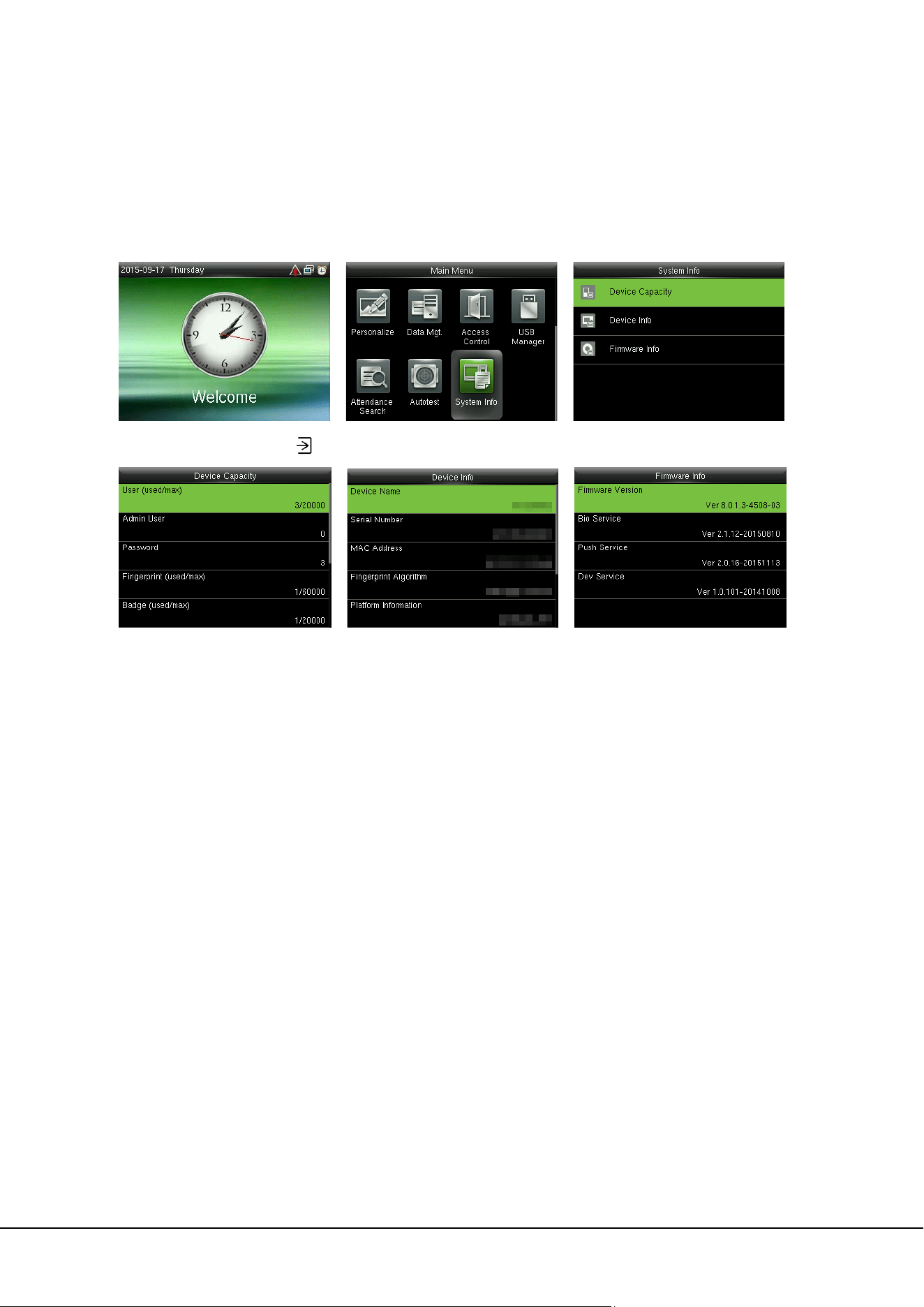
Check data capacity, device and firmware information.
In the initial interface, press
> System Info to enter the System Info interface.
Device Capacity Device Info Firmware Info
Device Capacity: To display the number of registered users, administrators, passwords, fingerprints,
badges, records, attendance photos, blacklist photos and user photos, also to check the total storage
of users, fingerprints, badges, records, attendance photos, blacklist photos and user photos.
Device Info: To display the device name, serial number, MAC address, fingerprint algorithm, platform
information, MCU version, manufacturer and manufacturer date.
Firmware Info: To display the firmware version, Bio service, Push service and Dev service.
Remarks: The display of Device Capacity, Device Info and Firmware Info on the system information
interface of different products may vary; the actual product shall prevail.

48 ProCapture-T User Manual
15 Troubleshooting
Fingerprint sensor is not able to read and verify the fingerprint effectively.
Check whether the finger is wet, or the fingerprint sensor is wet or dusty.
Clean the finger and the fingerprint sensor and try again.
If the finger is too dry, blow air onto it and try again.
“Invalid time zone” is displayed after verification.
Contact Administrator to check if the user has the privilege to gain access within that time
Schedule.
Verification succeeds but the user cannot open door.
Check whether the user privilege is set correctly.
Check whether the lock wiring is correct.
The Tamper Alarm rings.
Check whether the device and the back plate is fixed together; if not, the tamper switch on the
back of the device will be triggered and raises an alarm, will be shown on the top right
corner on the interface. Only when [Speaker Alarm] (Access Control > Access Control Options >
Speaker Alarm) is [ON] will the speaker raise an alarm
16 Appendices 49
16 Appendices
16.1 Photo ID Function
Remarks: Some models support Photo ID function.
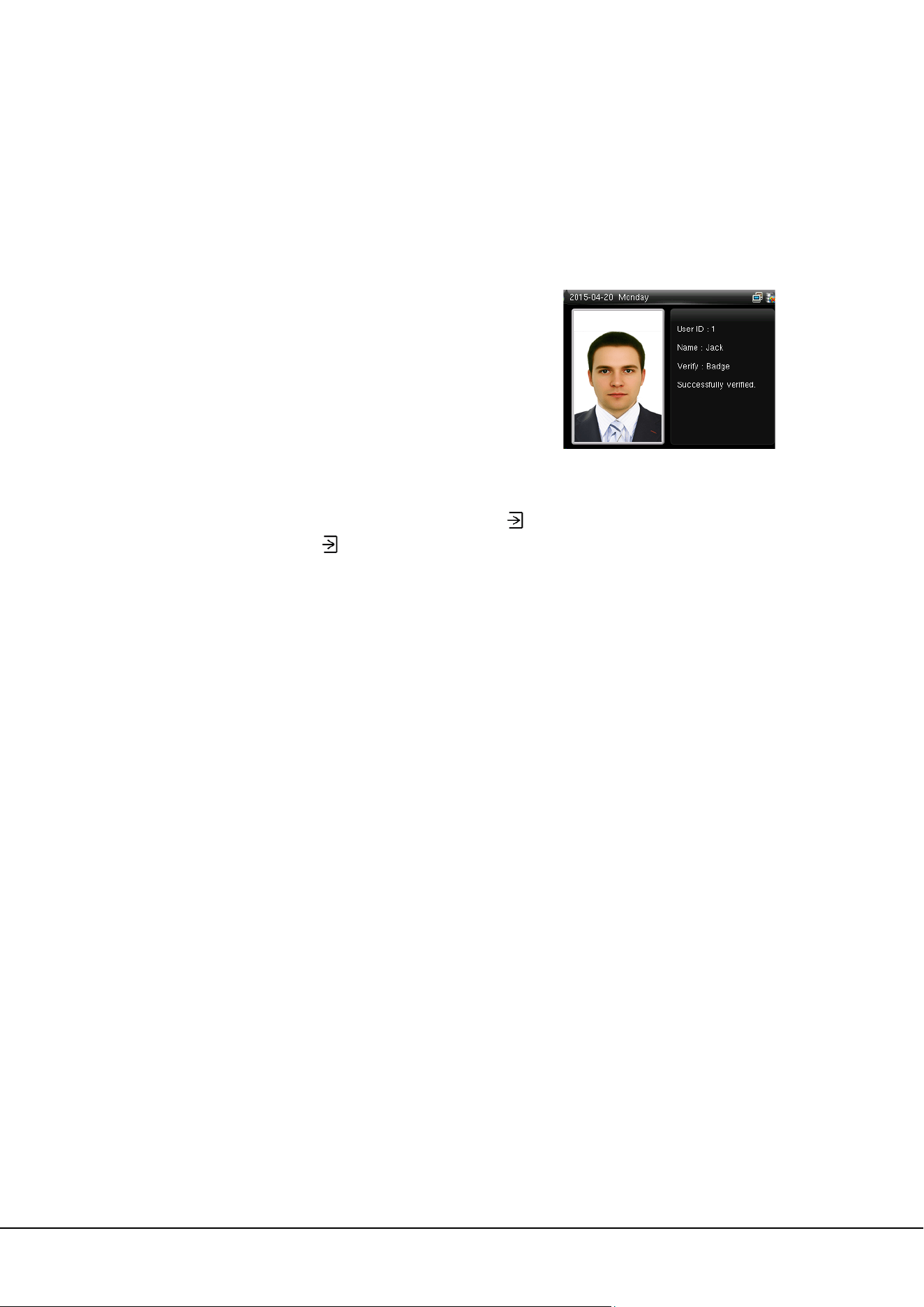
When the Photo ID function is enabled, and the user passes
verification, not only the information of user ID and name will be
displayed, but also the photo registered by the user or saved in
the USB disk will be shown.
Remarks
:
Enabling [Display User Photo] (in the initial interface, press > System > Access Logs Setting >
Display User Photo, and press
to enable the [Display User Photo] option) at the same time is needed
to display user photo after successful verification. If [Display User Photo] is disabled, user photo will not
be displayed after successful verification even if the device possessing Photo ID function.
[Operating Procedure]
If the user photo taken by the device is used, the photo will be displayed right after user verification.
If the user photo in a USB disk is used, the operating procedure is as below:
(1) Create a file named as “photo” in the USB disk, and save the user photo in the file.
(2) The photo format must be JPG, and the file must be named as the user ID. For example: the photo
corresponding to the user with the ID of 154 should be named as 154.jpg.
(3) Insert the USB disk into the USB port of the device, and enter USB Manager > Upload > User Portrait
to upload users’ photos. The photo will then be shown after user verification.
Note:
(1) The photo name must be within 9 digits.
(2) The photo size should be less than 15k.
(3) The newly uploaded photo will replace the original photo of the user.
(4) When downloading user photo, enter USB Manager > Download > User Portrait, a file named as
“photo” will be created in the USB disk automatically, in which all downloaded user photos will be saved.

50 ProCapture-T User Manual
16.2 Wiegand Introduction
Wiegand26 Protocol is a standard protocol on access control developed by the Access Control Standard
Subcommittee affiliated to the Security Industry Association (SIA). It is a protocol used for contactless IC
card reader port and output.
The protocol defines the port between the card reader and controller which are widely used in access
control, security and other related industries. This has standardized the work of card reader designers and
controller manufacturers. The access control devices produced by our company also apply this protocol.
Digital Signal
Figure 1 shows the sequence diagram of the card reader sending digital signal in bits to the access
controller. The Wiegand in this diagram follows the SIA access control standard protocol, which targets at
26-bit Wiegand card reader (with a pulse time within 20us to 100us and pulse hopping time within 200
us and 20 ms). Data1 and Data0 signals are high level (greater than Voh) until the card reader is ready to
send a data stream. The card reader send out asynchronous low level pulse (less than vol), transmitting
data stream via Data1 or Data0 wire to access control box (as the sawtooth wave in figure 1). Data1 and
Data0 pulses do not overlap or synchronize. Figure 1 shows the maximum and minimum pulse width
(successive pulses) and pulse hopping time (the time between two pulses) allowed by the F series
fingerprint access control terminals.
Table1: Pulse Time
Sign Definition
Card Reader Typical Value
Tpw Pulse Width 100 µs
Tpi Pulse Interval 1 ms
Figure1: Sequence Diagram

16 Appendices 51
16.2.1 Wiegand 26 Introduction
The system provides the embedded Wiegand 26-bit format.
Composition of the Wiegand 26-bit format: 2-bit parity check bits and 24-bit output content (user ID or
card number). The 24-bit binary code can indicate 16 777 216 (0-16 777 215) different values.
1 2 25 26
Even parity check bit User ID/Card number Odd parity check bit
The following table describes the fields.
Field Description
Even parity check
bit
The even parity check bit is determined by bits 2-13. If there is an even
number of 1's, the even parity check bit is 0. If there is an odd number of 1's,
the even parity check bit is 1.
User ID/Card
number (bit 2
through bit 25)
User ID/Card number (card code, 0-16777215) and bit 2 indicates the most
significant bit (MSB).
Odd parity check
bit
The odd parity check bit is determined by bits 14-25. If there is an even
number of 1's, the odd parity check bit is 1. If there is an odd number of 1's,
the odd parity check bit is 0.
For example: A user with the user ID of 12345 has the card number of 0013378512 and the failure ID is
set to 1.

52 ProCapture-T User Manual
1. When the output content is set to user ID, the Wiegand output of the system is as follows after the user
passes the verification.
0 0 0 0 0 0 0 0 0 0 0 1 1 0 0 0 0 0 0 1 1 1 0 0 1 1
Even parity check bit User ID = 12345 in binary system Odd parity check bit
2. When the output content is set to card number, the Wiegand output of the system is as follows after
the user passes the verification.
1 1 1 0 0 1 1 0 0 0 0 1 0 0 0 1 1 1 1 0 1 0 0 0 0 0
Even parity check bit User ID = 0013378512 in binary system Odd parity check bit
3. When the verification fails, the Wiegand output of the system is as follows:
0 0 0 0 0 0 0 0 0 0 0 0 0 0 0 0 0 0 0 0 0 0 0 0 1 0
Even parity check bit Failure ID = 1 in binary system Odd parity check bit
Note: When output content is beyond the preset range of the Wiegand format, the low-order bits
are reserved and high-order bits are discarded. For example, if a user ID is 888 888 888, which is 110 100
111 110 110 101 111 000 111 000 in binary system, the last 24 bits, that is, 111 110 110 101 111 000 111
000 are outputted and the first 6 bits 110 100 are discarded because the Wiegand26 format supports 24
bits of output content.
16.2.2 Wiegand 34 Introduction
The system provides the embedded Wiegand 34-bit format.
Composition of the Wiegand 34-bit format: 2-bit parity check bits and 32-bit output content (user ID or
card number). The 32-bit binary code can indicate 4 294 967 296 (0-4 294 967 295) different values.

16 Appendices 53
1 2 33 34
Even parity
check bit
User ID/Card number
Odd parity
check bit
The following table describes the fields.
Field Description
Even parity check bit
The even parity check bit is determined by bits 2-17. If there is an
even number of 1's, the even parity check bit is 0. If there is an
odd number of 1's, the even parity check bit is 1.
User ID/Card number
(bit 2 through bit 25)
User ID/Card number (card code, 0-4 294 967 295) and bit 2
indicates the MSB.
Odd parity check bit
The odd parity check bit is determined by bits 18-33. If there is an
even number of 1's, the odd parity check bit is 1. If there is an odd
number of 1's, the odd parity check bit is 0.
For example: A user with the user ID of 123456789 has the card number of 0013378512 and the failure
ID is set to 1.
1. When the output content is set to user ID, the Wiegand output of the system is as follows after the user
passes the verification.
0 0 0 0 0 0 1 1 1 0 1 0 1 1 0 1 1 1 1 0 0 1 1 0 1 0 0 0 1 0 1 0 1 1
Even parity check bit User ID = 123456789 in binary system Odd parity check bit
2. When the output content is set to card number, the Wiegand output of the system is as follows after
the user passes the verification.
0 0 0 0 0 0 0 0 0 1 1 0 0 1 1 0 0 0 0 1 0 0 0 1 1 1 1 0 1 0 0 0 0 1
Even parity check bit User ID = 0013378512 in binary system Odd parity check bit
3. When the verification fails, the Wiegand output of the system is as follows:

54 ProCapture-T User Manual
0 0 0 0 0 0 0 0 0 0 0 0 0 0 0 0 0 0 0 0 0 0 0 0 0 0 0 0 0 0 0 0 1 0
Even parity check bit Failure ID = 1 in binary system Odd parity check bit
16.3 Image Uploading Rule
1. User photo: It is required to create a file named as “photo” under the USB disk file, and put user
photos into the file. The capacity is 3000 images, with each of them not exceeding 15k. The image
name is x.jpg (x is the actual user ID, max. 9 digits). The photo format must be JPG.
2. Advertising image: It is required to create a file named as “advertise” under the USB disk file, and
put advertising images into the file. The capacity is 20 images with each of them not exceeding 30k.
Image name and format are not restricted.
3. Wallpaper: It is required to create a file named as “wallpaper” under the USB disk file, and put
wallpapers into the file. The capacity is 20 images with each of them not exceeding 30k. Image name
and format are not restricted.
Note: When each user photo and attendance photo does not exceed 10k, the device can save a
total number of 10000 user and attendance photos (considering the actual capacity of the device, it is
strongly suggested to upload 5000 user and attendance photos at most).
16.4 Anti-passback Settings
To avoid some persons following users to enter the door without verification, resulting in security
problem, users can enable anti-passback function. The check-in record must match with check-out
record so as to open the door.
This function requires two devices to work together: one is installed inside the door (master device) and
the other one is installed outside the door (slave device). The two devices communicate via Wiegand
signal. The Wiegand format and Output type (User ID / Badge Number) adopted by the master device
and slave device must be consistent.

16 Appendices 55
[Working principle]
The master device supports the Wiegand In function and the slave device supports the Wiegand Out
function. After the Wigand output port of the slave device is connected to the Wiegand input port of the
master device, Wiegand signals outputted by the slave device cannot contain the device ID and the
numbers sent from the slave device to the master device must exist on the master device. That is, the
user information on the slave device supporting the anti-passback function must map to the user
information on the master device supporting the anti-passback function.
[Function description]
The device detects anti-passback based on the last check-in/check-out record of users. The check-in
record must match the check-out record. The device supports out anti-passback, in anti-passback, and
in/out anti-passback.
When Out Anti-passback is set for a user on the master device, the last record of the user must be a
check-in record if the user needs to check in/out freely. Otherwise, the user cannot check out and the
check-out request of the user is rejected because of anti-passback. For example, if the recent first record
of a user is a check-in record, the second record of the user can be either a check-in or check-out record
but the third record must be based on the second record, ensuring that the check-in record matches the
check-out record. Note: If a user has no record, the user can only check in.
When In Anti-passback is set for a user on the master device, the last record of the user must be a
check-out record if the user needs to check in/out freely. Otherwise, the user cannot check in and the
check-in request of the user is rejected because of anti-passback. Note: If a user has no record, the user
can only check out.
Door
Slave Device
Master Device
User
Out
In

56 ProCapture-T User Manual
When In/Out Anti-passback is set for a user on the master device, if the last record of the user is a
check-out or check-in record, the next record of the user must be a check-in or check-out record for the
user to check in/out freely. That is, the check-in record must match the check-out record.
[Operation description]
(1) Model selection
Master device: devices supporting the Wiegand In function, except the F10 reader
Slave device: devices supporting the Wiegand Out function
(2) Menu settings
Anti-Passback Direction
The options of Anti-Passback Direction include In/Out Anti-passback, Out Anti-passback, In
Anti-passback, and No Anti-passback.
Out Anti-passback: After a user checks out, only if the last record is a check-in record can the user check
out again.
In Anti-passback: After a user checks in, only if the last record is a check-out record can the user check in
again.
(3) Modifying the Wiegand output format for the device
When two devices communicate with each other, only Wiegand signals that do not contain the device ID
are acceptable. You can choose Comm. > Wiegand Setup from the main menu or access the software
and choose Basic Setting > Device Management > Wiegand and set Defined Format to
Wiegand26-bits or Wiegand26 without device ID.
(4) User registration
User IDs must exist on both the master and slave devices and the user IDs must be consistent. Therefore,
users need to be registered on both the master and slave devices.
(5) Wiring description
The master and slave devices communicate with each other over Wiegand and the wiring is as follows:

16 Appendices 57
Master device Slave device
IWD0 <-----> WD0
IWD1 <-----> WD1
GND <-----> GND
16.5 Statement on Human Rights and Privacy
Dear Customers:
Thank you for choosing the hybrid biometric products designed and manufactured by us. As a
world-renowned provider of biometric technologies and services, we pay much attention to the
compliance with the laws related to human rights and privacy in every country while constantly
performing research and development.
We hereby make the following statements:
1. All of our fingerprint recognition devices for civil use only collect the characteristic points of
fingerprints instead of the fingerprint images, and therefore no privacy issues are involved.
2. The characteristic points of fingerprints collected by our products cannot be used to restore the
original fingerprint images, and therefore no privacy issues are involved.
3. We, as the equipment provider, shall not be held legally accountable, directly or indirectly, for any
consequences arising due to the use of our products.
4. For any dispute involving the human rights or privacy when using our products, please contact your
employer directly.
Our fingerprint products for police use, or development tools support the collection of the original
fingerprint images. As for whether such a type of fingerprint collection constitutes an infringement of
your privacy, please contact the government or the final equipment provider. We, as the original
equipment manufacturer, shall not be held legally accountable for any infringement arising thereof.
The law of the People’s Republic of China has the following regulations regarding the personal
freedom:
1. Unlawful arrest, detention or search of citizens of the People's Republic of China is prohibited;
infringement of individual privacy is prohibited.
2. The personal dignity of citizens of the People's Republic of China is inviolable.

58 ProCapture-T User Manual
3. The home of citizens of the People's Republic of China is inviolable.
4. The freedom and privacy of correspondence of citizens of the People's Republic of China are
protected by law.
At last we stress once again that biometrics, as an advanced recognition technology, will be applied in a
lot of sectors including e-commerce, banking, insurance and legal affairs. Every year people around the
globe suffer from great loss due to the insecurity of passwords. The biometric products actually provide
adequate protection for your identity under a high security environment.

16 Appendices 59
16.6 Environment-Friendly Use Description
The Environment Friendly Use Period (EFUP) marked on this product refers to the safety
period of time in which the product is used under the conditions specified in the
product instructions without leakage of noxious and harmful substances.
The EFUP of this product does not cover the consumable parts that need to be replaced
on a regular basis such as batteries and so on. The EFUP of batteries is 5 years.
Names and Concentration of Toxic and Hazardous Substances or Elements
Parts Name
Toxic and Hazardous Substances or Elements
Pb Hg Cd Cr6+ PBB PBDE
Chip resistor
× ○ ○ ○ ○ ○
Chip
capacitor
× ○ ○ ○ ○ ○
Chip inductor
× ○ ○ ○ ○ ○
Chip diode
× ○ ○ ○ ○ ○
ESD
components
× ○ ○ ○ ○ ○
Buzzer
× ○ ○ ○ ○ ○
Adapter
× ○ ○ ○ ○ ○
Screws
○ ○ ○ × ○ ○
○: Indicates that this toxic or hazardous substance contained in all of the homogeneous materials for this
part is below the limit requirement in SJ/T11363-2006.
×: Indicates that this toxic or hazardous substance contained in at least one of the homogeneous
materials for this part is above the limit requirement in SJ/T11363-2006.
Note: 80% of the parts in this product are manufactured with non-hazardous environment-friendly
materials. The hazardous substances or elements contained cannot be replaced with
environment-friendly materials at present due to technical or economical constraints.

16 Appendices 1
Copyright©2021 ZKTECO CO., LTD. All rights reserved.
ZKTeco Industrial Park, No.32, Industrial Road,
Tangxia Town, Dongguan, China
Tel: +86 769-82109991
Fax: +86 755-89602394
www.zkteco.com






