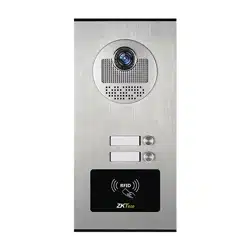

VE02-12-A01 Outdoor Station
Version: 1.0
User Manual
English
Due to the regular upgrades of systems and products, ZKTeco could not guarantee exact consistency
between the actual product and the written information in this manual.
Product Introduction
This product is a multi-user wired visual intercom doorbell with two parts: outdoor and indoor units. The outdoor
unit uses DC15V power and has a maximum transmission distance of 100 meters. It supports call intercom, unlock-
ing, active monitoring, mute, do not disturb, and ID card door opening. Ideal for homes, villas, apartments, oces,
and other spaces.
-1-
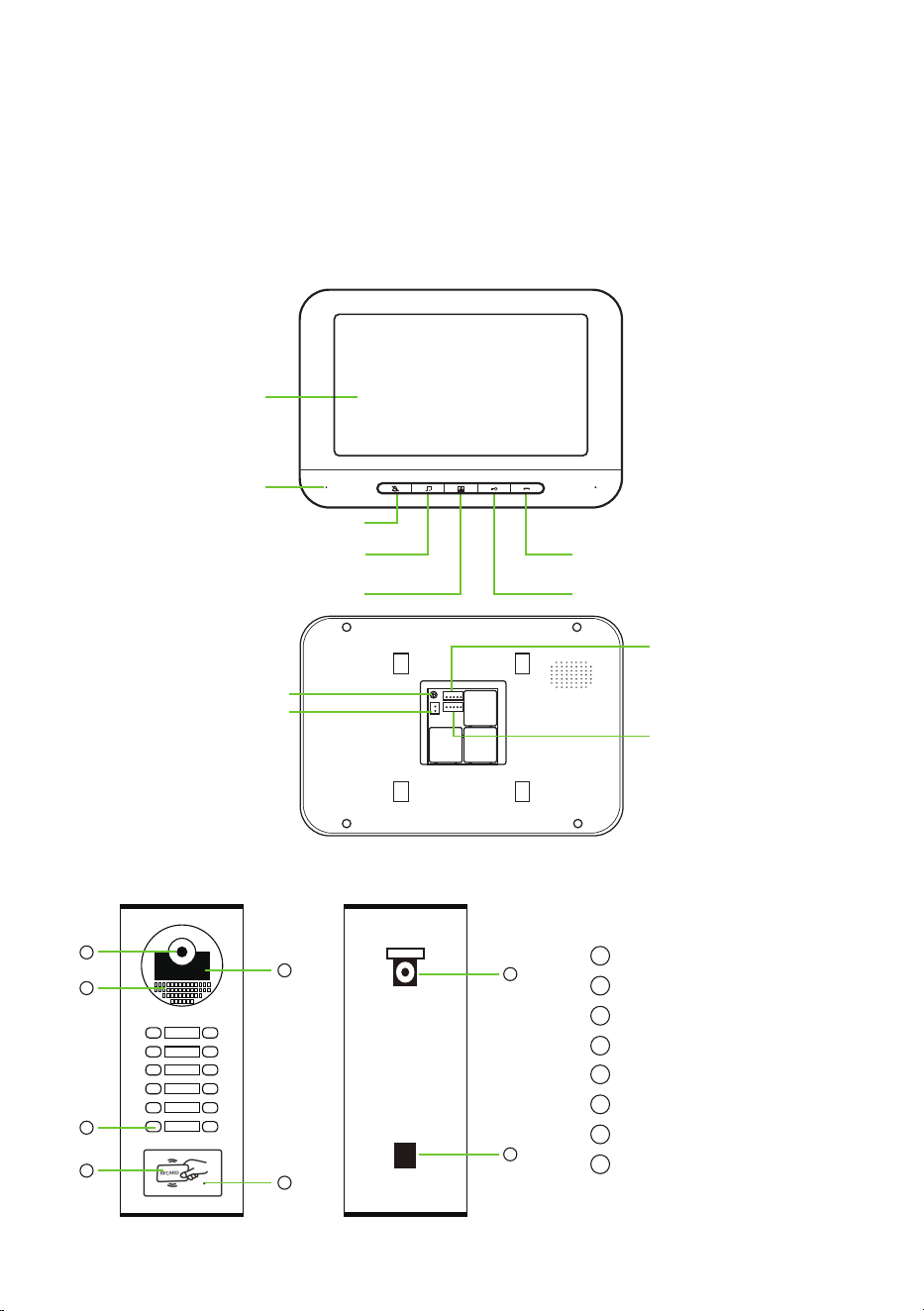
Color LCD
Microphone
Mute
Adjust the Volume of Music
& Replace the Ring Tone
Monitor Unlock
Talk
Connect Outdoor Unit
Intercom Volume Adjustment
DC 15V Power Interface
Connect Next Indoor Unit
1
Electronic Lock Signal Interface
2
3
4
5
6
7
8
Camera
Infrared Night Light
Speaker
Calling Button
Card Swiping Area
Microphone
Lens Direction Adjustment Area
8
7
1
2
6
3
4
5
Outdoor Unit:
Indoor Unit:
-2-
Indoor Unit Parameters
Product Diagram
Camera
Rain-proof Grade
Power Supply
Power
Connect Terminal
Unlocking Terminal
Working Temperature
Night Vision Feature
Unlocking Voltage
Screen
Resolution
Power Supply
Power
Wiring Terminal
Operating Tempe
Monitoring Time
Talking Time
Number Of Calling Ringtones
COMS HD camera
With rainproof cover
Special power adapter for power supply DC15V
Standby ≤ 0W, Working ≤10W
4PX2.54
2PX2.54
-20℃ to 60℃
Infrared night light
DC12V
Color HD TFT LCD
800*480
Input: AC100-240, Output: DC15V 1200mA
Standby ≤ 1W, Operating ≤ 10W
5PX2.54
-20℃ to 60℃
90 seconds
90 seconds
25
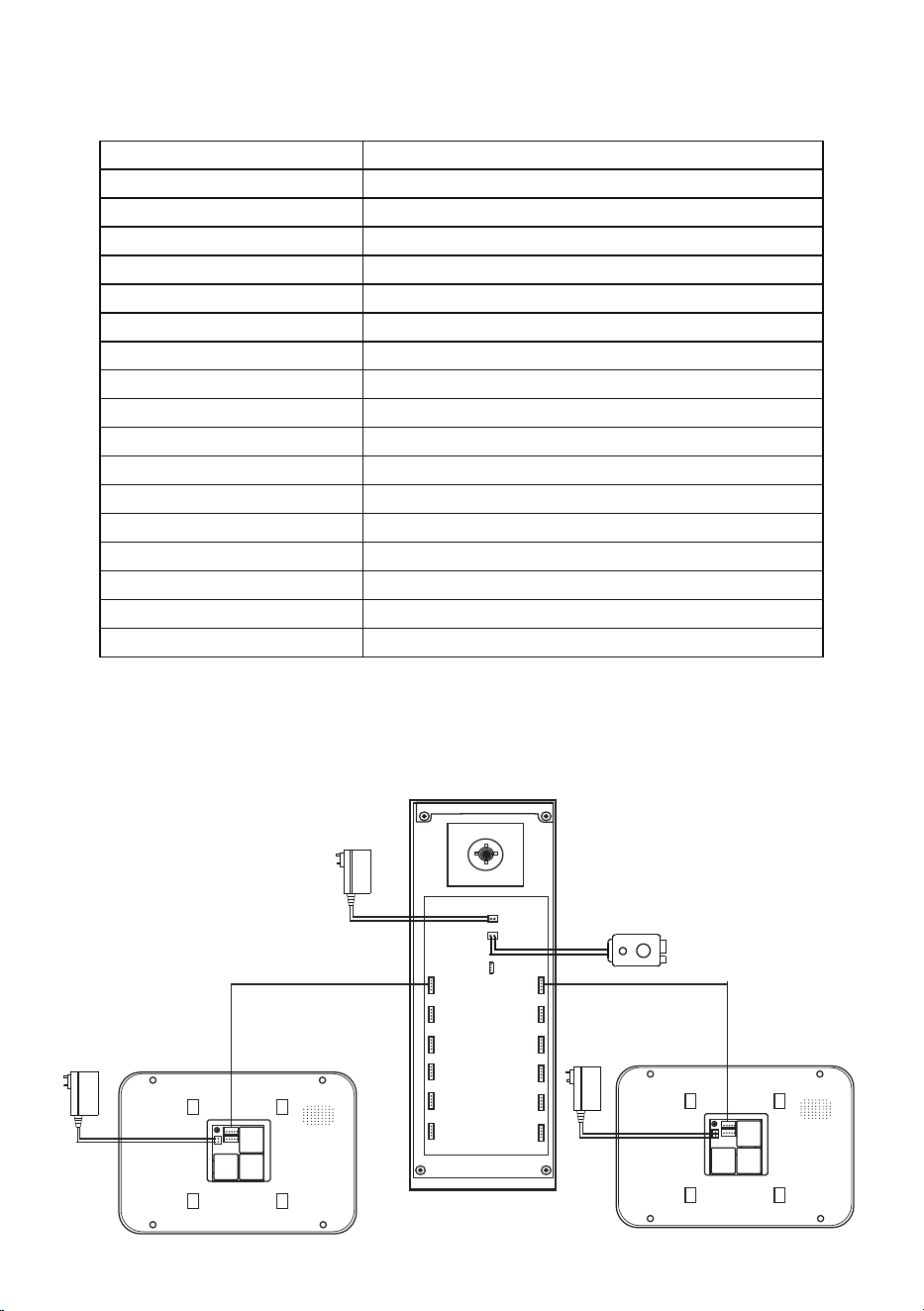
DC 15V Power
Outdoor unit
Electricity Control Lock
+15V
L+ L-
GND
-3-
Outdoor Unit:
Indoor Unit:
Product Installation
Function Description of Indoor Unit
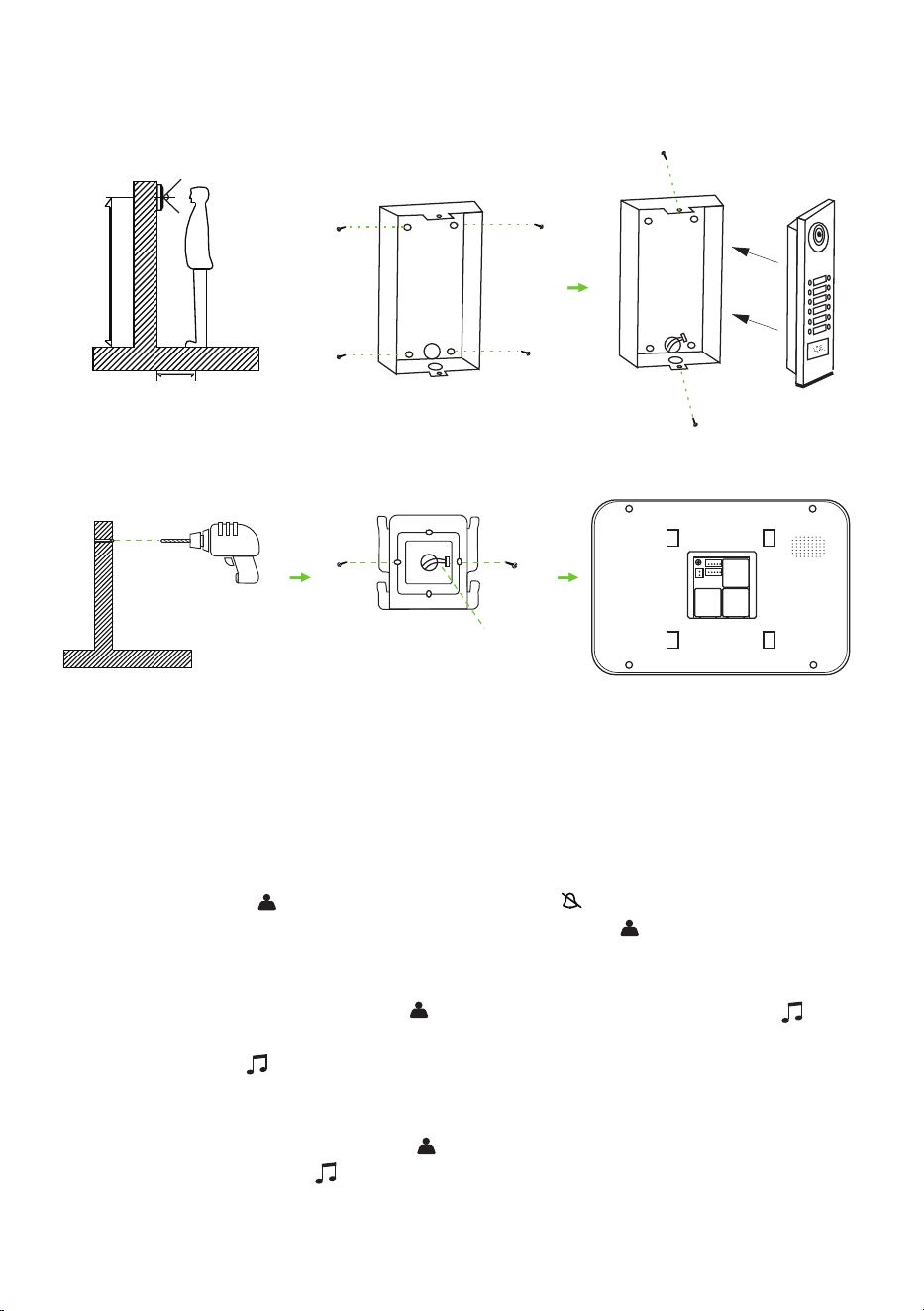
Indoor Unit Hanging Board
Indoor Unit
Screw
Screw
5-core wire
Bore Diameter: About 1.5cm
Electric Drill
Screw
Screw
Screw
Screw
Buried Wall Bottom Cover
30cm
150-165cm
A. Indoor Unit Ringtone Setting
1. Mute Setting
In standby mode, press the ” “ button to activate the screen. Press the “ “ button to turn o the bell and intercom
without aecting the image display. To enable the bell and intercom, press the ” ” button again in monitor mode.
Activating the mute function activates disturbance-free mode.
2. Change Ringtone
In the standby mode of the indoor unit, press the ” “ button rst to activate the screen. Then, press the ” “ button
to activate the ringtone and enter the Change Ringtone settings. The system is equipped with 25 ringtones of
various lengths. Press the ” “ button once to cycle through the ringtones. After selecting a suitable ringtone, stop
pressing the button. The last chosen ringtone will be the default for incoming calls on the system.
3. Ringtone Volume Adjustment
In the standby mode of the indoor unit, press the ” “ button rst to turn on the screen. It oers three levels of size:
large, medium, and small. Press the ” “ button for 2 seconds each time to progressively increase or decrease the
volume. After power-o, all ringtone settings will be restored to factory settings.

-4-
B. Instructions For Doorbell Operation
When any visitor presses the call button on the outdoor unit, the indoor unit screen will display the outdoor
image in real time and the bell will ring.
The indoor user can press the “ ” buttonto communicate with the visitor.
In intercom mode, the indoor user press the “ ” button to unlock the door.
In intercom mode, the indoor user can press the “ ” button to nish talking, or the conversation will nish
automatically end after 90 seconds.
To resume talking after hanging up, press the “ ” button rst and then press the “ ” button to cmmunacate
with the visitor.
In the standby mode of the indoor unit, press the “ ” button rst, and then the “ ” button to unlock the door.
The screen will automatically turn o in 90 seconds, or you can power it o by pressing the “ ” button once.
1.
2.
3.
4.
5.
6.
ID Card Instruction
A. Add User Card
In the working status, swipe to Add Card, and it will beep once, entering the additional user card state. When
swiping a User Card, a single beep indicates successful addition (up to 500 cards). If it rings three times, it means the
card storage is full, and the card cannot be added.
To exit the add user card status, swipe the Add Card again, beep once, exit add user card state into standby. To exit
the Add Card status, swipe the Add Card again, and it will beep once, returning to standby mode.
B. Delete User Card
Under the working status , swipe Delete Card, enter the delete user card state. Swipe the User Card you want to
delete, hear a sound beep showed the card has been sucessfuIly deleted. To exit the delete user card status, swipe
the Delete Card again, beep once, exit to add user card state into standby. Under the working status, swipe to Delete
Card to enter the delete user card state. Swipe the specic User Card you want to delete, and upon hearing a beep,
it indicates the successful deletion of the card. To exit the delete user card status, swipe Delete Card again; it will
beep once, returning to the add user card state and then into standby.
Delete All: Under the working status, swipe Delete Card, then swipe Add Card. Finally, swipe Delete Card again to
complete the operation.
C. Swipe Card to Open the Door
Under the working status, place an authorized user card in the card reader area. If it's an authorized card, you will
hear a beep, indicating successful recognition and unlocking simultaneously. If the card is unauthorized, it will ring
three times, signaling that the card is not authorized.
D. Production Management Card
To jump the pointer to 2-3 stitches, turn on the power, and enter Setting Mode after hearing a beep. Swipe the rst
card to add a card and the second card to delete a card. Afterward, turn o the power and set the switch down to
reset. This indicates that setting the management card is successful.

ZKTeco Industrial Park, No. 32, Industrial Road,
Tangxia Town, Dongguan, China.
Phone : +86 769 - 82109991
Fax : +86 755 - 89602394
www.zkteco.com
Copyright
© 2024 ZKTECO CO., LTD. All Rights Reserved.






