
Product Introduction
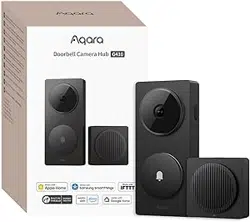
The Doorbell Camera Hub G410 is a newly launched upgraded doorbell product by
Aqara. It consists of an outdoor doorbell and an indoor chime. The doorbell activates via
radar, which eectively reduces the false activation issue caused by traditional PIR in
outdoor environments. The doorbell lens has been upgraded to a 176° ultra-wide-angle
field of view, the image sensor aspect ratio is 4:3, and the vertical field of view is
improved. The camera features an upgraded 3MP resolution for sharper video clarity,
complemented by ten 940nm non-intrusive infrared lights to significantly enhance night
vision performance. The doorbell has a built-in face recognition algorithm running
locally (within the doorbell itself) which can mark and identify the identity of visitors.
The indoor chime is also a Zigbee/Thread dual-protocol hub, which can connect to other
Aqara smart devices. The wireless connection between the chime and the outdoor
doorbell is 10 meters, allowing for versatile placement in the home. The doorbell is
powered by 6 AA batteries, or a 12-24V AC-AC power supply or AC-DC power supply. In
addition to being able to connect to the Aqara Home App for smart linkage, this product
can also be connected to third-party ecosystem platforms such as Apple HomeKit for
cross-ecosystem convenience.
Packing List
Outdoor Doorbell
Description of the function buttons:
1. Doorbell Button: Press to make the doorbell and chime ring.
2. Reset Button: Long press for 10 seconds to restore the factory settings.
3. Excessive Force Sensor: When the sensor detects excessive pulling force, it will trigger
an alarm to sound and push an alarm message (this function takes eect aer it is
turned on, and this function is turned o by default).
Speaker
Reset Button
Excessive Force
Sensor
Back Plate
Mounting
Hole
External Power
Terminal
Battery
Compartment
Back Plate
Mounting
Screw Hole
Wire Terminal
Back Adhesive
Back Plate
Mounting
Screw Hole
Microphone
Lens
Back Plate
Mounting
Screw
Indicator
Light Sensor
Millimeter
Wave Radar
Doorbell
Button
Infrared LED
4. Bind sub-devices
The indoor chime is a Zigbee hub and supports connecting Thread sub-devices. Please
add sub-devices according to the requirements of the sub-device’s manual and App
guidance.
5. Other functions
For more device functions, please log into Aqara Home app.
Connecting the Device
1. Download the App
Search for "Aqara Home" in the Apple App Store, Google Play, Xiaomi GetApps, Huawei
App Gallery, or scan the below QR code to download the Aqara Home app.
2. Add the Doorbell Camera Hub G410 in the Aqara app
Please first power on the Chime/Hub and ensure that your phone is connected to the
Wi-Fi network that the doorbell is about to connect to. When the status indicator light of
the Chime/Hub flashes yellow, open the Aqara Home App, the doorbell will be
automatically discovered and displayed on the app. Click on the discovered device and
follow the app’s instructions to connect the device. Alternatively, click on the "+" icon in
the upper right corner of the App’s homepage and select "Doorbell Camera Hub G410"
to connect it to the App. Aer a successful connection, the indicator light on the
Chime/Hub will remain on with a solid blue light.
*The outdoor doorbell and Chime/Hub are paired before leaving the factory and cannot be unbound by
the user. They cannot be mixed with other doorbells.
*Connect the Chime/Hub to your home’s Wi-Fi network and connect it to the Aqara App. Aer the
outdoor doorbell is powered on, it will automatically connect to the Chime/Hub.
*If the Chime/Hub fails to connect to the network aer 10 minutes of being powered on, the device will
enter a cut-o state indicated by a solid white light. To restart the network, please unplug the power
and reconnect, or long press the function key for 10 seconds to reset the network. When the indicator
light turns yellow and flashes rapidly, you can reconnect to the network.
*When connecting to the network, please keep your phone as close as possible to the Chime/Hub and
ensure that it is connected to the same Wi-Fi network that the Chime/Hub will connect to.
Indicator status:
Product installation
1. Select the installation location
As shown in the figure below, it is recommended to install the Doorbell on an outdoor
wall or door. If the door is metal, it is advisable to install the Doorbell on the wall next to
the door. The suggested installation height is 1.4–1.5 meters from the ground. The
recommended installation position for the Indoor Chime/Hub is within a horizontal
distance of ≤10 meters from the wall of the entrance door to ensure a strong wireless
connection to the Doorbel. The linear distance between the Chime/Hub and the wireless
router should be within 20 m.
2. Select the power supply mode
The outdoor unit supports two power supply modes: battery or external power supply.
Please make your choice based on the actual conditions at the door. The specific
operation is as follows:
When using for the first time, please use the Phillips (cross-point) screwdriver in the
accessories to loosen the screws on the lateral side, then hold the doorbell, and slide
the back plate down to take it out.
Install the batteries according to the positive and negative poles marked in the
battery compartment (please install the batteries aer the Chime/Hub is connected
to the network, according to the requirements in the chapter "Connecting the
Device").
1) Battery power: Refer to the following steps and schematic diagrams.
3. Select an installation method for the outdoor doorbell
The back plate can be fixed in the following two ways:
Method 1 (adhesive installation method)
The adhesive method is suitable installing on wooden doors, ceramic tile walls and
other materials which are inconvenient to punch holes in. The installation steps and
schematic diagrams are provided below:
The indoor Chime/Hub can be placed on a platform or attached to the wall with
adhesive. Refer to the following steps and schematic diagrams for installation:
4. Installing the indoor Chime/Hub
2) External power supply: lf an external power supply is used, please do the following
when connecting the back plate:
Description of the Menu button:
1. Short press once: Turn o the bell/alarm sound.
2. Long press for 10 seconds: Reset the network and unbind the device.
3. Press 10 times quickly: Restore the factory settings.
Indoor Chime
Menu Button
Loudspeaker
Indicator
Micro SD card slot
USB-C Port
Device status Indicator status
Doorbell
Camera
Hub
G410
Chime/
Hub
Blinking white breathing light
Someone's approaching the doorbell
Solid yellow light
The device is turning on
Quickly flashing blue light
The router is being connected
Blue light remains solidly on
Functioning normally
Purple light slowly flashes
Sub-devices can be added to the Hub
Yellow light flashing slowly
The firmware is being upgraded
The indicator light is o
The indicator light is turned o / the
device is not powered on / the device is in
sleep mode
Quickly flashing yellow light The network is waiting to be connected
White light is solidly on
The account cannot be bound for 10
minutes
Slowly flashing blue light
The connection to the router is
successful, and the account is being
bound
Flashing green light Someone rang the bell
Blue light flashes slowly The Chime/Hub is being connected
Solid blue light
The Chime/Hub is successfully
connected
Solid red indicator light Live video is in progress
Yellow light is flashing slowly The firmware is being upgraded
1
2
To prevent installation misalignment of the Doorbell from aecting the image
display, please ensure that the Doorbell is aligned correctly in both horizontal and
vertical directions as shown in Figure 1 before installation.
1
Method 3 (Adding a 20° Steering Bracket)
When the doorbell is installed on both sides of the door, the lens orientation can be
adjusted by adding an oblique triangular brackets from the accessories kit. The specific
operations are as follows:
Install the triangle bracket on the wall first, secure it with screws.
Then use screws to lock the back plate of the doorbell on the triangular bracket.
Finish the installation by fastening the screws, and then mount the Doorbell onto the
backplate to complete the setup.
1
2
Remove the adhesive protection paper, stick the Chime/Hub on a flat and clean
surface, and press it once, firmly, aer placing it to ensure that the product will be
secured in place.
Plug the Type-C power cord into the device to power it on, and confirm that the
indicator lights turn on normally, signifying that the device has turned on normally.
1
2
3
Method 2 (Screw Installation Method)
Align the wall-mounted back plate to whichever surface you want to mount it to;
mark the drilling positions based on the screw holes on the bracket, then use a 6mm
diameter drill bit to drill holes into the wall to a depth of more than 32mm.
1
Insert the wall anchor from the accessory package into the drilled hole using a
hammer, ensuring it is flush with the surface.
Use the self-tapping screws from the accessory package to mount the wall bracket on
the wall.
2
3
Slide the Doorbell onto the backplate from top to bottom along the guide track until
it fully locks into place and overlaps securely.
Use a Phillips (cross-point) screwdriver to fix the screw in on the right side of the
Doorbell and secure the silicone waterproof cover.
4
5
Remove the adhesive protection paper, stick the back plate on a flat and clean wall
or door, and press it firmly to the surface to ensure that the back plate will not fall o.
Slide the Doorbell onto the backplate from top to bottom along the guide track until
it fully locks into place and overlaps securely.
Use a Phillips (cross-point) screwdriver to fix the screw in on the right side of the
Doorbell and secure the silicone waterproof cover.
2
3
4
Use appropriate tools to remove the wire entry hole cover from the backplate.
Feed the power cord through the wire entry hole.
Connect the power cord to the external power terminal of the doorbell and securely
tighten the screw. Ensure proper insulation to avoid any risk of a short circuit.
1
2
3
2
3
1
1
1
≥32mm
φ6mm
2 3
21
≤10 m(32.81ft)≤20m (65.62 ft)
OutdoorWallIndoor
1.4-1.5 m (4.59-4.92ft)
Chime/Hub
Wireless Router
Doorbell Camera Hub G410
1 2 3
Doorbell
Camera Hub
G410 ×1
20° Wedge
Bracket ×1
Wedge Screw Kit
(M3×10mm,
self-tapping) ×1
Chime/Hub ×1
Cable for Chime
×1
AA Battery ×6
Phillips (Cross-Point)
Screwdriver ×1
Wall Screws (M3×20mm,
self-tapping) & Anchor Kit
(32mm) ×1
3. Access Apple HomeKit
Open the Apple "Home" app. Click the "+" in the upper right corner to go to the Add
Accessories pages. Scan or manually enter the HomeKit setting code at the bottom of
the Chime/Hub (HomeKit QR code), and bind the device to HomeKit.
Common reasons for HomeKit setup failure:
A prompt stating "No accessories can be added". The error message cached in the iOS
system cannot be resolved due to repeated failures to add a device. Restart the iOS
device(iPhone or iPad) and reset the Chime/Hub before trying again.
A prompt stating that "accessories have been added". Please restart the iOS device and
reset the Chime/Hub, and then add the doorbell by manually entering the HomeKit
pairing code.
A prompt stating that "no accessories are found". Please reset the Chime/Hub. Wait for
3minutes, and then manually enter the HomeKit pairing code to add it again.
1 2
2
3
4
4 5
Chime/Hub
Specifications
Model: CH-C09E/CH-C09D
Video Resolution: 2048×1536
Viewing Angle: 175°(diagonal)
Wireless Protocols: Wi-Fi lEEE 802.11 b/g/n 2.4 GHz
Battery: 6 * LR6 AA Alkaline Batteries
Wired Input: 12V-24V AC 0.2A 50/60Hz or 12V-24V DC 0.5A
Operating Temperature: -18°C~50°C (-0.4°F~ 122°F)
Operating Humidity: 0~95% RH, no condensation
Doorbell Camera Hub G410
Model: CH-C11E/CH-C11D
Loudspeaker Power: 2W
Wireless Protocols: Wi-Fi lEEE 802.11 a/b/g/n/ac 2.4/5 GHz, Zigbee/Thread IEEE 802.15.4
Bluetooth
Power Port: USB-C
Input: 5V 1A
Local Storage: MicroSD card (not included). CLASS 10 or above is supported, up to
512GB storage.
OperatingTemperature: 0°C~40°C (32°F~ 104°F)
Operating Humidity: 0~95% RH, no condensation
Power Consumption: Networked standby mode: ≤ 2.0 W
Time to Enter the Condition: Networked standby mode: ≤ 20 min
Notes
When installing the device with adhesive backing, it is necessary to ensure that the
installation surface is smooth and clean, and the adhesive has suicient contact area
with the installation surface. The best surface materials for installation are glass,
ceramic tile, marble and latex paint.
The external power supply can't charge the batteries in the battery compartment. When
the batteries are installed and the device is connected to an external power supply, the
Doorbell will use the external power supply.
When DC power supply is used as an external power supply, the power terminals do not
distinguish between positive and negative poles, and both terminals can be connected
to positive or negative poles. Please ensure there are no short circuits between the
terminals.
When the batteries are used for power supply, the Doorbell defaults to low power
consumption mode, and it will automatically enter sleep mode when there is no ringing
or other triggering sources. Only when someone stays or rings the bell will it activate,
and the battery life is directly related to the actual activation frequency. When external
power supply is used, the Doorbell will always be active and will not enter sleep mode.
Please use LR6 AA batteries. The mixed use of new and old batteries will seriously aect
the operating time and safety of the Doorbell. Each time you replace the batteries,
please ensure all six batteries are brand new.
Warranty is not given if the tamper-evident label attached to the screw inside the
battery compartment is torn, damaged, or destroyed. The Doobell can only be paired
with the Chime/Hub it is shipped with, and vice versa. Confirmation can be made
through the HomeKit QR codes at the bottom. Aer-sale services require full set returns.
Notice
Use of the Works with Apple badge means that an accessory has been designed to work
specifically with the technology identified
in the badge and has been certified by the developer to meet Apple performance
standards. Apple is not responsible for the operation of this device or its compliance
with safety and regulatory standards.
A 10-day recording history from yourDoorbell Camera Hub G410is securely stored in
iCloud and available to view in the Apple Home app on your iPhone, iPad, or Mac. You
can add one camera to a 50GB plan, up to five cameras to a 200GB plan, or up to an
unlimited number of cameras to a 2TB plan at no additional cost. Camera recordings
don’t count against your iCloud storage limit.
Communication between iPhone, iPad, Apple Watch, HomePod, HomePod mini, or
Macand the HomeKit- enabled Doorbell Camera Hub G410is secured by HomeKit
technology.
Apple, Apple Watch, HomeKit, HomePod, HomePod mini, Siri, iPad, iPad Air, and iPhone
are trademarks of Apple Inc., registered in the U.S. and other countries.
Online Customer Service: www.aqara.com/support
Manufacturer: Lumi United Technology Co., Ltd.
Address: Room 801-804, Building 1, Chongwen Park, Nanshan iPark, No. 3370, Liuxian
Avenue, Fuguang Community, Taoyuan Residential District, Nanshan District,
Shenzhen, China.
Email: [email protected]
Made in China
Ways for the doorbell to enter standby mode:
①When the doorbell's radar sensor detects no approaching targets, it will automatically
enter standby mode.
②Log into the app, go to the doorbell's function settings page, and change the doorbell's
working mode to "Power Saving Mode," and the doorbell will continue to operate in
standby mode.
Doorbell Camera Hub G410 User Manual
