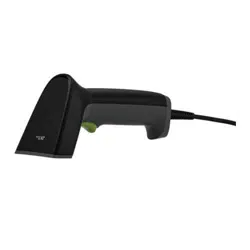
2D Barcode Scanner
[2M] Version: 1.1
Quick Start Guide
Due to the regular upgrades of systems and products, ZKTeco could not guarantee exact
consistency between the actual product and the written information in this manual.
-1- -2- -3-
Setting Code
Procedure
System Settings
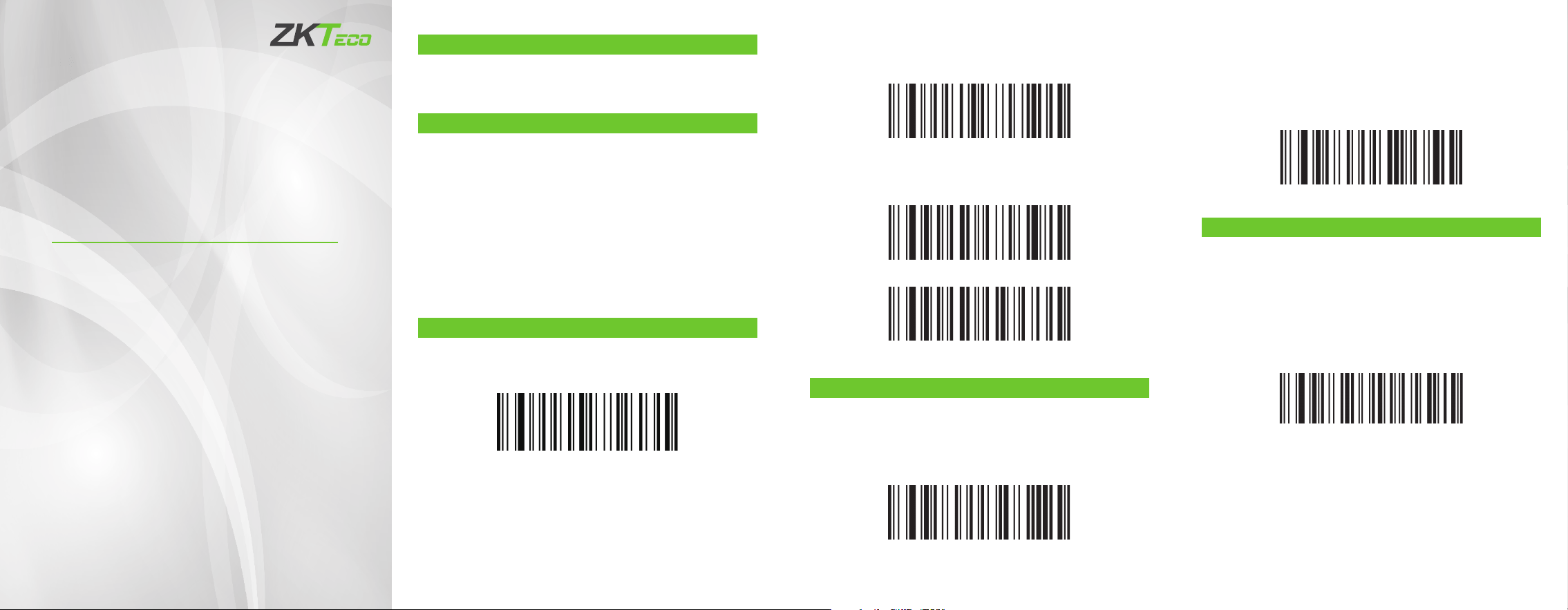
The code scanner can set the corresponding function by reading
one or a group of special setting barcodes.
In the manual barcode reading mode, the operation steps are as
follows:
Factory Default
Read the “Factory Default” barcode, you can set all the properties
of the scanner to the factory default state.
Version
Read the “Version” barcode, you can view the current version
information of the scanner.
Press and hold the trigger button of the barcode scanner, the
aiming line will be activated and a red aiming line will appear.
Align the red aiming line with the center of the barcode, move
the scanner and adjust the distance between it and the
barcode to nd the best reading distance.
When the success prompt sounds and the red lighting line
goes out at the same time, the code reading is successful.The
barcode scanner transmits the decoded data to the host.
1.
2.
3.
Factory Default
Version
Reading Mode
Manual Reading Mode
The default mode is manual reading mode. After pressing the
trigger button, the scanner starts to read the code. The code
reading stops after the code reading is successful or the trigger
button is released.
Sense Reading Mode
When the barcode scanner senses a change in the scene, it will
automatically enter the barcode reading state.In this mode, press
the trigger button, and the barcode scanner will keep reading the
code until the barcode is successfully read or the time set by the
barcode reading timeout is reached.
Manual Reading Mode
Sounding Settings
Read the setting barcode, you can turn on or o the prompt
sound when the barcode is successfully read.
Enable Decode Sound
Disable Decode Sound
Sense Reading Mode
Communication Interface Settings
USB Mode
The USB mode is the USB-KBW interface. The code scanner that
uses USB interface for data transmission, the default is USB-KBW
communication. It will emulate USB keyboard input mode, no
need to install drivers.
When using the same barcode scanner to communicate with
dierent hosts, you must set the code scanner to the correspond-
ing communication interface mode.
USB Mode
TTL/RS232 Mode
When the scanner uses a serial communication interface to work,
it must fully match the serial communication protocol parameters
of the host device to ensure accurate data transmission.
Serial port communication protocol default parameters: baud
rate 9600, check character NONE.
-4- -5-
-6-
ZKTeco Industrial Park, No. 32, Industrial Road,
Tangxia Town, Dongguan, China.
Phone : +86 769 - 82109991
Fax : +86 755 - 89602394
www.zkteco.com
Copyright
© 2023 ZKTECO CO., LTD. All Rights Reserved.
TTL/RS232 Mode
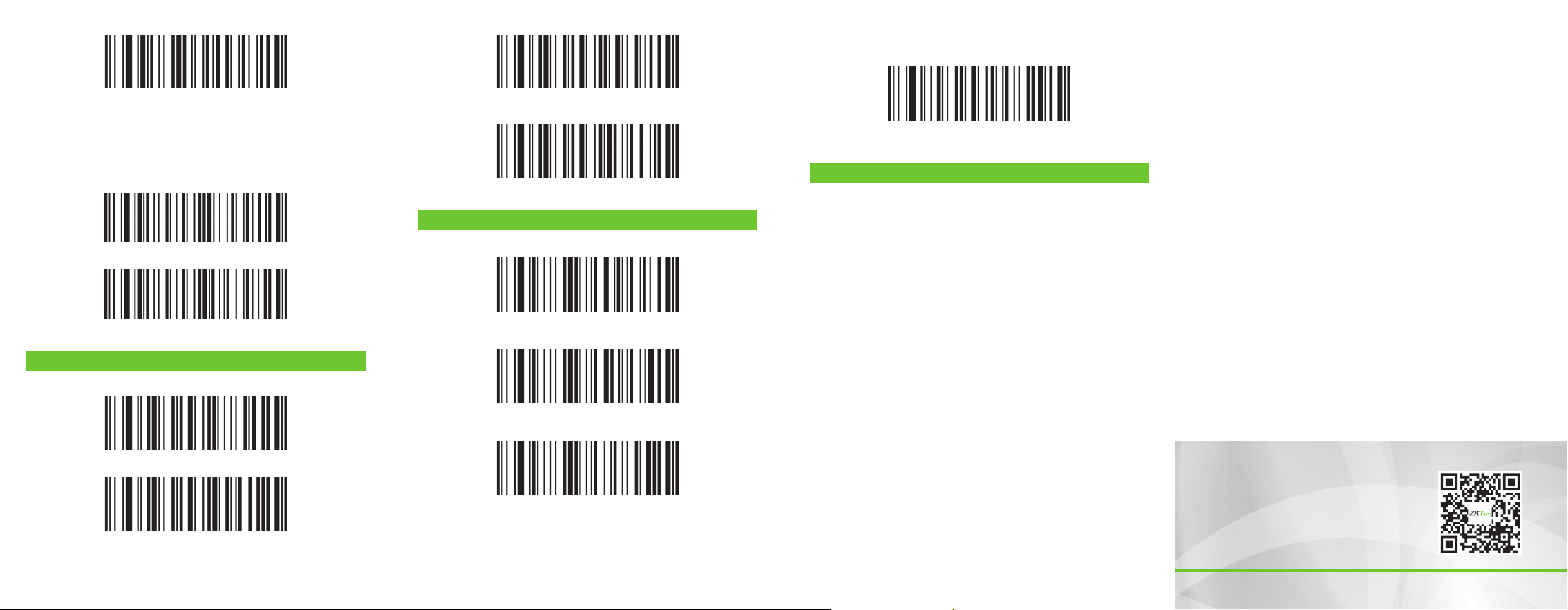
Baud Rate
The baud rate is the number of bits transmitted per second for
serial data communication. The baud rate used by the scanner and
the data receiving host device must be consistent to ensure
accurate data transmission.
9600bps
115200bps
Sux Settings
Read the setting code, you can add dierent sux functions.
Add CR
Add CR+LF
Add Tab
Other Settings
Read the setting code, you can read all supported barcodes.
Read the setting code, you can read all supported 1D barcodes.
NONE
Enable All 2D Barcode
Read Regular and Inverse Barcode
Enable All Barcode
Enable All 1D Barcode
Read the setting code, you can read all supported 2D barcodes.
Read the setting code, you can read the regular and inverse
barcodes.
Indication Light And Buzzer
Scan Successfully: The light ash once time.
Voice Prompt: The buzzer will beep once the barcode is success-
fully read.






