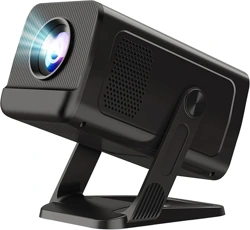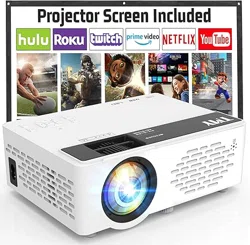

*The operation interface and Bluetooth
function are for reference, please read this manual only
according to the version you purchase.
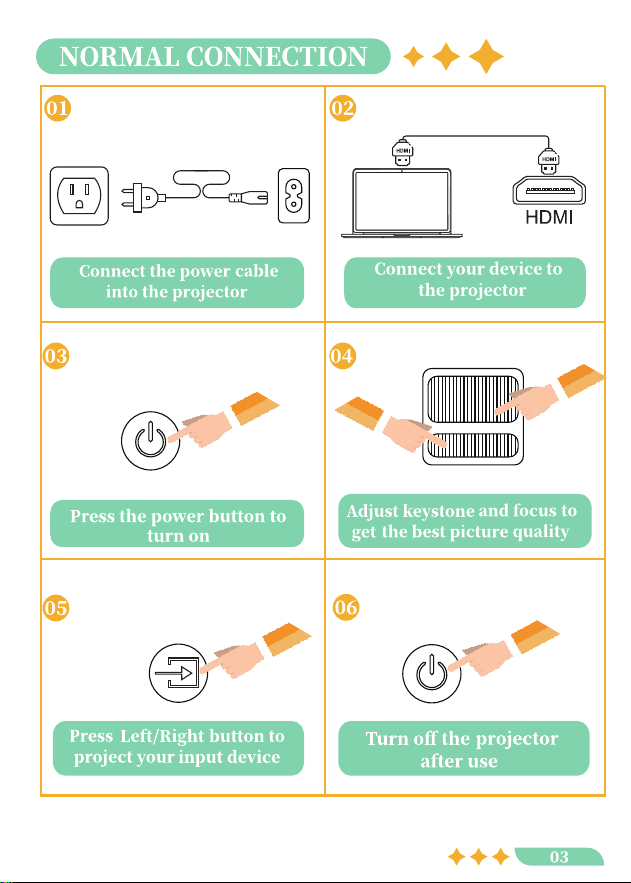
AUDIO
OK
SOURCE
EXIT
MENU
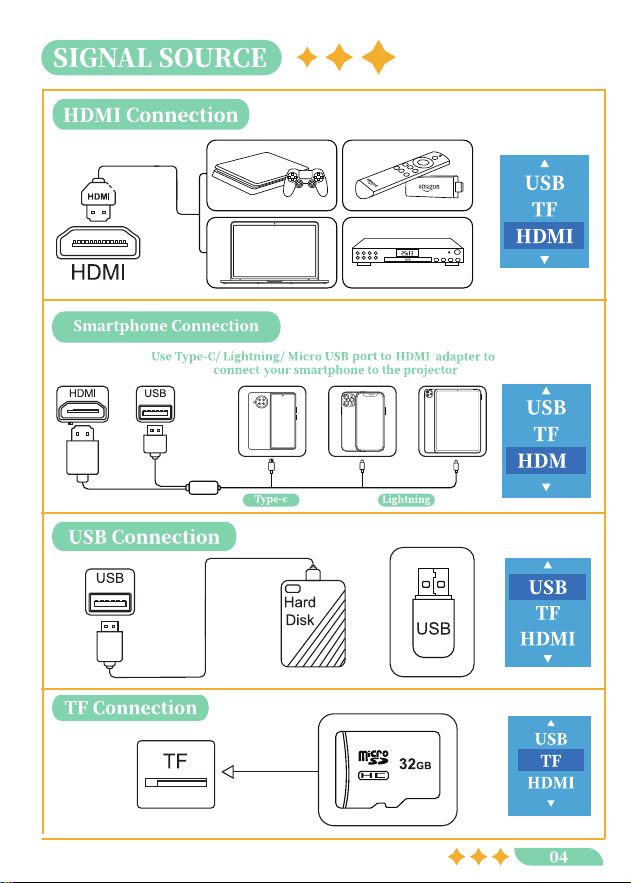
This projector has two Bluetooth functions (modes). Not only can it be
easily connected to Bluetooth speakers, Bluetooth headsets, Bluetooth
soundbars, or other audio devices, it can also be used as a speaker to
connect to smartphones/tablets freely.
Bluetooth function 1:
Bluetooth Transmit Mode: Connected to Bluetooth speakers, Bluetooth
headsets, Bluetooth soundbars, or other audio devices.
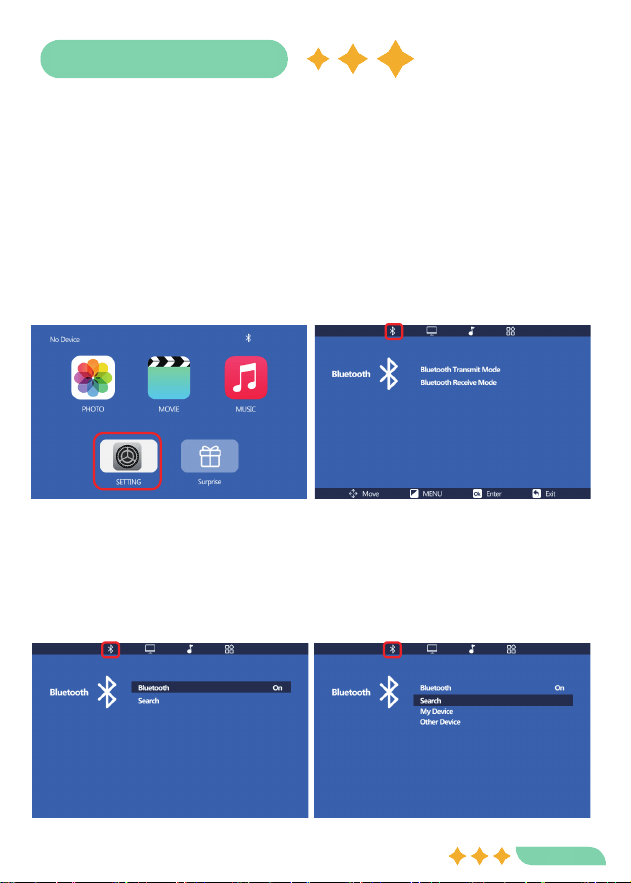
Step1: Find the Bluetooth icon and click it under Setting:
Step2: Click Bluetooth Transmit Mode , then press OK button to open
Bluetooth Transmit Mode:
·Turn on the Bluetooth mode. Please Search Bluetooth to find your
Bluetooth speaker:
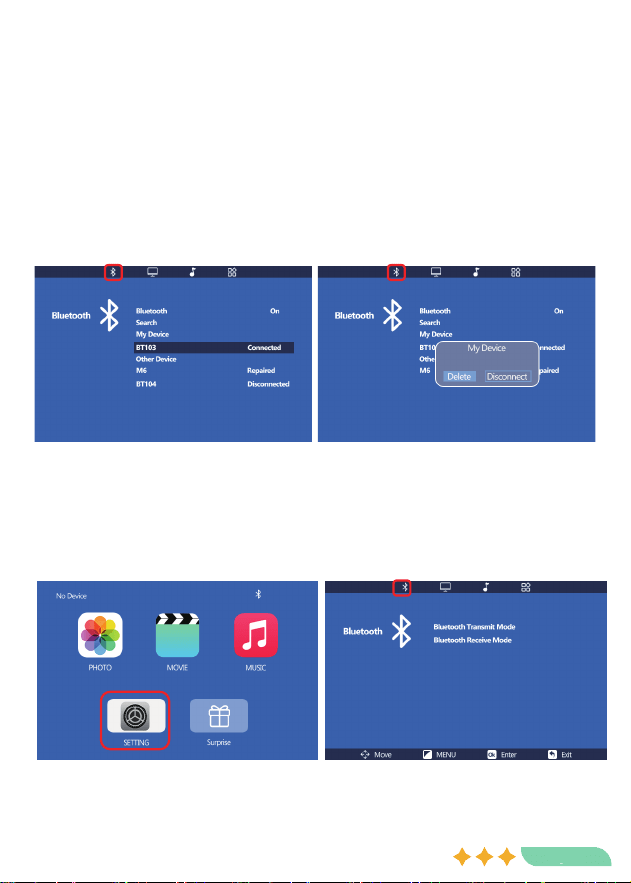
Step3: Find your Bluetooth device and then press OK button to connect
your Bluetooth device:
·If you want to cancel the paired Bluetooth, press OK button again, it will
show up the following note on screen, you can Delete or Disconnect the
Bluetooth device.
Note: Click Search Bluetooth, all the Bluetooth devices in the range will be
displayed on screen, you just only need to connect the Bluetooth device
you want, you can delete other devices or just let them on screen.
Bluetooth function 2:
Bluetooth Receive Mode: This projector can be used as a Bluetooth
speaker to connect to smartphones/tablets freely.
Step1: Find the Bluetooth icon and click it under Setting:
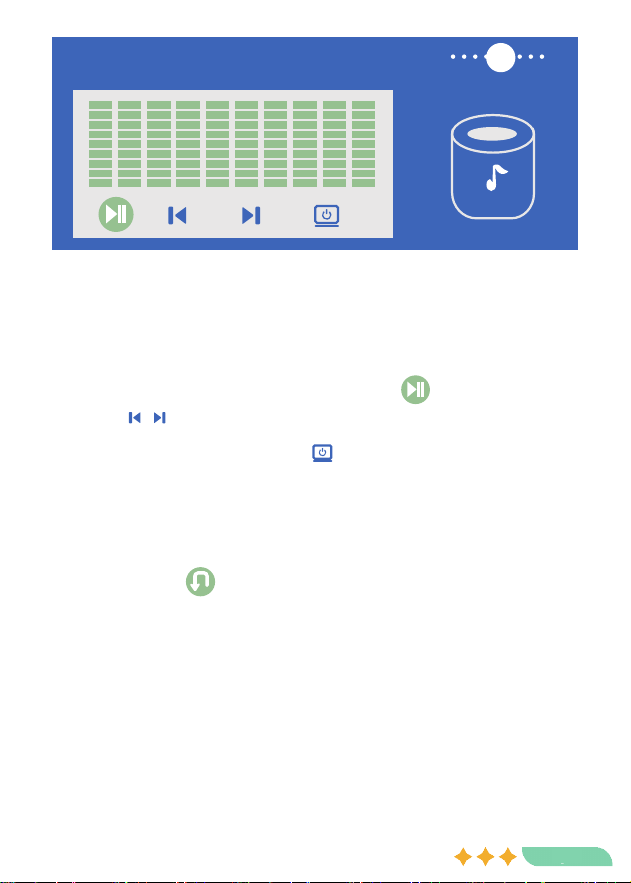
Step2: Move to Bluetooth Receive Mode and press OK, you will see the
flowing picture:
Projector_BT
×
Step3: Open the Bluetooth function of your phone/tablet to search for
the projector's Bluetooth "Projector_BT" and connect, you can play the
music of phone or tablet successfully:
·In Bluetooth Receive Mode, you can control the music of phone or
tablet on the projector, such as: pause and play , Previous and
Next song.
·In Bluetooth Receive Mode, Press you can turn off the screen to
enjoy the music better, if you do not turn off the screen, the projector will
turn off the screen automatically in one minute.
Note: When turn off the screen, you want to turn on the screen, just need
to press return key on the projector or remote control.
Note: We suggest that you turn off the screen when you use the projector
as a Bluetooth speaker, as the fan of the projector will stop working after
turning off the screen. At this time, the projector will be quieter and you
can enjoy the music better.
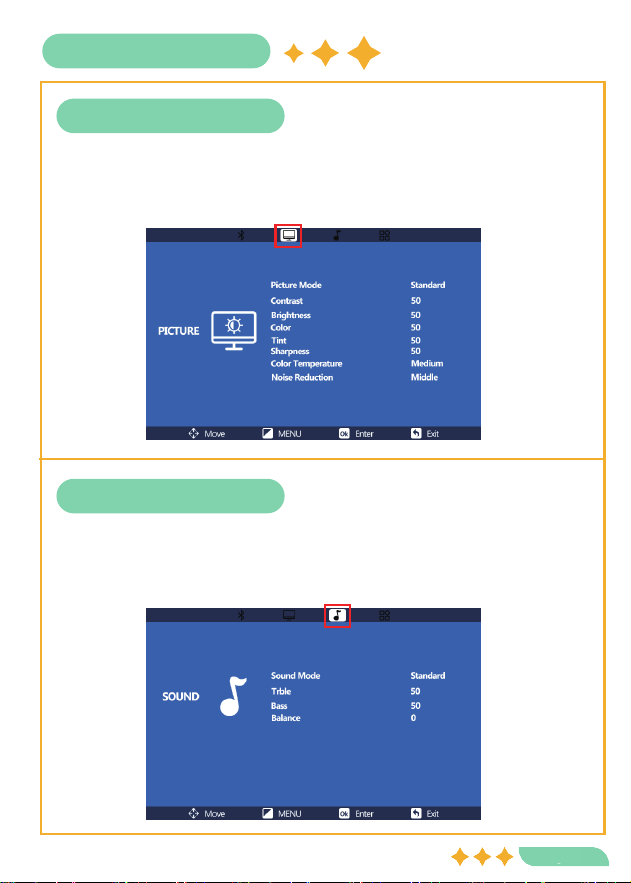
Picture Settings
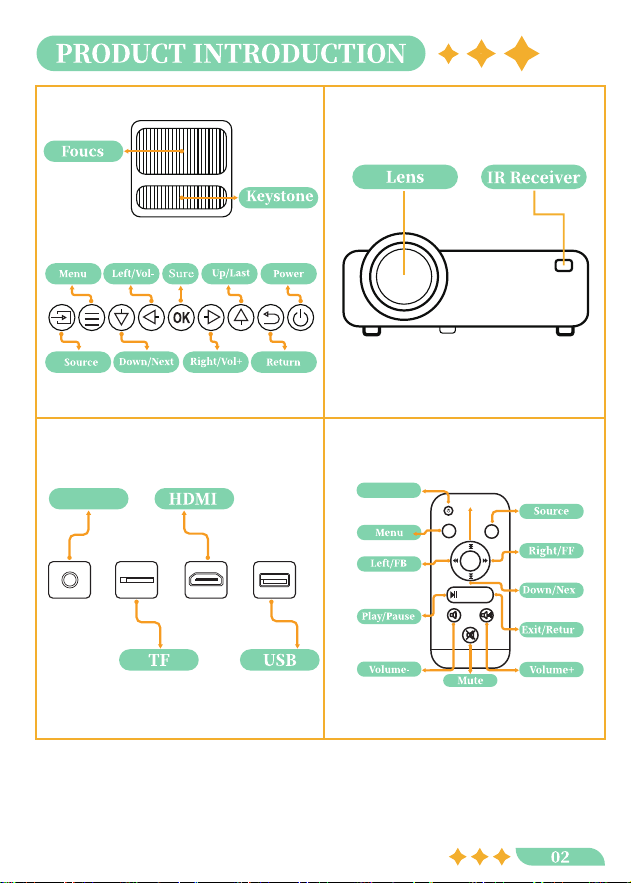
Click "Menu" Button, andclick "Left/Right" Button to"PICTURE",
then adiust the"Picture Mode"/"Contrast""Brightness"/ "Color"/
"Tint"/"Sharpness"/ and "ColorTemperature" according toyour
needs.
Sound Settings
Click "Menu" Button, andclick "Left/Right" Button to"SOUND",
then adjust the"Sound Mode"/ "Treble"/"Bass"/ and "BALANCE"
according to your needs.
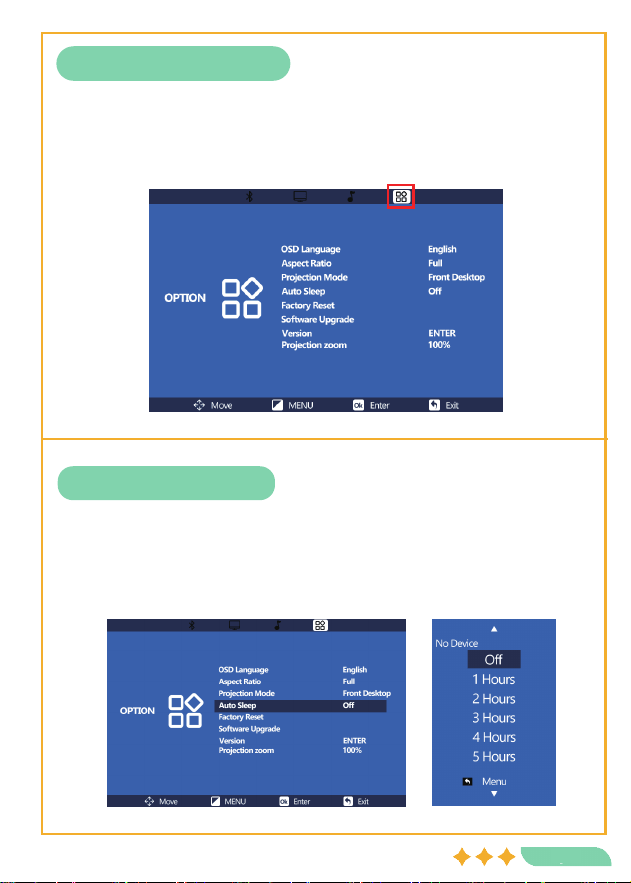
Advanced Settings
Click "Menu" Button, andclick "Left/Right" Button to"OPTION",
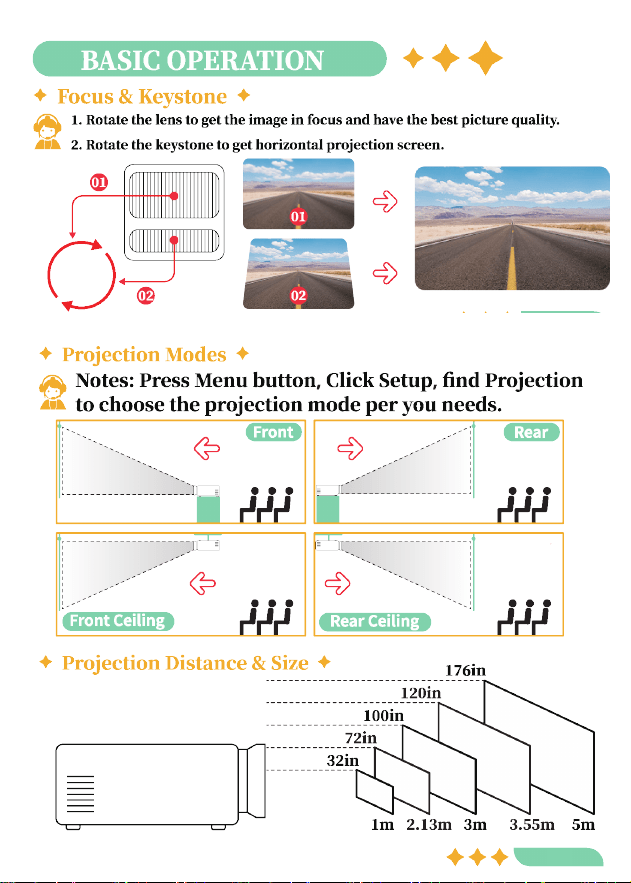
then adjust the"OSD Language"/ "AspectRatio"/ "Proiection Mode"
"Factory Reset"/"SoftwareUpgrade"/ and "Version"according to
your needs.
Under the advanced setting, press down button to select
[Auto Sleep], the default setting is OFF. Then Press OK button to
enter Auto Sleep setting, you can set the auto sleep time from
� to � hours.
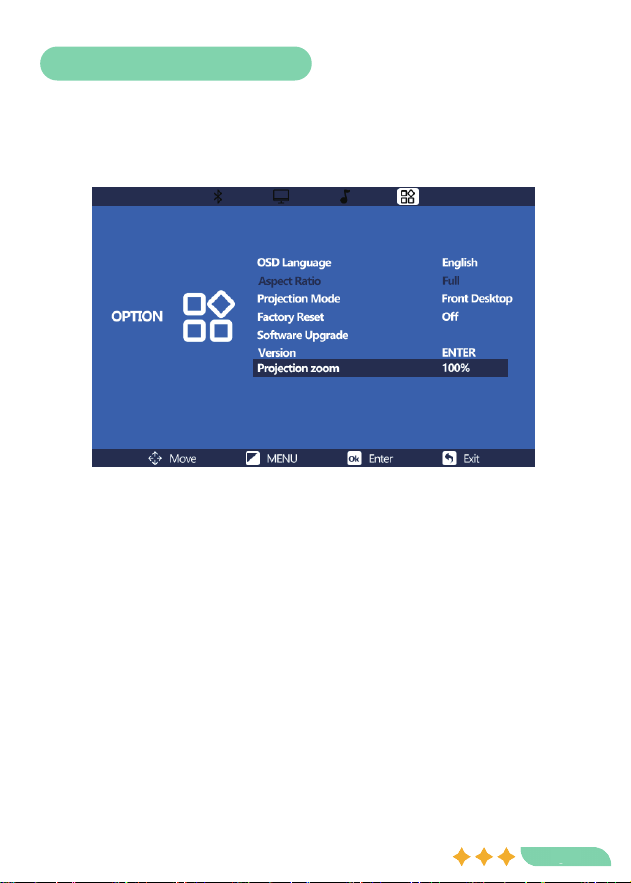
Under the advanced setting, press down button to select [projection
zoom]. The default set is ���%, you can press left and right button
to adjust the display size from ��% to ���%.