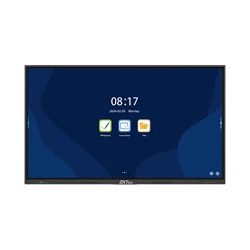
Product Name and Model Number User Manual
Interface | 1 Copyright©2020 ZKTECO CO., LTD. All rights reserved.
Thank you for choosing our product. Please read the instructions
carefully before operation. Follow these instructions to ensure that the
product is functioning properly. The images shown in this manual are for
illustrative purposes only.
For further details, please visit our Company’s website
www.zkteco.com
.
User Manual
ZK-IWBE
Date: April 2024
Doc Version: 1.0
English

ZK-IWBE User Manual
Page | 1 Copyright © 2024 ZKTECO CO., LTD. All rights reserved.
Copyright © 2024 ZKTECO CO., LTD. All rights reserved.
Without the prior written consent of ZKTeco, no portion of this manual can be
copied or forwarded in any way or form. All parts of this manual belong to
ZKTeco and its subsidiaries (hereinafter the "Company" or "ZKTeco").
Trademark
is a registered trademark of ZKTeco. Other trademarks involved in
this manual are owned by their respective owners.
Disclaimer
This manual contains information on the operation and maintenance of the
ZKTeco equipment. The copyright in all the documents, drawings, etc. in relation
to the ZKTeco supplied equipment vests in and is the property of ZKTeco. The
contents hereof should not be used or shared by the receiver with any third party
without express written permission of ZKTeco.
The contents of this manual must be read as a whole before starting the
operation and maintenance of the supplied equipment. If any of the content(s) of
the manual seems unclear or incomplete, please contact ZKTeco before starting
the operation and maintenance of the said equipment.
It is an essential pre-requisite for the satisfactory operation and maintenance that
the operating and maintenance personnel are fully familiar with the design and
that the said personnel have received thorough training in operating and
maintaining the product/unit/equipment. It is further essential for the safe
operation of the product/unit/equipment that personnel has read, understood
and followed the safety instructions contained in the manual.
In case of any conflict between terms and conditions of this manual and the
contract specifications, drawings, instruction sheets or any other contract-related

ZK-IWBE User Manual
Page | 2 Copyright © 2024 ZKTECO CO., LTD. All rights reserved.
documents, the contract conditions/documents shall prevail. The contract
specific conditions/documents shall apply in priority.
ZKTeco offers no warranty, guarantee or representation regarding the
completeness of any information contained in this manual or any of the
amendments made thereto. ZKTeco does not extend the warranty of any kind,
including, without limitation, any warranty of design, merchantability or fitness
for a particular purpose.
ZKTeco does not assume responsibility for any errors or omissions in the
information or documents which are referenced by or linked to this manual. The
entire risk as to the results and performance obtained from using the information
is assumed by the user.
ZKTeco in no event shall be liable to the user or any third party for any incidental,
consequential, indirect, special, or exemplary damages, including, without
limitation, loss of business, loss of profits, business interruption, loss of business
information or any pecuniary loss, arising out of, in connection with, or relating
to the use of the information contained in or referenced by this manual, even if
ZKTeco has been advised of the possibility of such damages.
This manual and the information contained therein may include technical, other
inaccuracies or typographical errors. ZKTeco periodically changes the
information herein which will be incorporated into new additions/amendments
to the manual. ZKTeco reserves the right to add, delete, amend or modify the
information contained in the manual from time to time in the form of circulars,
letters, notes, etc. for better operation and safety of the product/unit/equipment.
The said additions or amendments are meant for improvement /better
operations of the product/unit/equipment and such amendments shall not give
any right to claim any compensation or damages under any circumstances.
ZKTeco shall in no way be responsible (i) in case the product/unit/equipment
malfunctions due to any non-compliance of the instructions contained in this
manual (ii) in case of operation of the product/unit/equipment beyond the rate
limits (iii) in case of operation of the product and equipment in conditions
different from the prescribed conditions of the manual.

ZK-IWBE User Manual
Page | 3 Copyright © 2024 ZKTECO CO., LTD. All rights reserved.
The product will be updated from time to time without prior notice. The latest
operation procedures and relevant documents are available on
http://www.zkteco.com
.
If there is any issue related to the product, please contact us.
ZKTeco Headquarters
Address ZKTeco Industrial Park, No. 32, Industrial Road,
Tangxia Town, Dongguan, China.
Phone +86 769 - 82109991
Fax +86 755 - 89602394
For business related queries, please write to us at: sales@zkteco.com
.
To know more about our global branches, visit www.zkteco.com.

ZK-IWBE User Manual
Page | 4 Copyright © 2024 ZKTECO CO., LTD. All rights reserved.
About the Company
ZKTeco is one of the world’s largest manufacturer of RFID and Biometric
(Fingerprint, Facial, Finger-vein) readers. Product offerings include Access Control
readers and panels, Near & Far-range Facial Recognition Cameras, Elevator/Floor
access controllers, Turnstiles, License Plate Recognition (LPR) gate controllers and
Consumer products including battery-operated fingerprint and face-reader door
locks. Our security solutions are multi-lingual and localized in over 18 different
languages. At the ZKTeco state-of-the-art 700,000 square foot ISO9001-certified
manufacturing facility, we control manufacturing, product design, component
assembly, and logistics/shipping, all under one roof.
The founders of ZKTeco have been determined for independent research and
development of biometric verification procedures and the productization of
biometric verification SDK, which was initially widely applied in PC security and
identity authentication fields. With the continuous enhancement of the
development and plenty of market applications, the team has gradually
constructed an identity authentication ecosystem and smart security ecosystem,
which are based on biometric verification techniques. With years of experience in
the industrialization of biometric verifications, ZKTeco was officially established
in 2007 and now has been one of the globally leading enterprises in the
biometric verification industry owning various patents and being selected as the
National High-tech Enterprise for 6 consecutive years. Its products are protected
by intellectual property rights.
About the Manual
This manual introduces the operations of ZK-IWBE.
All figures displayed are for illustration purposes only. Figures in this manual may
not be exactly consistent with the actual products.
ZK-IWBE User Manual
Page | 5 Copyright © 2024 ZKTECO CO., LTD. All rights reserved.
Document Conventions
Conventions used in this manual are listed below:
GUI Conventions
For Software
Convention Description
Bold font Used to identify software interface names e.g. OK, Confirm, Cancel.
>
Multi-level menus are separated by these brackets. For example, File >
Create > Folder.
For Device
Convention Description
< >
Button or key names for devices. For example, press <OK>.
[ ]
Window names, menu items, data table, and field names are inside
square brackets. For example, pop up the [New User] window.
/
Multi-level menus are separated by forwarding slashes. For example,
[File/Create/Folder].
Symbols
Convention Description
This represents a note that needs to pay more attention to.
The general information which helps in performing the operations
faster.
The information which is significant.
Care taken to avoid danger or mistakes.
The statement or event that warns of something or that serves as a
cautionary example.

ZK-IWBE User Manual
Page | 6 Copyright © 2024 ZKTECO CO., LTD. All rights reserved.
TABLE OF CONTENTS
SAFETY WARNING .............................................................................................. 9
PRECAUTIONS .................................................................................................. 10
1 PANEL FEATURES ..................................................................................... 12
2 INSTALLATION.......................................................................................... 13
3 INTERFACE CONNECTION ........................................................................ 14
POWER INTERFACE .............................................................................................................. 14
SIGNAL INPUT INTERFACE ................................................................................................... 14
3.2.1 USB INTERFACE ............................................................................................................... 14
3.2.2 TOUCH-USB INTERFACE................................................................................................ 15
3.2.3 TYPE-C INTERFACE ......................................................................................................... 15
3.2.4 HDMI-IN INTERFACE ...................................................................................................... 15
3.2.5 DP INTERFACE (OPTIONAL) ......................................................................................... 16
SIGNAL OUTPUT INTERFACE ............................................................................................... 16
3.3.1 HDMI-OUT INTERFACE (OPTIONAL) .......................................................................... 16
AUDIO INTERFACE ............................................................................................................... 16
3.4.1 OPTICAL FIBER INTERFACE .......................................................................................... 16
3.4.2 MIC INTERFACE................................................................................................................ 17
3.4.3 AUDIO-OUT INTERFACE ................................................................................................ 17
INTERNET INTERFACE ........................................................................................................... 17
3.5.1 LAN INTERFACE ............................................................................................................... 17
CONTROL INTERFACE .......................................................................................................... 18
3.6.1 RS232-IN INTERFACE ..................................................................................................... 18
4 PANEL DESCRIPTION ............................................................................... 19
5 REMOTE CONTROL ................................................................................... 20
PRECAUTIONS FOR USE OF REMOTE CONTROL ................................................................ 20
BUTTONS ON REMOTE CONTROL ....................................................................................... 21

ZK-IWBE User Manual
Page | 7 Copyright © 2024 ZKTECO CO., LTD. All rights reserved.
6 BASIC OPERATION ................................................................................... 22
STARTUP/SHUTDOWN ........................................................................................................ 22
6.1.1 STARTUP/SHUTDOWN .................................................................................................. 22
6.1.2 AUTO STANDBY ............................................................................................................... 22
6.1.3 SAVE BEFORE SHUTDOWN .......................................................................................... 22
6.1.4 OPS ON/OFF (OPTIONAL) ............................................................................................ 22
HOME PAGE ........................................................................................................................ 23
SIDEBAR ............................................................................................................................... 24
SIGNAL SOURCE .................................................................................................................. 24
6.4.1 SOURCE SWITCHING ..................................................................................................... 24
6.4.2 SOURCE SETTINGS ......................................................................................................... 25
6.4.3 AUDIO SETTINGS ............................................................................................................ 26
NETWORK AND CONNECTION ............................................................................................ 26
6.5.1 WIRELESS .......................................................................................................................... 26
6.5.2 ETHERNET ......................................................................................................................... 27
6.5.3 HOTSPOT........................................................................................................................... 28
6.5.4 BLUETOOTH ..................................................................................................................... 28
DEVICE MANAGEMENT ....................................................................................................... 29
WALLPAPER ......................................................................................................................... 29
DATE AND TIME ................................................................................................................... 30
LANGUAGE AND INPUT METHOD....................................................................................... 31
POWER SETTINGS ................................................................................................................ 31
SECURITY SETTINGS ............................................................................................................ 32
OTHER .................................................................................................................................. 32
ABOUT ................................................................................................................................. 33
COMMENT ........................................................................................................................... 33
UTILITIES .............................................................................................................................. 34
SCREEN DROP-DOWN ......................................................................................................... 34
ZK-IWBE User Manual
Page | 8 Copyright © 2024 ZKTECO CO., LTD. All rights reserved.
BACKGROUND PROCESS ..................................................................................................... 35
SHARE .................................................................................................................................. 35
6.18.1 WIRELESS SCREEN SHARE ............................................................................................ 35
6.18.2 FAST FILE TRANSFER ...................................................................................................... 37
6.18.3 WIRED SHARE .................................................................................................................. 37
WHITEBOARD ...................................................................................................................... 38
FILE MANAGER .................................................................................................................... 41
WELCOME PAGE .................................................................................................................. 41
7 TECHNICAL PARAMETERS ....................................................................... 43
HDMI DISPLAY MODE ....................................................................................................... 43
8 ACCESSORIES ........................................................................................... 43
9 TROUBLESHOOTING ................................................................................ 44

ZK-IWBE User Manual
Page | 9 Copyright © 2024 ZKTECO CO., LTD. All rights reserved.
Safety Warning
1. Use only the power supply and voltage specified on the label.
2. A three-prong power cord is included. Make sure that the ground terminal
of the wall outlet is well grounded before installation. Ensure to route the
power cord away from passageways to avoid treading and keep it away
from areas where it may get pressed.
3. Do not overload the power outlet and use a certified power outlet.
4. To prevent damage during thunderstorms, please disconnect the panel
from the antenna and pull out the power plug as well as the network cable.
5. If the panel will not be in use for an extended period, it's recommended to
switch it off and pull out the power plug.
6. ln case of any abnormal sound or smell, please power it off immediately and
pull out the power plug. If necessary, stop using it and contact the
maintenance personnel as soon as possible.
7. Keep away from flammable and explosive materials (e.g., candle, electric
stove, bulb).
8. Be careful to keep liquids and metal objects out of the panel. If so, stop
using it immediately and contact the maintenance personnel.
9. If the panel is transferred from a low-temperature environment to a warmer
one, there is a possibility that condensation may form inside it. In such case,
the panel should be left idle for at least 24 hours before restarting to allow
the condensate to air-dry.
10. Handle it with at least two persons, avoid impact and pay special attention
to the display screen during the transfer.
11. To avoid injury, please install the base according to the instructions and
then place the panel on an even and steady ground; or if the base is not
installed, the panel should be firmly fixed to a wall according to the
wall-mount bracket installation instructions.

ZK-IWBE User Manual
Page | 10 Copyright © 2024 ZKTECO CO., LTD. All rights reserved.
12. Do not place the panel in any environment:
a) To direct sunlight, moisture, high/low temperature, or dust. To poor
ventilation or an enclosed environment.
b) To where any flammable or explosive material is present.
c) To where any combustible or corrosive gas is present.
13. Do not expose the battery to excessive heat such as sunlight or fire, as there
is a risk of explosion.
Precautions
1. Do not disassemble the panel yourself in any way. Opening or removing the
cover without permission may expose you to dangerous voltage or other
hazards. If you have any maintenance problems, please contact a
professional service person.
2. If the panel is dirty, first disconnect the power plug. Then dampen the cloth
with water and wipe with the slightly wet cloth. Be careful not to apply too
much pressure while cleaning the display screen, as this could result in
scratches. Avoid using solvents like alcohol, gasoline, acid, alkali, detergent,
volatile oil, and diluents since these solvents may damage the panel.
3. Condensate may form inside the screen under highly humid conditions,
which is a normal phenomenon as temperature variations between the
external and internal glass surfaces may lead to water droplets on the
internal glass surface. Such water droplets will disappear automatically after
24 hours of normal use. Please rest assured to use the panel.
4. Do not insert any sharp objects or metal objects into the heat sink or touch
the signal connector to avoid damage to the panel or electric shock due to a
short circuit.
5. The main material of the LCD is glass, which is brittle. Do not apply pressure
to the LCD to avoid damage.
6. To prevent the panel from falling over, avoid placing it on an unstable a cell

ZK-IWBE User Manual
Page | 11 Copyright © 2024 ZKTECO CO., LTD. All rights reserved.
phone, table or shelf. When placing the panel on a pushchair, take care
while moving it to avoid sudden emergency stops, excessive force, or
moving on uneven ground as this may cause the trolley and the panel to fall
over.
7. The openings on the panel are designed for ventilation and heat dissipation
to make sure the good performance. The ventholes should not be covered
with objects such as newspapers, tablecloths, or curtains.
8. Do not allow the panel to display a static screen or an active screen for an
extended period of time. This can cause a "ghosting" effect to appear on the
screen, which may persist long after the power has been turned off.
9. To ensure the display effect of this product, please select the cables that
meet the certification requirements.

ZK-IWBE User Manual
Page | 12 Copyright © 2024 ZKTECO CO., LTD. All rights reserved.
1 Panel Features
This panel uses HD LED-backlit panel, IR and multi-touch technologies. Equipped
with a writing software, it is convenient, highly interactive, safe and
environmentally friendly.
High Interconnectivity (Optional)
This product can connect to other devices. It allows wireless connection with PCs,
PADs and mobile phones, realizing wireless transmission of documents, wireless
push of videos and wireless screen cast.
Extraordinary Display
The panel uses a high-quality, high-definition LCD panel, which displays the
original color performance, soft frame, uniform display, no flicker, and fast
response time, allowing a clear picture to be viewed from different angles.
Accurate Touch Control
The panel incorporates advanced touch control technology with technical
features such as fast response time, high positioning accuracy, strong
environmental adaptability, and accurate operation. No special writing pen is
required and operations can be performed directly with your hands by clicking
and dragging instead of using the marker.
Highly Interactive
The panel includes professional whiteboard writing software that offers a variety
of pens, drawing tools, and other features that enable writing and movement on
the screen to enhance interactivity.
ZK-IWBE User Manual
Page | 13 Copyright © 2024 ZKTECO CO., LTD. All rights reserved.
2 Installation
1. For installation of the wall-mount bracket, at least two professional workers
are required; you should not attempt to install it, otherwise injury may
result.
2. During installation, assistance from professional workers is needed to
designate the installation also, measures should be taken to make sure it
can bear certain amount of external force. Make sure the bracket is installed
onto a firm wall rather than plaster board or other surface which can not
provide strong support.
3. This product should be installed on a vertical plane, not on an oblique plane;
also, it should not be installed with the front facing upwards; otherwise
falloff of the product or personal injury may be caused.
4. To avoid damage of the product or injury, keep the bracket out of the reach
of children.
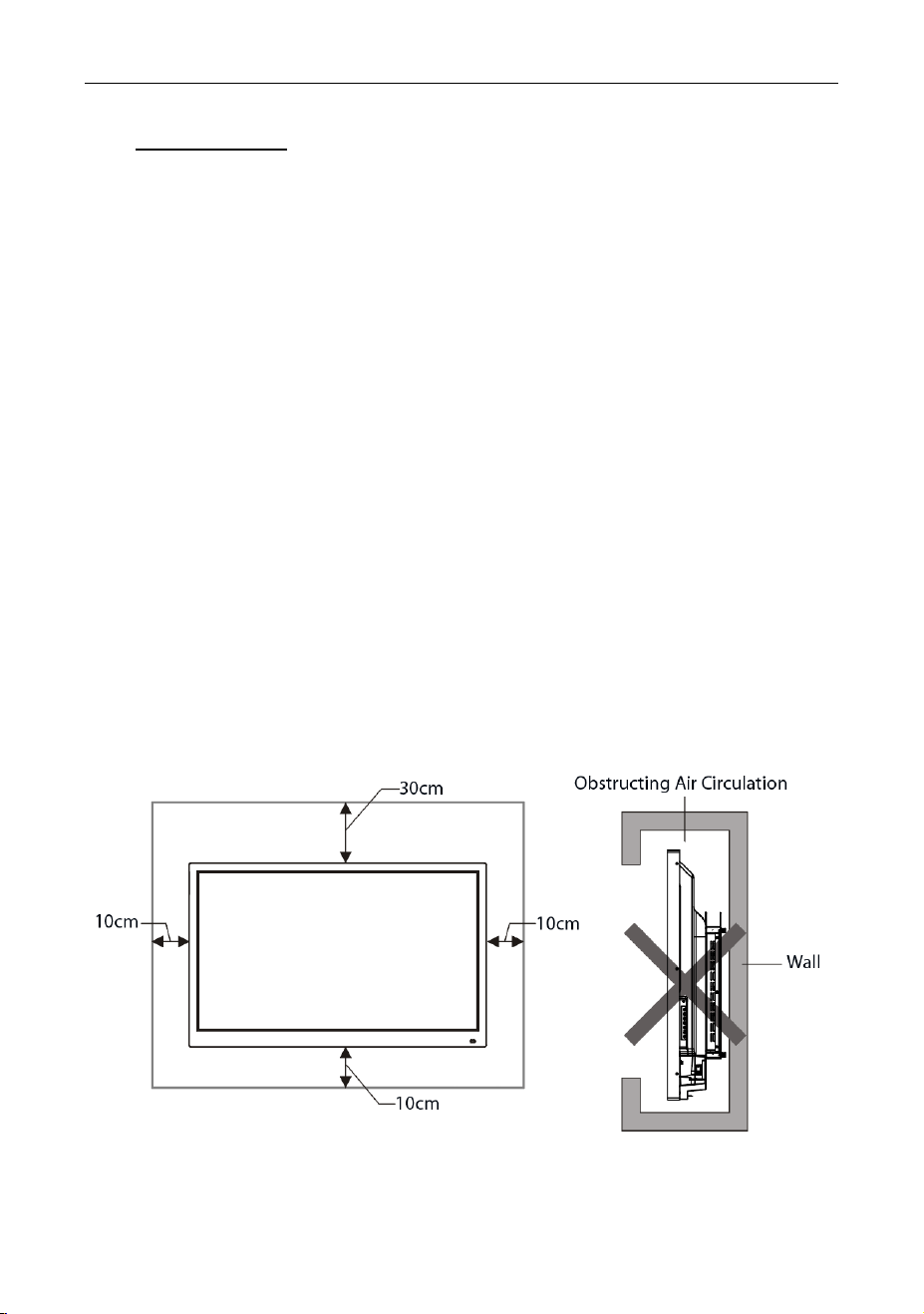
5. The installation is shown in the figure below; ventilation space should be
kept around the product.
ZK-IWBE User Manual
Page | 14 Copyright © 2024 ZKTECO CO., LTD. All rights reserved.
3 Interface Connection
Note: The interface connection instructions are provided below. The listed port
types are for reference only, and do not cover all ports on this panel.
Power Interface
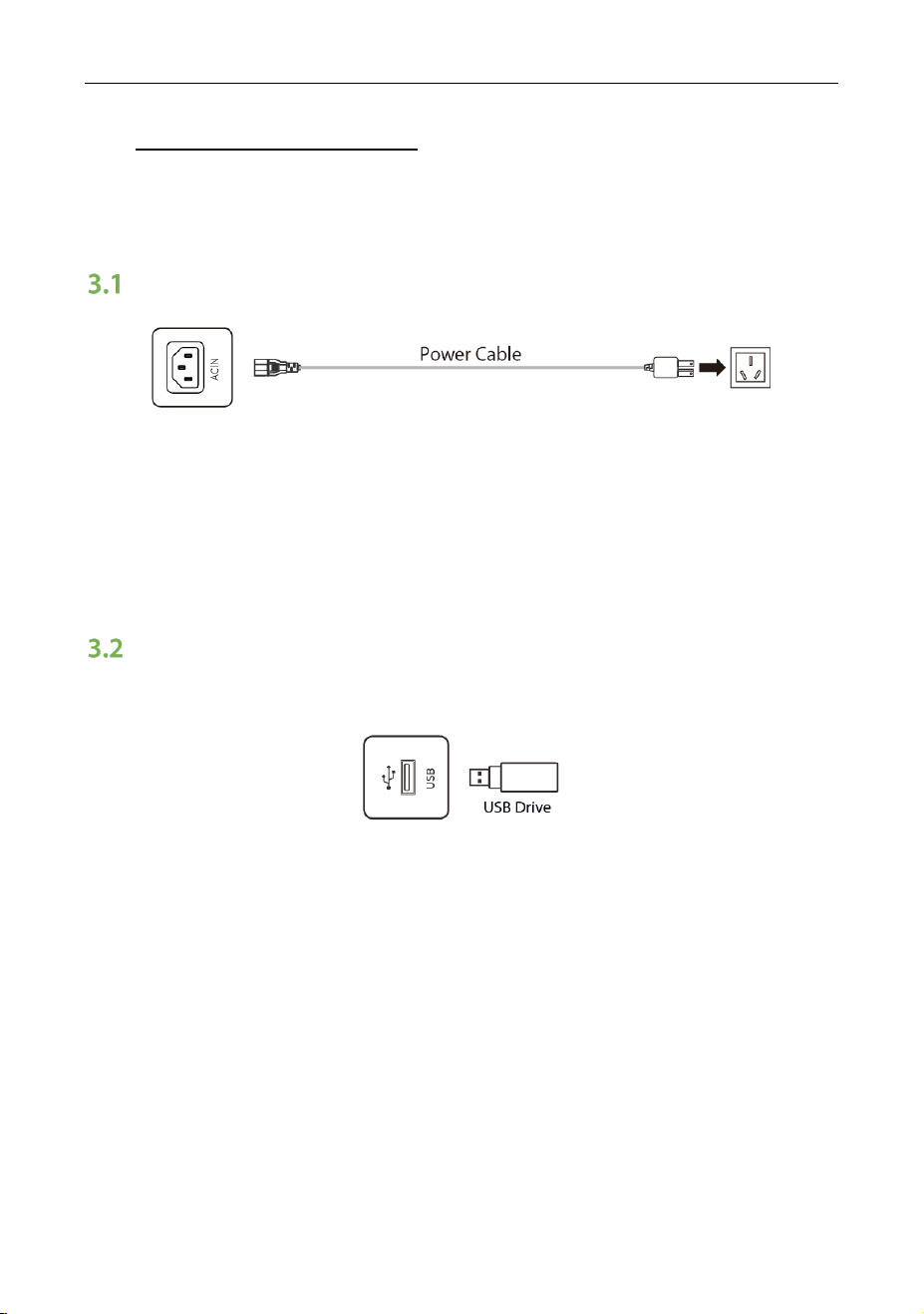
Machine specifications 1: 100-240V AC, 50/60Hz.
Machine specifications 2: 200-240V AC, 50/60Hz.
To power socket AC 100 to 240V, 50/60Hz.
Note: The specifications of the power supply are determined by the power board
in use.
Signal Input Interface
3.2.1 USB Interface
1. The interface is suitable for USB2.0/3.0. The output current of USB2.0 is
500mA, and the output current of USB3.0 is 900mA.
2. This product is connected with wireless keyboard and mouse. In case of
stuck operation or slow response, change the wireless receiver to another
USB port, or use the USB extension cable to connect the wireless receiver,
thus to enlarge the reception range.
3. Some nonstandard USB devices may be unrecognizable, please use
standard USB devices.
4. For upgrading software with a flash drive, please use a USB2.0 flash drive.
ZK-IWBE User Manual
Page | 15 Copyright © 2024 ZKTECO CO., LTD. All rights reserved.
3.2.2 TOUCH-USB Interface
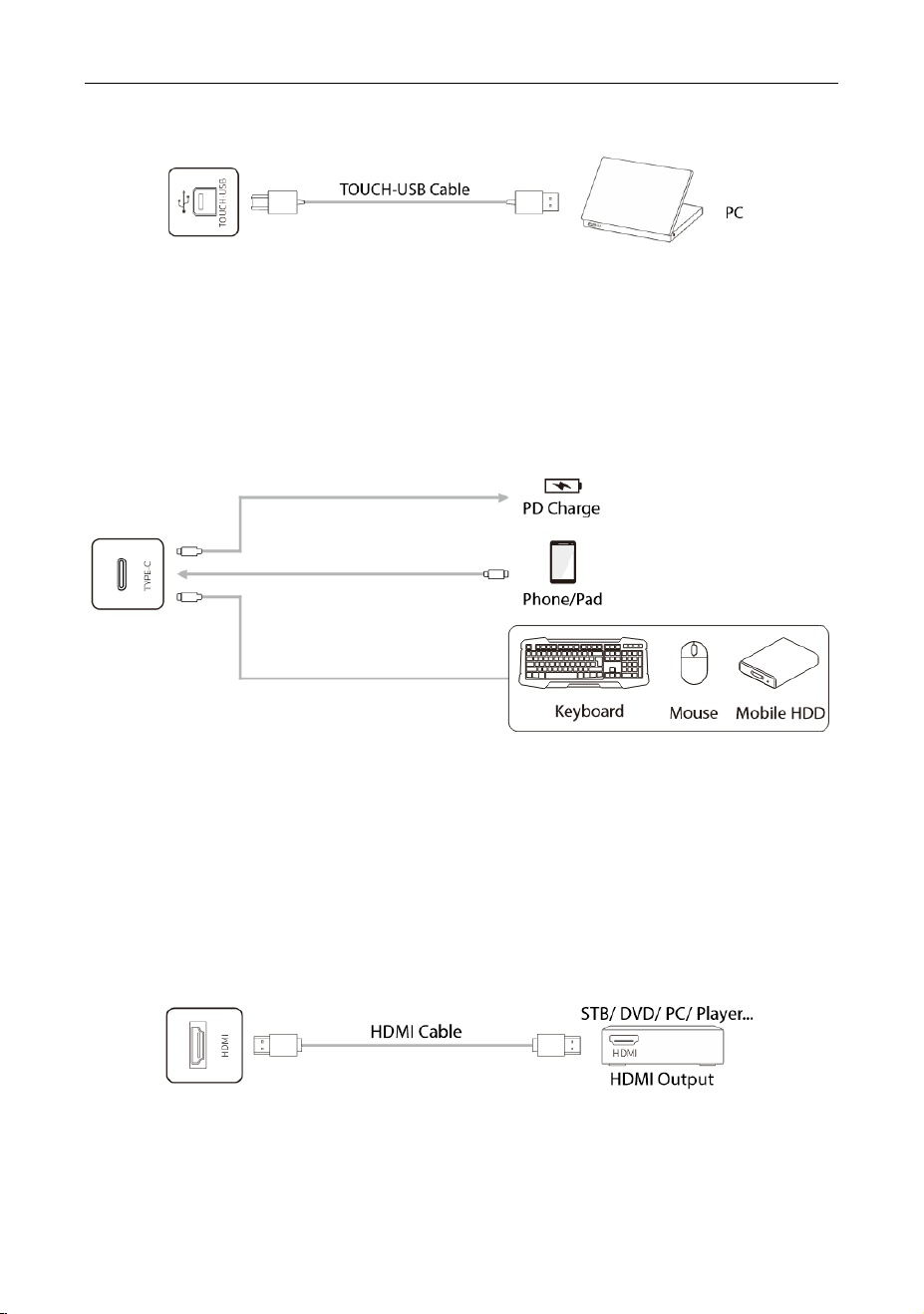
1. When the TOUCH USB port is connected to the same device with the signal
source, the external device can be operated by the TOUCH function.
2. There are multiple rear TOUCH-USB ports, HDMI1 > TOUCH1, HDMI2 >
TOUCH2, DP > TOUCH3.
3.2.3 Type-C Interface
1. This interface is Type-C port, which can support PD power supply (Max up to
5V, 3A), DP signal display (connect to Type-C display devices, such as mobile
phone, tablet and so on) and high-speed USB date transmission.
2. To ensure stable and reliable use, please match with certified standard wire.
3. The simplified motherboard does not support DP signal display.
3.2.4 HDMI-IN Interface
The maximum resolution supported by HDMI port is 4K@60HZ, please see the
section of technical parameters for the detailed signal formats. When 4K@60HZ
signals are played, the EDID version in the OSD menu should be switched to
ZK-IWBE User Manual
Page | 16 Copyright © 2024 ZKTECO CO., LTD. All rights reserved.
EDID2.0.
3.2.5 DP Interface (Optional)
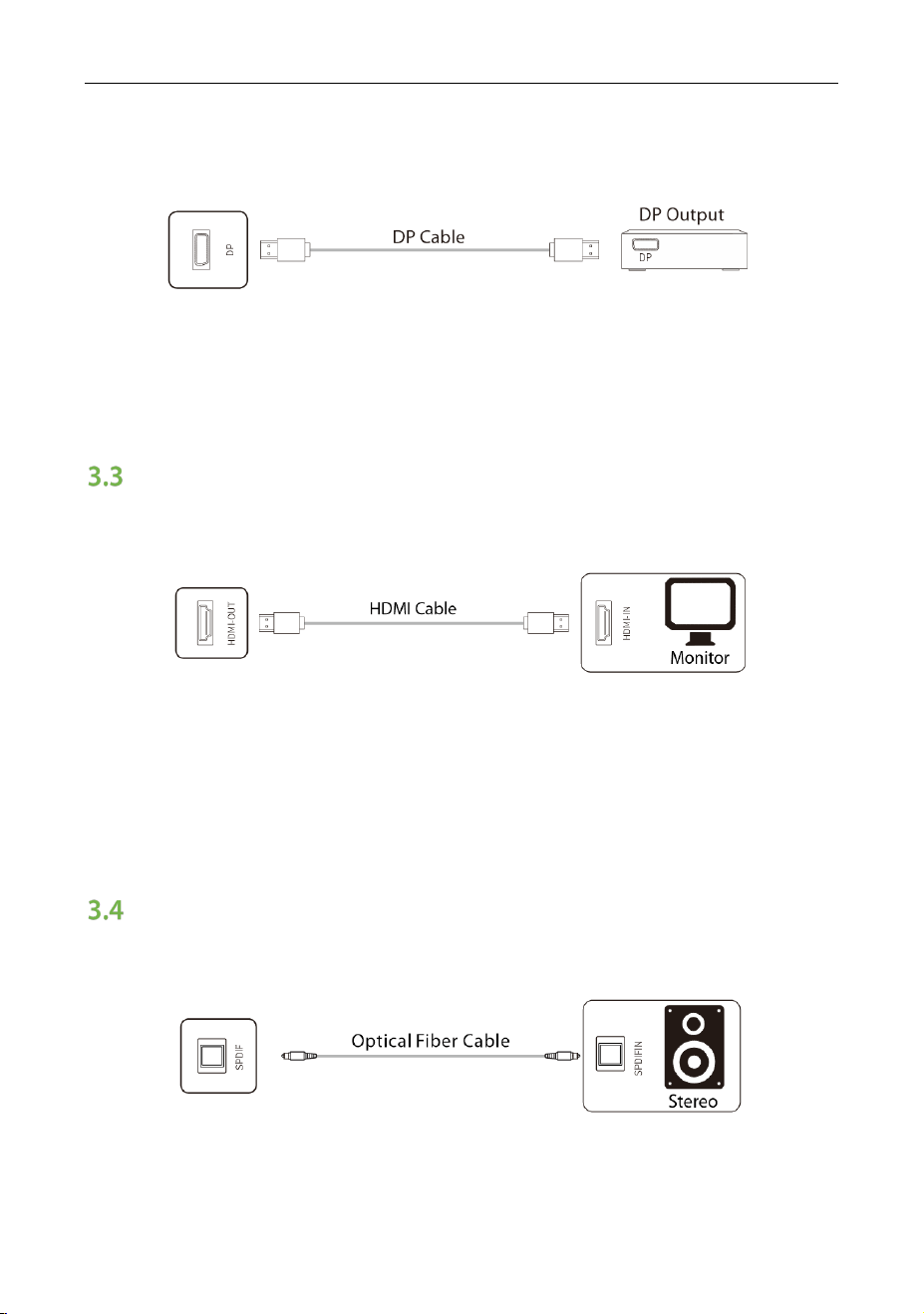
The DP interface can support a maximum resolution of 4K @ 60Hz However, the
quality of the signal may be affected by the length and quality of the DP cable
being used. To ensure optimal performance, it is recommended to use a standard
DP cable.
Signal Output Interface
3.3.1 HDMI-OUT Interface (Optional)
The HDMI-OUT interface can send the audio and video signals from one panel to
the HDMI-IN interface of another panel. The second panel can then pass on the
audio and video signals to the next panel, and so on.
The maximum number of connections is affected by the quality and length of
HDMI cable, so it is recommended to use standard cable.
Audio Interface
3.4.1 Optical Fiber Interface
The interface is capable of transmitting the audio signal from the panel to audio
equipment with SPDIF-IN interface.
ZK-IWBE User Manual
Page | 17 Copyright © 2024 ZKTECO CO., LTD. All rights reserved.
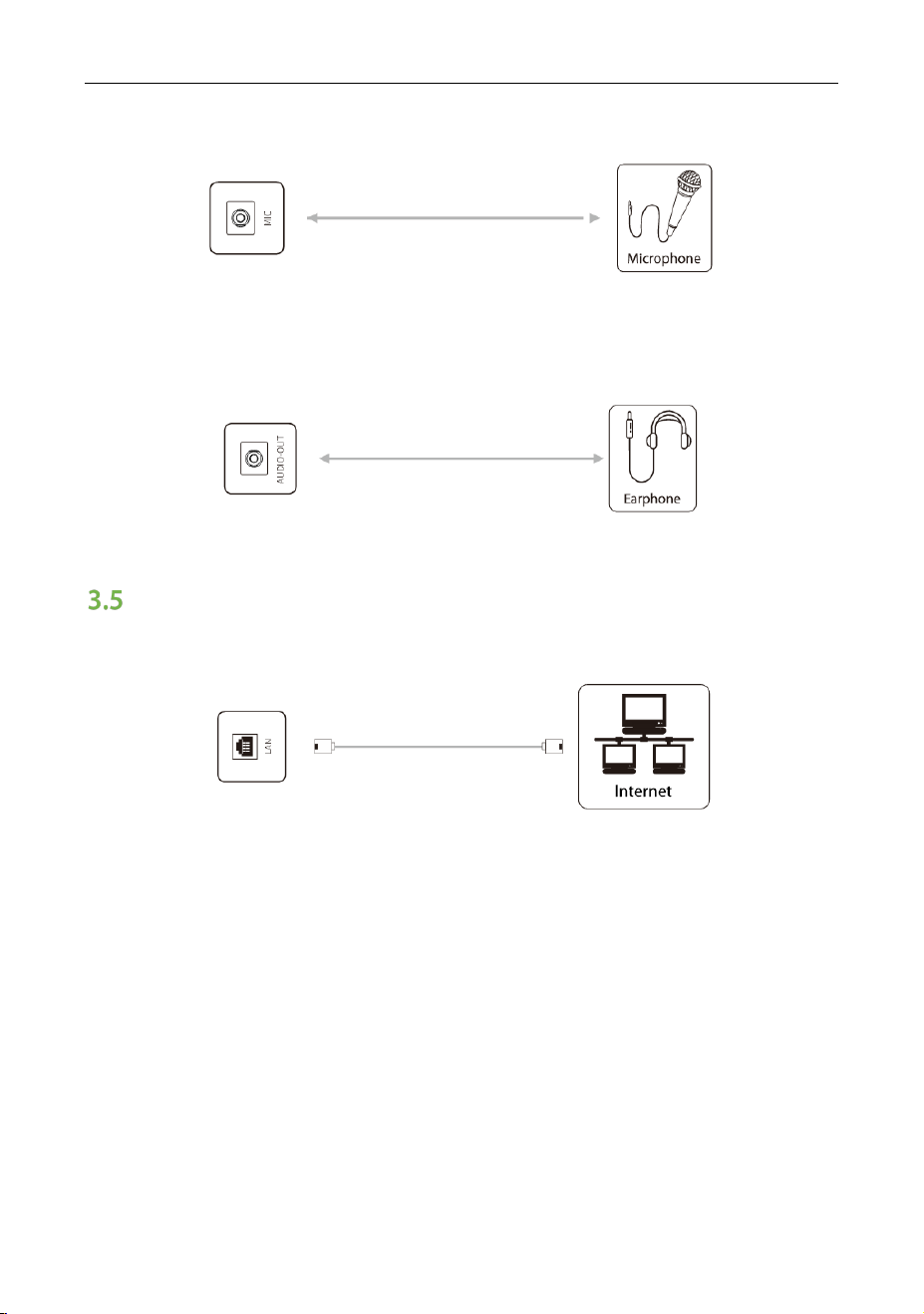
3.4.2 MIC Interface
MIC interface can be connected to microphones.
3.4.3 AUDIO-OUT Interface
AUDIO-OUT interface can be linked to either earphones or an external speaker.
Internet Interface
3.5.1 LAN Interface
This interface is an onboard network interface. It is capable of connecting to the
cable network on an Android device and supports automatic adaptation for
10M/100M/1000M. Only 10M/100M is supported for Android, and 10M/100M
/1000M for OPS or another port for other devices.
After connecting either interface to the network, the OPS can share the priority
network connection, and the other interface can connect to other devices to
share the wired network through network cables. (Both interfaces must be set to
automatically obtain IP addresses.)
Note: The Simplified Motherboard network supports only 10M/100M.
ZK-IWBE User Manual
Page | 18 Copyright © 2024 ZKTECO CO., LTD. All rights reserved.
Control Interface
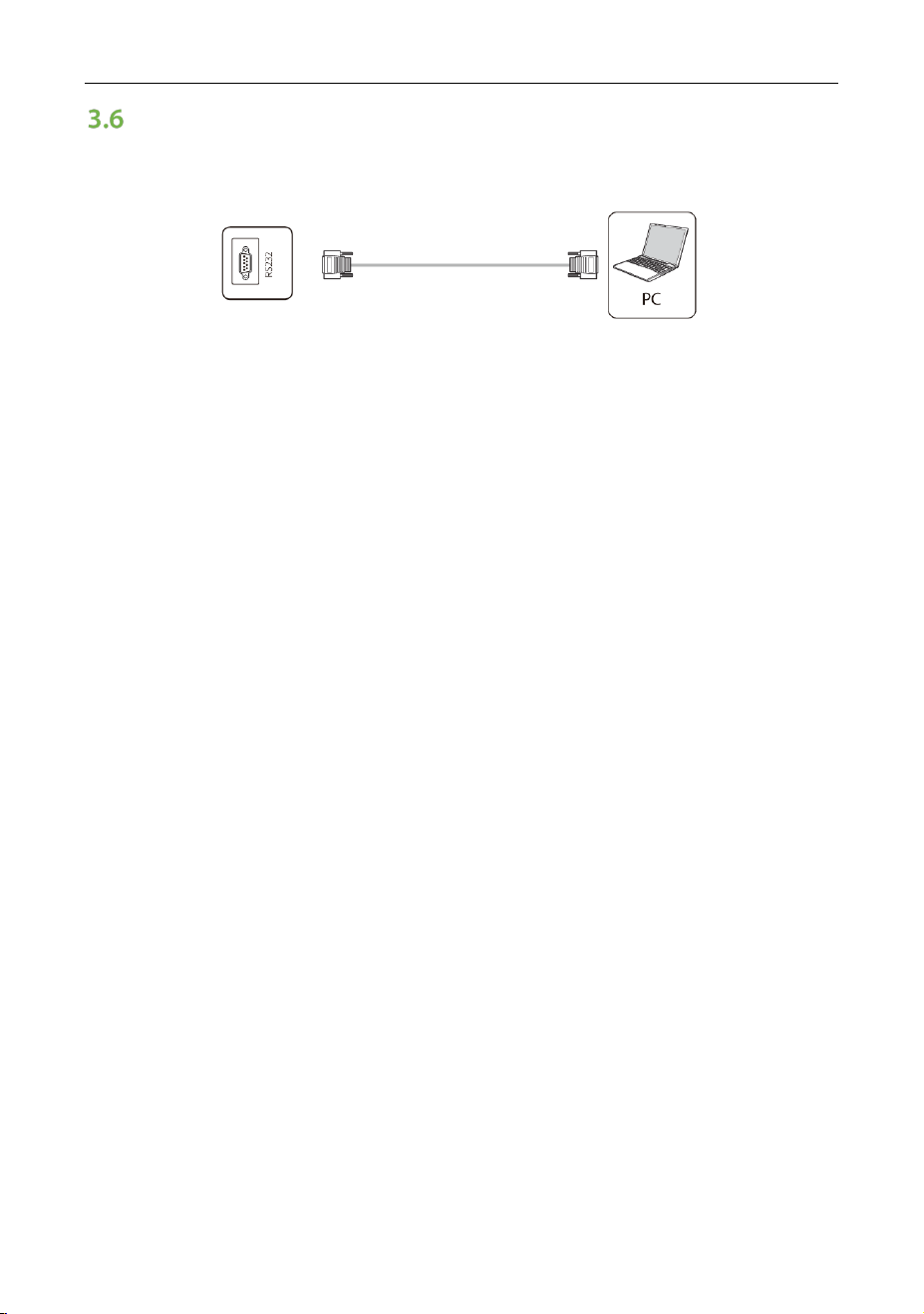
3.6.1 RS232-IN Interface
After RS232-IN interface is connected to the computer, the panel can be
operated through the computer.
Note: Please take the actual model interface as the criterion. Different models of
equipment contain different types of interface.
ZK-IWBE User Manual
Page | 19 Copyright © 2024 ZKTECO CO., LTD. All rights reserved.
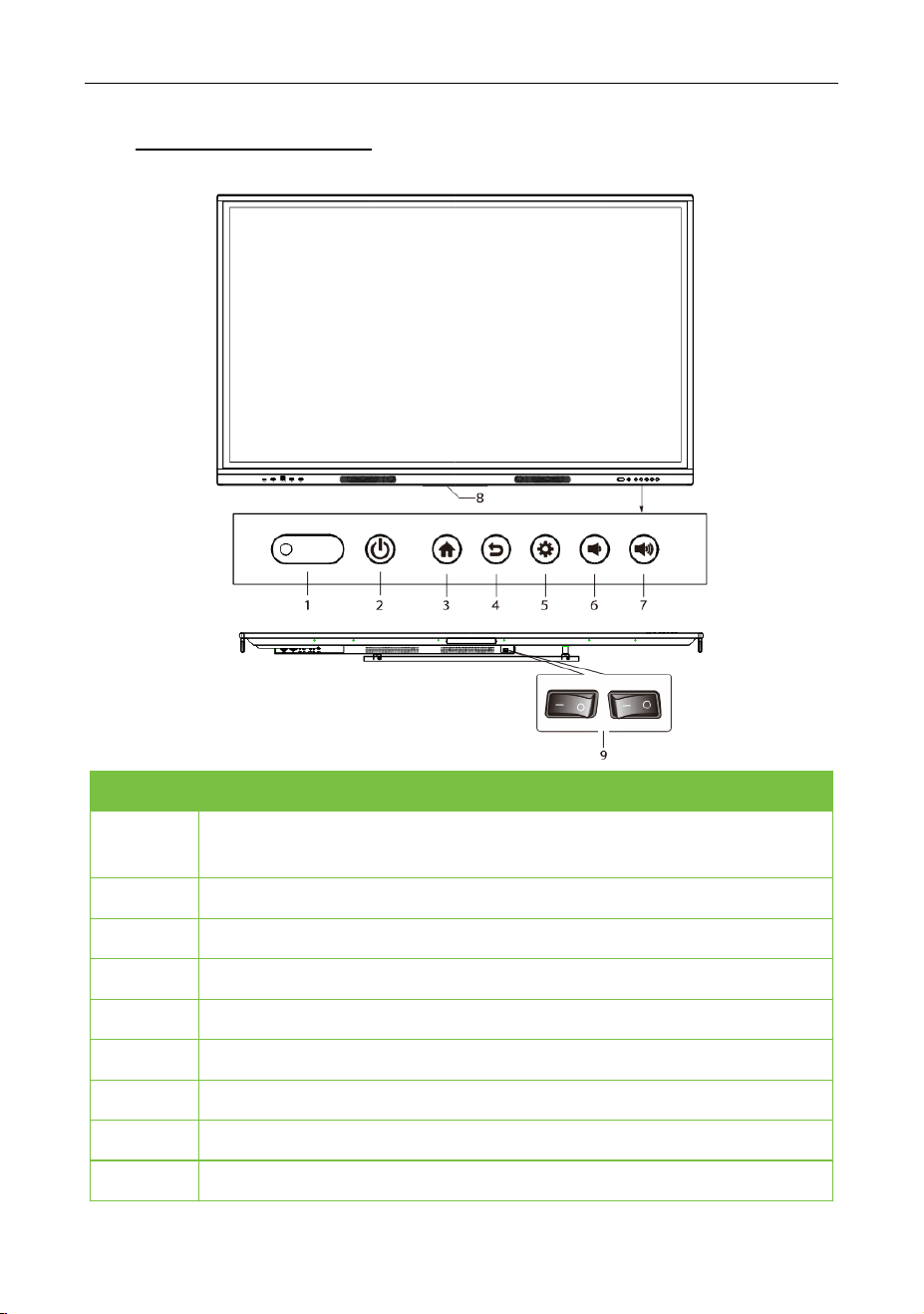
4 Panel Description
No.
Function
1
Indicator light, remote control receiving window and light sensing
receiving window.
2
Power button.
3
Home button.
4
Returns button.
5
Set button.
6
Volume down button.
7
Volume increase button.
8
Wi-Fi plastic support.
9
Switch button.

ZK-IWBE User Manual
Page | 20 Copyright © 2024 ZKTECO CO., LTD. All rights reserved.
5 Remote Control
Precautions for Use of Remote Control
1. Aim the remote control at the remote receiver when using the remote
control. Any object placed between the remote control and the remote
receiver may disturb the operation.
2. Protect the remote control from vibration. Do not expose the remote
control to direct sunlight as the heat may deform it.
3. When the remote receiver is subject to direct sunlight or strong light, the
remote control may malfunction. In such case, please change the angle of
the lighting or the panel or operate the remote control close to the remote
receiver.
4. Replace the batteries in case of low battery as it will reduce the range of the
remote control. If the remote control is to be left unused for a longer period
of time or the batteries are being depleted then, please remove the
batteries as battery leakage may damage the remote control.
5. Do not use batteries of different types or mix a new battery with a used one.
Always replace batteries in pairs.
6. Do not throw batteries into a fire or recharge or disassemble batteries. Do
not recharge, short-circuit, disassemble/assemble, heat or burn any used
batteries. Please dispose of waste batteries according to applicable
environmental regulations. Do not expose batteries to hot environment,
such as direct sunlight or fire.
ZK-IWBE User Manual
Page | 21 Copyright © 2024 ZKTECO CO., LTD. All rights reserved.
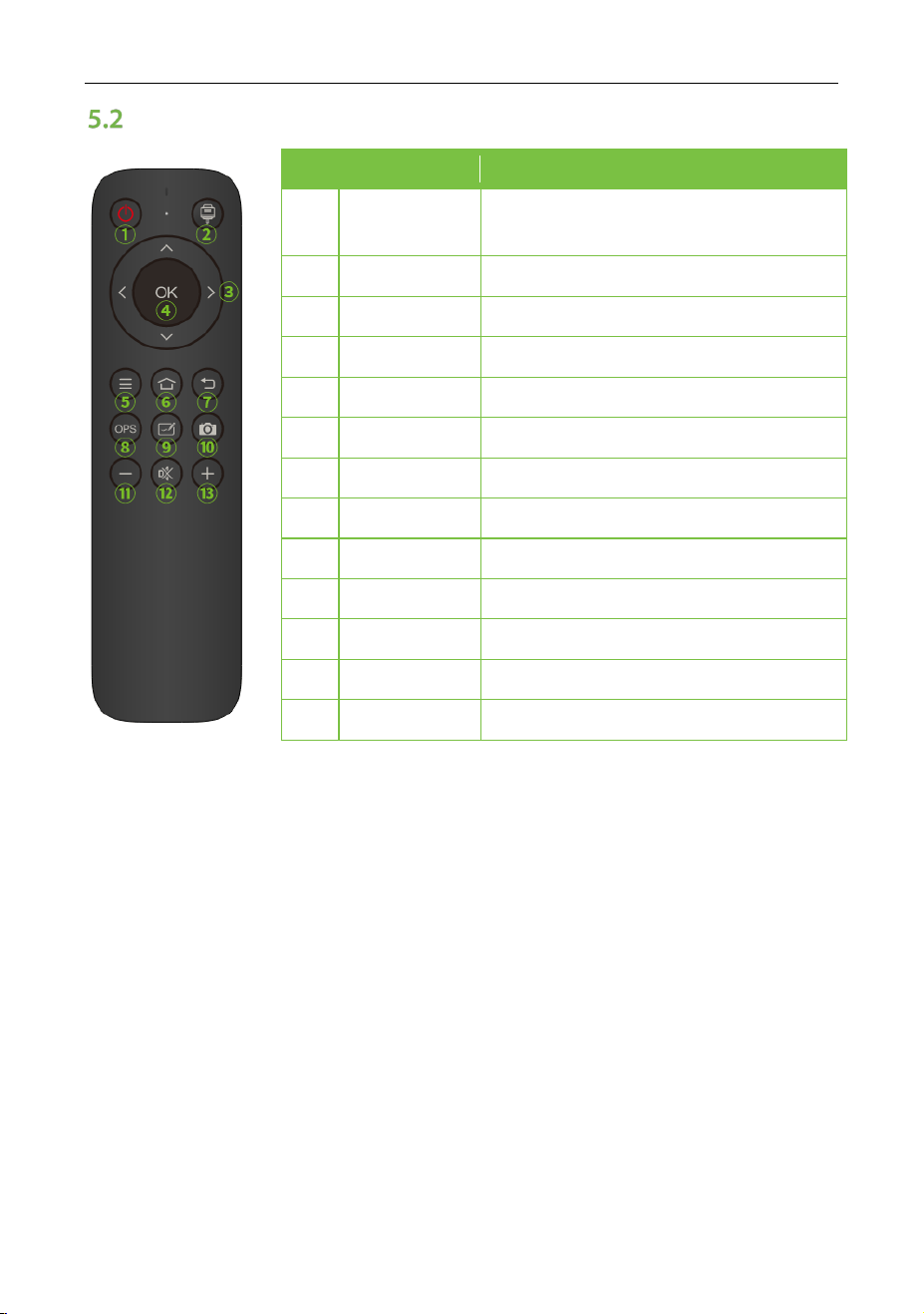
Buttons on Remote Control
No.
Button
Function
1 Power
Switch between power-on and
standby states.
2
Source
Open or close the signal source list.
3
Cursor
Select or adjust the menu options.
4
Confirm
Confirm the operation.
5
Menu
Show or hide the main menu.
6
Home
Display the home page.
7
Return
Return to the previous interface.
8
OPS
Switch to OPS source.
9
Writing
Switch to the writing interface.
10
Snapshot
Take a screenshot.
11
Volume-
Decrease the volume.
12
Mute
Mute mode.
13
Volume+
Increase the volume.
Note:
1. The picture is for reference only. Please refer to the physical appearance of
the remote control.
2. The button function of the remote control may be different for different
models. Please refer to the actual function.

ZK-IWBE User Manual
Page | 22 Copyright © 2024 ZKTECO CO., LTD. All rights reserved.
6 Basic Operation
Startup/Shutdown
6.1.1 Startup/Shutdown
Use a power supply ranging from 100V to 240V AC.
Physical Key
The
buttons on the panel and remote control are unipolar switches. When
the power is on, press this button to switch between the startup or standby state.
The
button on the backplane is a full-polarity switch. If the switch is turned to
“O”, t h e n the power supply is turned OFF. If the switch is turned to “I”, the power
supply is turned ON.
On-screen
Click the icon in the lower right corner of the home page, click Confirm to
turn off the OPS or the panel.
6.1.2 Auto Standby
The panel will not enter standby mode, regardless of whether there is a signal
input or not.
In the non-Android main interface, if there is no signal input within 15min, the
panel will automatically enter the standby mode.
6.1.3 Save before Shutdown
Before shutting down, the panel saves picture and sound settings, which are
restored upon powering on.
6.1.4 OPS ON/OFF (Optional)
If the panel is installed with the OPS module and is in the OPS signal source, the
OPS module will start automatically. If not, it should be started manually.
Before turning off the panel, you should first use the touch function or mouse to
turn off the OPS module from the Start menu. The Standby key on the panel or
ZK-IWBE User Manual
Page | 23 Copyright © 2024 ZKTECO CO., LTD. All rights reserved.
remote control can be used to turn off the panel only after the OPS module
completely shut down. It is not allowed to press the Standby key or directly
disconnect the power supply without turning off the OPS module, as it may
damage the OPS module.
When the OPS module enters the OFF state and no operation is performed on
the PC for a longer period of time, this panel will enter standby mode. To use the
module, just restart the panel.
Note: The specifications of the power supply are determined by the power board
in use.
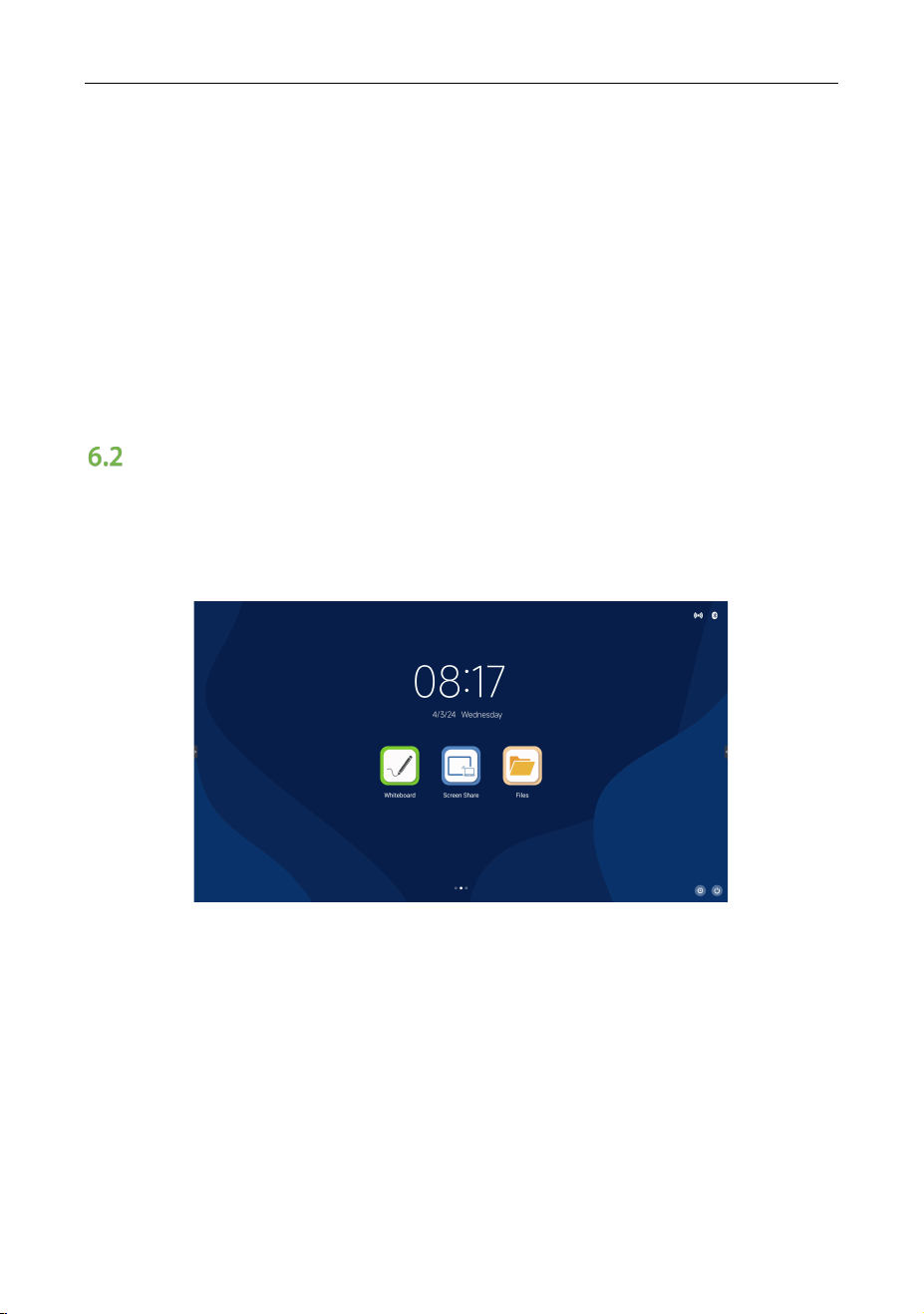
Home Page
Users can view time, date, USB drive information, network information, hotspot
information and common software on the home page. Swipe right to view the
welcome interface and swipe left to view all the applications.
Note: User can install new application and the operations may vary. The
operation methods detailed in this Manual are for reference only. User shall
operate the machine according to the actual situation.
ZK-IWBE User Manual
Page | 24 Copyright © 2024 ZKTECO CO., LTD. All rights reserved.
Sidebar
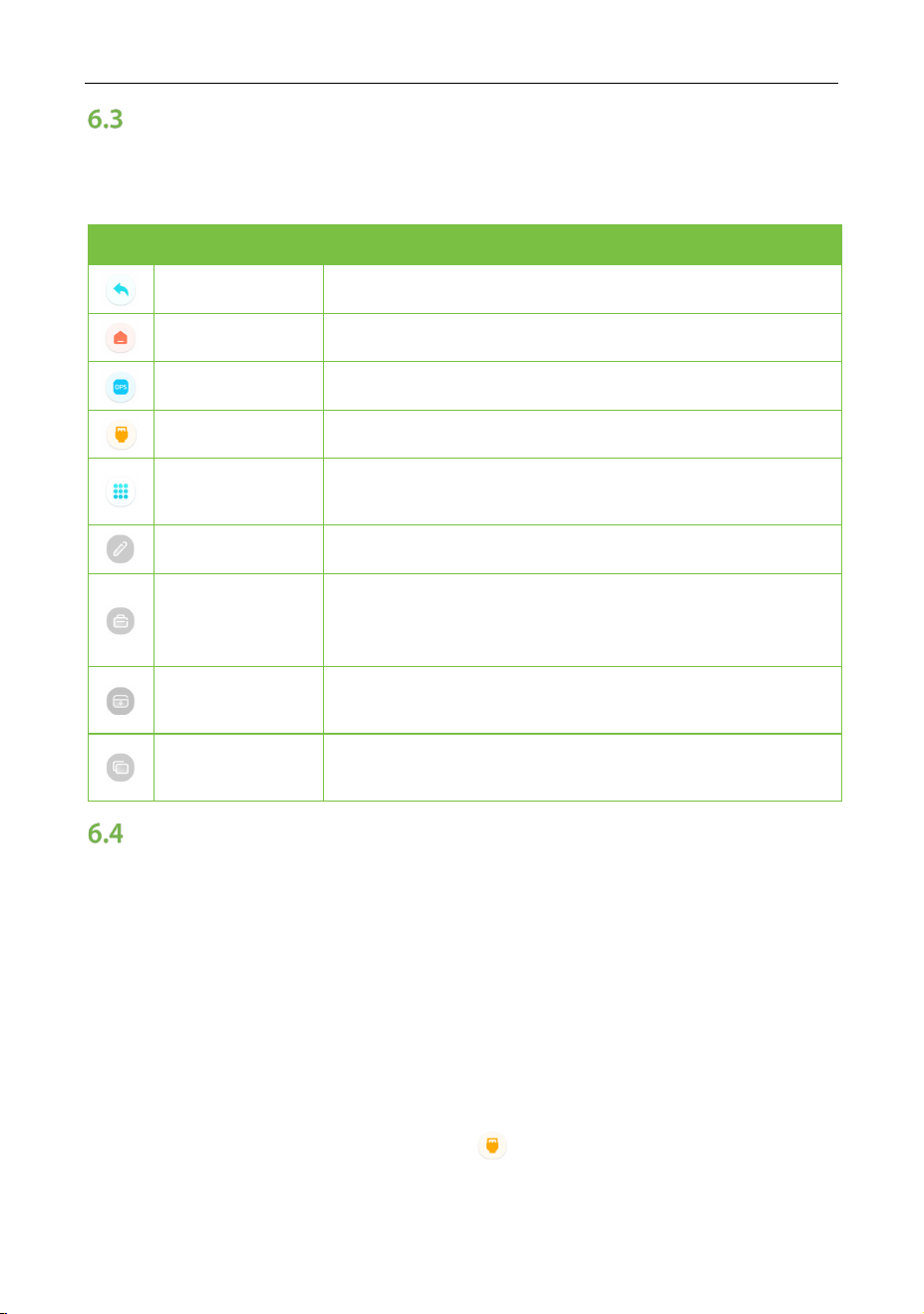
To bring up the sidebar menu, click the sidebar shortcut arrow and swipe the
edge of the screen inwards (or turn off the gesture switch).
Icon
Function
Description
Return Return.
Home Switch to the Android home page.
OPS Switch to OPS source.
Source Settings Source Settings, information source preview.
All Application
S-Write, Setting, File Manager, File Transfer, Browser,
Specification, WPS, K-Share, Cloud Disk.
Comment Open comment.
Utility
Back Counting, Eye Protection, Calculator, Vote,
Screen Capture, Shot Stopwatch, Touch Lock,
Spotlight, and Touch Sound.
Screen
Drop-down
The whole screen moves down.
Multitask
Manager
View and manage background running processes.
Signal Source
6.4.1 Source Switching
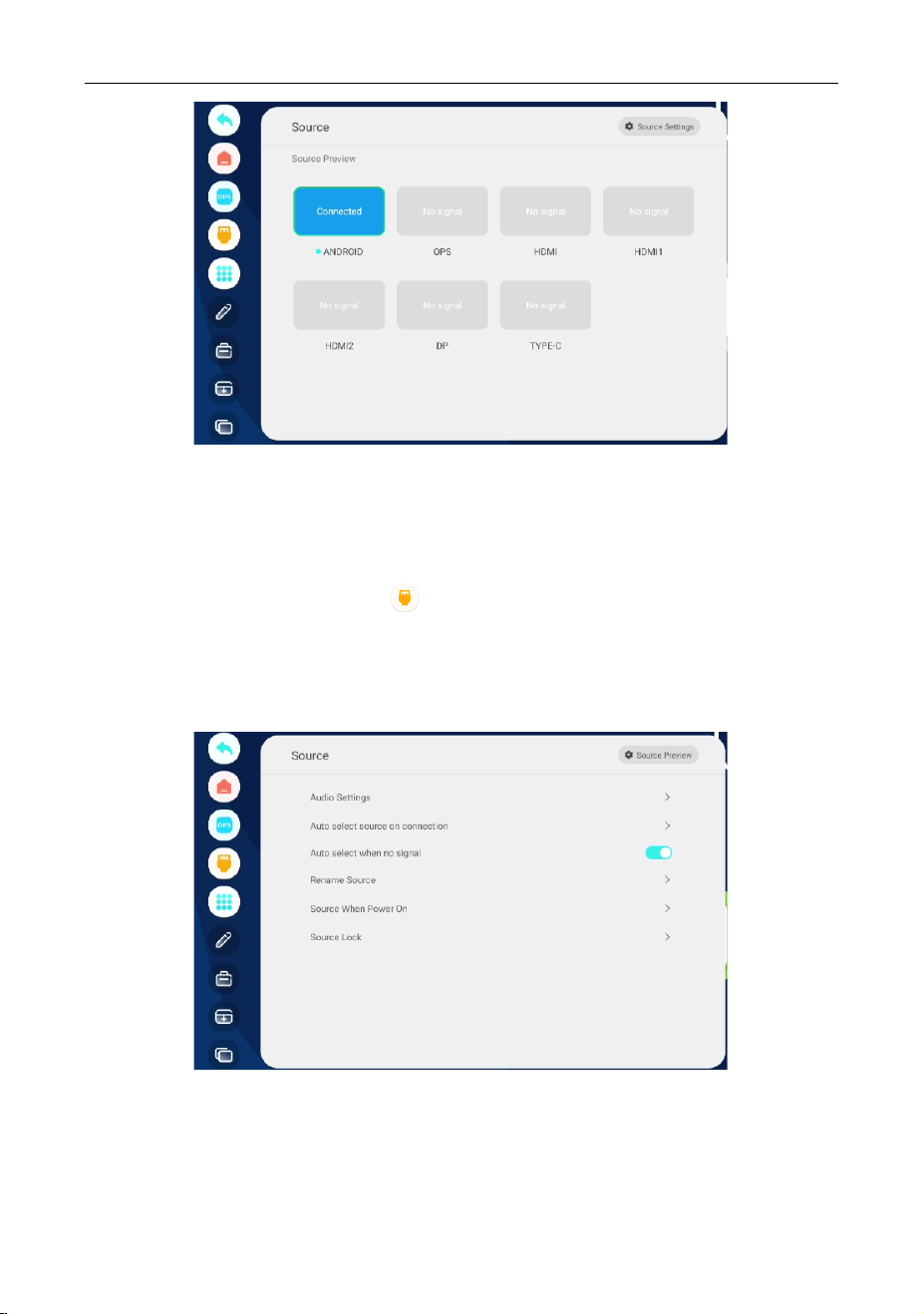
When switching the source, you can use the remote control or sidebar to switch.
The method is as follows:
Method 1: Press the Source button of the remote control to enter the Signal
Source interface. At this time, you can press the Cursor button of the remote
control to select the source. Press the OK button of the remote control to switch
the input source.
Method 2: Open the sidebar, click the icon to enter the Signal Source
interface, select a source and then click to switch.
ZK-IWBE User Manual
Page | 25 Copyright © 2024 ZKTECO CO., LTD. All rights reserved.
Note: Different configurations have different signal sources, subject to the actual
signal source menu.
6.4.2 Source Settings
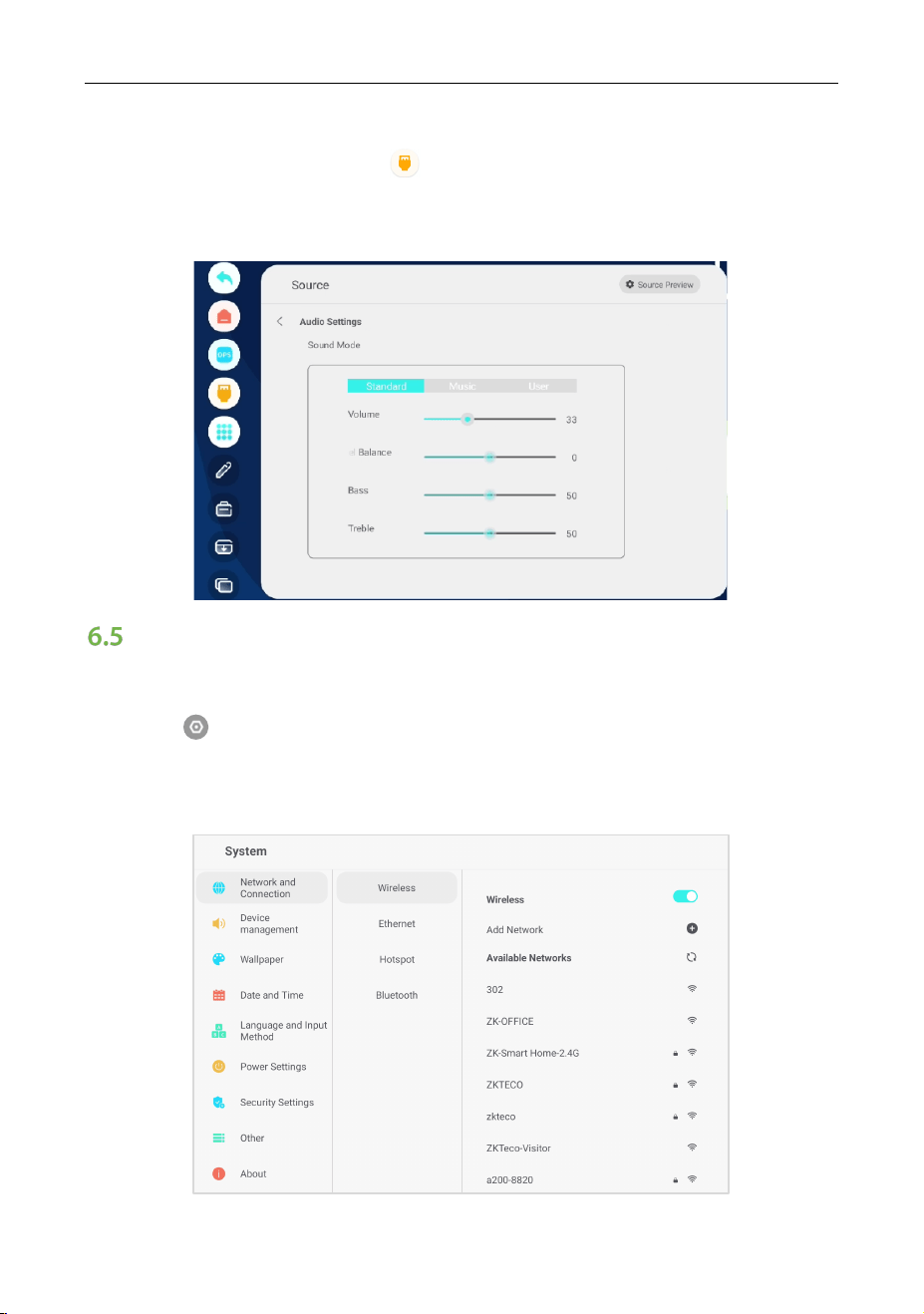
Open the sidebar, click on the icon to enter the Signal Source interface,
click Source Settings in the upper right corner to set the video quality, audio
settings, auto select source on connection, auto select when no signal, rename
source, source when power is on, source lock, no signal auto shutdown etc.
ZK-IWBE User Manual
Page | 26 Copyright © 2024 ZKTECO CO., LTD. All rights reserved.
6.4.3 Audio Settings
Open the sidebar, click on the icon to enter the Signal Source interface,
click Source Settings in the upper right corner, and then click Audio Settings to
adjust the Volume, Channel Balance, Bass and Treble etc.
Network and Connection
6.5.1 Wireless
Click the icon in the lower right corner of the home page to enter the
System interface, click Network and Connection > Wireless to set wireless
network.
ZK-IWBE User Manual
Page | 27 Copyright © 2024 ZKTECO CO., LTD. All rights reserved.
1. Choose an available network and click, then input the password to connect.
2. If there is no desired network in the list, click Add Network to add a
network manually.
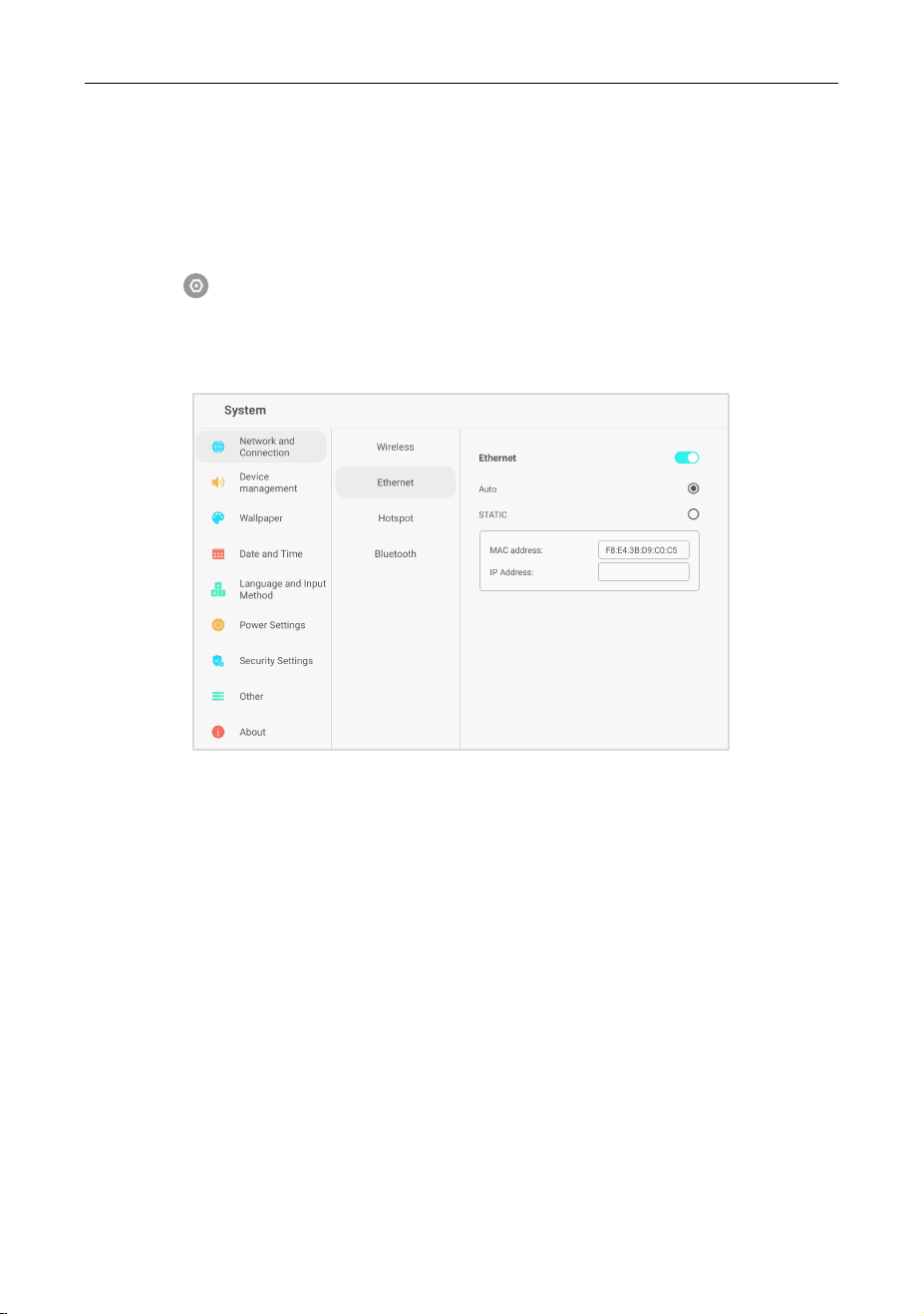
6.5.2 Ethernet
Click the icon in the lower right corner of the home page to enter the
System interface, click Network and Connection > Ethernet to set wired
network.
1. Use a network cable to connect the panel and a router.
2. Enable the Ethernet to entering into the Ethernet interface.
3. Select Auto, and the panel will automatically obtain an IP address and
connect to the network.
4. Select STATIC, and users need to manually enter the MAC address and IP
address to connect it to the network.
Note: This panel has two network interfaces, and both can be connected to the
wired network (choose one of the two). If one network port is connected to a
router and the other network port is connected to an external device, the
Android operating system, the OPS (Windows only), and the external device form
a LAN and can be connected to the network at the same time.
ZK-IWBE User Manual
Page | 28 Copyright © 2024 ZKTECO CO., LTD. All rights reserved.
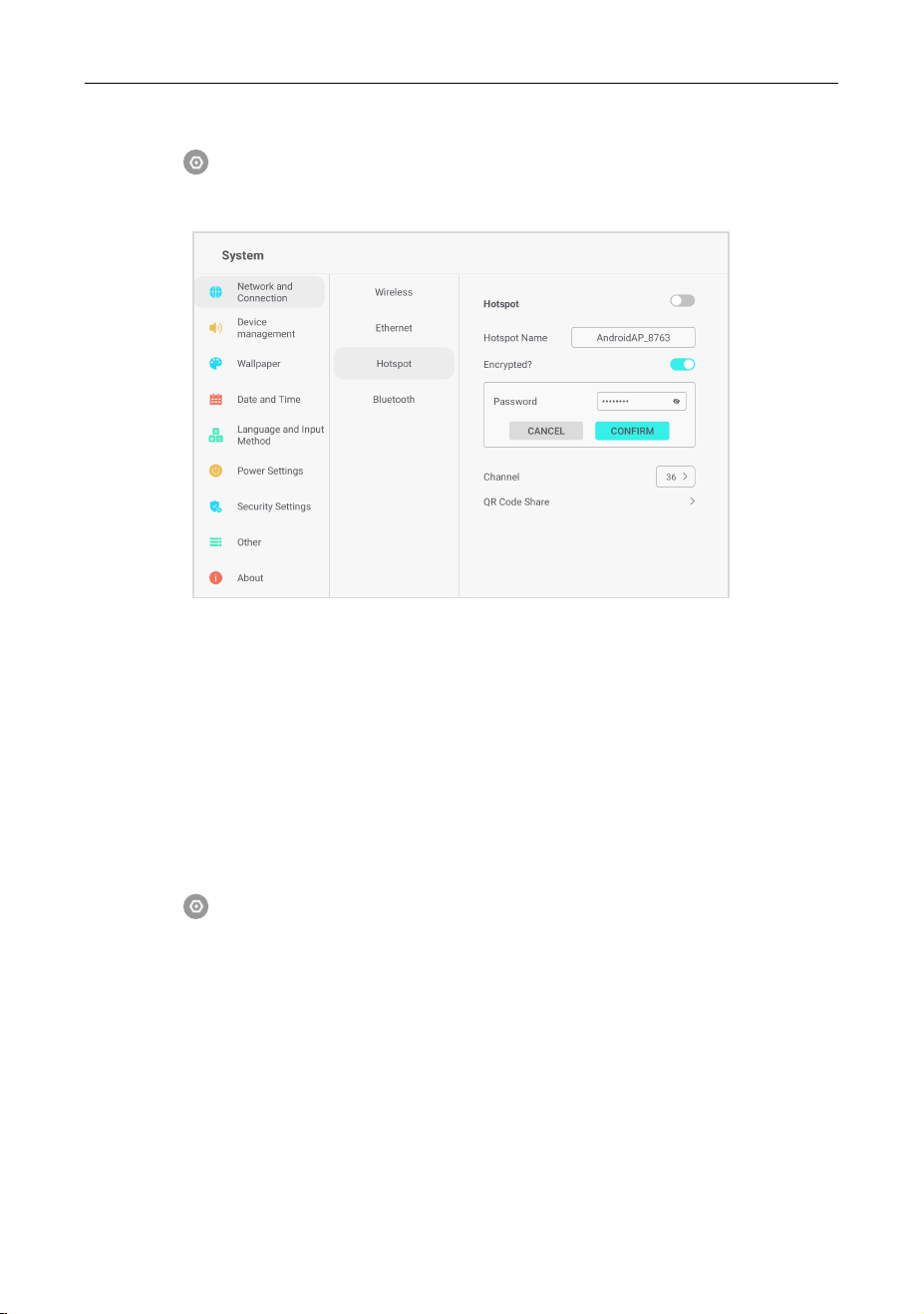
6.5.3 Hotspot
Click the icon in the lower right corner of the home page to enter the
System interface, click Network and Connection > Hotspot to set the hotspot.
1. Turn on the Hotspot option. Enter the hotspot name in the textbox
(defaulted name is “AndroidAP_xxxx”).
2. Turn on the Encrypted option, the system will automatically generate a
password, or you can enter your own password in the password box.
3. Click CONFIRM to save the settings, and then this network can be found by
other wireless devices within the range.
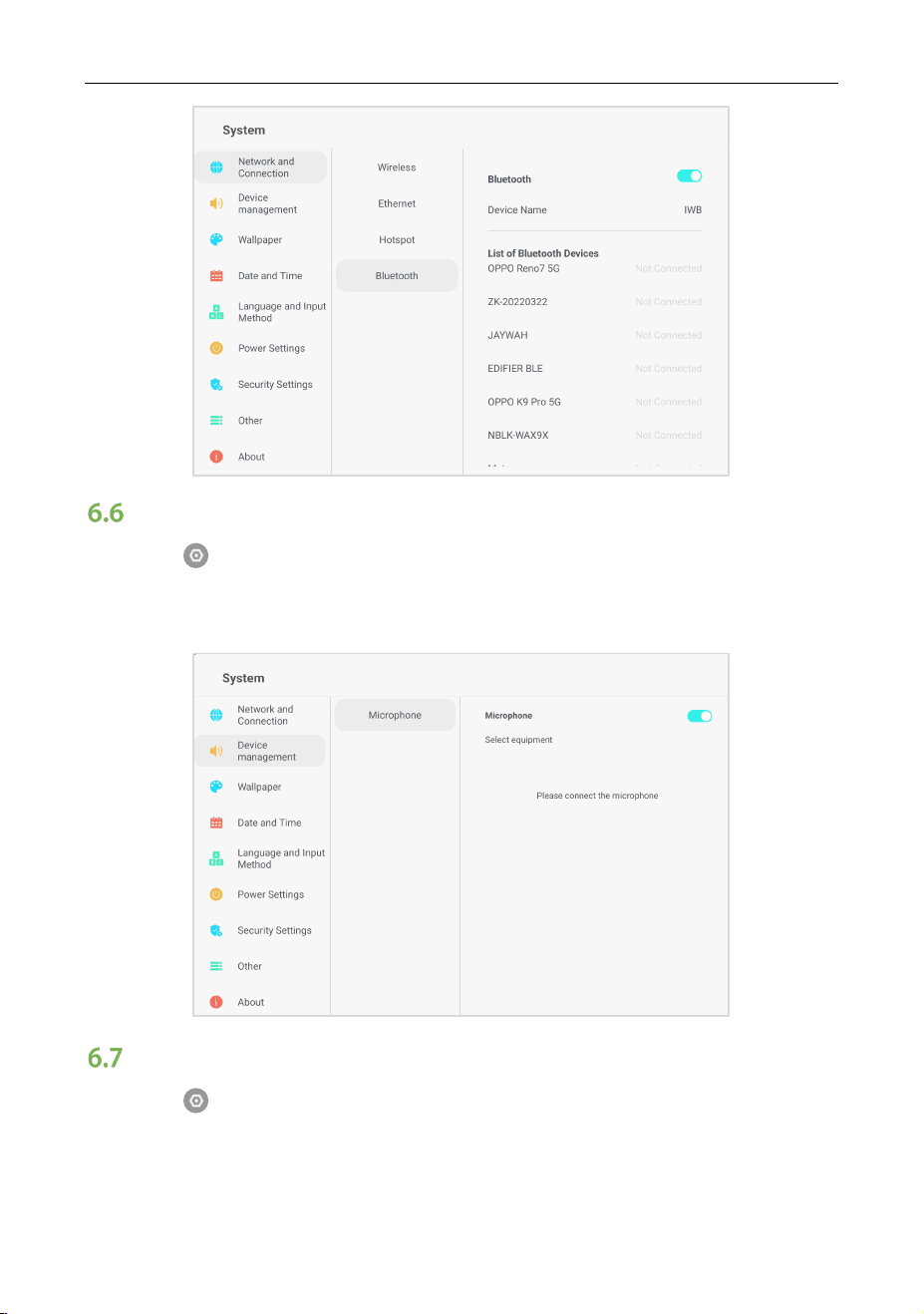
6.5.4 Bluetooth
Click the icon in the lower right corner of the home page to enter the
System interface, click Network and Connection > Bluetooth to set Bluetooth.
1. Turn on the Bluetooth switch.
2. Choose the Bluetooth device pair to connect.
ZK-IWBE User Manual
Page | 29 Copyright © 2024 ZKTECO CO., LTD. All rights reserved.
Device Management
Click the icon in the lower right corner of the home page to enter the
System interface. If users need microphone, please click Device Management >
Microphone to connect a microphone.
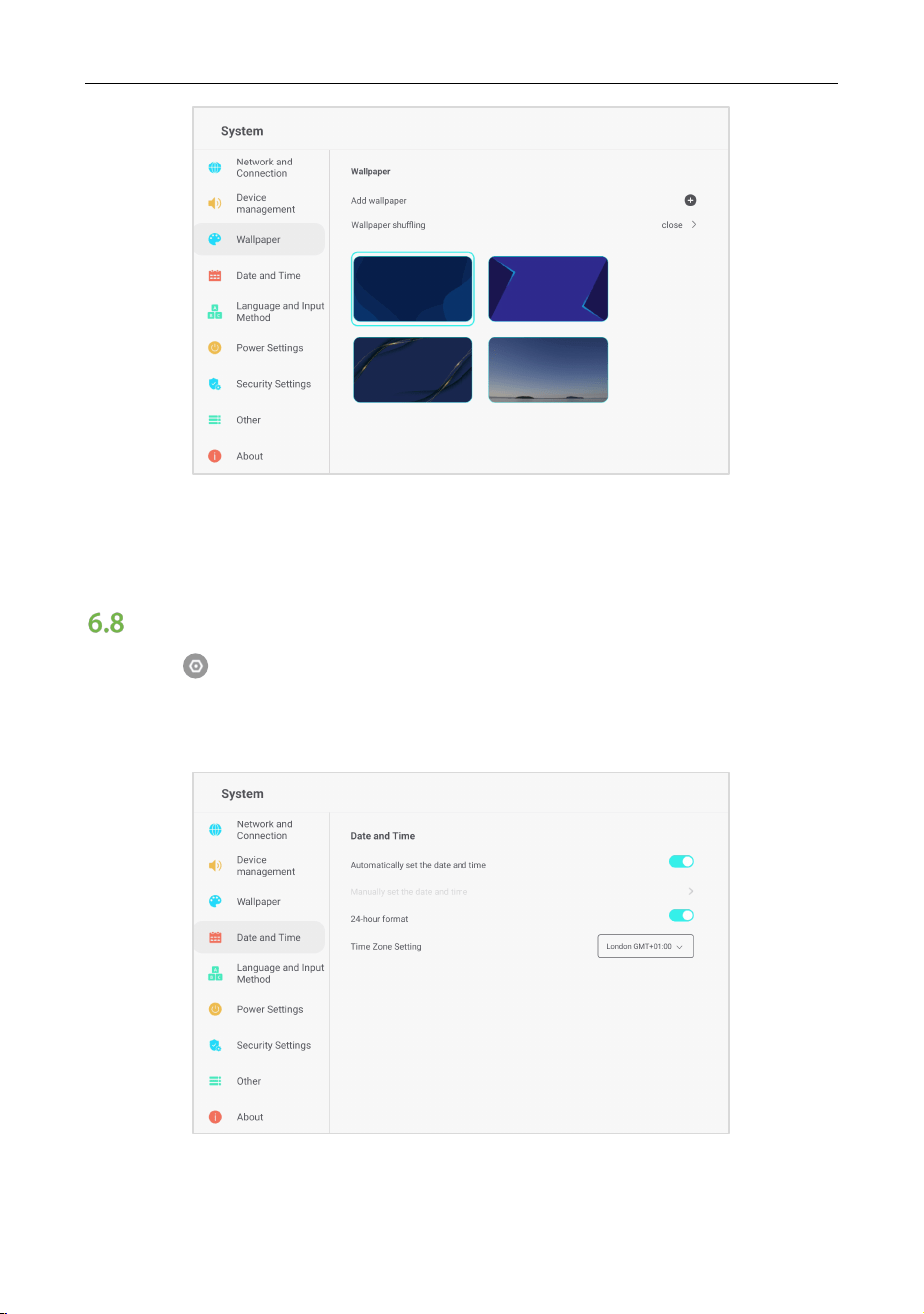
Wallpaper
Click the icon in the lower right corner of the home page to enter the
System interface, click Wallpaper to add the wallpaper and set wallpaper
shuffling.
ZK-IWBE User Manual
Page | 30 Copyright © 2024 ZKTECO CO., LTD. All rights reserved.
Note: The format of wallpaper and lock screen wallpaper should be PNG, and the
resolution should be 1920*1080 or 3840*2160, but the file should not be to larger,
so as not to import and affect the smooth operation of the system.
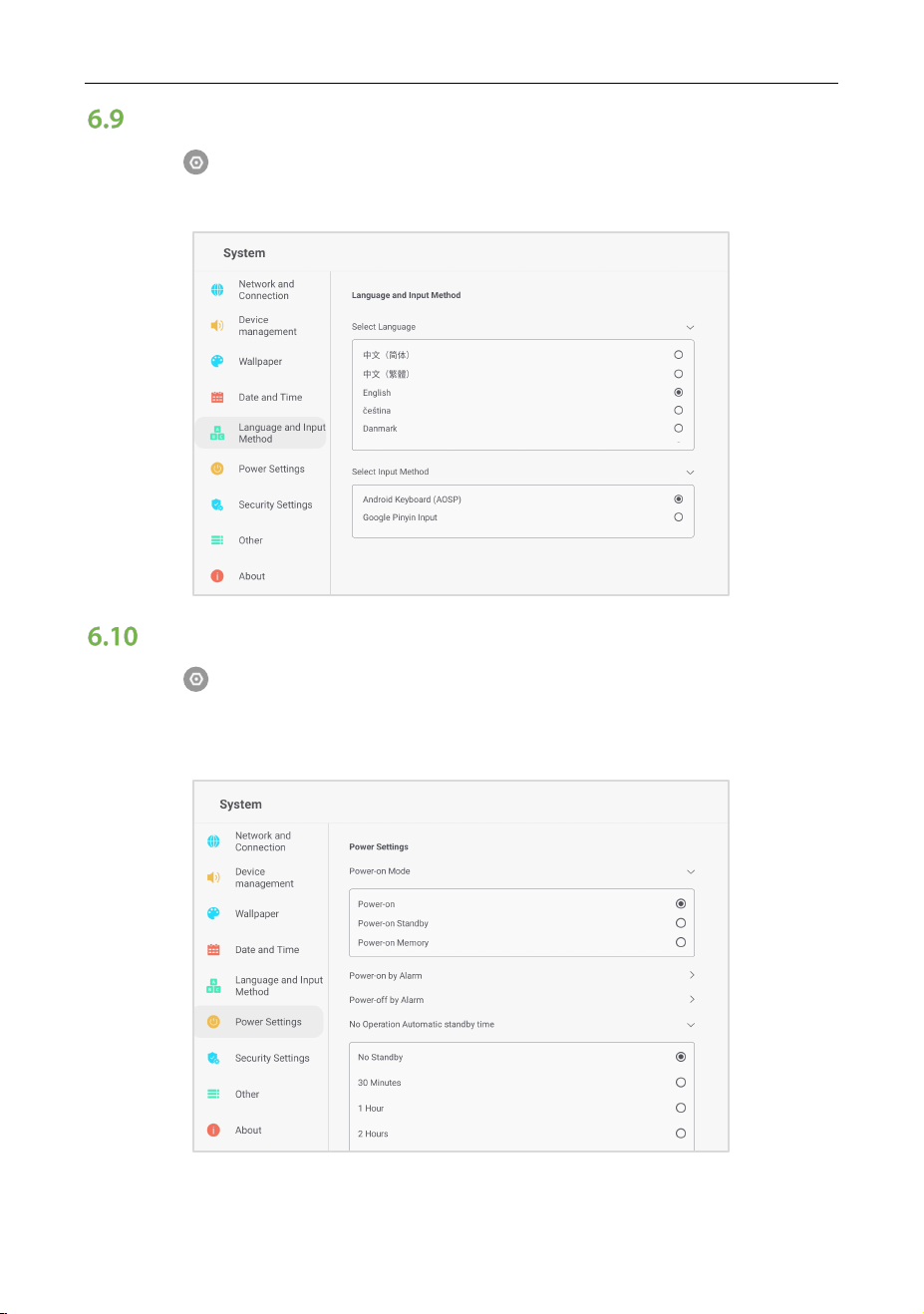
Date and Time
Click the icon in the lower right corner of the home page to enter the
System interface. Click Date and Time to set the date and time to automatically
determine date and time, 24-hour format, time zone setting and date format.
ZK-IWBE User Manual
Page | 31 Copyright © 2024 ZKTECO CO., LTD. All rights reserved.
Language and Input Method
Click the icon in the lower right corner of the home page to enter the
System interface, click Language to set language and input method.
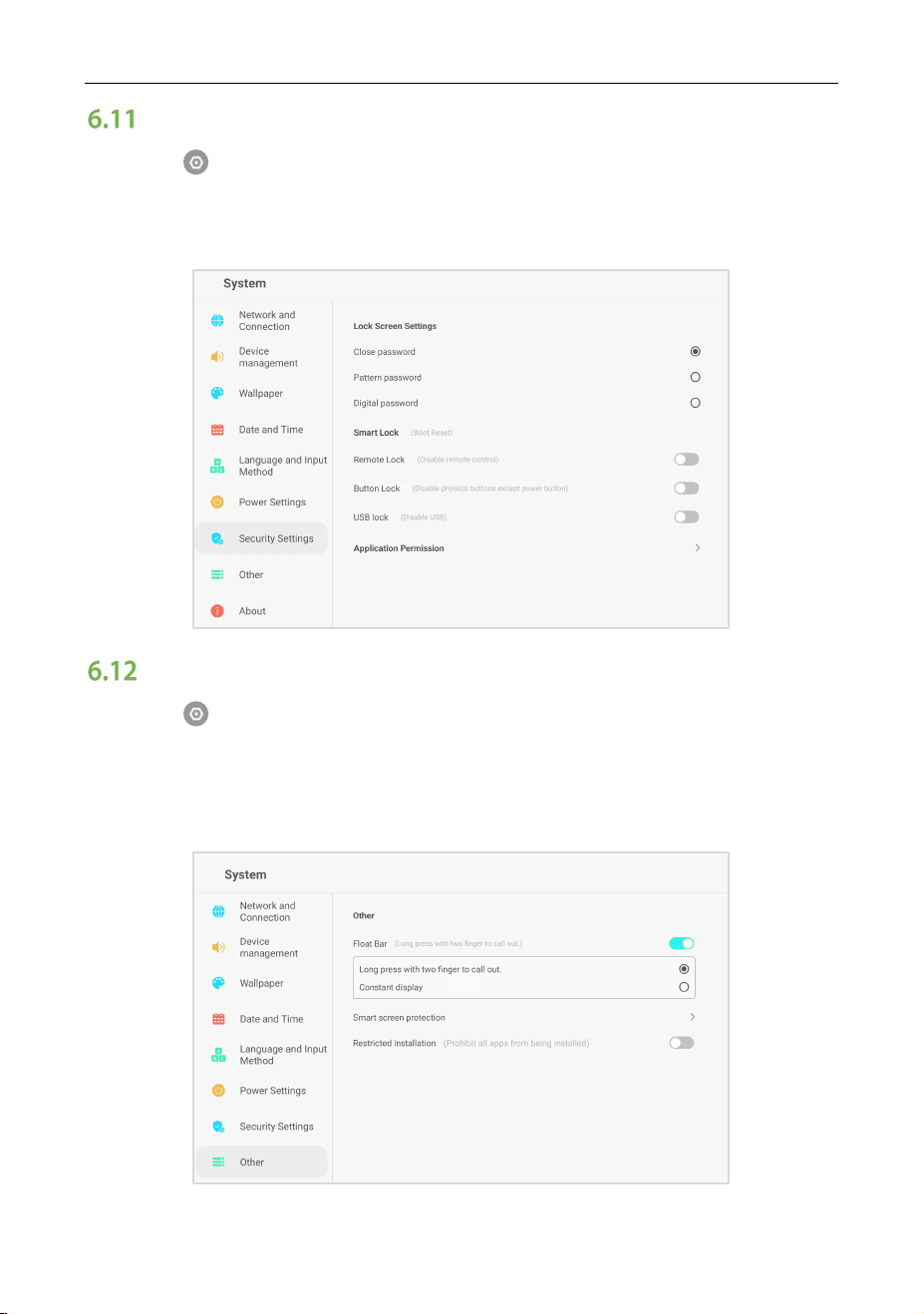
Power Settings
Click the icon in the lower right corner of the home page to enter the
System interface. Click Power Settings to set the power-on mode, power-on/off
by alarm, auto wake up upon source connection etc.
ZK-IWBE User Manual
Page | 32 Copyright © 2024 ZKTECO CO., LTD. All rights reserved.
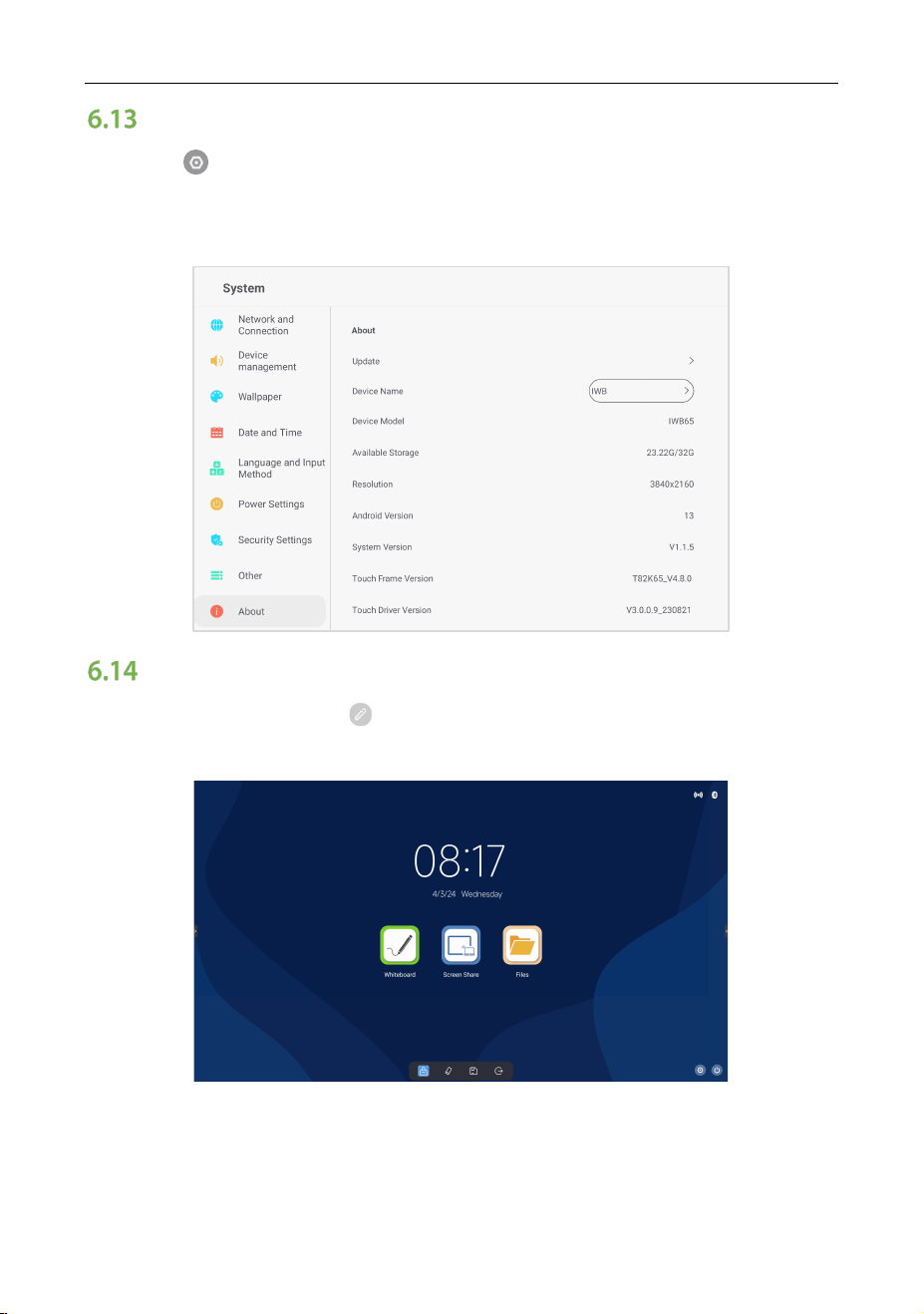
Security Settings
Click the icon in the lower right corner of the home page to enter the
System interface, click Security Settings to set close password, pattern
password, digital password etc.
Other
Click the icon in the lower right corner of the home page to enter the
System interface, click Other to set the float bar (users can choose long press
with two finger to call out or constant display), smart screen protection, and
restricted installation.
ZK-IWBE User Manual
Page | 33 Copyright © 2024 ZKTECO CO., LTD. All rights reserved.
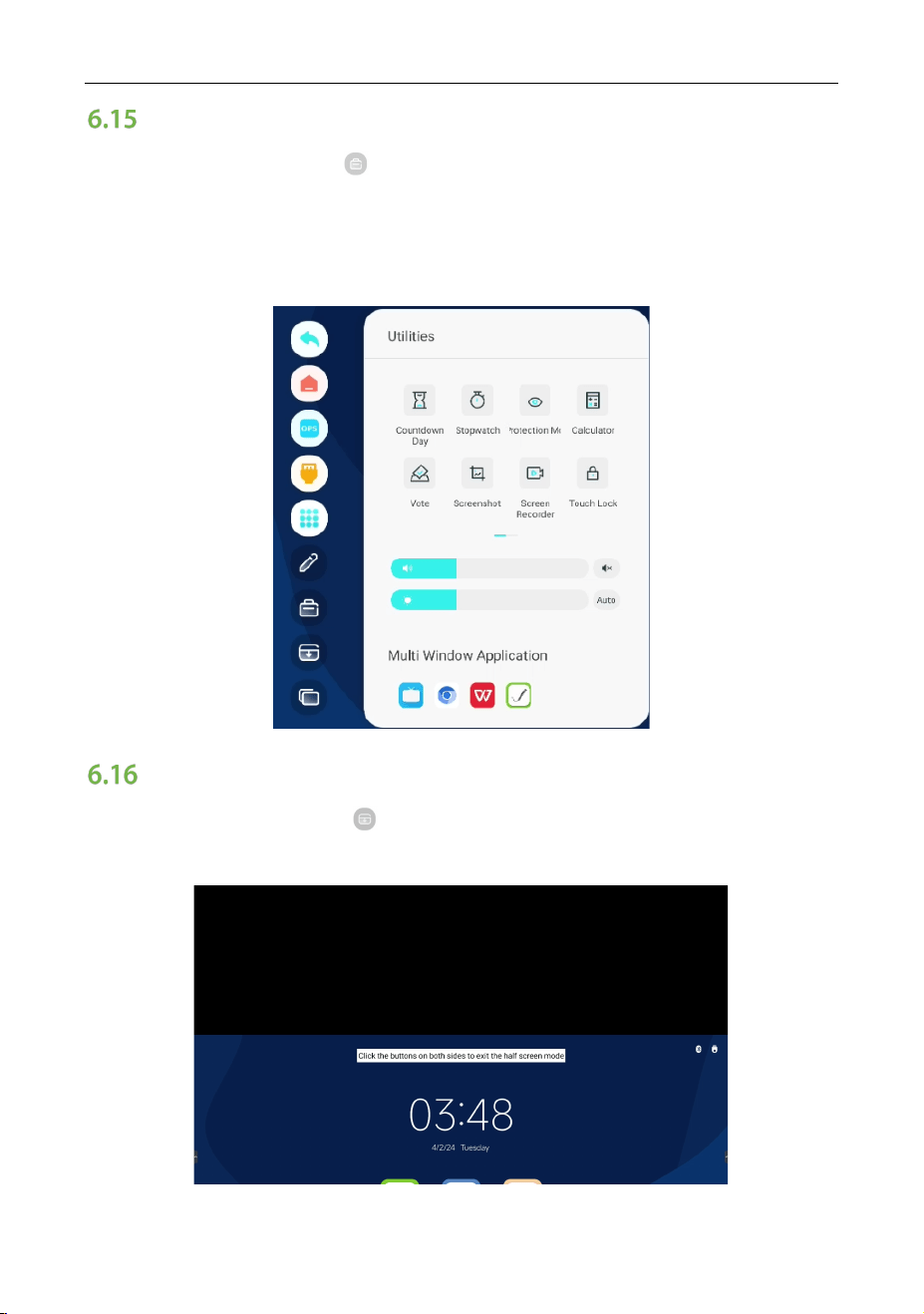
About
Click the icon in the lower right corner of the home page to enter the
System interface, click About to view the relevant information about of the
panel.
Comment
Open the sidebar, click the icon to enter comment mode, users can use the
pen to comment on the current screen.
ZK-IWBE User Manual
Page | 34 Copyright © 2024 ZKTECO CO., LTD. All rights reserved.
Utilities
Open the sidebar, click the icon to enter the Utilities interface, users can use
countdown day, stopwatch, eye protection, vote, calculator, vote, screenshot,
screen recorder, touch lock, spotlight, touch sound, freeze and other tools. Users
can also adjust sound and display brightness on this interface.
Screen Drop-down
Open the sidebar, click the icon to move the screen down overall, and the
click the Up icon on both sides to exit.
ZK-IWBE User Manual
Page | 35 Copyright © 2024 ZKTECO CO., LTD. All rights reserved.
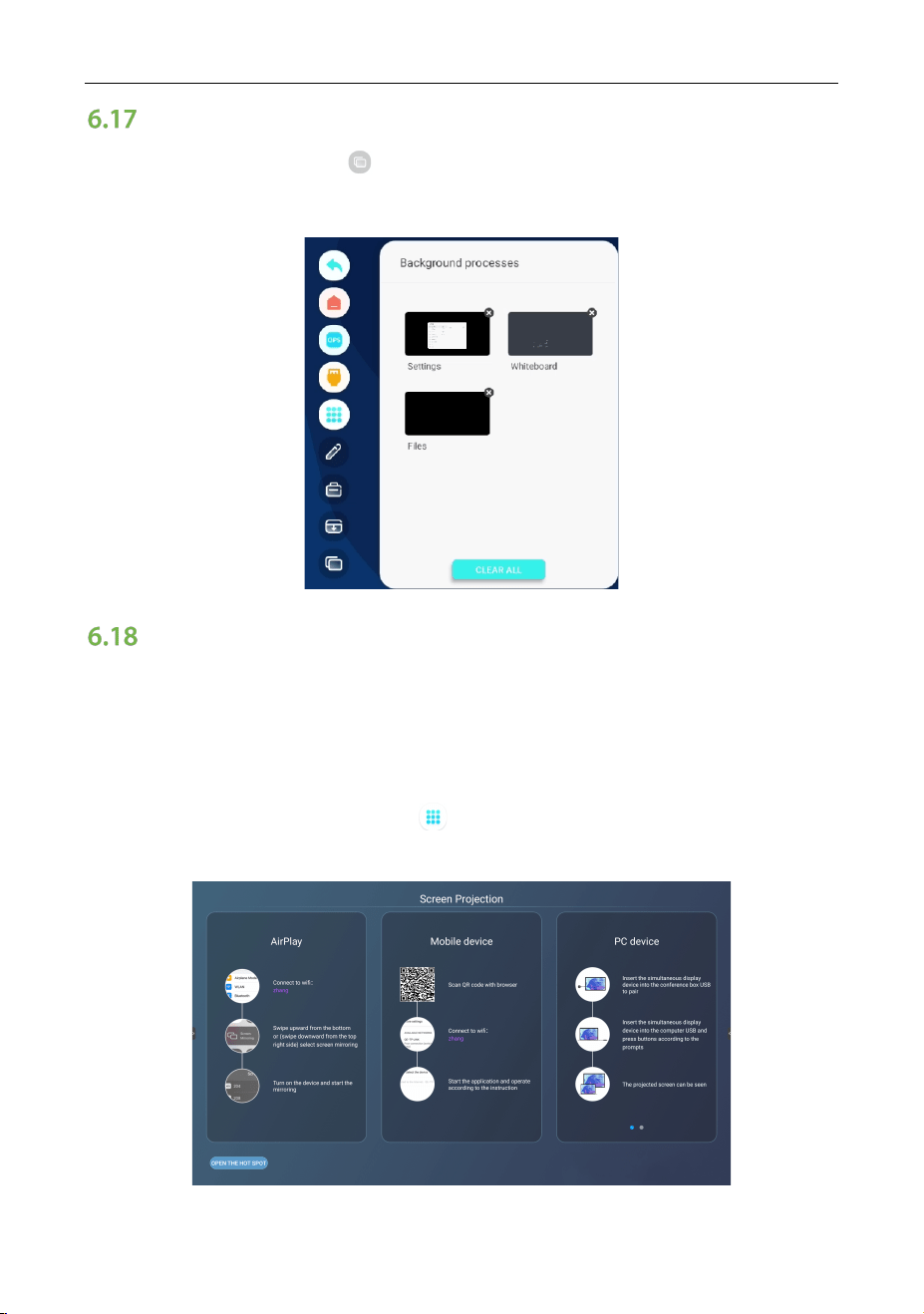
Background Process
Open the sidebar, click the icon to enter the Background Process interface
to view and manage the background running processes.
Share
Users can share the phone or other devices’ files or screen to the panel.
Take mobile phone as an example:
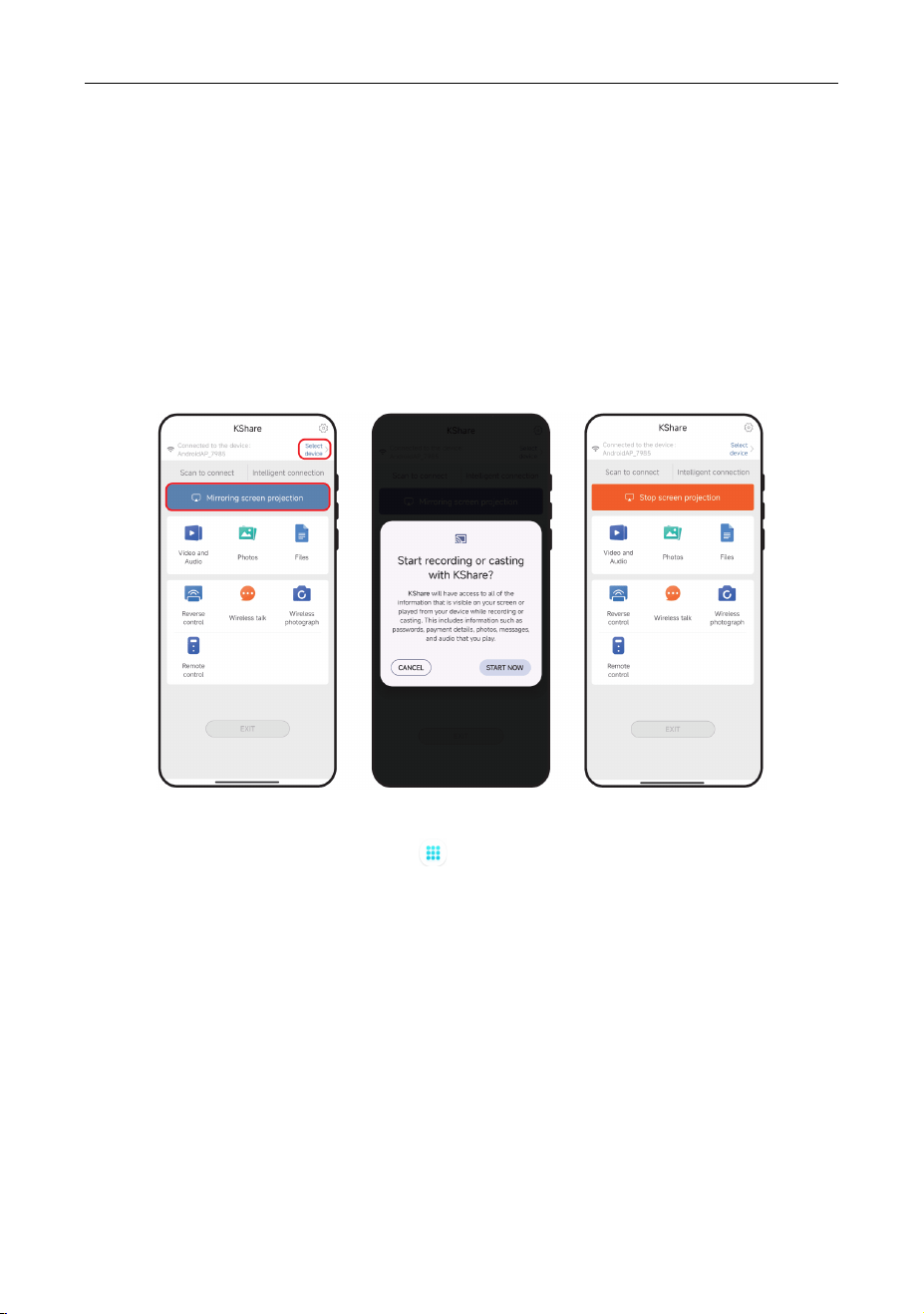
6.18.1 Wireless Screen Share
1. Open the sidebar, click on the icon to view all applications, click Screen
Project icon to enter the share interface.
ZK-IWBE User Manual
Page | 36 Copyright © 2024 ZKTECO CO., LTD. All rights reserved.
2. Using browser scan the download QR code to download the KShare APP on
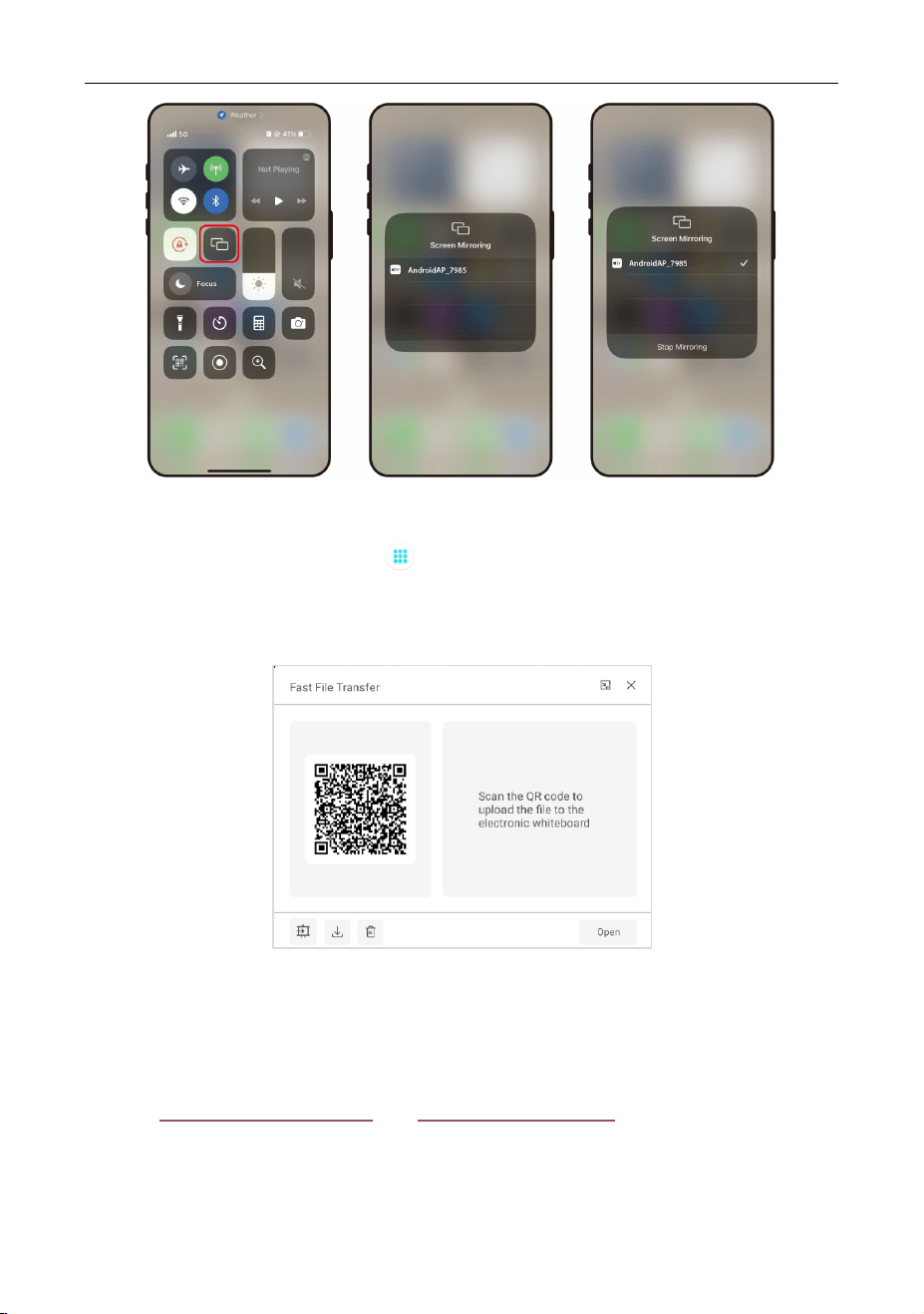
the phone.
3. Open the KShare App on the phone, and ensure the panel and phone are
connected to the same network.
4. Click Select device on the phone to select the panel.
5. Click Mirroring screen projection to mirror the screen.
Note: Users can also use KShare App to share videos, photos and files, and can
remote control the panel by this App.
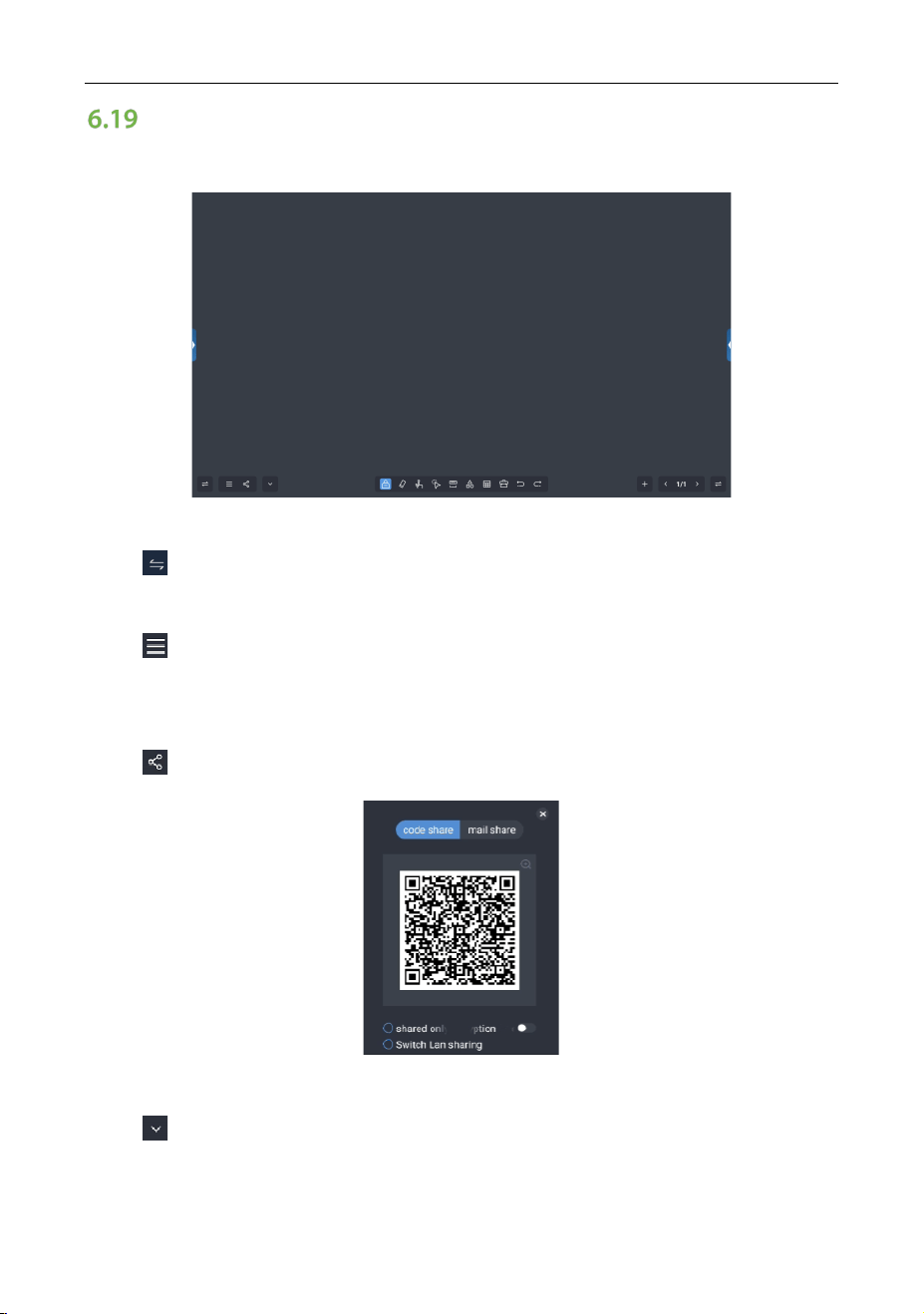
If using IOS devices, users can mirror the screen directly.
1. Open the sidebar, click on the icon to view all applications, click Screen
Project icon to enter the share interface.
2. Open the Screen Mirror on the phone, and ensure the panel and phone are
connected to the same network.
3. Select the panel on the phone, then the screen is shared to the panel.
ZK-IWBE User Manual
Page | 37 Copyright © 2024 ZKTECO CO., LTD. All rights reserved.
6.18.2 Fast File Transfer
Open the sidebar, click on the icon to view all applications, click Fast File
Transfer icon to enter the share interface, using browser scan the QR code to
upload files.
6.18.3 Wired Share
Users can use HDMI cable or Type-c cable (full function cable that can charge,
transmit data and mirror screen) to connect other signal input devices, please
refer to 3.2.4 HDMI-IN Interface and 3.2.3 Type-C Interface
.
ZK-IWBE User Manual
Page | 38 Copyright © 2024 ZKTECO CO., LTD. All rights reserved.
Whiteboard
Click the Whiteboard icon on the home page to enter the write interface.
Change:
Click to change the sidebar on left or right side.
Menu:
Click to see the Menu, include brush, import notes, save file, background
setting and quit.
Share:
Click to share the note via QR code or Email.
Hide:
Click to hide the sidebar.
ZK-IWBE User Manual
Page | 39 Copyright © 2024 ZKTECO CO., LTD. All rights reserved.
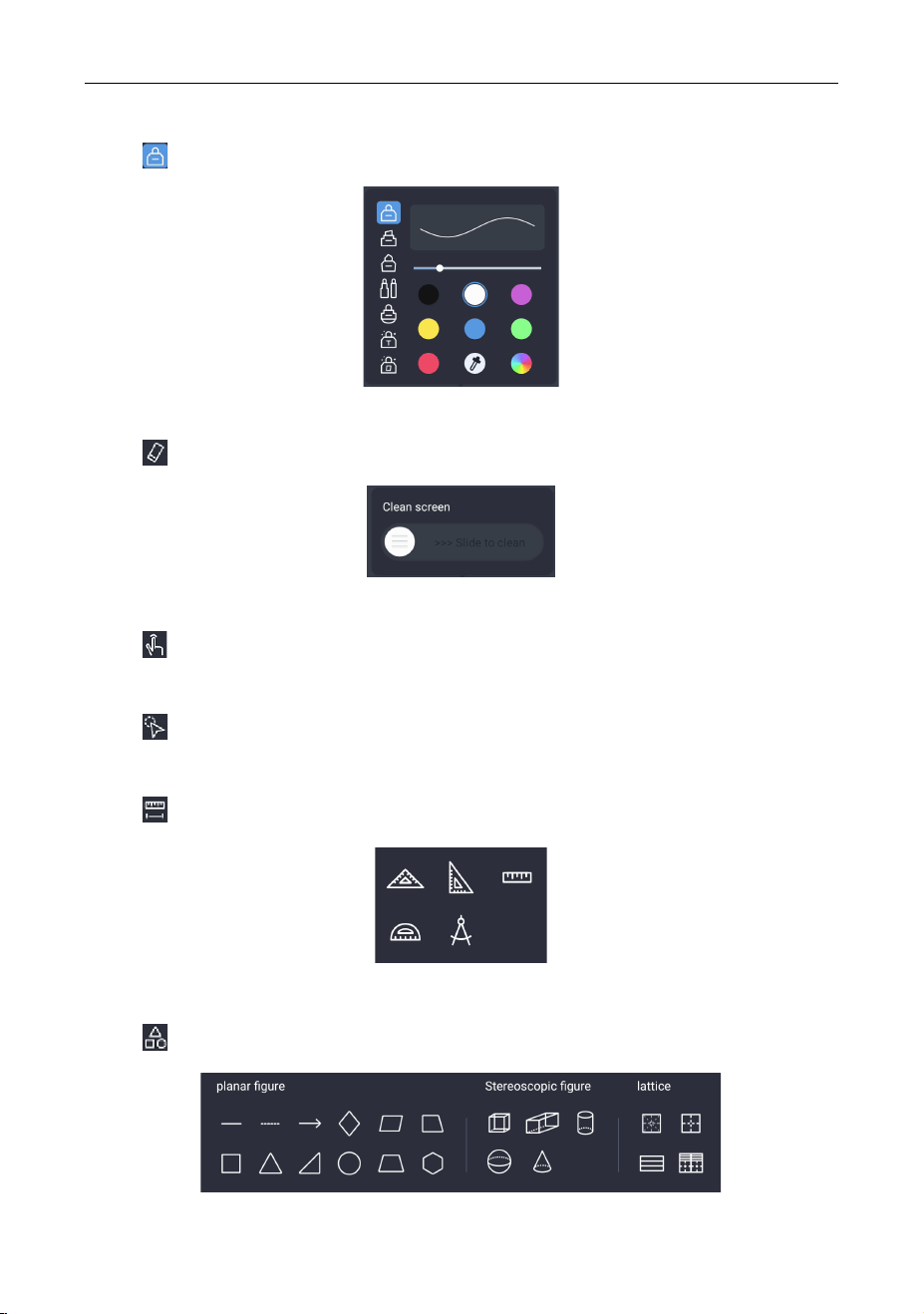
Pen:
Click to set the pen.
Eraser:
Click to clean.
Point:
Click to switch single point or Multi-point.
Loop selection:
Click to create selection.
Ruler:
Click to create a ruler.
Figure:
Click to create a planer figure, a stereoscopic figure or a lattice template.
ZK-IWBE User Manual
Page | 40 Copyright © 2024 ZKTECO CO., LTD. All rights reserved.
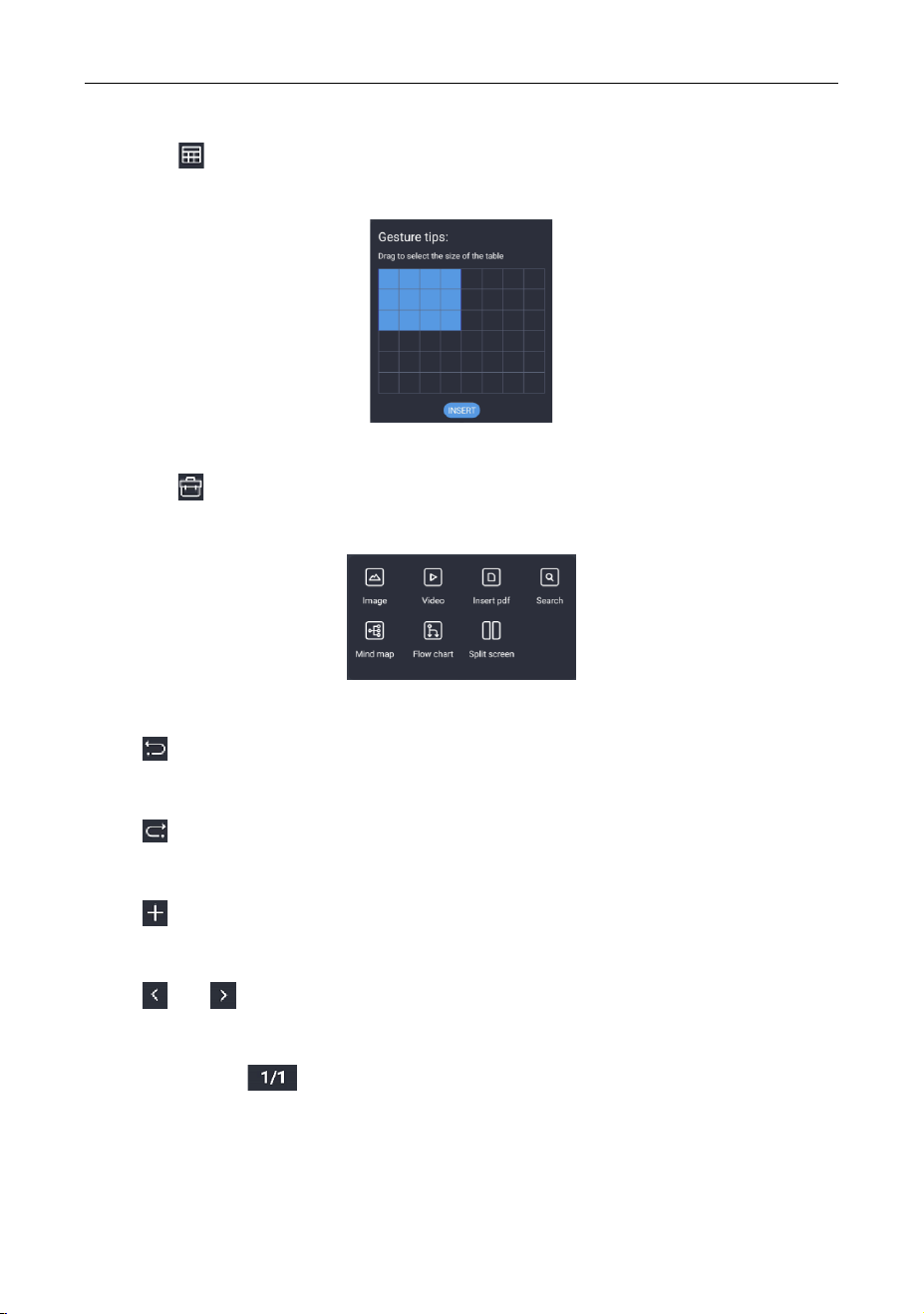
Table:
Click the icon to create a table. The form automatically adjusts its width and
height based on the input.
Others:
Click the icon to insert image, insert video, insert PDF, search, add mind map,
add flow chart or split screen.
Revocation:
Click to return to previous step.
Redo:
Click to redo the next step.
Add:
Click to add a new page.
Page:
Click or to enter the previous page or next page.
Preview:
Click pagination to preview all pages.
ZK-IWBE User Manual
Page | 41 Copyright © 2024 ZKTECO CO., LTD. All rights reserved.
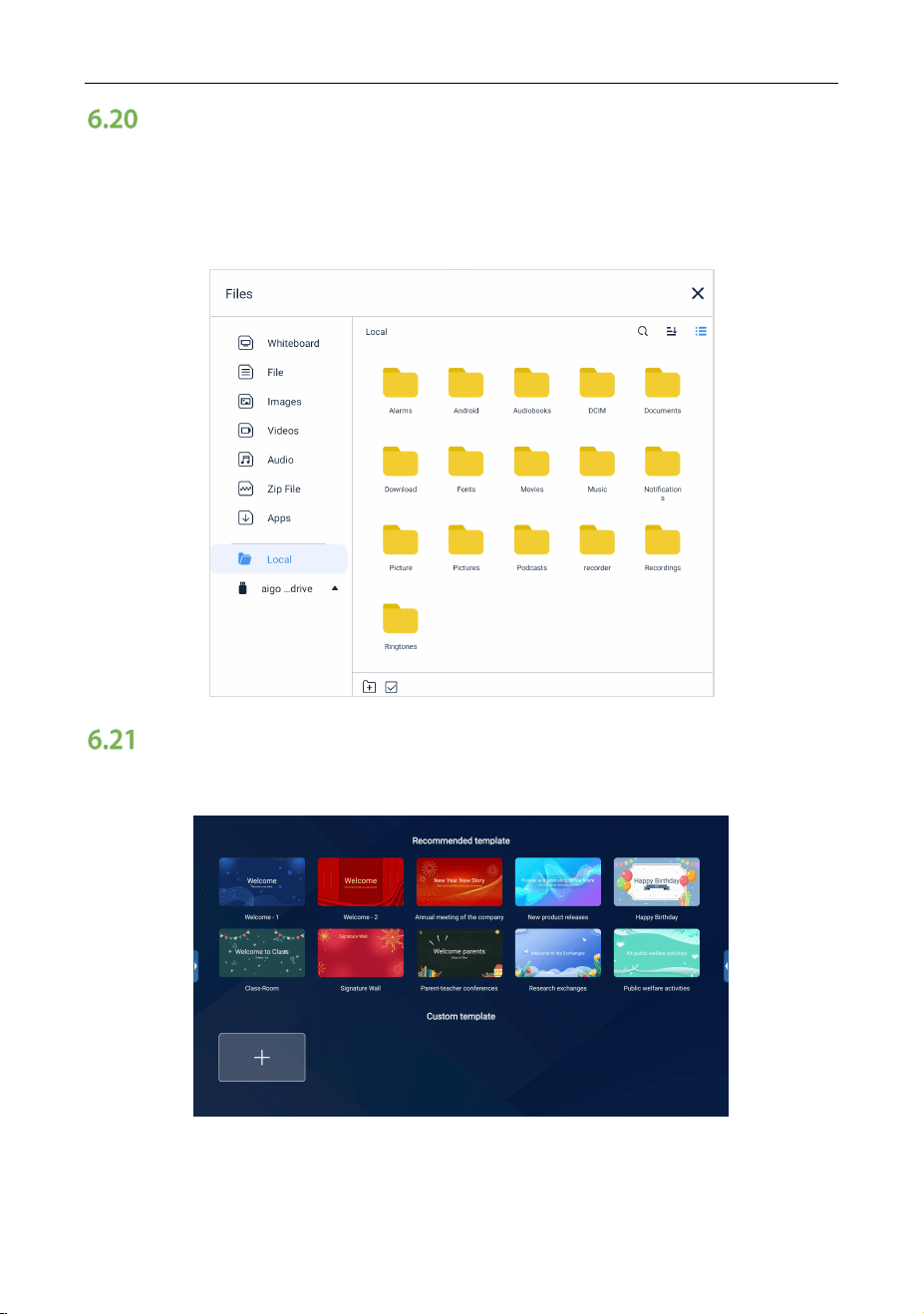
File Manager
Click the File Manager icon on the home page to enter the Files Manager
interface. The manager supports the playing of images, videos, audio, etc. Long
pressing can move, copy, and delete selected files.
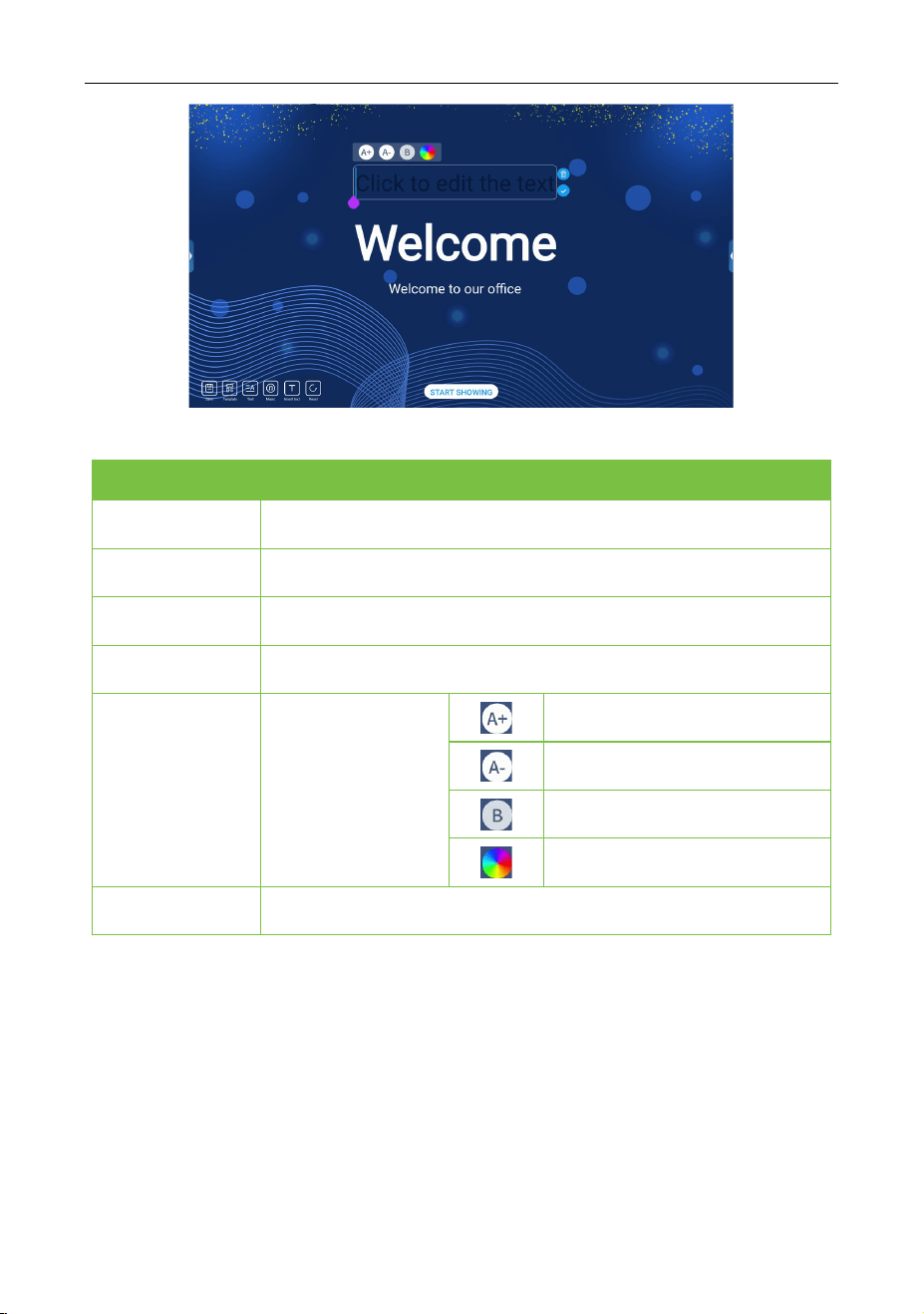
Welcome Page
On the home page, slide right to enter the welcome page.
1. Choose a template or click + button to input a new image.
2. Edit the template and click START SHOWING to show the welcome page.
ZK-IWBE User Manual
Page | 42 Copyright © 2024 ZKTECO CO., LTD. All rights reserved.
Edit Button Description:
Edit Button
Function
Save
Save the template.
Template
Quick switching template.
Text
Quick switching text composition.
Music
Insert music.
Insert text
Insert a new text.
Enlarge the font size.
Reduce the size.
Bold font.
Change font color.
Reset
Restore initial settings.
ZK-IWBE User Manual
Page | 43 Copyright © 2024 ZKTECO CO., LTD. All rights reserved.
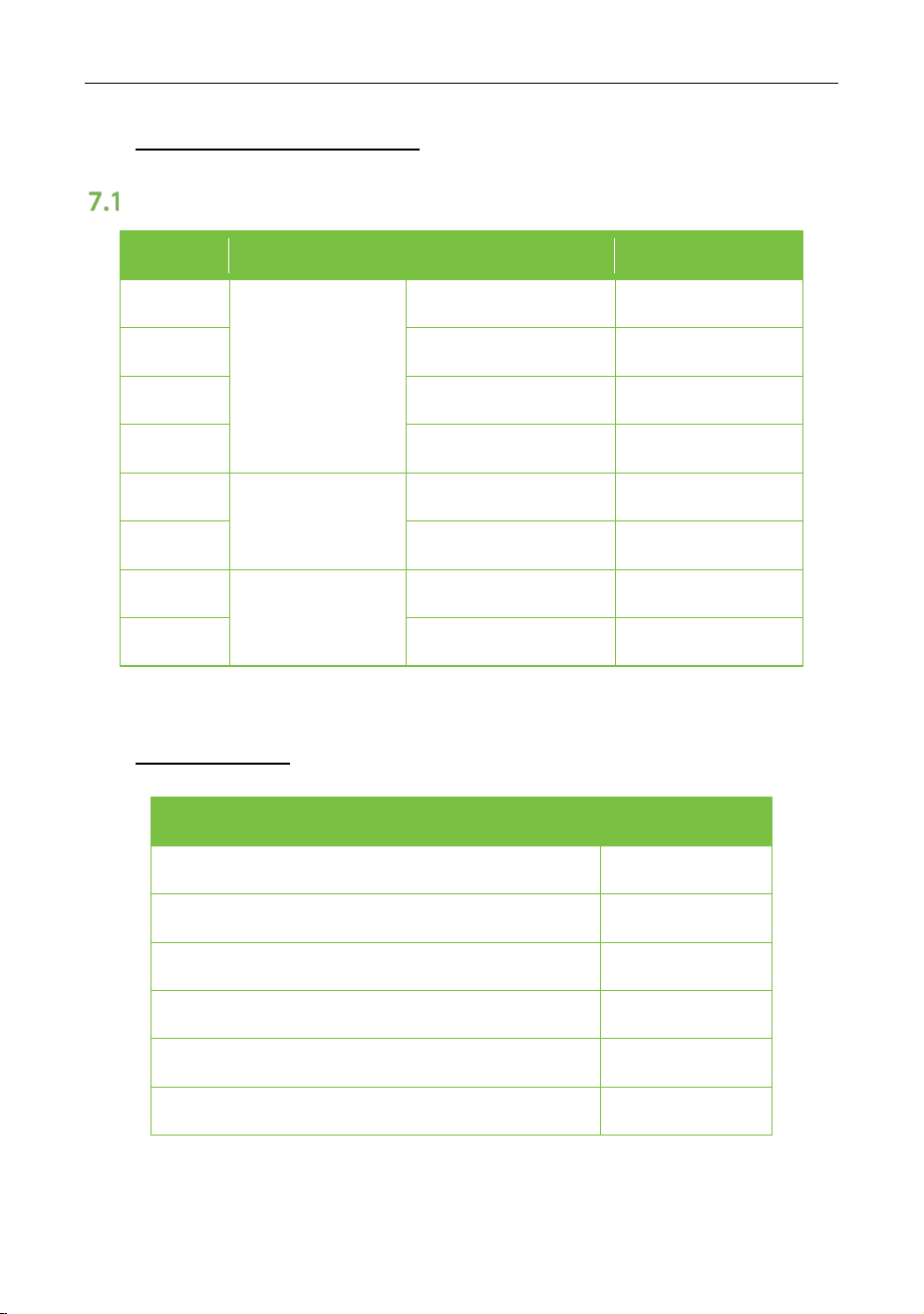
7 Technical Parameters
HDMI Display Mode
No. Mode Resolution Refresh Rate
1
SD
720*480 70Hz
2 720*576 50Hz
3 1280*720 50Hz
4 1280*720 60Hz
5
HD
1920*1080 50Hz
6 1920*1080 60Hz
7
UD
3840*2160 30Hz
8 3840*2160 60Hz
8 Accessories
Name Quantity
Remote Controller 1pc
Wall Mount Instructions (Optional) 1pc
Power Cable 1pc
USB A-B Cable 1pc
HDMI Cable 1pc
Stylus 2pcs

ZK-IWBE User Manual
Page | 44 Copyright © 2024 ZKTECO CO., LTD. All rights reserved.
9 Troubleshooting
Note: Before preparing to make repairs, please check the following table to see if
you can find the cause of the problem you are experiencing. If the issue cannot
be resolved according to the instructions, please contact the panel service center
for further assistance with panel maintenance.
1. The screen does not display anything, there is no sound, and the
indicator light does not work.
Possible Cause:
Looseness of the power plug, and power connection failure.
Solution:
Check if the power cord is properly connected.
2. Pictures shown on the panel have dotted line or stripe interference
Possible Cause:
Signal interference caused by automobile, neon light, electric hairdryer, etc.
Solution:
Try to find out the panels that affect your panel and then remove them from the
vicinity of your panel. Alternatively, you can insert the power plug into another
socket.
3. Pictures shown on the PC are offset, and do not cover the entire screen,
go beyond the screen, or are blurred
Possible Cause:
a) Improper adjustment.
b) Wrong display mode.
Solution:
a) Use the auto adjustment function.
b) Enter “PC Screen Adjustment” to adjust the horizontal or vertical position.

ZK-IWBE User Manual
Page | 45 Copyright © 2024 ZKTECO CO., LTD. All rights reserved.
c) Use the recommended mode.
4. Short remote-control distance, malfunction of remote control.
Possible Cause:
a) The remote receiver of the panel is being blocked by some other object.
b) Battery level of the remote control is low.
Solution:
a) Move the object to avoid blocking the remote receiver.
b) Replace the battery.
5. The panel gets stuck, crashes or cannot be operated.
Possible Cause:
a) Too many programs are running.
b) Normal operation of the panel is disturbed by external environment (e.g.,
lightning, static electricity).
Solution:
Disconnect the panel from power supply, wait for 1-2min and reconnect power
supply, then restart the panel.
6. The touch is slow, it doesn't work.
Possible Cause:
Too many programs are running.
Solution:
To resolve issues caused by a program that consumes a large amount of memory,
you can try to clean up the program or restart the panel.
7. OPS can't be turned on so, no display, no touch.
Possible Cause:
OPS has not been fixed well.

ZK-IWBE User Manual
Page | 46 Copyright © 2024 ZKTECO CO., LTD. All rights reserved.
Solution:
Reinstall the OPS computer.
8. Touch excursion.
Possible Cause:
Caused by the computer’s coordinate system, need to do some correction.
Solution:
Enter the control panel to select the correction processing.
9. Invalid touch of the external computer.
Possible Cause:
a) The signal source is inconsistent with the corresponding interface of the
touch USB cable.
b) The touch USB cable is way too long or of low quality.
Solution:
a) Check and change the corresponding interface of the touch USB cable.
b) Change another shorter or better-quality touch USB cable.

ZKTeco Industrial Park, No. 32, Industrial Road,
Tangxia Town, Dongguan, China.
Phone : +86 769 - 82109991
Fax : +86 755 - 89602394
www.zkteco.com
Copyright © 2024 ZKTECO CO., LTD. All Rights Reserved.






