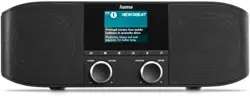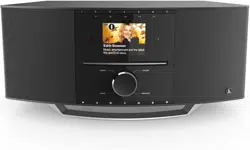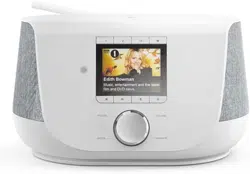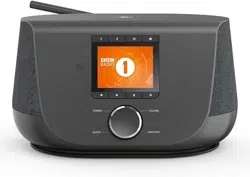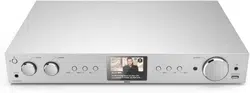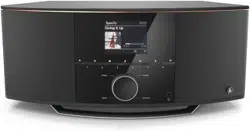
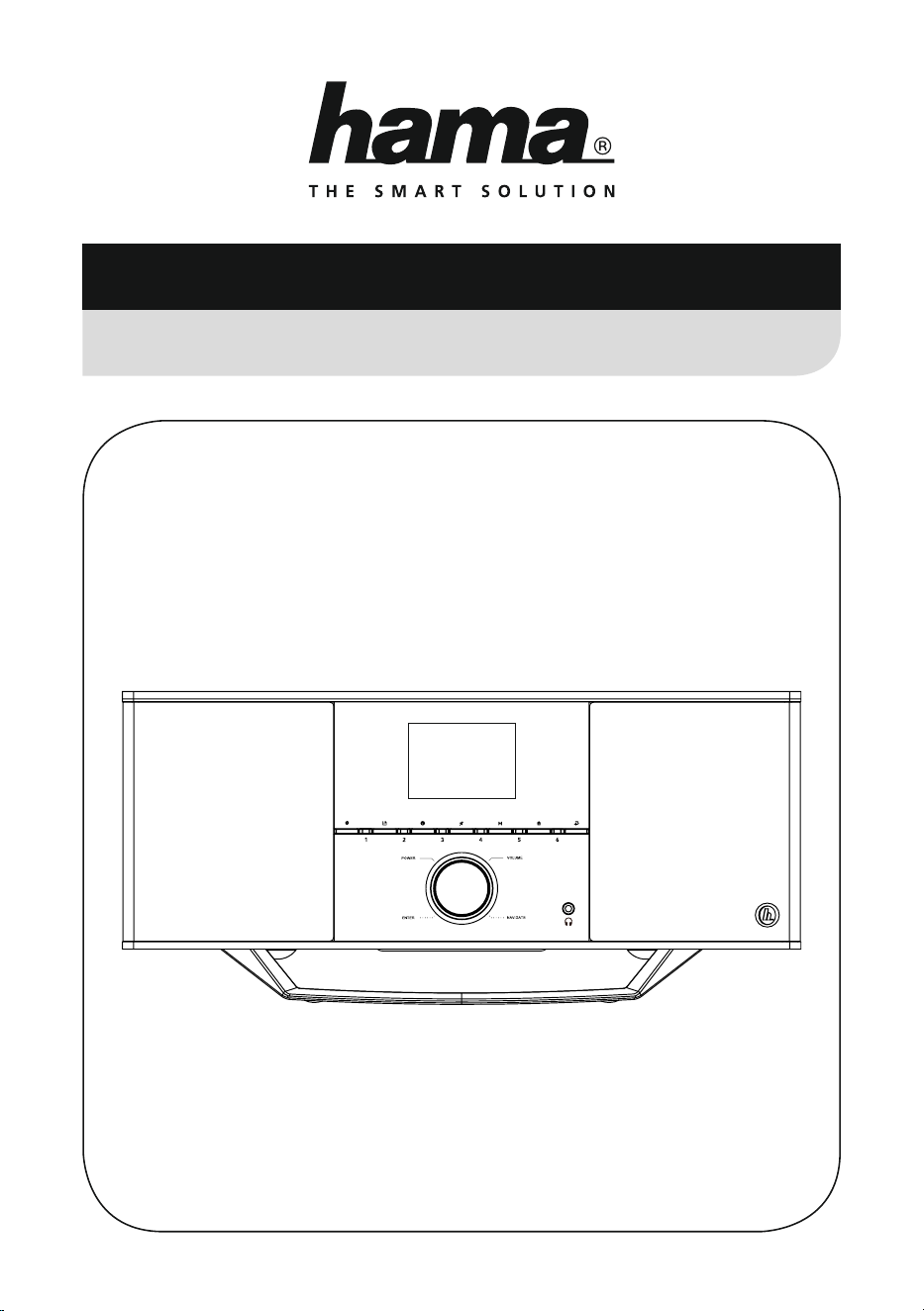
Internet Radio
Internetradio
Operating Instructions
/ Bedienungsanleitung / Mode d‘emploi / Instrucciones de uso /
Руководство по эксплуатации/Istruzioni per l‘uso / Gebruiksaanwijzing / Οδηγίες χρήσης / Instrukcja obsługi /
Használati útmutató / Návod k použití / Návod na použitie / Manual de instruções / Kullanma kılavuzu /
Manual de utilizare / Bruksanvisning / Käyttöohje / Работна инструкция / Betjeningsvejledning / Manuelt stasjonssøk
00054850
(IR150MBT)
G Operating Instructions
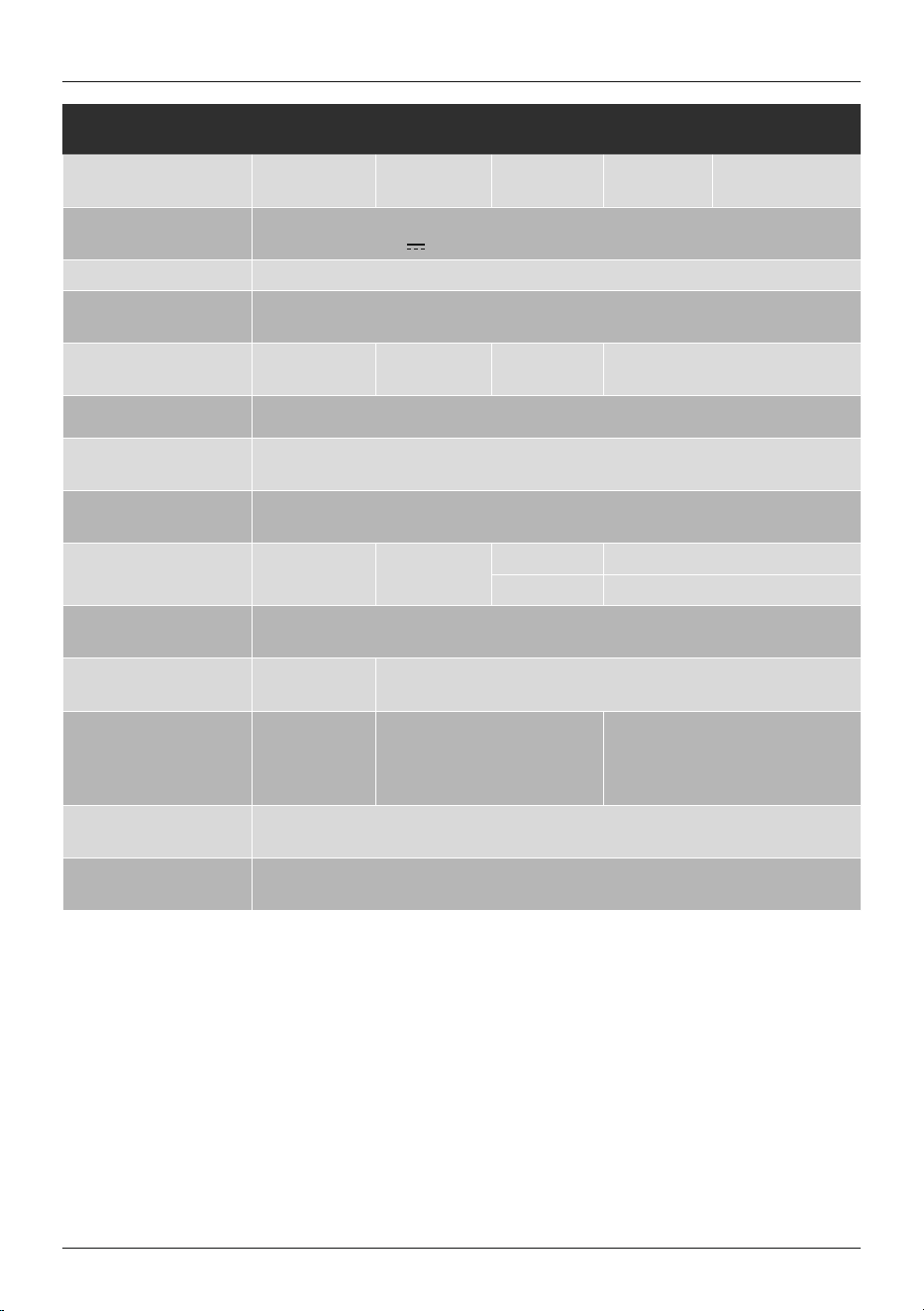
Technical data/
Technische Daten
Radio Receiver/
Radio Empfänger
DAB
–
DAB+
–
FM
–
Internet
ü
Spotify
ü
Connectivity/
Konnektivität
LAN (10/100), WiFi 2.4GHz (b/g/n),
USB (Play & Charge 5V
2.1A), Bluetooth
®
4.1
Display 2.8" (7.11 cm) Colour TFT
Encryption/
Verschlüsselung
WEP, WPA, WPA2, WPS
Speaker/
Lautsprecher
Tweeter/
Hochtöner
1" 20 W RMS
(2x 10 W)
Satellite/
Satelit
3“ 40 W RMS
(2x 20 W)
Subwoofer
4" 30 W RMS
Acoustic Material/
Material Klangkörper
Wood MDF
Power input/
Stromeingang
100 - 240 V ~ 50/60 Hz
Power Consumption/
Stromaufnahme
Operation/
Betrieb
max. 90 W
Network Standby
< 3 W
Off Mode
0 W
Input & Output/
Anschlüsse
Line OUT, AUX IN, 3.5mm Earphone Jack, RJ45,
Digital Audio Output Optical, USB (Play & Charge)
Presets/
Favoriten
Internet:
30
Spotify Connect:
10
Codec
IR:
MP3, WMA,
ADTS, MPEG-
DASH
UPNP:
MP3, WMA, v9/ASF, M4A, ADTS,
WAV, LPCM, FLAC, ALAC
USB Stick:
MP3, WMA, M4A, ADTS, FLAC, WAV
UI Languages/
UI Sprachen
English, German, Danish, Dutch, Finnish, French, Italian, Norwegian, Polish, Portuguese,
Spanish, Swedish,Turkish, Czech, Slovak
Package Content/
Verpackungsinhalt
IR150MBT, Power Supply, Remote Control, Batteries, Short Manual

Listen out loud with Spotify Connect
1. Connect your IR150MBT to your wi network
2. Open up the Spotify app on your phone, tablet or laptop using the same wi network
3. Play a song and select Devices Available .
4. Select your IR150MBT and start listening.
Spotify Connect
POWER
ON
AC IN
100-240V~50/60Hz
LAN OPTICAL OUT LINE OUT AUX IN
5V 2.1A
OFF
18 19 20 21 22 23 24
1 3
15
17
11 13
5 7 9 10864
2 12
14 16
6
10
16
14
17
20
22
27
3
7
15
11
19
21
25
26
1
2
18
4 5
23
9
13
24
8
12
1
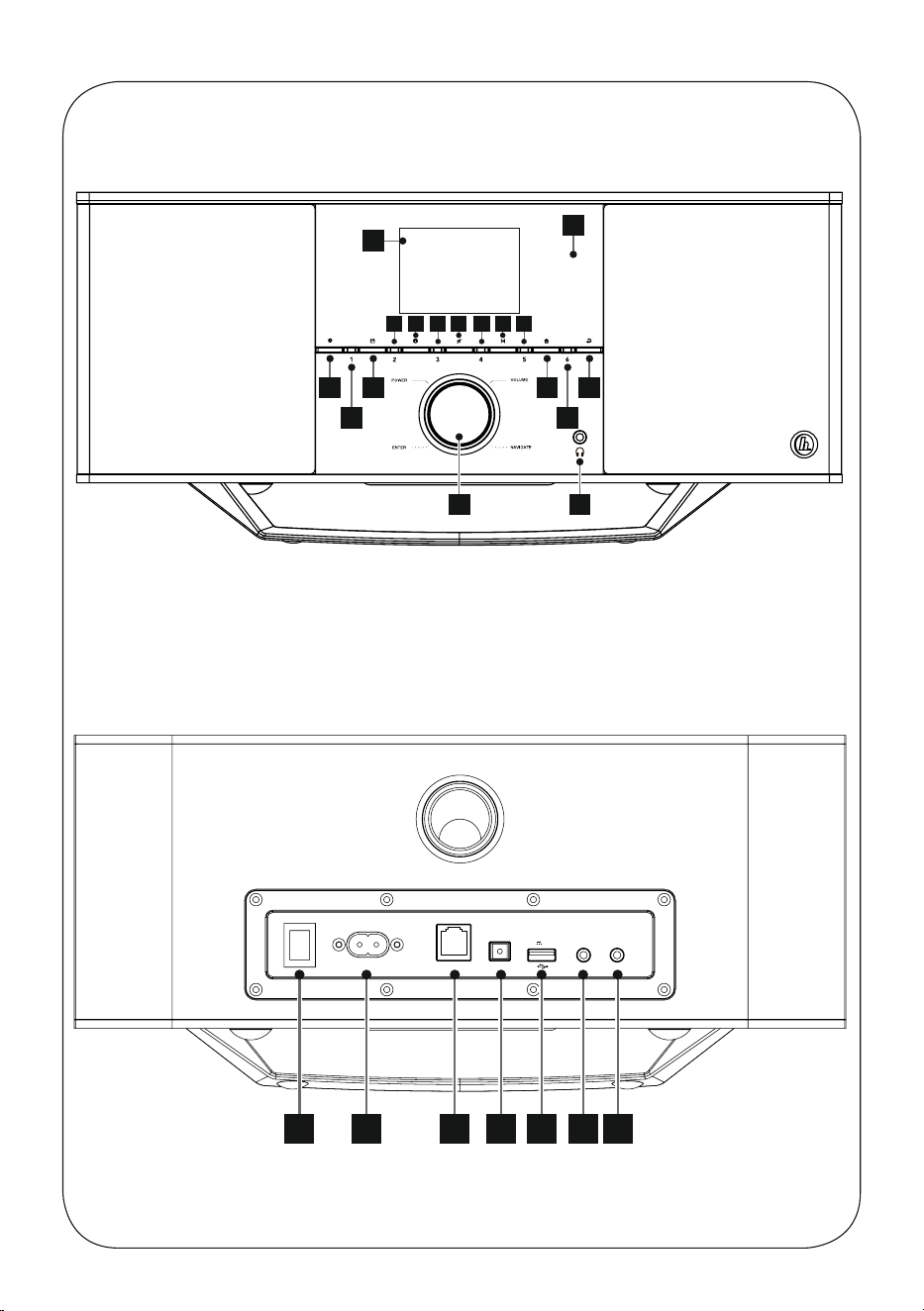
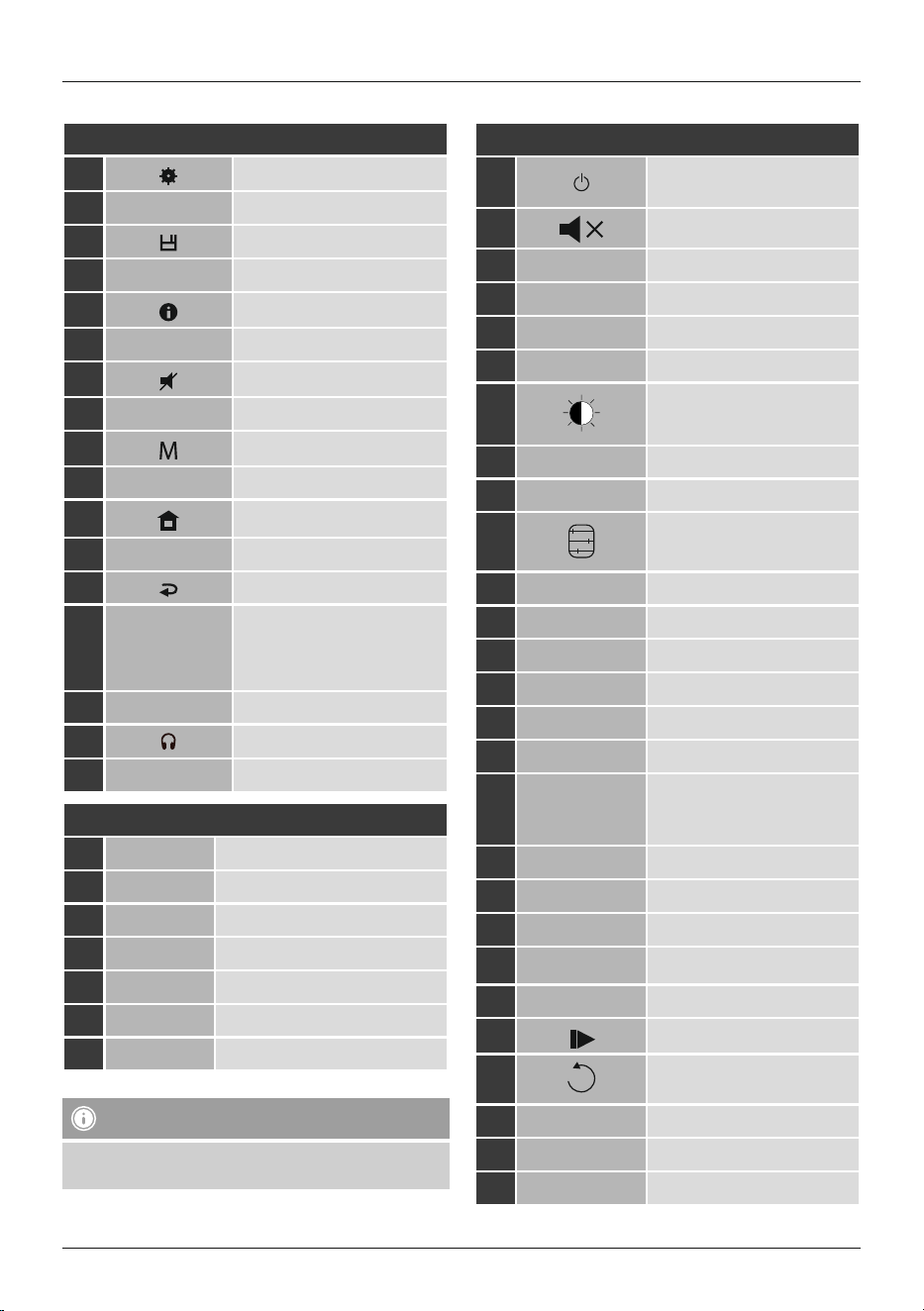
Controls and Displays
A: Radio Front
1
[ ]
[SETTINGS/MENU] button
2 [PRESET 1] button
3
[ ]
[MEMORY] button
4 [PRESET 2] button
5
[ ]
[INFO] button
6 [PRESET 3] button
7
[
]
[MUTE] button
8 [PRESET 4 ] button
9
[ ]
[MODE] button
10 [PRESET 5 ] button
11
[ ]
[HOME] button
12 [PRESET 6] button
13 [ ][BACK] button
14
[POWER] button** /
[VOLUME] / [ENTER] /
[NAVIGATE]
15 Infrared receiver
16
[ ]
Headphone socket
17 2.8” colour display
B: Radio Rear
18 Power switch
19 Mains power supply
20 LAN connection
21 Optical connection
22 USB connection
23 Line-out socket
24 AUX-In socket
Note
Buttons marked with an * asterisk have no function on
this radio model.
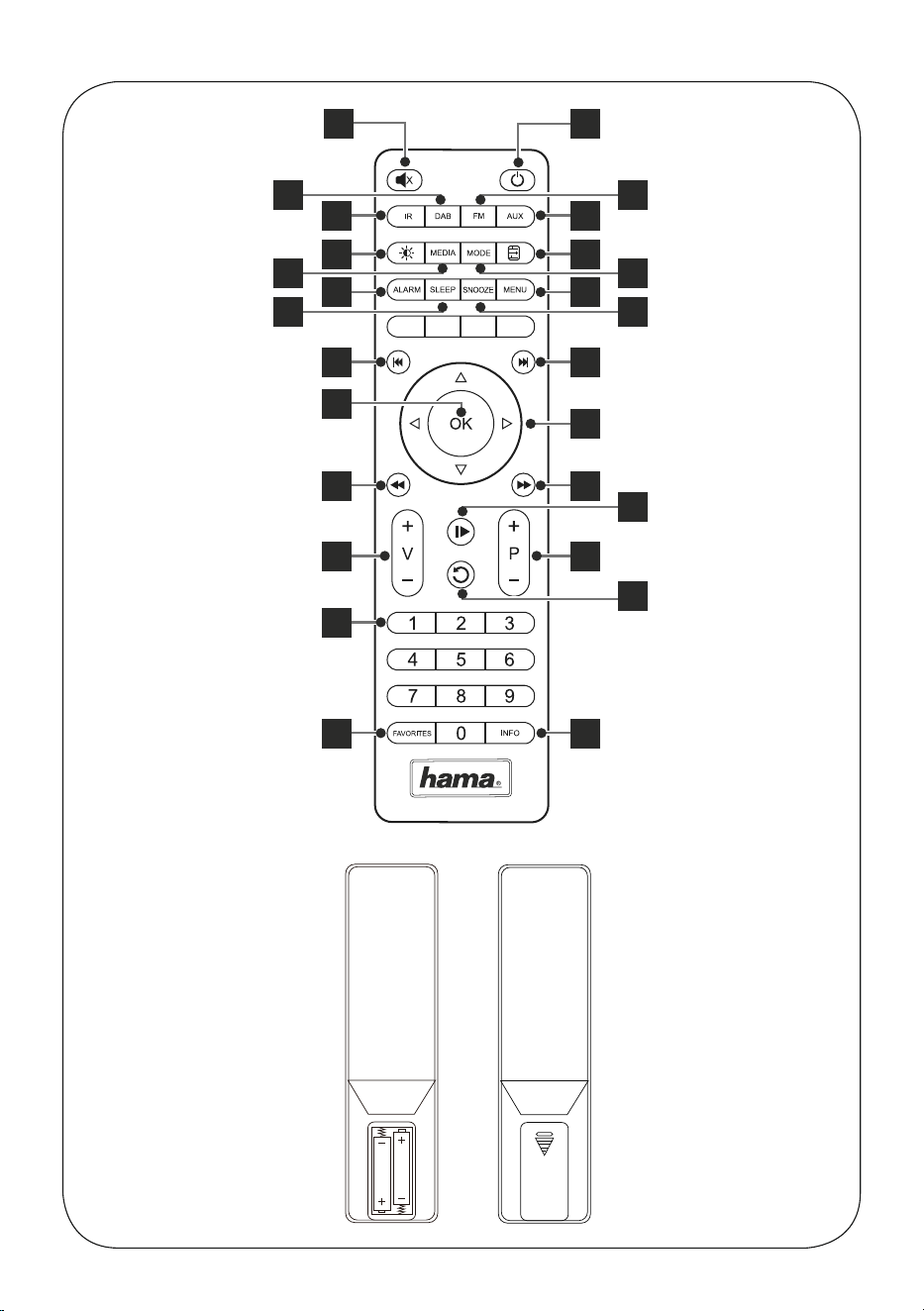
C: Remote Control
1
[
]
[POWER/NETWORK STANDBY]
BUTTON
2
[ ]
[MUTE] button
3 [IR]
Internet Radio - Mode
4 [DAB]*
DAB Radio - Mode
5 [FM]*
FM Radio - Mode
6 [AUX]
AUX - Mode
7
[ ]
Backlight Level
8 [MEDIA]
Media-Player - Mode
9 [MODE]
[MODE] button
10
[ ]
[EQUALIZER] button
11 [ALARM]
[ALARM] button
12 [SLEEP]
[SLEEP] button
13 [SNOOZE]
[SNOOZE] button
14 [MENU]
[MENU] button
15
[I◄◄ ]
[PREVIOUS] button
16
[►►I ]
[NEXT] button
17
Navigations buttons
▲ Up / ▼ Down /
◄ Back / ► Forward
18 [OK]
[SELECT] (Enter/OK) button
19
[◄◄]
[REWIND] button
20
[►► ]
[Fast-Forward] button
21
[VOLUME] +/- buttons
22
Presets Up /Down buttons
23
[
]
[PLAY /PAUSE] button
24
[
]
[BACK] button
25
Presets buttons (1-10)
26 [FAVORITES]
[PRESETS / FAVORITES] Menu
27 [INFO]
[INFO] button
2
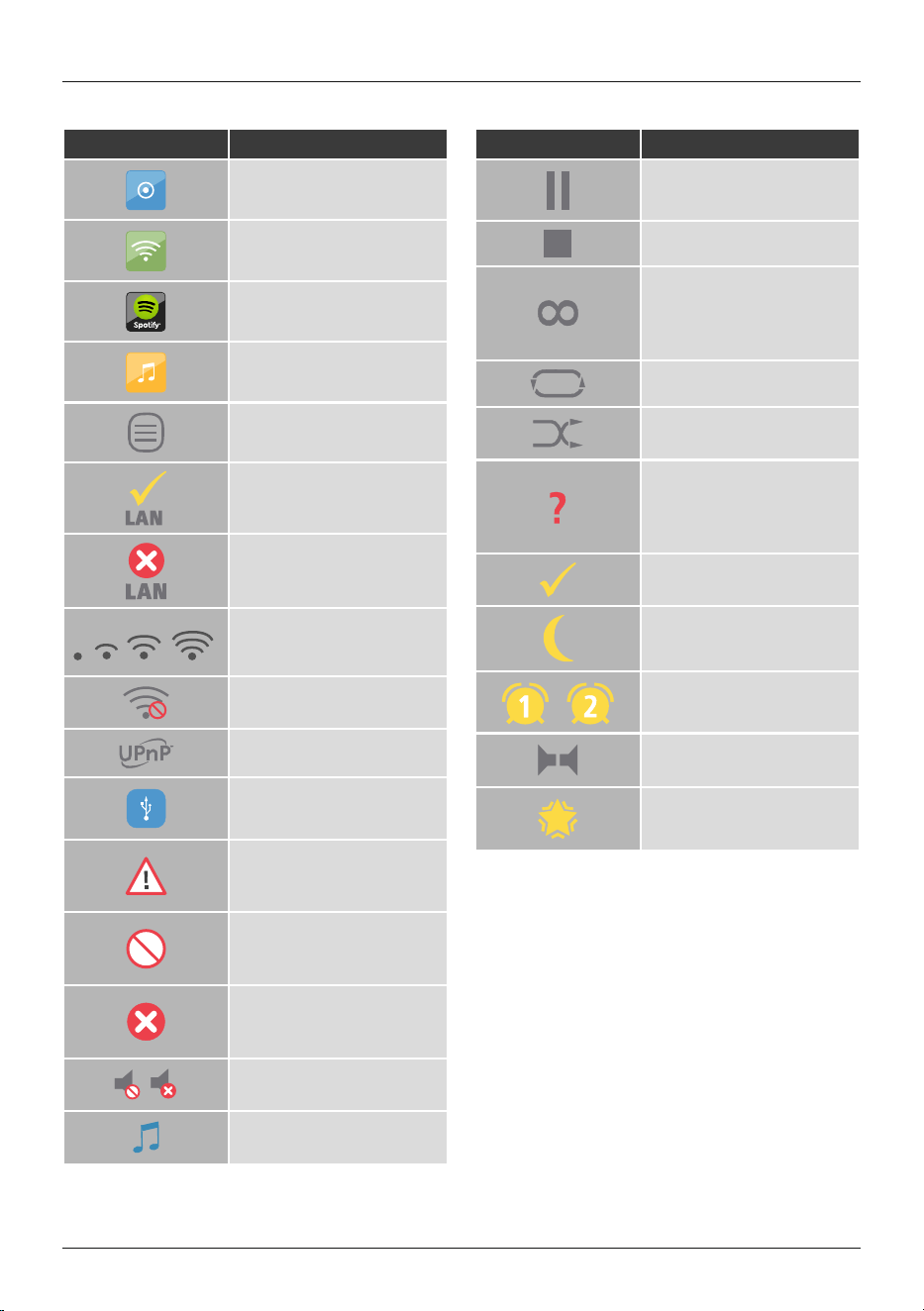
Icon Meaning
Operating mode: Aux in
Operating mode:
Internet radio
Operating mode:
Spotify Connect
Operating mode: Music player
Menu
Successful LAN connection
Failed LAN connection
Signal strength (WLAN):
bad – very good
No WLAN reception
UPnP playback (network)
USB connection
Attention!
See display for further
information
Application not possible
See display for further
information
Application failed
See display for further
information
Muted
Shared Media Playback
Icon Meaning
Playback: POffe
Playback: Stop
RDS (Radio Data System)
Additional station
information available for FM
radio
Playpack: Repeat
Playback: Shue
Random playback
Further input specication
required
See display for further
information
Application successful
Sleep activated
Alarm 1/2 activated
Stereo
Favourite
Icon overwiew
3
1. Explanation of Warning Symbols and Notes ...........7
2. Package Contents ................................7
3. Safety Notes ....................................7
4. Informations and notes before getting started .........7
4.1 LAN connection (wired network) .......................8
4.2 WLAN connection (wireless network) ....................8
5. General notes on use..............................8
5.1 Navigation and controls..............................9
5.2 Volume adjustment / mute ............................9
5.3 Entering passwords, search terms, and so on ..............9
5.4 Additional information...............................9
5.5 Switching on/off / Standby ............................9
6. Getting started .................................10
6.1 Remote Control ...................................10
6.2 Radio – Connecting and starting up....................10
6.3 Initial setup ......................................10
6.4 Setup wizard .....................................10
7. Main menu / modes..............................11
8. Internet radio ..................................11
8.1 Station search ....................................12
8.1.1 Search by country or region .......................12
8.1.2 Search by genre ...............................12
8.1.3 Search by name. . . . . . . . . . . . . . . . . . . . . . . . . . . . . . . .12
8.1.4 Popular stations ...............................12
8.1.5 New stations..................................13
8.1.6 Local stations .................................13
8.2 Podcasts ........................................13
8.2.1 Search by country or region .......................13
8.2.2 Search by format (subjects or categories) .............13
8.2.3 Search by name. . . . . . . . . . . . . . . . . . . . . . . . . . . . . . . .14
8.3 Last listened .....................................14
8.4 Favourites (local) ..................................14
8.4.1 Save favourites ................................14
8.4.2 Access favourites...............................14
8.4.3 Management of favourites with the remote control .....15
8.4.4 Management of favourites with the remote control .....15
8.5 Favourites .......................................15
8.5.1 First use – Registering your radio...................15
8.5.2 Managing favourites online ......................15
8.5.3 Opening the favourites list........................16
8.5.4 My Added Stations .............................16
9. Spotify ........................................16
10. Music player (UPNP, USB) ........................17
10.1 Playback from external storage media (USB).............17
10.2 Playback from a computer (streaming) .................17
10.3 Playback from the network – Accessing les using the radio. 18
10.4 Playback of playlist ...............................18
10.5 General playback options...........................19
11. Auxiliary Input.................................19
12. Bluetooth
®
....................................19
15.1 BIuetooth
®
pairing................................20
12.2 Automatic Bluetooth
®
connection (after successful pairing) .20
12.3 Terminate Bluetooth
®
connection.....................20
13. Sleep .......................................21
14. Alarms .......................................21
14.1 Alarm settings ...................................21
14.2 Activating/ deactivating the alarm ....................22
14.3 Stopping the alarm/ Snooze function ..................22
15. System settings ................................22
15.1 Equaliser .......................................23
15.2 Network .......................................23
15.2.1 Network wizard – Conguration of internet connection /
Automatic search ...................................23
15.2.2 Wireless network connection (WLAN) ..............24
15.2.3 Wired network connection (LAN) ..................25
15.2.4 Manual conguration of network
connection – wireless (WLAN) and wired (LAN) ............25
15.2.5 View settings. . . . . . . . . . . . . . . . . . . . . . . . . . . . . . . . .26
15.2.6 Network prole ...............................26
15.3 Time/Date ......................................27
15.4 Language ......................................27
15.5 Factory Reset....................................28
15.6 Software update .................................28
15.7 Setup wizard ....................................29
15.8 Info ...........................................29
15.9 Backlight .......................................29
16. UNDOK – everything in the palm of your hand .......30
16.1 First-time setup of the device with UNDOK..............30
16.1.1 Procedure for iOS users .........................30
16.1.2 Procedure for Android users .....................31
Content

5
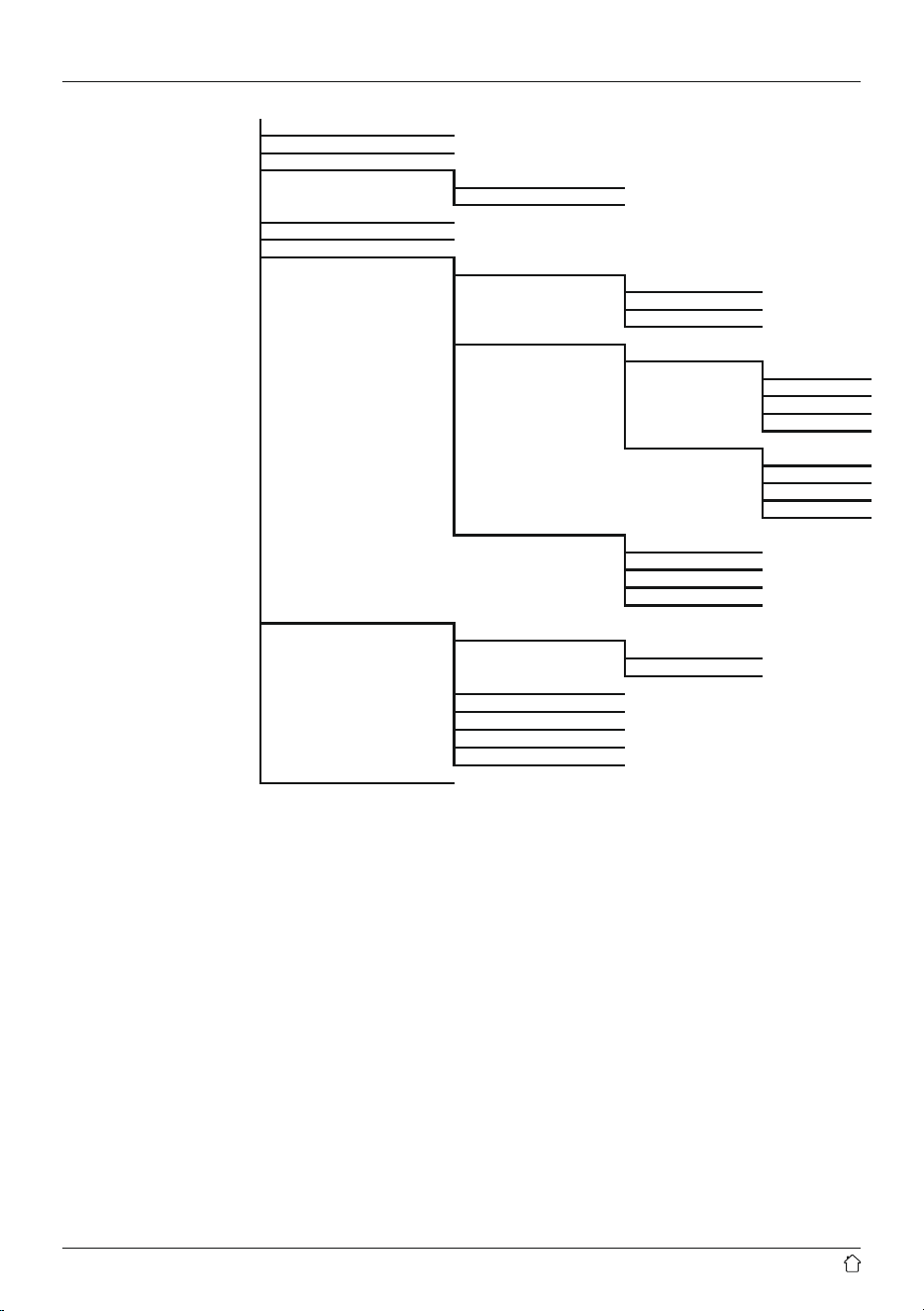
Menu structure
Main menu*
Internet radio
Last listened
Station list
System settings**
Main menu*
Spotify
System settings**
Main menu*
Music player
Shared media
USB playback
My playlist
Repeat play
Shue play
Clear My playlist
Prune servers
System settings**
Main menu*
AUX IN
System settings**
Main menu*
Bluetooth
Bluetooth disconnect
System settings**
Main menu*
Schlummer
Alarms
Alarm 1
Alarm 2
System settings**
Equaliser
Normal
Jazz
Rock
Movie
Classik
Pop
News
My EQ
My EQ prole setup
Bass
Treble
Network
Network wizard
PBC Wlan setup
View settings
Manual settings
Wired
Wireless
NetRemote PIN Setup
Network prole
Time/Date
Set Time/Date
Auto update
Update from Network
No Update
Set format
Set timezone
Daylight savings
6
Language
Factory reset
Software update
Auto-check setting
Checknow
Setup wizard
Info
Backlight
Operation Mode
High
Medium
Low
Standby Mode
Timeout
Off
10 sec
30 sec
60 sec
Standby Level
High
Medium
Low
Off
Slumber Mode
High
Medium
Low
Off
Multi-room
View details
State:
Group:
Create new group
Add to group
List current clients
Leave group
Dissolve group
Color Theme
7
Thank you for choosing a Hama product.
Take your time and read the following instructions and
information completely. Please keep these instructions in a
safe place for future reference. If you sell the device, please
pass these operating instructions on to the new owner.
1. Explanation of Warning Symbols and Notes
Risk of electric shock
This symbol indicates product parts energized with a
dangerous voltage of sucient magnitude to constitute
a risk of electric shock.
Warning
This symbol is used to indicate safety instructions or to
draw your attention to specic hazards and risks.
Note
This symbol is used to indicate additional information or
important notes.
2. Package Contents
• Hama IR150MBT
• Power cord
• Remote control
• 2x AAA batteries
• Quick Start Guide
3. Safety Notes
• The product is intended for private, non-commercial use
only.
• Protect the product from dirt, moisture and overheating
and us it in dry rooms only.
• As with all electrical devices, this device should be kept
out of the reach of children.
• Do not drop the product and do not expose it to any
major shocks.
• Do not operate the product outside the power limits
given in the specications.
• Keep the packaging material out of the reach of children
due to the risk of suffocation.
• Dispose of packaging material immediately according to
locally applicable regulations.
• Do not modify the device in any way. Doing so voids the
warranty.
Risk of electric shock
• Do not open the device or continue to operate it if it
becomes damaged.
• Do not use the product if the AC adapter, adapter
cable or power cable is damaged.
• Do not attempt to service or repair the product
yourself. Leave any and all service work to qualied
experts.
Warning – Batteries
• When inserting batteries, note the correct polarity (+
and - markings) and insert the batteries accordingly.
Failure to do so could result in the batteries leaking
or exploding.
• Do not allow children to change batteries without
supervision.
• Remove the batteries from products that are not being
used for an extended period.
• Do not short-circuit batteries.
• Do not charge batteries.
• Do not throw batteries in a re.
• Keep batteries out of the reach of children.
• Do not mix old and new batteries or batteries of a
different type or make.
4. Informations and notes before getting started
Note
A detailed description of the UNDOK app and
the full scope of functions can be found in our
UNDOK guide at:
www.hama.com -
>
00054850 -
>
Downloads
8
Network connection/
Preparing the internet connection
You can integrate this radio into a local network and
even access home servers or other authorised resources.
To receive internet radio or access non-local media
(streaming, such as Spotify Connect), the network must be
connected to the internet.
Note
The LAN connection is less susceptible to faults than a
WLAN connection. That´s why it´s recommended to use
a wired connection between access point (AP) and radio
to ensure an undisturbed reception.
4.1 LAN connection (wired network)
• Connect a LAN cable of type RJ45 to a free socket on
your router, switch or access point.
• Connect the other end of the LAN cable to the RJ45 LAN
socket on the radio.
• Make sure that the router is on and that you have an
Internet or network connection.
• If you have questions about router conguration,
please consult the operating manual of the router for
troubleshooting.
• A detailed description of how to congure the LAN
connection is given in the Wired network connection
(LAN) section.
4.2 WLAN connection (wireless network)
• Ensure that the router is switched on, is functioning
correctly and that there is a connection to the internet.
• Activate the WLAN function of your router.
• Follow your router´s operating instructions as regards the
correct functioning of the WLAN connection.
• A detailed description of how to congure the
LAN connection is given in the Wireless network
connection (LAN) section.
5. General notes on use
Notes on use
• In the following operating instructions, we will focus
on operating the device via the front panel. We will
deal with functions separately that are only available
on the app or the remote control.
• The buttons on the remote control – corresponding
to the control buttons on the device (
≙
)- you will nd
under Controls and Displays.
• [OK] and the navigation button ► on the remote
control correspond to pressing [ENTER/NAVIGATE].
• The navigation key ◄ on the remote control has the
same function as
[ ] on the front of the radio.
• The navigation keys ▲ / ▼ on the remote control have
the same function as turning [ENTER/NAVIGATE] on
the front of the radio to the left and right.
• When a selection among menu items is to be made
(such as YES or NO), the one currently selected has a
light-coloured background ll.
• In menus offering a variety of different options
(such as Equaliser, Update, and so on), the currently
selected option is marked with #.
9
5.1 Navigation and controls
• Select among menu items by turning [ENTER/
NAVIGATE].
• Conrm the selection by pressing [ENTER/NAVIGATE].
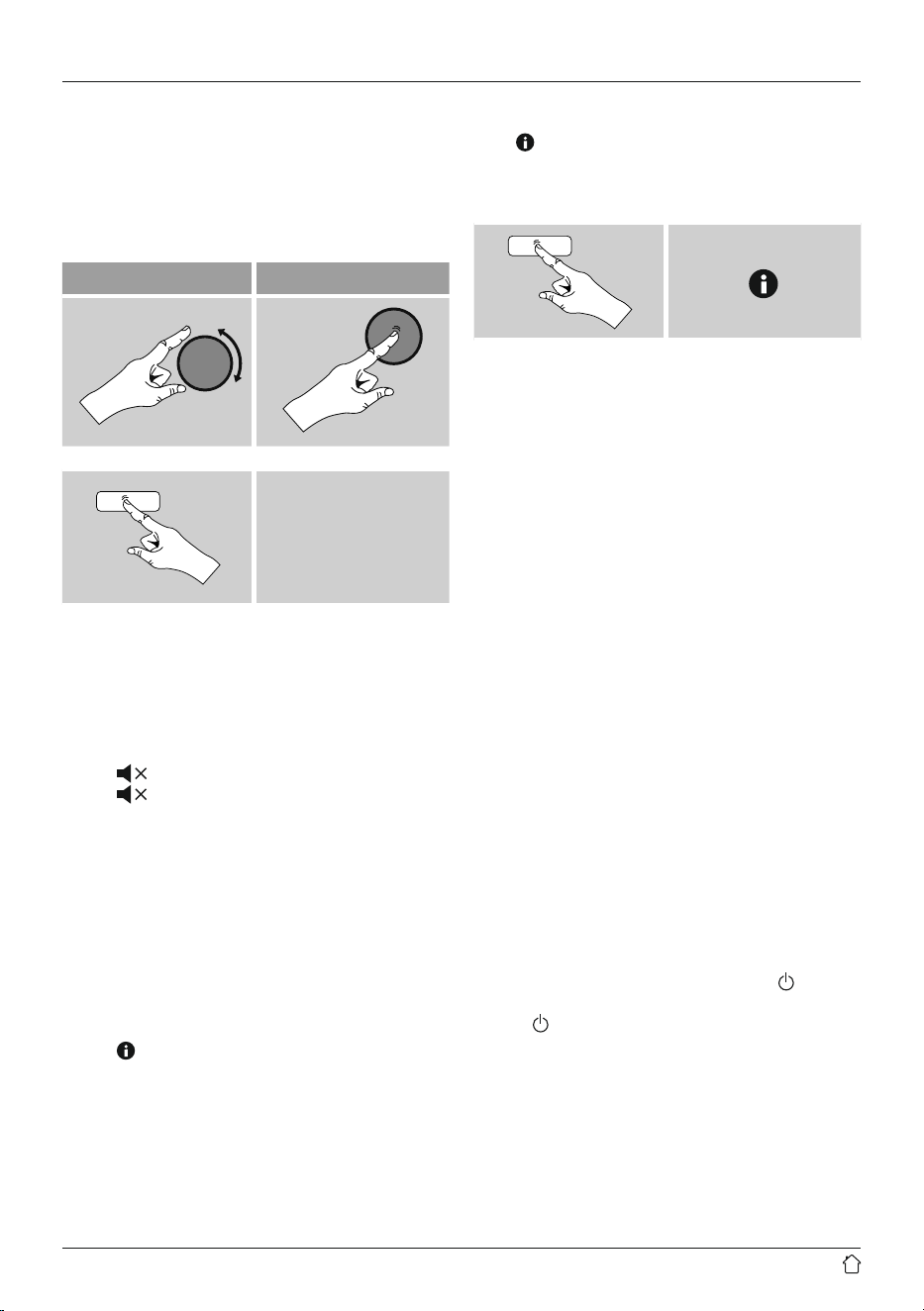
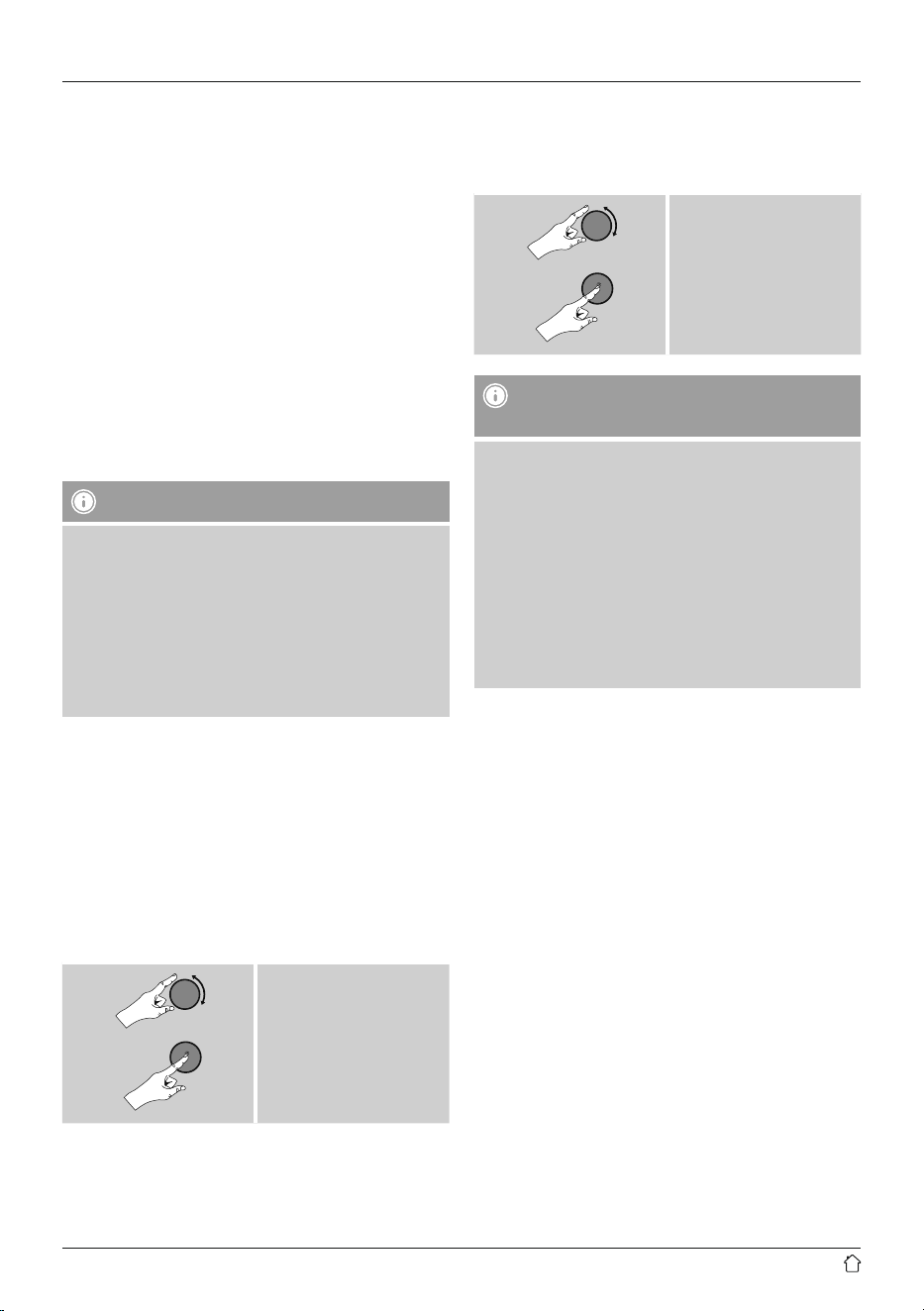
This procedure is indicated in these operating instructions
by the following symbols:
selection (navigate) conrmation (enter)
Some features can be
accessed by means
of shortcut buttons.
Pressing shortcut buttons
is indicated here by this
symbol.
After pressing a shortcut button, navigate amongst the
menu items using [ENTER/NAVIGATE].
5.2 Volume adjustment / mute
• You can turn the volume up (right) or down (left) by
turning [VOLUME/POWER] accordingly.
• Press [
] on the remote control to mute the radio.
• Press [ ], on the remote control again to reset the
volume at the level you set before mute the radio.
5.3 Entering passwords, search terms, and so on
• Select each successive letter and digit by turning
[ENTER/NAVIGATE] and conrm each selection by
pressing [ENTER/NAVIGATE].
• To make corrections, select BKSP and conrm. The last
input made is deleted.
• To cancel input, select CANCEL and conrm.
• Once your input is complete, select OK and conrm to
nish.
• Press [
] / [INFO] to jump directly to the BKSP/ OK/
CANCEL elds.
5.4 Additional information
Press [ ] / [INFO] to display context-dependent additional
information. The information shown depends on the
operating mode as well as the current selection of radio
station, music le,etc.
[ ]
• Description
Indicates the radio station, the current program,
contents, subjects, etc.
• Program genre/country
Indicates the genre (music style) and the country or
region of the station.
• Reliability
• Bit-Rate
The currently received digital bit rate of the received
station is displayed.
• Codec
Species the encoding scheme used to digitise the data
or signal (such as MP3 or WMA).
• Sampling rate
Species the sampling rate, or the frequency with which
the audio signal is polled (Sampling-/ Samplerate), in a
certain period of time.
• Signal strength
The signal strength of the received station is displayed
via a bar and its length.
• Today’s date
• Artist
• Album
• Folder
• Path
Species the directory path at which the le currently
being played back is saved.
5.5 Switching on/off / Standby
• Press [VOLUME/POWER] on the device or [
] on the
remote control to switch on the radio.
• Press [
] on the remote control, or press and hold
[VOLUME/POWER] on the device for approximately 3
seconds to switch off the radio (standby).
10
6. Getting started
6.1 Remote Control
• Open the battery compartment cover located on the rear
of the remote control.
• Insert the batteries provided, making sure you match the
polarities correctly. The correct polarity is indicated by the
plus and minus symbols in the battery compartment.
6.2 Radio – Connecting and starting up
Connect the network cable to a properly installed and
easily accessible network socket. The power supply unit is
suitable for mains voltages between 100 and 240 V, and
is thus operable on almost any AC power grid. Please note
that a country-specic adapter may be necessary.
You can nd an appropriate selection of Hama products at
www.hama.com.
Note
• Only connect the product to a socket that has been
approved for the device.
• The electrical socket must always be easily accessible.
• When using a mult-socket power strip, make sure
that the sum power draw of all the connected devices
does not exceed its maximum throughput rating.
• If you will not be using the product for a long period
of time, disconnect it from mains power.
Once the product has been connected to mains power,
initialisation takes place. The radio starts up.
To assist you in st-time setup of the radio, a Setup
Wizard is provided.
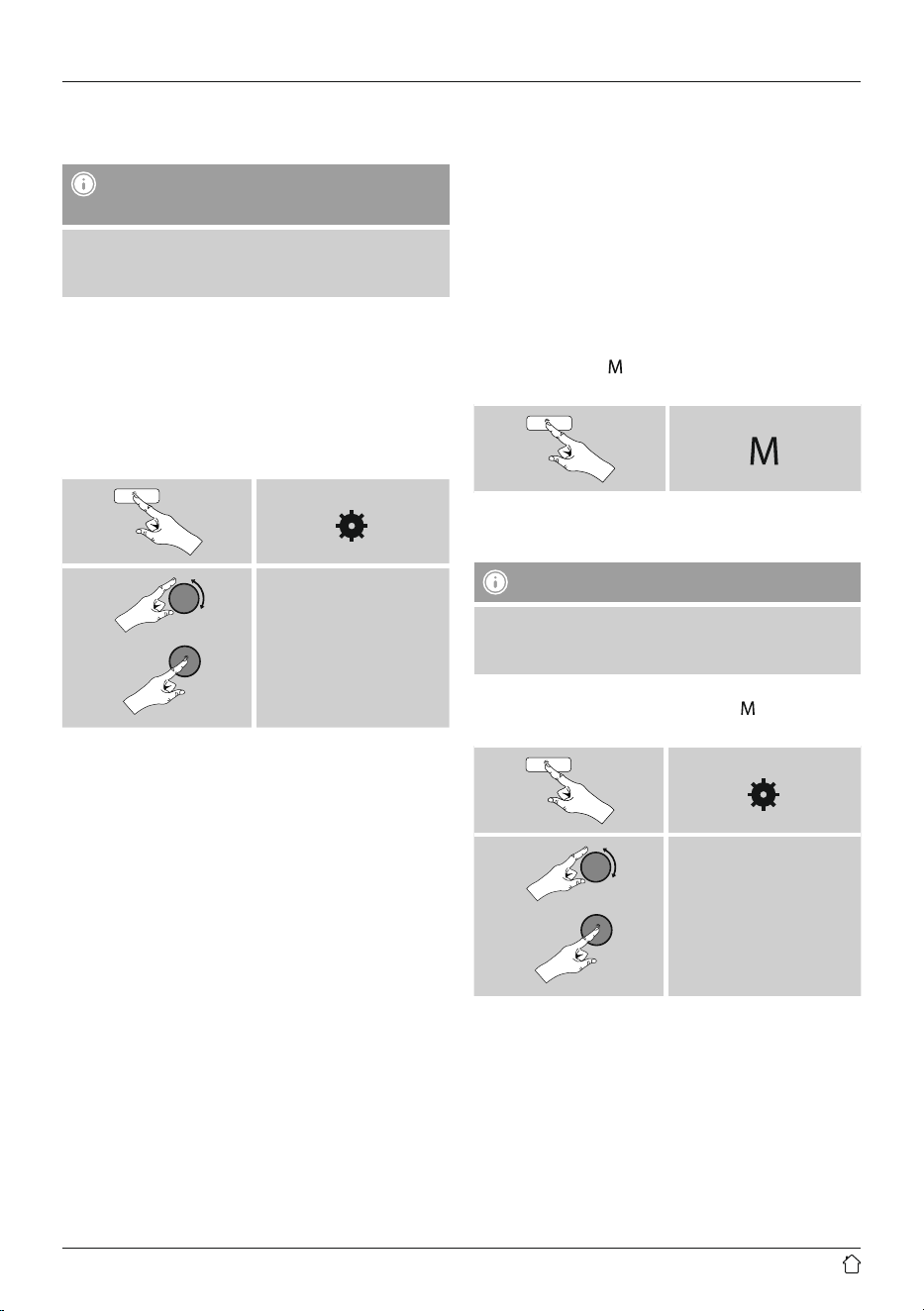
6.3 Initial setup
When it is rst connected to the power supply, a list of
available languages for the menu is displayed. Proceed as
follows to set your preferred language.
Desired language, for
example German (German)
6.4 Setup wizard
Once a language has been set, the setup wizard offers to
assist you with rst-timesetup. Choose YES to start it or
NO to skip:
YES / JA
NO / NEIN
Note – Starting up with or without the setup
wizard?
• We recommend using the setup wizard (YES) to
quickly and easily con gure the time, date, internet
connection, etc.
• If you wish to skip setup with the setup wizard
anyway, choose NO. All of the settings congured
by the setup wizard can be congured or changed
individually in the System settings menu. Alternatively,
you may restart the setup wizard at any time.
• Next, choose YES or NO to dene whether the setup
wizard should start automatically next time the radio
is started up. You are in the main menu.
Date/ Time
12/24 hours format
• Auto update
• Update from Network
Choose this option to set the time and date
automatically from the internet. Set the timezone
of your current location and, if desired, turn (ON)
automatic adjustment between summer time and
winter time.”
• No Update
The time and date (DD-MM-YYYY) must be set
manually; no automatic calibration takes place.
11
Network wizard – Conguration of network
connection
Note – Reference to a different part of these
operating instructions
Because this chapter is extensive, please follow the
directions in section 15.2.1. Network wizard –
Conguration of internet connection
Once the network wizard has nished,the setup wizard
is nished as well. The display shows a message to this
effect.
Press [ENTER/NAVIGATE] to enter the main menu.
7. Main menu / modes
Access the main menu as follows:
[ ]
Main menu
The main menu contains the various operating modes as
well as other options that are explained separately in the
following chapters.
7. Internet radio
8. Spotify
9. Music player
10. Auxiliary Input
11. Bluetooth
®
12. Sleep
13. Alarms
14. System settings
Select amongst the available operating modes by
repeatedly pressing [
] / [MODE].
[ ]
8. Internet radio
Note
* If necessary, it is possible to switch providers in order
to make all features and functions of the product
available.
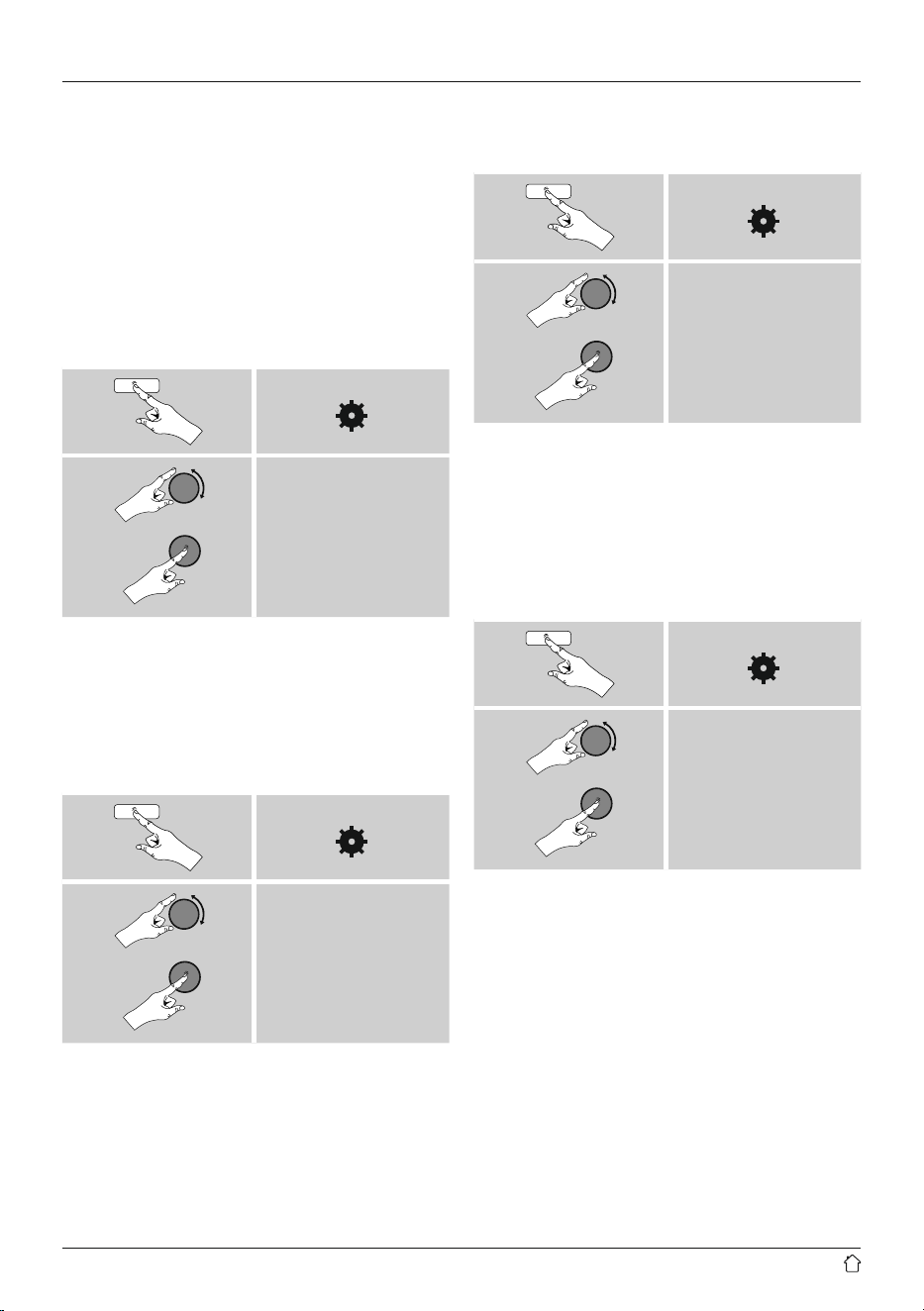
• From the main menu or after pressing [ ]/[MODE]
repeatedly, activate Internet radio mode.
[ ]
Main menu
Internet radio
Alternatively, press [IR] on the remote control to switch
directly to this operating mode.
12
8.1 Station search
This radio offers various ways to search for stations.
• Use [ENTER/NAVIGATE] to navigate through each
search function and its options.
• Once you have found a station you like, conrm by
pressing [ENTER/NAVIGATE]. The radio starts playing
the selected station.
8.1.1 Search by country or region
To search for a station by continent, country and region,
proceed as follows:
[ ]
Station list
Stations
Location
Once you have restricted the results to a certain country or
region, select a station from the complete list or from a list
sorted by genre.
8.1.2 Search by genre
To search for a station of a certain genre or subject focus,
proceed as follows:
[ ]
Station list
Stations
Genre
Once you have restricted the results to a certain genre,
select a station from a list of all stations available, or from
a pre-selected list, or from a list sorted by country.
8.1.3 Search by name
If you know the name of the desired station, you can
search for it directly.
[ ]
Station list
Stations
Search stations
Enter the complete name, or a part thereof, in the input
screen and select OK to start the search. You receive a list
of all available stations whose names contain the search
key.
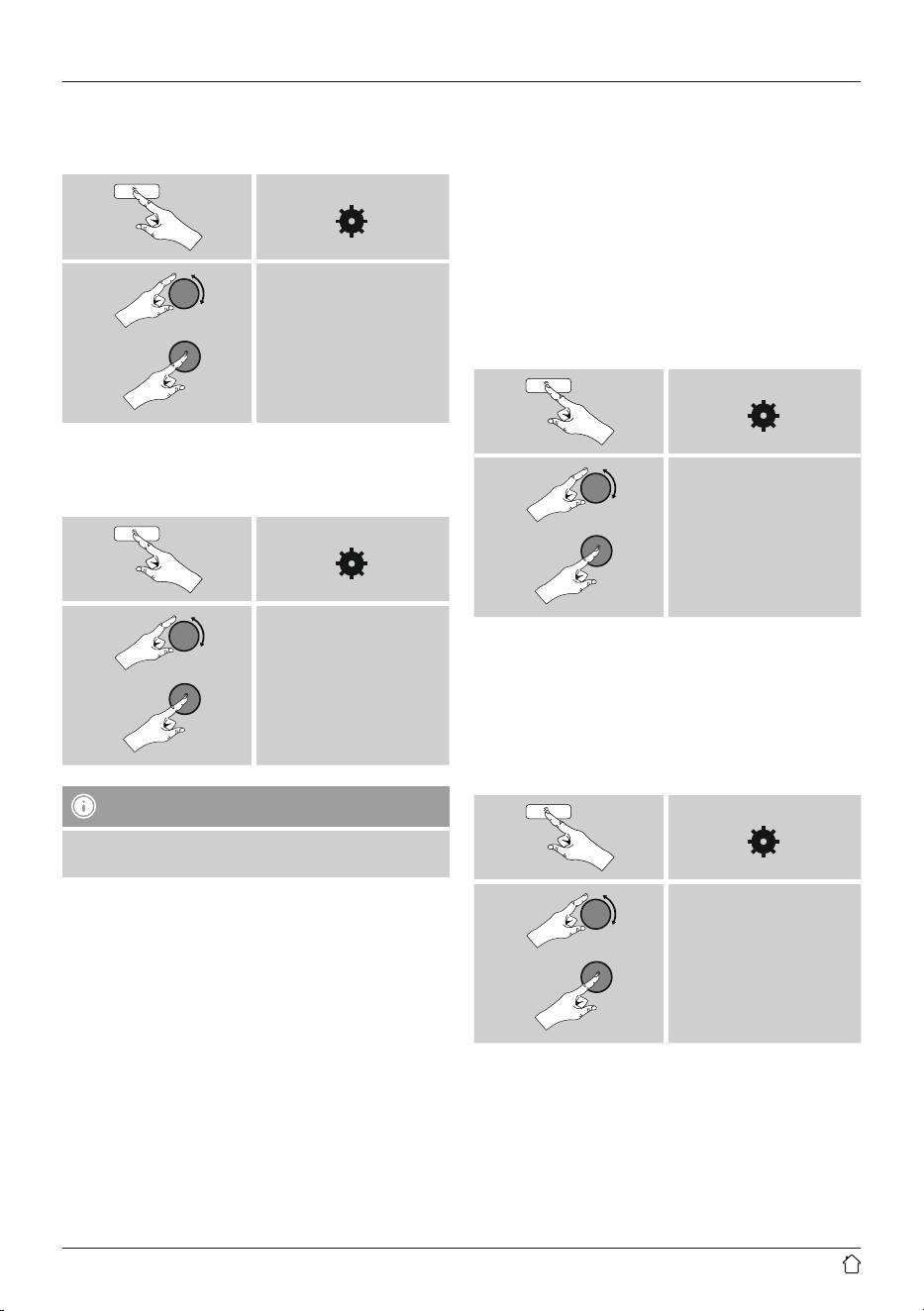
8.1.4 Popular stations
You can nd a selection of the most popular stations as
follows:
[ ]
Station list
Stations
Popular stations
13
8.1.5 New stations
Stations that have recently been added to the database
can be found as follows:
[ ]
Station list
Stations
New stations
8.1.6 Local stations
To search for stations from your own country (the country
in which the radio is currently located), proceed as follows:
[ ]
Station list
Local <Country>
Note
Replace the <Country> placeholder with the country you
are currently located in.
You can lterthis local list by genre, or select a station
from the complete list, or select from a pre-selected list.
8.2 Podcasts
Podcasts are programs on various topics and include,
for example, talk shows, news and much more. Podcasts
can be downloaded from the Internet. There are normally
approximately 10,000 programs available. Similarly to
radio stations, the radio makes it possible to lter a large
number of Podcasts, or to search the entire database for a
matching result.
8.2.1 Search by country or region
To search for a podcast by continent, country and region,
proceed as follows:
[ ]
Station list
Podcasts
Location
Once you have restricted the results to a certain country or
region, select a station from the complete list or from a list
sorted by genre.
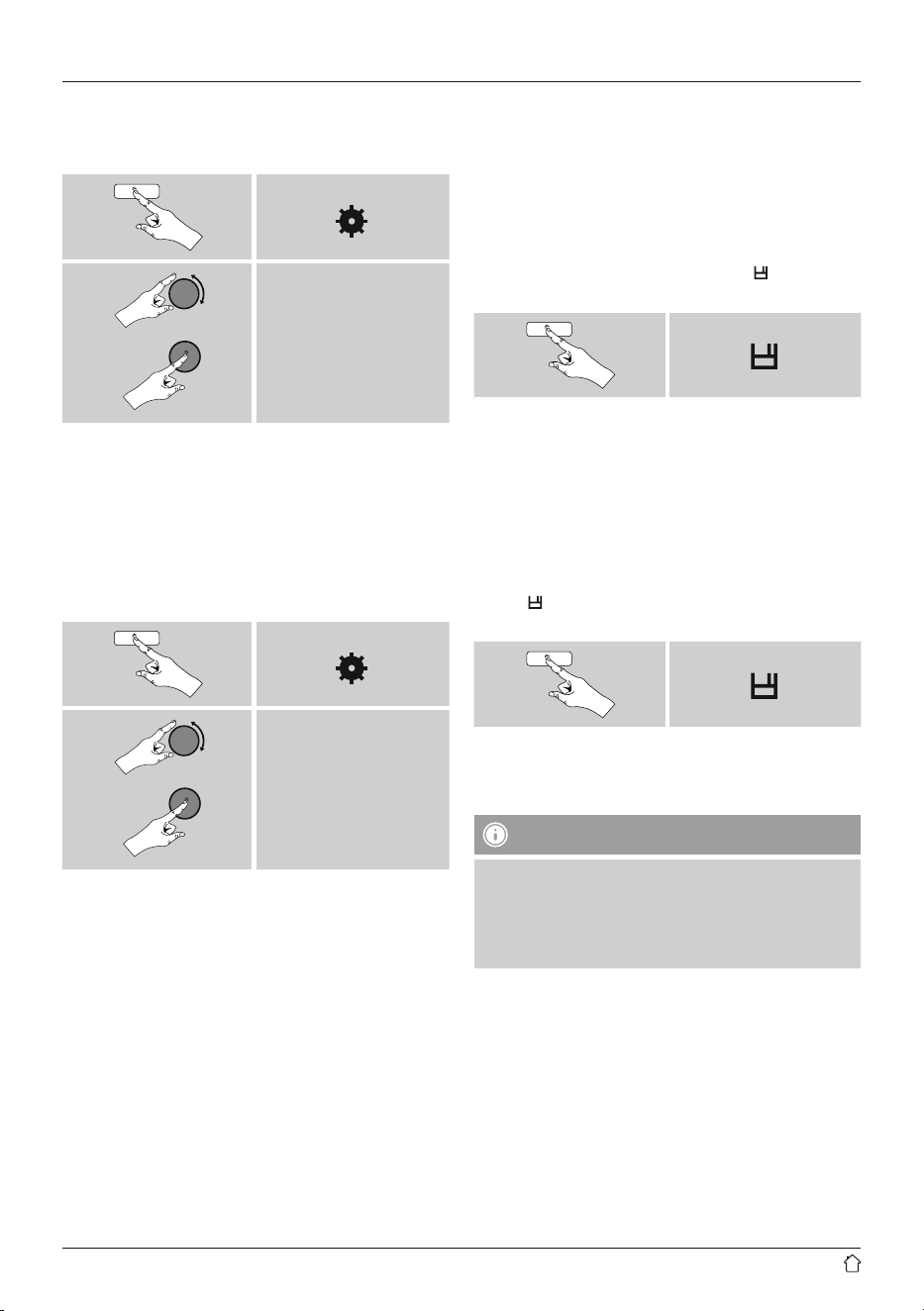
8.2.2 Search by format (subjects or categories)
To search for a podcast by continent, country and region,
proceed as follows:
[ ]
Station list
Podcasts
Codec
14
8.2.3 Search by name
If you know the name of the desired Podcasts, you can
search for it directly.
[ ]
Station list
Podcasts
Search Podcasts s
Enter the complete name, or a part thereof, in the input
screen and select OK to start the search. You receive a list
of all available Podcasts whose names contain the search
key.
8.3 Last listened
The radio saves the last stations and podcasts listened to in
their own list. To access the list, proceed as follows:
[ ]
Last listened
8.4 Favourites (local)
You can save up to 30 of your favourite stations for quick
and direct access.
8.4.1 Save favourites
• Set the station that you would like to save as a favourite
station preset.
• If the station is received, press and hold [
] / [MEMORY]
on front of the radio.
[ ]
An overview window with the station presets should open
after approx. 2 seconds.
• You can switch between the station presets (1 to 30) by
turning [ENTER/NAVIGATE].
• Press [ENTER/NAVIGATE] to save the station on the
desired station preset.
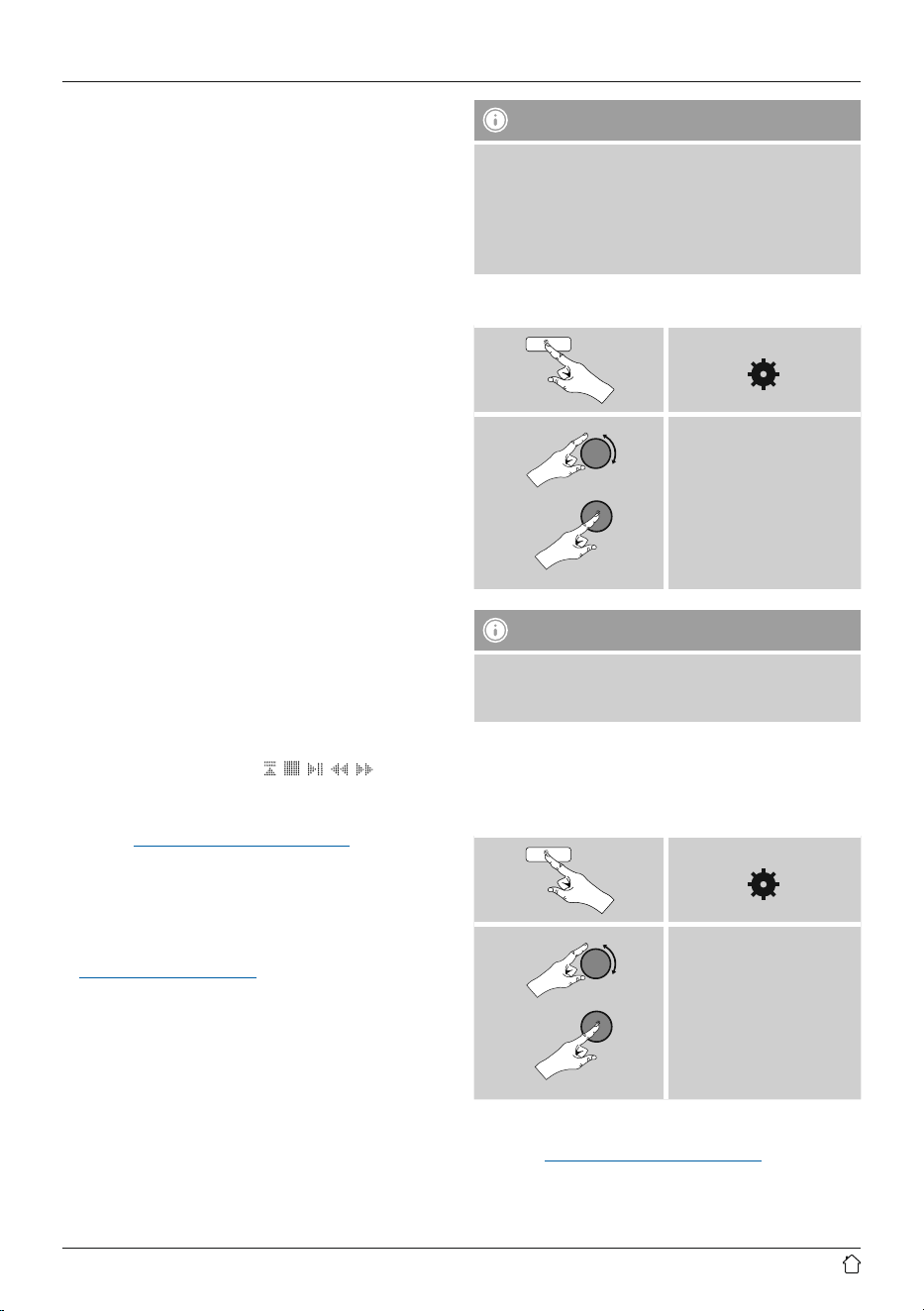
8.4.2 Access favourites
• Press [
] / [MEMORY] to open the overview window
with the list of saved stations.
[ ]
• Use [ENTER/NAVIGATE] to select one of your
favourites.”
Note
Favourites cannot be deleted.
If all 30 station memory slots are lled and you wish to
save a new station, choose one of the occupied slots.
The station in this slot will be overwritten with the new
station.
15
8.4.3 Management of favourites with the remote
control
Favourites 1-10
The remote control enclosed has number keys 1-0 (0
≙
10).
A favourite can be assigned to each of these number key.
• To save a favourite, press and hold the corresponding
number key on the remote control (approx. 3 seconds).
• The radio con rmsthat the favourite has been saved by
displaying Preset stored.
• To call up a favourite, briey press the corresponding
number key on the remote control.
Favourites 1-30 (alternative to number keys)
• Press and hold [FAVORITES] approx. 3 seconds to save
a station on one of the 1-30 favourite station presets.
An overview window with the station presets should
open after approx. 2 seconds.
• You can switch between the station presets (1 to 30)
by pressing the favourite keys [+]/[-] (by turning
[ENTER/NAVIGATE]).
• Press [OK] ([ENTER/NAVIGATE]) to save the station
on the desired station preset.
• To call up a favourite, briey press [FAVORITES],
select the desired station preset by pressing the
favourite keys [+]/[-] (by turning [ENTER/
NAVIGATE]) and conrm the selection by pressing
[OK] ([ENTER/NAVIGATE]).
8.4.4 Management of favourites with the remote
control
• The function buttons are explained in detail in section
5.6 Function buttons 1-7,
, , , , .
8.5 Favourites
(airable - http://www.wiradio-frontier.com)
In addition to the local favourite memory slots, you can
also create your own lists of favourites.
8.5.1 First use – Registering your radio
In order to be able to use this function you have to register
at www.wiradio-frontier.com. You need a valid email
address and an access code which will be generated by
your radio.
Note
• No personal information is collected during the
registration process.
• Registering does not cost you anything extra. The offer
is completely free.
• Following registration you can choose from around
20,000 radio stations and 10,000 podcasts.
Get access code:
[ ]
Station list
Hilfe
Get acces code
Note
Please note that each access code can only be used
once. Please contact customer service if you should
experience problems while registering the radio.
• During registration, the radio’s ID is associated with your
e-mail address and saved in the web interface.
• If multiple radios are registered to you and you wish to
delete one of those registrations or just compare them,
you can nd the radio’s ID as follows.
[ ]
System settings
Info
Radio ID
8.5.2 Managing favourites online
(airable - http://www.wiradio-frontier.com)
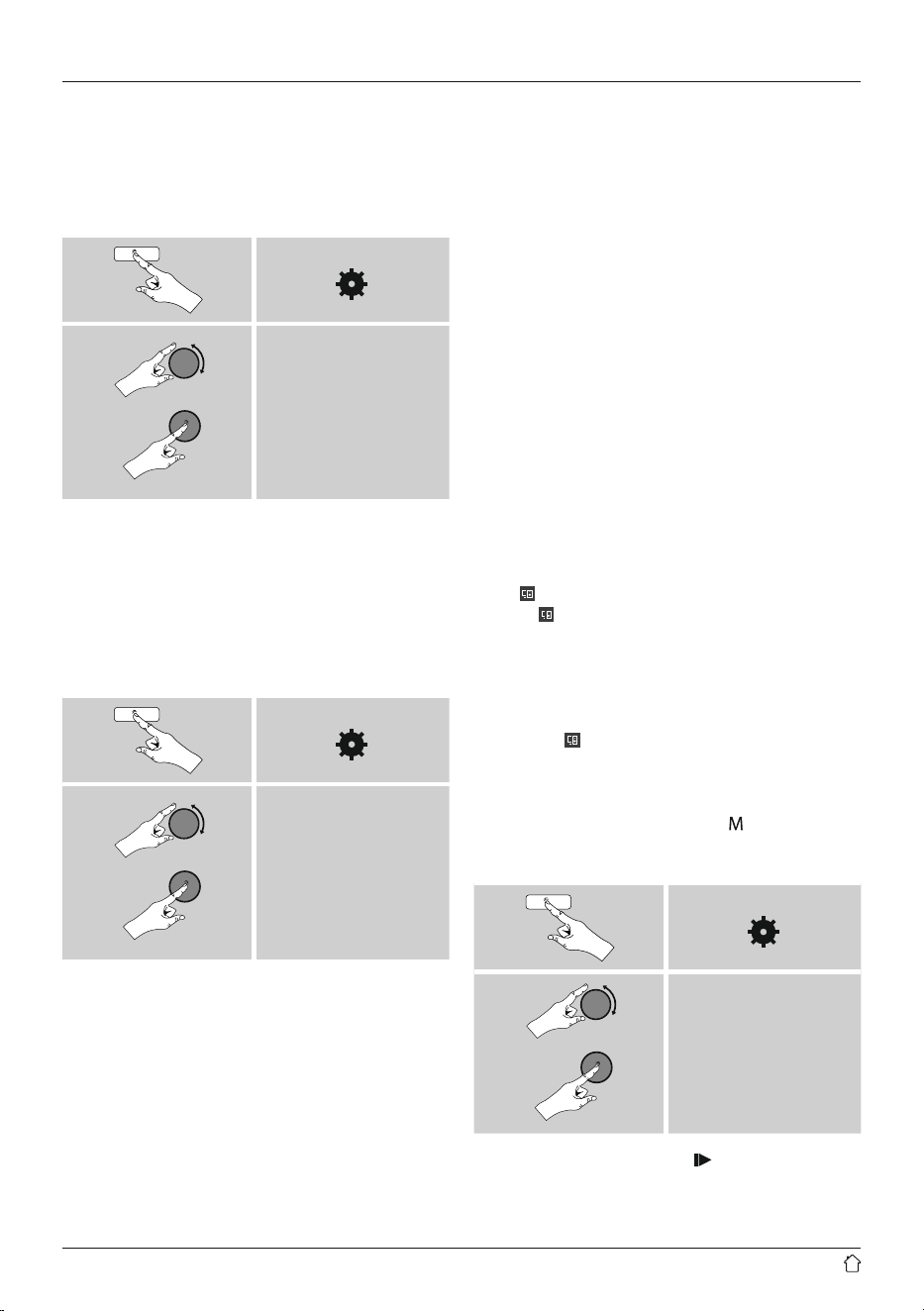
After registering on the portal, you can search through
the station archive using various lters, try out stations,
and create your own favourites list from the stations listed
16
there. The favourites list is then synchronised with your
radio in a matter of seconds.
8.5.3 Opening the favourites list
To open the favourites list you created on the portal using
the radio, proceed as follows:
[ ]
Station list
My Favorites
8.5.4 My Added Stations
If a station you desire is not yet available, you can add it
manually to the portal, or suggest a station be added to
the database (Recommend station).
• You need the web address of the stream, which can often
be found on the station’s website.
• You can access the added radio stations as follows:
[ ]
Station list
My added stations
The database is constantly expanded and maintained.
Nevertheless, we hope you’ll understand that sometimes
there can be delays in integrating new stations and some
stations are even rejected.
9. Spotify
Spotify Connect gives you access to millions of songs. You
can listen to them on your radio, on the go using your
smartphone, or at your PC.
Requirements:
• You must have the Spotify app installed on your Android
or iOS device.
• It can be downloaded from the Play Store or the Apple
App Store. Once the app is installed, start it and log into
your account (or, if you do not have an account, register
a new one).
• You will require a Spotify Premium account (see
www.spotify.de for more information).
• The radio must be on the same network as the Android
or iOS device with the Spotify app installed.
Use:
• In the Spotify app, start playback of a playlist or title as
usual.
• The usual playback information is displayed, such as the
album cover, title, etc.
• At the bottom edge of the screen, the Spotify Connect
logo
is shown next to Available devices.
• Choose Available devices to access an overview of
all devices available on the network.
• Select the radio. The audio is now played back on the
radio.”
Once the connection has been established, the Spotify
Connect logo
and the device designation are displayed
in green.
After successful initial connection:
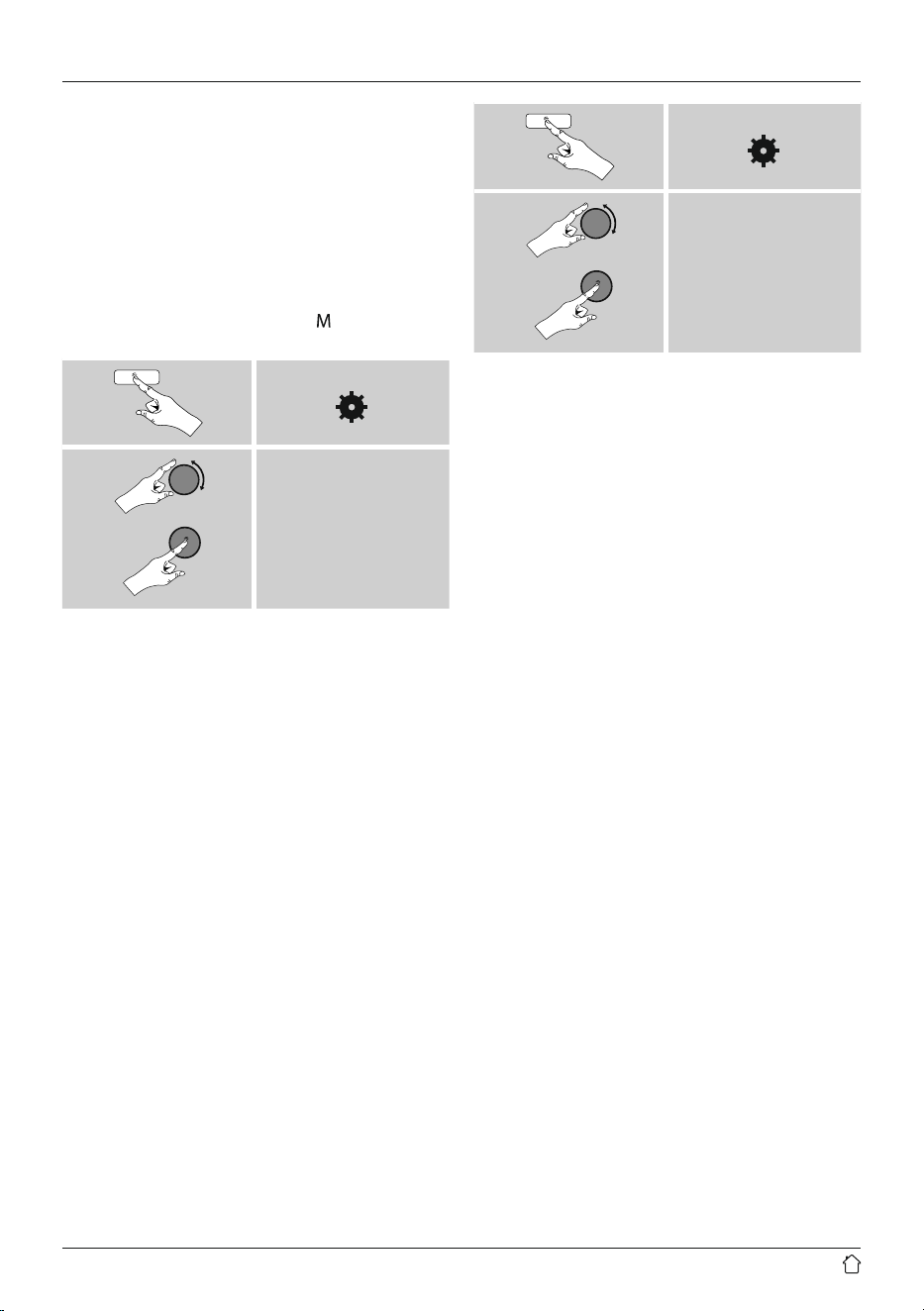
From the main menu or after pressing [
] / [MODE]
repeatedly, activate Spotify (Spotify Connect) mode.
[ ]
Main menu
Spotify
• Press [ENTER/NAVIGATE] (or [
] on the remote
control) to begin playback.
17
• Alternatively, you can control the radio (skip to a different
title, adjust the volume, etc.) using the remote control,
the Smart Radio app, or the Spotify app.
10. Music player (UPNP, USB)
This operating mode enables the playback of MP3, WMA
or FlAC lesthat are saved on a PC, data storage medium
or the local network.
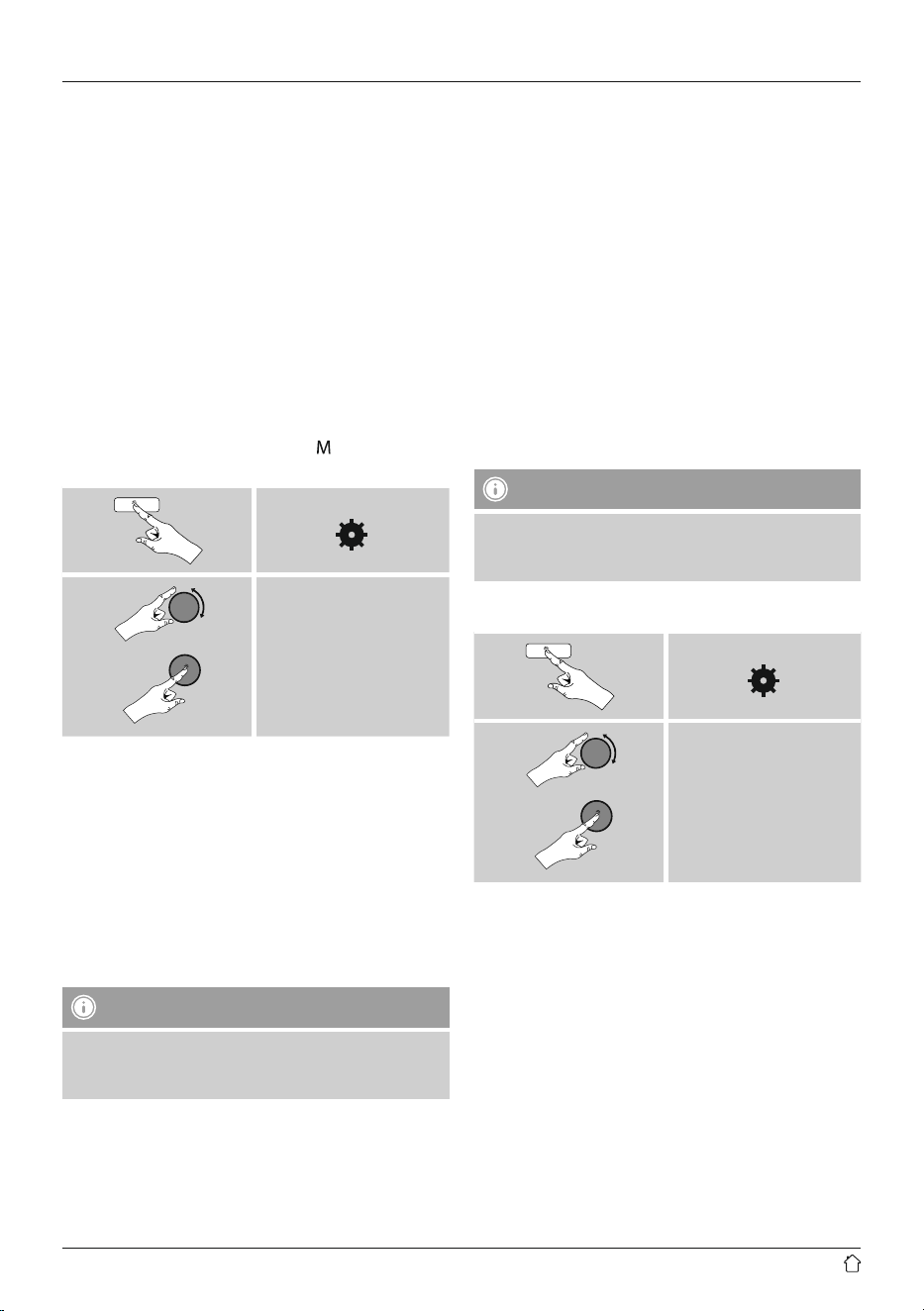
From the main menu or after pressing [
] / [MODE]
repeatedly, activate Music player mode.
[ ]
Main menu
Music player
Alternatively, press [MEDIA] on the remote control to
switch directly to this operating mode.
10.1 Playback from external storage media (USB)
• Insert a storage device (such as a USB stick) into the USB
port of the radio.
• The storage medium should be formatted as a FAT16 or
FAT32 volume.
• The radio recognises the storage medium automatically.
• When the radio asks whether to open the connected
storage device, con rm by selecting YES.
• The lesand folders saved on the storage medium
are displayed. Use [ENTER/NAVIGATE] to choose the
desired le and begin playback.
Alternatively, if the storage medium is already connected,
choose the desired le for playback as follows:
[ ]
Music player
USB playback
10.2 Playback from a computer (streaming)
You can manage the radio and stream music to it from your
computer.
The following explanation assumes your computer’s
operating system is Windows 8. If you use a different
operating system and require assistance, or if you have any
other questions, please contact our customer support
team.
Requirements:
• The radio and the computer must be on the same
network.
• The radio must be authorised as a playback device on the
computer.
Proceed as follows:
Control Panel Network and Internet View
network computers and devices
The radio should be shown here.
• Right-click on the icon or designation of the radio and
choose Allow streaming to this device.
• Right-click again on the icon or designation of the radio
and choose Show device website to change the
friendly name of the device.
• A new browser window opens. You can make the desired
changes here.
18
Use:
• The radio can now access shared directories on the
computer, and you can stream audio lesto the device
for playback.
• The music directory of your music library is enabled as
standard.
• Create and manage shared folders using Explorer or
Windows Media Player.
• Right-click on the desired music le,choose Play To,
and then select the designation of the radio.
• The radio begins playback of the music le.
10.3 Playback from the network – Accessing files
using the radio
To access one of the existing network shared les directly
from the radio, proceed as follows:
From the main menu or after pressing [
] / [MODE]
repeatedly, activate Music player mode.
[ ]
Main menu
Music player
Shared media
• Choose the correct device (home server, PC, etc.) and
press [ENTER/NAVIGATE] to open the list of shared
folders on that device.
You can now search for les,open a playlist, or search
through the entire shared music folders. If you want to
search through the entire selection of music, there are
other sorting functions available (Album, Artist, Genre,
Folder, etc.) that can help you nd the desired le more
quickly.
Note
These functions are only available if the ID3 tag and
other le information have been maintained on the
source device.
Prune servers:
To reset the list of servers connected to so far, press
[ENTER/NAVIGATE].
If you conrm by choosing YES, then all Common Media
will be deleted.
10.4 Playback of playlist
You can create a local playlist on the radio, in which you
save les shared on the network or from connected data
storage devices.
• Under Shared media/ USB playback, choose the le
to be added to the playlist.
• Press and hold [ENTER/NAVIGATE] for approx. 3
seconds until the display shows the message Added to
playlist.
Note
You can also use playlists that were created on your
Windows PC. (WPL = Windows Playlist). For example,
Windows Media Player is suited for this purpose.
• To go directly to the playlist, do as follows:
[ ]
Main menu
Music player
Playlist
• To remove individual les from the playlist, choose the
leand then press and hold [ENTER/NAVIGATE] for
approx. 3 seconds.
• Conrm Delete from My playlist by choosing YES to
delete the lefrom the playlist.
19
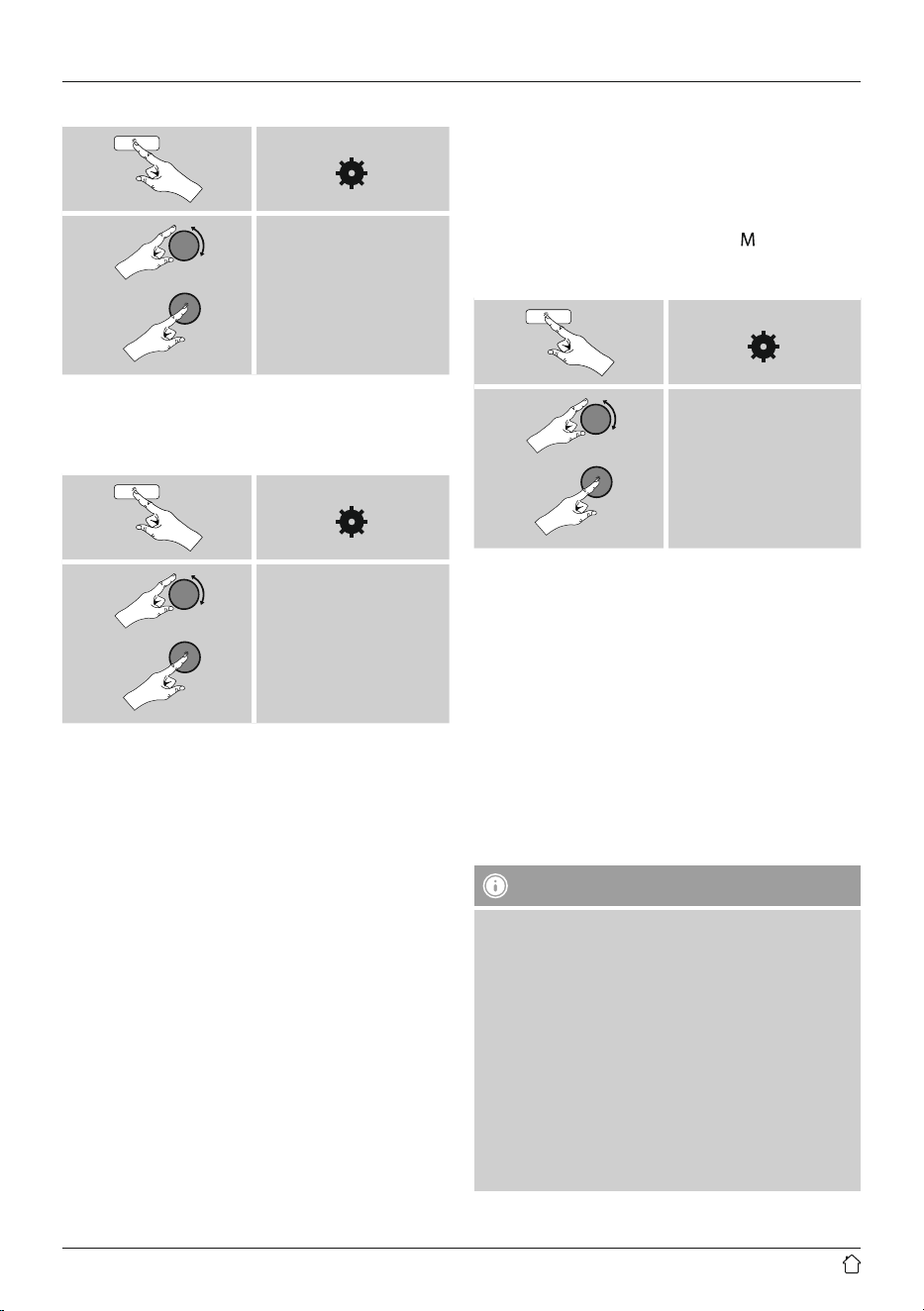
• To delete the entire playlist, proceed as follows:
[ ]
Main menu
Music player
Clear My playlist
10.5 General playback options
These playback options, which are valid for all playback
under Music player, can be found here:
[ ]
Main menu
Music player
Repeat / Shue
Repeat play: On / Repeat play: Off :
To turn the function On and Off, press [ENTER/
NAVIGATE] repeatedly.
If this function is activated (Repeat play: On) the current
track is repeated.
Shue play: On / Shue play: Off
To turn the function On and Off, press [ENTER/
NAVIGATE] repeatedly.
If this function is activated (Shue play: On) the radio
plays all tracks in random order.
11. Auxiliary Input
Via the analogue audio input (AUX IN socket) you can
connect mobile devices (for example smartphone, tablet
PC, M3 player etc.) to the radio and play the audio les
using the radio´s speakers.
• From the main menu or after pressing [
] / [MODE]
repeatedly, activate Auxiliary Input (Aux in) mode.
[ ]
Main menu
Auxiliary Input
Alternatively, press [AUX] on the remote control to switch
directly to this operating mode.
• Connect your mobile terminal device to the audio in (the
AUX IN socket) of the radio using a 3.5-mm TRS stereo
cable.
• Start and control audio playback using the controls of the
connected terminal device.
12. Bluetooth
®
You can pair your terminal device with the radio using
Bluetooth and use it as a playback device. You can control
playback directly on the terminal device. You can adjust the
volume on the radio, as well.
Note – Bluetooth
®
• Check whether your mobile device (smartphone, tablet
PC. etc.) is Bluetooth
®
capable.
• Note that the maximum range for Bluetooth
®
is 10
metres without obstacles such as walls, people, etc.
• The Bluetooth
®
connection may be disrupted by other
Bluetooth
®
devices/ connections in the vicinity.
• It is only possible to connect the radio to one terminal
device.
• Note that compatibility depends on the supported
Bluetooth
®
proles as well as the Bluetooth
®
versions
being used. (see Technical Data, operating instructions
of the terminal device in use)
20
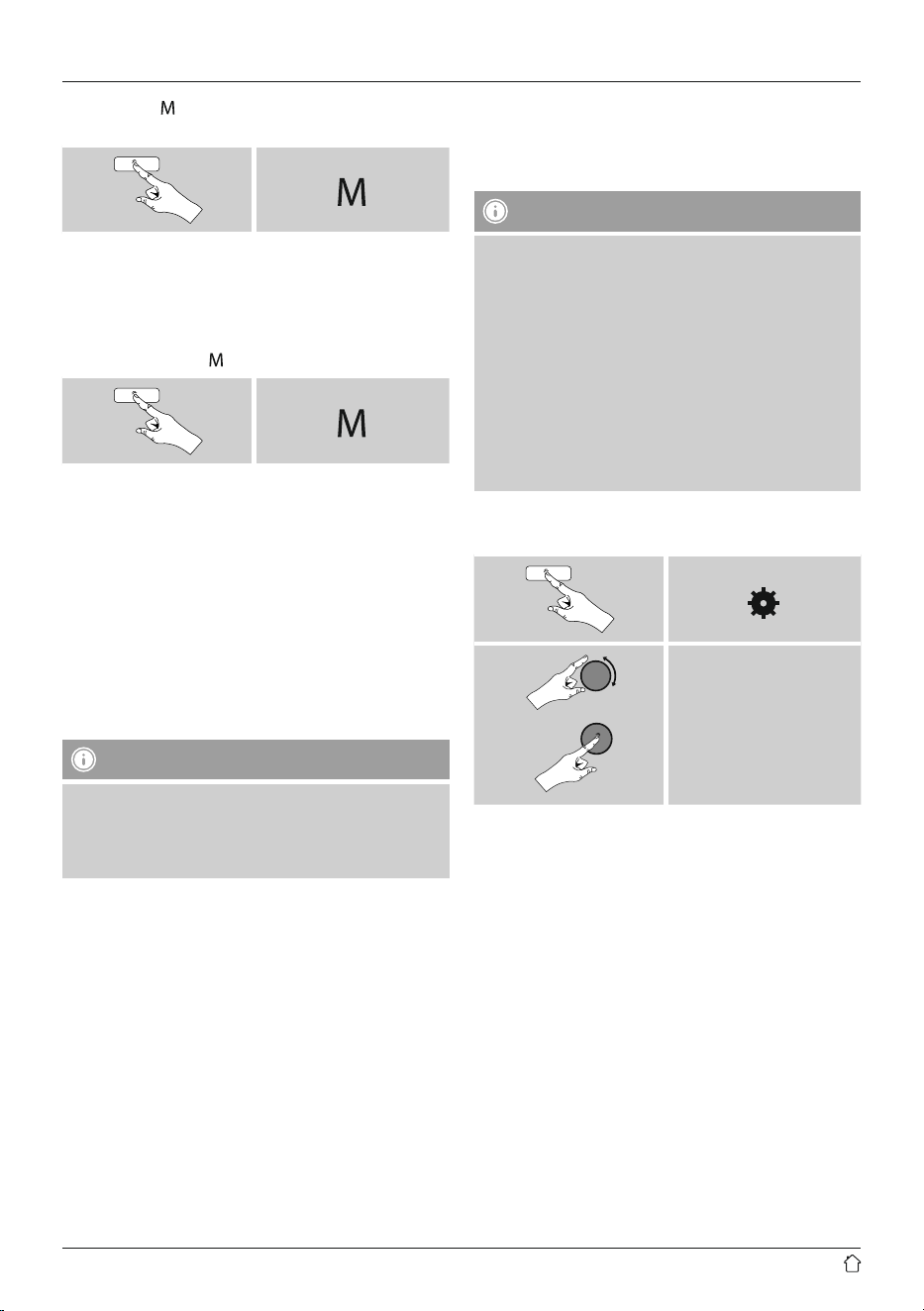
After pressing [ ]/ [MODE] repeatedly, activate operating
mode Bluetooth
®
:
[ ]
15.1 BIuetooth
®
pairing
• Make sure that your Bluetooth capable terminal device is
on and Bluetooth
®
is activated.
• Enable Bluetooth
®
operating mode on the radio by
repeatedly pressing [
] / [MODE]:
[ ]
• Open the Bluetooth
®
settings on your terminal device
and wait until IR150MBT appears in the list of
Bluetooth
®
devices found.
• If necessary, start searching for Bluetooth
®
devices on
your terminal device.
• Select IR150MBT and wait until the radio is listed as
connected in the Bluetooth
®
settings on your terminal
device.
• Your terminal device is also shown as connected on the
radio display.
• Start and control audio playback using the controls of the
terminal device.
Note – Bluetooth
®
password
Some terminal devices require a password in order to
connect to another Bluetooth device.
• If your terminal device requests a password for
connection to the radio, enter 0000.
12.2 Automatic Bluetooth
®
connection (after
successful pairing)
• Terminal devices already paired with the radio are
automatically saved on the radio.
Note – Connection impaired
After the radio and terminal device have been paired,
a connection is established automatically. If the
Bluetooth
®
connection is not established automatically,
check the following:
• Check the Bluetooth
®
settings of your terminal device
to see whether IR150MBT is connected. If not, repeat
the steps listed under Bluetooth
®
pairing.
• Check whether your terminal device and the radio are
less than 10 metres apart. If not, move them closer
togehter.
• Check whether obstacles are impairing the range. If
so, move the devices closer together.
12.3 Terminate Bluetooth
®
connection
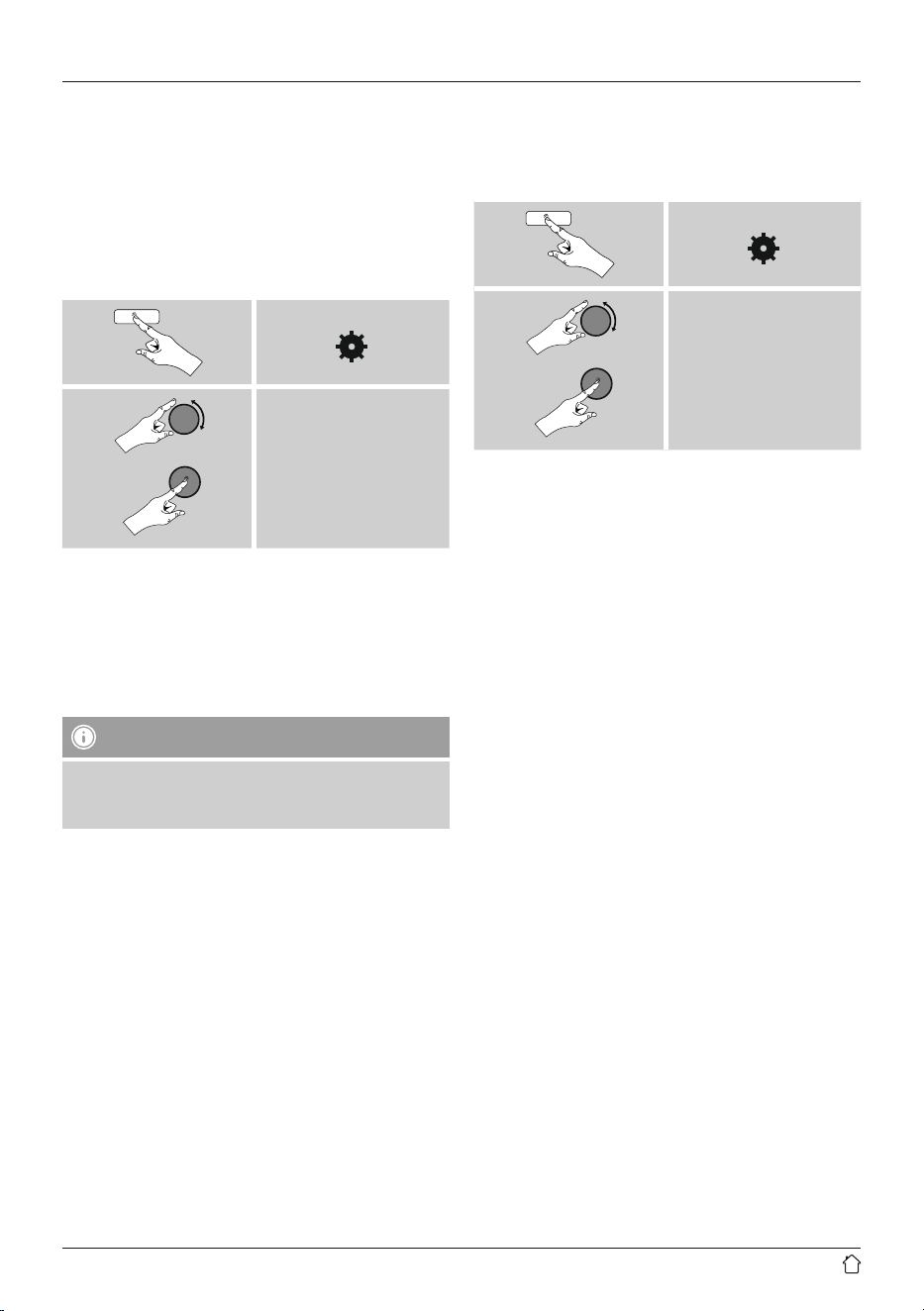
[ ]
Main menu
Terminate connection
• Then select the YES button by turning [ENTER/
NAVIGATE], and conrm termination of the Bluetooth
connection by pressing [ENTER/NAVIGATE].
21
13. Sleep
The radio has a sleep function, after a dened time the
radio switches to standby mode.
• Repeatedly press [SLEEP] on the remote control to set
the desired time interval (Sleep OFF/15/30/45/60/90/120
minutes).
• Alternatively, set the time interval from the main menu
using [ENTER/NAVIGATE]:
[ ]
Main menu
Sleep
• After the dened time the radio switches to standby
mode.
• Press [VOLUME/POWER], to turn the radio back on.
• If a time interval is already activated, you can change or
disable it at any time by again pressing [SLEEP] on the
remote control.
Note
There is a separate setting for the backlight when the
timer (snooze) is activated. For example, it can be set to
be dimmer than in normal operation 15.9. Backlight.
14. Alarms
The Radio has two individually adjustable alarm times.
14.1 Alarm settings
[ ]
Main menu
Alarms
• Alarm 1 and alarm 2 are con gured identically. So you
can save two different alarm times. Select alarm 1 or
2 and then make the following settings by means of
[ENTER/NAVIGATE]:
Enable:
Choose when the alarm is to activate:
Off – Daily – Once – Weekdays – Weekends
Date and time:
If you selected Once, enter the date and time for the
one-off alarm.
Time:
First choose the hour, then the minute at which the alarm
is to activate.
Mode:
Set whether you wish to be woken by an alarm tone
(Buzz), by the Internet radio.
22
Preset:
If you selected Internet radio/ DAB/ FM, choose which
station or podcast you wish to be woken with. You can
choose any of the 30 favourite station slots or the Last
listened.
Volume:
You can set the volume at which the alarm sound should
be played. This setting makes it irrelevant how loud you
last listened to the radio.
Save:
Conrm this menu item to complete your alarm settings.
Note
• When using Internet radio for the alarm sound take
care that the internet connection will be available
at the time of the alarm. If no internet connection is
available the radio instead uses the wake-up buzzer
(Buzz).
• It is recommended to allow the radio to update the
time automatically. This ensures that the time is
always correct even if there is a separation of power
supply – for example a power cut.
Note – Alarm/multi-room
• When using and setting the alarm function on a
device that belongs to a multi-room group, please
note that this device automatically leaves the group at
the time of the alarm.
• This behaviour prevents activation of the alarm on all
devices that belong to the group.
• The device in question does not automatically rejoin
the group after the alarm has been stopped, but must
be added manually.
14.2 Activating/ deactivating the alarm
• Conrm the menu item Save in alarm settings to activate
the alarm.
• Disable the alarm by setting the Mode: to Off.
14.3 Stopping the alarm/ Snooze function
Alarm tone (Buzz)
• When the alarm activates, press [VOLUME/POWER], to
stop the alarm.
• Repeatedly press [SNOOZE] on the remote control to
activate snooze mode.
• The alarm turns off for the selected time interval
(5/10/15/30/60 minutes) before activating once again.
Internet radio
• When the alarm activates, press [VOLUME/POWER] to
stop the alarm.
• Repeatedly press [SNOOZE] on the remote control to
activate snooze mode.
• The alarm turns off for the selected time interval
(5/10/15/30/60 minutes) before activating once again.
• Repeatedly press [SNOOZE] on the remote control to
activate ON instead of snooze mode. The radio now
stays switched on.
• If the alarm is not stopped, the radio automatically
switches into standby mode after one hour.
15. System settings
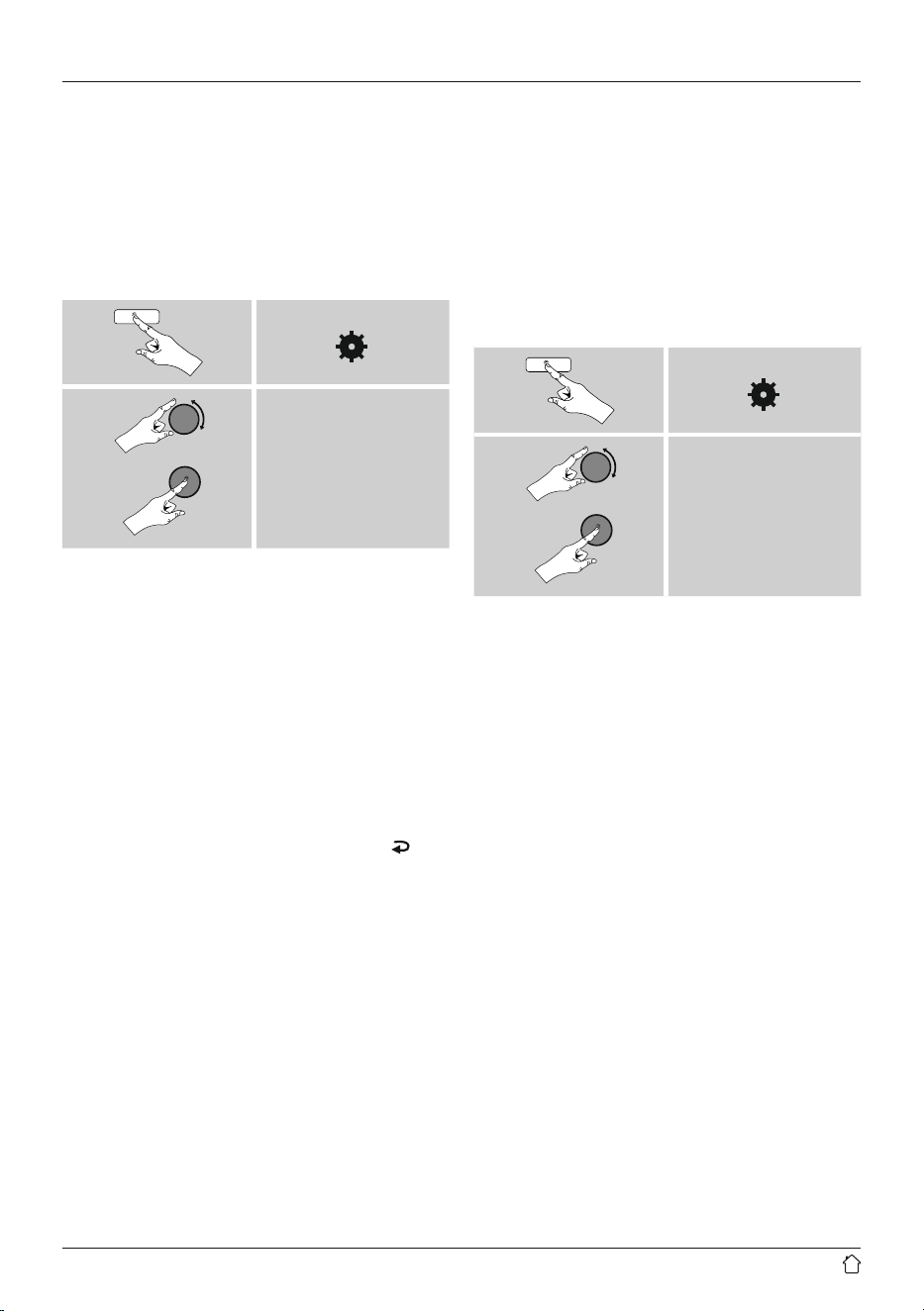
You can modify all settings and access important
information about the radio in the System settings.
23
15.1 Equaliser
The equaliser allows you to adjust the sound of the radio
to suit your preferences by amplifying or reducing the
amount of bass or treble in the audio .
You can choose from precongured proles, adjusted to
suit a variety of music genres, or create your own custom
prole.
• To set the Equaliser, proceed as follows:
[ ]
System settings
Equaliser
• Use [ENTER/NAVIGATE] to choose one of the
precongured proles.
• To create your own equaliser prole, choose the option
My EQ prole setup.
• This takes you to the settings for Bass, Treble and
Loudness (volume amplication).
• To adjust a particular value, press [ENTER/NAVIGATE]
at the corresponding menu item and then change the
value by turning [ENTER/NAVIGATE]. If playback is
already started when you modify these settings, you can
hear the changes in the audio immediately.
• Conrm your settings by pressing [ENTER/NAVIGATE]
once more.
• Complete the conguration process by pressing [
] on
the device and conrm the saving of settings by pressing
[ENTER/NAVIGATE].
• To use the new prole, choose the item My EQ.
15.2 Network
15.2.1 Network wizard – Configuration of internet
connection / Automatic search
The Network wizard supports you to set up a
connection between the radio and internet. Hereby you
can choose between a wired LAN connection and a
wireless connection using WLAN/Wi-Fi. More methods
of conguration and detailed information are amplied
subsequently.
• You can start the Network wizard as follows:
[ ]
System settings
Network
Network wizard
• When the wizard is started, the radio searches for WLAN
(WiFi) connections and then shows a list of the available
networks.
• Turn [ENTER/NAVIGATE] to switch amongst the
networks discovered. At the bottom of the list are
options to restart the search ([Rescan]), select a cable
connection ([Wired]) or congure the connection
yourself ([Manual cong]).
• If your network is not found or the SSID (Service Set
Identication, that is, the name of your network) is not
shown, the network may be hidden or out of range. In
this case, try manual conguration or connecting by LAN
cable.
24
15.2.2 Wireless network connection (WLAN)
Depending on the network, there are a number of ways to
connect to it.
Networks that support connection via WPS (Wi-Fi Protected
Setup) are identied in the list as [WPS].
Other connections are either open networks or connections
protected with a PSK, or Pre-Shared-Key.
Desired network
WPS-/PSK-/ open network connection
WPS allows simple and nevertheless protected connection
of the radio to the network. Two options are available
for this purpose: The connection can be set up by means
of PBC, or Push-Button Con guration, or by the PIN
procedure, in which the web interface of your router
prompts you to enter a randomly generated sequence of
numbers.
PBC setup
• Select your desired network. (Indicated by the prex
[WPS]).
• In the WPS menu, choose the Push Button option and
conrm your selection by pressing [ENTER/NAVIGATE].
• Press the WPS button on your router or current access
point. This can often be done using the web interface,
as well.
• Consult the operating instructions of your router or
access point for details.
• Once the process has been started on the router or
access point, the radio should be able to nd and
connect to the network.
• Alternatively, PBC setup can be initiated from the internet
settings of the radio:
[ ]
System settings
Network
PBC Wlan setup
PIN setup
• Select your desired network. (Indicated by the prex
[WPS])
• In the WPS menu, choose the PIN option and conrm
your selection by pressing [ENTER/NAVIGATE].
• The radio generates an 8-digit code, which must be
entered into the web or user interface of your router or
access point.
• Consult the corresponding handbook for details on
conguring the router or access point.
Skip WPS / Pre-Shared Key (PSK) setup
• Choose the item Skip WPS to proceed to key entry.
• In networks that do not support WPS, you will go directly
to key entry.
• In the input screen, enter the whole key and then conrm
with OK.
• If the key was entered correctly, the radio connects to
the access point and establishes the internet/network
connection.
Note
• Often the Pre-Shared Key is printed on the back or
bottom of the router or access point.
• When entering the key, take notice of capitalisation.
25
Open network
Note
• We recommend against establishing unsecured
connections and advise you to always protect your
network against unauthorised access.
• If you plan to use an open network, you just have
to select the network ID from the list of available
networks and conrm. The radio then connects
immediately to the network.
15.2.3 Wired network connection (LAN)
• Connect the radio to the router using a LAN cable. This
method of direct connection is the most reliable and
least susceptible to interference.
• The cable connection is listed amongst the available
connections as Wired. Simply select it to proceed. If the
DHCP server of the router or access point is active, then
the connection is now established automatically.
• To nd out how to determine whether the DHCP server is
active, please consult the operating instructions of your
router or access point.
15.2.4 Manual configuration of network
connection – wireless (WLAN) and wired (LAN)
• To manually con gure the network connection, proceed
as follows:
[ ]
System settings
Network
Manual settings
Manual conguration wired (LAN) – DHCP enable
• Select the option Wired.
• Select the option DHCP enable.
• The connection is now established. No further setting
adjustments are required.
Manual conguration wired (LAN) – DHCP disable
• Select the option Wired.
• Select the option DHCP disable.
• Enter the necessary network information, such as the
IP address, subnet mask, gateway address and DNS
(primary and secondary).
Find this information in the web interface of your router
or access point, or ask your network administrator. Once
all the information has been entered correctly, conrm
to proceed. The radio now attempts to establish the
connection.
Manual conguration wireless (WLAN) – DHCP
enable
• Select the option Wireless.
• Select the option DHCP enable.
• In the input screen, enter the whole SSID (network name)
and then conrm with OK.
• Now choose the security standard used by the network.
This can be found in the conguration options of your
router or access point.
• Depending on the encryption used, you may need
to enter the network key before the connection is
established.
26
Manual conguration wireless (WLAN) – DHCP
disable
The method described here assumes the DHCP server
is active (manual wireless conguration (WLAN) –
DHCP enable). However, the network information such
as IP address, subnet mask, gateway address, and DNS
(primary and secondary) must still be entered.
Find this information in the web interface of your router
or access point, or ask your network administrator. Once
all the information has been entered correctly, conrm
to proceed. The radio now attempts to establish the
connection.
15.2.5 View settings
Here you can nd all the most important information about
all network connections currently used or congured on
the radio, such as: MAC address, WLAN region, DHCP
active/ disabled, SSID, IP address, subnet mask, gateway
address, DNS (primary and secondary), etc.
[ ]
System settings
Network
View settings
15.2.6 Network profile
The radio automatically saves all successfully connected
network proles.This means that re-establishing these
connections (for example, after the radio was disconnected
from the power supply) does not require you to re-enter the
network access information.
• To remove network proles individually, proceed as
follows:
[ ]
System settings
Network
Network prole
• Select a network prole and press [ENTER/NAVIGATE]
to delete it.
• Conrm the prompt querying if you want to delete the
prole with YES.
• A prole that is currently active, or that is in use, cannot
be deleted.
Note - Data security
• Before giving or selling the radio to someone else, we
recommend performing a Factory Reset.
• This will completely and permanently delete all
network information and connections stored on the
device.
27
15.3 Time/Date
To access the time settings, proceed as follows:
[ ]
System settings
Time/Date
Auto update
Update from Network
Choose this option to set the time and date automatically
from the internet. Set the timezone of your current location
(Set timezone) and, if desired, turn on automatic
adjustment between summer time and winter time
(Daylight savings ON).
Update
If automatic time and date adjustment is activated, the
device receives time and date information from the station
over the FM/DAB/DAB+ radio network. This is the best way
to ensure that the clock will run accurately and the alarm
will trigger at the correct time, even after power outages.
No Update
The time and date (DD-MM-YYYY) must be set manually;
no automatic calibration takes place.
Set Time/ Date
Set the date (DD-MM-YYYY) and time (hh:mm) manually
using [ENTER/NAVIGATE].
Set format
Choose between 12 and 24 hours format.
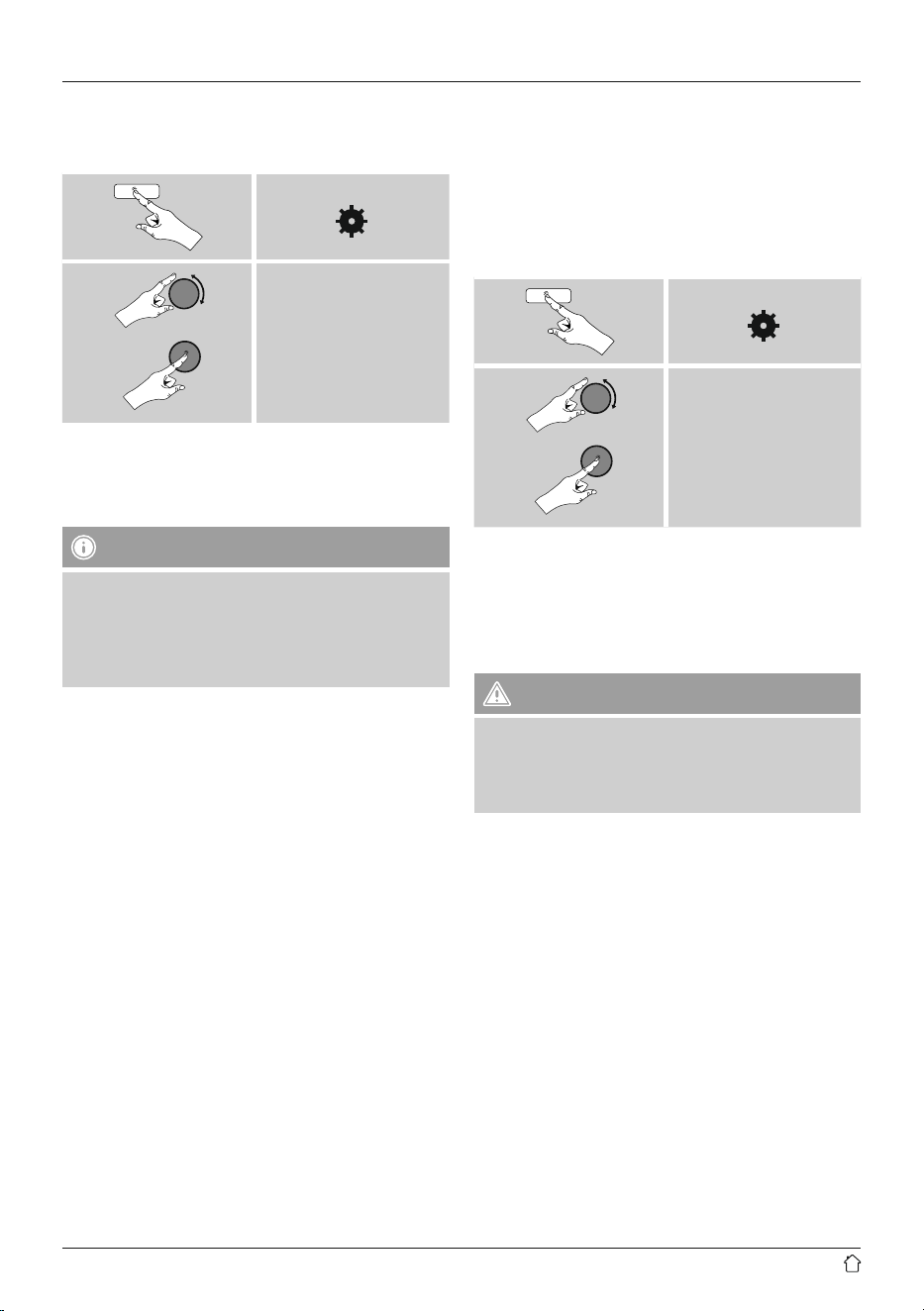
15.4 Language
To change the menu language from that selected at rst-
time startup, proceed as follows:
[ ]
System settings /
Settings
Language
desired Language for
example German
28
15.5 Factory Reset
To reset the radio to the factory default settings, proceed
as follows:
[ ]
System settings
Factory Reset
Conrm the following prompt with YES to reset the radio
to the factory default settings. All settings made previously
are deleted.
Note
• Resetting to the factory default settings can solve
some problems and malfunctions.
• However, all settings made previously, such as custom
equaliser presets, favorites, and network proles, are
permanently deleted.
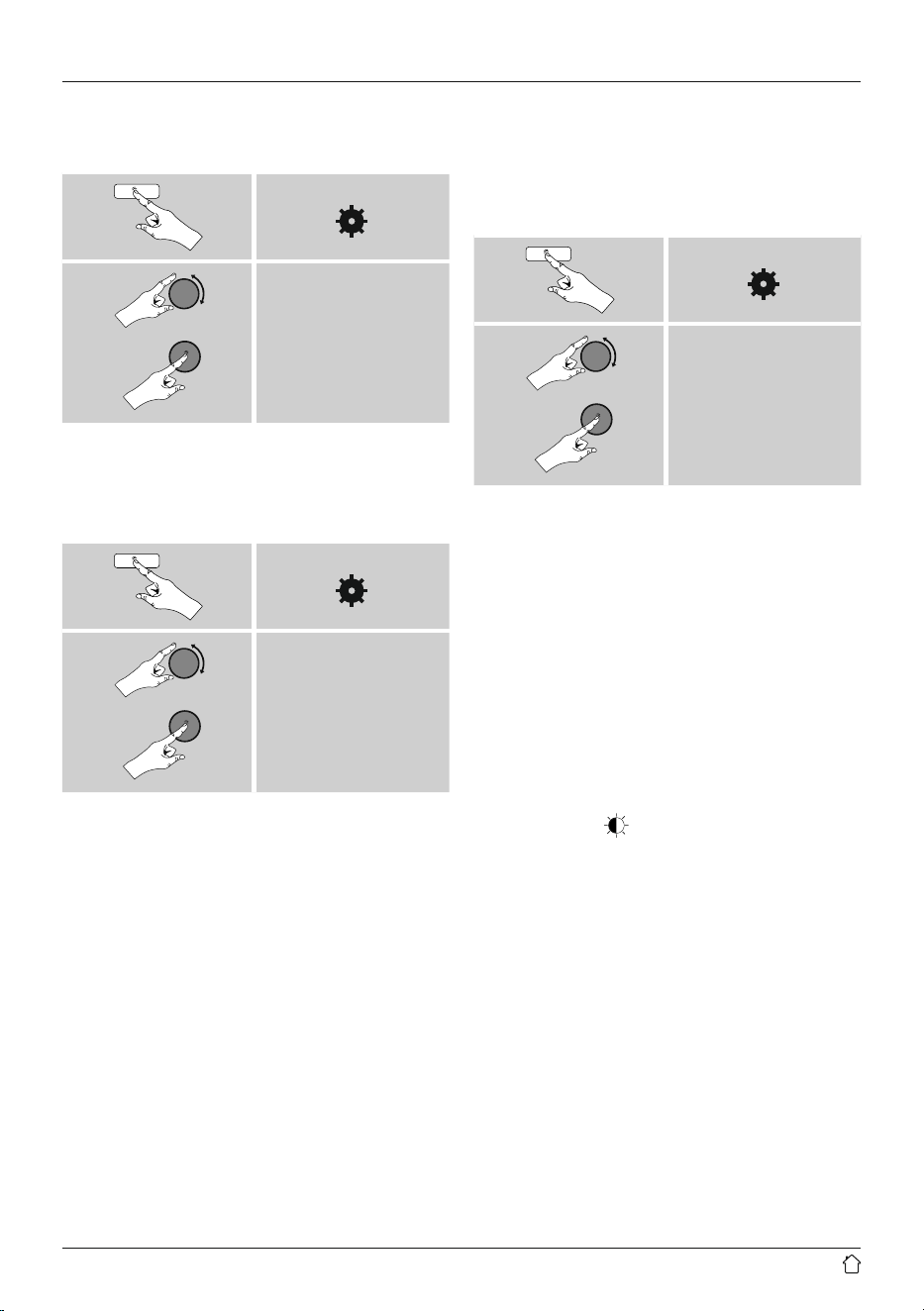
15.6 Software update
We are constantly developing new software features
and improvements for our radios to x problems, add
functionality, etc.
We recommend that you keep your radio’s software up to
date.
• Proceed as follows:
[ ]
System settings
Software update
• Set Auto-check setting to YES to have the radio
automatically check for new software updates at regular
intervals. (Recommendation)
• Choose Check now to manually start a check for
software updates.
Warning
• Make sure that the radio has a stable power supply
before you start a software update.
• Power supply failure during a software update can
cause irreparable damage to the radio.
29
15.7 Setup wizard
You can restart the setup wizard (Setup wizard) at any
time by proceeding as follows:
[ ]
System settings
Setup wizard
15.8 Info
• To have the radio display current information about
its hardware and software (version numbers, device
designation, radio ID, etc.), proceed as follows:
[ ]
System settings
Info
• If you have already registered your radio
on the online portal of Frontier Silicon
(http://www.wiradio-frontier.com), then
you can nd out the radio ID there, as well.
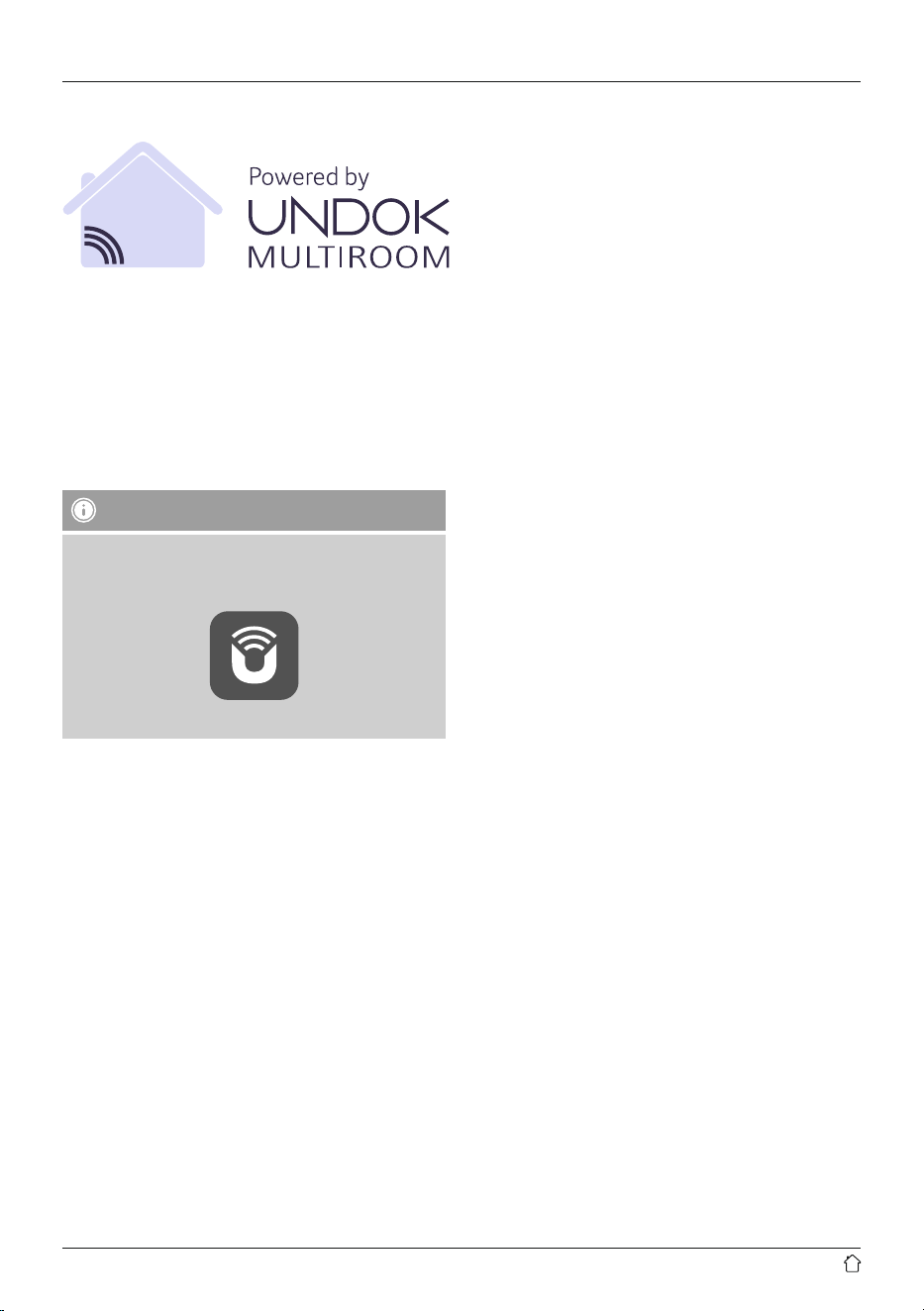
15.9 Backlight
The backlight can be con gured for each operating
mode (Operation Mode, Standby Mode, Slumber Mode)
separately.
Proceed as follows:
[ ]
System settings
Backlight
• For the operation modes Operation Mode and
Slumber mode, select between various brightness
levels.
• For Standby Mode, you may also choose a brightness
level for the backlight when the radio is in standby
(Standby Level). Alternatively, you can set the backlight
to turn off completely in standby (Standby Level
Off).
• Choose a time interval for Timeout. When the radio is
in standby, press [ENTER/NAVIGATE] to illuminate the
display at the brightness level set for that operating
mode for the selected interval of time.
• Alternatively, you can disable this feature (Timeout
Off).
Alternatively, press [
] on the remote control to directly
adjust the backlight setting for the current operating mode.
30
16. UNDOK – everything in the palm of your hand
The UNDOK app, developed by Frontier Silicon, gives you
full control of radios and speakers from your smartphone.
Whether you are setting up the device for the rst time,
specifying settings for the equaliser and multi-room, or
managing your favourite stations – the UNDOK app lets
you access all the features from your smartphone or tablet,
thereby offering you greater convenience.
16.1 First-time setup of the device with UNDOK
Note
A detailed description of the UNDOK app and
the full scope of functions can be found in our
UNDOK guide at:
www.hama.com -
>
00054850 -
>
Downloads
The rst time you switch on an UNDOK-enabled product
from Hama, or when you have set it to the factory settings,
it creates a micro access point – a separate Wi-Fi network
that you can connect to with your tablet or smartphone.
16.1.1 Procedure for iOS users
• Open the UNDOK app on your iPhone or iPad.
• Tap the Set up audio system menu item.
• Make sure that the radio or speaker is in SETUP mode.
Set the product to the factory settings, if necessary.
Conrm the query with Next.
• The UNDOK app now prompts you to connect to the
product’s Wi-Fi network using the iPhone/iPad settings
– to do so, switch to the system settings on your iPhone
and select the Wi-Fi network (for example, Setup Hama
DIR3120LED). Then return to the UNDOK app and tap
Next.
• Now choose a name for the radio (for example, Oce
DIR3120) and conrm your entry with Next.
• This takes you to the date and time settings – here you
set the time format, time source and time zone.
• The various network conguration options are then
offered to you (where applicable, Wi-Fi, WPS and
Ethernet). Tap the desired method; the UNDOK app
switches to the next window.
• Depending on the selected method, you can now select
and congure the desired Wi-Fi network, set up a WPS
connection or set up the connection using a LAN cable.
• Finally, the radio connects to the network; by tapping
Start using my audio system, you will be able to use
the device in the UNDOK app.

31
16.1.2 Procedure for Android users
• Open the UNDOK app on your tablet or smartphone.
• Tap the Set up audio system menu item.
• Make sure that the radio or speaker is in SETUP mode.
Set the product to the factory settings, if necessary.
Conrm the query with Next.
• On the following page, you will nd a list of all
available Wi-Fi networks as well as the suggested
audio systems; the Hama product (for example, Setup
Hama DIR3120LED) should be listed here. Tap the
corresponding Wi-Fi network.
• Now choose a name for the radio (for example, Oce
DIR3120) and conrm your entry with Next.
• This takes you to the date and time settings – here you
set the time format, time source and time zone.
• The various network conguration options are then
offered to you (where applicable, Wi-Fi, WPS and
Ethernet). Tap the desired method; the UNDOK app
switches to the next window.
• Depending on the selected method, you can now select
and congure the desired Wi-Fi network, set up a WPS
connection or set up the connection using a LAN cable.
• Finally, the radio connects to the network; by tapping
Start using my audio system, you will be able to use
the device in the UNDOK app.
17. Care and Maintenance
• Only clean this product with a slightly damp, lint-free
cloth and do not use aggressive cleaning agents.
• If you do not use the product for a long time, turn off the
device and disconnect it from the power supply. Store it
in a clean, dry place out of direct sunlight.
18. Warranty Disclaimer
Hama GmbH & Co KG assumes no liability and provides no
warranty for damage resulting from improper installation/
mounting, improper use of the product or from failure to
observe the operating instructions and/ or safety notes.
32
19. Service and Support
Please contact Hama Product Consulting if you have any
questions about this product
Hotline: +49 9091 502-115 (German/English)
Further support information can be found here:
www.hama.com
20. Recycling Information
Note on environmental protection:
After the implementation of the European Directive
2012/96/EU and 2006/66/EU in the national legal
system, the following applies: Electric and
electronic devices as well as batteries must not be
disposed of with household waste. Consumers are obliged
by law to return electrical and electronic devices as well as
batteries at the end of their service lives to the public
collecting points set up for this purpose or point of sale.
Details to this are dened by the national law of the
respective country. This symbol on the product, the
instruction manual or the package indicates that a product
is subject to these regulations. By recycling, reusing the
matierals or orther forms of utilizing old devices/ batteries,
you are making an important contribution to protecting our
environment.
21. Declaration of Conformity
Hereby, Hama GmbH & Co KG declares that the
radio equipment type [00054850] is in compliance
with Directive 2014/53/EU. The full text of the EU
declaration of conformity is available at the following
internet address:
www.hama.com -
>
00054850 -
>
Downloads.
Frequency band(s)
Bluetooth: 2.402 - 2.480GHz
WiFi: 2.412 - 2.472GHz
Maximum radio-frequency
power transmitted
Bluetooth: 6dBm (EIRP)
WiFi: 2.4GHz / 17dBm (EIRP)

00054850/11.19
Hama GmbH & Co KG
86652 Monheim
/ Germany
www.hama.com
All listed brands are trademarks of the corresponding companies. Errors and omissions excepted,
and subject to technical changes. Our general terms of delivery and payment are applied.
The Bluetooth
®
word mark and logos are registered trademarks owned by Bluetooth SIG, Inc. and
any use of such marks by Hama GmbH & Co KG is under license. Other trademarks and trade names
are those of their respective owners.
The Spotify software is subject to third party licenses found here:
www.spotify.com/connect/third-party-licenses