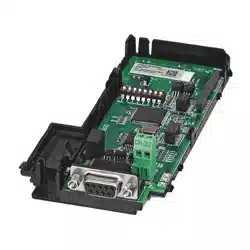

PowerFlex 25-COMM-E2P Dual-Port EtherNet/IP Adapter
User Manual
Important User Information
Solid-state equipment has operational characteristics differing from those of electromechanical equipment. Safety
Guidelines for the Application, Installation and Maintenance of Solid State Controls (publication SGI-1.1
available from
your local Rockwell Automation® sales office or online at http://www.rockwellautomation.com/literature/
) describes some
important differences between solid-state equipment and hard-wired electromechanical devices. Because of this difference,
and also because of the wide variety of uses for solid-state equipment, all persons responsible for applying this equipment
must satisfy themselves that each intended application of this equipment is acceptable.
In no event will Rockwell Automation, Inc. be responsible or liable for indirect or consequential damages resulting from the
use or application of this equipment.
The examples and diagrams in this manual are included solely for illustrative purposes. Because of the many variables and
requirements associated with any particular installation, Rockwell Automation, Inc. cannot assume responsibility or
liability for actual use based on the examples and diagrams.
No patent liability is assumed by Rockwell Automation, Inc. with respect to use of information, circuits, equipment, or
software described in this manual.
Reproduction of the contents of this manual, in whole or in part, without written permission of Rockwell Automation,
Inc., is prohibited.
Throughout this manual, when necessary, we use notes to make you aware of safety considerations.
Allen-Bradley, Rockwell Automation, Rockwell Software, PowerFlex, Studio 5000, and Connected Components Workbench are trademarks of Rockwell Automation, Inc.
Trademarks not belonging to Rockwell Automation are property of their respective companies.
WARNING: Identifies information about practices or circumstances that can cause an explosion in a hazardous environment,
which may lead to personal injury or death, property damage, or economic loss.
ATTENTION: Identifies information about practices or circumstances that can lead to personal injury or death, property
damage, or economic loss. Attentions help you identify a hazard, avoid a hazard, and recognize the consequence.
SHOCK HAZARD: Labels may be on or inside the equipment, for example, a drive or motor, to alert people that dangerous
voltage may be present.
BURN HAZARD: Labels may be on or inside the equipment, for example, a drive or motor, to alert people that surfaces may
reach dangerous temperatures.
ARC FLASH HAZARD: Labels may be on or inside the equipment, for example, a motor control center, to alert people to
potential Arc Flash. Arc Flash will cause severe injury or death. Wear proper Personal Protective Equipment (PPE). Follow ALL
Regulatory requirements for safe work practices and for Personal Protective Equipment (PPE).
IMPORTANT
Identifies information that is critical for successful application and understanding of the product.

Rockwell Automation Publication 520COM-UM003A-EN-E - June 2013 3
Table of Contents
Important User Information . . . . . . . . . . . . . . . . . . . . . . . . . . . . . . . . . . . . . . . 2
Preface
Overview
Recommended Documentation . . . . . . . . . . . . . . . . . . . . . . . . . . . . . . . . . . . . 7
Manual Conventions . . . . . . . . . . . . . . . . . . . . . . . . . . . . . . . . . . . . . . . . . . . . . . 7
Chapter 1
Getting Started
Components. . . . . . . . . . . . . . . . . . . . . . . . . . . . . . . . . . . . . . . . . . . . . . . . . . . . . . 9
Features . . . . . . . . . . . . . . . . . . . . . . . . . . . . . . . . . . . . . . . . . . . . . . . . . . . . . . . . . 10
Understanding Parameter Types. . . . . . . . . . . . . . . . . . . . . . . . . . . . . . . . . . . 10
Compatible Products . . . . . . . . . . . . . . . . . . . . . . . . . . . . . . . . . . . . . . . . . . . . . 11
Required Equipment . . . . . . . . . . . . . . . . . . . . . . . . . . . . . . . . . . . . . . . . . . . . . 11
Safety Precautions . . . . . . . . . . . . . . . . . . . . . . . . . . . . . . . . . . . . . . . . . . . . . . . . 12
Quick Start . . . . . . . . . . . . . . . . . . . . . . . . . . . . . . . . . . . . . . . . . . . . . . . . . . . . . . 13
Chapter 2
Installing the Adapter
Preparing for Set-Up . . . . . . . . . . . . . . . . . . . . . . . . . . . . . . . . . . . . . . . . . . . . . 15
Setting the Node Address . . . . . . . . . . . . . . . . . . . . . . . . . . . . . . . . . . . . . . . . . 16
Connecting the Adapter to the Drive . . . . . . . . . . . . . . . . . . . . . . . . . . . . . . 18
Connecting the Adapter to the Network . . . . . . . . . . . . . . . . . . . . . . . . . . . 20
Applying Power . . . . . . . . . . . . . . . . . . . . . . . . . . . . . . . . . . . . . . . . . . . . . . . . . . 22
Commissioning the Adapter . . . . . . . . . . . . . . . . . . . . . . . . . . . . . . . . . . . . . . 24
Chapter 3
Configuring the Adapter
Configuration Tools. . . . . . . . . . . . . . . . . . . . . . . . . . . . . . . . . . . . . . . . . . . . . . 25
Using the Drive Keypad Interface to Access Parameters . . . . . . . . . . . . . 25
Using the PowerFlex 4-Class HIM to Access Parameters. . . . . . . . . . . . . 27
Setting the Adapter Node Address. . . . . . . . . . . . . . . . . . . . . . . . . . . . . . . . . 27
Using a BOOTP or DHCP Server. . . . . . . . . . . . . . . . . . . . . . . . . . . . . . . . . 28
Using Adapter Parameters . . . . . . . . . . . . . . . . . . . . . . . . . . . . . . . . . . . . . . . . 31
Setting the Data Rate . . . . . . . . . . . . . . . . . . . . . . . . . . . . . . . . . . . . . . . . . . . . . 32
Using Master-Slave Hierarchy . . . . . . . . . . . . . . . . . . . . . . . . . . . . . . . . . . . . . 33
Setting a Fault Action . . . . . . . . . . . . . . . . . . . . . . . . . . . . . . . . . . . . . . . . . . . . 34
Resetting the Adapter . . . . . . . . . . . . . . . . . . . . . . . . . . . . . . . . . . . . . . . . . . . . 36
Restoring Adapter Parameters to Factory Defaults . . . . . . . . . . . . . . . . . . 36
Viewing the Adapter Status Using Parameters . . . . . . . . . . . . . . . . . . . . . . 37
Updating the Adapter Firmware. . . . . . . . . . . . . . . . . . . . . . . . . . . . . . . . . . . 37
Chapter 4
Configuring the I/O
Using RSLinx Classic . . . . . . . . . . . . . . . . . . . . . . . . . . . . . . . . . . . . . . . . . . . . . 39
CompactLogix Example . . . . . . . . . . . . . . . . . . . . . . . . . . . . . . . . . . . . . . . . . . 40
Limitations in Using MicroLogix 1100/1400 . . . . . . . . . . . . . . . . . . . . . . . 62

4 Rockwell Automation Publication 520COM-UM003A-EN-E - June 2013
Table of Contents
Chapter 5
Using the I/O
About I/O Messaging . . . . . . . . . . . . . . . . . . . . . . . . . . . . . . . . . . . . . . . . . . . . 63
Understanding the I/O Image. . . . . . . . . . . . . . . . . . . . . . . . . . . . . . . . . . . . . 64
Using Logic Command/Status . . . . . . . . . . . . . . . . . . . . . . . . . . . . . . . . . . . . 65
Using Reference/Feedback . . . . . . . . . . . . . . . . . . . . . . . . . . . . . . . . . . . . . . . . 65
Using Datalinks . . . . . . . . . . . . . . . . . . . . . . . . . . . . . . . . . . . . . . . . . . . . . . . . . . 66
Example Ladder Logic Program Information . . . . . . . . . . . . . . . . . . . . . . . 67
CompactLogix Example . . . . . . . . . . . . . . . . . . . . . . . . . . . . . . . . . . . . . . . . . . 67
Chapter 6
Using Explicit Messaging
About Explicit Messaging . . . . . . . . . . . . . . . . . . . . . . . . . . . . . . . . . . . . . . . . . 73
Performing Explicit Messaging . . . . . . . . . . . . . . . . . . . . . . . . . . . . . . . . . . . . 74
CompactLogix Controller Examples . . . . . . . . . . . . . . . . . . . . . . . . . . . . . . . 74
Chapter 7
Using Multi-Drive Mode
Single-Drive Mode vs. Multi-Drive Mode . . . . . . . . . . . . . . . . . . . . . . . . . . 87
System Wiring . . . . . . . . . . . . . . . . . . . . . . . . . . . . . . . . . . . . . . . . . . . . . . . . . . . 89
Understanding the I/O Image. . . . . . . . . . . . . . . . . . . . . . . . . . . . . . . . . . . . . 90
Configuring the RS-485 Network . . . . . . . . . . . . . . . . . . . . . . . . . . . . . . . . . 91
Using Multi-Drive Add-On Profile . . . . . . . . . . . . . . . . . . . . . . . . . . . . . . . . 91
Multi-Drive Ladder Logic Program for Generic Profile . . . . . . . . . . . . . 102
CompactLogix Controller Example Using Generic Profile . . . . . . . . . . 103
Multi-Drive Mode Explicit Messaging . . . . . . . . . . . . . . . . . . . . . . . . . . . . 111
Additional Information. . . . . . . . . . . . . . . . . . . . . . . . . . . . . . . . . . . . . . . . . . 112
Chapter 8
Troubleshooting
Understanding the Status Indicators . . . . . . . . . . . . . . . . . . . . . . . . . . . . . . 115
PORT Status Indicator . . . . . . . . . . . . . . . . . . . . . . . . . . . . . . . . . . . . . . . . . . 116
MOD Status Indicator. . . . . . . . . . . . . . . . . . . . . . . . . . . . . . . . . . . . . . . . . . . 116
NET A Status Indicator . . . . . . . . . . . . . . . . . . . . . . . . . . . . . . . . . . . . . . . . . 116
NET B Status Indicator. . . . . . . . . . . . . . . . . . . . . . . . . . . . . . . . . . . . . . . . . . 117
Viewing Adapter Diagnostic Items. . . . . . . . . . . . . . . . . . . . . . . . . . . . . . . . 117
Viewing and Clearing Events . . . . . . . . . . . . . . . . . . . . . . . . . . . . . . . . . . . . . 120
Appendix A
Specifications
Communication . . . . . . . . . . . . . . . . . . . . . . . . . . . . . . . . . . . . . . . . . . . . . . . . 123
Electrical . . . . . . . . . . . . . . . . . . . . . . . . . . . . . . . . . . . . . . . . . . . . . . . . . . . . . . . 123
Mechanical . . . . . . . . . . . . . . . . . . . . . . . . . . . . . . . . . . . . . . . . . . . . . . . . . . . . . 123
Environmental . . . . . . . . . . . . . . . . . . . . . . . . . . . . . . . . . . . . . . . . . . . . . . . . . . 123
Regulatory Compliance. . . . . . . . . . . . . . . . . . . . . . . . . . . . . . . . . . . . . . . . . . 123
Appendix B
Adapter Parameters
Device Parameters . . . . . . . . . . . . . . . . . . . . . . . . . . . . . . . . . . . . . . . . . . . . . . . 125

Rockwell Automation Publication 520COM-UM003A-EN-E - June 2013 5
Table of Contents
Appendix C
EtherNet/IP Objects
Supported Data Types . . . . . . . . . . . . . . . . . . . . . . . . . . . . . . . . . . . . . . . . . . . 129
Identity Object. . . . . . . . . . . . . . . . . . . . . . . . . . . . . . . . . . . . . . . . . . . . . . . . . . 130
Assembly Object . . . . . . . . . . . . . . . . . . . . . . . . . . . . . . . . . . . . . . . . . . . . . . . . 132
Register Object. . . . . . . . . . . . . . . . . . . . . . . . . . . . . . . . . . . . . . . . . . . . . . . . . . 133
Parameter Object . . . . . . . . . . . . . . . . . . . . . . . . . . . . . . . . . . . . . . . . . . . . . . . 136
PCCC Object . . . . . . . . . . . . . . . . . . . . . . . . . . . . . . . . . . . . . . . . . . . . . . . . . . 139
DPI Device Object . . . . . . . . . . . . . . . . . . . . . . . . . . . . . . . . . . . . . . . . . . . . . . 142
DPI Parameter Object . . . . . . . . . . . . . . . . . . . . . . . . . . . . . . . . . . . . . . . . . . . 145
DPI Fault Object. . . . . . . . . . . . . . . . . . . . . . . . . . . . . . . . . . . . . . . . . . . . . . . . 151
TCP/IP Interface Object . . . . . . . . . . . . . . . . . . . . . . . . . . . . . . . . . . . . . . . . 153
Ethernet Link Object. . . . . . . . . . . . . . . . . . . . . . . . . . . . . . . . . . . . . . . . . . . . 155
Appendix D
Logic Command/Status Words:
PowerFlex 525 Drives
Logic Command Word . . . . . . . . . . . . . . . . . . . . . . . . . . . . . . . . . . . . . . . . . . 157
Logic Status Word . . . . . . . . . . . . . . . . . . . . . . . . . . . . . . . . . . . . . . . . . . . . . . 158
Glossary
Index

6 Rockwell Automation Publication 520COM-UM003A-EN-E - June 2013
Table of Contents
Notes:
Rockwell Automation Publication 520COM-UM003A-EN-E - June 2013 7
Preface
Overview
This manual provides information about the Dual-port EtherNet/IP adapter and
using it with PowerFlex 520-series drives for network communication.
Recommended
Documentation
All the recommended documentation listed in this section is available online at
http://www.rockwellautomation.com/literature
.
The following publications provide additional information:
Manual Conventions
The following conventions are used throughout this manual:
• Parameter names are shown in the format Device parameter xx [*] or Host
parameter axxx [*]. The xx/xxx represents the parameter number and the a
represents the parameter group. The * represents the parameter name— for
example Device parameter 01 [MultiDrv Sel].
• Menu commands are shown in bold type face and follow the format Menu
> Command. For example, if you read “Select File > Open,” y o u s h ou l d
click the File menu and then click the Open command.
For information on… See page…
Recommended Documentation
7
Manual Conventions 7
For... See... Publication
EtherNet/IP™ EtherNet/IP Media Planning and Installation Manual
(1)
(1) For ODVA publications, see the ODVA Ethernet/IP library at
http://odva.org/Home/ODVATECHNOLOGIES/EtherNetIP/EtherNetIPLibrary/tabid/76/lng/en-US/Default.aspx
ODVA Pub. 148
EtherNet/IP Network Infrastructure Guidelines
(1)
ODVA Pub. 35
EtherNet/IP Network Configuration User Manual ENET-UM001
Troubleshoot EtherNet/IP Networks ENET-AT003
EtherNet/IP Design, Commissioning, and
Troubleshooting Quick Reference Drawings
IASIMP-QR023
Ethernet Design Considerations Reference Manual ENET-RM002
PowerFlex®520-Series Drives PowerFlex 525 Adjustable Frequency AC Drive User Manual 520-UM001
PowerFlex 520-Series Communication Adapters Installation
Instructions
520COM-IN001
HIM (Human Interface Module) PowerFlex 4-Class HIM (DSI) Quick Reference 22HIM-QR001
RSLinx® Classic RSLinx Classic Getting Results Guide
(2)
(2) The online help is installed with the software.
LINX-GR001
RSLogix™ 5000 RSLogix 5000 online help
(2)
–
CompactLogix™ 5370 CompactLogix 5370 Controllers User Manual (1769-L36ERM) 1769-UM021
MicroLogix™ 1100 MicroLogix 1100 Programmable Controllers User Manual 1763-UM001
MicroLogix™ 1400 MicroLogix 1400 Programmable Controllers User Manual 1766-UM001

8 Rockwell Automation Publication 520COM-UM003A-EN-E - June 2013
Preface Overview
• The Studio 5000™ Engineering and Design Environment combines
engineering and design elements into a common environment. The first
element in the Studio 5000 environment is the Logix Designer
application. The Logix Designer application is the rebranding of
RSLogix 5000 software and will continue to be the product to program
Logix 5000 controllers for discrete, process, batch, motion, safety, and
drive-based solutions. The Studio 5000 environment is the foundation for
the future of Rockwell Automation engineering design tools and
capabilities. It is the one place for design engineers to develop all the
elements of their control system.
• RSLogix 5000 software (version 20) was used for the screen captures in
this manual. Different versions of the software may differ in appearance
and procedures.
• The PowerFlex 520-series Adjustable Frequency AC Drive consists of
PowerFlex 525 (used in the examples throughout this manual) and
PowerFlex 523.
Rockwell Automation Publication 520COM-UM003A-EN-E - June 2013 9
Chapter 1
Getting Started
The Dual-port EtherNet/IP adapter is a communication option intended for
installation into a PowerFlex 520-series drive. The Multi-Drive feature (see Using
Multi-Drive Mode on page 87) also provides a means for other supported
PowerFlex drives and DSI Hosts to connect to an EtherNet/IP network.
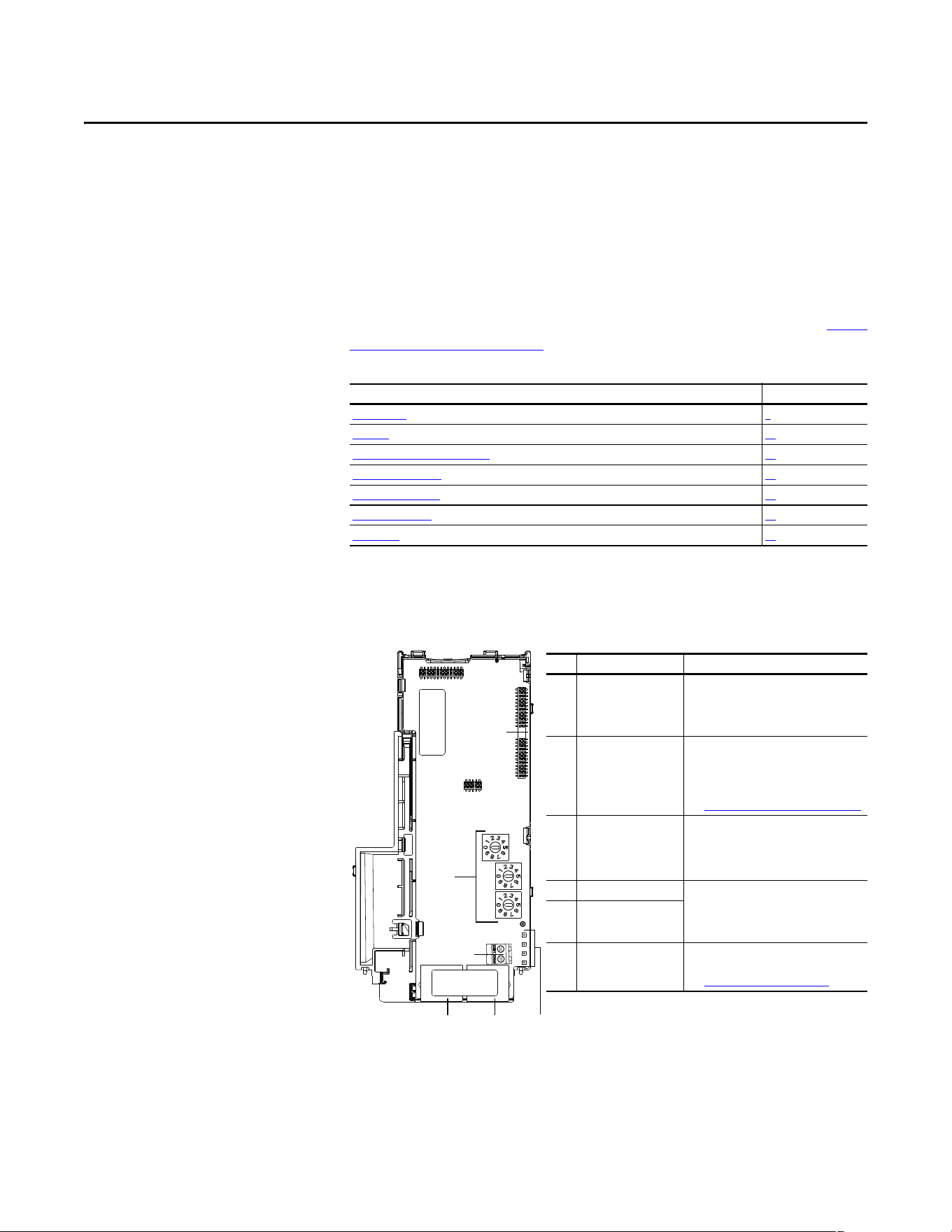
Components
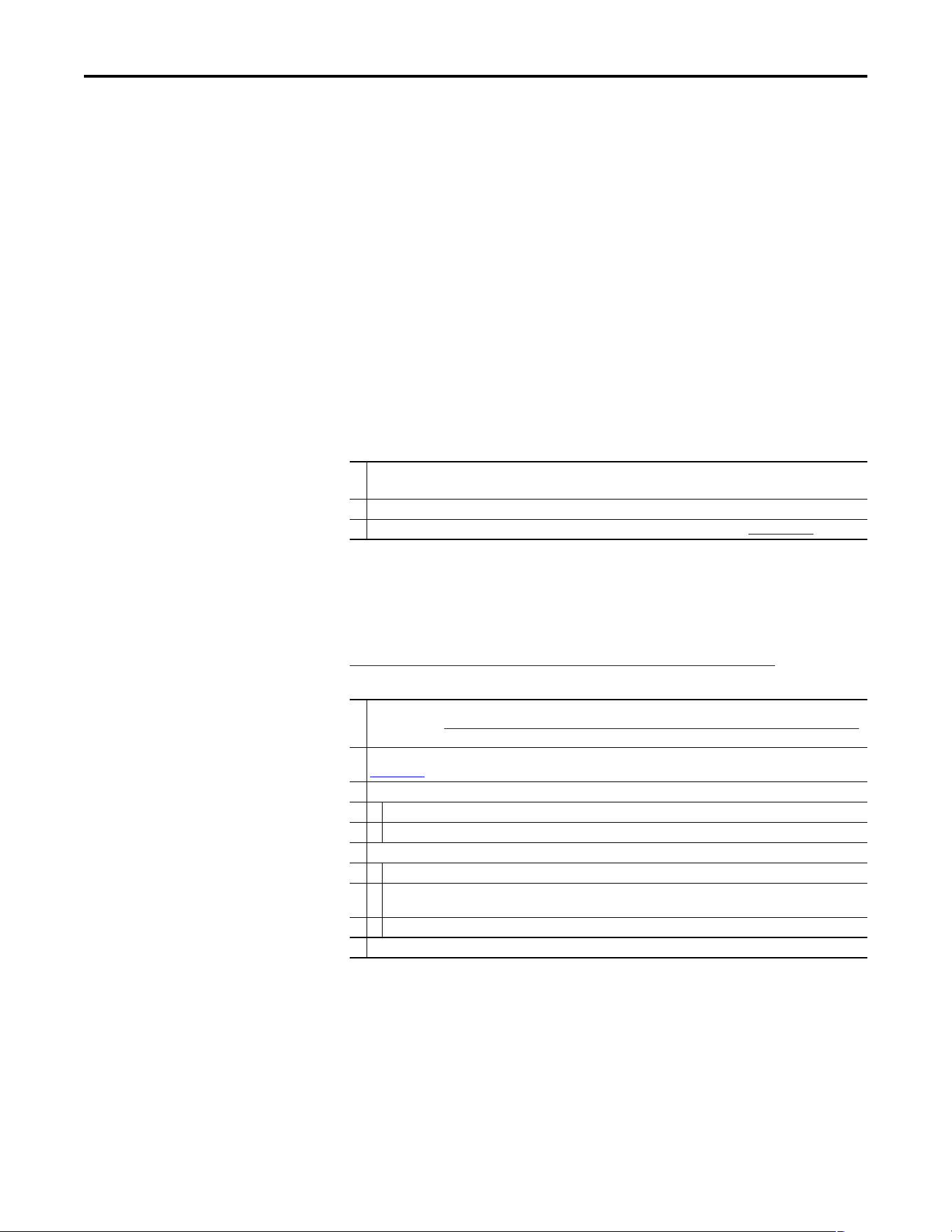
Components of the Dual-Port EtherNet/IP Adapter
Topic Page
Components 9
Features 10
Understanding Parameter Types 10
Compatible Products 11
Required Equipment 11
Safety Precautions 12
Quick Start 13
Item Part Description
➊ Communication
card-Drive header
A 40-pin, double-row shrouded female
header. An interface connector is used to
connect this header to a header on the
drive.
➋ Node Address switches Sets the network node address of the
adapter when not using:
• A BOOTP or DHCP server
• Adapter parameters
See Setting the Node Address
on page 16.
➌ CS1/CS2 terminals Provides a clean ground for the
communication bus cable shields.
CS1 or CS2 should be connected to a clean
ground or PE ground on the drive.
➍ ENET1 Network port An RJ-45 connector for the Ethernet
cable. It is CAT-5 compliant to ensure
reliable data transfer on 100Base-Tx
Ethernet connections.
➎ ENET2 Network port
➏ Status indicators Four LEDs that indicate the status of the
connected drive, adapter and network.
See Troubleshooting
on page 115.
25-COMM-E2P
➊
➋
➌
➍
➎ ➏

10 Rockwell Automation Publication 520COM-UM003A-EN-E - June 2013
Chapter 1 Getting Started
Features
The features of the Dual-port EtherNet/IP adapter include:
• Industrial Ethernet switch, and ENET1 and ENET2 network ports that
provide connections for EtherNet/IP star, linear, or device-level ring
(DLR) network topologies.
• Switches to set a network node address before applying power to the
drive—or you can disable the switches and use a BOOTP server, a
Dynamic Host Configuration Protocol (DHCP) server, or adapter
parameters to configure the IP address.
• Compatibility with various configuration tools to configure the adapter
and host drive. The tools include the PowerFlex 4/40-class HIM (Human
Interface Module 22-HIM-A3 or 22-HIM-C2S), and drive-configuration
software such as RSLogix 5000 (version 17 or greater), Logix Designer
(version 21 or greater), and Connected Components Workbench (version
3 or greater).
• Status indicators that report the status of the adapter and network
communications.
• Parameter-configured 16-bit Datalinks in the I/O to meet application
requirements (four Datalinks to write data from the network to the drive,
and four Datalinks to read data to the network from the drive).
• Explicit Messaging support.
• Master-Slave hierarchy that can be configured to transmit data to and from
a controller on the network.
• Multi-drive mode which allows up to five drives to share a single
EtherNet/IP node.
• User-defined fault actions to determine how the adapter and its host
PowerFlex 520-series drive respond to:
– I/O messaging communication disruptions (Comm Flt Action)
– Controllers in idle mode (Idle Flt Action)
• Automatic Device Configuration (ADC) is an RSLogix 5000 (version 20
or greater) and Logix Designer (version 21 or greater) software feature that
supports the automatic download of configuration data upon the Logix
controller establishing an EtherNet/IP network connection to a
PowerFlex 520-series drive and its associated peripherals.
Understanding Parameter
Types
This manual references two types of parameters:
• Device parameters are used to configure the adapter to operate on the
network. These parameters reside on the adapter.
• Host parameters are used to configure the drive, including the datalink
configuration for the datalinks used by the adapter. These parameters
reside on the drive.
Rockwell Automation Publication 520COM-UM003A-EN-E - June 2013 11
Getting Started Chapter 1
Yo u c an vi e w ad ap te r Device parameters and Host parameters with any of the
following drive configuration tools:
• PowerFlex 4-class HIM (22-HIM-A3 or 22-HIM-C2S)
• Connected Components Workbench software – click the tab for the
adapter at the bottom of the window, and click the Parameters icon in the
tool bar.
Compatible Products
At the time of publication, the adapter is compatible with Allen-Bradley
PowerFlex 525 and PowerFlex 523 drives.
Required Equipment
Equipment Shipped with the Drive
When you unpack the adapter, verify that the package includes:
User-Supplied Equipment
The adapter parameters can be configured using the drive keypad interface (see
Using the Drive Keypad Interface to Access Parameters
on page 25). In addition,
you must supply:
❑ One PowerFlex 520-series Dual-port EtherNet/IP communications adapter (25-COMM-E2P)
(installed in a PowerFlex 520-series drive control module back cover)
❑ Two interface connectors (for connecting the Communication card-Drive header to the header on the drive)
❑ One PowerFlex 520-series Communication Adapters Installation Instructions, publication 520COM-IN001
❑ Ethernet cable (see the EtherNet/IP Media Planning and Installation Manual, ODVA publication 148 available on the
ODVA web site at http://odva.org/Home/ODVATECHNOLOGIES/EtherNetIP/EtherNetIPLibrary/tabid/76/Default.aspx
for details)
❑ Ethernet switch (see the Ethernet Design Considerations Reference Manual, Rockwell Automation publication
ENET-RM002
for details)
❑ Optional configuration tool, such as:
– PowerFlex 22-HIM-A3/-C2S HIM
– DHCP/BOOTP Utilities
❑ Controller configuration software, such as:
– RSLinx Classic (version 2.50 or later)
– RSLogix 5000 (version 17 or greater) or Logix Designer (version 21 or greater) when using drive-specific Add-On
Profile (AOP)
– Connected Components Workbench (version 3 or greater)
❑ A PC connection to the EtherNet/IP network

12 Rockwell Automation Publication 520COM-UM003A-EN-E - June 2013
Chapter 1 Getting Started
Safety Precautions
Please read the following safety precautions carefully.
ATTENTION: Risk of injury or death exists. The PowerFlex drive may contain
high voltages that can cause injury or death. Remove all power from the
PowerFlex drive, and then verify power has been removed before installing or
removing an adapter.
ATTENTION: Risk of injury or equipment damage exists. Only personnel
familiar with drive and power products and the associated machinery should
plan or implement the installation, start up, configuration, and subsequent
maintenance of the drive using this Dual-port EtherNet/IP adapter. Failure to
comply may result in injury and/or equipment damage.
ATTENTION: Risk of equipment damage exists. The adapter contains ESD
(Electrostatic Discharge) sensitive parts that can be damaged if you do not
follow ESD control procedures. Static control precautions are required when
handling the adapter. If you are unfamiliar with static control procedures, see
Guarding Against Electrostatic Damage, publication 8000-4.5.2
.
ATTENTION: Risk of injury or equipment damage exists. If the adapter is
transmitting control I/O to the drive, the drive may fault when you reset the
adapter. Determine how your drive will respond before resetting the adapter.
ATTENTION: Risk of injury or equipment damage exists. Device parameters 23
[Comm Flt Action] and 24 [Idle Flt Action] let you determine the action of
the adapter and drive if I/O communication is disrupted, the controller is idle, or
explicit messaging for drive control is disrupted. By default, these parameters
fault the drive. You may configure these parameters so that the drive continues
to run, however, precautions should be taken to ensure that the settings of
these parameters do not create a risk of injury or equipment damage. When
commissioning the drive, verify that your system responds correctly to various
situations (for example, a disconnected cable or a controller in idle state).
ATTENTION: Risk of injury or equipment damage exists. When a system is
configured for the first time, there may be unintended or incorrect machine
motion. Disconnect the motor from the machine or process during initial system
testing.
ATTENTION: Risk of injury or equipment damage exists. The examples in this
publication are intended solely for purposes of example. There are many
variables and requirements with any application. Rockwell Automation, Inc.
does not assume responsibility or liability (to include intellectual property
liability) for actual use of the examples shown in this publication.
Rockwell Automation Publication 520COM-UM003A-EN-E - June 2013 13
Getting Started Chapter 1
Quick Start
This section is provided to help experienced users quickly start using the adapter.
If you are unsure how to complete a step, refer to the referenced chapter.
Step Action See...
1 Review the safety precautions for the adapter. Throughout this manual
2 Verify that the PowerFlex drive is properly installed. PowerFlex 525
Adjustable Frequency AC
Drive User Manual,
publication 520-UM001
3 Commission the adapter.
Set the adapter IP address. When using the adapter node address switches, set the IP
address now and proceed with step 4. When using a DHCP or BOOTP server, or adapter
parameters instead to set the IP address, proceed with step 4.
Chapter 2,
Installing the Adapter
4 Install the adapter.
Verify that the PowerFlex drive is not powered. Then, connect the adapter to the drive
using the interface connector (included with adapter).
PowerFlex 520-Series
Communication Adapters
Installation Instructions,
publication 520COM-
IN001 and
Chapter 2,
Installing the Adapter
5 Connect the adapter to the EtherNet/IP network.
Verify that the PowerFlex drive is not powered. Then, connect the adapter to the
network using an Ethernet cable.
Chapter 2,
Installing the Adapter
6 Apply power to the drive.
a. Replace the control module cover.
b. The adapter receives power from the drive. Apply power to the drive. The status
indicators should be green. If they flash red, there is a problem. See
Troubleshooting on page 115.
c. Configure and verify key drive parameters.
7 Configure the adapter for your application.
Set adapter parameters for the following functions as required by your application:
– IP address, subnet mask, and gateway address (only when not using adapter
node address switches)
– Data rate
– I/O configuration
– Master-Slave hierarchy
– Fault actions
Chapter 3
,
Configuring the Adapter
8 Configure the controller to communicate with the adapter.
Use a controller configuration tool such as RSLogix 5000 or Logix Designer to configure
the master on the EtherNet/IP network to recognize the adapter and drive.
Chapter 4,
Configuring the I/O
9 Create a ladder logic program.
Use a controller configuration tool such as RSLogix 5000 or Logix Designer to create a
ladder logic program that enables you to:
– Control the adapter and connected drive using I/O.
– Monitor or configure the drive using Explicit messages.
Chapter 5,
Using the I/O
Chapter 6,
Using Explicit Messaging

14 Rockwell Automation Publication 520COM-UM003A-EN-E - June 2013
Chapter 1 Getting Started
Notes:

Rockwell Automation Publication 520COM-UM003A-EN-E - June 2013 15
Chapter 2
Installing the Adapter
Chapter 2 provides instructions for installing the Dual-port EtherNet/IP adapter
in a PowerFlex 520-series drive.
Preparing for Set-Up
Before installing the adapter, do the following:
• Make sure the Ethernet switch is the correct type. A “managed” switch that
supports IGMP snooping is usually recommended. An “unmanaged”
switch can be used instead if RSLogix 5000 software (version 18 or
greater) is used and all devices on the network are configured for “unicast”
I/O. For more details, see the following documents:
– EtherNet/IP Media Planning and Installation Manual,
ODVA publication 148
– EtherNet/IP Network Infrastructure Guidelines,
ODVA publication 35
– Ethernet Design Considerations Reference Manual,
publication ENET-RM002
• Understand IGMP Snooping/Ethernet Switches
The adapter is a multicast device. In most situations, an IGMP snooping
(managed) switch is required. If more than one or two adapters are
connected to the switch, a managed switch is required—otherwise the
drive may fault on a Net I/O Timeout network loss. The adapter,
RSLogix 5000 (version 18 or greater), Logix Designer (version 21 or
greater), and a ControlLogix or CompactLogix controller will support
unicast. Unicast setup is required when adding the drive to the I/O. When
all adapters are set up as unicast devices, then an IGMP snooping
(managed) switch is not needed.
Much of EtherNet/IP implicit (I/O) messaging uses IP multicast to
distribute I/O control data, which is consistent with the CIP producer/
consumer model. Historically, most switches have treated multicast
packets the same as broadcast packets. That is, all multicast packets are re-
transmitted to all ports.
Topic Page
Preparing for Set-Up
15
Setting the Node Address 16
Connecting the Adapter to the Drive 18
Connecting the Adapter to the Network 20
Applying Power 22
Commissioning the Adapter 24

16 Rockwell Automation Publication 520COM-UM003A-EN-E - June 2013
Chapter 2 Installing the Adapter
IGMP snooping constrains the flooding of multicast traffic by dynamically
configuring switch ports so that multicast traffic is forwarded only to ports
associated with a particular IP multicast group.
Switches that support IGMP snooping (managed switches) “learn” which
ports have devices that are part of a particular multicast group and only
forward the multicast packets to the ports that are part of the multicast
group.
Be careful as to what level of support a switch has of IGMP snooping.
Some layer 2 switches that support IGMP snooping require a router
(which could be a layer 3 switch) to send out IGMP polls to learn what
devices are part of the multicast group. Some layer 2 switches can use
IGMP snooping without a router sending polls. If your control system is a
stand-alone network or is required to continue performing if the router is
out of service, make sure the switch you are using supports IGMP
snooping without a router being present.
• See Specifications
on page 123 for the number of CIP connections
supported by the adapter.
• Verify that you have all required equipment. See Required Equipment
on
page 11.
Setting the Node Address
There are four methods for configuring the adapter’s node address:
• Node Address Switches — Use these switches when working on a simple
isolated network (for example, 192.168.1.xxx) that has other products
with switches to set their IP addresses, does not need to be accessed from
outside the network, and you prefer a simplified node addressing method.
The three rotary switches are read when the drive powers up, and represent
three decimal digits from top to bottom (see Setting the Node Address
Switches on page 18). When set to a valid address (001...254), the adapter
will use that value as the lower octet of its IP address (192.168.1.xxx, where
xxx = rotary switch settings), along with a subnet mask of 255.255.255.0,
and a gateway address of 0.0.0.0 when switches are set to 001, or a gateway
address of 192.168.1.1 when switches are set from 002...254. Also, the
setting for Device parameter 04 [Net Addr Sel] is automatically ignored.
ATTENTION: Risk of equipment damage exists. The adapter contains ESD
(Electrostatic Discharge) sensitive parts that can be damaged if you do not
follow ESD control procedures. Static control precautions are required when
handling the adapter. If you are unfamiliar with static control procedures, see
Guarding Against Electrostatic Damage, publication 8000-4.5.2
.
IMPORTANT
The adapter has EtherNet/IP embedded switch technology, and ENET1 and
ENET2 network ports to connect to a linear or device-level ring (DLR) network
in a single subnet.
You cannot use ENET1 and ENET 2 network ports as two network interface
cards connected to two different subnets.

Rockwell Automation Publication 520COM-UM003A-EN-E - June 2013 17
Installing the Adapter Chapter 2
See Setting the Node Address Switches on page 18 and its accompanying
table for all possible switch settings and their related descriptions.
•Adapter Parameters — Use adapter parameters when you want more
flexibility in setting up the IP address, or need to communicate outside the
control network using a gateway. To use parameters as the source for the IP
address, the Node Address switches must be set to a value other than
001...254 or 888, and Device parameter 04 [Net Addr Sel] must be set to
1“Parameters”. The IP address, subnet mask, and gateway addresses will
then come from the parameters you set. See Using Adapter Parameters
on
page 31for more information.
•BOOTP Server — Use BOOTP when you want to configure a temporary
IP address, subnet mask, and gateway address for the adapter using a
BOOTP server. To use BOOTP as the source for the IP address, the Node
Address switches must be set to a value other than 001...254 or 888, and
Device parameter 04 [Net Addr Sel] must be set to 2 “BOOTP”.
Note the adapter’s hardware Ethernet Address (MAC) on the adapter’s
data nameplate label located on the provided control module back cover,
which will be used in Step 7 when configuring the BOOTP server (see
Using a BOOTP or DHCP Server
on page 28 for details).
• DHCP (Dynamic Host Configuration Protocol) — Use DHCP, the
default, when you want additional flexibility and ease-of-use compared to
BOOTP in configuring the IP address, subnet mask, and gateway address
for the adapter using a DHCP server. To use DHCP as the source for the
IP address, the Node Address switches must be set to a value other than
001…254 or 888, and Device parameter 04 [Net Addr Sel] must be set to 3
“DHCP”.
Note the adapter’s hardware Ethernet Address (MAC) on the adapter’s
data nameplate label located on the provided control module back cover,
which will be used in Step 7 when configuring the DHCP server (see
Using a BOOTP or DHCP Server
on page 28 for details).
IMPORTANT
When using the Node Address switches, set the network node address
before power is applied because the adapter uses the node address it
detects when it first receives power.
IMPORTANT
If parameter values are invalid or the adapter was not reset for the
values to take effect, the node address is established by using DHCP.
IMPORTANT
Regardless of the method used to set the adapter’s node address, each node on
the EtherNet/IP network must have a unique IP address. To change a node
address, you must set the new value and then remove and reapply power to (or
reset) the drive.
18 Rockwell Automation Publication 520COM-UM003A-EN-E - June 2013
Chapter 2 Installing the Adapter
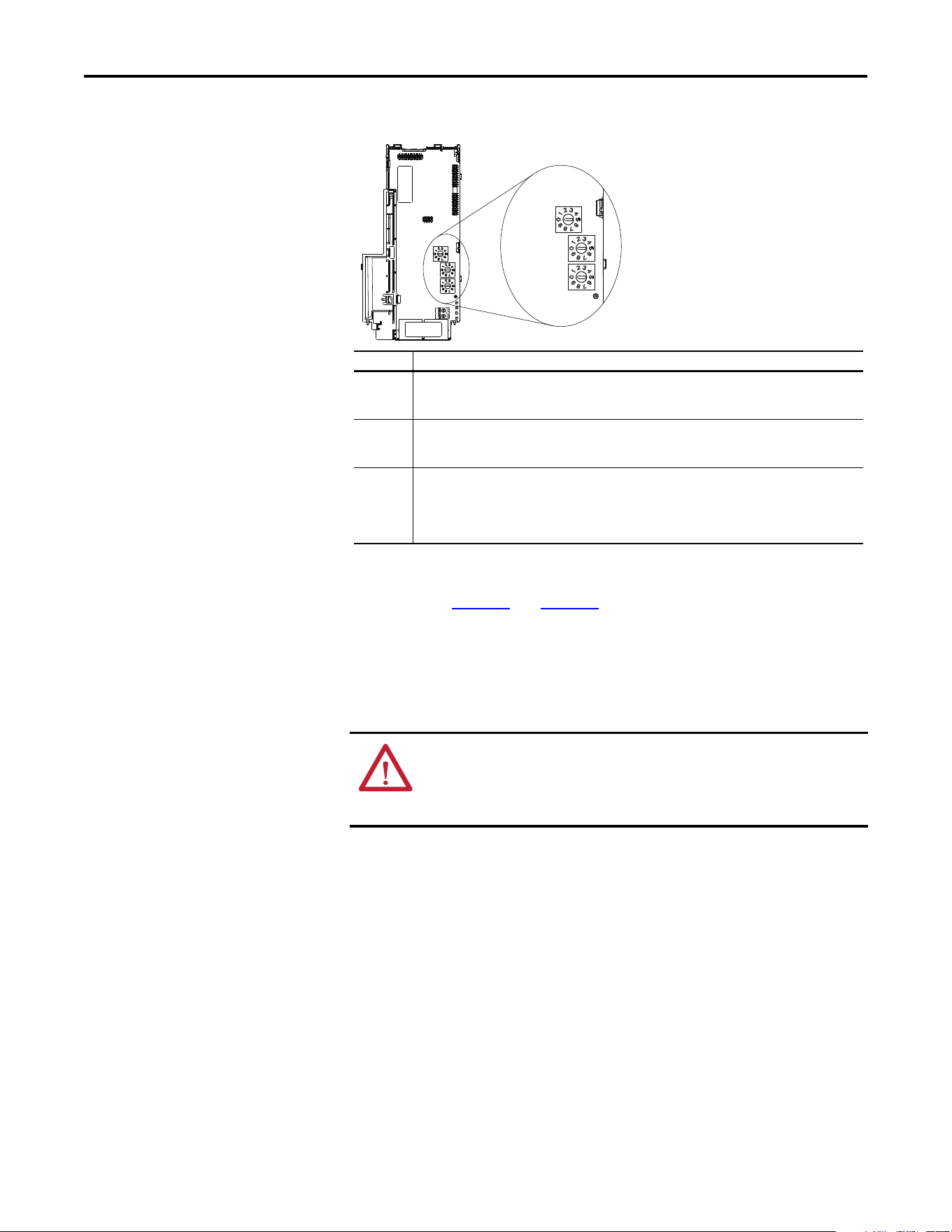
Setting the Node Address Switches
The Node Address switch settings can be verified by viewing Diagnostic Item
number 58 (see page 118
and page 120) with a PowerFlex 22-HIM-A3 or 22-
HIM-C2S HIM, or Connected Components Workbench (version 3 or greater)
software. Also, you can use Device parameter 05 [Net Addr Src], a read-only
parameter, to verify the selected setting for Device parameter 04 [Net Addr Sel].
Connecting the Adapter to
the Drive
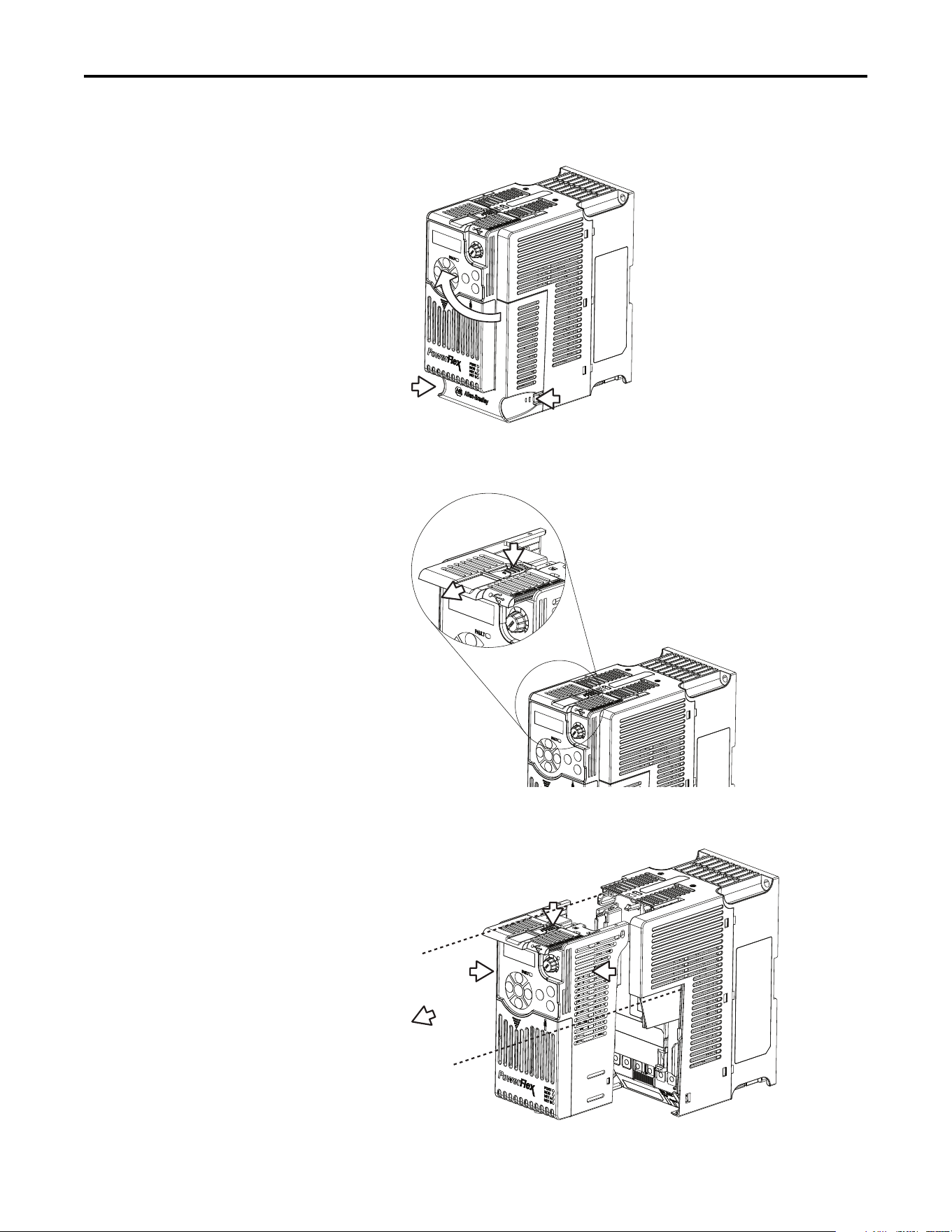
1. Remove power from the drive.
2. Use static control precautions.
3. Separate the drive’s control module from the power module.
Hundreds
position
Te ns
position
Ones
position
Setting Description
001...254 The adapter will use the Node Address switch settings for the network node address (192.168.1.xxx,
where xxx = rotary switch settings). The value stored in Device parameter 04 [Net Addr Sel] is
automatically ignored.
888 Resets the adapter network node address to factory defaults. Thereafter, the drive must be powered
down, the Node Address switches must be set to a correct value (001…254), and then the drive must be
powered up again to accept the new address.
Any other
setting
Disables the Node Address switches, and requires using Device parameter 04 [Net Addr Sel] to select
the source for the adapter’s network node address:
• 1 = Parameters of the adapter
• 2 = BOOTP server
• 3 = DHCP server (Default)
ATTENTION: Risk of injury or death exists. The PowerFlex drive may contain
high voltages that can cause injury or death. Remove all power from the
PowerFlex drive, and then verify power has been removed before installing or
removing an adapter.
Rockwell Automation Publication 520COM-UM003A-EN-E - June 2013 19
Installing the Adapter Chapter 2
a. Press and hold down the catch on both sides of the frame cover, then
pullout and swing upwards to remove (Frames B...E only).
b. Press down and slide out the top cover of the control module to unlock
it from the power module.
c. Hold the sides and top of the control module firmly, then pull out to
separate it from the power module.
20 Rockwell Automation Publication 520COM-UM003A-EN-E - June 2013
Chapter 2 Installing the Adapter
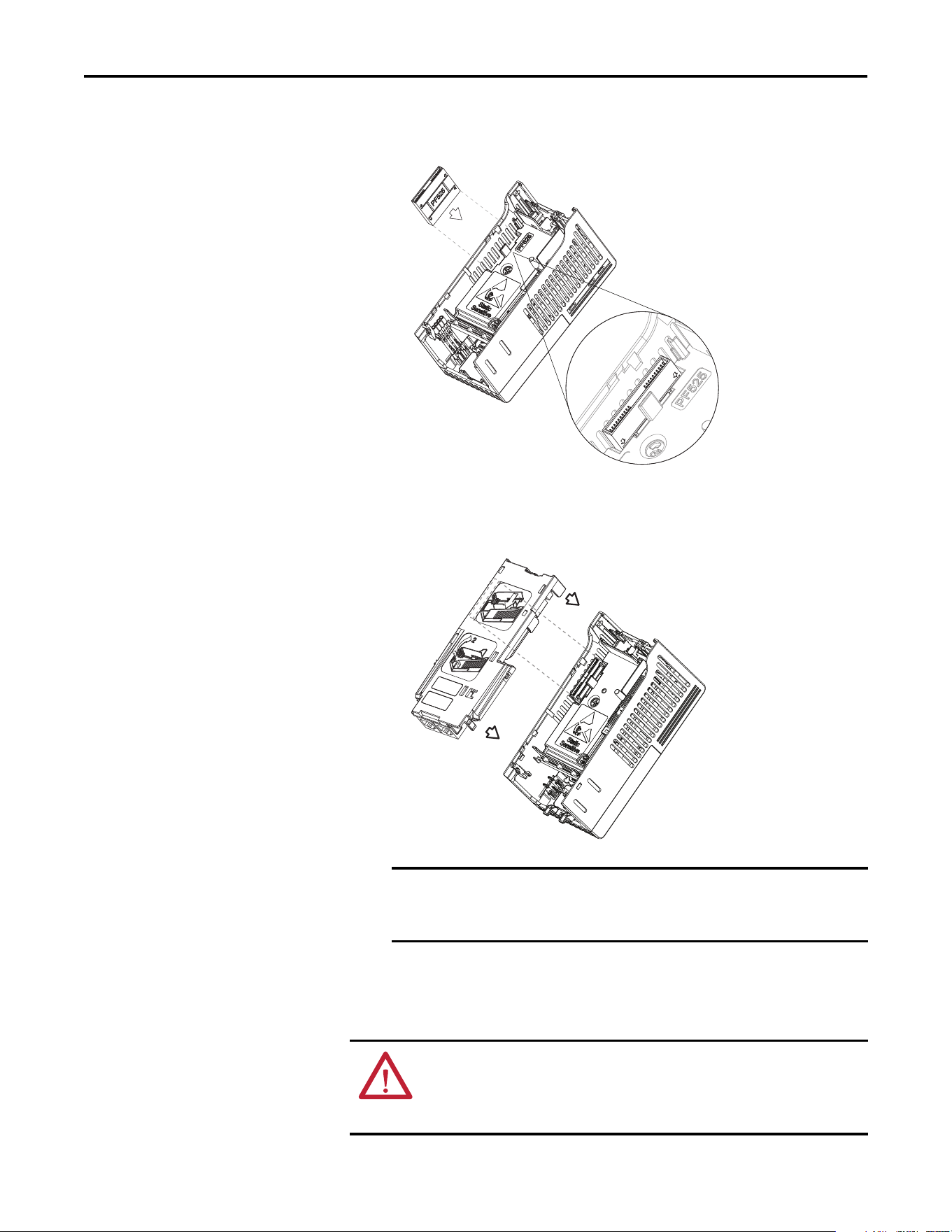
4. Insert the interface connector for the adapter into the header located at the
back of the control module.
5. Align the Communication card-Drive header on the adapter with the
interface connector. Then, press down firmly around the adapter. The
adapter snaps into the back of the control module.
6. Attach the control module to the power module.
Connecting the Adapter to
the Network
IMPORTANT
The CS1/CS2 terminals on the adapter provide a clean ground for the
communication bus cable shields. You should connect the CS1 or CS2
terminal to a clean ground or PE ground on the drive.
ATTENTION: Risk of injury or death exists. The PowerFlex drive may contain
high voltages that can cause injury or death. Remove power from the drive, and
then verify power has been discharged before connecting the adapter to the
network.
Rockwell Automation Publication 520COM-UM003A-EN-E - June 2013 21
Installing the Adapter Chapter 2
1. Remove power from the drive.
2. Use static control precautions.
3. Connect one end of an Ethernet cable to the network.
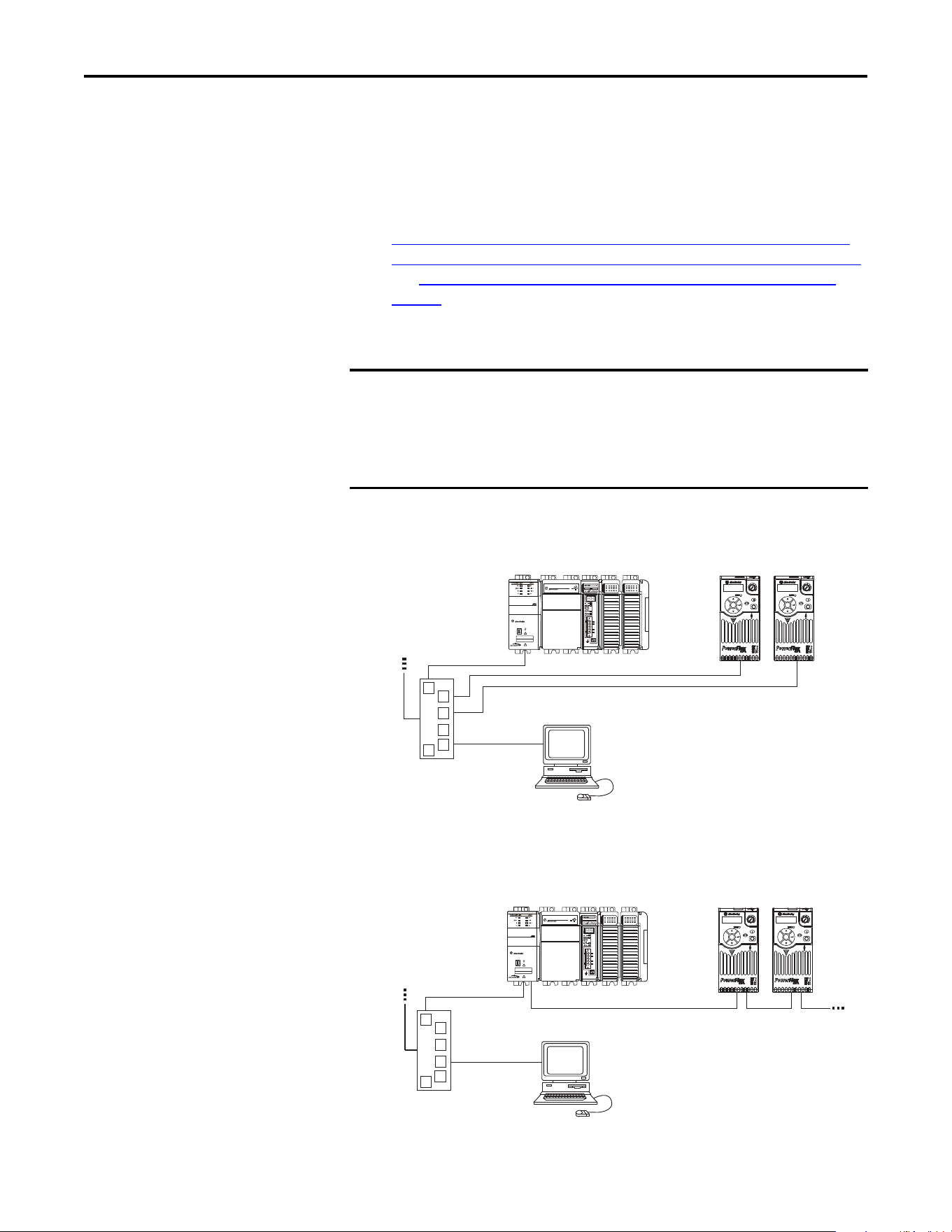
Examples of different EtherNet/IP network topologies are shown in
Connecting the Ethernet Cable in a Star Topology Network
on page 21,
Connecting the Ethernet Cable in a Linear Topology Network
on page 21,
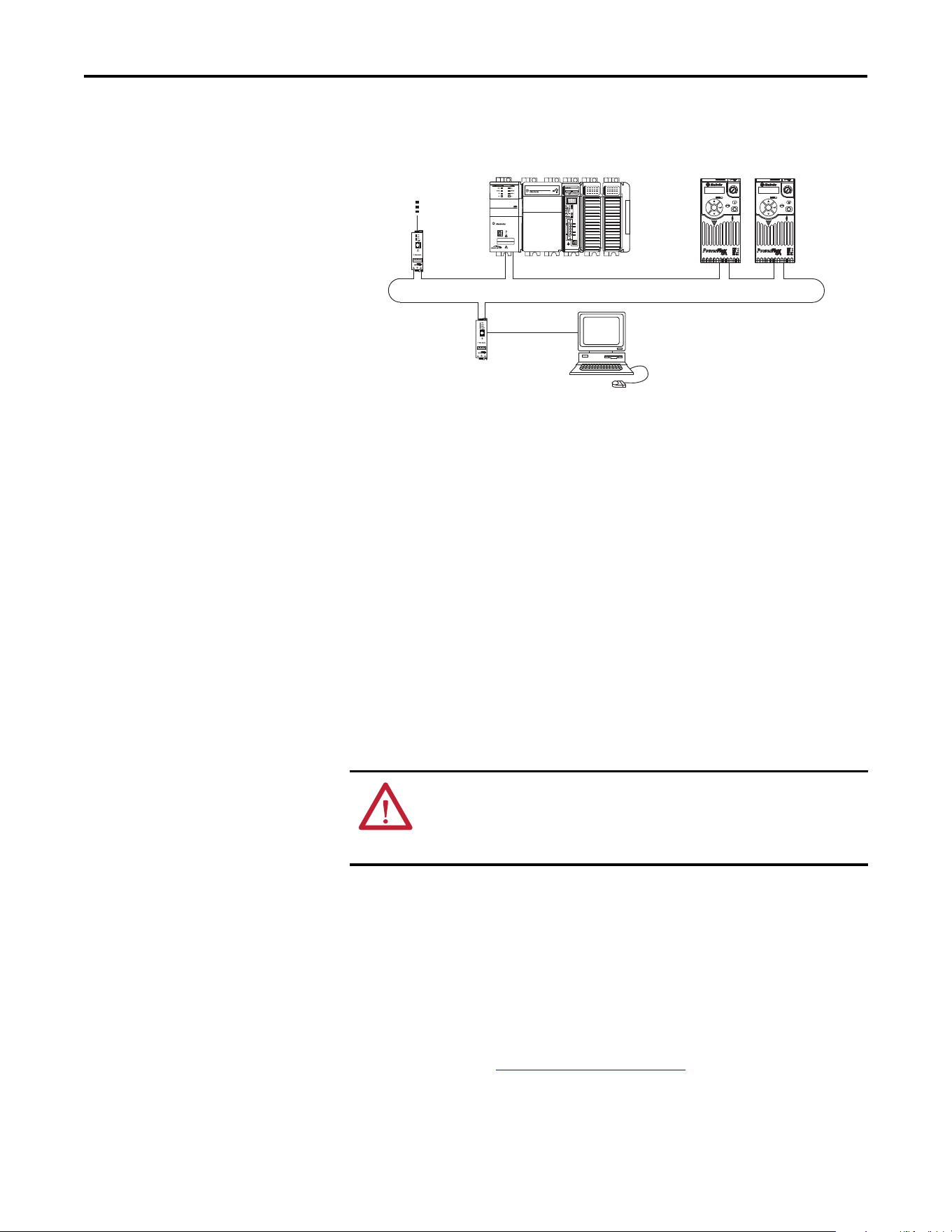
and Connecting the Ethernet Cable in a DLR Topology Network
on
page 22. For information about linear and device-level ring (DLR)
topologies, see EtherNet/IP Embedded Switch Technology, publication
ENET-AP005.
Connecting the Ethernet Cable in a Star Topology Network
Connecting the Ethernet Cable in a Linear Topology Network
IMPORTANT
The adapter has EtherNet/IP embedded switch technology, and ENET1 and
ENET2 network ports to connect to a linear or device-level ring (DLR) network
in a single subnet.
You cannot use ENET1 and ENET 2 network ports as two network interface
cards connected to two different subnets.
1 (Front)1 (Front)1 (Front)
2 (Rear)
00:00:BC:2E:69:F6
Esc
Sel
Esc
Sel
External
Ethernet
switch
1769-L36ERM CompactLogix controller
with embedded EtherNet/IP bridge
PowerFlex 520-series drives with
25-COMM-E2P adapter
(1)
(Frame A shown)
Computer with
Ethernet Connection
To other
EtherNet/IP
networks
(1) The Ethernet cable may be connected to the adapter’s ENET1 or ENET 2 network port.
1 (Front)1 (Front)1 (Front)
2 (Rear)
00:00:BC:2E:69:F6
Esc
Sel
Esc
Sel
External
Ethernet
switch
1769-L36ERM CompactLogix controller
with embedded EtherNet/IP bridge
PowerFlex 520-series drives with
25-COMM-E2P adapter
(1)
(Frame A shown)
Computer with
Ethernet Connection
To other
EtherNet/IP
networks
(1) The adapter’s ENET1 and ENET2 network ports are used.
22 Rockwell Automation Publication 520COM-UM003A-EN-E - June 2013
Chapter 2 Installing the Adapter
Connecting the Ethernet Cable in a DLR Topology Network
4. Depending on the network topology, do one of the following:
• Star Network Topology—Route the other end of the Ethernet cable
from the network through the bottom of the drive, and insert its cable
plug into the option module’s ENET1 or ENET2 network port.
• Linear or DLR Network Topology—Route the other end of the
Ethernet cable from the network through the bottom of the first drive,
and insert its cable plug into the option module ENET1 network port.
To connect to the second drive, attach another Ethernet cable between
the first drive’s option module ENET2 network port and the second
drive’s option module ENET1 network port.
To connect additional drives, repeat these daisy-chain connections in
the same way.
Applying Power
Apply power to the drive. The adapter receives its power from the drive.
Startup Status Indication
After power has been applied, the status indicators can be viewed on the front of
the drive. When you apply power to the adapter for the first time, the status
indicators should be green after an initialization. If the status indicators go red,
there is a problem. See Troubleshooting
on page 115.
1 (Front)1 (Front)1 (Front)
2 (Rear)
00:00:BC:2E:69:F6
Esc
Sel
Esc
Sel
1783-ETAP
1769-L36ERM CompactLogix controller
with embedded EtherNet/IP bridge
PowerFlex 520-series drives with
25-COMM-E2P adapter
(1)
(Frame A shown)
Computer with
Ethernet Connection
To other
EtherNet/IP
networks
(1) The adapter’s ENET1 and ENET2 network ports are used.
1783-ETAP
ATTENTION: Risk of equipment damage, injury, or death exists. Unpredictable
operation may occur if you fail to verify that parameter settings are compatible
with your application. Verify that settings are compatible with your application
before applying power to the drive.
Rockwell Automation Publication 520COM-UM003A-EN-E - June 2013 23
Installing the Adapter Chapter 2
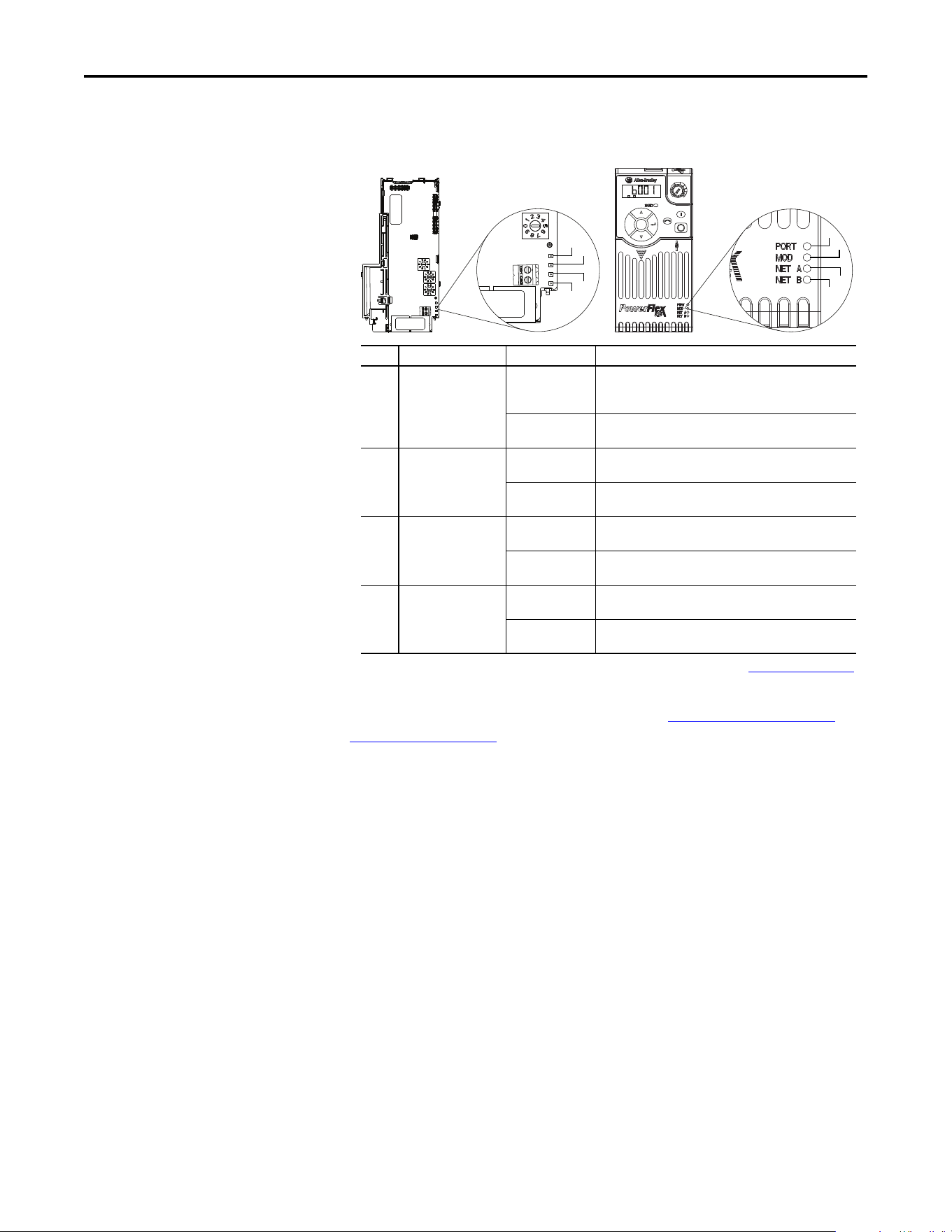
Drive and Adapter Status Indicators
For more details on status indicator operation see Understanding the Status
Indicators on page 115.
Configuring/Verifying Key Drive Parameters
The PowerFlex 525 drive can be separately configured for the control and
Reference functions in various combinations. For example, you could set the
drive to have its control come from a peripheral or terminal block with the
Reference coming from the network. Or you could set the drive to have its
control come from the network with the Reference coming from another
peripheral or terminal block. Or you could set the drive to have both its control
and Reference come from the network.
Configuring the Host parameters can be done using the drive’s keypad, a HIM,
and software such as RSLogix 5000 or Logix Designer, or Connected
Components Workbench. In the following example, the drive will receive the
Logic Command and Reference from the network.
1. Set the value of Host parameter P046 [Start Source 1]
to 4 “Network Opt”.
Esc
Sel
F
W
D
ENET LINK
EtherNet/IP
➊
➋
➌
25-COMM-E2P PowerFlex 525 Frame A shown
➍
➊
➋
➌
➍
Item Status Indicator Status
(1)
(1) If all status indicators are off, the adapter is not receiving power. If any other conditions occur, see Troubleshooting on page 85.
Description
➊ PORT Flashing green Normal operation. The adapter is establishing an I/O
connection to the drive. This status indicator will turn
steady green or red.
Steady green Normal operation. The adapter is properly connected and is
communicating with the drive.
➋ MOD Flashing green Normal operation. The adapter is operating but is not
transferring I/O data to a controller.
Steady green Normal operation. The adapter is operating and transferring
I/O data to a controller.
➌ NET A Flashing green Normal operation. The adapter is properly connected but is
not communicating with any devices on the network.
Steady green Normal operation. The adapter is properly connected and
communicating on the network to a controller.
➍ NET B Off Normal operation. The adapter is properly connected, but is
idle.
Flashing green Normal operation. The adapter is properly connected and
transmitting on the network.

24 Rockwell Automation Publication 520COM-UM003A-EN-E - June 2013
Chapter 2 Installing the Adapter
2. Set the value of Host parameter P047 [Speed Reference1]
to 4 “Network Opt”.
For more information on how to set different combinations of the control and
Reference functions, see the PowerFlex 525 drive user manual,
publication 520-UM001
.
Commissioning the Adapter
To commission the adapter, you must set a unique network node address. See the
Glossary
on page 161 for details about IP addresses. When using the Node
Address switches, see Setting the Node Address
on page 15 for details. When not
using these switches, a BOOTP or DHCP server, or adapter parameters can be
used to set the node address after connecting the adapter to the network and
applying power to the drive.
By default, the adapter is configured so that you must set the node address using a
DHCP server. For details, see Using a BOOTP or DHCP Server
on page 28. To
set the node address using adapter parameters, see Using Adapter Parameters
on
page 31.
TIP
The PowerFlex 525 drive supports up to three control functions and
three Reference functions.
IMPORTANT
New settings for some adapter parameters (for example, Device parameters 06
[IP Addr Cfg 1] through 09 [IP Addr Cfg 4]) are recognized only when power
is applied to the adapter or it is reset. After you change parameter settings,
cycle drive power or reset the adapter.

Rockwell Automation Publication 520COM-UM003A-EN-E - June 2013 25
Chapter 3
Configuring the Adapter
This chapter provides instructions and information for setting the parameters to
configure the Dual-port EtherNet/IP adapter.
For a list of parameters, see Adapter Parameters
on page 125. For definitions of
terms in this chapter, see the Glossary
on page 161.
Configuration Tools
The parameters can be configured using the drive keypad interface (see page 25)
or a PowerFlex 4-class HIM (Human Interface Module, see page 27
).
Software such as RSLogix 5000 (version 17 or greater), Logix Designer (version
21 or greater), and Connected Components Workbench (version 3 or greater)
can also be used to access the parameters.
Using the Drive Keypad
Interface to Access
Parameters
The following is an example of basic integral keypad and display functions. This
example provides basic navigation instructions and illustrates how to program a
parameter.
Topic Page
Configuration Tools
25
Using the Drive Keypad Interface to Access Parameters 25
Using the PowerFlex 4-Class HIM to Access Parameters 27
Using a BOOTP or DHCP Server 28
Using Adapter Parameters 31
Setting the Data Rate 32
Using Master-Slave Hierarchy 33
Setting a Fault Action 34
Resetting the Adapter 36
Viewing the Adapter Status Using Parameters 37
IMPORTANT
The Dual-port EtherNet/IP adapter Device parameters can be accessed on the
drive keypad via the “N” (Network) group. Note that the parameters in the “N”
group will appear offset from the Device parameter numbers referenced in this
manual by 1000 (decimal) on the LCD display.
26 Rockwell Automation Publication 520COM-UM003A-EN-E - June 2013
Chapter 3 Configuring the Adapter
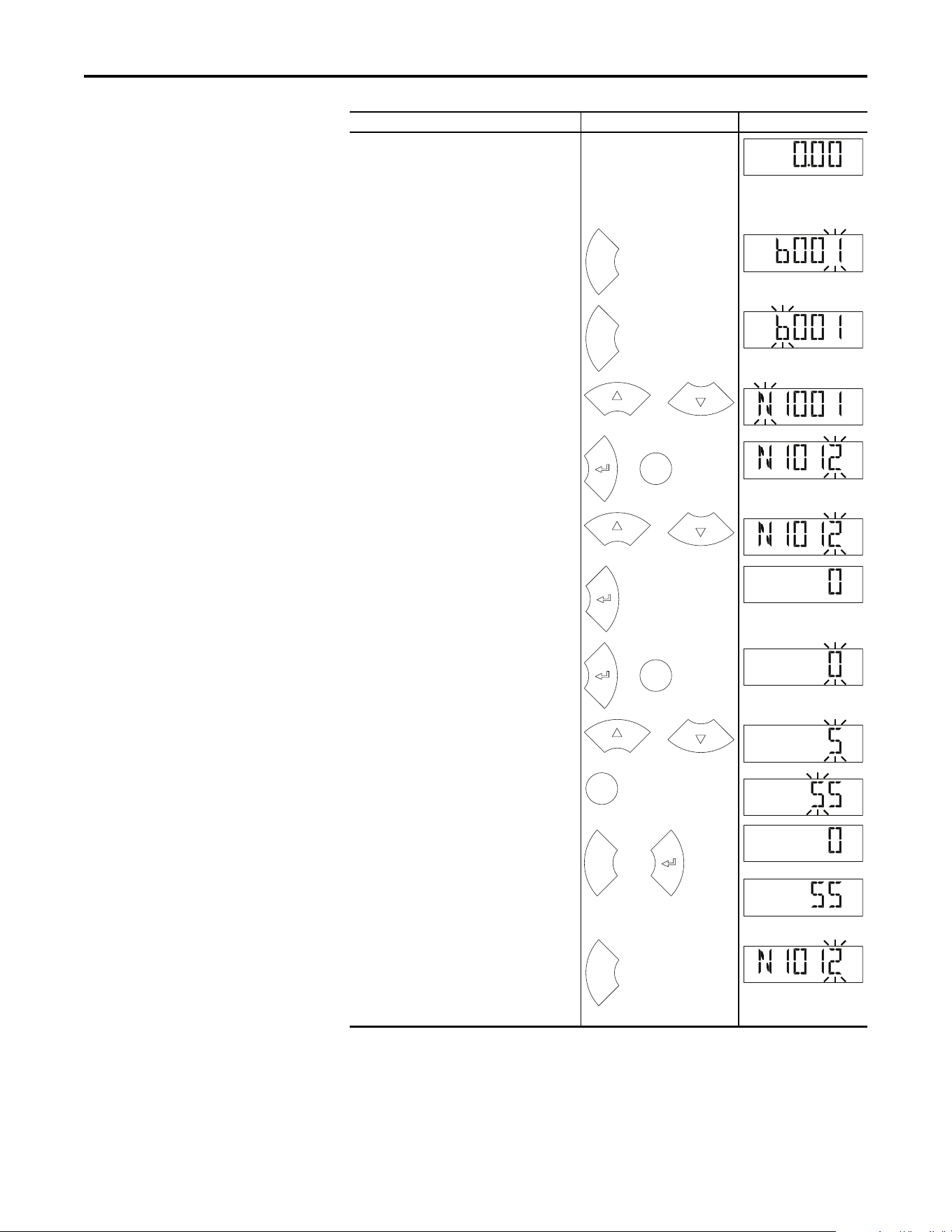
Step Key(s) Example Display
1. When power is applied, the last user-selected
Basic Display Group parameter number is briefly
displayed with flashing characters. The display
then defaults to that parameter’s current value
(Example shows the value of b001 [Output
Freq] with the drive stopped).
2. Press Esc to display the Basic Display Group
parameter number shown on power-up. The
parameter number will flash.
3. Press Esc to enter the parameter group list. The
parameter group letter will flash.
4. Press the Up Arrow or Down Arrow to scroll
through the group list (b, P, t, C, L, d, A, f, N, M,
and Gx).
5. Press Enter or Sel to enter a group. The right
digit of the last viewed parameter in that group
will flash.
6. Press the Up Arrow or Down Arrow to scroll
through the parameter list.
7. Press Enter to view the value of the parameter.
Or
Press Esc to return to the parameter list.
8. Press Enter or Sel to enter Program Mode and
edit the value. The right digit will flash and the
word Program on the LCD display will light up.
9. Press the Up Arrow or Down Arrow to change
the parameter value.
10. If desired, press Sel to move from digit to digit
or bit to bit. The digit or bit that you can change
will flash.
11. Press Esc to cancel a change and exit Program
Mode.
Or
Press Enter to save a change and exit Program
Mode.
The digit will stop flashing and the word
Program on the LCD display will turn off.
12. Press Esc to return to the parameter list.
Continue to press Esc to back out of the
programming menu.
If pressing Esc does not change the display, then
b001 [Output Freq] is displayed. Press Enter or
Sel to enter the group list again.
H
ER
T
Z
F
W
D
Esc
F
W
D
Esc
F
W
D
or
F
W
D
Sel
or
F
W
D
or
F
W
D
F
W
D
Sel
or
PROGR
A
M
F
W
D
or
PROGR
A
M
F
W
D
Sel
PROGR
A
M
F
W
D
Esc
or
F
W
D
F
W
D
or
Esc
F
W
D
Rockwell Automation Publication 520COM-UM003A-EN-E - June 2013 27
Configuring the Adapter Chapter 3
Using the PowerFlex 4-Class
HIM to Access Parameters
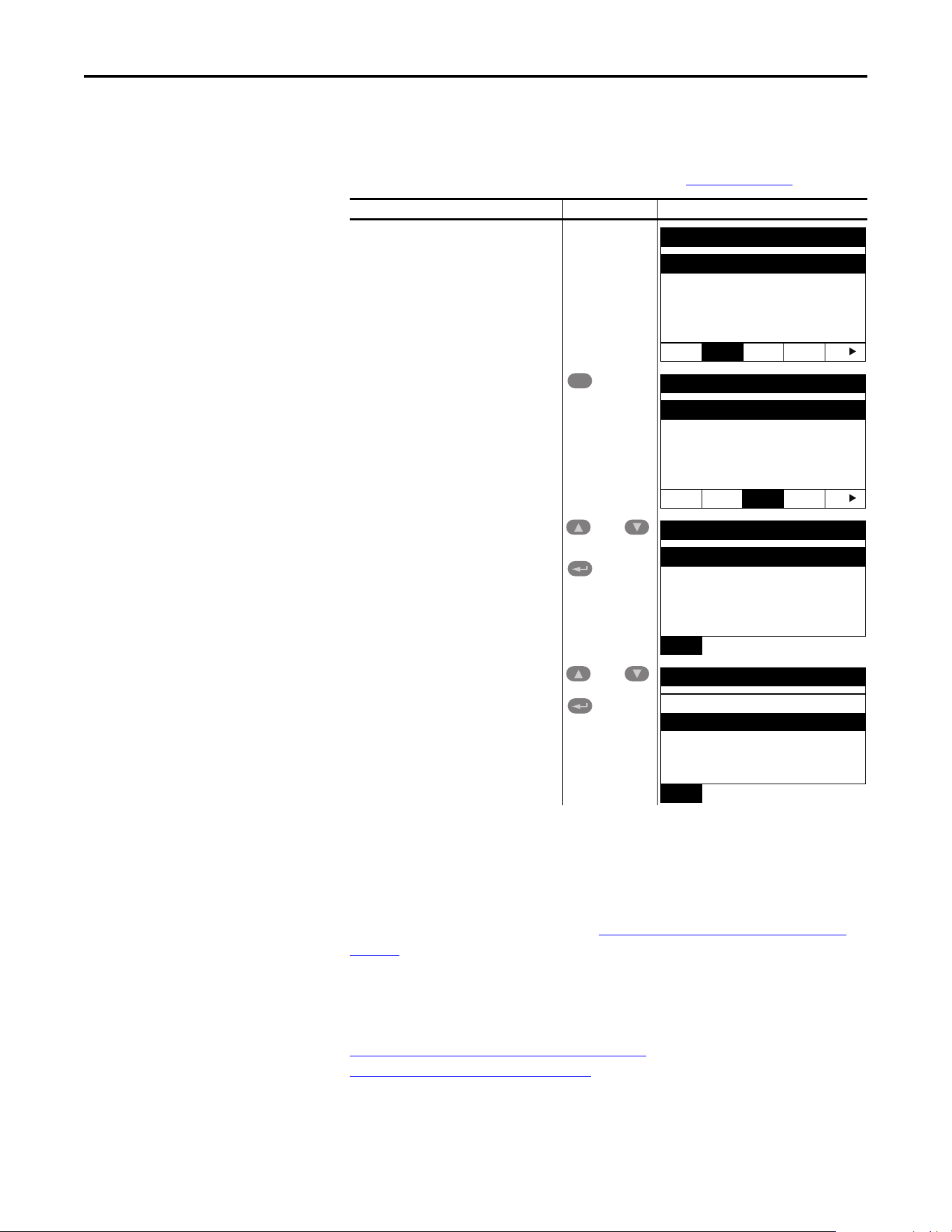
The PowerFlex 4-class HIM can be used to access parameters in the drive (see
basic steps shown below). It is recommended that you read through the steps for
your HIM before performing the sequence. For additional HIM information,
refer to the HIM Quick Reference card, publication 22HIM-QR001
.
To display the Host parameters, repeat steps 1 through 3 and select “PowerFlex
525” at step 3.
Setting the Adapter Node
Address
When the Node Address switches (see Setting the Node Address Switches on
page 18) are set to a value other than 001...254 or 888, Device parameter 04 [Net
Addr Sel] determines the source for the adapter node address. By default, the
Node Address switches are set to 999 and Device parameter 04 [Net Addr Sel] is
set to 3 “DHCP”. This combination selects a DHCP server as the source for the
node address. To use a BOOTP or DHCP server to set the node address, see
Using a BOOTP or DHCP Server
on page 28. To use adapter parameters, see
Using Adapter Parameters
on page 31.
Step Key(s) Example Display
1. Power up the drive. Then connect the HIM
to the DSI port of the drive. The Parameters
tab for the drive will be displayed.
2. Press Sel until the DSEL tab is selected.
3. Select DSI Device in the DSEL tab if it is not
already selected using the Up Arrow or
Down Arrow.
Press Enter to select DSI Device.
4. Press the Up Arrow or Down Arrow to scroll
to 25-COMM-E2P.
Press Enter to reload the HIM to browse
only the Communication Adapter (25-
COMM-E2P) parameters.
Parameters
Groups
Linear List
Changed Params
DIAG
PAR AM DSEL MEM SEL
Sel
Device Select
DSI Devices
DIAG PARAM
DSEL MEM SEL
and
DSI Devices
PowerFlex 525
25-COMM-E2P
and
DSI Devices
PowerFlex 525
25-COMM-E2P
28 Rockwell Automation Publication 520COM-UM003A-EN-E - June 2013
Chapter 3 Configuring the Adapter
Using a BOOTP or DHCP
Server
By default, the adapter is configured to accept an IP address, subnet mask, and
gateway address from a DHCP server. You can select from a variety of DHCP/
BOOTP utilities.
The instructions below use the DHCP/BOOTP Utility (version 2.3 or greater),
a free stand-alone program from Rockwell Automation that incorporates the
functionality of standard DHCP/BOOTP utilities with a graphical interface. It
is available from http://www.ab.com/networks/ethernet/bootp.html
. See the
Readme file and online Help for directions and more information.
Configuring the Adapter Using a DHCP/BOOTP Utility
1. Depending on the type of server (BOOTP or DHCP) being used, set
Device parameter 04 [Net Addr Sel] to either 2 “BOOTP” or 3 “DHCP”
respectively.
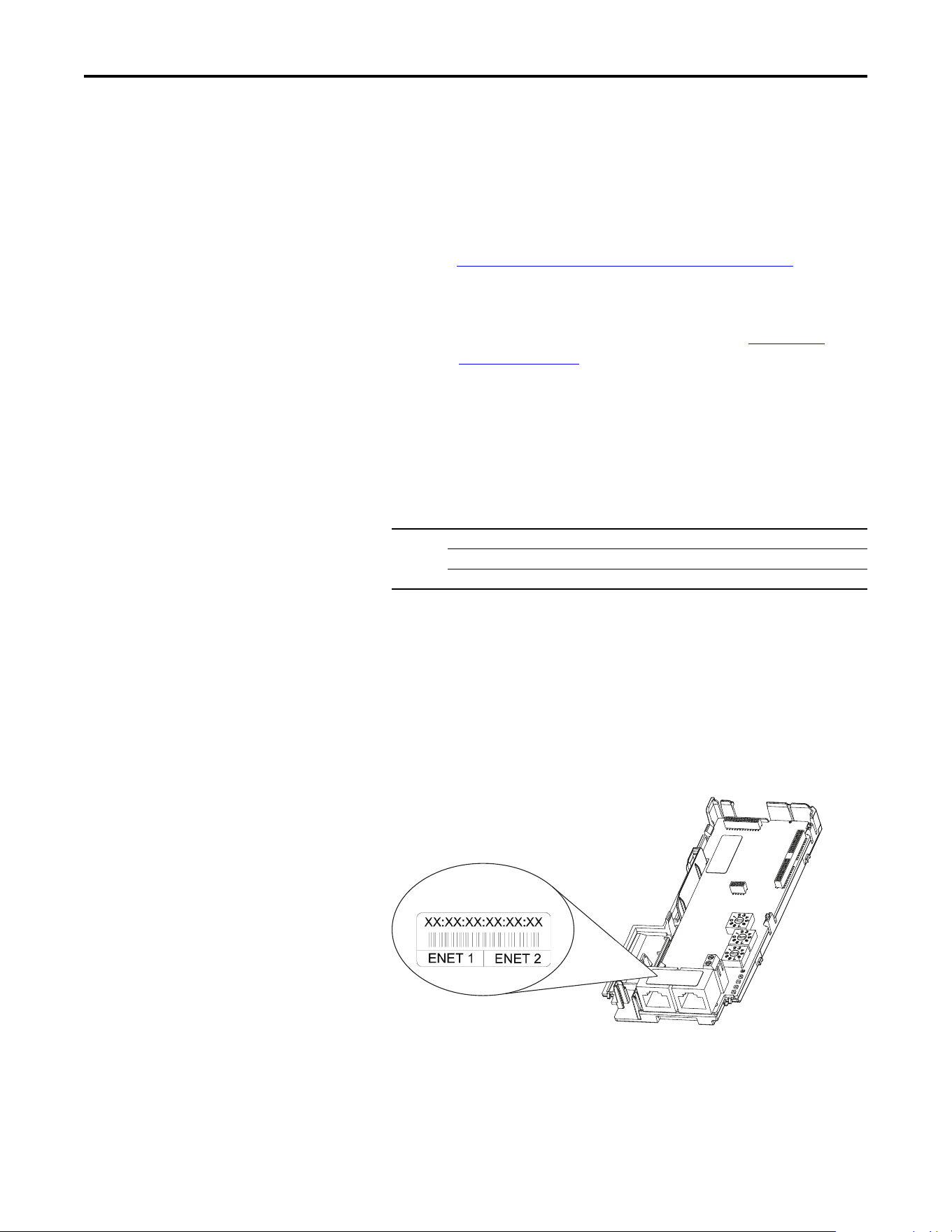
2. Verify and note the adapter’s hardware Ethernet Address (MAC), which
will be used in Step 7. There are two ways to do this:
• Use the PowerFlex 525 drive’s keypad or a HIM to access the diagnostic
items of the drive. Scroll to items 34 [HW Addr 1] through 39 [HW
Addr 6] to view the adapter’s hardware Ethernet Address (MAC).
Finally, convert these decimal values to a hex value.
• Locate the adapter’s hardware Ethernet Address (MAC) label on the
ENET1/ENET2 ports (provided with the adapter).
TIP
If desired, you can disable BOOTP and configure the IP address, subnet mask,
and gateway address using parameters. For details, see Using Adapter
Parameters on page 31.
Options 1“Parameters”
2“BOOTP”
3 “DHCP” (Default)
Ethernet Address label example
Rockwell Automation Publication 520COM-UM003A-EN-E - June 2013 29
Configuring the Adapter Chapter 3
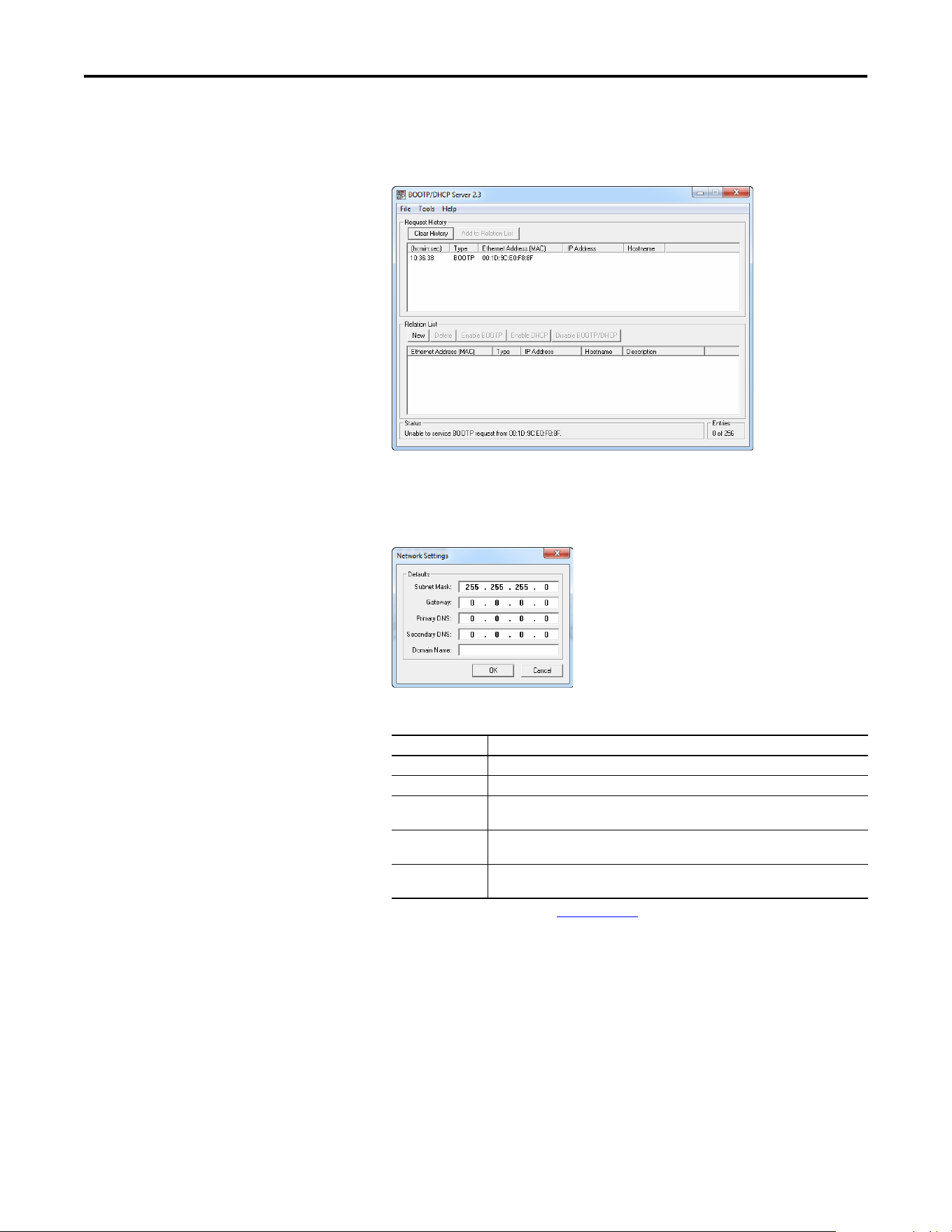
3. On a computer connected to the EtherNet/IP network, start the
BOOTP/DHCP software. The BOOTP/DHCP Server window
appears.
4. To properly configure devices on your EtherNet/IP network, you must
configure settings in the BOOTP/DHCP software to match the network.
Select To o l s > Network Settings to display the Network Settings window.
5. Edit the following:
6. Click OK to apply the settings. Devices on the network issuing BOOTP/
DHCP requests appear in the BOOTP/DHCP Request History list.
Box Type
Subnet Mask
(1)
(1) For definitions of these terms, see the Glossary on page 161.
The subnet mask for the adapter’s network.
Gateway
(1)
The IP address of the gateway device on the adapter’s network.
Primary DNS The address of the primary DNS server to be used on the local end of the link for
negotiating with remote devices.
Secondary DNS Optional – the address of the secondary DNS server to be used on the local end of the
link for negotiating with remote devices when the primary DNS server is unavailable.
Domain Name The text name corresponding to the numeric IP address that was assigned to the server
that controls the network.
30 Rockwell Automation Publication 520COM-UM003A-EN-E - June 2013
Chapter 3 Configuring the Adapter
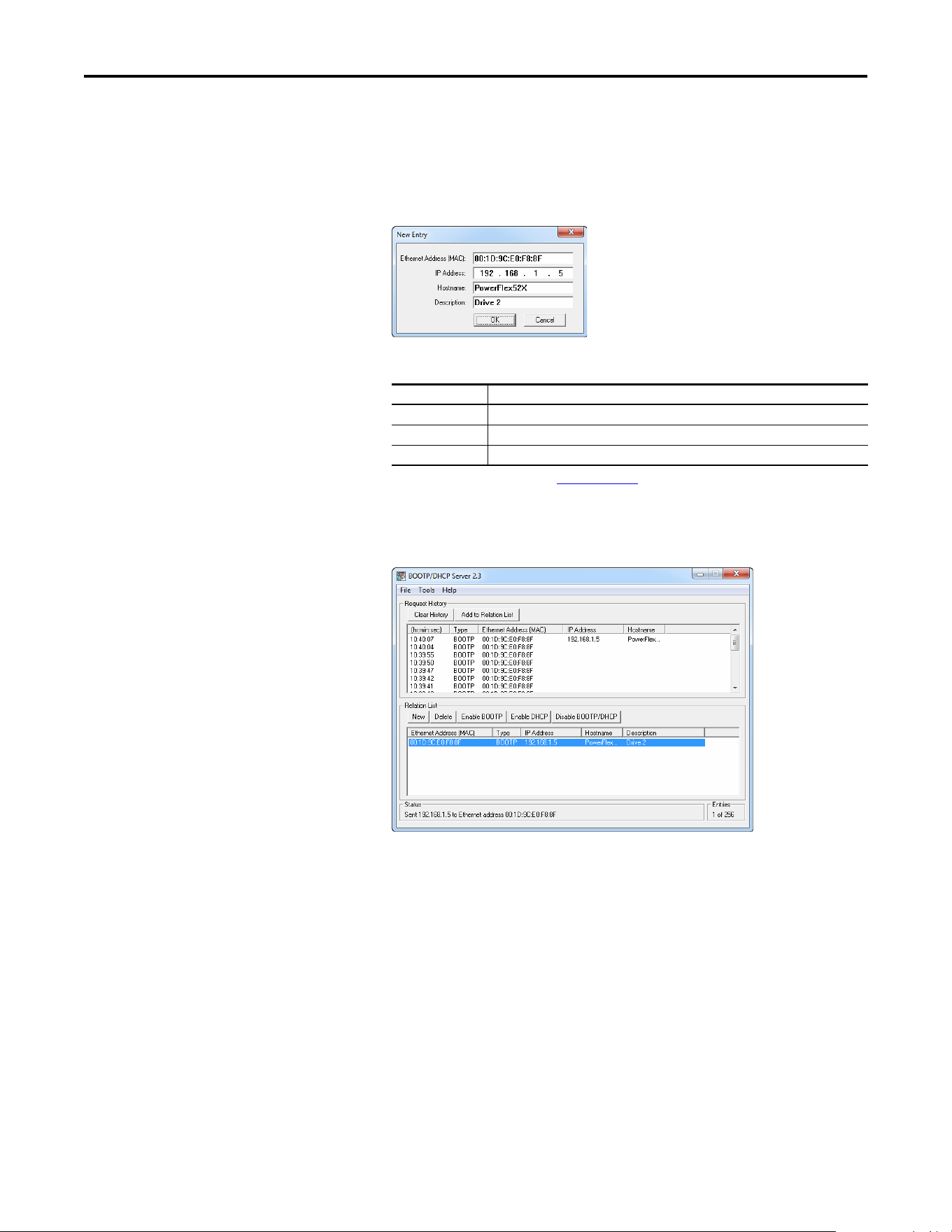
7. In the BOOTP/DHCP Request History list, either double-click the
adapter’s Ethernet Address (MAC) noted in Step 2, or click New in the
Relation List. The New Entry window appears. In the first case, the
Ethernet Address (MAC) is automatically entered. In the latter case, you
must manually enter it.
8. Edit the following:
9. Click OK to apply the settings. The adapter appears in the Relation List
with the new settings.
10. To assign this configuration to the adapter, select the device in the Relation
List and click Disable BOOTP/DHCP. When power is cycled on the
drive, the adapter will use the configuration you assigned it and not issue
new BOOTP/DHCP requests.
11. To save the Relation List, select File > Save.
Box Type
IP Address
(1)
(1) For definitions of these terms, see the Glossary on page 161.
A unique IP address for the adapter
Host Name Optional
Description Optional
TIP
To enable BOOTP for an embedded adapter that has had BOOTP
disabled, first select the adapter in the Relation List. Then, depending
on the type of server, click Enable BOOTP or Enable DHCP and,
lastly, reset the adapter or power cycle the drive.

Rockwell Automation Publication 520COM-UM003A-EN-E - June 2013 31
Configuring the Adapter Chapter 3
Using Adapter Parameters
By default, the adapter is configured to accept an IP address, subnet mask, and
gateway address from a DHCP server. If you want to set these attributes using
parameters instead, you must first change the source for the node address to
“Parameters” and then set these network address parameters in the adapter.
Changing the Source for the Node Address
1. Verify that the Node Address switches (see Setting the Node Address
Switches on page 18) are set to any value other than 001...254 or 888. The
default setting is 999.
2. Set the value of Device parameter 04 [Net Addr Sel] to 1“Parameters”.
3. Reset the adapter; see Resetting the Adapter
on page 36.
Setting an IP Address Using Parameters
1. Verif y that Device parameter 04 [Net Addr Sel] is set to 1“Parameters”.
2. Set the value of Device parameters 06 [IP Addr Cfg 1] through
09 [IP Addr Cfg 4] to a unique IP address.
3. Reset the adapter; see Resetting the Adapter
on page 36.
The NET A status indicator will be steady green or flashing green if the IP
address is correctly configured.
Setting a Subnet Mask Using Parameters
1. Verif y that Device parameter 04 [Net Addr Sel] is set to 1“Parameters”.
Options 1“Parameters”
2“BOOTP”
3 “DHCP” (Default)
IMPORTANT
Device parameter 04 [Net Addr Sel] must be set to 1 “Parameters” to
configure the IP address, subnet mask, and gateway address using
adapter parameters.
192.168.1.62
[IP Addr Cfg 1]
[IP Addr Cfg 2]
[IP Addr Cfg 3]
[IP Addr Cfg 4]

32 Rockwell Automation Publication 520COM-UM003A-EN-E - June 2013
Chapter 3 Configuring the Adapter
2. Set the value of Device parameters 10 [Subnet Cfg 1] through
13 [Subnet Cfg 4] to the desired value for the subnet mask.
3. Reset the adapter; see Resetting the Adapter
on page 36.
Setting a Gateway Address Using Parameters
1. Verif y that Device parameter 04 [Net Addr Sel] is set to 1“Parameters”.
2. Set the value of Device parameters 14 [Gateway Cfg 1] through
17 [Gateway Cfg 4] to the desired value for the gateway address.
3. Reset the adapter by power cycling the drive.
Setting the Data Rate
By default, the adapter automatically detects the data (baud) rate and duplex
setting used on the network. If you need to set a specific data rate and duplex
setting, the value of Device parameters 18 [Net Rate Cfg 1] determines the
Ethernet data rate and duplex setting that will be uses to communicate on the
adapter’s ENET1 network port. For definitions of data rate and duplex, see the
Glossary
on page 161.
1. Set the value of Device parameter 18 [Net Rate Cfg 1] to the data rate at
which your network is operating.
255.255.255.0
[Subnet Cfg 1]
[Subnet Cfg 2]
[Subnet Cfg 3]
[Subnet Cfg 4]
192.168.1.1
[Gateway Cfg 1]
[Gateway Cfg 2]
[Gateway Cfg 3]
[Gateway Cfg 4]
Options 0 “Autodetect” (Default)
1 “10Mbps Full”
2 “10Mbps Half”
3 “100Mbps Full”
4 “100Mbps Half”
TIP
Auto detection of data rate and duplex works properly only if the
device (usually a switch) on the other end of the cable is also set to
automatically detect the data rate/duplex. If one device has the data
rate/duplex hard-coded, the other device must be hard-coded to the
same settings.

Rockwell Automation Publication 520COM-UM003A-EN-E - June 2013 33
Configuring the Adapter Chapter 3
If the adapter’s ENET2 network port will be used to connect another drive
in a linear or DLR network topology, set the value of Device parameter
20 [Net Rate Cfg 2] to the appropriate data rate.
2. Reset the adapter; see Resetting the Adapter
on page 36.
Using Master-Slave Hierarchy
A hierarchy determines the type of device with which the adapter exchanges data.
In a Master-Slave hierarchy, the adapter exchanges data with a master, such as a
scanner or bridge.
Configuring a Master-Slave Hierarchy
The controller I/O image can have anywhere from zero to eight (four In and four
Out) additional 16-bit parameters called Datalinks. They are configured using
Host parameters C161 [Opt Data In 1] through C164 [Opt Data In 4], and
C165 [Opt Data Out 1] through C168 [Opt Data Out 4]. The number of
Datalinks actively used is controlled by the connection size in the controller and
the in/out parameters. See the respective controller example sections in
Configuring the I/O
on page 39 for more information on setting the connection
size.
When using a ControlLogix or CompactLogix controller and the Generic
Profile, or a MicroLogix 1100/1400 controller, configure the Datalink
parameters now as described in this section.
Enabling Datalinks To Write Data
Host parameters C165 [Opt Data Out 1] through C168 [Opt Data Out 4]
control which parameters in the drive send values to the network. To configure
these parameters, set them to the drive parameter number you want to correlate
them to.
The following steps are required to enable Datalinks to write data:
TIP
When using a ControlLogix or CompactLogix controller and a drive Add-On
Profile for RSLogix 5000 (version 17 or greater) or Logix Designer (version 21 or
greater) software, there is no need to configure Datalink parameters at this
time. They will be assigned when configuring the drive Add-On Profile (see
Adding the Drive/Adapter to the I/O Configuration
on page 42).
IMPORTANT
Always use the Datalink parameters in consecutive numerical order, starting
with the first parameter. For example, use Host parameters C165, C166, and
C167 to configure three Datalinks to write data. Otherwise, the network I/O
connection will be larger than necessary, which needlessly increases controller
response time and memory usage.

34 Rockwell Automation Publication 520COM-UM003A-EN-E - June 2013
Chapter 3 Configuring the Adapter
1. Set the values of only the required number of contiguous drive-to-network
Datalinks needed to write data to the network and that are to be included
in the network I/O connection.
2. Reset the adapter; see Resetting the Adapter
on page 36.
After the above steps are complete, the adapter is ready to send output data and
transfer status data to the master (controller). Next, configure the controller to
recognize and transmit I/O to the adapter. See Configuring the I/O
on page 39.
Enabling Datalinks To Read Data
Host parameters C161 [Opt Data In 1] through C164 [Opt Data In 4]
configure which parameters in the drive receive values from the network. To
configure these parameters, set them to the parameter number you wish to
correlate them to.
The following steps are required to enable Datalinks to read data:
1. Set the values of only the required number of contiguous network-to-drive
Datalinks needed to read data from the network and that are to be
included in the network I/O connection.
2. Reset the adapter; see Resetting the Adapter
on page 36.
After the above steps are complete, the adapter is ready to receive input data from
the master (controller). Next, configure the controller to recognize and transmit
I/O to the adapter. See Configuring the I/O
on page 39.
Setting a Fault Action
By default, when communications are disrupted (the network cable is
disconnected) and/or the controller is idle (in program mode or faulted), the
drive responds by faulting if it is using I/O from the network. You can configure a
different response to these events:
• Disrupted I/O communication by using Device parameter
23 [Comm Flt Action].
IMPORTANT
Always use the Datalink parameters in consecutive numerical order, starting
with the first parameter. For example, use Host parameters C161, C162, and
C163 to configure three Datalinks to read data. Otherwise, the network I/O
connection will be larger than necessary, which needlessly increases controller
response time and memory usage.
Rockwell Automation Publication 520COM-UM003A-EN-E - June 2013 35
Configuring the Adapter Chapter 3
• An idle controller by using Device parameter 24 [Idle Flt Action].
Changing the Fault Action
Set the values of Device parameters 23 [Comm Flt Action] and 24 [Idle Flt
Action] to the desired responses:
Changes to these parameters take effect immediately. A reset is not required. If
communication is disrupted and then re-established, the drive will automatically
receive commands over the network again.
If Multi-Drive mode is used, the same fault action is used by the adapter for all of
the drives it controls (Drive 0...4).
Setting the Fault Configuration Parameters
When setting Device parameters 23 [Comm Flt Action] and 24 [Idle Flt
Action] to 4 “Send Flt Cfg,” the values in the following parameters are sent to the
drive after a communications fault and/or idle fault for drive control fault occurs.
You must set these parameters to values required by your application.
Changes to these parameters take effect immediately. A reset is not required.
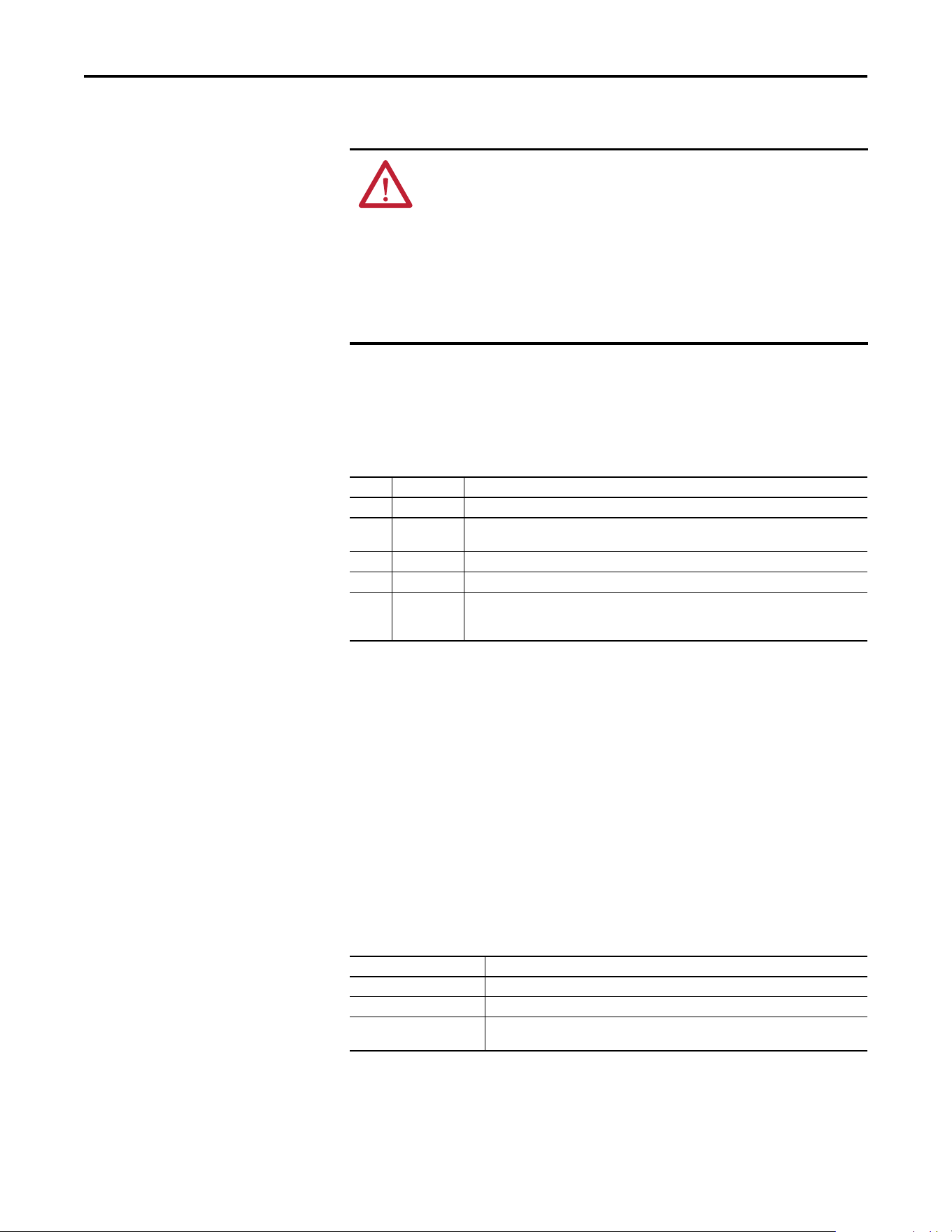
ATTENTION: Risk of injury or equipment damage exists. Device parameters 23
[Comm Flt Action] and 24 [Idle Flt Action] respectively let you determine the
action of the adapter and drive if communications are disrupted or the
controller is idle. By default, these parameters fault the drive. You may
configure these parameters so that the drive continues to run, however,
precautions should be taken to ensure that the settings of these parameters do
not create a risk of injury or equipment damage. When commissioning the
drive, verify that your system responds correctly to various situations (a
disconnected network cable or controller in idle state).
Value Action Description
0 Fault The drive is faulted and stopped. Datalink data is no longer sent to the drive. (Default)
1 Stop The drive is stopped as per Host parameter P045 [Stop Mode] setting. Datalink data sent to
the drive remains unchanged.
2 Zero Data The drive is sent “0” values for all Reference and Datalink data. This does not command a stop.
3 Hold Last The drive continues in its present state.
4 Send Flt Cfg The drive is sent the Reference and Datalink data that you set in the fault configuration
parameters (Device parameters 25 [Flt Cfg Logic], 26 [Flt Cfg Ref], and 27 [Flt Cfg DL 1]
through 30 [Flt Cfg DL 4]).
Parameter Description
25 [Flt Cfg Logic] A 16-bit integer value sent to the drive for Logic Command.
26 [Flt Cfg Ref] A 16-bit integer value sent to the drive for Reference.
27 [Flt Cfg DL 1] through
30 [Flt Cfg DL 4]
A 16-bit integer value sent to the drive for a Datalink.
36 Rockwell Automation Publication 520COM-UM003A-EN-E - June 2013
Chapter 3 Configuring the Adapter
Resetting the Adapter
Changes to switch settings or some adapter parameters require that you reset the
adapter before the new settings take effect. You can reset the adapter by cycling
power to the drive or by using Device parameter 22 [Reset Module].
Set Device parameter 22 [Reset Module] to 1“Reset Module”.
When you enter 1 “Reset Module”, the adapter will be immediately reset. An
alternate method to reset the adapter is by power cycling the drive.
Restoring Adapter
Parameters to Factory
Defaults
Set Device parameter 22 [Reset Module] to 2 “Set Defaults”.
When you enter 2 “Set Defaults”, the adapter will set all of its parameters to their
factory default values.
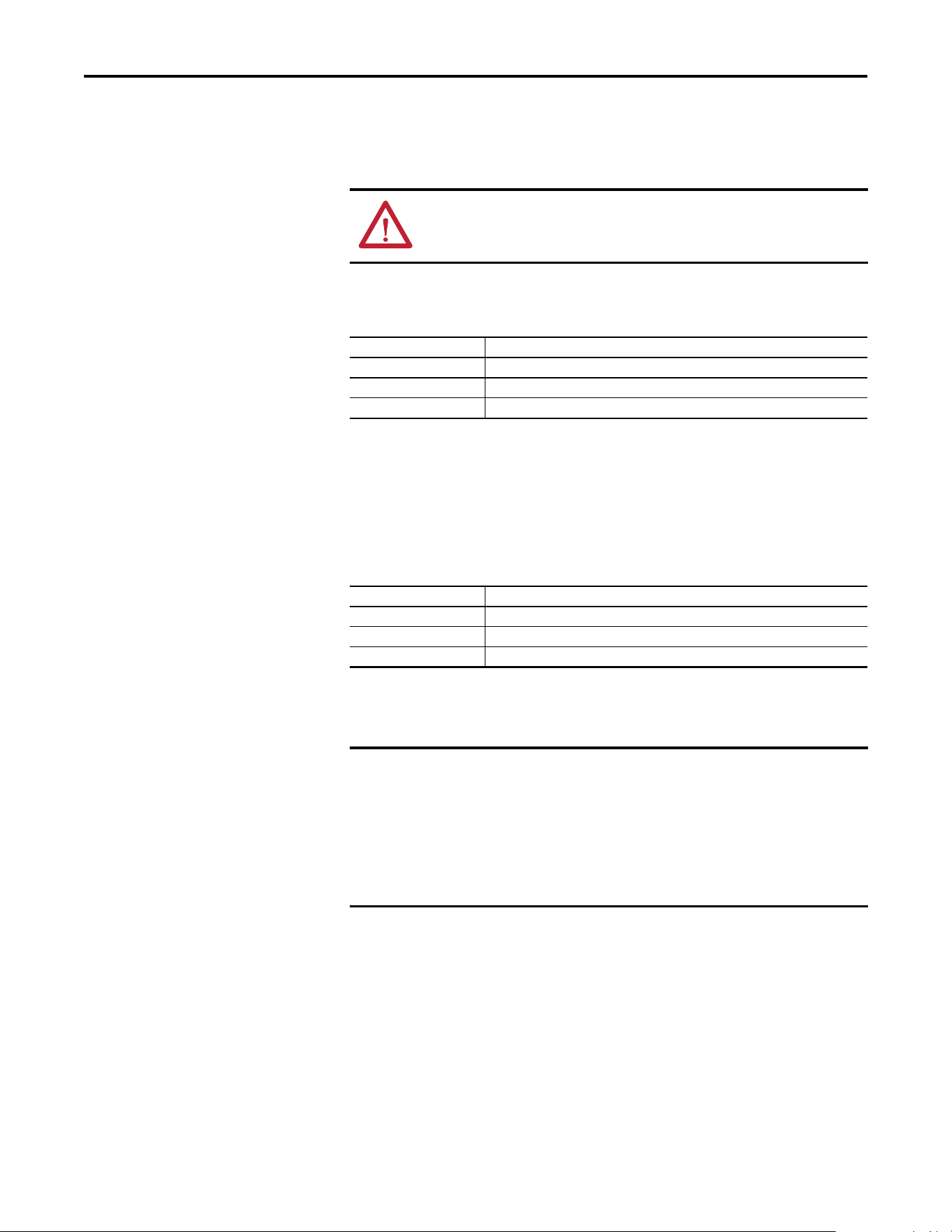
ATTENTION: Risk of injury or equipment damage exists. If the adapter is
transmitting control I/O to the drive, the drive may fault when you reset the
adapter. Determine how your drive will respond before resetting the adapter.
Setting for Device Parameter 22 [Reset Module]
Value Description
0 Ready (Default)
1 Reset Module
2Set Defaults
Setting for Device Parameter 22 [Reset Module]
Value Description
0 Ready (Default)
1 Reset Module
2Set Defaults
IMPORTANT
When performing a Set Defaults action, the drive may detect a conflict and
then not allow this function to occur. If this happens, first resolve the conflict
and then repeat a Set Defaults action. Common reasons for a conflict include
the drive running or a controller in Run mode.
After performing a Set Defaults action, you must enter 1 “Reset Module” or
power cycle the drive so that the new values take effect. Thereafter, this
parameter will be restored to a value of 0 “Ready”.

Rockwell Automation Publication 520COM-UM003A-EN-E - June 2013 37
Configuring the Adapter Chapter 3
Viewing the Adapter Status
Using Parameters
The following Device parameters provide information about the status of the
adapter. You can view these parameters at any time using the PowerFlex
22-HIM-A3 or 22-HIM-C2S HIM or Connected Components Workbench.
Updating the Adapter
Firmware
The adapter firmware can be updated over the network or through DSI using a
tool such as the 1203-USB.
When updating firmware over the network or DSI, you can use the Allen-Bradley
ControlFLASH software tool.
To obtain a firmware update for this adapter, go to http://www.ab.com/support/
abdrives/webupdate. This site contains all firmware update files and associated
Release Notes that describe the following items:
• Firmware update enhancements and anomalies.
• How to determine the existing firmware revision.
• How to update the firmware using ControlFLASH.
The adapter firmware can also be updated using ADC (Automatic Device
Configuration). See Using Automatic Device Configuration (ADC) with
RSLogix 5000 or Logix Designer on page 50 for more information.
Dual-Port EtherNet/IP Adapter Status Parameters
Name Description
02 [DLs From Net Act] Displays the number of controller-to-drive Datalinks that are included in the network
I/O connection (controller outputs).
03 [DLs To Net Act] Displays the number of drive-to-controller Datalinks that are included in the network
I/O connection (controller inputs).
05 [Net Addr Src] Displays the source from which the adapter’s node address is taken. The source is
determined by the adapter Node Address switch settings (see Setting the Node
Address Switches on page 18), and the value of Device parameter 04 [Net Addr Sel]
which can be any of the following:
• 1 “Parameters”—uses address from Device parameters 06…09 [IP Addr Cfg x]
• 2 “BOOTP”
• 3 “DHCP”—the default
19 [Net Rate Act 1] The data rate used by the adapter’s ENET1 network port.
21 [Net Rate Act 2] The data rate used by the adapter’s ENET2 network port.

38 Rockwell Automation Publication 520COM-UM003A-EN-E - June 2013
Chapter 3 Configuring the Adapter
Notes:
Rockwell Automation Publication 520COM-UM003A-EN-E - June 2013 39
Chapter 4
Configuring the I/O
This chapter provides instructions on how to configure a CompactLogix
controller to communicate with the Dual-port EtherNet/IP adapter and
connected PowerFlex 520-series drive.
Using RSLinx Classic
RSLinx Classic, in all its variations (Lite, Gateway, OEM, and so on), is used to
provide a communication link between the computer, network, and controller.
RSLinx Classic requires its network-specific driver to be configured before
communications are established with network devices. To configure the
RSLinx driver:
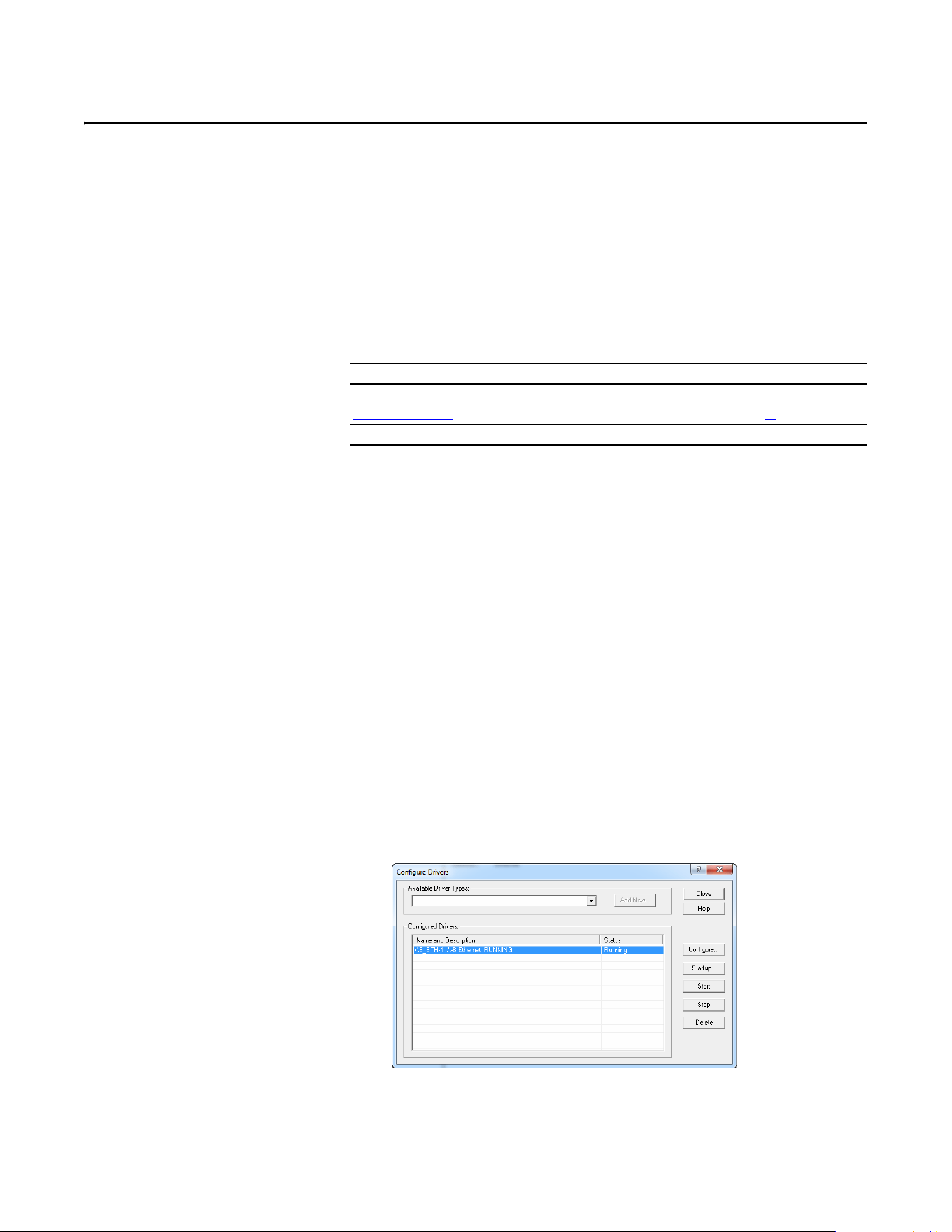
1. Start RSLinx and select Communications > Configure Drivers to display
the Configure Drivers window.
2. From the Available Driver Types pull-down box, choose “EtherNet/IP
Driver” and then click Add New… to display the Add New RSLinx Driver
window.
3. Use the default name or type a name and click OK. The “Configure
driver:” window appears.
4. Depending on your application, select either the browse local or remote
subnet option, and click OK. The Configure Drivers window reappears
with the new driver in the Configured Drivers list.
5. Click Close to close the Configure Drivers window. Keep RSLinx
running.
Topic Page
Using RSLinx Classic
39
CompactLogix Example 40
Limitations in Using MicroLogix 1100/1400 62
40 Rockwell Automation Publication 520COM-UM003A-EN-E - June 2013
Chapter 4 Configuring the I/O
6. Verify that your computer recognizes the drive. Select Communications >
RSWho and, in the menu tree, click the “+” symbol next to the Ethernet
driver.
7. Note that two other RSLinx drivers (Ethernet devices or Remote Devices
through Linx Gateway) may be used. Use one of these drivers if the
“EtherNet/IP Driver” cannot see your drive.
CompactLogix Example
After the adapter is configured, the drive and adapter will be a single node on the
network. This section provides the steps needed to configure a simple EtherNet/
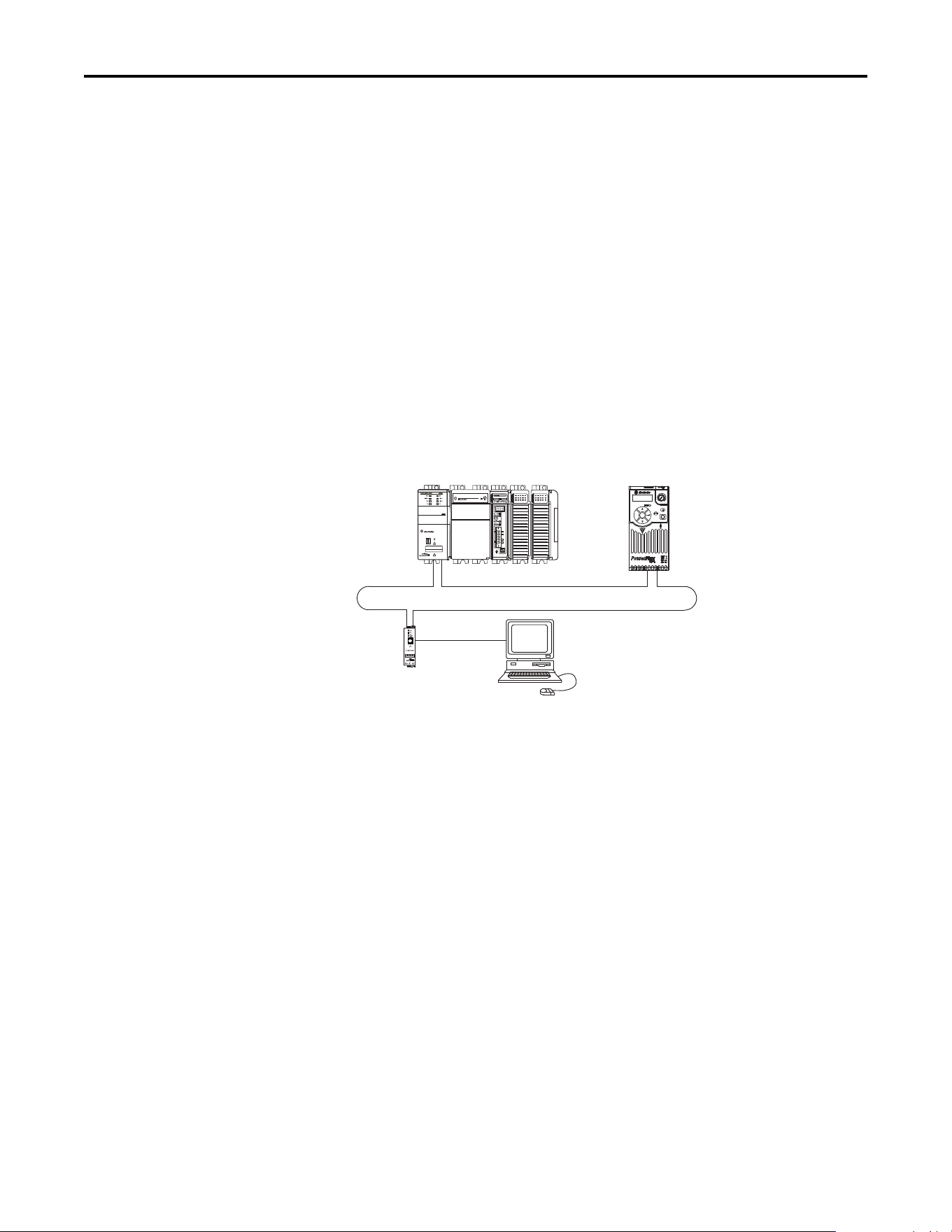
IP network. In our example, we will configure a 1769-L36ERM CompactLogix
controller with embedded EtherNet/IP capability to communicate with a drive
using Logic Command/Status, Reference/Feedback, and eight Datalinks (four to
read and four to write) over the network.
Adding the Controller to the I/O Configuration
To establish communications between the controller and adapter over the
network, you must first add the CompactLogix controller and its embedded
EtherNet/IP bridge to the I/O configuration.
1 (Front)1 (Front)1 (Front)
2 (Rear)
00:00:BC:2E:69:F6
Esc
Sel
1783-ETAP
IP Address 192.168.1.3
1769-L36ERM CompactLogix controller
with embedded EtherNet/IP bridge
IP Address 192.168.1.4
PowerFlex 520-series drive with
25-COMM-E2P adapter (Frame A shown)
Computer with
Ethernet connection
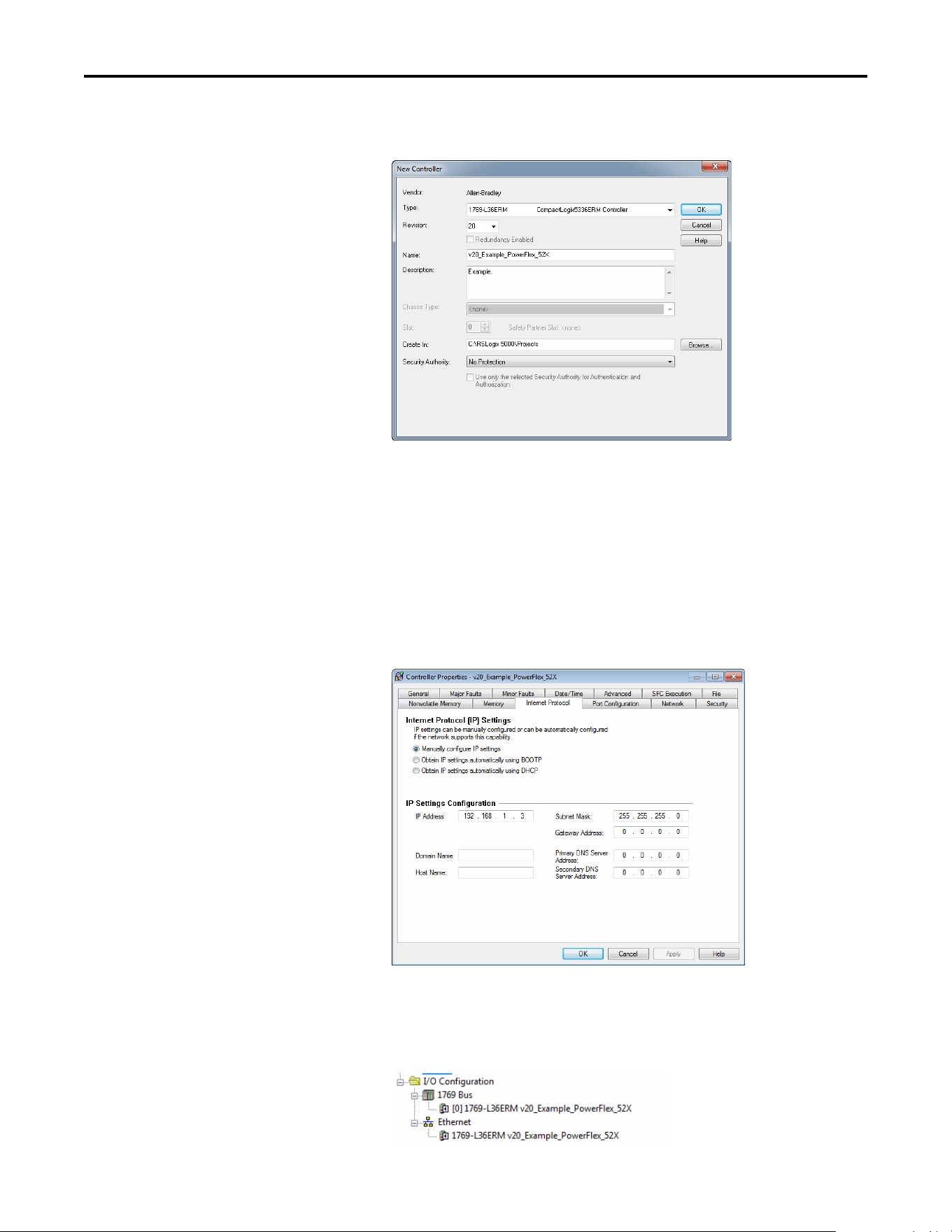
Rockwell Automation Publication 520COM-UM003A-EN-E - June 2013 41
Configuring the I/O Chapter 4
1. Start RSLogix 5000 or Logix Designer. The application window appears.
Select File > New to display the New Controller window.
Select the appropriate choices for the fields in the window to match your
application. Then click OK. The application window reappears with the
treeview in the left pane.
Note: If you are using a controller without an embedded EtherNet/IP
bridge, you will also need to add the bridge to the I/O configuration. See
the user manual for your controller for details.
2. Configure the IP address/Network Settings on your controller or bridge.
In this example, the Network Settings are set for a private network.
3. Click OK. The controller is now configured for the EtherNet/IP network.
It appears in the I/O Configuration folder. In our example, a
1769-L36ERM controller appears under the I/O Configuration folder
with its assigned name.

42 Rockwell Automation Publication 520COM-UM003A-EN-E - June 2013
Chapter 4 Configuring the I/O
There are two ways to add the adapter into the I/O configuration:
• Drive Add-On Profiles (for RSLogix 5000 version 17 or greater, Logix
Designer version 21 or greater)
• Generic Profile (for RSLogix 5000 or Logix Designer, all versions)
These are described in the following separate sections. If your version of
RSLogix 5000 or Logix Designer software supports drive Add-On Profiles, we
recommend using this method.
Using Drive AOP (Add-On Profiles) with RSLogix 5000 or Logix
Designer
When using the drive Add-On Profiles (with RSLogix 5000 vesion 17 or greater,
or Logix Designer version 21 or greater) compared to the Generic Profile (all
versions), the drive Add-On Profiles provide these advantages:
• Profiles for specific drives that provide descriptive controller tags for basic
control I/O words (Logic Command/Status and Reference/Feedback)
and Datalinks. Additionally, Datalinks automatically take the name of the
drive parameter to which they are assigned. These profiles virtually
eliminate I/O mismatch errors and substantially reduce drive
configuration time.
• New Drive tab eliminates the need for a separate drive software
configuration tool.
• Drive configuration settings are saved as part of the RSLogix 5000 or
Logix Designer project file (.ACD) and also downloaded to the controller.
• Drive Add-On Profiles can be updated anytime. When a new drive is used
or to benefit from new updates for Add-On Profiles, you will need the
newest Add-On Profile update. Go to www.ab.com/support/abdrives/
webupdate to download the latest RSLogix 5000 or Logix Designer drive
Add-On Profile.
Adding the Drive/Adapter to the I/O Configuration
To transmit data between the controller and the drive, you must add the drive as a
child device to the parent controller. In this example, RSLogix 5000 software
version 20 is used with drive Add-On Profile version 1.02.
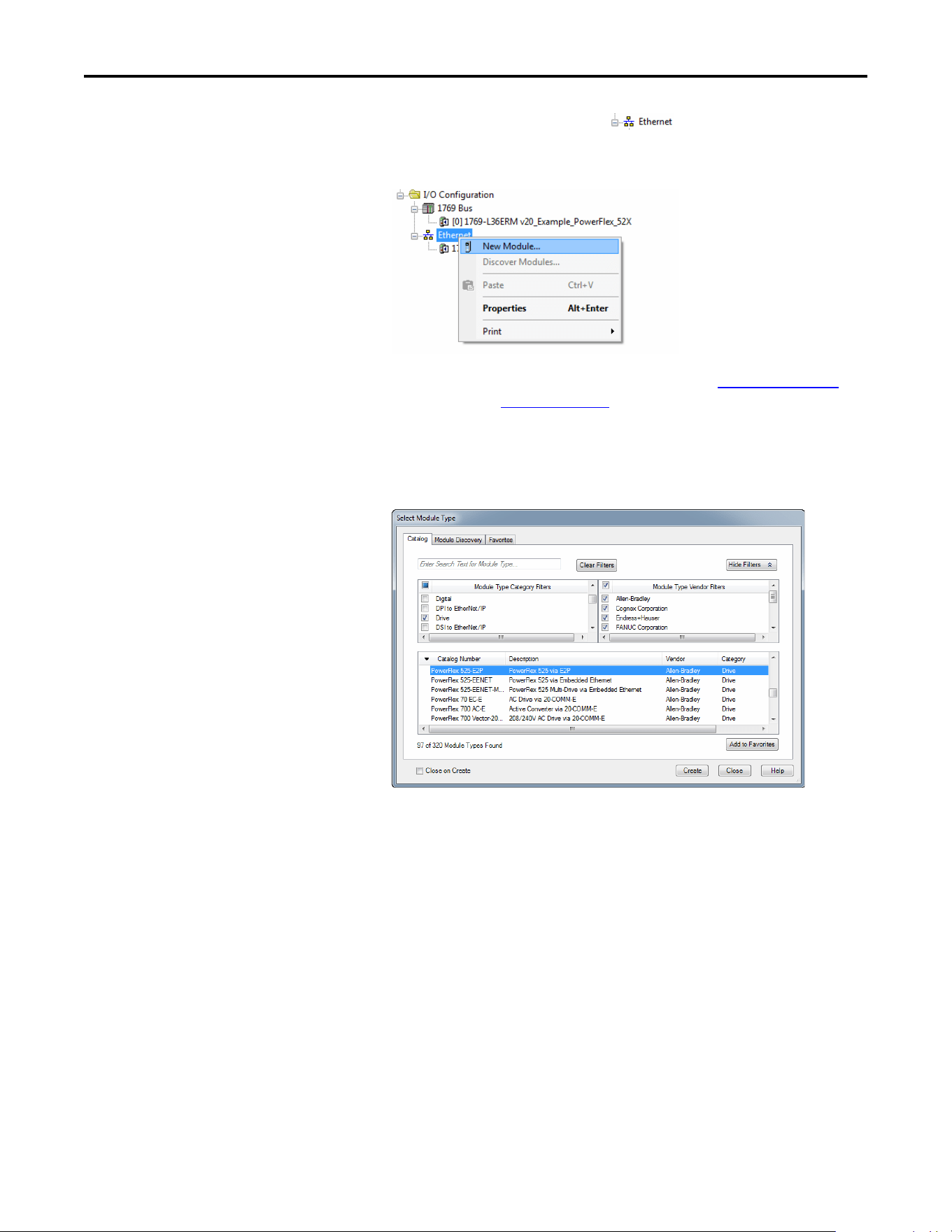
Rockwell Automation Publication 520COM-UM003A-EN-E - June 2013 43
Configuring the I/O Chapter 4
1. In the treeview, right-click on the icon and select New
Module… to display the Select Module window. Expand the Drives group
to display all of the available drives with their communication adapters.
2. In the Select Module Type window, select the drive and its connected
adapter from the list. For this example, we selected “PowerFlex 525-E2P.”
Then click Create. The drive’s New Module window appears.
TIP
If the PowerFlex drive is not shown, go to www.ab.com/support/
abdrives/webupdate and download the latest drive Add-On Profile.
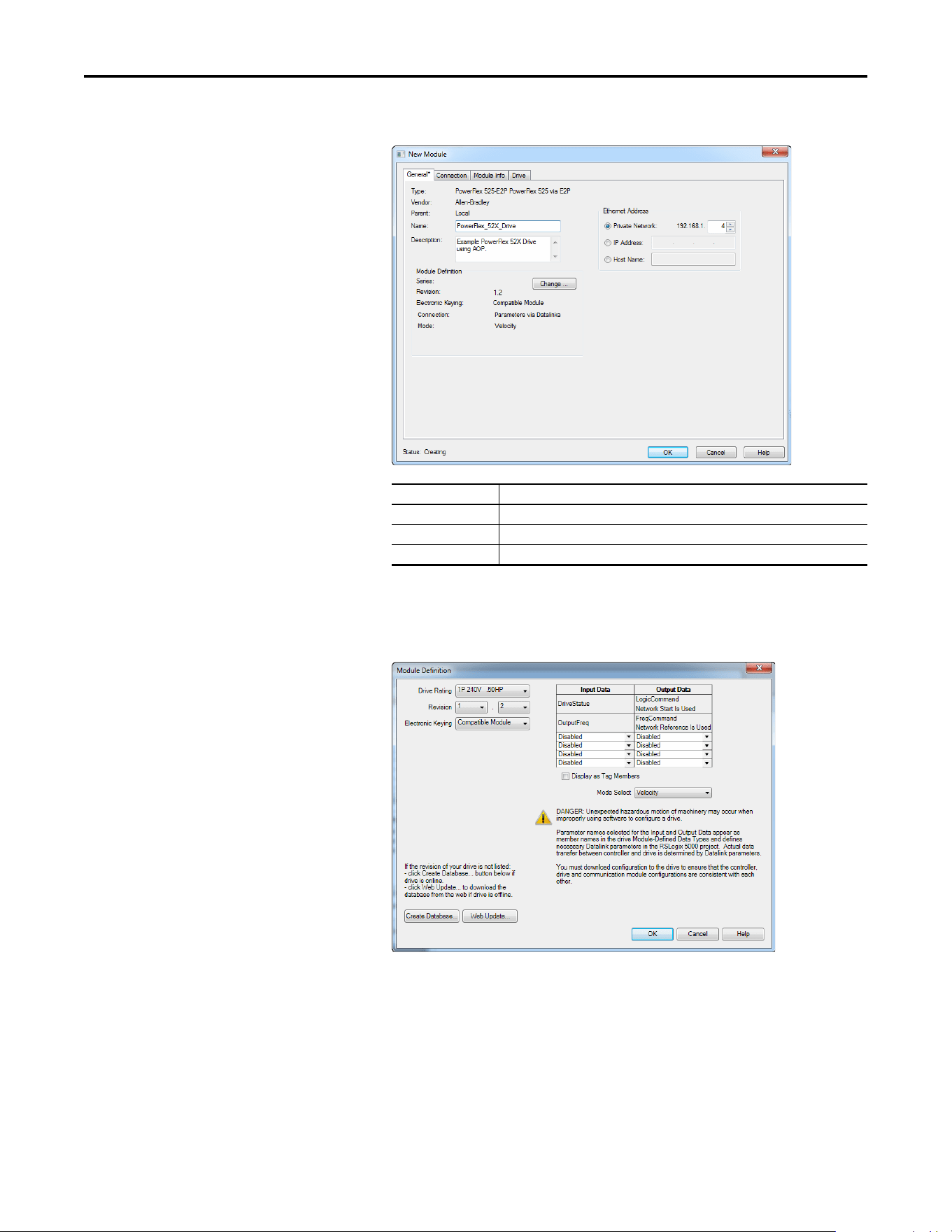
44 Rockwell Automation Publication 520COM-UM003A-EN-E - June 2013
Chapter 4 Configuring the I/O
3. On the General tab, edit the following data about the drive:
4. On the New Module window in the Module Definition section, click
Change… to launch the Module Definition window and begin the drive
configuration process.
Box Setting
Name A name to identify the drive.
Description Optional – description of the drive.
IP Address The IP address of the adapter.
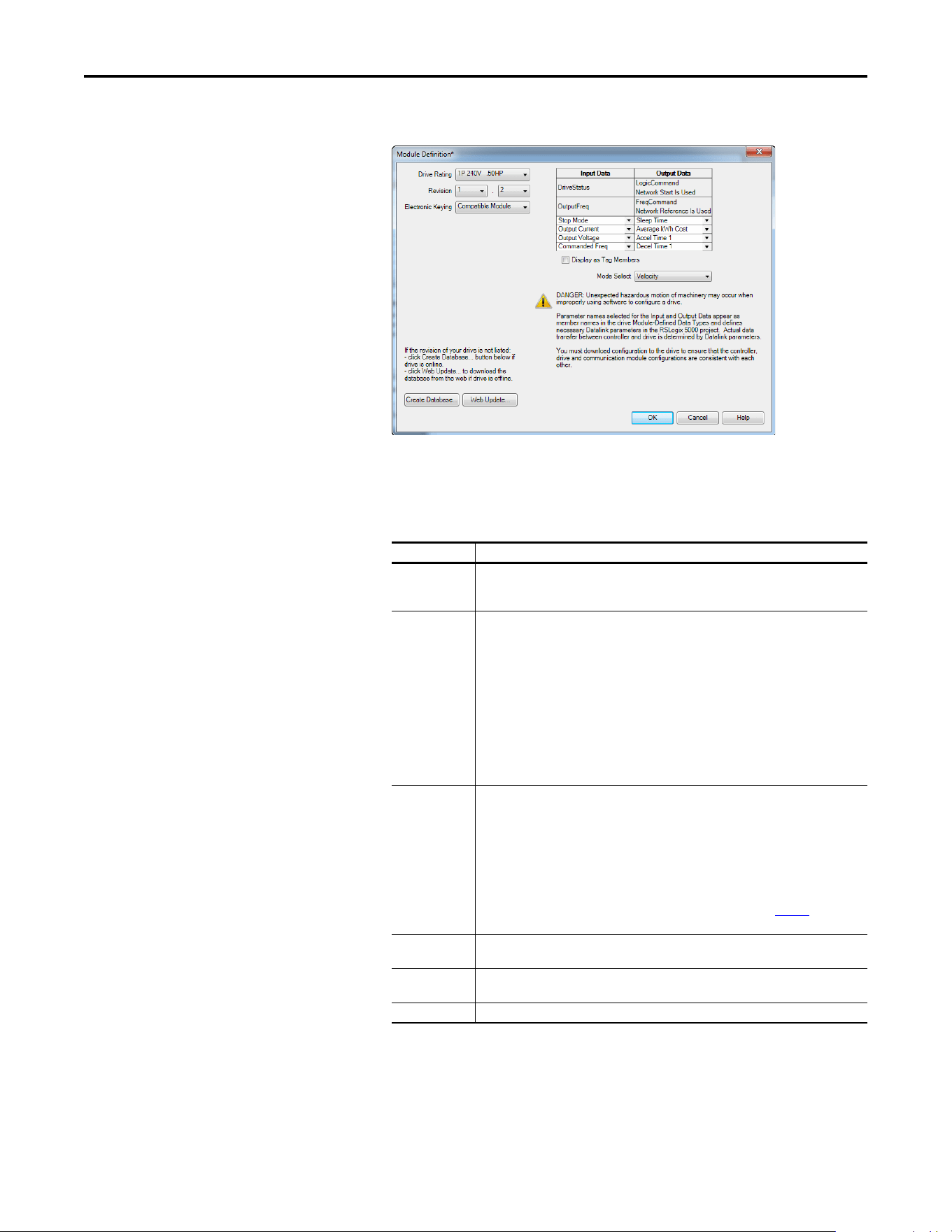
Rockwell Automation Publication 520COM-UM003A-EN-E - June 2013 45
Configuring the I/O Chapter 4
5. In the Module Definition window, edit the following information:
On the Module Definition window, notice that the automatically-assigned
controller tags Drive Status, Feedback, Logic Command, and Reference
are always used.
TIP
You may create a database from a network accessible drive using the
Create Database... button (Recommended if missing version of drive
or peripheral being used).
Box Setting
Drive Rating The voltage and horsepower rating of the drive. If the drive rating is not listed, the drive
database is not installed on your computer. To get the drive rating, use the Create
Database…, or Web Update… button described above.
Revision The major and minor revision of the firmware (database) in the drive. If the drive’s major
and minor revision is not available, the drive database is not installed on your computer. To
get the correct database revision, use one of the following buttons at the bottom left of the
Module Definition window:
•Create Database… Creates a database from an online network drive. Clicking this
button displays an RSLinx RSWho window. Browse to the online drive (PowerFlex 525),
select it, and click OK. The database will be uploaded and stored on the computer.
Thereafter, close the Module Definition window and then re-open it to display the new
revision.
• Web Update… When a drive is not available online, opens the Allen-Bradley Drives
Web Updates web site to download a specific database file. After downloading the file,
close the Module Definition window and then re-open it to display the new revision.
Electronic Keying Compatible Module. The “Compatible Module” setting for Electronic Keying ensures the
physical module is consistent with the software configuration before the controller and
bridge make a connection. Therefore, ensure that you have set the correct revision in this
window. See the online Help for additional information on this and other Electronic Keying
settings. If keying is not required, select “Disable Keying.” Drives do not require keying, and
so “Disable Keying” is recommended.
When using RSLogix 5000 (version 20) or Logix Designer (version 21 or greater) software
and Automatic Device Configuration (ADC) with Firmware Supervisor flash support to store
firmware for the drive, always choose “Exact Match.” See the table on page 53
for full
details when using ADC.
Input Data Assigns drive or connected peripheral parameters to be READ by the controller using
Datalinks.
Output Data Assigns drive or connected peripheral parameters to be WRITTEN by the controller using
Datalinks.
Mode Select Sets the I/O configuration to either Velocity or Position mode.
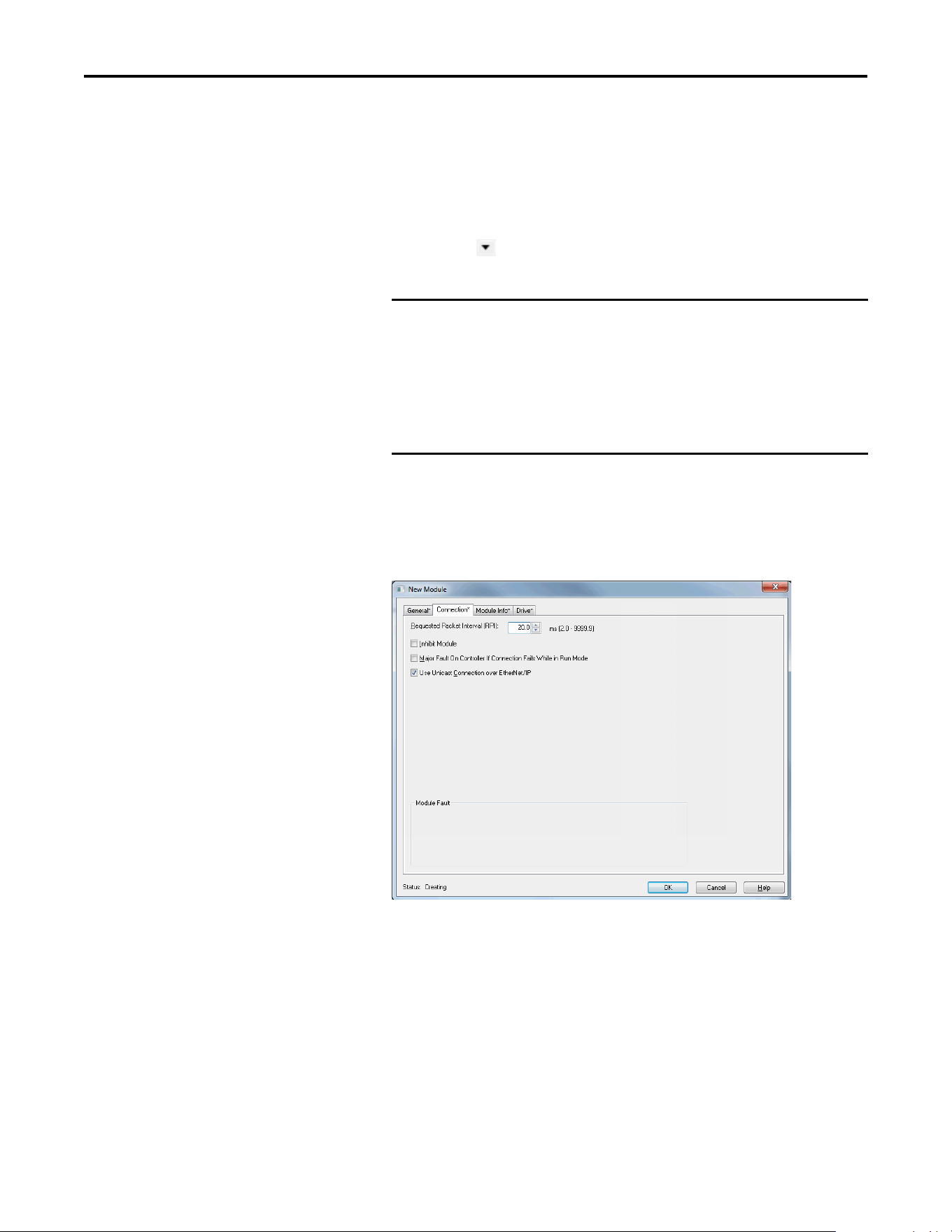
46 Rockwell Automation Publication 520COM-UM003A-EN-E - June 2013
Chapter 4 Configuring the I/O
When using Datalinks you must still assign Host parameters C161 [Opt
Data In 1] through C164 [Opt Data In 4] and C165 [Opt Data Out 1]
through C168 [Opt Data Out 4] to point to the appropriate drive or
connected peripheral parameters. The procedure to configure the
Datalinks on the Module Definition window for the Input Data and
Output Data is the same:
• Click the button to assign a parameter to each input and output
Datalink you require.
6. Click OK on the Module Definition window to save the drive
configuration and close the window. The drive’s New Module window
reappears.
7. On the New Module window, click the Connection tab.
8. In the “Requested Packet Interval (RPI)” box, set the value to 2.0
milliseconds or greater. This value determines the maximum interval that a
controller should use to move data to and from the adapter. To conserve
bandwidth, use higher values for communicating with low priority devices.
The “Inhibit Module” box, when checked, inhibits the module from
communicating with the RSLogix 5000 or Logix Designer project. When
the “Major Fault On…” box is checked, a major controller fault will occur
when the module’s connection fails while the controller is in the Run
Mode. For this example, leave the “Inhibit Module” and “Major Fault
On…” boxes unchecked.
IMPORTANT
Always use the Datalink parameters in consecutive numerical order,
starting with the first parameter. (For example, use parameters C161,
C162, and C163 to configure three Datalinks to write data and/or
parameters C165, C166, C167, and C168 to configure four Datalinks to
read data.) Otherwise, the network I/O connection will be larger than
necessary, which needlessly increases controller response time and
memory usage.
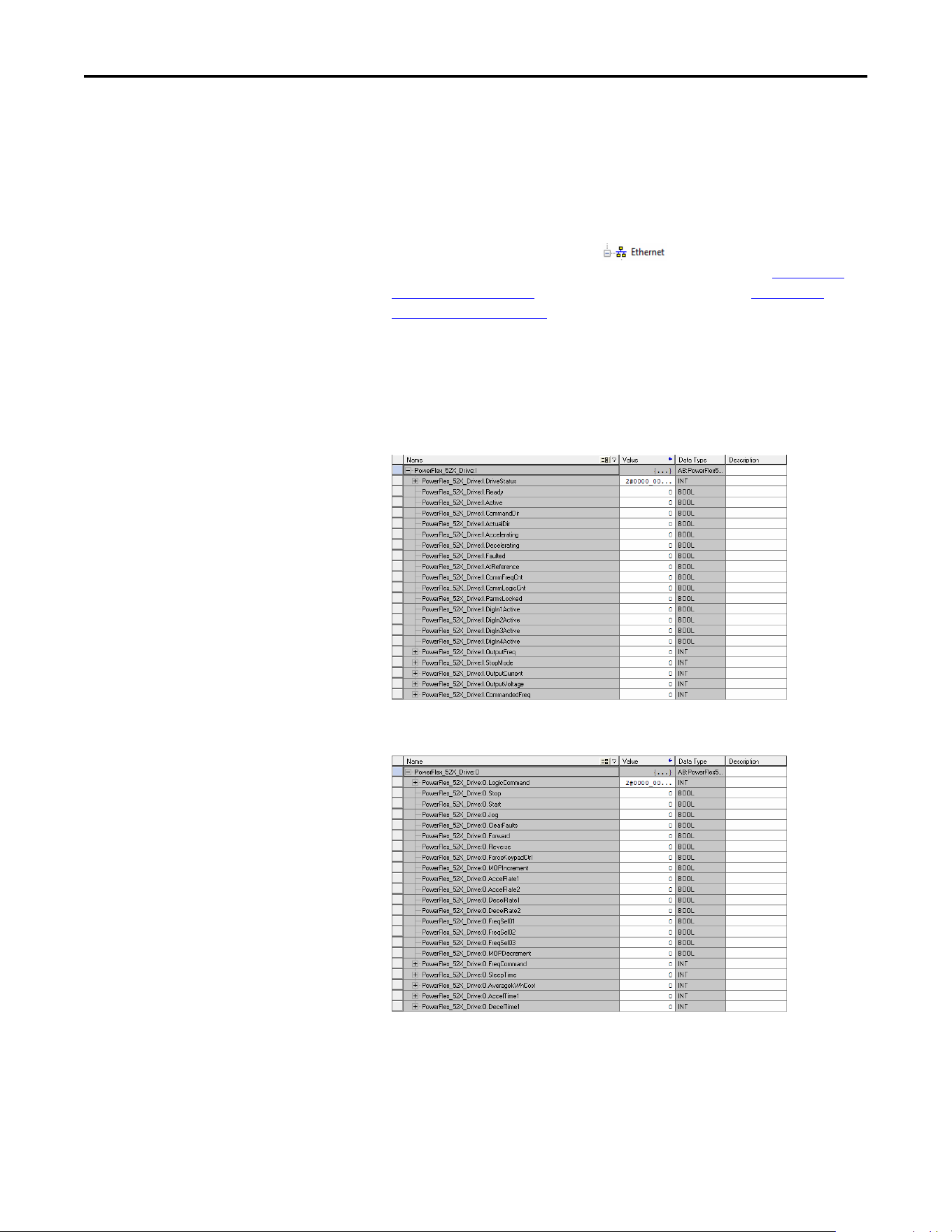
Rockwell Automation Publication 520COM-UM003A-EN-E - June 2013 47
Configuring the I/O Chapter 4
The “Use Unicast Connection over EtherNet/IP” box is checked by
default. This is the recommended setting. When this box is unchecked, the
adapter will send multicast messages on the I/O connection. In this case,
the adapter and the EtherNet/IP bridge must be on the same subnet.
9. Click OK on the New Module window.
The new node (“PowerFlex 525-E2P PowerFlex_52X_Drive” in this
example) now appears under the icon in the I/O Configuration
folder. If you double-click on the Input Controller Tag (see Controller
Input Tags on page 47) and Output Controller Tag (see Controller
Output Tags on page 47), you will see that module-defined data types and
tags have been automatically created. Note that all tag names are defined
and Datalinks include the assigned drive parameter name. After you save
and download the configuration, these tags allow you to access the Input
and Output data of the drive using the controller’s ladder logic.
Controller Input Tags
Controller Output Tags
Saving the I/O Configuration to the Controller
After adding the controller and drive/adapter to the I/O configuration, you must
download the configuration to the controller. You should also save the
configuration to a file on your computer.
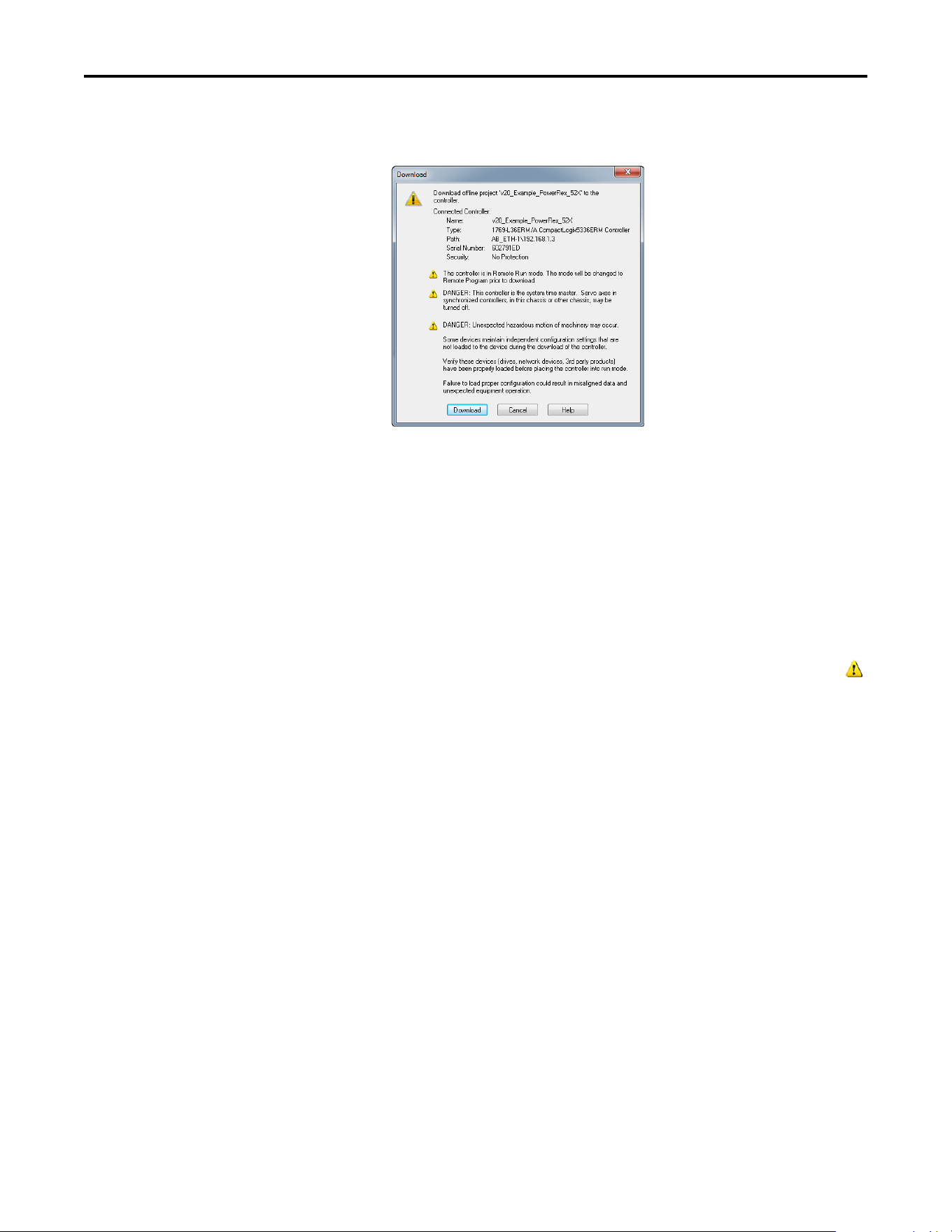
48 Rockwell Automation Publication 520COM-UM003A-EN-E - June 2013
Chapter 4 Configuring the I/O
1. In the RSLogix 5000 or Logix Designer window, select Communications
> Download. The Download dialog box appears.
2. Click Download to download the configuration to the controller. When
the download is successfully completed, RSLogix 5000 or Logix Designer
goes into Online Mode and the I/O Not Responding box in the upper-left
of the window should be flashing green. Also, a yellow warning symbol
should be displayed on the I/O Configuration folder in the treeview and
on the drive profile.
3. If the controller was in Run Mode before clicking Download,
RSLogix 5000 or Logix Designer prompts you to change the controller
mode back to Remote Run. In this case, choose the appropriate mode for
your application. If the controller was in Program Mode before clicking
Download, this prompt will not appear.
4. Select File > Save. If this is the first time you saved the project, the Save As
dialog box appears. Navigate to a folder, type a file name, and click Save to
save the configuration to a file on your computer.
5. To ensure that the present project configuration values are saved,
RSLogix 5000 or Logix Designer prompts you to upload them. Click Yes
to upload and save them.
Correlating the Drive with the Controller
You must now correlate the drive settings to the RSLogix 5000 or Logix Designer
project I/O settings so that they match. This requires loading the project I/O
settings into the drive.
TIP
If a message box reports that RSLogix 5000 or Logix Designer is unable
to go online, select Communications > Who Active to find your
controller in the Who Active screen. After finding and selecting the
controller, click Set Project Path to establish the path. If your
controller does not appear, you need to add or configure the EtherNet/
IP driver in RSLinx. See the RSLinx online help.
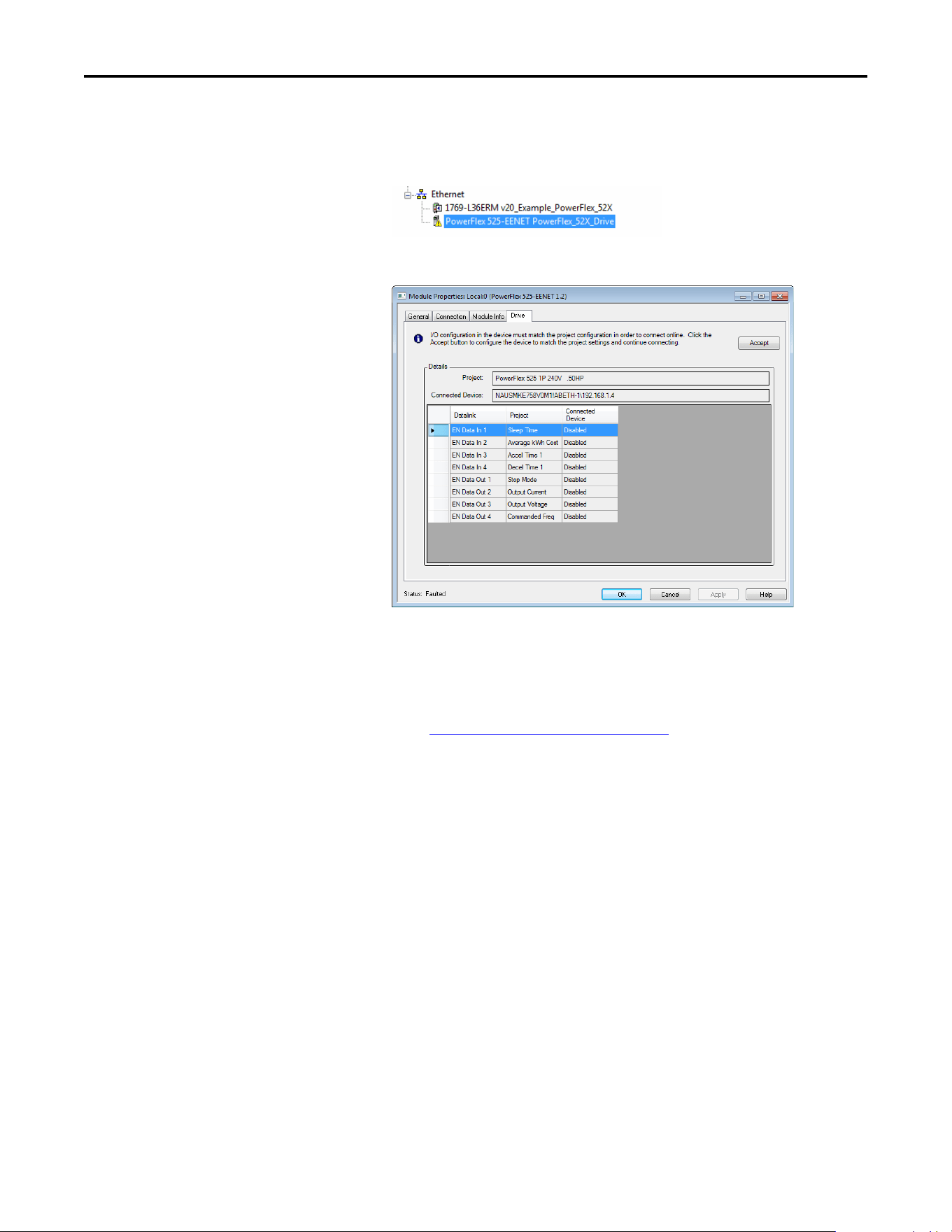
Rockwell Automation Publication 520COM-UM003A-EN-E - June 2013 49
Configuring the I/O Chapter 4
1. In the treeview under I/O Configuration, right-click on the drive profile
(for this example “PowerFlex 525-E2P PowerFlex_52X_Drive”) and select
Properties.
2. Select the Drive tab to begin the correlation process.
After the drive configuration data has been verified, the Drive tab will
display a request to synchronize the configuration with the drive. Click
Accept.
If the Differences Found Screen
on page 50 appears—which is typical,
click Download. This will download the project settings from the
controller to the drive. If Upload is clicked, the drive settings are uploaded
to the controller.
TIP
On subsequent connections to the drive (after the initial download),
select Upload.
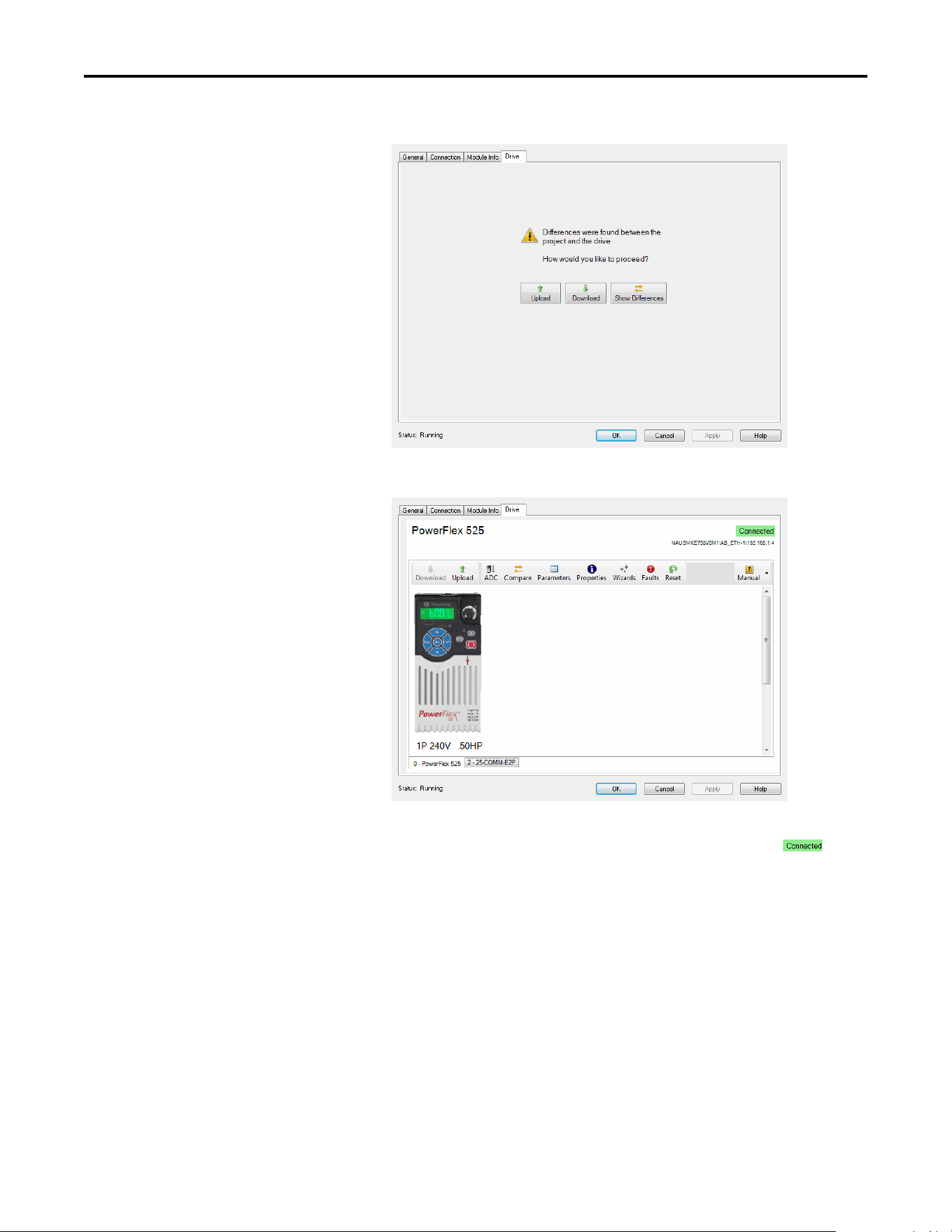
50 Rockwell Automation Publication 520COM-UM003A-EN-E - June 2013
Chapter 4 Configuring the I/O
Differences Found Screen
3. The Drive tab displays the current status of the drive.
If the download is successful, the Drive tab will show a green
indicator in the upper right corner of the window. This tab is extremely
useful for configuring drive parameters, accessing start-up wizards and
troubleshooting.
4. Click OK to close the Module Properties window for the drive.
Using Automatic Device Configuration (ADC) with RSLogix 5000 or
Logix Designer
Automatic Device Configuration (ADC) is an RSLogix 5000 (version 20) and
Logix Designer (version 21 or greater) software feature that supports the
automatic download of configuration data upon the Logix controller establishing
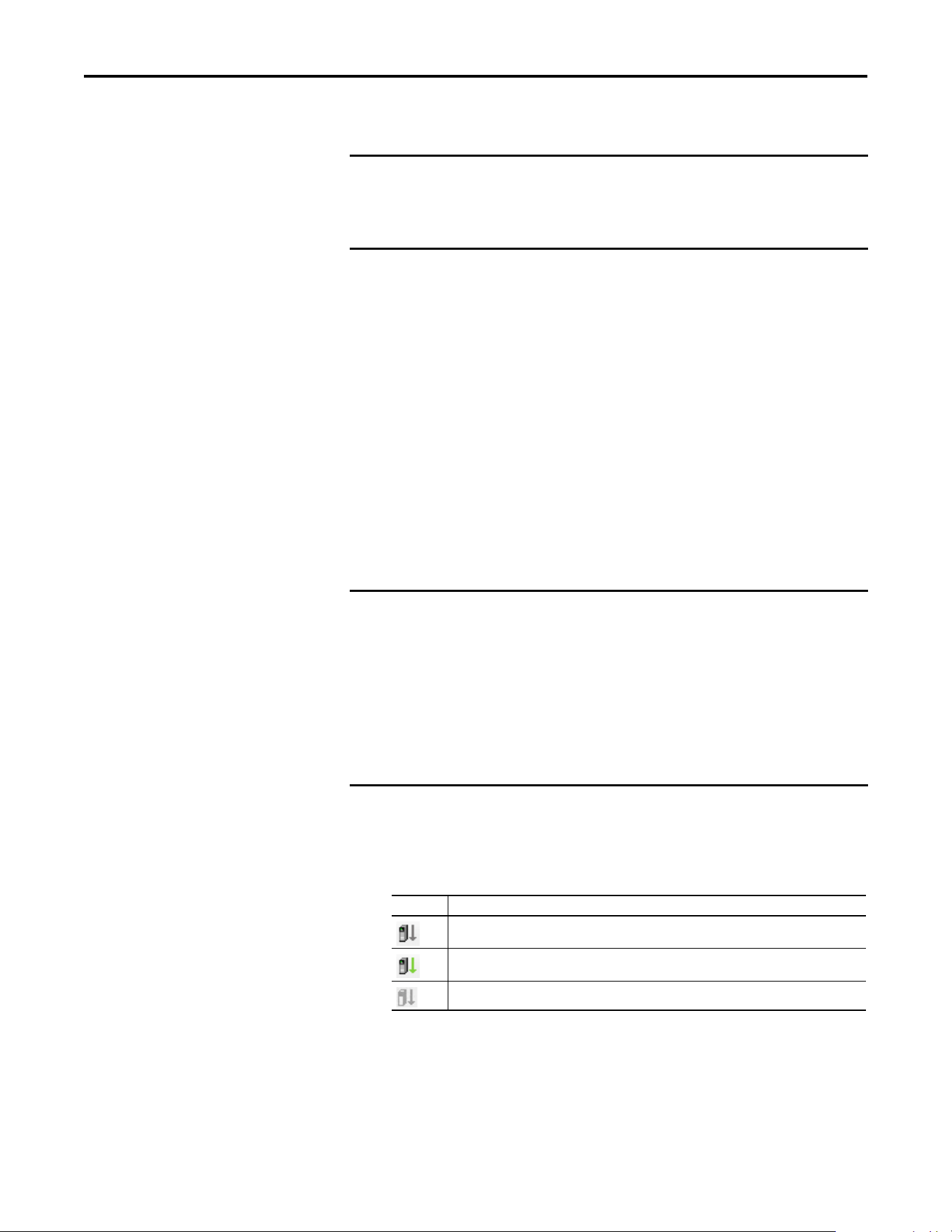
Rockwell Automation Publication 520COM-UM003A-EN-E - June 2013 51
Configuring the I/O Chapter 4
an EtherNet/IP network connection to a PowerFlex 525 drive and its associated
peripherals.
An RSLogix 5000 (version 20) or Logix Designer (version 21 or greater) project
(.ACD file) contains the configuration settings for any PowerFlex drives in the
project. When the project is downloaded to the Logix controller, these settings
are also transferred and reside in the controller’s memory. Prior to ADC in
RSLogix 5000 (version 20) or Logix Designer (version 21 or greater),
downloading PowerFlex 525 configuration data was a manual process where the
user would open the Drive tab in the respective drive Add-On Profile (AOP) in
the application and click on the Download icon. ADC now automates the
process and saves the user time. It is particularly beneficial in a drive replacement
situation when a production line is down.
ADC can also work in tandem with Firmware Supervisor. If Firmware Supervisor
is set up and enabled for a drive (“Exact Match” keying must be used), the drive/
peripheral will be automatically flashed (if necessary) prior to any ADC
operation.
The drive AOP requires user action to enable ADC. This helps ensure that the
user understands ADC operation prior to turning it on. The drive AOPs also
have an ADC icon on the Drive tab to show general ADC enable/disable status
for the drive:
Clicking on the ADC icon will launch the ADC configuration window. This
provides a single, convenient location to enable/disable ADC on the drive.
IMPORTANT
• ADC is not available for DSI peripherals.
• ADC is not available in Multi-drive mode.
• ADC is only available when the drive is connected using the Dual-port
EtherNet/IP adapter to a compatible controller.
IMPORTANT
Logix “owns” the configuration of the drive. ADC will be triggered any
time the Logix controller detects a configuration signature mismatch
when establishing an EtherNet/IP network I/O connection. The use of
other configuration tools, such as a HIM or Connected Components Workbench
software should be minimized and restricted to monitor-only operation. Any
configuration changes made by these tools will cause a configuration signature
mismatch the next time the Logix controller connects to the device and ADC
will write over any changes made by the other tool(s). Any drive configuration
changes should be made with the drive Add-On Profile.
Icon Meaning
No ports on the drive have ADC enabled.
At least one port on the drive has ADC enabled.
ADC is not supported.
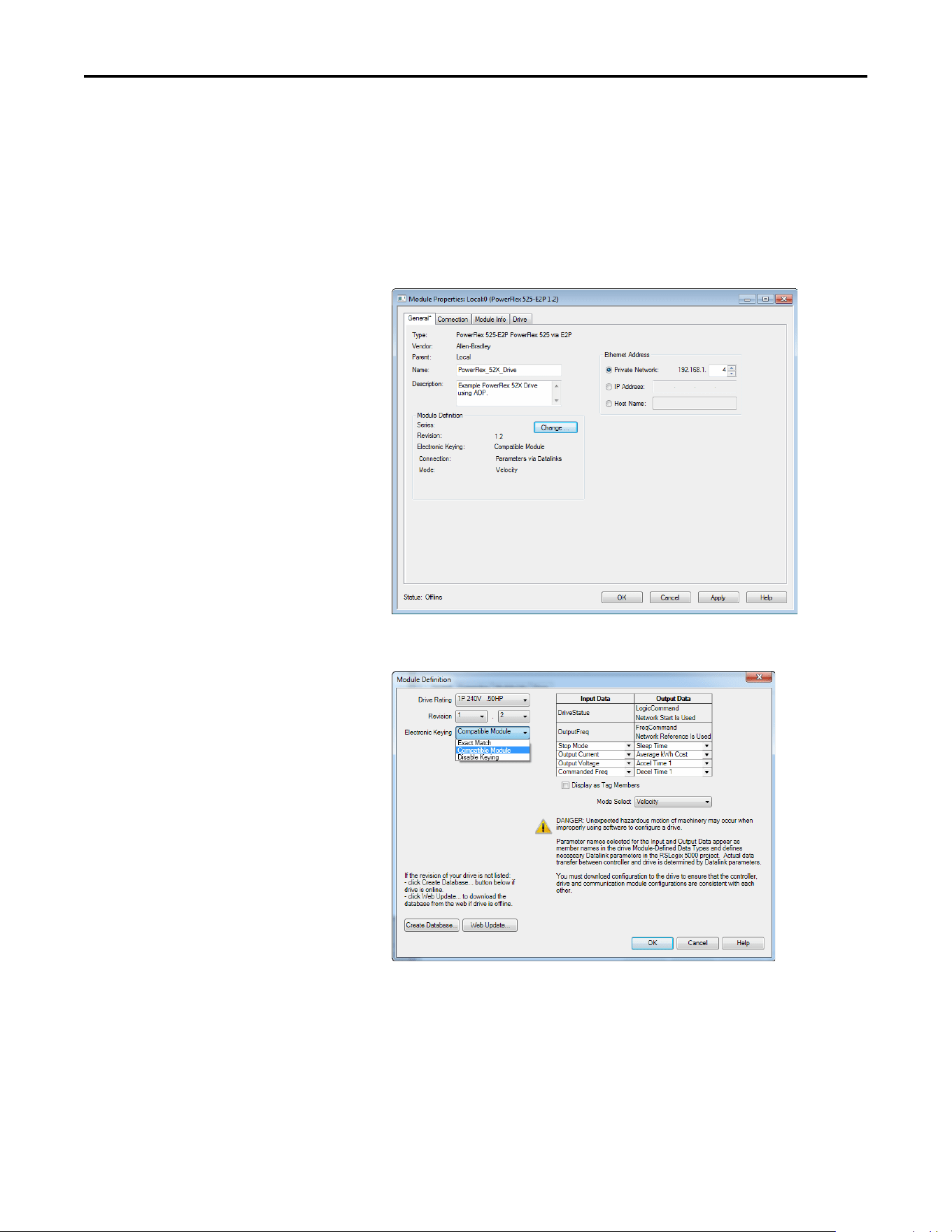
52 Rockwell Automation Publication 520COM-UM003A-EN-E - June 2013
Chapter 4 Configuring the I/O
Configuring a PowerFlex 525 Drive for ADC
ADC is configured within the AOP of the PowerFlex 525 drive. Start by creating
or opening a PowerFlex 525 drive in the RSLogix 5000 or Logix Designer I/O
Configuration folder.
1. In the Module Properties window, select the General tab and click
Change… to open the Module Definition window.
2. Select the appropriate Electronic Keying for your application.
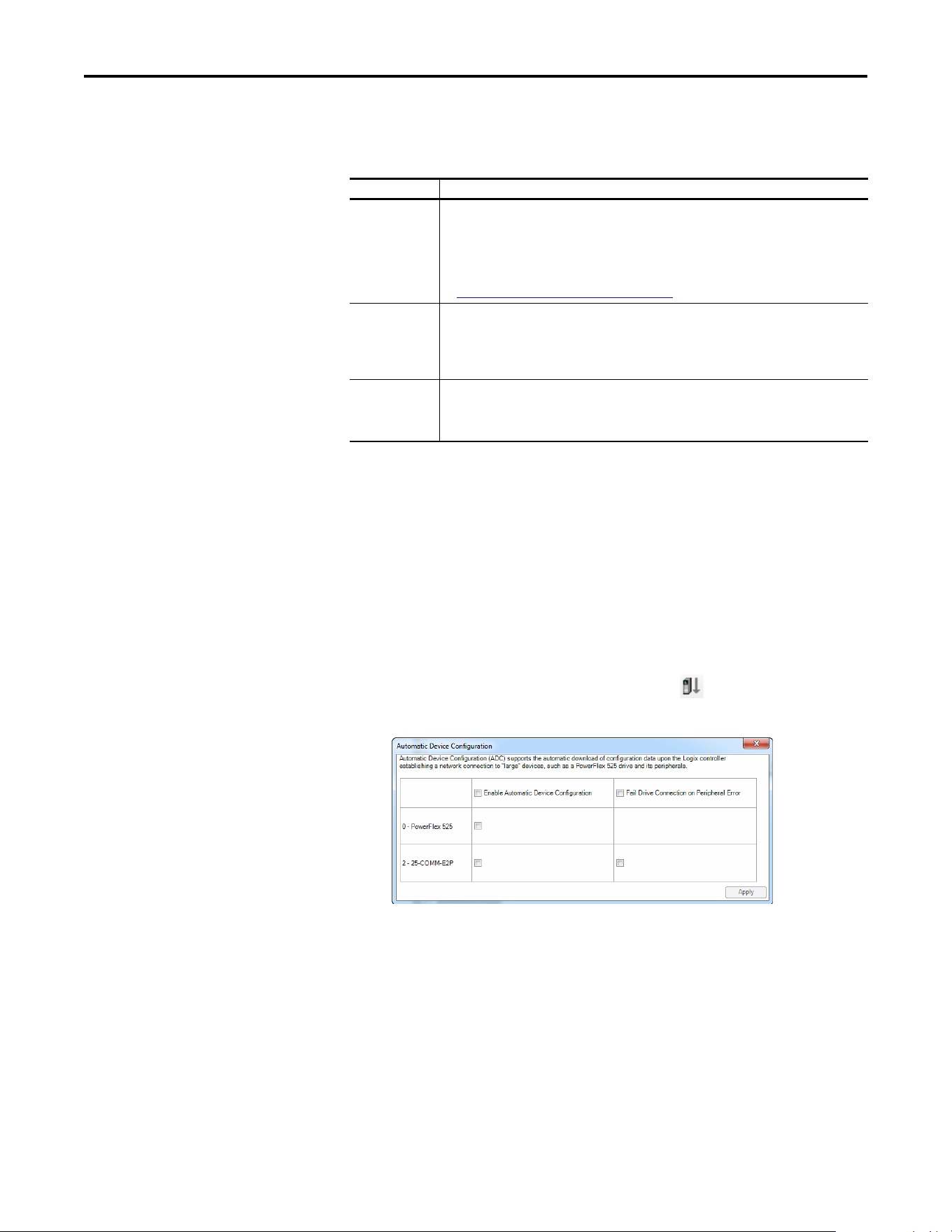
Rockwell Automation Publication 520COM-UM003A-EN-E - June 2013 53
Configuring the I/O Chapter 4
There are three Electronic Keying choices available in the Module
Definition window in the drive AOP, but only two are recommended with
ADC:
Electronic Keying for HIMs and serial converters are disabled by default.
These are typically temporary devices or used for monitoring purposes
only and therefore “do not matter” if they are present or not. You still have
the option to select these to other Keying selections if desired.
Click OK when finished.
3. Select the Drive tab and click the ADC icon to open the ADC
Settings.
The ADC Settings window provides a single location for ADC
configuration of the drive’s ports. Global checkboxes at the top of each
column checks or unchecks the entire column. Ports can also be turned
on/off individually. See the checkbox selection information in Step 3 for
additional details.
Click OK when finished.
4. Perform the above steps for each additional PowerFlex 525 drive.
5. Save your project and download the project to the Logix controller.
Keying Selection Recommendation
Exact Match This selection should only be used if:
• Your system design specification requires that a replacement drive/peripheral be identical –
down to the Minor revision of firmware (x.xxx).
• You will be implementing Firmware Supervisor flash support in addition to ADC. ControlFlash
firmware kits for the revision of firmware used for each drive/peripheral must be installed on the
PC running RSLogix 5000 or Logix Designer. Flash files can be downloaded from:
http://www.ab.com/support/abdrives/webupdate
Compatible Module This selection is the typical ADC selection when Firmware Supervisor is not used. A replacement
drive (including peripherals) will need to have the same or higher firmware revision as the original.
Since drives with newer firmware are required to be compatible with older firmware, this allows
ADC to work without compatibility concerns. Note that if a Series change accompanies a Major
firmware change, the replacement drive may or may not be “compatible” with respect to keying.
Disabled When using ADC, this selection should generally not be used. This selection allows a replacement
drive to have any different Major (x.xxx) and/or Minor (x.xxx) firmware revision. It is up to the user
to provide a replacement that has a firmware revision later than or equal to the original drive. If a
replacement drive with older firmware is used, the ADC download may fail.
TIP
Electronic Keying settings for peripherals can be modified in the Drive
tab of the AOP. Select the peripheral tab for the device you wish to
modify, then click Properties.
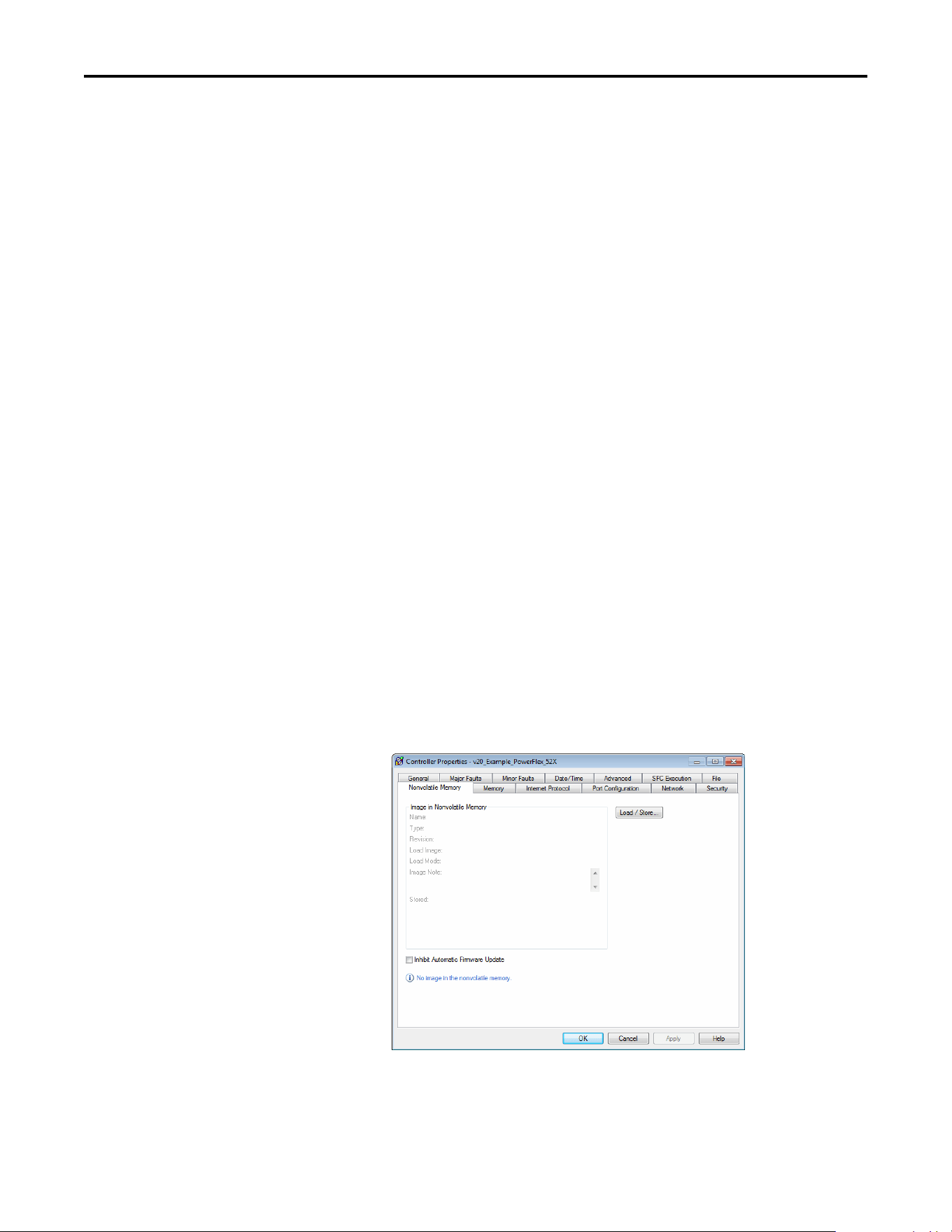
54 Rockwell Automation Publication 520COM-UM003A-EN-E - June 2013
Chapter 4 Configuring the I/O
ADC and Logix Memory
Starting in RSLogix 5000 software version 16, drive configuration settings have
been stored in the project's ACD file which is downloaded and stored in the
controller. The majority of Logix controllers have megabytes of memory
available, so this typically should not be an issue. You can monitor Logix memory
usage in the application in the Controller Properties > Memory tab.
Storing the Drive’s and Peripheral’s Firmware in the Logix Controller (Firmware Supervisor)
The Logix Firmware Supervisor function has been extended to provide firmware
updates for the peripherals connected to the drive. To configure the controller to
check and refresh the correct firmware for the drive and peripherals, perform the
following steps:
1. Verify that “Exact Match” keying is selected in the drive’s and peripherals’
properties screens (the drive’s is in the General tab; the peripherals’ are
under the Drive tab, after right-clicking on each peripheral and choosing
Properties).
2. Verify that ControlFlash firmware kits for each revision of firmware for
each device that should be stored in the controller have been installed on
the PC running RSLogix 5000 or Logix Designer software.
3. Verify that a CompactFlash or other storage card has been installed in the
controller.
4. Use RSLogix 5000 or Logix Designer to go online with the controller in
Program mode. Download your program if you have not done so already.
5. In the treeview, right-click on the controller folder at the top of the
Controller Organizer and choose Properties. On the Controller
Properties window, select the Nonvolatile Memory tab.
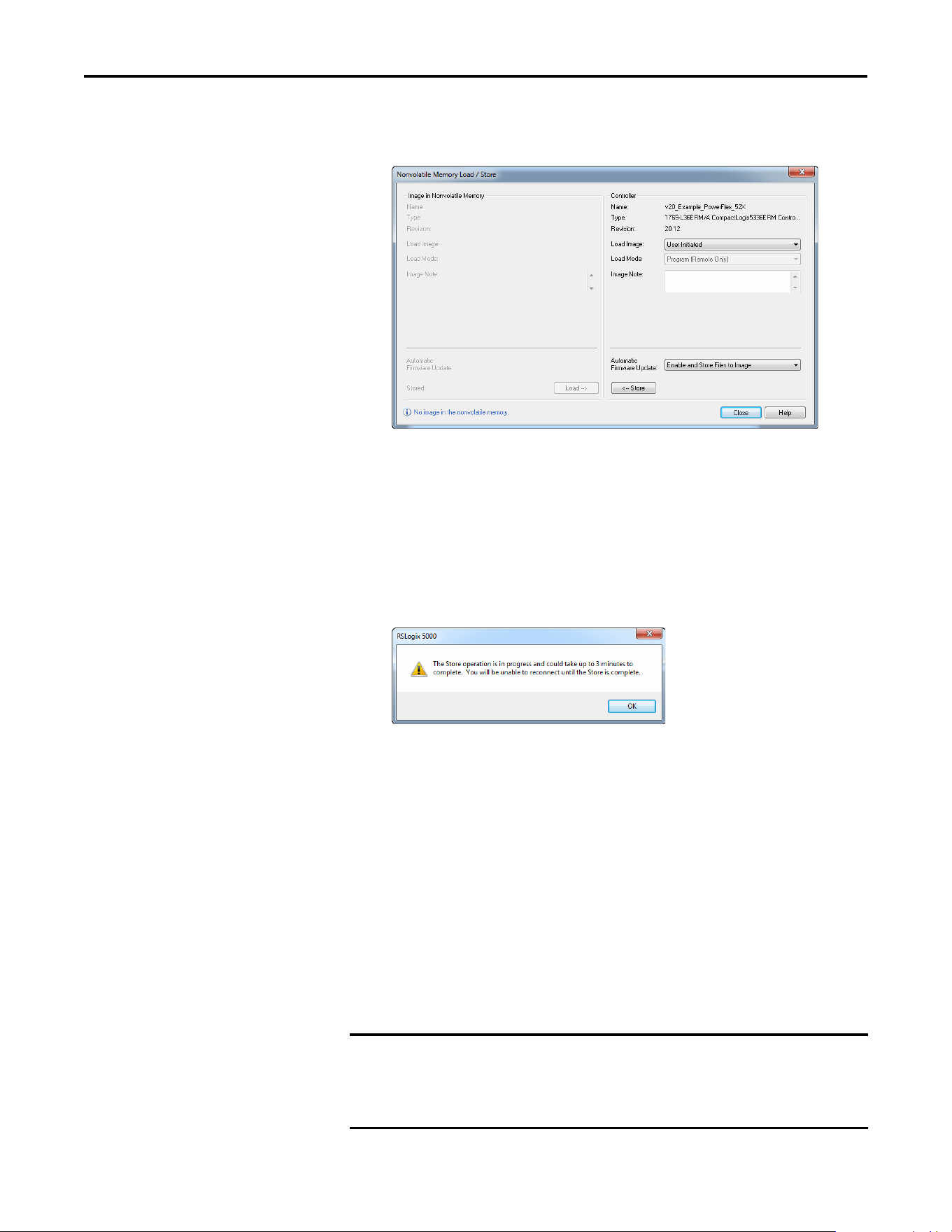
Rockwell Automation Publication 520COM-UM003A-EN-E - June 2013 55
Configuring the I/O Chapter 4
6. Click Load/Store…. The Nonvolatile Memory Load/Store window
appears.
In the Controller section for the Automatic Firmware Update field, select
“Enable and Store Files to Image,” and click the <-- Store button. You may
see two different continue confirmation dialog boxes relating to
communication disruptions and erasure of the current contents of the
storage card. If okay, click Ye s on each dialog box.
7. The application will go to the Offline state, and the following dialog box
will appear.
Wait a short period of time for the store operation to complete, and then
attempt to go online with the controller again.
Monitoring the ADC Progress
The time it takes for the ADC process to complete will vary from seconds to
several minutes depending on several factors:
• The number of peripherals enabled for ADC.
• If a configuration signature for the drive/peripheral indicates a
configuration download needs to be performed for the given port.
• Whether Firmware Supervisor is enabled and needs to flash the drive and/
or any peripherals.
IMPORTANT
ADC can automatically reset the drive as part of the configuration process. This
is done because some parameters require a reset before they take effect. If a
drive is being replaced with an out-of-the-box drive, you will typically see one
or more resets during the ADC process.

56 Rockwell Automation Publication 520COM-UM003A-EN-E - June 2013
Chapter 4 Configuring the I/O
An operational drive in a running Logix system will have the following status
indicator states:
See Understanding the Status Indicators
on page 115 for more information.
Additional information may also be displayed on the HIM if it is present (flash
status, etc.).
If ADC is unsuccessful, RSLogix 5000 or Logix Designer software can be used to
get additional information. When online, the drive at issue should have a yellow
triangle next to it in the RSLogix 5000 or Logix Designer project's I/O
Configuration folder. Double-click on the drive to open the drive AOP. The
Connection tab will show a Module Fault code and the Drive tab can help you
identify issues.
Examples of potential issues/solutions are:
Using the RSLogix 5000 or Logix Designer Generic Profile
The basic RSLogix 5000 (all versions) or Logix Designer (version 21 or greater)
Generic Profile is only recommended when:
Status Indicator State Description
PORT Steady Green The adapter is properly connected and is communicating with the drive.
MOD Steady Green The adapter is operating normally and is transferring I/O data to a controller.
NET A Steady Green The adapter is operating normally and has at least one CIP connection (I/O or
explicit).
NET B Flashing Green The adapter is transmitting on the network.
ADC Status Field Description
Running Any desired configuration is complete, and the I/O connection is running.
Configuring ADC is currently updating the configuration of the drive or one of its peripherals. Clicking
on the Connection tab will show which device is being updated.
Firmware Updating ADC is currently updating the firmware of the drive or one of its peripherals. Clicking on
the Drive tab will show which device is being updated.
Inhibited The program has the connection inhibited. You can uninhibit the connection on the
Connection tab.
Faulted A problem is preventing the controller from connecting to the drive (for example, the
device at the IP address provided is not a PowerFlex 525 drive). Clicking on the
Connection tab will show the cause (Module Fault). Clicking on the Drive tab may also
show the faulted ports.
Issue Solution
“Compatible module” keying selected, but replacement
drive or peripheral has an earlier firmware revision than the
failed device.
Replace device with a revision that is later than or equal to
the failed device. If necessary, use ControlFLASH to flash
replacement device first to an acceptable revision level.
Peripheral is required for connection (“Fail Drive Connection
on Peripheral Error” was checked), but it is missing.
Add required peripheral or remove peripheral from
RSLogix 5000/Logix Designer project for the drive and
download project to the controller.
Parameter “out of range” error—ADC wrote a value to a
parameter that was out of range (typically would only
occur during initial commissioning of a drive system).
Use any available drive software tool to view a linear list of
changed parameters to see if the configured value is
outside the minimum/maximum value. The drive AOPs are
the preferred tool and will highlight any out of range
parameter in the Linear List editor. Connected Components
Workbench (version 3 or greater) may also be used.
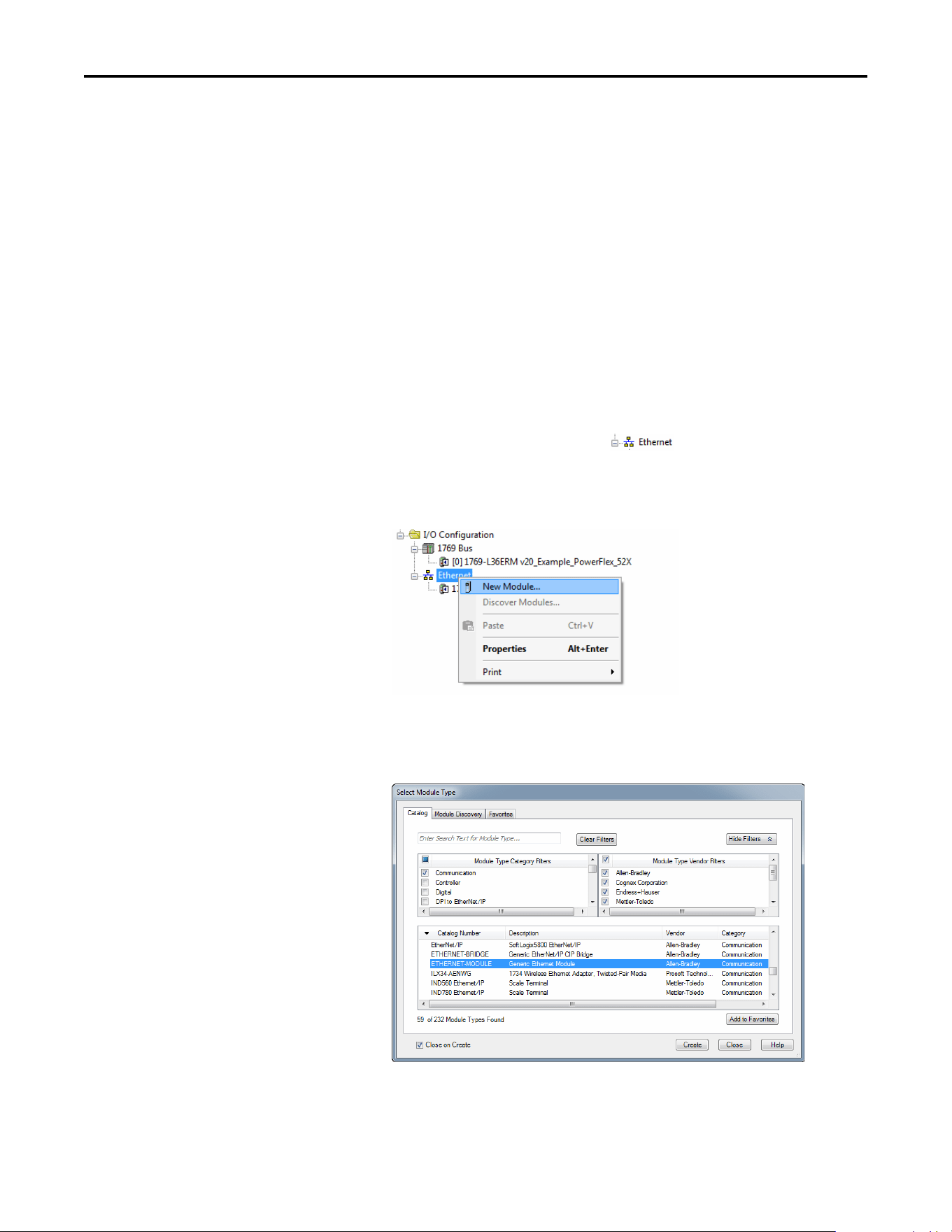
Rockwell Automation Publication 520COM-UM003A-EN-E - June 2013 57
Configuring the I/O Chapter 4
• A specific drive profile in other versions of RSLogix 5000 or Logix
Designer software is unavailable.
• Users are already familiar with a Generic Profile and do not want to
convert an existing project to a drive Add-On Profile (RSLogix 5000
version 17 or greater and Logix Designer version 21 or greater).
• A project must maintain specific revision level control.
• The controller cannot be taken offline. RSLogix 5000 (all versions) and
Logix Designer (version 21 or greater) software enables the drive Generic
Profile to be added while the controller is online and in the Run mode.
Adding the Drive/Adapter to the I/O Configuration
To transmit data between the bridge and the drive, you must add the drive as a
child device to the parent bridge.
1. In the treeview, right-click on the icon and select New
Module… to display the Select Module Type window. Expand the
Communications group to display all of the available communication
modules or search for “ETHERNET-MODULE”.
2. Select “ETHERNET-MODULE” from the list in the Select Module Type
window to configure the drive’s embedded EtherNet/IP adapter, and then
click Create. The drive’s New Module window appears.
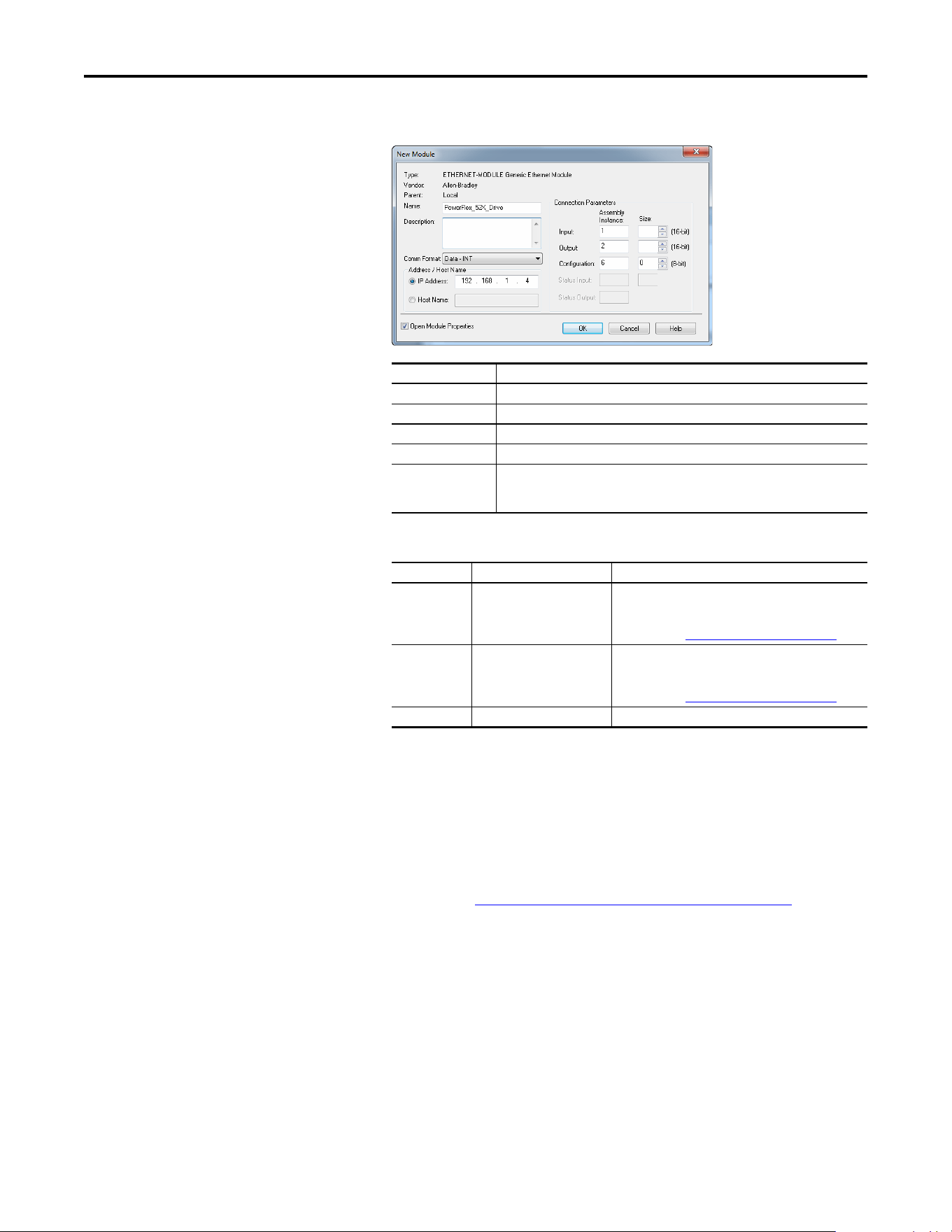
58 Rockwell Automation Publication 520COM-UM003A-EN-E - June 2013
Chapter 4 Configuring the I/O
3. Edit the following information about the drive:
4. Under Connection Parameters, edit the following:
Enter the number of 16-bit words that are required for your I/O in the
Input Size and Output Size boxes. Since the adapter always uses the 16-bit
Logic Status, 16-bit Feedback, and two 16-bit words dedicated for
memory allocation of the Generic Ethernet module profile, at least four
16-bit words must be set for the Input Size. The adapter also uses the 16-
bit Logic Command and 16-bit Reference, requiring at least two 16-bit
words for the Output Size. If any or all of the drive’s eight 16-bit Datalinks
are used (see Configuring a Master-Slave Hierarchy
on page 33), the Input
and Output Size settings must be increased accordingly.
Box Setting
Name A name to identify the drive.
Description Optional – description of the drive.
Comm Format Data – INT (This setting formats the data in 16-bit words.)
IP Address The IP address of the drive.
Open Module
Properties
When this box is checked, clicking OK opens additional module properties screens to
further configure the drive. When unchecked, clicking OK closes the drive’s New
Module screen. For this example, check this box.
Box Assembly Instance Size
Input 1 (This value is required.) The value will vary based on the total number of Host
parameters [Opt Data In x] used for your application,
either in Single-drive mode (see details below) or Multi-
drive mode (see Using Multi-Drive Mode
on page 87).
Output 2 (This value is required.) The value will vary based on the total number of Host
parameters [Opt Data Out x] used for your application,
either in Single-drive mode (see details below) or Multi-
drive mode (see Using Multi-Drive Mode
on page 87).
Configuration 6 (This value is required.) 0 (This value is required.)
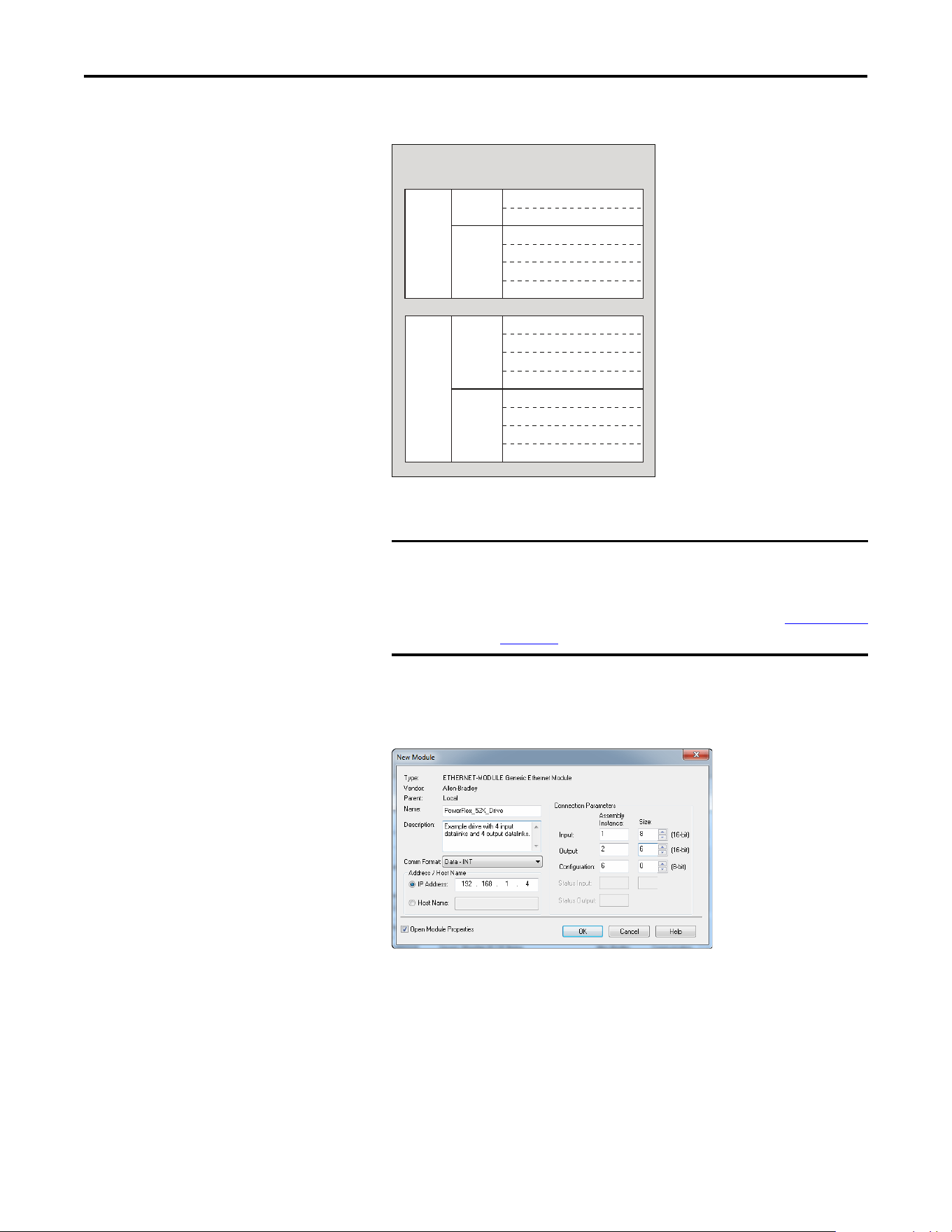
Rockwell Automation Publication 520COM-UM003A-EN-E - June 2013 59
Configuring the I/O Chapter 4
Generic Profile Example of I/O Image
For the example below, all four [Opt Data In x] and all four [Opt Data
Out x] parameters are used, resulting in an Input Size of “8” and an
Output Size of “6.”
5. After setting the information in the drive’s New Module window, click
OK. The Module Properties window appears.
IMPORTANT
The Host Datalink parameters [Opt Data In x] and [Opt Data Out x] do
not actually contain data. These are user-configurable parameters that
only contain the parameter number of the parameter whose data will
be made available for write/read in the I/O image. See Using Datalinks
on page 66.
Adapter
Word and I/O
Logic CommandWord 0
ReferenceWord 1
Datalink 1Word 2
Datalink 2Word 3
Datalink 3Word 4
Datalink 4Word 5
Logic StatusWord 2
FeedbackWord 3
Required
Padword
(1)
Word 0
PadwordWord 1
Datalink 1Word 4
Datalink 2Word 5
Datalink 3Word 6
Datalink 4Word 7
Optional
Required
Optional
Output
Image
(Write)
Input
Image
(Read)
(1) Padwords only apply when using the generic profile. Padwords are not used when using the full-featured drive Add-
On-Profile.
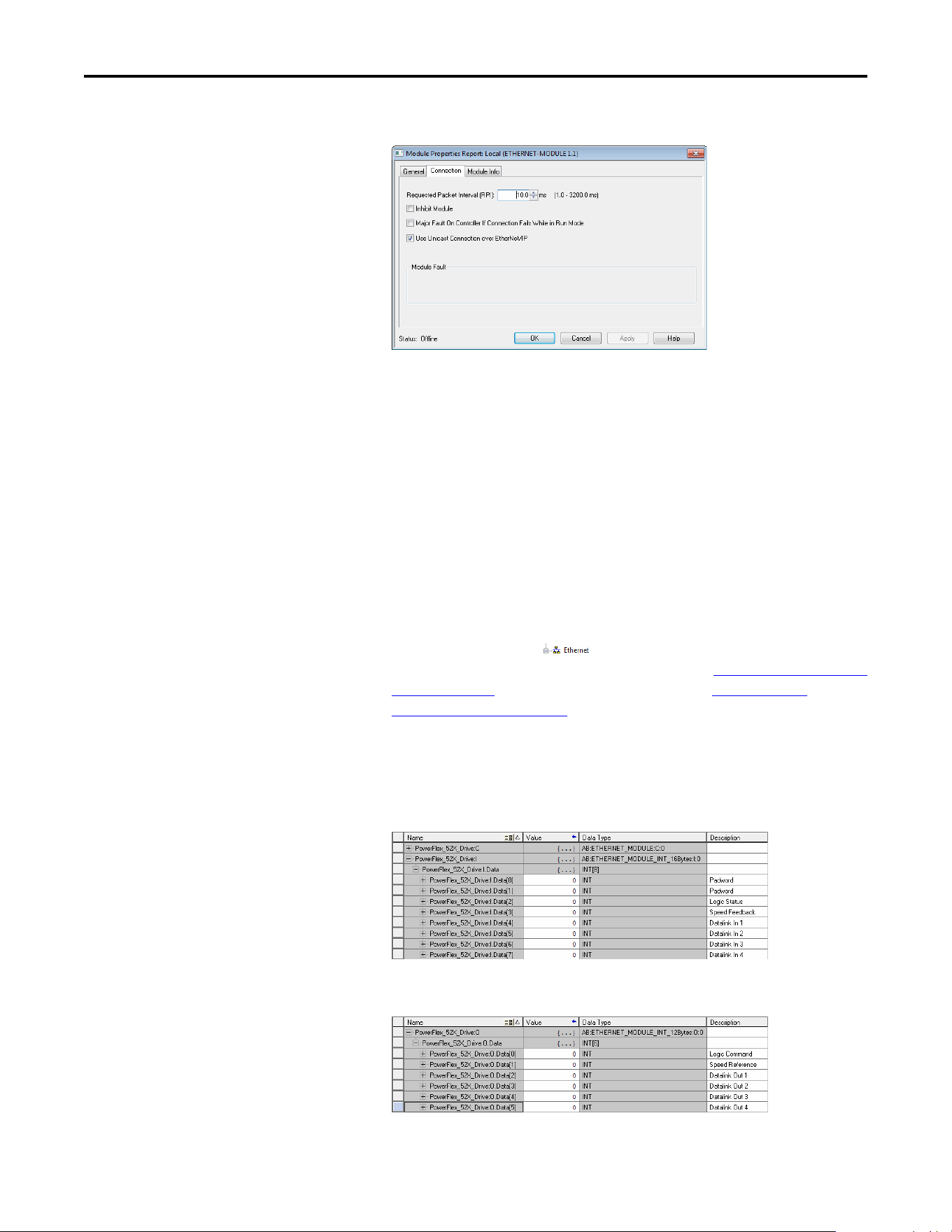
60 Rockwell Automation Publication 520COM-UM003A-EN-E - June 2013
Chapter 4 Configuring the I/O
6. Click the Connection tab.
7. In the “Requested Packet Interval (RPI)” box, set the value to 2.0
milliseconds or greater. This value determines the maximum interval that a
controller should use to move data to and from the adapter. To conserve
bandwidth, use higher values for communicating with low priority devices.
For this example, leave the “Inhibit Module” and Major Fault On…” boxes
unchecked.
The “Use Unicast Connection over EtherNet/IP” box is checked by
default. This is the recommended setting. When this box is unchecked, the
adapter will send multicast messages on the I/O connection. In this case,
the adapter and the EtherNet/IP bridge must be on the same subnet.
8. Click OK. The new node
(“ETHERNET-MODULE_PowerFlex_52X_Drive” in this example)
now appears under the icon in the I/O Configuration folder. If
you double-click on the Input Controller Tag (see Input Image Controller
Ta g s on page 60) and Output Controller Tag (see Output Image
Controller Tags on page 60), you will see that module-defined data types
and tags have been automatically created. After you save and download the
configuration, these tags allow you to access the Input and Output data of
the drive using the controller’s ladder logic.
Input Image Controller Tags
Output Image Controller Tags
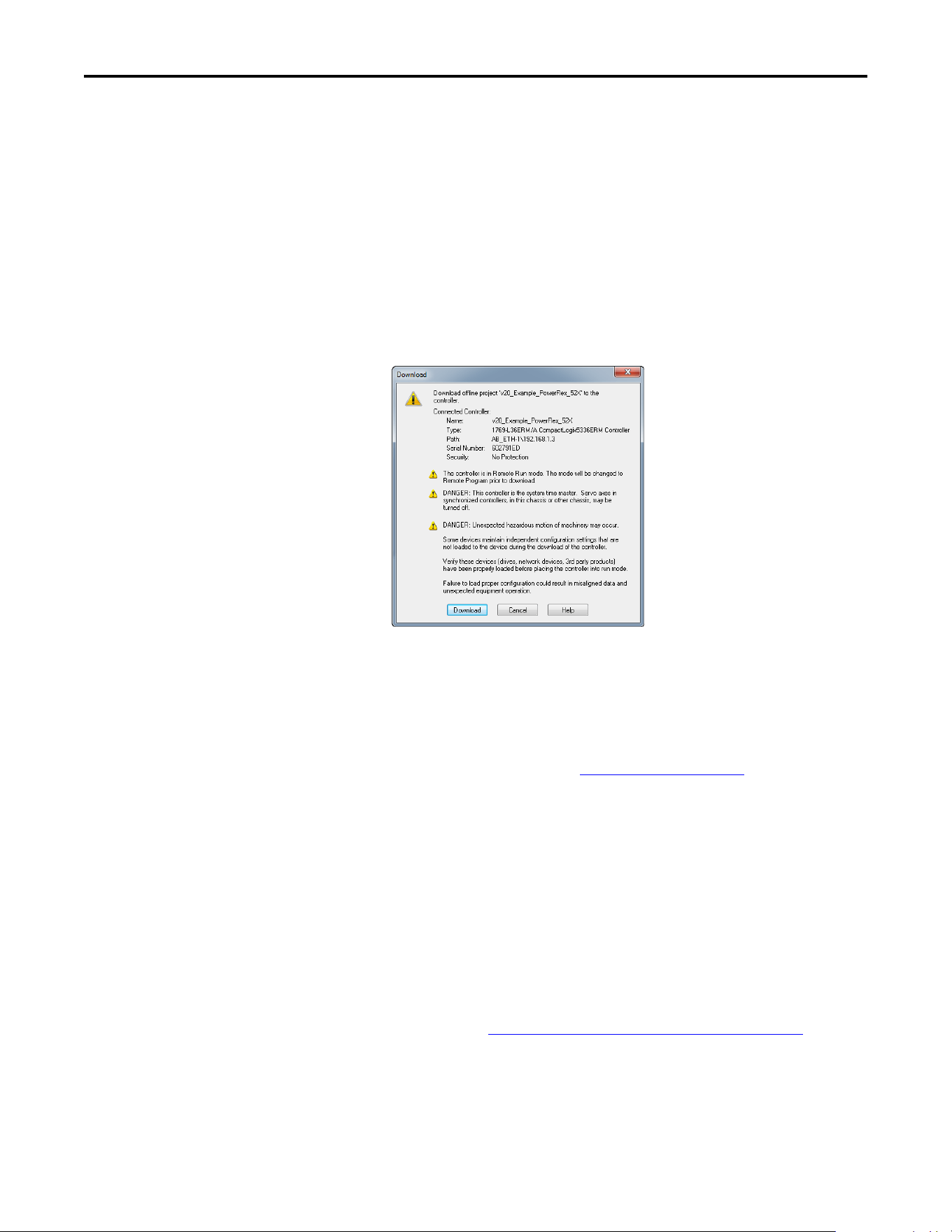
Rockwell Automation Publication 520COM-UM003A-EN-E - June 2013 61
Configuring the I/O Chapter 4
Saving the I/O Configuration to the Controller
After adding the bridge and drive/adapter to the I/O configuration, you must
download the configuration to the controller. You should also save the
configuration to a file on your computer.
1. In the RSLogix 5000 or Logix Designer window, select Communications
> Download. The Download dialog box appears.
2. Click Download to download the configuration to the controller. When
the download is successfully completed, RSLogix 5000 or Logix Designer
goes into the Online mode and the I/O OK box in the upper-left of the
screen should be steady green.
3. Select File > Save. If this is the first time you saved the project, the Save As
dialog box appears. Navigate to a folder, type a file name, and click Save to
save the configuration to a file on your computer.
4. Any Datalinks that were enabled in the controller and drive during I/O
configuration must also be configured in the drive. Each Datalink being
used must be assigned to a specific parameter in the drive or connected
peripheral (see Configuring a Master-Slave Hierarchy
on page 33). If this is
not done, the controller will receive or send placeholder data instead of
actual drive or peripheral parameter values.
5. Place the controller in Remote Run or Run Mode.
TIP
When using RSLogix 5000 or Logix Designer software, you can add the I/O
configuration of a Generic Profile while the controller is online and in the Run
mode.
TIP
If a message box reports that RSLogix 5000 or Logix Designer is unable
to go online, select Communications > Who Active to find your
controller in the Who Active screen. After finding and selecting the
controller, click Set Project Path to establish the path. If your
controller does not appear, you need to add or configure the EtherNet/
IP driver in RSLinx. See Using RSLinx Classic
on page 39 for details.

62 Rockwell Automation Publication 520COM-UM003A-EN-E - June 2013
Chapter 4 Configuring the I/O
Limitations in Using
MicroLogix 1100/1400
Controlling I/O with explicit messages is relatively complex compared to normal
implicit I/O control.
ControlLogix and CompactLogix controllers with EtherNet/IP provide the
easiest and most integrated form of implicit I/O control for a PowerFlex drive.
RSLogix 5000 or Logix Designer programming software for ControlLogix and
CompactLogix controllers contains integrated profiles for PowerFlex drives that,
with a few clicks of the mouse, automatically create all controller tags and an
implicit connection at the specified Requested Packet Interval to control the
drive. This connection is monitored at both ends to ensure that the controller
and drive are communicating. A watchdog will cause a drive fault if the drive does
not respond within approximately 100 milliseconds. Therefore, using a
ControlLogix or CompactLogix controller is by far the much preferred method
of controlling drives on EtherNet/IP.
If you are not using either of these type of controllers, then PowerFlex drives on
EtherNet/IP can be controlled with explicit messages using
MicroLogix 1100/1400 controllers with the following limitations:
• An explicit message is a much slower form of control and is non-
deterministic. This means that you cannot guarantee how long the drive
will take to start up or stop when the command is given. Therefore, all
equipment used in this manner should be subject to a risk assessment,
taking into account the mechanical and electrical implementation.
• A timeout value (in seconds) in the embedded EtherNet/IP adapter will
issue a drive fault if a message is not received from the controller within the
specified time. However, the controller has no way of detecting a loss of
communications to the drive until the next cycle of explicit messages. This
is another factor in the risk assessment.
• Any additional drives to be controlled will require additional explicit
messages for their control, and they need to be carefully sequenced. Most
controllers have small communication queues (see its User Manual), which
need to be carefully managed if messages are not to be lost.
• Each controller has a limited number of communication connections (see
its User Manual for maximum connections), which will limit the number
of drives that can be connected.
In summary, unlike a ControlLogix or CompactLogix controller, programming a
MicroLogix 1100/1400 controller using RSLogix 500 software with explicit
messages is more difficult, and produces a more complex program.
Rockwell Automation Publication 520COM-UM003A-EN-E - June 2013 63
Chapter 5
Using the I/O
This chapter provides information and examples that explain how to control,
configure, and monitor a PowerFlex 520-series drive using the configured I/O.
About I/O Messaging
On CIP-based networks, including EtherNet/IP, I/O connections are used to
transfer the data which controls the PowerFlex drive and sets its Reference. I/O
can also be used to transfer data to and from Datalinks in PowerFlex 520-series
drives.
The adapter includes the Logic Command, Logic Status, Reference, Feedback,
and memory allocation for the Generic Ethernet module profile (all as 16-bit
words) in the controller’s I/O image. This basic I/O must always be configured in
the Ethernet bridge using RSLogix 5000 or Logix Designer software. Additional
I/O, if needed, can be set using up to four Datalinks to write data and/or up to
four Datalinks to read data. When using any combination of these Datalinks, add
one 16-bit word for each Datalink to the basic I/O Input Size and/or Output
Size.
Configuring the Adapter
on page 25 and Configuring the I/O on page 39 discuss
how to configure the adapter and controller on the network for the required I/O.
The Glossary defines the different options. This chapter discusses how to use I/O
after you have configured the drive and controller.
Topic Page
About I/O Messaging
63
Understanding the I/O Image 64
Using Logic Command/Status 65
Using Reference/Feedback 65
Using Datalinks 66
Example Ladder Logic Program Information 67
CompactLogix Example 67
ATTENTION: Risk of injury or equipment damage exists. The examples in this
publication are intended solely for purposes of example. There are many
variables and requirements with any application. Rockwell Automation, Inc.
does not assume responsibility or liability (to include intellectual property
liability) for actual use of the examples shown in this publication.

64 Rockwell Automation Publication 520COM-UM003A-EN-E - June 2013
Chapter 5 Using the I/O
Understanding the I/O Image
The terms input and output are defined from the controller’s point of view.
Therefore, output I/O is data that is produced by the controller and consumed by
the adapter. Input I/O is data that is produced by the adapter and consumed as
input by the controller. The I/O image will vary based on:
• How many of the drive’s 16-bit Datalinks (Host parameters C161 [Opt
Data In 1] through C164 [Opt Data In 4] and C165 [Opt Data Out 1]
through C168 [Opt Data Out 4]) are used.
Device parameters 02 [DLs From Net Act] and 03 [DLs To Net Act]
must also be configured accordingly if Datalinks are used.
• ControlLogix/CompactLogix Controllers only—The drive Add-On
Profile (AOP) used in RSLogix 5000 (version 17 or greater) or Logix
Designer (version 21 or greater) software, or the Generic Profile (all
versions).
• If Multi-drive mode is enabled, and the number of daisy-chained drives
that are present.
I/O Controller Image
Since the drive Add-On Profile in RSLogix 5000 (version 17 or greater) and
Logix Designer (version 21 or greater) software provides descriptive controller
tags, the I/O image (tag size and location) is automatically configured based on
the drive being used. When using the Generic Profile in RSLogix 5000 or Logix
Designer, however, controller tags are not descriptive.
I/O Image for PowerFlex 525 Drives
on page 64 shows the I/O image when using
all of the 16-bit Datalinks.
I/O Image for PowerFlex 525 Drives
(16-bit Logic Command/Status, Reference/Feedback, and Datalinks)
Single drive mode is the typical configuration, where one node consists of a
PowerFlex 520-series drive with a 25-COMM-E2P adapter.
For Multi-Drive mode, where one node can consist of up to five drives, see Using
Multi-Drive Mode on page 87.
INT Output Input Using...
INT Drive Add-On Profile INT Generic Profile
0Logic Command0Logic Status 0Padword
1 Reference 1 Feedback 1 Padword
2 Datalink 1 2 Datalink 1 2 Logic Status
3 Datalink 2 3 Datalink 2 3 Feedback
4 Datalink 3 4 Datalink 3 4 Datalink 1
5 Datalink 4 5 Datalink 4 5 Datalink 2
6 Datalink 3
7 Datalink 4

Rockwell Automation Publication 520COM-UM003A-EN-E - June 2013 65
Using the I/O Chapter 5
Using Logic Command/Status
The Logic Command is a 16-bit word of control data produced by the controller
and consumed by the adapter. The Logic Status is a 16-bit word of status data
produced by the adapter and consumed by the controller.
When using a ControlLogix or CompactLogix controller, the Logic Command
word is always INT 0 in the output image and the Logic Status word is always:
• INT 0 in the input image when using the drive Add-On Profile.
• INT 2 when using the Generic Profile.
This manual contains the bit definitions for compatible products available at the
time of publication in Logic Command/Status Words: PowerFlex 525 Drives
on
page 157.
Using Reference/Feedback
The Reference is a 16-bit word that is produced by the controller and consumed
by the adapter. The Feedback is a 16-bit word produced by the adapter and
consumed by the controller.
When using a ControlLogix or CompactLogix controller, the Reference is always
INT 1 in the output image (see I/O Image for PowerFlex 525 Drives
on page 64)
and the 16-bit Feedback is always:
• INT 1 in the input image when using the drive Add-On Profile.
• INT 3 when using the Generic Profile.
The Reference and Feedback are 16-bit INT values represent drive speed. The
scaling for the speed Reference and Feedback is 0.01 Hz. For example, a 16-bit
INT Reference value of ‘3000’ would equal a Reference of 30.00 Hz. Note that
the commanded maximum speed can never exceed the value of Host parameter
P044 [Maximum Freq]. PowerFlex 525 Drive Example Speed Reference/
Feedback Scaling on page 65 shows example References and their results for a
PowerFlex 525 drive that has its:
• Host parameter P043 [Minimum Freq] set to 10.00 Hz.
• Host parameter P044 [Maximum Freq] set to 50.00 Hz.
PowerFlex 525 Drive Example Speed Reference/Feedback Scaling
Network Reference Value Speed Commanded Value Output Speed Network Feedback Value
10000 100.00 Hz 50.00 Hz
(1)
(1) The drive runs at 50.00 Hz instead of 100.00 Hz or 65.00 Hz because Host parameter P044 [Maximum Freq] sets 50.00 Hz as the
maximum speed.
5000
6500 65.00 Hz 50.00 Hz
(1)
5000
3250 32.50 Hz 32.50 Hz 3250
0 0.00 Hz 0.00 Hz 0

66 Rockwell Automation Publication 520COM-UM003A-EN-E - June 2013
Chapter 5 Using the I/O
Using Datalinks
A Datalink is a mechanism used by PowerFlex drives to transfer data to and from
the controller. Datalinks allow a drive parameter value to be read or written to
without using an Explicit Message. When enabled, each Datalink occupies one
16-bit word in a ControlLogix, CompactLogix, or MicroLogix controller.
The following rules apply when using PowerFlex 520-series drive Datalinks:
• Datalinks cannot be used with Multi-drive mode.
• The target of a Datalink can be any appropriate Host parameter. For
example, Host parameter P041 [Accel Time 1] can be the target of the
Dual-port EtherNet/IP adapter installed in the drive.
• The data passed through the drive’s Datalink mechanism is determined by
the settings of the following parameters:
– Device Parameter 02 [DLs From Net Act]
– Device Parameter 03 [DLs To Net Act]
– Host parameters C161 [Opt Data In 1] through
C164 [Opt Data In 4]
– Host parameters C165 [Opt Data Out 1] through
C168 [Opt Data Out 4]
• When an I/O connection that includes Datalinks is active, those Datalinks
being used are locked and cannot be changed until that I/O connection
becomes idle or inactive.
• When you use a Datalink to change a value, the value is NOT written to
the Non-Volatile Storage (NVS). The value is stored in volatile memory
and lost when the drive loses power. Thus, use Datalinks when you need to
change a value of a parameter frequently.
Datalinks for PowerFlex 520-series drive peripherals (embedded EtherNet/IP
adapter on PowerFlex 525 drives only and option modules such as an encoder or
communication adapter) are locked when the peripheral has an I/O connection
with a controller. When a controller has an I/O connection to the drive, the drive
does not allow a reset to defaults, configuration download or anything else that
could change the makeup of the I/O connection in a running system. The I/O
connection with the controller must first be disabled to allow changes to the
respective Datalinks.
IMPORTANT
There are several parameters in the drive that will override the start source and
speed reference command if enabled. For details on these parameters, see the
PowerFlex 525 drive’s user manual, publication 520-UM001
.
Attempting to write a negative value to the Speed Reference will result in the
drive ramping to maximum speed due to overflow, the direction of the drive
can only be controlled programmatically with the appropriate bits (bits 4 and
5) in the Command Word.
IMPORTANT
A reset is always required after configuring Datalinks so that the
changes take effect.

Rockwell Automation Publication 520COM-UM003A-EN-E - June 2013 67
Using the I/O Chapter 5
Depending on the controller being used, the I/O connection can be disabled by:
• Inhibiting the module in RSLogix 5000 or Logix Designer software
• Putting the controller in Program mode
• Placing the scanner in idle mode
• Disconnecting the drive from the network
Example Ladder Logic
Program Information
The example ladder logic programs in the sections of this chapter are intended for
PowerFlex 520-series drives.
Functions of the Example Programs
The example programs enable you to:
• Receive Logic Status information from the drive.
• Send a Logic Command to control the drive (for example, start, stop).
• Send a Reference to the drive and receive Feedback from the drive.
• Send/receive Datalink data to/from the drive.
Logic Command/Status Words
These examples use the Logic Command word and Logic Status word for
PowerFlex 525 drives. See Logic Command/Status Words: PowerFlex 525 Drives
on page 157 to view details.
CompactLogix Example
Creating Ladder Logic Using the Drive Add-On Profiles in RSLogix
5000 or Logix Designer Software
Since the drive Add-On Profile automatically created descriptive controller tags
(see Controller Input Tags
and Controller Output Tags on page 47) for the entire
I/O image in Configuring the I/O
on page 39, you can use these tags to directly
control and monitor the drive without creating any ladder logic program.
However, if you intend to use Human Machine Interface devices (PanelView,
etc.) to operate the drive and view its status, you will need to create descriptive
user-defined Program tags (see CompactLogix Program Tags for Drive Add-On
Profile Ladder Logic Program Example on page 68) and a ladder logic program
that will pass the Controller tag data to the Program tags.
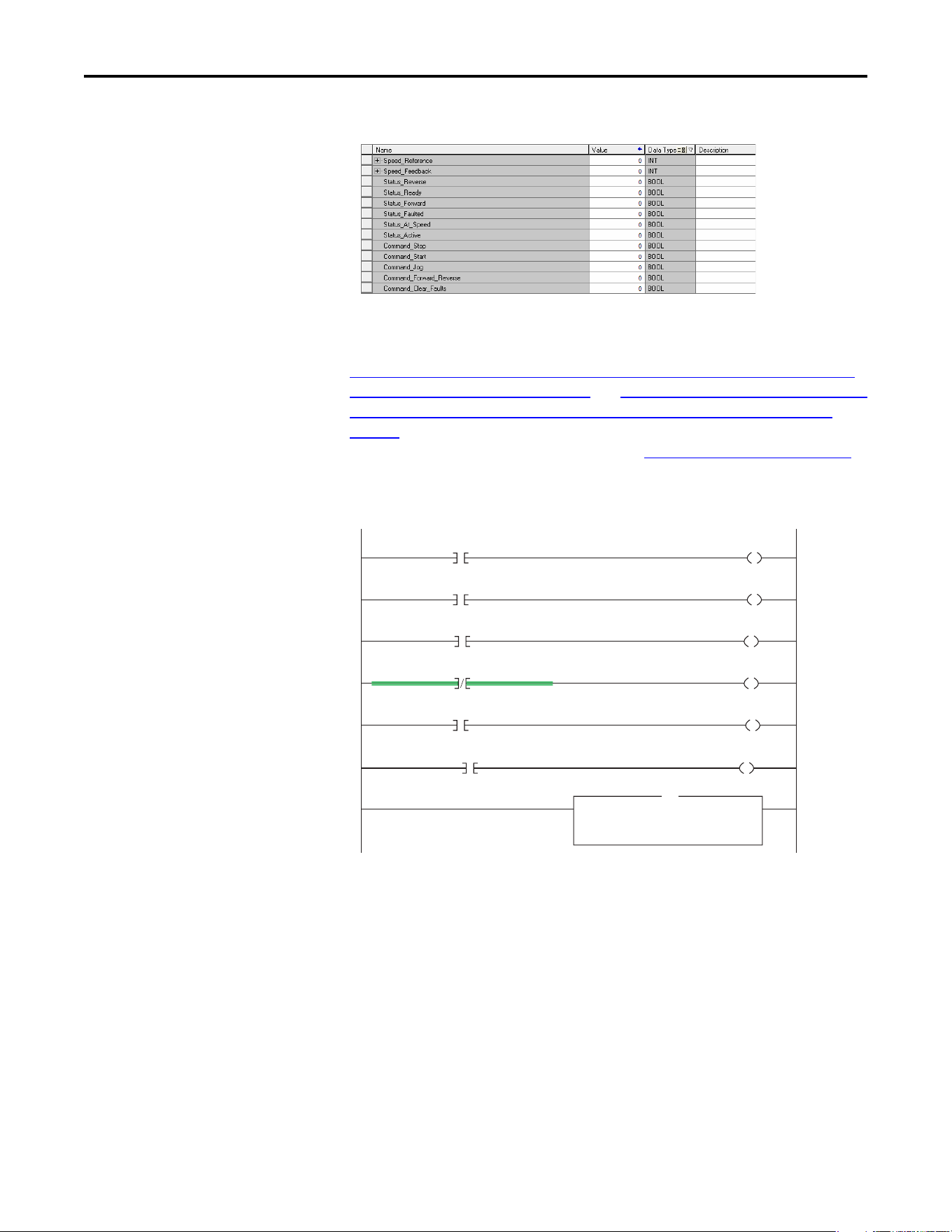
68 Rockwell Automation Publication 520COM-UM003A-EN-E - June 2013
Chapter 5 Using the I/O
CompactLogix Program Tags for Drive Add-On Profile Ladder Logic Program Example
An example ladder logic program that uses the automatically-created descriptive
Controller tags and passes their data to the user-defined Program tags is shown in
CompactLogix Example Ladder Logic Program Using a Drive Add-On Profile
for Logic Status/Feedback on page 68 and CompactLogix Example Ladder Logic
Program Using a Drive Add-On Profile for Logic Command/Reference on
page 69. Note that the prefix for the drive Controller tags is determined by the
name assigned when configuring the I/O (see Configuring the I/O
on page 39).
CompactLogix Example Ladder Logic Program Using a Drive Add-On Profile for Logic Status/
Feedback
Copy File
Source
Dest
Length
PowerFlex_52X_Drive:I.OutputFreq
Speed_Feedback
1
COP
PowerFlex_52X_Drive:I.DriveStatus_Ready Status_Ready
PowerFlex_52X_Drive:I.DriveStatus_Active Status_Active
PowerFlex_52X_Drive:I.DriveStatus_ActualDir Status_Forward
PowerFlex_52X_Drive:I.DriveStatus_ActualDir Status_Reverse
PowerFlex_52X_Drive:I.DriveStatus_Faulted Status_Faulted
PowerFlex_52X_Drive:I.DriveStatus_AtReference Status_At_Speed
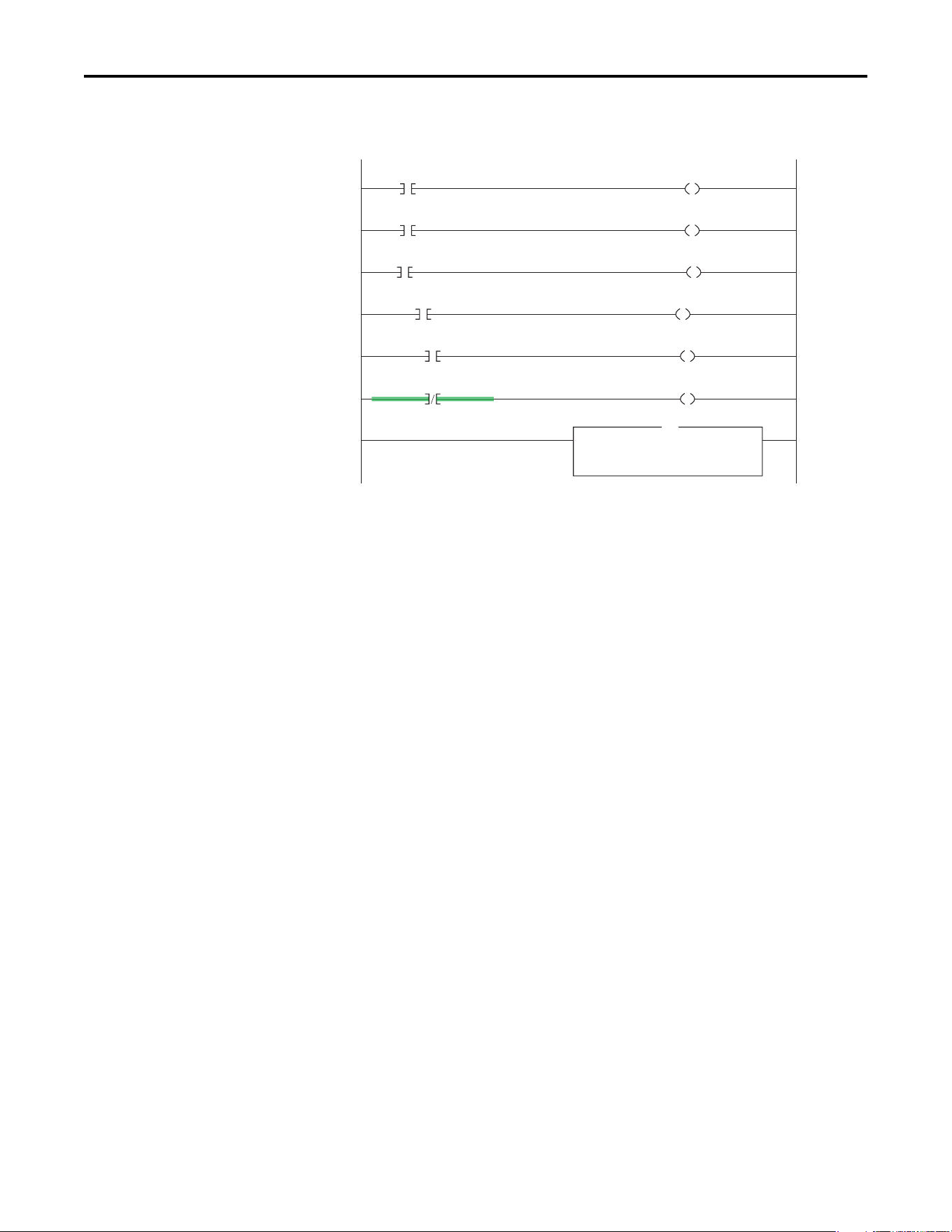
Rockwell Automation Publication 520COM-UM003A-EN-E - June 2013 69
Using the I/O Chapter 5
CompactLogix Example Ladder Logic Program Using a Drive Add-On Profile for Logic Command/
Reference
Copy File
Source
Dest
Length
Speed_Reference
PowerFlex_52X_Drive:O.FreqCommand
1
COP
Command_Stop PowerFlex_52X_Drive:O.DriveLogicRslt_Stop
Command_Start PowerFlex_52X_Drive:O.DriveLogicRslt_Start
Command_Jog PowerFlex_52X_Drive:O.DriveLogicRslt_Jog
Command_Clear_Faults PowerFlex_52X_Drive:O.DriveLogicRslt_ClearFault
Command_Forward_Reverse PowerFlex_52X_Drive:O.DriveLogicRslt_Forward
Command_Forward_Reverse PowerFlex_52X_Drive:O.DriveLogicRslt_Reverse
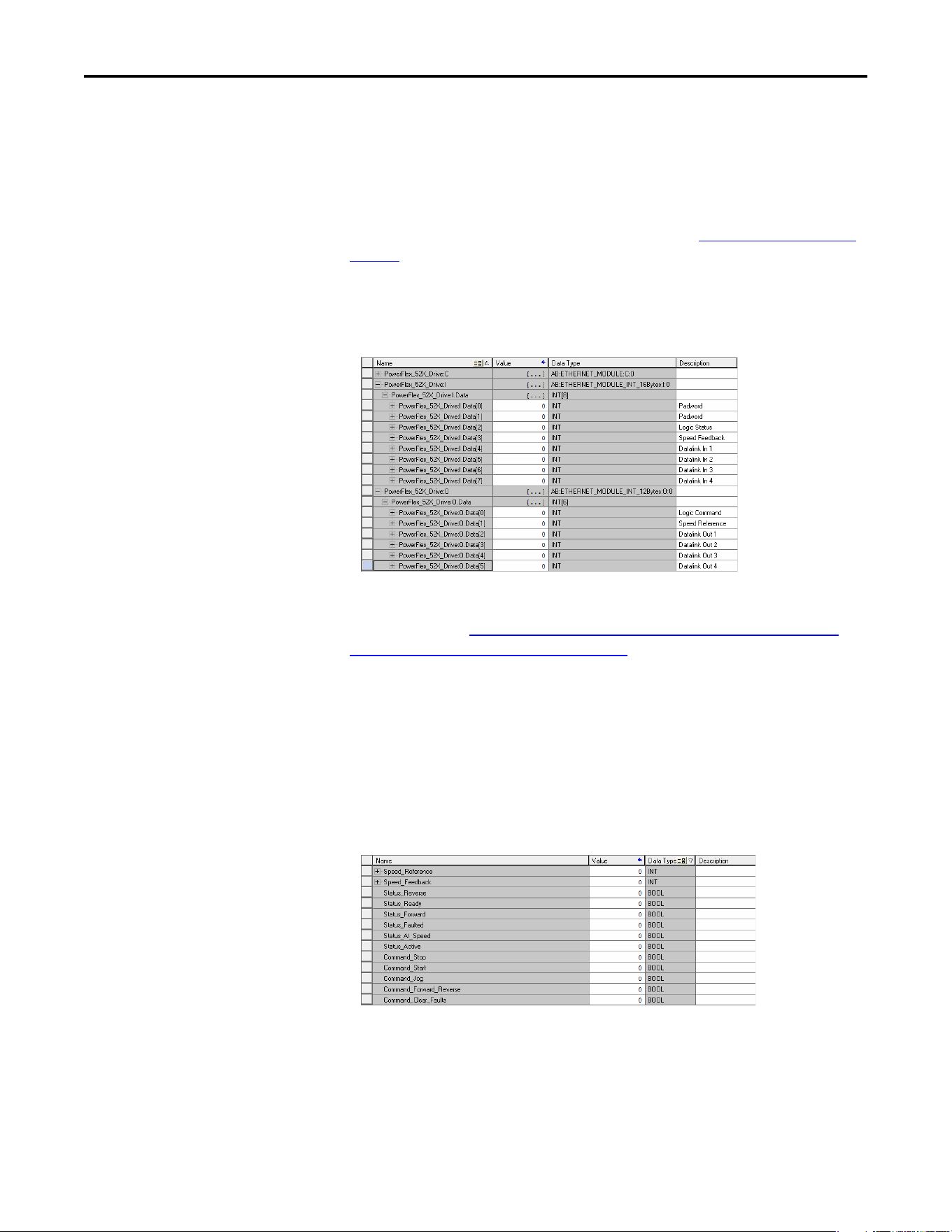
70 Rockwell Automation Publication 520COM-UM003A-EN-E - June 2013
Chapter 5 Using the I/O
Creating Ladder Logic Using the Generic Profile in RSLogix 5000 or
Logix Designer Software
Controller Tags
When you add the drive to the I/O configuration (see Configuring the I/O on
page 39), RSLogix 5000 or Logix Designer automatically creates generic (non-
descriptive) controller tags. In this example program, the following controller
tags are used.
CompactLogix Controller Tags for Drive Generic Profile Ladder Logic Program Example
You can expand the Input and Output tags to reveal the input and output
configuration (see CompactLogix Controller Tags for Drive Generic Profile
Ladder Logic Program Example on page 70). The Input tag for this example
requires eight16-bit words of data. The Output tag for this example program
requires six 16-bit words of data.
Program Tags
To use the Controller tags that are automatically created, you need to create the
following Program tags for this example program.
CompactLogix Program Tags for Drive Generic Profile Ladder Logic Program Example
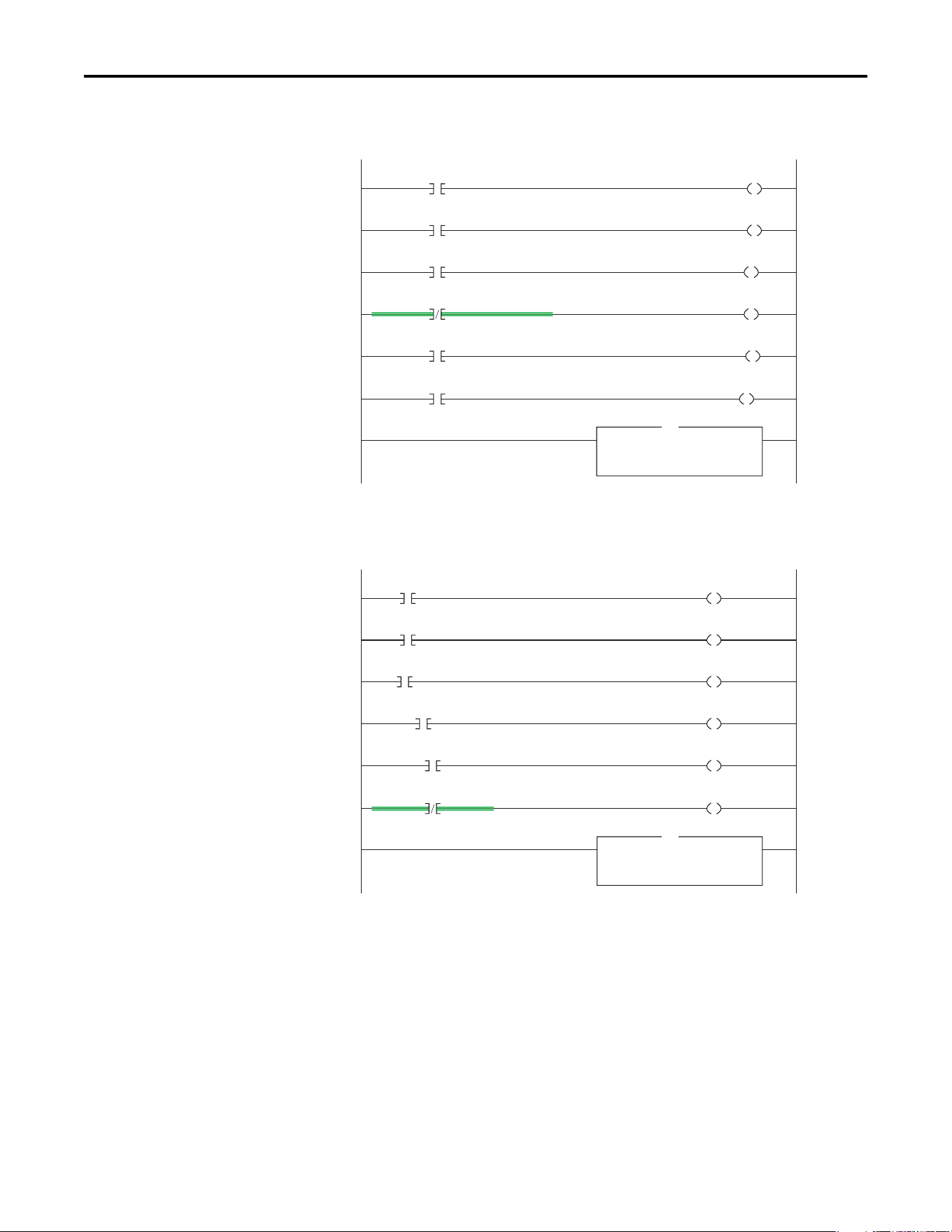
Rockwell Automation Publication 520COM-UM003A-EN-E - June 2013 71
Using the I/O Chapter 5
CompactLogix Example Ladder Logic Program Using a Drive Generic Profile for Logic Status/
Feedback
CompactLogix Example Ladder Logic Program Using a Drive Generic Profile for Logic Command/
Reference
Copy File
Source
Dest
Length
PowerFlex_52X_Drive:I.Data[3]
Speed_Feedback
1
COP
PowerFlex_52X_Drive:I.Data[2].0 Status_Ready
PowerFlex_52X_Drive:I.Data[2].1 Status_Active
PowerFlex_52X_Drive:I.Data[2].3 Status_Forward
PowerFlex_52X_Drive:I.Data[2].3 Status_Reverse
PowerFlex_52X_Drive:I.Data[2].7 Status_Faulted
PowerFlex_52X_Drive:I.Data[2].8 Status_At_Speed
Copy File
Source
Dest
Length
Speed_Reference
PowerFlex_52X_Drive:O.Data[1]
1
COP
Command_Stop PowerFlex_52X_Drive:O.Data[0].0
Command_Start PowerFlex_52X_Drive:O.Data[0].1
Command_Jog PowerFlex_52X_Drive:O.Data[0].2
Command_Clear_Faults PowerFlex_52X_Drive:O.Data[0].3
Command_Forward_Reverse PowerFlex_52X_Drive:O.Data[0].4
Command_Forward_Reverse PowerFlex_52X_Drive:O.Data[0].5

72 Rockwell Automation Publication 520COM-UM003A-EN-E - June 2013
Chapter 5 Using the I/O
Notes:
Rockwell Automation Publication 520COM-UM003A-EN-E - June 2013 73
Chapter 6
Using Explicit Messaging
This chapter provides information and examples that explain how to use Explicit
Messaging to configure and monitor the adapter and connected
PowerFlex 520-series drive.
See Using the I/O
on page 63 for information about the I/O Image, using Logic
Command/Status, Reference/Feedback, and Datalinks.
About Explicit Messaging
Explicit Messaging is used to transfer data that does not require continuous
updates. With Explicit Messaging, you can configure and monitor a device’s
parameters on the network.
Topic Page
About Explicit Messaging
73
Performing Explicit Messaging 74
CompactLogix Controller Examples 74
ATTENTION: Risk of injury or equipment damage exists. The examples in this
publication are intended solely for purposes of example. There are many
variables and requirements with any application. Rockwell Automation, Inc.
does not assume responsibility or liability (to include intellectual property
liability) for actual use of the examples shown in this publication.
ATTENTION: Risk of equipment damage exists. If Explicit Messages are
programmed to write parameter data to Non-Volatile Storage (NVS) frequently,
the NVS will quickly exceed its life cycle and cause the drive to malfunction. Do
not create a program that frequently uses Explicit Messages to write parameter
data to NVS. Datalinks do not write to NVS and should be used for frequently
changed parameters.
ATTENTION: If you need to make frequent parameter changes using Explicit
Messages, set Host parameter C121 [Comm Write Mode] to 1 “RAM only”.
IMPORTANT
When an explicit message is performed, by default no connection is made
since it is an “unconnected” message. When timing of the message transaction
is important, you can create a dedicated message connection between the
controller and drive by checking the “Connected” box on the Communications
tab message configuration screen during message setup. These message
connections are in addition to the I/O connection. However, the trade off for
more message connections is decreased network performance. If your
application cannot tolerate this, do not check the “Connected” box, which is
recommended.
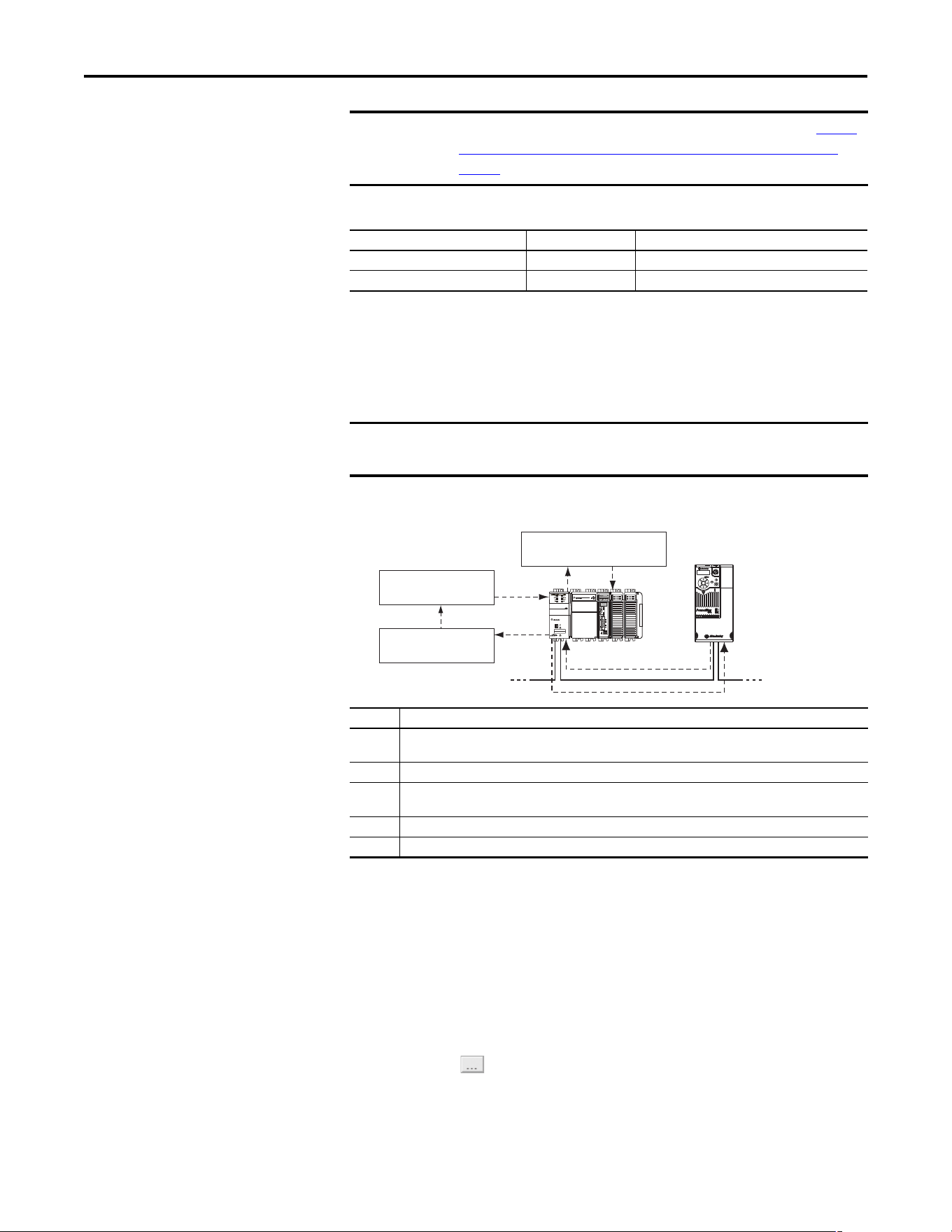
74 Rockwell Automation Publication 520COM-UM003A-EN-E - June 2013
Chapter 6 Using Explicit Messaging
Explicit Messaging Class Code Compatibility with PowerFlex 520-series Drives
Performing Explicit
Messaging
There are five basic events in the Explicit Messaging process. The details of each
step will vary depending on the type of controller being used. See the
documentation for your controller.
Explicit Messaging Process
For information on the maximum number of Explicit Messages that can be
executed at a time, see the documentation for the bridge or scanner and/or
controller that is being used.
CompactLogix Controller
Examples
IMPORTANT
PowerFlex 520-series drives have explicit messaging limitations. See Explicit
Messaging Class Code Compatibility with PowerFlex 520-series Drives on
page 74 for more information.
EtherNet/IP Object Class Code Compatibility Explicit Messaging Function
Parameter Object 0x0F Yes Single parameter reads/write
DPI Parameter Object 0x93 Yes Single and scattered parameter reads/write
IMPORTANT
There must be a request message and a response message for all Explicit
Messages, whether you are reading or writing data.
Event Description
➊ You format the required data and set up the ladder logic program to send an Explicit Message request to the
scanner or bridge module (download).
➋ The scanner or bridge module transmits the Explicit Message Request to the slave device over the network.
➌ The slave device transmits the Explicit Message Response back to the scanner. The data is stored in the
scanner buffer.
➍ The controller retrieves the Explicit Message Response from the scanner’s buffer (upload).
➎ The Explicit Message is complete.
➎
➊
➋
➌
➍
Esc
Sel
1 (Front)1 (Front)1 (Front)
2 (Rear)
00:00:BC:2E:69:F6
Complete Explicit
Message
Retrieve Explicit
Message Response
Set up and send Explicit
Message Request
Network Network
TIP
To display the Message Configuration screen in RSLogix 5000 or Logix Designer,
add a message instruction (MSG), create a new tag for the message
(Properties: Base tag type, MESSAGE data type, controller scope), and click the
button in the message instruction.
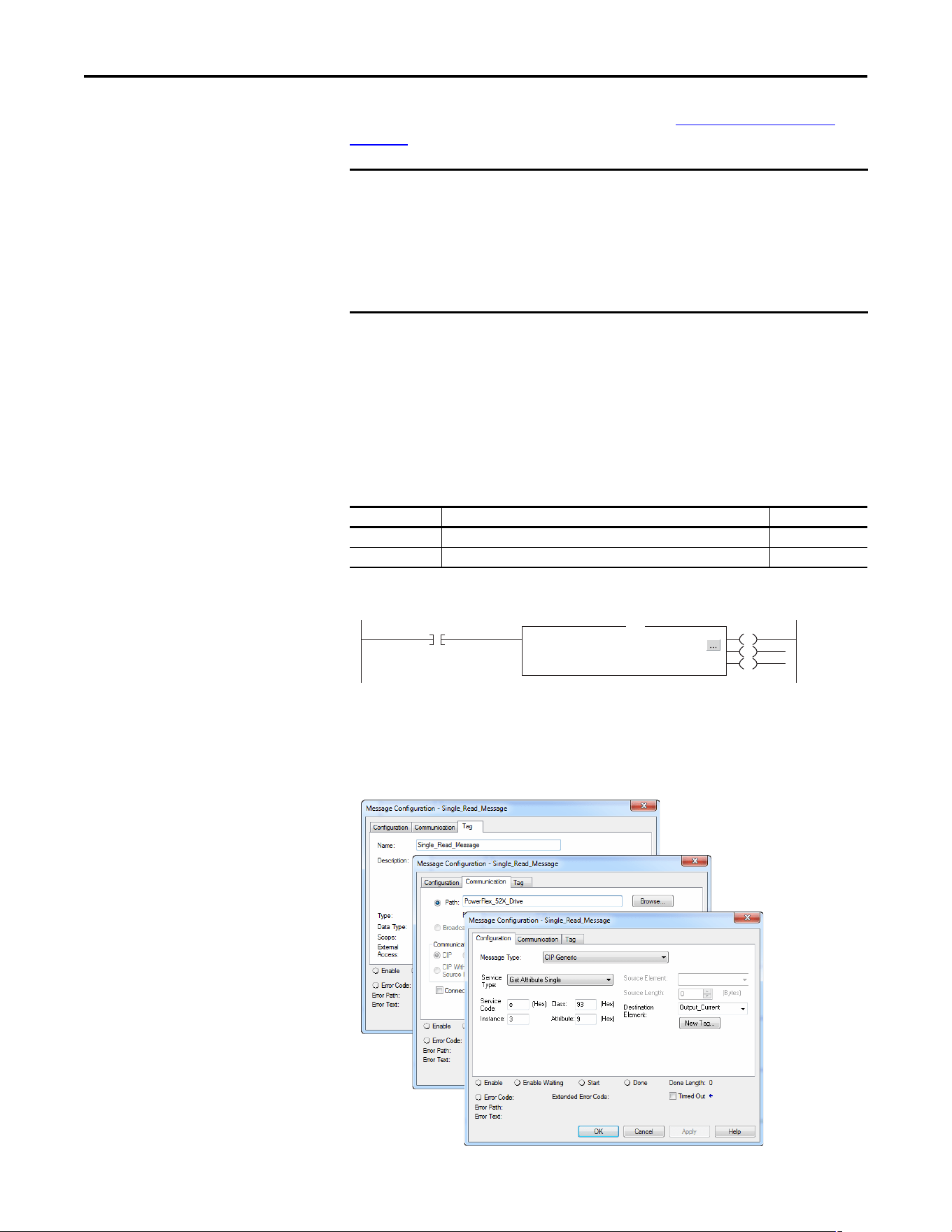
Rockwell Automation Publication 520COM-UM003A-EN-E - June 2013 75
Using Explicit Messaging Chapter 6
For supported classes, instances, and attributes, see EtherNet/IP Objects on
page 129.
Example Ladder Logic Program to Read a Single Parameter
A Get Attribute Single message is used to read a single parameter. This
CompactLogix controller read message example reads the value of the 16-bit
parameter b003 [Output Current] in a PowerFlex 525 drive.
Example Controller Tags to Read a Single Parameter
Example Ladder Logic to Read a Single Parameter
Formatting a Message to Read a Single Parameter
Get Attribute Single Message Configuration Screens
IMPORTANT
The explicit messaging examples in this section can be performed using any
software version of RSLogix 5000 or Logix Designer.
The read and write messaging examples in this section are for Device
parameters which use Class Code 0x93.
The Message Configuration also has a supported Service Type of “Parameter
Read” which is Class code 0x0F, Parameter Object.
Operation Controller Tags for Single Read Message Data Types
XIC Execute_Single_Read_Message BOOL
MSG Single_Read_Message MESSAGE
Execute_Single_Read_Message
Message
Message Control Single_Read_Message
MSG
EN
DN
ER
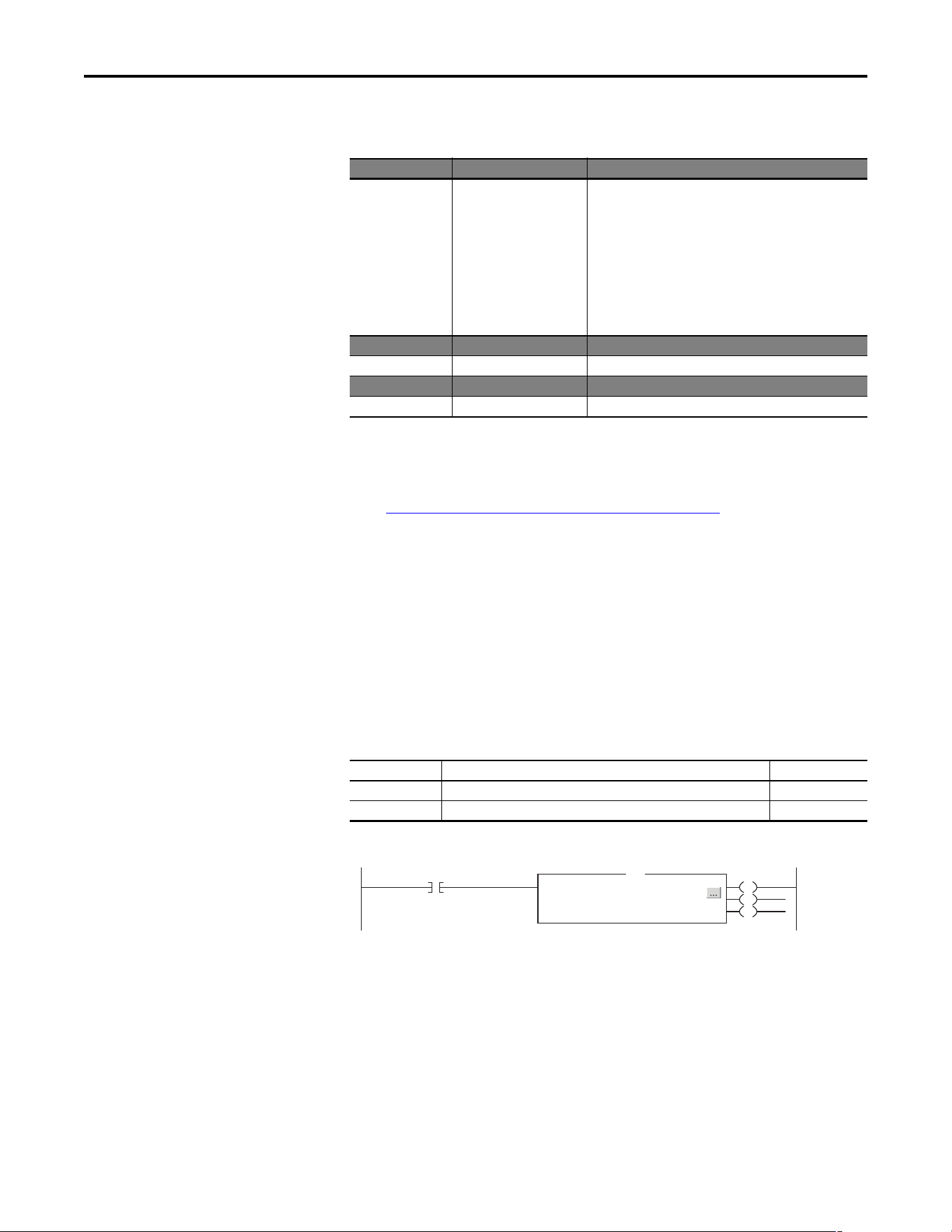
76 Rockwell Automation Publication 520COM-UM003A-EN-E - June 2013
Chapter 6 Using Explicit Messaging
The following table identifies the data that is required in each box to configure a
CompactLogix controller message to read a single parameter.
Example Ladder Logic Program to Write a Single Parameter
A Set Attribute Single message is used to write to a single parameter. This
CompactLogix controller write message example writes a value to the 16-bit
parameter P041 [Accel Time 1] in a PowerFlex 525 drive.
Example Controller Tags to Write a Single Parameter
Example Ladder Logic to Write a Single Parameter
Configuration Tab Example Value Description
Message Type
Service Type
(1)
Service Code
(1)
Class
Instance
Attribute
Source Element
Source Length
Destination
(1) The default setting for Service Type is “Custom,” enabling entry of a Service Code not available from the Service Type pull-down
menu. When choosing a Service Type other than “Custom” from the pull-down menu, an appropriate Hex. value is automatically
assigned to the Service Code box which is dimmed (unavailable).
CIP Generic
Get Attribute Single
e (Hex.)
93
(3)
3 (Dec.)
9 (Hex.)
–
0 bytes
Output_Current
(4)
(3) See Explicit Messaging Class Code Compatibility with PowerFlex 520-series Drives on page 74 for limitations of PowerFlex 520-series
drives when using DPI Parameter Object Class code 0x93 for explicit messaging.
(4) In this example, Output Current is a 16-bit parameter requiring the Data Type field to be set to “INT” when creating the controller
tag. See the drive documentation to determine the size of the parameter and its data type.
Used to access the DPI Parameter Object in the adapter.
This service is used to read a parameter value.
Code for the requested service.
Class ID for the DPI Parameter Object.
Instance number is the same as parameter number.
Attribute number for the Parameter Value attribute.
Leave blank (not applicable).
Number of bytes of service data to be sent in the message.
The tag where the data that is read is stored.
Communication Tab Example Value Description
Path
(2)
(2) Click Browse to find the path, or type in the name of the device listed in the I/O Configuration folder (for this example,
PowerFlex_52X_Drive).
PowerFlex_52X_Drive The path is the route that the message will follow.
Tag Tab Example Value Description
Name Single_Read_Message The name for the message.
Operation Controller Tags for Single Write Message Data Types
XIC Execute_Single_Write_Message BOOL
MSG Single_Write_Message MESSAGE
Execute_Single_Write_Message
Message
Message Control Single_Write_Message
MSG
EN
DN
ER
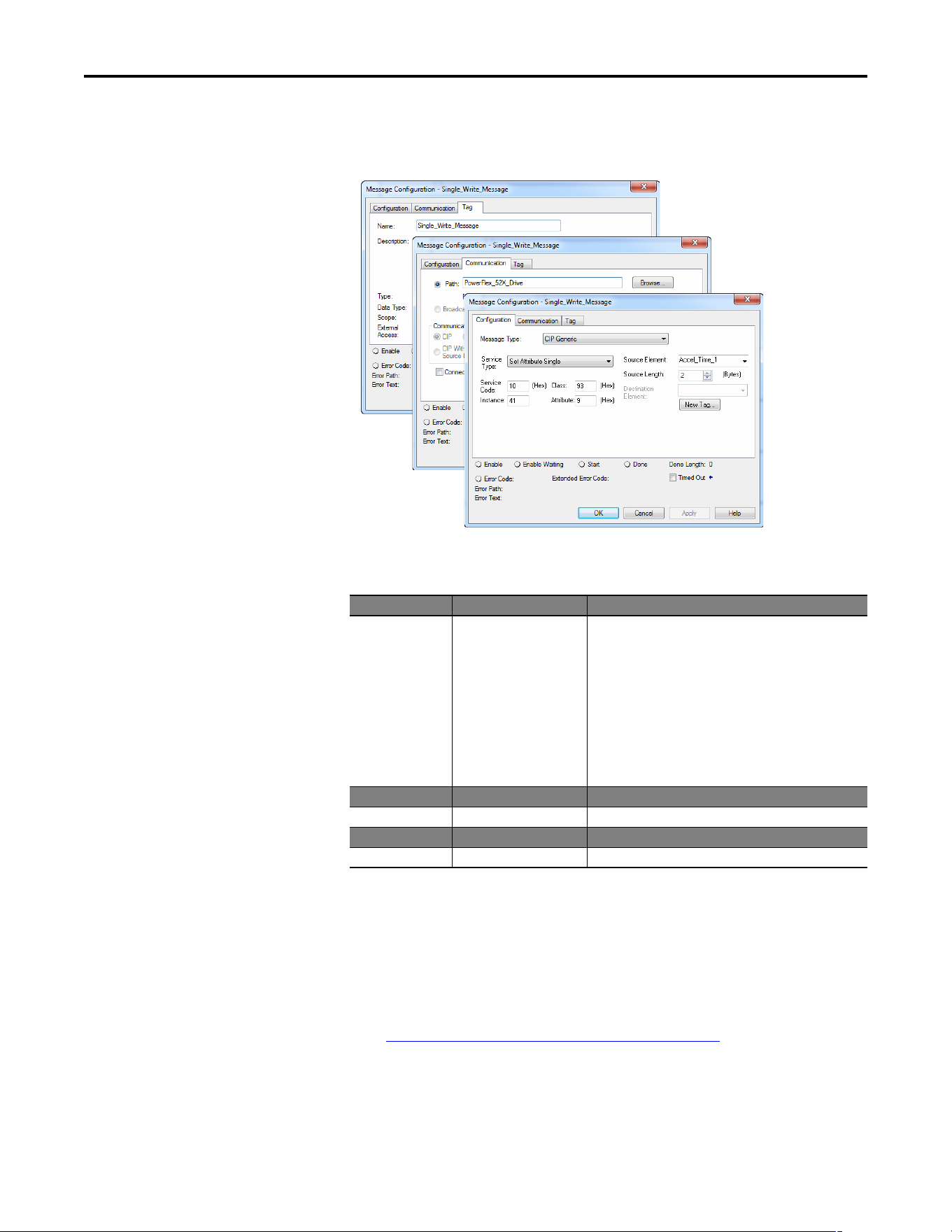
Rockwell Automation Publication 520COM-UM003A-EN-E - June 2013 77
Using Explicit Messaging Chapter 6
Formatting a Message to Write a Single Parameter
Set Attribute Single Message Configuration Screens
The following table identifies the data that is required in each box to configure a
CompactLogix controller message to write a single parameter.
Configuration Tab Example Value Description
Message Type
Service Type
(1)
Service Code
(1)
Class
Instance
(2)
Attribute
(3)
Source Element
Source Length
Destination
(1) The default setting for Service Type is “Custom,” enabling entry of a Service Code not available from the Service Type pull-down
menu. When choosing a Service Type other than “Custom” from the pull-down menu, an appropriate Hex. value is automatically
assigned to the Service Code box which is dimmed (unavailable).
(2) The instance is the parameter number in the drive.
(3) Setting the Attribute value to “9” will write the parameter value to the drive’s Non-Volatile Storage (EEPROM) memory, so the
parameter value will remain even after the drive is power cycled. Important: When set to “9,” be very cautious as the EEPROM may
quickly exceed its life cycle and cause the drive to malfunction. Important: If you need to make frequent parameter changes using
Explicit Messages, set parameter C121 [Comm Write Mode] to 1 “RAM only”.
CIP Generic
Get Attribute Single
10 (Hex.)
93
(5)
41 (Dec.)
9
Accel_Time_1
(6)
2 bytes
–
(5) See Explicit Messaging Class Code Compatibility with PowerFlex 520-series Drives on page 74 for limitations of PowerFlex 520-series
drives when using DPI Parameter Object Class code 0x93 for explicit messaging.
(6) In this example, Accel Time 1 is a 16-bit parameter requiring the Data Type field to be set to “INT” when creating the controller tag.
Also, the Source Length field on the Message Configuration screen must correspond to the selected Data Type in bytes (for example,
2 bytes for an INT). See the drive documentation to determine the size of the parameter and its data type.
Used to access the DPI Parameter Object in the adapter.
This service is used to read a parameter value.
Code for the requested service.
Class ID for the DPI Parameter Object.
Instance number is the same as parameter number.
Attribute number for the Parameter Value attribute.
Name of the tag for any service data to be sent from the scanner
or bridge to the drive.
Number of bytes of service data to be sent in the message.
Leave blank (not applicable).
Communication Tab Example Value Description
Path
(4)
(4) Click Browse to find the path, or type in the name of the device listed in the I/O Configuration folder (for this example,
PowerFlex_52X_Drive).
PowerFlex_52X_Drive The path is the route that the message will follow.
Tag Tab Example Value Description
Name Single_Write_Message The name for the message.

78 Rockwell Automation Publication 520COM-UM003A-EN-E - June 2013
Chapter 6 Using Explicit Messaging
Explanation of Request and Response Data for Read/Write Multiple
Messaging
The data structures in Data Structures for Scattered Read Messages on page 79
and Data Structures for Scattered Write Messages
on page 80 use 16-bit words
and can accommodate up to 64 parameters in a single message. In the Response
Message, a parameter number with Bit 15 set indicates that the associated
parameter value field contains an error code (parameter number in response data
will be negative).
The PowerFlex 525 Adjustable Frequency AC Drive User Manual, publication
520-UM001
lists the data type for each parameter.

Rockwell Automation Publication 520COM-UM003A-EN-E - June 2013 79
Using Explicit Messaging Chapter 6
Data Structures for Scattered Read Messages
Request (Source Data) Response (Destination Data)
INT 0 Parameter Number INT 0 Parameter Number
1Pad 1Parameter Value
2 Parameter Number 2 Parameter Number
3Pad 3Parameter Value
4 Parameter Number 4 Parameter Number
5Pad 5Parameter Value
6 Parameter Number 6 Parameter Number
7Pad 7Parameter Value
8 Parameter Number 8 Parameter Number
9Pad 9Parameter Value
10 Parameter Number 10 Parameter Number
11 Pad 11 Parameter Value
12 Parameter Number 12 Parameter Number
13 Pad 13 Parameter Value
14 Parameter Number 14 Parameter Number
15 Pad 15 Parameter Value
16 Parameter Number 16 Parameter Number
17 Pad 17 Parameter Value
18 Parameter Number 18 Parameter Number
19 Pad 19 Parameter Value
20 Parameter Number 20 Parameter Number
21 Pad 21 Parameter Value
22 Parameter Number 22 Parameter Number
23 Pad 23 Parameter Value
24 Parameter Number 24 Parameter Number
25 Pad 25 Parameter Value
26 Parameter Number 26 Parameter Number
27 Pad 27 Parameter Value
28 Parameter Number 28 Parameter Number
29 Pad 29 Parameter Value
30 Parameter Number 30 Parameter Number
31 Pad 31 Parameter Value
32 Parameter Number 32 Parameter Number
33 Pad 33 Parameter Value
34 Parameter Number 34 Parameter Number
35 Pad 35 Parameter Value
...
...
...
...
62 Parameter Number 62 Parameter Number
63 Pad 63 Parameter Value

80 Rockwell Automation Publication 520COM-UM003A-EN-E - June 2013
Chapter 6 Using Explicit Messaging
Data Structures for Scattered Write Messages
Request (Source Data) Response (Destination Data)
INT 0 Parameter Number INT 0 Parameter Number
1 Parameter Value 1 Pad
2 Parameter Number 2 Parameter Number
3 Parameter Value 3 Pad
4 Parameter Number 4 Parameter Number
5 Parameter Value 5 Pad
6 Parameter Number 6 Parameter Number
7 Parameter Value 7 Pad
8 Parameter Number 8 Parameter Number
9 Parameter Value 9 Pad
10 Parameter Number 10 Parameter Number
11 Parameter Value 11 Pad
12 Parameter Number 12 Parameter Number
13 Parameter Value 13 Pad
14 Parameter Number 14 Parameter Number
15 Parameter Value 15 Pad
16 Parameter Number 16 Parameter Number
17 Parameter Value 17 Pad
18 Parameter Number 18 Parameter Number
19 Parameter Value 19 Pad
20 Parameter Number 20 Parameter Number
21 Parameter Value 21 Pad
22 Parameter Number 22 Parameter Number
23 Parameter Value 23 Pad
24 Parameter Number 24 Parameter Number
25 Parameter Value 25 Pad
26 Parameter Number 26 Parameter Number
27 Parameter Value 27 Pad
28 Parameter Number 28 Parameter Number
29 Parameter Value 29 Pad
30 Parameter Number 30 Parameter Number
31 Parameter Value 31 Pad
32 Parameter Number 32 Parameter Number
33 Parameter Value 33 Pad
34 Parameter Number 34 Parameter Number
35 Parameter Value 35 Pad
...
...
...
...
62 Parameter Number 62 Parameter Number
63 Parameter Value 63 Pad
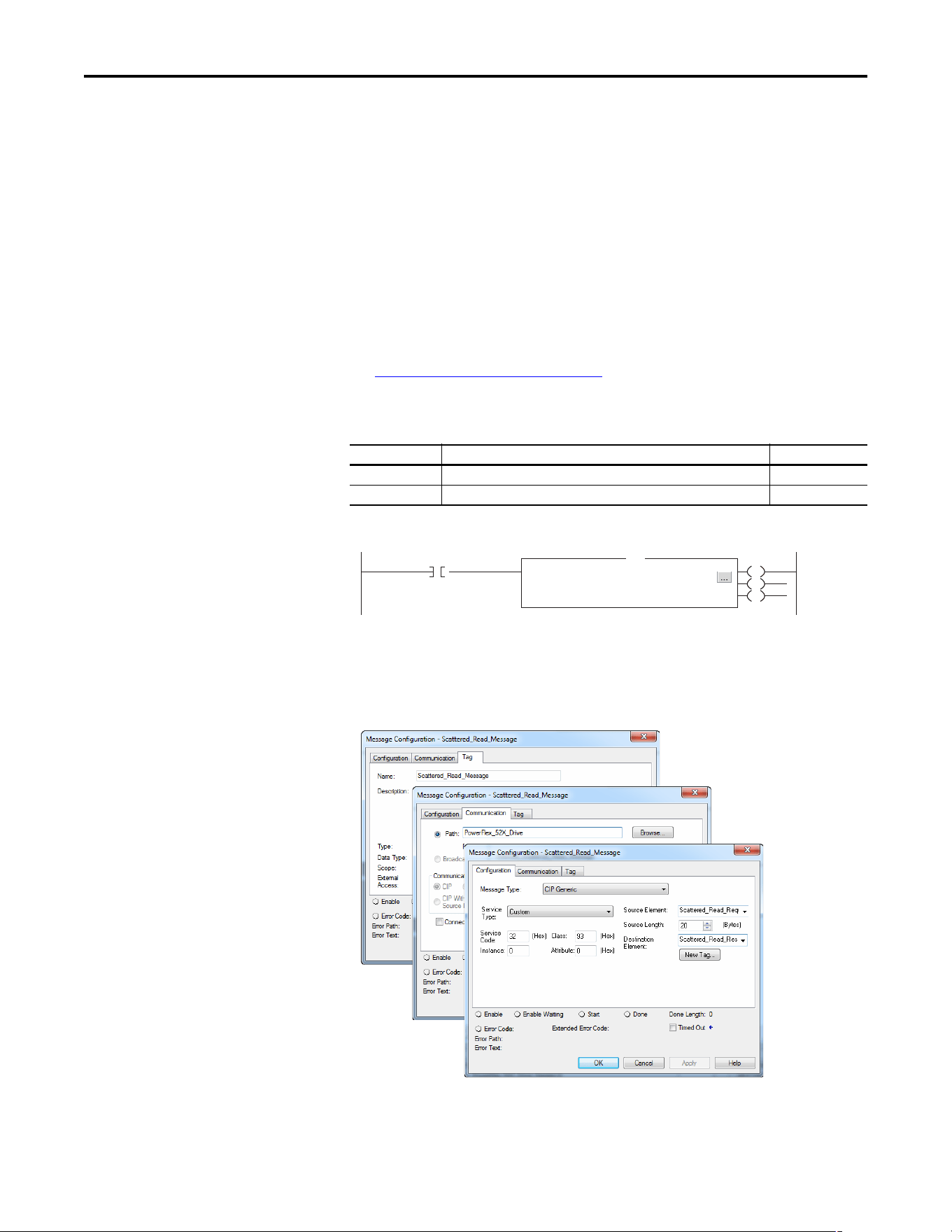
Rockwell Automation Publication 520COM-UM003A-EN-E - June 2013 81
Using Explicit Messaging Chapter 6
Example Ladder Logic Program to Read Multiple Parameters
A Scattered Read message is used to read the values of multiple parameters. This
CompactLogix controller read message example reads the values of these five 16-
bit parameters in a PowerFlex 525 drive:
• Host parameter b001[Output Freq]
• Host parameter b003 [Output Current]
• Host parameter b004 [Output Voltage]
• Host parameter b005 [DC Bus Voltage]
• Host parameter b017 [Output Power]
See DPI Parameter Object
on page 145 (Class code 0x93) for parameter
numbering.
Example Controller Tags to Read Multiple Parameters
Example Ladder Logic to Read Multiple Parameters
Formatting a Message to Read Multiple Parameters
Scattered Read Message Configuration Screens
Operation Controller Tags for Scattered Read Message Data Types
XIC Execute_Scattered_Read_Message BOOL
MSG Scattered_Read_Message MESSAGE
Execute_Scattered_Read_Message
Message
Message Control Scattered_Read_Message
MSG
EN
DN
ER
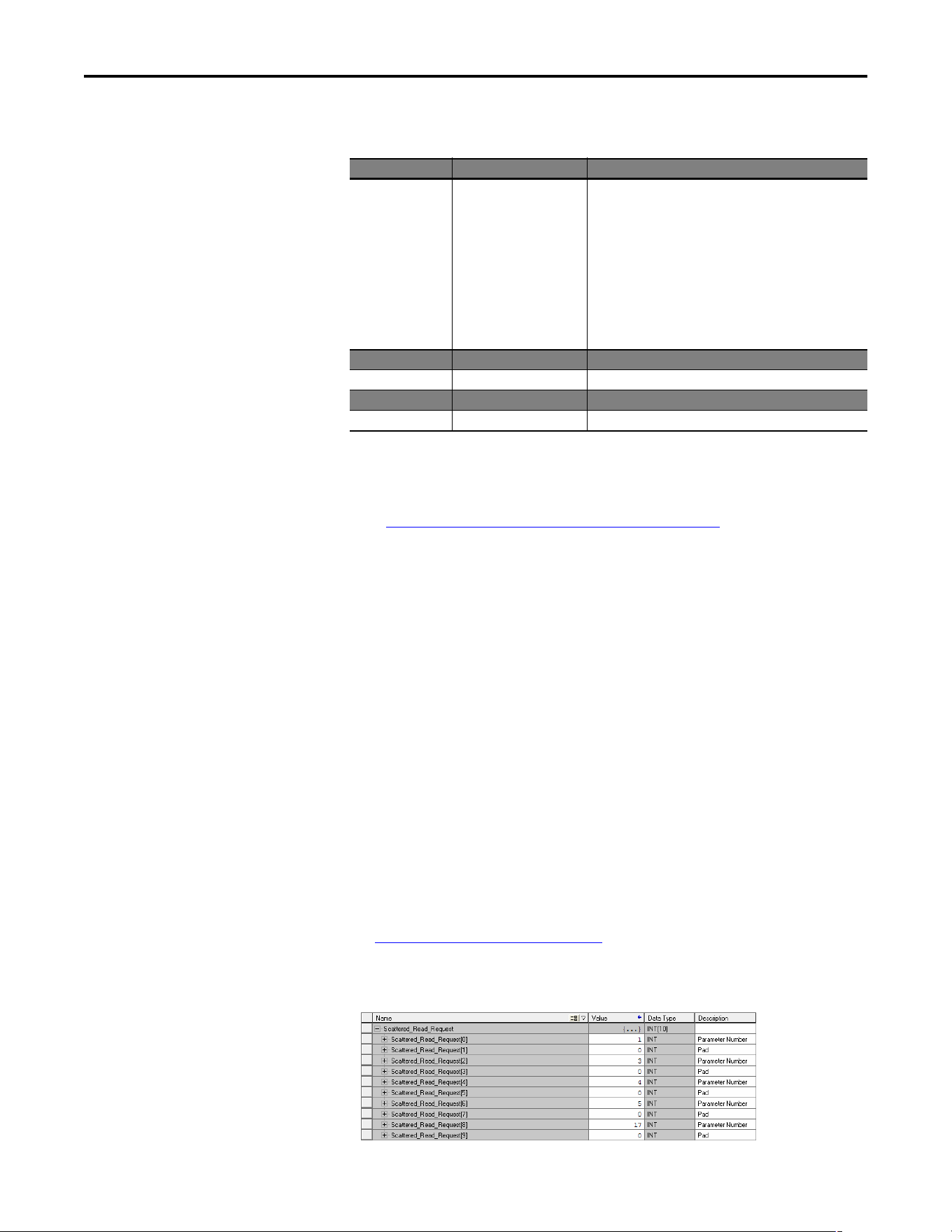
82 Rockwell Automation Publication 520COM-UM003A-EN-E - June 2013
Chapter 6 Using Explicit Messaging
The following table identifies the data that is required in each box to configure a
CompactLogix controller message to read multiple parameters.
Example Scattered Read Request Data
In this CompactLogix controller message example, we use the data structure in
Figure 101 in the source tag named Scattered Read Request to read these five 16-
bit parameters in a PowerFlex 525 drive:
• Host parameter b001 [Output Freq]
• Host parameter b003 [Output Current]
• Host parameter b004 [Output Voltage]
• Host parameter b005 [DC Bus Voltage]
• Host parameter b017 [Output Power]
See DPI Parameter Object
on page 145 (Class code 0x93) for parameter
numbering.
Example Scattered Read Request Data
Configuration Tab Example Value Description
Message Type
Service Type
(1)
Service Code
(1)
Class
Instance
Attribute
Source Element
Source Length
Destination
(1) The default setting for Service Type is “Custom,” enabling entry of a Service Code not available from the Service Type pull-down
menu. When choosing a Service Type other than “Custom” from the pull-down menu, an appropriate Hex. value is automatically
assigned to the Service Code box which is dimmed (unavailable).
CIP Generic
Custom
0x32 (Hex.)
93
(3)
0 (Dec.)
0 (Hex.)
Scattered_Read_Request
(4)
20 bytes
(4)
Scattered_Read_Response
(5)
(3) See Explicit Messaging Class Code Compatibility with PowerFlex 520-series Drives on page 74 for limitations of PowerFlex 520-series
drives when using DPI Parameter Object Class code 0x93 for explicit messaging.
(4) In this example, we are reading five 16-bit parameters. Each parameter being read requires two contiguous INT registers. Therefore,
a controller tag was created with its Data Type field set to “INT[10].” Also, the Source Length field on the Message Configuration
screen must correspond to the selected Data Type in bytes (for this example, 20 bytes for an INT[10] array). Scattered read messages
always assume that every parameter being read is a16-bit parameter, regardless of its actual size. Maximum message length is 256
bytes which can read up to 64 parameters, regardless of their size.
(5) The controller tag for “Scattered_Read_Response” must be the same size as the controller tag for “Scattered_Read_Request” (for
this example, 20 bytes), but can be a different data type.
Used to access the DPI Parameter Object in the adapter.
Required for scattered messages.
Code for the requested service.
Class ID for the DPI Parameter Object.
Required for scattered messages.
Required for scattered messages.
Name of the tag for any service data to be sent from the scanner
or bridge to the drive.
Number of bytes of service data to be sent in the message.
The tag where the data that is read is stored.
Communication Tab Example Value Description
Path
(2)
(2) Click Browse to find the path, or type in the name of the device listed in the I/O Configuration folder (for this example,
PowerFlex_52X_Drive).
PowerFlex_52X_Drive The path is the route that the message will follow.
Tag Tab Example Value Description
Name Scattered_Read_Message The name for the message.
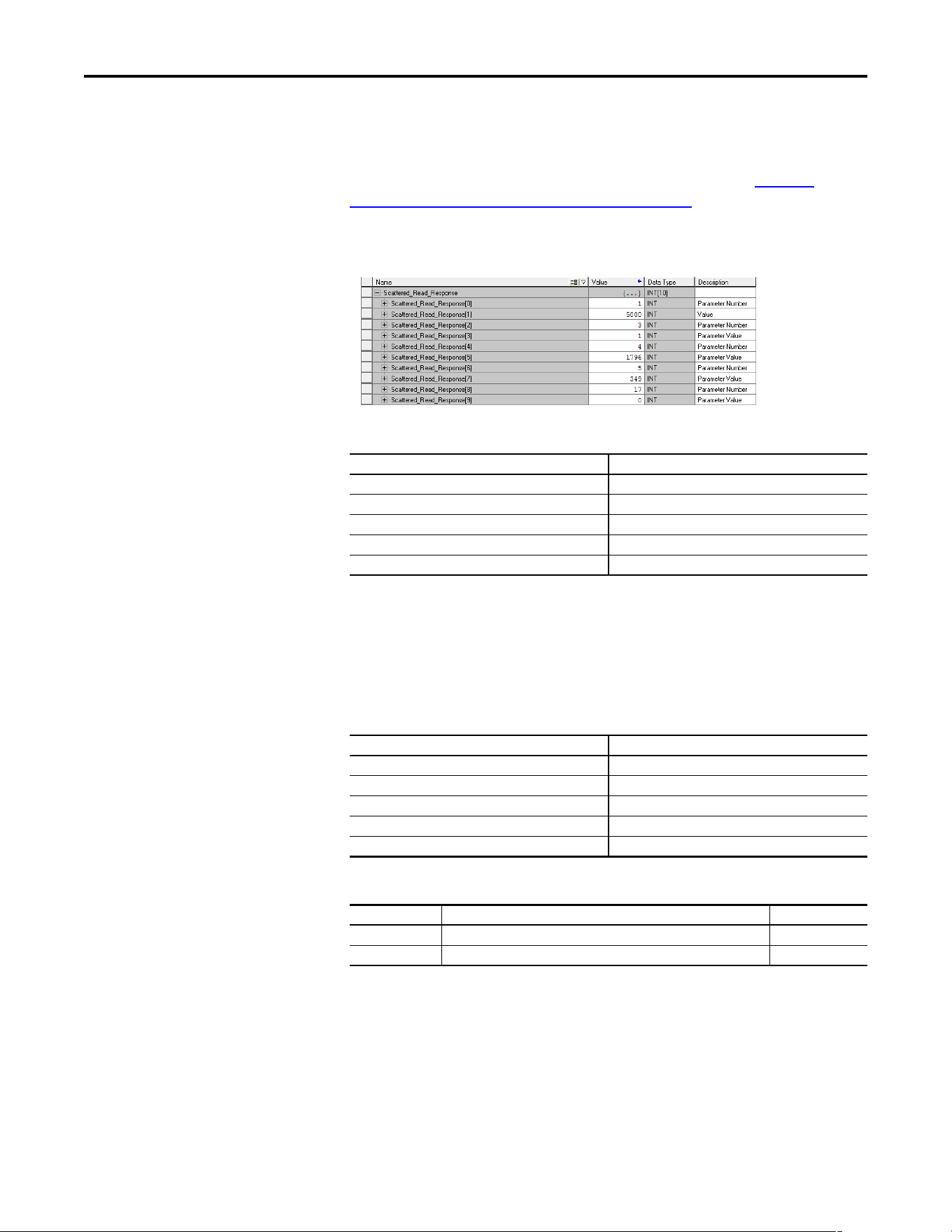
Rockwell Automation Publication 520COM-UM003A-EN-E - June 2013 83
Using Explicit Messaging Chapter 6
Example Scattered Read Response Data
The Scattered Read Request message reads the multiple parameters and returns
their values to the destination tag (Scattered_Read_Response). Example
Scattered Read Response Converted Data on page 83 shows the parameter
values.
Example Scattered Read Response Converted Data
In this message example, the parameters have the following values:
Example Ladder Logic Program to Write Multiple Parameters
A Scattered Write message is used to write to multiple parameters. This
CompactLogix controller write message example writes the following values to
these five 16-bit parameters in a PowerFlex 525 drive:
Example Controller Tags to Write Multiple Parameters
PowerFlex 525 Drive Parameters Read Value
b001 [Output Freq] 50.00 Hz
b003 [Output Current] 0.01 Amp (No load)
b004 [Output Voltage] 179.6V AC
b005 [DC Bus Voltage] 349V DC
b017 [Output Power] 0 kW (No load)
PowerFlex 525 Drive Parameters Write Value
A442 [Accel Time 2] 11.10 Sec
A443 [Decel time 2] 22.20 Sec
A415 [Preset Freq 5] 33.30 Hz
A416 [Preset Freq 6] 44.40 Hz
A417 [Preset Freq 7] 55.50 Hz
Operation Controller Tags for Scattered Write Message Data Types
XIC Execute_Scattered_Write_Message BOOL
MSG Scattered_Write_Message MESSAGE
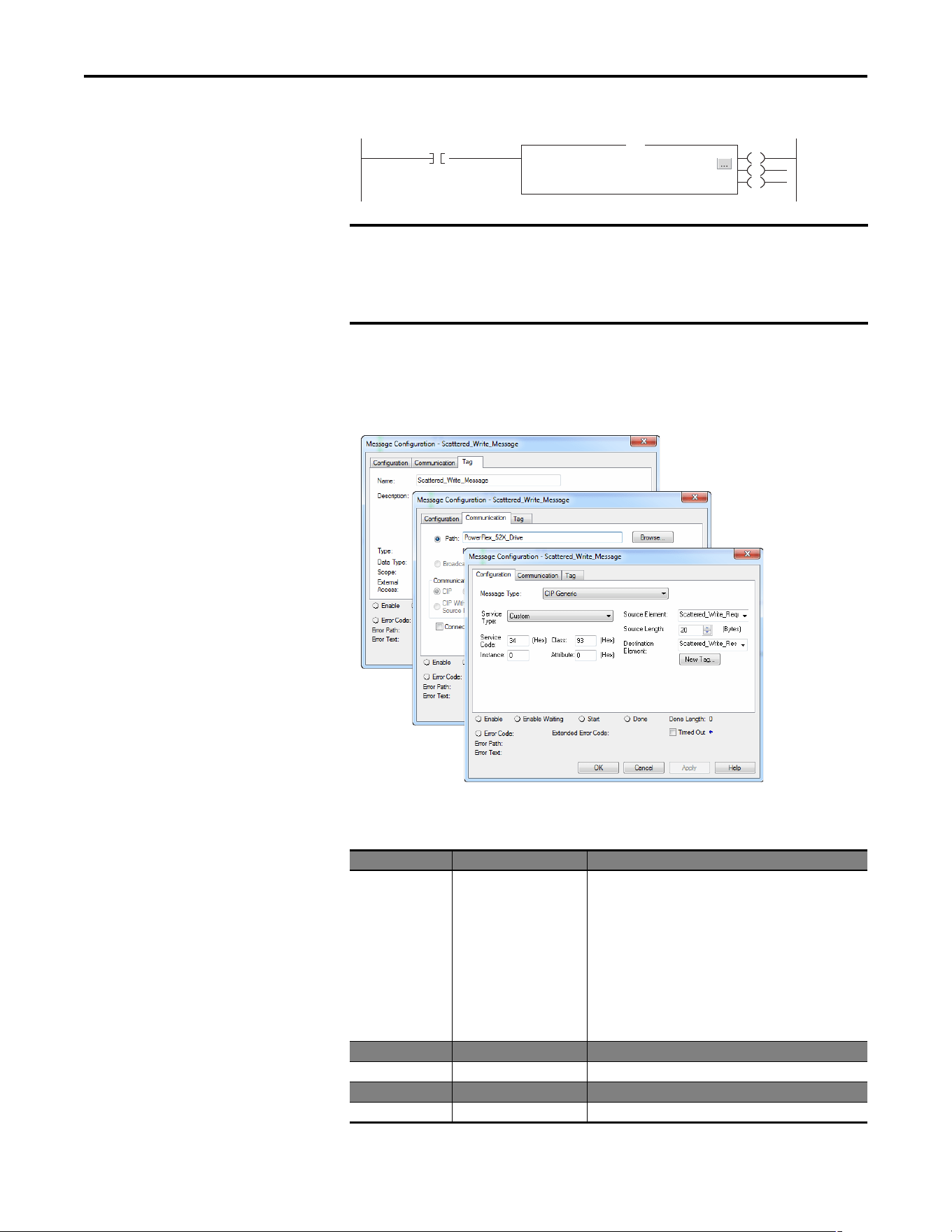
84 Rockwell Automation Publication 520COM-UM003A-EN-E - June 2013
Chapter 6 Using Explicit Messaging
Example Ladder Logic to Write Multiple Parameters
Formatting a Message to Write Multiple Parameters
Scattered Write Multiple Message Configuration Screens
The following table identifies the data that is required in each box to configure a
CompactLogix controller message to write multiple parameters.
IMPORTANT
This example scattered write message writes to NVS. Over time, continuous
writes will exceed the EEPROM life cycle and cause the drive to malfunction.
If you need to make frequent parameter changes using Explicit Messages, set
Host parameter C121 [Comm Write Mode] to 1 “RAM only”.
Configuration Tab Example Value Description
Message Type
Service Type
(1)
Service Code
(1)
Class
Instance
Attribute
(2)
Source Element
Source Length
Destination
CIP Generic
Custom
0x34 (Hex.)
93
(4)
0 (Dec.)
0 (Hex.)
Scattered_Write_Request
(5)
20 bytes
(5)
Scattered_Write_Response
(6)
Used to access the DPI Parameter Object in the adapter.
Required for scattered messages.
Code for the requested service.
Class ID for the DPI Parameter Object.
Required for scattered messages.
Required for scattered messages.
Name of the tag for any service data to be sent from the scanner
or bridge to the drive.
Number of bytes of service data to be sent in the message.
The tag where the data that is read is stored.
Communication Tab Example Value Description
Path
(3)
PowerFlex_52X_Drive The path is the route that the message will follow.
Tag Tab Example Value Description
Name Scattered_Write_Message The name for the message.
Execute_Scattered_Write_Message
Message
Message Control Scattered_Write_Message
MSG
EN
DN
ER
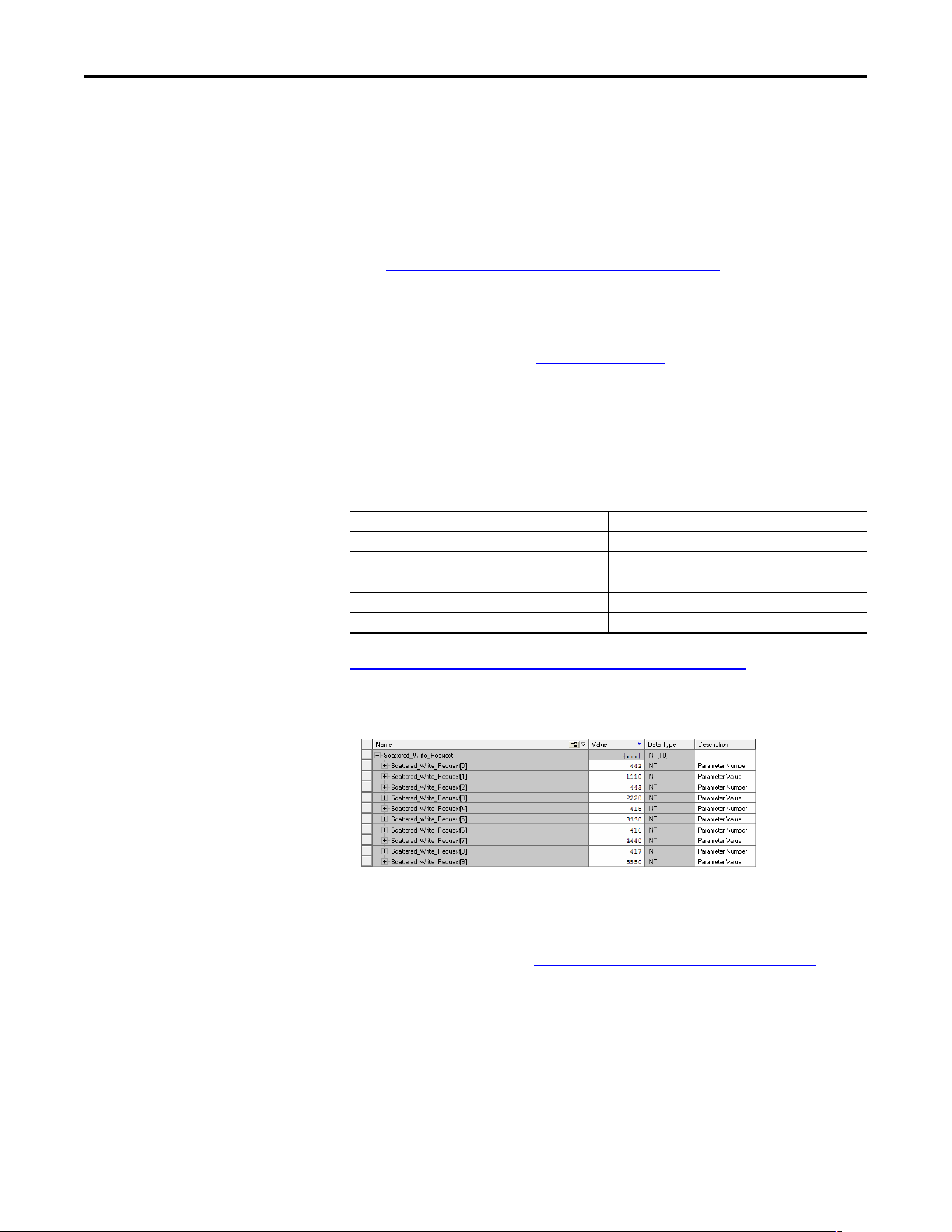
Rockwell Automation Publication 520COM-UM003A-EN-E - June 2013 85
Using Explicit Messaging Chapter 6
Example Scattered Write Request Data
In this message example, we use the source tag (Scattered_Write_Request) to
write new values to these 16-bit parameters:
Example Scattered Write Request Converted Data
on page 85 shows the
parameter values.
Example Scattered Write Request Converted Data
Example Scattered Write Response Data
The results of the message appear in the destination tag named
Scattered_Write_Response (Example Scattered Write Response Data
on
page 86). Values of “0” indicate no errors occurred.
(1) The default setting for Service Type is “Custom,” enabling entry of a Service Code not available from the Service Type pull-down
menu. When choosing a Service Type other than “Custom” from the pull-down menu, an appropriate Hex. value is automatically
assigned to the Service Code box which is dimmed (unavailable).
(2) Scattered writes always write parameter values to the drive’s Non-Volatile Storage (EEPROM) memory, so these values will remain
even after the drive is power cycled. Important: Be very cautious as the EEPROM may quickly exceed its life cycle and cause the
drive to malfunction. Important: If you need to make frequent parameter changes using Explicit Messages, set parameter C121
[Comm Write Mode] to 1 “RAM only”.
(3) Click Browse to find the path, or type in the name of the device listed in the I/O Configuration folder (for this example,
PowerFlex_52X_Drive).
(4) See Explicit Messaging Class Code Compatibility with PowerFlex 520-series Drives
on page 74 for limitations of PowerFlex 520-series
drives when using DPI Parameter Object Class code 0x93 for explicit messaging.
(5) In this example, we are writing to five 16-bit parameters. Each parameter being written to requires two contiguous INT registers.
Also, the Source Length field on the Message Configuration screen must correspond to the selected Data Type in bytes (for this
example, 20 bytes for an array of ten INTs). Scattered write messages always assume that every parameter being written to is a 16-
bit parameter, regardless of its actual size. Maximum message length is 256 bytes which can write up to 64 parameters, regardless
of their size. For parameter numbering, see DPI Parameter Object
on page 145 (Class code 0x93).
(6) The controller tag for “Scattered_Write_Response” must be the same size as the controller tag for “Scattered_Write_Request” (for
this example, 20 bytes). An array of INTs is suggested to be able to read any error codes that are returned.
PowerFlex 525 Drive Parameters Write Value
A442 [Accel Time 2] 11.10 Sec
A443 [Decel time 2] 22.20 Sec
A415 [Preset Freq 5] 33.30 Hz
A416 [Preset Freq 6] 44.40 Hz
A417 [Preset Freq 7] 55.50 Hz
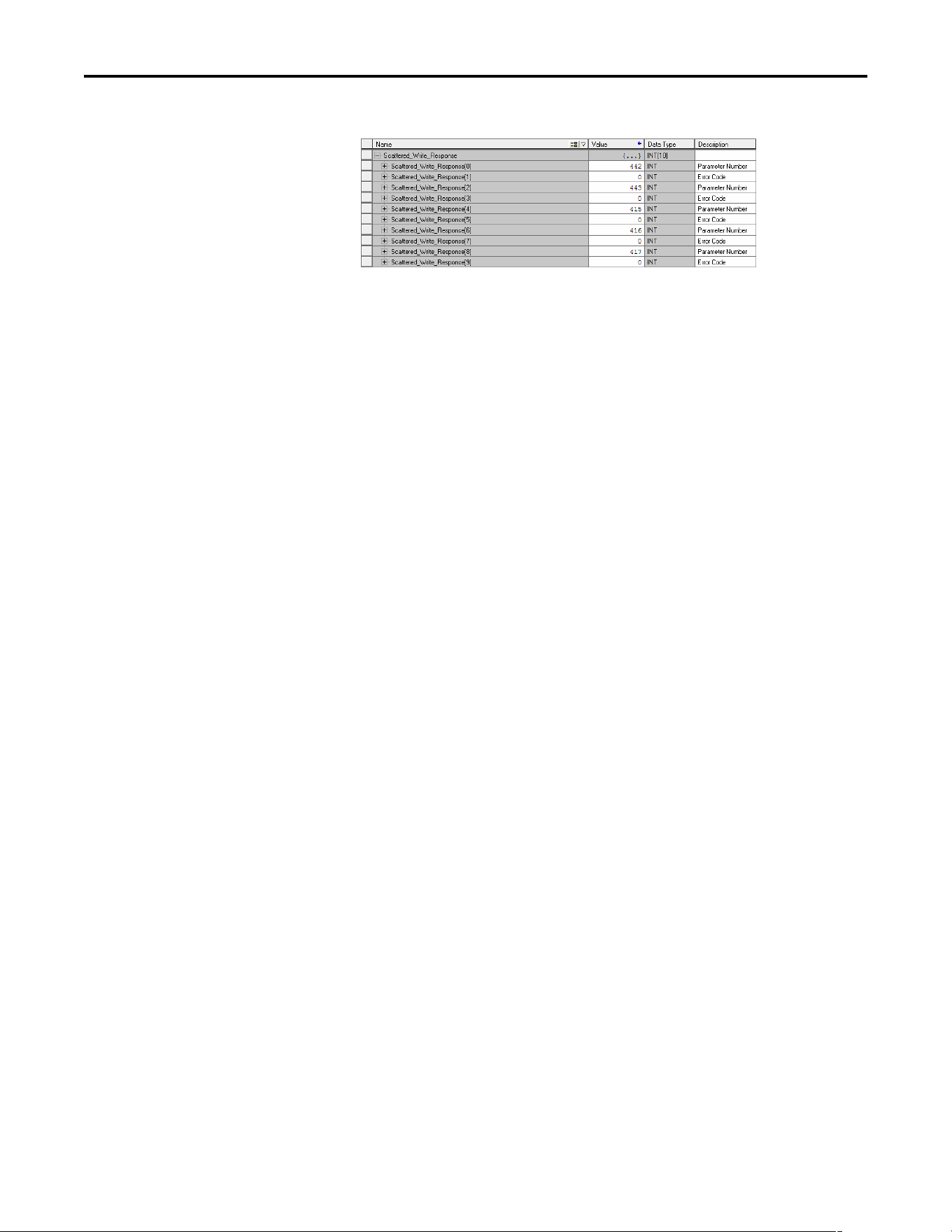
86 Rockwell Automation Publication 520COM-UM003A-EN-E - June 2013
Chapter 6 Using Explicit Messaging
Example Scattered Write Response Data
Rockwell Automation Publication 520COM-UM003A-EN-E - June 2013 87
Chapter 7
Using Multi-Drive Mode
This chapter provides instructions on how to configure a CompactLogix
controller to use the PowerFlex 520-series drive in Multi-drive mode.
Single-Drive Mode vs.
Multi-Drive Mode
Single-drive mode is a typical network installation, where a single EtherNet/IP
node consists of a single drive with an EtherNet/IP adapter.
Topic Page
Single-Drive Mode vs. Multi-Drive Mode
87
System Wiring 89
Understanding the I/O Image 90
Configuring the RS-485 Network 91
Using Multi-Drive Add-On Profile 91
Multi-Drive Ladder Logic Program for Generic Profile 102
CompactLogix Controller Example Using Generic Profile 103
Multi-Drive Mode Explicit Messaging 111
Additional Information 112
ATTENTION: On PowerFlex 525 drives, support for multi-drive mode using the
25-COMM-E2P Dual-Port adapter is only available on firmware revision 1.004
and later.
ATTENTION: Risk of injury or equipment damage exists. The examples in this
publication are intended solely for purposes of example. There are many
variables and requirements with any application. Rockwell Automation, Inc.
does not assume responsibility or liability (to include intellectual property
liability) for actual use of the examples shown in this publication.
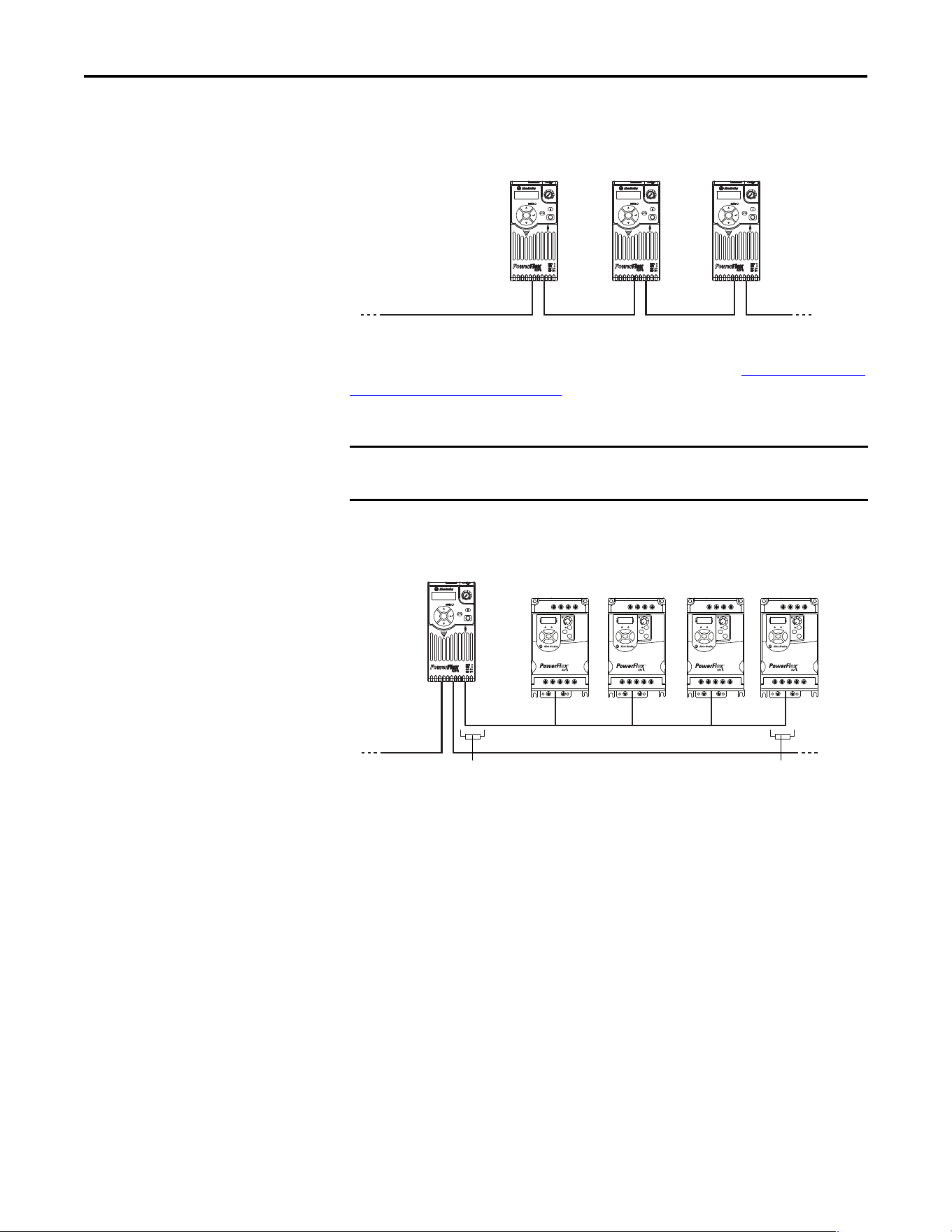
88 Rockwell Automation Publication 520COM-UM003A-EN-E - June 2013
Chapter 7 Using Multi-Drive Mode
Single-Drive Mode Example for Network
Multi-drive mode is an alternative to the typical network installation, where a
single EtherNet/IP node can consist of one to five drives (see Multi-Drive Mode
Example for Network on page 88). The first drive must be a PowerFlex 520-series
drive. The remaining drives can be any PowerFlex drive which supports Multi-
drive mode.
Multi-Drive Mode Example for Network
Benefits of Multi-drive mode include:
• Lower hardware costs. No need to purchase additional communication
adapters for daisy-chained drives.
• Reduces the network node count. For example, in Single-drive mode 30
drives would consume 30 nodes. In Multi-drive mode, 30 drives can be
connected in 6 nodes.
• Controller can control, monitor, and read/write parameters for all five
drives.
The trade-offs of Multi-drive mode include:
• If the PowerFlex 520-series drive with Dual-port EtherNet/IP adapter is
powered down, then communications with the daisy-chained drives is
disrupted and the drives will take the appropriate communications loss
action set in each drive.
IMPORTANT
For the examples in the chapter, we will use the PowerFlex 525 as a master
drive with four daisy-chained PowerFlex 4M drives.
Esc
Sel
Esc
Sel
Esc
Sel
One drive per node
EtherNet/IP
PowerFlex 525 with
25-COMM-E2P
PowerFlex 525 with
25-COMM-E2P
PowerFlex 525 with
25-COMM-E2P
Esc
Sel
Up to 5 drives per node
EtherNet/IP
Up to four daisy-chained PowerFlex drives
(PowerFlex 4M shown)
RS-485 cable
PowerFlex 525
with
25-COMM-E2P
as master drive
AK-U0-RJ45-TB2P connector with
terminating resistor (120 Ω)
AK-U0-RJ45-TB2P connector with
terminating resistor (120 Ω)
AK-U0-RJ45-TB2P
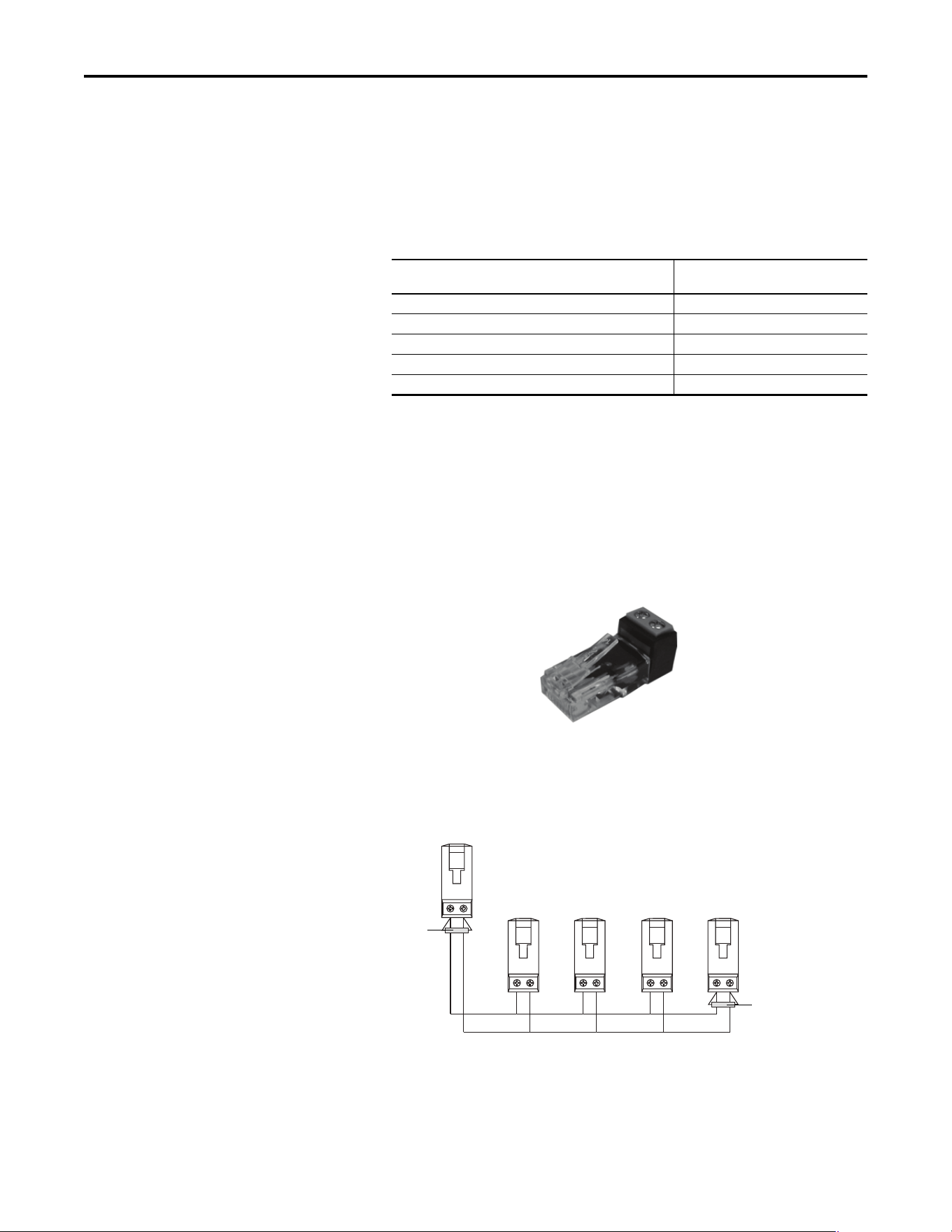
Rockwell Automation Publication 520COM-UM003A-EN-E - June 2013 89
Using Multi-Drive Mode Chapter 7
• Communications throughput to the daisy-chained drives will be slower
than if each drive was a separate node on EtherNet/IP (Single-drive
mode). This is because the Dual-port EtherNet/IP adapter must take the
EtherNet/IP data for the other drives and sequentially send the respective
data to each drive over RS-485. The approximate additional throughput
time for Logic Command/Reference to be transmitted and received by
each drive is:
• Since the RS-485 ports are used for daisy-chaining the drives, there is no
connection for a peripheral device such as a HIM or USB converter
module (1203-USB). DSI Splitter cables cannot be used to add a second
connection for a peripheral device.
System Wiring
To daisy-chain the drives to the PowerFlex 525, the AK-U0-RJ45-TB2P terminal
block connector can be used for easy installation.
The wiring diagram for using AK-U0-RJ45-TB2P terminal block connectors is
shown below.
The AK-U0-RJ45-TB2P comes with (5) terminal block connectors and (2)
terminating resistors.
Drive Additional Throughput Time
versus Single-Drive Mode
PowerFlex 525 0 ms
PowerFlex 525 plus 1 drive +24 ms
PowerFlex 525 plus 2 drives +48 ms
PowerFlex 525 plus 3 drives +72 ms
PowerFlex 525 plus 4 drives +96 ms
To PowerFlex 525 with
25-COMM-E2P
To Drive #2 To Drive #3 To Drive #4 To Drive #5
120 Ω, 1/4 W
resistor
120 Ω, 1/4 W
resistor
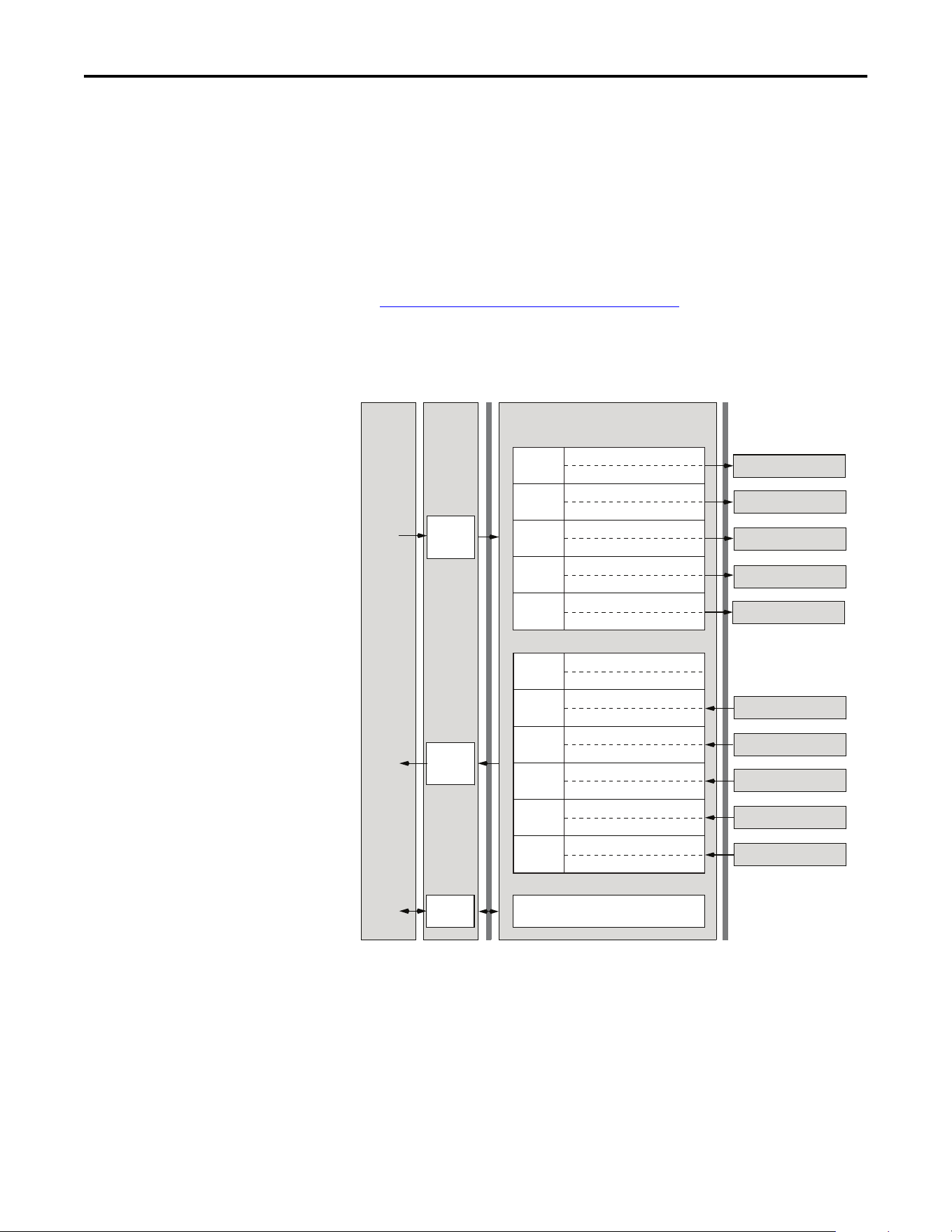
90 Rockwell Automation Publication 520COM-UM003A-EN-E - June 2013
Chapter 7 Using Multi-Drive Mode
Understanding the I/O Image
The terms input and output are defined from the scanner’s point of view.
Therefore, Output I/O is data that is output from the scanner and consumed by
the EtherNet/IP adapter. Input I/O is status data that is produced by the adapter
and consumed as input by the scanner.
The I/O image table will vary based on the configuration of Host parameters
C169 [MultiDrv Sel] and C175 [DSI I/O Cfg]. The image table always uses
consecutive words starting at word 0.
The Multi-Drive Example of I/O Image
on page 90 is an illustration of the
Multi-drive I/O image with 16-bit words.
Multi-Drive Example of I/O Image
(1) Padwords only apply when using the generic profile. Padwords are not used when using the full-featured drive Add-On-Profile.
Note: If a daisy-chained drive is disconnected from the RS-485 (DSI) network
or powered down, the Logic Status and Feedback words for the affected drive will
be set to 0.
Controller
Scanner
Adapter
Word and I/O
EtherNet/IP
DSI
Output
Image
(Write)
Input
Image
(Read)
Message
Handler
Message
Buer
Logic CommandWord 0
ReferenceWord 1
Drive 0
Logic CommandWord 2
ReferenceWord 3
Logic CommandWord 4
ReferenceWord 5
Logic CommandWord 6
ReferenceWord 7
Logic CommandWord 8
ReferenceWord 9
PowerFlex Drive 2
PowerFlex Drive 0
PowerFlex Drive 1
PowerFlex Drive 3
PowerFlex Drive 4
PowerFlex Drive 0
PowerFlex Drive 1
PowerFlex Drive 2
PowerFlex Drive 3
PowerFlex Drive 4
Drive 1
Drive 2
Drive 3
Drive 4
Logic StatusWord 2
FeedbackWord 3
Drive 0
Padword
(1)
Word 0
PadwordWord 1
Logic StatusWord 4
FeedbackWord 5
Logic StatusWord 6
FeedbackWord 7
Logic StatusWord 8
FeedbackWord 9
Logic StatusWord 10
FeedbackWord 11
Drive 1
Drive 2
Drive 3
Drive 4

Rockwell Automation Publication 520COM-UM003A-EN-E - June 2013 91
Using Multi-Drive Mode Chapter 7
Configuring the RS-485
Network
The following parameters must be set in the daisy-chained PowerFlex 4M drives
and not in the master drive:
Note: The RS-485 Multi-drive network is fixed at 19.2K baud rate, 8 data bits,
no parity, and 1 stop bit.
The following Multi-drive parameters must be set in the master PowerFlex 525
drive:
Using Multi-Drive Add-On
Profile
Before using the Multi-drive Add-On Profile, ensure that you have completed the
following steps:
• The master and daisy-chained drives are powered, networked, and
configured. See System Wiring
on page 89.
Parameter Value
P106 [Start Source] 5 “Comm Port”
P108 [Speed Reference] 5 “Comm Port”
C302 [Comm Data Rate] 4 “19.2K”
C303 [Comm Node Addr] 1...247 (must be unique)
C306 [Comm Format] 0 “RTU-8-N-1”
IMPORTANT
Parameters [Comm Loss Action] and [Comm Loss Time] in the daisy-chained
drives are still used in Multi-drive mode. If the RS-485 cable is disconnected or
broken, the disconnected drive(s) will take the corresponding Comm Loss
Action(s). On the EtherNet/ IP side, Device parameters 23 [Comm Flt Action]
and 24 [Idle Flt Action] determine the action taken for ALL of the drives on the
Multi-drive node.
Parameter Value
P046 [Start Source 1] 4 “Network Opt”
P047 [Speed Reference1] 4 “Network Opt”
C169 [MultiDrv Sel] 1 “Network Opt”
Note: Drive must be power cycled after setting this
parameter.
C171 [Drv 1 Addr]
C172 [Drv 2 Addr]
C173 [Drv 3 Addr]
C174 [Drv 4 Addr]
2
3
4
5
Note: Drive must be power cycled after setting this
parameter.
C175 [DSI I/O Cfg] 0 “Drive 0”
1 “Drive 0-1”
2 “Drive 0-2”
3 “Drive 0-3”
4 “Drive 0-4”
Note: Drive must be power cycled after setting this
parameter.
IMPORTANT
Parameters can be set using a DSI peripheral (22-HIM-A3 or 22-HIM-C2S) only
when Host parameter C169 [MultiDrv Sel] is set to 0 “Disabled”.
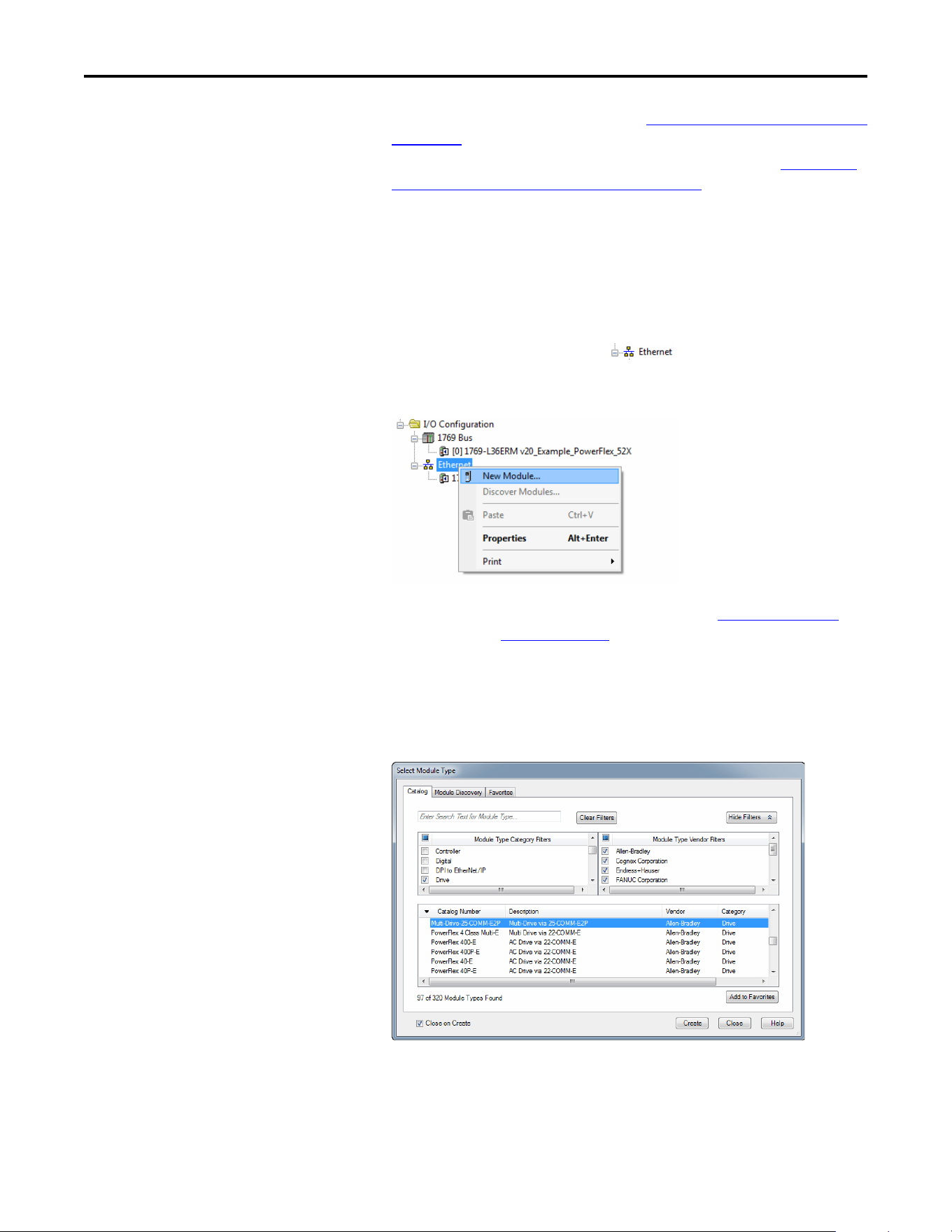
92 Rockwell Automation Publication 520COM-UM003A-EN-E - June 2013
Chapter 7 Using Multi-Drive Mode
• The RS-485 network is configured. See Configuring the RS-485 Network
on page 91.
• The controller has been added to the I/O configuration. See Adding the
Controller to the I/O Configuration on page 40.
Adding the Drive to the I/O Configuration
To transmit data between the controller and the drive, you must add the drive as a
child device to the parent controller. In this example, RSLogix 5000 software
version 20 is used with drive Add-On Profile version 1.02 or later.
1. In the treeview, right-click on the icon and select New
Module… to display the Select Module window. Expand the Drives group
to display all of the available drives with their communication adapters.
2. In the Select Module Type window, select the drive and its connected
adapter from the list. For this example, we selected “Multi-Drive-25-
COMM-E2P.” Then click Create. The drive’s New Module window
appears.
TIP
If the PowerFlex drive is not shown, go to www.ab.com/support/
abdrives/webupdate and download the latest drive Add-On Profile.
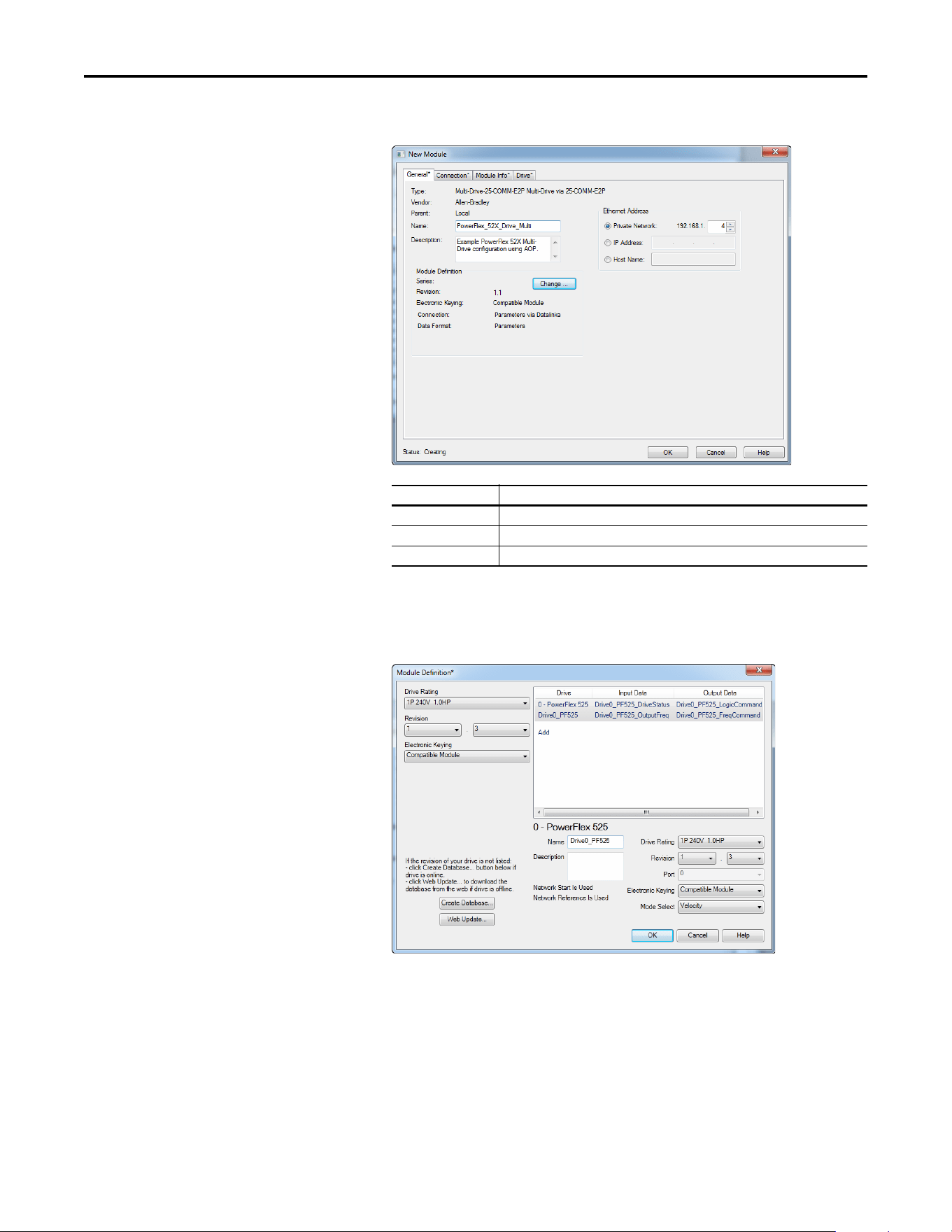
Rockwell Automation Publication 520COM-UM003A-EN-E - June 2013 93
Using Multi-Drive Mode Chapter 7
3. On the General tab, edit the following data about the drive:
4. On the New Module window in the Module Definition section, click
Change… to launch the Module Definition window and begin the drive
configuration process.
Box Setting
Name A name to identify the drive.
Description Optional – description of the drive/adapter.
IP Address The IP address of the adapter.
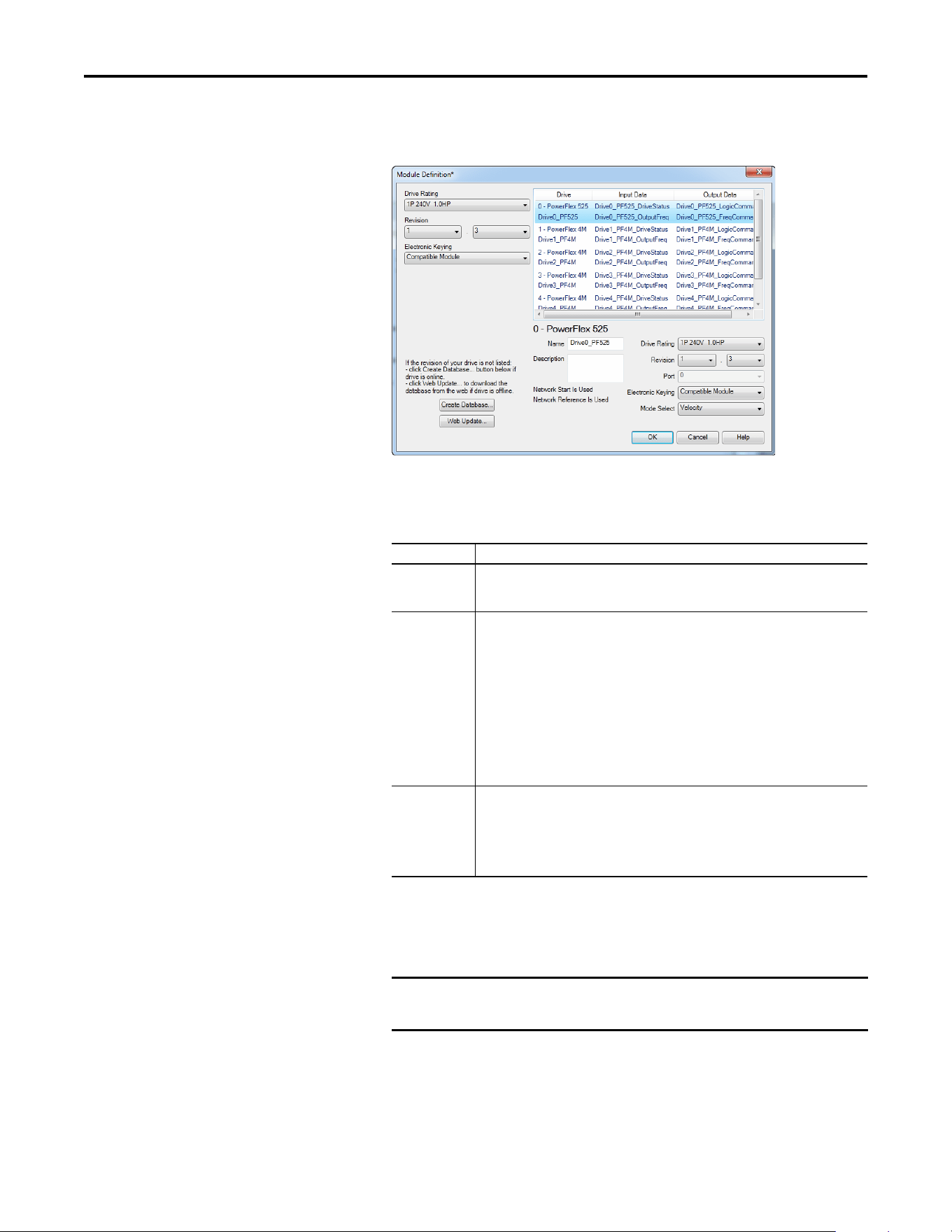
94 Rockwell Automation Publication 520COM-UM003A-EN-E - June 2013
Chapter 7 Using Multi-Drive Mode
5. In the Module Definition window, edit the following information for the
master drive:
On the Module Definition window, notice that the automatically-assigned
controller tags Drive Status, Feedback, Logic Command, and Reference
are always used.
TIP
You may create a database from a network accessible drive using the
Create Database... button (Recommended).
Box Setting
Drive Rating The voltage and current rating of the drive. If the drive rating is not listed, the drive
database is not installed on your computer. To get the drive rating, use the Create
Database…, or Web Update… button described above.
Revision The major and minor revision of the firmware (database) in the drive. If the drive’s major
and minor revision is not available, the drive database is not installed on your computer. To
get the correct database revision, use one of the following buttons at the bottom left of the
Module Definition window:
•Create Database… Creates a database from an online network multi-drive. Clicking
this button displays an RSLinx RSWho window. Browse to the online drive (PowerFlex
525), select it, and click OK. The database will be uploaded and stored on the computer.
Thereafter, close the Module Definition window and then re-open it to display the new
revision.
• Web Update… When a drive is not available online, opens the Allen-Bradley Drives
Web Updates web site to download a specific database file. After downloading the file,
close the Module Definition window and then re-open it to display the new revision.
Electronic Keying Compatible Module. The “Compatible Module” setting for Electronic Keying ensures the
physical module is consistent with the software configuration before the controller and
bridge make a connection. Therefore, ensure that you have set the correct revision in this
window. See the online Help for additional information on this and other Electronic Keying
settings. If keying is not required, select “Disable Keying.” Drives do not require keying, and
so “Disable Keying” is recommended.
IMPORTANT
The Velocity/Positioning mode select is in the lower right of the
window when the master PowerFlex 525 drive is selected.
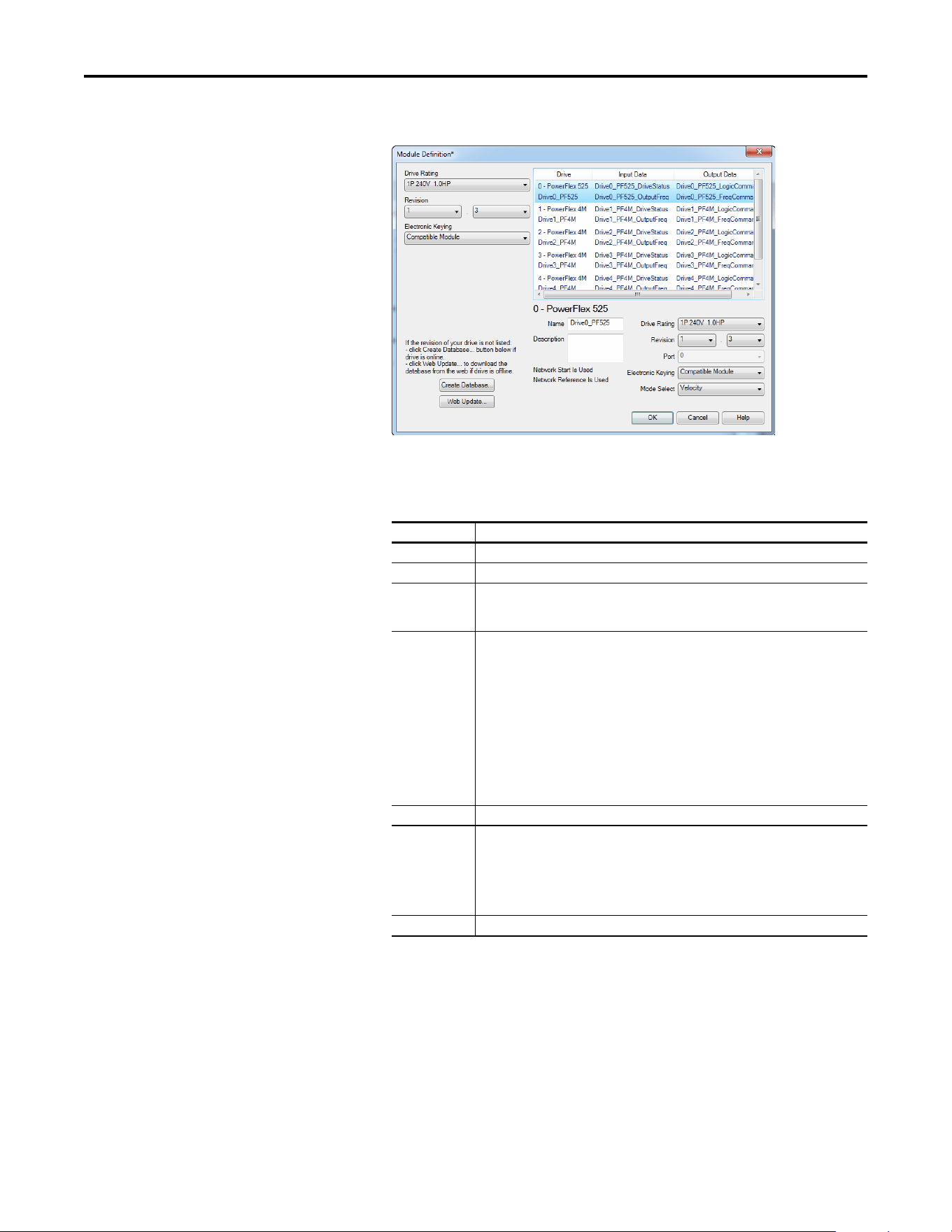
Rockwell Automation Publication 520COM-UM003A-EN-E - June 2013 95
Using Multi-Drive Mode Chapter 7
6. Click Add to select and define each daisy-chained drive:
7. Click OK on the Module Definition window to save the drive
configuration and close the window. The drive’s New Module window
reappears.
TIP
You may create a database from a network accessible drive using the
Create Database... button (Recommended).
Box Setting
Name A name to identify an individual drive.
Description Optional – description of an individual drive.
Drive Rating The voltage and current rating of the drive. If the drive rating is not listed, the drive
database is not installed on your computer. To get the drive rating, use the Create
Database…, or Web Update… button described above.
Revision The major and minor revision of the firmware (database) in the drive. If the drive’s major
and minor revision is not available, the drive database is not installed on your computer. To
get the correct database revision, use one of the following buttons at the bottom left of the
Module Definition window:
•Create Database… Creates a database from an online network multi-drive. Clicking
this button displays an RSLinx RSWho window. Browse to the online drive (PowerFlex
525), select it, and click OK. The database will be uploaded and stored on the computer.
Thereafter, close the Module Definition window and then re-open it to display the new
revision.
• Web Update… When a drive is not available online, opens the Allen-Bradley Drives
Web Updates web site to download a specific database file. After downloading the file,
close the Module Definition window and then re-open it to display the new revision.
Port Port assignment for each drive
Electronic Keying Compatible Module. The “Compatible Module” setting for Electronic Keying ensures the
physical module is consistent with the software configuration before the controller and
bridge make a connection. Therefore, ensure that you have set the correct revision in this
window. See the online Help for additional information on this and other Electronic Keying
settings. If keying is not required, select “Disable Keying.” Drives do not require keying, and
so “Disable Keying” is recommended.
Mode Select Sets the I/O configuration to either Velocity or Position mode.
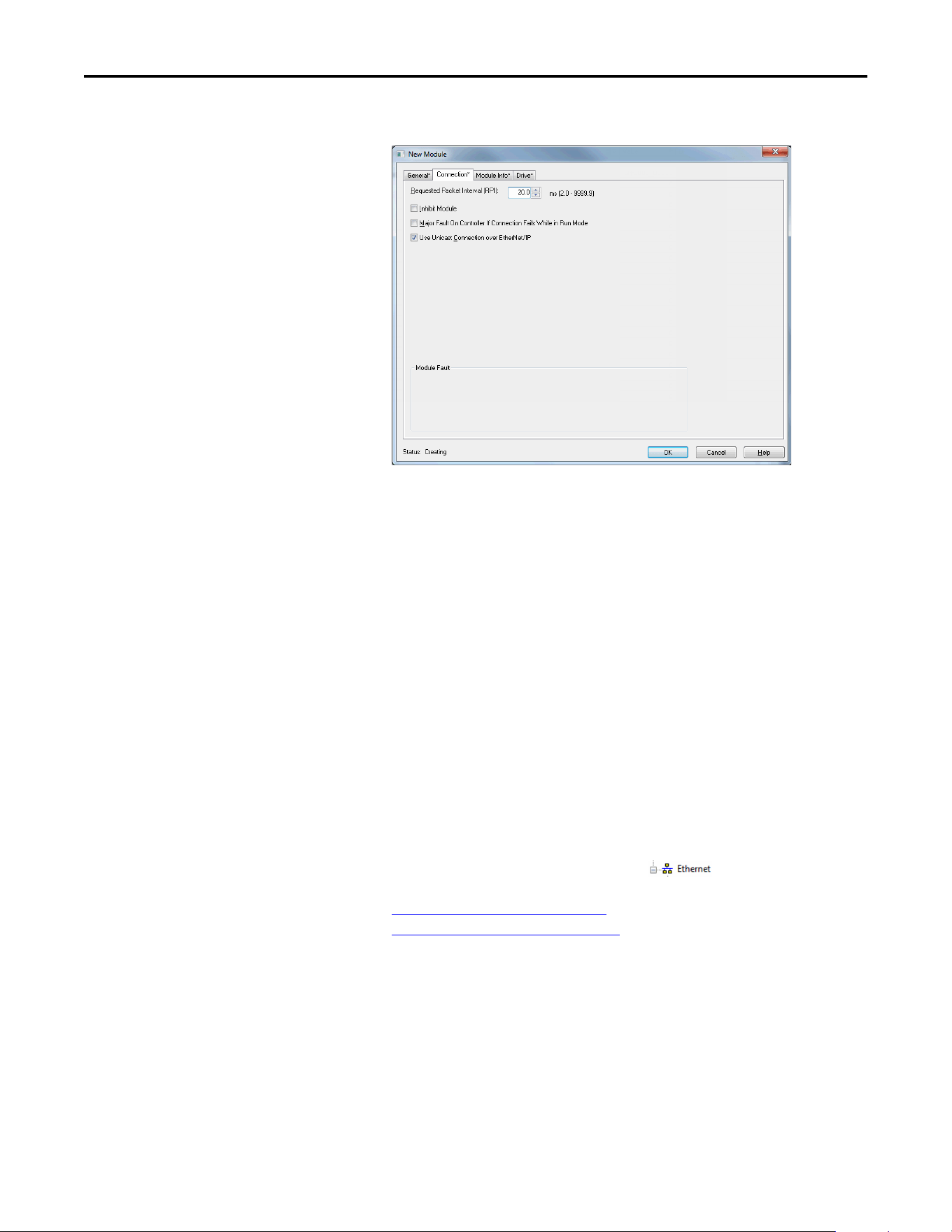
96 Rockwell Automation Publication 520COM-UM003A-EN-E - June 2013
Chapter 7 Using Multi-Drive Mode
8. On the New Module window, click the Connection tab.
9. In the “Requested Packet Interval (RPI)” box, set the value to 2.0
milliseconds or greater. This value determines the maximum interval that a
controller should use to move data to and from the adapter. To conserve
bandwidth, use higher values for communicating with low priority devices.
The “Inhibit Module” box, when checked, inhibits the module from
communicating with the RSLogix 5000 or Logix Designer project. When
the “Major Fault On…” box is checked, a major controller fault will occur
when the module’s connection fails while the controller is in the Run
Mode. For this example, leave the “Inhibit Module” and “Major Fault
On…” boxes unchecked.
The “Use Unicast Connection over EtherNet/IP” box is checked by
default. This is the recommended setting. When this box is unchecked, the
adapter will send multicast messages on the I/O connection. In this case,
the adapter and the EtherNet/IP bridge must be on the same subnet.
10. Click OK on the New Module window.
The new node (“PowerFlex 525-E2P-Multi PowerFlex_52X_Drive-Multi”
in this example) now appears under the icon in the I/O
Configuration folder. If you double-click on the Input Controller Tag (see
Controller Input Tags
on page 97) and Output Controller Tag (see
Controller Output Tags
on page 98), you will see that module-defined
data types and tags have been automatically created. Note that all tag
names are defined for each drive. After you save and download the
configuration, these tags allow you to access the Input and Output data of
the drives using the controller’s ladder logic.
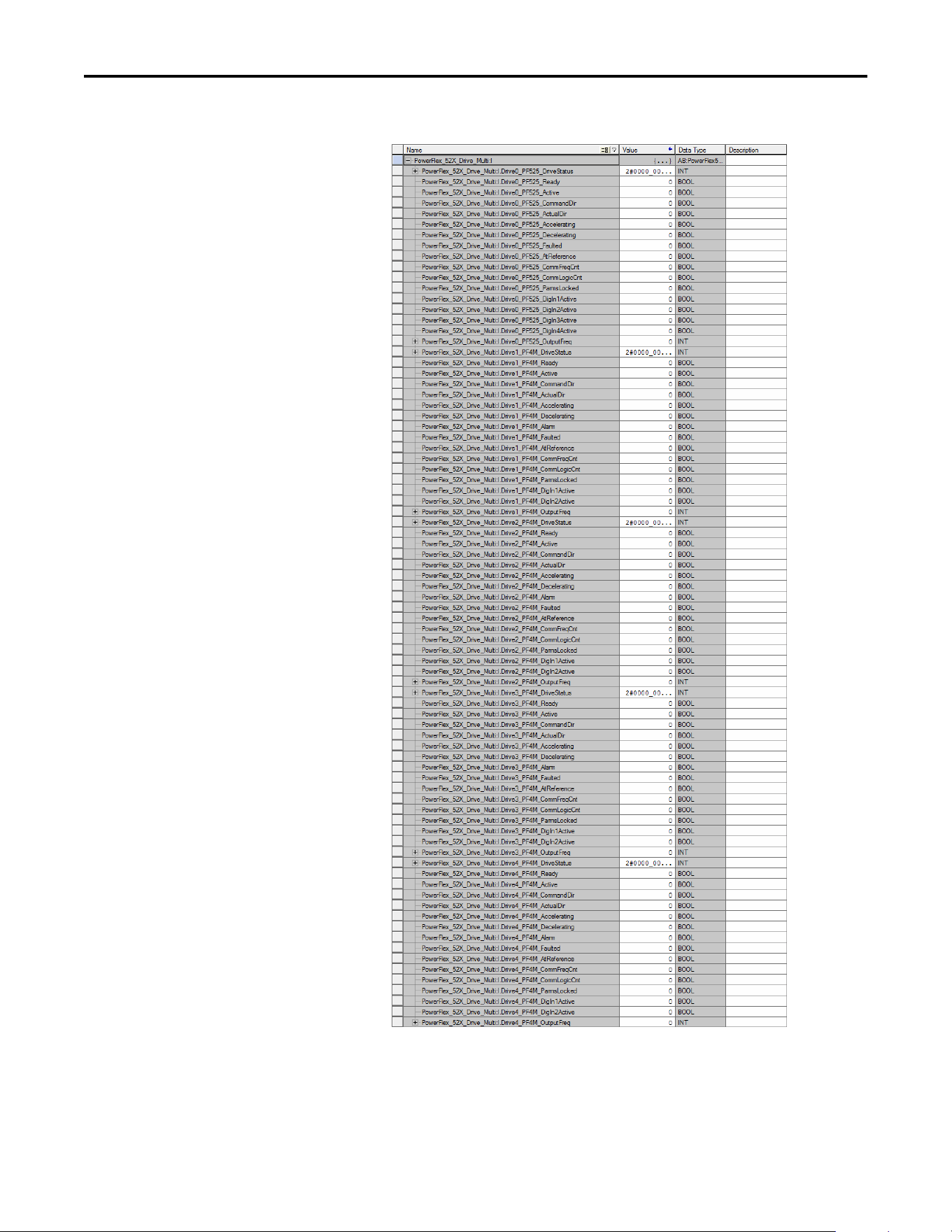
Rockwell Automation Publication 520COM-UM003A-EN-E - June 2013 97
Using Multi-Drive Mode Chapter 7
Controller Input Tags
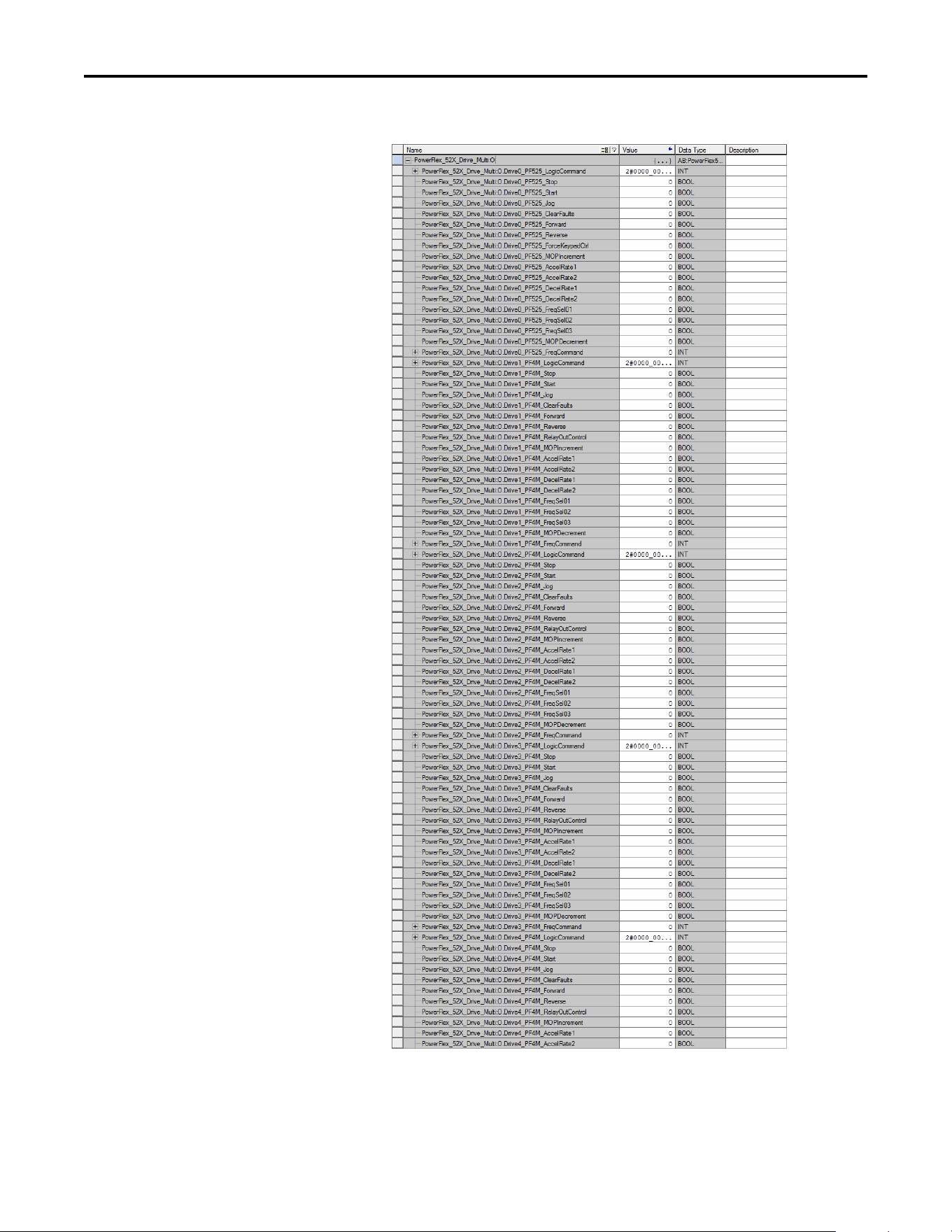
98 Rockwell Automation Publication 520COM-UM003A-EN-E - June 2013
Chapter 7 Using Multi-Drive Mode
Controller Output Tags
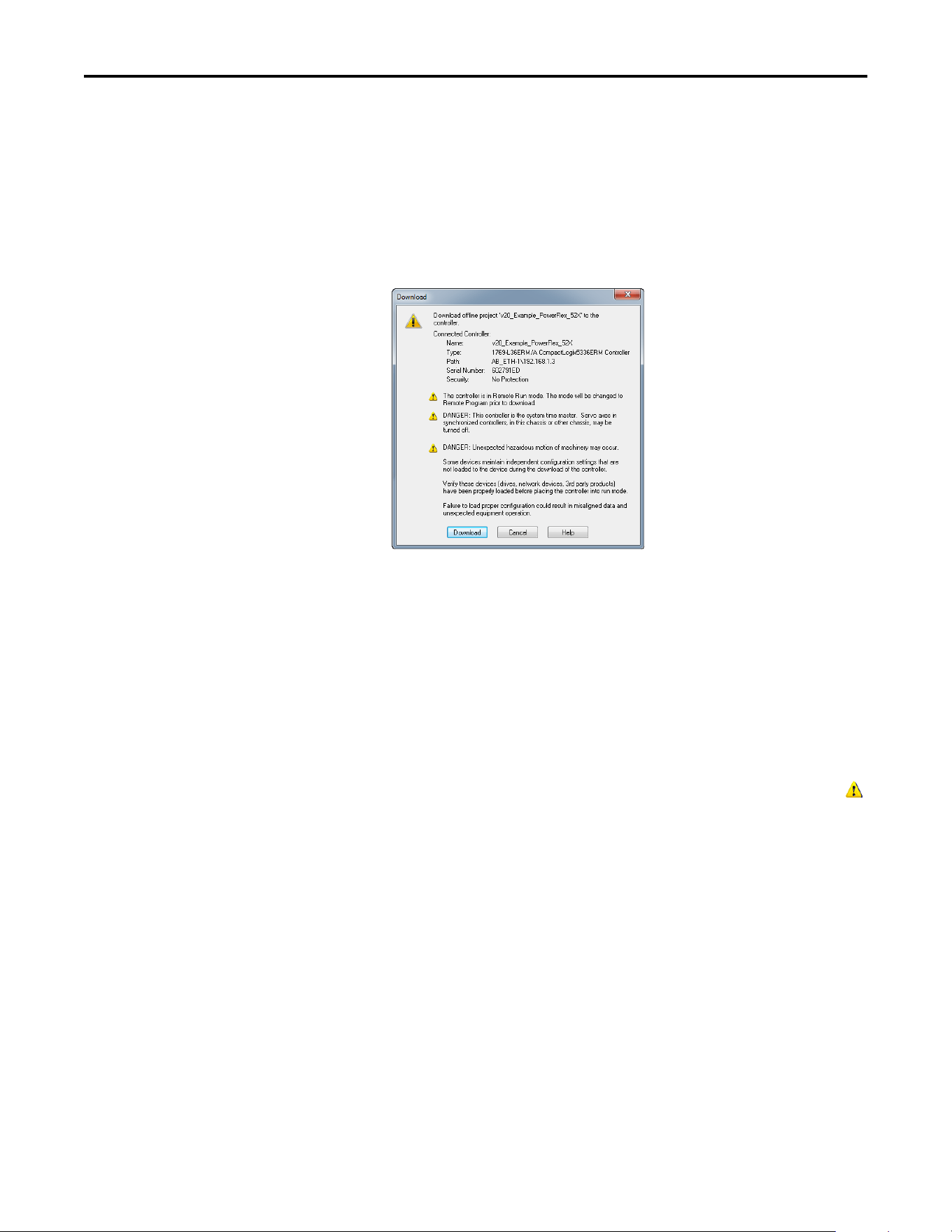
Rockwell Automation Publication 520COM-UM003A-EN-E - June 2013 99
Using Multi-Drive Mode Chapter 7
Saving the I/O Configuration to the Controller
After adding the controller and drives to the I/O configuration, you must
download the configuration to the controller. You should also save the
configuration to a file on your computer.
1. In the RSLogix 5000 or Logix Designer window, select Communications
> Download. The Download dialog box appears.
2. Click Download to download the configuration to the controller. When
the download is successfully completed, RSLogix 5000 or Logix Designer
goes into Online Mode and the I/O Not Responding box in the upper-left
of the window should be flashing green. Also, a yellow warning symbol
should be displayed on the I/O Configuration folder in the treeview and
on the drive profile.
3. If the controller was in Run Mode before clicking Download,
RSLogix 5000 or Logix Designer prompts you to change the controller
mode back to Remote Run. In this case, choose the appropriate mode for
your application. If the controller was in Program Mode before clicking
Download, this prompt will not appear.
4. Select File > Save. If this is the first time you saved the project, the Save As
dialog box appears. Navigate to a folder, type a file name, and click Save to
save the configuration to a file on your computer.
5. To ensure that the present project configuration values are saved,
RSLogix 5000 or Logix Designer prompts you to upload them. Click Yes
to upload and save them.
TIP
If a message box reports that RSLogix 5000 or Logix Designer is unable
to go online, select Communications > Who Active to find your
controller in the Who Active screen. After finding and selecting the
controller, click Set Project Path to establish the path. If your
controller does not appear, you need to add or configure the EtherNet/
IP driver in RSLinx. See the RSLinx online help.
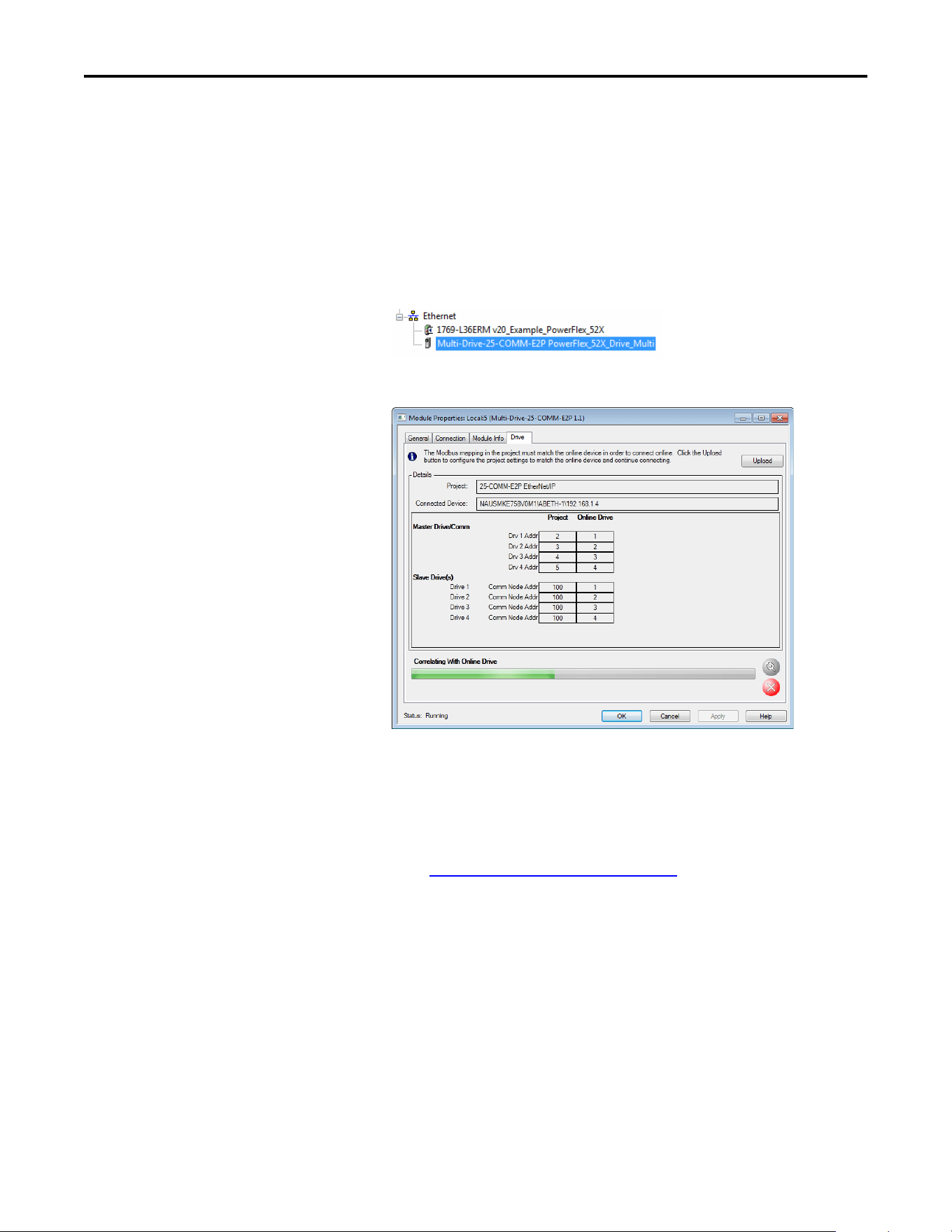
100 Rockwell Automation Publication 520COM-UM003A-EN-E - June 2013
Chapter 7 Using Multi-Drive Mode
Correlating the Drive with the Controller
You must now correlate the drive settings to the RSLogix 5000 or Logix Designer
project I/O settings so that they match. This requires loading the project I/O
settings into the drive.
1. In the treeview under I/O Configuration, right-click on the drive profile
(for this example “Multi-Drive-25-COMM-E2P
PowerFlex_52X_Drive_Multi”) and select Properties.
2. Select the Drive tab to begin the correlation process.
After the drive configuration data has been verified, the Drive tab will
display a request to synchronize the configuration with the drive. Click
Upload. The correlation process will continue. This may take several
minutes depending on the number and type of daisy-chained drives.
If the Differences Found Screen
on page 101 appears—which is typical,
click Download. This will download the project settings from the
controller to the drives. If Upload is clicked, the drive settings are
uploaded to the controller.
TIP
On subsequent connections to the drive (after the initial download),
select Upload.
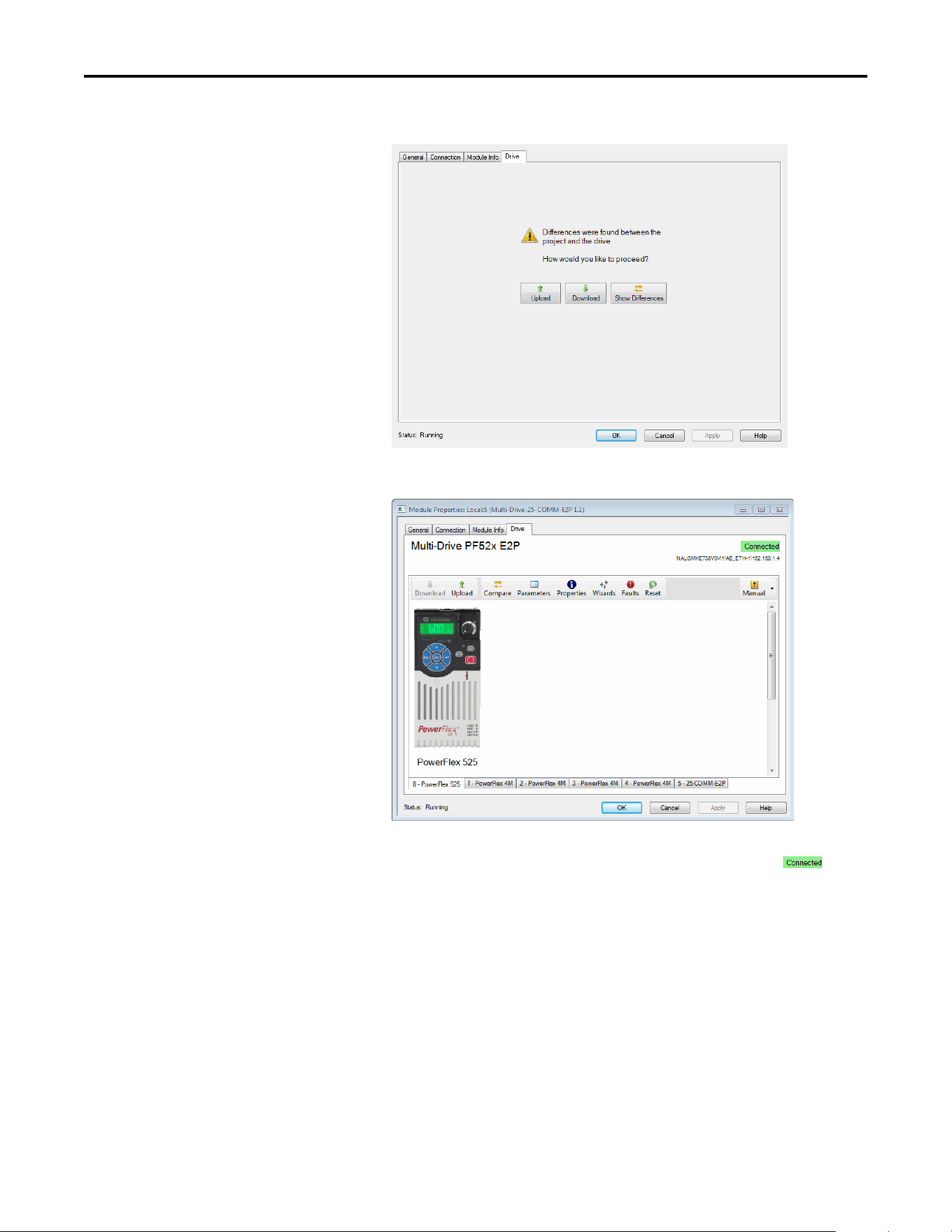
Rockwell Automation Publication 520COM-UM003A-EN-E - June 2013 101
Using Multi-Drive Mode Chapter 7
Differences Found Screen
3. The Drive tab displays a screen of the drive.
If the download is successful, the Drive tab will show a green
indicator in the upper right corner of the window. This tab is extremely
useful for configuring drive parameters, accessing start-up wizards and
troubleshooting. Note that there is a tab for the master as well as each of
the daisy-chained drives.
4. Click OK to close the Module Properties window for the drive.
TIP
You may now use the automatically generated tags to create your
controller logic.

102 Rockwell Automation Publication 520COM-UM003A-EN-E - June 2013
Chapter 7 Using Multi-Drive Mode
Multi-Drive Ladder Logic
Program for Generic Profile
The following is an example of the ladder logic program for the Generic Profile
and demonstrates using Multi-drive mode with five drives. See Multi-Drive
Mode Example for Network on page 88 for an example of a system layout
diagram. If you have not set-up your drive using the Generic Profile, see Using the
RSLogix 5000 or Logix Designer Generic Profile on page 56 for instructions.
See Multi-Drive Example of I/O Image
on page 90 for the number of 16-bit
input and output words to use for your application. In this example, the number
of input words is 12 and the number of output words is 10.
Function of the Example Program
The example program provided is for the CompactLogix family of controllers,
but other Logix-based controllers can also be used similarly. This example
program enables you to:
• View status information from the drives such as Ready, Fault, At Speed,
and Feedback.
• Control the drives using various Logic Command bits (Stop, Start, etc.)
and Reference.
• Perform a single parameter read and write for each drive. The example uses
PowerFlex 4M drive parameter P109 [Accel Time 1] for both so you can
see (read) the change after a write is performed.
The same programming approach can be used with the tags generated by the
Multi-drive Add-On Profile. Note that the tags used in this example will be
different from those created by the Multi-drive Add-On Profile.
Drive 0 (PowerFlex 525) Settings for the Example Program
• Parameter C169 [MultiDrv Sel] is set to 1“Network Opt”.
• The following parameters are set:
Parameter Value Description
P046 [Start Source1] 4 “Network Opt”
P047 [Speed Reference1] 4 “Network Opt”
C175 [DSI I/O Cfg] 4 “Drive 0-4” (5 drives on 1 node)
C171 [Drv 1 Addr]
(1)
(1) The settings for these parameters must match the node address settings in the respective daisy-chained drives.
1 Modbus address of Drive 1
C172 [Drv 2 Addr] 2 Modbus address of Drive 2
C173 [Drv 3 Addr] 3 Modbus address of Drive 3
C174 [Drv 4 Addr] 4 Modbus address of Drive 4
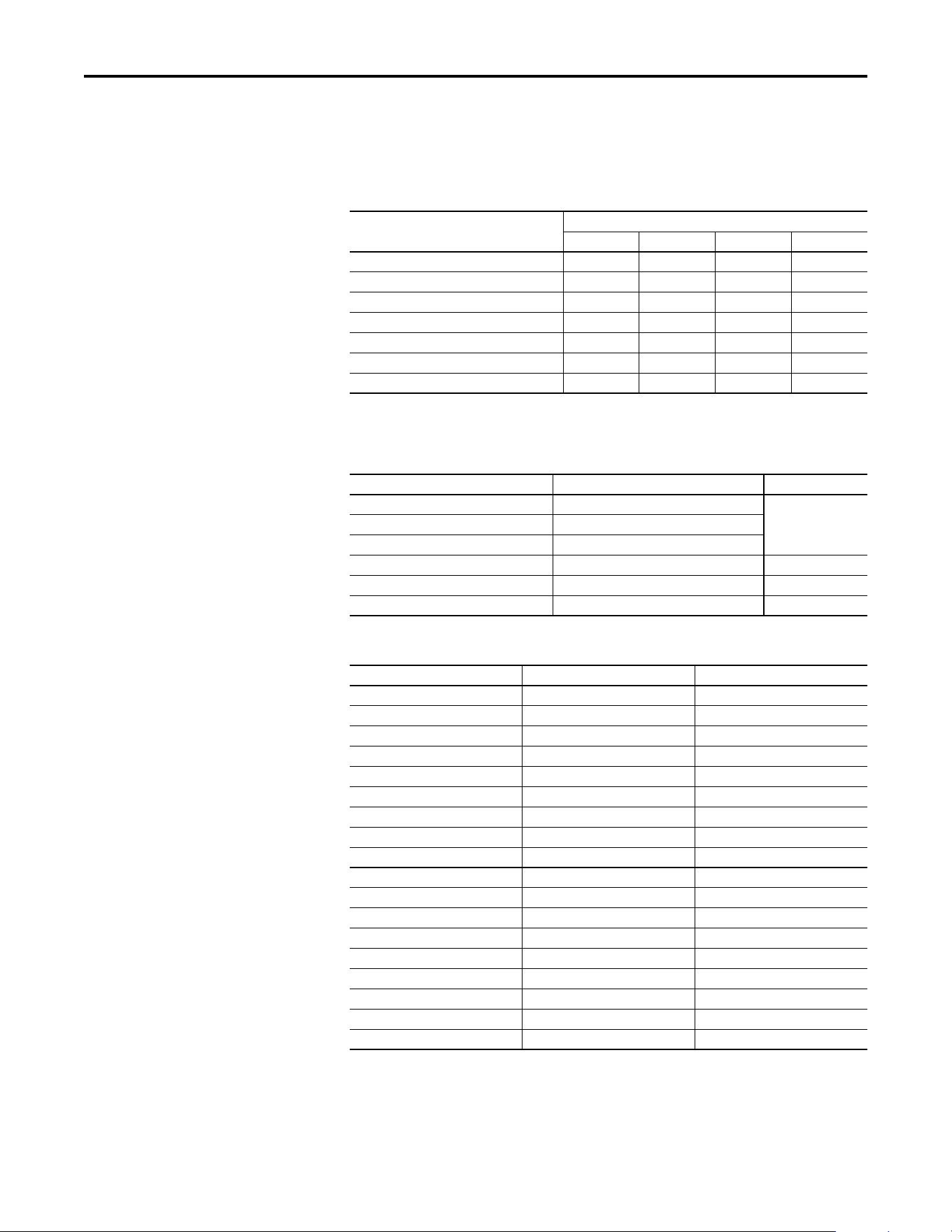
Rockwell Automation Publication 520COM-UM003A-EN-E - June 2013 103
Using Multi-Drive Mode Chapter 7
Drive 1...4 (PowerFlex 4M) Settings for the Example Program (in all
drives)
The following parameters are set:
CompactLogix Controller
Example Using Generic
Profile
The following common Tags are used:
The following Tags are used for Drive 0:
The same type of Tags are also used for Drive 1 through Drive 4.
Value
Parameter Drive 1 Drive 2 Drive 3 Drive 4
P106 [Start Source] 5555
P108 [Speed Reference] 5 5 5 5
C302 [Comm Data Rate] 4 4 4 4
C303 [Comm Node Addr] 1 2 3 4
C304 [Comm Loss Action] 0 0 0 0
C305 [Comm Loss Time] 5.0 s 5.0 s 5.0 s 5.0 s
C306 [Comm Format] 0 0 0 0
Tag Name Type Description
PowerFlex_52X_Drive_Multi_Generic:O AB:ETHERNET_MODULE_xxx:O:0 Generic EtherNet/IP
module I/O tags and
configuration
PowerFlex_52X_Drive_Multi_Generic:I AB:ETHERNET_MODULE_xxx:I:0
PowerFlex_52X_Drive_Multi_Generic:C AB:ETHERNET_MODULE:C:0
Accel_Time_1 INT –
Drive_Input_Image INT [12] Input Image Table
Drive_Output_Image INT [10] Output Image Table
Tag Name Type Description
Drive_0_Command_Stop BOOL Logic Command bit 0 (STOP)
Drive_0_Command_Start BOOL Logic Command bit 1 (START)
Drive_0_Command_Jog BOOL Logic Command bit 2 (JOG)
Drive_0_Command_Clear_Faults BOOL Logic Command bit 3 (CLEAR FAULTS)
Drive_0_Command_Forward BOOL Logic Command bit 4 (FORWARD)
Drive_0_Reference INT Speed Reference
Drive_0_Status_Ready BOOL Logic Status bit 0 (READY)
Drive_0_Status_Active BOOL Logic Status bit 1 (ACTIVE)
Drive_0_Status_Forward BOOL Logic Status bit 2 (FORWARD)
Drive_0_Status_Faulted BOOL Logic Status bit 7 (FAULT)
Drive_0_Status_At_Reference BOOL Logic Status bit 8 (AT SPEED)
Drive_0_Feedback INT Speed Feedback
Perform_Parameter_Read_0 BOOL Initiates the parameter read
Parameter_RD_Value_0 INT Read value of the parameter
Parameter_RD_Message_0 MESSAGE Get_Attribute_Single (Read)
Perform_Parameter_Write_0 BOOL Initiates the parameter value
Parameter_WR_Value_0 INT Write value to the parameter
Parameter_WR_Message_0 MESSAGE Set_Attritbute_Single (Write)
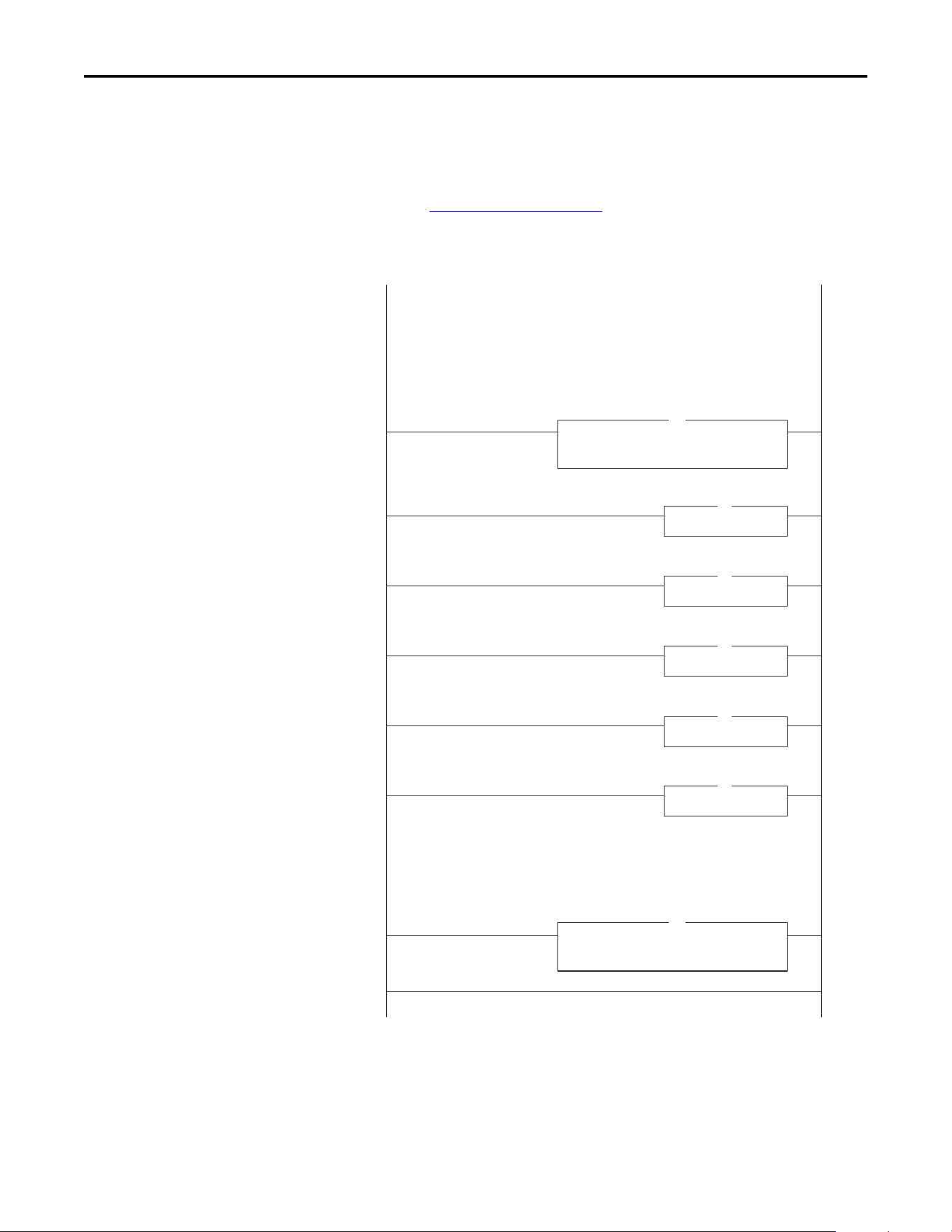
104 Rockwell Automation Publication 520COM-UM003A-EN-E - June 2013
Chapter 7 Using Multi-Drive Mode
Main Routine
The Main Routine reads the network Input Image from the scanner, calls the
various drive control subroutines, and writes the network Output Image to the
scanner. See Main Routine
on page 104.
Main Routine
0
1
2
3
4
5
6
(End)
Copy File
Source
Dest
Length
PowerFlex_52X_Drive_Multi_Generic:I.Data [0]
Drive_Input_Image[0]
12
Jump To Subroutine
Routine Name Drive0
JSR
COP
Copy File
Source
Dest
Length
Drive_Output_Image[0]
PowerFlex_52X_Drive_Multi_Generic:O.Data[0]
10
COP
Jump To Subroutine
Routine Name Drive1
JSR
Jump To Subroutine
Routine Name Drive2
JSR
Jump To Subroutine
Routine Name Drive3
JSR
Jump To Subroutine
Routine Name Drive4
JSR
Drive 0 control subroutine.
Drive 1 control subroutine.
Drive 2 control subroutine.
Drive 3 control subroutine.
Drive 4 control subroutine.
CompactLogix EtherNet/IP Multi-Drive example program with a PowerFlex 525 on EtherNet/IP.
Four PowerFlex 4M drives are daisy-chained to the main PowerFlex 525 using their RJ45 ports (RS-485). In this mode,
up to ve PowerFlex drives can exist on one EtherNet/IP node.
This rung retrieves the Logic Status and Feedback data for all ve drives from the scanner (DINTs), and moves it to
specic INT tags for use elsewhere in the ladder program. The input image is as follows:
Drive_Input_Image[2] and Drive_Input_Image[3] = Drive 0 Logic Status and Feedback
Drive_Input_Image[4] and Drive_Input_Image[5] = Drive 1 Logic Status and Feedback
Drive_Input_Image[6] and Drive_Input_Image[7] = Drive 2 Logic Status and Feedback
Drive_Input_Image[8] and Drive_Input_Image[9] = Drive 3 Logic Status and Feedback
Drive_Input_Image[10] and Drive_Input_Image[11] = Drive 4 Logic Status and Feedback
This rung writes the output image to the scanner. The output image is as follows:
Drive_Output_Image[0] and Drive_Output_Image[1] = Drive 0 Logic Command and Reference
Drive_Output_Image[2] and Drive_Output_Image[3] = Drive 0 Logic Command and Reference
Drive_Output_Image[4] and Drive_Output_Image[5] = Drive 0 Logic Command and Reference
Drive_Output_Image[6] and Drive_Output_Image[7] = Drive 0 Logic Command and Reference
Drive_Output_Image[8] and Drive_Output_Image[9] = Drive 0 Logic Command and Reference
PowerFlex 525 EtherNet/IP Multi-Drive Demo
Rockwell Automation Publication 520COM-UM003A-EN-E - June 2013 105
Using Multi-Drive Mode Chapter 7
Drive 0...4 Control Routines
The following Drive Control routines provide status information (Logic Status
and Feedback), control (Logic Command and Reference), and parameter read/
write for each of the respective drives:
Control Routine See page...
Drive 0 106
Drive 1 107
Drive 2 108
Drive 3 109
Drive 4 110
106 Rockwell Automation Publication 520COM-UM003A-EN-E - June 2013
Chapter 7 Using Multi-Drive Mode
Drive 0 Control Routine
0
5
(End)
Copy File
Source
Dest
Length
Drive_Input_Image[3]
Drive_0_Feedback
1
COP
12
Copy File
Source
Dest
Length
Drive_0_Reference
Drive_Output_Image[1]
1
COP
15
Return from Subroutine
RET
Drive_Input_Image[2].0 Drive_0_Status_Ready
This section takes the data from the input area and moves it to specic tags (Logic Status bits and Feedback) for use
elsewhere in the ladder program.
This section takes the data from specic tags (Logic Command bits and Reference) and moves them to the output
image area for transmission to the scanner.
Drive 0 parameters are accessed by referencing the desired parameter number. For example, to access parameter P041
an Instance of 41 is used.
1
Drive_Input_Image[2].1 Drive_0_Status_Active
2
Drive_Input_Image[2].3 Drive_0_Status_Forward
3
Drive_Input_Image[2].7 Drive_0_Status_Faulted
4
Drive_Input_Image[2].8 Drive_0_Status_At_Reference
6
Drive_0_Command_Stop Drive_Output_Image[0].0
7
Drive_0_Command_Start Drive_Output_Image[0].1
8
Drive_0_Command_Jog Drive_Output_Image[0].2
9
Drive_0_Command_Clear_Faults Drive_Output_Image[0].3
10
Drive_0_Command_Forward Drive_Output_Image[0].4
13
Perform_Parameter_Read_0
EN
DN
ER
11
Drive_0_Command_Forward Drive_Output_Image[0].5
Message
Message Control Parameter_RD_Message_0
MSG
14
Perform_Parameter_Write_0
EN
DN
ER
Message
Message Control Parameter_WR_Message_0
MSG
Explicit Messaging Example
Drive 0 Control Subroutine
Rockwell Automation Publication 520COM-UM003A-EN-E - June 2013 107
Using Multi-Drive Mode Chapter 7
Drive 1 Control Routine
0
5
(End)
Copy File
Source
Dest
Length
Drive_Input_Image[5]
Drive_1_Feedback
1
COP
12
Copy File
Source
Dest
Length
Drive_1_Reference
Drive_Output_Image[3]
1
COP
15
Return from Subroutine
RET
Drive_Input_Image[4].0 Drive_1_Status_Ready
This section takes the data from the input area and moves it to specic tags (Logic Status bits and Feedback) for use
elsewhere in the ladder program.
This section takes the data from specic tags (Logic Command bits and Reference) and moves them to the output
image area for transmission to the scanner.
Drive 1 parameters are accessed by adding 18432 decimal (4800 hex) to the desired parameter number. For example,
to access parameter P109 an Instance of 18541 (18432 + 109) is used.
1
Drive_Input_Image[4].1 Drive_1_Status_Active
2
Drive_Input_Image[4].3 Drive_1_Status_Forward
3
Drive_Input_Image[4].7 Drive_1_Status_Faulted
4
Drive_Input_Image[4].8 Drive_1_Status_At_Reference
6
Drive_1_Command_Stop Drive_Output_Image[2].0
7
Drive_1_Command_Start Drive_Output_Image[2].1
8
Drive_1_Command_Jog Drive_Output_Image[2].2
9
Drive_1_Command_Clear_Faults Drive_Output_Image[2].3
10
Drive_1_Command_Forward Drive_Output_Image[2].4
13
Perform_Parameter_Read_1
EN
DN
ER
11
Drive_1_Command_Forward Drive_Output_Image[2].5
Message
Message Control Parameter_RD_Message_1
MSG
14
Perform_Parameter_Write_1
EN
DN
ER
Message
Message Control Parameter_WR_Message_1
MSG
Explicit Messaging Example
Drive 1 Control Subroutine
108 Rockwell Automation Publication 520COM-UM003A-EN-E - June 2013
Chapter 7 Using Multi-Drive Mode
Drive 2 Control Routine
0
5
(End)
Copy File
Source
Dest
Length
Drive_Input_Image[7]
Drive_2_Feedback
1
COP
12
Copy File
Source
Dest
Length
Drive_2_Reference
Drive_Output_Image[5]
1
COP
15
Return from Subroutine
RET
Drive_Input_Image[6].0 Drive_2_Status_Ready
This section takes the data from the input area and moves it to specic tags (Logic Status bits and Feedback) for use
elsewhere in the ladder program.
This section takes the data from specic tags (Logic Command bits and Reference) and moves them to the output
image area for transmission to the scanner.
Drive 2 parameters are accessed by adding 19456 decimal (4C00 hex) to the desired parameter number. For example,
to access parameter P109 an Instance of 19565 (19456 + 109) is used.
1
Drive_Input_Image[6].1 Drive_2_Status_Active
2
Drive_Input_Image[6].3 Drive_2_Status_Forward
3
Drive_Input_Image[6].7 Drive_2_Status_Faulted
4
Drive_Input_Image[6].8 Drive_2_Status_At_Reference
6
Drive_2_Command_Stop Drive_Output_Image[4].0
7
Drive_2_Command_Start Drive_Output_Image[4].1
8
Drive_2_Command_Jog Drive_Output_Image[4].2
9
Drive_2_Command_Clear_Faults Drive_Output_Image[4].3
10
Drive_2_Command_Forward Drive_Output_Image[4].4
13
Perform_Parameter_Read_2
EN
DN
ER
11
Drive_2_Command_Forward Drive_Output_Image[4].5
Message
Message Control Parameter_RD_Message_2
MSG
14
Perform_Parameter_Write_2
EN
DN
ER
Message
Message Control Parameter_WR_Message_2
MSG
Explicit Messaging Example
Drive 2 Control Subroutine
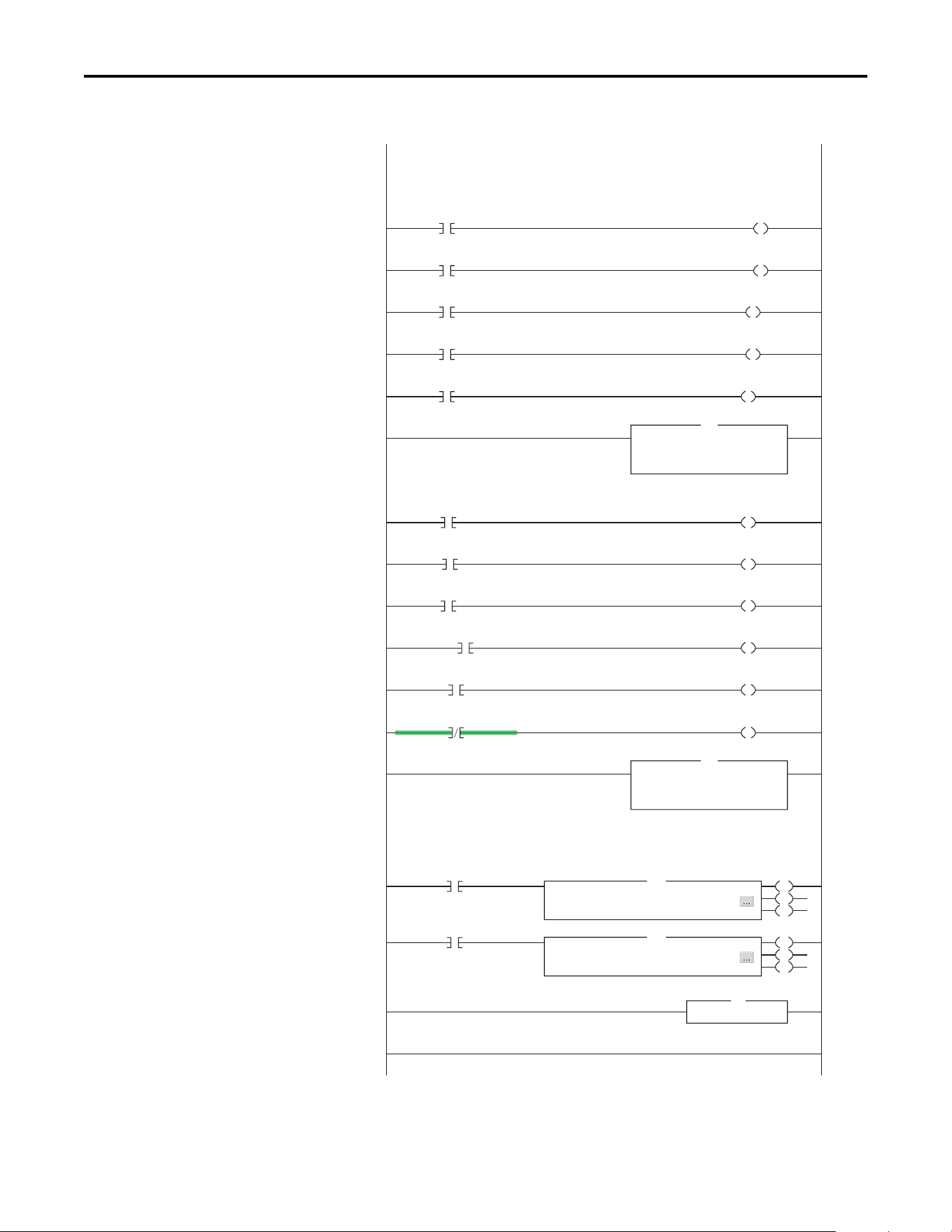
Rockwell Automation Publication 520COM-UM003A-EN-E - June 2013 109
Using Multi-Drive Mode Chapter 7
Drive 3 Control Routine
0
5
(End)
Copy File
Source
Dest
Length
Drive_Input_Image[9]
Drive_3_Feedback
1
COP
12
Copy File
Source
Dest
Length
Drive_3_Reference
Drive_Output_Image[7]
1
COP
15
Return from Subroutine
RET
Drive_Input_Image[8].0 Drive_3_Status_Ready
This section takes the data from the input area and moves it to specic tags (Logic Status bits and Feedback) for use
elsewhere in the ladder program.
This section takes the data from specic tags (Logic Command bits and Reference) and moves them to the output
image area for transmission to the scanner.
Drive 3 parameters are accessed by adding 20480 decimal (5000 hex) to the desired parameter number. For example,
to access parameter P109 an Instance of 20589 (20480 + 109) is used.
1
Drive_Input_Image[8].1 Drive_3_Status_Active
2
Drive_Input_Image[8].3 Drive_3_Status_Forward
3
Drive_Input_Image[8].7 Drive_3_Status_Faulted
4
Drive_Input_Image[8].8 Drive_3_Status_At_Reference
6
Drive_3_Command_Stop Drive_Output_Image[6].0
7
Drive_3_Command_Start Drive_Output_Image[6].1
8
Drive_3_Command_Jog Drive_Output_Image[6].2
9
Drive_3_Command_Clear_Faults Drive_Output_Image[6].3
10
Drive_3_Command_Forward Drive_Output_Image[6].4
13
Perform_Parameter_Read_3
EN
DN
ER
11
Drive_3_Command_Forward Drive_Output_Image[6].5
Message
Message Control Parameter_RD_Message_3
MSG
14
Perform_Parameter_Write_3
EN
DN
ER
Message
Message Control Parameter_WR_Message_3
MSG
Explicit Messaging Example
Drive 3 Control Subroutine
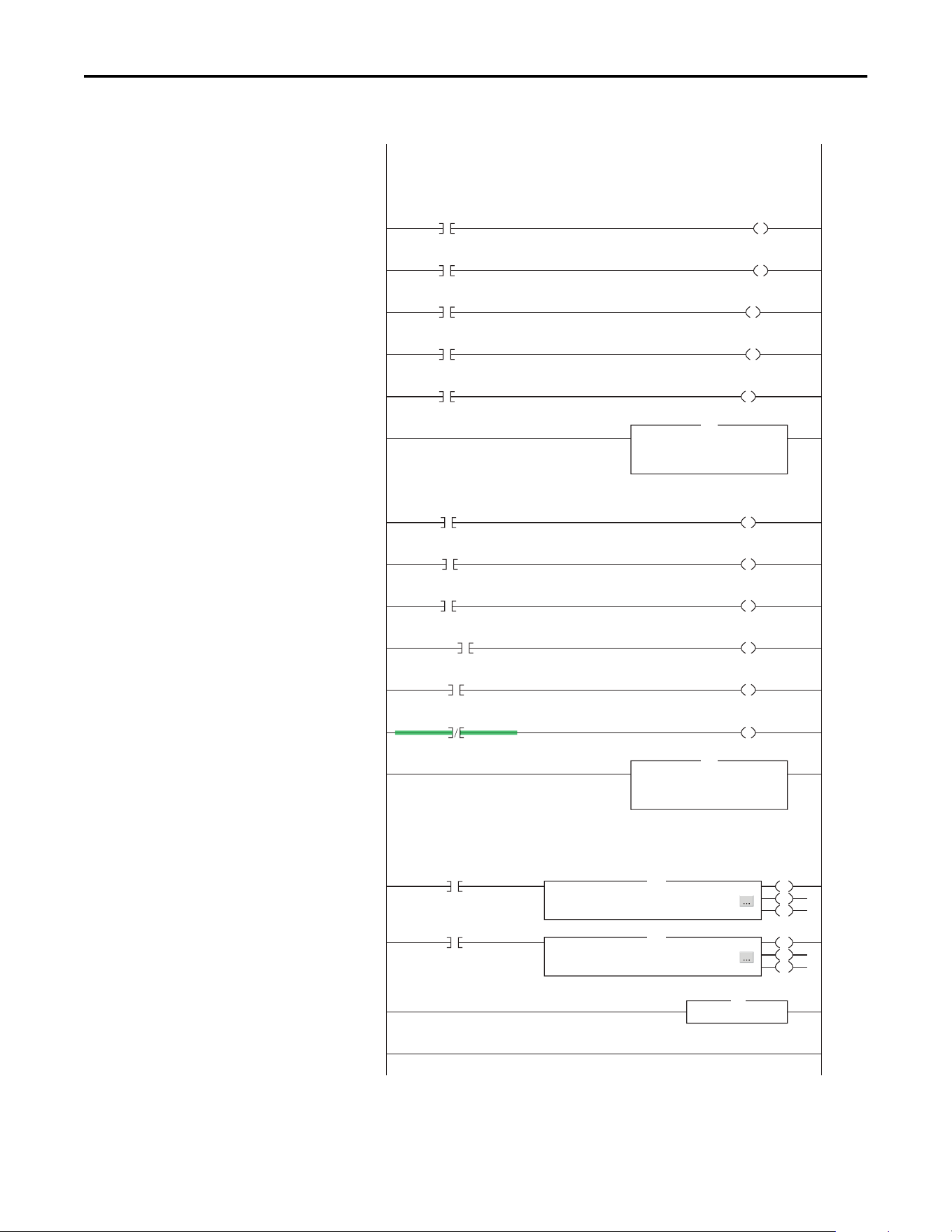
110 Rockwell Automation Publication 520COM-UM003A-EN-E - June 2013
Chapter 7 Using Multi-Drive Mode
Drive 4 Control Routine
0
5
(End)
Copy File
Source
Dest
Length
Drive_Input_Image[11]
Drive_4_Feedback
1
COP
12
Copy File
Source
Dest
Length
Drive_4_Reference
Drive_Output_Image[9]
1
COP
15
Return from Subroutine
RET
Drive_Input_Image[10].0 Drive_4_Status_Ready
This section takes the data from the input area and moves it to specic tags (Logic Status bits and Feedback) for use
elsewhere in the ladder program.
This section takes the data from specic tags (Logic Command bits and Reference) and moves them to the output
image area for transmission to the scanner.
Drive 4 parameters are accessed by adding 21504 decimal (5400 hex) to the desired parameter number. For example,
to access parameter P109 an Instance of 21613 (21504 + 109) is used.
1
Drive_Input_Image[10].1 Drive_4_Status_Active
2
Drive_Input_Image[10].3 Drive_4_Status_Forward
3
Drive_Input_Image[10].7 Drive_4_Status_Faulted
4
Drive_Input_Image[10].8 Drive_4_Status_At_Reference
6
Drive_4_Command_Stop Drive_Output_Image[8].0
7
Drive_4_Command_Start Drive_Output_Image[8].1
8
Drive_4_Command_Jog Drive_Output_Image[8].2
9
Drive_4_Command_Clear_Faults Drive_Output_Image[8].3
10
Drive_4_Command_Forward Drive_Output_Image[8].4
13
Perform_Parameter_Read_4
EN
DN
ER
11
Drive_4_Command_Forward Drive_Output_Image[8].5
Message
Message Control Parameter_RD_Message_4
MSG
14
Perform_Parameter_Write_4
EN
DN
ER
Message
Message Control Parameter_WR_Message_4
MSG
Explicit Messaging Example
Drive 4 Control Subroutine

Rockwell Automation Publication 520COM-UM003A-EN-E - June 2013 111
Using Multi-Drive Mode Chapter 7
Multi-Drive Mode Explicit
Messaging
Parameter addressing for Explicit messaging is different in Multi-drive mode than
in Single-drive mode. In Single-drive mode, the Instance value in the message
equals the desired parameter number in the drive. In Multi-drive mode, an
Instance table is used to account for the parameters in the adapter and up to five
drives. The parameters in the adapter and each of the drives are offset by 400 hex
(1024 decimal):
For example, to access [Accel Time 1] (parameter P041 in PowerFlex 525 and
P109 in PowerFlex 4M) in each of the drives, the following Instances would be
used:
• Drive 0 (PowerFlex 525) Instance = 41
• Drive 1 (PowerFlex 4M) Instance = 18541 (18432 + 109)
• Drive 2 (PowerFlex 4M) Instance = 19565 (19456 + 109)
• Drive 3 (PowerFlex 4M) Instance = 20589 (20480 + 109)
• Drive 4 (PowerFlex 4M) Instance = 21613 (21504 + 109)
Drive 1 Explicit Message Example
The Explicit message examples in the CompactLogix example program perform a
read and a write to PowerFlex 4M parameter P109 [Accel Time 1]. The
configuration for the read is shown in Parameter Read Message Configuration
on
page 112 and the write is shown in Parameter Write Message Configuration on
page 112.
Instance (Hex.) Instance (Dec.) Device Parameter
0x0000...0x3FFF 0...16383 Drive 0 0...1023
0x4000...0x43FF 16384...17407 Dual-port EtherNet/IP adapter parameters 0...1023
0x4400...0x47FF 17408...18431 Drive 0 0...1023
0x4800...0x4BFF 18432...19455 Drive 1 0...1023
0x4C00...0x4FFF 19456...20479 Drive 2 0...1023
0x5000...0x53FF 20480...21503 Drive 3 0...1023
0x5400...0x57FF 21504...22527 Drive 4 0...1023
0x5800...0x5BFF 22528...23551 Dual-port EtherNet/IP adapter parameters 0...1023
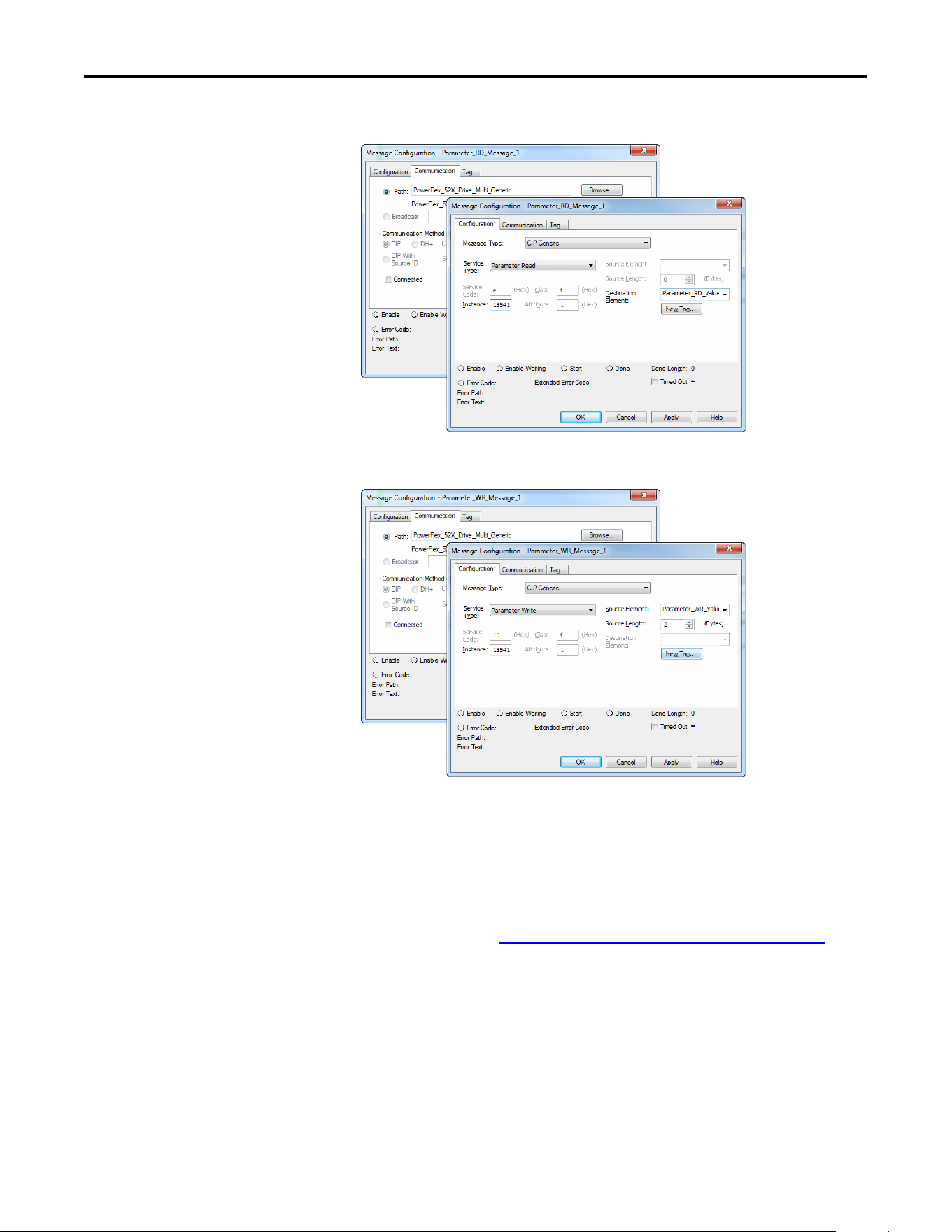
112 Rockwell Automation Publication 520COM-UM003A-EN-E - June 2013
Chapter 7 Using Multi-Drive Mode
Parameter Read Message Configuration
Parameter Write Message Configuration
The Class Code is “f ” for the Parameter Object and the Instance Attribute is “1”
to select retrieving the parameter value. See Parameter Object
on page 136 for
more information. The Instance value is “18541” to access parameter P109
[Accel Time 1] in the first daisy-chained drive.
The Explicit message for the other daisy-chained drives are identical except for
the Instance values, see Multi-Drive Mode Explicit Messaging
on page 111 for
examples.
Additional Information
• When the PowerFlex 525 drive (Drive 0) is powered up, all configured
daisy-chained drives must be present before an I/O connection is allowed
on EtherNet/IP (before the drives can be controlled).
• If the PowerFlex 525 drive (Drive 0) is powered down, communications
with the four daisy-chained drives (Drive 1 to Drive 4) are disrupted and
the drives will take their corresponding Comm Loss Actions.

Rockwell Automation Publication 520COM-UM003A-EN-E - June 2013 113
Using Multi-Drive Mode Chapter 7
• If any of the daisy-chained drives (Drive 1 to Drive 4) are powered down,
the respective Input Image (Logic Status and Feedback) will be set to zero.
Status information will not indicate there is a fault at the node, and the
I/O connection will not be dropped.

114 Rockwell Automation Publication 520COM-UM003A-EN-E - June 2013
Chapter 7 Using Multi-Drive Mode
Notes:
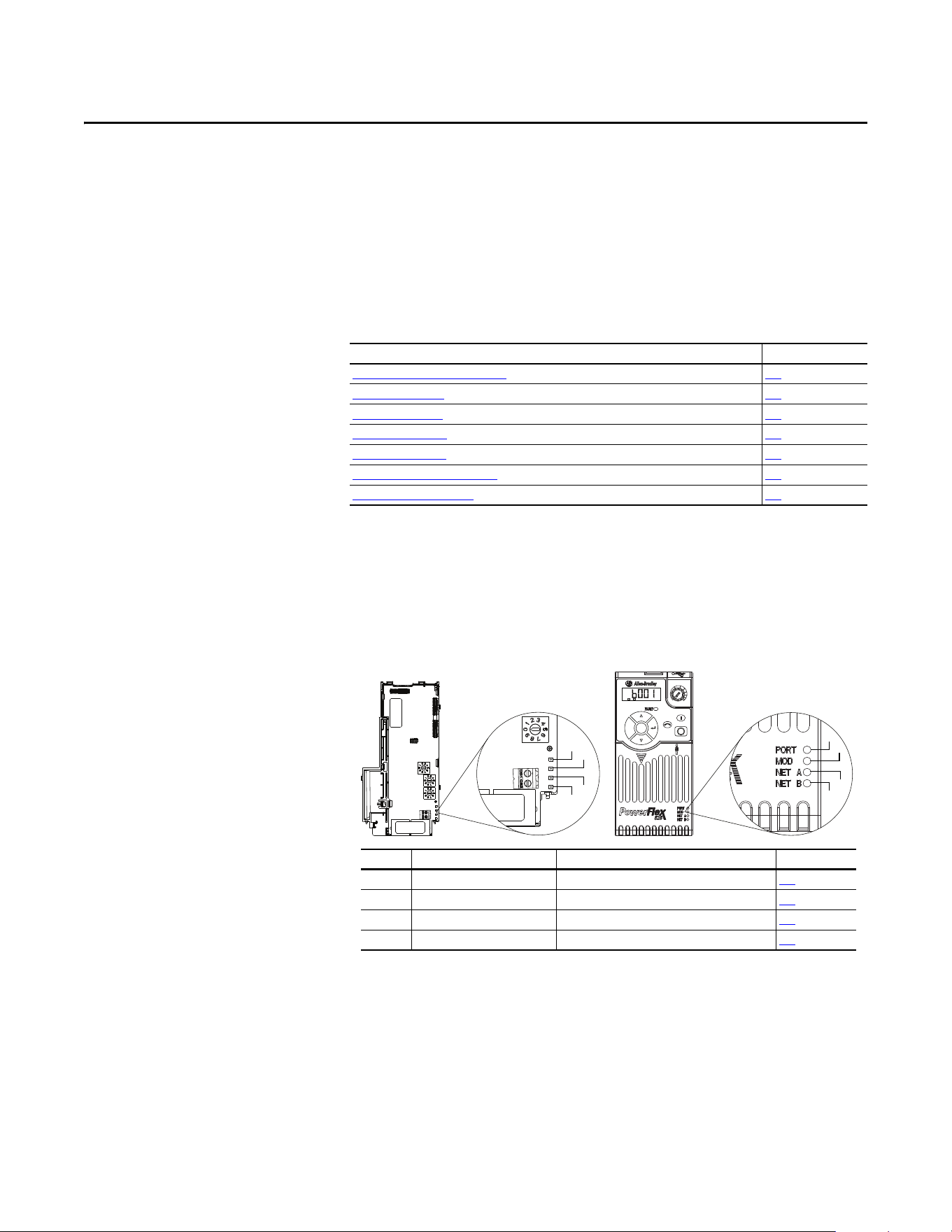
Rockwell Automation Publication 520COM-UM003A-EN-E - June 2013 115
Chapter 8
Troubleshooting
This chapter provides information for diagnosing and troubleshooting potential
problems with the Dual-port EtherNet/IP adapter and network.
Understanding the Status
Indicators
The adapter has four status indicators. They can be viewed on the adapter or
through the drive cover.
Status Indicators
Topic Page
Understanding the Status Indicators
115
PORT Status Indicator 116
MOD Status Indicator 116
NET A Status Indicator 116
NET B Status Indicator 117
Viewing Adapter Diagnostic Items 117
Viewing and Clearing Events 120
Esc
Sel
F
W
D
ENET LINK
EtherNet/IP
➊
➋
➌
25-COMM-E2P PowerFlex 525 Frame A shown
➍
➊
➋
➌
➍
Item Status Indicator Description Page
➊ PORT DSI Connection Status 116
➋ MOD Adapter Status 116
➌ NET A Network Connection Status 116
➍ NET B Adapter Transmission Status 117

116 Rockwell Automation Publication 520COM-UM003A-EN-E - June 2013
Chapter 8 Troubleshooting
PORT Status Indicator
This red/green bicolor LED indicates the status of the adapter’s connection to
the drive as shown in the table below.
MOD Status Indicator
This red/green bicolor LED indicates the status of the adapter as shown in the
table below.
NET A Status Indicator
This red/green bicolor LED indicates the status for the network connection as
shown in the table below.
Status Cause Corrective Actions
Off The adapter is not powered. • Securely connect the adapter to the drive.
• Apply power to the drive.
Flashing red The adapter is not receiving communication from the drive,
or a drive is missing in Multi-drive mode.
• Verify that cables are securely connected.
• Cycle power to the drive.
Flashing green The adapter is establishing communications with the drive. No action required. This status indicator will turn solid green or flashing red.
Steady green The adapter is properly connected and is communicating
with the drive.
No action required.
Orange The drive is not an Allen-Bradley drive, or the drive is
configured for Multi-drive mode using its embedded
EtherNet/IP port.
• Use an Allen-Bradley PowerFlex 520-Series drive.
• Set Host parameter C169 [MultiDrv Sel] to 1 “Network Opt” and cycle power to the drive.
Status Cause Corrective Actions
Off The adapter is not powered or is not properly connected to
the drive.
• Securely connect the adapter to the drive.
• Apply power to the drive.
Flashing red The cause may be one of the following:
• The drive is in firmware upgrade mode.
• The adapter has an EEPROM fault.
• The network address switches has been changed since
powerup.
• A duplicate IP address fault has been detected.
• The DHCP lease has expired.
• The network address switches are set to “888”.
• The network configuration (IP address, subnet mask,
gateway address) is invalid.
• The User FPGA configuration is invalid.
View the adapter event queue to determine which of these conditions is present. Then, depending on
the cause, take the appropriate corrective action.
• Clear faults in the adapter.
• Cycle power to the drive.
• If cycling power does not correct the problem, the adapter parameter settings may have been
corrupted. Reset defaults and reconfigure the adapter.
• If resetting defaults does not correct the problem, update the adapter with the latest firmware
revision.
• Change the network address switches to a value other than “888”.
Flashing green The adapter is operating normally, but is not transferring
I/O data to a controller.
• Place the scanner in RUN mode.
• Program the controller to recognize and transmit I/O to the adapter.
• Configure the adapter for the program in the controller.
• Normal behavior is no I/O is being transferred.
Steady green The adapter is operating normally and is transferring I/O
data to a controller.
No action required.
Status Cause Corrective Actions
Off The cause may be one of the following:
• The adapter is not powered.
• The adapter is not properly connected to the network.
• The adapter has not acquired its network configuration
(IP address, subnet mask, gateway address) from the
BOOTP server.
• Securely connect the adapter to the drive.
• Correctly connect the Ethernet cable to the Ethernet connector.
• Set a unique IP address with the adapter rotary switches, adapter parameters, or a BOOTP or DHCP
server.
• Apply power to the drive.
Flashing red The I/O connection has timed out. • Place the controller in RUN mode.
• Check the amount of traffic on the network.
Steady red The cause may be one of the following:
• A duplicate IP address fault has been detected.
• The DHCP lease has expired.
Configure the adapter to use a unique IP address and cycle power to the drive.
Flashing green The adapter is operating normally, but does not have any
CIP connections (I/O or explicit).
• Place the controller in RUN mode.
• Program the controller to recognize and transmit I/O, or make a message connection to the adapter.
• Configure the adapter for the program in the controller.
Steady green The adapter is operating normally and has at least one CIP
connection (I/O or explicit).
No action required.
Rockwell Automation Publication 520COM-UM003A-EN-E - June 2013 117
Troubleshooting Chapter 8
NET B Status Indicator
This green LED indicates the status of the adapter transmitting on the network
as shown in the table below.
Viewing Adapter Diagnostic
Items
If you encounter unexpected communications problems, the adapter’s diagnostic
items may help you or Rockwell Automation personnel troubleshoot the
problem. The diagnostic parameters for the Dual-port EtherNet/IP adapter can
be viewed using the PowerFlex 22-HIM-A3/-C2S HIM or Connected
Components Workbench software.
Status Cause Corrective Actions
Off This adapter is not transmitting on the network. If Net A indicator is off:
• Securely connect the adapter to the drive, then connect the adapter to the network using an Ethernet
cable.
• Correctly connect the Ethernet cable to the Ethernet connector.
• Set a unique IP address with the adapter rotary switches, adapter parameters, or a BOOTP or DHCP
server.
If Net A indicator is steady red:
• Configure the adapter to use a unique IP address and cycle power to the drive.
If Net A indicator is flashing red/green or red:
• Check the IP address in the adapter and scanner, and verify that the controller can communicate with
the adapter.
• Ping the adapter.
• Normal condition if the adapter is idle.
Flashing green The adapter is transmitting on the network. No action required.
Dual-port EtherNet/IP Adapter Diagnostic Items in Single-Drive Mode
No. Name Description
01 Reserved –
02 Logic Cmd The present value of the Logic Command being transmitted to the drive by this adapter.
03 Reference The present value of the Reference being transmitted to the drive by this adapter.
04 Reserved –
05 Logic Sts The present value of the Logic Status being received from the drive by this adapter.
06 Feedback The present value of the Feedback being received from the drive by this adapter.
07...22 Reserved –
23 Input Size Displays the size of the input image in bytes transferred from the network to the drive.
24 Output Size Displays the size of the output image in bytes transferred from the drive to the network.
25
26
27
28
DL Fr Net 01 Val
DL Fr Net 02 Val
DL Fr Net 03 Val
DL Fr Net 04 Val
The current datalink value being transmitted from this adapter to the drive.
29
30
31
32
DL To Net 01 Val
DL To Net 02 Val
DL To Net 03 Val
DL To Net 04 Val
The current datalink value being received from the drive by this adapter.
33 Opt Comm Errs A count of the number of adapter to drive communication errors
34
35
36
37
38
39
HW Addr 1
HW Addr 2
HW Addr 3
HW Addr 4
HW Addr 5
HW Addr 6
Decimal value of each octet in the adapter’s Ethernet hardware address.
255.255.255.255.255.255
[HW Addr 1]
[HW Addr 2]
[HW Addr 3]
[HW Addr 4]
[HW Addr 5]
[HW Addr 6]
118 Rockwell Automation Publication 520COM-UM003A-EN-E - June 2013
Chapter 8 Troubleshooting
40
41
42
43
IP Addr Act 1
IP Addr Act 2
IP Addr Act 3
IP Addr Act 4
Value of each octet in the adapter’s present IP address. A value of “0” appears if the adapter
does not currently have an IP address.
44
45
46
47
Subnet Act 1
Subnet Act 2
Subnet Act 3
Subnet Act 4
Value of each octet in the adapter’s present subnet mask. A value of “0” appears if the
adapter does not currently have a subnet mask.
48
49
50
51
Gateway Act 1
Gateway Act 2
Gateway Act 3
Gateway Act 4
Value of each octet in the adapter’s present gateway address. A value of “0” appears if the
adapter does not currently have a gateway address.
52 Net Rx Overruns A count of the number of receive overrun errors reported by the adapter.
53 Net Rx Packets A count of the number of Ethernet packets that the adapter has received.
54 Net Rx Errors A count of the number of receive errors reported by the Ethernet hardware.
55 Net Tx Packets A count of the number of Ethernet packets that the adapter has sent.
56 Net Tx Errors A count of the number of transmit errors reported by the Ethernet hardware.
57 Missed IO Pkts A count of the number of incoming I/O connection packets that the adapter did not receive.
58 Net Addr Sw Displays the setting of the network address switches.
59 MDIX Status Displays the MDIX status.
60 Boot Flash Count A count of the number of times the boot firmware has been flash updated.
61 App Flash Count A count of the number of times the application firmware has been flash updated.
62 FPGA Flash Count A count of the number of times the FPGA User Program Image has been flash updated.
Dual-port EtherNet/IP Adapter Diagnostic Items in Multi-Drive Mode
No. Name Description
01 Reserved –
02 Drv 0 Logic Cmd The present value of the Logic Command being transmitted to drive 0 by this adapter.
03 Drv 0 Reference The present value of the Reference being transmitted to drive 0 by this adapter.
04 Reserved –
05 Drv 0 Logic Sts The present value of the Logic Status being received from drive 0 by this adapter.
06 Drv 0 Feedback The present value of the Feedback being received from drive 0 by this adapter.
07 Drv 1 Logic Cmd The present value of the Logic Command being transmitted to drive 1 by this adapter.
08 Drv 1 Reference The present value of the Reference being transmitted to drive 1 by this adapter.
09 Drv 1 Logic Sts The present value of the Logic Status being received from drive 1 by this adapter.
10 Drv 1 Feedback The present value of the Feedback being received from drive 1 by this adapter.
11 Drv 2 Logic Cmd The present value of the Logic Command being transmitted to drive 2 by this adapter.
Dual-port EtherNet/IP Adapter Diagnostic Items in Single-Drive Mode
No. Name Description
255.255.255.255
[IP Addr Act 1]
[IP Addr Act 2]
[IP Addr Act 3]
[IP Addr Act 4]
255.255.255.255
[Subnet Act 1]
[Subnet Act 2]
[Subnet Act 3]
[Subnet Act 4]
255.255.255.255
[Gateway Act 1]
[Gateway Act 2]
[Gateway Act 3]
[Gateway Act 4]
Rockwell Automation Publication 520COM-UM003A-EN-E - June 2013 119
Troubleshooting Chapter 8
12 Drv 2 Reference The present value of the Reference being transmitted to drive 2 by this adapter.
13 Drv 2 Logic Sts The present value of the Logic Status being received from drive 2 by this adapter.
14 Drv 2 Feedback The present value of the Feedback being received from drive 2 by this adapter.
15 Drv 3 Logic Cmd The present value of the Logic Command being transmitted to drive 3 by this adapter.
16 Drv 3 Reference The present value of the Reference being transmitted to drive 3 by this adapter.
17 Drv 3 Logic Sts The present value of the Logic Status being received from drive 3 by this adapter.
18 Drv 3 Feedback The present value of the Feedback being received from drive 3 by this adapter.
19 Drv 4 Logic Cmd The present value of the Logic Command being transmitted to drive 4 by this adapter.
20 Drv 4 Reference The present value of the Reference being transmitted to drive 4 by this adapter.
21 Drv 4 Logic Sts The present value of the Logic Status being received from drive 4 by this adapter.
22 Drv 4 Feedback The present value of the Feedback being received from drive 4 by this adapter.
23 Input Size Displays the size of the input image in bytes transferred from the network to the drive.
24 Output Size Displays the size of the output image in bytes transferred from the drive to the network.
25...32 Reserved –
33 Opt Comm Errs A count of the number of adapter to drive communication errors
34
35
36
37
38
39
HW Addr 1
HW Addr 2
HW Addr 3
HW Addr 4
HW Addr 5
HW Addr 6
Decimal value of each octet in the adapter’s Ethernet hardware address.
40
41
42
43
IP Addr Act 1
IP Addr Act 2
IP Addr Act 3
IP Addr Act 4
Value of each octet in the adapter’s present IP address. A value of “0” appears if the
adapter does not currently have an IP address.
44
45
46
47
Subnet Act 1
Subnet Act 2
Subnet Act 3
Subnet Act 4
Value of each octet in the adapter’s present subnet mask. A value of “0” appears if the
adapter does not currently have a subnet mask.
48
49
50
51
Gateway Act 1
Gateway Act 2
Gateway Act 3
Gateway Act 4
Value of each octet in the adapter’s present gateway address. A value of “0” appears if the
adapter does not currently have a gateway address.
52 Net Rx Overruns A count of the number of receive overrun errors reported by the adapter.
Dual-port EtherNet/IP Adapter Diagnostic Items in Multi-Drive Mode
No. Name Description
255.255.255.255.255.255
[HW Addr 1]
[HW Addr 2]
[HW Addr 3]
[HW Addr 4]
[HW Addr 5]
[HW Addr 6]
255.255.255.255
[IP Addr Act 1]
[IP Addr Act 2]
[IP Addr Act 3]
[IP Addr Act 4]
255.255.255.255
[Subnet Act 1]
[Subnet Act 2]
[Subnet Act 3]
[Subnet Act 4]
255.255.255.255
[Gateway Act 1]
[Gateway Act 2]
[Gateway Act 3]
[Gateway Act 4]
120 Rockwell Automation Publication 520COM-UM003A-EN-E - June 2013
Chapter 8 Troubleshooting
Viewing and Clearing Events
The adapter has an event queue to record significant events that occur in the
operation of the adapter. When such an event occurs, an entry consisting of the
event’s numeric code and a timestamp is put into the event queue. You can view
the event queue using the PowerFlex 22-HIM-A3/-C2S HIM or Connected
Components Workbench.
The event queue can contain up to 32 entries, which are stored in an EEPROM
chip—making the event queue nonvolatile. Eventually the event queue will
become full, since its contents are retained through adapter power cycles and
resets. At that point, a new entry replaces the oldest entry. Only an event queue
clear operation or the corruption of the EEPROM group containing the event
queue will clear the event queue contents. In the latter case, the adapter will not
generate a fault to indicate that the event queue was corrupted.
Resetting the adapter to defaults has no effect on the event queue, other than to
log a Code 58 “Module Defaulted” event.
Many events in the event queue occur under normal operation. If you encounter
unexpected communications problems, the events may help you or Allen-Bradley
personnel troubleshoot the problem. The following events may appear in the
event queue:
53 Net Rx Packets A count of the number of Ethernet packets that the adapter has received.
54 Net Rx Errors A count of the number of receive errors reported by the Ethernet hardware.
55 Net Tx Packets A count of the number of Ethernet packets that the adapter has sent.
56 Net Tx Errors A count of the number of transmit errors reported by the Ethernet hardware.
57 Missed IO Pkts A count of the number of incoming I/O connection packets that the adapter did not
receive.
58 Net Addr Sw Displays the setting of the network address switches.
59 MDIX Status Displays the MDIX status.
60 Boot Flash Count A count of the number of times the boot firmware has been flash updated.
61 App Flash Count A count of the number of times the application firmware has been flash updated.
62 FPGA Flash Count A count of the number of times the FPGA User Program Image has been flash updated.
Dual-port EtherNet/IP Adapter Diagnostic Items in Multi-Drive Mode
No. Name Description
Adapter Events
Code Event Description
Adapter Events
0 No Event Text displayed in an empty event queue entry.
1 Device Power Up Power was applied to the adapter.
2 Device Reset The adapter was reset.
3 EEPROM CRC Error The EEPROM checksum/CRC is incorrect, which limits adapter functionality. Default
parameter values must be loaded to clear this condition.
4 App Updated The adapter application firmware was updated.
5 Boot Updated The adapter boot firmware was updated.
6 Watchdog Timeout The software watchdog detected a failure and reset the adapter.
7 Manual Reset The adapter was reset by changing Device parameter 22 [Reset Module].
DSI Events
8 DSI Detected The adapter detected that the DSI device is connected.
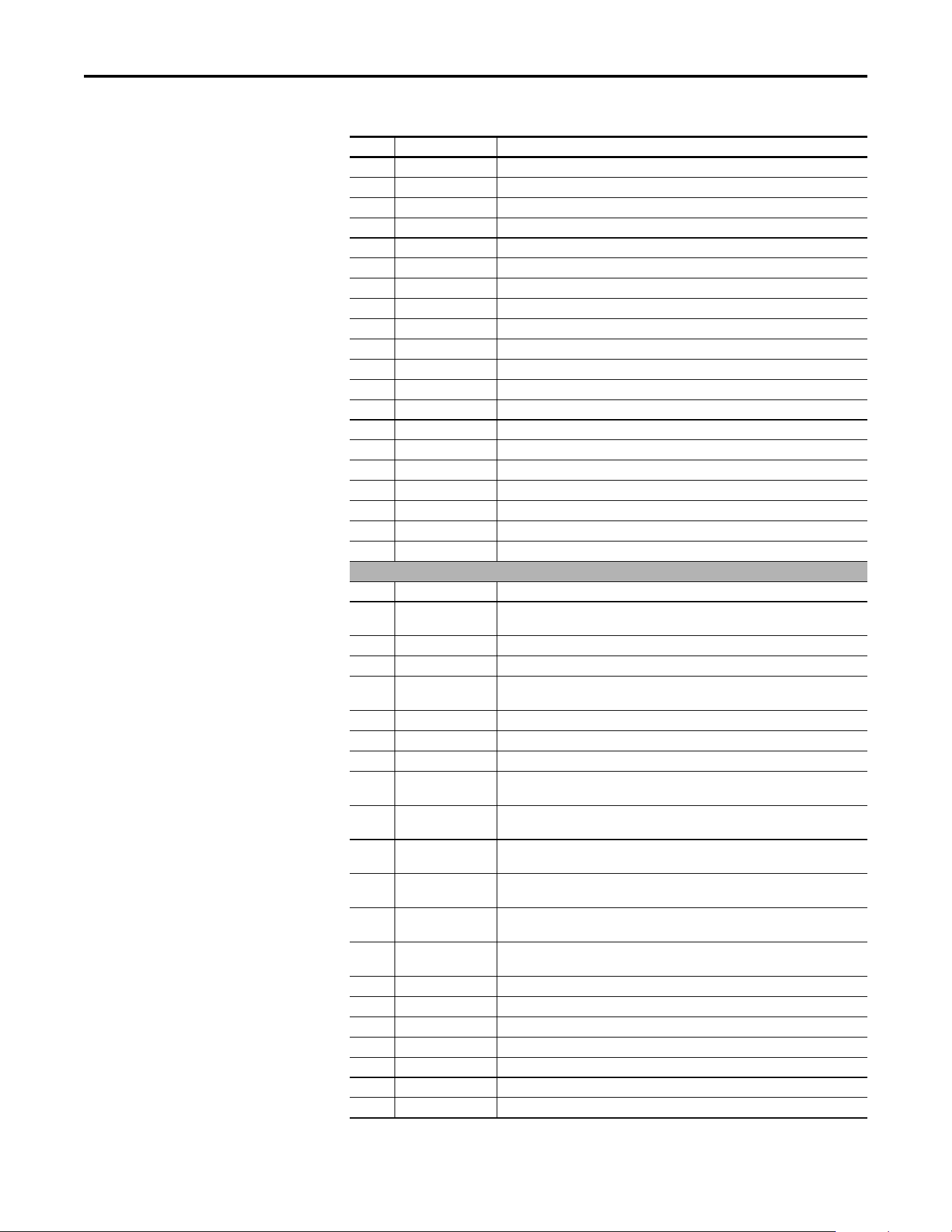
Rockwell Automation Publication 520COM-UM003A-EN-E - June 2013 121
Troubleshooting Chapter 8
9 DSI Removed The adapter detected that the DSI device was disconnected.
10 DSI Logon The adapter has established communications with the DSI device.
11 DSI Timeout The adapter has lost communications with the DSI device.
12 DSI Brand Flt The brand of the DSI device is different from the adapter.
13 Host 0 Logon The adapter has established communications with host 0.
14 Host 1 Logon The adapter has established communications with host 1 (multi-drive mode).
15 Host 2 Logon The adapter has established communications with host 2 (multi-drive mode).
16 Host 3 Logon The adapter has established communications with host 3 (multi-drive mode).
17 Host 4 Logon The adapter has established communications with host 4 (multi-drive mode).
18 Host 0 Timeout The adapter has lost communications with host 0.
19 Host 1 Timeout The adapter has lost communications with host 1 (multi-drive mode).
20 Host 2 Timeout The adapter has lost communications with host 2 (multi-drive mode).
21 Host 3 Timeout The adapter has lost communications with host 3 (multi-drive mode).
22 Host 4 Timeout The adapter has lost communications with host 4 (multi-drive mode).
23 Host 0 Brand Flt The brand of host 0 is different from the adapter.
24 Host 1 Brand Flt The brand of host 1 is different from the adapter (multi-drive mode).
25 Host 2 Brand Flt The brand of host 2 is different from the adapter (multi-drive mode).
26 Host 3 Brand Flt The brand of host 3 is different from the adapter (multi-drive mode).
27 Host 4 Brand Flt The brand of host 4 is different from the adapter (multi-drive mode).
28...30 Reserved –
Network Events
31 Net Dup Address The adapter uses the same IP address as another device on the network.
32 Net Comm Fault The adapter detected a communications fault on the network and has performed the
“Comm Flt” action specified by the user.
33 Net Sent Reset The adapter received a reset from the network.
34 Net IO Close An I/O connection from the network to the adapter was closed.
35 Net Idle Fault The adapter detected a network idle condition on the network and has performed the
“Idle Flt” action specified by the user.
36 Net IO Open An I/O connection from the network to the adapter has been opened.
37 Net IO Timeout An I/O connection from the network to the adapter has timed out.
38 Reserved –
39 PCCC IO Close The device sending PCCC Control messages to the adapter has set the PCCC Control
Timeout to zero.
40 PCCC IO Open The adapter has begun receiving PCCC Control messages (the PCCC Control Timeout
was previously set to a non-zero value).
41 PCCC IO Timeout The adapter has not received a PCCC Control message for longer than the PCCC Control
Timeout.
42 Msg Ctrl Open The timeout attribute in either the CIP Register or Assembly object was written with a
non-zero value, allowing control messages to be sent to the adapter.
43 Msg Ctrl Close The timeout attribute in either the CIP Register or Assembly object was written with a
zero value, disallowing control messages to be sent to the adapter.
44 Msg Ctrl Timeout The timeout attribute in either the CIP Register or Assembly object elapsed between
accesses of those objects.
45...54 Reserved –
55 BOOTP Response The adapter has received a response to its BOOTP request.
56...57 Reserved –
58 Module Defaulted The adapter has been set to factory defaults.
59 FPGA Fact Load The adapter has loaded the factory configuration into its FPGA.
60 FPGA User Load The adapter has loaded the user configuration into its FPGA.
61 Net Link 1 Up A network link was available for the adapter on its Ethernet network port 1 (ENET1).
Adapter Events
Code Event Description

122 Rockwell Automation Publication 520COM-UM003A-EN-E - June 2013
Chapter 8 Troubleshooting
62 Net Link 1 Down The network link was removed from the adapter on its Ethernet network port 1
(ENET1).
63 Net Link 2 Up A network link was available for the adapter on its Ethernet network port 2 (ENET2).
64 Net Link 2 Down The network link was removed from the adapter on its Ethernet network port 2
(ENET2).
65...66 Reserved –
67 Net Ring Up The Device-Level Ring (DLR) status is Normal.
68 Net Ring Down The Device-Level Ring (DLR) status is Faulted.
69 Invalid Net Cfg The adapter’s network address configuration parameters are invalid, or the network
address provided by the BOOTP or DHCP server is invalid.
70 DHCP Response The adapter received a response to its DHCP request.
71 DHCP Renew The adapter renewed its network address lease with the DHCP server.
72 DHCP Rebind The adapter rebinded its network address lease with the DHCP server.
73 DHCP Release The adapter’s network address lease expired.
Adapter Events
Code Event Description

Rockwell Automation Publication 520COM-UM003A-EN-E - June 2013 123
Appendix A
Specifications
Appendix A presents the specifications for the adapter.
Communication
Electrical
Mechanical
Environmental
Regulatory Compliance
See the PowerFlex 525 Adjustable Frequency AC Drive User Manual,
publication 520-UM001
for regulatory compliance information.
Network
Protocol
Data Rates
EtherNet/IP
10 Mbps Full Duplex, 10 Mbps Half Duplex, 100 Mbps Full Duplex or 100 Mbps
Half Duplex
Connection Limit 30 TCP connections
16 simultaneous CIP explicit messaging connections plus 1 exclusive-owner I/O
connection
The following activities use a CIP connection:
• Class I I/O connections (for example, from a ControlLogix or CompactLogix
controller)
• Explicit messaging where “connected” is chosen (for example, in a check box
in RSLogix 5000 or Logix Designer)
The following activities DO NOT use a CIP connection:
• Explicit messaging-based control using PCCC or the Register or Assembly
objects, including the MicroLogix 1100/1400 examples in Chapter 4
• Explicit messaging where “connected” is NOT chosen, which is typically the
default
Requested Packet Interval (RPI) 2 ms minimum
Packet Rate Up to 1000 total I/O packets per second (500 in and 500 out)
Consumption
Drive
Network
250 mA @ 14V DC supplied by the host drive
None
Dimensions
Height
Length
Width
21 mm (0.83 in.)
131.0 mm (5.15 in.)
48.4 mm (1.9 in.)
Weight 44 g (1.55 oz.)
Temp er atu re
Operating
Storage
-10...50 °C (14...149 °F)
-40...85 °C (-40...185 °F)
Relative Humidity -5...95% noncondensing

124 Rockwell Automation Publication 520COM-UM003A-EN-E - June 2013
Appendix A Specifications
Notes:

Rockwell Automation Publication 520COM-UM003A-EN-E - June 2013 125
Appendix B
Adapter Parameters
Appendix B provides information about the adapter parameters.
The adapter parameters are displayed in a Numbered List view order.
Device Parameters
Topic Page
Device
Parameters 125
Parameter
No. Name and Description Details
01 [MultiDrv Sel]
Displays the single-drive or multi-drive operating mode based
on Host parameter C169 [MultiDrv Sel] setting.
Values: 0 = Disabled
1 = Network Opt
2 = EtherNet/IP
Type: Read Only
02 [DLs From Net Act]
Displays the number of network-to-drive Datalinks that the
drive is using based on the I/O connection opened by the
controller.
Minimum: 0
Maximum: 4
Type: Read Only
03 [DLs To Net Act]
Displays the number of drive-to-network Datalinks that the
controller is using based on the I/O connection opened by the
controller.
Minimum: 0
Maximum: 4
Type: Read Only
04 [Net Addr Sel]
Selects the source from which the adapter’s IP address is
acquired when the Node Address switches (see Setting the
Node Address Switches on page 18) are set to any value other
than (001…254) or 888.
Default: 3 = DHCP
Values: 1 = Parameters
2 = BOOTP
3 = DHCP
Typ e: Re ad/Write
Reset Required: Yes
05 [Net Addr Src]
Displays the source from which the adapter’s IP address is
received from.
Values: 0 = Switches
1 = Parameters
2 = BOOTP
3 = DHCP
Type: Read Only
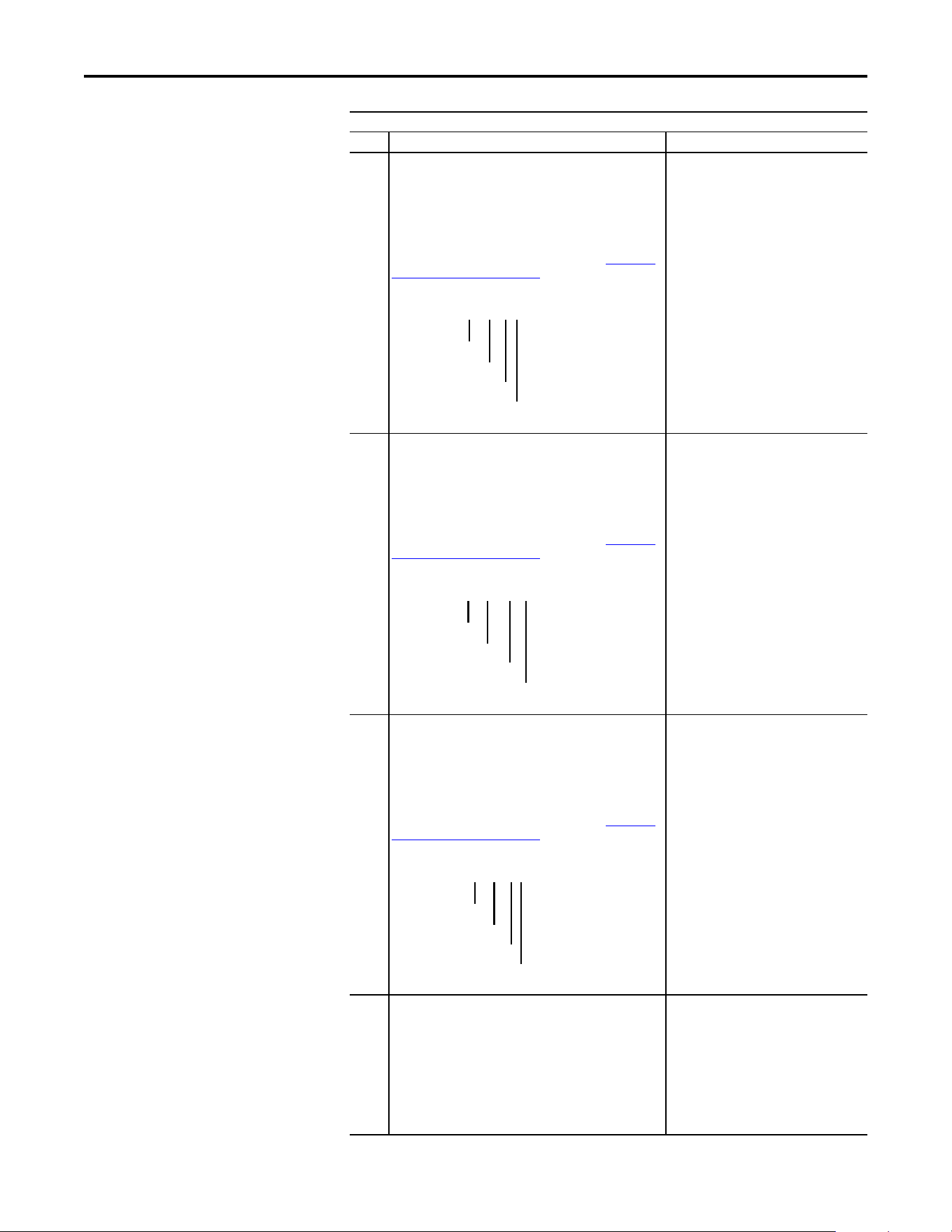
126 Rockwell Automation Publication 520COM-UM003A-EN-E - June 2013
Appendix B Adapter Parameters
06
07
08
09
[IP Addr Cfg 1]
[IP Addr Cfg 2]
[IP Addr Cfg 3]
[IP Addr Cfg 4]
Sets the IP address octets for the adapter’s network address
when Device parameter 05 [Net Addr Sel] is set to 1
“Parameters” and the Node Address switches (see Setting the
Node Address Switches on page 18) are set to any value other
than (001…254) or 888.
Default: 0
Default: 0
Default: 0
Default: 0
Minimum: 0
Maximum: 255
Typ e: Re ad/Write
Reset Required: Yes
10
11
12
13
[Subnet Cfg 1]
[Subnet Cfg 2]
[Subnet Cfg 3]
[Subnet Cfg 4]
Sets the Subnet mask octets for the adapter’s network mask
when Device parameter 05 [Net Addr Sel] is set to 1
“Parameters” and the Node Address switches (see Setting the
Node Address Switches on page 18) are set to any value other
than (001…254) or 888.
Default: 0
Default: 0
Default: 0
Default: 0
Minimum: 0
Maximum: 255
Typ e: Re ad/Write
Reset Required: Yes
14
15
16
17
[Gateway Cfg 1]
[Gateway Cfg 2]
[Gateway Cfg 3]
[Gateway Cfg 4]
Sets the Gateway address octets for the adapter’s local network
when Device parameter 05 [Net Addr Sel] is set to 1
“Parameters” and the Node Address switches (see Setting the
Node Address Switches on page 18) are set to any value other
than (001…254) or 888.
Default: 0
Default: 0
Default: 0
Default: 0
Minimum: 0
Maximum: 255
Typ e: Re ad/Write
Reset Required: Yes
18 [Net Rate Cfg 1]
Sets the speed (10, 100) and duplex (Full, Half) at which the
adapter communicates on its Ethernet network port 1 (ENET1).
Updates Device parameter 19 [Net Rate Act 1] after a reset.
Default: 0 = Autodetect
Values: 0 = Autodetect
1 = 10Mbps Full
2 = 10Mbps Half
3 = 100Mbps Full
4 = 100Mbps Half
Typ e: Re ad/Write
Reset Required: Yes
Parameter
No. Name and Description Details
192.168.1.62
[IP Addr Cfg 1]
[IP Addr Cfg 2]
[IP Addr Cfg 3]
[IP Addr Cfg 4]
255.255.255.0
[Subnet Cfg 1]
[Subnet Cfg 2]
[Subnet Cfg 3]
[Subnet Cfg 4]
192.168.1.1
[Gateway Cfg 1]
[Gateway Cfg 2]
[Gateway Cfg 3]
[Gateway Cfg 4]
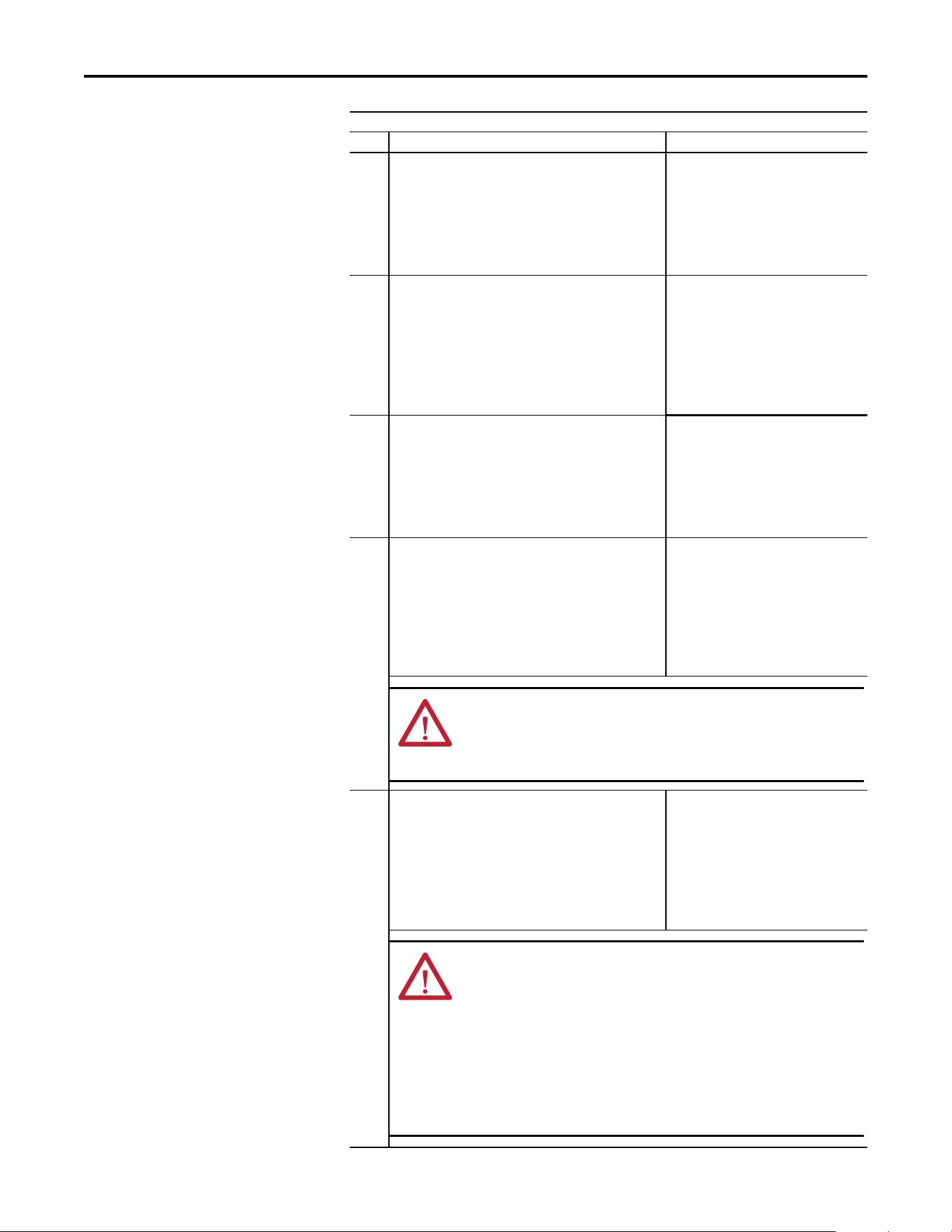
Rockwell Automation Publication 520COM-UM003A-EN-E - June 2013 127
Adapter Parameters Appendix B
19 [Net Rate Act 1]
Displays the actual speed (10, 100) and duplex (Full, Half) for
the adapter’s Ethernet network port 1 (ENET1).
Values: 0 = No Link
1 = 10Mbps Full
2 = 10Mbps Half
3 = 100Mbps Full
4 = 100Mbps Half
5 = Dup IP Addr
Type: Read Only
20 [Net Rate Cfg 2]
Sets the speed (10, 100) and duplex (Full, Half) which the
adapter communicates on its Ethernet network port 2 (ENET2.
Updates Device parameter 21 [Net Rate Act 2] after a reset.
Default: 0 = Autodetect
Values: 0 = Autodetect
1 = 10Mbps Full
2 = 10Mbps Half
3 = 100Mbps Full
4 = 100Mbps Half
Typ e: Re ad/Write
Reset Required: Yes
21 [Net Rate Act 2]
Displays the actual speed (10, 100) and duplex (Full, Half) for
the adapter’s Ethernet network port 2 (ENET2).
Values: 0 = No Link
1 = 10Mbps Full
2 = 10Mbps Half
3 = 100Mbps Full
4 = 100Mbps Half
5 = Dup IP Addr
Type: Read Only
22 [Reset Module]
No action if set to 0 “Ready”. Resets the adapter if set to 1 “Reset
Module”. Restores the adapter to its factory default settings if
set to 2 “Set Defaults”. This parameter is a command. It will be
reset to 0 “Ready” after the command has been performed.
When performing a Set Defaults, the drive may detect a
conflict. If this occurs, the drive will not allow a Set Defaults
action. You must resolve the conflict before attempting a Set
Defaults action for the adapter.
Default: 0 = Ready
Values: 0 = Ready
1 = Reset Module
2 = Set Defaults
Typ e: Re ad/Write
Reset Required: No
23 [Comm Flt Action]
Sets the fault action of the drive, if the adapter detects that I/O
communication has been disrupted.
Important: This setting is effective when the drive’s control
source is transmitted through the adapter. When I/O
communication is reestablished, the drive will again be
controlled from the network adapter.
Default: 0 = Fault
Values: 0 = Fault
1 = Stop
2 = Zero Data
3 = Hold Last
4 = Send Flt Cfg
Typ e: Re ad/Write
Reset Required: No
Parameter
No. Name and Description Details
ATTENTION: Risk of injury or equipment damage exists. If the adapter
is transmitting I/O that controls the drive, the drive may fault when you
reset the adapter. Determine how your drive will respond before
resetting the adapter.
ATTENTION: Risk of injury or equipment damage exists. Device
parameter 23 [Comm Flt Action] lets you determine the action of the
adapter and connected drive if I/O communications are disrupted. By
default, this parameter faults the drive. you can set this parameter so
that the drive continues to run. Precautions should be taken to ensure
that the setting of this parameter does not create a risk of injury or
equipment damage. When commissioning the drive, verify that your
system responds correctly to various situations (for example, a
disconnected drive).
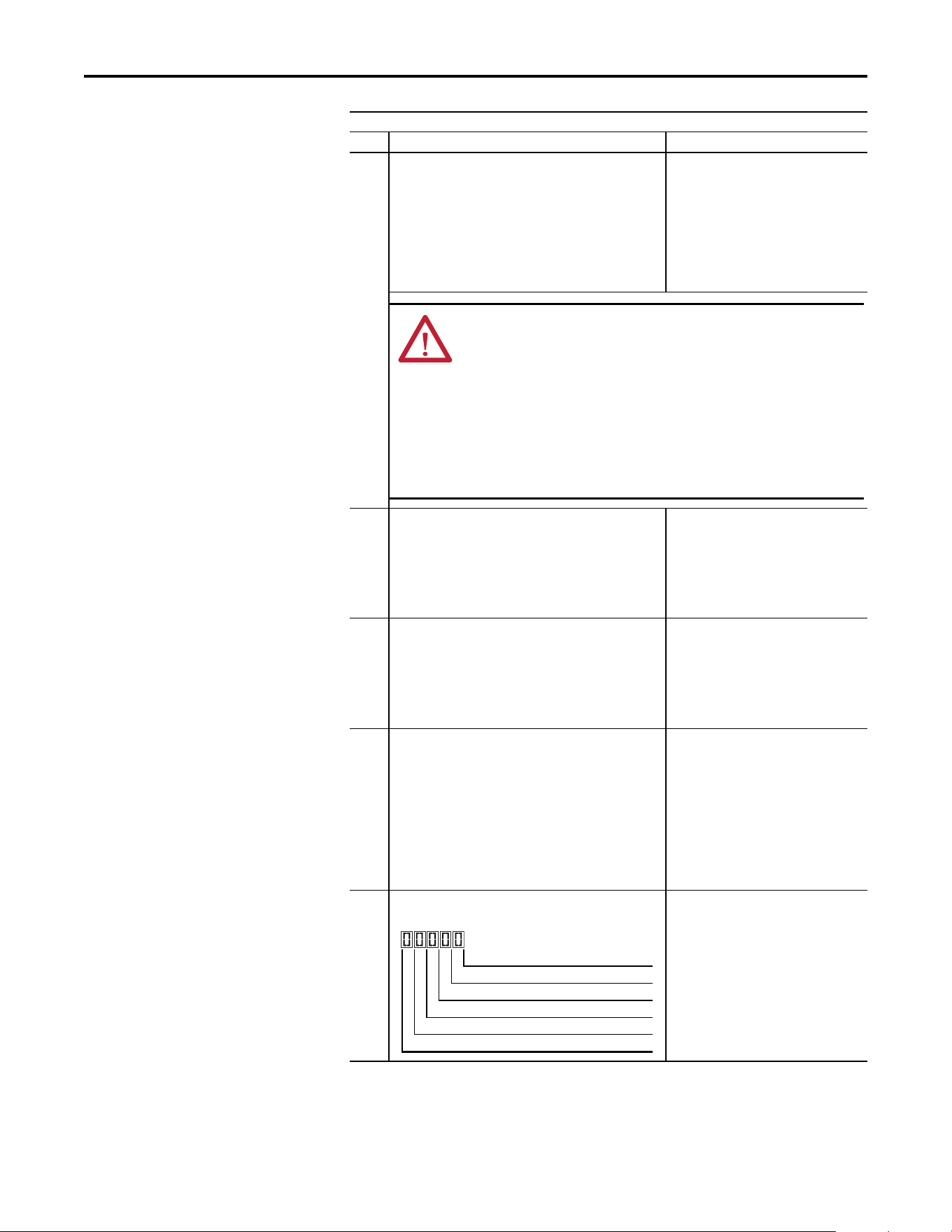
128 Rockwell Automation Publication 520COM-UM003A-EN-E - June 2013
Appendix B Adapter Parameters
24 [Idle Flt Action]
Sets the Idle (Program mode) action of the drive, if the adapter
detects that the controller has transitioned to program mode.
Important: This setting is effective when the drive’s control
source is transmitted through the adapter. When the controller
is returned to Run mode, the drive will again be controlled from
the network adapter.
Default: 0 = Fault
Values: 0 = Fault
1 = Stop
2 = Zero Data
3 = Hold Last
4 = Send Flt Cfg
Typ e: Re ad/Write
Reset Required: No
25 [Flt Cfg Logic]
Sets the Logic Command data that is sent to the drive if any of
the following is true:
• Device parameter 23 [Comm Flt Action] is set to 4 “Send Flt
Cfg” and I/O communications is disrupted.
• Device parameter 24 [Idle Flt Action] is set to 4 “Send Flt Cfg”
and the controller is in Program Mode.
Default: 0000 0000 0000 0000
Minimum: 0000 0000 0000 0000
Maximum: 1111 1111 1111 1111
Typ e: Re ad/Write
Reset Required: No
26 [Flt Cfg Ref]
Sets the Reference data that is sent to the drive if any of the
following is true:
• Device parameter 23 [Comm Flt Action] is set to 4 “Send Flt
Cfg” and I/O communications is disrupted.
• Device parameter 24 [Idle Flt Action] is set to 4 “Send Flt Cfg”
and the controller is in Program Mode.
Default: 0
Minimum: 0
Maximum: 65535
Typ e: Re ad/Write
Reset Required: No
27
28
29
30
[Flt Cfg DL 1]
[Flt Cfg DL 2]
[Flt Cfg DL 3]
[Flt Cfg DL 4]
Sets the data that is sent to the Datalink in the drive if any of the
following is true:
• Device parameter 23 [Comm Flt Action] is set to 4 “Send Flt
Cfg” and I/O communications is disrupted.
• Device parameter 24 [Idle Flt Action] is set to 4 “Send Flt Cfg”
and the controller is in Program Mode.
Default: 0
Default: 0
Default: 0
Default: 0
Minimum: 0
Maximum: 65535
Typ e: Re ad/Write
Reset Required: No
31 [DSI I/O Act]
Displays the Drives that are active in the Multi-drive mode.
Bit Definitions: 0 = Drive Active
1 = Drive Inactive
Digits: 0 = Drive 0 Actv
1 = Drive 1 Actv
2 = Drive 2 Actv
3 = Drive 3 Actv
4 = Drive 4 Actv
Type: Read Only
Parameter
No. Name and Description Details
ATTENTION: Risk of injury or equipment damage exists. Device
parameter 24 [Idle Flt Action] lets you determine the action of the
adapter and connected drive if the controller is idle. By default, this
parameter faults the drive. you can set this parameter so that the drive
continues to run. Precautions should be taken to ensure that the
setting of this parameter does not create a risk of injury or equipment
damage. When commissioning the drive, verify that your system
responds correctly to various situations (for example, a disconnected
drive).
1 = Drive Inactive, 0 = Drive Active
Drive 0 Actv Digit 1
Drive 1 Actv Digit 2
Drive 2 Actv Digit 3
Drive 3 Actv Digit 4
Drive 4 Actv Digit 5
Rockwell Automation Publication 520COM-UM003A-EN-E - June 2013 129
Appendix C
EtherNet/IP Objects
Appendix C presents information about the EtherNet/IP objects that can be
accessed using Explicit Messages. For information on the format of Explicit
Messages and example ladder logic programs, see Using Explicit Messaging
on
page 73.
Supported Data Types
Object Class Code Page Object Class Code Page
Hex. Dec. Hex. Dec.
Identity Object
0x01 1 130 DPI Device Object 0x92 146 142
Assembly Object 0x04 4 132 DPI Parameter Object 0x93 147 145
Register Object 0x07 7 133 DPI Fault Object 0x97 151 151
Parameter Object 0x0F 15 136 TCP/IP Interface Object 0xF5 245 153
PCCC Object 0x67 103 139 Ethernet Link Object 0xF6 246 155
TIP
See the EtherNet/IP specification for more information about EtherNet/IP
objects. Information about the EtherNet/IP specification is available on the
ODVA web site (http://www.odva.org
).
Data Type Description
BOOL 8-bit value – low bit is true or false
BOOL[x] Array of n bits
CONTAINER 32-bit parameter value - sign extended if necessary
DINT 32-bit signed integer
INT 16-bit signed integer
LWORD 64-bit unsigned integer
REAL 32-bit floating point
SHORT_STRING Struct of: USINT length indicator (L); USINT[L] characters
SINT 8-bit signed integer
STRINGN Struct of: UINT character length indicator (W); UINT length indicator (L); USINT[W x L] string data
STRING[x] Array of n characters
STRUCT Structure name only – no size in addition to elements
TCHAR 8 or 16-bit character
UDINT 32-bit unsigned integer
UINT 16-bit unsigned integer
USINT 8-bit unsigned integer
130 Rockwell Automation Publication 520COM-UM003A-EN-E - June 2013
Appendix C EtherNet/IP Objects
Identity Object
Class Code
Services
Instances (Single-Drive)
Instances (Multi-Drive)
Class Attributes
Hexadecimal Decimal
0x01 1
Implemented for:
Service Code Class Instance Service Name
0x05 No Yes Reset
0x0E Yes Yes Get_Attribute_Single
0x01 Yes Yes Get_Attribute_All
Instance Description
0Class
1 Host drive
2DSI device
3 25-COMM-E2P
Instance Description
0Class
1 25-COMM-E2P
Attribute ID Access Rule Name Data Type Description
2 Get Max Instance UINT Total number of instances

Rockwell Automation Publication 520COM-UM003A-EN-E - June 2013 131
EtherNet/IP Objects Appendix C
Instance Attributes
Attribute ID Access Rule Name Data Type Description
1 Get Vendor ID UINT 1 = Allen-Bradley
2 Get Device Type UINT 151
3 Get Product Code UINT Number identifying product name and rating
4 Get Revision:
Major
Minor
STRUCT of:
USINT
USINT
Value varies
Value varies
5 Get Status UINT Bit 0 = Owned
Bit 8 = Minor recoverable fault
Bit 10 = Major recoverable fault
6 Get Serial Number UDINT Unique 32-bit number
7 Get Product Name SHORT_STRING Product name
9GetConfiguration
Consistency
Value
UNIT Current Parameter NVS CRC value

132 Rockwell Automation Publication 520COM-UM003A-EN-E - June 2013
Appendix C EtherNet/IP Objects
Assembly Object
Class Code
Services
Instances
Class Attributes
Instance Attributes
Hexadecimal Decimal
0x04 4
Implemented for:
Service Code Class Instance Service Name
0x0E Yes Yes Get_Attribute_Single
0x10 Yes Yes Set_Attribute_Single
Instance Description
1 Status Image – All I/O data being read from the drive (read-only)
2 Command Image – All I/O data written to the drive (read/write)
Attribute ID Access Rule Name Data Type Description
1 Get Revision UINT 2
2 Get Max Instance UINT 2
100 Set Control Timeout UINT Control timeout in seconds
Attribute ID Access Rule Name Data Type Description
1 Get Number of Members UINT 1
2 Get Members List ARRAY of STRUCT:
UINT
UINT
Packed EPATH
Size of member data
Size of member path
Member path
3 Get Conditional
(1)
(1) For instance 1, access rule for the data attribute is Get. For instance 2, it is Get/Set.
Array of Bits Data to be transferred
4 Get Size UINT Size of assembly data in bits
IMPORTANT
Setting an assembly object attribute can be done only when the Control
Timeout (class attribute 100) has been set to a non-zero value.
Rockwell Automation Publication 520COM-UM003A-EN-E - June 2013 133
EtherNet/IP Objects Appendix C
Register Object
Class Code
Services
Instances (Single-Drive)
Hexadecimal Decimal
0x07 7
Implemented for:
Service Code Class Instance Service Name
0x0E Yes Yes Get_Attribute_Single
0x10 Yes Yes Set_Attribute_Single
Instance Description
1 Status Image – All I/O data being read from the drive (read-only)
2 Command Image – All I/O data written to the drive (read/write)
3 Logic Status and Feedback (read-only)
4 Logic Command and Reference (read/write)
5 Datalink To Net 1 (read only)
6 Datalink From Net 1 (read/write)
7 Datalink To Net 2 (read only)
8 Datalink From Net 2 (read/write)
9 Datalink To Net 3 (read only)
10 Datalink From Net 3 (read/write)
11 Datalink To Net 3 (read only)
12 Datalink From Net 4 (read/write)
13 Logic Command (Masked)
(1)
(read/write)
14 Logic Command (Masked)
(1)
(read/write)
15 Logic Command (Masked)
(1)
(read/write)
16 Logic Command (Masked)
(1)
(read/write)
17 Logic Command (Masked)
(1)
(read/write)
18 Logic Command (Masked)
(1)
(read/write)
19 Logic Status (read-only)
20 Logic Command (read/write)
21 Feedback (read-only)
22 Reference (read/write)
23 Logic Status (read-only)
24 Logic Command (read/write)
25 Feedback (read-only)
26 Reference (read/write)
27 Logic Status (read-only)
28 Logic Command (read/write)
29 Feedback (read-only)
30 Reference (read/write)
31 Logic Status (read-only)
32 Logic Command (read/write)
33 Feedback (read-only)
34 Reference (read/write)
35 Logic Status (read-only)

134 Rockwell Automation Publication 520COM-UM003A-EN-E - June 2013
Appendix C EtherNet/IP Objects
Instances (Multi-Drive)
36 Logic Command (read/write)
37 Feedback (read-only)
38 Reference (read/write)
(1) The mask command WORD is set to the value of the second WORD of the data where there are ones in the first WORD of the data.
Only the bits of the Logic Command that have the corresponding mask bit set are applied.
Instance Description
1 Status Image – All I/O data being read from the drive (read-only)
2 Command Image – All I/O data written to the drive (read/write)
3 Logic Status and Feedback 0 (read-only)
4 Logic Command and Reference 0 (read/write)
5 Logic Status and Feedback 1 (read-only)
6 Logic Command and Reference 1 (read/write)
7 Logic Status and Feedback 2 (read-only)
8 Logic Command and Reference 2 (read/write)
9 Logic Status and Feedback 3 (read-only)
10 Logic Command and Reference 3 (read/write)
11 Logic Status and Feedback 4 (read-only)
12 Logic Command and Reference 4 (read/write)
13 Logic Command, all drives (Masked)
(1)
(read/write)
(1) The mask command WORD is set to the value of the second WORD of the data where there are ones in the first WORD of the data.
Only the bits of the Logic Command that have the corresponding mask bit set are applied.
14 Logic Command 0 (Masked)
(1)
(read/write)
15 Logic Command 1 (Masked)
(1)
(read/write)
16 Logic Command 2 (Masked)
(1)
(read/write)
17 Logic Command 3 (Masked)
(1)
(read/write)
18 Logic Command 4 (Masked)
(1)
(read/write)
19 Logic Status 0 (read-only)
20 Logic Command 0 (read/write)
21 Feedback 0 (read-only)
22 Reference 0 (read/write)
23 Logic Status 1 (read-only)
24 Logic Command 1 (read/write)
25 Feedback 1 (read-only)
26 Reference 1 (read/write)
27 Logic Status 2 (read-only)
28 Logic Command 2 (read/write)
29 Feedback 2 (read-only)
30 Reference 2 (read/write)
31 Logic Status 3 (read-only)
32 Logic Command 3 (read/write)
33 Feedback 3 (read-only)
34 Reference 3 (read/write)
35 Logic Status 4 (read-only)
36 Logic Command 4 (read/write)
37 Feedback 4 (read-only)
38 Reference 4 (read/write)
Instance Description

Rockwell Automation Publication 520COM-UM003A-EN-E - June 2013 135
EtherNet/IP Objects Appendix C
Class Attributes
Instance Attributes
Attribute ID Access Rule Description
1 Read Revision
2 Read Maximum Instance
3ReadNumber of Instance
100 Read/Write Timeout
Attribute ID Access Rule Name Data Type Description
1 Get Bad Flag BOOL If set to 1, then attribute 4 may contain invalid data.
0 = good
1 = bad
2 Get Direction BOOL Direction of data transfer
0 = Product Register (drive to network)
1 = Consume Register (network to drive)
3 Get Size UINT Size of register data in bits
4 Conditional
(1)
(1) For this attribute, the Access Rule is Get if Direction = 0. The Access Rule is Set if Direction = 1.
Data Array of Bits Size of assembly data in bits
136 Rockwell Automation Publication 520COM-UM003A-EN-E - June 2013
Appendix C EtherNet/IP Objects
Parameter Object
Class Code
Services
Instances (Single-Drive)
Instances (Multi-Drive)
In addition, the parameters for the other DSI devices can be accessed using the
instance-offset encoding shown in the table below:
Hexadecimal Decimal
0x0F 15
Implemented for:
Service Code Class Instance Service Name
0x01 Yes Yes Get_Attribute_All
0x05 Yes No Reset
0x0E Yes Yes Get_Atribute_Single
0x10 No Yes Set_Attribute_Single
0x4B No Yes Get_Enum_String
Instance Description
0Class
1 Drive Parameter 1
...
...
n Drive Parameter n
(1)
(1) n represents the number of parameters in the drive.
n + 1 Adapter Parameter 1
...
...
n + m Adapter Parameter m
(2)
(2) m represents the number of parameters in the adapter.
Instance Description
0Class
1 Adapter Parameter 1
...
...
m Adapter Parameter m
(1)
(1) m represents the number of parameters in the drive.
Instances (Hex.) Instances (Dec.) Single-Drive Mode Multi-Drive Mode
0x0000...0x3FFF 0...16383 Instances 0...16383 in the drive and
adapter
Instances 0...16383 in the adapter
0x4000...0x43FF 16384...17407 Instances 0...1023 in the adapter Instances 0...1023 in the adapter
0x4400...0x47FF 17408...18431 Instances 0...1023 in the drive Instances 0...1023 in Drive 0
0x4800...0x4BFF 18432...19455 Instances 0...1023 in the DSI device Instances 0...1023 in Drive 1
0x4C00...0x4FFF 19456...20479 Instances 0...1023 in the adapter Instances 0...1023 in Drive 2
0x5000...0x53FF 20480...21503 Not supported Instances 0...1023 in Drive 3
0x5400...0x57FF 21504...22527 Not supported Instances 0...1023 in Drive 4

Rockwell Automation Publication 520COM-UM003A-EN-E - June 2013 137
EtherNet/IP Objects Appendix C
Class Attributes
Instance Attributes
Attribute ID Access Rule Name Data Type Description
1 Get Revision UINT 1
2 Get Max Instance UINT Number of parameters
8 Get Parameter Class Descriptor WORD 0 = False, 1 = True
Bit 0 = Supports parameter instances
Bit 1 = Supports full attributes
Bit 2 = Must do NVS save command
Bit 3 = Parameters are stored in NVS
9 Get Configuration Assembly Instance UINT 0
10 Get Native Language USINT 1 = English
2 = French
3 = Spanish
4 = Italian
5 = German
6 = Japanese
7 = Portuguese
8 = Chinese Simplified
9 = Reserved
10 = Reserved
11 = Korean
12 = Polish
13 = Reserved
14 = Turkish
15 = Czech
Attribute ID Access Rule Name Data Type Description
1
(1)
Parameter Value
(2) (3)
2 Get Link Path Size USINT 0 = No link specified
n = The size of Attribute 3 in bytes
3GetLink Path
(4)
4 Get Descriptor WORD 0 = False, 1 = True
Bit 1 = Supports ENUMs
Bit 2 = Supports scaling
Bit 3 = Supports scaling links
Bit 4 = Read only
Bit 5 = Monitor
Bit 6 = Extended precision scaling
5 Get Data Type USINT 0xC2 = SINT (8-bits)
0xC3 = INT (16-bits)
0xC4 = DINT (32-bits)
0xC6 = USINT (8-bits)
0xC7 = UINT (16-bits)
0xCA = REAL (32-bits)
0xD2 = WORD (16-bits)
6 Get Data Size USINT
(3)
7 Get Parameter Name String SHORT_STRING
(3)
8 Get Units String SHORT_STRING
(3)
9 Get Help String SHORT_STRING
(3)
10 Get Minimum Value
(1) (3)
11 Get Maximum Value
(1) (3)
12 Get Default Value
(1) (3)
13 Get Scaling Multiplier UINT
(3)

138 Rockwell Automation Publication 520COM-UM003A-EN-E - June 2013
Appendix C EtherNet/IP Objects
14 Get Scaling Divisor UINT
(3)
15 Get Scaling Base UINT
(3)
16 Get Scaling Offset UINT
(3)
17 Get Multiplier Link UINT
(3)
18 Get Divisor Link UINT
(3)
19 Get Base Link UINT
(3)
20 Get Offset Link UINT
(3)
21 Get Decimal Precision USINT
(3)
(1) Access rule is defined in bit 4 of instance attribute 4. 0 = Get/Set, 1 = Get.
(2) Specified in descriptor, data type, and data size.
(3) Value varies based on parameter instance.
(4) Refer to the CIP Common specification for a description of the link path.
Attribute ID Access Rule Name Data Type Description
Rockwell Automation Publication 520COM-UM003A-EN-E - June 2013 139
EtherNet/IP Objects Appendix C
PCCC Object
Class Code
Services
Instances
Supports Instance 1.
Class Attribute
Not supported.
Instance Attributes
Not supported.
Message Structure for Execute_PCCC
Hexadecimal Decimal
0x67 103
Implemented for:
Service Code Class Instance Service Name
0x4B No Yes Execute_PCCC
0x4C No Yes Execute_DH+
Request Response
Name Data Type Description Name Data Type Description
Length USINT Length of requestor ID Length USINT Length of requestor ID
Vendor UINT Vendor number of requestor Vendor UINT Vendor number of requestor
Serial Number UDINT ASA serial number of request Serial Number UDINT ASA serial number of request
Other Product Specific Identifier of user, task, etc. on the requestor Other Product Specific Identifier of user, task, etc. on the requestor
CMD USINT Command byte CMD USINT Command byte
STS USINT 0 STS USINT Status byte
TNSW UINT Transport word TNSW UINT Transport word. Same value as the request.
FNC USINT Function code. Not used for all CMDs. EXT_STS USINT Extended Status. Not used for all CMDs.
PCCC_params Array of USINT CMD/FNC specific parameters PCCC_results Array of USINT CMD/FNC specific result data
140 Rockwell Automation Publication 520COM-UM003A-EN-E - June 2013
Appendix C EtherNet/IP Objects
Message Structure for Execute_DH+
The Dual-port EtherNet/IP adapter supports the following PCCC command
types:
For more information regarding PCCC commands, see DFI Protocol and
Command Set Manual (Allen-Bradley publication 1770-6.5.16
).
N-Files
Request Response
Name Data Type Description Name Data Type Description
DLink UINT Destination Link ID DLink UINT Destination Link ID
DSta USINT Destination Station number DSta USINT Destination Station number
DUser USINT Destination “User” number DUser USINT Destination “User” number
SLink UINT Source Link ID SLink UINT Source Link ID
SSta USINT Source Station number SSta USINT Source Station number
SUser USINT Source User number SUser USINT Source User number
CMD USINT Command byte CMD USINT Command byte
STS USINT 0 STS USINT Status byte
TNSW UINT Transport word TNSW UINT Transport word. Same value as the request.
FNC USINT Function code. Not used for all CMDs. EXT_STS USINT Extended Status. Not used for all CMDs.
PCCC_params Array of USINT CMD/FNC specific parameters PCCC_results Array of USINT CMD/FNC specific result data
CMD FNC Description
0x06 0x03 Identify host and some status
0x0F 0x67 PLC-5 typed write
0x0F 0x68 PLC-5 typed read
0x0F 0x95 Encapsulate other protocol
0x0F 0xA2 SLC 500 protected typed read with 3 address fields
0x0F 0xAA SLC 500 protected typed write with 3 address fields
0x0F 0xA1 SLC 500 protected typed read with 2 address fields
0x0F 0xA9 SLC 500 protected typed write with 2 address fields
0x0F 0x00 Word range read
0x0F 0x01 Word range write
N-File Description
N41 For Single-Drive Mode Only
This N-file lets you read and write control I/O messages. You can write control I/O messages only when
all of the following conditions are true:
• The adapter is not receiving I/O from a scanner. For example, there is no scanner on the network,
the scanner is in idle (program) mode, the scanner is faulted, or the adapter is not mapped to the
scanner.
• The value of N42:3 is set to a non-zero value.
Write Read
Rockwell Automation Publication 520COM-UM003A-EN-E - June 2013 141
EtherNet/IP Objects Appendix C
N41:0
N41:1
N41:2
N41:3
N41:4
N41:5
N41:6
N41:7
N41:8
N41:9
N41:10
Logic Command Word
Unused
Reference
Unused
Datalink From Net 1
Unused
Datalink From Net 2
Unused
Datalink From Net 3
Unused
Datalink From Net 4
Logic Status Word
Unused
Feedback
Unused
Datalink To Net 1
Unused
Datalink To Net 2
Unused
Datalink To Net 3
Unused
Datalink To Net 4
N42 This N-file lets you read and write some values configuring the port
N42:3 Time-out (read/write): Time (in seconds) allowed between messages to the N41 or N44 file. If the
adapter does not receive a message in the specified time, it performs the fault action configured in
parameter C143 [EN Comm Flt Action].
N42:7 Adapter Port Number (read only): DPI port on the drive to which the adapter is connected.
42:8 Peer Adapters (read only): Bit field of devices having DPI Peer capabilities.
N44 For Multi-drive mode Only
This N-file lets you read and write control I/O messages. You can write control I/O messages only when
all of the following conditions are true:
• The adapter is not receiving I/O from a scanner. For example, there is no scanner on the network,
the scanner is in idle (program) mode, the scanner is faulted, or the adapter is not mapped to the
scanner.
• The value of N42:3 is set to a non-zero value.
Write Read
N44:0
N44:1
N44:2
N44:3
N44:4
N44:5
N44:6
N44:7
N44:8
N44:9
N44:10
Drive 0 Logic Command
Unused
Drive 0 Reference
Drive 1 Logic Command
Drive 0 Reference
Drive 2 Logic Command
Drive 2 Reference
Drive 3 Logic Command
Drive 3 Reference
Drive 4 Logic Command
Drive 4 Reference
Drive 0 Logic Status
Unused
Drive 0 Feedback
Drive 1 Logic Status
Drive 1 Feedback
Drive 2 Logic Status
Drive 2 Feedback
Drive 3 Logic Status
Drive 3 Feedback
Drive 4 Logic Status
Drive 4 Feedback
N10...N18 These N-files lets you read and write parameter values in the drive and the adapter.
Single-Drive Mode Multi-Drive Mode
N10:0
N10:1...999
Number of parameters in the drive
Drive parameters 1...999
Number of parameters in Drive 0
Drive 0 parameters 1...999
N11:0...999 Drive parameters 1000...1999 Drive 0 parameters 1000...1999
N12:0...999 Drive parameters 2000...2999 Drive 0 parameters 2000...2999
N13:0 Number of parameters in this adapter Number of parameters in this adapter
N13:1...999 Parameters 1...999 in this adapter Parameters 1...999 in this adapter
N14:0 Number of parameters in the DSI device Number of parameters in Drive 1
N14:1...999 Parameters 1...999 in the DSI device Drive 1 parameters 1...999
N15:0 Number of parameters in this adapter Number of parameters in Drive 2
N15:1...999 Parameters 1...999 in this adapter Drive 2 parameters 1...999
N16:0 Not supported Number of parameters in Drive 3
N16:1...999 Not supported Drive 3 parameters 1...999
N17:0 Not supported Number of parameters in Drive 4
N17:1...999 Not supported Drive 4 parameters 1...999
N18:0 Not supported Number of parameters in this adapter
N18:1...999 Not supported Parameters 1...999 in this adapter
N-File Description
142 Rockwell Automation Publication 520COM-UM003A-EN-E - June 2013
Appendix C EtherNet/IP Objects
DPI Device Object
Class Code
Services
Instances
The number of instances depends on the number of components in the device.
The total number of components can be read in Instance 0, Class Attribute 4.
Class Attributes
Hexadecimal Decimal
0x92 146
Implemented for:
Service Code Class Instance Service Name
0x0E Yes Yes Get_Attribute_Single
0x10 Yes Yes Set_Attribute_Single
Instances (Hex.) Instances (Dec.) Single-Drive Mode Multi-Drive Mode
0x0000...0x3FFF 0...16383 Instances 0...1023 in the drive Instances 0...1023 in Drive 0
0x4000...0x43FF 16384...17407 Instances 0...1023 in the interface
(1)
(1) Interface is the current interface being used to access the information.
Instances 0...1023 in the interface
(1)
0x4400...0x47FF 17408...18431 DSI Instances 0...1023 in Drive 1
0x4800...0x4BFF 18432...19455 Option Instances 0...1023 in Drive 2
0x4C00...0x4FFF 19456...20479 Not supported Instances 0...1023 in Drive 3
0x5000...0x53FF 20480...21503 Not supported Instances 0...1023 in Drive 4
0x5400...0x57FF 21504...22527 Not supported Instances 0...1023 in the Option
Attribute ID Access Rule Name Data Type Description
0 Get Family Code USINT 0x00 = DSI Peripheral
0x09 = Single Mode
0x0B = Multi-Drive Mode
0x1E = 25-COMM-X Option Module
0xFF = HIM
1 Get Family Text STRING[16] Text identifying the device.
2 Set Language Code USINT 1 = English
2 = French
3 = Spanish
4 = Italian
5 = German
6 = Japanese
7 = Portuguese
8 = Chinese Simplified
9 = Reserved
10 = Reserved
11 = Korean
12 = Polish
13 = Reserved
14 = Turkish
15 = Czech

Rockwell Automation Publication 520COM-UM003A-EN-E - June 2013 143
EtherNet/IP Objects Appendix C
3 Get Product Series USINT 1 = A
2 = B …
4 Get Number of Components USINT Number of components (for example, main control board, I/O boards) in the
device.
5 Set User Definable Text STRING[16] Text identifying the device with a user-supplied name.
6 Get Status Text STRING[12] Text describing the status of the device.
7 Get Configuration Code USINT Identification of variations.
8 Get Configuration Text STRING[16] Text identifying a variation of a family device.
9 Get Brand Code UINT 0x0001 = Allen-Bradley
11 Get NVS Checksum UINT Checksum of the Non-Volatile Storage in a device.
12 Get Class Revision UINT 2
13 Get Character Set Code USINT 0 = SCANport HIM
1 = ISO 8859-1 (Latin 1)
2 = ISO 8859-2 (Latin 2)
3 = ISO 8859-3 (Latin 3)
4 = ISO 8859-4 (Latin 4)
5 = ISO 8859-5 (Cyrillic)
6 = ISO 8859-6 (Arabic)
7 = ISO 8859-7 (Greek)
8 = ISO 8859-8 (Hebrew)
9 = ISO 8859-9 (Turkish)
10 = ISO 8859-10 (Nordic)
255 = ISO 10646 (Unicode)
14 Get Product Option Support BOOL[64] —
15 Get Languages Supported STRUCT of:
USINT
USINT[n]
Number of Languages
Language Codes (see Class Attribute 2)
16 Get Date of Manufacture STRUCT of:
UINT
USINT
USINT
Year
Month
Day
17 Get Product Revision STRUCT of:
USINT
USINT
Major Firmware Release
Minor Firmware Release
18 Get Serial Number UDINT Value between 0x00000000 and 0xFFFFFFFF
29 Get Extended Product Option Support BOOL[64] —
30 Get International Status Text STRINGN Text describing the status of device with support for Unicode.
31 Get/Set International User Definable Text STRINGN Text identifying the device with a user-supplied name with support for
Unicode.
34 Get Key Information STRUCT of:
UDINT
UDINT
UINT
UINT
UINT
USINT
USINT
USINT
USINT
USINT[16]
Rating Code
Device Serial Number
Customization Code
Customization Revision
Brand Code
Family Code
Config Code
Language Code
Major Revision
Minor Revision
Customer-Generated Firmware UUID
35 Get NVS CRC UDINT A 32-bit CRC of the Non-Volatile Storage in a device.
38 Set ADC Configuration Signature USINT[16] Value stored by the device and zeroed if its configuration changes.
Attribute ID Access Rule Name Data Type Description

144 Rockwell Automation Publication 520COM-UM003A-EN-E - June 2013
Appendix C EtherNet/IP Objects
Instance Attributes
Attribute ID Access Rule Name Data Type Description
3 Get Component Name STRING[32] Name of the component
4 Get Component Firmware Revision STRUCT of:
USINT
USINT
Major Revision
Minor Revision
8 Get Component Serial Number UDINT Value between 0x00000000 and 0xFFFFFFFF
9 Get International Component Name STRING Name of the component with support for Unicode.
Rockwell Automation Publication 520COM-UM003A-EN-E - June 2013 145
EtherNet/IP Objects Appendix C
DPI Parameter Object
Class Code
Instances
The number of instances depends on the number of components in the device.
The total number of components can be read in Instance 0, Attribute 0.
Class Attributes
Hexadecimal Decimal
0x93 147
Instances (Hex.) Instances (Dec.) Single-Drive Mode Multi-Drive Mode
0x0000...0x3FFF 0...16383 Instances 0...1023 in the drive Instances 0...1023 in Drive 0
0x4000...0x43FF 16384...17407 Instances 0...1023 in the adapter Instances 0...1023 in the adapter
0x4400...0x47FF 17408...18431 Instances 0...1023 in the DSI device Instances 0...1023 in Drive 1
0x4800...0x4BFF 18432...19455 Instances 0...1023 in the adapter Instances 0...1023 in Drive 2
0x4C00...0x4FFF 19456...20479 Not supported Instances 0...1023 in Drive 3
0x5000...0x53FF 20480...21503 Not supported Instances 0...1023 in Drive 4
0x5400...0x57FF 21504...22527 Not supported Instances 0...1023 in the adapter
Attribute ID Access Rule Name Data Type Description
0 Get Number of Instances UINT Number of parameters in the device
1 Set Write Protect Password UINT 0 = Password disabled
n = Password value
2 Set NVS Command Write USINT 0 = No Operation
1 = Store values in active memory to NVS
2 = Load values in NVS to active memory
3 = Load default values to active memory
4 = Partial defaults
5 = System defaults
3 Get NVS Parameter Value Checksum UINT Checksum of all parameter values in a user set in NVS
5 Get First Accessible Parameter UINT First parameter available if parameters are protected by passwords. A “0”
indicates all parameters are protected.
7 Get Class Revision UINT 2

146 Rockwell Automation Publication 520COM-UM003A-EN-E - June 2013
Appendix C EtherNet/IP Objects
Instance Attributes
Attribute ID Access Rule Name Data Type Description
6 Get DPI Offline Read Full STRUCT of:
BOOL[32]
CONTAINER
CONTAINER
CONTAINER
STRING[16]
STRING[4]
UINT
UINT
UINT
UINT
UINT
UINT
UINT
USINT
USINT
UINT
UINT
CONTAINER
UINT
UNIT
UNIT
INT
Descriptor
Offline Minimum value
Offline Maximum value
Offline Default value
Parameter name
Offline parameter units
Online minimum parameter instance
Online maximum parameter instance
Online default parameter instance
Multiplier parameter instance
Divisor parameter instance
Base parameter instance
Offset parameter instance
Formula number
Pad byte (always zero)
Help instance
Pad word (always a value of zero)
Parameter value
Multiplier
Divisor
Base
Offset
7 Get DPI Online Read Full STRUCT of:
BOOL[32]
CONTAINER
(1)
CONTAINER
CONTAINER
CONTAINER
UINT
UINT
STRING[4]
UINT
UINT
UINT
INT
USINT[3]
USINT
STRING[16]
Descriptor (see page 148
)
Parameter value
Minimum value
Maximum value
Default value
Next parameter
Previous parameter
Units (for example, Amps, Hz)
Multiplier
(2)
Divisor
(2)
Base
(2)
Offset
(2)
Link (source of the value) (0 = no link)
Always zero (0)
Parameter name
8 Get DPI Descriptor BOOL[32] Descriptor (see page 148
)
9 Get/Set DPI Parameter Value Various Name of the component with support for Unicode.
10 Get/Set DPI RAM Parameter Value Various Parameter value in NVS.
(3)
14 Get DPI Parameter Name STRING[16] Parameter name
18 Get International DPI Offline Parameter Text Struct of:
STRINGN
STRINGN
International parameter name
International offline units
19 Get International DPI Online Parameter Text Struct of:
STRINGN
STRINGN
International parameter name
International online units

Rockwell Automation Publication 520COM-UM003A-EN-E - June 2013 147
EtherNet/IP Objects Appendix C
20 Get International DPI Online Read Full Struct of:
BOOL[32]
CONTAINER
CONTAINER
CONTAINER
CONTAINER
UINT
UINT
UINT
UINT
UINT
INT
USINT[3]
USINT
BOOL[32]
STRINGN
STRINGN
Descriptor
Parameter value
Online minimum value
Online maximum value
Online default value
Next
Previous
Multiplier
Divisor
Base
Offset
Link
Pad word (always zero)
Extended descriptor
International parameter name
International online parameter unit
21 Get DPI Extended Descriptor UDINT Extended Descriptor (see page 149
)
22 Get International DPI Offline Read Full Struct of:
BOOL
CONTAINER
CONTAINER
CONTAINER
UINT
UINT
UINT
UINT
UINT
UINT
UINT
USINT
USINT
UINT
UINT
CONTAINER
UINT
UINT
UINT
INT
BOOL[32]
STRINGN
STRINGN
Descriptor
Offline minimum value
Offline maximum value
Offline default value
Online minimum parameter instance
Online maximum parameter instance
Online default parameter instance
Multiplier parameter instance
Divisor parameter instance
Base parameter instance
Offset parameter instance
Formula number
Pad word (always zero)
Help instance
Pad word (always a value of zero)
Parameter value
Multiplier
Divisor
Base
Offset
Extended DSI descriptor
International DSI parameter name
International DSI offline parameter units
(1) A CONTAINER is a 32-bit block of data that contains the data type used by a parameter value. If signed, the value is sign extended. Padding is used in the CONTAINER to ensure that it is always 32-bits.
(2) This value is used in the formulas used to convert the parameter value between display units and internal units. See Formulas for Converting
on page 150.
(3) Do NOT continually write parameter data to NVS. See the attention on page 73
.
Attribute ID Access Rule Name Data Type Description

148 Rockwell Automation Publication 520COM-UM003A-EN-E - June 2013
Appendix C EtherNet/IP Objects
Descriptor Attributes
Bit Name Description
0 Data Type (Bit 1) Right bit is least significant bit (0).
000 = USINT used as an array of Boolean
001 = UINT used as an array of Boolean
010 = USINT (8-bit integer)
011 = UINT (16-bit integer)
100 = UDINT (32-bit integer)
101 = TCHAR ((8-bit (not Unicode) or 16-bits (Unicode))
110 = REAL (32-bit floating point value)
111 = Use bits 16, 17, 18
1Data Type (Bit 2)
2Data Type (Bit 3)
3 Sign Type 0 = unsigned
1 = signed
4Hidden 0 = visible
1 = hidden
5 Not a Link Sink 0 = May be the sink end of a link
1 = May not be the sink end of a link
6 Not Recallable 0 = Recallable from NVS
1 = Not Recallable from NVS
7 ENUM 0 = No ENUM text
1 = ENUM text
8Writable 0 = Read only
1 = Read/write
9 Not Writable When Enabled 0 = Read only
1 = Read/write
10 Instance 0 = Writable when enabled (e.g., drive running)
1 = Not writable when enabled
11 Uses Bit ENUM Mask This parameter instance supports the Bit ENUM Mask attribute. For more information, see the definition of the attribute.
12 Decimal Place (Bit 0) Number of digits to the right of the decimal point.
0000 = 0
1111 = 15
13 Decimal Place (Bit 1)
14 Decimal Place (Bit 2)
15 Decimal Place (Bit 3)
16 Extended Data Type (Bit 4) Bit 16 is the least significant bit.
000 = Reserved
001 = UDINT used as an array of Boolean
010 = Reserved
011 = Reserved
100 = Reserved
101 = Reserved
110 = Reserved
111 = Reserved
17 Extended Data Type (Bit 5)
18 Extended Data Type (Bit 6)
19 Parameter Exists Used to mark parameters that are not available to network tools.
20 Not Used Reserved
21 Formula Links Indicates the Formula Data is derived from other parameters.
22 Access Level (Bit 1) A 3-bit field used to control access to parameter data.
23 Access Level (Bit 2)
24 Access Level (Bit 3)
25 Writable ENUM ENUM text: 0 = Read Only, 1 = Read/Write
26 Not a Link Source 0 = May be the source end of a link
1 = May not be the source end of a link
27 Enhanced Bit ENUM Parameter supports enhanced bit ENUMs.
28 Enhanced ENUM Parameter supports enhanced ENUMs.
29 Uses DSI Limits Object Parameter uses the DSI Limits Object.
Intelligent offline tools make use of the Limits Object to select limits and units.
30 Extended Descriptor Parameter uses Extended Descriptor bits, which can be obtained by reading the DSI Extended Descriptor attribute for this parameter.
31 Always Upload/Download Parameter shall always be included in uploads and downloads.

Rockwell Automation Publication 520COM-UM003A-EN-E - June 2013 149
EtherNet/IP Objects Appendix C
Extended Descriptor Attributes
Bit Name Description
0 Indirect Mode 0 = Analog (selects entire parameters)
1 = Digital (selects individual bits within parameters)
1 Indirect Type 0 Analog input list (Instance 0xFFFF)
2 Indirect Type 1 Digital input list (Instance 0xFFFE)
3 Indirect Type 2 Feedback list (Instance 0xFFFD)
4 Indirect Type 3 Analog output list (Instance 0xFFFC)
5 Indirect Type 4 Digital output list (Instance 0xFFFB)
6 Indirect Type 5 Undefined (Instance 0xFFFA)
7 Indirect Type 6 Undefined (Instance 0xFFF9)
8 Indirect Type 7 Undefined (Instance 0xFFF8)
9 Indirect Type 8 Undefined (Instance 0xFFF7)
10 Indirect Type 9 Undefined (Instance 0xFFF6)
11 Indirect Type 10 Undefined (Instance 0xFFF5)
12 Indirect Type 11 Undefined (Instance 0xFFF4)
13 Indirect Type 12 Undefined (Instance 0xFFF3)
14 Indirect Type 13 Undefined (Instance 0xFFF2)
15 Indirect Type 14 Parameter-specific list
16 FP Max Decimals Bit 0 These four bits are used on REAL parameters only. They indicate the maximum number of decimal places to be displayed for small values. A
value of 0 indicates to not limit the number of decimal places used.
17 FP Max Decimals Bit 1
18 FP Max Decimals Bit 2
19 FP Max Decimals Bit 3
20 Extended Parameter Reference 0 = Not an Extended Parameter Reference
1 = Extended Parameter Reference
An Extended Parameter Reference contains a reference to another parameter. The value is formatted the same as an analog mode Indirect
Selector parameter (SSpppp, where SS = slot number of device to which this Extended Parameter Reference is pointing, and pppp =
number of the parameter or diagnostic item to which this Extended Parameter Reference is pointing). Note that an Extended Parameter
Reference can only select parameters unlike an Indirect Selector. An Extended Parameter Reference could be used to configure a Datalink or
show the source of a Reference (among other uses).
21 Uses Rating Table Object This parameter has rating-dependent defaults and limits that can be obtained from the Rating Table Object. The Offline Read Full will
include the default value for the smallest rating and limits that will accommodate the full range of values allowed in the family of devices
using this particular combination of Family Code and Config Code. The Online Read Full will include the rating-dependent default and limit
values for this particular combination of Family Code, Config Code, and Rating Code.
22 Writable Referenced Parameter This bit must be zero unless the parameter is an Extended Parameter Reference. If the parameter is an Extended Parameter Reference, then:
0 = The referenced parameter may be read-only or writable.
1 = The referenced parameter must always be writable (including while running).
23 Disallow Zero This bit must be zero unless the parameter is an Indirect Selector or Extended Parameter Reference. If the parameter is an Indirect Selector
or Extended Parameter Reference, then:
0 = Allow zero
1 = Disallow zero
If this bit is cleared (indicating that a value of zero is allowed), the device must support the “Zero Text” parameter attribute so that a
software tool or HIM can obtain text from the Zero Text parameter attribute.
If this bit is set (indicating that a value of zero is disallowed), a software tool or HIM will not allow the user to enter a value of zero.
24 Datalink Out This bit is used by offline tools and indicates that this is a Datalink Out parameter. Bit 20 must also be set.
25 Datalink In This bit is used by offline tools and indicates that this is a Datalink In parameter. Bits 20 and 22 must also be set.
26 Not Writable While IO Active This parameter cannot be written if the I/O data being exchanged between the Host and the peripheral is valid.
27 Command Parameter This parameter commands the drive to take an action, such as “Reset Defaults” or “Autotune,” and then returns to a value of zero. Offline
software tools will not allow setting this parameter to anything other than a value of zero. If an offline file contains a Command Parameter
with a non-zero value, the offline software tool will change the value to zero. Note that command parameters cannot have values that do
not return to zero.
28 Current Value Is Default This bit identifies a parameter that will not change if a “Reset Defaults” is commanded. For example, if a drive contains a Language
parameter that is set to German, setting defaults will leave the parameter set to German. Likewise, if the parameter is set to French, setting
defaults will leave the parameter set to French.
29 Use Zero Text If the “Disallow Zero” bit is set, this bit must be cleared. If the “Disallow Zero” bit is cleared, then:
0 = Use Disabled Text parameter class attribute.
1 = Use Zero Text parameter instance attribute.
30...31 Reserved Reserved
150 Rockwell Automation Publication 520COM-UM003A-EN-E - June 2013
Appendix C EtherNet/IP Objects
Formulas for Converting
Display Value = ((Internal Value + Offset) x Multiplier x Base) / (Divisor x 10
Decimal Places
))
Internal Value = ((Display Value x Divisor x 10
Decimal Places
) / (Multiplier x Base)) - Offset
Common Services
Object Specific Services
The table below lists the parameters for the Get_Attributes_Scattered and
Set_Attributes_Scattered object-specific service:
The response data appears in the following format:
Implemented for:
Service Code Class Instance Service Name
0x0E Yes Yes Get_Attribute_Single
0x10 Yes Yes Set_Attribute_Single
Implemented for: Allocation Size (in bytes)
Service Code Class Instance Service Name Par. Number Par. Value
0x32 Yes No Get_Attributes_Scattered 4 4
0x34 Yes Yes Set_Attributes_Scattered 4 4
Name Data Type Description
Parameter Number UINT Parameter to read or write
Parameter Value UINT Parameter value write (zero when reading)
Name Data Type Description
Parameter Number UINT Parameter read or write
(1)
(1) If an error occurred, bit 15 will be turned on in the response.
Parameter Value UINT Parameter value read (zero when writing)
(2)
(2) If an error occurred, the error code will appear instead of the value.
Rockwell Automation Publication 520COM-UM003A-EN-E - June 2013 151
EtherNet/IP Objects Appendix C
DPI Fault Object
Class Code
Products such as PowerFlex drives use this object for faults. Adapters use this
object for events.
Services
Instances
The number of instances depends on the maximum number of faults or events
supported in the queue. The maximum number of faults/events can be read in
Instance 0, Attribute 2.
Hexadecimal Decimal
0x97 151
Implemented for:
Service Code Class Instance Service Name
0x0E Yes Yes Get_Attribute_Single
0x10 Yes Yes Set_Attribute_Single
Instances (Hex.) Instances (Dec.) Single-Drive Mode Multi-Drive Mode
0x0000...0x3FFF 0...16383 Instances 0...1023 in the drive Instances 0...1023 in Drive 0
0x4000...0x43FF 16384...17407 Instances 0...1023 in the interface
(1)
(1) Interface is the current interface being used to access the information.
Instances 0...1023 in the interface
(1)
0x4400...0x47FF 17408...18431 DSI Instances 0...1023 in Drive 1
0x4800...0x4BFF 18432...19455 Option Instances 0...1023 in Drive 2
0x4C00...0x4FFF 19456...20479 Not supported Instances 0...1023 in Drive 3
0x5000...0x53FF 20480...21503 Not supported Instances 0...1023 in Drive 4
0x5400...0x57FF 21504...22527 Not supported Instances 0...1023 in the Option

152 Rockwell Automation Publication 520COM-UM003A-EN-E - June 2013
Appendix C EtherNet/IP Objects
Class Attributes
Instance Attributes
Attribute ID Access Rule Name Data Type Description
1 Get Class Revision UINT Revision of object
2 Get Number of Instances UINT Maximum number of faults/events that the device can record in its queue
3 Set Fault Command Write USINT 0 = No Operation
1 = Clear Fault/Event
2 = Clear Fault/Event Queue
3 = Reset Device
4 Get Fault Trip Instance Read UINT Fault that tripped the device. For adapters, this value is always 1 when
faulted.
6 Get Number of Recorded Faults UINT Number of faults/events in the queue. A “0” indicates the fault queue is
empty.
7 Get Fault Parameter Reference UINT Reserved
Attribute ID Access Rule Name Data Type Description
0 Get Full/All Information STRUCT of UINT
STRUCT of:
USINT
USINT
STRING[16]
STRUCT of:
LWORD
BOOL[16]
UINT
CONTAINER[n]
Fault code
Fault source
DSI port
DSI Device Object
Fault text
Fault time stamp
Timer value (0 = timer not supported)
BOOL[0]: (0 = invalid data, 1 = valid data)
BOOL[1]: (0 = elapsed time, 1 = real time)
BOOL[2…15]: Not used
Reserved
Reserved
1 Get Basic Information STRUCT of UINT
STRUCT of:
USINT
USINT
STRUCT of:
LWORD
BOOL[16]
Fault code
Fault source
DSI port
DSI Device Object
Fault time stamp
Timer value (0 = timer not supported)
BOOL[0]: (0 = invalid data, 1 = valid data)
BOOL[1]: (0 = elapsed time, 1 = real time)
BOOL[2…15]: Not used
2 Get International Fault Text STRINGN Text describing the fault with support for Unicode.
Rockwell Automation Publication 520COM-UM003A-EN-E - June 2013 153
EtherNet/IP Objects Appendix C
TCP/IP Interface Object
Class Code
Services
Instances
The adapter supports one instance of the TCP/IP Interface object.
Class Attributes
Instance Attributes
Hexadecimal Decimal
0xF5 245
Implemented for:
Service Code Class Instance Service Name
0x0E Yes Yes Get_Attribute_Single
0x10 No Yes Set_Attribute_Single
Number Description
0 Class Attribute
1Object Attribute
Attribute ID Access Rule Name Data Type Description
1 Get Class Revision UINT The revision of this object
Attribute ID Access Rule Name Data Type Description
1 Get Status of TCP/IP Network Interface UDINT Bit | Value
0…3 = Configuration status
0 = Not configured
1 = Configured using BOOTP, DHCP, or parameters
2 = Configured using Node Address switches
3…15 = Reserved
4 = Reserved
5 = Configuration pending
6 = Duplicate IP address
7…15 = Reserved
2 Get Configuration Capability UDINT Bit | Value (0 = False, 1 = True)
0 = Supports BOOTP
1 = DNS Client (able to resolve host names by query to DNS server)
2 = DHCP Client (able to obtain network configuration through DHCP)
3 = DHCP-DNS Update (able to send its host name in the DHCP request)
4 = Configuration Settable (able to set the network configuration using TCP/
IP object)
5 = Hardware Configurable (able to set the network configuration using the
Node Address switches)
6 = Configuration change requires reset
7 = Address Conflict Detection (ACD) capable
8…31 = Reserved

154 Rockwell Automation Publication 520COM-UM003A-EN-E - June 2013
Appendix C EtherNet/IP Objects
3 Set Configuration Control UDINT Bit | Value
0…3 = Startup configuration
0 = Use configuration saved in NVS
1 = Obtain configuration using BOOTP
2 = Obtain configuration using DHCP
3…15 = Reserved
4 = DNS Enabled (resolves host names by query to DNS server)
5…31 = Reserved
4 Get Physical Link Object STRUCT of:
UINT
Padded EPATH
Path size
Path
5 Get Interface Configuration STRUCT of:
UDINT
UDINT
UDINT
UDINT
UDINT
STRING
Adapter IP address
Adapter subnet mask
Adapter gateway address
Primary name server
Secondary name server
Default domain name
6 Set Host Name STRING Host name when using DHCP
10 Set Select ACD BOOL Activates the use of ACD
11 Set Last Conflict Detected STRUCT of:
USINT
USINT[6]
USINT[28]
ACD Activity
Remote MAC
ARP PDU
Attribute ID Access Rule Name Data Type Description
Rockwell Automation Publication 520COM-UM003A-EN-E - June 2013 155
EtherNet/IP Objects Appendix C
Ethernet Link Object
Class Code
Services
Instances
The adapter supports one instance of the TCP/IP Interface object.
Class Attributes
Instance Attributes
Hexadecimal Decimal
0xF6 246
Implemented for:
Service Code Class Instance Service Name
0x0E Yes Yes Get_Attribute_Single
0x4C No Yes Get_and_Clear
0x10 No Yes Set_Attribute_Single
Number Description
0 Class Attributes
1 ENET1 Network Port
2 ENET2 Network Port
Attribute ID Access Rule Name Data Type Description
1 Get Class Revision UINT The revision of this object
Attribute ID Access Rule Name Data Type Description
1 Get Interface Speed UDINT Speed in megabits per second (Mbs)
2 Get Interface Flags UDINT Bit | Value
0 = Link status (0 = inactive, 1 = active)
1 = Duplex (0 = half duplex, 1 = full duplex)
2…31 = Reserved
3 Set Physical Address USINT[6] MAC address (XX-XX-XX-XX-XX-XX)
The first octet (USINT[0]) is on the left.
4 Get Interface Counters STRUCT of:
UDINT
UDINT
UDINT
UDINT
UDINT
UDINT
UDINT
UDINT
UDINT
UDINT
UDINT
Octets received
Unicast packets received
Non-unicast packets received
Inbound packets received but discarded
Inbound packets with errors (not discarded)
Inbound packets with unknown protocol
Octets sent
Unicast packets sent
Non-unicast packets sent
Outbound packets discarded
Outbound packets with errors

156 Rockwell Automation Publication 520COM-UM003A-EN-E - June 2013
Appendix C EtherNet/IP Objects
5 Get Media Counters STRUCT of:
UDINT
UDINT
UDINT
UDINT
UDINT
UDINT
UDINT
UDINT
UDINT
UDINT
UDINT
UDINT
RX = Received, TX = Transmitted
RX frames not having integral number of octets long
RX frames not passing FCS check
TX frames having one collision
TX frames having multiple collisions
Number of times of SQE test error message
TX Frames delayed first attempt by busy medium
Collisions detected later than 512 bit-times in trans.
TX frames failing due to excessive collisions
TX frames failing due to intern MAC sublayer TX error
Times of carrier sense condition loss during trans
RX frames exceeding the maximum frame size
RX frames failing due to intern MAC sublayer RX error
6 Set Interface Control STRUCT of:
WORD
UINT
Control bits
Forced interface speed
7 Get Interface Type USINT Type of interface; 2 = twisted-pair
10 Get Interface Label SHORT_STRING “1” = ENET1 network port
“2” = ENET2 network port
Attribute ID Access Rule Name Data Type Description
Rockwell Automation Publication 520COM-UM003A-EN-E - June 2013 157
Appendix D
Logic Command/Status Words: PowerFlex 525
Drives
Appendix D presents the definitions of the Logic Command and Logic Status
words that are used for PowerFlex 525 drives.
Logic Command Word
Velocity Bit Definitions
Comm Logic Command – C122 = 0 “Velocity”
Logic Bits
1514131211109876543210Command Description
x Normal Stop 0 = Not Normal Stop
1 = Normal Stop
xStart
(1)
(1) A Not Stop condition (logic bit 0 = 0) must first be present before a 1 = Start condition will start the drive.
0 = Not Start
1 = Start
xJog 1
(2)
(2) A Not Stop condition (logic bit 0 = 0) must first be present before a 1 = Jog condition will jog the drive. A transition to a “0” will stop
the drive.
0 = Not Jog
1 = Jog
xClear Fault
(3)
(3) To perform this command, the value must switch from “0” to “1.”
0 = Not Clear Fault
1 = Clear Fault
x x Unipolar Direction 00 = No Command
01 = Forward Command
10 = Reverse Command
11 = No Command
x Keypad 0 = Not Force Keypad Control
1 = Force Keypad Control
x MOP Increment 0 = Not MOP Increment
1 = MOP Increment
x x Accel Time 00 = No Command
01 = Use Accel Rate 1 (P041 [Accel Time 1])
10 = Use Accel Rate 2 (A442 [Accel Time 2])
11 = Hold Accel Rate Selected
x x Decel Time 00 = No Command
01 = Use Decel Rate 1 (P042 [Decel Time 1])
10 = Use Decel Rate 2 (A443 [Decel Time 2])
11 = Hold Decel Rate Selected
x Ref Select 1 000 = No Command
001 = Freq. Source = P047 [Speed Reference1]
010 = Freq. Source = P049 [Speed Reference2]
011 = Freq. Source = P051 [Speed Reference3]
100 = A410 [Preset Freq 0]
101 = A411 [Preset Freq 1]
110 = A412 [Preset Freq 2]
111 = A413 [Preset Freq 3]
xRef Select 2
xRef Select 3
x MOP Decrement 0 = Not MOP Decrement
1 = MOP Decrement
158 Rockwell Automation Publication 520COM-UM003A-EN-E - June 2013
Appendix D Logic Command/Status Words: PowerFlex 525 Drives
Position Bit Definitions
Logic Status Word
Velocity Bit Definitions
Comm Logic Command – C122 = 1 “Position”
Logic Bits
1514131211109876543210Command Description
x Normal Stop 0 = Not Normal Stop
1 = Normal Stop
xStart
(1)
(1) A Not Stop condition (logic bit 0 = 0) must first be present before a 1 = Start condition will start the drive.
0 = Not Start
1 = Start
xJog 1
(2)
(2) A Not Stop condition (logic bit 0 = 0) must first be present before a 1 = Jog condition will jog the drive. A transition to a “0” will stop
the drive.
0 = Not Jog
1 = Jog
xClear Fault
(3)
(3) To perform this command, the value must switch from “0” to “1.”
0 = Not Clear Fault
1 = Clear Fault
x x Unipolar Direction 00 = No Command
01 = Forward Command
10 = Reverse Command
11 = No Command
x Logic Input 1 1 = Logic In 1
x Logic Input 2 1 = Logic In 2
x x x Frequency and Position
Steps
000 = Frequency and Position Step 0
001 = Frequency and Position Step 1
010 = Frequency and Position Step 2
011 = Frequency and Position Step 3
100 = Frequency and Position Step 4
101 = Frequency and Position Step 5
110 = Frequency and Position Step 6
111 = Frequency and Position Step 7
x Find Home 1 = Find Home
x Hold Step 1 = Hold Step
x Redefine Position 1 = Pos Redefine
x Enable Sync
1 = Sync Enable
xDisable Travel
1 = Travel Disable
Comm Logic Status – C122 = 0 “Velocity”
Logic Bits
1514131211109876543210Command Description
x Run Ready 0 = Not Ready to Run
1 = Ready to Run
xActive 0 = Not Active
1 = Active (Running)
x Command Direction 0 = Reverse
1 = Forward
x Actual Direction 0 = Rotating Reverse
1 = Rotating Forward
x Accel 0 = Not Accelerating
1 = Accelerating
xDecel0 = Not Decelerating
1 = Decelerating
xReserved–
xFault0 = Not Faulted
1 = Faulted
x At Speed 0 = Not at Reference
1 = At Reference
x Main Frequency 0 = Not Controlled by Active Com
1 = Controlled by Active Com
x Operation Command 0 = Not Controlled by Active Com
1 = Controlled by Active Com
x Parameters 0 = Not Locked
1 = Locked
x Digital Input 1 Status –
x Digital Input 2 Status –
x Digital Input 3 Status –
x Digital Input 4 Status –

Rockwell Automation Publication 520COM-UM003A-EN-E - June 2013 159
Logic Command/Status Words: PowerFlex 525 Drives Appendix D
Position Bit Definitions
Comm Logic Status – C122 = 1 “Position”
Logic Bits
1514131211109876543210Command Description
x Run Ready 0 = Not Ready to Run
1 = Ready to Run
xActive 0 = Not Active
1 = Active (Running)
x Command Direction 0 = Reverse
1 = Forward
x Actual Direction 0 = Rotating Reverse
1 = Rotating Forward
x Accel 0 = Not Accelerating
1 = Accelerating
xDecel0 = Not Decelerating
1 = Decelerating
x Travel Position 0 = Reverse Travel Position
1 = Forward Travel Position
xFault0 = Not Faulted
1 = Faulted
x At Speed 0 = Not at Reference
1 = At Reference
x At Position 0 = Not at Position
1 = At Position
x Drive Home 0 = Not at Home
1 = At Home
x Commanded Home 0 = Not Drive Homed
1 = Drive Homed
x Sync Hold 0 = Not Sync Hold
1 = Sync Hold
x Sync Ramp 0 = Not Sync Ramp
1 = Ramp Sync
xTraverse0 = Traverse Off
1 = Traverse On
x Traverse Decel 0 = Not Traverse Decel
1 = Traverse Decel

160 Rockwell Automation Publication 520COM-UM003A-EN-E - June 2013
Appendix D Logic Command/Status Words: PowerFlex 525 Drives
Notes:

Rockwell Automation Publication 520COM-UM003A-EN-E - June 2013 161
Glossary
The following terms and abbreviations are used throughout this manual.For
definitions of terms not listed here, see the Allen-Bradley Industrial Automation
Glossary, publication AG-7.1
.
Adapter Devices such as drives, controllers, and computers usually require an adapter to
provide a communication interface between them and a network such as
EtherNet/IP. An adapter reads data on the network and transmits it to the
connected device. It also reads data in the device and transmits it to the network.
The EtherNet/IP Device Level Ring (DLR) adapter connects its
PowerFlex 520-series drive to an EtherNet/IP network. Adapters are sometimes
also called “cards,” “embedded communication options,” “gateways,” “modules,”
and “peripherals.”
ADC (Automatic Device Configura-
tion)
An RSLogix 5000 (version 20) and Logix Designer (version 21 or greater)
software feature that supports the automatic download of configuration data
upon the Logix controller establishing an EtherNet/IP network connection to a
PowerFlex 520-series drive and its associated peripherals.
BootP (Bootstrap Protocol) BootP lets the adapter configure itself dynamically at boot time if the network
has a BootP server. The BootP server assigns the adapter a preconfigured IP
address, a subnet mask, and a gateway address; therefore, you do not have to
configure these using the parameters in the adapter. BootP can make it easier to
administer an Ethernet network. A free version of Rockwell Software’s BootP
Server can be accessed at http://www.ab.com/networks
.
Bridge A network device that can route messages from one network to another. A bridge
also refers to a communications module in a ControlLogix or CompactLogix
controller that connects the controller to a network. See also Scanner.
CIP (Common Industrial Protocol) CIP is the transport and application layer protocol used for messaging over
EtherNet/IP, ControlNet, and DeviceNet networks. The protocol is used for
implicit messaging (real-time I/O) and explicit messaging (configuration, data
collection, and diagnostics).
ControlFLASH An Allen-Bradley software tool that lets users electronically update firmware on
printed circuit boards.
Controller A controller, also called programmable logic controller, is a solid-state control
system that has a user-programmable memory for storage of instructions to
implement specific functions such as I/O control, logic, timing, counting, report
generation, communication, arithmetic, and data file manipulation. A controller
consists of a central processor, input/output interface, and memory. See also
Scanner.

162 Rockwell Automation Publication 520COM-UM003A-EN-E - June 2013
Glossary
Data Rate The speed at which data is transferred on the EtherNet/IP network. You can set
the adapter to a data rate of 10Mbps Full-Duplex, 10Mbps Half-Duplex,
100Mbps Full-Duplex, or 100Mbps Half-Duplex. If another device on the
network sets or auto-negotiates the data rate, you can set the adapter to
automatically detect the data rate.
Datalinks A Datalink is a type of pointer used by PowerFlex 520-series drives to transfer
data to and from the controller. Datalinks allow specified parameter value(s) to
be accessed or changed without using explicit messages. When enabled, each 16-
bit Datalink in a PowerFlex 520-series drive consumes 4 bytes in the input image
table and/or 4 bytes in the output image table of the controller.
Device-level Ring (DLR) An Ethernet topology that consist of multiple devices configured in a circle-style
connection, implemented at the device level, and with no additional switches
required.
DHCP (Dynamic Host
Configuration Protocol)
DHCP lets the option module configure itself dynamically at restart if the
network has a DHCP server. The DHCP server assigns the adapter a
preconfigured IP address, a subnet mask, and a gateway address; therefore, you do
not have to configure these using the parameters in the adapter. DHCP can make
it easier to administer an Ethernet network. A free version of the Rockwell
Software BOOTP-DHCP Server can be accessed at http:// www.ab.com/
networks.
Duplex Duplex describes the mode of communication. Full-duplex communications let a
device exchange data in both directions at the same time. Half-duplex
communications let a device exchange data only in one direction at a time. The
duplex used by the adapter depends on the type of duplex that other network
devices, such as switches, support.
EDS (Electronic Data Sheet) Files Simple text files that are used by network configuration tools to describe
products so that you can easily commission them on a network. EDS files
describe a product device type and revision. EDS files for many Allen-Bradley
products can be found at http://www.ab.com/networks/eds
.
EtherNet/IP Network EtherNet/IP (Industrial Protocol) is an open producer-consumer
communication network based on the Ethernet standard (IEEE 802.3), TCP/IP,
UDP/IP, and CIP. Designed for industrial communications, both I/O and
explicit messages can be transmitted over the network. Each device is assigned a
unique IP address and transmits data on the network. The number of devices that
an EtherNet/IP network can support depends on the class of IP address. For
example, a network with a Class C IP address can have 254 nodes.
General information about EtherNet/IP and the EtherNet/IP specification are
maintained by the Open DeviceNet Vendor’s Association (ODVA). ODVA is
online at http://www.odva.org
.

Rockwell Automation Publication 520COM-UM003A-EN-E - June 2013 163
Glossary
Explicit Messaging Explicit messages are used to transfer data that does not require continuous
updates. They are typically used to configure, monitor, and diagnose devices over
the network.
Fault Action A fault action determines how the adapter and connected drive act when a
communications fault (for example, a cable is disconnected) occurs or when the
controller is switched out of run mode. The former uses a communications fault
action, and the latter uses an idle fault action.
Fault Configuration When communications are disrupted (for example, a cable is disconnected), the
adapter and its PowerFlex 520-series drive can respond with a user-defined fault
configuration. The user sets the data that is sent to the drive using specific fault
configuration parameters in the adapter. When a fault action parameter is set to
use the fault configuration data and a fault occurs, the data from these parameters
is sent as the Logic Command, Reference, and/or Datalink(s).
Flash Update The process of updating firmware in a device. The adapter can be flash updated
using various Allen-Bradley software tools.
Gateway A device on a network that connects an individual network to a system of
networks. When a node needs to communicate with a node on another network,
a gateway transfers the data between the two networks. You need to configure the
address for the gateway device in the adapter if you want the adapter to
communicate with devices that are not on its network.
Hardware Address Each Ethernet device has a unique hardware address (sometimes called a MAC
address) that is 48 bits. The address appears as six digits separated by colons (for
example, xx:xx:xx:xx:xx:xx). Each digit has a value between 0 and 255 (0x00 and
0xFF). This address is assigned in the hardware and cannot be changed. It is
required to identify the device if you are using a BootP utility.
HIM (Human Interface Module) A device that can be used to configure and control a drive. The PowerFlex 22-
HIM-A3 or 22-HIM-C2S HIM can be used to configure PowerFlex 520-series
drives and their connected peripherals.
Hold Last When communication is disrupted (for example, a cable is disconnected), the
adapter and its PowerFlex 520-series drive can respond by holding last. Hold last
results in the drive receiving the last data received through the network
connection before the disruption. If the drive was running and using the
Reference from the adapter, it will continue to run at the same Reference.
Idle Action An idle action determines how the adapter and its PowerFlex 520-series drive act
when the controller is switched out of run mode.

164 Rockwell Automation Publication 520COM-UM003A-EN-E - June 2013
Glossary
I/O Data I/O data, sometimes called “implicit messages” or “input/output,” is time-critical
data such as a Logic Command and Reference. The terms “input” (To Net) and
“output” (From Net) are defined from the controller’s point of view. Output is
produced by the controller and consumed by the adapter. Input is produced by
the adapter and consumed by the controller.
IP Addresses A unique IP address identifies each node on an EtherNet/IP network. An IP
address consists of 32 bits that are divided into four segments of one byte each. It
appears as four decimal integers separated by periods (xxx.xxx.xxx.xxx). Each
“xxx” can have a decimal value from 0 to 255. For example, an IP address could be
192.168.0.1.
An IP address has two parts: a network ID and a host ID. The class of network
determines the format of the address.
The number of devices on your EtherNet/IP network will vary depending on the
number of bytes that are used for the network address. In many cases you are
given a network with a Class C address, in which the first three bytes contain the
network address (subnet mask = 255.255.255.0). This leaves 8 bits or 256
addresses on your network. Because two addresses are reserved for special uses (0
is an address for the network usually used by the router, and 255 is an address for
broadcast messages to all network devices), you have 254 addresses to use on a
Class C address block.
To ensure that each device on the Internet has a unique address, contact your
network administrator or Internet Service Provider for unique fixed IP addresses.
You can then set the unique IP address for the adapter by using a BootP server or
by manually configuring parameters in the adapter. The adapter reads the values
of these parameters only at power-up.
Logic Command/Logic Status The Logic Command is used to control the PowerFlex 520-series drive (for
example, start, stop, direction). It consists of one 32-bit word of output to the
adapter from the network. The definitions of the bits in this word are shown in
Appendix D
.
The Logic Status is used to monitor the PowerFlex 520-series drive (for example,
operating state, motor direction). It consists of one 32-bit word of input from the
adapter to the network. The definitions of the bits in this word are shown in
Appendix D
.
01715 23 31
Class A 0 Network ID Host ID
01715 23 31
Class B 1 0 Network ID Host ID
012 7 15 23 31
ClassC 110Network ID Host ID

Rockwell Automation Publication 520COM-UM003A-EN-E - June 2013 165
Glossary
Logix Designer The Logix Designer application is the rebranding of RSLogix 5000 software and
will continue to be the product to program Logix 5000 controllers for discrete,
process, batch, motion, safety, and drive-based solutions. It is a 32-bit application
that runs on various Windows operating systems. Information about Logix
Designer software can be found at http://www.software.rockwell.com/rslogix
.
Master-Slave Hierarchy An adapter configured for a master-slave hierarchy exchanges data with the
master device. Usually, a network has one scanner which is the master device, and
all other devices (for example, drives connected to EtherNet/IP adapters) are
slave devices.
On a network with multiple scanners (called a multi-master hierarchy), each slave
device must have a scanner specified as a master.
NVS (Non-Volatile Storage) NVS is the permanent memory of a device. Devices such as the adapter and drive
store parameters and other information in NVS so that they are not lost when the
device loses power. NVS is sometimes called “EEPROM.”
PCCC (Programmable Controller
Communications Command)
PCCC is the protocol used by some controllers to communicate with devices on
a network. Some software products (for example, DriveExplorer and
DriveExecutive) also use PCCC to communicate.
Ping A message that is sent on the network to determine if a node exists.
PowerFlex 525 Drives The Allen-Bradley PowerFlex 525 drives are part of the PowerFlex 520-series of
drives.
PowerFlex 523 Drives The Allen-Bradley PowerFlex 523 drives are part of the PowerFlex 520-series of
drives.
Reference/Feedback The Reference is used to send a setpoint (for example, speed, frequency, torque)
to the drive. It consists of one 32-bit word of output from the network to the
adapter. Feedback is used to monitor the speed of the drive. It consists of one 32-
bit word of input from the adapter to the network.
RSLogix RSLogix software is a tool for configuring and monitoring controllers to
communicate with connected devices. It is a 32-bit application that runs on
various Windows operating systems. Information about RSLogix software can be
found at http://www.software.rockwell.com/rslogix
.
Scanner A scanner is a separate module (of a multi-module controller) or a built-in
component (of a single-module controller) that provides communication with
adapters connected to a network. See also Controller.

166 Rockwell Automation Publication 520COM-UM003A-EN-E - June 2013
Glossary
Status Indicators Status indicators are LEDs that are used to report the status of the adapter,
network, and drive. They are on the adapter and can be viewed on the front cover
of the drive when the drive is powered.
Stop Action When communication is disrupted (for example, a cable is disconnected), the
adapter and drive can respond with a stop action. A stop action results in the
drive receiving zero as values for Logic Command, Reference, and Datalink data.
If the drive was running and using the Reference from the adapter, it will stay
running but at zero Reference.
Subnet Mask An extension to the IP addressing scheme that lets you use a single network ID
for multiple physical networks. A bit mask identifies the part of the address that
specifies the network and the part of the address that specifies the unique node
on the network. A “1” in the subnet mask indicates the bit is used to specify the
network. A “0” in the subnet mask indicates that the bit is used to specify the
node.
For example, a subnet mask on a network may appear as follows: 11111111
11111111 11111111 11000000 (255.255.255.192). This mask indicates that 26
bits are used to identify the network and 6 bits are used to identify devices on
each network. Instead of a single physical Class C network with 254 devices, this
subnet mask divides it into four networks with up to 62 devices each.
Switches Network devices that provide virtual connections that help to control collisions
and reduce traffic on the network. They are able to reduce network congestion by
transmitting packets to an individual port only if they are destined for the
connected device. In a control application, in which real time data access is
critical, network switches may be required in place of hubs.
TCP (Transmission Control Proto-
col)
EtherNet/IP uses this protocol to transfer Explicit Messaging packets using IP.
TCP guarantees delivery of data through the use of retries.
UDP (User Datagram Protocol) EtherNet/IP uses this protocol to transfer I/O packets using IP. UDP provides a
simple, but fast capability to send I/O messaging packets between devices. This
protocol ensures that adapters transmit the most recent data because it does not
use acknowledgements or retries.
UDDT (User-Defined Data Type) A structure data type that you define during the development of an application
(for example, to convert 32-bit REAL parameter data to correctly write and read
their values).
Zero Data When communications are disrupted (for example, a cable is disconnected), the
adapter and drive can respond with zero data. Zero data results in the drive
receiving zero as values for Logic Command, Reference, and Datalink data. If the
drive was running and using the Reference from the adapter, it will stay running
but at zero Reference.

Rockwell Automation Publication 520COM-UM003A-EN-E - June 2013 167
Index
A
adapter
adding the drive to the I/O configuration
, 42, 57, 92
applying power, 22
commissioning
, 24
components
, 9
configuration tools, 25
configuring the IP address
, 16
connecting to drive
, 18
connecting to the network, 20
definition
, 161
diagnostic parameters
, 37, 117
events, 120
features
, 10
parameters
, 125
resetting, 36
single-drive/multi-drive mode
, 87
specifications
, 123
status indicators
, 23, 115
troubleshooting
, 115
ADC (Automatic Device Configuration)
configuring
, 52
definition, 161
monitoring progress
, 55
using
, 50
B
BOOTP (Bootstrap Protocol)
definition
, 161
downloading a BOOTP utility
, 28
using
, 28
using the DHCP/BOOTP utility, 28
bridge
definition
, 161
example
, 21, 40
C
CIP (Common Industrial Protocol)
connections
, 123
definition
, 161
CompactLogix
example program for Explicit Messages
, 75, 76, 81,
83
example program for multi-drive mode, 103
example program for single-drive mode
, 67, 70
formatting Explicit Messages
, 75, 77, 81, 84
configuration tools
, 25
ControlFLASH
, 161
controller
adding to I/O configuration
, 40
correlating with the drive
, 48, 100
definition
, 161
I/O image
, 64
saving the I/O configuration
, 47, 61, 99
D
data rate
definition
, 162
setting
, 32
Datalinks
definition
, 162
enabling to read/write data
, 33
I/O image
, 64
using
, 66
device-level ring (DLR) topology
definition
, 162
network example, 22
DHCP (Dynamic Configuration Host Protocol)
definition
, 162
DHCP (Dynamic Host Configuration Protocol)
using
, 28
using the DHCP/BOOTP utility, 28
diagnostic items
multi-drive mode
, 118
single-drive mode
, 117
duplex
definition
, 162
setting
, 32
E
EDS (Electronic Data Sheet) files, 162
equipment required
, 11
EtherNet/IP
network definition
, 162
network example, 21
network example for single-drive/multi-drive mode
,
88
network set-up, 15
EtherNet/IP objects
Assembly
, 132
DPI Device
, 142
DPI Fault
, 151
DPI Parameter, 145
Identity
, 130
List
, 129
Parameter
, 136
PCCC
, 139
Register
, 133
events
list of
, 120
viewing/clearing
, 120
Explicit Messages
about
, 73
definition, 163
examples
, 74
multi-drive mode
, 111
performing
, 74
F
fault action
definition
, 163
setting
, 35
fault configuration
definition
, 163
setting
, 35
features
, 10
flash update
, 163

168 Rockwell Automation Publication 520COM-UM003A-EN-E - June 2013
Index
G
gateway, 163
gateway address
setting with BOOTP or DHCP server
, 28
setting with parameters
, 32
H
hardware address
definition
, 163
in diagnostic items, 117
location of label
, 28
HIM (Human Interface Module)
definition
, 163
using, 27
hold last
definition
, 163
setting the fault action
, 35
I
I/O
about
, 63
configuring
, 39
definition
, 164
image, 64
using
, 63
idle action
definition
, 163
fault action parameter, 35
IP address
definition
, 164
setting with BOOTP or DHCP server
, 28
setting with parameters, 31
L
linear topology network example, 21
Logic Command/Status
bit definitions
, 157, 158
definition
, 164
in I/O image
, 64
using
, 65
Logix Designer
adding devices to the I/O configuration
, 42, 57, 92
configuring a drive for ADC
, 52
correlating the drive with the controller
, 48, 100
definition
, 165
saving the I/O configuration
, 47, 61, 99
using RSLinx with
, 39
M
manual
conventions
, 7
recommended documentation
, 7
website
, 7
master-slave hierarchy
configuring
, 33
definition
, 165
MOD status indicator
locating
, 115
troubleshooting
, 116
N
NET A status indicator
locating
, 115
troubleshooting
, 116
NET B status indicator
locating
, 115
troubleshooting, 117
node address
changing the source
, 31
setting
, 16
setting with adapter parameters, 31
setting with BOOTP or DHCP server
, 28
setting with switches
, 18
NVS (Non-Volatile Storage)
, 165
P
parameter types, 10
PCCC (Programmable Controller Communications
Command)
definition
, 165
object
, 139
ping
, 165
PORT status indicator
locating
, 115
troubleshooting, 116
Q
quick start, 13
R
Reference/Feedback
definition
, 165
in I/O image
, 64
using
, 65
RSLogix
adding devices to the I/O configuration
, 42, 57, 92
configuring a drive for ADC
, 52
correlating the drive with the controller
, 48, 100
definition
, 165
saving the I/O configuration
, 47, 61, 99
using RSLinx with
, 39
S
scanner, 165
star topology network example
, 21
status indicators
behavior
, 116
definition
, 166
locating
, 115
MOD
, 116
NET A
, 116
NET B
, 117
PORT
, 116
troubleshooting
, 116

Rockwell Automation Publication 520COM-UM003A-EN-E - June 2013 169
Index
subnet mask
definition
, 166
setting with BOOTP or DHCP server
, 28
setting with parameters, 31
switches
, 166
T
TCP (Transmission Control Protocol), 166
U
UDDT (User-Defined Data Type), 166
UDP (User Datagram Protocol)
, 166
Z
zero data
definition
, 166
setting the fault action
, 35

170 Rockwell Automation Publication 520COM-UM003A-EN-E - June 2013
Index
Notes:


Publication 520COM-UM003A-EN-E - June 2013
Copyright © 2013 Rockwell Automation, Inc. All rights reserved.
Rockwell Automation Support
Rockwell Automation provides technical information on the Web to assist you in using its products.
At
http://www.rockwellautomation.com/support/, you can find technical manuals, a knowledge base of FAQs, technical and
application notes, sample code and links to software service packs, and a MySupport feature that you can customize to
make the best use of these tools.
For an additional level of technical phone support for installation, configuration, and troubleshooting, we offer
TechConnect support programs. For more information, contact your local distributor or Rockwell Automation
representative, or visit
http://www.rockwellautomation.com/support/.
Installation Assistance
If you experience a problem within the first 24 hours of installation, review the information that is contained in this
manual. You can contact Customer Support for initial help in getting your product up and running.
New Product Satisfaction Return
Rockwell Automation tests all of its products to ensure that they are fully operational when shipped from the
manufacturing facility. However, if your product is not functioning and needs to be returned, follow these procedures.
Documentation Feedback
Your comments will help us serve your documentation needs better. If you have any suggestions on how to improve this
document, complete this form, publication
RA-DU002, available at http://www.rockwellautomation.com/literature/.
United States or Canada 1.440.646.3434
Outside United States or Canada Use the Worldwide Locator
at http://www.rockwellautomation.com/support/americas/phone_en.html, or contact your local Rockwell
Automation representative.
United States Contact your distributor. You must provide a Customer Support case number (call the phone number above to obtain one) to your
distributor to complete the return process.
Outside United States Please contact your local Rockwell Automation representative for the return procedure.
Power, Control and Information Solutions Headquarters
Americas: Rockwell Automation, 1201 South Second Street, Milwaukee, WI 53204-2496 USA, Tel: (1) 414.382.2000, Fax: (1) 414.382.4444
Europe/Middle East/Africa: Rockwell Automation NV, Pegasus Park, De Kleetlaan 12a, 1831 Diegem, Belgium, Tel: (32) 2 663 0600, Fax: (32) 2 663 0640
Asia Pacic: Rockwell Automation, Level 14, Core F, Cyberport 3, 100 Cyberport Road, Hong Kong, Tel: (852) 2887 4788, Fax: (852) 2508 1846
www.rockwe
l
l
automation.com
