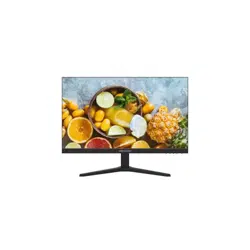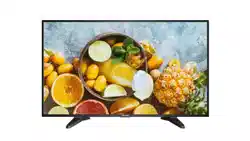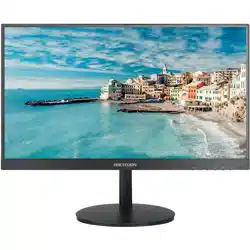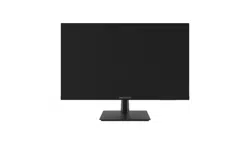
0
Monitor
User Manual
Monitor • User Manual
i
Applicable Models
This manual is applicable to monitor.
Symbol Conventions
The symbols that may be found in this document are defined as follows.
Symbol
Description
Provides additional information to emphasize or supplement
important points of the main text.
Indicates a potentially hazardous situation, which if not avoided,
could result in equipment damage, data loss, performance
degradation, or unexpected results.
Indicates a hazard with a high level of risk, which if not avoided, will
result in death or serious injury.
Monitor • User Manual
ii
TABLE OF CONTENTS
Chapter 1 Introduction ............................................................................................................... 1
Key Features ............................................................................................................................. 1
Packing List ............................................................................................................................... 1
Power On .................................................................................................................................. 1
Chapter 2 Rear Panel Interface ................................................................................................... 3
Chapter 3 Panel Buttons ............................................................................................................. 5
Chapter 4 Remote Control .......................................................................................................... 6
Chapter 5 Basic Operation .......................................................................................................... 7
Switch the Signal Source .......................................................................................................... 7
Menu Operation ....................................................................................................................... 7
Image Settings .......................................................................................................................... 8
5.3.1 Image Mode .................................................................................................................... 8
5.3.2 Backlight .......................................................................................................................... 9
5.3.3 VGA Parameter ................................................................................................................ 9
Display Settings ...................................................................................................................... 10
5.4.1 Oversccan ...................................................................................................................... 11
5.4.2 Aspect ............................................................................................................................ 11
5.4.3 Keypad ........................................................................................................................... 11
5.4.4 Eye Protection ............................................................................................................... 12
System Maintenance and Info................................................................................................ 12
5.5.1 Maintenance ................................................................................................................. 12
5.5.2 System Info .................................................................................................................... 13
System Settings ...................................................................................................................... 13
5.6.1 OSD Settings .................................................................................................................. 13
5.6.2 Audio Mode ................................................................................................................... 14
5.6.3 Other Settings ............................................................................................................... 15
5.6.4 Color Settings ................................................................................................................ 15
USB Menu ............................................................................................................................... 16
Monitor • User Manual
1
Chapter 1 Introduction
Key Features
8-bit/10-bit dual channel LVDS (1920×1080) HD display.
3D digital comb filter and 3D noise reduction technology.
Hi-Fi color OSD and user-friendly menu for operation.
Mstar ACE-5 auto color and image enhancement engine, improving the image contrast,
details, edges, etc.
Programmable 12-bit RGB gamma correction.
Complete factory setting mode.
1 × HDMI 1.4b input interface, and HDCP 1.4 available.
Software spread spectrum technology reduces EMI radiation.
HD JPEG decoding.
Professional and standard CVBS input interface with one channel input available.
Multimedia playing of text, image, audio, video, etc.
The specific features may vary with models. Refer to Rear Panel Interface for details.
Packing List
Packing List
Name
Quantity
Name
Quantity
Monitor
1
Power cable
1
Remote control (Optional)
1
Base set
1
Battery (Optional)
2
User manual
1
HDMI cable (Optional)
1
Quick start guide
1
Power On
Monitor • User Manual
2
Connect the device to an earthed mains socket-outlet, and press the power button.
Power supply: 220 VAC~, 50/60 Hz.
Power off the device and disconnect the plug if it is not in use for a long time.
The device cannot be connected to DC power supply.
Monitor • User Manual
3
Chapter 2 Rear Panel Interface
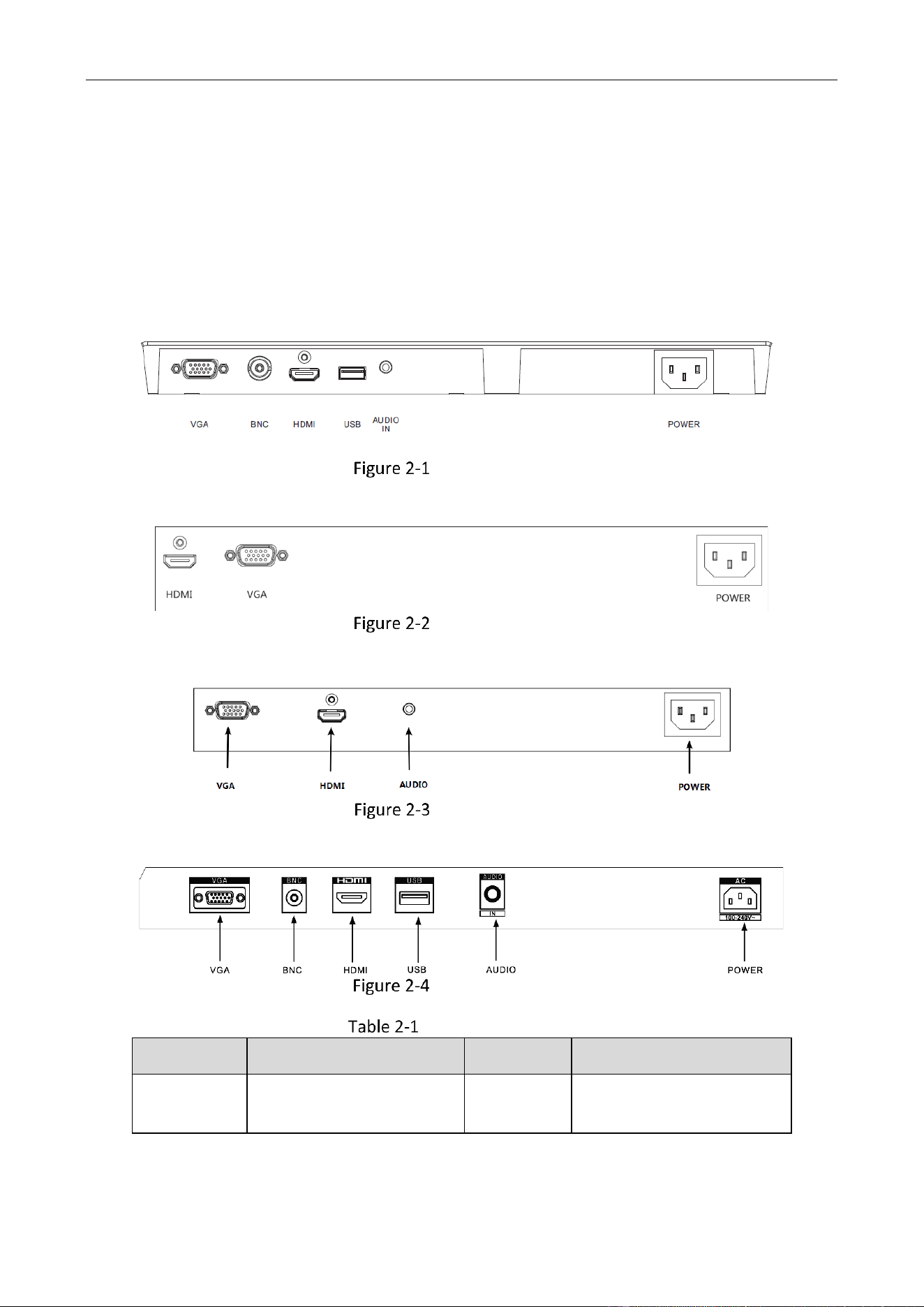
The panel appearances and interfaces vary with different models. The devices can be classified as
follows.
Type A
Interface of Type A
Type B
Interface of Type B
Type C
Interface of Type C
Type D
Interface of Type D
Interface Description
Interface
Description
Interface
Description
VGA
VGA analog signal input
interface
POWER
Power supply
Monitor • User Manual
4
Interface
Description
Interface
Description
HDMI
HDMI digital signal input
interface
USB
USB 2.0 input interface
AUDIO
Audio input interface
CVBS
CVBS signal input interface
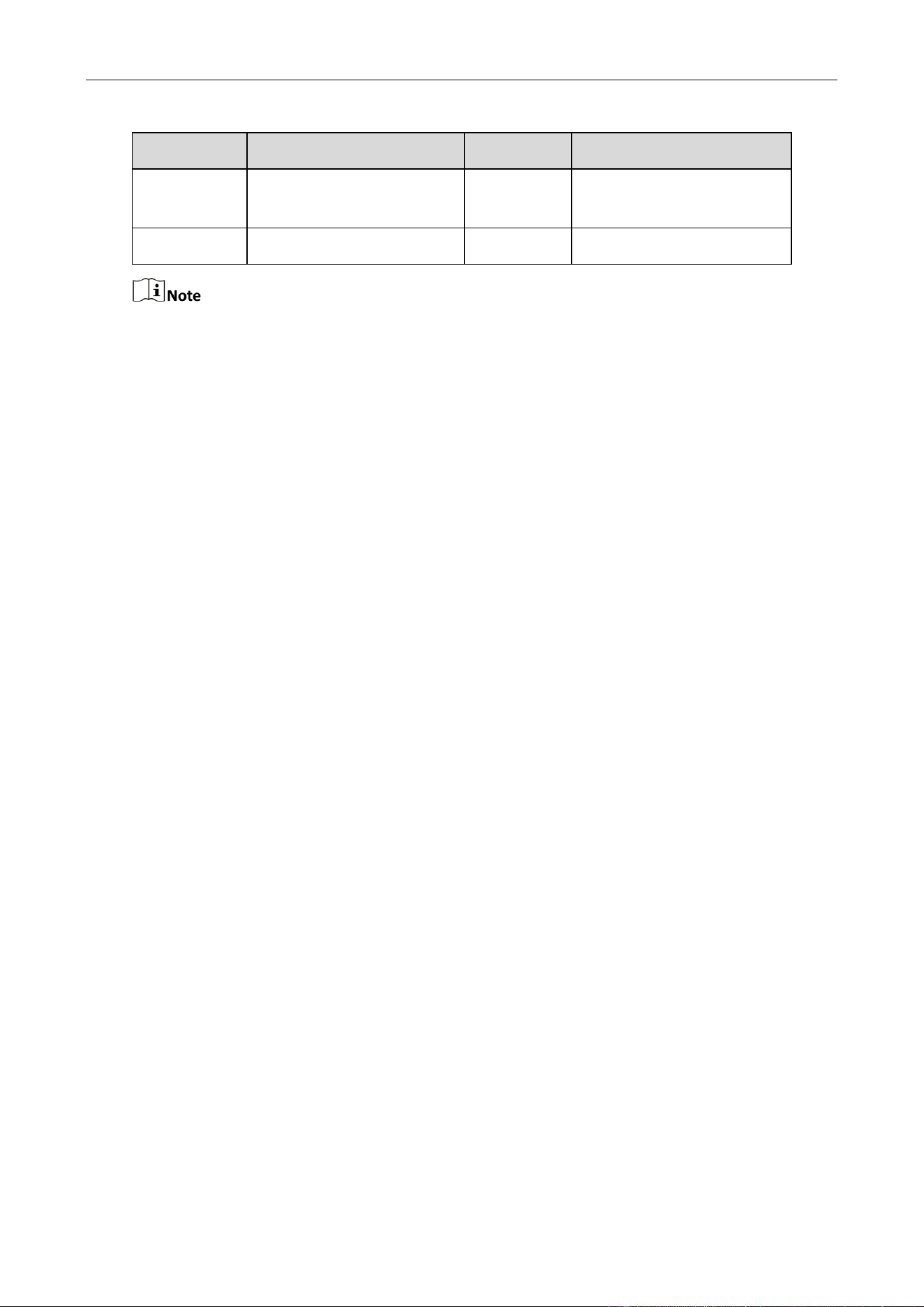
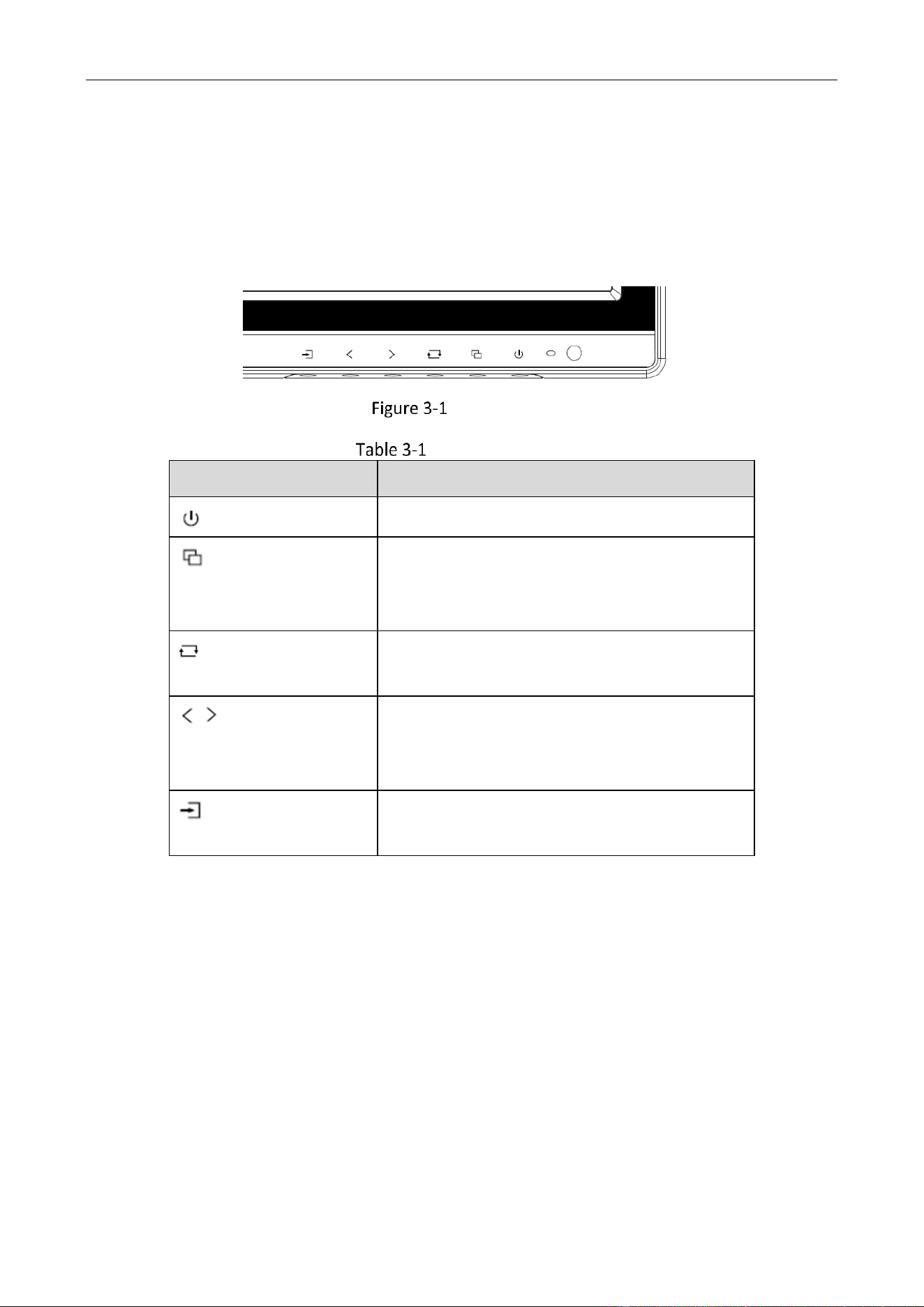
USB and CVBS input interfaces are available to type A and D, and audio input interface to
type A, C, and D.
Monitor • User Manual
5
Chapter 3 Panel Buttons
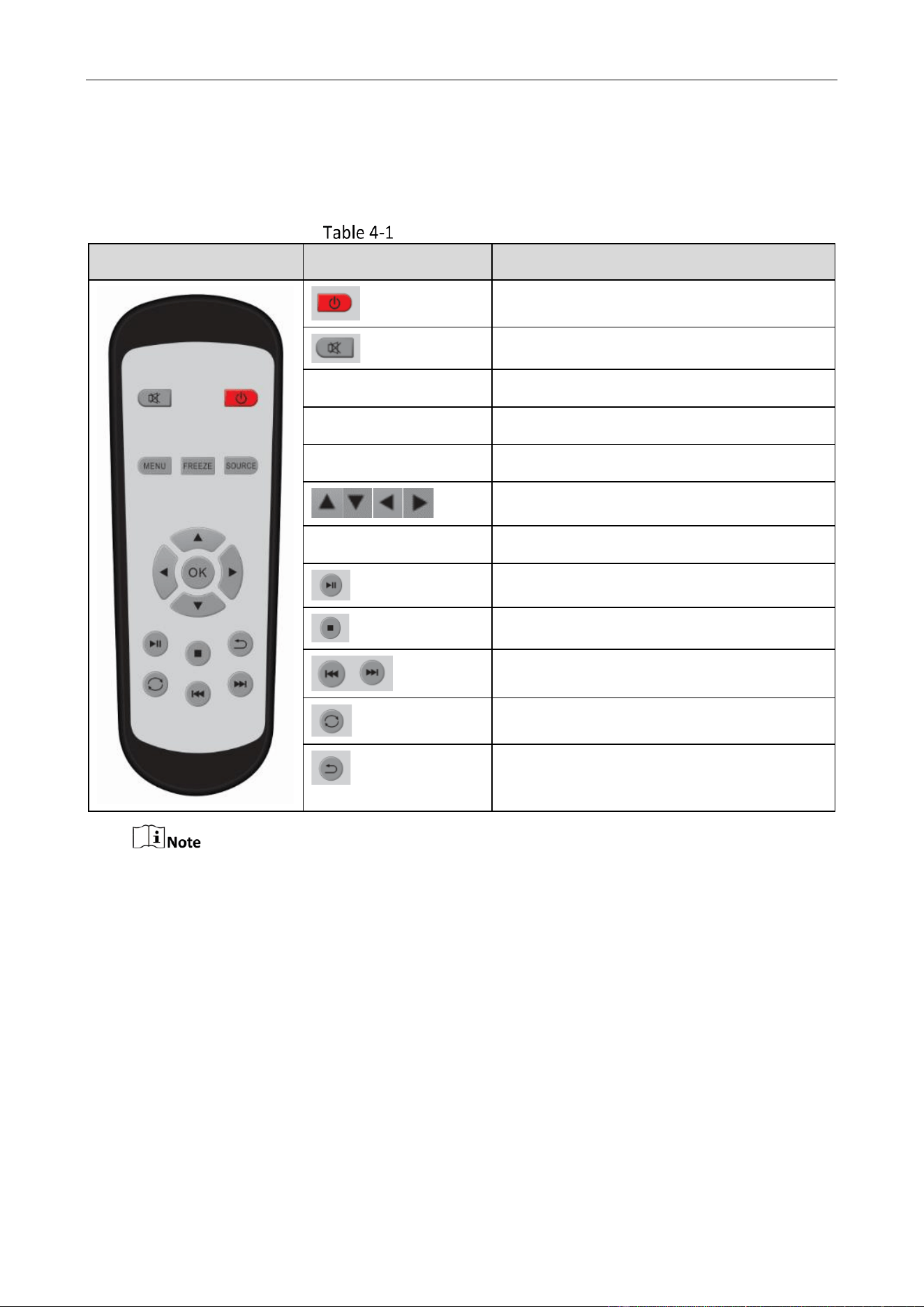
The buttons at the bottom-right corner of the front panel are shown as follows.
Panel Buttons
Button Description
Button
Description
Power On/Off
Second-level menu page: Exit menu.
File selection for USB playing: play
Other pages: Display main menu page.
Display the current input source.
All the menu pages: OK
First-level page: previous/next
Second-level page: add/reduce
USB playing page: volume up/down
Display all the input sources.
All the menu pages: Switch to next one.
Monitor • User Manual
6
Chapter 4 Remote Control
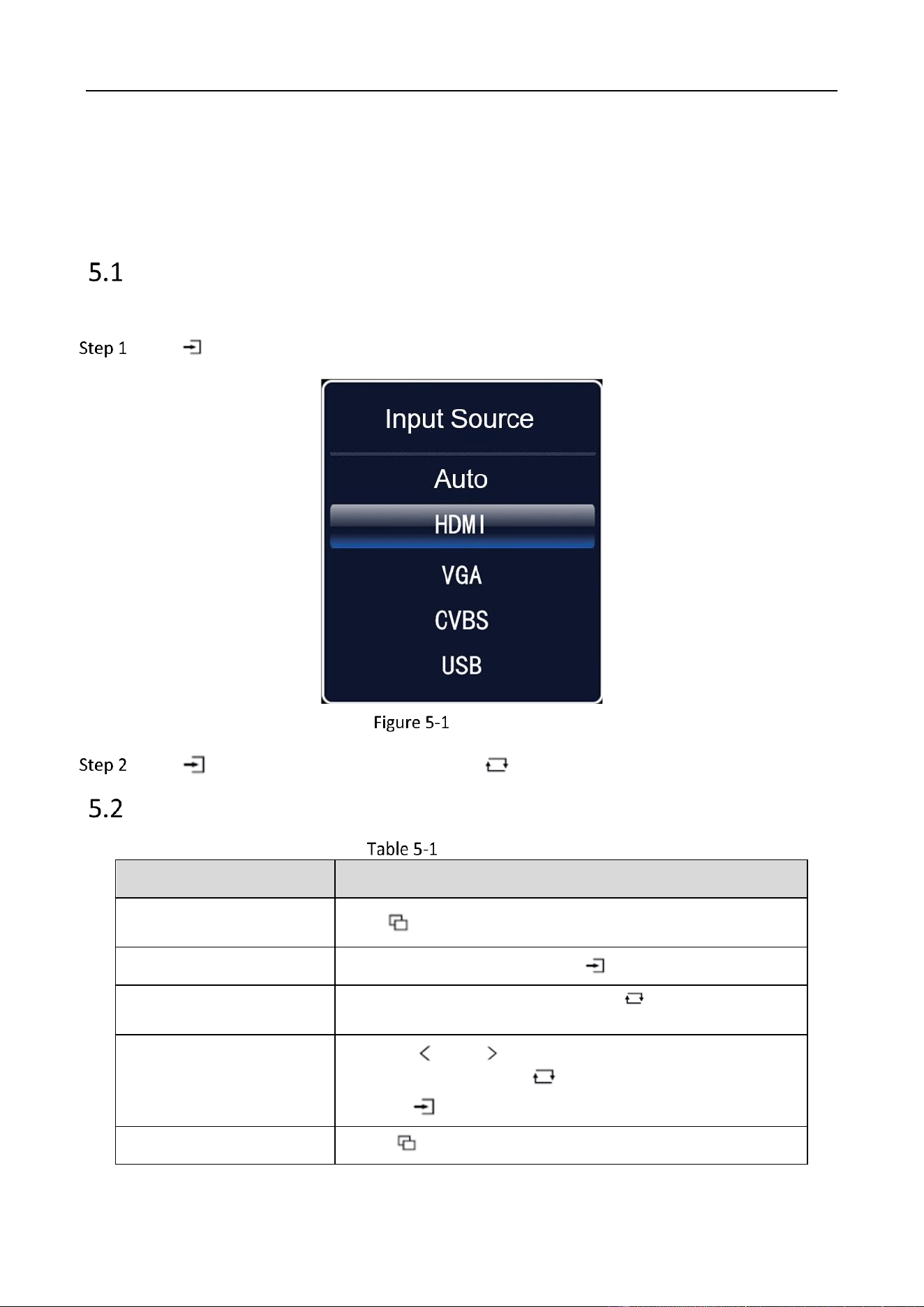
Remote Control Description
Appearance
Button
Description
Power on/off
Mute/Unmute
【
FREEZE
】
Freeze the current display.
【
MENU
】
Go to menu settings.
【
SOURCE
】
Check or select a signal source.
Up/Down/Left/Right
【
OK
】
OK
Play/Pause
Stop
Previous/Next
Repeat
Return
The remote control is not available to all kinds of devices. Whether your device is equipped
with a remote control depends on the actual situation.
Manual Name • Manual Type
7
Chapter 5 Basic Operation
The interfaces vary with different models. The figures followed are for illustration purpose only.
Switch the Signal Source
Connect the device to power source and signal source, and power the device on.
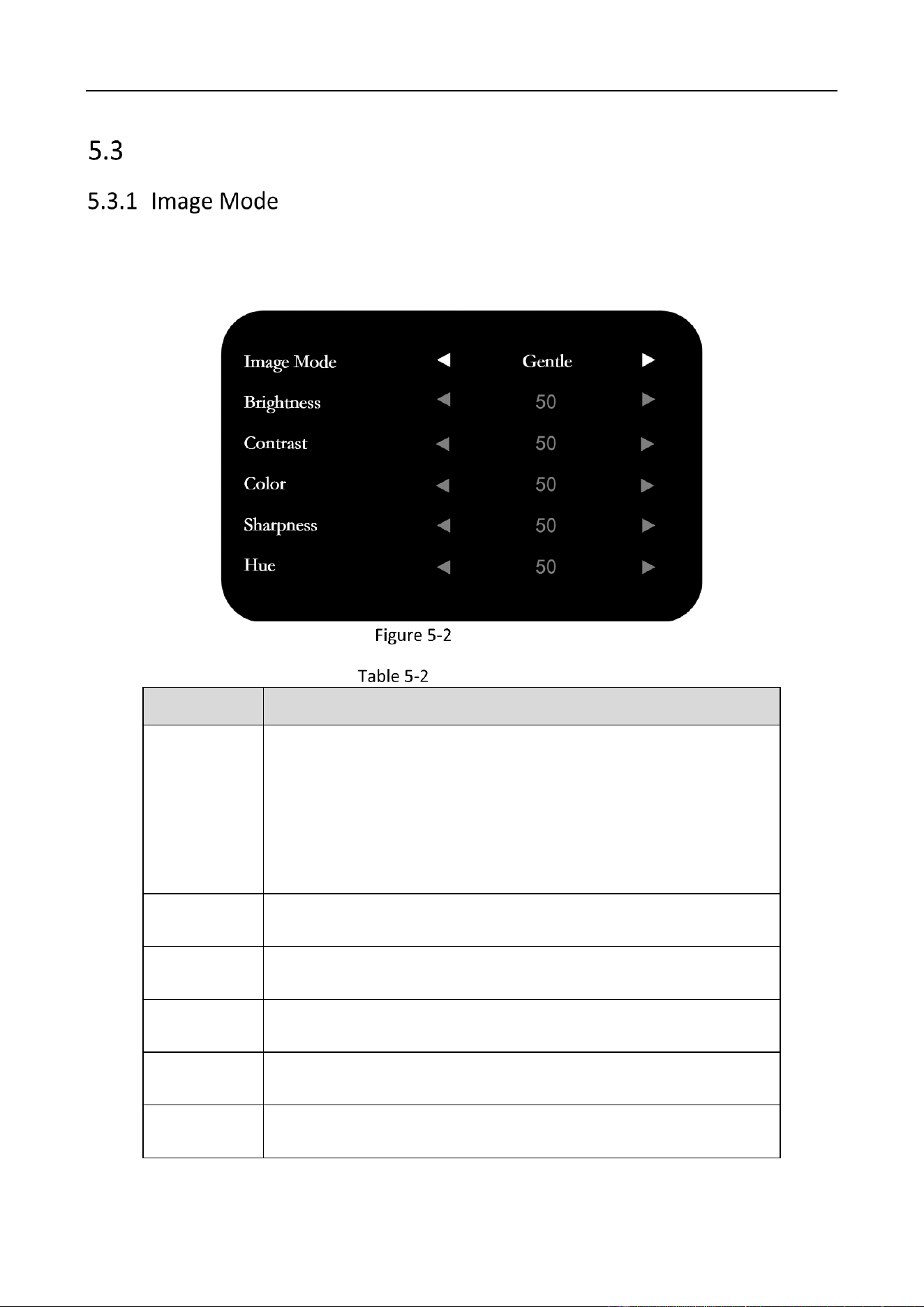
Press to enter the signal source page.
Signal Source
Press to switch input sources, and press to confirm.
Menu Operation
Basic Operation
Operation
Description
Enter main menu page
Press .
Check first-level menu
On the main menu page, press to switch.
Check parameters
On the first-level menu page, press to enter and check
different parameters.
Configure parameters
Press or to adjust the value of the selected
parameter, and press to confirm.
Press to switch to other parameters.
Return to the upper menu
Press on any pages.
Monitor • User Manual
8
Image Settings
You can switch image modes and adjust image parameters including contrast, brightness, color,
sharpness, and hue. The adjustable parameters will change when you switch from one image
mode to another.
Image Mode
Image Parameters
Parameter
Description
Image Mode
Standard: Suitable for a normal environment. It is set as the
default picture mode.
Gentle: Suitable for a dark room.
Dynamic: Suitable for a bright room.
User: Set the brightness, contrast, color, sharpness or hue to
adjust display effect.
Brightness
Ranges from 0 to 100. The higher the value is, the brighter the
display will be.
Contrast
Ranges from 0 to 100. The higher the value is, the clearer the image
will be
Color
Ranges from 0 to 100. The higher the value is, the more colorful
the image will be.
Sharpness
Ranges from 0 to 100. Rise the value up to make the image more
vivid.
Hue
Ranges from 0 to 100. It determines the contrast degree between
the bright and dark.
Monitor • User Manual
9
If the user mode selected, the adjustable parameters are determined by the input signal.
− For VGA input, brightness and contrast are adjustable.
− For HDMI input, brightness, contrast, color, and sharpness are adjustable.
− For CVBS input, brightness, contrast, color, sharpness, and hue are adjustable.
− For USB (not supported by Type B and C), brightness, contrast, color, and sharpness
are adjustable.
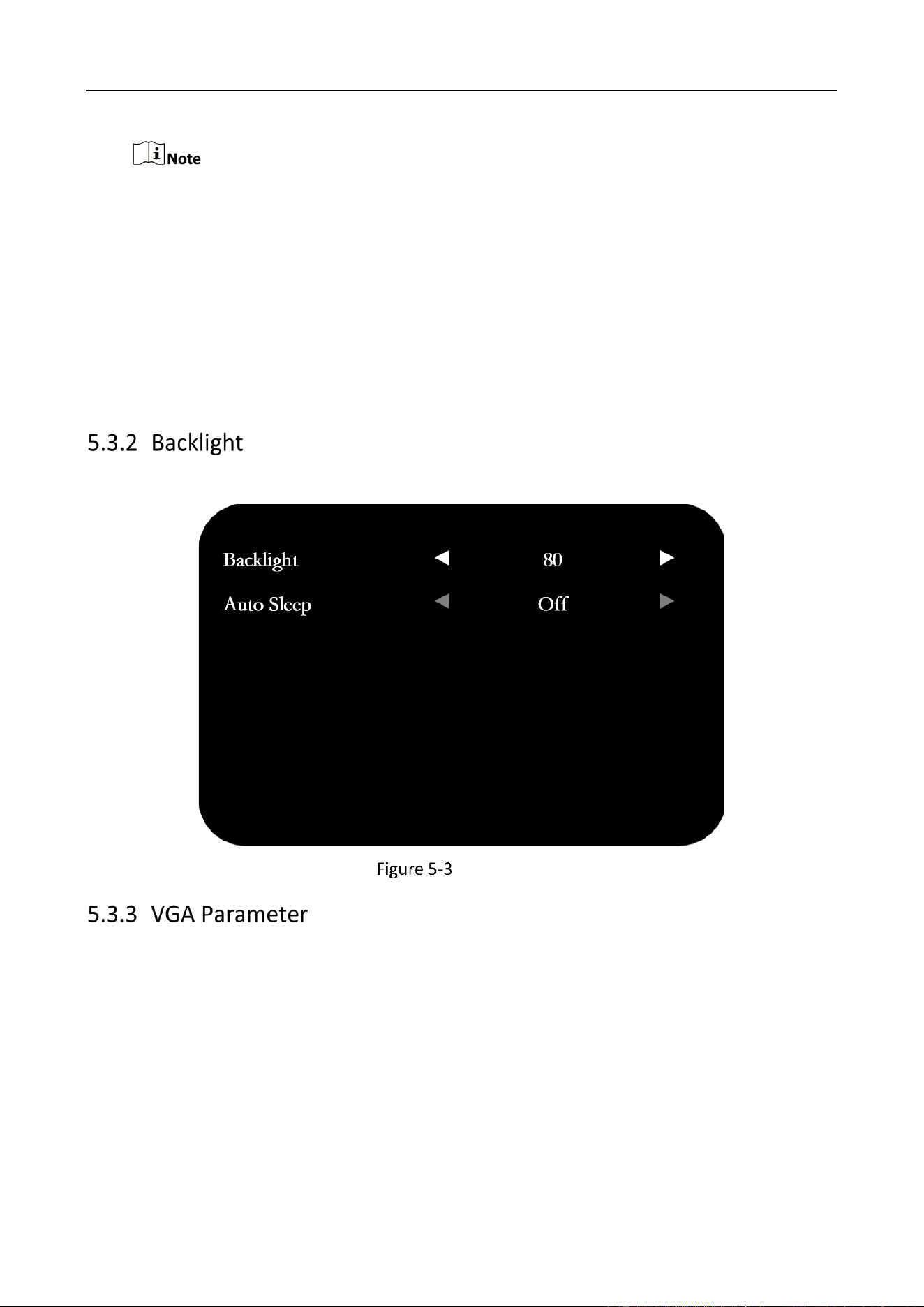
Parameters in white bar are adjustable. If the parameter bar is gray, it indicates that the
parameter is not adjustable under the current mode or input source.
The backlight value ranges from 0 to 100.
Audio Mode
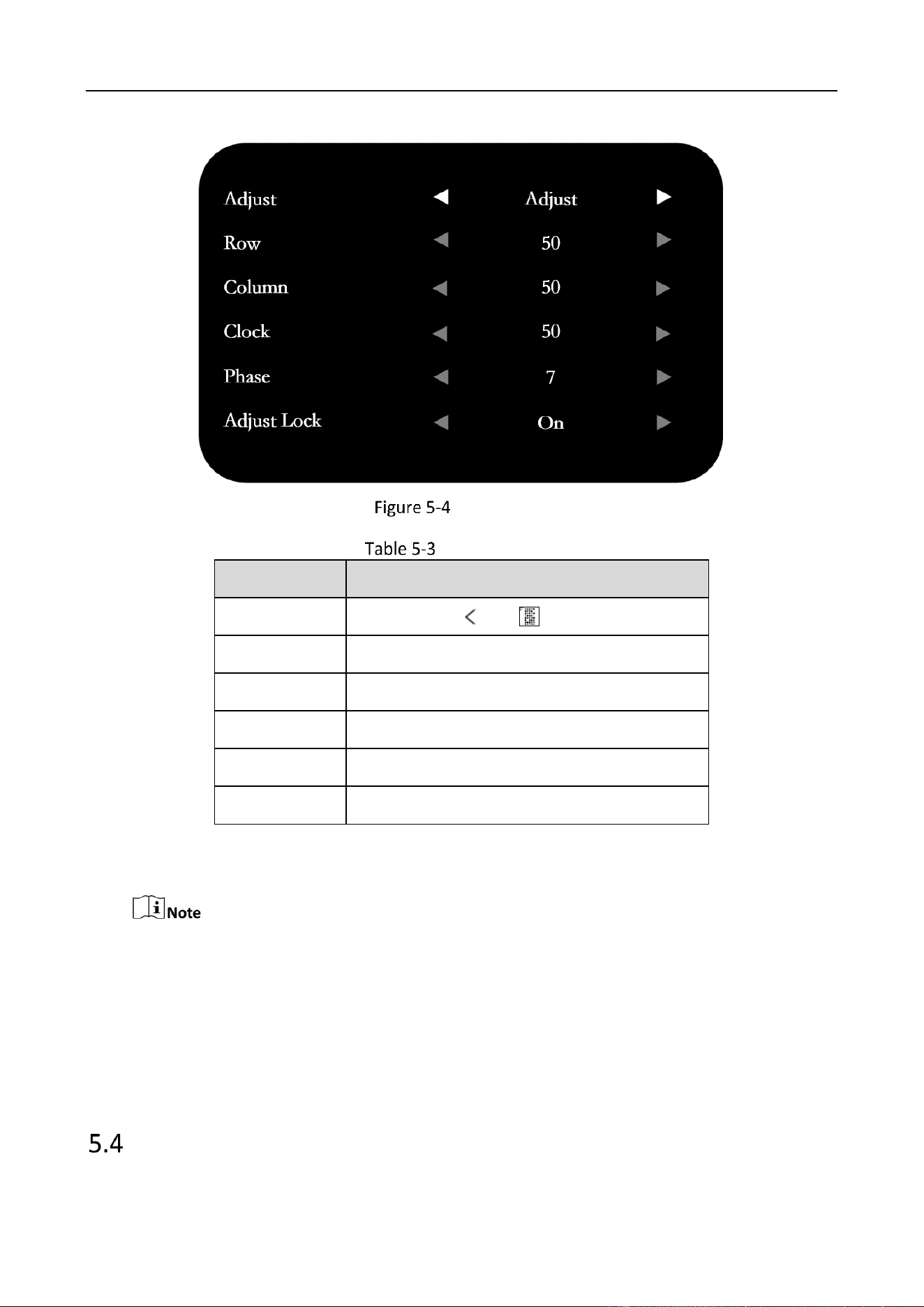
When you select VGA as the input source, you can adjust VGA parameters to make the picture
show in the correct position.
Monitor • User Manual
10
VGA Settings
VGA Parameters
Parameter
Description
Adjust
Adjust. Press or to enable or disable.
Row
Ranges from 0 to 100.
Column
Ranges from 0 to 100.
Clock
Ranges from 0 to 100.
Phase
Ranges from 0 to 100.
Auto Lock
Off/On
Adjusting the value of H-Position and V-Position will change the image position in a large
extent, while Phase and Clock in a slight extent.
Change the value of Clock will stretch or narrow the image.
If Auto Lock is enabled, the related parameters will self-adjust under the following 3
circumstances: The device is restarted, a VGA input source is accessed, and the input
source is switched to VGA.
VGA parameters cannot be changed when Auto Lock is disabled.
Display Settings
Monitor • User Manual
11
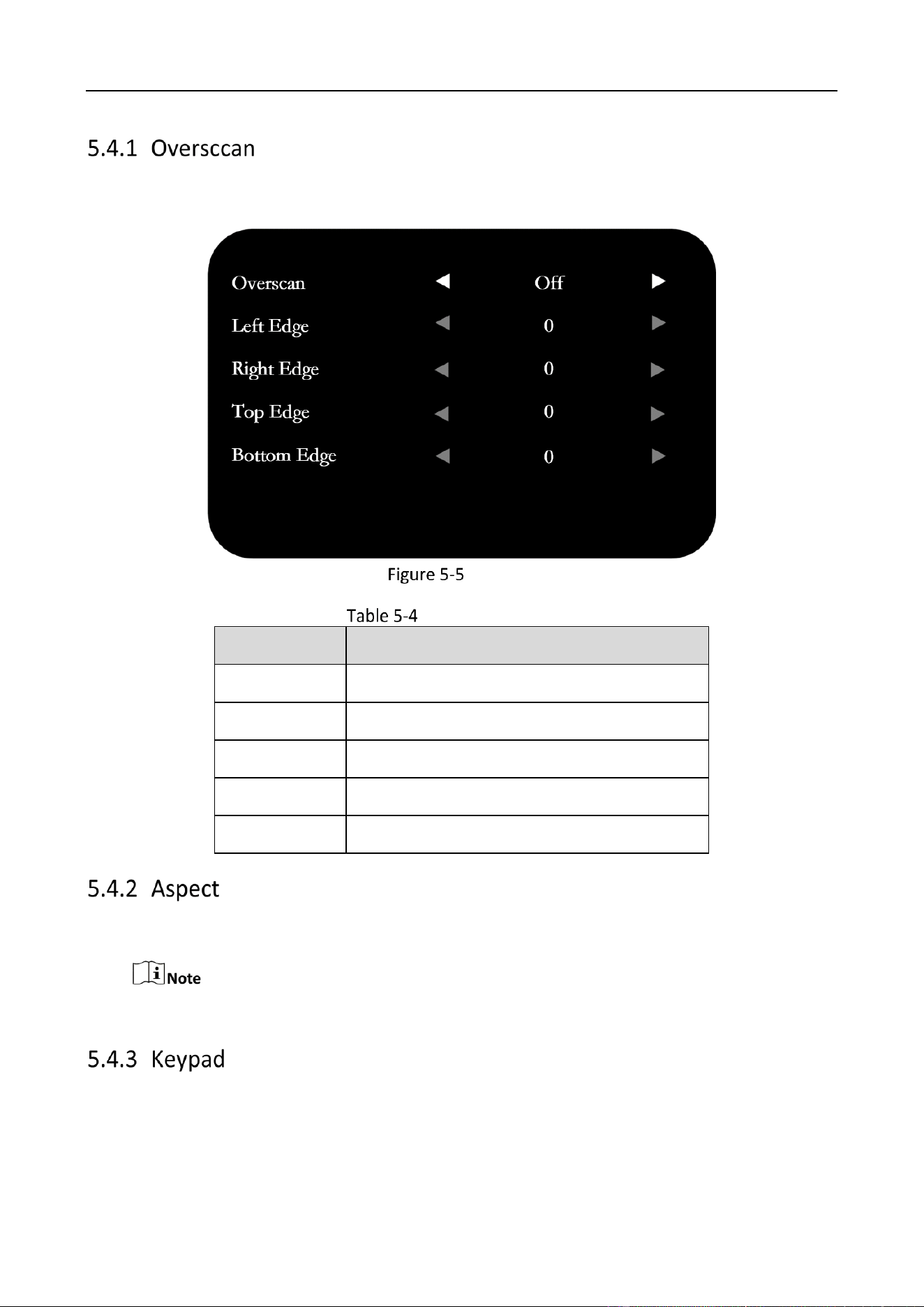
If Overscan is enabled, you can set the value of the top/bottom/left/right edge. The value indicates
the covered units of different directions.
Overscan
Overscan Parameters
Parameter
Description
Overscan
Off/On
Left Edge
Ranges from 0 to 100.
Right Edge
Ranges from 0 to 100.
Top Edge
Ranges from 0 to 100.
Bottom Edge
Ranges from 0 to 100.
Scale up/down the image. Three kinds of aspects are available: 16:9, 4:3, and point to point.
Point to Point mode is only available when a VGA or HDMI signal is accessed.
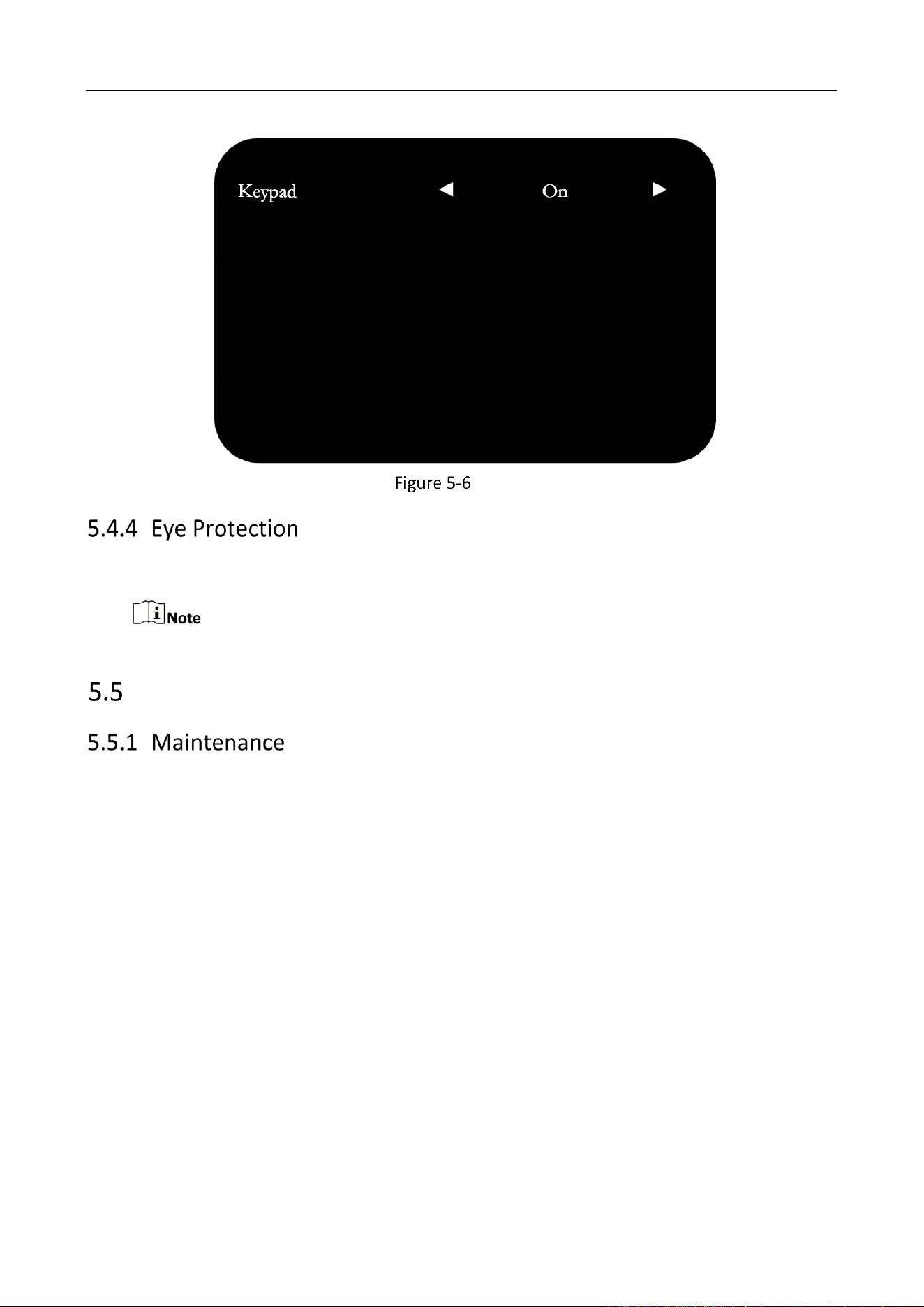
When no need to use keypad or the installation environment may extrude the keypad, you can set
the Keypad as Off to lock it.
Monitor • User Manual
12
Keypad
Disabled by default. If enabled, the screen switches to eye protection mode.
Eye Protection is only available to type D.
System Maintenance and Info
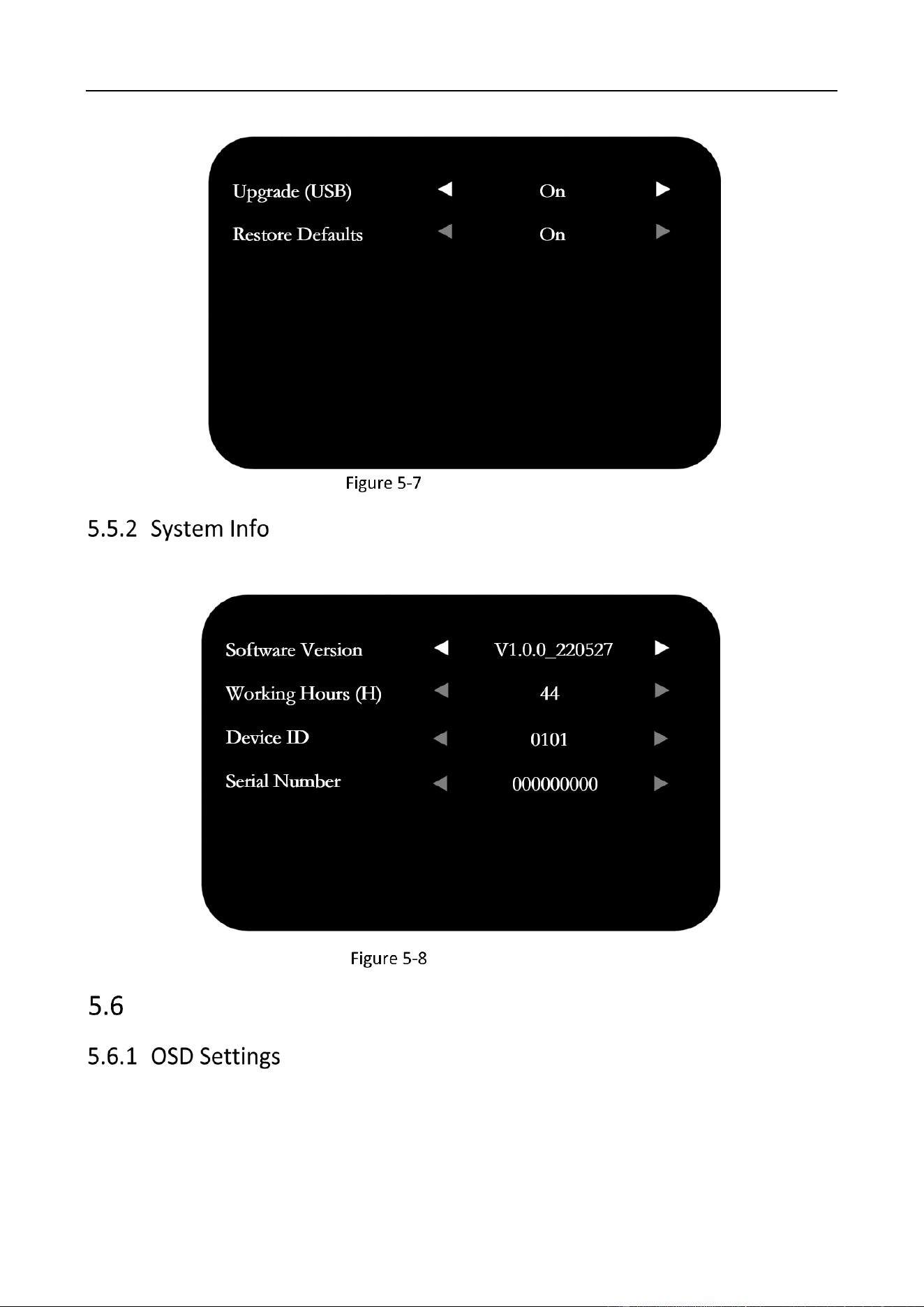
Contact our technical support personnel for upgrade program and USB driver.
Upgrade: Insert the USB driver to the USB interface, and set Upgrade (USB) as On.
Follow the instructions on the screen to upgrade.
Restore Defaults: Restore all the settings to the default value.
Monitor • User Manual
13
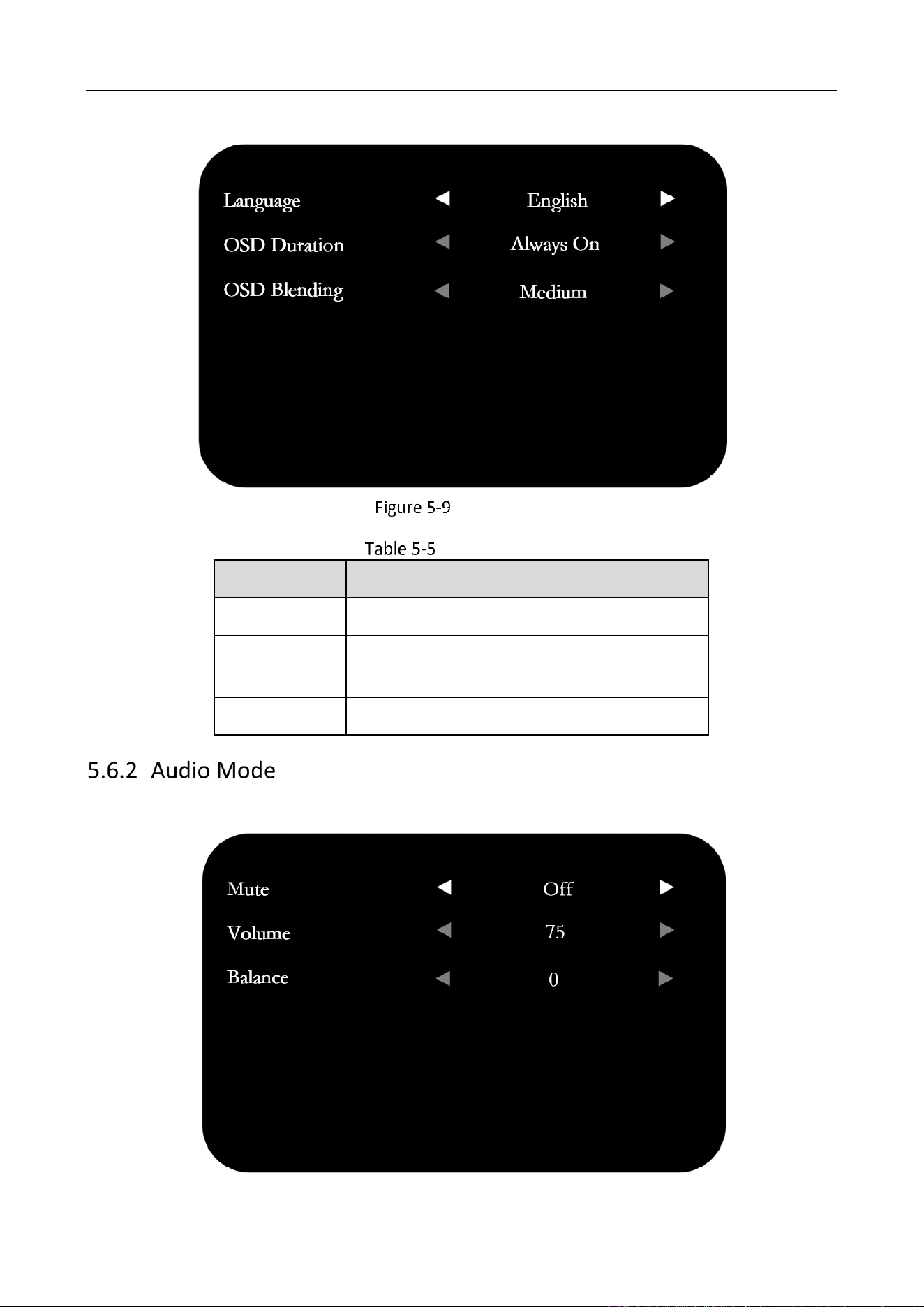
System Maintenance
Check the version, working time, ID, and serial number of the device.
System Information
System Settings
Monitor • User Manual
14
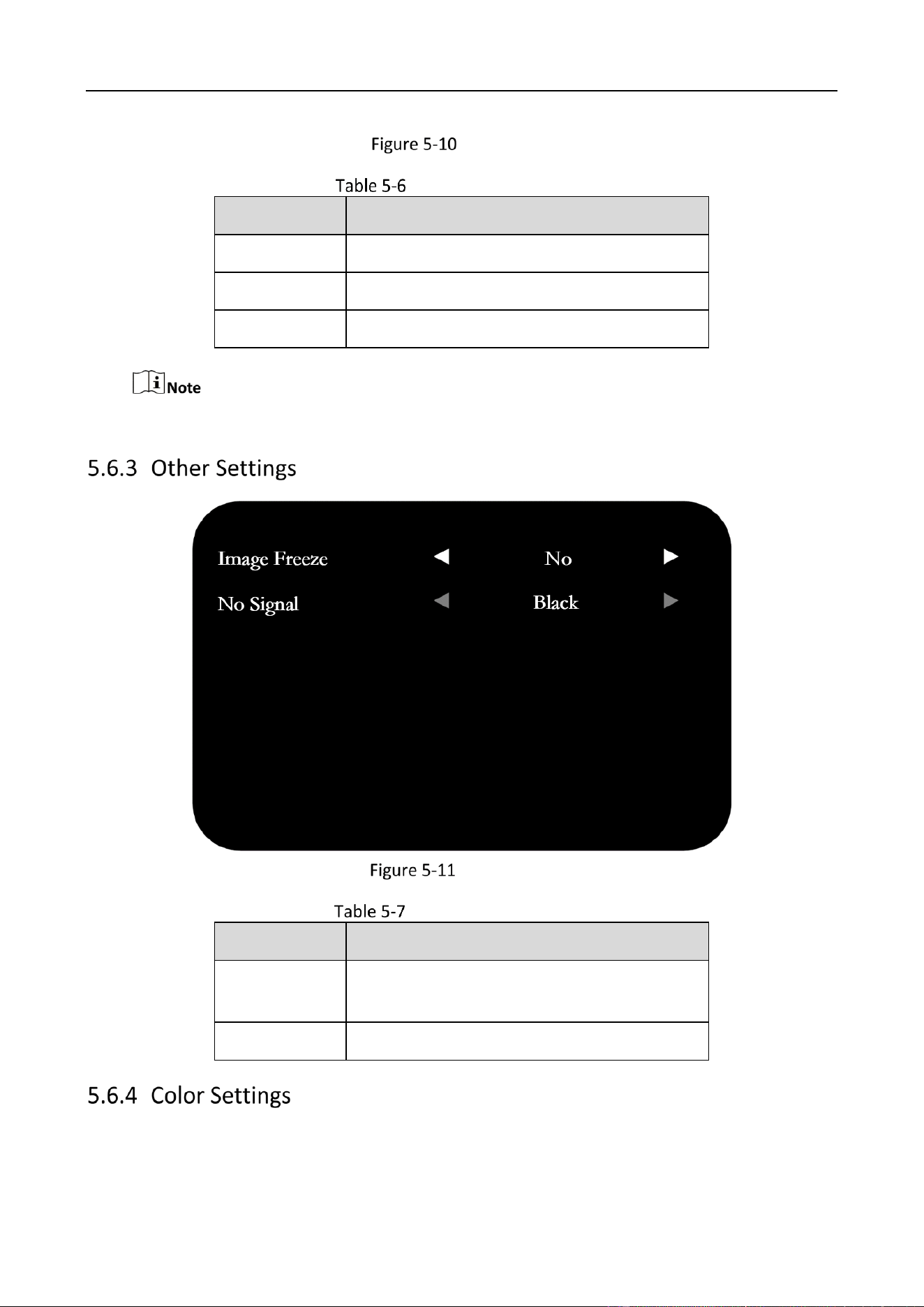
OSD Settings
OSD Parameters
Parameter
Description
Language
English/
中文
OSD Duration
Always On/5 s/15 s/30 s. The displaying time
for OSD menu when no operation is done.
OSD Blending
Low/Medium/High/Off
You can set the volume as desired or mute/unmute the playing.
Monitor • User Manual
15
Audio Mode
Audio Mode Parameters
Parameter
Description
Mute
Off/On. Off by default.
Volume
Ranges from 0 to 100.
Balance
Ranges from 0 to 100.
Audio mode is only available to type A and D.
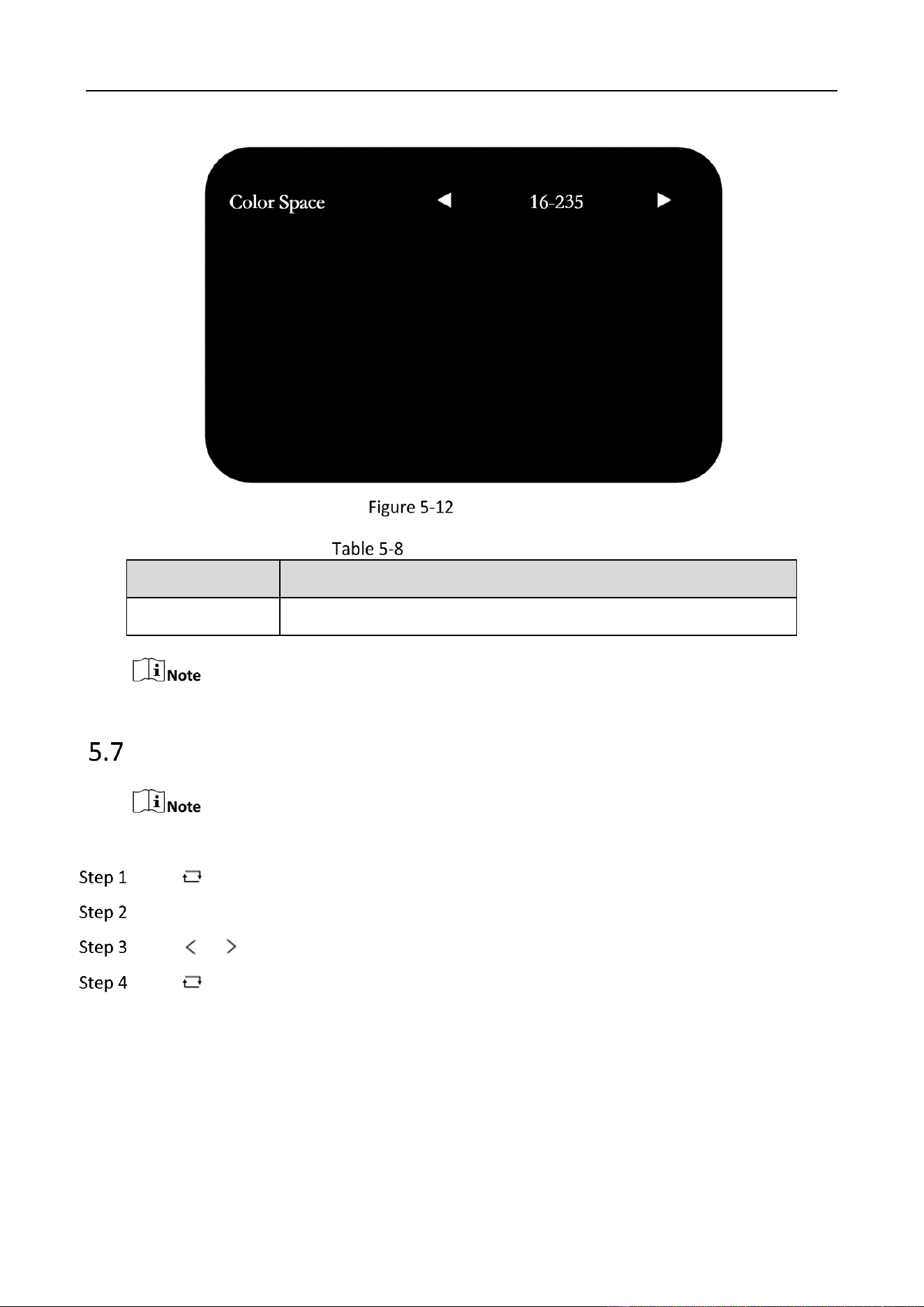
Screen Saver
Screen Saver Parameters
Parameter
Description
No Signal
Black/
Blue. The screen color to be displayed when
no signal is detected.
Image Freeze
Yes/No.
Monitor • User Manual
16
Image Freeze
Image Freeze Parameters
Parameter
Description
Color Space
0-255/16-235
Image Freeze changes to No when you switch the signal source or restart the device.
USB Menu
USB menu is only available to type A and D.
Press , and insert your removable storage device into the USB interface of the device.
Select USB as the input signal source, and then the USB menu displays.
Press or to select your desired file type for playing.
Press to confirm.

0
UD28844B