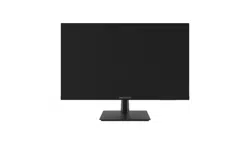

LCD Monitor
User Manual
User Manual
COPYRIGHT ©2018 Hangzhou Hikvision Digital Technology Co., Ltd.
ALL RIGHTS RESERVED.
Any and all information, including, among others, wordings, pictures, graphs are the
properties of Hangzhou Hikvision Digital Technology Co., Ltd. or its subsidiaries
(hereinafter referred to be “Hikvision”). This user manual (hereinafter referred to be “the
Manual”) cannot be reproduced, changed, translated, or distributed, partially or wholly, by
any means, without the prior written permission of Hikvision. Unless otherwise stipulated,
Hikvision does not make any warranties, guarantees or representations, express or implied,
regarding to the Manual.
About this Manual
This Manual is applicable to the Monitor.
The Manual includes instructions for using and managing the product. Pictures, charts,
images and all other information hereinafter are for description and explanation only. The
information contained in the Manual is subject to change, without notice, due to firmware
updates or other reasons. Please find the latest version in the company website (http://
overseas.hikvision.com/en/).
Please use this user manual under the guidance of professionals.
Trademarks Acknowledgement
and other Hikvision’s trademarks and logos are the properties of
Hikvision in various jurisdictions. Other trademarks and logos mentioned below are the
properties of their respective owners.
Legal Disclaimer
TO THE MAXIMUM EXTENT PERMITTED BY APPLICABLE LAW, THE PRODUCT
DESCRIBED, WITH ITS HARDWARE, SOFTWARE AND FIRMWARE, IS PROVIDED
“AS IS”, WITH ALL FAULTS AND ERRORS, AND HIKVISION MAKES NO
WARRANTIES, EXPRESS OR IMPLIED, INCLUDING WITHOUT LIMITATION,
MERCHANTABILITY, SATISFACTORY QUALITY, FITNESS FOR A PARTICULAR
PURPOSE, AND NON-INFRINGEMENT OF THIRD PARTY. IN NO EVENT WILL
HIKVISION, ITS DIRECTORS, OFFICERS, EMPLOYEES, OR AGENTS BE LIABLE TO
YOU FOR ANY SPECIAL, CONSEQUENTIAL, INCIDENTAL, OR INDIRECT DAMAGES,
INCLUDING, AMONG OTHERS, DAMAGES FOR LOSS OF BUSINESS PROFITS,
BUSINESS INTERRUPTION, OR LOSS OF DATA OR DOCUMENTATION, IN
CONNECTION WITH THE USE OF THIS PRODUCT, EVEN IF HIKVISION HAS BEEN
ADVISED OF THE POSSIBILITY OF SUCH DAMAGES.
REGARDING TO THE PRODUCT WITH INTERNET ACCESS, THE USE OF PRODUCT
SHALL BE WHOLLY AT YOUR OWN RISKS. HIKVISION SHALL NOT TAKE ANY
RESPONSIBILITES FOR ABNORMAL OPERATION, PRIVACY LEAKAGE OR OTHER
DAMAGES RESULTING FROM CYBER ATTACK, HACKER ATTACK, VIRUS
INSPECTION, OR OTHER INTERNET SECURITY RISKS; HOWEVER, HIKVISION WILL
PROVIDE TIMELY TECHNICAL SUPPORT IF REQUIRED.
SURVEILLANCE LAWS VARY BY JURISDICTION. PLEASE CHECK ALL RELEVANT
LAWS IN YOUR JURISDICTION BEFORE USING THIS PRODUCT IN ORDER TO
ENSURE THAT YOUR USE CONFORMS THE APPLICABLE LAW. HIKVISION SHALL
NOT BE LIABLE IN THE EVENT THAT THIS PRODUCT IS USED WITH ILLEGITIMATE
PURPOSES.
IN THE EVENT OF ANY CONFLICTS BETWEEN THIS MANUAL AND THE APPLICABLE
LAW, THE LATER PREVAILS.
I
LCD Monitor User Manual
II
EU Conformity Statement
This product and - if applicable - the supplied accessories too
are marked with"CE"and comply therefore with the applicable
harmonized European standards listed under the EMC Directive
2014/30/EU,the LVD Directive 2014/35/EU,the ROHS
Directive 2011/65/EU.
Regulatory Information
Please take attention that changes or modification not expressly approved by the party responsible for
compliance could void the user’s authority to operate the equipment.
FCC compliance: This equipment has been tested and found to comply with the limits for a Class A
digital device, pursuant to part 15 of the FCC Rules. These limits are designed to provide reasonable
protection against harmful interference when the equipment is operated in a commercial environment.
This equipment generates, uses, and can radiate radio frequency energy and, if not installed and used in
accordance with the instruction manual, may cause harmful interference to radio communications.
Operation of this equipment in a residential area is likely to cause harmful interference in which case the
user will be required to correct the interference at his own expense
FCC Conditions
This device complies with part 15 of the FCC Rules. Operation is subject to the following two conditions:
1. This device may not cause harmful interference.
2.
This device must accept any interference received, including interference that may cause undesired
operation.
FCC Information
2012/19/EU (WEEE directive): Products marked with this
symbol cannot be disposed of as unsorted municipal waste in the
European Union. For proper recycling, return this product to your
local supplier upon the purchase of equivalent new equipment, or
dispose of it at designated collection points. For more
information see: www.recyclethis.info
2006/66/EC (battery directive): This product contains a battery
that cannot be disposed of as unsorted municipal waste in the
European Union. See the product documentation for specific
battery information. The battery is
marked with this symbol, which may include lettering to indicate cadmium
(Cd), lead (Pb), or mercury (Hg). For proper recycling, return the battery to
your supplier or to a designated collection point. For more information see:
www.recyclethis.info
Industry Canada ICES-003 Compliance
This device meets the CAN ICES-3 (A)/NMB-3(A) standards requirements.
LCD Monitor User Manual
III
Applicable Models
This manual is applicable to the model: LCD Monitor.
Symbol Conventions
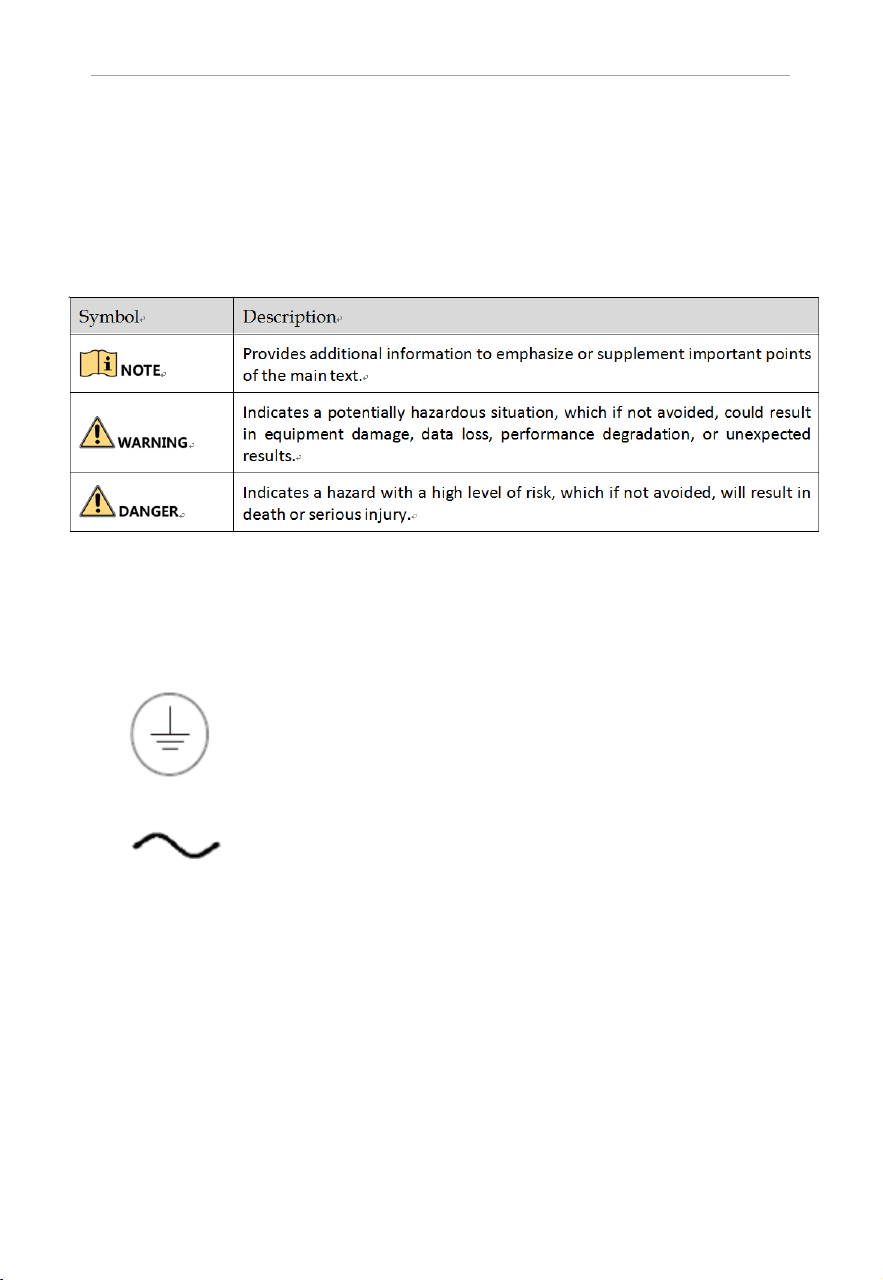
The symbols that may be found in this document are defined as follows.
LCD Monitor User Manual
1)The mains plug of the equipment is used as disconnect devices, the socket-outlet shall be installed
near the equipment and shall be easily accessible;
2) Safety of the equipment is relies on connection to protective earth, the
equipment shall be connected to a MAINS socket outlet with a protective earthing connection.
3) The symbol indicates AC voltage.
Note:
Forward tilt of the whole machine is not recommended in use;
if there is a need for forward tilt, it is recommended that the
forward tilt angle should not exceed 5 degrees.

IIII
1.Introduction ............................................................................................... 1
2.Device Interfaces........................................................................................ 2
3.Panel keys ...................................................................................................2
4.Basic Operation ..........................................................................................3
Structure Figure............................................................................................ 10
Specifications ................................................................................................ 9
1.1 Key Features............................................................................................. 1
1.2 Power Supply Connection......................................................................... 1
LCD Monitor User Manual
TABLE OF CONTENTS
1
Chapter1. Introduction
1.1 Key Features
DS-D5022/5024/5027 Series:Supports 1920×1080 FHD dispiay;
User-friendly operation menu;
Three image modes to adapt different environment;
1 channel HDMI 1.3 input interface;
Support software spread-spectrum technology to reduce EMI radiation;
Standby Power Consumption is lower than 0.5W;
Viewing Angle:Horizontal 178°, Vertical 178º ;
2Wx2 Speakers efficient output(optional);
1.2 Power Supply Connection
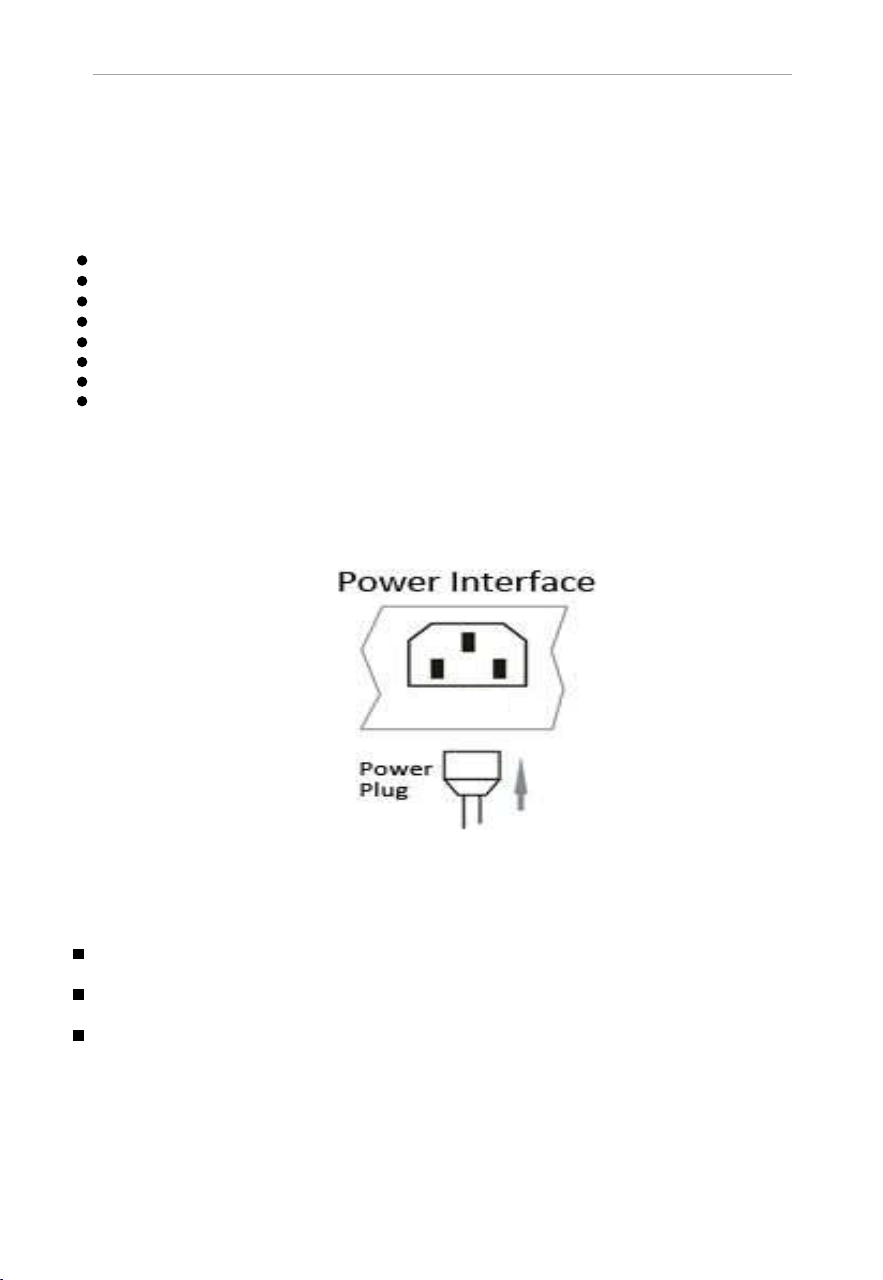
Insert the 3-pin power device into well-grounded socket and turn the rocker switch on.
Figure 1.1 Power Input
Power in ut s ecification from 100VAC to 240VAC or rovide automatic switchin between
high line and low line input ranges.
Turn off the main ower switch of the dis la unit, and ull the lu from the ower outlet if
the display unit will not be used for a long time.
Never connect the device to a DC power.
LCD Monitor User Manual
2
Chapter2. Device Interfaces
Chapter3. Pa
nel Keys
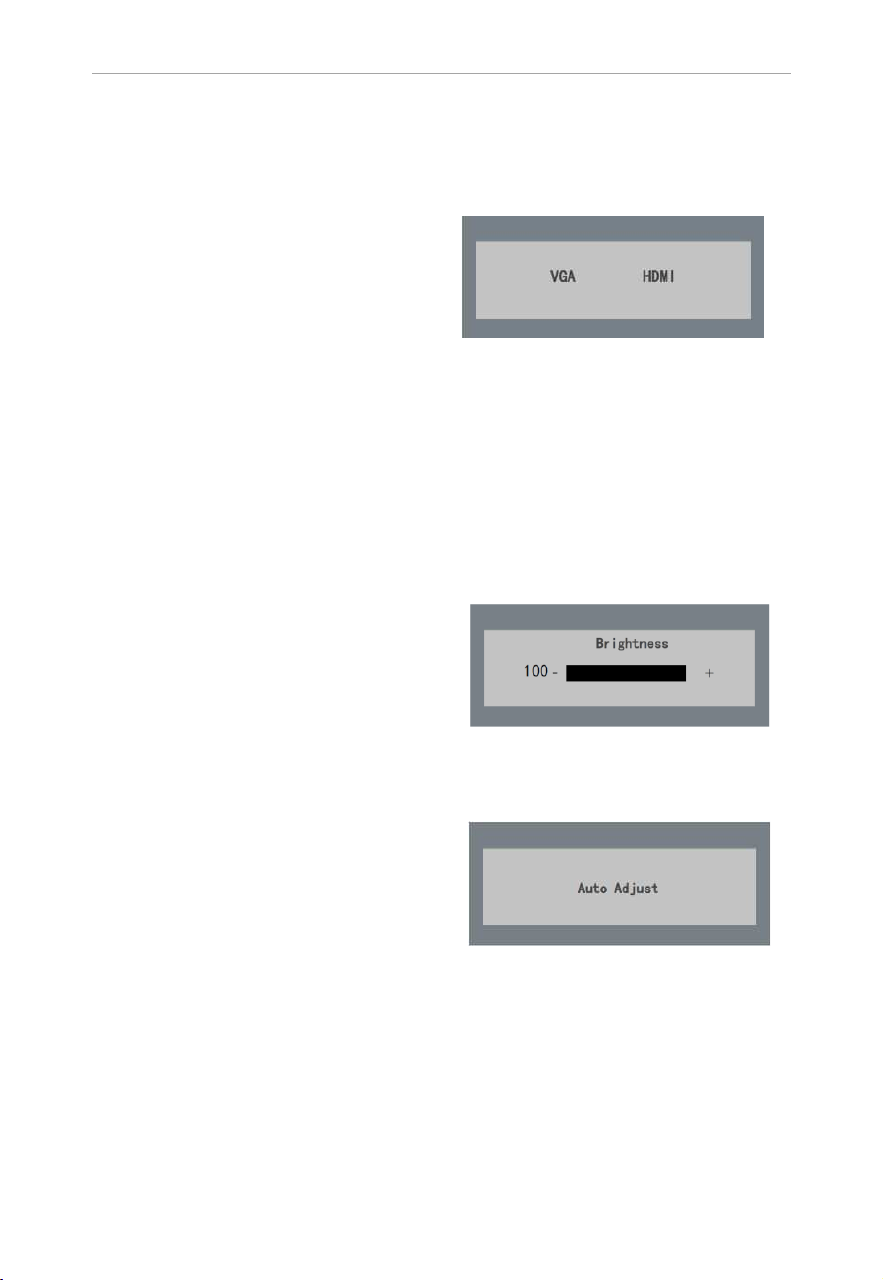
Keys on lower right corner of the display unit panel are shown in the Figure 3.1 Keys on the Display
Unit.
Figure 3.1 Keys on the Display Unit
The functions of the keys on lower right corner of the display unit vary according to different situations.
Fig
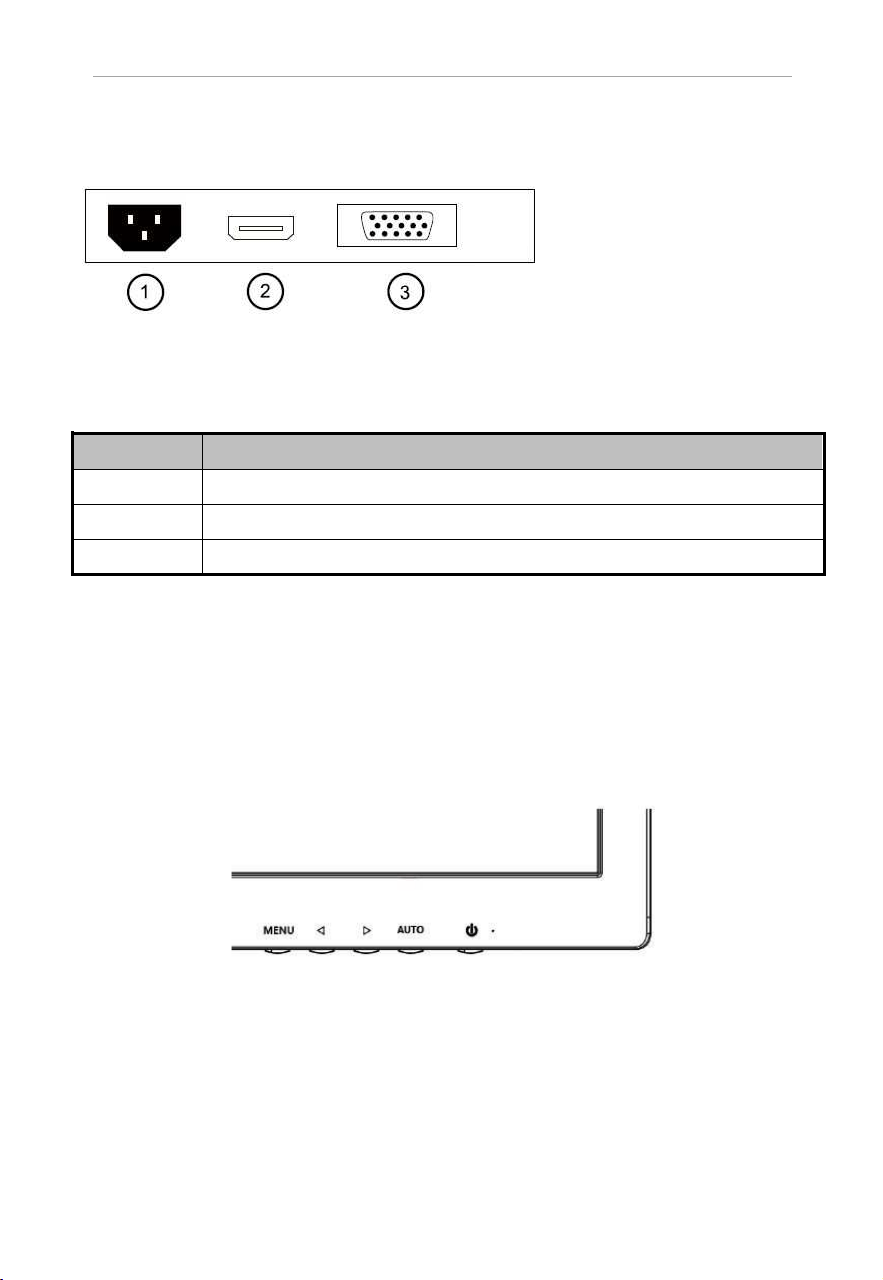
ure 2.1 Rear Panel of Device
POWER IN(1)Power Input
HDMI IN(2)
VGA IN(3)
VGA Analog Signal Input
Interfaces
Interfaces
HDMI Digital Signal Input
LCD Monitor User Manual
3
Chapter4. Basic Operation
4.1 Input Source Selection
Turn on the display unit when the power supply is on
and input source is confirmed.
Press ◄ key of the remote controller to enter the menu
as shown on the right. DS-D5022 /24/27inch LCD
display unit includes 2 input sources as HDMI and
VGA signal. Press direction keys to select the input
source and press MENU to accomplish the input
source selection.
Figure 4.1 Input Source
4.3 Auto Adjust
Turn on the display unit when the power supply is on
and input source is confirmed.
Press
AUTO key of the remote controller to enter the
menu as shown on the right(In VGA Signal).
Figure 4.3 Input Source
4.2
Figure 4.2 Brightness
Brightness
Press
► key of the remote controller to enter the menu
as shown on the right.press ◄ or ► to adjust the value of
Brightness. press MENU to accomplish the Brightness
adjustment.
LCD Monitor User Manual
4.4 Main Menu
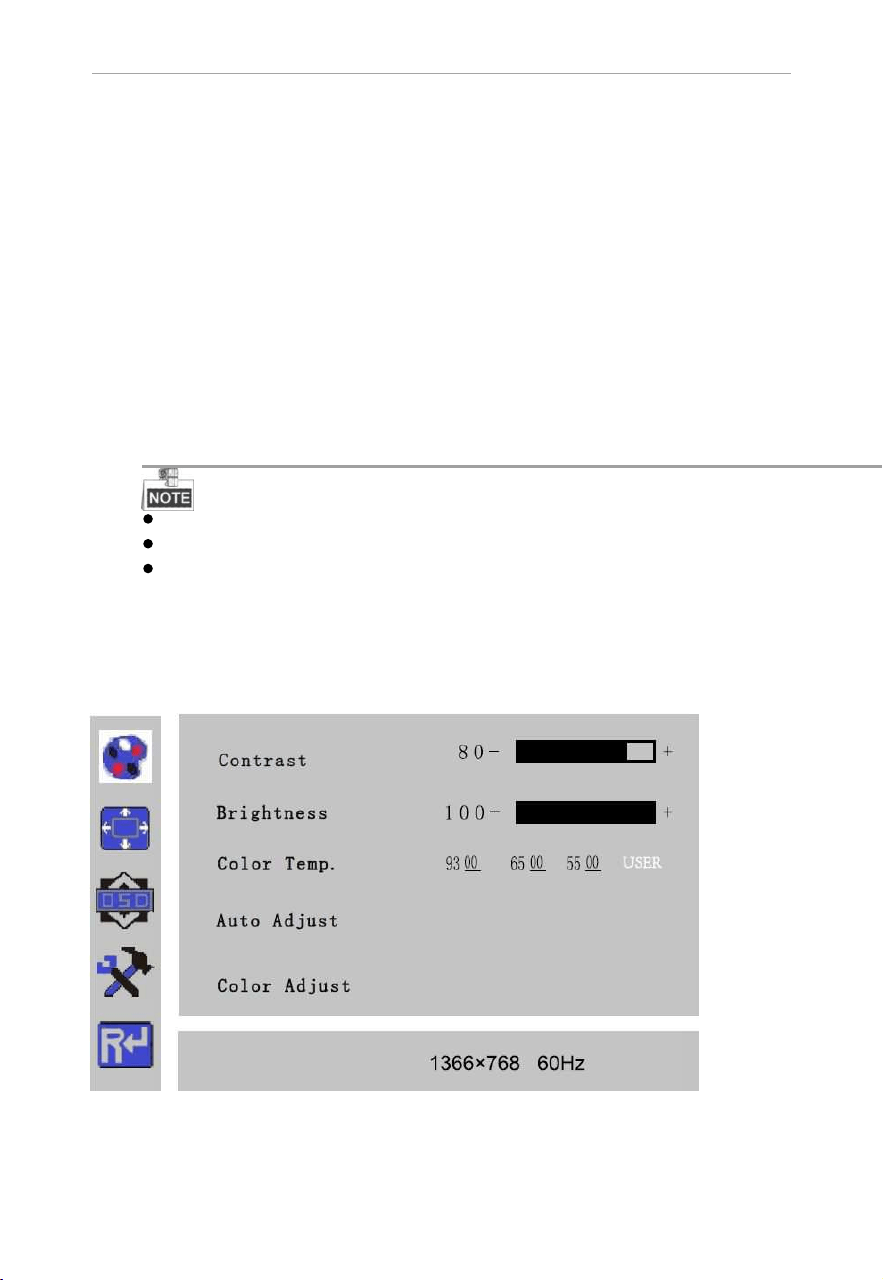
4.4.1 Image Settings
Purpose:
You can adjust the picture parameters by switching image modes and adjust the values of contrast,
brightness, color temperature,auto adjust,color adjust.
Steps:
1.
Press MENU key to enter the main menu interface as shown below.
2. Press MENU key to enter the setting you want.
3. Press ◄ or ► to adjust the value. It applies for adjusting contrast, brightness, color temp and other
parameters.
Contrast, Brightness: Press ◄ or ► to set the contrast, the range varies from 0-100.
Color temperature :Press ◄ or ► to set the color temperature you need.
Gray indicates that under current mode or current input source condition it is not adjustable; Yellow
indicates that it is adjustable.
4.Press AUTO key to return to the main menu after accomplishing the adjustment.
Figure 4.4.1 Image Settings
4
LCD Monitor User Manual
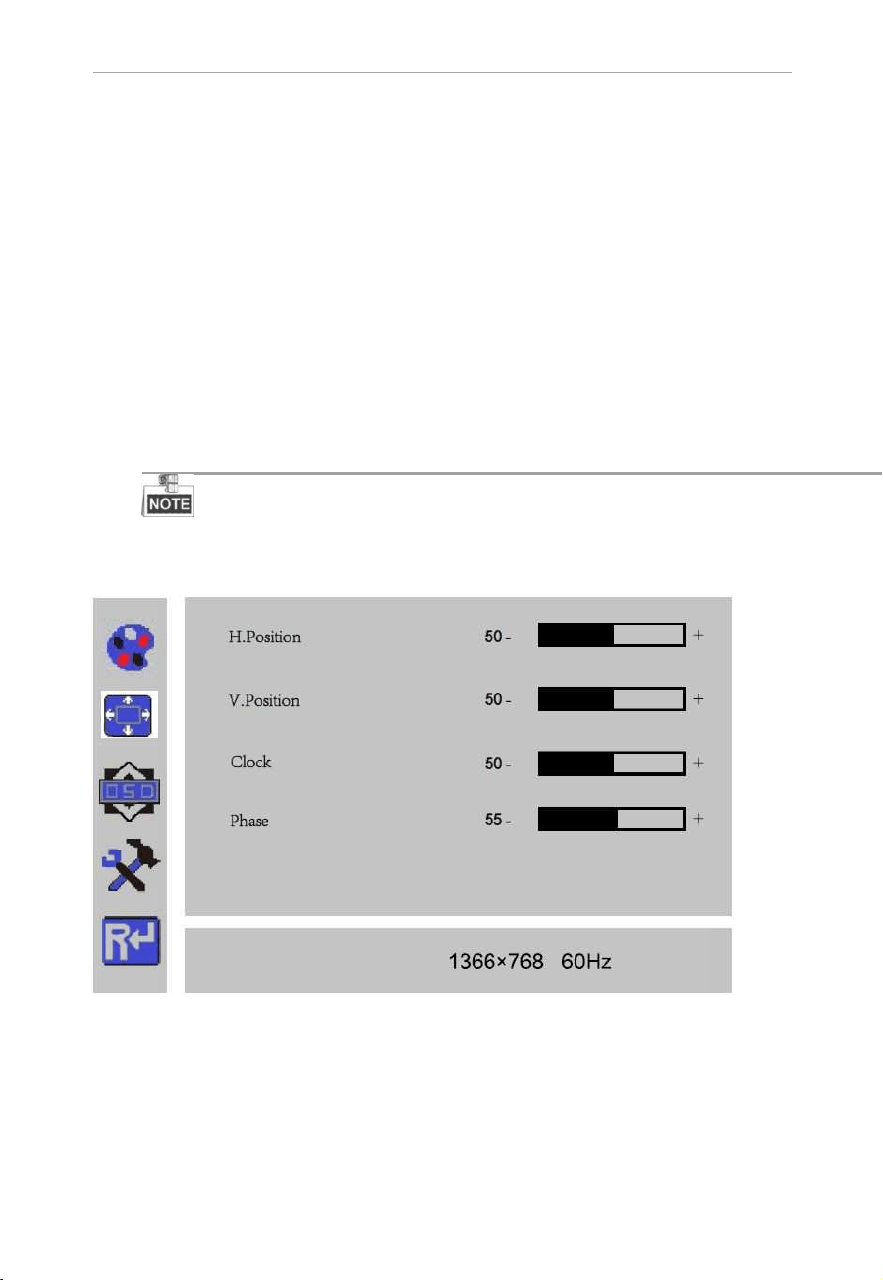
4.4.2 Image Adjustment
Purpose:
When the input source is selected VGA, you can adjust the VGA parameters. It is for adjusting
VGA H position, V Position, clock and phase.
Steps:
1. Press Menu key to enter the main menu interface.
2. Press ◄ key to enter the VGA parameter setting interface. (You can select Auto Adjust and press ◄
or ► to adjust the VGA parameters automatically or adjust it manually)
3. Select H Position and press ◄ or ► to adjust the H Position
4. Select V Position and press ◄ or ► to adjust the V pos
ition.
5. Selec
t C
l
oc
k a
nd
pr
e
s
s ◄ or ► t
o
a
dj
us
t
t
he c
lock.
6. Select Phase and press ◄ or ► to adjust the phase.
The range of the adjustment varies between 0-100.
7. Press MENU key to return to the main menu after accomplishing the adjustment.
Figure 4.4.2 Image Adjustment
5
LCD Monitor User Manual
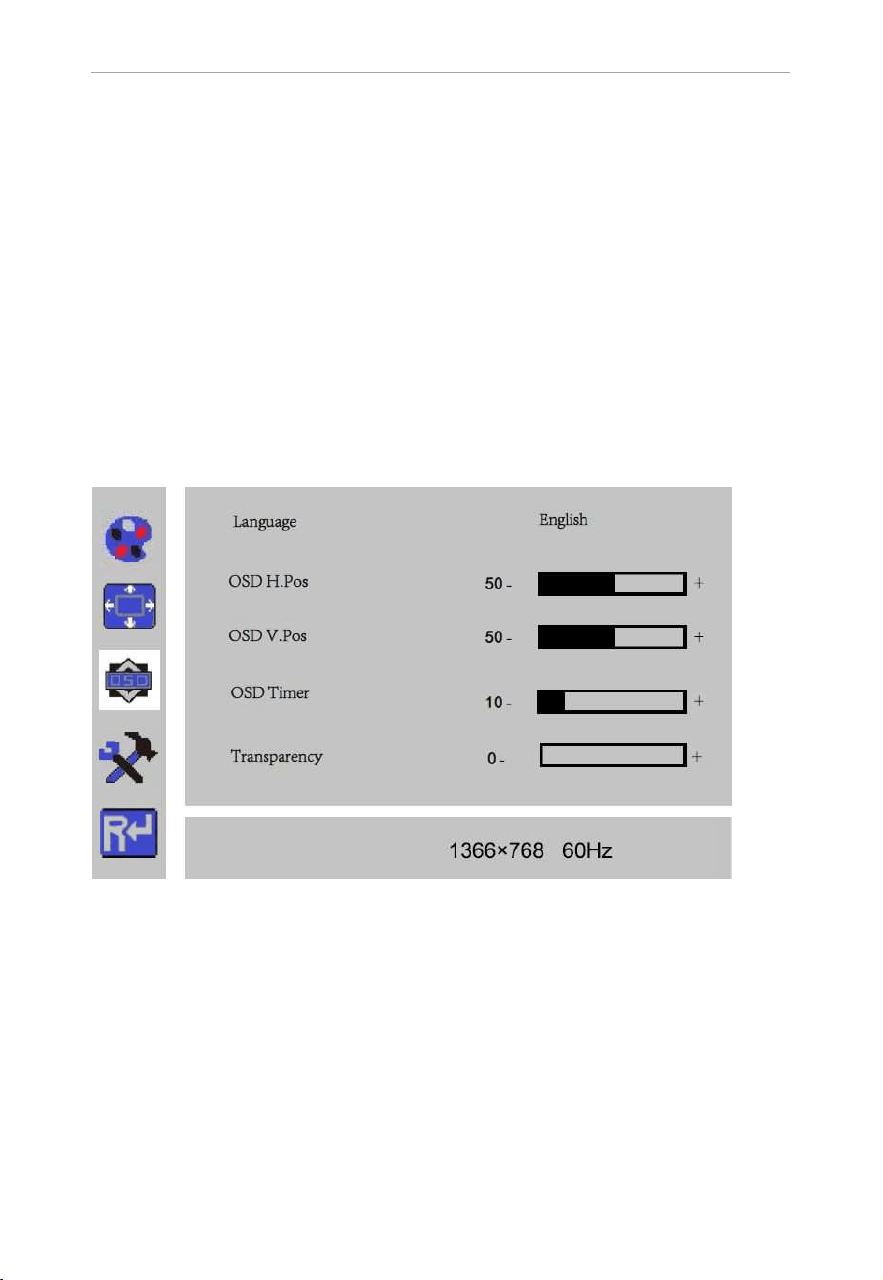
4.4.3 OSD Setting
Purpose:
You can set the language, blending and OSD duration of the menu.
Steps:
1. Press MENU key to enter the main menu interface.
2. Press ◄ key twice and press MENU key to enter the【Language】interface, press ◄ or ► to switch
the language you want.
3. Select OSD H.Pos/OSD V.Pos to adjust the position of OSD with ◄ or ►.
4. Select OSD Timer to adjust the OSD duration with ◄ or ►: 5Sec~60Sec.
5. Select Transparency to adjust the OSD transparency value with ◄ or ►.
6. Press AUTO key to return to the main menu after accomplishi
ng the adjustment.
Figure 4.4.3 OSD Setting
6
LCD Monitor User Manual
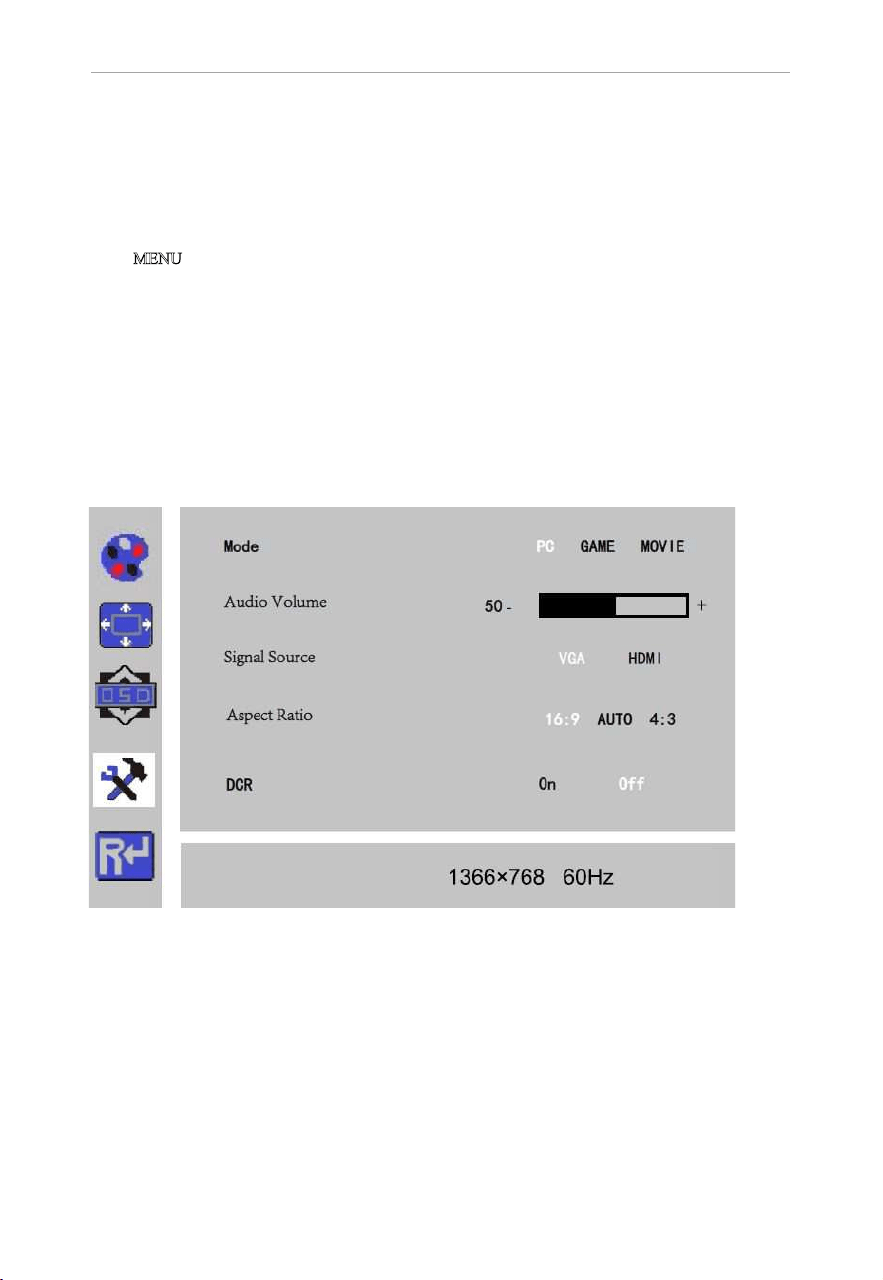
4.4.4 Other Settings
Purpose:
You can set Mode,Audio Volume,Signal Source,Aspect Ratio,DCR.
Steps:
1. Press M
ENU key to enter the main menu interface.
2. Press triple◄ key and press MENU key to enter the Mode interface, press ◄ or ► to switch the mode
between PC/GAME/MOVIE.
3. Press ◄ or ► to adjust the Audio Volume from0~100(optional).
4. Press ◄ or ► to change the Signal Source between VGA and HDMI.
5. Press ◄ or ► to switch the Aspect Ratio between 16:9/AUTO/4:3.
6. Press ◄ or ► to switch the DCR On/Off.
7. Press MENU key to return to the main menu after accomplishing the adjustment.
Figure4.4.4 Other Settings
7
LCD Monitor User Manual
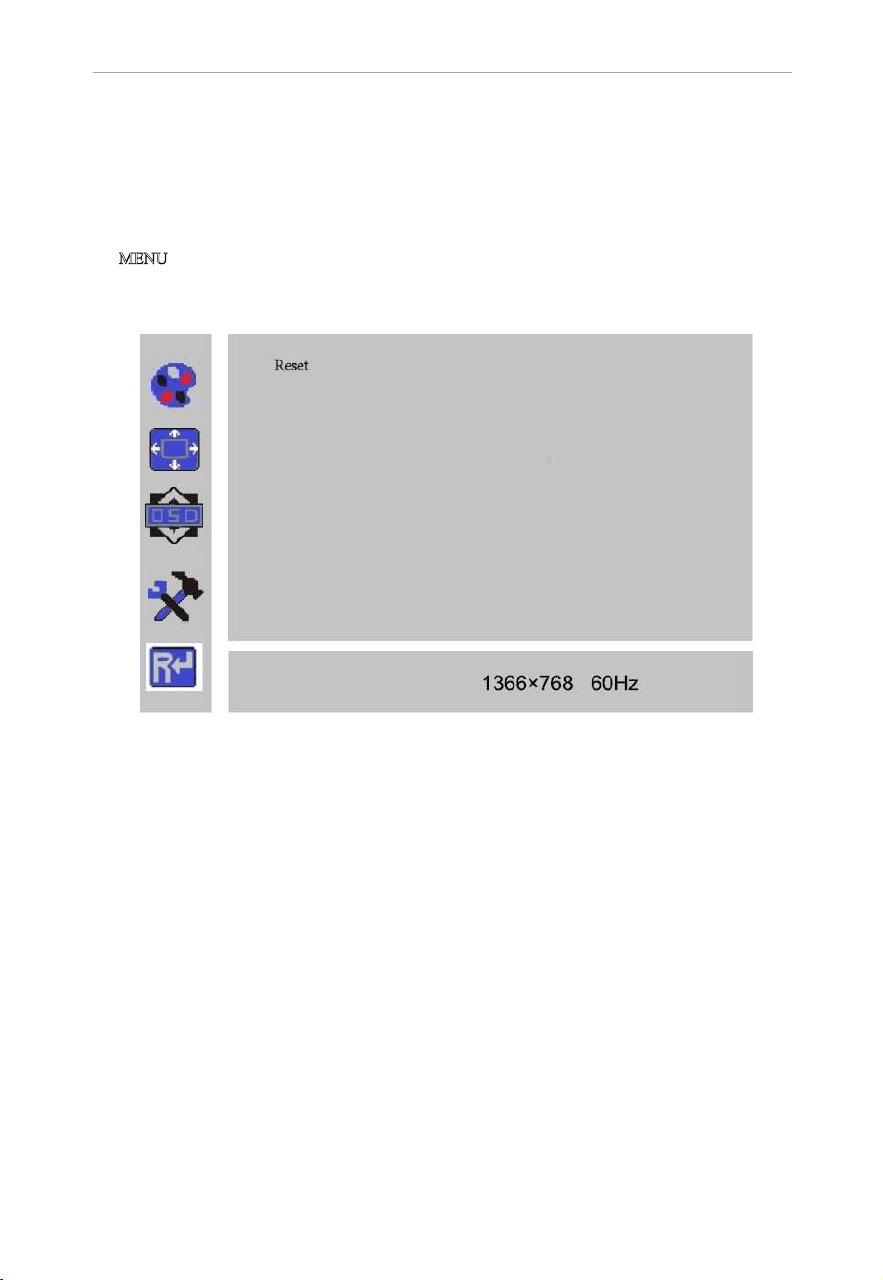
4.4.5 Reset Setting
Purpose:
You can reset settings to the factory defaults.
Steps:
1.Press M
ENU key to enter the main menu interface.
2.Press ◄ key 4 times and press MENU key to
reset settings to the factory defaults.
Figure 4.4.5 Reset Setting
8
LCD Monitor User Manual
9
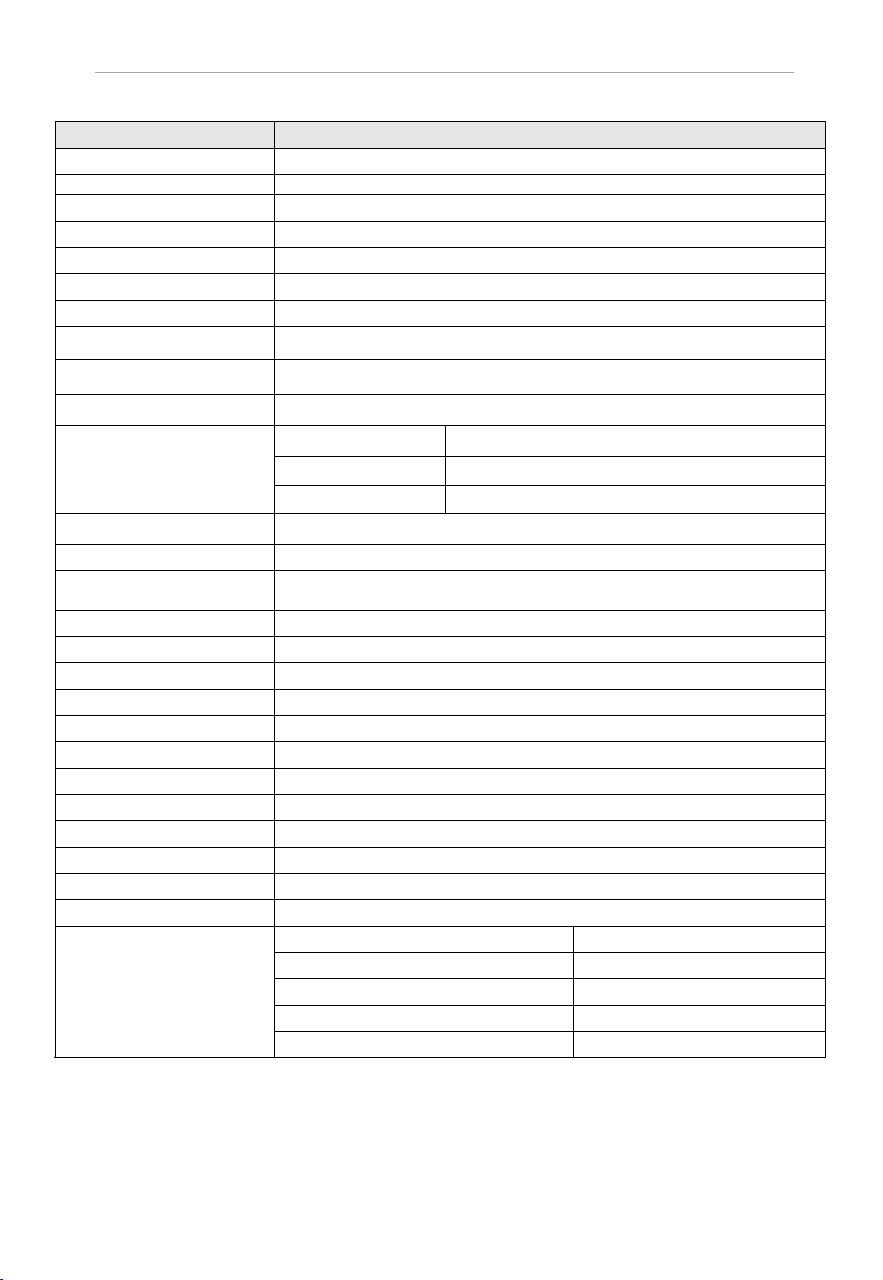
Appendix: Specifications
Device Model DS-D5022FN
Display Type TFT-LED Backlight
Screen Size 21.5"
Dot Pitch
0.247×0.247 mm
Max Resolution 1920×1080
Best Operation Resolution 1920×1080@60Hz
Brightness 250cd/m²
Contrast
3000:1
Color 16.7M
Viewable Area
476×268mm
Viewing Angle Horizontal 178°, Vertical 178º
Interfaces2
VGA Input Port
1
HDMI Input Port
1
AC Input Port
1
Power Supply AC 100-240V; 50/60Hz
Consumption ≤30W
Standby Power
Consumption
≤0.5W
Operation Temperature 0°C~40°C (32°F~104°F)
Operation Humidity 10%~85%
Storage Temperature:
-20°C~60°C (-4°F~140°F)
Storage Humidity: 5%~95%
Bezel Material Plastic
Bezel Color Black
Wall-mounting Dot Site 100×100mm
Wall-mounting Thread M4
Device Dimensions
489×378×167mm
Package Dimensions 539×379×110mm
G.W.
3.75Kg
N.W. 2.752Kg
Standard Package
Display Unit 1
VGA Cord 1
User Manual 1
Power Cord 1
1
HDMI Cord
(optional)
LCD Monitor User Manual
10
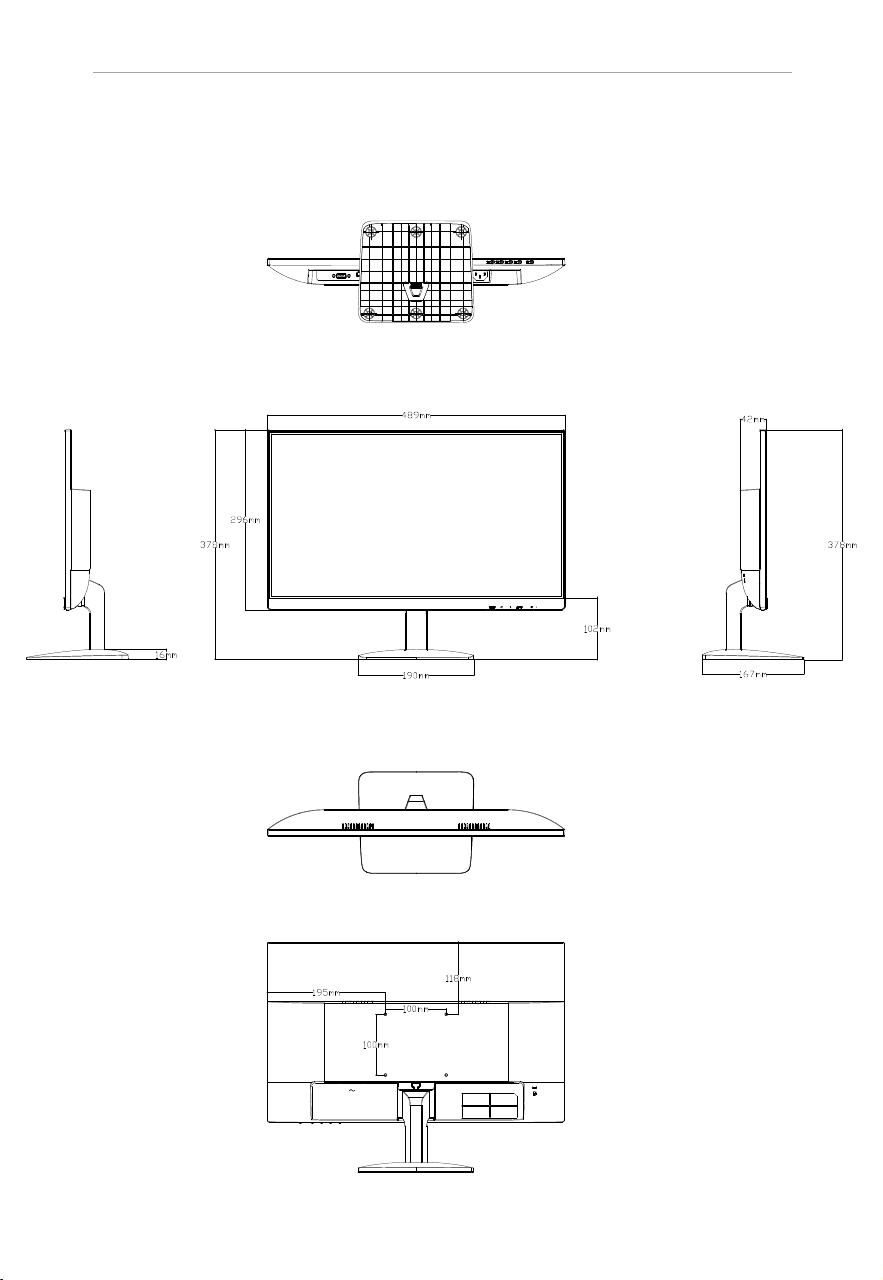
Structure Figure
LCD Monitor User Manual
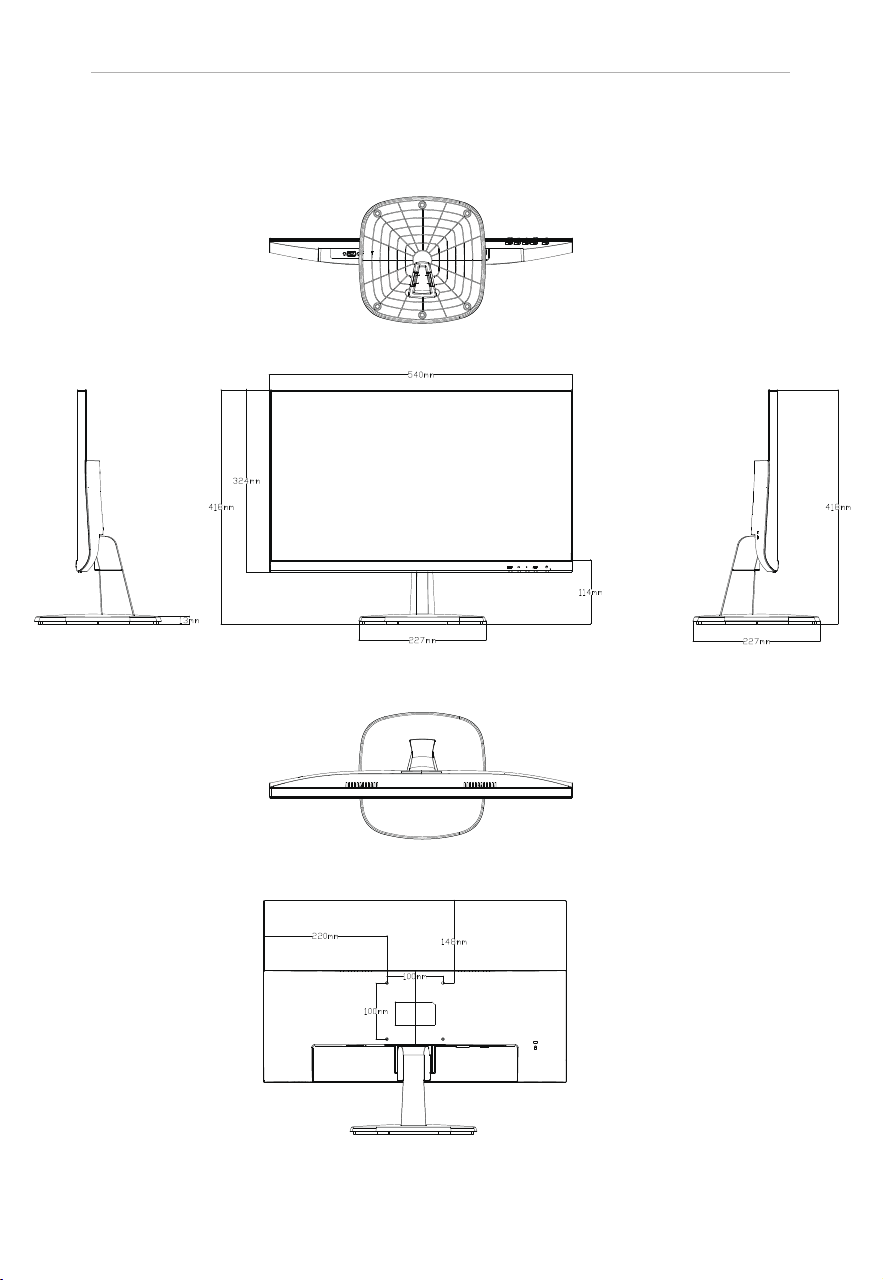
VESA 100*100mm
M4*12
11
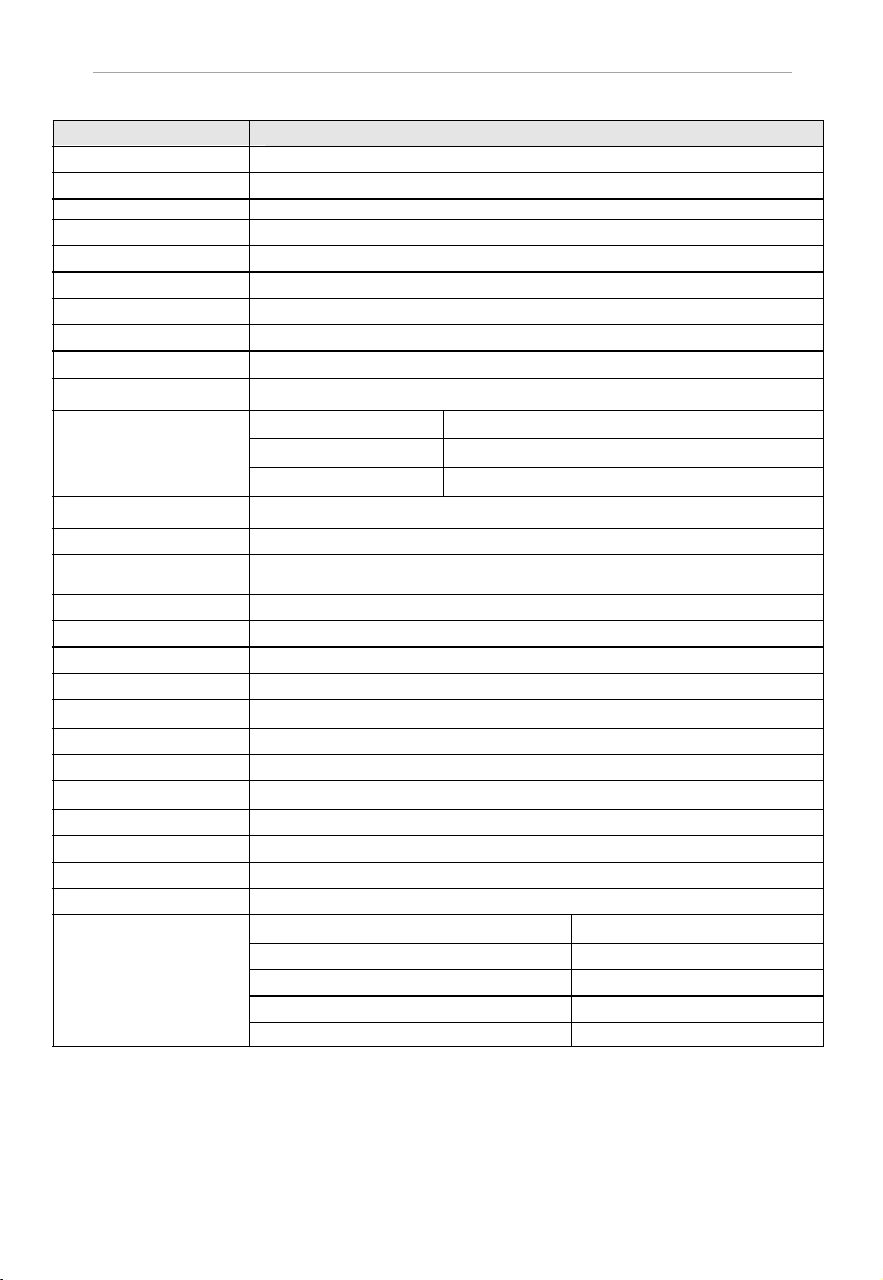
Appendix: Specifications
Device Model DS-D5024FN
Display Type
TFT-LED Backlight
Screen Size
23.8"
Dot Pitch 0.2745×0.2745mm
Max Resolution 1920×1080
Best Operation Resolution 1920×1080@60Hz
Brightness 250cd/m²
Contrast 1000:1
Color 16.7M
Viewable Area 527×296mm
Viewing Angle
Hor
izontal 178°, Vertical 178º
Interfaces
VGA Input Port
1
AC Input Port
Power Supply AC 100-240V; 50/60Hz
C
onsumption
≤30W
Standby Power
Consumption
≤0.5W
Operation Temperature 0°C~40°C (32°F~104°F)
Operation Humidity 10%~85%
Storage Temperature:
-20°C~60°C (-4°F~140°F)
Storage Humidity: 5%~95%
Bezel Material Plastic
Bezel Color Black
Wall-mounting Dot Site
100×100mm
Wall-mounting Thread M4
Device Dimensions 540×418×227mm
Package Dimensions 618×491×112mm
G.W.
4.44Kg
N.W.
3.43Kg
Standard Package
Display Unit 1
VGA Cord
1
User Manual 1
Power Cord
1
1
HDMI Cord
(optional)
HDMI Input Port
1
1
LCD Monitor User Manual
12
Structure Figure
LCD Monitor User Manual
LCD Monitor User Manual
VESA 100*100mm
M4*12
Appendix: Specifications
Device Model DS-D5027FN
Display Type
TFT-LED Backlight
Screen Size
27"
Dot Pitch 0.311×0.311mm
Max Resolution 1920×1080
Best Operation Resolution 1920×1080@60Hz
Brightness 300cd/m²
Contrast 1000:1
Color 16.7M
Viewable Area 598×336mm
Viewing Angle
Hor
izontal 178°, Vertical 178º
Interfaces
VGA Input Port
1
AC Input Port
Power Supply
AC 100-240V; 50/60Hz
Consumption
≤35W
Standby Power
Consumption
≤0.5W
Operation Temperature 0°C~40°C (32°F~104°F)
Operation Humidit
y 10%~85%
Storage Temperature:
-20°C~60°C (-4°F~140°F)
Storage Humidity: 5%~95%
Bezel Material Plastic
Bezel Color Black
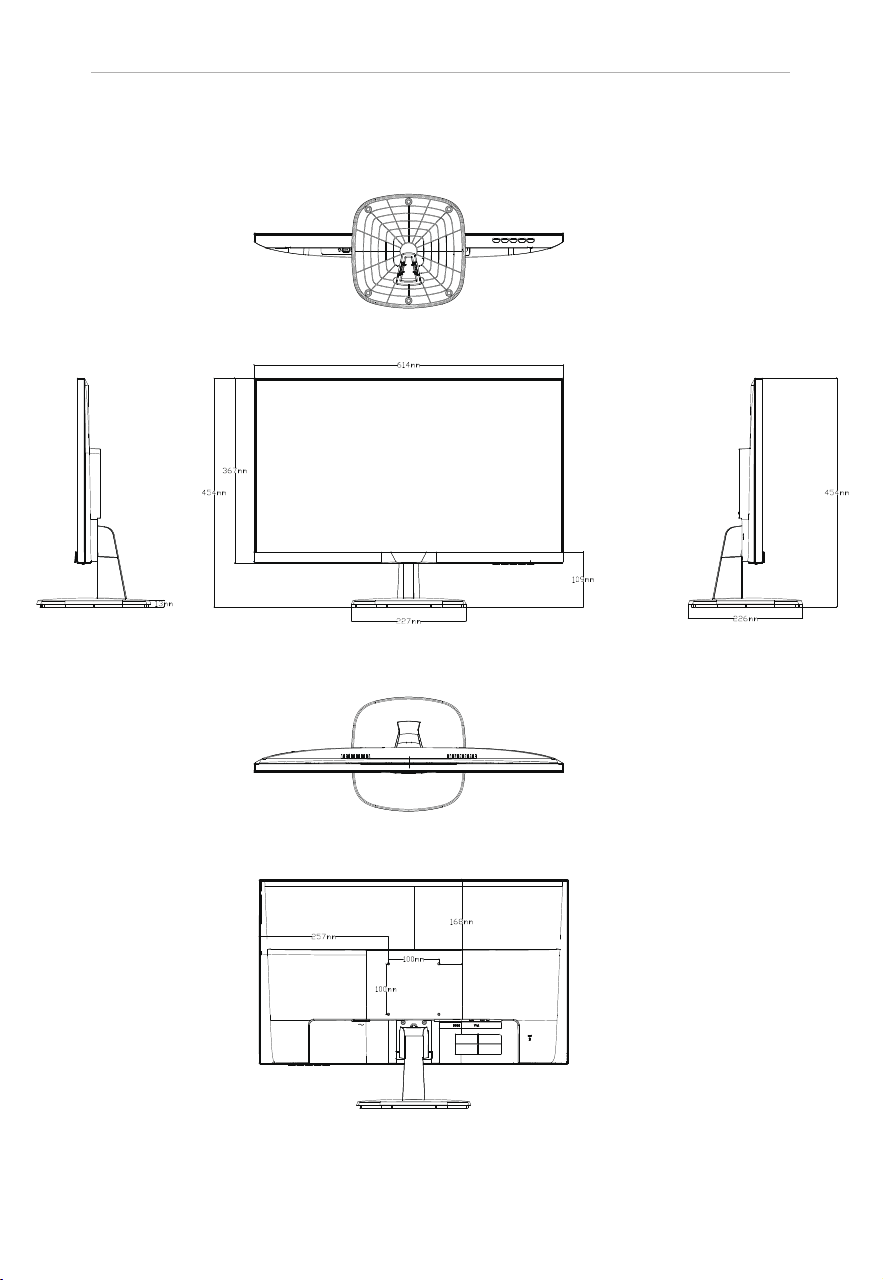
Wall-mounting Dot Site 100×100mm
Wall-mounting Thread M4
Device Dimensions 614×454×226mm
Package Dimensions 675×547×136mm
G.W. 5.624Kg
N.W. 4.056Kg
Standard Package
Display Unit
1
VG
A Cord 1
User Manual 1
P
ower Cord 1
1
HDMI Cord
(optional)
HDMI Input Port
1
1
13
LCD Monitor User Manual
Structure Figure
14
LCD Monitor User Manual
VESA 100*100mm
M4*12

PN:G6AUM215000058