
User Guide
SUMMARY
This guide provides technical specifications and information about monitor features, setting up the monitor, and
using the monitor.

Legal information
© Copyright 2024 HP Development
Company, L.P.
Microsoft and Windows are either registered
trademarks or trademarks of Microsoft
Corporation in the United States and/or
other countries. USB Type-C and USB-
C are registered trademarks of USB
Implementers Forum. VESA, DisplayPort™
and the DisplayPort™ logo are trademarks
owned by the Video Electronics Standards
Association (VESA) in the United States and
other countries.
The information contained herein is subject
to change without notice. The only
warranties for HP products and services are
set forth in the express warranty statements
accompanying such products and services.
Nothing herein should be construed as
constituting an additional warranty. HP shall
not be liable for technical or editorial errors
or omissions contained herein.
Product notice
This guide describes features that are
common to most models. Some features
may not be available on your product.
To access the latest user guide, go to
http://www.hp.com/support, and follow the
instructions to find your product. Then select
Setup & User Guides.
To help us improve this document, please
send any suggestions, comments, or errors
to mailto:hp.doc.f[email protected]. Include
the document part number when submitting
your feedback.
First Edition: January 2024
Document part number: N76622-001

Table of contents
1 About this guide..................................................................................................................................................................................................................................... 1
2 Getting started...................................................................................................................................................................................................................................... 2
Important safety information............................................................................................................................................................................................... 2
More HP resources......................................................................................................................................................................................................................3
Preparing to call technical support ......................................................................................................................................................................3
Getting to know your monitor............................................................................................................................................................................................... 3
Features ................................................................................................................................................................................................................................... 3
Front components............................................................................................................................................................................................................. 5
Rear components.............................................................................................................................................................................................................. 5
Locating the serial number and product number......................................................................................................................................8
Setting up the monitor ..............................................................................................................................................................................................................8
Attaching the monitor stand......................................................................................................................................................................................8
Mounting the monitor head........................................................................................................................................................................................ 9
Removing the monitor stand........................................................................................................................................................................10
Attaching the monitor head to a mounting device.......................................................................................................................10
Connecting the cables ................................................................................................................................................................................................. 11
Connecting USB devices ...........................................................................................................................................................................................14
Adjusting the monitor ................................................................................................................................................................................................... 15
Installing a security cable..........................................................................................................................................................................................18
HP watermark and image retention policy....................................................................................................................................................18
3 Using the monitor ............................................................................................................................................................................................................................. 19
Downloading HP Display Center .....................................................................................................................................................................................19
Downloading software and utilities...............................................................................................................................................................................19
The Information (INF) file........................................................................................................................................................................................................19
The Image Color Matching (ICM) file............................................................................................................................................................................20
Using the OSD menu ...............................................................................................................................................................................................................20
Using the Joypad buttons.................................................................................................................................................................................................... 20
Reassigning the OSD menu options............................................................................................................................................................................. 21
Display mode status................................................................................................................................................................................................................. 21
Changing the Power Mode setting (select products only)........................................................................................................................... 22
Using Auto-Sleep Mode......................................................................................................................................................................................................... 22
Using PiP and PbP (select products only)................................................................................................................................................................. 22
DisplayPort multistreaming over DisplayPort (select products only) ................................................................................................. 23
DisplayPort multistreaming over DisplayPort or USB Type-C (select products only)...............................................................24
4 Support and troubleshooting.................................................................................................................................................................................................. 26
Solving common issues........................................................................................................................................................................................................ 26
iii

Button lockouts ............................................................................................................................................................................................................................27
5 Maintaining the monitor.............................................................................................................................................................................................................. 28
Maintenance guidelines........................................................................................................................................................................................................ 28
Cleaning the monitor ................................................................................................................................................................................................... 28
Shipping the monitor....................................................................................................................................................................................................29
Appendix A Technical specifications ....................................................................................................................................................................................30
60.5 cm (23.8 in) model specifications .......................................................................................................................................................................30
61 cm (24 in) model specifications..................................................................................................................................................................................31
61 cm (24 in) USB Type-C model specifications ....................................................................................................................................................31
Preset display resolutions................................................................................................................................................................................................... 32
60.5 cm (23.8 in) model................................................................................................................................................................................................ 32
61 cm (24 in) model ......................................................................................................................................................................................................... 33
61 cm (24 in) USB Type-C model............................................................................................................................................................................33
60.5 cm (23.8 in) model high-definition video formats ....................................................................................................................................34
61 cm (24 in) model high-definition video formats.............................................................................................................................................. 35
61 cm (24 in) USB Type-C model high-definition video formats.................................................................................................................35
Energy saver feature...............................................................................................................................................................................................................35
Appendix B Accessibility................................................................................................................................................................................................................36
HP and accessibility.................................................................................................................................................................................................................36
Finding the technology tools you need...........................................................................................................................................................36
The HP commitment.....................................................................................................................................................................................................36
International Association of Accessibility Professionals (IAAP)...................................................................................................37
Finding the best assistive technology..............................................................................................................................................................37
Assessing your needs ......................................................................................................................................................................................37
Accessibility for HP products......................................................................................................................................................................37
Monitor accessibility features (select products/regions only).................................................................................................................38
Built-in accessibility features.................................................................................................................................................................................38
What is Accessibility Mode?...................................................................................................................................................................................38
How do you turn Accessibility Mode on or off?........................................................................................................................................38
Standards and legislation ...................................................................................................................................................................................................39
Standards............................................................................................................................................................................................................................. 39
Mandate 376 – EN 301 549 ............................................................................................................................................................................40
Web Content Accessibility Guidelines (WCAG).............................................................................................................................40
Legislation and regulations.....................................................................................................................................................................................40
Useful accessibility resources and links ..................................................................................................................................................................40
Organizations..................................................................................................................................................................................................................... 41
Educational institutions .............................................................................................................................................................................................. 41
Other disability resources ........................................................................................................................................................................................ 41
HP links.................................................................................................................................................................................................................................... 41
Contacting support.................................................................................................................................................................................................................. 42
Index................................................................................................................................................................................................................................................................43
iv

About this guide1
This guide provides technical specifications and information about monitor features, setting up the
monitor, and using the software. Depending on the model, your monitor may not have all the features
included in this guide.
WARNING! Indicates a hazardous situation that, if not avoided, could result in serious injury or death.
CAUTION: Indicates a hazardous situation that, if not avoided, could result in minor or moderate
injury.
IMPORTANT: Indicates information considered important but not hazard-related (for example,
messages related to property damage). Warns the user that failure to follow a procedure exactly as
described could result in loss of data or in damage to hardware or software. Also contains essential
information to explain a concept or to complete a task.
NOTE: Contains additional information to emphasize or supplement important points of the main text.
TIP: Provides helpful hints for completing a task.
About this guide
1

Getting started2
Read this chapter to learn about safety information and where to find additional HP resources.
Important safety information
A power cord is included with the monitor. If you use another cord, use only a power source and
connection appropriate for this monitor. For information about the correct power cord set to use with
the monitor, see the
Product Notices
provided in your documentation kit.
WARNING! To reduce the risk of electric shock or damage to the equipment:
● Plug the power cord into an AC outlet that is easily accessible at all times.
● If the power cord has a three-pin attachment plug, plug the cord into a grounded (earthed) three-
pin outlet.
● Disconnect power from the monitor by unplugging the power cord from the AC outlet. When
unplugging the power cord from the AC outlet, grasp the cord by the plug.
For your safety, do not place anything on power cords or cables. Take care to route all cords and cables
connected to the monitor so that they cannot be stepped on, pulled, grabbed, or tripped over.
To reduce the risk of serious injury, read the
Safety & Comfort Guide
provided with your user guides.
It describes proper workstation setup and proper posture, health, and work habits for computer users.
The
Safety & Comfort Guide
also provides important electrical and mechanical safety information. The
Safety & Comfort Guide
is also available on the web at http://www.hp.com/ergo.
IMPORTANT: For the protection of the monitor and the computer, connect all power cords for the
computer and its peripheral devices (such as a monitor, printer, scanner) to a surge protection device
such as a power strip or uninterruptible power supply (UPS). Not all power strips provide surge
protection; the power strip must be specifically labeled as having this capability. Use a power strip
whose manufacturer offers a damage replacement policy so that you can replace the equipment if
surge protection fails.
Use the appropriate and correctly sized furniture designed to properly support your monitor.
WARNING! Monitors that are inappropriately situated on dressers, bookcases, shelves, desks,
speakers, chests, or carts could fall over and cause personal injury.
WARNING! Stability hazard: The device might fall, causing serious personal injury or death. To prevent
injury, securely attach the monitor to the floor or wall in accordance with the installation instructions.
WARNING! This equipment is not suitable for use in locations where children are likely to be present.
NOTE: This product is suitable for entertainment purposes. Consider placing the monitor in a
controlled luminous environment to avoid interference from surrounding light and bright surfaces that
might cause disturbing reflections from the screen.
2
Chapter 2 Getting started

More HP resources
Use this table to locate resources that provide product details, how-to information, and more.
Table 2-1 Additional information
Resource Contents
Setup Instructions Overview of monitor setup and features
HP support For HP support or to resolve a hardware or software problem, go
to http://www.hp.com/support, and follow the instructions to find your
product.
– or –
Select the Search icon in the taskbar, type support in the search box,
and then select HP Support Assistant.
– or –
Select the question mark icon in the taskbar.
NOTE: Contact customer support to replace the power cord, the AC adapter (select products only), or
any other cables that shipped with your monitor.
Preparing to call technical support
Use this information if you have to troubleshoot an issue.
If you cannot solve a problem using Support and troubleshooting on page 26, a call to technical
support can provide additional help. Have the following information available when you call.
● Monitor model number
● Monitor serial number
● Purchase date on invoice
● Conditions under which the problem occurred
● Error messages received
● Hardware configuration
● Name and version of the hardware and software that you are using
Getting to know your monitor
Your monitor has top-rated features. This section provides details about your components, where they
are located, and how they work.
Features
Depending on the model, your monitor might include the following features:
More HP resources
3

Display features
● 60.5 cm (23.8 in) diagonal viewable screen area with 1920 × 1080 resolution, plus full-screen support
for lower resolutions; includes custom scaling for maximum image size while preserving original
aspect ratio
● 61 cm (24 in) diagonal viewable screen area with 1920 × 1200 resolution, plus full-screen support for
lower resolutions; includes custom scaling for maximum image size while preserving original aspect
ratio
● Liquid crystal display (LCD) with active matrix and in-plane switching (IPS)
● Wide color gamut to provide coverage of sRGB color spaces
● Nonglare panel with an LED backlight
● Wide viewing angle to allow viewing from a sitting or standing position, or moving from side to side
● Tilt, swivel, and height adjustment capabilities
● Pivot capability to rotate the monitor head from landscape to portrait orientation
● Dual Picture in Picture (PiP) and Picture by Picture (PbP) functionality to enable the USB Type-C,
DisplayPort™, or HDMI inputs to be viewed in each half of the screen (select products only)
● On-screen display (OSD) adjustments in several languages for easy setup and screen optimization
● Color space presets for sRGB and BT.709
● Energy saver feature to meet requirements for reduced power consumption
● Security cable slot on the rear of the monitor for an optional security cable
● Cable management feature for placement of cables and cords
Connectors
● DisplayPort video input (cable included in select regions)
● DisplayPort video output (cable included in select regions)
● High-Definition Multimedia Interface (HDMI) video input
● USB Type-C® port (select products only)
● USB hub with one USB Type-B (select products only) or USB Type-C port (select products only)
that connects to the computer (upstream) and four USB ports that connect to USB devices
(downstream)
● USB Type-C–to–USB Type-C DisplayPort Alt Mode, 100 W power delivery cable (select products only)
● USB Type-C–to–USB cable (select products only)
● DisplayPort cable (included in select regions)
● HDMI cable (included in select regions)
● Plug and Play capability, if supported by your operating system
● RJ-45 (network) jack (select products only)
4
Chapter 2 Getting started
Monitor stand
● Removable stand for flexible monitor head mounting solutions
● HP Quick Release 2 device to attach the monitor head quickly to the stand with a click, and then
remove it with the convenient sliding tab release
● VESA® mounting bracket for attaching the monitor head to a wall-mount device or swing arm
● VESA mounting capability (100 × 100 mm) for attaching the monitor to a swing arm mount
● Support for a mounting bracket to attach the monitor to a Mini workstation or Mini desktop
NOTE: For safety and regulatory information, see the
Product Notices
provided in your
documentation kit. To access the latest user guide, go to http://www.hp.com/support, and follow the
instructions to find your product. Then select Setup & User Guides.
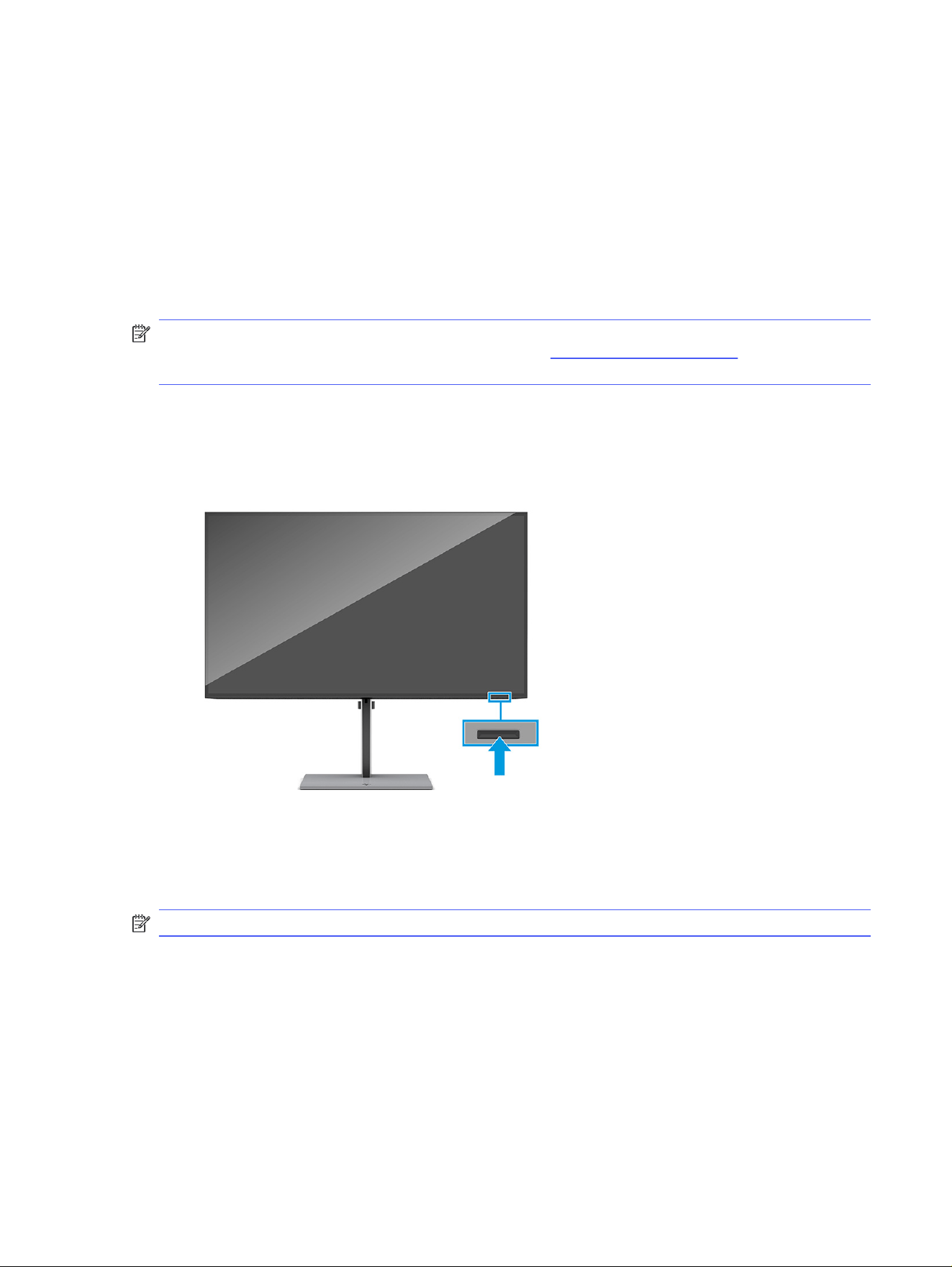
Front components
To identify the power button on the front of the monitor, use this illustration.
Rear components
To identify the components on the rear of the monitor, use this illustration and table.
NOTE: Refer to the illustration that best matches your monitor.
Front components
5
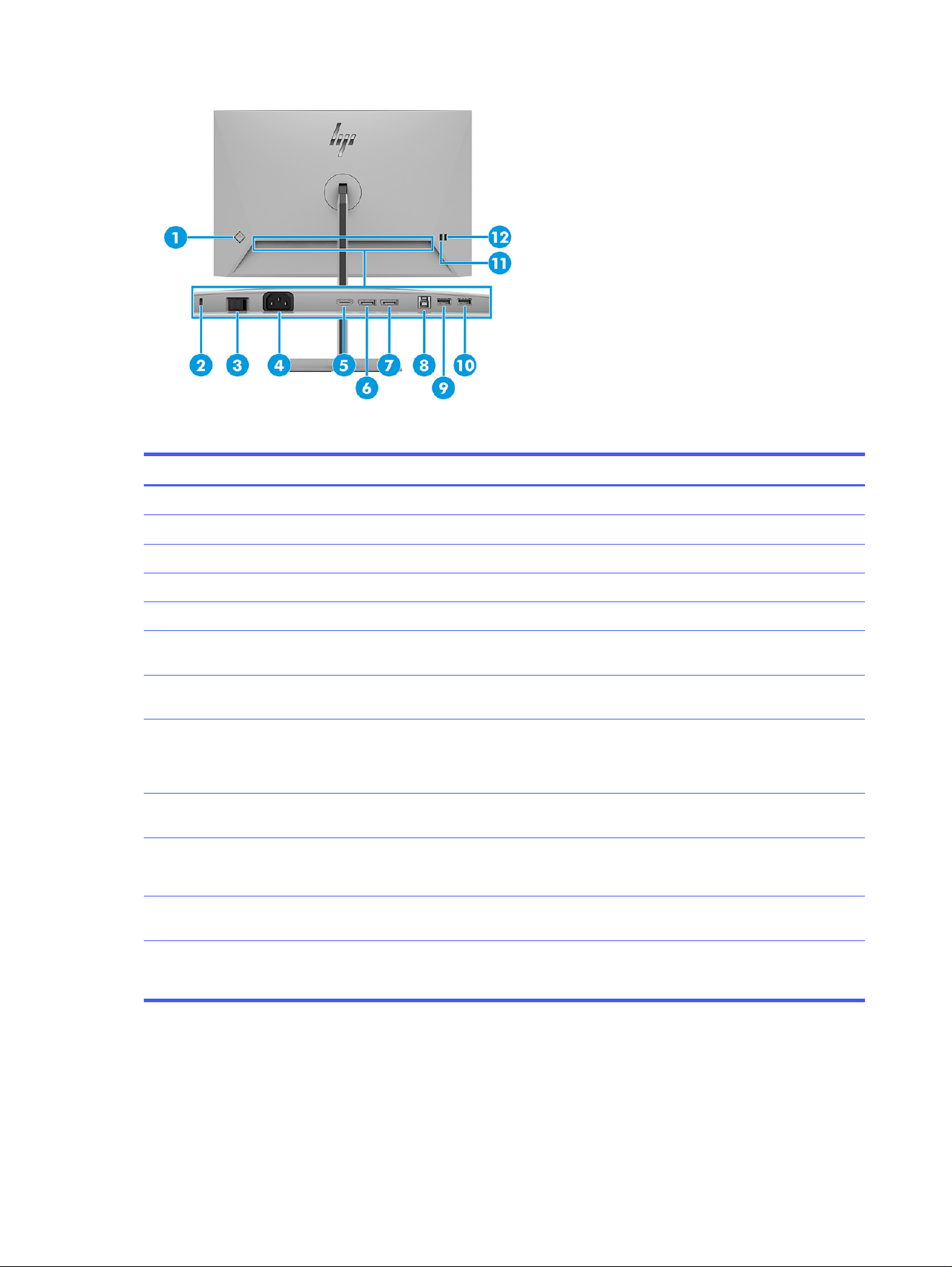
Table 2-2 Rear components and their descriptions
Component Description
(1) Joypad Press to open the OSD settings.
(2) Security cable slot Connects an optional security cable.
(3) Master power switch Turns on or off all power to the monitor.
(4) Power connector Connects your monitor to a power outlet.
(5) HDMI port Connects the HDMI cable to a source device such as a computer.
(6) DisplayPort connector Connects the DisplayPort cable to a source device such as a
computer.
(7) DisplayPort connector OUT Connects the DisplayPort cable from the monitor to a secondary
monitor.
(8) USB Type-B port (upstream) Connects the USB Type-B cable to a source device such as a
computer.
This port enables the USB Type-A ports to perform their functions.
(9) USB port Connects a USB cable to a peripheral device, such as a keyboard,
mouse, or USB hard drive.
(10) USB port
Battery charging 1.2
Connects a USB cable to a peripheral device, such as a keyboard,
mouse, or USB hard drive and supports battery charging 1.2.
(11) USB port Connects a USB cable to a peripheral device, such as a keyboard,
mouse, or USB hard drive.
(12) USB port
Battery charging 1.2
Connects a USB cable to a peripheral device, such as a keyboard,
mouse, or USB hard drive and supports battery charging 1.2.
6 Chapter 2 Getting started
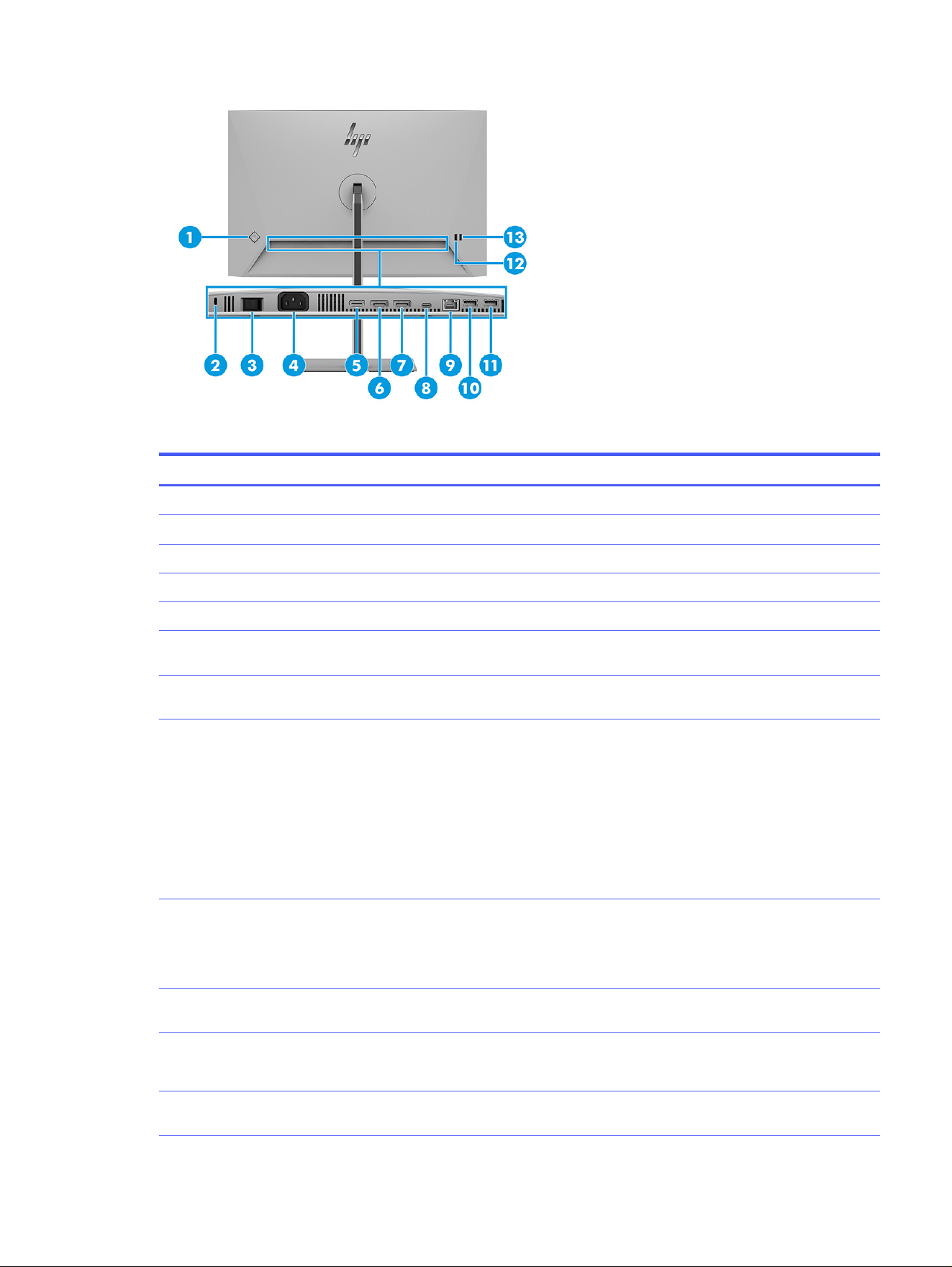
Table 2-3 Rear components and their descriptions
Component Description
(1) Joypad Opens the OSD settings.
(2) Security cable slot Connects an optional security cable.
(3) Master power switch Turns on or off all power to the monitor.
(4) Power connector Connects your monitor to a power outlet.
(5) HDMI port Connects the HDMI cable to a source device such as a computer.
(6) DisplayPort connector Connects a DisplayPort cable to a source device such as a
computer.
(7) DisplayPort connector OUT Connects a DisplayPort cable from the monitor to a secondary
monitor.
(8) USB Type-C port with DP Alt Mode
1.4, USB upstream data, and maximum
power delivery up to 100 W
Connects the USB Type-C cable to a source device such as a
computer.
Charges most USB Type-C devices even when the monitor is in sleep
mode. Power outputs are 20 V/3.25 A, 15 V/4.33 A, 12 V/5 A, 9 V/5 A, 5
V/5 A to achieve a 65 W output, max to 100 W.
NOTE: The monitor must be set to Performance Mode.
This port also enables the USB Type-A ports to perform their
functions.
(9) RJ-45 (network) jack Connects an RJ-45 Ethernet network cable to the monitor.
NOTE: This network port is fully energy efficient according to IEEE
standards (IEEE 802.3az-2010), as long as all connected devices
support this feature.
(10) USB port Connects a USB cable to a peripheral device, such as a keyboard,
mouse, or USB hard drive.
(11) USB port
Battery charging 1.2
Connects a USB cable to a peripheral device, such as a keyboard,
mouse, or USB hard drive and supports battery charging 1.2.
(12) USB port Connects a USB cable to a peripheral device, such as a keyboard,
mouse, or USB hard drive.
Rear components 7
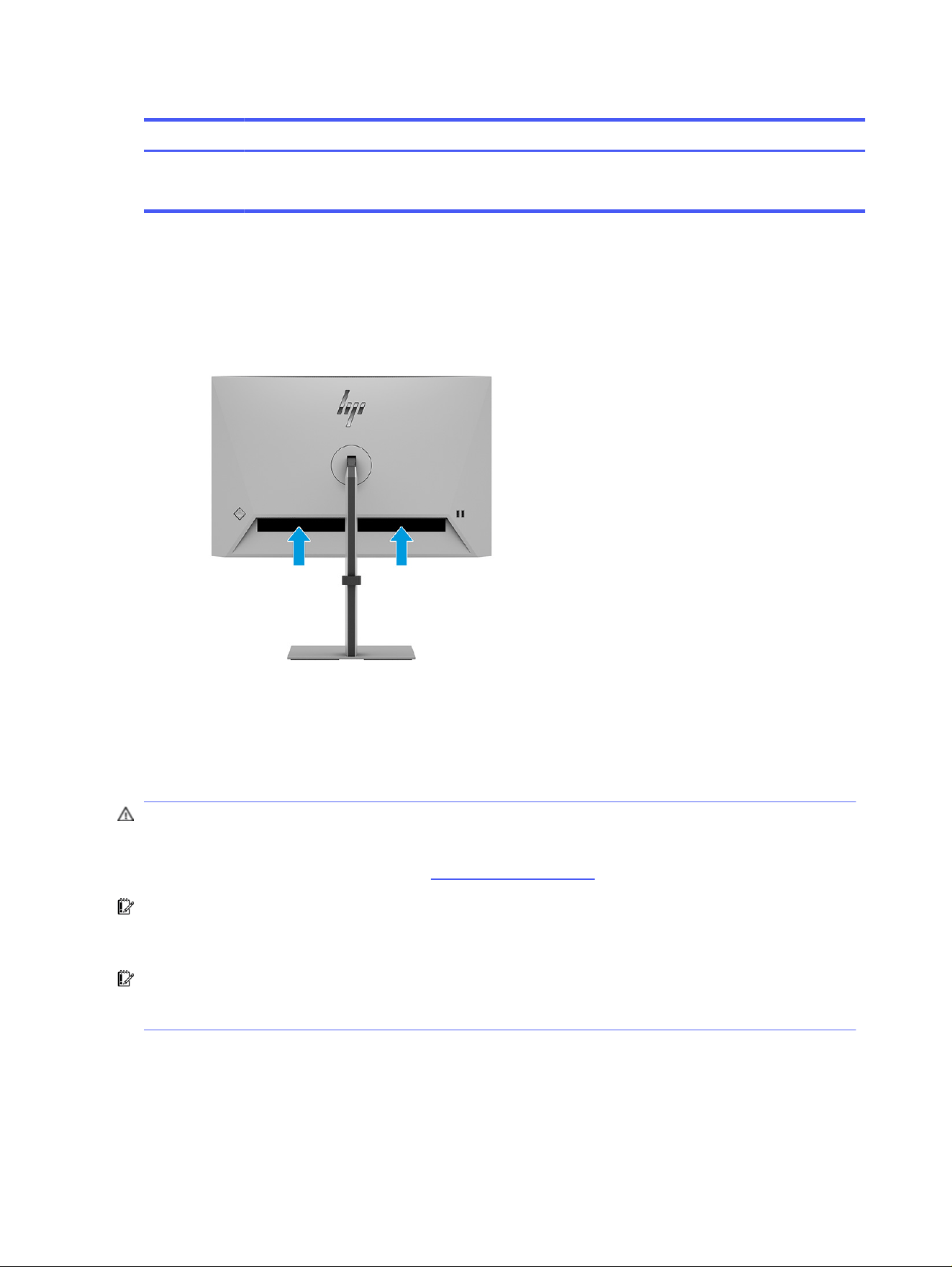
Table 2-3 Rear components and their descriptions (continued)
Component Description
(13) USB port
Battery charging 1.2
Connects a USB cable to a peripheral device, such as a keyboard,
mouse, or USB hard drive and supports battery charging 1.2.
Locating the serial number and product number
Depending on the product, the serial number and product number are located on a label on the rear of
the monitor or on a label under the front bezel of the monitor head. You might need these numbers when
you contact HP for support.
Setting up the monitor
This section describes attaching the monitor stand or wall mount and the options for connecting your
monitor to a PC, notebook, gaming console, or similar device.
WARNING! To reduce the risk of serious injury, read the
Safety & Comfort Guide
. It describes proper
workstation setup and proper posture, health, and work habits for computer users. The
Safety &
Comfort Guide
also provides important electrical and mechanical safety information. The
Safety &
Comfort Guide
is available on the web at http://www.hp.com/ergo.
IMPORTANT: To prevent damage to the monitor, do not touch the surface of the LCD panel. Pressure
on the panel can cause nonuniformity of color or disorientation of the liquid crystals. If this occurs, the
screen will not recover to its normal condition.
IMPORTANT: To prevent the screen from getting scratched, defaced, or broken and to prevent
damage to the control buttons, position the monitor facedown on a flat surface covered with protective
sheet foam or a nonabrasive cloth.
Attaching the monitor stand
Correctly attaching your monitor stand is critical for safe use. This section describes how to attach a
stand safely.
8
Chapter 2 Getting started
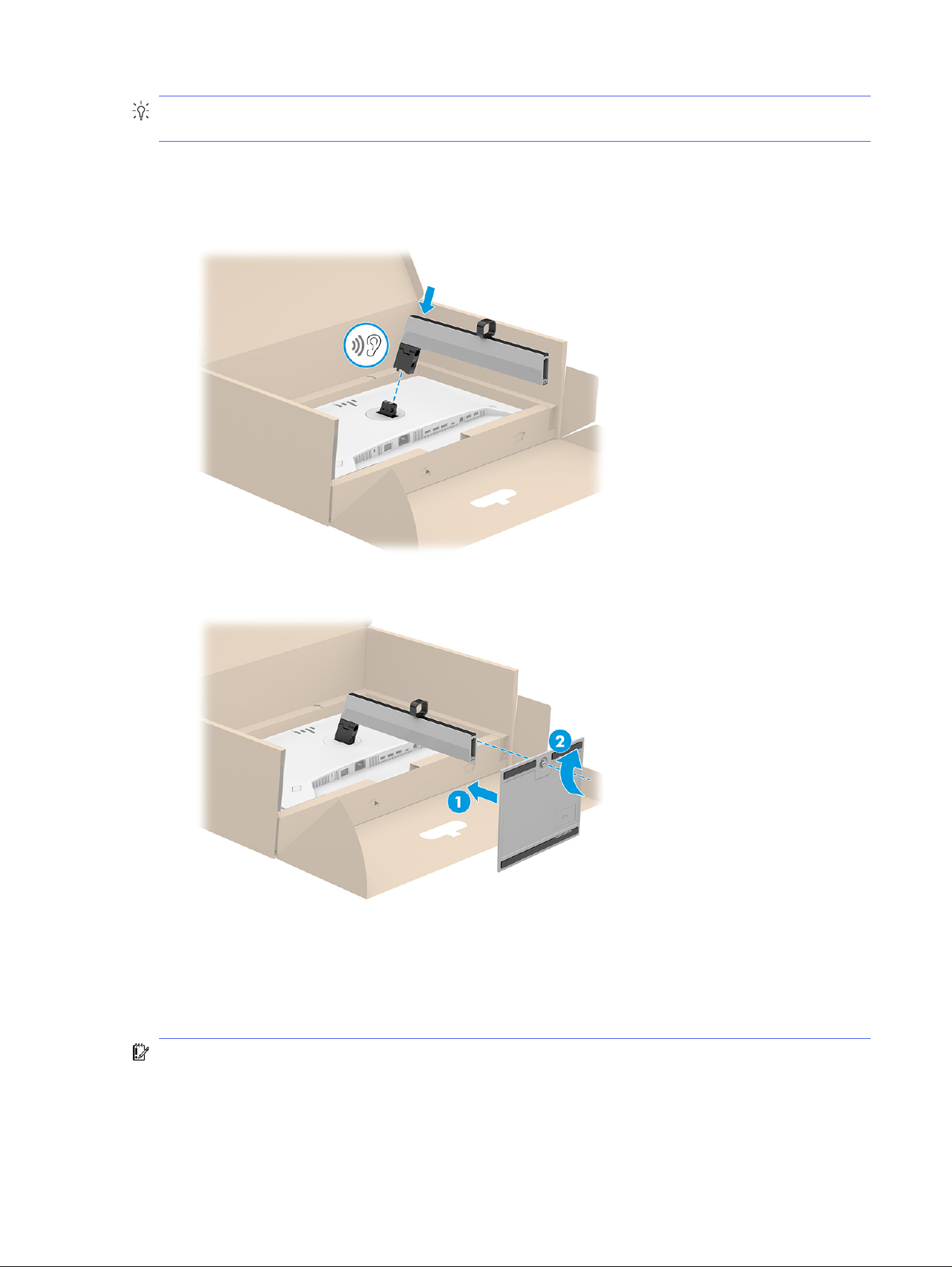
TIP: Consider the placement of the monitor, because surrounding light and bright surfaces might
cause interfering reflections.
1. With the monitor head facedown in the box, attach the stand to the connector on the back of the
monitor.
The latch on the stand clicks when the stand is locked in place.
2. Attach the base to the stand (1), and tighten the screw (2).
Mounting the monitor head
To attach your monitor to a wall using a swing arm or other mounting fixture, follow the steps in this
section to connect your monitor safely and securely.
IMPORTANT: This monitor supports the VESA industry-standard 100 mm mounting holes. To attach a
third-party mounting solution to the monitor head, use four 4 mm, 0.7 pitch, and 10 mm long screws
(M4 × 10L). Longer screws might damage the monitor. Be sure that the manufacturer’s mounting
solution is compliant with the VESA standard and is rated to support the weight of the monitor head.
For best performance, use the power and video cables provided with the monitor.
Mounting the monitor head
9
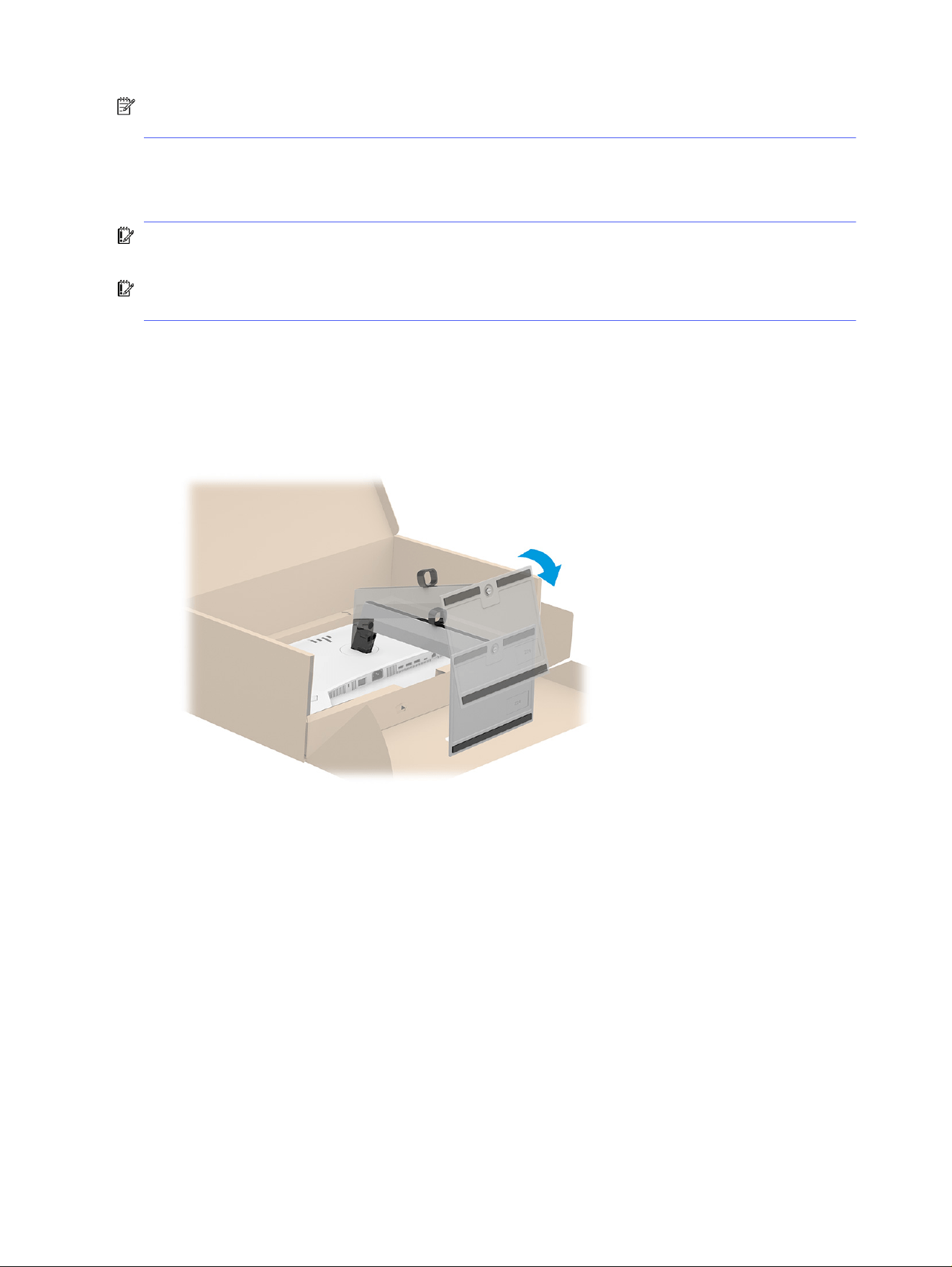
NOTE: This apparatus is intended to be supported by a UL-listed, CSA-listed, or GS-listed wall-mount
bracket.
Removing the monitor stand
If you decide to use a wall mount instead of the monitor stand that you attached, first remove the stand.
IMPORTANT: Before you disassemble the monitor, be sure that the monitor is turned off and all cables
are disconnected.
IMPORTANT: To position and stabilize the monitor, HP recommends that two people perform these
procedures.
1. Disconnect and remove all cables from the monitor.
2. Position the monitor facedown in the box.
3. Push down on the monitor stand.
4. Remove the stand.
Attaching the monitor head to a mounting device
You might need additional tools such as a screwdriver (purchased separately) when you attach a
mounting device. To avoid damage to your monitor, follow these instructions.
1. Remove the two screws from the stand mount on the back of the monitor head (1).
2. Lift the stand mount off of the monitor head (2).
10
Chapter 2 Getting started
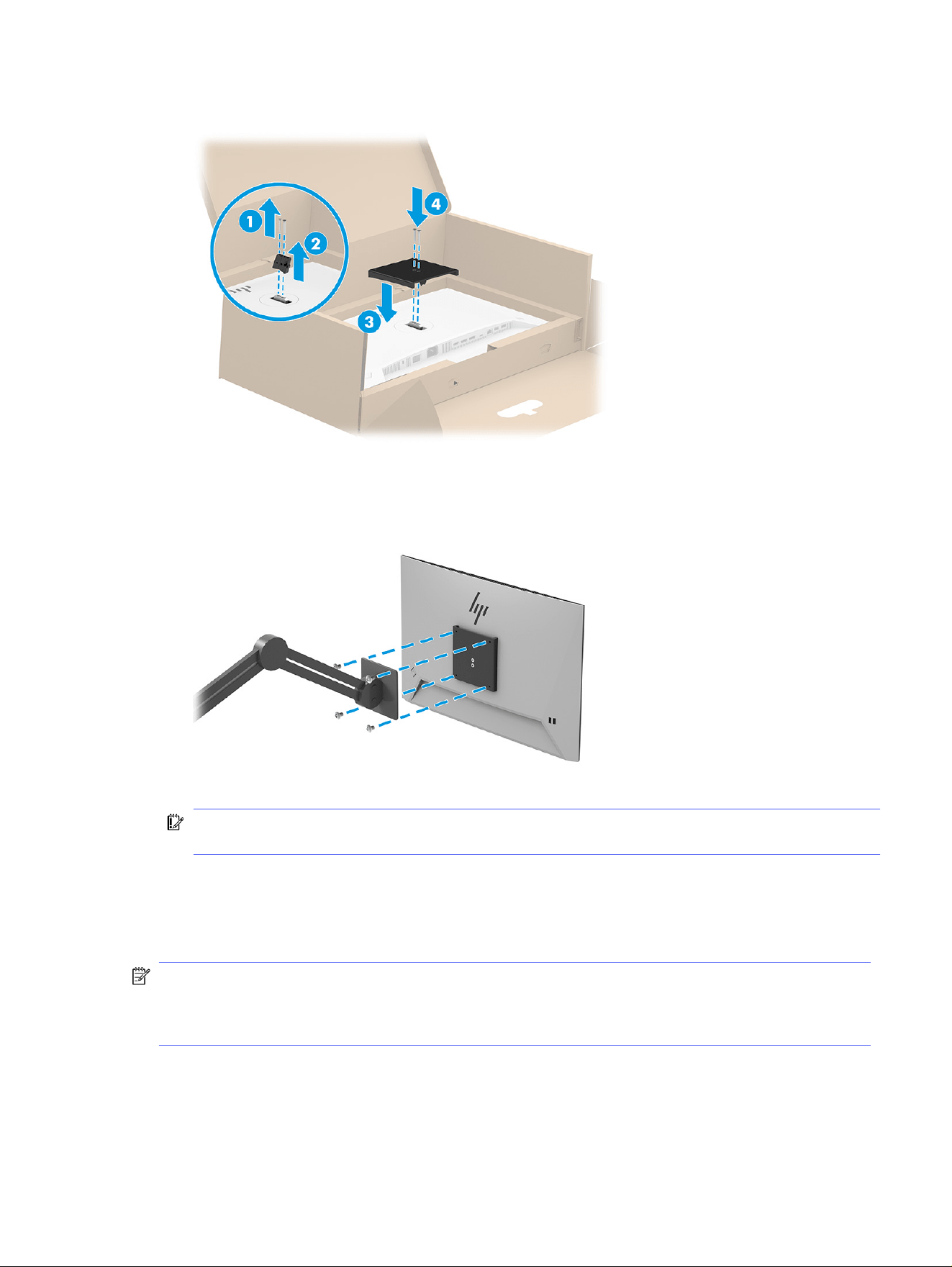
3. Align the VESA mounting plate with the two VESA screw holes (3), and then tighten the screws (4).
4. To attach the monitor head to a swing arm or other mounting device, insert four mounting screws
through the holes on the mounting device into the VESA screw holes on the back of the monitor
head.
IMPORTANT: If these instructions do not apply to your device, follow the mounting device
manufacturer’s instructions when mounting the monitor to a wall or swing arm.
Connecting the cables
In addition to details about how to connect a cable, this section contains information about how your
monitor functions when you connect certain cables.
NOTE: Depending on the model, the monitor might be capable of supporting USB Type-C, HDMI, or
DisplayPort inputs. The video mode is determined by the video cable used. The monitor automatically
determines which inputs have valid video signals. You can select the inputs through the OSD menu. The
monitor ships with select cables. Not all cables shown in this section are included with the monitor.
1. Place the monitor in a convenient, well-ventilated location near the computer.
Connecting the cables
11
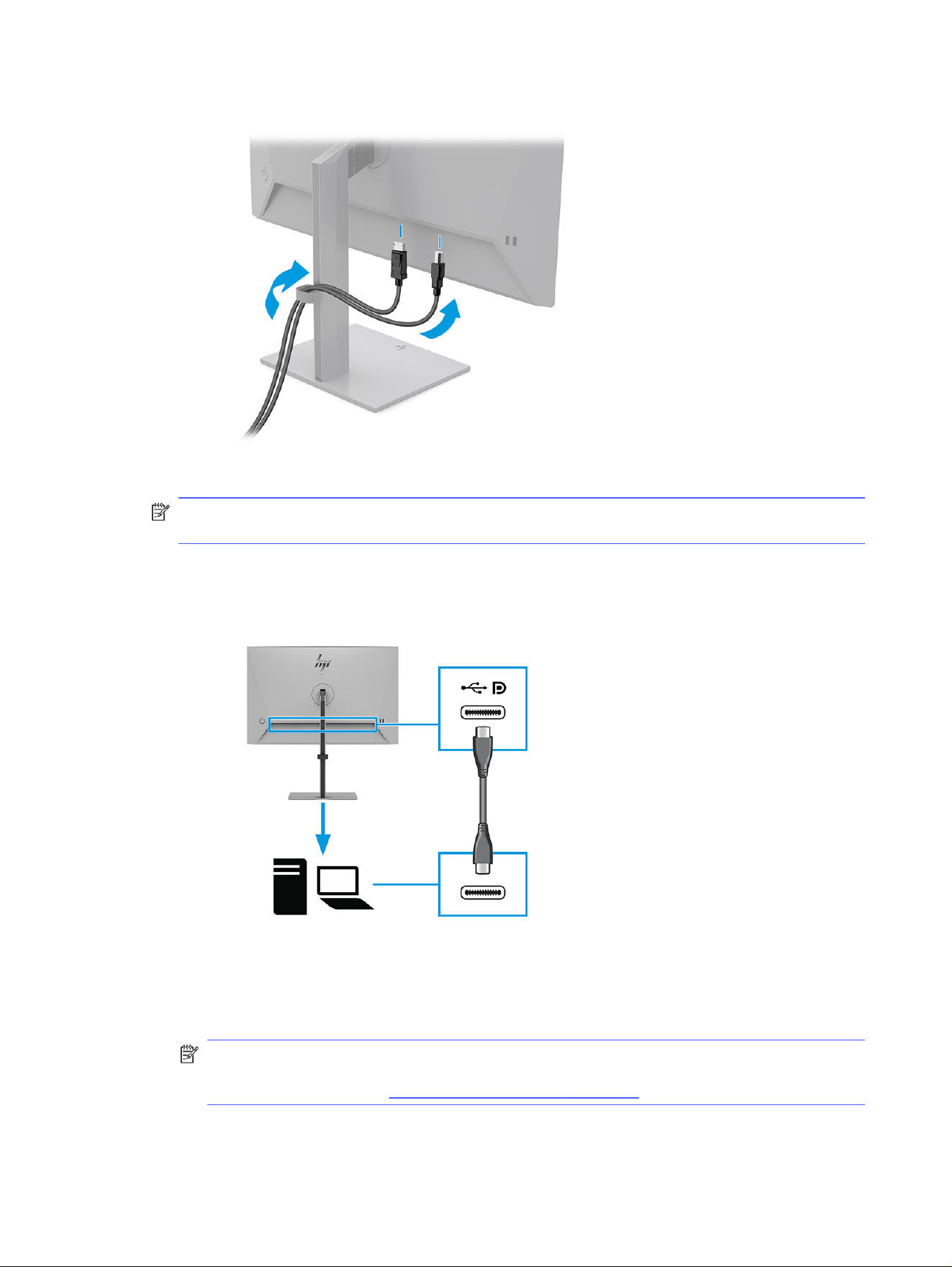
2. Route the signal cable and power cable through the cable routing fixture on the monitor stand.
3. Connect a video cable.
NOTE: The monitor automatically determines which inputs have valid video signals. To select any
input, open the OSD menu and select Input.
● Connect one end of a USB Type-C cable to the USB Type-C port on the rear of the monitor
and the other end to the USB Type-C port on the source device. Use only the HP-approved USB
Type-C cable provided with the monitor (select products only).
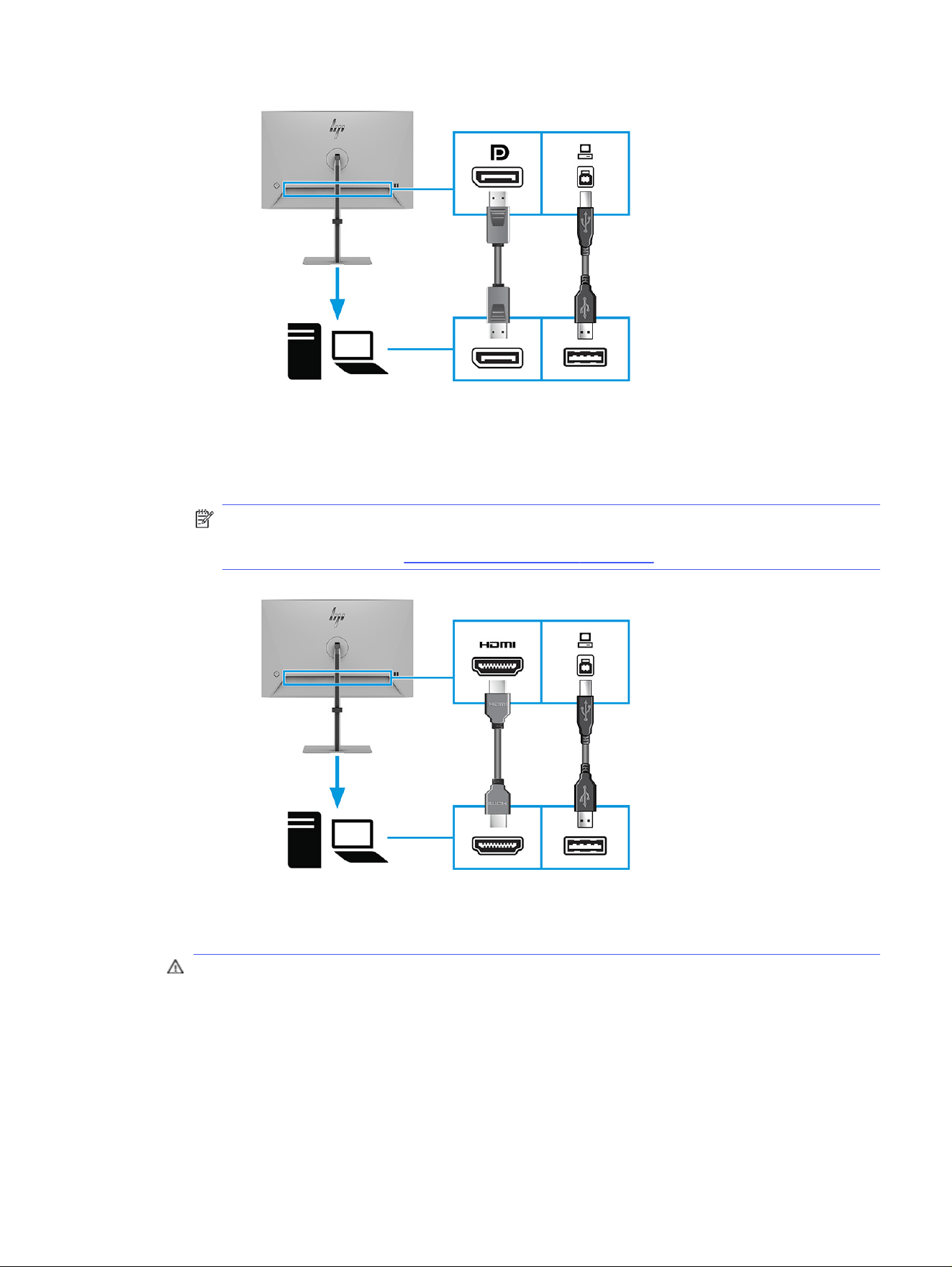
● Connect one end of a DisplayPort cable to the DisplayPort connector on the rear of the monitor
and the other end to the DisplayPort connector on the source device. For products with a USB
Type-A to USB Type-B cable, connect one end of the cable to the USB Type-B port on the rear of
the monitor and the other end to the USB Type-A port on the source device.
NOTE: You must connect a USB Type-B cable (select products only) from the source device
(computer or laptop) to the rear of the monitor to enable the USB Type-A ports on the monitor.
For more information, see Connecting USB devices on page 14.
12
Chapter 2 Getting started
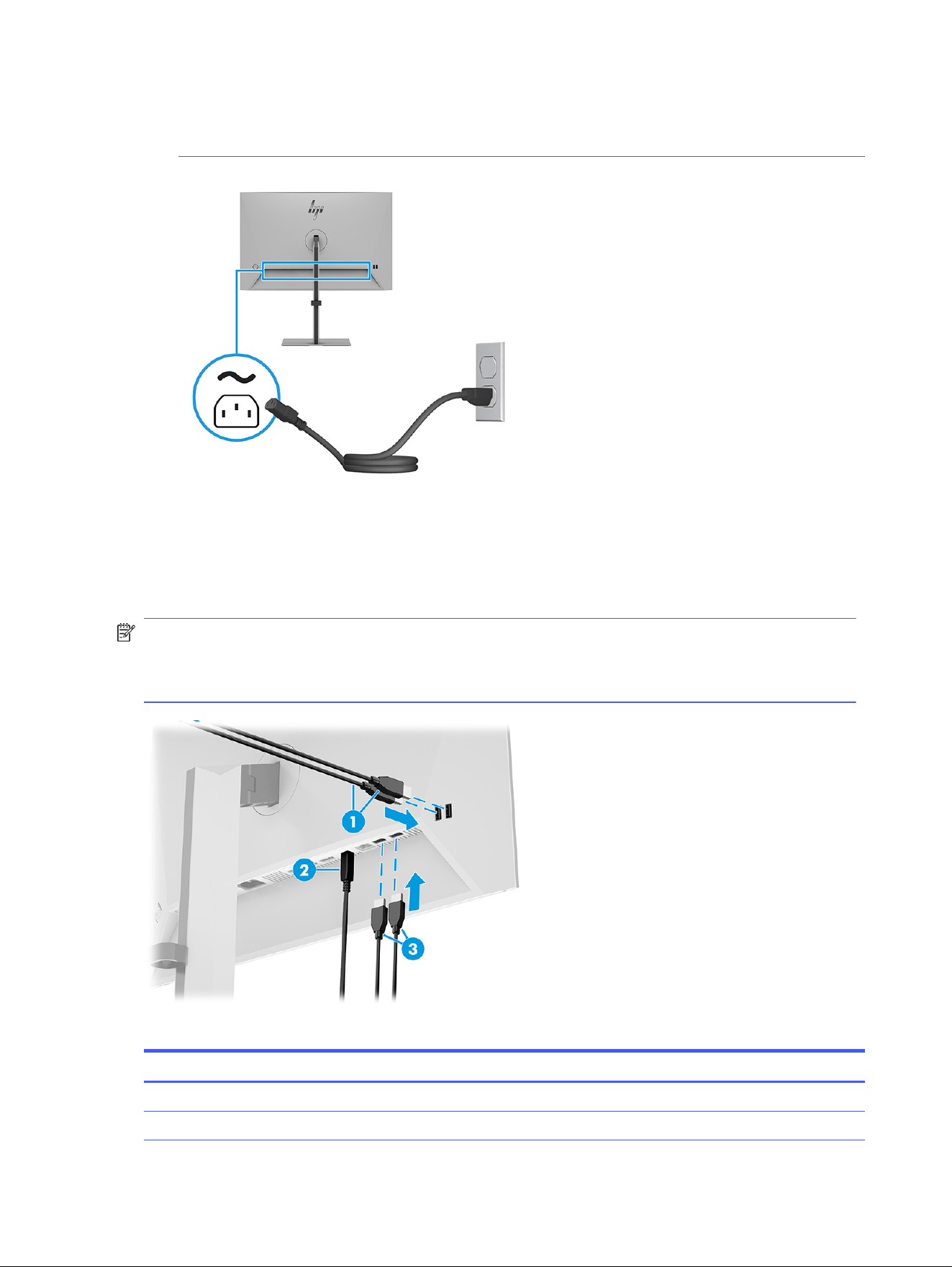
● Connect one end of an HDMI cable to the HDMI port on the rear of the monitor and the other
end to the HDMI port on the source device. For products with a USB Type-A to USB Type-B
cable, connect one end of the cable to the USB Type-B port on the rear of the monitor and the
other end to the USB Type-A port on the source device.
NOTE: You must connect a USB Type-B cable (select products only) from the source device
(computer or laptop) to the rear of the monitor to enable the USB Type-A ports on the monitor.
For more information, see Connecting USB devices on page 14.
4. Connect one end of the power cord to the power connector on the rear of the monitor and the other
end to a grounded AC outlet.
WARNING! To reduce the risk of electric shock or damage to the equipment:
● Do not disable the power cord grounding plug. The grounding plug is an important safety
feature.
● Plug the power cord into a grounded (earthed) AC outlet that is easily accessible at all times.
● Disconnect power from the equipment by unplugging the power cord from the AC outlet.
Connecting the cables
13
For your safety, do not place anything on power cords or cables. Arrange them so that no one can
accidentally step on or trip over them. Do not pull on a cord or cable. When unplugging the power
cord from the AC outlet, grasp the cord by the plug.
Connecting USB devices
Use USB ports to connect devices such as a digital camera, USB keyboard, or USB mouse. There are
four USB ports on the monitor to connect to a device (downstream): two USB Type-A ports and two USB
Type-A ports with battery charging 1.2.
NOTE: You must connect a USB Type-C cable (select products only) or USB Type-B cable (select
products only) from the source device (computer) to the rear of the monitor to enable the USB Type-A
ports to serve as a USB hub for a mouse, keyboards, phones, external hard drives, and most devices
that are USB-connected and able to accept 5 V.
Table 2-4
USB port locations
USB Ports Description
(1) USB Type-A ports
(2) USB Type-B port
14 Chapter 2 Getting started
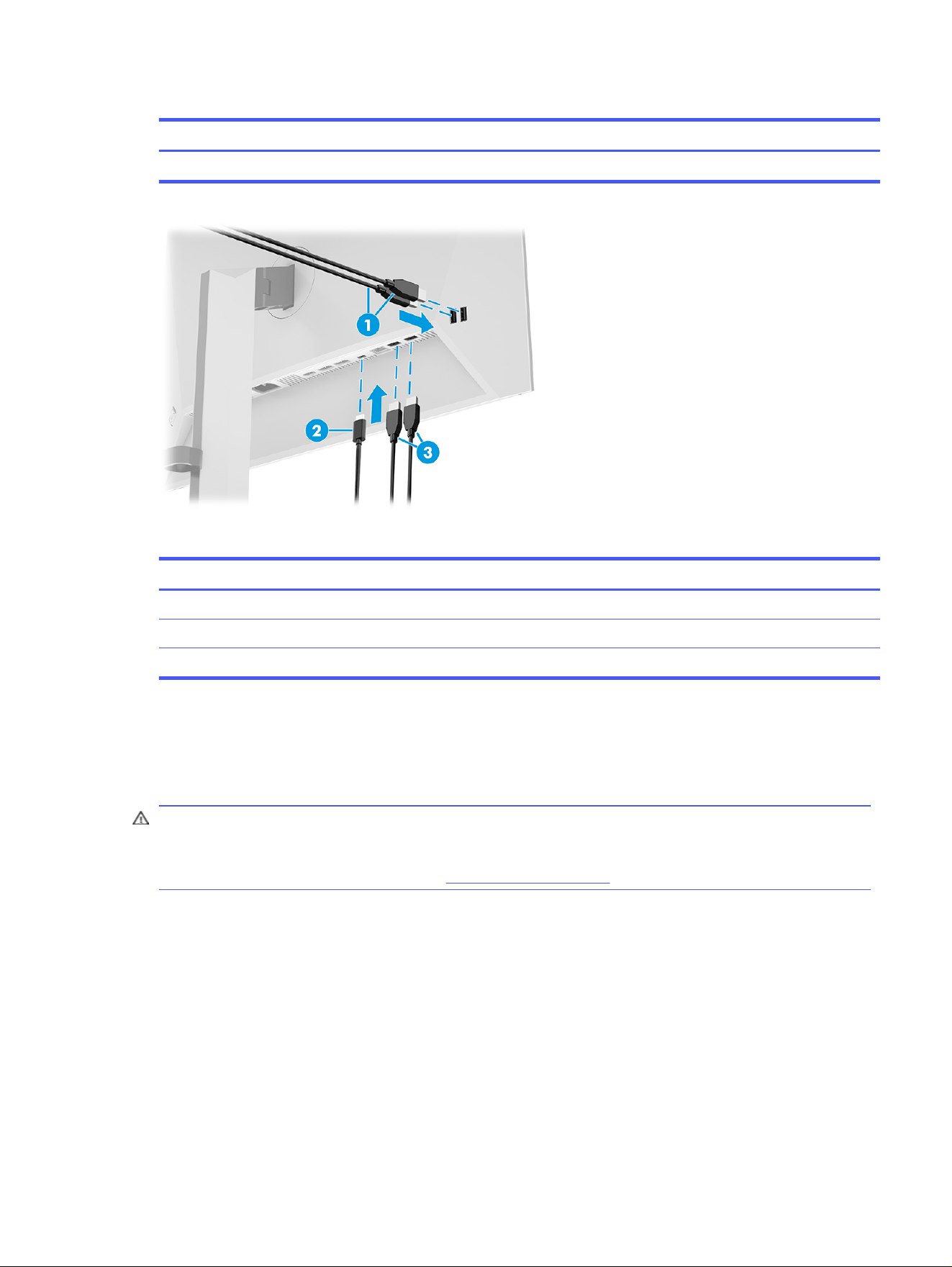
Table 2-4 USB port locations (continued)
USB Ports Description
(3) USB Type-A ports
Table 2-5 USB port locations
USB Ports Description
(1) USB Type-A ports
(2) USB Type-C port
(3) USB Type-A ports
Adjusting the monitor
To support an ergonomic work space, your monitor offers the adjustment options outlined in this
section.
WARNING! To reduce the risk of serious injury, read the
Safety & Comfort Guide
. It describes proper
workstation setup and proper posture, health, and work habits for computer users. The
Safety &
Comfort Guide
also provides important electrical and mechanical safety information. The
Safety &
Comfort Guide
is available on the web at http://www.hp.com/ergo.
Adjusting the monitor
15
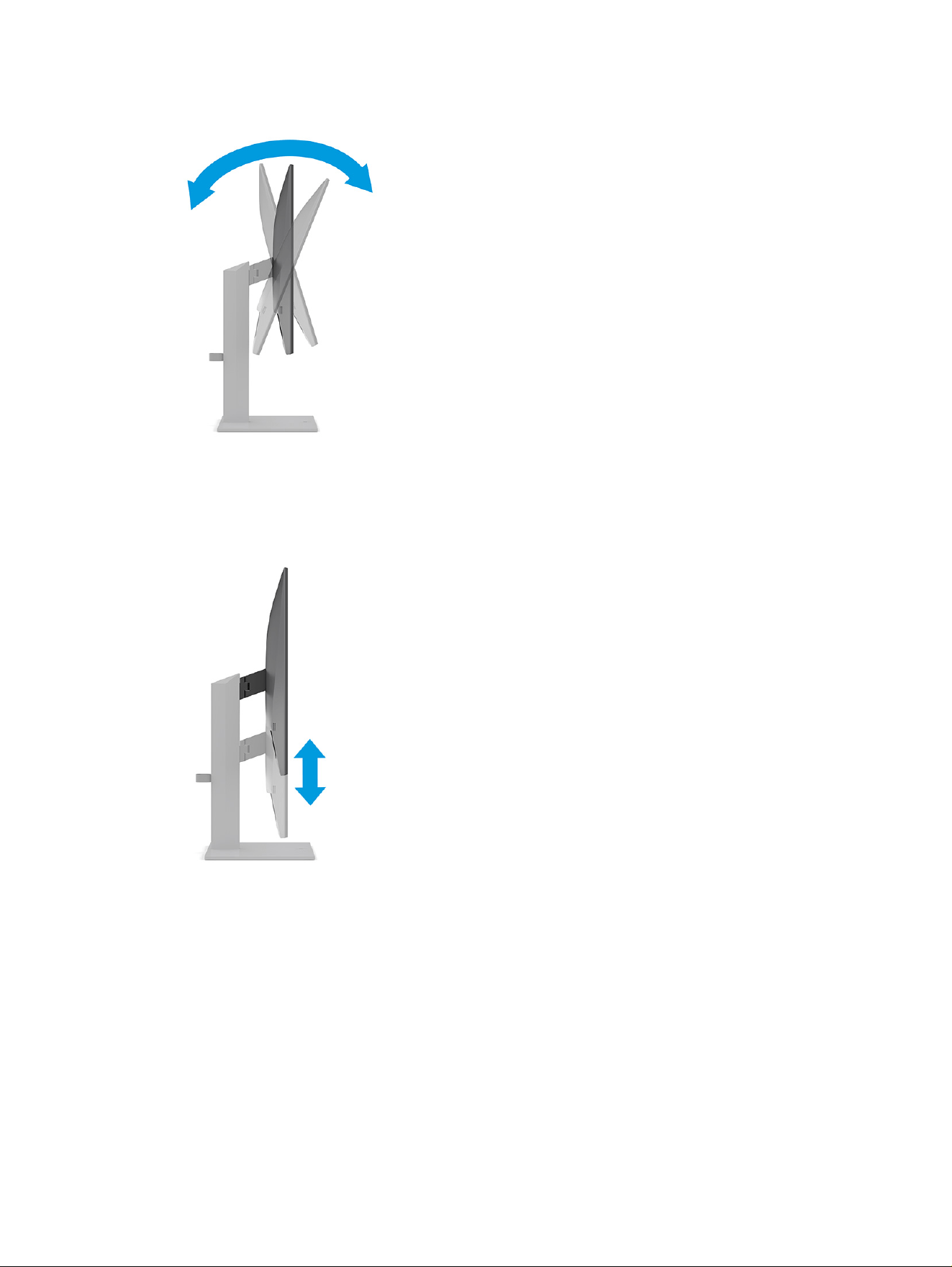
1. Tilt the monitor head forward or backward to set it to a comfortable eye level.
2. Adjust the monitor’s height to a comfortable position for your individual workstation. The monitor’s
top bezel edge should not exceed a height that is parallel to your eye height. A monitor that is
positioned low and reclined might be more comfortable for users with corrective lenses. Reposition
your monitor as you adjust your working posture throughout the work day.
16
Chapter 2 Getting started
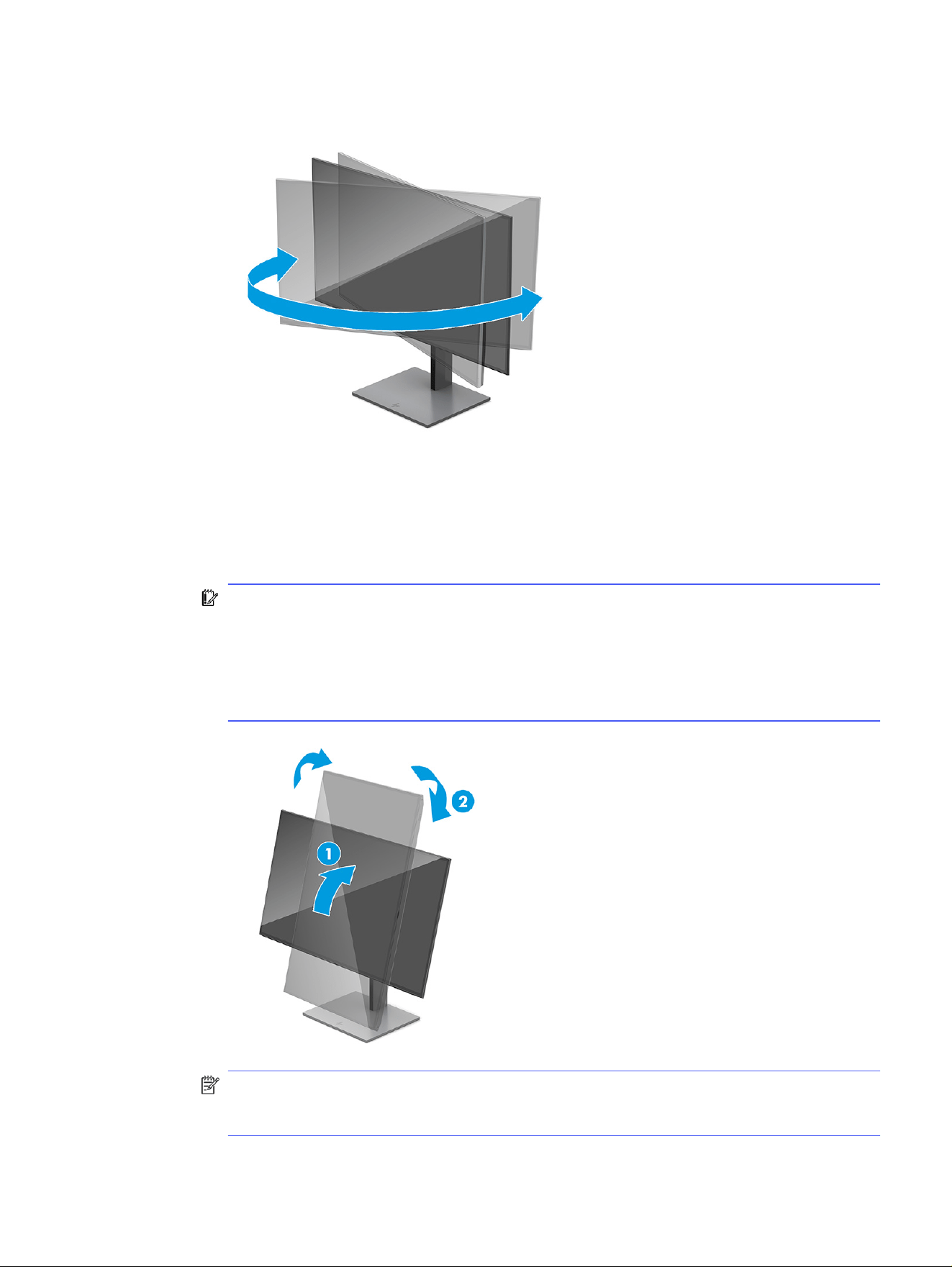
3. Swivel the monitor head to the left or right for the best viewing angle.
4. You can pivot the monitor head from landscape to portrait orientation viewing to adapt to your
application.
a. Adjust the monitor to full height position and tilt the monitor back to full tilt position (1).
b. Pivot the monitor clockwise 90° from landscape to portrait orientation (2).
IMPORTANT: If the monitor is not in full height and full tilt position when pivoting, the bottom-
right corner of the monitor panel will come in contact with the base and potentially cause
damage to the monitor.
If you are adding an optional speaker bar to the monitor, install it after pivoting the monitor.
The speaker bar will come in contact with the base when the monitor pivots and potentially
cause damage to the monitor or speaker bar.
NOTE: Use the operating system's display settings to rotate the image on the screen from
portrait to landscape. To rotate the OSD from portrait to landscape, open the OSD menu and
select Menu, select Menu Rotation, and then select Portrait.
Adjusting the monitor
17
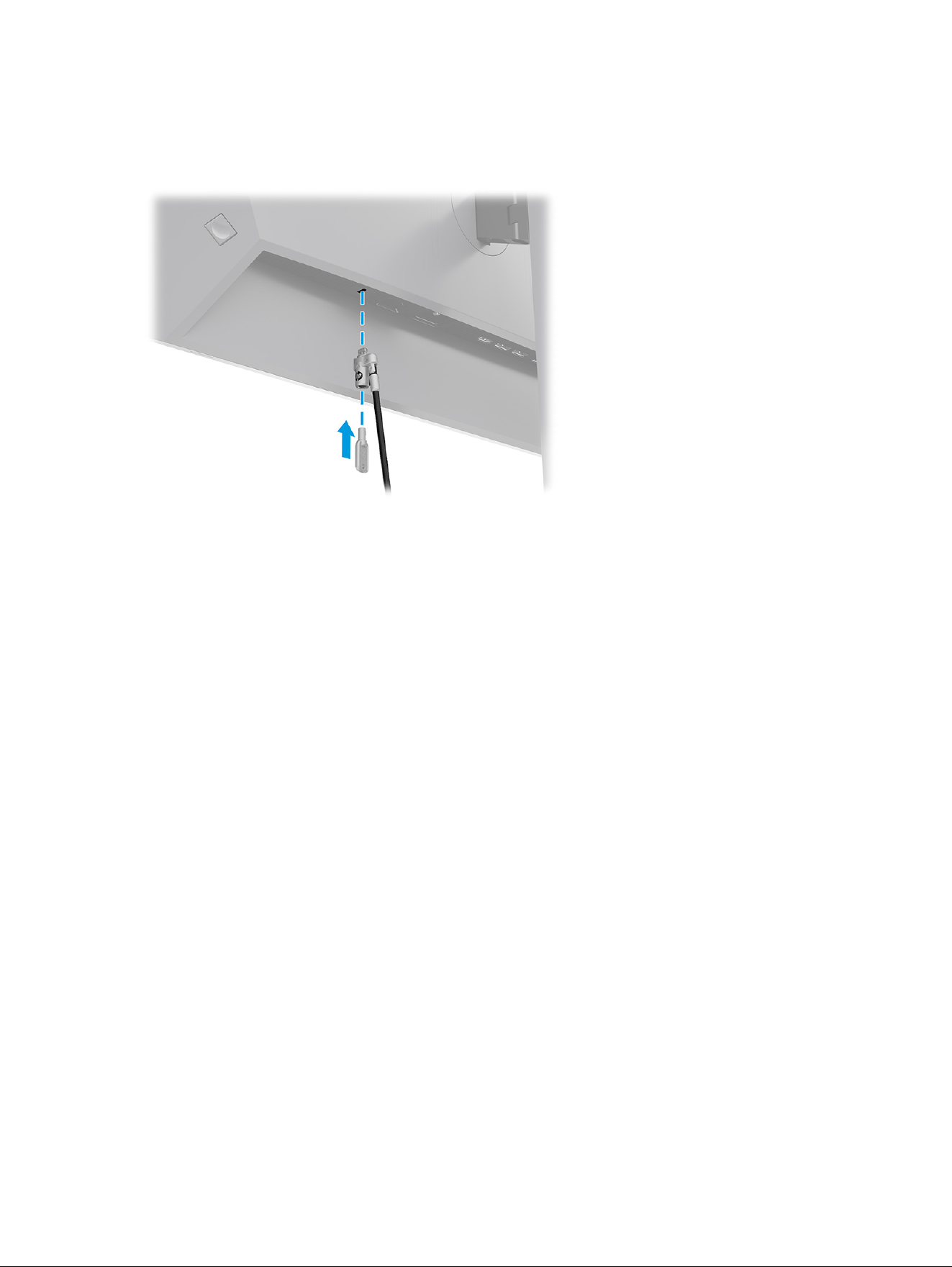
Installing a security cable
As a security measure, you can secure the monitor to a fixed object with an optional security cable
available from HP. Use the key provided to attach and remove the lock.
HP watermark and image retention policy
Some monitors are designed with In-Plane Switching (IPS) display technology, which provides ultrawide
viewing angles and advanced image quality. Though suitable for many applications, this panel
technology is not suitable for static, stationary, or fixed images for long periods of time, unless you
use screen savers.
Applications with static images can include camera surveillance, video games, marketing logos, and
templates. Static images can cause image retention damage that could look like stains or watermarks
on the monitor's screen.
Image retention damage on monitors that are in use 24 hours per day is not covered under the HP
warranty. To avoid image retention damage, always turn off the monitor when it is not in use, or use the
power management setting, if supported on your computer, to turn off the monitor when the computer is
idle.
18
Chapter 2 Getting started

Using the monitor3
This chapter describes how to use your monitor and its features, including software and utilities, the
OSD menu, and power modes.
Downloading HP Display Center
You can download and install the HP Display Center software from the Microsoft
®
store.
1. Select the Microsoft Store app on your desktop or type Microsoft Store in the taskbar search
box.
2. Type HP Display Center in the Microsoft Store search box.
3. Follow the on-screen instructions.
The tool downloads to the selected location.
Downloading software and utilities
You can download and install these files from HP Support.
● INF (Information) file
● ICM (Image Color Matching) file
To download the files:
1. Go to http://www.hp.com/support.
2. Select Software and Drivers.
3. Select your product type.
4. Enter your HP monitor model in the search field and follow the on-screen instructions. The .inf
and .icm files are included in the SoftPaq.
The Information (INF) file
The INF file defines monitor resources used by Windows® operating systems to ensure monitor
compatibility with the computer’s graphics adapter.
This monitor is Plug and Play compatible, and the monitor will work correctly without installing the INF
file. Monitor Plug and Play compatibility requires that the computer’s graphics card is VESA® DDC2
compliant and that the monitor connects directly to the graphics card. Plug and Play does not work
through separate BNC-type connectors or through distribution buffers, boxes, or both.
Using the monitor
19

The Image Color Matching (ICM) file
The ICM files are data files that are used in conjunction with graphics programs to provide consistent
color matching from monitor screen to printer, or from scanner to monitor screen. These files are
activated from within graphics programs that support this feature.
NOTE: The ICM color profile is written in accordance with the International Color Consortium (ICC)
Profile Format specification.
Using the OSD menu
You can adjust your HP monitor to suit your preferences. Use the OSD menu to customize the viewing
features of your monitor.
To access and make adjustments in the OSD, use the Joypad on the monitor's rear panel. See Rear
components on page 5.
1. If the monitor is not already on, press the power button to turn on the monitor.
2. Press the center of the Joypad.
3. Press the function buttons up, down, left, or right to navigate menu choices. Press the center of the
Joypad to make a selection.
The following table lists possible menu selections in the OSD main menu. It includes descriptions for
each setting and its impact on your monitor's appearance or performance.
Table 3-1
OSD menu options and descriptions for using a button or a controller
Main menu Description
Brightness + Adjusts the brightness level of the screen.
Color Selects and adjusts the screen color.
Image Adjusts the screen image.
Input Selects the video input signal (DisplayPort, HDMI, USB-C video).
Power Adjusts the power settings.
Menu Adjusts the OSD menu and function button controls, and selects the language used to display the
OSD menu (the factory default is English).
Management Adjusts the DDC/CI settings, and returns all OSD menu settings to the factory default settings.
Information Opens the Information menu.
Exit Exits the OSD menu screen.
Using the Joypad buttons
The Joypad menu options offer useful actions, and you can customize all except one of the options to
make them even more useful.
NOTE: The actions of the Joypad menu options vary among monitor models.
20
Chapter 3 Using the monitor
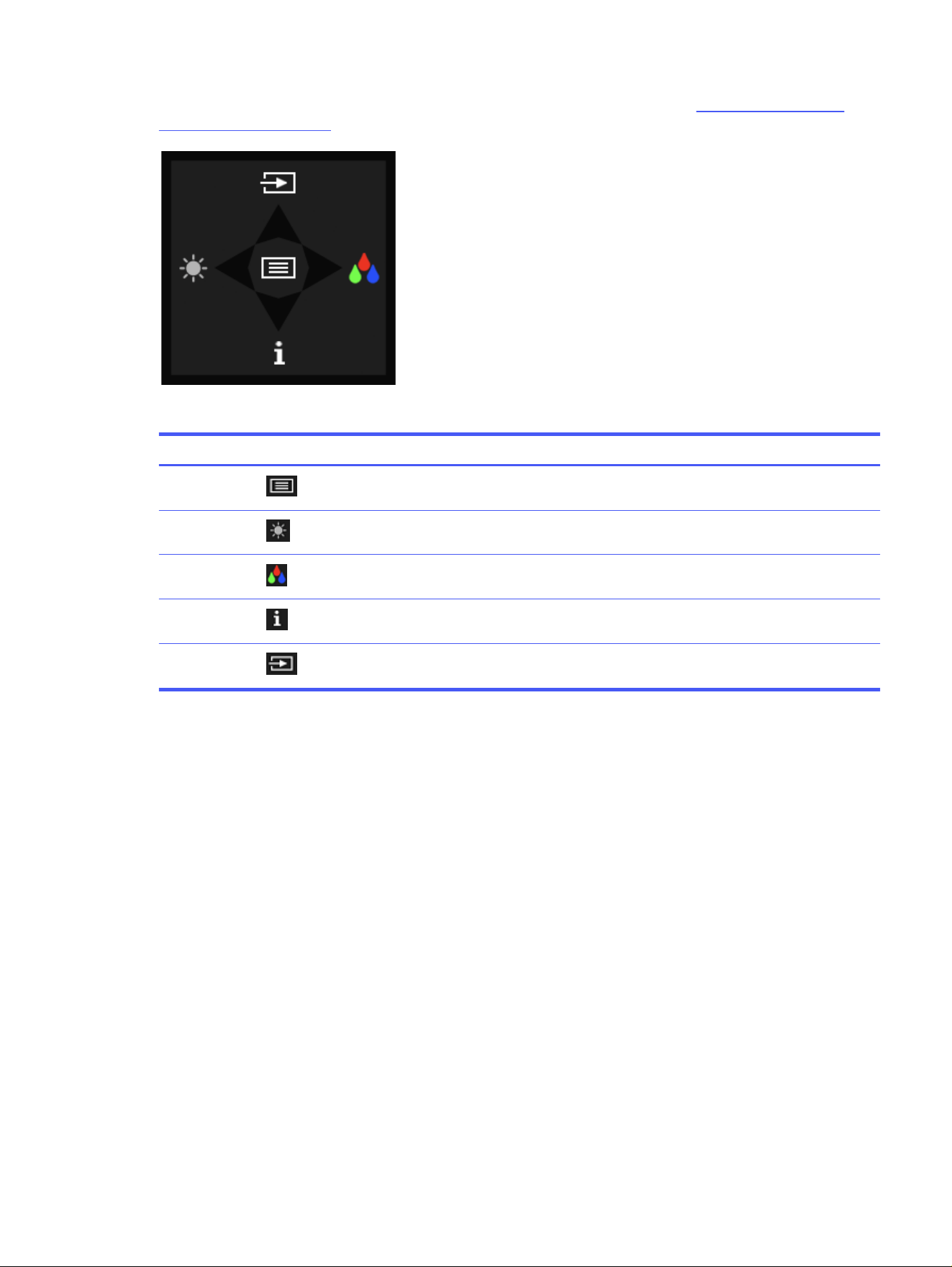
For information about changing the function of the Joypad menu options, see Reassigning the OSD
menu options on page 21.
Table 3-2 Menu options and functions
Option Icon Description
Menu Opens the OSD main menu, selects a menu item from the OSD, or
closes the OSD menu.
Brightness Adjusts the monitor screen brightness.
Color Opens the Color menu where you can select a preset view mode.
Information Provides information about the monitor such as optimal display
mode, power mode, and serial number.
Next Switches the monitor's input source to the next active input.
Reassigning the OSD menu options
Except for the Menu option, you can change the action associated with an option from its default action
to a menu option you use more frequently.
To reassign the function buttons:
1. Press the Menu option to open the OSD menu.
2. Select Menu, select Assign Buttons, and then select one of the available options for the button that
you want to assign.
Display mode status
When you turn on the monitor, the status message shows the display mode. The display mode is also
displayed when you change the video input.
Reassigning the OSD menu options
21

Changing the Power Mode setting (select products only)
This section describes how to activate Performance mode. Certain features on your monitor might
require Performance mode to be active.
When in sleep mode, to comply with international power standards, the monitor default setting is Power
Saver mode.
If your monitor supports Performance mode, you can keep the USB ports enabled when the monitor is in
Auto-Sleep Mode by changing the Power Mode setting from Power Saver to Performance.
NOTE: If you are connecting a computer that is not battery powered, you must change the Power
Mode setting to Performance mode.
To change the power mode setting:
1. Press the center of the OSD controller.
2. Select Power, select Power Mode, and then select Performance.
3. Select Back and close the OSD.
Using Auto-Sleep Mode
Your monitor has an energy-saving feature called Auto-Sleep Mode, which is a reduced power state. This
section describes how to activate or adjust Auto-Sleep Mode on your monitor.
When Auto-Sleep Mode is enabled, which it is by default, the monitor enters a reduced power state when
the computer signals low-power mode, which it does by the absence of either a horizontal or vertical
sync signal.
Upon entering this reduced power state (Auto-Sleep mode), the monitor screen is blanked, the backlight
turns off, and the power light turns amber. The monitor draws less than 0.5 W of power when in this
reduced power state. The monitor wakes from Auto-Sleep mode when the computer sends an active
signal to the monitor (for example, when you activate the mouse or keyboard).
To disable Auto-Sleep Mode in the OSD:
1. Press the Menu button to open the OSD, or press the center of the OSD controller to open the OSD.
2. In the OSD, select Power.
3. Select Auto-Sleep Mode, and then select Off.
Using PiP and PbP (select products only)
The monitor supports both Picture in Picture (PiP), where one source is overlaid on another, and Picture
by Picture (PbP), where one source is positioned adjacent to another either horizontally (for landscape
orientation) or vertically (for portrait orientation). Two full HD (FHD) images can be displayed in the PiP
mode.
To use PiP or PbP:
1. Connect a secondary input source to the monitor.
2. Press the center of the OSD controller on the rear of the monitor to open the OSD.
22
Chapter 3 Using the monitor
3. In the OSD, select Input and then select PiP (Picture-in-Picture) or PbP (Picture-by-Picture).
The monitor scans the secondary inputs for a valid signal input and uses that input for the PiP or
PbP picture.
4. To change the PiP or PbP input, select PiP in the OSD, and then select Assign Inputs.
5. To change the size of the PiP, select PiP Size in the OSD, and then select the size that you want.
6. To adjust the position of the PiP, select PiP Position in the OSD, and then select the position that you
want.
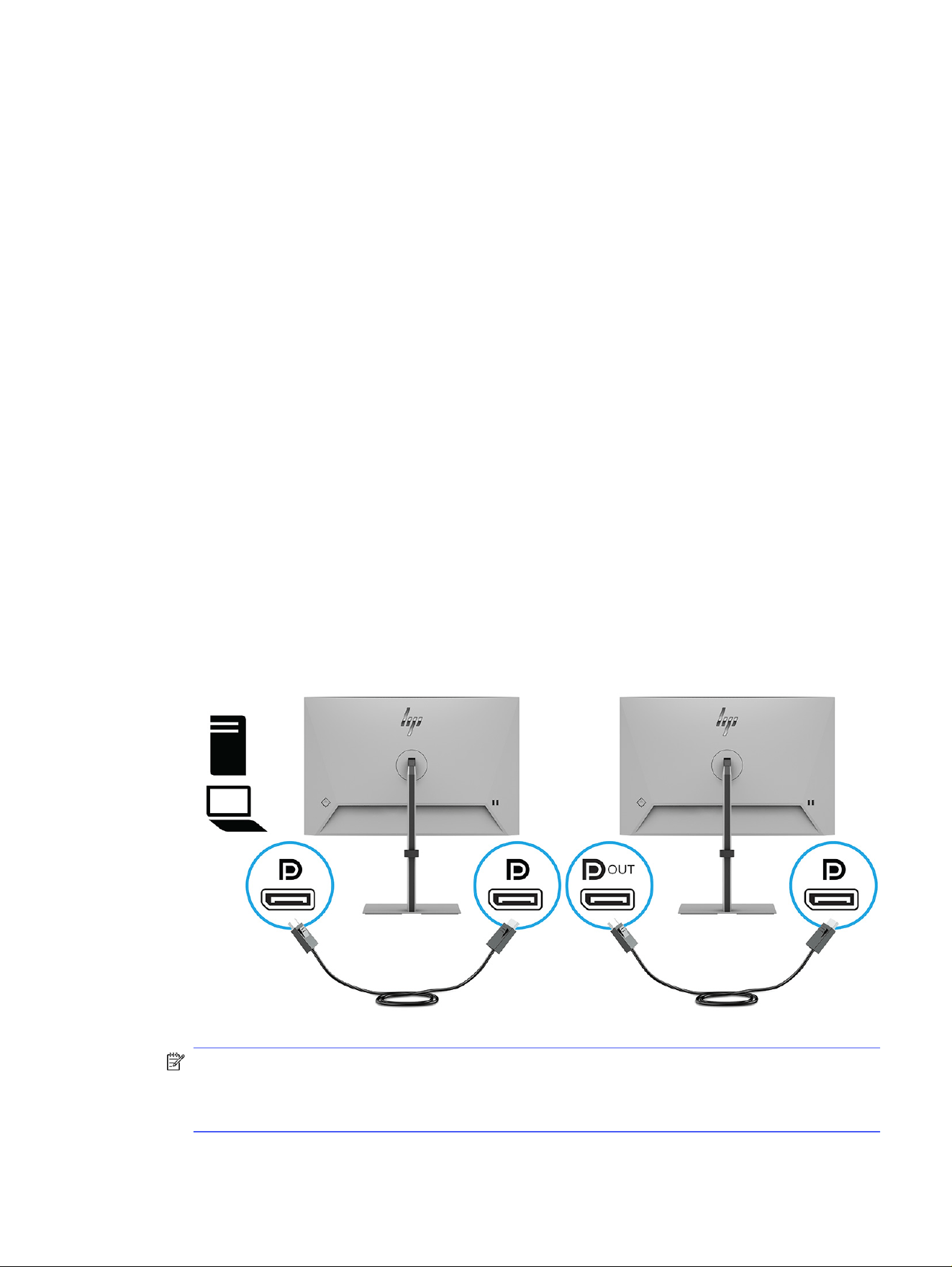
DisplayPort multistreaming over DisplayPort (select products
only)
If you are using DisplayPort as the primary video input source, you can multistream to other DisplayPort
monitors connected in a daisy-chain configuration. You can connect up to four monitors in this
configuration if the graphics card in your computer supports this configuration.
The number of monitors you can connect through DisplayPort multistreaming depends on a number of
factors, including the resolutions and scan rates used for each monitor and the capabilities of your GPU
or embedded graphics system. If you have purchased a new graphics card for your computer, check the
manual that came with your graphics card for further information about its capabilities.
To multistream:
1. Be sure that DisplayPort is your primary video input.
2. Add a second monitor by connecting a DisplayPort cable between the DisplayPort OUT connector
on the primary monitor and the DisplayPort connector on a secondary monitor.
NOTE: You can connect up to four additional monitors. All except the final monitor in the chain
must support DisplayPort multistreaming. For example when daisy-chaining four monitors, three of
the four daisy-chained monitors need to have DisplayPort and DisplayPort OUT connectors. The
last monitor in the chain needs only a DisplayPort connector.
DisplayPort multistreaming over DisplayPort (select products only)
23
3. Set a connected monitor to display the same image as the primary monitor or a different image.
4. Connect the DisplayPort cable from the DisplayPort OUT connector of one monitor to the
DisplayPort connector of the next monitor.
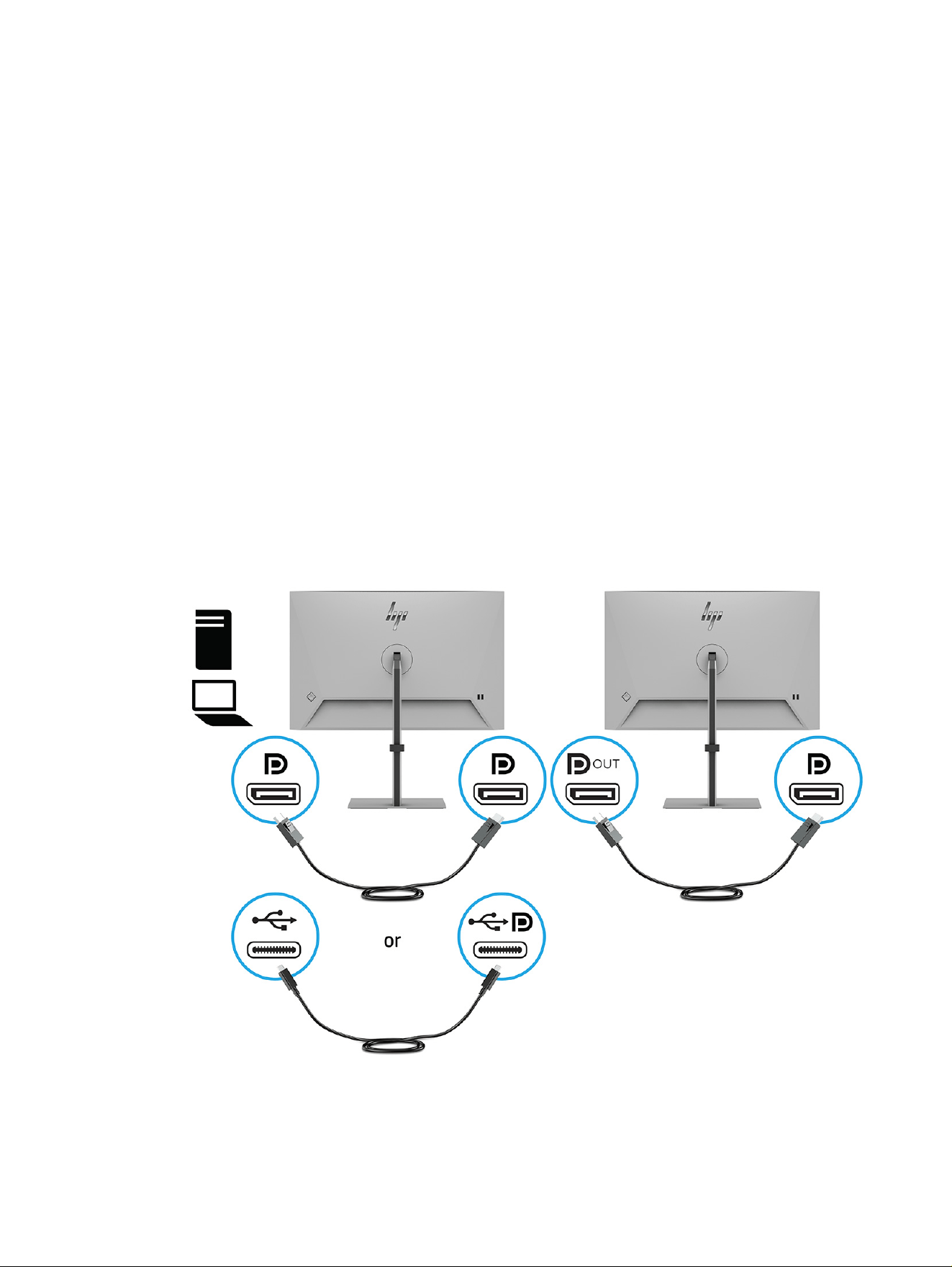
DisplayPort multistreaming over DisplayPort or USB Type-C
(select products only)
If you are using DisplayPort or USB Type-C as the primary video input source, you can multistream
to other DisplayPort monitors connected in a daisy-chain configuration. You can connect up to four
monitors in this configuration if the graphics card in your computer supports this configuration.
The number of monitors you can connect through DisplayPort multistreaming depends on a number of
factors, including the resolutions and scan rates used for each monitor and the capabilities of your GPU
or embedded graphics system. If you have purchased a new graphics card for your computer, check the
manual that came with your graphics card for further information about its capabilities.
To multistream:
1. Be sure that DisplayPort or USB Type-C is your primary video input.
2. Add a second monitor by connecting a DisplayPort cable between the DisplayPort OUT connector
on the primary monitor and the DisplayPort connector on a secondary monitor.
3. Set a connected monitor to display the same image as the primary monitor or a different image.
24
Chapter 3 Using the monitor

4. To connect additional monitors (up to four maximum), press the center of the OSD controller to
open the OSD menu. Navigate to the USB Type-C configuration and select USB-C Video+USB2.0.
NOTE: All but the final monitor in the chain must support DisplayPort multistreaming. For example
when daisy-chaining four monitors, three of the four daisy-chained monitors need to have
DisplayPort and DisplayPort OUT connectors. The last monitor in the chain needs only a
DisplayPort connector.
5. Connect the DisplayPort cable from the DisplayPort OUT connector of one monitor to the
DisplayPort connector of the next monitor.
DisplayPort multistreaming over DisplayPort or USB Type-C (select products only) 25

Support and troubleshooting4
If your monitor is not working as expected, you might be able to resolve the issue by following the
instructions in this section.
Solving common issues
The following table lists possible issues, the possible cause of each issue, and the recommended
solutions.
Table 4-1
Common issues and solutions
Issues Possible cause Solution
Screen is blank or video is
flashing.
Power cord is disconnected. Connect the power cord.
Monitor is off. Press the monitor power button.
NOTE: If pressing the power button has no effect, press
and hold the power button for 10 seconds to disable the
Power Button Lockout feature.
Master power switch is set to off. Set the master power switch on the rear of the monitor to
the On position.
Video cable is improperly
connected.
Connect the video cable properly. For more information,
see Connecting the cables on page 11.
System is in Auto-Sleep Mode. Press any key on the keyboard or move the mouse to
inactivate the screen blanking utility.
Video card is incompatible. Open the OSD menu and select the Input menu. Set Auto-
Switch Input to Off and manually select the input.
or
Replace the video card or connect the video cable to one
of the computer’s on-board video sources.
Image appears blurred,
indistinct, or too dark.
Brightness setting is too low. Open the OSD menu, and select Brightness to adjust the
brightness scale as needed.
“Check Video Cable” is
displayed on the screen.
Monitor video cable is
disconnected.
Connect the appropriate video signal cable between the
computer and monitor. Be sure that the computer power is
off while connecting the video cable.
“Input Signal Out of Range”
is displayed on the screen.
Video resolution and/or refresh
rate are set higher than the monitor
supports.
Change the settings to a supported setting (see Preset
display resolutions on page 32).
The monitor does not enter
into a low-power sleep
state.
The monitor's power saving control
is disabled.
Open the OSD menu and select Power, select Auto-Sleep
Mode, and then set auto-sleep to On.
“OSD Lockout” is displayed. The monitor's OSD Lockout
function is enabled.
Press and hold the center of the OSD controller for 10
seconds to disable the OSD Lockout function.
“Power Button Lockout” is
displayed.
The monitor's Power Button
Lockout feature is enabled.
Press and hold the Power button for 10 seconds to unlock
the power button function.
26 Chapter 4 Support and troubleshooting

Button lockouts
The button lockout function is available only when the monitor is on, an active signal is displayed, and the
OSD menu is closed. Holding down the power button or Left button for 10 seconds disables that button.
You can enable the button again by holding it down for 10 seconds.
Button lockouts 27

Maintaining the monitor5
Properly maintained, your monitor can run for many years. These instructions provide steps you can
perform to keep your monitor in the best condition.
Maintenance guidelines
Follow these instructions to enhance the performance and extend the life of the monitor.
● Do not open the monitor cabinet or attempt to service this product yourself. Adjust only those
controls that are covered in the operating instructions. If the monitor is not operating properly or
has been dropped or damaged, contact an authorized HP dealer, reseller, or service provider.
● Use only a power source and connection appropriate for this monitor, as indicated on the label or
back plate of the monitor.
● Be sure that the total ampere rating of the products connected to the outlet does not exceed the
current rating of the AC outlet and that the total ampere rating of the products connected to the
cord does not exceed the rating of the cord. Look on the power label to determine the ampere rating
(AMPS or A) for each device.
● Install the monitor near an outlet that you can easily reach. Disconnect the monitor by grasping the
plug firmly and pulling it from the outlet. Never disconnect the monitor by pulling the cord.
● Turn the monitor off when it is not in use, and use a screen saver program. Doing this can
substantially increase the life expectancy of the monitor.
NOTE: A burned-in image on the monitor is not covered under the HP warranty.
● Never block the slots and openings of the cabinet or push objects into them. These openings
provide ventilation.
● Do not drop the monitor or place it on an unstable surface.
● Do not allow anything to rest on the power cord. Do not walk on the cord.
● Keep the monitor in a well-ventilated area, away from excessive light, heat, or moisture.
Cleaning the monitor
Use these instructions to clean your monitor when necessary.
1. Turn off the monitor and unplug the power cord from the AC outlet.
2. Disconnect any external devices.
3. Dust the monitor by wiping the screen and the cabinet with a soft, clean antistatic cloth.
IMPORTANT: Do not use cleaners that contain petroleum-based materials such as benzene,
thinner, or any volatile substance to clean the monitor screen or cabinet. These chemicals might
damage the monitor.
28
Chapter 5 Maintaining the monitor

IMPORTANT: Spray the cleaner onto a cloth and use the damp cloth to gently wipe the screen
surface. Never spray cleaner directly onto the screen. It can run behind the bezel and damage the
electronics. The cloth should be moist, but not wet. Water dripping into the ventilation openings or
other points of entry can cause damage to the monitor. Allow the monitor to air-dry before use.
4. After you remove the dirt and debris, you can also clean the surfaces with a disinfectant. The World
Health Organization (WHO) recommends cleaning surfaces, followed by disinfection, as a best
practice for preventing the spread of viral respiratory illnesses and harmful bacteria. A disinfectant
that is within HP’s cleaning guidelines is an alcohol solution consisting of 70% isopropyl alcohol and
30% water. This solution is also known as rubbing alcohol and is sold in most stores.
Shipping the monitor
Keep the original packing box in a storage area. You might need it later if you ship the monitor or move.
Shipping the monitor
29

Technical specificationsA
This section contains technical specifications for the physical aspects of your monitor, such as the
weight and viewing dimensions, as well as required environmental operating conditions and power
source ranges.
All specifications represent the typical specifications provided by HP component manufacturers; actual
performance can vary either higher or lower.
NOTE: For the latest specifications or additional specifications for this product, go to
http://www.hp.com/go/quickspecs/ and search for your specific monitor model to find the model-
specific QuickSpecs.
60.5 cm (23.8 in) model specifications
This section provides specifications for your monitor.
Table A-1
Technical specifications
Specification Measurement
Display 60.5 cm 23.8 in
Type IPS
Viewable image size 60.5 cm diagonal 23.8 in diagonal
Maximum weight (unpacked) 4.6 kg 10.1 lbs
Dimensions (include base)
Height (highest position) 48.93 cm 19.26 in
Height (lowest position) 33.93 13.36 in
Depth 19.5 cm 7.68 in
Width 53.84 cm 21.2 in
Tilt –5° to 20°
Swivel ± 45°
Pivot ± 90°
Environmental requirements temperature
Operating temperature 5°C to 35°C 41°F to 95°F
Storage temperature –34°C to 60°C –29°F to 140°F
Storage humidity 5% to 95% (noncondensing)
Power source 100 V AC to 240 V AC 50/60 Hz
Input terminal One HDMI port, one DisplayPort
connector
30 Appendix A Technical specifications

61 cm (24 in) model specifications
This section provides specifications for your monitor.
Table A-2 Technical specifications
Specification Measurement
Display 61 cm 24 in
Type IPS
Viewable image size 61 cm diagonal 24 in diagonal
Maximum weight (unpacked) 4.8 kg 10.6 lbs
Dimensions (include base)
Height (highest position) 52.14 cm 20.53 in
Height (lowest position) 37.14 cm 14.62 in
Depth 19.5 cm 7.68 in
Width 53.17 cm 20.93 in
Tilt –5° to 20°
Swivel ± 45°
Pivot ± 90°
Environmental requirements temperature
Operating temperature 5°C to 35°C 41°F to 95°F
Storage temperature –34°C to 60°C –29°F to 140°F
Storage humidity 5% to 95% (noncondensing)
Power source 100 V AC to 240 V AC 50/60 Hz
Input terminal One HDMI port and one DisplayPort
connector
61 cm (24 in) USB Type-C model specifications
This section provides specifications for your monitor.
Table A-3
Technical specifications
Specification Measurement
Display, wide-screen 61 cm 24 in
Type IPS
Viewable image size 61 cm diagonal 24 in diagonal
Maximum weight (unpacked) 5.2 kg 11.5 lbs
Dimensions (include base)
Height (highest position) 52.14 cm 20.53 in
Height (lowest position) 37.14 cm 14.62 in
61 cm (24 in) model specifications 31

Table A-3 Technical specifications (continued)
Specification Measurement
Depth 19.5 cm 7.68 in
Width 53.17 cm 20.93 in
Tilt –5° to 20°
Swivel ± 45°
Pivot ± 90°
Environmental requirements temperature
Operating temperature 5°C to 35°C 41°F to 95°F
Storage temperature –34°C to 60°C –29°F to 140°F
Storage humidity 5% to 95% (noncondensing)
Power source 100 V AC to 240 V AC 50/60 Hz
Input terminal One HDMI port, one DisplayPort
connector, and one USB Type-C port
Preset display resolutions
The following display resolutions are the most commonly used modes and are set as factory defaults.
The monitor automatically recognizes these preset modes, and they will appear properly sized and
centered on the screen.
60.5 cm (23.8 in) model
This section provides preset display resolutions and preset timing resolutions.
Table A-4
Preset display resolutions
Preset Pixel format Horz freq (kHz) Vert freq (Hz)
1 640 × 480 31.469 59.940
2 640 × 480 37.500 75.000
3 720 × 400 31.469 70.087
4 800 × 600 37.879 60.317
5 800 × 600 46.875 75.000
6 1024 × 768 48.363 60.004
7 1024 × 768 60.023 75.029
8 1280 × 720 45.000 60.000
9 1280 × 800 49.702 59.810
10 1280 × 1024 63.981 60.020
11 1440 × 900 55.935 59.887
12 1600 × 900 60.000 60.000
13 1680 × 1050 65.290 59.954
32 Appendix A Technical specifications

Table A-4 Preset display resolutions (continued)
Preset Pixel format Horz freq (kHz) Vert freq (Hz)
14 1920 × 1080 67.500 60.000
15 1920 × 1080 66.587 60.000
16 1920 × 1080 83.894 75.000
17 1920 × 1080 110.000 100.000
61 cm (24 in) model
This section provides preset display resolutions and preset timing resolutions.
Table A-5
Preset display resolutions
Preset Pixel format Horz freq (kHz) Vert freq (Hz)
1 640 × 480 31.469 59.940
2 640 × 480 37.500 75.000
3 720 × 400 31.469 70.087
4 800 × 600 37.879 60.317
5 800 × 600 46.875 75.000
6 1024 × 768 48.363 60.004
7 1024 × 768 60.023 75.029
8 1280 × 800 49.702 59.810
9 1280 × 1024 63.981 60.020
10 1440 × 900 55.935 59.887
11 1600 × 900 60.000 60.000
12 1600 × 1200 75.000 60.000
13 1680 × 1050 65.290 59.954
14 1920 × 1080 67.500 60.000
15 1920 × 1080 67.500 60.000
16 1920 × 1080 83.840 75.000
17 1920 × 1080 113.185 100.000
18 1920 × 1200 74.556 59.885
19 1920 × 1200 74.038 60.000
20 1920 × 1200 94.038 75.000
21 1920 × 1200 125.721 100.000
61 cm (24 in) USB Type-C model
This section provides preset display resolutions and preset timing resolutions.
61 cm (24 in) model
33

Table A-6 Preset display resolutions
Preset Pixel format Horz freq (kHz) Vert freq (Hz)
1 640 × 480 31.469 60.000
2 640 × 480 37.500 75.000
3 800 × 600 37.879 60.000
4 800 × 600 46.875 75.000
5 1024 × 768 48.363 60.000
6 1024 × 768 60.023 75.000
7 1280 × 800 49.702 60.000
8 1280 × 800 62.795 75.000
9 1280 × 1024 63.981 60.000
10 1280 × 1024 79.976 75.000
11 1440 × 900 55.935 60.000
12 1440 × 900 70.635 75.000
13 1600 × 900 60.000 60.000
14 1600 × 1200 75.000 60.000
15 1680 × 1050 65.290 60.000
16 1680 × 1050 82.306 75.000
17 1920 × 1080 67.500 60.000
18 1920 × 1080 83.894 75.000
19 1920 × 1080 113.221 100.000
20 1920 × 1200 74.556 60.000
21 1920 × 1200 94.038 75.000
22 1920 × 1200 125.721 100.000
60.5 cm (23.8 in) model high-definition video formats
This section provides high-definition video formats.
Table A-7
High-definition video formats
Preset Timing name Pixel format Horz freq (kHz) Vert freq (Hz)
1 480p 720 × 480 31.469 59.940
2 576p 720 × 576 31.250 50.000
3 720p50 1280 × 720 37.500 50.000
4 720p60 1280 × 720 45.000 60.000
5 1080p50 1920 × 1080 56.250 50.000
6 1080p60 1920 × 1080 67.500 60.000
34 Appendix A Technical specifications

61 cm (24 in) model high-definition video formats
This section provides high-definition video formats.
Table A-8 High-definition video formats
Preset Timing name Pixel format Horz freq (kHz) Vert freq (Hz)
1 480p 720 × 480 31.469 59.940
2 576p 720 × 576 31.250 50.000
3 720p50 1280 × 720 37.500 50.000
4 720p60 1280 × 720 45.000 60.000
5 1080p50 1920 × 1080 56.250 50.000
6 1080p60 1920 × 1080 67.500 60.000
61 cm (24 in) USB Type-C model high-definition video formats
This section provides high-definition video formats.
Table A-9
High-definition video formats
Preset Timing name Pixel format Horz freq (kHz) Vert freq (Hz)
1 720 × 480p 720 × 480 31.470 60.000
2 1280 × 720p 1280 × 720 45.000 60.000
3 1920 × 1080p 1920 × 1080 67.500 60.000
4 720 × 576p 720 × 576 31.300 50.000
5 1280 × 720p 1280 × 720 37.500 50.000
6 1920 × 1080p 1920 × 1080 56.300 50.000
7 640 × 480p 640 × 480 31.500 60.000
Energy saver feature
This monitor supports a reduced power state.
The reduced power state is initiated if the monitor detects the absence of either the horizontal sync
signal or the vertical sync signal. Upon detecting the absence of these signals, the monitor screen
is blank, the backlight is turned off, and the power light turns amber. In the reduced power state, the
monitor uses < 0.5 W of power. There is a brief warm-up period before the monitor returns to its normal
operating state.
See the computer manual for instructions on setting the energy saver mode (sometimes called “power
management feature”).
NOTE: This power saver feature works only when the monitor is connected to a computer that has
energy-saver features.
61 cm (24 in) model high-definition video formats
35

AccessibilityB
HP's goal is to design, produce, and market products, services, and information that everyone
everywhere can use, either on a standalone basis or with appropriate third-party assistive technology
(AT) devices or applications.
HP and accessibility
Because HP works to weave diversity, inclusion, and work/life into the fabric of the company, it is
reflected in everything HP does. HP strives to create an inclusive environment focused on connecting
people to the power of technology throughout the world.
Finding the technology tools you need
Technology can unleash your human potential. Assistive technology removes barriers and helps you
create independence at home, at work, and in the community. Assistive technology helps increase,
maintain, and improve the functional capabilities of electronic and information technology.
For more information, see Finding the best assistive technology on page 37.
The HP commitment
HP is committed to providing products and services that are accessible for people with disabilities.
This commitment supports the company's diversity objectives and helps ensure that the benefits of
technology are available to all.
The HP accessibility goal is to design, produce, and market products and services that can be effectively
used by everyone, including people with disabilities, either on a standalone basis or with appropriate
assistive devices.
To achieve that goal, this Accessibility Policy establishes seven key objectives to guide HP actions. All
HP managers and employees are expected to support these objectives and their implementation in
accordance with their roles and responsibilities:
● Raise the level of awareness of accessibility issues within HP, and provide employees with the
training they need to design, produce, market, and deliver accessible products and services.
● Develop accessibility guidelines for products and services, and hold product development groups
accountable for implementing these guidelines where competitively, technically, and economically
feasible.
● Involve people with disabilities in the development of accessibility guidelines and in the design and
testing of products and services.
● Document accessibility features, and make information about HP products and services publicly
available in an accessible form.
● Establish relationships with leading assistive technology and solution providers.
● Support internal and external research and development that improves assistive technology
relevant to HP products and services.
36
Appendix B Accessibility

● Support and contribute to industry standards and guidelines for accessibility.
International Association of Accessibility Professionals (IAAP)
IAAP is a not-for-profit association focused on advancing the accessibility profession through
networking, education, and certification. The objective is to help accessibility professionals develop and
advance their careers and to better enable organizations to integrate accessibility into their products
and infrastructure.
As a founding member, HP joined to participate with other organizations to advance the field of
accessibility. This commitment supports HP’s accessibility goal of designing, producing, and marketing
products and services that people with disabilities can effectively use.
IAAP will make the profession strong by globally connecting individuals, students, and
organizations to learn from one another. If you are interested in learning more, go to
http://www.accessibilityassociation.org to join the online community, sign up for newsletters, and learn
about membership options.
Finding the best assistive technology
Everyone, including people with disabilities or age-related limitations, should be able to communicate,
express themselves, and connect with the world using technology. HP is committed to increasing
accessibility awareness within HP and with our customers and partners.
Whether it’s large fonts that are easy on the eyes, voice recognition that lets you give your hands a rest,
or any other assistive technology to help with your specific situation—a variety of assistive technologies
make HP products easier to use. How do you choose?
Assessing your needs
Technology can unleash your potential. Assistive technology removes barriers and helps you create
independence at home, at work, and in the community. Assistive technology (AT) helps increase,
maintain, and improve the functional capabilities of electronic and information technology.
You can choose from many AT products. Your AT assessment should allow you to evaluate several
products, answer your questions, and facilitate your selection of the best solution for your situation.
You will find that professionals qualified to do AT assessments come from many fields, including those
licensed or certified in physical therapy, occupational therapy, speech/language pathology, and other
areas of expertise. Others, while not certified or licensed, can also provide evaluation information.
You will want to ask about the individual's experience, expertise, and fees to determine if they are
appropriate for your needs.
Accessibility for HP products
These links provide information about accessibility features and assistive technology, if applicable and
available in your country or region, that are included in various HP products. These resources will help
you select the specific assistive technology features and products most appropriate for your situation.
● HP Aging & Accessibility: Go to http://www.hp.com, type Accessibility in the search box. Select
Office of Aging and Accessibility.
● HP computers: For Windows products, go to http://www.hp.com/support, type Windows
Accessibility Options in the Search our knowledge library search box. Select the appropriate
operating system in the results.
● HP Shopping, peripherals for HP products: Go to http://store.hp.com, select Shop, and then select
Monitors or Accessories.
International Association of Accessibility Professionals (IAAP)
37

If you need additional support with the accessibility features on your HP product, see Contacting
support on page 42.
Additional links to external partners and suppliers that may provide additional assistance:
● Microsoft Accessibility information (Windows and Microsoft Office)
● Google Products accessibility information (Android, Chrome, Google Apps)
Monitor accessibility features (select products/regions only)
HP monitors enable you to find and configure display settings directly from your monitor, without
needing to use an external device such as a computer, using multiple types of accessibility
enhancements.
Built-in accessibility features
The following accessibility features are built into the monitor.
● Physical buttons or a Joypad that are tactilely discoverable.
● Physical button or Joypad labels that are displayed on-screen.
● On-Screen Display (OSD) menu
– Menu items, text, and elements meet a 4.5:1 (or greater) contrast ratio.
– Focus indication is provided.
What is Accessibility Mode?
Accessibility Mode enables you to use audio navigation and to enlarge items on the screen.
When you turn on Accessibility Mode, the following adjustments are made:
● Menu timeout setting is set to the maximum duration of 60 seconds (default is 30 seconds).
● Language is set to English, which is the only language currently supported in Accessibility Mode.
When Accessibility Mode is turned off, the previous language is used.
● On FHD monitors, the OSD menu is set to a fixed position in the lower-right quadrant of the screen.
● Menu items, text, and other elements meet a 4.5:1 contrast ratio or greater.
● Text is enlarged to a 4.8 mm or larger font size.
How do you turn Accessibility Mode on or off?
Turn Accessibility Mode on or off using either physical monitor controls or an OSD menu.
● On a monitor with a Joypad, press and hold the center of the Joypad for four seconds to turn
Accessibility Mode on or off.
When Accessibility Mode is turned on using a physical button, an Accessibility Mode is On message
is displayed. When Accessibility Mode is turned off using a physical button, an Accessibility Mode is
Off message is displayed.
38
Appendix B Accessibility
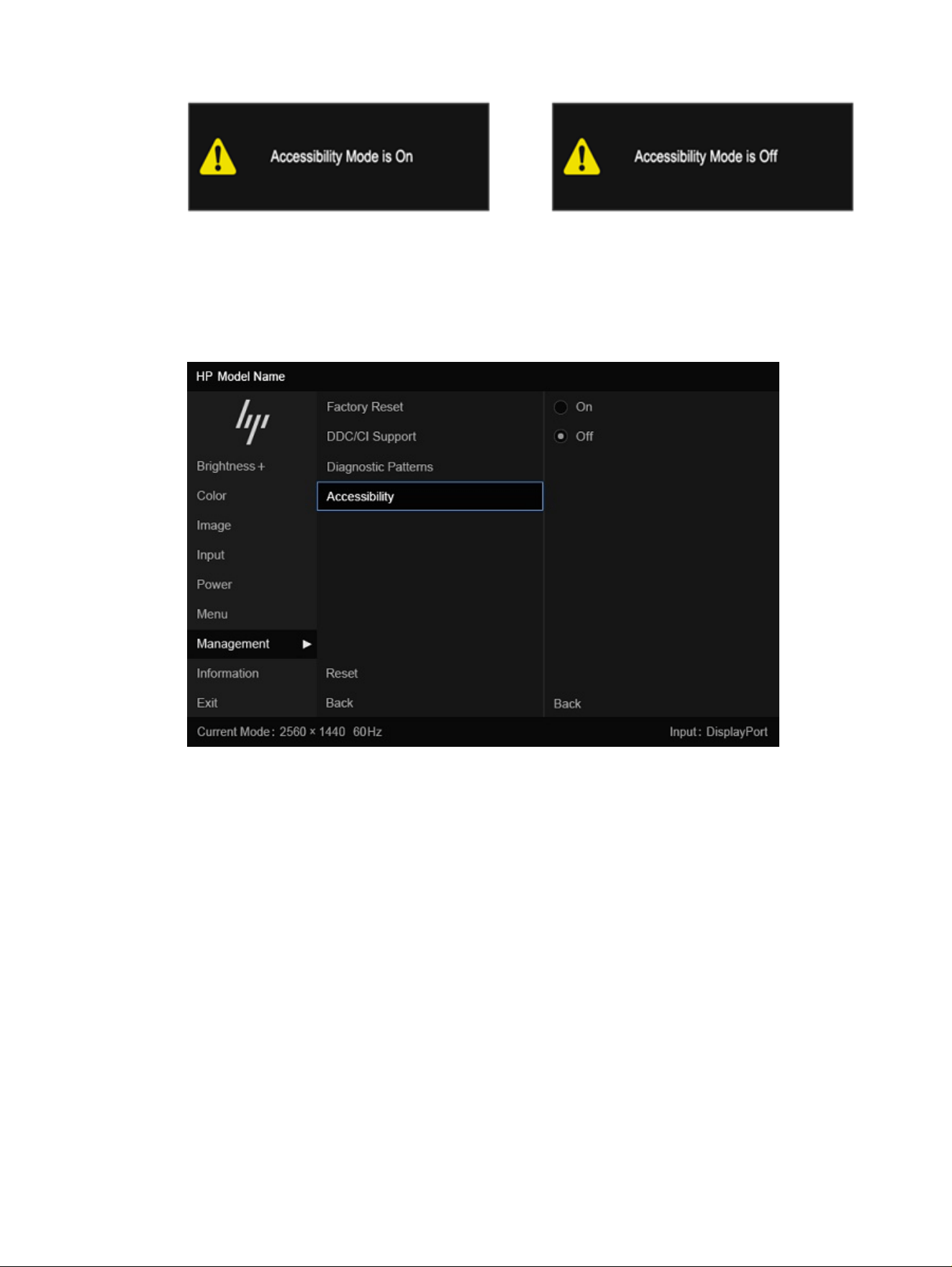
● Using the OSD menu
– To turn on Accessibility Mode, set the language to English, and then select Management >
Accessibility > On.
– To turn off Accessibility Mode, select Management > Accessibility > Off.
Standards and legislation
Countries worldwide are enacting regulations to improve access to products and services for persons
with disabilities. These regulations are historically applicable to telecommunications products and
services, PCs and printers with certain communications and video playback features, their associated
user documentation, and their customer support.
Standards
The US Access Board created Section 508 of the Federal Acquisition Regulation (FAR) standards to
address access to information and communication technology (ICT) for people with physical, sensory, or
cognitive disabilities.
The standards contain technical criteria specific to various types of technologies, as well as
performance-based requirements which focus on functional capabilities of covered products. Specific
criteria cover software applications and operating systems, web-based information and applications,
computers, telecommunications products, video and multimedia, and self-contained closed products.
Standards and legislation
39

Mandate 376 – EN 301 549
The European Union created the EN 301 549 standard within Mandate 376 as an online toolkit for public
procurement of ICT products. The standard specifies the accessibility requirements applicable to ICT
products and services, with a description of the test procedures and evaluation methodology for each
requirement.
Web Content Accessibility Guidelines (WCAG)
Web Content Accessibility Guidelines (WCAG) from the W3C's Web Accessibility Initiative (WAI) helps
web designers and developers create sites that better meet the needs of people with disabilities or
age-related limitations.
WCAG advances accessibility across the full range of web content (text, images, audio, and video)
and web applications. WCAG can be precisely tested, is easy to understand and use, and allows web
developers flexibility for innovation. WCAG 2.0 has also been approved as ISO/IEC 40500:2012.
WCAG specifically addresses barriers to accessing the web experienced by people with visual, auditory,
physical, cognitive, and neurological disabilities, and by older web users with accessibility needs. WCAG
2.0 provides characteristics of accessible content:
● Perceivable (for instance, by addressing text alternatives for images, captions for audio, adaptability
of presentation, and color contrast)
● Operable (by addressing keyboard access, color contrast, timing of input, seizure avoidance, and
navigability)
● Understandable (by addressing readability, predictability, and input assistance)
● Robust (for instance, by addressing compatibility with assistive technologies)
Legislation and regulations
Accessibility of IT and information has become an area of increasing legislative importance.
The HP policy landscape website provides information about key legislation, regulations, and standards
in the following locations:
● United States
● Canada
● Europe
● Australia
Useful accessibility resources and links
These organizations, institutions, and resources might be good sources of information about disabilities
and age-related limitations.
NOTE: This is not an exhaustive list. These organizations are provided for informational purposes
only. HP assumes no responsibility for information or contacts you encounter on the internet. Listing on
this page does not imply endorsement by HP.
40
Appendix B Accessibility

Organizations
These organizations are a few of the many that provide information about disabilities and age-related
limitations.
● American Association of People with Disabilities (AAPD)
● The Association of Assistive Technology Act Programs (ATAP)
● Hearing Loss Association of America (HLAA)
● Information Technology Technical Assistance and Training Center (ITTATC)
● Lighthouse International
● National Association of the Deaf
● National Federation of the Blind
● Rehabilitation Engineering & Assistive Technology Society of North America (RESNA)
● Telecommunications for the Deaf and Hard of Hearing, Inc. (TDI)
● W3C Web Accessibility Initiative (WAI)
Educational institutions
Many educational institutions, including these examples, provide information about disabilities and
age-related limitations.
● California State University, Northridge, Center on Disabilities (CSUN)
● University of Wisconsin - Madison, Trace Center
● University of Minnesota computer accommodations program
Other disability resources
Many resources, including these examples, provide information about disabilities and age-related
limitations.
● ADA (Americans with Disabilities Act) Technical Assistance Program
● ILO Global Business and Disability network
● EnableMart
● European Disability Forum
● Job Accommodation Network
● Microsoft Enable
HP links
These HP-specific links provide information that relates to disabilities and age-related limitations.
HP comfort and safety guide
HP public sector sales
Organizations
41

Contacting support
HP offers technical support and assistance with accessibility options for customers with disabilities.
NOTE: Support is in English only.
● Customers who are deaf or hard of hearing who have questions about technical support or
accessibility of HP products:
– Use TRS/VRS/WebCapTel to call (877) 656-7058 Monday through Friday, 6 a.m. to 9 p.m. Mountain
Time.
● Customers with other disabilities or age-related limitations who have questions about technical
support or accessibility of HP products:
– Call (888) 259-5707 Monday through Friday, 6 a.m. to 9 p.m. Mountain Time.
42
Appendix B Accessibility

Index
A
accessibility 36, 37, 40, 41
accessibility needs
assessment 37
assistive technology (AT)
finding 37
purpose 36
AT (assistive technology)
finding 37
purpose 36
C
calling technical support 3
customer support,
accessibility 42
G
getting started 2
getting to know your monitor 3
H
HP Assistive Policy 36
HP Display Center 19
HP resources 3
HP support 3
I
International Association of
Accessibility Professionals 37
L
label 8
P
product label 8
product number 8
R
resources, accessibility 40
S
safety information 2
Section 508 accessibility
standards 39
serial number 8
standards and legislation,
accessibility 39
support 3
T
technical support 3
troubleshooting 26
W
warnings 2
Index 43