1. Components
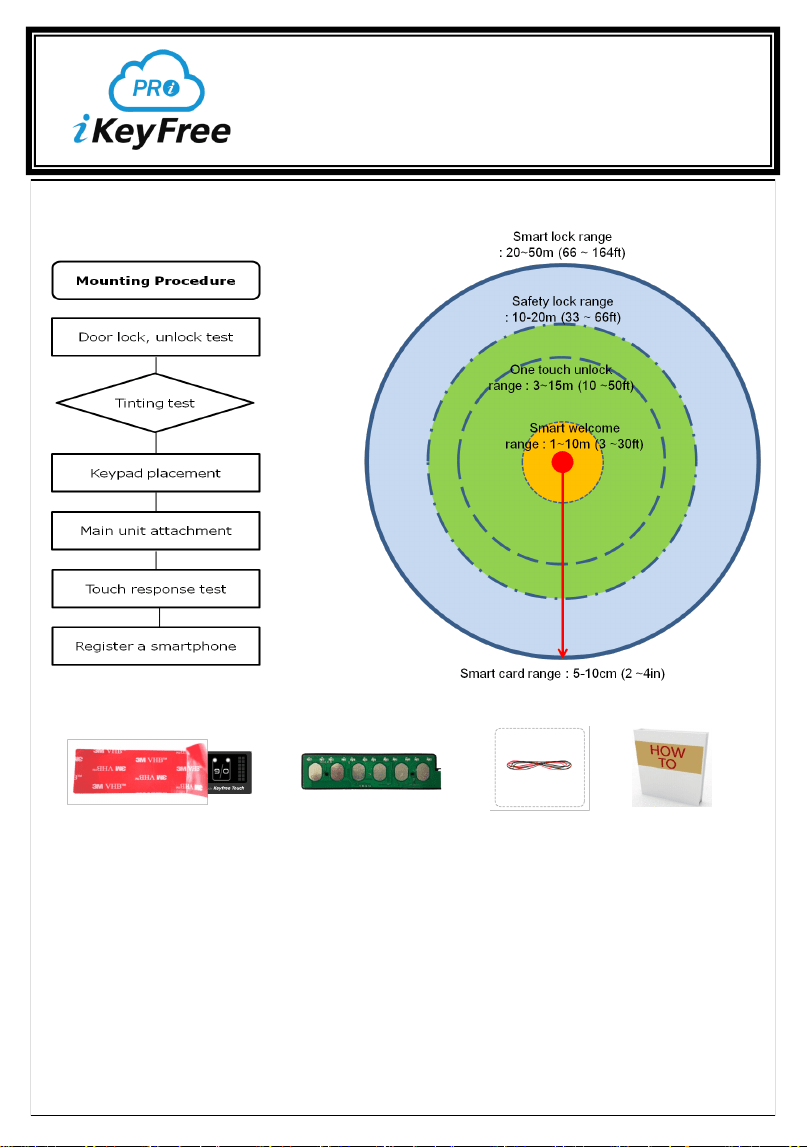
2. Mounting Procedure
1. Before you begin
- Manufacturer and Sellers do not provide vehicle wiring information.
Find vehicle wiring information on the internet. Try the links below for more info.
- The principle of iKeyFree-PRO sends the pulse signal to lock or unlock the door.
Do not connect the Brown or Orange wires to the lock or unlock power line of
Vehicle. (Data Modules or Relay may be required on some vehicles)
- It is recommended to have the unit installed at a Car Stereo & Alarm install facility.
- Find vehicle wiring colors on the internet.
http://www.bulldogsecurity.com/bdnew/vehiclewiringdiagrams.aspx
MOUNTING PROCEDURE
After wiring the harness wire,
please keep the procedure as follows
Keypad Main unit wire
Manual
App. Working range
2. Product Wires Mapping
3. Locate the wires and ground in the vehicle, connect the wires from the harness.
- Wires: +12V constant Power, Power lock signal, Power unlock signal
- Ground: Connect the Black wire from the harness to the clean chassis ground.
4. Plug the connector from harness to the main unit and check the operation status.
- After plug it flash 3 times.
- In case of no touch response, unplug the connector, re-connect it or check the
connection. (initial one time to adjust the sensitivity)
- If proper operation, Unplug the connector
5. Keypad placement
- Clean and wipe the location for the keypad on the windshield
- If the glass is tinted, it is recommended that you cut off the keypad size and attach the
main unit on it.
- Peel off the red protective vinyl on the keypad.
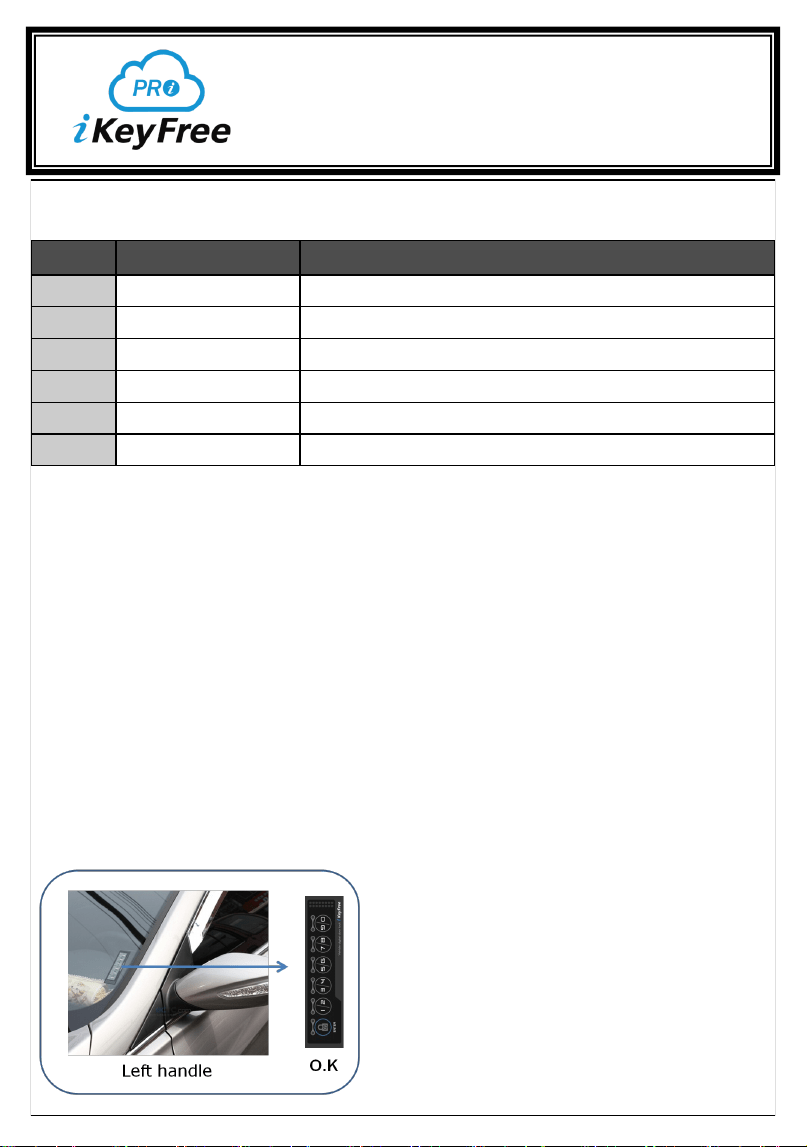
- Attach the keypad at the centre of the A-pillar of the front windshield near driver’s seat.
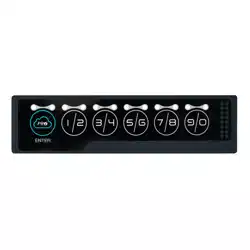
→ The direction of #1/2 is downside, and #9/0 are upside (Left side handle)
→ The direction of #9/0 is downside, and #1/2 are upside (Right side handle)
- Please make sure to affix the keypad completely to avoid air bubble forming
*Tip!!! for easy and neat affixing the sheet onto
the windshield,
1) Dip it fully into water in a cup.
2) Place it onto windshield.
3) Then, you can move it flexibly and position it
properly
4) Sweep it gently with plastic card from up to
down to let water drip
5) Leave it over 30 minutes to let dry and se-
curely attach to the glass. Make sure it is attached
securely to avoid air bubbles from forming.
Pin Color Description
1 Black (-) System Ground Input
2 Red
(+12V) System Power Input (at Key box)
3 Brown
(-) Unlock Signal Output
4 Orange
(-) Lock Signal Output
5 *Blue NOT USED (DO NOT CONNECT)
6 *White NOT USED (DO NOT CONNECT)
INSTALLATION MANUAL
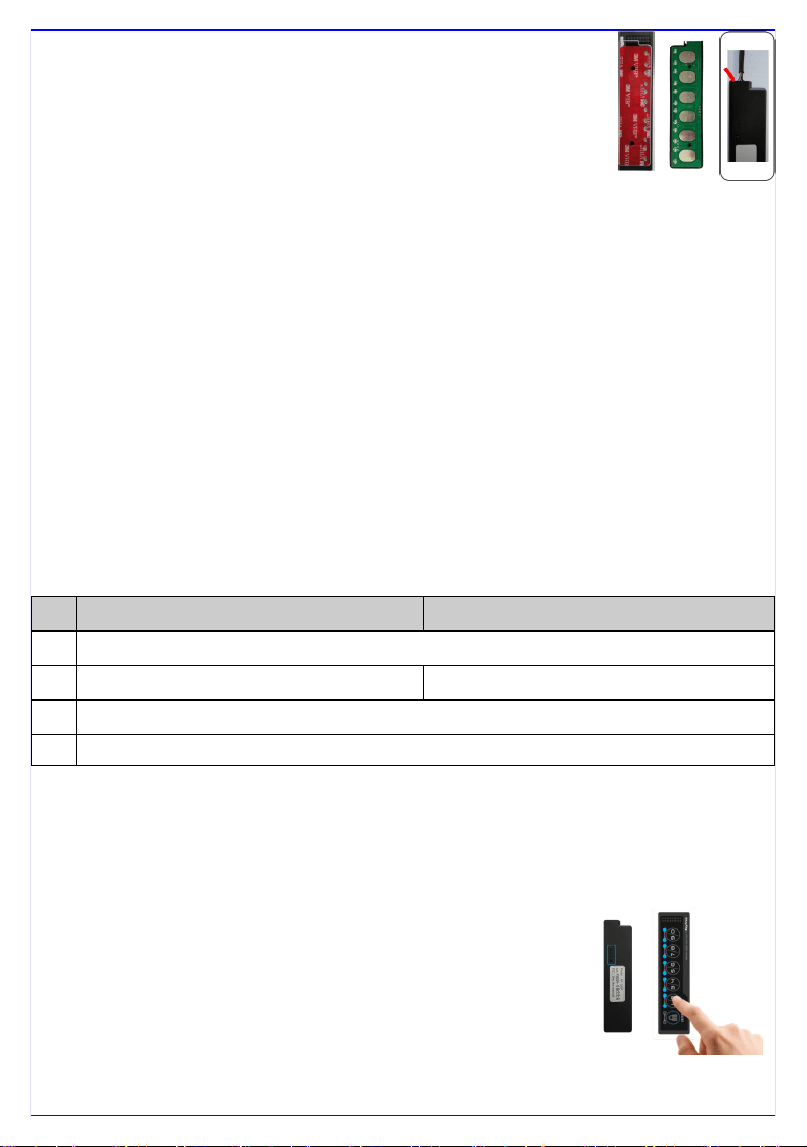
6. Main unit Attachment
- Peel off the black number plate on the main unit.
- Align the main unit with the white line on the keypad precisely.
- To match LEDs and numbers, make sure to align the LEDs to the
LED holes on the keypad.
7. Plug the connector from harness to the main unit and check the op-
eration status.
- Align the white wire of the connector to the arrow mark on main unit.
- Test Lock/unlock the door (see the User’s Manual 2,3)
- If no touch response, unplug the connector, re-connect it or check the
Wire harness connections.
8. Secure the wires and panels of your vehicle.
- Secure all loose wires around the vehicle ignition and kick panel area.
3. Programming ** Most of the vehicles are at default state.
1. Change the number of pulses (default :1)
2. Change the duration of pulse (default : 0.8 sec)
- Press and release the reset button on the back of the main unit.
- Hold down buttons #7/8 until LEDs #1/2, 3/4, 5/6 blink 3 times.
1) For 0.8 seconds, press and release button #1/2.
2) For 3.5 seconds, press and release button #3/4.
3) For 0.3 seconds, press and release button #5/6.
- Touch the ENTER and then all LEDs blink 3 times.
3. Programming of Factory Reset
1) Press and release the reset button on the main unit.
2) Hold down button #9/0 until all LEDs blink 3 times. * PIN code do not change.
4. How to register a smartphone
Step 1. Install the “iKeyFree-PRO” App. (at Google play or Apple store)
1. Download and install the “iKeyFree-PRO” App.
For Smart phone, APP permissions (Activate Location, Phone, Storage)
Step 2. At iKeyFree-PRO device
1. Press reset button on the back for about 3 seconds and release
after the beep sound.
2. All LEDs blink 3 time.
1) Enter the PIN code and touch the ENTER button (initial PIN
code “1/2, 3/4, 5/6, 7/8”)
2) All LEDs blink once.
3) Touch the desired Register number
* Registered numbers are LEDs off
* Unregistered numbers are LEDs on
4) Then the number blink for 2 minutes and processing
No Lock Pulses Unlock Pulses
1
Press and release the reset button on the back of the main unit
2
Touch the #3/4 until all LEDs blink 3 times Touch the #5/6 until all LEDs blink 3 times
3
Select #1/2, 3/4, 5/6, 7/8, 9/0 for the desired number of lock pulses 1, 2, 3, 4, 5
4 Touch ENTER button until all LEDs blink 3 times.
5) Register is complete when the blinking LEDs have stopped.
Step 3. Vehicle register: At smartphone Application
1. Select the “setting” icon and at Register page, insert the vehicle name and Touch the
“Register bar”
2. Put the smartphone around the iKeyFree-PRO device closely (5cm).
3. When the vehicle registration is completed, the keypad ENTER LED on.
4. Registered vehicles can be confirmed by vehicle selection.
** After Smartphone register: Setting→Device maintenance
→Battery→Unmonitored apps→Add the iKeyFree-PRO Manager.
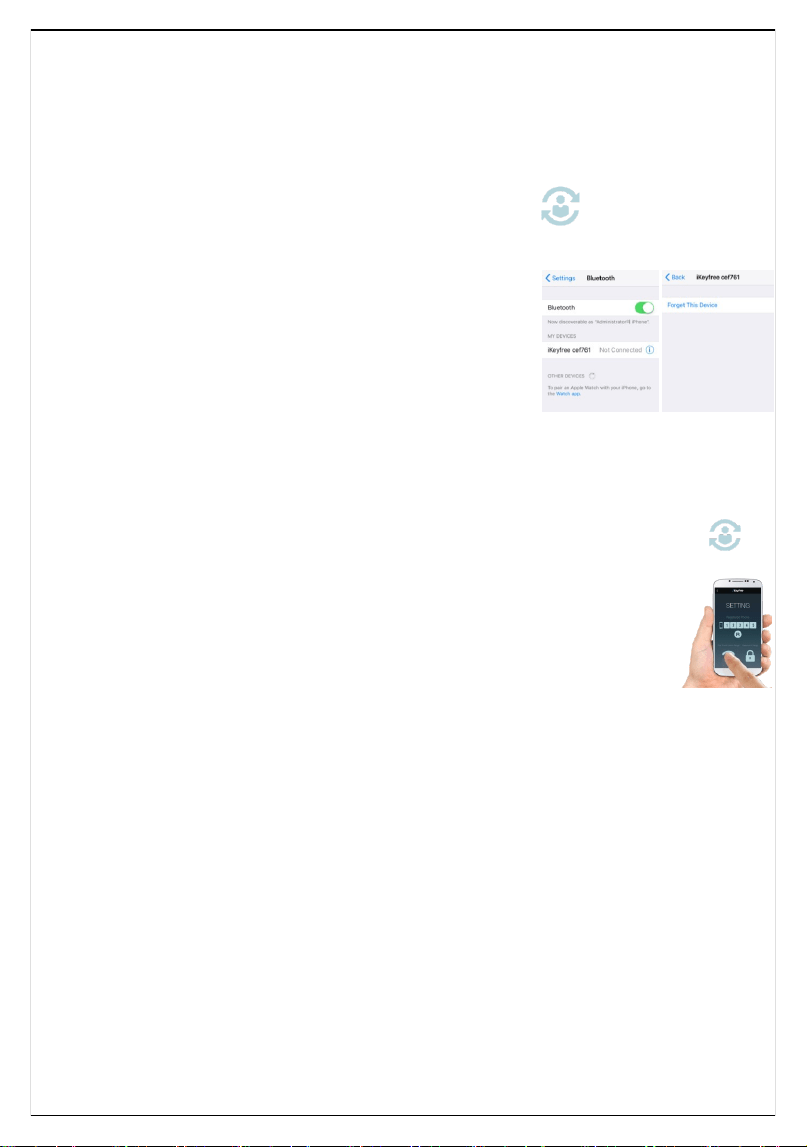
For iPhone
* To re-register a smartphone, Forget this iKeyFree-PRO
device at Smartphone Setting and register a smartphone again.
5. How to Unregister a smartphone (iKeyFree device
and at Application)
1. Press and release the reset button on the back 3 seconds
till the beep sound.
2. All LEDs will blink.
3. Enter the PIN code and touch the ENTER button
4. All LEDs blink once.
5. Touch the Registered Number for 2 seconds, all LEDs blink 3 times and completed.
6. In Application, touch the “Del” to unregister the smartphone at vehicle change
window. * Registered numbers are LEDs off / * Unregistered numbers are LEDs on
6. How to adjust the “One touch unlock range”
Initial level set at step 5 (3-15m / 10-50ft).
1. If you want to change the “One touch unlock range” select the bar you
want. (We recommend select level 5 for the best “One touch unlock range”)
7. Information
Select the language to get the information (How to use iKeyFree, How to register a smart-
phone) Korean / English / Japanese .
8. User options
1. Smart Welcome: Approaching the vehicle with registered smartphone, the door unlock
automatically.
2. Smart Lock: Exceed the Bluetooth range 20m-50m(66-164ft), the door lock automati-
cally.
3. Smart Card: Bring the smartphone close to the iKeyFree to lock or unlock the door.
4. Connected device LED blink.
5. Enter key LED off: When the registered smartphone is inside vehicle.
* Safety Lock: Exceed the 10-20m(33-66ft), the door lock automatically. This feature works
in conjunction with “Smart Lock” feature.
9. Select AUTO / MANUAL
1. If you want to enjoy the outdoor sports such as swimming, jogging, camping
→ Leave the keys & smartphone inside and slide to MANUAL. You can unlock the door
with PIN code on Keypad (not shortcut key) → User options does not work.

* The system can be locked or unlocked by “Touch”
with the PIN of 4-10 digits.
* Backlight functions: If you touch random numbers, the LED light
will illuminate for 5 seconds.
1. Select the vehicle
1) Touch the icon and select the vehicle.
2. Lock the door
1) Touch the Enter button and then all LEDs blink and the door will be locked.
3. Unlock the door
1) LED light up at ENTER button (iKeyFree paired to registered smartphone)
- Touch the Enter button (2 sec.) then all LEDs blink 3 times and the door will be
unlocked.
2) LED off at ENTER button
- Enter 4-10 digits PIN code. (initial PIN CODE “1/2, 3/4, 5/6, 7/8”)
- Touch the Enter button and then all LEDs blink 3 times and the door will be unlocked.
* Random Security Code is assigned to be entered before entering the PIN code.
4. Special lock or unlock (for outdoor activities such as jogging, surfing etc.)
1) Lock the door
- Touch the #9/0 until ENTER button light up.
- Touch the ENTER button and then all LEDs blink and door will be locked.
2) Unlock the door
- Enter 4-10 digits PIN code. (initial PIN CODE “1/2, 3/4, 5/6, 7/8”)
- Touch the Enter button, all LEDs blink 3 times and the door will be unlocked.
5. PIN Code Change (initial PIN CODE “1, 3, 5, 7”)
At smartphone (Enabled when LED light up at ENTER button)
1) Select the Setting mode
2) Enter the current PIN code
3) Enter the new PIN code
4) Touch the Register button
At iKeyFree device
1) Press and release the reset button on the back of the main unit.
2) Touch the button #1/2 until all LEDs blink 3 times.
3) Enter the New 4-10 digits PIN code and touch the Enter button.
4) It will indicate the assigned PIN numbers in order, and all LEDs blink 3 times.
6. LED Scan On/Off
1) Hold down the button #5/6 until Enter button LEDs lights up
2) Touch the Enter button and then all LEDs blink 3 times.
USER’S MANUAL
FCC INFORMATION TO THE USER
This equipment has been tested and found to comply with the limits for a Class A digital device, pursuant
to part 15 of the FCC Rules. These limits are designed to provide reasonable protection against harmful
interference when the equipment is operated in a commercial environment. This equipment generates,
uses, and can radiate radio frequency energy and, if not installed and used in accordance with the in-
struction manual, may cause harmful interference to radio communications. Operation of this equipment in
a residential area is likely to cause harmful interference in which case the user will be required to correct
the interference at his own expense.
WARNING
Any change or modifications not expressly approved by the manufacturer could void the user’s authority
to operate the equipment.
☞ Cautions
This system is designed for vehicles with power locks only.
The contents of this manual and the specifications of this product are subject to change
without notice.
If you input the wrong code 5 times, the system will be locked up for 10 minutes.
Then you can use the system again after 10 minutes.
Specifications
1) Supply voltage DC 12V (Negative signal output only)
2) Main unit dimensions: 112(W) x 29(H) x 5(D) mm
3) Keypad panel dimensions: 125(W) x 32(H) mm
4) Operating environment: -30°C ~ 80°C (-22°F ~ 176°F)
Security priority levels
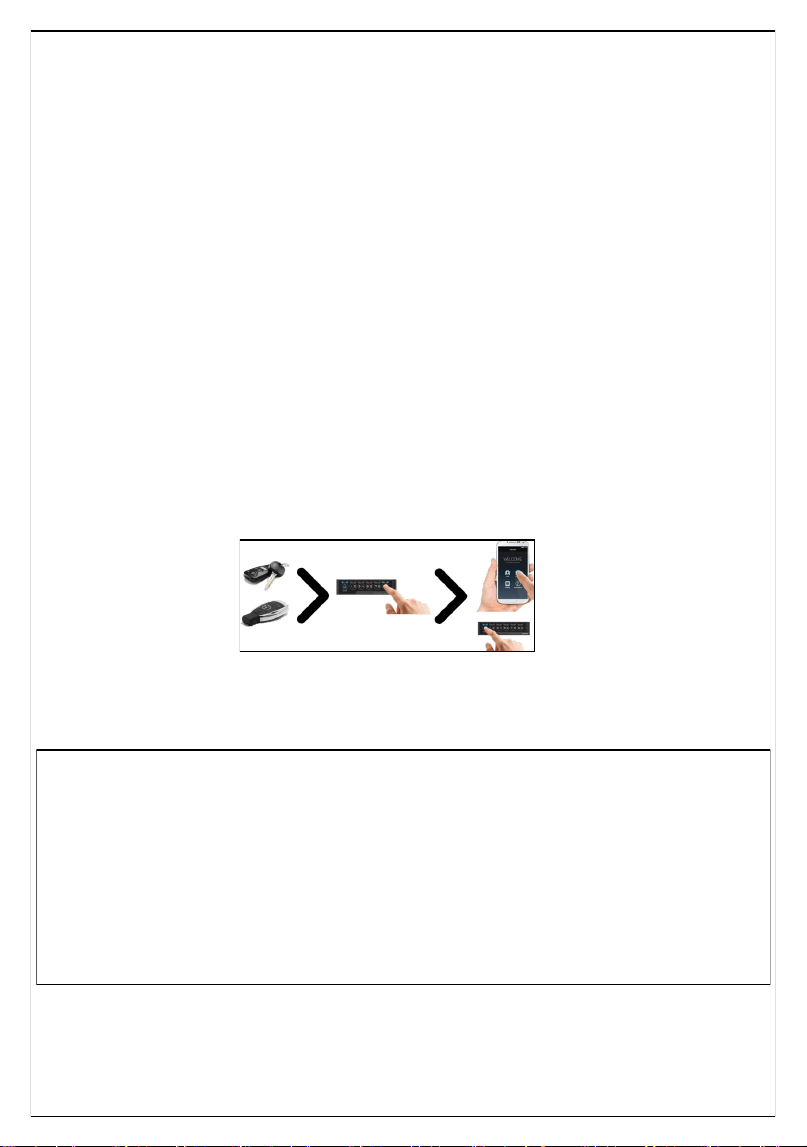
Original key (Remocon or smart key) > Pin code key > shortcut key (with registered
smartphone key)
1) Locked by original key, the door unlock by original car key only.
(Original key act as a master key, the other keys act as slave keys)
2) Locked by pin code key, the door unlock by original key or pin code key.
3) Locked by shortcut key, the door unlock by original car key, pin code key, shortcut key.
The door lock automatically exceed the Bluetooth range (20-50m/65-164ft) as options.
If the Smartphone connection is delayed depending on the software version, Stop and
restart the app. Or, it will be recover when you turn your smartphone off and on again.
Warranty : One year
- if it has some faults in manufacturing process, we will exchange it or fix it for Free.
This product is only an auxiliary device with convenient features
So, vehicle owner is responsible for all kinds of the theft and damage in your car.