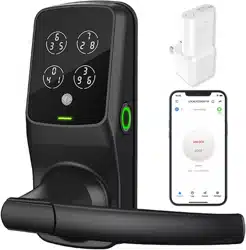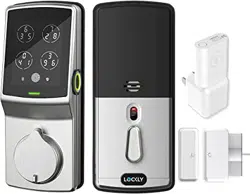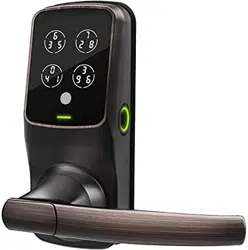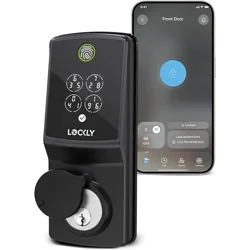
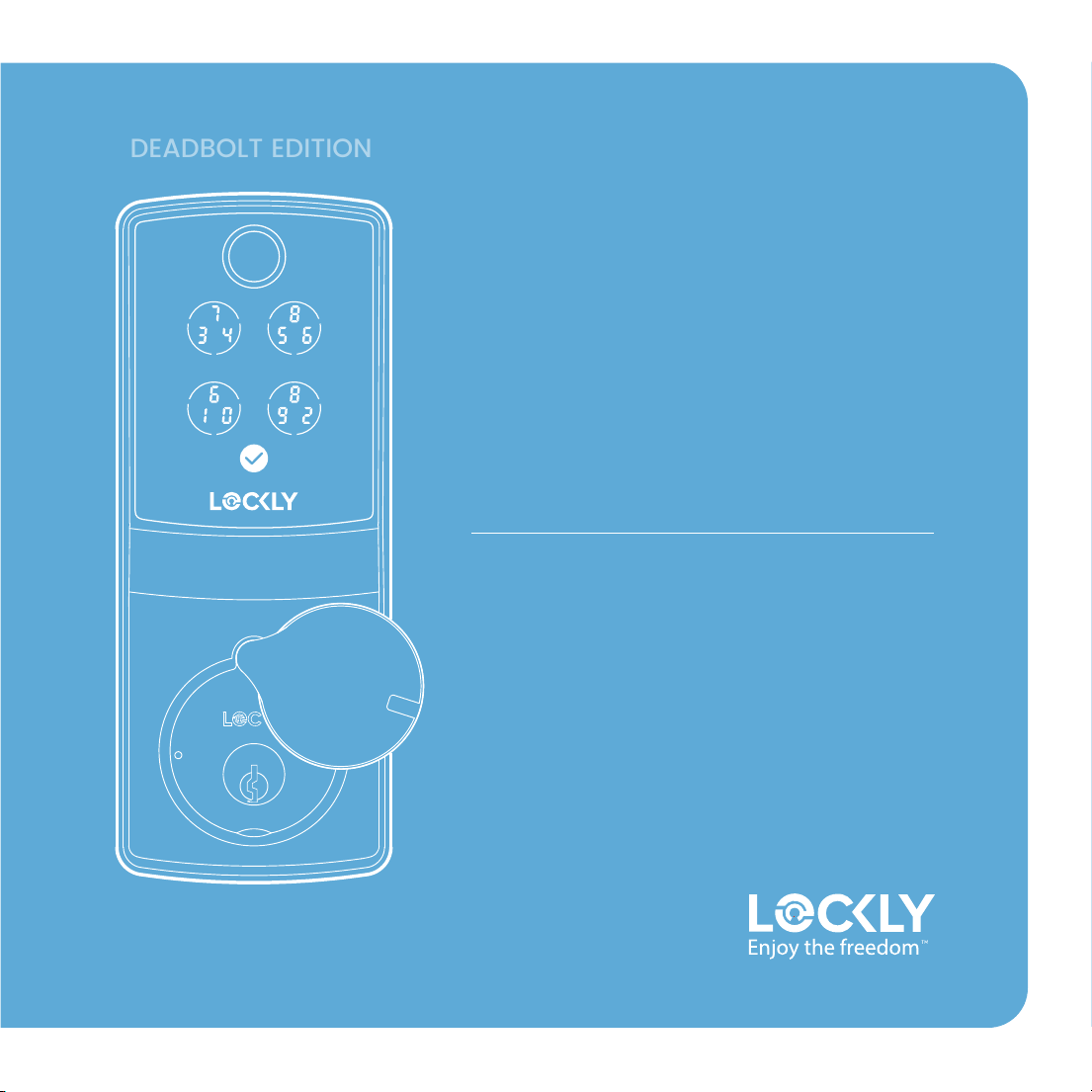
Lockly Secure Pro
2025 Version
Setup and Use
DEADBOLT EDITION
PGD728WE1
We’re here to help
Your Lockly smart lock comes with lifetime
technical support. Feel free to contact us with
any questions or comments.
(669) 500-8835 [email protected] support.Lockly.com
App download 03
Install battery 04
Lock overview 05/6
Enter program mode 07
Fingerprint access 08
Adding a fingerprint 09
Adding a PIN code 10
Setup
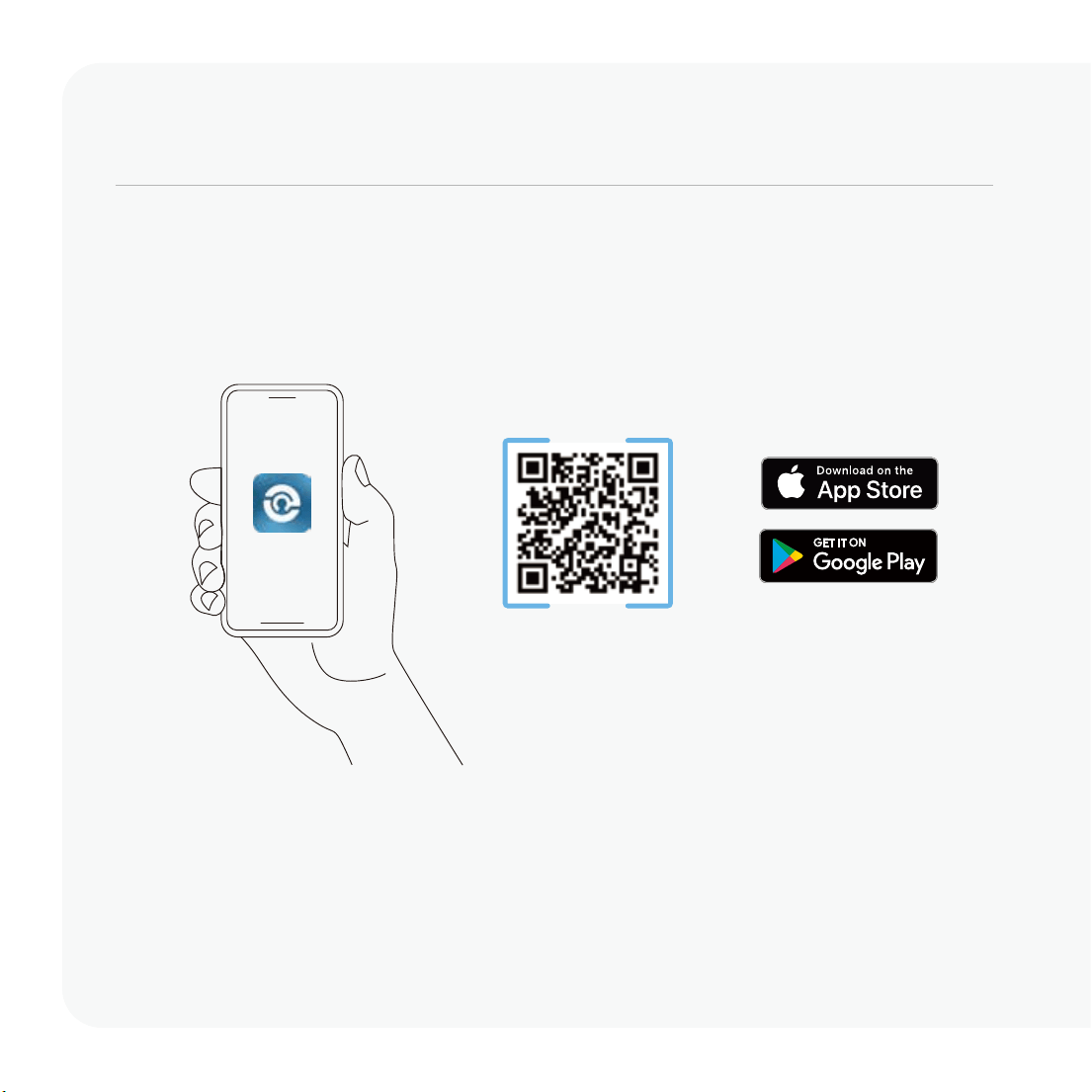
Download the Lockly app
Scan or visit Lockly.com/app
The Lockly app will guide you through final installation, setup, and creating your user profile
for a more tailored and optimized experience.
03
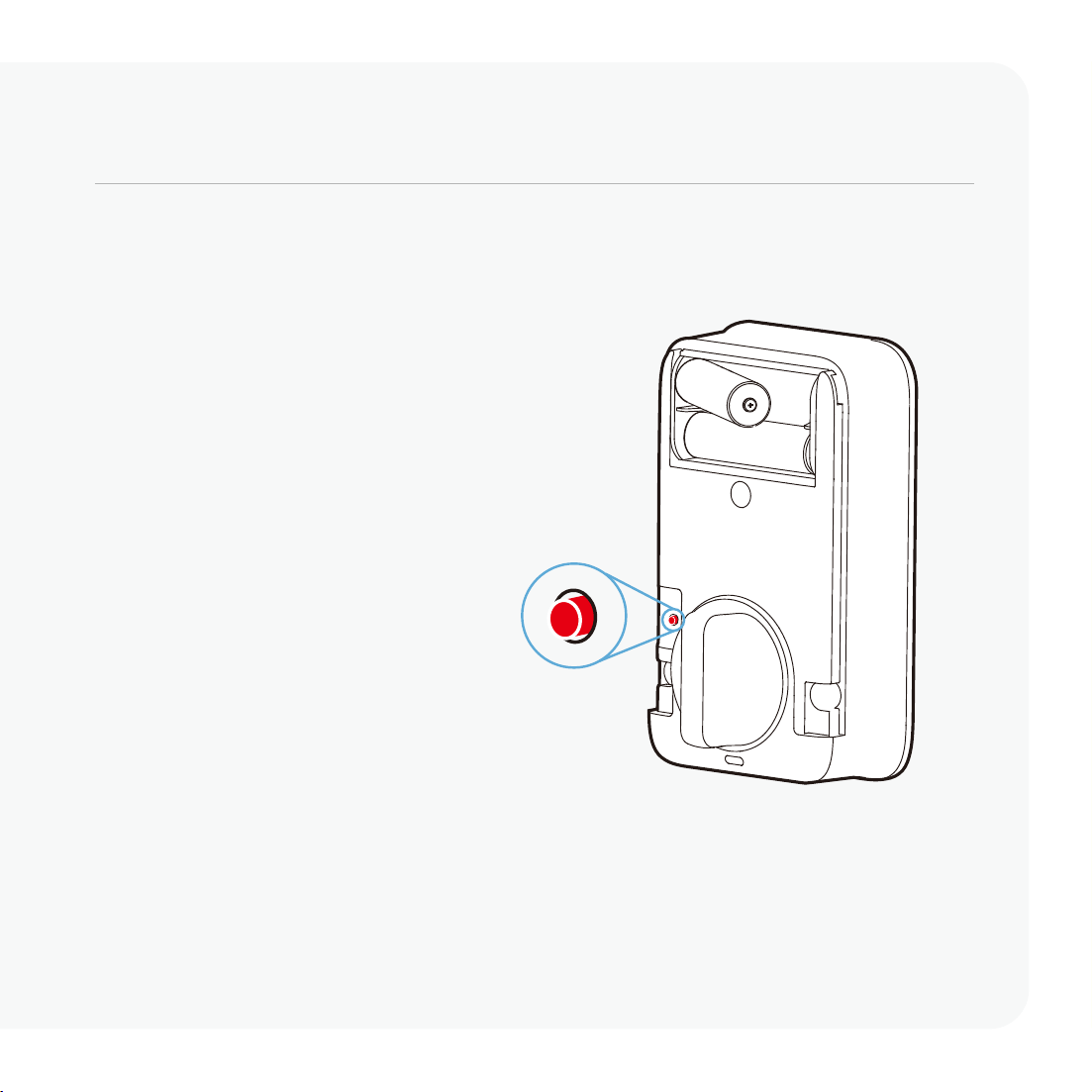
Ensure the batteries are full.
Install battery and start self-check
Install battery as shown.
Perform self-check (skip if done)
Immediately hold the red program
button for 4 seconds. The lock will
perform a self-diagnostic by
extending and retracting the
deadbolt multiple times.
Open the Lockly app and tap (+)
to add a new device. Locate your
Lockly model and follow in-app
instructions to continue setup.
04
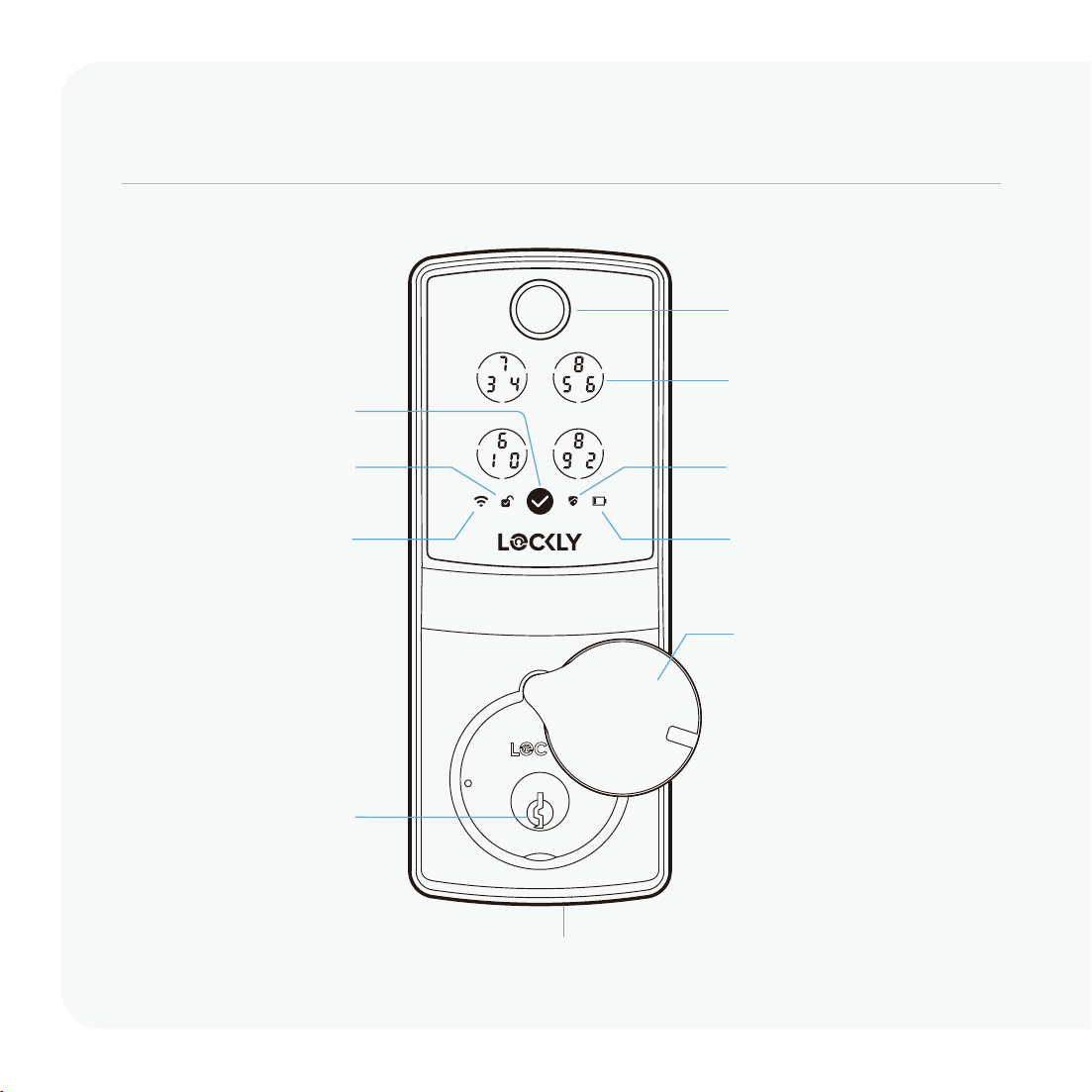
Key hole cover
USB-C backup power port
Physical key hole
Low battery indicator
Safe Mode
PIN Genie
digital keypad
Fingerprint sensor/
LED indicator
Wake up screen/
Enter button
Unlocked indicator/
Welcome Mode
Wi-Fi status
Getting to know your Lockly Secure Pro
Exterior
05
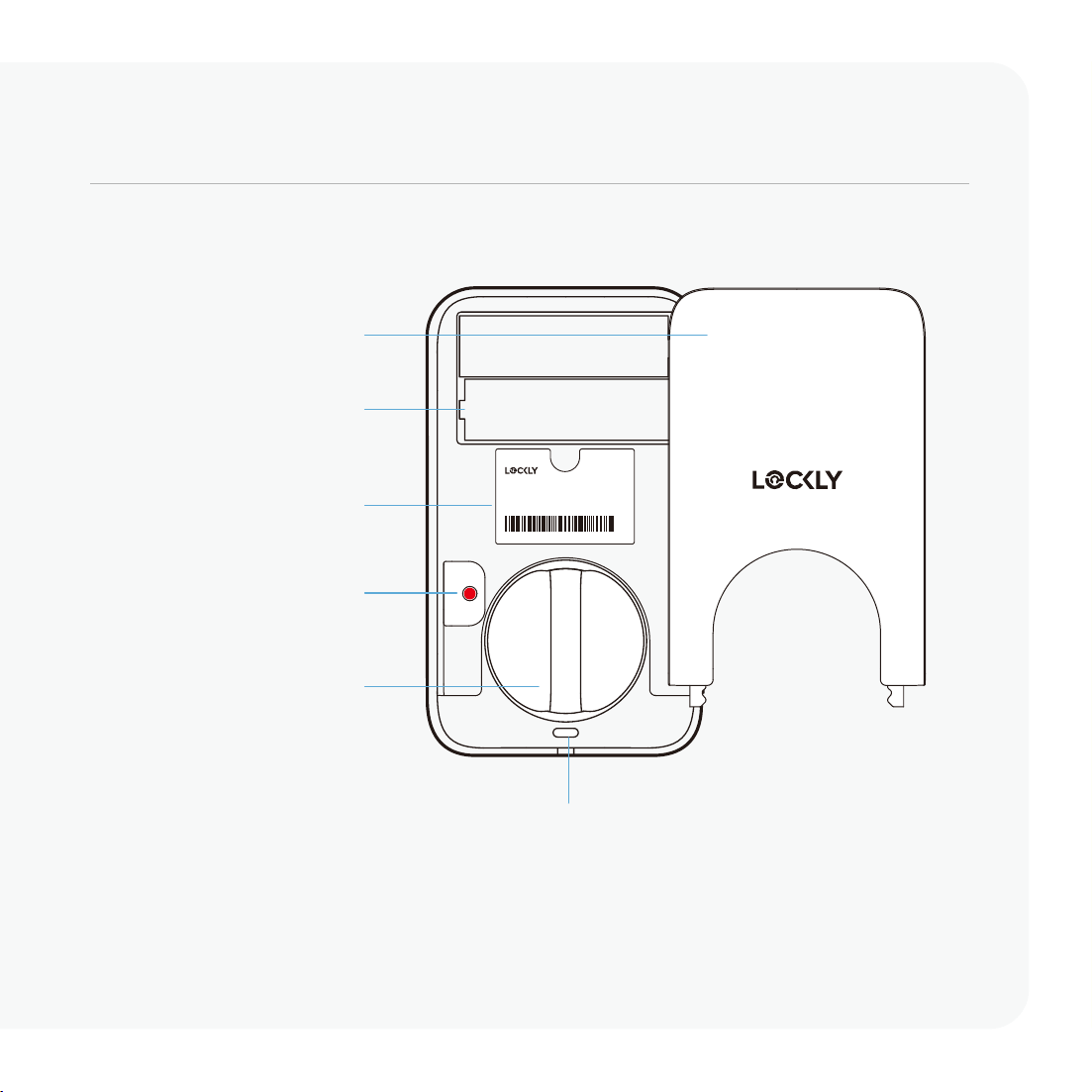
Battery compartment
(Operated by 4 x AA Batteries)
Battery cover
PGDXXXXXXXX
Lockly Secure Pro
Deadbolt Edition
SN: PGDXXXXXXXXXXXX
SN number
Program button
Lock/unlock
thumbturn
Interior side LED
indicator light
Interior
06
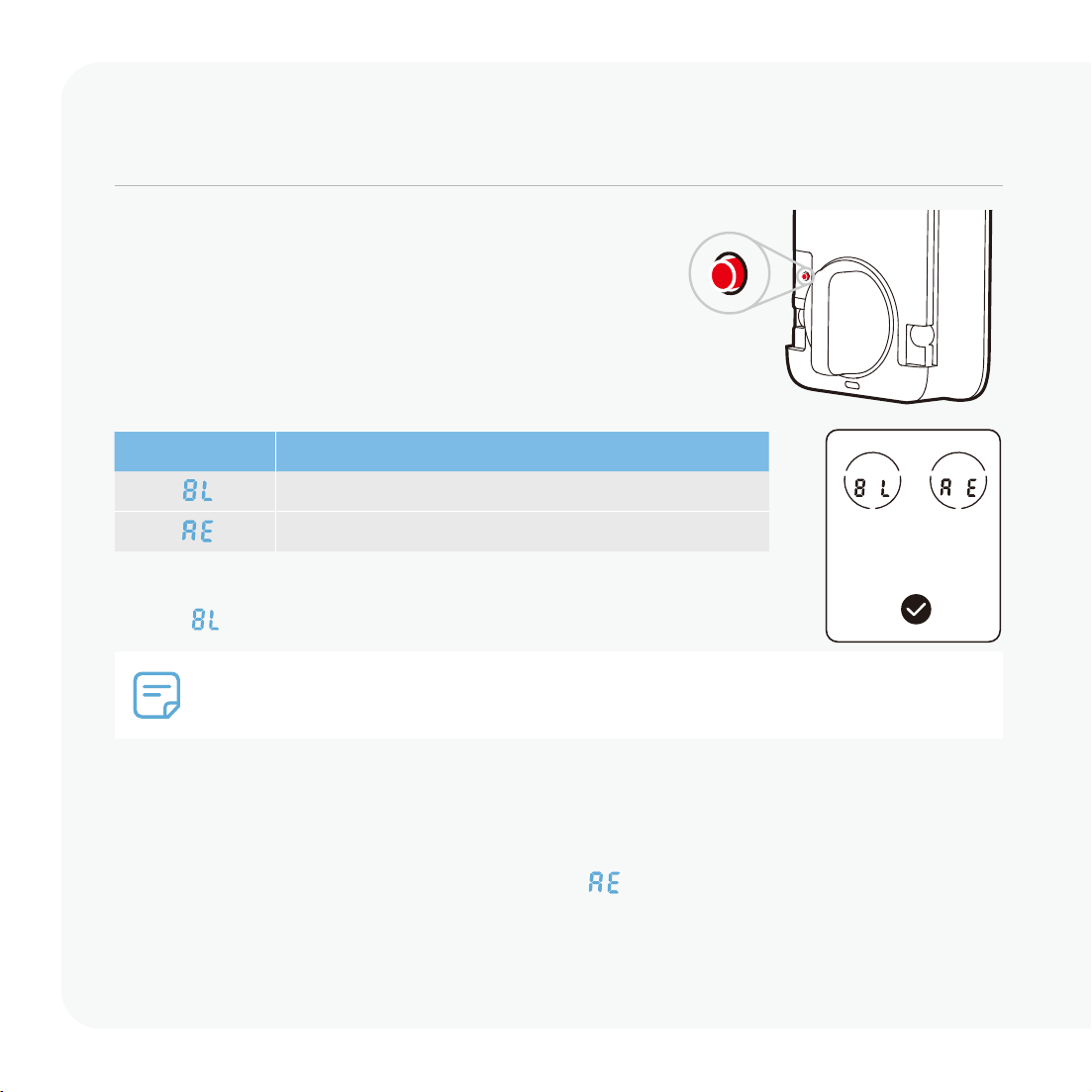
Entering Programming Mode
To enter Programming Mode, remove the battery com-
partment cover on the interior side of the Secure to expose
the Program buttons.
Simply press the Program button to enter programming
mode.
To end Programming Mode, press the Program button
anytime. Programming Mode will automatically exit if
the keypad is inactive for more than thirty (30) seconds.
If you need to reset, you must have your Activation Code available. The Activation Code
can be found on the Activation Code Card that came with your smart lock. Once the smart
lock has been reset, all the data previously stored will be deleted. See below which Reset
procedure applies for you.
Direct Reset
Press the Program button briefly, then select the menu on the menu interface and enter
the Activation Code. Confirm by pressing the confirmation button to perform the reset.
Reset via Lockly App
In the Lockly app, navigate to the Settings menu and choose 'Perform Factory Reset'. The
smart lock will restart and reset itself. After the reset, you will need the Activation Code to
reconnect with the app.
After entering Programming Mode, your Lockly keypad's screen
should resemble the one shown on the right.
Tap on to enter Bluetooth into pairing mode.
Pairing Bluetooth
ModeNumber
Reset
07
When you actively turn off WiFi/Bluetooth through super power saving or custom power saving, you cannot
turn on WiFi/Bluetooth again through the app. You need to manually press the Program button to tempo-
rarily turn on WiFi/Bluetooth. After 5 minutes of timeout, WiFi/Bluetooth will be automatically turned off.
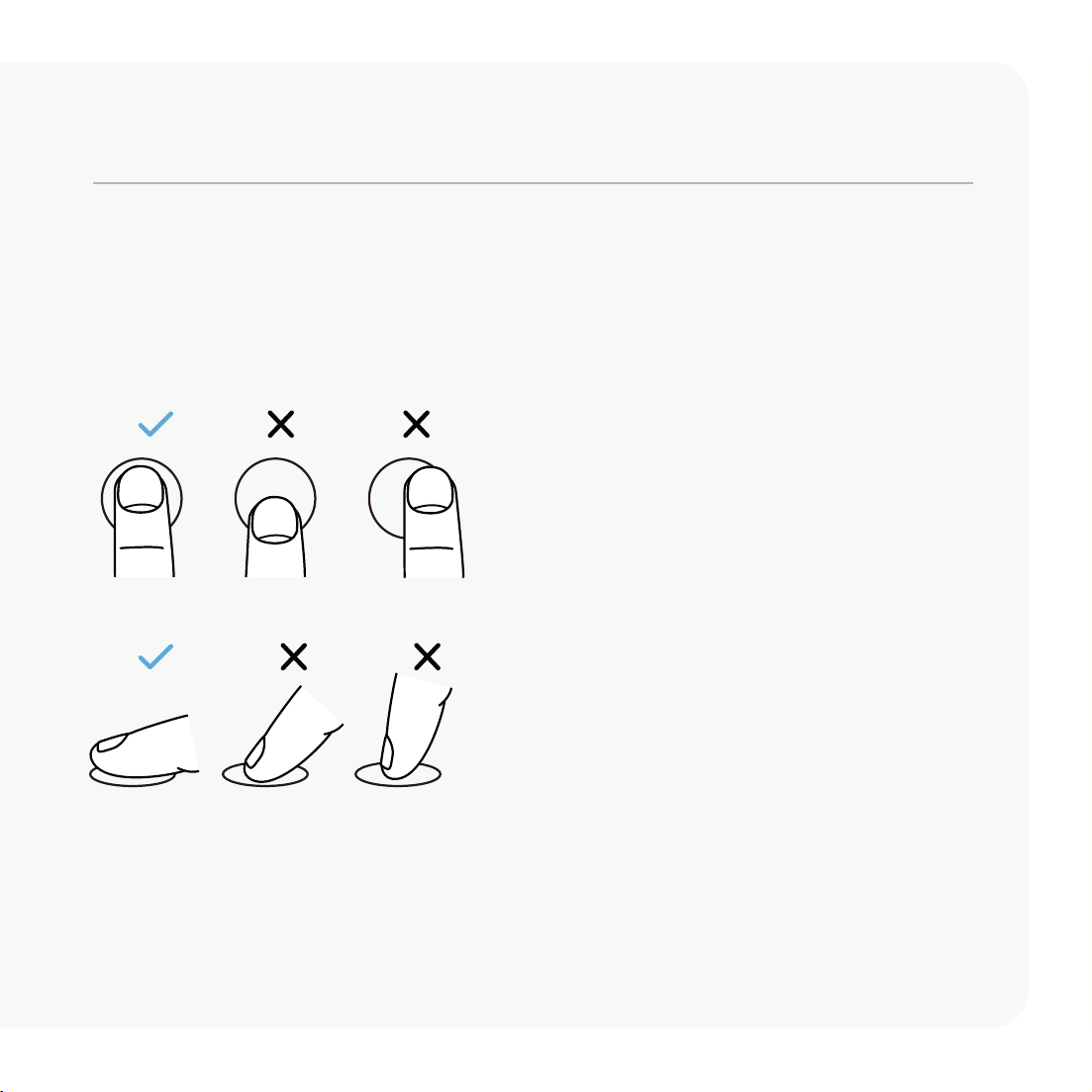
Fingerprint scanning
Set up fingerprint access
For fast and reliable fingerprint recognition, it's important to follow correct finger
positioning when registering your fingerprints.
Alignment
Avoid positioning finger too high or low
on the sensor.
Avoid positioning finger too much
off-center left or right.
Angle
Keep finger straight and somewhat flat;
avoid holding at an angle.
08
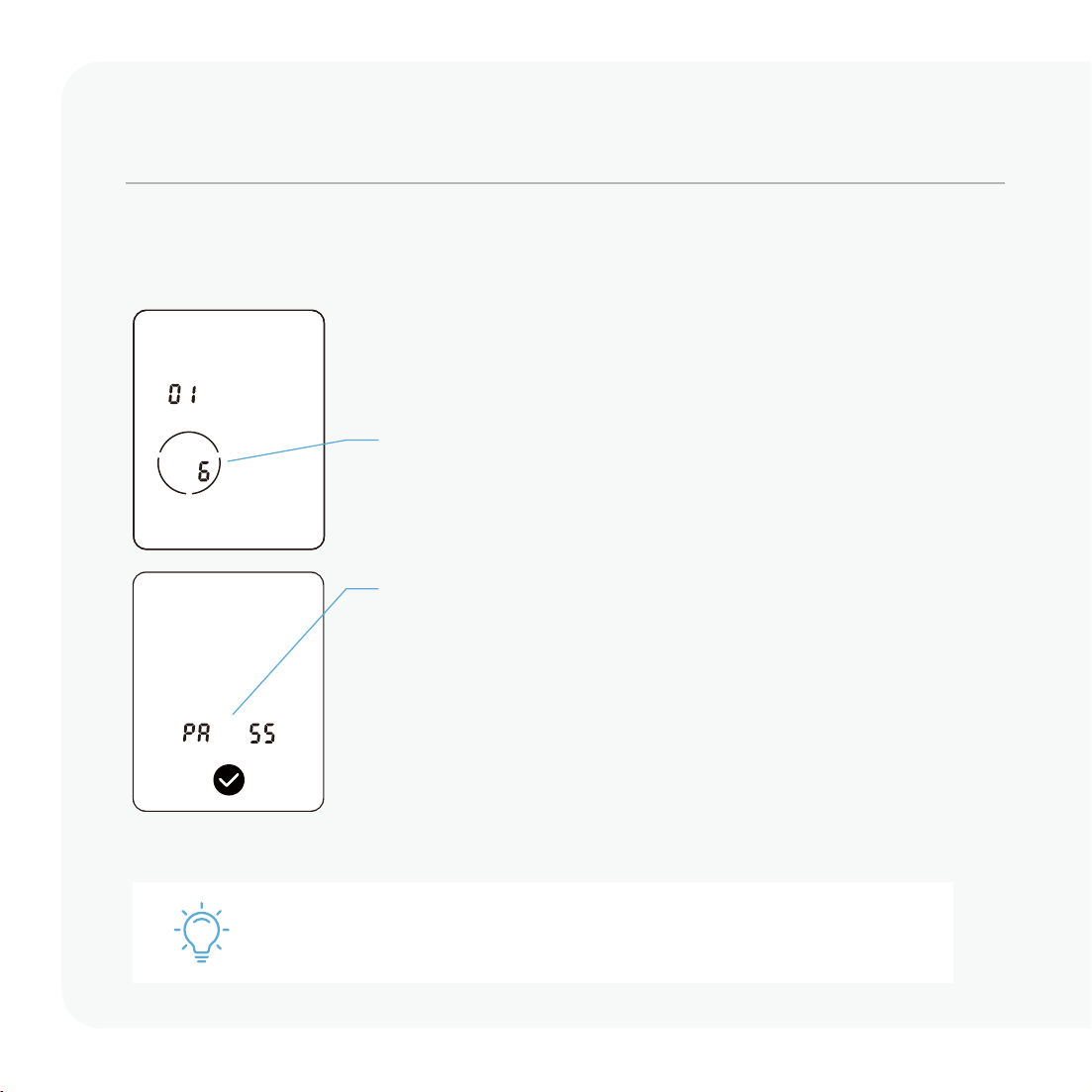
Adding a fingerprint
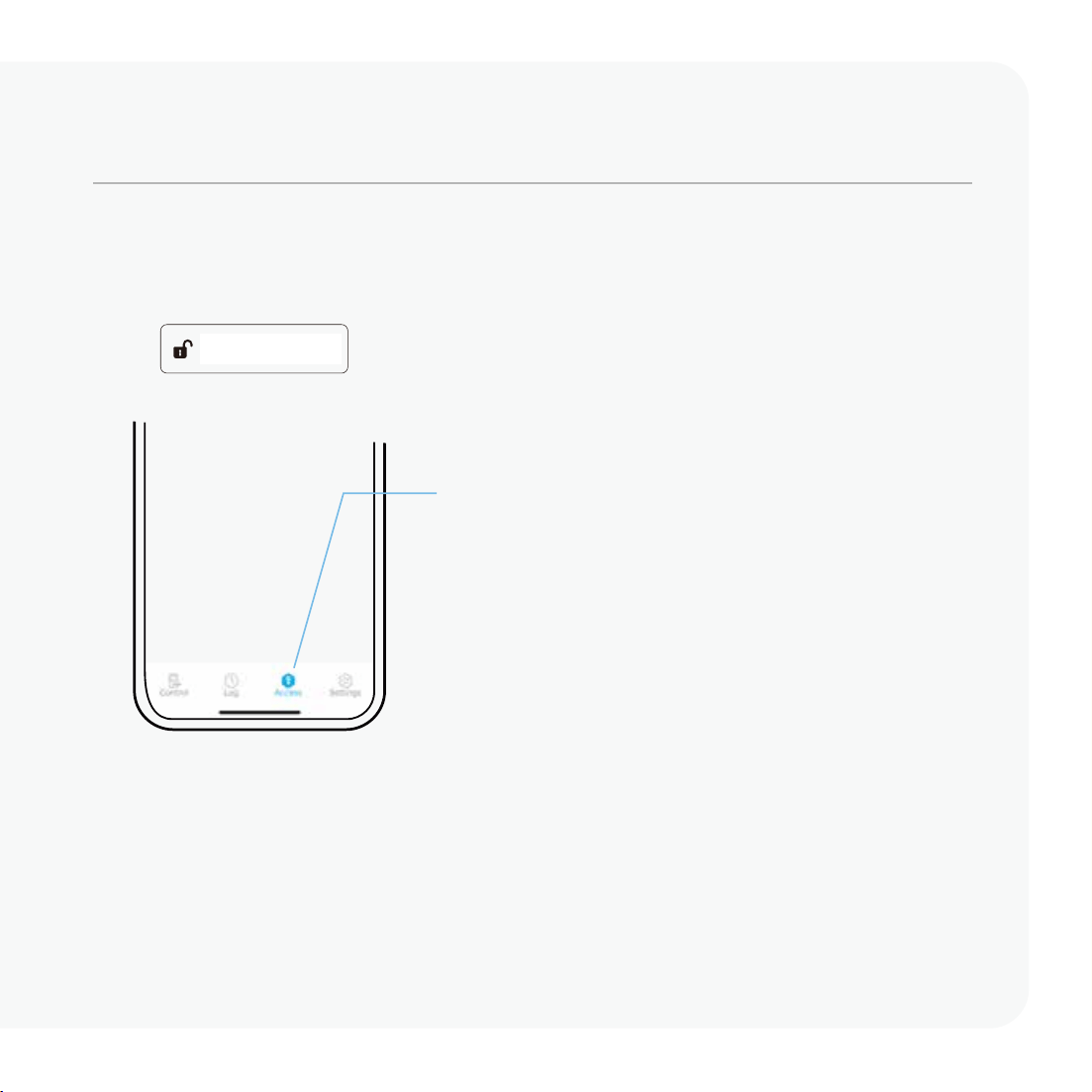
In the Lockly app, choose your lock then select “Access” and follow on-screen instructions.
Scanning process
Your finger will be scanned six times for optimal
accuracy. The countdown shows in the lower-left
circle of the digital screen, starting from six.
Place your finger on the sensor and hold still until you
hear a beep. Slightly adjust your finger position and
hold for each remaining scan until you hear a longer
beep with the word "pass" indicating a successful
scan.
If fingerprint registration fails, repeat process.
09
Your new Lockly Access Code can be any combination of 6 to 8 digits. Once a new Access
Code is entered, the Default Access Code of 123456 would be deleted. A maximum of 52
sets of Access Codes can be stored for use at any given time. To add more than 52 sets of
Access Codes, you must delete an existing Access Code before adding a new code.
There are different types of Access Codes that can be generated using the Lockly app.
Each type of access code have different levels of permission you can select for your
guests, tenants, deliveries, helpers, etc., Get the latest updates on access codes, visit:
support.lockly.com/faq/accesscodes/
Adding additional access codes
Default PIN code
The default PIN code is 1 2 3 4 5 6.
During setup, you will be prompted to
set a new code to replace it.
Adding a code
Select your lock from the Lockly app,
then select Access then user, Access
Code and follow the on-screen
instructions to setup the various
types of codes.
Access code types
Set permanent, recurring, time-based, or one-time use access codes.
1234 5 6
10
Unlock with keypad 12
Fingerprint access 14
Unlock with app 15
Auto and manual lock 16
More ways to access 17/18
Safe mode 19
Rain mode 20
Alert and sounds 21
Troubleshooting/FAQs 22/23
Use
Unlocking using Access Codes
Enter button
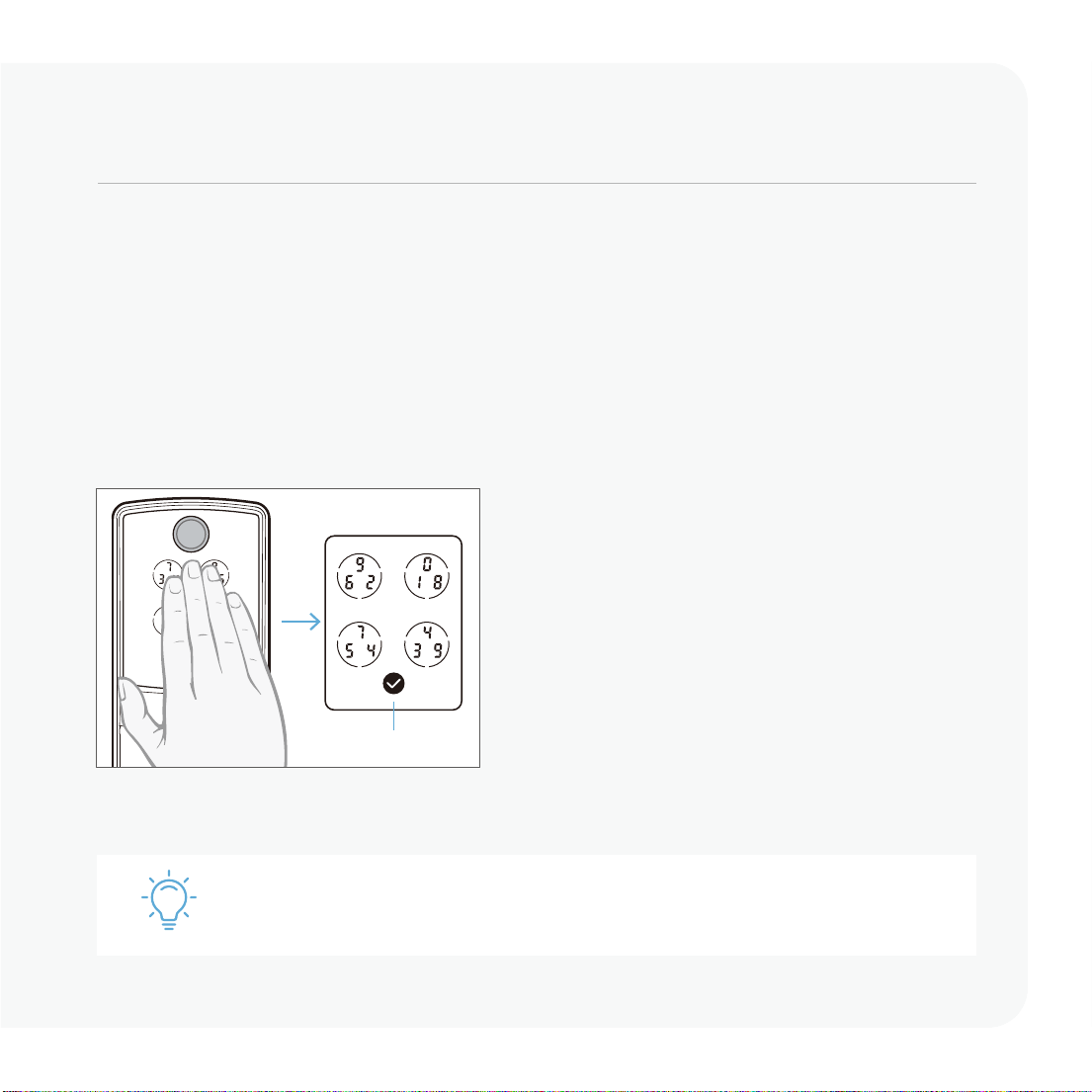
Slide your hand across the screen to activate
the keypad.
Enter your 6 to 8 digit Access Code followed by
the
enter button. Press enter button anytime to
reset if you entered the wrong digit.
If the Access Code entered is correct, the door
will unlock. If the Access Code entered is incorrect,
LED indicator will flash red light.
How to Use the Keypad
There are a total of five (5) buttons on the keypad as shown in the example image to the
left. The numbers in each button may differ than what is shown on your device than what
is displayed here.
To enter your required digit, just simply press the circle where your number is shown. You
do not need to press the actual number as anywhere within the circle will suffice.
The button on the bottom is the enter button. You will be pressing this button when you are
done entering your Access Code.
Note: the default PIN code is 1 2 3 4 5 6
Ten consecutive wrong attempts will put Lockly in “Safe Mode”.
12
Hold Enter Button (3 sec)
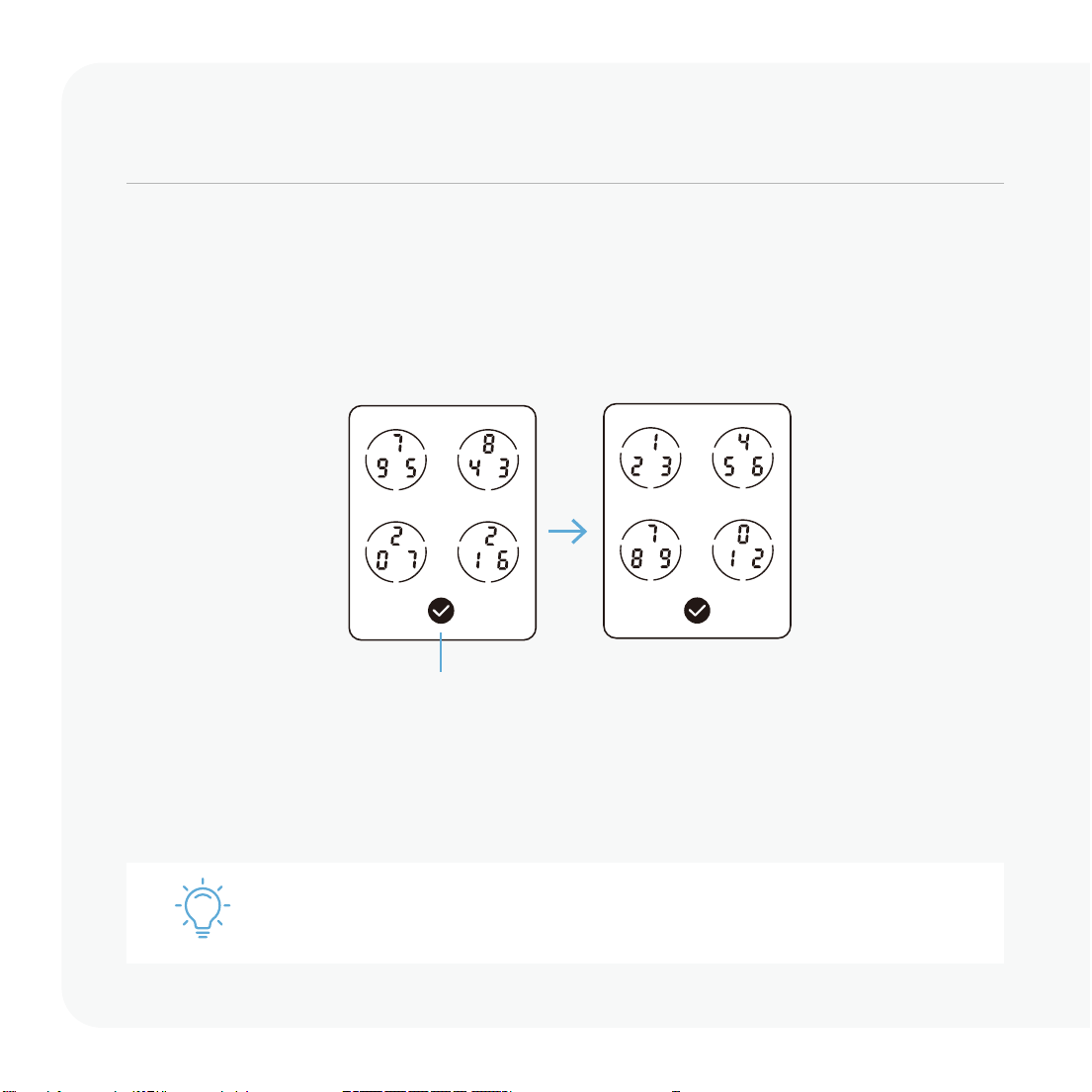
You may toggle between two types of keypad displays to enter your Access Code. The
fixed digit version and the PIN Genie
version (Recommended). Press and hold the Enter
Button for 3 seconds to toggle back and forth between the two keypads.(Sample display
shown only)
PIN Genie Fixed Digit
Temporarily boost screen brightness by pressing and holding any of the 4
circular number buttons for 3 seconds.
13
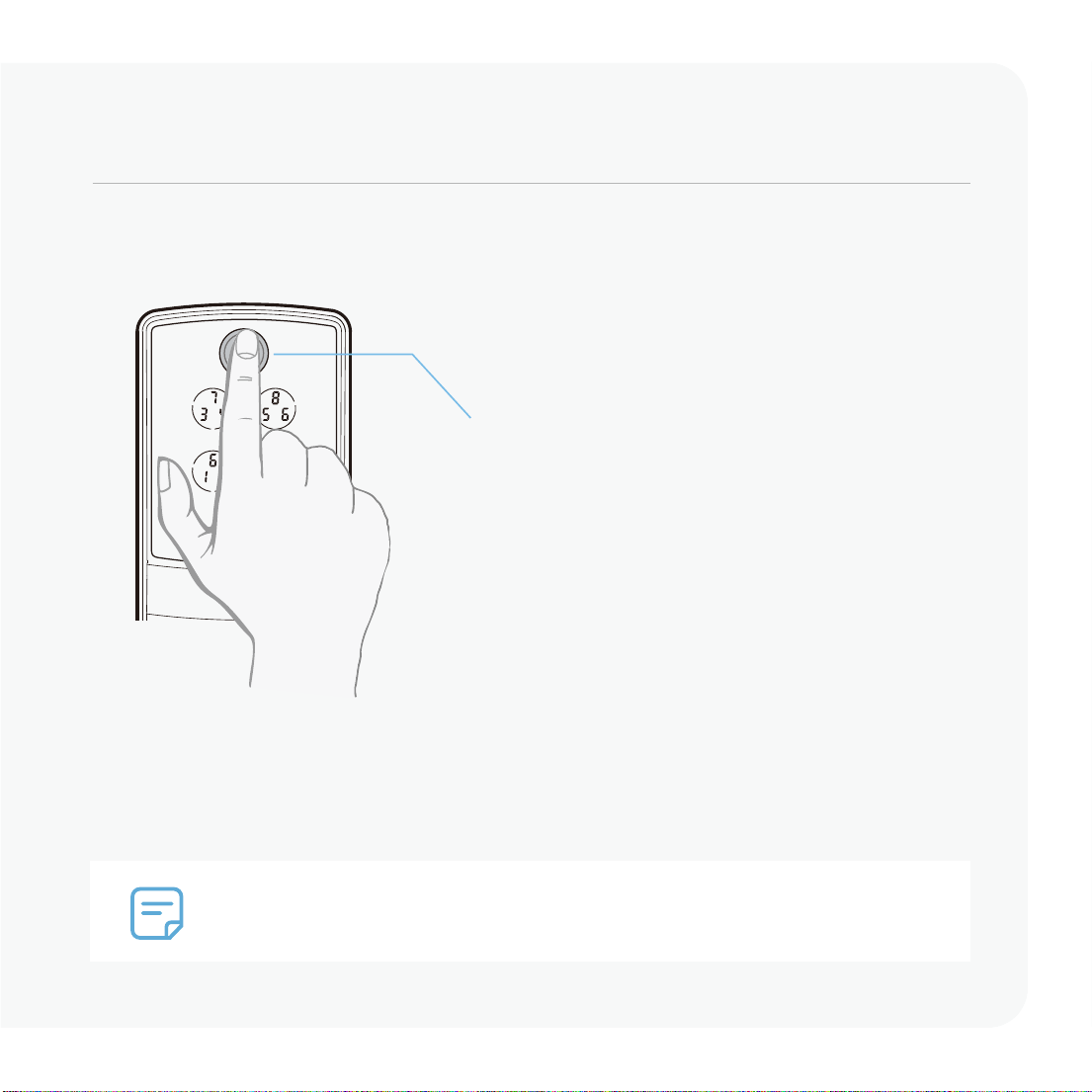
Our advanced biometric sensor with AI learning technology recognizes your
fingerprint in 0.2 seconds and improves in speed and accuracy with use.
14
Unlock with your finger
Featuring advanced AI learning technology.
Place a registered finger flat and
centered on the sensor.
Green circular LED: with a beep; door is
unlocked.
Red circular LED: with two beeps; finger
not recognized. Try again or try another
registered finger.
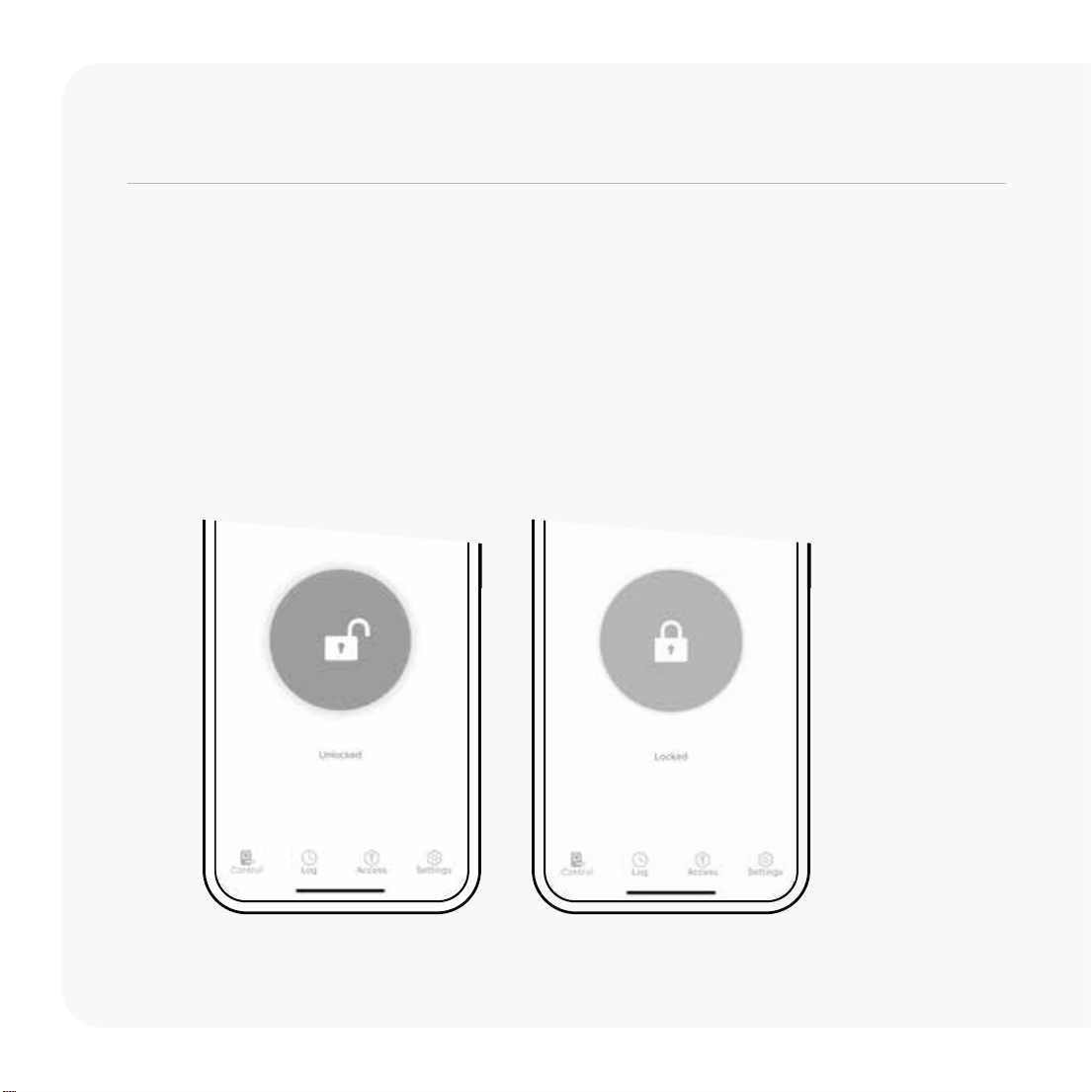
Locking/Unlocking using App
Remote app control
Unlock, lock, check status, and get
notifications from anywhere on your
smartphone.
Unlock or lock
Choose your lock in the Lockly app, tap unlock or lock.
History and status monitoring
Check real-time status and history
on your smartphone.
Lock, unlock, and check status.
15
Auto and manual locking
Auto-locking
In the Lockly app, set your desired
time (example 5-min) under settings
of your lock, auto-lock timer.
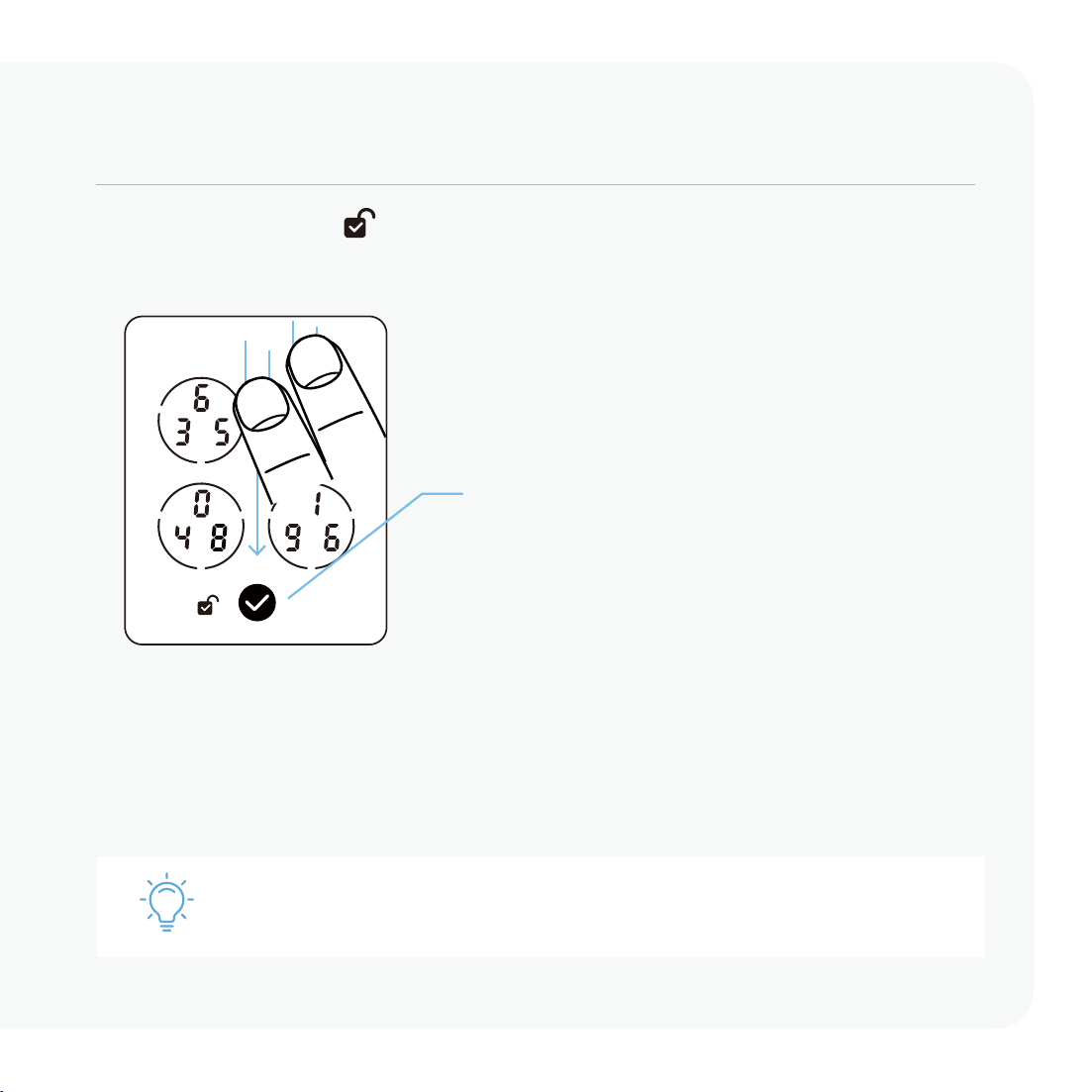
Lock using digital screen
Swipe top to bottom with two fingers
when screen is off or press the enter
button when screen is on.
Interior locking
Rotate the thumbturn on the interior
assembly.
Lock with key
open the key cover by sliding the cover
on either left or right direction to reveal
the keyhole,
insert physical key and
rotate.
You can set auto-lock timing under your lock’s setting in the Lockly app.
When unlocked the icon will appear on screen.
16
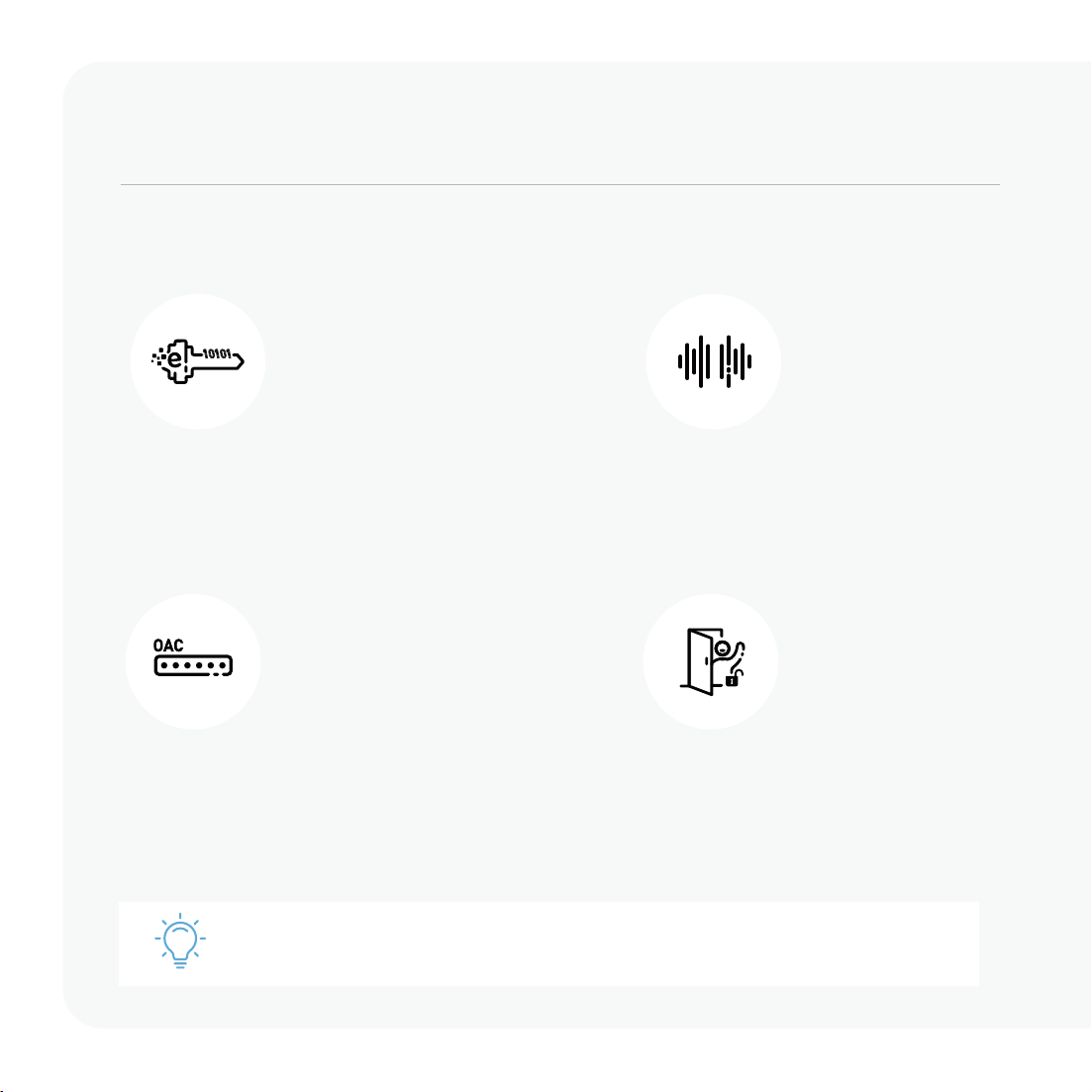
eKeys and eBadges
Share one-time, permanent, recurring,
or revocable access with people you
trust.
We introduce new features every year. Subscribe to our newsletter at lockly.com
for product updates, tips, and the latest innovations.
Secure access, control, and monitoring options.
More Ways to Access and Control
Offline Access Codes
TM
Grant one-time access through the
Lockly app without needing an internet
connection.
Voice control
Unlock, lock, or check door status
through Amazon Alexa, and Google
Assistant.
Welcome Mode
Temporarily keep your lock from
auto-locking for more convenient
trusted user access.
17
More Ways to Access and Control
For more information, refer to the Lockly app or visit support.Lockly.com.
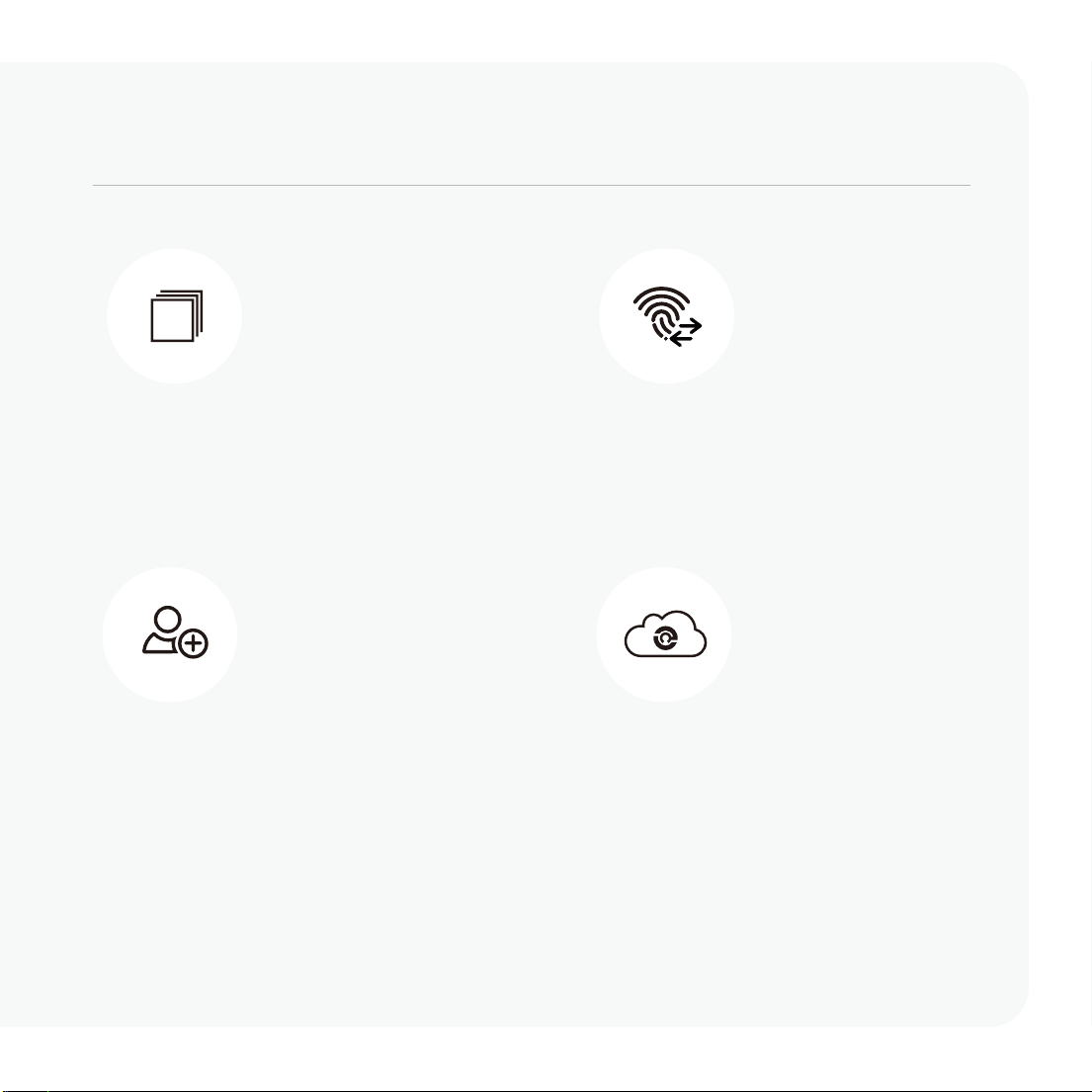
History and status monitoring
Check real-time status and history
on your smartphone.
Set up user privileges
Grant sub-admin privileges to allow
others to manage your property.
Air Transfer
Easily transfer user profiles between
Lockly device for seamless setup and
access management.
Manage multiple properties
Manage access control and reporting
with LocklyOS, the cloud platform for
property access management.
18
Safe Mode - Overview
Lockly
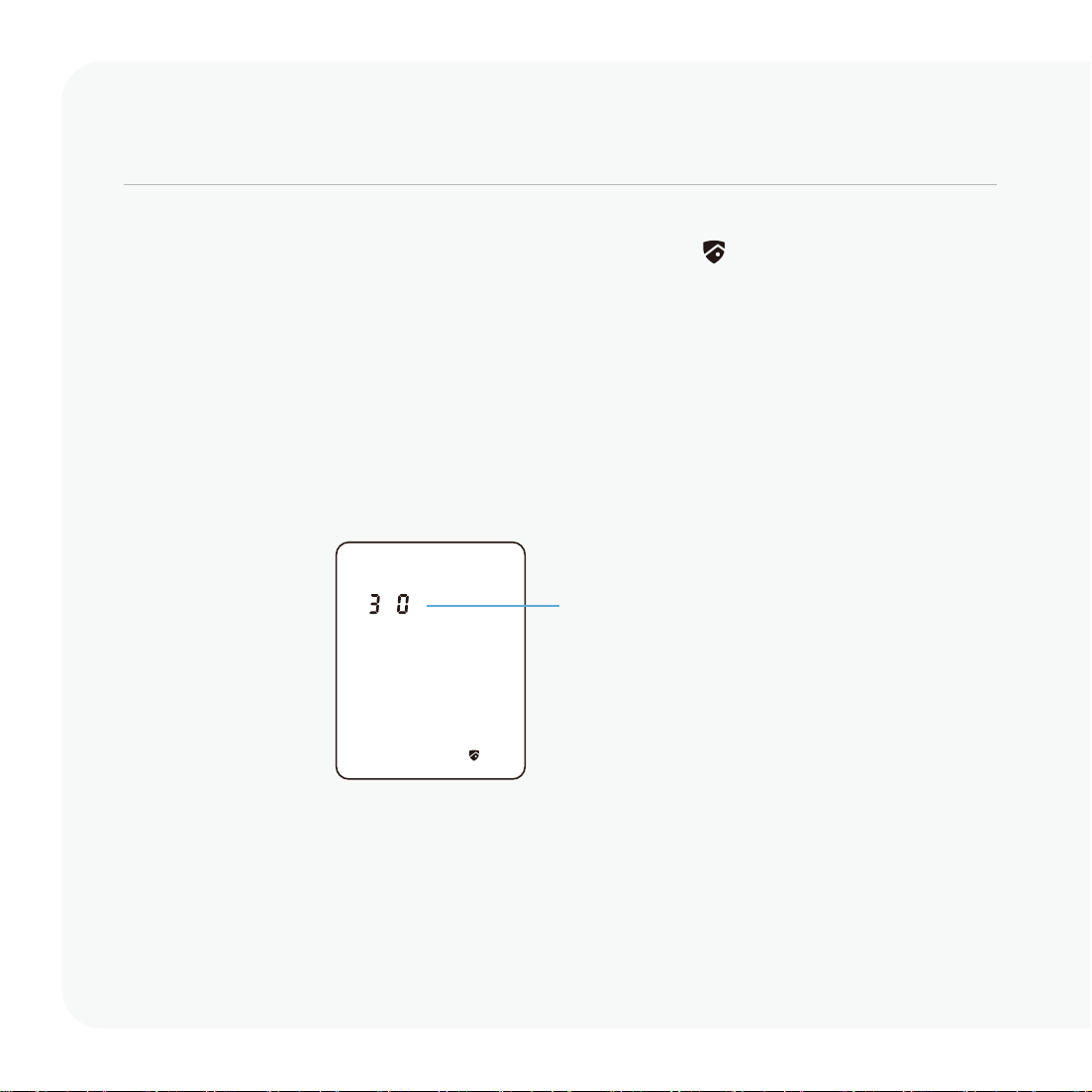
will enter Safe Mode when ten (10) consecutive wrong Access Codes are entered
within 10 minutes. When in Safe Mode, the lock status icon will start to flash.
You will see a “30” on the screen, notifying the number of minutes that the keypad is
disabled for. After 30 minutes, you may attempt to enter the correct Access Code to
unlock the door.
You can unlock the door and exit Safe Mode by using your correct fingerprint, the app, the
indoor lock knob, or a physical key.
Countdown Prompt
(Displayed in Minutes)
Will start with 30 and
countdown until 0.
19
Like other digital electronic products water can trigger to activate the touchscreen and
fingerprint sensor which may cause the batteries to drain. To protect the lock and extend
battery life, you can setup your Lockly to enter Rain Mode to shut off keypad and fingerprint
reader whenever rain or water is detected.
Activate this feature on the Lockly app. While you are within the Bluetooth range or
remotely connected thru Wi-Fi hub, go to Settings > Rain Mode and toggle the button
to turn ON.
If you have not yet connected your device to Lockly App, follow below steps to activate the
rain mode feature:
Rain Mode
RAIN MODE ON
1. Long press to enter fixed digit keypad.
2.
Enter
access code +234+ .
3. You will hear a short beep and LED
indicator flashes green once Rain Mode
is ON.
RAIN MODE OFF
1. Long press to enter fixed digit keypad.
2. Enter access code +890+ .
3. You will hear a long beep and LED
indicator flashes green once Rain Mode
is OFF.
example: 135790 + 234 +
example: 135790 + 890 +
When RAIN MODE is ON, the keypad and fingerprint sensor cannot be used. Unlock
via Lockly App, physical key, or voice control with Amazon Alexa or Google
Assistant-enabled devices. Rain Mode auto exits every 30-mins and re-enters if
water or rain is still present.
If you are using the Lockly app, you will be notified when Lockly entered rain mode
and it will be recorded in your access history.
20

Exterior Assembly Alerts
Fingerptint
Exterior LED indicator flashes green with a
'beep' sound
Door unlocked
Exterior LED indicator flashes red with two
'beep' sounds
Fingerprint recognition failed
Access Code
Exterior LED indicator flashes green
with a
'beep' sound
Door unlocked
Exterior LED indicator flashes red
with two
'beep' sounds
Incorrect access code entered
Voice Control
Exterior LED indicator flashes green Door unlocked
Interior Assembly Alerts
Battery
Interior LED indicator flashes red with a beep
sound (x3)
Battery level is less than 20%
Interior LED indicator flashes red with a beep
sound (x5)
Battery level is critically low (3 unlocks
remaining). Charge battery immediately.
Alerts and sounds
21

Troubleshooting
FAQs
Why is my keypad not responding?
• If is flashing, your smart lock is in Safe Mode. Unlock with other access credentials
(fingerprint, mobile app, or physical key) to exit.
• If water is detected, Rain Mode may be activated. Unlock your door with other
authentication methods (Lockly app..)
• Check if batteries are installed correctly.
• Refer to support.Lockly.com for more information about Safe Mode and Rain Mode.
Why is my keypad on full blackout?
• Battery may have been completely depleted. Use the physical key or a Type-C cable to
connect your Lockly to a mobile power source to temporary activate the lock. Replace
the battery immediately after unlock.
Why is my fingerprint not recognized?
• Check that you are using a registered finger.
• Make sure your finger is clean and dry.
• Position your finger at the centre of the sensor.
Why is my Lockly not locked automatically?
• Check if auto lock is disabled in the Lockly app.
• Welcome mode is currently active. Disable or change setting in Lockly app.
Troubleshooting/FAQs
22

How to pair my smart lock with a new phone?
• Download the Lockly app on your new device and log in using the same account
credentials, follow in-app instructions.
How to pair my smart lock with a new Lockly account?
• You will need to perform a factory reset with the following steps.
1. On the old Lockly app account, go toSettings > Reset and Pairing > Perform Factory Reset
2. Download, register and log in to the new Lockly app account. You will need your activation
card to set up the device.
• You can perform factory reset on the lock. Refer to Lockly app or support.Lockly.com for
more details.
23
Lockly Technical Support
(669) 500-8835
[email protected] support.Lockly.com

FCC Warning
This device complies with Part 15 of the FCC Rules. Operation is subject to the following two conditions: (1) This
device may not cause harmful interference, and (2) this device must accept any interference received,
including interference that may cause undesired operation.
NOTE 1: This equipment has been tested and found to comply with the limits for a Class B digital device, pursuant
to part 15 of the FCC Rules. These limits are designed to provide reasonable protection against harmful
interference in a residential installation. This equipment generates, uses, and can radiate radio frequency
energy and, if not installed and used in accordance with the instructions, may cause harmful interference to
radio communications. However, there is no guarantee that interference will not occur in a particular installation.
If this equipment does cause harmful interference to radio or television reception, which can be determined
by turning the equipment off and on, the user is encouraged to try to correct the interference by one or more
of the following measures:
- Reorient or relocate the receiving antenna.
- Increase the separation between the equipment and receiver.
- Connect the equipment to an outlet on a circuit different from that to which the receiver is connected.
- Consult the dealer or an experienced radio/TV technician for help.
NOTE 2: Any changes or modifications to this unit not expressly approved by the party responsible for compliance
could void the user's authority to operate the equipment.
FCC Radiation Exposure Statement
This equipment complies with FCC radiation exposure limits set forth for an uncontrolled environment. It
should be installed and operated with a minimum distance of 20cm between the radiator & your body.
WARNING: This product can expose you to chemicals including Lead, which is known to the State of
California to cause cancer. For more information go to www.P65Warnings.ca.gov.

UMPGD728WE1241106
Have an innovative idea?
Need a new solution for a situation?
Let us know. We are always innovating based
on customer input and feedback.
(669) 500-8835 or [email protected]
Own a business?
Learn about how LocklyPRO and LocklyOS
can help you in your business.
(510) 288-9928 or [email protected]
© Copyright 2024 Lockly All rights reserved.
(See details on the inside back cover).
Let’s co-create together!
© Copyright 2024 Lockly All rights reserved
US Patent NO. US 9,881,146 B2 | US Patent NO. US 9,853,815 B2 | US Patent NO. US 9,875,350 B2 | US Patent NO. US 9,665,706
B2 | US Patent NO. US 11,010,463 B2 | AU Patent NO. 2013403169 | AU Patent NO. 2014391959 | AU Patent NO. 2016412123 | UK
Patent NO. EP3059689B1 | UK Patent NO. EP3176722B1 | Other Patents Pending
The Bluetooth
®
word mark and logos are registered trademarks owned by the Bluetooth SIG, Inc., and any use of such
marks by Lockly is under license. Other trademarks and trade names are those of their respective owners. Google,
Android, Google Play and Google Home are trademarks of Google LLC., Amazon, Alexa and all related logos are
trademarks of Amazon.com, Inc., or its affiliates.