TRC-1480
Owner’s Manual
Total Control
TRC-1480
Owner’s Manual
Total Control
TRC-1480
Owner’s Manual
Rev 1.0
Table of Contents
Introducing the TRC-1480
Thank you for purchasing URC’s TRC-1480 Wi-Fi remote control. Its easy and
intuitive use helps to simplify your life while adding control of more things than
you thought possible.
Online Support
Total Control is sold direct only and must installed/program by a certied
custom integrator.
End-User Support
Visit the URC Home Page for product information, owner’s manuals, and
support contact information.
Contact Support
Total Control is a URC product sold direct only. For questions or assistance
contact your Custom Installer/Programmer.
My Installer/Programmer
Technical Suppor t
Toll Free: 800-904-0800
Main: 914-835-4484
techsupport@urc-automation.com
H o u r s : 9 : 0 0 a m - 5: 00 p m ES T M - F
Congratulations!...............................................................................................................1
Features & Benefits................................................................................................... 1
Requirements & Compatibility.......................................................................................2
Parts............................................................................................................................. 2
Connecting the Battery Pack .................................................................................. 3
Using the Charging Cradle....................................................................................... 3
Two-way via Wi-Fi (2.4 GHz or 5GHz) .................................................................... 3
Using the TRC-1480 ..........................................................................................................4
Using Voice Control .........................................................................................................7
Issuing Voice Commands......................................................................................... 7
Displaying the Setup Menu ............................................................................................8
Sleep Timers............................................................................................................... 9
Network ...................................................................................................................... 9
Voice Assistant........................................................................................................ 10
Enabling Alexa......................................................................................................... 11
Brightness................................................................................................................. 13
System ....................................................................................................................... 13
Button Light .............................................................................................................. 14
Power ........................................................................................................................ 14
Date & Time .............................................................................................................. 15
Button Beep.............................................................................................................. 15
Pickup........................................................................................................................ 16
Software Update...................................................................................................... 16
Factory Default......................................................................................................... 17
Specifications .................................................................................................................18
Limited Warranty Statement.........................................................................................18
1
Total Control
TRC-1480
Owner’s Manual
Congratulations!
Thank you for purchasing the TRC-1480 Wi-Fi remote control for your Total Control
system. The TRC-1480 communicates with your Total Control system via the local
wireless network to control devices throughout your home/business.
Use the TRC-1480 to navigate through rooms, menus, and control your system’s
audio/video devices, climate, lighting, and more.
Features & Benefits
• Quick Connect Wi-Fi: When woken up, the remote connects to the
wireless network (2.4GHz or 5GHz) almost instantly for control of your
system and devices.
• Two-way Metadata Feedback: Experience feedback directly on the
TRC-1480’s 2.4” display when used with an ever expanding line of
3rd Party modules such as HEOS, Ecobee, Sonos, Roku and many more.
Consult with your certied URC integrator to learn more about compatible
3
rd
party integration.
• Voice Assistant Ready: Enable the built-in Amazon Alexa service
to send commands verbally directly from the remote by pushing the
press-to-talk microphone button.
• H264 IP Camera Support: View almost any security camera directly
on the TRC-1480’s display. The TRC-1480 supports high quality camera
streams. Ask your certied URC integrator for further details.
2
Total Control
TRC-1480
Owner’s Manual
Requirements & Compatibility
• Total Control: The TRC-1480 requires an MRX Advanced System Controller on
the network and must be programmed by a certied Total Control integrator.
When programmed, the TRC-1480 is capable of controlling devices around the
home/business without being within “line-of-sight” of the equipment by
sending commands over the wireless (Wi-Fi) network.
Parts
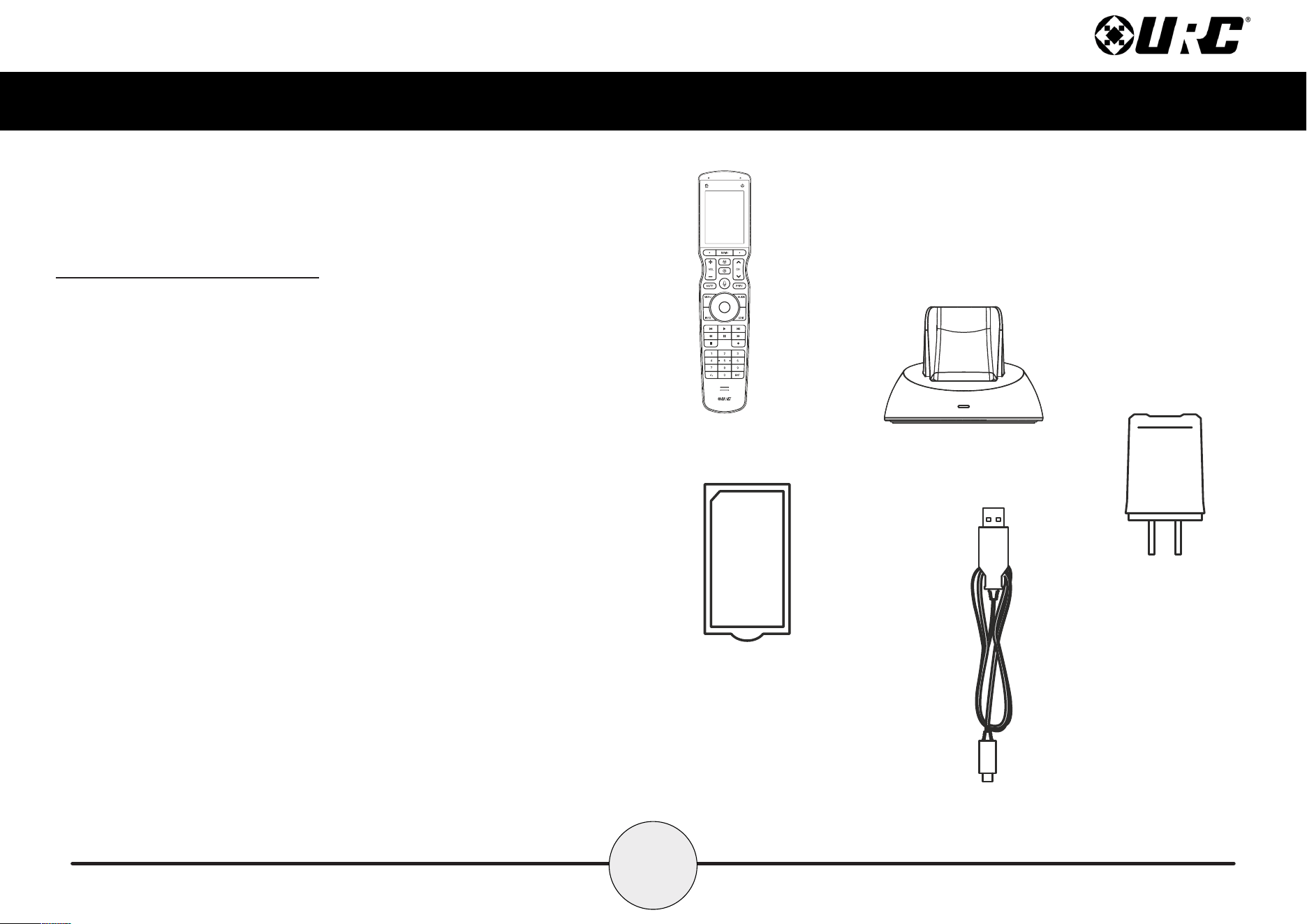
• TRC-1480 Wi-Fi Remote Control
• Li-ion Rechargeable Battery
• Charging Dock
• Power Adapter
• USB Type C Cable
TRC-1480
Charging Cradle
Rechargeable Battery
Power Adapter
USB Type C Cable
3
Total Control
TRC-1480
Owner’s Manual
Connecting the Battery Pack
A battery is included in the box when shipped from the factory. Press the spring
lock down to unlock and remove the cover. Place the battery into the battery
compartment, making sure to align the contacts on the battery with the contacts
within the TRC-1480’s battery compartment. The battery snaps into place when
aligned properly. Replace the battery cover.
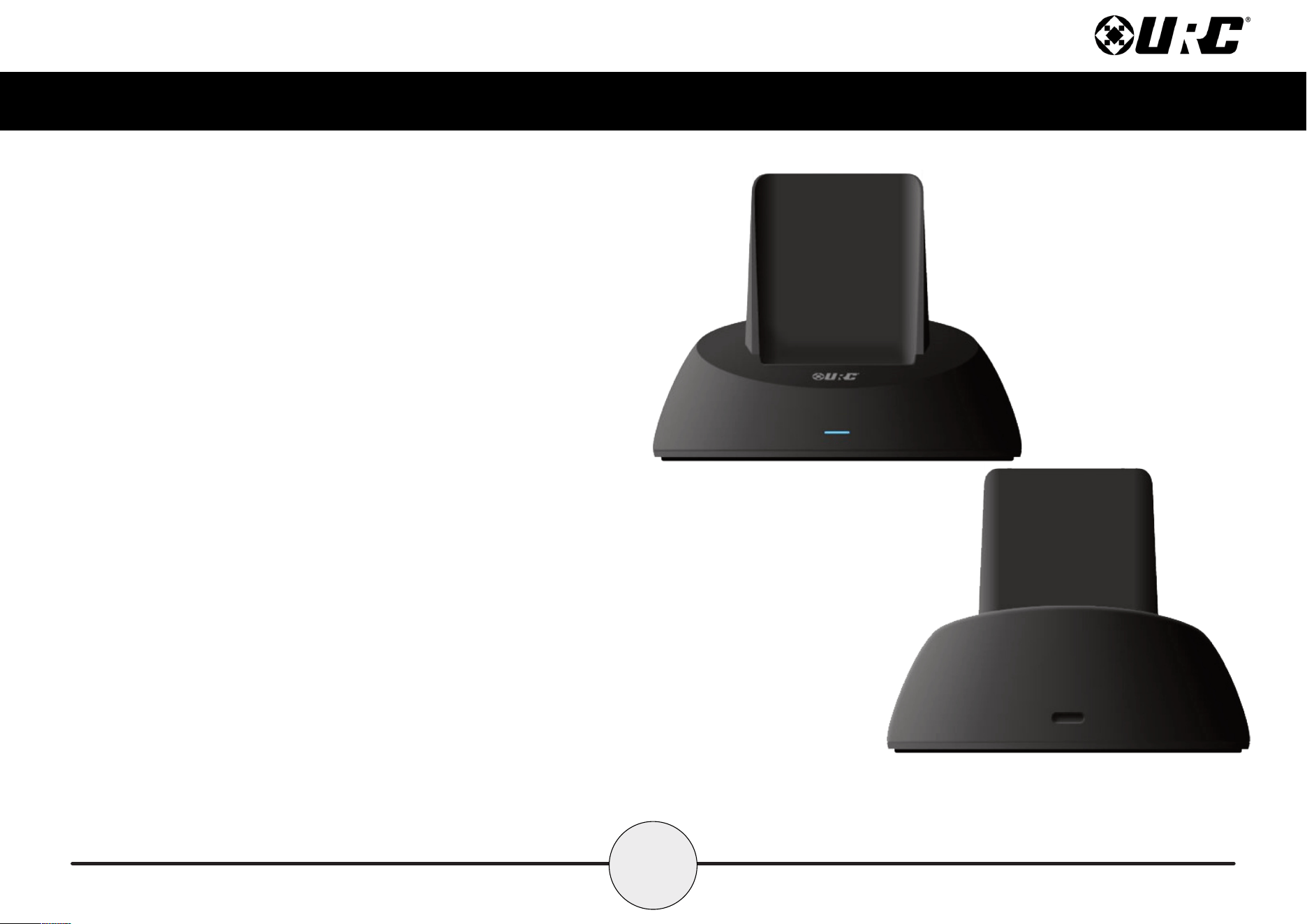
Using the Charging Cradle
Plug the 5V DC adapter into a power outlet and into the rear of the charging
cradle. Gently place the TRC-1480 into the cradle, so that the remote
automatically aligns itself to the contacts on the charging cradle. The status
light immediately illuminates.
It is possible to connect the USB Type C cable directly into the bottom of
the TRC-1480.
There are three (3) Status light conditions:
• Red: Indicates the the remote’s battery is charging
• Blue: Indicates that the remote’s battery is off the charging dock
• White: Indicates that the remote’s battery is fully charged
Two-way via Wi-Fi (2.4 GHz or 5GHz)
The TRC-1480 has the capability of providing two-way control of supported devices
directly on the 2.4” LCD touch-screen display. These devices must be congured in
the Total Control program le. Consult your custom integrator for additional details.
4
Total Control
TRC-1480
Owner’s Manual
Using the TRC-1480
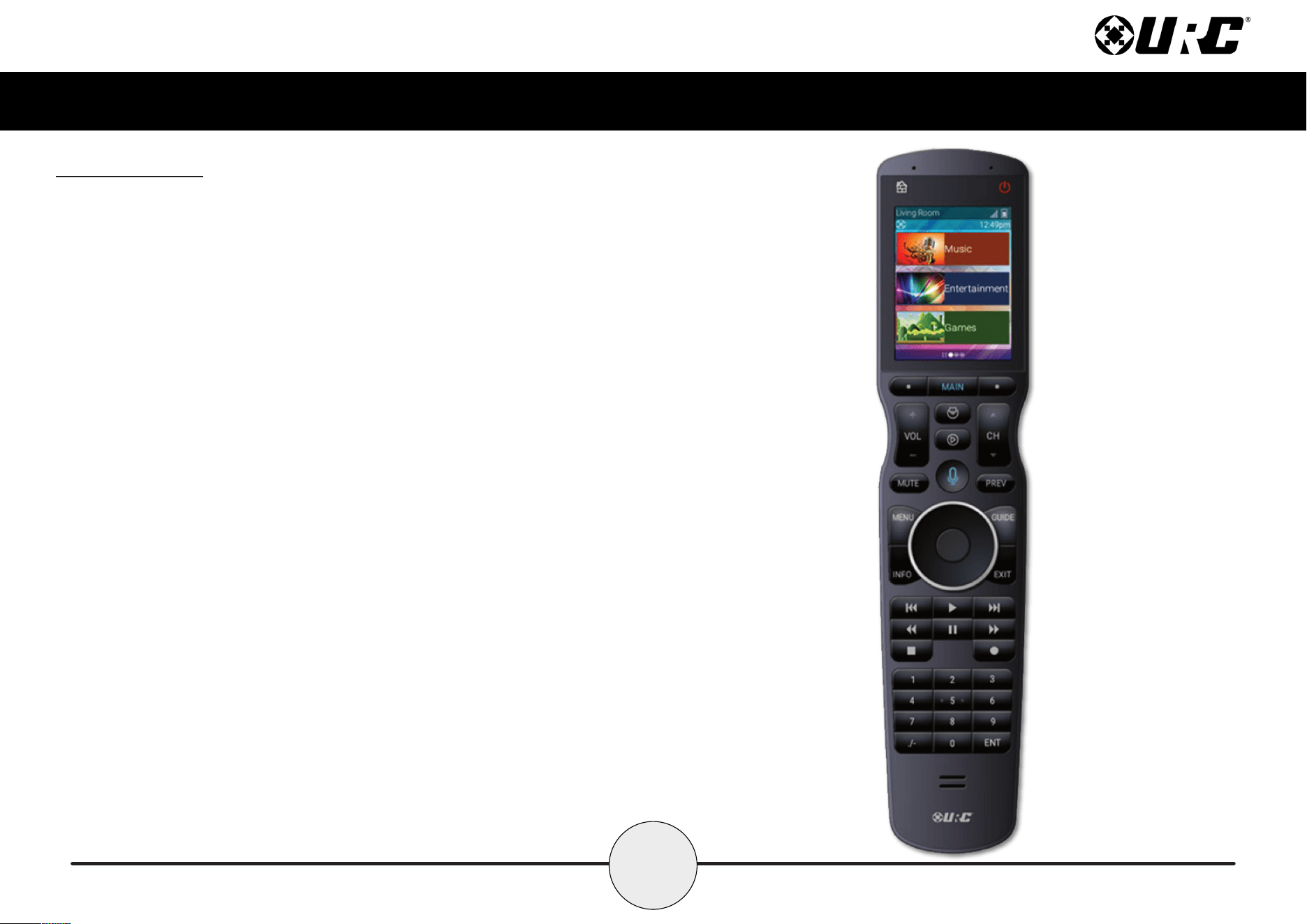
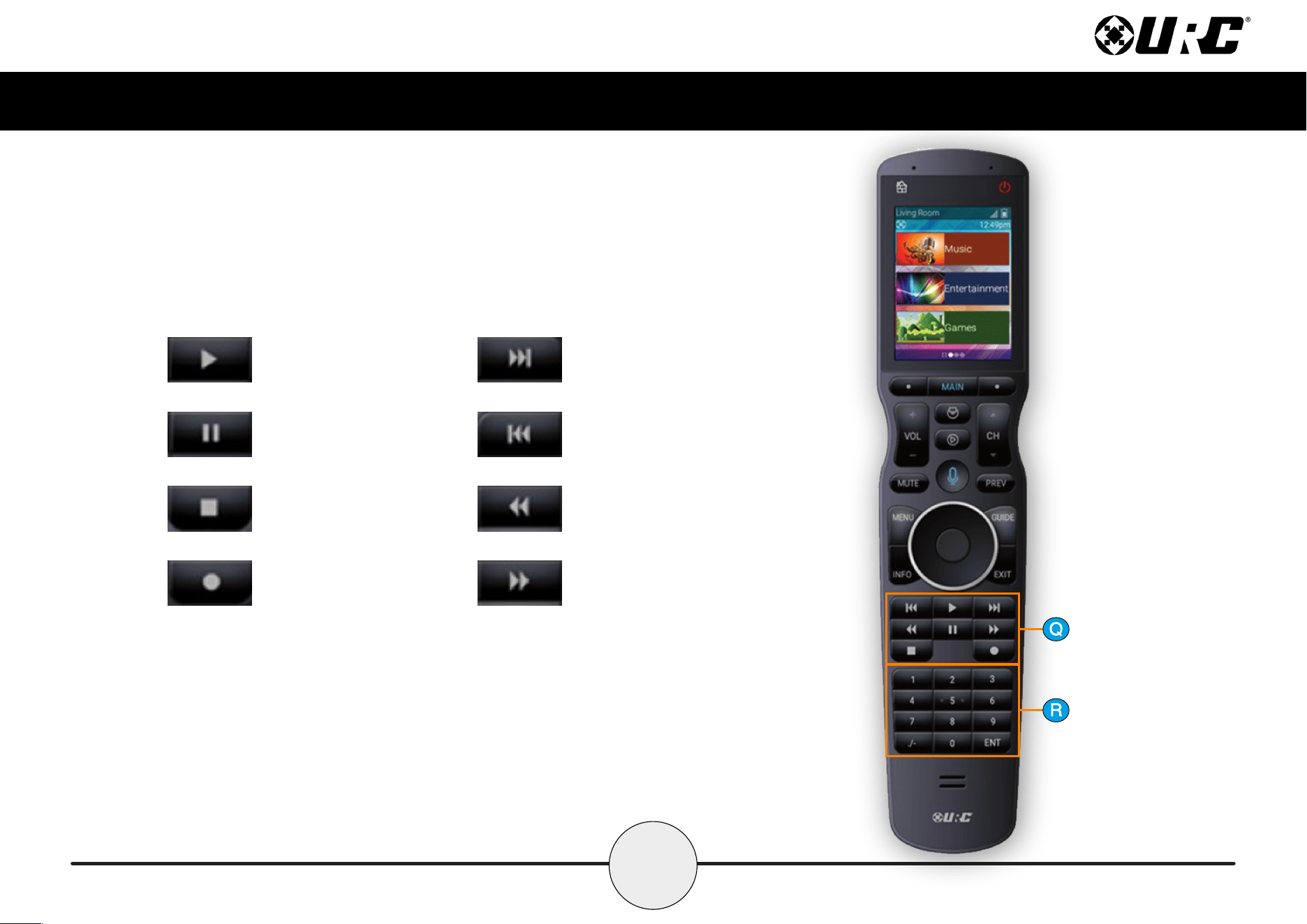
The Main Menu pages display activities and/or devices. Press the Main button to access
the Main Menu. Larger systems may have more than one (1) page. Press either of the
Page buttons to view additional Main Menu pages.
Although the TRC-1480 is programmed with custom layouts and devices, there are
persistent buttons that maintain a steady function:
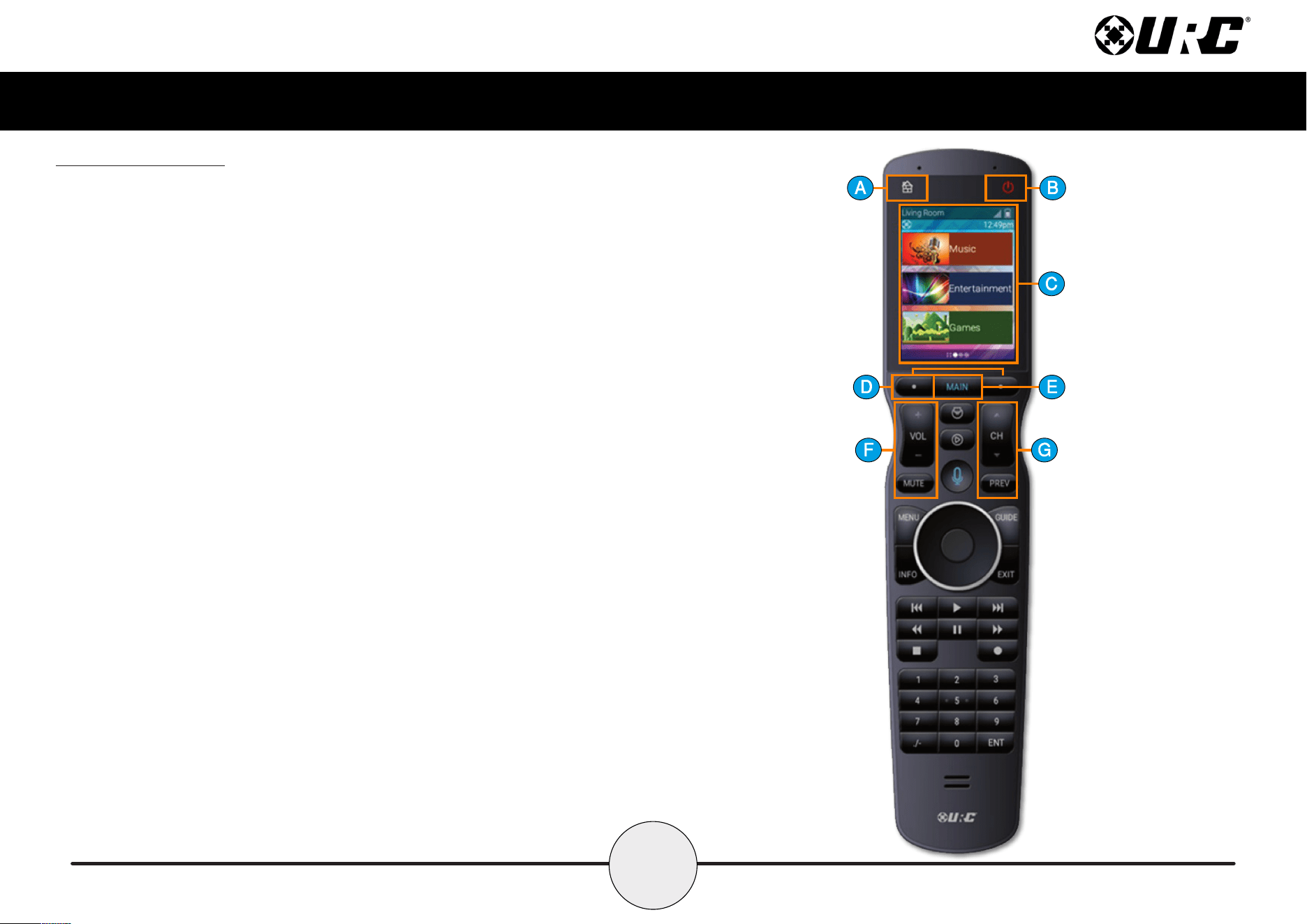
A. Rooms Menu: This button displays a list of rooms and allows the user to swap
between them for control.
B. Room Off/House Off: With a single press of this button, the Total Control
system turns off all the devices of the current room. Press-n-hold this button for
greater than three (3) seconds to display the system’s Power Menu. This menu
allows the user to turn off the room, the entire system, or any custom activity
programmed by the custom integrator.
C. Capacitive Touch Screen: The specic function of each button is linked to the
screen icon associated to the LCD screen. These buttons are used to select
activities, devices, functions, navigate, and more. Speak with your custom
integrator for more details.
D. Page Left/Right: These buttons are used to navigate through the various Main
Menu and Device/Activity Menu pages.
E. Main: By default, this button returns the user to the previous menu.
F. Vol+, Vol-, & Mute: Used to increase, decrease, or toggle the mute status of
the active audio device.
G. CH+, CH-, & Prev: Used to change a Cable/Sat channel up or down or to
navigate through a device’s on-screen menus. The Prev button returns to the
device’s previous channel or can be used to return the user to a previous menu.
5
Total Control
TRC-1480
Owner’s Manual
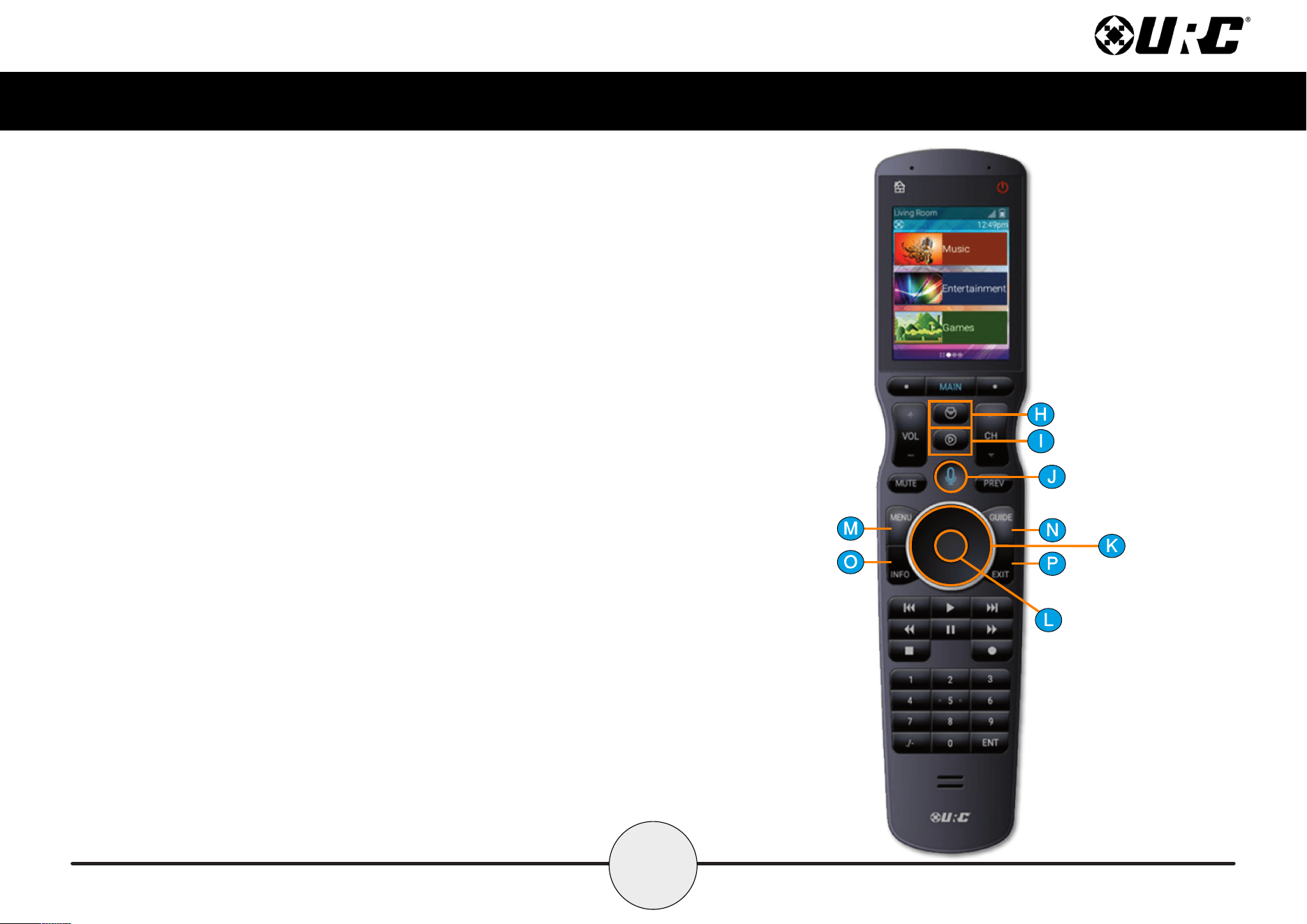
H. Shortcuts: Displays the customizable shortcuts menu. This menu can only
contain shortcuts to room-based devices/activities.
I. Now Playing: Returns the user to the current activity/device menu regardless
of what screen is on display.
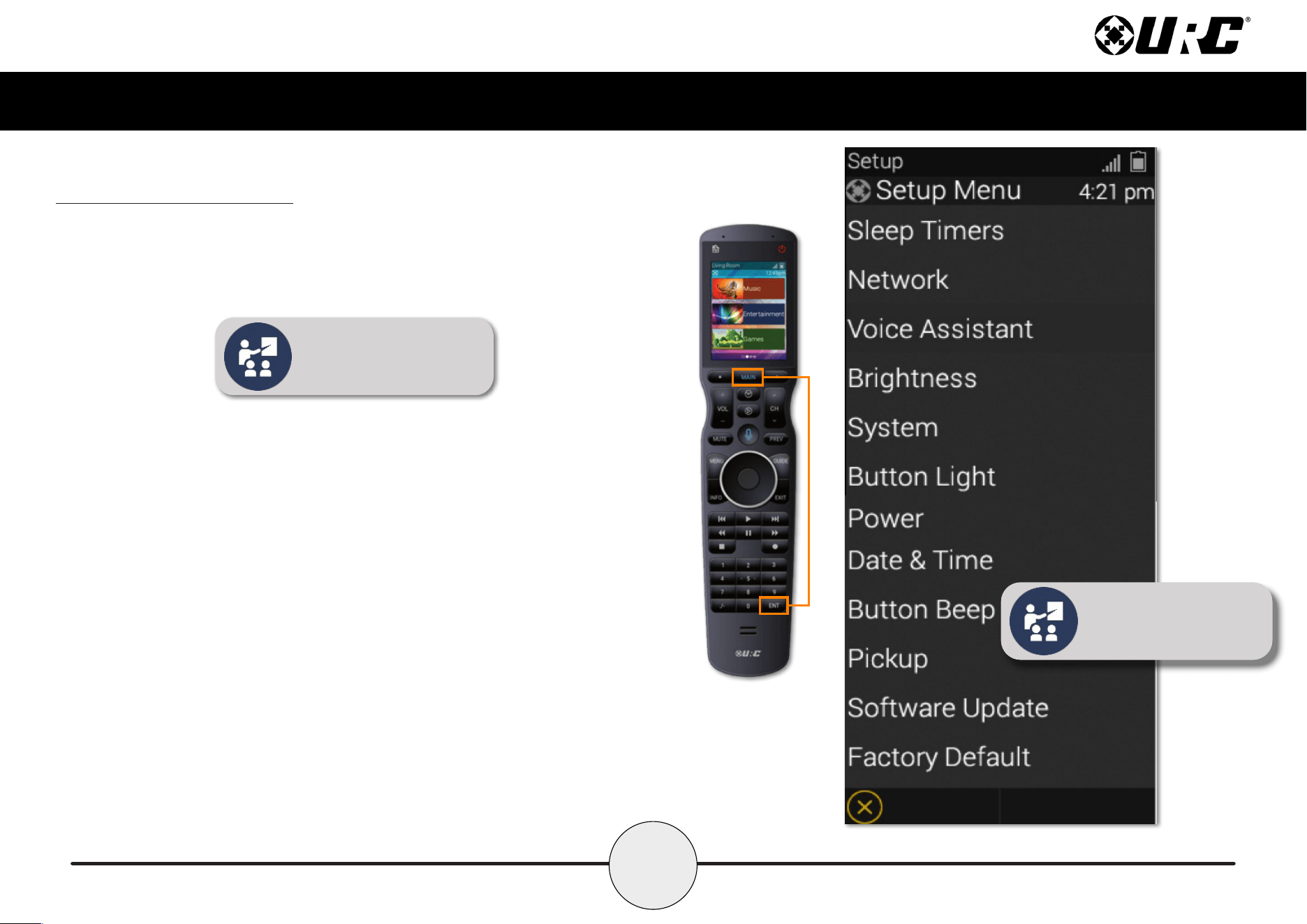
J. Microphone: Select this button to interact with the native voice assistant
service. When pressed, the microphone activates and listens to your verbal
commands. The microphone is shut off when the button is no longer pressed.
K. Navigation Keys: Comprised of up, down, left, and right. These buttons are
used to navigate through the menus and/or devices.
L. Select: Center button of navigation keys, used to conrm selections displayed
on a viewing device.
M. Menu: Displays the on-screen menu of the active device.
N. Guide: Displays the channel guide for the device’s on-screen display.
O. Info: Displays channel information for the device’s on-screen display.
P. Exit: Closes out any open menus or guides on the display or returns to the
previous menu.
6
Total Control
TRC-1480
Owner’s Manual
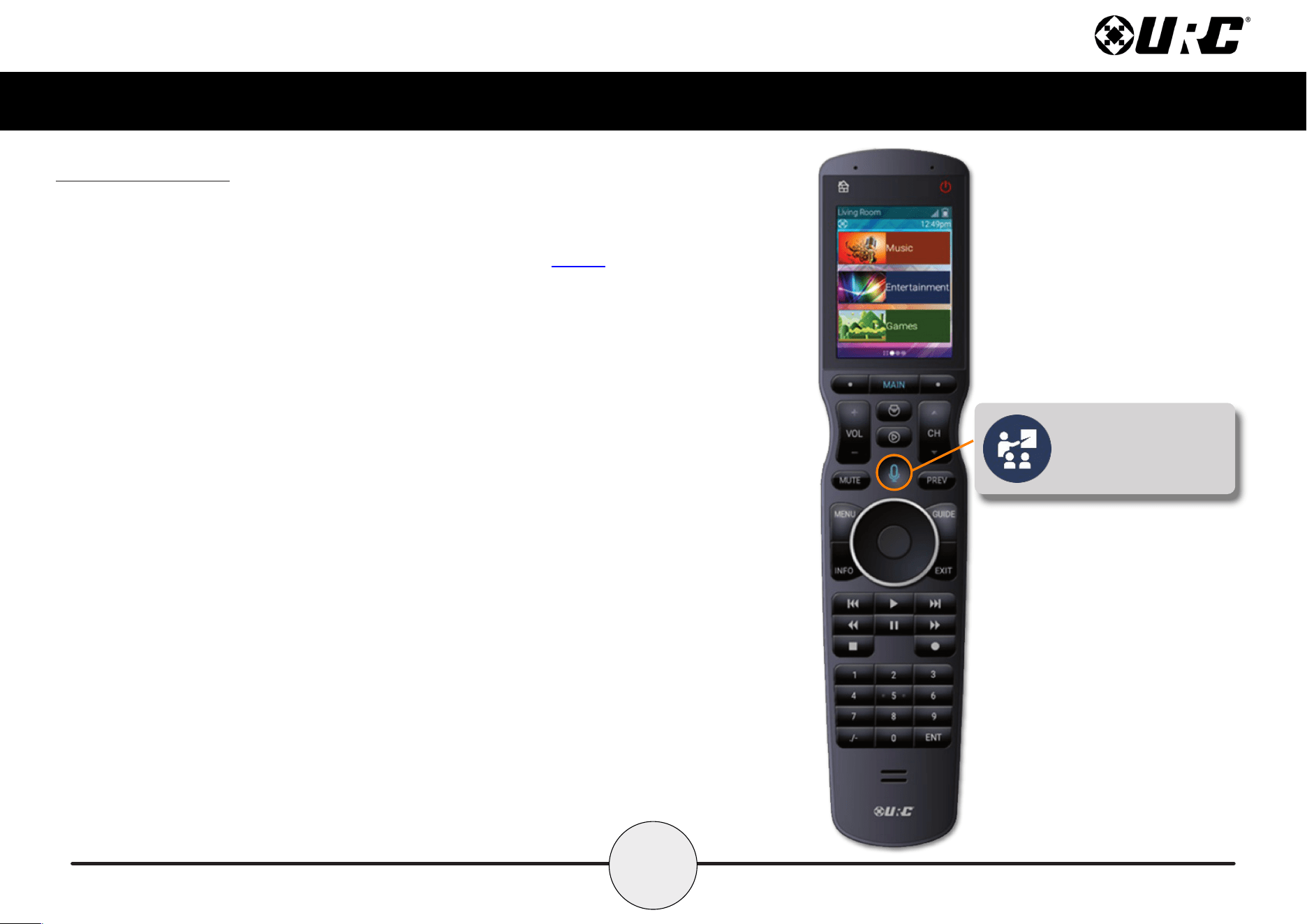
Q. Transport Buttons: These are the available buttons:
R. Numerical Keypad: Numbered buttons to change channels.
● (Play)
● (Pause)
● (Stop)
● (Record)
● (Skip+)
● (Skip-)
● (Rew)
● (FF)
7
Total Control
TRC-1480
Owner’s Manual
Using Voice Control
The TRC-1480 has the capability of using Amazon Alexa Voice Assistant to control
programmed activities, devices, and more.
For instructions on how to enable the Alexa Voice service, please refer to page 11.
The TRC-1480 preserves your privacy with a push-to-talk button on the remote control.
This means the Alexa Service is only listening when you want it too.
Custom activities and devices can be controlled via Alexa; however, conguration is
required. Speak with your certied URC integrator for more details.
Issuing Voice Commands
Voice Commands can be issued easily and intuitively with the push-to-talk button.
This button removes the need to say “Alexa…”.
Press-n-hold the button and say phrases such as…
• “Turn on bedroom Blu-ray”
• “Turn on living room ESPN”
• “Turn off the kitchen lights”
• And much more…
The TRC-1480 does not support the following Amazon Alexa features:
• Audio Playback via Amazon Music, Audible, or other music services.
• Alexa Drop-In, calls, or video calls
• No graphical feedback
Press-n-hold the microphone
button to issue a verbal
command such as “Turn on
Living Room Cable”.
8
Total Control
TRC-1480
Owner’s Manual
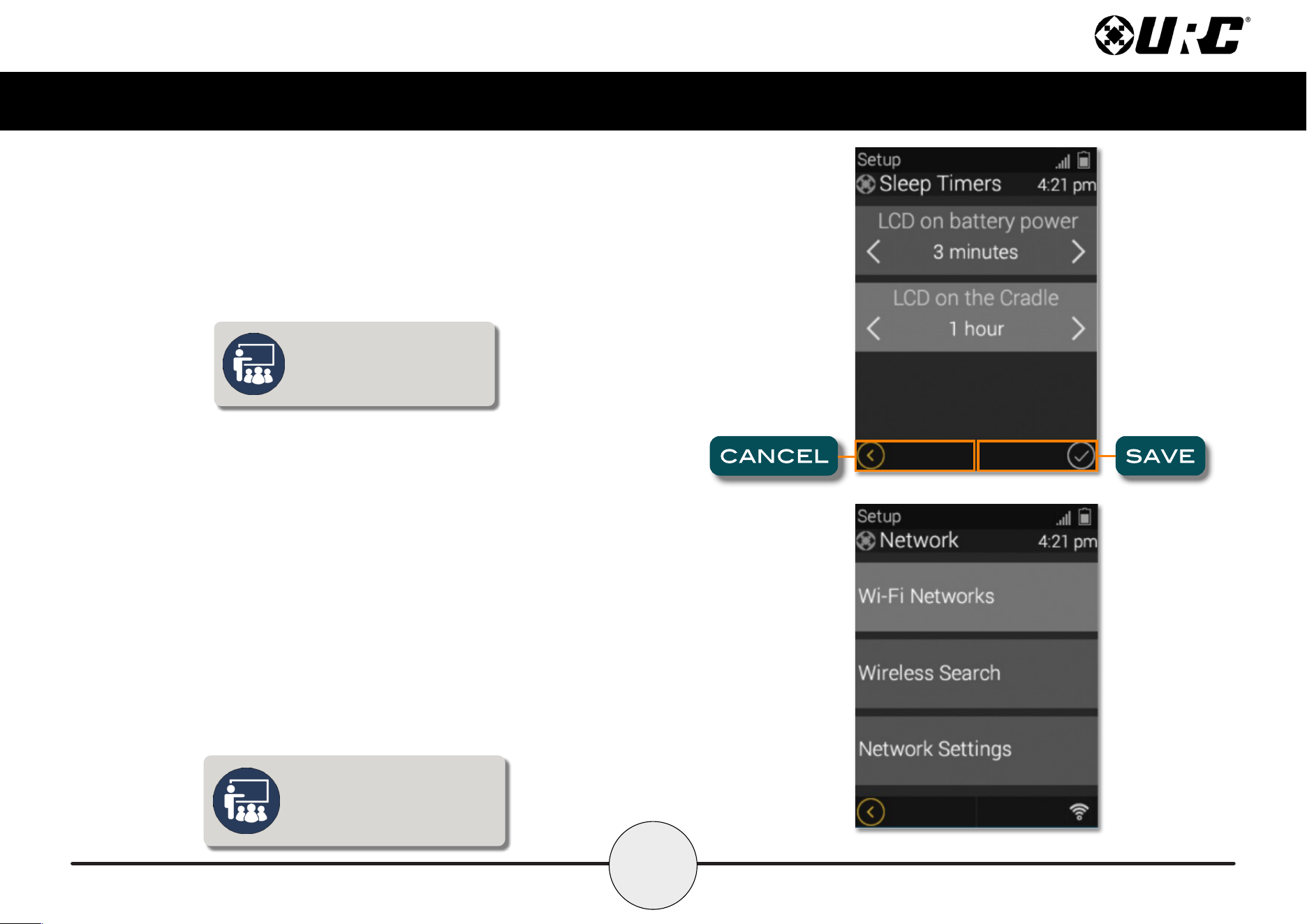
Image on display presents all the
options available on the two (2)
Settings Menu pages.
Displaying the Setup Menu
The Setup Menu allows users to congure or change certain behaviors of the TRC-1480.
Enter the Setup Menu by pressing and holding the Main and Enter (see image at the
right) buttons for greater than ve (5) seconds.
Use the up and down navigation buttons to maneuver between the two Setup pages. To
select an option, highlight the desired setting and press the “Select” key at the center of
the navigation keys.
To return to a previous page press the left page button (at the left of Main Menu). Press
the Main or Exit button to return the remote to the Main Menu.
The Setup Menu times out after
sixty (60) seconds and returns
the TRC-1480 to the system’s
Main Menu.
• Sleep Timers
• Network
• Voice Assistant
• Brightness
• System
• Button Light
• Power
• Date & Time
• Button Beep
• Pickup
• Software Update
• Factory Default
9
Total Control
TRC-1480
Owner’s Manual
Sleep Timers
Adjust the amount of time the screen remains on when the remote is not in use. The
time can be set independently based on whether the remote is using battery power
or sitting on the charging cradle.
Once the settings are adjusted, press the Save button. Pressing Cancel reverts the
remote to the last saved setting.
Network
The following options are displayed:
• Wi-Fi Networks: Displays all stored wireless networks. This option
allows the user to connect to any network stored on the remote.
• Wireless Search: Select to connect to an available wireless network.
SSID and Password may be required.
• Network Settings: Allows the user to congure the remote’s network
properties such as IP address, Gateway, DNS, and more.
WARNING! Only use this option when instructed by URC’s Technical Support
team or your custom install professional.
Leaving the remote’s display on
for long periods of time may
reduce your device’s battery life.
Do not make changes on this screen.
Changing network settings may lead
to issues controlling the system.
10
Total Control
TRC-1480
Owner’s Manual
Voice Assistant
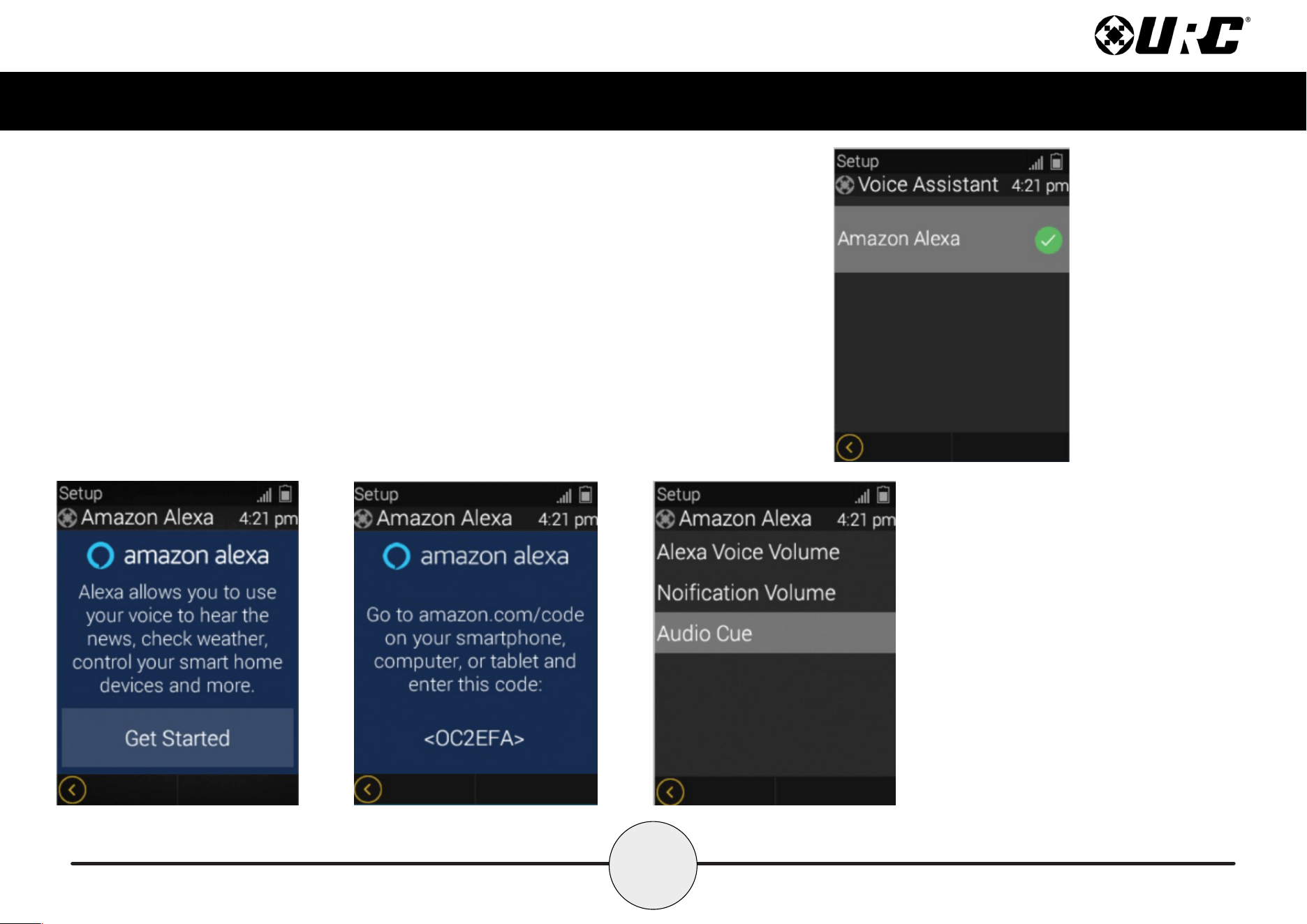
This Settings Menu option allows you to integrate your Total Control system with
voice assistant services such as Amazon Alexa.
Choose the supported voice assistant service (Amazon Alexa) and follow the
on-screen directions.
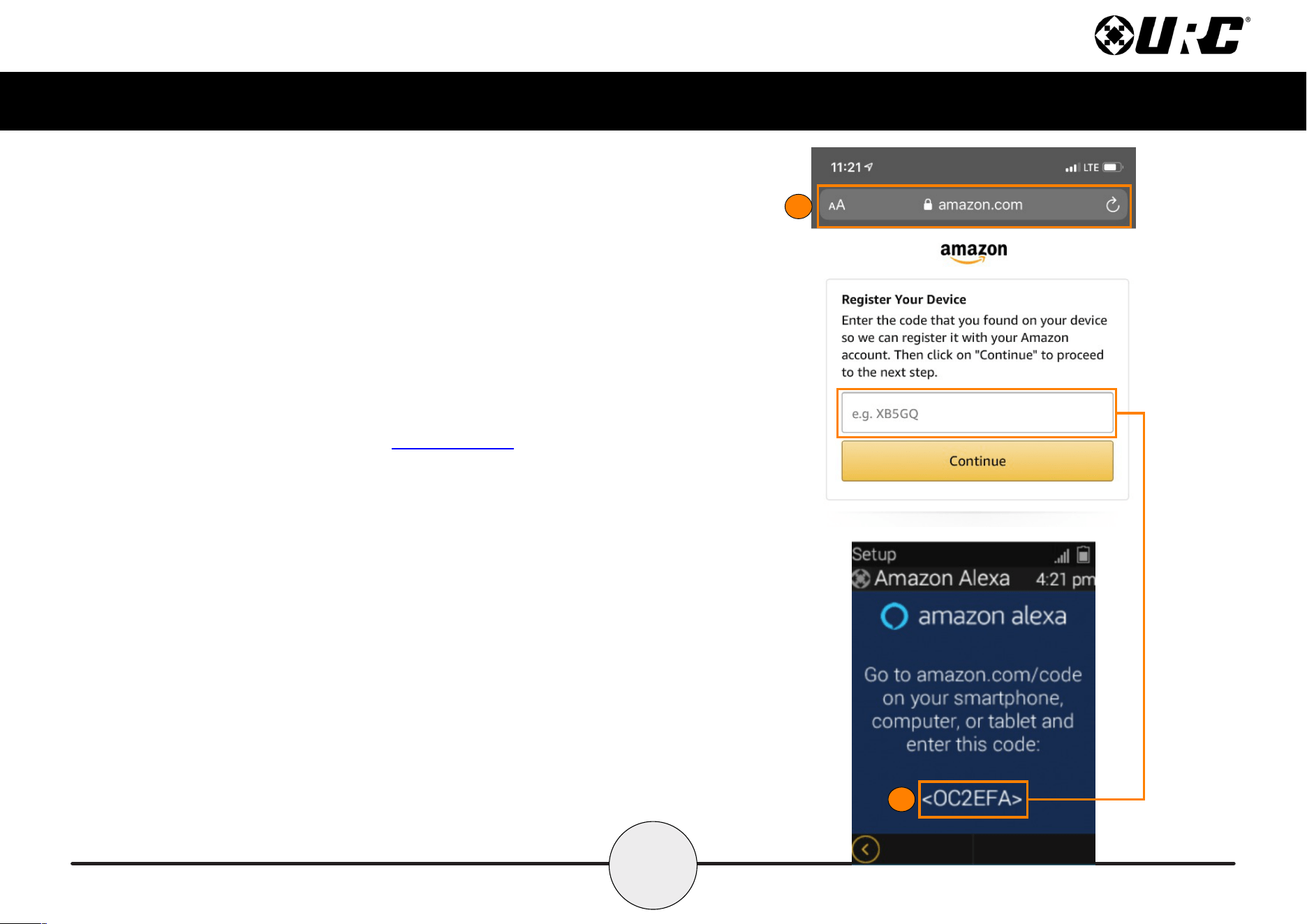
The Alexa setup menu provides a code that must be entered into the Amazon Alexa
URL (displayed on the LCD screen of the TRC-1480).
Once enabled, use the push-to-talk button to control the Total Control system or any
other Alexa enabled device.
• Alexa Voice Volume: Adjust the
volume of the Alexa service on
the TRC-1480.
• Notification Volume: Adjust the
volume for notication alerts.
• Audio Cue: Enable or disable the
audio cue. It provides an audio
“chime” that informs the user that
the voice service is “listening”.
11
Total Control
TRC-1480
Owner’s Manual
Enabling Alexa
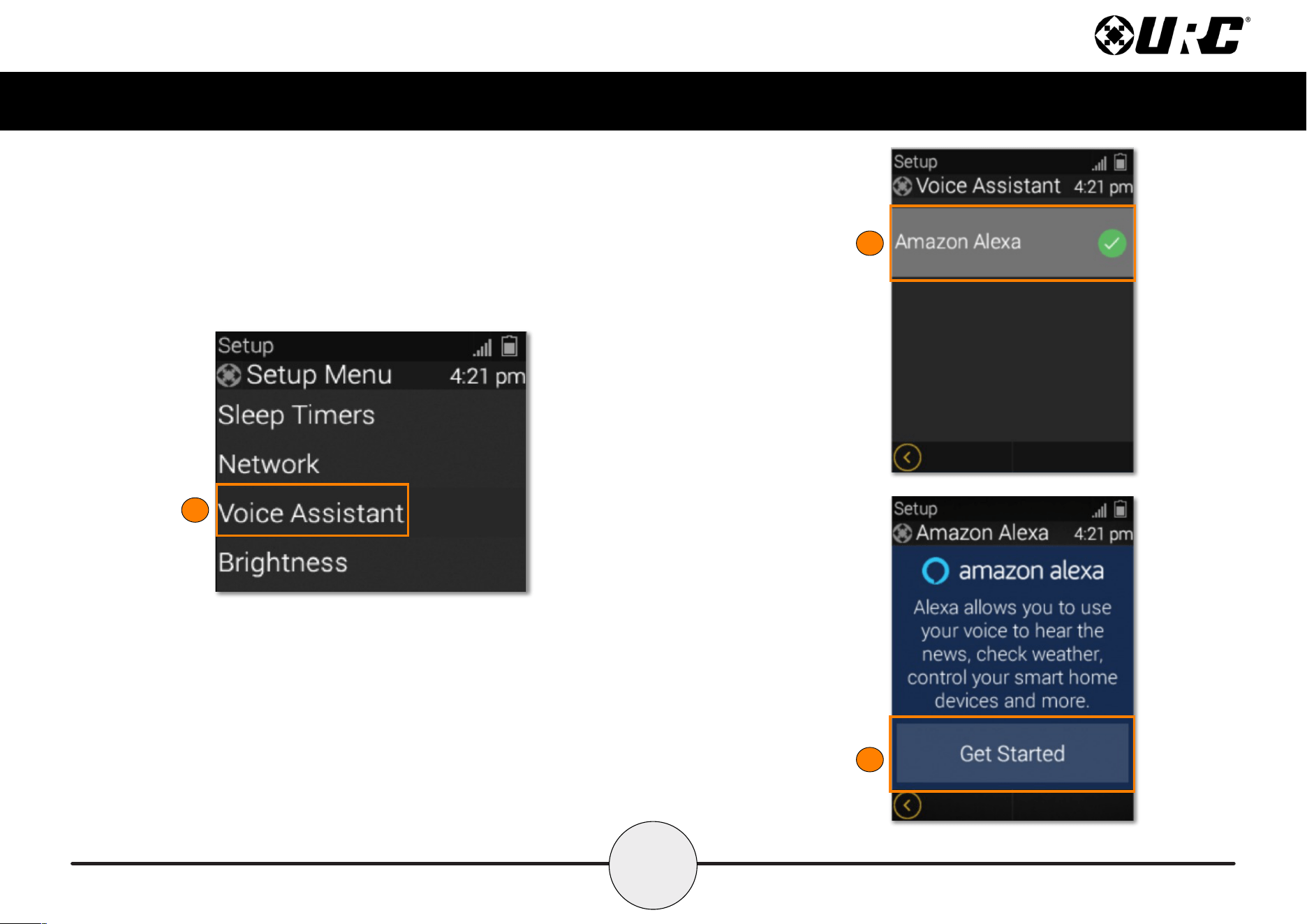
Follow these instructions to enable the Alexa Voice Assistant Service:
1. From the Settings Menu, select Voice Assistant.
2. Select Amazon Alexa.
3. Select Get Started.
1
2
3
13
Total Control
TRC-1480
Owner’s Manual
Brightness
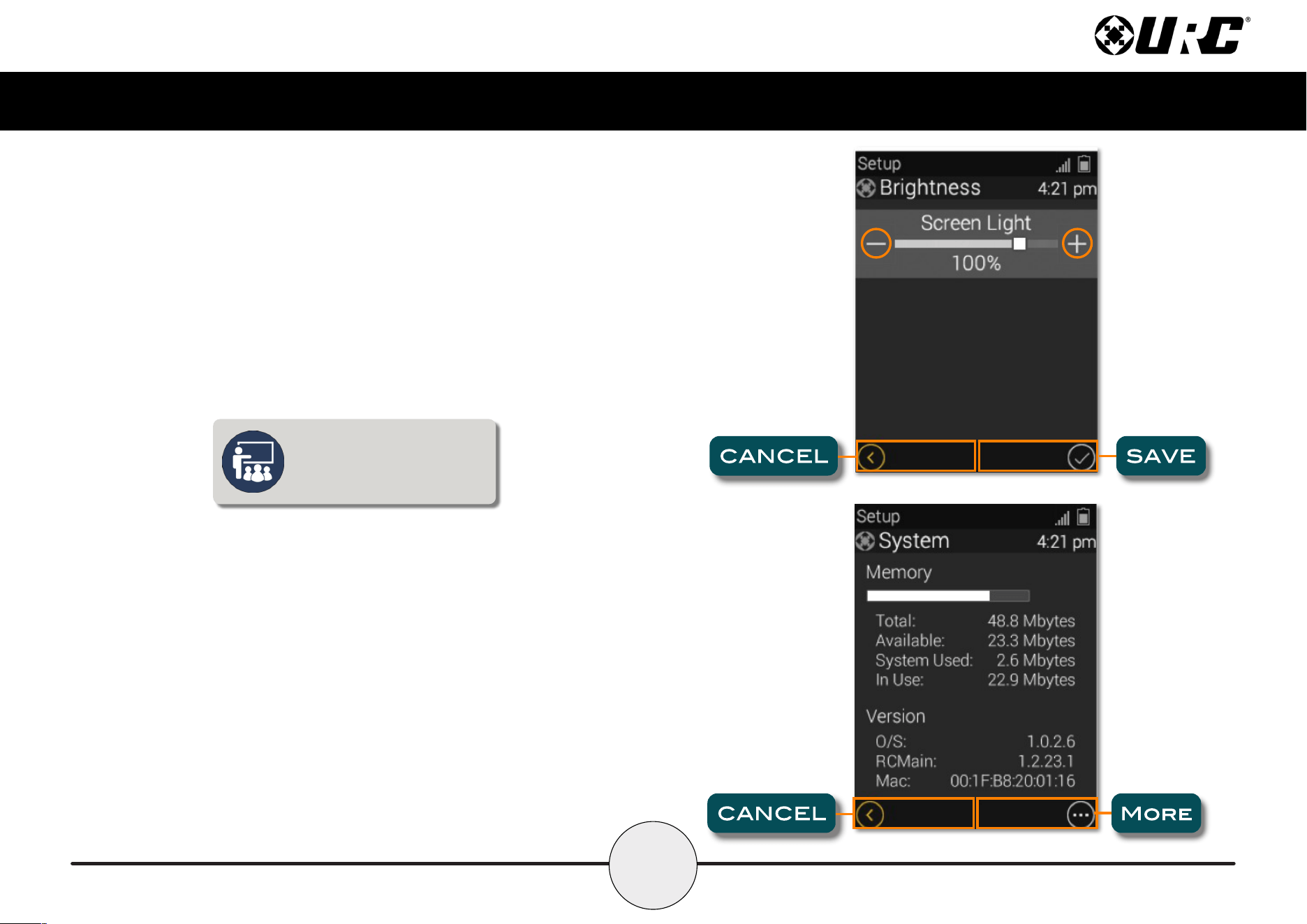
Adjust the screen brightness by pressing the adjacent LCD buttons to increase or
decrease the brightness level.
Once the brightness has been adjusted, press the Save button. Pressing Cancel
reverts the remote to the last saved setting.
High brightness levels may reduce
the TRC-1480’s battery life.
System
Displays information about the remote’s operating system, memory, etc. Press the
More button to view further system information. Pressing the Cancel button exits
to the remote’s Setup Menu.
14
Total Control
TRC-1480
Owner’s Manual
Button Light
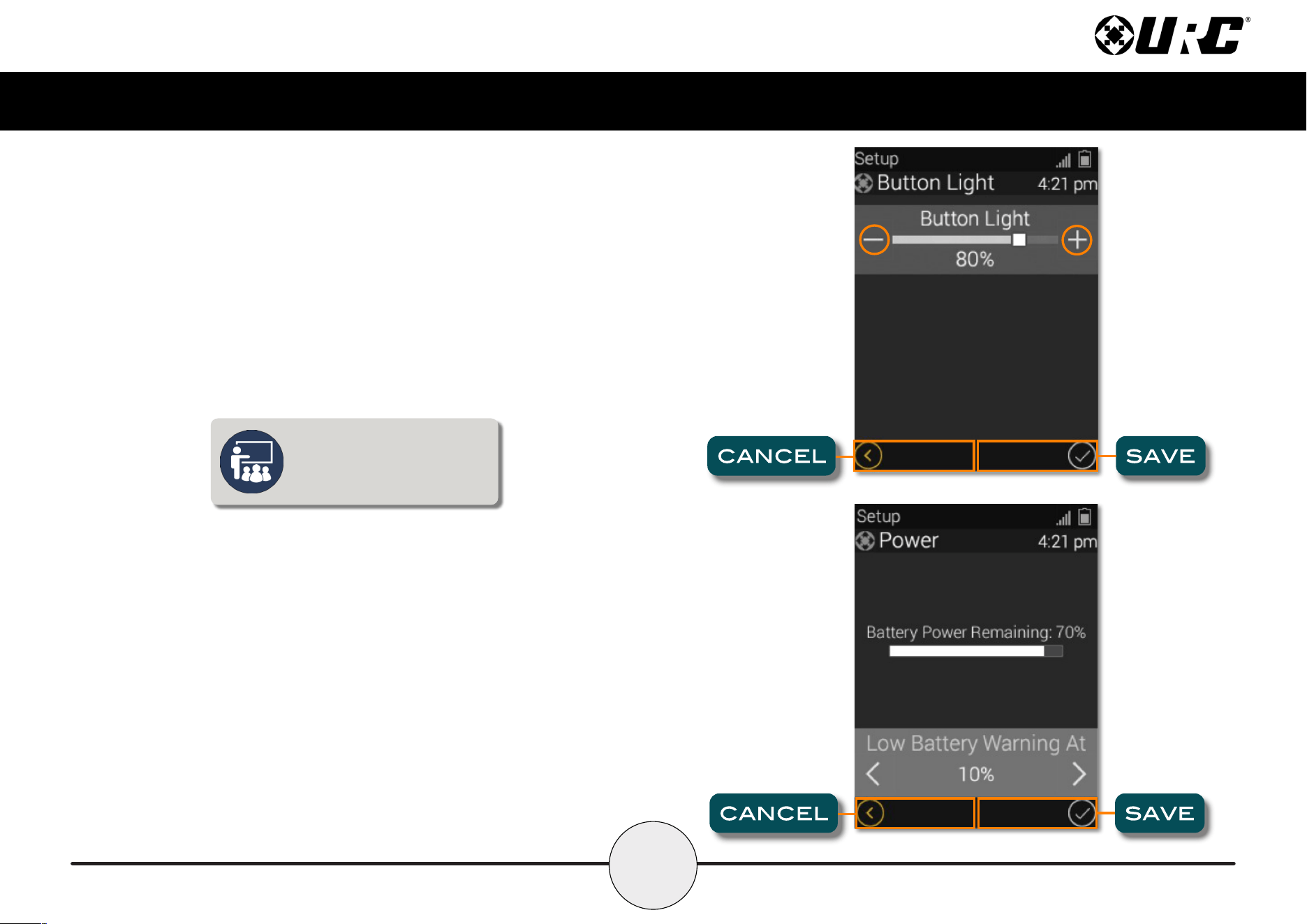
Adjust the brightness of the remote’s button backlighting. Press the adjacent LCD
buttons to increase or decrease the button backlighting.
Once the button back light has been adjusted, press the Save button. Pressing
Cancel reverts the remote to the last saved setting.
Power
Displays the remote’s remaining battery level. Adjust when the “Low Battery”
warning screen appears.
Once the Power settings have been adjusted, press the Save button. Pressing
Cancel reverts the remote to the last saved setting.
Brighter button light levels may
reduce the TRC-1480’s battery life.
15
Total Control
TRC-1480
Owner’s Manual
Date & Time
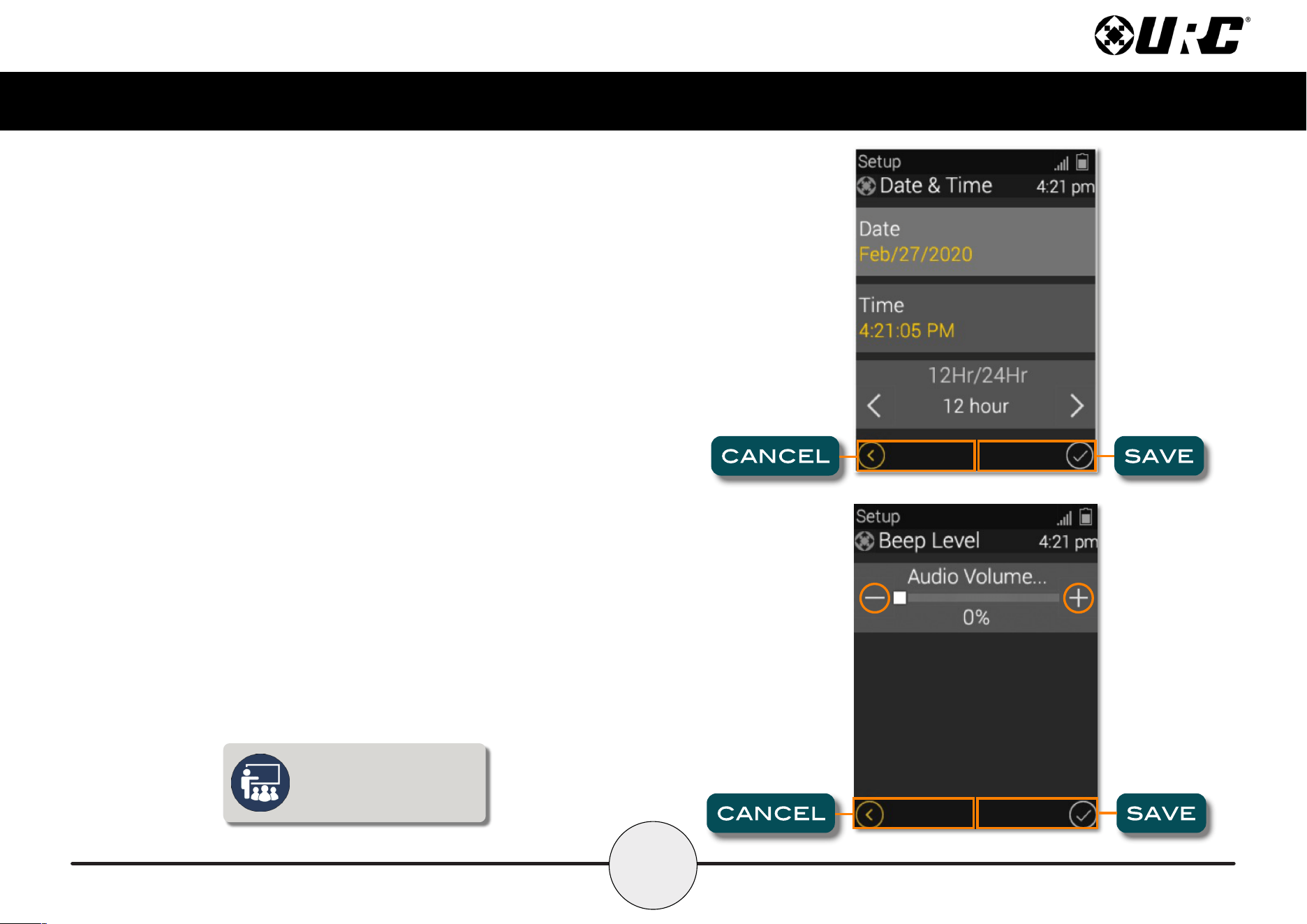
The remote’s date and time settings have been set by your certied custom
integrator. If needed, the date and time settings can be manually changed here.
If the system’s date and time are adjusted, the Total Control system adopts the new
date and time globally.
If the advanced system controller is reset, it defaults to the program’s default
location using the Internet. If Internet is not present, the date and time must be
entered manually from a URC interface such as the TRC-1480.
Once the date and time settings have been adjusted, press the Save button.
Pressing Cancel reverts the remote to the last saved setting.
Higher sound levels may reduce
the TRC-1480’s battery life.
Button Beep
Adjust the button “beep” of the remote. Press the adjacent LCD buttons to increase
or decrease the volume level.
Once the sound has been adjusted, press the Save button. Pressing Cancel reverts
the remote to the last saved setting.
16
Total Control
TRC-1480
Owner’s Manual
Pickup
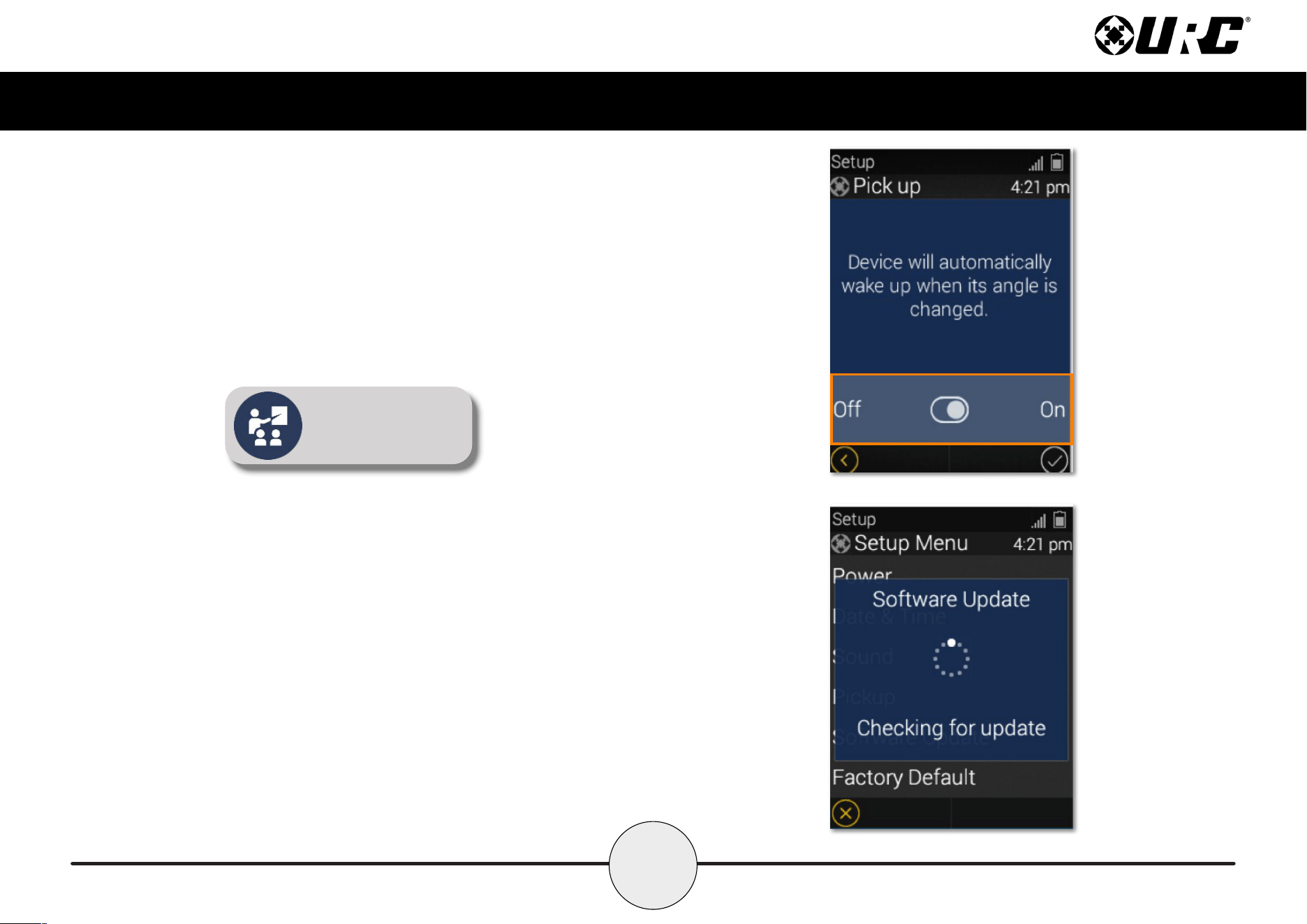
Turn on or off the remote’s pickup sensor. When enabled, the TRC-1480 turns on
when the remote is picked up. Select Yes (turn on) or No (turn off).
Enabling the pickup sensor
may reduce the TRC-1480’s
battery life.
Software Update
URC’s system has the ability to be programmed by a certied URC programmer
remotely (after initial installation). There may be situations where the device may
need to have the software update applied manually.
Select this option only when instructed by your certied URC integrator or URC’s
Technical Support Team.
17
Total Control
TRC-1480
Owner’s Manual
Factory Default
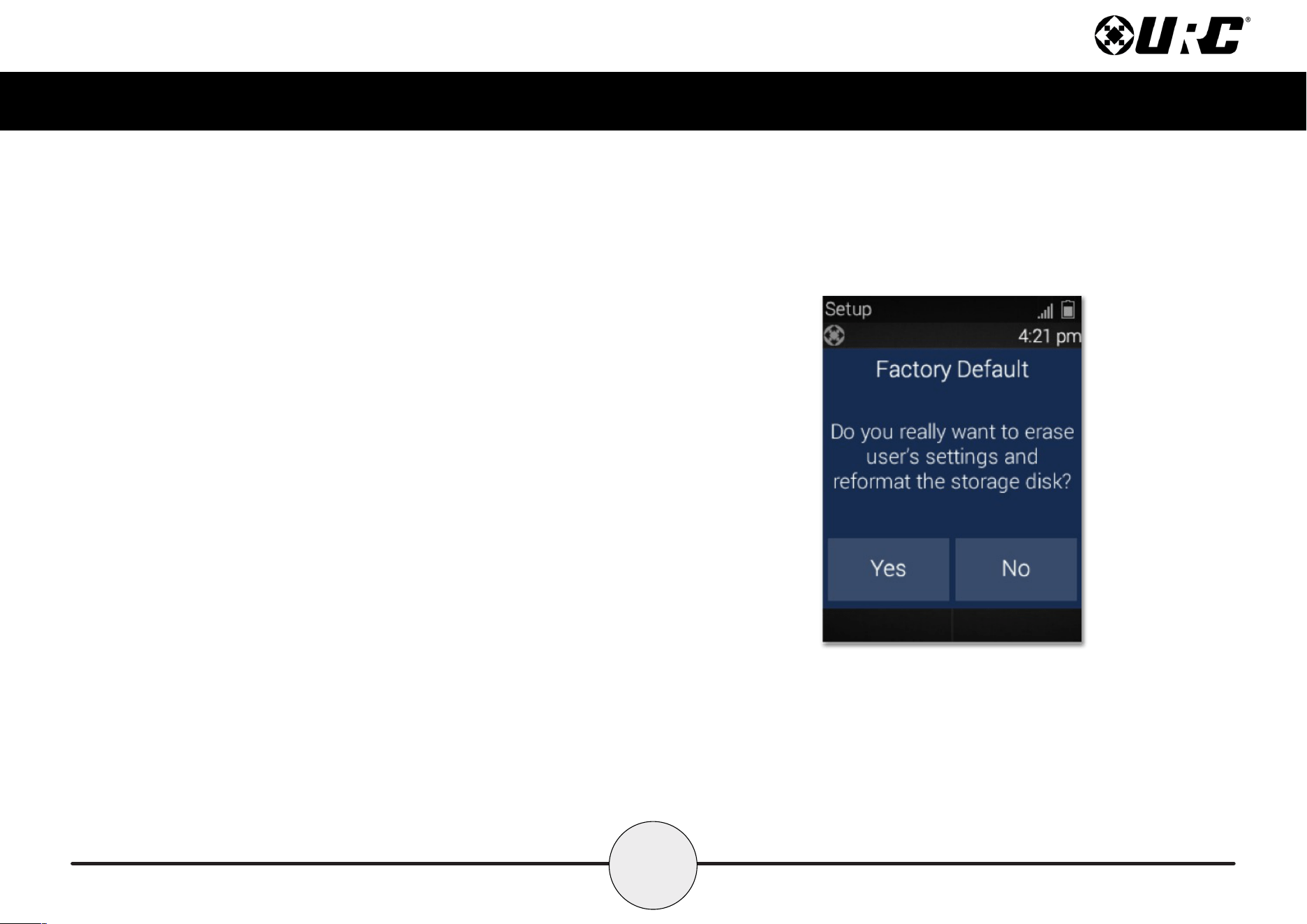
Resets the memory of the TRC-1480 to the factory settings. All existing
programming is erased. The device requires reconguration by your certied
URC integrator.
WARNING! Only use this button when instructed by URC’s Technical Support team.
18
Total Control
TRC-1480
Owner’s Manual
Specifications
These are the technical specications for the TRC-1480:
Microprocessor: ARM Cortex-A35 Core 1.5GHz x 4
RAM: 8GB eMMC, DDR3 256MB RAM
LCD: 2.4” TFT-LCD, 262K Colors, Backlight By LED
Touch Window: Capacitive Touch
Sound: Mono, Normal 1 watt
Devices: Supports up to 255 devices with text, less with heavy graphics
Usage Pages: Supports up to 255 pages on each devices with text, less with
heavy graphics usage.
Macro Capability: Up to 255 steps each; however, nesting is supported.
Wi-Fi: IEEE 802.11a/b/g/n/ac
RF Output Power: 2.4 GHz band - 10 dBm, 5 GHz band - 11 dBm
Frequency Range: 2412 MHz ~ 2462MHz, 5150 MHz ~ 5350 MHz,
5470 MHz ~ 5725 MHz
Battery: Lithium Polymer, 3.7V, 2100mAh, 7.77Wh
Battery Charging Time: 3 Hours
Power: 5.0V - 2.0A
Operating Temperature: 0~40°C
Size: 9.05in x 1.97in x 1.06in
Weight (with battery loaded): 7.2oz
Limited Warranty Statement
https://www.urc-automation.com/legal/warranty-statement/
End User Agreement
The terms and conditions of the End User Agreement available at
https://www.urc-automation.com/legal/end-user-agreement/ shall apply.
Federal Communication Commission Interference Statement
This equipment has been tested and found to comply with the limits for a Class B
digital device, pursuant to part 15 of the FCC Rules. These limits are designed to
provide reasonable protection against harmful interference in a residential installation.
This equipment generates, uses and can radiate radio frequency energy and, if not
installed and used in accordance with the instructions, may cause harmful interference
to radio communications. However, there is no guarantee that interference will not
occur in a particular installation. If this equipment does cause harmful interference to
radio or television reception, which can be determined by turning the equipment off
and on, the user is encouraged to try to correct the interference by one more of the
following measures:
• Reorient or relocate the receiving antenna.
• Increase the separation between the equipment and receiver.
• Connect the equipment into an outlet on a circuit different from that to which
the receiver is connected.
• Consult the dealer or an experienced radio/TV technician for help.
19
Total Control
TRC-1480
Owner’s Manual
Regulatory Information to the User
• CE conformity Notice Products with “CE” marking comply EMC Directive
2014/30/EU issued by the commission of the European Community.
1. EMC Directive
• Emission
• Immunity
• Power
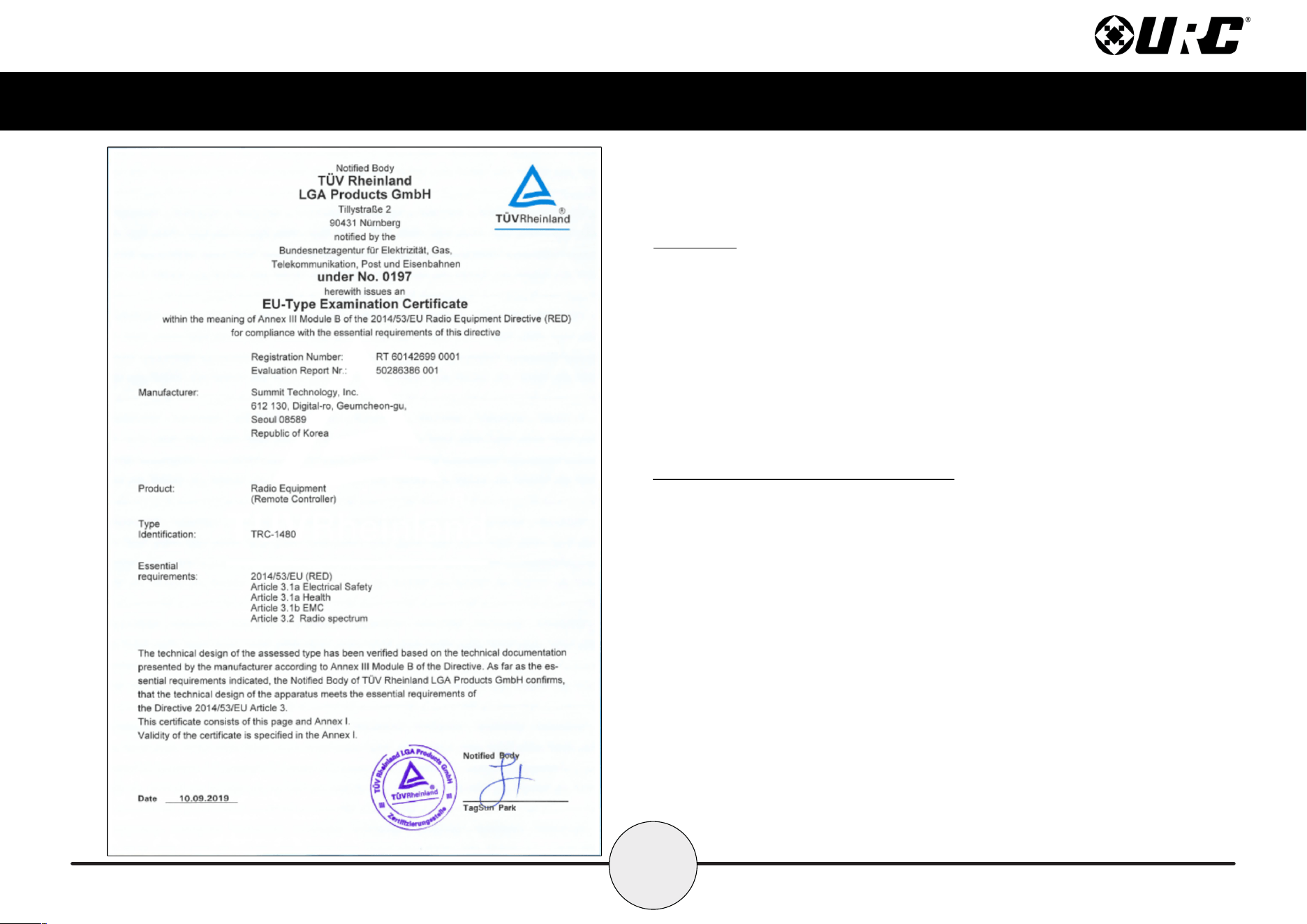
• Declaration of Conformity
“Hereby, Universal Remote Control Inc. declares that this TRC-1480 is in compliance
with the Essential requirements.”
Warning!
The manufacturer is not responsible for any Radio or TV interference caused by
unauthorized modications to this equipment.
Changes or modications not expressly approved by the manufacturer could void the
user's authority to operate the equipment.
