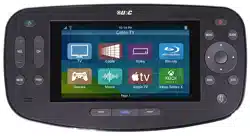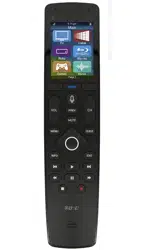
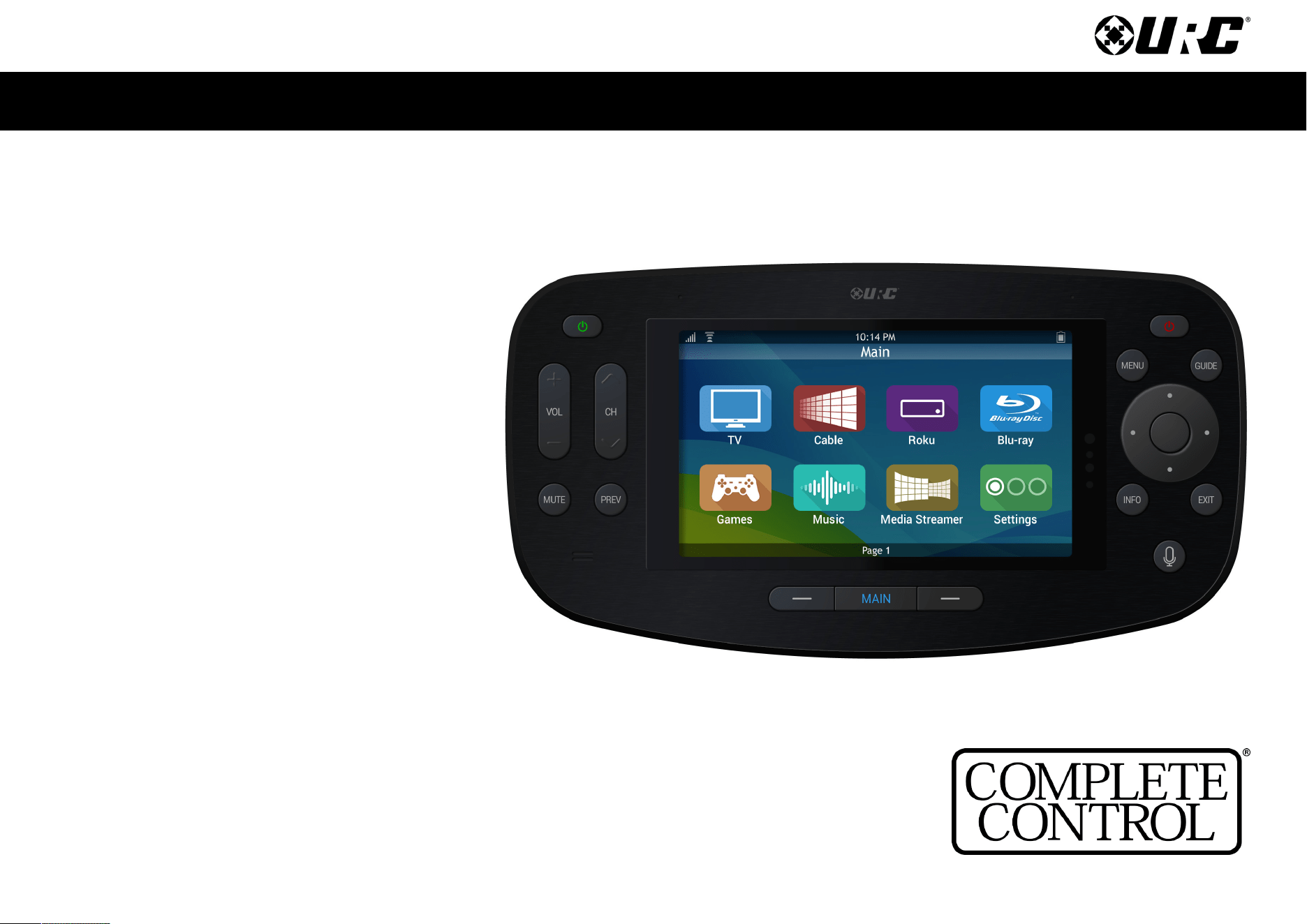
MX-4000
Owner’s Manual
Complete Control
MX-4000
Owner’s Manual
Complete Control
MX-4000
Owner’s Manual
Rev 1.1
Table of Contents
Introducing the MX-4000
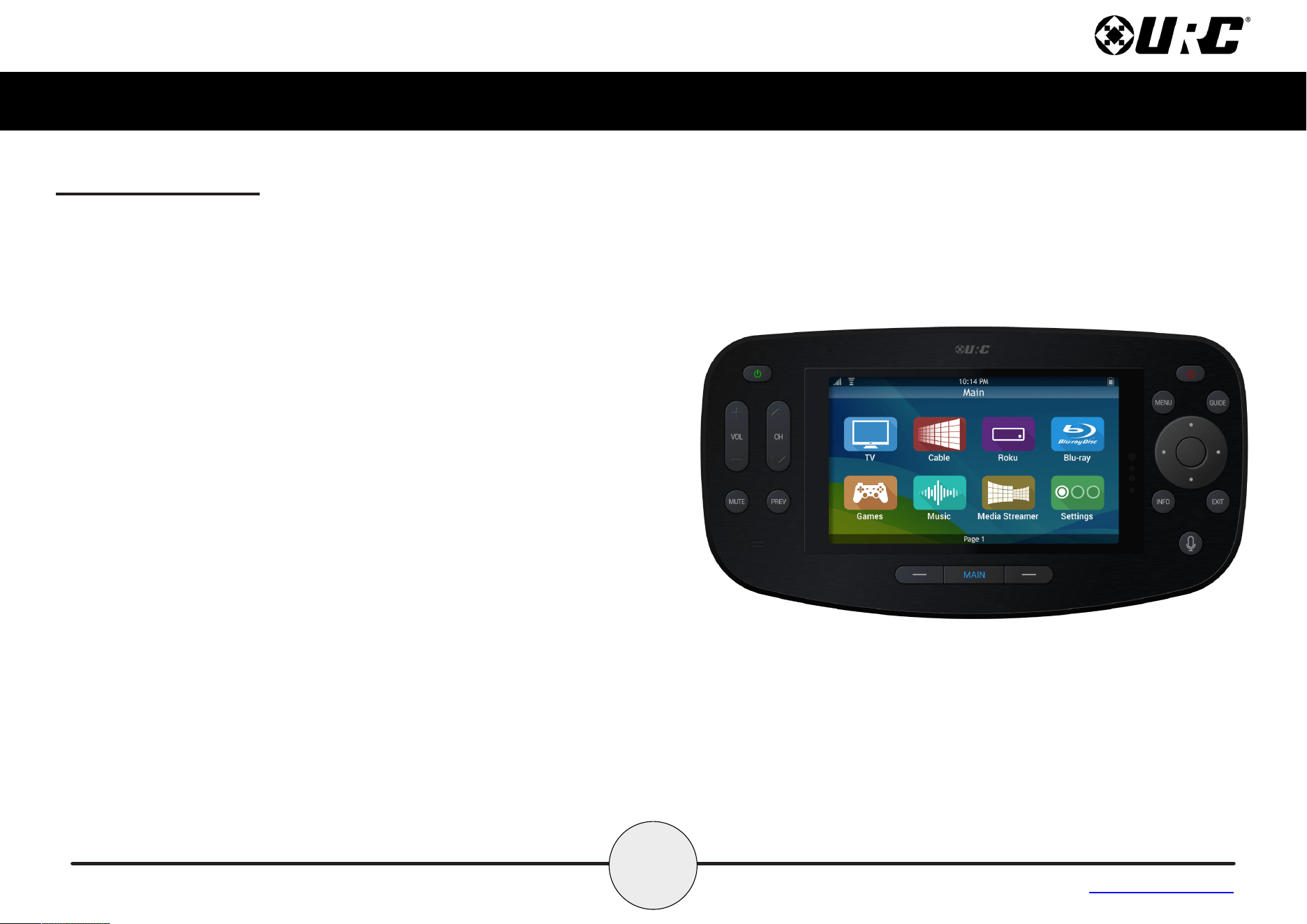
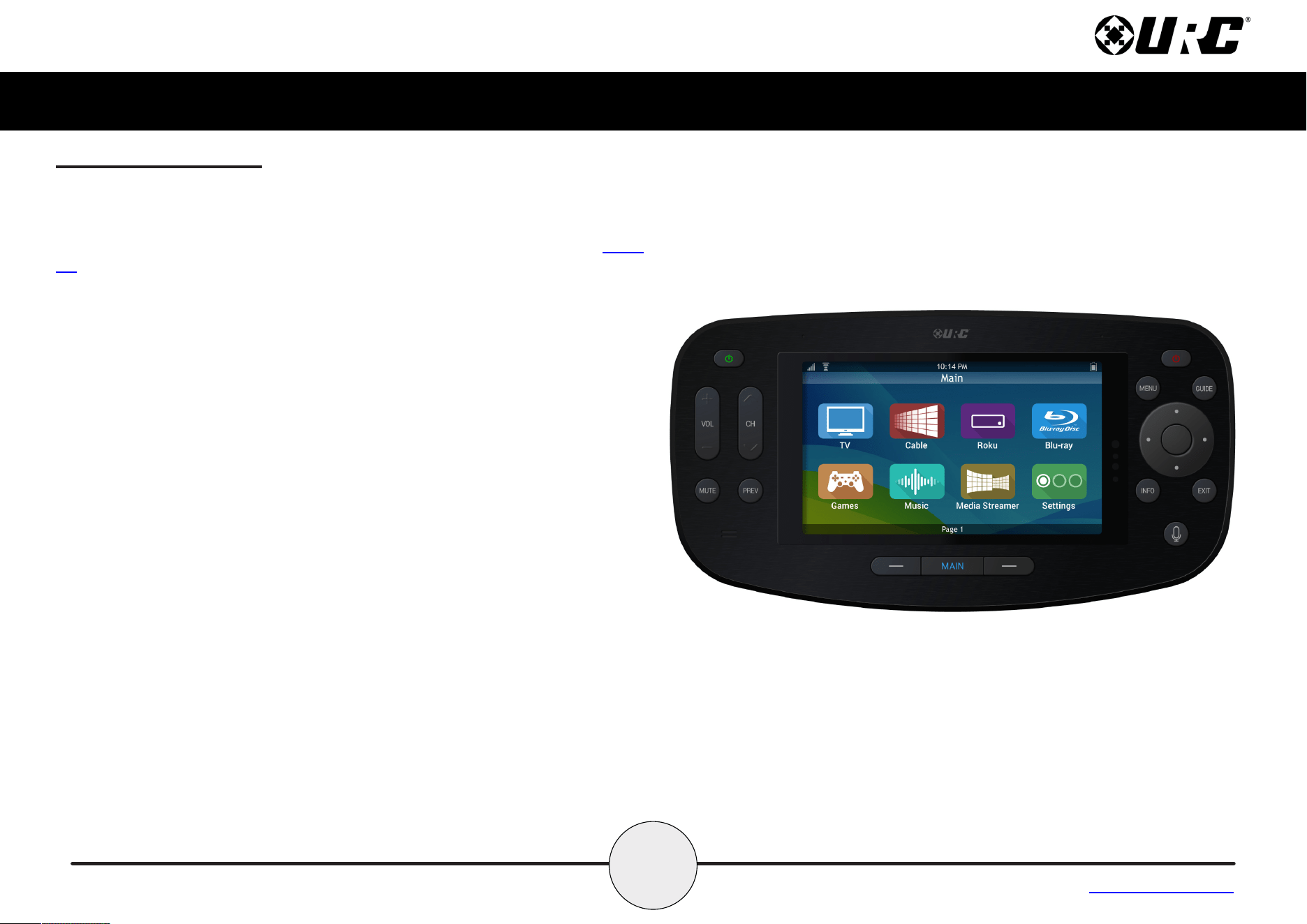
Thank you for purchasing URC’s MX-4000 touchscreen remote
control. Its easy and intuitive use will help simplify your life while
adding control of more things than you thought are possible.
Online Support:
Visit the URC Home Page for product information, owner’s
manuals, and support contact information.
Contact Support:
For questions or assistance, please contact your custom integrator/
programmer.
My Installer/Programmer
Features & Benets............................................................................... 1
Parts ....................................................................................................... 2
Connecting the Battery Pack ...............................................................3
Using the Charging Cradle ...................................................................3
Using the MX-4000 ................................................................................4
Using Voice Control ..............................................................................6
Displaying the Setup Menu...................................................................7
WiFi Setup.........................................................................................8
Voice Assistant ...............................................................................14
Sleep Timers ...................................................................................32
Event Timers...................................................................................33
Date & Time.....................................................................................34
Power...............................................................................................35
Brightness.......................................................................................36
Button Beep ....................................................................................37
Pickup..............................................................................................38
System.............................................................................................39
Factory Default ...............................................................................40
Specications ......................................................................................41
Limited Warranty Statement............................................................... 42
Technical Suppor t
Toll Free: 800-904-0800
Main: 914-835-4484
techsupport@urc-automation.com
H o u r s : 9 : 0 0 a m - 5 : 0 0 p m E S T M - F
1
Complete Control
MX-4000
Owner’s Manual
Table of Contents
Features & Benets
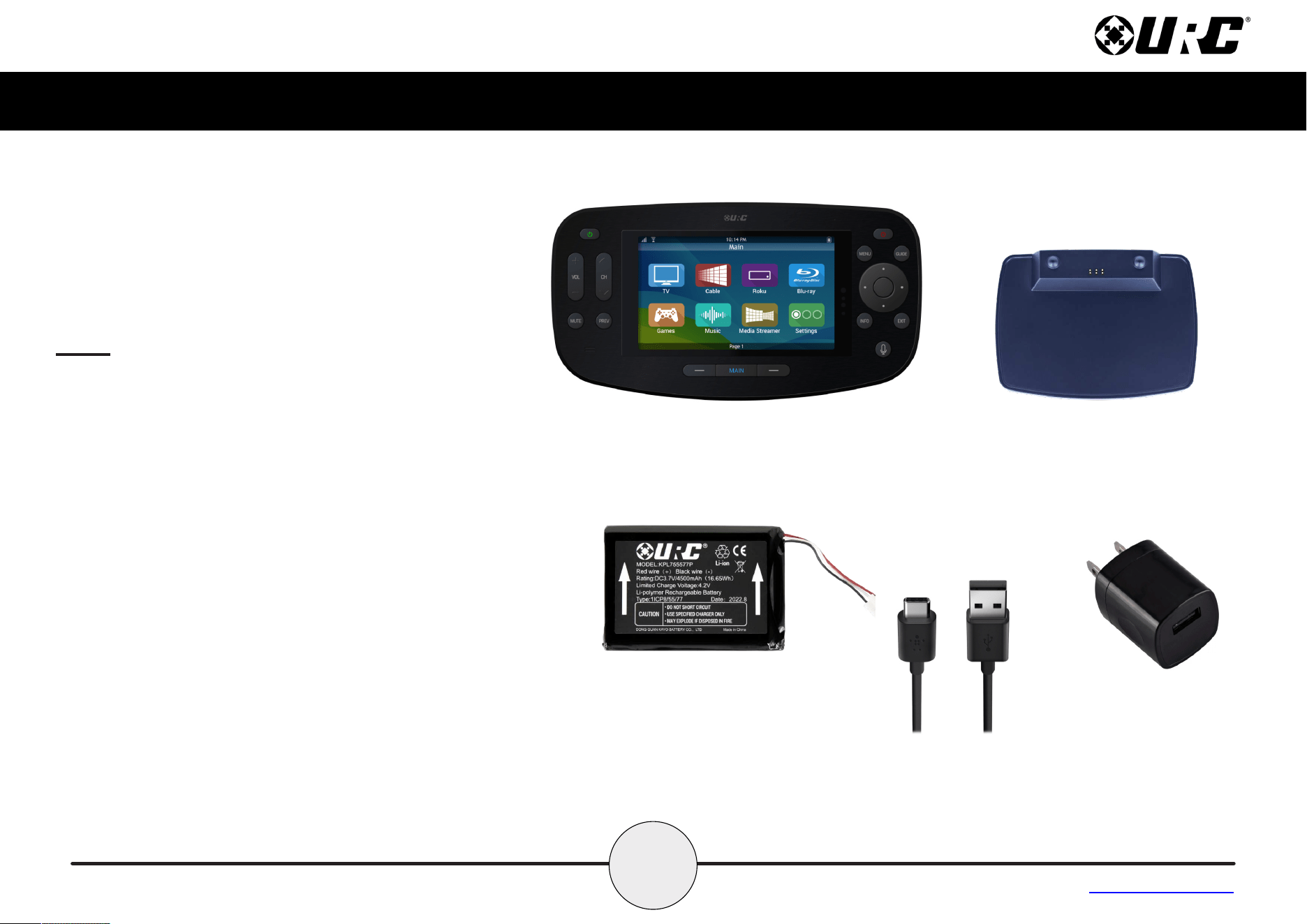
• IR/RF Device Control: The MX-4000 can directly control every
IR device in your home. You can also use RF to control devices
located in dierent rooms by integrating an MRF base station.
• Quick Connect Wi-Fi: When woken up, the remote connects to
the wireless network (2.4 GHz) for control via a Voice Assistant.
• Voice Assistant Ready: Enable the built-in Amazon Alexa
service to send commands verbally from the remote by pushing
the press-to-talk microphone button.
• User Interface Customization: Each Main Menu button can be
customized for activities, such as watching TV or listening to the
radio. These activities can contain multiple commands (macros)
which enable a single button press to turn the needed devices
ON or OFF.
• Complete Control PC Editor: The MX-4000 is programmed
using advanced conguration software called Complete
Control. To fully automate an audio/video system, the
programmer must have a detailed knowledge of each component
and how the system connects and operates.
3
Complete Control
MX-4000
Owner’s Manual
Table of Contents
Connecting the Battery Pack
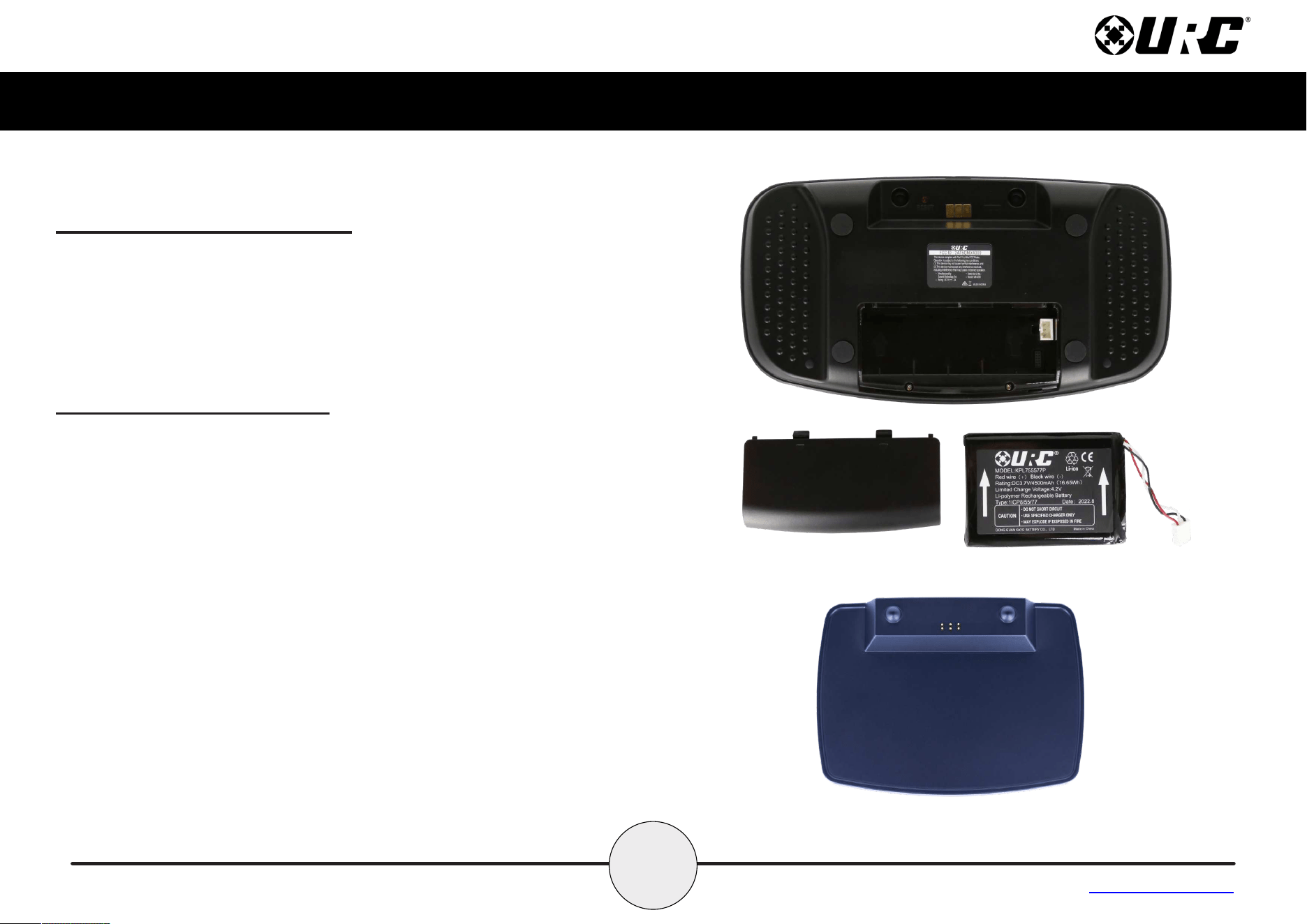
A battery is included in the box when shipped from the factory. Press the
spring lock down to unlock and remove the cover. Place the battery
into the battery compartment, making sure to align the contacts on the
battery with the contacts within the MX-4000’s battery compartment. The
battery snaps into place when aligned properly. Replace the battery
cover.
Using the Charging Cradle
Plug the USB power adapter into a power outlet and the USB-C cable
into the rear of the charging cradle. Gently place the MX-4000 into the
cradle, so that the remote automatically aligns itself to the contacts on
the charging cradle. The status light immediately illuminates.
It is possible to connect the USB-C cable directly into the bottom of the
MX-4000.
There are three (3) status light conditions:
• Red: Indicates that the remote’s battery is charging
• Blue: Indicates that the remote’s battery is o the charging dock
• White: Indicates that the remote’s battery is fully charged
4
Complete Control
MX-4000
Owner’s Manual
Table of Contents
Using the MX-4000
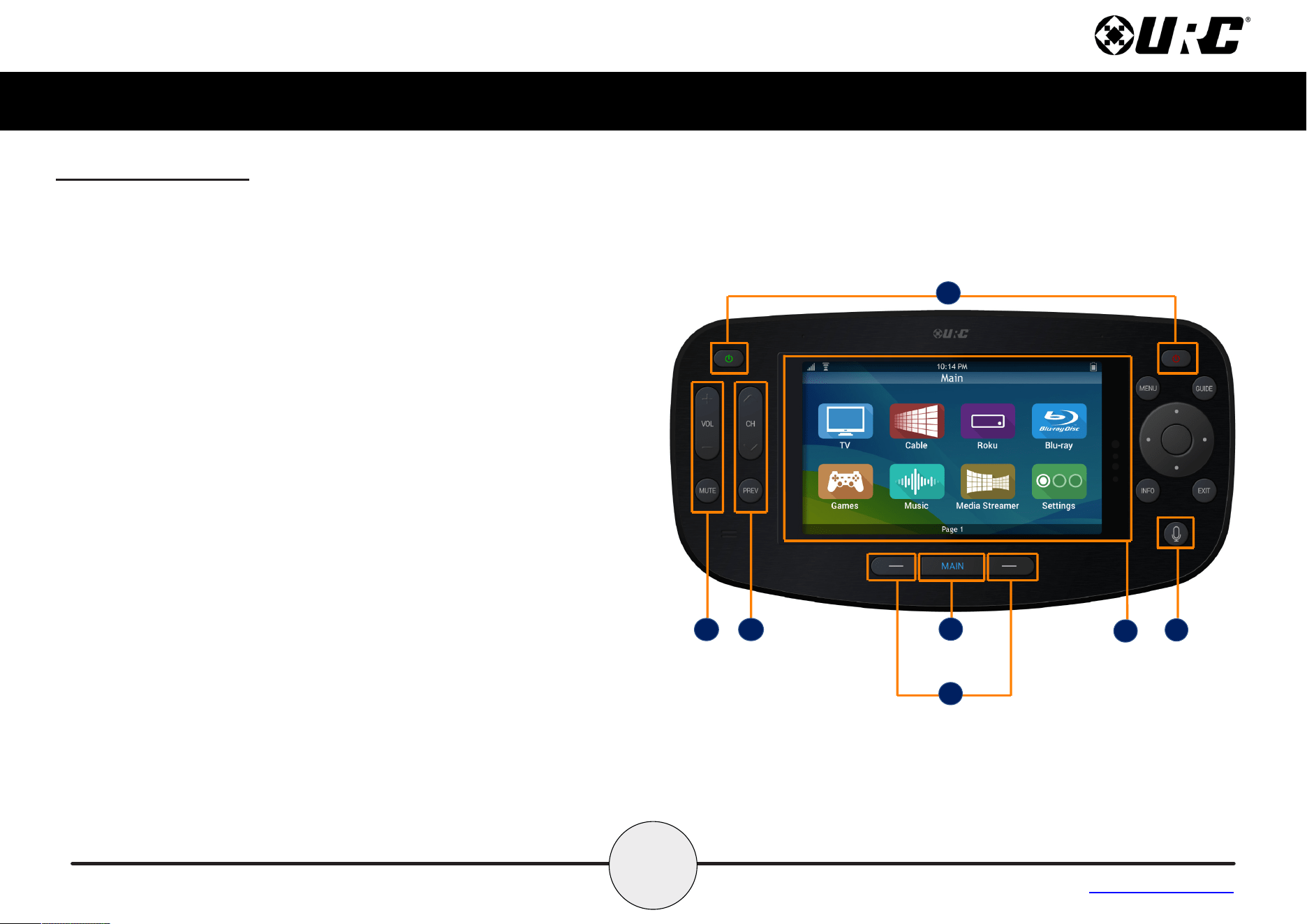
The Main Menu pages display activities and/or devices. Press the Main
Button to access the Main Menu. Larger systems may have more than
one (1) page. Press the Page buttons on either side of the Main button
to view additional Main Menu pages.
Although the MX-4000 is programmed with custom layouts and devices,
there are persistent buttons that maintain a steady function:
A. Power On/O: With a single press of either button, the Complete
Control system turns the device
On (Left) or O (Right).
B. Capacitive Touch Screen: The specic function of each button is
linked to the screen icon associated to the LCD screen. These
buttons are used to select activities, devices, functions, navigate,
and more. Speak with your custom integrator for more details.
C. Page Left/Right: These buttons are used to navigate through the
various Main Menu and Device/Activity Menu pages.
D. Main: By default, this button returns the user to the previous
menu.
E. Vol+, Vol-, & Mute: Used to increase, decrease, or toggle the
mute status of the active audio device’s volume level.
F. CH+, CH-, & Prev: CH+ & CH- are used to change a Cable/SAT
channel up or down. The Prev button returns to the device’s
previous channel or can be used to return the user to a previous
menu.
G. Microphone: Select this button to interact with the programmed
voice service assistant. When pressed, the microphone activates
and listens to your verbal commands. The microphone is shut o
when the button is no longer pressed.
A
B
C
D
G
E
F
5
Complete Control
MX-4000
Owner’s Manual
Table of Contents
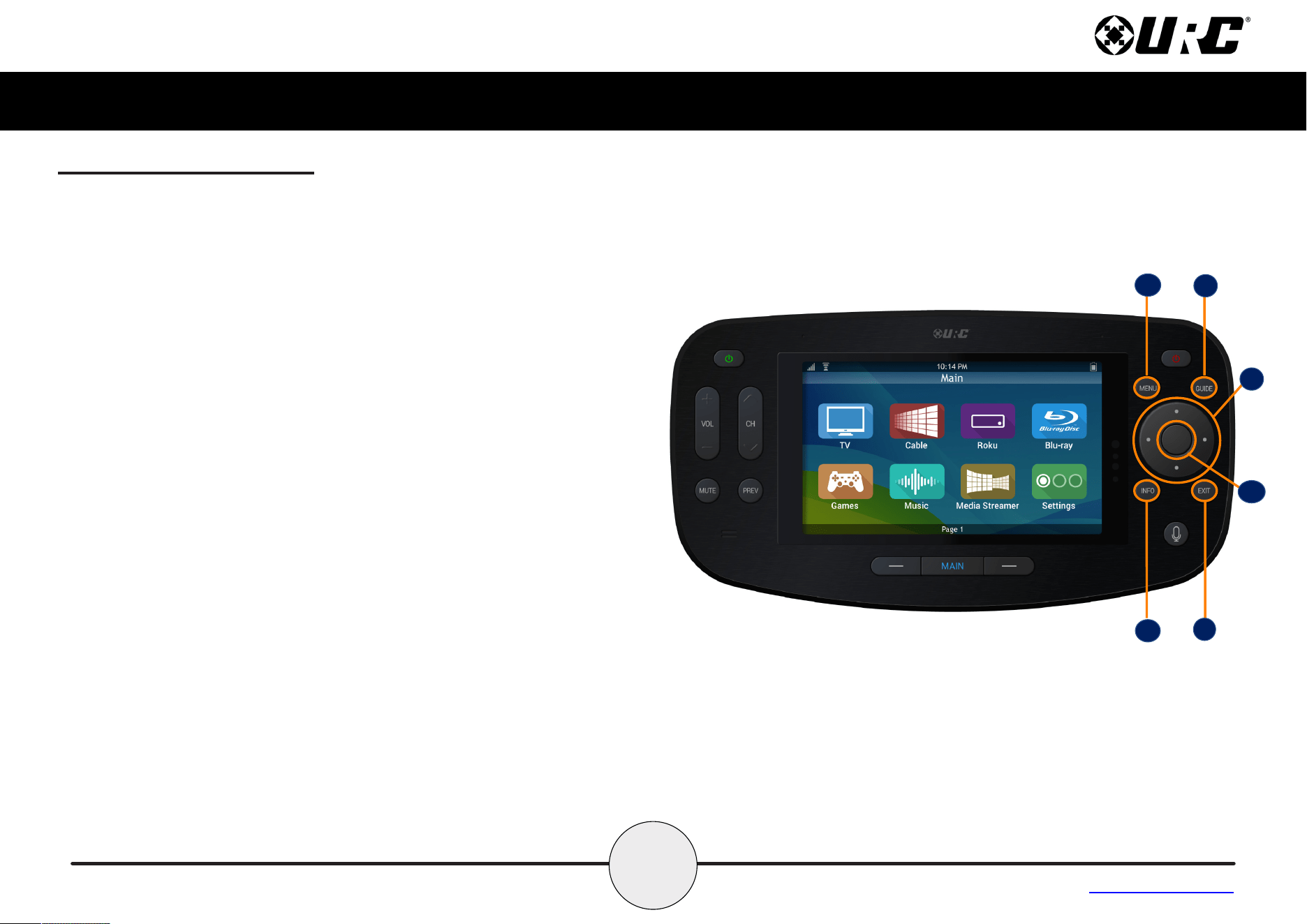
H. Navigation Keys: Comprised of up, down, left, and right. These
buttons are used to navigate through the menus and/or device
screens.
I. Select: Center button of navigation keys, used to conrm
selections displayed on a viewing device.
J. Menu: Displays the on-screen menu of the active device.
K. Guide: Displays the channel guide for the device’s on-screen
display.
L. Info: Displays channel information for the device’s on-screen
display.
M. Exit: Closes out any open menus or guides on the display or
returns to the previous menu.
H
I
J
K
L
M
Using the MX-4000 (cont’d)
6
Complete Control
MX-4000
Owner’s Manual
Table of Contents
Using Voice Control
The MX-4000 has the capability of using Amazon Alexa Voice Assistant
to control activities and devices programmed within the Alexa system.
For instructions on how to enable the Alexa Voice service, refer to page
14.
The MX-4000 preserves your privacy with a push-to-talk button on the
remote control. This means the Alexa Service is only listening when you
want it too.
Issuing Voice Commands
Voice Commands can be issued easily and intuitively with the push-
to-talk button.
This button removes the need to say “Alexa…”.
Press-n-hold the button and say phrases such as…
• “Set living room temperature to 72 degrees.”
• “Turn on patio lights.”
• “Turn o kitchen lights.”
• “And many more…”
The MX-4000 does not support the following Amazon Alexa features:
• Audio Playback via Amazon Music, Audible, or other music
services.
• Alexa Drop-In, calls, or video calls
• Graphical feedback from Alexa
7
Complete Control
MX-4000
Owner’s Manual
Table of Contents
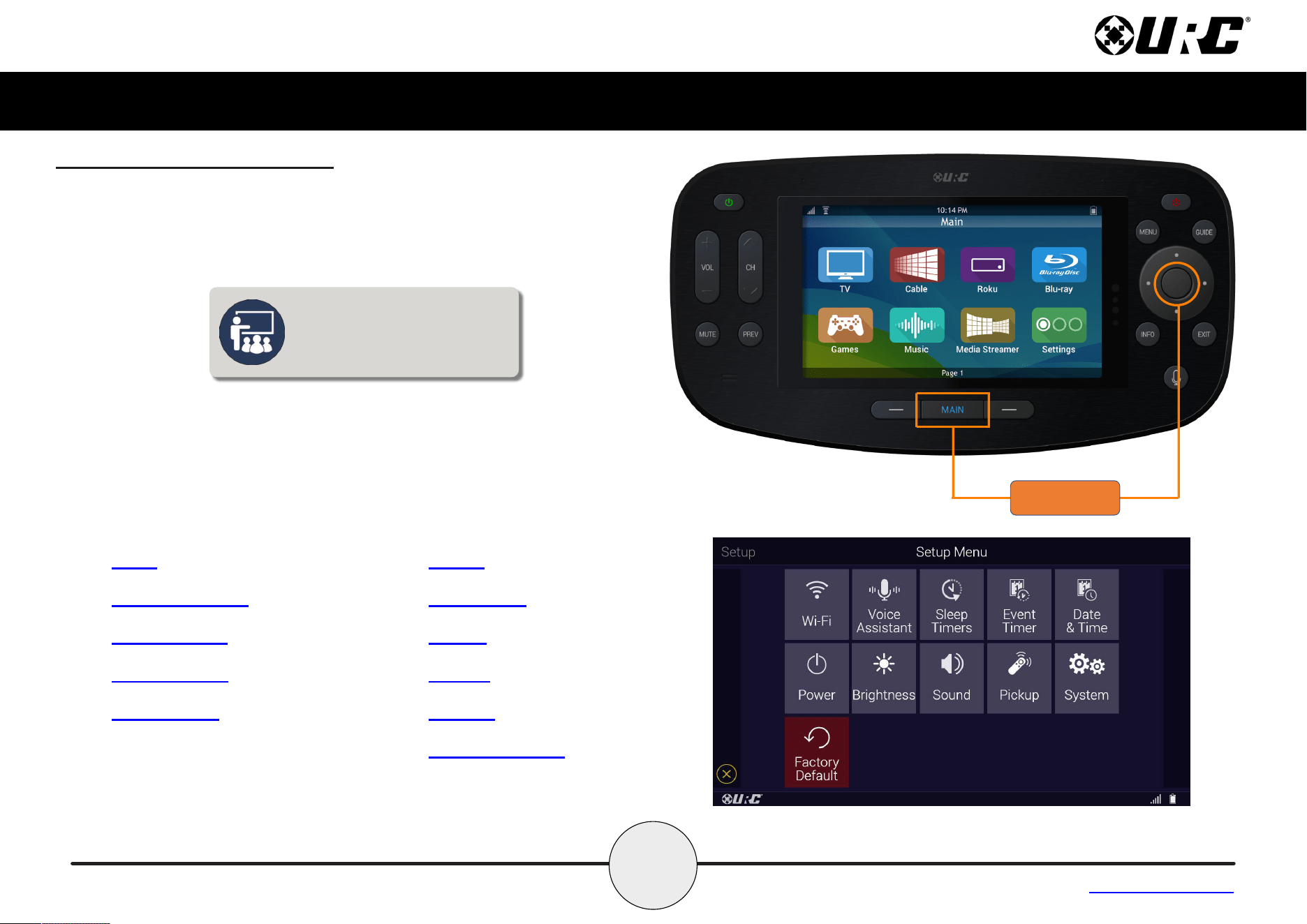
Displaying the Setup Menu
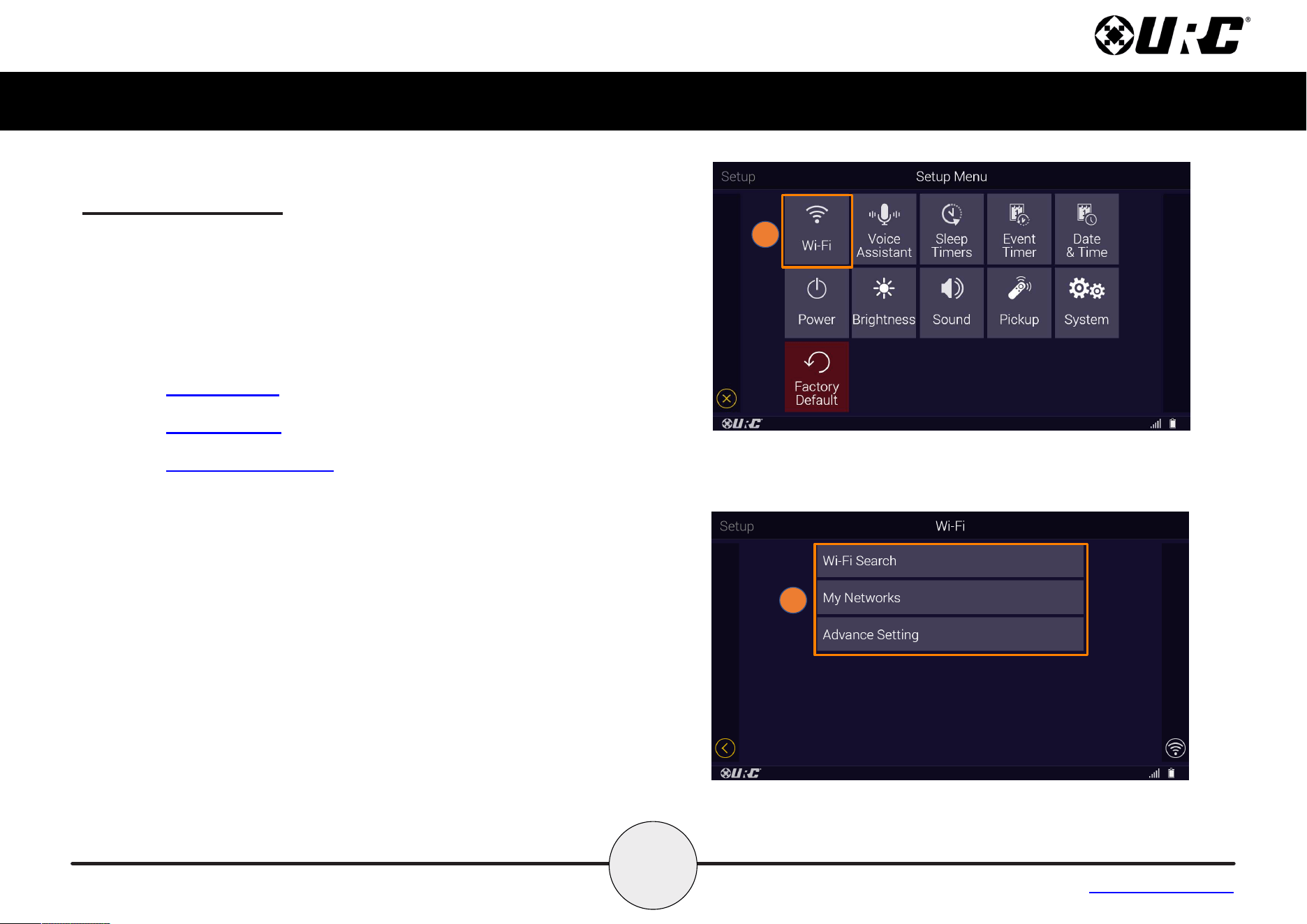
The Setup Menu allows users to congure or change certain behaviors
and features of the MX-4000.
Enter the Setup Menu by pressing and holding the Main and Select
(see image at the right) buttons for greater than ve (5) seconds.
Use the touchscreen to access the Setup Menu options.
To return to a previous page press the left page button (at the left of
Main Menu). Press the Main or Exit button to return the remote to the
Main Menu.
The Setup Menu times out
after sixty (60) seconds and
returns the MX-4000 to the
system’s Main Menu.
• Wi-Fi
• Voice Assistant
• Sleep Timers
• Event Timers
• Date & Time
• Power
• Brightness
• Sound
• Pickup
• System
• Factory Default
PRESS & HOLD
8
Complete Control
MX-4000
Owner’s Manual
Table of Contents
WiFi Settings Menu
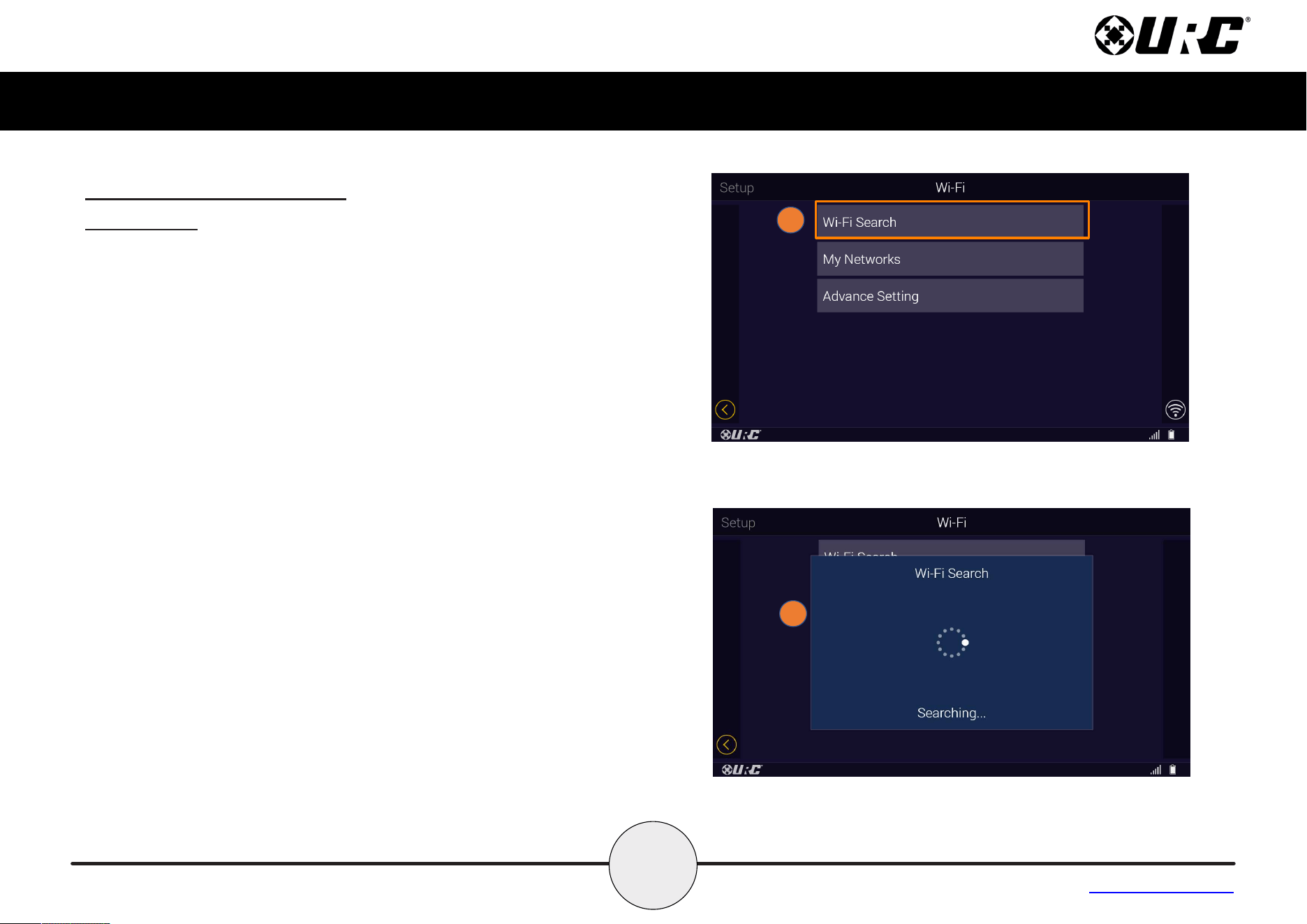
The Wi-Fi Settings menu is used to connect the MX-4000 to the
user’s preferred local area network settings once connected.
Follow these instructions to congure the Wi-Fi for the MX-4000:
1. From the Setup Menu, select Wi-Fi.
2. The Wi-Fi menu has three options:
• Wi-Fi Search
• My Networks
• Advanced Settings
1
2
9
Complete Control
MX-4000
Owner’s Manual
Table of Contents
WiFi Settings Menu (cont’d)
Wi-Fi Search
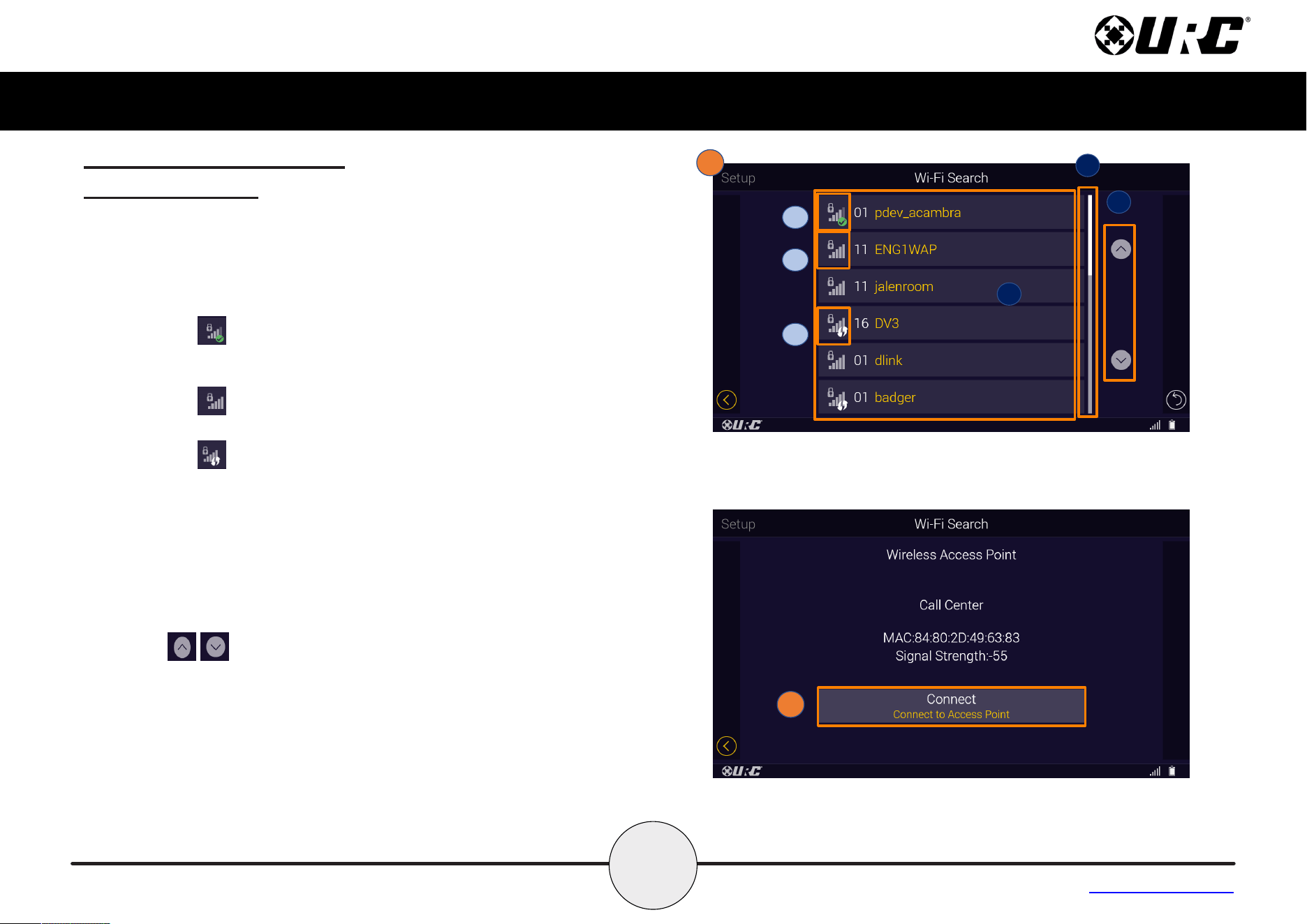
The Wi-Fi Search opens the Searching of Networks notication and
then lists the available network connections:
1. Select Wi-Fi Search from the Wi- menu.
2. The Wi-Fi Search notication will pop-up while the MX-400
searches for available networks.
1
2
10
Complete Control
MX-4000
Owner’s Manual
Table of Contents
WiFi Settings Menu (cont’d)
Wi-Fi Search (cont’d)
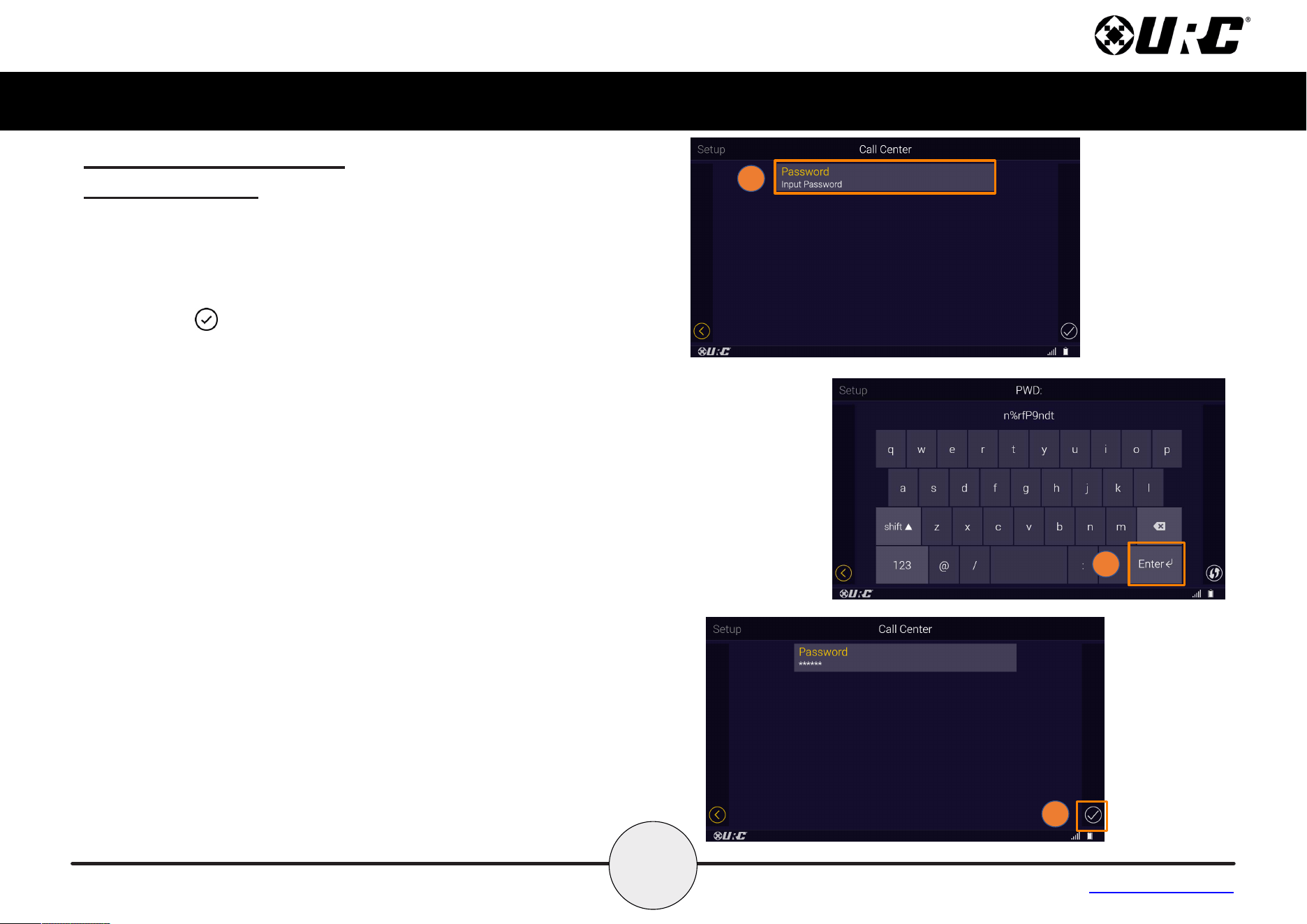
3. A completed Wi-Fi search will display:
A. The name, signal strength and Wi-Fi channel number of
each discovered Wi-Fi network signal.
1. Shows the signal strength, a lock indicating that
the network requires a password and a green check
indicating that it is the assigned network.
2. Shows the signal strength and a lock indicating
that the network requires a password.
3. Shows the signal strength, a lock indicating that
the network requires a password and arrows indicating
that WPS is available.
B. Along the right sight of the menu page, there will be a List
Scroll Indicator which reects the relative position of the list
items displayed in the UI as a fraction of the total list size.
The Indicator will change positions as the user navigates
along the list to reect the position of the on-screen list
items relative to the entire list.
C. At the extreme right side of the list screen are the
Up and Down arrows that allow the user to navigate the
list.
4. Select your preferred access point from Step 3 and select
Connect.
A
B
C
1
2
3
3
4
12
Complete Control
MX-4000
Owner’s Manual
Table of Contents
WiFi Settings Menu (cont’d)
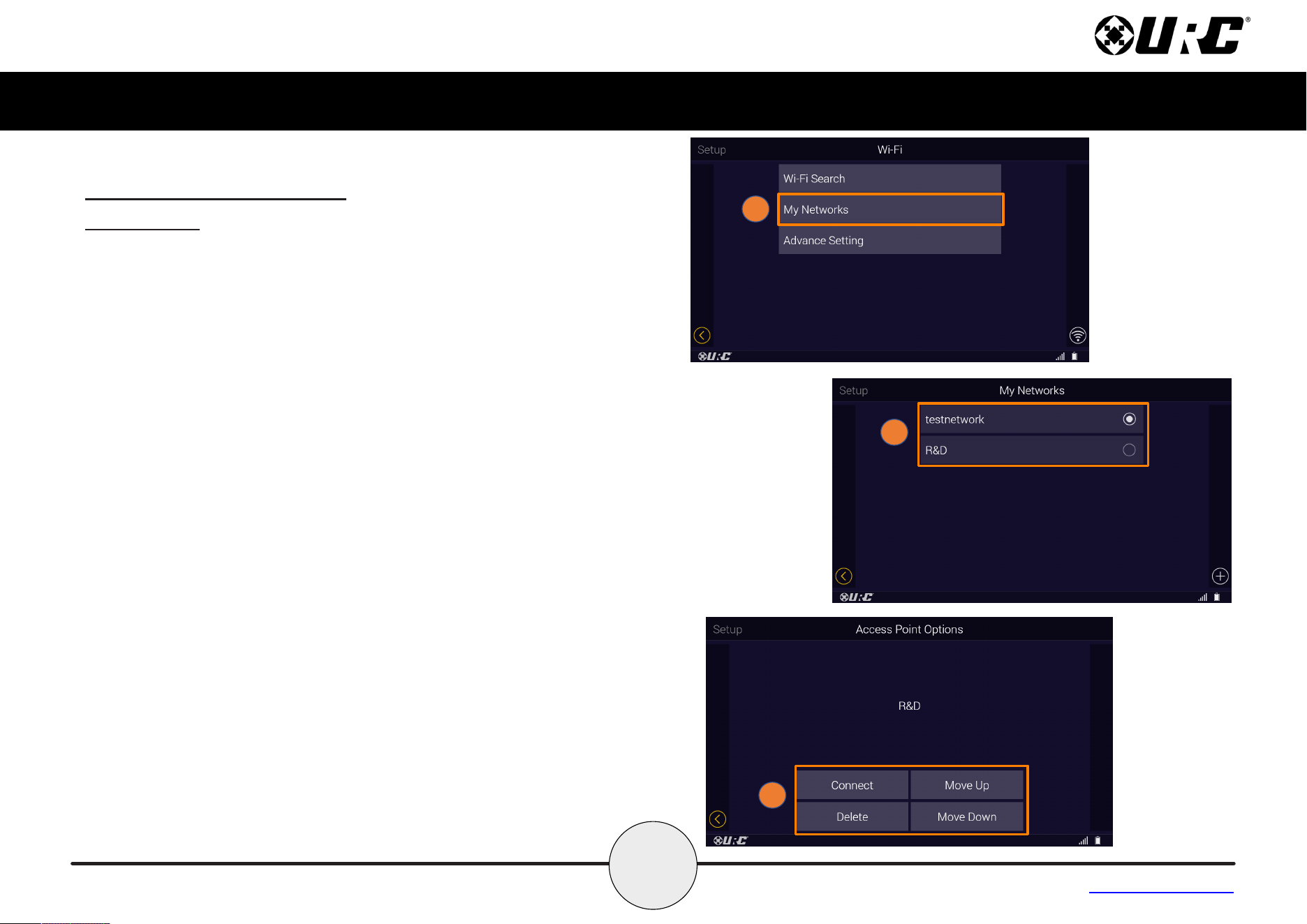
My Networks
The My Networks menu displays a list of SSID’s that have been
added to the MX-4000 using the Wireless Search or the Add Other
methods.
To select an available SSID added to the MX-4000:
1. Select My Networks from the Wi- menu.
2. Use the radio buttons to select the desired network.
3. You will be giving four options:
• Connect - forces a connection to the selected access point
and closes the access point options notication.
• Delete - removes the selected access point from the
preferred list and closes the access point options
notication.
• Move Up - allows the user to move the indicated network
access point up one space on the My Networks List.
• Move Down - allows the user to move the indicated
network access point down one space on the My Networks
List.
1
2
3
13
Complete Control
MX-4000
Owner’s Manual
Table of Contents
WiFi Settings Menu (cont’d)
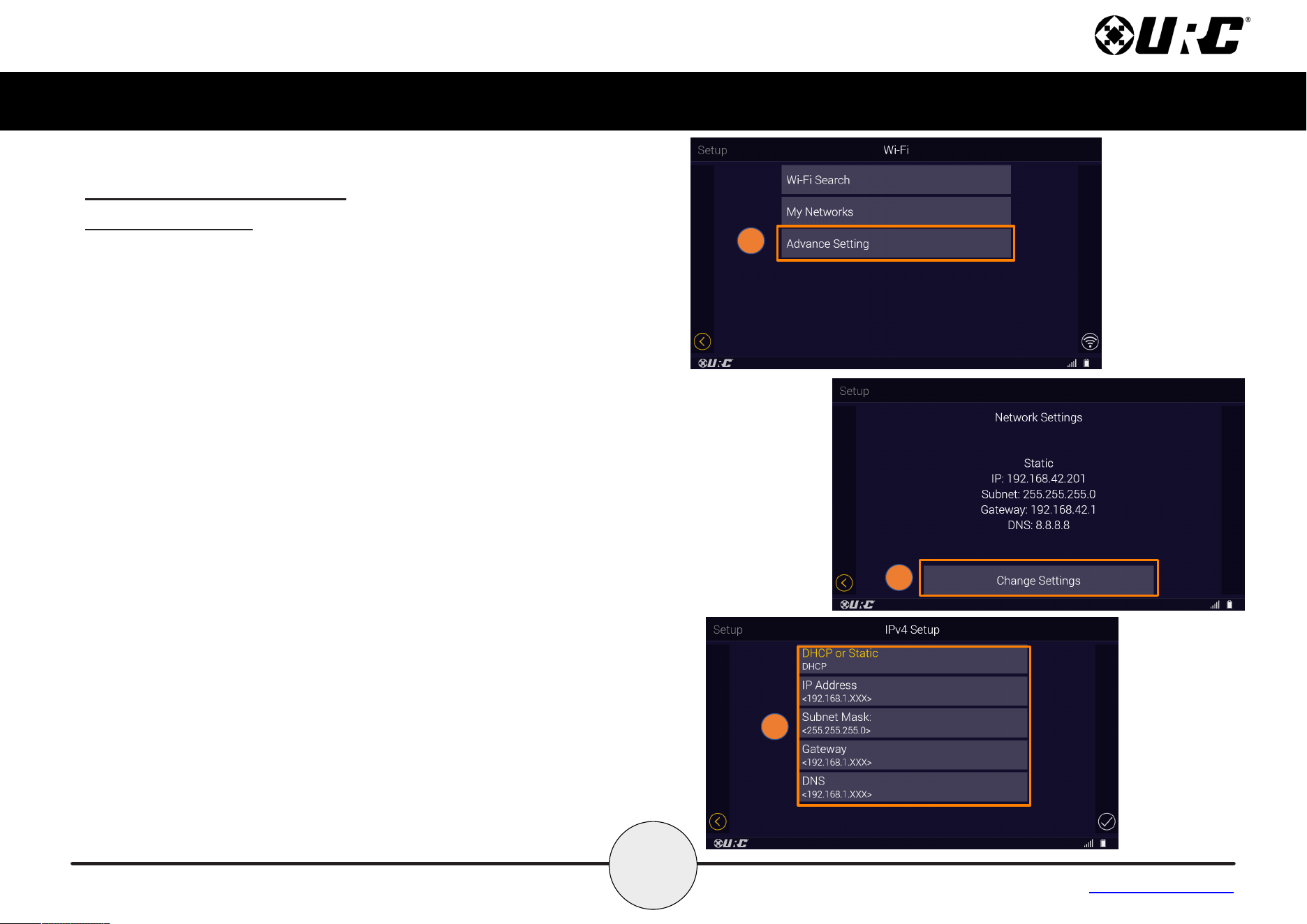
Advanced Settings
The Advanced Settings shows the MX-4000's current network
settings.
To view the MX-4000's current network settings:
1. Select Advanced Setting from the Wi- menu.
2. The network setting are now displayed, select on Change
Settings to make changes.
3. The Ipv4 Setup page gives you the option to choose DHCP or
Static. Choosing Static will require you to enter the IP Address,
Subnet Mask, Gateway and DNS.
1
2
3
14
Complete Control
MX-4000
Owner’s Manual
Table of Contents
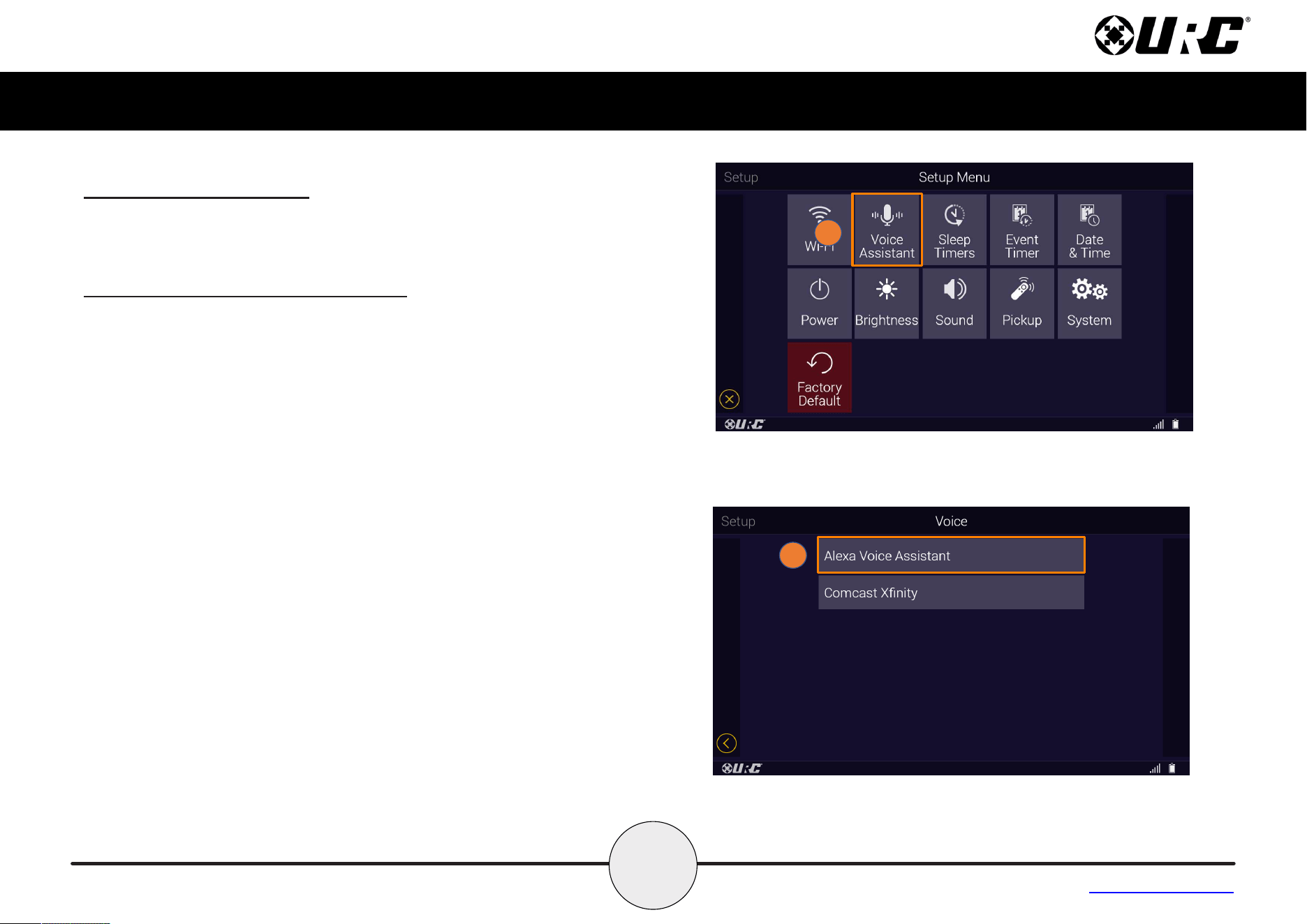
Voice Assistant Setup
This option allows you to integrate your Amazon Alexa Voice
Assistant and Comcast Xnity voice module with the MX-4000.
Amazon Alexa Voice Assistant setup
Follow these instructions to enable the Alexa Voice Assistant service.
Once enabled, use the push-to-talk button to issue vocal commands
to the Alexa system:
1. From the Settings Menu, select Voice Assistant.
2. Select Alexa Voice Assistant.
1
2
15
Complete Control
MX-4000
Owner’s Manual
Table of Contents
Voice Assistant Setup (cont’d)
Amazon Alexa Voice Assistant setup (cont’d)
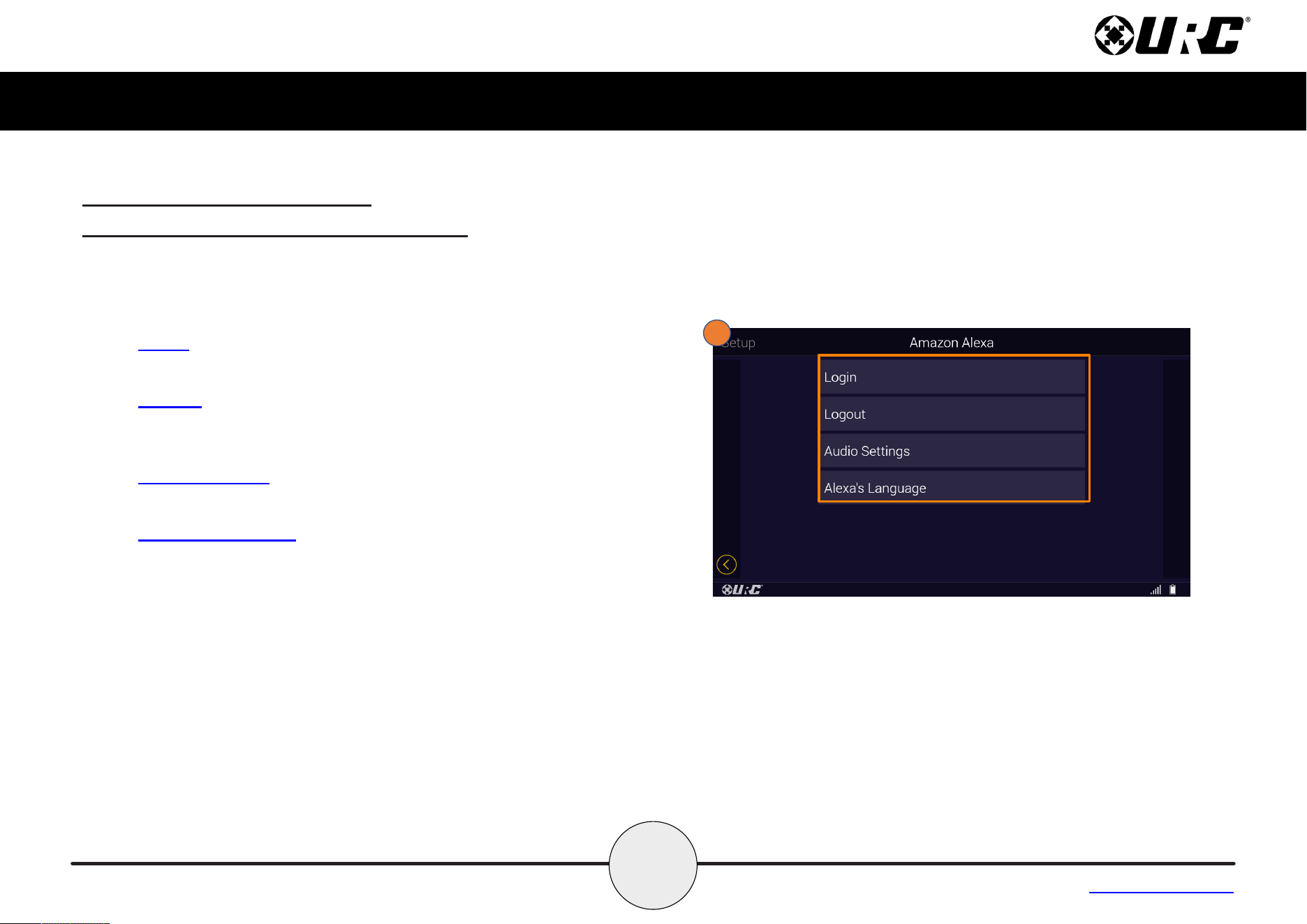
Voice Assistant Settings
After setup, the Voice Assistant menu oers a few features to
customize how the remote interacts with Alexa.
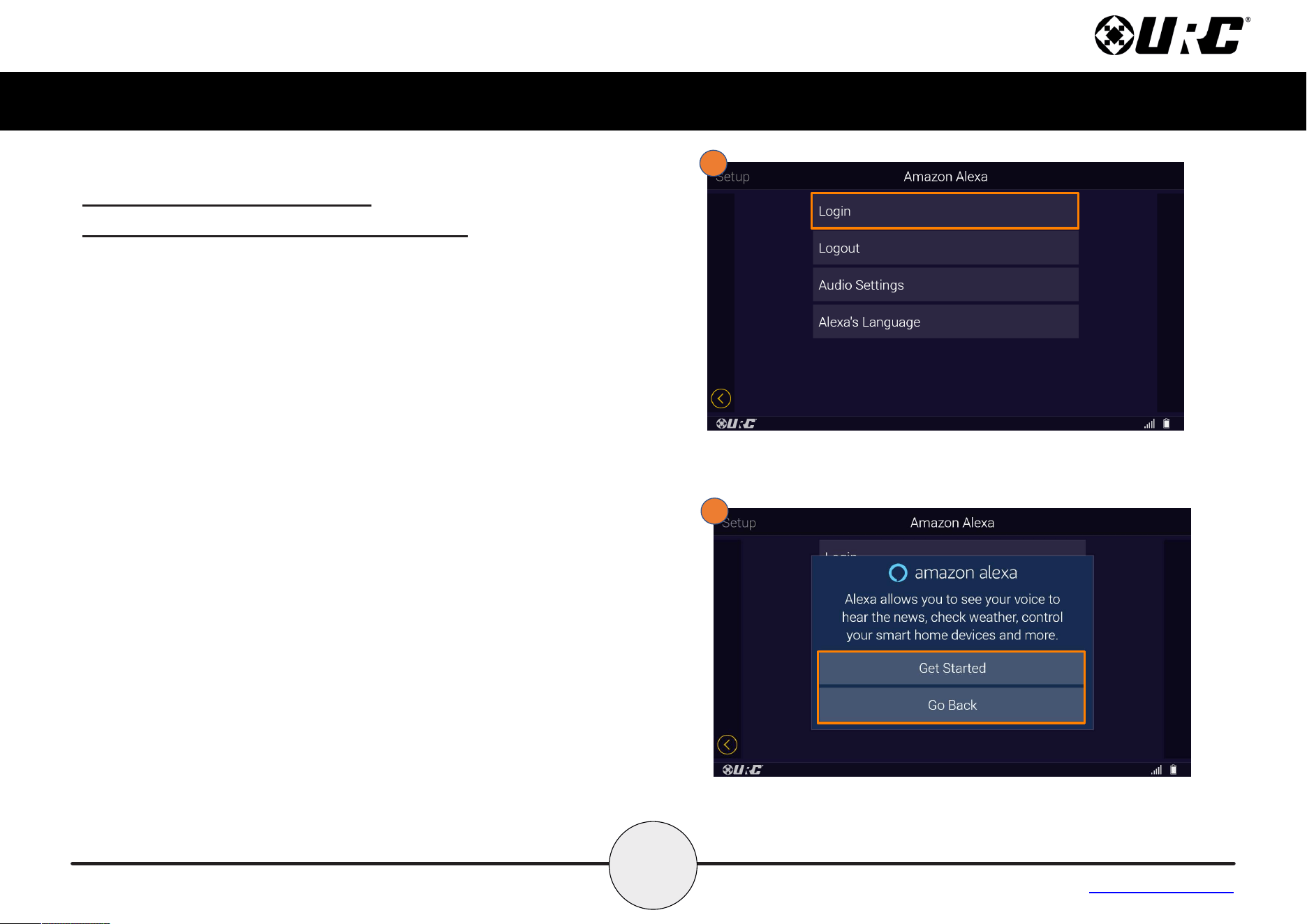
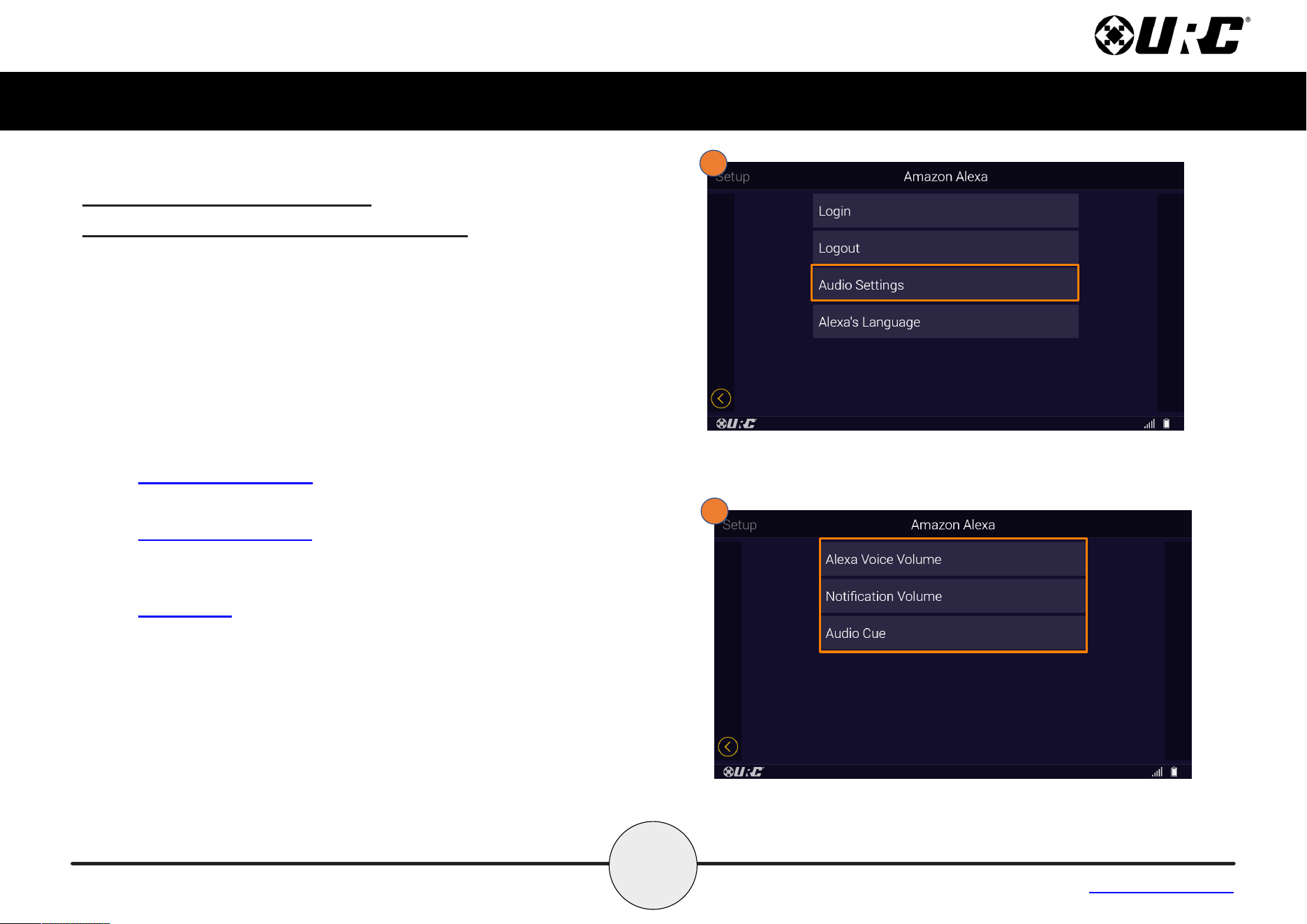
• Login: Selecting Login will begin the Alexa login and
authentication sequence.
• Logout: Selecting Logout removes Alexa integration from
the remote. The Mic button no longer functions with Alexa
until it has been congured again.
• Audio Settings: Allows for Voice Volume and the Audio
Cue levels to be adjusted.
• Alexa’s Language: Allows for Alexa’s language/accent to
be set to one of a variety of options.
3
16
Complete Control
MX-4000
Owner’s Manual
Table of Contents
Voice Assistant Setup (cont’d)
Amazon Alexa Voice Assistant setup (cont’d)
Voice Assistant Settings
After setup, the Voice Assistant menu oers a few features to
customize how the remote interacts with Alexa.
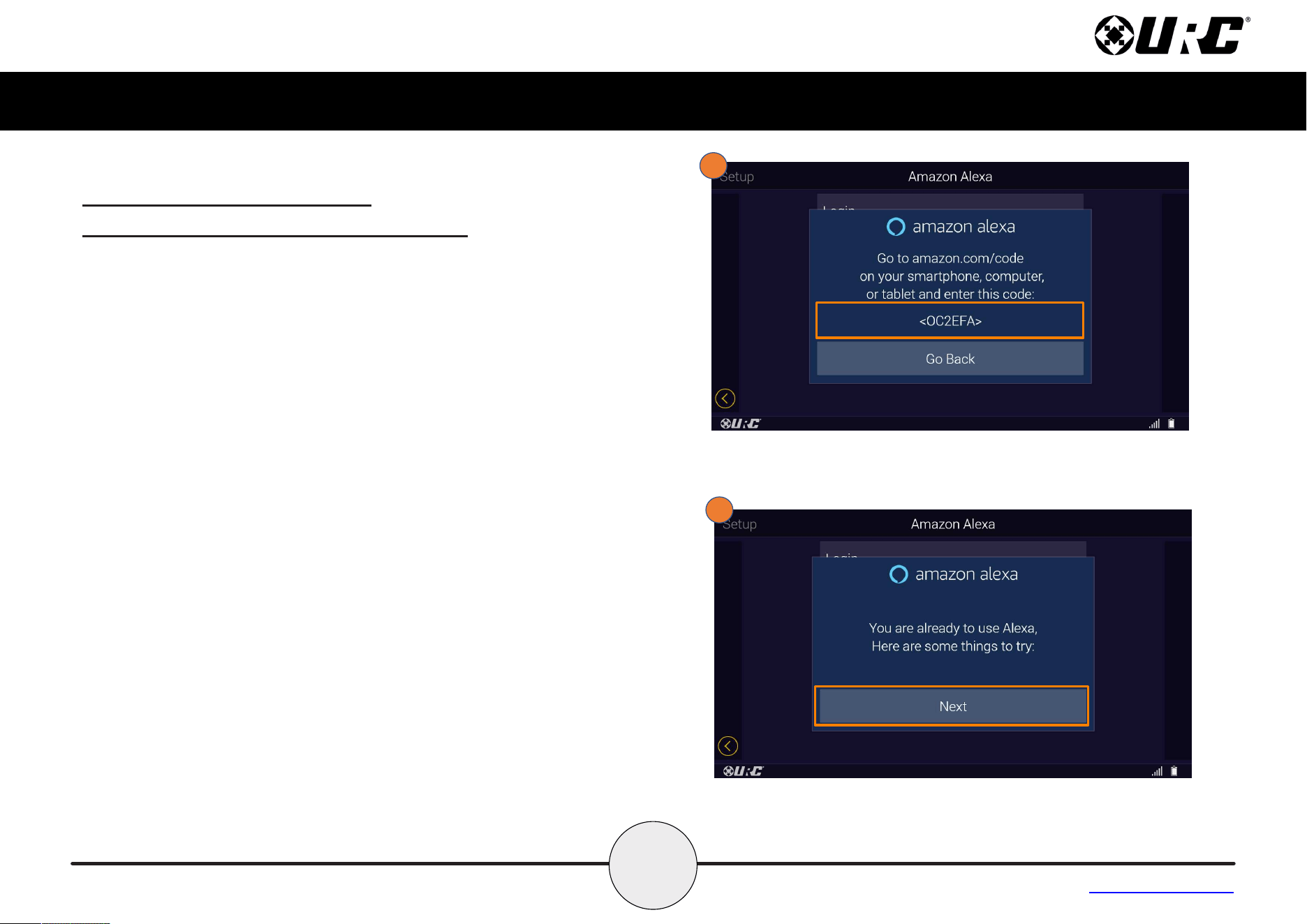
Login
1. Selecting Login will begin the Alexa login and authentication
sequence.
2. Select Get Started to proceed with the login and authentication
process. Selecting Go Back will take you to the Alexa Voice
Assistant Menu.
1
2
17
Complete Control
MX-4000
Owner’s Manual
Table of Contents
Voice Assistant Setup (cont’d)
Amazon Alexa Voice Assistant setup (cont’d)
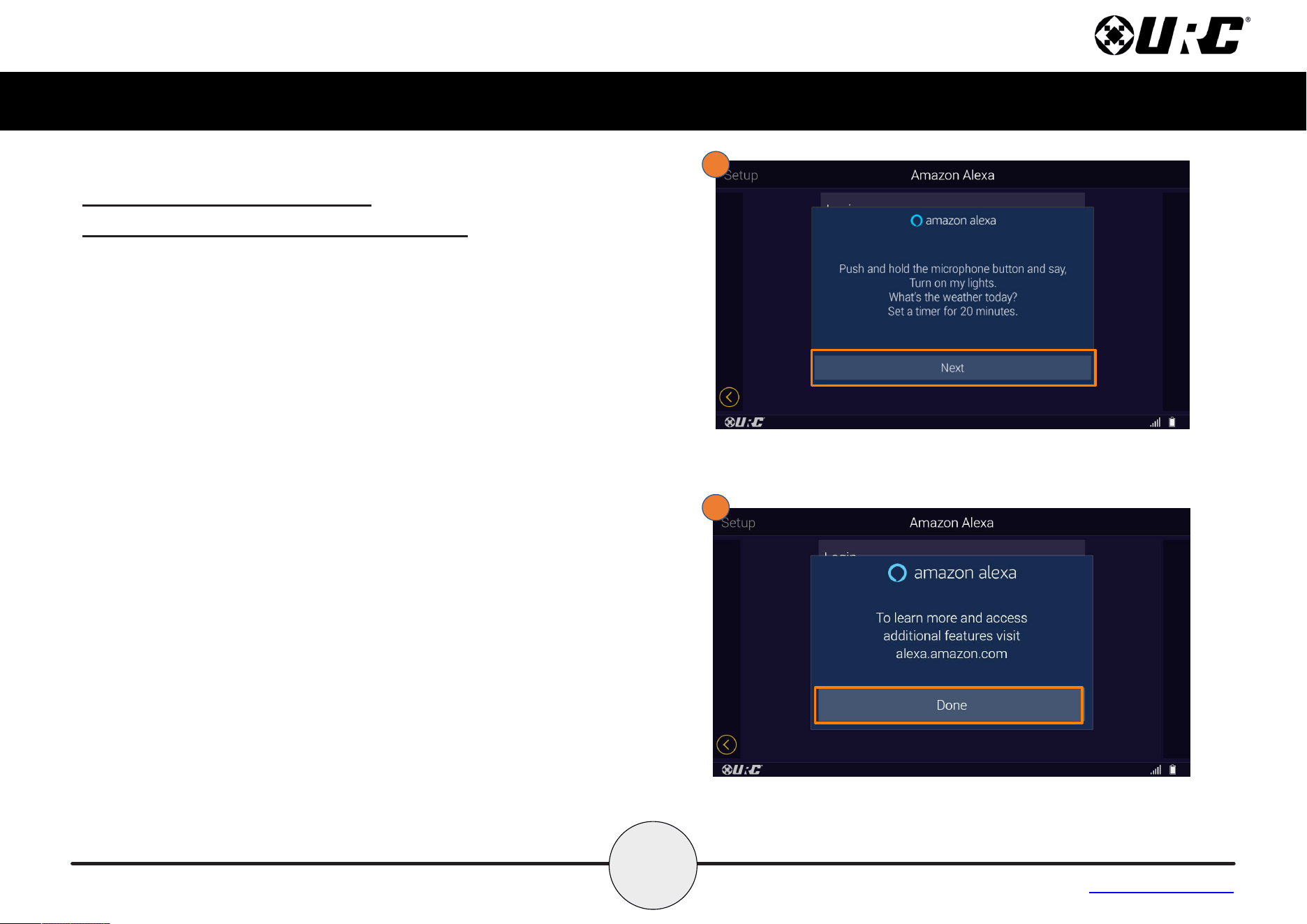
3. You will now be prompted with a code to enter on your
smartphone, computer or tablet at amazon.com/code.
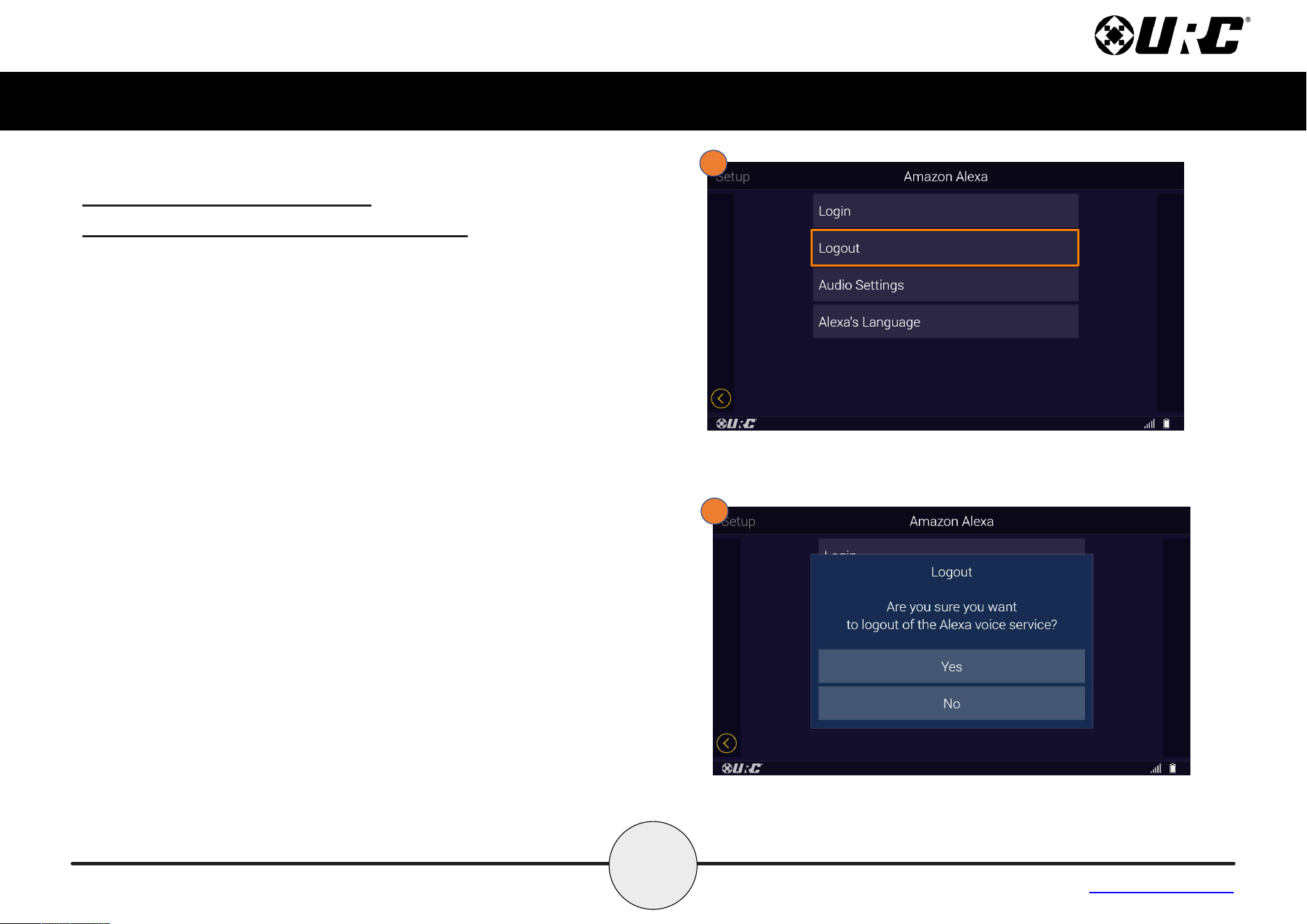
4. Select Next when you are asked if you are ready to use Alexa
and to try some things.
3
4
19
Complete Control
MX-4000
Owner’s Manual
Table of Contents
Voice Assistant Setup (cont’d)
Amazon Alexa Voice Assistant setup (cont’d)
Voice Assistant Settings
After setup, the Voice Assistant menu oers a few features to
customize how the remote interacts with Alexa.
Logout
1. Selecting Logout removes Alexa integration from the remote. The
Mic button no longer functions with Alexa until it has been
congured again.
2. Select Yes or No when prompted if you’re sure if you want to
logout of the Alexa voice service.
1
2
20
Complete Control
MX-4000
Owner’s Manual
Table of Contents
Voice Assistant Setup (cont’d)
Amazon Alexa Voice Assistant setup (cont’d)
Voice Assistant Settings
After setup, the Voice Assistance menu oers a few features to
customize how the remote interacts with Alexa.
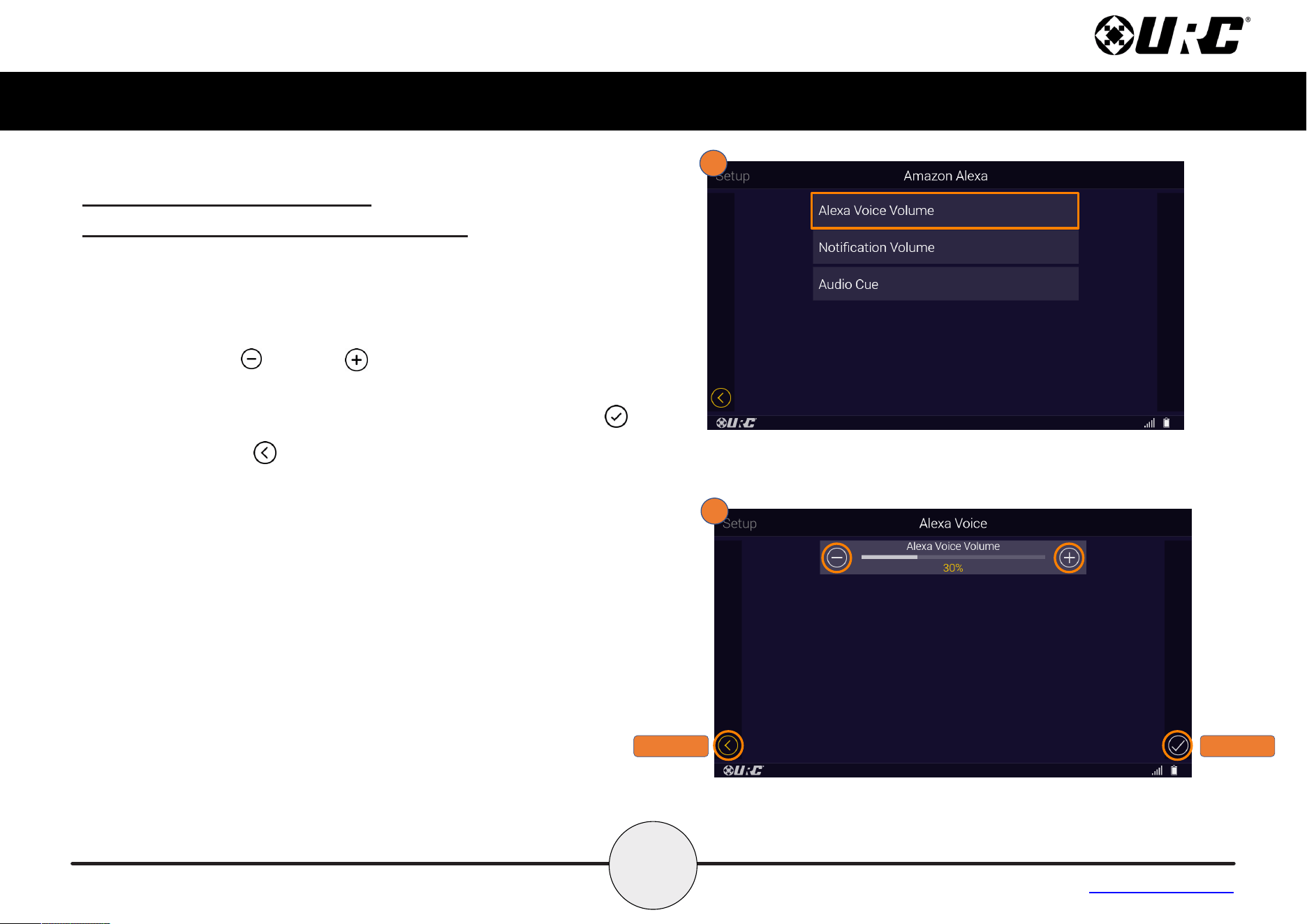
Audio Settings
1. Selecting Audio Settings allows for Voice Volume, Notication
Volume and the Audio Cue levels to be adjusted.
2. The Audio Settings menu give the following options:
• Alexa Voice Volume: Selecting Alexa Voice Volume allows
the user to set the the volume level of the Alexa voice output.
• Notication Volume: Selecting Notication Volume allows the
user to set the volume level for Amazon Alexa notications
through the URC system.
• Audio Cue: Using the Audio Cue option enables the Alexa
audio tone that occurs when the microphone button is pressed
on the URC client device.
1
2
21
Complete Control
MX-4000
Owner’s Manual
Table of Contents
Voice Assistant Setup (cont’d)
Amazon Alexa Voice Assistant setup (cont’d)
Audio Settings (cont’d)
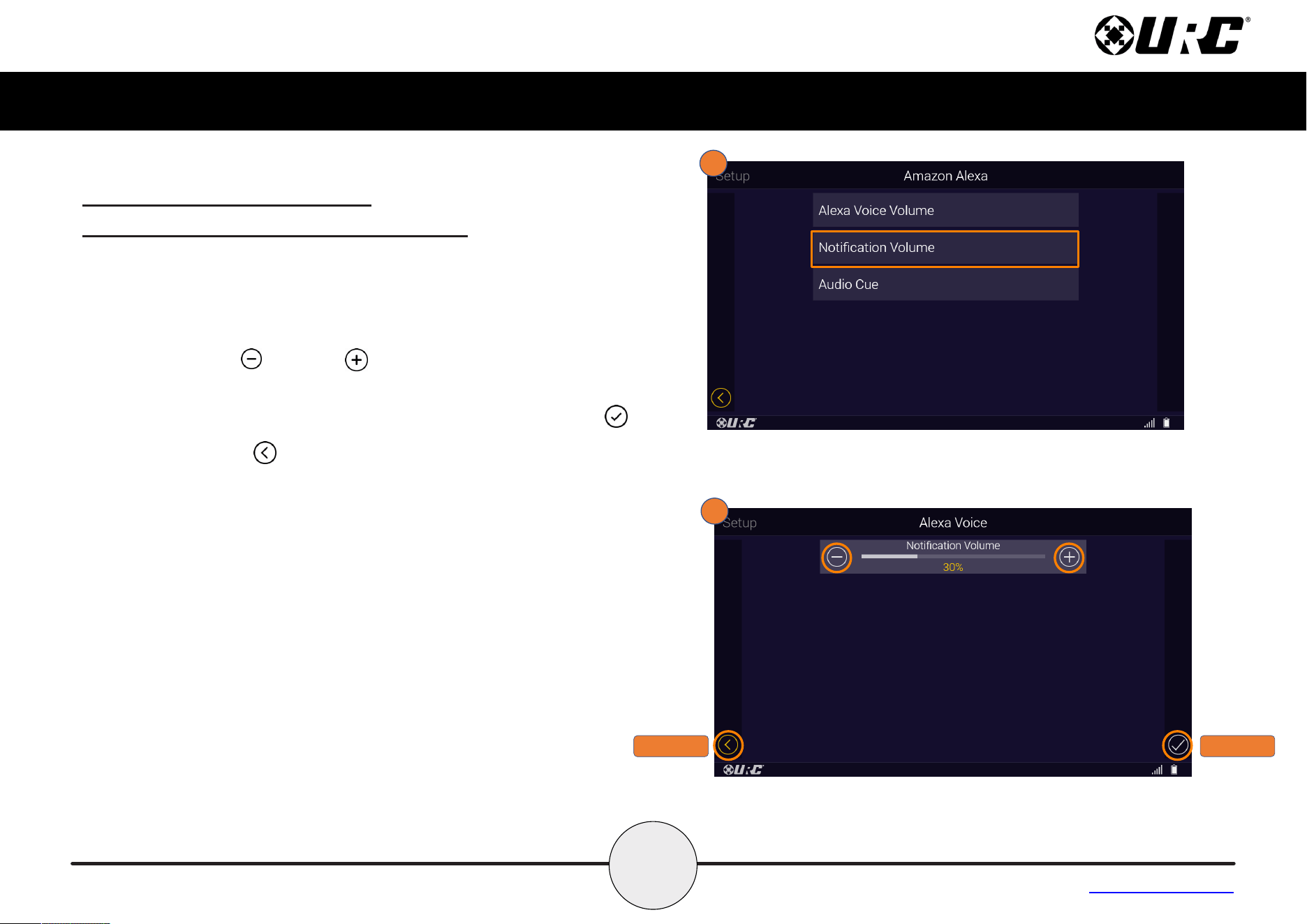
1. Selecting Alexa Voice Volume allows the user to set the the
volume level of the Alexa voice output.
2. Use the Minus and Plus signs to decrease or increase the
Alexa Voice Volume.
Once the volume has been adjusted, press the Save button .
Pressing Cancel reverts the device to the last saved setting.
1
2
CANCEL
SAVE
22
Complete Control
MX-4000
Owner’s Manual
Table of Contents
Voice Assistant Setup (cont’d)
Amazon Alexa Voice Assistant setup (cont’d)
Audio Settings (cont’d)
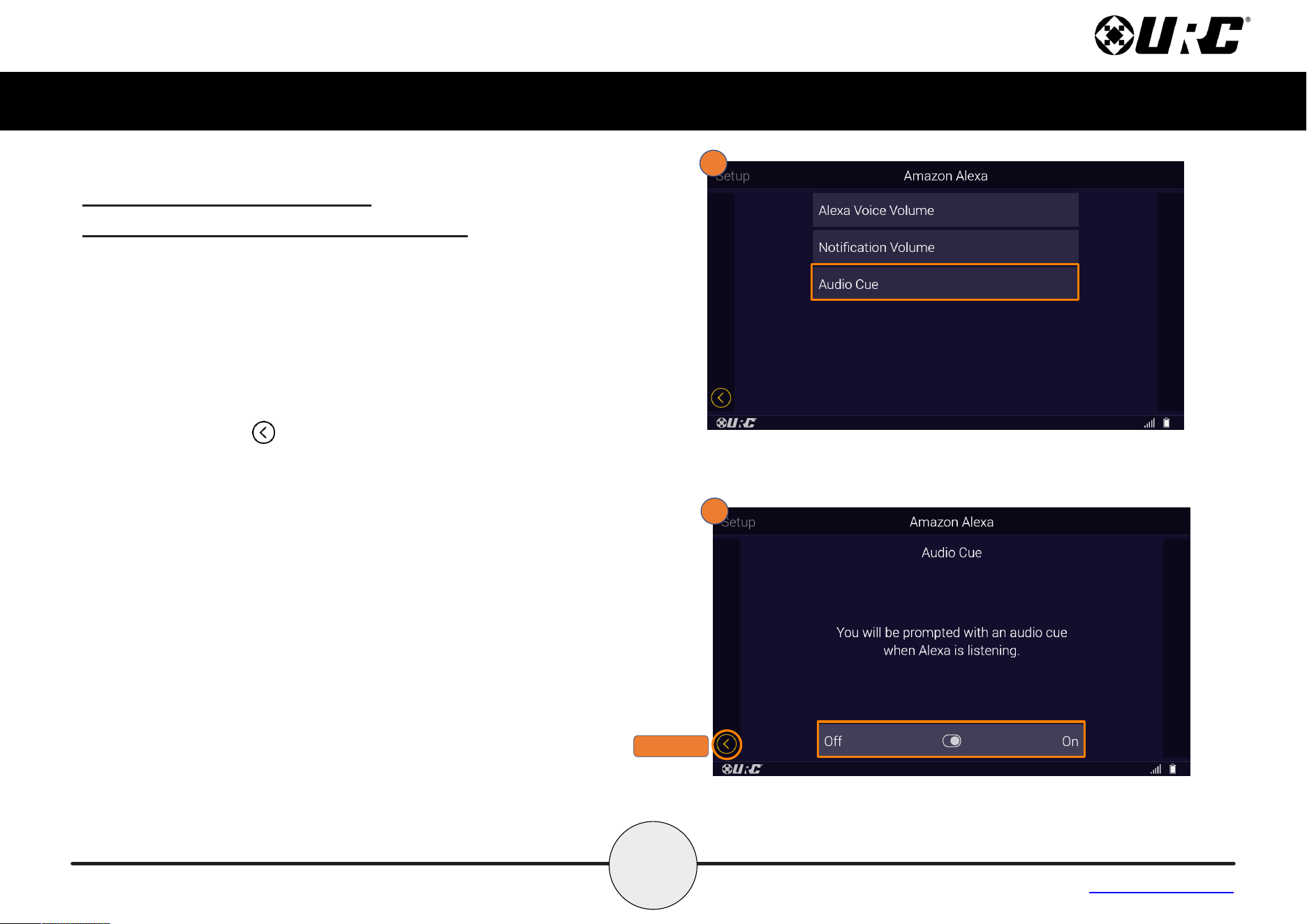
1. Selecting Notication Volume allows the user to set the volume
level for Amazon Alexa notications through the URC system.
2. Use the Minus and Plus signs to decrease or increase the
Notication Volume.
Once the volume has been adjusted, press the Save button .
Pressing Cancel reverts the device to the last saved setting.
1
2
CANCEL
SAVE
23
Complete Control
MX-4000
Owner’s Manual
Table of Contents
Voice Assistant Setup (cont’d)
Amazon Alexa Voice Assistant setup (cont’d)
Audio Settings (cont’d)
1. Selecting the Audio Cue option enables the Alexa audio
tone that occurs when the microphone button is pressed on
the URC client device.
2. Use the Toggle
à to turn the option OFF or ON to be
prompted with an audio cue when Alexa is listening.
Pressing Cancel reverts the device to the last saved
setting.
1
2
CANCEL
24
Complete Control
MX-4000
Owner’s Manual
Table of Contents
Voice Assistant Setup (cont’d)
Amazon Alexa Voice Assistant setup (cont’d)
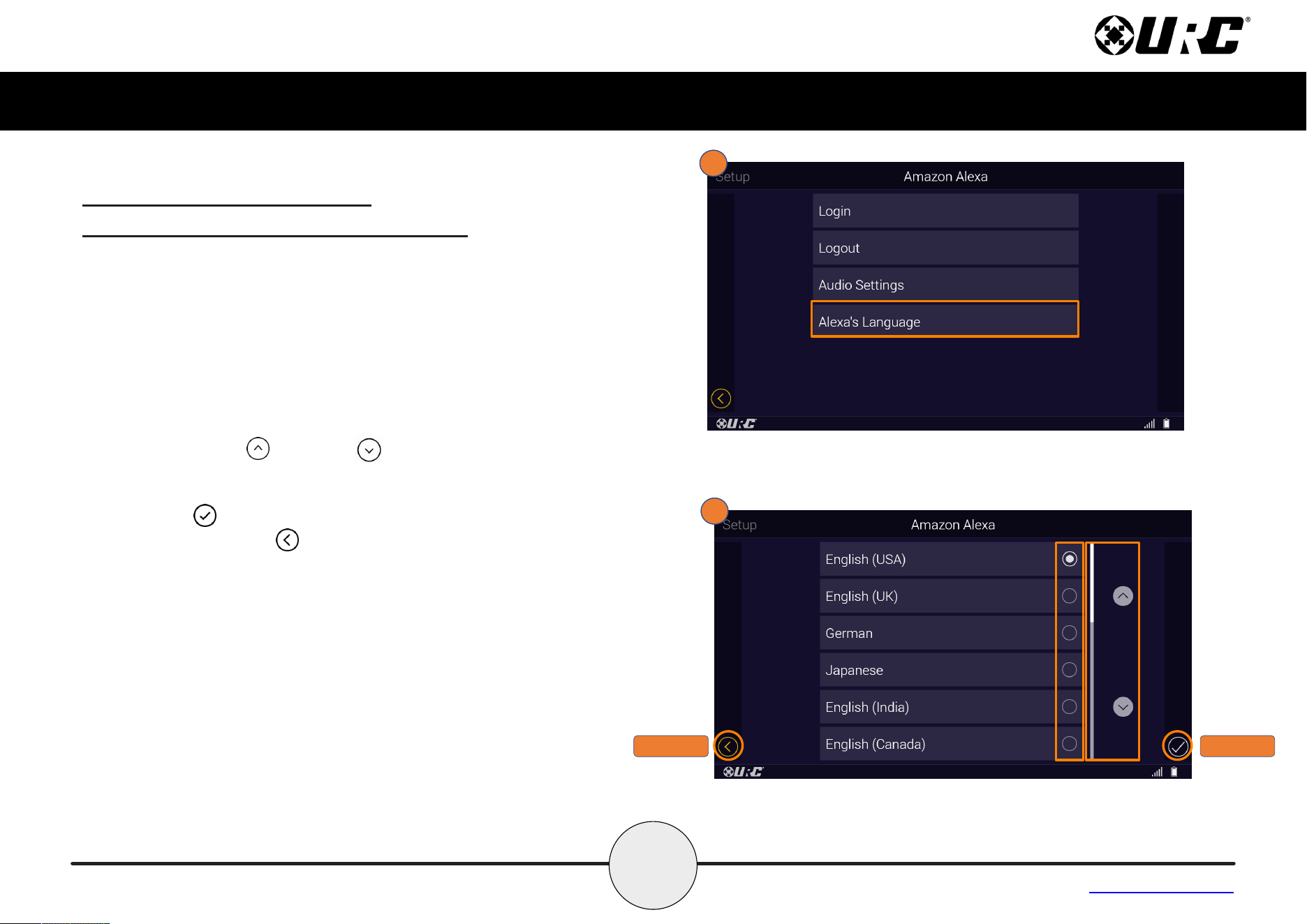
Alexa’s Language
1. Selecting Alexa's Language will give you a list of the
available languages which can be used with Alexa.
2. Use the v,w radio buttons to choose your desired Alexa
Language. The open bullet is an available language, the
lled bullet is the selected language. Select an available
language to set it as the current language
Using the up and down arrows and the scroll bar
gives the ability to scroll through the list of languages.
Once your language has been chosen, press the Save
button .
Pressing Cancel reverts the device to the last saved
setting.
1
2
1
2
CANCEL
SAVE
25
Complete Control
MX-4000
Owner’s Manual
Table of Contents
Voice Assistant Setup (cont’d)
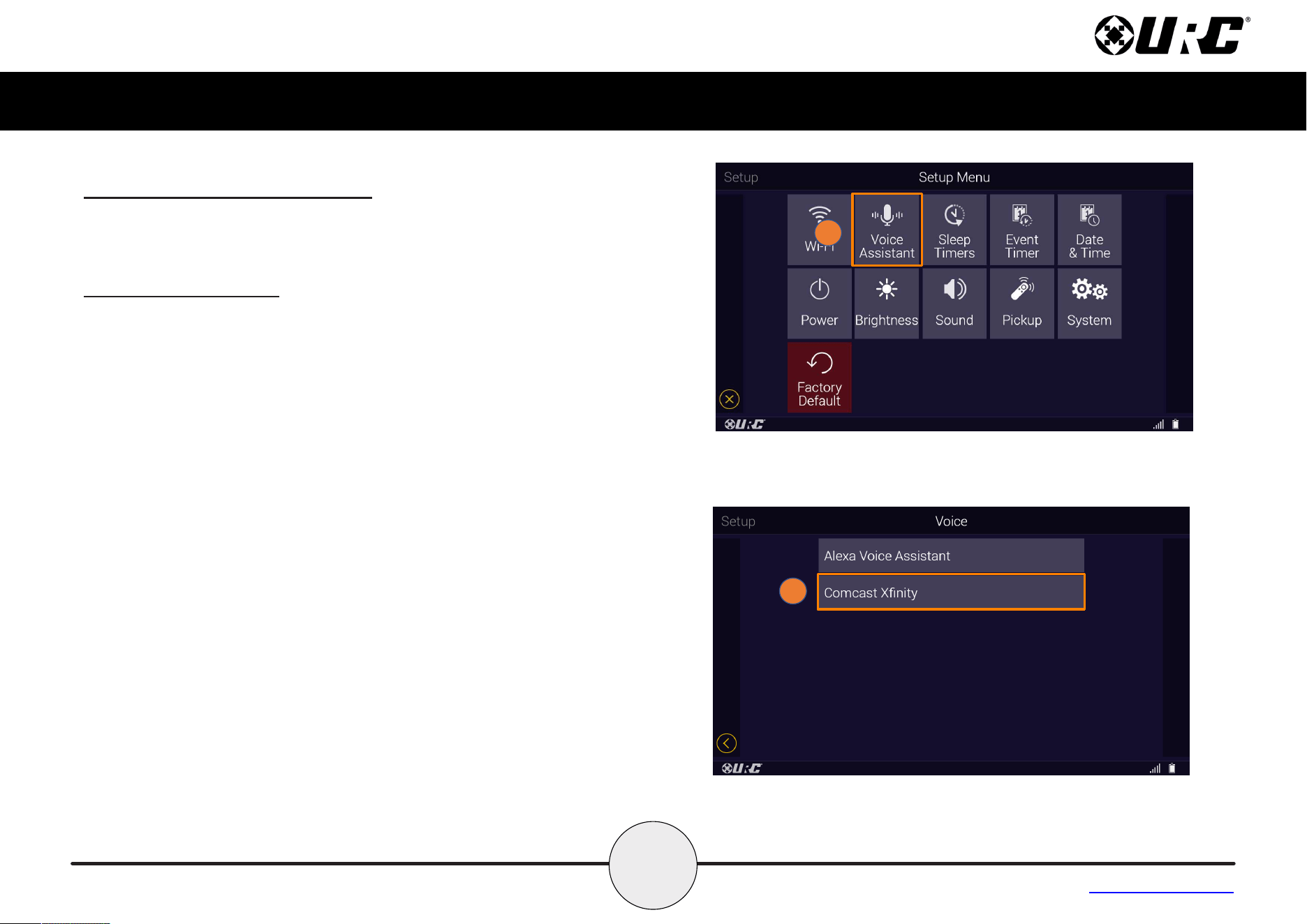
This option allows you to integrate your Amazon Alexa Voice
Assistant and Comcast Xnity voice module with the MX-4000.
Comcast Xnity setup
Follow these instructions to enable the Comcast Xnity voice
module.
1. From the Settings Menu, select Voice Assistant.
2. Select Comcast Xnity.
1
2
26
Complete Control
MX-4000
Owner’s Manual
Table of Contents
Voice Assistant Setup (cont’d)
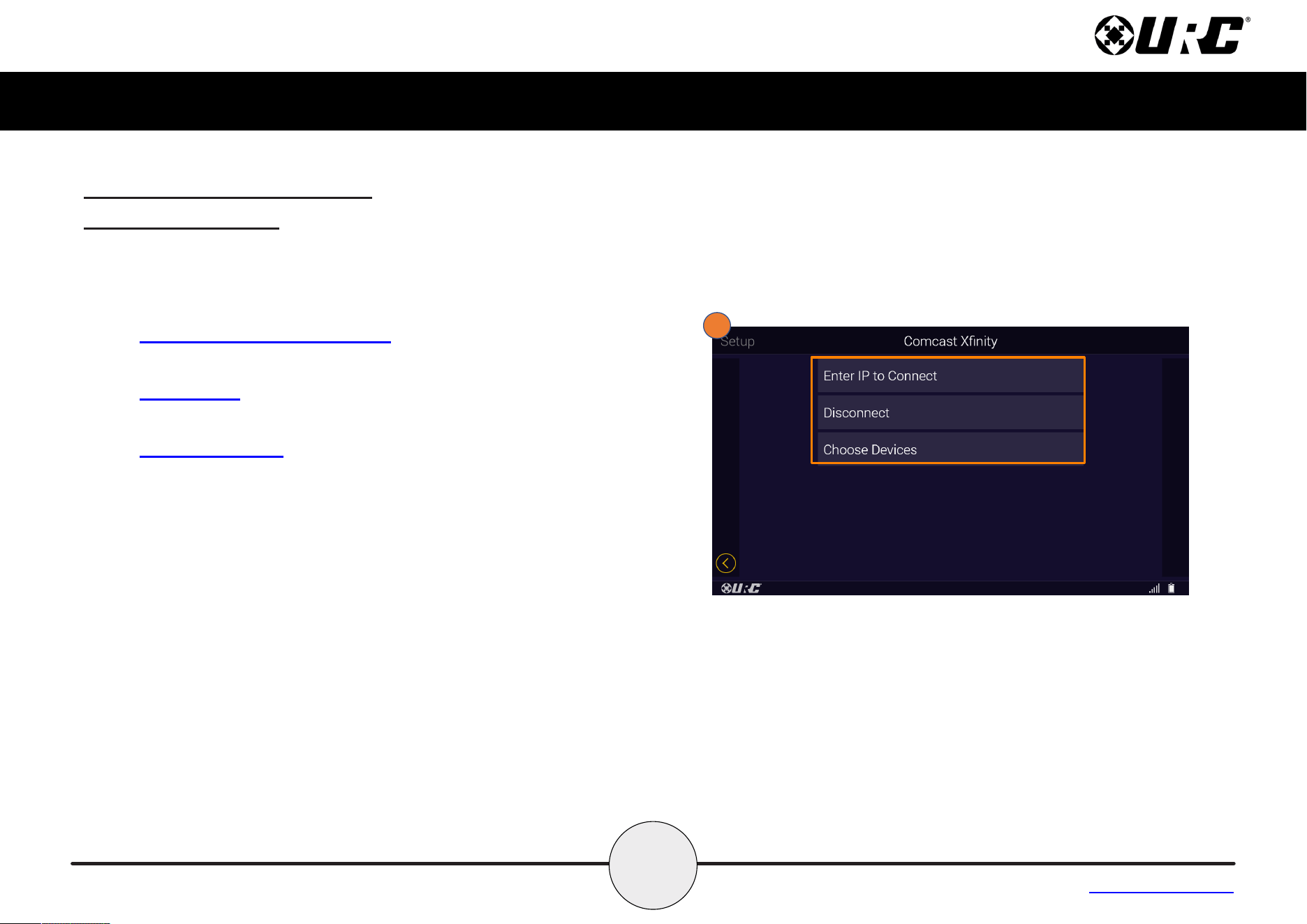
Comcast Xnity setup
Voice Module
After setup, the voice module menu oers a few features to
customize how the remote interacts with Comcast Xnity.
• Enter IP Address to Connect: Selecting this item will open
the Comcast Enter IP Notication screen.
• Disconnect: Selecting Disconnect will open the Comcast
Disconnect Notication screen.
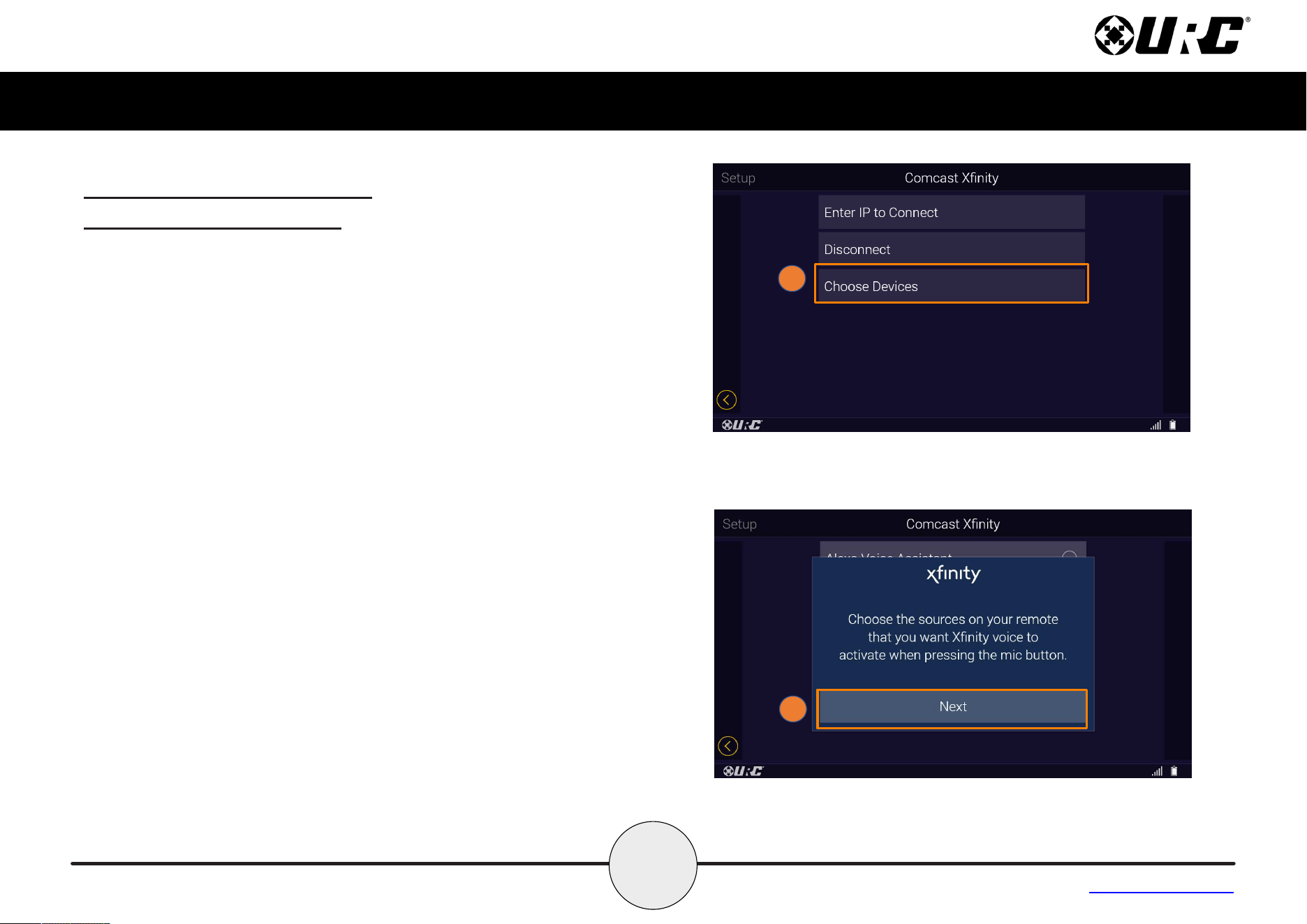
• Choose Devices: Allows for Voice Volume and the Audio Cue
levels to be adjusted.
3
27
Complete Control
MX-4000
Owner’s Manual
Table of Contents
Voice Assistant Setup (cont’d)
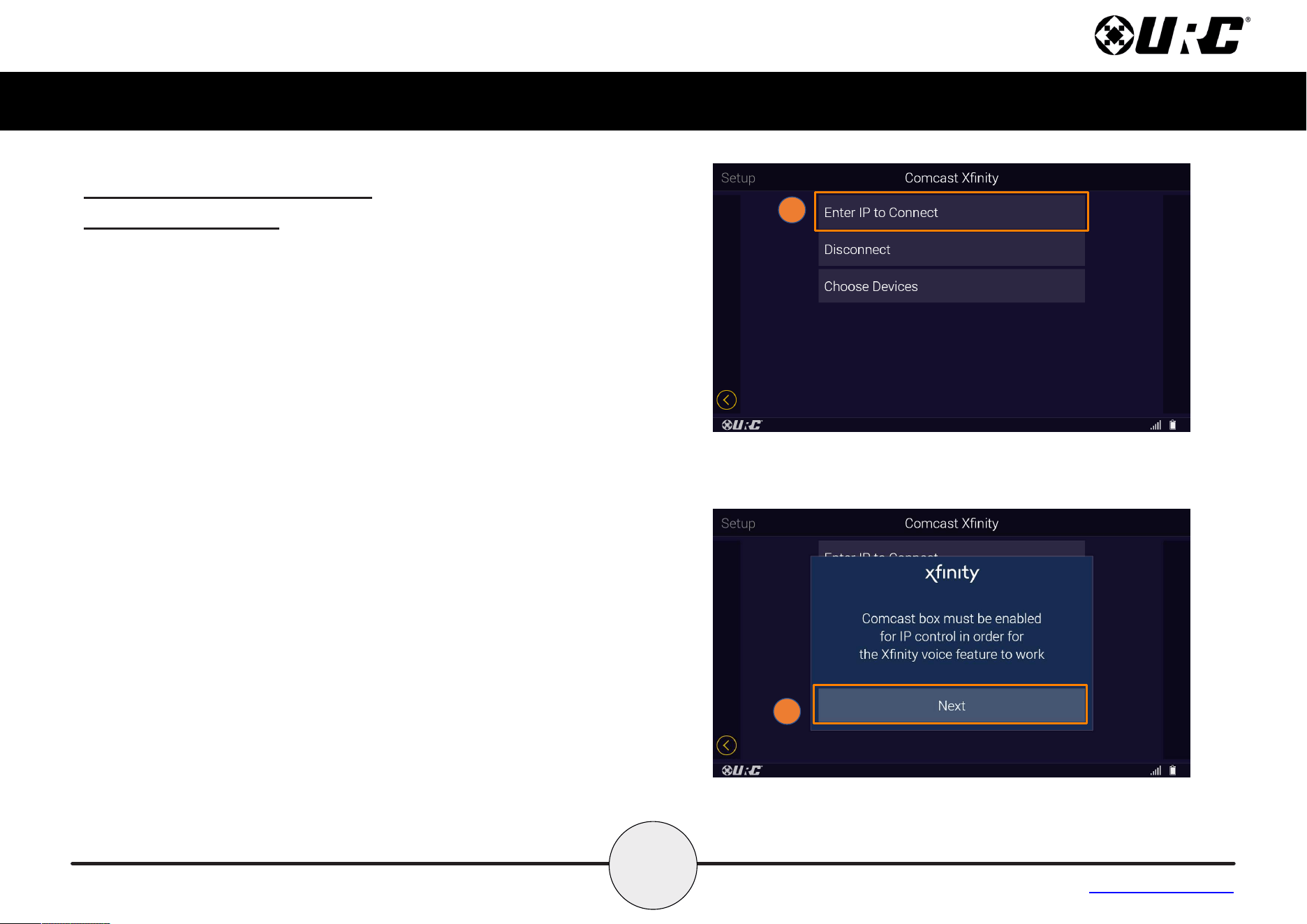
Comcast Xnity setup
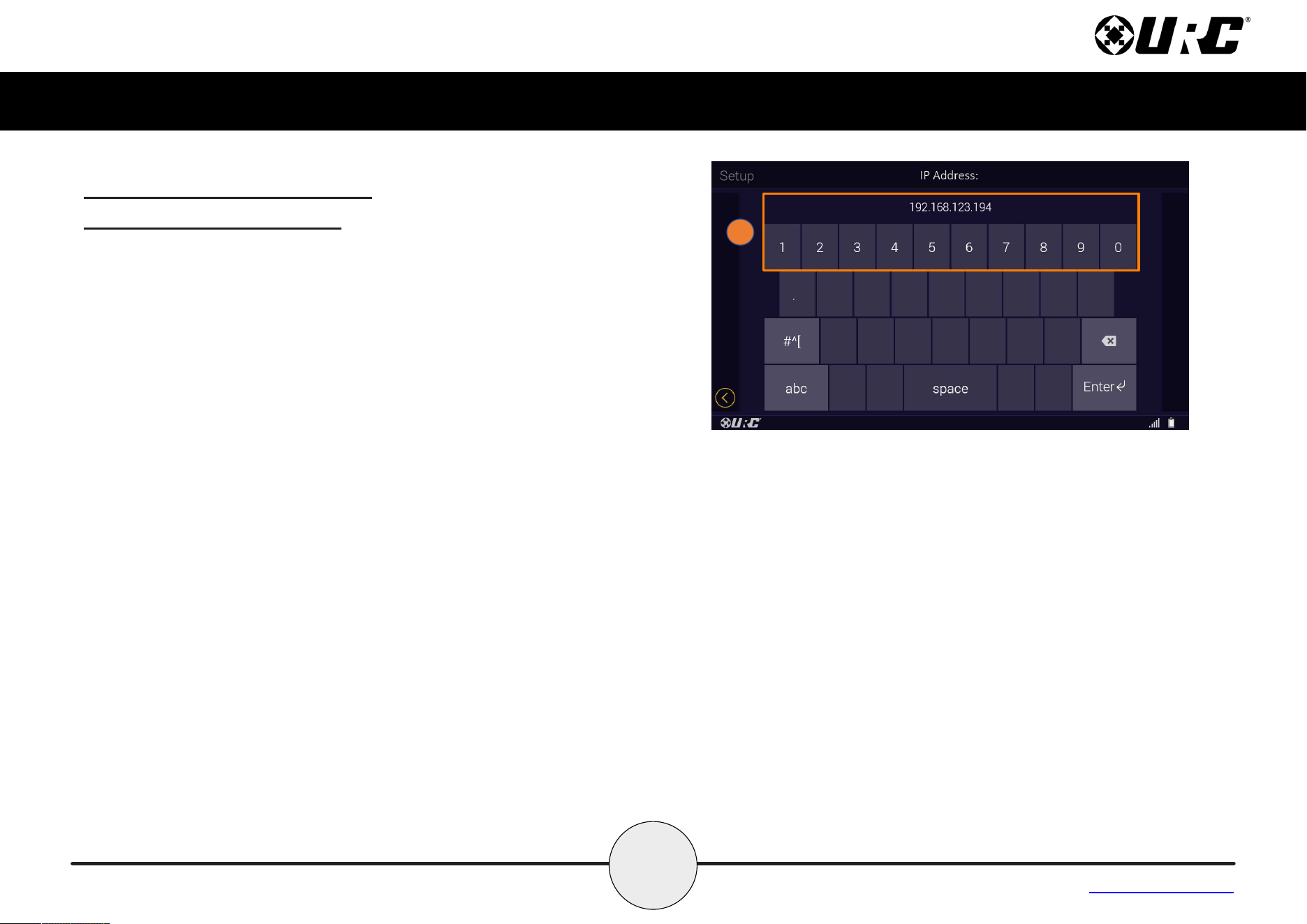
1. Select Enter IP Address to Connect to open the Comcast
Enter IP Notication screen.
2. You will prompted that a Comcast box must be enabled for IP
control in order for the Xnity voice feature to work. Select
Next.
1
2
29
Complete Control
MX-4000
Owner’s Manual
Table of Contents
Voice Assistant Setup (cont’d)
Comcast Xnity setup (cont’d)
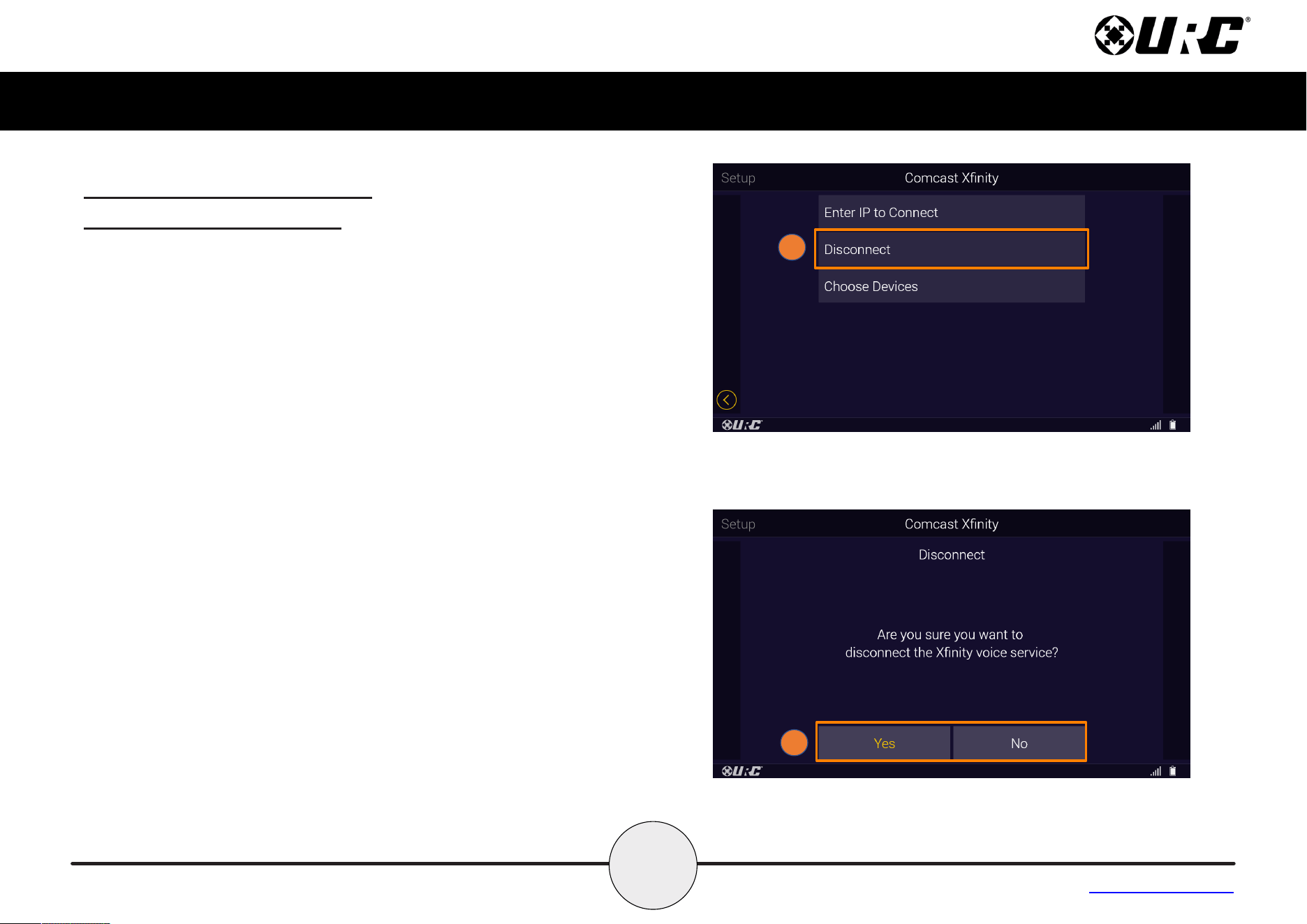
1. Select Disconnect to disconnect the usage of this device
from using the Xnity Voice module.
2. On the Disconnect screen, you will be asked if Are you sure
you want disconnect the Xnity voice service? Select Yes or
No to disconnect or stay connected.
1
2
31
Complete Control
MX-4000
Owner’s Manual
Table of Contents
Voice Assistant Setup (cont’d)
Comcast Xnity setup (cont’d)
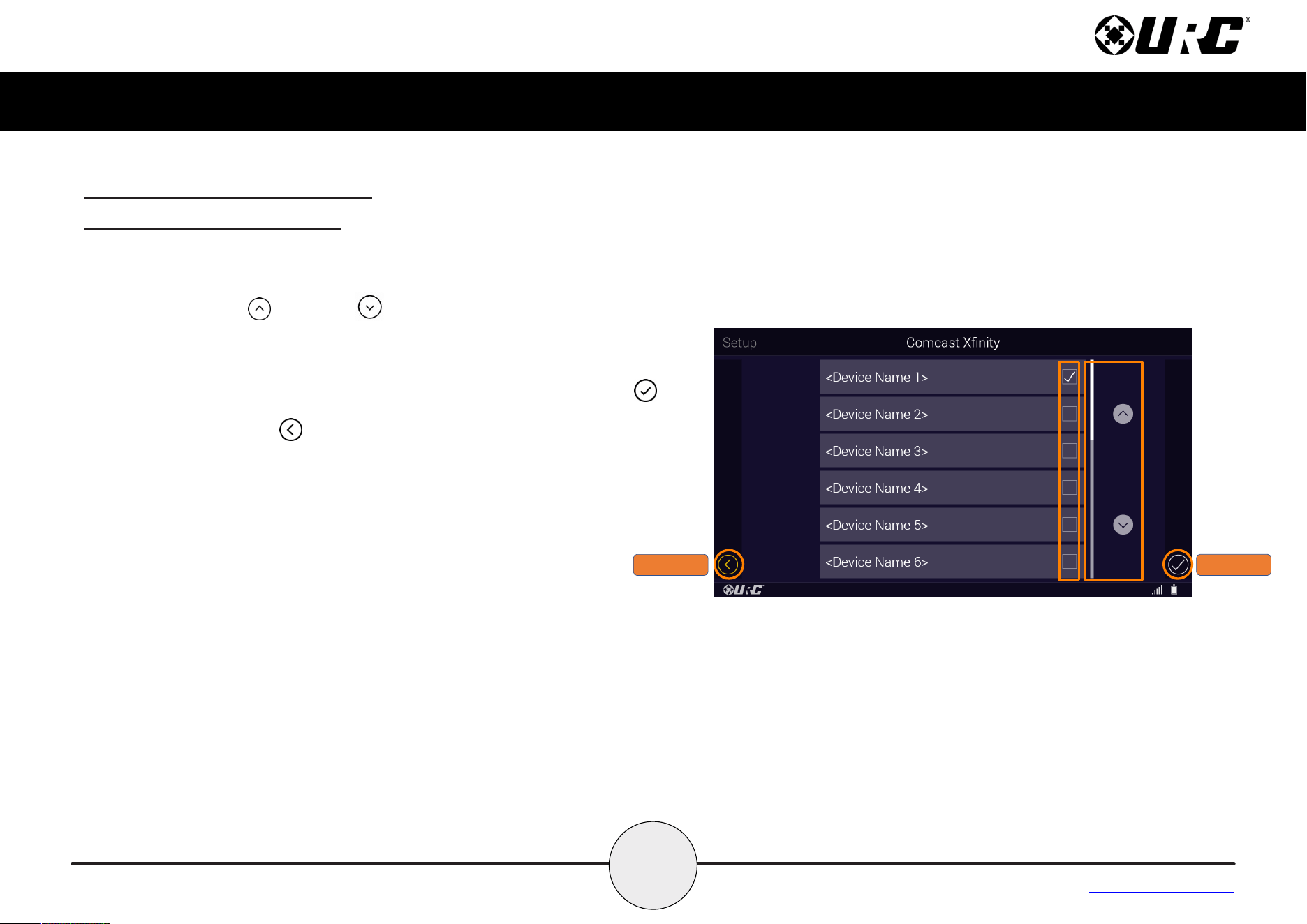
3. Use the y and x check boxes to add or remove devices for
Xnity voice control.
Using the up and down arrows and scroll bar gives the
ability to scroll through the list of devices.
More than 1 device can be selected on this list
Once the devices have been chosen, press the Save button .
Pressing Cancel reverts the device to the last saved setting.
CANCEL
SAVE
32
Complete Control
MX-4000
Owner’s Manual
Table of Contents
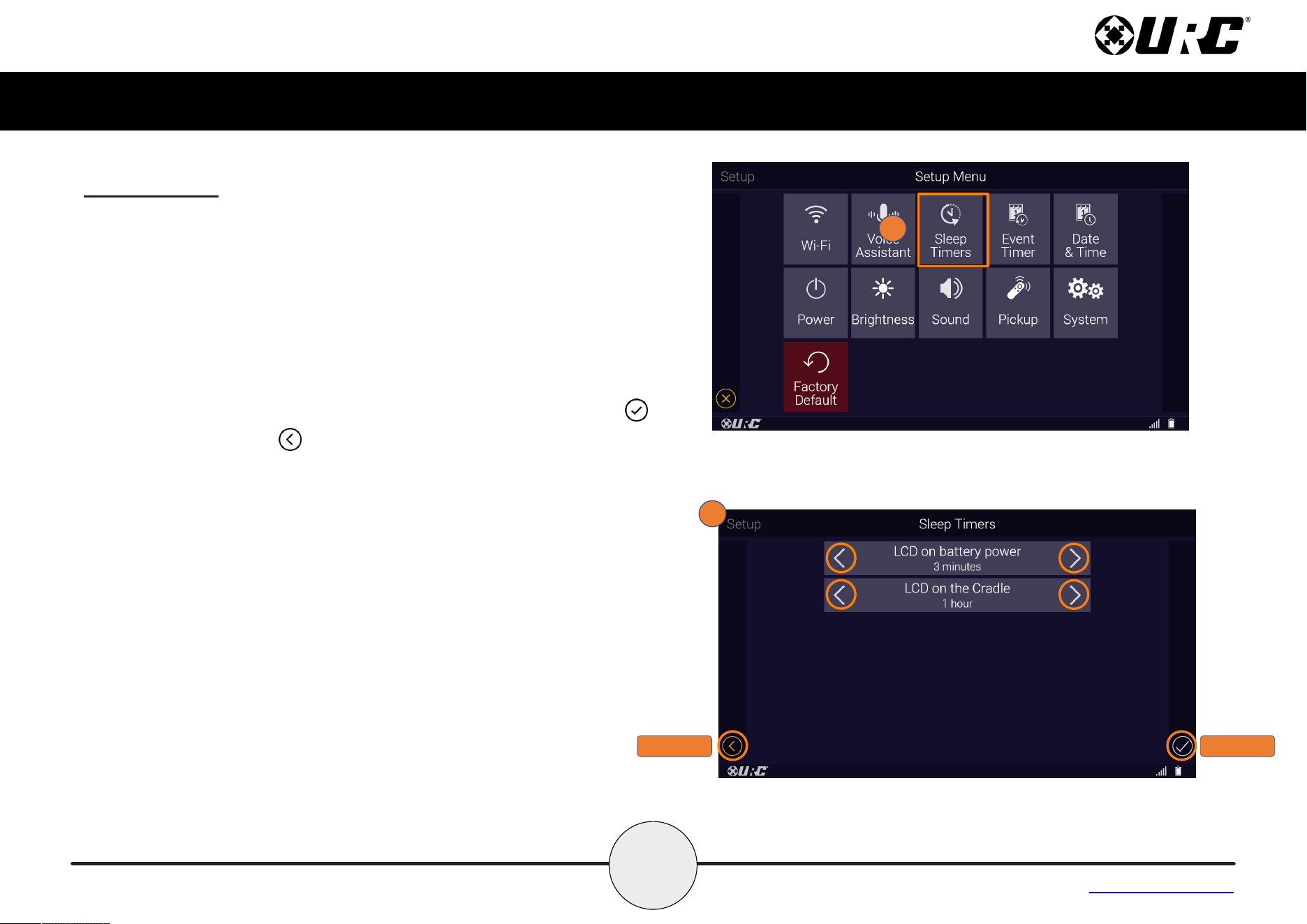
Sleep Timers
The Sleep Timers settings are used to manage when the LCD screen
will turn o while the MX-4000 is running on battery power and is
charging on the cradle.
1. From the Setup Menu, select Sleep Timers.
2. Use the
c and d buttons to decrease or increase the sleep
timer when the MX-4000 is running on battery power (o, 10sec,
15sec, 20sec, 30sec or 1min) and is charging on the cradle (o,
15sec, 30sec, 1min, 2min or 3min).
Once the times have been adjusted, press the Save button .
Pressing Cancel reverts the device to the last saved setting.
1
2
CANCEL
SAVE
33
Complete Control
MX-4000
Owner’s Manual
Table of Contents
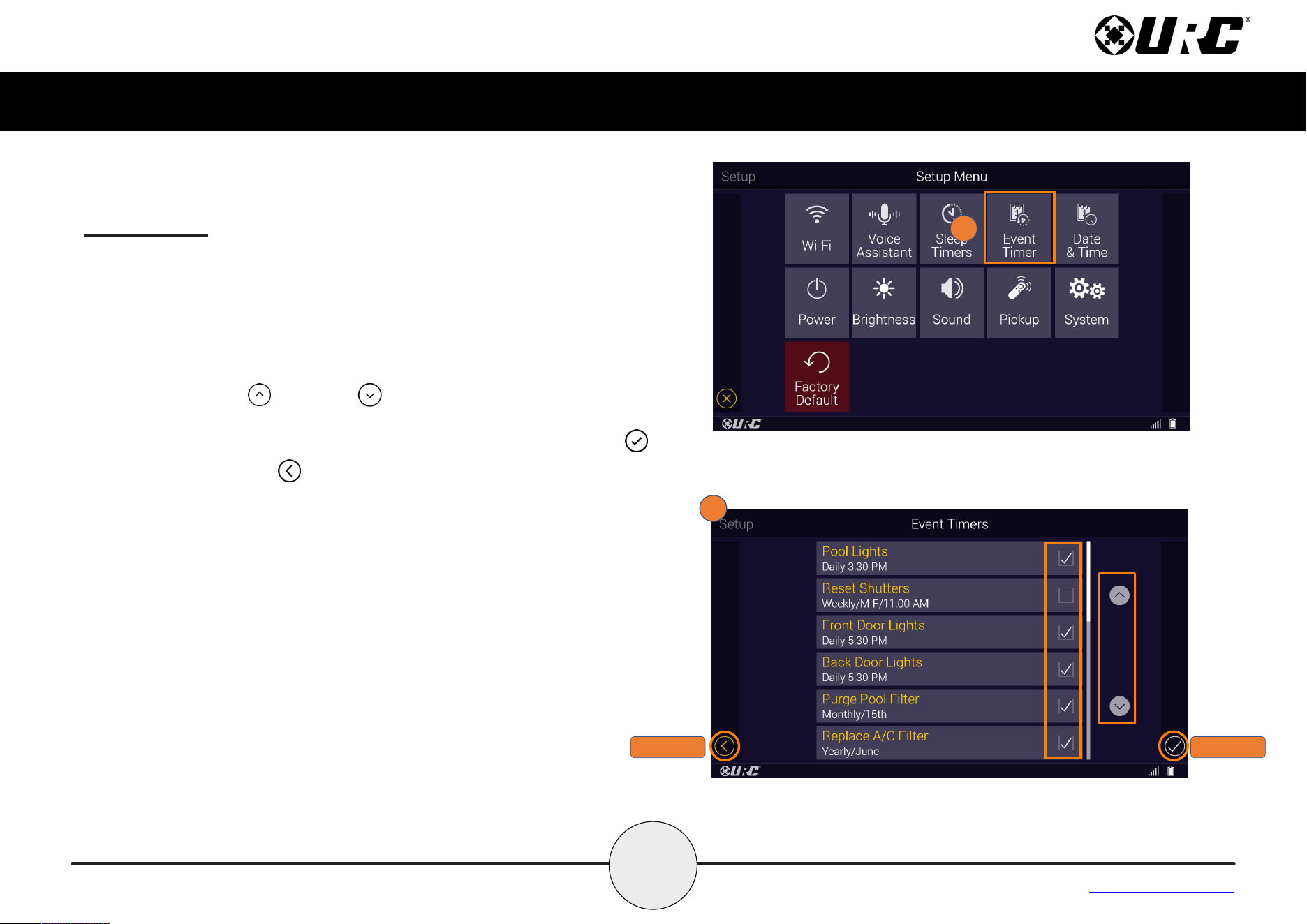
Event Timer
The Event Timer settings are used to enable and disable Event Timers
programmed within the Complete Control system
1. From the Setup Menu, select Event Timer.
2. Use the
y and x check boxes to enable or disable the Event
Timers.
Using the up and down arrows gives the ability to scroll
through the list of event timers.
Once the times have been adjusted, press the Save button .
Pressing Cancel reverts the device to the last saved setting.
1
2
CANCEL
SAVE
34
Complete Control
MX-4000
Owner’s Manual
Table of Contents
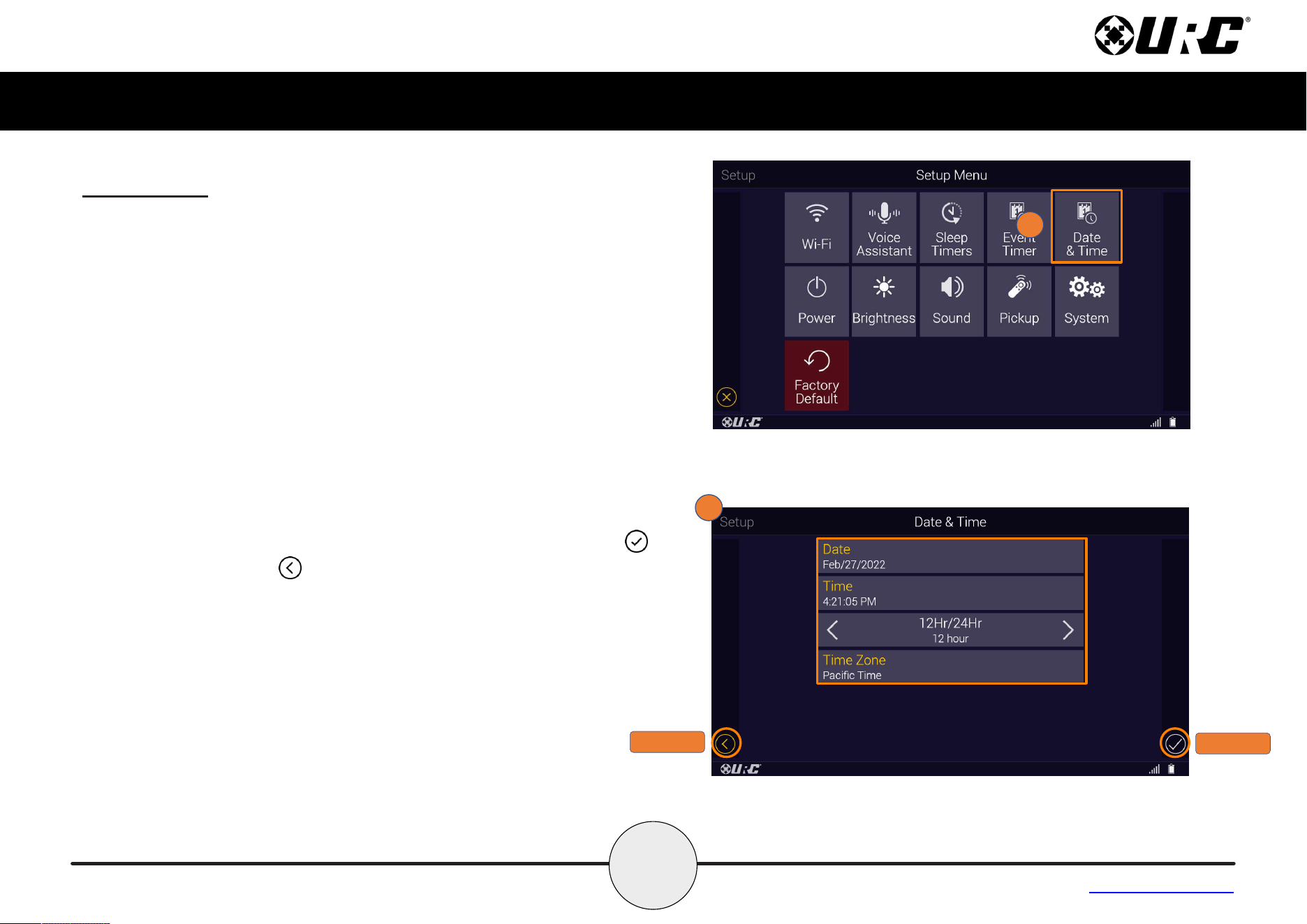
Date & Time
The remote’s date and time settings have been set by your certied
custom integrator. If needed, the date and time settings can be
manually changed here.
If the system’s date and time are adjusted, the MX-4000 adopts the
new date and time globally.
If the advanced system controller is reset, it defaults to the program’s
default location using the Internet. If Internet is not present, the date
and time must be entered manually from a URC interface such as the
MX-4000.
1. From the Setup Menu, select Date & Time.
2. Select the Date, Time, Hour format and Time Zone to manually
adjust these settings
.
Once adjustments have been made, press the Save button .
Pressing Cancel reverts the devicee to the last saved
setting.
1
2
CANCEL
SAVE
35
Complete Control
MX-4000
Owner’s Manual
Table of Contents
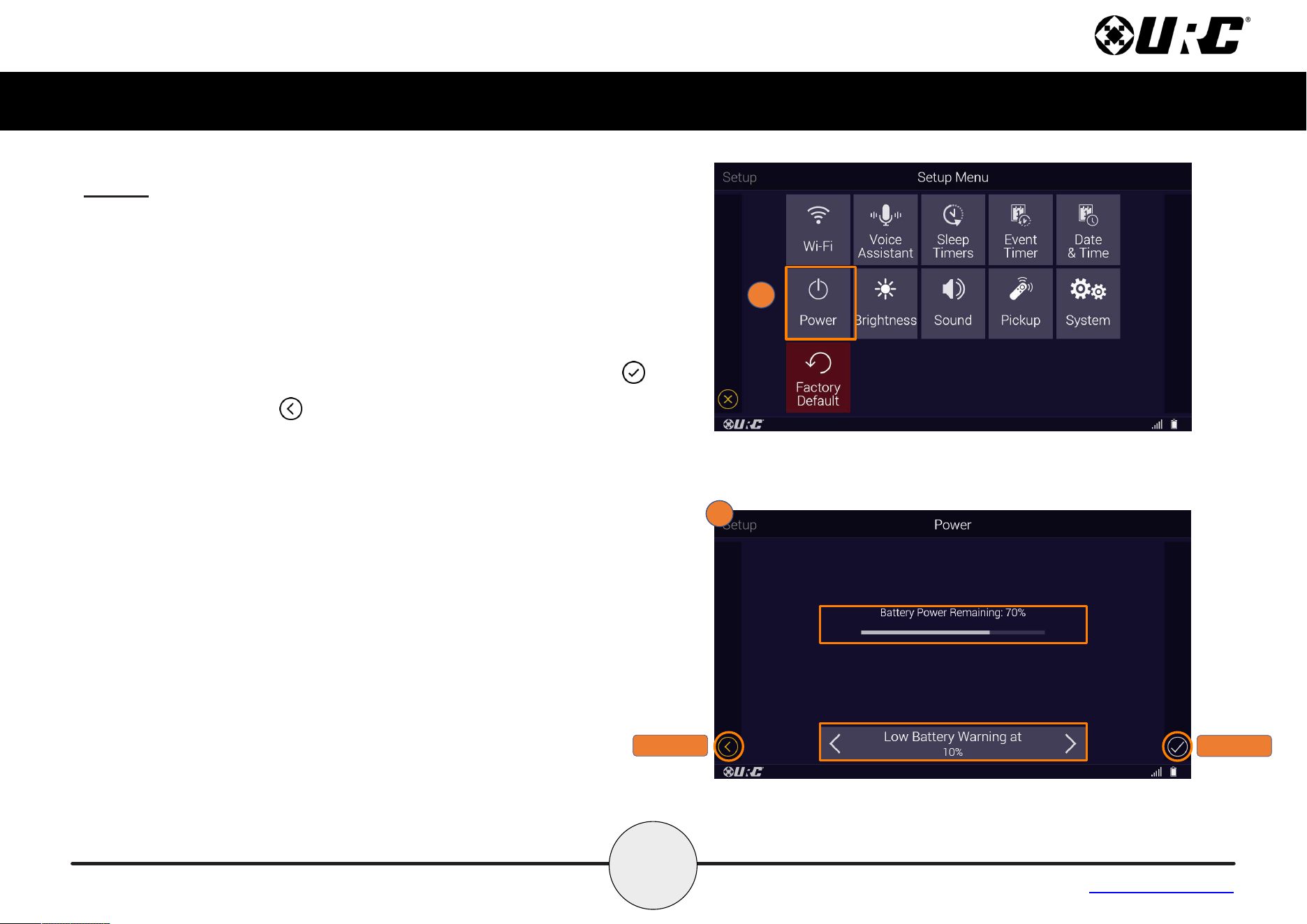
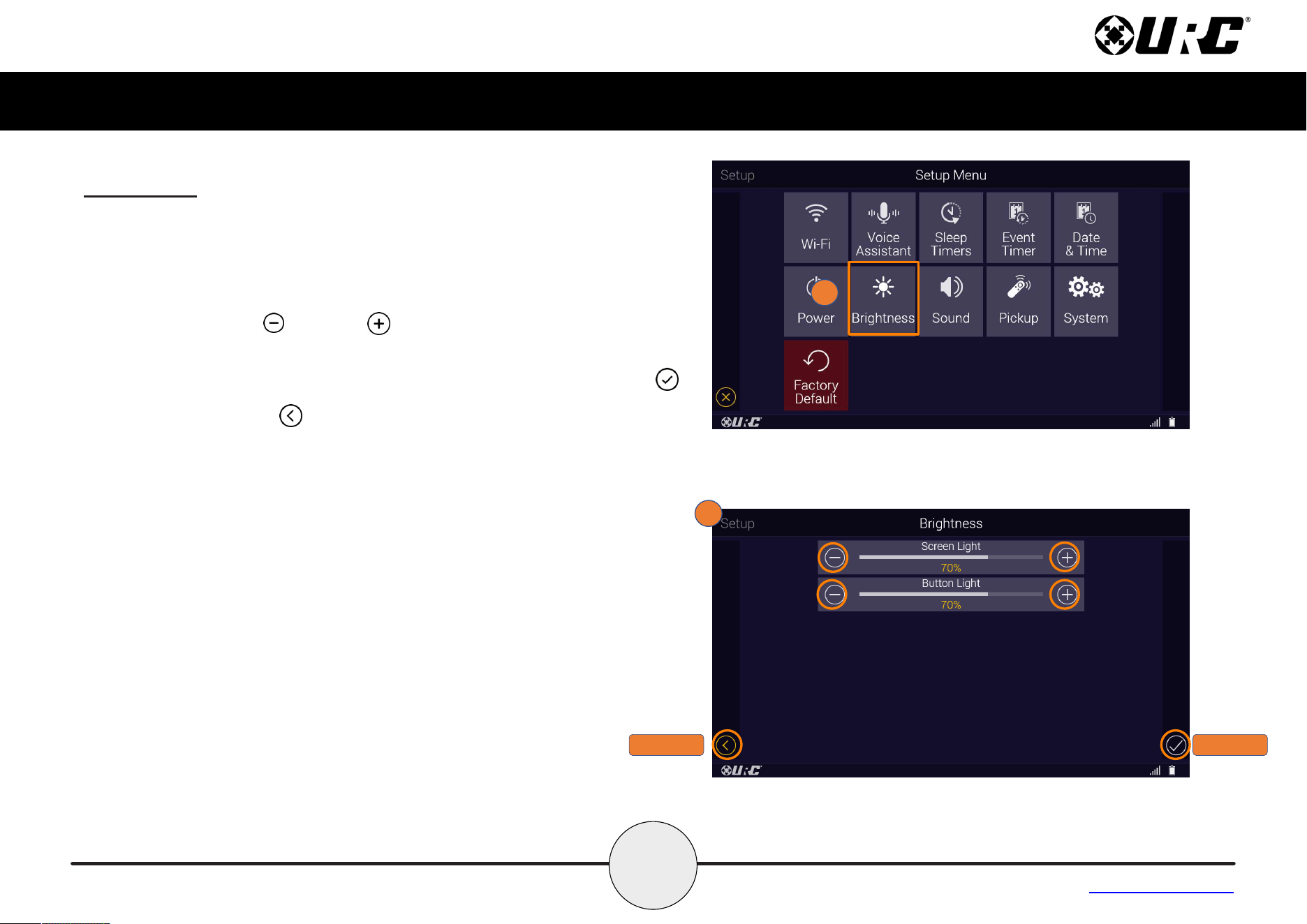
Power
Displays the remote’s remaining battery level. Adjust when the “Low
Battery” warning screen appears.
1. From the Setup Menu, select Power.
2. View the amount of Batter Power Remaining and adjust the
Low Battery Warning level to 10%, 20%, 30%, 40% or 50%.
Once the power has been adjusted, press the Save button .
Pressing Cancel reverts the device to the last saved setting.
1
CANCEL
SAVE
2
36
Complete Control
MX-4000
Owner’s Manual
Table of Contents
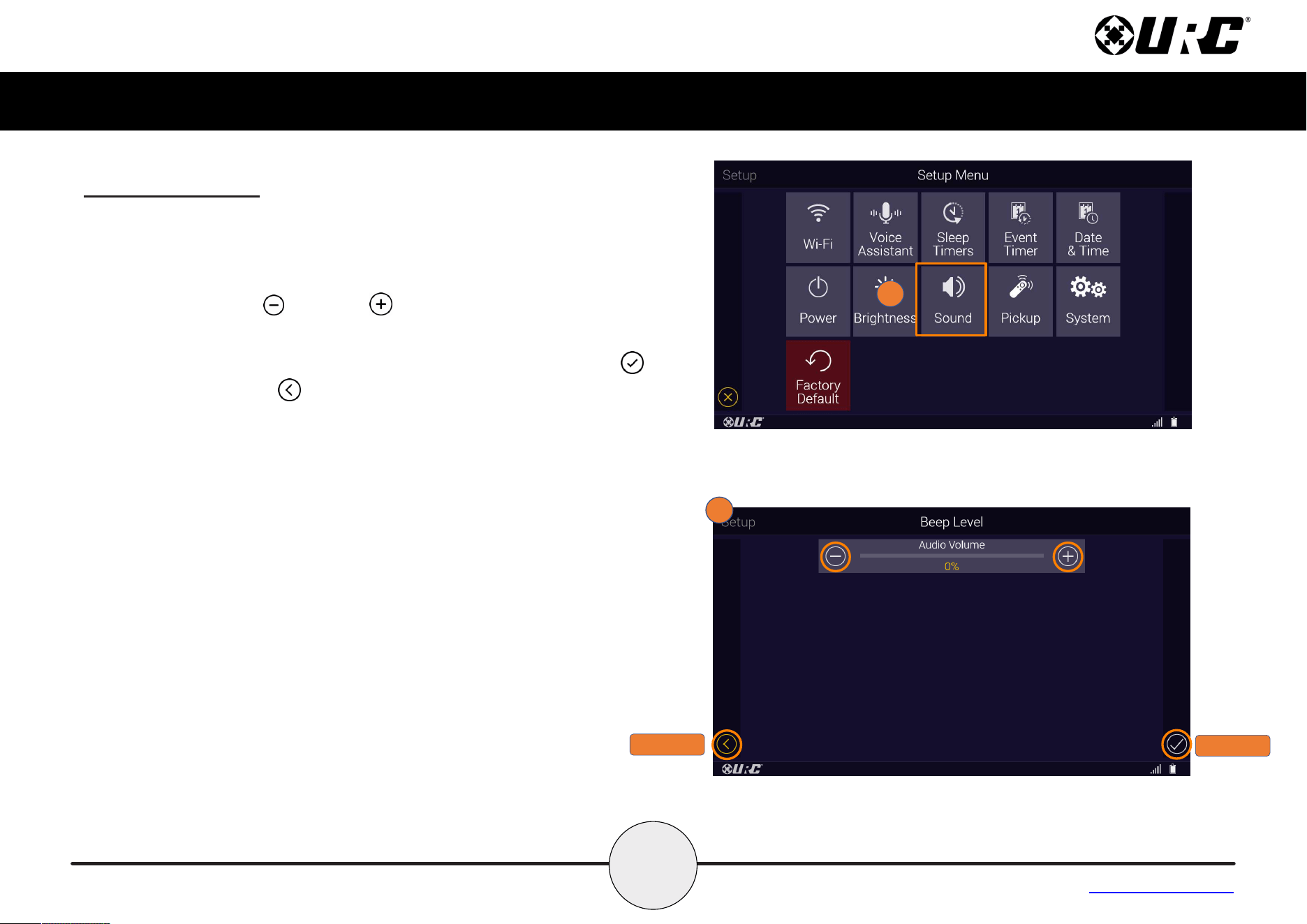
Brightness
Adjust the screen and button brightness by pressing Plus and Minus
symbols to increase or decrease the brightness level.
1. From the Setup Menu, select Brightness.
2. Use the Minus and Plus signs to decrease or increase the
Screen and/or Button Lights.
Once the brightness has been adjusted, press the Save button .
Pressing Cancel reverts the device to the last saved setting.
1
SAVE
CANCEL
2
37
Complete Control
MX-4000
Owner’s Manual
Table of Contents
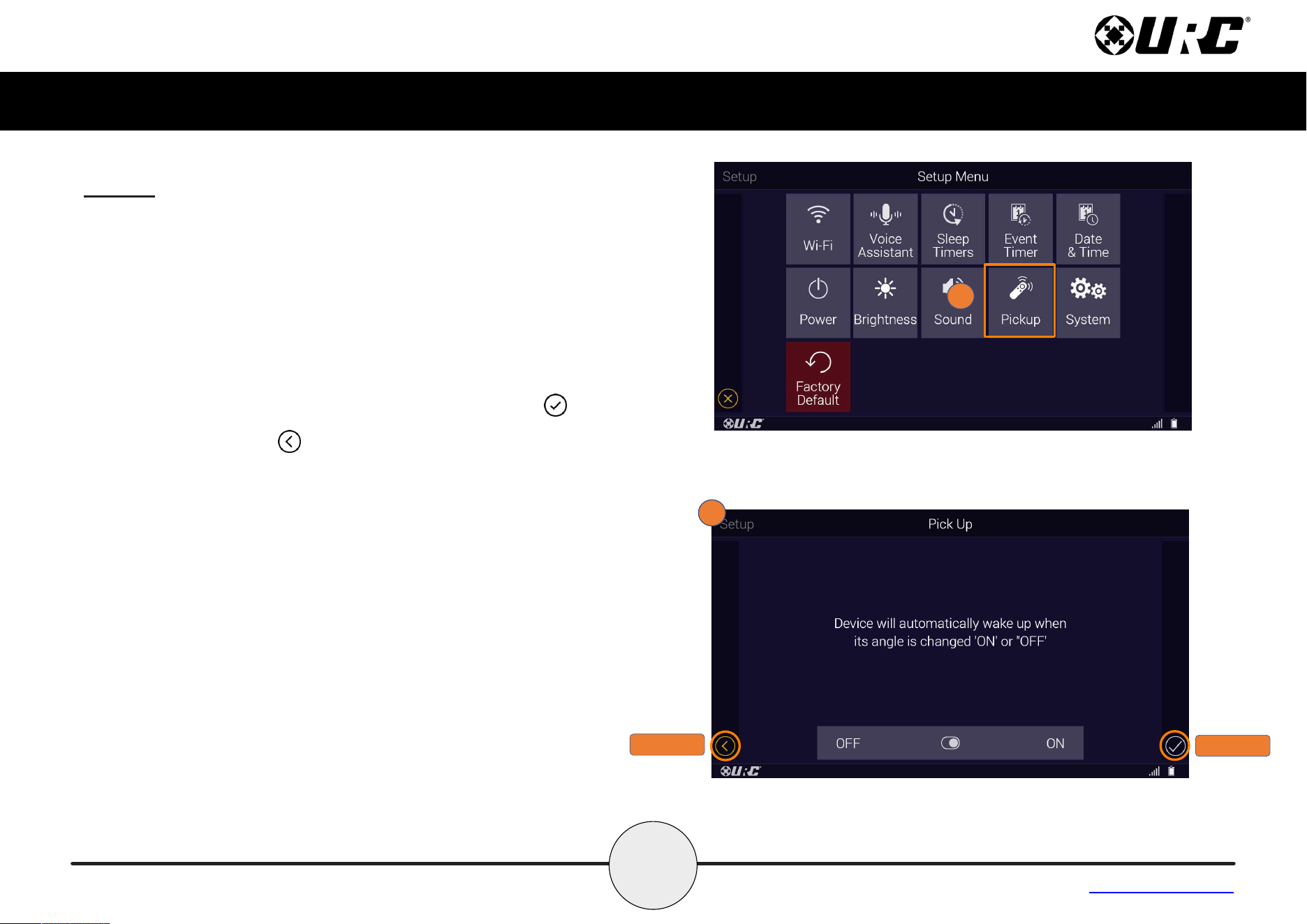
Sound (Button Beep)
Adjust the button “beep” of the remote. Press the Plus and Minus
symbols to increase or decrease the volume level.
1. From the Setup Menu, select Sound.
2. Use the Minus and Plus signs to decrease or increase
the Beep Level Volume.
Once the sound has been adjusted, press the Save button .
Pressing Cancel reverts the device to the last saved
setting.
1
CANCEL
SAVE
2
38
Complete Control
MX-4000
Owner’s Manual
Table of Contents
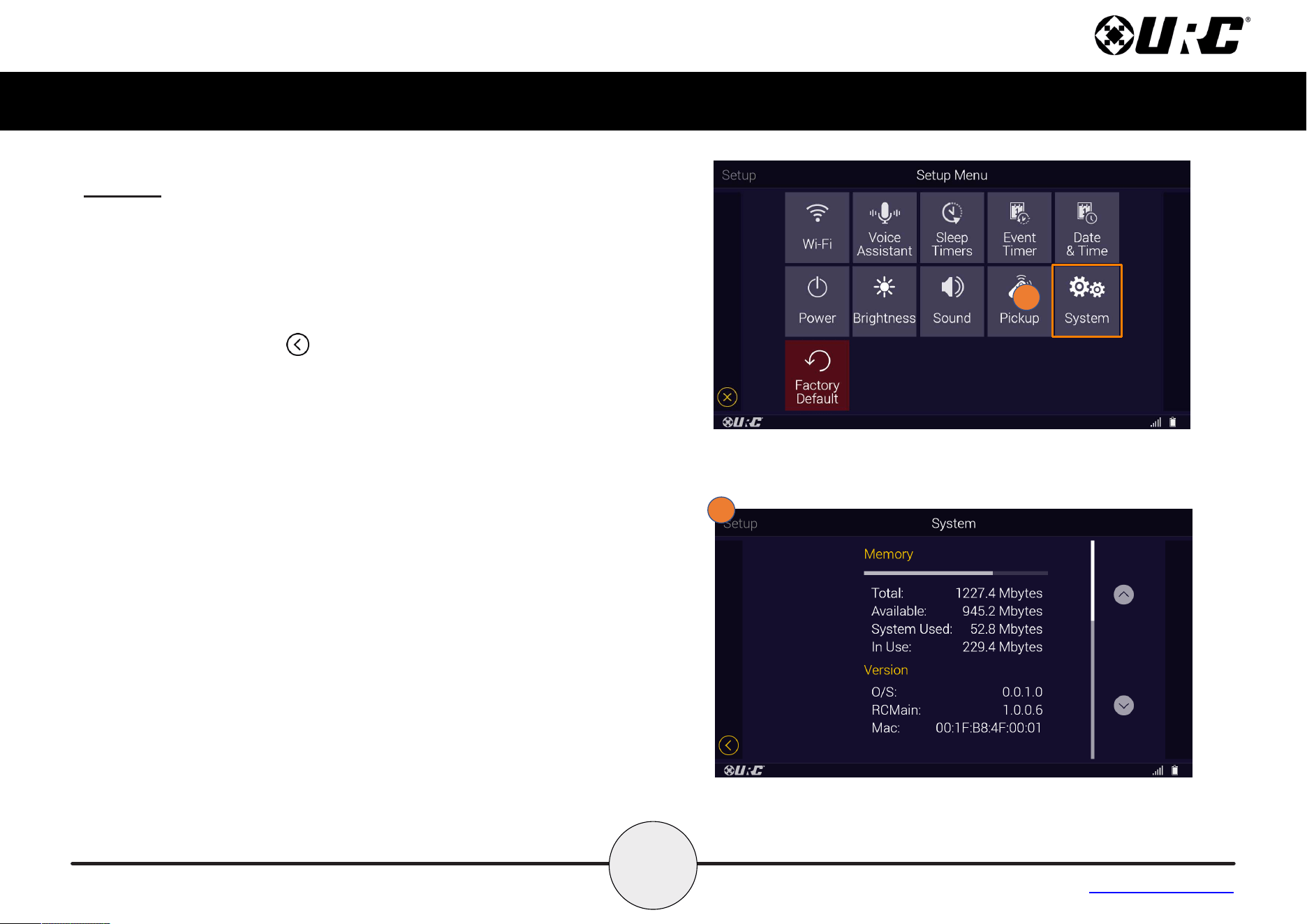
Pickup
Turn on or o the remote’s pickup sensor. When enabled, the MX-4000
turns on when the remote is picked up. Select Yes (turn on) or No (turn
o).
1. From the Setup Menu, select Pickup.
2. Use the Toggle
à to turn the option OFF or ON to wake up
when picked up.
Once your option is made, press the Save button .
Pressing Cancel reverts the device to the last saved setting.
1
2
CANCEL
SAVE
40
Complete Control
MX-4000
Owner’s Manual
Table of Contents
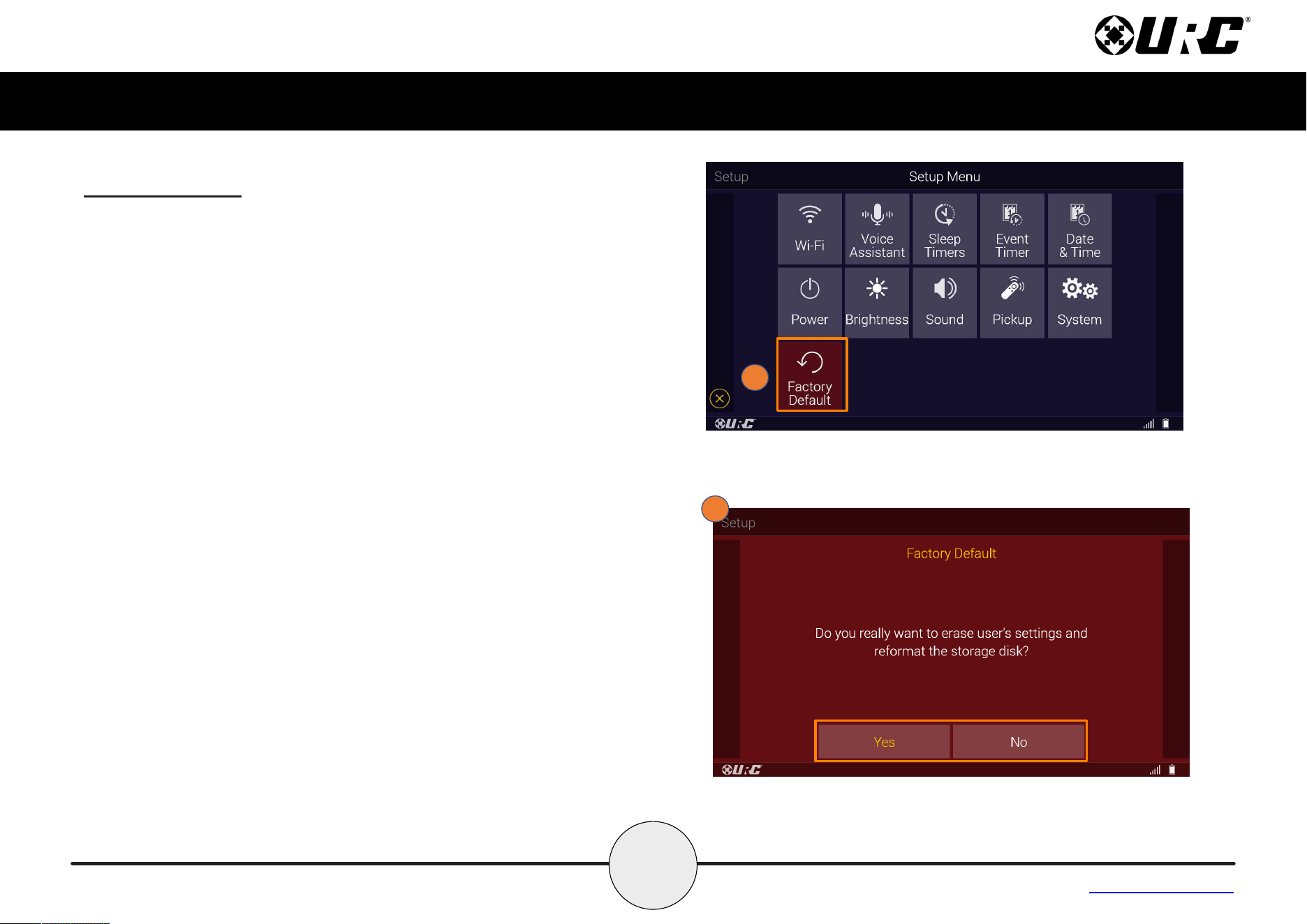
Factory Default
Resets the memory of the MX-4000 to the factory settings. All existing
programming is erased. The device requires reconguration by your
certied URC integrator.
WARNING! Only use this button when instructed by URC’s
Technical Support team.
1. From the Setup Menu, select Factory Default (For 5 Seconds).
2. Select Yes or No when prompted “Do you really want o erase
user’s settings and reformat the storage disk?”
1
2
41
Complete Control
MX-4000
Owner’s Manual
Table of Contents
Specications
These are the technical specications for the MX-4000:
Microprocessor: ARM Cortex-A32 Core 1.5GHz x 4
RAM: 8MB eMMC, DDR4 2GB
LCD: 5.0” TFT-LCD (720 x 1280), 16.7M colors
Touch Window: Capacitive Touch
Sound: Mono 1.5W
Sensors: Pickup sensor
Devices: Supports up to 255 devices
Usage Pages: Supports up to 255 pages on each device
Macro Capability: Up to 255 steps
IR Learn Range: 1~3inch
IR Range (Line of Sight via Infrared): up to 50 feet, depending on the
environment
RF Range (Radio Frequency): up to 100 feet, depending on the environment
Wi-Fi: IEEE 802.11 b/g/n/ac
Battery: Lithium Polymer, 3.7V, 4500mAh
Battery Charging Time: 4 Hours
Power: 5.0V 2.0A
Operating Temp: 0~50 ℃ (non-condensing)
Size: 8.27in X 4.41in X 1.28in
Product Weight: 11.5oz (with battery loaded)
Warning!
The manufacturer is not responsible for any Radio or TV interference
caused by unauthorized modifications to this equipment.
Changes or modifications not expressly approved by the manufacturer
could void the user's authority to operate the equipment.
Limited Warranty Statement
https://www.urc-automation.com/legal/warranty-statement/
End User Agreement
The terms and conditions of the End User Agreement available at
https://www.urc-automation.com/legal/end-user-agreement/ shall apply.
Federal Communication Commission Interference Statement
This equipment has been tested and found to comply with the limits for a
Class B digital device, pursuant to part 15 of the FCC Rules. These limits
are designed to provide reasonable protection against harmful
interference in a residential installation.
This equipment generates, uses and can radiate radio frequency energy
and, if not installed and used in accordance with the instructions, may
cause harmful interference to radio communications. However, there is
no guarantee that interference will not occur in a particular installation. If
this equipment does cause harmful interference to radio or television
reception, which can be determined by turning the equipment off and
on, the user is encouraged to try to correct the interference by one more
of the following measures:
• Reorient or relocate the receiving antenna.
• Increase the separation between the equipment and receiver.
• Connect the equipment into an outlet on a circuit different from
that to which the receiver is connected.
• Consult the dealer or an experienced radio/TV technician for help.
42
Complete Control
MX-4000
Owner’s Manual
Table of Contents
Regulatory Information to the User
• CE conformity Notice Products with “CE” marking comply EMC
Directive 2014/30/EU issued by the commission of the European
Community.
1. EMC Directive
• Emission
• Immunity
• Power
• Declaration of Conformity
“Hereby, Universal Remote Control Inc. declares that this MX-4000 is
in compliance with the Essential requirements.”
Importer & Manufacturer
• Importer:
Universal Remote Control, Inc.
500 Mamaroneck Ave
Harrison, NY 10528
• Manufacturer:
OHSUNG ELECTRONICS CO., LTD.
#181 Gongdan-Dong, Gumi, Gyeongbuk Republic of Korea
Rechargeable Lithium Polymer Battery Precautions & Information
• If you will not be using your remote control for an extended
period of time, please remove the battery.
• Do not attempt to disassemble, alter, or apply heat to the battery.
• Use care to avoid dropping the battery or subjecting it to severe
impact that could damage it.
• The battery should not be immersed in water.
• Risk of explosion if the battery is replaced by an incorrect type.
• Dispose of used batteries according to the instructions.
• Lithium Polymer batteries are recyclable. For information on local
drop-off site, please visit www.rbrc.com or call toll free
1-800-822-8837.