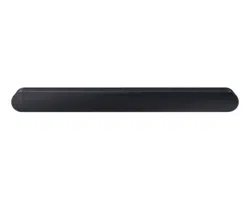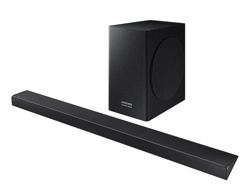

User guide
HW-S60D / HW-S61D
© 2024 Samsung Electronics Co., Ltd. All rights reserved.
Thank you for purchasing this Samsung product.
To receive more complete service, please register your product at www.samsung.com
Figures and illustrations in this User Manual are provided for reference only and may differ from actual product appearance.

ENG - 2
CONTENTS
01 Checking the Components 4
02 Product Overview 5
Front Panel / Top Panel of the Soundbar ------------------------- 5
Bottom Panel of the Soundbar ------------------------- 7
03 Using the Remote Control 8
Inserting Batteries before using the Remote Control (AAA batteries X 2) ------------------------- 8
How to Use the Remote Control
-------------------------
8
Setting the (Sound Control)
-------------------------
11
Using the Hidden Buttons (Buttons with more than one function)
-------------------------
12
Output specications for the different sound effect modes
-------------------------
13
Adjusting the Soundbar volume with a TV remote control ------------------------- 14
04 Connecting the Soundbar 15
Connecting Electrical Power
-------------------------
15
Connecting the Samsung Wireless Rear Kit and Subwoofer to your
Soundbar
-------------------------
15
05 Connecting to a TV 16
Connecting the TV that supports HDMI ARC (Audio Return Channel)
-------------------------
16
Connecting using an Optical Cable
-------------------------
18
Connecting via Bluetooth
-------------------------
19
Connecting via Wi-Fi
-------------------------
21
Connecting to a TV that supports Dolby Atmos®
-------------------------
22
Using the Q-Symphony Function
-------------------------
24
Using the SpaceFit Sound
-------------------------
25

ENG - 3
06 Connecting an External Device 26
Connecting using an Optical Cable
-------------------------
26
07 Connecting a Mobile Device 27
Method 1. Connecting via Bluetooth
-------------------------
27
Method 2. Connecting via Wi-Fi (Wireless Network)
-------------------------
30
Using Group Play
-------------------------
31
Connecting via Apple AirPlay
-------------------------
32
Using the Tap Sound
-------------------------
33
08 Installing the Wall Mount 34
Installation Precautions
-------------------------
34
Wallmount Components
-------------------------
34
09 Installing the Soundbar in front of TV 36
10 Software Update 37
Auto Update
-------------------------
37
USB Update
-------------------------
37
Reset
-------------------------
38
Security updates information
-------------------------
38
11 Troubleshooting 39
12 Licence 41
ENG - 4
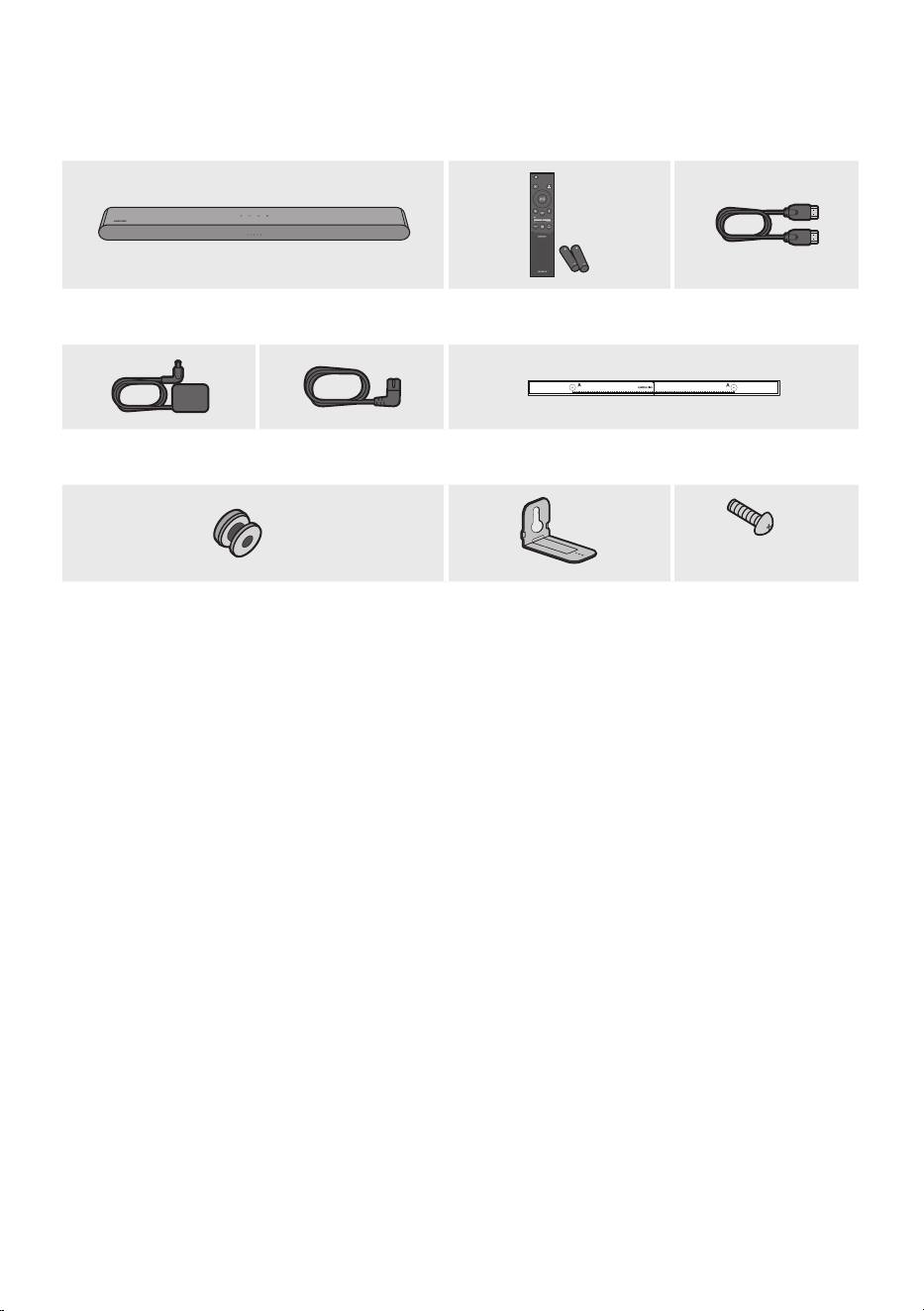
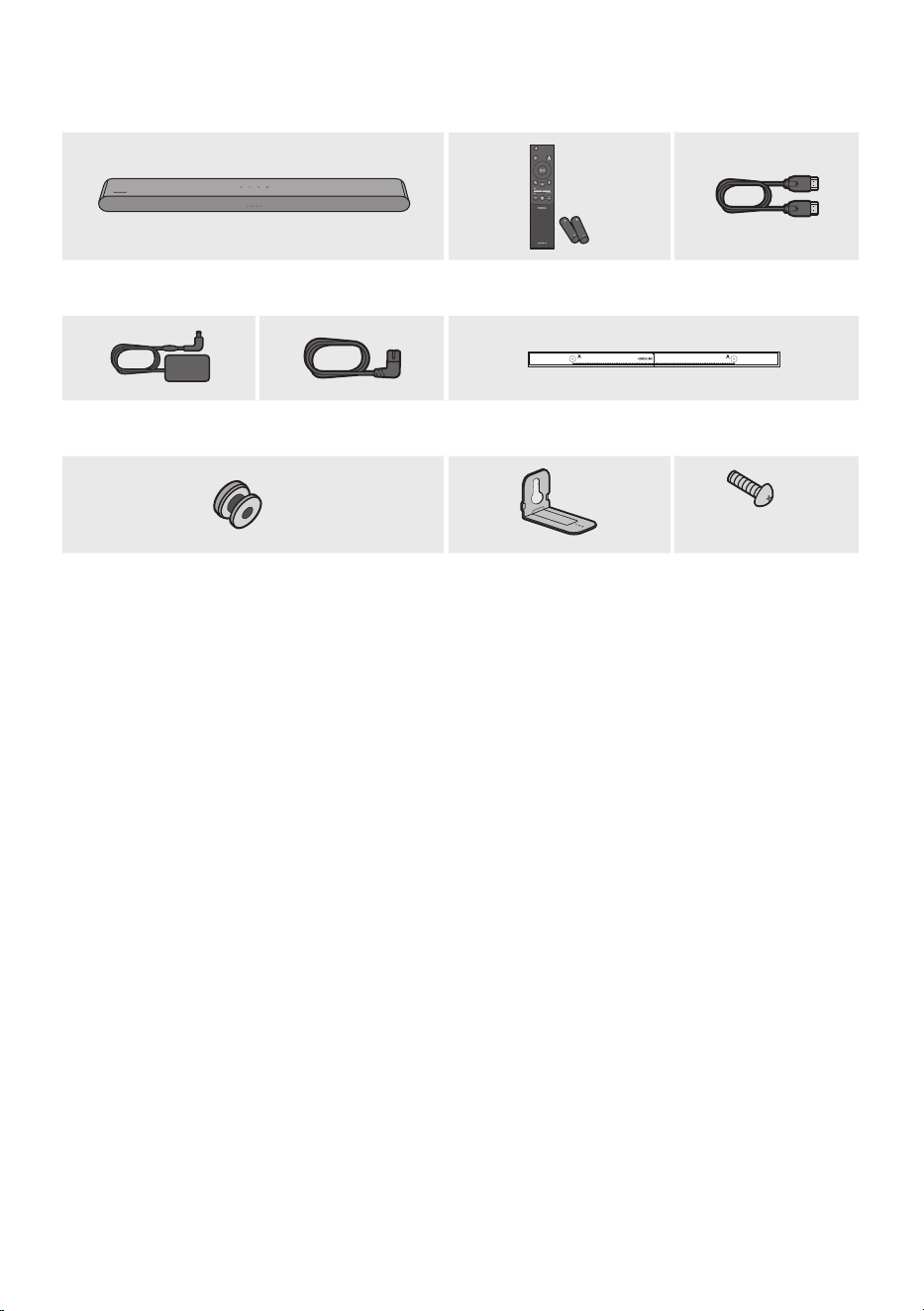
01 CHECKING THE COMPONENTS
SOUND
MODE
WOOFER
TONE
CONTROL
CH LEVEL
Soundbar Main Unit Soundbar Remote Control
/
Batteries
HDMI Cable
A TYPE : 450mm
AC/DC Adapter
(Soundbar)
Power Cord
(Soundbar)
Wall Mount Guide
x 2
x 2
(M4 x L10)
x 2
Holder-Screw Bracket-Wall Mount Screw
• For more information about the power supply and power consumption, refer to the label attached
to the product. (Label: Bottom of the Soundbar Main Unit)
• To purchase additional components or optional cables, contact a Samsung Service Centre or
Samsung Customer Care.
• For more information about the wallmount see page 34.
• Design, specications, and App screen are subject to change without prior notice.
• The appearance of the accessories may differ slightly from the illustrations above.
ENG - 5
02 PRODUCT OVERVIEW
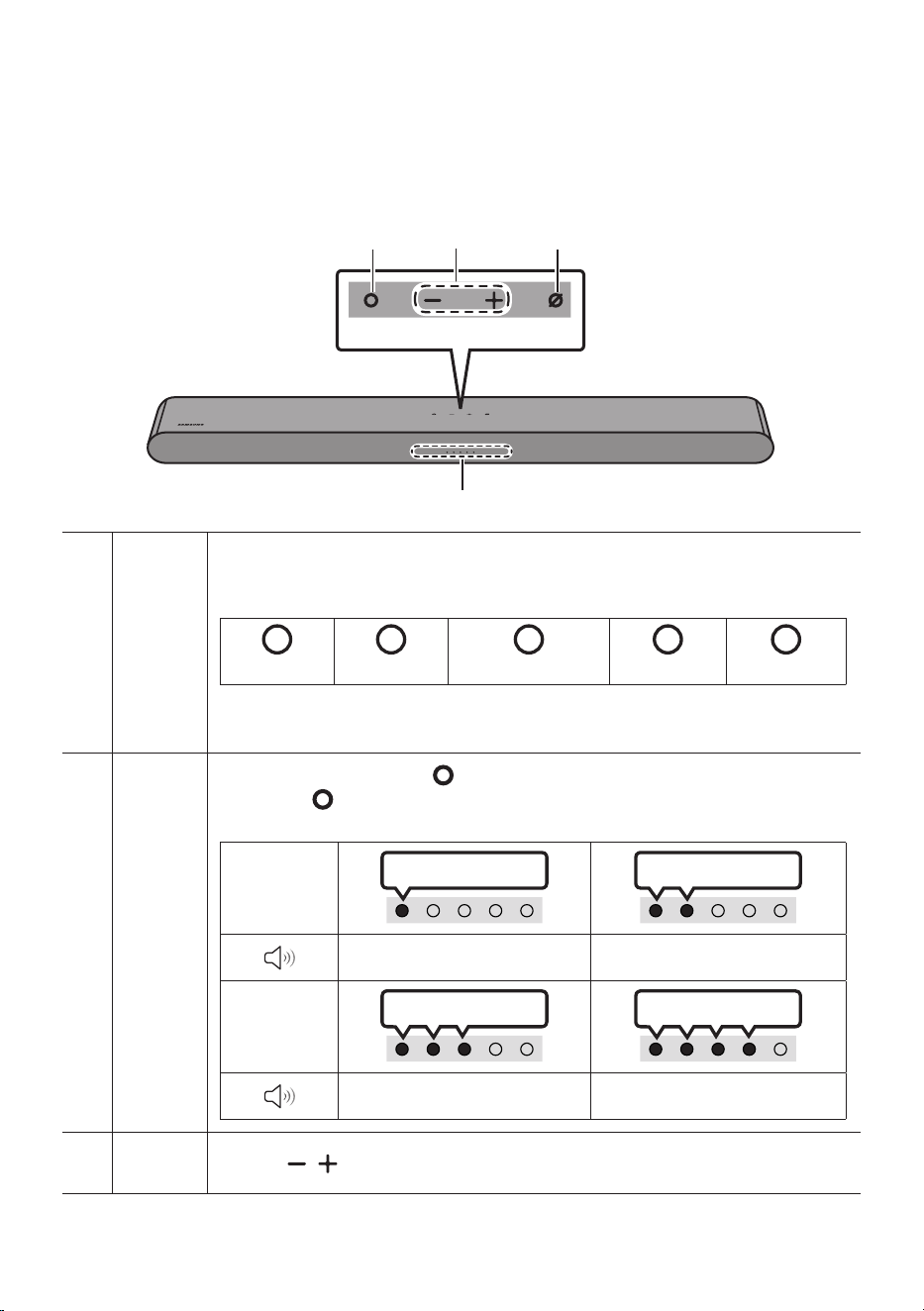
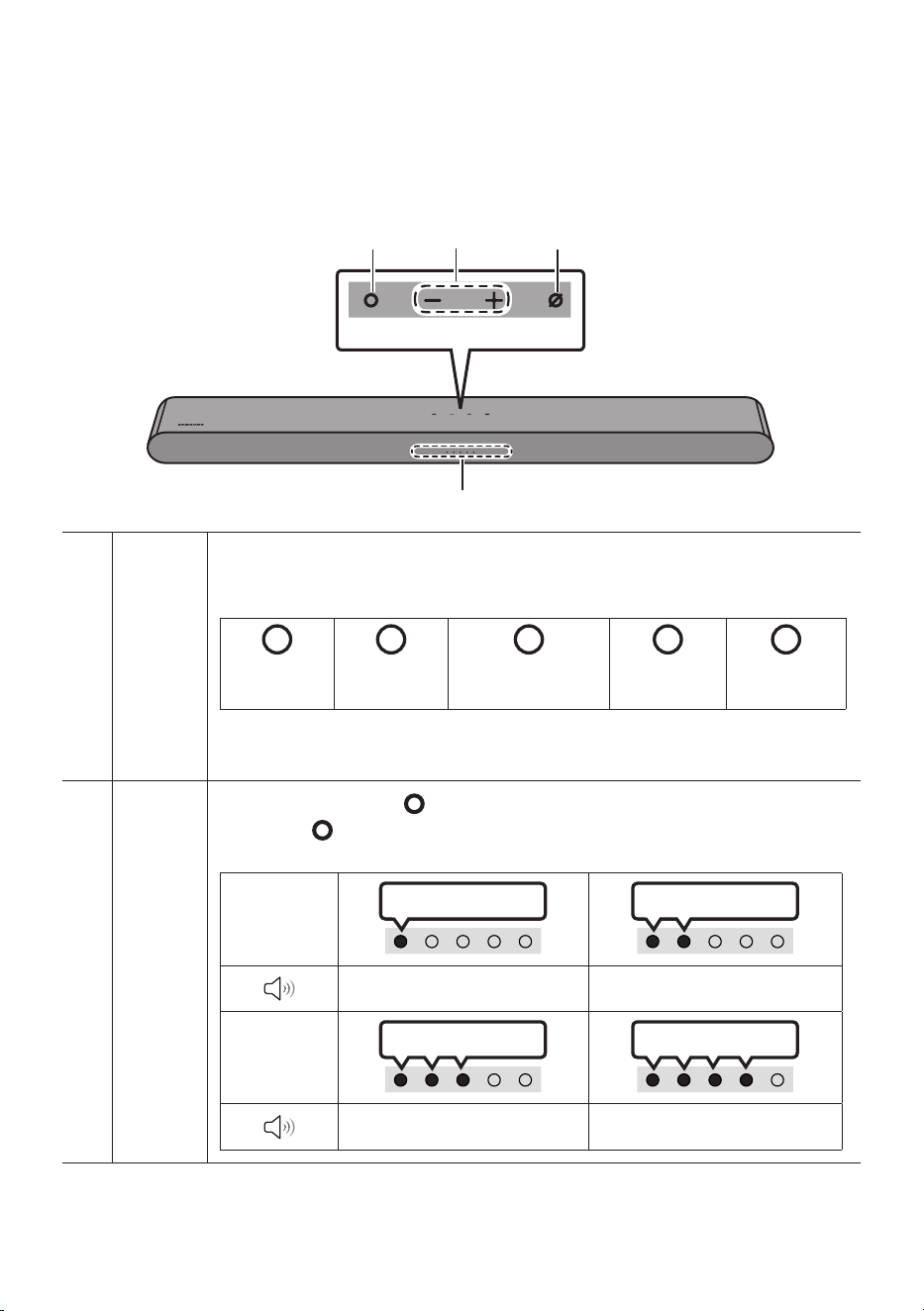
Front Panel / Top Panel of the Soundbar
Top Panel
LED
indicator
The LED Indicator ashes, glows, or changes colour depending on the Soundbar's current
mode or status. The colour of the LED indicator and the number of lights indicate the active
mode as described below.
W
White LED
W
White LED
M
Multicolour LED
W
White LED
W
White LED
• The Multicolour LED changes to White, Cyan, Green, Red, and Blue depending on the
mode or status.
Multi
Function
Button
• In standby mode, press the (Multi Function) button to turn on the Soundbar.
• Press the (Multi Function) button to change the mode. Each time you change the
mode, the LED lights in white and then turns off.
LED Indicator
White On -> Off White On -> Off
“TV ARC” or “eARC” “Wi-Fi”
LED Indicator
White On -> Off White On -> Off
“Bluetooth” “Digital Audio In”
Volume
Button
Press the (Volume) button to adjust the volume.
ENG - 6
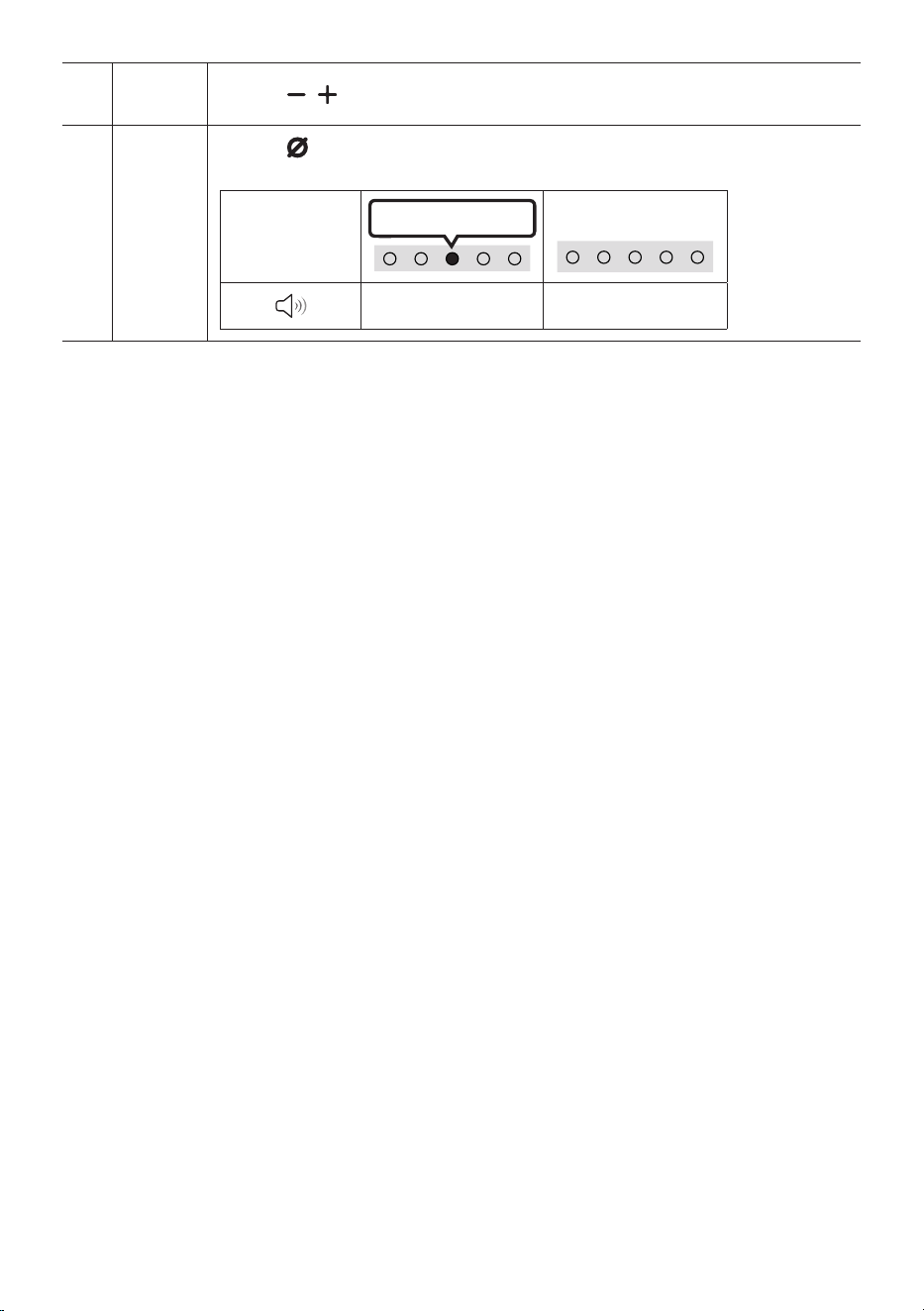
Mic
On/Off
Button
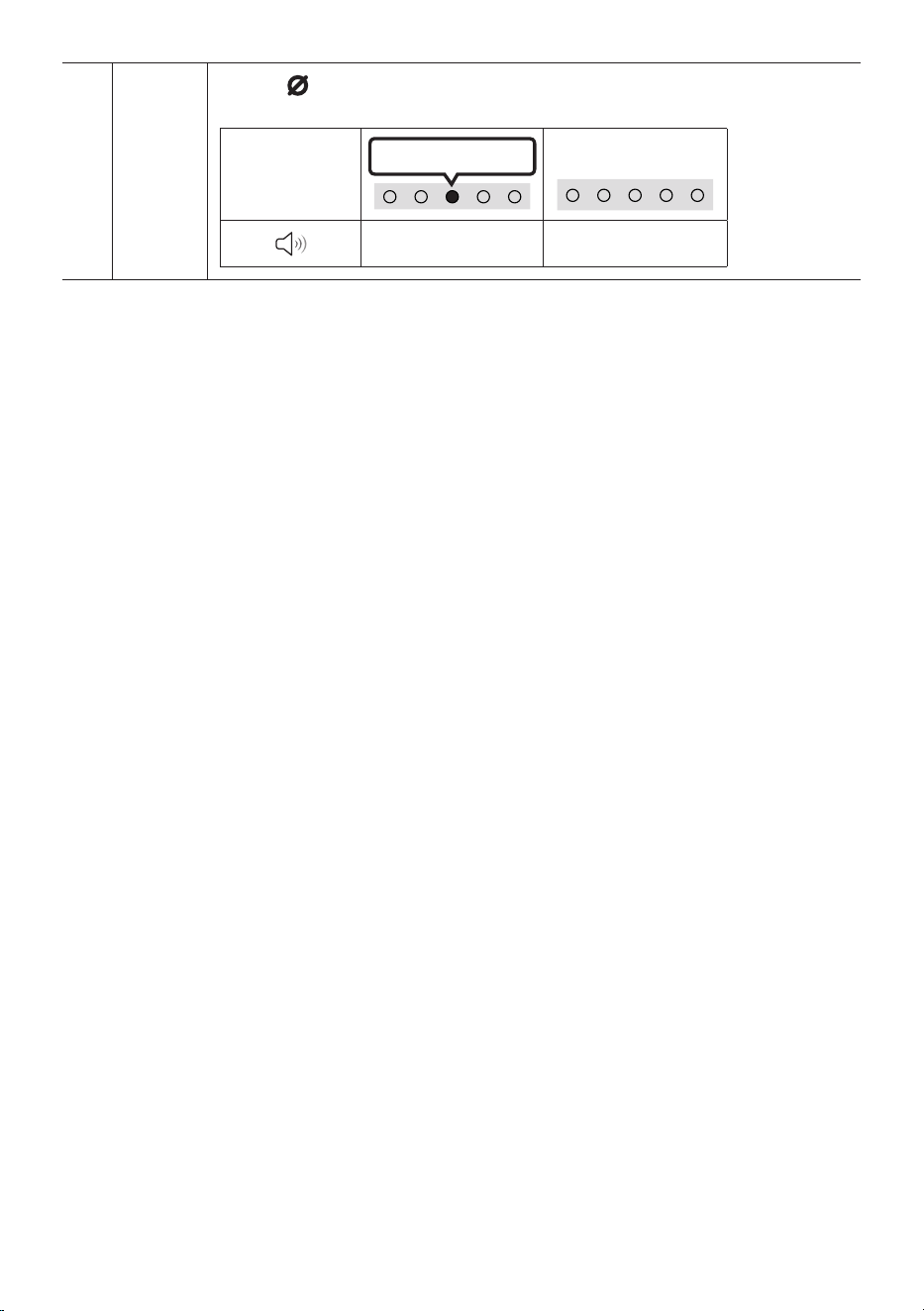
Press the (Mic On/Off) button to turn the microphone on or off.
When the microphone is off, the LED Indicator will light red.
LED Indicator
Red On
“Mic Off” “Mic On”
• When you plug in the AC cord, the power button will begin working in 4 to 6 seconds.
• When you turn on this unit, there will be a 4 to 5 second delay before it produces sound.
• If you hear sounds from both the TV and Soundbar, go to the Settings menu for the TV audio and
change the TV speaker to External Speaker.
• You can turn on and off audio feedback by using SmartThings app. To learn about using the
SmartThings app, refer to “Method 2. Connecting via Wi-Fi (Wireless Network)”.
ENG - 7
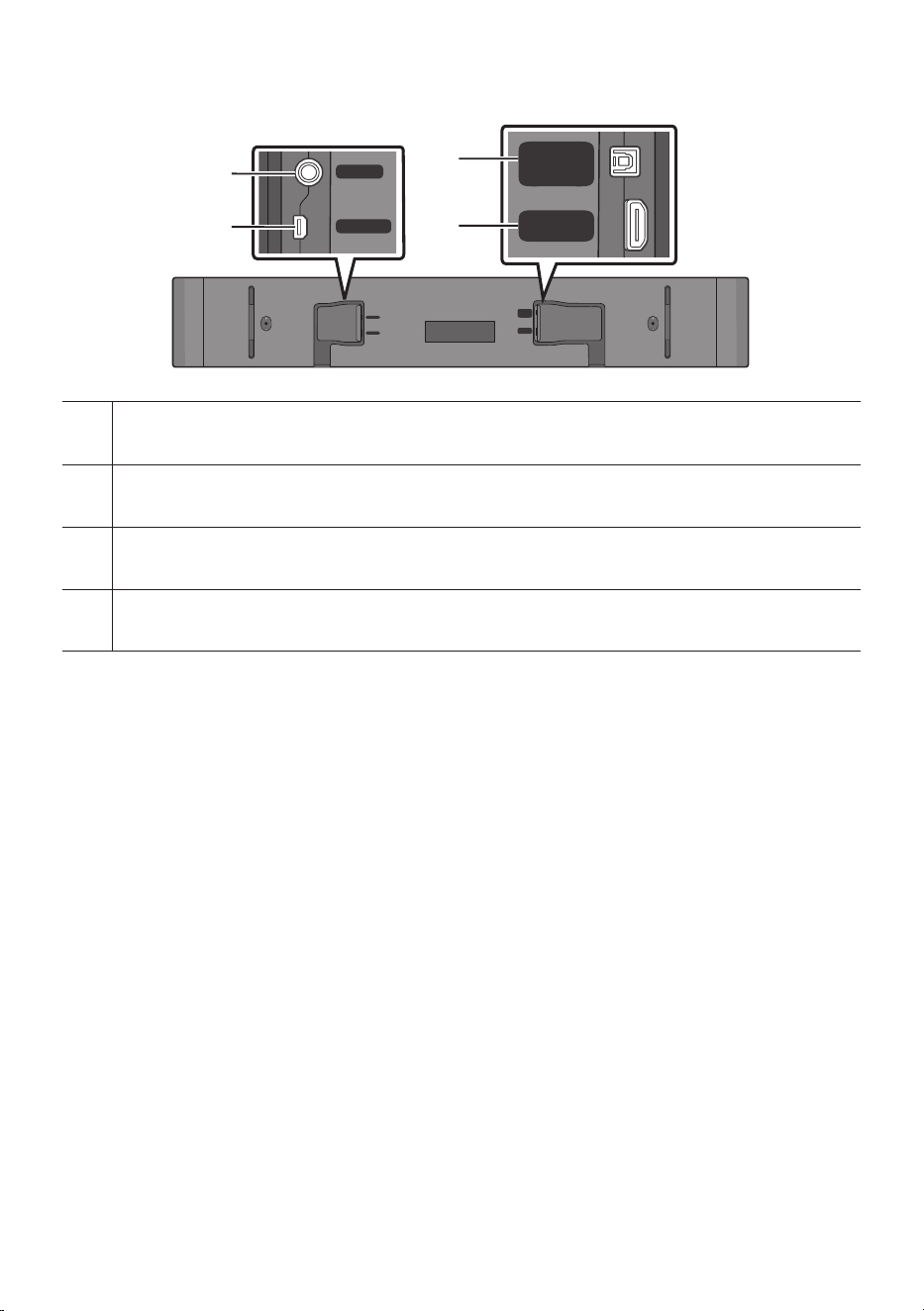
Bottom Panel of the Soundbar
SERVICE
DC 19V
DIGITAL
AUDIO IN
(OPTICAL)
HDMI
(eARC)
SERVICE
DC 19V
DIGITAL
AUDIO IN
(OPTICAL)
HDMI
(eARC)
SERVICE
DC 19V
DIGITAL
AUDIO IN
(OPTICAL)
HDMI
(eARC)
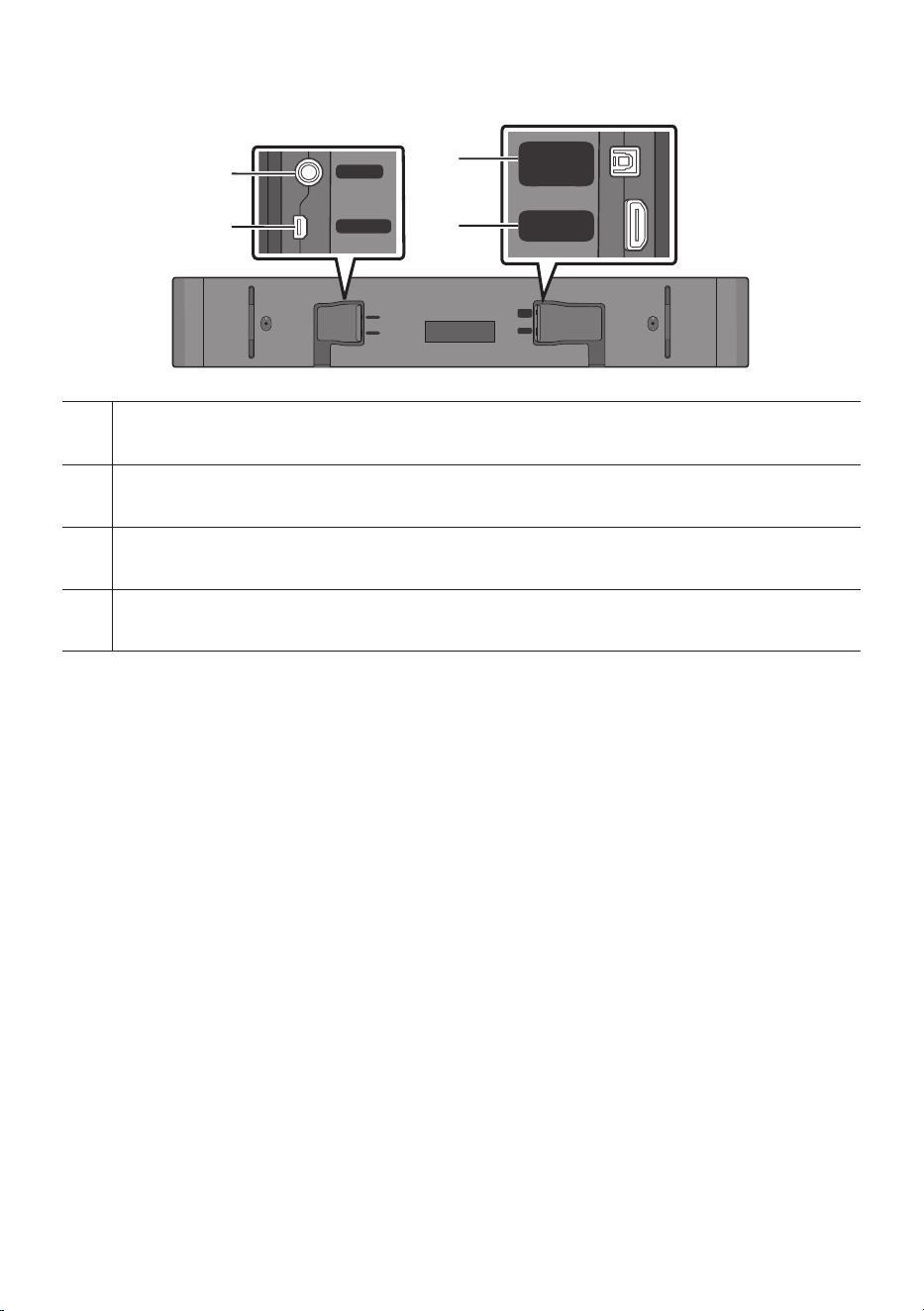
DC 19V (Power Supply In)
Connect the AC/DC power adapter. (See page 15)
SERVICE
Connect a USB storage device to upgrade the product's software.
DIGITAL AUDIO IN (OPTICAL)
Connect to the digital (optical) output of an external device. (See page 26)
HDMI (eARC)
Connect to the HDMI (eARC) port on a TV. (See page 16)
• When disconnecting the power cable of the AC/DC power adapter from a wall outlet, pull the plug.
Do not pull the cable.
• Do not connect this unit or other components to an AC outlet until all connections between
components are complete.
ENG - 8
03 USING THE REMOTE CONTROL
Inserting Batteries before using the Remote Control (AAA batteries X 2)
Slide the back cover in the direction of the arrow
until it is completely removed.
Insert 2 AAA batteries (1.5V) oriented so that their
polarity is correct. Slide the back cover back into
position.
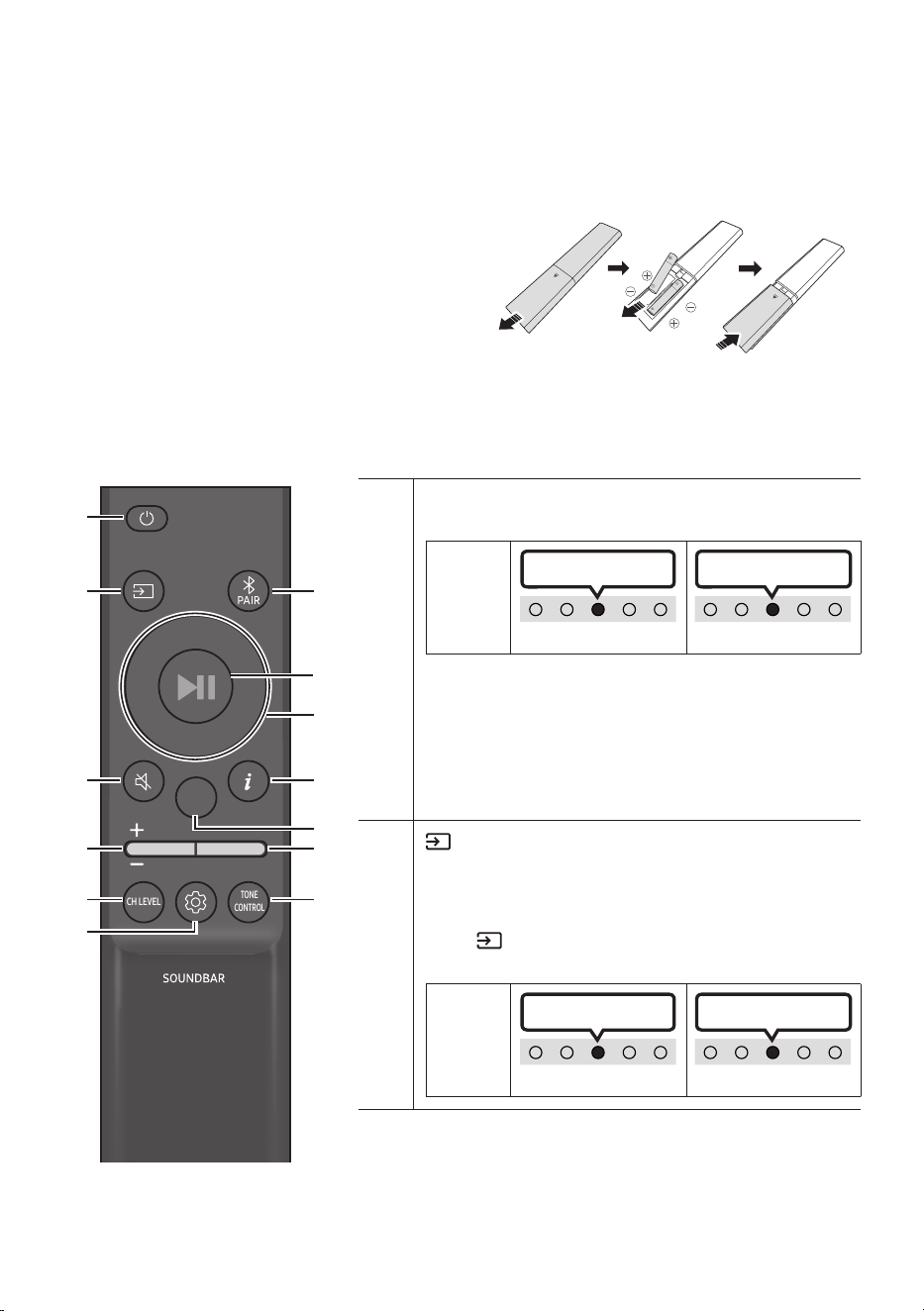
How to Use the Remote Control
SOUND
MODE
WOOFER
TONE
CONTROL
CH LEVEL
Power
Turns the Soundbar on and off.
LED
Indicator
Cyan Blinks X1
On
Off
Red Blinks X3
• Auto Power Down Function
The unit turns off automatically in the following
situations:
– In “TV ARC” or “eARC” / “Wi-Fi” / “Bluetooth” /
“Digital Audio In” mode if there is no audio signal for
18 minutes.
(Source)
Press to select a source connected to the Soundbar.
• Audio Feedback On/Off
You can turn the Audio Feedback on or off. Press and hold
the (Source) button on the remote control for
5 seconds while the Soundbar is off (Standby mode).
LED
Indicator
Cyan Blinks X1
On
Off
Red Blinks X1
ENG - 9
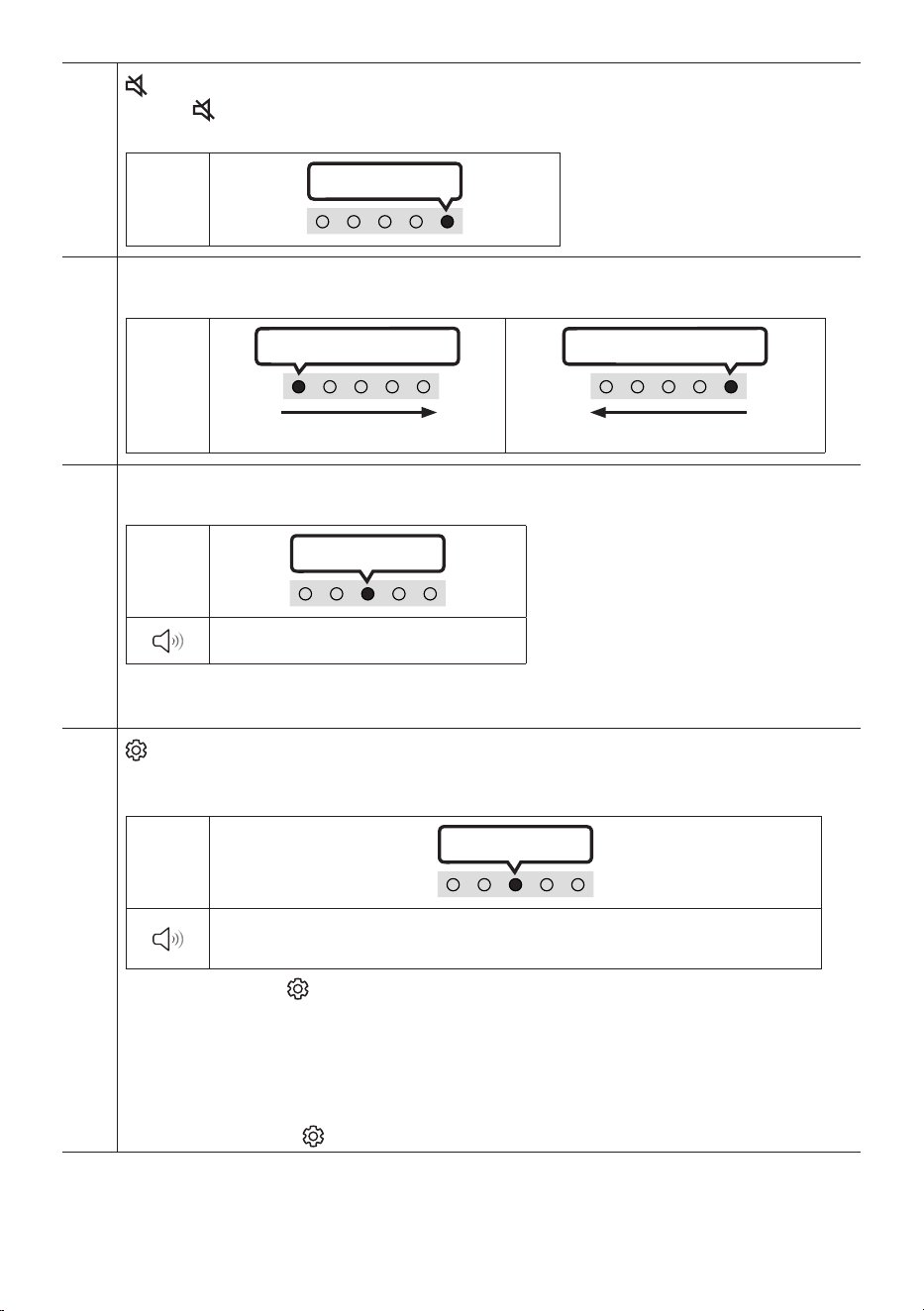
(Mute)
Press the (Mute) button to mute the sound.
Press it again to unmute the sound.
LED
Indicator
Blinks X Repeatly
Volume
Push the button up or down to adjust the volume.
LED
Indicator
White moves to right X1
Volume Up
White moves to left X1
Volume Down
CH LEVEL
By pressing the button, you can adjust the volume of each speaker.
LED
Indicator
White Blinks X1
“Centre Level” “Side Level”
– If the Rear Speakers (sold separately) are connected, the setting “Rear Level” is supported. Use the
Up/Down button to adjust the volume of the “Rear Level” between -6 to +6.
(Sound Control)
By pressing the button, you can set the audio function. The desired item can be adjusted using the Up/
Down buttons. Each time the mode changes, the Multicolour LED blinks in white.
LED
Indicator
White Blinks X1
“SpaceFit Sound” “ Active Voice Amplier” “Voice enhancement” “Night
mode” “Sync” “Virtual”
– Press and hold the (Sound Control) button for about 5 seconds to adjust the sound for each
frequency band. 150Hz, 300Hz, 600Hz, 1.2kHz, 2.5kHz, 5kHz, and 10kHz are selectable using the Left/
Right buttons and each can be adjusted to a setting between -6 to +6 using the Up/Down buttons.
(Make sure the Sound mode is set to "Standard".)
– If the Rear Speakers (sold separately) are connected, the setting “Sound Grouping” and “Private Rear
Sound” are supported.
– Refer to “Setting the (Sound Control)” on page 11.
ENG - 10
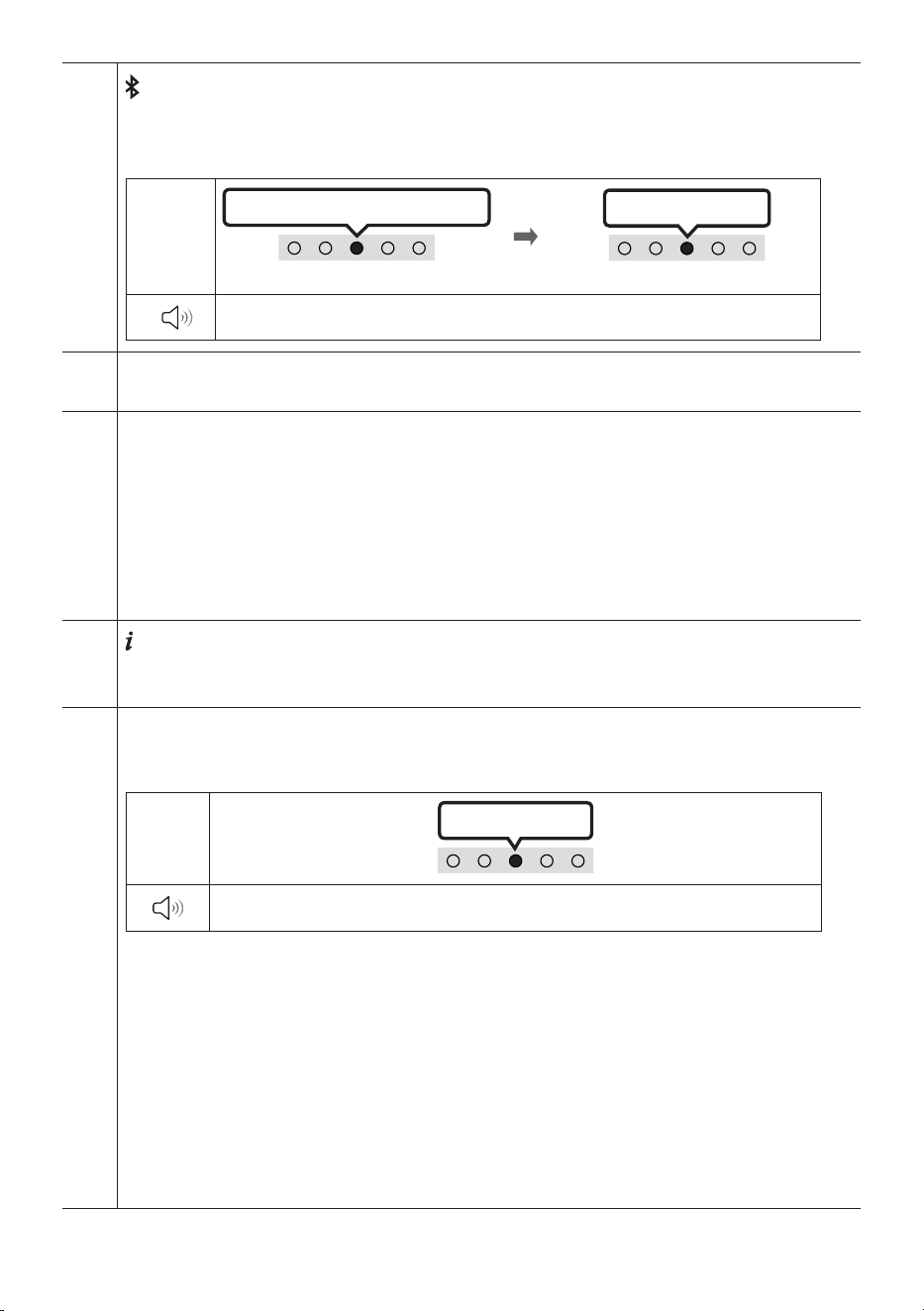
Bluetooth PAIR
Switch the Soundbar to Bluetooth pairing mode.
When you press the button, the LED display changes as shown below.
• Until pairing is complete, the Multicolour LED changes as Red → Green → Blue in turn.
LED
Indicator
Red → Green → Blue Blinks
Pairing
Connection is complete
Cyan Blinks X3
“Ready to connect via Bluetooth.”
p (Play / Pause)
You can also play or pause music by pressing the button.
Up/Down/Left/Right
Press Up/Down/Left/Right on the button to select or set functions.
• Music Skip
Press the Right button to select the next music le. Press the Left button to select the previous music
le.
• ID SET
Press and hold the Up button for 5 seconds to complete ID SET (when connecting to a wireless
subwoofer or wireless rear speakers).
(Info)
Press the button to display information about the current function. (See page 5.)
When connected to Dolby Atmos®, the LED indicator blinks cyan 3 times.
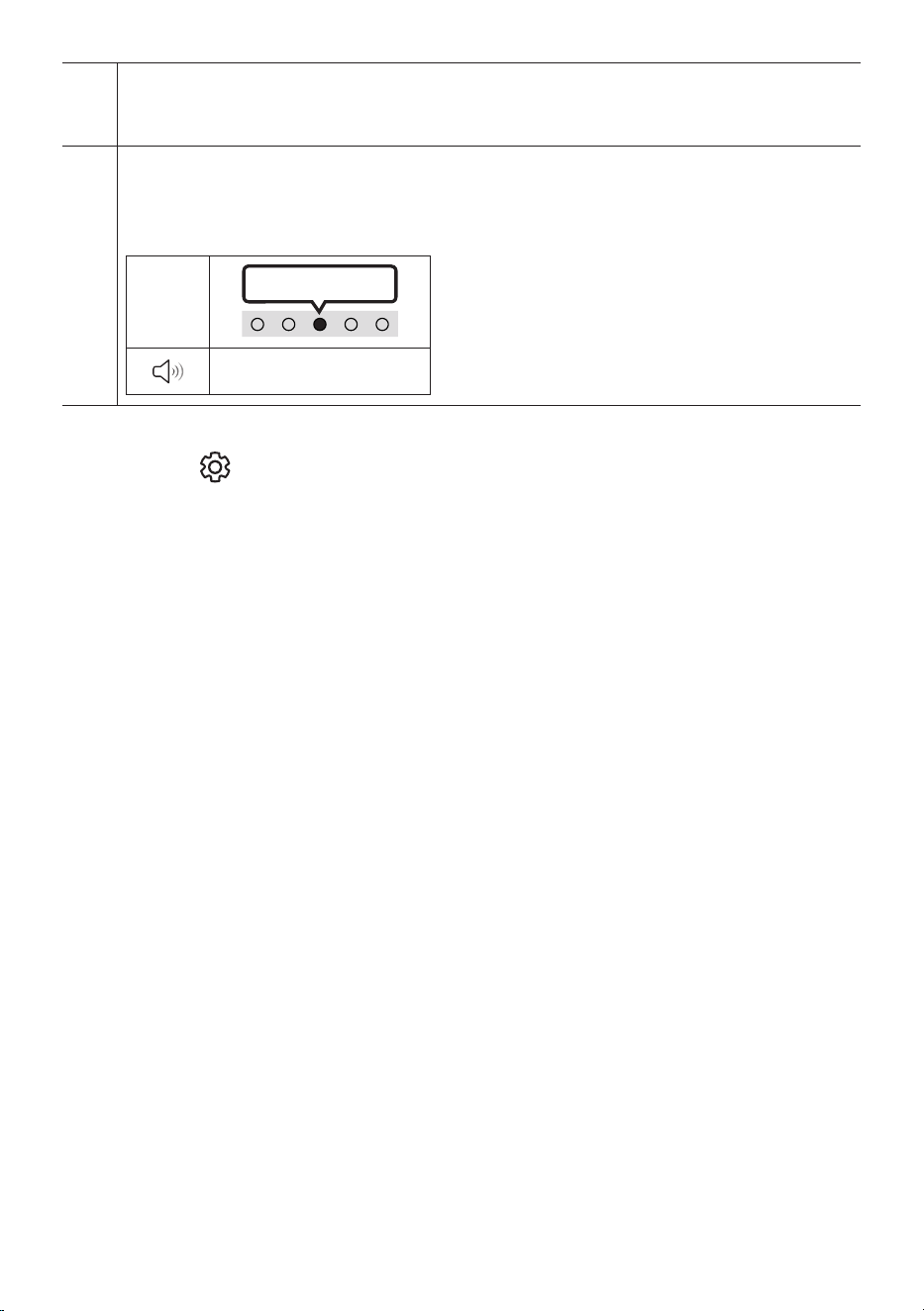
SOUND MODE
By pressing the button, you can select the desired audio mode. Each time the mode changes, the
Multicolour LED blinks in white.
LED
Indicator
White Blinks X1
“Adaptive Sound” “DTS Virtual:X” “Music” “Game” “Standard”
• Adaptive Sound
Analyzes the content in real time and automatically provides the optimal sound eld based on the
characteristics of the content.
• DTS Virtual:X
Immersive 3D sound from any content.
• Music
Provides more natural and room lling sound for music content.
• Game
Provides stereoscopic sound to immerse you in the action while gaming.
• Standard
Outputs the original sound.
ENG - 11
WOOFER (BASS) LEVEL
Push the button up or down to adjust the level of the woofer (bass) to -12 or between -6 to +6. To set the
woofer (bass) volume level to 0 (Default), press the button.
TONE CONTROL
By pressing the button, you can adjust the volume of the treble or bass sound. The desired item can be
adjusted using the Up/Down buttons. (This feature is available in all sound modes except “Standard”
mode.)
LED
Indicator
White Blinks X1
“Treble” “Bass”
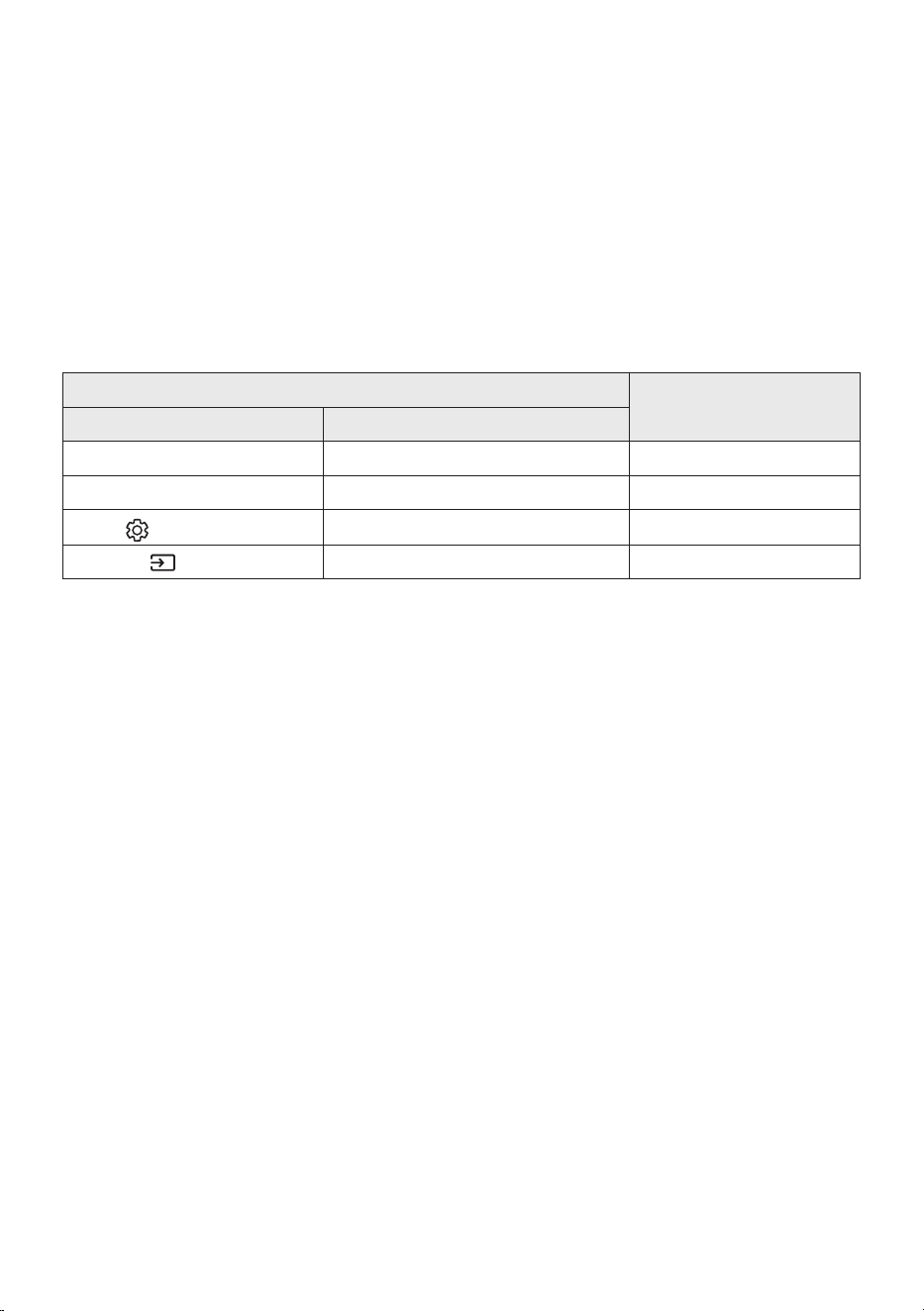
Setting the (Sound Control)
• SpaceFit Sound : This function analyzes the user’s listening space with the Soundbar’s microphone
and provides optimal sound for the space. (Refer to “Using the SpaceFit Sound” on page 25.)
• Active Voice Amplier : Analyzes external noise in real time while Soundbar is playing so that voice
audio can always be heard clearly.
– No data is saved during the analysis.
• Voice enhancement makes it easier to hear spoken dialog in movies and TV.
• Night mode is optimized for night time viewing with the settings adjusted to bring the volume down
but keep the dialog clear.
• Sound Grouping: The Soundbar main unit and the Surround Speakers play the entire sound instead
of surround sound, making it ideal for large groups of people listening to music in a large space.
– This menu is initially activated when the Surround Speakers are connected, and then the menu
remains activated regardless of the connection of the Surround Speakers.
– If you enable this mode, there are no differences in sounds between the Sound modes.
– Sound does not come out from all speaker units of the Soundbar main unit and the Surround
speakers, but only from certain predetermined units, which varies by model.
• Private Rear Sound : This mode sets the sound to come out from the Surround Speakers only,
allowing you to listen without being disturbed by others.
– If you enable this mode, sound does not come out from the Soundbar main unit and the
subwoofer. Sound only comes out from the front channel of the Surround Speakers.
– If you enable this mode, there are no differences in sounds between the Sound modes.
ENG - 12
– The function turns off when the power turns off or the Surround Speakers connection is lost.
– The menu is activated only when the Surround Speakers are connected.
– This mode is automatically turned off and becomes unavailable when the Q-Symphony
function turns on.
• If the video on the TV and audio from the Soundbar are not synchronized, select Sync in Sound
Control, and then set the audio delay between 0~300 milliseconds by using the Up/Down buttons.
– Sync is only supported for some functions.
• The Virtual function can be turned On/Off by using the Up/Down buttons.
Using the Hidden Buttons (Buttons with more than one function)
Hidden Button
Reference page
Remote Control Button Function
WOOFER (Up) TV remote control On/Off (Standby) page 14
Up ID SET page 10
(Sound Control)
7 Band EQ page 9
(Source)
Audio Feedback On/Off (Standby) page 8

ENG - 13
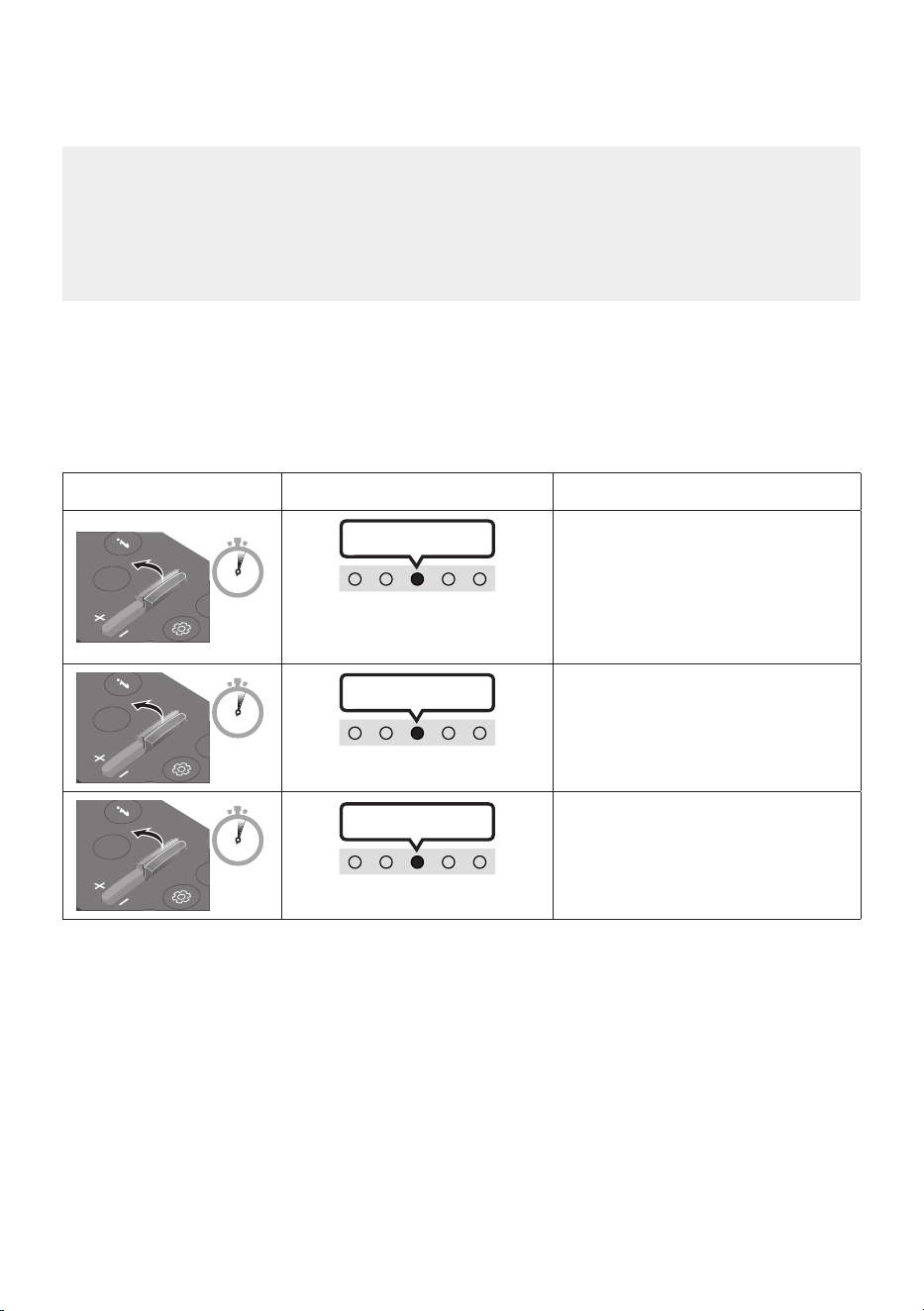
Output specications for the different sound effect modes
Effect Input
Output
With Subwoofer Only
With Subwoofer & Wireless
Rear Speaker Kit
Adaptive Sound
2.0 ch 5.1 ch 7.1 ch
5.1 ch 5.1 ch 7.1 ch
Dolby Atmos® 5.1 ch 7.1 ch
DTS Virtual:X
2.0 ch 5.1 ch 7.1 ch
5.1 ch 5.1 ch 7.1 ch
Dolby Atmos® 5.1 ch 7.1 ch
Music
2.0 ch 5.1 ch 7.1 ch
5.1 ch 5.1 ch 7.1 ch
Dolby Atmos® 5.1 ch 7.1 ch
Game
2.0 ch 5.1 ch 7.1 ch
5.1 ch 5.1 ch 7.1 ch
Dolby Atmos® 5.1 ch 7.1 ch
Standard
2.0 ch 2.1 ch 2.1 ch
5.1 ch 5.1 ch 5.1ch
Dolby Atmos® 5.1 ch 7.1 ch
• The Samsung Wireless Rear Speaker Kit, and Subwoofer can be purchased separately.
To purchase a Kit or the Subwoofer, contact the vendor you purchased the Soundbar from.
• When the input source is Dolby Atmos® the Subwoofer-only setup provides 5.1 channel audio,
while the Subwoofer & Wireless Rear Speaker Kit setup provides 7.1 channel audio.
ENG - 14
Adjusting the Soundbar volume with a TV remote control
Adjust the Soundbar volume using the TV’s remote control.
• This function can be used with IR remote controls only. Bluetooth remote controls (remote
controls that require pairing) are not supported.
• Set the TV speaker to External Speaker to use this function.
• Manufacturers supporting this function:
Samsung, VIZIO, LG, Sony, Sharp, PHILIPS, PANASONIC, TOSHIBA, Hisense, RCA
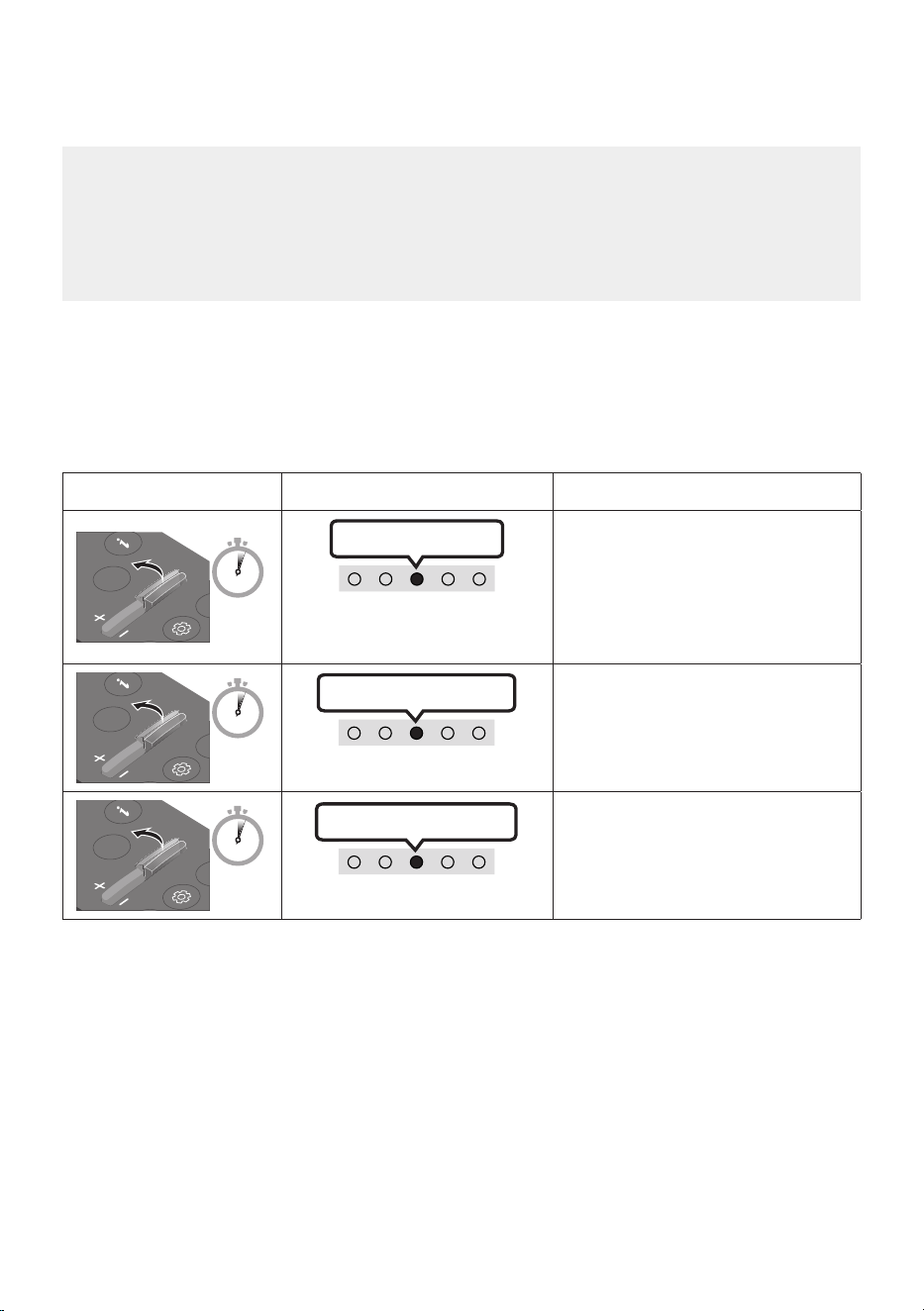
1. Turn Off the Soundbar.
2. Push up and hold the WOOFER button for 5 seconds.
Each time you push the WOOFER button up and hold it for 5 seconds, the mode switches in the
following order: “Off-TV Remote” (Default mode), “Samsung-TV Remote”, “All-TV Remote”.
The LED indicator status changes each time the mode is changed, as shown below.
Remote Control Button LED Indicator Status
SOUND
MODE
WOOFER
CH LEVEL
TONE
CONTROL
5 Sec
"Off-TV Remote"
(Default mode)
Red Blinks X1
Disable the TV remote control.
SOUND
MODE
WOOFER
CH LEVEL
TONE
CONTROL
5 Sec
"Samsung-TV Remote"
Cyan Blinks X1
Enable a Samsung TV’s IR remote
control.
SOUND
MODE
WOOFER
CH LEVEL
TONE
CONTROL
5 Sec
"All-TV Remote"
Blue Blinks X1
Enable a third-party TV’s IR remote
control.
ENG - 15
04 CONNECTING THE SOUNDBAR
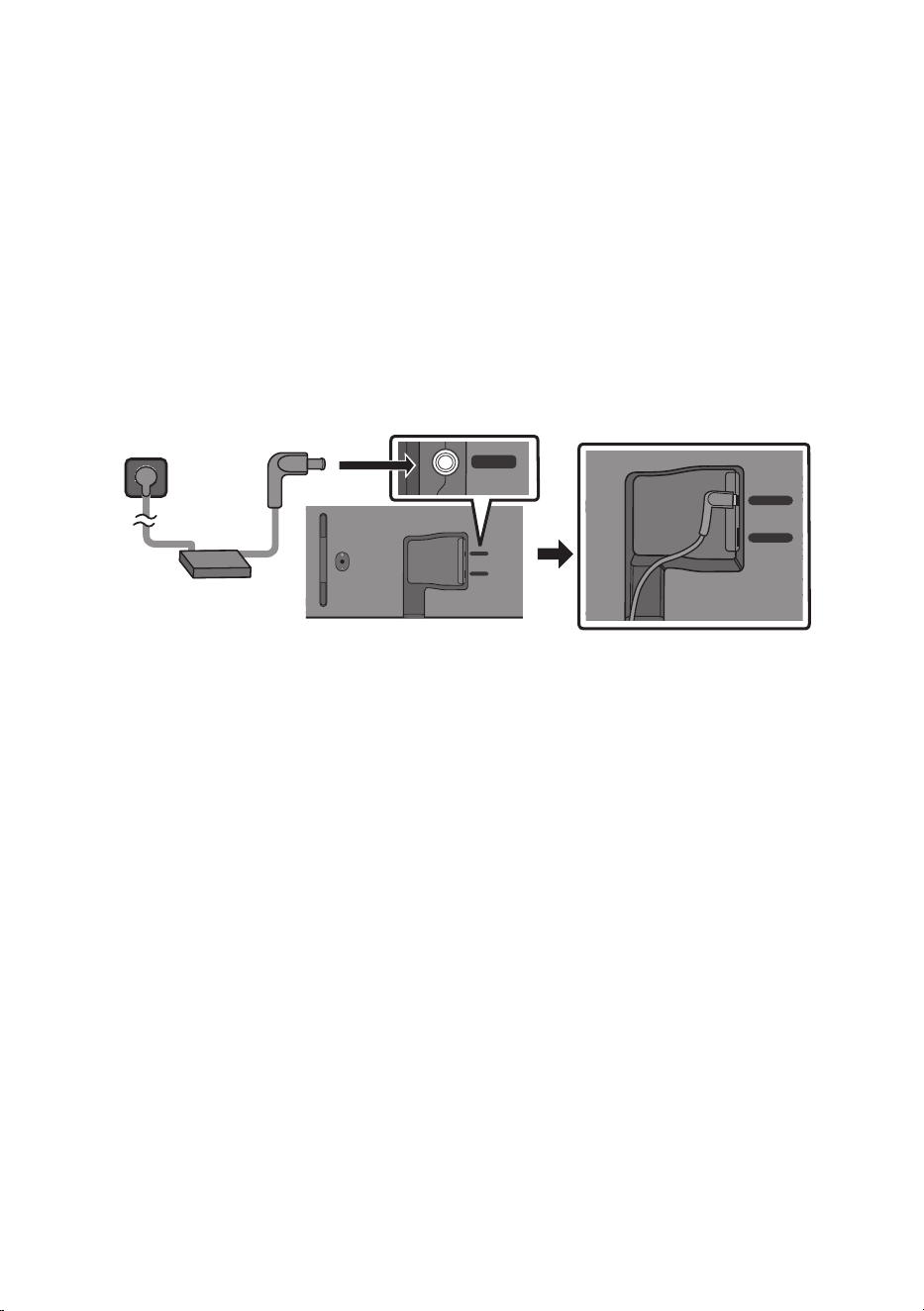
Connecting Electrical Power
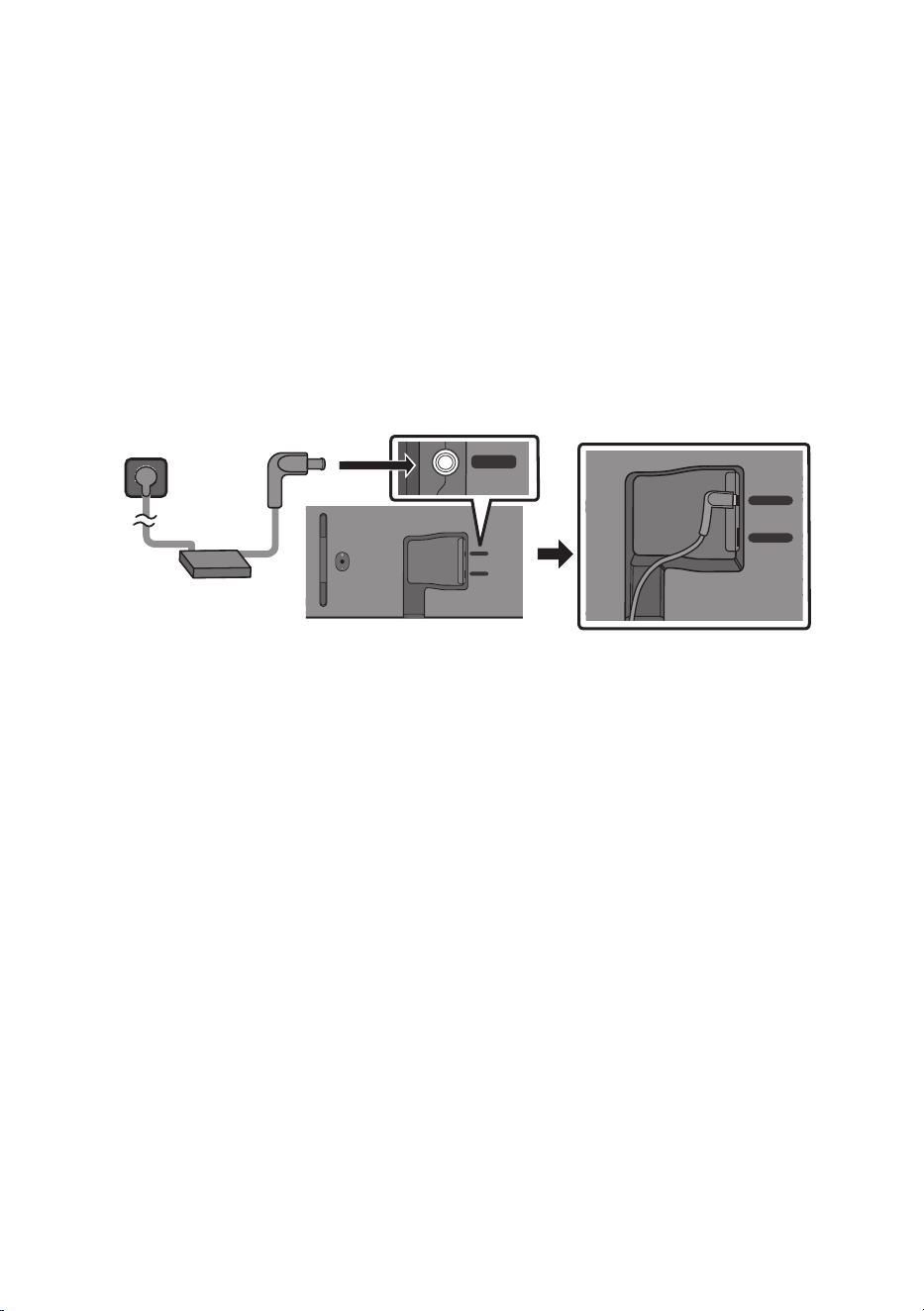
Use the power components to connect the Soundbar to an electrical outlet in the following order:
• For more information about the required electrical power and power consumption, refer to the
label attached to the product. (Label: Bottom of the Soundbar Main Unit)
1. First connect the power cable to the AC/DC adapter.
Connect the AC/DC adapter (with the power cable) to the Soundbar.
2. Connect the power cord to a wall socket.
Bottom of the Soundbar Main Unit
SERVICE
DC 19V
DIGITAL
AUDIO IN
(OPTICAL)
HDMI
(ARC)
SERVICE
DC 19V
DIGITAL
AUDIO IN
(OPTICAL)
HDMI
(eARC)
Power Cord
AC/DC Adapter
SERVICE
DC 19V
NOTES
• If you unplug and reconnect the power cord when the product is turned on, the Soundbar turns on
automatically.
• Make sure to rest the AC/DC Adapter at on a table or the oor. If you place the AC/DC Adapter so
that it is hanging with the AC cord input facing upwards, water or other foreign substances could
enter the Adapter and cause the Adapter to malfunction.
Connecting the Samsung Wireless Rear Kit and Subwoofer to your
Soundbar
Expand to true wireless surround sound by connecting the Samsung Wireless Rear Speaker Kit
(SWA-9200S, sold separately) and Wireless Subwoofer (SWA-W510, sold separately) to your Soundbar.
For detailed information on connections, see the Samsung Wireless Rear Speaker Kit and Wireless
Subwoofer manual.
ENG - 16
05 CONNECTING TO A TV
Connecting the TV that supports HDMI ARC (Audio Return Channel)
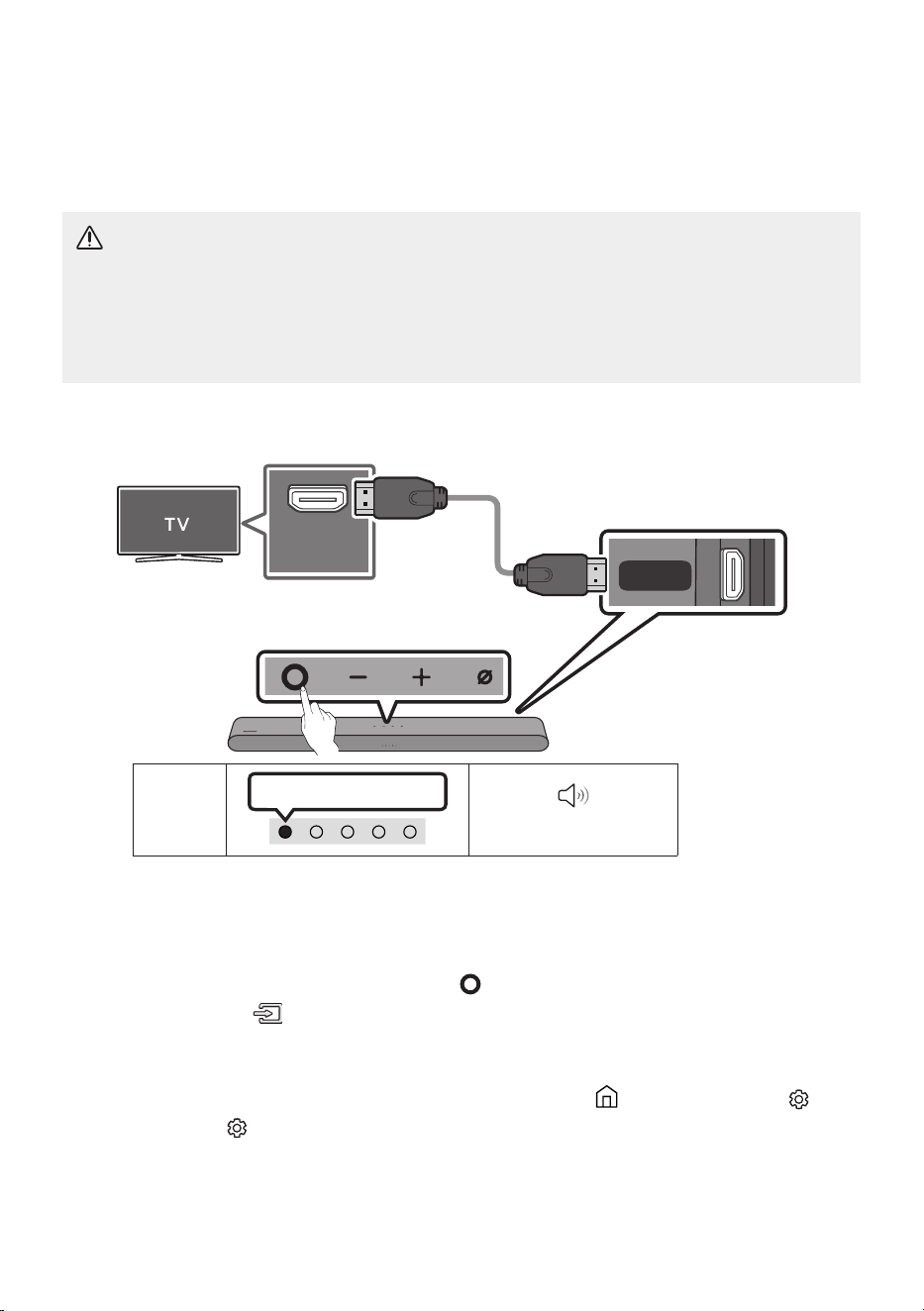
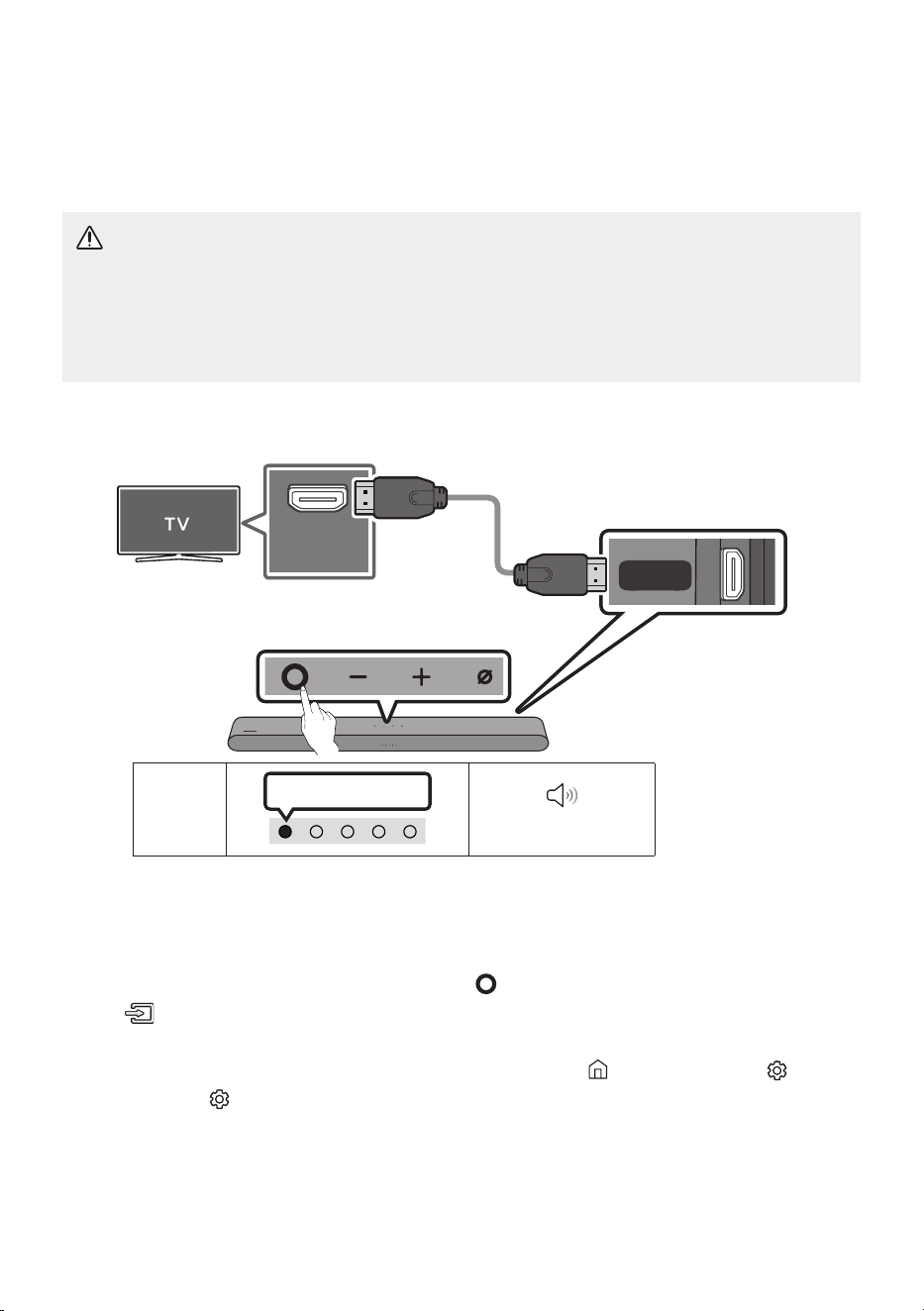
CAUTION
• When both the HDMI cable and optical cable are connected, the HDMI signal is received rst.
• To connect the HDMI cable between the TV and Soundbar, be sure to connect the terminals
marked ARC. Otherwise, the TV sound may not be output.
• The recommended cable is an HDMI cable certied by HDMI.org.
HDMI IN
(eARC)
DIGITAL
AUDIO IN
(OPTICAL)
HDMI
(eARC)
Connect to the HDMI IN (ARC) or
(eARC) port of your TV.
HDMI Cable
Bottom of the
Soundbar
Connect to the HDMI (eARC) port of
the Soundbar main unit.
Top of the Soundbar
LED
Indicator
White On -> Off
“TV ARC” or “eARC”
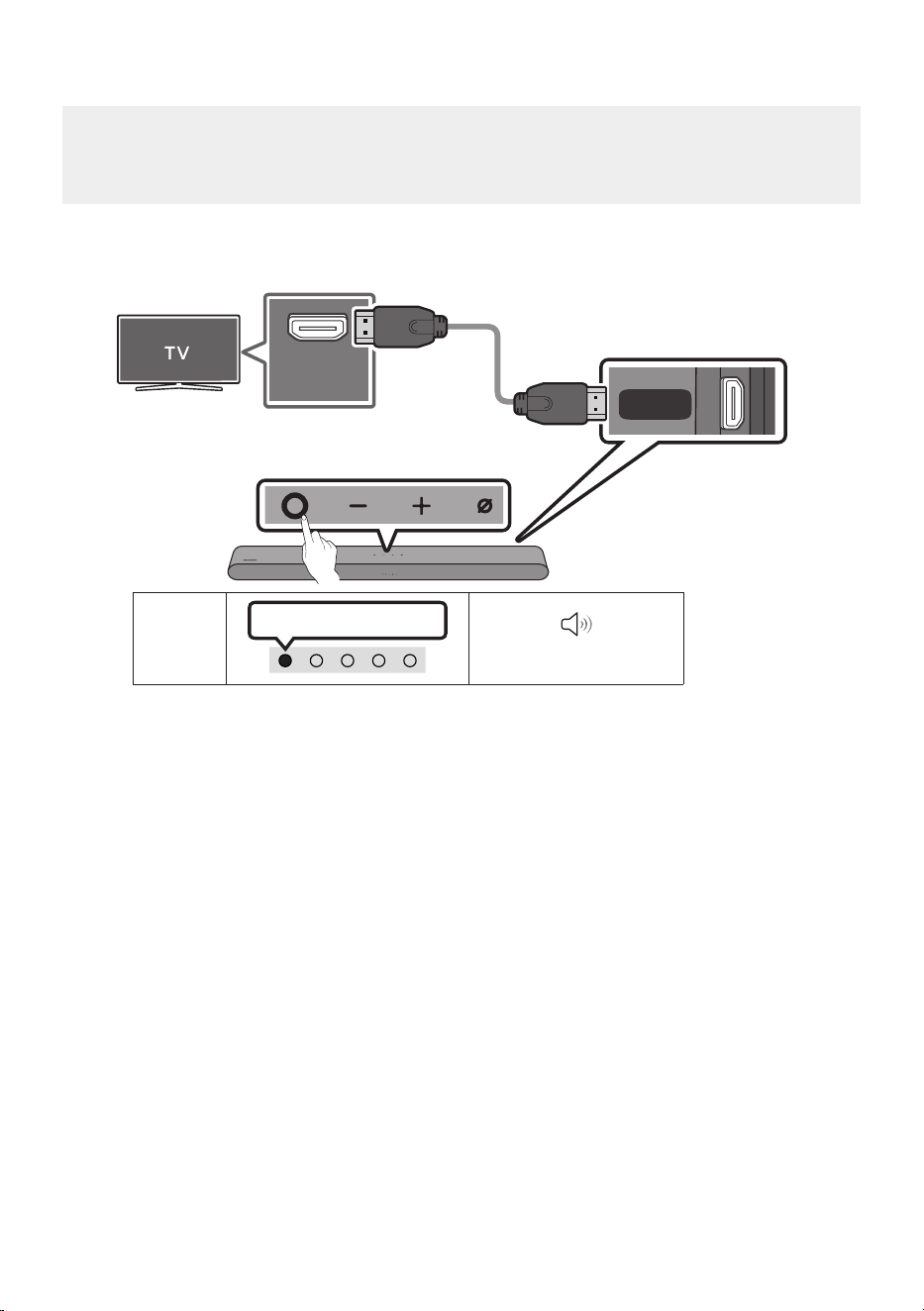
1. With the Soundbar and TV turned off, connect the HDMI cable as shown in the gure.
2. Turn on the Soundbar and TV.
3. TV sound is output from the Soundbar.
• When the TV sound is not output, press the (Multi Function) button at the top of the
Soundbar or the (Source) button on the remote control to select the “TV ARC” or “eARC”
mode.
• To connect with eARC, the eARC function in the TV menu should be set to On. Refer to the TV
user manual for details on setting. (e.g. Samsung TV : Home ( ) → Menu → Settings ( ) →
All Settings ( )
→ Sound → Expert Settings → HDMI-eARC Mode (Auto))
• When the sound is not output, check the HDMI Cable connection again.
• Use the volume buttons on the TV’s remote control to change the volume on the Soundbar.

ENG - 17
NOTES
• When you connect the TV that supports the HDMI ARC (Audio Return Channel) to the Soundbar
with an HDMI cable, you can transmit the digital video and audio data without connecting a
separate optical cable.
• We recommend you use a coreless HDMI cable if possible. If you use a cored HDMI cable, use one
whose diameter is less than 14 mm.
• This function is not available if the HDMI cable does not support ARC.
• When the audio in a broadcast is encoded in Dolby Digital and the “Digital Output Audio Format” on
your TV is set to PCM, we recommend that you change the setting to Dolby Digital. When the
setting on the TV is changed, you will experience better sound quality. (The TV menu may use
different words for Dolby Digital and PCM depending on the TV manufacturer.)
ENG - 18
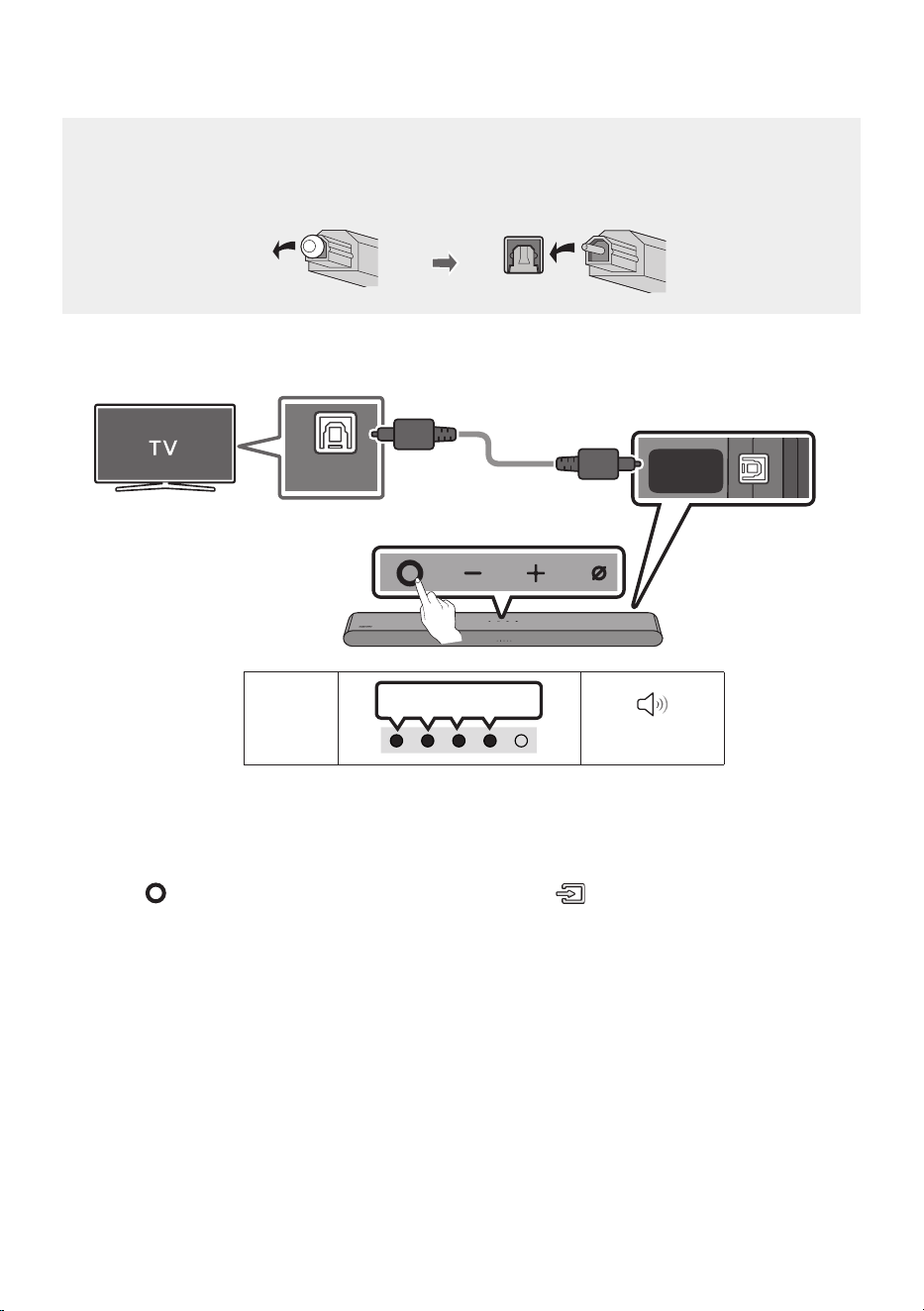
Connecting using an Optical Cable
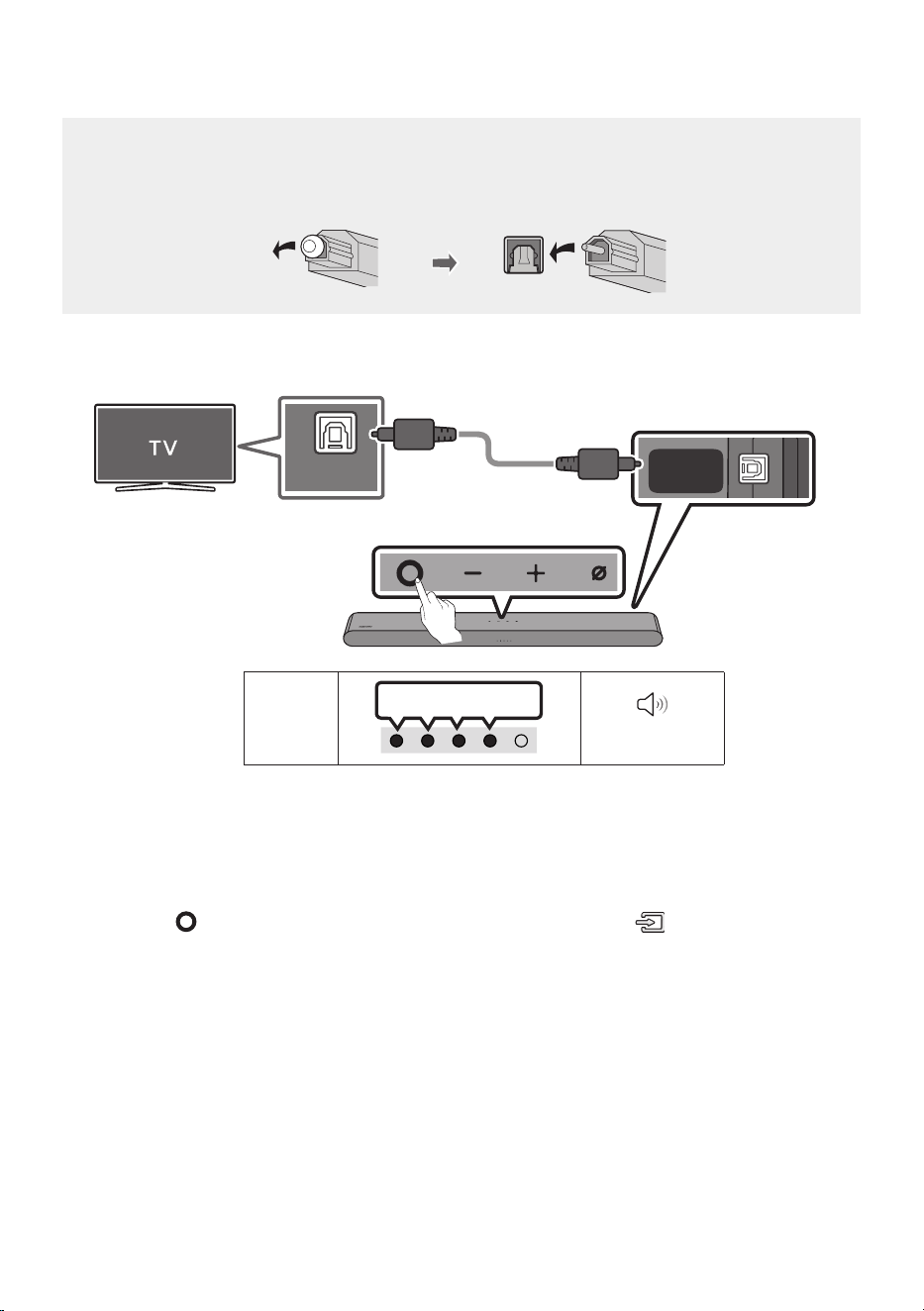
Pre-connection Checklist
• When both the HDMI cable and optical cable are connected, the HDMI signal is received rst.
• When you use an optical cable and the terminals have covers, be sure to remove the covers.
LED
Indicator
White On -> Off
“Digital Audio In”
OPTICAL OUT
DIGITAL
AUDIO IN
(OPTICAL)
HDMI
(eARC)
Bottom of the
Soundbar
Optical Cable (not supplied)
Top of the Soundbar
1. With the TV and Soundbar turned off, connect the DIGITAL AUDIO IN (OPTICAL) port on the
Soundbar and the OPTICAL output port on the TV with the optical cable (not supplied), as shown in
the gure.
2. Turn on the Soundbar and TV.
3. Press the (Multi Function) button at the top of the Soundbar or the (Source) button on the
remote control and then select the “Digital Audio In” mode. Then the announcement, “Digital
Audio In” is output.
4. The TV sound is output from the Soundbar.
ENG - 19
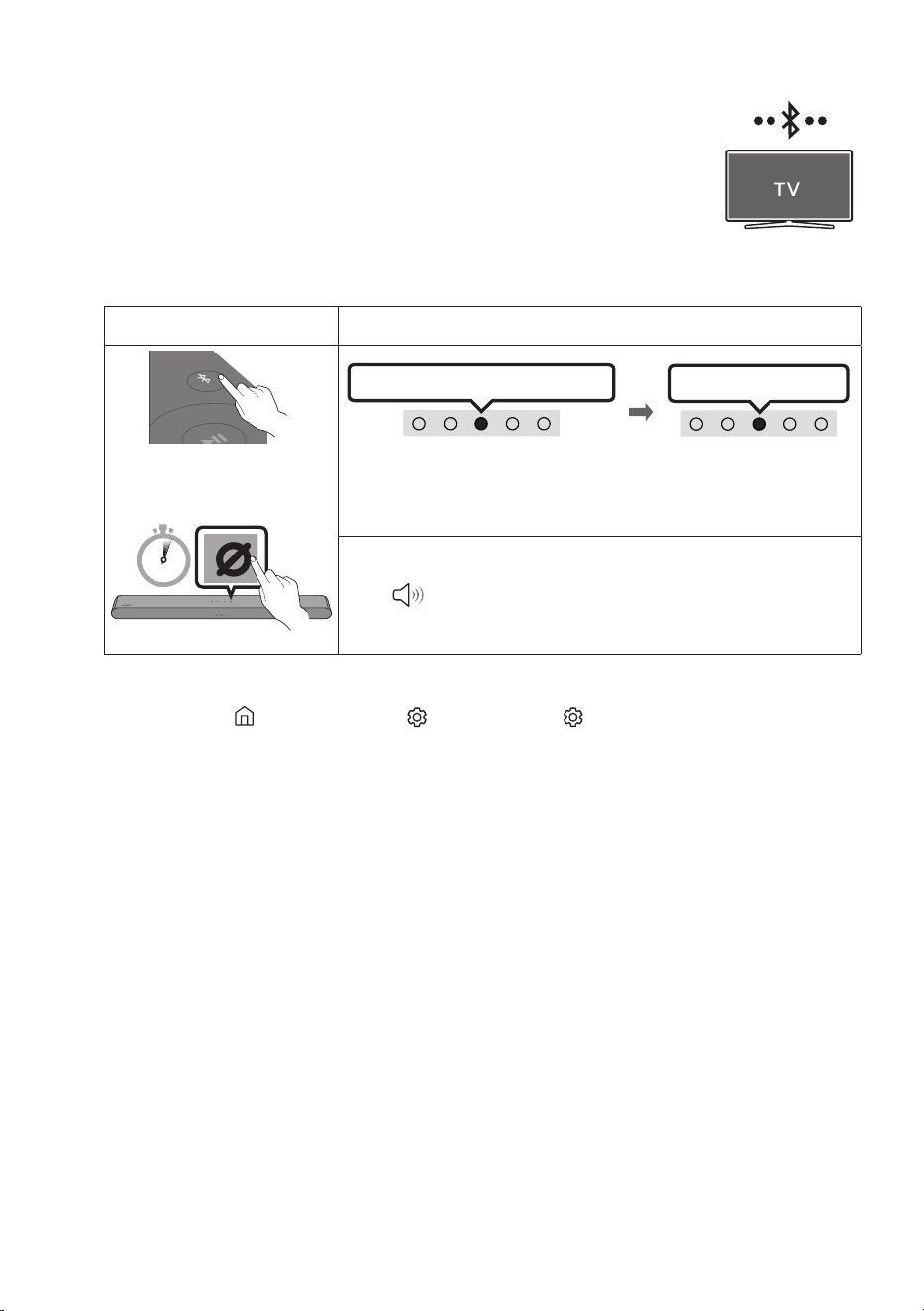
Connecting via Bluetooth
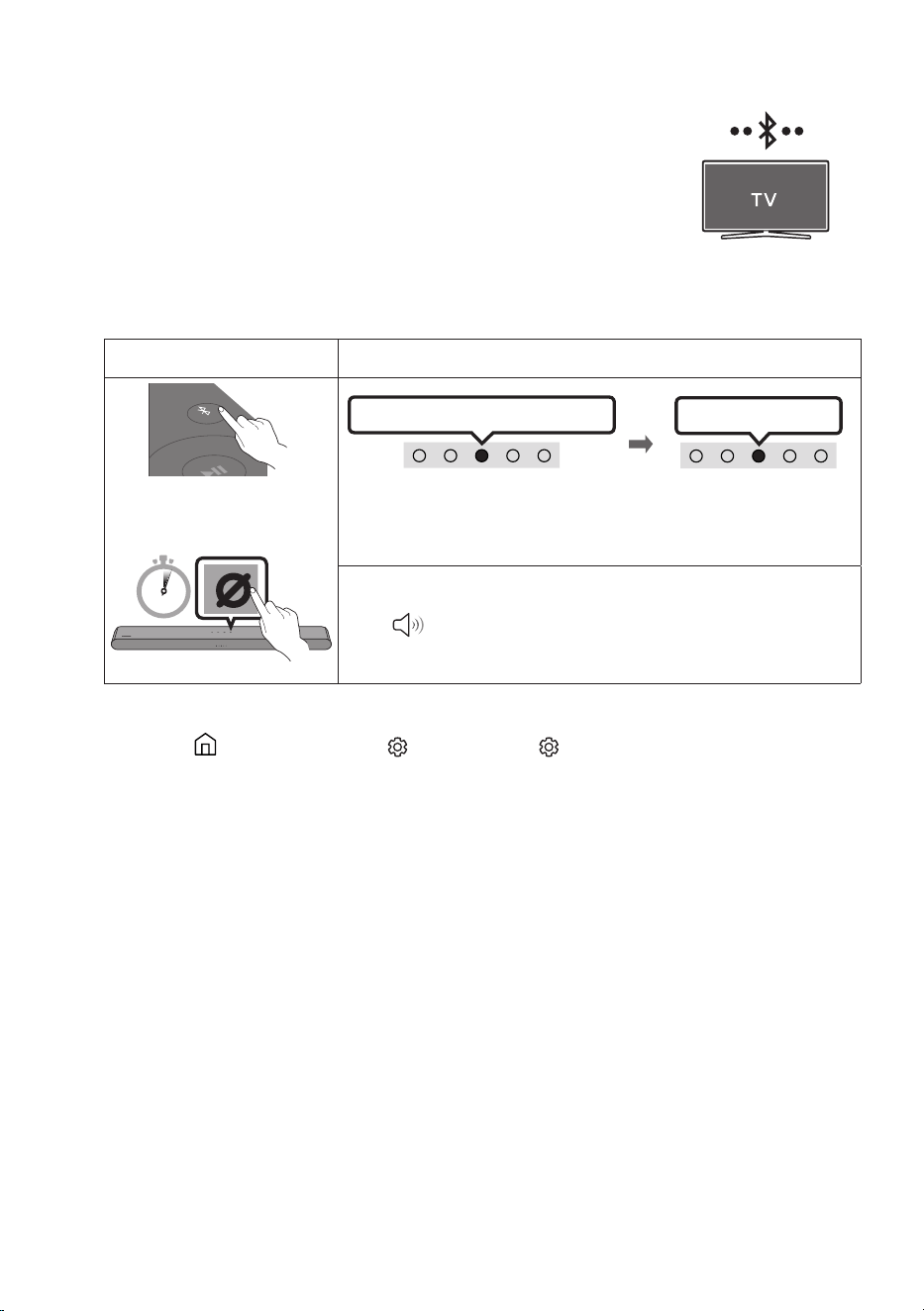
When a Samsung TV is connected using Bluetooth, you can hear stereo
sound without the hassle of cable.
• Only one Samsung TV can be connected at a time.
• Samsung TV that supports Bluetooth can be connected. Check the
specications of your TV.
The initial connection
1.
Bluetooth Pairing button LED Indicator
SOUND
MODE
PAIR
OR
Red → Green → Blue Blinks
Pairing
Connection is complete
Cyan Blinks X3
When in “Bluetooth” mode
5 Sec
• Until pairing is complete, the Multicolour LED changes as Red →
Green → Blue in turn.
“Ready to connect via Bluetooth.”
2. Select Bluetooth mode on the Samsung TV.
(e.g. Home ( ) → Menu → Settings ( ) → All Settings ( ) Sound Sound Output
Bluetooth Speaker List S-Series Soundbar (Bluetooth))
3. Select “S-Series Soundbar” from the list on TV’s screen.
An available Soundbar is indicated with “Need Pairing” or “Paired” on the TV’s Bluetooth device
list. To connect the Samsung TV to the Soundbar, select the message, and then establish a
connection.
4. You can now hear Samsung TV sound from the Soundbar.
• If there is a connection log between the Soundbar and Samsung TV, the Soundbar is
automatically connected by changing its mode to “Bluetooth”

ENG - 20
If the device fails to connect
• If you have an existing Soundbar (e.g., S-Series Soundbar) on the list of speakers on the
Samsung TV, delete it.
• Then repeat steps 1 through 3.
Disconnecting the Soundbar from the Samsung TV
Press the (Multi Function) button at the top of the Soundbar or the (Source) button on the
remote control to select the mode other than “Bluetooth”.
• Disconnecting takes time because the Samsung TV must receive a response from the Soundbar.
(The time required may differ, depending on the Samsung TV model.)
Notes on Bluetooth connection
• Locate a new device within 1 m to connect via Bluetooth communication.
• If asked for a PIN code when connecting a Bluetooth device, enter <0000>.
• The Soundbar automatically turns off after 18 minutes in the Ready state.
• The Soundbar may not perform Bluetooth search or connection correctly under the following
circumstances:
– If there is an electronic equipment or electric apparatus that can cause wireless interference
around the Soundbar.
– If several Bluetooth devices are simultaneously paired with the Soundbar.
– If the Bluetooth device is turned off, not in place, or malfunctions.
• Electronic devices may cause radio interference. Devices that generate electromagnetic waves
must be kept away from the Soundbar main unit - e.g., microwaves, wireless LAN devices, etc.
• Precaution : The Soundbar will restart automatically if you turn on/turn off Bluetooth.
– Bluetooth Port deactivation method : Press the TONE CONTROL button on the remote control
of the Soundbar for 30 seconds to turn Bluetooth On/Off.

ENG - 21
Connecting via Wi-Fi
Pre-connection Checklist
• Wi-Fi connection is available only on Samsung TV.
• Check whether the wireless router (Wi-Fi) is turned on and the TV is connected to the router.
• The TV and Soundbar must be connected to the same wireless network (Wi-Fi).
• If your wireless router (Wi-Fi) uses a DFS channel, you will not be able to establish a Wi-Fi
connection between the TV and Soundbar. Contact your Internet service provider for details.
• Because the menus may differ depending on the year of manufacture, refer to your TV manual.
• To connect the TV to the Soundbar via Wi-Fi, connect the Soundbar to the wireless router rst.
See page 30, for details on how to establish a Wi-Fi connection.
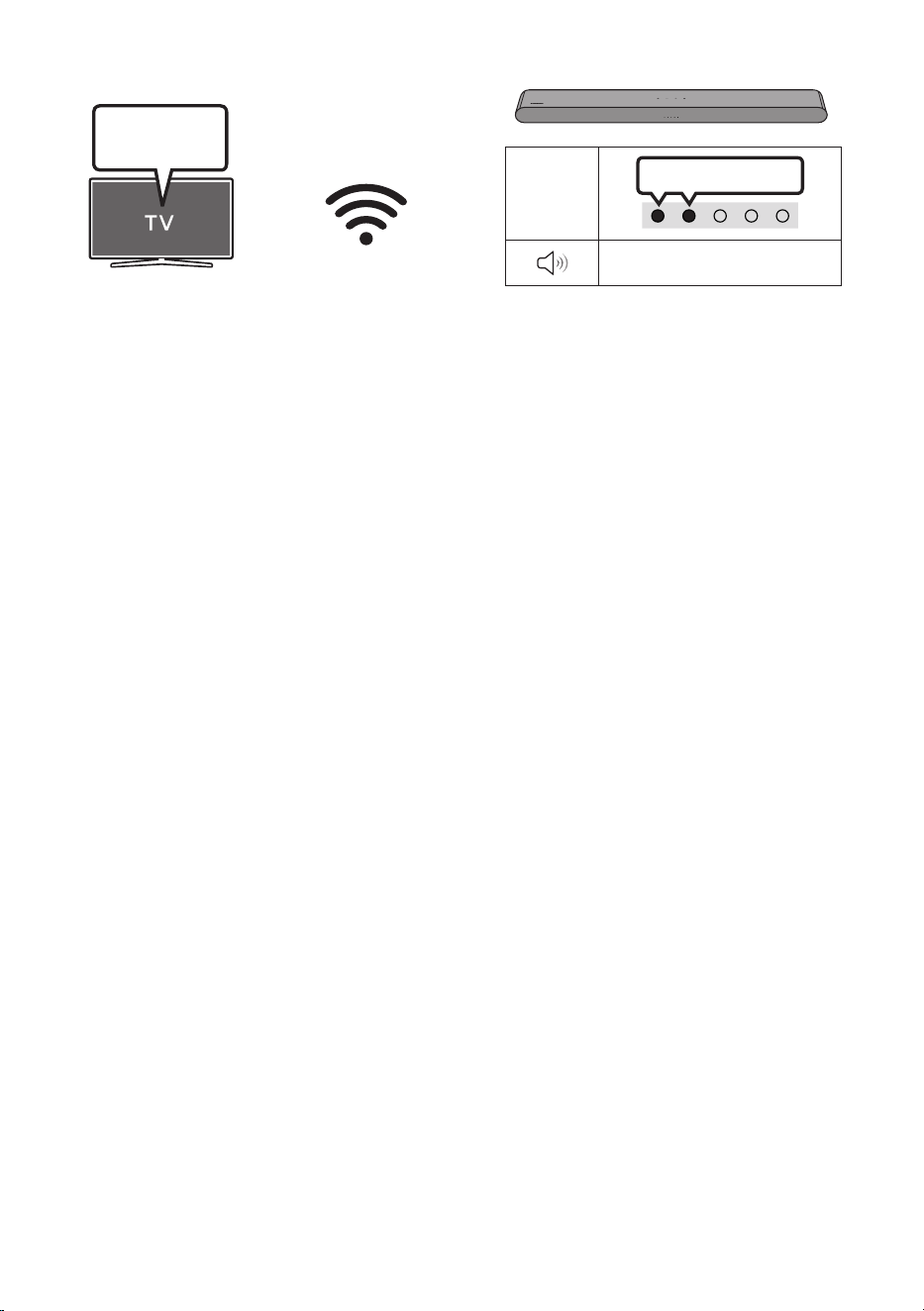
1. For more information about Wi-Fi connection to the Soundbar, see page 30, “Method 2.
Connecting via Wi-Fi (Wireless Network)”.
2. Change the input source of the TV by using the Audio menu to Soundbar.
• Samsung TVs released in 2017 or later
Home ( ) → Menu → Settings ( ) → All Settings ( ) Sound Sound Output S-Series
Soundbar (Wi-Fi)
NOTE
• Precaution : The Soundbar will restart automatically if you turn on/turn off Wi-Fi.
– Wi-Fi Port deactivation method : Press the CH LEVEL button on the remote control of the
Soundbar for 30 seconds to turn Wi-Fi On/Off.
ENG - 22
Connecting to a TV that supports Dolby Atmos®
Pre-connection Checklist
• Dolby Atmos® is supported in “TV ARC” or “eARC” or “Wi-Fi” mode.
• Make sure that the content supports Dolby Atmos®.
HDMI IN
(eARC)
DIGITAL
AUDIO IN
(OPTICAL)
HDMI
(eARC)
Connect to the HDMI IN (ARC)
or (eARC) port of your TV.
HDMI Cable
Bottom of the
Soundbar
Connect to the HDMI (eARC) port of
the Soundbar main unit.
Top of the Soundbar
LED
Indicator
White On -> Off
“TV ARC” or “eARC”
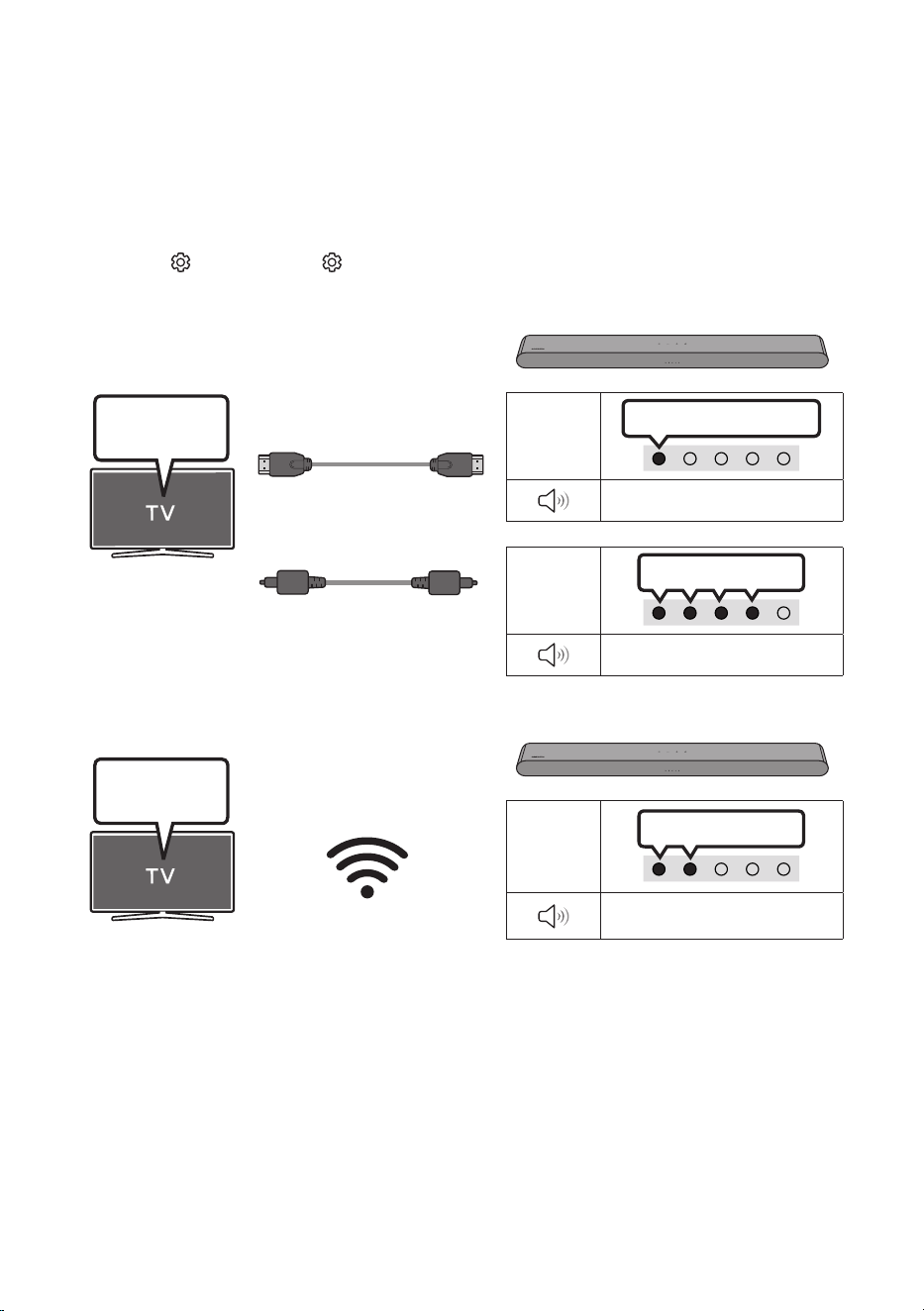
1. With the Soundbar and TV turned off, connect the HDMI cable as shown in the gure.
2. Turn on the Soundbar and TV.
3. TV sound is output from the Soundbar.
ENG - 23
LED
Indicator
White On -> Off
“Wi-Fi”
TV menu
Wi-Fi
1. Connect the Soundbar and TV to the same wireless network (Wi-Fi).
2. For sound output of the TV, select Soundbar.
3. TV sound is output from the Soundbar.
NOTES
• Conguring Dolby Atmos® on a BD player or other device connected to the TV.
Open the audio output options on the settings menu of your BD player or other device and make
sure that “No Encoding” is selected for Bitstream. For example, on a Samsung BD Player, go to
Home Menu → Sound → Digital Output and then select Bitstream (unprocessed).
• This function is available in some Samsung TVs and some Soundbar models.
ENG - 24
Using the Q-Symphony Function
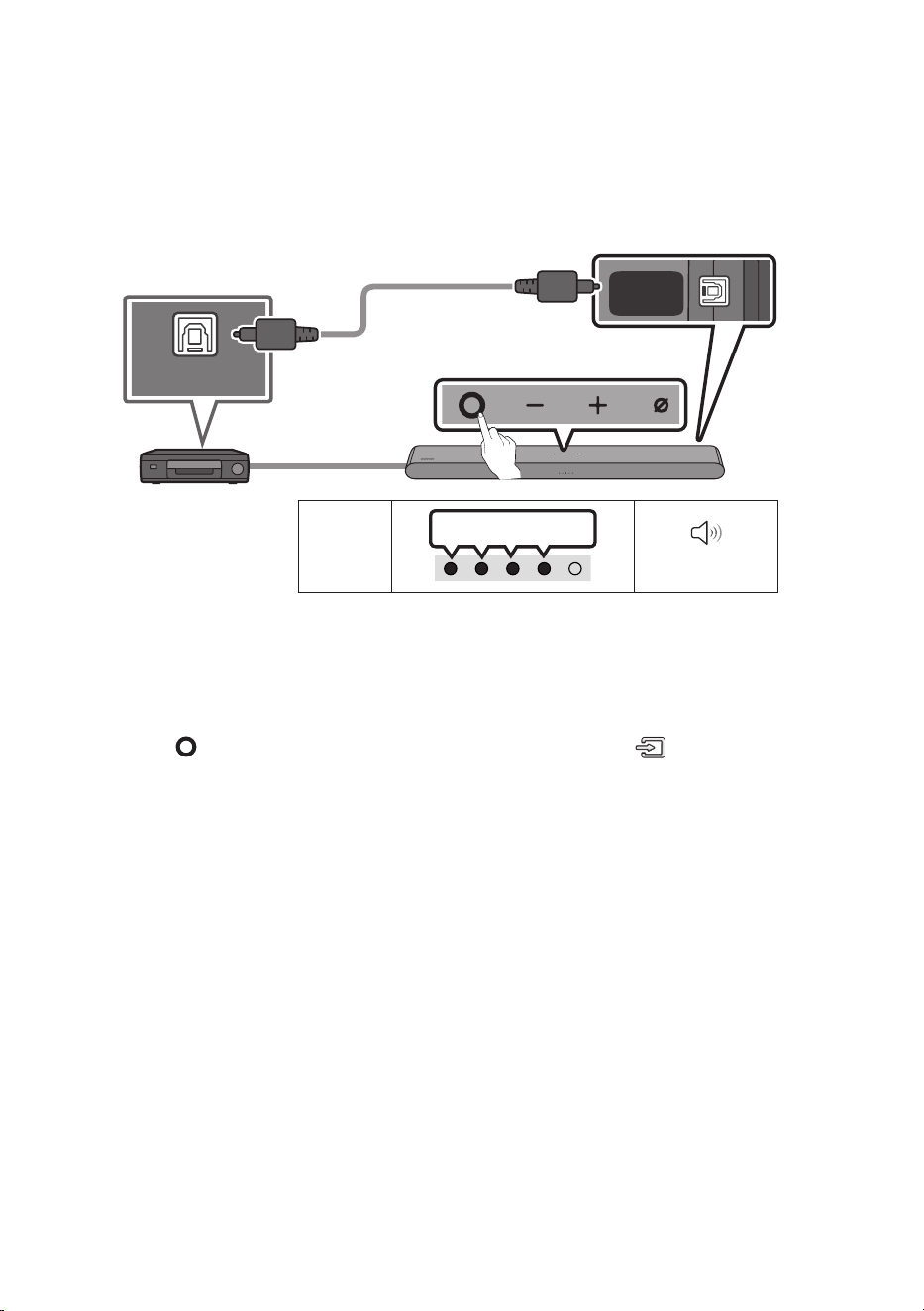
• When the Soundbar connects to a Samsung TV that supports the Q-Symphony function, you can
play the sound simultaneously through the Soundbar and the TV. If you use the Q-Symphony
function, the surround sound played on the TV allows you to enjoy a richer, more three-dimensional
surround sound effect.
• When the Soundbar is connected, “Q-Symphony” menu appears on the TV.
Settings ( ) → All Settings ( ) → Sound → Sound Output
• TV menu example: Q-Symphony
LED
Indicator
White On -> Off
“TV ARC” or “eARC”
LED
Indicator
White On -> Off
“Digital Audio In”
TV menu
Optical Cable (not supplied)
HDMI Cable
OR
LED
Indicator
White On -> Off
“Wi-Fi”
TV menu
Wi-Fi
NOTES
• This function can be operated by the Codec supported by TV.
• This function is supported only when the HDMI Cable or Optical Cable (not supplied) or Wi-Fi is
connected.
• The message displayed may differ with the TV model.
• Ensure that your TV and Soundbar are connected to the same wireless router/frequency.
• This function is available in some Samsung TVs and some Soundbar models.

ENG - 25
Using the SpaceFit Sound
Provides optimized sound quality by analyzing the listening spaces.
Method 1. Connecting via Soundbar
To enable this function, turn on the SpaceFit Sound mode with the remote control of the Soundbar.
( (Sound Control) → "SpaceFit Sound Off" → ▲ ( Up ) → "SpaceFit Sound On")
• This is available in all Sound modes.
Method 2. Connecting via TV
To enable this function, turn on the Adaptive Sound+ mode on your Samsung TV menu.
(Home ( ) → Menu → Settings ( ) → All Settings ( ) General Intelligent Mode Settings
Adaptive Sound+)
• The sound mode on your Soundbar will automatically change to Adaptive Sound+ if you enable the
Adaptive Sound+ mode on your TV.
NOTE
• This function works when the Soundbar connects to some of the Samsung TVs.
ENG - 26
06 CONNECTING AN EXTERNAL DEVICE
Connecting using an Optical Cable
LED
Indicator
White On -> Off
“Digital Audio In”
- AUDIO -
R L
OPTICAL OUT
DIGITAL
AUDIO IN
(OPTICAL)
HDMI
(eARC)
Bottom of the Soundbar
Optical Cable
(not supplied)
Top of the Soundbar
BD / DVD player / Set-top
box / Game console
1. With the external device and Soundbar turned off, connect the DIGITAL AUDIO IN (OPTICAL) port
on the Soundbar and the OPTICAL output port on the external device with the optical cable (not
supplied), as shown in the gure.
2. Turn on the Soundbar and external device.
3. Press the (Multi Function) button at the top of the Soundbar or the (Source) button on the
remote control and then select the “Digital Audio In” mode. Then the announcement, “Digital
Audio In” is output.
4. The external device sound is output from the Soundbar.
ENG - 27
07 CONNECTING A MOBILE DEVICE
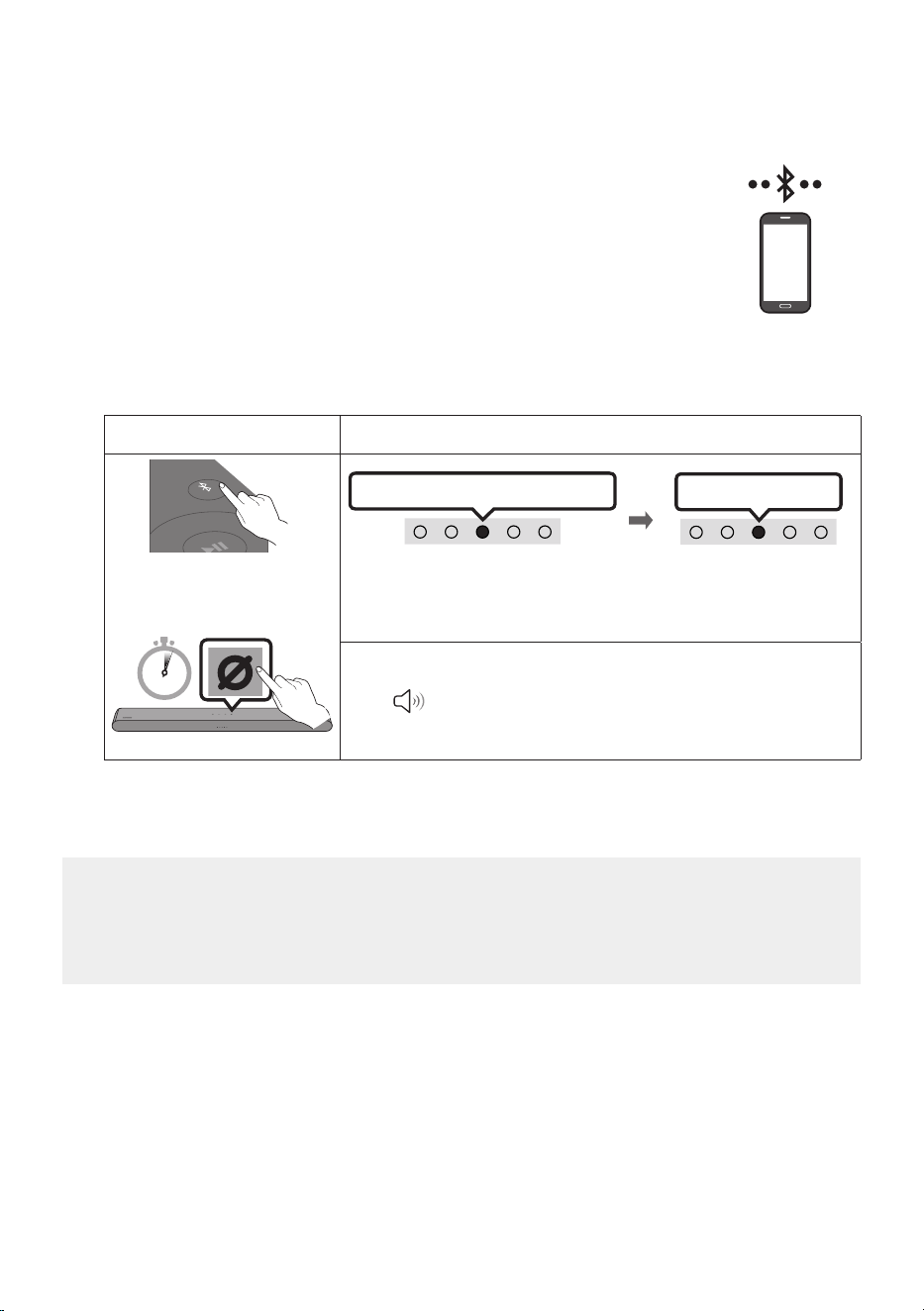
Method 1. Connecting via Bluetooth
When a mobile device is connected using Bluetooth, you can hear stereo sound
without the hassle of cable.
• When you connect a paired Bluetooth device with the Soundbar off, the
Soundbar automatically turns on.
The initial connection
• When connecting to a new Bluetooth device, make sure the device is within 1 m distance.
1.
Bluetooth Pairing button LED Indicator
SOUND
MODE
PAIR
OR
Red → Green → Blue Blinks
Pairing
Connection is complete
Cyan Blinks X3
When in “Bluetooth” mode
5 Sec
• Until pairing is complete, the Multicolour LED changes as Red →
Green → Blue in turn.
“Ready to connect via Bluetooth.”
2. On your device, select “S-Series Soundbar” from the list that appears.
3. Play music les from the device connected via Bluetooth through the Soundbar.
If the device fails to connect
• If you have an existing Soundbar (e.g., S-Series Soundbar) on the list of speakers on the Mobile
device, delete it.
• Then repeat steps 1 and 2.
mobile device

ENG - 28
Notes on Bluetooth connection
• Locate a new device within 1 m to connect via Bluetooth communication.
• If asked for a PIN code when connecting a Bluetooth device, enter <0000>.
• The Soundbar automatically turns off after 18 minutes in the Ready state.
• The Soundbar may not perform Bluetooth search or connection correctly under the following
circumstances:
– If there is a strong electrical eld around the Soundbar.
– If several Bluetooth devices are simultaneously paired with the Soundbar.
– If the Bluetooth device is turned off, not in place, or malfunctions.
• Electronic devices may cause radio interference. Devices that generate electromagnetic waves
must be kept away from the Soundbar main unit - e.g., microwaves, wireless LAN devices, etc.
• The Soundbar supports SBC data (44.1kHz, 48kHz).
• Connect only to a Bluetooth device that supports the A2DP (AV) function.
• When connecting the Soundbar to a Bluetooth device, place them as close to each other as possible.
• The farther the Soundbar and Bluetooth device are from each other, the lower the sound quality
will become.
The Bluetooth connection may break when the devices are out of the effective range.
• The Bluetooth connection may not function as intended in areas with poor reception.
• A Bluetooth device may experience noise or malfunction under in the following conditions:
– When the body is in contact with the signal transceiver on the Bluetooth device or Soundbar
– In corners or when there is an obstacle in proximity, such as a wall or partition, where electrical
changes may occur.
– When exposed to radio interferences by other products operating on the same frequency
ranges, such as medical equipment, microwave ovens, and wireless LAN devices.
– Obstacles such as doors and walls may still impact the sound quality even when the devices
are within the effective range.
• Note that your Soundbar cannot be paired with other Bluetooth devices while using the Bluetooth
option.
• This wireless device may cause electrical interference during operation.

ENG - 29
Disconnecting the Bluetooth device from a Soundbar
You can disconnect a Bluetooth device from the Soundbar. For instructions, see the Bluetooth device’s
user manual.
• The Soundbar will be disconnected.
• If the Soundbar is disconnected from the Bluetooth device, the multicolour LED indicator on the
Soundbar blinks "Red” three times.
Disconnecting the Soundbar from the Bluetooth device
Press the (Multi Function) button at the top of the Soundbar or the (Source) button on the
remote control to select the mode other than “Bluetooth”.
• Disconnecting takes time because the Bluetooth device must receive a response from the
Soundbar. (Disconnection time may differ, depending on the Bluetooth device)
ENG - 30
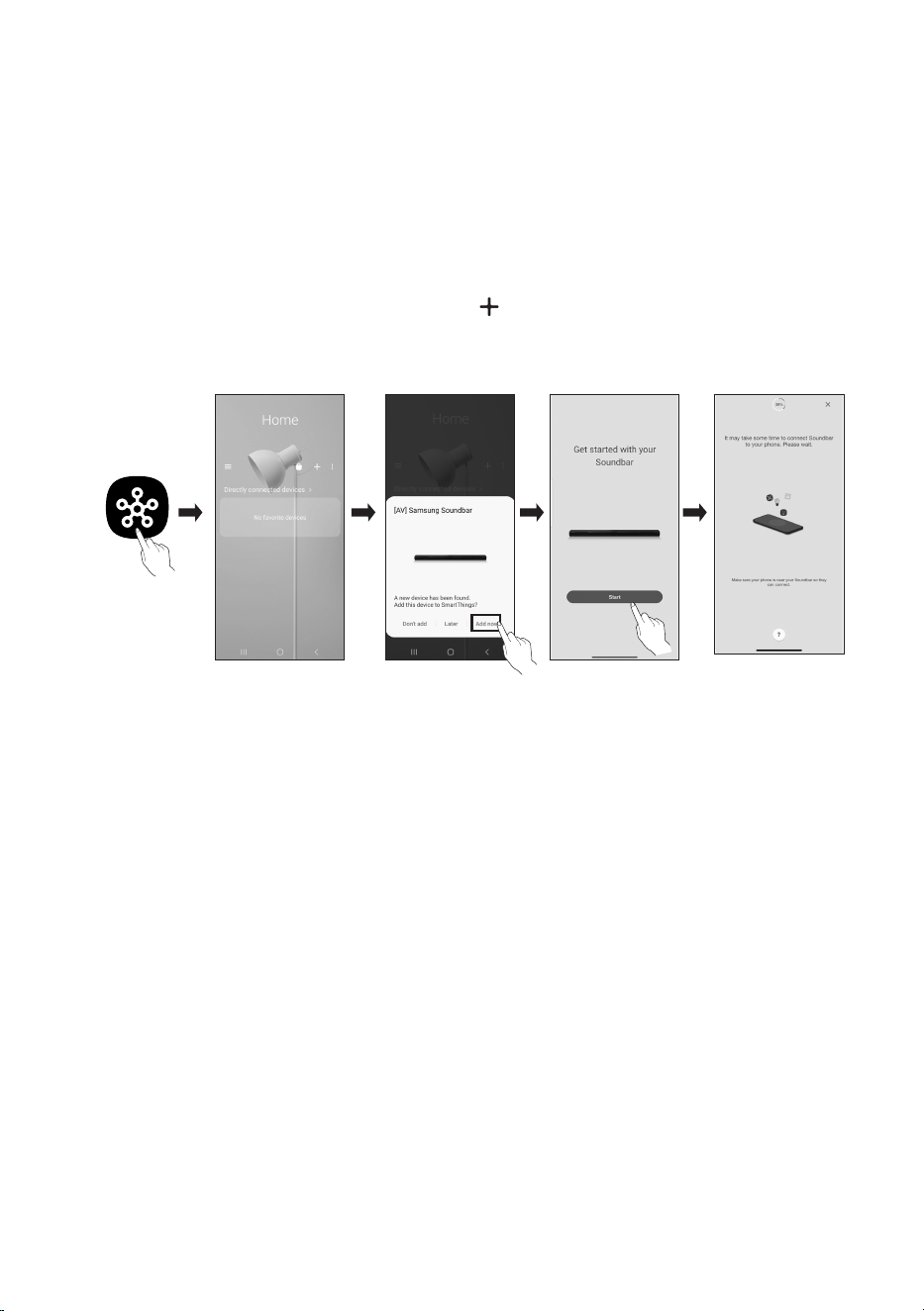
Method 2. Connecting via Wi-Fi (Wireless Network)
To connect a Soundbar to a mobile device via a wireless network (Wi-Fi), the SmartThings app is
required.
The initial connection
1. Install and launch the SmartThings app from your mobile device (smartphone or tablet).
2. On the app, follow the screen instructions to add the Soundbar.
• The automatic pop-up (the second screenshot below) may not show on some devices.
If the pop-up window does not appear, press “ ” on the Home screen. The Soundbar is added
to the app.
• The illustration below may differ according to the app version.
Launch App Add deviceAuto pop-up
SmartThings
App
To change your Wi-Fi connection
1. Launch the SmartThings app from your mobile device (smartphone or tablet).
2. On the app, delete the registered Soundbar, and then add it again.

ENG - 31
Using Group Play
• To benet from this feature, add your Soundbar to the SmartThings app.
• To enable this, connect at least two audio devices to the same Wi-Fi network at 5 GHz.
• This is available on Samsung Sound devices that support Wi-Fi released year 2024 or later.
• This feature does not support TV sound.
Conguring Group Play
1. Run the SmartThings app on your mobile device.
2. Add the Soundbar in the SmartThings app according to the instructions in the “Method 2.
Connecting via Wi-Fi (Wireless Network)” “Steps 2 (Device registration)” section.
3. Tap the Soundbar’s card.
4. On your mobile device, tap Create Group under the audio device icon.
• Create Group button appears only when Soundbar is in Wi-Fi mode.
• If the Soundbar is playing the TV sound, the connection to the TV is disconnected when creating
a group.
5. Enable Group Play.
6. Select a desired device in the list, and tap Apply.
• You can add a maximum of 4 devices.
• With Group Play, the audio will be output through the host device alone.
• When a device connected to the host device switches to a different source, the device will be
deleted from the group automatically.
• When the host device is connected to a TV, the generated group will be deleted automatically.
Disabling Group Play
1. Tap the audio device’s card.
2. On your mobile device, tap Edit Group under the audio device icon.
3. Disable Group Play.
• To disable an individual device, uncheck the device from the list and tap Apply.

ENG - 32
Connecting via Apple AirPlay
• This feature may not be available in some countries.
• This Samsung Soundbar supports AirPlay and requires iOS 13.4 or later.
• To enable AirPlay in your Soundbar, you must rst register the device with the Samsung
SmartThings app by agreeing with the app’s terms and conditions.
• Make sure the Soundbar is powered on and connected to the same Wi-Fi network as your Apple
device.
With AirPlay, you can stream music, podcasts, and other audio from your Apple devices to the Samsung
Soundbar.
• Select from an AirPlay-supported app or Control Centre on your iPhone, iPad, or Mac.
• Select the Soundbar from the list of available devices to play the current audio to.
ENG - 33
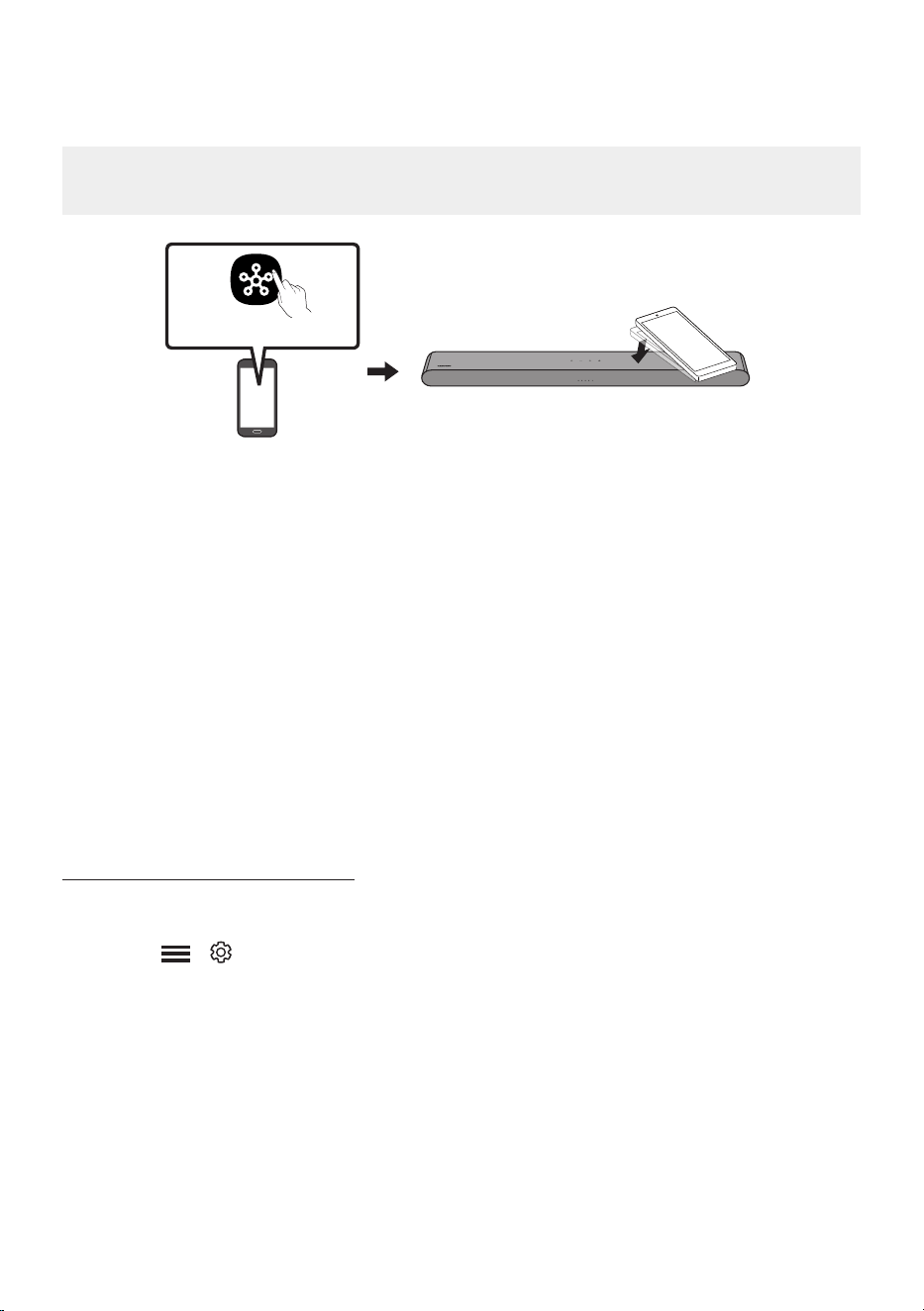
Using the Tap Sound
Tap the Soundbar with your mobile device to play audio from the mobile device through the Soundbar.
• This function may not be supported depending on the mobile device.
• This function is only compatible with Samsung mobile devices with Android 8.1 or later.
Mobile device
SmartThings App
Top of the Soundbar
1. Turn on the Tap Sound function on your mobile device.
• For details on how to turn on the function, refer to “Enable the Tap Sound function” below.
2. Tap the Soundbar with the mobile device. Select “Start now” in the displayed message window.
A connection is established between the mobile device and Soundbar via Bluetooth.
3. Play audio from the mobile device through the Soundbar.
• This function connects a mobile device to the Soundbar via Bluetooth by detecting vibration
that occurs when the device touches the Soundbar.
• Make sure the mobile device does not tap a sharp corner of the Soundbar. The Soundbar or
mobile device may become scratched or damaged.
• It is recommended that the mobile device be covered with a case. Lightly tap the wide area in
the upper portion of the Soundbar, without using excessive force.
• To use this function, update the SmartThings app to the latest version.
The function may not be supported, depending on the app version.
Enable the Tap Sound function
Use the SmartThings app to turn on the Tap View, Tap Sound function.
1. On the mobile device, run the SmartThings app.
2. Select ( → ) in the SmartThings app screen displayed on the mobile device.
3. Set “Tap View, Tap Sound” to On to allow the function to work when a mobile device moves close to
the Soundbar.
NOTES
• When the mobile device is in power-saving mode, the Tap Sound function does not work.
• The Tap Sound function may not work if there are devices near the Soundbar that cause radio
interference such as electric devices. Make sure devices that may cause radio interference are
placed at a sufcient distance away from the Soundbar.
ENG - 34
08 INSTALLING THE
WALL MOUNT
Installation Precautions
• Install on a vertical wall only.
• Do not install in a place with high
temperature or humidity.
• Verify whether the wall is strong enough to
support the product’s weight. If not, reinforce
the wall or choose another installation point.
• Purchase and use the xing screws or
anchors appropriate for the kind of wall you
have (plaster board, iron board, wood, etc.). If
possible, x the support screws into wall
studs.
• Purchase wall mounting screws according to
the type and thickness of the wall you want to
mount the Soundbar on.
– Diameter: M5
– Length: 35 mm or longer recommended.
• Connect cables from the unit to external
devices before you install the Soundbar on
the wall.
• Make sure the unit is turned off and
unplugged from the power source before you
install it. Otherwise, it may cause an electric
shock.
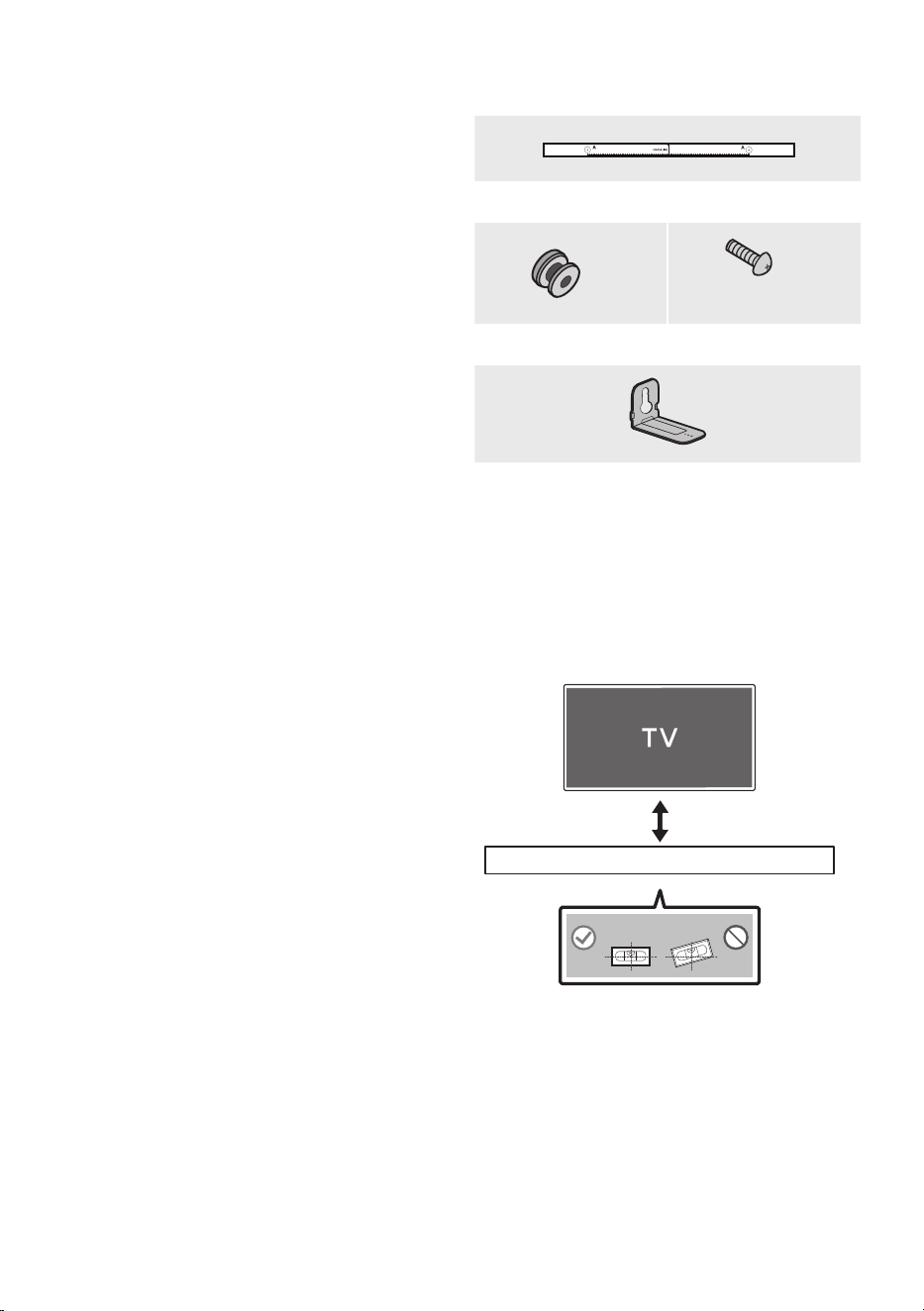
Wallmount Components
A TYPE : 450mm
Wall Mount Guide
x 2
(M4 x L10)
x 2
Holder-Screw Screw
x 2
Bracket-Wall Mount
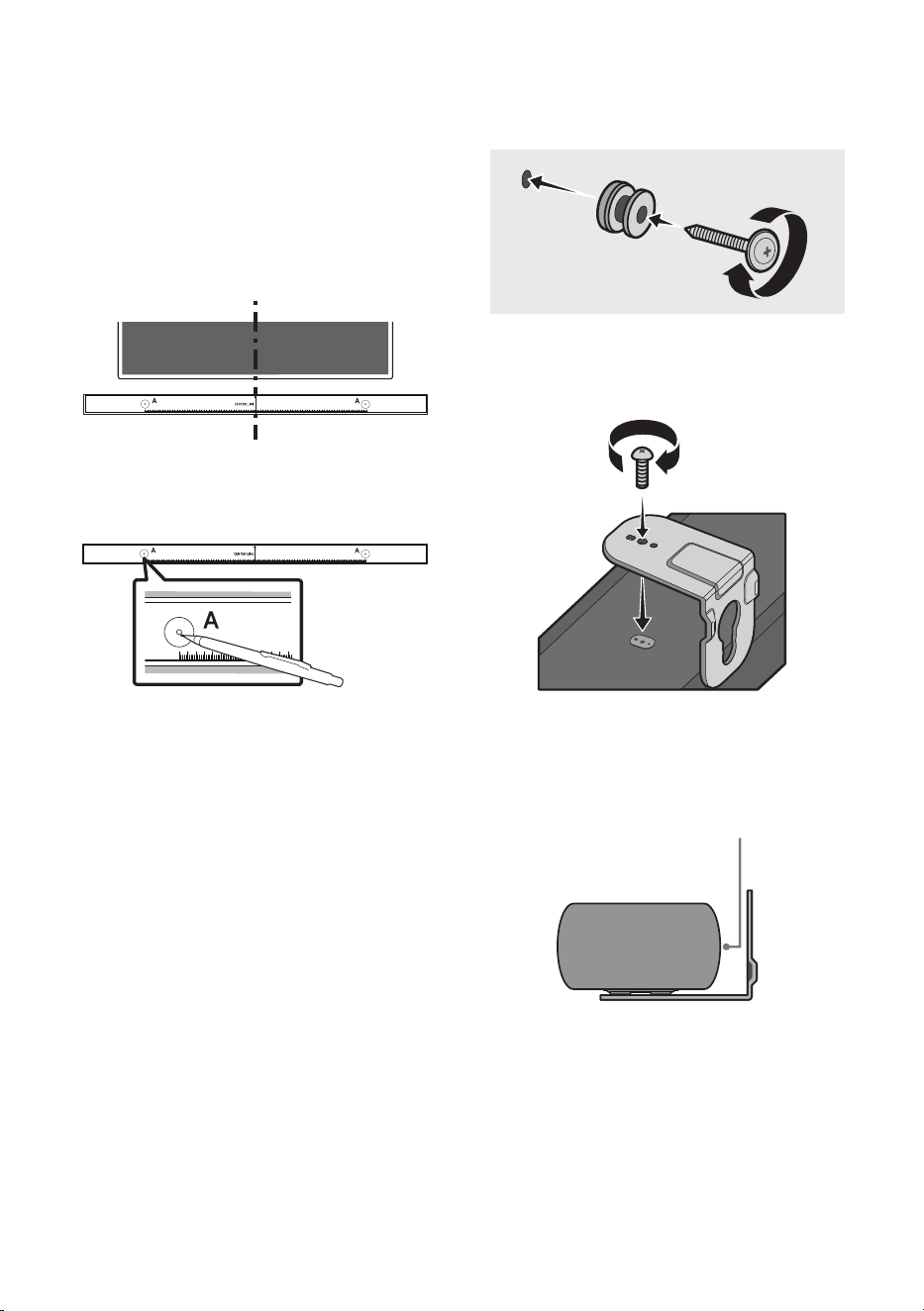
1. Place the Wall Mount Guide against the wall
surface.
• The Wall Mount Guide must be leveled.
• If your TV is mounted on the wall, install
the Soundbar at least 5 cm below the TV.
5 cm or more
ENG - 35
2. Align the Wall Mount Guide’s Centre Line
with the centre of your TV (if you are
mounting the Soundbar below your TV), and
then x the Wall Mount Guide to the wall
using tape.
• If you are not mounting below a TV, place
the Centre Line in the centre of the
installation area.
Centre Line
A TYPE : 450mm
3. Use a pen to mark the positions of the holes
and remove the Wall Mount Guide.
A TYPE : 450mm
4. Using an appropriately sized drill bit, drill a
hole in the wall at each marking.
• If the markings do not correspond to the
positions of studs, make sure you insert
appropriate anchors into the holes before
you insert the support screws. If you use
anchors, make sure the holes you drill are
large enough for the anchors you use.
5. Push a screw (not supplied) through each
Holder-Screw, and then screw each screw
rmly into a support screw hole.
(Not supplied)
6. Install the 2 Bracket-Wall Mounts in the
correct orientation on the bottom of the
Soundbar using 2 Screws.
• When assembling, make sure the hanger
part of the Bracket-Wall Mounts are
located behind the rear of the Soundbar.
Rear of Soundbar
Right end of Soundbar
• The actual product may look different
from the above image, depending on
the model.
ENG - 36
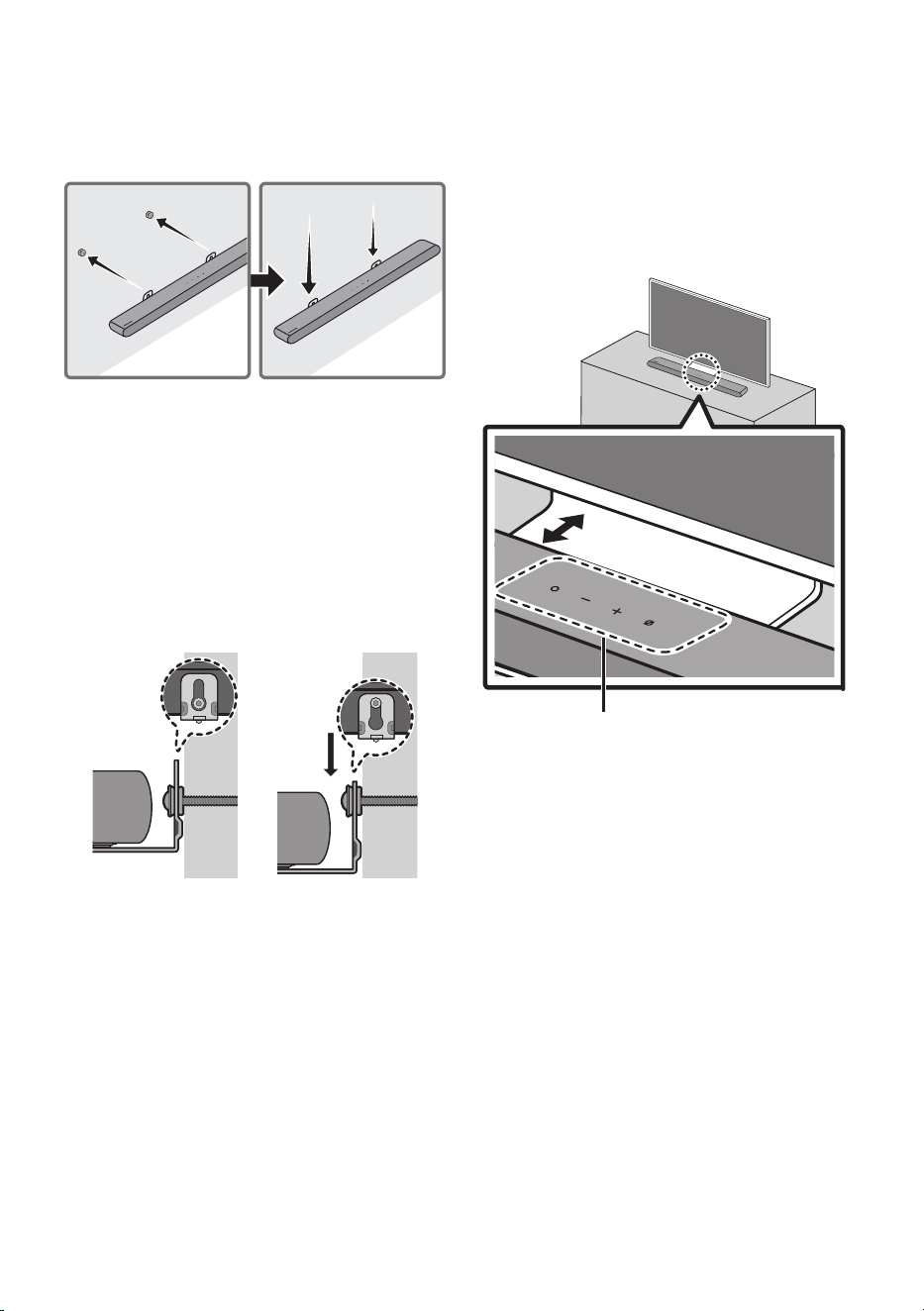
7. Install the Soundbar with the attached
Bracket-Wall Mounts by hanging the
Bracket-Wall Mounts on the Holder-Screws
on the wall.
8. Slide the Soundbar down as shown below so
that the Bracket-Wall Mounts rest securely
on the Holder-Screws.
• Insert the Holder-Screws into the wide
(bottom) part of the Bracket-Wall
Mounts, and then slide the Bracket-Wall
Mounts down so that the Bracket-Wall
Mounts rest securely on the
Holder-Screws.
09 INSTALLING THE
SOUNDBAR IN
FRONT OF TV
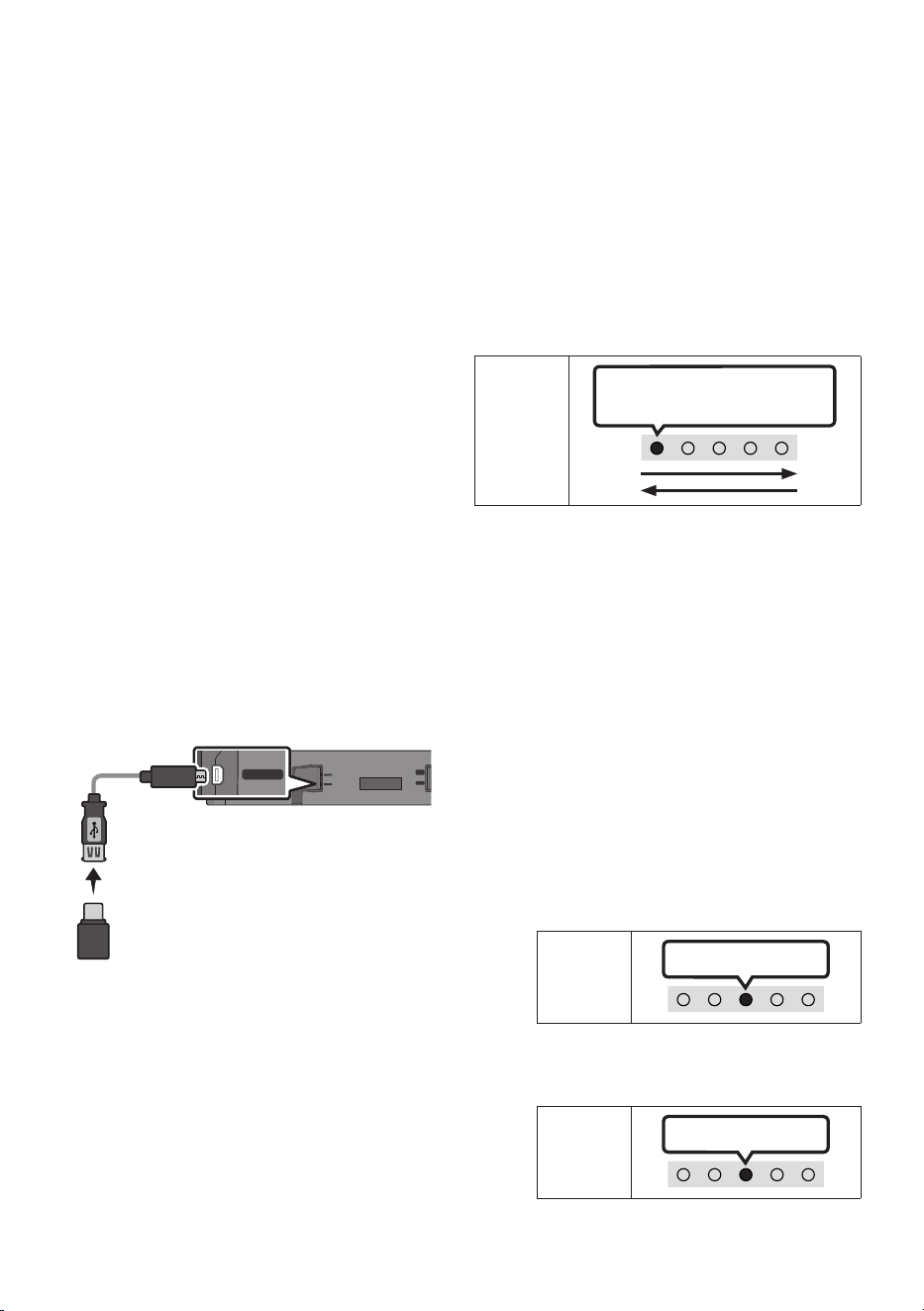
3cm or more
Microphones
Align the centre of the Soundbar to the centre of
the TV as illustrated in the image.
At the same time, place the Soundbar at least
3cm away from the TV so that there is no
interference with voice recognition.
NOTES
• Make sure the Soundbar is placed on a at
and solid surface.
• Insufcient gap between the TV and
Soundbar may cause voice recognition and
acoustic problems.
ENG - 37
10 SOFTWARE
UPDATE
Auto Update
When the Soundbar is connected to the Internet,
software updates automatically occur even when
the Soundbar is turned off.
• To use the Auto Update function, the
Soundbar must be connected to the Internet.
The Wi-Fi connection to the Soundbar will be
terminated if the Soundbar’s power cord is
disconnected or the power is cut off. If the
power is cut off, when the power comes back
on or you reconnect the power cord, turn on
the Soundbar, and then reconnect it to the
Internet.
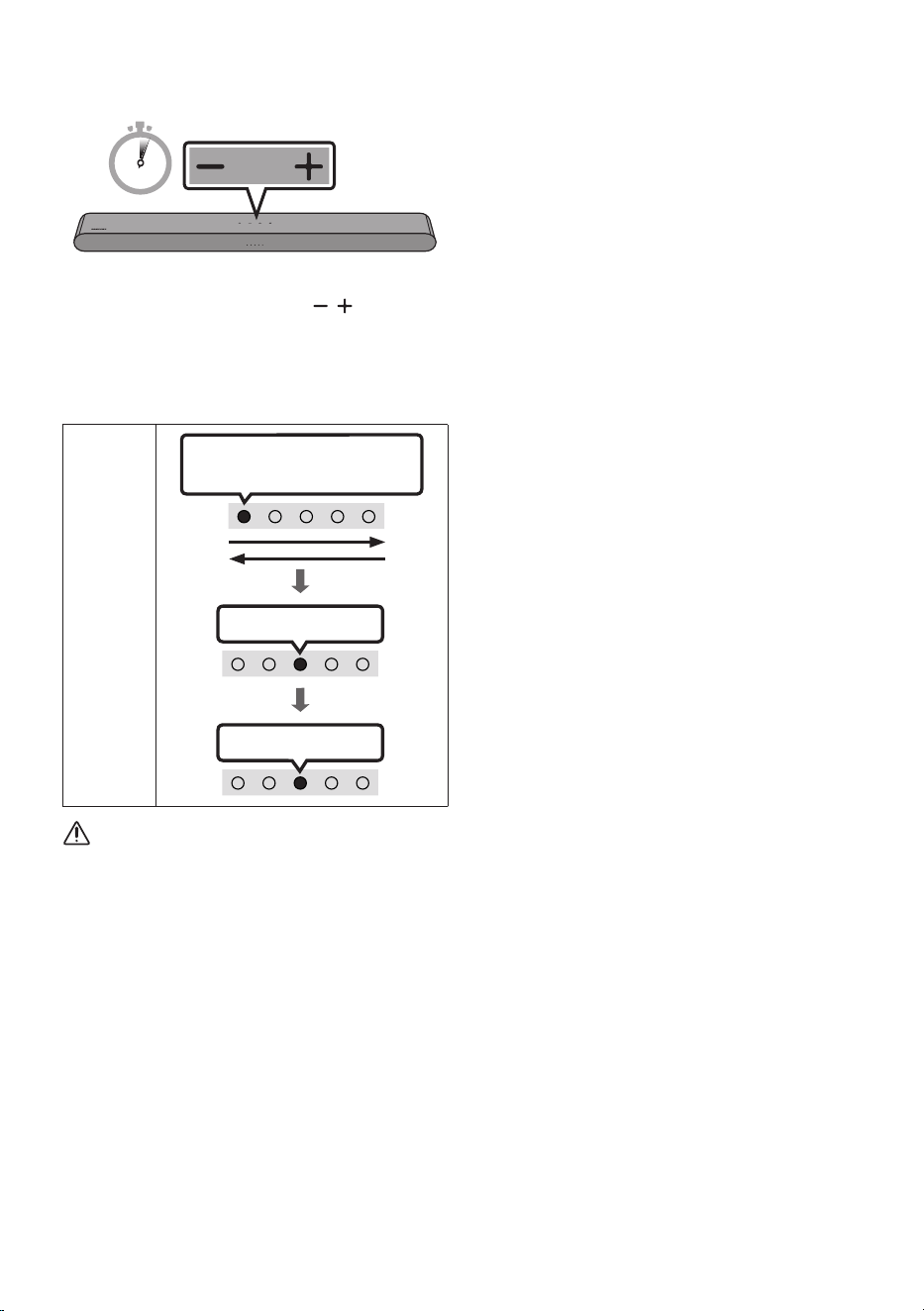
USB Update
SERVICE
DC 19V
DIGITAL
AUDIO IN
(OPTICAL)
HDMI
(eARC)
SERVICE
DC 19V
Micro USB to
USB adapter Cable
(not supplied)
Bottom of the Soundbar
Samsung may offer updates for the Soundbar’s
system rmware in the future.
When an update is available, you can update the
Soundbar by connecting the USB drive that
contains the update rmware to the SERVICE
port of the Soundbar.
1. Go to (www.samsung.com) → search for the
model name from the customer support
menu option.
• For more information about update, refer
to Upgrade Guide.
2. Download the upgrade le (USB type).
3. Unzip the le to create a folder with the le
name.
4. Store the created folder in a USB and then
connect it to the Soundbar.
5. Turn on the Soundbar. Then the product is
updated within 3 minutes.
LED
Indicator
White moves from left to right
and right to left
• During update, do not turn it off or
remove the USB.
• If the yellow LED is on after the software
update is completed, this means that an
additional update is in progress. When
this happens, don't turn off the power or
remove the USB.
• If update does not proceed, reconnect the
Soundbar power cord.
• When the latest version is installed, no
update is performed.
• Depending on the USB type, update may
not be supported.
• If there is no update le available
LED
Indicator
Red Blinks X3
• If the update le is for the same version
or lower
LED
Indicator
Cyan Blinks X3
ENG - 38
Reset
5 Sec
With the Soundbar on, press the (Volume)
buttons on the body at the same time for at least
5 seconds. The LED display changes as shown
below and then the Soundbar is reset.
LED
Indicator
Cyan Blinks X3
Red Blinks → Off
White moves from left to right
and right to left
CAUTION
• All the settings of the Soundbar are reset.
Be sure to perform this only when a reset is
required.
Security updates information
Security updates are provided to strengthen the
security of your device and protect your personal
information. For more information on security
updates, visit https://security.samsungtv.com.
• The website supports only some languages.
ENG - 39
11 TROUBLESHOOTING
Refer to the instructions below if this product does not function properly.
Soundbar does not turn on.
; Check whether the power cord of the
Soundbar is correctly inserted into the
outlet.
Soundbar works erratically.
; After removing the power cord, insert it
again.
; Power cycle the external device and try
again.
; If there is no signal, the Soundbar
automatically turns off after a certain
period of time. Turn on the power. (See
page 8.)
Remote control does not work.
; Point the remote directly at the Soundbar.
; Replace the batteries with new ones.
The red LED indicator light on the soundbar
stays on.
; The microphone is turned off. Turn on the
microphone. (See page 6.)
The Soundbar does not output any sound.
; The volume of the Soundbar is too low or
muted. Adjust the volume.
; When any external device (STB, Bluetooth
device, mobile device, etc.) is connected,
adjust the volume of the external device.
; For sound output of the TV, select
Soundbar. (Samsung TV: Home ( ) →
Menu → Settings ( ) → All Settings ( )
→ Sound → Sound Output → Select
Soundbar)
; The cable connection to the Soundbar may
not be loose. Remove the cable and
connect again.
; Remove the power cord completely,
reconnect, and turn the power on.
; Reset the product and try again.
(See page 38.)
If the TV is not connected via HDMI (eARC).
; Check whether the HDMI cable is correctly
connected to the eARC terminal.
(See page16)
; Connection may not be possible due to the
connected external device (set-top box,
game console, etc.). Directly connect the
Soundbar.
; HDMI-CEC may not be activated on the TV.
Turn on the CEC on the TV menu. (Samsung
TV: Home ( ) → Menu → Settings ( ) →
All Settings ( ) → Connection → External
Device Manager → Anynet+ (HDMI-CEC)
ON)
ENG - 40
There is no sound in when connecting to the
TV in HDMI (eARC) mode.
; Your device is unable to play the input
signal. Change the TV’s audio output to
PCM or Dolby Digital.
(For a Samsung TV: Home ( ) → Menu →
Settings ( ) → All Settings ( ) → Sound
→ Expert Settings → Digital Output Audio
Format)
The Soundbar will not connect via Bluetooth.
; When connecting a new device, switch to
Bluetooth Pairing for connection. (Press the
PAIR button on the remote control or
press the (Mic On/Off) button on the
body for at least 5 seconds.)
; If the Soundbar is connected to another
device, disconnect that device rst to
switch the device.
; Reconnect it after removing the Bluetooth
speaker list on the device to connect.
(Samsung TV: Home ( ) → Menu →
Settings ( ) → All Settings ( ) → Sound
→ Sound Output → Bluetooth Speaker List)
; Remove and reconnect the power plug,
then try again.
; Reset the product and try again.
(See page 38.)
The sound drops out when connected via
Bluetooth.
; Some devices can cause radio interference
if they are located too close to the
Soundbar. e. g. microwaves, wireless
routers, etc.
; If your device that is connected via
Bluetooth moves too far away from the
Soundbar, it may cause the sound to drop
out. Move the device closer to the
Soundbar.
; If a part of your body is in contact with the
Bluetooth transceiver or the product is
installed on metal furniture, the sound may
drop out. Check the installation
environment and conditions for use.
Unable to connect to Wi-Fi.
; Check whether your wireless router is on.
; Turn off the router, turn it back on, and then
try again.
; The Soundbar will not connect if the
wireless signal is too weak. Try moving the
router closer to the Soundbar, or
eliminating any obstacles that are between
the Soundbar and the router, if possible.
; If your wireless router is new, you will need
to recongure the speaker’s network
settings.
; Soundbar does not support Wi-Fi 6.
The Soundbar does not turn on automatically
with the TV.
; When you turn off the Soundbar while
watching TV, power synchronization with
the TV is disabled. First turn off the TV.
The AVA function is not available in the
following cases.
; The AVA function will not be available using
Q-Symphony function.
; The AVA function will not be available
when the microphone is turned off.
ENG - 41
After connecting the TV to the Soundbar, I
switched the Soundbar mode. Then no sound
is output from the TV.
; If you connect your Soundbar to a mobile
device while the Soundbar is connected to
the TV, the Soundbar outputs sound from
the mobile device while keeping the TV
connection. So the TV sound will not be
delivered anywhere.
; Disconnect the mobile device, and the TV
sound will be output from the Soundbar
again.
The Soundbar does not appear in AirPlay.
; To enable AirPlay in your Soundbar, you
must rst register the device with the
Samsung SmartThings app by agreeing
with the app’s terms and conditions.
(See page 32.)
; AirPlay does not operate if you delete the
Soundbar from the Samsung SmartThings
app.
; Make sure that the Soundbar and the Apple
device are connected to the same Wi-Fi
network.
; The Soundbar is compatible with AirPlay
installed on iOS 13.4 or later.
Group Play is not enabled.
; Check if the audio devices are newer
models released year 2024 or later.
; Check if the host device is connected to a
Wi-Fi network as source.
; Make sure that all audio devices are
connected to the same Wi-Fi network
(at 5 GHz).
12 LICENCE
Dolby, Dolby Atmos, and the double-D symbol
are registered trademarks of Dolby
Laboratories Licensing Corporation.
Manufactured under license from Dolby
Laboratories. Condential unpublished works.
Copyright © 2012-2021 Dolby Laboratories.
All rights reserved.
For DTS patents, see http://patents.dts.com.
Manufactured under license from DTS, Inc. or
DTS Licensing Limited. DTS, Digital Surround,
Virtual:X, and the DTS logo are registered
trademarks or trademarks of DTS, Inc. in the
United States and other countries. © 2021 DTS,
Inc. ALL RIGHTS RESERVED.
The terms HDMI, HDMI High-Denition
Multimedia Interface, HDMI Trade dress and the
HDMI Logos are trademarks or registered
trademarks of HDMI Licensing Administrator,
Inc.
ENG - 42
• Use your phone, tablet or computer as a
remote control for Spotify. Go to spotify.
com/connect to learn how
• The Spotify Software is subject to third
party licenses found here :
https://www.spotify.com/connect/third-
party-licenses.
Apple, AirPlay, iPad, iPhone, and Mac are
trademarks of Apple Inc., registered in the U.S.
and other countries and regions.
Being Roon Tested means that Samsung and
Roon have collaborated to ensure you have the
best experience using Roon software and
Samsung equipment together, so you can just
enjoy the music.
Open Source Licence Notice
Open Source used in this product can be found
on the following webpage (http://opensource.
samsung.com).

VIE - 2
NI DUNG
01 Kiểm tra thành phần 4
02 Tổng quan về sản phẩm 5
Pa-nen mặt trước / Pa-nen mặt trên cùng của Soundbar ------------------------- 5
Mặt dưới của Soundbar ------------------------- 7
03 Sử dụng Điều khiển từ xa 8
Lắp Pin trước khi dùng Điều khiển từ xa (pin AAA X 2) ------------------------- 8
Cách sử dụng điều khiển từ xa
-------------------------
8
Cài đặt (Điều khiển âm thanh)
-------------------------
11
Sử dụng các Nút Ẩn (Các nút có nhiều chức năng)
-------------------------
12
Thông số kỹ thuật đầu ra cho các chế độ hiệu ứng âm thanh khác nhau
-------------------------
13
Điều chỉnh âm lượng Soundbar bằng điều khiển từ xa TV ------------------------- 14
04 Kết nối Soundbar 15
Kết nối nguồn điện
-------------------------
15
Kết nối Bộ loa sau không dây và Loa siêu trầm Samsung với Soundbar
-------------------------
15
05 Kết nối với TV 16
Kết nối TV có hỗ trợ HDMI ARC (Kênh chuyển âm thanh)
-------------------------
16
Kết nối bằng Cáp quang
-------------------------
18
Kết nối qua Bluetooth
-------------------------
19
Kết nối qua Wi-Fi
-------------------------
21
Kết nối với một TV hỗ trợ Dolby Atmos®
-------------------------
22
Sử dụng chức năng Q-Symphony
-------------------------
24
Sử dụng SpaceFit Sound
-------------------------
25

VIE - 3
06 Kết nối thiết bị bên ngoài 26
Kết nối bằng Cáp quang
-------------------------
26
07 Kết nối thiết bị di động 27
Phương pháp 1. Kết nối qua Bluetooth
-------------------------
27
Phương pháp 2. Kết nối qua Wi-Fi (Mạng không dây)
-------------------------
30
Sử dụng Group Play
-------------------------
31
Kết nối thông qua Apple AirPlay
-------------------------
32
Sử dụng Tap Sound
-------------------------
33
08 Lắp giá treo tường 34
Những điểm cần cân nhắc khi lắp đặt
-------------------------
34
Chi tiết treo tường
-------------------------
34
09 Lắp Đặt Soundbar Trước TV 36
10 Cập nhật phần mềm 37
Tự động cập nhật
-------------------------
37
Cập nhật USB
-------------------------
37
Đặt lại
-------------------------
38
Thông tin về bản cập nhật bảo mật
-------------------------
38
11 Xử l s cô 39
12 Giy Php 41
VIE - 4
01 KIỂM TRA THÀNH PHẦN
SOUND
MODE
WOOFER
TONE
CONTROL
CH LEVEL
Thiết bị chính Soundbar Pin/điều khiển từ xa
Soundbar
Cáp HDMI
A TYPE : 450mm
Bộ chuyển đổi AC/DC
(Soundbar)
Dây nguồn
(Soundbar)
Thanh dẫn giá treo tường
x 2
x 2
(M4 x L10)
x 2
Vít đỡ Giá gắn tường-Giá treo
tường
Vít
• Để biết thêm thông tin về nguồn điện cũng như mức tiêu thụ điện năng, hãy tham khảo nhãn đính
kèm sản phẩm. (Nhãn: Mặt đáy của thiết bị chính Soundbar)
• Để mua thêm thành phần hay cáp tùy chọn, hãy liên hệ với Trung tâm dịch vụ hoặc bộ phận Chăm
sóc khách hàng của Samsung.
• Để biết thêm thông tin về giá treo tường xem trang 34.
• Thiết kế, thông số kỹ thuật và màn hình Ứng dụng đều có thể thay đổi mà không thông báo trước.
• Hình thức phụ kiện có thể hơi khác so với hình minh họa ở trên.
VIE - 5
02 TỔNG QUAN VỀ SẢN PHẨM
Pa-nen mặt trước / Pa-nen mặt trên cùng của Soundbar
Bảng mặt trên
Đèn báo
LED
Đèn báo LED sẽ nhấp nháy, sáng lên hoặc đổi màu tùy theo trạng thái hoặc chế độ hiện tại
của Soundbar. Màu của đèn báo LED và số lượng đèn cho biết chế độ hiện hoạt của
Soundbar như mô tả dưới đây.
W
Đèn LED màu
trắng
W
Đèn LED màu
trắng
M
Đèn LED nhiều màu
W
Đèn LED màu
trắng
W
Đèn LED màu
trắng
• Đèn LED nhiều màu chuyển thành Màu trắng, Màu xanh lơ, Màu xanh lá, Màu đỏ và Màu
lam tùy thuộc vào chế độ hoặc trạng thái.
Nút Đa
chức
năng
• Ở chế độ chờ, nhấn nút (Đa chức năng) để bật Soundbar.
• Nhấn nút (Đa chức năng) để thay đổi chế độ. Mỗi lần bạn thay đổi chế độ, đèn LED
sáng màu trắng rồi tắt.
Đèn báo LED
Sáng màu trắng -> Tắt Sáng màu trắng -> Tắt
“TV ARC” hoặc “eARC” “Wi-Fi”
Đèn báo LED
Sáng màu trắng -> Tắt Sáng màu trắng -> Tắt
“Bluetooth” “Digital Audio In”
VIE - 6
Nút Âm
lượng
Nhấn nút (Âm lượng) để điều chỉnh âm lượng.
Nút Bật/
tắt micrô
Nhấn nút (Bật/tắt micrô) để bật hoặc tắt micrô.
Khi micrô tắt, đèn báo LED sẽ sáng màu đỏ.
Đèn báo LED
Sáng màu đỏ
“Mic Off” “Mic On”
• Khi bạn cắm dây AC, nút nguồn sẽ bắt đầu hoạt động sau 4 đến 6 giây.
• Khi bạn bật thiết bị này, thiết bị sẽ phát ra âm thanh sau 4 đến 5 giây.
• Nếu bạn nghe thấy âm thanh từ cả TV và Soundbar, đi tới menu Cài đặt cho âm thanh của TV và thay
đổi loa TV thành Loa ngoài.
• Bạn có thể bật và tắt phản hồi âm thanh bằng cách dùng ứng dụng SmartThings. Để tìm hiểu về
cách dùng ứng dụng SmartThings, tham khảo “Phương pháp 2. Kết nối qua Wi-Fi (Mạng không
dây)”.
VIE - 7
Mặt dưới của Soundbar
SERVICE
DC 19V
DIGITAL
AUDIO IN
(OPTICAL)
HDMI
(eARC)
SERVICE
DC 19V
DIGITAL
AUDIO IN
(OPTICAL)
HDMI
(eARC)
SERVICE
DC 19V
DIGITAL
AUDIO IN
(OPTICAL)
HDMI
(eARC)
DC 19V (Đầu vào nguồn điện)
Kết nối bộ chuyển đổi điện AC/DC. (Xem trang 15)
SERVICE
Kết nối một thiết bị lưu trữ USB để nâng cấp phần mềm của sản phẩm.
DIGITAL AUDIO IN (OPTICAL)
Kết nối với đầu ra (quang học) kỹ thuật số của thiết bị bên ngoài. (Xem trang 26)
HDMI (eARC)
Kết nối với cổng HDMI (eARC) trên TV. (Xem trang 16)
• Hãy kéo phích cắm khi rút cáp nguồn của bộ đổi nguồn AC/DC ra khỏi ổ cắm trên tường. Không kéo
dây cáp.
• Không kết nối thiết bị này hoặc các thành phần khác với ổ cắm AC cho đến khi hoàn thành tất cả các
kết nối giữa các thành phần.
VIE - 8
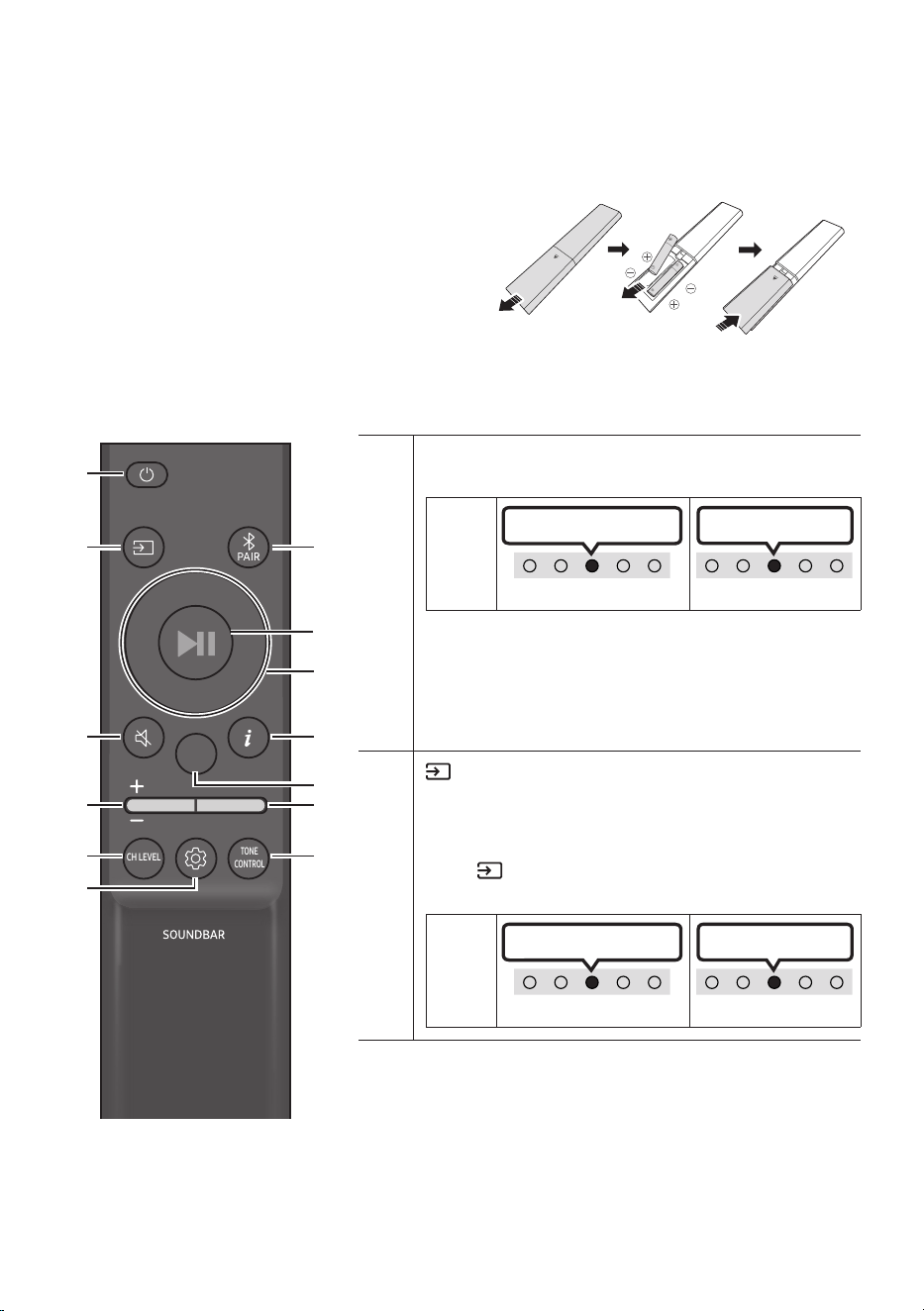
03 SỬ DỤNG ĐIỀU KHIỂN TỪ XA
Lắp Pin trước khi dùng Điều khiển từ xa (pin AAA X 2)
Trượt nắp lưng theo hướng mũi tên cho đến khi
tháo nắp ra hoàn toàn. Lắp 2 pin AAA (1,5 V) theo
đúng hướng đầu cực. Trượt nắp lưng về đúng vị trí.
Cách sử dụng điều khiển từ xa
SOUND
MODE
WOOFER
TONE
CONTROL
CH LEVEL
Bật/tắt
Bật và tắt Soundbar.
Đèn báo
LED
Nhp nháy màu xanh lơ 1 lần
Bật Tắt
Nhp nháy màu đỏ 3 lần
• Chức năng Auto Power Down
Thiết bị tự động tắt trong các tình huống sau đây:
– Ở chế độ “TV ARC” hoặc “eARC” / “Wi-Fi” /
“Bluetooth” / “Digital Audio In” nếu không có tín hiệu
âm thanh trong 18 phút.
(Nguồn tín hiệu)
Nhấn để chọn nguồn kết nối với Soundbar.
• Bật/tắt phản hồi âm thanh
Bạn có thể bật hoặc tắt Phản hồi âm thanh. Nhấn và giữ
nút (Nguồn tín hiệu) trên điều khiển từ xa trong vòng
5 giây trong khi Soundbar tắt (chế độ Chờ).
Đèn báo
LED
Nhp nháy màu xanh lơ 1 lần
Bật Tắt
Nhp nháy màu đỏ 1 lần
VIE - 9
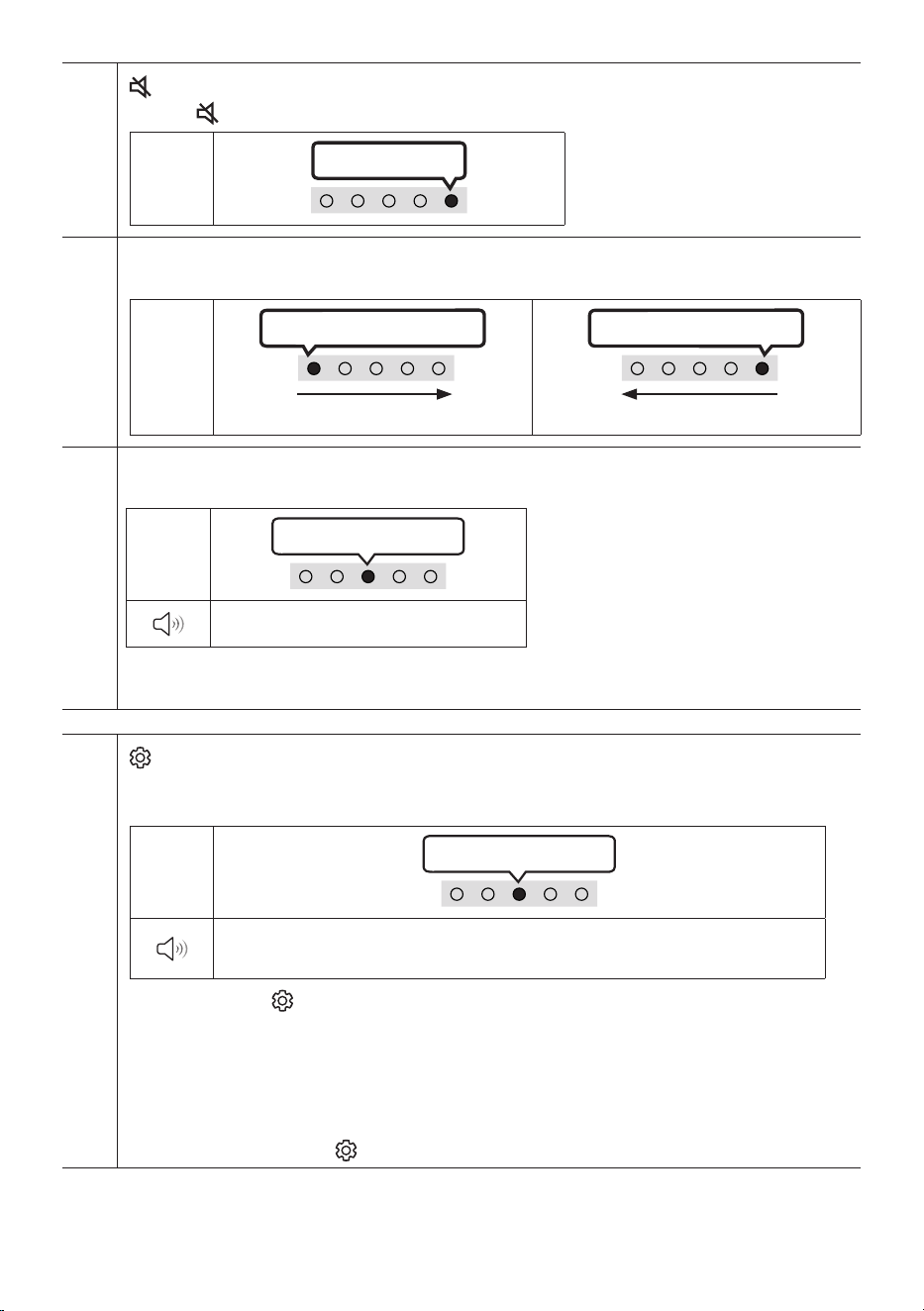
(Tắt tiếng)
Nhấn nút (Tắt tiếng) để tắt tiếng. Nhấn nút này một lần nữa để bật tiếng.
Đèn báo
LED
Nhp nháy X lần lặp lại
Âm lượng
Nhấn nút lên hoặc xuống để điều chỉnh âm lượng.
Đèn báo
LED
Màu trắng chuyển sang phải 1 lần
Tăng âm lượng
Màu trắng chuyển sang trái 1 lần
Giảm âm lượng
CH LEVEL
Bạn có thể điều chỉnh âm lượng của mỗi loa bằng cách nhấn nút này.
Đèn báo
LED
Nhp nháy màu trắng 1 lần
“Centre Level” “Side Level”
– Nếu kết nối với Loa sau (được bán riêng), thì cài đặt “Rear Level” sẽ được hỗ trợ. Để điều chỉnh âm
lượng của “Rear Level” trong khoảng từ -6 đến +6 bằng các nút Lên/Xuống.
(Điều khiển âm thanh)
Bạn có thể đặt chức năng âm thanh bằng cách nhấn nút này. Bạn có thể điều chỉnh mục mong muốn
bằng nút Lên/Xuống. Mỗi lần chế độ thay đổi, đèn LED nhiều màu sáng màu trắng.
Đèn báo
LED
Nhp nháy màu trắng 1 lần
“SpaceFit Sound” “Active Voice Amplier” “Voice enhancement” “Night
mode” “Sync” “Virtual”
– Nhấn và giữ nút (Điều khiển âm thanh) trong khoảng 5 giây để điều chỉnh âm thanh cho mỗi
băng tần. Bạn có thể chọn các giá trị 150Hz, 300Hz, 600Hz, 1.2kHz, 2.5kHz, 5kHz và 10kHz bằng nút
Trái/Phải và điều chỉnh từng giá trị theo cài đặt từ -6 đến +6 bằng nút Lên/Xuống. (Đảm bảo Chế độ
âm thanh được đặt là “Standard”.)
– Nếu kết nối Loa sau (được bán riêng), thì cài đặt "Sound Grouping" và "Private Rear Sound" sẽ được
hỗ trợ.
– Tham khảo phần "Cài đặt (Điều khiển âm thanh)" trên trang 11.
VIE - 10
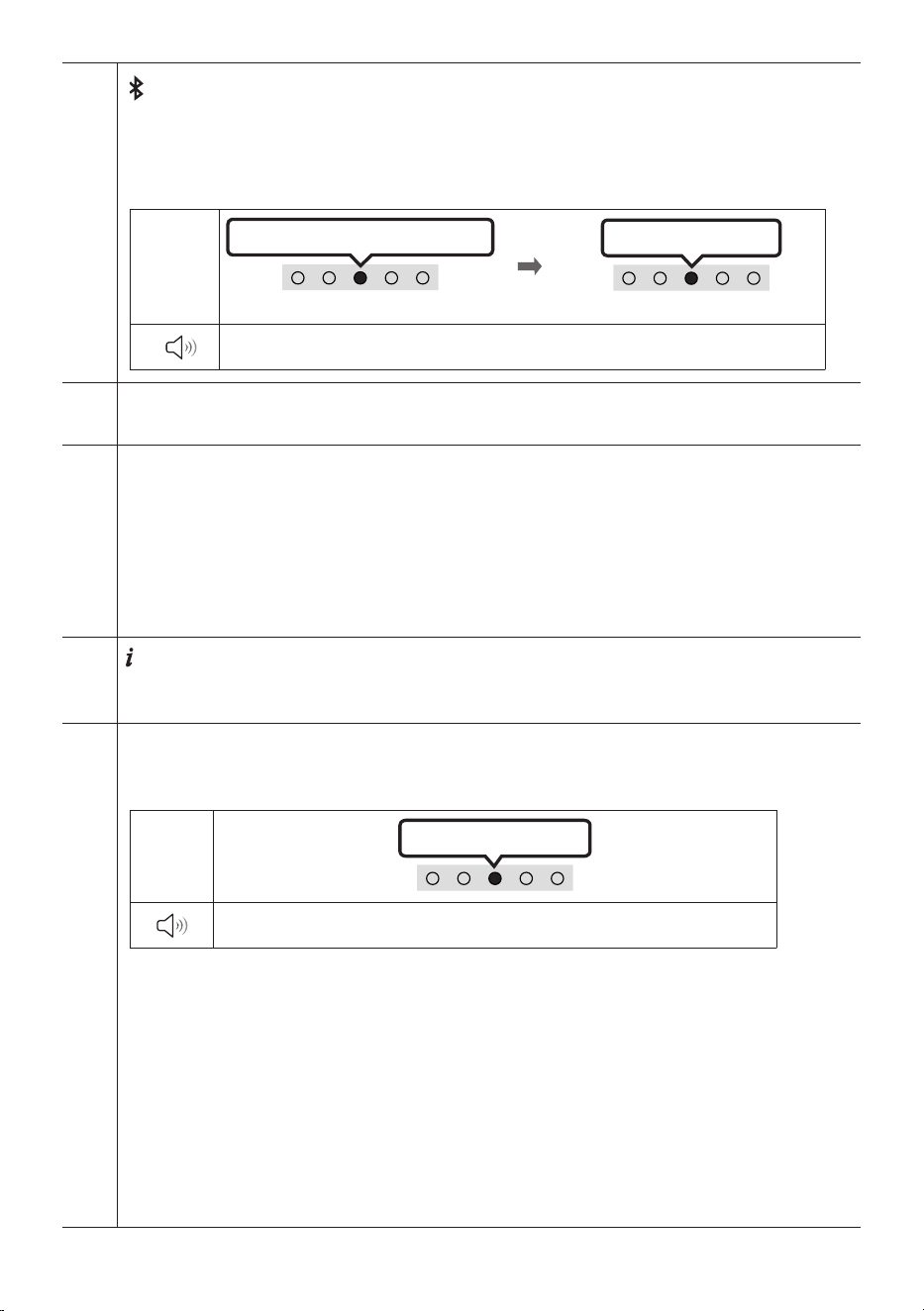
Bluetooth PAIR
Bật/tắt chế độ ghép nối Soundbar với Bluetooth.
Khi bạn nhấn nút, hiển thị LED thay đổi như hiển thị bên dưới.
• Cho tới khi ghép nối hoàn tất, đèn LED nhiều màu lần lượt chuyển sang Màu đỏ → Màu xanh lá → Màu
lam.
Đèn báo
LED
Màu đỏ → Màu xanh lá → Màu lam nhp nháy
Ghép nối
Kết nối hoàn tất
Nhp nháy màu xanh lơ 3 lần
“Ready to connect via Bluetooth.”
p (Phát/tạm dừng)
Bạn cũng có thể phát hoặc tạm dừng nhạc bằng cách nhấn vào nút này.
Lên/Xuống/Trái/Phải
Nhấn Lên/Xuống/Trái/Phải trên nút để chọn hoặc đặt chức năng.
• Bỏ qua nhạc
Nhấn nút Phải để chọn tập tin nhạc tiếp theo. Nhấn nút Trái để chọn tập tin nhạc trước đó.
• ID SET
Nhấn và giữ nút Lên trong 5 giây để hoàn tất ID SET (khi kết nối với loa siêu trầm không dây hoặc loa
sau không dây).
(Thông tin)
Nhấn nút này để hiển thị thông tin về chức năng hiện tại. (Xem trang 5)
Khi được kết nối với Dolby Atmos®, đèn báo LED sẽ nhấp nháy màu xanh lơ 3 lần.
SOUND MODE
Bằng cách nhấn nút, bạn có thể chọn chế độ âm thanh mong muốn. Mỗi lần chế độ thay đổi, đèn LED
nhiều màu sáng màu trắng.
Đèn báo
LED
Nhp nháy màu trắng 1 lần
“Adaptive Sound” “DTS Virtual:X” “Music” “Game” “Standard”
• Adaptive Sound
Phân tích nội dung ở thời gian thực và tự động cung cấp trường âm thanh tối ưu dựa trên đặc điểm nội
dung.
• DTS Virtual:X
Âm thanh 3D đắm chìm từ bất kỳ nội dung nào.
• Music
Cung cấp âm thanh tự nhiên hơn và âm thanh ngợp phòng cho nội dung âm nhạc.
• Game
Cung cấp âm thanh lập thể khiến bạn như đắm chìm vào pha hành động khi đang chơi game.
• Standard
Phát ra âm thanh nguyên bản.
VIE - 11
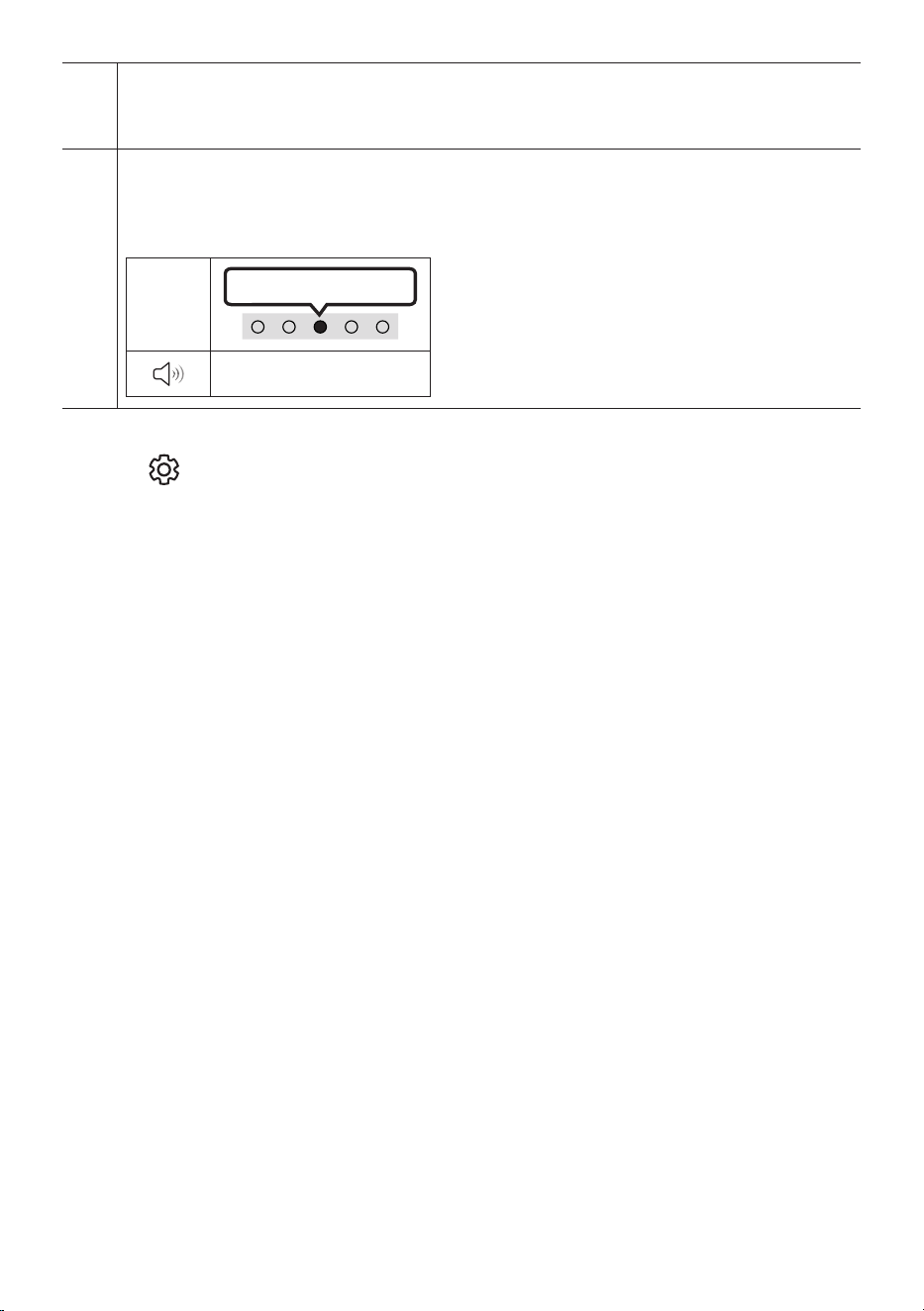
MỨC WOOFER (ÂM TRẦM)
Nhấn nút lên hoặc xuống để điều chỉnh âm lượng của loa trầm (âm trầm) về -12 hoặc từ -6 đến +6. Để đặt
mức âm lượng loa trầm (âm trầm) về 0 (Mặc định), hãy nhấn nút này.
TONE CONTROL
Bạn có thể điều chỉnh âm lượng của âm cao hoặc âm trầm bằng cách nhấn nút này. Bạn có thể điều chỉnh
mục mong muốn bằng nút Lên/Xuống. (Tính năng này có sẵn ở mọi chế độ âm thanh trừ chế độ
“Standard”.)
Đèn báo
LED
Nhp nháy màu trắng 1 lần
“Treble” “Bass”
Cài đặt (Điều khiển âm thanh)
• SpaceFit Sound : Chức năng này phân tích không gian nghe của người dùng bằng micrô của
Soundbar và cung cấp âm thanh tối ưu cho không gian đó. (Tham khảo phần "Sử dụng SpaceFit
Sound" trên trang 25.)
• Active Voice Amplier : Phân tích tiếng ồn bên ngoài theo thời gian thực khi Soundbar đang phát
để luôn nghe rõ giọng nói.
– Dữ liệu sẽ không được lưu trong khi phân tích.
• Voice enhancement giúp dễ nghe thấy lời thoại trong phim và chương trình truyền hình.
• Night mode được tối ưu hóa để xem vào buổi tối với cài đặt được điều chỉnh để giảm âm lượng nhưng
vẫn giúp nghe rõ lời thoại.
• Sound Grouping: Thiết bị chính Soundbar và Loa vòm phát toàn bộ âm thanh chứ không chỉ âm
thanh vòm, phù hợp với những nhóm đông người nghe nhạc trong một không gian lớn.
– Menu này được bắt đầu kích hoạt vào thời điểm kết nối các Loa vòm, sau đó duy trì trạng thái
kích hoạt dù có còn kết nối Loa vòm hay không.
– Nếu bạn bật chế độ này, thì âm thanh giữa các chế độ Âm thanh sẽ không có sự khác biệt.
– Đối với một số model nhất định, âm thanh sẽ không phát ra từ tất cả các loa của thiết bị chính
Soundbar và Loa vòm, mà chỉ phát ra từ một số loa được chọn sẵn.
• Private Rear Sound : Chế độ này sẽ chỉ phát âm thanh qua Loa vòm, cho phép bạn nghe mà không
làm phiền người khác.
– Nếu bạn bật chế độ này, âm thanh sẽ không phát ra từ cả loa chính Soundbar và loa siêu trầm.
Âm thanh chỉ phát ra từ kênh trước của Loa vòm.
– Nếu bạn bật chế độ này, thì âm thanh giữa các chế độ Âm thanh sẽ không có sự khác biệt.

VIE - 12
– Chức năng này sẽ tắt khi mất nguồn điện hoặc kết nối với Loa vòm bị gián đoạn.
– Menu này chỉ hoạt động khi kết nối Loa vòm.
– Chế độ này sẽ tự động tắt và không khả dụng khi bật chức năng Q-Symphony.
• Nếu video trên TV và âm thanh phát ra từ Soundbar không đồng bộ với nhau, hãy chọn Sync trong
Điều khiển âm thanh, sau đó đặt độ trễ âm thanh trong khoảng 0~300 mili giây bằng nút Lên/Xuống.
– Sync chỉ được hỗ trợ cho một số chức năng.
• Có thể Bật/Tắt chức năng Virtual bằng các nút
Lên/Xuống
.
Sử dụng các Nút Ẩn (Các nút có nhiều chức năng)
Nút Ẩn
Trang tham khảo
Nút trên Điều khiển Từ xa Chức năng
WOOFER (Lên) Bật/Tắt Điều khiển từ xa tivi (Chờ) Trang 14
Lên ID SET Trang 10
(Điều khiển Âm thanh)
EQ 7 Dải Trang 9
(Nguồn tín hiệu)
Bật/tắt phản hồi âm thanh (Chờ) Trang 8

VIE - 13
Thông số kỹ thuật đầu ra cho các chế độ hiệu ứng âm thanh khác nhau
Hiệu ứng Đầu vào
Đầu ra
Chỉ với Loa siêu trầm
Với Loa siêu trầm & Bộ loa
sau không dây
Adaptive Sound
kênh 2.0 kênh 5.1 kênh 7.1
kênh 5.1 kênh 5.1 kênh 7.1
Dolby Atmos® kênh 5.1 kênh 7.1
DTS Virtual:X
kênh 2.0 kênh 5.1 kênh 7.1
kênh 5.1 kênh 5.1 kênh 7.1
Dolby Atmos® kênh 5.1 kênh 7.1
Music
kênh 2.0 kênh 5.1 kênh 7.1
kênh 5.1 kênh 5.1 kênh 7.1
Dolby Atmos® kênh 5.1 kênh 7.1
Game
kênh 2.0 kênh 5.1 kênh 7.1
kênh 5.1 kênh 5.1 kênh 7.1
Dolby Atmos® kênh 5.1 kênh 7.1
Standard
kênh 2.0 kênh 2.1 kênh 2.1
kênh 5.1 kênh 5.1 kênh 5.1
Dolby Atmos® kênh 5.1 kênh 7.1
• Bạn có thể mua riêng Bộ loa sau không dây và Loa siêu trầm Samsung.
Để mua Bộ loa hoặc Loa siêu trầm, hãy liên hệ với nhà cung cấp Soundbar của bạn.
• Khi nguồn đầu vào là Dolby Atmos®, thiết lập chỉ có Loa siêu trầm sẽ cung cấp âm thanh 5.1
kênh, trong khi thiết lập Loa siêu trầm & Bộ loa sau không dây cung cấp âm thanh 7.1 kênh.
VIE - 14
Điều chỉnh âm lượng Soundbar bằng điều khiển từ xa TV
Điều chỉnh âm lượng Soundbar bằng điều khiển từ xa của TV.
• Chức năng này chỉ có thể sử dụng bằng điều khiển từ xa IR. Điều khiển từ xa Bluetooth (điều
khiển từ xa yêu cầu ghép đôi) không được hỗ trợ.
• Đặt loa TV thành Loa ngoài để sử dụng chức năng này.
• Các nhà sản xuất hỗ trợ chức năng này:
Samsung, VIZIO, LG, Sony, Sharp, PHILIPS, PANASONIC, TOSHIBA, Hisense, RCA
1. Tắt Soundbar.
2. Nhấn và giữ nút WOOFER trong 5 giây.
Mỗi khi bạn nhấn và giữ nút WOOFER trong 5 giây, chế độ sẽ thay đổi theo thứ tự sau: “Off-TV
Remote” (Chế độ mặc định), “Samsung-TV Remote”, “All-TV Remote”.
Trạng thái đèn báo LED thay đổi mỗi lần thay đổi chế độ, như minh họa dưới đây.
Nút trên Điều khiển Từ xa Đèn báo LED Trạng thái
SOUND
MODE
WOOFER
CH LEVEL
TONE
CONTROL
5 Sec
"Off-TV Remote"
(Chế độ mặc định)
Nhp nháy màu đỏ 1 lần
Tắt điều khiển từ xa TV.
SOUND
MODE
WOOFER
CH LEVEL
TONE
CONTROL
5 Sec
"Samsung-TV Remote"
Nhp nháy màu xanh lơ 1 lần
Bật điều khiển từ xa IR của TV
Samsung.
SOUND
MODE
WOOFER
CH LEVEL
TONE
CONTROL
5 Sec
"All-TV Remote"
Nhp nháy màu lam 1 lần
Bật điều khiển từ xa IR của TV bên
thứ ba.
VIE - 15
04 KẾT NỐI SOUNDBAR
Kết nối nguồn điện
Sử dụng các bộ phận nguồn để kết nối Soundbar với ổ cắm điện theo tứ tự sau:
• Để biết thêm thông tin về nguồn điện cũng như mức tiêu thụ điện năng yêu cầu, hãy tham khảo
nhãn đính kèm sản phẩm. (Nhãn: Mặt đáy của thiết bị chính Soundbar)
1. Đầu tiên, kết nối cáp nguồn với bộ điều hợp AC/DC.
Kết nối bộ điều hợp AC/DC (với cáp nguồn) vào Soundbar.
2. Kết nối dây nguồn với ổ cắm trên tường.
Mặt đáy của thiết bị chính Soundbar
SERVICE
DC 19V
DIGITAL
AUDIO IN
(OPTICAL)
HDMI
(ARC)
SERVICE
DC 19V
DIGITAL
AUDIO IN
(OPTICAL)
HDMI
(eARC)
Dây nguồn
Bộ chuyển đổi AC/DC
SERVICE
DC 19V
GHI CHÚ
• Nếu bạn rút phích cắm và cắm lại dây nguồn khi sản phẩm đang bật, Soundbar sẽ tự động bật.
• Bảo đảm rằng bạn đặt Bộ chuyển đổi AC/DC nằm phẳng trên bàn hoặc sàn. Nếu bạn để Bộ chuyển
đổi AC/DC treo lủng lẳng với đầu vào dây AC hướng lên trên, thì nước hoặc các dị vật có thể rơi vào
trong Bộ chuyển đổi và khiến Bộ chuyển đổi gặp trục trặc.
Kết nối Bộ loa sau không dây và Loa siêu trầm Samsung với
Soundbar
Mở rộng sang âm thanh vòm hoàn toàn không dây bằng cách kết nối Bộ loa sau không dây Samsung
(SWA-9200S, bán riêng) và Loa siêu trầm không dây (SWA-W510, bán riêng) với Soundbar của bạn.
Để biết thông tin chi tiết về các kết nối, xem sách hướng dẫn Bộ loa sau không dây và Loa siêu trầm
không dây của Samsung.
VIE - 16
05 KẾT NỐI VỚI TV
Kết nối TV có hỗ trợ HDMI ARC (Kênh chuyển âm thanh)
CHÚ Y
• Khi kết nối cả cáp HDMI và cáp quang, thiết bị sẽ nhận được tín hiệu HDMI trước.
• Để kết nối cáp HDMI giữa TV và Soundbar, hãy nhớ kết nối các thiết bị đầu cuối được đánh dấu
ARC. Nếu không, âm thanh TV có thể không được phát ra.
• Nên sử dụng cáp HDMI được HDMI.org chứng nhận.
HDMI IN
(eARC)
DIGITAL
AUDIO IN
(OPTICAL)
HDMI
(eARC)
Kết nối với cổng HDMI IN (ARC)
hoặc (eARC) của TV.
Cáp HDMI
Mặt đáy của
Soundbar
Kết nối với cổng HDMI (eARC) của
thiết bị chính Soundbar.
Mặt trên của Soundbar
Đèn báo
LED
Sáng màu trắng -> Tắt
“TV ARC” hoặc “eARC”
1. Nếu đã tắt Soundbar và TV, hãy kết nối cáp HDMI như hình minh họa.
2. Bật Soundbar và TV.
3. Âm thanh TV được phát ra từ Soundbar.
• Khi âm thanh TV không phát ra, hãy nhấn nút (Đa chức năng) ở mặt trên Soundbar hoặc nút
(Nguồn tín hiệu) trên điều khiển từ xa để chọn chế độ “TV ARC” hoặc “eARC”.
• Để kết nối với eARC, cần đặt chức năng eARC ở menu TV là Bật. Tham khảo hướng dẫn sử dụng
TV để biết chi tiết về cài đặt. (Ví dụ: TV Samsung: Trang chủ ( ) → Menu → Cài đặt ( ) → Tất
cả cài đặt ( ) → Âm thanh → Cài đặt chuyên môn → Chế độ HDMI-eARC (Tự động))
• Khi âm thanh không phát ra, kiểm tra lại kết nối Cáp HDMI.
• Sử dụng các nút âm lượng trên điều khiển từ xa của TV để thay đổi âm lượng trên Soundbar.

VIE - 17
GHI CHÚ
• Khi kết nối TV có hỗ trợ HDMI ARC (Kênh chuyển âm thanh) với Soundbar bằng cáp HDMI, bạn có
thể truyền dữ liệu âm thanh và video kỹ thuật số mà không cần kết nối với cáp quang riêng.
• Bạn nên sử dụng cáp HDMI không lõi nếu có thể. Nếu bạn sử dụng cáp HDMI có lõi, hãy dùng cáp có
đường kính dưới 14 mm.
• Chức năng này không khả dụng nếu cáp HDMI không hỗ trợ ARC.
• Khi âm thanh trong chương trình phát được mã hoá trong Dolby Digital và “Định dạng âm thanh đầu
ra kỹ thuật số” trên TV của bạn được đặt thành PCM, bạn nên đổi cài đặt sang Dolby Digital. Khi thay
đổi cài đặt trên TV, bạn sẽ được tận hưởng chất lượng âm thanh tốt hơn. (Menu TV có thể sử dụng
các từ khác nhau cho Dolby Digital và PCM tùy vào nhà sản xuất TV).
VIE - 18
Kết nối bằng Cáp quang
Danh sách kiểm tra trước khi kết nối
• Khi kết nối cả cáp HDMI và cáp quang, thiết bị sẽ nhận được tín hiệu HDMI trước.
• Khi bạn sử dụng cáp quang và thiết bị đầu cuối có nắp, hãy nhớ tháo nắp ra.
Đèn báo
LED
Sáng màu trắng -> Tắt
“Digital Audio In”
OPTICAL OUT
DIGITAL
AUDIO IN
(OPTICAL)
HDMI
(eARC)
Mặt đáy của
Soundbar
Cáp quang
(không đi kèm)
Mặt trên của Soundbar
1. Nếu TV và Soundbar tắt, hãy kết nối cổng DIGITAL AUDIO IN (OPTICAL) trên Soundbar và cổng đầu
ra OPTICAL trên TV với cáp quang (không đi kèm), như hình minh họa.
2. Bật Soundbar và TV.
3. Nhấn (Đa chức năng) ở mặt trên của Soundbar hoặc nút (Nguồn tín hiệu) trên điều khiển từ
xa và sau đó chọn chế độ “Digital Audio In”. Sau đó xuất hiện thông báo “Digital Audio In”.
4. Âm thanh TV được phát ra từ Soundbar.
VIE - 19
Kết nối qua Bluetooth
Khi TV Samsung kết nối qua Bluetooth, bạn có thể nghe thấy âm thanh nổi mà
không cần kết nối cáp rườm rà.
• Bạn chỉ kết nối được một TV Samsung mỗi lần.
• Bạn có thể kết nối TV Samsung hỗ trợ Bluetooth. Hãy kiểm tra thông số kỹ
thuật của TV.
Kết nối ban đầu
1.
Nút Ghp nối Bluetooth Đèn báo LED
SOUND
MODE
PAIR
HOẶC
Màu đỏ → Màu xanh lá → Màu lam nhp nháy
Ghép nối
Kết nối hoàn tất
Nhp nháy màu xanh lơ 3 lần
Khi ở chế độ “Bluetooth”
5 Sec
• Cho tới khi ghép nối hoàn tất, đèn LED nhiều màu lần lượt chuyển
sang Màu đỏ → Màu xanh lá → Màu lam.
“Ready to connect via Bluetooth.”
2. Chọn chế độ Bluetooth trên TV Samsung.
(Ví dụ: Trang chủ ( ) → Menu → Cài đặt ( ) → Tất cả cài đặt ( ) → Âm thanh Đầu ra âm thanh
Bluetooth Danh sách loa S-Series Soundbar (Bluetooth))
3. Chọn “ S-Series Soundbar” từ danh sách trên màn hình TV.
Soundbar khả dụng sẽ có chỉ báo “Cần ghp nối” hoặc “Đã ghp nối” trên danh sách thiết bị
Bluetooth của TV. Để kết nối TV Samsung với Soundbar, hãy chọn thông báo, rồi thiết lập kết nối.
4. Lúc này, bạn có thể nghe âm thanh của TV Samsung từ Soundbar.
• Nếu có bản ghi kết nối giữa Soundbar và TV Samsung, Soundbar được tự động kết nối bằng cách
thay đổi chế độ sang “Bluetooth”

VIE - 20
Nếu thiết bị không kết nối được
• Nếu bạn hiện đã có Soundbar (ví dụ: S-Series Soundbar) trong danh sách loa trên TV Samsung,
hãy xóa đi.
• Sau đó lặp lại các bước từ 1 đến 3.
Ngắt kết nối Soundbar khỏi TV Samsung
Nhấn nút (Đa chức năng) ở mặt trên Soundbar hoặc nút (Nguồn tín hiệu) trên điều khiển từ xa
để chọn chế độ khác với “Bluetooth”.
• Sẽ mất thời gian để ngắt kết nối vì TV Samsung phải nhận phản hồi từ Soundbar.
(Thời gian cần thiết để ngắt kết nối có thể khác nhau tùy theo kiểu TV Samsung).
Lưu khi kết nối Bluetooth
• Tìm thiết bị mới trong phạm vi 1 m để kết nối qua giao tiếp Bluetooth.
• Nếu được yêu cầu nhập mã PIN khi kết nối với thiết bị Bluetooth, hãy nhập <0000>.
• Soundbar tự động tắt sau 18 phút ở trạng thái Sẵn sàng.
• Soundbar có thể không thực hiện đúng quá trình tìm kiếm và kết nối Bluetooth trong những tình
huống sau:
– Nếu có thiết bị điện hoặc điện tử có thể tạo ra nhiễu sóng không dây ảnh hưởng đến Soundbar.
– Nếu có nhiều thiết bị Bluetooth được ghép nối đồng thời với Soundbar.
– Nếu thiết bị Bluetooth bị tắt, không đúng khoảng cách, hoặc bị lỗi.
• Các thiết bị điện tử có thể gây nhiễu sóng vô tuyến. Phải đặt các thiết bị phát sóng điện từ cách xa
thiết bị chính Soundbar, ví dụ như lò vi sóng, thiết bị mạng LAN không dây v.v.
• Thận trọng: Soundbar sẽ t động khởi động lại nếu bạn bật/tắt Bluetooth.
– Phương thức vô hiệu hóa Cổng Bluetooth : Nhấn nút TONE CONTROL trên điều khiển từ xa của
Soundbar trong 30 giây để Bật/Tắt Bluetooth.

VIE - 21
Kết nối qua Wi-Fi
Danh sách kiểm tra trước khi kết nối
• Chỉ có kết nối Wi-Fi trên TV Samsung.
• Kiểm tra xem bộ định tuyến không dây (Wi-Fi) có bật không và TV có được kết nối với bộ định
tuyến không.
• TV và Soundbar phải được kết nối với cùng mạng không dây (Wi-Fi).
• Nếu bộ định tuyến không dây (Wi-Fi) sử dụng kênh DFS, bạn sẽ không thể thiết lập kết nối Wi-Fi
giữa TV và Soundbar. Liên hệ với nhà cung cấp dịch vụ Internet của bạn để biết chi tiết.
• Bởi vì các menu có thể khác nhau tùy theo năm sản xuất, tham khảo sách hướng dẫn TV.
• Để kết nối TV với Soundbar qua Wi-Fi, kết nối Soundbar với bộ định tuyến không dây trước.
Xem trang 30 để biết thông tin chi tiết về cách thiết lập kết nối Wi-Fi.
1. Để biết thêm thông tin về kết nối Wi-Fi với Soundbar, xem trang 30, “Phương pháp 2. Kết nối
qua Wi-Fi (Mạng không dây)”.
2. Thay đổi nguồn đầu vào của TV bằng cách sử dụng menu Âm thanh đối với Soundbar.
• TV Samsung được phát hành năm 2017 hoặc muộn hơn
Trang chủ ( ) → Menu → Cài đặt ( ) → Tất cả cài đặt ( ) → Âm thanh Đầu ra âm thanh
S-Series Soundbar (Wi-Fi)
LƯU
• Thận trọng: Soundbar sẽ t động khởi động lại nếu bạn bật/tắt Wi-Fi.
– Phương thức vô hiệu hóa Cổng Wi-Fi : Nhấn nút CH LEVEL trên điều khiển từ xa của Soundbar
trong 30 giây để Bật/Tắt Wi-Fi.
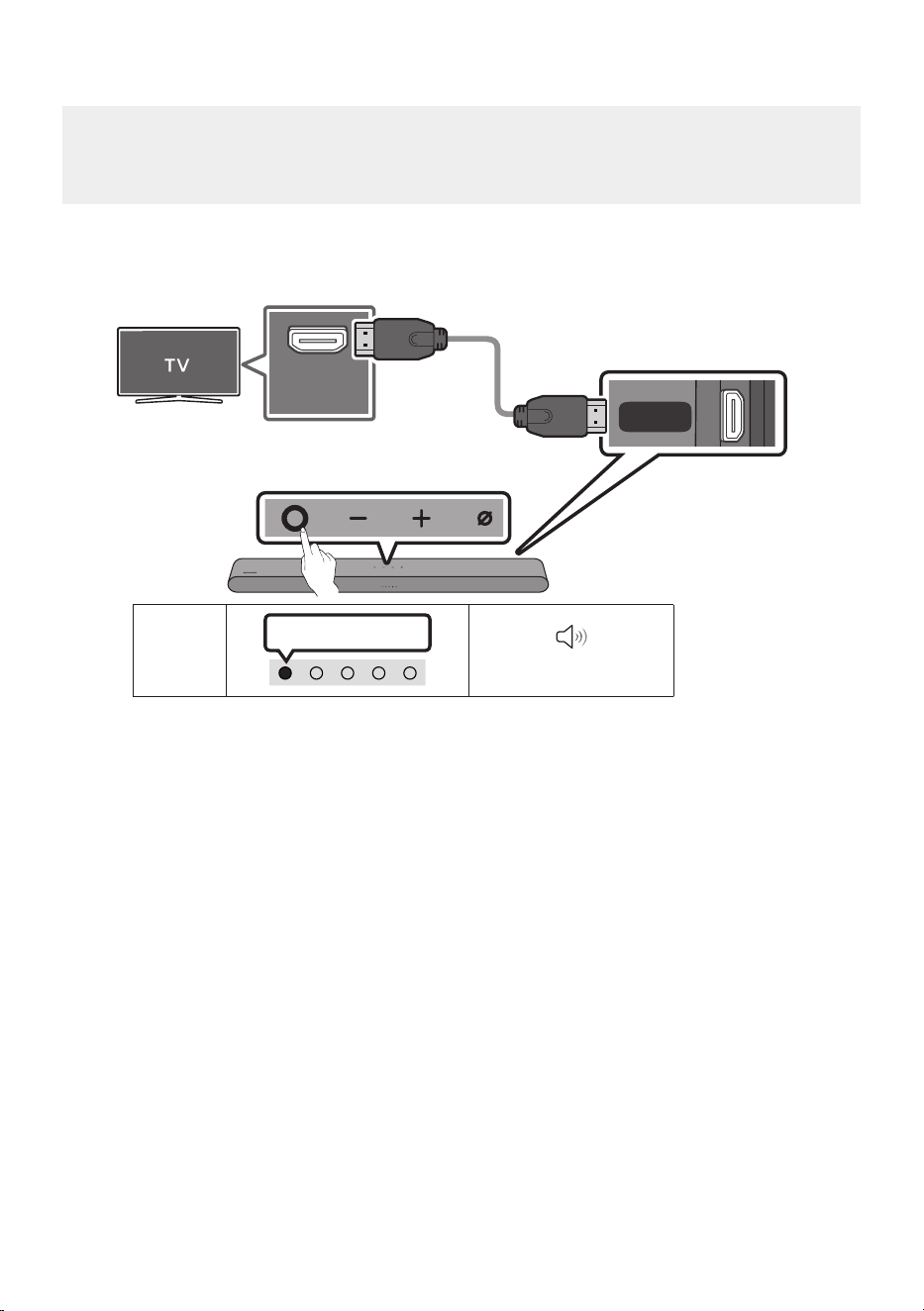
VIE - 22
Kết nối với một TV hỗ trợ Dolby Atmos®
Danh sách kiểm tra trước khi kết nối
• Dolby Atmos® được hỗ trợ ở chế độ “TV ARC” hoặc “eARC” hoặc “Wi-Fi”.
• Đảm bảo rằng nội dung hỗ trợ Dolby Atmos®.
HDMI IN
(eARC)
DIGITAL
AUDIO IN
(OPTICAL)
HDMI
(eARC)
Kết nối với cổng HDMI IN (ARC)
hoặc (eARC) của TV.
Cáp HDMI
Mặt đáy của
Soundbar
Kết nối với cổng HDMI (eARC) của
thiết bị chính Soundbar.
Mặt trên của Soundbar
Đèn báo
LED
Sáng màu trắng -> Tắt
“TV ARC” hoặc “eARC”
1. Nếu đã tắt Soundbar và TV, hãy kết nối cáp HDMI như hình minh họa.
2. Bật Soundbar và TV.
3. Âm thanh TV được phát ra từ Soundbar.
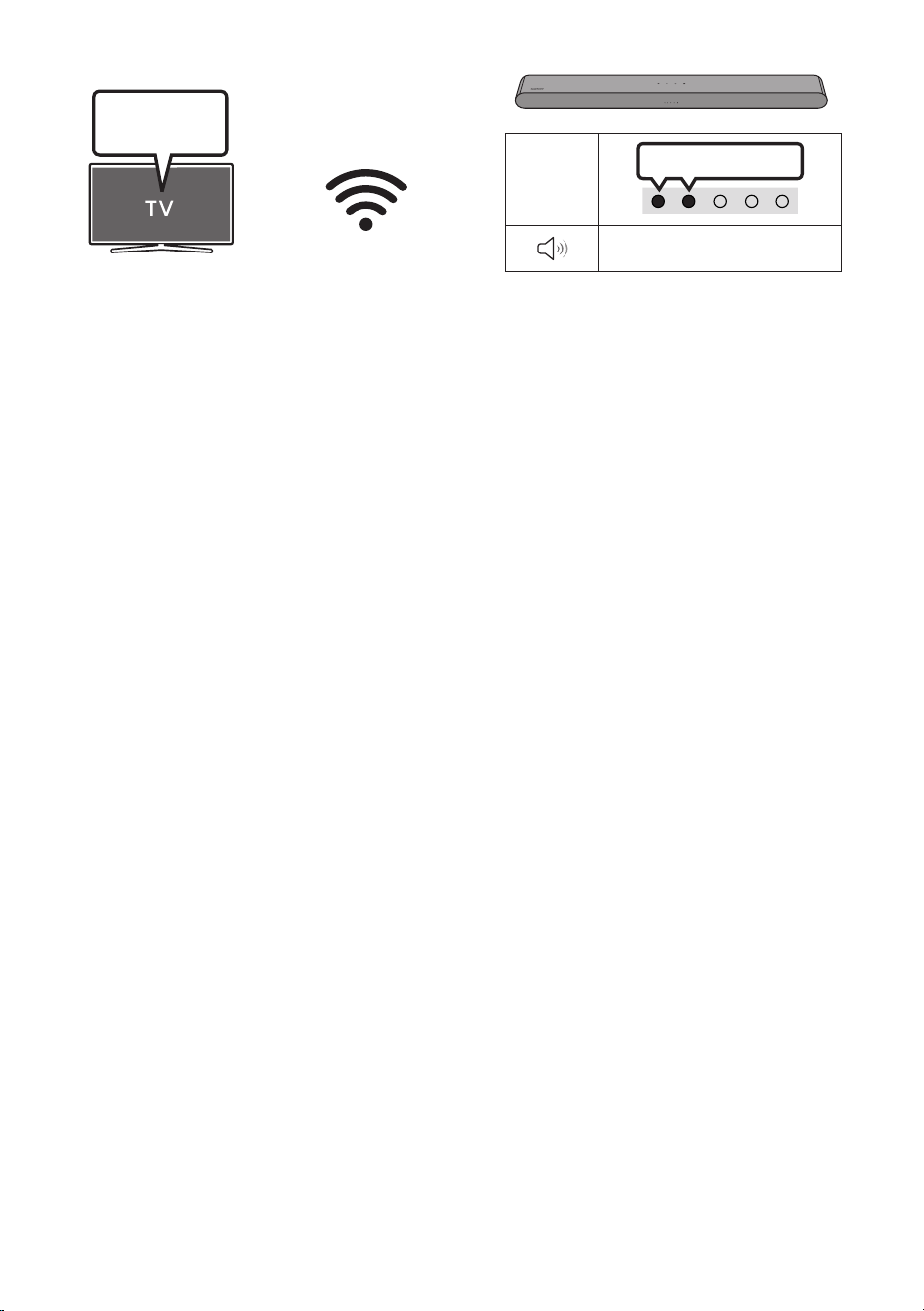
VIE - 23
Đèn báo
LED
Sáng màu trắng -> Tắt
“Wi-Fi”
Menu TV
Wi-Fi
1. Kết nối Soundbar và TV với cùng mạng không dây (Wi-Fi).
2. Với đầu ra âm thanh của TV, hãy chọn Soundbar.
3. Âm thanh TV được phát ra từ Soundbar.
GHI CHÚ
• Cách cu hình Dolby Atmos® trên trình phát BD hoặc thiết bị khác kết nối với TV.
Mở tùy chọn đầu ra âm thanh trên menu cài đặt của trình phát BD hoặc thiết bị khác và đảm bảo
chọn “Không mã hóa” cho Bitstream. Ví dụ: trên Trình phát BD của Samsung, hãy chuyển tới Menu
Màn hình chính → Âm thanh → Đầu ra kỹ thuật số rồi chọn Bitstream (Chưa xử lý).
• Chức năng này có sẵn trên một số TV Samsung và một số mẫu Soundbar.
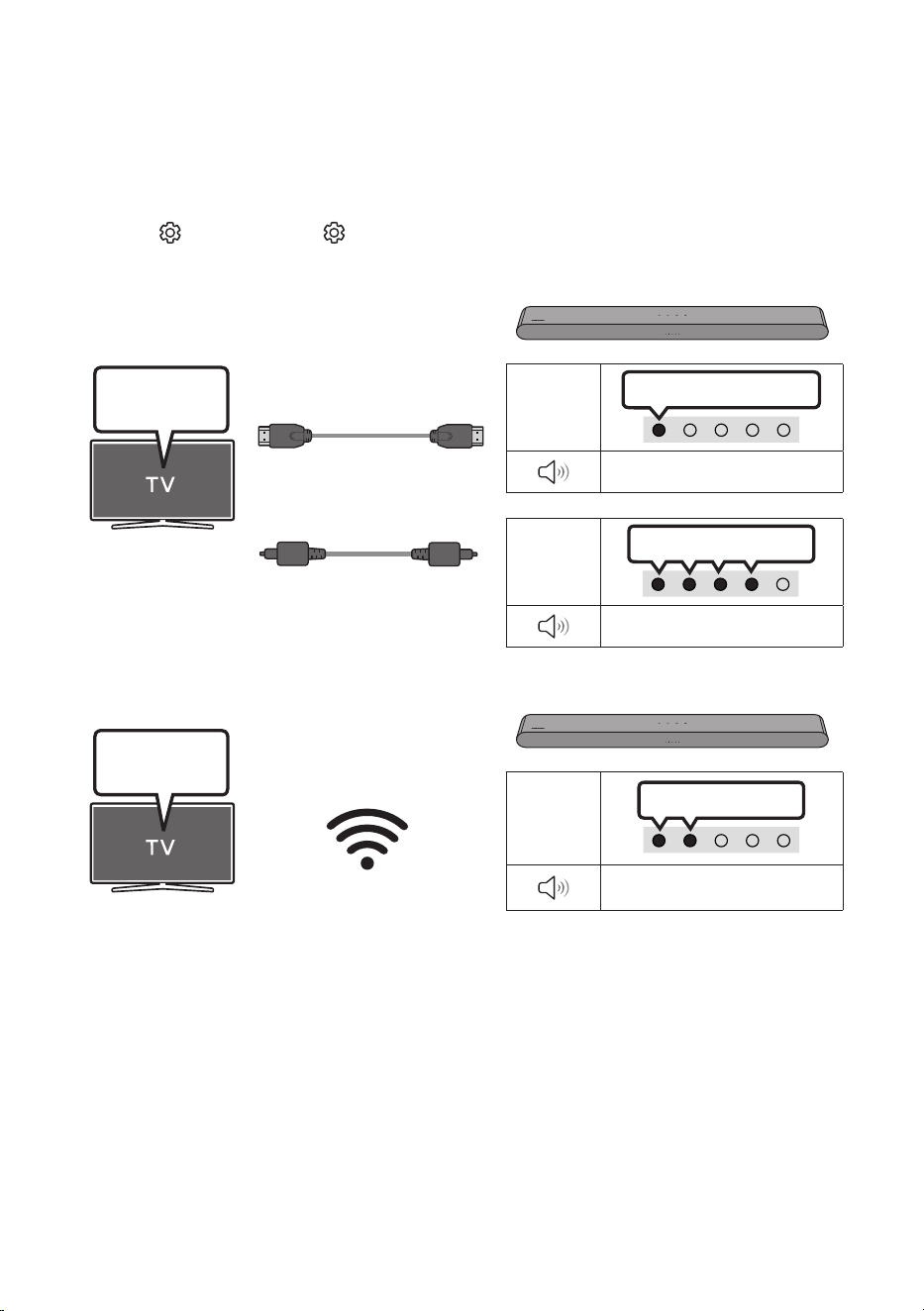
VIE - 24
Sử dụng chức năng Q-Symphony
• Khi Soundbar kết nối với TV Samsung hỗ trợ chức năng Q-Symphony, bạn có thể phát âm thanh
đồng thời qua Soundbar và TV. Nếu sử dụng chức năng Q-Symphony, âm thanh vòm được phát trên
TV cho phép bạn thưởng thức hiệu ứng âm thanh vòm ba chiều phong phú hơn.
• Khi Soundbar được kết nối, menu “Q-Symphony” sẽ xuất hiện trên TV.
Cài đặt ( ) → Tất cả cài đặt ( ) → Âm thanh → Đầu ra âm thanh
• Ví dụ về menu TV: Q-Symphony
Đèn báo
LED
Sáng màu trắng -> Tắt
“TV ARC” hoặc “eARC”
Đèn báo
LED
Sáng màu trắng -> Tắt
“Digital Audio In”
Menu TV
Cáp quang (không đi kèm)
Cáp HDMI
HOẶC
Đèn báo
LED
Sáng màu trắng -> Tắt
“Wi-Fi”
Menu TV
Wi-Fi
GHI CHÚ
• Chức năng này có thể hoạt động nhờ bộ giải mã được tích hợp sẵn trên TV.
• Chức năng này chỉ được hỗ trợ khi kết nối với Cáp HDMI hoặc Cáp quang (không đi kèm) hoặc Wi-Fi.
• Thông báo hiển thị có thể khác nhau giữa các model TV.
• Đảm bảo bạn kết nối TV và Soundbar với cùng một tần số/bộ điều hợp không dây.
• Chức năng này có sẵn trên một số TV Samsung và một số mẫu Soundbar.

VIE - 25
Sử dụng SpaceFit Sound
Cung cấp chất lượng âm thanh tối ưu bằng cách phân tích các không gian nghe.
Phương pháp 1. Kết nối qua Soundbar
Để bật chức năng này, hãy bật chế độ SpaceFit Sound bằng điều khiển từ xa của Soundbar.
( (Điều khiển Âm thanh) → "SpaceFit Sound Off" → ▲ ( Lên ) → "SpaceFit Sound On")
• Tính năng này có sẵn ở mọi chế độ âm thanh.
Phương pháp 2. Kết nối qua TV
Để bật chức năng này, hãy bật chế độ Âm thanh thích nghi+ trên menu TV Samsung.
(Trang chủ ( ) → Menu → Cài đặt ( ) → Tất cả cài đặt ( ) Tổng quát Cài đặt chế độ thông minh
Âm thanh thích nghi+)
• Chế độ âm thanh trên Soundbar sẽ tự động chuyển thành Âm thanh thích nghi+ nếu bạn bật chế độ
Âm thanh thích nghi+ trên TV.
LƯU Ý
• Chức năng này hoạt động khi Soundbar kết nối với một số TV Samsung.
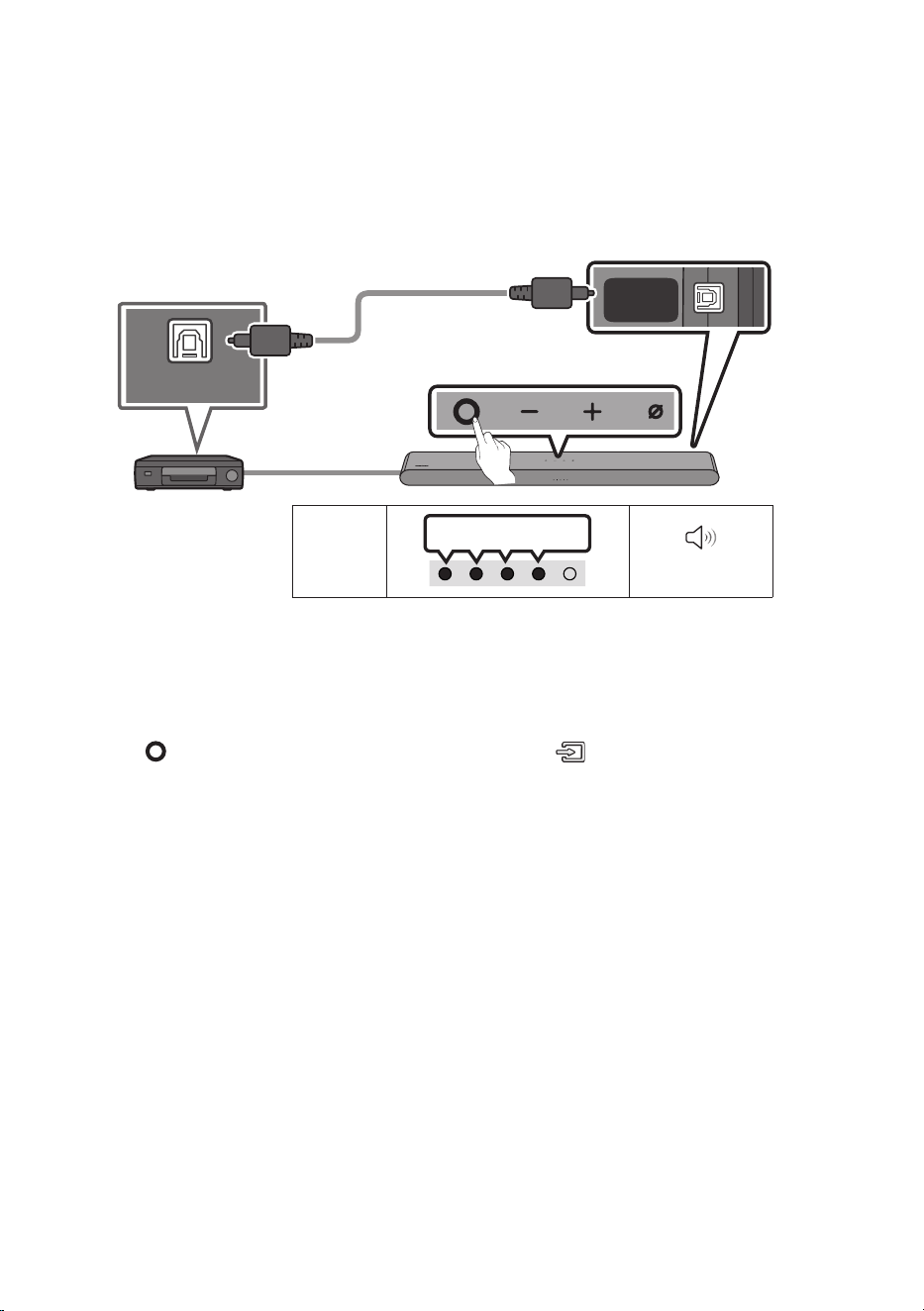
VIE - 26
06 KẾT NỐI THIẾT BỊ BÊN NGOÀI
Kết nối bằng Cáp quang
Đèn báo
LED
Sáng màu trắng -> Tắt
“Digital Audio In”
- AUDIO -
R L
OPTICAL OUT
DIGITAL
AUDIO IN
(OPTICAL)
HDMI
(eARC)
Mặt đáy của Soundbar
Cáp quang
(không đi kèm)
Mặt trên của Soundbar
BD / Đầu DVD /
Hộp thu phát kỹ thuật số /
Máy chơi game
1. Nếu thiết bị bên ngoài và Soundbar tắt, hãy kết nối cổng DIGITAL AUDIO IN (OPTICAL) trên
Soundbar và cổng đầu ra OPTICAL trên thiết bị bên ngoài với cáp quang (không đi kèm), như hình
minh họa.
2. Bật Soundbar và thiết bị bên ngoài.
3. Nhấn (Đa chức năng) ở mặt trên của Soundbar hoặc nút (Nguồn tín hiệu) trên điều khiển từ
xa và sau đó chọn chế độ “Digital Audio In”. Sau đó xuất hiện thông báo “Digital Audio In”.
4. Âm thanh thiết bị bên ngoài được phát ra từ Soundbar.
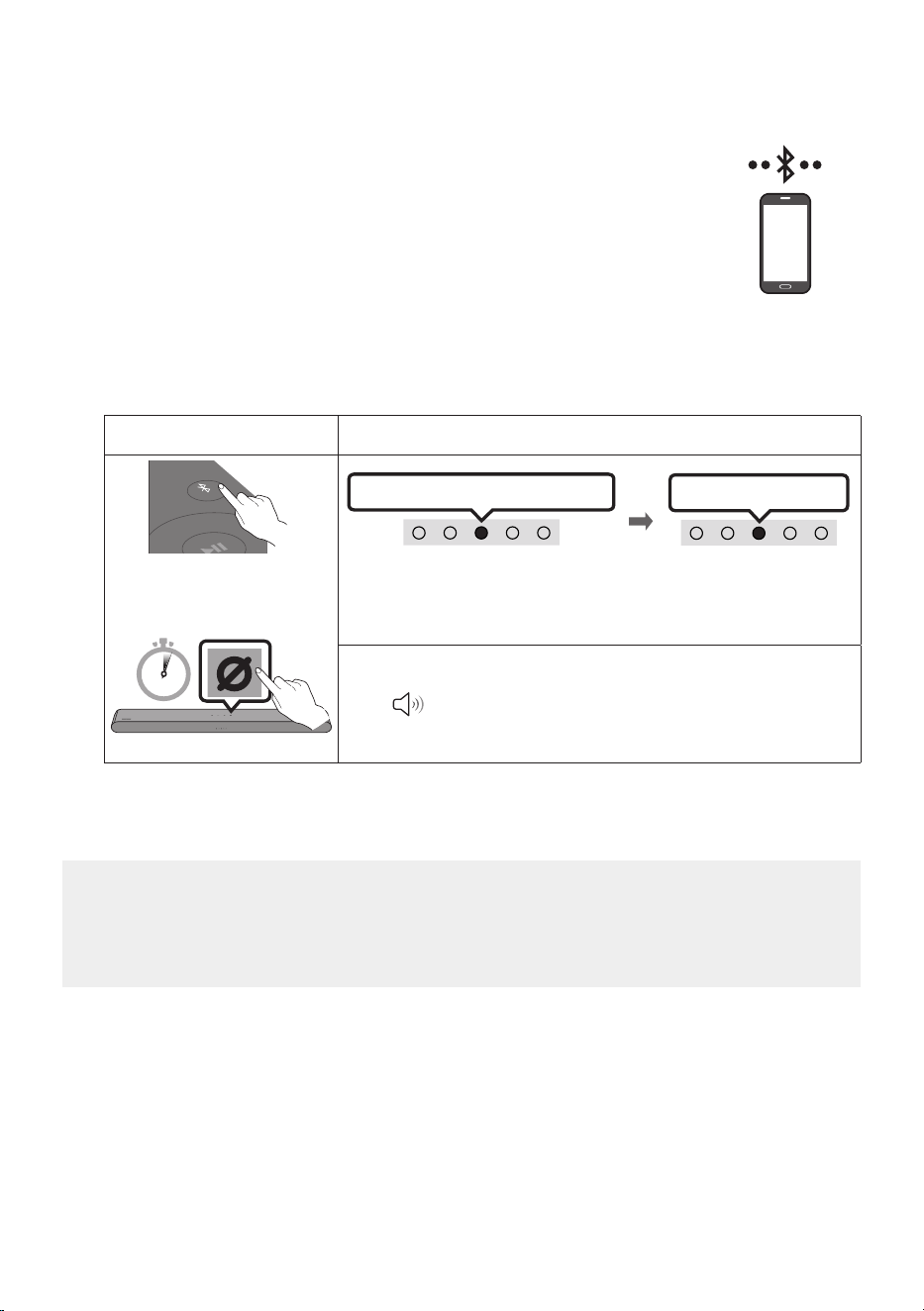
VIE - 27
07 KẾT NỐI THIẾT BỊ DI ĐNG
Phương pháp 1. Kết nối qua Bluetooth
Khi thiết bị di động được kết nối qua Bluetooth, bạn có thể nghe thấy âm thanh nổi
mà không cần kết nối cáp rườm rà.
• Khi bạn kết nối thiết bị Bluetooth được ghép nối với Soundbar đã tắt, Soundbar
sẽ tự động bật.
Kết nối ban đầu
• Khi kết nối với một thiết bị Bluetooth mới, hãy đảm bảo thiết bị nằm trong khoảng cách 1 m.
1.
Nút Ghp nối Bluetooth Đèn báo LED
SOUND
MODE
PAIR
HOẶC
Màu đỏ → Màu xanh lá → Màu lam nhp nháy
Ghép nối
Kết nối hoàn tất
Nhp nháy màu xanh lơ 3 lần
Khi ở chế độ “Bluetooth”
5 Sec
• Cho tới khi ghép nối hoàn tất, đèn LED nhiều màu lần lượt chuyển
sang Màu đỏ → Màu xanh lá → Màu lam.
“Ready to connect via Bluetooth.”
2. Trên thiết bị của bạn, chọn “S-Series Soundbar” từ danh sách hiển thị.
3. Phát các tệp nhạc từ thiết bị được kết nối qua Bluetooth nhờ Soundbar.
Nếu thiết bị không kết nối được
• Nếu bạn hiện đã có Soundbar (ví dụ: “S-Series Soundbar”) trong danh sách loa trên thiết bị di
động, hãy xóa đi.
• Lặp lại bước 1 và 2.
Thiết bị di động

VIE - 28
Lưu khi kết nối Bluetooth
• Tìm thiết bị mới trong phạm vi 1 m để kết nối qua giao tiếp Bluetooth.
• Nếu được yêu cầu nhập mã PIN khi kết nối với thiết bị Bluetooth, hãy nhập <0000>.
• Soundbar tự động tắt sau 18 phút ở trạng thái Sẵn sàng.
• Soundbar có thể không thực hiện đúng quá trình tìm kiếm và kết nối Bluetooth trong những tình
huống sau:
– Nếu có một điện trường mạnh xung quanh Soundbar.
– Nếu có nhiều thiết bị Bluetooth được ghép nối đồng thời với Soundbar.
– Nếu thiết bị Bluetooth bị tắt, không đúng khoảng cách, hoặc bị lỗi.
• Các thiết bị điện tử có thể gây nhiễu sóng vô tuyến. Phải đặt các thiết bị phát sóng điện từ cách xa
thiết bị chính Soundbar, ví dụ như lò vi sóng, thiết bị mạng LAN không dây v.v...
• Soundbar hỗ trợ dữ liệu SBC (44,1kHz, 48kHz).
• Chỉ kết nối với thiết bị Bluetooth hỗ trợ chức năng A2DP (AV).
• Khi kết nối Soundbar với thiết bị Bluetooth, đặt các thiết bị càng gần nhau càng tốt.
• Soundbar và thiết bị Bluetooth càng cách xa nhau, chất lượng âm thanh sẽ càng thấp. Kết nối
Bluetooth có thể bị ngắt khi các thiết bị nằm ngoài phạm vi hoạt động tốt.
• Kết nối Bluetooth có thể không hoạt động như dự định ở những khu vực thu sóng kém.
• Thiết bị Bluetooth có thể gặp nhiễu hoặc trục trặc trong các điều kiện sau:
– Khi cơ thể người tiếp xúc với bộ thu phát tín hiệu trên thiết bị Bluetooth hoặc Soundbar
– Ở các góc hoặc khi có chướng ngại vật ở gần, chẳng hạn như tường hoặc vách ngăn, nơi có thể
xảy ra thay đổi về điện.
– Khi tiếp xúc với nhiễu sóng vô tuyến bởi các sản phẩm khác hoạt động trên cùng dải tần số,
chẳng hạn như thiết bị y tế, lò vi sóng và thiết bị LAN không dây.
– Các chướng ngại vật như cửa và tường vẫn có thể ảnh hưởng đến chất lượng âm thanh ngay cả
khi thiết bị nằm trong phạm vi hoạt động tốt.
• Lưu ý rằng Soundbar của bạn không thể ghép đôi với các thiết bị Bluetooth khác trong khi sử dụng
tùy chọn Bluetooth.
• Thiết bị không dây này có thể gây nhiễu điện trong quá trình hoạt động.

VIE - 29
Ngắt kết nối giữa thiết bị Bluetooth và Soundbar
Bạn có thể ngắt kết nối thiết bị Bluetooth khỏi Soundbar. Để biết hướng dẫn, xem sách hướng dẫn sử
dụng thiết bị Bluetooth.
• Soundbar sẽ bị ngắt kết nối.
• Nếu ngắt kết nối Soundbar với thiết bị Bluetooth, đèn báo LED nhiều màu trên Soundbar nhấp nháy
"Màu đỏ” ba lần.
Ngắt kết nối giữa Soundbar và thiết bị Bluetooth
Nhấn nút (Đa chức năng) ở mặt trên Soundbar hoặc nút (Nguồn tín hiệu) trên điều khiển từ xa
để chọn chế độ khác với “Bluetooth”.
• Quá trình ngắt kết nối sẽ mất thời gian vì thiết bị Bluetooth phải nhận được tín hiệu phản hồi từ
Soundbar. (Thời gian ngắt kết nối có thể thay đổi theo thiết bị Bluetooth)
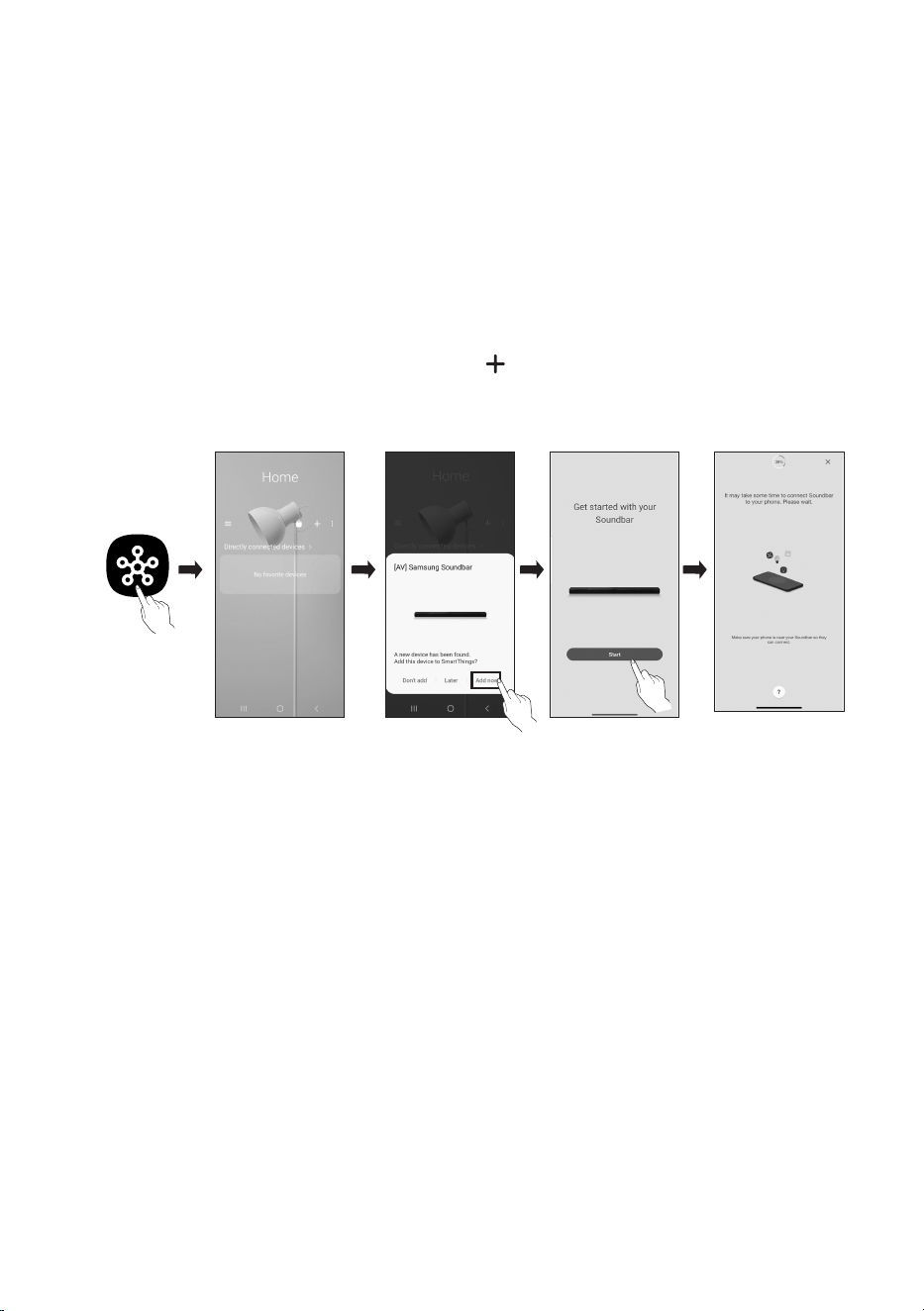
VIE - 30
Phương pháp 2. Kết nối qua Wi-Fi (Mạng không dây)
Để kết nối Soundbar với thiết bị di động qua mạng không dây (Wi-Fi), bạn cần có ứng dụng
SmartThings.
Kết nối ban đầu
1. Cài đặt và khởi chạy ứng dụng SmartThings trên thiết bị di động (điện thoại thông minh hoặc máy
tính bảng) của bạn.
2. Trên ứng dụng, hãy làm theo hướng dẫn trên màn hình để thêm Soundbar.
• Cửa sổ bật lên tự động (ảnh chụp màn hình thứ hai bên dưới) có thể không hiển thị trên một số
thiết bị.
Nếu cửa sổ bật lên không xuất hiện, hãy nhấn “ ” trên màn hình Home. Soundbar đã được
thêm vào ứng dụng.
• Hình minh họa bên dưới có thể khác nhau tùy thuộc vào phiên bản ứng dụng.
Khởi chạy ứng
dụng
Thêm thiết bị
Cửa sổ bật lên tự
động
Ứng dụng
SmartThings
Cách thay đổi kết nối Wi-Fi
1. Chạy ứng dụng SmartThings trên thiết bị di động (điện thoại thông minh hoặc máy tính bảng).
2. Xóa Soundbar đã đăng ký trong ứng dụng, sau đó thêm lại.

VIE - 31
Sử dụng Group Play
• Để tận hưởng lợi ích của tính năng này, hãy thêm Soundbar vào ứng dụng SmartThings.
• Để kích hoạt tính năng này, hãy kết nối ít nhất hai thiết bị âm thanh với cùng một mạng Wi-Fi ở
tần số 5GHz.
• Tính năng này khả dụng trên các thiết bị Âm thanh của Samsung có hỗ trợ Wi-Fi phát hành từ
năm 2024 trở lên.
• Tính năng này không hỗ trợ âm thanh TV.
Đặt cu hình Group Play
1. Chạy ứng dụng SmartThings trên thiết bị di động.
2. Thêm Soundbar trong ứng dụng SmartThings theo hướng dẫn trong mục “Phương pháp 2. Kết nối
qua Wi-Fi (Mạng không dây)” → "Bước 2 (Đăng ký thiết bị)".
3. Nhấn vào thẻ Soundbar.
4. Trên thiết bị di động, nhấn vào nút Tạo nhóm bên dưới biểu tượng thiết bị âm thanh.
• Nút Tạo nhóm chỉ xuất hiện khi Soundbar đã ở chế độ Wi-Fi.
• Nếu Soundbar đang phát âm thanh TV thì kết nối với TV sẽ bị ngắt khi tạo nhóm.
5. Bật Group Play.
6. Chọn thiết bị mong muốn trong danh sách, rồi nhấn vào Áp dụng.
• Bạn có thể thêm tối đa 4 thiết bị.
• Với Group Play, âm thanh sẽ chỉ được phát ra thông qua thiết bị chủ.
• Khi một thiết bị được kết nối với thiết bị chủ chuyển sang nguồn khác, thiết bị đó sẽ tự động bị
xóa khỏi nhóm.
• Khi thiết bị chủ được kết nối với TV, nhóm đã tạo sẽ tự động bị xóa.
Tắt Group Play
1. Nhấn vào thẻ thiết bị âm thanh đó.
2. Trên thiết bị di động, nhấn vào Chỉnh sửa nhóm bên dưới biểu tượng thiết bị âm thanh.
3. Tắt Group Play.
• Để tắt một thiết bị riêng lẻ, hãy bỏ chọn thiết bị đó khỏi danh sách rồi nhấn vào Áp dụng.

VIE - 32
Kết nối thông qua Apple AirPlay
• Tính năng này có thể không khả dụng tại một số quốc gia.
• Soundbar Samsung này hỗ trợ AirPlay và cần có iOS 13.4 hoặc phiên bản mới hơn.
• Để bật AirPlay trong Soundbar, trước tiên, bạn phải đăng ký thiết bị với ứng dụng Samsung
SmartThings bằng cách đồng ý với điều khoản và điều kiện của ứng dụng.
• Đảm bảo bạn đã bật Soundbar và kết nối vào cùng mạng Wi-Fi với thiết bị Apple.
Với AirPlay, bạn có thể phát nhạc, podcast và nội dung âm thanh khác từ thiết bị của Apple tới Samsung
Soundbar.
• Chọn từ một ứng dụng mà AirPlay hỗ trợ hoặc Trung tâm điều khiển trên iPhone, iPad hoặc Mac.
• Chọn Soundbar từ danh sách thiết bị có sẵn để phát âm thanh hiện tại tới Soundbar.
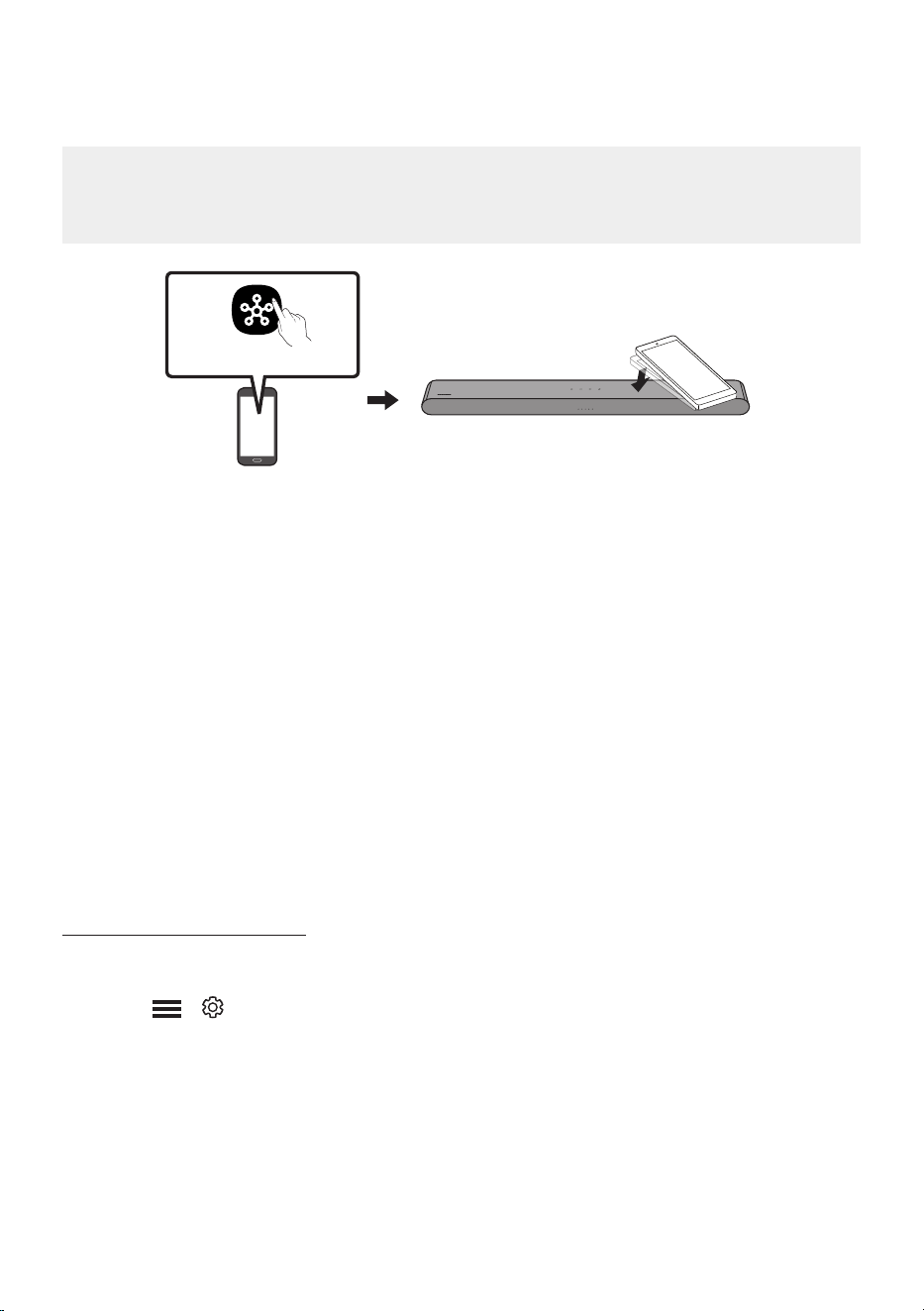
VIE - 33
Sử dụng Tap Sound
Chạm thiết bị di động vào Soundbar để phát âm thanh từ thiết bị di động qua Soundbar.
• Chức năng này có thể không được hỗ trợ, tùy thuộc vào thiết bị di động.
• Chức năng này chỉ tương thích với các thiết bị di động Samsung chạy hệ điều hành Android 8.1
trở lên.
Thiết bị di động
Ứng dụng SmartThings
Mặt trên cùng của Soundbar
1. Bật chức năng Tap Sound trên thiết bị di động.
• Để biết chi tiết về cách bật chức năng này, hãy tham khảo mục “Bật Chức năng Tap Sound” bên
dưới.
2. Chạm thiết bị di động vào Soundbar. Chọn “Bắt đầu ngay” trong cửa sổ thông báo hiển thị.
Kết nối Bluetooth sẽ được thiết lập giữa thiết bị di động và Soundbar.
3. Phát âm thanh từ thiết bị di động qua Soundbar.
• Chức năng này sẽ kết nối thiết bị di động với Soundbar qua Bluetooth bằng cách phát hiện độ
rung xuất hiện khi thiết bị chạm vào Soundbar.
• Đảm bảo thiết bị di động không chạm vào góc nhọn của Soundbar. Soundbar hoặc thiết bị di
động có thể bị trầy xước hoặc hư hỏng.
• Bạn nên dùng ốp lưng để bảo vệ thiết bị di động. Chạm nhẹ vào bề mặt rộng ở phần trên của
Soundbar mà không dùng lực quá mạnh.
• Để sử dụng chức năng này, hãy cập nhật ứng dụng SmartThings lên phiên bản mới nhất.
Chức năng này có thể không được hỗ trợ, tùy thuộc vào phiên bản ứng dụng.
Bật Chức năng Tap Sound
Sử dụng ứng dụng SmartThings để bật chức năng Tap View, Tap Sound.
1. Chạy ứng dụng SmartThings trên thiết bị di động.
2. Chọn ( → ) trên màn hình ứng dụng SmartThings hiển thị trên thiết bị di động.
3. Bật “Tap View, Tap Sound” để cho phép chức năng hoạt động khi thiết bị di động di chuyển đến gần
Soundbar.
GHI CHÚ
• Khi thiết bị di động ở chế độ tiết kiệm năng lượng, chức năng Tap Sound sẽ không hoạt động.
• Chức năng Tap Sound có thể không hoạt động nếu có thiết bị gây nhiễu sóng vô tuyến ở gần
Soundbar, chẳng hạn như các thiết bị điện. Đảm bảo đặt các thiết bị có thể gây nhiễu sóng vô tuyến
ở khoảng cách đủ xa so với Soundbar.
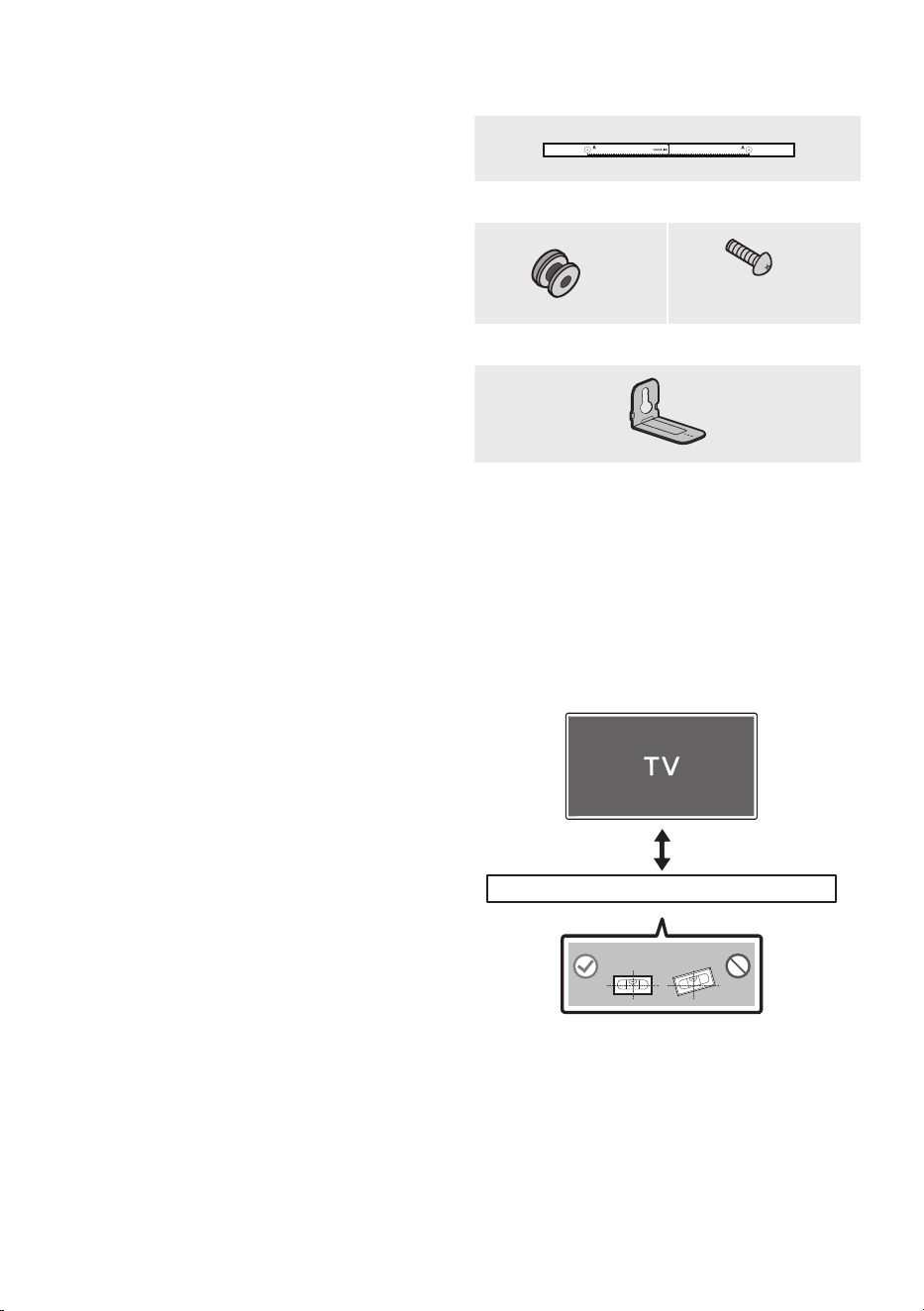
VIE - 34
08 LẮP GIÁ TREO
TƯỜNG
Những điểm cần cân nhắc khi
lắp đặt
• Chỉ lắp đặt trên tường thẳng đứng.
• Không lắp đặt ở vị trí có nhiệt độ hoặc độ ẩm
cao.
• Xác minh xem tường có đủ chắc để đỡ trọng
lượng của sản phẩm hay không. Nếu không,
hãy gia cố lại tường hoặc chọn điểm lắp đặt
khác.
• Mua và sử dụng các vít hoặc mấu neo cố định
thích hợp với loại tường của bạn (tấm thạch
cao, tấm sắt, gỗ, v.v.). Nếu có thể, hãy cố định
vít hỗ trợ vào chốt trên tường.
• Mua các vít treo tường theo loại và độ dày của
tường mà bạn muốn gắn Soundbar vào.
– Đường kính: M5
– Chiều dài: Phải từ 35 mm trở lên.
• Kết nối cáp từ thiết bị đến thiết bị bên ngoài
trước khi bạn lắp Soundbar trên tường.
• Đảm bảo tắt thiết bị và rút phích cắm khỏi
nguồn điện trước khi lắp đặt. Nếu không, có
thể gây điện giật.
Chi tiết treo tường
A TYPE : 450mm
Thanh dẫn giá treo tường
x 2
(M4 x L10)
x 2
Vít đỡ Vít
x 2
Giá gắn tường-Giá treo tường
1. Đặt Thanh dẫn giá treo tường sát với mặt
tường.
• Thanh dẫn giá treo tường phải cân bằng.
• Nếu TV của bạn được treo trên tường, hãy
lắp Soundbar phía dưới cách TV của bạn ít
nhất 5 cm.
5 cm trở lên
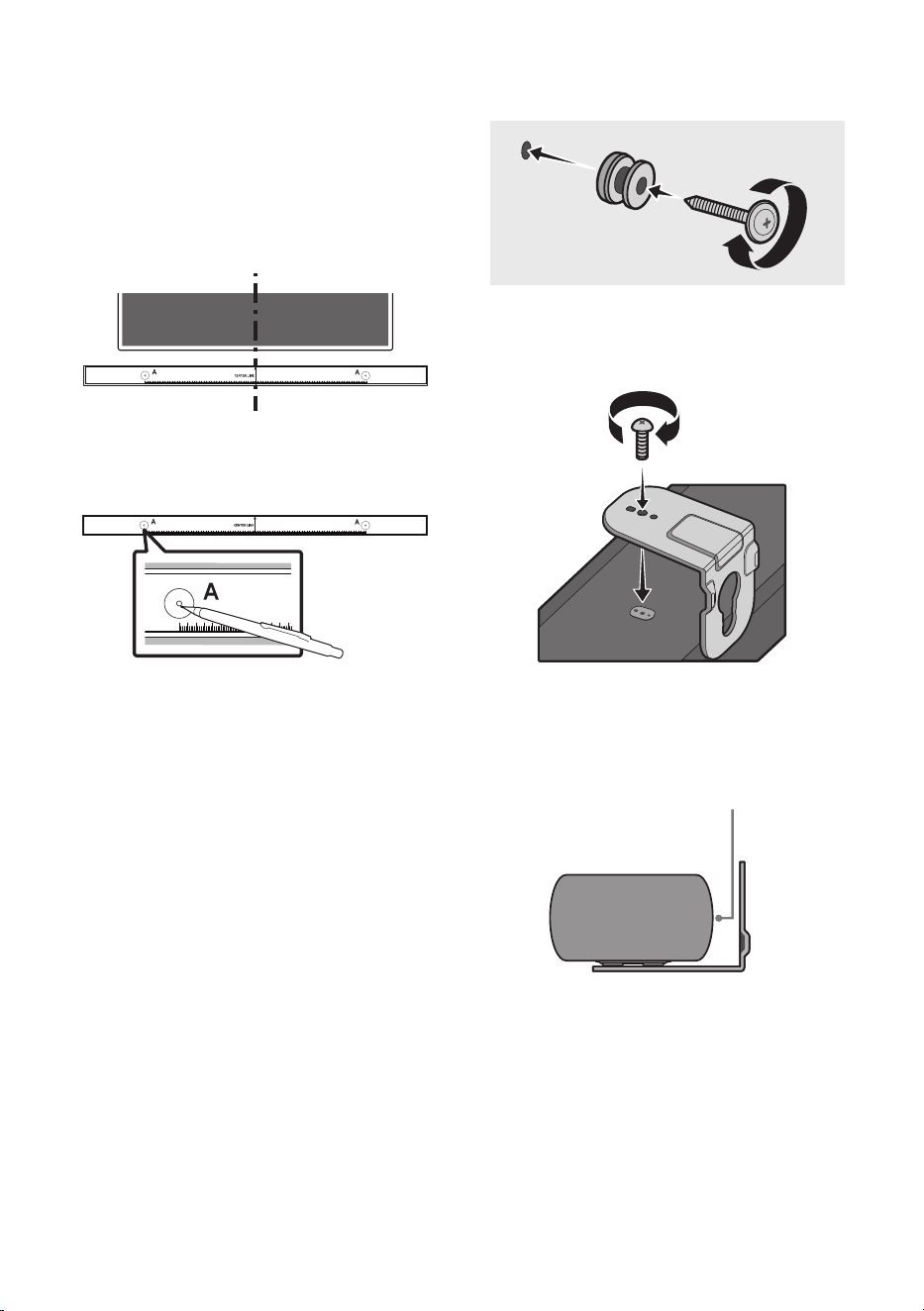
VIE - 35
2. Căn chỉnh Trục trung tâm của Thanh dẫn giá
treo tường theo phần chính giữa TV (nếu bạn
lắp Soundbar ở dưới TV), sau đó cố định
Thanh dẫn giá treo tường vào tường bằng
băng dính.
• Nếu bạn không lắp ở dưới TV, hãy đặt Trục
trung tâm ở chính giữa khu vực lắp đặt.
Trục trung tâm
A TYPE : 450mm
3. Dùng bút để đánh dấu vị trí các lỗ và tháo
Thanh dẫn giá treo tường.
A TYPE : 450mm
4. Dùng mũi khoan có kích thước phù hợp để
khoan lỗ ở từng điểm đánh dấu trên tường.
• Nếu các điểm đánh dấu không khớp với vị
trí đinh tán, bạn hãy lắp mấu neo thích
hợp vào lỗ trước khi lắp vít đỡ. Nếu bạn sử
dụng mấu neo, hãy đảm bảo các lỗ khoan
đủ rộng cho mấu neo bạn dùng.
5. Đẩy vít (không đi kèm) qua từng Vít đỡ, sau
đó vặn chặt từng vít vào lỗ vít đỡ.
(Không đi kèm)
6. Lắp 2 Giá đỡ gắn trên tường theo đúng
hướng trên cạnh dưới của Soundbar bằng
cách sử dụng 2 Đinh vít.
• Khi lắp ghép, hãy đảm bảo rằng bộ phận
treo của Giá đỡ gắn trên tường nằm ở
phía sau mặt sau của Soundbar.
Mặt sau của Soundbar
Đầu bên phải của Soundbar
• Sản phẩm thực tế có thể trông khác với
hình ảnh ở trên, tùy thuộc vào model.
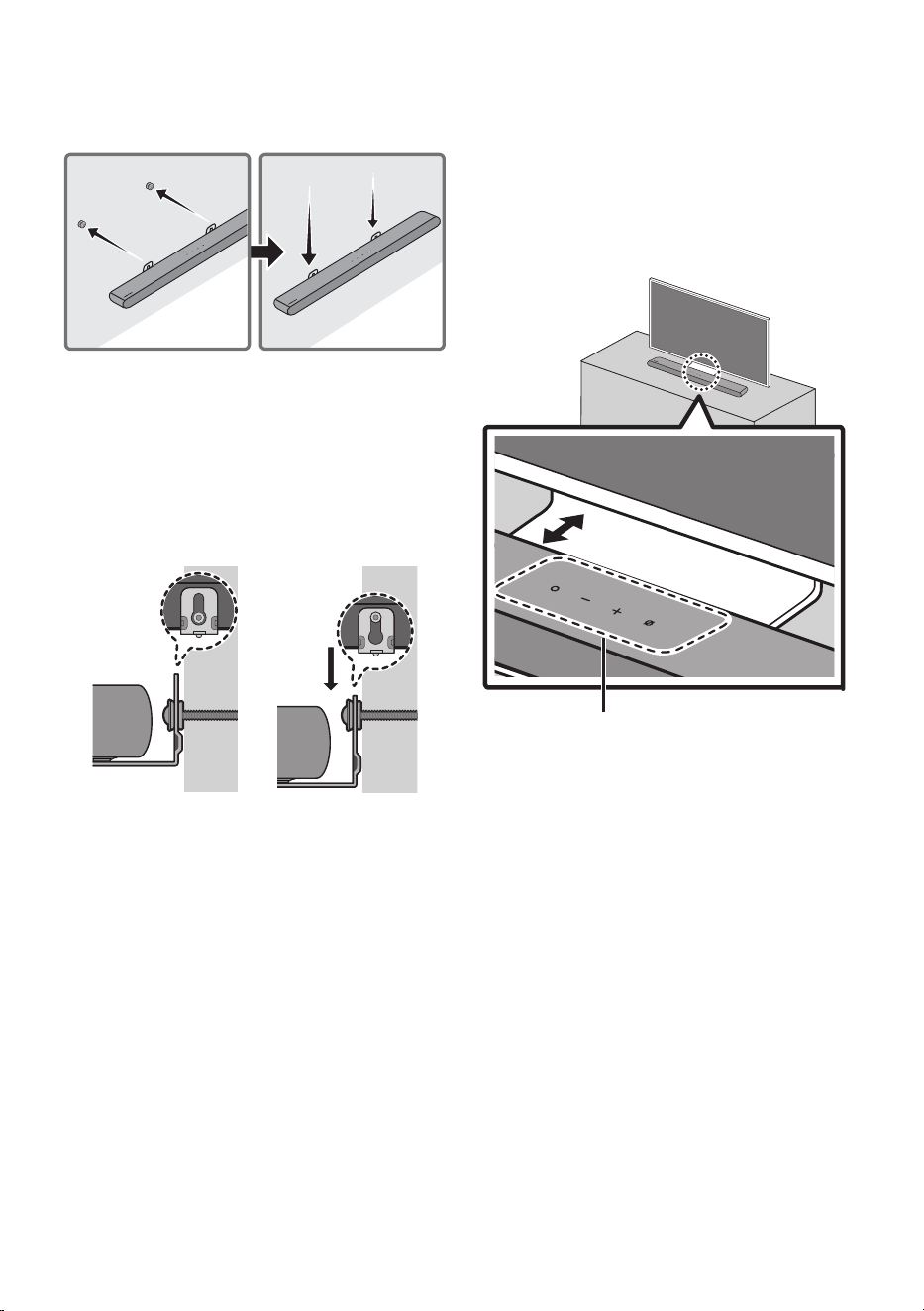
VIE - 36
7. Lắp Soundbar đã gắn Giá đỡ gắn trên tường
bằng cách treo Giá đỡ gắn trên tường lên Vít
đỡ ở trên tường.
8. Trượt Soundbar xuống như minh họa ở dưới
để Giá đỡ gắn trên tường nằm chắc chắn
trên Vít đỡ.
• Lắp Vít đỡ vào phần rộng (bên dưới) Giá
đỡ gắn trên tường, sau đó trượt Giá đỡ
gắn trên tường xuống để Giá đỡ gắn trên
tường nằm chắc chắn trên Vít đỡ.
09 LẮP ĐẶT
SOUNDBAR
TRƯỚC TV
3 cm trở lên
Micrô
Căn chỉnh phần giữa của Soundbar với phần giữa
của TV như minh họa trong hình.
Lúc này, đặt Soundbar cách TV ít nhất 3cm sao
cho không có nhiễu với tính năng nhận diện giọng
nói.
GHI CHÚ
• Đảm bảo đặt Soundbar trên bề mặt phẳng và
vững chắc.
• Khoảng cách giữa TV và Soundbar không đủ
có thể gây ra vấn đề nhận diện giọng nói và
âm thanh.
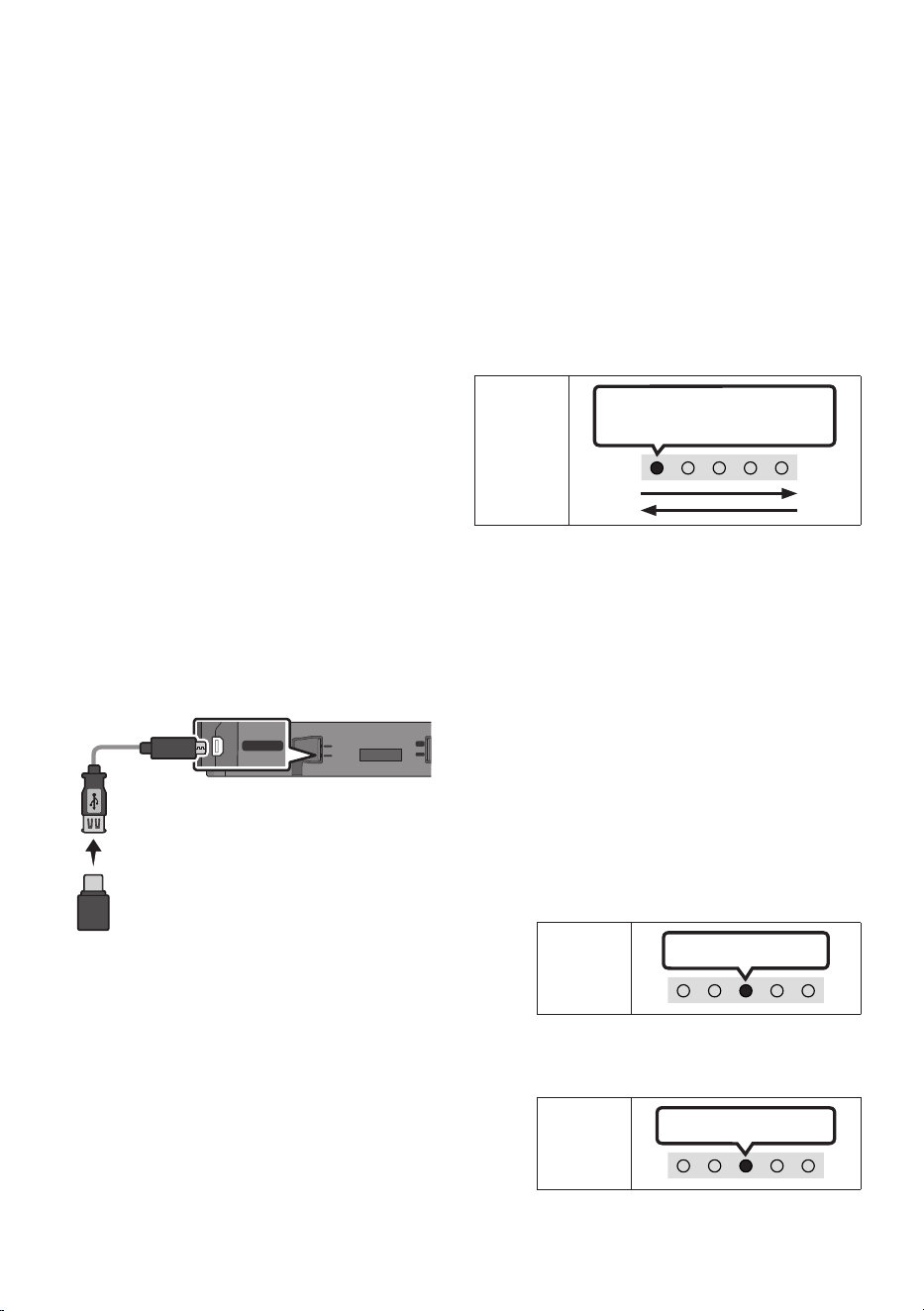
VIE - 37
10 CẬP NHẬT PHẦN
MỀM
T động cập nhật
Khi Soundbar được kết nối với Internet, quá trình
cập nhật phần mềm tự động diễn ra ngay cả khi
Soundbar tắt.
• Để sử dụng chức năng Tự động cập nhật,
Soundbar phải được kết nối với Internet.
Kết nối giữa Wi-Fi với Soundbar sẽ bị ngắt nếu
dây nguồn của Soundbar bị ngắt kết nối hoặc
không có điện. Nếu không có điện thì khi có
điện trở lại hoặc khi bạn kết nối lại dây nguồn,
hãy bật Soundbar, rồi kết nối lại Soundbar với
Internet.
Cập nhật USB
SERVICE
DC 19V
DIGITAL
AUDIO IN
(OPTICAL)
HDMI
(eARC)
SERVICE
DC 19V
Cáp chuyển đổi
Micro USB thành
USB (không đi kèm)
Mặt đáy của Soundbar
Samsung có thể cung cp bản cập nhật cho vi
chương trình hệ thống của Soundbar trong
tương lai.
Khi có bản cập nhật, bạn có thể cập nhật
Soundbar bằng cách kết nối ổ đĩa USB chứa vi
chương trình cập nhật với cổng SERVICE của
Soundbar.
1. Truy cập (www.samsung.com) -> tìm kiếm
tên mẫu sản phẩm từ tùy chọn menu hỗ trợ
khách hàng.
• Để biết thêm thông tin về bản cập nhật,
tham khảo Hướng dẫn nâng cấp.
2. Tải tệp nâng cấp về (loại USB).
3. Giải nén tệp để tạo thư mục có tên tệp.
4. Lưu trữ thư mục đã tạo vào USB rồi kết nối
USB với Soundbar.
5. Bật Soundbar. Sau đó sản phẩm được cập
nhật trong vòng 3 phút.
Đèn báo
LED
Màu trắng di chuyển từ trái sang
phải và từ phải sang trái
• Trong quá trình cập nhật, không tắt
Soundbar hay rút USB.
• Nếu đèn LED màu vàng sáng sau khi hoàn
tất cập nhật phần mềm, điều này có nghĩa
là đang diễn ra cập nhật bổ sung. Khi điều
này xảy ra, đừng tắt nguồn hoặc rút USB.
• Nếu không diễn ra cập nhật, kết nối lại
dây nguồn Soundbar.
• Nếu được cài đặt phiên bản mới nhất,
Soundbar sẽ không thực hiện cập nhật.
• Tùy thuộc vào loại USB, bản cập nhật có
thể không được hỗ trợ.
• Nếu không có tệp cập nhật nào
Đèn báo
LED
Nhp nháy màu đỏ 3 lần
• Nếu tệp cập nhật là dành cho cùng một
phiên bản hoặc phiên bản thấp hơn
Đèn báo
LED
Nhp nháy màu xanh lơ 3 lần
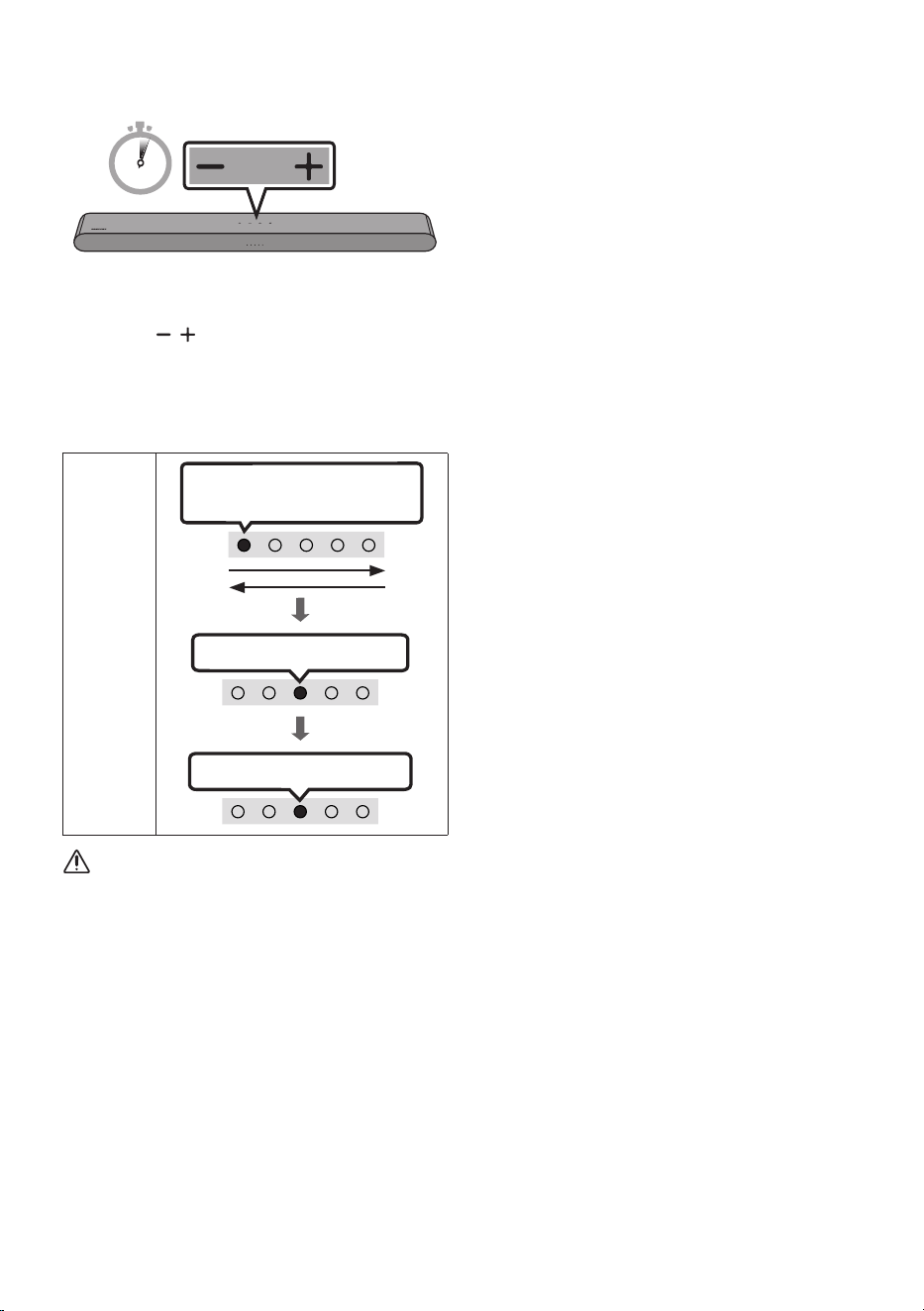
VIE - 38
Đặt lại
5 Sec
Khi Soundbar đang ở trạng thái bật, nhấn đồng
thời các nút (Âm lượng) trên thân thiết bị
trong ít nhất 5 giây. Hiển thị LED thay đổi như
minh họa bên dưới và sau đó Soundbar được đặt
lại.
Đèn báo
LED
Nhp nháy màu xanh lơ 3 lần
Nhp nháy màu đỏ→ Tắt
Màu trắng di chuyển từ trái sang
phải và từ phải sang trái
CHÚ Y
• Tất cả cài đặt của Soundbar sẽ được đặt lại.
Hãy nhớ chỉ thực hiện điều này khi việc đặt lại
là cần thiết.
Thông tin về bản cập nhật bảo
mật
Bản cập nhật bảo mật được cung cấp để tăng
cường bảo mật cho thiết bị và bảo vệ thông tin cá
nhân. Để biết thêm thông tin về bản cập nhật bảo
mật, hãy truy cập https://security.samsungtv.
com.
• Trang web chỉ hỗ trợ một số ngôn ngữ.

VIE - 39
11 XỬ LÝ S CÔ
Tham khảo các hướng dẫn bên dưới nếu sản phẩm này không hoạt động đúng.
Soundbar không bật.
; Kiểm tra xem dây nguồn của Soundbar đã
được cắm đúng cách vào ổ cắm hay chưa.
Soundbar hoạt động chập chờn.
; Sau khi tháo dây nguồn, hãy cắm lại.
; Tắt rồi bật lại thiết bị bên ngoài, sau đó thử
lại.
; Nếu không có tín hiệu, Soundbar sẽ tự động
tắt sau một khoảng thời gian nhất định. Bật
nguồn. (Xem trang 8.)
Điều khiển từ xa không hoạt động.
; Hướng thẳng điều khiển từ xa vào
Soundbar.
; Thay pin mới.
Đèn báo LED màu đỏ trên Soundbar vẫn bật.
; Micrô đã tắt. Bật micrô. (Xem trang 6.)
Soundbar không phát ra bt kỳ âm thanh nào.
; Âm lượng của Soundbar quá thấp hoặc bị
tắt tiếng. Điều chỉnh âm lượng.
; Khi kết nối bất kỳ thiết bị bên ngoài nào
(STB, thiết bị Bluetooth, thiết bị di động,
v.v.), hãy điều chỉnh âm lượng của thiết bị
bên ngoài.
; Với đầu ra âm thanh của TV, chọn Soundbar.
(TV Samsung: Trang chủ ( ) → Menu → Cài
đặt ( ) → Tất cả cài đặt ( ) → Âm thanh
→ Đầu ra âm thanh → Chọn Soundbar)
; Kết nối cáp với Soundbar không được để bị
lỏng. Tháo cáp và kết nối lại.
; Tháo dây nguồn hoàn toàn, kết nối lại và
bật nguồn.
; Khởi tạo sản phẩm rồi thử lại.
(Xem trang 38.)
Nếu không kết nối TV qua HDMI (eARC).
; Kiểm tra xem cáp HDMI có được kết nối
đúng cách với thiết bị đầu cuối eARC hay
không. (Xem trang16.)
; Kết nối có thể không khả thi do thiết bị bên
ngoài đã kết nối (hộp thu phát kỹ thuật số,
máy chơi game, v.v.). Kết nối trực tiếp với
Soundbar.
; Bạn không thể kích hoạt HDMI-CEC trên
TV. Bật CEC trên menu TV. (TV Samsung:
Trang chủ ( ) → Menu → Cài đặt ( ) →
Tất cả cài đặt ( ) → Kết nối → Trình quản lý
thiết bị bên ngoài → Anynet+ (HDMI-CEC)
BẬT)
VIE - 40
Không có âm thanh khi kết nối với TV ở chế độ
HDMI (eARC).
; Thiết bị của bạn không thể phát tín hiệu
đầu vào. Thay đổi đầu ra âm thanh của TV
thành PCM hoặc Dolby Digital. (Đối với TV
Samsung: Trang chủ ( ) → Menu → Cài đặt
( ) → Tất cả cài đặt ( ) → Cài đặt chuyên
môn → Định dạng âm thanh đầu ra kỹ thuật
số)
Soundbar sẽ không kết nối qua Bluetooth.
; Khi kết nối thiết bị mới, hãy chuyển sang
Ghép nối Bluetooth để kết nối. (Nhấn nút
PAIR trên điều khiển từ xa hoặc nhấn nút
(Bật/tắt Micrô) trên thân thiết bị ít nhất
5 giây.)
; Nếu Soundbar được kết nối với thiết bị
khác, trước tiên hãy ngắt kết nối thiết bị đó
để chuyển đổi thiết bị.
; Kết nối lại thiết bị sau khi xóa danh sách loa
Bluetooth trên đó để kết nối. (TV Samsung:
Trang chủ ( ) → Menu → Cài đặt ( ) →
Tất cả cài đặt ( ) → Âm thanh → Đầu ra
âm thanh → Bluetooth Danh sách loa)
; Tháo và cắm lại phích cắm điện rồi thử lại.
; Khởi tạo sản phẩm rồi thử lại.
(Xem trang 38.)
Rớt âm thanh khi được kết nối qua Bluetooth.
; Một số thiết bị có thể gây nhiễu sóng vô
tuyến nếu chúng được đặt quá gần
Soundbar. Ví dụ: lò vi sóng, bộ điều hợp
không dây, v.v.
; Nếu thiết bị của bạn được kết nối qua
Bluetooth di chuyển quá xa khỏi Soundbar,
việc này có thể khiến rớt âm thanh. Đưa
thiết bị lại gần hơn Soundbar.
; Nếu bộ phận nào đó trên cơ thể bạn tiếp
xúc với bộ thu phát Bluetooth hoặc sản
phẩm được lắp trên đồ nội thất bằng kim
loại, âm thanh có thể bị rớt. Kiểm tra môi
trường lắp đặt và điều kiện sử dụng.
Không thể kết nối với Wi-Fi.
; Kiểm tra xem bộ định tuyến không dây của
bạn có bật không.
; Tắt bộ định tuyến, bật lại rồi thử lại.
; Soundbar sẽ không kết nối nếu tín hiệu
không dây quá yếu. Thử di chuyển bộ định
tuyến tới gần Soundbar hơn hoặc loại bỏ
bất kỳ chướng ngại vật nào giữa Soundbar
và bộ định tuyến, nếu có thể.
; Nếu bạn mới mua bộ định tuyến không dây,
bạn sẽ cần phải cấu hình lại cài đặt mạng
của loa.
; Soundbar không hỗ trợ Wi-Fi 6.
Soundbar không t động bật với TV.
; Nếu bạn tắt Soundbar trong khi xem TV,
quá trình đồng bộ hóa nguồn với TV sẽ bị vô
hiệu hóa. Trước tiên, hãy tắt TV.
Chức năng AVA không khả dụng trong các
trường hợp sau.
; Chức năng AVA sẽ không khả dụng khi sử
dụng chức năng Q-Symphony.
; Chức năng AVA sẽ không khả dụng khi tắt
micrô.
VIE - 41
Sau khi kết nối TV với Soundbar, tôi đã tắt chế
độ Soundbar. TV không phát âm thanh.
; Nếu bạn kết nối Soundbar với một thiết bị
di động trong khi đang kết nối Soundbar với
TV, Soundbar sẽ phát âm thanh từ thiết bị di
động trong khi vẫn giữ kết nối với TV. Do đó,
âm thanh của TV sẽ không được phát từ bất
kỳ nguồn nào.
; Ngắt kết nối thiết bị di động và Soundbar sẽ
tiếp tục phát âm thanh từ TV.
Soundbar không xut hiện trong AirPlay.
; Để bật AirPlay trong Soundbar, trước tiên,
bạn phải đăng ký thiết bị với ứng dụng
Samsung SmartThings bằng cách đồng ý
với điều khoản và điều kiện của ứng dụng.
(Xem trang 32.)
; AirPlay không hoạt động nếu bạn xóa
Soundbar khỏi ứng dụng Samsung
SmartThings.
; Đảm bảo rằng Soundbar và thiết bị Apple
được kết nối với cùng một mạng Wi-Fi.
; Soundbar tương thích với AirPlay được cài
đặt trên iOS 13.4 trở lên.
Group Play không bật.
; Kiểm tra xem thiết bị âm thanh có phải là
model mới hơn được phát hành từ năm
2024 trở đi hay không.
; Kiểm tra xem thiết bị chủ có được kết nối
với mạng Wi-Fi dưới dạng nguồn không.
; Đảm bảo rằng tất cả các thiết bị âm thanh
đều được kết nối với cùng một mạng Wi-Fi
(tần số 5 GHz).
12 GIY PHP
Dolby, Dolby Atmos, and the double-D symbol
are registered trademarks of Dolby
Laboratories Licensing Corporation.
Manufactured under license from Dolby
Laboratories. Condential unpublished works.
Copyright © 2012-2021 Dolby Laboratories.
All rights reserved.
For DTS patents, see http://patents.dts.com.
Manufactured under license from DTS, Inc. or
DTS Licensing Limited. DTS, Digital Surround,
Virtual:X, and the DTS logo are registered
trademarks or trademarks of DTS, Inc. in the
United States and other countries. © 2021 DTS,
Inc. ALL RIGHTS RESERVED.
The terms HDMI, HDMI High-Denition
Multimedia Interface, HDMI Trade dress and the
HDMI Logos are trademarks or registered
trademarks of HDMI Licensing Administrator,
Inc.
VIE - 42
• Dùng điện thoại, máy tính bảng hoặc máy
tính làm điều khiển từ xa cho Spotify. Truy
cập vào spotify.com/connect để tìm hiểu
cách thức
• Phần mềm Spotify tuân thủ giấy phép của
bên thứ ba có tại đây : https://www.spotify.
com/connect/third-party-licenses.
Apple, AirPlay, iPad, iPhone, and Mac are
trademarks of Apple Inc., registered in the U.S.
and other countries and regions.
Being Roon Tested means that Samsung and
Roon have collaborated to ensure you have the
best experience using Roon software and
Samsung equipment together, so you can just
enjoy the music.
Thông báo Giy php Nguồn mở
Mã nguồn Mở được sử dụng trong sản phẩm
này có thể được tìm thấy trên các trang web sau
đây (http://opensource.samsung.com).
TPE - 2
目錄
01 檢查元件 4
02 產品概覽 5
有源音箱前方面板/上方面板 --------------------------------- 5
有源音箱底部面板
---------------------------------
7
03 使用遙控器 8
在使用遙控器前插入電池(AAA電池X2) --------------------------------- 8
如何使用遙控器
---------------------------------
8
設定 (音效控制)
---------------------------------
11
使用隱藏按鈕(多功能按鈕)
---------------------------------
12
不同音效模式的輸出規格
---------------------------------
13
使用電視遙控器調整有源音箱音量 --------------------------------- 14
04 連接有源音箱 15
連接電力
---------------------------------
15
將Samsung無線後置揚聲器套件和有源重低音音箱連接至
有源音箱
---------------------------------
15
05 連接至電視 16
連接支援HDMIARC(音訊傳回頻道)
---------------------------------
16
使用光纖纜線連接
---------------------------------
18
透過Bluetooth連線
---------------------------------
19
透過Wi-Fi連接
---------------------------------
21
連接至支援DolbyAtmos®的電視
---------------------------------
22
使用SpaceFitSound
---------------------------------
25
TPE - 3
06 連線外部裝置 26
使用光纖纜線連接
---------------------------------
26
07 連線行動裝置 27
方法1。透過藍牙連線
---------------------------------
27
方法2。透過Wi-Fi(無線網路)連線
---------------------------------
30
使用GroupPlay
---------------------------------
31
透過AppleAirPlay連接
---------------------------------
32
使用感應連結
---------------------------------
33
08 安裝掛牆托架 34
安裝注意事項
---------------------------------
34
牆面安裝元件
---------------------------------
34
09 將有源音箱安裝於電視前方 36
10 軟體更新 37
自動更新
---------------------------------
37
USB更新
---------------------------------
37
重設
---------------------------------
38
安全性更新資訊
---------------------------------
38
11 疑難排解 39
12 授權 41
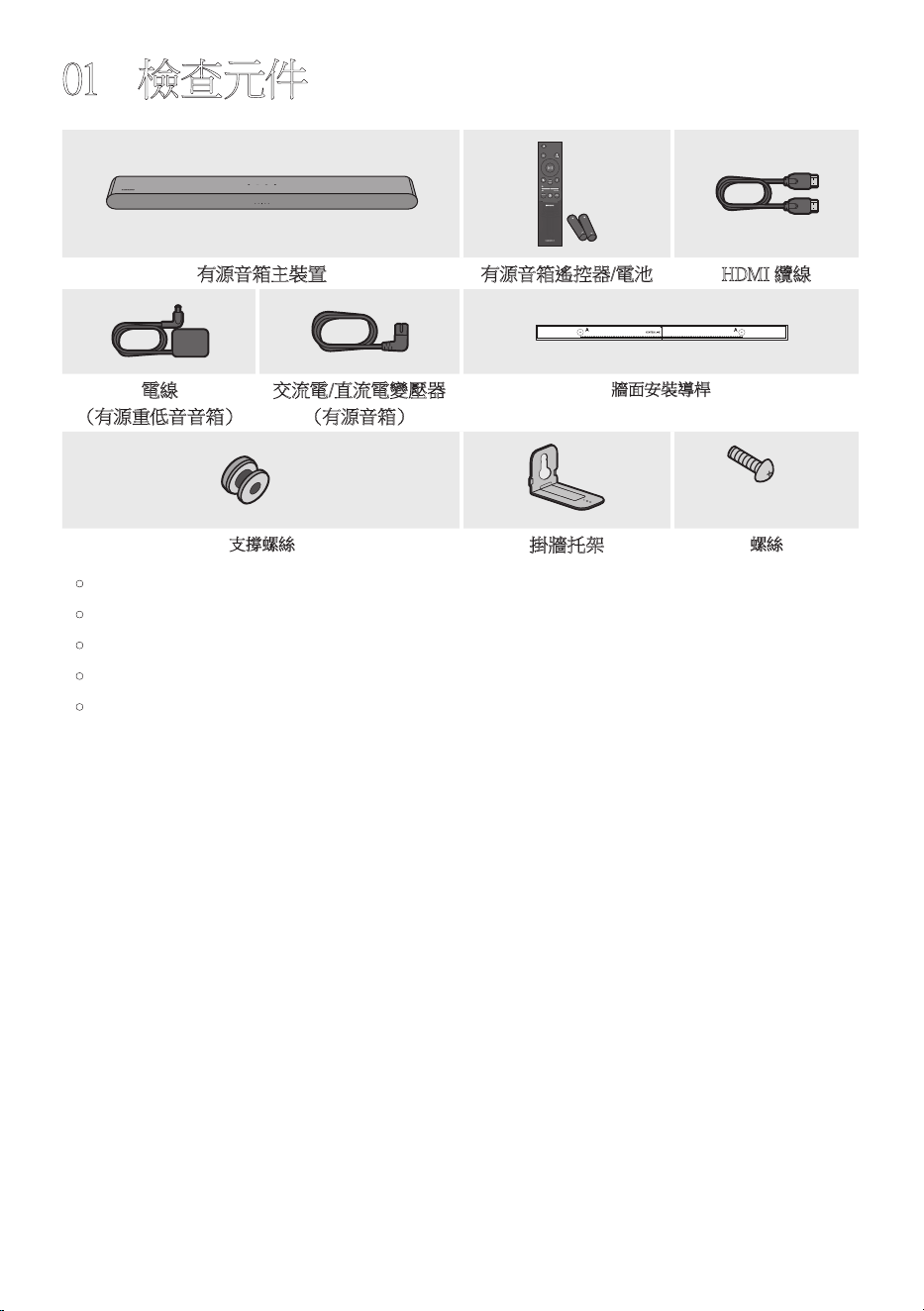
TPE-4
01 檢查元件
SOUND
MODE
WOOFER
TONE
CONTROL
CH LEVEL
有源音箱主裝置 有源音箱遙控器/電池 HDMI纜線
A TYPE : 450mm
電線
(有源重低 音音箱)
交流電/直流電變壓器
(有源音 箱)
牆面安裝導桿
x 2
x 2
(M4xL10)
x 2
支撐螺絲
掛牆托架
螺絲
• 電源和消耗功率,請參考本產品上的標籤。(標籤:有源音箱主裝置底部)
• 若要購買其他元件或選用纜線,請洽詢Samsung服務中心或是Samsung客戶服務。
• 如需更多關於掛牆托架的資訊,請參閱第34 頁。
• 設計、規格和應用程式畫面可隨時變更,不必事先通知。
• 配件的外觀可能與上面的圖例略有差異。
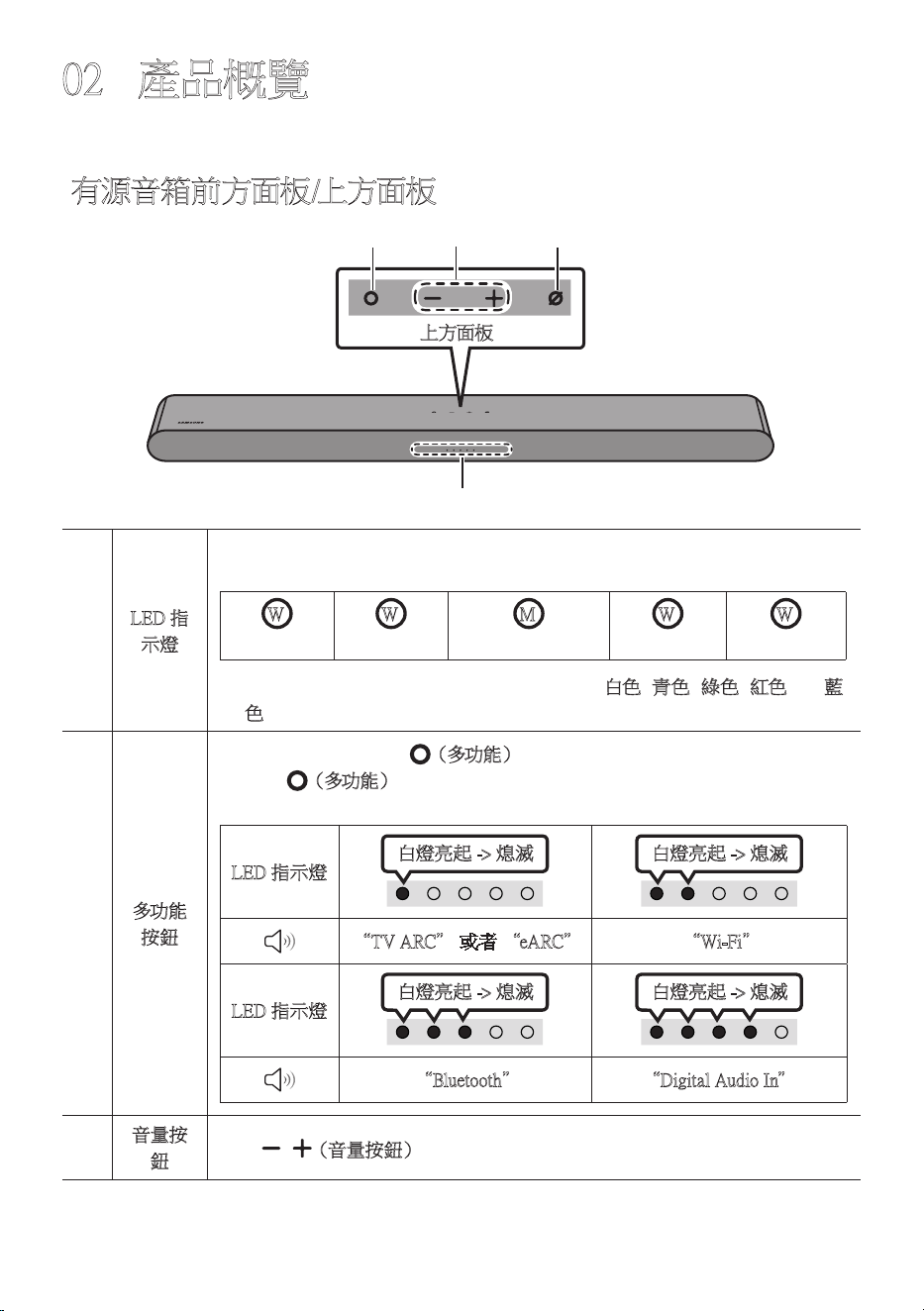
TPE-5
02 產品概覽
有源音箱前方面板/上方面板
上方面板
LED指
示燈
LED指示燈根據有源音箱的目前模式或狀態閃爍、發光或改變顏色。LED指
示燈的顏色和燈光數量依下列所述指示activemode。
W
白色LED
W
白色LED
M
多彩LED
W
白色LED
W
白色LED
• 多彩LED指示燈根據目前模式或狀態改變成白色、青色、綠色、紅色以及藍
色。
多功能
按鈕
• 處 於 待 機 模 式,按 下 (多功能)按鈕,以開啟有源音箱。
• 按下 (多功 能)按鈕,以變更模式。每當變更模式時,LED會發出白色
光,然 後 熄 滅。
LED指示燈
白燈亮起->熄滅 白燈亮起->熄滅
“TVARC”或者“eARC” “Wi-Fi”
LED指示燈
白燈亮起->熄滅 白燈亮起->熄滅
“Bluetooth” “DigitalAudioIn”
音量按
鈕
按下 (音 量 按 鈕)按 鈕,以 調 整 音 量。
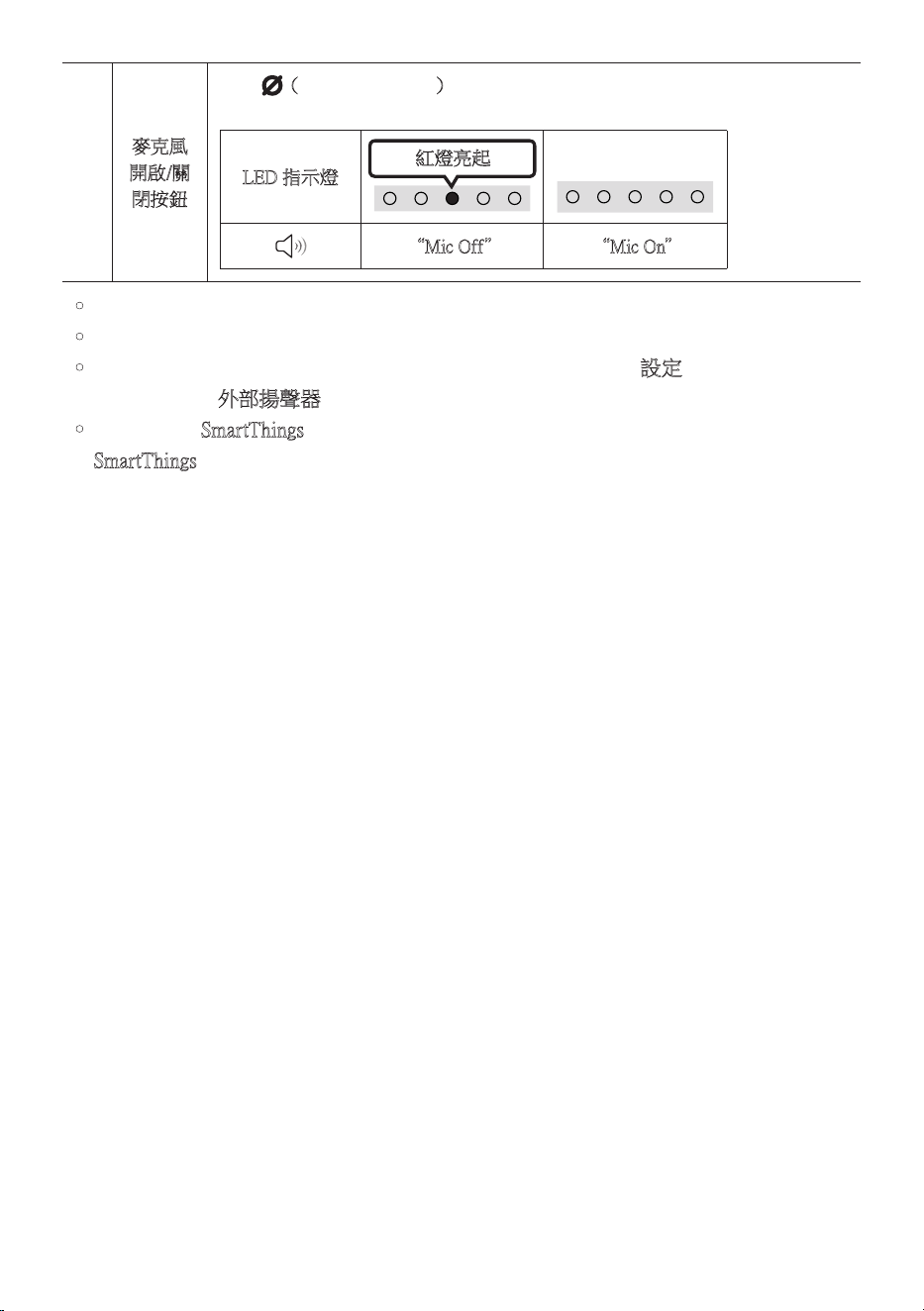
TPE-6
麥克風
開啟/關
閉按鈕
按下 (麥克風開啟/關閉)按鈕,以開啟或關閉麥克風。
麥克風關閉時,LED指示燈會發出紅色光。
LED指示燈
紅燈亮起
“MicOff” “MicOn”
• 您插入交流電源線後,電源鍵會4到6秒鐘內生效。
• 當您開啟本裝置時,可能會延遲4到5秒後,裝置才會發出聲音。
• 若您同時聽見來自電視和有源音箱的聲音,請前往電視音訊的設定功 能 表,並 將 電 視
揚聲器變更為外部揚聲器。
• 您可以使用SmartThings應用程式來開啟或關閉音訊反饋。如需了解如何使用
SmartThings應用程式,請參閱「方法2。透過Wi-Fi(無線網路)連線」。
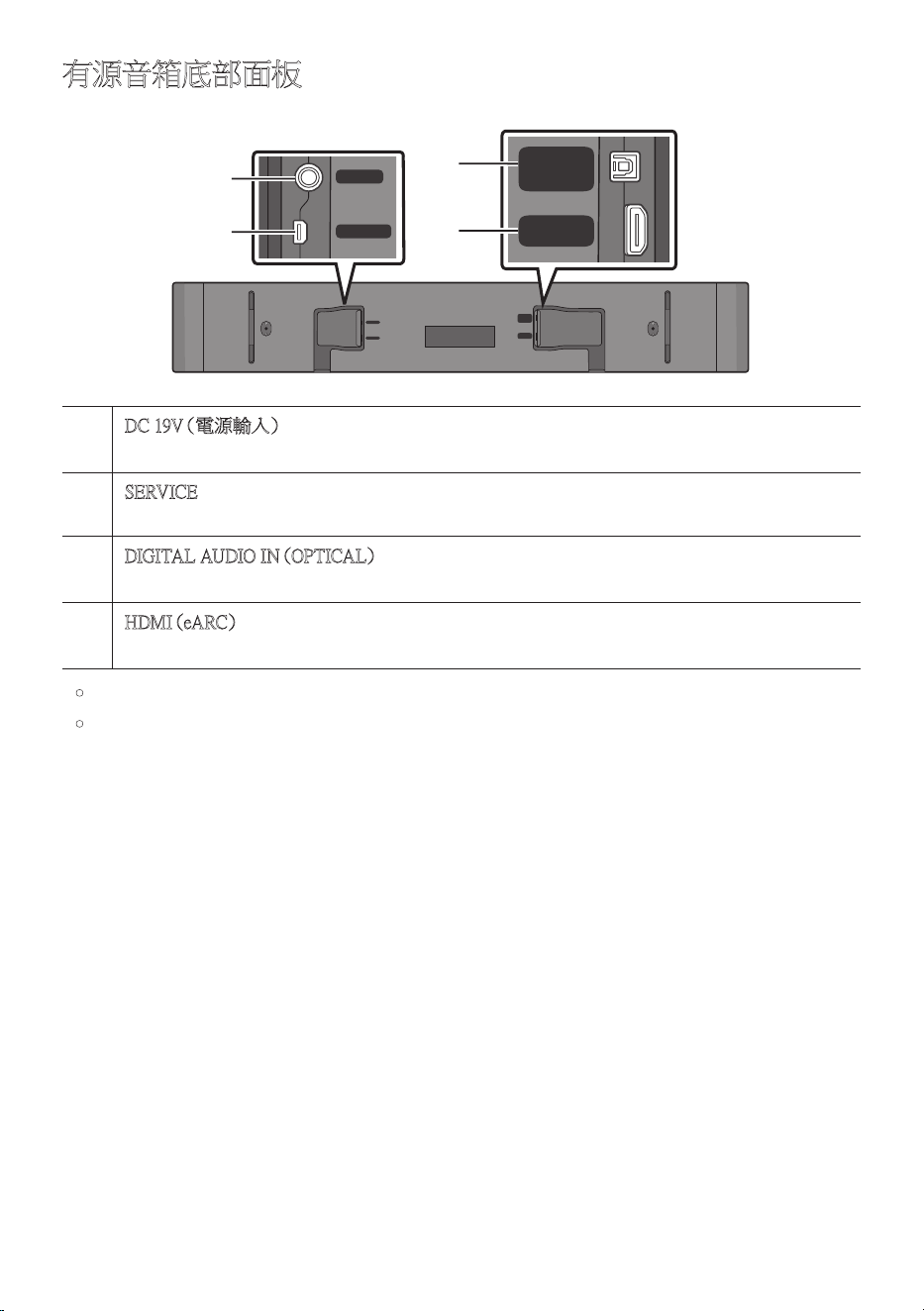
TPE - 7
有源音箱底部面板
SERVICE
DC 19V
DIGITAL
AUDIO IN
(OPTICAL)
HDMI
(eARC)
SERVICE
DC 19V
DIGITAL
AUDIO IN
(OPTICAL)
HDMI
(eARC)
SERVICE
DC 19V
DIGITAL
AUDIO IN
(OPTICAL)
HDMI
(eARC)
DC19V(電源輸入)
連接交流電/直流電變壓器。(請參閱第 15 頁 )。
SERVICE
連接USB儲存裝置以升級產品軟體。
DIGITALAUDIOIN(OPTICAL)
連接至外部裝置的數位(光纖)輸出。(請參閱第 26 頁 )。
H D M I(e A R C )
連接至電視上的HDMI(eARC)插孔。(請參閱第 16 頁 )。
• 從牆面插座拔除交流電/直流電轉接器電纜時,請拉動插頭。請勿拉動纜線。
• 在完成元件之間的所有連接之前,請勿將此裝置或其他元件連接至交流電插座。
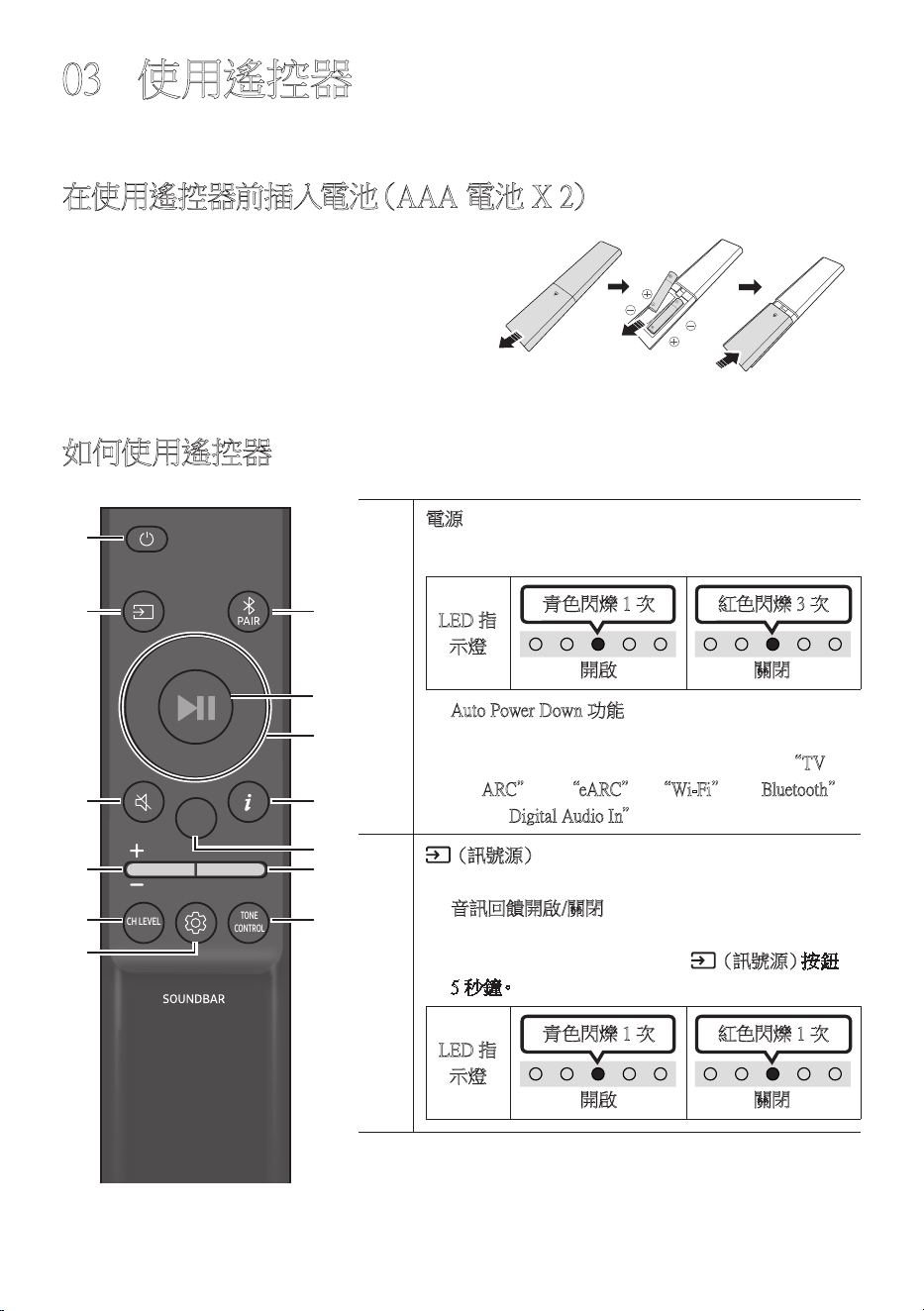
TPE-8
03 使用遙控器
在使用遙控器前插入電池(AAA電池X2)
以 箭 頭 方 向 滑 動 後 蓋,直 到 完 全 卸 下 為 止。
按照正確的電極方向插入2個AAA電池
( 1 . 5 V )。 將 後 蓋 滑 回 原 位 。
如何使用遙控器
SOUND
MODE
WOOFER
TONE
CONTROL
CH LEVEL
電源
開 啟 及 關 閉 有 源 音 箱。
LED指
示燈
青色閃爍1次
開啟 關閉
紅色閃爍3次
• AutoPowerDown功能
裝 置 會 在 下 列 情 況 自 動 關 閉:
– 若18分鐘都沒有音訊訊號,則會進入
“TV
ARC”或“eARC”/“Wi-Fi”/“Bluetooth”
/“DigitalAudioIn”模 式。
(訊號源)
按下可選擇連接至有源音箱的訊號源。
• 音訊回饋開啟/關閉
您可以開啟或關閉音訊回饋。有源音箱關閉時
( 待 機 模 式 ), 按 住 遙 控 器 上 的 (訊號源)按鈕
5秒鐘。
LED指
示燈
青色閃爍1次
開啟 關閉
紅色閃爍1次
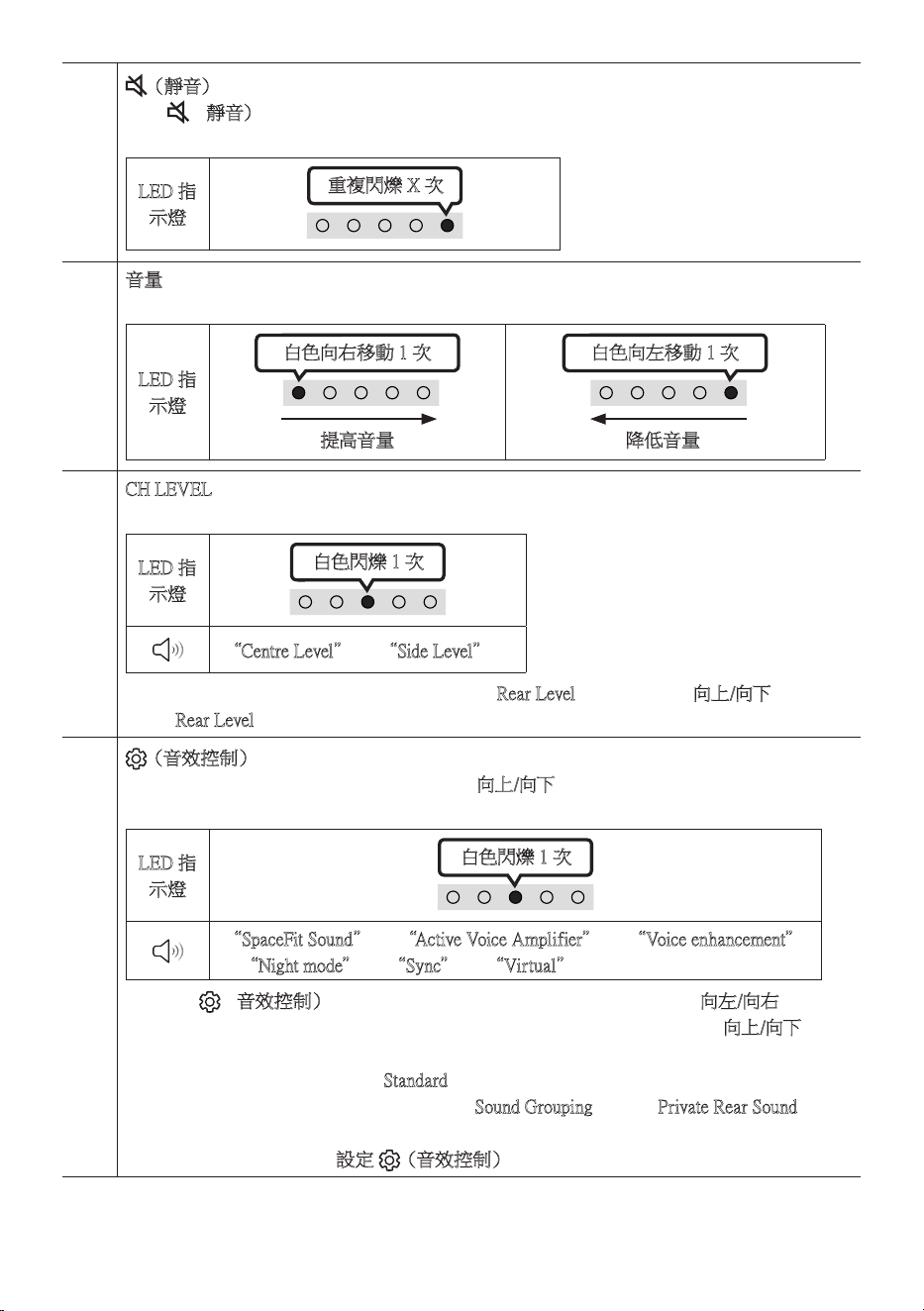
TPE - 9
(靜音)
按下 (靜 音)按鈕以靜音聲音。
再次按下以取消靜音聲音。
LED指
示燈
重複閃爍X次
音量
向上或向下推動按鈕可調整音量。
LED指
示燈
白色向右移動1次
提高音量
白色向左移動1次
降低音量
CHLEVEL
按下按鈕即可調整每個揚聲器的音量。
LED指
示燈
白色閃爍1次
“CentreLevel”“SideLevel”
– 若 連 接 後 置 揚 聲 器( 另 售)時,則 會 支 援 “ RearLevel”設定。使用向上/向下按鈕將
“RearLevel”的音量調整為介於-6到+6之間。
(音效 控 制)
您可以按下按鈕設定音訊功能。您可以使用向上/向下按鈕調整所需設定。
每當模式變更時,多彩LED會閃爍白色光。
LED指
示燈
白色閃爍1次
“SpaceFitSound”“ActiveVoiceAmplifier”“Voiceenhancement”
“Nightmode”“Sync”“Virtual”
– 按住 (音效控制)按鈕大約5秒,以調整每個頻帶的聲音。可使用向左/向右按鈕選
擇150Hz、300Hz、600Hz、1.2kHz、2.5kHz、5kHz和10kHz,每項都能使用向上/向下按鈕
調整為介於-6到+6之間的設定。
(請確認聲音模式設定為“Standard”。)
– 當連接後置揚聲器(另售)時,會支援“SoundGrouping”和“PrivateRearSound”設
定。
– 請參閱第11頁上的“設定 (音 效 控 制)”。
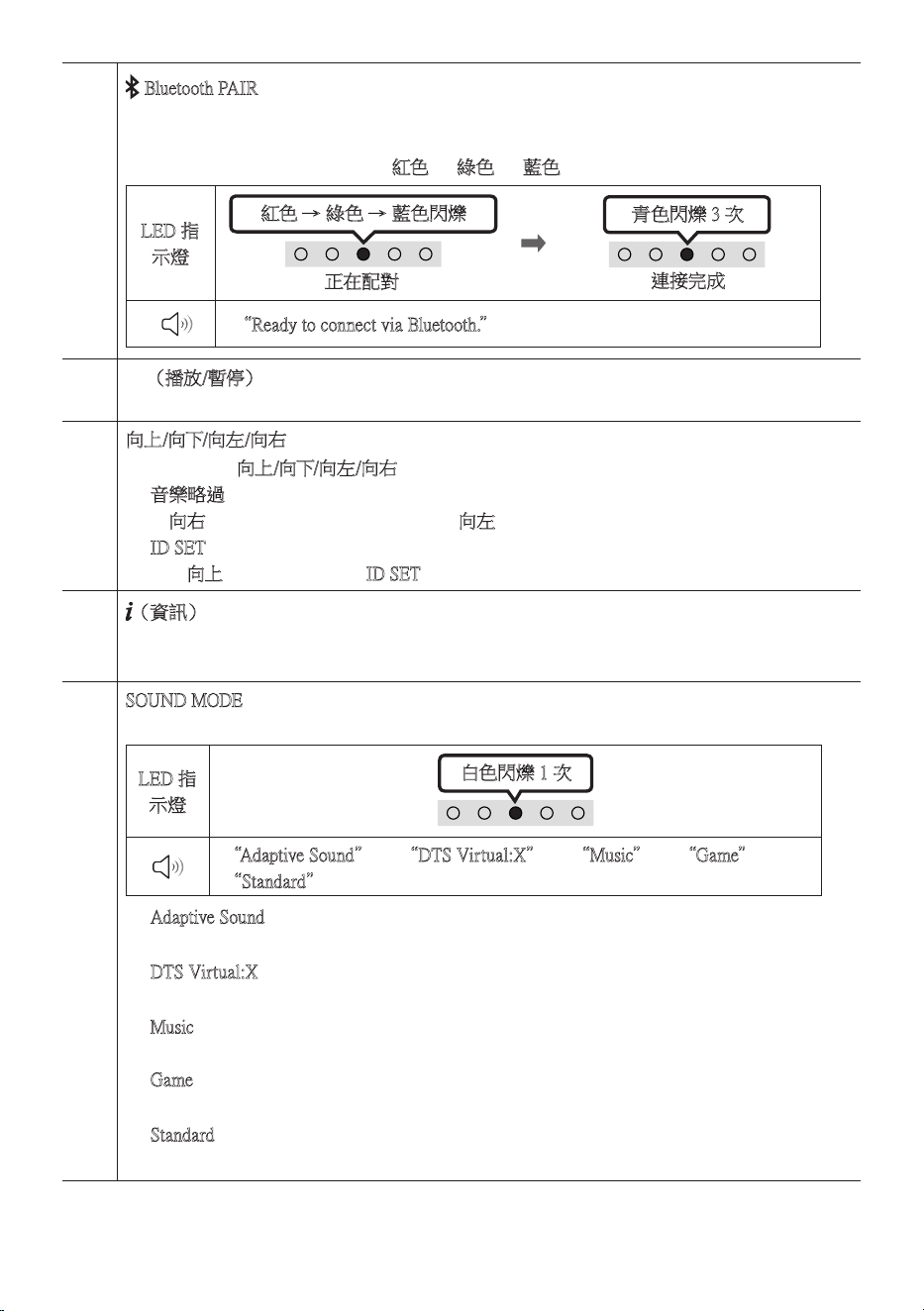
TPE - 10
BluetoothPAIR
將有源音箱切換至Bluetooth配對模式。
按下按鈕時,LED顯示器會如下圖變化。
• 在配對完成前,多彩LED會依紅色→綠色→藍色的 順 序 變 更 發 光。
LED指
示燈
紅色→綠色→藍色閃爍
正在配對
連接完成
青色閃爍3次
“ReadytoconnectviaBluetooth.”
p(播放/暫停)
您也可以按下按鈕以播放或暫停音樂。
向上/向下/向左/向右
按下按鈕上的向上/向下/向左/向右選擇或設定功能。
• 音樂略過
按向右按鈕可選擇下一個音樂檔案。按向左按鈕可選擇上一個音樂檔案。
• IDSET
按住向上按鈕5秒,以完成IDSET(連接至無線有源重低音音箱或無線後置揚聲器時)。
(資訊)
按 下 後 , 隨 即 出 現 各 種 模 式 的 資 訊 。( 請 參 閱 第 5 頁 。)
連接至DolbyAtmos®時,LED指示燈會閃爍3次青色光。
SOUNDMODE
您可以按下按鈕選擇想要的音訊模式。每當模式變更時,多彩LED會閃爍白色光。
LED指
示燈
白色閃爍1次
“AdaptiveSound”“DTSVirtual:X”“Music”“Game”
“Standard”
• AdaptiveSound
即時分析內容並根據內容特徵自動提供最佳音場。
• DTSVirtual:X
無論何種內容,都能帶來身臨其境的3D音效。
• Music
為音樂內容提供更自然且充滿房間的聲音。
• Game
提供立體聲以讓您在遊戲時沉浸在動作中。
• Standard
輸 出 原 始 聲 音。
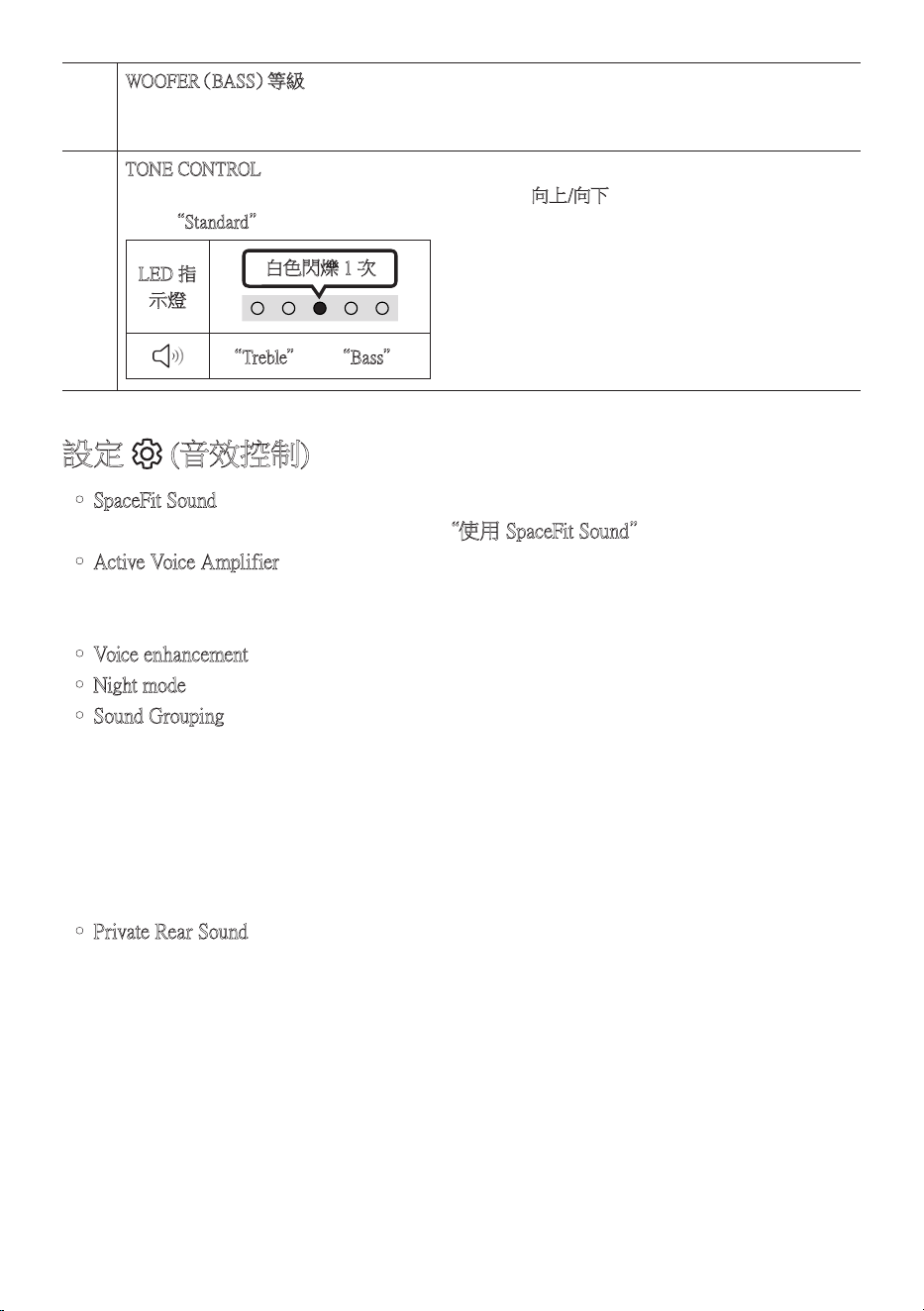
TPE - 11
W O O F E R( B A S S)等 級
向上或向下推動按鈕以將有源重低音音箱(低音)的音量調整為-12或介於-6到+6之間。
若要將有源重低音音箱(低音)音量設定為0(預設),請按下按鈕。
TONECONTROL
您可以按下按鈕調整高音或低音的音量。可以使用向上/向下按 鈕 調 整 所 需 項 目 。( 此 功 能
除了“Standard”模式以外,在所有聲音模式中皆適用。)
LED指
示燈
白色閃爍1次
“Treble”“Bass”
設定 (音效控制)
• SpaceFitSound:此功能會使用有源音箱的麥克風分析使用者的聆聽空間,並根據空間
提 供 最 佳 的 聲 音。( 請 參 閱 第 25頁上的 “使用SpaceFitSound”。)
• ActiveVoiceAmplifier:在有源音箱播放時即時分析外部雜音,以確保永遠聽得清楚聲
音 音 訊。
– 分析 期 間 不會儲 存 任 何 資 料。
• Voiceenhancement可讓您更容易聽見電影及電視內的口語對話。
• Nightmode為夜間觀看的最佳選擇,可調整設定將音量調低但仍保持對話清晰。
• SoundGrouping:有源音箱主裝置和後環繞喇叭會播放整個音效而非環繞音效,很適合
一 群人在 大 空 間中聽 音 樂。
– 當連線後環繞喇叭時會初次啟用此功能表,之後不論後環繞喇叭連接狀態為何,該
功 能 表 都 會 維 持 啟 用 狀 態。
– 如果您啟用此模式,則各聲音模式中的聲音不會有任何差異。
– 聲音不會從有源音箱主裝置和後環繞喇叭的所有喇叭裝置傳出,而是只會從部分預
先確定的裝置傳出,這會因型號而異。
• PrivateRearSound:這個模式會將聲音設定為只從後環繞喇叭傳出,讓您在不受他人打
擾 的 情 況 下 聆 聽。
– 如果您啟用此模式,則聲音不會從有源音箱主裝置和有源重低音音箱傳出。聲音只
會從後環繞喇叭的前方頻道傳出。
– 如果您啟用此模式,則各聲音模式中的聲音不會有任何差異。
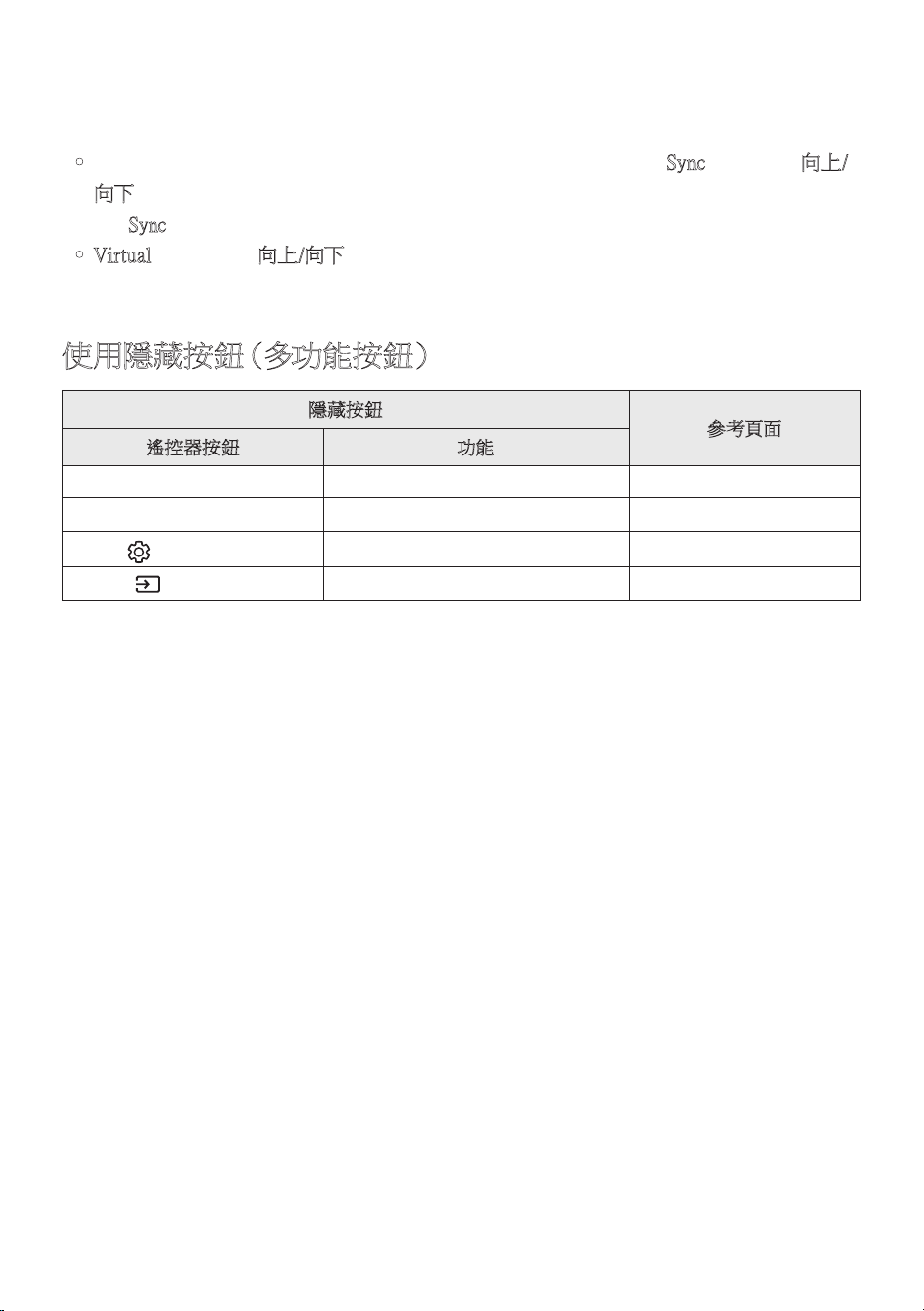
TPE - 12
– 這項功能會在電源關閉或是失去後環繞喇叭的連接時關閉。
– 功 能 表 只 會 在 連 接 後 環 繞 喇 叭 時 啟 動。
– 當Q-Symphony功能開啟時,這個模式會自動關閉並變得無法使用。
• 若電視上的視訊與有源音箱的音訊不同步,請在聲音控制中選擇
Sync,然 後 使 用 向上/
向下按鈕設定0到300毫秒之間的音訊延遲。
– Sync僅受某些功能支援。
• Virtual功能可使用向上/向下按 鈕 切 換 成 開 啟 / 關 閉。
使用隱藏按鈕(多功能按鈕)
隱藏按鈕
參考頁面
遙控器按鈕 功能
W O O F E R( 向 上 ) 電視遙控器開啟/關閉(待命) 第14頁
向上 IDSET 第10頁
(音效 控 制)
7環帶EQ 第9頁
(訊號源)
音 訊 回 饋 開 啟 / 關 閉(待 命) 第8頁
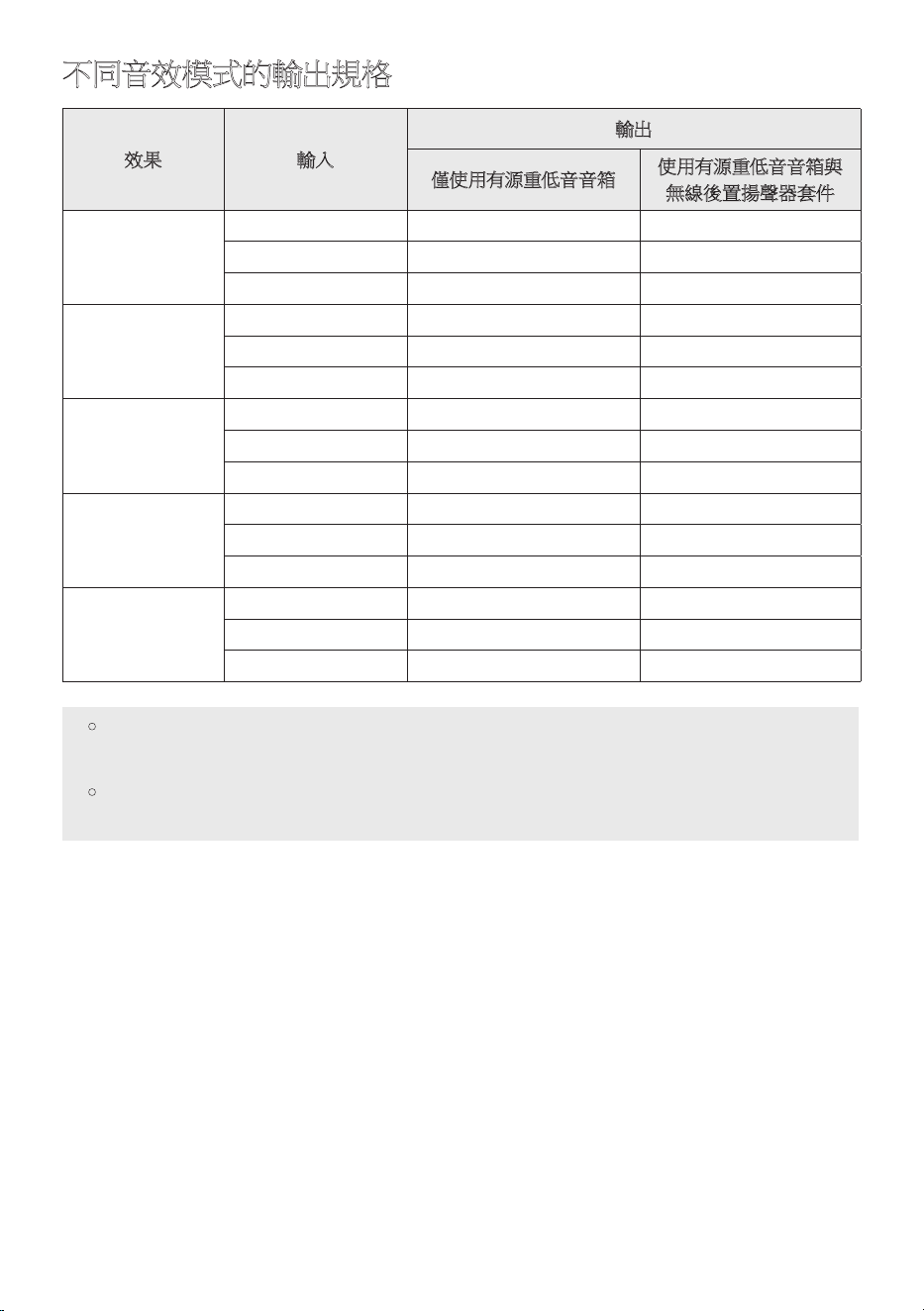
TPE - 13
不同音效模式的輸出規格
效果 輸入
輸出
僅使用有源重低音音箱
使用有源重低音音箱與
無線後置揚聲器套件
AdaptiveSound
2.0頻道 5.1頻道 7.1頻道
5.1頻道 5.1頻道 7.1頻道
DolbyAtmos® 5.1頻道 7.1頻道
DTSVirtual:X
2.0頻道 5.1頻道 7.1頻道
5.1頻道 5.1頻道 7.1頻道
DolbyAtmos® 5.1頻道 7.1頻道
Music
2.0頻道 5.1頻道 7.1頻道
5.1頻道 5.1頻道 7.1頻道
DolbyAtmos® 5.1頻道 7.1頻道
Game
2.0頻道 5.1頻道 7.1頻道
5.1頻道 5.1頻道 7.1頻道
DolbyAtmos® 5.1頻道 7.1頻道
Standard
2.0頻道 2.1頻道 2.1頻道
5.1頻道 5.1頻道 5.1頻道
DolbyAtmos® 5.1頻道 7.1頻道
• 可另外購買Samsung無線後置揚聲器套件和有源重低音音箱。
若要購買套件或有源重低音音箱,請聯絡您購買有源音箱時的廠商。
• 若輸入訊號源是DolbyAtmos®,則僅限有源重低音音箱的設定可提供5.1頻道音
訊,而有源重低音音箱與無線後置揚聲器套件設定可提供7.1頻道音訊。
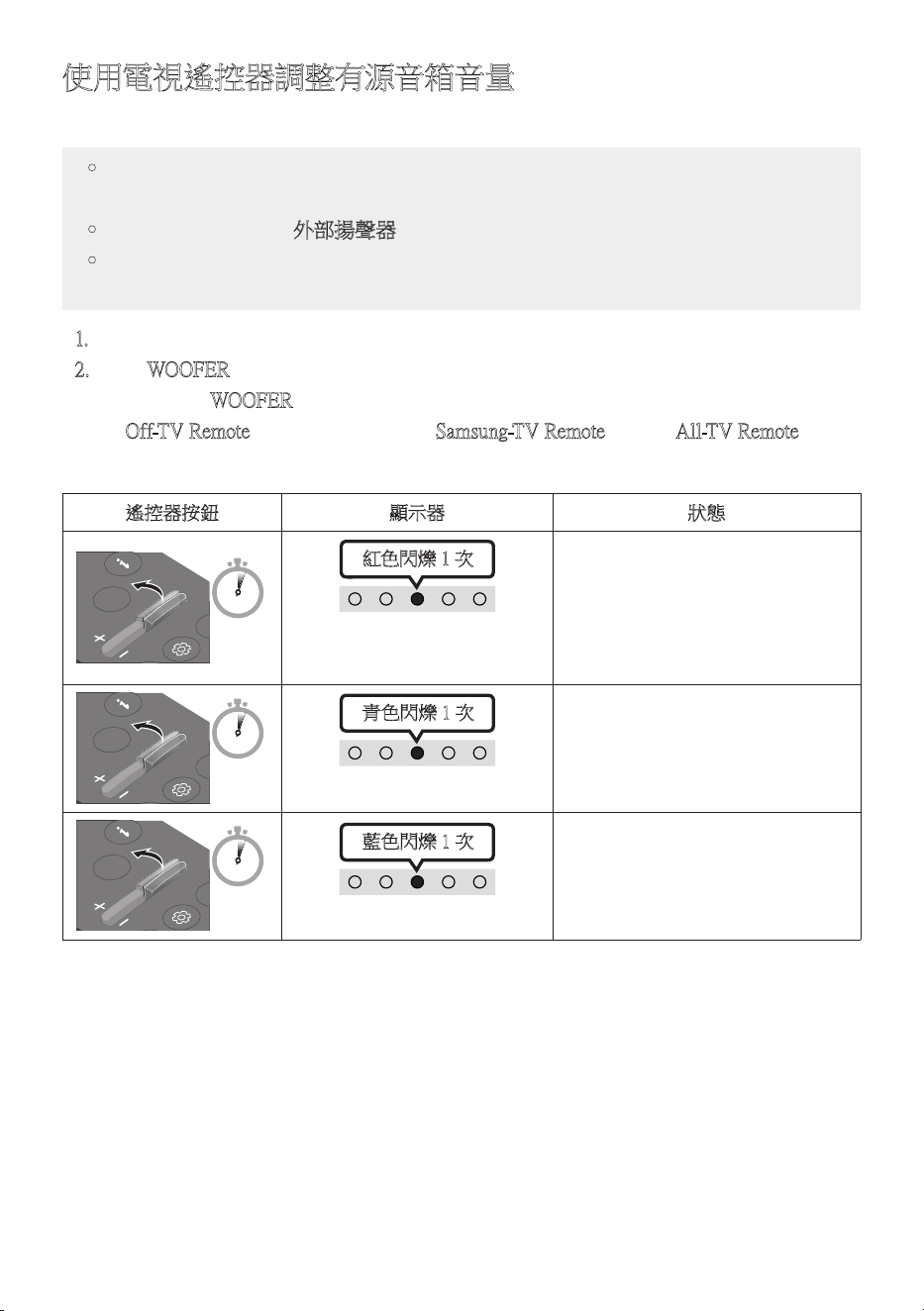
TPE-14
使用電視遙控器調整有源音箱音量
使用電視遙控器調整有源音箱音量。
• 只有在使用紅外線遙控器時才能使用此功能。不支援藍牙遙控器(需要配對的遙控
器 )。
• 將電視揚聲器設定為外部揚聲器以使 用 此 功 能。
• 支 援 此 功 能 的 製 造 商:
Samsung、VIZIO、LG、Sony、Sharp、PHILIPS、PANASONIC、TOSHIBA、Hisense、RCA
1. 關 閉 有 源 音 箱。
2. 按住WOOFER按鈕5秒。
每次您按住WOOFER按鈕5秒時,就會按照下列順序切換模式:
“Off-TVRemote”(預設模式)、“Samsung-TVRemote”、“All-TVRemote”。
每當模式變更時,LED指示燈狀態都會變更,如下所示。
遙控器按鈕 顯示器 狀態
SOUND
MODE
WOOFER
CH LEVEL
TONE
CONTROL
5 Sec
"Off-TVRemote"
(預設模式)
紅色閃爍1次
停用電視遙控器。
SOUND
MODE
WOOFER
CH LEVEL
TONE
CONTROL
5 Sec
"Samsung-TVRemote"
青色閃爍1次
啟用SamsungTV的紅外線遙控器。
SOUND
MODE
WOOFER
CH LEVEL
TONE
CONTROL
5 Sec
"All-TVRemote"
藍色閃爍1次
啟用第三方電視的紅外線遙控器。
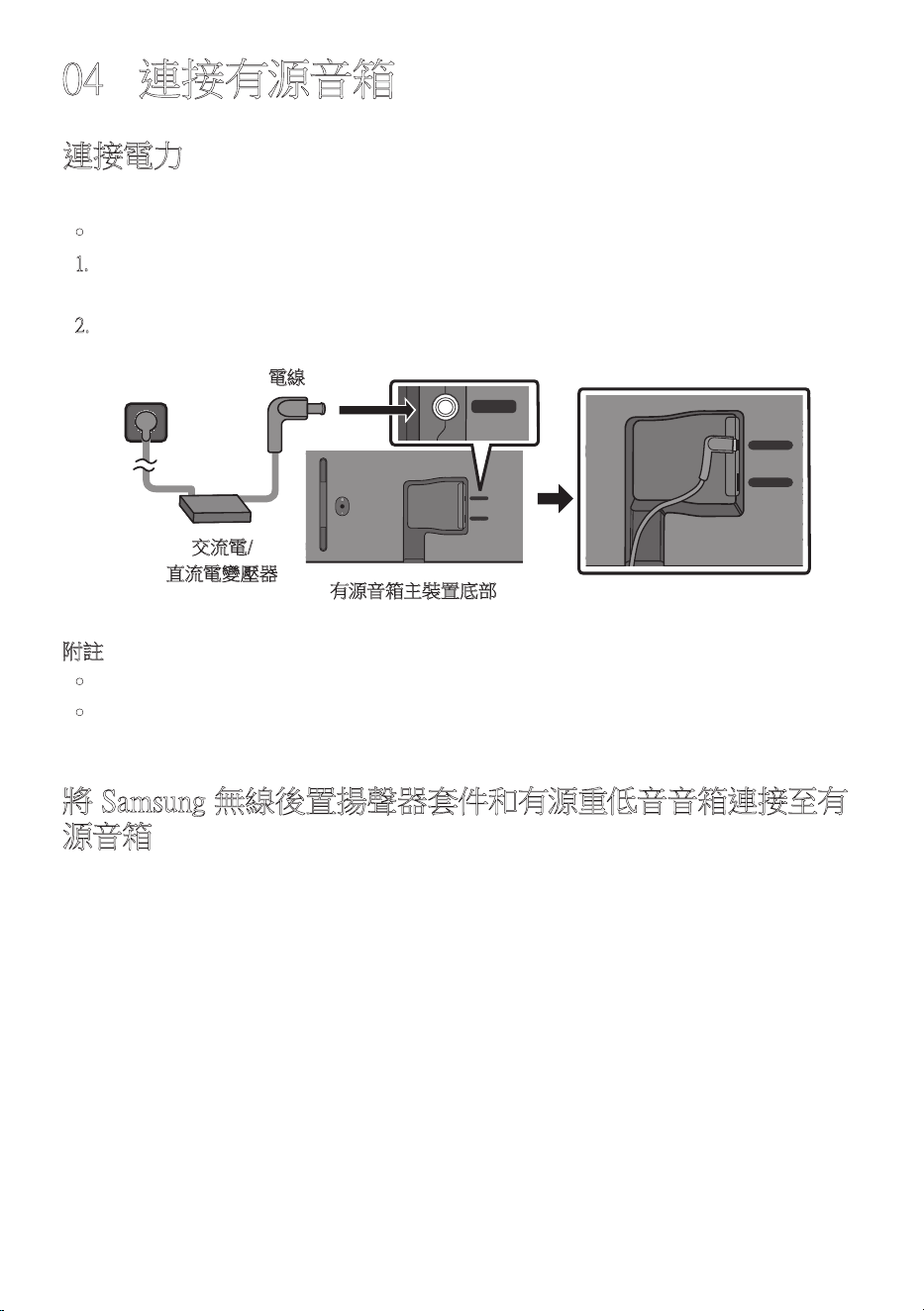
TPE-15
04 連接有源音箱
連接電力
依照下列順序,使用電源元件將有源音箱連接至電源插座:
• 電源和消耗功率,請參考本產品上的標籤。(標籤:有源音箱主裝置底部)
1. 請 先 將 電 源 線 連 接 至 交 流 / 直 流 電 變 壓 器。
將交流/直流電變壓器(具備電源線)連接至有源音箱。
2. 將電源線連接至電源插座。
有源音箱主裝置底部
SERVICE
DC 19V
DIGITAL
AUDIO IN
(OPTICAL)
HDMI
(ARC)
SERVICE
DC 19V
DIGITAL
AUDIO IN
(OPTICAL)
HDMI
(eARC)
電線
交流電/
直流電變壓器
SERVICE
DC 19V
附註
• 若您在本產品開啟時拔除並重新連接電源線,有源音箱會自動開啟。
• 請務必將交流電/直流電變壓器平放在桌面或地面上。如果您將交流電/直流電變壓器的
交流電電線輸入端朝上懸掛,水或其他異物可能會進入變壓器,並造成變壓器故障。
將Samsung無線後置揚聲器套件和有源重低音音箱連接至有
源音箱
透過將Samsung無線後置揚聲器套件(SWA-9200S,另售)和無線有源重低音音箱
(SWA-W510,另售)連接至有源音箱,可擴大至逼真的無線環場音效。
如需連接的詳細資訊,請參閱Samsung無線後置揚聲器套件和無線有源重低音音箱手冊。
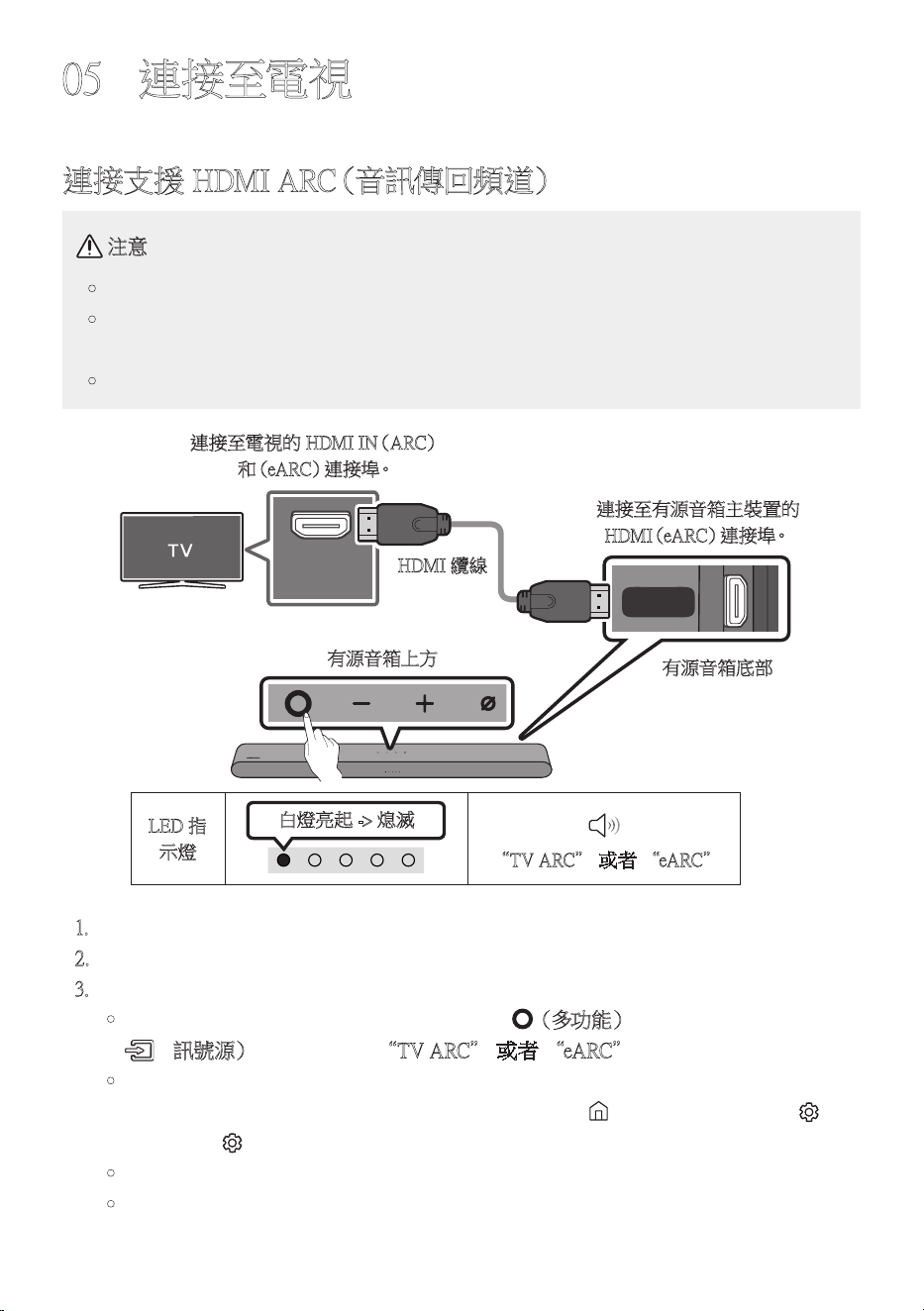
TPE-16
05 連接至電視
連接支援HDMIARC(音訊傳回頻道)
注意
• 若同時連接了HDMI纜線和光纖纜線,則會先收到HDMI訊號。
• 若要在電視和有源音箱之間連接HDMI纜線,務必連接標記ARC的終端。否則,電
視聲音可能無法輸出。
• 建議的纜線為經HDMI.org認證的HDMI纜線。
HDMI IN
(eARC)
DIGITAL
AUDIO IN
(OPTICAL)
HDMI
(eARC)
連接至電視的HDMIIN(ARC)
和(e A R C)連 接 埠。
HDMI纜線
有源音箱底部
連接至有源音箱主裝置的
H D M I(e A R C )連 接 埠。
有源音箱上方
LED指
示燈
白燈亮起->熄滅
“TVARC”或者“eARC”
1. 在關閉有源音箱和電視的情況下,連接HDMI纜線,如圖所示。
2. 開 啟 有 源 音 箱 和 電 視。
3. 電 視 聲 音 會 從 有 源 音 箱 輸 出。
• 若電視聲音不是輸出,請按有源音箱頂端的 (多功能)按鈕或是遙控器上的
(訊號源)按 鈕,以 選 取 “TVARC”或者“eARC”模 式。
• 如要與eARC連接,電視功能表中的eARC功能需設定為開啟。請參閱電視使用手冊,
瞭解關於設定的詳細資訊。 (例如SamsungTV:首頁( )→功能表→設定( )→
所有設定( )→音效→進階設定 HDMI-eARC模式(自動))
• 若聲音不是輸出,請再次檢查HDMI纜線連接情況。
• 使用電視遙控器上的音量按鈕變更有源音箱的音量。

TPE - 17
附註
• 使用HDMI纜線將支援HDMIARC(音訊傳回頻道)的電視連接至有源音箱時,您可以
傳輸數位視訊和音訊資料,而不必另外連接光纖纜線。
• 如果可能,建議您使用空心HDMI纜線。若您使用實心HDMI纜線,請使用直徑小於
14公釐的纜線。
• 若HDMI纜線不支援ARC,則此功能無法使用。
• 若廣播中的音訊以杜比數位編碼,而電視上的「數位輸出音訊格式」設定為PCM,則建
議您將設定變更為杜比數位。變更電視上的設定後,將能體驗更好的聲音品質。(不同
的電視製造商可能會在電視功能表使用不同的字詞來表示DolbyDigital和PCM)
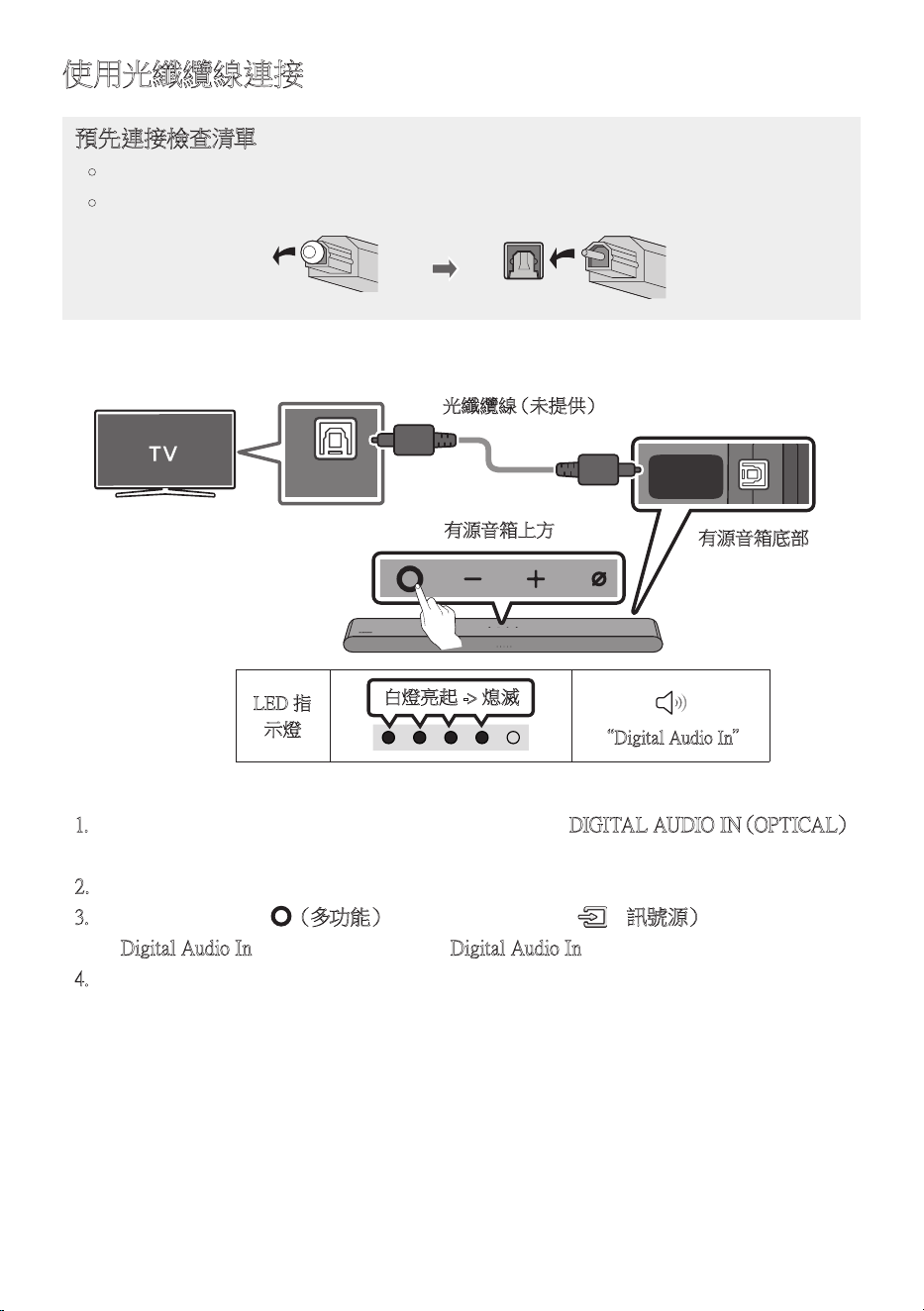
TPE-18
使用光纖纜線連接
預先連接檢查清單
• 若同時連接了HDMI纜線和光纖纜線,則會先收到HDMI訊號。
• 若使用光纖纜線且終端有蓋子,務必取下蓋子。
LED指
示燈
白燈亮起->熄滅
“DigitalAudioIn”
OPTICAL OUT
DIGITAL
AUDIO IN
(OPTICAL)
HDMI
(eARC)
有源音箱底部
光 纖 纜 線( 未 提 供 )
有源音箱上方
1. 在關閉電視和有源音箱的情況下,連接有源音箱上的DIGITALAUDIOIN(OPTICAL)
連接埠並使用光纖纜線(未提供)連接電視上的OPTICAL輸出連接埠,如圖所示。
2. 開 啟 有 源 音 箱 和 電 視。
3. 按有源音箱頂端的 (多功能)按鈕或是遙控器上的 (訊號源)按 鈕,然 後 選 取
“DigitalAudioIn”模式。就會聽到“DigitalAudioIn”輸出的公告。
4. 電 視 聲 音 會 從 有 源 音 箱 輸 出。
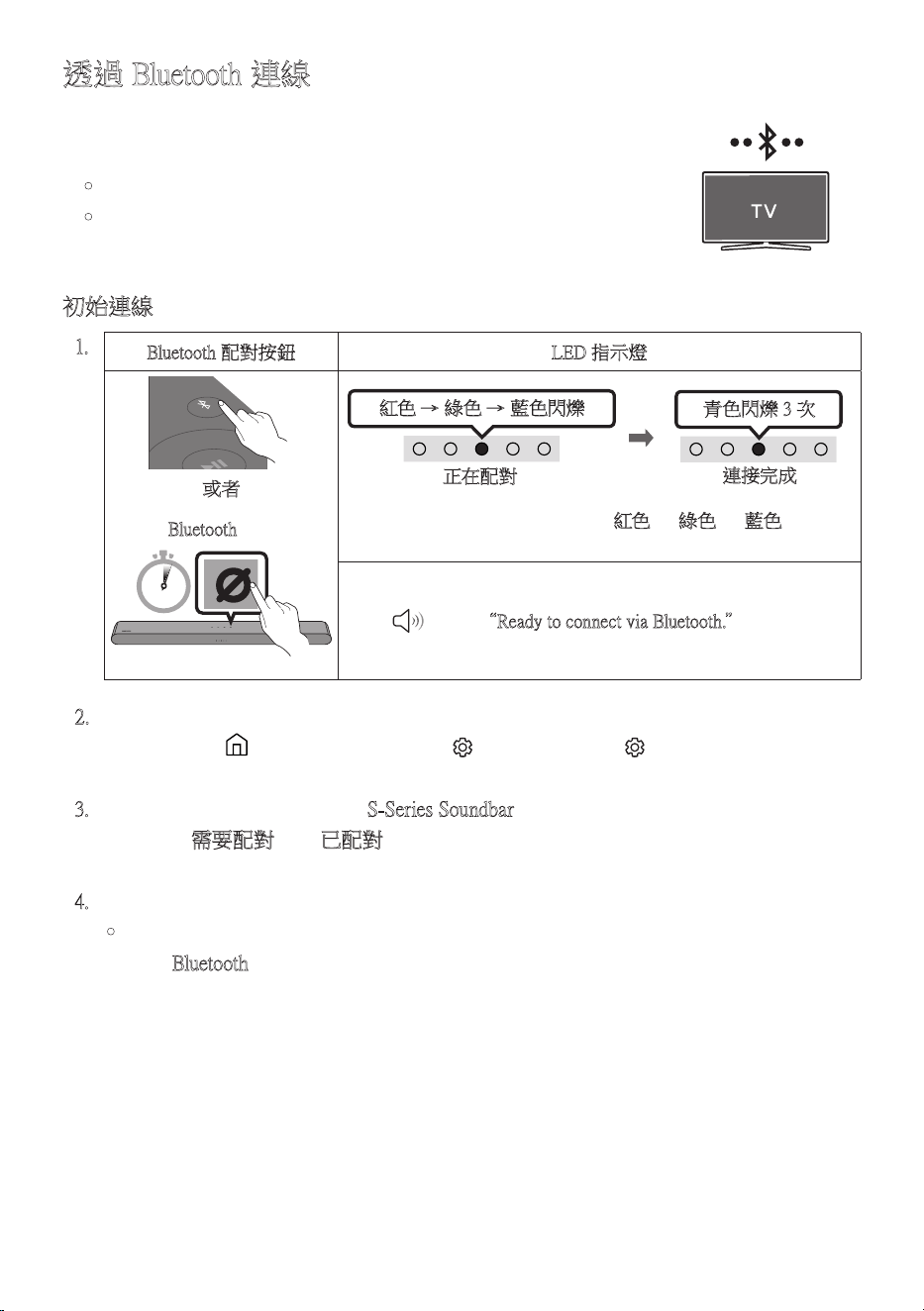
TPE - 19
透過Bluetooth連線
使用Bluetooth連線SamsungTV時,您可以聽見立體聲,不必煩惱
纜 線 問 題。
• 一次只能連線一個SamsungTV。
• 可以連線支援Bluetooth的SamsungTV。檢查電視規格。
初始連線
1.
Bluetooth配對按鈕 LED指示燈
SOUND
MODE
PAIR
或者
紅色→綠色→藍色閃爍
正在配對
連接完成
青色閃爍3次
在“Bluetooth”模式時
5 Sec
• 在配對完成前,多彩LED會依紅色→綠色→藍色的順序
變 更 發 光。
“ReadytoconnectviaBluetooth.”
2. 選擇SamsungTV上的Bluetooth模式。
(例如 首 頁( )→功能表→設定( )→所有設定( )音效音效輸出
藍牙揚聲器清單S-SeriesSoundbar(Bluetooth))
3. 從電視畫面上的清單中選擇「S-SeriesSoundbar」。可用的有源音箱會在電視藍牙裝置
清 單 中 以「 需要配對」或「已配對」顯 示。
若要連線至有源音箱,請選擇訊息並建立連線。
4. 您現在可以聽見來自有源音箱的SamsungTV聲音。
• 如果有源音箱與SamsungTV之間有連接記錄,則有源音箱會透過將自身模式變更
為“Bluetooth”以自動連接。
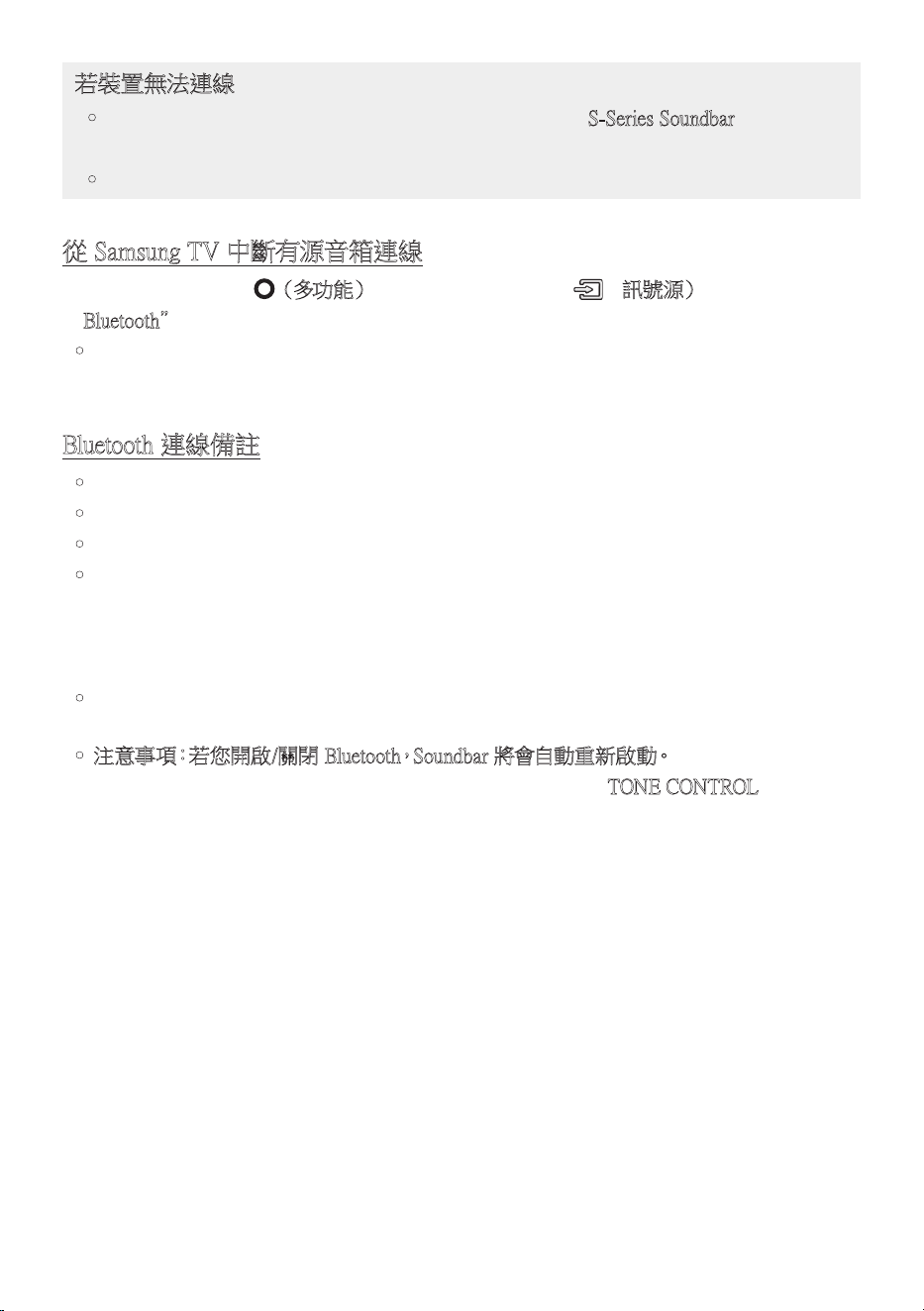
TPE - 20
若裝置無法連線
• 若SamsungTV的揚聲器清單中已存在有源音箱(例如S-SeriesSoundbar), 請 予 以 刪
除。
• 然後重複步驟1到3。
從SamsungTV中斷有源音箱連線
按下有源音箱頂端的 (多功能)按 鈕,或 是 遙 控 器 上 的 (訊號源),以 選 取
“Bluetooth”以 外 的 模 式。
• 中斷連線需要時間,因為SamsungTV必須接收來自有源音箱的回應。(不同Samsung
TV型號的所需時間可能會不同)。
Bluetooth連線備註
• 透過Bluetooth通訊在1公尺內尋找新的裝置以進行連線。
• 連線藍牙裝置時,若要求PIN碼,請輸入<0000>。
• 有源音箱會在就緒狀態持續18分鐘後自動關閉。
• 在 下 列 狀 況 下,有 源 音 箱 無 法 正 確 執 行 藍 牙 搜 尋 或 連 線:
– Soundbar周圍有會造成無線干擾的電子設備或儀器時。
– 若有數個Bluetooth裝置同時與有源音箱配對。
– 若藍牙裝置關閉、位置不正確或故障。
• 電子裝置可能會造成無線電波干擾。產生電磁波的裝置必須遠離有源音箱主裝置-例
如微波爐、無線LAN裝置等。
• 注意事項:若您開啟/關閉Bluetooth,Soundbar將會自動重新啟動。
– Bluetooth連接埠停用方式:按住有源音箱遙控器上的TONECONTROL按鈕30
秒,以開啟/關閉Bluetooth。
TPE - 21
透過Wi-Fi連接
連接之前的檢查清單
• Wi-Fi連接僅適用於SamsungTV。
• 檢查無線路由器(Wi-Fi)是否為開啟,且電視已與路由器連接。
• 電視與有源音箱必須連接至相同的無線網路(Wi-Fi)。
• 若您的無線路由器(Wi-Fi)使用DFS頻道,您將無法建立電視與有源音箱之間的
Wi-Fi連接。請聯絡您的網際網路服務提供者以獲得詳細資訊。
• 由於功能表可能會因製造年份而有所不同,因此請參閱您的電視機操作手冊。
• 若要透過Wi-Fi將電視連接至有源音箱,請先將有源音箱連接至無線路由器。請參
閱第30,頁,了解如何建立Wi-Fi連接的詳細資訊。
1. 如需有源音箱Wi-Fi連接的詳細資訊,請參閱第30,頁的「方法2。透過Wi-Fi(無線
網路)連接」。
2. 使用音訊功能表將電視的輸入訊號源變更為有源音箱。
• 2017年或之後上市的SamsungTV
首 頁( )→功能表→設定( )→所有設定( )音效音效輸出
S-SeriesSoundbar(Wi-Fi)
附註
• 注意事項:若您開啟/關閉Wi-Fi,有源音箱將會自動重新啟動。
– Wi-Fi連接埠停用方式:按住有源音箱遙控器上的CHLEVEL按鈕30秒,以開啟/
關閉Wi-Fi。
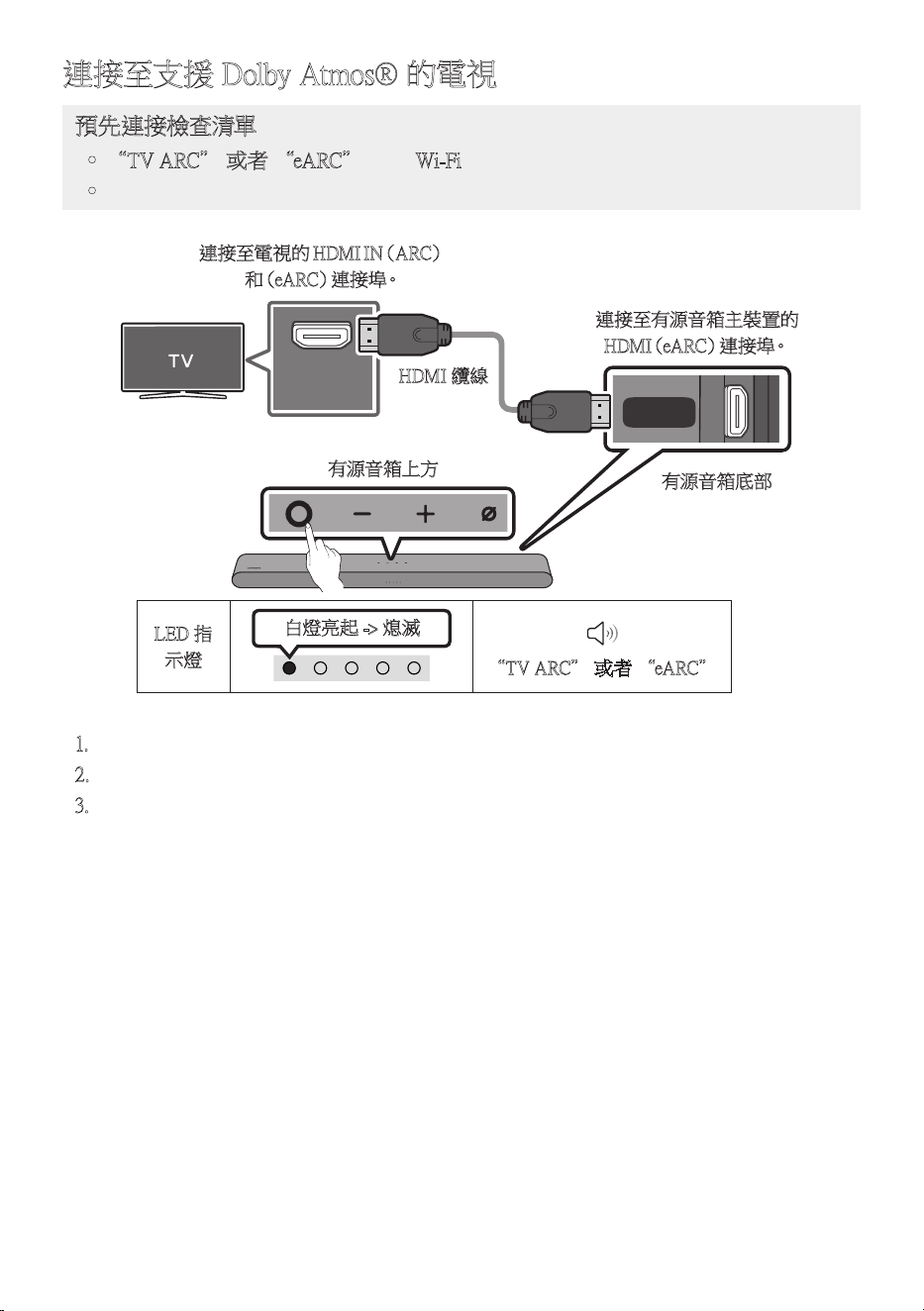
TPE - 22
連接至支援DolbyAtmos®的電視
預先連接檢查清單
• “TVARC”或者“eARC” 或“Wi-Fi”模式中支援DolbyAtmos®。
• 確認內容支援DolbyAtmos®。
HDMI IN
(eARC)
DIGITAL
AUDIO IN
(OPTICAL)
HDMI
(eARC)
連接至電視的H DMII N(A RC)
和(e A R C)連 接 埠。
HDMI纜線
有源音箱底部
連接至有源音箱主裝置的
H D M I(e A R C )連 接 埠。
有源音箱上方
LED指
示燈
白燈亮起->熄滅
“TVARC”或者“eARC”
1. 在關閉有源音箱和電視的情況下,連接HDMI纜線,如圖所示。
2. 開 啟 有 源 音 箱 和 電 視。
3. 電 視 聲 音 會 從 有 源 音 箱 輸 出。
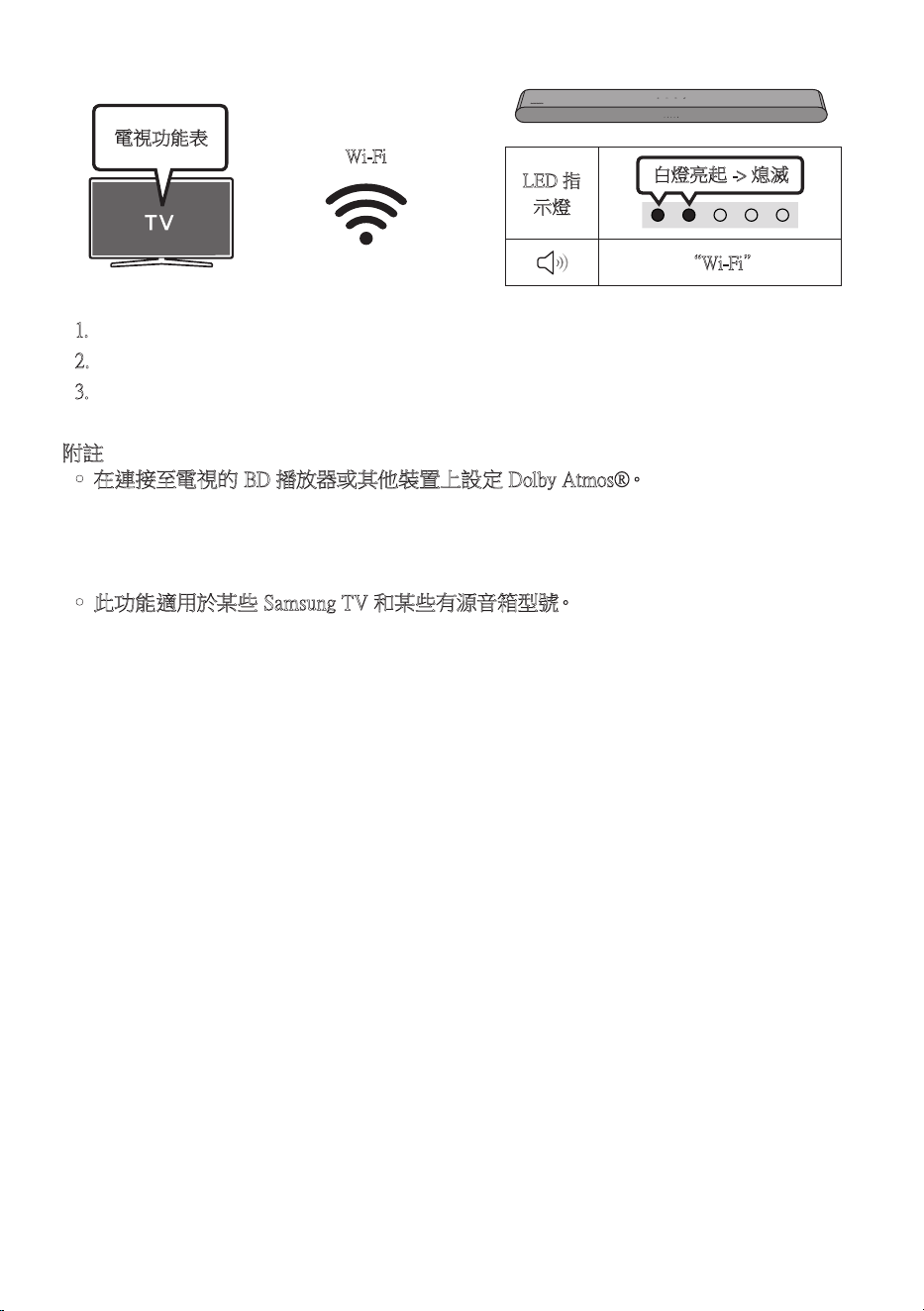
TPE - 23
LED指
示燈
白燈亮起->熄滅
“Wi-Fi”
電視功能表
Wi-Fi
1. 將有源音箱與電視連接至相同的無線網路(Wi-Fi)。
2. 如需電視的聲音輸出,請選擇有源音箱。
3. 電 視 聲 音 會 從 有 源 音 箱 輸 出。
附註
• 在連接至電視的BD播放器或其他裝置上設定DolbyAtmos®。
開啟BD播放器或其他裝置的設定功能表上的音訊輸出選項,並確認針對位元流選擇「
無編碼」。例如,在SamsungBD播放器上,前往首頁功能表→聲音→數位輸出,然後
選擇位元流(未處理)。
• 此功能適用於某些SamsungTV和某些有源音箱型號。
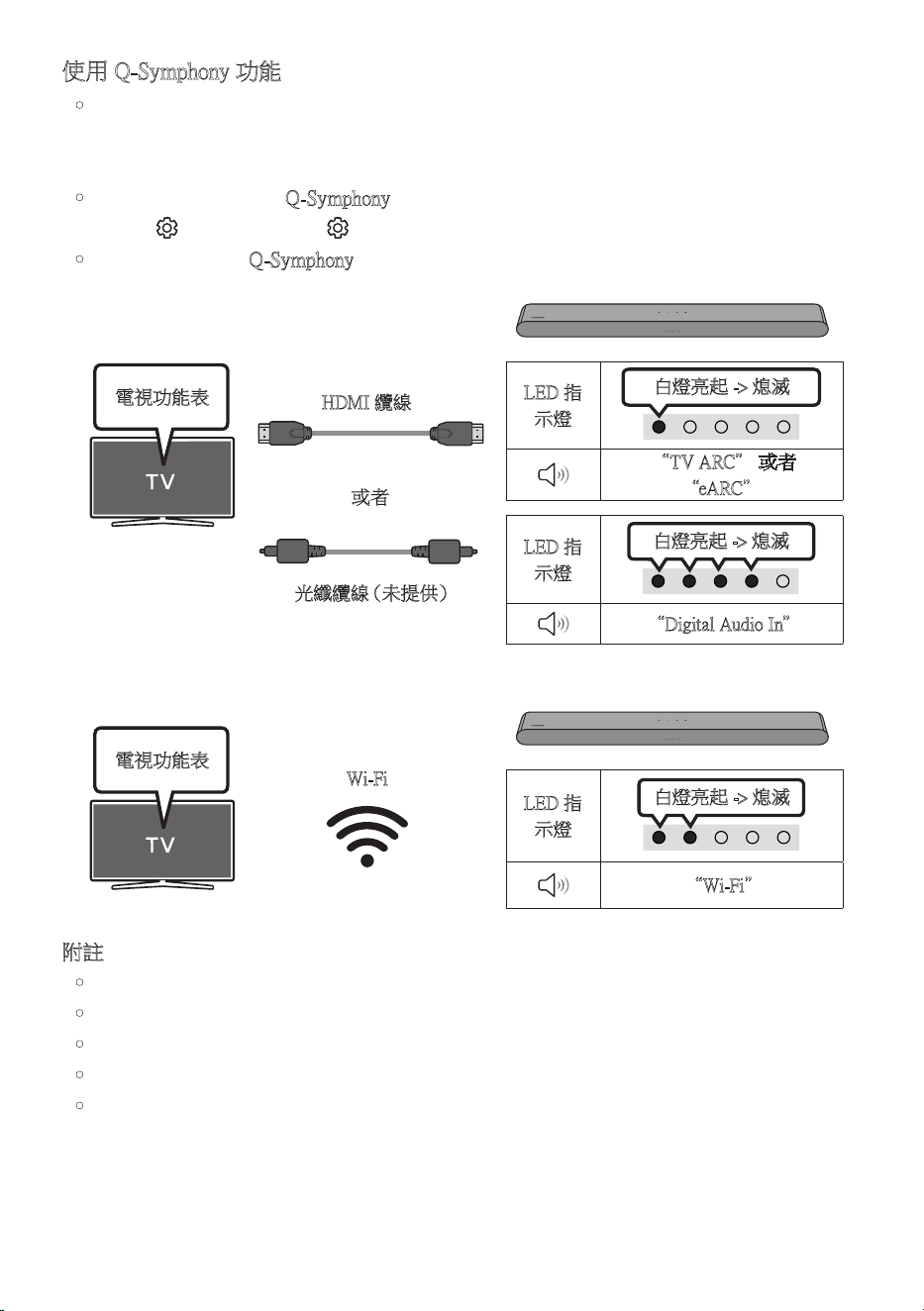
TPE-24
使用Q-Symphony功能
• 將有源音箱連接至支援Q-Symphony功能的SamsungTV,即可同時從有源音箱和電視
播放聲音。使用Q-Symphony功能,電視播放的環繞音能讓您享受更加豐富、立體的環
繞音效。
• 當 連 接 有 源 音 箱 時 ,“ Q-Symphony”功 能 表 會 出 現 在 電 視 上。
設 定( )→所有設定( )→音效→音效輸出
• 電視功能表範例:Q-Symphony
LED指
示燈
白燈亮起->熄滅
“TVARC”或者
“eARC”
LED指
示燈
白燈亮起->熄滅
“DigitalAudioIn”
電視功能表
光 纖 纜 線( 未 提 供 )
HDMI纜線
或者
LED指
示燈
白燈亮起->熄滅
“Wi-Fi”
電視功能表
Wi-Fi
附註
• 可以根據電視支援的轉碼器來操作此功能。
• 只有在連接HDMI纜線或光纖纜線(未提供)或Wi-Fi時,才支援此功能。
• 顯 示 的 訊 息可 能 因 電 視 型 號 而 異。
• 請確認您的電視和有源音箱已連線至相同的無線路由器/頻率。
• 此功能適用於某些SamsungTV和某些有源音箱型號。
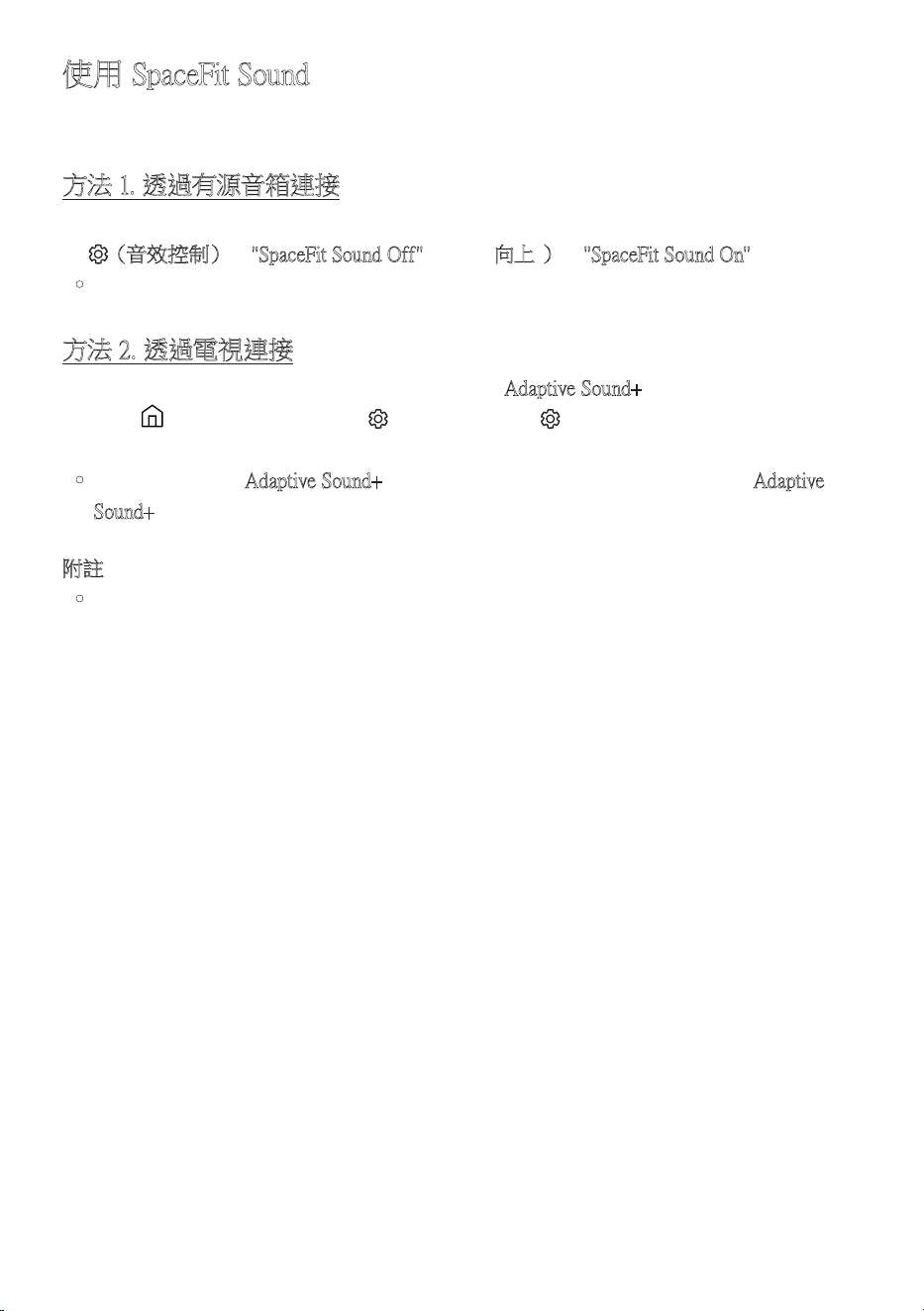
TPE-25
使用SpaceFitSound
藉 由 分 析 聆 聽 空 間,提 供 最 佳 的 聲 音 品 質。
方法1.透過有源音箱連接
若要啟用此功能,請使用有源音箱的遙控器開啟SpaceFitSound模式。
( (音效 控 制)→"SpaceFitSoundOff"→▲(向上)→"SpaceFitSoundOn")
• 在 所 有 聲 音 模 式 中 皆 適 用。
方法2.透過電視連接
若要啟用此功能,請開啟SamsungTV功能表中的AdaptiveSound+ 模 式。
(首 頁( )→功能表→設定( )→所有設定( )一般智慧模式設定
AdaptiveSound+)
• 若在電視上啟用AdaptiveSound+模式,有源音箱的聲音模式會自動變更為Adaptive
Sound+。
附註
• 此功能會在有源音箱連接至某些SamsungTV時運作。
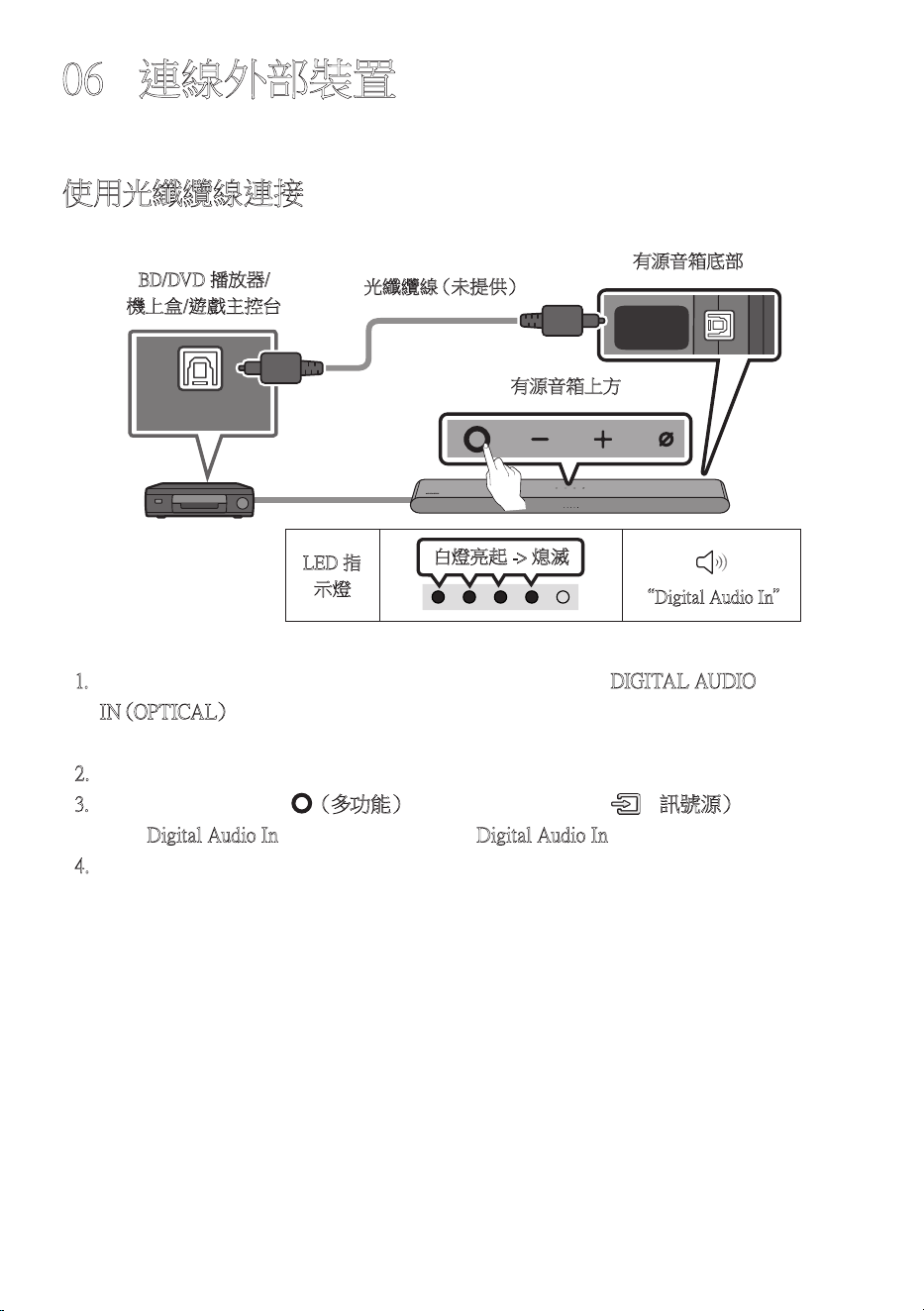
TPE-26
06 連線外部裝置
使用光纖纜線連接
LED指
示燈
白燈亮起->熄滅
“DigitalAudioIn”
- AUDIO -
R L
OPTICAL OUT
DIGITAL
AUDIO IN
(OPTICAL)
HDMI
(eARC)
有源音箱底部
光 纖 纜 線( 未 提 供 )
有源音箱上方
BD/DVD播放器/
機上盒/遊戲主控台
1. 在關閉外部裝置和有源音箱的情況下,連接有源音箱上的DIGITALAUDIO
I N(O P T I C A L) 連接埠並使用光纖纜線(未提供)連接外部裝置上的OPTICAL輸出
連 接 埠,如 圖 所 示。
2. 開 啟 有 源 音 箱 和 外 部 裝 置。
3. 按下有源音箱頂端的 (多功能)按 鈕,或 是 遙 控 器 上 的 (訊號源)按 鈕,然 後 選
取“DigitalAudioIn”模式。就會聽到“DigitalAudioIn”輸出的公告。
4. 外部裝置的聲音會從有源音箱輸出。
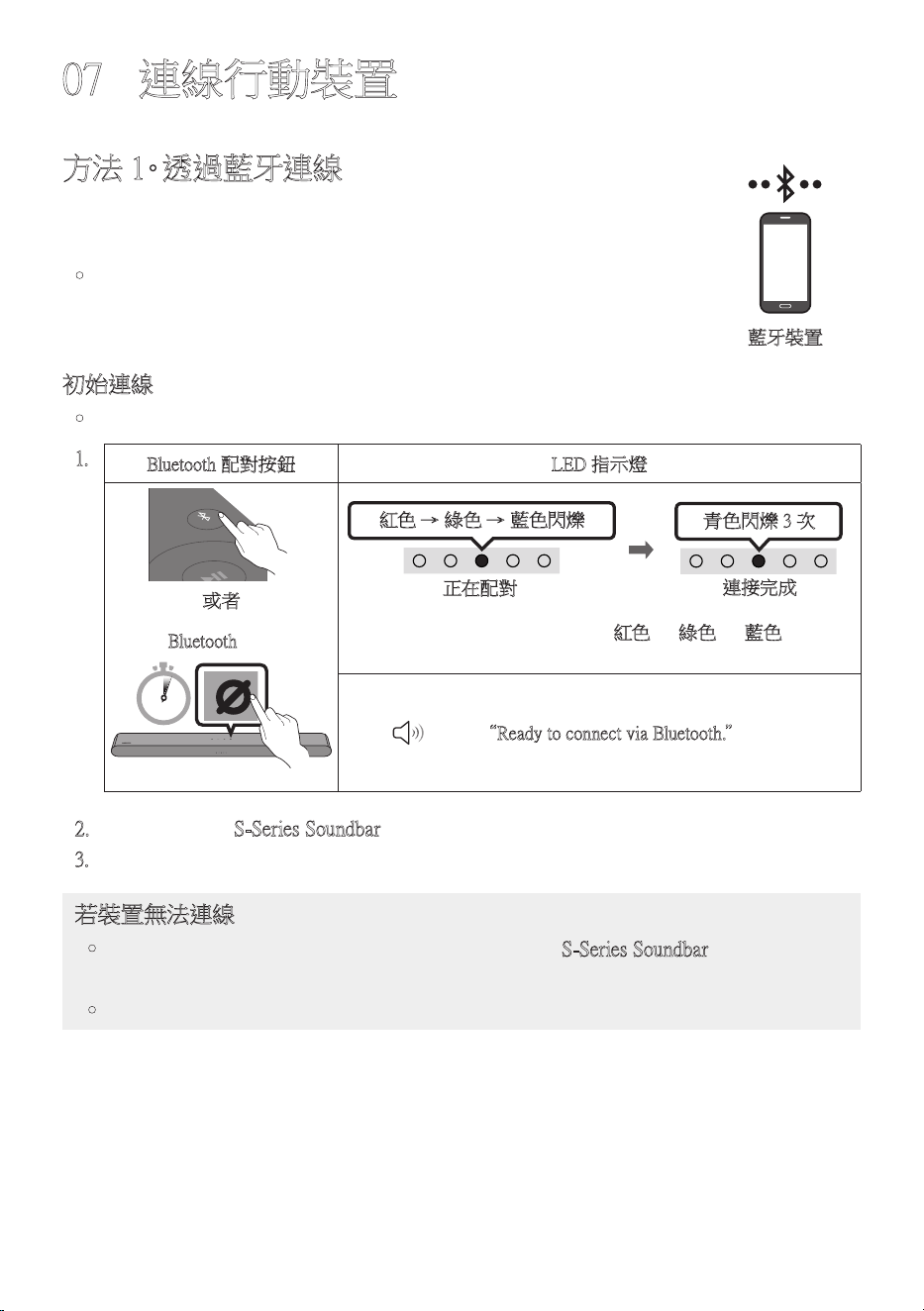
TPE - 27
07 連線行動裝置
方法1。透過藍牙連線
若行動裝置使用藍牙連線,您可以聆聽立體聲音效,且省去連接纜線的
麻 煩。
• 在有源音箱關閉的情況下連線已配對的Bluetooth裝置時,有源音箱
會 自 動 開 啟。
初始連線
• 當連線至新的Bluetooth裝置時,請確認該裝置位於1公尺的距離內。
1.
Bluetooth配對按鈕 LED指示燈
SOUND
MODE
PAIR
或者
紅色→綠色→藍色閃爍
正在配對
連接完成
青色閃爍3次
在“Bluetooth”模式時
5 Sec
• 在配對完成前,多彩LED會依紅色→綠色→藍色的順序
變 更 發 光。
“ReadytoconnectviaBluetooth.”
2. 從 清 單 中 選 擇「S-SeriesSoundbar」。
3. 透過有源音箱從藍牙連線裝置播放音樂檔案。
若裝置無法連線
• 若行動裝置的揚聲器清單中已存在有源音箱(例如「S-SeriesSoundbar」 ), 請 予 以 刪
除。
• 然後重複步驟1到2。
藍牙裝置

TPE-28
Bluetooth連線備註
• 透過Bluetooth通訊在1公尺內尋找新的裝置以進行連線。
• 連線藍牙裝置時,若要求PIN碼,請輸入<0000>。
• 在藍牙連線模式中,若有源音箱和藍牙裝置之間的距離超過10公尺,會遺失藍牙連
線。
• 有源音箱會在就緒狀態持續18分鐘後自動關閉。
• 在 下 列 狀 況 下,有 源 音 箱 無 法 正 確 執 行 藍 牙 搜 尋 或 連 線:
– 若 有 源音 箱 附 近 有 強 烈 電 場。
– 若有數個藍牙裝置同時與有源音箱配對。
– 若藍牙裝置關閉、位置不正確或故障。
• 電子裝置可能會造成無線電波干擾。產生電磁波的裝置必須遠離有源音箱主裝置-例
如微波爐、無線LAN裝置等。
• 有源音箱僅支援中等品質SBC資料(44.1kHz,48kHz)
• 只能連接至支援A2DP(AV)功能的藍牙裝置。
• 將有源音箱連接至Bluetooth裝置時,請盡可能讓這些裝置靠近彼此。
• 有源音箱和Bluetooth裝置之間的距離越遠,聲音品質就會變得越低。Bluetooth連線可
能 會 在 裝 置 超 出 有 效 範 圍 時 中 斷。
• Bluetooth連線在接收不良的區域可能無法如預期運作。
• 在下列情況下,Bluetooth裝置可能會有雜訊或故障:
– 機身接觸到Bluetooth裝置或有源音箱上的訊號收發器時。
– 位於角落或附近有牆壁或隔板等障礙物時,在此情況下可能會發生電氣變化。
– 受到以相同頻率範圍操作之其他產品的無線電干擾,例如醫療設備、微波爐和無線
LAN裝置。
– 即使裝置位於有效範圍內,門和牆等障礙物仍可能會影響聲音品質。
• 請注意,使用Bluetooth選項時,有源音箱無法與Bluetooth裝置配對。
• 這個 無 線 裝 置 可能會 在 操 作 期 間 造 成 電 氣干 擾。

TPE - 29
從有源音箱中斷藍牙裝置的連線
您可以從有源音箱斷開藍牙裝置的連線。如需說明,請參閱藍牙裝置的使用者手冊。
• 有源 音 箱 將 斷 開 連 線。
• 若有源音箱與Bluetooth裝置中斷連接,有源音箱上的多彩LED指示燈會閃爍三次「紅
光」。
從藍牙裝置中斷有源音箱連線
按下有源音箱頂端的 (多功能)按鈕或遙控器上的 (訊號源)按 鈕,以 選 擇
“Bluetooth”以 外 的 模 式。
• 中斷連線需要時間,因為藍牙裝置必須收到來自有源音箱的回應。(不同的藍牙裝置需
要不同的中斷連線時間)
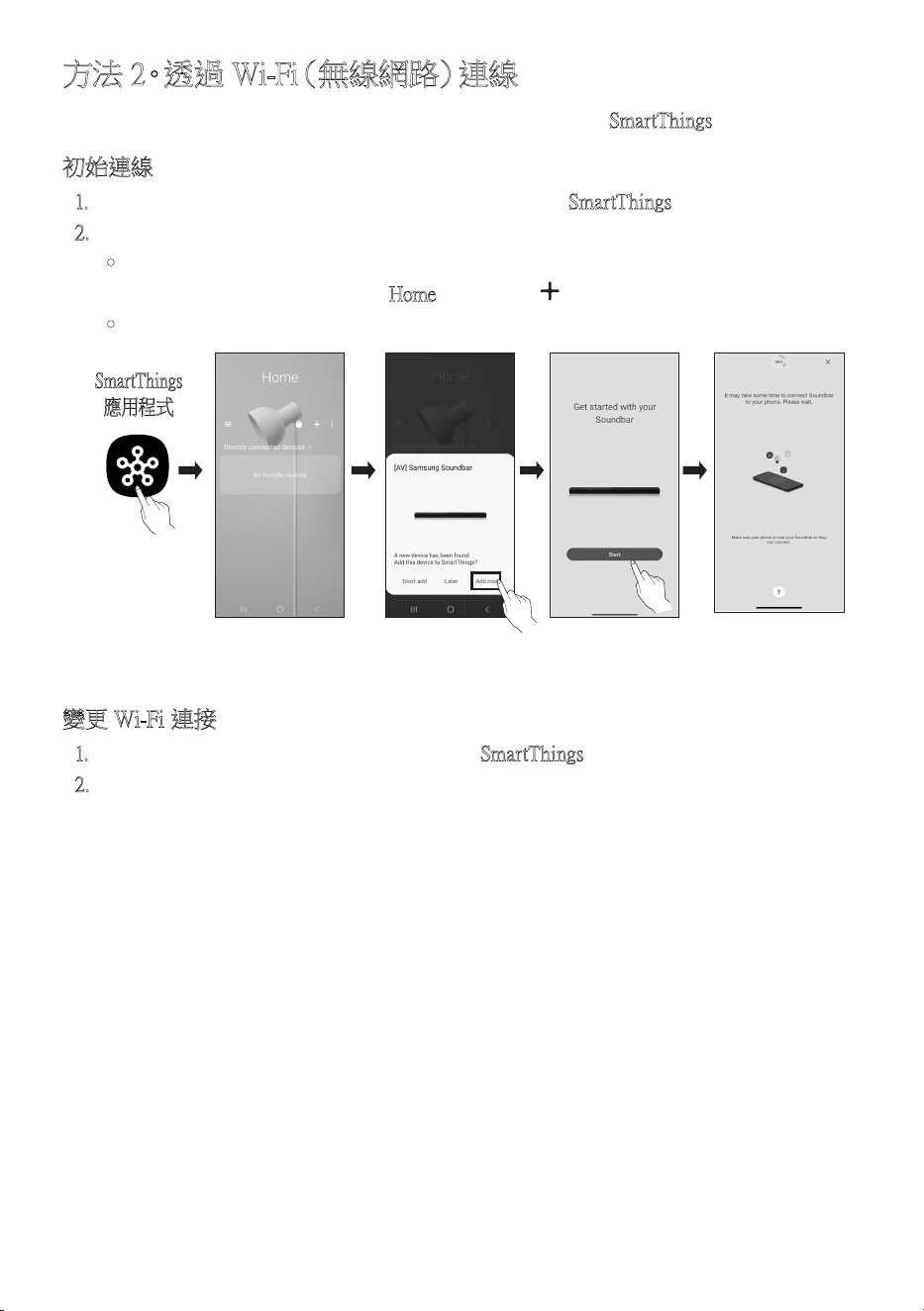
TPE - 30
方法2。透過Wi-Fi(無線網路)連線
若要透過無線網路(Wi-Fi)將有源音箱連線至行動裝置,需要SmartThings 應 用 程 式。
初始連線
1. 安裝並啟動行動裝置(智慧型手機或平板電腦)上的SmartThings 應 用 程 式。
2. 在應用程式上,按照螢幕上的指示新增有源音箱。
• 自動快顯視窗(以下第二張螢幕擷取畫面)在某些裝置上可能無法顯示。
若沒有顯示快顯視窗,請按下Home 螢 幕 上 的「 」。有源音箱已新增至應用程式。
• 以下 圖 片可能 會 根 據 應 用 程 式 版 本 而 異。
啟動應t用程式 新增裝置自動快顯視窗
SmartThings
應用程式
變更Wi-Fi連接
1. 從行動裝置(智慧型手機或平板電腦)啟動SmartThings 應 用 程 式。
2. 於應用程式中刪除已註冊的Soundbar後再次新增。
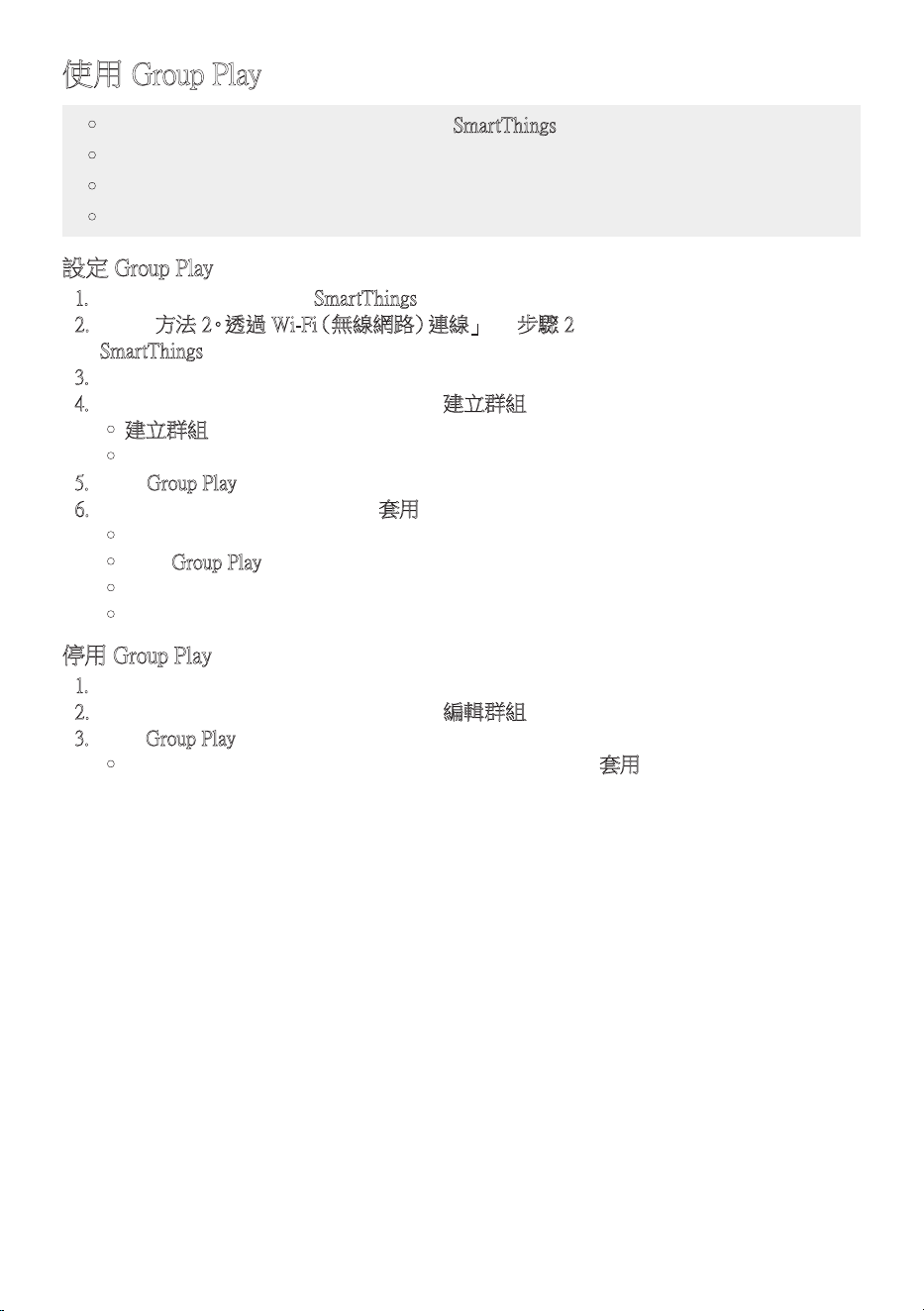
TPE - 31
使用GroupPlay
• 若要享受此功能,請將有源音箱新增至SmartThings 應 用 程 式。
• 若要啟用此功能,請將至少兩個音訊裝置連接至5GHz的相同Wi-Fi網路。
• 此功能可用於2024年和之後推出的Samsung音效裝置(需支援Wi-Fi)。
• 此 功 能 不 支 援 電 視 聲 音。
設定GroupPlay
1. 請執行您行動裝置上的SmartThings 應 用 程 式。
2. 根據「方法2。透過Wi-Fi(無線網路)連線」→「步驟2(裝置註冊)」一節中的指示,在
SmartThings應用程式中新增有源音箱。
3. 輕 觸 有 源 音 箱 卡。
4. 在行動裝置上,輕觸音訊裝置圖示下的建立群組。
• 建立群組按鈕僅會在有源音箱處於Wi-Fi模式時出現。
• 如果有源音箱正在播放電視聲音,則會在建立群組時中斷與電視的連線。
5. 啟用GroupPlay。
6. 在清單中選取所需裝置,並輕觸套用。
• 您最多可新增4部裝置。
• 啟用GroupPlay 後,僅 會 透 過 主 機 裝 置 輸 出 音 訊。
• 當連接至主機裝置的裝置切換至不同訊號源時,群組會自動刪除該裝置。
• 當主機裝置連接至電視時,會自動刪除產生的群組。
停用GroupPlay
1. 輕 觸 音 訊 裝 置 卡。
2. 在行動裝置上,輕觸音訊裝置圖示下的編輯群組。
3. 停用GroupPlay。
• 若 要 停 用 個 別 裝 置,請 從 清 單中 取 消 選 取 裝 置,並 輕 觸 套用。

TPE - 32
透過AppleAirPlay連接
• 某些國家/地區可能無法使用此功能。
• 此Samsung有源音箱支援AirPlay,並需要iOS13.4或更新版本。
• 如要在您的有源音箱中啟用AirPlay,您必須先同意應用程式的條款與條件以向
SamsungSmartThings應用程式註冊裝置。
• 確認有源音箱是否已經開啟電源並連線至與您Apple裝置相同的Wi-Fi網路。
只要有了AirPlay,您就可以透過Apple裝置將音樂、Podcast以及其他音訊串流至Samsung
有 源 音 箱。
• 在支援AirPlay的應用程式或iPhone、iPad、Mac上選取 。
• 在可用裝置清單中選取有源音箱,以透過有源音箱播放目前的音訊。
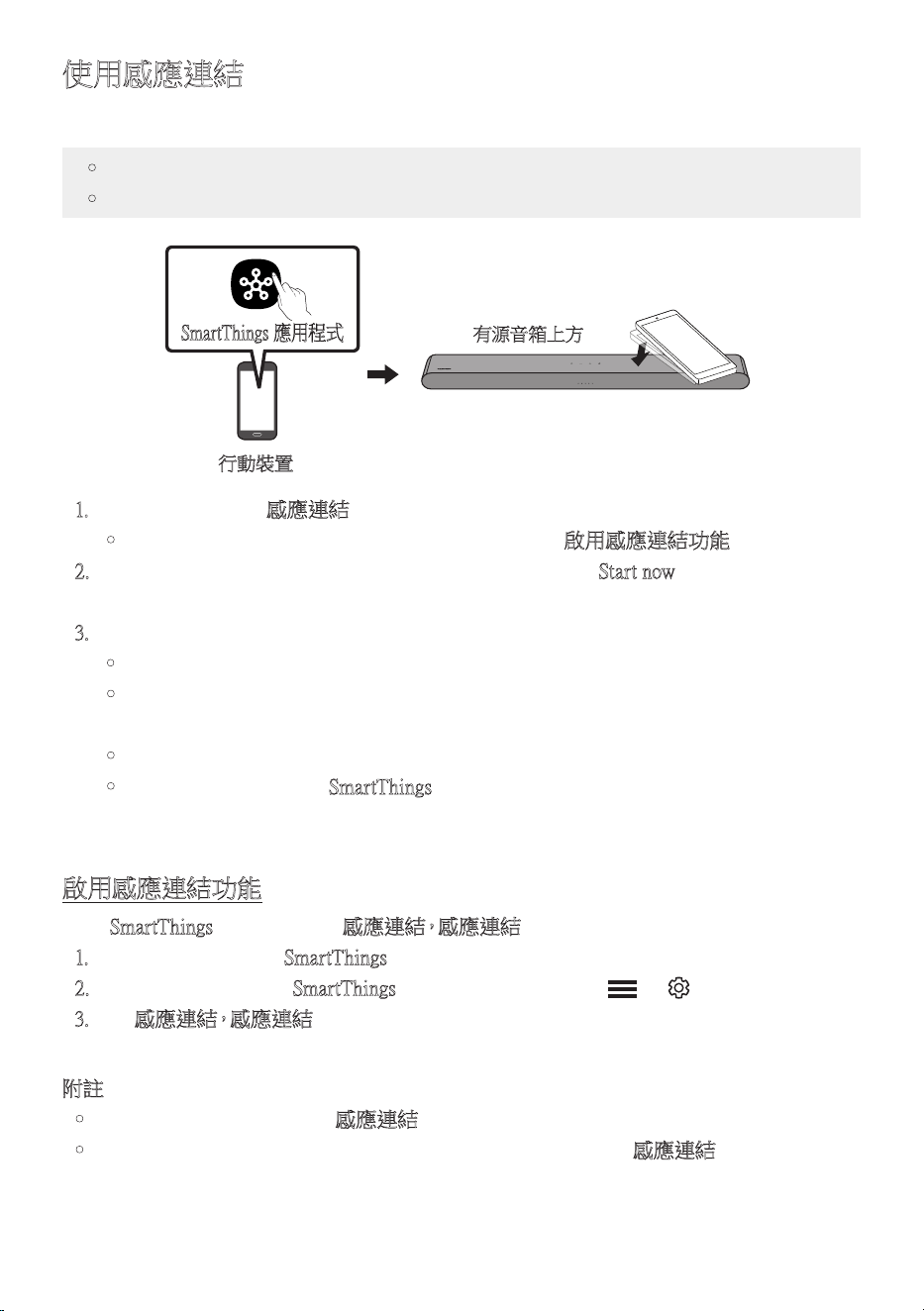
TPE - 33
使用感應連結
使用行動裝置輕觸有源音箱,以透過有源音箱播放行動裝置上的音訊。
• 此 功 能 可 能 不 受 支 援,視 行 動 裝 置 而 定。
• 此功能僅與具有Android8.1或更高版本的Samsung行動裝置相容。
行動裝置
SmartThings應用程式
有源音箱上方
1. 在行動裝置上開啟感應連結功 能。
• 如需如何開啟該功能的詳細資訊,請參閱下面的「啟用感應連結功能」。
2. 使用行動裝置輕觸有源音箱。在顯示的訊息視窗中選擇「Startnow」。
會透過藍牙在行動裝置和有源音箱之間建立連線。
3. 透過有源音箱播放行動裝置上的音訊。
• 此功能偵測裝置觸碰有源音箱時產生的振動,以透過藍牙將行動裝置連線至有源音箱。
• 確保行動裝置沒有輕觸有源音箱的尖銳邊緣。有源音箱或行動裝置可能會被刮傷
或 損 壞。
• 建議為行動裝置套上外殼。輕觸有源音箱上方部分的寬廣區域,不要過度施力。
• 若要使用此功能,請將SmartThings應用程式更新為最新版本。
該 功 能 可 能 不 受 支 援,視 應 用 程 式 版 本 而 定。
啟用感應連結功能
使用SmartThings應用程式開啟感應連結,感應連結功 能。
1. 在行動裝置上,執行SmartThings 應 用 程 式。
2. 在行動裝置上顯示的SmartThings應用程式畫面中選擇( → )。
3. 將「感應連結,感應連結」設定為開啟,以便在行動裝置移近有源音箱時允許該功能運
作。
附註
• 行動裝置處於省電模式時,感應連結功能無法運作。
• 若 有 電 子 設 備 等 裝 置 位 於 有 源 音 箱 附 近,造 成 無 線 電 干 擾,則 感應連結功能可能無法運
作。確認可能會造成無線電干擾的裝置與有源音箱之間有充足的距離。
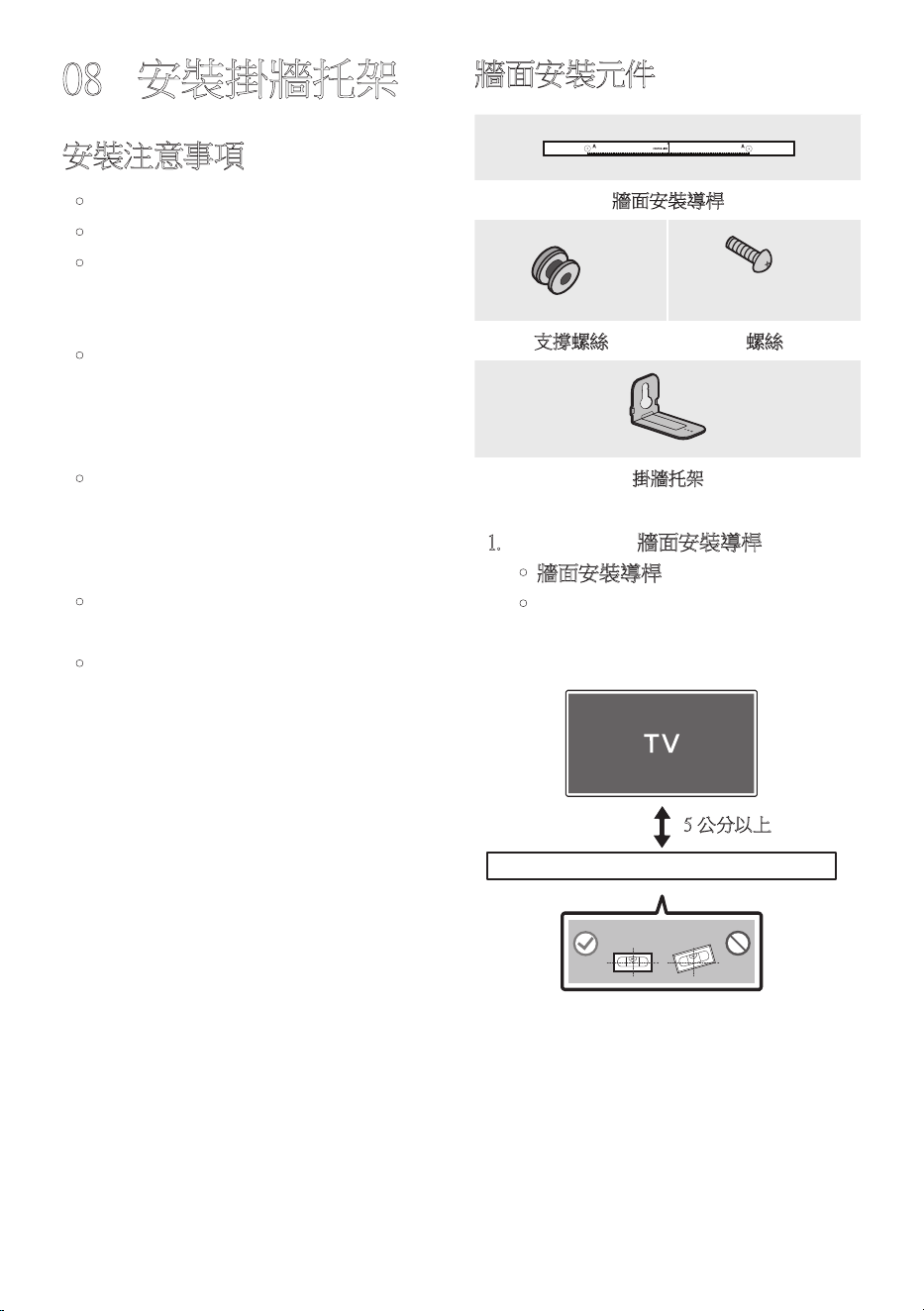
TPE-34
08 安裝掛牆托架
安裝注意事項
• 僅安裝於垂直牆面。
• 請勿安裝於高溫或高濕度的地方。
• 檢查牆壁是否夠堅固,能夠支撐產品重
量。若無法支撐,請強化牆壁或選擇其
他 安 裝 點。
• 購買並使用適合用於該牆壁種類(灰漿
板、鐵 板、木 材 等)的 銼 屑 螺 絲 或 固 定
器。若 可 能,請 支 撐 螺 絲 固 定 在 牆 壁 螺
栓 中。
• 根據您要安裝有源音箱的牆壁類型和厚
度,購 買 牆 面 安 裝 螺 絲。
– 直 徑:M 5
– 長度:建議使用35毫米以上。
• 請先將纜線從裝置連接至外部裝置,再
將 有 源 音 箱 安 裝 到 牆 上。
• 在安裝前,請確認裝置已關閉並拔下電
源插頭。否則,可能會造成觸電。
牆面安裝元件
A TYPE : 450mm
牆面安裝導桿
x 2
(M4xL10)
x 2
支撐螺絲 螺絲
x 2
掛牆托架
1. 對著牆面放置牆面安裝導桿。
• 牆面安裝導桿必 須 水平。
• 若電視安裝於牆面,請將有源音箱安
裝在距離電視下方至少5公分處。
5公分以上
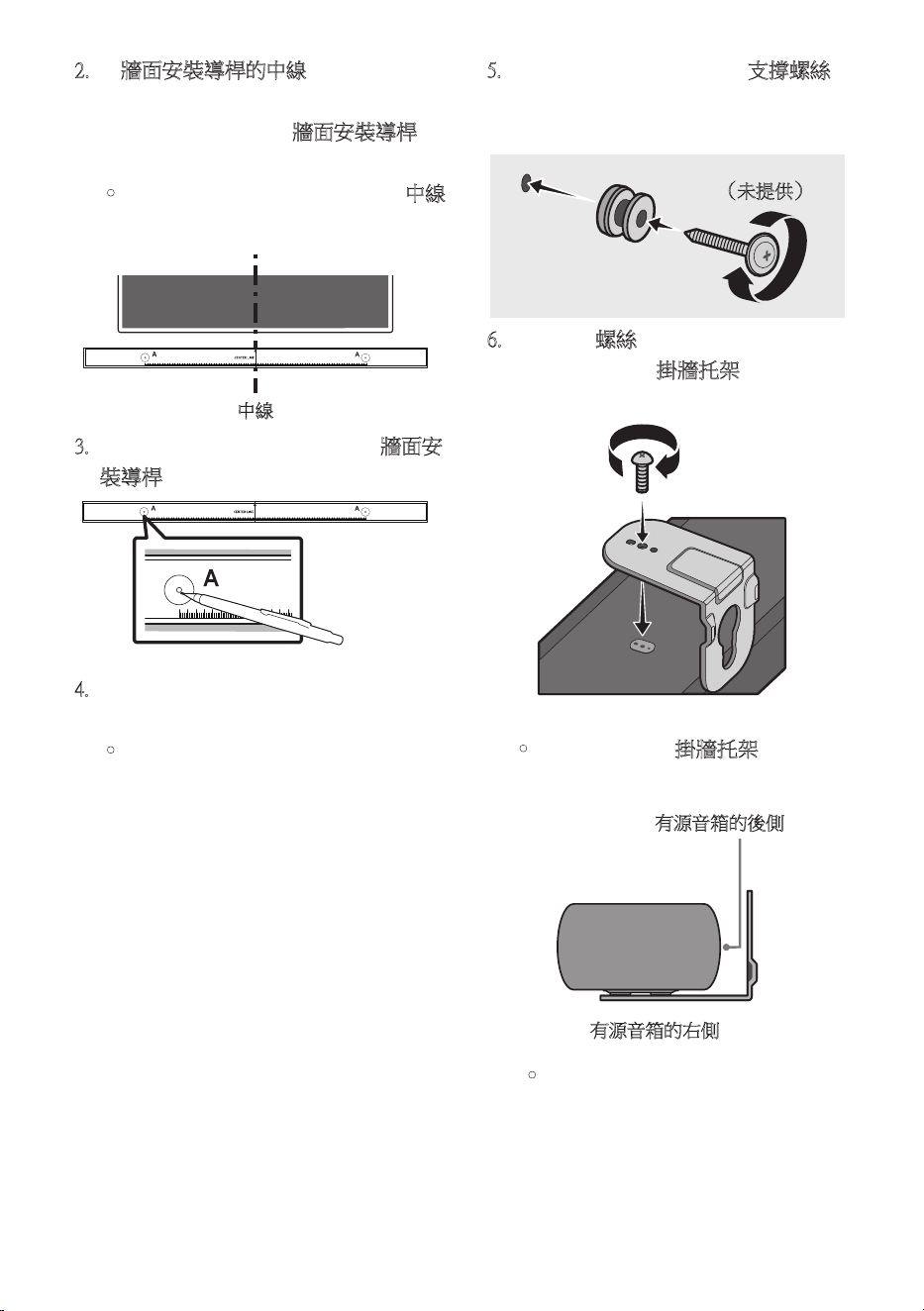
TPE-35
2. 將牆面安裝導桿的中線與電視的中央
對齊(如果您將有源音箱安裝在電視下
方 ), 然 後 使 用 膠 帶 將 牆面安裝導桿固
定 在 牆 上。
• 如 果 您 未 在 電 視 下 方 安 裝,請 將 中線
放在安裝區域的中央。
中線
A TYPE : 450mm
3. 用筆標記孔洞的位置,然後移除牆面安
裝導桿。
A TYPE : 450mm
4. 使用適當大小的鑽頭,在牆上的每個標
記 鑽 孔。
• 如 果 標 記 與 掛 釘 的 位 置 不 一 致,請 務
必將適當的膨脹管先插入孔中,再插
入支撐螺絲。如果您使用膨脹管,請
確定您鑽的孔足以容納要使用的膨脹
管。
5. 將螺釘(未提供)推入每個支撐螺絲,
然後將每個螺釘緊緊地鎖入支撐螺孔
中。
(未提供)
6. 使用2個螺絲,以 正 確 的 方 向 在 有 源 音
箱底部安裝2個掛牆托架。
• 組 裝 時,請 確 認 掛牆托架的吊掛部位
位於有源音箱後側的後方。
有源音箱的後側
有源音箱的右側
• 視機型而定,實際產品外觀可能和
以 上 影 像 有 所 不 同。
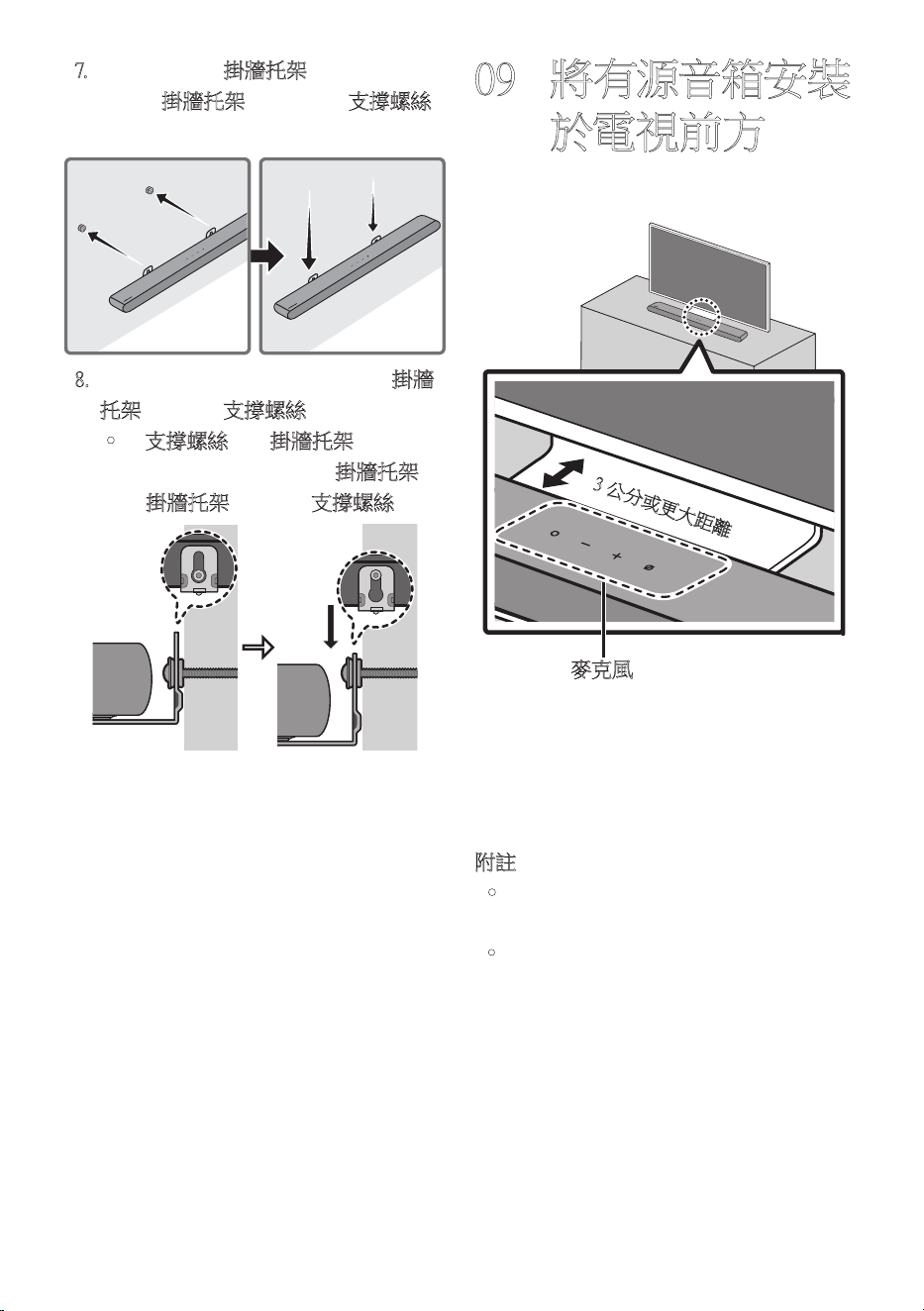
TPE-36
7. 使用已固定的掛牆托架安 裝 有 源 音 箱,
只要將掛牆托架掛在牆上的支撐螺絲
即 可。
8. 如下所示,向下滑動有源音箱,讓掛牆
托架牢固置於支撐螺絲。
• 將支撐螺絲插入掛牆托架寬的部分
( 底 部 ), 然 後 向 下 滑 動 掛牆托架,
讓掛牆托架牢固置於支撐螺絲。
09 將有源音箱安裝
於電視前方
3公分或更大距離
麥克風
如圖中所示,將有源音箱的中央對齊電視的
中央。
此時,將有源音箱置於電視旁至少3公分以
外的位置,以免語音辨識受到干擾。
附註
• 務必將有源音箱置於平坦且堅固的表
面。
• 若電視與Soundbar的間距不足,可能會造成
語音辨識和聲音問題。
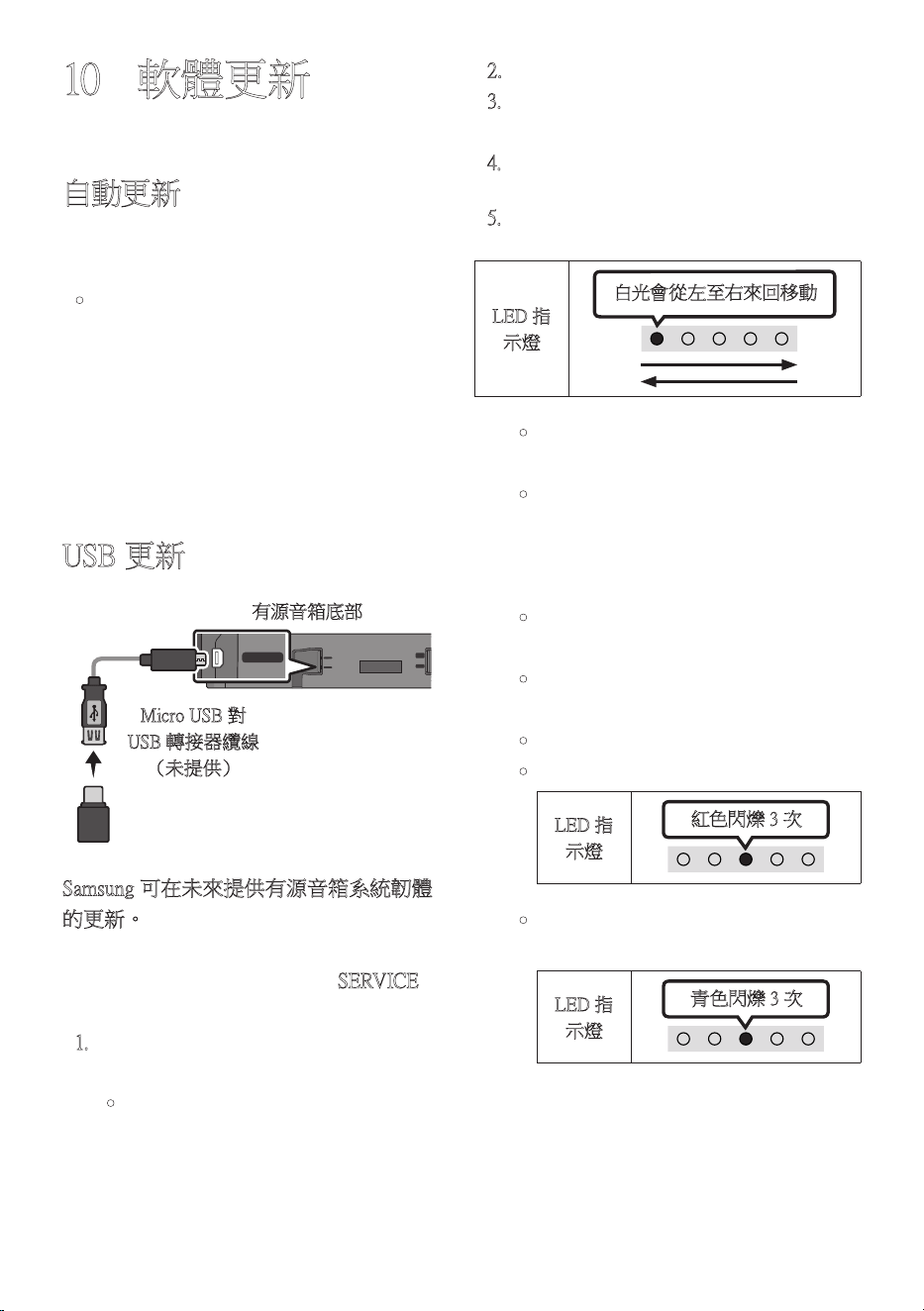
TPE - 37
10 軟體更新
自動更新
當有源音箱連線至網際網路時,即使有源音
箱關閉,也會自動進行軟體更新。
• 若要使用自動更新功能,有源音箱必須
連 線 至 網 際 網 路。
若拔除有源音箱的電源線或切斷電源,
將會終止對於有源音箱的Wi-Fi連線。
若切斷電源,則當恢復電源或重新連接
電 源 線 時,請 開 啟 有 源 音 箱,然 後 重 新 連
線 至 網 際 網 路。
USB更新
SERVICE
DC 19V
DIGITAL
AUDIO IN
(OPTICAL)
HDMI
(eARC)
SERVICE
DC 19V
MicroUSB對
USB轉接器纜線
(未提 供)
有源音箱底部
Samsung可在未來提供有源音箱系統韌體
的更新。
有更新可用時,您可以將包含更新韌體的
USB磁碟機連接至有源音箱的SERVICE連
接 埠。
1. 請至(www.samsung.com)→從客戶支
援功能表選項搜尋型號名稱。
• 如需更多更新相關資訊,請參閱升級
指 南。
2. 下載升級檔案(USB類型)。
3. 解壓縮檔案以建立具有該檔案名稱的
資 料 夾。
4. 在USB中儲存已建立的資料夾,然後
連 接 至 有 源 音 箱。
5. 開啟有源音箱。然後產品會在3分鐘
內 更 新 完 畢。
LED指
示燈
白光會從左至右來回移動
• 更新期間請勿關閉有源音箱或移除
U S B。
• 若軟體更新完成後亮起黃色LED
燈,代表其他更新正在進行中。發
生此情況時,請勿關閉電源或移除
U S B。
• 若更新並未繼續進行,請重新連接有
源 音 箱 的 電 源 線。
• 安 裝 最 新 版 本 後,不 會 執 行 任 何 更
新。
• 根據USB類型,可能不支援更新。
• 如果沒有可用的更新檔案
LED指
示燈
紅色閃爍3次
• 如果更新檔案是提供給相同版本或
更低版本
LED指
示燈
青色閃爍3次
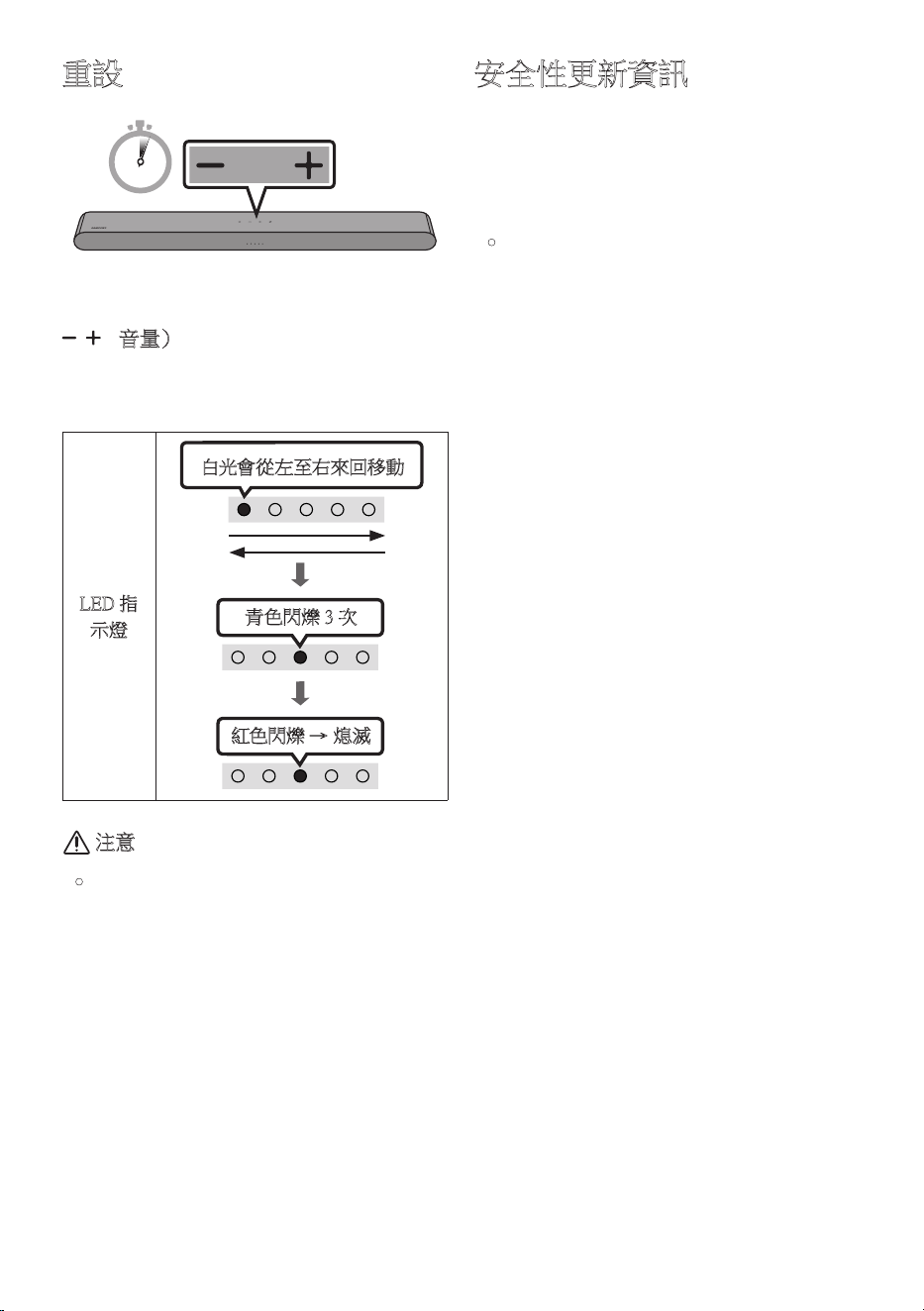
TPE-38
重設
5 Sec
在有源音箱開啟時,同時按下機身上的
(音量)按鈕至少5秒。
LED顯示器會如下圖變化,而有源音箱會隨
即 重 設。
LED指
示燈
青色閃爍3次
紅色閃爍→熄滅
白光會從左至右來回移動
注意
• 會重設有源音箱的所有設定。
務 必 僅 在 需 要 進 行 重 設 時 才 執 行。
安全性更新資訊
所提供的安全性更新可加強裝置安全性,
並保護您的個人資訊。如需安全性更新的
詳細資訊,請前往https://security.samsungtv.
c o m。
• 網站僅支援部分語言。
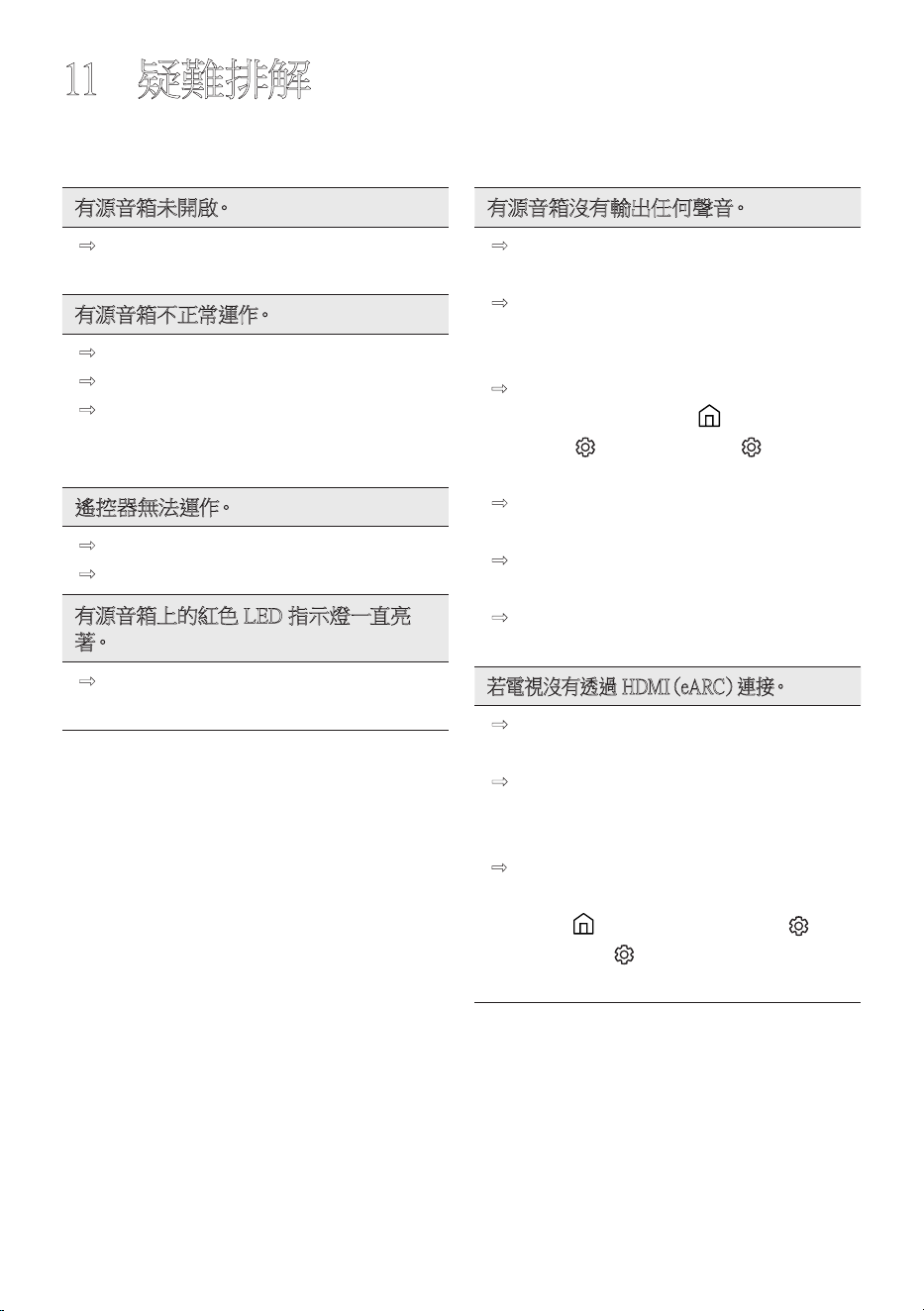
TPE - 39
11 疑難排解
如果本產品運作不順,請參閱以下指示。
有 源 音 箱 未 開 啟。
; 檢查有源音箱的電源線是否正確插入
插 座 中。
有 源 音 箱 不 正 常 運 作。
; 在 拔 下 電 源 線 後,重 新 插 入。
; 重 啟 外 部 裝 置,然 後 重 試。
; 若沒有訊號,有源音箱會在一段特定
時間後自動關閉。開啟電源。
(請參閱第8 頁 )。
遙 控 器 無 法 運 作。
; 操將遙控器直接對準有源音箱。
; 更換新的電池。
有源音箱上的紅色LED指示燈一直亮
著。
; 麥克風已關閉。開啟麥克風。
(請參閱第6 頁 )。
有源音箱沒有輸出任何聲音。
; 有 源 音 箱 音 量 太 低 或 靜 音。調 整 音
量。
; 連接任何外部裝置(STB藍牙裝置、
行動裝置等)時,請調整外部裝置的
音 量。
; 如需電視的聲音輸出,請選擇有源音箱。
(SamsungTV:首頁( )→功能表→
設 定( )→所有設定( )→音效
→音效輸出→選擇有源音箱)
; 連接至有源音箱的纜線不可鬆脫。拔
除纜線並重新連接。
; 完全拔除電源線,重新連接,然後開啟
電 源。
; 初 始 化 產 品 並 重 試。
(請參閱第 38 頁 )。
若電視沒有透過HDMI(eARC)連 接。
; 檢查HDMI纜線是否正確連接至
eARC終端。(請參閱第16 頁 )。
; 可能因為連接的外部裝置(機上盒、遊
戲機等)而無法進行連接。直接連接有
源 音 箱。
; 可能沒有在電視上啟動HDMI-CEC。在
電視功能表上開啟CEC。(SamsungTV:
首 頁( )→功能表→設定( )→
所 有 設 定( )→連線→外部裝置管
理員→Anynet+(HDMI-CEC)開啟)
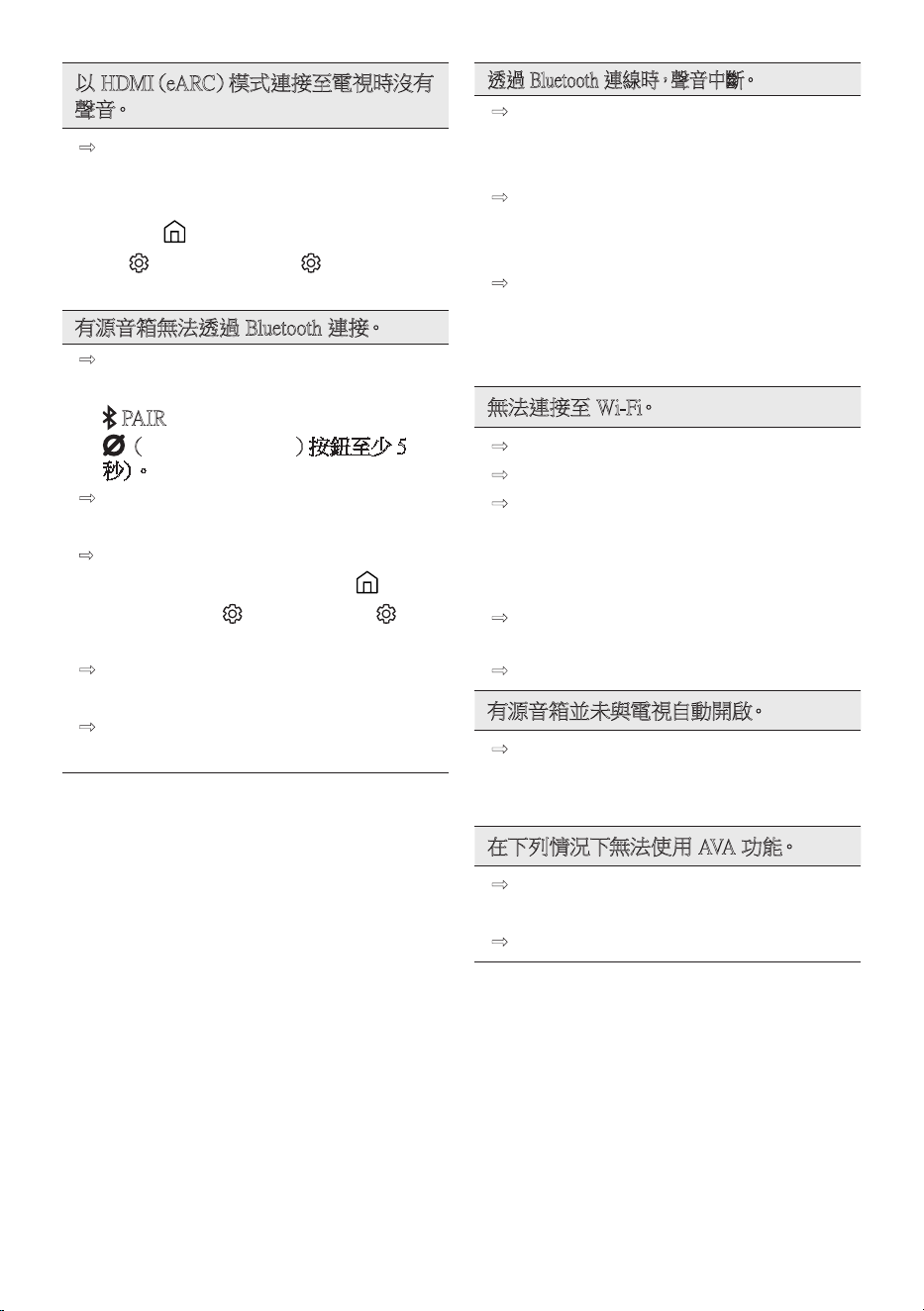
TPE-40
以HDMI(eARC)模式連接至電視時沒有
聲 音。
; 裝置無法播放輸入訊號源。將電視的
音訊輸出變更為PCM或Dolby
Digital。(對於SamsungTV:
首 頁( )→功能表→設定
( )→所有設定( )→音效→
進階設定→數位輸出音訊格式)
有源音箱無法透過Bluetooth連接。
; 連接至新的裝置時,切換至Bluetooth
配對以進行連接。(按下遙控器上的
PAIR按鈕或按下機身上的
(麥克風開啟/關閉)按鈕至少5
秒 )。
; 若 有 源 音 箱 已 連 接 至 另 一 個 裝 置,請
先中斷連接該裝置,再切換裝置。
; 在要連線的裝置上移除藍牙揚聲器清單後
重新連線。(SamsungTV:首頁( )→功
能表→設定( )→所有設定( )→
音效→音效輸出→藍牙揚聲器清單)
; 拔 除 並 重 新 連 接 電 源 插 頭,然 後 重
試。
; 初 始 化 產 品 並 重 試。
(請參閱第 38 頁 )。
透過Bluetooth連線時,聲音中斷。
; 有些產品在太靠近有源音箱時會造成
無線電干擾。例如:微波爐、無線路由
器 等。
; 若透過Bluetooth連線的裝置離有源音
箱 過 遠,可 能 會 造 成 聲 音 中 斷。請 將 裝
置移到更靠近有源音箱的位置。
; 若您身體的一部分接觸到Bluetooth收
發器或本產品安裝於金屬家具上,則
聲 音 可能會 中斷。
請 檢 查 安 裝 環 境 和 使 用 情 況。
無法連接至Wi-Fi。
; 檢 查 無 線 路 由 器 是 否 開 啟。
; 關 閉 路 由 器,再 重 新 開 啟,然 後 重 試。
; 若無線訊號太弱,有源音箱將無法連
接。如有可能,請嘗試將路由器移到更
靠近有源音箱的位置,或清空有源音
箱與路由器之間的任何障礙物。
; 若無線路由器是新的,您需要重新設
定 揚 聲 器 的 網 路 設 定。
; 有源音箱不支援Wi-Fi6。
有 源 音 箱 並 未 與 電 視 自 動 開 啟。
; 若您在觀看電視時關閉有源音箱,會
停 用 與 電 視 之 間 的 電 源 同 步。請 先 關
閉 電 視。
在下列情況下無法使用AVA功能。
; 使用Q-Symphony功能時,無法使用
AVA功能。
; 關閉麥克風時,無法使用AVA功能。
TPE-41
我將電視連接到有源音箱後,切換至有源
音箱模式。就聽不到電視輸出的聲音了。
; 若在有源音箱連接電視時,將有源音
箱連接至行動裝置,則有源音箱會輸
出行動裝置的聲音,並保持與電視連
接。因此電視的聲音不會傳到任何地
方。
; 與行動裝置中斷連接,然後電視的聲
音會再次由有源音箱輸出。
有源音箱未出現在AirPlay中。
; 如要在您的有源音箱中啟用AirPlay,
您必須先同意應用程式的條款與條件
以向SamsungSmartThings應用程式註
冊 裝 置。( 請 參 閱 第 32 頁。)
; 如果您從SamsungSmartThings應用程
式刪除有源音箱,則AirPlay不會運
作。
; 確認有源音箱和Apple裝置已連線至
相同的Wi-Fi網路。
; 有源音箱和在iOS13.4或更新版本上
安裝的AirPlay相容。
無法啟用GroupPlay。
; 檢查音訊裝置是否為2024年和之後
上市 的 較 新 型 號。
; 確認主機裝置是否將Wi-Fi網路連接
為 訊 號 源。
; 確保所有音訊裝置都連接至相同的
Wi-Fi網路(5GHz)。
12 授權
Dolby,DolbyAtmos,andthedouble-D
symbolareregisteredtrademarksofDolby
LaboratoriesLicensingCorporation.
ManufacturedunderlicensefromDolby
Laboratories.Confidentialunpublishedworks.
Copyright©2012-2021DolbyLaboratories.
Allrightsreserved.
ForDTSpatents,seehttp://patents.dts.com.
ManufacturedunderlicensefromDTS,Inc.
orDTSLicensingLimited.DTS,Digital
Surround,Virtual:X,andtheDTSlogoare
registeredtrademarksortrademarksofDTS,
Inc.intheUnitedStatesandothercountries.
©2021DTS,Inc.ALLRIGHTS
RESERVED.
HDMI、HDMIHigh-DefinitionMultimedia
Interface、HDMI商業外觀及HDMI識
別標章等詞彙均為HDMILicensing
Administrator,Inc.的商標或註冊商標。
TPE-42
• 將你的手機、平板或電腦用作Spotify
遙控器。前往spotify.com/connect了解
如何使用
• Spotify軟體必須遵守此處提供的第三
方授權規定:https://www.spotify.com/
connect/third-party-licenses。
Apple,AirPlay,iPad,iPhone,andMacare
trademarksofAppleInc.,registeredinthe
U.S.andothercountriesandregions.
BeingRoonTestedmeansthatSamsungand
Roonhavecollaboratedtoensureyouhave
thebestexperienceusingRoonsoftwareand
Samsungequipmenttogether,soyoucanjust
enjoythemusic.
開放式原始碼授權聲明
若要針對開放原始碼相關問題傳送詢問和
要求,請聯絡SamsungOpenSource
(http://opensource.samsung.com)