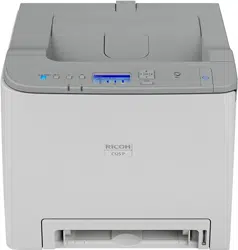

User's Guide
For safe and correct use, be sure to read Safety Information separately
provided before using the machine.


TABLE OF CONTENTS
How to Find Information about Operations and Troubleshooting................................................................. 7
Operating Manual (Printed)..........................................................................................................................7
Operating Manual (Digital Format)..............................................................................................................7
How to Read This Manual................................................................................................................................. 8
Introduction..................................................................................................................................................... 8
Symbols Used in This Manual....................................................................................................................... 8
Disclaimer........................................................................................................................................................8
Notes...............................................................................................................................................................8
Note to Administrator.....................................................................................................................................9
List of Option................................................................................................................................................ 10
About IP Address......................................................................................................................................... 10
Supplied Items.................................................................................................................................................. 11
1. Guide to the Machine
Guide to Components......................................................................................................................................13
Exterior:Front View.......................................................................................................................................13
Exterior: Rear View...................................................................................................................................... 15
Interior...........................................................................................................................................................16
Control Panel................................................................................................................................................17
Installing Option...............................................................................................................................................19
Attaching Paper Feed Unit.......................................................................................................................... 19
About Operation Tools.................................................................................................................................... 22
2. Paper Specifications and Adding Paper
Workflow for Loading Paper and Configuring Paper Sizes and Types...................................................... 23
Loading Paper.................................................................................................................................................. 24
Loading Paper into Tray1 and 2................................................................................................................ 24
Loading Paper into Bypass Tray................................................................................................................. 29
Loading Envelopes.......................................................................................................................................30
Specifying Paper Type and Paper Size Using the Control Panel.................................................................32
Specifying the Paper Type.......................................................................................................................... 32
Specifying the Standard Paper Size...........................................................................................................33
Specifying a Custom Paper Size................................................................................................................ 33
Specifying Paper Type and Paper Size Using Web Image Monitor...........................................................35
Specifying a Custom Paper Size................................................................................................................ 35
1

Specifying Paper Type and Paper Size Using the Printer Driver..................................................................36
When Using Windows................................................................................................................................ 36
When Using macOS....................................................................................................................................37
Supported Paper.............................................................................................................................................. 38
Specifications of Paper Types.....................................................................................................................41
Non-Recommended Paper Types.............................................................................................................. 48
Paper Storage.............................................................................................................................................. 48
Print Area......................................................................................................................................................49
3. Printing Documents
What You Can Do with the Printer Function...................................................................................................51
Configuring Option Settings for the Printer.................................................................................................... 52
Conditions for Bidirectional Communication.............................................................................................52
If Bidirectional Communication is Disabled............................................................................................... 52
Displaying the Printing Preferences Dialog Box.............................................................................................55
Displaying the Printing Preferences Dialog Box from the [Start] Menu................................................... 55
Displaying the Printing Preferences Dialog Box in an Application.......................................................... 55
Basic Operation of Printing............................................................................................................................. 57
When Using Windows................................................................................................................................ 57
When Using macOS....................................................................................................................................58
If a Paper Mismatch Occurs....................................................................................................................... 58
Canceling a Print Job...................................................................................................................................59
Printing Confidential Documents..................................................................................................................... 61
Storing a Locked Print file............................................................................................................................61
Printing a Locked Print File...........................................................................................................................62
Deleting a Locked Print File......................................................................................................................... 63
Using Various Print Functions...........................................................................................................................64
Print Quality Functions................................................................................................................................. 64
Print Output Functions..................................................................................................................................65
4. Configuring the Machine Using the Control Panel
Basic Operation............................................................................................................................................... 67
Menu Chart.......................................................................................................................................................68
Admin. Tools..................................................................................................................................................... 69
Printer Settings.................................................................................................................................................. 71
2

List/Test Print.................................................................................................................................................71
System...........................................................................................................................................................71
PCL Menu..................................................................................................................................................... 72
PS Menu....................................................................................................................................................... 74
System Settings................................................................................................................................................. 75
Tray Paper Settings.......................................................................................................................................... 78
Network Settings.............................................................................................................................................. 81
Print List/Report................................................................................................................................................ 85
Printing the Configuration Page..................................................................................................................85
Types of Lists/Reports..................................................................................................................................85
5. Configuring the Machine Using Utilities
Available Setting Functions Using Web Image Monitor...............................................................................87
Using Web Image Monitor............................................................................................................................. 88
Displaying Top Page........................................................................................................................................89
Changing the Interface Language..............................................................................................................90
Checking the System Information....................................................................................................................91
Status Tab..................................................................................................................................................... 91
Counter Tab..................................................................................................................................................92
Machine Information Tab............................................................................................................................94
Configuring the System Settings......................................................................................................................95
Tray Paper Settings Tab...............................................................................................................................95
I/O Timeout Tab..........................................................................................................................................98
Black-and-White Print Priority Tab............................................................................................................. 98
Restricting Machine Functions According to User......................................................................................... 99
Enabling the User Restriction Settings.........................................................................................................99
When Machine Functions are Restricted..................................................................................................... 103
Configuring the Network Settings................................................................................................................ 104
Network Status Tab...................................................................................................................................104
IPv6 Configuration Tab.............................................................................................................................105
Network Application Tab......................................................................................................................... 106
TLS Security Tab........................................................................................................................................ 107
DNS Tab.................................................................................................................................................... 107
Auto E-mail Notification Tab.................................................................................................................... 108
3

SNMPv1/v2 Tab...................................................................................................................................... 109
SNMPv3 Tab.............................................................................................................................................110
SMTP Tab...................................................................................................................................................113
POP3 Tab...................................................................................................................................................114
Wireless Tab.............................................................................................................................................. 115
Certificate Tab........................................................................................................................................... 116
Configuring the IPsec Settings.......................................................................................................................120
IPsec Global Settings Tab.........................................................................................................................120
IPsec Policy List Tab...................................................................................................................................120
Printing Lists/Reports..................................................................................................................................... 124
Configuring the Administrator Settings.........................................................................................................125
Administrator Tab...................................................................................................................................... 125
Reset Settings Tab......................................................................................................................................125
Backup Setting Tab................................................................................................................................... 126
Restore Setting Tab....................................................................................................................................126
Energy Saver Mode Tab.......................................................................................................................... 127
6. Maintaining the Machine
Replacing the Print Cartridge........................................................................................................................129
Replacing the Waste Toner Bottle................................................................................................................ 134
Replacing a Component............................................................................................................................... 140
Replacing the Intermediate Transfer Unit.................................................................................................140
Replacing the Fusing Unit and Transfer Roller........................................................................................ 140
Cautions When Cleaning..............................................................................................................................141
Cleaning the Toner Density Sensor.............................................................................................................. 142
Cleaning the Friction Pad and Paper Feed Roller....................................................................................... 144
Cleaning the Registration Roller and Paper Tray........................................................................................ 147
Moving and Transporting the Machine....................................................................................................... 150
Disposal......................................................................................................................................................151
Where to Inquire....................................................................................................................................... 151
7. Troubleshooting
Error and Status Messages on the Control Panel........................................................................................153
Panel Indicator...............................................................................................................................................157
Removing Paper Jams....................................................................................................................................158
4

Removing Printing Jams.............................................................................................................................158
When You Cannot Print Test Page............................................................................................................... 166
Paper Feed Problems.....................................................................................................................................167
Print Quality Problems................................................................................................................................... 170
Checking the Condition of the Machine..................................................................................................170
Checking the Printer Driver Settings.........................................................................................................171
Printer Problems............................................................................................................................................. 173
When You Cannot Print Properly............................................................................................................. 173
When You Cannot Print Clearly...............................................................................................................176
When Paper Is Not Fed or Ejected Properly...........................................................................................180
Other Printing Problems............................................................................................................................ 180
Common Problems.........................................................................................................................................181
8. Configuring Network Settings
Connecting the Machine to a Wired Network........................................................................................... 183
Configuring the IPv4 Setting.....................................................................................................................183
Configuring the IPv6 setting......................................................................................................................184
Connecting the Machine to a Wireless Network........................................................................................185
Using the Wi-Fi Setup Wizard................................................................................................................. 185
Using the WPS Button............................................................................................................................... 187
Using a PIN Code..................................................................................................................................... 188
9. Appendix
Transmission Using IPsec...............................................................................................................................191
Encryption and Authentication by IPsec.................................................................................................. 191
Security Association.................................................................................................................................. 192
Encryption Key Exchange Settings Configuration Flow......................................................................... 193
Specifying Encryption Key Exchange Settings........................................................................................193
Specifying IPsec Settings on the Computer............................................................................................. 194
Enabling and Disabling IPsec Using the Control Panel..........................................................................196
Notes About the Toner.................................................................................................................................. 197
Specifications of the Machine...................................................................................................................... 198
General Function Specifications.............................................................................................................. 198
Printer Function Specifications..................................................................................................................200
Paper Feed Unit TK1220..........................................................................................................................200
5

Consumables..................................................................................................................................................201
Print Cartridge............................................................................................................................................201
Waste Toner Bottle....................................................................................................................................202
Information for This Machine........................................................................................................................203
Notes to users in the state of California (Notes to Users in USA)..........................................................203
Notes to users in the United States of America.......................................................................................203
Notes to Canadian Users of Wireless Devices.......................................................................................204
ENERGY STAR Program........................................................................................................................... 206
Saving Energy............................................................................................................................................206
Trademarks.....................................................................................................................................................208
INDEX...........................................................................................................................................................211
6

How to Find Information about Operations
and Troubleshooting
You can find support information about operating the machine and troubleshooting in the Operating
Manual (printed), Operating Manual (digital format), and Help (online).
Operating Manual (Printed)
The following manuals are provided with this machine.
Safety Information
This manual explains the safety precautions that should be followed when using the machine. Be
sure to read this manual before using the machine.
Setup Guide
This manual explains how to set up the machine. It also explains how to remove the machine from
the packaging and how to connect it to a computer.
Operating Manual (Digital Format)
Operating manuals can be viewed from Ricoh's website.
Viewing from a web browser
Access the Internet from a web browser.
Confirm that the computer or the machine is connected to the network.
Download the operating manuals from https://www.pfu-us.ricoh.com/support/warranties-
manuals-datasheets.
7
How to Read This Manual
Introduction
This manual contains detailed instructions and notes on the operation and use of this machine. For your
safety and benefit, read this manual carefully before using the machine. Keep this manual in a handy
place for quick reference.
Symbols Used in This Manual
This manual uses the following symbols:
Indicates points to pay attention to when using functions. This symbol indicates points that may result in
the product or service becoming unusable or result in the loss of data if the instructions are not obeyed.
Be sure to read these explanations.
Indicates supplementary explanations of the product's functions and instructions on resolving user errors.
[ ]
Indicates the names of keys or buttons on the product or display.
Disclaimer
To the maximum extent permitted by applicable laws, in no event will the manufacturer be liable for any
damages whatsoever arising out of failures of this machine, losses of the registered data, or the use or
non-use of this product and operation manuals provided with it.
Make sure that you always copy or have backups of the data registered in this machine. Documents or
data might be erased due to your operational errors or malfunctions of the machine.
In no event will the manufacturer be responsible for any documents created by you using this machine or
any results from the data executed by you.
Notes
Contents of this manual are subject to change without prior notice.
Two kinds of size notation are employed in this manual.
Some illustrations in this manual might be slightly different from the machine.
8

Certain options might not be available in some countries. For details, please contact your local dealer.
Depending on which country you are in, certain units may be optional. For details, please contact your
local dealer.
For good output quality, the manufacturer recommends that you use genuine toner from the
manufacturer.
The manufacturer shall not be responsible for any damage or expense that might result from the use of
parts other than genuine parts from the manufacturer with your office products.
Note to Administrator
Password
Certain configurations of this machine can be password-protected to prevent unauthorized modifications
by others.
The following are the passwords that must be specified by the administrator during the Initial Setup,
which are required after turning on the machine for the first time. For details, see Setup Guide.
• Admin. Tools Lock.
This is the password for access to [Network Settings], [Wi-Fi Setup Wizard], and [Admin. Tools] on
the control panel menu.
This can be changed in [Admin. Tools Lock], located in [Admin. Tools]. See page 69 "Admin.
Tools".
• Administrator Password
This is the password for configure to [System Settings], [Restrict Available Functions], [Network
Settings], [IPsec Settings], and [Administrator Tools] on the Web Image Monitor.
This can be changed in [Administrator Settings] on the Web Image Monitor. See page 125
"Configuring the Administrator Settings".
• FTP Password
This is the password for access to the FTP server for operations such as printing via FTP and
firmware updates.
This can be changed in [Network Print Setting] on the Web Image Monitor. See page 104
"Configuring the Network Settings".
Note that these passwords will be cleared if the settings are reset. For the default password, see the
applicable settings.
User restriction
You can restrict the use of certain functions of this machine to users with proper authentication.
9
Using Web Image Monitor, you can select the functions you want to restrict, and register the users who
can use that function upon authentication.
• For details about creating passwords and configuring the user restriction settings, see page 99
"Restricting Machine Functions According to User".
List of Option
Option List Referred to as
Paper Feed Unit TK1220 Paper feed unit
• If Paper feed unit is attached, "Tray 2" appears on the machine's control panel.
About IP Address
In this manual, "IP address" covers both IPv4 and IPv6 environments. Read the instructions that are
relevant to the environment you are using.
10

Supplied Items
Open the box and take out all supplied items. Check that all the following items are present:
• Power Cord
• Starter cartridge - Cyan
• Starter cartridge - Magenta
• Starter cartridge - Yellow
• Starter cartridge - Black
• Setup Guide
• Safety Information
• About Open Source Software License
• Sheet - EULA (End User License Agreement)
11

12
1. Guide to the Machine
This chapter describes preparations for using the machine and its operating instructions.
Guide to Components
This section introduces the names of the various parts on the front and rear side of the machine and
outlines their functions.
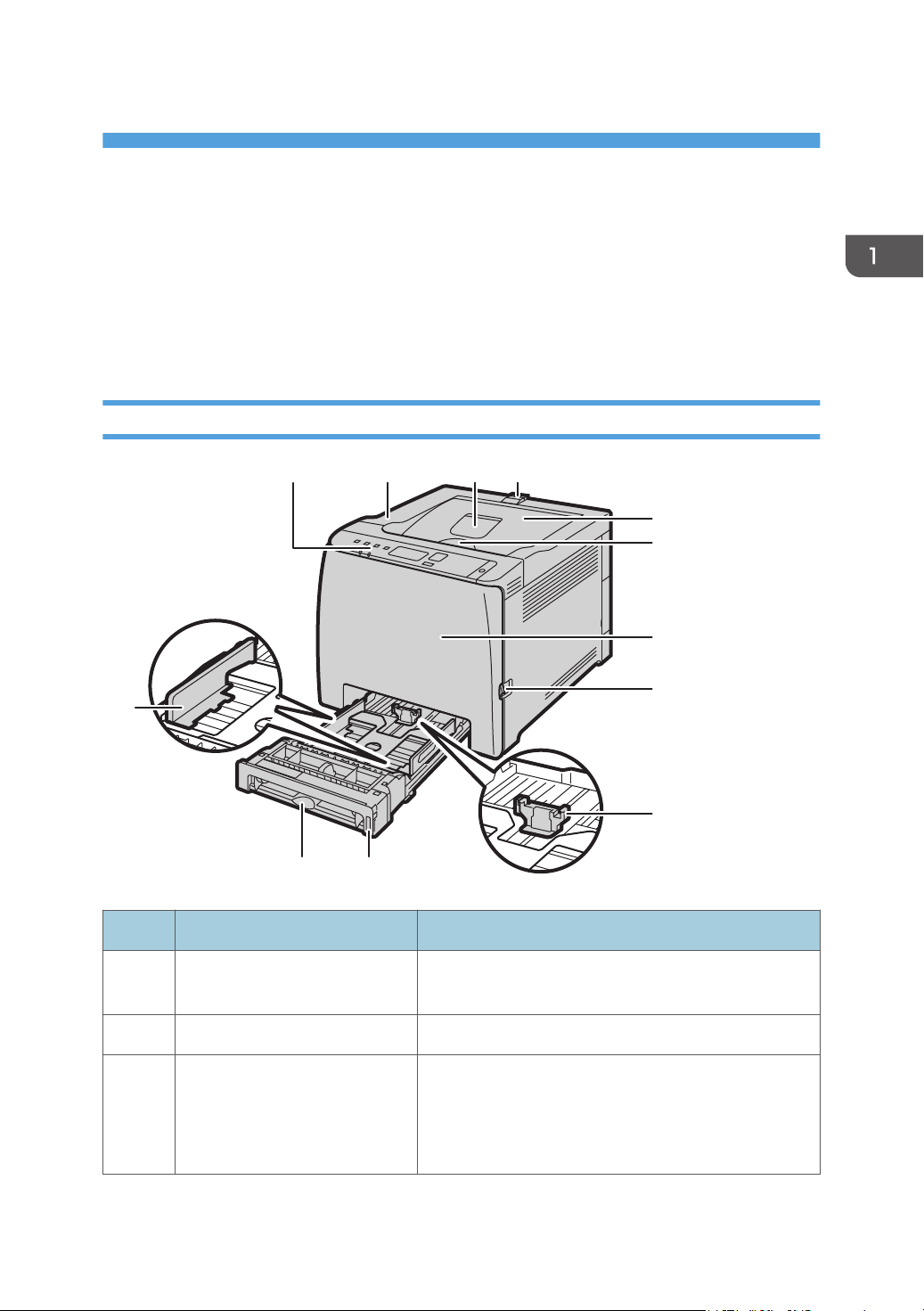
Exterior:Front View
ECB102
12
11 10
9
8
7
6
5
4321
No. Name Description
1 Control Panel Contains keys for machine control and indicators that
show the machine status.
2 Top Cover Open this cover to replace the print cartridge.
3 Standard Tray Extension Use this to support sheets that come out curled after they
are printed.
Flip open the extension by pushing down on the end
that is toward the rear of the machine.
13
No. Name Description
4 Stop Fences Pull up this fence to prevent paper falling off when
printing a large amount of paper at a time.
The fence can be adjusted at the A4/Letter or Legal size
position.
5 Standard Tray Delivered sheets are stacked here with the print side
down.
6 Top Cover Open Lever Open here to replace the print cartridges.
7 Front Cover Open this cover to replace the waste toner bottle or
remove jammed paper.
8 Front Cover Open Lever To open the front cover, pull this lever on the right side
of the machine.
9 End Fence Adjust this fence to the paper size.
10 Tray 1 This tray can hold up to 250 sheets of plain paper.
11 Bypass Tray Load paper here sheet by sheet.
12 Side Fence Adjust this fence to the paper size.
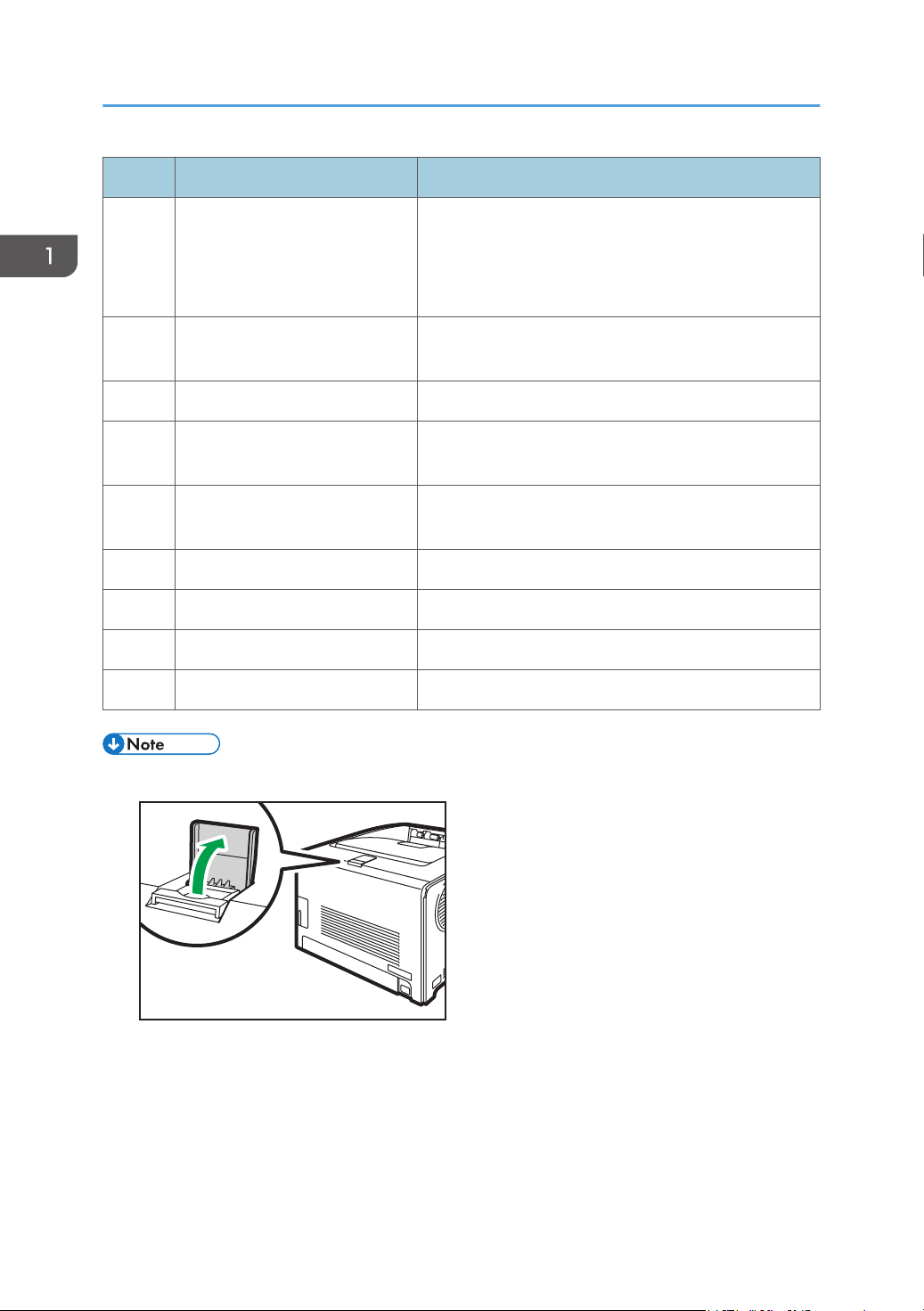
• Pull up the retainer as shown below to prevent A4- or Letter-size prints from falling off.
DUE209
• Pull up the retainer as shown below to prevent Legal-size prints from falling off.
1. Guide to the Machine
14
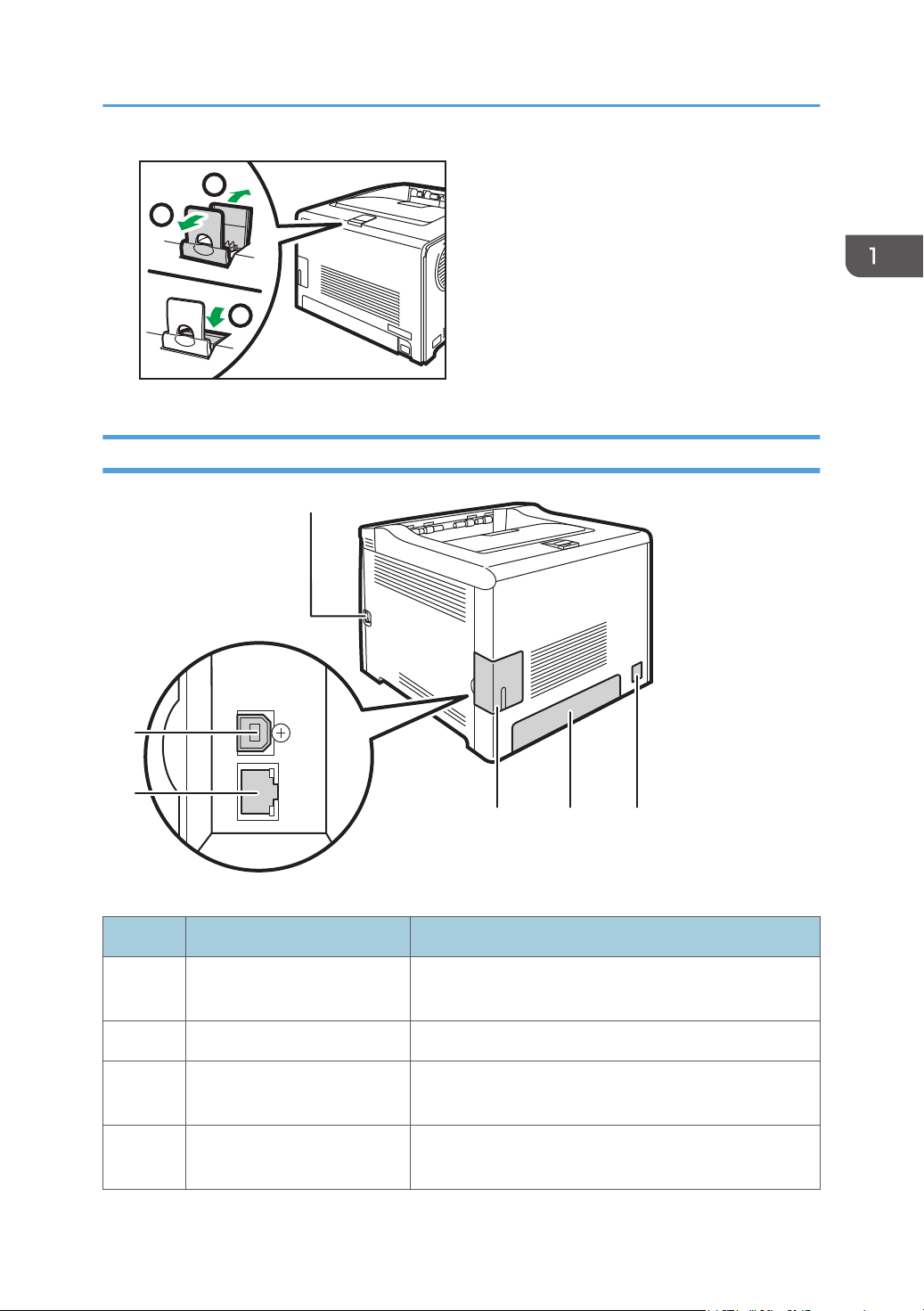
DUE210
2
1
3
Exterior: Rear View
ECB105
6
5
4 3 2
1
No. Name Description
1 Front Cover Open Lever To open the front cover, pull this lever on the right side of
the machine.
2 Power Socket For connecting the power cord to the machine.
3 Rear Cover Remove this cover when loading paper longer than A4 in
Tray 1.
4 Cable Cover Remove this cover when connecting cables to the
machine.
Guide to Components
15
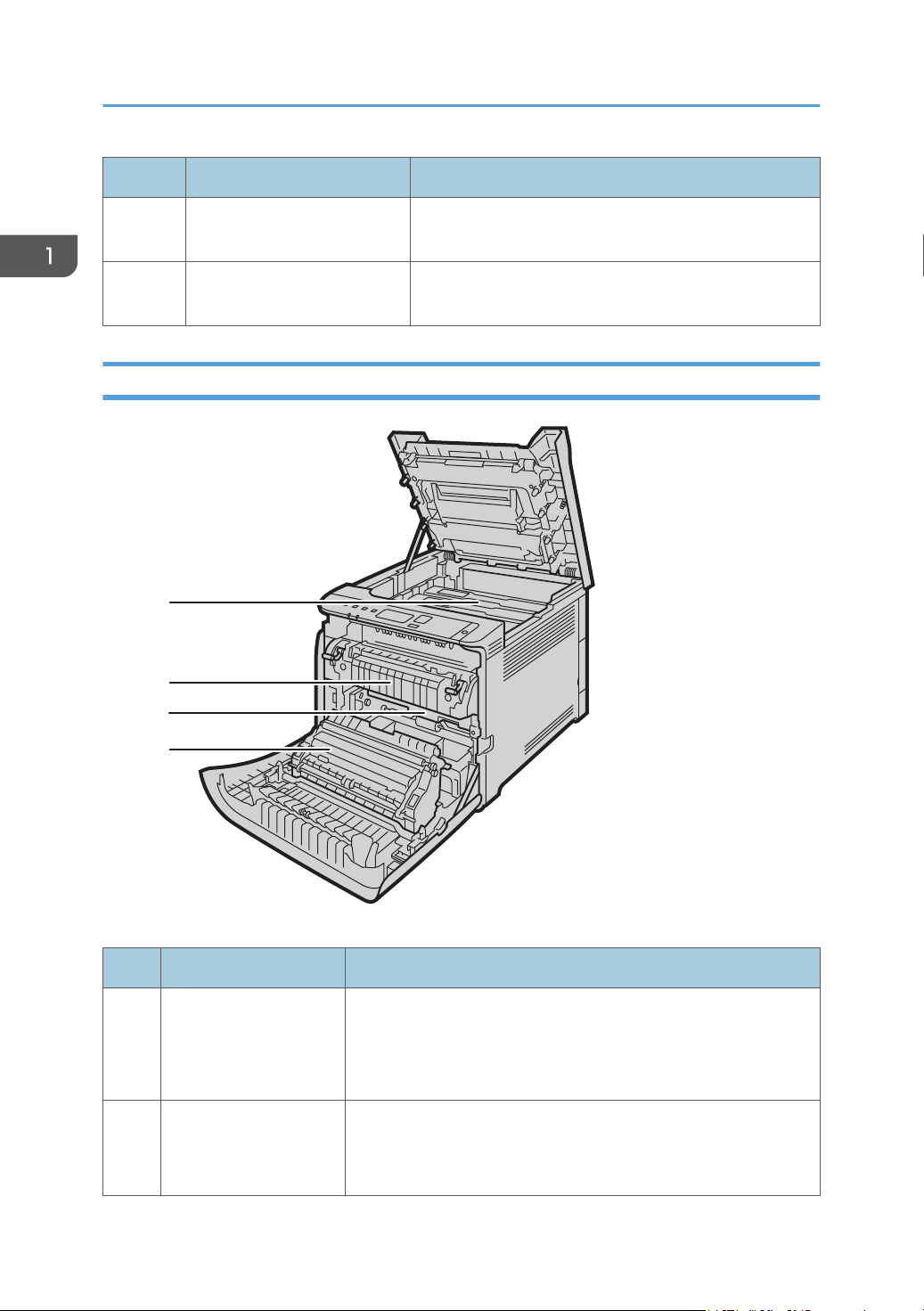
No. Name Description
5 Ethernet Port For connecting the machine to the network using a
network interface cable.
6 USB Port For connecting the machine to a computer using a USB
cable.
Interior
ECB106
4
3
2
1
No. Name Description
1 Print Cartridge Install the print cartridges from the machine rear, in the order of
cyan (C), magenta (M), yellow (Y), and black (K). Messages
appear on the screen when print cartridges need to be replaced,
or new ones need to be prepared.
2 Fusing Unit Fuses toner to the paper.
You might have to move this unit to check for or remove jammed
paper.
1. Guide to the Machine
16
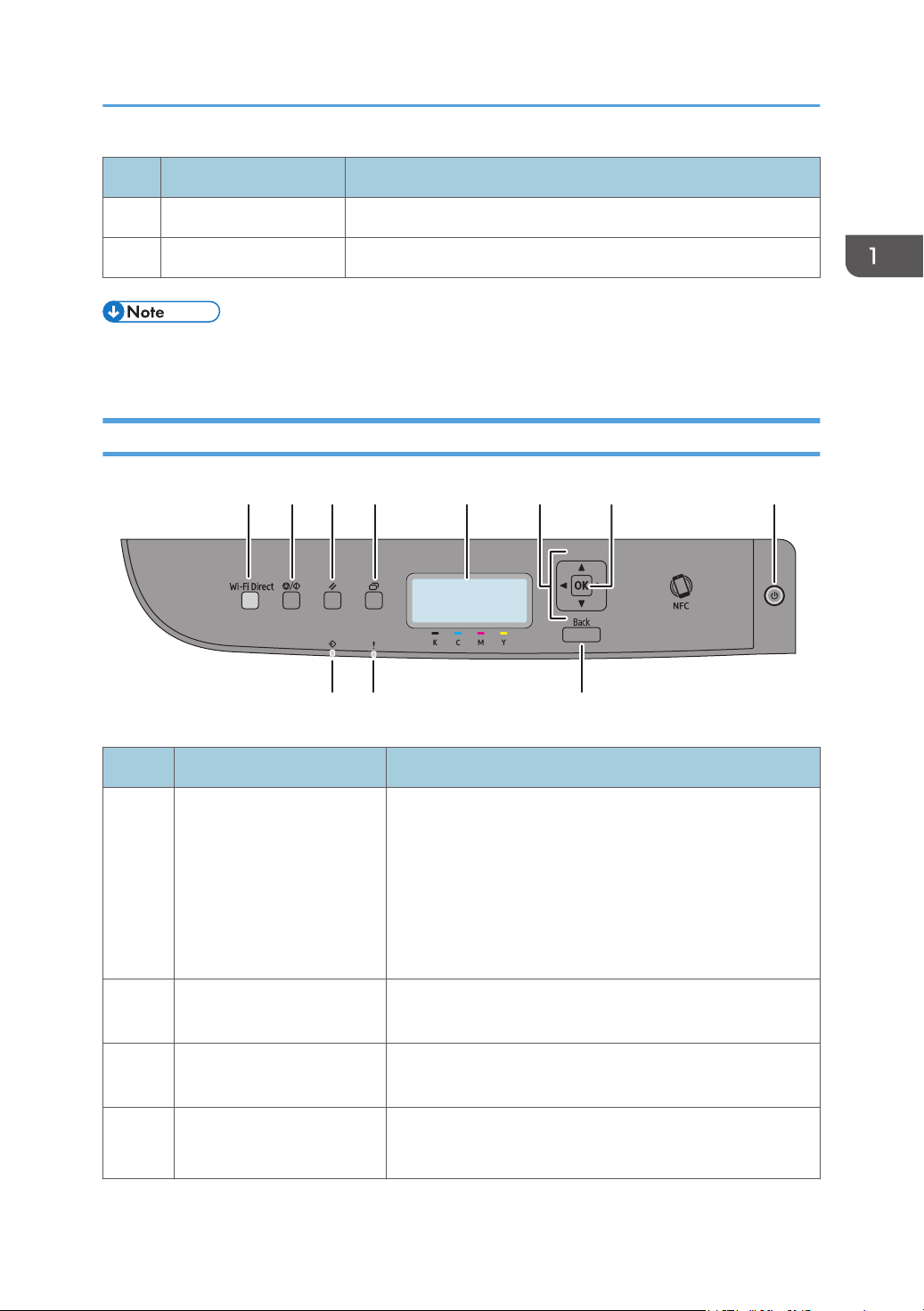
No. Name Description
3 Waste Toner Bottle Collects toner that is wasted during printing.
4 Transfer unit You need to remove this when you replace the waste toner bottle.
• For details about the messages that appear on the screen when consumables need to be replaced,
see page 153 "Error and Status Messages on the Control Panel".
Control Panel
11 10 9
8
765432
1
No. Name Description
1 [Wi-Fi Direct] key Pressing this key while Wi-Fi is disabled activates Wi-Fi and
reboots the machine automatically. Press this key while Wi-Fi
is enabled to activate or deactivate the Wi-Fi Direct function.
This indicator lights blue when the Wi-Fi Direct function is
active. After a long press of this key, configure the WPS
using the PIN code or in PBC mode. For details, see Setup
Guide.
2 [Stop/Start] key Press this key to stop receiving incoming data from the
computer.
3 [Job Reset] key Press this key to cancel a job that is currently being printed
or received.
4 [Menu] key Press this key to configure or check the machine settings.
Press the [Menu] key again to return to the initial screen.
Guide to Components
17
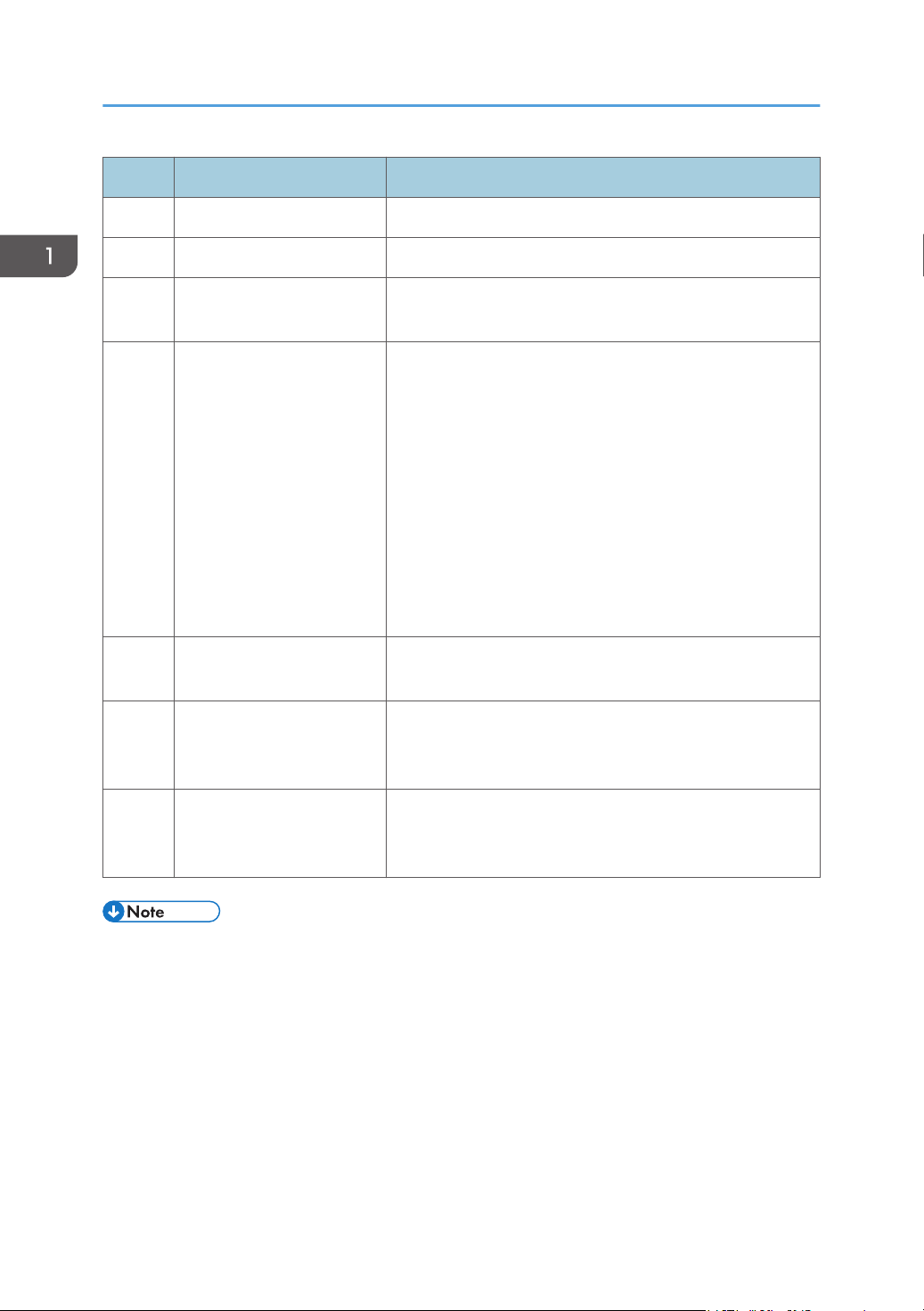
No. Name Description
5 Display Displays the current status and messages.
6 Scroll Keys Press to move the cursor in the direction indicated by the key.
7 [OK] key Press this key to confirm settings and setting values, or move
to the next menu level.
8 [Power] key Press to turn on and turn off the main power. To turn off the
machine, press and hold down this key for at least three
seconds. This indicator lights up blue when the machine is
turned on.
If the machine's system is busy, the power may not be turned
off even though you press and hold down this key for three
seconds. If this is the case, press and hold down the [Back]
key and [Power] key simultaneously for at least three
seconds to force the machine to turn off.
Do not accidentally press the [Power] key within 3 minutes of
disconnecting the power cord.
9 [Back] key Press to cancel the last operation or to return to the previous
level of the menu tree.
10 Alert Indicator Flashes when the toner is nearly empty, or lights up when the
machine runs out of toner or a machine error occurs. Check
the displayed error message.
11 Data In Indicator Flashes when the machine is receiving data from a
computer. This indicator lights up when there is a Locked
Print file stored in the machine.
• The backlight of the screen is turned off when the machine is in Energy Saver mode. Furthermore,
after the specified lapse of time for EnergySaverMode 2, all LEDs except for the power indicator
will go out.
• When the machine is processing a job, you cannot display the menu for configuring the machine.
You can confirm the machine's status by checking messages on the screen. If you see messages
such as "Printing..." or "Processing...", wait until the current job is finished.
1. Guide to the Machine
18
Installing Option
This section explains how to install options.
Attaching Paper Feed Unit
• Touching the prongs of the power cable's plug with anything metallic constitutes a fire and
electric shock hazard.
• Do not handle the power cord plug with wet hands. Doing so can result in electric shock.
• Before installing or removing options, always disconnect the power cord plugs from the wall
outlet and allow time for the main unit to fully cool. Failing to take these precautions could result
in burns.
• The printer weighs approximately 25 kg (56 lb.). When moving the printer, use the inset grips
on both sides, and lift slowly in pairs.
• Lifting the paper feed unit carelessly or dropping may cause injury.
• Before moving the machine, unplug the power cord from the wall outlet. If the cord is
unplugged abruptly, it could become damaged. Damaged plugs or cords can cause an
electrical or fire hazard.
• Tray 1 is required to print using the optional paper feed unit. Without Tray 1, paper jams will occur.
• The machine must be lifted by two people.
• Do not hold the tray to lift the machine.
1. Confirm that the following is true: The machine's cord is unplugged from the wall outlet.
Installing Option
19
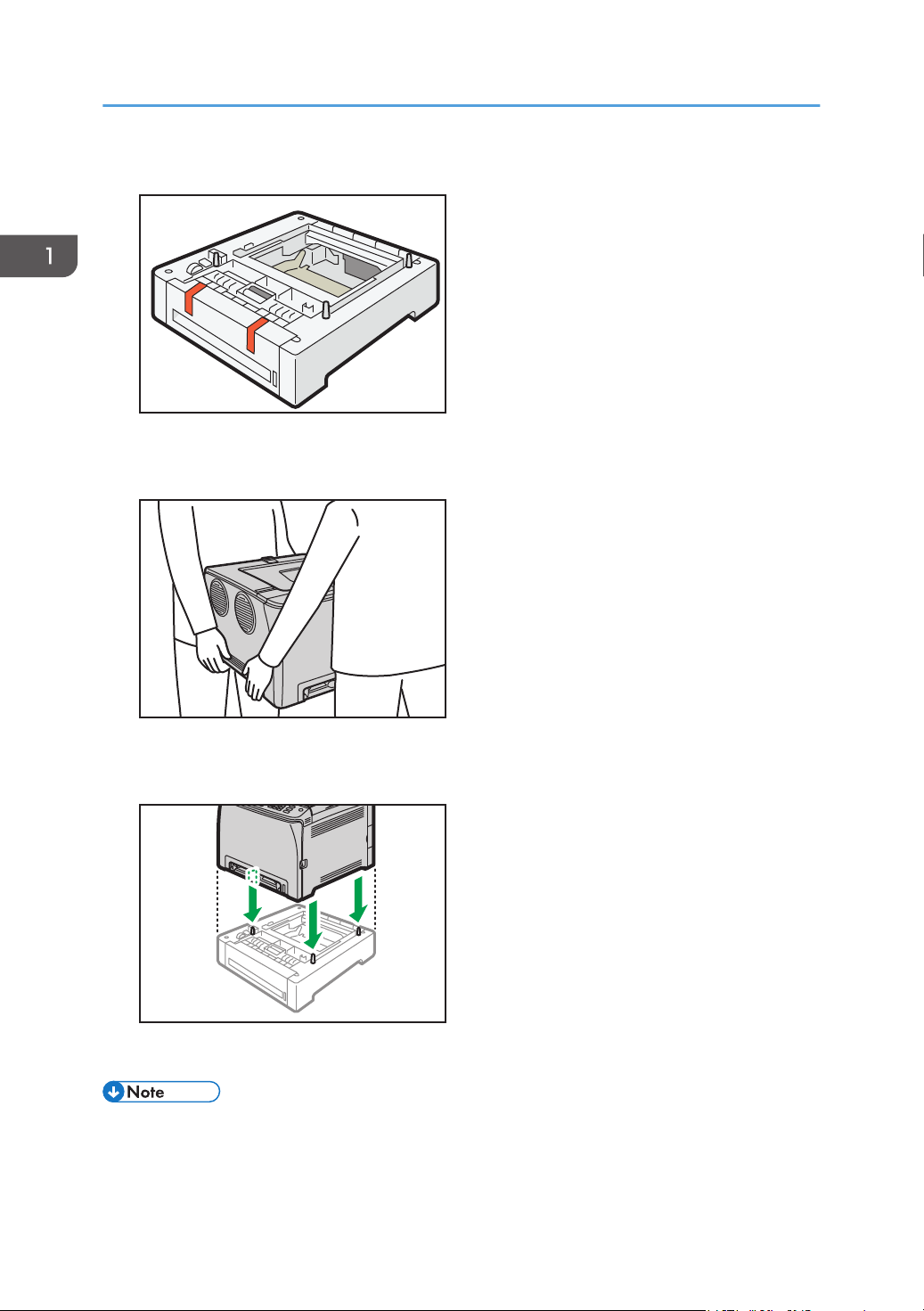
2. Remove the adhesive tape from the optional paper feed unit.
DPP210
3. Standing at the front and back of the machine, two persons should lift the machine using
the inset grips on the sides.
DUD470
4. There are three upright pins on the optional paper feed unit. Align the holes of the
machine with the pins, and then lower the machine slowly.
ECC107
5. Plug the machine's cord back into the wall outlet, and then turn on the power.
• After installing the optional paper feed unit, select Tray 2 in the printer driver. For details, see the
printer driver Help.
• If the new device is listed in the column of configuration options, it has been properly installed.
1. Guide to the Machine
20

About Operation Tools
This section explains the operation tools of this machine.
Control Panel
The control panel contains keys for controlling the machine.
For details about how to use the control panel, see page 67 "Configuring the Machine Using the
Control Panel".
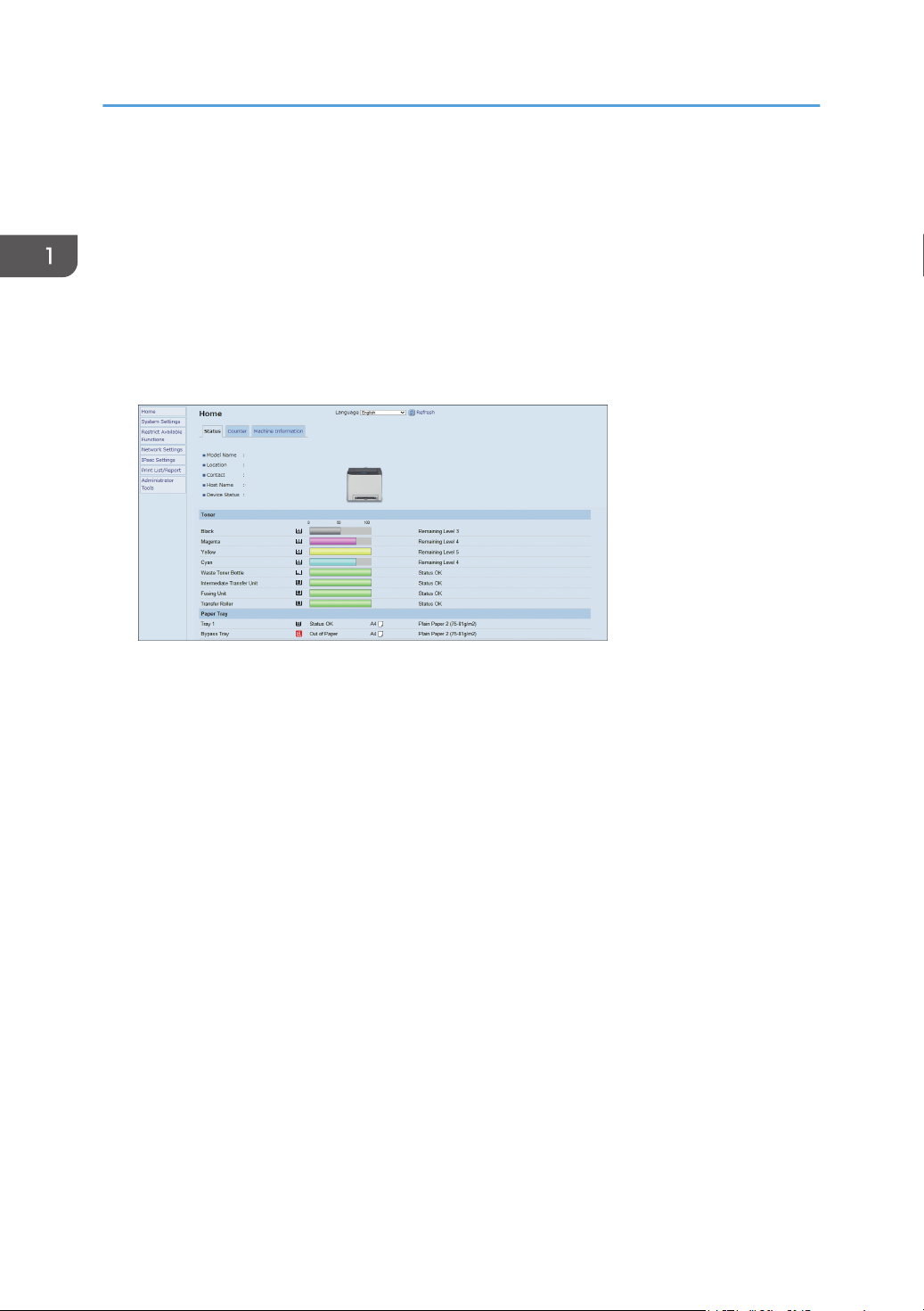
Web Image Monitor
You can check the machine's status and configure its settings by accessing the machine directly
using Web Image Monitor.
For details about how to use Web Image Monitor, see page 87 "Configuring the Machine Using
Utilities".
1. Guide to the Machine
22
2. Paper Specifications and Adding
Paper
This chapter describes how to load paper and originals and about their specifications.
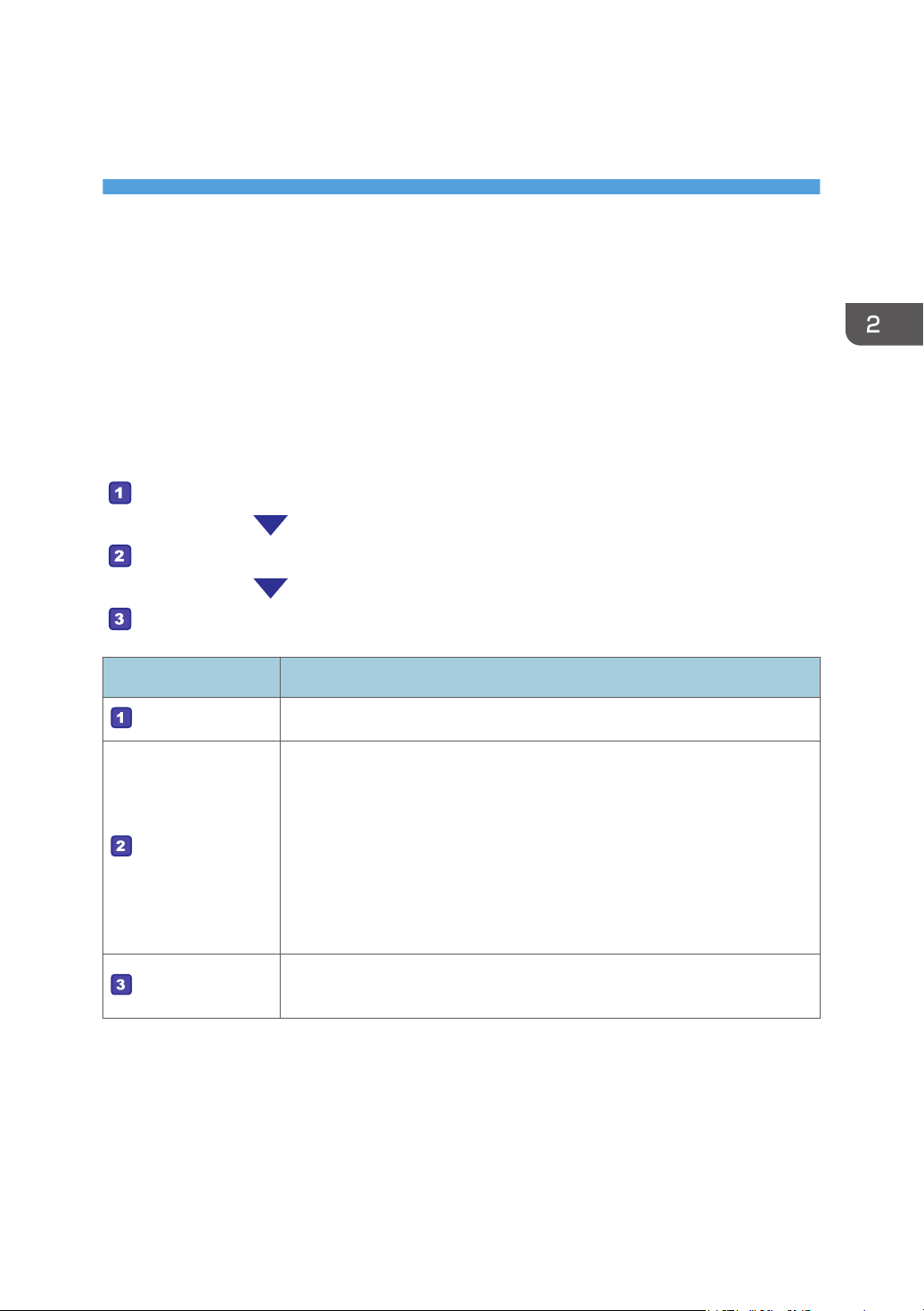
Workflow for Loading Paper and Configuring
Paper Sizes and Types
This section explains how to load paper and operations required after paper is loaded.
After following the procedures below, you can print on the paper that is loaded in the machine.
Load paper into the paper tray.
Specify the paper type and size.
Specify the paper type and size on the printer driver.
Procedure Reference
See page 24 "Loading Paper".
There are two ways to specify the paper type and size.
• When using the control panel
See page 32 "Specifying Paper Type and Paper Size Using the
Control Panel".
• When using Web Image Monitor
See page 35 "Specifying Paper Type and Paper Size Using Web
Image Monitor".
See page 36 "Specifying Paper Type and Paper Size Using the Printer
Driver".
For details about supported paper, see page 38 "Supported Paper".
23
Loading Paper
This section explains how to load paper into the paper tray and the bypass tray.
• When loading paper, take care not to trap or injure your fingers.
• When pulling out the paper tray, do not pull it out swiftly. The tray may fall and cause injury.
For information about supported paper, precautions for storing paper and print areas, see page 38
"Supported Paper".
Loading Paper into Tray1 and 2
The following example explains the loading procedure for the standard paper tray (Tray 1).
The same procedure applies to loading paper in Tray 2.
• Curled paper may jam. Straighten curled paper before loading.
• After loading paper in the tray, specify the paper type and size using the control panel to avoid
printing problems. This machine does not detect the paper size automatically.
• Be sure to select the correct paper size and feed direction using the paper size dial on the tray.
Otherwise, the printer might be damaged, or printing problems might occur.
• Make sure the paper stack does not exceed the upper limit mark inside the paper tray. Excessive
stacking can cause paper jams.
• If paper jams occur frequently, flip the paper stack in the tray.
• Do not mix different types of paper in the same paper tray.
• After loading paper, specify the paper size using the control panel and paper type using the
control panel. When printing a document, specify the same paper size and type in the printer
driver as specified on the printer.
• Do not move the side fences and end fence forcefully. Doing so may damage the tray.
• Do not slide the paper tray in forcefully when inserting the loaded tray into the printer. Otherwise,
the side and end fences or the paper guide of the bypass tray might move.
• When loading label paper, load it one by one.
2. Paper Specifications and Adding Paper
24
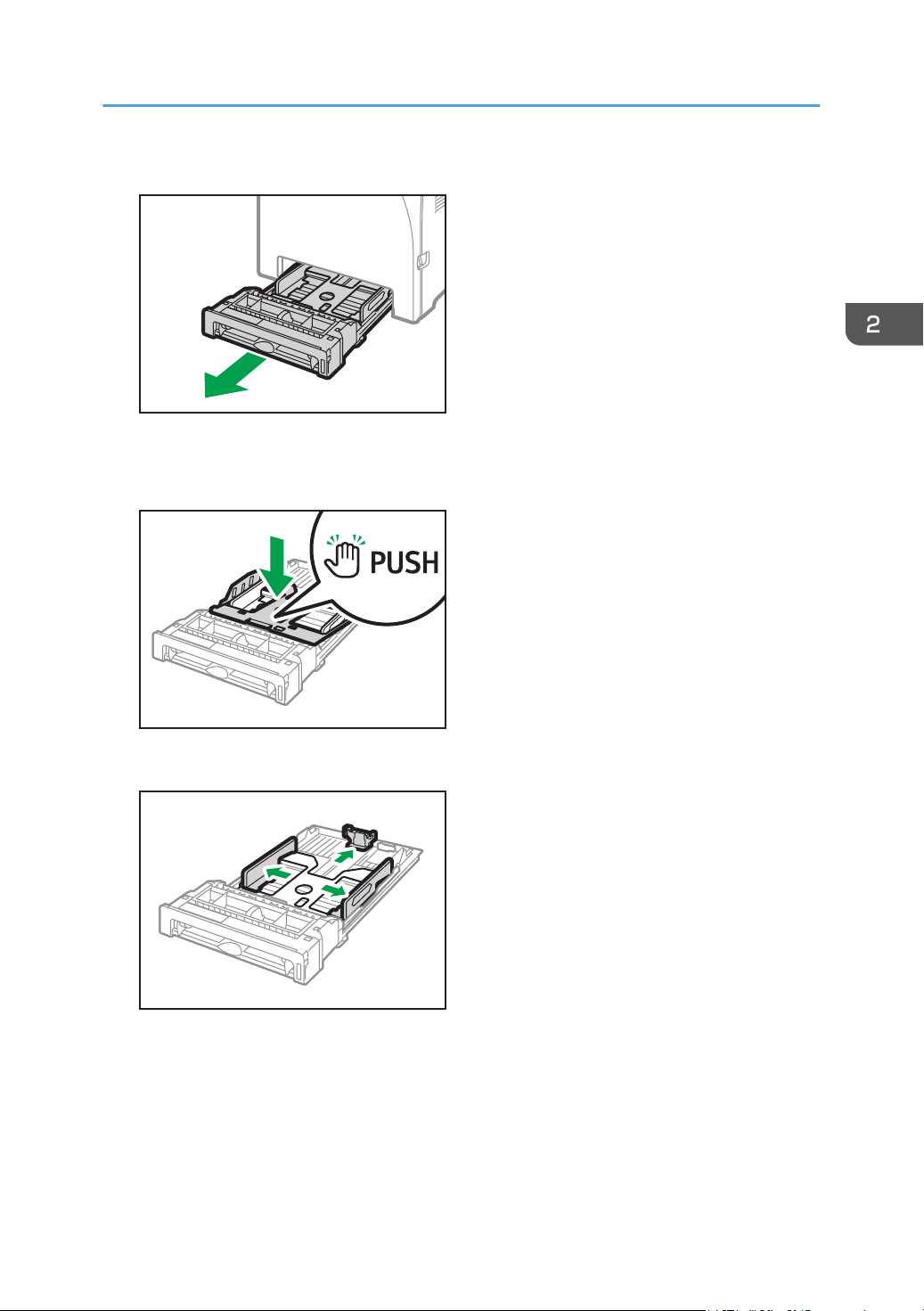
1. Pull out the paper tray carefully with both hands.
ECC076
Place the tray on a flat surface.
2. Push the metal plate down until it clicks.
ECC077
3. Align the side fences and end fence with the paper size.
ECC078
Loading Paper
25
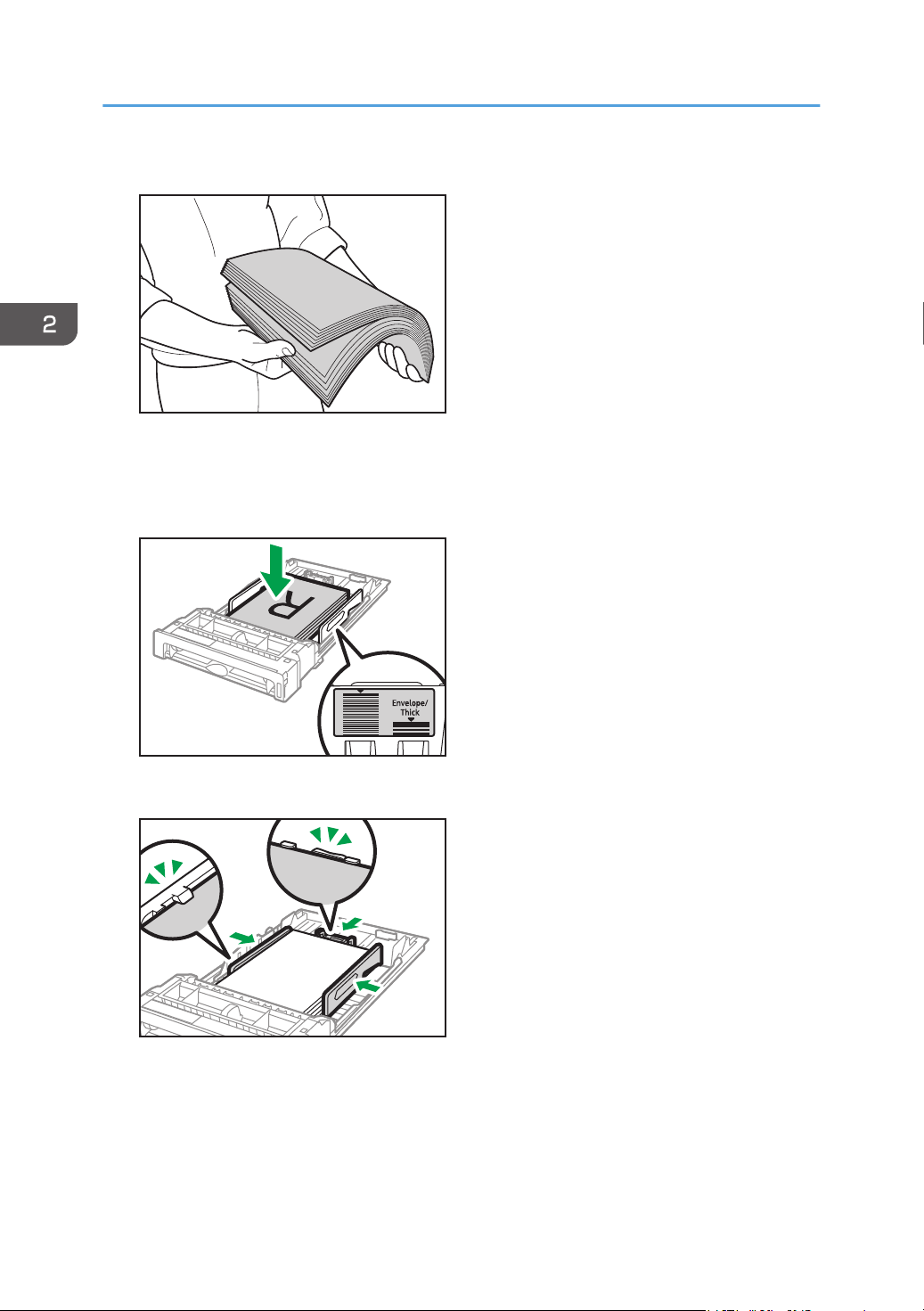
4. Fan the paper before loading it.
DAC344
5. Load the paper in the tray with the print side faced up.
Make sure the paper is not stacked higher than the upper limit marked inside the tray.
Make sure the paper is not stacked higher than the projection on the side fences. (Tray 1 only)
ECC108
6. Check there are no gaps between the paper and the fences; both side and end fences.
ECC080
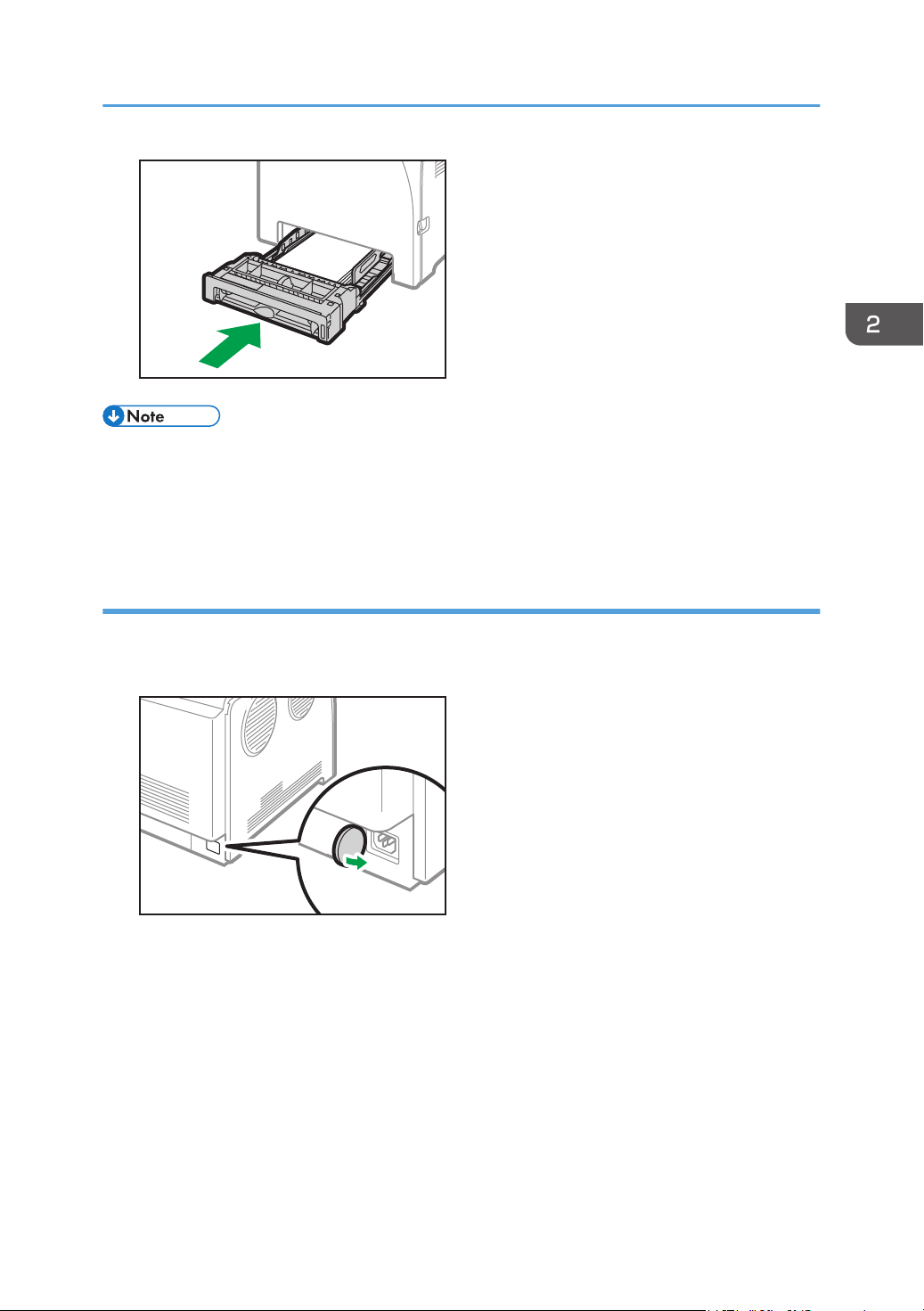
7. Carefully push the paper tray straight into the machine.
To avoid paper jams, make sure the tray is securely inserted.
2. Paper Specifications and Adding Paper
26
ECC081
• The upper limit differs depending on the paper type (thin or thick paper). See the label inside the
tray to check the upper limit.
• The remaining paper indicator on the right front side of the paper tray shows approximately how
much paper is remaining.
Extending tray 1 to load paper
This section explains how to load paper longer than A4 (297 mm) into the machine.
1. Remove the rear cover using a coin.
ECC109
2. Pull out tray 1 carefully with both hands.
Place the tray on a flat surface.
Loading Paper
27
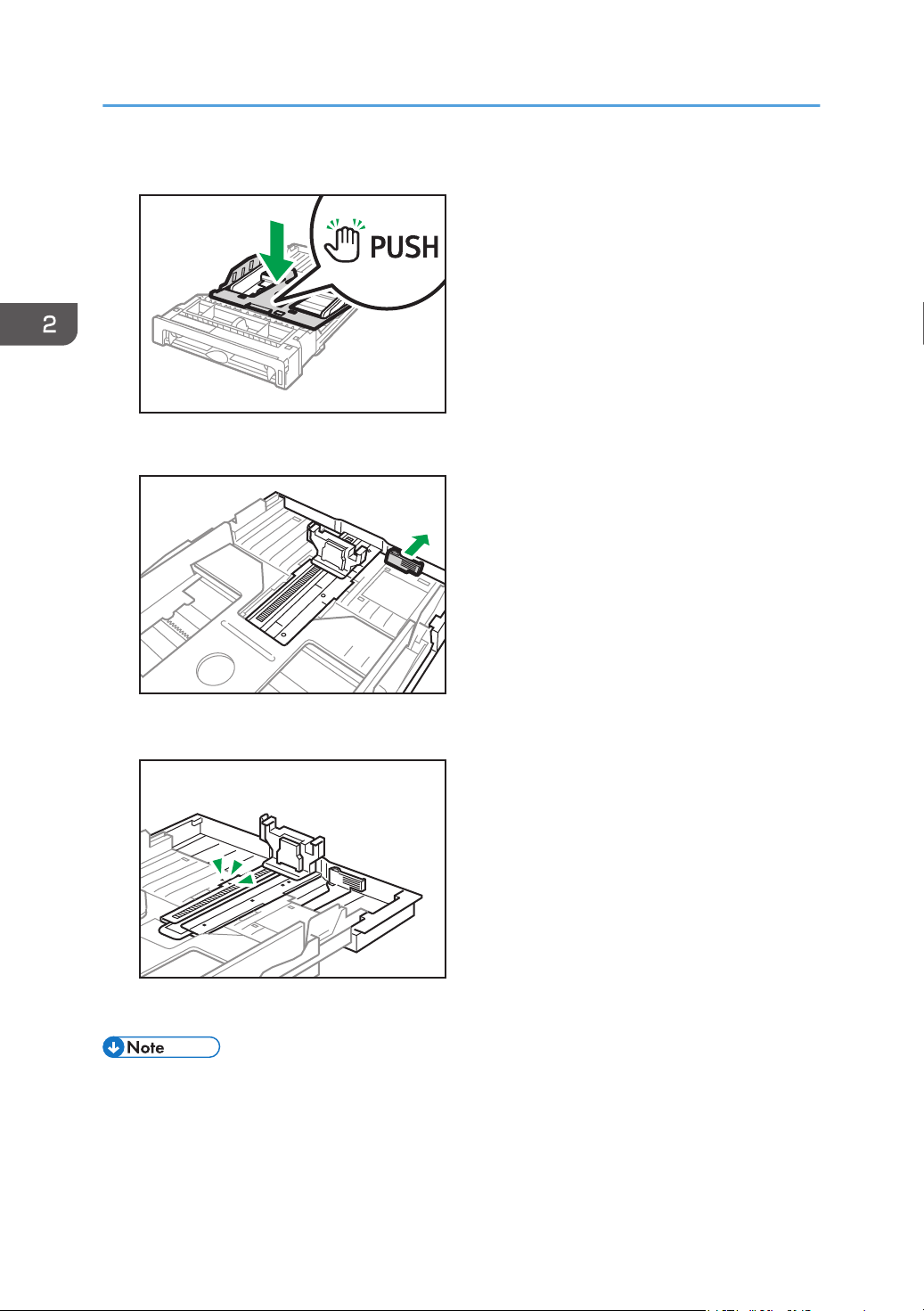
3. Push the metal plate down until it clicks.
ECC077
4. Pinch the extender, and then pull out the extender until it clicks.
ECC110
After extension, check that the arrows on the extender and tray are aligned.
ECC111
5. Follow Steps 3 to 7 in "Loading Paper into Tray1 and 2".
• To reinsert the extender, you might have to push it with moderate force.
2. Paper Specifications and Adding Paper
28
Loading Paper into Bypass Tray
• Do not load paper while the machine is printing.
• Load paper with the print side down and in the short-edge feed direction.
• Curled paper may jam. Straighten curled paper before loading.
• Duplex printing is not possible.
• Tray 1 and 2 are unavailable if paper is loaded in the bypass tray.
• You cannot load paper into the bypass tray while the machine is in Energy Saver mode.
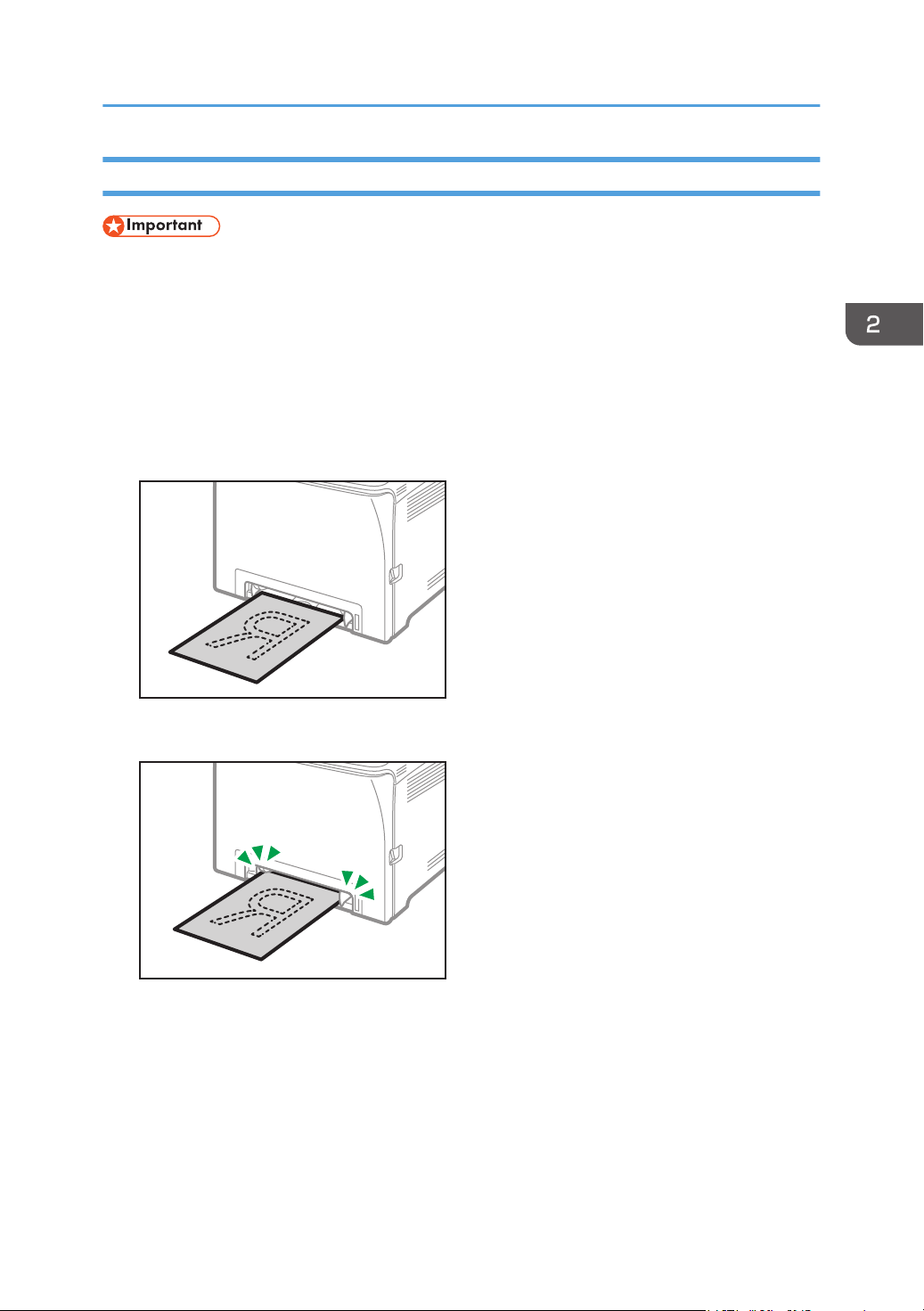
1. Insert the top edge of the paper into the machine.
ECC112
2. Adjust the paper guides to the paper size.
ECC113
Loading Paper
29
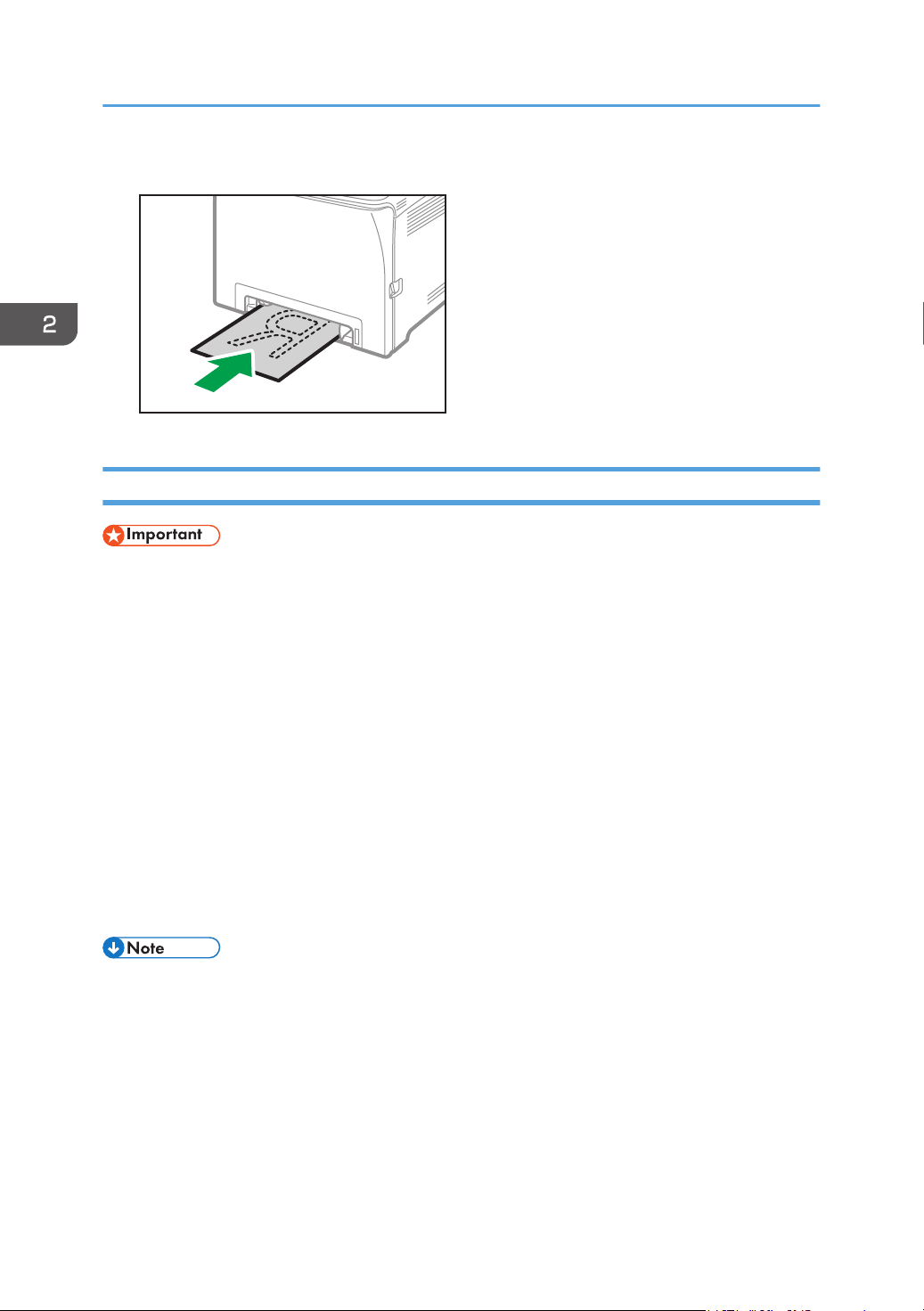
3. Support the paper with both hands, and insert it carefully until it stops.
ECC114
Loading Envelopes
• Avoid using self-adhesive envelopes. They may cause machine malfunctions.
• Check there is no air in the envelopes before loading.
• Load only one size and type of envelope at a time.
• Before loading envelopes, flatten their leading edges (the edge going into the machine) by running
a pencil or ruler across them.
• Some kinds of envelope might cause misfeeds, wrinkles or print poorly.
• Print quality on envelopes may be uneven if parts of an envelope have different thicknesses. Print
one or two envelopes to check print quality.
• In a hot and humid environment, the envelope might be output creased or improper printing
quality.
• Load envelopes with their flaps closed.
For details about loading an envelope, see page 24 "Loading Paper into Tray1 and 2", and page 29
"Loading Paper into Bypass Tray". Note that you cannot load an envelope in Tray 2.
• If printed envelopes come out badly creased, load the envelopes in the opposite direction, and
then rotate the print object by 180 degrees using the printer driver before printing. For details, see
the printer driver Help.
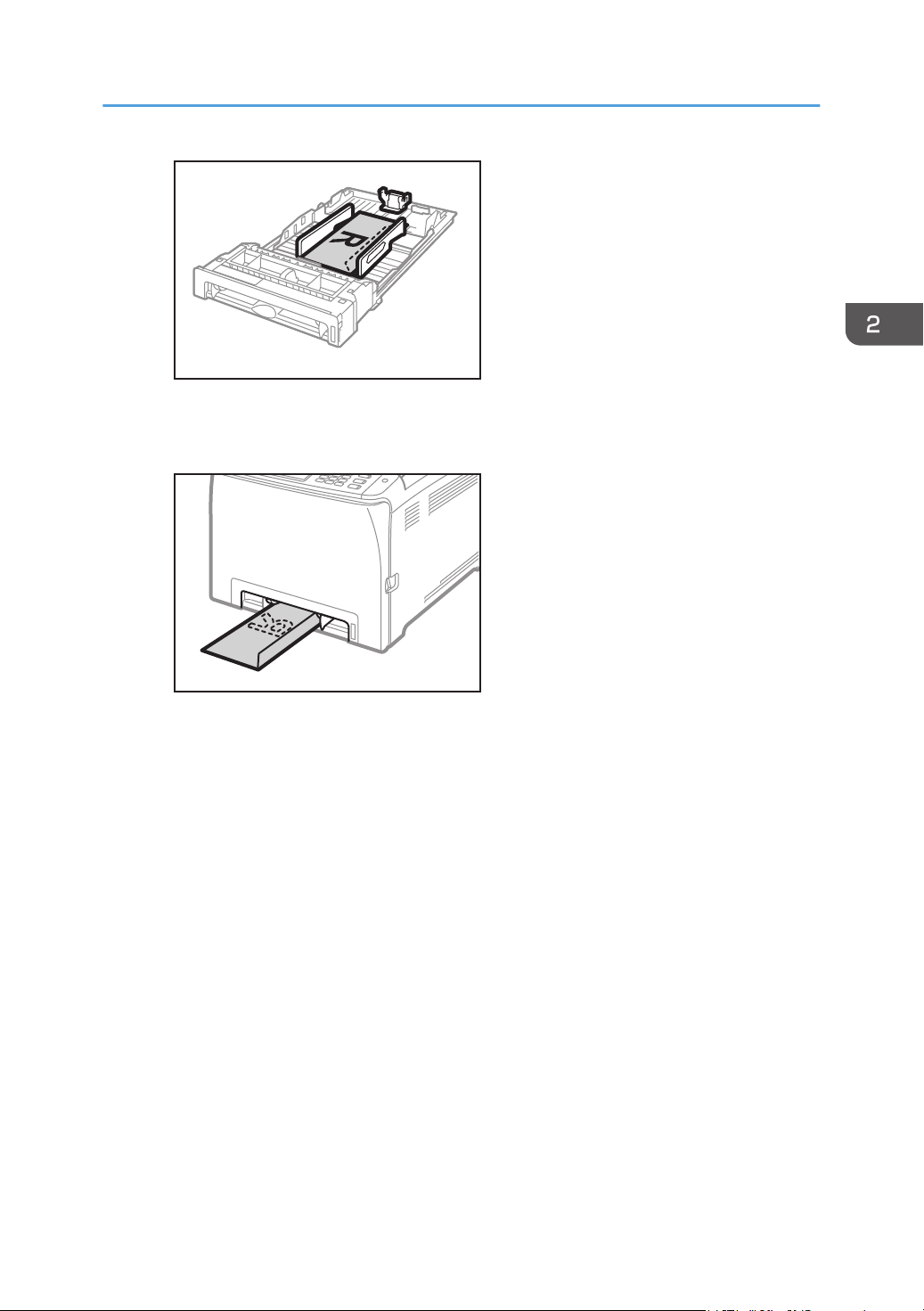
• When Using Tray 1
• If the envelope flap is on a long side, place the envelope with the flap side on the right.
2. Paper Specifications and Adding Paper
30
M0EQIC0105
• When Using the Bypass Tray
• If the envelope flap is on a long side, place the envelope with the flap side on the right.
M0EQIC0106
Loading Paper
31
Specifying Paper Type and Paper Size Using
the Control Panel
This section explains how to specify the paper size and paper type using the control panel.
• Paper type and size can also be specified using the printer driver. For details, see the printer driver
Help.
• For prints from the bypass tray or Tray 1, you can select to print according to either the printer
driver settings or the control panel settings with [Bypass Tray Priority] or [Tray1 Priority] under [Tray
Paper Settings]. For details about [Bypass Tray Priority] and [Tray1 Priority], see page 78 "Tray
Paper Settings".
• If [Auto Continue] under system settings is enabled, printing stops temporarily if a paper type/size
error is detected. The printing restarts automatically with the settings made with the control panel
after about ten seconds. However, if the size of paper specified on the control panel and that of the
paper loaded in the paper tray or the paper size specified for the print job do not match when
printing restarts, it may cause a paper jam. For details about [Auto Continue], see page 75
"System Settings".
Specifying the Paper Type
This section explains how to specify the paper type.
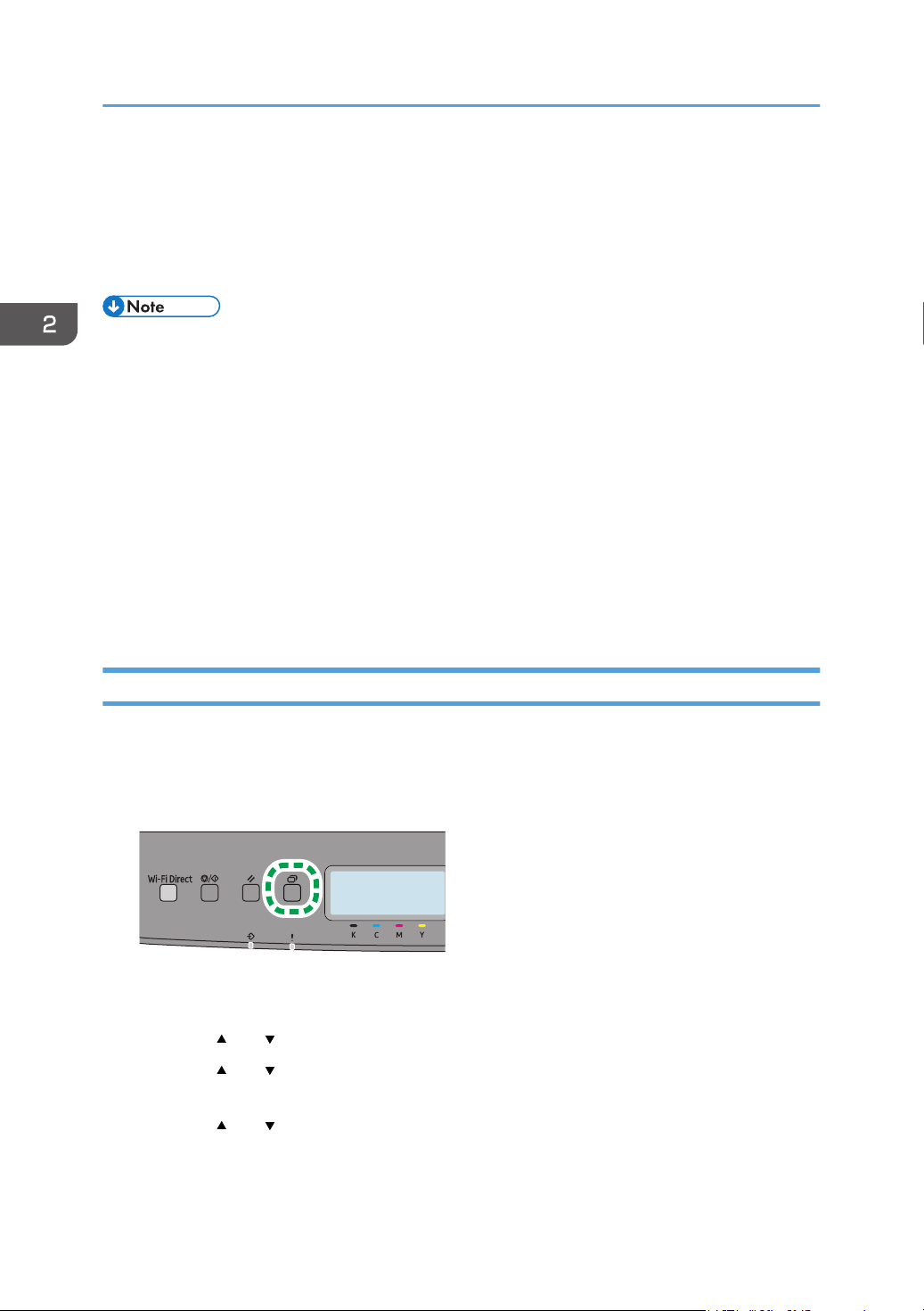
1. Press the [Menu] key.
2. Press the [ ] or [ ] key to select [Tray Paper Settings], and then press the [OK] key.
3. Press the [ ] or [ ] key to select the paper type setting for the desired tray, and then
press the [OK] key.
4. Press the [ ] or [ ] key to select the desired paper type, and then press the [OK] key.
5. Press the [Menu] key to return to the initial screen.
2. Paper Specifications and Adding Paper
32
Specifying the Standard Paper Size
This section explains how to specify the standard paper size.
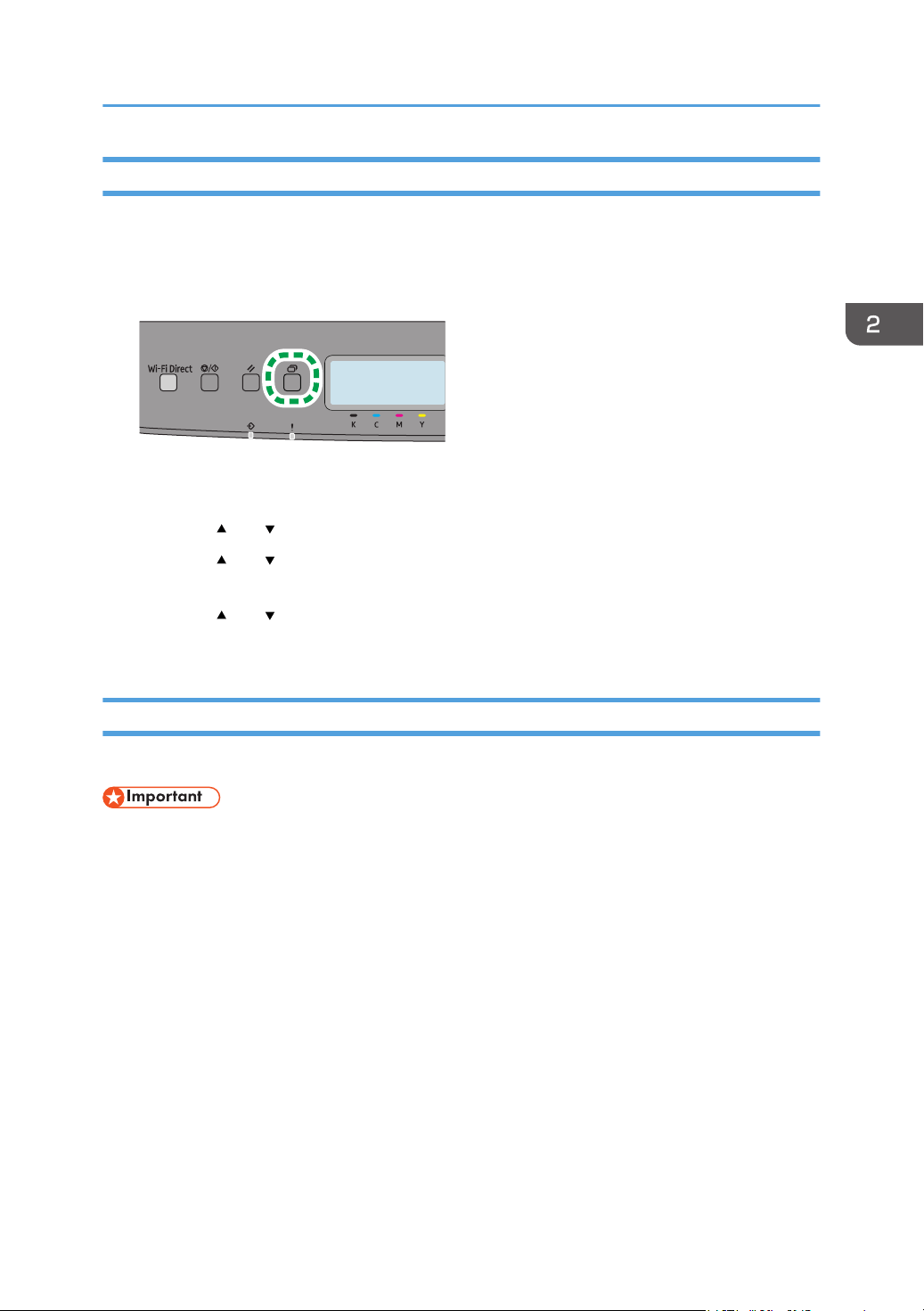
1. Press the [Menu] key.
2. Press the [ ] or [ ] key to select [Tray Paper Settings], and then press the [OK] key.
3. Press the [ ] or [ ] key to select the paper size setting for the desired tray, and then press
the [OK] key.
4. Press the [
] or [ ] key to select the desired paper size, and then press the [OK] key.
5. Press the [Menu] key to return to the initial screen.
Specifying a Custom Paper Size
This section explains how to specify a custom paper size.
• Custom size paper cannot be loaded in tray 2.
• When you perform printing, make sure that the paper size specified with the printer driver matches
the paper size specified with the control panel. If a paper size mismatch occurs, a message
appears on the display. To ignore the error and print using mismatched paper, see page 58 "If a
Paper Mismatch Occurs".
Specifying Paper Type and Paper Size Using the Control Panel
33
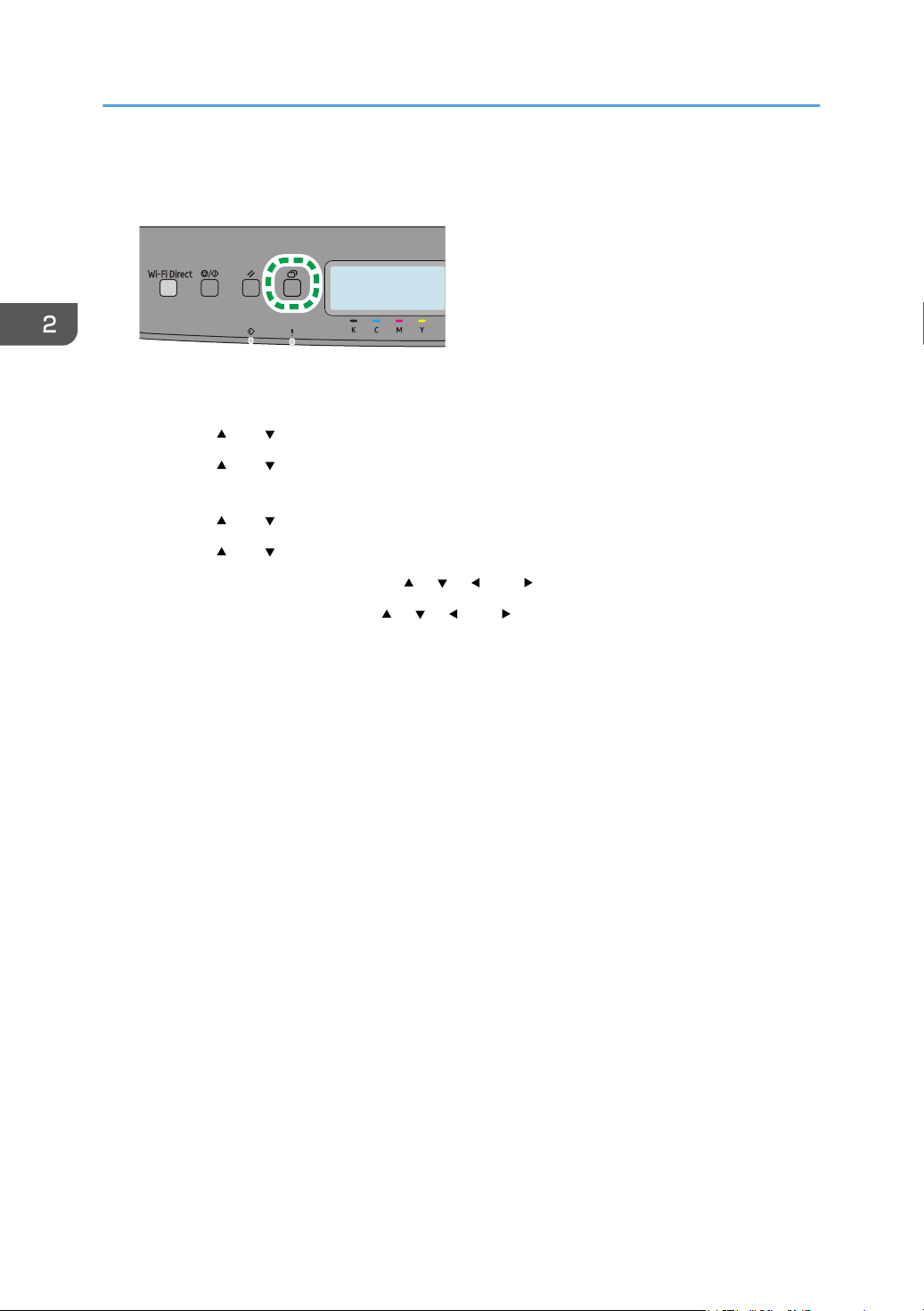
1. Press the [Menu] key.
2. Press the [ ] or [ ] key to select [Tray Paper Settings], and then press the [OK] key.
3. Press the [ ] or [ ] key to select the paper size setting for the desired tray, and then press
the [OK] key.
4. Press the [ ] or [ ] key to select [Custom Size], and then press the [OK] key.
5. Press the [ ] or [ ] key to select [mm] or [inch], and then press the [OK] key.
6. Enter the horizontal size using the [ ], [ ], [ ], or [ ] key, and then press the [OK] key.
7. Enter the vertical size using the [ ], [ ], [ ], or [ ] key, and then press the [OK] key.
8. Press the [Menu] key to return to the initial screen.
2. Paper Specifications and Adding Paper
34
Specifying Paper Type and Paper Size Using
Web Image Monitor
This section describes how to specify paper sizes and types using Web Image Monitor.
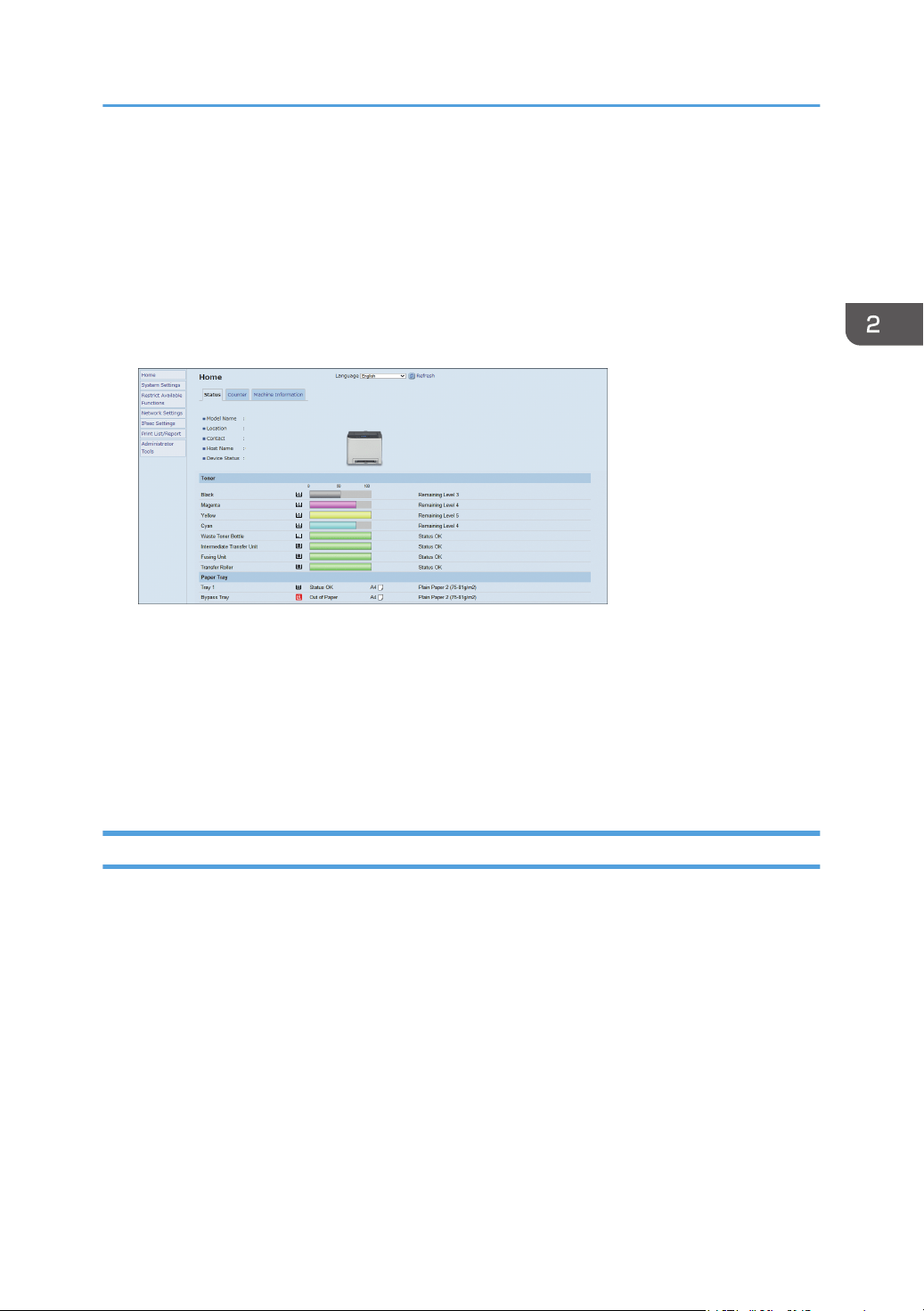
1. Start the web browser and access the machine by entering its IP address.
The top page of Web Image Monitor appears.
2. Click [System Settings].
3. Click [Tray Paper Settings] tab.
4. Select the paper type and paper size for the tray you want to use.
5. Enter the administrator password.
6. Click [OK].
7. Close the web browser.
Specifying a Custom Paper Size
1. Start the web browser and access the machine by entering the IP address.
2. Click [System Settings].
3. Click [Tray Paper Settings] tab.
4. Select [Custom Size] in the [Paper Size] list.
5. Select [mm] or [Inch] and specify the width and length.
6. Enter the administrator password.
7. Click [OK].
8. Close the web browser.
Specifying Paper Type and Paper Size Using Web Image Monitor
35
Specifying Paper Type and Paper Size Using
the Printer Driver
• Make sure that the paper type and size specified with the printer driver matches the type and size
of the paper loaded in the tray. Since this machine does not detect paper sizes automatically, the
type or size of the paper may be mismatched and the print job may not print correctly.
When Using Windows
The procedure in this section is an example based on Windows 10. The actual procedure may vary
depending on the operating system you are using.
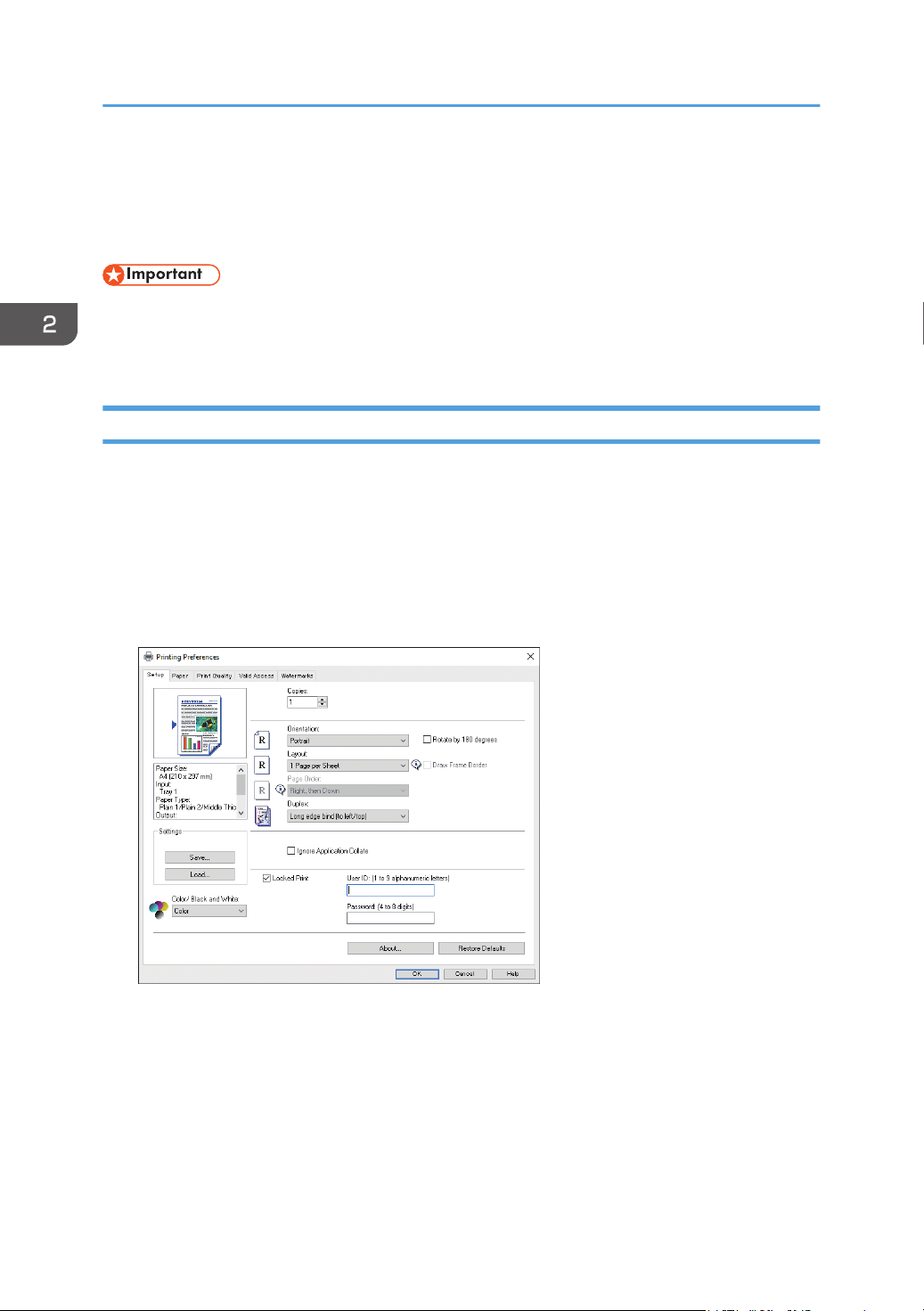
1. Open the [Printing Preferences] dialog box from the printer driver.
For information of how to open the printer driver properties from [Devices and Printers], see
page 55 "Displaying the Printing Preferences Dialog Box".
The [Printing Preferences] dialog box appears.
2. Paper Specifications and Adding Paper
36
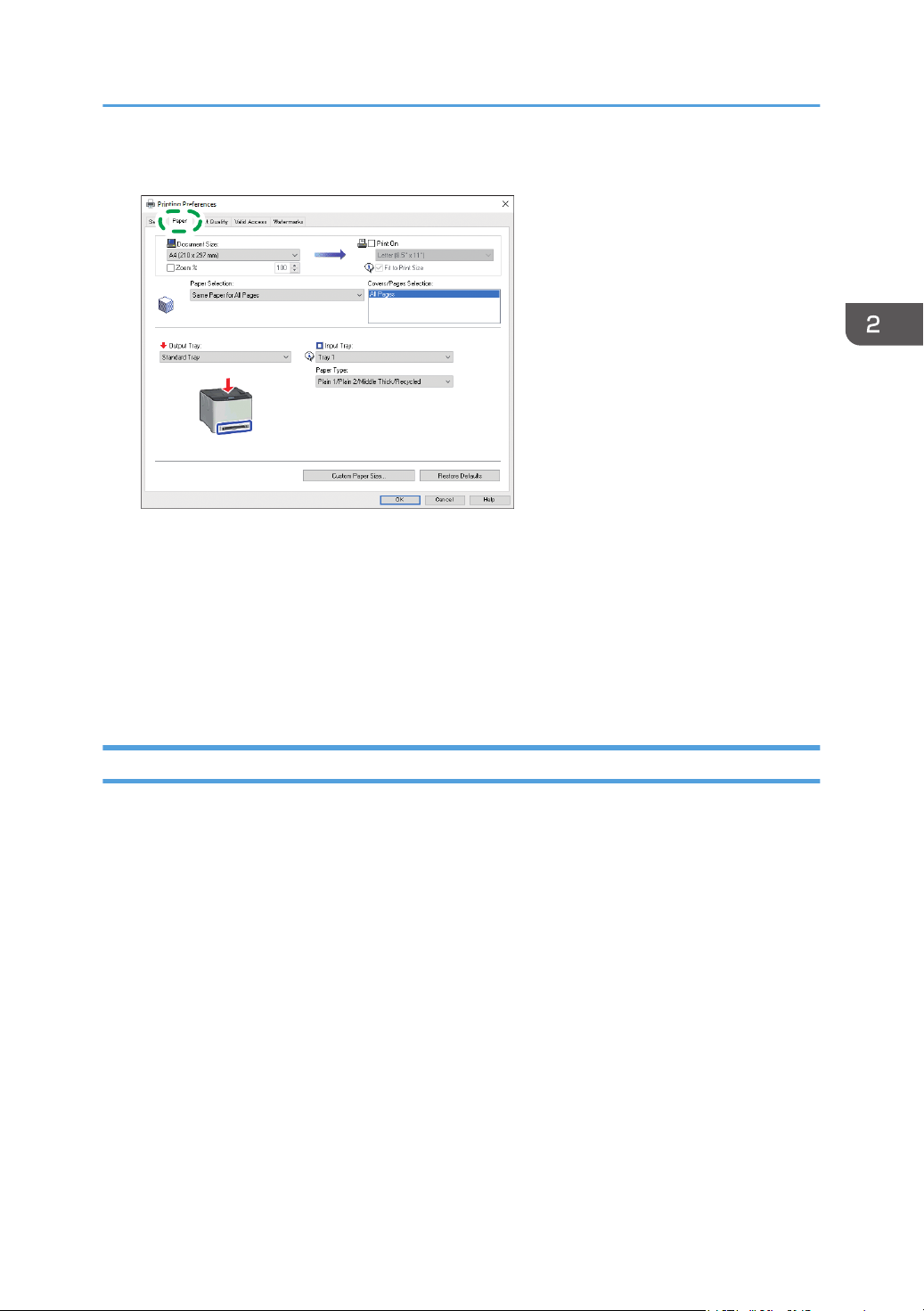
2. Click the [Paper] tab.
ECB251
3. In the [Input Tray:] list, select the paper tray you want to use for printing.
4. In the [Paper Type:] list, select the type of paper that is loaded in the paper tray.
5. Select the [Print On] check box and select the size of the paper that is loaded in the paper
tray.
Clear the [Fit to Print Size] check box as necessary.
6. Click [OK].
When Using macOS
The procedure in this section is an example based on macOS 11.2.3. The actual procedure may vary
depending on the operating system you are using.
1. Open the document to print.
2. Select [Print...] on the [File] menu.
3. In the [Printer] list, select the printer you are using.
4. In the [Paper Size] list, select the size of the document to be printed.
Specifying Paper Type and Paper Size Using the Printer Driver
37

Supported Paper
• After loading paper in the tray, specify the paper type and size using the control panel. This
machine does not detect the paper size automatically.
• When loading custom size paper into Tray 1 or the bypass tray, specify the width and length using
the control panel and the printer driver.
• When printing on custom size paper from the bypass tray, you can print without specifying the
paper type or paper size from the control panel depending on the settings for [Bypass Tray
Priority].
Tray 1
Type Size Weight Capacity*
1
Plain Paper 1
Plain Paper 2
Middle Thick Paper
Recycled Paper
Thick Paper 1
Thick Paper 2
Thin Paper
Letterhead
Preprinted Paper
Label Paper
Prepunched Paper
Bond Paper
Cardstock
Color Paper
Envelope
A4, B5 JIS, A5 LEF, A5 SEF, B6
JIS, A6, 8
1
/
2
× 14, 8
1
/
2
× 11,
5
1
/
2
× 8
1
/
2
, 7
1
/
4
× 10
1
/
2
, 8
× 13, 8
1
/
2
× 13, 8
1
/
4
× 13,
16K, 4
1
/
8
× 9
1
/
2
, 3
7
/
8
×
7
1
/
2
, C5 Env, C6 Env, DL Env,
8
1
/
2
× 13
2
/
5
, 8
1
/
2
× 13
3
/
5
60 to 163 g/m
2
(16 to 43 lb.)
250
(80 g/m
2
, 20 lb.)
2. Paper Specifications and Adding Paper
38

Type Size Weight Capacity*
1
Plain Paper 1
Plain Paper 2
Middle Thick Paper
Recycled Paper
Thick Paper 1
Thick Paper 2
Thin Paper
Letterhead
Preprinted Paper
Label Paper
Prepunched Paper
Bond Paper
Cardstock
Color Paper
Envelope
Custom size:
90 to 216 mm in width,
148 to 356 mm in length
(3.54 to 8.50 inches in width,
5.83 to 14.02 inches in length)
60 to 163 g/m
2
(16 to 43 lb.)
250
(80 g/m
2
, 20 lb.)
*
1 The number of envelopes that can be loaded is up to 10.
Tray 2 (option)
Type Size Weight Capacity
Thin Paper
Plain Paper 1
Plain Paper 2
Middle Thick Paper
Thick Paper 1
Recycled Paper
Color Paper
Preprinted Paper
Prepunched Paper
Letterhead
A4
Letter (8
1
/
2
× 11 inches)
60 to 105 g/m
2
(16 to 28 lb.)
500
(80 g/m
2
, 20 lb.)
Supported Paper
39

Bypass tray
Type Size Weight Capacity
Plain Paper 1
Plain Paper 2
Middle Thick Paper
Recycled Paper
Thick Paper 1
Thick Paper 2
Thin Paper
Letterhead
Envelope
Label Paper
Prepunched Paper
Bond Paper
Cardstock
Color Paper
A4, B5 JIS, A5 LEF, A5 SEF, B6
JIS, A6, 8
1
/
2
× 14, 8
1
/
2
× 11,
5
1
/
2
× 8
1
/
2
, 7
1
/
4
× 10
1
/
2
, 8
× 13, 8
1
/
2
× 13, 8
1
/
4
× 13,
16K, 4
1
/
8
× 9
1
/
2
, 3
7
/
8
×
7
1
/
2
, C5 Env, C6 Env, DL Env,
8
1
/
2
× 13
2
/
5
, 8
1
/
2
× 13
3
/
5
60 to 163 g/m
2
(16 to 43 lb.)
1
Plain Paper 1
Plain Paper 2
Middle Thick Paper
Recycled Paper
Thick Paper 1
Thick Paper 2
Thin Paper
Letterhead
Envelope
Label Paper
Prepunched Paper
Bond Paper
Cardstock
Color Paper
Custom size:
90 to 216 mm in width,
148 to 356 mm in length
(3.54 to 8.50 inches in width,
5.83 to 14.02 inches in length)
60 to 163 g/m
2
(16 to 43 lb.)
1
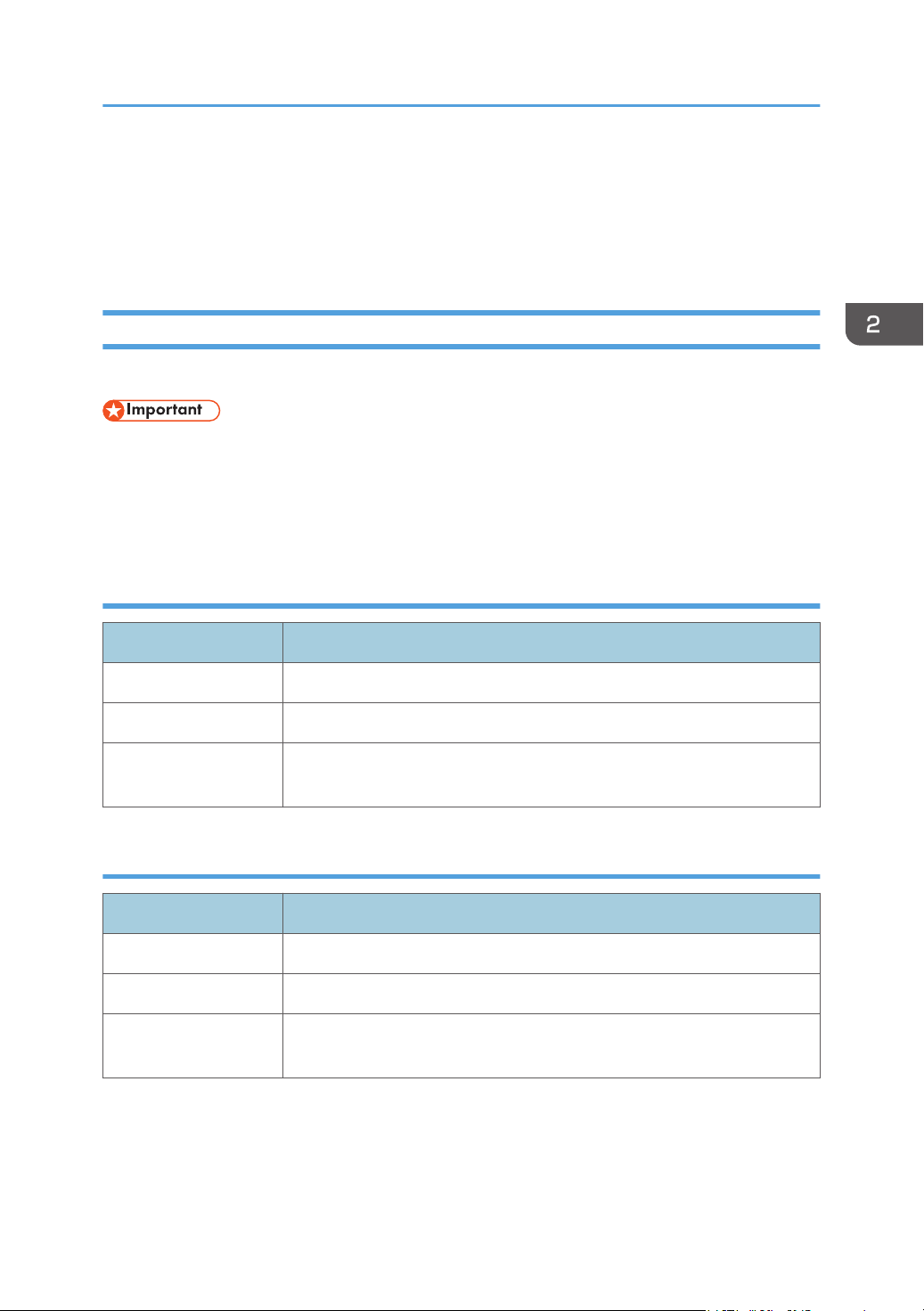
• You cannot print on Legal size paper in the following cases:
2. Paper Specifications and Adding Paper
40
• PCL printer driver
When [Gradation:] in [Print Quality] is set to [Fine]
• PostScript 3 printer driver
When [Print Quality] in [Printer Features] is set to [Best Quality]
Specifications of Paper Types
The following tables describe the types of paper that can be used with this machine.
• Depending on the paper type, the toner may take a while to dry. Before handling printed sheets,
make sure that they have fully dried. Otherwise, the toner may smudge.
• Print quality can be guaranteed only if recommended paper is used. For more information about
the recommended paper, contact your sales or service representative.
Plain Paper 1
Item Description
Paper thickness 66 to 74 g/m
2
(18 to 20 lb.)
Supported paper tray Can be used with any of the paper trays.
Duplex supported size A4, B5 JIS, 8
1
/
2
× 14, 8
1
/
2
× 11, 7
1
/
4
× 10
1
/
2
, 8 × 13, 8
1
/
2
× 13,
8
1
/
4
× 13, 16K, 8
1
/
2
× 13
2
/
5
, 8
1
/
2
× 13
3
/
5
Plain Paper 2
Item Description
Paper thickness 75 to 81 g/m
2
(20 to 22 lb.)
Supported paper tray Can be used with any of the paper trays.
Duplex supported size A4, B5 JIS, 8
1
/
2
× 14, 8
1
/
2
× 11, 7
1
/
4
× 10
1
/
2
, 8 × 13, 8
1
/
2
× 13,
8
1
/
4
× 13, 16K, 8
1
/
2
× 13
2
/
5
, 8
1
/
2
× 13
3
/
5
Supported Paper
41

Middle Thick Paper
Item Description
Paper thickness 82 to 90 g/m
2
(22 to 24 lb.)
Supported paper tray Can be used with any of the paper trays.
Duplex supported size
A4, B5 JIS, 8
1
/
2
× 14, 8
1
/
2
× 11, 7
1
/
4
× 10
1
/
2
, 8 × 13, 8
1
/
2
× 13,
8
1
/
4
× 13, 16K, 8
1
/
2
× 13
2
/
5
, 8
1
/
2
× 13
3
/
5
Thick Paper 1
Item Description
Paper thickness 91 to 105 g/m
2
(24 to 28 lb.)
Supported paper tray Can be used with any of the paper trays.
Duplex supported size None
Notes The number of sheets that can be printed per minute is approximately half
that of middle thick paper.
Thick Paper 2
Item Description
Paper thickness 106 to 163 g/m
2
(28 to 43 lb.)
Supported paper tray Tray 1 and bypass tray
Duplex supported size None
Notes The number of sheets that can be printed per minute is approximately half
that of middle thick paper.
Thin Paper
Item Description
Paper thickness 60 to 65 g/m
2
(16 to 17 lb.)
2. Paper Specifications and Adding Paper
42
Item Description
Supported paper tray Can be used with any of the paper trays.
Duplex supported size A4, B5 JIS, 8
1
/
2
× 14, 8
1
/
2
× 11, 7
1
/
4
× 10
1
/
2
, 8 × 13, 8
1
/
2
× 13,
8
1
/
4
× 13, 16K, 8
1
/
2
× 13
2
/
5
, 8
1
/
2
× 13
3
/
5
Recycled Paper
Item Description
Paper thickness 75 to 90 g/m
2
(20 to 24 lb.)
Supported paper tray Can be used with any of the paper trays.
Duplex supported size A4, B5 JIS, 8
1
/
2
× 14, 8
1
/
2
× 11, 7
1
/
4
× 10
1
/
2
, 8 × 13, 8
1
/
2
× 13,
8
1
/
4
× 13, 16K, 8
1
/
2
× 13
2
/
5
, 8
1
/
2
× 13
3
/
5
Notes If the paper thickness is outside the specified range, select [Thin Paper],
[Plain Paper], [Thick Paper 1], or [Thick Paper 2].
Color Paper
Item Description
Paper thickness 75 to 90 g/m
2
(20 to 24 lb.)
Supported paper tray Can be used with any of the paper trays.
Duplex supported size A4, B5 JIS, 8
1
/2 × 14, 8
1
/
2
× 11, 7
1
/
4
× 10
1
/
2
, 8 × 13, 8
1
/
2
× 13,
8
1
/
4
× 13, 16K, 8
1
/
2
× 13
2
/
5
, 8
1
/
2
× 13
3
/
5
Notes If the paper thickness is outside the specified range, select [Thin Paper],
[Plain Paper], [Thick Paper 1], or [Thick Paper 2].
Preprinted Paper
Item Description
Paper thickness 75 to 90 g/m
2
(20 to 24 lb.)
Supported paper tray Tray 1 and Tray 2
Supported Paper
43
Item Description
Duplex supported size A4, B5 JIS, 8
1
/
2
× 14, 8
1
/
2
× 11, 7
1
/
4
× 10
1
/
2
, 8 × 13, 8
1
/
2
× 13,
8
1
/
4
× 13, 16K, 8
1
/
2
× 13
2
/
5
, 8
1
/
2
× 13
3
/
5
Notes If the paper thickness is outside the specified range, select [Thin Paper],
[Plain Paper], [Thick Paper 1], or [Thick Paper 2].
Prepunched Paper
Item Description
Paper thickness 75 to 90 g/m
2
(20 to 24 lb.)
Supported paper tray Can be used with any of the paper trays.
Duplex supported size A4, B5 JIS, 8
1
/
2
× 14, 8
1
/
2
× 11, 7
1
/
4
× 10
1
/
2
, 8 × 13, 8
1
/
2
× 13,
8
1
/
4
× 13, 16K, 8
1
/
2
× 13
2
/
5
, 8
1
/
2
× 13
3
/
5
Notes If the paper thickness is outside the specified range, select [Thin Paper],
[Plain Paper], [Thick Paper 1], or [Thick Paper 2].
Letterhead
Item Description
Paper thickness 75 to 90 g/m
2
(20 to 24 lb.)
Supported paper tray Can be used with any of the paper trays.
Duplex supported size A4, B5 JIS, 8
1
/
2
× 14, 8
1
/
2
× 11, 7
1
/
4
× 10
1
/
2
, 8 × 13, 8
1
/
2
× 13,
8
1
/
4
× 13, 16K, 8
1
/
2
× 13
2
/
5
, 8
1
/
2
× 13
3
/
5
Notes Paper that has a thickness outside the specified range cannot be printed
onto.
Bond Paper
Item Description
Paper thickness 106 to 163 g/m
2
(28 to 43 lb.)
Supported paper tray Tray 1 and bypass tray
2. Paper Specifications and Adding Paper
44
Item Description
Duplex supported size None
Notes • The number of sheets that can be printed in one minute is
approximately half that of middle thick paper.
• If the paper thickness is outside the specified range, select [Thick Paper
1].
Cardstock
Item Description
Paper thickness 106 to 163 g/m2 (28 to 43 lb.)
Supported paper tray Tray 1 and bypass tray
Duplex supported size None
Notes • The number of sheets that can be printed in one minute is
approximately half that of middle thick paper.
• If the paper thickness is outside the specified range, select [Thick Paper
1].
Label Paper
Item Description
Supported paper tray Tray 1 and bypass tray
Duplex supported size None
Notes • The number of sheets that can be printed per minute is approximately
half that of middle thick paper.
• Avoid using adhesive label paper on which glue is exposed. Glue
may stick to the inner parts of the machine, which can cause paper
feed problems, deterioration in print quality, or premature wear of the
print cartridge's photo conductor unit.
Supported Paper
45
Envelope
Item Description
Supported paper tray Tray 1 and bypass tray
Duplex supported size None
Notes
• Avoid using self-adhesive envelopes. They may cause machine malfunctions.
• The number of envelopes that can be printed per minute is approximately half that of middle thick
paper.
• Paper can be loaded only up to the lower of the two paper limit marks of the tray.
• If printed envelopes come out badly creased, load the envelopes in the opposite direction. Also,
configure the printer driver to rotate the print object 180 degrees. For details about changing the
orientation see the printer driver Help.
• Environmental factors can degrade the print quality on both recommended and non-recommended
envelopes.
• If envelopes are severely curled after printing, flatten them by bending them back against the curl.
• After printing, envelopes sometimes have creases along their long edges and toner smear on their
unprinted sides. Print images might also be blurred. When printing large, black-solid areas, striping
can occur as a result of the envelopes overlapping.
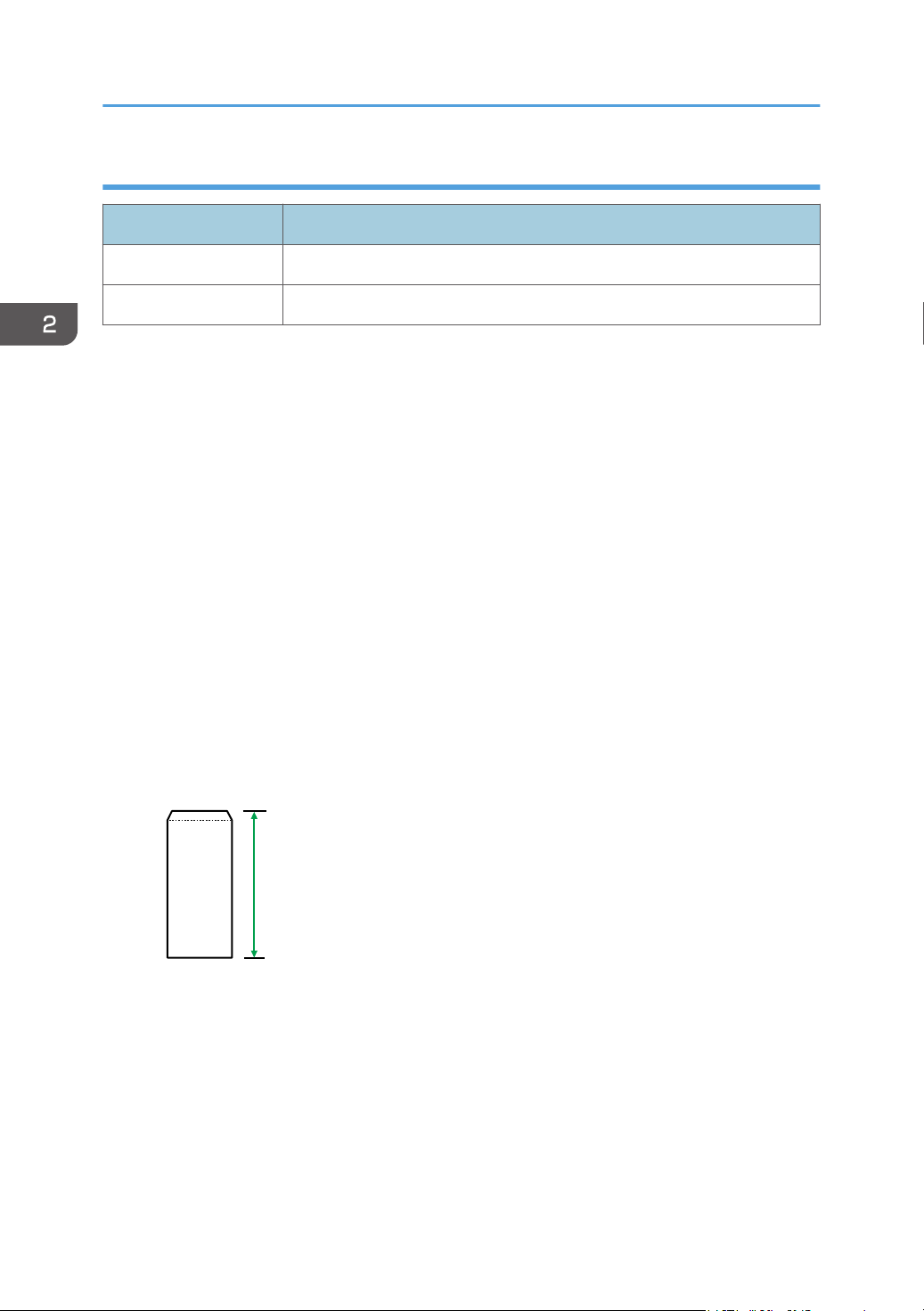
• To correctly specify the length of an envelope whose flap opens along its short edge, be sure to
include the open flap when measuring.
CER112
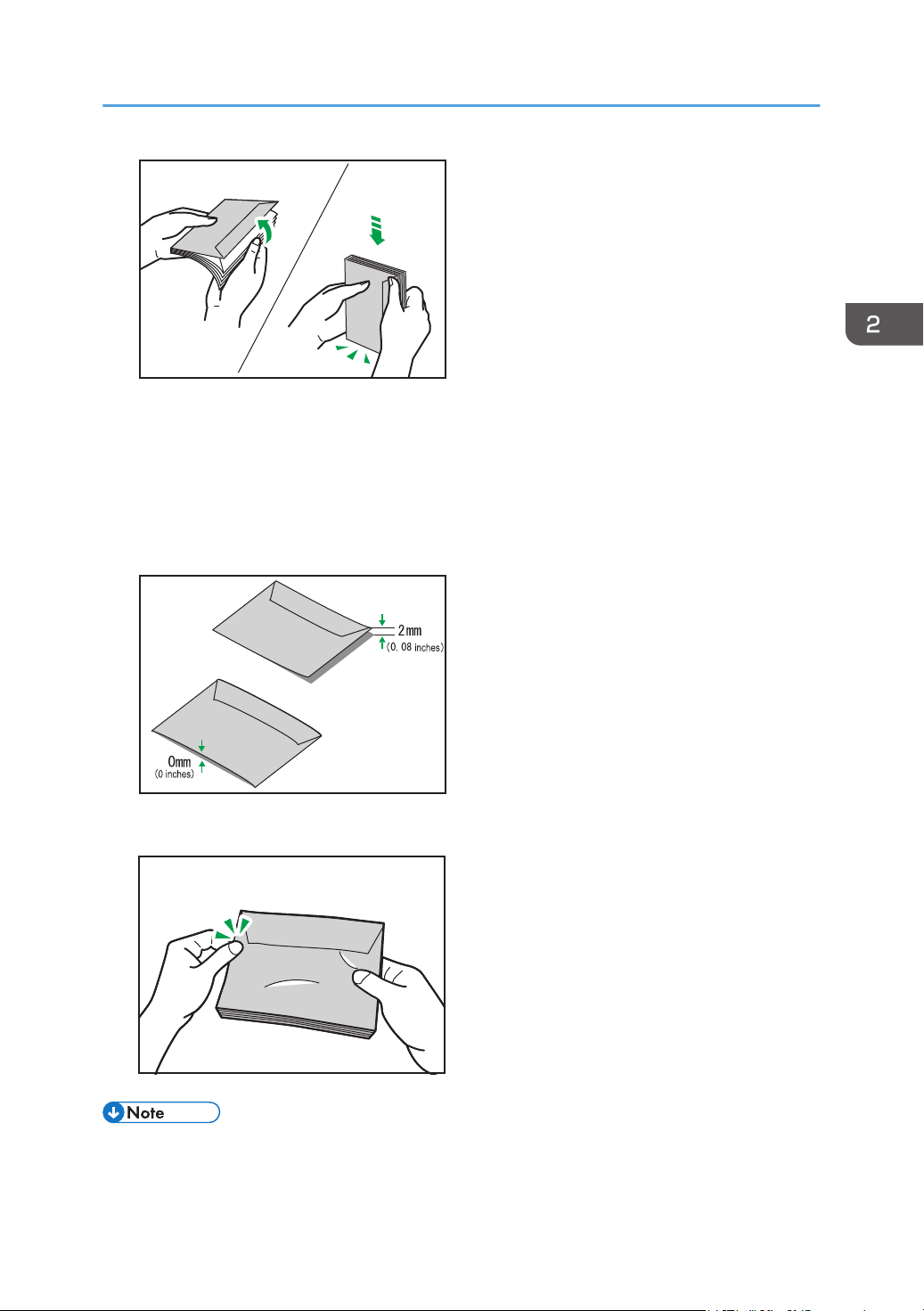
• Fan envelopes, and then align their edges before loading.
2. Paper Specifications and Adding Paper
46
DAC573
• When fanning envelopes, make sure they are not stuck together. If they are stuck together,
separate them.
• When fanning envelopes, make sure the envelope flaps are not stuck. If they are stuck, separate
them.
• Before loading envelopes, flatten them out so that their curl does not exceed that shown as shown
below.
M0EQIC0107
• If the curl is severe, flatten out the envelopes using your fingers, as shown below.
DAC575
• You may not be able to perform duplex printing on 8 × 13, 8
1
/
2
× 13, Folio (8
1
/
4
× 13 inches),
or 16K (195 mm × 267 mm) size paper in the following cases:
Supported Paper
47
• PCL printer driver
When [Gradation:] in [Print Quality] is set to [Fine]
• PostScript 3 printer driver
When [Print Quality] in [Printer Features] is set to [Best Quality]
Non-Recommended Paper Types
Do not use the following types of paper:
• Ink-jet printer paper
• Bent, folded, or creased paper
• Curled or twisted paper
• Torn paper
• Wrinkled paper
• Damp paper
• Dirty or damaged paper
• Paper that is dry enough to emit static electricity
• Paper that has already been printed onto, except a preprinted letterhead paper.
Malfunctions are especially likely when using paper printed on by other than a laser printer
(e.g.monochrome and color copiers, ink-jet printers, etc.)
• Special paper, such as thermal paper and carbon paper
• Paper weighing heavier or lighter than the limit
• Paper with windows, holes, perforations, cutouts, or embossing
• Adhesive label paper on which glue or base paper is exposed
• Paper with clips or staples
• When loading paper, take care not to touch the surface of the paper.
• Even if paper is adequate for the machine, poorly stored paper can cause paper misfeeds, print
quality degradation, or malfunctions.
Paper Storage
• Store paper appropriately. If the paper is stored incorrectly, misfeeds, lower printing quality, or
malfunctions may result.
2. Paper Specifications and Adding Paper
48
When storing paper:
• Do not store paper in a humid place.
• Do not store paper in direct sunlight.
• Do not stand paper on its edge.
• Store any leftover paper in a wrapping or box supplied with the paper.
Print Area
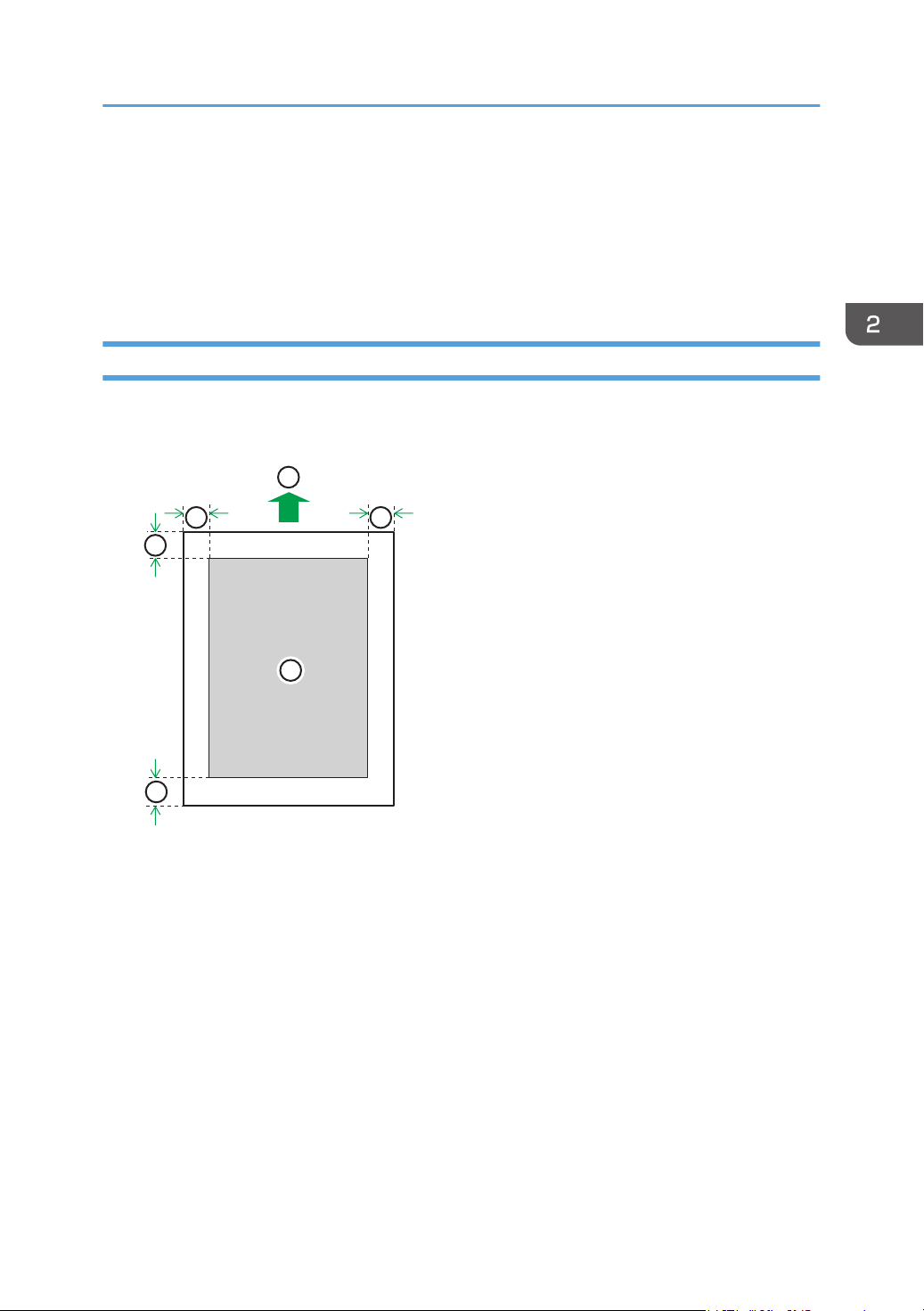
The diagram below shows the area of the paper that the machine can print on.
From the printer driver
DAC571
1
2
4
3
3
4
1. Print area
2. Feed direction
3. Approx. 4.2 mm (0.2 inches)
4. Approx. 4.2 mm (0.2 inches)
Supported Paper
49
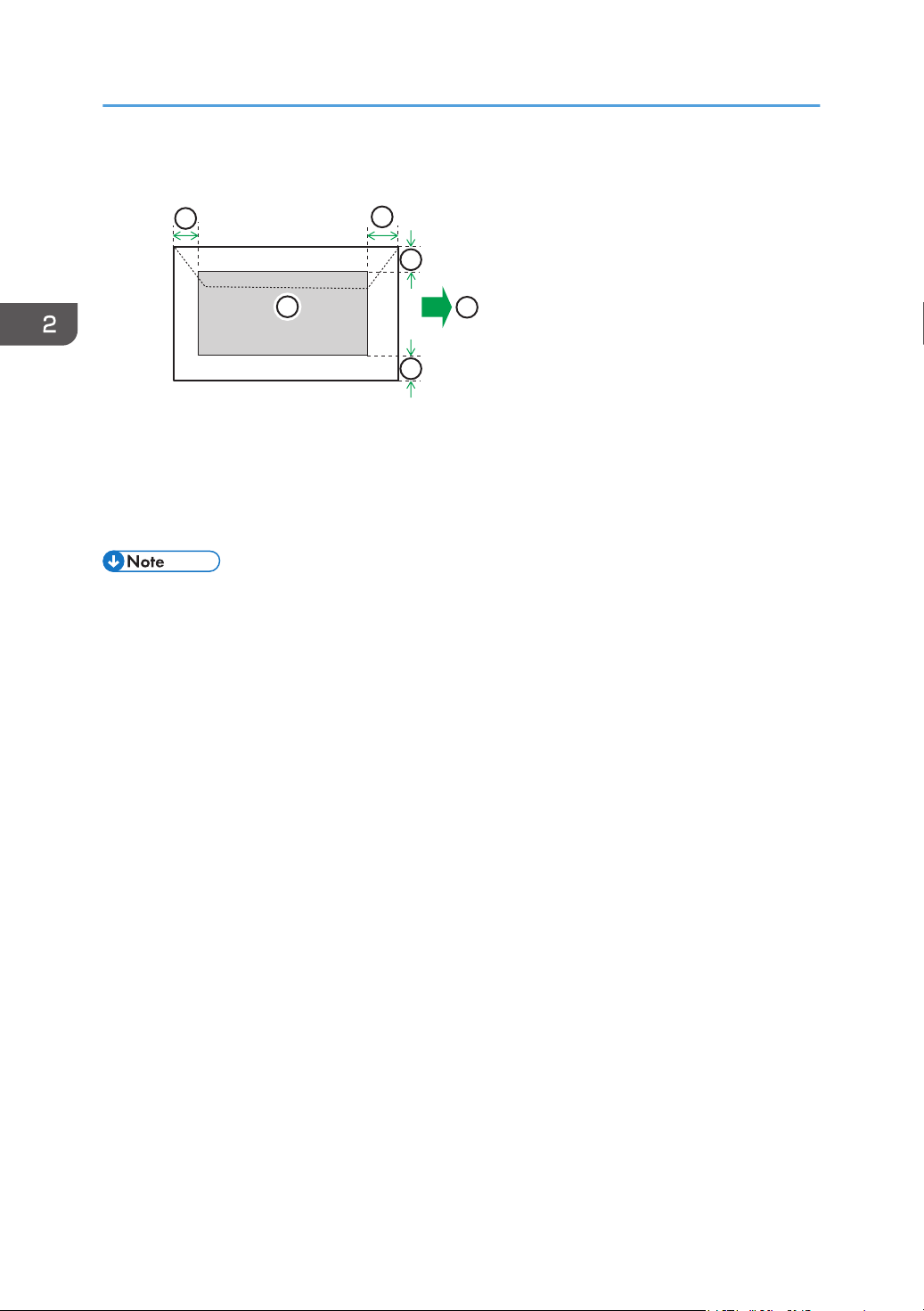
Envelope
4
1
2
3
3
3
DAC577
1. Print area
2. Feed direction
3. Approximately 10 mm (0.4 inches)
4. Approximately 15 mm (0.6 inches)
• Borderless printing is not supported.
• The print area may vary depending on the paper size, printer language and printer driver settings.
• For better envelope printing, we recommend you set the right, left, top, and bottom print margins to
at least 15 mm (0.6 inches) each.
2. Paper Specifications and Adding Paper
50
3. Printing Documents
This chapter describes how to configure settings on the printer driver and print documents.
What You Can Do with the Printer Function
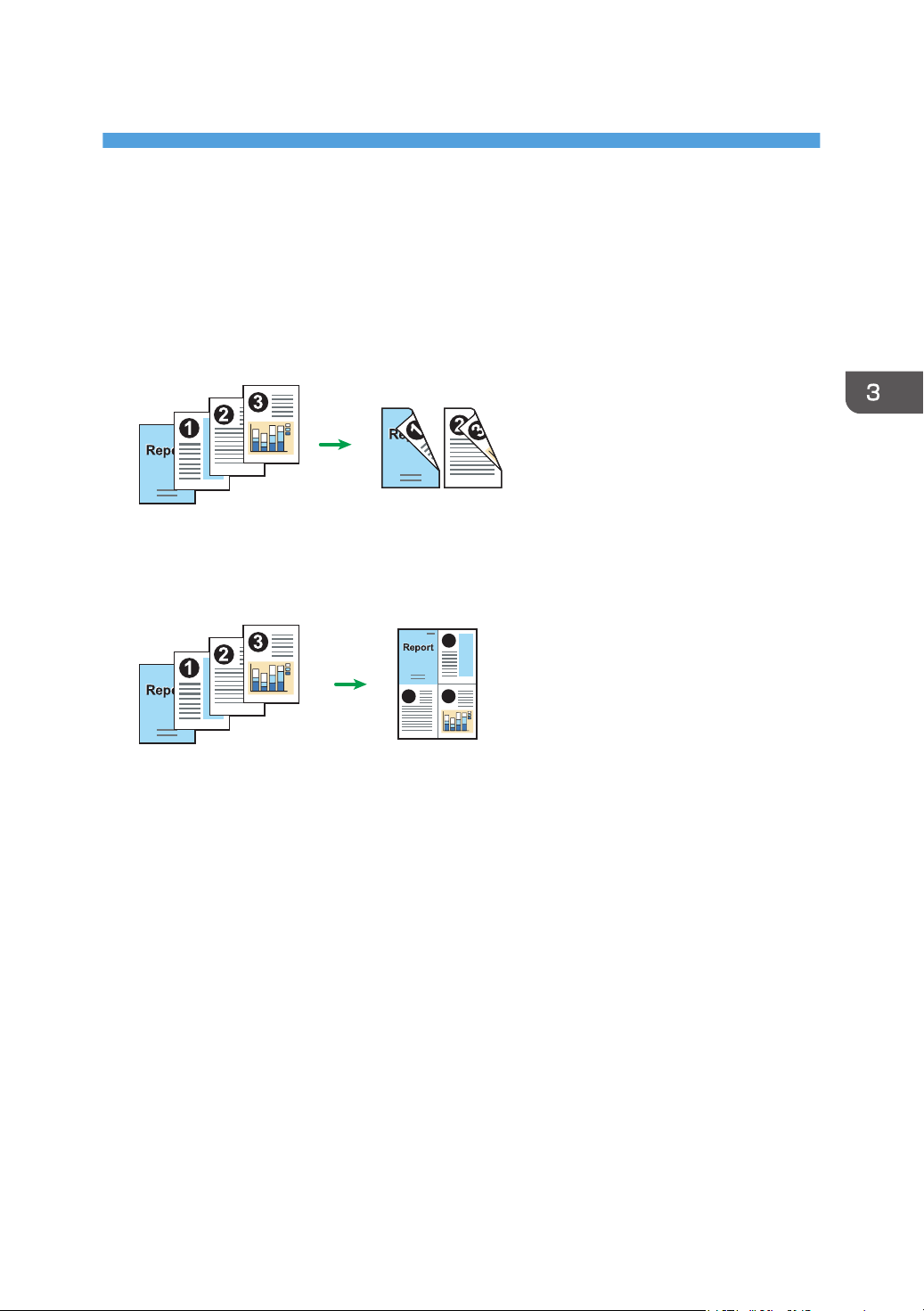
Duplex printing
You can print on both sides of a sheet of paper. For details, see the printer driver Help.
DSG261
Combined printing
You can combine multiple pages and print them on a single sheet of paper. For details, see the
printer driver Help.
1
2
3
DSG262
51

Configuring Option Settings for the Printer
When bidirectional communication works correctly, your computer obtains information about option,
paper size and paper feed direction settings from the machine automatically. Bidirectional
communication also allows you to monitor machine status.
Conditions for Bidirectional Communication
To support bidirectional communication, the following conditions must be met:
When connected with the network
• The Standard TCP/IP port must be used.
• In addition to the above, one of the following conditions must also be met:
• The TCP/IP protocol or the IPP protocol is used. (When using the IPP protocol, the IPP
port name must include the IP address.)
When connected with USB
• The machine must be connected to the computer's USB port using the USB cable.
• The computer must support bidirectional communication.
• [Enable bidirectional support] must be selected, and [Enable printer pooling] must not be
selected on the [Ports] tab with the printer driver.
If Bidirectional Communication is Disabled
This section describes how to set up option and setting of paper size for each tray on your computer
manually.
• Manage Printers permission is required to change the printer properties. Log on as an
Administrators group member.
When using Windows
The procedure in this section is an example based on Windows 10.
1. On the [Start] menu, select [Control Panel] under [Windows System].
2. Click [View devices and printers].
3. Right-click the machine's icon, and then click [Printer properties].
3. Printing Documents
52
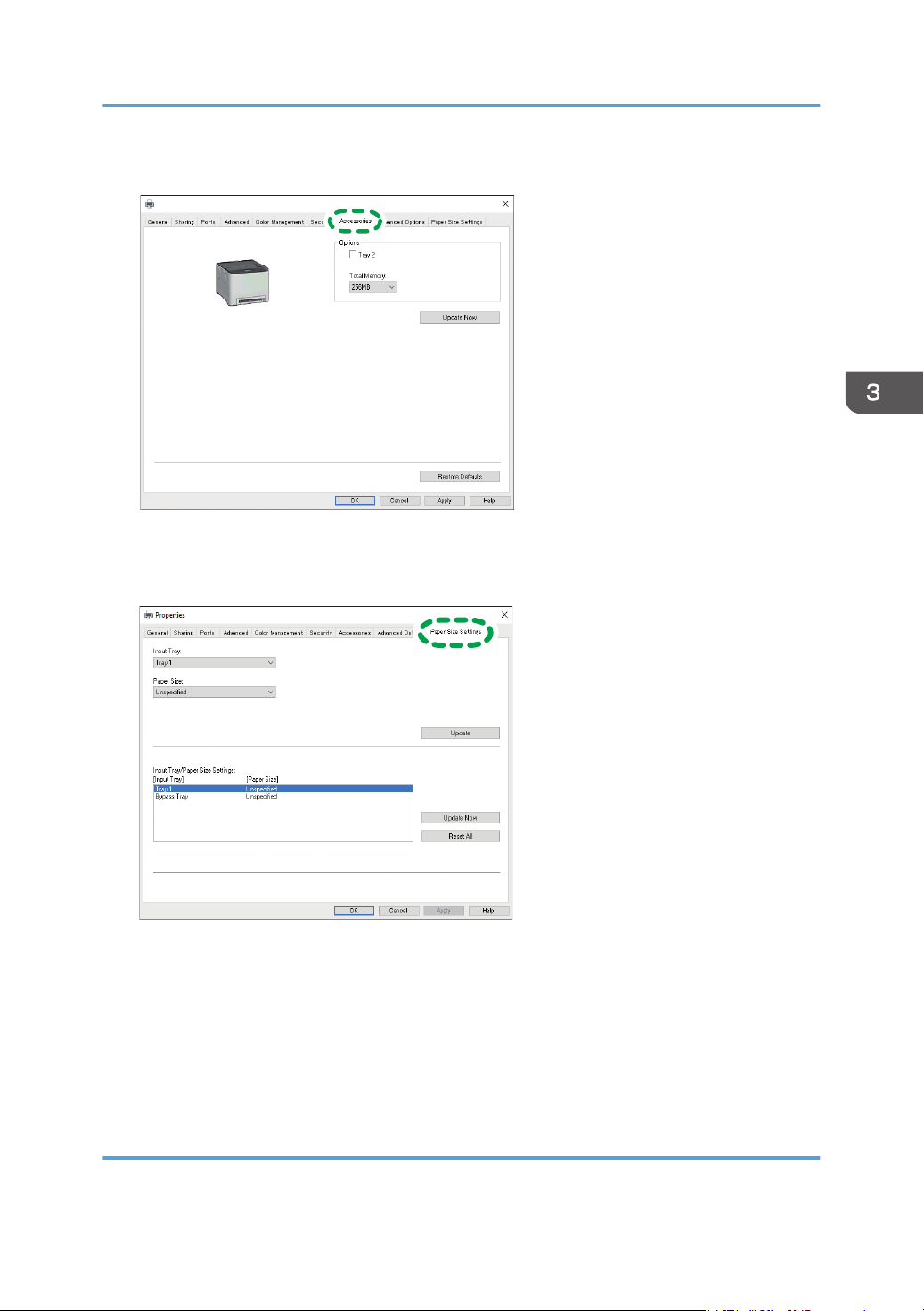
4. Click the [Accessories] tab.
ECB252
5. Select options installed from the [Options] area, and then make the necessary settings.
6. Click [Paper Size Settings] tab.
ECC253
7. In [Input Tray:] select which trays to use, and then, in [Paper Size:] select the size of the
paper that you want to load in each tray.
Click [Update] to apply the setting for each tray.
8. Click [Apply].
9. Click [OK] to close the printer properties window.
When using macOS
The following procedure is explained using macOS 11.2.3 as an example.
Configuring Option Settings for the Printer
53

1. On the Apple menu, click [System Preferences...].
2. Click [Printers & Scanners].
3. Select the printer you are using, and then click [Options & Supplies...].
4. Click [Options], and then configure settings as needed.
5. Click [OK].
6. Quit System Preferences.
3. Printing Documents
54

Displaying the Printing Preferences Dialog Box
To change the default settings of the printer driver, configure settings in the [Printing Preferences] dialog
box.
To change the default settings of all applications, open the [Printing Preferences] dialog box from the
OS. For details, see page 55 "Displaying the Printing Preferences Dialog Box from the [Start] Menu".
To change the default settings of a specific application, open the [Printing Preferences] dialog box from
that application. For details, see page 55 "Displaying the Printing Preferences Dialog Box in an
Application".
Displaying the Printing Preferences Dialog Box from the [Start] Menu
This section explains how to open the [Printing Preferences] dialog box from [Devices and Printers].
• When the printer driver is distributed from the print server, the setting values specified by the server
are displayed as the default for [Printing Defaults...].
• You cannot configure different print settings for each user. The settings configured in this dialog box
are used as the default.
1. On the [Start] menu, click [Control Panel] under [Windows System].
2. Click [View devices and printers].
3. Right-click the icon of the printer you want to use.
4. Click [Printing preferences].
Displaying the Printing Preferences Dialog Box in an Application
You can make printer settings for a specific application. To make printer settings for a specific
application, open the [Printing Preferences] dialog box from that application.
The settings displayed in the [Printing Preferences] dialog box opened from the [Devices and Printers]
window are applied as the default in the [Printing Preferences] dialog box opened in an application.
When printing from an application, modify the settings as required.
The screens displayed may differ depending on the application.
Displaying the printing preferences dialog box in an application when using
Windows
The following procedure explains how to print documents from an application using WordPad in
Windows 10 as an example.
Displaying the Printing Preferences Dialog Box
55

1. Click [File] in the upper left corner of the window, and then click [Print].
2. In the [Select Printer] list, select the printer you want to use.
3. Click [Preferences].
• Procedures for opening the [Printing Preferences] dialog box vary depending on the application.
For details, see the printer driver Help or the manuals provided with the application.
Displaying the printing preferences dialog box in an application when using macOS
The following procedure is explained using macOS 11.2.3 as an example.
1. Open the document to print.
2. Select [Print...] on the [File] menu.
3. Check that the machine name or IP address you are using is selected in the [Printer:]
popup menu.
If the machine name or IP address you are using is not selected in the [Printer:] list, click the list, and
then select the machine.
3. Printing Documents
56
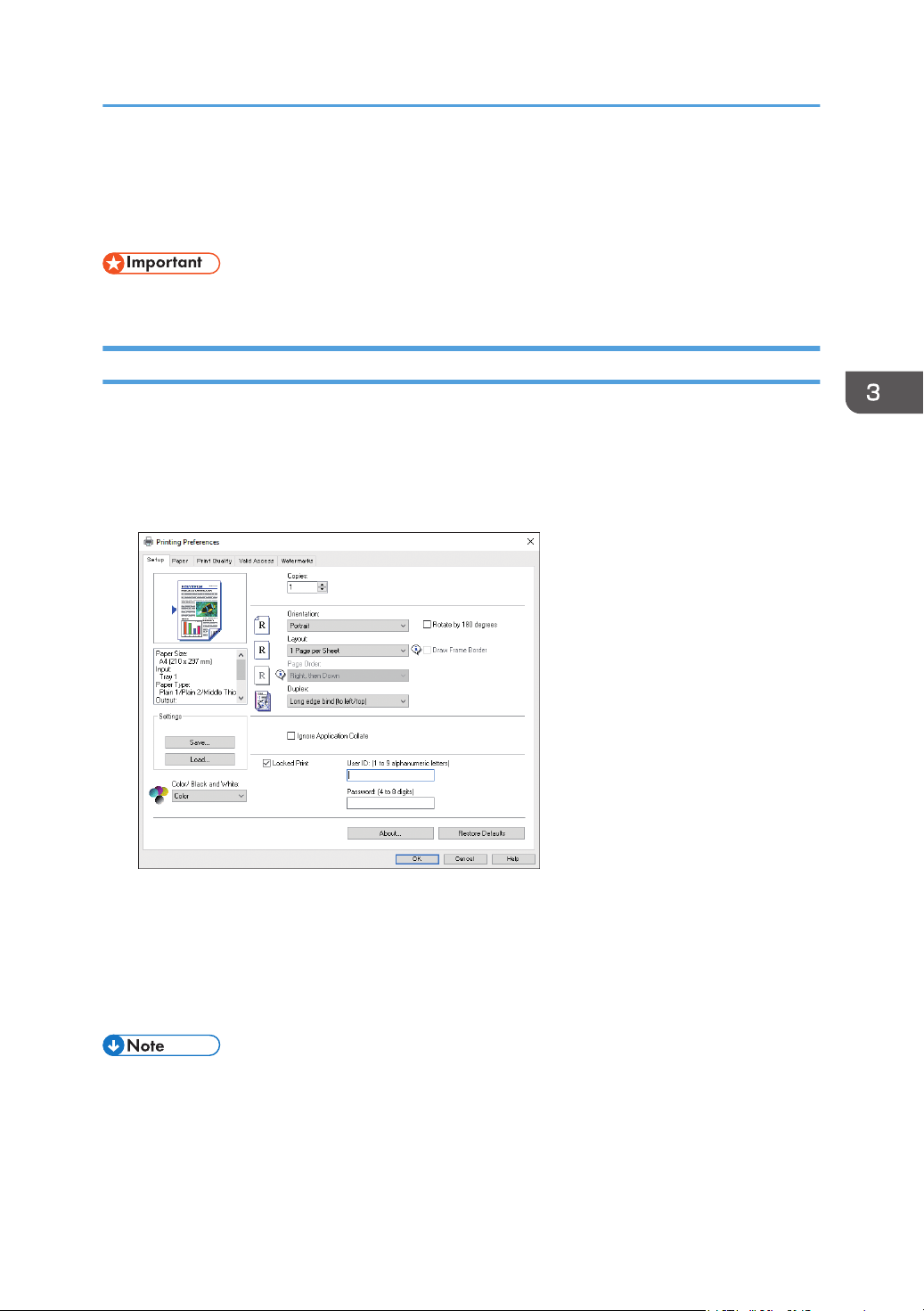
Basic Operation of Printing
The following procedure explains how to perform basic printing.
• Duplex printing is selected as the default setting.
When Using Windows
The procedure in this section is an example based on Windows 10. The actual procedure may vary
depending on the operating system you are using.
For details of printing options, see the printer driver Help.
1. Open the printer properties dialog box in your document's application.
For details about each setting, click [Help]. You can also click the information icons to show
configuration information.
2. Set printing options as necessary, and then click [OK].
The printer properties dialog box closes.
3. Click [Print].
• When printing a job (Color/B&W or Color only) is restricted, specify the user code in the printer
properties of the printer driver before printing. For details about user code, see page 99
"Restricting Machine Functions According to User".
Basic Operation of Printing
57

• You can specify which paper tray is selected first in [Paper Tray Priority] under [Tray Paper Settings]
Menu when the trays are automatically selected while you are printing. For details about [Paper
Tray Priority], see page 78 "Tray Paper Settings".
• If a paper jam occurs, printing stops after the current page has been printed out. After the jammed
paper is removed, printing restarts from the jammed page automatically. For details about how to
remove the jammed paper, see page 158 "Removing Paper Jams".
When Using macOS
The procedure in this section is an example based on macOS 11.2.3. The actual procedure may vary
depending on the operating system you are using.
1. Open the printer properties dialog box in your document's application.
For details, see page 56 "Displaying the printing preferences dialog box in an application when
using macOS".
2. Set printing options as necessary, and then click [OK].
The printer properties dialog box closes.
3. Click [Print].
• When printing a job (Color/B&W or B&W only) is restricted, specify the user code in the printer
properties of the printer driver before printing. For details about user code, see page 99
"Restricting Machine Functions According to User".
• You can specify which paper tray is selected first in [Paper Tray Priority] under [Tray Paper Settings]
Menu when the trays are automatically selected while you are printing. For details about [Paper
Tray Priority], see page 78 "Tray Paper Settings".
• If a paper jam occurs, printing stops after the current page has been printed out. After the jammed
paper is removed, printing restarts from the jammed page automatically. For details about how to
remove the jammed paper, see page 158 "Removing Paper Jams".
If a Paper Mismatch Occurs
The machine reports an error if:
• The paper type does not match the print job's settings when [Input Tray:] is set to [Auto Tray Select]
on the printer driver.
There are two ways to resolve these errors:
Continue printing using mismatched paper
Ignore the error and print using mismatched paper.
3. Printing Documents
58
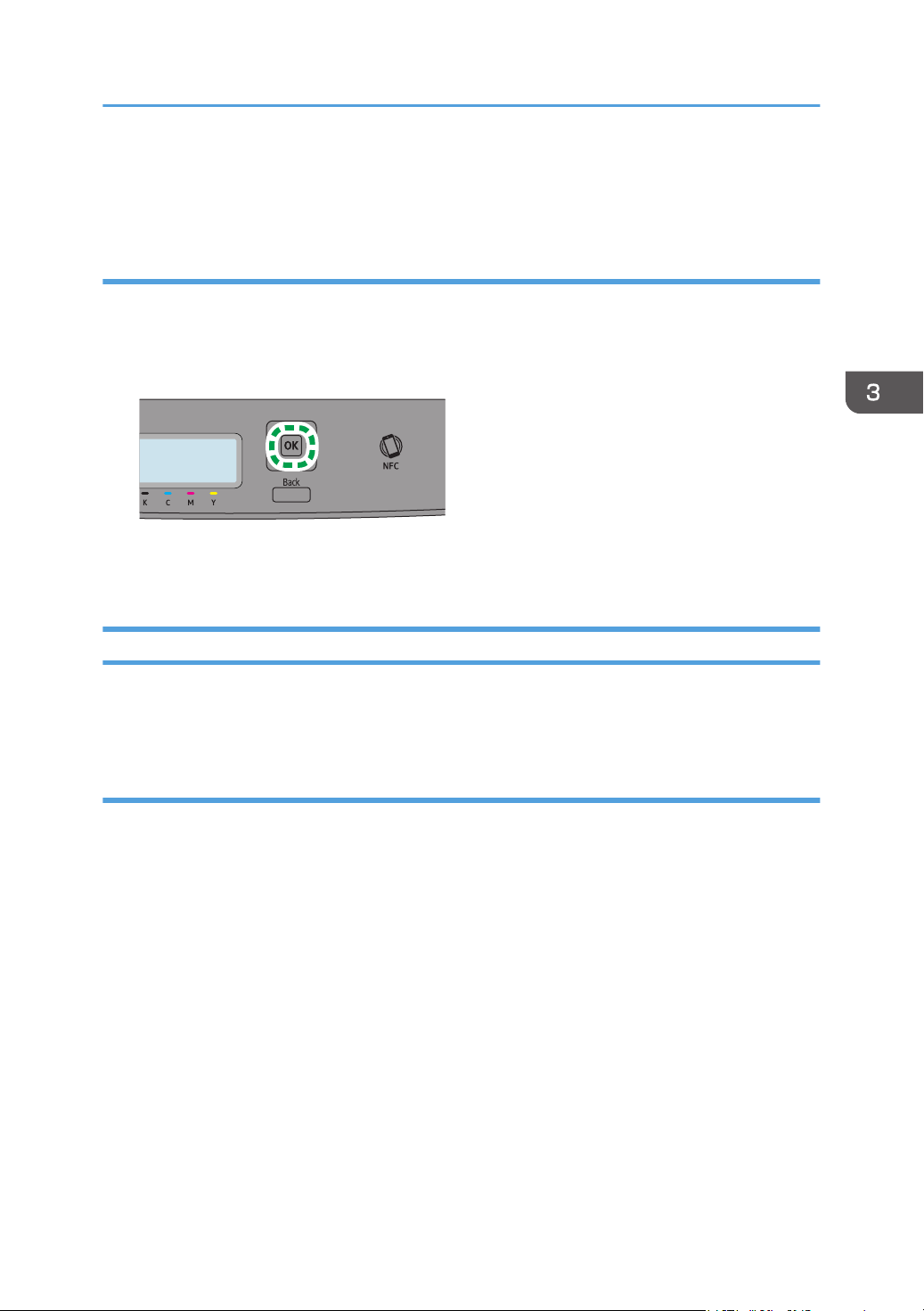
Cancel the print job
Cancel printing.
Continuing printing using mismatched paper
If the paper is too small for the print job, the printed image will be cropped.
1. While an error message is displayed on the control panel, press the [OK] key.
Canceling a Print Job
You can cancel print jobs using either the machine's control panel or your computer, depending on the
status of the job.
Canceling a print job before printing has started
• Windows
1. Double-click the printer icon on the task tray of your computer.
2. Select the print job you want to cancel, click the [Document] menu, and then click
[Cancel].
3. Click [Yes].
• macOS
1. On the Apple menu, click [System Preferences...].
2. Click [Printers & Scanners].
3. Select the printer you are using, and then click [Open Print Queue...].
4. Select the queue you want to delete.
Basic Operation of Printing
59
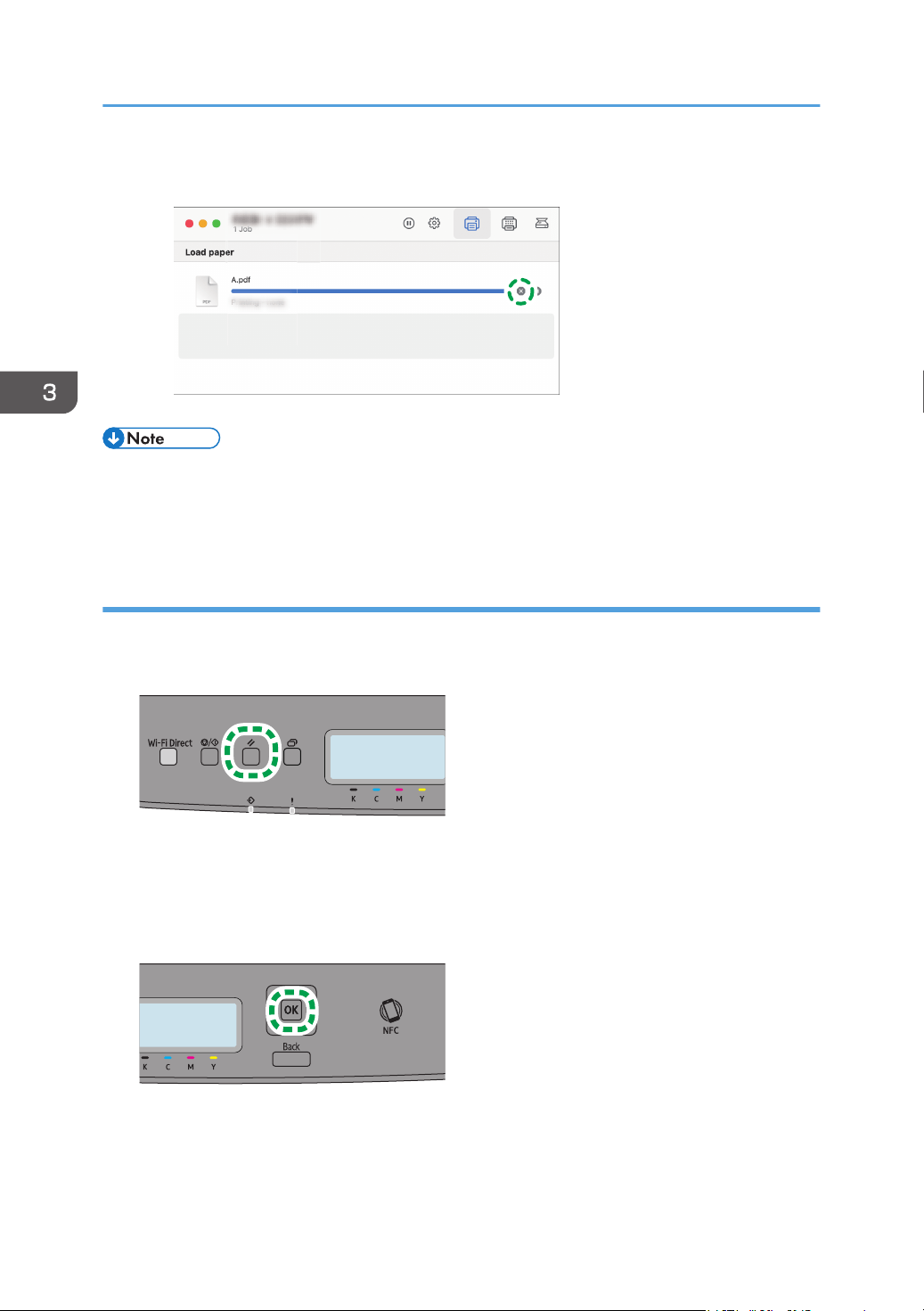
5. Click [×].
M0EQMC5100
• If you cancel a print job that has already been processed, printing may continue for a few pages
before being canceled.
• It may take a while to cancel a large print job.
Canceling a print job while printing
1. While an error message is displayed on the control panel, press the [Job Reset] key.
2. Press the [OK] key.
3. Printing Documents
60
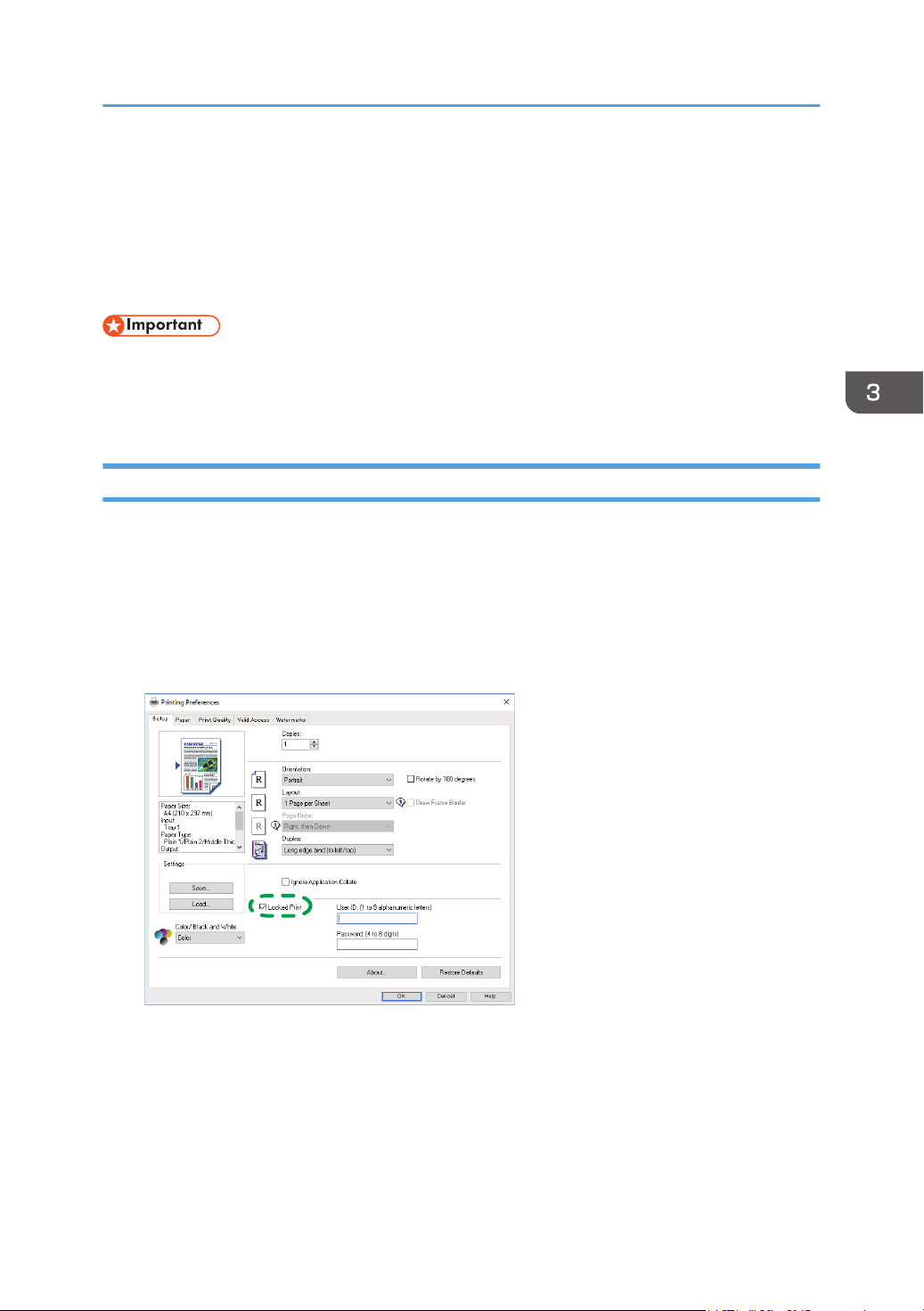
Printing Confidential Documents
By the Locked Print function, you can password-protect print jobs.
This means that your job is printed only after you enter the password using the machine's control panel.
This function prevents unauthorized users from seeing sensitive documents at the machine.
• This function is only available when using the PCL printer driver, and printing from a computer
running a Windows operating system.
• The procedure in this section is an example based on Windows 10.
Storing a Locked Print file
This section explains how to store a Locked Print file in the machine using the printer driver.
1. Open the file you want to print on your computer.
2. On the [File] menu, click [Print...].
3. In the [Select Printer] area, select the name of this machine, and then click [Preferences].
4. Click the [Setup] tab, and then select the [Locked Print] check box.
ECC254
The [Password:] and [User ID:] text boxes become available.
The [User ID:] text box contains the login user name of your computer account or the user code
used for the previous Locked Print job.
5. Type the password (containing 4 to 8 digits) and user ID (containing 1 to 9 alphanumeric
characters), and then click [OK].
The user ID will be used to identify your Locked Print file on the machine's control panel.
Printing Confidential Documents
61

6. Execute a print command.
The print job is stored in the machine as a Locked Print file. You can print the file by entering the
password using the control panel.
• The Locked Print file is automatically erased from the machine's memory when it is printed out, or
when the machine's power is turned off.
• The machine can store up to 5 jobs or 5 MB of Locked Print data at a time.
• Even if the printer cannot store any more Locked Print files, the printer holds a new Locked Print file
for the period of time specified in [Locked Print] in [I/O Timeout] under [System Settings] before
canceling the job. Within this time, you can print or delete the new Locked Print file. You can also
print or delete an existing Locked Print file so that the new Locked Print file can be stored in the
machine.
Printing a Locked Print File
When there is a Locked Print file stored in the printer, "Locked Print Job" and "Press Settings key."
appears on the printer's control panel display.
Use the following procedure to unlock and print the Locked Print file.
1. Press the [Menu] key.
2. Press the [ ] or [ ] key to select the file you want to print, and then press the [OK] key.
Identify the Locked Print file by checking its time stamp and user ID.
3. Press the [ ] key.
4. Press the [ ], [ ], [ ], or [ ] key to select the number you want to enter, and then press
the [OK] key.
5. Repeat Steps 4 to enter all the numbers you want to enter.
6. After entering all the numbers, press the [OK] key.
The Locked Print file is printed.
3. Printing Documents
62
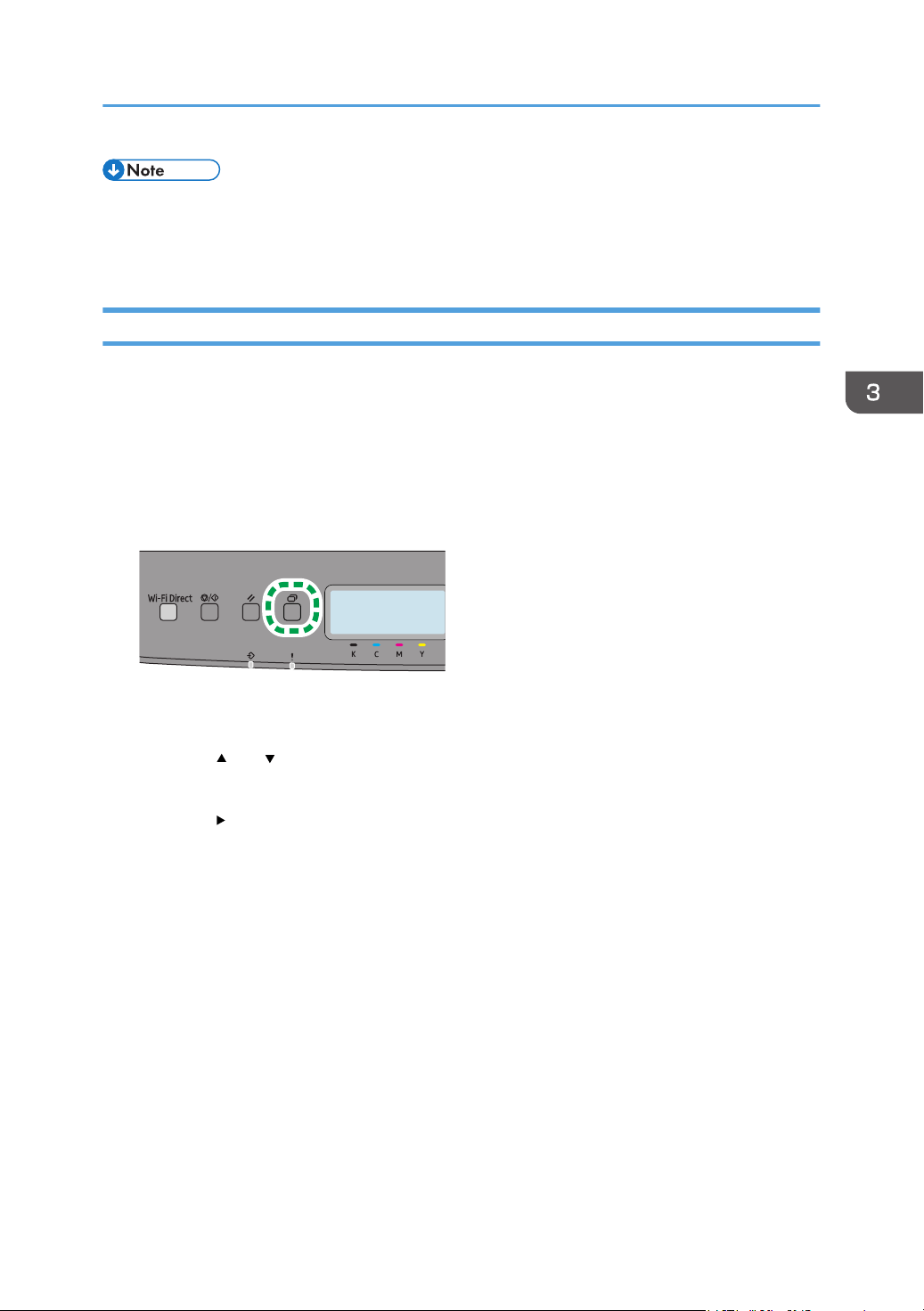
• While entering a password using the control panel, the machine cannot process other print jobs.
• The Locked Print file is automatically erased from the machine's memory when it is printed out, or
when the machine's power is turned off.
Deleting a Locked Print File
When there is a Locked Print file stored in the printer, "Locked Print Job" and "Press Settings key."
appears on the printer's control panel display.
Use the following procedure to delete a Locked Print file. You do not need to enter a password to delete
a Locked Print file.
1. Press the [Menu] key.
2. Press the [ ] or [ ] key to select the file you want to delete, and then press the [OK] key.
Identify the Locked Print file by checking its time stamp and user ID.
3. Press the [ ] key to select [Delete].
The Locked Print file is deleted.
If there are Locked Print files/logs remaining in the printer, the display returns to the list of Locked
Print files/logs. If there are none remaining, the display returns to the initial screen.
Printing Confidential Documents
63

Using Various Print Functions
This section briefly describes various print functions that you can configure with the printer driver to make
printouts appropriate for your purposes.
Print Quality Functions
Print quality and color tone can be adjusted to suit the print data. Some of the print quality settings you
can configure are described below.
Printing color documents in black and white
The black produced in black and white printing is a more distinct black than that produced in color
printing.
Separating the print data into CMYK and printing in designated color only
Normally, all four colors (CMYK) are used for color printing. If you do not want to use certain
colors, you can disable the use of those colors and print using other colors only.
Saving toner when printing (Economy Color printing)
You can save toner by printing with lower toner consumption.
Changing the image printing method
You can select to print with priority on print quality or print speed. When printing images, the higher
the resolution of images is, the longer the time is required for printing.
Changing the dither pattern
A dither pattern is a pattern of dots used to simulate a color or shade of an image. If the pattern is
changed, the characteristics of the image will also change. You can select a pattern suitable for the
image to be printed.
Changing the color profiling pattern
You can select a color profiling pattern to adjust the tone of colors according to the colors
displayed on the computer screen.
Because colors on the computer screen are created using the three RGB colors while colors for
printing are composed of the four CMYK colors, colors need to be converted during the printing
process. Therefore, images on the printed paper may look different from those on the computer
screen if adjustment is not performed.
Printing grayscale images using black or CMYK
You can print black or gray sections of an image using black toner only, instead of using all CMYK
toners. Compared to the black printed with CMYK toner, this results in a black that is flatter and
purer.
3. Printing Documents
64

Using ICM (Image Color Matching)
You can use Windows ICM function to reproduce colors that appear on the computer screen as
close as they are on printed paper.
To use this function, the color profile must be added to the computer. For information about adding
a color profile, search Windows Help for "color profile", and then see the appropriate topic.
• Some of the functions described above might not be available depending on the printer driver or
operating system. For details, see the printer driver Help.
Print Output Functions
You can specify the form of print outputs according to your purposes. This section briefly describes some
of the settings that you can specify.
Printing multiple sets of a document
You can print multiple sets of the same document.
Collating the output in document batches
You can print complete sets of a multiple-page document one set at a time (P1, P2, P1, P2 ...). If this
function is not used when printing multiple sets, prints will be output in page batches (P1, P1, P2,
P2 ...). This function is useful when, for example, making presentation materials.
Changing orientation or rotating the image
You can change the orientation of an image to portrait or landscape. You can also rotate the
image by 180 degrees. Use rotation to prevent an image from being printed upside down when
using paper with a predefined top and bottom (such as letterhead paper).
Printing multiple pages per sheet
You can print multiple pages onto one sheet of paper.
When using this function, a suitable reduction ratio is selected automatically based on the paper
size and the number of pages you want to fit on each sheet.
Printing on both sides of paper (duplex printing)
You can print on both sides of paper.
Reducing or enlarging the document
You can reduce or enlarge documents by a specific ratio, from 25% to 400% in 1% increments.
You can also reduce or enlarge documents automatically to fit a specific paper size. This function is
useful, for example, when printing Web pages.
If the [Enable Large Papers] option is selected, A3/11 × 17/B4/8K documents can be scaled to
a size that the machine supports, so that it can then be printed out.
Using Various Print Functions
65
Not printing of blank pages (only PostScript 3 printer driver)
If a print job contains blank pages, they can be prevented from being printed.
Note that this setting has higher priority than [Blank Page Print] under [Printer Settings] of the control
panel.
Printing with a cover page
You can add a cover page to the print job.
You can select to leave the cover page blank, or print the first page of the document on the cover
page. If a cover page is inserted into a duplex job, you can print on its back side also.
Paper for the cover page can either be the same as or different from the remaining pages.
Printing on custom size paper
You can print using non-standard size paper by specifying the size of the paper as custom size.
To specify the custom paper size, select [Custom Paper Size] from the [Document Size:] list, and
then click the [Custom Paper Size...] button in the lower part of the dialog box to configure the
paper size.
Superimposing text on prints (watermark)
You can superimpose watermark text on prints. Various predefined watermarks are provided. You
can also create your own watermarks.
• Some of the functions described above might not be available depending on the printer driver or
operating system. For details, see the printer driver Help.
3. Printing Documents
66
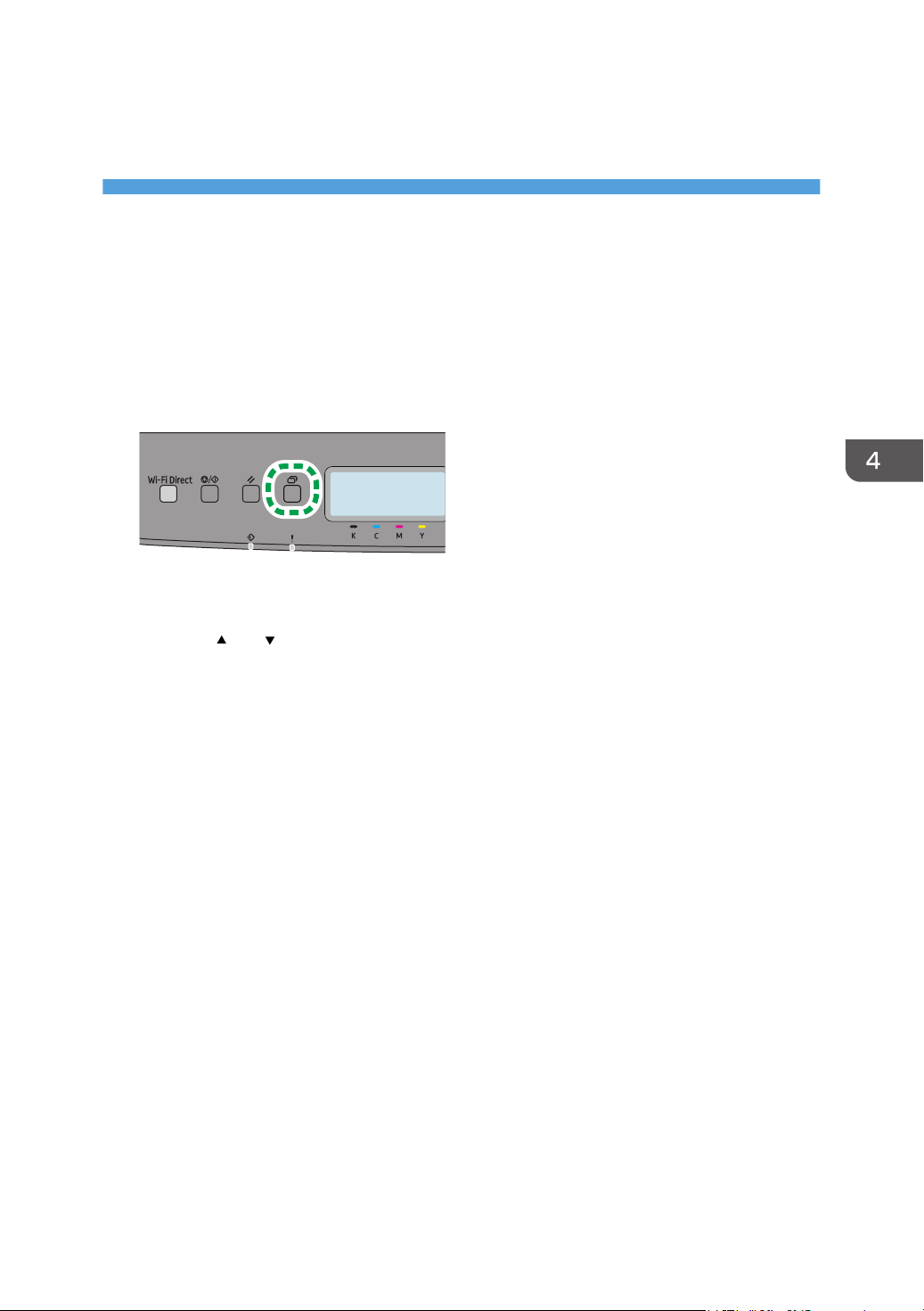
4. Configuring the Machine Using the
Control Panel
This chapter describes how to configure the machine using the control panel.
Basic Operation
1. If you want to configure the machine's system settings, press the [Menu] key.
2. Press the [ ] or [ ] key to select the settings you want to use.
3. To confirm setting items and values displayed, press the [OK] key.
4. To go back to the previous item, press the [Back] key.
67

Menu Chart
This section lists the parameters included in each menu.
For details about configuring the machine using Web Image Monitor, see page 88 "Using Web
Image Monitor".
• Some items might not appear depending on the model type or machine's configuration.
• Some items can also be configured using Web Image Monitor.
Admin. Tools
For details, see page 69 "Admin. Tools".
Printer Settings
For details, see page 71 "Printer Settings".
System Settings
For details, see page 75 "System Settings".
Tray Paper Settings
For details, see page 78 "Tray Paper Settings".
Wi-Fi Setup Wizard
For details, see Setup Guide.
Network Settings
For details, see page 81 "Network Settings".
Print List/Report
For details, see page 85 "Print List/Report".
4. Configuring the Machine Using the Control Panel
68

Admin. Tools
Energy Saver Mode
• EnergySaverMode 1
The machine enters EnergySaverMode 1 if the machine has been idle for about 30 seconds. It
takes less time to recover from EnergySaverMode 1 than from power-off state or
EnergySaverMode 2, but power consumption is higher in EnergySaverMode 1 than in
EnergySaverMode 2.
Default: [Off]
• Off
• On
• EnergySaverMode 2
The machine enters EnergySaverMode 2 after the period of time specified for this setting is
passed. The machine consumes less power in EnergySaverMode 2 than in EnergySaverMode
1, but it takes longer to recover from EnergySaverMode 2 than from EnergySaverMode 1.
Default: 1 minute
1 to 60 minutes
Language
Specifies the language used on the screen and in reports.
The default value for this setting is the language you have specified during the Initial Setup, which is
required after turning on the machine for the first time.
You can select the language you want to use. Available languages are as follows:
English, French, Spanish, Brazilian Portuguese
Reset Settings
Be sure not to clear the settings by mistake.
• Reset All Settings
Resets the machine's settings to their defaults except the following:
• Language settings
• Network Settings
Press the [OK] key to execute. Press the [Back] key to exit to the previous level of the menu
tree without clearing the settings.
• Reset Network Settings
Resets the network settings to their defaults.
Press the [OK] key to execute. Press the [Back] key to exit to the previous level of the menu
tree without clearing the settings.
Admin. Tools
69

Admin. Tools Lock
Specifies an eight-digit password for accessing the [Network Settings], [Wi-Fi Setup Wizard], and
[Admin. Tools] menus.
The password must be specified during the Initial Setup, which is required after turning on the
machine for the first time. For details, see Setup Guide.
Do not forget this password.
The default password is "00000000".
Default: [On]
• On (00000000 to 99999999)
• Off
IPsec
Selects whether to enable or disable IPsec.
This function appears only when a password is specified under [Admin. Tools Lock].
Default: [Inactive]
• Inactive
• Active
4. Configuring the Machine Using the Control Panel
70

Printer Settings
List/Test Print
Prints lists showing configurations on the machine.
The lists will be printed using the tray set for [Printer] under [Paper Tray Priority] in [Tray Paper Settings]
on A4 or Letter size paper.
• Config. Page
Prints general information and the current configurations of the printer.
• Menu List
Prints the menu list of the printer.
• Test Page
Prints a test page for checking the single-sided printing condition. The test page contains network
settings.
• PCL Font List
Prints installed PCL font list.
• PS Font List
Prints installed PostScript font list.
System
Copies
Sets the machine to print the specified number of sets.
This setting is disabled if the number of pages to print is specified by the printer driver.
Default: "1"
• 1 – 999
Sub Paper Size
Sets the printer to print onto paper of another size if the specified paper is not loaded in any tray.
Alternative sizes are preset to A4 and Letter.
Default: [Off]
• Auto
• Off
Default Page Size
Specifies the paper size to be used when the paper size is not specified in the print job.
Printer Settings
71

Default: [8
1
/
2
× 11]
• A4, B5 JIS, A5 SEF, A6, 8
1
/
2
× 14, 8
1
/
2
× 11, 7
1
/
4
× 10
1
/
2
, 8 × 13, 8
1
/
2
× 13, 8
1
/
4
×
13, 16K, C5 Env, C6 Env, DL Env, B6 JIS, 5
1
/
2
× 8
1
/
2
, 4
1
/
8
× 9
1
/
2
, 3
7
/
8
× 7
1
/
2
, A5 LEF,
8
1
/
2
× 13
2
/
5
, 8
1
/
2
× 13
3
/
5
Duplex
Sets the printer to print on both sides of paper according to the specified binding method.
Default: [None]
• None
• Long Edge Bind
• Short Edge Bind
Blank Page Print
Sets the printer to print blank pages.
Note that this setting has lower priority than the PostScript 3 printer driver's blank page setting.
When cover sheet printing is enabled from the printer driver, cover sheets are inserted even if you
select [Off].
Default: [On]
• On
• Off
B&W Page Detect
Sets the printer to print all monochrome pages in monochrome mode even if color printing is
specified.
Default: [On]
• On
• Off
Print Error Report
Sets the printer to print an error page when the printer detects a printer or memory error.
Default: [Off]
• On
• Off
PCL Menu
Specifies conditions when using PCL for printing.
4. Configuring the Machine Using the Control Panel
72

Orientation
Specifies the page orientation.
Default: [Portrait]
• Portrait
• Landscape
Form Lines
Specifies the number of lines per page between 5 and 128.
Default: [60]
Font Number
Specifies the ID of the default font you want to use between 0 and 89.
Default: "0"
Point Size
Specifies the point size you want to use for the default font between 4.00 and 999.75 in 0.25
increments.
Default: [12.00]
Font Pitch
Specifies the number of characters per inch you want to use for the default font between 0.44 and
99.99 in 0.01 increments.
This setting is effective only for fixed-space fonts.
Default: [10.00]
Symbol Set
Specifies the character set for the default font. Available sets are as follows: PC-8, PC-8 D/N,
PC-850, PC-852, PC-858, PC8-TK, Win L1, Win L2, Win L5, Desktop, PS Text, VN Intl, VN US,
MS Publ, Math-8, PS Math, VN Math, Pifont, Legal, ISO 4, ISO 6, ISO 11, ISO 15, ISO 17, ISO
21, ISO 60, ISO 69, Win 3.0, MC Text, ISO L6, ISO L9, PC-775, PC-1004, Win Baltic,
Roman-8, Roman-9, ISO L1, ISO L2, ISO L5
Default: [PC-8]
Courier Font
Specifies a courier-type font.
Default: [Regular]
• Regular
• Dark
Ext. A4 Width
Sets the printer to extend the width of the printable area of A4 size paper, reducing side margin
width. Normally, you can print up to 78 characters of Courier 10 Pitch Font per line on A4 paper
Printer Settings
73

in portrait orientation. If you set this to [On], you can print up to 80 characters under the same
conditions.
Default: [Off]
• Off
• On
Append CR to LF
Sets the printer to append a CR code to each LF code to print text data clearly.
Default: [Off]
• On
• Off
Resolution
Specifies the print resolution in dots per inch.
Default: [600 × 600 1bit]
• 600 × 600 1bit
• 600 × 600 2bit
• 600 × 600 4bit
PS Menu
PS Resolution
Specifies the print resolution in dots per inch.
Default: [600 × 600 1bit]
• 600 × 600 1bit
• 600 × 600 2bit
• 600 × 600 4bit
Color Profile
Specifies the color profile.
Default: [Solid Color]
• Off
• Solid Color
• Presentation
• Photographic
4. Configuring the Machine Using the Control Panel
74

System Settings
I/O Timeout
• USB
Specifies how many seconds the machine waits for print data, if the data is interrupted while it
is being sent from the computer via USB. If the machine does not receive any more data within
the time specified here, the machine only prints the data it has received. If printing is frequently
interrupted by data from other ports, increase the timeout period.
Default: [60 sec.]
• 15 sec.
• 60 sec.
• 300 sec.
• Network
Specifies how many seconds the machine waits for print data, if the data is interrupted while it
is being sent from the computer via network. If the machine does not receive any more data
within the time specified here, the machine only prints the data it has received. If printing is
frequently interrupted by data from other ports, increase the timeout period.
Default: [60 sec.]
• 15 sec.
• 60 sec.
• 300 sec.
• Locked Print
Specifies how many seconds the machine holds a new Locked Print file, when the machine
cannot store any more Locked Print files. Within this time, you can print or delete the new
Locked Print file. You can also print or delete an existing Locked Print file so that the new
Locked Print file can be stored in the machine.
Default: [60 seconds]
• 0 to 300 seconds, in increments of 1 second
• Fixed USB Port
Specifies whether the same printer driver can be used for multiple machines or not under USB
connection.
Default: [Off]
• Off
You must install the printer driver separately for individual machines, because the
machine other than the original will be recognized as a new device upon USB
connection.
System Settings
75

• On
The same printer driver you have installed in your computer can be used with any
machine other than the one originally used for installation, if the machine is of the same
model.
Auto Continue
Sets the printer to ignore an error with paper size or type and continue printing. The printing stops
temporarily when an error is detected, and restarts automatically after about ten seconds using the
settings made on the control panel. However, if the size of paper specified on the control panel
and that of the paper loaded in the paper tray or the paper size specified for the print job do not
match when printing restarts, it may cause a paper jam.
Default: [Off]
• Off
• On
Supplies Status
Displays information about consumables.
• Toner
Black, Magenta, Cyan, Yellow
• Other Supplies
Waste Toner Bottle, Fusing Unit, Transfer Roller, Int. Transfer Unit
Toner Near End
Specifies the low toner level notification timing.
Default: [Normal]
• Sooner
Low toner level notification will be made when the number of pages that can be printed with
the remaining toner is approximately 300.
• Normal
Low toner level notification will be made when the number of pages that can be printed with
the remaining toner is approximately 200.
• Later
Low toner level notification will be made when the number of pages that can be printed with
the remaining toner is approximately 100.
B&W Print Priority
Sets the machine to suppress the consumption of color toner when printing black-and-white pages.
Default: [Off]
• Off
4. Configuring the Machine Using the Control Panel
76

• On
Color Den/Reg
Adjusts color density and registration automatically.
Auto Cleaning
Sets the machine to execute periodic cleaning of the interior. You may hear some noise while
cleaning is being executed. This noise does not indicate a malfunction.
Default: [On]
• Off
• On
Fixing quality mode
Set this item to [Fixing quality improved] to increase the toner fusibility in order to improve its
adherence, etc.
Default: [Normal]
• Normal
• Fixing quality improved
Curl Prevention Mode
Set this to [Curl Prevented] to reduce paper curl.
Default: [Normal]
• Normal
• Curl Prevented
System Settings
77

Tray Paper Settings
Paper Type: Tray 1
Specifies the paper type for Tray 1.
Default: [Plain Paper2]
• Thin Paper, Plain Paper1, Plain Paper2, Middle Thick Paper, Thick Paper 1, Thick Paper 2,
Recycled Paper, Color Paper, Preprinted Paper, Prepunched Paper, Letterhead, Bond Paper,
Cardstock, Label Paper, Envelope
Paper Type: Tray 2
Specifies the paper type for Tray 2.
This setting appears only when the optional paper feed unit is installed.
Default: [Plain Paper2]
• Thin Paper, Plain Paper1, Plain Paper2, Middle Thick Paper, Thick Paper 1, Recycled Paper,
Color Paper, Preprinted Paper, Prepunched Paper, Letterhead
Paper Type: Bypass Tray
Specifies the paper type for the bypass tray.
Default: [Plain Paper2]
• Thin Paper, Plain Paper1, Plain Paper2, Middle Thick Paper, Thick Paper 1, Thick Paper 2,
Recycled Paper, Color Paper, Prepunched Paper, Letterhead, Bond Paper, Cardstock, Label
Paper, Envelope
Paper Size: Tray 1
Specifies the paper size for Tray 1.
Default: [8
1
/
2
× 11]
• A4, A5 SEF, A5 LEF, A6, B5 JIS, B6 JIS, 8
1
/
2
× 14, 8
1
/
2
× 13, 8
1
/
2
× 11, 8
1
/
4
× 13, 8 ×
13, 5
1
/
2
× 8
1
/
2
, 7
1
/
4
× 10
1
/
2
, 8
1
/
2
× 13
2
/
5
, 8
1
/
2
× 13
3
/
5
, 4
1
/
8
× 9
1
/
2
, 3
7
/
8
×
7
1
/
2
, C5 Env, C6 Env, DL Env, 16K, Custom Size
Paper Size: Tray 2
Specifies the paper size for Tray 2.
This setting appears only when the optional paper feed unit is installed.
Default: [8
1
/
2
× 11]
• A4, 8
1
/
2
× 11
Paper Size: Bypass Tray
Specifies the paper size for the bypass tray.
Default: [8
1
/
2
× 11]
4. Configuring the Machine Using the Control Panel
78

• A4, A5 SEF, A5 LEF, A6, B5 JIS, B6 JIS, 8
1
/
2
× 14, 8
1
/
2
× 13, 8
1
/
2
× 11, 8
1
/
4
× 13, 8 ×
13, 5
1
/
2
× 8
1
/
2
, 7
1
/
4
× 10
1
/
2
, 8
1
/
2
× 13
2
/
5
, 8
1
/
2
× 13
3
/
5
, 4
1
/
8
× 9
1
/
2
, 3
7
/
8
×
7
1
/
2
, C5 Env, C6 Env, DL Env, 16K, Custom Size
Bypass Tray Priority
Specifies how print jobs using the bypass tray are handled.
Default: [Driver/Command]
• Machine Setting(s)
The paper settings configured on the machine's control panel are applied to all print jobs. An
error occurs when the paper settings specified by the printer driver or the print command do
not match the machine's settings.
• Driver/Command
When executing a print job specifying the paper tray, the paper settings specified in the
printer driver or in the print command are applied regardless of the machine's settings.
• Any Size/Type
Printing proceeds even if the paper size/type settings of the printer and printer driver do not
match. However, if the paper is too small for the print job, the printed image will be cropped.
• Any Custom Size/Type
The printer prints custom size print jobs according to the printer driver’s settings and prints
standard size print jobs according to the printer's settings.
For custom size print jobs, printing proceeds even if the paper size/type settings of the printer
and printer driver do not match. However, if the paper is too small for the print job, the printed
image will be cropped.
For standard size print jobs, an error will occur if the paper size/type settings of the printer
and printer driver do not match.
Paper Tray Priority
Specifies the tray that the machine uses first for print jobs from Tray 1 or Tray 2.
If multiple trays contain valid paper, the first tray the machine finds will be used for printing; when
that tray runs out of paper, the machine automatically switches to the next tray to continue printing.
If Tray 2 is not installed, [Tray 2] does not appear.
• Printer
If automatic tray selection is specified for the print job and both tray 1 and tray 2 contain
paper that matches the print job, the machine starts to print from the specified tray.
• Tray 1
• Tray 2
Default: [Tray 1]
Tray Paper Settings
79

Tray1 Priority
Specifies how print jobs using the Tray 1 are handled.
Default: [Driver/Command]
• Machine Setting(s)
The paper settings configured on the machine's control panel are applied to all print jobs. An
error occurs when the paper settings specified by the printer driver or the print command do
not match the machine's settings.
• Driver/Command
When the paper tray is specified for a print job, the paper settings specified in the printer
driver or in the print command are applied, regardless of the machine's settings.
Size Mismatch Detection
Sets the machine to report an error if the paper size does not match the print job's settings.
• Off
• On
Default: [On]
4. Configuring the Machine Using the Control Panel
80

Network Settings
Wired (Ethernet)
• MAC Address
Displays the machine's MAC address.
• Ethernet Speed
Displays the current Ethernet speed setting.
• 100Mbps Full Duplex
• 100Mbps Half Duplex
• 10Mbps Full Duplex
• 10Mbps Half Duplex
• Ethernet Unavailable
Appears when a network cable is not connected.
• Set Ethernet Speed
Specifies the speed for Ethernet communication. Select a speed that matches your network
environment.
For most networks, the default setting is the optimum setting.
Default: [Auto Select]
• Auto Select
• 100Mbps Full Duplex
• 100Mbps Half Duplex
• 10Mbps Full Duplex
• 10Mbps Half Duplex
Wireless (Wi-Fi)
• Enable Wi-Fi
Select whether to enable or disable Wireless LAN.
If [Disable] is set, [Wi-Fi Status], [MAC Address], [Current Connection], [Input SSID], [WPS],
[Wi-Fi Direct], [Wi-Fi Dir. PWD], and [Wi-Fi Direct Type] are not displayed.
Default: [Disable]
• Disable
• Enable
• Wi-Fi Status
Displays the current connection status.
• MAC Address
Network Settings
81

Displays the machine's MAC address.
• Current Connection
Displays detailed information about the connection, such as the SSID and the wireless signal
strength.
• Input SSID
Input the SSID of the machine.
• WPS
Connects with one touch using WPS (Wi-Fi Protected Setup). For details, see Setup Guide.
• PBC
• PIN
• Wi-Fi Direct
Input the SSID of the machine to configure Wi-Fi Direct.
• Wi-Fi Dir. PWD
Input SSID to set a password for Wi-Fi Direct.
• Wi-Fi Direct Type
Select 2.4 GHz or 5 GHz as the wireless LAN frequency.
Default: [2.4 GHz]
• 2.4 GHz
• 5 GHz
IPv4 Configuration
• DHCP
Sets the machine to receive its IPv4 address, subnet mask, and default gateway address
automatically from a DHCP server.
Default: [Active]
• Inactive
• Active
• IP Address
Specifies the machine's IPv4 address when DHCP is not used.
Use this menu to check the current IP address when DHCP is used.
Default: 11.22.33.44
• Subnet Mask
Specifies the machine's subnet mask when DHCP is not used.
Use this menu to check the current subnet mask when DHCP is used.
It is not possible to enter 0.0.0.0 or 255.255.255.255.
4. Configuring the Machine Using the Control Panel
82

Default: 255.255.255.0
• Gateway Address
Specifies the machine's default gateway address when DHCP is not used.
Use this menu to check the current default gateway address when DHCP is used.
Default: 11.22.33.44
• IP Address Method
Displays the IP address acquisition method.
• DHCP
• Auto IP
• Manual Config.
• Default IP
• Wi-Fi Direct IP Address
Displays the IP address of Wi-Fi Direct.
IPv6 Configuration
• IPv6
Selects whether to enable or disable IPv6.
Default: [Active]
• Inactive
• Active
• DHCP
Sets the printer to receive its IPv6 address from a DHCP server.
When DHCP is used, you cannot specify the IPv6 address manually.
Default: [Inactive]
• Inactive
• Active
• IP Address (DHCP)
Displays the IPv6 address obtained from a DHCP server.
• Manual Config. Address
• Manual Config. Address
Specifies the machine's IPv6 address when DHCP is not used. Can contain up to 39
characters.
• Prefix Length
Specifies the prefix length, using a value between 0 and 128.
Network Settings
83

• Gateway Address
Specifies the IPv6 address of the default gateway. Can contain up to 39 characters.
• Stateless Address
Displays the IPv6 stateless addresses obtained from a Router Advertisement
• Stateless Address 1
• Stateless Address 2
• Stateless Address 3
• Stateless Address 4
• Link-local Address
Displays the IPv6 link local address.
Connect Method
Selects the method of the Wi-Fi connection.
• Wired (Ethernet)
• Wireless (Wi-Fi)
4. Configuring the Machine Using the Control Panel
84
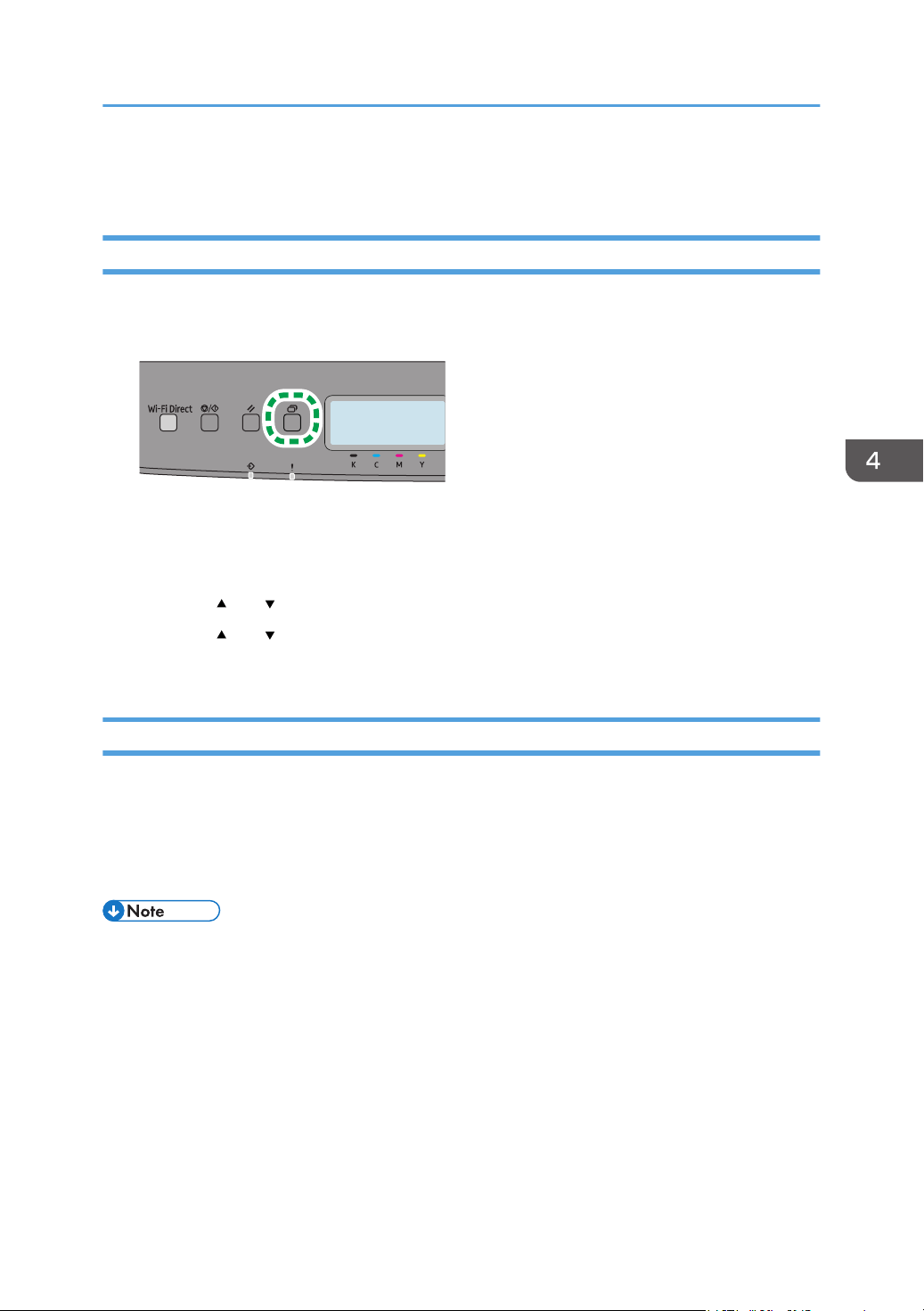
Print List/Report
Printing the Configuration Page
1. Press the [Menu] key.
The menu screen appears.
2. Press the [ ] or [ ] key to select [Print List/Report], and then press the [OK] key.
3. Press the [
] or [ ] key to select [Configuration Page], and then press the [OK] key twice.
The configuration page is printed. The [Print List/Report] screen appears on completion of printing.
Types of Lists/Reports
Configuration Page
Prints general information and the current configurations of the printer.
Maintenance Page
Prints the maintenance page.
• The lists will be printed using the tray set for [Paper Tray Priority] in paper input settings on A4 or
Letter size paper.
Print List/Report
85

4. Configuring the Machine Using the Control Panel
86

5. Configuring the Machine Using
Utilities
This chapter describes how to configure the machine using utilities.
Available Setting Functions Using Web Image
Monitor
Use Web Image Monitor to change the configuration of the machine from a computer.
Available operations for Web Image Monitor is as follows:
The following operations can be performed remotely using Web Image Monitor on a computer:
• Displaying the machine’s status or settings
• Configuring the machine's settings
• Configuring the user restriction settings
• Configuring the network settings
• Configuring the IPsec settings
• Printing reports
• Setting the administrator password
• Resetting the machine's configuration to the factory default
• Creating backup files of the machine's configuration
• Restoring the machine's configuration from backup files
• Configuring the machine's Energy Saver mode setting
87
Using Web Image Monitor
• Some items might not appear, depending on the model type you are using.
• Some items can also be configured using the control panel.
Recommended web browsers
• Internet Explorer 10 or later
• Microsoft Edge
• Google Chrome
• Firefox 3.0 or later
• Safari 11.0 or later
• To operate the machine via Web Image Monitor, you must first configure the machine's TCP/IP or
wireless LAN settings. For details, see page 81 "Network Settings" or see page 104 "Configuring
the Network Settings".
5. Configuring the Machine Using Utilities
88
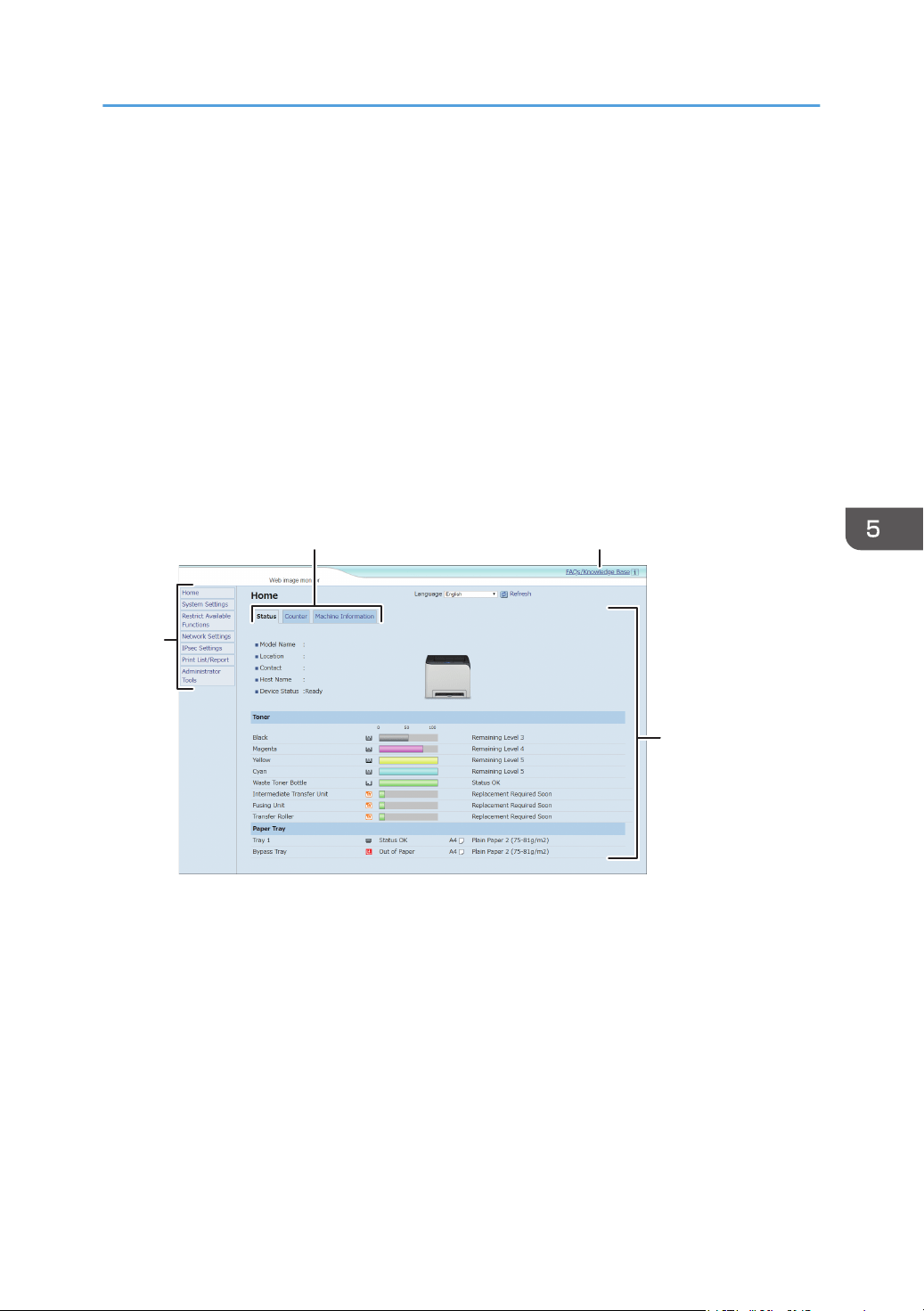
Displaying Top Page
When you access the machine using Web Image Monitor, the top page appears in your browser's
window.
1. Launch the Web browser.
2. In the Web browser's address bar, enter "https://(machine’s IP address)/" to access the
machine.
If a DNS server is used and the machine’s host name has been specified, you can enter the host
name instead of the IP address.
The top page of Web Image Monitor appears.
Top page
Every Web Image Monitor page is divided into the following areas:
ECB253
4
32
1
1. Menu area
Clicking a menu shows its contents in the main area.
2. Tab area
Contains tabs for switching between information and settings you want to see or configure.
3. FAQs/Knowledge Base
Provides answers to frequently asked questions and other useful information about using this
machine.
An internet connection is required to view this information.
Displaying Top Page
89

4. Main area
Displays the contents of the item selected in the menu area.
Information in the main area is not automatically updated. Click [Refresh] at the upper-right in
the main area to update the information. Click the Web browser's [Refresh] button to refresh
the entire browser screen.
• If you use an older version of a supported Web browser or the Web browser has JavaScript and
cookies disabled, display and operation problems may occur.
• If you are using a proxy server, configure the Web browser settings as necessary. For details about
the settings, contact your network administrator.
• The previous page may not appear even if the back button of the Web browser is clicked. If this
happens, click the refresh button of the Web browser.
• The FAQs (Frequently Asked Questions)/Knowledge Base are not available in certain languages.
• Information about Tray 2 appears only if the applicable paper tray is installed.
Changing the Interface Language
Select the desired interface language from the [Language] list.
5. Configuring the Machine Using Utilities
90
Checking the System Information
Click [Home] to display the main page of Web Image Monitor. You can check the current system
information on this page.
This page contains three tabs: [Status], [Counter], and [Machine Information].
Status Tab
Item Description
Model Name Shows the name of the machine.
Location Shows the location of the machine as registered on the [SNMPv1/v2]
page.
Contact Shows the contact information of the machine as registered on the
[SNMPv1/v2] page.
Host Name Shows the host name specified in [Host Name] on the [DNS] page.
Device Status Shows the current messages on the machine's display.
Toner
Item Description
Black Shows the amount of black toner remaining.
Magenta Shows the amount of magenta toner remaining.
Yellow Shows the amount of yellow toner remaining.
Cyan Shows the amount of cyan toner remaining.
Waste Toner Bottle Shows the remaining life of the waste toner bottle, as "Status OK", "Almost
Full" or "Full".
Intermediate Transfer
Unit
Shows the remaining life of the intermediate transfer unit, as "Status OK",
"Replacement Required Soon" or "Replacement Required".
For replacing, contact your sales or service representative.
Fusing Unit Shows the remaining life of the fusing unit, as "Status OK", "Replacement
Required Soon" or "Replacement Required".
For replacing, contact your sales or service representative.
Checking the System Information
91
Item Description
Transfer Roller Shows the remaining life of the transfer roller, as "Status OK", "Replacement
Required Soon" or "Replacement Required".
For replacing, contact your sales or service representative.
Paper Tray
Item Description
Tray 1 Shows the current state and paper size/type setting of Tray 1.
Tray 2 Shows the current state and paper size/type setting of Tray 2.
Bypass Tray Shows the current state and paper size/type setting of the bypass tray.
• If a non-genuine print cartridge is installed, toner life cannot be reliably indicated.
• The information about Tray 2 appears only when it is installed.
Counter Tab
Machine Counter
Item Description
Machine Counter Shows the following for pages printed, including lists/reports:
• Total number of pages
• Number of color pages
• Number of black-and-white pages
Black Shows the following for pages printed, including lists/reports:
• Accumulated value of black toner A4 page coverage (in percent)
• Accumulated value of black toner consumption (converted into fully-
covered A4 pages)
Cyan Shows the following for pages printed, including lists/reports:
• Accumulated value of cyan toner A4 page coverage (in percent)
• Accumulated value of cyan toner consumption (converted into fully-
covered A4 pages)
5. Configuring the Machine Using Utilities
92
Item Description
Magenta Shows the following for pages printed, including lists/reports:
• Accumulated value of magenta toner A4 page coverage (in percent)
• Accumulated value of magenta toner consumption (converted into
fully-covered A4 pages)
Yellow Shows the following for pages printed, including lists/reports:
• Accumulated value of yellow toner A4 page coverage (in percent)
• Accumulated value of yellow toner consumption (converted into fully-
covered A4 pages)
Economy Color Prints
Item Description
Economy Color Prints
(Color)
Shows the number of pages printed in Economy Color Printing mode using
the printer function.
Black Shows the following for pages printed in Economy Color Printing mode
using the printer function:
• Accumulated value of black toner A4 page coverage (in percent)
• Accumulated value of black toner consumption (converted into fully-
covered A4 pages)
Cyan Shows the following for pages printed in Economy Color Printing mode
using the printer function:
• Accumulated value of cyan toner A4 page coverage (in percent)
• Accumulated value of cyan toner consumption (converted into fully-
covered A4 pages)
Magenta Shows the following for pages printed in Economy Color Printing mode
using the printer function:
• Accumulated value of magenta toner A4 page coverage (in percent)
• Accumulated value of magenta toner consumption (converted into
fully-covered A4 pages)
Yellow Shows the following for pages printed in Economy Color Printing mode
using the printer function:
• Accumulated value of yellow toner A4 page coverage (in percent)
• Accumulated value of yellow toner consumption (converted into fully-
covered A4 pages)
Checking the System Information
93
Duplex
Item Description
Duplex Total Page Shows the total number of sheets printed on both sides.
• A sheet printed on both sides counts as two printed pages.
Machine Information Tab
Machine Information
Item Description
Firmware Version Shows the version of firmware installed on the machine.
Engine FW Version Shows the version of firmware for the machine engine.
PCL Version Shows the version of the PCL interpreter.
PS Version Shows the version of the PS interpreter.
Machine ID Shows the identification number of the machine.
Total Memory Shows the total memory installed on the machine.
5. Configuring the Machine Using Utilities
94
Configuring the System Settings
Click [System Settings] to display the page for configuring the system settings.
This page contains the following tabs: [Tray Paper Settings], [I/O Timeout] and [B&W Print Priority].
Tray Paper Settings Tab
Tray 1
Item Description
Paper Size Select the paper size for Tray 1 from the following:
A4, A5, A5 (210 × 148 mm), A6, B5 JIS, B6 JIS, 8
1
/
2
× 14, 8
1
/
2
× 13,
8
1
/
2
× 11, 8
1
/
4
× 13, 8 × 13, 5
1
/
2
× 8
1
/
2
, 7
1
/
4
× 10
1
/
2
, 8
1
/
2
×
13
2
/
5
, 8
1
/
2
× 13
3
/
5
, 4
1
/
8
× 9
1
/
2
, 3
7
/
8
× 7
1
/
2
, C5 Env, C6 Env, DL
Env, 16K, Custom Size
Paper Type Select the paper type for Tray 1 from the following:
Thin Paper (60-65g/m
2
), Plain Paper 1 (66-74g/m
2
), Plain Paper 2
(75-81g/m
2
), Middle Thick (82-90g/m
2
), Thick Paper 1 (91-105g/m
2
),
Thick Paper 2 (106-163g/m
2
), Recycled Paper, Color Paper, Prepunched
Paper, Letterhead, Bond Paper, Preprinted Paper, Cardstock, Label Paper,
Envelope
Tray 2
Item Description
Paper Size Select the paper size for Tray 2 from the following:
A4, 8
1
/
2
× 11
Paper Type Select the paper type for Tray 2 from the following:
Thin Paper (60-65g/m
2
), Plain Paper 1 (66-74g/m
2
), Plain Paper 2
(75-81g/m
2
), Middle Thick (82-90g/m
2
), Thick Paper 1 (91-105g/m
2
),
Recycled Paper, Color Paper, Letterhead, Preprinted Paper, Prepunched
Paper
Configuring the System Settings
95

Bypass Tray
Item Description
Paper Size Select the paper size for the bypass tray from the following:
A4, A5, A5 (210 × 148 mm), A6, B5 JIS, B6 JIS, 8
1
/
2
× 14, 8
1
/
2
× 13,
8
1
/
2
× 11, 8
1
/
4
× 13, 8 × 13, 5
1
/
2
× 8
1
/
2
, 7
1
/
4
× 10
1
/
2
, 8
1
/
2
×
13
2
/
5
, 8
1
/
2
× 13
3
/
5
, 4
1
/
8
× 9
1
/
2
, 3
7
/
8
× 7
1
/
2
, C5 Env, C6 Env, DL
Env, 16K, Custom Size
Paper Type Select the paper type for the bypass tray from the following:
Thin Paper (60-65g/m
2
), Plain Paper 1 (66-74g/m
2
), Plain Paper 2
(75-81g/m
2
), Middle Thick (82-90g/m
2
), Thick Paper 1 (91-105g/m
2
),
Thick Paper 2 (106-163g/m
2
), Recycled Paper, Color Paper, Prepunched
Paper, Letterhead, Bond Paper, Cardstock, Label Paper, Envelope
Priority Tray
Item Description
Priority Tray Select the tray that the printer uses first for printer jobs from Tray 1 or Tray
2.
If automatic tray selection is specified for the print job and both Tray 1 and
Tray 2 contain paper that matches the print job, the printer starts to print
from the specified tray. If that tray runs out of paper, the printer
automatically switches to the other tray to continue printing.
Tray 1 Priority
Item Description
Tray 1 Priority Select how print jobs using the Tray 1 are handled.
• System Settings
The paper settings configured on the machine's control panel are
applied to all print jobs. An error occurs when the paper settings
specified by the printer driver or the print command do not match the
machine's settings.
• Driver/Command
When executing a print job specifying the paper tray, the paper
settings specified in the printer driver or in the print command are
applied regardless of the machine's settings.
5. Configuring the Machine Using Utilities
96
Bypass Tray Setting Priority
Item Description
Bypass Tray Setting
Priority
Select how print jobs using the bypass tray are handled.
• System Settings
The paper settings configured on the machine's control panel are
applied to all print jobs. An error occurs when the paper settings
specified by the printer driver or the print command do not match the
machine's settings.
• Driver/Command
When executing a print job specifying the paper tray, the paper
settings specified in the printer driver or in the print command are
applied regardless of the machine's settings.
• Any Size/Type
Printing proceeds even if the paper size/type settings of the machine
and printer driver do not match, but if the paper is too small for the
print job, the printed image will be cropped.
• Any Custom Size/Type
The machine prints custom size print jobs according to the printer
driver’s settings and prints standard size print jobs according to the
machine’s settings.
For custom size print jobs, printing proceeds even if the paper size/
type settings of the machine and printer driver do not match, but if the
paper is too small for the print job, the printed image will be cropped.
For standard size print jobs, an error will occur if the paper size/type
settings of the machine and printer driver do not match.
• The information about Tray 2 appears only when it is installed.
Configuring the System Settings
97

I/O Timeout Tab
I/O Timeout
Item Description
Fixed USB Port Specifies whether the same printer can be used for multiple machines or not
under USB connection.
If this setting is enabled, the same printer driver you have installed in your
computer can be used with any machine other than the one originally used
for installation, if the machine is of the same model.
If disabled, you must install the printer driver separately for individual
machines, because the machine other than the original will be recognized
as a new device upon USB connection.
Locked Print Timeout
(seconds)
Specifies how many seconds the machine holds a new Locked Print file,
when the machine cannot store any more Locked Print files (0 to 300
seconds). Within this time, you can print or delete the new Locked Print file.
You can also print or delete an existing Locked Print file so that the new
Locked Print file can be stored in the machine.
Black-and-White Print Priority Tab
B&W Print Priority
Item Description
B&W Print Priority Enable this setting to suppress the consumption of color toner when printing
black-and-white pages. Also, amount of color toner consumed during
warm-up time for maintenance will also be lowered.
5. Configuring the Machine Using Utilities
98
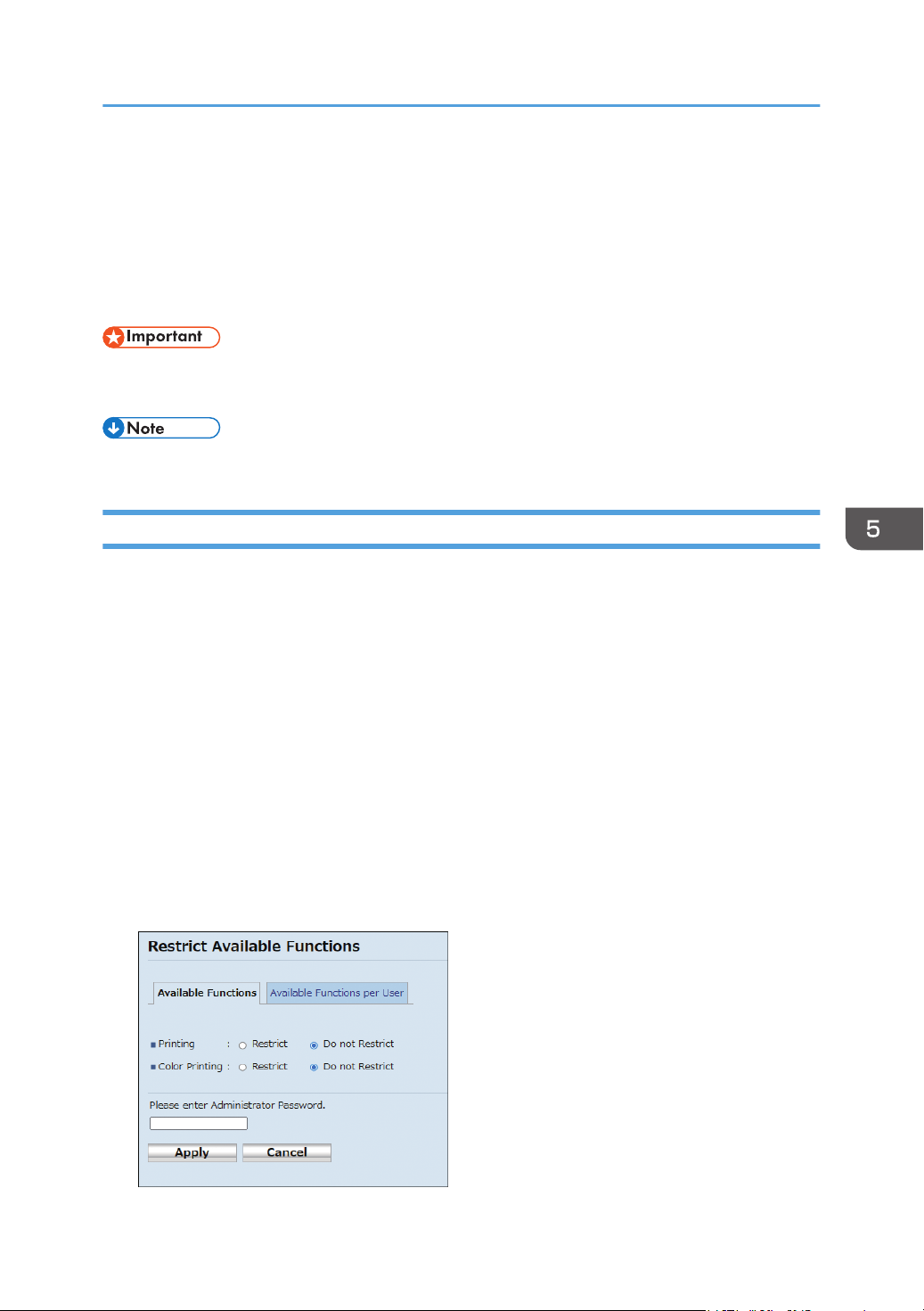
Restricting Machine Functions According to
User
You can configure settings to require a user code when someone tries to use certain machine functions.
To enable this setting, you must first configure the machine settings via Web Image Monitor.
• To print jobs that require authentication you can use only the Windows PCL printer driver. Printing
such jobs from the PostScript 3 printer driver is not possible.
• For details about using Web Image Monitor, see page 88 "Using Web Image Monitor".
Enabling the User Restriction Settings
This section explains how to configure settings to permit only authorized users to use certain machine
functions.
Using Web Image Monitor, enable user restriction for all or some of the functions listed below, and then
register users who can use those functions.
• Printing (both color and black-and-white)
• Color printing
You can specify functions available to each user upon authentication. Up to 30 users can be registered.
1. Start the Web browser, and access the machine by entering its IP address.
The top page of Web Image Monitor appears.
2. Click [Restrict Available Functions].
3. Under "Available Functions", select [Restrict] for the functions you want to restrict, and
then click [Apply].
Restricting Machine Functions According to User
99
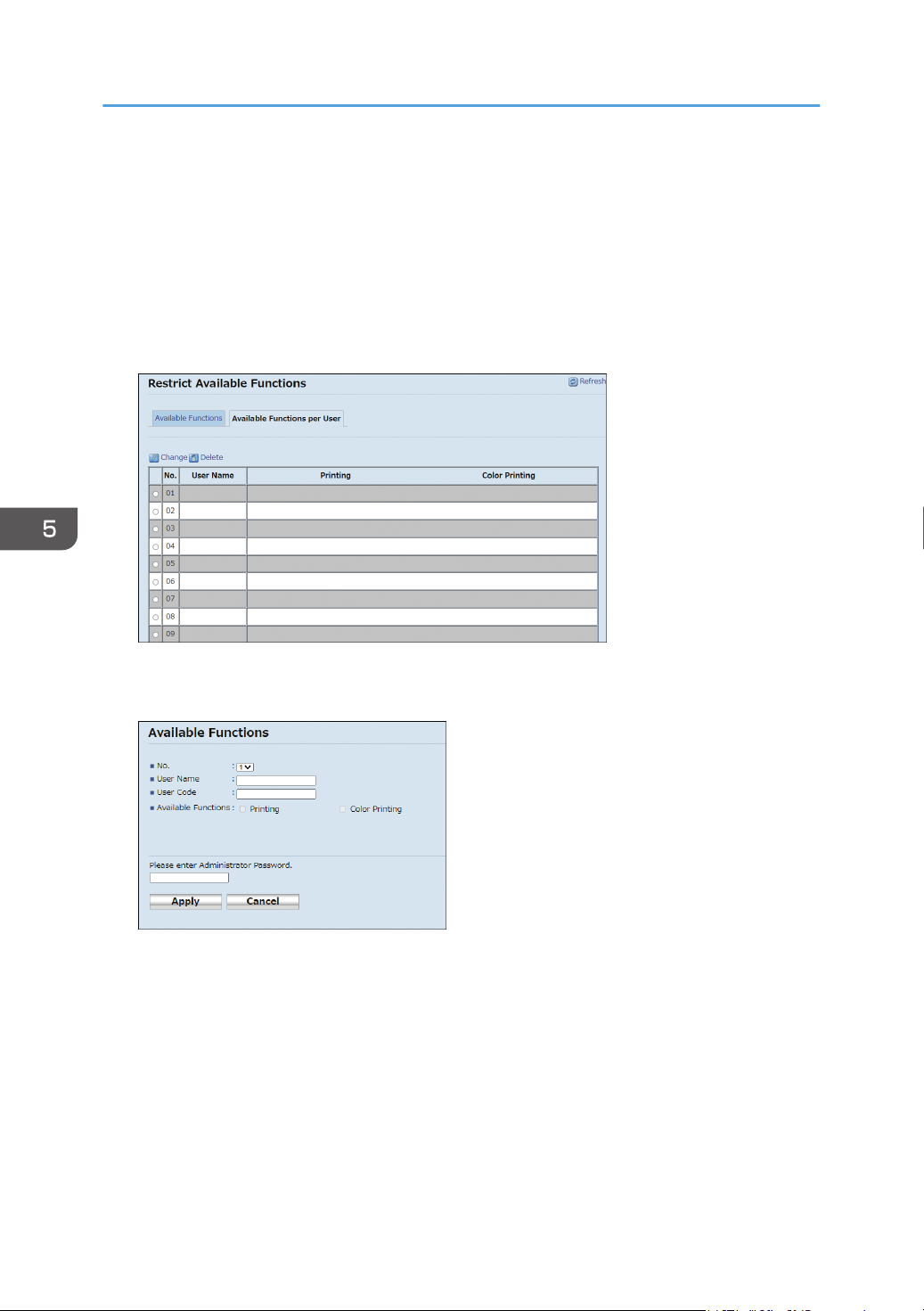
Select [Do not Restrict] for the functions you do not want to restrict.
The user restriction setting is enabled for the selected function. Proceed to the following steps to
register users.
4. Enter the administrator password.
5. Click [Apply].
6. Click [Available Functions per User].
A list of currently registered user entries appears.
7. Select a user entry, and then click [Change].
The following window appears.
8. Enter the user name in [User Name] using up to 16 alphanumeric characters.
9. Enter the user code in [User Code] using up to 8 digits.
The user code will be used to authenticate users when they try to use a restricted function.
10. Select the functions you want to make available to the user upon authentication.
Unselected functions will be unavailable to users authenticated under this user code.
11. Enter the administrator password.
12. Click [Apply].
13. Close the Web browser.
5. Configuring the Machine Using Utilities
100

• You must enter both the user name and user code to register a user entry.
• Make sure that different user entries do not share the same user name or user code.
Modifying user entries
This section explains how to modify user entries.
1. Start the Web browser, and access the machine by entering its IP address.
The top page of Web Image Monitor appears.
2. Click [Restrict Available Functions].
3. Enter the administrator password.
4. Click [Apply].
5. Click [Available Functions per User].
A list of currently registered user entries appears.
6. Select the entry to modify, and then click [Change].
7. Modify settings as necessary.
8. Enter the administrator password.
9. Click [Apply].
10. Close the Web browser.
Deleting user entries
This section explains how to delete user entries.
1. Start the Web browser, and access the machine by entering its IP address.
The top page of Web Image Monitor appears.
2. Click [Restrict Available Functions].
3. Enter the administrator password.
4. Click [Apply].
5. Click [Available Functions per User].
A list of currently registered user entries appears.
6. Select the entry to delete, and then click [Delete].
7. Confirm that the entry you have selected is the entry that you want to delete.
8. Enter the administrator password.
9. Click [Apply].
Restricting Machine Functions According to User
101

10. Close the Web browser.
5. Configuring the Machine Using Utilities
102

When Machine Functions are Restricted
Restricted functions can be used only by authorized users.
Depending on the restricted function, users will be authenticated from the machine's control panel or in
the printer driver.
• To print jobs that require authentication you can use only the Windows PCL printer driver. Printing
such jobs from the PostScript 3 printer driver is not possible.
• The procedure in this section is an example based on Windows 10.
The table below shows the functions that can be restricted, and how users can be authenticated to use
them.
Restricted Function Authentication method
• Printing (both color and
black-and-white)
• Color printing
The user must enter a valid user code in the printer driver before
executing a print command.
Authentication using the printer driver
1. Open the file you want to print on your computer.
2. On the [File] menu, click [Print...].
3. In the [Select Printer] area, select the name of this machine, and then click [Preferences].
4. Click the [Valid Access] tab.
5. Enter the user code using 1 to 8 digits, and then click [OK].
6. Execute a print command.
If an incorrect user code is entered, the job will be canceled automatically (without any error
message).
When Machine Functions are Restricted
103
Configuring the Network Settings
Click [Network Settings] to display the page for configuring the network settings.
This page contains the following tabs: [Network Status], [TLS Security], [IPv6 Configuration], [Network
Application], [DNS], [Auto E-mail Notification], [SNMPv1/v2], [SNMPv3], [SMTP], [POP3],
[Wireless], and [Certificate].
• Depending on the settings you change, the machine might need to be restarted.
• Depending on the model you are using, some items might not appear.
Network Status Tab
General Status
Item Description
Ethernet Speed Shows the type and speed of the network connection.
IPP Printer Name Shows the name used to identify the machine on the network.
Network Version Shows the version of the machine's network module (a part of the machine
firmware).
Ethernet MAC Address Shows the Ethernet MAC address of the machine.
Active Interface Shows the active communication method.
Wi-Fi Direct IP Address Shows the IP address of Wi-Fi Direct.
TCP/IP Status
Item Description
DHCP Select whether the machine should receive a dynamic IPv4 address
automatically using DHCP. To use DHCP, select [Active]. When enabled,
the items below cannot be configured.
IP Address Enter the IPv4 address for the machine.
It is not possible to enter 0.0.0.0 or 255.255.255.255.
Subnet Mask Enter the subnet mask of the network.
It is not possible to enter 0.0.0.0 or 255.255.255.255.
5. Configuring the Machine Using Utilities
104
Item Description
Gateway Enter the IPv4 address of the network gateway.
It is not possible to enter 0.0.0.0 or 255.255.255.255.
IPv6 Configuration Tab
IPv6
Item Description
IPv6 Select whether to enable or disable IPv6. You cannot disable IPv6 using
Web Image Monitor if the machine is currently in use in an IPv6
environment. In this case, use the control panel to disable [IPv6] under
network settings.
When disabled, [DHCP], [Manual Configuration Address], [Prefix Length],
and [Gateway Address] below cannot be configured.
IPv6 Address
Item Description
DHCP Select whether or not the machine obtains its IPv6 address from a DHCP
server.
IP Address (DHCP) Displays the IPv6 address obtained from the DHCP server when [DHCP] is
set to [Active].
Stateless Address Displays up to four stateless auto addresses.
Gateway Address Displays the machine's default gateway address.
Link-local Address Displays the link local address of the machine. The link local address is an
address that is valid only inside the local network (local segment).
Manual Configuration
Address
Enter the machine's IPv6 address. Can contain up to 39 characters.
Prefix Length Enter the prefix length, using a value between 0 and 128.
Gateway Address Enter the default gateway's IPv6 address. Can contain up to 39 characters.
Configuring the Network Settings
105
Network Application Tab
Network Print Setting
Item Description
IPP Select to enable network printing using Internet Print Protocol (via TCP port
631/80).
FTP Select to enable network printing using an embedded FTP server in the
machine (via TCP port 20/21).
User Name User name for logging in to the FTP server. Can contain up to 32
characters.
The default name is "sysadm".
Password Password for logging in to the FTP server. Can contain up to 32 characters.
The default password is "sysadm".
RAW Select to enable network raw printing.
Port No. Enter the TCP port number to use for raw printing. The valid range is 1024
to 65535, except 5222, 5353, 6006, 28900, 29102, 49999, and
53550 (default is 9100).
LPR Select to enable network printing using LPR/LPD (via TCP port 515).
HTTPS/HTTP
Item Description
Force To Use HTTPS Specify whether or not to make the use of HTTPS mandatory. If this is
enabled, the connection to HTTP Port 80 is automatically redirected to Port
443. Furthermore, if the user accesses the web page by entering the URL
"http://...", the access is redirected to "https://...".
Note that Port 80 cannot be used for IPP printing.
mDNS Setting
Item Description
mDNS Select to enable Multicast DNS (via UDP port 5353). If disabled, the item
below cannot be configured.
Printer Name Enter the name of the machine. Can contain up to 32 characters.
5. Configuring the Machine Using Utilities
106

TLS Security Tab
TLS Security Level Settings
Item Description
TLS Level Select the TLS security level from [High], [Medium] or [Low].
TLS1.3 Specify whether or not to enable TLS 1.3.
If [TLS Level] is set to [High], this setting is automatically enabled and
cannot be disabled.
If [TLS Level] is set to [Medium] or [Low], this setting can be enabled/
disabled manually.
TLS1.2 Specify whether or not to enable TLS 1.2.
If [TLS Level] is set to [High], this setting is automatically disabled and
cannot be enabled.
If [TLS Level] is set to [Medium] or [Low], this setting can be enabled/
disabled manually.
TLS1.1 Specify whether or not to enable TLS 1.1.
If [TLS Level] is set to [High] or [Medium], this setting is automatically
disabled and cannot be enabled.
If [TLS Level] is set to [Low], this setting can be enabled/disabled manually.
• At least one of TLS 1.3, TLS 1.2, and TLS1.1 must be enabled.
DNS Tab
DNS
Item Description
DNS Method Select whether to specify domain name servers manually or receive DNS
information from the network automatically. When set to [Auto-Obtain
(DHCP)], [Primary DNS Server], [Secondary DNS Server], and [Domain
Name] below become unavailable.
Primary DNS Server Enter the IPv4 address of the primary DNS.
Secondary DNS Server Enter the IPv4 address of the secondary DNS.
Configuring the Network Settings
107
Item Description
Domain Name Enter the IPv4 domain name for the machine. Can contain up to 32
characters.
IPv6 DNS Method Select whether to specify the domain server manually or have the machine
obtain its DNS information automatically.
When set to [Auto-Obtain (DHCP)], [Primary IPv6 DNS Server],
[Secondary IPv6 DNS Server], and [IPv6 Domain Name] below become
unavailable.
Primary IPv6 DNS
Server
Enter the IPv6 address of the primary IPv6 DNS server. Can contain up to
39 characters.
Secondary IPv6 DNS
Server
Enter the IPv6 address of the secondary IPv6 DNS server. Can contain up
to 39 characters.
IPv6 Domain Name Enter the IPv6 domain name of the machine. Can contain up to 32
characters.
DNS Resolve Priority Select whether to give priority to IPv4 or IPv6 for DNS name resolution.
DNS Timeout (seconds) Enter the number of seconds the machine waits before considering a DNS
request to have timed out (1 to 999 seconds).
Host Name Enter a host name for the machine. Can contain up to 15 characters.
Auto E-mail Notification Tab
E-mail Notification 1/E-mail Notification 2
Item Description
Display Name Enter a sender name for notification e-mail. Can contain up to 32
characters.
E-mail Address Enter the address of the recipient of the alert email. Can contain up to 64
characters.
Paper Misfeed Select to send an alert e-mail to the specified address if a paper jam occurs.
Out of Paper Select to send an alert e-mail to the specified address if paper runs out.
Toner Almost Empty Select to send an alert e-mail to the specified address if toner becomes low.
5. Configuring the Machine Using Utilities
108
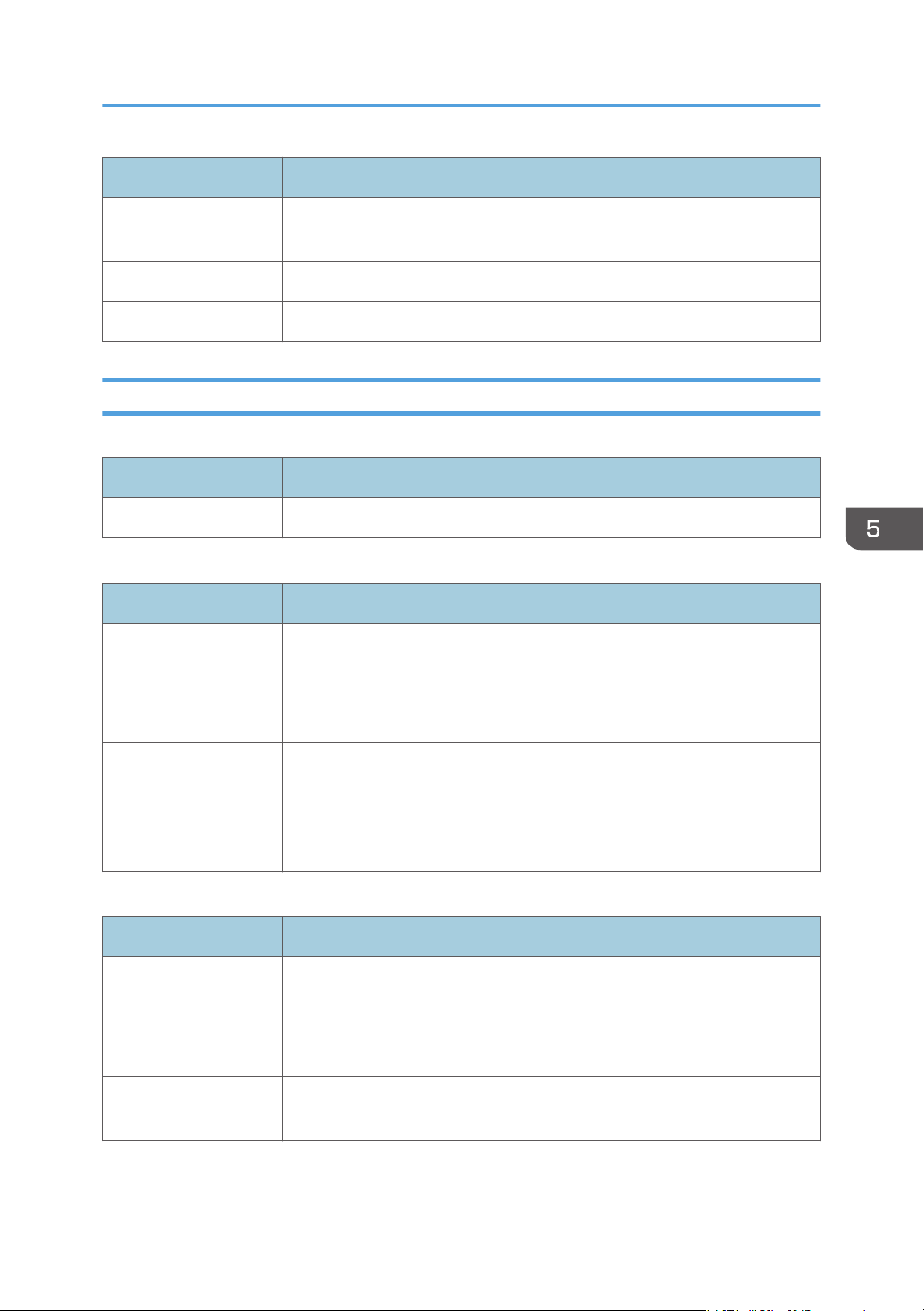
Item Description
Call Service Select to send an alert e-mail to the specified address if the machine
requires servicing.
Out of Toner Select to send an alert e-mail to the specified address if toner runs out.
Cover Open Select to send an alert e-mail to the specified address if a cover is open.
SNMPv1/v2 Tab
SNMPv1/v2
Item Description
SNMPv1/v2 Select whether to enable the machine to use SNMPv1/v2 services.
Trap (SNMPv1)
Item Description
SNMPv1 Trap Select whether to enable the machine to send SNMPv1 traps to the
management host (NMS).
When disabled, [SNMP Management Host 1] and [SNMP Management
Host 2] below become unavailable.
SNMP Management
Host 1
Enter the IP address or host name of a management host. Can contain up to
64 characters.
SNMP Management
Host 2
Enter the IP address or host name of a management host. Can contain up to
64 characters.
Trap (SNMPv2)
Item Description
SNMPv2 Trap Select whether to enable the machine to send SNMPv2 traps to the
management host (NMS).
When disabled, [SNMP Management Host 1] and [SNMP Management
Host 2] below become unavailable.
SNMP Management
Host 1
Enter the IP address or host name of a management host. Can contain up to
64 characters.
Configuring the Network Settings
109
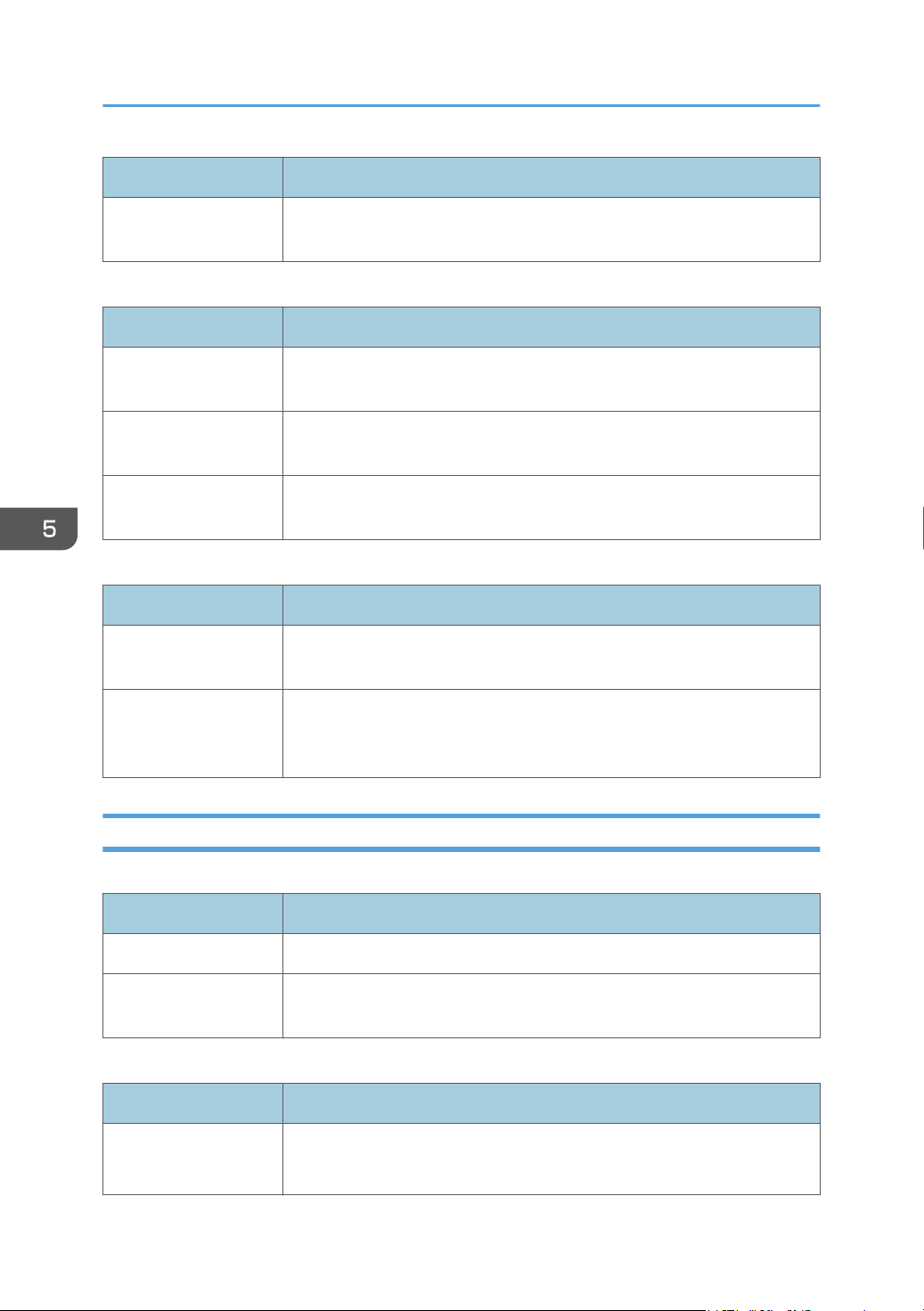
Item Description
SNMP Management
Host 2
Enter the IP address or host name of a management host. Can contain up to
64 characters.
Community
Item Description
Get Community Enter the community name to use for authentication of Get requests. Can
contain up to 32 characters.
Set Community Enter the community name to use for authentication of Set requests. Can
contain up to 32 characters.
Trap Community Enter the community name to use for authentication of Trap requests. Can
contain up to 32 characters.
System
Item Description
Location Enter the location of the machine. The location entered here is displayed on
the main page. Can contain up to 64 characters.
Contact Enter the contact information of the machine. The contact information
entered here is displayed on the main page. Can contain up to 64
characters.
SNMPv3 Tab
SNMPv3
Item Description
SNMPv3 Select whether to enable the machine to use SNMPv3 services.
Context Name Displays the context name of the device. The context name is fixed to
"GWNCS".
User Account
Item Description
User Name
(Required)
Enter the user name for logging in to the SNMPv3. Can contain up to 32
characters.
5. Configuring the Machine Using Utilities
110
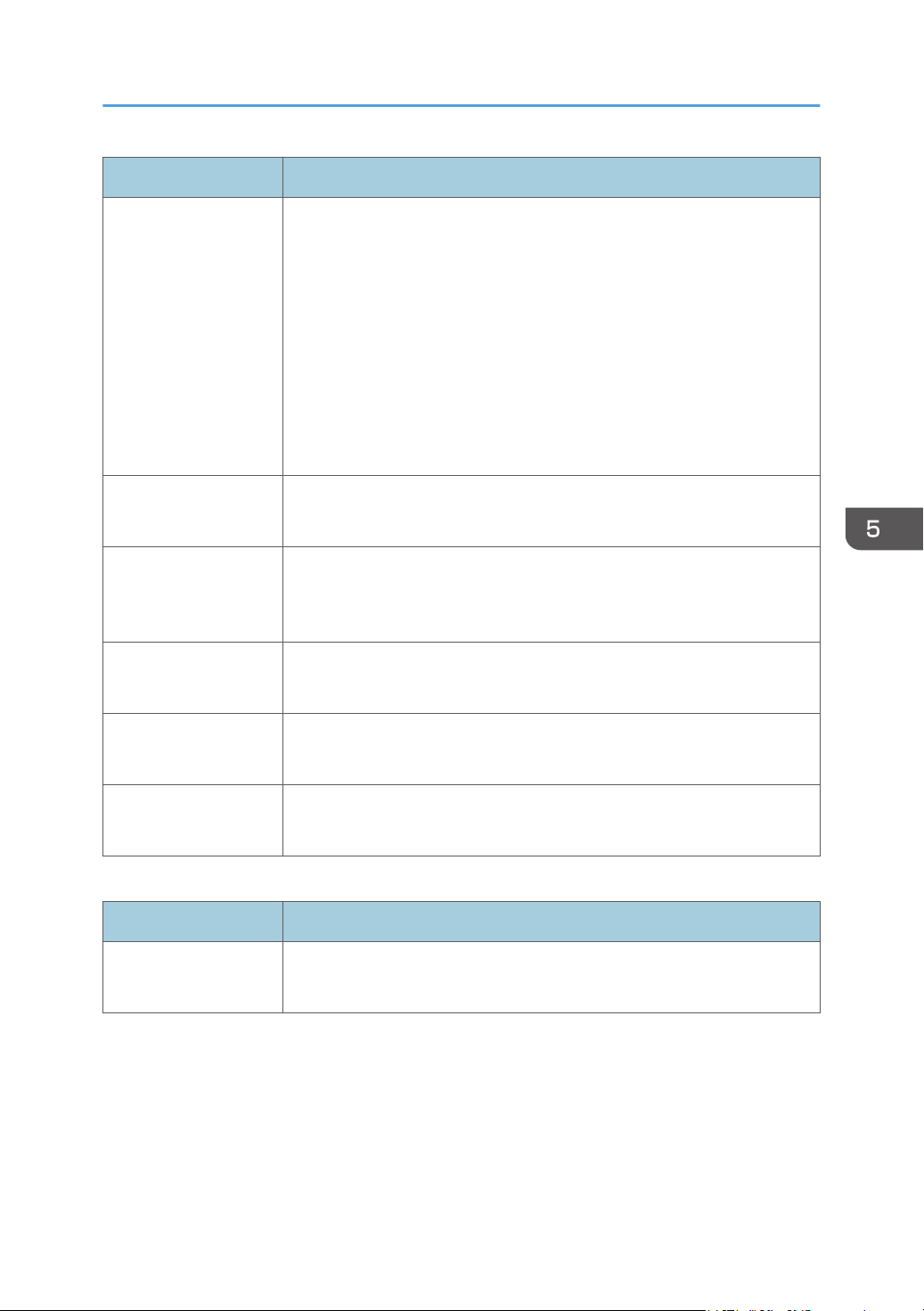
Item Description
Security Settings Specify the user account security setting by selecting one of the following:
[Authentication Encryption]: It is necessary to specify [Authentication
Algorithm], [Authentication Password], [Encryption Algorithm], and
[Encryption Password].
[Authentication Non-Encryption]: It is necessary to specify [Authentication
Algorithm] and [Authentication Password]. [Encryption Algorithm] and
[Encryption Password] cannot be specified.
[Non-Authentication Non-Encryption]: [Authentication Algorithm],
[Authentication Password], [Encryption Algorithm] and [Encryption
Password] cannot be specified.
Authentication
Algorithm
Specify the authentication algorithm from the following:
[MD5], [SHA1], [SHA224], [SHA256], [SHA384], [SHA512]
Authentication
Password
(Required)
Enter a password for the User account. Can contain up to 32 characters.
Encryption Algorithm Specify the encryption algorithm from the following:
[AES128], [DES]
Encryption Password
(Required)
Enter a password for encrypting the User account password.
Can contain up to 32 characters.
MIB Access Type Select an access type for the user account to access MIB from the following:
[read-only], [Not-Accessible]
Admin Account
Item Description
User Name
(Required)
Enter the user name for logging in to the SNMPv3. Can contain up to 32
characters.
Configuring the Network Settings
111
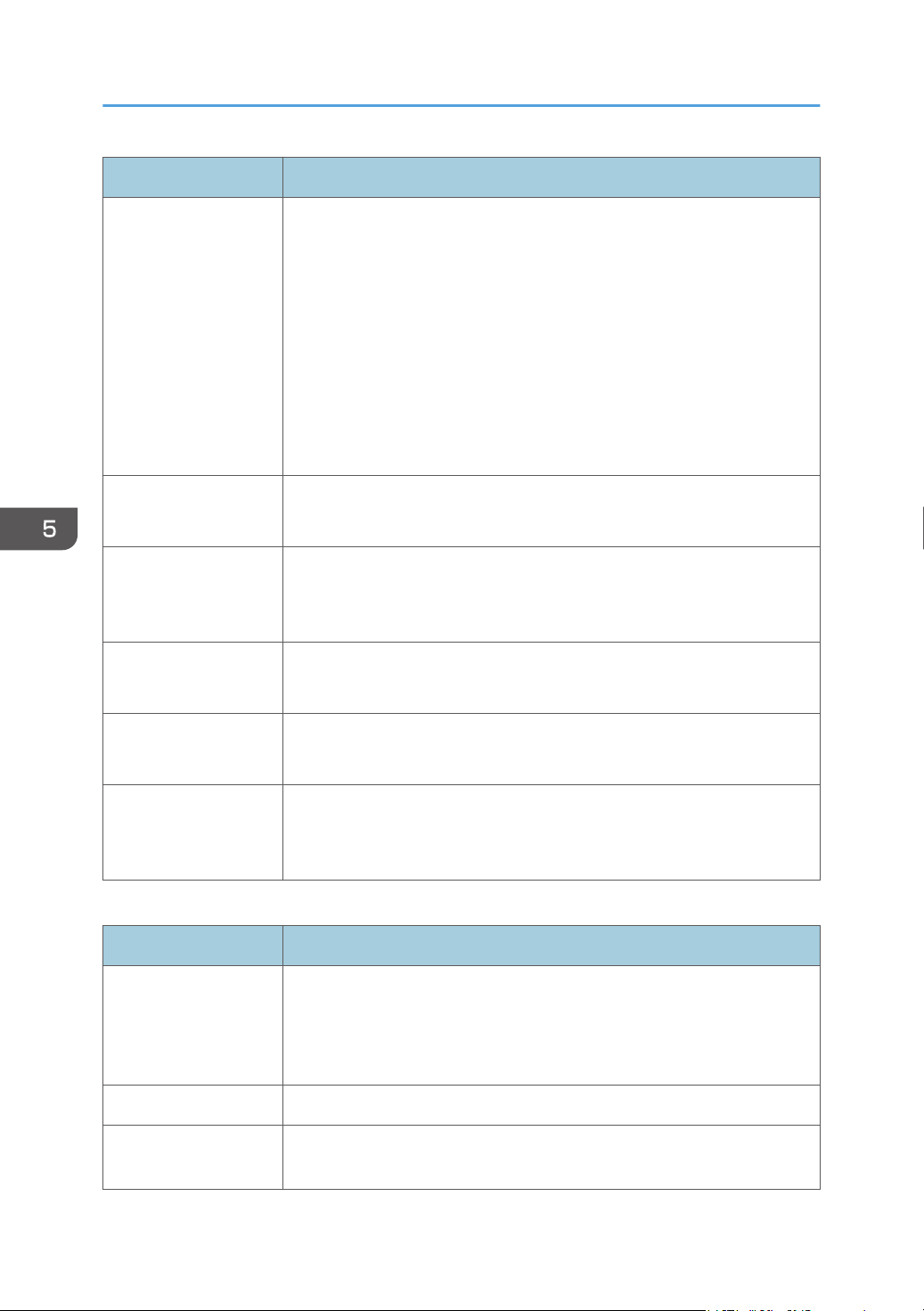
Item Description
Security Settings Specify the user account security setting by selecting one of the following:
[Authentication Encryption]: It is necessary to specify [Authentication
Algorithm], [Authentication Password], [Encryption Algorithm], and
[Encryption Password].
[Authentication Non-Encryption]: It is necessary to specify [Authentication
Algorithm] and [Authentication Password]. [Encryption Algorithm] and
[Encryption Password] cannot be specified.
[Non-Authentication Non-Encryption]: [Authentication Algorithm],
[Authentication Password], [Encryption Algorithm] and [Encryption
Password] cannot be specified.
Authentication
Algorithm
Specify the authentication algorithm from the following:
[MD5], [SHA1], [SHA224], [SHA256], [SHA384], [SHA512]
Authentication
Password
(Required)
Enter a password for the Admin account. Can contain up to 32 characters.
Encryption Algorithm Specify the encryption algorithm from the following:
[AES128], [DES]
Encryption Password
(Required)
Enter a password for encrypting the Admin account password.
Can contain up to 32 characters.
MIB Access Type Select an access type for the administrator account to access MIB from the
following:
[read-only], [write-only], [read-write], [Not-Accessible]
SNMPv3 Trap
Item Description
SNMPv3 Trap Select whether to enable the machine to send SNMPv3 traps to the
management host (NMS).
When disabled, [SNMPv3 Management Host 1] and [SNMPv3
Management Host 2] below become unavailable.
SNMPv3 Account 1 Select either [User Account] or [Admin Account].
SNMPv3 Management
Host 1
Enter the IP address or host name of a management host. Can contain up to
64 characters.
5. Configuring the Machine Using Utilities
112
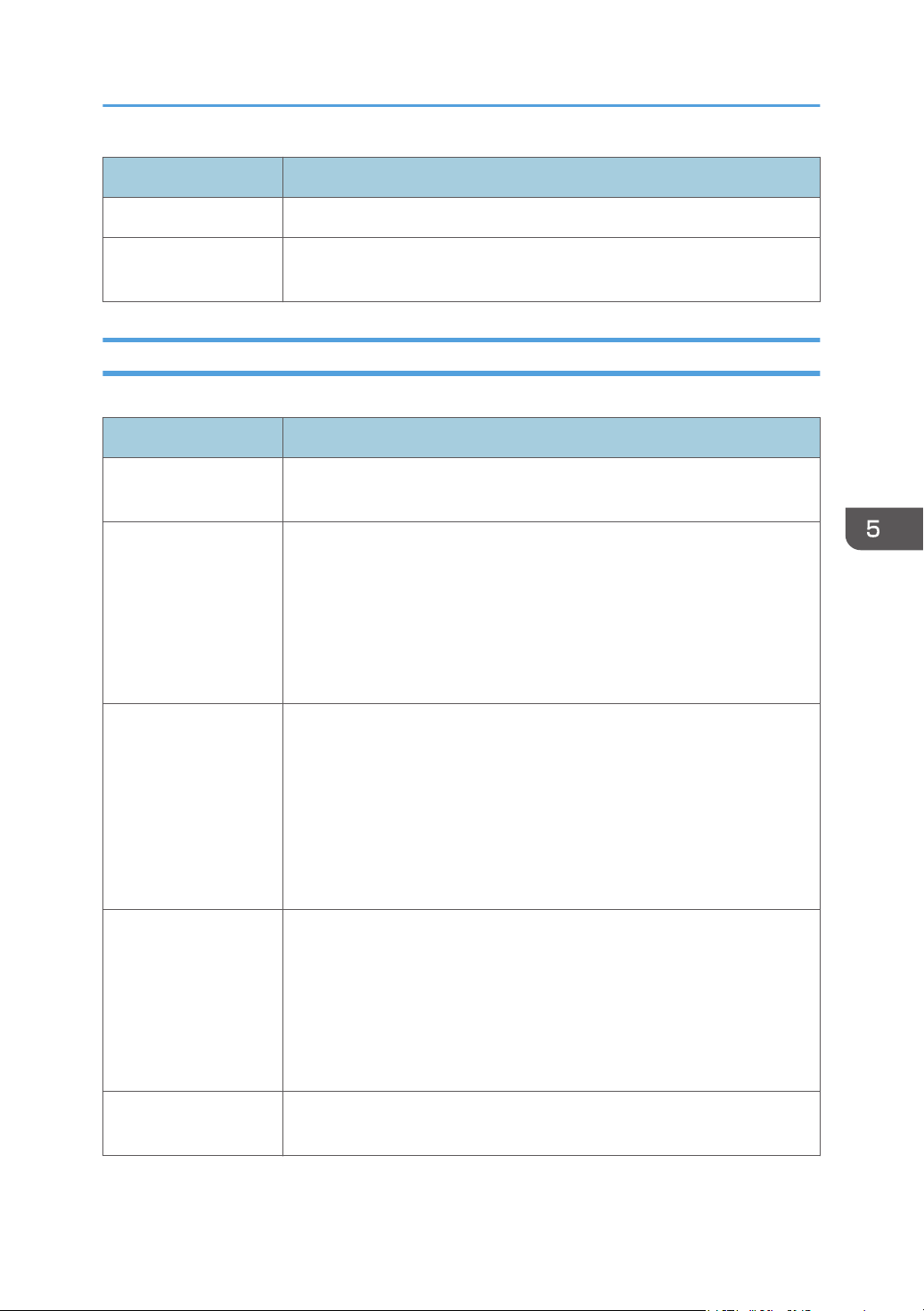
Item Description
SNMPv3 Account 2 Select either [User Account] or [Admin Account].
SNMPv3 Management
Host 2
Enter the IP address or host name of a management host. Can contain up to
64 characters.
SMTP Tab
SMTP
Item Description
Primary SMTP Server Enter the IP address or host name of the SMTP/POP3 server. Can contain
up to 64 characters.
Encryption Select the encryption method from among the items below.
[None]: Does not perform encryption.
[SSL/TLS]: Performs encryption from the start to end of SMTP
communications.
[STARTTLS]: Performs encryption from the middle of communication if
requested by the SMTP server.
Port No. Enter the port number for SMTP (1 to 65535).
• If [None] is selected for [Encryption], "25" automatically appears in
[Port No.].
• If [SSL/TLS] is selected for [Encryption], "465" automatically appears
in [Port No.].
• If [STARTTLS] is selected for [Encryption], "587" automatically
appears in [Port No.].
Authentication Method Select an authentication method from the following:
[Anonymous]: The user name and password are not necessary.
[SMTP]: The machine supports NTLM and LOGIN authentication.
[POP before SMTP]: The POP3 server is used for authentication. When
sending e-mails to an SMTP server, you can enhance the SMTP server
security level by connecting to the POP server for authentication.
User Name Enter the user name for logging in to the SMTP server. Can contain up to 32
characters.
Configuring the Network Settings
113
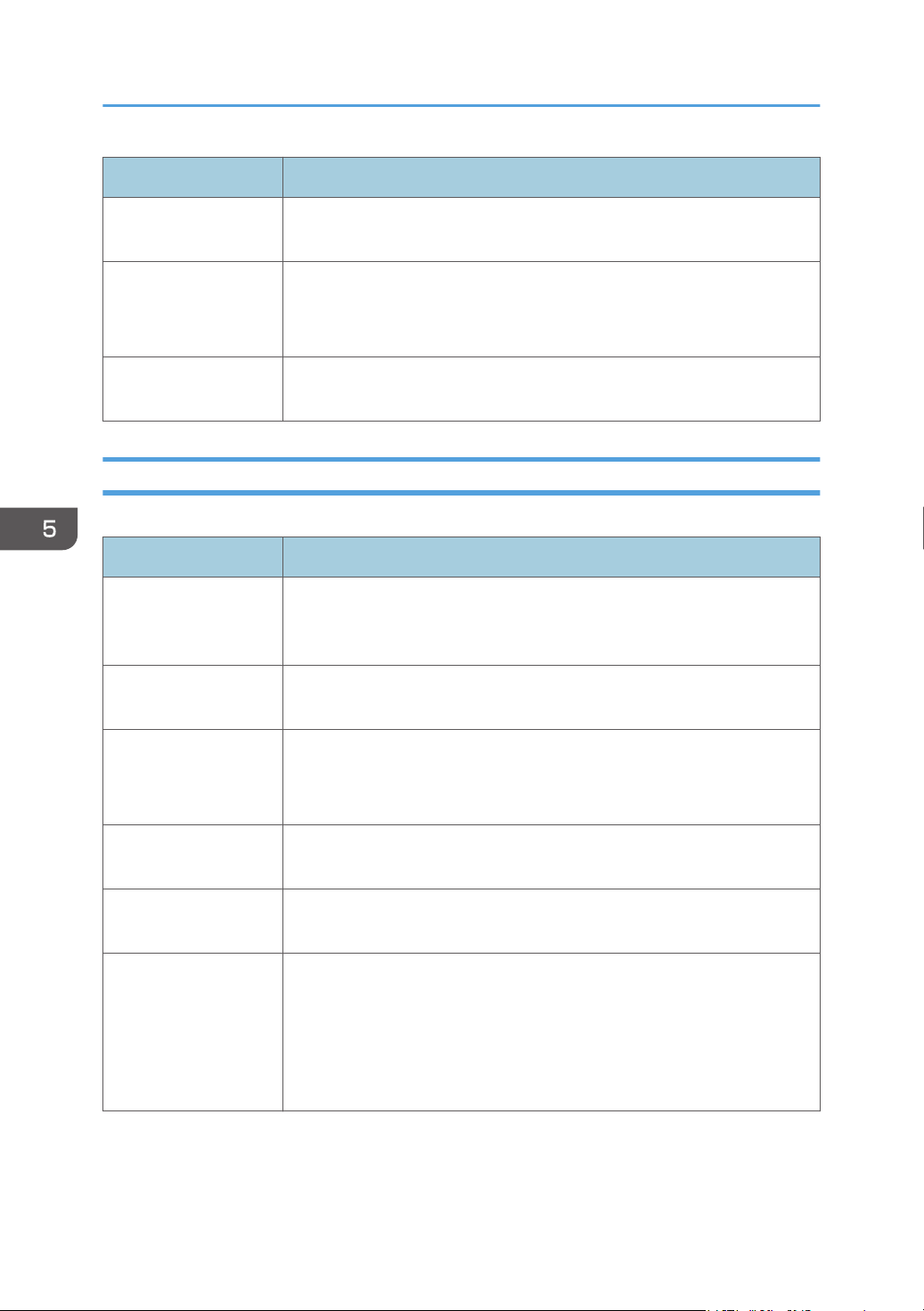
Item Description
Password Enter the password for logging in to the SMTP server. Can contain up to 32
characters.
Device E-mail Address Enter the machine’s e-mail address.
This address is used as the sender's address of e-mail messages sent from
this machine, such as notification e-mails. Can contain up to 64 characters.
Server Timeout
(seconds)
Enter the number of seconds the machine waits before considering an
SMTP operation to have timed out (1 to 999).
POP3 Tab
POP3 Settings
Item Description
POP3 Server Enter the IP address or host name of the POP3 server for e-mail reception.
The POP3 server specified here will be used for [POP before SMTP]. Can
contain up to 64 characters.
SSL/TLS Select whether or not to apply SSL/TLS encryption when receiving e-mails
from the POP3 server. Check the box to enable SSL/TLS.
Port No. Enter the port number for POP3 (1 to 65535).
If [SSL/TLS] is checked, Port 995 is automatically selected. (Otherwise, Port
110 is selected by default.)
User Account Enter the user name for logging in to the POP3 server. Can contain up to 32
characters.
User Password Enter the password for logging in to the POP3 server. Can contain up to 32
characters.
Authentication Select an authentication method from the following:
[None]: Password will not be encrypted.
[APOP Authentication]: Password will be encrypted.
[Auto]: Password will be encrypted or not encrypted according to the POP3
server’s settings.
5. Configuring the Machine Using Utilities
114

Wireless Tab
Wireless LAN Status
Item Description
Wireless LAN Status Displays the status of the connection to the wireless LAN.
MAC Address Displays the MAC address.
Communication Mode Displays the communication mode that the machine is connecting in.
SSID Displays the SSID of the access point that the machine is connected to.
Wireless Signal Status Displays the strength of the wireless signal that is being received.
Wireless Specifies whether or not to use the wireless LAN.
Wireless LAN Settings
Item Description
SSID Enter the SSID of the access point.
The SSID can contain up to 32 characters.
When you click [Scan List], a list of available access points is displayed.
You can select the SSID from the list.
Communication Mode [Infrastructure] is selected by default. Therefore, connect the machine to a
wireless router or access point.
Authentication Select an authentication method.
Encryption Select an encryption method.
WPA Passphrase If [WPA2-PSK] or [Mixed Mode WPA/WPA2] is selected for
[Authentication], enter the WPA encryption key.
WEP Key Length If [WEP] is selected for [Encryption], select 64 bits or 128 bits for the length
of the encryption key.
WEP Transmit Key ID Select an ID number to identify each WEP key in case multiple WEP
connections are configured.
WEP Key Format Select a format for entering the WEP key.
Configuring the Network Settings
115
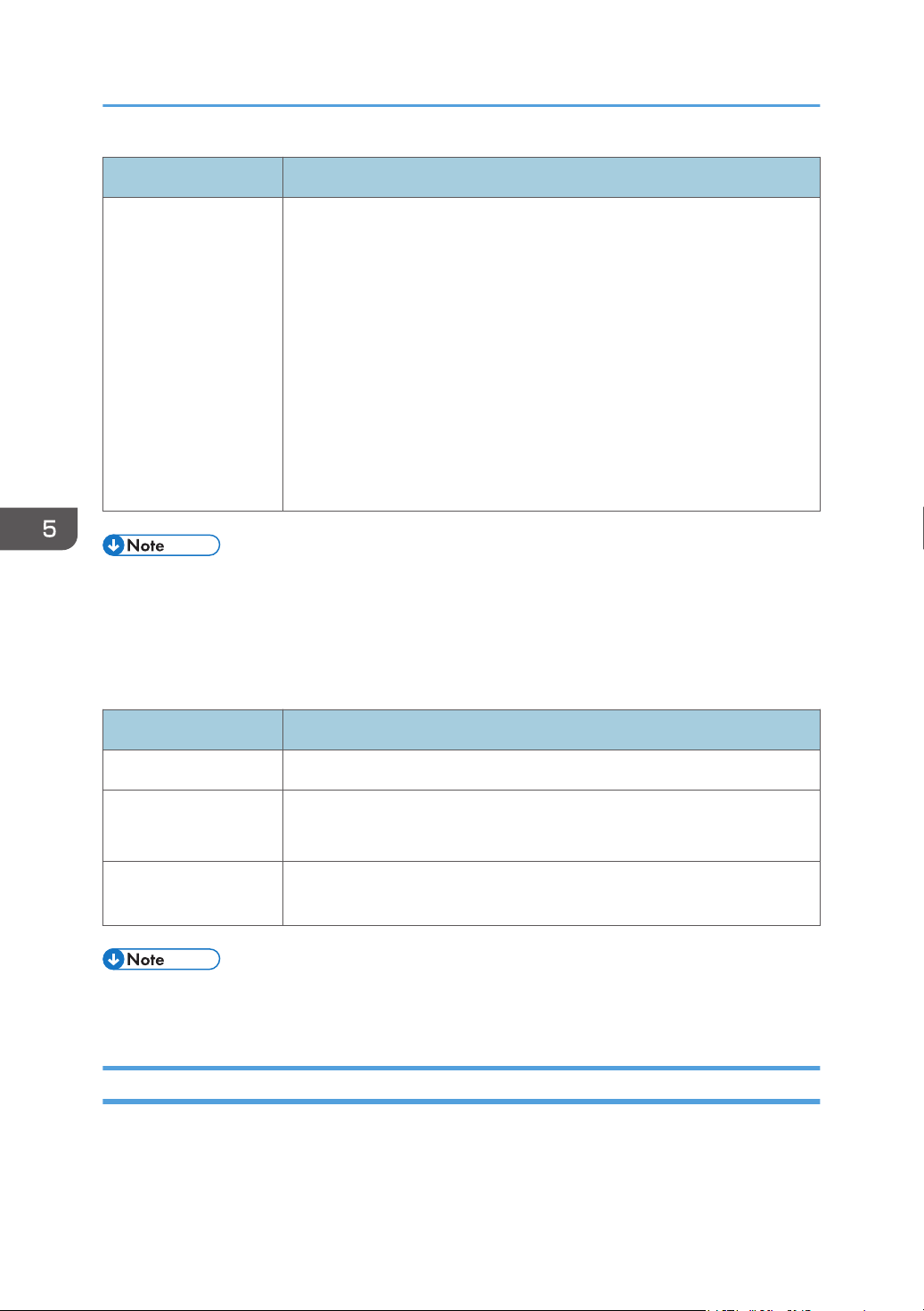
Item Description
WEP Key Enter the WEP key. The number and type of characters you can enter vary
depending on the length and format selected for the key. See the following:
• WEP key length: [64bit], Format: [Hexadecimal]
WEP key max length: 10 characters (0-9, A-F, a-f)
• WEP key length: [64bit], Format: [ASCII]
WEP key max length: 5 characters (0x20-0x7e)
• WEP key length: [128bit], Format: [Hexadecimal]
WEP key max length: 26 characters (0-9, A-F, a-f)
• WEP key length: [128bit], Format: [ASCII]
WEP key max length: 13 characters (0x20-0x7e)
• When [Wireless] is set to [Active], [Wireless LAN Settings] appears and you can change the
settings there.
• If you are configuring the connection settings manually, check the SSID, authentication method, or
encryption key of the access point or wireless router in advance.
Wi-Fi Direct Settings
Item Description
Wi-Fi Direct Type Select 2.4 GHz or 5 GHz as the wireless LAN frequency.
SSID Enter the SSID name.
The SSID can contain up to 32 characters.
WPA Passphrase Enter the passphrase for Wi-Fi Direct connection. You can enter 8 to 32
characters for a passphrase.
• When [Wireless] is set to [Active], [Wi-Fi Direct Settings] appears and you can change the settings
there.
Certificate Tab
You can use the following two types of certificates on this machine:
• Certificates created by the machine.
5. Configuring the Machine Using Utilities
116
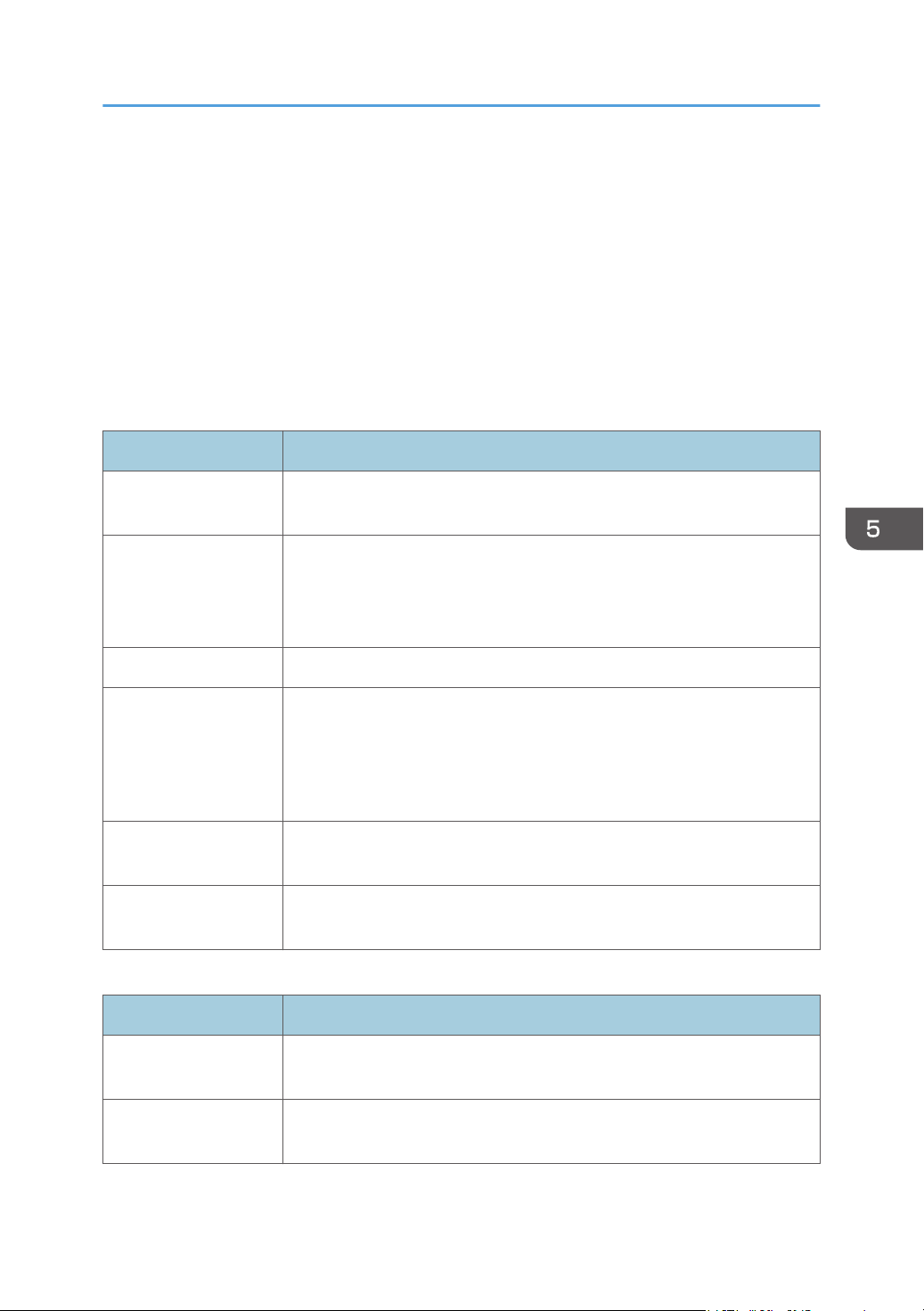
• Certificates issued by certification authorities.
You can install only one certificate on the machine.
If you execute [Create New Self-Signed Certificate], [Create Certificate Request], [Install Certificate], or
[Import Certificate and Private Key], the existing certificate on the machine is deleted.
Follow the procedure below to set items:
1. Check the item you want to set.
2. Enter the password.
3. Click [Next].
Certificate
Item Description
Create New Self-
Signed Certificate
Select this item to create a new self-signed certificate.
Create Certificate
Request
Select this item to request the certification authority to issue a new
certificate. You can submit a certificate created using this setting to the
certificate authority. Note that you cannot submit a certificate to the
certification authority directly via Web Image Monitor.
Install Certificate Select this item to install the certificate issued by the certification authority.
Import Certificate and
Private Key
Select this item to install the certificate created by the machine.
You can use certificates that are in the following formats:
• PEM
• PKCS12
Export Certificate Select this item to back-up the certificate installed on the machine. The
certificate is exported in PKCS12 format.
View Certificate Select this item to check details about the certificate that is installed on the
machine.
Create New Self-Signed Certificate
Item Description
Common Name
(Required)
Enter the common name of the certificate. The name can have up to 32
characters.
Organization
(Optional)
Enter the name of the organization requesting the certificate (company or
group name). The name can have up to 32 characters.
Configuring the Network Settings
117
Item Description
Organizational Unit
(Optional)
Enter the name of the department requesting the certificate (company or
group name). The name can have up to 32 characters.
City/Locality
(Optional)
Enter the name of the city or town where the machine is located. The name
can have up to 32 characters.
State/Province
(Optional)
Enter the name of the state or province where the machine is located. The
name can have up to 32 characters.
Country/Region
(Optional)
Enter the two-character country/region for where the machine is located.
Validity Period (days)
(Required)
Enter the four-digit validity period. For example, if the validity period is a
year, enter "0365".
Signature Algorithm Select the signature algorithm from the following:
[RSA (1024bit)], [RSA (2048bit)], [ECDSA]
Create Certificate Request
Item Description
Common Name
(Required)
Enter the common name of the certificate. The name can have up to 32
characters.
Organization
(Optional)
Enter the name of the organization requesting the certificate (company or
group name). The name can have up to 32 characters.
Organizational Unit
(Optional)
Enter the name of the department requesting the certificate (company or
group name). The name can have up to 32 characters.
City/Locality
(Optional)
Enter the name of the city or town where the machine is located. The name
can have up to 32 characters.
State/Province
(Optional)
Enter the name of the state or province where the machine is located. The
name can have up to 32 characters.
Country/Region
(Optional)
Enter the two-character country/region for where the machine is located.
Signature Algorithm Select the signature algorithm from the following:
[RSA (1024bit)], [RSA (2048bit)], [ECDSA]
5. Configuring the Machine Using Utilities
118
Install Certificate
Item Description
File Name Click [Browse...], and then select the certificate to install.
Import Certificate and Private Key
Item Description
File Name Click [Browse...], and then select the certificate to install.
Password Enter the password of the private key.
Export Certificate
Item Description
Password Enter the password of the private key. The password has 4 to 32
characters.
Confirm Password Enter the same password as for [Password].
View Certificate
Show the installed certificates.
Configuring the Network Settings
119
Configuring the IPsec Settings
Click [IPsec Settings] to display the page for configuring the IPsec settings.
This page contains the following tabs: [IPsec Global Settings] and [IPsec Policy List].
• This function is available only when an administrator password is specified.
IPsec Global Settings Tab
Item Description
IPsec Function Select whether to enable or disable IPsec.
Default Policy Select whether to allow for the default IPsec policy.
Broadcast and
Multicast Bypass
Select the services that you do not want to apply IPsec from the following:
[DHCPv4], [DHCPv6], [SNMP], [mDNS], [NetBIOS], [UDP Port 53550]
All ICMP Bypass Select whether to apply IPsec to ICMP packets (IPv4 and IPv6) from the
following:
[Active]: All ICMP packets will be bypassed without IPsec protection.
"ping" command (echo request and echo reply) is not encapsulated by
IPsec.
[Inactive]: Some ICMP message types will be bypassed without IPsec
protection.
IPsec Policy List Tab
Item Description
No. IPsec policy number.
Name Displays the name of the IPsec policy.
Address Settings Displays the IP address filter of the IPsec policy as below:
Remote address/Prefix length
Action Displays the action of the IPsec policy as "Allow", "Drop", or "Require
Security".
5. Configuring the Machine Using Utilities
120
Item Description
Status Displays the status of the IPsec policy as "Active" or "Inactive".
To configure IPsec policies, select the desired IPsec policy, and then click [Change] to open the "IPsec
Policy Settings" page. The following settings can be made on the "IPsec Policy Settings" page.
IP Policy Settings
Item Description
No. Specify a number between 1 and 10 for the IPsec policy. The number you
specify will determine the position of the policy in the IPsec Policy List. Policy
searching is performed according to the order of the list. If the number you
specify is already assigned to another policy, the policy you are
configuring will take the number of the earlier policy, and the earlier policy
and any subsequent policies will be renumbered accordingly.
Activity Select whether to enable or disable the policy.
Name Enter the name of the policy. Can contain up to 16 characters.
Address Type Select IPv4 or IPv6 as the type of IP address to be used in IPsec
communication.
Local Address Displays the IP address of this printer.
Remote Address Enter the IPv4 or IPv6 address of the device with which to communicate.
Can contain up to 39 characters.
Prefix Length Enter the prefix length of the Remote Address, using a value between 1 and
128. If this setting is left blank, "32" (IPv4) or "128" (IPv6) will be
automatically selected.
Action Specify how the IP packets are processed from the following:
• [Allow]: IP packets are both sent and received without IPsec applied to
them.
• [Drop]: IP packets are discarded.
• [Require Security]: IPsec is applied to IP packets that are both sent and
received.
If you have selected [Require Security], you must configure [IPsec Settings]
and [IKE Settings].
Configuring the IPsec Settings
121
IPsec Settings
Item Description
Encapsulation Type Specify the encapsulation type from the following:
• [Transport]: Select this mode to secure only the payload section of
each IP packet when communicating with IPsec compliant devices.
• [Tunnel]: Select this mode to secure every section of each IP packet.
We recommend this type for communication between security
gateways (such as VPN devices).
Security Protocol Select the security protocol from the following:
• [AH]: Establishes secure communication that supports authentication
only.
• [ESP]: Establishes secure communication that supports both
authentication and data encryption.
• [ESP&AH]: Establishes secure communication that supports both data
encryption and authentication of packets, including packet headers.
Note that you cannot specify this protocol when [Tunnel] is selected
for [Encapsulation Type].
Authentication
Algorithm for AH
Specify the authentication algorithm to be applied when [AH] or [ESP&AH]
is selected for [Security Protocol] from the following:
[MD5], [SHA1]
Encryption Algorithm
for ESP
Specify the encryption algorithm to be applied when [ESP] or [ESP&AH] is
selected for [Security Protocol] from the following:
[None], [DES], [3DES], [AES-128], [AES-192], [AES-256]
Authentication
Algorithm for ESP
Specify the authentication algorithm to be applied when [ESP] is selected
for [Security Protocol] from the following:
[MD5], [SHA1]
5. Configuring the Machine Using Utilities
122
Item Description
Life Time Specify the life time of the IPsec SA (Security Association) as a time period
or data volume. The SA will expire when the time period you specify
elapses or the volume of data you specify reaches the volume carried.
If you specify both a time period and a data volume, the SA will expire as
soon as either is reached, and a new SA will then be obtained by
negotiation.
To specify the life time of the SA as a time period, enter a number of
seconds (300-172800).
To specify the life time of the SA as a data volume, enter a number of KBs
(20480-2147483647).
Key Perfect Forward
Secrecy
Select whether to enable or disable PFS (Perfect Forward Secrecy).
IKE Settings
Item Description
IKE Version Displays the IKE version.
Encryption Algorithm Specify the encryption algorithm from the following:
[DES], [3DES], [AES-128], [AES-192], [AES-256]
Authentication
Algorithm
Specify the authentication algorithm from the following:
[MD5], [SHA1]
IKE Life Time Specify the life time of the ISAKMP SA as a time period. Enter a number of
seconds (300-172800).
IKE Diffie-Hellman
Group
Select the IKE Diffie-Hellman Group to be used in the generation of the IKE
encryption key from the following:
[DH1], [DH2]
Pre-Shared Key Specify the PSK (Pre-Shared Key) to be used for authentication of a
communicating device. Can contain up to 32 characters.
Key Perfect Forward
Secrecy
Select whether to enable or disable PFS (Perfect Forward Secrecy).
Configuring the IPsec Settings
123
Printing Lists/Reports
Click [Print List/Report] to display the page for printing reports. Then, select an item and click [Print] to
print out information for that item.
Print List/Report
Item Description
Configuration Page Prints general information about the machine and its current configuration.
Test Page Prints a test page for checking the printing condition.
PCL Font List Prints the current configuration and installed PCL font list.
PS Font List Prints the current configuration and installed PostScript font list.
Maintenance Page Prints the maintenance page.
• Reports cannot be printed via Web Image Monitor if other jobs are printing. Before printing
reports, confirm that machine is not printing.
• Reports will be printed on A4 or Letter size paper. Load one of these sizes of paper into the tray
before printing reports.
5. Configuring the Machine Using Utilities
124
Configuring the Administrator Settings
Click [Administrator Tools] to display the page for configuring the administrator settings.
This page contains the following tabs: [Administrator], [Reset Settings], [Backup Setting], [Restore
Setting], and [Energy Saver Mode].
Administrator Tab
Administrator Settings
Item Description
New Password Enter the new administrator password. Can contain up to 16 characters.
Confirm New Password Enter the same password again, to confirm.
• To change the password, it is necessary to enter the current password.
• The password must be specified during the Initial Setup, which is required after turning on the
machine for the first time. For details, see Setup Guide. Note that the password is cleared when the
settings are reset.
Reset Settings Tab
Reset Settings
Item Description
Reset Network Settings Select to clear the settings configured under the [Network Settings].
Reset Menu Settings Select to clear the settings that are not related to the network to their
defaults.
Reset Settings of
Available Functions
Select to clear the user restriction settings.
Reset IPsec Settings Select to clear the IPsec settings.
• [Reset IPsec Settings] appears only when the administrator password is specified.
Configuring the Administrator Settings
125
Backup Setting Tab
• When sending the machine for repair, it is important that you create backup files in advance. The
machine's settings are returned to the default after repair.
Backup Setting
Item Description
Back up Network
Settings
Backs up settings configured under the [Network Settings].
Back up Menu Settings Backs up settings that are not related to the network.
Back up Settings of
Available Functions
Backs up user restriction settings to a file.
Back up IPsec Settings Backs up the IPsec settings to a file.
Follow the procedure below to create configuration backup files.
1. Select the radio button for the type of data you wish to back up.
2. Enter the administrator password.
3. Click [OK].
4. Click [Save] in the confirmation dialog box.
5. Navigate to the location to save the backup file.
6. Specify a name for the file, and click [Save].
• [Back up IPsec Settings] appears only when the administrator password is specified.
Restore Setting Tab
• When the machine is returned from repair, it is important that you restore the machine's settings
from the backup files. The machine's settings are returned to the default after repair.
5. Configuring the Machine Using Utilities
126
Restore Setting
Item Description
File to Restore Enter the path and name of the file to restore, or click [Browse...] to select
the file.
Follow the procedure below to restore configuration backup files.
1. Click [Browse...].
2. Navigate to the directory containing the backup file to restore.
3. Select the backup file, and click [Open].
4. Enter the administrator password.
5. Click [OK].
• If the settings are not restored successfully, an error message appears. Try again to restore the file
completely.
Energy Saver Mode Tab
Energy Saver Mode
Item Description
Energy Saver Mode 1 Select [Active] to set the machine to enter Energy Saver Mode 1 if the
machine has been idle for about 30 seconds.
It takes less time to recover from Energy Saver Mode 1 than from power-off
state or Energy Saver Mode 2, but power consumption is higher in Energy
Saver Mode 1 than in Energy Saver Mode 2.
Energy Saver Mode 2 Set the machine to enter Energy Saver Mode 2 after the period of time
specified for [Waiting Time (1 min. - 60 min.)] is passed (1 to 60 minutes).
The machine consumes less power in Energy Saver Mode 2 than in Energy
Saver Mode 1, but it takes longer to recover from Energy Saver Mode 2
than from Energy Saver Mode 1.
• The printer recovers from Energy Saver mode when it receives a print job or when any key on the
machine is pressed.
Configuring the Administrator Settings
127

5. Configuring the Machine Using Utilities
128
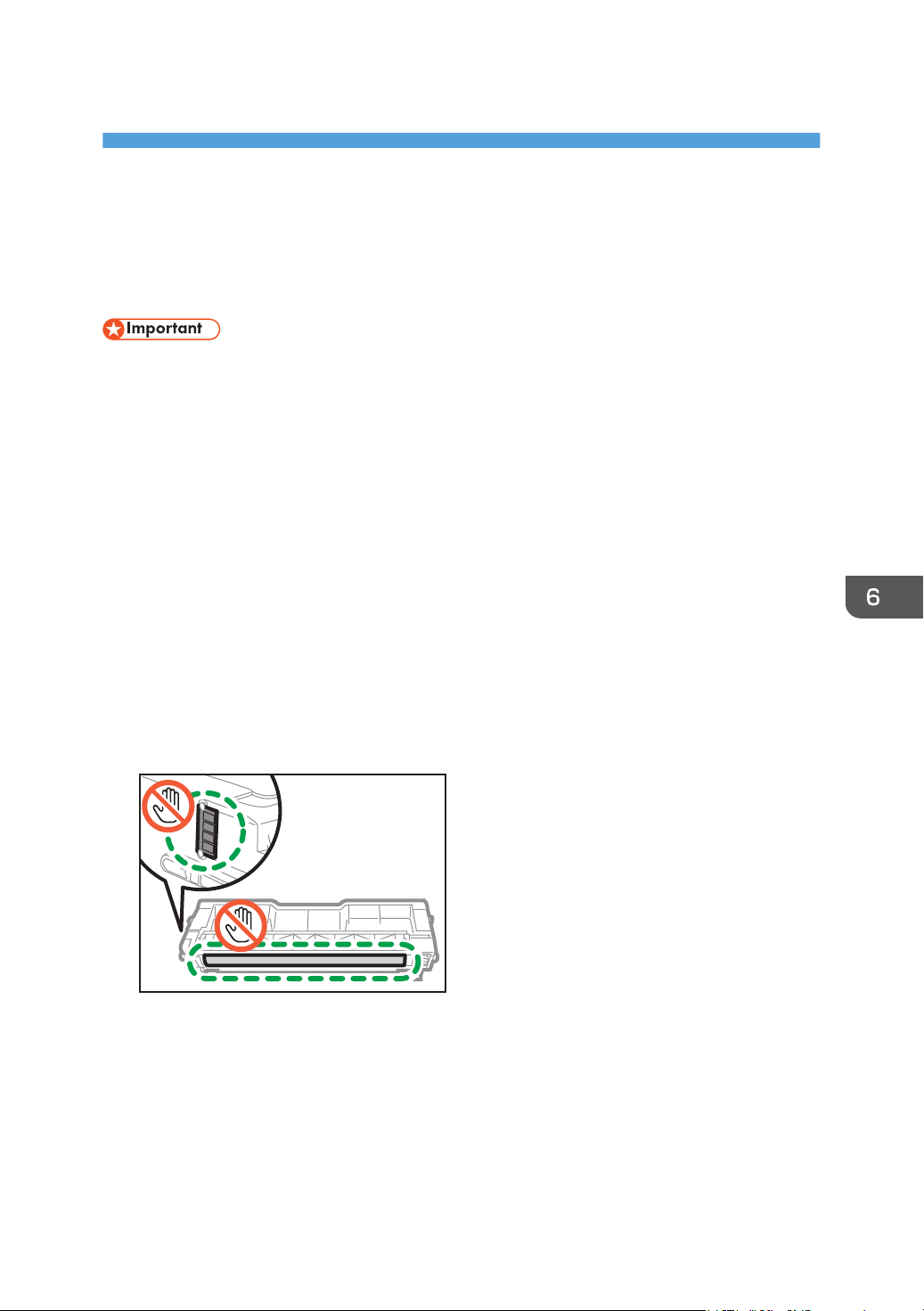
6. Maintaining the Machine
This chapter describes how to replace supplies and how to clean the machine.
Replacing the Print Cartridge
• Store print cartridge in a cool dark place.
• Actual printable numbers vary depending on image volume and density, number of pages printed
at a time, paper type and size, and environmental conditions such as temperature and humidity.
Toner quality degrades over time. Early replacement of the print cartridge might be necessary.
Therefore, we recommend you always keep a new print cartridge ready.
• For good print quality, the manufacturer recommends that you use genuine toner from the
manufacturer.
• The manufacturer shall not be responsible for any damage or expense that might result from the use
of parts other than genuine parts from the manufacturer with your office products.
• When the toner runs out, pressing the [Stop/Start] key allows you to print a few more pages, but
the print quality of those pages may be lower.
• Do not allow paper clips, staples, or other small objects to fall inside the machine.
• Do not expose the print cartridge without its cover to direct sunlight for a long time.
• Do not touch the print cartridge's photo conductor unit and the ID chip on the side of the print
cartridge as indicated in the illustration below.
ECC072
• When removing print cartridges, be careful not to touch the laser scanning unit under the upper
cover (the position shown by the arrow in the illustration below).
129
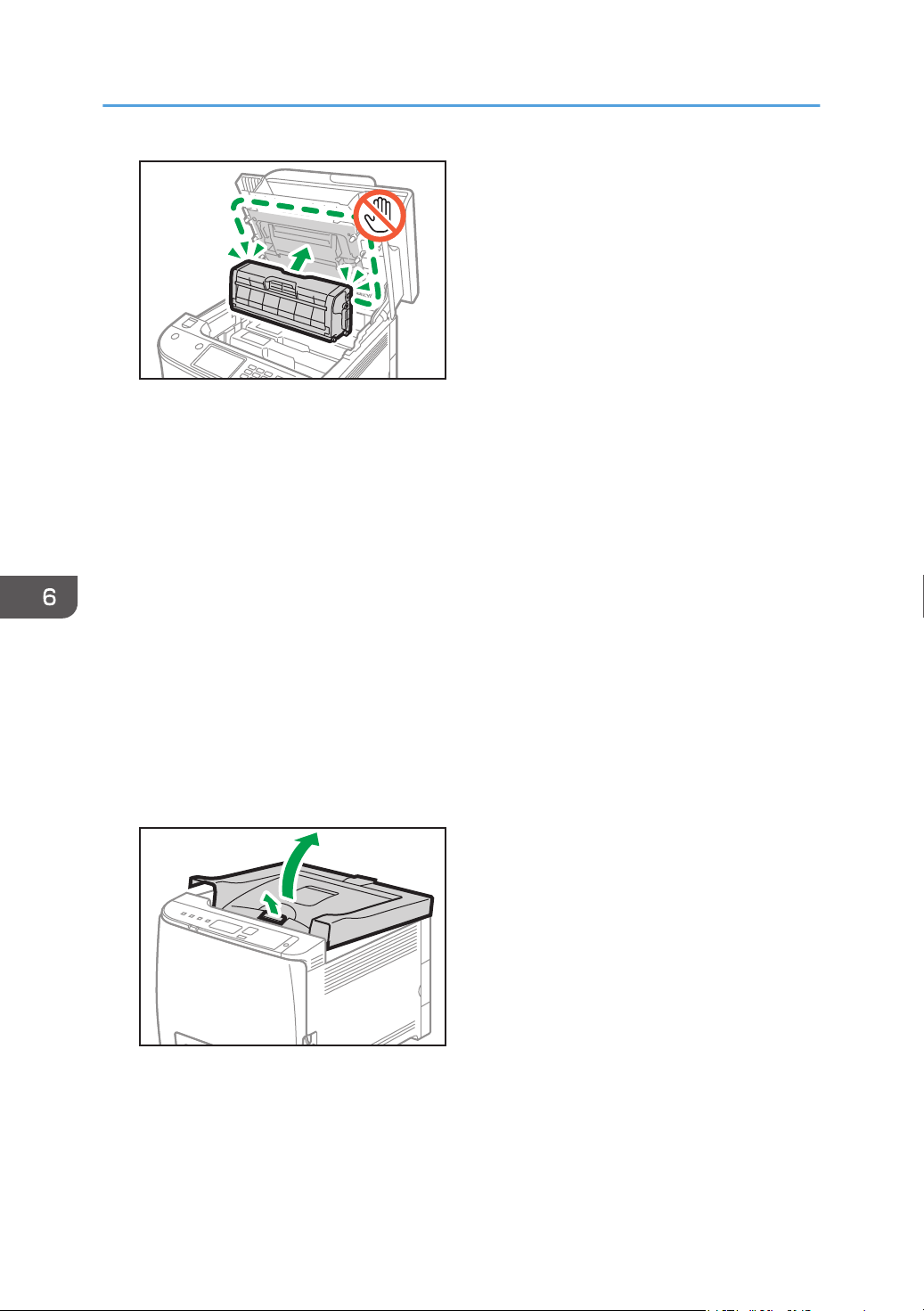
ECC129
• If cyan, magenta, or yellow toner runs out, you can print in black and white using just the black
toner. Change the color mode setting to Black and White using the machine's driver.
• If black toner runs out, you cannot print in black and white or color until the black print cartridge is
replaced.
Messages on the screen
• Replace the indicated print cartridge when any of the following messages appear on the
screen:
"Replace Print Cartridge" (X)
("X" indicates the toner color)
• Prepare the indicated print cartridge when any of the following messages appear on the
screen:
"Replace Required Soon: Print Cartridge" (X)
("X" indicates the toner color)
1. Pull up the lever on the top cover, and then carefully raise the top cover.
ECB107
2. Carefully lift out the print cartridge vertically, holding its center.
From the rear, the print cartridges are installed in the order of cyan (C), magenta (M), yellow (Y),
and black (K).
6. Maintaining the Machine
130
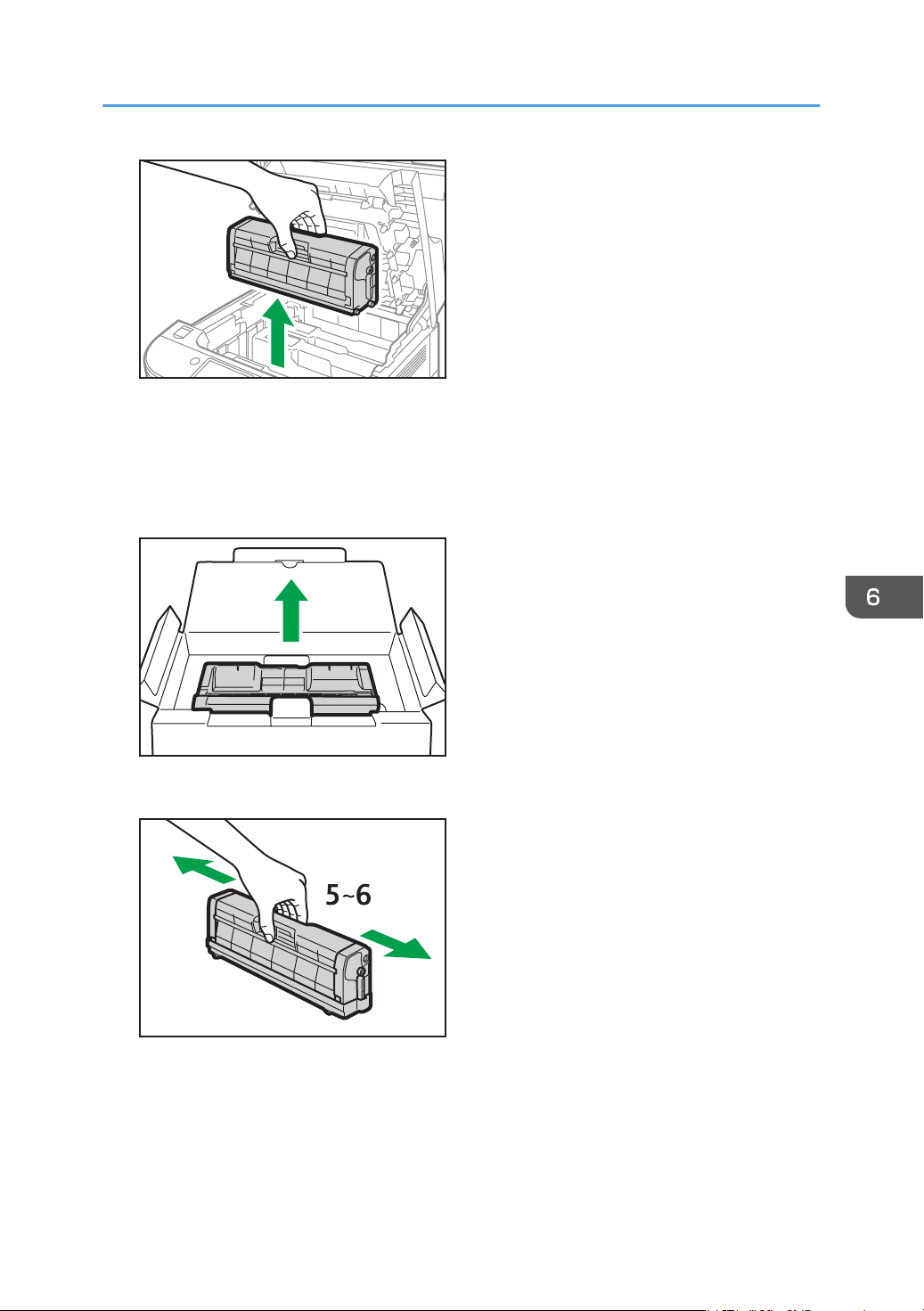
ECC167
• Do not shake the removed print cartridge. Doing so can cause remaining toner to leak.
• Place the old print cartridge on paper or similar material to avoid dirtying your workspace.
• The toner color is indicated by the label on each print cartridge.
3. Take the new print cartridge out of the box, and then take it out of the plastic bag.
DUE260
4. Hold the print cartridge and shake it from side to side five or six times.
ECC130
Even distribution of toner within the bottle improves print quality.
Replacing the Print Cartridge
131
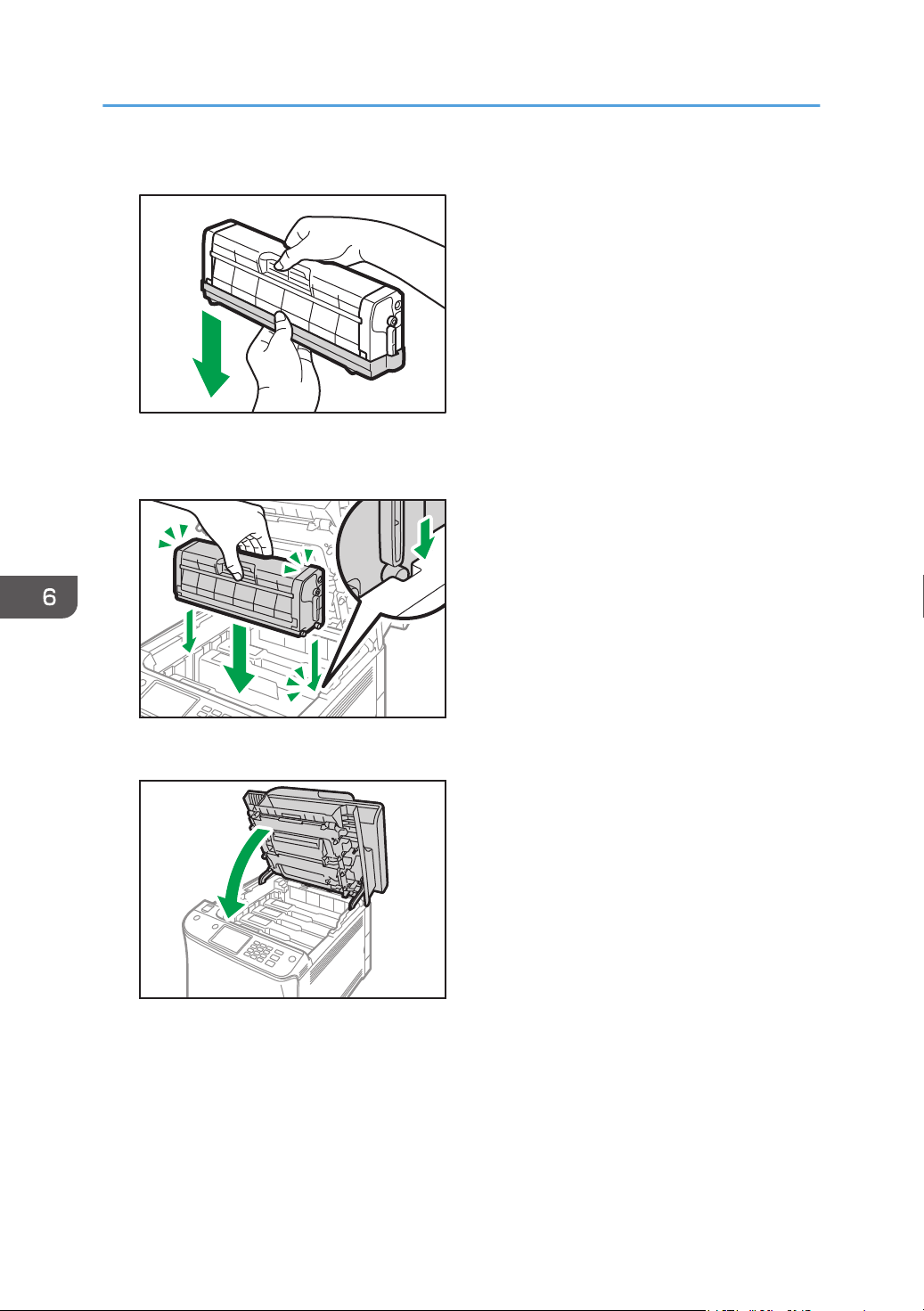
5. Remove the protective cover from the print cartridge.
ECC131
6. Check the toner color and corresponding location, and then carefully insert the print
cartridge vertically.
ECC132
7. Using both hands, hold the center of the top cover and close the cover carefully.
ECC133
6. Maintaining the Machine
132
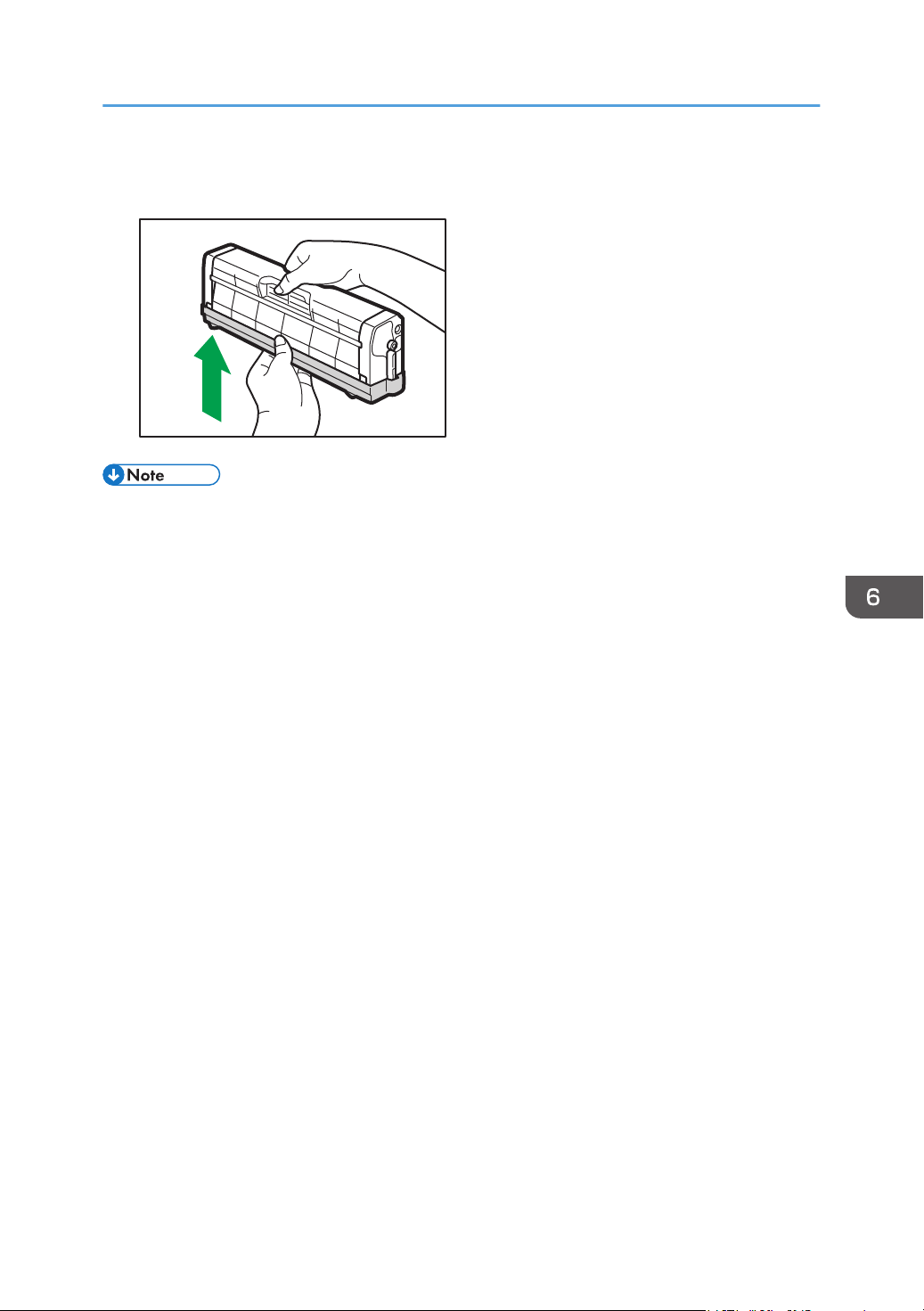
8. Attach the protective cover you removed in Step 5 on the old print cartridge. Then, put the
old print cartridge into the bag, and then put it into the box.
ECC134
• Make sure to cover the old print cartridge with the protective cover for recycling and environmental
purposes.
• Please see our local company website for information on the recycling of supply products, or you
can recycle items according to the requirements of your local municipalities or private recyclers.
Replacing the Print Cartridge
133
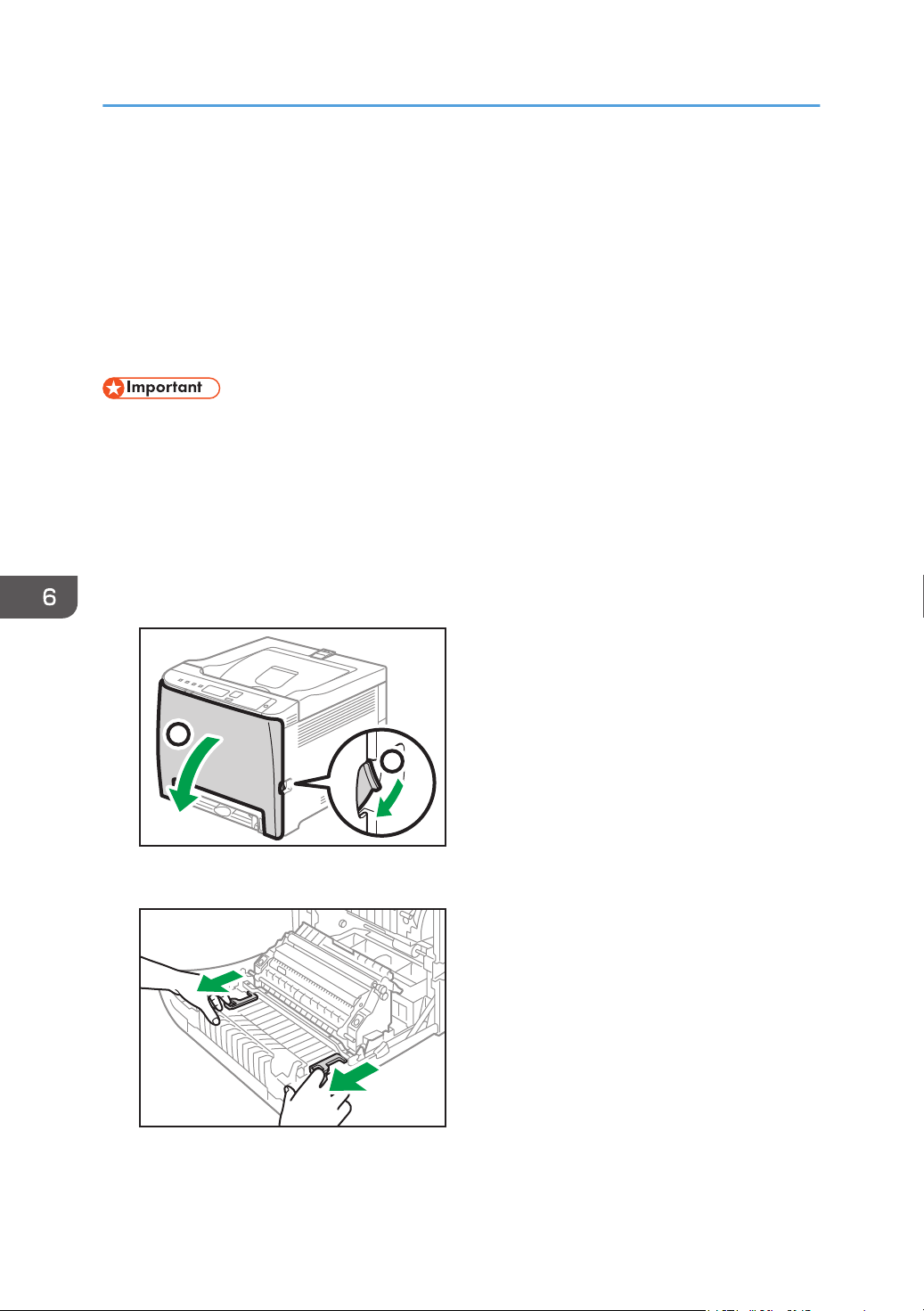
Replacing the Waste Toner Bottle
Messages on the screen
• Replace the waste toner bottle when the following message appears on the screen:
"Rep.Req:Wst.Tnr.Btl"
• Prepare a waste toner bottle when the following message appears on the screen:
"Replace Required Soon: Waste Toner Bottle"
• Waste toner bottles cannot be reused.
• When removing the waste toner bottle, make sure not to tilt it.
• Make sure the transfer unit is installed. If the transfer unit is not installed, install it before turning on
the power.
• Before removing the waste toner bottle from the machine, spread paper or similar material around
the area to keep toner from dirtying your workspace.
1. Pull the front cover open lever and then carefully lower the front cover.
ECB108
2
1
2. Slide the lever in front of the transfer unit forward.
ECC135
6. Maintaining the Machine
134
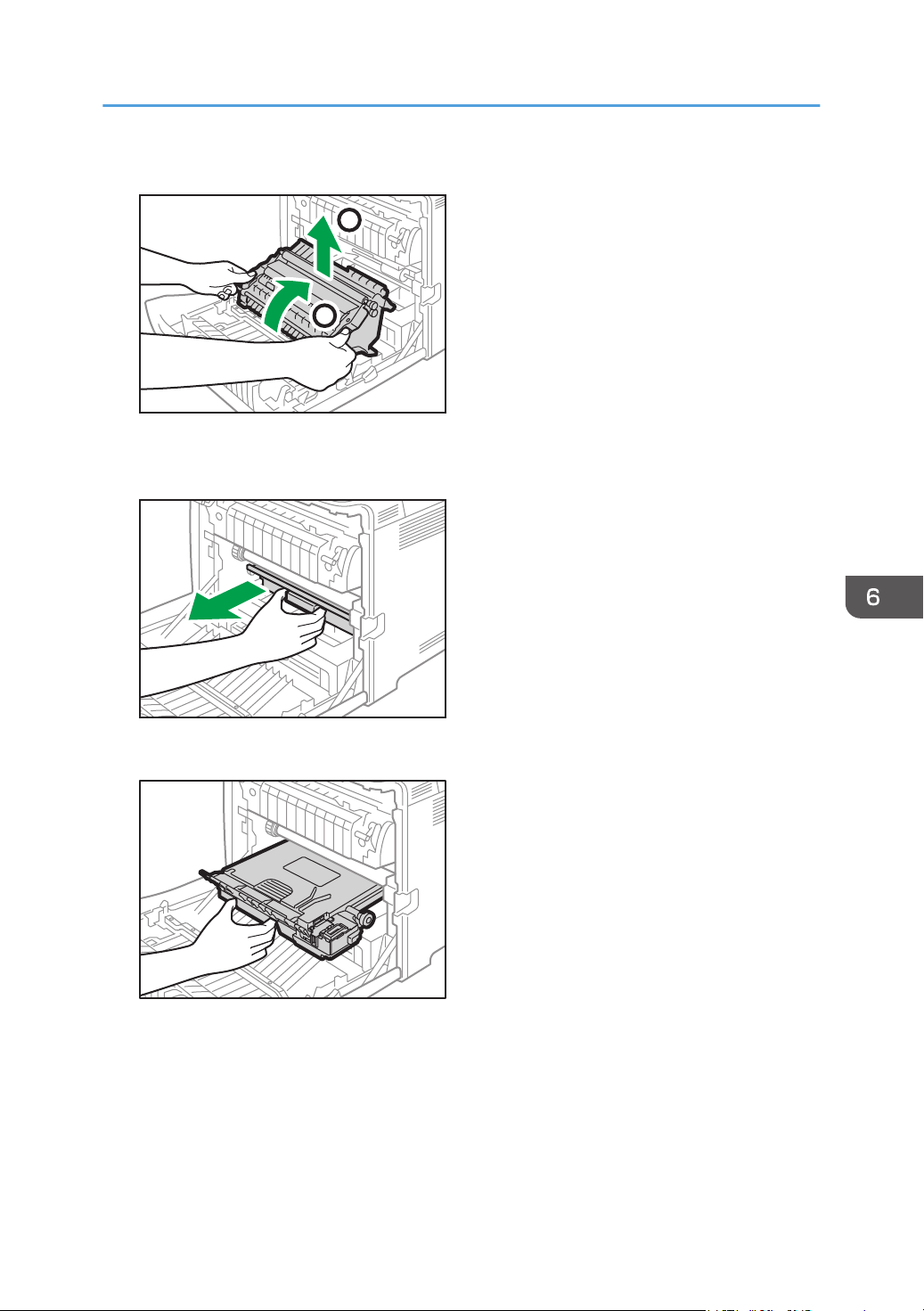
3. Holding the tabs on both ends of the transfer unit, tilt it backwards and lift it up.
2
1
ECC136
4. Holding the handle at the center of the waste toner bottle, carefully pull it partially out
without tilting it.
ECC137
5. Pull the waste toner bottle halfway out, hold the bottle firmly, and then pull it straight out.
ECC138
Replacing the Waste Toner Bottle
135
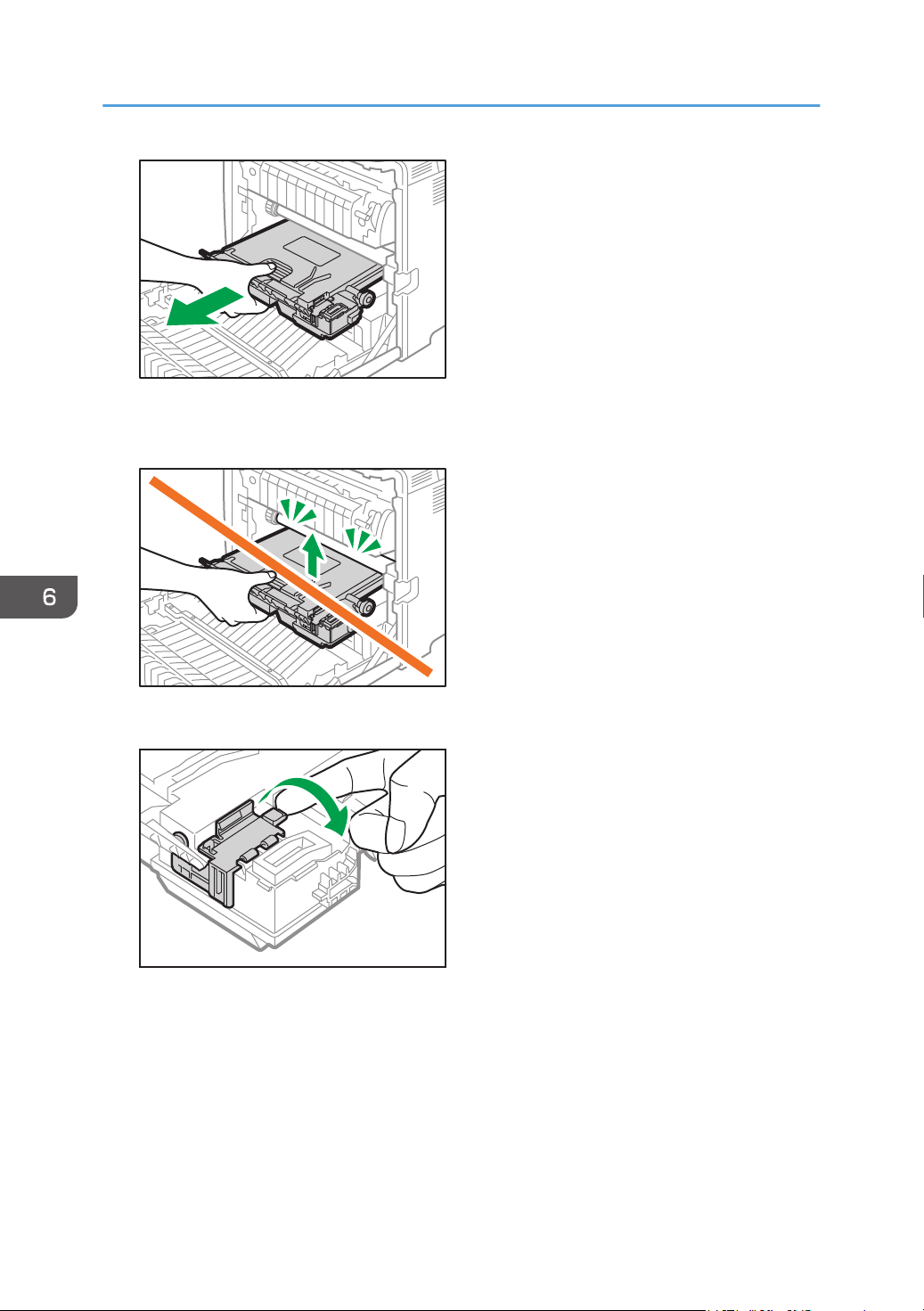
ECC139
To prevent the waste toner bottle from coming into contact with the intermediate transfer unit (the
position shown by the arrow in the illustration below), do not lift the bottle while pulling it out.
ECC140
6. Close the bottle cap.
ECC141
6. Maintaining the Machine
136
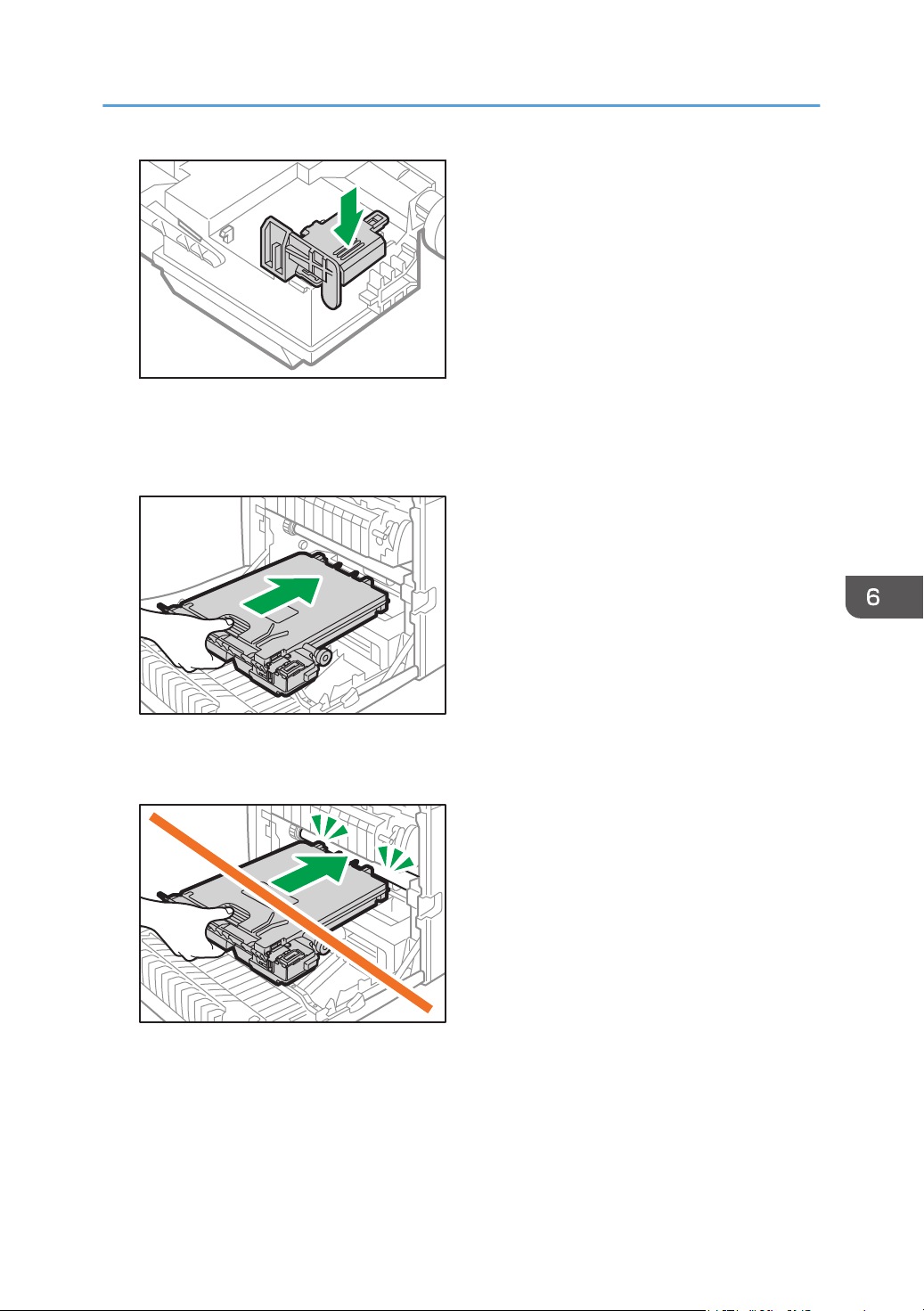
ECC142
7. Holding the center of the new waste toner bottle, carefully insert it halfway into the
machine body.
Leave the bottle cap open.
ECC143
To prevent the waste toner bottle from coming into contact with the intermediate transfer unit (the
position shown by the arrow in the illustration below), do not lift the bottle while inserting it.
ECC144
8. Push in the waste toner bottle until it clicks.
Pressing the handle at the center, push the bottle all the way in.
Replacing the Waste Toner Bottle
137
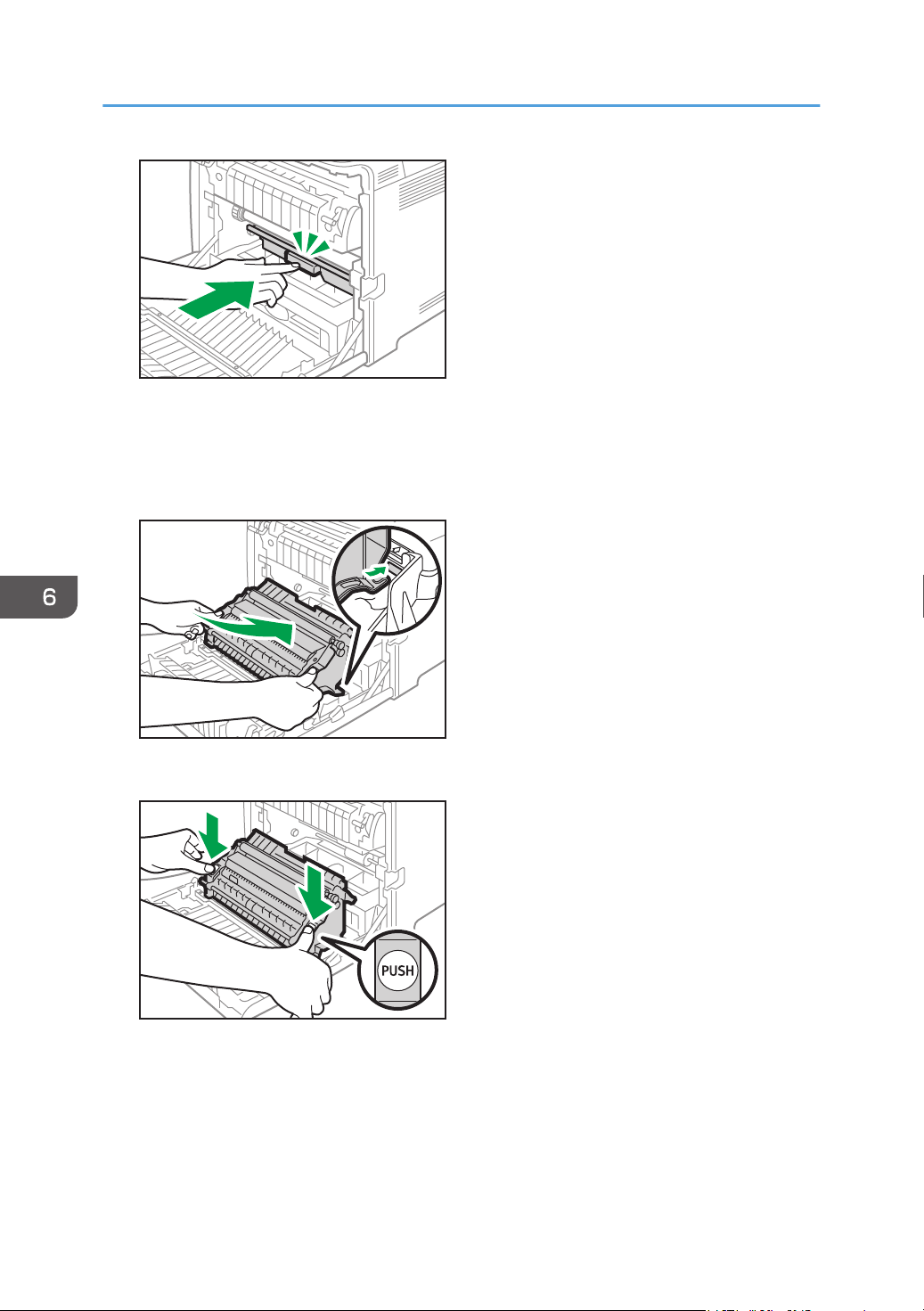
ECC145
9. Place the transfer unit on the front cover. Slide the transfer unit along the guide rails into
the machine.
Do not manually operate the pressure lever, because pressuring and depressing are interlocked
with the front cover's position.
ECC146
10. When it stops, push on the PUSH mark until it clicks.
ECC147
6. Maintaining the Machine
138
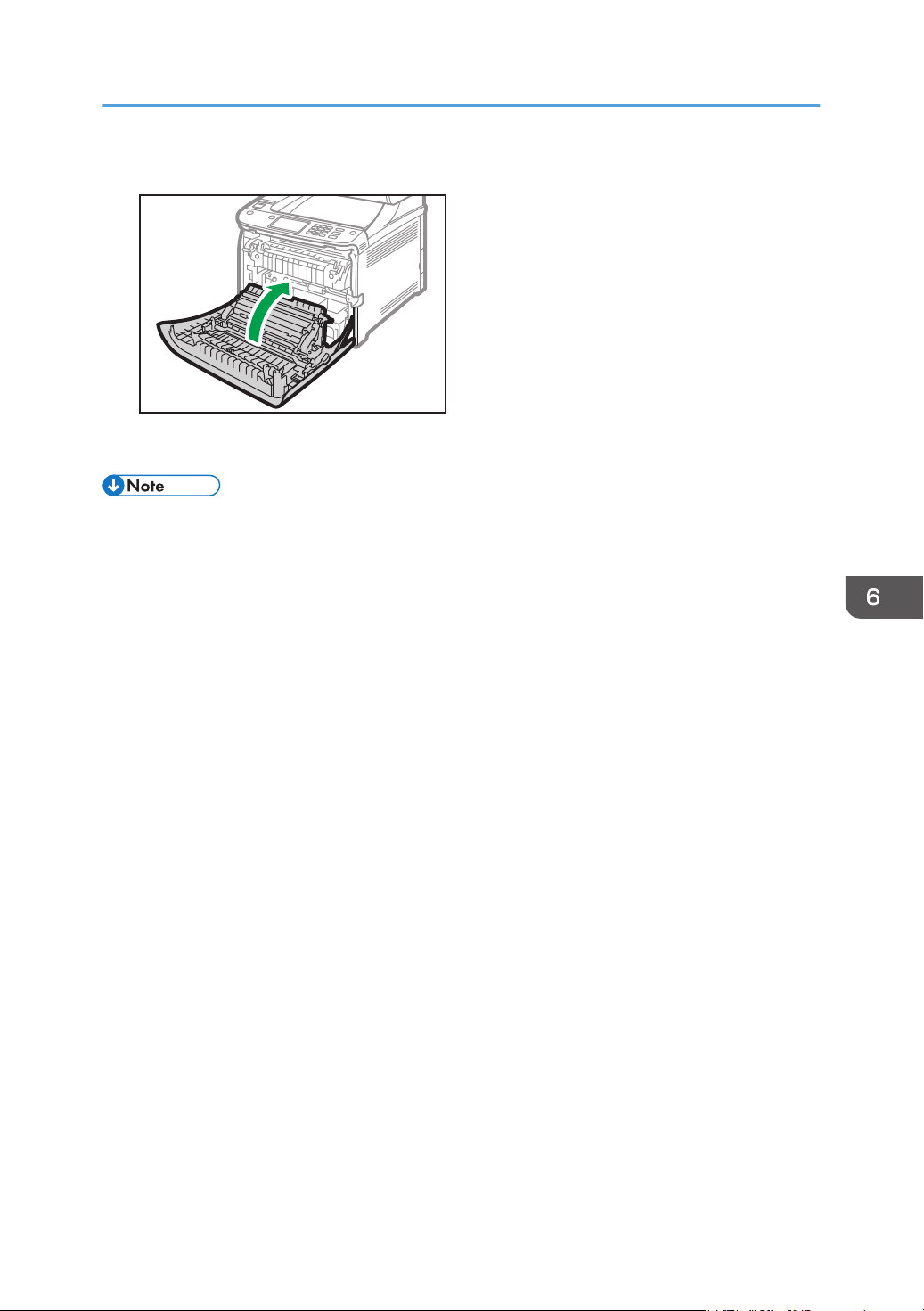
11. Using both hands, carefully push up the front cover until it closes.
ECC117
When closing the front cover, push the upper area of the cover firmly.
• For easy replacement, we recommend you purchase and store extra waste toner bottles.
• Comply with the waste toner bottle recycling program, whereby used waste toner bottles are
collected for processing. For details, ask your sales or service representative.
Replacing the Waste Toner Bottle
139

Replacing a Component
Replacing the Intermediate Transfer Unit
If the Alert indicator on the control panel lights up and the "Replacement Required: Intermediate Transfer
Unit" message appears on the display, contact your sales or service representative.
Replacing the Fusing Unit and Transfer Roller
If the Alert indicator on the control panel lights up and the "Replace Fusing Unit" or "Replace Transfer
Roller" message appears on the display, contact your sales or service representative.
6. Maintaining the Machine
140

Cautions When Cleaning
Clean the machine periodically to maintain high print quality.
Dry wipe the exterior with a soft cloth. If dry wiping is not sufficient, wipe with a soft, damp cloth that has
been wrung out thoroughly. If you still cannot remove the stain or grime, use a neutral detergent, wipe
over the area with a thoroughly-wrung damp cloth, and then dry wipe the area and allow it to dry.
• To avoid deformation, discoloration, or cracking, do not use volatile chemicals, such as benzine
and thinner, or spray insecticide on the machine.
• If there is dust or grime inside the machine, wipe with a clean, dry cloth.
• You must disconnect the plug from the wall outlet at least once a year. Clean away any dust and
grime from the plug and outlet before reconnecting. Accumulated dust and grime pose a fire
hazard.
• Do not allow paper clips, staples, or other small objects to fall inside the machine.
Cautions When Cleaning
141
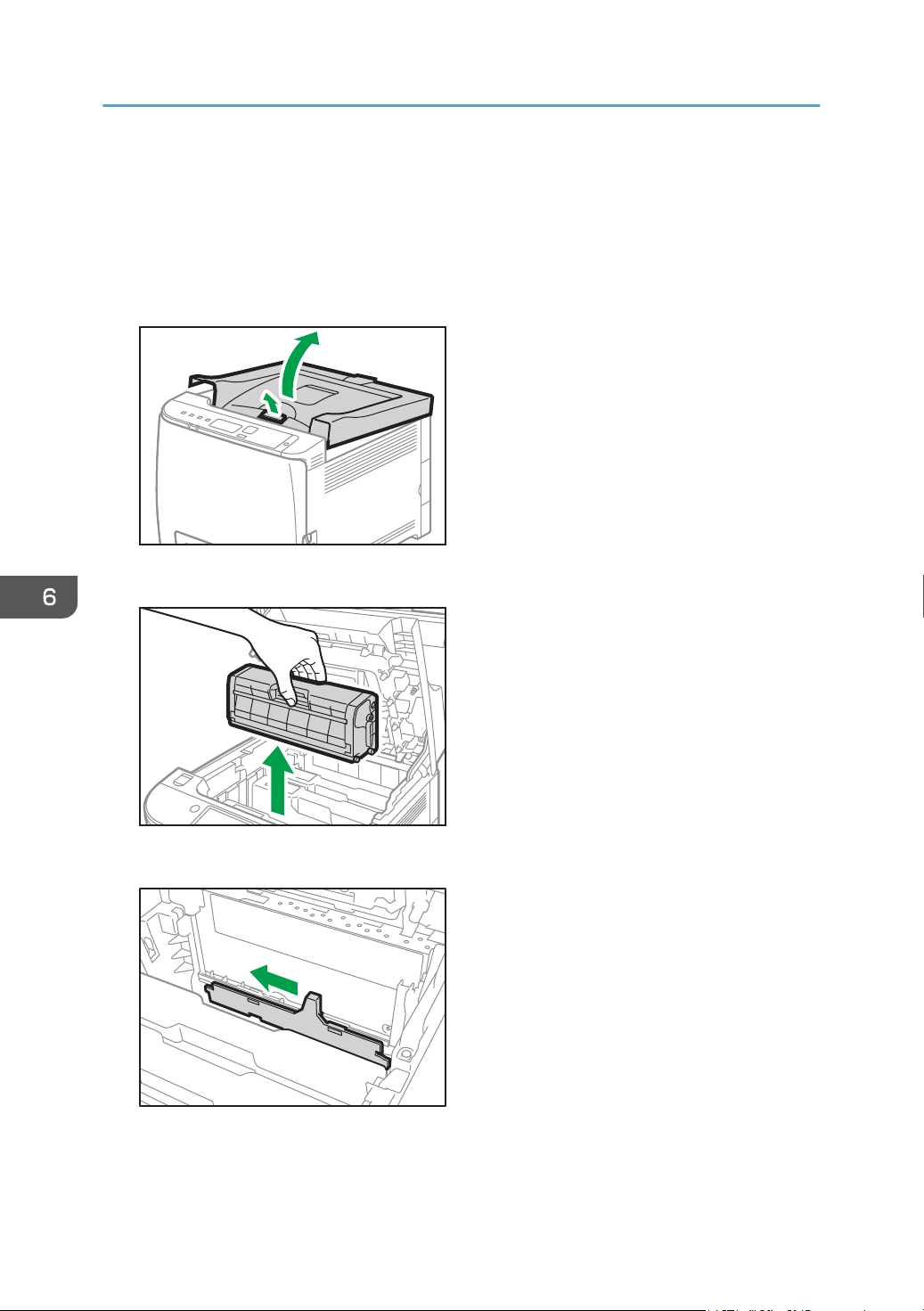
Cleaning the Toner Density Sensor
Clean the toner density sensor when the following message appears on the control panel.
"Density Sensor Require Cleaning"
1. Pull up the lever on the top cover, and then carefully raise the top cover.
ECB107
2. Remove the rearmost print cartridge.
ECC167
3. Slide the toner density sensor lever once to the left.
ECC148
6. Maintaining the Machine
142
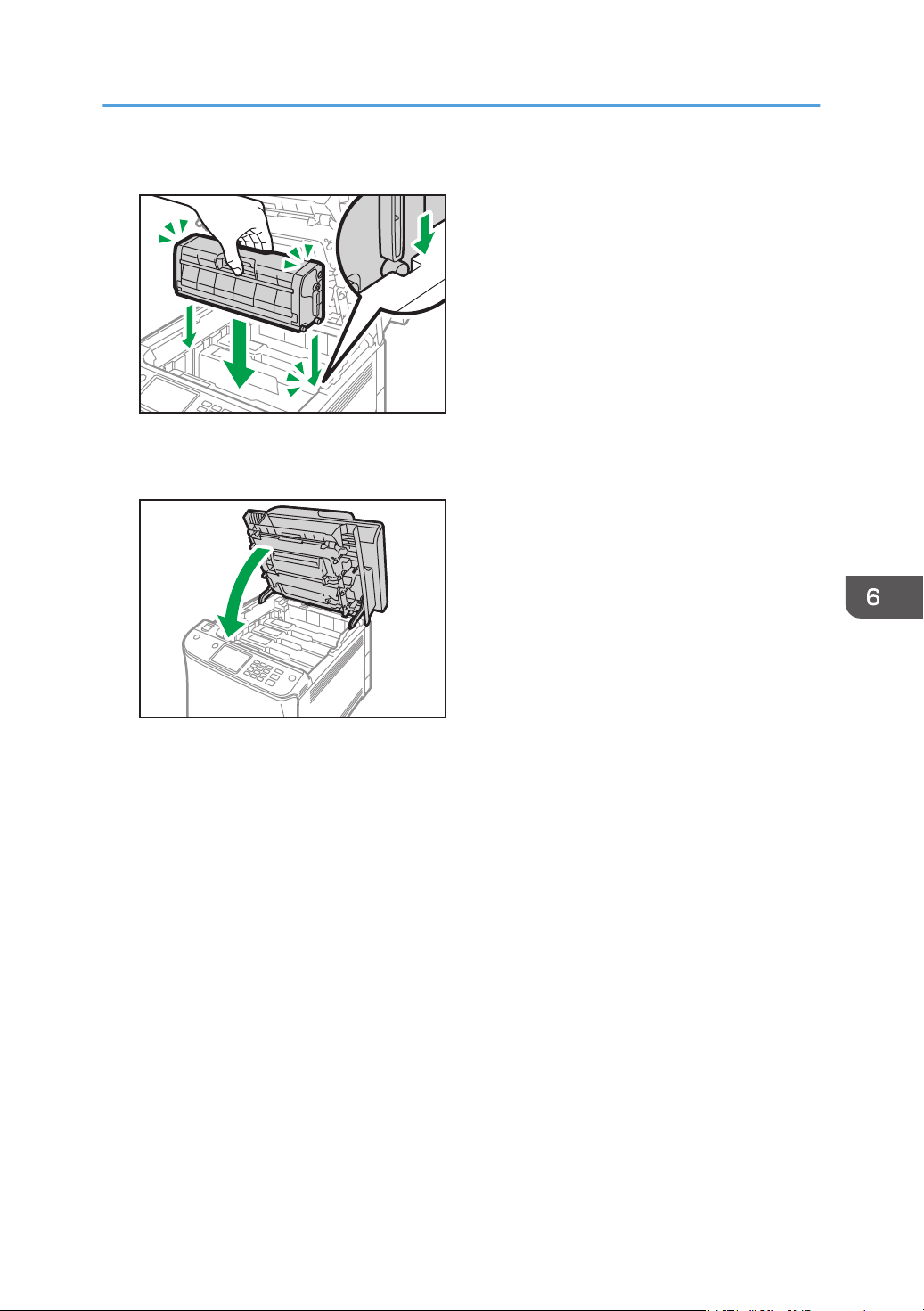
4. Carefully insert the print cartridge removed in Step 2 vertically.
ECC132
5. Using both hands, hold the center of the top cover and close the cover carefully. Be
careful not to trap your fingers.
ECC133
Cleaning the Toner Density Sensor
143
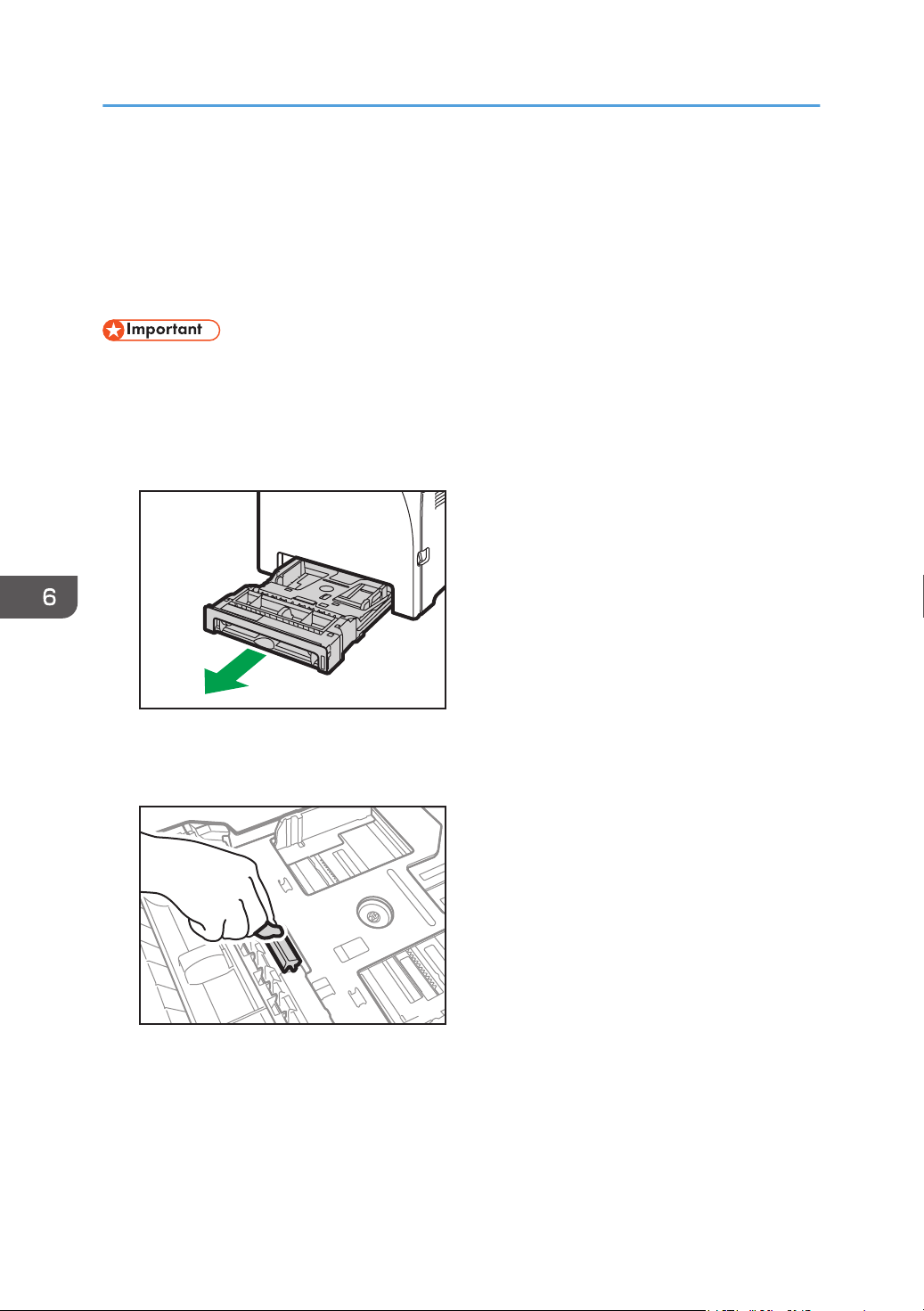
Cleaning the Friction Pad and Paper Feed
Roller
If the friction pad or paper feed roller is dirty, a multi-feed or misfeed might occur. In this case, clean the
friction pad and paper feed roller as follows:
• Do not use chemical cleaning fluids or organic solvents such as thinner or benzine.
1. Turn off the power.
2. Unplug the power cord from the wall outlet. Remove all the cables from the machine.
3. Pull out Tray 1 carefully with both hands.
DUE214
Place the tray on a flat surface. If there is paper in the tray, remove it.
4. Wipe the friction pads with a damp cloth.
ECC149
6. Maintaining the Machine
144
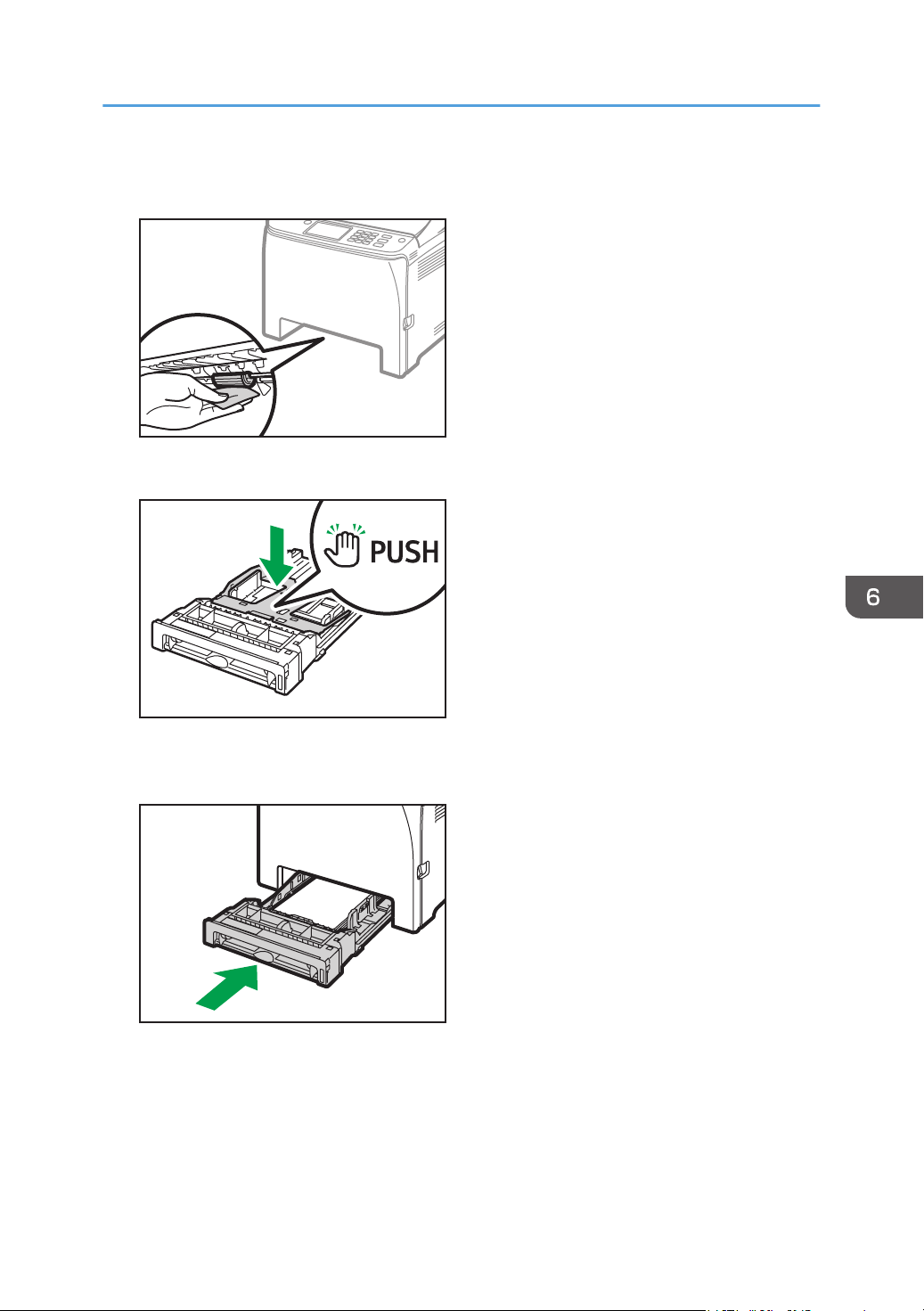
5. Wipe the rubber part of the roller with a soft damp cloth. After that, wipe it with a dry
cloth to remove the moisture.
ECC150
6. Push the metal plate down until it clicks.
DUE215
7. Reload the removed paper into the tray, and then push the tray carefully into the machine
until it clicks into place.
DUE220
8. Insert the plug of the power cord into the wall socket securely. Connect all the interface
cables that were removed.
9. Turn on the power.
Cleaning the Friction Pad and Paper Feed Roller
145
• If jams or multi-sheet feeds occur after cleaning the friction pad, contact your sales or service
representative.
• If the optional Tray 2 is installed, clean its friction pad and paper feed roller in the same way as
you did for Tray 1.
6. Maintaining the Machine
146
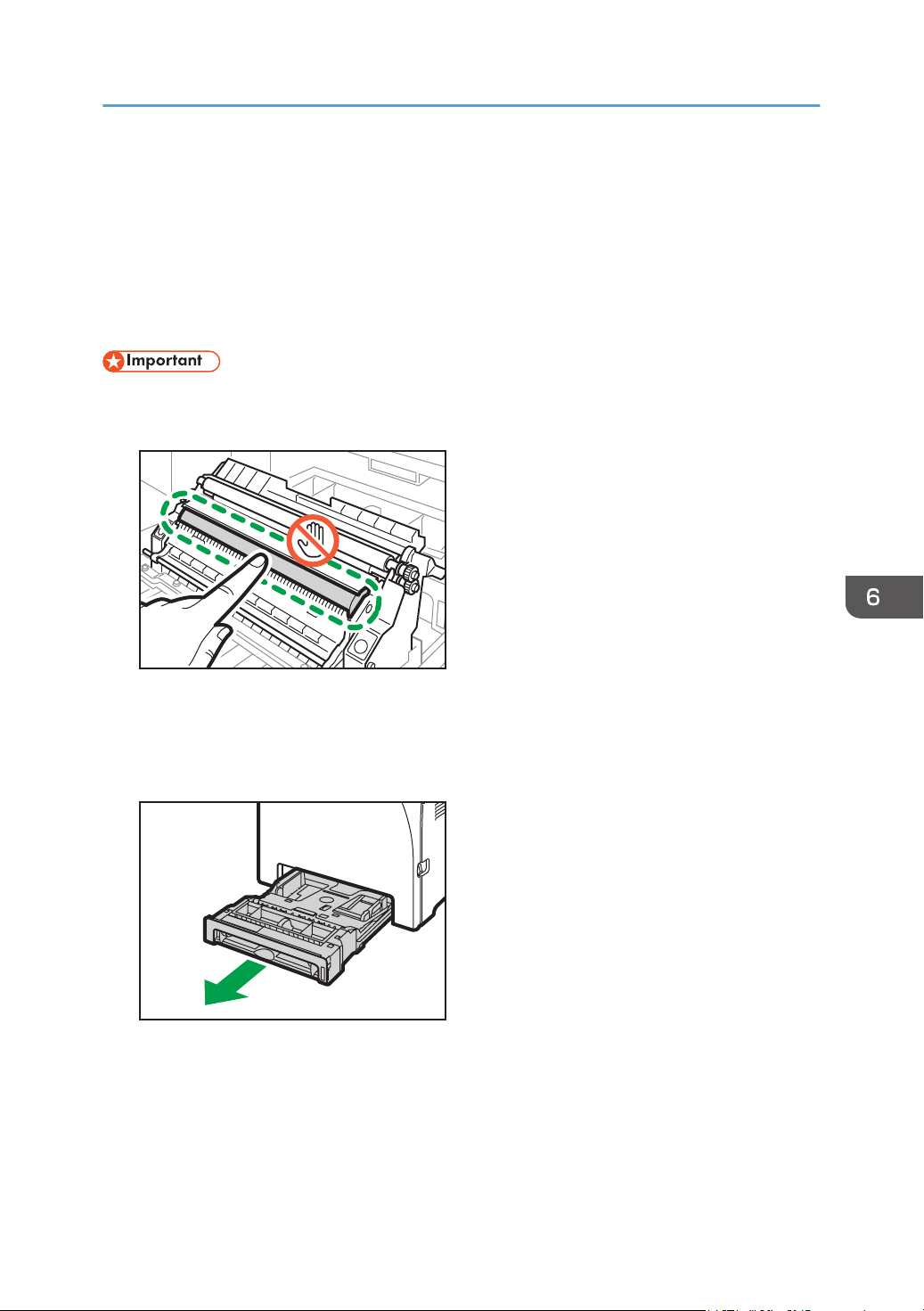
Cleaning the Registration Roller and Paper
Tray
The registration roller and paper tray can become dirty with paper dust if you print to non-standard
paper.
Clean the registration roller if white dots appear on prints.
• Do not use chemical cleaning fluids or organic solvents such as thinner or benzine.
• Do not touch the transfer roller (as shown below).
ECC151
1. Turn off the power.
2. Unplug the power cord from the wall outlet. Remove all the cables from the machine.
3. Pull out Tray 1 carefully with both hands.
DUE214
Place the tray on a flat surface. If there is paper in the tray, remove it.
Cleaning the Registration Roller and Paper Tray
147
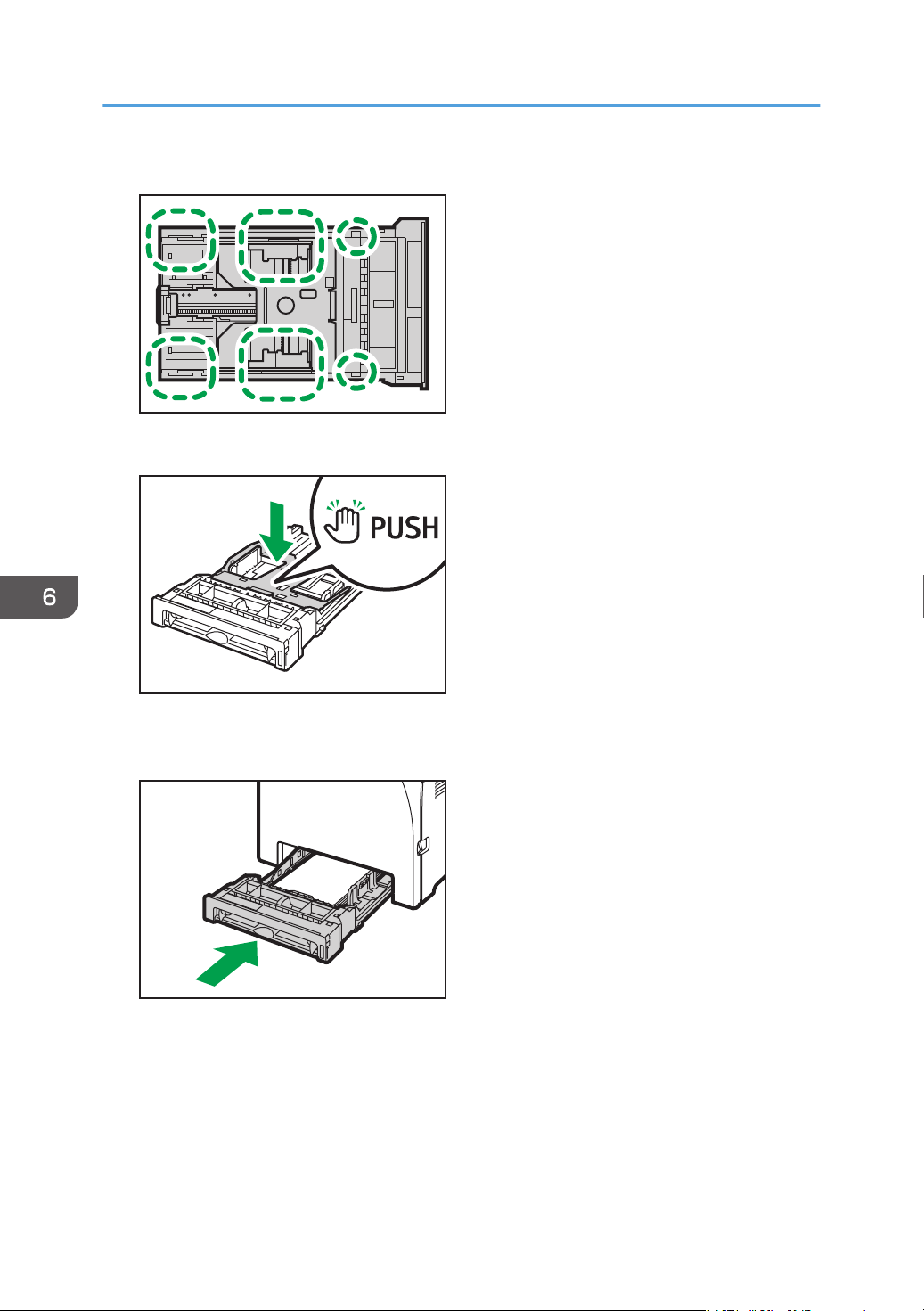
4. Wipe the inside of the paper tray with a cloth.
ECC152
5. Push the metal plate down until it clicks.
DUE215
6. Reload the removed paper into the tray, and then push the tray carefully into the machine
until it clicks.
DUE220
6. Maintaining the Machine
148
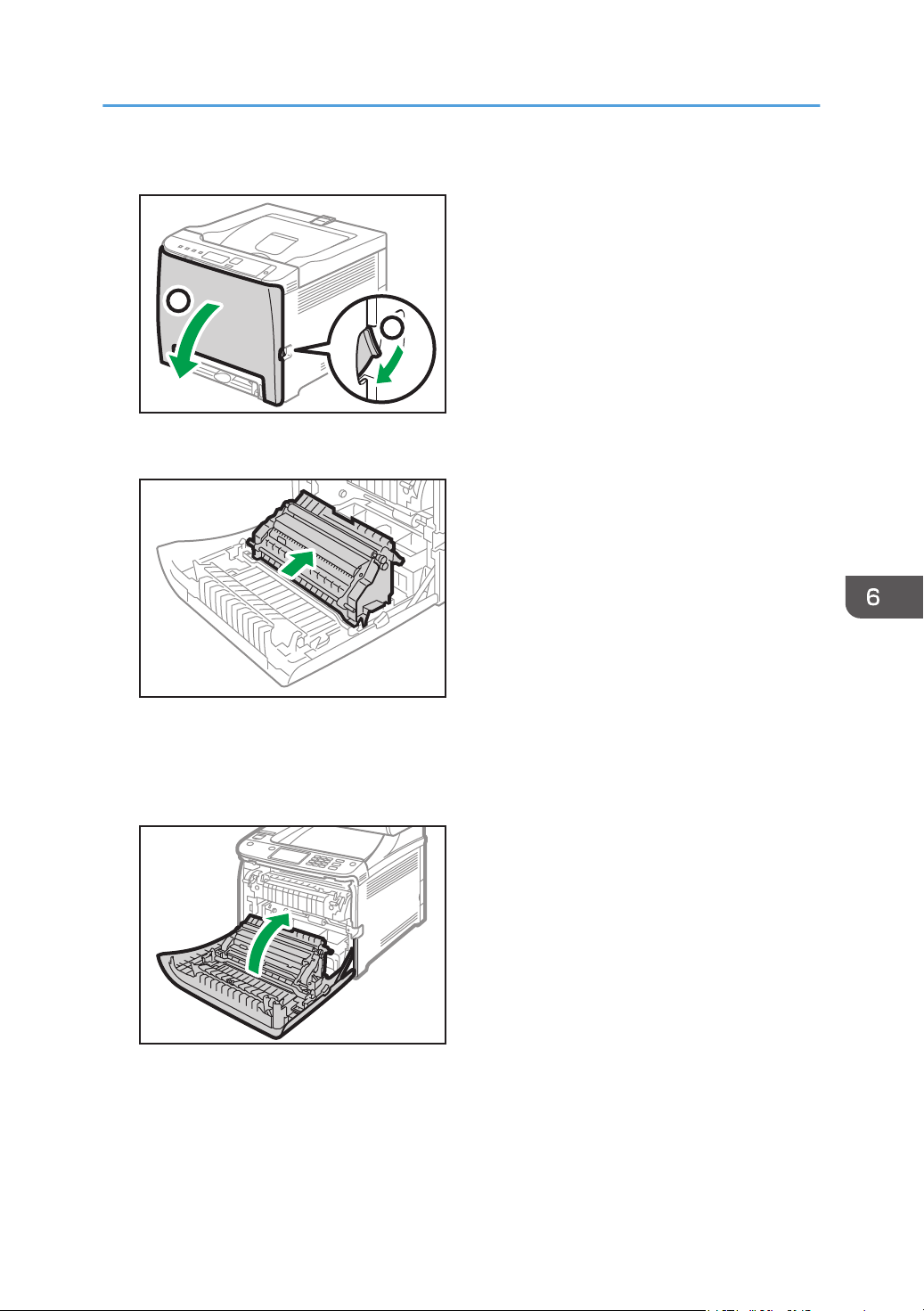
7. Pull the front cover open lever and then carefully lower the front cover.
ECB108
2
1
Be sure to set the registration roller in the position shown by the arrow in the illustration below.
ECC153
Clean the registration roller if prints are smeared after a paper jam is cleared.
8. Clean the registration roller by applying a soft damp cloth while turning it.
9. Using both hands, carefully push up the front cover until it closes.
ECC117
When closing the front cover, push the upper area of the cover firmly.
10. Plug in the power cord securely. Connect all the cables that were removed.
11. Turn on the power.
Cleaning the Registration Roller and Paper Tray
149

Moving and Transporting the Machine
This section provides cautions that you must follow when moving the machine both short and long
distances.
Repack the machine in its original packing materials when moving it over a long distance.
• Be sure to disconnect all cables from the machine before transporting it.
• The machine is a precision piece of machinery. Be sure to handle it carefully when moving it.
• Make sure to move the machine horizontally. Take extra caution when carrying the machine up or
down stairs.
• If Tray 2 is installed, remove it from the machine, and move them separately.
• Do not remove the print cartridge when moving the machine.
• Be sure to hold the machine level while carrying it. To prevent toner from spilling, move the
machine carefully.
• Keep the machine away from salt-bearing air and corrosive gases. Also, do not install the machine
in places where chemical reactions are likely (laboratories, etc.), as doing so will cause the
machine to malfunction.
Ventilation
When you use this machine in a confined space without good ventilation for a long time or print
large quantities, you might detect an odd smell.
This might cause the output paper to also have an odd smell.
When you detect an odd smell, regularly ventilate in order to keep the workplace comfortable.
• Set up the machine so that it does not directly ventilate towards people.
• Ventilation should be more than 30 m
3
/hr/person.
New machine smell
When a machine is new, it might have a unique smell. This smell will subside in about one week.
When you detect an odd smell, sufficiently ventilate and circulate the air in the room.
1. Be sure to check the following points:
• The power switch is turned off.
• The power cord is unplugged from the wall outlet.
• All other cables are unplugged from the machine.
2. If Tray 2 is installed, remove it.
6. Maintaining the Machine
150
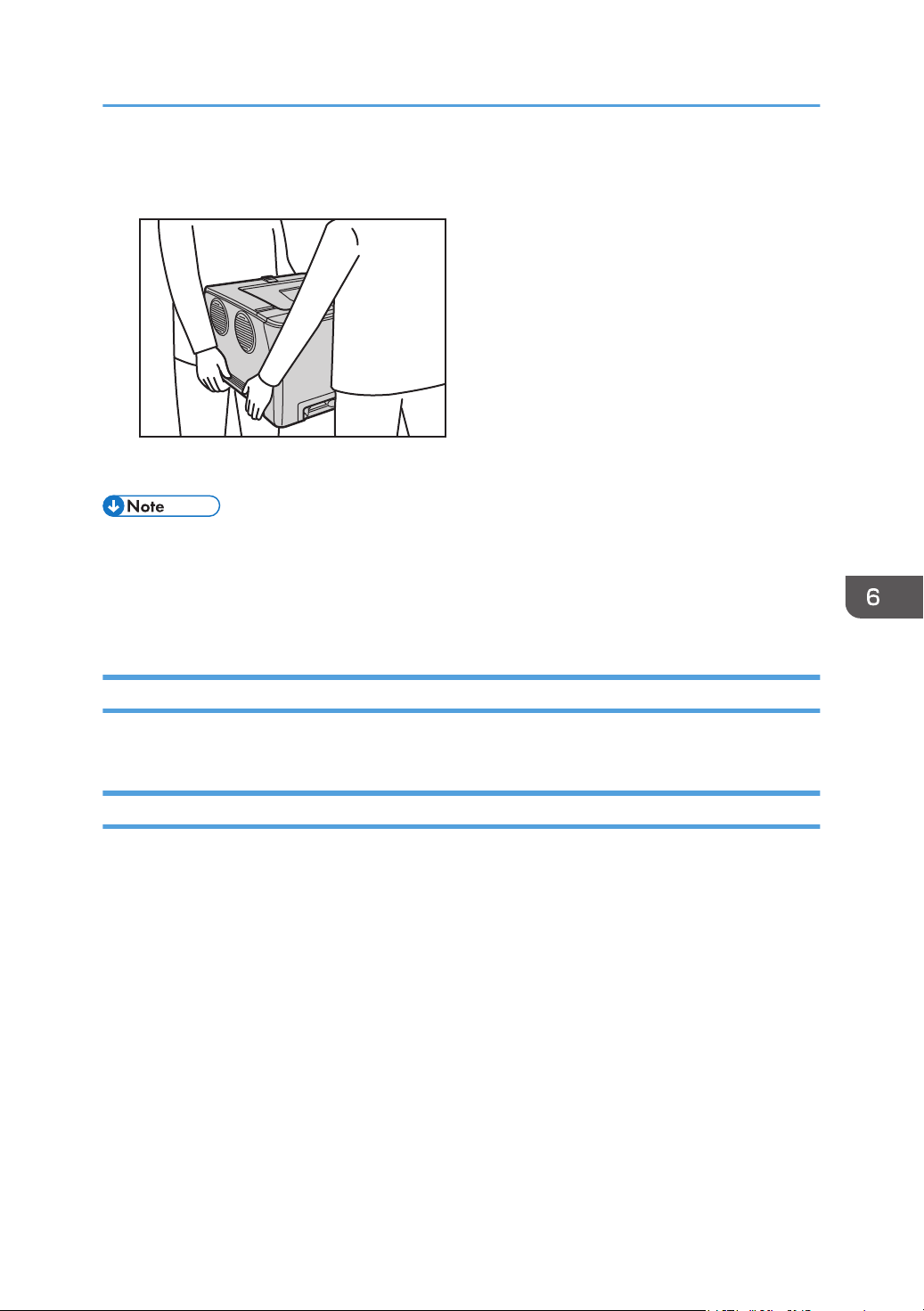
3. Standing at the front and back of the machine, two persons should lift the machine using
the inset grips on the sides. Move it horizontally to the place where you want to use it.
DUD470
4. If you have removed Tray 2, reinstall it.
• To move the machine over a long distance, pack it well and empty all the paper trays. Take care
not to tip or tilt the machine during transit.
• Toner might spill inside the machine if the machine is not kept level during transit.
• For more information about moving the machine, contact your sales or service representative.
Disposal
Ask your sales or service representative for information about correct disposal of this machine.
Where to Inquire
Contact your sales or service representative for further information about the topics included in this
manual or to inquire about other topics not included in this manual.
Moving and Transporting the Machine
151

6. Maintaining the Machine
152
7. Troubleshooting
This chapter provides solutions for error messages and other problems.
Error and Status Messages on the Control
Panel
This section explains what the messages that appear on the control panel mean and what to do when a
particular message appears.
Status messages
Message Explanation Recommended Action
Offline The machine is Offline. To start printing, switch the
machine to online by pressing
the [Stop/Start] key on the
control panel.
Processing... The machine is printing. Wait a while.
Ready This is the default ready
message.
The machine is ready for use.
No action is required.
Calibrating... The machine is calibrating. Wait a while.
Printing... The machine is printing. Wait a while.
Please Wait The machine is waiting for the
next data to print.
Wait a while.
Warming up... The printer is warming up or
toner is being supplied.
Wait until "Ready" appears on
the display.
Messages
Message Explanation Recommended Action
Check Paper Size The paper size setting in the tray
# (1, 2, bypass) differs from
that of actual paper size in the
tray.
Load paper of the selected size
in the tray, and then press the
[Stop/Start] key to continue
printing.
Press the [Job Reset] key to
cancel printing.
153

Message Explanation Recommended Action
Check Paper Type The paper type setting in the
tray # (1, 2, bypass) differs
from that of actual paper type in
the tray.
Load paper of the selected type
in the tray, and then press the
[Stop/Start] key to continue
printing.
Press the [Job Reset] key to
cancel printing.
Cover Open The top or front cover is open. Open and then close the top or
front cover.
Please Download Controller FW could not be
downloaded.
Turn off the main power, turn it
back on, and then download
the controller FW again.
If the download fails again,
contact your sales or service
representative.
Incorrect Print Cart. # Irregular print cartridge #
(Black, Magenta, Cyan or
Yellow) is set.
Replace the print cartridge to an
appropriate one. See
page 129 "Replacing the Print
Cartridge".
If the error message appears
even though the print cartridge
is attached correctly, use a dry
cloth to wipe the part of the print
cartridge that is in contact with
the machine.
Out of Paper: # The indicated tray # (1, 2,
bypass) is out of paper.
Load paper into the indicated
paper tray.
See page 24 "Loading Paper".
Memory Overflow This error occurs when FW
memory is not enough to save
the printing page.
Reduce the size of the data, and
then try the operation again.
7. Troubleshooting
154
Message Explanation Recommended Action
Misfeed: Dup. Unit There is a paper jam in the
duplex unit.
Remove the misfed paper.
See page 158 "Removing
Printing Jams".
Internal Misfeed There is a paper jam in the
fusing unit.
Misfeed: Tray 1 There is a paper jam in Tray 1.
Misfeed: Tray 2 There is a paper jam in Tray 2.
Misfeed: Main Tray There is a paper jam in the
paper exit area.
Remove Paper: Bypass Tray The machine failed to proceed
with the print job, because Tray
1 or Tray 2 was specified as the
input tray but paper was loaded
in the bypass tray.
Remove paper from the bypass
tray.
Replace Print Cartridge # The printer is out of toner #
(Black, Magenta, Cyan or
Yellow).
Replace the print cartridge.
See page 129 "Replacing the
Print Cartridge".
Replace Required Soon: Print
Cartridge #
The printer is almost out of toner
# (Black, Magenta, Cyan or
Yellow).
Prepare a new print cartridge.
Replace Required Soon: Fusing
Unit
It is time to replace the Fusing
unit.
Contact your sales or service
representative.
Replace Required Soon:
Intermediate Transfer Unit
It is time to replace the transfer
belt.
Contact your sales or service
representative.
Replace Required Soon:
Transfer Roller
It is time to replace the transfer
roller.
Contact your sales or service
representative.
Replace Required Soon: Waste
Toner Bottle
It is time to replace the waste
toner bottle.
Replace the waste toner bottle
with a new one.
See page 134 "Replacing the
Waste Toner Bottle".
Error and Status Messages on the Control Panel
155

Message Explanation Recommended Action
Print Cart. Set Error # The indicated print cartridge is
not installed correctly, or not
installed.
Install the indicated print
cartridge correctly.
The error message appears
even though the print cartridge
is installed correctly.
Using a dry cloth, carefully
wipe the interface area on the
print cartridge surface.
Fusing Unit Set Error The fusing unit is not installed or
not installed correctly.
Install the fusing unit correctly.
Waste Toner Bottle: Not Set The waste toner bottle is not
installed or not installed
correctly.
Install the waste toner bottle
correctly.
If the error message appears
even though the waste toner
bottle is attached correctly,
contact your service
representative.
ServiceCall - SCXXX There is a problem with the
printer's controller.
Turn off the main power, and
then turn it on again.
If the error occurs again,
contact your sales or service
representative.
Density Sensor Require
Cleaning
Color registration failed. Clean the toner density sensor.
See page 142 "Cleaning the
Toner Density Sensor".
7. Troubleshooting
156
Panel Indicator
The following table explains the meaning of the various indicator patterns that the printer alerts to users
about its conditions.
Indicator patterns Cause
The Alert indicator is lit. The printer cannot be used normally. Check the
error on the control panel.
The Alert indicator is flashing. Toner has nearly run out.
The Data In indicator is flashing. The printer is receiving print data from a
computer.
The Data In indicator is lit. There is data to be printed.
The Power indicator is lit. The power is on.
Panel Indicator
157
Removing Paper Jams
If a paper jam occurs, one of the following messages appears on the control panel:
Message Reference title
Internal Misfeed See page 161 "If paper jams inside the fusing
unit".
Misfeed: Main Tray
Misfeed: Tray 1 See page 163 "If paper jams inside a tray".
Misfeed: Tray 2
Misfeed: Dup. Unit See page 165 "If paper jams inside the transfer
unit".
See the section identified by the message and remove the jammed paper accordingly.
Removing Printing Jams
• The inside of this machine becomes very hot. Do not touch the parts labeled " " (indicating a
hot surface).
• Some of this machine's internal components get very hot. For this reason, take care when
removing misfed paper. Not doing so could result in burns.
• Some of the internal components of this machine might be fragile. When you remove jammed
paper, do not touch the sensors, connectors, LEDs, or other fragile parts that are shown in this
manual. Doing so may cause malfunctions.
For the location of the sensors in the machine and extended options, see the following illustrations.
7. Troubleshooting
158
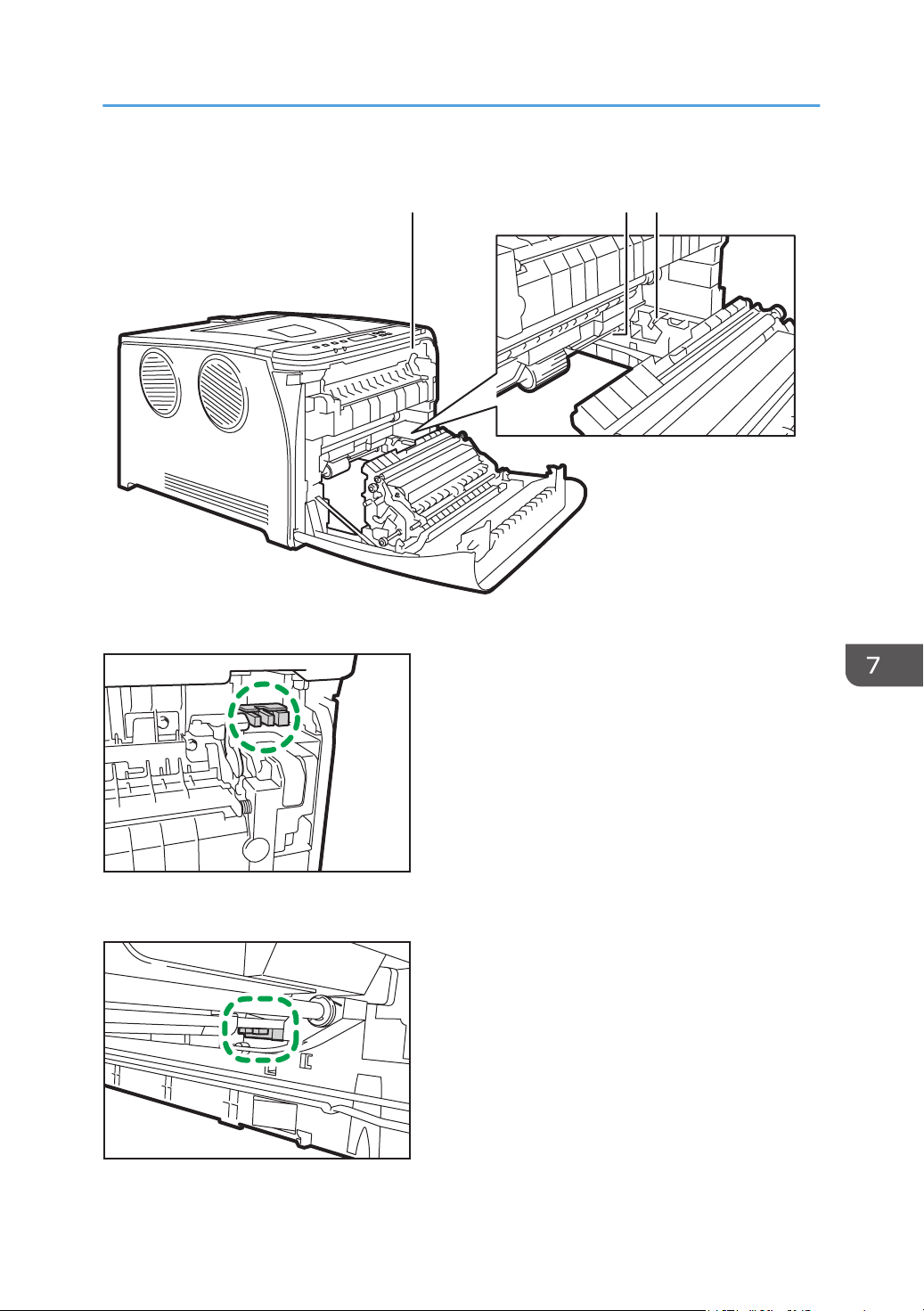
Main unit
1
DUE319
32
1.
DUE288
2.
DUE289
Removing Paper Jams
159
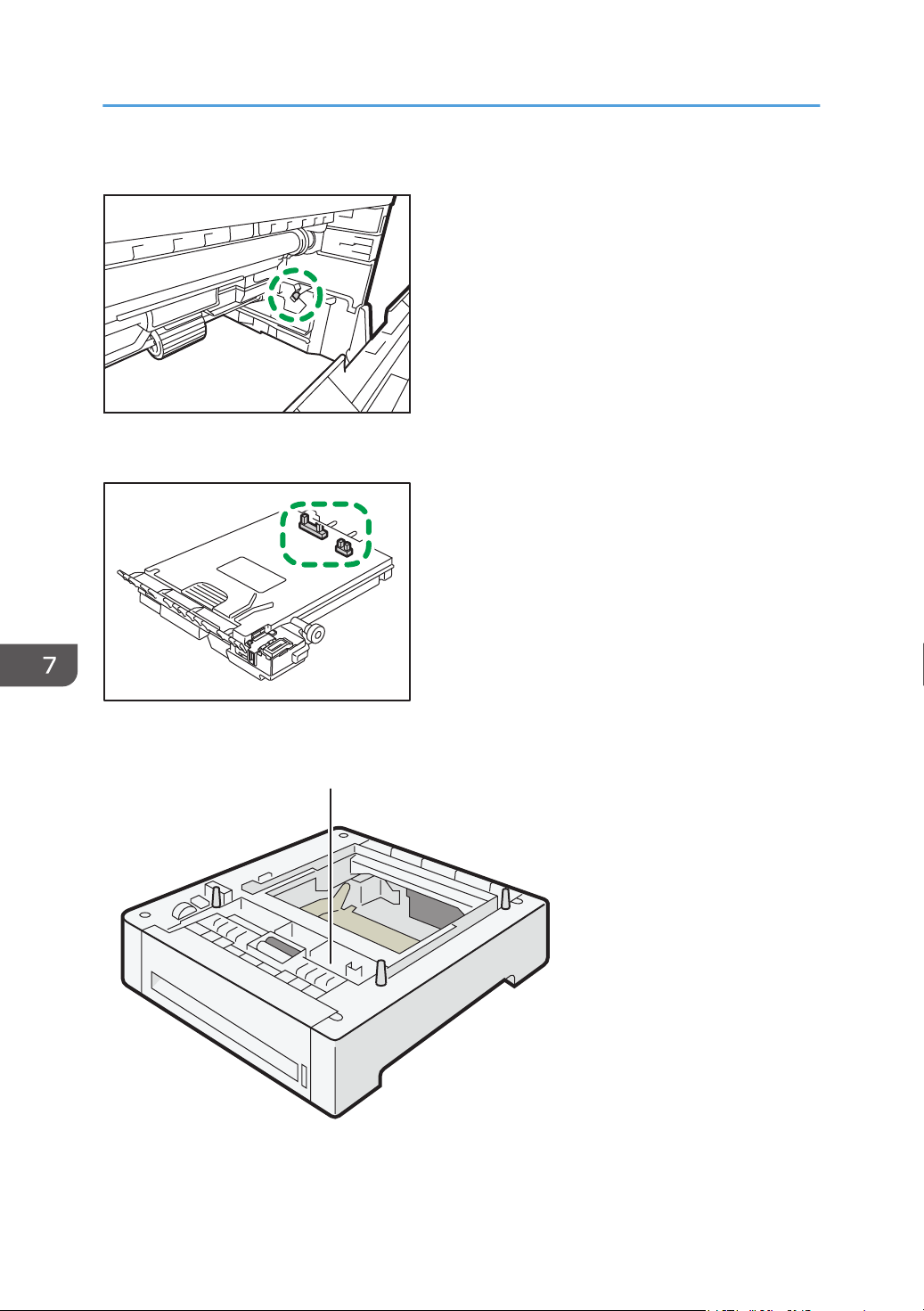
3.
DUE290
Waste toner bottle
ECC168
Paper feed unit
DUE320
1
7. Troubleshooting
160
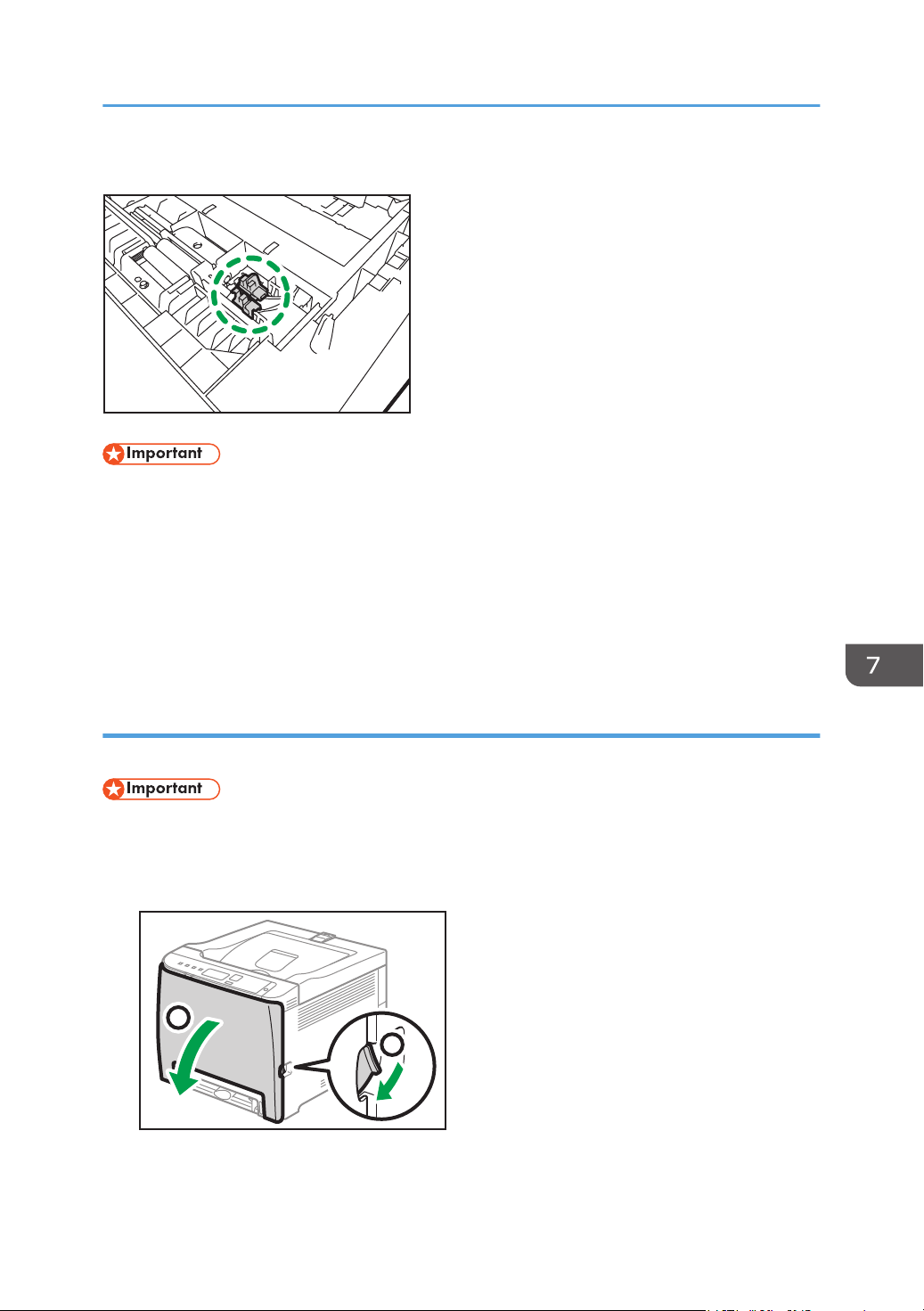
1.
DUE291
• Jammed paper may be covered in toner. Be careful not to get toner on your hands or clothes.
• Toner on prints made immediately after clearing a paper jam may be insufficiently fused and may
smudge. Make test prints until smudges no longer appear.
• Do not forcefully remove jammed paper, as it may tear. Torn pieces remaining inside the machine
will cause further jams and possibly damage the machine.
• Paper jam can cause pages to be lost. Check your print job for missing pages and reprint any
pages that did not print out.
If paper jams inside the fusing unit
If paper jams inside the fusing unit, follow the procedure below to remove it.
• Since the temperature around the guide is high, wait for it to cool down before checking for
jammed paper.
1. Pull the front cover open lever and then carefully lower the front cover.
ECB108
2
1
Removing Paper Jams
161
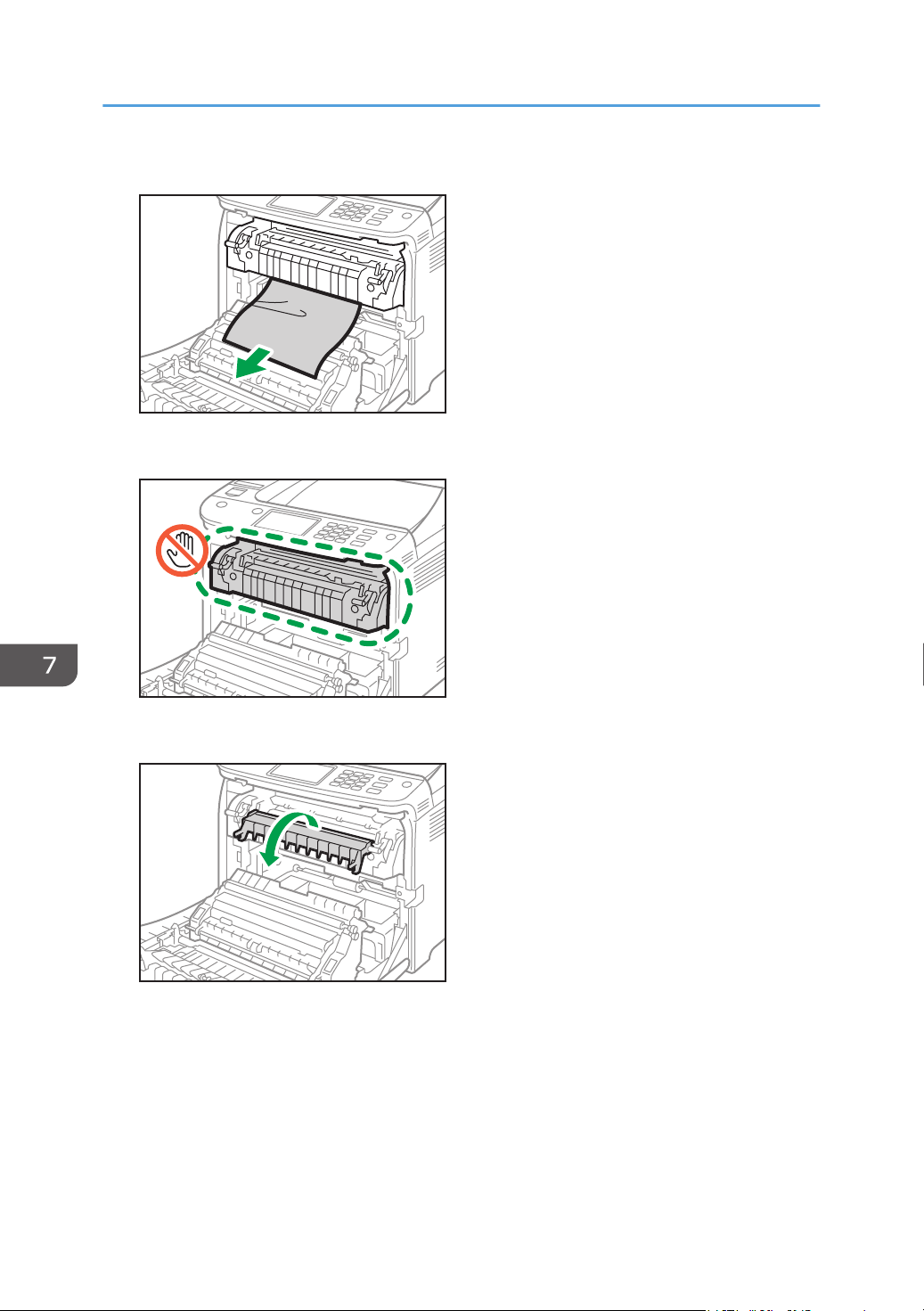
2. Pull the paper downward to remove it. Do not pull it upward.
ECC158
Do not touch the fusing unit.
ECC157
If you cannot find the jammed paper, check for it by pulling down the guide.
ECC159
7. Troubleshooting
162
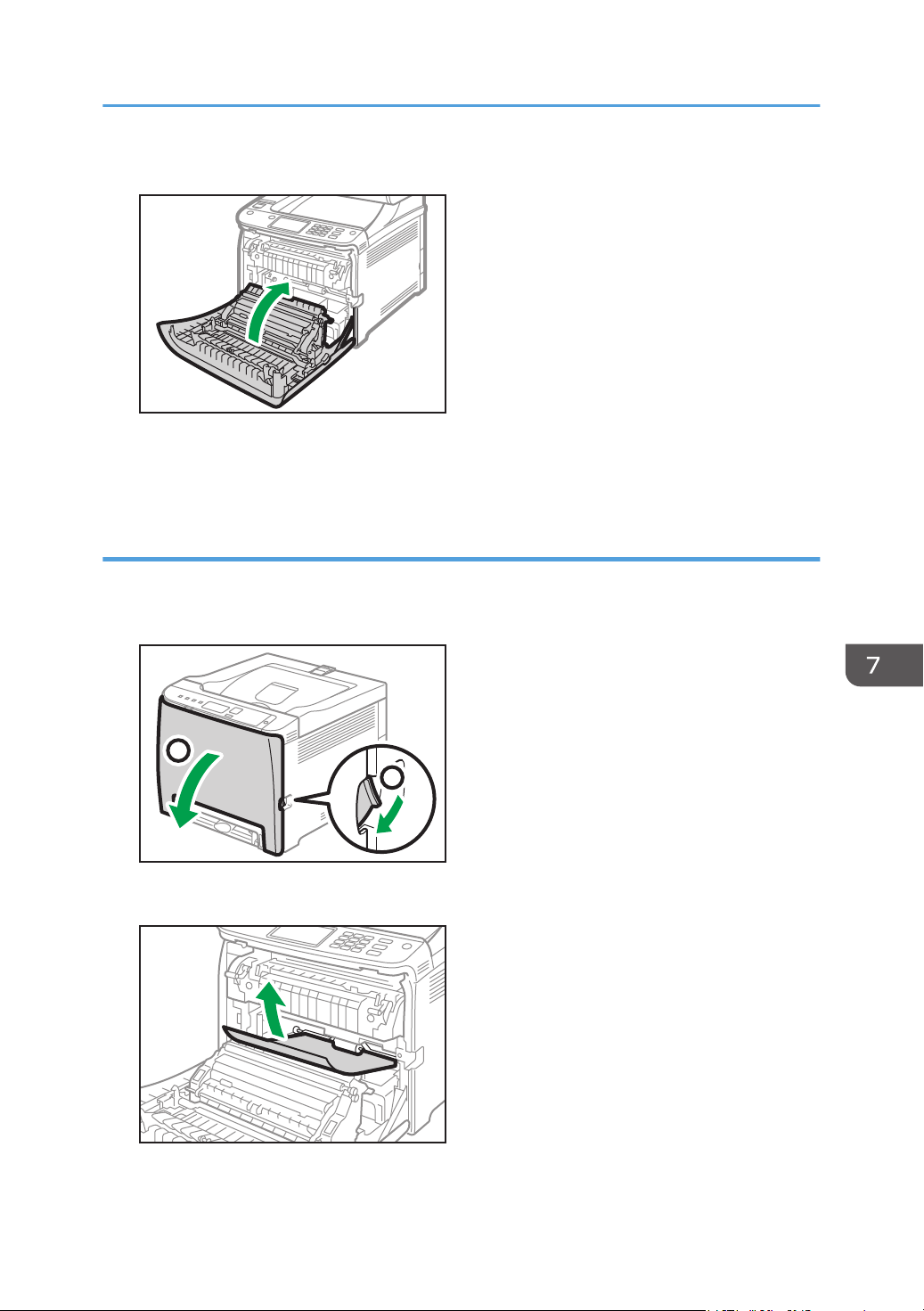
3. Using both hands, carefully push up the front cover until it closes.
ECC117
When closing the front cover, push the upper area of the cover firmly. After closing the cover,
check that the error is cleared.
If paper jams inside a tray
If paper jams in Tray 1 or 2, follow the procedure below to remove it.
1. Pull the front cover open lever and then carefully lower the front cover.
ECB108
2
1
2. Pull out the jammed paper carefully.
ECC160
Do not touch the fusing unit.
Removing Paper Jams
163
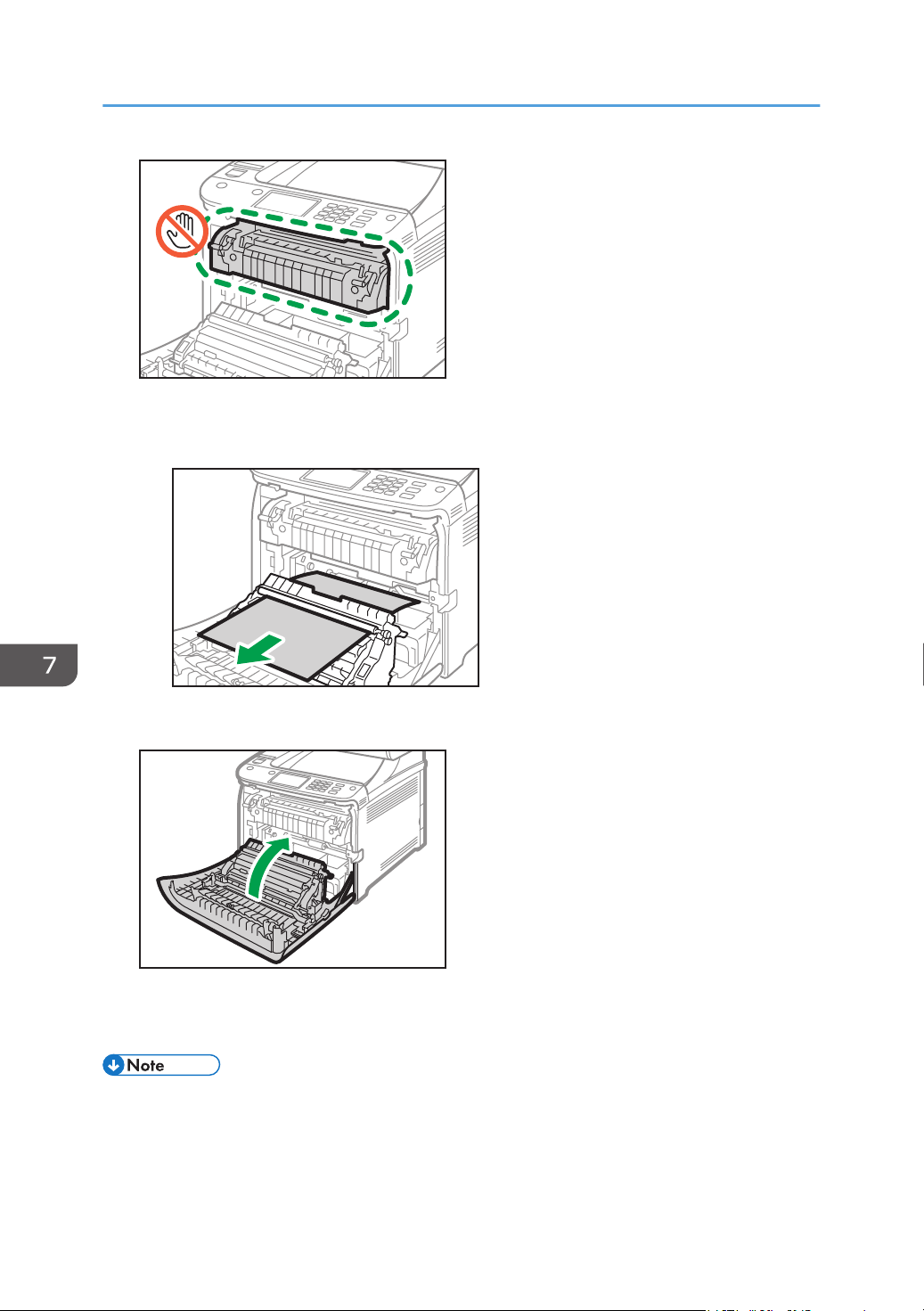
ECC157
If paper has jammed inside the transfer unit, holding both sides of the paper, pull the paper
carefully forward and out.
ECC161
3. Using both hands, carefully push up the front cover until it closes.
ECC117
When closing the front cover, push the upper area of the cover firmly. After closing the cover,
check that the error is cleared.
• Do not pull out the paper tray (Tray 1).
• If paper jams in Tray 2 but is difficult to locate, pull out Tray 2 to remove it. After removing the
paper, carefully push Tray 2 squarely back into the machine.
7. Troubleshooting
164
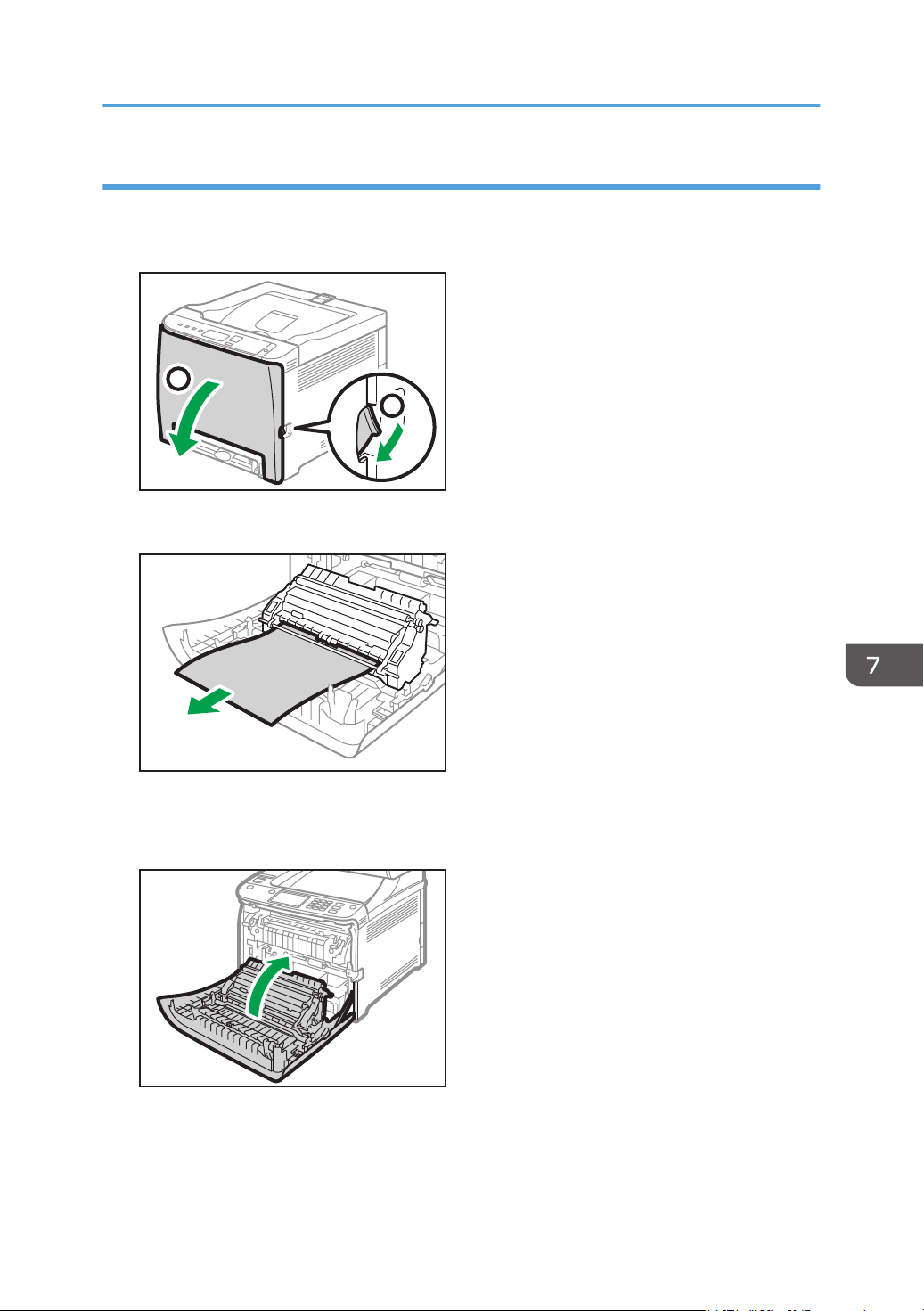
If paper jams inside the transfer unit
If paper jams inside the transfer unit, follow the procedure below to remove it.
1. Pull the front cover open lever and then carefully lower the front cover.
ECB108
2
1
2.
Carefully remove any paper that is jammed under the transfer unit.
ECC162
If you cannot find the jammed paper, look inside the machine.
3. Using both hands, carefully push up the front cover until it closes.
ECC117
When closing the front cover, push the upper area of the cover firmly. After closing the cover,
check that the error is cleared.
Removing Paper Jams
165

When You Cannot Print Test Page
Possible cause Solution
The power cord, a USB cable, or a
network cable is not connected
correctly.
Make sure that the power cord, USB cable, and network
cable are connected correctly. Also confirm that they are not
damaged.
The port connection is not
established correctly.
1. In the Windows Start menu, click [Windows System], and
then [Control Panel].
2. In the "Hardware and Sound" category, click [View
devices and printers].
3. Right-click the icon of the machine, and then click [Printer
properties].
4. Click the [Ports] tab, and then make sure that the port is
set as a USB or network printer.
7. Troubleshooting
166

Paper Feed Problems
If the machine is operating but paper will not feed or paper jams occur frequently, check the condition of
the machine and paper.
Problem Solution
Paper does not feed smoothly. • Use supported types of paper. See page 38 "Supported
Paper".
• Load paper correctly, making sure that the side or end
fences of the paper tray, or the paper guides of the
bypass tray are properly adjusted. See page 24
"Loading Paper".
• If the paper is curled, straighten the paper.
• Take out the paper from tray and fan it well. Then,
reverse the top and bottom of the paper, and put it back
in the tray.
Paper jams occur frequently. • If there are gaps between the paper and the side or end
fences of the paper tray, or the paper guides of the
bypass tray, adjust the side or end fences of the paper
tray, or the paper guides of the bypass tray to remove the
gaps.
• Avoid printing on both sides of paper when printing
images that contain large solid areas, which consume a
lot of toner.
• Use supported types of paper. See page 38 "Supported
Paper".
• Load paper only as high as the upper limit markings on
the side fence.
• Make sure that the friction pads and paper feed rollers
are clean. See page 144 "Cleaning the Friction Pad and
Paper Feed Roller".
Paper Feed Problems
167

Problem Solution
Multiple sheets of paper are fed at
one time.
• Fan the paper well before loading. Also make sure that
the edges are even by tapping the stack on a flat surface
such as a desk.
• Make sure that the side or end fences are in the right
position.
• Use supported types of paper. See page 38 "Supported
Paper".
• Load paper only as high as the upper limit markings on
the side fence.
• Make sure that the friction pads and paper feed rollers
are clean.
• Check that paper was not added while there was still
some left in the tray. Only add paper when there is none
left in the tray.
Paper gets wrinkles. • Paper is damp. Use paper that has been stored properly.
See page 38 "Supported Paper".
• Paper is too thin. See page 38 "Supported Paper".
• If there are gaps between the paper and the side or end
fences of the paper tray, or the paper guides of the
bypass tray, adjust the side or end fences of the paper
tray, or the paper guides of the bypass tray to remove the
gaps.
The printed paper is curled. • Load the paper upside down in the paper tray.
• If the paper curl is severe, take prints from the output tray
more frequently.
• Paper is damp. Use paper that has been stored properly.
See page 38 "Supported Paper".
• Select [Curl Prevented] in [Curl Prevention Mode] under
[System Settings].
7. Troubleshooting
168
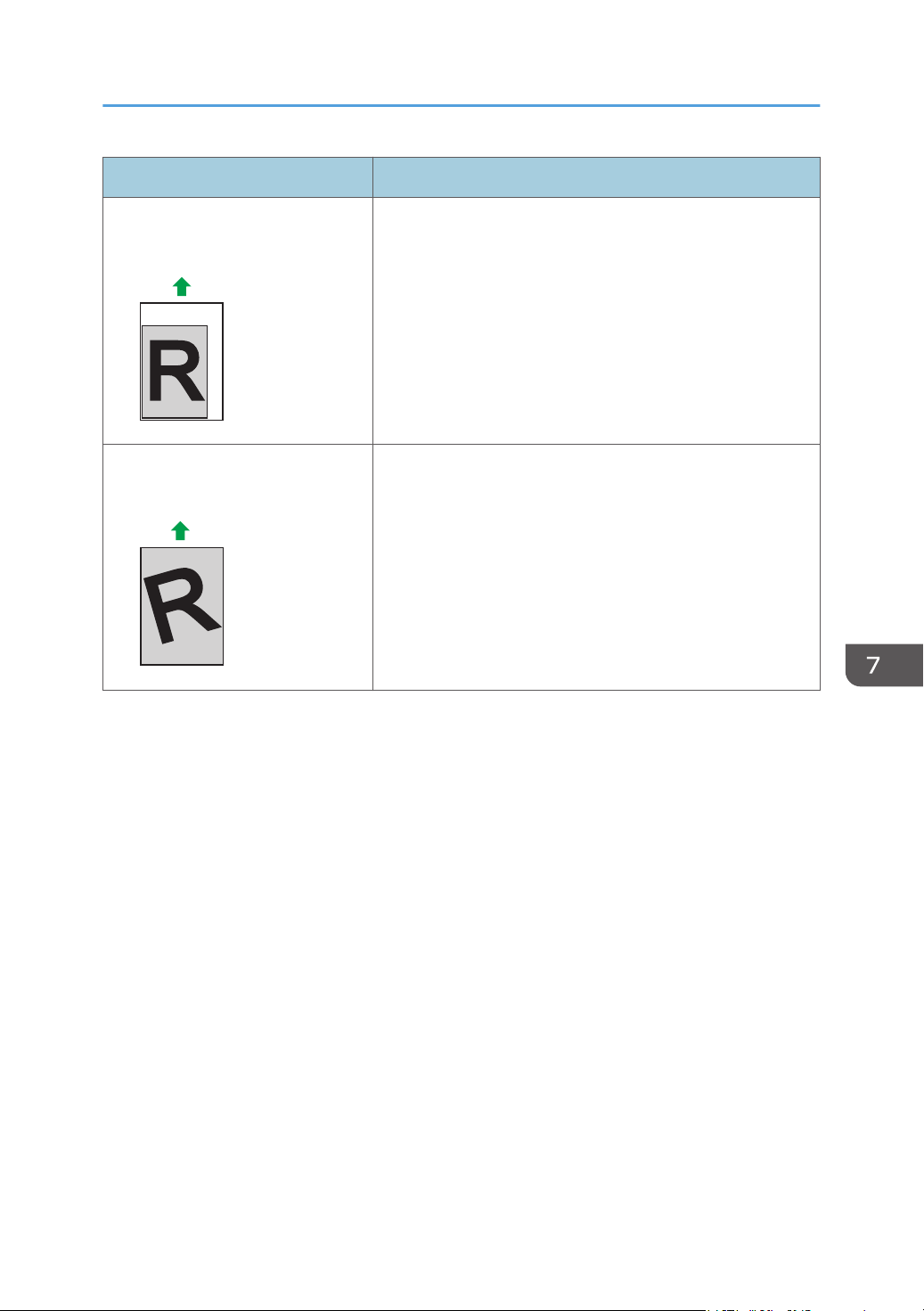
Problem Solution
Images are not printed in the right
position
DAC606
Adjust the front end fence and both side fences to match the
paper size.
See page 24 "Loading Paper".
Images are printed diagonally to the
pages.
DAC572
If there are gaps between the paper and the side or end
fences of the paper tray, or the paper guides of the bypass
tray, adjust the side or end fences of the paper tray, or the
paper guides of the bypass tray to remove the gaps.
Paper Feed Problems
169

Print Quality Problems
Checking the Condition of the Machine
If there is a problem with the quality of printing, first check the condition of the machine.
Possible Cause Solution
There is a problem with the
machine's location.
Make sure that the machine is on a level surface. Place the
machine where it will not be subject to vibration or shock.
Unsupported types of paper is used. Make sure that the paper being used is supported by the
machine. See page 38 "Supported Paper".
The paper type setting is incorrect. Make sure that the paper type setting of the printer driver
matches the type of paper loaded. See page 36 "Specifying
Paper Type and Paper Size Using the Printer Driver".
A non-genuine print cartridge is
being used.
Refilled or non-genuine print cartridge reduces print quality
and can cause malfunctions. Use genuine print cartridge only.
An old print cartridge is being used. Print cartridge should be opened before their expiration date
and used within six months of being opened.
The machine is dirty. See page 129 "Maintaining the Machine", and clean the
machine as required.
Color degradation has occurred. Color degradation may occur in color printing after the
machine is moved or a large number of pages are printed. In
this case, adjust color registration by executing [Color Den/
Reg] in [System Settings].
7. Troubleshooting
170
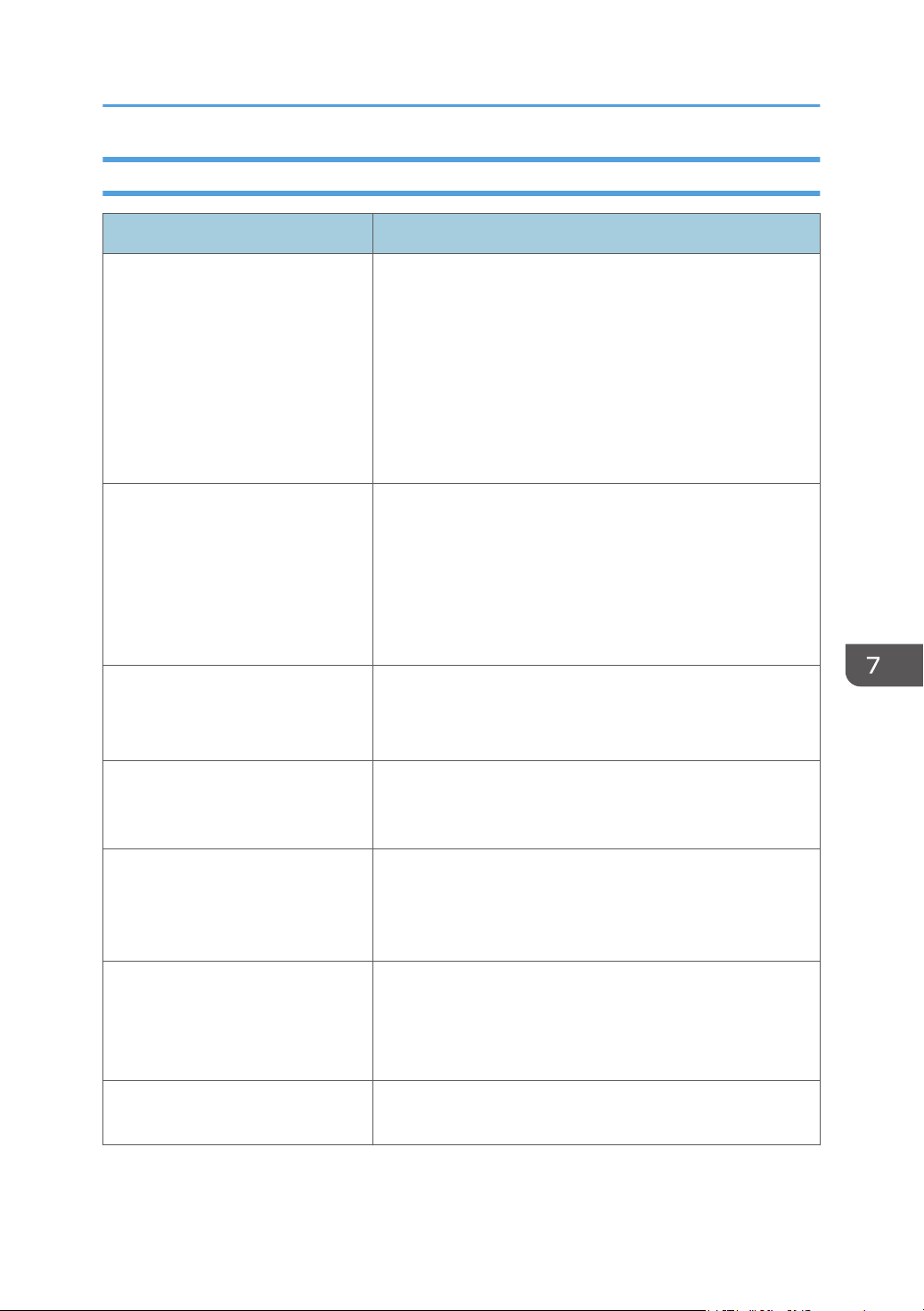
Checking the Printer Driver Settings
Problem Solution
The printed image is smudged.
PCL 5c/6
On the printer driver's [Paper] tab, select [Bypass Tray] in
the "Input Tray:" list. In the "Paper Type:" list, select a
proper paper type.
PostScript 3
On the printer driver's [Paper/Quality] tab, select
[Bypass Tray] in the "Paper Source" list. In the "Media"
list, select a proper paper type.
Images smudge when rubbed.
(Toner is not fixed.)
PCL 5c/6
On the printer driver's [Paper] tab, select a proper paper
type in the "Paper Type:" list.
PostScript 3
On the printer driver's [Paper/Quality] tab, select a
proper paper type in the "Media" list.
The printed image is different from
the image on the computer's display.
Only when using PCL 5c/6
On the printer driver's [Print Quality] tab, select [Raster]
in the "Graphics Mode" list.
When printing graphics, the output
and the screen are different.
To print accurately, specify the printer driver setting to print
without using the graphics command. For details about
specifying the printer driver setting, see the printer driver Help.
Images are cut off, or excess is
printed.
Use the same size paper selected in the application. If you
cannot load paper of the correct size, use the reduction
function to reduce the image, and then print. For details about
the reduction function, see the printer driver Help.
Photo images are coarse. Use the application's or printer driver's settings to specify a
higher resolution.
For details about the printer driver's settings, see the printer
driver Help.
A solid line is printed as a dashed
line or appears blurred.
Change the dithering settings on the printer driver. For details
about the dithering settings, see the printer driver Help.
Print Quality Problems
171

Problem Solution
Fine lines are fuzzy, of inconsistent
thickness, or do not appear.
Change the dithering settings on the printer driver. For details
about the dithering settings, see the printer driver Help.
If the problem persists, specify the settings of the application in
which the image was created to change the thickness of the
lines.
7. Troubleshooting
172

Printer Problems
This section describes printing problems and possible solutions.
When You Cannot Print Properly
Problem Solution
An error occurs. If an error occurs when printing, change the computer or
printer driver settings.
• Check the printer icon name does not exceed 32
alphanumeric characters. If it does, shorten it.
• Check whether other applications are operating.
Close any other applications, as they may be interfering
with printing. If the problem is not resolved, close
unneeded processes too.
• Check that the latest printer driver is being used.
A Locked Print file is canceled. • The machine already has 5 jobs or 5 MB of Locked Print
data. Print or delete an existing Locked Print file. For
details, see page 61 "Printing Confidential Documents".
• Even if the machine cannot store any more Locked Print
files, the machine holds the new Locked Print file for the
period of time specified in [Locked Print] in [I/O Timeout]
under [System Settings] before canceling that file. Within
this time, you can print or delete the new Locked Print file.
You can also print or delete an existing Locked Print file
so that the new Locked Print file can be stored in the
machine.
• For details about [Locked Print] in [I/O Timeout], see
page 75 "System Settings".
A Locked Print file is canceled.
Only when using PCL 5c/6
The Locked Print file has too many pages or it is too large.
Reduce the number of pages to print, or print with a
lower setting for [Gradation:] in [Print Quality]. For
details, see the printer driver Help.
Printer Problems
173

Problem Solution
There is a considerable delay
between the print start command
and actual printing.
• Processing time depends on data volume. High volume
data, such as graphics-heavy documents, take longer to
be processed.
• To speed up printing, reduce the printing resolution using
the printer driver. For details, see the printer driver Help.
• The machine is calibrating color. Wait for a while.
Documents are not printed properly
when using a certain application, or
image data is not printed properly.
Some characters are printed faintly
or not printed.
Change the print quality settings.
It takes too long to complete the print
job.
• Photographs and other data intensive pages take a long
time to be processed so simply wait when printing such
data.
• Changing the settings with printer driver may help to
speed up printing.
See the printer driver Help.
• The data is so large or complex that it takes a long time
to be processed.
• If the Data In indicator is flashing, the data is being
processed.
• Just wait until it printing is resumed.
• If the Data In indicator on the control panel is flashing,
the printer is warming up. Wait for a while.
• The printer is adjusting the color registration. Wait for a
while.
A printed image is different from the
image on the computer's display.
• When you use some functions, such as enlargement and
reduction, the layout of the image might be different from
that displayed in the computer display.
• Check that the page layout settings are properly
configured in the application.
• Make sure the paper size selected in the printer
properties dialog box matches the size of the paper
loaded. For details, see the printer driver Help.
7. Troubleshooting
174

Problem Solution
Images are cut off, or excess pages
are printed.
If you are using paper whose size is smaller than the paper
size selected in the application, use the same size paper
selected in the application. If you cannot load paper of the
correct size, use the reduction function to reduce the image,
and then print.
See the printer driver Help.
The color of the printout is different
from the color on the computer's
display.
• The colors made using color toner may be different from
colors displayed on the display due to the difference of
methods to reproduce colors.
Only when using PCL 5c/6
Color gradation might appear differently if On is selected
for [Economy Color] on the [Print Quality] tab in the
printer driver's dialog box.
See the printer driver Help.
• Turn off the main power, and then turn it back on. If the
color still appears different on the printout, perform the
[Color Den/Reg] under [System Settings]. For details, see
page 75 "System Settings".
If this procedure fails to resolve the problem, contact your
sales or service representative.
Color changes extremely when
adjusted with the printer driver.
Only when using PCL 5c/6
Do not make extreme settings for the color balance under
the [Print Quality] tab in the printer driver's dialog box.
See the printer driver Help.
Color documents are printed in
black and white.
• The printer driver is not set up for color printing.
See the printer driver Help.
• Some applications print color files in black and white.
Printer Problems
175

When You Cannot Print Clearly
Problem Solution
The whole printout is blurred. • The paper being used may be damp. Use paper that has
been stored properly. See page 38 "Supported Paper".
• Select [Curl Prevented] in [Curl Prevention Mode] under
[System Settings].
• If you select [On] for [Economy Color] in the [Print
Quality] tab (PCL printer driver) or under [Printer
Features] (PostScript 3 printer driver), print will be at
lower density. For details, see the printer driver Help.
• The print cartridge is almost empty. If "Replace Print
Cartridge X" ("X" indicates the toner color) appears on
the screen, replace the indicated print cartridge.
• Condensation may have occurred. If rapid change in
temperature or humidity occurs, use this machine only
after it has acclimatized.
Toner smears appear on the print
side of the page.
• The paper setting may not be correct. For example,
although you are using thick paper, the setting for thick
paper may not be specified.
Check the printer driver's paper settings.
See the printer driver Help.
• Check that the paper is not curled or bent. Envelopes can
be curled easily. Flatten out the paper before loading it.
See page 24 "Loading Paper".
• Set [Fixing quality improved] in [Fixing quality mode]
under [System Settings].
7. Troubleshooting
176

Problem Solution
White lines appear.
DAC607
The intermediate transfer belt is dirty.
Follow the procedure below to clean the belt:
1. Open the top cover while the power is on.
2. Remove all print cartridges from the printer.
3. The machine automatically starts cleaning. Once
cleaning is complete, the error message "Print Cart. Set
Error".
4. When cleaning finishes, open the top cover and attach
all the print cartridges again.
If this procedure does not resolve the problem, contact your
sales or service representative.
Horizontal lines appear on the
printed paper.
• Impact can cause lines to appear on printed paper and
other malfunctions.
Protect the printer from impact at all times, especially
while it is printing.
• If lines appear on prints, turn the printer off, wait a few
moments, and then turn it back on again. Then, perform
the print job again.
The print color is different from the
color specified.
If a specific color is missing, turn the power switch off and on.
If this does not resolve the problem, contact your sales or
service representative.
Photo images are coarse. Some applications lower the resolution for making prints.
A color is missing or a printed image
is partially blurred.
• The paper being used may be damp. Use paper that has
been stored properly.
See page 24 "Loading Paper".
• Toner is almost empty. If the following message appears
on the control panel, replace the print cartridge:
"Replace Print Cartridge X". ("X" indicates the toner color)
See page 129 "Replacing the Print Cartridge".
• Condensation may have occurred. If rapid change in
temperature or humidity occurs, use this printer only after
it has acclimatized.
Printer Problems
177

Problem Solution
Color shift occurs. Perform the [Color Den/Reg] under [System Settings].
For details, see page 75 "System Settings".
White spots appear. The surrounding registration roller or paper tray can become
dirty with paper dust if you use paper other than standard
paper.
Wipe any paper dust off both the paper tray and registration
roller.
See page 147 "Cleaning the Registration Roller and Paper
Tray".
Colorless dots appear on solid color
printouts.
Change the paper type currently selected in the Paper Type
settings, and then print.
Eg. [Recycled Paper] to [Thin Paper] to [Plain Paper].
See page 32 "Specifying Paper Type and Paper Size Using
the Control Panel".
White streaks or color streaks
appear.
Toner is almost empty. If an error message appears on the
control panel, replace the print cartridge of the color
indicated.
See page 129 "Replacing the Print Cartridge".
The backs of printed sheets are
blemished.
• When removing a jammed sheet, the inside of the printer
may have become dirty. Print several sheets until they
come out clean.
• If document size is larger than paper size, e.g. A4
document on B5 paper, the back of the next printed sheet
may become dirty.
The Data In indicator is not flashing
or lit.
If the Data In indicator is not flashing or lit, the data is not
being sent to the printer.
If the printer is connected to the computer using the interface
cable.
Check the port connection setting is correct.
Network Connection
Contact your network administrator.
7. Troubleshooting
178

Problem Solution
Black gradation is not natural.
Only when using PostScript 3
Select [CMY + K] for [Gray Reproduction] in the printer
driver's dialog box.
See the printer driver Help.
Solid lines are printed as broken
lines.
Only when using PostScript 3
Change the [Dithering] setting in the printer driver's
dialog box.
See the printer driver Help.
Fine dot patterns do not print.
Only when using PostScript 3
Change the [Dithering] setting in the printer driver's
dialog box.
See the printer driver Help.
Solid areas, lines or text are shiny or
glossy when created as a mixture of
cyan, magenta, yellow.
Only when using PostScript 3
Select [Black by K] for [Gray Reproduction] in the printer
driver's dialog box.
See the printer driver Help.
Speckling occurs in areas of solid
black print.
Only when using PostScript 3
Select [CMY + K] for [Gray Reproduction] in the printer
driver's dialog box.
See the printer driver Help.
If rubbed with your finger, the print
smears.
The setting of the paper may not be correct. For example,
although thick paper is used, the setting for thick paper may
not be specified.
• Check the paper settings of this printer.
See page 24 "Loading Paper".
• Check the paper settings of the printer driver.
See the printer driver Help.
Printer Problems
179

When Paper Is Not Fed or Ejected Properly
Problem Solution
Prints fall behind the machine when
they are delivered.
Pull up the appropriate stop fence (forward fence for A4/
Letter, rear fence for Legal size prints). See page 13 "Guide to
Components".
Prints do not stack properly. • The paper being used may be damp. Use paper that has
been stored properly. See page 38 "Supported Paper".
• Pull up the appropriate stop fence (forward fence for
A4/Letter, rear fence for Legal size prints). See page 13
"Guide to Components".
• Select [Curl Prevented] in [Curl Prevention Mode] under
[System Settings].
The printed paper is curled. • Load the paper upside down in the paper tray.
• If the paper curl is severe, retrieve prints from the output
tray more frequently.
• The paper being used may be damp. Use paper that has
been stored properly.
• Select [Curl Prevented] in [Curl Prevention Mode] under
[System Settings].
Other Printing Problems
Problem Solution
The toner has run out and printing
has stopped.
When the toner runs out, pressing the [Stop/Start] key allows
you to print a few more pages, but the print quality of those
pages may be lower.
7. Troubleshooting
180

Common Problems
This section describes how to troubleshoot common problems that may occur while operating the
machine.
Problem Possible cause Solution
The machine does not turn on. The power cord is not
connected properly.
• Make sure that the power
plug is firmly inserted into
the wall outlet.
• Make sure that the wall
outlet is not defective by
connecting another
working device.
An error message is shown on
the machine's screen.
An error has occurred. See page 153 "Error and Status
Messages on the Control
Panel".
The Alert indicator is lit or
flashing.
An error has occurred. See page 157 "Panel
Indicator".
Pages do not print. The machine is receiving data. If the Data In indicator is
flashing, the machine is
receiving data. Wait for a while.
Pages are not printed. The interface cable is not
connected correctly.
• Reconnect the cable.
• Check that the interface
cable is the correct type.
Strange noise is heard. • The supplies are not
properly installed.
• If [Auto Cleaning] in
[System Settings] is set to
[On], the machine
automatically cleans its
interior periodically.
• Confirm that the supplies
are properly installed.
• Wait until the cleaning has
finished. This is not a
malfunction.
The network setting may not
have been configured properly
or the 3G dongle may not be
connected properly.
Using Web Image Monitor,
check the setting and check
whether printing can be
performed.
If the problem persists, contact
your service representative.
Common Problems
181
Problem Possible cause Solution
You cannot print after rebooting
the computer.
The printer may be offline. The procedure in this section is
an example based on Windows
10. The actual procedure may
vary depending on the
operating system you are using.
1. On the [Start] menu, select
[Control Panel] under
[Windows System].
2. Click [View devices and
printers].
3. Click the machine's icon,
and then click [See what's
printing].
4. Click [Printer] on the menu
bar, and then uncheck
[Use Printer Offline].
• If any of these problems persist, turn off the power, pull out the power cord, and contact your sales
or service representative.
7. Troubleshooting
182

8. Configuring Network Settings
This chapter describes how to connect the machine to the network and specify the network settings.
Configurations differ according to the communication environment of your system.
Connecting the Machine to a Wired Network
Configuring the IPv4 Setting
1. Press the [Menu] key.
2. Press the [ ] or [ ] key to select [Network Settings], and then press the [OK] key.
3. Enter the administrator password.
4. Press the [ ] or [ ] key to select [IPv4 Configuration], and then press the [OK] key.
5. Press the [ ] or [ ] key to select [DHCP], and then press the [OK] key.
6. Press the [ ] or [ ] key to select [Active] to automatically obtain the IP address or
[Inactive] to specify the IP address manually.
If you have selected [Active], proceed to Step 13.
7. Press the [ ] or [ ] key to select [IP Address], and then press the [OK] key.
8. Enter the machine's IPv4 address, and then press the [OK] key.
9. Press the [ ] or [ ] key to select [Subnet Mask], and then press the [OK] key.
10. Enter the subnet mask, and then press the [OK] key.
11. Press the [ ] or [ ] key to select [Gateway Address], and then press the [OK] key.
12. Enter the gateway address, and then press the [OK] key.
13. Turn off the machine, and then turn it back on.
Setup is completed.
183
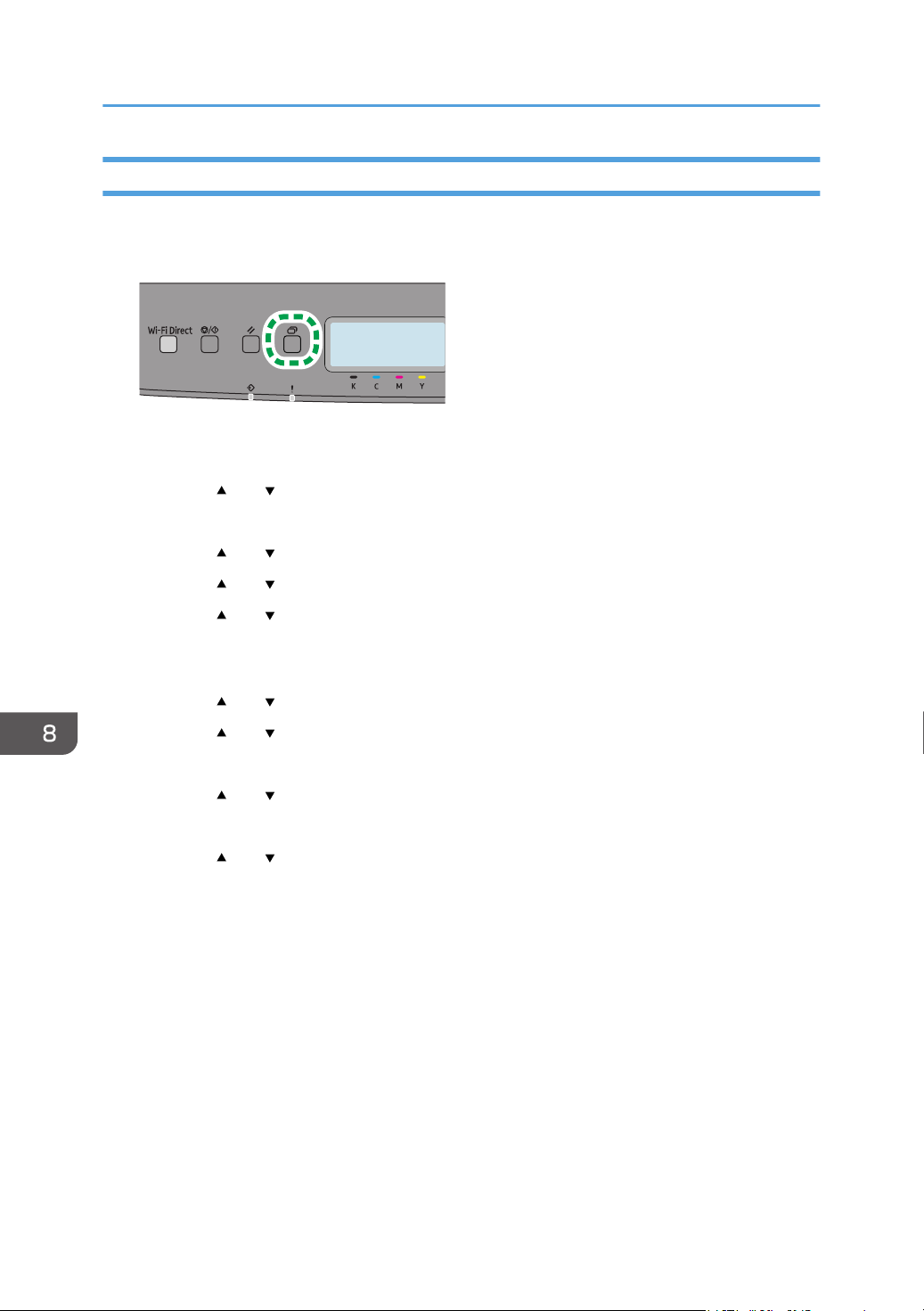
Configuring the IPv6 setting
1. Press the [Menu] key.
2. Press the [ ] or [ ] key to select [Network Settings], and then press the [OK] key.
3. Enter the administrator password.
4. Press the [ ] or [ ] key to select [IPv6 Configuration], and then press the [OK] key.
5. Press the [ ] or [ ] key to select [DHCP], and then press the [OK] key.
6. Press the [
] or [ ] key to select [Active] to automatically obtain the IP address or
[Inactive] to specify the IP address manually.
If you have selected [Active], proceed to Step 14.
7. Press the [ ] or [ ] key to select [Manual Config. Address], and then press the [OK] key.
8. Press the [ ] or [ ] key to select [Manual Config. Address], and then press the [OK] key.
9. Enter the machine's IPv6 address, and then press the [OK] key.
10. Press the [ ] or [ ] key to select [Prefix Length], and then press the [OK] key.
11. Enter the prefix length, and then press the [OK] key.
12. Press the [ ] or [ ] key to select [Gateway Address], and then press the [OK] key.
13. Enter the gateway address, and then press the [OK] key.
14. Turn off the machine, and then turn it back on.
Setup is completed.
8. Configuring Network Settings
184

Connecting the Machine to a Wireless Network
There are four methods for connecting the machine to a wireless network:
• Using the Wi-Fi Setup Wizard
See page 185 "Using the Wi-Fi Setup Wizard".
• Using the WPS button
See page 187 "Using the WPS Button".
• Using a PIN code
See page 188 "Using a PIN Code".
• Using the Wi-Fi Direct
See Wi-Fi Direct Guide.
Using the Wi-Fi Setup Wizard
A router (access point) is needed to set up a connection.
Checking the SSID and encryption key
The SSID and Encryption key for the router (access point) may be printed on a label affixed to the
router (access point). For details about the SSID and Encryption key, refer to the router (access
point) manual.
Configuring settings using the control panel
Make sure the Ethernet cable is not connected to the machine.
1. Check that the router (access point) is working correctly.
2. Press the [Menu] key.
3. Press the [ ] or [ ] key to select [Network Settings], and then press the [OK] key.
4. Enter the administrator password.
5. Press the [ ] or [ ] key to select [Wireless (Wi-Fi)], and then press the [OK] key.
Connecting the Machine to a Wireless Network
185

6. Press the [ ] or [ ] key to select [Enable Wi-Fi], and then press the [OK] key.
7. Press the [ ] or [ ] key to select [Enable], and then press the [OK] key.
8. Press the [Menu] key to return to the Initial screen.
9. Turn off the machine, and then turn it back on.
10. Press the [Menu] key.
11. Press the [ ] or [ ] key to select [Wi-Fi Setup Wizard], and then press the [OK] key.
12. Enter the administrator password.
13. Press the [ ] or [ ] key to select SSID of the router (access point) from the searched SSID
list, and then press the [OK] key.
The next steps differ depending on the authentication method that you have selected.
• If the authentication method is set to WPA2-PSK or Mixed Mode, proceed to Step 14.
• If the authentication method is set to Open System or Shared Key, proceed to Step 17.
• If the authentication method has not been configured, proceed to Step 19.
14. Enter the encryption key using the [ ] or [ ] key, and then press the [OK] key.
As the passphrase, you can enter either 8 to 63 ASCII characters (0x20-0x7e) or 64 hexadecimal
digits (0-9, A-F, a-f).
• To go to the next characters, press the [OK] key.
• Press the [Back] key to clear all characters.
• Press the [ ] key to delete characters one by one backwards from the end.
15. Press the [OK] key.
After connecting to the network, the Wi-Fi screen is displayed.
16. Check the connection status in [Wi-Fi Status] in [Network Settings].
When "Connected" is displayed, the connection has been established. It is not necessary to
proceed to next step.
• When "Connecting" is displayed, the connection is being established.
• When "Disconnected" is displayed, the connection has not been established. Start again from
the beginning.
17. Enter the encryption key using the [
] or [ ] key, and then press the [OK] key.
• To go to the next characters, press the [OK] key.
• Press the [Back] key to clear all characters.
• Press the [
] key to delete characters one by one backwards from the end.
18. Enter the ID using the [
] or [ ] key, and then press the [OK] key.
The ID is used for identifying the encryption key. You can register four encryption keys (ID 1 to 4).
8. Configuring Network Settings
186
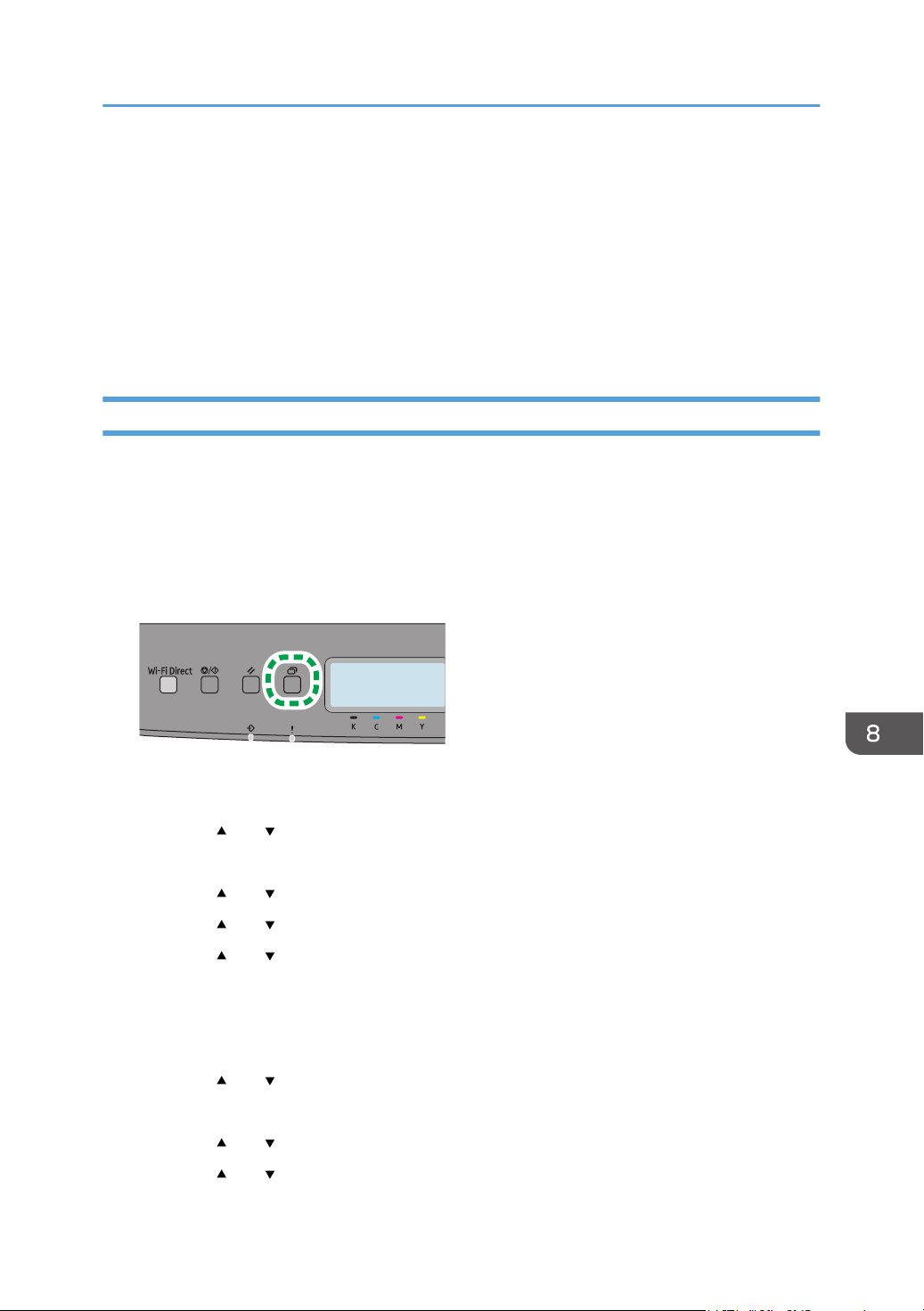
19. Press the [OK] key.
After connecting to the network, the Wi-Fi screen is displayed.
20. Check the connection status in [Wi-Fi Status] in [Network Settings].
When "Connected" is displayed, the connection has been established.
• When "Connecting" is displayed, the connection is being established.
• When "Disconnected" is displayed, the connection has not been established. Start again from
the beginning.
Using the WPS Button
A router (access point) is needed to set up a connection.
Make sure the Ethernet cable is not connected to the machine.
1. Check that the router (access point) is working correctly.
2. Press the [Menu] key.
3. Press the [ ] or [ ] key to select [Network Settings], and then press the [OK] key.
4. Enter the administrator password.
5. Press the [ ] or [ ] key to select [Wireless (Wi-Fi)], and then press the [OK] key.
6. Press the [ ] or [ ] key to select [Enable Wi-Fi], and then press the [OK] key.
7. Press the [ ] or [ ] key to select [Enable], and then press the [OK] key.
8. Press the [Menu] key to return to the Initial screen.
9. Turn off the machine, and then turn it back on.
10. Press the [Menu] key.
11. Press the [ ] or [ ] key to select [Network Settings], and then press the [OK] key.
12. Enter the administrator password.
13. Press the [ ] or [ ] key to select [Wireless (Wi-Fi)], and then press the [OK] key.
14. Press the [ ] or [ ] key to select [WPS], and then press the [OK] key.
Connecting the Machine to a Wireless Network
187
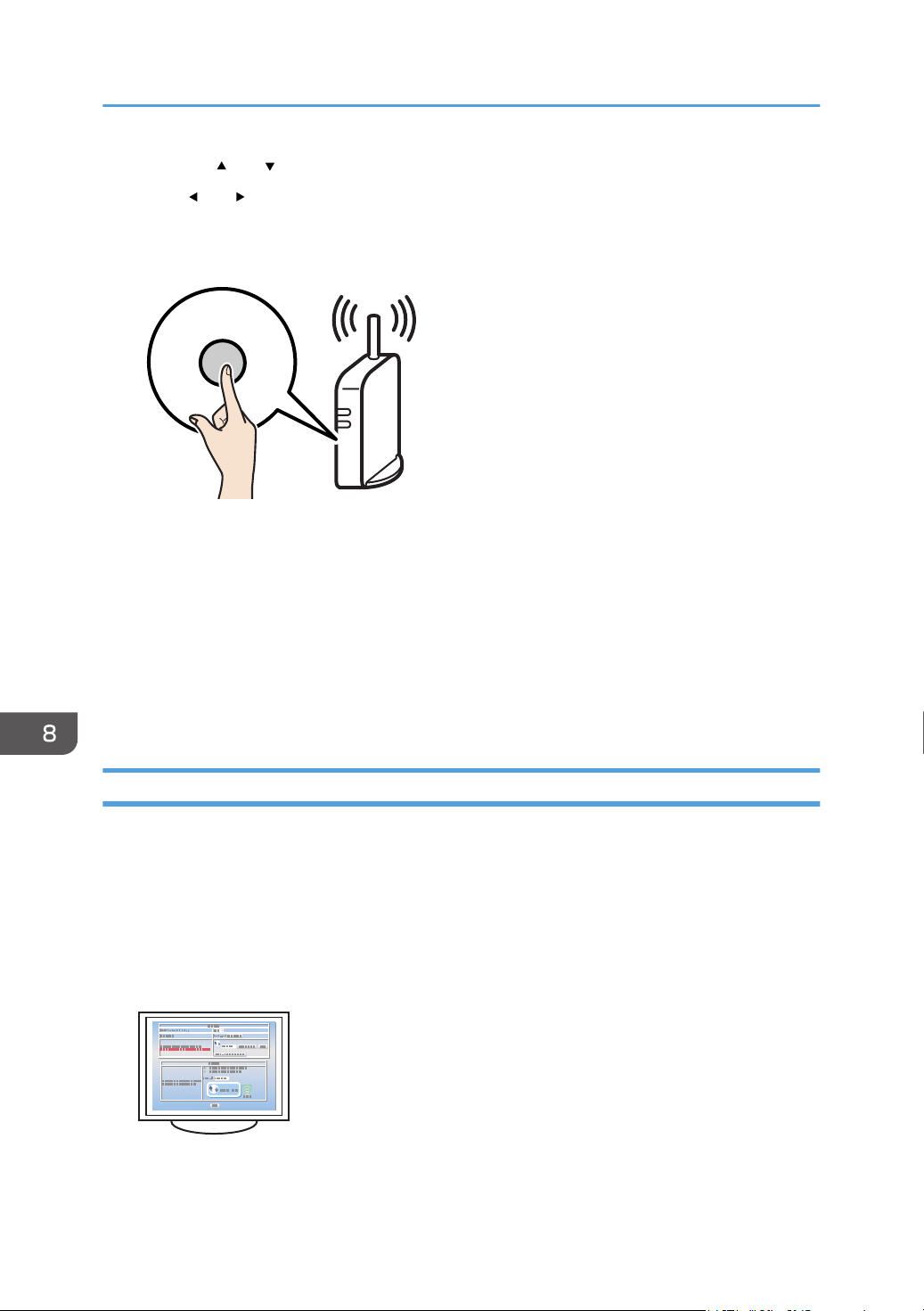
15. Press the [ ] or [ ] key to select [PBC], and then press the [OK] key.
16. Press [ ] or [ ] key to select [Yes], and then press the [OK] key.
17. After "Exec. Push Btn Config..." appears, press the WPS button on the router (access point)
within two minutes.
WPS
CHV607
For details about how to use the WPS button, refer to the manuals for the router (access point).
18. Check the result.
• Connection has succeeded:
Press the [OK] key, and then press the [Menu] key to return to the initial screen.
• Connection has failed:
Press the [OK] key to return to the screen displayed in Step 15. Check the configuration for
the router (access point), then try the connection again.
Using a PIN Code
A router (access point) is needed to set up a connection. To establish a connection using the PIN code,
use a computer that is connected to the router (access point).
Make sure the Ethernet cable is not connected to the machine.
1. Check that the router (access point) is working correctly.
2. Open the PIN code configuration window (web page) for the router (access point) on
your computer.
8. Configuring Network Settings
188
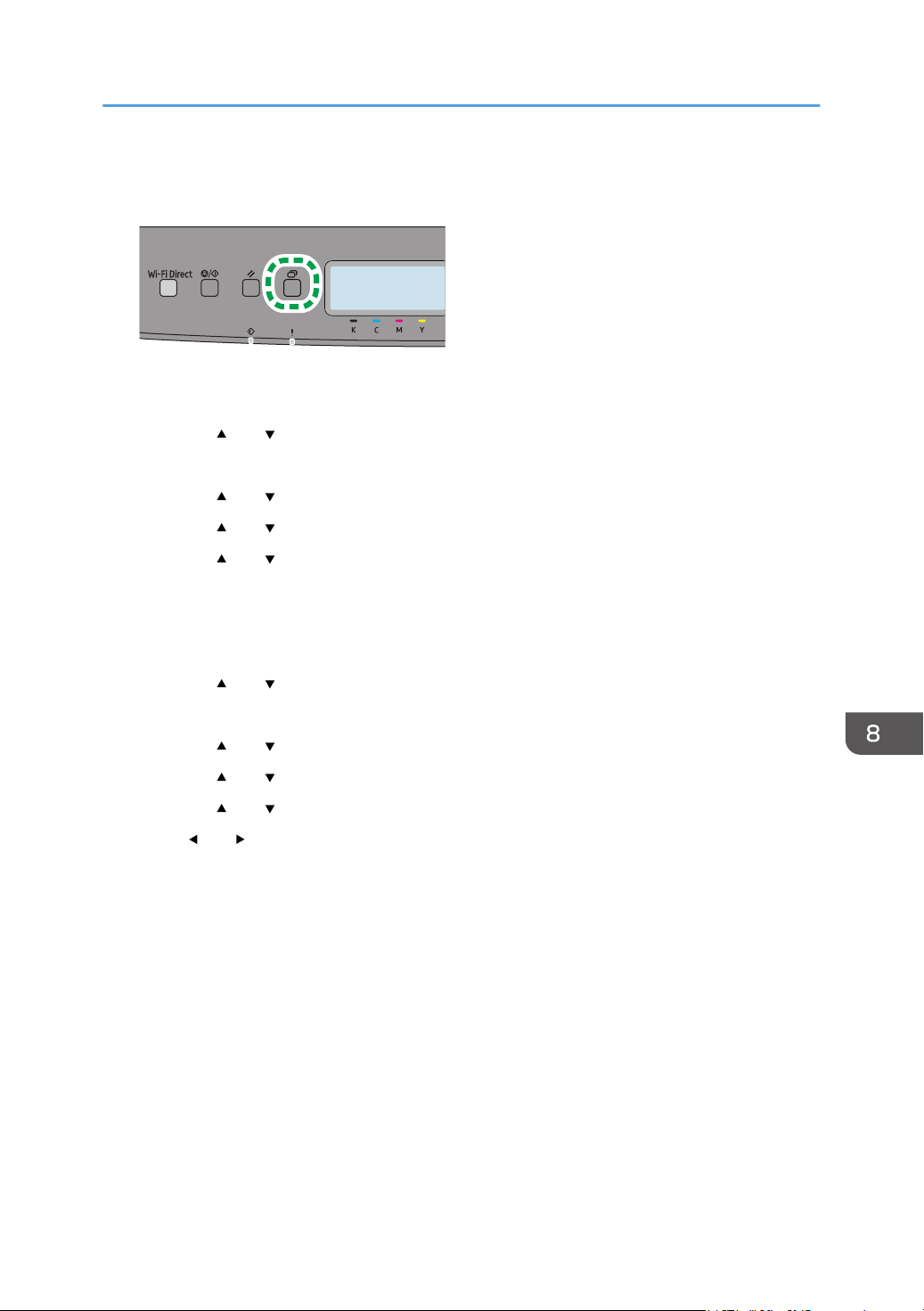
3. Press the [Menu] key.
4. Press the [ ] or [ ] key to select [Network Settings], and then press the [OK] key.
5. Enter the administrator password.
6. Press the [ ] or [ ] key to select [Wireless (Wi-Fi)], and then press the [OK] key.
7. Press the [ ] or [ ] key to select [Enable Wi-Fi], and then press the [OK] key.
8. Press the [ ] or [ ] key to select [Enable], and then press the [OK] key.
9. Press the [Menu] key to return to the Initial screen.
10. Turn off the machine, and then turn it back on.
11. Press the [Menu] key.
12. Press the [ ] or [ ] key to select [Network Settings], and then press the [OK] key.
13. Enter the administrator password.
14. Press the [ ] or [ ] key to select [Wireless (Wi-Fi)], and then press the [OK] key.
15. Press the [ ] or [ ] key to select [WPS], and then press the [OK] key.
16. Press the [ ] or [ ] key to select [PIN], and then press the [OK] key.
17. Press [ ] or [ ] key to select [Connect], and then press the [OK] key.
18. Check the PIN code.
19. Enter the machine's PIN code (8 digits) on the router (access point)'s web page (The web
page accessed in Step 2).
20. Execute WPS (PIN system) from the router (access point)'s web page.
21. Check the result.
• Connection has succeeded:
Press the [OK] key, and then press the [Menu] key to return to the initial screen.
Configuring the Wi-Fi settings is complete.
• Connection has failed:
Press the [OK] key to return to the screen displayed in Step 16. Check the configuration for
the router (access point), then try the connection again.
Connecting the Machine to a Wireless Network
189

8. Configuring Network Settings
190
9. Appendix
This chapter describes the machine specifications and consumables.
Transmission Using IPsec
For securer communications, this machine supports the IPsec protocol. When applied, IPsec encrypts
data packets at the network layer using shared key encryption. The machine uses encryption key
exchange to create a shared key for both sender and receiver. To achieve even higher security, you can
also renew the shared key on a validity period basis.
• IPsec is not applied to data obtained through DHCP or DNS.
• IPsec compatible operating systems are Windows 8.1 or later, Windows Server 2012 or later,
macOS 10.13 or later, Red Hat Enterprise Linux 7.3, 7.4, 7.5, and 7.6. However, some setting
items are not supported depending on the operating system. Make sure the IPsec settings you
specify are consistent with the operating system's IPsec settings.
• If you cannot access Web Image Monitor due to IPsec configuration problems, disable IPsec under
[Admin. Tools] on the control panel, and then access Web Image Monitor.
• For details about specifying the IPsec settings using Web Image Monitor, seepage 88 "Using Web
Image Monitor".
Encryption and Authentication by IPsec
IPsec consists of two main functions: the encryption function, which ensures the confidentiality of data,
and the authentication function, which verifies the sender of the data and the data's integrity. This
machine's IPsec function supports two security protocols: the ESP protocol, which enables both of the
IPsec functions at the same time, and the AH protocol, which enables only the authentication function.
ESP Protocol
The ESP protocol provides secure transmission through both encryption and authentication. This
protocol does not provide header authentication.
• For successful encryption, both the sender and receiver must specify the same encryption
algorithm and encryption key. The encryption algorithm and encryption key are specified
automatically.
• For successful authentication, the sender and receiver must specify the same authentication
algorithm and authentication key. The authentication algorithm and authentication key are
specified automatically.
191
AH Protocol
The AH protocol provides secure transmission through authentication of packets only, including
headers.
• For successful authentication, the sender and receiver must specify the same authentication
algorithm and authentication key. The authentication algorithm and authentication key are
specified automatically.
AH Protocol + ESP Protocol
When combined, the ESP and AH protocols provide secure transmission through both encryption
and authentication. These protocols provide header authentication.
• For successful encryption, both the sender and receiver must specify the same encryption
algorithm and encryption key. The encryption algorithm and encryption key are specified
automatically.
• For successful authentication, the sender and receiver must specify the same authentication
algorithm and authentication key. The authentication algorithm and authentication key are
specified automatically.
• Some operating systems use the term "Compliance" in place of "Authentication".
Security Association
This machine uses encryption key exchange as the key setting method. With this method, agreements
such as the IPsec algorithm and key must be specified for both sender and receiver. Such agreements
form what is known as an SA (Security Association). IPsec communication is possible only if the
receiver's and sender's SA settings are identical.
The SA settings are auto configured on both parties' machines. However, before the IPsec SA can be
established, the ISAKMP SA (Phase 1) settings must be auto configured. When this is done, the IPsec SA
(Phase 2) settings, which allow actual IPsec transmission, will be auto configured.
Also, for further security, the SA can be periodically auto updated by applying a validity period (time
limit) for its settings. This machine only supports IKEv1 for encryption key exchange.
Multiple settings can be configured in the SA.
Settings 1-10
You can configure ten separate sets of SA details (such as different shared keys and IPsec
algorithms).
IPsec policies are searched through one by one, starting at [No.1].
9. Appendix
192
Encryption Key Exchange Settings Configuration Flow
This section explains the procedure for specifying encryption key exchange settings.
Machine PC
1. Set the IPsec settings on Web Image Monitor.
1. Set the same IPsec settings as the machine on
PC.
2. Enable IPsec settings. 2. Enable IPsec settings.
3. Confirm IPsec transmission.
• After configuring IPsec, you can use "ping" command to check if the connection is established
correctly. Because the response is slow during initial key exchange, it may take some time to
confirm that transmission has been established.
• If you cannot access Web Image Monitor due to IPsec configuration problems, disable IPsec under
[Admin. Tools] on the control panel, and then access Web Image Monitor.
• For details about disabling IPsec using the control panel, see page 69 "Admin. Tools".
Specifying Encryption Key Exchange Settings
• This function is available only when an administrator password is specified.
1. Start the web browser and access the machine by entering its IP address.
The top page of Web Image Monitor appears.
2. Click [IPsec Settings].
3. Click the [IPsec Policy List] tab.
4. Select the number of the setting you want to modify in the list.
5. Enter the administrator password, and then click [Change].
6. Modify the IPsec related settings as necessary.
7. Enter the administrator password, and then click [Apply].
8. Click the [IPsec Global Settings] tab, and then select [Active] in [IPsec Function].
9. If necessary, specify [Default Policy], [Broadcast and Multicast Bypass], and [All ICMP
Bypass] also.
10. Enter the administrator password, and then click [Apply].
Transmission Using IPsec
193
• An administrator password can be specified in the [Administrator] tab.
Specifying IPsec Settings on the Computer
Specify exactly the same settings for IPsec SA settings on your computer as are specified for the IPsec
Settings on the machine. Setting methods differ according to the computer's operating system. The
following procedure is based on Windows 10 in an IPv4 environment as an example.
1. On the [Start] menu, click [Control Panel], [System and Security], and then click
[Administrative Tools].
2. Double-click [Local Security Policy], and then click [IP Security Policies on Local
Computer].
3. In the "Action" menu, click [Create IP Security Policy...].
The IP Security Policy Wizard appears.
4. Click [Next].
5. Enter a security policy name in "Name", and then click [Next].
6. Clear the "Activate the default response rule" check box, and then click [Next].
7. Select "Edit properties", and then click [Finish].
8. In the "General" tab, click [Settings...].
9. In "Authenticate and generate a new key after every", enter the same validity period (in
minutes) that is specified on the machine in [IKE Life Time], and then click [Methods...].
10. Confirm that the Encryption Algorithm ("Encryption"), Hash Algorithm ("Integrity"), and
IKE Diffie-Hellman Group ("Diffie-Hellman Group") settings in "Security method
preference order" all match those specified on the machine in [IKE Settings].
If the settings are not displayed, click [Add...].
11. Click [OK] twice.
12. Click [Add...] in the "Rules" tab.
The Security Rule Wizard appears.
13. Click [Next].
14. Select "This rule does not specify a tunnel", and then click [Next].
15. Select the type of network for IPsec, and then click [Next].
16. Click [Add...] in the IP Filter List.
17. In [Name], enter an IP Filter name, and then click [Add...].
The IP Filter Wizard appears.
18. Click [Next].
9. Appendix
194

19. In [Description:], enter a name or a detailed explanation of the IP filter, and then click
[Next].
You may click [Next] and proceed to the next step without entering any information in this field.
20. Select "My IP Address" in "Source address", and then click [Next].
21. Select "A specific IP Address or Subnet" in "Destination address", enter the machine's IP
address, and then click [Next].
22. For the IPsec protocol type, select "Any", and then click [Next].
23. Click [Finish], and then click [OK].
24. Select the IP filter that you have just created, and then click [Next].
25. Click [Add...] in the Filter Action.
The Filter Action Wizard appears.
26. Click [Next].
27. In [Name], enter a Filter Action name, and then click [Next].
28. Select "Negotiate security", and then click [Next].
29. Select one of options for computers allowed to communicate with, and then click [Next].
30. Select "Custom" and click [Settings...].
31. When [ESP] is selected for the machine in [Security Protocol] under [IPsec Settings], select
[Data integrity and encryption (ESP)], and configure the following settings:
Set the value of [Integrity algorithm] to the same value as the [Authentication Algorithm for ESP]
specified on the machine.
Set the value of [Encryption algorithm] to the same value as the [Encryption Algorithm for ESP]
specified on the machine.
32. When [AH] is selected for the machine in [Security Protocol] under [IPsec Settings], select
[Data and address integrity without encryption (AH)], and configure the following
settings:
Set the value of [Integrity algorithm] to the same value as the [Authentication Algorithm for AH]
specified on the machine.
Clear the [Data integrity and encryption (ESP)] check box.
33. When [ESP&AH] is selected for the machine in [Security Protocol] under [IPsec Settings],
select [Data and address integrity without encryption (AH)], and configure the following
settings:
Set the value of [Integrity algorithm] under [Data and address integrity without encryption (AH)] to
the same value as [Authentication Algorithm for AH] specified on the machine.
Set the value of [Encryption algorithm] under [Data integrity and encryption (ESP)] to the same
value as [Encryption Algorithm for ESP] specified on the machine.
Transmission Using IPsec
195
34. In the Session key settings, select "Generate a new key every", and enter the same
validity period (in [Seconds] or [Kbytes]) as that specified for [Life Time] on the machine.
35. Click [OK], and then click [Next].
36. Click [Finish].
If you are using IPv6, you must repeat this procedure from Step 12 and specify ICMPv6 as an
exception. When you reach Step 22, select [58] as the protocol number for the "Other" target
protocol type, and then set [Negotiate security] to [Permit].
37. Select the filter action that you have just created, and then click [Next].
38. Select one of options for an authentication method, and then click [Next].
39. Click [Finish], and then click [OK] twice.
The new IP security policy (IPsec settings) is specified.
40. Click [IP Security Policies on Local Computer].
41. Select the security policy that you have just created, right click on it, and then click
[Assign].
IPsec settings on the computer are enabled.
• To disable the computer's IPsec settings, select the security policy, right click, and then click [Un-
assign].
Enabling and Disabling IPsec Using the Control Panel
• This function is available only when an administrator password is specified.
1. Press the [Menu] key.
2. Press the [ ] or [ ] key to select [Admin. Tools], and then press the [OK] key.
3. Enter the administrator password.
4. Press the [ ] or [ ] key to select [IPsec], and then press the [OK] key.
5. Press the [ ] or [ ] key to select [Active] or [Inactive] and then press the [OK] key.
6. Press the [Menu] key to return to the initial screen.
9. Appendix
196

Notes About the Toner
• Proper operation cannot be guaranteed if any third-party toner is used.
• Depending on printing conditions, there are cases where the printer cannot print the number of
sheets indicated in the specifications.
• Replace the print cartridge if the printed image suddenly becomes pale or blurred.
• When operating the machine for the first time, use the print cartridge supplied with this machine. If
this cartridge is not initially used, the following problems may occur:
• "Replace Required Soon:" "Print Cartridge (XX)" will be displayed before the toner runs out.
• "Replacement Required:" "Print Cartridge (XX)" will be displayed when the toner runs out, but
instead the printed image suddenly becomes pale or blurred.
• The lifetime of the photo conductor, which is built into the print cartridge, is taken into account in
displaying "Replace Required Soon:" "Print Cartridge (XX)". If the photo conductor stops working
before the toner runs out, "Replace Required Soon:" "Print Cartridge (XX)" may be displayed.
Notes About the Toner
197
Specifications of the Machine
This section lists the machine's specifications.
• We have obtained each author's permission for the use of applications including open-source
software applications. For details about the copyright information for these software applications,
see About Open Source Software License.
General Function Specifications
Item Description
Configuration Desktop
Print process Laser electrostatic transfer
Maximum paper size for printing Legal (8
1
/
2
× 14 inches)
Warm-up time (23 °C, 71.6 °F) 20 seconds or less
Paper sizes For details, see page 38 "Supported Paper".
Paper type For details, see page 38 "Supported Paper".
Paper output capacity (80 g/m
2
, 20
lb)
150 sheets
Paper input capacity (80 g/m
2
, 20
lb)
• Tray 1
250 sheets
• Tray 2
500 sheets
• Bypass tray
1 sheet
Memory 256MB
Power requirements 120-127 V, 11 A, 60 Hz
9. Appendix
198
Item Description
Power consumption
The power level when the main switch
is turned off and the power cord is
plugged into an outlet: 1 W or less
• Maximum
1300 W or less
• Ready
30.5 W
• During printing
Color: 461 W
B&W: 420 W
Noise emission • Sound power level
Stand-by: 29.4 dB (A)
During printing:
Color: 65.1 dB (A)
B&W: 64.8 dB (A)
• Sound pressure level
Stand-by: 20.5 dB (A)
During printing:
Color: 54.8 dB (A)
B&W: 53.8 dB (A)
Machine dimensions (Width × Depth ×
Height)
400 × 450 × 334 mm (15.8 × 17.8 × 13.1 inches)
Weight (machine body with
consumables)
25 kg (56 lb.) or less
• Sound power level and sound pressure level are actual values measured in accordance with ISO
7779.
• Sound pressure level is measured from the position of the bystander.
Specifications of the Machine
199
Printer Function Specifications
Item Description
Printing speed Black and white: 25 pages per minute (Simplex/Letter),
13.5 pages per minute (Duplex/Letter)
Color: 25 pages per minute (Simplex/Letter), 13.5 pages
per minute (Duplex/Letter)
Resolution 600 × 600 dpi
First print speed 10 seconds or less
Interface • Ethernet (10BASE-T, 100BASE-TX)
• USB 2.0
• Wi-Fi
Printer language PCL6, PCL5c, PostScript3
Fonts (PCL6, PCL5c, PostScript3) 80 fonts
Paper Feed Unit TK1220
Paper capacity
500 sheets
Paper size
For details, see page 38 "Supported Paper".
Dimensions (Width × Depth × Height)
400 × 450 × 127 mm (15.8 × 17.8 × 5 inches)
Paper weight
For details, page 38 "Supported Paper".
Weight
Less than 4 kg (8.9 lb.)
9. Appendix
200
Consumables
• Our products are engineered to meet high standards of quality and functionality, and we
recommend that you use only the expendable supplies available at an authorized dealer.
Print Cartridge
Print cartridge Average printable number of pages per cartridge
*1
Black 2,300 pages
Cyan 2,300 pages
Magenta 2,300 pages
Yellow 2,300 pages
*1
The printable number of pages is based on pages that are compliant with ISO/IEC 19798 and the image
density set as the factory default. ISO/IEC 19798 is an international standard on measurement of printable
pages, set by the International Organization for Standardization.
• For information about consumables, see our website.
• If print cartridges are not changed when necessary, printing will become impossible. For easy
replacement, we recommend you purchase and store extra print cartridges.
• The actual number of printable pages varies depending on the image volume and density, number
of pages printed at a time, paper type and paper size used, and environmental conditions such as
temperature and humidity.
• Print cartridges may need to be changed sooner than indicated above due to deterioration over
the period of use.
• Print cartridges (consumables) are not covered by warranty. However, if there is a problem,
contact the store where they were purchased.
• When you first use this machine, use the print cartridges packaged with the machine.
• The supplied print cartridges are good for approximately 1,000 pages.
• This machine routinely performs cleaning and uses toner during this operation to maintain quality.
• To prevent a cleaning malfunction, you may need to replace a print cartridge even if it is not empty.
Consumables
201
Waste Toner Bottle
Name Average printable number of pages per cartridge
*1
Waste Toner Bottle RICOH
C125 P/MF
25,000 pages
*1
A4/Letter 5% test chart, 3 pages per job, printing in 50% black and white/color.
• The actual number of printable pages varies depending on the image volume and density, number
of pages printed at a time, paper type and paper size used, and environmental conditions such as
temperature and humidity.
• If the waste toner bottle is not changed when necessary, printing will become impossible. For easy
replacement, we recommend you purchase and store extra waste toner bottles.
9. Appendix
202

Information for This Machine
Notes to users in the state of California (Notes to Users in USA)
Perchlorate Material - special handling may apply. See: www.dtsc.ca.gov/hazardouswaste/
perchlorate
Notes to users in the United States of America
FCC Rules
Note:
This equipment has been tested and found to comply with the limits for a Class B digital device,
pursuant to Part 15 of the FCC Rules. These limits are designed to provide reasonable protection
against harmful interference in a residential installation. This equipment generates, uses and can
radiate radio frequency energy and, if not installed and used in accordance with the instructions,
may cause harmful interference to radio communications. However, there is no guarantee that
interference will not occur in a particular installation. If this equipment does cause harmful
interference to radio or television reception, which can be determined by turning the equipment off
and on, the user is encouraged to try to correct the interference by one or more of the following
measures:
• Reorient or relocate the receiving antenna.
• Increase the separation between the equipment and receiver.
• Connect the equipment into an outlet on a circuit different from that to which the receiver is
connected.
• Consult the dealer or an experienced radio /TV technician for help.
Caution:
Changes or modifications not expressly approved by the party responsible for compliance could
void the user's authority to operate the equipment.
This transmitter must not be co-located or operated in conjunction with any other antenna or transmitter.
Frequency Tolerance: ±12.5 ppm
Compliance with FCC requirement 15.407(c)
Data transmission is always initiated by software, which is the passed down through the MAC, through
the digital and analog baseband, and finally to the RF chip. Several special packets are initiated by the
MAC. These are the only ways the digital baseband portion will turn on the RF transmitter, which it then
turns off at the end of the packet. Therefore, the transmitter will be on only while one of the
Information for This Machine
203

aforementioned packets is being transmitted. In other words, this device automatically discontinues
transmission in case of either absence of information to transmit or operational failure.
Federal Communication Commission (FCC) Radiation Exposure Statement
This EUT is compliance with SAR for general population/uncontrolled exposure limits in ANSI/IEEE
C95.1-1999 and had been tested in accordance with the measurement methods and procedures
specified in OET Bulletin 65 Supplement C. This equipment should be installed and operated with
minimum distance 0.5cm between the radiator & your body.
Supplier's Declaration of Conformity
This device complies with Part 15 of the FCC Rules.
Operation is subject to the following two conditions:
(1) This device may not cause harmful interference, and
(2) this device must accept any interference received, including interference that may cause
undesired operation.
Responsible party: PFU America, Inc.
Address: 350 Cobalt Way, Sunnyvale, California, 94085, USA
Telephone number: (408)992-2900
Product Name: Printer
Model Number: C125 P
Notes to Canadian Users of Wireless Devices
This device contains licence-exempt transmitter(s)/receiver(s) that comply with Innovation, Science and
Economic Development Canada’s licence-exempt RSS(s).
Operation is subject to the following two conditions:
1.This device may not cause interference.
2.This device must accept any interference, including interference that may cause undesired operation of
the device.
Federal Communication Commission (FCC) Radiation Exposure Statement
This EUT is compliance with SAR for general population/uncontrolled exposure limits in ANSI/IEEE
C95.1-1999 and had been tested in accordance with the measurement methods and procedures
specified in OET Bulletin 65 Supplement C. This equipment should be installed and operated with
minimum distance 0.5cm between the radiator & your body.
5150-5250 MHz band is restricted to indoor operation only.
5250-5350 MHz band is restricted to indoor operation only.
Compliance with ISED requirement RSS-247 6.4 a) Data transmission is always initiated by software,
which is the passed down through the MAC, through the digital and analog baseband, and finally to
9. Appendix
204

the RF chip. Several special packets are initiated by the MAC. These are the only ways the digital
baseband portion will turn on the RF transmitter, which it then turns off at the end of the packet.
Therefore, the transmitter will be on only while one of the aforementioned packets is being transmitted. In
other words, this device automatically discontinue transmission in case of either absence of information
to transmit or operational failure.
Remarques à l'attention des utilisateurs canadiens d'appareils sans fil
L’émetteur/récepteur exempt de licence contenu dans le présent appareil est conforme aux CNR
d’Innovation, Sciences et Développement économique Canada applicables aux appareils radio
exempts de licence.
L’exploitation est autorisée aux deux conditions suivantes :
1.L’appareil ne doit pas produire de brouillage;
2.L’appareil doit accepter tout brouillage radioélectrique subi, même si le brouillage est susceptible
d’en compromettre le fonctionnement.
Cet EUT est conforme à la norme SAR pour la population générale / limites d'exposition non contrôlées
selon la norme ANSI / IEEE C95.1-1999 et a été testé conformément aux méthodes et procédures de
mesure spécifiées dans le CNR-102. Cet équipement doit être installé et utilisé à une distance minimale.
0.5 cm entre le radiateur et votre corps.
La bande 5150-5250 MHz est restreinte à une utilisation à l'intérieur seulement.
La bande 5250-5350 MHz est restreinte à une utilisation à l’intérieur seulement.
Conformité à la norme CNR-247 6.4 a) La transmission des données est toujours initiée par le logiciel,
puis les données sont transmises par l'intermédiaire du MAC, par la bande de base numérique et
analogique et, enfin, à la puce RF. Plusieurs paquets spéciaux sont initiés par le MAC. Ce sont les seuls
moyens pour qu'une partie de la bande de base numérique active l'émetteur RF, puis désactive celui-ci
à la fin du paquet. En conséquence, l'émetteur reste uniquement activé lors de la transmission d'un des
paquets susmentionnés. En d'autres termes, ce dispositif interrompt automatiquement toute transmission
en cas d'absence d'information à transmettre ou de défaillance.
Information for This Machine
205
ENERGY STAR Program
ENERGY STAR
®
Program Requirements for Imaging Equipment
The ENERGY STAR
®
Program Requirements for Imaging Equipment encourage energy conservation
by promoting energy efficient computers and other office equipment.
The program backs the development and dissemination of products that feature energy saving
functions.
It is an open program in which manufacturers participate voluntarily.
Energy Star standards and logos are internationally uniform.
Saving Energy
This machine is equipped with the following Energy Saver modes: Energy Saver mode 1 and Energy
Saver mode 2. If the machine has been idle for a certain period of time, the machine automatically
enters Energy Saver mode.
The machine recovers from Energy Saver mode when it receives a print job or when any key is pressed.
Energy Saver mode 1
The machine enters Energy Saver mode 1 if the machine has been idle for about 30 seconds. It
takes less time to recover from Energy Saver mode 1 than from power-off state or Energy Saver
mode 2, but power consumption is higher in Energy Saver mode 1 than in Energy Saver mode 2.
Energy Saver mode 2
The machine enters Energy Saver mode 2 after the period of time specified for this setting is
passed. Power consumption is lower in Energy Saver mode 2 than in Energy Saver mode 1, but it
takes longer to recover from Energy Saver mode 2 than from Energy Saver mode 1.
After printing in Energy Saver mode 2, the power is turned off without waiting for 1 minute.
9. Appendix
206
Specifications
Energy Saver mode 1 Power Consumption
*1
24.7 W
Default Time 30 seconds
Recovery Time
*1
10 seconds or less
Energy Saver mode 2 Power Consumption
*1
0.64 W
Default Time 1 minute
Recovery Time
*1
12 seconds
Duplex Function
*2
Standard
*1
Recovery time and power consumption may differ depending on the conditions and environment of the
machine.
*2
Achieves ENERGY STAR energy savings; product fully qualifies when packaged with (or used with) a
duplex tray and the duplex function is enabled as an option.
For details about Energy Saver modes, see page 75 "System Settings".
• If the machine is in Energy Saver mode for 24 hours continuously, the machine automatically
returns to normal state and performs self-maintenance.
Information for This Machine
207

Trademarks
Google Chrome, and Google Play are trademarks or registered trademarks of Google LLC.
macOS, TrueType, App Store, and Safari are trademarks of Apple Inc., registered in the U.S. and other
countries.
Firefox
®
is a registered trademark of the Mozilla Foundation.
LINUX
®
is the registered trademark of Linus Torvalds in the U.S. and other countries.
BOSS Linux
TM
is registered trademark of CDAC.
Microsoft
®
, Windows
®
, Windows Server
®
, and Internet Explorer
®
are either registered trademarks or
trademarks of Microsoft Corporation in the United States and/or other countries.
PCL
®
is a registered trademark of Hewlett-Packard Company.
QR Code is a registered trademark of DENSO WAVE INCORPORATED in Japan and in other countries.
Red Hat is a registered trademark of Red Hat, Inc.
Wi-Fi
®
, Wi-Fi Direct
®
, WPA, and WPA2 are registered trademarks of Wi-Fi Alliance.
The proper names of Internet Explorer 10 and 11 are as follows:
• Internet Explorer
®
10
• Internet Explorer
®
11
The proper name of Edge is Microsoft
®
Edge
TM
.
The proper names of the Windows operating systems are as follows:
• The product names of Windows 8.1 are as follows:
Microsoft
®
Windows
®
8.1
Microsoft
®
Windows
®
8.1 Pro
Microsoft
®
Windows
®
8.1 Enterprise
• The product names of Windows 10 are as follows:
Microsoft
®
Windows
®
10 Home Premium
Microsoft
®
Windows
®
10 Pro
Microsoft
®
Windows
®
10 Enterprise
Microsoft
®
Windows
®
10 Education
• The product names of Windows Server 2012 are as follows:
Microsoft
®
Windows Server
®
2012 Foundation
Microsoft
®
Windows Server
®
2012 Essentials
Microsoft
®
Windows Server
®
2012 Standard
• The product names of Windows Server 2012 R2 are as follows:
Microsoft
®
Windows Server
®
2012 R2 Foundation
9. Appendix
208

Microsoft
®
Windows Server
®
2012 R2 Essentials
Microsoft
®
Windows Server
®
2012 R2 Standard
• The product names of Windows Server 2016 are as follows:
Microsoft
®
Windows Server
®
2016 Essentials
Microsoft
®
Windows Server
®
2016 Standard
Microsoft
®
Windows Server
®
2016 MultiPoint
®
Premium Server
• The product names of Windows Server 2019 are as follows:
Microsoft
®
Windows Server
®
2019 Essentials
Microsoft
®
Windows Server
®
2019 Standard
• The product names of Windows Server 2022 are as follows:
Microsoft
®
Windows Server
®
2022 Datacenter: Azure
®
Edition
Microsoft
®
Windows Server
®
2022 Datacenter
Microsoft
®
Windows Server
®
2022 Standard
Other product names used herein are for identification purposes only and might be trademarks of their
respective companies. We disclaim any and all rights to those marks.
Microsoft product screen shots reprinted with permission from Microsoft Corporation.
Trademarks
209

9. Appendix
210

INDEX
A
Admin. Tools.......................................................... 69
Administrator password........................... 9, 69, 125
Administrator settings..........................................125
Attaching Paper Feed Unit TK1220.................... 19
Authentication......................................................191
Auto e-mail notification settings......................... 108
B
B&W print priority................................................. 98
Backup settings....................................................126
Bypass tray...................................................... 29, 96
Bypass tray setting priority....................................95
C
Cleaning.................................... 141, 142, 144, 147
Community...........................................................109
Confidential document..........................................61
Configuration page.............................................124
Configuring Network Settings
Ethernet............................................................................ 183
Wireless LAN.................................................................. 185
Configuring the machine
Printing the configuration page........................................ 85
Using the control panel..................................................... 67
Confirming information
Printer driver settings..........................................................55
Consumables.......................................................201
Control panel.........................................................17
Counter information.............................................. 92
D
Default settings.................................................... 125
Disclaimer.................................................................8
DNS setting..........................................................107
Duplex.................................................................... 94
E
E-mail notification 1............................................ 108
E-mail notification 2............................................ 108
Economy Color Prints............................................93
Encryption............................................................191
Encryption key exchange................................... 193
Energy saver mode.................................... 127, 206
Error messages.................................................... 153
Extending tray 1.................................................... 27
Exterior................................................................... 13
F
Fusing Unit........................................................... 140
G
General status..................................................... 104
I
I/O timeout............................................................98
IKE settings...........................................................120
Interior.................................................................... 16
Intermediate transfer unit.................................... 140
Introduction.............................................................. 8
IPsec global settings............................................120
IPsec policy settings.............................................120
IPsec settings........................................................120
IPsec transmission................................................191
IPv6 configuration............................................... 105
IPv6 environment.................................................105
J
Job cancel..............................................................59
L
Language............................................................... 90
List of Option..........................................................10
List/Test Print..........................................................85
Lists.................................................................85, 124
Loading paper....................................................... 24
Locked Print..................................................... 62, 63
M
Machine information.............................................94
Maintaining the machine
Cleaning the machine..........................................141, 144
Replacing the print cartridge..........................................129
Maintenance page.......................................85, 124
mDNS setting.......................................................106
Menu chart.............................................................68
Messages.............................................................153
Moving.................................................................150
211

N
Network application...........................................106
Network print setting...........................................106
Network settings........................................... 81, 104
Network status.....................................................104
Non-recommended paper................................... 48
Notes....................................................................197
O
Operation Tools.....................................................22
Option settings.......................................................52
P
Page counter..........................................................92
Paper Feed Unit TK1220.............................19, 200
Paper jam.................................. 158, 161, 163, 165
Paper mismatch..................................................... 58
Paper size...............................................................32
Paper Storage........................................................48
Paper tray...............................................................91
Paper types............................................................ 41
Bond Paper.........................................................................41
Cardstock........................................................................... 41
Color Paper........................................................................41
Envelope.............................................................................41
Label Paper........................................................................ 41
Letterhead...........................................................................41
Middle Thick paper........................................................... 41
Plain Paper......................................................................... 41
Preprinted Paper................................................................ 41
Prepunched Paper............................................................. 41
Recycled Paper..................................................................41
Thick Paper 1..................................................................... 41
Thick Paper 2..................................................................... 41
Thin Paper...........................................................................41
POP3 settings.......................................................114
Print
Basic operation..................................................................57
Combine............................................................................. 51
Duplex................................................................................ 51
Printing on envelopes........................................................ 30
Specifications.................................................................. 200
Print area................................................................49
Print cartridge..............................................129, 201
Print counter........................................................... 92
Print functions......................................................... 64
Print output functions..............................................65
Print quality functions.............................................64
Printer settings........................................................ 71
Priority tray.............................................................96
R
Replacing the Fusing Unit and Transfer Rollor..140
Replacing the intermediate transfer unit............ 140
Report.....................................................................85
Reports................................................................. 124
Reset settings........................................................125
Restore settings.................................................... 126
Restrict user function..................................... 99, 103
S
SA (Security Association)................................... 192
SMTP settings.......................................................113
SNMPv1/v2 settings..........................................109
SNMPv3 settings.................................................110
Specifications..............................................198, 200
Specifying the paper type and paper size... 35, 36
Status information..................................................91
Status messages.................................................. 153
Supported paper...................................................38
System.................................................................. 109
System information................................................ 91
System settings.......................................................95
System Settings...................................................... 75
T
TCP/IP status....................................................... 104
Toner.......................................................................91
Top page................................................................89
Trademarks.......................................................... 208
Transfer Rollor..................................................... 140
Trap...................................................................... 109
Tray 1..................................................................... 24
Tray 1 priority........................................................ 96
Tray 2..................................................................... 95
Tray paper settings......................................... 78, 95
Troubleshooting
Error and status messages on the screen...................... 153
Other problems................... 166, 167, 170, 173, 181
212

U
User code............................................................ 103
User restriction......................................................... 9
W
Waste toner bottle......................................134, 202
Web Image Monitor............................................. 88
What you can do with this machine
Printer function....................................................................51
Wireless LAN settings......................................... 115
Wireless settings..................................................115
213

MEMO
214

MEMO
215

MEMO
216 EN
US
M0G1-8504


EN
US
M0G1-8504 © 2023 Ricoh Co., Ltd.
