
Chapter 1: Introduction
Read this chapter before use.
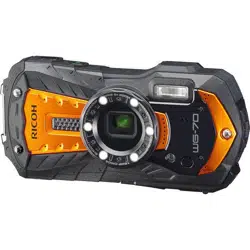
This chapter gives you an overview of the RICOH WG-6.
Chapter 2: Getting Started
Read this chapter before using the RICOH WG-6 for the first time.
This chapter explains about basic operations such as turning the camera on,
performing shooting, and playing back images.
Chapter 3 and later
Read these chapters when you want to learn more about the different
camera functions.
These chapters explain about shooting and playback functions, as well as
how to customize the camera settings and use it with a computer.
Operating Manual
The serial number is located inside the battery/card cover.
Model: R02050

Regarding User Registration
Thank you for purchasing a RICOH product.
In order to provide you with the best customer support and service experi-
ence for the product you have purchased, we ask you to complete the user
registration.
Visit the following website to complete the user registration.
http://www.ricoh-imaging.com/registration/
Registered users will be notified by e-mail about important customer sup-
port information, such as firmware version updates, etc.
1
Introduction
This Operating Manual provides information on how to use the shooting and playback
functions of this camera and related precautions.
Thoroughly read this Operating Manual to make the best use of the functions available
with this camera. Be sure to keep this Operating Manual for future reference.
It is recommended to update the camera firmware to the latest version before using
the camera.
For details on the latest firmware version, refer to the following firmware download site.
http://www.ricoh-imaging.co.jp/english
RICOH COMPANY, LTD.
Safety precautions Read all safety precautions thoroughly to ensure safe use.
Test shots Take test shots to ensure that the camera is working properly be-
fore taking pictures on important occasions.
Copyright Reproduction or alteration of copyrighted documents, magazines,
and other materials, other than for personal, home, or other simi-
larly limited purposes, without the consent of the copyright holder,
is prohibited.
Exemption from liability RICOH COMPANY assumes no liability for failure to record or display
images as a result of product malfunction.
Radio interference Operating this camera in the vicinity of other electronic equipment
may adversely affect both the camera and the other device. Inter-
ference is particularly likely if the camera is used in close proximity
to a radio/TV receiver. In such case, take the following measures.
• Keep the camera as far away as possible from the radio/TV re-
ceiver.
• Reorient the antenna of the radio/TV receiver.
• Use a different wall outlet.
This publication may not be reproduced in whole or in part without RICOH COMPANY’s express written permission.
© RICOH COMPANY, LTD. 2019
RICOH COMPANY reserves the right to change the contents of this manual at any time without prior notice.
Every effort has been made to ensure the accuracy of the information in this manual. Should you nevertheless
notice any errors or omissions, we would be grateful if you would notify us at the address listed on the back cover
of this manual.

2
Trademarks
• Microsoft and Windows are registered trademarks of Microsoft Corporation in the United States of America and
other countries.
• Mac, macOS, and OS X are trademarks of Apple Inc., registered in the U.S. and other countries.
• SDXC Logo is a trademark of SD-3C, LLC.
• FlashAir is a trademark of Toshiba Memory Corporation.
• USB Type-C is a trademark of USB Implementers Forum.
• HDMI, the HDMI logo, and High-Definition Multimedia Interface are trademarks or registered trademarks of HDMI
Licensing, LLC in the United States and/or other countries.
All other trademarks are the property of their respective owners.
• This product uses the RICOH RT font designed by RICOH COMPANY, LTD.
AVC Patent Portfolio License
This product is licensed under the AVC Patent Portfolio License for the personal use of a consumer or other uses
in which it does not receive remuneration to (i) encode video in compliance with the AVC standard (“AVC video”)
and/or (ii) decode AVC video that was encoded by a consumer engaged in a personal activity and/or was obtained
from a video provider licensed to provide AVC video. No license is granted or shall be implied for any other use.
Additional information may be obtained from MPEG LA, L.L.C.
See http://www.mpegla.com.
3
Safety Precautions
Warning Symbols
Various symbols are used throughout this Operating Manual and on the product to
prevent physical harm to you or other people and damage to property. The symbols
and their meanings are explained below.
Danger
This symbol indicates matters that may lead to imminent risk of
death or serious injury if ignored or incorrectly handled.
Warning
This symbol indicates matters that may lead to death or serious injury
if ignored or incorrectly handled.
Caution
This symbol indicates matters that may lead to injury or property
damage if ignored or incorrectly handled.
Meaning of Symbols
The symbol alerts you to actions that must be performed.
The symbol alerts you to prohibited actions.
The symbol may be combined with other symbols to indicate that a spe-
cific action is prohibited.
Example:
: Do not touch : Do not disassemble
Observe the following precautions to ensure safe use of this camera.
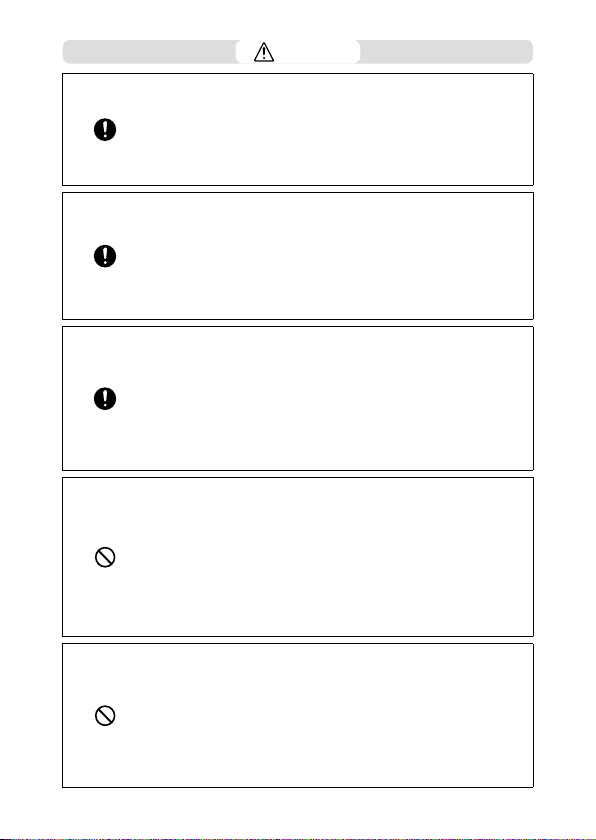
Danger
QQ
Do not attempt to disassemble, repair, or alter the camera yourself. The
high-voltage circuitry in the equipment poses significant electrical hazard.
QQ
Do not attempt to disassemble, alter, or directly solder the battery.
QQ
Do not put the battery in a fire, attempt to heat it, or use or leave it in a
high temperature environment such as next to a fire or inside a car. Do not
put it into water or the sea or allow it to get wet.
QQ
Do not attempt to pierce, hit, compress, drop, or subject the battery to any
other severe impact or force.
QQ
Do not use a battery that is significantly damaged or deformed.
4
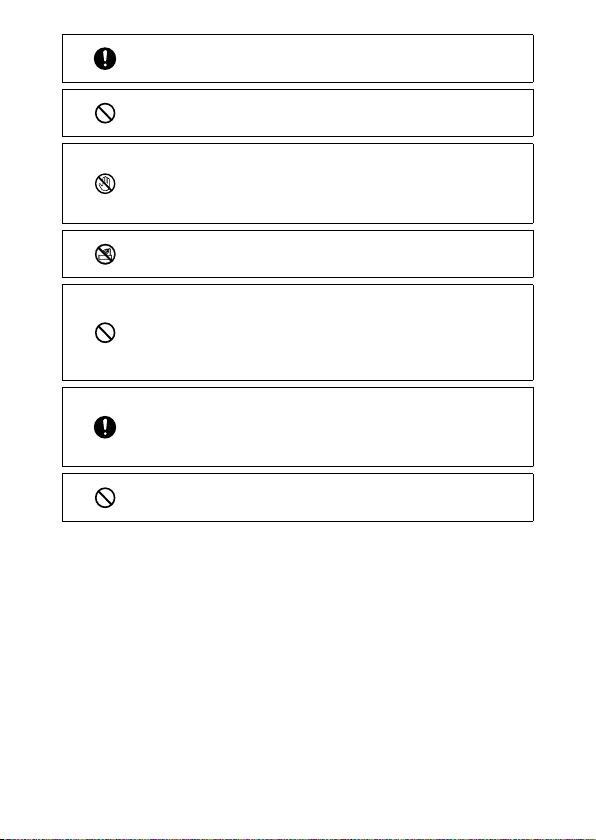
Warning
QQ
Turn off the power immediately in the event of abnormalities such as
smoke or unusual odors being emitted. Remove the battery as soon as
possible, being careful to avoid electric shocks or burns. If you are drawing
power from a household electrical outlet, be sure to unplug the power
plug from the outlet. Failure to observe this precaution could result in
fire or electric shocks. Contact the nearest service center at your earliest
convenience. Stop using the camera immediately if it is malfunctioning.
QQ
Turn off the power immediately if any metallic object, water, liquid, or oth-
er foreign object gets into the camera. Remove the battery and memory
card as soon as possible, being careful to avoid electric shocks or burns.
If you are drawing power from a household electrical outlet, be sure to
unplug the power plug from the outlet. Failure to observe this precaution
could result in fire or electric shocks. Contact the nearest service center
at your earliest convenience. Stop using the camera immediately if it is
malfunctioning.
QQ
If the monitor is damaged, avoid any contact with the liquid crystal inside it.
Follow the appropriate emergency measures below.
• SKIN: If any of the liquid crystal gets on your skin, wipe it off and rinse the
affected area thoroughly with water, then wash well with soap.
• EYES: If it gets in your eyes, wash your eyes with clean water for at least 15
minutes and seek medical advice immediately.
• INGESTION: If any of the liquid crystal is ingested, rinse the mouth out
thoroughly with water. Have the person drink a large amount of water and
induce vomiting. Seek medical assistance immediately.
QQ
Follow these precautions to prevent the battery from leaking, overheat-
ing, igniting, or exploding.
• Do not use a battery other than those specifically recommended for the
camera.
• Do not carry or store the battery together with metal objects such as ball-
point pens, necklaces, coins, and hairpins.
• Do not put the battery into a microwave or high pressure container.
• If leakage of battery fluid, a strange odor, color change, etc. is noticed
during use or during charging, remove the battery from the camera or
battery charger immediately and keep it away from fire.
QQ
Observe the following in order to prevent fire, electrical shock, or cracking
of the battery while charging.
• Use only the indicated power supply voltage. Also avoid the use of
multi-socket adapters and extension cords.
• Do not damage, bundle, or alter the AC plug cord. Also, do not place heavy
objects on, stretch, or bend the AC plug cord.
• Do not connect or disconnect the power plug with wet hands. Always grip
the plug section when disconnecting a power plug. Do not cover the cam-
era while charging the battery.
5
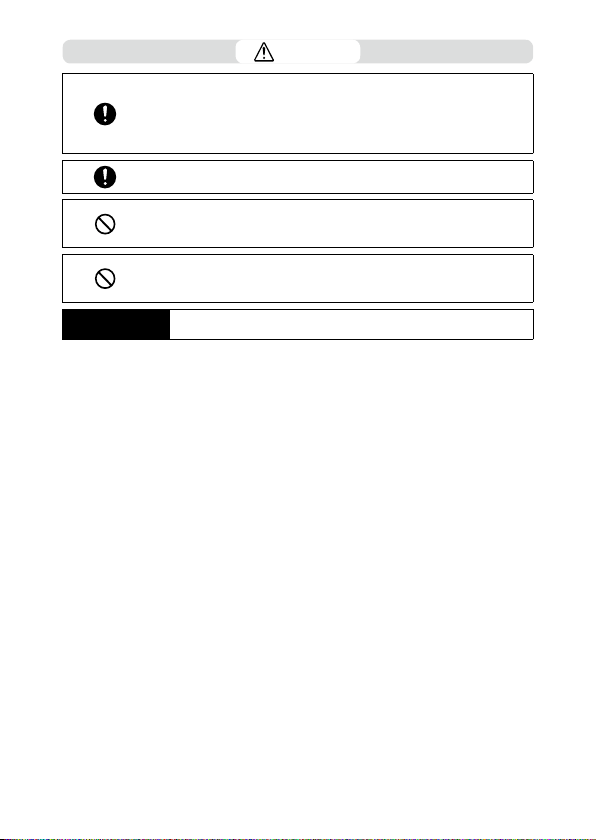
QQ
Keep the battery and SD memory card used in the camera out of the reach
of children to prevent accidental swallowing. The battery and memory
card are harmful if swallowed. Seek medical assistance immediately.
QQ
Keep the camera out of the reach of children. For children, accidents may
occur because they cannot understand the contents of “Safety Precau-
tions” and “Precautions for Use”.
QQ
Do not touch the internal components of the camera if they become ex-
posed as a result of being dropped or damaged. The high-voltage circuitry
in the equipment could lead to electric shocks. Remove the battery as
soon as possible, being careful to avoid electric shocks or burns. Take the
camera to your nearest dealer or service center if it is damaged.
QQ
When using the camera in wet areas such as a kitchen, be careful not to
wet the inside of the camera. Failure to observe this precaution could re-
sult in fire or electric shocks.
QQ
Do not use the camera near flammable gases, gasoline, benzine, thinner,
or similar substances. Failure to observe this precaution could result in an
explosion, fire, or burns.
QQ
Do not use the camera in a location where usage is restricted or prohib-
ited, such as on airplanes. Failure to observe this precaution could result
in an accident.
QQ
Wipe off any dust that accumulates on the power plug. Failure to observe
this precaution could result in fire.
QQ
When using a household power outlet, always use the dedicated AC
adapter. Failure to observe this precaution could result in fire, electric
shocks, or product malfunction.
QQ
Do not use the battery charger or AC adapter with commercially available
electronic transformers when traveling abroad. Failure to observe this pre-
caution could result in fire, electric shocks, or product malfunction.
6
Caution
QQ
Contact with fluid leaking from a battery can lead to burns. If part of your
body comes in contact with a damaged battery, rinse the area with water
immediately. (Do not use soap.)
If a battery starts to leak, remove it immediately from the camera and wipe
the battery chamber thoroughly before replacing it with a new battery.
QQ
Plug the power plug securely into the electrical outlets. Failure to observe
this precaution could result in fire.
QQ
Do not allow the camera interior to get wet. When operating the camera
with wet hands, be careful not to get the camera interior wet. Failure to
observe this precaution could result in electric shocks.
QQ
Do not fire the flash at drivers of vehicles, as this may cause the driver to
lose control and result in a traffic accident. Failure to observe this precau-
tion could result in a traffic accident.
Safety Precautions
for Accessories
When using optional products, carefully read the user’s manuals provid-
ed with the product before using that product.

7
Introduction ........................................................................................................................... 1
Safety Precautions ................................................................................................................ 3
1
Introduction 11
Checking the Contents of the Package ......................................................................11
Names and Functions of the Working Parts ..............................................................12
Operating Controls ...........................................................................................................................14
Indicators on the Monitor ................................................................................................16
Shooting Screen .................................................................................................................................16
Playback Screen .................................................................................................................................17
Changing the Screen Display ........................................................................................................ 18
How to Change Function Settings ...............................................................................19
Using the Button ................................................................................................................................ 19
Setting from the Menus ..................................................................................................................22
Menu List ............................................................................................................................... 24
A Shooting Menu ........................................................................................................................... 24
B Movie Menu ................................................................................................................................. 25
C Playback Menu ............................................................................................................................ 26
D Customize Menu.........................................................................................................................27
E Setup Menu ..................................................................................................................................29
2
Getting Started 31
Setting the Battery and a Memory Card ....................................................................31
Inserting the Battery and a Memory Card ................................................................................ 31
Charging the Battery ........................................................................................................................ 33
Initial Settings ...................................................................................................................... 35
Turning the Camera On ................................................................................................................... 35
Setting the Language and the Date and Time ........................................................................ 36
Formatting a Memory Card ............................................................................................................37
Basic Shooting Operation ................................................................................................38
Shooting in the Auto Mode ...........................................................................................................38
Viewing the Captured Images.......................................................................................................39
3
Taking Pictures 40
Taking Still Images .............................................................................................................40
Setting the Capture Mode ..............................................................................................................40
Using Exposure Compensation ....................................................................................................43
Recording Movies ............................................................................................................... 44
Playing Back Movies .........................................................................................................................46
Contents

8
Setting the Focus Mode ...................................................................................................47
Focusing Manually (Manual Focus) ............................................................................................. 49
Setting the Exposure ......................................................................................................... 50
Selecting a Metering Method ....................................................................................................... 50
Setting the ISO Sensitivity .............................................................................................................. 51
Using the Flash ...................................................................................................................................52
Setting the White Balance ...............................................................................................54
Setting the White Balance Manually ...........................................................................................55
Setting the Drive Mode .................................................................................................... 56
Shooting Using the Self-timer ......................................................................................................56
Shooting Continuously ....................................................................................................................57
Shooting Using the Remote Control Unit ................................................................................. 58
Shooting with Varied Exposure Values ...................................................................................... 59
Configuring the Capture Settings ................................................................................60
Image Capture Settings ...................................................................................................................60
Movie Capture Settings ................................................................................................................... 60
Setting the Image Finishing Tone and Correction ..................................................61
Setting the Image Atmosphere (Image Tone) ......................................................................... 61
Setting the Sharpness, Saturation, Tone, and Contrast ........................................................62
Imprinting the Date on Still Images ............................................................................................62
Taking Images with Clearer Details ............................................................................................. 62
Correcting a Range of Tones (D-Range Setting) ..................................................................... 63
Reducing Blurring of Images ......................................................................................................... 63
4
Playback Functions 64
Changing the Playback Method ....................................................................................64
Displaying Multiple Images ...........................................................................................................64
Playing Back Images Continuously (Slideshow) ..................................................................... 65
Displaying Rotated Images ............................................................................................................ 66
Connecting the Camera to an AV Device .................................................................................. 67
Organizing Files ...................................................................................................................68
Deleting Files .......................................................................................................................................68
Copying Images .................................................................................................................................69
Protecting Images from Deletion ................................................................................................70
Copying Images to a Computer ...................................................................................................71
Editing and Processing Images .....................................................................................72
Changing the Image Size ................................................................................................................72
Processing Images with Filters ......................................................................................................74
Editing Movies .................................................................................................................................... 75
Correcting Red Eyes in Images .....................................................................................................77

9
5
Changing the Settings 78
Saving Frequently Used Settings .................................................................................. 78
Using the Mode Dial ......................................................................................................................... 78
Exporting the Settings to a File ....................................................................................................79
Customizing the Button Functions .............................................................................. 80
Registering Functions to the Movie Button .............................................................................80
Changing the Functions of the Green Button ......................................................................... 81
Display and Sound Settings ............................................................................................82
Setting the Start-up Screen ...........................................................................................................82
Setting the Information Displayed when the Camera Is Turned On/Off ....................... 82
Setting the Live View Display ........................................................................................................ 82
Setting the Brightness of the Monitor .......................................................................................83
Setting the Lamp ............................................................................................................................... 83
Setting the Sound Volume ............................................................................................................. 83
Power Saving Settings ......................................................................................................84
Automatically Turning the Power Off ......................................................................................... 84
Dimming the Display........................................................................................................................84
Setting the GPS ...................................................................................................................86
Displaying the GPS Information ................................................................................................... 87
Automatically Adjusting the Date and Time Settings ..........................................................88
Recording the Camera Route ........................................................................................................88
Setting the Direction Information ............................................................................................... 90
Imprinting the GPS Information ...................................................................................................91
File Management Settings ..............................................................................................92
Specifying the Folder/File Settings ............................................................................................. 92
Setting the Copyright Information ..............................................................................................95
Saving the Local Date and Time of the Specified City ..........................................................97
6
Appendix 98
Attaching Optional Accessories ....................................................................................98
Wide Conversion Lens ...................................................................................................................... 98
AC Adapter ........................................................................................................................................... 99
Troubleshooting ...............................................................................................................100
Power Supply ....................................................................................................................................100
Shooting .............................................................................................................................................101
Playback/Deletion ...........................................................................................................................103
Others ..................................................................................................................................................104
Error Messages ..................................................................................................................................105

10
Main Specifications ..........................................................................................................106
Camera ................................................................................................................................................106
USB Power Adapter AC-U1/AC-U2 .............................................................................................109
Rechargeable Battery DB-110 .....................................................................................................109
Image Storage Capacity ................................................................................................................110
Operating Environment ................................................................................................................111
Using the Camera Abroad .............................................................................................112
Precautions for Use ..........................................................................................................113
Camera Care and Storage ..............................................................................................116
Warranty Policy..................................................................................................................118
Regulatory Compliance Statements ..........................................................................119
Index......................................................................................................................................124
1
Introduction
11
Introduction
Checking the Contents of the Package
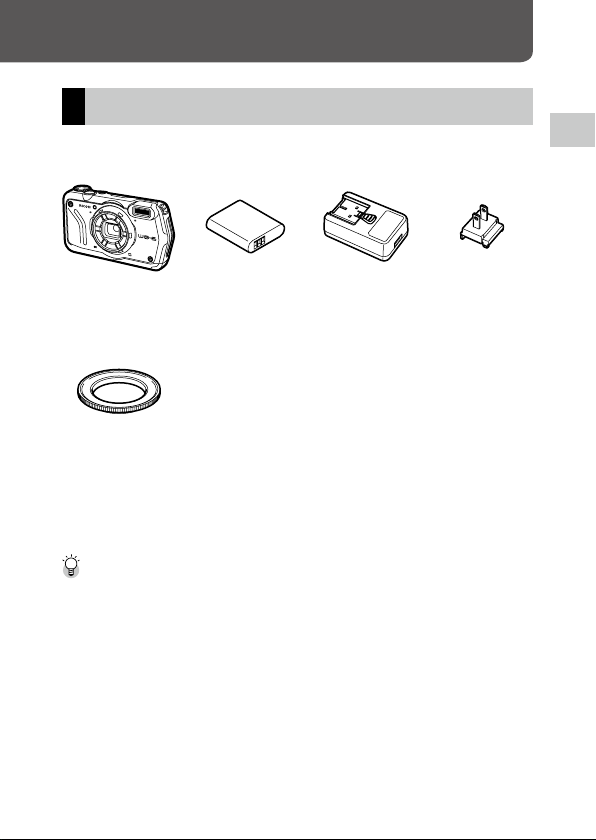
Before using your digital camera, confirm that the package contains the
items listed below.
RICOH WG-6 Rechargeable
battery (DB-110)
USB power
adapter (AC-U1
or AC-U2)*
* Differs depending
on the region.
Power plug
Macro stand
(O-MS3)
g
USB cable (I-USB173)
g
Hand strap (O-ST104)
g
Operating Manual (this manual)
g
Regarding Waterproof Design
Macro Stand -------------------------------------------------------------------------------------------------
• The macro stand is used to keep a distance of 1 cm between the lens and the subject. Attach the
macro stand to the camera by screwing it into the lens. You can use it in capture modes such as the
digital microscope mode. (p.40)
• When the macro stand is attached to the camera, it may be difficult to focus on the subject depending
on the type of subject.
1
Introduction
12
Names and Functions of the Working Parts
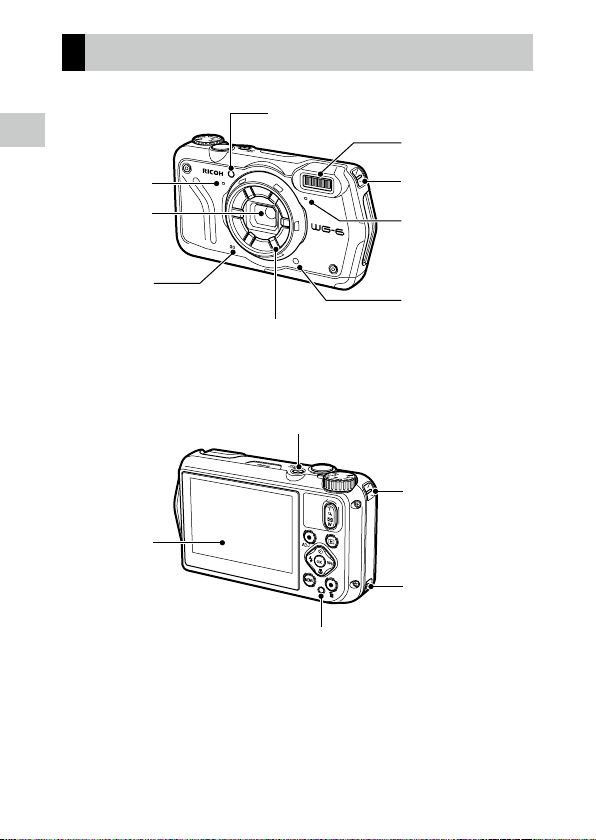
Ring light
Speaker
Remote control
receiver
Lens
AF assist light
Microphone
Microphone
Flash
Strap eyelet
Power button lamp
Remote control
receiver
Strap eyelet
Strap eyelet
Monitor
1
Introduction
13
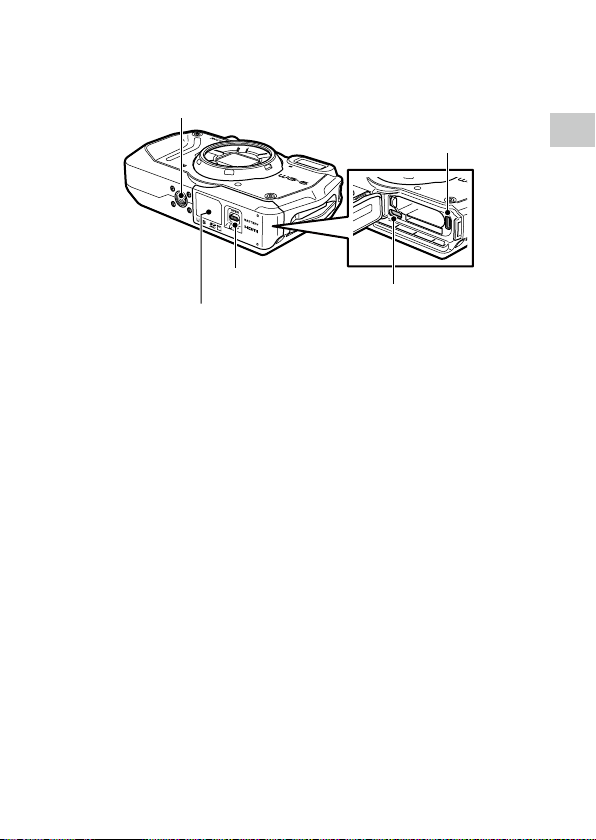
USB terminal (USB Type-C)
Tripod screw hole
Release lever
Battery/card cover
HDMI® micro output terminal
(Type D)
1
Introduction
14
Operating Controls
This section explains about operating controls.
The icons in parentheses are used in the descriptions of this manual.
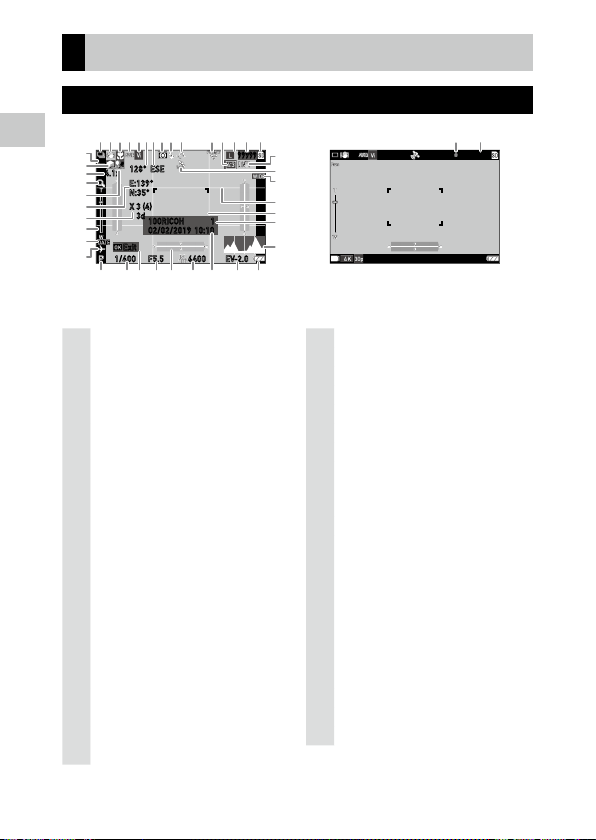
10
12
13
9
78
5
4
12 3
6
11
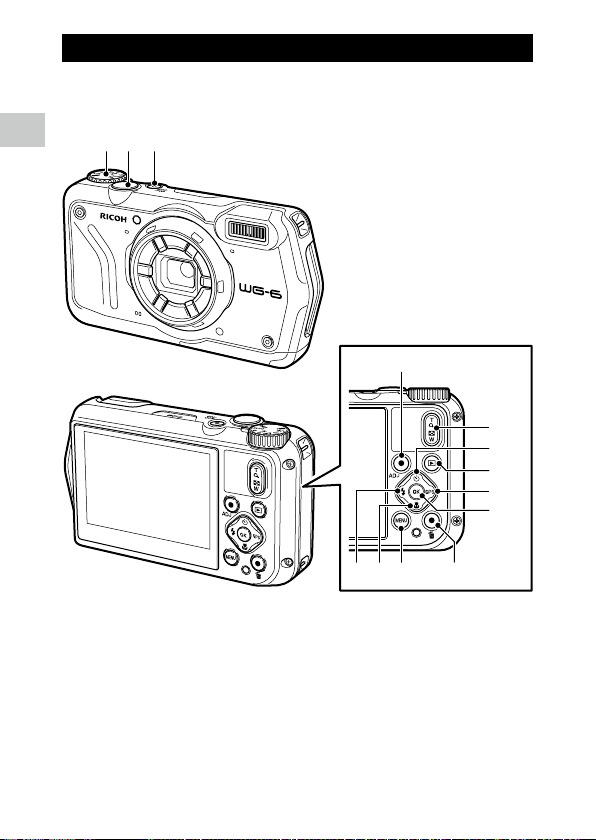
1 Mode dial
Changes the capture mode. (p.40)
2 Shutter release button (z)
Press to capture images.
Press halfway to activate autofocus. (p.38)
3 Power button
Turns the power on or off. (p.35)

1
Introduction
15
4 Movie/ADJ. button
In the still image mode, press to start and end
the movie recording. (p.44)
Calls ADJ. mode functions when the functions
are assigned to the button. (p.20)
5 Flash/Left button (l/c)
Changes the flash mode. (p.52)
Moves the cursor to the left when an item is
selected.
6 Focus/Down button (s/b)
Changes the focus mode. (p.47)
Moves the cursor down when an item is se-
lected.
7 MENU button (f)
Displays a menu. Press this button while the
menu is displayed to return to the previous
screen. (p.22)
8 Green/Delete button (i)
Press to perform shooting in the green mode.
(p.40)
When a function is assigned to the button, press
to call the assigned function. (p.21)
In the playback mode, press to delete images.
(p.39)
9 Zoom button (4 (T)/5 (W))
Changes the zoom magnification. (p.38)
10 Drive/Up button (w/a)
Changes the drive mode. (p.56)
Moves the cursor up when an item is selected.
11 Playback button (g)
Switches between the shooting mode and the
playback mode. (p.39)
12 GPS/Right button (x/d)
Press and hold to turn the GPS function on or
off. (p.87)
Moves the cursor to the right when an item is
selected.
13 OK button (e)
Switches the information displayed on the
shooting screen and playback screen. (p.18)
Confirms the selected items when setting a
function.
1
Introduction
16
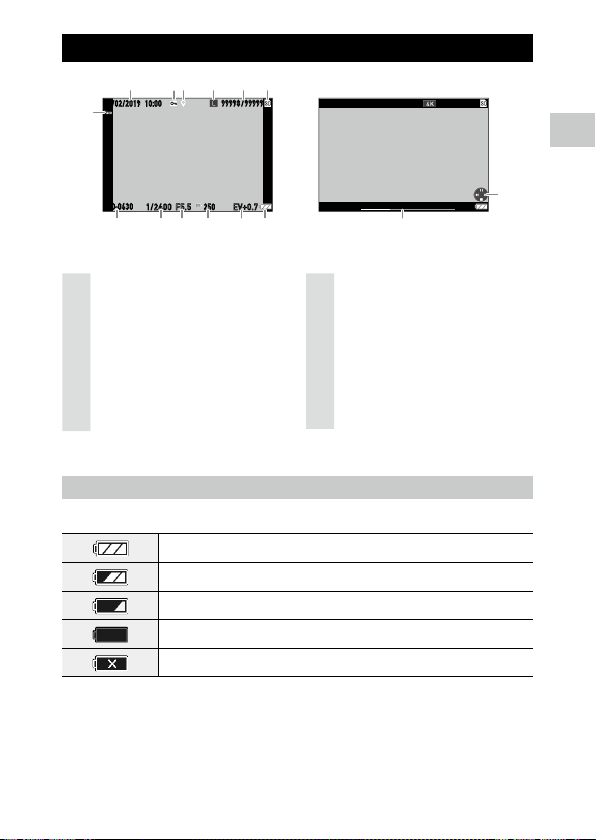
1 Drive mode (p.56)
2 Motion blur reduction/Movie SR (p.63)
3 Focus mode (p.47)
4
White balance
(p.54)
5 Image tone (p.61)
6 Electronic compass information (azimuth)
(p.90)
7 Electronic compass direction
8 AE metering (p.50)
9 Flash mode (p.52)
10 GPS positioning status (p.87)
11 FlashAir communication status (p.32)
12 Aspect ratio (p.60)
13 Recorded pixels (p.60)
14 Number of storable images
15 Storage location (p.32)
16 Face detection (p.48)
17 Highlight correction (p.63)
18 Zoom magnification (p.38)
19 Digital zoom (p.39)
20 Shadow correction (p.63)
21 GPS information (p.87)
22 GPS positioning quality
23 Zoom bar/Focus bar (p.38, p.49)
24 Date imprint (p.62)
25 World time (p.97)
26 Camera shake warning
27 GPS lock (p.88)
28 Conversion lens (p.98)
29 Grid guide (p.82)
30 Focus frame
31 Save destination folder (p.92)/
Number of files
32 Histogram
33 Capture mode (p.40)
34 Shutter speed
35 Operation guide
36 Aperture value
37
Electronic level
(p.82)
38 ISO setting (p.50)
39 Date and time (p.36)
40 Exposure compensation (p.43)
41 Battery level (p.17)
42 Recording indicator
43 Recording time/Remaining recording time
Indicators on the Monitor
Shooting Screen
F5.5 EV-2.06400
99999
1/400
4.1x
128° ESE
E:139°
N:35°
X 3 (4)
3d
1100RICOH
10:10
Exit
02/02/2019
12
3
45 8
9
13 1576 1412
24
25
26
28
27
29
30
31
32
33 34 36 37 38 39 40 41
16
18
21
20
19
22
23
11
10
35
17
0:5858˝
42
43
Still image mode Movie mode
1
Introduction
17
Playback Screen
99998 99999
/
100-0630
EV+0.71/2400 F5.5
250
10:0002/02/2019
1
2
3
6
7
810111213
45
9
9998/9999
00´ 20˝
999-9999
10:0002/02/2019
14
15
Still image mode Movie mode
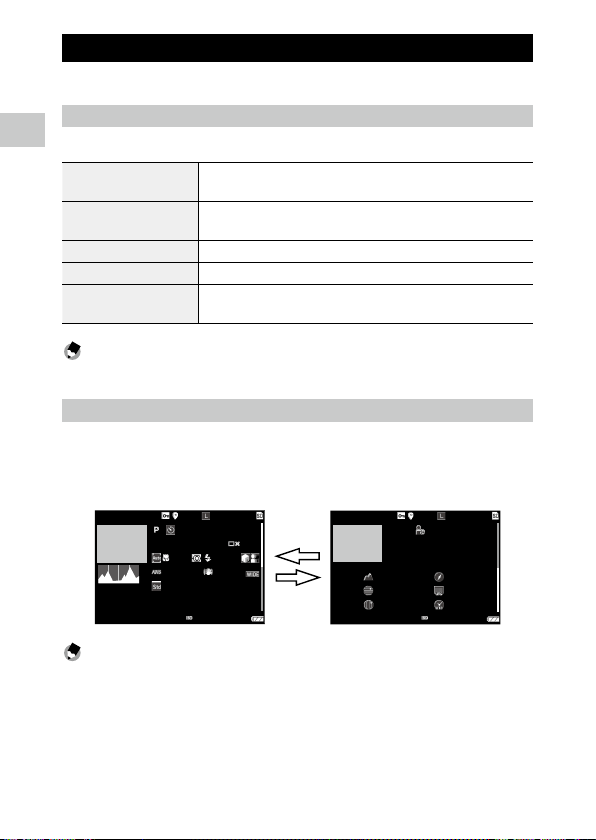
1 Shooting date and time
2 Image protection (p.70)
3 GPS information (p.87)
4 Recorded pixels (p.60)
5 Current file/Total files
6 Data source
7 Face detection (p.48)
8 Folder number/File number (p.92)
9
Shutter speed
10 Aperture value
11 ISO setting
12 Exposure compensation
13 Battery level (p.17)
14 Length of time of the recorded movie/
Elapsed time
15 Operation guide
Battery Level
The icon display changes depending on the battery level.
The battery level is sufficient.
The battery level started to drop.
The battery level is low. Charge the battery.
The camera will turn off soon.
There is a problem with the battery.
1
Introduction
18
Changing the Screen Display
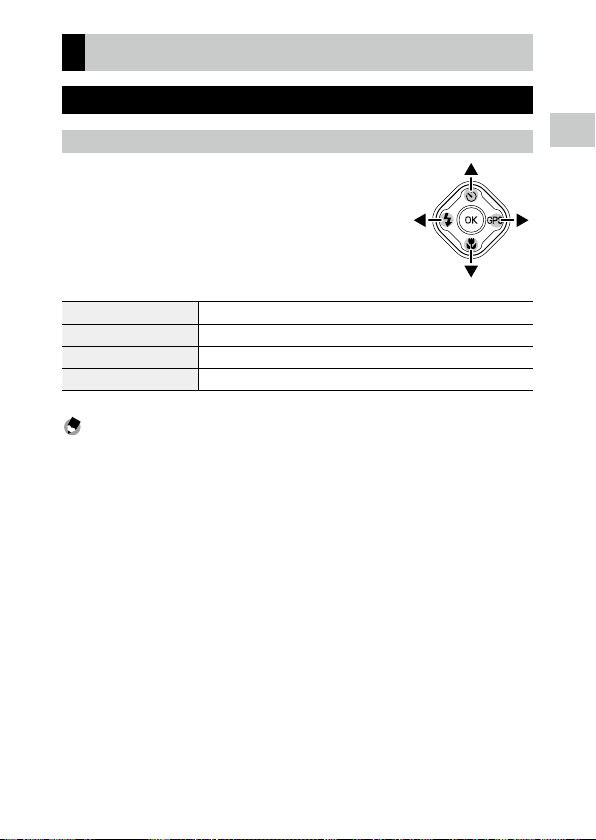
You can switch the information displayed on the screen by pressing e.
Shooting Mode
The information displayed on the shooting screen can be switched.
Standard information display Displays the standard information such as shooting settings and electronic
level.
Detailed information display Displays the standard information, electronic compass information, and GPS
information.
Grid guide display Displays the grid guide. Autofocus frame is displayed during range-finding.
No information display Displays the autofocus frame during range-finding.
Display off Displays the autofocus frame and Live View only when z is pressed
halfway.
Memo ---------------------------------------------------------------------------------------------------------
• The grid style can be selected in [Grid Guide Display Op.] of the D menu. (p.82)
Playback Mode
You can switch the screen display among “Standard information display”,
“Detailed information display”, and “No information display” in the single
image display.
Use ab to switch the page in “Detailed information display”.
99998 99999
5184x3888
/
100-0630
1/2400 F5.5 EV+0.7
6400
1/2400 F5.5 EV+0.7
6400
00:0023˝
35.0mm
10
99998 99999
XXXXXXXXXXX
/
100-0630
42m
N 35°
E138°
123° ESE
10:10:01
10:0010:00 02/02/201902/02/2019
02/02/2019
b
a
Memo ---------------------------------------------------------------------------------------------------------
• The displayed information differs between still images and movies.
1
Introduction
19
How to Change Function Settings
Using the Button
Using the Direct Keys
Quick settings are possible by pressing abcd in
the shooting mode. The following functions can be
activated.
a (w) Drive Mode (p.56)
b (s) Focus Mode (p.47)
c (l) Flash Mode (p.52)
Press and hold d (x) GPS On/Off (p.87)
Memo ---------------------------------------------------------------------------------------------------------
• The functions mentioned above can be set from the menu by pressing f.
1
Introduction
20
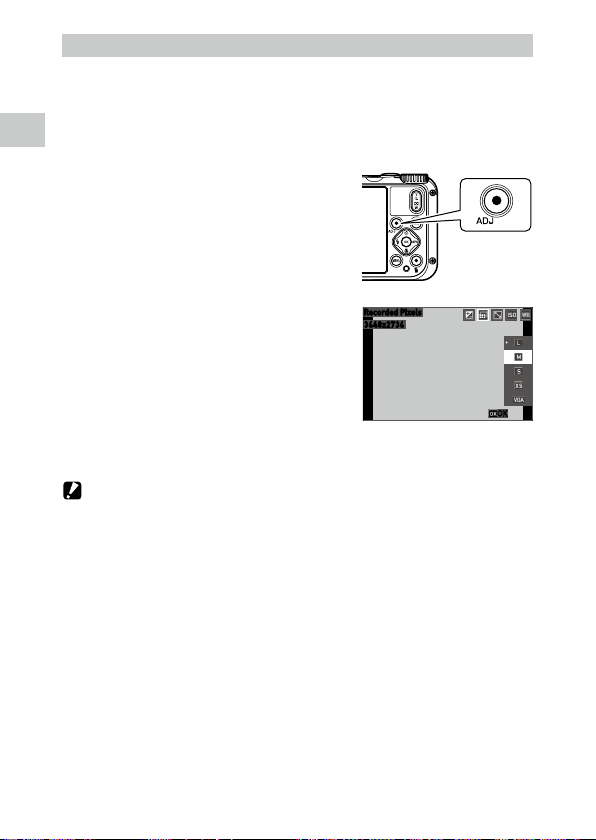
Using the ADJ. Mode
The functions assigned to the movie button in [ADJ Button Setting 1] to [ADJ
Button Setting 5] of the D menu can be easily recalled. (p.80)
1 Set [Movie Button] to [Off] in the D menu.
The ADJ. mode is enabled.
2 Press the movie button in the
shooting mode.
The mode switches to the ADJ. mode and the
icons for the assigned functions appear.
3 Use cd to select a function.
The five functions assigned to the button can
be selected.
4 Press e.
The selected function is set and the camera is ready to perform shooting.
Caution -------------------------------------------------------------------------------------------------------
• By default, the movie button functions as the button to start and end the movie recording. When
recording movies with the movie button, set [Movie Button] to [On] in the D menu. (p.44)
3648x2736
OK
Recorded Pixels

1
Introduction
21
Using the Green Button
The assigned function can be activated by
pressing the green button in the shooting
mode.
By default, [Green Mode] is assigned to the
button. You can perform shooting in the green
mode by pressing the button. (p.40)
Memo ---------------------------------------------------------------------------------------------------------
• The function of the green button can be changed in [Green Mode] of the D menu. (p.81)
1
Introduction
22
Setting from the Menus
Most functions are set from the menus.
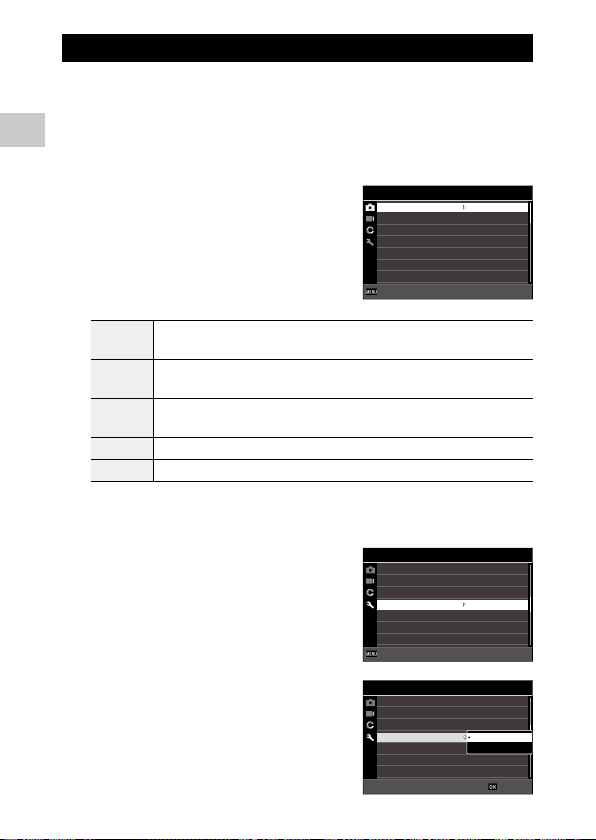
1 Press f.
The menu appears.
The menu displayed differs depending on the camera status.
2 When changing the menu type, press
c, and use ab to select a type.
A
Shooting menu (p.24)
This menu is displayed only in the shooting mode.
B
Movie menu (p.25)
This menu is displayed only in the shooting mode.
C
Playback menu (p.26)
This menu is displayed only in the playback mode.
D Customize menu (p.27)
E Setup menu (p.29)
3 Press d.
4 Use ab to select a function to set,
and press d.
The settings for the selected setting item are
displayed.
5 Use ab to select a setting, and
press e.
The screen in Step 4 reappears.
Press f to return to the previous screen.
When you have finished setting, press f
several times to return to previous screens.
1/4
125-1600
AUTO
AF
Auto Macro
Focus Assist
AE Metering
Setting
AUTO Range
Focus
Shooting
Standard
Multi
ON
ON
Divide
ExitExit
3/5
3
3
Power Saving
Outdoor View
Power Button Lamp
Operation Volume
Playback Volume
Sound
LCD Brightness
Setup
5sec.
Off
ON
ExitExit
3/5
Power Saving
Outdoor View
Power Button Lamp
Operation Volume
Playback Volume
Sound
LCD Brightness
Setup
5sec.
Off
Off
ON
OKOK

1
Introduction
23
Memo ---------------------------------------------------------------------------------------------------------
• When f is pressed, the last used menu screen appears first. To display the most appropriate
menus for the camera settings at that time, set [Cursor Poison Keeping] to [Off] in the E menu.
• The setting is saved even after the power is turned off. To reset the menu settings, select a menu type
to reset in [Initialized Setting] of the E menu, and execute [Reset] in the E menu.
1
Introduction
24
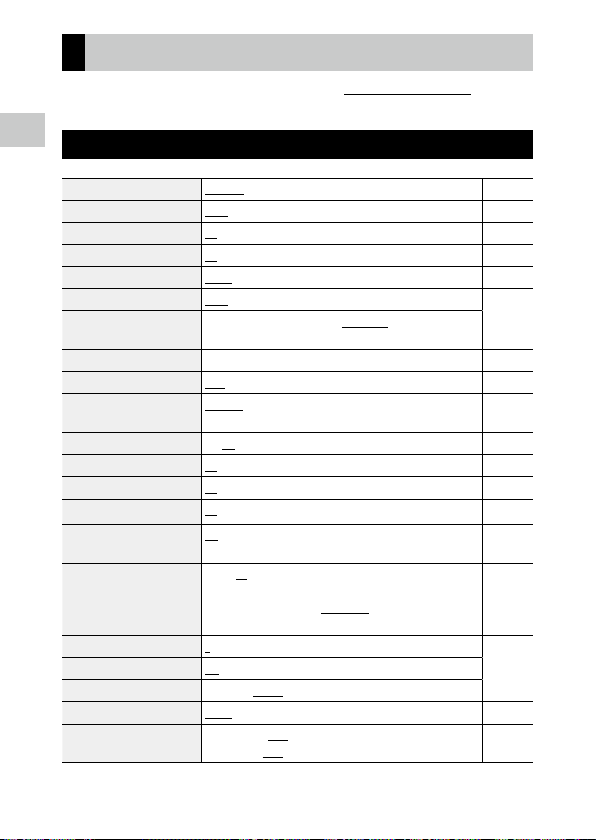
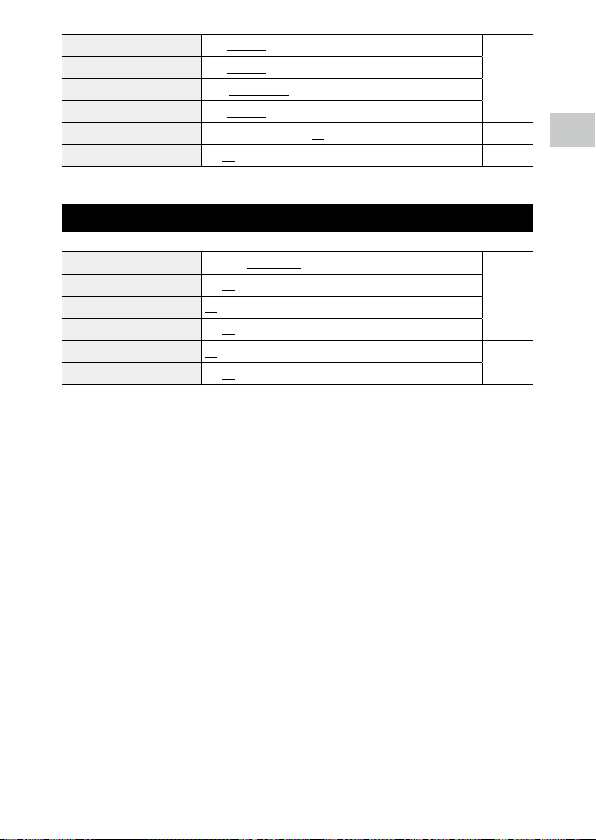
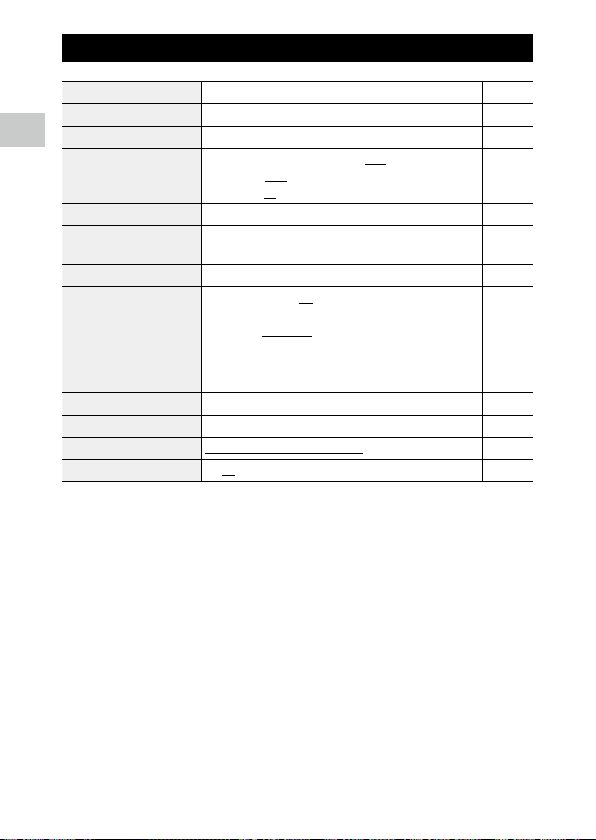
Menu List
The following menus are available. (The underlined settings and the
square-bracketed settings are the default settings.)
A Shooting Menu
Focus Standard, Macro, 1cm Macro, PF, Infinity, MF p.47
AF
Multi, Spot, Tracking p.48
Auto Macro
On, Off p.47
Focus Assist
On, Off p.48
AE Metering
Divide, Center, Spot p.50
Setting
AUTO, 125 to 6400 p.51
AUTO Range
125 - 200, 125 - 400, 125 - 800, 125 - 1600, 125 - 3200,
125 - 6400
EV Comp. -2.0 to +2.0 p.43
Flash Mode
Auto, Flash Off, Flash On, Auto+R. eye, On+Red-eye, Ring Light p.52
White Balance
Auto WB, Daylight, Shade, Cloudy, Fl. DL Color, Fl. DL White, Fl.
Cool Wt., Fl. Warm Wt., Tungsten, Ring Light, Manual WB
p.54
Pix. Track SR
On, Off p.63
Face Detection
On, Smile, Assist, Assist+Smile, Off p.48
Blink Detection
On, Off p.38
Digital Zoom
On, Off p.39
Drive Mode
Off, Self-timer, Cont. Shoot, Burst Shoot, M-Cont, S-Cont, Re-
mote Ctl, A-Bracket
p.56
Ring Light
Select: All, Right, Left, High, Low, Off
Brightness: 1 to 9 [5]
LightningTime: Always On, Shutter 10s, Shutter 20s, Shutter 30s,
Shutter 60s
p.53
Recorded Pixels
L, M, S, XS, VGA p.60
Aspect Ratio
4:3, 3:2, 1:1
Quality Level
8, 9, 0
Image Tone
Bright, Natural, Vibrant, Slide Film, Monochrome p.61
D-Range Setting
Highlight Cor.: Auto, Off
Shadow Cor.: Auto, Off
p.63
1
Introduction
25
Sharpness Soft, Standard, Hard p.62
Saturation
Soft, Standard, Hard
Tone Adjustment
Blue, Black & White, Sepia
Contrast
Soft, Standard, Hard
Date Imprint
Date, Date & Time, Time, Off p.62
IQ Enhancer
On, Off p.62
B Movie Menu
Recorded Pixels 4K 30fps, FullHD 30fps, HD 60fps, HD 30fps p.60
HDR
On, Off
Microphone
On, Off
Wind Suppression
On, Off
Movie SR
On, Off p.63
Movie SR+
On, Off
1
Introduction
26
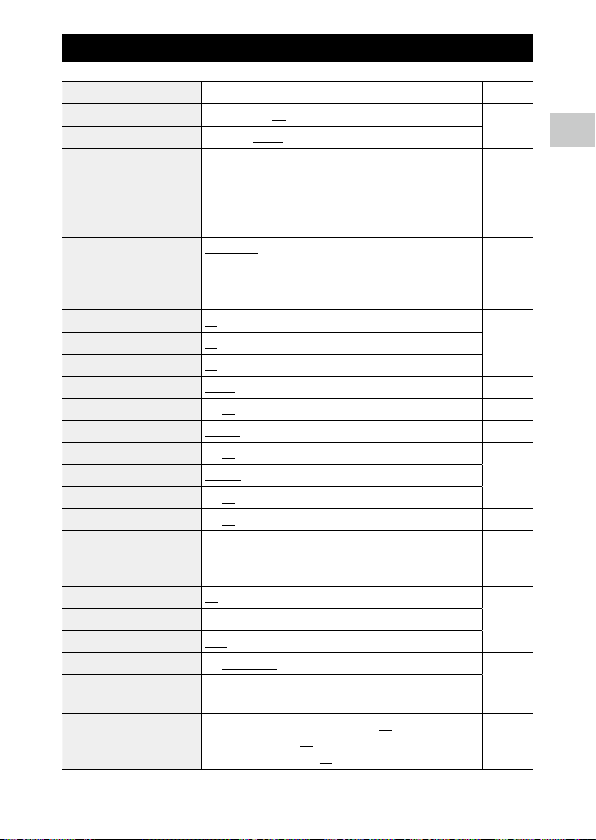
C Playback Menu
Image Copy [Internal M]>>>[Card], [Card]>>>[Internal M] p.69
Protect 1 File, Sel. Multiple, Select All, Cancel All p.70
Rotation 0°, 90° (counterclockwise), 180°, 90° (clockwise) p.66
Slideshow
Interval: 30sec., 20sec., 10sec., 5sec., 3sec.
Screen Effect: Wipe, Checker, Fade, Random, Off
Sound Effect: On, Off
p.65
Recover File — p.69
Resize Recorded Pixels: L, M, S, XS, 2M, 1M, VGA
Quality Level: 8, 9, 0
p.72
Cropping — p.73
Filter
Small Face Filter: 5%, 7%, 10%
Ink Rubbing Filter: 1 to 5
Digital Filter: B&W/Sepia, Toy Camera, Retro, Color, Extract Color,
Color Emphasis, High Contrast, Starburst, Soft, Fish-eye, Minia-
ture, Brightness
HDR Filter
p.74
Movie Edit Save as Still Image, Divide Movies, Adding title picture p.75
Red-eye Edit — p.77
Start-up Screen
Start-up screen with operation guide, RICOH, Photographs, Off p.82
Auto Image Rotation
On, Off p.66
1
Introduction
27
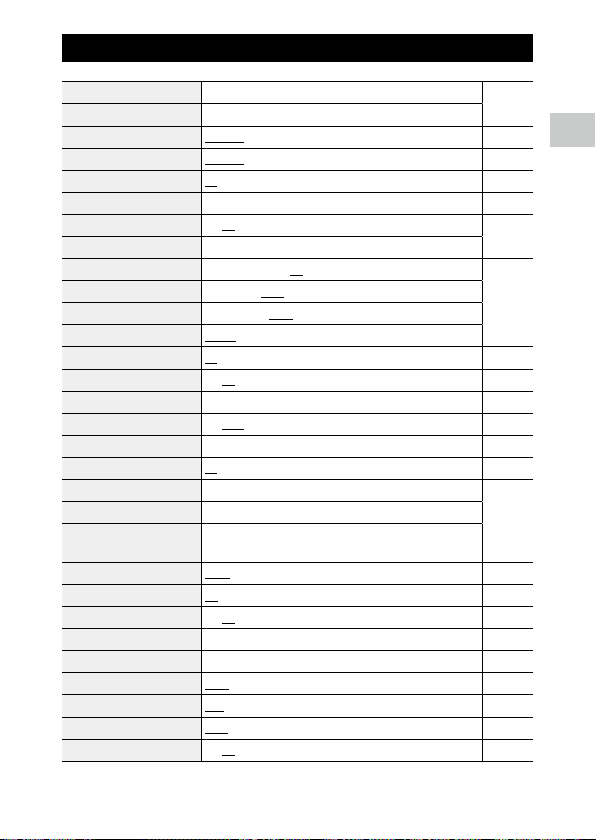
D Customize Menu
Reg. USER U1, U2 p.78
CALS Pixels
L, M, S, XS, 2M, 1M, VGA p.40
CALS Quality
8, 9, 0
ADJ Button Setting 1
ADJ Button Setting 2
ADJ Button Setting 3
ADJ Button Setting 4
ADJ Button Setting 5
Off, EV Comp. [Setting1], Recorded Pixels [Setting2], Aspect
Ratio [Setting3], Setting [Setting4], White Balance [Setting5],
Image Tone, Quality Level, AE Metering, AF, Face Detection,
Highlight Cor., Shadow Cor., Outdoor View
p.80
Green Mode
Green Mode, EV Comp., Recorded Pixels, Quality Level, Aspect
Ratio, White Balance, Setting, AF, Face Detection, Auto Macro, AE
Metering, Highlight Cor., Shadow Cor., Sharpness, Saturation/
Tone Adjustment, Contrast, Outdoor View
p.81
START DATE/TIME
On, Off p.82
Show folder at startup
On, Off
Shut-down Screen
On, Off
Confirm. Time
0.5sec., 1sec., 2sec., 3sec., HOLD, Off p.38
Quick Zoom
On, Off p.39
Grid Guide Display Op.
9 Divide, 16 Divide p.82
GPS
On, Off p.87
GPS Disp Mode
LAT/LON, UTM, MGRS
GPS Lock
On, Off
GPS Time Adjustment
On, Off p.88
GPS Log Record log: Logging Interval, Logging Duration
Save log data: NMEA, KML
Discard log data
p.88
Compass Heading
Off, Cardinal, Degrees, Cardinal/Deg. p.90
Compass Calibration —
Declination
TRUE, MAG
Level Setting
Off, Level + Shift, Level p.82
Calibrate Level Reset
Calibration
Data Imprint
GPS Data Imprint: LAT/LON, UTM, MGRS, Off
UTC Data Imprint: ON, Off
Heading Data Imprint: On, Off
p.91

1
Introduction
29
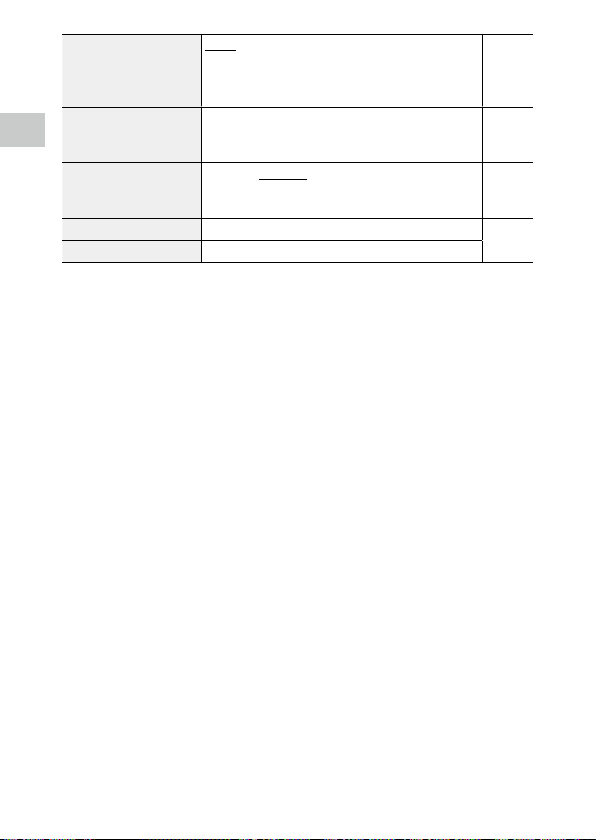
E Setup Menu
Format [Card] — p.37
Format [Internal M] —
New folder options
Standard, Date, Custom p.92
File name
Standard, Custom p.94
File Sequence No.
On, Off p.94
Reset File Number — p.95
Embed Info
On, Off p.95
Copyright Info A freely defined string of 32 characters
Copyright Print
On(OVR), On(New), Off p.96
Copyright Position
Left, Middle, Right
Copyright Font Size
Large, Middle, Small
Copyright Color
Orange, White, Black, Red, Blue, Green, Yellow
Guide Display
On, Off p.42
Cursor Poison Keeping
On, Off p.23
LCD Brightness -4 to +4 p.83
Power Saving
Off, 5sec., 15sec., 30sec., 1min., 2min. p.84
Outdoor View -2 to +2 p.83
Power Button Lamp
On, Off p.83
Operation Volume Off, 1 to 5 [3] p.83
Playback Volume Off, 1 to 8 [3]
Sound Startup Sound, Shutter Sound, Operation Sound, Self-timer
Sound
Auto Power Off
1min., 3min., 5min., 10min., 30min., Off p.84
Monitor Auto off Delay
Off, 1min., 5min., 30min. p.84
Power Button Hold Op.
On, Off p.35
Certifications — —
Version Info — —
Camera Settings File
Write, Read p.79
USB Connection
MSC, MTP p.71
HDMI Out
AUTO, 2160P (4K), 1080i, 720P, 480P p.67
FlashAir Connection
On, Off p.32
1
Introduction
30
Language/H English, French, German, Spanish, Portuguese, Italian, Dutch,
Danish, Swedish, Finnish, Polish, Czech, Hungarian, Turkish,
Greek, Russian, Thai, Korean, Traditional Chinese, Simplified
Chinese, Japanese
p.36
Date Adjustment Date Format: Y/M/D, D/M/Y, M/D/Y
Date: January 1, 2019 to December 31, 2045
Time: 00:00 to 23:59
p.36
World Time
Select Time: Hometown, Destination
Hometown: City, DST
Destination: City, DST
p.97
Initialized Setting Still, Movie, Playback, Customize, Setup, Quality p.23
Reset —
2
Getting Started
31
Getting Started
Setting the Battery and a Memory Card
Inserting the Battery and a Memory Card
SD memory cards, SDHC memory cards, and SDXC memory cards can be
used with this camera. “Memory card” refers to these memory cards in this
manual.
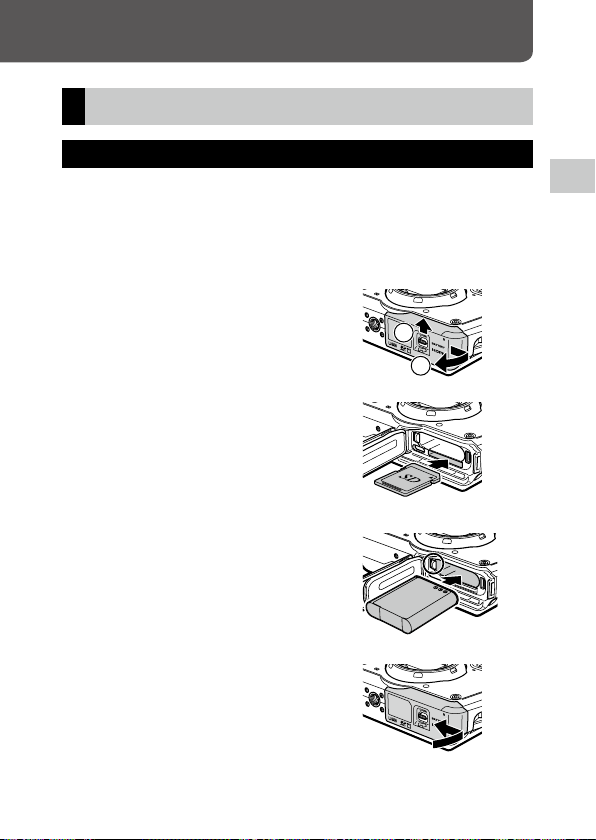
1 Make sure that the camera power is off.
2 Slide the release lever on the bottom
of the camera toward OPEN, and slide
the battery/card cover to the right to
open it.
3 Make sure that the memory card is
facing the right way and then push
the card all the way in until it clicks.
To remove it, press in the memory card and
then release your hand.
4 Insert the battery.
Use the rechargeable battery (DB-110) to
press the latch and insert the battery all the
way into the battery compartment.
To remove the battery, slide the latch.
5 Close the battery/card cover and slide
it to the left.
Slide the battery/card cover until it clicks and
confirm that it is closed securely.
1
2

2
Getting Started
32
Caution -------------------------------------------------------------------------------------------------------
• When opening and closing the battery/card cover, be sure to remove water and dirt such as sand
adhering to the camera, and avoid locations where dirt can enter the camera interior.
• Close the battery/card cover securely. If the battery/card cover is not closed securely, water or dust
may enter the camera interior.
Data Storage Location
Images taken and movies recorded with this camera are saved in the internal
memory or a memory card.
Memo ---------------------------------------------------------------------------------------------------------
• Saved images can be copied between the internal memory and the memory card. (p.69)
• The storage capacity varies depending on the memory card. (p.110)
FlashAir Card ------------------------------------------------------------------------------------------------
• An SD memory card with a built-in wireless LAN function (FlashAir card) can be used with the camera.
When communicating using the FlashAir card, set [FlashAir Connection] to [On] in the E menu. If
the write-protect switch of the FlashAir card is locked, the settings cannot be made.
• Use of an access point and an Internet connection are required for transferring images via a wireless
LAN. For details, refer to the card manufacturer’s website, etc.
• The operability of FlashAir card functions including the wireless transmission function is not guaran-
teed with this camera. Contact the FlashAir card manufacturer regarding any malfunctions or prob-
lems concerning FlashAir cards. FlashAir cards can be used only in the country in which the card was
purchased. For details, contact the FlashAir card manufacturer.
2
Getting Started
33
Charging the Battery
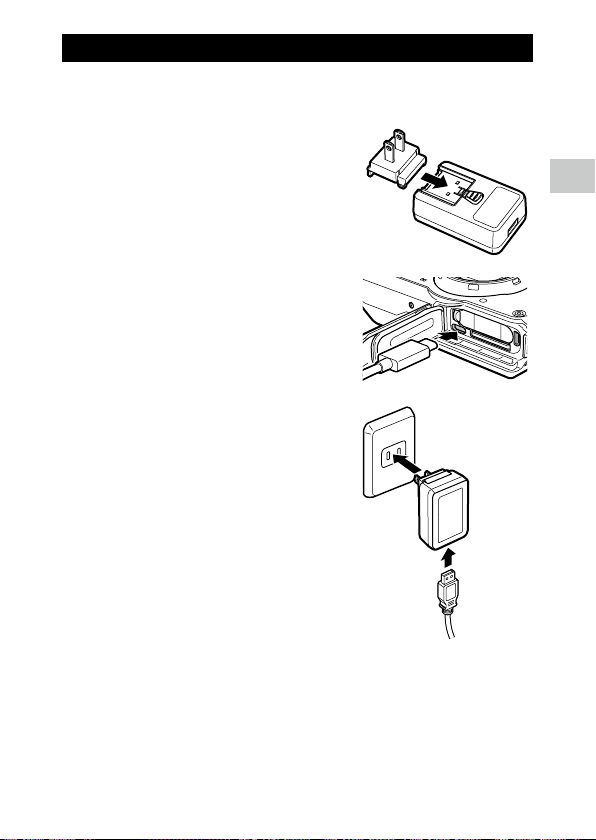
Charge the rechargeable battery DB-110 using the provided USB cable, USB
power adapter, and power plug before use.
1 Insert the power plug to the USB
power adapter.
Insert it until it clicks into place.
2 Open the battery/card cover, and
connect the USB cable to the USB
terminal.
3 Connect the USB cable to the USB
power adapter.
4 Plug the USB power adapter into a
power outlet.
The power button lamp of the camera turns
on and charging starts.
Depending on the battery level, the charging
time differs. An exhausted battery will be ful-
ly recharged in about 3 hours (at 25°C (77°F)).
When charging is complete, the power but-
ton lamp turns off. Unplug the USB power
adapter from the power outlet.
5 Remove the USB cable from the USB terminal, and close the
battery/card cover.
3
4

2
Getting Started
34
Storage Capacity --------------------------------------------------------------------------------------------
• About 340 pictures can be taken when the battery is fully charged.
• This is based on tests conducted according to CIPA standards under the following conditions: At 23°C
(73°F) temperature; the monitor is on; a picture is taken every 30 seconds; the flash is fired every two
pictures; the camera is turned off and back on after 10 pictures are taken.
• The storage capacity is for reference. For long periods of use, it is recommended that you carry spare
batteries.
Caution -------------------------------------------------------------------------------------------------------
• When opening and closing the battery/card cover, be sure to remove water and dirt such as sand
adhering to the camera, and avoid locations where dirt can enter the camera interior.
• Use only genuine rechargeable battery (DB-110).
• If the battery starts to run down more quickly even after being charged, the battery has reached the
end of its service life. In this case, replace the battery with a new one.
• The battery may become very hot immediately after operation. Turn the camera off and leave it to
cool down sufficiently before removing the battery.
Memo ---------------------------------------------------------------------------------------------------------
• You can also charge the battery by connecting the camera to a computer using the USB cable. (p.71)
• The battery can be recharged with the optional battery charger BJ-11.
2
Getting Started
35
Initial Settings
Turn the camera on and make the initial settings.
Turning the Camera On
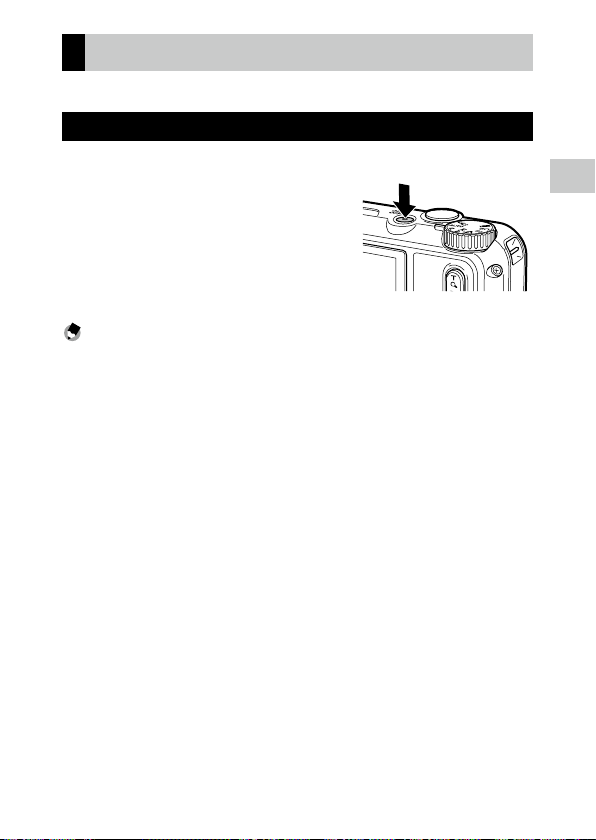
1 Press the power button.
The power button lamp turns on.
The first time the camera is turned on after
purchase, the [Language/H] screen ap-
pears.
When the power button is pressed again, the
power turns off.
Memo ---------------------------------------------------------------------------------------------------------
• When g is pressed and held with the camera turned off, the camera turns on in the playback mode.
The following operations are available.
• The power button lamp can be set to [Off] in [Power Button Lamp] of the E menu. (p.83)
• If no operations are made for about one minute (default setting), the camera turns off automatically
to suppress battery drain. The power saving function can be set in the E menu. (p.84)
• The display of the start-up screen can be set in [Start-up Screen] of the C menu. (p.82)
• You can also make settings so that the camera is turned on and off by pressing and holding the power
button to prevent misoperation. When [Power Button Hold Op.] is set to [On] in the E menu, press
and hold the power button for about 2 seconds to turn the camera on, and press and hold for about
5 seconds to turn the camera off.
2
Getting Started
36
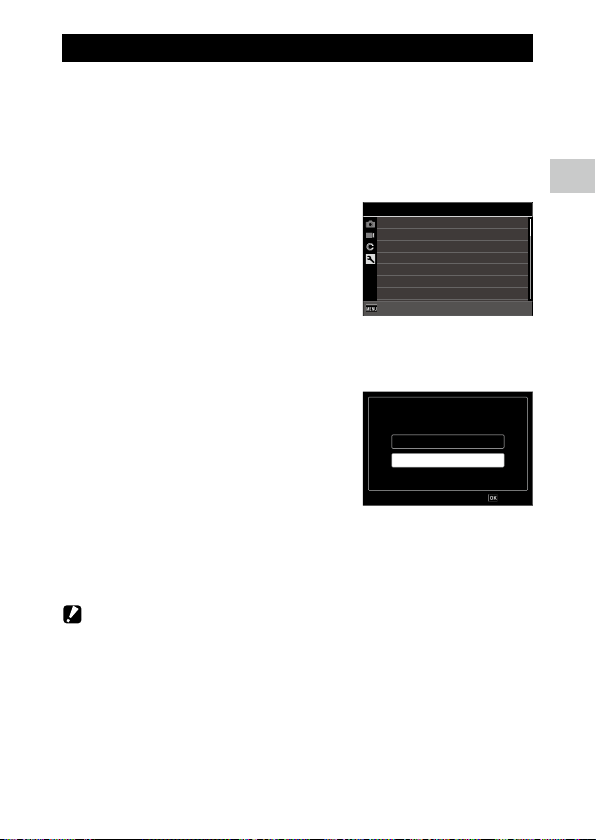
Setting the Language and the Date and Time
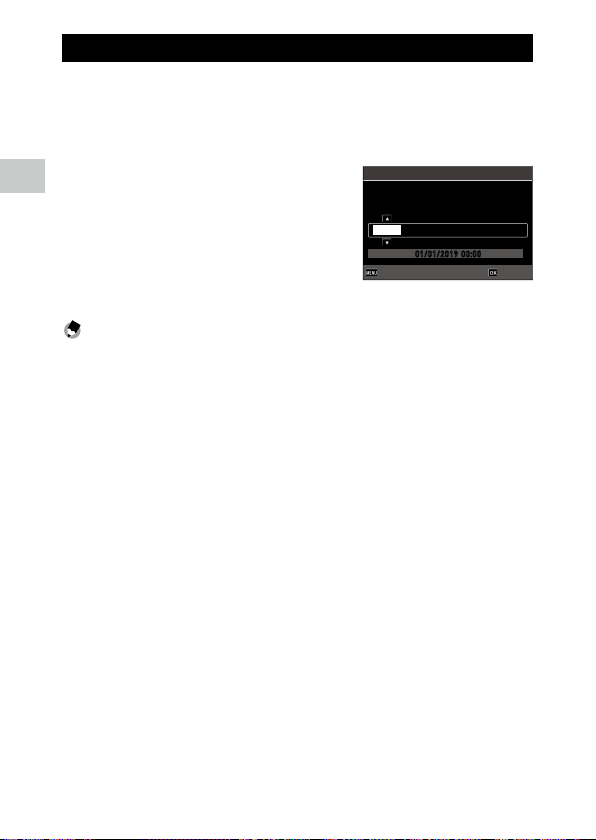
You can set the display language for menus and the date and time.
1 Use ab to select a language and press e.
The selected language is set and the [Date Adjustment] screen appears.
2 Set the display format and the date
and time.
Use cd to select an item and ab to
change the value.
Press f to cancel the setting.
3 Press e.
The date and time are set and the camera is ready to take a picture.
Memo ---------------------------------------------------------------------------------------------------------
• If the battery is removed for about five days, the date and time settings will be lost. To retain the
date and time settings, insert a battery with sufficient power for at least two hours, and then remove
the battery.
• You can change the language and the date and time settings in the E menu.
00 0001 ://
00:00
M/D/Y 01 2019
Cancel
Date Adjustment
Set the date, time, and format.
01/01/2019
OK
2
Getting Started
37
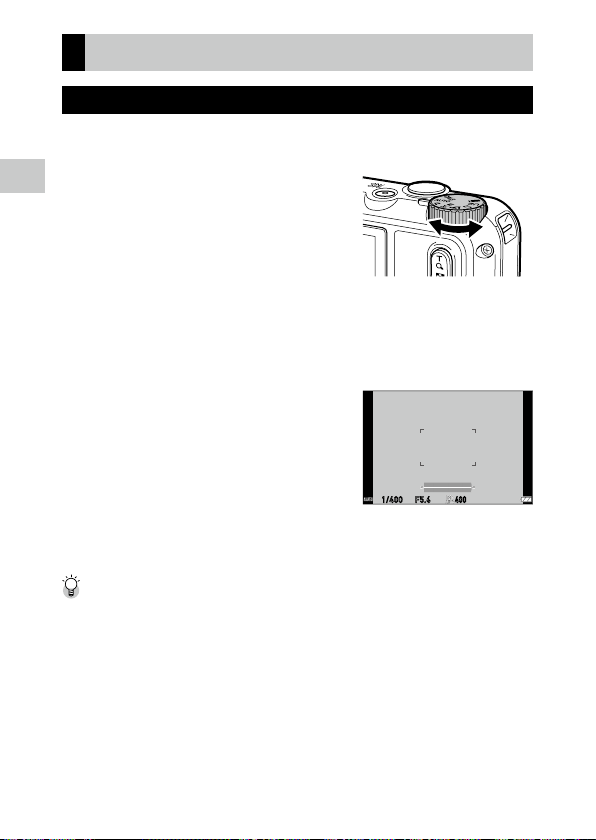
Formatting a Memory Card
When using a new memory card or a memory card used with another de-
vice, be sure to format the memory card with this camera. The internal mem-
ory can also be formatted with the same operations.
1 Press f.
The menu appears.
2 Press c, and use ab to select E.
3 Press d, select [Format [Card]], and press d.
When formatting the internal memory, select [Format [Internal M]].
4 Use a to select [Execute], and press
e.
The memory is formatted.
5 Press e.
6 Press f.
The shooting screen reappears.
Caution -------------------------------------------------------------------------------------------------------
• Do not remove the memory card while formatting, or the card may be damaged.
• Formatting deletes all data, both protected and unprotected.
• Do not format FlashAir cards with this camera.
1/5
Format [Internal M]
New folder options
File name
File Sequence No.
Reset File Number
Embed Info
Format [Card]
Setup
Standard
Standard
Off
ON
ExitExit
All data will be erased.
Execute
Cancel
OK
2
Getting Started
38
Basic Shooting Operation
Shooting in the Auto Mode
The camera automatically selects the optimal capture mode.
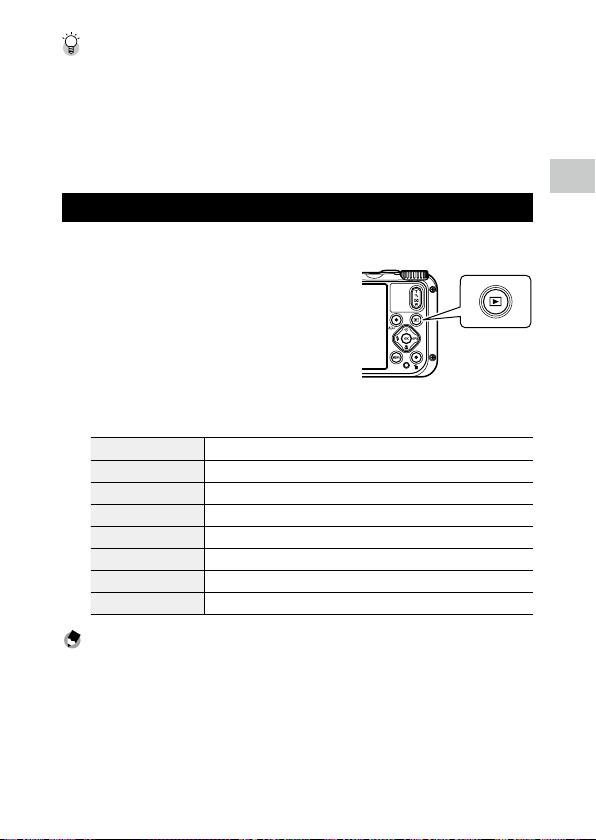
1 Set the mode dial to S.
The capture mode is set to S, and the
Live View is displayed.
2 Use 4 (T)/5 (W) to change the zoom magnification.
The optical zoom up to 5x magnification is available. The digital zoom up to
40.5x magnification is available by further pressing 4.
3 Press z halfway.
The capture mode is selected, and the focus
is adjusted.
When the subject cannot be in focus, the red
frame appears.
4 Press z fully.
The image you have just taken is displayed on the monitor (Instant Review)
and saved.
Instant Review and Blink Detection --------------------------------------------------------------------
• You can set the display time of Instant Review in [Confirm. Time] of the D menu. When set to
[Hold], the Instant Review is displayed until z is pressed halfway or the mode dial is turned.
• If the camera detects that the subject’s eyes are closed, the message [Closed eyes have been detected]
appears during Instant Review. You can also set [Blink Detection] to [Off] in the A menu to disable
this function.
F5.6
400
1/400
2
Getting Started
39
Zoom ----------------------------------------------------------------------------------------------------------
• When 4 is pressed and held, the zooming method switches from the optical zoom to the intelligent
zoom. If 4 is release and pressed again, the zooming method switches from the intelligent zoom to
the digital zoom with up to 40.5x magnification. The digital zoom magnification varies depending on
the [Recorded Pixels] settings in the A menu.
• The quality of images captured with the digital zoom slightly deteriorates. You can set whether to use
the digital zoom in [Digital Zoom] of the A menu.
Viewing the Captured Images
Review the captured image on the monitor.
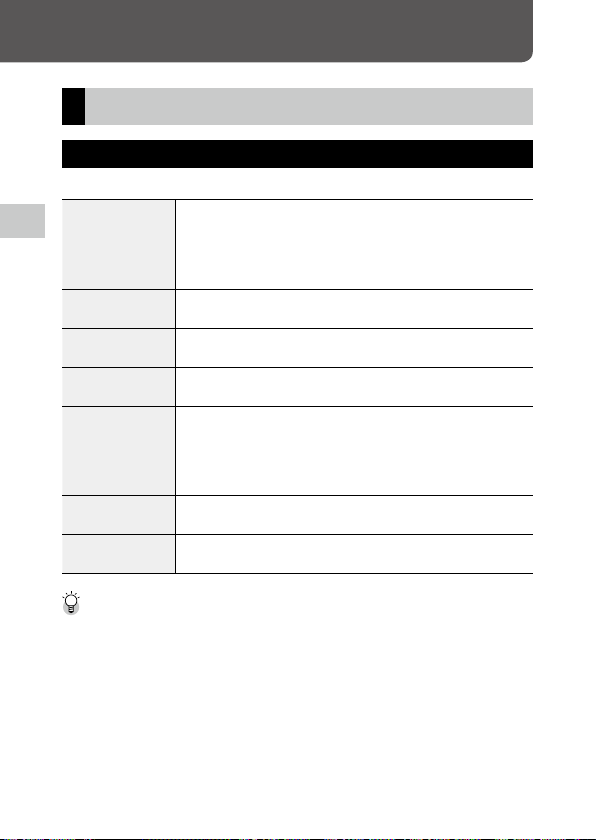
1 Press g.
The camera switches to the playback mode
and the last image you took is displayed. (Sin-
gle image display)
2 View an image.
The following operations are available.
cd Displays the previous or next image.
Press and hold cd Fast-reverses/Fast-forwards playback.
ab Reverses/Forwards playback by 10 frames.
i Deletes the image.
4 (T) Magnifies the image.
5 (W) In magnified view: Reduces the image.
abcd In magnified view: Moves the magnified area.
e Switches the displayed information.
Memo ---------------------------------------------------------------------------------------------------------
• Movies cannot be magnified.
• When [Quick Zoom] is set to [On] in the D menu, pressing 4 once magnifies the image at the
maximum magnification.
3
40
Taking Pictures
Taking Pictures
Taking Still Images
Setting the Capture Mode
Turn the mode dial to select capture modes.
U
CALS Mode
Takes images with the recorded pixels and quality level set in [CALS Pixels] and
[CALS Quality] of the D menu. The aspect ratio is fixed to [4:3].
By default, the recorded pixels are set to [1M] and the quality level is set to
[9]. These settings are appropriate to take construction site pictures submit-
ted to local authorities.
S
Auto Mode
Takes images with the optimal capture mode automatically selected by the cam-
era. (p.38)
J
Program Mode
Takes images with the shutter speed and aperture value automatically set by the
camera.
T
Scene Mode
Selects a scene from various scenes and takes images with the optimal settings for
the selected scene. (p.41)
V
Digital Microscope Mode
Turns the ring light on for shooting at a close focus distance of 1 cm to the subject.
The focus mode, flash mode, recorded pixels, and aspect ratio are fixed to [1cm
Macro], [Ring Light], [XS], and [4:3], respectively.
You can fix the distance to the subject to 1 cm by attaching the provided macro
stand (p.11) to the camera.
P/Q
User Mode
Uses the saved shooting settings. (p.78)
B
Movie Mode
Records a movie. (p.44)
Green Mode --------------------------------------------------------------------------------------------------
• When the green button is pressed, the camera switches to the green mode. In this mode, you can
perform shooting with the standard settings regardless of the capture mode and A menu settings.
Press the green button again to return to the previous capture mode.
• In the green mode, the A menu settings cannot be changed.
• If the camera is turned off in the green mode, the camera turns on in the green mode next time.
• The green mode cannot be used when [Green Mode] is set to a function other than the green button
in the D menu.
3
41
Taking Pictures
Performing Shooting in the Scene Mode
1 Set the mode dial to T.
The mode switches to the T mode.
2 Press f.
The T menu appears.
3 Use abcd to select a scene.
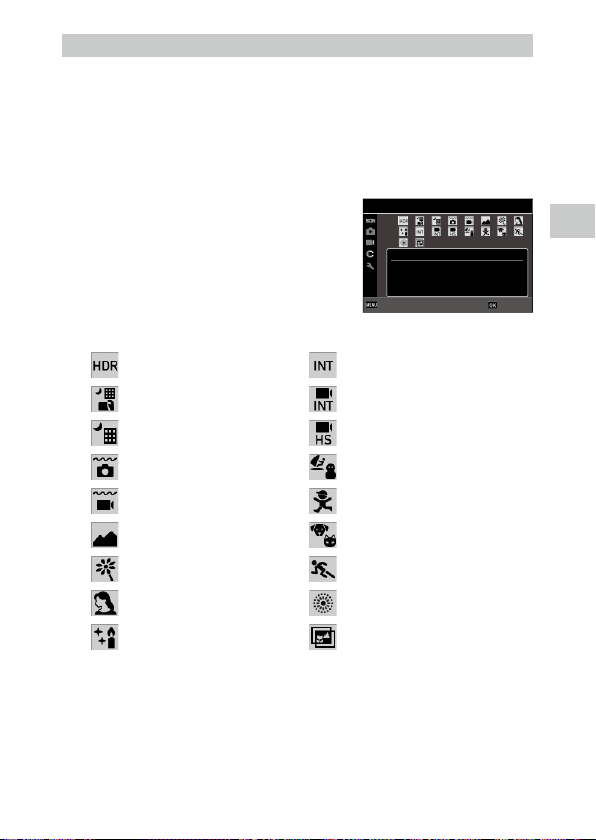
The following scenes can be selected.
HDR Interval Shooting
Handheld Night Snap Interval Movie
Night Scene High Speed Movie
Underwater Surf & Snow
Underwater Movie Kids
Landscape Pet
Flower Sport
Portrait Fireworks
Digital SR DOF Composite
4 Press e.
The scene is set.
HDR
Combines 3 images into a
single image delivering a
wider dynamic range image
Scene Mode
CancelCancel OKOK

3
42
Taking Pictures
Memo ---------------------------------------------------------------------------------------------------------
• The T menu is displayed only in the T mode.
• When the scene is set to [Interval Shooting] or [Interval Movie], shooting is performed at a fixed in-
terval. You can set [Interval] ([Total Time] for [Interval Movie]), [Number of Shots], and [Start Delay].
• A description of the selected scene is displayed on the screen in Step 3. If you do not want to display
this description, set [Guide Display] to [Off] in the E menu.
Caution -------------------------------------------------------------------------------------------------------
• The functions that can be set vary depending on the scene.
• [Interval Shooting] and [Interval Movie] cannot be selected during the GPS logging. (p.88)
3
43
Taking Pictures
Using Exposure Compensation
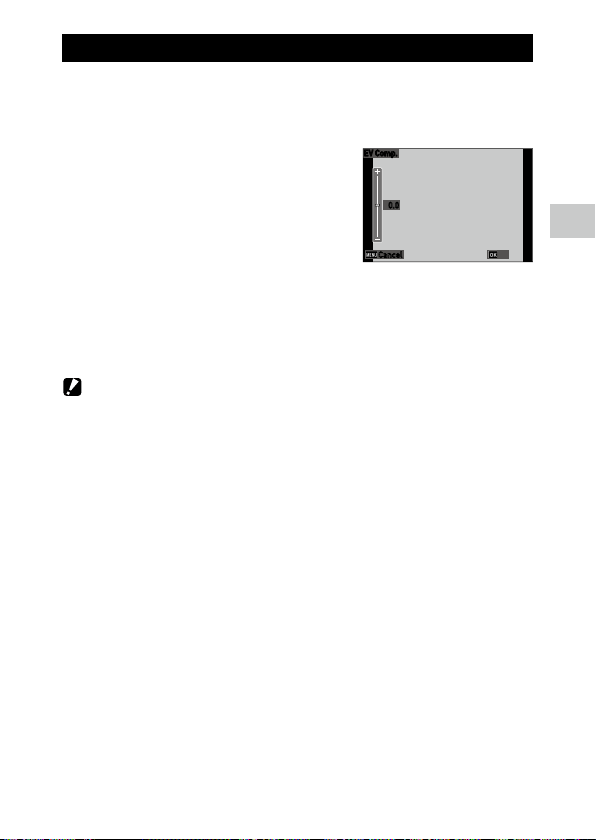
1 Select [EV Comp.] in the A menu, and press d.
The [EV Comp.] screen appears.
2 Use ab to select a compensation
value.
The compensation value can be selected in
the range of ±2.0.
3 Press e.
4 Press f.
The shooting screen reappears.
Caution -------------------------------------------------------------------------------------------------------
• The exposure compensation is not available in the S mode.
0.0
EV Comp.
Cancel
OK
3
44
Taking Pictures
Recording Movies
Movies can be directly recorded even when the mode dial is set to a mode
other than B.
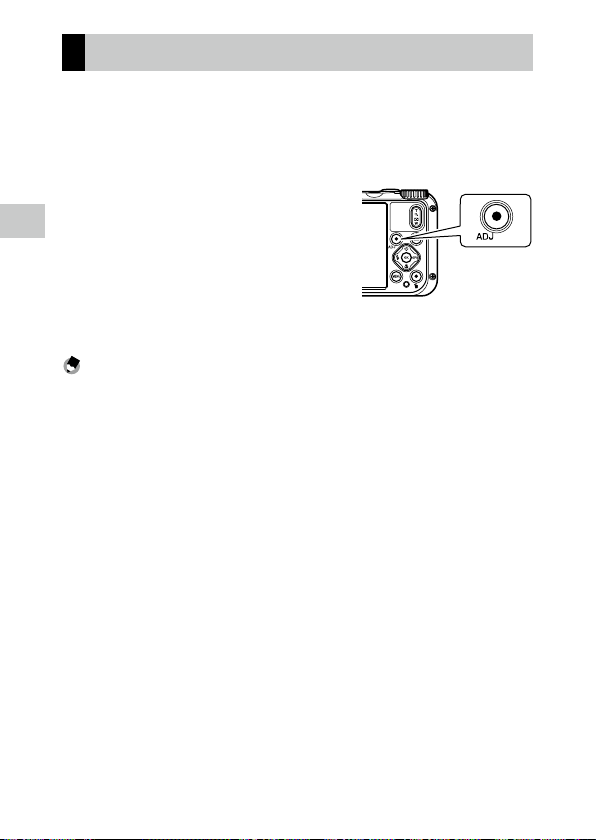
1 Set [Movie Button] to [On] in the D menu.
Movie recording with the movie button is enabled.
2 Press the movie button.
Recording starts.
The recording time is displayed while record-
ing.
3 Press the movie button again.
Recording stops.
Memo ---------------------------------------------------------------------------------------------------------
• Regardless of the mode dial setting, when the movie recording has been started with the movie
button, [Recorded Pixels] and [Movie SR] are fixed to [FullHD 30fps] and [On], respectively.
• When the mode dial is set to B, use z to start the movie recording.

3
45
Taking Pictures
Caution -------------------------------------------------------------------------------------------------------
• When [Movie Button] is set to [Off] in the D menu, turn the mode dial to B and use z to
start and end the movie recording.
• When the movie recording has been started with the movie button, use the movie button to end
the recording.
• The movie recording cannot be started with the movie button in the following cases.
• In [Pet] of the T mode or in the V mode
• When [Face Detection] is set to [Smile] or [Assist+Smile] in the A menu
• When [Microphone] is set to [On] (default setting) in the B menu, camera operation sounds are
also recorded.
• If the internal temperature of the camera becomes high during recording, recording may be termi-
nated.
• The flash cannot be used in the B mode.
• When the function of the movie button has been changed in [ADJ Button Setting 1] to [ADJ Button
Setting 5] of the D menu, use z to start recording. (p.80)
• You can record a movie continuously up to 4 GB or 25 minutes. Recording stops when the memory
card or internal memory becomes full. The maximum recording time per shooting depends on the
capacity of the memory card. (p.110) Shooting may stop even before the maximum recording time
is reached.
• The amount of time remaining is calculated based on the amount of memory available and may not
diminish at an even rate.
• For the memory cards with which proper operation has been confirmed for recording movies, refer
to p.111.
• The use of the battery with sufficient power or the optional AC adapter (K-AC166) is recommended.
3
46
Taking Pictures
Playing Back Movies
1 Press g.
An image is displayed in the single image display of playback mode.
2 Use cd to select a movie to play back.
The first frame of the movie is displayed as a still image.
3 Play back a movie.
The following operations are available.
a Plays back/Pauses a movie.
cd Fast-reverses/Fast-forwards playback.
b Stops playback.
4 (T)/5(W) Adjusts the sound volume.
e Switches the displayed information.
Memo ---------------------------------------------------------------------------------------------------------
• The sound volume at the start of movie playback can be set in [Playback Volume] of the E menu.
• In [Movie Edit] of the C menu, you can divide a movie file into multiple segments and add a title
image to a movie. (p.75)
3
47
Taking Pictures
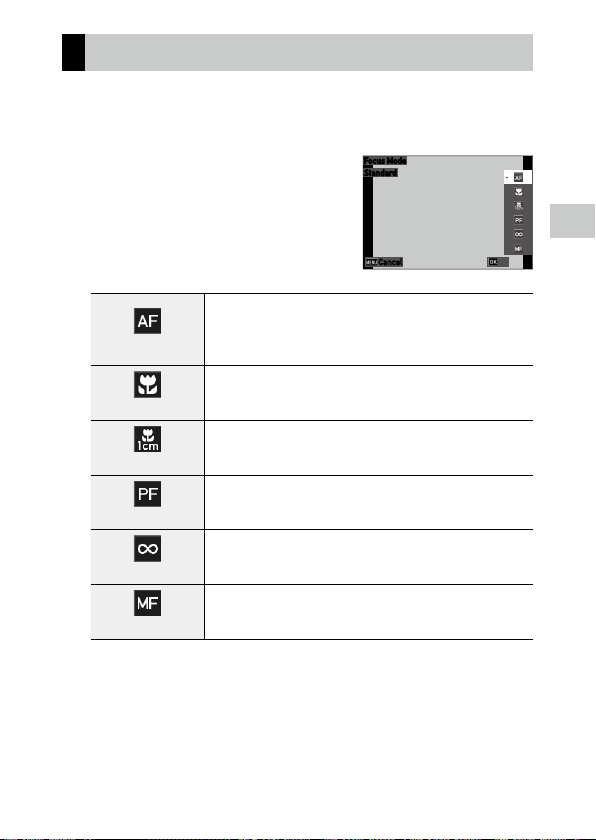
Setting the Focus Mode
1 Press s (b) in the shooting mode.
The [Focus Mode] screen appears.
2 Use ab to select a setting.
Standard
Focuses on the subject at a distance of 50 cm or more from the camera when
z is pressed halfway.
When [Auto Macro] is set to [On] (default setting) in the A menu, focus-
ing is also performed for subjects in the macro range.
Macro
Focuses on the subject at a distance of 10 to 60 cm from the camera.
1cm Macro
Focuses on the subject at a distance of 1 to 30 cm from the camera.
Pan Focus
Focuses on the entire picture, from the front to the back.
Infinity
Fixes the focus distance at infinity. This is useful for shooting distant scenes.
MF
Focuses manually. (p.49)
3 Press e.
The shooting screen reappears.
Focus Mode
Standar
d
Cancel
OK
3
48
Taking Pictures
Memo ---------------------------------------------------------------------------------------------------------
• The focus mode can also be set in [Focus] of the A menu.
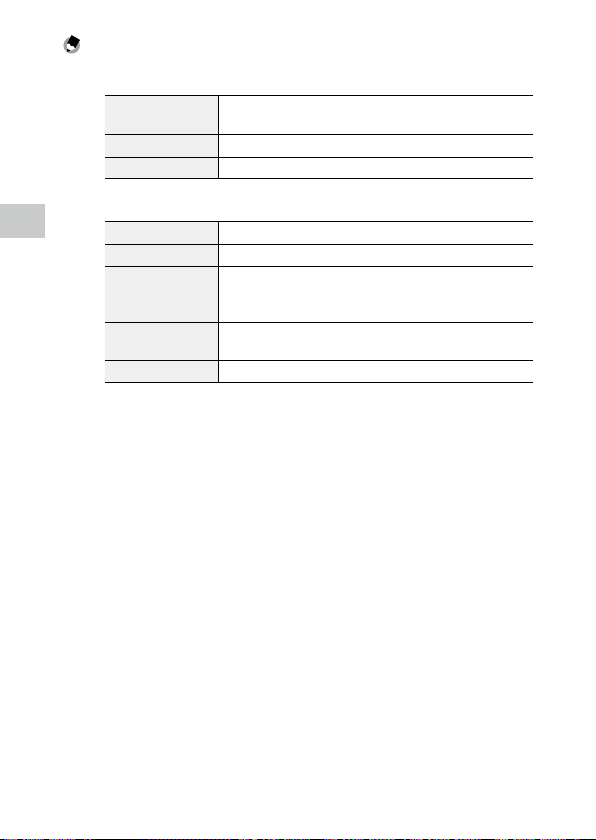
• The autofocus method for the still image mode can be set in [AF] of the A menu.
Multi Measures the distances from 3 × 3 AF areas and focuses to the nearest
AF area. (Default setting)
Spot Focuses to the center AF area.
Tracking Keeps focusing while z is pressed halfway.
• Faces of people (up to 30 people) are automatically detected during autofocusing. The detection
method can be selected in [Face Detection] of the A menu.
On Detects human faces.
Smile Automatically performs shooting when the subject smiles.
Assist Flashes the ring light when a human face is detected. The position of
flashing ring light LED indicates where the face is detected within the
angle of view.
Assist+Smile Flashes the ring light when a human face is detected and automatically
performs shooting when the subject smiles.
Off Does not detect human faces.
• The AF assist light on the front of the camera lights as necessary during autofocusing. The AF assist
light can be set to [Off] in [Focus Assist] of the A menu.
3
49
Taking Pictures
Focusing Manually (Manual Focus)
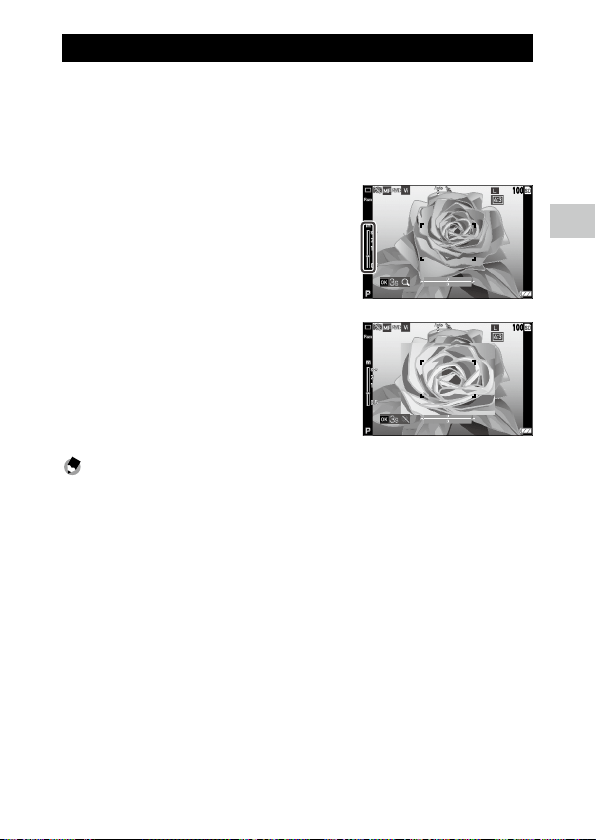
If the camera fails to focus automatically, you can focus manually.
The manual focus enables shooting at a fixed distance.
1 Select [MF] in Step 2 on p.47, and press e.
The focus bar appears on the shooting screen.
2 Use ab to set a focus distance.
When e is pressed and held, the center of
the screen is magnified. Pressing and holding
e again restores the normal display.
Memo ---------------------------------------------------------------------------------------------------------
• When changing the focus mode from [MF], change the mode in [Focus] of the A menu.
100
100
3
50
Taking Pictures
Setting the Exposure
Selecting a Metering Method
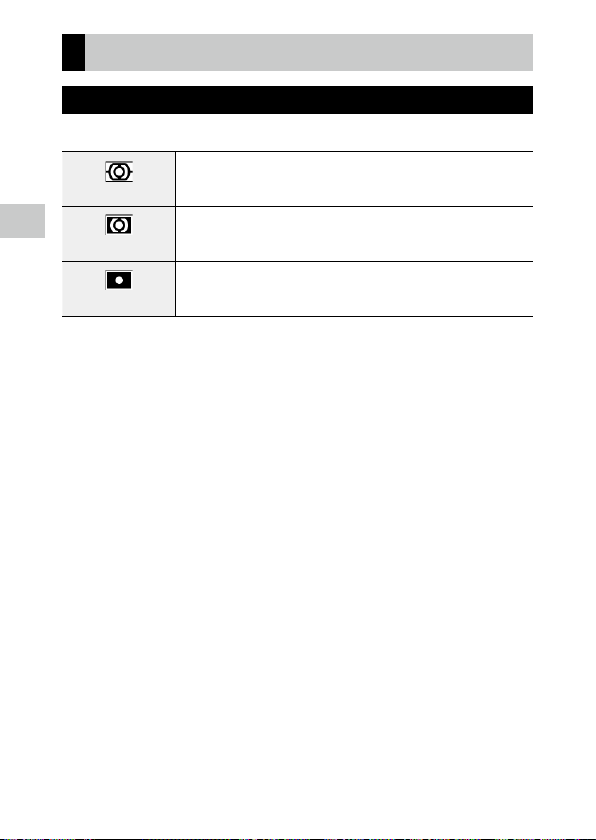
Set the metering method in [AE Metering] of the A menu.
Divide
Meters exposure in multiple areas of the frame.
Center
Meters exposure with emphasis on the center.
Spot
Meters exposure within a narrow range.
Use this option when metering exposure in a part of an image or when the meter-
ing target subject is small.

3
51
Taking Pictures
Setting the ISO Sensitivity
1 Select [Setting] in the A menu, and press d.
2 Use ab to select a setting.
[AUTO] or a setting from [125] to [6400] can
be set.
3 Press e.
4 Press f.
The shooting screen reappears.
Memo ---------------------------------------------------------------------------------------------------------
• The adjustment range of [AUTO] can be set in [AUTO Range] of the A menu.
Caution -------------------------------------------------------------------------------------------------------
• Images taken with a higher sensitivity may appear grainy.
• Depending on the ISO sensitivity setting, the setting of [D-Range Setting] of the A menu is dis-
abled. (p.60)
1/4
3200
1600
800
400
200
125
AUTO
AF
Auto Macro
Focus Assist
AE Metering
Setting
AUTO Range
Focus
Shooting
CancelCancel OKOK
3
52
Taking Pictures
Using the Flash
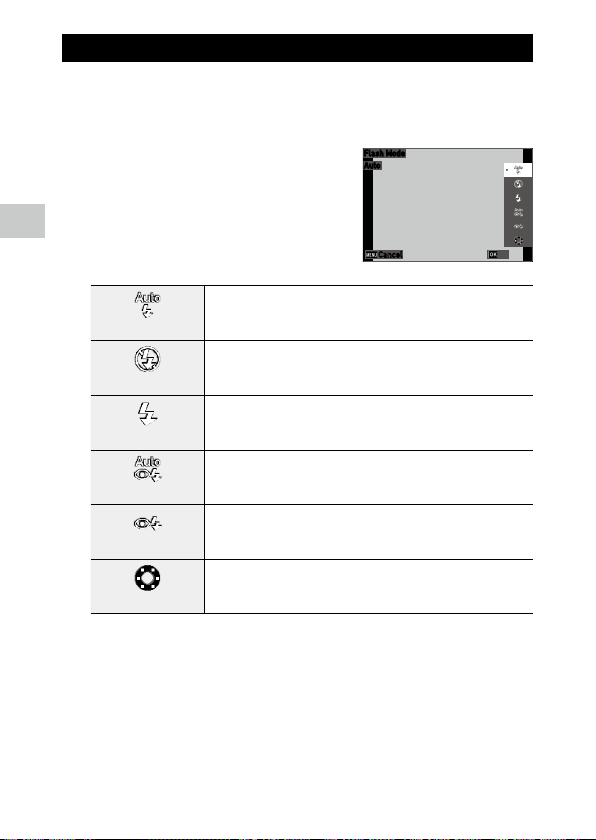
1 Press l (c) in the shooting mode.
The [Flash Mode] screen appears.
2 Use ab to select a setting.
Auto
Fires the flash according to conditions.
Flash Off
Does not fire the flash.
Flash On
Always fires the flash.
Auto+R. eye
Fires the flash according to conditions while reducing the red-eye phenom-
enon.
On+Red-eye
Forces the flash to fire while reducing the red-eye phenomenon.
Ring Light
Turns on the ring light around the lens. (p.53)
3 Press e.
The shooting screen reappears.
Flash Mode
Auto
Cancel
OK
3
53
Taking Pictures
Memo ---------------------------------------------------------------------------------------------------------
• The flash mode can also be set in [Flash Mode] of the A menu.
• When [Underwater] is selected in the T mode, both an image with the flash used and an
image with the flash not used can be taken.
Caution -------------------------------------------------------------------------------------------------------
• You cannot perform shooting while the flash is being charged.
• The flash cannot be used in the B mode.
Using the Ring Light
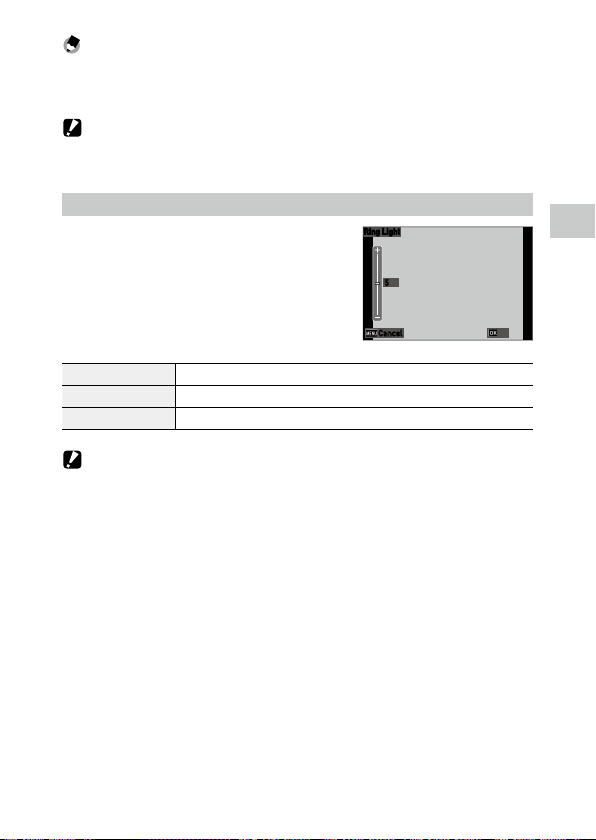
Select [Ring Light] in Step 2 on p.52 and
press d to set the brightness of the ring light.
The settings for the ring light can be made in
[Ring Light] in the A menu.
Select [All], [Right], [Left], [High], [Low], [Off]
Brightness [1] to [9]
LightningTime [Always On], [Shutter 10s], [Shutter 20s], [Shutter 30s], [Shutter 60s]
Caution -------------------------------------------------------------------------------------------------------
• [Ring Light] cannot be selected in the following cases.
• In the S mode, T mode, or V mode
5
Ring Light
Cancel
OK
3
54
Taking Pictures
Setting the White Balance
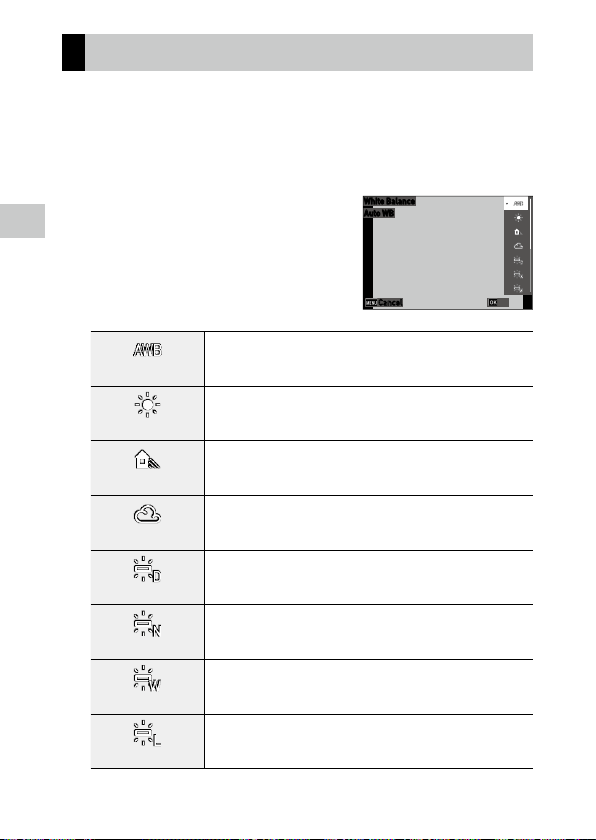
Make adjustments to the white balance so that white subjects will appear
white under any kind of light.
1 Select [White Balance] of the A menu, and press d.
The [White Balance] screen appears.
2 Use ab to select a setting.
Auto WB
Adjusts the white balance automatically.
Daylight
Used when shooting in daylight under clear skies.
Shade
Used when shooting in shade.
Cloudy
Used when shooting in daylight under cloudy skies.
Fl. DL Color
Used with daylight fluorescent lighting.
Fl. DL White
Used with neutral white fluorescent lighting.
Fl. Cool Wt.
Used with cool white fluorescent lighting.
Fl. Warm Wt.
Used with warm white fluorescent lighting.
White Balance
Auto
WB
Cancel
OK

3
55
Taking Pictures
Tungsten
Used with incandescent lighting.
Ring Light
Used when the ring light of the camera is used.
Manual WB
Set the white balance manually. (p.55)
3 Press e.
4 Press f.
The shooting screen reappears.
Caution -------------------------------------------------------------------------------------------------------
• The white balance may not be adjusted correctly for a subject that is mostly dark.
Setting the White Balance Manually
1 Select [Manual WB] in Step 2 on p.54.
2 Aim the camera at a white subject, such as a sheet of paper,
under the light for shooting.
3 Press the green button.
An image to be used for white balance ad-
justment is taken.
4 Press e.
5 Press f.
The shooting screen reappears.
White Balance
Manual
WB
Cancel
OK
3
56
Taking Pictures
Setting the Drive Mode
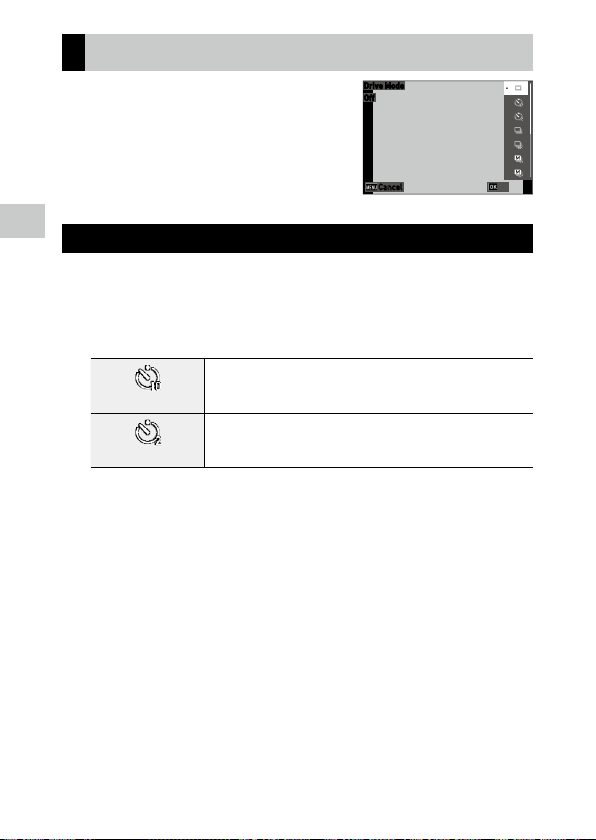
You can set the drive mode by pressing w
(a) in the shooting mode.
The drive mode can also be set in [Drive Mode]
of the A menu.
Shooting Using the Self-timer
1 Press w (a) in the shooting mode.
The [Drive Mode] screen appears.
2 Use ab to select a setting.
Self-Timer10s
Releases the shutter about 10 seconds after z is pressed.
Self-Timer 2s
Releases the shutter about 2 seconds after z is pressed.
3 Press e.
The shooting screen reappears.
4 Press z.
The AF assist light blinks during the countdown, and the shutter is released
after about 10 seconds or 2 seconds.
Drive Mode
Off
Cancel
OK
3
57
Taking Pictures
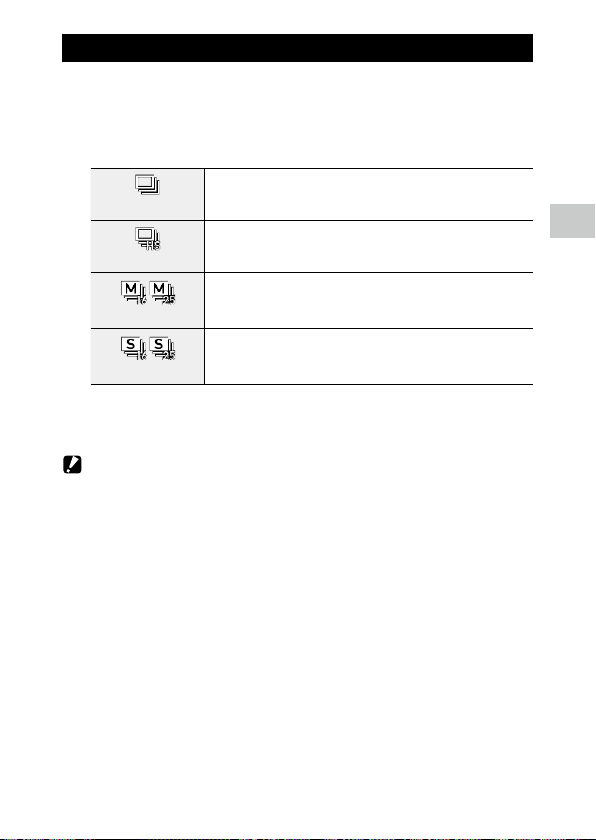
Shooting Continuously
1 Press w (a) in the shooting mode.
The [Drive Mode] screen appears.
2 Use ab to select a setting.
Cont. Shoot
Performs continuous shooting while z is pressed.
Burst Shoot
Fixes the recorded pixels and aspect ratio to [S] and [4:3], respectively, and
performs continuous shooting at high speed.
M-Cont
Performs continuous shooting while z is pressed, and saves last 16
or 25 still images taken for 2 seconds before the button is released as an
image of 5184 × 3888 pixels. (Memory retrospective continuous shooting)
S-Cont
Performs continuous shooting for 16 or 25 still images after z is fully
pressed, and saves them as an image of 5184 × 3888 pixels. (Streaming
continuous shooting)
3 Press e.
The shooting screen reappears.
Caution -------------------------------------------------------------------------------------------------------
• The following functions cannot be used.
• Flash
• [Copyright Print] of the E menu
• [Cont. Shoot] cannot be selected in the following capture modes.
• S mode
• [Night Scene], [Underwater Movie], [Interval Shooting], or [Fireworks] in the T mode
• B mode
• When [Drive Mode] is set to [M-Cont] or [S-Cont], [Digital Zoom] is fixed to [On] in the A menu.
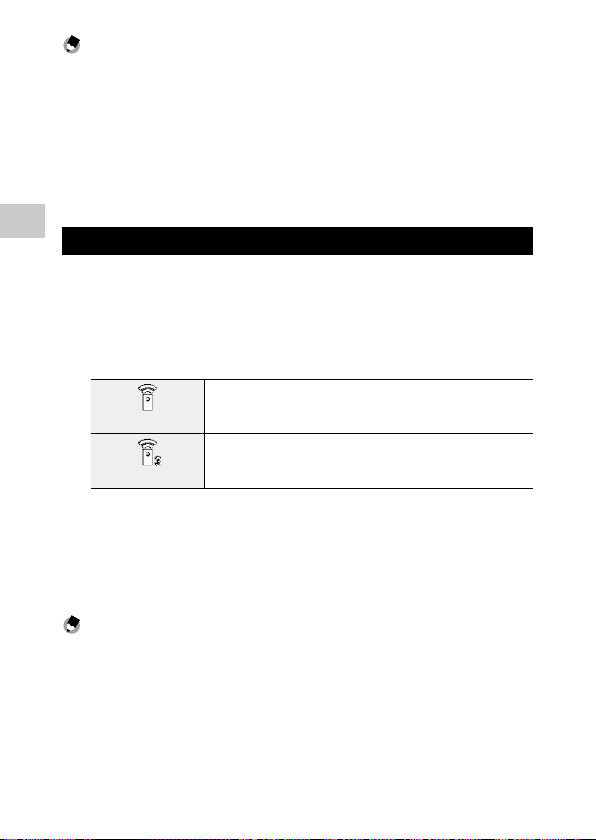
3
58
Taking Pictures
Memo ---------------------------------------------------------------------------------------------------------
• The focus setting and exposure value are fixed during continuous shooting.
• The maximum number of images that can be taken continuously varies depending on the [Recorded
Pixels] setting in the A menu.
• The continuous shooting setting is reset when the camera is turned off and on again.
• If you release z early for [M-Cont], the number of saved images may not reach 16 or 25.
• The images taken with [M-Cont] or [S-Cont] are displayed in 16 or 25 thumbnails in the single image
display of C mode. Press 4 (T) to display an image in the single image display, and cd to
display the previous or next image.
Shooting Using the Remote Control Unit
You can perform shooting using the optional remote control unit.
1 Press w (a) in the shooting mode.
The [Drive Mode] screen appears.
2 Use ab to select a setting.
0-sec Remote Control
Releases the shutter immediately after the shutter release button on the
remote control unit is pressed.
3-sec Remote Control
Releases the shutter about 3 seconds after the shutter release button on the
remote control unit is pressed.
3 Press e.
The shooting screen reappears.
4 Point the remote control unit towards the remote control
receiver of the camera, and press the shutter release button.
Memo ---------------------------------------------------------------------------------------------------------
• The maximum operating distance of the remote control unit is about 4 m from the front of the camera
and about 2 m from the rear of the camera.

3
59
Taking Pictures
Shooting with Varied Exposure Values
Takes three images with different exposure settings of -0.5 EV, 0 EV, and +0.5
EV.
1 Press w (a) in the shooting mode.
The [Drive Mode] screen appears.
2 Use ab to select [A-Bracket], and press e.
The shooting screen reappears.
3 Press z.
Three images are taken by pressing z once.
The three images are displayed side by side during Instant Review.
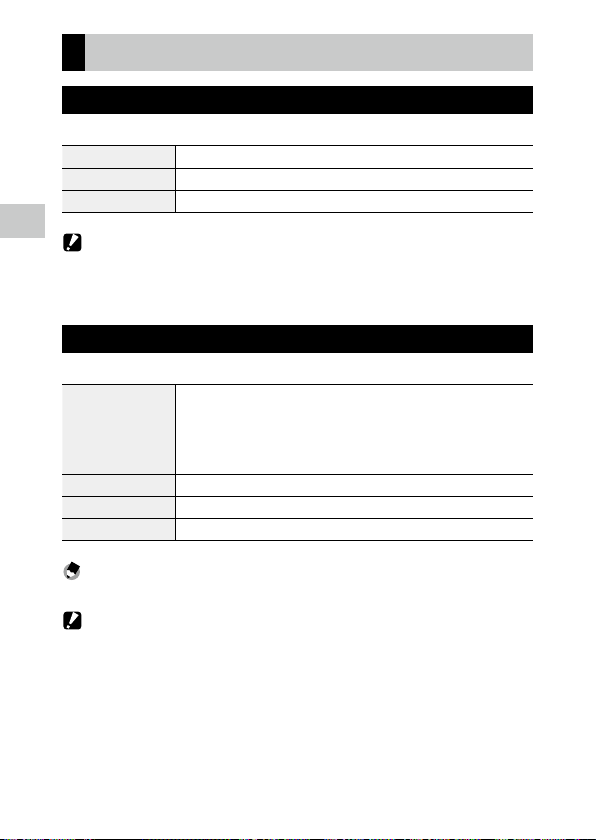
3
60
Taking Pictures
Configuring the Capture Settings
Image Capture Settings
Set the file format for still images in the A menu.
Recorded Pixels [L], [M], [S], [XS], [2M], [1M], [VGA]
Aspect Ratio [4:3], [3:2], [1:1]
Quality Level [8], [9], [0]
Caution -------------------------------------------------------------------------------------------------------
• The settings that can be selected are limited depending on the capture mode.
• [2M] and [1M] are displayed only in the U mode.
Movie Capture Settings
Set the file format for movies in the B menu.
Recorded Pixels Sets the number of recorded pixels.
[4K 30fps] (3840 × 2160)
[FullHD 30fps] (1920 × 1080)
[HD 60fps] (1280 × 720)
[HD 30fps] (1280 × 720)
HDR Sets whether to perform the HDR recording.
Microphone Sets whether to record sounds.
Wind Suppression Reduces wind noise during recording.
Memo ---------------------------------------------------------------------------------------------------------
• For the reduction of blurring during recording movies, refer to “Reducing Blurring of Images” (p.63).
Caution -------------------------------------------------------------------------------------------------------
• When [Recorded Pixels] is set to [4K 30fps], [Movie SR+] of the B menu and [HDR] are fixed to
[Off].
• [Movie SR+] of the B menu and [HDR] cannot be set simultaneously.
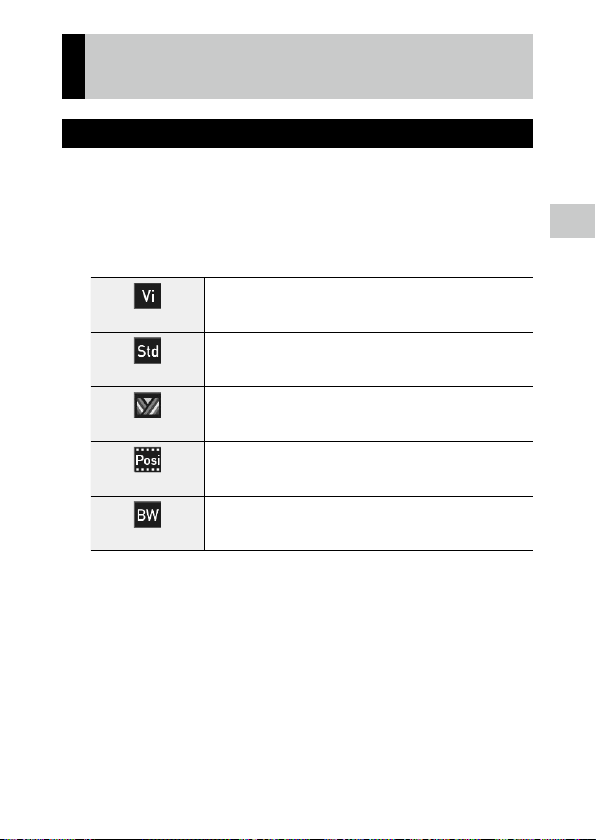
3
61
Taking Pictures
Setting the Image Finishing Tone and Cor-
rection
Setting the Image Atmosphere (Image Tone)
You can control the finishing tone for taken images.
1 Select [Image Tone] in the A menu, and press d.
The [Image Tone] screen appears.
2 Use ab to select a setting.
Bright
Increases the values of [Contrast], [Sharpness], and [Saturation] to take
sharp images.
Natural
Takes images with a natural tone close to the actual color.
Vibrant
Takes bright and gorgeous images with a deep tone of color.
Slide Film
Takes contrast-emphasized images like those taken with a reversal film.
Monochrome
Takes a black and white image.
Set [Tone Adjustment] in the A menu. (p.62)
3 Press e.
4 Press f.
The shooting screen reappears.

3
62
Taking Pictures
Setting the Sharpness, Saturation, Tone, and Contrast
The following settings can be made in the A menu.
Sharpness [Soft], [Standard], or [Hard] can be selected.
Saturation [Soft], [Standard], or [Hard] can be selected.
[Saturation] can be set only when [Image Tone] is set to [Monochrome] in the A
menu.
Tone Adjustment [Blue], [Black & White], or [Sepia] can be selected.
[Tone Adjustment] can be set only when [Image Tone] is set to [Monochrome] in
the A menu.
Contrast [Soft], [Standard], or [Hard] can be selected.
Imprinting the Date on Still Images
The date can be imprinted at the bottom right of the image based on the
date set in the camera. The date imprinting can be set in [Date Imprint] of
the A menu.
Caution -------------------------------------------------------------------------------------------------------
• The imprinted date cannot be deleted.
• The date cannot be imprinted in the following cases.
• During the shooting in [Underwater Movie] or [High Speed Movie] of the T mode.
• In the B mode
• When [Drive Mode] is set to [Burst Shoot], [M-Cont], or [S-Cont]
• When [UTC Data Imprint] of [Data Imprint] is set to [On] in the D menu, [Date Imprint] is fixed to
[Off] in the A menu. (p.91)
Taking Images with Clearer Details
Images with clearer details can be taken by image processing. Set in [IQ En-
hancer] of the A menu.
Caution -------------------------------------------------------------------------------------------------------
• [IQ Enhancer] is disabled in the following case.
• When [Drive Mode] is set to [Burst Shoot], [M-Cont], [S-Cont], or [A-Bracket]
3
63
Taking Pictures
Correcting a Range of Tones (D-Range Setting)
With [D-Range Setting] of the A menu, you can expand an image gradation
to make the bright and dark portions of an image clearly visible.
Highlight Cor. Corrects the bright portions of the image.
Shadow Cor. Corrects the dark portions of the image.
Caution -------------------------------------------------------------------------------------------------------
• When the shooting location is too bright or too dark, the [D-Range Setting] setting may not be ef-
fective.
Reducing Blurring of Images
To automatically reduce blurring of images, set the following functions.
Still image mode [Pix. Track SR] in the A menu
Movie mode [Movie SR] or [Movie SR+] in the B menu
Memo ---------------------------------------------------------------------------------------------------------
• When [Drive Mode] is set to [Self-timer], each setting is fixed to [Off].
• Setting [Movie SR+] to [On] achieves movies with less blurring.
Caution -------------------------------------------------------------------------------------------------------
• [Movie SR] and [Movie SR+] are fixed to [Off] in the following case.
• When [Interval Movie] or [High Speed Movie] is selected in the T mode
• [Movie SR+] is fixed to [Off] in the following cases.
• When [Recorded Pixels] is set to [4K 30fps]
• When [HDR] is set to [On] in the B menu
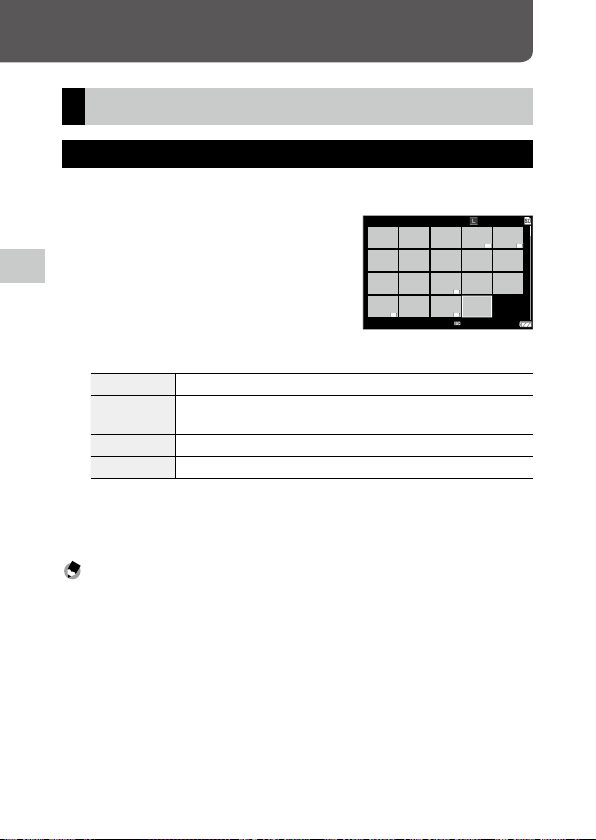
4
Playback Functions
64
Playback Functions
Changing the Playback Method
Displaying Multiple Images
You can display multiple images in the thumbnail view.
1 Press 5 (W) in the single image
display of playback mode.
The images are displayed in 20 thumbnails.
The following operations are available.
abcd Moves the selection frame.
5 (W)/4 (T) Switches between the 20-thumbnail display, the 81-thumbnail display, and the
folder (calendar) display.
Green button Switches between the folder display and the calendar display.
i Deletes the selected image. (p.68)
2 Press e.
The selected image is displayed in the single image display.
Memo ---------------------------------------------------------------------------------------------------------
• Images are played back in the order of file numbers automatically assigned to them.
LAST FILE
100-0630
1/60 F3.5 EV+0.5
125
10:0002/02/2019
4
Playback Functions
65
Playing Back Images Continuously (Slideshow)
1 Select [Slideshow] in the C menu, and press d.
The [Slideshow] screen appears.
2 Set the image switching interval and screen effects.
Interval Sets the image switching interval.
[Interval] cannot be set when [Screen Effect] is set to [Random].
Screen Effect Sets the screen effects applied when images are switched.
Sound Effect Sets the sound effects.
[Sound Effect] is fixed to [Off] when [Screen Effect] is set to [Random].
3 Select [Start], and press e.
A slideshow starts.
When any button is pressed, the slideshow stops.
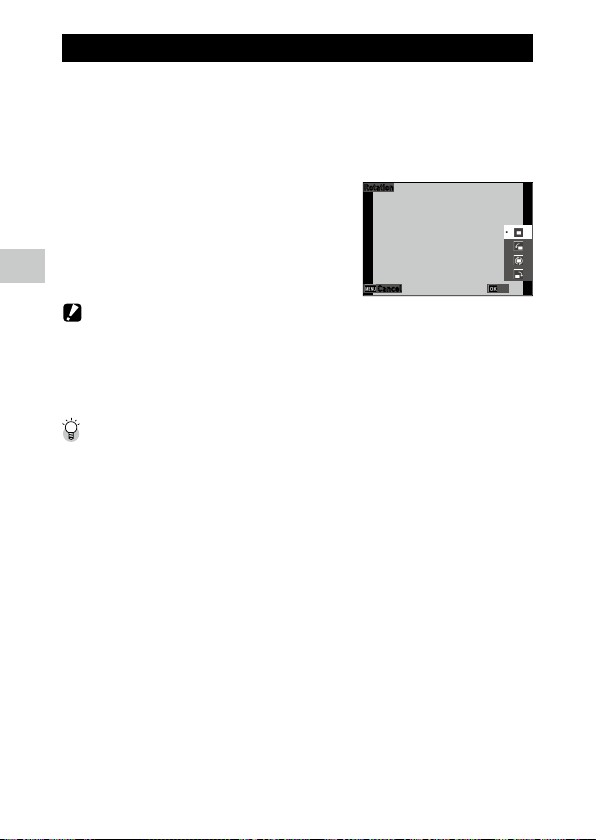
4
Playback Functions
66
Displaying Rotated Images
You can change image rotation information.
1 Display an image in the single image display of playback mode.
2 Select [Rotation] in the C menu, and press d.
3 Select the rotation direction, and
press e.
Caution -------------------------------------------------------------------------------------------------------
• Rotation direction cannot be changed when the write-protect switch on the memory card is locked
or for the following images.
• Movies
• Images taken with [M-Cont] or [S-Cont]
• Protected images
Auto Image Rotation --------------------------------------------------------------------------------------
• When [Auto Image Rotation] is set to [On] in the C menu, the displayed image is rotated accord-
ing to the camera’s orientation during the single image display. When [Auto Image Rotation] is set
to [Off] (default setting), the image display orientation is fixed regardless of the [Rotation] setting.
• The following images cannot be rotated.
• Movies
• Images taken with [M-Cont] or [S-Cont]
• The images are not rotated in the following cases.
• During a slideshow
• While an AV device is connected to the camera
Rotation
Cancel OK
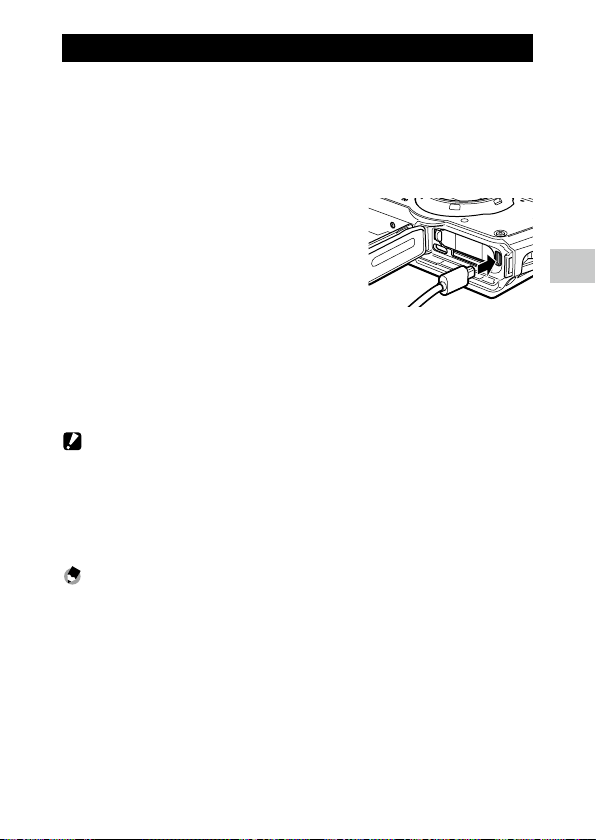
4
Playback Functions
67
Connecting the Camera to an AV Device
Connect to an AV device, such as TVs, equipped with an HDMI® terminal to
display Live View images while shooting or to play back images.
Prepare a commercially available HDMI® cable that is suitable for the device
connected to the camera.
1 Turn the AV device and camera off.
2 Open the battery/card cover of the
camera, and connect the HDMI® cable
to the HDMI® micro output terminal.
3 Connect the other end of the HDMI® cable to the input terminal
on the AV device.
For details, refer to the operating manual for the AV device.
4 Turn the AV device and camera on.
Caution -------------------------------------------------------------------------------------------------------
• When opening and closing the battery/card cover, be sure to remove water and dirt such as sand
adhering to the camera, and avoid locations where dirt can enter the camera interior.
• While the camera is connected to an AV device, nothing is displayed on the camera monitor.
• The audio of the movie is output from the AV device. Adjust the volume on the AV device.
• Use an HDMI® cable with a length of 3 m or less (recommended product: RP-CHEU15-K manufactured
by Panasonic). The RICOH HDMI cable HC-1 cannot be used.
Memo ---------------------------------------------------------------------------------------------------------
• If the camera is connected to an AV device in the playback mode, an image is displayed in the single
image display.
• When outputting images to an AV device with an HDMI® terminal, the maximum resolution sup-
ported by both the AV device and camera is automatically selected. If the AV device fails to play back
images properly, change the setting in [HDMI Out] of the E menu.
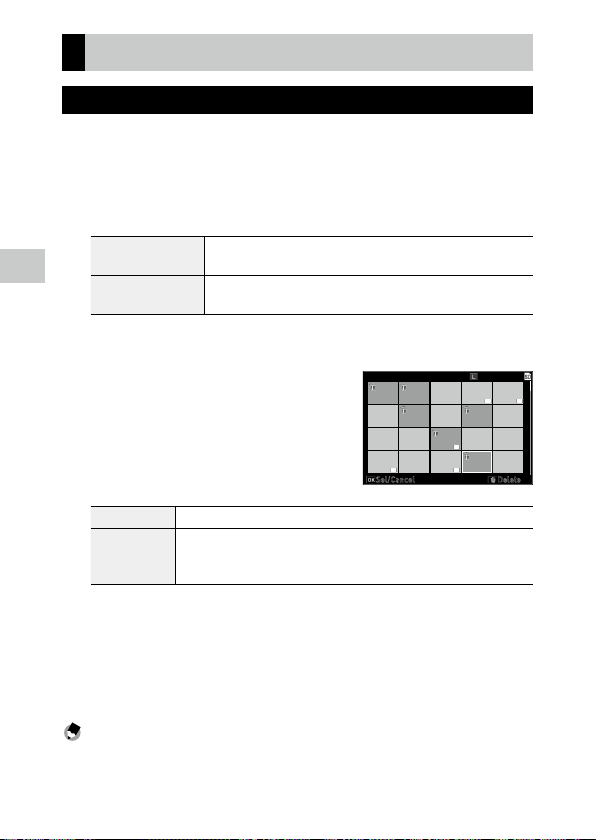
4
Playback Functions
68
Organizing Files
Deleting Files
1 Press i in the single image display or multiple image display.
2 Select the deletion method, and press e.
Available deletion methods vary depending on the camera status when i
is pressed.
Single image display [Delete One], [Delete Multi], or [Delete All] can be selected.
When [Delete Multi] is selected, select [Sel. Indiv.] or [Sel. Range].
20-thumbnail display or
81-thumbnail display
[Sel. Indiv.] or [Sel. Range] can be selected.
When [Delete All] is selected, proceed to Step 5.
3 Select the images to delete.
abcd Moves the selection frame.
e Selects/Deselects an image.
When [Sel. Range] is selected: Selects the starting or ending point for image se-
lection range.
4 Press i.
The confirmation screen appears.
5 Select [Execute], and press e.
The selected images are deleted.
Memo ---------------------------------------------------------------------------------------------------------
• Protected images cannot be selected.
100 99999
/
10:00
Sel/Cancel
Delete
02/02/2019
4
Playback Functions
69
Restoring Deleted Files
You can restore the deleted files in [Recover File] of the C menu.
Caution -------------------------------------------------------------------------------------------------------
• The images cannot be restored when the following operations have been performed after deleting
them.
• Turning the camera off
• Switching from the playback mode to the shooting mode
• Executing [Image Copy], [Resize], or [Cropping] of the C menu
• Executing [Format [Card]] or [Format [Internal M]] of the E menu
Copying Images
Images can be copied between the internal memory and the memory card.
1 Insert a memory card.
2 Select [Image Copy] in the C menu, and press d.
3 Select the copy method, and press e.
[Internal M]>>>[Card] Copies all images in the internal memory to the memory card.
When the memory card space is insufficient, the images cannot be copied.
[Card]>>>[Internal M] Copies images in the memory card to the internal memory one by one after
confirming copying of each file.
The file names are automatically changed.
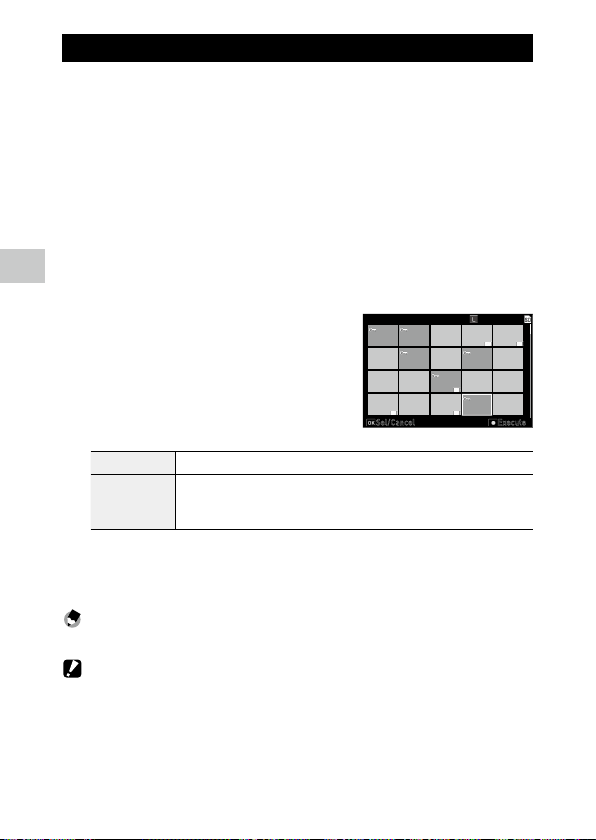
4
Playback Functions
70
Protecting Images from Deletion
You can protect images to prevent them from being deleted accidentally.
1 Select [Protect] in the C menu, and press d.
2 Select the protection method.
Select the method from [1 File], [Sel. Multiple], [Select All], and [Cancel All].
When [1 File] is selected, use cd to display the previous/next image.
3 Press e.
When [Sel. Multiple] is selected, proceed to Step 4.
4 Select [Sel. Indiv.] or [Sel. Range].
5 Select the images to protect.
abcd Moves the selection frame.
e Selects/Deselects an image.
When [Sel. Range] is selected: Selects the starting or ending point for image se-
lection range.
6 Press the green button.
The selected images are protected or unprotected.
Memo ---------------------------------------------------------------------------------------------------------
• If you apply protection to the images that have already been protected, they are unprotected.
Caution -------------------------------------------------------------------------------------------------------
• If [Format [Card]] or [Format [Internal M]] of the E menu is executed, protected images are also
deleted.
100 99999
/
10:00
Sel/Cancel
Execute
02/02/2019
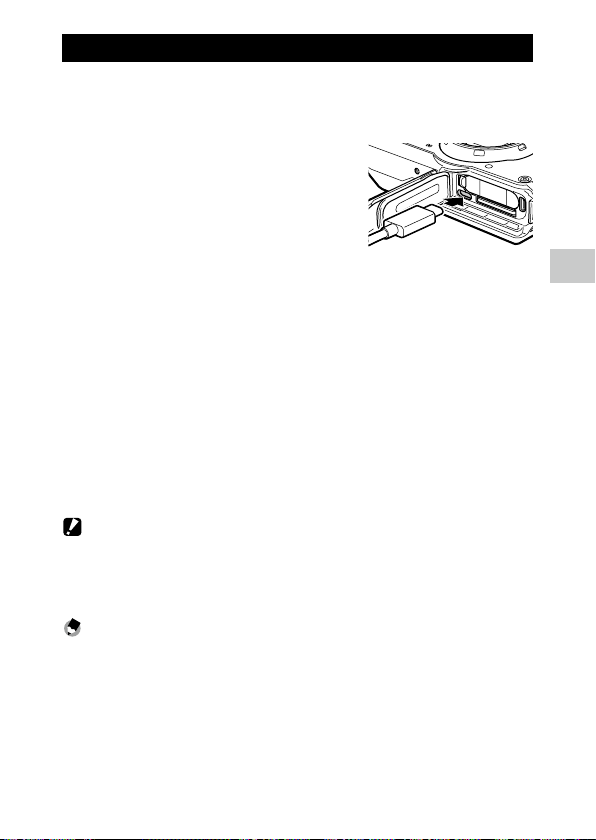
4
Playback Functions
71
Copying Images to a Computer
Connect the camera to a computer using the provided USB cable.
1 Turn the camera off.
2 Open the battery/card cover of the
camera, and connect the USB cable to
the USB terminal.
3 Connect the USB cable to the USB port of the computer.
The battery charging starts.
When the camera is turned on, it is recognized as a device by the computer.
When a memory card is inserted, the files on the memory card are displayed.
When a memory card is not inserted, the files in the internal memory are
displayed.
4 Copy the captured images to the computer.
5 Disconnect the camera from the computer when the copy is
complete.
6 Remove the USB cable from the camera.
Caution -------------------------------------------------------------------------------------------------------
• When opening and closing the battery/card cover, be sure to remove water and dirt such as sand
adhering to the camera, and avoid locations where dirt can enter the camera interior.
• Do not remove the USB cable while copying images.
• For Mac, images with a size of 4 GB or more cannot be copied.
Memo ---------------------------------------------------------------------------------------------------------
• Refer to “Operating Environment” (p.111) for system requirements to connect the camera to a com-
puter.
• When the camera is connected to a computer, the transfer method is set to [MSC]. The transfer meth-
od can be changed in [USB Connection] of the E menu.
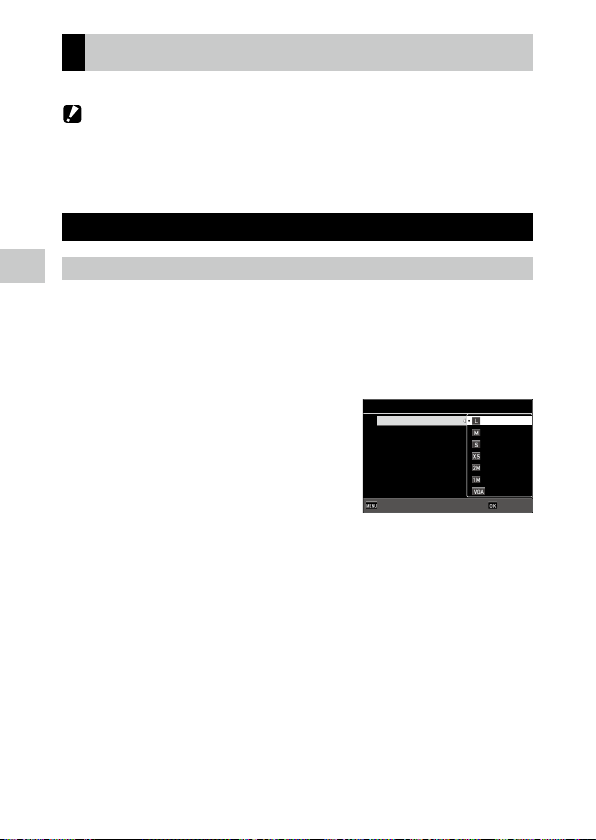
4
Playback Functions
72
Editing and Processing Images
You can edit and process taken images.
Caution -------------------------------------------------------------------------------------------------------
• Only images taken with this camera can be edited and processed. Still images saved from movies
cannot be edited and processed.
• If you edit and process images repeatedly, image quality will deteriorate.
Changing the Image Size
Changing the Number of Recorded Pixels (Resize)
1 Display an image in the single image display of playback mode.
2 Select [Resize] in the C menu, and press d.
The [Resize] screen appears.
3 Set [Recorded Pixels] and [Quality
Level] for the resized image.
The smaller size than the setting for shooting
can be selected.
4 Press e.
5 Select [Overwrite] or [Save as], and press e.
The image is saved.
Quality Level
Recorded Pixels
Resize
CancelCancel OKOK
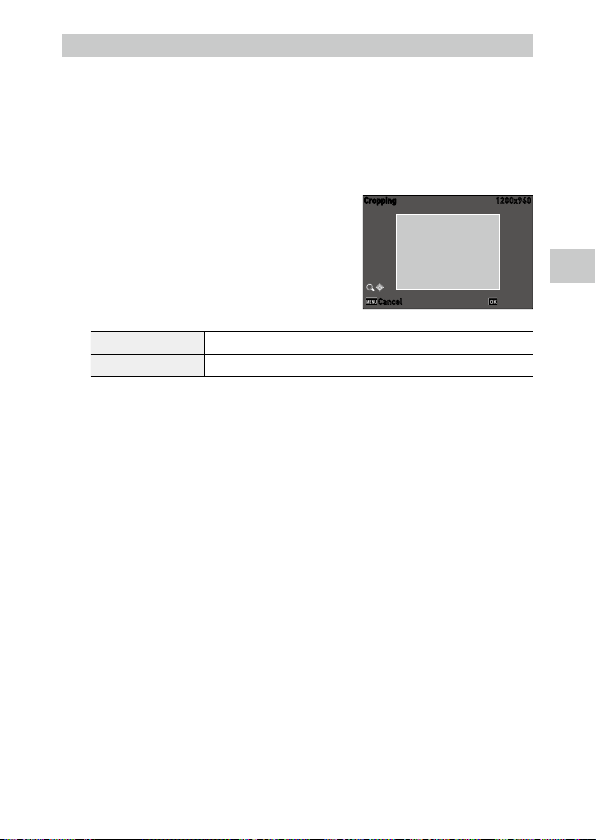
4
Playback Functions
73
Cropping Images
You can crop a part of images and then save them.
1 Display an image in the single image display of playback mode.
2 Select [Cropping] in the C menu, and press d.
The [Cropping] screen appears.
3 Specify the range to crop.
4 (T)/5 (W) Changes the cropping size.
abcd Moves the cropping frame.
4 Press e.
The image is saved as a new image.
1280x960
Cropping
Cancel OK
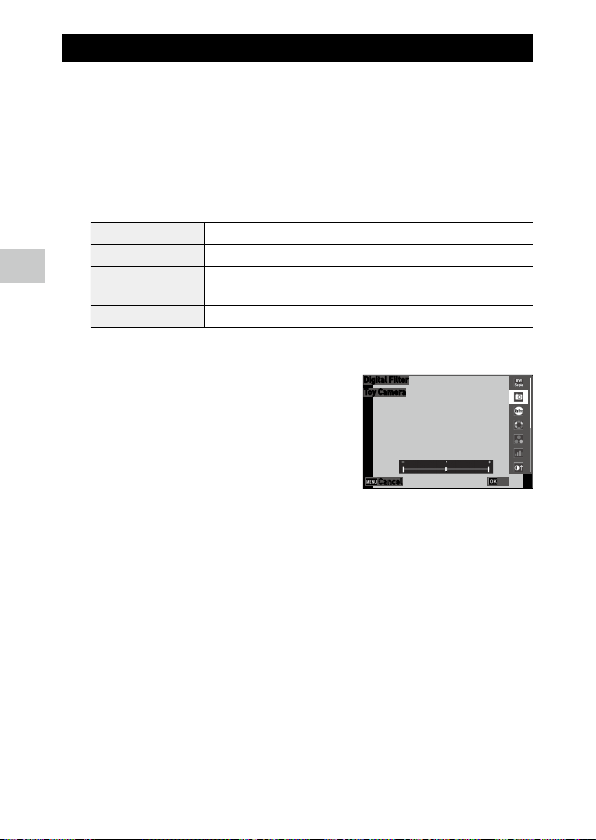
4
Playback Functions
74
Processing Images with Filters
You can process images with filters.
1 Display an image in the single image display of playback mode.
2 Select [Filter] in the C menu, and press d.
The [Filter] screen appears.
3 Use ab to select a filter, and press d.
Small Face Filter [5%], [7%], [10%]
Ink Rubbing Filter [1] to [5]
Digital Filter [B&W/Sepia], [Toy Camera], [Retro], [Color], [Extract Color], [Color Empha-
sis], [High Contrast], [Starburst], [Soft], [Fish-eye], [Miniature], [Brightness]
HDR Filter —
When [HDR Filter] is selected, proceed to Step 5.
4 Use cd to specify a value.
For [Digital Filter], use ab to select a filter
type, and then use cd to specify a value.
5 Press e.
6 Select [Overwrite] or [Save as], and press e.
The image is saved.
Digital Filter
T
oy Camera
Cancel
OK
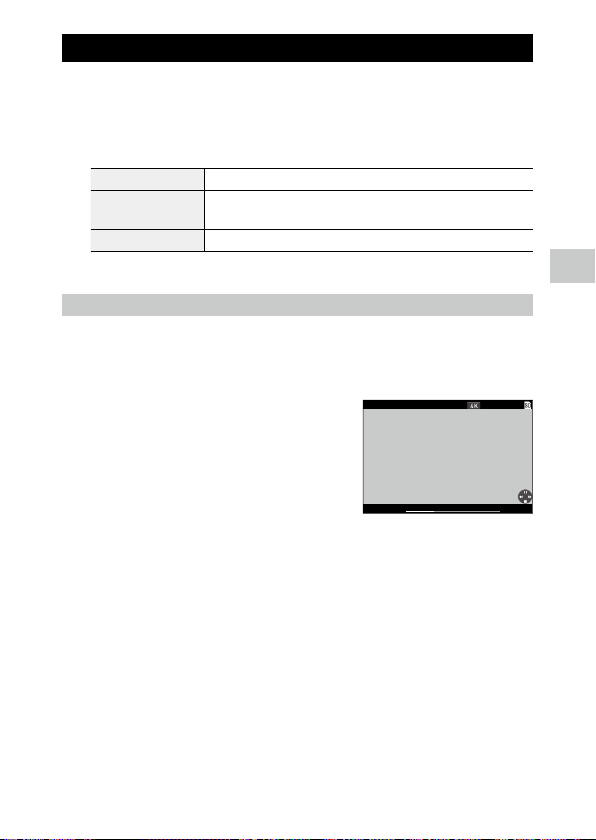
4
Playback Functions
75
Editing Movies
1 Select [Movie Edit] in the C menu, and press d.
The [Movie Edit] screen appears.
2 Use ab to select an editing method.
Save as Still Image Saves the specified frame as a still image.
Divide Movies Divides a movie into two files at the specified devision point and saves as
new files.
Adding title picture Specifies the image to be used as the thumbnail for a movie.
For each editing method, refer to the following.
Saving the Specified Frame as a Still Image
1 Select [Save as Still Image], and press e.
The movie playback screen appears.
2 Display the frame to save.
You can play or pause the movie in the same
manner as when viewing a movie in the play-
back mode.
3 Press e.
The selected frame is saved as a still image.
9998/9999
10:00
00´ 20˝
100-0630
02/02/2019
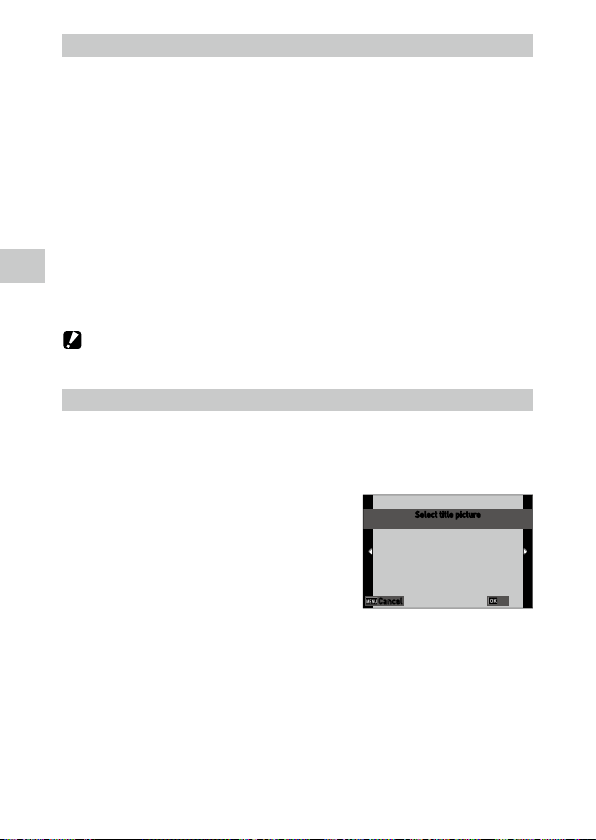
4
Playback Functions
76
Dividing a Movie
1 Select [Divide Movies], and press e.
The movie playback screen appears.
2 Display the frame at which you want to divide the movie.
You can play or pause the movie in the same manner as when viewing a mov-
ie in the playback mode.
The dividing point can be specified in 30 frames increments.
3 Press e.
The confirmation screen appears.
4 Select [Divide], and press e.
The movie is divided at the selected frame and saved as new movie files.
Caution -------------------------------------------------------------------------------------------------------
• The movies with a recording time of less than 2 seconds cannot be divided.
Specifying the Image to Be Used as the Thumbnail for a Movie
1 Select [Adding title picture], and press e.
The image selection screen appears.
2 Use cd to select an image.
The images with the same aspect ratio as the
movie can be selected.
3 Press e.
4 Specify whether to insert the image at the beginning or at the
end of the movie, and press e.
The image is inserted at the beginning or end of the movie.
Select title picture
Cancel
OK

4
Playback Functions
77
Memo ---------------------------------------------------------------------------------------------------------
• The inserted image is displayed for 3 seconds at the beginning or end of the movie.
• When the image is inserted at the beginning of the movie, it is displayed as the thumbnail for the
movie. When the image is inserted at the end of the movie, the thumbnail for the movie is not
changed.
Caution -------------------------------------------------------------------------------------------------------
• When the recording time of the movie reaches 26 minutes with the title image inserted, the image
cannot be inserted.
Correcting Red Eyes in Images
You can correct red eyes in images taken with a flash.
1 Display an image in the single image display of playback mode.
2 Select [Red-eye Edit] in the C menu, and press d.
The image is saved as a new image.
Caution -------------------------------------------------------------------------------------------------------
• The red eyes cannot be corrected for the following images.
• Images in which the camera cannot detect red eyes
• Movies

5
Changing the Settings
78
Changing the Settings
Saving Frequently Used Settings
Using the Mode Dial
You can assign frequently used shooting settings to the mode dial P and
Q so that you can easily recall the settings.
The following settings can be saved.
• Capture mode
• A/B menu settings (with exceptions)
• A part of D menu settings
Saving the Settings
1 Set the capture mode and all the necessary settings to save.
2 Select [Reg. USER] in the D menu, and press d.
3 Select [U1] or [U2], and press e.
The settings are saved.
Using the User Mode
1 Set the mode dial to P or Q in the shooting mode.
2 Change the settings as necessary.
Memo ---------------------------------------------------------------------------------------------------------
• The settings changed in Step 2 are not saved in the camera. If the mode dial is turned, the settings
are reset to the saved settings.
U1
U2
Destination to save
current settings?
OK

5
Changing the Settings
79
Exporting the Settings to a File
You can export the menu settings to a file and save it in a memory card.
The settings can be restored from the exported file. Also, the settings can be
copied to multiple cameras using the exported file.
You can export the settings in a memory card using [Write] and can import
the settings to the camera using [Read] in [Camera Settings File] of the E
menu.
Caution -------------------------------------------------------------------------------------------------------
• The setting file is saved in the “SYSTEM” folder in the memory card with the file name “CAMERA.PRM”.
When [Write] is executed, the old file is overwritten.
• If the memory card is not available for recording, the setting file cannot be saved.
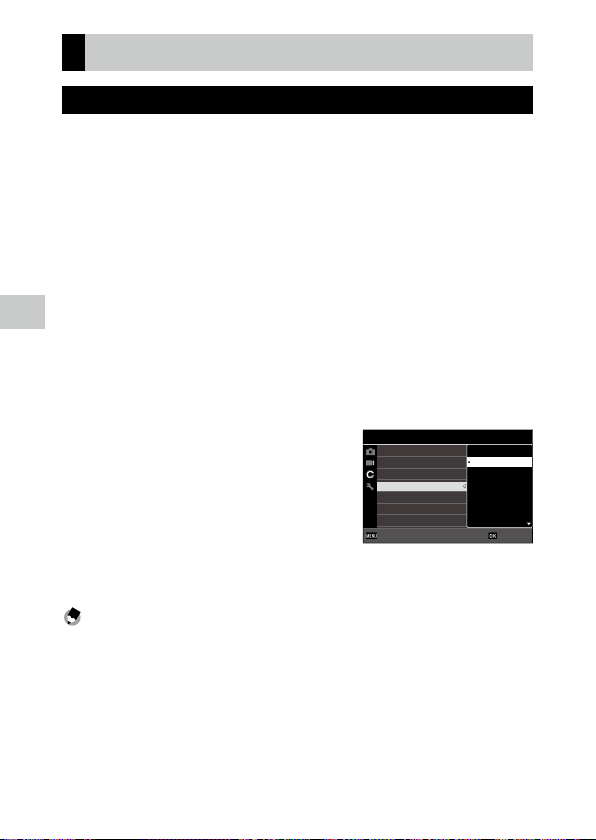
5
Changing the Settings
80
Customizing the Button Functions
Registering Functions to the Movie Button
You can change the settings for “ADJ. mode” of which functions can be easily
used by pressing the movie button.
Five functions selected from the following functions can be saved. (The
functions indicated with a square-bracketed item are the default settings
for the item.)
• Off
• EV Comp. [Setting1]
• Recorded Pixels [Setting2]
• Aspect Ratio [Setting3]
• Setting [Setting4]
• White Balance [Setting5]
• Image Tone
• Quality Level
• AE Metering
• AF
• Face Detection
• Highlight Cor.
• Shadow Cor.
• Outdoor View
1 Select [ADJ Button Setting 1] to [ADJ Button Setting 5] in the D
menu, and press d.
2 Use ab to select a function, and
press e.
3 Set [Movie Button] to [Off] in the D menu.
The ADJ. mode is enabled.
Memo ---------------------------------------------------------------------------------------------------------
• Refer to “Using the ADJ. Mode” (p.20) for how to use the ADJ. mode.
1/4
CALS Pixels
CALS Quality
ADJ Button Setting 1
ADJ Button Setting 2
ADJ Button Setting 3
ADJ Button Setting 4
Reg. USER
Custumize
Off
EV Comp.
Recorded Pixels
White Balance
Image Tone
Aspect Ratio
OKOKCancelCancel
Setting
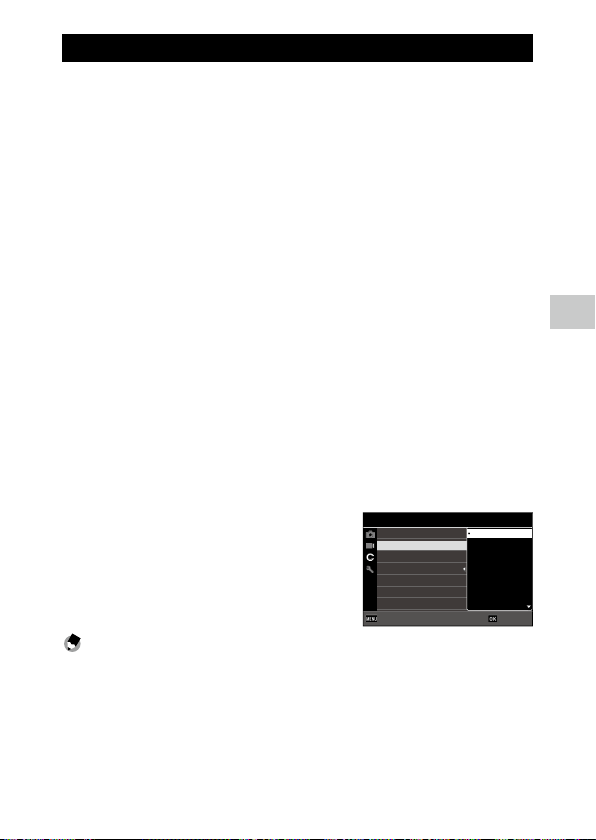
5
Changing the Settings
81
Changing the Functions of the Green Button
You can change the functions activated when the green button is pressed.
The following functions can be saved.
Still images
• Green Mode (default setting)
• EV Comp.
• Recorded Pixels
• Quality Level
• Aspect Ratio
• White Balance
• Setting
• AF
• Face Detection
• Auto Macro
• AE Metering
• Highlight Cor.
• Shadow Cor.
• Sharpness
• Saturation/Tone Adjustment
• Contrast
• Outdoor View
Movies
• Green Mode (default setting)
• Movie SR
• Movie SR+
• White Balance
• AF
• Face Detection
• EV Comp.
• Sharpness
• Saturation/Tone Adjustment
• Contrast
• Outdoor View
1 Select [Green Mode] in the D menu, and press d.
2 Use ab to select a function, and
press e.
The green button function is changed.
Memo ---------------------------------------------------------------------------------------------------------
• You can display the current green button function when the camera is turned on. Set [Start-up
Screen] to [Start-up screen with operation guide] in the C menu. (p.82)
• The function set to the green button is enabled in the shooting mode only.
2/4
Green Button
START DATE/TIME
Show folder at startup
Shut-down Screen
Confirm. Time
Quick Zoom
ADJ Button Setting 5
Custumize
Green Mode
EV Comp.
Recorded Pixels
White Balance
Quality Level
OKOKCancelCancel
Aspect Ratio
Setting
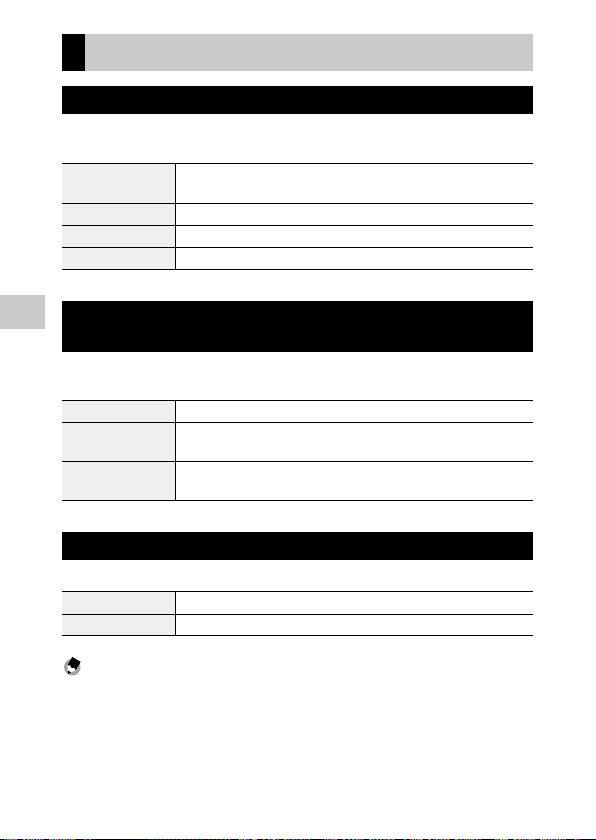
5
Changing the Settings
82
Display and Sound Settings
Setting the Start-up Screen
The screen display when the camera is turned on can be set in [Start-up
Screen] of the C menu.
Start-up screen with
operation guide
Displays the capture mode.
RICOH Displays the RICOH logo.
Photographs Displays the selected captured image.
Off Displays nothing.
Setting the Information Displayed when the Camera Is
Turned On/Off
You can set the information displayed when the camera is turned on and off
in the D menu.
START DATE/TIME Displays the current date and time until the camera is operated after it is turned on.
Show folder at startup Displays the name of the current folder and the number of images in the folder
until the camera is operated after it is turned on.
Shut-down Screen
Displays the RICOH logo and the number of images captured on the day except for
deleted images when the camera is turned off.
Setting the Live View Display
You can set the Live View display in the D menu.
Grid Guide Display Op. Select the grid style from [9 Divide] or [16 Divide].
Level Setting Select the level display from [Off], [Level + Shift], or [Level].
Memo ---------------------------------------------------------------------------------------------------------
• The current tilt can be saved as a reference tilt by executing [Calibrate Level] in the D menu.
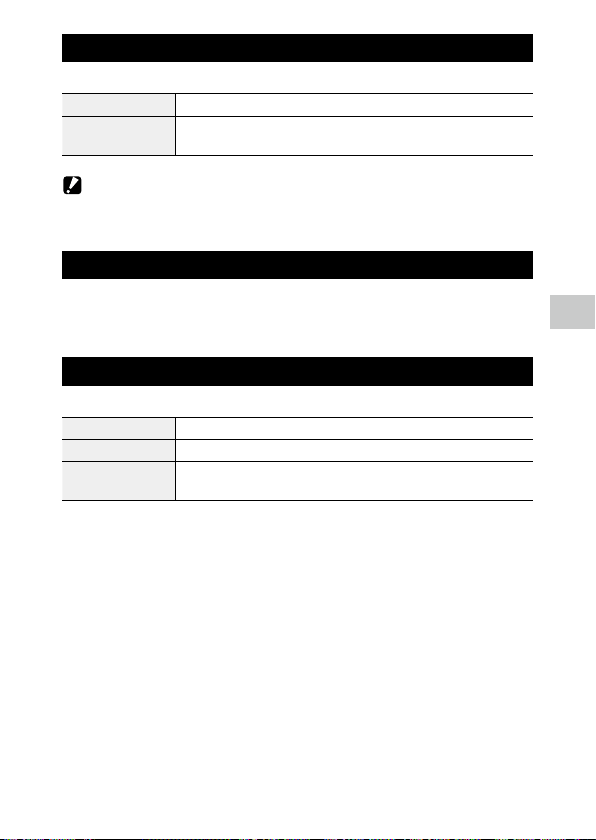
5
Changing the Settings
83
Setting the Brightness of the Monitor
You can adjust the brightness of the monitor in the E menu.
LCD Brightness Sets the brightness of the monitor.
Outdoor View Adjusts the brightness of the monitor when the monitor display is difficult to see
during outdoor shooting or in other situations.
Caution -------------------------------------------------------------------------------------------------------
• The [LCD Brightness] setting cannot be changed when [Outdoor View] is set.
Setting the Lamp
You can set whether to turn the power button lamp on when the power is
turned on in [Power Button Lamp] of the E menu.
Setting the Sound Volume
You can set the sound volume in the E menu.
Operation Volume Sets the sound volume when buttons are operated.
Playback Volume Sets the sound volume during playback.
Sound Sets the sound volume for [Startup Sound], [Shutter Sound], [Operation Sound],
and [Self-timer Sound].
5
Changing the Settings
84
Power Saving Settings
Automatically Turning the Power Off
The camera turns off automatically if no operations are made for a certain
period of time. Set the time until the the camera is turned off in [Auto Power
Off ] of the E menu.
Memo ---------------------------------------------------------------------------------------------------------
• [Auto Power Off] is not available in the following cases.
• During shooting in the B mode or in [Interval Shooting] of the T mode
• During movie playback or slideshow
• During data processing
• While the camera is connected to a computer
• During FlashAir connection
Dimming the Display
The camera dims or turns off the display automatically if no operations are
performed during the set time. The following settings can be set in the E
menu.
Power Saving Dims the display automatically if no operations are performed during the set time
to suppress battery drain.
Select the time until the display is dimmed from [5sec.], [15sec.], [30sec.], [1min.],
and [2min.].
Monitor Auto off Delay Turns the monitor off automatically if no operations are performed during the set
time.
Select the time until the the monitor is turned off from [1min.], [5min.], and
[30min.].
If the camera is operated, the original brightness and display are restored.

5
Changing the Settings
85
Memo ---------------------------------------------------------------------------------------------------------
• [Power Saving] is not available in the following cases.
• During shooting in the B mode or in [Interval Shooting] of the T mode
• In the V mode
• In the C mode
• While a menu is displayed
• While the AC adapter is used
• [Monitor Auto off Delay] is not available in the following cases.
• During shooting in [Interval Shooting] of the T mode
• During movie playback or slideshow
• While the camera is connected to a computer
• While an AV device is connected to the camera

5
Changing the Settings
86
Setting the GPS
The camera can acquire information from GPS satellites using the built-in
GPS function.
Caution -------------------------------------------------------------------------------------------------------
• Local geographic conditions such as places where radio waves are blocked or reflected may prevent or
delay the acquisition of GPS information.
• The positions of GPS satellites are continuously changing and this may prevent or delay the acquisi-
tion of GPS information.
• The presence of devices transmitting frequencies close to those of GPS satellites or devices generating
a strong magnetic field may interfere with the acquisition of GPS information or deteriorate the GPS
information precision.
• Note that the camera may take a while to acquire the GPS information if it has not been used for
an extended period or has been moved a great distance from where the GPS information was last
acquired.
• The presence of devices generating a strong magnetic field or devices blocking magnetic fields may
interfere with the acquisition of correct direction information.
• The GPS function may not work near a broadcast tower, etc. and in a place where strong static elec-
tricity is generated.
• The use of GPS, the collection of location information, etc. may be regulated depending on the coun-
try and region. When bringing the camera to a foreign country, check with your embassy or travel
agency beforehand if there are restrictions on bringing in the camera with the GPS function, logging
GPS information, etc.
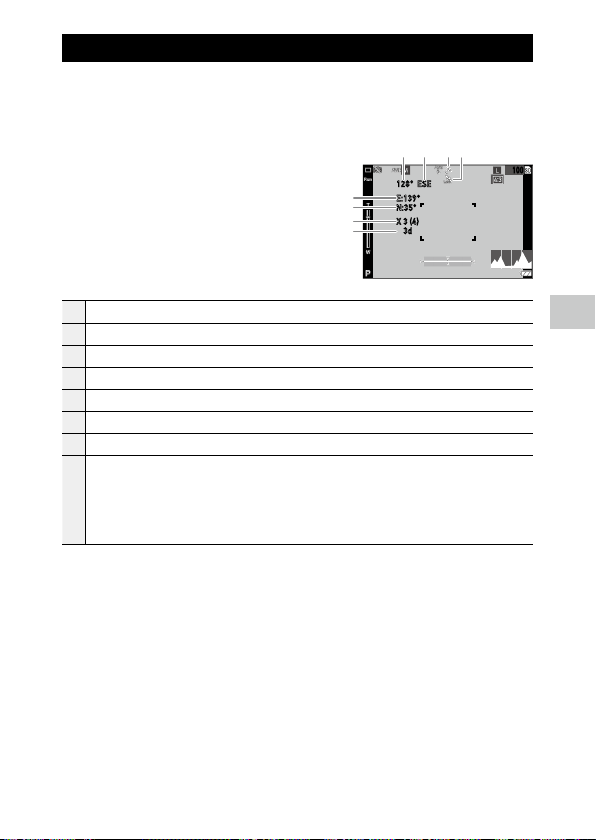
5
Changing the Settings
87
Displaying the GPS Information
You can record the location information in images using the GPS function.
Set in [GPS] of the D menu or press and hold x (d) to turn the GPS func-
tion on and off. The GPS information is acquired every one second in the
shooting mode.
The acquired GPS information can be
checked in “Detailed information display” in
the shooting mode (p.18).
1 Electronic compass information (azimuth)
2 Electronic compass direction
3 GPS positioning status
4 GPS lock
5 Longitude
6 Latitude
7 Number of GPS satellites used (Number of acquired visible GPS satellites)
8 Positioning quality
[no fix]: Positioning is not possible.
[2d]: The GSA positioning mode in the NMEA-0183 format is “2d”.
[3d]: The GSA positioning mode in the NMEA-0183 format is “3d”.
[Diff]: The GGA quality in the NMEA-0183 format is “DGPS”.
100
128° ESE
E:139°
N:35°
X 3 (4)
3d
21
5
6
7
8
34
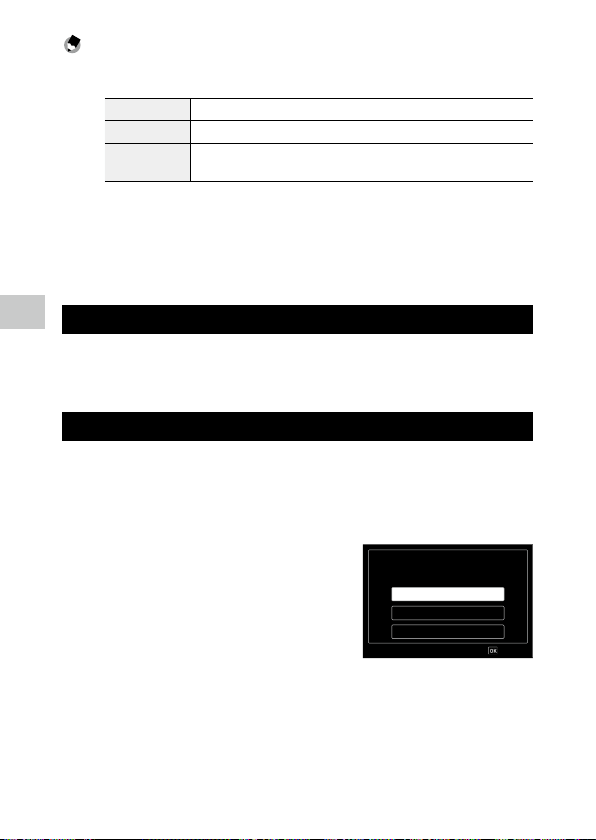
5
Changing the Settings
88
Memo ---------------------------------------------------------------------------------------------------------
• The standard of GPS information displayed on the monitor can be set in [GPS Disp Mode] of the D
menu.
LAT/LON Displays the latitude and longitude.
UTM Displays the Universal Transverse Mercator (UTM) coordinates.
MGRS Displays the Military Grid Reference System (MGRS) coordinates used as mil-
itary information.
• The details of the location information recorded in images can be checked in “Detailed information
display” in the playback mode (p.18).
• Set [GPS Lock] to [On] in the D menu to enable the function to protect the acquired GPS informa-
tion. The GPS information is protected when d is pressed on the shooting screen. The information is
unprotected when d is pressed again.
Automatically Adjusting the Date and Time Settings
The camera date and time settings can be adjusted based on the GPS infor-
mation by setting [GPS Time Adjustment] to [On] in the D menu.
Recording the Camera Route
You can record the camera route using the GPS information.
1 Select [GPS Log] in the D menu, and press d.
The [GPS Log] screen appears.
2 Select [Record log], and press e.
GPS Log
Record log
Save log data
Discard log data
OK
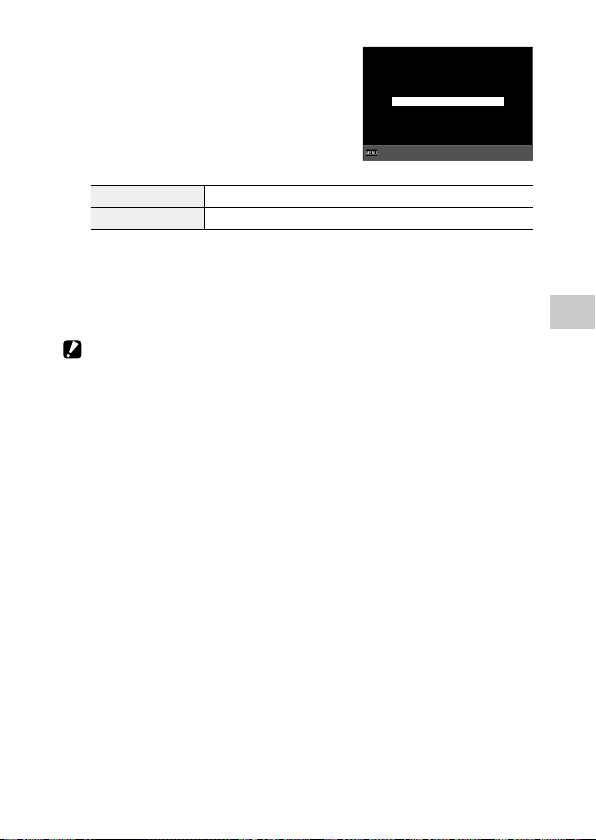
5
Changing the Settings
89
3 Set [Logging Interval] and [Logging
Duration].
Logging Interval Select from [1sec.] to [60sec.].
Logging Duration Select from [1] hour to [18] hours.
4 Select [Start], and press e.
GPS logging starts.
Select [Stop] to stop the GPS logging.
When the set logging time elapses, the GPS logging stops.
Caution -------------------------------------------------------------------------------------------------------
• [GPS Log] is not available during the shooting in [Interval Shooting] or [Interval Movie] of the
T mode. This interval shooting cannot be performed during the GPS logging.
• The logging interval may fluctuate in the following cases.
• When the camera is being turned on or off
• When the information of a new satellite is being acquired
• The data may be acquired about 1 minute longer than the time set in [Logging Duration].
1
Logging Interval
Logging Duration
Start
Record log
ExitExit
10sec.
5
Changing the Settings
90
Saving Logs
You can save the recorded logs to the memory card as a file.
1 Select [Save log data] on the screen in Step 2 on p.88, and
press d.
2 Select [NMEA] or [KML], and press e.
The log file is saved in the “GPSLOG” folder in the memory card with the file
name composed of the serial number 001 to 999 and the month and day.
(Example: 001_0505)
Memo ---------------------------------------------------------------------------------------------------------
• You can check the log file by using a software supporting the file on a computer.
• When deleting the log file, select [Discard log data] on the screen in Step 2. The log file cannot be
deleted with [Format [Card]] in the
E menu.
Caution -------------------------------------------------------------------------------------------------------
• If the memory card is not available for recording, the log file cannot be saved.
• When the GPS information has not been acquired, the log file is not saved.
Setting the Direction Information
You can set the direction information displayed on the shooting screen in
the D menu.
Compass Heading Sets the displayed information.
Compass Calibration Executes the adjustment of the compass.
Hold the camera with one hand and move it slowly like drawing the figure 8. When
the adjustment is completed, a beep sounds.
Declination Select from [TRUE] and [MAG].
When the GPS information has not been acquired, the information for [TRUE] is
not displayed.

5
Changing the Settings
91
Imprinting the GPS Information
The acquired GPS information can be imprinted at the bottom right of the
image. Set in [Data Imprint] of the D menu.
GPS Data Imprint Sets the standard of GPS information to imprint.
UTC Data Imprint Imprints the Universal Coordinated Time.
[Date Imprint] of the A menu is disabled.
Heading Data Imprint Imprints the direction information.
Caution -------------------------------------------------------------------------------------------------------
• The imprinted GPS information cannot be deleted.
• The GPS information cannot be imprinted in the following cases.
• During the shooting in [Underwater Movie] or [High Speed Movie] of the T mode.
• In the B mode
• When [Drive Mode] is set to [Burst Shoot], [M-Cont], or [S-Cont]

5
Changing the Settings
92
File Management Settings
Specifying the Folder/File Settings
By default, folders and files are automatically named as follows.
Folder Name 100RICOH to 999RICOH
File Name R0000001.JPG to R0999999.JPG
When the file number exceeds R09999, the next folder is created and
the file number becomes R00001. If the file number exceeds R09999
when the folder number is 999, no more files can be stored on the memory
card currently inserted.
The folder and file names can be changed.
New Folder Options
When images are captured with this camera, a folder is automatically creat-
ed and the captured images are stored in it. Each folder name consists of a
sequential number from 100 to 999 and a string of 5 characters.
The character string in the folder name can be changed.
1 Select [New folder options] in the E menu, and press d.
2 Use ab to select a setting.
Standard 100RICOH to 999RICOH
Date Assigns four digits of the month and day of the shooting date after the folder
number.
The month and day appear according to the date format set in [Date Adjustment]
of the E menu.
Example) 101_0125: Images taken on January 25th
Custom Assigns a freely defined string of five characters after the folder number.
(Default: RICOH)
Example) 101RICOH
When [Standard] or [Date] is selected, proceed to Step 6.

5
Changing the Settings
93
3 Select [Custom], and press d.
The text-entry screen appears.
4 Enter a folder name.
Up to five single-byte alphanumeric charac-
ters can be entered.
The following operations are available.
abcd Moves the text selection cursor.
e Enters a character selected with the text selection cursor.
5 After entering the text, move the text selection cursor to 1,
and press e.
The confirmation screen appears.
6 After checking the setting, press e.
Memo ---------------------------------------------------------------------------------------------------------
• A folder with a new number is created when the next shooting is performed after the folder name
is changed.
Caution -------------------------------------------------------------------------------------------------------
• The maximum folder number is 999. If the folder name is changed after the folder number reach-
es 999, you cannot capture new images. Also, you cannot capture new images when the file name
number reaches 9999.
㹕E R T Y U I O PQ
S D F G H J K LA
Z
123
X C V B N M
RICOH
_
Cancel Finish
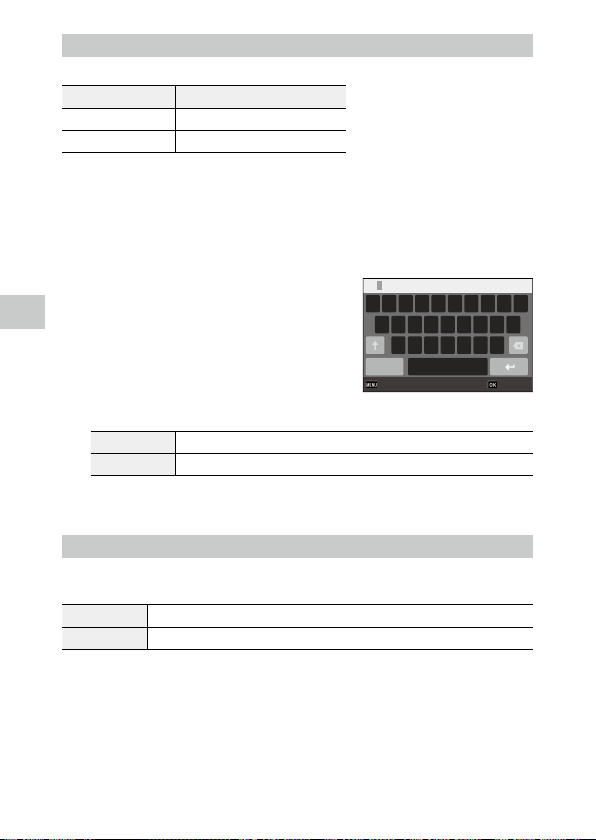
5
Changing the Settings
94
File Name
The following string of characters is used as the file name prefix by default.
Recording Format File Name
Still image R0
.JPG
Movie M0
.MOV
You can change the first two characters of still image file names from “R0”.
1 Select [File name] in the E menu, and press d.
2 Select [Custom], and press d.
3 Select a character to enter.
Uppercase alphanumeric characters and “_”
can be entered.
The following operations are available.
abcd Moves the text selection cursor.
e Enters a character selected with the text selection cursor.
4 Press e.
File Sequence No.
In [File Sequence No.] of the E menu, you can set whether to continue the
sequential numbering for file names even when memory cards are replaced.
On Continues the sequential numbering for file names even after memory cards are replaced.
Off Resets the numbering for file names after memory cards are replaced.
㹕E R T Y U I O PQ
S D F G H J K LA
Z
123
X C V B N M
RO
_
Cancel Finish
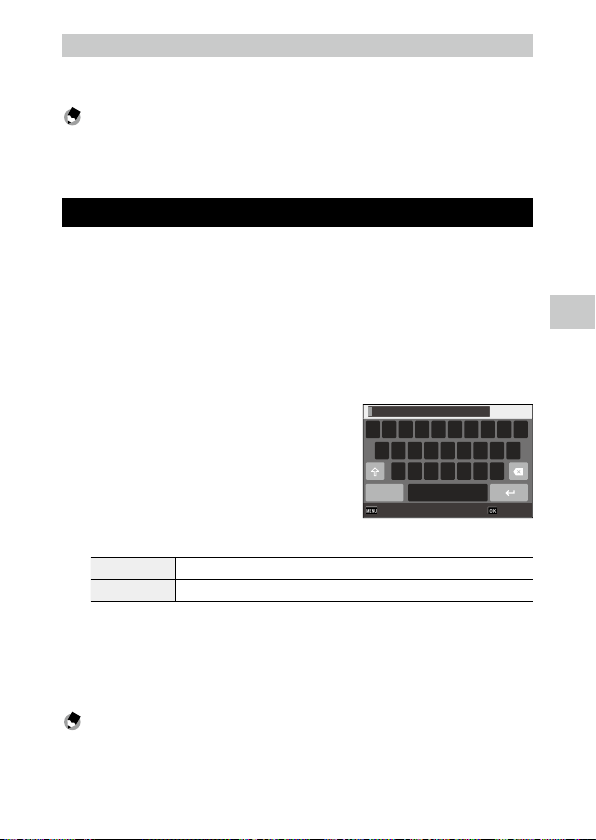
5
Changing the Settings
95
Reset File Number
If [Reset File Number] of the E menu is executed, a folder with a new num-
ber is created and file number starts from 0001.
Memo ---------------------------------------------------------------------------------------------------------
• When the file number reaches 9999, a new folder is created and the file number is reset.
• When a memory card is not inserted, the file number in the internal memory is reset.
Setting the Copyright Information
You can set the copyright information embedded in the Exif data.
1 Select [Embed Info] in the E menu, and press d.
2 Select [On] or [Off], and press e.
3 Select [Copyright Info], and press d.
The text-entry screen appears.
4 Enter the copyright holder.
Up to 32 single-byte alphanumeric charac-
ters and symbols can be entered.
The following operations are available.
abcd Moves the text selection cursor.
e Enters a character selected with the text selection cursor.
5 After entering the text, move the text selection cursor to 1,
and press e.
The E menu reappears.
The first 11 characters of the entered copyright holder are displayed.
Memo ---------------------------------------------------------------------------------------------------------
• You can check the copyright information in “Detailed information display” in the playback mode
(p.18).
㹵e r t y u i o pq
s d f g h j k la
z
123
x c v b n m
Cancel Finish
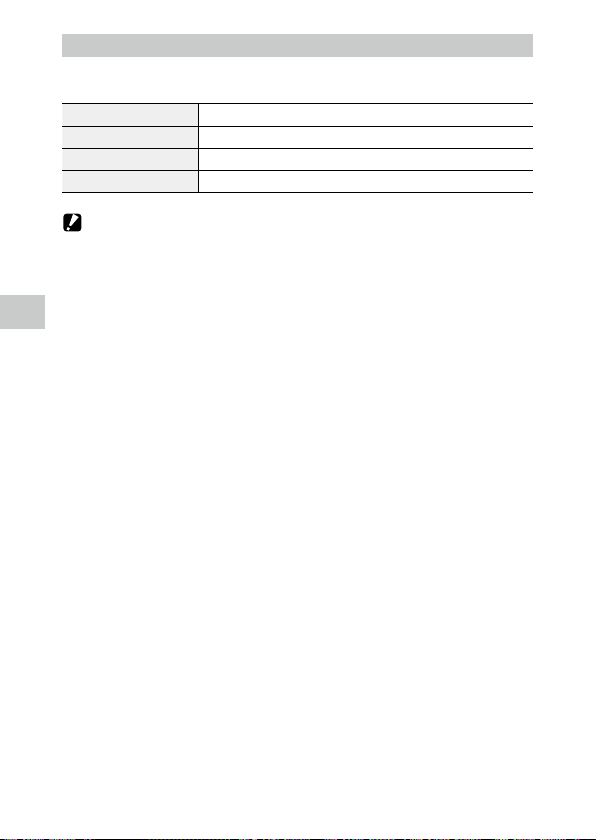
5
Changing the Settings
96
Imprinting the Copyright Information
The copyright information can be imprinted at the bottom of the image. Set
in the E menu.
Copyright Print Select from [On(OVR)], [On(New)], and [Off].
Copyright Position Select from [Left], [Middle], and [Right].
Copyright Font Size Select from [Large], [Middle], and [Small].
Copyright Color Select from [Orange], [White], [Black], [Red], [Blue], [Green], and [Yellow].
Caution -------------------------------------------------------------------------------------------------------
• The imprinted copyright information cannot be deleted.
• The copyright information cannot be imprinted in the following cases.
• During the shooting in [Underwater Movie] or [High Speed Movie] of the T mode.
• In the B mode
• When [Drive Mode] is set to [Burst Shoot], [M-Cont], or [S-Cont]
• When [Copyright Info] is not set in the E menu
• When [Copyright Font Size] is set to [Large] or [Middle], a part of the copyright information may
not be imprinted.
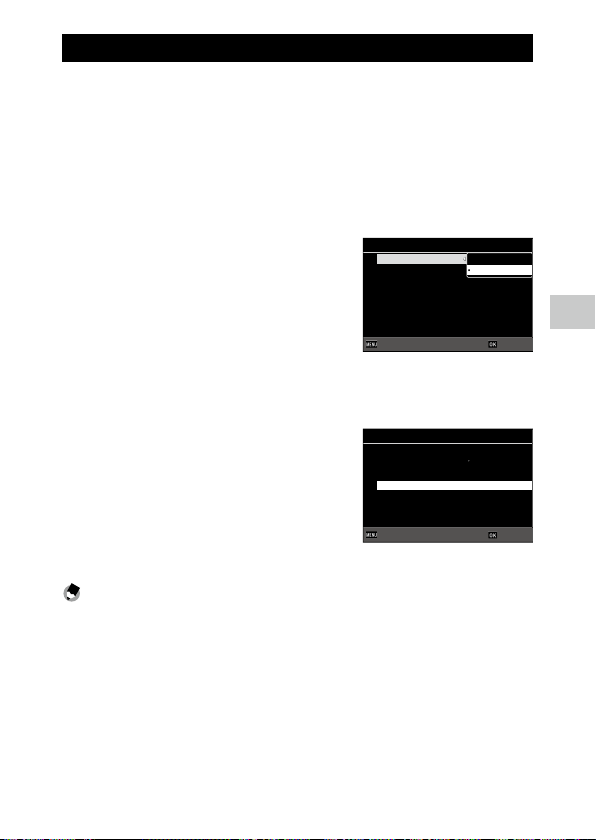
5
Changing the Settings
97
Saving the Local Date and Time of the Specified City
The date and time set in “Initial Settings” (p.35) serve as the date and time
of your present location and are reflected in the shooting date and time for
images.
Setting the destination to a location other than your present location en-
ables you to save images time-stamped with the local date and time.
1 Select [World Time] in the E menu, and press d.
The [World Time] screen appears.
2 Select [Destination] in [Select Time].
Select [Hometown] to reset the date and
time to the ones of your present location.
3 Press d at [Destination], and set the daylight saving time.
If the daylight saving time is applied to the city to set, turn [DST] on.
4 Press d at the city name row, and
select the destination city.
The destination city can be selected from 75
cities.
5 Press e.
Memo ---------------------------------------------------------------------------------------------------------
• Even if [Reset] of the E menu is executed, the [Hometown] and [Destination] settings are not reset.
10:00
10:00
DST OFF
Destination
New York
Hometown
New York
Select Time
World Time
Destination
Hometown
OKOKCancelCancel
00:00
10
:
00
Toronto
Miami
New York
Halifax
Mexico City
Lima
Chicago
Destination
OKOKCancelCancel

98
6
Appendix
Appendix
Attaching Optional Accessories
Wide Conversion Lens
If the wide conversion lens (DW-5) is attached to the camera, you can per-
form shooting with the 0.8x lens magnification (35 mm equivalent focal
length: 22 mm (wide angle)).
When using the wide conversion lens, set [Lens Adapter On] to [WIDE] in
the D menu. Refer to the User’s Manual provided with the lens for details.
Memo ---------------------------------------------------------------------------------------------------------
• A commercially available 37 mm diameter filter can be attached to the lens. This filter is effective to
protect the camera from scratches and condensation.
• When [Lens Adapter On] is set to [WIDE] in the D menu, this setting information is recorded in
the Exif data.
Caution -------------------------------------------------------------------------------------------------------
• When [Lens Adapter On] is set to [WIDE] in the D menu, the functions that can be set are restricted.
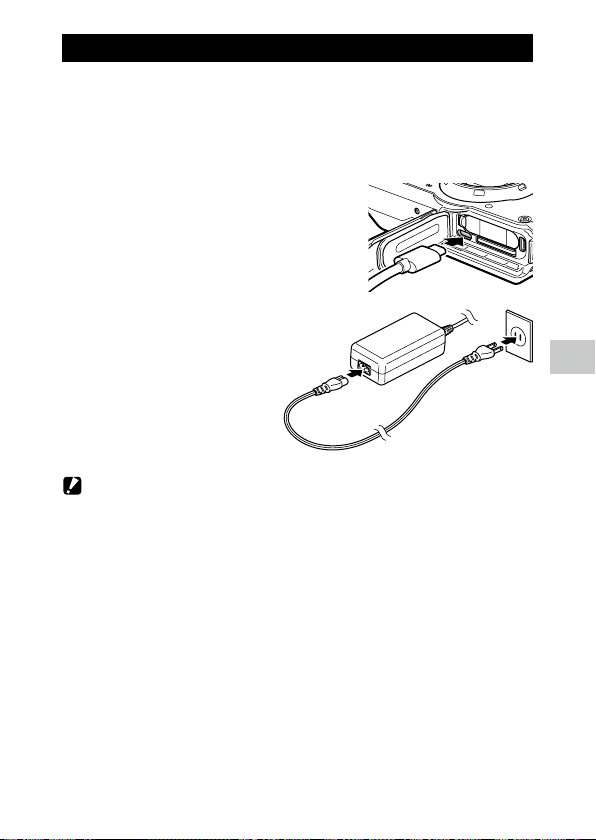
99
6
Appendix
AC Adapter
If you intend to use the camera continuously for a long period, the use of the
AC adapter (K-AC166) is recommended.
1 Make sure that the camera is turned off, and open the battery/
card cover.
2 Connect the USB cable (Type-C) of the
AC adapter to the USB terminal of the
camera.
3 Connect the AC plug cord
to the AC adapter, and
plug the cord into the
power outlet.
Caution -------------------------------------------------------------------------------------------------------
• When opening and closing the battery/card cover, be sure to remove water and dirt such as sand
adhering to the camera, and avoid locations where dirt can enter the camera interior.
• Securely connect the power plug and AC plug cord.
• When the camera is not used, unplug the AC adapter from the power outlet and disconnect it from
the camera.
• If the AC adapter is disconnected from the camera or the power plug is unplugged from the power
outlet during use of the camera, the data may be lost.
• Do not move the camera by holding the AC adapter cable while the AC adapter is used.
• The AC adapter may not be usable depending on the country and region.
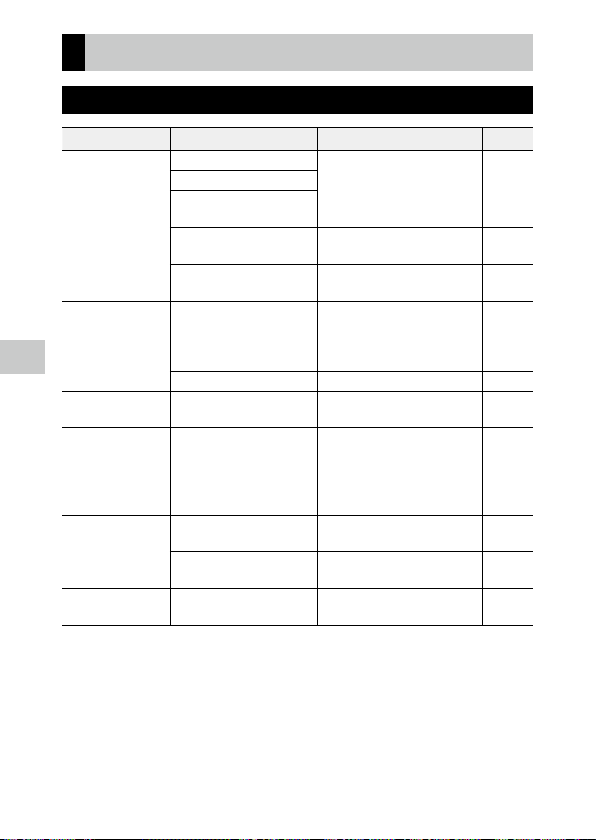
100
6
Appendix
Troubleshooting
Power Supply
Problem Cause Solution Page
The camera does not
turn on.
The battery is not inserted. Charge the battery and correctly
insert it into the camera.
p.33
The battery is exhausted.
The battery is not inserted in the
correct orientation.
The battery is incompatible. Use the battery DB-110 exclusively
developed for this camera.
—
The AC adapter is not correctly
connected.
Connect the AC adapter correctly. p.99
The camera turns off
during use.
The [Auto Power Off] function
has been activated because the
camera was not operated for a
certain period of time.
Turn the camera back on. p.35
The battery is exhausted. Charge the battery. p.33
The camera does not
turn off.
The camera is malfunctioning. Take the battery out and insert
it again.
p.31
The low battery indica-
tor is displayed or the
camera turns off even
when a fully charged
battery is installed.
The battery is incompatible. Use the battery DB-110 exclusively
developed for this camera.
—
The battery cannot be
charged.
The battery has reached the end
of its service life.
Replace the battery with a new one. —
The battery is hot. Let the battery cool down to ambient
temperature.
—
The battery is quickly
exhausted.
Ambient temperature is very
high or very low.
— —
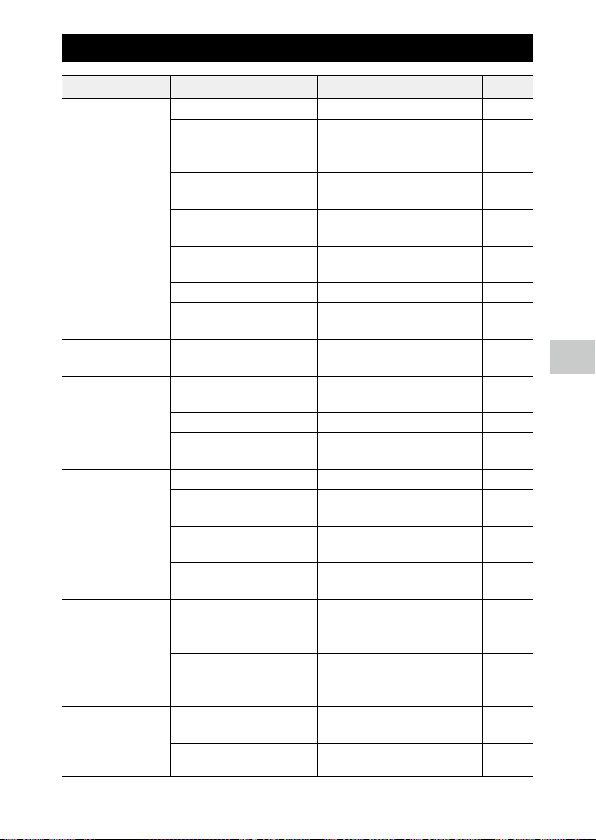
101
6
Appendix
Shooting
Problem Cause Solution Page
Shooting cannot be
performed by pressing
z.
The battery is exhausted. Charge the battery. p.33
The camera is turned off or not in
the shooting mode.
Turn the camera on or press z
to switch the camera to the shooting
mode.
p.35
The memory card is not
formatted.
Perform [Format [Card]] of the
E menu.
p.37
The memory card is full. Insert a new card, or delete
unwanted files.
p.68
The memory card has reached
end of its service life.
Insert a new memory card. —
The memory card is locked. Unlock the card. —
The memory card contacts
are dirty.
Clean with soft, dry cloth. —
Images cannot be
checked after shooting.
Confirmation time is too short. Change the setting of [Confirm.
Time] in the D menu.
p.38
The monitor is blank. The monitor brightness is dark. Adjust the brightness of the monitor
in the E menu.
p.83
The monitor is off. Press e to turn the monitor on. p.18
An AV device is connected to
the camera.
Remove the cable from the camera. p.67
The camera is unable
to focus in autofocus
mode.
The lens is dirty. Clean with soft, dry cloth. —
The subject is not at center
of frame.
Lock the focus for shooting. —
The subject is not suitable for
autofocus.
Lock the focus or set the focus mode
to [MF] for shooting.
p.49
The subject is too close. Use [Macro] for shooting or move
away from the subject.
p.47
Images are blurred. The camera was moved when
z is pressed.
Hold the camera with your elbows
pressed against your body, or use
a tripod.
—
When shooting in a dark place,
taken images become easily
blurred.
Use a flash, or set [Setting] to a high
ISO sensitivity.
p.52
p.50
The flash does not
discharge.
The flash is not
charged.
A function preventing flash
operation is selected.
Check the settings and mode. —
The battery is exhausted. Charge the battery. p.33

102
6
Appendix
Problem Cause Solution Page
Images are too bright. Flash output is not appropriate. Move away from the subject
or use a different light source.
—
The monitor brightness is not
appropriate.
Adjust the brightness of the monitor
in the E menu.
p.83
Images are too dark. The monitor brightness is not
appropriate.
Adjust the brightness of the monitor
in the E menu.
p.83
The exposure compensation is
set to a negative value.
Change the exposure compensation
value.
p.43
The colors of images
are unnatural.
The camera is unable to adjust
white balance for shooting con-
ditions using auto white balance.
Include a white object with the sub-
ject or select the settings other than
[Auto WB] for [White Balance].
p.54
The monitor brightness
changes during
autofocus.
Ambient lighting is poor or dif-
fers from that used for autofocus.
This is normal and does not indicate
a malfunction.
—
Electronic level indica-
tors are not displayed.
Electronic level indicators are
hidden.
Check the setting of [Level Setting]
in the D menu.
p.82
The image is not level
although level indicator
showed that the
camera was level.
The camera was moving during
shooting because you were on
a moving object or due to other
causes.
Do not move the camera during
shooting.
—
The subject is not level. Check the subject. —
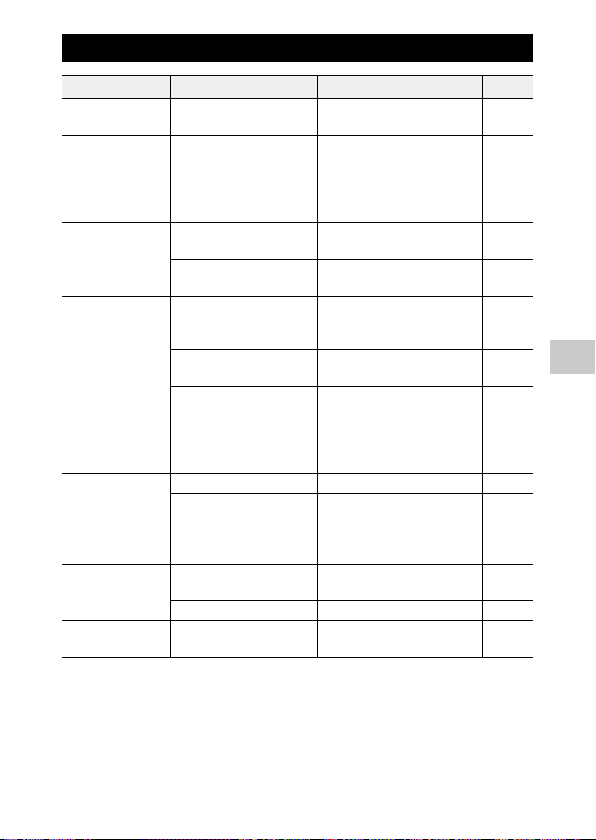
103
6
Appendix
Playback/Deletion
Problem Cause Solution Page
Shooting information is
not displayed.
Information display is set to “No
information display”.
Press e to switch the information
displayed on the screen.
p.18
Images cannot be
played back.
Images are not
displayed on the
monitor.
The AV device is not correctly
connected with the camera.
Connect the cable correctly. p.67
Images are not
displayed on an AV
device.
The cable is not correctly
connected.
Connect the cable correctly. p.67
The input setting of the AV
device is incorrect.
Check the AV device settings. —
The images on the
memory card cannot be
played back.
Images are not
displayed on the
monitor.
The inserted memory card is not
formatted with this camera.
Insert a memory card formatted with
[Format [Card]] of the E menu in
this camera.
p.37
The memory card contacts
are dirty.
Clean with soft, dry cloth. —
The card is malfunctioning. There is not problem with the
camera if images in another memory
card can be played back with this
camera. Do not use a memory card
that has a problem.
—
The monitor turned off. The battery is exhausted. Charge the battery. p.33
The [Auto Power Off] function
has been activated because the
camera was not operated for a
certain period of time.
Turn the camera back on. p.35
File(s) cannot be
deleted.
[Protect] is set for the image(s). Cancel the protection with [Protect]
of the C menu.
p.70
The memory card is locked. Unlock the card. —
The memory card
cannot be formatted.
The memory card is locked. Unlock the card. —
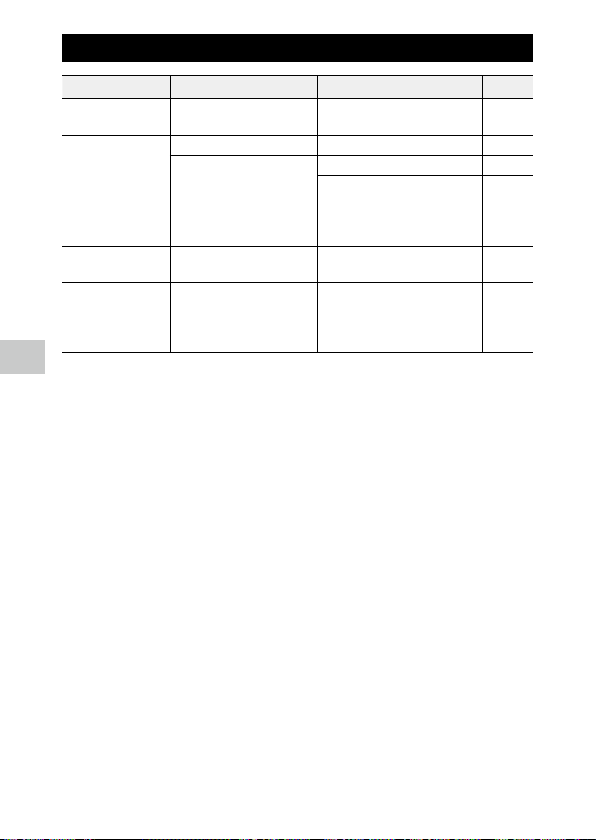
104
6
Appendix
Others
Problem Cause Solution Page
The memory card
cannot be inserted.
The card is not in the correct
orientation.
Insert the memory card in the
correct orientation.
p.31
Camera controls have
no effect.
The battery is exhausted. Charge the battery. p.33
The camera is malfunctioning. Turn the camera back on. p.35
Take the battery out and insert
it again.
When the AC adapter is used,
reconnect it.
p.31
Date is not set correctly. Date and time are not set
correctly.
Set date and time correctly in the
E menu.
p.36
The date setting has
been reset.
The battery was removed. If the battery is removed for more
than about five days, the date
setting will be lost.
Set date and time in the E menu.
p.36
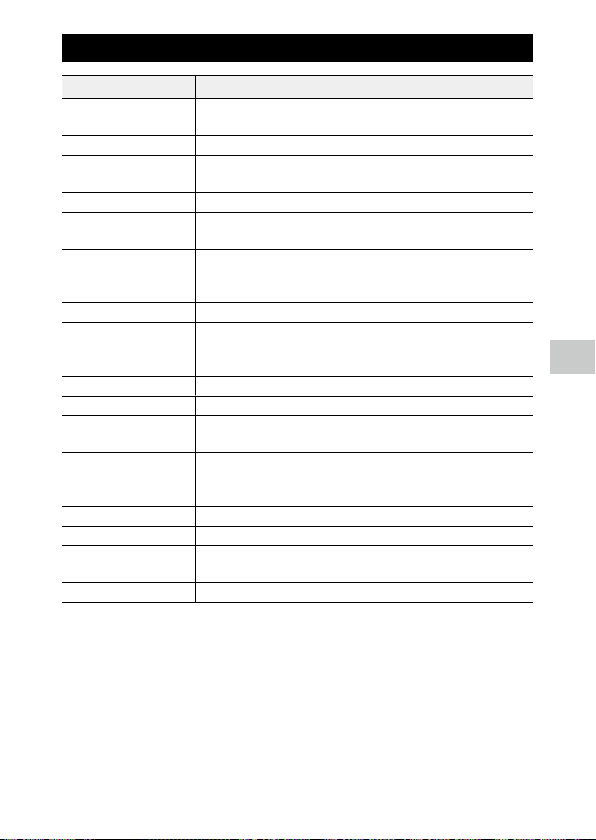
105
6
Appendix
Error Messages
Error Message Description
Insufficient Memory The memory is full and no more files can be saved. Insert a new memory card
or delete unwanted files. (p.68)
File not found There are no files that can be played back.
Unmatched File You are trying to play back a file in a format not supported by this camera.
You may be able to play it back on a computer.
Insert card. Insert a memory card.
Memory card error The memory card has a problem, and shooting and playback are impossible.
You may be able to play back files on a computer.
Format card. The memory card you have inserted is unformatted or has been previously
used on another device. Use the card after formatting it with this camera.
(p.37)
Card Is Write-Protected. The write-protect switch on the memory card you have inserted is locked.
Files cannot be stored. You are trying to record a movie when the internal memory is set as the save
destination and [Recorded Pixels] is set to [4K 30fps] in the B menu.
Change the [Recorded Pixels] setting or insert a memory card. (p.60)
Card Error A memory card not compatible with this camera is inserted.
Set date. The date and time are not set. Set the date and time. (p.36)
The file number limit has
been exceeded.
The file number has reached the limit. Use another memory card.
Insufficient memory.
Continue?
Some files cannot be copied with [Image Copy] of the C menu because
the memory card space is insufficient. Use another memory card or delete
unwanted files.
Protected You are trying to delete a protected file. Cancel the protection. (p.70)
Format internal memory. Format the internal memory. (p.37)
Out of memory.
Cannot record.
The number of storable images has reached “0”. Insert a new memory card or
switch to the internal memory.
No files to restore. There are no restorable files.
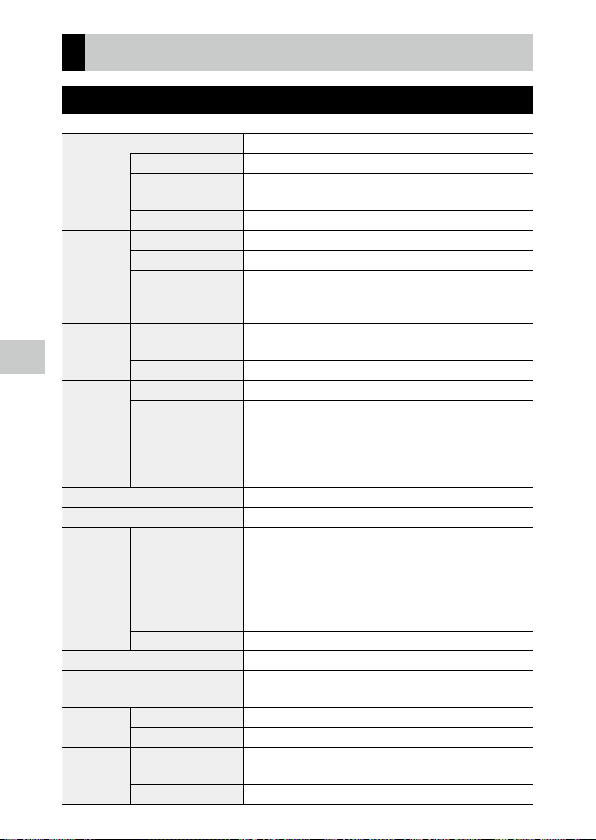
106
6
Appendix
Main Specifications
Camera
Lens RICOH lens, 11 elements in 9 groups (5 aspherical lens elements)
Focal Length 5 to 25 mm
35 mm Equivalent Focal
Length
Approx. 28 to 140 mm
Maximum Aperture F3.5 (W) to F5.5 (T)
Zoom Mag-
nification
Optical Zoom 5x
Digital Zoom Approx. 8.1x
Intelligent Zoom 10M: Approx. 7x
640: Approx. 40.5x (zoom magnification obtained together with
the optical zoom)
Motion Blur
Reduction
Still Image Pixel Track SR
High-sensitivity shake reduction mode (Digital SR)
Movie Movie shake reduction mode (Movie SR, Movie SR+)
Focus Type 9-point AF, Spot AF, Auto tracking AF
Focus Range
(from lens face)
Standard: 0.5 m (1.64 ft) to
Z (entire zoom range)
Macro: 0.1 to 0.6 m (0.33 to 1.97 ft) (entire zoom range)
1cm Macro: 0.01 to 0.3 m (0.03 to 0.98 ft) (intermediate portion
of the zoom range)
Switchable to Infinity-landscape, Pan Focus, and Manual Focus
Effective Pixels Approx. 20 megapixels
Image Sensor 1/2.3" CMOS
Recorded
Pixels
Still Image Size: L (20M), M (10M), S (5M), XS (3M), 2M, 1M, VGA
• When the aspect ratio is set to 4:3, the sizes in parentheses
are used.
• 2M and 1M are available only in the U mode.
Aspect ratio: 4:3, 3:2, 1:1
• In the U mode, the aspect ratio is fixed to 4:3.
Movie 4K, 1920, 1280
Sensitivity (standard output) Auto, Manual (ISO 125 to 6400)
White Balance Auto, Daylight, Shade, Cloudy, Tungsten, Fluorescent (D: Daylight
color, N:Daylight white, W: Cool white), Ring Light, Manual
Monitor Type 3.0" Wide LCD, Approx. 1040 K dots, With AR coating (cover only)
Adjustment Brightness, Outdoor view setting: ±2 steps
Exposure
Control
Metering System Multi-segment metering, Center-weighted metering, Spot
metering
Exposure Compensation ±2 EV (1/3 EV steps)
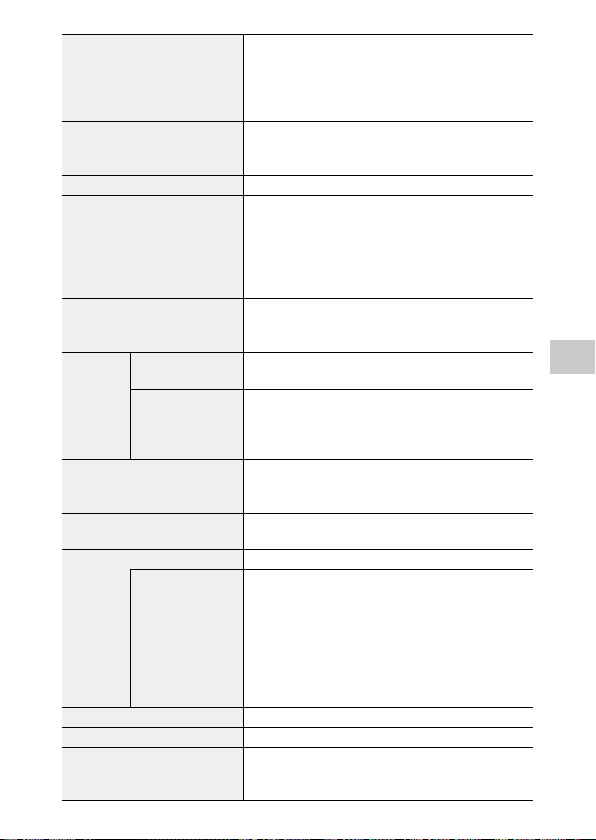
107
6
Appendix
Capture Mode Auto Picture, Program, HDR, Handheld Night Snap, Movie, High
Speed Movie, Digital Microscope, Landscape, Flower, Portrait,
Underwater, Underwater Movie, Interval Shooting, Interval Movie,
Surf & Snow, Kids, Pet, Sport, Night Scene, Fireworks, Digital SR,
CALS, Green, DOF Composite
Face Detection Maximum detectable faces: 30
Smile capture, Self-portrait assist, Self-portrait assist + Smile
capture, Blink detection
Pet Detection 1 pet (Auto)
Playback Mode Slideshow, Rotation, Small Face Filter, Ink Rubbing Filter, Digital
Filter (B&W/Sepia, Toy Camera, Retro, Color, Extract Color, Color
Emphasis, High Contrast, Starburst, Soft, Fish-eye, Brightness,
Miniature), HDR Filter, Movie Edit, Red-eye Edit, Resize, Cropping,
Image Copy, Protect, Start-up Screen, Recover File, Auto Image
Rotation
Shutter Speed 1/4000 to 1/4 seconds (with the mechanical shutter and electron-
ic shutter used together)
Up to 4 seconds (in the Night Scene mode)
Built-in
Flash
Mode Auto flash, Flash off, Flash on, Auto flash + Red-eye edit, Flash on
+ Red-eye edit
Flash Effective Range Wide angle: Approx. 0.2 to 5.5 m (0.66 to 18 ft) (when the ISO
sensitivity is set to Auto)
Telephoto: Approx. 0.2 to 3.5 m (0.66 to 11 ft) (when the ISO
sensitivity is set to Auto)
Drive Mode Single-frame shooting, Self-timer, Continuous shooting, Burst
shooting, M-continuous shooting, S-continuous shooting, Remote
control, Auto bracketing
Storage Media Internal memory (approx. 27 MB), SD/SDHC/SDXC memory card
FlashAir card
Power Supply Rechargeable battery DB-110, AC adapter kit K-AC166 (optional)
Battery Life Still image shooting: Approx. 340 images (with the rechargeable
battery)
*1
• Tested in compliance with CIPA standard using a fully charged
lithium-ion battery at a temperature of 23°C (73°F). Actual
results may vary depending on the shooting conditions/
circumstances.
Movie playback: Approx. 260 minutes (with the rechargeable
battery)
*2
Interfaces USB 3.0 (Type C), HDMI output terminal (Type D)
Waterproof and Dustproof Rating JIS/IEC waterproof class 8, JIS/IEC dustproof class 6
Dimensions Approx. 118.2 mm (W) × 65.5 mm (H) × 33.1 mm (D) (4.7 in.
(W) × 2.6 in. (H) × 1.3 in. (D)) (excluding operating controls and
protrusions)
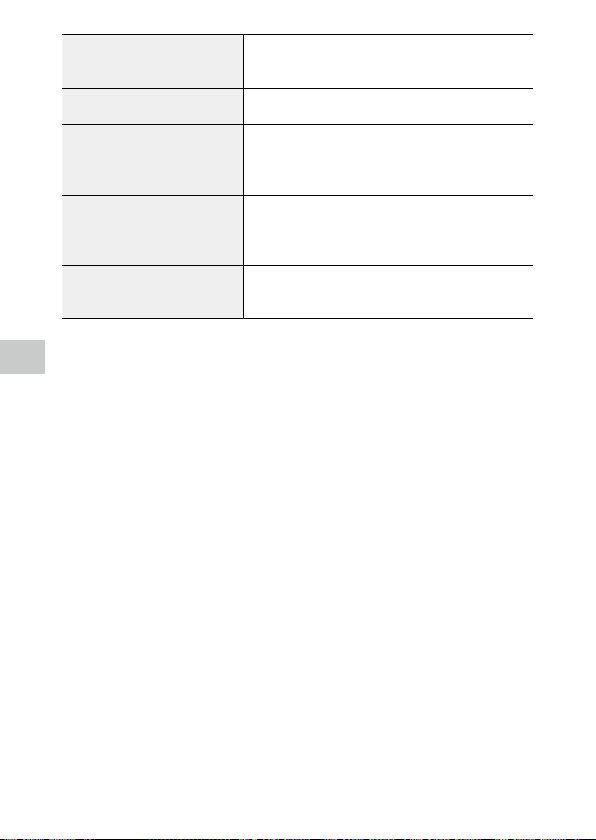
108
6
Appendix
Weight Approx. 246 g (8.6 oz) (including the dedicated battery and SD
memory card)
Approx. 219 g (7.7 oz) (body only)
Included Accessories Rechargeable battery DB-110, USB power adapter, Power plug,
USB cable, Hand strap, Macro stand
Language English, French, German, Spanish, Portuguese, Italian, Dutch,
Japanese, Danish, Swedish, Finnish, Polish, Czech, Hungarian,
Turkish, Greek, Russian, Thai, Korean, Simplified Chinese,
Traditional Chinese
GPS GPS, GLONASS, QZS (Michibiki) + SBAS
GPS display mode: LAT/LON, UTM, MGRS
GPS lock, GPS time adjustment, GPS logging, GPS data imprint,
UTC data imprint
Electronic Compass Compass display: Cardinal direction, Degrees, Cardinal direction
+ Degrees
Declination correction, Heading data imprint
*1 Image storage capacity shows approximate number of images stored during CIPA-compliant testing. Actual
results may vary depending on the shooting conditions/circumstances. (Excerpt from CIPA standard: With
the monitor ON, with 50% use of flash, at 23°C (73°F))
*2 According to the result of RICOH in-house testing.
109
6
Appendix
USB Power Adapter AC-U1/AC-U2
Power Supply 100 to 240 VAC (50/60 Hz), 0.2 A
Output 5.0 VDC, 1000 mA
Operating Temperature 10 to 40°C (50 to 104°F)
Dimensions 42.5 mm (W) × 22 mm (H) × 66.5 mm (D) (excluding the power plug)
Weight Approx. 40 g (excluding the power plug)
Rechargeable Battery DB-110
Nominal Voltage 3.6 V
Rated Capacity 1350 mAh, 4.9 Wh
Operating Temperature 0 to 40°C (32 to 104°F)
Storage Temperature -10 to 45°C (14 to 113°F)
Dimensions 39.8 mm (W) × 34.2 mm (H) × 8.5 mm (D)
Weight Approx. 26 g
110
6
Appendix
Image Storage Capacity
The following table shows the approximate number of images and record-
ing time (in seconds) of movies that can be saved in the internal memory
and a memory card in various formats.
Recorded
Pixels
Aspect
Ratio
Internal Memory
Memory Card
(8 GB)
8 9 0 8 9 0
Still
image
L 4:3 3 6 9 936 1616 2537
3:2 3 6 10 1053 1815 2843
1:1 4 8 12 1242 2145 3324
M 4:3 7 12 18 1858 3189 4917
3:2 7 13 20 2088 3522 5488
1:1 9 15 24 2458 4140 6378
S 4:3 11 22 31 3146 5900 8138
3:2 13 25 35 3522 6556 9077
1:1 15 29 40 4214 7867 10728
XS 4:3 18 34 45 4816 9077 11801
3:2 20 37 51 5364 9834 13112
1:1 27 48 63 7152 12422 16858
2M 4:3 28 51 66 7613 13112 16858
1M 4:3 35 59 77 9077 15734 19668
VGA 4:3 137 223 297 33717 59005 78673
3:2 148 255 297 39336 59005 78673
1:1 178 297 357 47204 78673 78673
Recorded Pixels Framerate Internal Memory
Memory Card
(8 GB)
Movie 3840 30 fps — 00:10:19
1920 30 fps 00:00:06 00:52:04
1280 60 fps 00:00:06 00:52:04
30 fps 00:00:14 01:26:04
120 fps 00:00:02 00:32:41
111
6
Appendix
Caution -------------------------------------------------------------------------------------------------------
• The figures for movies are the total length that can be recorded. The maximum recording time per
shooting is 25 minutes or the equivalent of 4 GB.
• The number of images that can be taken may differ from the number of storable images displayed
on the monitor.
• The storage capacity varies depending on the shooting conditions and the capacity of the memory.
• The memory cards with which proper operation has been confirmed are listed below.
Recorded Pixels/Capture Mode Memory Card Speed Class
4K 30fps UHS Speed Class 3 or faster
FullHD 30fps, HD 60fps
[High Speed Movie] in the T mode
Speed Class 4 or faster
HD 30fps Speed Class 2 or faster
• If a movie is recorded with a memory card with which proper operation has not been confirmed,
the movie recording stops when writing to the card is delayed. (The movie recorded by the time the
recording stops is saved.) If a movie is played back with such a card, the playback sound does not
synchronize with the video.
Operating Environment
It is confirmed that a USB connection can be established between the cam-
era and the following OSs.
Windows® Windows® 10 (FCU, CU) (32-bit, 64-bit), Windows® 8.1 (32-bit, 64-bit), Windows® 8 (32-
bit, 64-bit), or Windows® 7 (32-bit, 64-bit)
Mac macOS 10.14 Mojave, macOS 10.13 High Sierra, macOS 10.12 Sierra, OS X 10.11 El Capitan,
OS X 10.10 Yosemite

112
6
Appendix
Using the Camera Abroad
USB Power Adapter (AC-U1/AC-U2), AC Adapter (K-AC166), and
Battery Charger (BJ-11)
These products are for use with currents of 100 to 240 V and 50 or 60 Hz.
Before traveling, purchase a travel adapter for connection to the type of out-
lets used at your destination.
Do not use these products with electrical transformers, as this could damage
the camera.
Television Playback
Captured images can be played back on the televisions and monitors
equipped with a video input terminal. Use a commercially available HDMI®
cable. Use an HDMI® cable with a length of 3 m or less (recommended prod-
uct: RP-CHEU15-K manufactured by Panasonic). The RICOH HDMI cable HC-1
cannot be used.
When using the camera abroad, check the video output format used at your
destination in advance.

113
6
Appendix
Precautions for Use
Waterproof and Dustproof Function
• The camera complies with JIS/IEC waterproof grade 8 and JIS/IEC dustproof grade
6 (IP68).
• After shooting in the rain or washing with water, water may leak out from the lens
barrel or the tripod screw hole on the bottom of the camera. However, this is not
problematic because the camera is protected with the double-layered structure.
• The interior of the camera does not have the waterproof/dustproof structure. If water
enters inside the camera, immediately remove the battery and consult your nearest
repair center.
Camera
• When opening and closing the battery/card cover, be sure to remove water and
dirt such as sand, mud, and dust adhering to the camera, and ensure that water or
dirt does not enter the camera interior. Do not open the cover of the camera on the
beach, at sea, or in a sandy area. If the cover is opened, seawater or sand may enter
the camera.
• When opening and closing the battery/card cover, do not wear cotton work gloves.
Dirt such as sand and dust adhering to the gloves may enter the camera interior. Also,
be sure to remove water and dirt such as sand and mud adhering to the camera, and
avoid locations where dirt can enter the camera interior.
• When the cover is opened, water droplets may be on the inside of the cover. In this
case, clean them out before use.
• If the mode dial is not operated for a long time, it may become difficult to turn due
to its waterproof structure. Turning the dial several times recovers the smooth dial
operation.
• On the beach or in dusty places such as a construction site, be careful to keep the
camera away from sand and dust.
• Do not leave the camera in places where temperature abnormally rises or in places in
high humidity, such as in a car, on the beach, and in a bathroom.
• Ensure that the camera is turned off before connecting the optional AC adapter.
• Do not pull the battery/card cover forcefully.
• Do not hold the battery/card cover when carrying the camera.
• If any metallic object, water, liquid, or other foreign object gets into the camera, im-
mediately stop using the camera. Turn the camera off, remove the battery and mem-
ory card from the camera, and contact your nearest dealer or service center for repair.
• In cold climates, water droplets on the camera may freeze. Using the camera with
frozen water droplets could result in product malfunction. Do not leave the camera
with water droplets.
• Do not drop the camera or subject it to physical shocks.
114
6
Appendix
• When carrying the camera, be careful that it does not strike other objects. Particular
care is required to protect the lens and monitor.
• The flash may overheat if fired many times in succession. Do not use the flash succes-
sively more than necessary.
• Do not use the flash in close contact with your body or other objects. Failure to ob-
serve this precaution could result in burns or fire.
• Using the flash unit in close proximity to your subject’s eyes could cause temporary
visual impairment. Particular care should be observed when photographing infants.
• Do not direct the flash at the operator of a motor vehicle. Failure to observe this pre-
caution could cause accidents.
• Battery may become hot with extended use. Wait for the battery to cool before re-
moving it from the camera.
• The monitor may be difficult to read in direct sunlight.
• You may notice that monitor varies in brightness or contains pixels that do not light
or that are always lit. This is common to all LCD monitors and does not indicate a
malfunction.
• Do not apply force to the monitor.
• Abrupt changes in temperature may cause condensation, resulting in visible con-
densation inside the lens or camera malfunction. This can be avoided by placing the
camera in a plastic bag to slow the temperature change, and removing it only after
the air in the bag has reached the same temperature of its surroundings. When con-
densation occurs, remove the battery and memory card from the camera, and wait
until water droplets disappear.
• To prevent damage to the product, do not insert objects into the holes in the micro-
phone and speaker coverings.
• Take a test shot to ensure that the camera is functioning properly before using it on
important occasions such as travel or weddings. We recommend that you keep this
manual and spare batteries at hand.
Conditions that May Cause Condensation -------------------------------------------------------------
• If you move to an area with a sharply different temperature
• If humidity is high
• In a cold room after the heater has come on, or where the camera is exposed to cold air from an air
conditioner or other device
USB Power Adapter AC-U1/AC-U2
• Use the USB cable contained in the package.
• Do not subject the power adapter to severe impact or force.
• Do not use in extreme high or low temperatures or areas subject to vibration.
• Do not use in an area subject to direct sunlight or high temperature.
• Unplug the power plug from the power outlet after charging. Failure to observe this
precaution could result in fire.

115
6
Appendix
• Do not allow other metallic objects to come in contact with the connectors, or con-
tacts of the rechargeable battery as this can result in a short.
• The operating temperature range is 10 to 40°C (50 to 104°F). Charging takes longer at
temperatures below 10°C (50°F).
Caution -------------------------------------------------------------------------------------------------------
• Use of other batteries can cause explosion.
• Recycle used batteries in a recycle box at your local electronics store or supermarket.
Rechargeable Battery DB-110
• This is a lithium-ion battery.
• The battery is not fully charged at the time of purchase, so be sure to charge the
battery before use.
• Do not open or damage the battery as this can result in fire or injury. In addition, do
not heat the battery above 60°C (140°F) or expose the battery to fire.
• Due to the battery characteristics, the battery usage time may be shortened when
used in a cold environment, even if the battery is fully charged. Keep the battery
warm by placing it in a pocket or have a backup battery ready.
• When not in use, be sure to remove the battery from the camera or the battery char-
ger. A small amount of current can leak from the battery even when the power is
off, creating excessive discharge and making the battery unusable. If the battery is
removed for more than five days, the date and time settings will be lost. In this case,
reset the date and time.
• If the battery is not used for a long time, charge the battery for 15 minutes once a
year before storing.
• Store in a dry, cool place with an ambient temperature between 15°C and 25°C (59°F
and 77°F). Avoid storing in extreme high or low temperatures.
• After charging the battery, do not immediately charge it again.
• Charge the battery at an ambient temperature between 10°C and 40°C (50°F and
104°F). Charging the battery at a high temperature can deteriorate the battery.
Charging at a low temperature may prevent full charging.
• If the battery usage time becomes very short even when fully charged, the battery
has reached the end of its service life. Replace with a new battery. Be sure to use a
replacement battery recommended by RICOH.
• The recharge time with the AC-U1/AC-U2 is approximately 3 hours (at 25°C (77°F)).

116
6
Appendix
Camera Care and Storage
Caring for the Camera
• Image quality can be affected by fingerprints and other foreign matter on the lens.
Avoid touching the lens with your fingers.
• Remove dust or lint on the lens with a commercially available blower, or gently clean
the lens with a soft, dry cloth.
• When the camera becomes dirty or after using it on the beach, ensure that the bat-
tery/card cover is closed, and then rinse off dirt, sand, and salt in a basin of tap water
and wipe off the moisture with a soft, dry cloth.
• When the rubber packing becomes dirty, clean it with soft, dry cloth. Dirt adhering
to the rubber packing or scratches on it may deteriorate the waterproof function,
causing water leakage. When the dirt cannot be cleaned or you find scratches on the
rubber packing, take the camera to your nearest dealer or service center to replace it
with a new packing.
• In the unlikely event of malfunction, consult your nearest repair center.
• The camera contains high-voltage circuits. Do not disassemble it.
• Do not expose the camera to volatile substances such as thinner, benzine, or pesti-
cides. Failure to observe this precaution could result in damage to the camera or its
coatings.
• The monitor is easily scratched, avoid touching it with hard objects.
• Clean the monitor by wiping it with a soft cloth dampened with a small amount of any
monitor cleaner that does not contain organic solvents.
Storage
• Do not store the camera where it will be exposed to:
Extreme heat or humidity, large changes in temperature or humidity
Dust, dirt, sand
Severe vibration
Prolonged contact with chemicals including pesticides, or with vinyl or rubber
products
Strong magnetic fields (for example, in the vicinity of a monitor, transformer, or
magnet)
• Store the camera in a lint-free camera case, etc. to prevent dirt and lint from adher-
ing to the camera. Do not carry the camera in a pocket to prevent dirt and lint from
adhering to the camera.
• Remove the battery if the product is left unused for a long period of time.

117
6
Appendix
Replacement of Rubber Packings
• Replace the rubber packing with a new one every two years even if it is not dirty and
there is no problem with it, to maintain the waterproof function. When the camera
is frequently used in water, in a sandy area, or in a dusty room, it is recommended to
replace it every year. Contact your service center to replace the rubber packing. (A fee
will be charged for the replacement.)
Before Cleaning
• Be sure to turn the camera off.
• Remove the battery and AC adapter from the camera.

118
6
Appendix
Warranty Policy
All our cameras purchased through authorized bona fide photographic distribution channels
are guaranteed against defects of material or workmanship for a period of twelve months from
the date of your purchase. Service will be rendered, and defective parts will be replaced without
cost to you within that period, provided the camera does not show evidence of impact, sand
or liquid damage, mishandling, tampering, battery or chemical corrosion, operation contrary to
operating instructions, or modification by an unauthorized repair shop. The manufacturer or its
authorized representatives shall not be liable for any repair or alterations except those made
with its written consent and shall not be liable for damages from delay or loss of use or from
other indirect or consequential damages of any kind, whether caused by defective material or
workmanship or otherwise; and it is expressly agreed that the liability of the manufacturer or its
representatives under all guarantees or warranties, whether expressed or implied, is strictly lim-
ited to the replacement of parts as hereinbefore provided. No refunds will be made on repairs
by non-authorized service facilities.
Procedure During 12-month Warranty Period
Any camera which proves defective during the 12-month warranty period should be returned
to the dealer from whom you purchased the camera or to the manufacturer. If there are no
representatives of the manufacturer in your country, send the camera to the manufacturer, with
postage prepaid. In this case, it will take a considerable length of time before the camera can
be returned to you owing to the complicated customs procedures required. If the camera is
covered by warranty, repairs will be made and parts replaced free of charge, and the camera
will be returned to you upon completion of servicing. If the camera is not covered by warranty,
regular charges of the manufacturer or of its representatives will apply. Shipping charges are
to be borne by the owner. If your camera was purchased outside of the country where you
wish to have it serviced during the warranty period, regular handling and servicing fees may
be charged by the manufacturer’s representatives in that country. Notwithstanding this, your
camera returned to the manufacturer will be serviced free of charge according to this procedure
and warranty policy. In any case, however, shipping charges and customs clearance fees to be
borne by the sender. To prove the date of your purchase when required, please keep the receipt
or bills covering the purchase of your camera for at least a year. Before sending your camera for
servicing, please make sure that you are sending it to the manufacturer’s authorized represen-
tatives or their approved repair shops, unless you are sending it directly to the manufacturer.
Always obtain a quotation for the service charge, and only after you accept the quoted service
charge, instruct the service station to proceed with the servicing.
• This warranty policy does not affect the customer’s statutory rights.
• The local warranty policies available from our distributors in some countries can
supersede this warranty policy. Therefore, we recommend that you review the
warranty card supplied with your product at the time of purchase, or contact
our distributor in your country for more information and to receive a copy of
the warranty policy.

119
6
Appendix
Regulatory Compliance Statements
For Customers in USA
STATEMENT OF FCC COMPLIANCE
This device complies with Part 15 of the FCC Rules. Operation is subject to the following
two conditions: (1) This device may not cause harmful interference, and (2) this device
must accept any interference received, including interference that may cause undesired
operation.
Changes or modifications not expressly approved by the party responsible for compli-
ance could void the user’s authority to operate the equipment.
This equipment has been tested and found to comply with the limits for a Class B digital
device, pursuant to part 15 of the FCC Rules. These limits are designed to provide reason-
able protection against harmful interference in a residential installation. This equipment
generates, uses and can radiate radio frequency energy and, if not installed and used in
accordance with the instructions, may cause harmful interference to radio communi-
cations. However, there is no guarantee that interference will not occur in a particular
installation. If this equipment does cause harmful interference to radio or television
reception, which can be determined by turning the equipment off and on, the user is
encouraged to try to correct the interference by one or more of the following measures:
• Reorient or relocate the receiving antenna.
• Increase the separation between the equipment and receiver.
• Connect the equipment into an outlet on a circuit different from that to which the
receiver is connected.
* Consult the dealer or an experienced radio/TV technician for help.

120
6
Appendix
Declaration of Conformity
According to 47CFR, Parts 2 and 15 for
Class B Personal Computers and Peripherals
We: RICOH IMAGING AMERICAS CORPORATION
Located at: 5 Dedrick Place, West Caldwell,
New Jersey 07006, U.S.A.
Phone: 800-877-0155
FAX: 973-882-2008
Declare under sole responsibility that the product identified herein complies with 47CFR
Parts 2 and 15 of the FCC rules as a Class B digital device. Each product marketed is
identical to the representative unit tested and found to be compliant with the standards.
Records maintained continue to reflect the equipment being produced can be expect-
ed to be within the variation accepted, due to quantity production and testing on the
statistical basis as required by 47CFR §2.909. Operation is subject to the following two
conditions: (1) This device may not cause harmful interference, and (2) This device must
accept any interference received, including interference that may cause undesired oper-
ation. The above named party is responsible for ensuring that the equipment complies
with the standards of 47CFR §15.101 to §15.109.
Product Name: Digital Camera
Model Number: R02050
Contact person: Customer Service Manager
Date and Place: February, 2019 West Caldwell

121
6
Appendix
For Customers in Canada
Innovation, Science and Economic Development Canada (ISED)
Regulatory Compliance Notice
This Class B digital apparatus complies with Canadian ICES-003 (B).
This device complies with Innovation, Science and Economic Development Canada li-
cence-exempt RSS standard(s). Operation is subject to the following two conditions: (1)
this device may not cause interference, and (2) this device must accept any interference
received, including interference that may cause undesired operation.
Pour les utilisateurs au Canada
Avis de conformité à la réglementation d’Innovation, Sciences et
Développement économique Canada (ISDE)
Cet appareil numérique de la classe B est conforme à la norme NMB-003 (B) du Canada.
Le présent appareil est conforme aux CNR d’Innovation, Sciences et Développement
économique Canada applicables aux appareils radio exempts de licence. L’exploitation
est autorisée aux deux conditions suivantes : (1) l’appareil ne doit pas produire de brouil-
lage, et (2) l’utilisateur de l’appareil doit accepter tout brouillage radioélectrique subi,
même si le brouillage est susceptible d’en compromettre le fonctionnement.
122
6
Appendix
For Customers in Europe
Information for Users on Collection and Disposal of Old Equip-
ment and Used Batteries
1. In the European Union
These symbols on the products, packaging and/or accompanying docu-
ments mean that used electrical and electronic equipment and batteries
should not be mixed with general household waste.
Used electrical/electronic equipment and batteries must be treated sep-
arately and in accordance with legislation that requires proper treatment,
recovery and recycling of these products.
By disposing of these products correctly you will help ensure that the
waste undergoes the necessary treatment, recovery and recycling and
thus prevent potential negative effects on the environment and human
health which could otherwise arise due to inappropriate waste handling.
If a chemical symbol is added beneath the symbol shown above, in accordance with
the Battery Directive, this indicates that a heavy metal (Hg = Mercury, Cd = Cadmium,
Pb = Lead) is present in the battery at a concentration above an applicable threshold
specified in the Battery Directive.
For more information about collection and recycling of used products, please contact
your local authorities, your waste disposal service or the point of sale where you pur-
chased the products.
2. In other countries outside the EU
These symbols are only valid in the European Union. If you wish to discard used prod-
ucts, please contact your local authorities or dealer and ask for the correct method of
disposal.
For Switzerland: Used electrical/electronic equipment can be returned free of charge to
the dealer, even when you don’t purchase a new product. Further collection facilities are
listed on the home page of www.swico.ch or www.sens.ch.
123
6
Appendix
Notice to Users in EEA Countries
This product complies with the essential requirements and provisions of RE Directive
2014/53/EU.
The CE Declaration of Conformity is available by accessing the URL:
http://www.ricoh-imaging.co.jp/english/support/declaration_of_conformity.html
and selecting the product applicable.
European importer: RICOH IMAGING EUROPE S.A.S.
Parc Tertiaire SILIC 7-9, avenue Robert Schuman - B.P. 70102, 94513 Rungis Cedex,
FRANCE
Manufacturer: RICOH COMPANY, LTD.
1-3-6, Nakamagome, Ohta-ku, Tokyo 143-8555, JAPAN
The CE Mark is a Directive conformity mark of the European Union.

124
Index
Numerics
1cm Macro ..................................................... 47
A
A-Bracket ........................................................ 59
AC adapter ..................................................... 99
Adding title picture .................................... 75
ADJ. button .................................................... 20
ADJ Button Setting ..................................... 80
ADJ. mode ...................................................... 20
AE Metering ................................................... 50
AF ...................................................................... 48
Anti Red-eye (Flash) .................................... 52
Aspect Ratio .................................................. 60
Assist (Face Detection) .............................. 48
Auto Image Rotation .................................. 66
Auto Macro .................................................... 47
Auto mode ..................................................... 38
Auto Power Off ............................................. 84
AUTO Range .................................................. 51
Auto WB (White Balance) .......................... 54
AV device ........................................................ 67
B
Battery ...................................................... 31, 33
Blink Detection ............................................. 38
Bright (Image Tone) .................................... 61
Burst Shoot .................................................... 57
Button .............................................................. 14
C
Calendar display .......................................... 64
Calibrate Level .............................................. 82
CALS mode .................................................... 40
CALS Pixels ..................................................... 40
CALS Quality .................................................. 40
Camera route ................................................ 88
Camera Settings File ................................... 79
Capture mode ............................................... 40
Card .................................................................. 31
Care................................................................ 116
Center (AE Metering) .................................. 50
Certifications ................................................. 29
Changing display ......................................... 18
Charging the battery .................................. 33
Cloudy (White Balance) ............................. 54
Compass Calibration .................................. 90
Compass Heading ....................................... 90
Confirm. Time................................................ 38
Connection to a computer ....................... 71
Contrast........................................................... 62
Cont. Shoot .................................................... 57
Copyright Info ............................................... 95
Correcting a range of tones ..................... 63
Cropping ......................................................... 73
Cursor Poison Keeping .............................. 23
Customization .............................................. 80
Customize menu .......................................... 27
D
Data Imprint .................................................. 91
Date and time setting ................................ 36
Date Imprint .................................................. 62
Daylight (White Balance) .......................... 54
Declination .................................................... 90
Delete ....................................................... 39, 68
Destination .................................................... 97
Dial .................................................................... 14
Digital Filter ................................................... 74
Digital microscope mode ......................... 40
Digital SR (Scene)......................................... 41
Digital zoom .................................................. 39
Direct keys ...................................................... 19
Discard log data ........................................... 90
Divide (AE Metering) .................................. 50
Divide Movies ............................................... 75
DOF Composite (Scene) ............................ 41
D-Range Setting .......................................... 63
Drive Mode .................................................... 56
E
Editing images .............................................. 72
Embed Info .................................................... 95
EV Comp. ........................................................ 43
Exif .................................................................... 95
F
Face Detection .............................................. 48
File name ........................................................ 94
File Sequence No. ........................................ 94
Filter.................................................................. 74
Fireworks (Scene) ........................................ 41
Flash ................................................................. 52
FlashAir ............................................................ 32
Flash Off (Flash) ............................................ 52

125
Flash On (Flash) ............................................ 52
Flower (Scene) .............................................. 41
Fluorescent (White Balance) .................... 54
Fn button ........................................................ 21
Focus Assist.................................................... 48
Focus Mode ................................................... 47
Folder display ................................................ 64
Format ............................................................. 37
G
GPS.................................................................... 87
GPS Data Imprint ......................................... 91
GPS Disp Mode ............................................. 88
GPS Lock ......................................................... 88
GPS Log ........................................................... 88
GPS Time Adjustment ................................ 88
Green button ......................................... 21, 81
Green Mode ................................................... 40
Grid Guide Display Op. .............................. 82
Guide Display ................................................ 42
H
Handheld Night Snap (Scene) ................ 41
HDMI® .............................................................. 67
HDR Filter........................................................ 74
HDR (Movie) .................................................. 60
HDR (Scene) ................................................... 41
Heading Data Imprint ................................ 91
Highlight Cor. ................................................ 63
High Speed Movie (Scene) ....................... 41
I
Image Copy ................................................... 69
Image Tone .................................................... 61
Infinity (Focus) .............................................. 47
Initialized Setting ........................................ 23
Initial settings ............................................... 35
Ink Rubbing Filter ........................................ 74
Instant Review .............................................. 38
Intelligent zoom........................................... 39
Internal memory .......................................... 32
Interval Movie (Scene) ............................... 41
Interval Shooting (Scene) ......................... 41
IQ Enhancer ................................................... 62
K
Kids (Scene) ................................................... 41
L
Landscape (Scene) ...................................... 41
Language setting ........................................ 36
LAT/LON (GPS) .............................................. 88
LCD Brightness ............................................. 83
Lens Adapter On .......................................... 98
Level Setting.................................................. 82
Location Data ................................................ 87
M
Macro ............................................................... 47
Macro stand ................................................... 11
Magnifying captured image .................... 39
Manual Focus ................................................ 49
Manual WB (White Balance) .................... 55
M-Cont ............................................................ 57
Memory card ................................................. 31
Memory retrospective continuous
shooting ..................................................... 57
Menu ................................................................ 22
MF (Focus) ...................................................... 49
MGRS (GPS) .................................................... 88
Microphone ............................................ 45, 60
Monitor ........................................................... 16
Monitor Auto off Delay .............................. 84
Monochrome (Image Tone) ..................... 61
Movie ............................................................... 44
Movie Button ................................................ 20
Movie Edit ...................................................... 75
Movie menu .................................................. 25
Movie SR ......................................................... 63
Multi (AF) ........................................................ 48
Multiple image display .............................. 64
N
Natural (Image Tone) .................................. 61
New folder options ..................................... 92
Night Scene (Scene) ................................... 41
O
Operating environment ......................... 111
Operation Volume ....................................... 83
Optical zoom ................................................. 39
Outdoor View ................................................ 83

126
P
Package contents ........................................ 11
Pet (Scene) ..................................................... 41
PF (Focus) ....................................................... 47
Pix. Track SR ................................................... 63
Playback ................................................... 39, 64
Playback menu ............................................. 26
Playback Volume.......................................... 83
P mode ............................................................ 40
Portrait (Scene) ............................................. 41
Power ............................................................... 35
Power Button Hold Op............................... 35
Power Button Lamp ............................. 35, 83
Power Saving ................................................ 84
Processing images ...................................... 72
Program mode ............................................. 40
Protect ............................................................. 70
Q
Quality Level.................................................. 60
Quick Zoom ................................................... 39
R
Recorded Pixels ............................................ 60
Record log ...................................................... 88
Recover File.................................................... 69
Red-eye Edit .................................................. 77
Reg. USER ....................................................... 78
Remote Ctl ..................................................... 58
Reset ................................................................. 23
Reset File Number ....................................... 95
Resize ............................................................... 72
Ring Light ....................................................... 53
Ring Light (White Balance) ...................... 53
Rotation .......................................................... 66
S
Saturation ....................................................... 62
Save as Still Image ....................................... 75
Save log data ................................................. 90
Saving power ................................................ 84
Scene mode ................................................... 41
SCN mode ...................................................... 41
S-Cont .............................................................. 57
SD memory card .......................................... 31
Self-timer ........................................................ 56
Sensitivity ....................................................... 51
Setting ............................................................. 51
Setup menu ................................................... 29
Shade (White Balance) .............................. 54
Shadow Cor.................................................... 63
Sharpness ....................................................... 62
Shooting menu ............................................ 24
Show folder at startup ............................... 82
Shut-down Screen ...................................... 82
Single image display .................................. 39
Slide Film (Image Tone) ............................. 61
Slideshow ....................................................... 65
Small Face Filter ........................................... 74
Smile (Face Detection) ............................... 48
Sound .............................................................. 83
Sound volume .............................................. 83
Specifications ............................................. 106
Sport (Scene) ................................................. 41
Spot (AE Metering) ...................................... 50
Spot (AF) ......................................................... 48
START DATE/TIME ........................................ 82
Start-up Screen ............................................ 82
Storage ......................................................... 116
Storage capacity ................................ 34, 110
Streaming continuous shooting ............ 57
Surf & Snow (Scene) ................................... 41
T
Thumbnail display....................................... 64
Tone Adjustment ......................................... 62
Tracking (AF) ................................................. 48
Tungsten (White Balance) ........................ 55
TV ...................................................................... 67
U
Underwater Movie (Scene) ...................... 41
Underwater (Scene) .................................... 41
USB cable ........................................................ 71
USB Connection ........................................... 71
USB power adapter ..................................... 33
User mode ...................................................... 78
UTC Data Imprint ......................................... 91
UTM (GPS) ...................................................... 88
V
Version Info .................................................... 29
Vibrant (Image Tone) .................................. 61
W
Warranty Policy ......................................... 118
White Balance ............................................... 54


*F3GB1952*
RICOH IMAGING COMPANY, LTD.
1-3-6, Nakamagome, Ohta-ku, Tokyo 143-8555,
JAPAN
(http://www.ricoh-imaging.co.jp)
RICOH IMAGING EUROPE
S.A.S.
Parc Tertiaire SILIC 7-9, avenue Robert Schuman -
B.P. 70102, 94513 Rungis Cedex, FRANCE
(http://www.ricoh-imaging.eu)
RICOH IMAGING
AMERICAS CORPORATION
5 Dedrick Place, West Caldwell, New Jersey 07006,
U.S.A.
(http://www.us.ricoh-imaging.com)
RICOH IMAGING CANADA
INC.
5560 Explorer Drive Suite 100, Mississauga, Ontario,
L4W 5M3, CANADA
(http://www.ricoh-imaging.ca)
RICOH IMAGING CHINA
CO., LTD.
Room A 23F Lansheng Building, 2-8 Huaihaizhong
Road, Huangpu District, Shanghai, CHINA
(http://www.ricoh-imaging.com.cn)
http://www.ricoh-imaging.co.jp/english
This contact information may change without
notice. Please check the latest information on our
websites.
RICOH COMPANY, LTD.
February, 2019
EN
EN USA GB GB AE AE
Printed in Indonesia