
CE Conformity and FCC Statement
This equipment has been tested and found to comply with the limits
of the European Council Directive on the approximation of the
member states relating to electromagnetic compatibility
(98/336/EEC) according to EN 55022 Class B.
This equipment has been tested and found to comply with the limits
for a Class B digital device, pursuant to Part 15 of the FCC Rules.
These limits are designed to provide reasonable protection against
harmful interference in a residential energy and, if not installed and
used in accordance with the instructions, may cause harmful
interference to radio communications. However, there is no
guarantee that interference will not occur in a particular installation.
If this equipment does cause harmful interference to radio or
television reception, which can be determined by turning the
equipment off and on, the user is encouraged to try to correct the
interference by one or more of the following measures:
ii
Reorient the receiving antenna
Increase the separation between the equipment and receiver
Move the computer away from the receiver
Connect the equipment into an outlet on a circuit different from
that to which the receiver is connected

Trademarks
DSmobile is a registered trademark of Pentax Technologies Corp.
Windows, Windows 98, Windows Me, Windows 2000, Windows XP
and Microsoft are registered trademarks of Microsoft Corporation.
Presto PageManager is a registered trademark of NewSoft Corp. All
other trademarks are the properties of their respective owners.
iii
Caution
Please do not introduce stapled, chipped or wet documents into this
scanner. Those can do damage to the unit and void the warranty.

Contents
Installation of Hardware & Software.....................................1
Initial Calibration .................................................................2
Periodic Calibration & Cleaning ..........................................3
Predefined Settings ...............................................................4
Custom Settings ...................................................................5
Using This Scanner with Application Programs ...................6
Technical Support .................................................................7
iv

I
nstallation of Hardware & Software
1. Attach the Scanner to the USB connection found on your
computer.
2. Under a Windows operating systems, the computer will
automatically detect a new hardware device and the
system will notify you that it finds a new USB device.
3. Insert Software CD into computer. When prompted to select a
specific driver, select CD device and select NEXT to finish driver
installation.
4. Following, the installation of Presto PageManager an auto-play,
program will launch. Note: manually launch the setup if the
program does not automatically begin. Follow the instructions
displayed on the screen to finish application program installation.
Note: To Windows 2000 & XP users, If you receive a warning during
installation that “This hardware has not passed Windows Logo
testing” or “The software does not contain a Microsoft digital
signature” please select Continue Anyway or Yes (continue the
installation). We assure you that the scanner has been thoroughly
tested with Windows 2000 & XP to the USB.org test standards and
will work well with both of those operating systems.
5. Once complete, you may need to restart the computer before
you’re ready to run an image application program and perform the
initial scanner calibration.
1
I
nitial Calibration
Calibrating the scanner’s hardware and software is essential and
must be done prior to scanning any other documents. Please follow
these simple steps:
1. Launch PageManager from the system desktop, or you can use
other TWAIN image application programs instead, like “Imaging”
which is a built-in program in Windows.
2. Select source: click FILE and select the DSmobile device.
3. Then click the “scan” icon on the tool bar to launch the TWAIN
user’s interface of the scanner.
4. The “Predefined Setting” window will appear.
5. Click any “predefined Setting” button
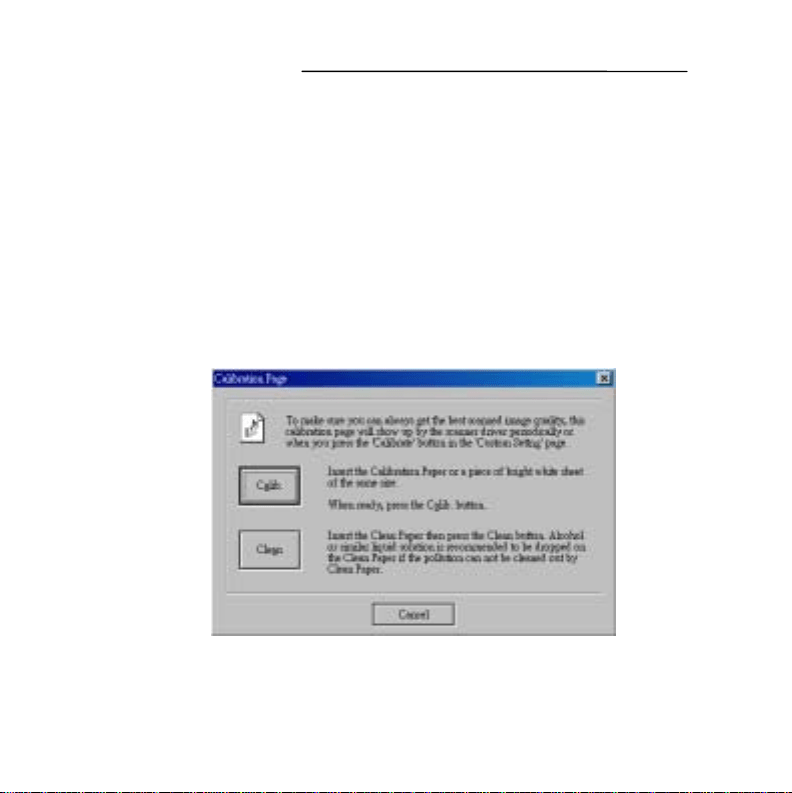
6. The user’s interface for Calibration and Cleaning will
automatically appear on the desktop.
2

7. Use the Calibration Paper provided in the package and insert it
with text facing up and arrows pointing toward the scanner.
8. Click the “Calib.” button as shown above to do the calibration.
When the process is complete, you’re ready to use the scanner.
Note: When the scanner is connected to a different computer, the Initial
Calibration must be done prior to scanning any other documents.
P
eriodic Calibration & Cleaning
1. Periodic Calibration:
Scanners should be calibrated on a monthly basis or after scanning
500 pages to ensure the best image quality. Please follow these
simple steps:
1-1 Follow the same steps as the 1
st
to 3
rd
steps in Initial
Calibration above.
1-2 Select “Custom Setting” from the window.
1-3 Select the “Calibrate” button to launch the user’s interface of
for Calibration and Cleaning.
1-4 Insert Calibration Paper the same way as in Initial Calibration.
You can make use of a blank white letter-size paper instead if
you cannot find the standard Calibration Paper.
1-5 Click the “Calib.” button to do a calibration.
2. Periodic Cleaning:
If the output image displays unexpected features, such as streaky
lines, discoloration, etc., it is possible that the surface of the image
sensor is polluted by dust, oil, or glue. To remove it and clean the
surface, please insert the Cleaning Paper provided in the package
into the scanner and click the “Clean” button on the user’s
3
interface for Calibration and Cleaning to do cleaning.
P
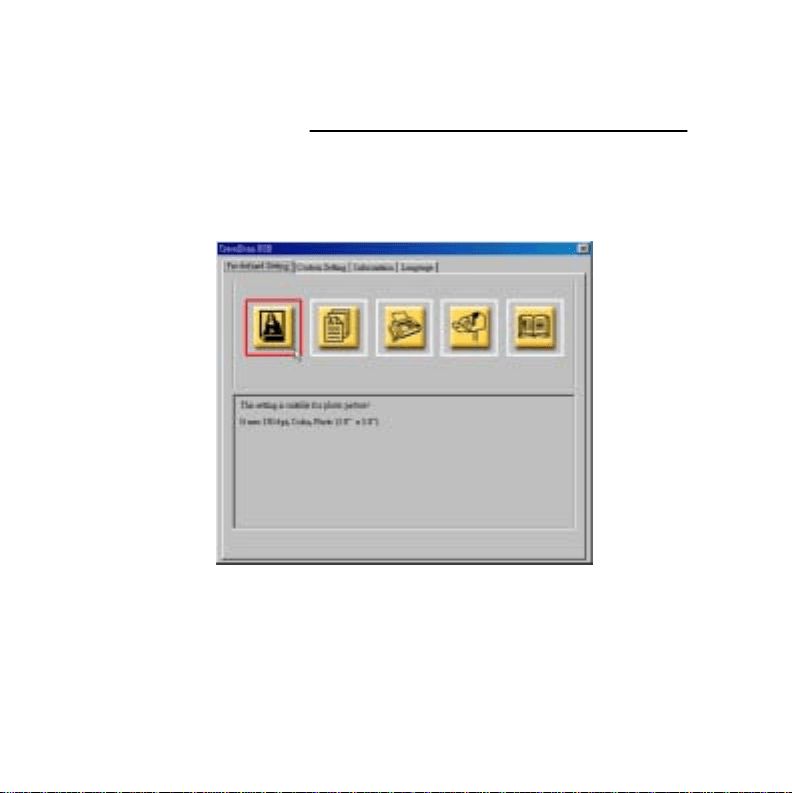
redefined Settings
Our 5 predefined settings include this scanner’s most frequently used
functions and are designed for your convenience. The settings are
displayed once you click the scanner icon and can be easily launched
by selecting their respective buttons.
4
C
ustom Settings
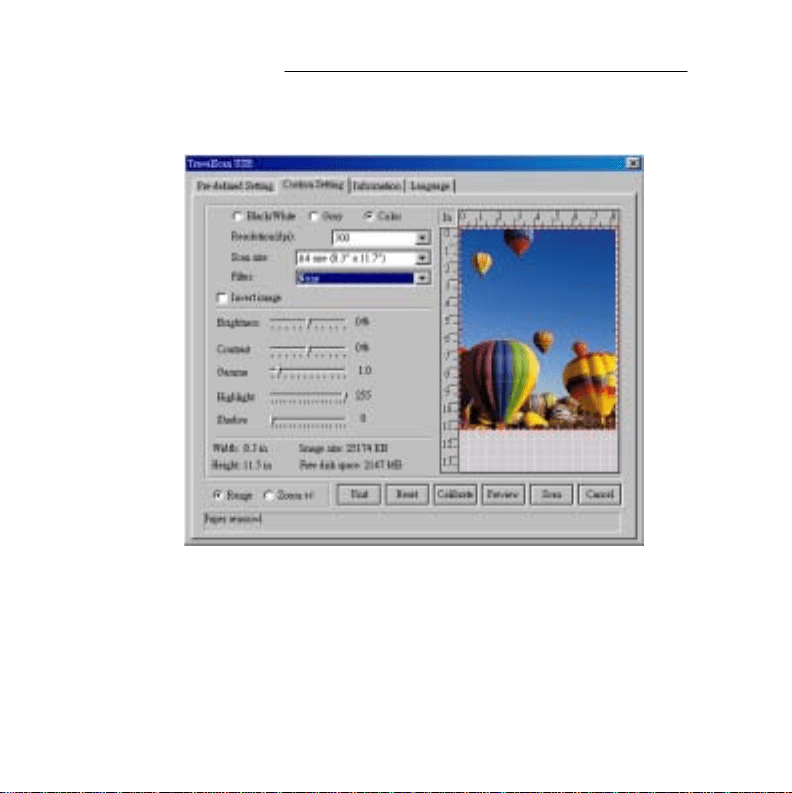
To customize your own settings, please select “Custom Setting” from
the user’s interface.
Here you can change the settings to the proper specifications you feel
are required. You can adjust the Mode, Resolution, Filter (None or
De-screen) together with scanning size. You can also adjust
Brightness, Contrast, Color (Gamma), Highlight and Shadow.
5

The window to the right is the “Preview Window”. This will give
you an idea of the results of your changes.
• The Zoom +/- box allows you to review the image to a
larger/smaller size.
• The “Unit” button changes from inches to centimeters.
• The “Reset” button resumes to the scanner default settings.
Once your settings are defined, select the “Preview” button to do
preview scanning and then press the “Scan” button to do final scan.
U
sing This Scanner with Application Programs
This scanner is fully TWAIN compliant, so you can use it with
literally thousands of applications that use TWAIN device input.
From desktop publishing to games, and from faxing to business card
scanning, you will discover many useful applications for this
scanner.
Please remember when running these application programs, you will
need to select this scanner from other TWAIN devices that you may
have installed on your computer (such as digital cameras or video
capture device…). All TWAIN compliant applications have a
method for selecting the proper imaging device, so please read the
application instructions carefully!
6

7
DSmobile Customer Support
Technical support is available for customers in the U.S.
and Canada from 8 A.M. to 5 P.M. Mountain Time,
Monday through Friday at 1-800-543-6144.
For Customer Support in Europe please call
+32.2.306.1194.
Visit the Pentax web site at: www.pentaxtech.com
8