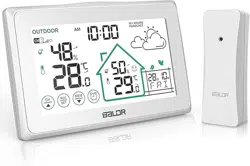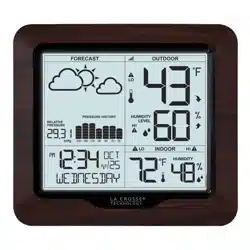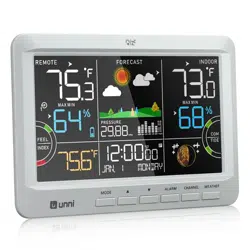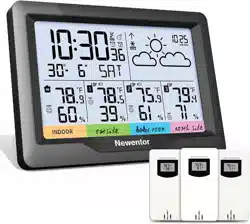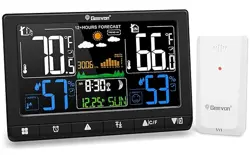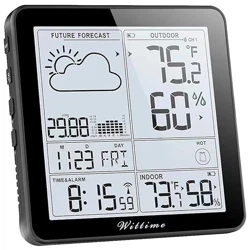
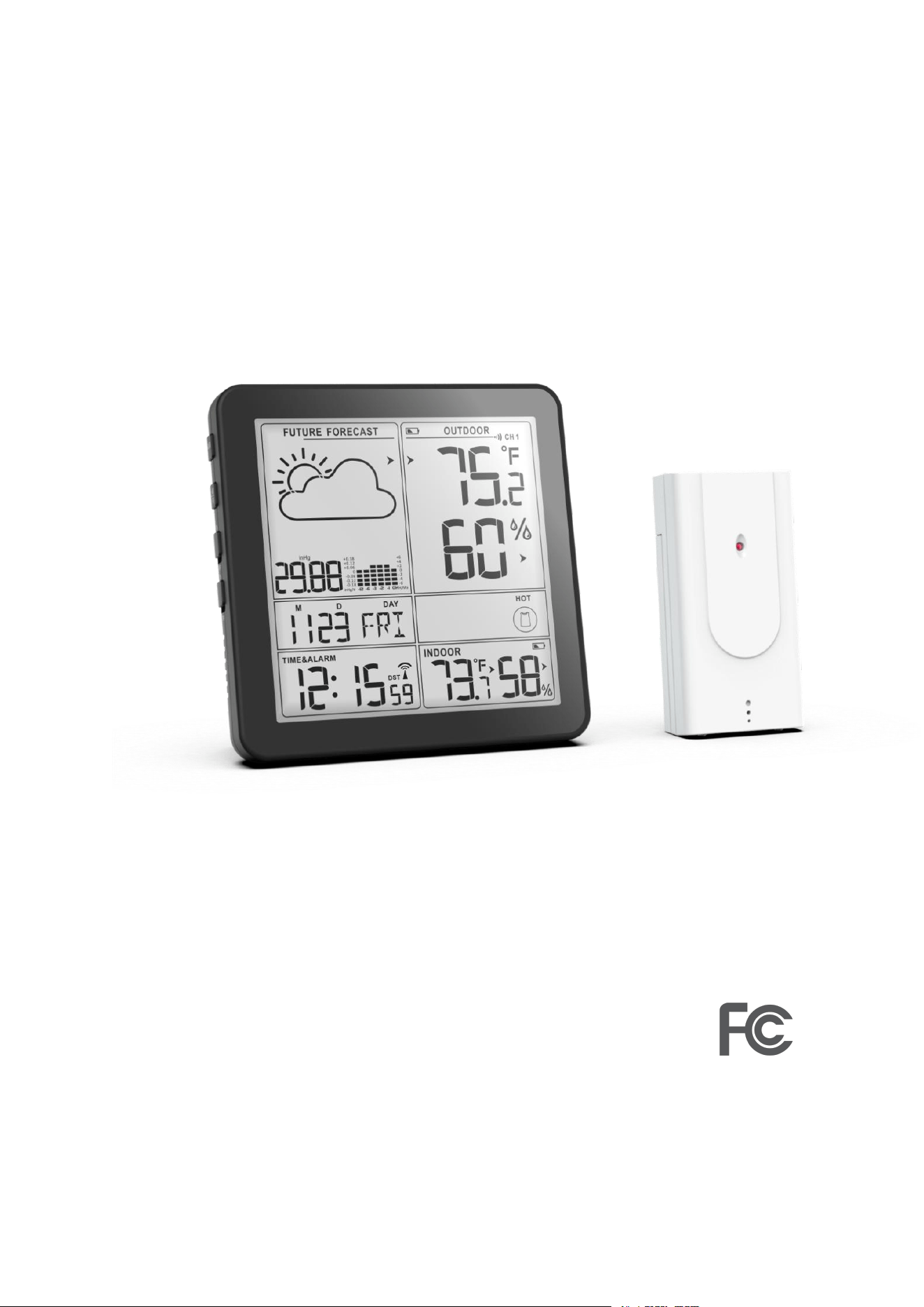
Digital Wireless Weather Station
OPERATING INSTRUCTION
Base unit: WT2180
Wireless sensor: WT2022A

2
Catalogue
Package included
.............................................................................................................
3
Technical data
...................................................................................................................
3
Base unit
.....................................................................................................................
3
Wireless sensor
..........................................................................................................
3
Product functions
.............................................................................................................
4
Weather station
.........................................................................................................
4
Wireless sensor
..........................................................................................................
4
Overview of weather station
......................................................................................
5
Operating elements and parts of the weather station and wireless sensor
.............
6
How to set up
....................................................................................................................
7
Insert batteries
...........................................................................................................
7
Setting the air pressure at the location
..................................................................
8
Pairing the outdoor sensor with the weather station
.....................................................
9
Atomic time
................................................................................................................
9
Setting the time zone
...............................................................................................
10
Setting the basic data
...............................................................................................
10
Setting the alarm
......................................................................................................
1
1
Deactivate/Activate alarm
.......................................................................................
1
2
Stopping the alarm
...................................................................................................
1
2
Other functions
................................................................................................................
1
2
Daylight saving time( DST)
.......................................................................................
1
2
Low battery indicator
...............................................................................................
1
3
Mold indicator, dew-point display and heat index
........................................................
1
3
Mold indicator (display for indoors and outdoors)
..................................................
1
3
Dew-point display (dispaly for outdoors)
................................................................
1
4
Heat index (display for outdoors)
............................................................................
1
4
Dressing index(display for outdoors)
.......................................................................
1
4
Daily MAX/MIN Data
................................................................................................
1
4
Weather trend
..........................................................................................................
1
4
Air pressure trend
....................................................................................................
1
5
Pressure readings
.....................................................................................................
1
5
Weather forecast icons
............................................................................................
1
5
How to add extra sensors
................................................................................................
1
6
Where the sensor should be placed
...............................................................................
1
7
Where the weather station should be placed
................................................................
1
7
Resetting the weather station
........................................................................................
1
7
Care and maintenance
....................................................................................................
1
8
Safety
...............................................................................................................................
1
8
Danger from electricity(when using the switching adapter
..........................................
1
8
Unpacking and checking
..................................................................................................
1
9
FCC statement
..................................................................................................................
1
9
Disclaimers
.......................................................................................................................
2
0
Trouble shooting
..............................................................................................................
2
0

3
Package included:
• WT2180 weather station x 1
• WT2022A wireless sensor x 1
• 3 batteries - LR6 type (AA) / 1.5 V (base unit)
• 2 batteries - LR6 type (AA) / 1.5 V (wireless sensor)
• User manual x 1
Technical data
Base unit
Model: WT2180
Power supply: 3 x LR6 (AA) / 1.5 V
Temperature measuring range: 14.2°F ~ 122°F
Resolution: 0.18°F
Temperature measuring accuracy: +/-0.5°F
Humidity measuring range: 1 % to 99 % relative humidity
Humidity measuring accuracy: +/- 2% with a measuring range of 20% to 80%, +/-4% with
measuring range of 1% to 19% and 81% to 99%
Resolution: 1 %
Temperature and humidity data detection and sending period: every 30 seconds
Barometric and weather data detection and sending period: every 1 hour
Wireless sensor
Model: 2022A
Batteries: 2 x LR6 (AA) 1.5 V
Temperature measuring range: - 40°F to 158°F
Protection type: IPX4: Protection against splash water from all directions
Transmission frequency: 433 MHz
Range: max. 328 ft (100 meters) (in open area)
Temperature and humidity data detection and sending period: every 57 seconds

4
Product functions
Weather station
• WWVB radio-controlled clock
• 12- or 24-hour display for four time zones
• Date, time and day of week display
• Dual alarm with snooze function
• Indoor temperature display in °C/°F
• Indoor and outdoor humidity display
• Outdoor temperature display in °C/°F with up to three wireless sensors at different
measurement sites (delivery includes one wireless sensor)
• Minimum/maximum display for temperature and humidity
• Humidity and temperature trend display
• Weather forecast symbols
• Mold indicator
• Dew-point display
• Heat index
• Dressing index
• Low battery indicator
• Battery or mains operation
Wireless sensor
• Range of up to 328 ft (100 meters) (in open area)
• Wall mounting bracket
5
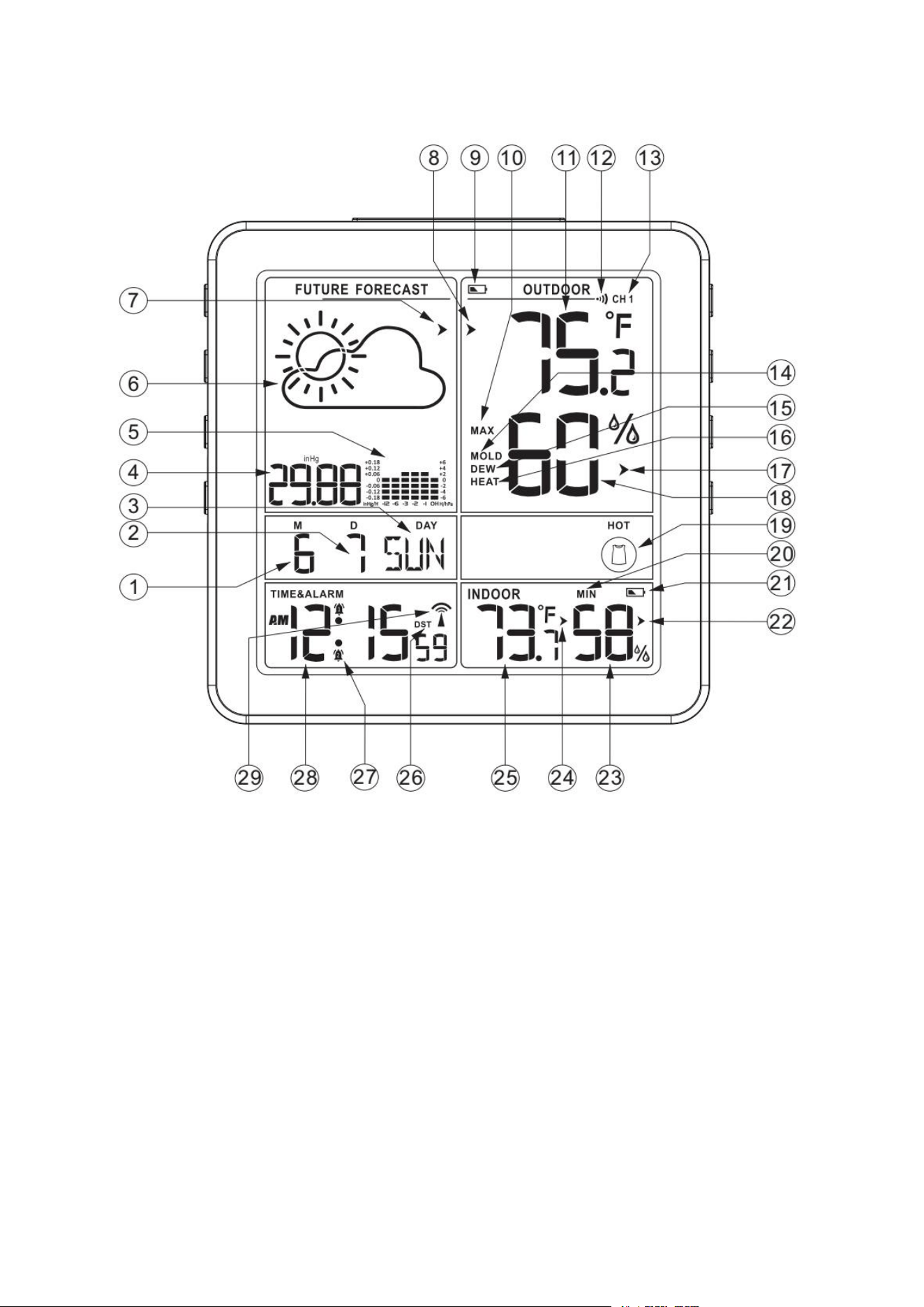
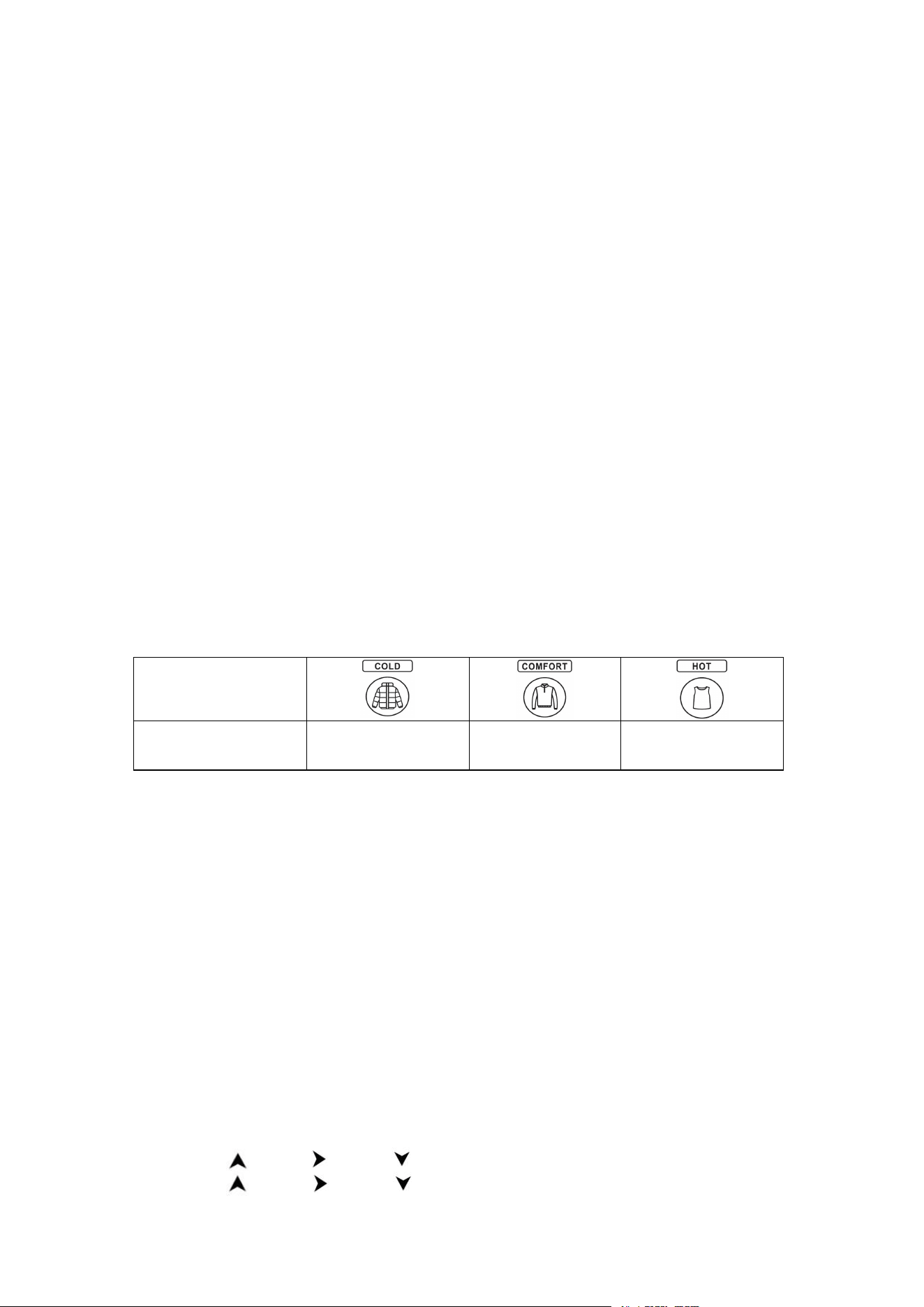
Overview of weather station
1. Month
2. Date
3. Day of week
4. Air pressure
5. Air pressure history data
6. Weather forecast symbol
7. Air pressure trend
8. Outdoor temperature trend
9. Low battery indicator for outdoor sensor
10. Maximum outdoor temperature and
humidity
11. Outdoor temperature
12. Channel of outdoor sensor automatic
cycle symbol
13. Current channel of outdoor sensor
14. Mold indicator
15. Dew point
16. Heat index
17. Outdoor humidity trend
18. Outdoor humidity
19. Dressing index
20. Maximum indoor temperature and
humidity
21. Low battery indicator for indoor
22. Indoor humidity trend
23. Indoor humidity
24. Indoor temperature trend
25. Indoor temperature
26. Daylight saving time (DST) symbol
27. Alarm symbols
28. Current time
29. Radio signal indicator (WWVB)
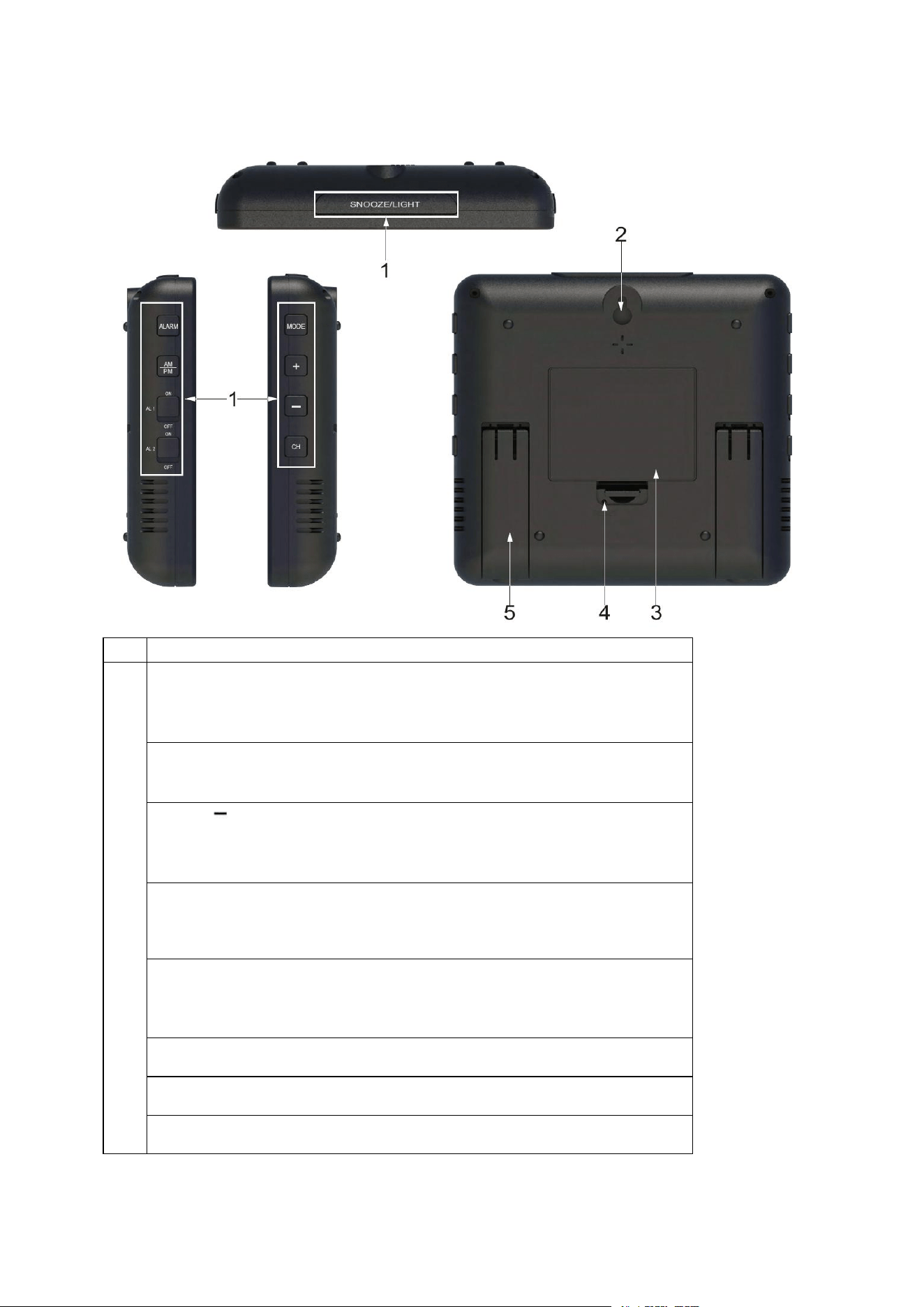
6
Operating elements and parts of the weather station and wireless sensor
1
Operating buttons
Button MODE
* Select time zone ( PST, MST, CST and EST)
* Activate settings mode
* Save changes to settings
Button +
* Set values (increase)
* Display stored MAX and MIN values
Button
* Set values (decrease)
* Display: Mold indicator, dew point, heat index
* Activate / Deactivate WWVB radio signal reception
Button CH
* Display weather data from various wireless sensors ( channel
1.2.3)
* Reconnect wireless sensor connection
Button ALARM
* Display alarm time
* Activate alarm setting mode
* Switch alarm 1 and alarm 2
Button AM/PM
*Switch 12-/24-hour format
Button Alarm 1 slide switch
* Activate (ON) or deactivate (OFF) for Alarm 1
Button Alarm 2 slide switch
* Activate (ON) or deactivate (OFF) for Alarm 2
7
Button SNOOZE/LIGHT
* Illumination backlight
* Active snooze function
* Active setting mode for air pressure and weather symbol
2
Loop for hanging
3
Battery compartment
4
Button RESET
5
Fold-out stand
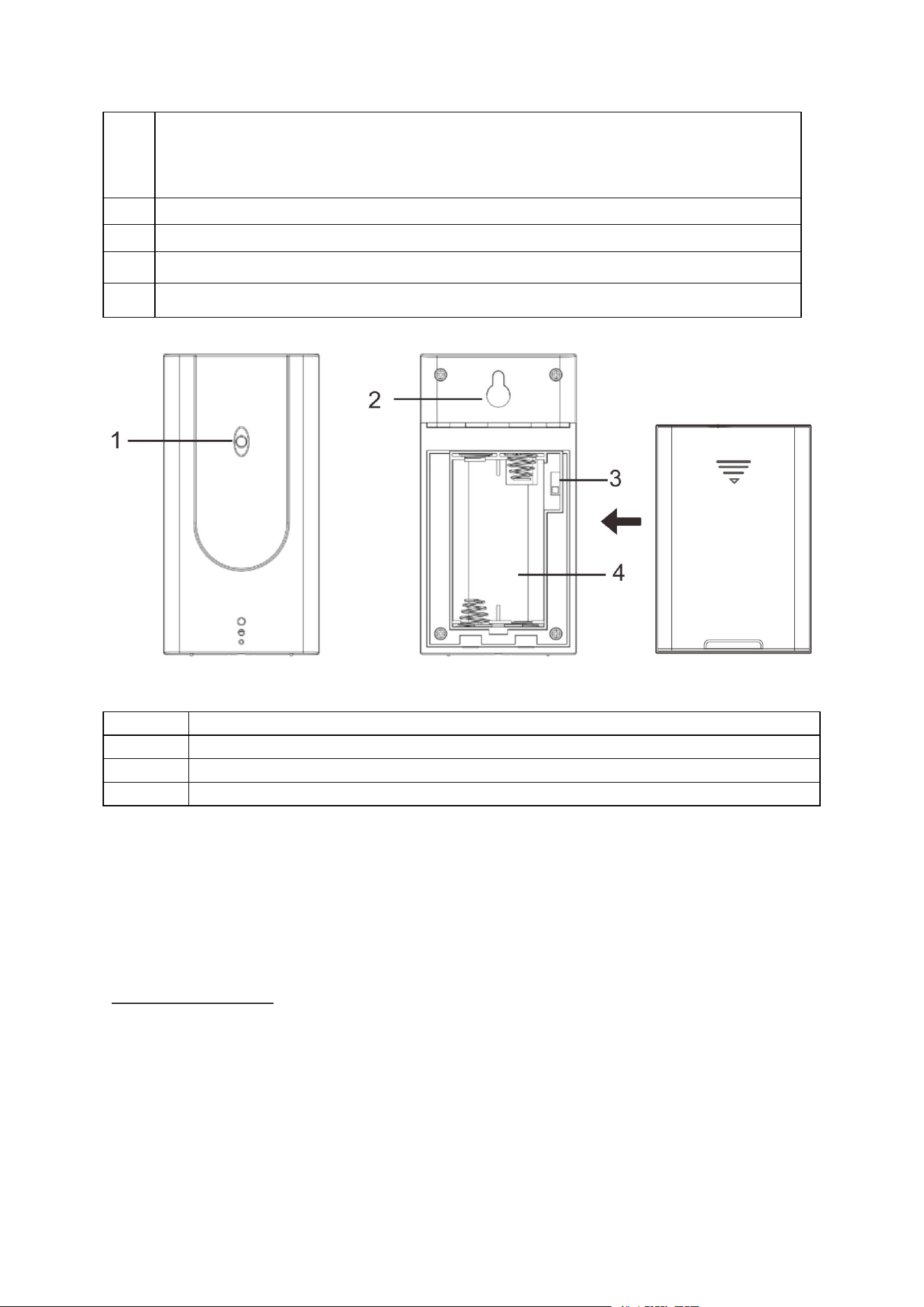
1
Red pilot light
2
Loop for hanging
3
Sliding switch 1 2 3: Set sensor number (transmission channel)
4
Battery compartment
Note:
If you are going to use the wireless sensor included in the package, there is no need to
change the transmission channel inside the outdoor sensor.
Changing the transmission channel is only necessary when you are going to add additional
wireless outdoor sensor. See “ How to add extra sensors “ on Page16.
How to set up
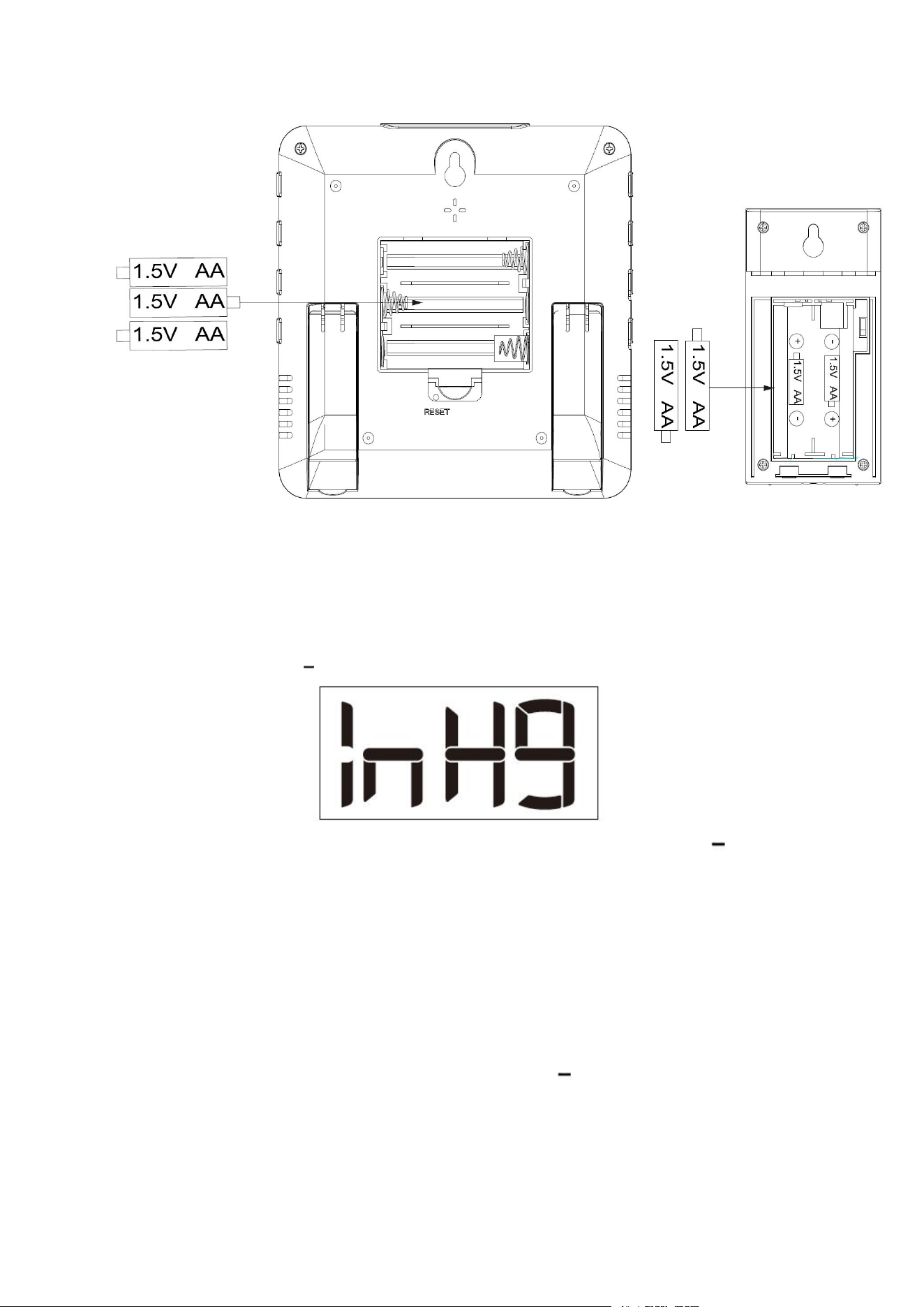
Insert batteries
1. Insert 2x AA batteries into your WT2022A wireless sensor. Pay attention to the correct
polarity. While the sensor is transmitting, the red LED indicator will flash.
2. Insert 3x AA batteries into your WT2180 base unit. Pay attention to the correct polarity.
8
Setting the air pressure at the location
When the weather station is connected to the batteries on the first time, it will enter the air
pressure mode. You will see the air pressure unit starts to flash. Now you can set the air
pressure through + and button. You can follow below steps.
1.The air pressure unit starts flashing, the default is inHg, you can use the + or button to
switch the inHg/Hpa system.
2.Press the SNOOZE/LIGHT button to confirm and enter the air pressure value setting.
3.The air pressure value starts flashing. The default is 29.88 inHg which is the air pressure of
sea level. You can adjust it manually according to the data from the local meteorological
station, the air pressure range of our weather stations is 8.85~34.43 inHg. You can also keep
the default data to make it adapt automatically.
4.Press the SNOOZE/LIGHT button to confirm and enter the weather symbol setting.
5.The weather symbol starts flashing, and the default is half sunny. It will automatically
adjust to the correct symbol. However, if you want to shorten the reception time of the
weather station, you can manually adjust it through + and button.
6.Press the SNOOZE/LIGHT button to save the setting and exit the air pressure mode.
7.To re-adjust, long press the SNOOZE/LIGHT button at the top till the air pressure unit start
to flash.

9
Pairing the outdoor sensor with the weather station
Once the base unit is installed batteries, it will start receiving the pairing RF signals from the
outdoor sensor with the same channel for 3 minutes. You can press the CH button on the
base unit to match the correct outdoor sensor.
Generally, the outdoor sensor will connect with the base unit automatically. If it doesn’t
connect, please follow below steps to set:
• Ensure that the weather station is in the same channels with the outdoor sensor.
• Long press the CH button on the base unit to search signal from the outdoor sensor.
• The sensor receiving icon will flash when searching for the signal.
• After the sensor is connected, the icon will become stable.
• Your weather station will search for the signal each 3 minutes every hour automatically
until it is connected.
Note: After replacing the sensor battery, you need to press and hold the CH button of the
station to receive again.
Atomic time
A) After 3 minutes reception of the signal from the outdoor sensor, the device will begin to
search for WWVB signal automatically to set the time and date. At this time, the radio
tower begins to blink on the display next to the time and the screen dims to prevent
interference with the WWVB signal, which takes about 7 minutes.
B) The atomic time signal icon will blink while searching. The tower icon will be solid
after successful reception.
C) If reception fails after 7 minutes, the radio tower will disappear. Please set the time
manually. The device will reattempt reception for the radio time signal every 1 hour until
the WWVB time is received. -- It’s only for the first use or Reset within 24 hours.
D) If the reception attempt still failed after 24 hours (from power on), the device will search
for the WWVB time signal at 1:00AM, 2:00AM, 3:00AM, 4:00AM and 5:00 AM every day.
E) If the reception attempt is successful, the radio controlled symbol will appear
permanently on the display and the correct time and date will be set automatically.
F) After successful reception, the atomic clock weather station will search for the WWVB
time signal at 1:00AM, 2:00AM, 3:00AM, 4:00AM and 5:00 AM every day.
G) The default time zone is PST, if you need to select the time zone that matches your
location, press and hold the button to exit from WWVB signal search mode, then
refer to Next chapter “Setting the basic data” to set the time zone and time.
Important:
During WWVB signal searching, only the SNOOZE/LIGHT and button can work, other
buttons are disable and the backlight will turn dark ( in order to maximum avoid the
electromagnetic interference). lf you want to carry out other operations, press and hold the
button to exit this process.
Signal reception is normally better at night and when the weather is clear. In general, the
atomic signal takes 2-5 days to synchronize, so it’s necessary for the first time using to set
the time and date manually after power on.
10
F.Y.I:
Information: Radio station WWVB is located near Fort Collins, Colorado.
More information related to the WWVB signal, please refer to:
www.nistgov/pml/div688/grp40/wwvb.cfm
.
The device will search for the WWVB signal at 1:00AM, 2:00AM, 3:00AM, 4:00AM and
5:00AM every day to calibrate for any deviations of time automatically.
If your weather station does not receive the WWVB radio signal correctly, please hang or
place the weather station in a different location at your site. Please note that devices such
as computers, telephones, radios and televisions may cause electromagnetic radiation
which can interfere with the WWVB signal reception. Other possible detriments to
reception are: strong building insulation (metal building materials), nearby mountains or
atmospheric interference.
Setting the time zone
Press the MODE button to enter into time zone setting, PST will show on the week area.
Keeping press the MODE button to choose the desired time zone: PST - MST - CST - EST.
Press any buttons or wait for 5 seconds to store the changed setting.
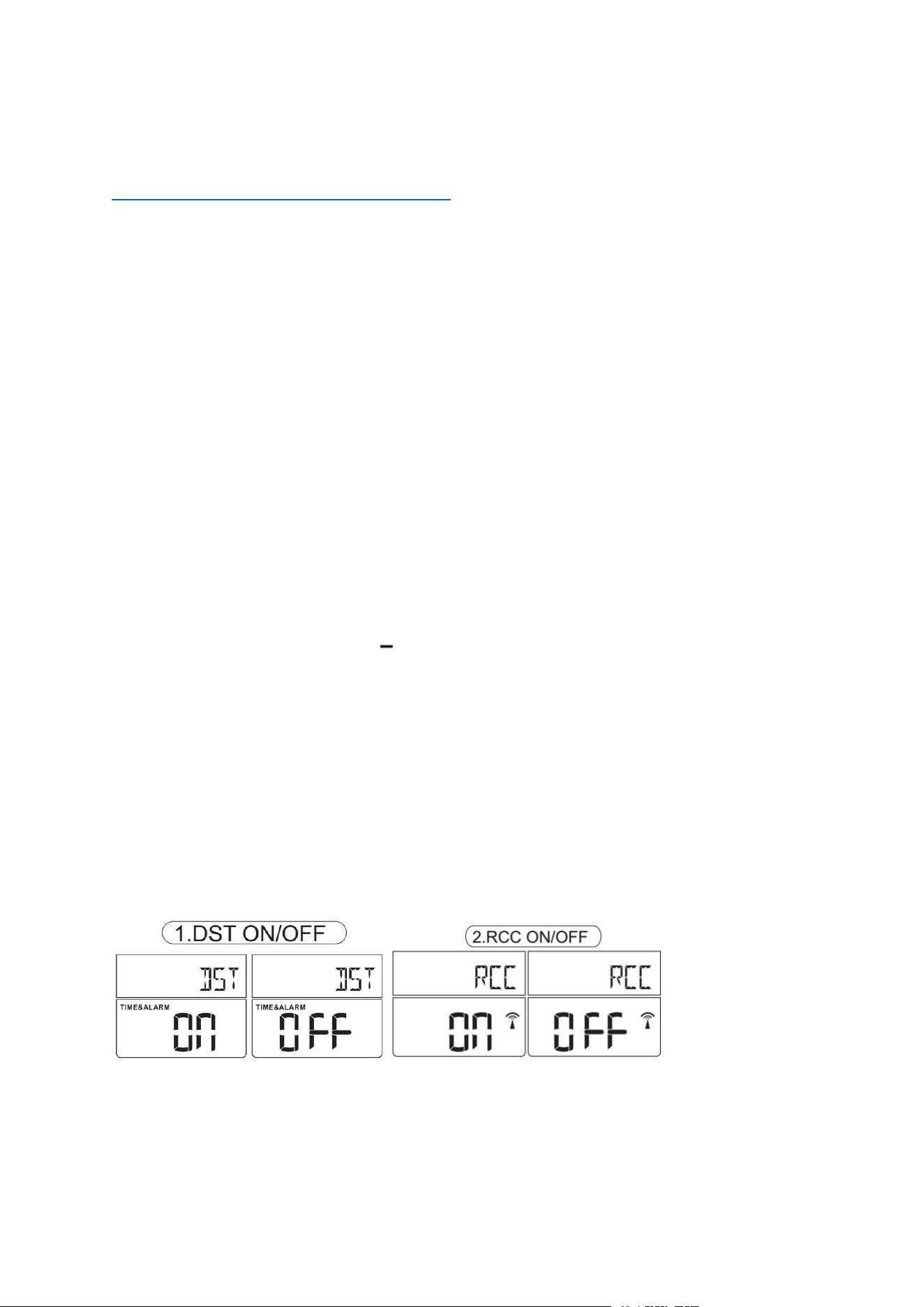
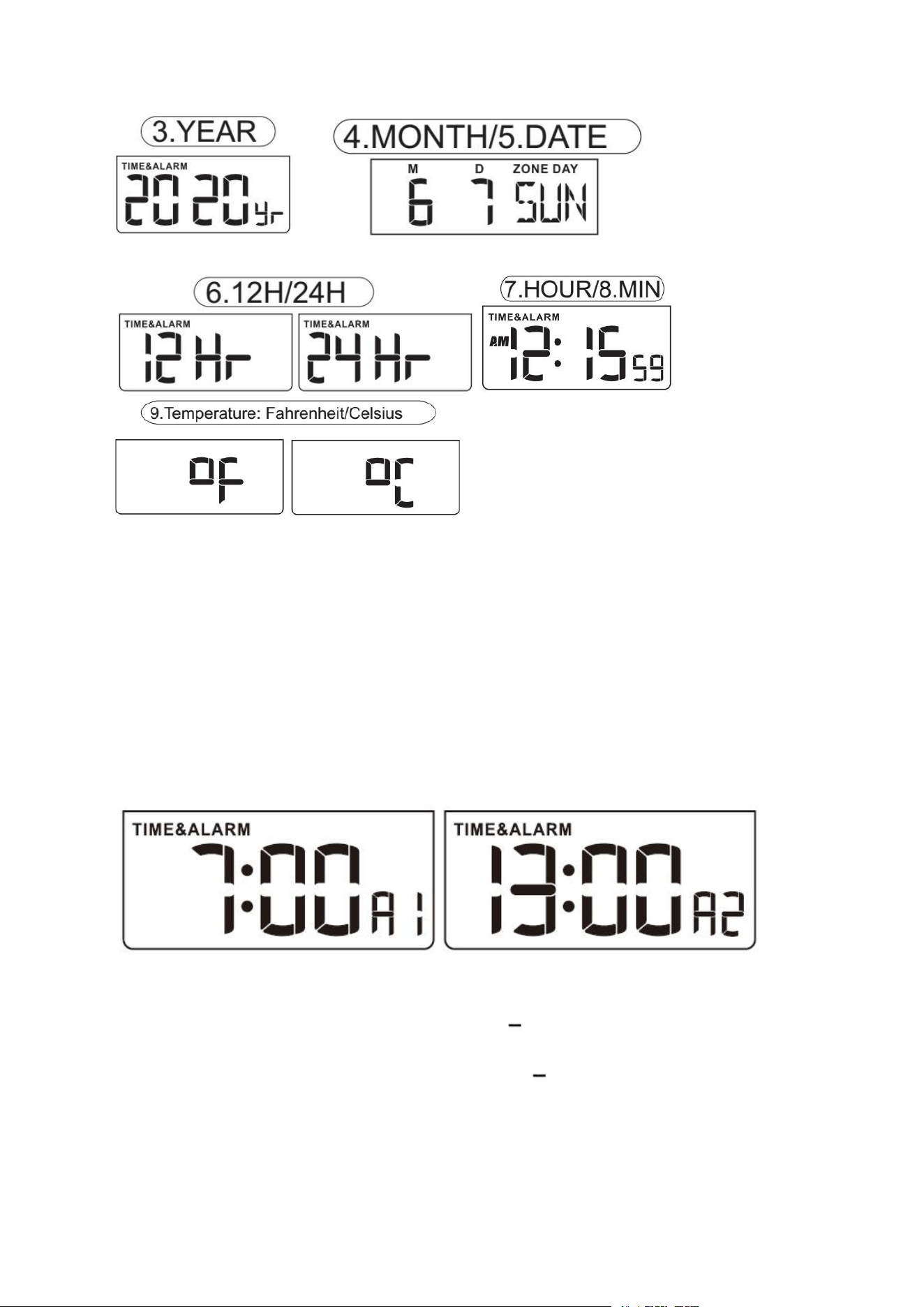
Setting the basic data
• Press and hold the MODE button for 3 seconds till the DST ON starts flashing, now you are
in the basic settings.
• To adjust the data through + and button.
• Then press the MODE button to confirm and jump to the next setting.
Below are the setting orders:
1. DST ON/OFF
2. RCC ON/OFF
3. Year
4. Month
5. Date
6. 12H/24H
7. Hour
8. Minutes
9. °C / °F
11
NOTE:
1. Atomic (RCC) OFF: atomic signal reception and time zone selection functions are disable.
2. If you have chosen RCC OFF at the basic setting, please note that this weather station will
no longer receive atomic signals and you are also unable to select time zone, until the
factory settings are restored.
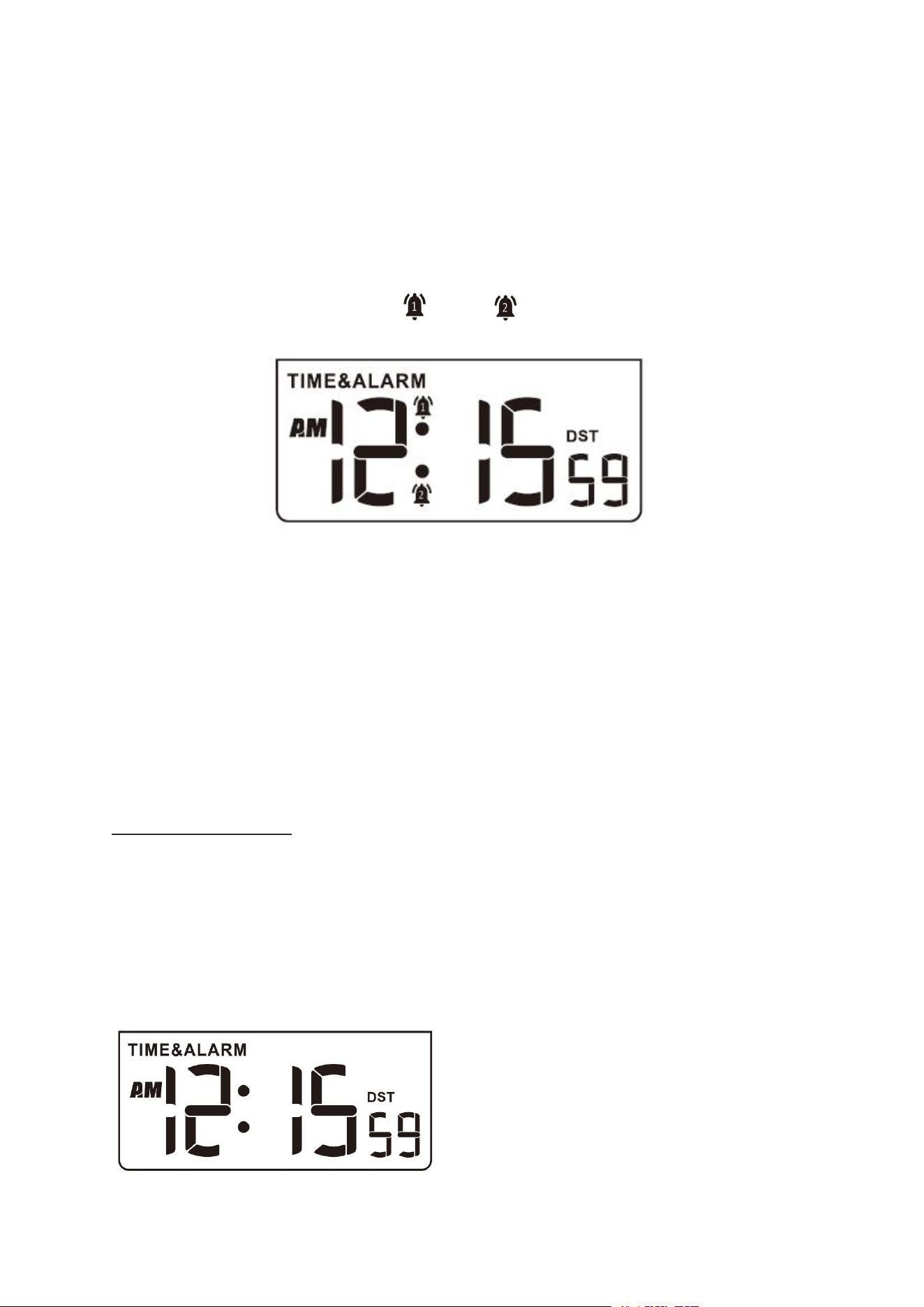
Setting the alarm
There are dual alarms on the weather station. You can set them separately.
1. Use the ALARM button to select the alarm you would like to set ( ALARM 1 or ALARM 2 ).
2. After confirmed setting alarm 1 or 2, long press the ALARM button till the time starts
flashing.
3. Set the desired hour for the alarm with the + and buttons.
4. Press ALARM button store the setting and enter the minute setting.
5. Set the desired minute for the alarm with the + and buttons.
6. Press ALARM button to store the setting. Now the alarm (1 or 2) is set. If no button is
pressed within 18 seconds, the weather station will return to normal time display mode.
12
Note:
The default of the alarm is off.
When the alarm symbol appears in the screen, the alarm is on activated status.
Deactivate/Activate alarm
The slide switches AL1 and AL2 can be used to activate (ON) or deactivate (OFF) both alarms
separately.
If alarm are activated, the bell symbol and/ or for each alarm will appear on the
display.
Stopping the alarm
You will be woken by the alarm at the set time, and the sound will become more and more
intense as the alarm continues. You can stop it through below steps:
• Switch off the alarm completely - Press any button on the base unit (apart from
SNOOZE/LIGHT button), to stop the alarm. The alarm will go off again after 24 hours.
• Automatic stop function - If you do not press any buttons, the alarm will automatically
switch off after 2 minutes. The alarm will go off again after 24 hours.
Other functions
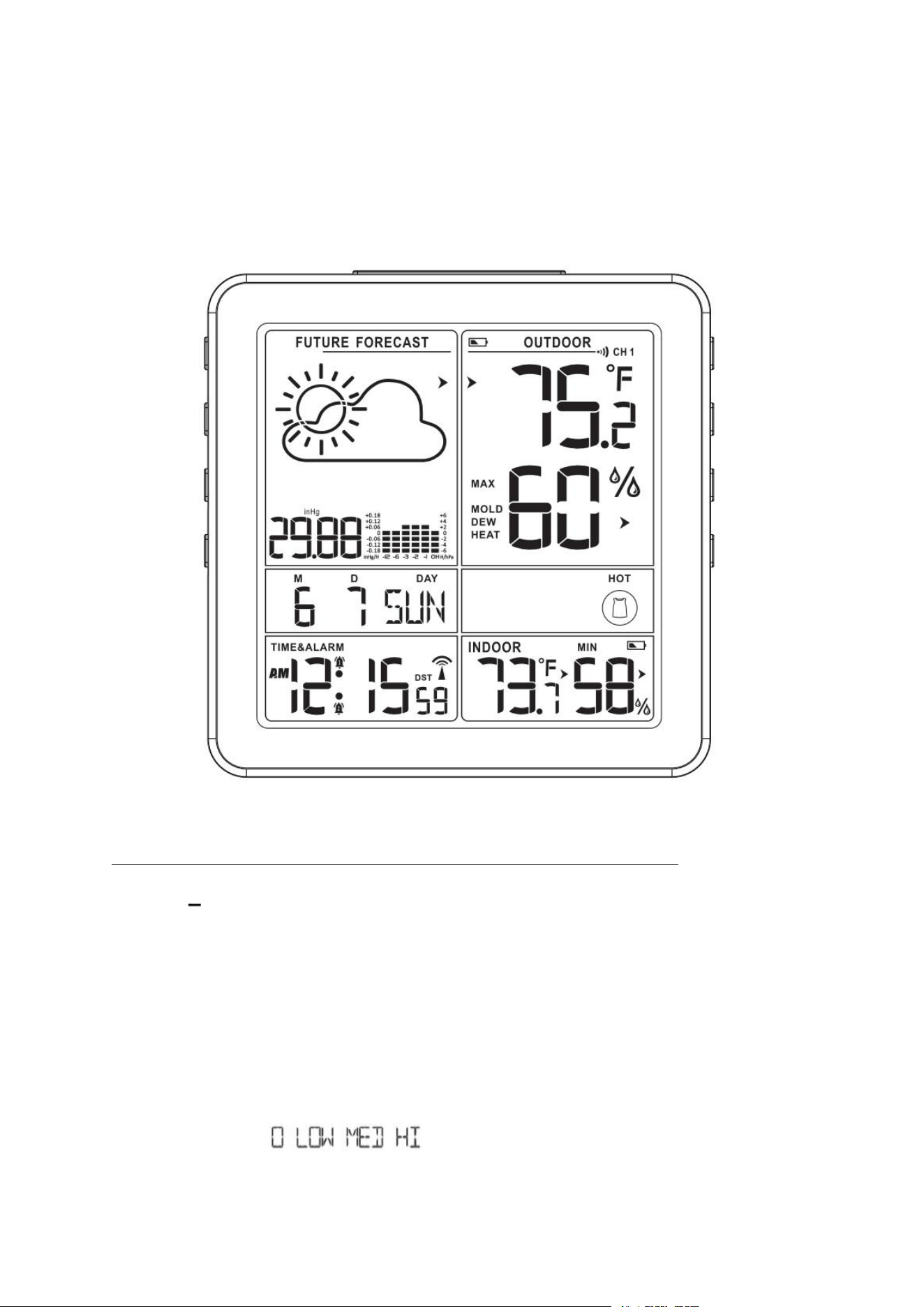
Daylight saving time( DST)
The weather station will adapt to winter / summer time automatically when DST is ON.
• Summer time: the second Sunday of March at 1:59 59’ changes to 3:00 00’
• Winter time: the first Sunday of November at 1:59 59’ changes to 1:00 00’
The default of DST is on. The DST symbol will appear during the DST period and display
above the "second".
13
Low battery indicator
•When there is a battery symbol near Outdoor Humidity, you should replace batteries of
the wireless sensor.
•When there is a battery symbol near Indoor Humidity, you should replace batteries of the
weather station.
Mold indicator, dew-point display and heat index
Press the button to display the data.
First time press: Indoor Mold indicator
Second time press: Outdoor Mold indicator
Third time press: Dew-point display
Fourth time press: Heat index
Mold indicator (display for indoors and outdoors)
The mold indicator ("MOLD" on the display) consists of temperature and humidity.
The indicator shows the possibility of mold growth.
Possible indicators:
14
Dew-point display (display for outdoors)
The dew point (“DEW” appears on the display) is the temperature below which dew or mist
forms from damp air.
Information:
-If the dew point is below 32°F, "LL.L" will appear on the display.
-If the dew point is higher than 140°F, “HH.H” will appear on the display.
Heat index (display for outdoors)
The heat index (“HEAT” on the display) consists of temperature and humidity, and displays
the perceived temperature.
- The heat index can only be displayed when the outdoor temperature rises above 80°F.
Dressing index (display for outdoors)
The dressing index is a weather indicator close to people's lives. In different seasons, people
will choose the type of dressing according to different weather conditions. At this time, the
dressing index serves as a reminder, reminding people to change clothes according to
weather changes, reducing the occurrence of diseases, especially colds.
The data comes from data collected by outdoor sensors, and each sensor channel
corresponds to an independent index icon.
-The Dressing index of this weather station is divided into three levels:
Temperature range
<64.4°F
64.4°F ~ 82.4°F
>82.4°F
Daily MAX/MIN data
All MAX / MIN temperature/humidity records will reset automatically at 12:00 (midnight).
From normal display, press and release the + button to view:
• MAX-- indoor and outdoor temperature/ humidity records.
• MIN-- indoor and outdoor temperature/ humidity records.
Note: Press the + button to delete the highest and lowest temperature and humidity
values since midnight.
Weather trend
For the temperature and humidity values measured by the base unit and wireless sensor,
the trend is displayed by an arrow:
Trend rising constant falling
Temperature
Humidity
15
Air pressure trend
When the air pressure rises again, the symbol will be displayed continuously again.
The arrow shows the weather trend. If it points upwards or downwards, it means that the
weather rises or falls by more than 0.06 inHg (2 hPa) in an hour.
rising air pressure = weather rises
constant air pressure = weather stays the same
falling air pressure = weather falls
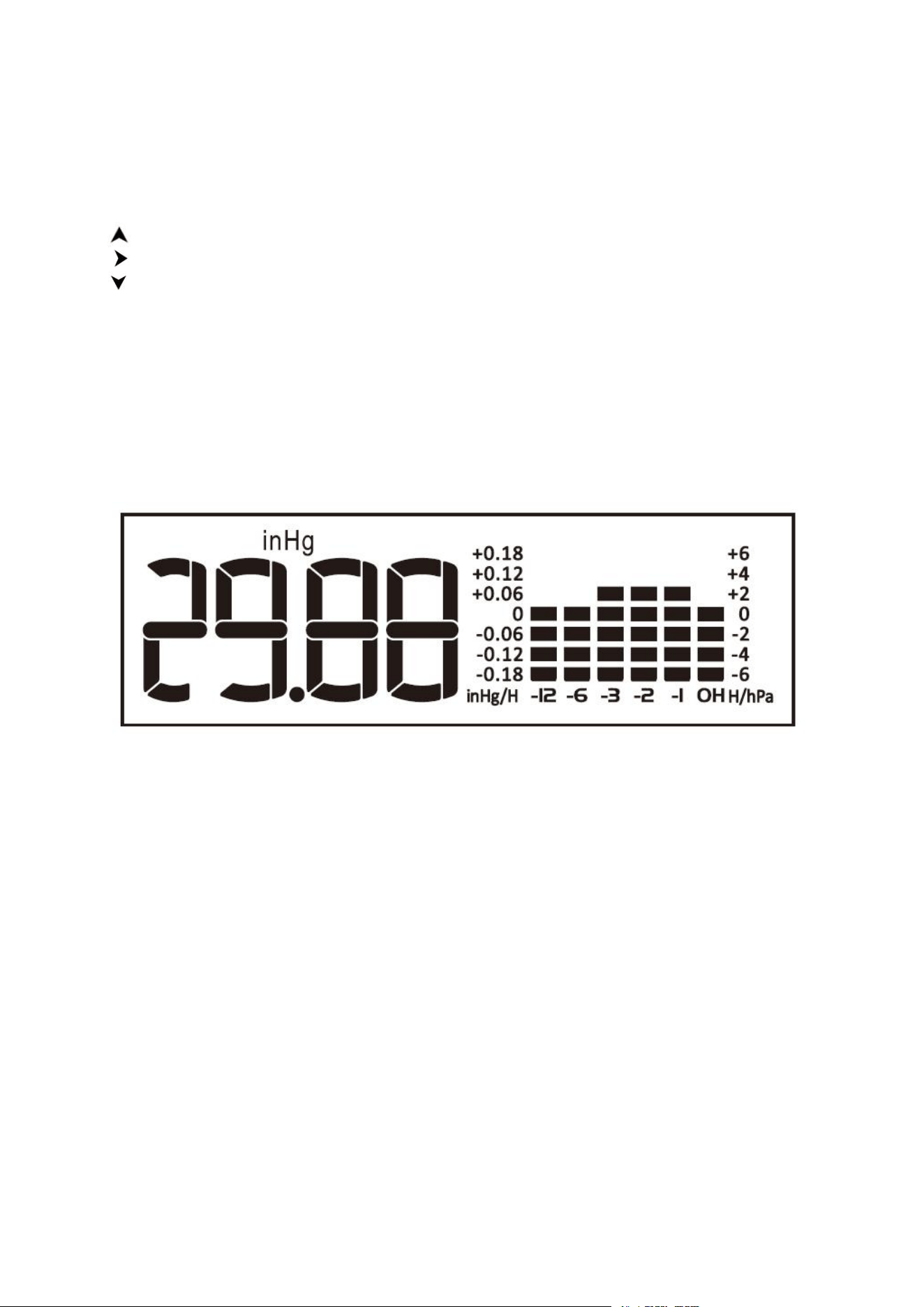
Pressure readings
History Graph:
• Read from left to right, your Pressure History Graph indicates the rise and fall in air
pressure over the past 12 hours.
• The numbers below represent the hour in which the reading was taken. The “0h” is the
current pressure level. “-3” was the reading taken three hours ago, compared to current
pressure.
Your station provides Relative Barometric Pressure in:
• Your station will acclimate to the correct pressure without setting it yourself.
• You also have the option of setting the pressure number to match your local reporting
station by using the Air pressure mode (Press and hold the SNOOZE/LIGHT button at the top
to enter).
• In the Air pressure mode you can also select the pressure unit of Inches of Mercury (inHg
default) or Hecto Pascal (hPa).
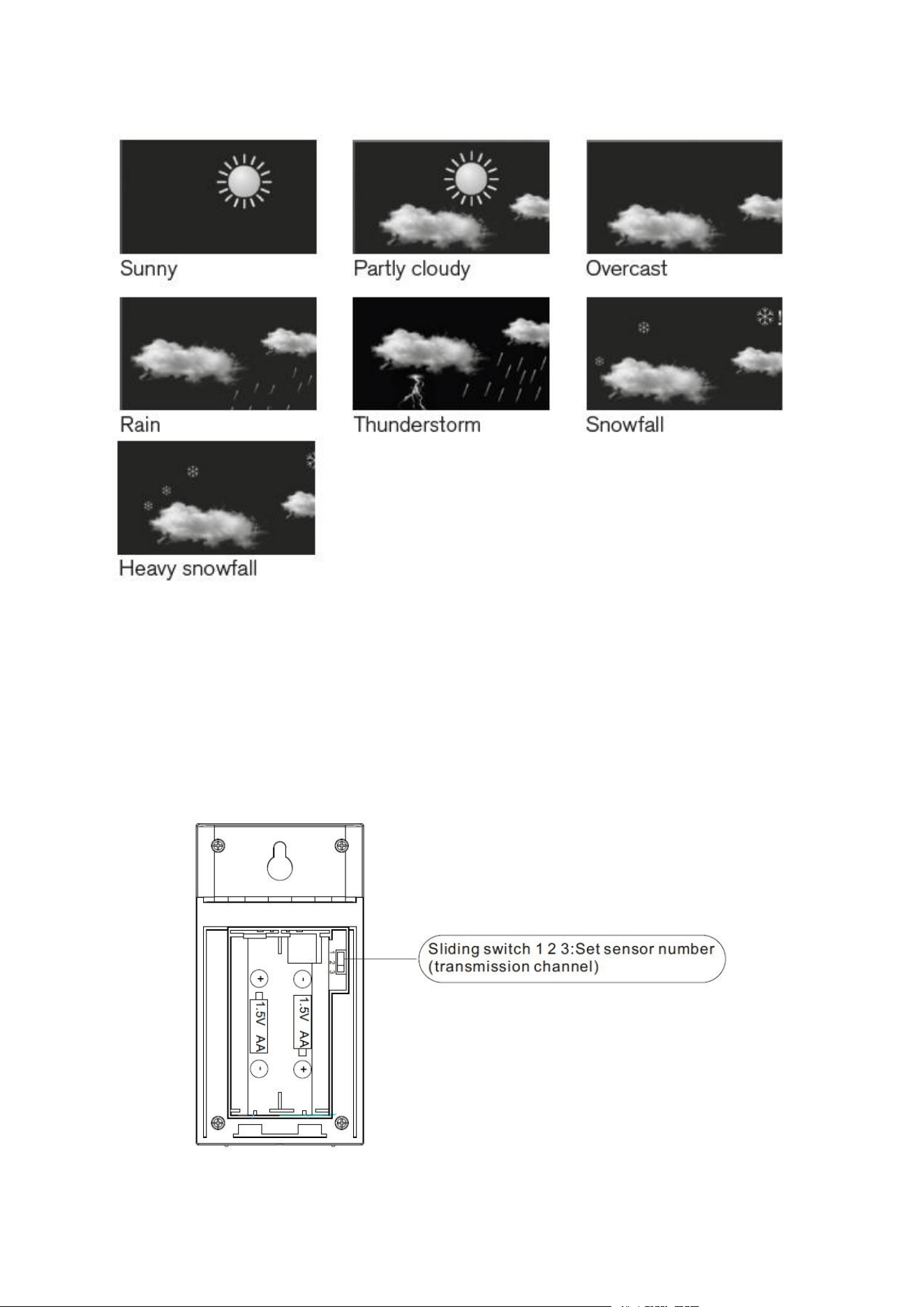
Weather forecast icons
• The forecast icons are determined by your station's barometric pressure reading. Please
allow 7-10 days for calibration.
• 7 forecast icons use changing atmospheric pressure to predict weather conditions for the
next 12-hours.
• When Outdoor temperature is below 30.2°F and the forecast shows RAIN or T-STORM, the
station will display SNOW.
Currently displayed symbol means the forecast for the next 12 hours. It may not reflect the
current state of the weather.
16
The accuracy of the weather forecast is around 75 %.
How to add extra sensors
The weather station comes with one wireless sensor. However, you can operate the
weather station with up to three wireless sensors. Additional wireless sensors are available
in our Amazon online shop.
Note:
1. You need to set different channels for the sensor (1-3). You can set it through pull the
stick on near the batteries.

17
2. Under the corresponding channel displayed on the base unit, press and hold the
button until the signal icon starts to flash to receive the signal from the newly added sensor.
Where the sensor should be placed
1. Sensor can be hung/placed.
2. Better place it under the porch and eaves.
3. The maximum range of the sensor can reach 328ft in an open area.
4. Make sure that the sensor is vertical so that moisture can be drained correctly.
Note:
• Shielding building materials such as reinforced concrete reduce or prevent the radio
reception between the base station and wireless sensor.
• Devices such as televisions, cordless phones, computers and fluorescent tubes can also
interfere with the wireless reception.
• Do not place the base unit and wireless sensors directly on the floor. This restricts the
range.
• In low temperatures in winter the battery performance of the wireless sensors can be
significantly reduced. This reduces the transmitter range.
Where the weather station should be placed
• Pull out the stand and place on a flat surface.
• Or use the hanging holes on the back to mount on a wall.
• Choose a location 6 feet or more away from electronics such as cordless phones, gaming
systems, televisions, microwaves, routers, etc.
• Place within range of the outdoor sensors (330 ft, 100m open air).
• Obstacles such as walls, windows, stucco, concrete, and large metal objects can reduce
the range.
Resetting the weather station
If the base station appears to display incorrect values, you should reset the weather station
to the factory settings.
-Option 1:
Press the RESET button on the back of the base unit.
-Option 2:
a. Take the batteries out of the base unit and outdoor sensor.
c. Put batteries back in the base unit and outdoor sensor.
d. Put them together within a couple feet for about 20 minutes for a strong connection.

18
Care and maintenance
• Do not mix old and new batteries.
• Do not mix Alkaline, Standard, Lithium, or Rechargeable Batteries.
• Always purchase the correct size and grade of battery most suitable for intended use.
• Replace all batteries of a set at the same time.
• Clean the battery contacts and also those of the device prior to battery installation.
• Ensure the batteries are installed with correct polarity (+ and -).
• Remove batteries from equipment when it is not used for an extended period of time.
• Promptly remove expired batteries.
Safety
Read the following advice carefully and store these operating instructions in case you want
to reread something later. If you give the item to someone else, give them these operating
instructions as well.
• This device may be used by children over 8 years of age and over, as well as by persons
with reduced physical, sensory or mental abilities, or lack of experience and / or knowledge
if they are supervised or instructed regarding the safe use of the equipment and have
understood the resulting hazards.
• Keep the device away from children under the age of 8.
• Cleaning and user maintenance may not be carried out by children unless they are
supervised.
• Children must be supervised to make sure that they do not play with the device.
• The device must not be immersed in water or other liquids. Electric shock hazard! Do not
use the device in areas where it may be wet, such as a sink.
Danger from electricity (when using the switching
adapter)
• Connect the device to a properly installed power socket with a voltage that corresponds to
the Technical Data.
• Ensure that the socket is easily accessible, so that you can quickly remove the switching
adapter if necessary.
• Do not use the wireless weather station if the switching adapter or power cable is
damaged.
• Do not cover the switching adapter with curtains, newspapers, etc. and ensure that it is
sufficiently ventilated. The switching adapter can become hot.
• Uncoil the switching cable fully before connecting. Be careful not to damage the cable
with sharp edges or hot objects.
• Remove the switching adapter from the socket:
- before cleaning the wireless weather station,

19
- when a fault occurs during operation,
- during thunderstorms,
- always pull the switching adapter, not the cable.
• Do not modify the items or the power cable. Only allow repairs to be carried out by a
specialist workshop as improperly repaired devices endanger the user.
Unpacking and checking
1. Remove the device from the packaging, remove all protective films and keep the
packaging materials out of the reach of children.
2. Dispose of the materials separately according to type.
3. Check that all the items that should be included in the delivery are present and whether
the weather station displays any damage.
FCC statement
This device complies with Part 15 of the FCC Rules. Operation is subject to the following two
conditions: (1) This device may not cause harmful interference, and (2) This device must
accept any interference received, including interference that may cause undesired
operation
WARNING: Changes or modifications to this unit not expressly approved by the party
responsible for compliance could void the user’s authority to operate the equipment.
NOTE: This equipment has been tested and found to comply with the limits for a Class B
digital device, pursuant to Part 15 of the FCC Rules. These limits are designed to provide
reasonable protection against harmful interference in a residential installation.
This equipment generates uses and can radiate radio frequency energy and, if not installed
and used in accordance with the instructions, may cause harmful interference to radio
communications. However, there is no guarantee that interference will not occur in a
particular installation. If this equipment does cause harmful interference to radio or
television reception, which can be determined by turning the equipment off and on, the
user is encouraged to try to correct the interference by one or more of the following
measures:
• Reorient or relocate the receiving antenna.
• Increase the separation between the equipment and receiver.
• Connect the equipment into an outlet on a circuit different from that to which the receiver
is connected.
• Consult the dealer or an experienced radio / TV technician for help.

20
Disclaimers
Manufacturer reserves the right to change specifications of the product.
Manufacturer and supplier are not responsible for malfunction where interference occurs.
Trouble shooting
Problem
Possible Solution
Outdoor temperature
is showing dashes
Replace battery
Dashes is generally an indication of wireless interference.
a. Turn off the main weather station (take out batteries or
unplug the power cord)
b. Take the batteries out of the outdoor sensor
c. Turn on the main weather station (put batteries in or plug
the power cord)
d. Put batteries back in the outdoor sensor
e. Let the units sit within a couple feet of each other for about
20 minutes to gain a strong connection.
Display screen not working
Check that the power adapter is plugged into the display and
an electrical outlet.
Accuracy of temperature
and humidity
1. When unpacking for the first time, the weather station and
sensor are sealed for a long time, and it takes 1-2 hours to
balance with the current ambient temperature.
2. Keep away from heat
3. When comparing with other thermometers, it should be
placed in the same position and allowed to stand for 1-2
hours. This is very important.
Inaccurate temperature or
humidity
To ensure accurate temperature measurement, place units
out of direct sunlight and away from any heat sources or
vents.