You should read the entire instruction manual carefully
before starting to use it. It is recommended to use only the
original battery, charger and accessories included in the kit
supplied with the device.
The manufacturer and distributor are not responsible for
the use of accessories from other manufacturers.
(The functions listed in this manual may vary slightly
between models as the manual is a general description of
the smartwatch and some models may deviate from the
standard).
The device must be charged for at least 2 hours before first
use.
Before using the device, you must download the app,
install it and accept all permissions, otherwise not all
functions will be available.
The company reserves the right to change the content of
this manual.
Physical button:
- Long press to switch the device on/off.
- Short press to switch the main display on/off.
- Short press the selected function to return to the main screen.
Touch button:
- To enter a message, swipe up on the main screen.
- Once you've selected a function, tap it to start working.
- From the main menu, swipe right to open the image menu.
- From the main menu, swipe down to go to settings.
EXPLANATION OF BUTTONS
Charging is done using the charger supplied. Once the
connection is established, the charging icon will appear on
the screen. After charging, the following information appears
on the smartwatch display.
A full charge usually takes about 2 hours. Do not use the
watch while it is charging.
Note: Failure to follow the recommendations may shorten
the battery life of your device.
CHARGING INSTRUCTIONS
DEAR CUSTOMER, THANK YOU FOR
PURCHASING OUR PRODUCT!
OPPORTUNITIES
To connect your watch to your phone, you need to
download the Yes Fit app. There are two ways to do this:
1. Android phone: search for and download the "Da Fit" app
from Google Play.
2. iOS phone: search for and download the Da Fit app in the
app store.
Once the app is installed, turn on Bluetooth and the app on
your phone.
Confirm the required notifications and other permissions. Fill
in your personal details - go to the icon in the bottom right
corner and click "Profile".
To connect your watch, click the middle watch icon in the
bottom corner and then click "Add device". Your phone will
search for a Bluetooth device and select the appropriate
model (CF18P).
Physical button
- Time/date: The data is automatically updated when the
smartwatch is successfully connected to the app.
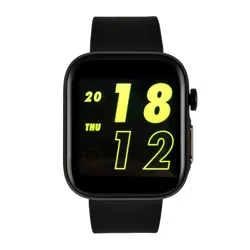
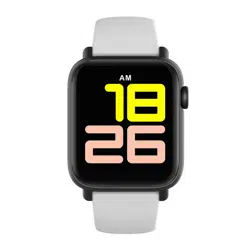
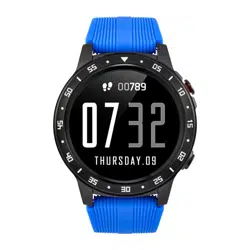
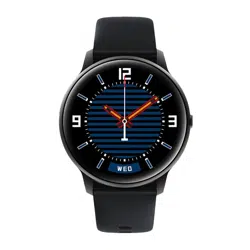
- To change the appearance of the main screen, hold it for 2
seconds, then you can select.
When the app launches, tap the middle clock icon.
Then go to "Notifications" and select the notifications you want
to receive. You can choose anything.
There is a "Phone" feature, to start it you need to select this
option in the app. If you select this function, the clock will show
incoming calls to your phone.
There is also a "Messages" function, you must select it in the
app to start it. When you select this option, the watch will
display SMS messages sent to your phone.
To view the messages, swipe up on the home screen.
APPLICATION UPDATES
NOTICES
If you want to use up-to-date apps, you need to update them
regularly. You can find information about the app in the icon in
the bottom right corner.
MAIN FUNCTIONS
recruitment. Once selected, you need to select it with a short
click. There are 4 dials built into the watch, but you can
download more in a dedicated app - you do this by typing in the
centre watch icon and selecting "Watch Appearance". Then
click "More dials" to download the dial of your choice.
- Sleep monitor.
From 22:00 to 8:00. You can check all the details of your sleep
quality in the app. If you connect your watch to your phone, the
sleep quality information is automatically saved in the app.
- Notifications. To see notifications with content, you need to
enter the app and select the notification you want. In addition,
you also need to get some approvals from your phone. Your
watch will vibrate when you receive a call or message. You can
also turn off the vibrating connection by pressing the physical
button. You can also reject a call from your smartwatch.
- Status bar: you can expand it from the home screen (swipe
down). Bluetooth status, brightness and vibration settings and
preferences are displayed.
- Activity information:To view the information, i.e. number of
steps, calories burned and distance travelled, move the home
screen to the left. Depending on the selector you choose, some
of this information will be shown on the home screen. The data
will also be stored in the app. The counter resets at 24:00.
- Remote music control: you can use the clock to control the
music playing on your phone. When you turn on music on your
phone, select the music icon in the smartwacth menu.
- Weather forecast. The phone must be GPS enabled and local
weather conditions can be obtained under normal network
conditions.
Sports modes: you can choose from 7 sports modes: walking,
running, cycling, basketball, football, badminton, hill climb.
To select an activity, go to the modes icon, click Play and select
the desired mode. You can take a break between activities and
then resume. Depending on the activity, heart rate, calories
burned, distance travelled, number of steps and speed of
movement are recorded.
- Blood pressure: Arterial pressure is the force exerted by blood
on the walls of arteries during contraction of the heart muscle
and its diastole. The accepted norm for systolic pressure is 120
mm Hg and for diastolic pressure 80 mm Hg. However, it
should be remembered that pressure is constantly changing
throughout the day and that it also changes with age. To
measure your blood pressure, select the appropriate icon from
the smartwatch menu, click on it and wait a few seconds. The
result will be displayed on the tracking screen.
-Blood oxygenation, i.e. saturation: by default, it is assumed that
the saturation level should be between 95% and 100%. To
measure blood oxygenation, select the oxygenation icon in the
smartwatch menu, click on it and wait a few seconds. The result
will be displayed on the watch screen
- Heart rate is the heart rate: it is the number of heart beats in one
minute. To measure your heart rate from the smartwatch menu,
select the heart rate icon, click on it and wait a few seconds.
The result is displayed on the watch screen. The accepted
norm is 60 to 100 beats per minute.
www.watchmark.com
ul. Paprotna 7
Wrocław
POLAND
Warranty service:
1. Under normal use of the products, provided that the product
has no mechanical damage and is not the result of improper
use, 24 months from the date of purchase, consumers can
benefit from free warranty services.
2.Consumers cannot benefit from the warranty if:
A. the damage is self-inflicted,
B. the warranty period has expired,
C. they have not used the product in accordance with the
instructions for use and maintenance,
D. the products have been disassembled, self-repaired or
immersed in water.
WARRANTY
2. Notes on water resistance (even if it's a water-resistant
watch):
Be aware of the following methods as they deteriorate the
waterproofing.
-Do not wear the watch in the shower.
-Do not wear the watch in a heated swimming pool, sauna or
other high temperature/humidity environment.
-Do not wear when washing hands or face or when working
where soap or detergent is used. After immersion in the sea,
rinse off any salt or dirt from the watch.
1.Protection:
-Clean the hand and belt with a soft cloth (use clean water or
seawater).
- Make sure the heart rate lens on the watch is close to your skin.
- Alarm: You can set multiple alarms through the app.
- Stopwatch. To start the stopwatch, go to the stopwatch icon
and click Play.
- Remote Shooting: this feature allows you to take photos
remotely when the watch is connected to your phone.
- Configure units: enter the app, select the middle clock icon,
then enter "Other".
- Sedentary lifestyle, water reminder: use the app to set how
often to move or drink water. To make the setting, enter the app,
click on the middle clock icon and select "Other".
- Menstrual cycle reminder: can be set from the app.
IMPORTANT INFORMATION
SMARTWATCH
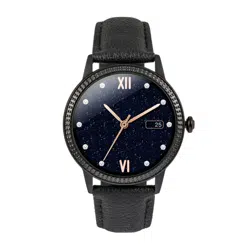
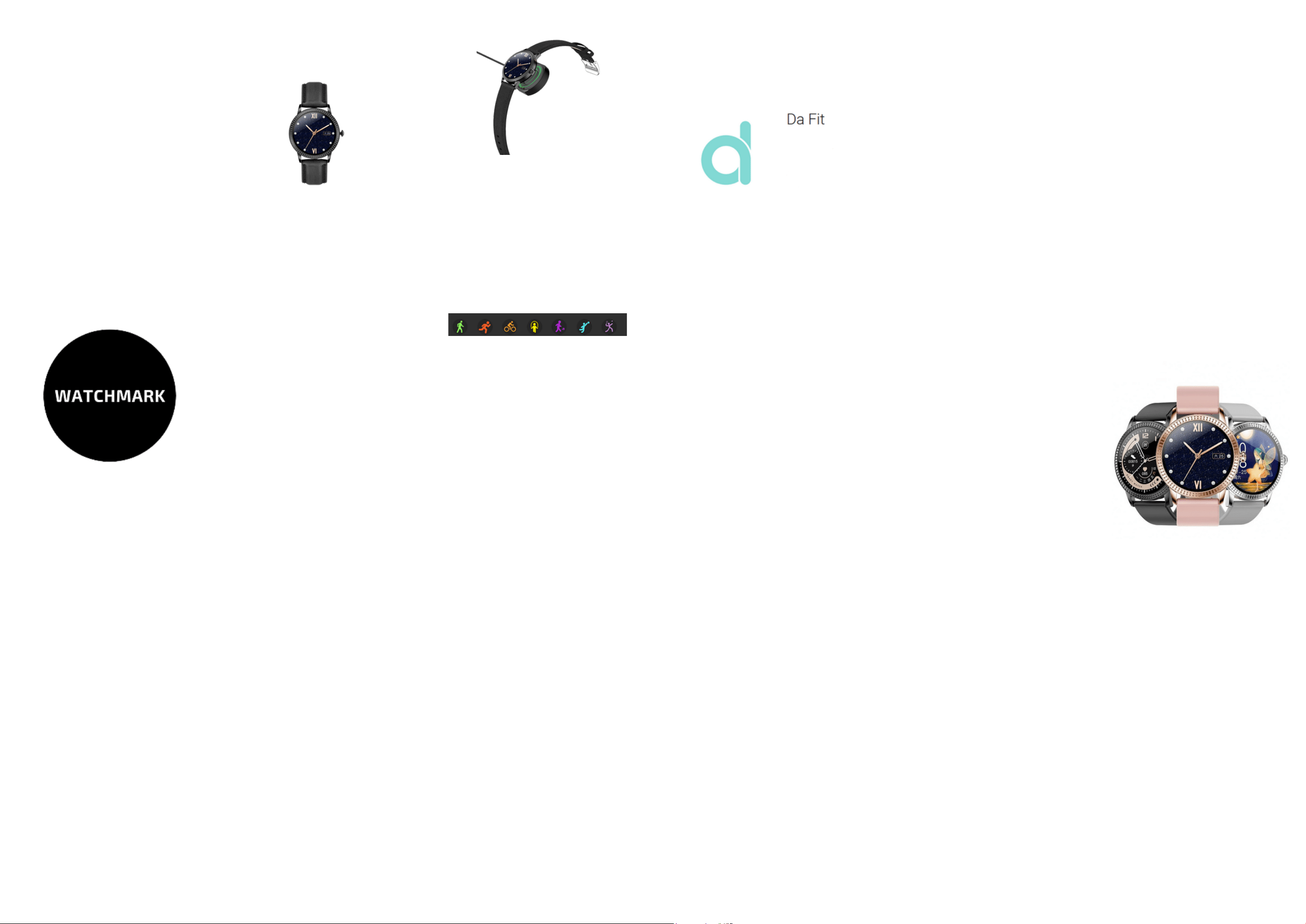
WATCHMARK WCF18 PRO
Manula instructions
watchmark.com