
Product Introduction
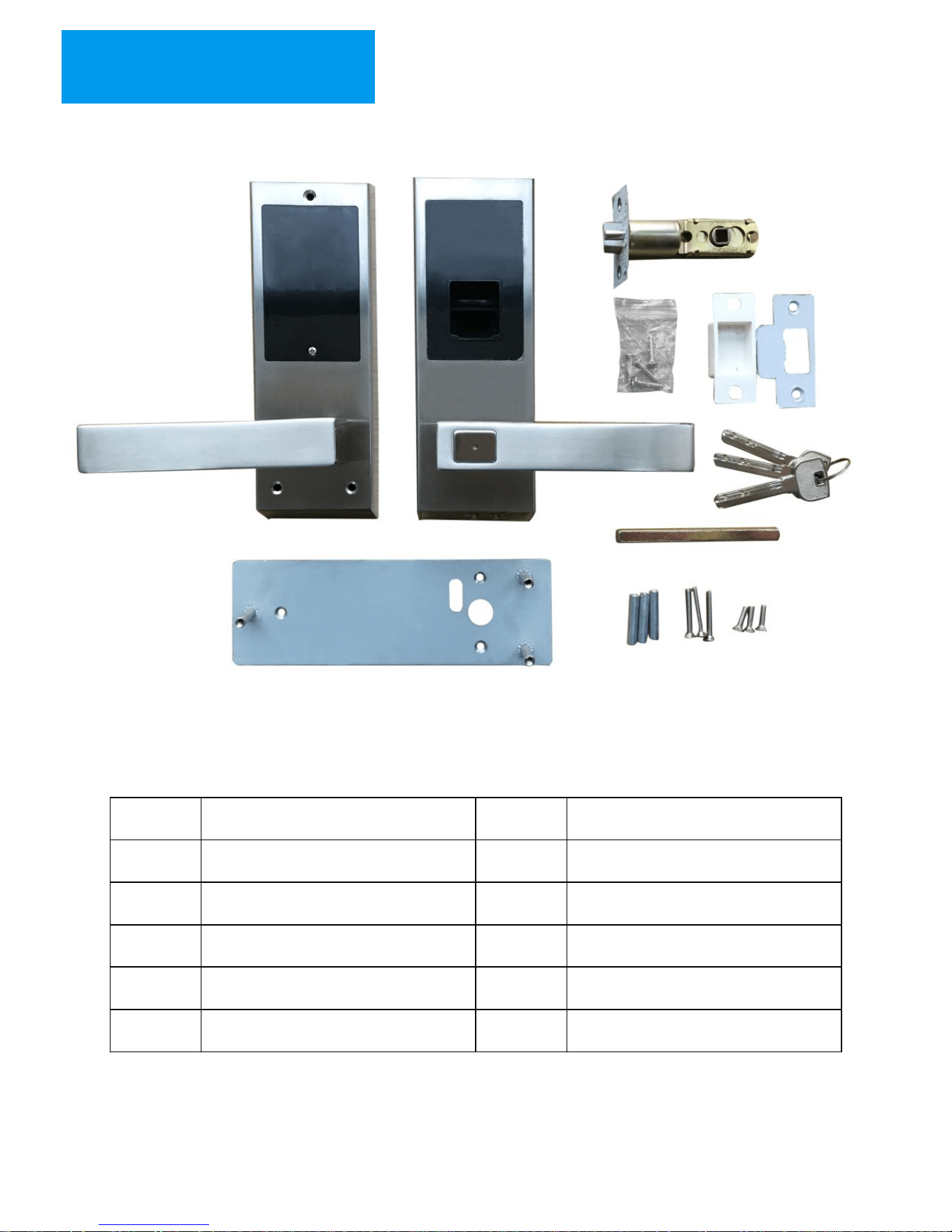
1. Product Guide
2. Brief Introduction
Installation
Operation
1. Some Suggestions to Help Capturing the Fingerprint
2. Fingerprint Unlocking
3. Password Unlocking
4. Mechanical Key Unlocking
5. Add Users under Normal Mode
6. Add Master User under Normal Mode
7. Add Normal User under Security Mode
8. Delete Normal User under Normal Mode
9. Delete Master User under Security Mode
10. Delete Normal User under Security Mode
11. Passage Mode
12. Restore the Lock
13. Software – User Copy
14. Software – Lock Assistant
15. Frequently Asked Questions (FAQs) and Troubleshooting
----------------------------------------------1
--------------------------------------------------------1
------------------------------------------------------3
-----------------------------------------------------------4
-------------------------------------------------------------7
--------------------7
--------------------------------------------------8
--------------------------------------------------8
---------------------------------------------9
---------------------------------------10
---------------------------------11
-------------------------------12
------------------------------13
-----------------------------14
----------------------------15
------------------------------------------------------16
----------------------------------------------------17
-----------------------------------------------17
-------------------------------------------20
-------------22
Downloaded from www.ManualsFile.com manuals search engine
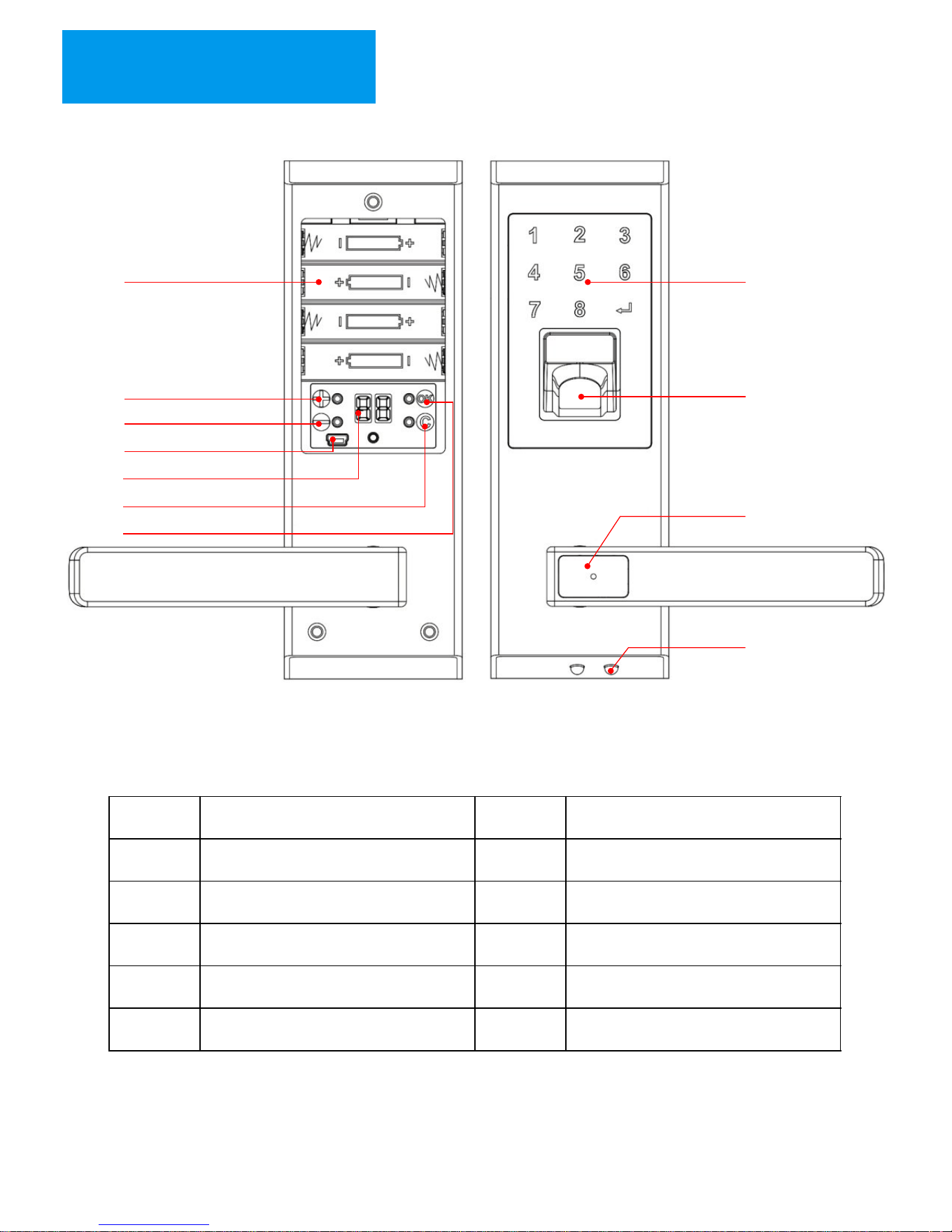
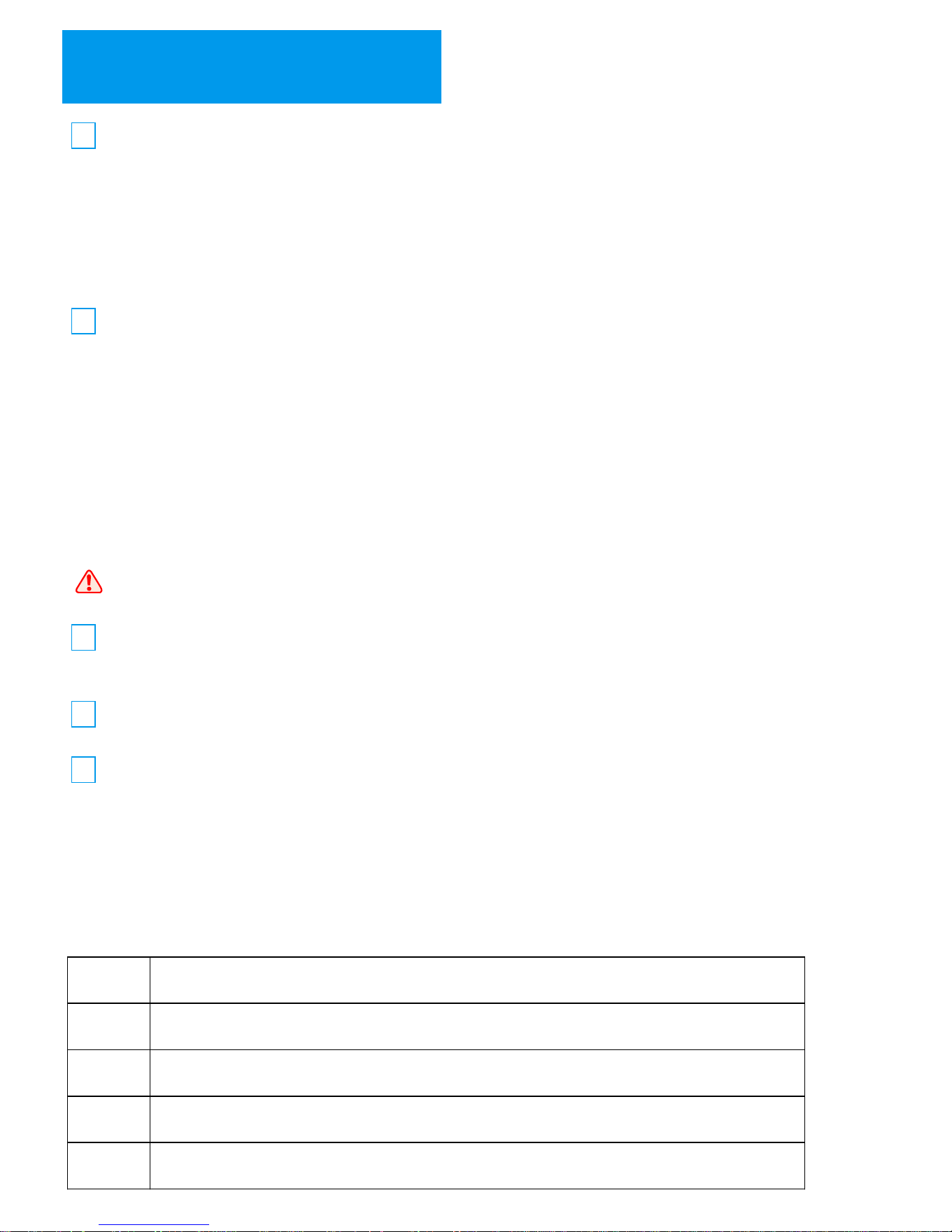
1
2
There are 99 users available in the lock, which are divided by 2 levers:
b) Normal Level: This level of users only can unlock the lock, which cannot
set up the lock or modify the other users. The ID range is from “01” to “95”.
There are 2 modes available in the lock,which are “Security Mode”
and “Normal Mode”:
a) Master Level: Besides unlocking the lock, the master user can add
and delete other users. The ID range is from “96” to “99”.
Brief Introduction
b) Normal mode: when there is no master user registered in the lock, the lock is
under normal mode. In this case, anyone can set up the lock, like adding new users,
deleting users and so on.
a) Security Mode: when there is master user registered in the lock, the lock
will be changed to Security Mode automatically. If people want to set up the lock
like adding new users, deleting users, they have to wait for the authorization of
master users before operation.
It is suggested to keep the lock under Security Mode for a better security.
3
Each ID only can be registered with one unlocking method: Fingerprint or Password.
The same fingerprint and same password cannot be registered in different ID.
4
For password user, the password has to be 8 digits' combination between “1” to “8”.
5
New lock under factory default (no users are registered in the lock) can be
unlocked by any fingerprint and password (password has to be 8 digits).
The ID will be shown as“00”.
Code Definition on Nixie Tube
There are 2 nixie tubes in the battery case after take out the battery cover, which
helps you to understand the lock states.
“AD”
“AL”
“FP”
“ID”
“NU”
the lock requires master user authorization.
delete all users in the lock (when the lock is under delete user operation)
delete user by inputting fingerprint or password directly (when the lock
is under delete user operation)
delete user by selecting ID (when the lock is under delete user operation)
the lock is under passage mode state.
3
Downloaded from www.ManualsFile.com manuals search engine
Installation
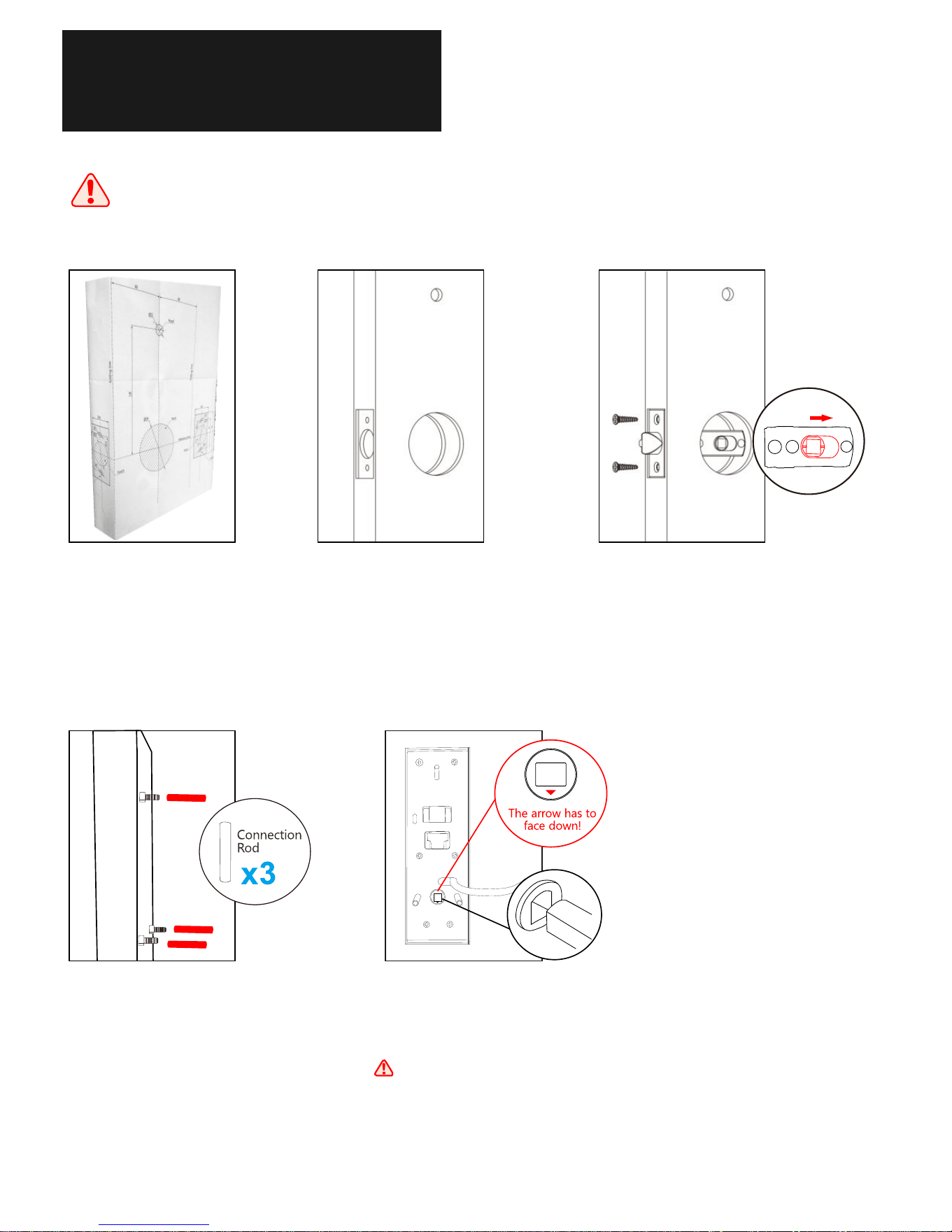
Nine times out of ten, an error is the result of an improper installation
and/or wiring by the user. If you're not feeling particularly tech savvy,
let a professional put it in.
4
1. Place the template
on the door to make
the holes, and then drill
holes for installation.
2. Determine the backset for
your door.
3. Install the latch, and
fasten with screws, if a
70mm backset is required,
move the hole to the
right side.
4. Install the connection
rods on the front panel.
5. Insert the spindle into
the hole on the front panel.
There is an arrow symbol
on the hole, make sure the
arrow is facing down.
60mm 70mm
2
3
/
4
“
2
3
/
8
“
Downloaded from www.ManualsFile.com manuals search engine
Installation
5
60mm 70mm
2
3
/
4
“
2
3
/
8
“
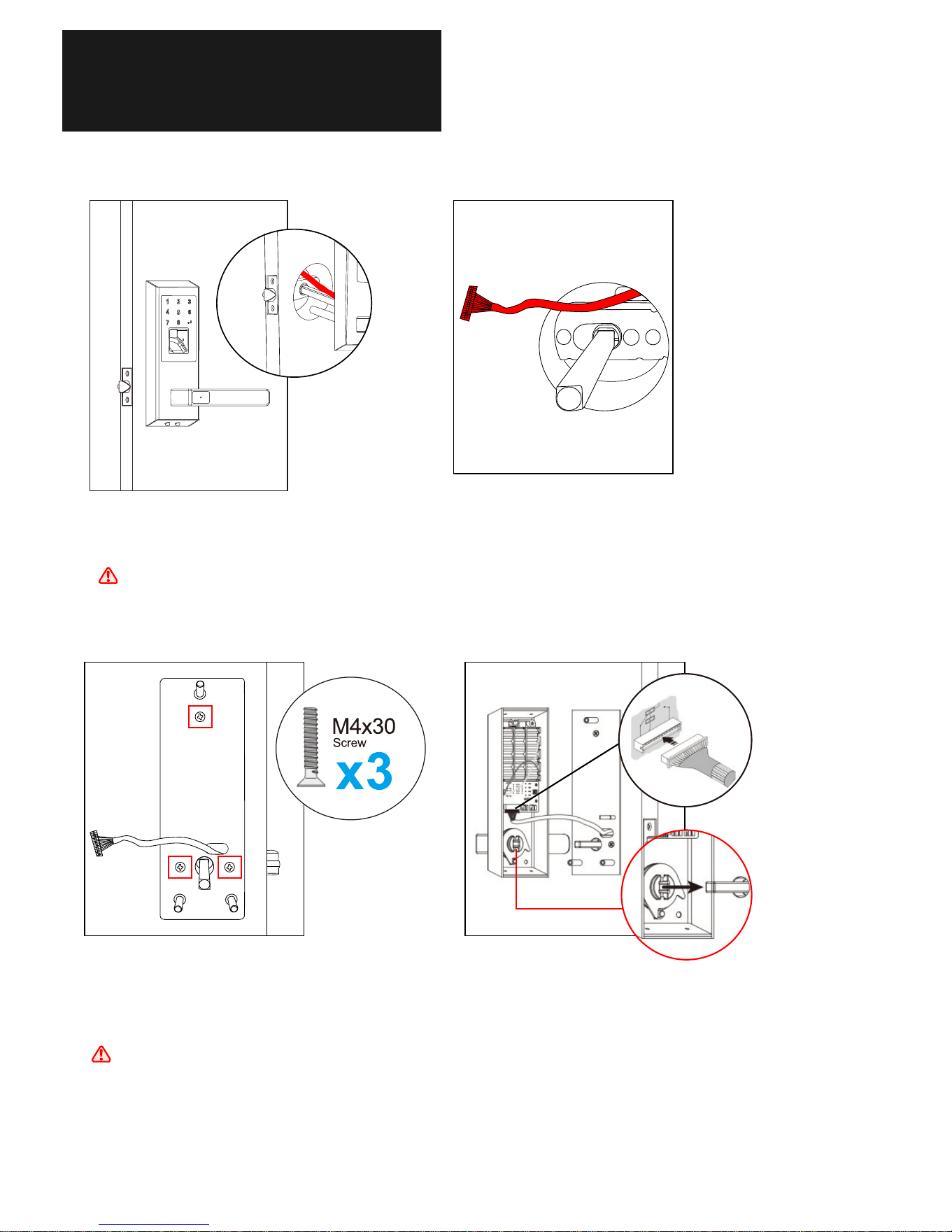
7. Install the base mounting
plate on the door, and fasten
with screws (M4x30)
The cable goes out from
the hold marked on the
picture.
6. Install the front panel on the door.
The cable goes on the top of the latch.
8. Connect the cable to the inside
panel, and the spindle goes into
the hole in the inside handle.
Downloaded from www.ManualsFile.com manuals search engine
Installation
6
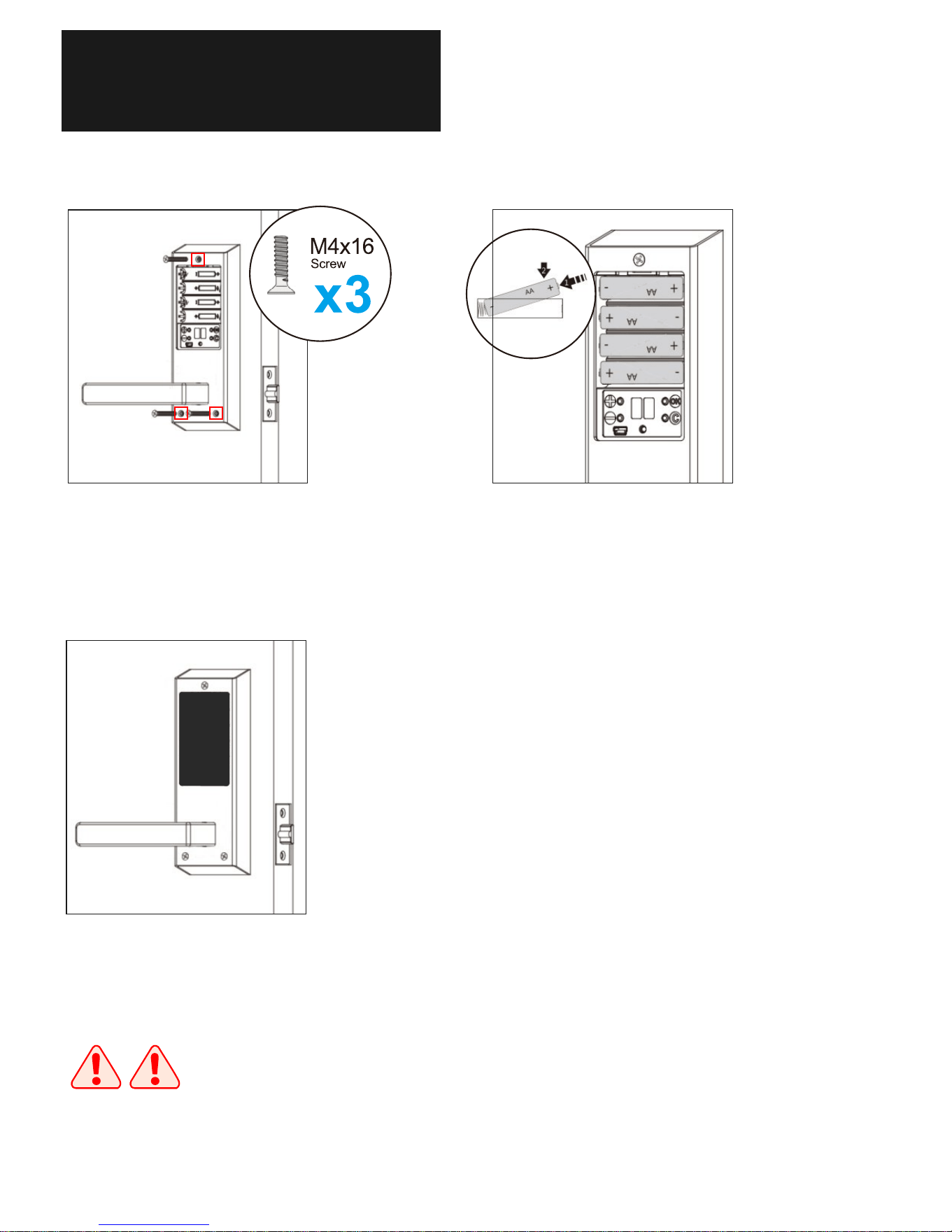
9. Install the inside panel on the
mounting plate, and fasten with
screw (M4x16)
10. Install the batteries
11. Replace the battery case
cover and fasten with screw.
Once finishing the installation, please try to unlock the lock to make sure
the installation is successful.
Downloaded from www.ManualsFile.com manuals search engine
Operation
Some Suggestions to Help Capturing the Fingerprint
1
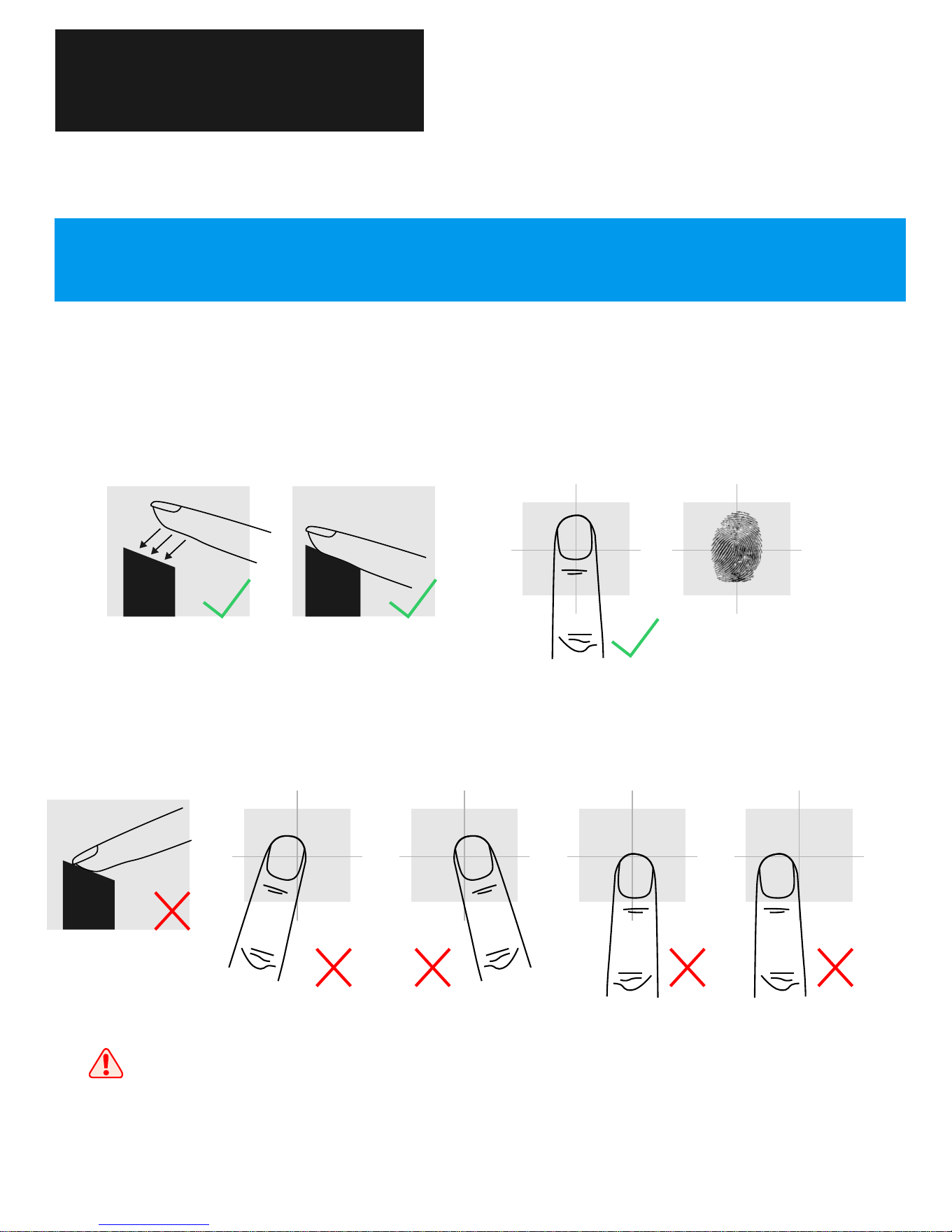
When placing the finger on the sensor, please make sure the “core” of fingerprint is
staying in the main area of sensor directly with a little bit pressure. Like the pictures
show as following:
The sensor may not capture the correct fingerprint image if you take the
following operations.
It is suggested to register the thumb, first finger, and middle finger
for better fingerprint images.
7
Downloaded from www.ManualsFile.com manuals search engine
2
Fingerprint Unlocking
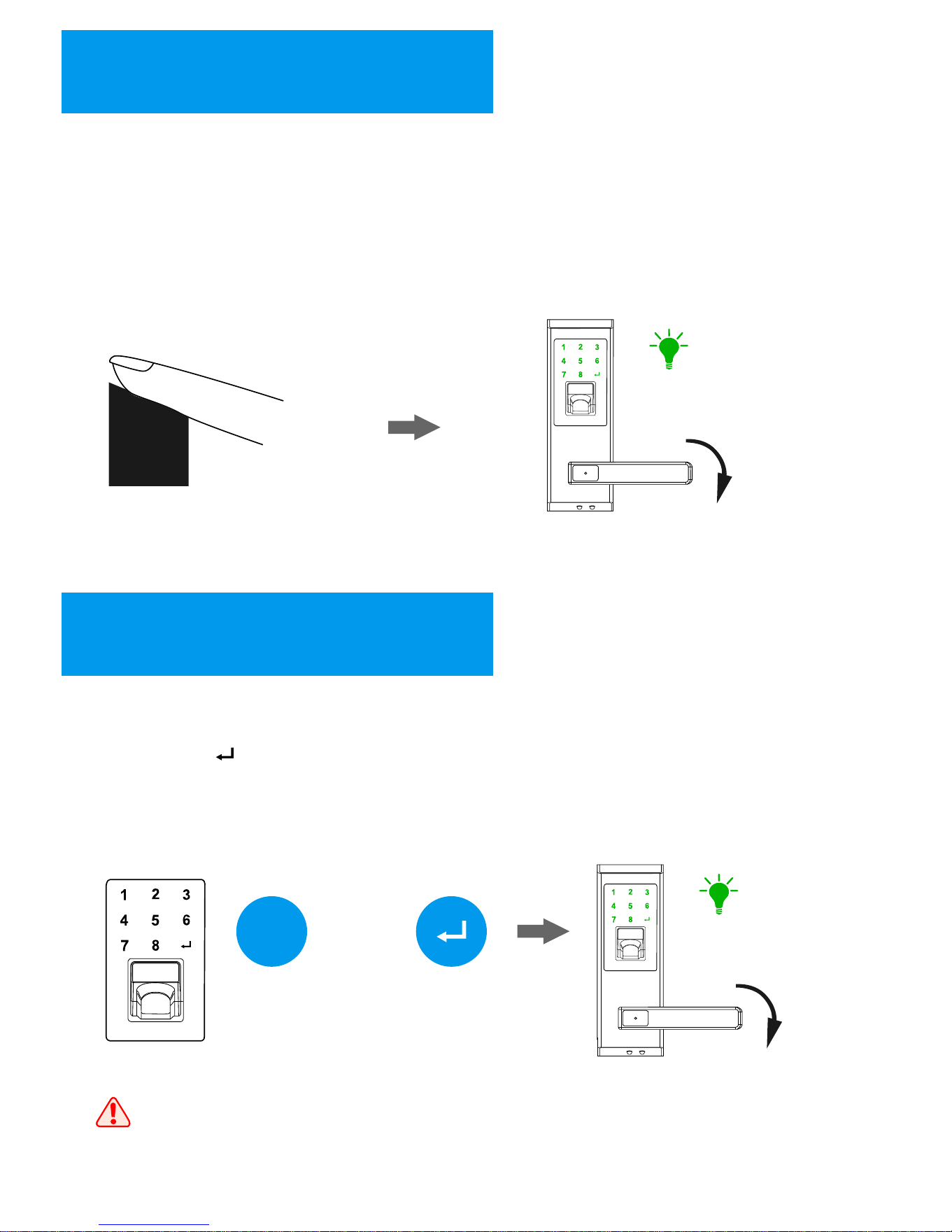
Place the finger on the sensor, the lock will be activated automatically and
started to capture the fingerprint image for identification. Once the identification
is passed, the keypad shows “Green” light with sounds, then you can press down
the handle for unlocking.
“Green”
3
Password Unlocking
Touch the keypad to activate the lock, then input the password (8 digits)
with pressing “ ” to finish. If the password is correct, the keypad shows
“Green” light with sounds, then you can press down the handle for
unlocking.
***
(8 digits)
“Green”
When inputting a wrong password for 3 times, the lock will be locked for
5 minutes. During the 5 minutes, the lock cannot be activated and all
operations are not available. After that, the lock returns to normal state.
+
8
Downloaded from www.ManualsFile.com manuals search engine
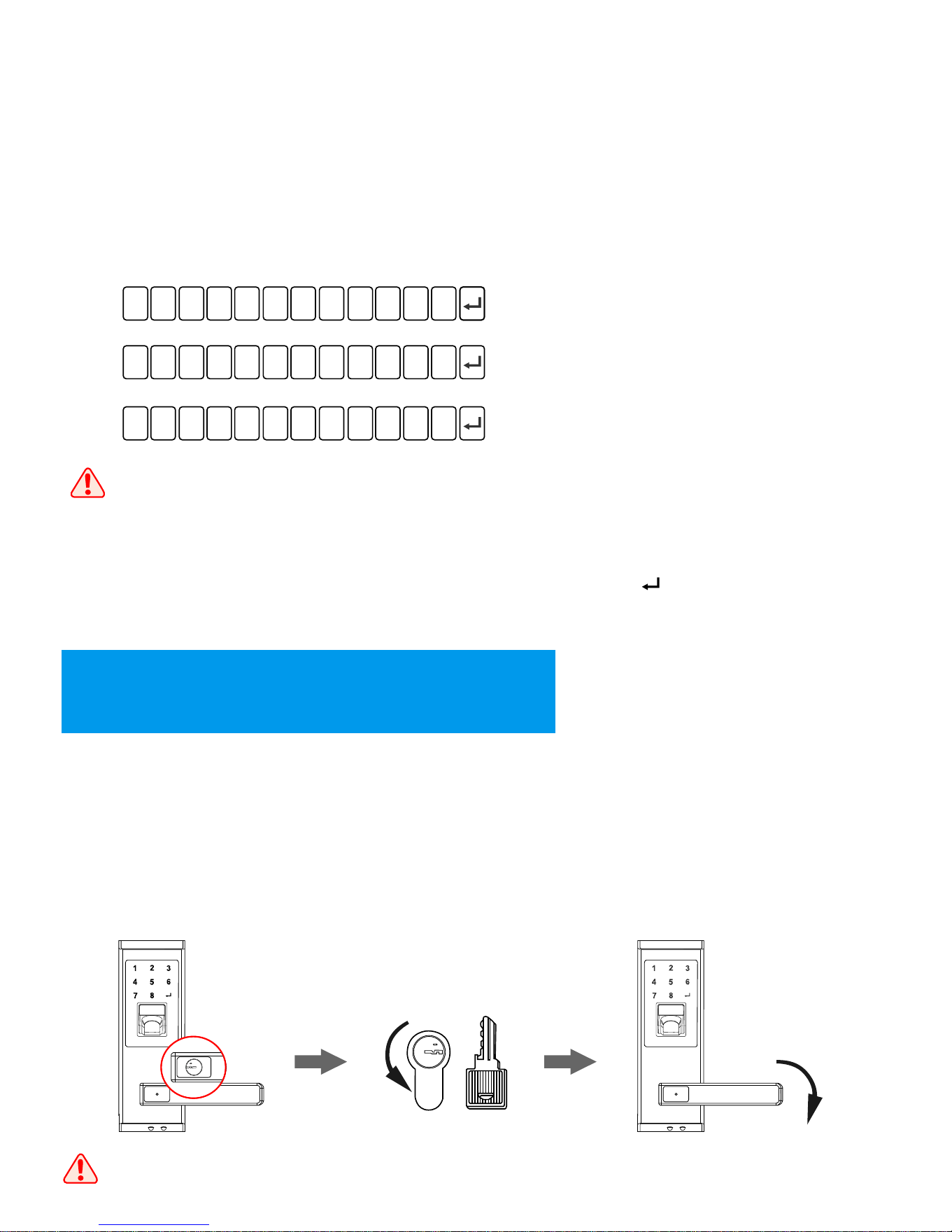
Random Password Protection
For a better security protection to the password user, the lock is designed
with a random password protection. You can add any digits before and
after the real password.
4
Mechanical Key Unlocking
When there is problem with electronic part, and the batteries run out of power, using mechanical key
is the way to unlock the lock.
For example, the password is “1234-5678”, you can unlock the
lock by inputting the password as following:
1:
2:
3:
1 2
3
4
5
6 7 8
X X X X
X X X X 1 2
3 4
5
6
7 8
X X X
1 2
3
4
5
6 7 8
X
1.The lock allows you to input a password with maximum 17 digits
which include the real password (8 digits)
2.If you input the password with 17 digits including the real password,
the lock will unlock automatically without pressing “ ” to confirm.
Take out the cylinder cover on the outside handle with a tiny tool from the small hole
in the middle of cover, then insert the key and turn the key 180 degree. After that,
press down the handle for unlocking.
180
o
The mechanical key can’t unlock the lock directly.
9
Downloaded from www.ManualsFile.com manuals search engine
5
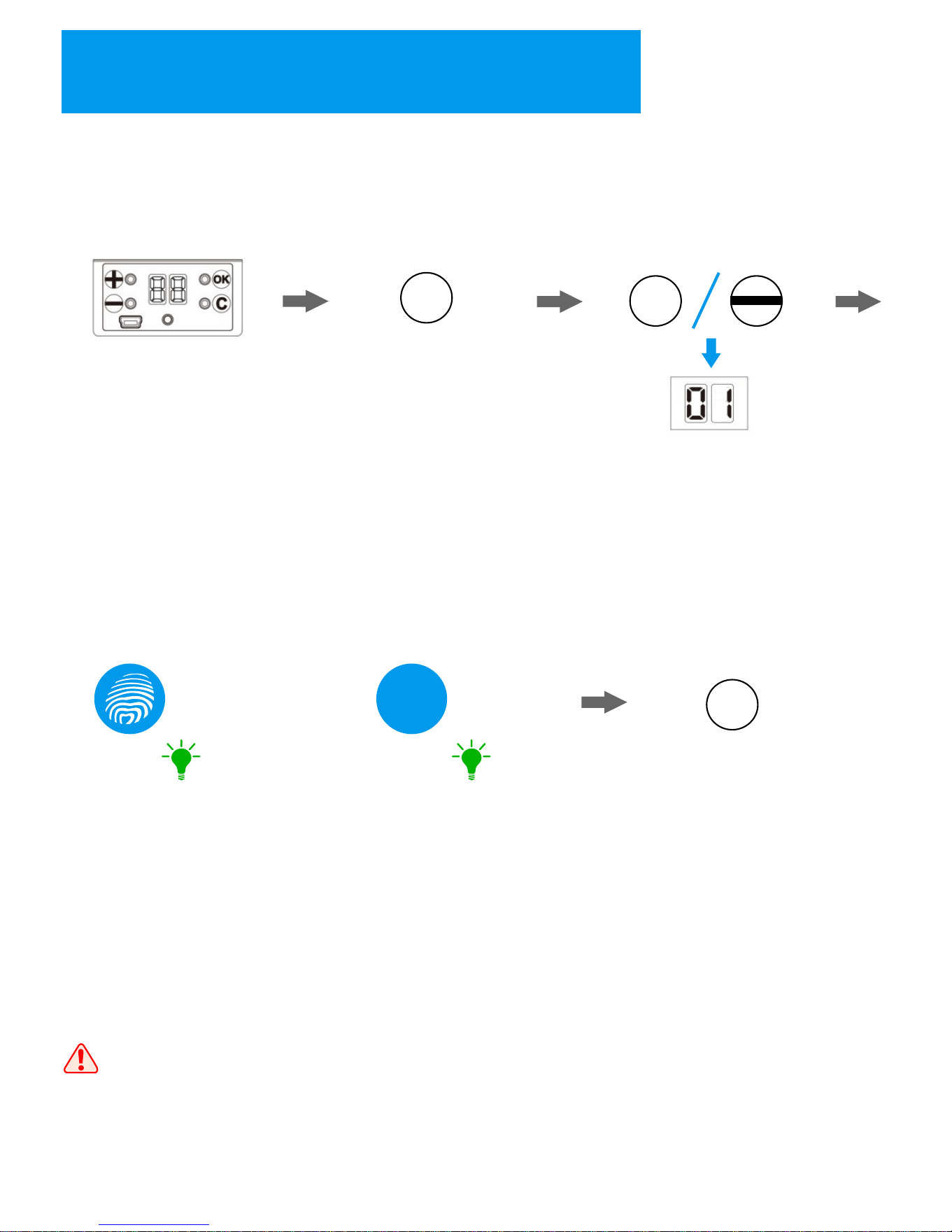
Add Users under Normal Mode
1. Activate the lock
by pressing any key
on the lock;
+
2. Press “+” key to enter
registration state;
3. Press “+” and “-“ key to select
the ID, then press “OK” to confirm;
4. Fingerprint User: Place the
finger on the sensor in 2 times;
(Register Success: the keypad
shows “Green” light with sound;
Register Fail: the keypad shows
“Red” light with sound);
x2
5. Password User: input the
password in 2 times;
(Register Success: the keypad
shows “Green” light with sound;
Register Fail: the keypad shows
“Red” light with sound);
***
x2
6. The lock will show the next ID
for registering another user, repeat
the steps above if there are other
users need to be registered. If not,
you can press “C” to exit.
Once finishing the user's registration, please try to unlock the lock to
make sure the user registration is successful.
“Green” “Green”
C
OR
+
10
Downloaded from www.ManualsFile.com manuals search engine
6
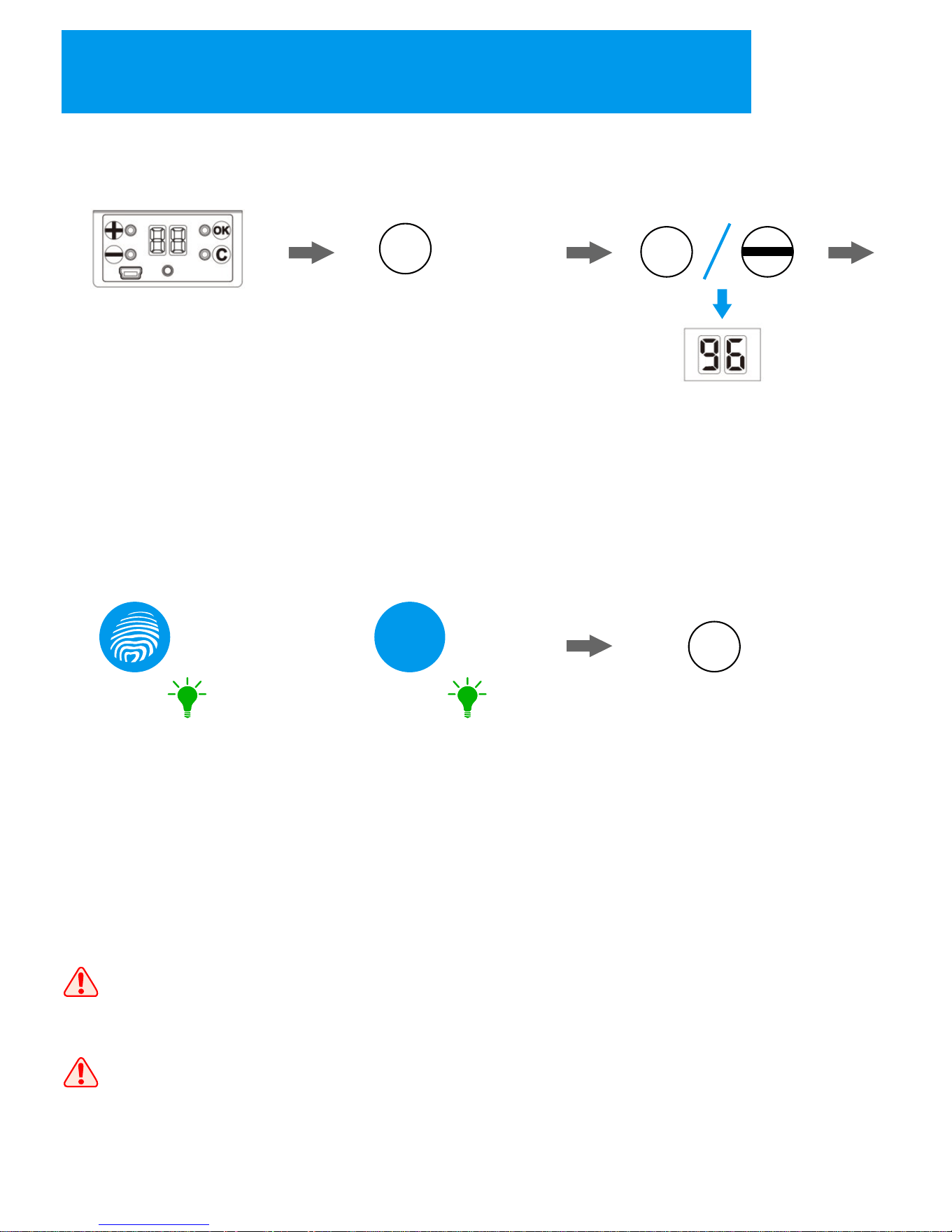
Add Master User under Normal Mode
1. Activate the lock
by pressing any key
on the lock;
+
2. Press and hold “+” key
for 3 seconds to enter
master user registration
state; (the ID shows “96”)
4. Fingerprint User: Place the
finger on the sensor in 2 times;
(Register Success: the keypad
shows “Green” light with sound;
Register Fail: the keypad shows
“Red” light with sound);
x2
5. Password User: input the
password in 2 times; (Register
Success: the keypad shows
“Green” light with sound;
Register Fail: the keypad shows
“Red” light with sound);
***
x2
6. The lock will show the next ID
for registering another user, repeat
the steps above if there are other
users need to be registered. If not,
you can press “C” to exit.
1. Once finishing the user's registration, please try to unlock the lock
to make sure the user registration is successful.
3. Press “+” and “-“ key
to select the ID, then
press “OK” to confirm;
2.When there is master user registered in the lock, the lock will switch to
“Security Mode” automatically.
=3S
“Green” “Green”
C
+
OR
11
Downloaded from www.ManualsFile.com manuals search engine
7
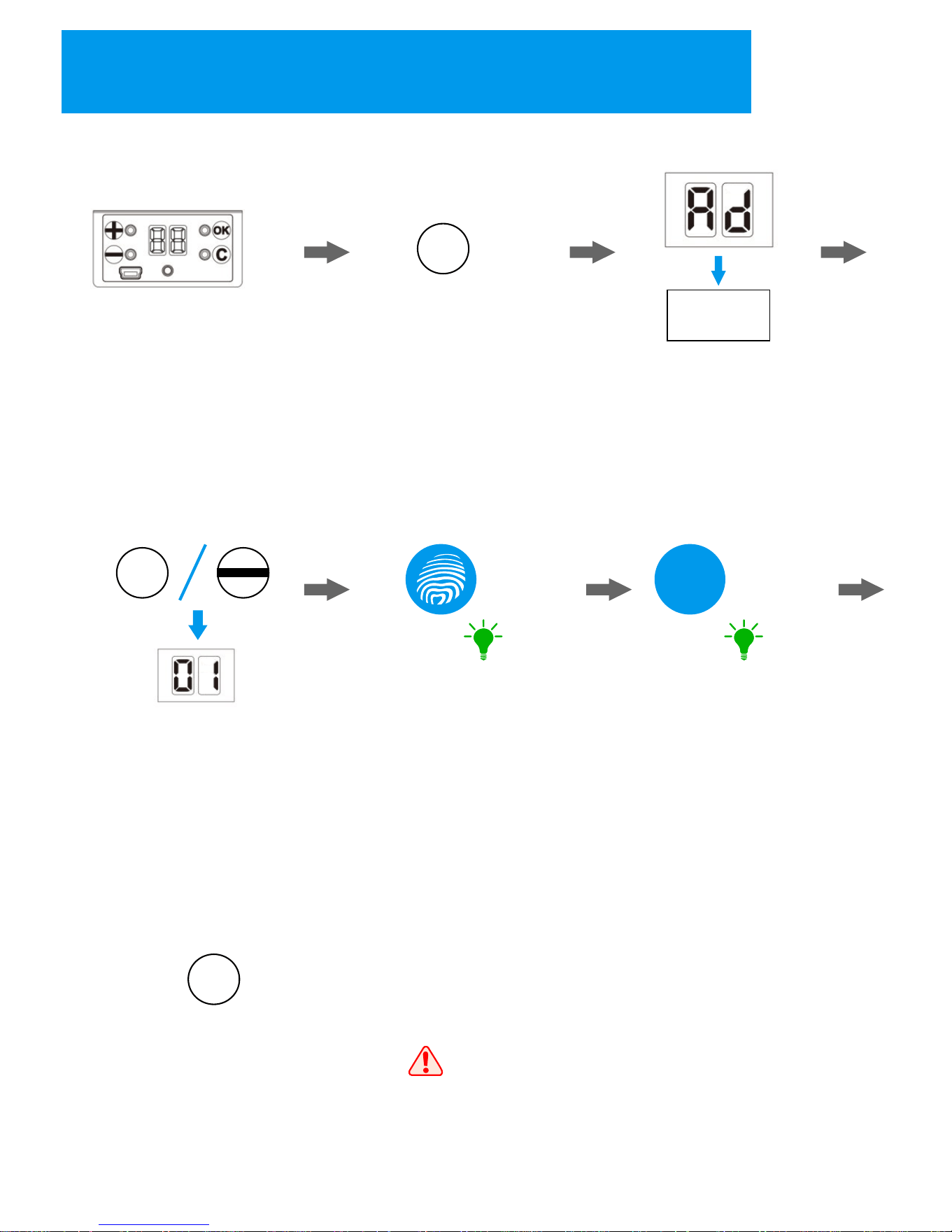
Add Normal User under Security Mode
1. Activate the lock
by pressing any key
on the lock;
+
2. Press “+” key to enter
user registration state;
4. Press “+” and “-“ key to
select the ID, then press “OK”
to confirm;
x2
5. Fingerprint User: Place the
finger on the sensor in 2 times;
(Register Success: the keypad
shows “Green” light with sound;
Register Fail: the keypad shows
“Red” light with sound);
***
x2
6. Password User: input the
password in 2 times;
(Register Success: the keypad
shows “Green” light with sound;
Register Fail: the keypad shows
“Red” light with sound);
3. Place the master user
for authorization;
(the nixie tubes show “AD”
for master user authorization)
6. The lock will show the next ID
for registering another user,
repeat the steps above if there
are other users need to be
registered. If not, you can press
“C” to exit.
Once finishing the user's registration,
please try to unlock the lock to make sure
the user registration is successful.
“Green” “Green”
C
Master User
Authorization
+
12
Downloaded from www.ManualsFile.com manuals search engine
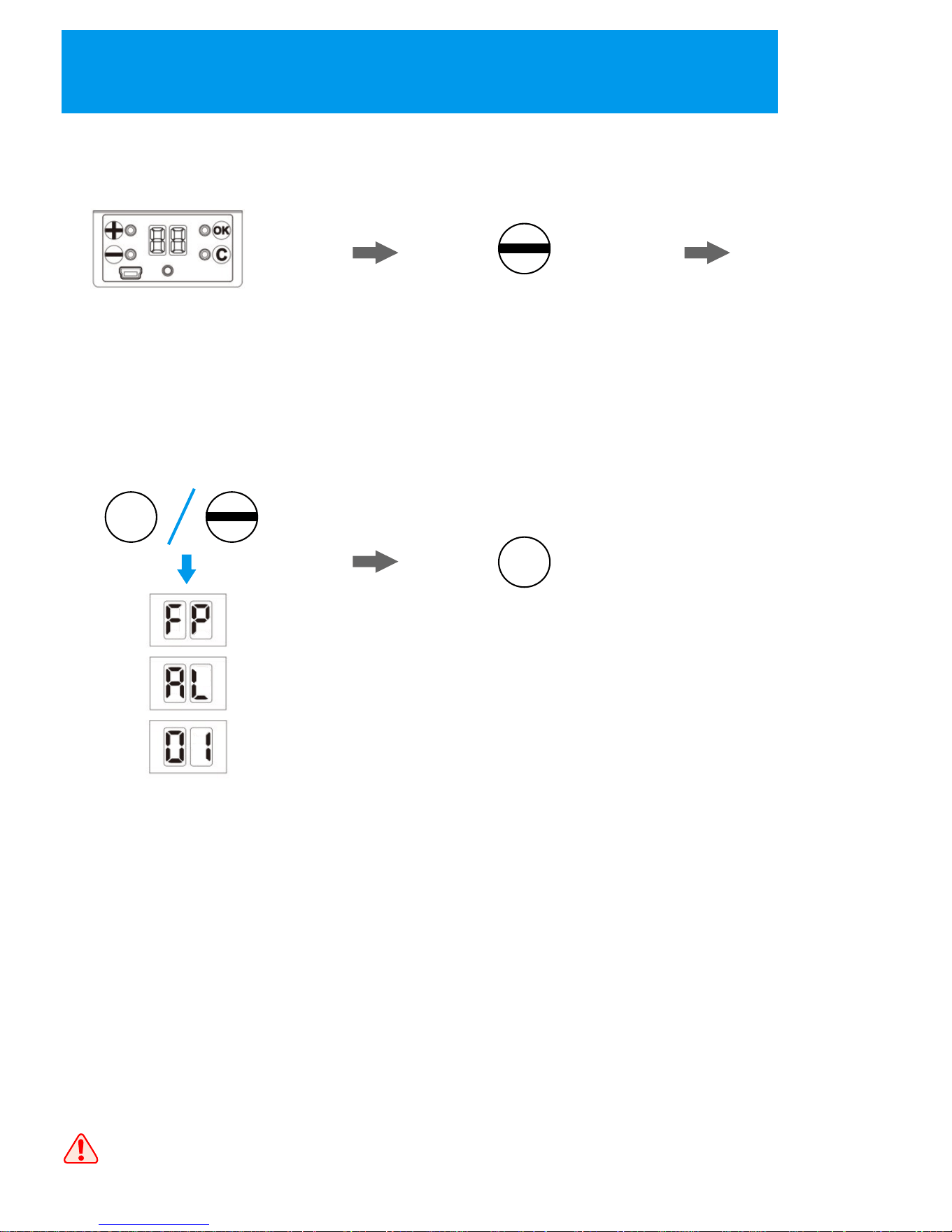
8
Delete Normal User under Normal Mode
1. Activate the lock
by pressing any key
on the lock;
2. Press “-“ key to enter
user deletion state;
4. Press “C” to exit
Once finish the user deletion, please try to use that user to unlock
and make sure the deletion is successful.
C
3. Press “+” and “-“ to select the
way to delete the user, then
press “OK” to confirm;
FP: input the fingerprint/password
you want to delete twice, then the
lock will delete that user;
AL: if you want to delete all
normal users, select this way
and the lock will delete all users;
ID: select the user ID you want to
delete, then press “OK” to confirm,
the lock will delete that user
+
13
Downloaded from www.ManualsFile.com manuals search engine
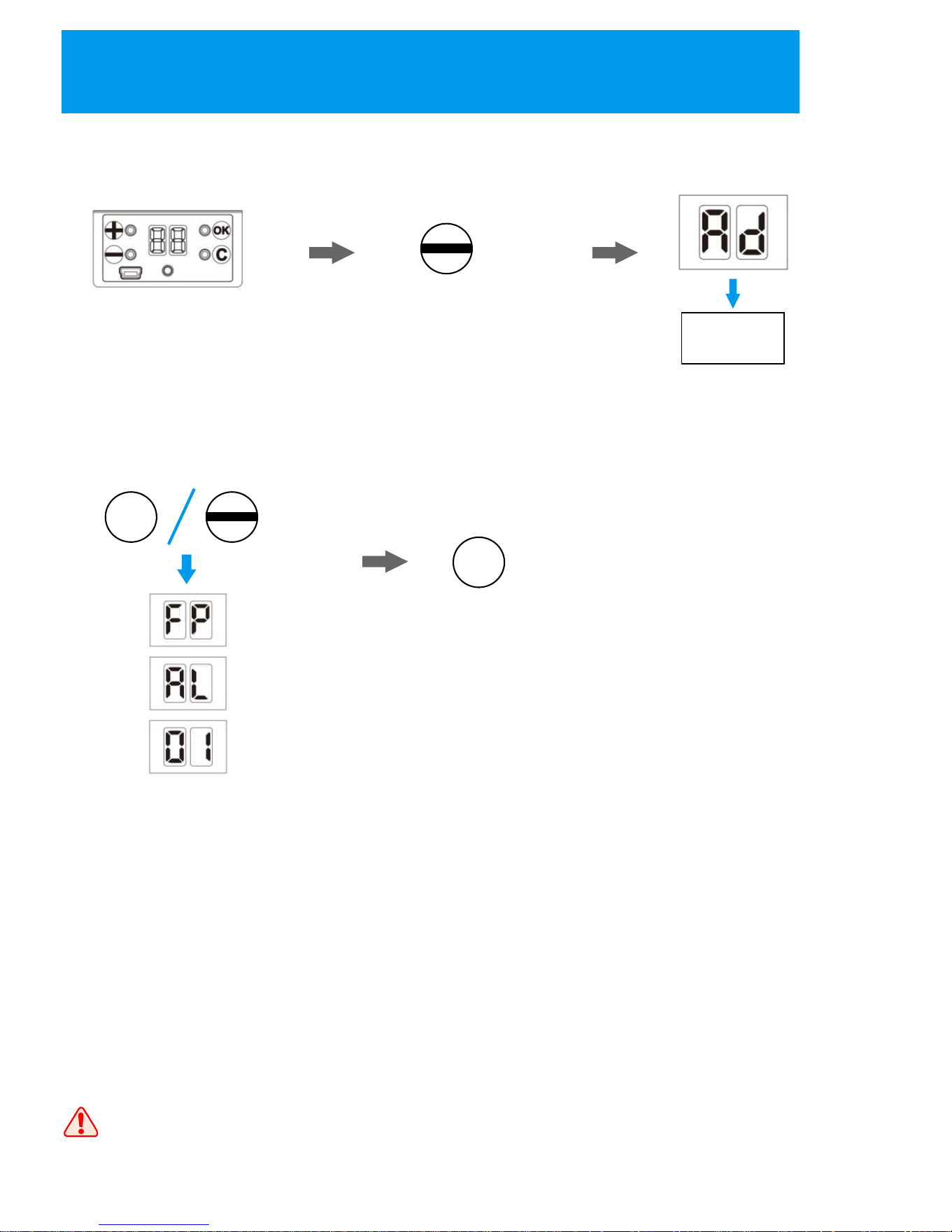
9
Delete Master User under Security Mode
1. Activate the lock
by pressing any key
on the lock;
2. Press and hold “-“
key to enter master
user deletion state;
5. Press “C” to exit
Once finish the user deletion, please try to use that user to unlock
and make sure the deletion is successful.
C
4. Press “+” and “-“ to select the
way to delete the user, then press
“OK” to confirm;
FP: input the fingerprint/password
you want to delete twice, then the
lock will delete that user;
AL: if you want to delete all
master users, select this way
and the lock will delete all users;
ID: select the user ID you want to
delete, then press “OK” to confirm,
the lock will delete that user
3. Place the master user
for authorization;
(the nixie tubes show “AD”
for master user authorization)
Master User
Authorization
+
=3S
14
Downloaded from www.ManualsFile.com manuals search engine
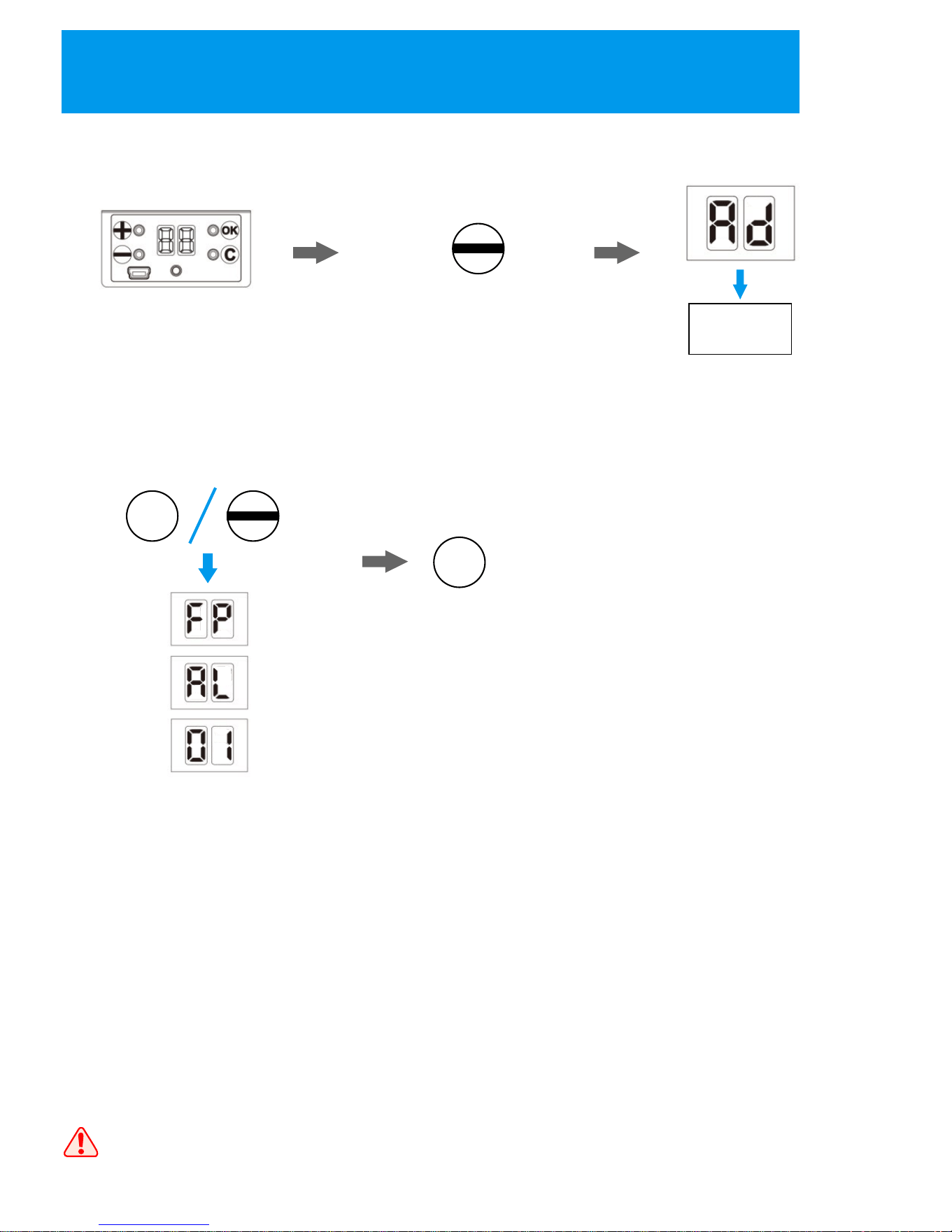
+
10
Delete Normal User under Security Mode
1. Activate the lock
by pressing any key
on the lock;
2. Press “-“ key to enter
user deletion state;
3. Place the master
user authorization;
(the nixie tubes show “AD” for
master user authorization);
5. Press “C” to exit
Once finish the user deletion, please try to use that user to unlock
and make sure the deletion is successful.
C
4. Press “+” and “-“ to select the
way to delete the user, then press
“OK” to confirm;
FP: input the fingerprint/password
you want to delete twice, then the
lock will delete that user;
AL: if you want to delete all
master users, select this way
and the lock will delete all users;
ID: select the user ID you want to
delete, then press “OK” to confirm,
the lock will delete that user
Master User
Authorization
15
Downloaded from www.ManualsFile.com manuals search engine
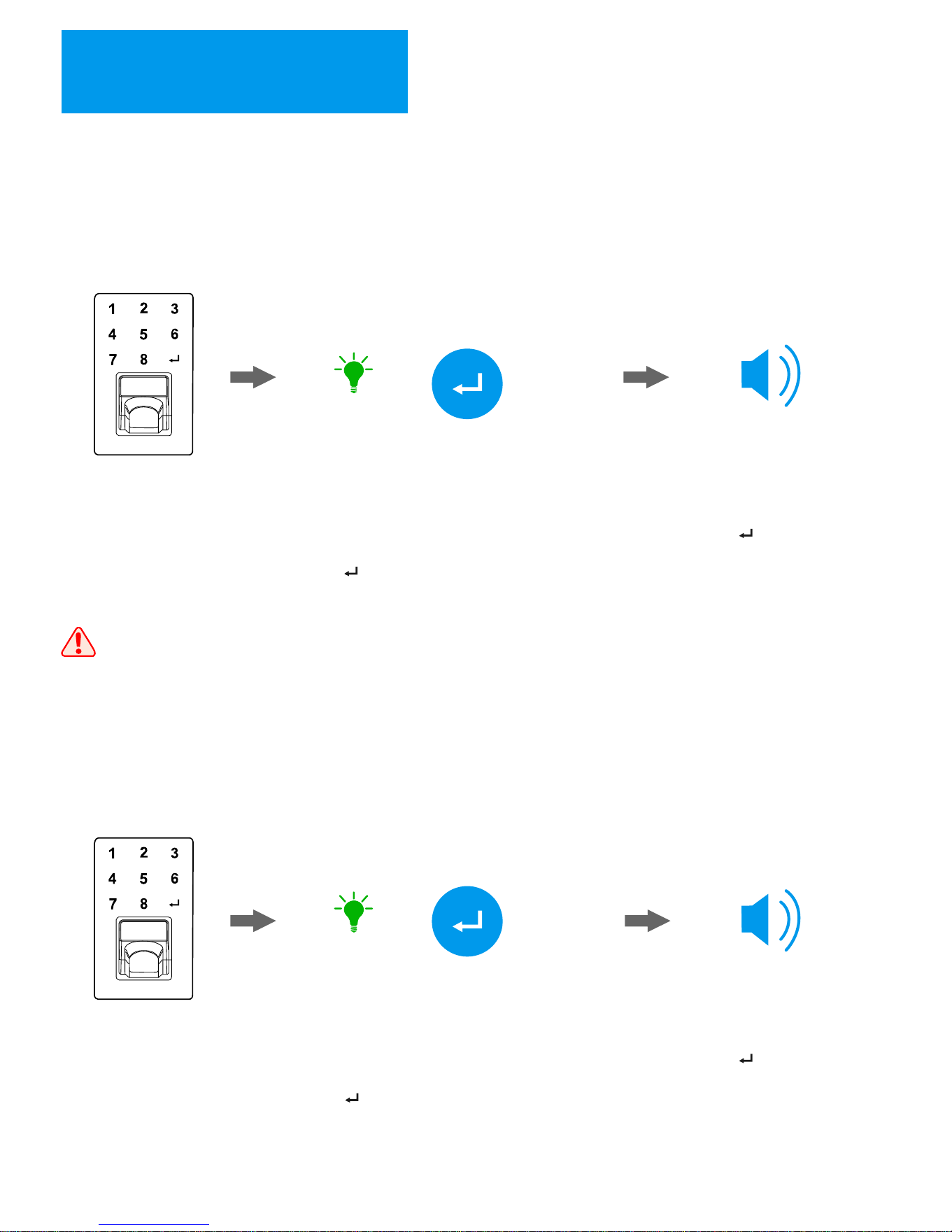
11
Passage Mode
When the lock is required to unlock frequently, set the lock to passage mode can
let the people unlock the lock without any identification.
Enable the passage mode
1. Unlock the lock with
any registered user
1.Touch the keypad to
activate the lock
Disable the passage mode
2.When the keypad shows
“green” light with sound, press
the “ ” key for 3 seconds.
=3S
“Green”
3.Release the “ ” key when hearing
“beep-beep” sound, and the lock is
under passage mode.
When the lock is under passage mode, you can just press down the handle
to unlock like a normal lock.
=3S
“Green”
2.When the keypad shows
“green” light with sound, press
the “ ” key for 3 seconds.
3.Release the “ ” key when hearing
“beep –bee'” sound, and the motor
drives. The lock exits the passage
mode.
16
Downloaded from www.ManualsFile.com manuals search engine
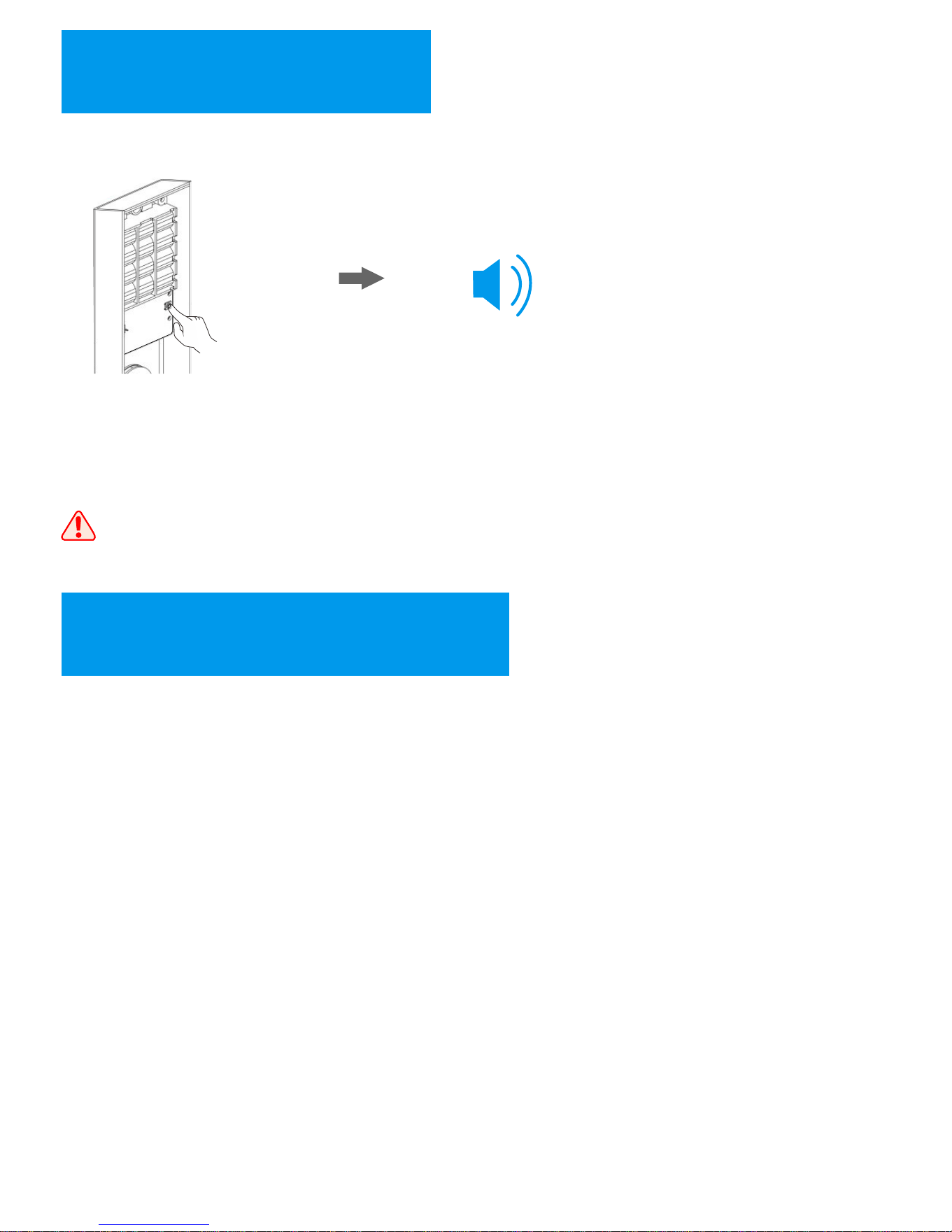
12
Restore the Lock
When the lock has problems and you can try to restore the lock to solve the problems.
1.The restore key is on the
back of interior panel, which
is in white color. Press the key
for 3 seconds.
2.Release the key when hearing
“beep” sound, then the lock will
restored to factory default.
Once restore the lock, all users including normal users and
master users will be deleted.
=3S
13
Software – User Copy
With the software “User Copy”, you can backup and recover the user data to the lock.
The software only works with Microsoft Windows XP, 7, 8, and 10 systems.
17
Downloaded from www.ManualsFile.com manuals search engine
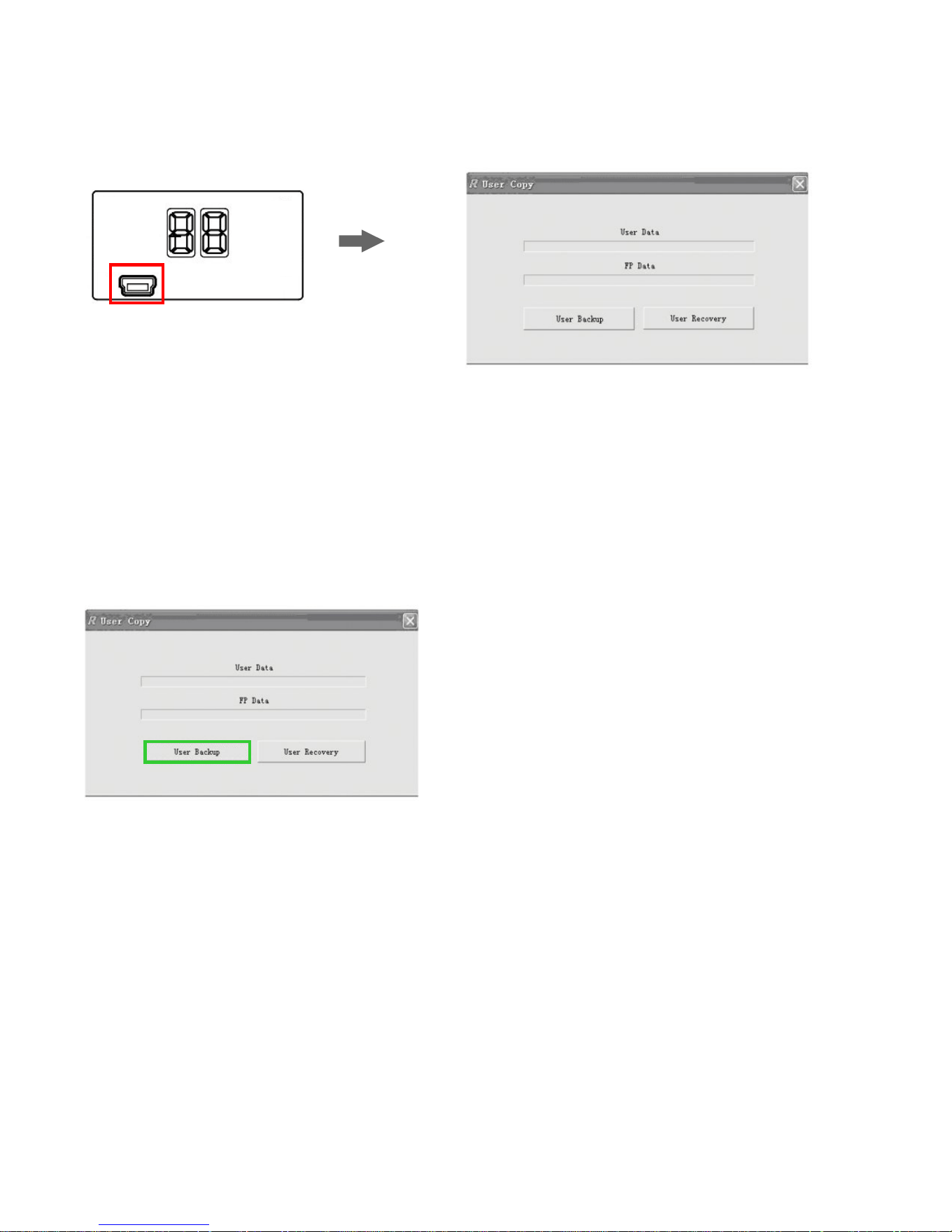
User data back up
1.Connect the lock to the computer
through the USB cable. The nixie
tubes show “CO” if the connection
is successful.
2.Open the software “User Copy”;
3.Click “User Backup” and select the
direction to save the file, then the user
data will be transferred to the computer.
Mini USB
18
Downloaded from www.ManualsFile.com manuals search engine
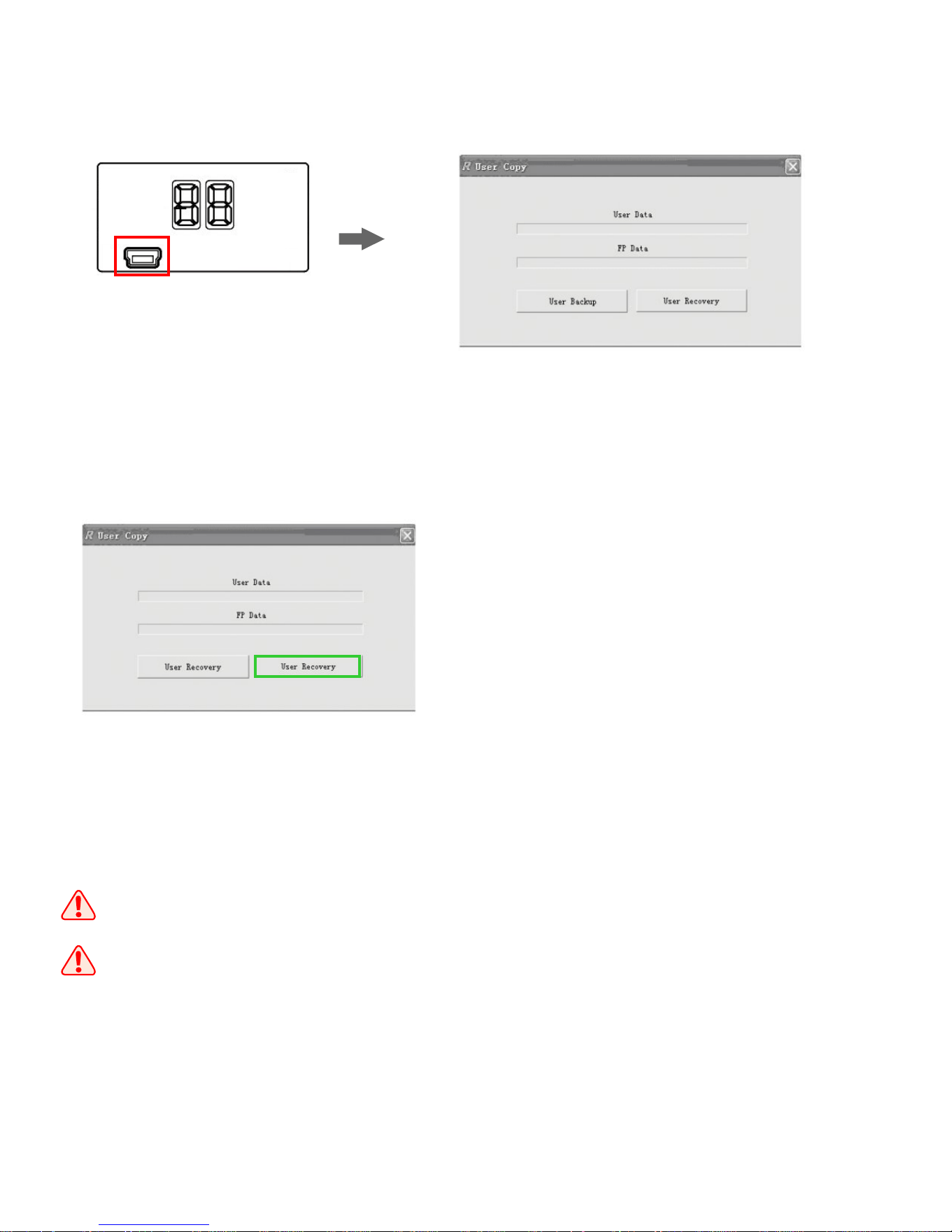
User data recovery
1.Connect the lock to the computer
through the USB cable. The nixie
tubes show “CO” if the connection
is successful.
2.Open the software “User Copy”;
3.Click “User Recovery” and select the
file in the computer, then the user data
will be transferred to the lock.
1.The users in the lock will be recovered to the users saved in the file.
2.When the lock is in “Security Mode”, it needs master user authorization
before operations. The nixie tubes show “AD” for the master user
authorization.
Mini USB
19
Downloaded from www.ManualsFile.com manuals search engine
14
Software – Lock Assistant
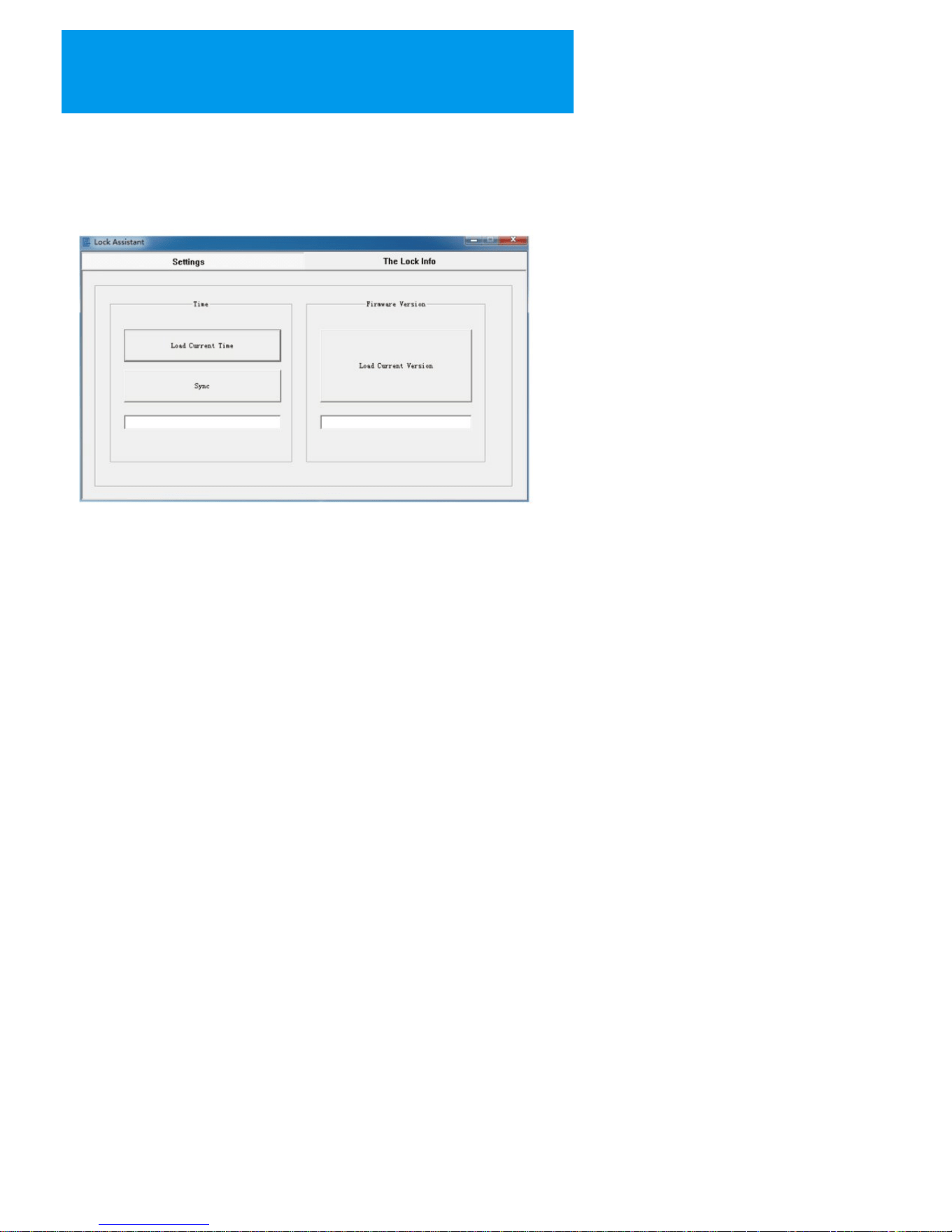
With the “Lock Assistant” software, you can set up the lock and download the unlock
records. The software only works with Microsoft Windows XP, 7, 8, and 10 systems.
Setting
This option helps you to check the firmware version in the lock, and set up the time in the lock.
Load Current Time:
The software will transfer the time in the lock and display in the software;
Sync:
The software will transfer the time in the computer to the lock and update the time.
Load Current Version:
The software will transfer the firmware version in the lock and display in the software;
The Lock Info:
This option helps you to download the user data and unlock records to the computer.
20
Downloaded from www.ManualsFile.com manuals search engine
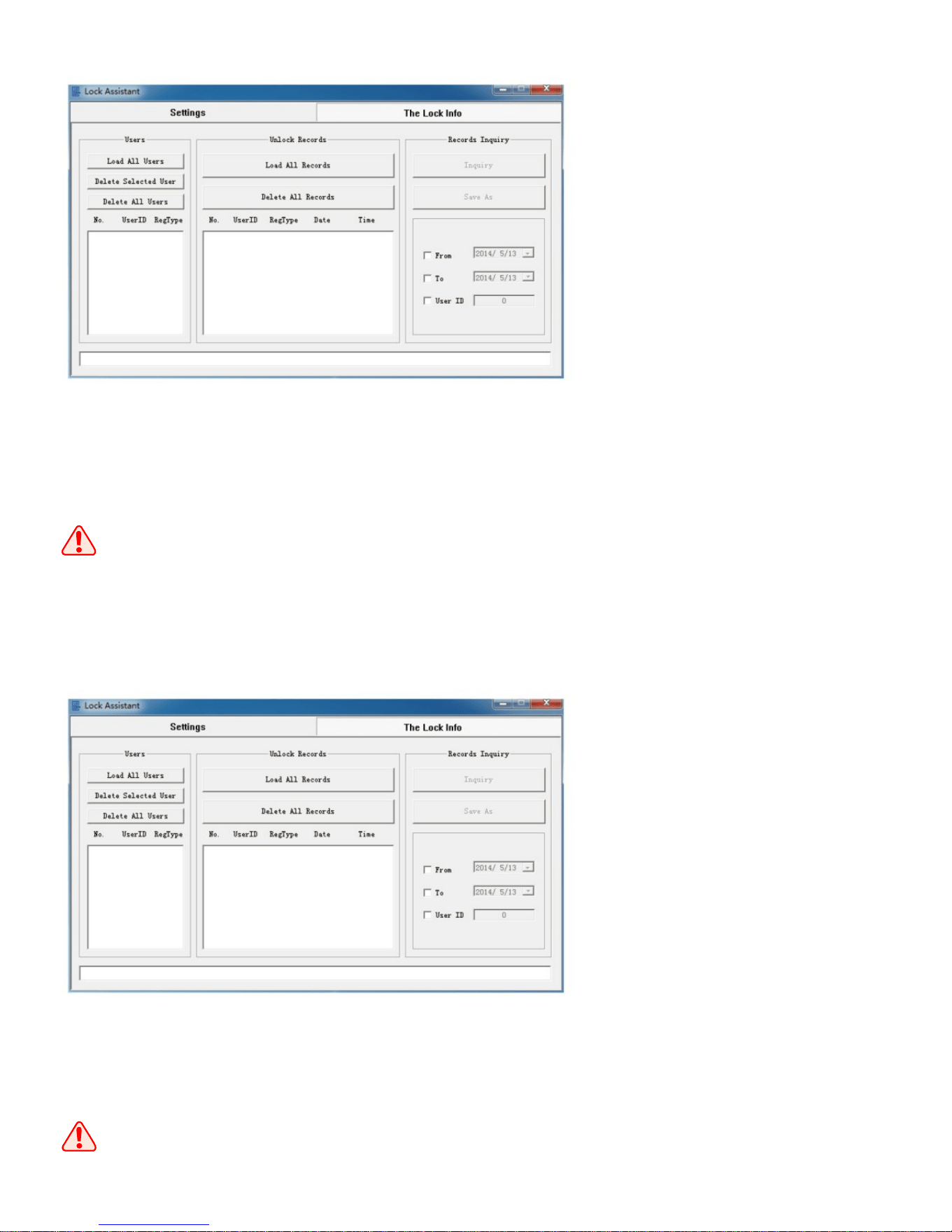
Load all users: download all users in the lock to the computers;
Delete Selected User: delete the user;
Delete All Users: delete all users in the lock, including the normal users and master users.
Users
Load all records: download all unlock records in the lock to the computer;
Delete All Records: clear all unlock records in the lock;
Unlock Records
All user data is only stored in this software.
The unlock records are only stored in the software.
21
Downloaded from www.ManualsFile.com manuals search engine

If you want to track the unlock records for a single user, select the data and the ID,
then the unlock records will be shown in the software.
Records Inquiry
Frequently Asked Questions (FAQs) and
Troubleshooting
Q: How long can the lock operate with a set of batteries?
Q: If the lock runs out of power, how can I unlock the lock?
Q: When I place the finger on the sensor, nothing happen in the lock.
Q: I cannot register a user in the lock.
Q: I can unlock the lock anytime without identification.
Q: The mechanical key cannot unlock the lock.
15
22
A: The lock can work about 5,000 to 6,000 cycles. If the power is under 4.6V, the keypad will show
“Red” light with short “beep - beep” sound every time when it is activated. Then you can understand
this is time to change new batteries.
A: There are 2 ways for unlocking:
1.Take out the cylinder cover and insert the mechanical key for unlocking.
You can check the operations in the user manual for option “Mechanical Key Unlocking”.
2.Take a 9V battery and connect to the 9V emergency power port under the exterior panel.
Hold the battery and provide power the lock, then you can unlock the lock as usual.
A: You can check whether the batteries are out of power, and the batteries are installed in wrong directions.
In additional, the lock cable has a loose connection may be the reason for this problem.
A: First you need to check what mode the lock is under (Normal mode/Security mode). For Security mode,
the lock needs the master user authorization before operations.
The nixie tubes show “AD” and wait for the authorization. For Normal mode, check what are the nixie tubes
showing, if a ID is flashing, press “Ok” to confirm the ID and then you can operate to next step.
A: Check whether the lock is under “Passage Mode”. Touch the keypad and if the keypad shows
“Green” light with sound, it means the lock is under passage mode. You can find the operations
in the manual option “Passage Mode” for the details.
A: You cannot use the mechanical key to unlock. The correct operation is inserting the key into the cylinder,
and turns 180 degree, press down the handle to unlock.
Downloaded from www.ManualsFile.com manuals search engine

Q: I operate the lock normally and it is working well. After some days, the lock has problem
and I cannot do anything.
Q: For a new lock, all people can unlock the lock without identification.
Q: How can I download the unlock records?
Q: Every time when I activate the lock, the lock has sounds but I can unlock.
23
A: Try to take out the batteries to make the lock stays without power for 5 minutes, then install the
batteries again and check. If the lock still has problem, try to restore the lock to factory default and
register users again.
A: The new lock is under factory default. When you activate the lock, the lock will has “beep –
beep' sound and the keypad shows “Red” light before the fingerprint sensor is on. In this case,
anyone place the finger on the sensor and input a 8 digits code can unlock the lock.
A: Connect the lock with a computer through USB cable, and then open the software “Lock Assistant”
to download the unlock records. You can check in the manual option 'Software – Lock Assistant” for details.
A: The lock is under low battery power state. Please replace new batteries to the lock as soon as possible.
Downloaded from www.ManualsFile.com manuals search engine