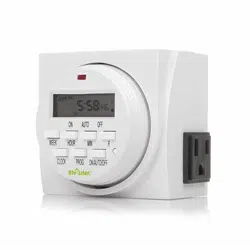
DUAL OUTLET DIGITAL TIMER
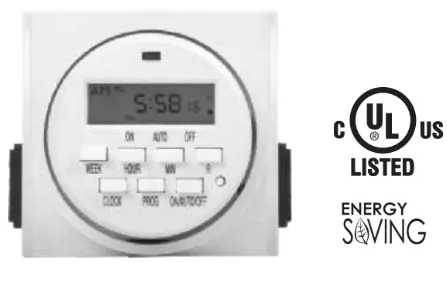
Please keep this handbook
www.bn-link.com
7 DAY HEAVY-DUTY DUAL OUTLET TIMER PROGRAMING & SAFETY INSTRUCTIONS
Rated Voltage: 115VAC, 60Hz Max.Load: 15A, 1725W
APPLICATIONS:
• Lighting • Cooling systems • Humidifiers • Aquariums • Heating systems • Indoor sprinklers • Nebulizers • Ventilators
WARNING
- Electrical shock hazard
- For indoor use only • Use a grounded outlet • Follow local electrical codes
- Do not exceed electrical ratings
A. INITIAL SETUP
1. Remove sticker
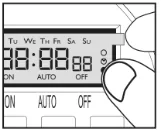
Locate the tab at the top right of the sticker and pull to remove sticker from face of screen.
2. Charge the internal battery
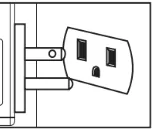
If the screen is blank, plug the timer into any outlet for 30 minutes to charge the internal battery.
3. Reset the timer
Press the “RESET” button with the tip of a small non-metallic insulated tool, such as a pencil or toothpick. LCD display will appear like this icon.
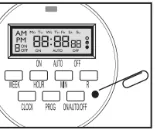
4. Unplug and program timer
Charging the battery allows the programming and setup of timer to occur from the comfort of your chair!
B. SET UP CURRENT DAY & TIME
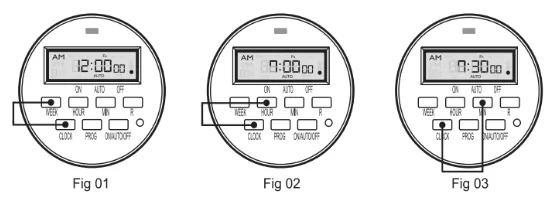
Example: if it is 7:30am Friday, please follow below steps to set the current day and time.
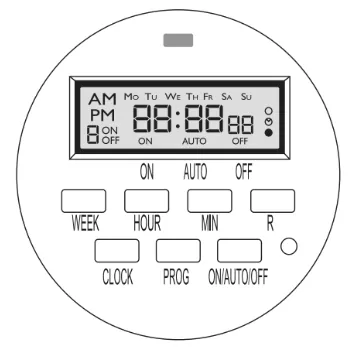
- Tap and hold the "CLOCK" button, then tap the "WEEK" button until "Fr" displays on top of the screen. (Fig 01)
- Tap and hold the "CLOCK" button, then tap the "HOUR" button until 7:00am displays on the screen (Fig 02) Note: please pay attention to AM PM
- Tap and hold "CLOCK" button, and tap "MIN" button until 7:30am displays on the screen (Fig 03)
C. PROGRAM SETTING
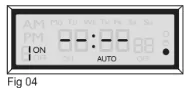
- Press the "PROG" button to enter the program setting, you will see the picture.(Fig 04)
Example: if you want to turn on a device every day at 8:05am and turn it off at 9:00pm, please follow below steps.
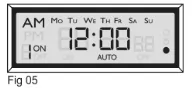
- Press the "WEEK" button to activate the desired days you would like your timer to operate. The most popular combinations will be programmed into the timer. If you do not see your desired days in any of the combinations. You will need to set multiple schedules into your programs to activate the days desired. (Fig 05)
Note: Press "WEEK" multiple times until you get the day combination you want.
Day combination options: MO to SU Individual day: MO,TU,WE,TH,FR,SA,SU MO to FR SA,SU MO to SA MO,WE,FR TU,TH,SA MO,TU,WE TH,FR,SA
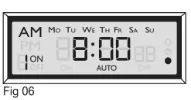
- Press the "HOUR" button until 8:00am displays on the screen (Fig 06)
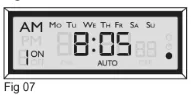
- Press the "MIN" button until 8:05am displays on the screen (Fig 07)
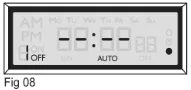
- Press the "PROG" button once to set program "1 OFF" you will see the picture (Fig 08)
Notice you see the 1ON program on your left bottom corner. The 1 symbolizes which of the 8 programs you are on. The word ON after the number 1 means this screen is for your ON program schedule only.
Notice you see the 1OFF program on your left bottom corner. The 1 symbolizes which of the 8 programs you are on. The word OFF after the number 1 means this screen is for your OFF program schedule only.
- Repeat steps 2 to 4 to set program "1 OFF". (Fig 09)
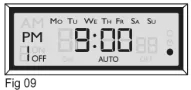
- If you want to set the second ON/OFF program, press "PROG" button again, you can repeat steps 2 to 6 to set program, or press the "CLOCK" button to save all your settings and take you back to your clock screen.
Press "R" at any point to cancel the current setting. Press "R" again will take you back to the previous option.
You can set up to 8 different ON and OFF programs for your timer. To do so, just repeat steps 1 to 6 for program "2 ON" "2 OFF" "3 ON" etc
- If you want to make the set of programs valid, please press "ON/AUTO/OFF" button to make sure the timer is in AUTO mode.
Attach up to TWO DEVICES to the timer Plug the devices into the outlets on either side of the timer.
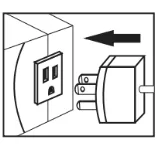
D. MANUAL OVERRIDE
Pressing ON/AUTO/OFF button can manually turn on and off the timer.
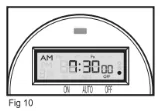
OFF: Press ON/AUTO/OFF button until screen shows OFF. In this status, timer always has no output. The red LED output indicator on the top is off. (Fig10)
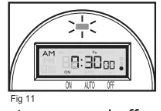
ON: Press ON/AUTO/OFF button until screen shows ON. In this status, timer always has output. The red LED output indicator on the top is on. (Fig11)
Please set timer to AUTO status if you want to turn on and off automatically based on Programs you have set.
There are two AUTO status:
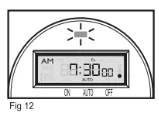
• AUTO ON: Press ON/AUTO/OFF button to the ON first, then press to the AUTO.
It is ON status of the timer, top red LED indicator is ON, the timer will run
the programs as previously set. (Fig12)
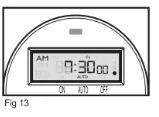
• AUTO OFF: Press ON/AUTO/OFF button to the OFF first, then press to the AUTO.
It is OFF status of the timer, top red LED indicator is OFF, then the timer will run
the programs as previously set. (Fig13)
E. SET RANDOM FOR VACATION SECURITY
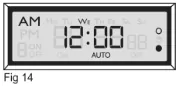
Pressing the "WEEK" and "HOUR" buttons simultaneously will activate security mode. "O" is to the right side of the display.
When the timer is working in Auto mode and the random function is on, the previously programmed ON and OFF times will be separately postponed by 2- 32 minutes. (Fig 14)
Press the "WEEK" and "HOUR" buttons again to turn off the Random function.
F. DST - DAYLIGHT SAVING TIME FUNCTION
Press HOUR & MIN simultaneously to activate or deactivate DST Note:A small clock symbol "G" will appear on the far right of the LCD screen when DST is active. (Fig 16)
It means manually add 1hour to open the"Summer Time," Otherwise it returns to current time. (Fig 17)

G. TROUBLESHOOTING
Timer does not turn on or off.
- Make sure AM and PM are correct on the current time and in the program settings.
- Timer program should be on AUTO setting.
- Make certain that both an ON and OFF time have been specified.
- If the number is not clear or blank on the screen, please plug the timer into any outlet for 30 minutes to charge the internal battery, then press the Reset button.
- The 2 grounded outlets are controlled by the same programs, they can not be set by different programs.
- If the timer can not Turn ON or Turn OFF on time, please check if the Random function is in deactive status.
- If the timer always ON or always OFF, please check if the program is in Auto mode.
TIMER IS NOT WORKING ACCORDING TO YOUR PROGRAMS?! WHATS GOING ON?
If your AUTO setting is not activating your program because you have already past the start time. Please check the two different AUTO settings available to you and make sure you are choosing the correct AUTO status (ON to AUTO, or OFF to AUTO)
Your ON/AUTO/OFF button has 4 different settings depending how many times you press the button.
The 4 available operations are:
[ON] - Manually turning ON your appliance (Your Appliance will ALWAYS BE ON in this state and will not run any timer programs.)
[OFF] - Manually turning OFF your appliance (Your Appliance will ALWAYS BE OFF in this state and will not run any timer programs.)
[ON to AUTO] - "Start your setting on ON and finish the setting on AUTO" - Your appliance will turn on right when you plug the timer into a live wall outlet. Your appliance will stay on until 1st program ends and turns off accordingly to the timer. Schedule will run accordingly to the programs set.
[OFF to AUTO] - "Start your setting on OFF, and finish the setting on AUTO" - Your appliance will turn off right when you plug the timer into a live wall outlet, until the next program schedule and will run your program schedules accordingly.
If you need more assistance, we have a helpful short instructional video most our customers find helpful. Please enter the model number provided on the back of your product to You Tube and you will find a helpful instructional video made by one of our technical support team members. (Http://www.YouTube.com)
CONTACT
BN-LINK INC. 12991 Leffingwell Avenue, Santa Fe Springs
Customer Service Assistance: 1,909.592.1881
E- mail: [email protected]
Http://www.bn-link.com
Hours: 9AM - 5PM PST, Mon - Fri
Designed in California Made in China