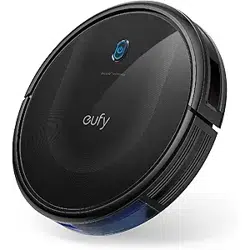

L50 (T2265) & L60 (T2267)
Robotic Vacuum Cleaner
User Guide

Table of Contents
01 About Your RoboVac
RoboVac Anatomy
Buttons Control
LED Indication
03 Get Started
Important Tips Before Use
Preparation
Charge Your RoboVac
Power On / Off
Use Your RoboVac with the eufy Clean App
Reset the Wi-Fi Connection
Quick Mapping and Floor Plan
Navigation
Set Up No-Go Zone and Virtual Wall (Available on the App Only)
Schedule Cleaning
Select a Cleaning Mode
07 Cleaning and Maintenance
Clean the Dust Box and Filter
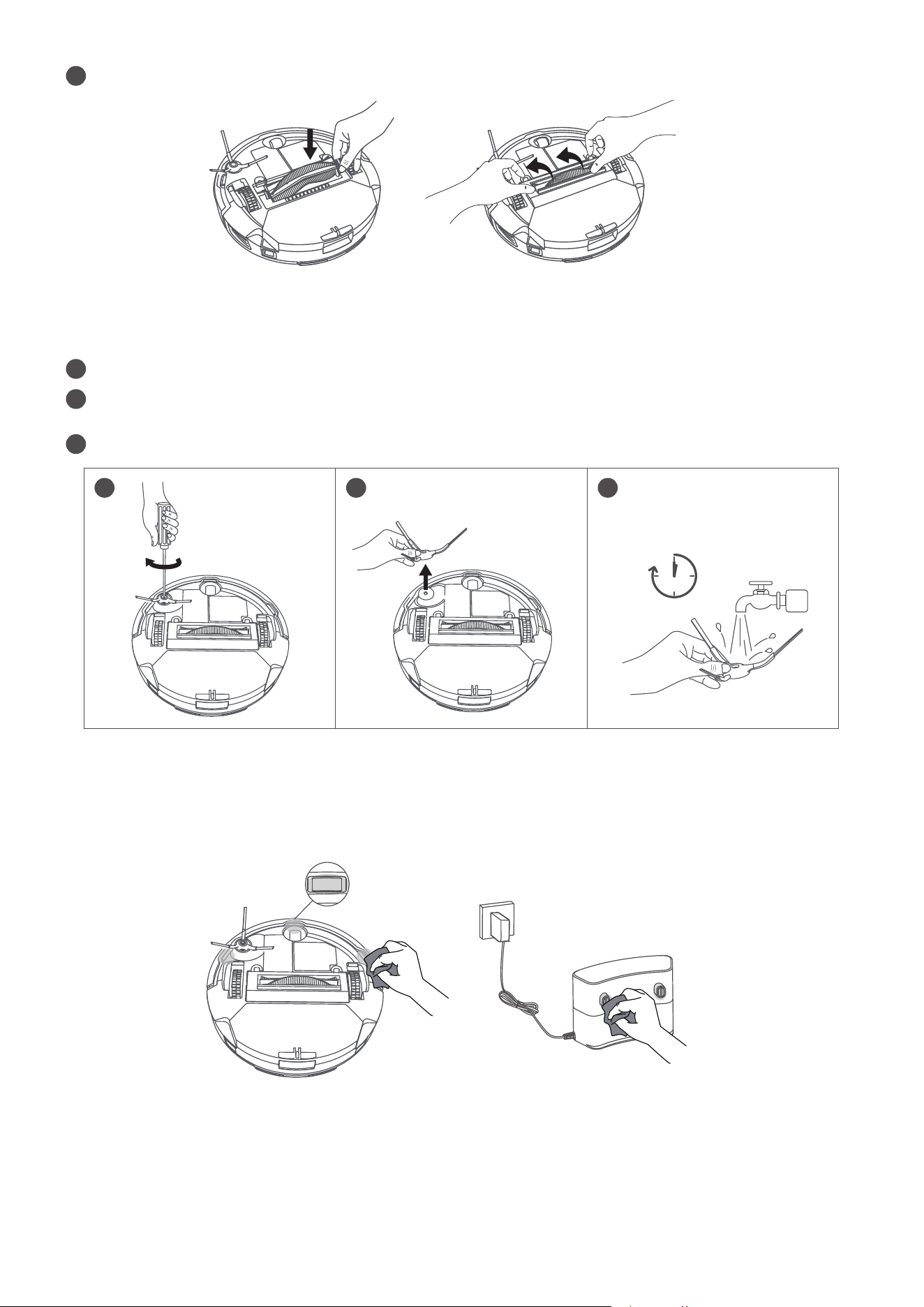
Clean the Rolling Brush
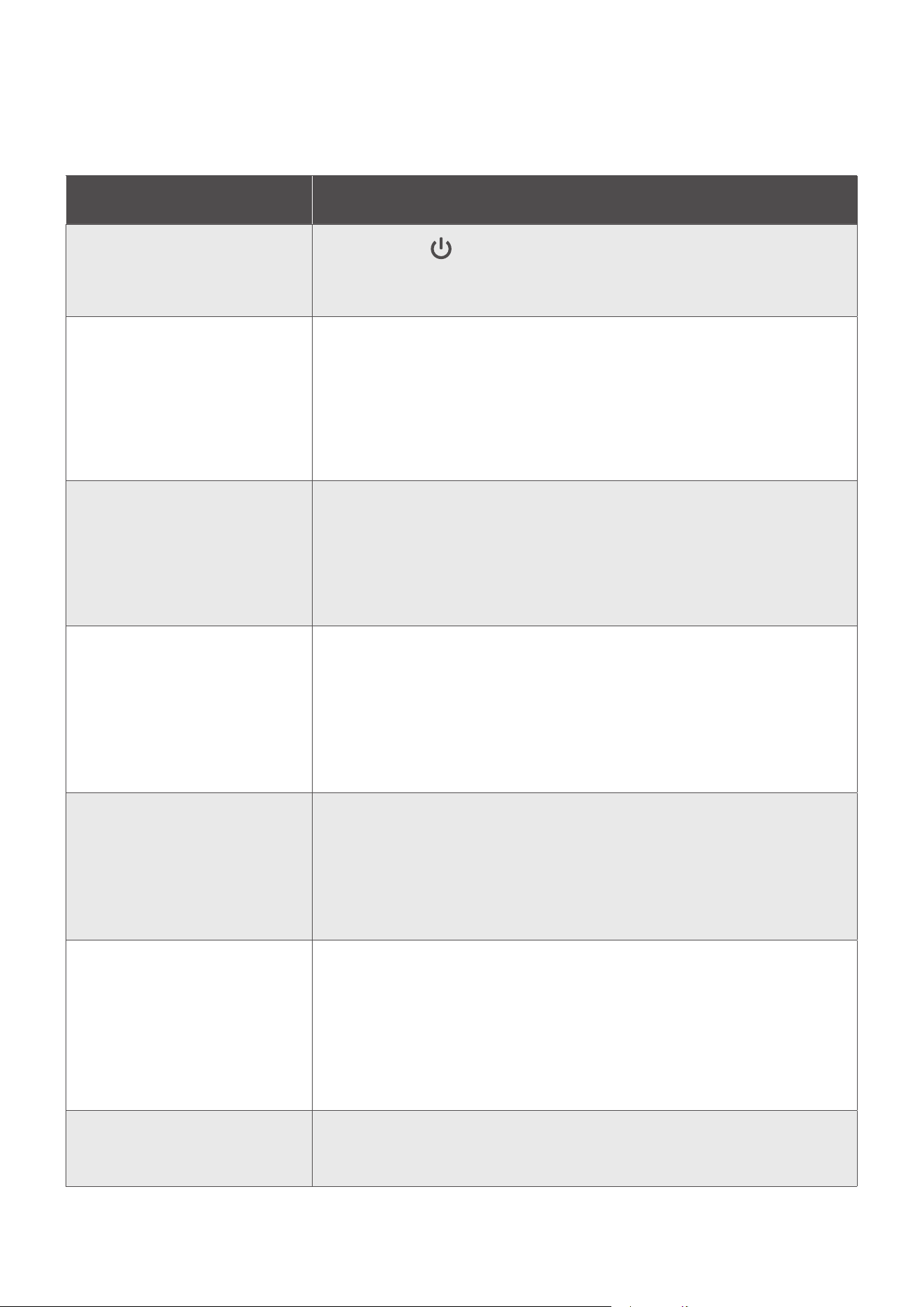
Clean the Side Brush
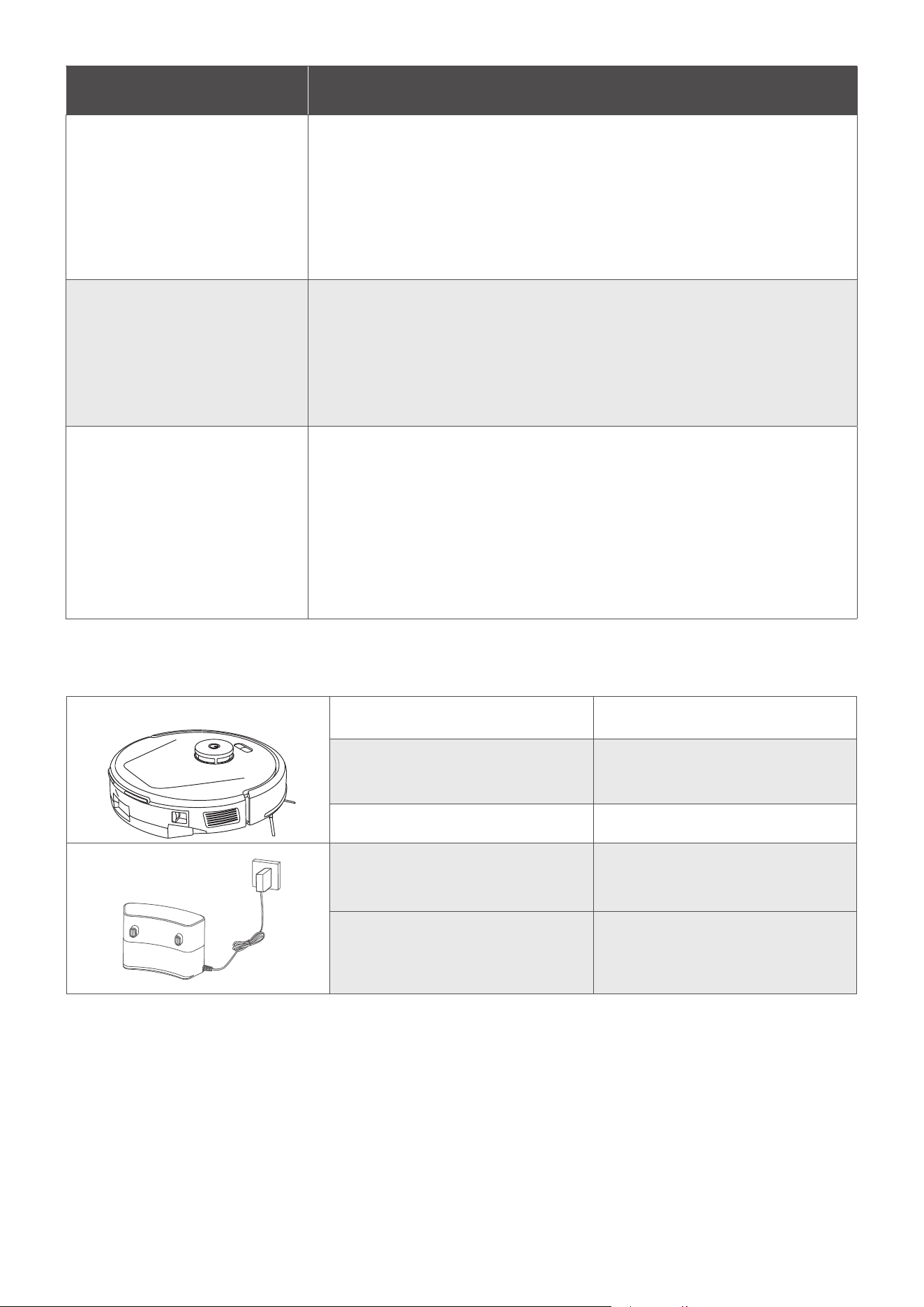
Clean the Sensors and Charging Pins
11 Troubleshooting
12 Specifications
EN 01
About Your RoboVac
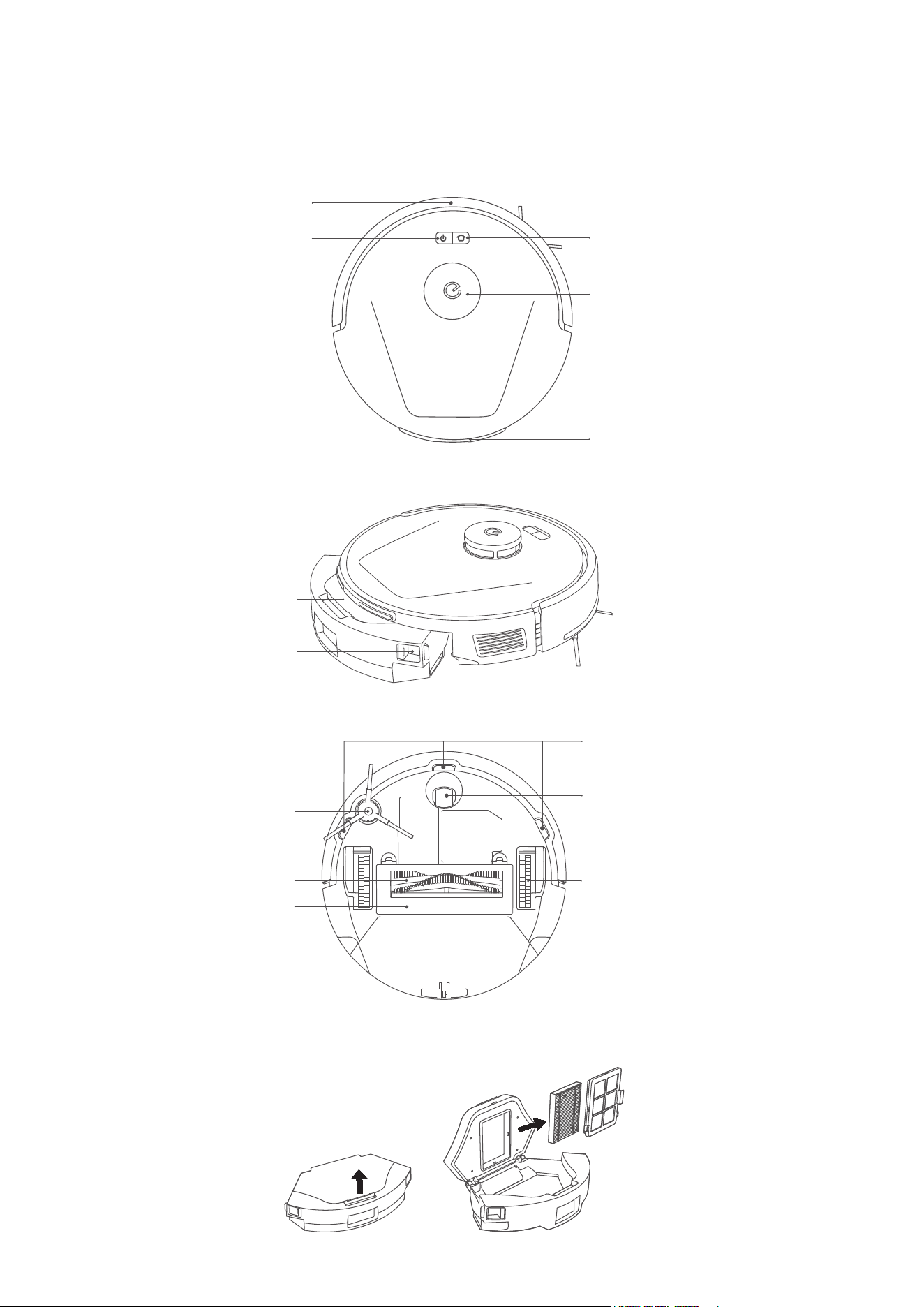
RoboVac Anatomy
B. Side
C. Back
A. Front
Bumper
Cleaning start / pause button
Recharge button
360° Lidar Navigation Sensor
Charging pins
Dust box
Dust box release button
Anti-drop sensors (x3)
Swivel wheel
Wheels (x2)
Rolling brush
Side brush
Brush guard
D. Dust box
Filter
EN 02
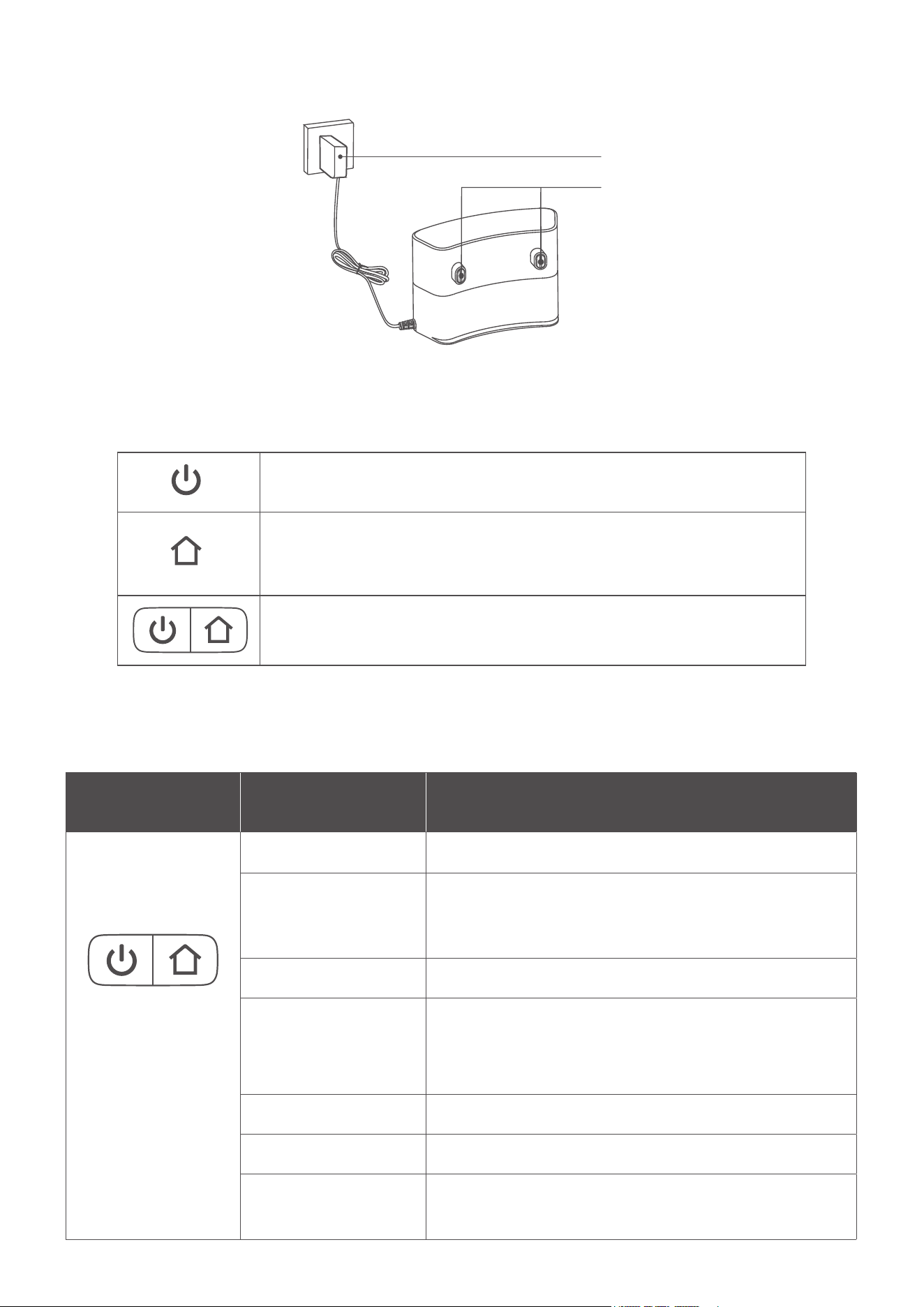
E. Charging Station
Charging pins
Power adapter
Buttons Control
LED Indication
• Press and hold for 3 seconds to power on or off
• Press to pause / finish the current task when working
• Press to return RoboVac to the Charging Station
• Press to pause the current task when working
• Press and hold for 3 seconds to enable or disable Child Safety Lock
• Press and hold simultaneously for 3 seconds to reset the Wi-Fi connection
Button LED Indication RoboVac Status
• Solid white • Working normally
• Pulsing white
(When attached to
Charging Station)
• Charging
(When fully charged for 1 minute, RoboVac switches to
Sleep Mode)
• Flashing white • Returning to Charging Station
• Flashing red slowly
• Error
* Refer to the “Troubleshooting” section in this manual,
check in-app instructions, or contact eufy Customer
Service for solutions
• Flashing white quickly • Wi-Fi connection is being reset
• Solid red • RoboVac's Wi-Fi connection has dropped
• Off
• RoboVac switches to Sleep Mode after being idle for 10
minutes
EN 03
Get Started
C
B
A
D E
F
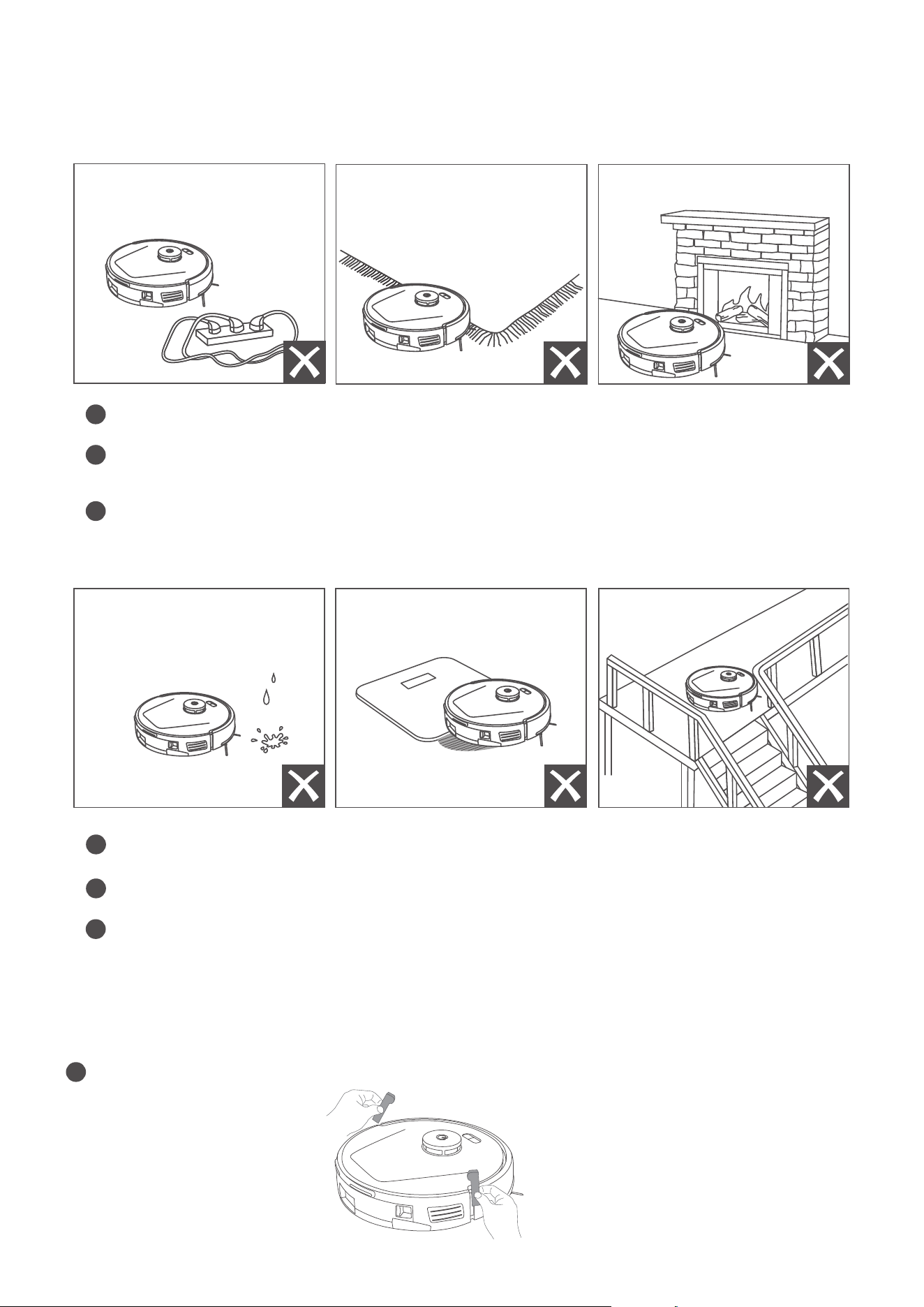
Remove power cords and small objects from the floor that may entangle RoboVac.
Fold tasseled edges of rugs underneath to prevent tangling RoboVac. Avoid cleaning high-pile rugs or
rugs thicker than 1.02 in / 26 mm as they may cause RoboVac to malfunction.
It is strongly recommended to place physical barriers or set a “No-Go” zone via the eufy Clean app in
front of fireplaces, the edge of staircase, and certain areas (i.e. air vents) that may cause damage to
RoboVac if entered.
a
b
c
Avoid vacuuming large amounts of water as it may damage the device.
RoboVac may climb on top of objects less than 0.7 in / 18 mm in height. Remove these objects if possible.
Anti-drop sensors will prevent RoboVac from tumbling down stairs and steep drops in most cases.
Sensors are less effective if dirty or used on carpeted / reflective floors. Place physical barriers or set a
“No-Go” zone to block off areas where RoboVac may fall.
d
e
f
Important Tips Before Use
Preparation
1
Remove the foam blocks beside the bumper and all the protective films before use.
EN 04
2
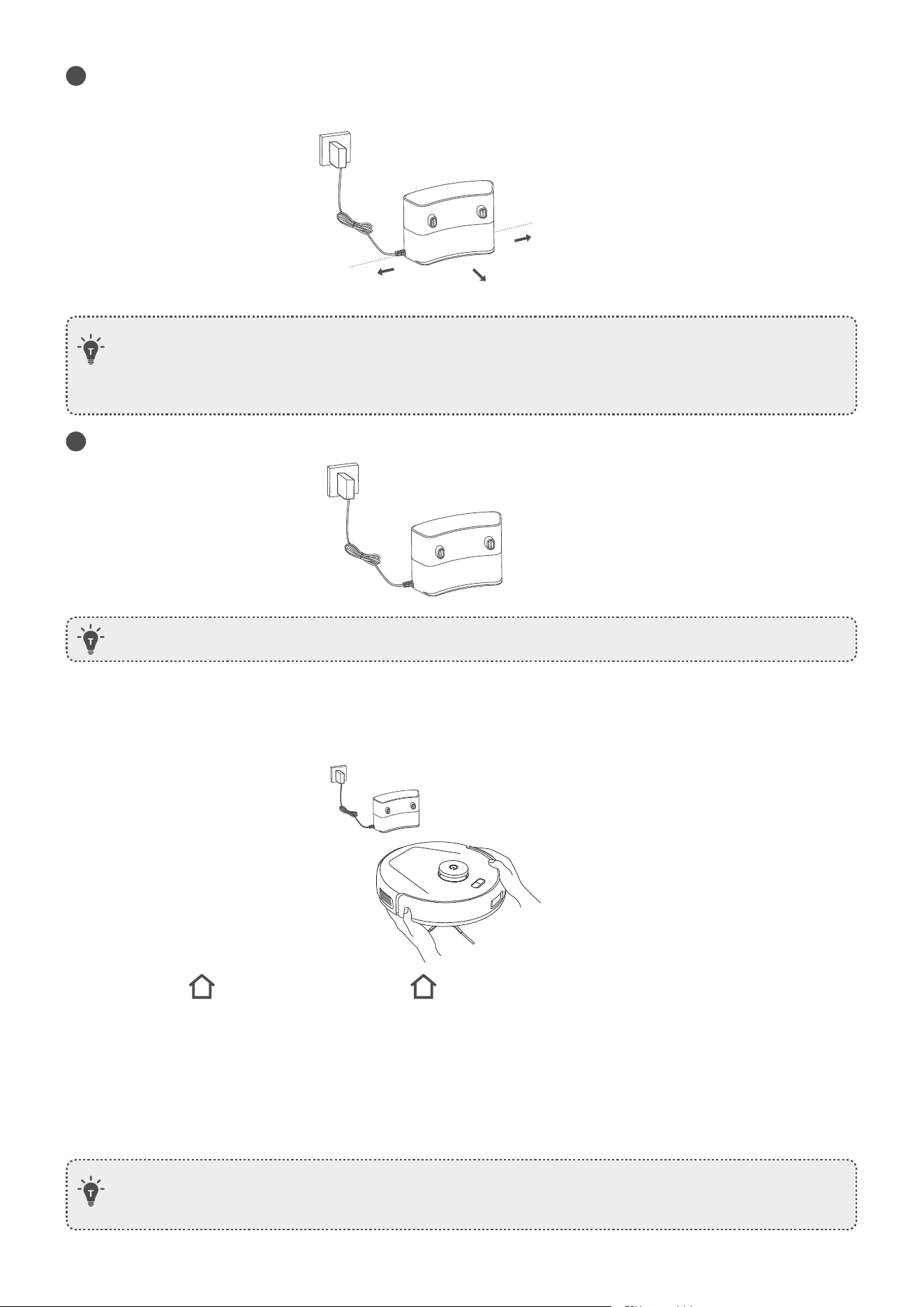
Peel off the protective film around and sticker beneath the Charging Station, and install it in a location that
RoboVac can easily access. It is recommended to place it against a wall and on a hard, level surface rather
than on rugs or carpets.
3
Connect the power adapter to the Charging Station and a wall outlet.
>1.6ft/0.5m
>1.6ft/0.5m
>4.9ft/1.5m
• It is recommended to remove objects within 1.6 ft / 0.5 m to the left and right sides and within 4.9 ft / 1.5
m of the front of the Charging Station. If you cannot remove the objects, move RoboVac to a new place
and check whether RoboVac can return to the Charging Station normally; if not, contact us at support@
eufy.com for suggestions.
• Do not place the Charging Station near the edge of staircase.
• Do not move the Charging Station during cleaning, otherwise RoboVac may fail to return for recharge.
If failed, you have to manually attach it to the Charging Station. If the Charging Station is moved, start
cleaning from the new location. RoboVac will automatically return when it has finished cleaning.
• Always keep the Charging Station plugged in, otherwise RoboVac will not automatically return to it.
Charge Your RoboVac
Method 1: Attach RoboVac to the Charging Station by aligning its charging pins.
Method 2: Press on the main unit or tap the icon in the eufy Clean app to send RoboVac to the Charging
Station.
Auto Recharge and Resume
RoboVac returns to the Charging Station automatically to recharge when:
• RoboVac has finished cleaning;
• Cleaning is not complete and the battery level becomes low; once recharged to 80% battery capacity, RoboVac
will resume and finish the remaining cleaning.
EN 05
Power On / Off
Use Your RoboVac with the eufy Clean App
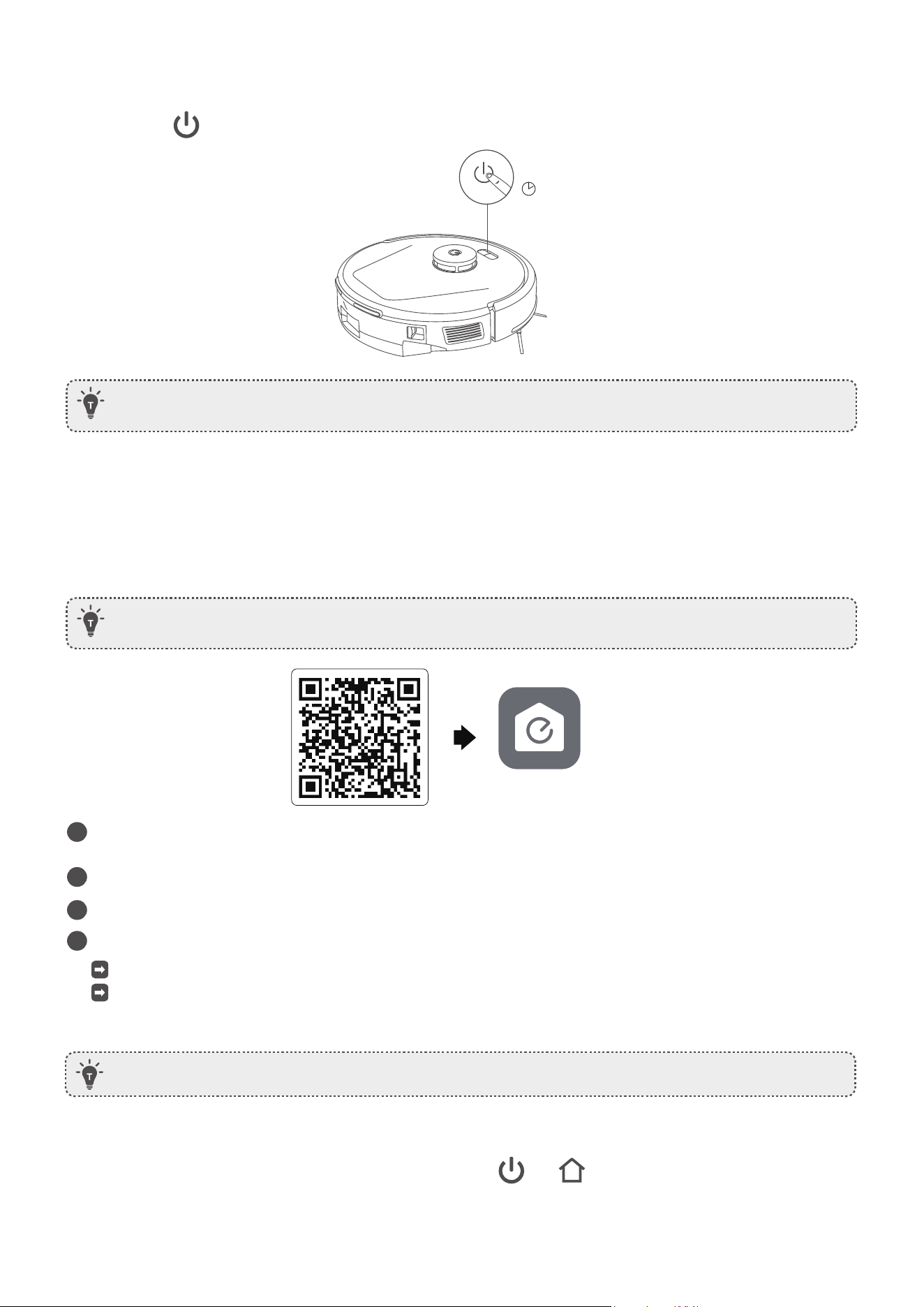
Press and hold for 3 seconds to power RoboVac on or off.
To reset the Wi-Fi connection, press and hold the two buttons and simultaneously for 3 seconds until you
hear a voice prompt.
You will hear a voice prompt when the Wi-Fi connection has been reset, and the LED indicators on RoboVac will
quickly flash red. Now you can follow the Wi-Fi instructions in the app to set up the Wi-Fi connection.
3S
• After powering on RoboVac, please wait for 20 seconds after the startup music sounds before
proceeding to the next operation.
• Note that L50 (T2265) only supports the 2.4GHz frequency band, while L60 (T2267) supports both
2.4GHz and 5.0GHz frequency bands.
To enjoy all the available features, it is recommended to control your RoboVac via the eufy Clean app.
eufy Clean
1
Download the eufy Clean app from the App Store (iOS devices) or Google Play (Android devices), or by
scanning the QR code.
2
Open the app and create a user account.
3
Tap the “+” icon to add RoboVac to your eufy Clean account.
4
Follow the instructions in the app to set up the Wi-Fi connection.
After connecting successfully, you can control RoboVac via the app.
With the app, you can enable Quick Mapping, select cleaning modes, select cleaning at your desired suction
level, schedule cleaning, view the cleaning map, set up “No-Go” zones, check the network connection status,
and access additional features.
• If RoboVac gets stuck in any space, tap Find My Robot in the app to find the device.
Before you start, make sure:
• Your smartphone or tablet is running iOS 11 (or above) or Android 8.0 (or above).
• The 2.4GHz band wireless signal is enabled on your wireless router.
Reset the Wi-Fi Connection
EN 06
Quick Mapping and Floor Plan
Navigation
Set Up No-Go Zone and Virtual Wall (Available on the App Only)
Schedule Cleaning
Select a Cleaning Mode
Quick mapping helps RoboVac to learn the correct learning path and the environment of your home easily. A floor
plan will be built after cleaning.
To create a complete floor plan:
1
Open your doors so that RoboVac can map each room. You can also block off certain areas that you don't
want RoboVac to enter, which can improve the success rate of Quick Mapping.
2
Remove any objects that may be in the way or that might entangle RoboVac.
• Do not remove the Charging Station after a floor plan is created.
Once auto cleaning starts, RoboVac moves from the Charging Station, automatically scans to update maps,
intelligently determines its cleaning route, and divides the space into zones. The cleaning paths are planned along
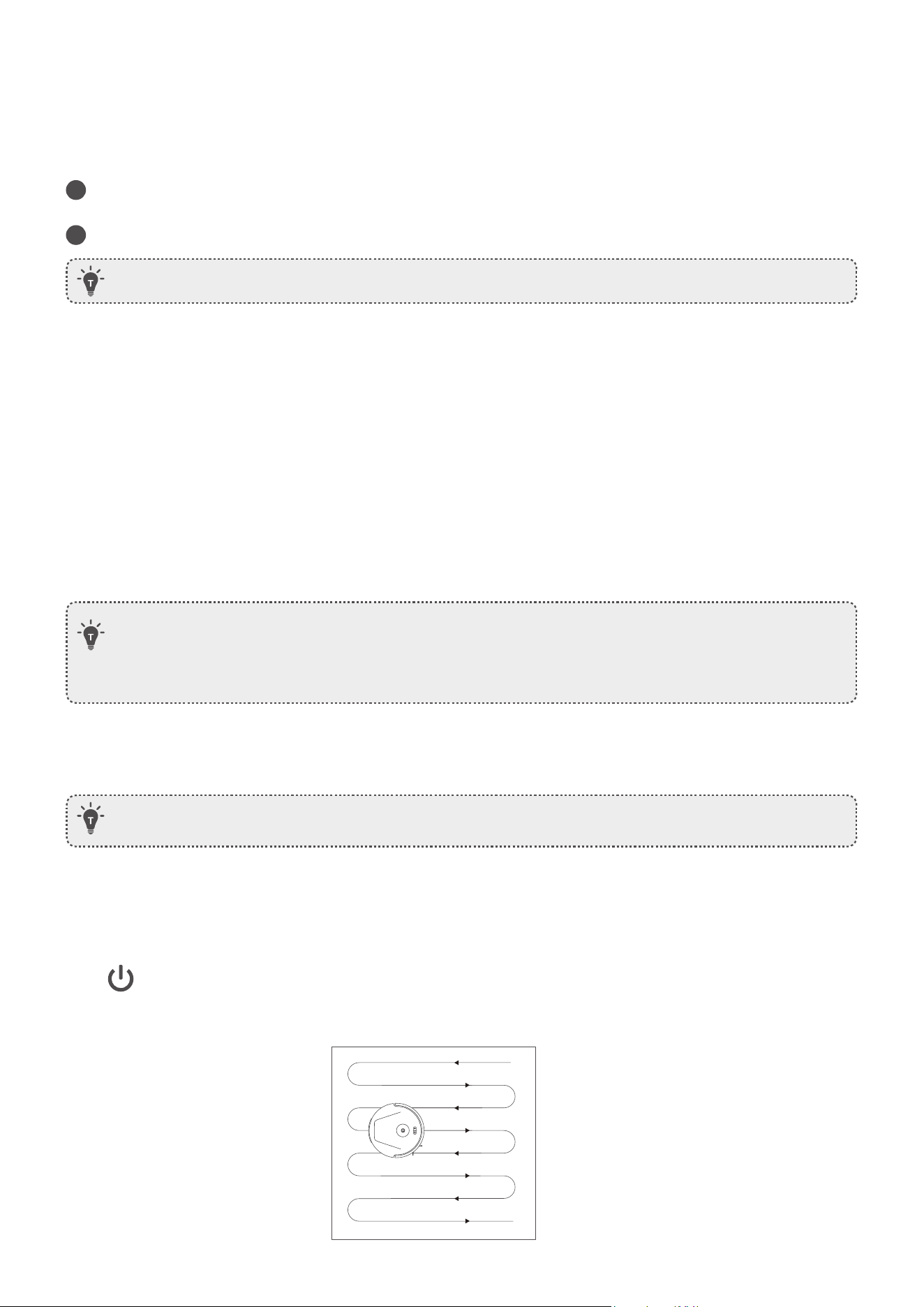
the walls, following a Z-shaped cleaning method to complete the cleaning of each zone successively.
With the eufy Clean app, you can set up a “No-Go Zone” or “Virtual Wall” as a restricted area. This eliminates the
need to use physical barriers, including boundary strips. This feature is only designed for dividing the cleaning
zones, not for isolating hazardous areas.
With the eufy Clean app, you can schedule RoboVac to start cleaning at a particular time.
You can select multiple cleaning modes via the eufy Clean app.
Press to start cleaning in Auto Mode.
After startup, RoboVac moves from the Charging Station and automatically determines its cleaning route, cleaning
the edges first and following a Z-shaped cleaning path. When cleaning is finished, RoboVac automatically returns
to the Charging Station.
• No-Go Zone: RoboVac will not enter the zone to vacuum.
• Virtual Wall: RoboVac will not cross the virtual wall.
• To set a virtual wall, RoboVac must initially perform a cleaning run to create a floor plan.
• Although a virtual wall is set, RoboVac may still enter the restricted zone due to repositioning failure or
abnormal sensors.
• Moving the device or changing the environment may lose the virtual wall and cause the mapping to fail
and rebuild.
• You can set the time and customize cleaning schedules from Sunday to Saturday on the eufy Clean
app. This function is only available on the app.
Auto-Cleaning
EN 07
In the eufy Clean app, select a suction power level according to your needs: Quiet, Standard (Default), Turbo, and
Max.
In the eufy Clean app, select the BoostIQ™ feature according to your needs. RoboVac will automatically increase
suction power if it detects that stronger power is needed to ensure the best clean. BoostIQ™ is ideal for cleaning
thicker carpets and hard-to-sweep messes, which will reduce the total cleaning time but increase the noise level. If
the vacuuming noise caused by BoostIQ™ disturbs you, you can disable this feature.
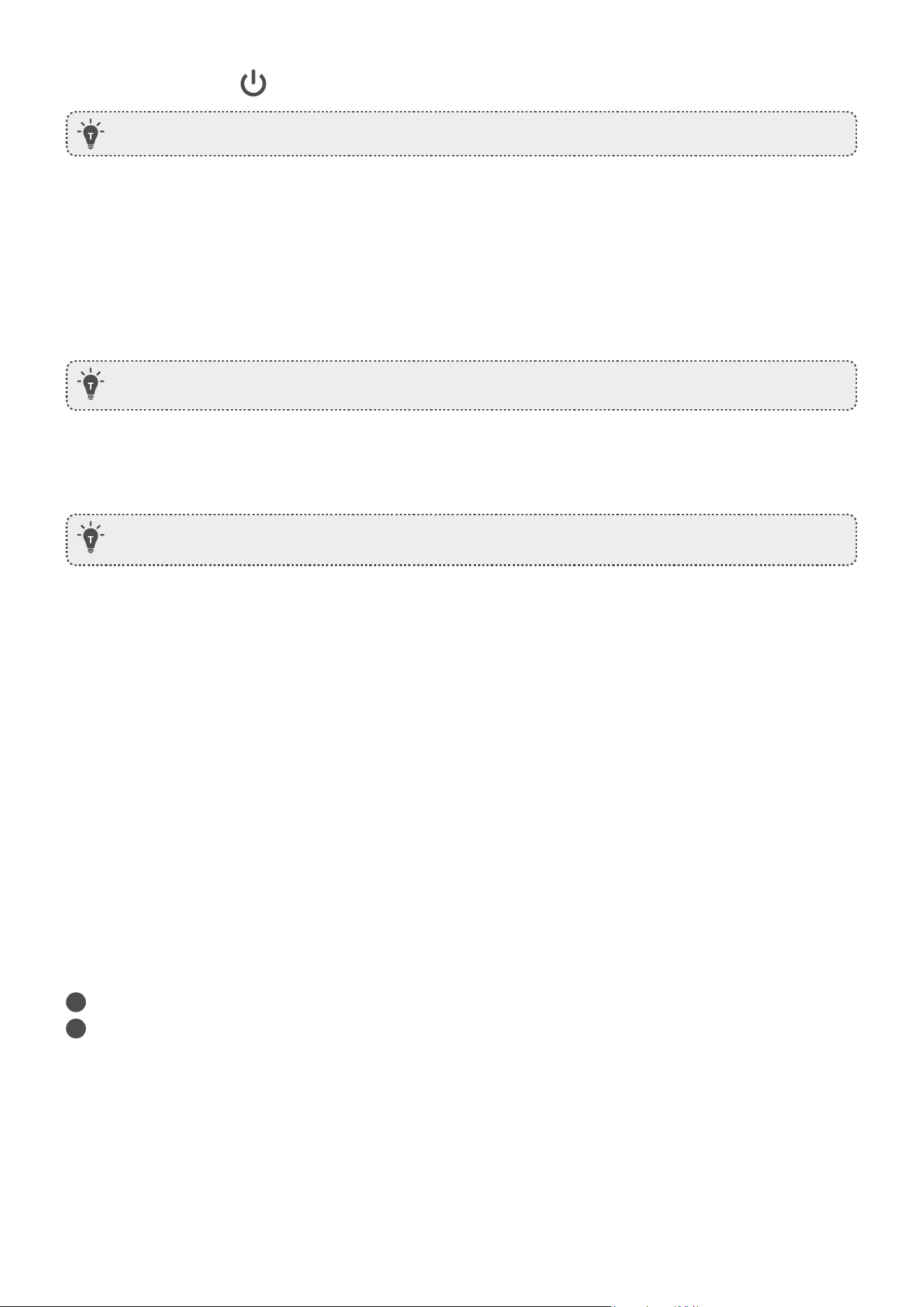
Prior to cleaning and maintaining, power off the device and unplug the power adapter. Any other servicing should
be performed by an authorized service representative.
For optimal performance, follow the instructions below to clean and maintain RoboVac regularly. The cleaning and
replacement frequency will depend on your RoboVac usage habits.
Amazon Alexa or the Google Assistant are smart voice control devices that enable you to control RoboVac with
your voice.
Select a Suction Power Level
Select BoostIQ™ Feature
Use RoboVac with Amazon Alexa / The Google Assistant
• When RoboVac starts cleaning next time, it will clean according to the suction power level you
previously selected.
Before you start, make sure:
• RoboVac is attached to the Charging Station to ensure there is enough power.
• RoboVac is connected with the eufy Clean app.
• You have an Amazon Alexa-enabled device (i.e. Amazon Echo, Echo Dot, Amazon Tap, Echo Show, or Echo Spot)
or a device enabled with the Google Assistant (i.e. Google Home, Google Home Mini). These devices are sold
separately.
• The Amazon Alexa app or Google Home app is already installed on your smart device, and you have created an
account.
To control RoboVac with Amazon Alexa or the Google Assistant:
In this mode, you can set up a cleaning zone and customize its size in the eufy Clean app, RoboVac will clean the
selected zone only.
In this mode, your house is automatically divided into several rooms for cleaning in the eufy Clean app. You can
also customize your room settings in the app. RoboVac will clean the selected rooms only and return to the
Charging Station after cleaning.
Zone Cleaning (Available on App only)
Room Cleaning (Available on App only)
• Enable Room Cleaning only after RoboVac has created the map.
• It is recommended that RoboVac moves from the Charging Station to start room cleaning.
• By default, RoboVac starts in Auto-cleaning Mode when it is turned on.
To pause cleaning, press again.
1
Open the eufy Clean app and find “Smart Integrations” in the top left.
2
Follow the on-screen instructions to complete the setup.
Cleaning and Maintenance
EN 08
Recommended Cleaning and Replacement Frequency
RoboVac Part Cleaning Frequency Replacement Frequency
Dust Box After each use -
Filter Once a week Every 3 months
Side Brush Once a month Every 3-6 months (or when visibly worn)
Brush Guard
Once a month Every 3-6 months (or when visibly worn)
Rolling Brush Once a week Every 6-12 months
Sensors Once a month -
Charging Pins Once a month -
Swivel Wheel Once a month -
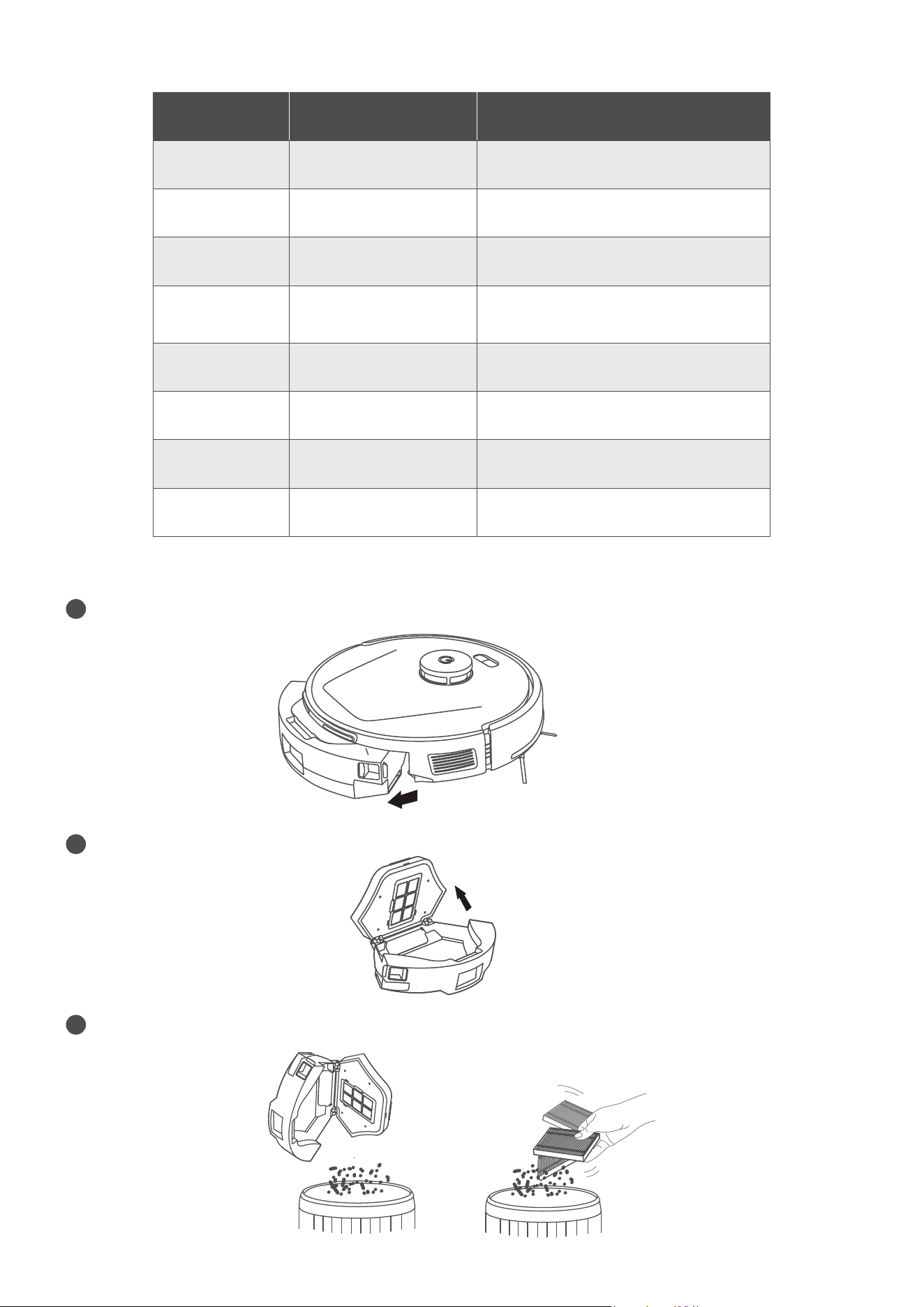
1
Press the release buttons on both sides to detach the dust box from RoboVac.
2
Open the lid of the dust box.
3
Empty the dust box and shake it to get rid of the remains.
Clean the Dust Box and Filter
EN 09
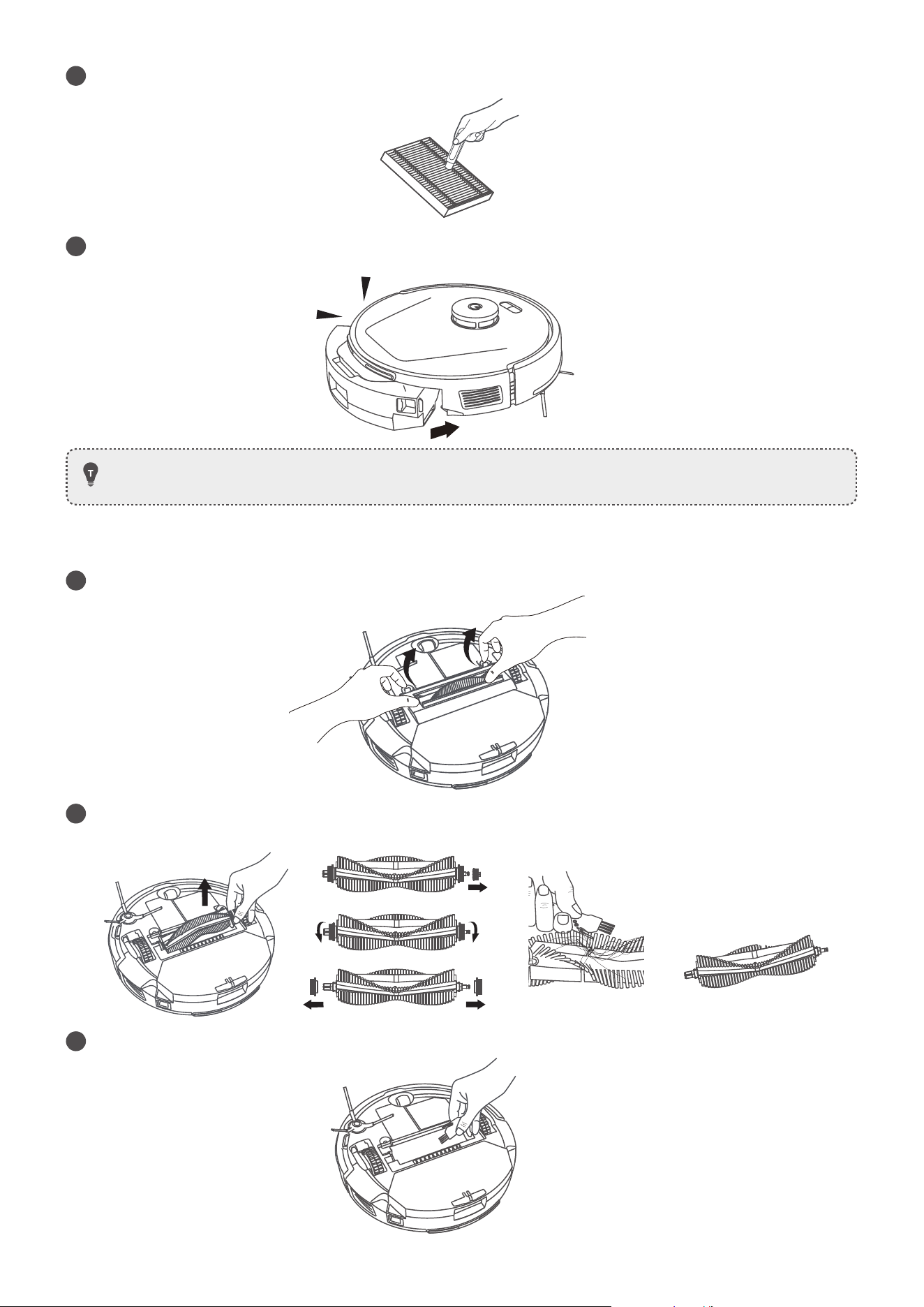
4
Take out the filter and clean it with the cleaning tool.
5
Reinstall the dust box onto RoboVac.
Click
• When reinstalling the dust box, make sure you hear two clicks on both sides to confirm the dust
box has been fixed in place.
Clean the Rolling Brush
1
Turn over the main unit, push the release tabs with both hands to unlock the brush guard, as shown.
2
Take out the rolling brush. Clean the hair entangled on the rolling brush and debris with a scissor or cleaning
tool.
3
Use a cleaning tool to brush off the dust in the slot as well.
EN 10
4
Reinstall the rolling brush by inserting the fixed protruding end first.
Clean the Side Brush
Clean the Sensors and Charging Pins
Foreign substances, such as hair, can easily get tangled in the side brush, so it is best to clean it regularly.
To maintain the best performance, clean the sensors and charging pins regularly.
• Dust off the sensors and charging contact pins using a soft fry cloth or cleaning brush.
1
Remove the side brush with a screwdriver.
2
Carefully unwind and pull off any hair or substances that are wrapped between the main unit and the side
brush.
3
Clean the side brush with water.
1
min
1
2
3
EN 11
Troubleshooting
Here are just a few preliminary suggestions. If your problem persists or if you need further troubleshooting
information, please visit https://support.eufylife.com, go to the eufy Clean app, or contact [email protected] for help.
Problems Solutions
RoboVac will not turn on.
• Press and hold on RoboVac for 3 seconds to turn it on.
• Make sure the battery is fully charged.
• If it still has no response, turn RoboVac off and then turn it back on.
RoboVac suddenly stops working.
• Check if RoboVac is trapped or stuck on an obstacle.
• Check if the battery level is too low.
• If your problem persists, turn RoboVac off, wait for 5 seconds, and then turn
it back on.
• Check if RoboVac has alerted you with any voice prompts or LED indicators.
• Open the eufy Clean app to check the specific error prompt, then refer to
the Troubleshooting section of the manual for solutions.
You cannot schedule cleanings.
• Make sure the scheduled time has been set correctly. Check if the time zone
in the eufy Clean app is consistent with that on your mobile device
• Make sure RoboVac is turned on and the battery is fully charged. Cleaning
schedules are erased when RoboVac is powered off. If RoboVac is turned on
without Internet access, cleaning schedules will not synchronize and must
be reset via the app.
Suction power is weak.
• Check if any obstructions are blocking the suction inlet.
• Empty the dust box.
• Check if the filter is wet due to water or other liquid on the floor. Air-dry the
filter completely before use.
• Check if the brush guard is correctly installed.
• Check the suction power level previously selected in the eufy Clean app.
Adjust the setting if necessary.
RoboVac cannot be charged.
• Make sure the Charging Station is powered on.
• Dust off the charging contact pins with a dry cloth.
• Check if there is any physical damage on RoboVac or the charging pins of
Charging Station
• Check if you can hear the “Charging” voice prompt when RoboVac is attached
to the Charging Station
RoboVac cannot return to the
Charging Station.
• Remove objects within 1.6 ft / 0.5 m to the left and right sides and within 4.9
ft / 1.5 m of the front of the Charging Station.
• Make sure the Charging Station is powered on.
• Make sure the Charging Station is not placed on carpets.
• Check if RoboVac is stuck on any objects.
• Check if the sticker beneath the Charging Station has been removed, and
the Charging Station has been firmly attached to the floor.
• Clean the charging pins and sensors carefully with a soft dry cloth.
RoboVac's movements or travel
paths are abnormal.
• Clean the sensors carefully with a soft dry cloth.
• Restart RoboVac by turning RoboVac off and on.
EN 12
Problems Solutions
RoboVac cannot connect to a Wi-
Fi network.
• Make sure you entered the Wi-Fi password correctly.
• Make sure your RoboVac, router, and phone are close enough to ensure a
strong signal strength.
• Make sure your Wi-Fi router supports the corresponding frequency band of
RoboVac: 2.4GHz for L50 (T2265); 2.4/5.0GHz for L60 (T2267)
• Reboot RoboVac and your router.
• Try connecting RoboVac to a Wi-Fi network with another phone.
You cannot control RoboVac with
Amazon Alexa.
• Check if there are any Internet connection problems.
• Check whether you have installed the Amazon Alexa app onto your smart
device and enabled “eufy Clean - RoboVac” Skill in the Amazon Alexa app. For
details, refer to the “Smart Integrations” page in the eufy Clean App.
• Make sure you have a eufy Clean account and have connected to RoboVac
• Make sure you are using the correct Alexa voice commands.
You cannot control RoboVac with
the Google Assistant.
• Check if there are any Internet connection problems.
• Check if you have installed the Google Home app onto your smart device and
initiated the “eufy Clean” action in the Google Home app. For details, refer to
the “Smart Integrations” page in the eufy Clean App.
• Check if you are using the proper commands when talking to the Google
Assistant. When making your request, start by saying the wake phrase “Ok
Google”.
• Repeat your question. Speak clearly to the Google Assistant.
Specifications
Input 20VDC 0.6A
Battery
14.4VDC, Rated Capacity: 2500 mAh,
36Wh / Nominal Capacity: 2600mAh
Dust Box Capacity 350ml
Input 19V 0.6A
Output 20VDC 0.6A