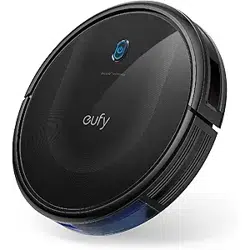
RoboVac 30C
Owner’s Manual
Thank you for purchasing RoboVac 30C. Read all instructions before using this product,
and keep it properly for future reference.
1.Important Safety Instructions
To reduce the risk of injury or damage, read these safety instructions carefully and keep them
at hand when setting up, using, and maintaining this device.
WARNING SYMBOLS USED
This is the safety alert symbol. This symbol alerts you to potential hazards that could result in
property damage and/or serious bodily harm or death.
• This device can be used by children aged from 8 years and above and persons with reduced
physical, sensory or mental capabilities or lack of experience and knowledge if they have been
given supervision or instruction concerning use of this device in a safe way and understand the
hazards involved.
• Children should be supervised to ensure they do not play with this device.
• Cleaning and maintenance shall not be performed by children without adult supervision.
• This device is only to be used with the power supply unit provided.
•
The plug must be removed from the socket-outlet before cleaning or maintaining this device.
•
This device contains the battery that is only replaceable by skilled persons.
• This device must be disconnected from the supply mains when removing the battery.
• For the purposes of recharging the battery, only use the detachable power supply unit
provided with this device.
• The battery must be removed from this device before this device is disposed of. To remove the
battery from this device, first remove the screws on the bottom, then remove the main PCB and
unscrew the battery cover using a screwdriver. Remove the battery by disconnecting the quick
connector.
• The used battery should be placed in a sealed plastic bag and disposed of safely according to
local environmental regulations.
• The external flexible cable or cord of the power supply unit cannot be replaced; if the cord is
damaged, the power supply unit shall be disposed of.
• This device is for indoor use only.
• This device is not a toy. Do not sit or stand on this device. Small children and pets should be
supervised when this device is operating.
• Store and operate this device in room temperature environments only.
• Clean with a cloth dampened with water only.
• Do not use this device to pick up anything that is burning or smoking.
• Do not use this device to pick up spills of bleach, paint, chemicals, or anything wet.
• Before using this device, pick up objects like clothing and loose paper. Lift up cords for blinds
or curtains, and move power cords and fragile objects out of the way. If this device passes over
a power cord and drags it, an object could be pulled off a table or shelf.
• If the room to be cleaned has a balcony, a physical barrier should be used to prevent access
to the balcony and to ensure safe operation.
• Do not place anything on top of this device.
• Be aware that this device moves around on its own. Take care when walking in the area where
this device is operating to avoid stepping on it.
• Do not operate this device in areas with exposed electrical outlets on the floor.
• Do not expose the electronics of this device, its battery, or the integrated Charging Base.
There are no user-serviceable parts inside.
• Do not use this device on an unfinished, unsealed, waxed or rough floor. It may result in
damage to the floor and this device. Use only on hard floor surfaces or low-pile carpet.
• This device has been designed to be used on floors without scratching them. We still
recommend that you test this device on a small area of the room to be cleaned to ensure no
scratches are made before cleaning the whole room.
2. Notice
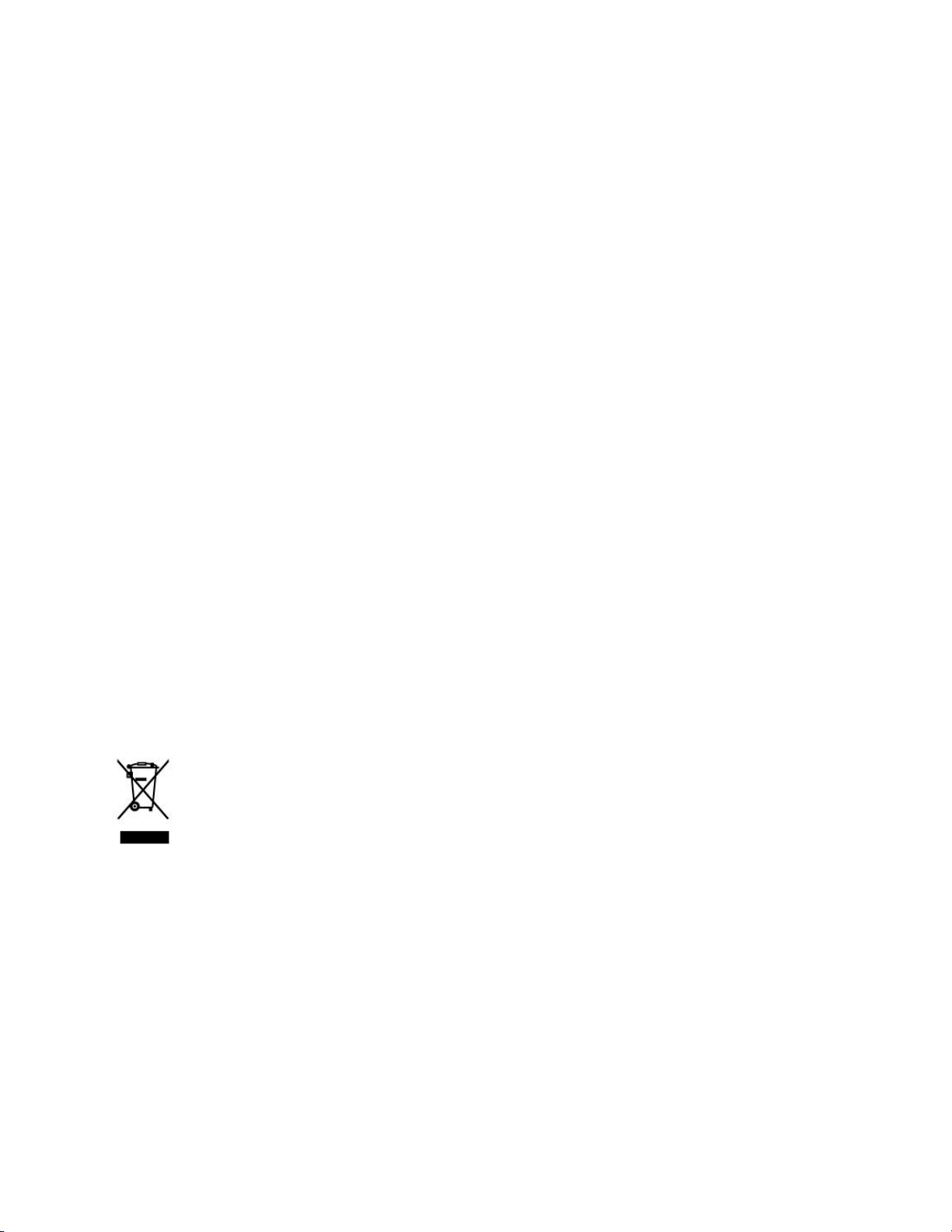
This symbol on the device or its packaging indicates:
Do not dispose of electrical appliances as unsorted municipal waste; use separate collection
facilities. Contact your local authority for information regarding the collection systems available.
If electrical appliances are disposed of in landfills or dumps, hazardous substances can leak into
the groundwater and get into the food chain, damaging your health and well-being. When
replacing old appliances with new ones, the retailer is legally obliged to take back your old
appliance for disposal at least free of charge.
2.1 FCC Statement
This device complies with Part 15 of the FCC Rules. Operation is subject to the following two
conditions: (1) This device may not cause harmful interference, and (2) this device must accept
any interference received, including interference that may cause undesired operation.
Warning: Changes or modifications not expressly approved by the party responsible for
compliance could void the user's authority to operate the equipment.
Note: This equipment has been tested and found to comply with the limits for a Class B digital
device, pursuant to Part 15 of the FCC Rules. These limits are designed to provide reasonable
protection against harmful interference in a residential installation.
This equipment generates, uses, and can radiate radio frequency energy and, if not installed
and used in accordance with the instructions, may cause harmful interference to radio
communications. However, there is no guarantee that interference will not occur in a particular
installation. If this equipment does cause harmful interference to radio or television reception,
which can be determined by turning the equipment off and on, the user is encouraged to try to
correct the interference by one or more of the following measures: (1) Reorient or relocate the
receiving antenna. (2) Increase the separation between the equipment and receiver. (3)
Connect the equipment into an outlet on a circuit different from that to which the receiver is
connected. (4) Consult the dealer or an experienced radio / TV technician for help.
2.2 FCC Radiation Exposure Statement
This equipment complies with FCC radiation exposure limits set forth for an uncontrolled
environment. This equipment should be installed and operated with minimum distance 20 cm
between the radiator & your body
.
2.3 IC Statement
This device complies with Industry Canada licence-exempt RSS standard(s). Operation is
subject to the following two conditions: (1) this device may not cause interference, and (2) this
device must accept any interference, including interference that may cause undesired operation
of the device.
2.4 Declaration of Conformity
This product complies with the radio interference requirements of the European Community.
Hereby, Anker Innovations Limited declares that the radio equipment type T2118 is in
compliance with Directive 2014/53/EU. The full text of the EU declaration of conformity is
available at the following internet address:
https://www.eufylife.com/
.
Maximum output power: 14 dBm
Frequency band: 2.4G band (2.4000GHz - 2.4835GHz)
Contains FCC ID: 2ANDL-TYWE1S IC ID: 23243-TYWE1S
2.5 Trademark Notice
● Amazon, Echo, Alexa and all related logos are trademarks of Amazon.com, Inc. or its
affiliates.
● Apple and the Apple logo are trademarks of Apple Inc., registered in the U.S. and other
countries. App Store is a service mark of Apple Inc., registered in the U.S. and other
countries.
● Google Play and the Google Play logo are trademarks of Google Inc.
● Google Home is a trademark of Google Inc.
加上 T2108 FR 的 safety 部分 +
2.3 Déclaration d'Industrie Canada
Le présent appareil est conforme aux CNR d'Industrie Canada applicables aux
appareils radio exempts de licence. L'exploitation est autorisée aux deux conditions
suivantes : (1) l'appareil ne doit pas produire de brouillage, et (2) l'utilisateur de
l'appareil doit accepter tout brouillage radioélectrique subi, même si le brouillage est
susceptible d'en compromettre le fonctionnement.
2.4 Notes sur les marques déposées
Amazon, Echo, Alexa et tous les logos connexes sont des marques déposées d'Amazon.com,
Inc. ou de ses sociétés affiliées.
Apple et le logo Apple sont des marques commerciales d'Apple Inc., enregistrées aux États-
Unis et dans d'autres pays. App Store est une marque de service d'Apple Inc., enregistrée aux
États-Unis et dans d'autres pays.
Google Play et le logo Google Play sont des marques déposées de Google Inc.
Google Home est une marque déposée de Google Inc.
3. About Your RoboVac
3.1 What's in the Box
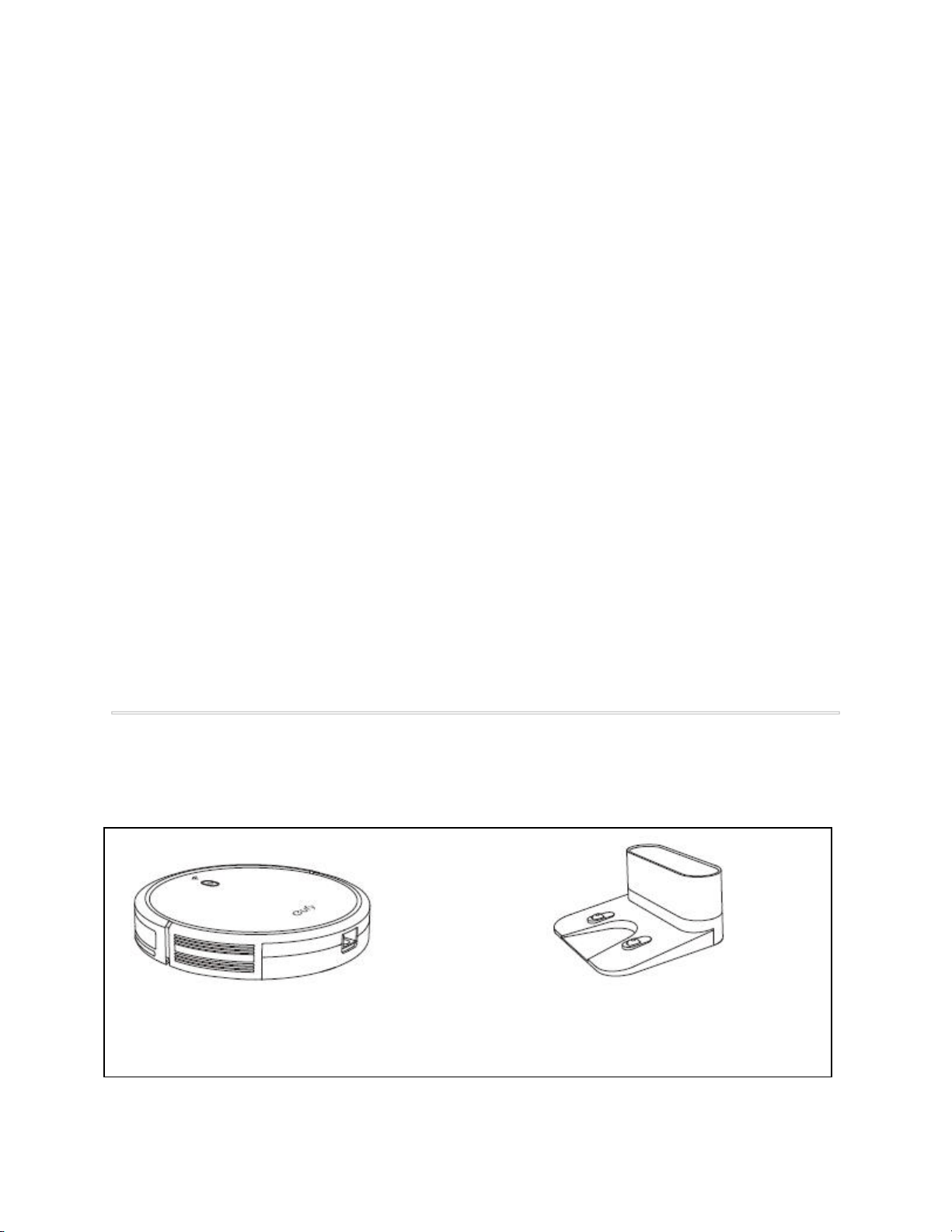
RoboVac 30C
Charging Base
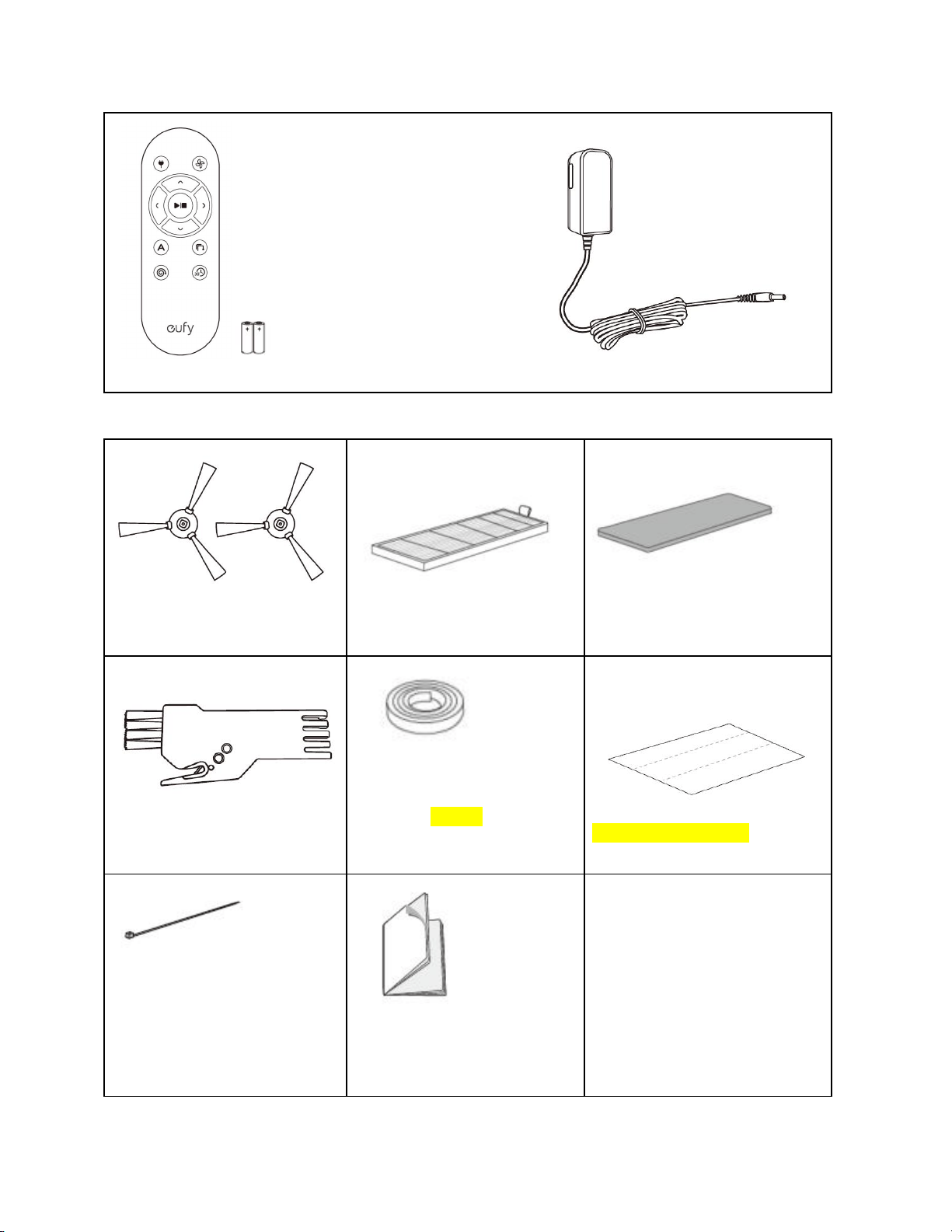
Remote Control (AAA Battery ×2) Power Adapter
Side Brushes (×4)
Additional High-Performance
Filter
Additional
Foam Filter
Cleaning Tool
Boundary Strips
6.6 ft/2 m Length
(x2)
Adhesive Tapes (x4)
Cable Ties (x5)
Owner’s Manual
& Other Documents
3.2 RoboVac Anatomy
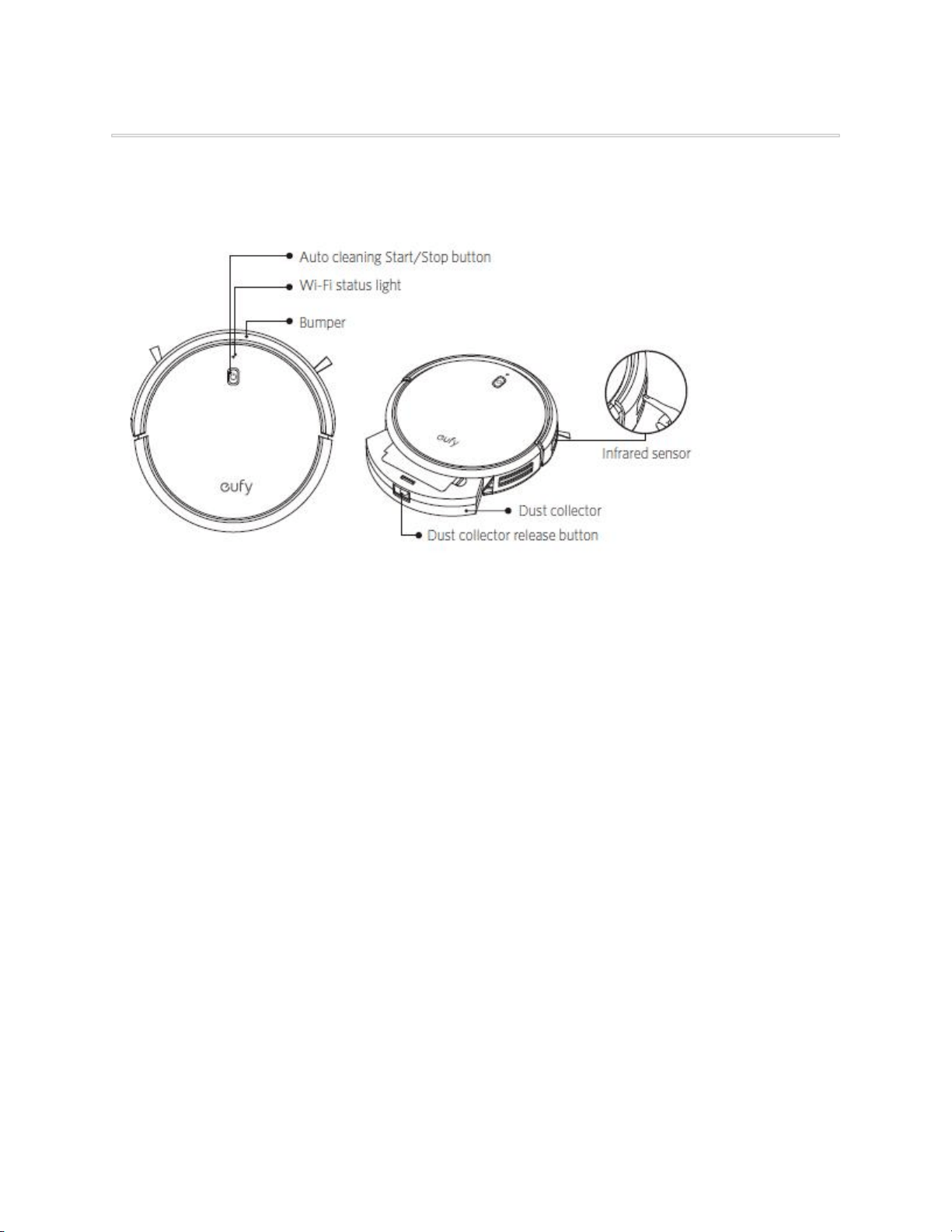
A. Top & Side
1. Auto cleaning Start/Stop button
2. Bumper
3. Infrared sensor
4. Dust collector
5. Dust collector release button
6. Wi-Fi status light
B. Bottom
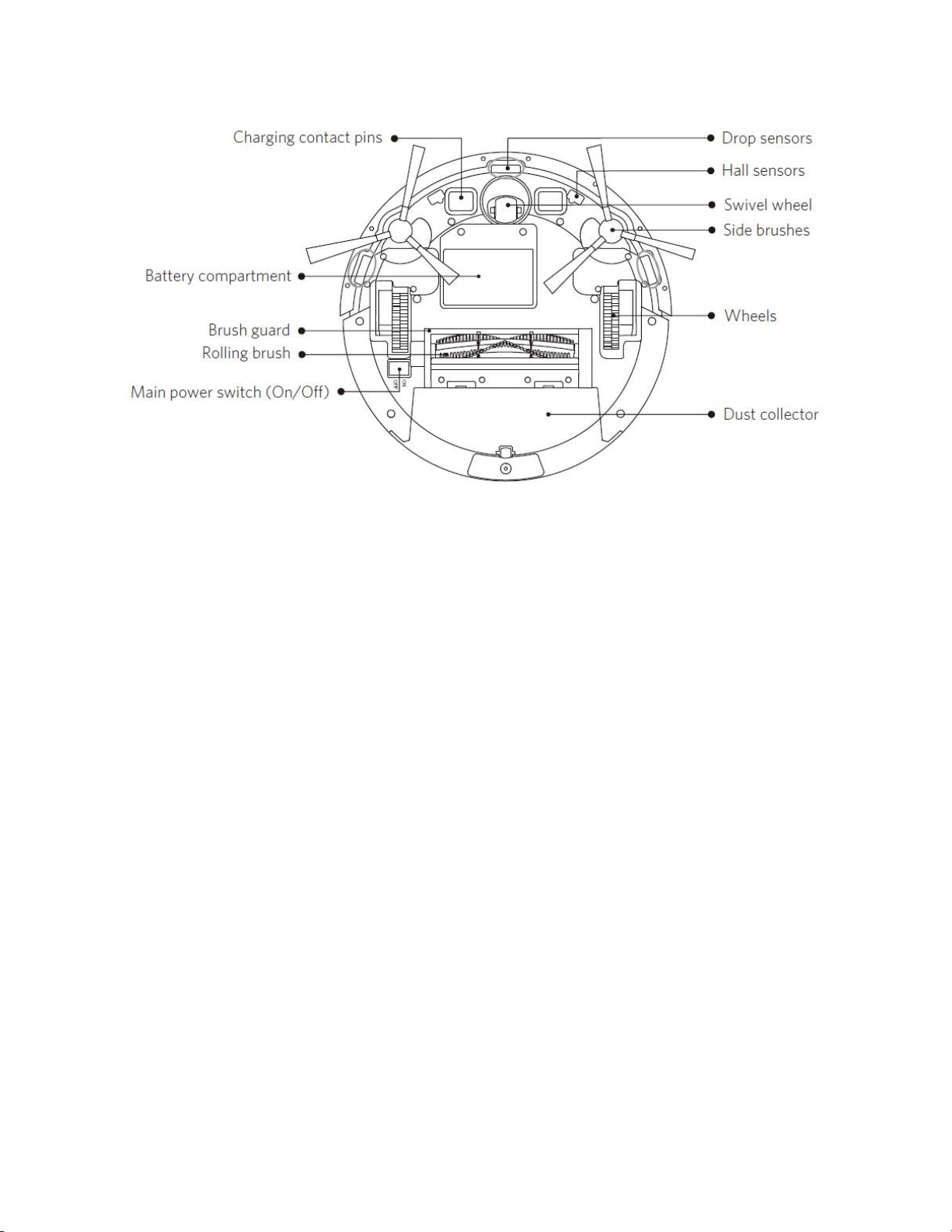
1. Charging contact pins
2. Brush guard
3. Rolling brush
4. Drop sensors
5. Swivel wheel
6. Side brushes
7. Wheels
8. Dust collector
9. Battery compartment
10. Main power switch (On/Off)
11. Hall sensors
C. Dust Collector
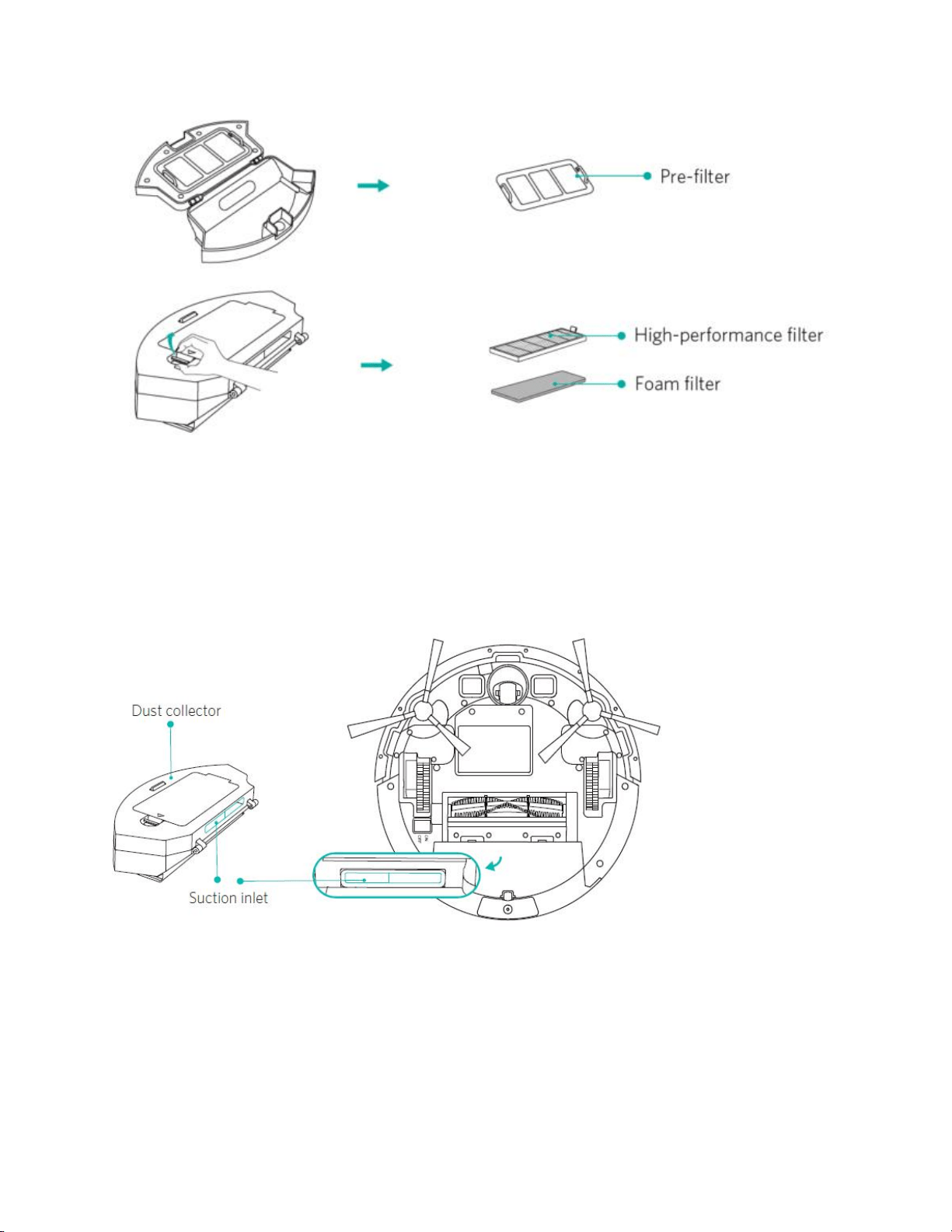
1. Pre-filter
2. High-performance filter
3. Foam filter
D. Suction Inlet
1. Dust collector
2. Suction inlet
E. Charging Base
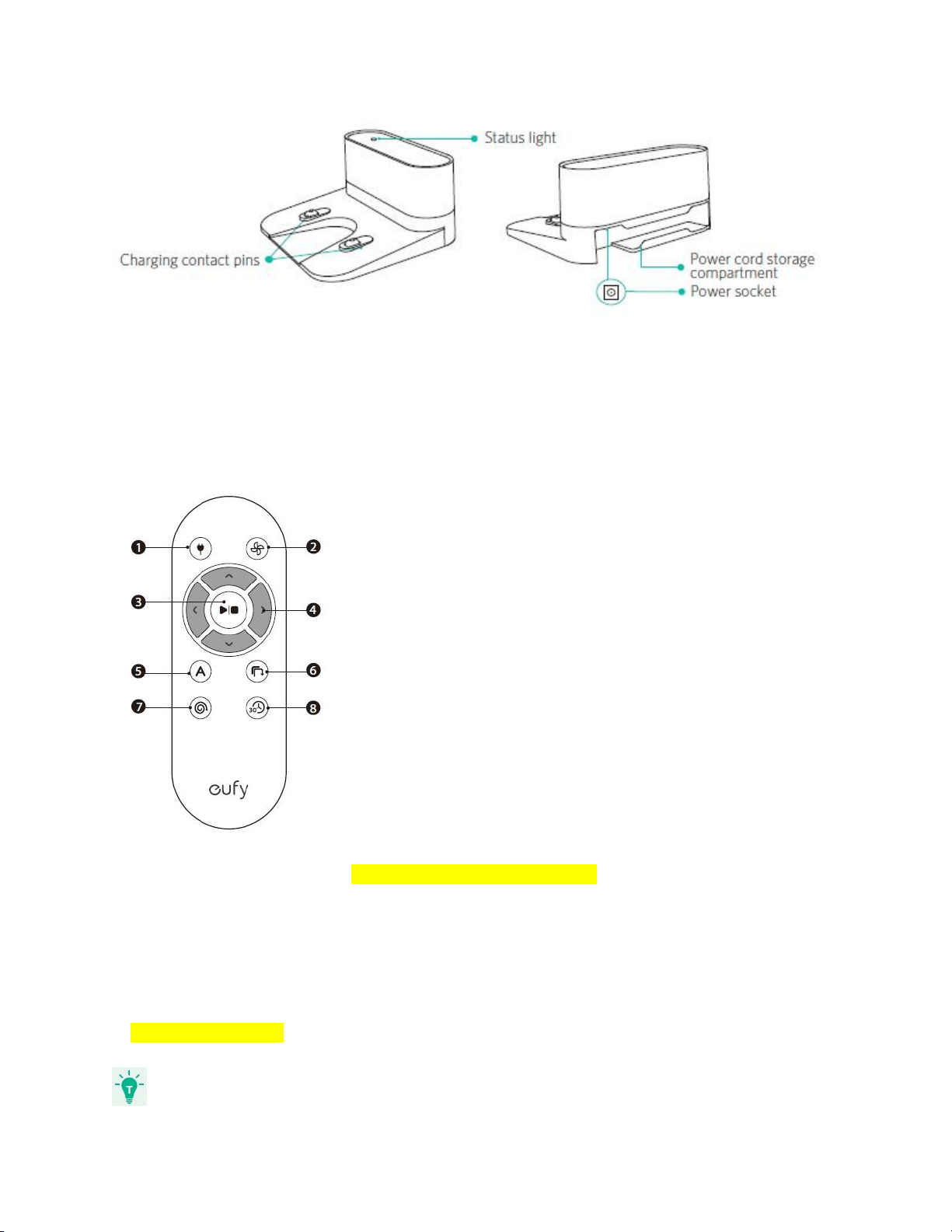
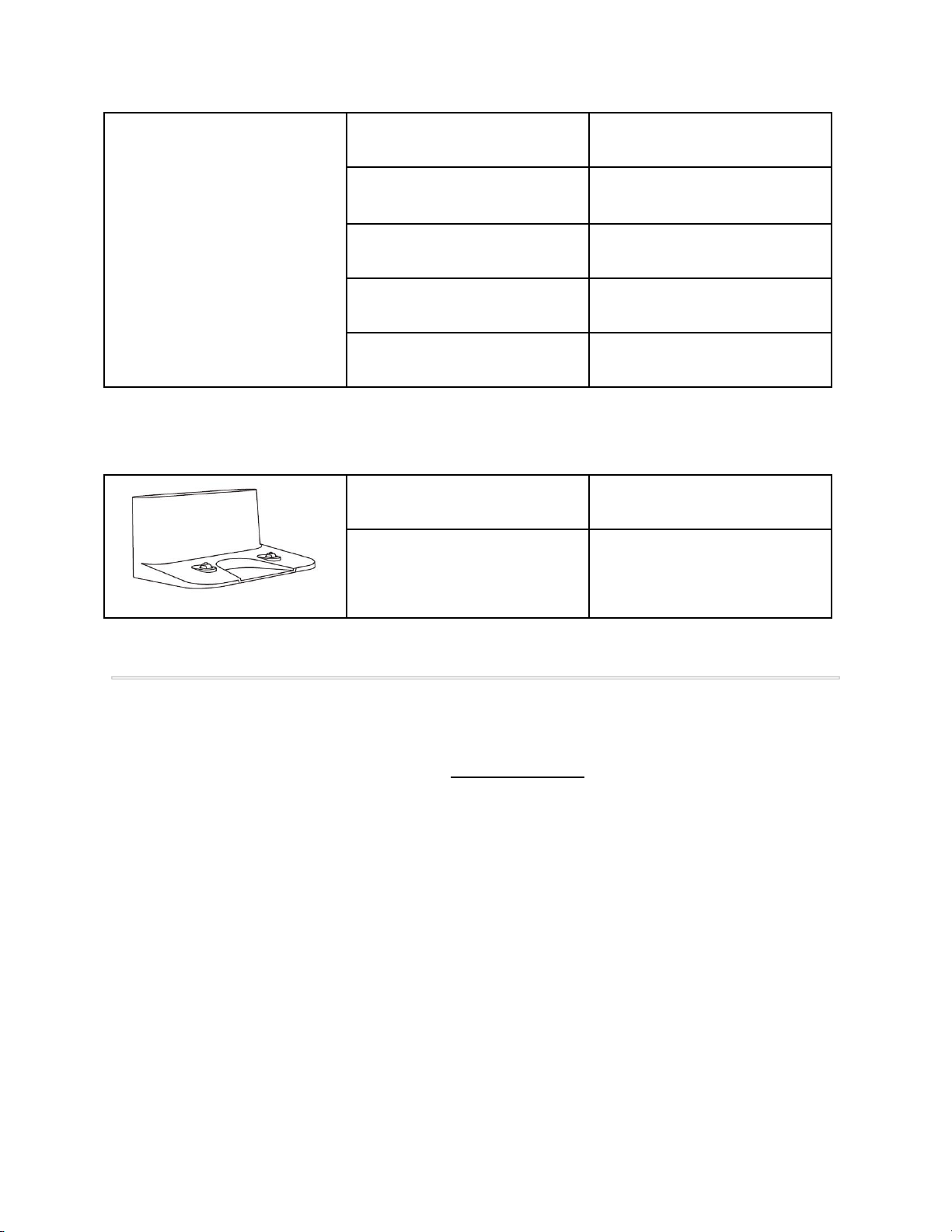
1. Charging contact pins
2. Status light
3. Power socket
4. Power cord storage compartment
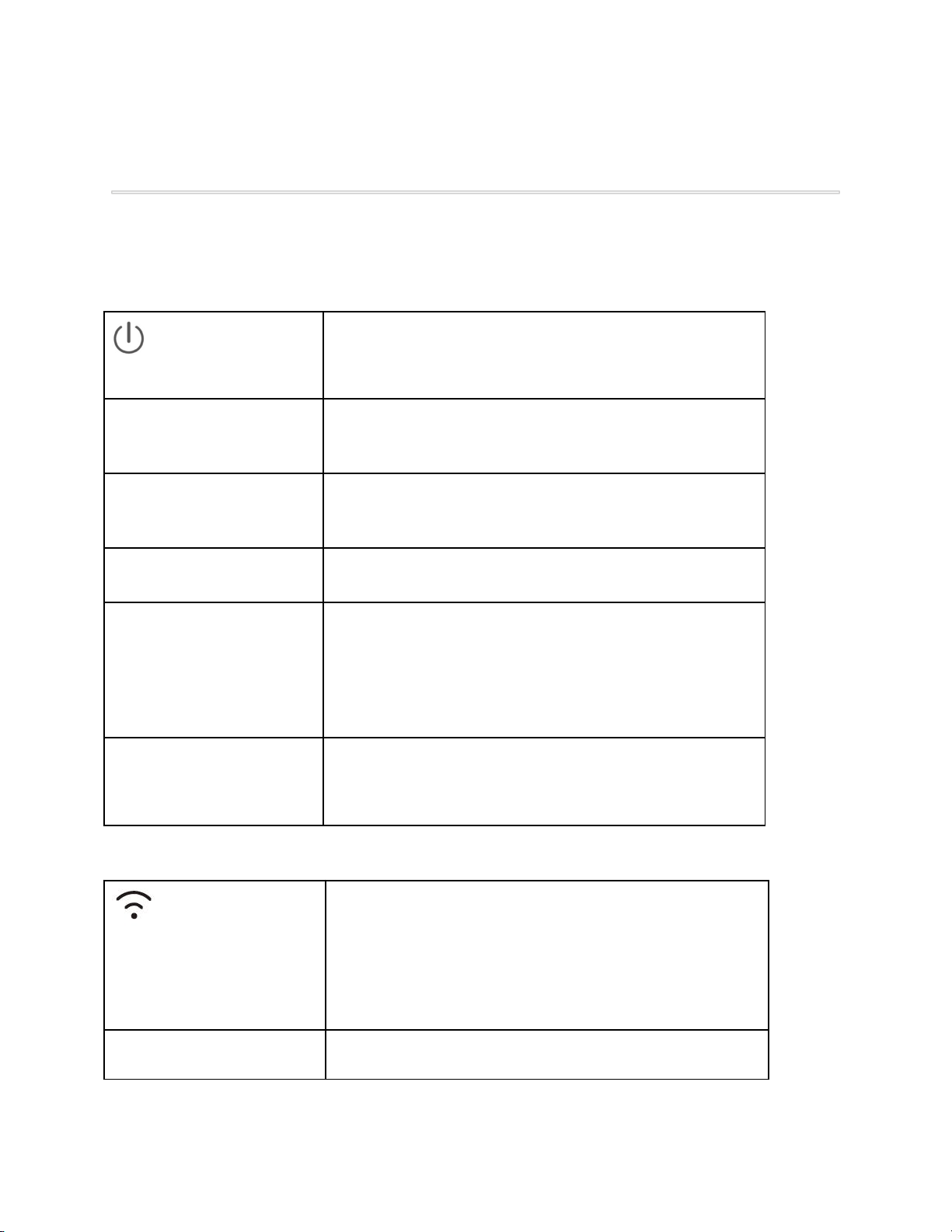
F. Remote Control
1. Return RoboVac to Charging Base
2. Adjust suction power level in Auto and Quick Cleaning modes
3. Start Auto cleaning /
Stop cleaning
4. Control cleaning direction manually
5. Start Auto cleaning
6. Start Edge cleaning
7. Start Spot cleaning
8. Start Quick cleaning
-
Install 2 AAA batteries before using the remote control for the first time
.
Make sure the positive and
negative ends are facing the correct polarity direction as marked in the battery compartment.
3.3 LED Indication
You can see the status of RoboVac from the LED indicators.
(Power Status Light)
Status
Breathing orange
Charging
Solid blue
Standby / Cleaning / Fully charged
Solid orange
Low power and returning to Charging Base
Off
● RoboVac is off.
● To conserve power, the light automatically turns
off when RoboVac is not docked to the Charging
Base and has been inactive for 1 minute.
Flashing / Solid red +
Beeping
RoboVac has an error.
Refer to the “Troubleshooting>Error Tone” section in
this manual for solutions.
(Wi-Fi Status Light)
Status
Slowly flashing blue
Waiting for connection
Rapidly flashing blue
Connecting with your wireless router
Solid blue
Connected to your wireless router
4. Using Your RoboVac
4.1 Important Tips Before Use
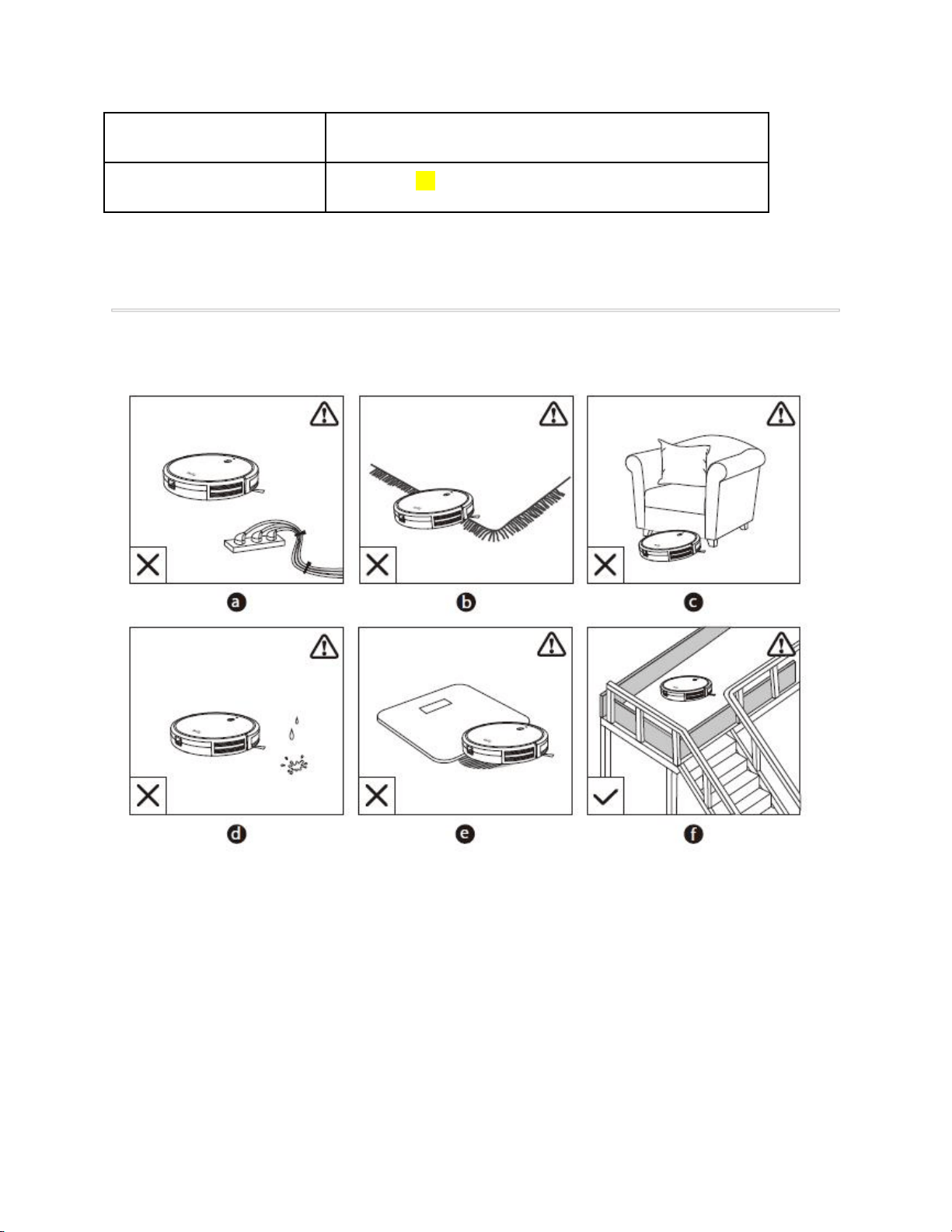
● Remove power cords and small objects from the floor that may entangle RoboVac. You
can use the supplied cable ties to organize your wires and power cords.
● Fold tasseled edges of area rugs underneath to prevent tangling RoboVac. Avoid
cleaning very dark-colored high-pile rugs or rugs thicker than 1.02 in/26 mm as they may
cause RoboVac to malfunction.
● Keep RoboVac away from spaces lower than 2.87 in/73 mm to prevent RoboVac from
getting stuck. If necessary, place a physical barrier to block off the problem areas.
● Keep RoboVac away from wet areas.
● RoboVac may climb on top of objects less than 0.63 in/16 mm in height. Remove these
objects if possible.
● Anti-drop sensors prevent RoboVac from tumbling down stairs and steep drops. They
may work less effectively if dirty or used on reflective/very dark-colored floors. It is
recommended to apply the Boundary Strip(s) to block off areas where RoboVac may fall.
Place physical barriers or Boundary Strips in front of fireplaces and areas that may cause
damage to RoboVac if entered.
4.2 Preparation
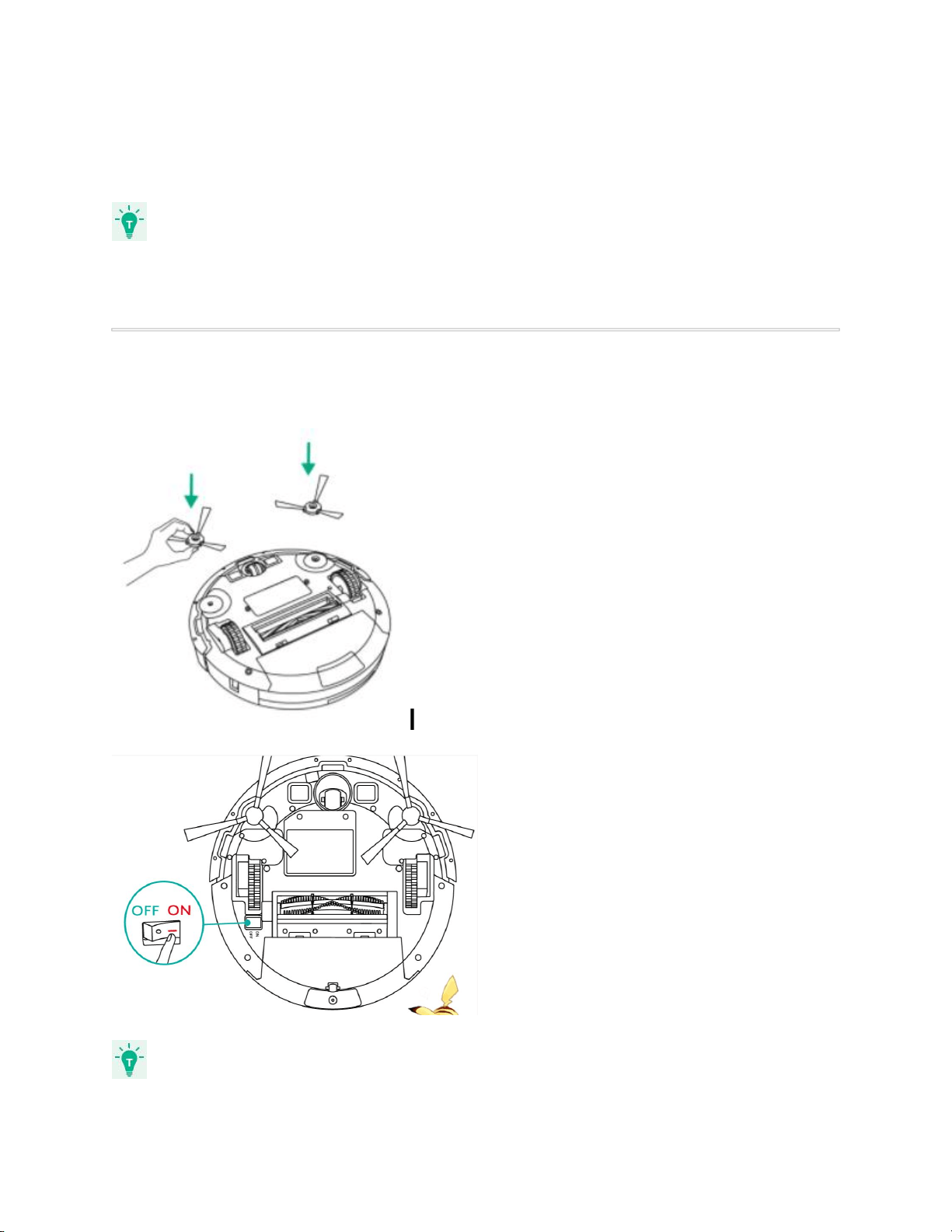
1. Install the side brushes before use.
2. Turn on the main power switch on the bottom of RoboVac.
Remove the sticker next to the power switch, and the foam blocks beside the bumper before
use.
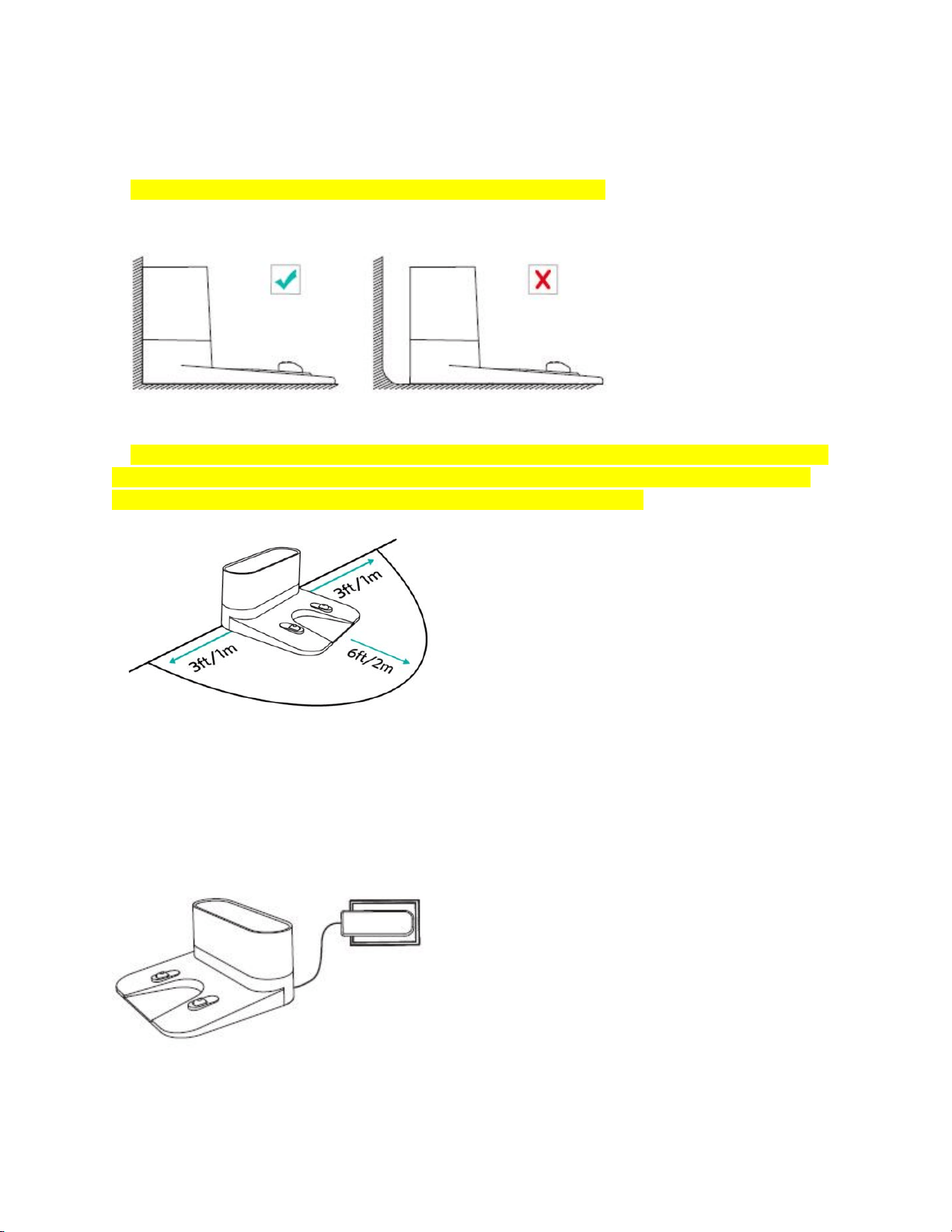
3. Place the Charging Base on a level surface and against a wall.
4. Remove objects within 3 ft/1 m of the left and right side and within 6 ft/2 m of the front of the
Charging Base. If you cannot remove the objects, check whether RoboVac can return to the
Charging Base normally; if not, contact eufy customer service for help.
5. Connect the round connector of the adapter into the power socket on the Charging Base and
the other end into a wall outlet.
➢ When the Charging Base connects to AC power, the LED indicator on the Charging
Base is SOLID WHITE.
- Install the Charging Base in a location that RoboVac can easily access. It is recommended to
place the Charging Base against a wall, and on a hard-level surface rather than on rugs or
carpets.
- Always keep the Charging Base plugged in, otherwise RoboVac will not automatically return to
it.
4.3 Charge Your RoboVac
● RoboVac has a pre-installed rechargeable battery that has to be fully charged before
use.
● RoboVac returns to the Charging Base at the end of a cleaning cycle or when its battery
is running low.
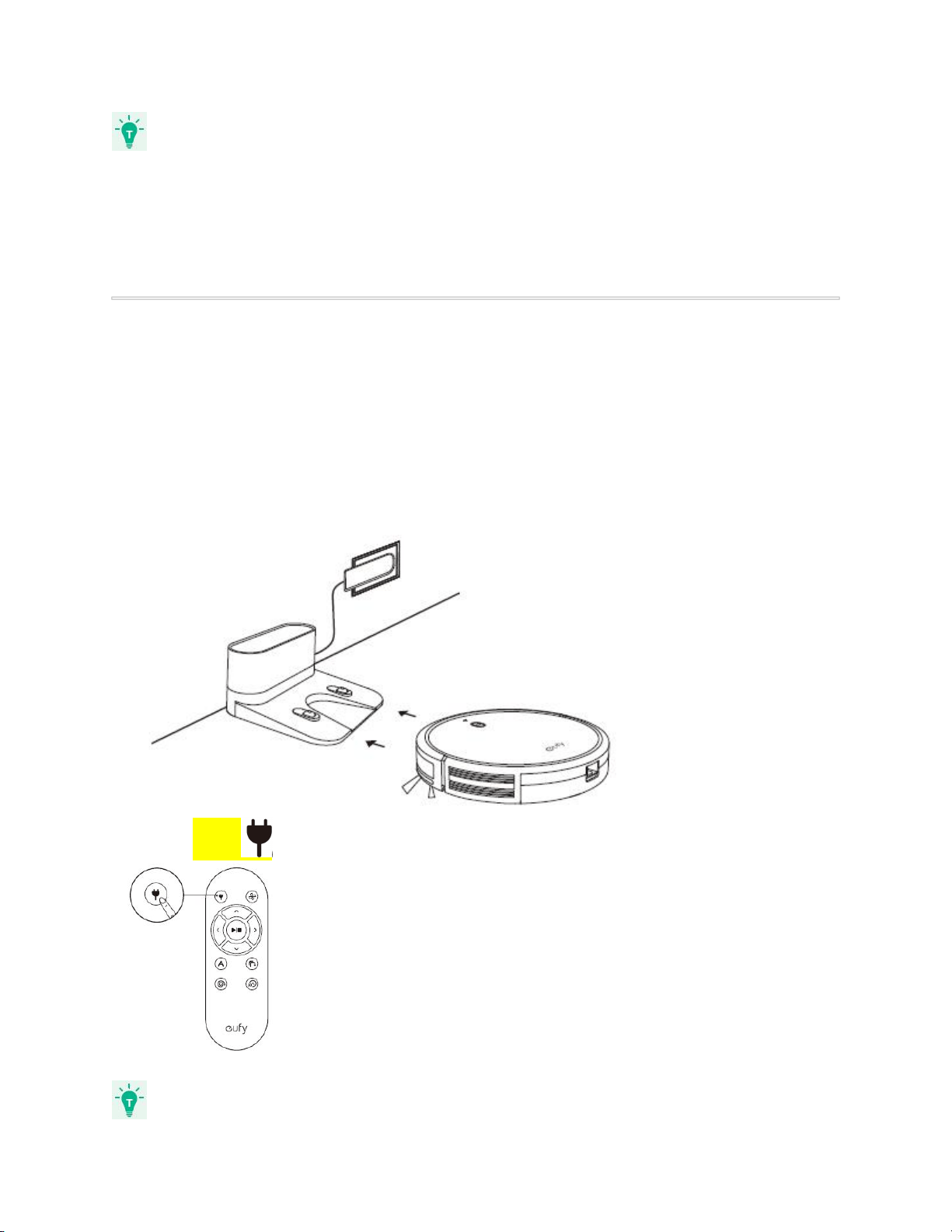
Method 1: Attach RoboVac to the Charging Base by aligning its charging pins with the charging
pins on the base.
Method 2: Press on the remote control to return RoboVac to the Charging Base.
- Turn off the main power switch if RoboVac will not be used for a long period of time. To
preserve the battery’s lifespan, recharge at least once every 6 months.
4.4 Use Your RoboVac with the EufyHome App
To enjoy all available features, it is recommended to control your RoboVac via the EufyHome
app.
Before you start, make sure that:
● Your smartphone or tablet is connected to a Wi-Fi network.
● Your smartphone or tablet is running iOS 8.0 (or above) or Android 4.4 (or above).
●
The 2.4GHz band wireless signal is enabled on your wireless router
.
● The Wi-Fi status light on RoboVac is slowly flashing blue.
● RoboVac is attached to the Charging Base to ensure it has enough power during setup.
1. Download the EufyHome app from the App Store (iOS devices) or Google Play (Android
devices).
2. Open the app and create a user account.
3. Tap the “+” icon in the top right corner to add RoboVac to your EufyHome account.
4. Follow the instructions in the app to set up the Wi-Fi connection.
- After connecting successfully, you can control RoboVac via the app.
- With the app, you can select a cleaning mode, set the time, schedule a cleaning, view
the system status, receive notifications and access additional features.
Wi-Fi Status Light
Slowly flashing blue
Waiting for connection
Rapidly flashing blue
Connecting with your wireless
router
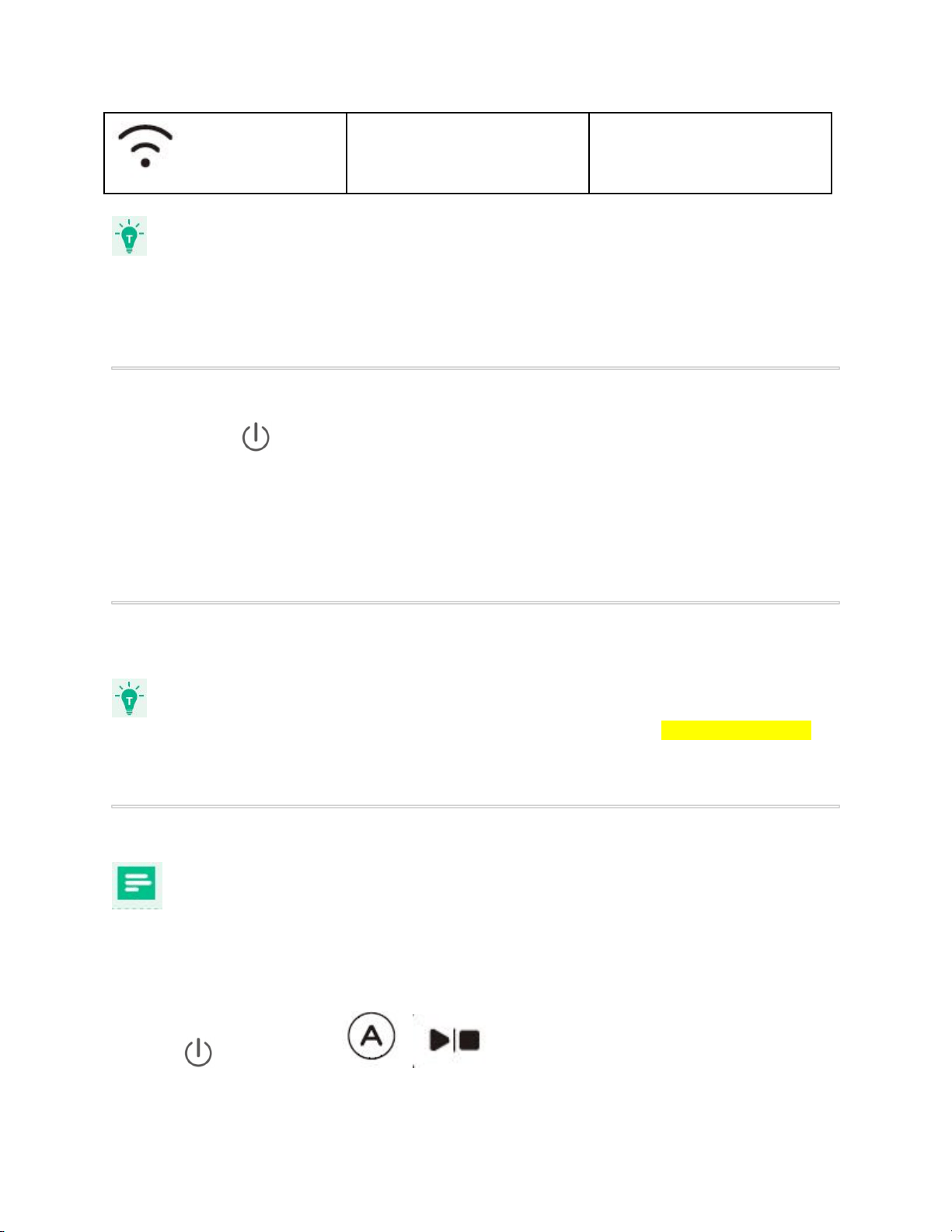
Solid blue
Connected with your wireless
router
● If you have any problems during the Wi-Fi setup process, refer to the
“Troubleshooting > Wi-Fi connection” section in this Manual.
● If RoboVac gets stuck in any space, tap Find My Robot in the app to find the machine.
This function is available in the app only.
Reset the Wi-Fi Connection
Press and hold on RoboVac for 10 seconds to reset the Wi-Fi connection if
necessary.
- You will hear a beep when the Wi-Fi connection has been reset and the Wi-Fi
status light will slowly flash blue. Now you can follow the Wi-Fi instructions in the
EufyHome app to set up the Wi-Fi connection.
Schedule Cleaning
With the EufyHome app, you can schedule RoboVac to start cleaning at a particular time.
● You can set the time and customize the cleaning schedules from Sunday to Saturday on
the EufyHome app. This function is available in the app only.
4.5 Start / Stop Cleaning
● Make sure the main power switch on the bottom of RoboVac is turned on before use.
● You can also start or stop cleaning via the EufyHome app.
1. Press on RoboVac or / on the remote control to start cleaning in Auto
Mode.
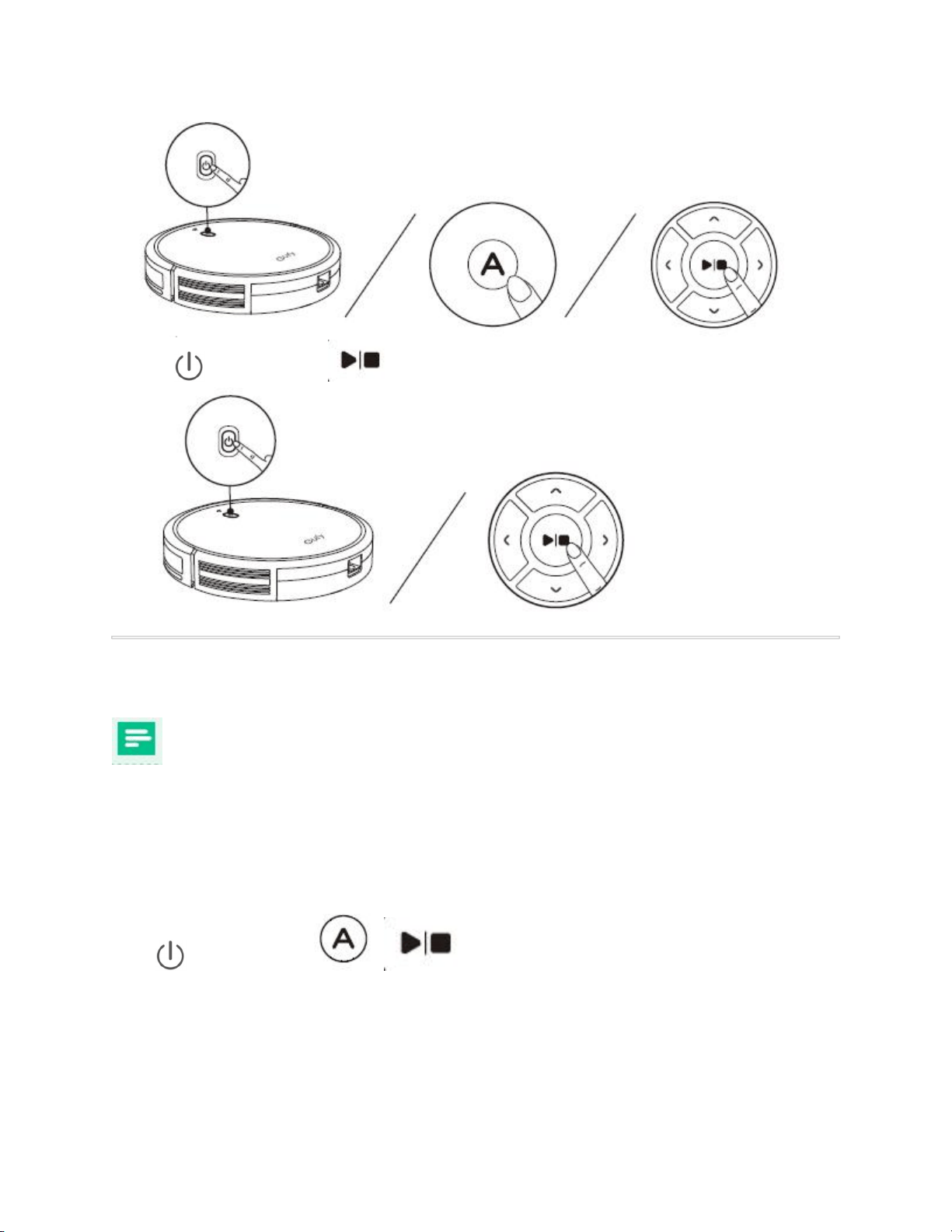
2. Press on RoboVac or on the remote control to stop cleaning.
4.6 Select a Cleaning Mode
● You can also select a cleaning mode via the EufyHome app.
1. Auto cleaning
RoboVac optimizes its cleaning path by selecting different cleaning modes automatically until
cleaning is complete. This is the most commonly used cleaning mode.
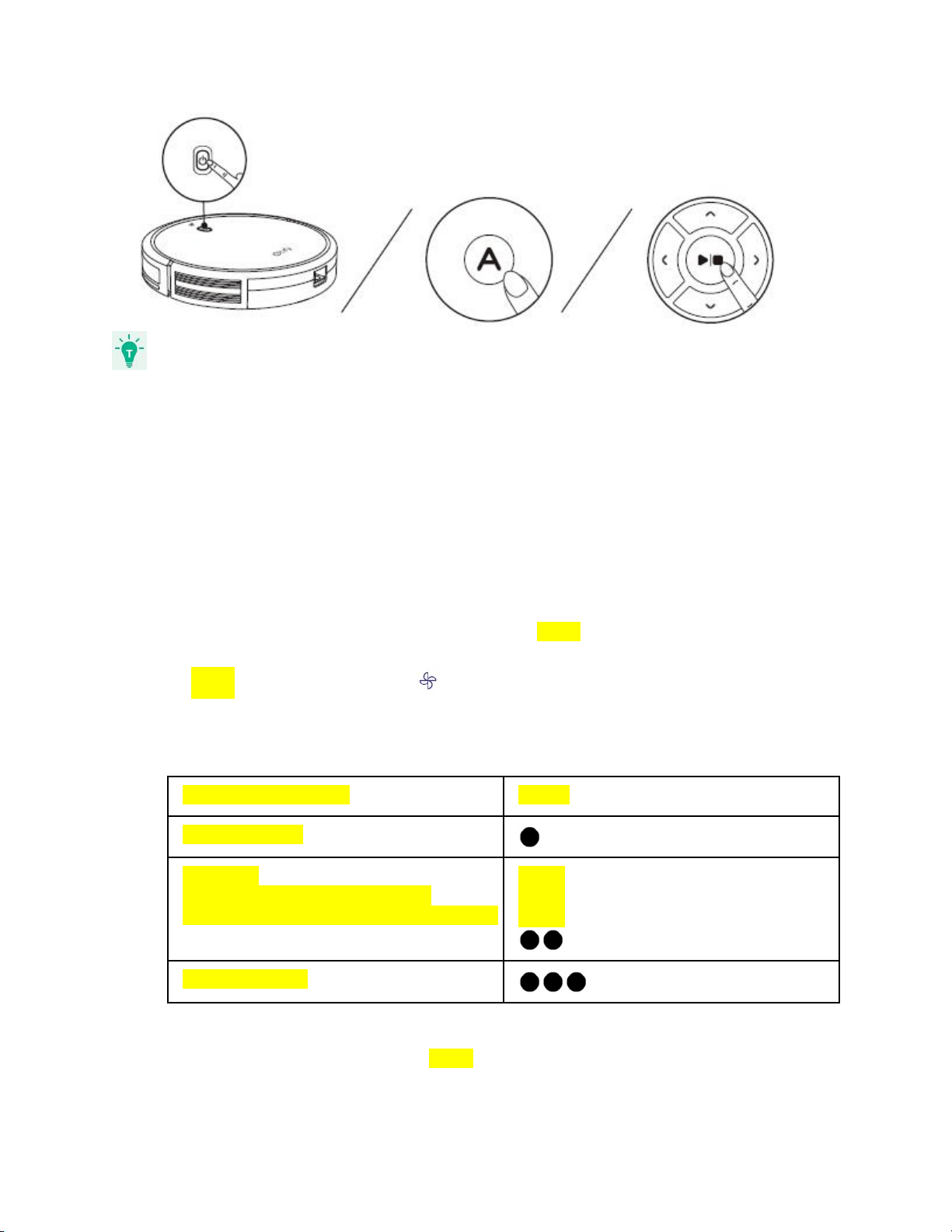
Press on RoboVac or / on the remote control to start cleaning in Auto
Mode.
- RoboVac will return to the Charging Base automatically when the battery level becomes low or
when RoboVac finishes cleaning.
- By default, RoboVac starts in Auto cleaning mode when it is turned on.
BoostIQ™ Feature
When the BoostIQ™ feature is enabled, RoboVac will automatically increase the suction power
if it detects stronger power is needed to ensure the best clean. BoostIQ™ is ideal for cleaning
thicker carpets and hard-to-sweep messes, which will reduce the total cleaning time, but
increase the noise level. If the vacuuming noise caused by BoostIQ™ disturbs you, you can
disable this feature. This feature only works in Auto and Quick cleaning modes.
In Auto or Quick cleaning mode, press on the remote control repeatedly to adjust the
suction power level.
❖ The corresponding icon is displayed on the remote control.
Suction Power Level
Beeps
Standard power
BoostIQ™
(Default, automatically switches
between Standard and Enhanced power)
Maximum power
Note:
When RoboVac starts cleaning in Auto or Quick mode the next time, it will clean according to
the suction power level you previously selected.
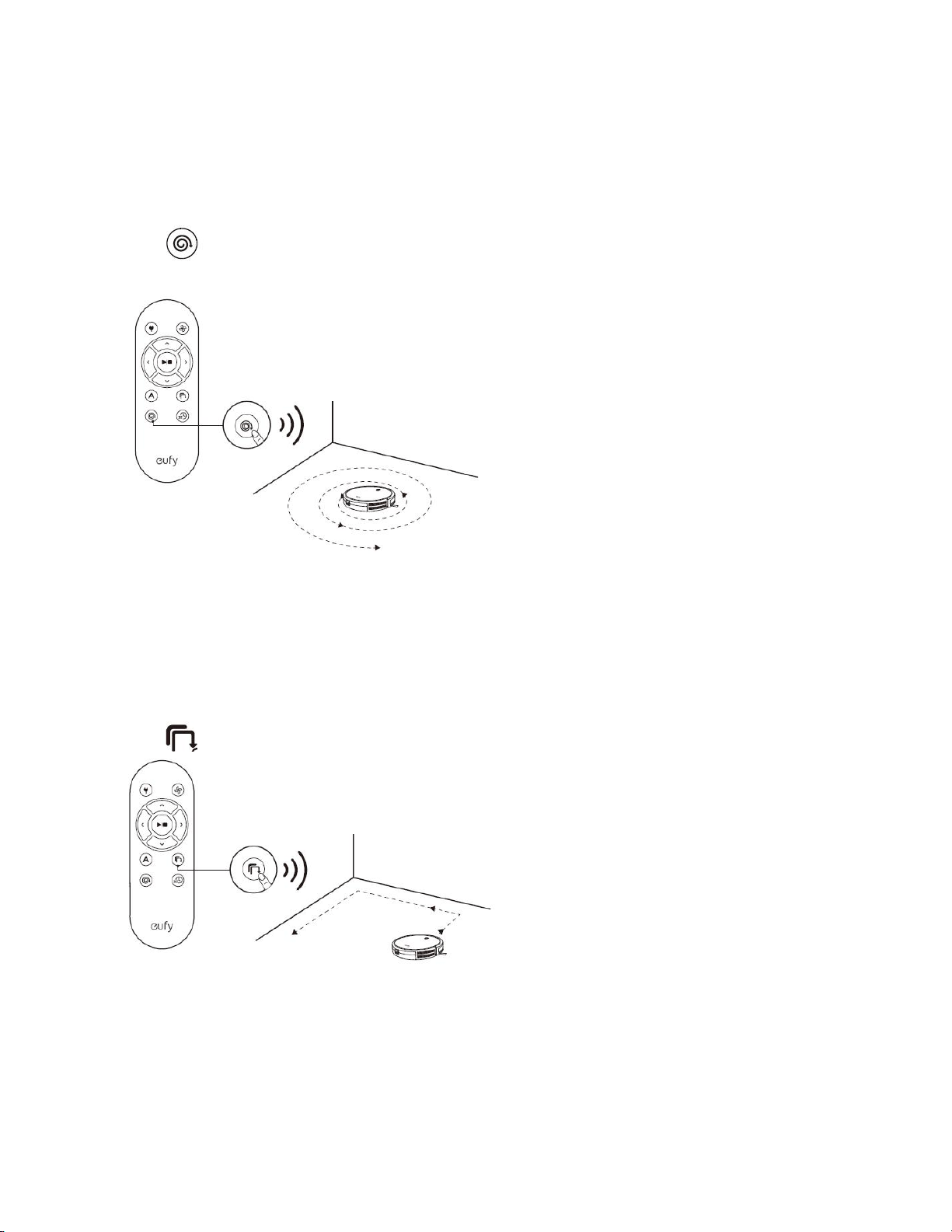
2. Spot cleaning
RoboVac intensively cleans a specific area in a spiral pattern, useful if there is a concentrated
area of dust or debris. In Spot mode, RoboVac will stop cleaning after 2 minutes.
Press on the remote control to start cleaning in Spot Mode.
3. Edge cleaning
RoboVac reduces its speed when it detects a wall and then follows the wall to ensure the edge
is cleaned thoroughly. In Edge mode, RoboVac will clean for 20 minutes and return to the
Charging Base.
Press on the remote control to start cleaning in Edge Mode.
4. Quick cleaning
RoboVac will automatically stop cleaning after 30 minutes and return to the Charging Base in
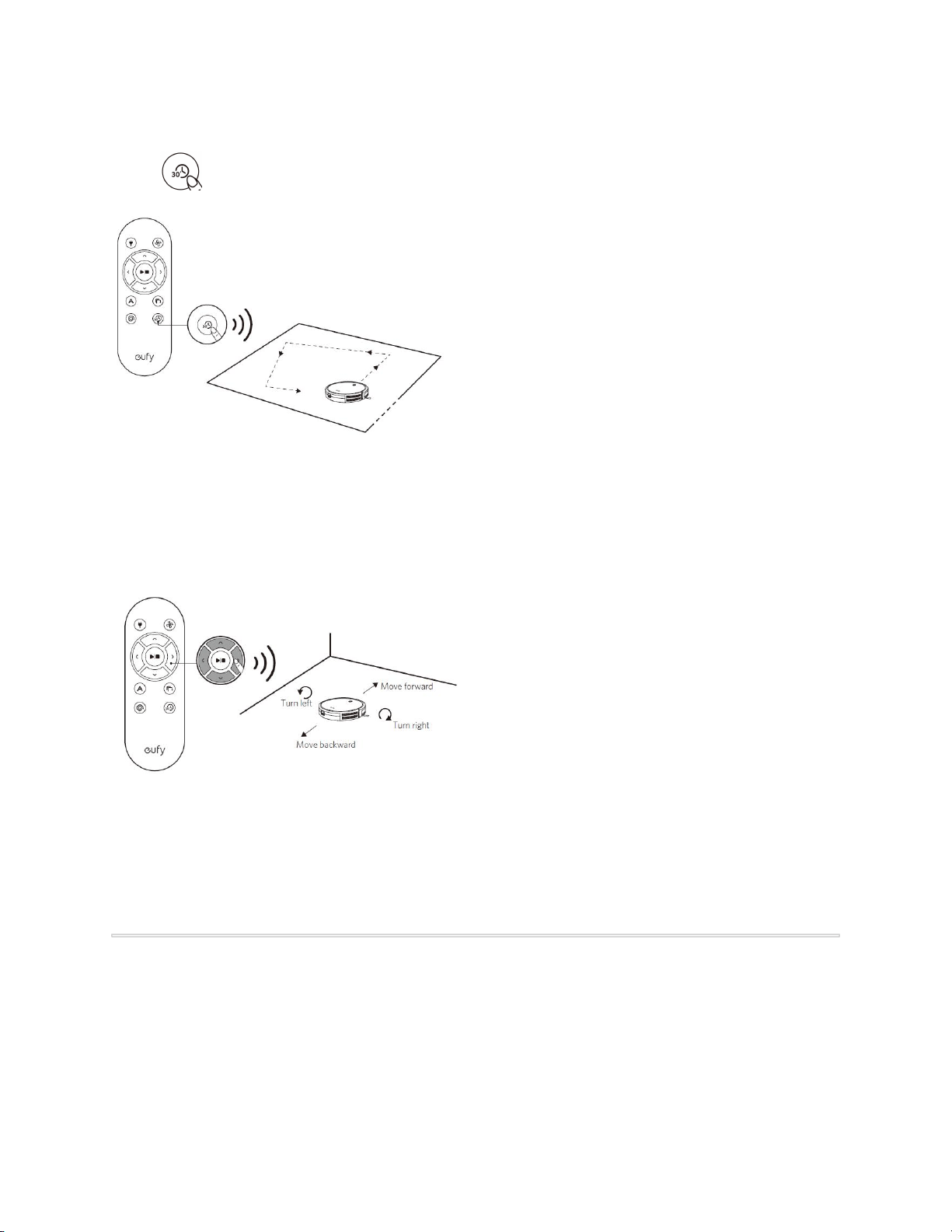
this mode. If any small room or area needs to be cleaned, it is recommended to select this
mode to save time and power.
Press on the remote control to start quick cleaning mode.
5. Manual cleaning
You can direct RoboVac to clean a particular area by using the directional buttons on the
remote control.
1. Turn left
2. Move backward
3. Turn right
4. Move forward
4.7 Use the Boundary Strip
With the Boundary Strip, you can keep RoboVac away from any area or item you do not
want RoboVac to clean. RoboVac will recognize the Boundary Strip and will not cross
into the blocked-off area.
1. Identify the area or item you do not want RoboVac to get close to.
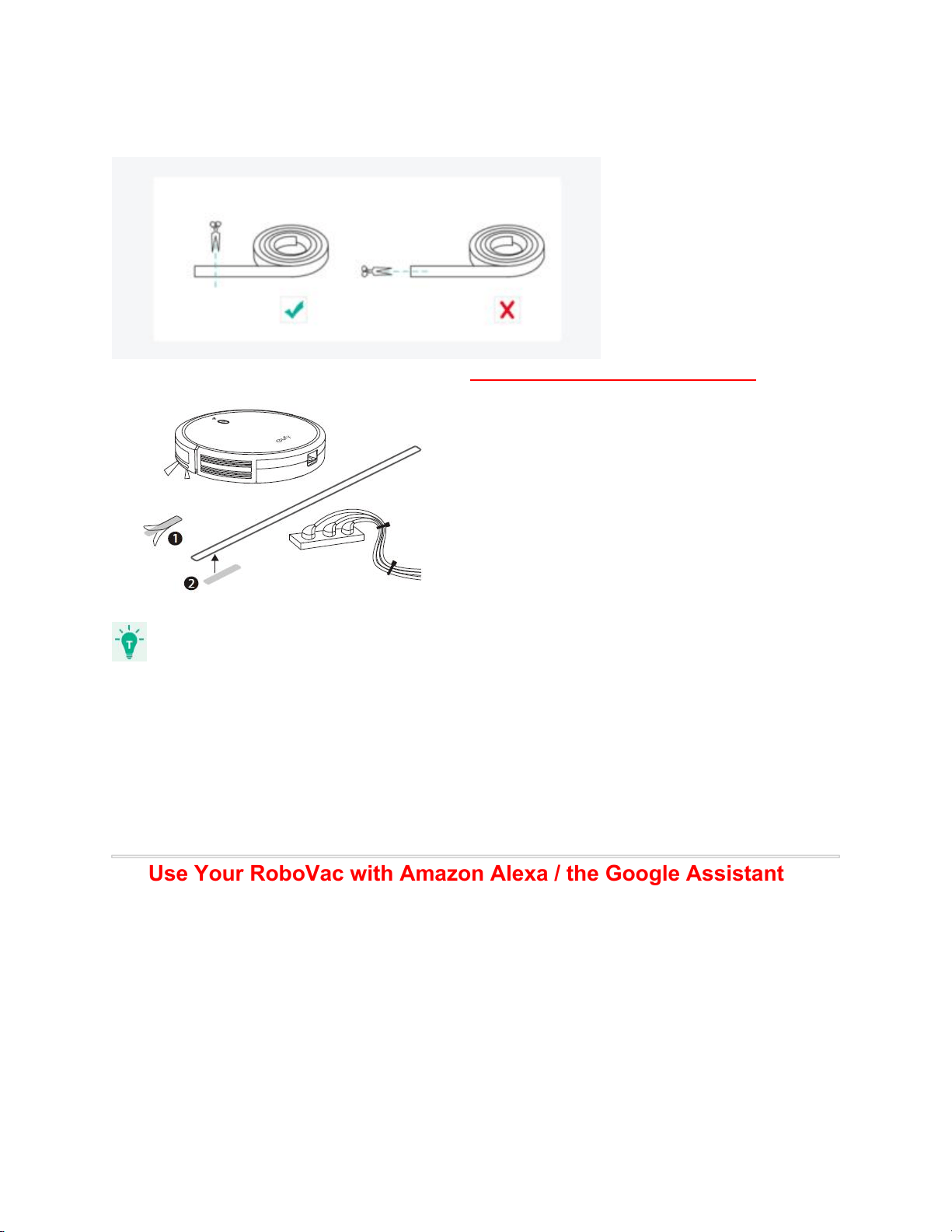
2. If necessary, use scissors to cut the Boundary Strip to a shorter length. Be sure to correctly
measure the length before cutting.
3. Apply the supplied strips of adhesive tape to lay the Boundary Strip flat on the floor. Make
sure the strip is placed FLAT on the floor or under an area rug.
● If the Boundary Strip is rolled up, remove and then re-apply on the floor with
adhesive tape. Otherwise the Boundary Strip may not work well.
● Make sure the Boundary Strip is placed on the same surface plane RoboVac is
used on.
● Be careful not to damage the floor when using adhesive tape. It is not
recommended for use on carpets.
● Keep the Boundary Strip away from objects that emit excessive heat.
4.8 Use Your RoboVac with Amazon Alexa / the Google Assistant
Amazon Alexa or the Google Assistant is a smart voice control device that enables you to
control RoboVac with your voice.
Before you start, make sure that:
● RoboVac is attached to the Charging Base to ensure there is enough power.
● RoboVac is connected with the EufyHome app.
● You have an Alexa-enabled device (i.e. eufy Genie, Amazon Echo, Echo Dot and
Amazon Tap, Echo Show, Echo Spot) or a device enabled with the Google Assistant (i.e.
Google Home, Google Home Mini). These devices are sold separately.
● The Amazon Alexa app or Google Home app is already installed on your smart device,
and you have created an account.
To control RoboVac with Amazon Alexa
1. Open the Amazon Alexa app and select “Skills” from the menu.
2. On the Skills screen, search for “EufyHome - RoboVac”.
3. Once you have found the “EufyHome - RoboVac” skill, tap Enable.
4. Login with your EufyHome account so that Alexa can control your RoboVac.
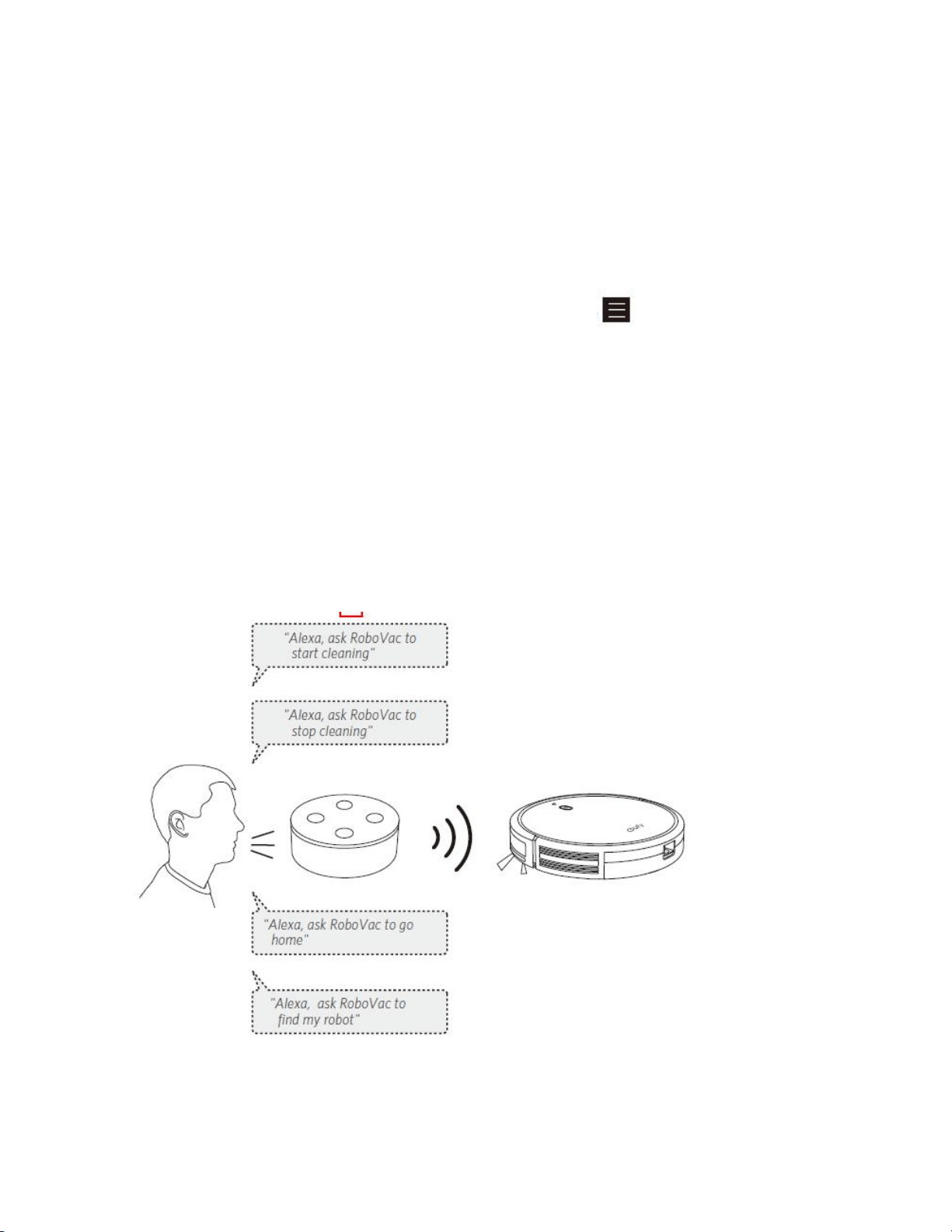
5. Say simple commands to Alexa.
● "Alexa, ask RoboVac to start cleaning."
● "Alexa, ask RoboVac to stop cleaning."
● "Alexa, ask RoboVac to go home."
● "Alexa, ask RoboVac to find my robot."
To control RoboVac with the Google Assistant
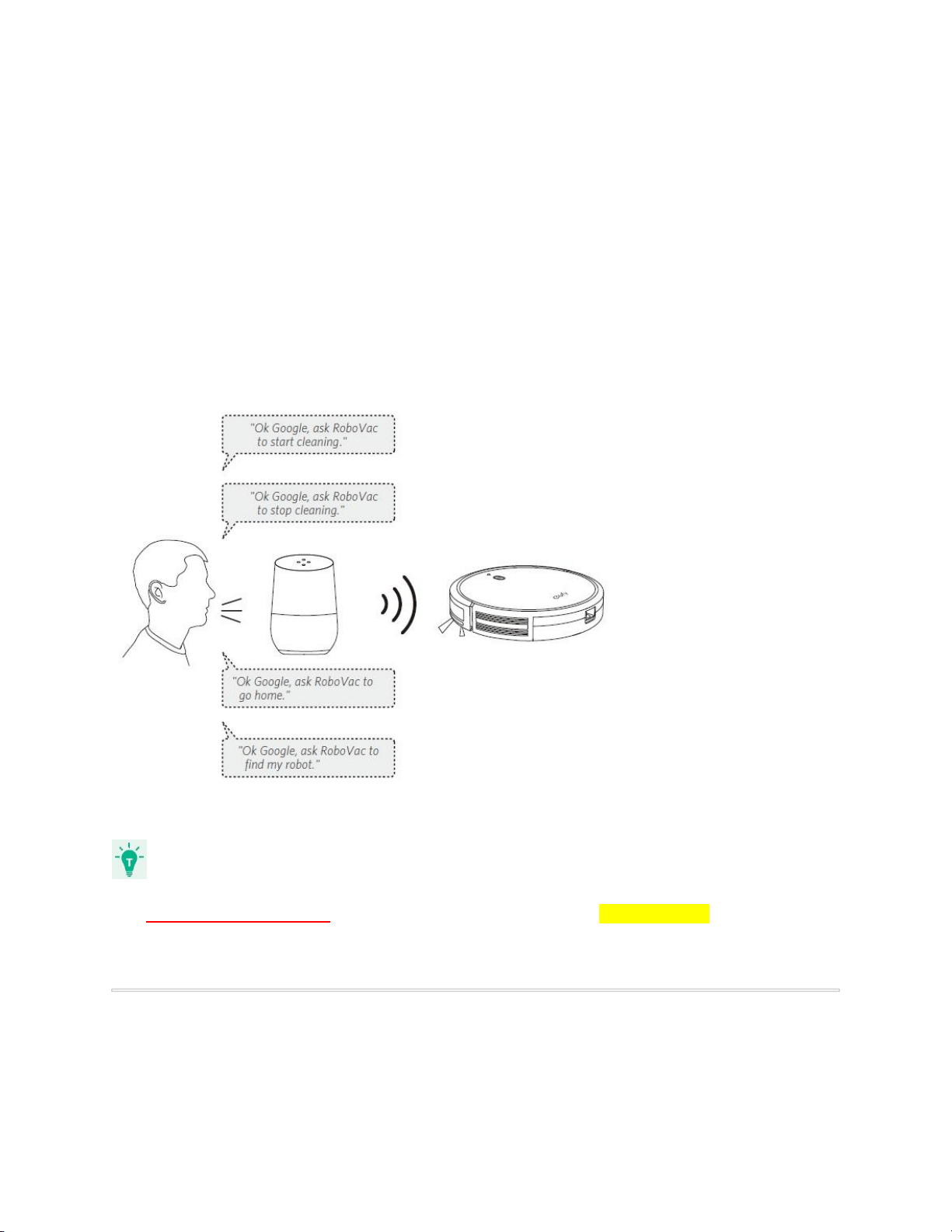
RoboVac now works with the Google Assistant on devices like the Google Home.
1. Open the Google Home app.
2. Say “Ok Google, talk to RoboVac” to the Google Assistant-enabled device to initiate the
Google action for RoboVac.
3. Follow the instructions in the Google Home app to authorize the Google Assistant with
your EufyHome account.
4. To control RoboVac with your voice, say simple commands to Google Assistant.
● "Ok Google, ask RoboVac to start cleaning."
● "Ok Google, ask RoboVac to stop cleaning."
● "Ok Google, ask RoboVac to go home."
● "Ok Google, ask RoboVac to find my robot."
- For more information about how RoboVac works with Amazon Alexa / the Google Assistant,
visit https://www.eufylife.com and go to PRODUCTS>Cleaning>RoboVac 30C for details.
5. Cleaning and Maintenance
For optimal performance, follow the instructions below to clean and maintain RoboVac regularly.
The cleaning/replacement frequency will depend on your usage habits of RoboVac.
Recommended cleaning/replacement frequency
RoboVac Part
Cleaning Frequency
Replacement Frequency
Dust Collector
After each use
-
Filters
Once every week
Every 2 months
Rolling Brush
Once every week
Every 6-12 months
Side Brushes
Once every month
Every 3-6 months (or when
visibly worn)
Brush Guard
Once every month
Every 3-6 months (or when
the silicone rubber strip on
the brush guard becomes
visibly worn)
Sensors
Once every month
-
Charging Pins
Once every month
-
Swivel Wheel
Once every month
-
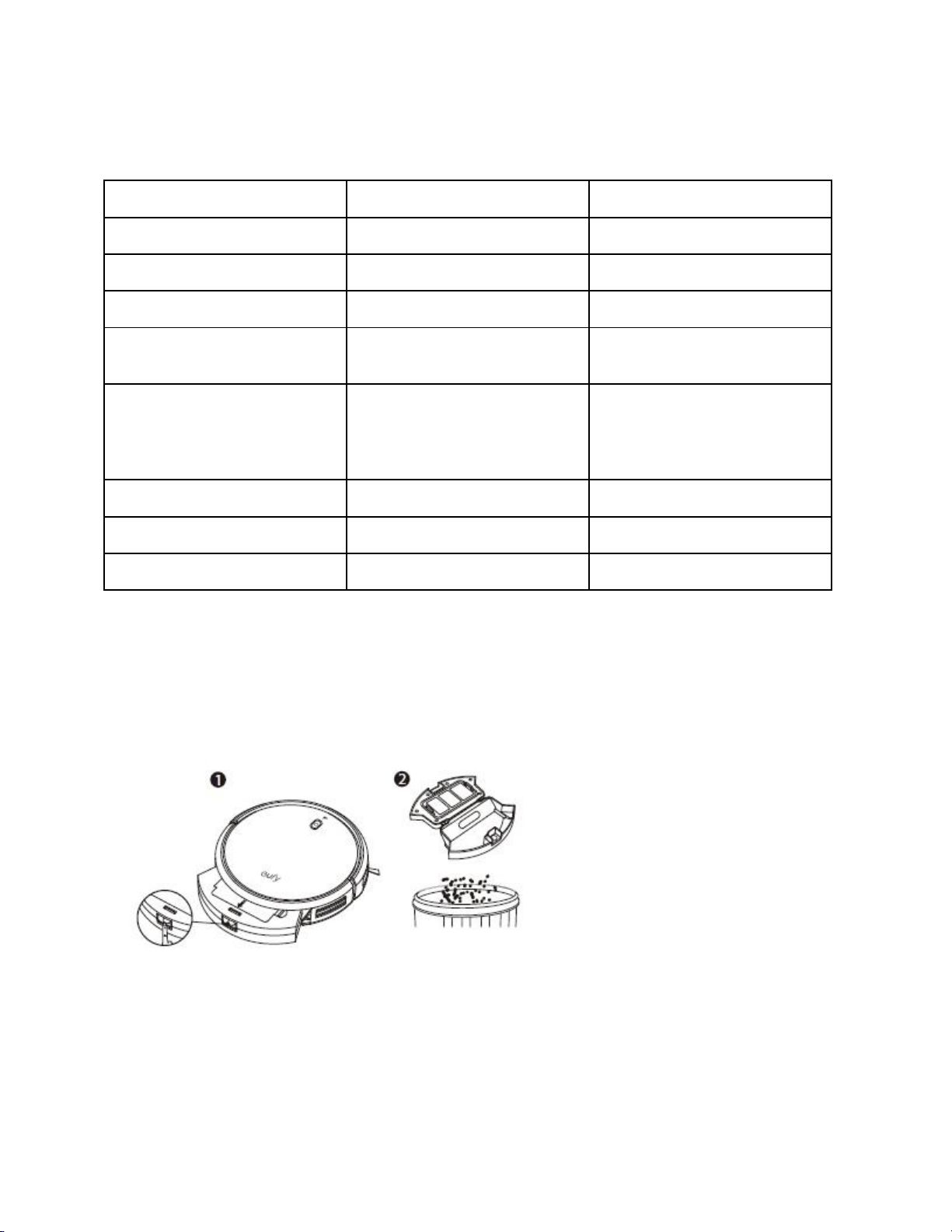
5.1 Clean the Dust Collector and Filters
1. Press the dust collector release button to pull the dust collector out.
2. Open and empty the dust collector.
3. Remove the pre-filter by pulling the hooks as shown.
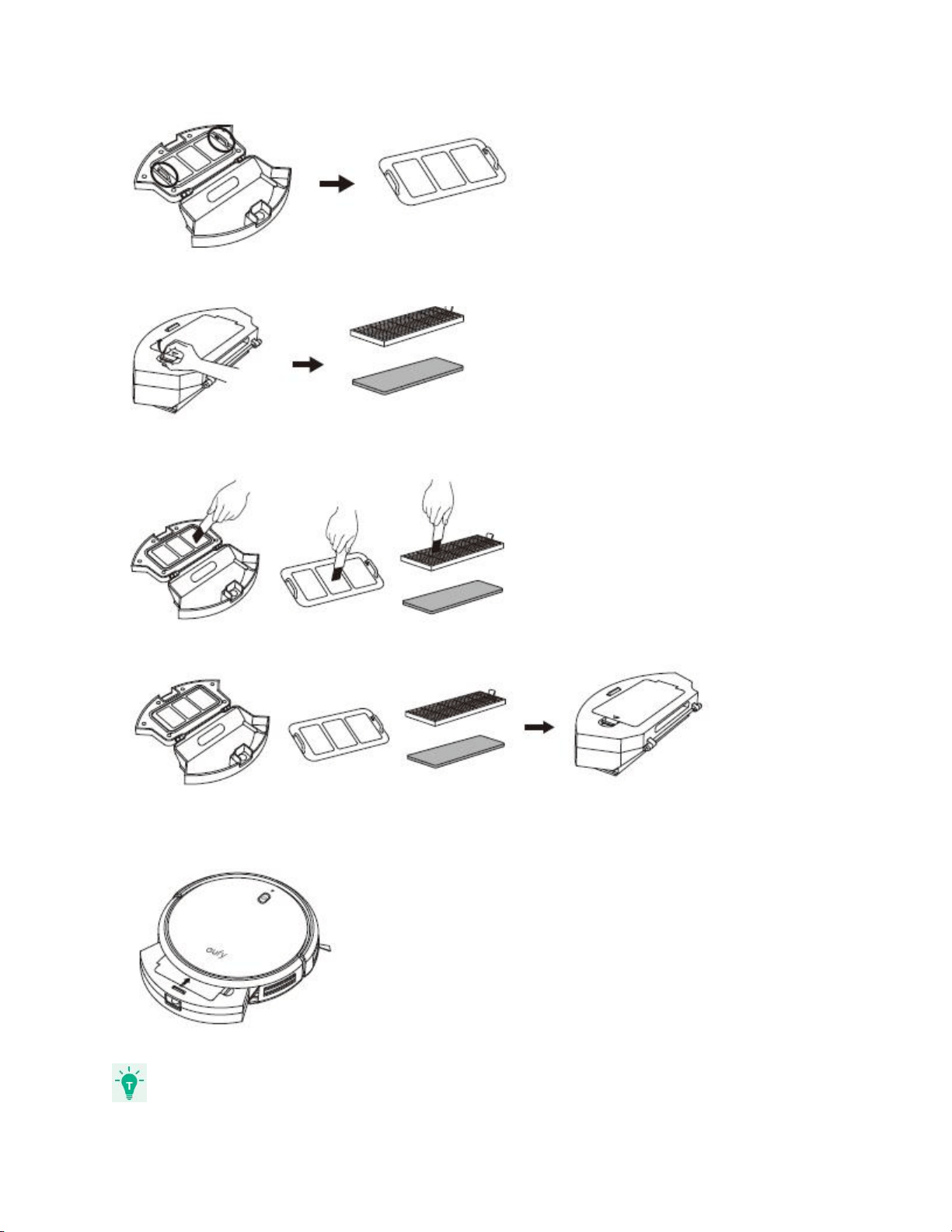
4. Take out the foam filter and high-performance filter.
5. Clean the dust collector and filters with a vacuum cleaner or a cleaning brush.
6. Put the filters and pre-filter back together in the dust collector.
7. Push the dust collector back into the main unit.

- You can wash the dust collector, pre-filter and foam filter with water. Be sure to air-dry them
thoroughly before reassembling. Do not wash the high-performance filter with water, as it may
damage the filter and reduce the suction power.
5.2 Clean the Rolling Brush
1. Pull on the release tabs to unlock the brush guard as shown.
2. Lift the rolling brush to remove.
3. Clean the rolling brush with the provided cleaning tool or a vacuum cleaner.
4. Reinstall the rolling brush by inserting the fixed protruding end first and then clicking into
place.
5. Press down to snap the brush guard into place.
5.3 Clean the Side Brushes
Foreign substances, such as hair, can easily get tangled in the side brushes, and dirt may
adhere to them. Be sure to clean them regularly.
1. Remove the side brushes.
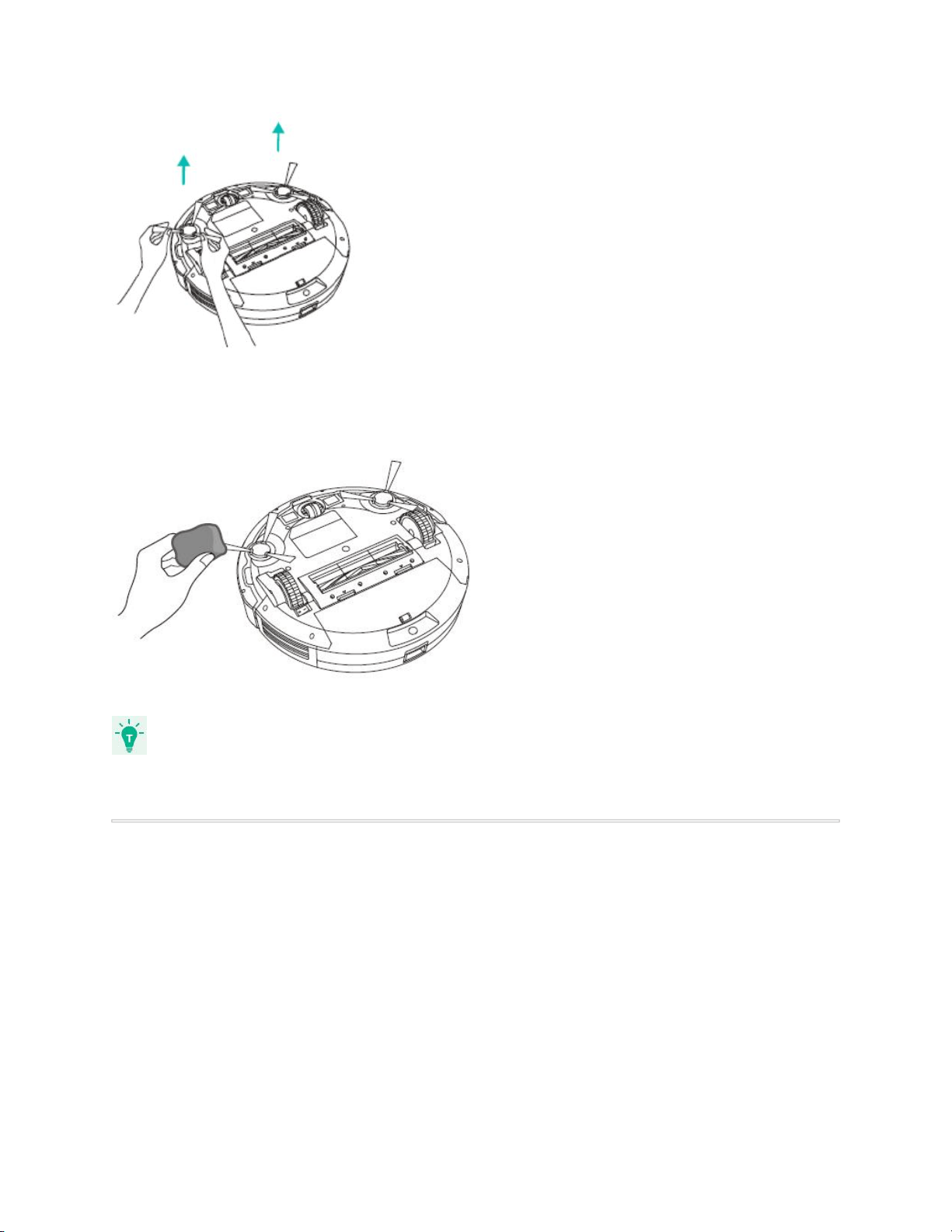
2. Carefully unwind and pull off any hair or string that is wrapped between the main unit
and the side brushes.
3. Use a cloth dampened with warm water to remove dust from the brushes or to gently
reshape them.
Only use the side brushes when they are completely dry.
5.4 Replace the Side Brushes
The side brushes may become bent or damaged after being used for a period of time. Follow
the instructions below to replace them.
● Pull off the old side brushes and snap the new ones into place.

5.5 Clean the Sensors and Charging Pins
To maintain the best performance, clean the drop sensors and charging pins regularly.
● Dust off the drop sensors and charging contact pins using a cloth or cleaning brush.
5.6 Clean the Swivel Wheel
Hair or dust particles can easily get entangled in the swivel wheel. Be sure to clean the swivel
wheel periodically and as needed.
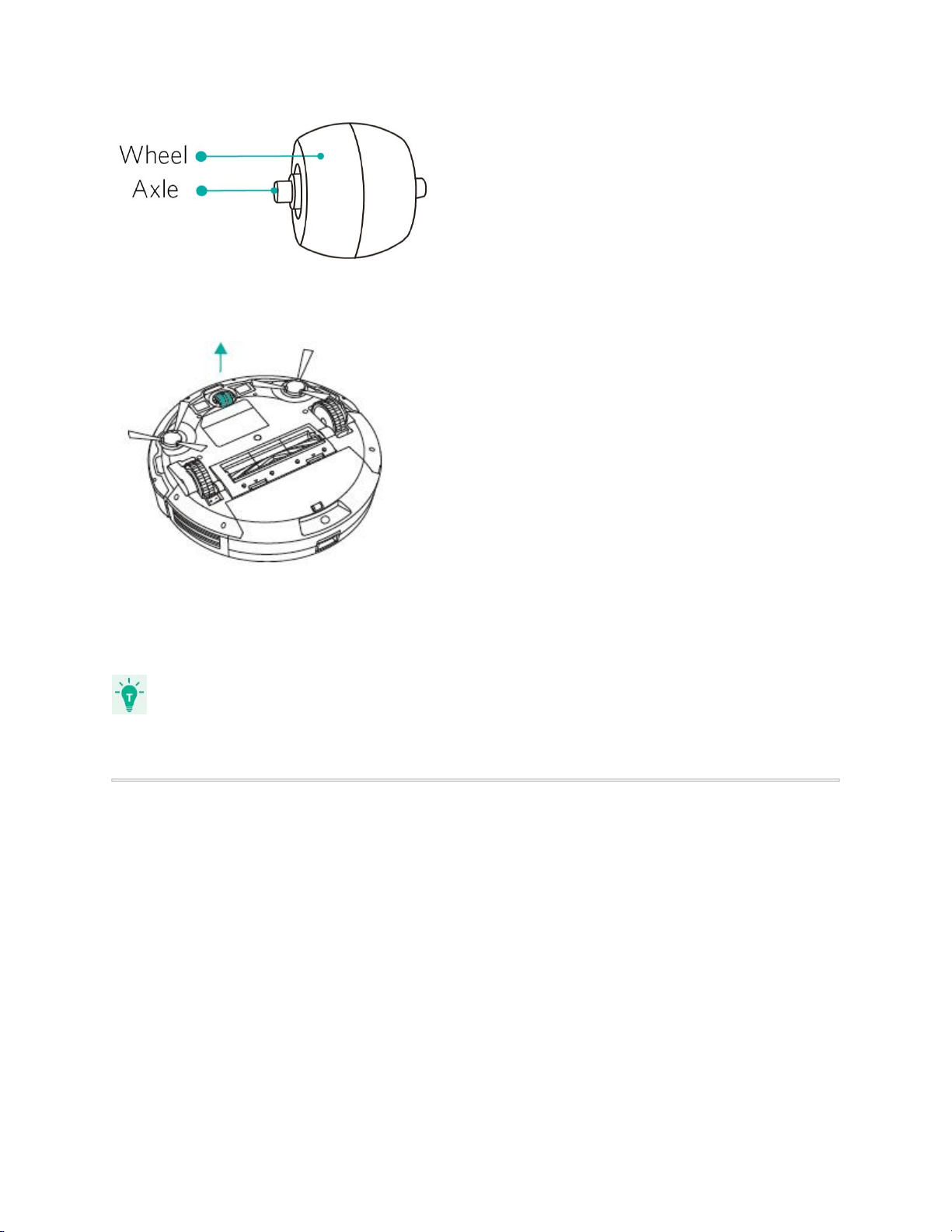
1. Pull out the swivel wheel.
2. Clean any hair or debris wrapped around the wheel or entangled inside the wheel cavity.
3. Reinstall the wheel and push in until it clicks into place.
● You can clean the swivel wheel with water.
● Use the swivel wheel only when it is completely dry.
6. Troubleshooting
Problems
Solutions
RoboVac cannot be activated.
● Make sure the main power switch is in
the ON position.
● Make sure the battery is fully charged.
● Replace the batteries (2 AAA) in the
remote control.
● Make sure the remote control is within
range (16 ft/5 m) of RoboVac.
● If you still have trouble, turn off the main
power switch and then turn it back on.
The remote control does not work.
● Replace the batteries in the remote
control.
● Make sure RoboVac is turned on and
fully charged.
RoboVac stops working suddenly.
● Check if RoboVac is trapped or stuck on
an obstacle.
● Check if the battery level is too low.
● If you still have trouble, turn off the main
power switch, wait for 2 seconds, and
then turn it back on.
You cannot schedule cleanings.
● Make sure the main power switch on the
bottom of RoboVac is turned on.
● You can set the time of day and
scheduled cleaning time via the
EufyHome app.
● Make sure the scheduled time has been
set correctly.
● Check if RoboVac’s power is too low to
start cleaning.
● Cleaning schedules are erased when
RoboVac is powered off. If RoboVac is
powered on without Internet access,
cleaning schedules will not synchronize
and must be reset via the app.
Suction power is weak.
● Check if any obstructions are blocking
the suction inlet.
● Empty the dust collector.
● Clean the filters with a vacuum cleaner
or a cleaning brush.
● Check if the filters are wet due to water
or other liquid on the floor. Air-dry the
filters completely before use.
RoboVac cannot be charged.
● Check if the indicator on the Charging
Base lights up. If not, contact the eufy
service center to repair or replace the
Charging Base.
● Dust off the charging contact pins with a
dry cloth.
● Check if you can hear a beep when
RoboVac is docked onto the Charging
Base. If not, contact the eufy service
center to repair or replace the Charging
Base.
RoboVac cannot return to the Charging
Base.
● Remove objects within 3 ft/1 m to the
left and right side and within 6 ft/2 m of
the front of the Charging Base.
● When RoboVac is in the vicinity of the
Charging Base, it will return more
quickly. However, if the Charging Base
is located far away, RoboVac will need
more time to return. Please be patient
as it works its way back.
● Clean the charging contact pins.
The rolling brush does not rotate.
● Clean the rolling brush.
● Check if the rolling brush and brush
guard have been installed properly.
RoboVac’s movements or travel path are
abnormal.
● Clean the sensors carefully with a dry
cloth.
● Restart RoboVac by turning the power
switch off and on.
RoboVac cannot connect to a Wi-Fi
network.
● Make sure your Wi-Fi router supports
the 2.4GHz and 802.11b/g/n bands; the
5GHz band is not supported. For
details, refer to the “Troubleshooting >
Wi-Fi connection” section in this
manual.
You cannot control RoboVac with Amazon
Alexa.
● Check if there are any Internet
connection problems.
● Check whether you have installed the
Amazon Alexa app onto your smart
device and enabled “EufyHome -
RoboVac” Skill in the Amazon Alexa
app. For details, refer to the “Use Your
RoboVac with Amazon Alexa / the
Google Assistant” section in this
manual.
● Make sure you have an EufyHome
account.
● Make sure you are using correct Alexa
voice-commands.
● The “EufyHome - RoboVac” Skill for
Alexa is currently only available in
English.
You cannot control RoboVac with the
Google Assistant.
● Check if there are any Internet
connection problems.
● Check if you have installed the
Google Home app onto your smart
device and initiated the “EufyHome”
action in the Google Home app. For
details, refer to the “Use Your
RoboVac with Amazon Alexa / the
Google Assistant” section in this
manual.
● Check if you are using the proper
commands when talking to the
Google Assistant. When making
your request, first say the wake
words “Ok Google”.
● Repeat your question. Speak clearly
to the Google Assistant.
6.1 Error Tones
When RoboVac is in trouble, it will emit a series of short or long beeps and the red indicator on
RoboVac will be solid or flashing.
Flashing red indicator light
Error Tone
Cause
Solution
One beep
●
RoboVac is stuck and one of
the wheels is not making
contact with the floor (hanging
in mid-air).
● RoboVac may be in an
extremely large room and the
bumper is not registering
obstacles.
Restart cleaning in a new location.
Two beeps
● RoboVac’s bumper is stuck.
Tap RoboVac’s bumper several times
to dislodge any debris that may be
trapped underneath.
Three beeps
● RoboVac’s drop sensors are
dirty.
● RoboVac is stuck on the
ledge of a staircase and
cannot reverse.
● Clean the drop sensors gently
with a dry cloth.
● Place RoboVac in a new
location.
● Use a physical barrier to block
off the problem area.
Four beeps
RoboVac’s power level is too low.
Manually charge RoboVac for at least
5 hours.
Solid red indicator light
Error Tone
Cause
Solution
One beep
RoboVac’s left/right wheel is stuck.
Turn off RoboVac and remove any
hair or debris from the left/right wheel.
Two beeps
RoboVac’s side brush is stuck.
Turn off RoboVac and remove any
hair or debris from the side brush.
Three beeps
RoboVac’s suction fan is stuck.
● Turn off RoboVac, then
remove and empty the dust
collector.
● Make sure the suction inlet is
not blocked by any hair or
debris.
Four beeps
RoboVac’s rolling brush is stuck.
Turn off RoboVac and remove any
hair or debris from the rolling brush.
6.2 Wi-Fi Connection
Before Wi-Fi setup, make sure RoboVac and your Wi-Fi network meet the following
requirements.
Wi-Fi Setup Requirements
● RoboVac:
- RoboVac is fully charged and the main power switch on the bottom of
RoboVac is turned on.
- Wi-Fi status light slowly flashes blue.
● Wi-Fi Network:
- Use the correct password for your network.
- Do not use a VPN (Virtual Private Network) or Proxy Server.
- Your Wi-Fi router supports 802.11b/g/n and IPv4 protocol.
- You are using a 2.4GHz router or a dual-band router that is configured to
support a 2.4GHz frequency band. RoboVac does not support 5GHz
frequency band.
- If RoboVac cannot connect to the Wi-Fi network and you are using
a 2.4/5GHz mixed network, switch to a 2.4GHz network for Wi-Fi
setup. You can switch back once your setup is complete.
- When connecting to a hidden network, make sure you enter the
correct network name, SSID (case sensitive), and connecting to a
2.4GHz wireless network.
- When using a network extender/repeater, make sure the network
name (SSID) and password are the same as your primary network.
- The firewall and port settings of your Wi-Fi router allow RoboVac to
connect with the Eufy servers.
Network Security Requirement
- WPA and WPA2 using TKIP, PSK, AES/CCMP encryption.
- WEP EAP (Enterprise Authentication Protocol) is not supported.
Wi-Fi Channels
- The FCC requires that all wireless devices in the United States
operate on the 1-11 wireless spectrum channels.
- Some countries outside North America can use spectrum channels
higher than channel 11. Refer to your local regulatory agency to
determine which channels are accessible.
- A future software release will support access to channels above 11
for users outside North America. Until then, use channels 1-11.
If you cannot control RoboVac with your smartphone, try the solutions below to solve
the problem. If the problem persists, contact the Eufy service center for help.
Wi-Fi Status Light
Cause
Solutions
Solid blue
RoboVac has connected
● Check if your router is
to your router, but cannot
access the Internet.
connected to the Internet.
● Check with your Internet
provider to see if there is any
Internet connection problem.
Rapidly flashing blue
RoboVac cannot connect
to your wireless router.
● Check if you have modified
your network name and
password.
● Reset Wi-Fi connection if
necessary. Refer to the “Use
Your RoboVac with the
EufyHome App > Reset the
Wi-Fi connection” section in
this manual.
Slowly flashing blue
Wi-Fi connection is reset
or has not been set up
before.
● Set up Wi-Fi connection with
RoboVac. Refer to the “Use
Your RoboVac with the
EufyHome App” section in
this manual.
● Reset Wi-Fi connection if
necessary. Refer to the “Use
Your RoboVac with the
EufyHome App > Reset the
Wi-Fi connection” section in
this manual.
Off
● RoboVac is turned
off.
● RoboVac’s power
level is low.
● RoboVac is in
Sleep mode.
● Charge RoboVac by attaching
it to the Charging Base. Make
sure the main power switch on
the bottom of RoboVac is
turned on.
7. Specifications
Product Model
T2128
Input
19 V == 0.6 A
Battery Voltage
DC 14.4 V
Power Consumption
40 W
Battery Type
DC 14.4 V
Li-ion 2600 mAh
Dust Collector Capacity
0.6 L
Cleaning Time
Max. 100 mins
Charging Time
300 - 360 mins
Input
19 V == 0.6 A
Output
19 V == 0.6 A
8. Customer Service
For FAQs and more information, please visit www.eufylife.com.
Email: [email protected]
Live Chat: www.eufylife.com
(US) +1 (800) 988 7973 Mon-Fri 9:00am - 5:00pm (PT)
(UK) +44 (0) 1604 936200 Mon-Fri 6:00 - 11:00 (GMT)
(DE) +49 (0) 69 9579 7960 Mon-Fri 6:00 - 11:00
(中国) +86 400 0550 036 周一至周五 9:00 - 17:30
(日本) +81 03 4455 7823 月-金 9:00 - 17:00
参考下面样式

EufyOfficial (Twitter, Facebook, Instagram, Pinterest)