Own _S
structi
Register your product at www.samsung.com/global/register
Record your Model and Serial number here for future reference.
- Model - Serial No.
i ImportantWarrantyInformationRegardingTelevisionFormatViewing
Wide screen format PDP Displays (16:9, the aspect ratio of the screen width to height) are primarily designed to view wide
screen format full-motion video. The images displayed on them should primarily be in the wide screen 16:9 ratio format,
or expanded to fill the screen if your model offers this feature and the images are constantly moving. Displaying stationary
graphics and images on screen, such as the dark side-bars on nonexpanded standard format television video and
programming, should be limited to no more than 5% of the total television viewing per week.
Additionally, viewing other stationary images and text such as stock market reports, video game displays, station logos,
web sites or computer graphics and patterns, should be limited as described above for all televisions. Displaying stationary
images that exceed the above guidelines can cause uneven aging of PDP Displays that leave subtle, but permanent
burned-in ghost images in the PDP picture. To avoid this, vary the programming and images, and primarily display
full screen moving images, not stationary patterns or dark bars.
On PDP models that offer picture sizing features, use these controls to view different formats as a full screen picture.
Be careful in the selection and duration of television formats used for viewing. Uneven PDP aging as a result of format
selection and use, as welt as burned-in images, are not covered by your Samsung limited warranty.
U.S.A Only
The product unit accompanying this user manual is licensed under certain intellectual property rights of certain
third parties. In particular, this product is licensed under the following US patents: 5,991,715, 5,740,317, 4,972,484,
5,214,678, 5,323,396, 5,539,829, 5,606,618, 5,530,655, 5,777,992, 6,289,308, 5,610,985, 5,481,643, 5,544,247,
5,960,037, 6,023,490, 5,878,080, and under US Published Patent Application No. 2001-44713-A1.
This license is limited to private non-commercial use by end-user consumers for licensed contents. No rights are
granted for commercial use. The license does not cover any product unit other than this product unit and the license
does not extend to any unlicensed product unit or process conforming to ISO/IEC 11172-3 or ISO/IEC 13818-3 used or
sold in combination with this product unit. The license only covers the use of this product unit to encode and/or decode
audio files conforming to the ISO/IEC 11172-3 or ISO/IEC 13818-3. No rights are granted under this license for product
features or functions that do not conform to the ISO/IEC 11172-3 or ISO/IEC 13818-3.
Other countries
The product unit accompanying this user manual is licensed under certain intellectual property rights of certain third
parties. This license is limited to private non-commercial use by end-user consumers for licensed contents. No rights
are granted for commercial use. The license does not cover any product unit other than this product unit and the license
does not extend to any unlicensed product unit or process conforming to ISO/IEC 11172-3 or ISO/IEC 13818-3 used or
sold in combination with this product unit. The license only covers the use of this product unit to encode and/or decode
audio files conforming to the ISO/IEC 11172-3 or ISO/IEC 13818-3. No rights are granted under this license for product
features or functions that do not conform to the ISO/IEC 11172-3 or ISO/IEC 13818-3.
© 2007 Samsung Electronics Co., Ltd. All rights reserved.
i Userinstructions i
O Screen image retention
Do not display a still image (such as on a video game) on the plasma display panel for more than several minutes as it can
cause screen image retention. This image retention is also known as "screen burn". Toavoid such image retention, refer to
page 27 of this manual to reduce the degree of brightness and contrast of the screen when displaying a still image.
Altitude
The PDP canonly operate normally atheights under 6500ft.
Heat on the top of the PDP TV
The top side of the product may be hot after tong periods of use as heat dissipates from the panel through the vent hole in
the upper part of the product.
This is normal and does not indicate any defect or operation failure of the product.
However, children should be prevented from touching the upper part of the product.
The product is making a 'cracking' noise.
A 'cracking' noise may occur when the product contracts or expands due to a change of surrounding environment such as
temperature or humidity. This is normal and not a defect of the unit.
Cell Defects
The PDP uses apanel consisting of 1,230,000(SD-tevel) to 3,150,000(HD-level) pixels which require sophisticated
technology to produce. However, there may be afew bright or dark pixels on the screen. These pixets wilt have no impact
on the performance of the product.
Avoid operating the TV at temperatures below 5°C (41°F}
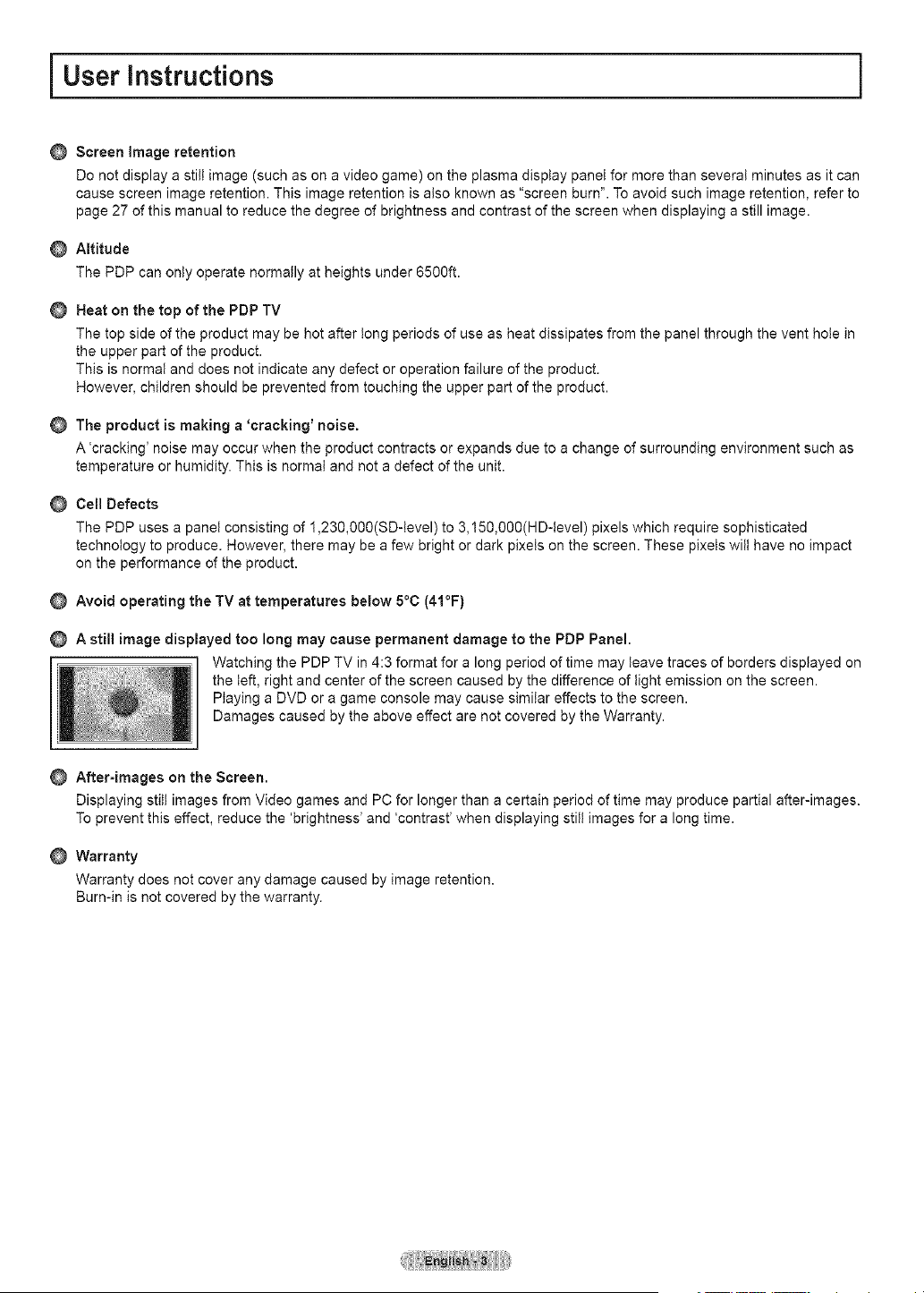
A still image displayed too long may cause permanent damage to the PDP Panel.
Watching the PDP TV in 4:3 format for a long period of time may leave traces of borders displayed on
the left, right and center of the screen caused by the difference of light emission on the screen.
Playing aDVD or a game console may cause similar effects to the screen.
Damages caused by the above effect are not covered by the Warranty.
After-images on the Screen.
Displaying still images from Video games and PC for longer than acertain period of time may produce partial after-images.
To prevent this effect, reduce the 'brightness' and 'contrast' when displaying stilt images for a long time.
Warranty
Warranty does not cover any damage caused by image retention.
Burn-in is not covered by the warranty.
Contents
m List of Features ............................................................ 5
m Accessories .................................................................. 5
m Viewing the Control Panel ............................................ 6
m Viewing the Connection Panel ..................................... 7
m Remote Control ............................................................ 8
installing Batteries in the Remote Control .................... 9
m Connecting VHF and UHF Antennas ........................... 9
m Connecting Cable TV ................................................. 10
m Connecting aVCR ..................................................... 11
m Connecting a Camcorder ........................................... 12
R Connecting a DVD Player/Cable Box/
Satellite receiver (Set-Top Box) ................................. 12
R Connecting a DVD Player/Cable Box/
Satellite receiver (Set-Top Box) via HDMI .................. 13
R Connecting a DVD Player/Cable Box/
Satellite receiver (Set-Top Box) via DVI ..................... 13
m Connecting a Digital Audio System ............................ 14
m Connecting anAmplifier/DVD Home Theater ............ 14
R Connecting a PC ........................................................ 15
m Turning the TV On and Off ......................................... 16
m Plug & Play Feature ................................................... 16
m Changing Channels ................................................... 18
m Adjusting the Volume ................................................. 19
m Viewing the Disptay .................................................... 19
m Viewing the Menus ..................................................... 19
m Memorizing the Channels .......................................... 20
m Setting Up Your Remote Control ................................ 21
m To Select the Source .................................................. 26
R To Edit the Input Source Name .................................. 26
m Using Automatic Picture Settings ............................... 27
m Digital Noise Reduction .............................................. 28
m Changing the Screen Size ......................................... 29
m Making Detailed Picture Settings ............................... 30
m Active Color ................................................................ 31
m DNle (Digital Natural Image engine) .......................... 31
m Selecting the Film Mode ............................................ 32
m Setting the Blue Screen Mode ................................... 32
m Setting the HDMI Black Level .................................... 32
m Viewing Picture-in-Picture .......................................... 33
Freezing the Current Picture ...................................... 34
m Using Automatic Sound Settings ................................ 35
m Customizing the Sound .............................................. 35
m Setting the TruSurround XT ....................................... 36
R Choosing a Multi-Channel Sound (MTS) Track -
Digital ......................................................................... 36
R Choosing a Multi-Channel Sound (MTS) Track -
Analog ........................................................................ 37
m Automatic Volume Control ......................................... 37
m Selecting the Internal Mute ........................................ 37
m Adjusting the TV On/Off Melody Sound ..................... 38
R Listening to the Sound of the Sub (PIP) Picture ........ 38
m Selecting theAntenna ................................................ 39
m Clearing Scrambled Channets - Digital ...................... 39
m Adding and Erasing Channels ................................... 40
m Setting Up Your Favorite Channels ............................ 41
m Viewing the Channel Lists .......................................... 42
m Setting the Default Channel List Mode ...................... 42
m Labeling Channels ..................................................... 43
m Fine Tuning Analog Channels .................................... 43
m Checking the Digital-Signal Strength ......................... 44
R LNA(Low Noise Amplifier) ......................................... 44
m Using Your TV as a Computer (PC) Display .............. 45
m Display Modes ........................................................... 45
m Setting up the TV with your PC .................................. 46
R Setting the Home Theater PC .................................... 47
R Setting the Time ......................................................... 48
m Selecting a Menu Language ...................................... 51
m Using the Game Mode ............................................... 51
R Viewing Closed Captions
(On-Screen Text Messages) - Digital ......................... 52
R Viewing Closed Captions
On-Screen Text Messages) -Analog ......................... 53
m Menu Transparency Level .......................................... 54
m Setting the Light Effect ............................................... 54
m Using the Energy Saving Feature .............................. 55
m Preventing Screen Burn-in ......................................... 55
m Reducing the Effects of Screen Burn ......................... 56
m Setting the Function Help ........................................... 56
m Upgrading the Software ............................................. 57
R Using the V-Chip ........................................................ 57
m What isAnynet+? ....................................................... 63
m ConnectingAnynet + Devices ..................................... 63
m Setting UpAnynet + .................................................... 64
m Scanning and Switching between Anynet + Devices..64
m Recording ................................................................... 65
m Listening through a Receiver (Home theater) ............ 66
R Troubleshooting forAnynet +...................................... 66
m Troubleshooting ......................................................... 67
m Wall- mount adjustment (Sold separately) ................. 68
m Wall Mount Kit Specifications (VESA) ........................ 69
R How to assemble the Stand-Base
(depending on the model)................................. 70
m Specifications ............................................................. 76
R Dimensions ................................................................ 71
Symbols ,,,.,
Press One-Touch Note
Button
i General information i
List of Features
. Adjustable picture settings that can be stored in the TV's memory.
. Automatic timer to turn the TV on and off.
. A special sleep timer.
. V-Chip function.
. Excellent Digital Interface & Networking :
With a built-in HD digital tuner, nomsubscription HD broadcasts can be viewed with no Cable Box/Satellite receiver
(Set-Top Box) needed.
. Remote Control
The supplied remote can be used to operate the TV as well as most DVD players, Set-top boxes, Cable Boxes and
VCRs.
. Excellent Picture Quality
- DNle technology provides life-like clear images.
. SRS TruSurround XT
- SRS TruSurround XT provides a virtual Dolby surround system.
Accessories
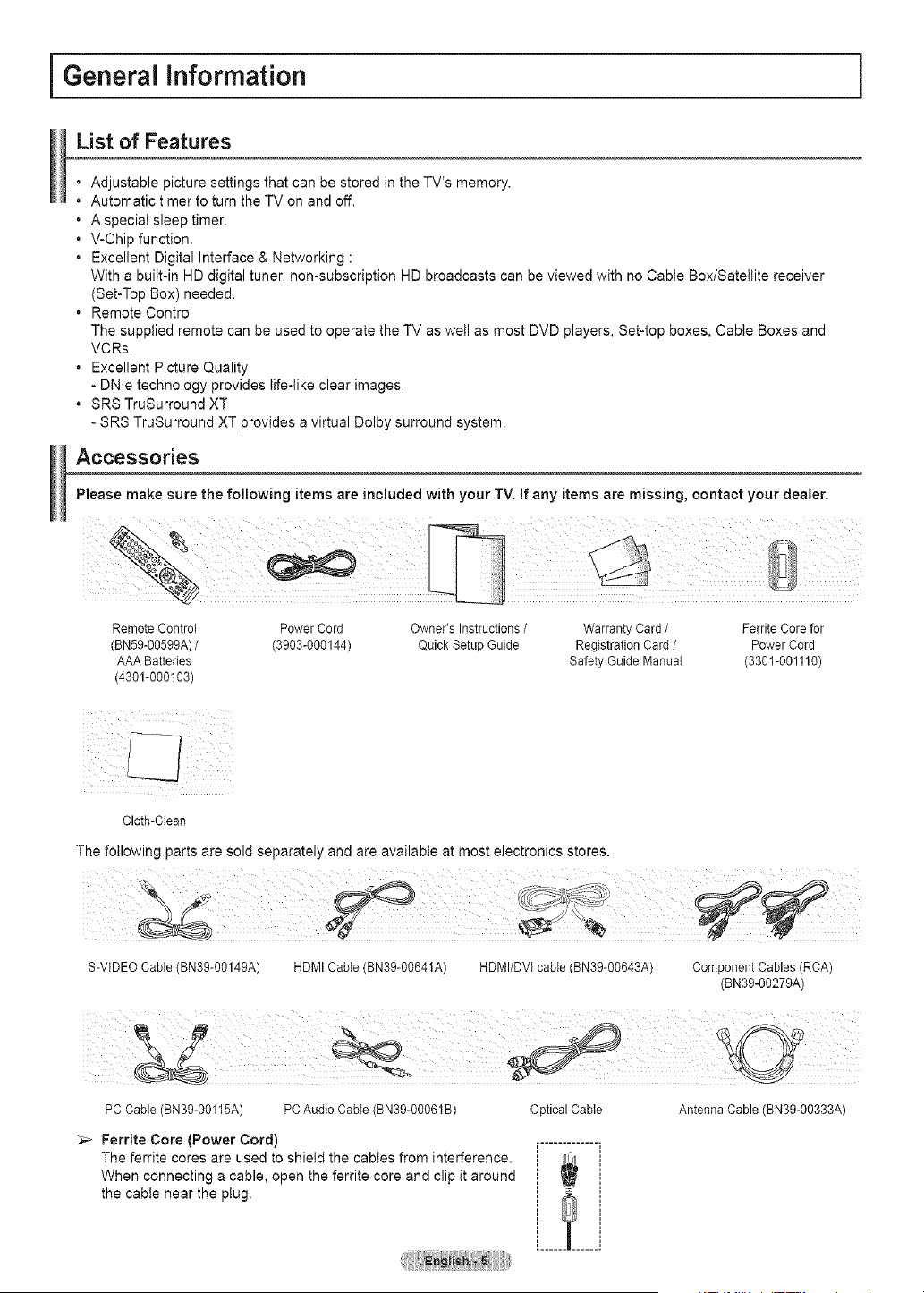
Please make sure the following items are included with your TV. If any items are missing, contact your dealer.
RemoteControl Power Cord Owner's Instructions/ WarrantyCard/ FerriteCorefor
(BN59-O0599A)/ (3903-000144) QuickSetupGuide RegistrationCard/ Power Cord
AAABatteries Safety Guide Manual (3301-001110)
(4301-000103)
i I !iiii
Cloth-Clean
The following parts are sold separately and are available at most electronics stores.
S-VIDEO Cable (BN39-OO149A) HDMICable(BN39-00641A HDMI/DVI cable (BN39-00643A) Component Cables (RCA)
(BN39-00279A)
PC Cable (BN39-OO115A) PCAudio Cable (BN39-00061B)
_-- Ferrite Core (Power Cord)
The ferrite cores are used to shield the cabtes from interference.
When connecting a cable, open the ferrite core and clip it around
the cable near the plug.
Optical Cable Antenna Cable (BN39-OO333A)
Viewing the Control Panel
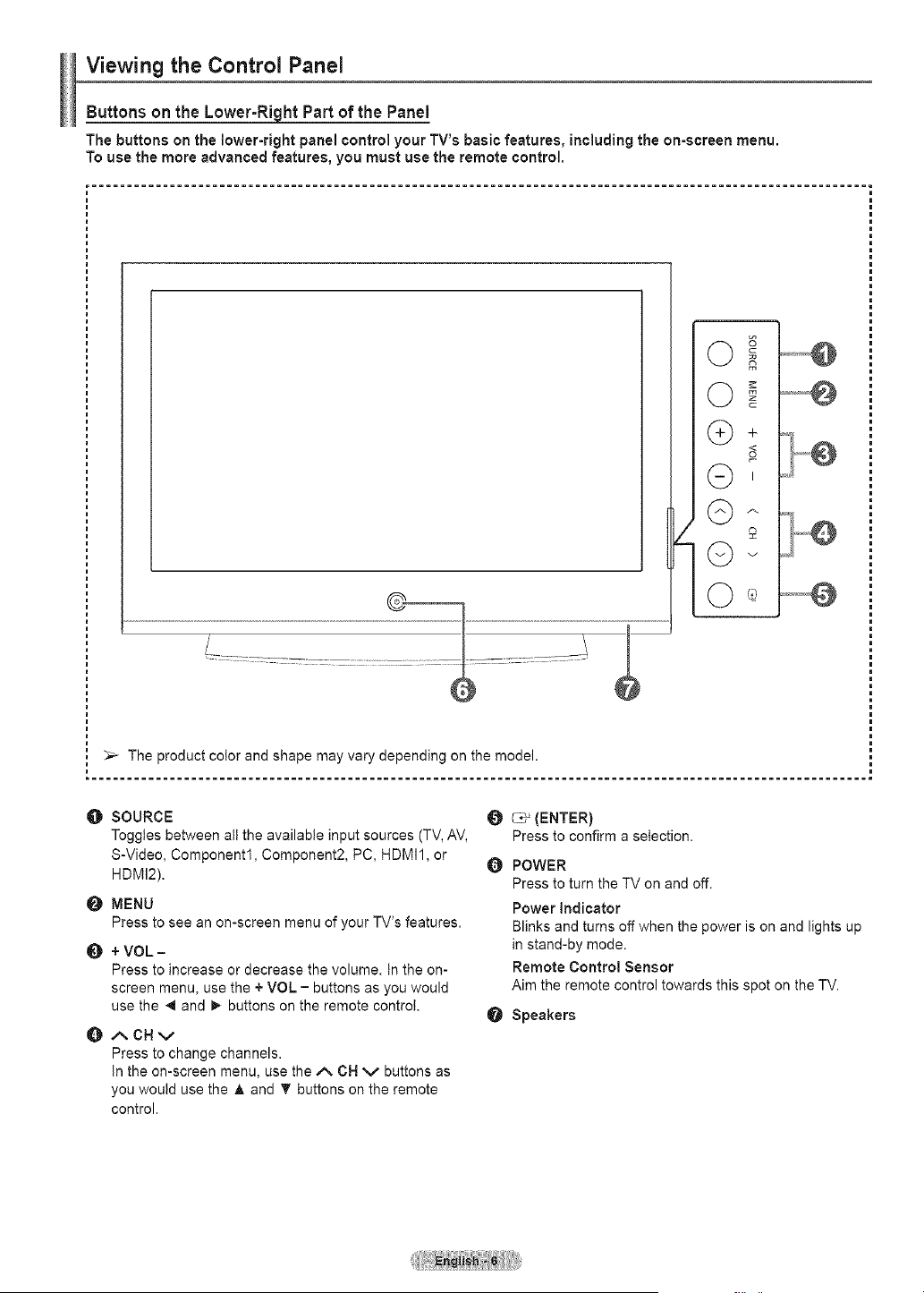
Buttons on theLower-Ri_lhtPartof the Panel
The buttons on the lower-right panel control your TV's basic features, including the on-screen menu.
To use the more advanced features, you must use the remote control.
r
©,
2
©v
_-- The product color and shape may vary depending on the model.
O SOURCE
Toggles between all the available input sources (TV,AV,
S-Video, Component1, Component2, PC, HDMI1, or
HDMI2).
@ MENU
Press to see an on-screen menu of your TV's features.
+ VOL -
Press to increase or decrease the volume, tn the on-
screen menu, use the + VOL - buttons as you would
use the 4 and _ buttons on the remote control.
ACHv
Press to change channels.
In the on-screen menu, use the _. CH v buttons as
you would use the A and T buttons on the remote
control.
_ (ENTER)
Press to confirm a selection.
Q
POWER
Press to turn the TV on and off.
Power Indicator
Blinks and turns off when the power ison and lights up
in stand-by mode.
Remote Control Sensor
Aim the remote control towards this spot on the TV.
Speakers
Viewing the Connection Panel
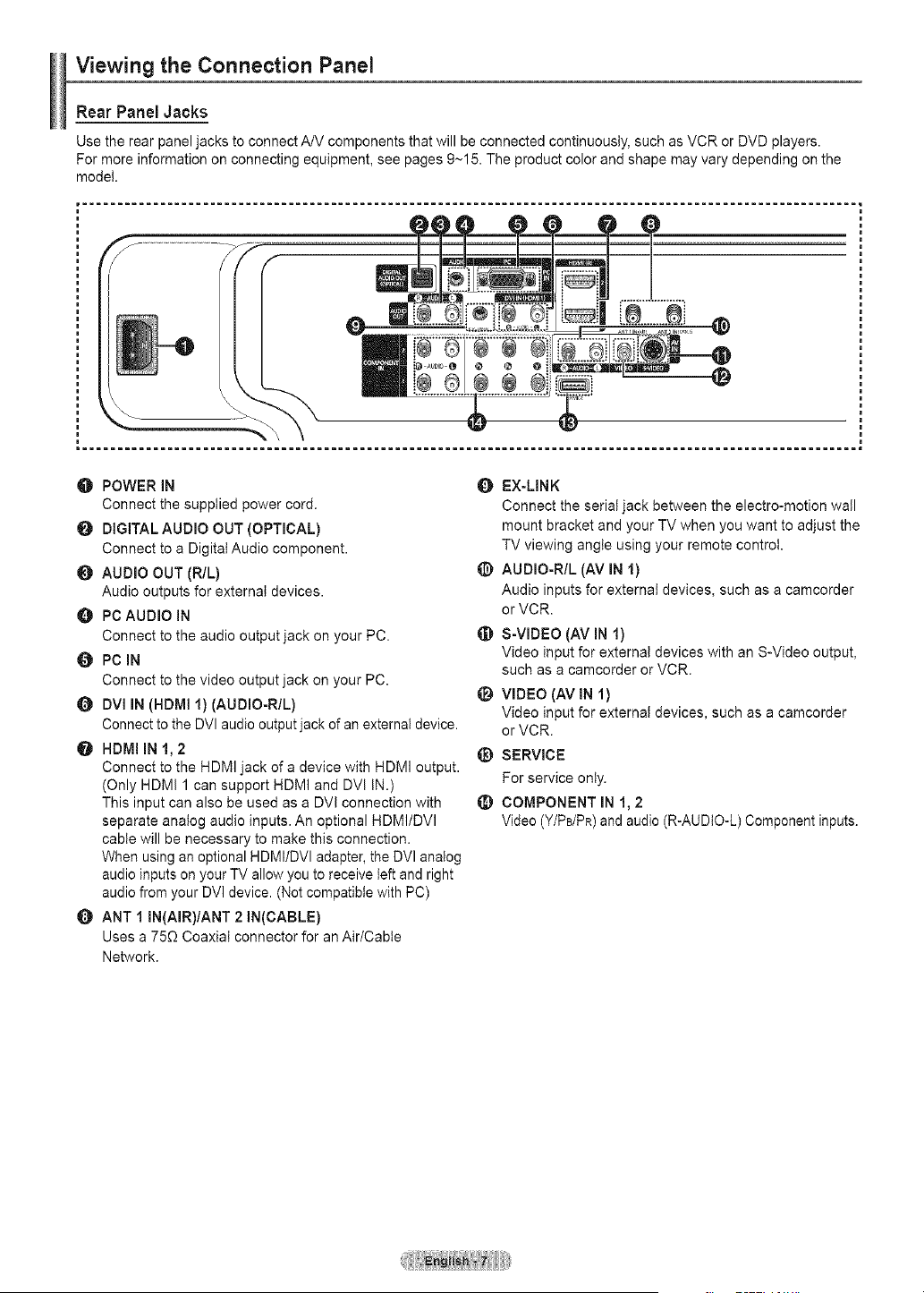
Rear Panel Jacks
Use the rear panel jacks to connect A/V components that will be connected continuously, such as VCR or DVD players.
For more information on connecting equipment, see pages 9~15. The product color and shape may vary depending on the
model.
O POWER IN
Connect the supplied power cord.
O DIGITAL AUDIO OUT (OPTICAL)
Connect to a Digital Audio component.
O AUDIO OUT (RIL)
Audio outputs for external devices.
O PC AUDIO IN
Connect to the audio output jack on your PC.
PC IN
Connect to the video output jack on your PC.
UVl IN (HDMI I)(AUDIO-RIL)
Connect to the DVI audio output jack of an external device.
HDMI IN 1, 2
Connect to the HDMI jack of a device with HDMI output.
(Only HDMI 1 can support HDMI and DVI IN.)
This input can also be used as a DVl connection with
separate analog audio inputs. An optional HDMI/DVl
cable will be necessary to make this connection.
When using an optional HDMI/DVl adapter, the DVI analog
audio inputs on your TV allow you to receive left and right
audio from your DVI device. (Not compatible with PC)
O ANT I IN(AIR)IANT 2 IN(CABLE)
Uses a 750 Coaxial connector for an Air/Cable
Network.
Q EX-MNK
Connect the serial jack between the electro-motionwall
mount bracket and yourTVwhen youwantto adjust the
TV viewingangle using yourremotecontrol.
_) AUDIO-RIL (AVIN I)
Audio inputs for external devices, suchas a camcorder
or VCR.
_) S-VIDEO (AV INI)
Video input for external deviceswith anS-Video output,
such as a camcorder or VCR.
VIDEO (AV INI)
Video input for external devices, suchas a camcorder
or VCR.
@ SERVICE
Forserviceonly.
COMPONENT IN1,2
Video (Y/PdPR)and audio (R-AUDIO-L)Componentinputs.
Remote Control
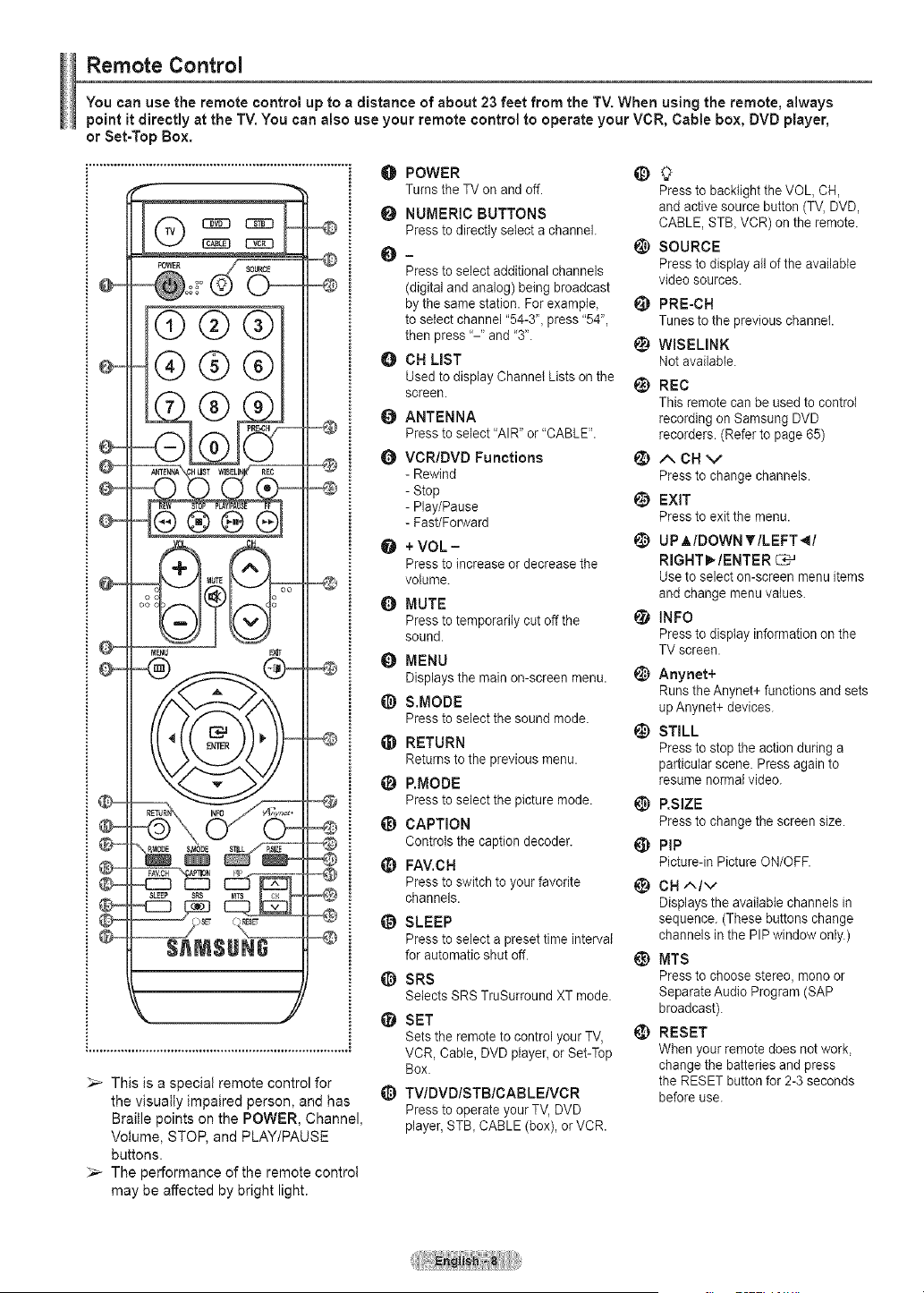
You canusethe remotecontrol up to a distance of about 23feet from theTV. When using the remote,always
pointitdirectly at the TV. You canalso use your remote control to operate your VCR, Cable box, DVD player,
orSet-TopBox.
This is a special remote control for
the visually impaired person, and has
Braille points on the POWER, Channel,
Volume, STOP, and PLAY/PAUSE
buttons.
The performance of the remote control
may be affected by bright light.
O POWER _)
Turnsthe TV on and off. Pressto backflghtthe VOL,CH,
t_ NUMERIC BUTTONS and active source button (TV,DVD,
Pressto directlyselect a channel. CABLE, ST& VCR) onthe remote.
i_) SOURCE
{)-
Pressto select additional channels Pressto display allof the available
video sources.
(digital and analog) beingbroadcast
by the samestation. For example, _ PRE-CH
toselect channel "54-3", press"54", Tunes to the previous channel,
then press'-" and '3'.
_) WISELINK
O CN LiST Notavailable.
Used to display Channel Listsonthe I_) REC
screen.
This remote can be usedto control
ANTENNA recording on Samsung DVD
Press toselect 'AIR" or "CABLE". recorders. (Refer to page 65)
Q VCR/DVD Functions _) A OH "_
- Rewind Pressto change channels.
- Stop
- Play/Pause _ EXIT
- Fast/Forward Pressto exit the menu.
O + VOL- _) UPAIDOWNTILEFT_I
Pressto increase ordecrease the RIGHT_/ENTER C_J
volume. Use to select on-screen menu items
and change menu values.
O MUTE
Pressto temporarily cut off the _ INFO
sound. Pressto display information on the
TVscreen.
MENU
Displays the mainon-screen menu. _) Anynet+
Runs the Anynet+ functions and sets
_) S.MODE up Anynet+ devices.
Pressto selectthe soundmode.
(_) STILL
_) RETURN Pressto stop the action during a
Returns tothe previous menu. particular scene. Press again to
_) P.MODE resume normal video.
Pressto selectthe picturemode. _) P.SIZE
_) CAPTION Pressto change the screen size.
Controls the caption decoder. _ PIP
_) FAV.CH Picture-in PictureON/OFF.
Pressto switch to your favorite @) OH AIM
channels. Displays the available channels in
SLEEP sequence. (These buttons change
Pressto select apresettime interval channels inthe PIP window only.)
for automatic shutoff. _ MTS
SRS Pressto choose stereo, mono or
Selects SRS TruSurround XTmode. Separate AudioProgram (SAP
broadcast).
@ SET
Sets the remote tocontrol your TV, _) RESET
VCR, Cable, DVD player,orSet-Top When your remote does not work,
Box. changethe batteries and press
the RESET button for2-3 seconds
_) TVlDVDISTBICABLEIVCR before use.
Pressto operate your TV,DVD
player,STB, CABLE(box), or VCR.
Installing Batteries in the Remote Control
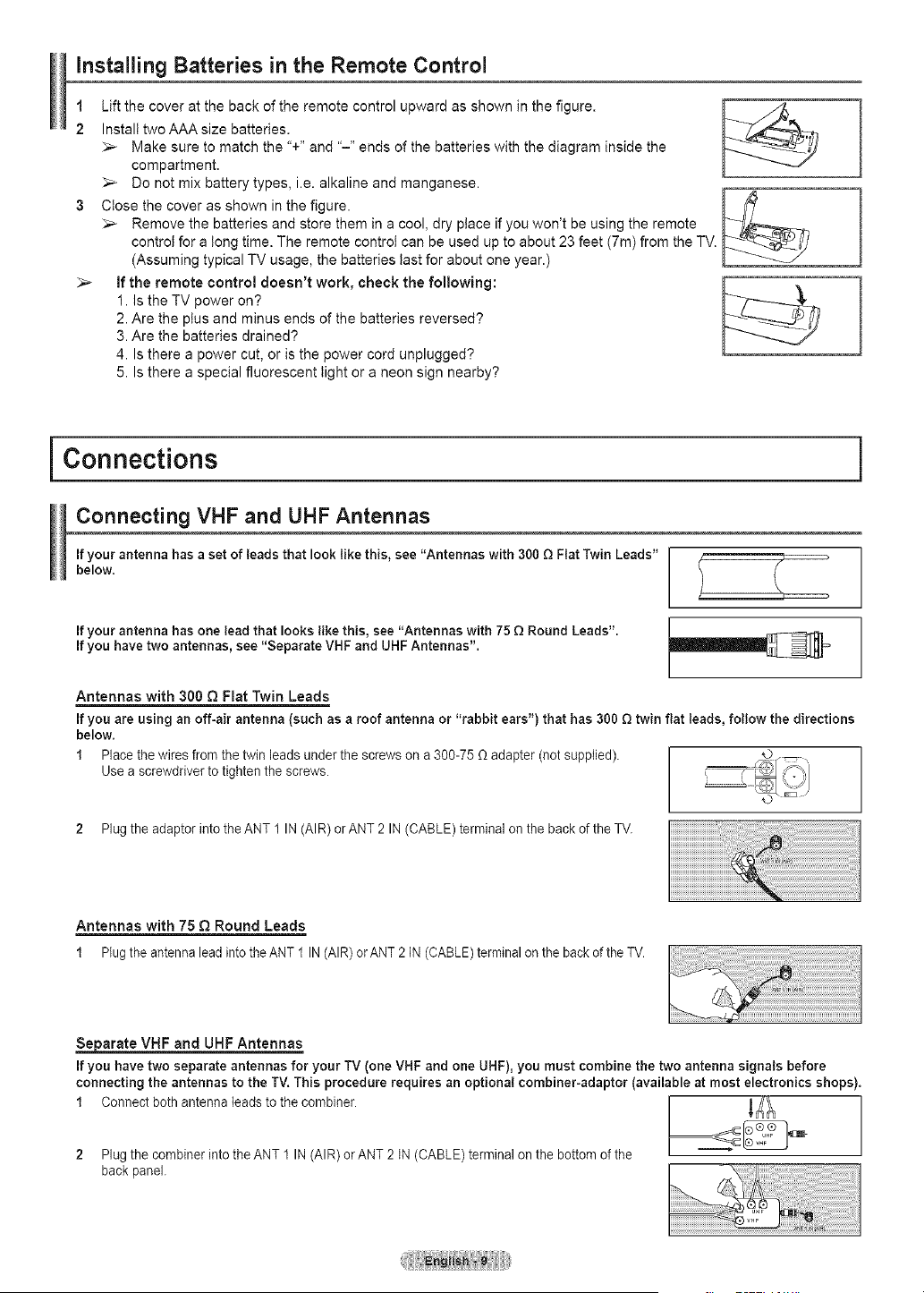
1 Lift the cover at the back of the remote control upward as shown in the figure.
2 Install twoAAAsize batteries.
_-- Make sure to match the "+" and "-" ends of the batteries with the diagram inside the
compartment.
_,_ Do not mix battery types, i.e. alkaline and manganese.
3 Close the cover as shown in the figure.
_,_ Remove the batteries and store them in acool, dry place if you won't be using the remote
control for a tong time. The remote control can be used up to about 23 feet (7m) from the TV.
(Assuming typical TV usage, the batteries last for about one year.)
> If the remote control doesn't work, check the following:
1. Is the TV power on?
2.Are the plus and minus ends of the batteries reversed?
3.Are the batteries drained?
4. Is there a power cut, or is the power cord unplugged?
5. Is there a special fluorescent light or a neon sign nearby?
i Connections i
Connecting VHF and UHF Antennas
Ifyour antenna hasaset of leads that look like this, see "Antennas with 300 Q Flat Twin Leads"
below.
Ifyour antenna has one lead that looks like this, see "Antennas with 75 _ Round Leads".
Ifyou have two antennas, see "Separate VHF and UHFAntennas".
Antennas with 300 £_Fiat Twin Leads
Ifyou are using an off-air antenna (such as a roof antenna or "rabbit ears") that has 300 £_twin flat leads, follow the directions
below.
1 Place the wires from the twin leads under the screws on a300-75 (_adapter (notsupplied).
Use ascrewdriver to tightenthe screws
2 Plugthe adaptor intotheANT 1IN(AIR)orANT 2IN(CABLE) terminal on the back of the TV.
Antennas with 75 £2 Round Leads
1 Plugthe antennalead into the ANT 1IN (AIR) orANT2IN(CABLE) terminalon the back of the TV.
S_arate VHF and UHF Antennas
Ifyou have two separate antennas for your TV (one VHFand one UHF), you must combine the two antenna signals before
connecting the antennas to the TV.This procedure requires an optional combiner-adaptor (available at most electronics shops).
1 Connect both antenna leads to the combiner, t_k
2 Plugthe combiner into the ANT 1 IN(AIR) orANT2IN(CABLE) terminalon the bottom ofthe
back panel.
Connecting Cable TV
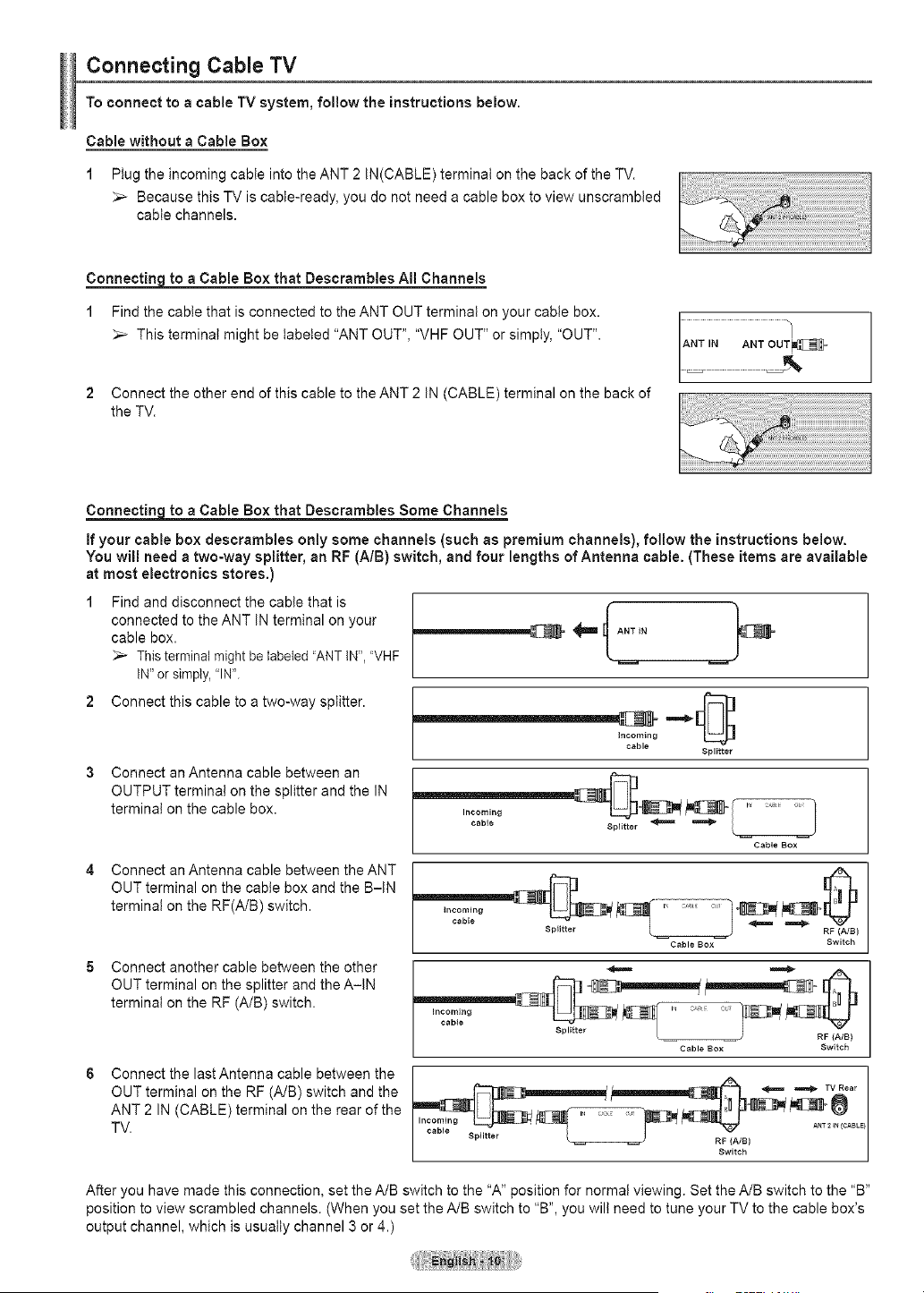
To connect to acable TV system, follow the instructions below.
Cable without a Cable Box
1 Plug the incoming cable into the ANT 2 IN(CABLE) terminal on the back of the TV.
_,_ Because this TV is cable-ready, you do not need a cable box to view unscrambled
cable channels.
Connecting to a Cable Box that Desorambles All Channels
1 Find the cable that is connected to the ANT OUT terminal on your cable box.
_-- This terminat might be labeled "ANT OUT", "VHF OUT" or simply, "OUT".
2 Connect the other end of this cable to the ANT 2 IN (CABLE) terminal on the back of
the TV.
Connectingto a Cable Boxthat Desorambles SomeChannels
If your cable box descrambles only some channels(such aspremiumchannels), follow the instructionsbelow.
You willneeda two-waysplitter, an RF(A/B) switch, and four lengths of Antenna cable. (Theseitemsare available
atmost electronics stores.)
1 Find and disconnect the cable that is
connected to the ANT IN terminal on your
cable box.
_-- Thisterminal might be labeled 'ANT IN", "VHF
iN" orsimply,"IN'.
2 Connect this cable to atwo-way splitter.
Connect an Antenna cable between an
OUTPUT termina! on the splitter and the IN
terminal on the cable box.
_ _"fA"T'N
incoming
cable
Splitter
Incoming
cable
J
Cable BOX
Connect an Antenna cable between the ANT
OUT terminal on the cable box and the B-IN
terminal on the RF(A/B) switch.
Connect another cable between the other
OUT terminal on the splitter and the A-IN
terminal on the RF (A/B) switch.
Connect the last Antenna cable between the
OUT terminal on the RF (A/B) switch and the
ANT 2 IN (CABLE) terminal on the rear of the
TV.
incoming
cable
Cable Box
RF (A/B)
Switch
,.comino -- _q U _ _ "_ ......_ "i_ _'_[]°" F
cable _*****"'J
) RF (A/B)
Cable Box Switch
cab_ sp_..... _ RF_A/B_ /
Switch J
After you have made this connection, set the A/B switch to the "A" position for normal viewing. Set the A/B switch to the "B"
position to view scrambled channels. (When you set the A/B switch to "B", you wilt need to tune your TV to the cable box's
output channel, which is usually channel 3 or 4.)
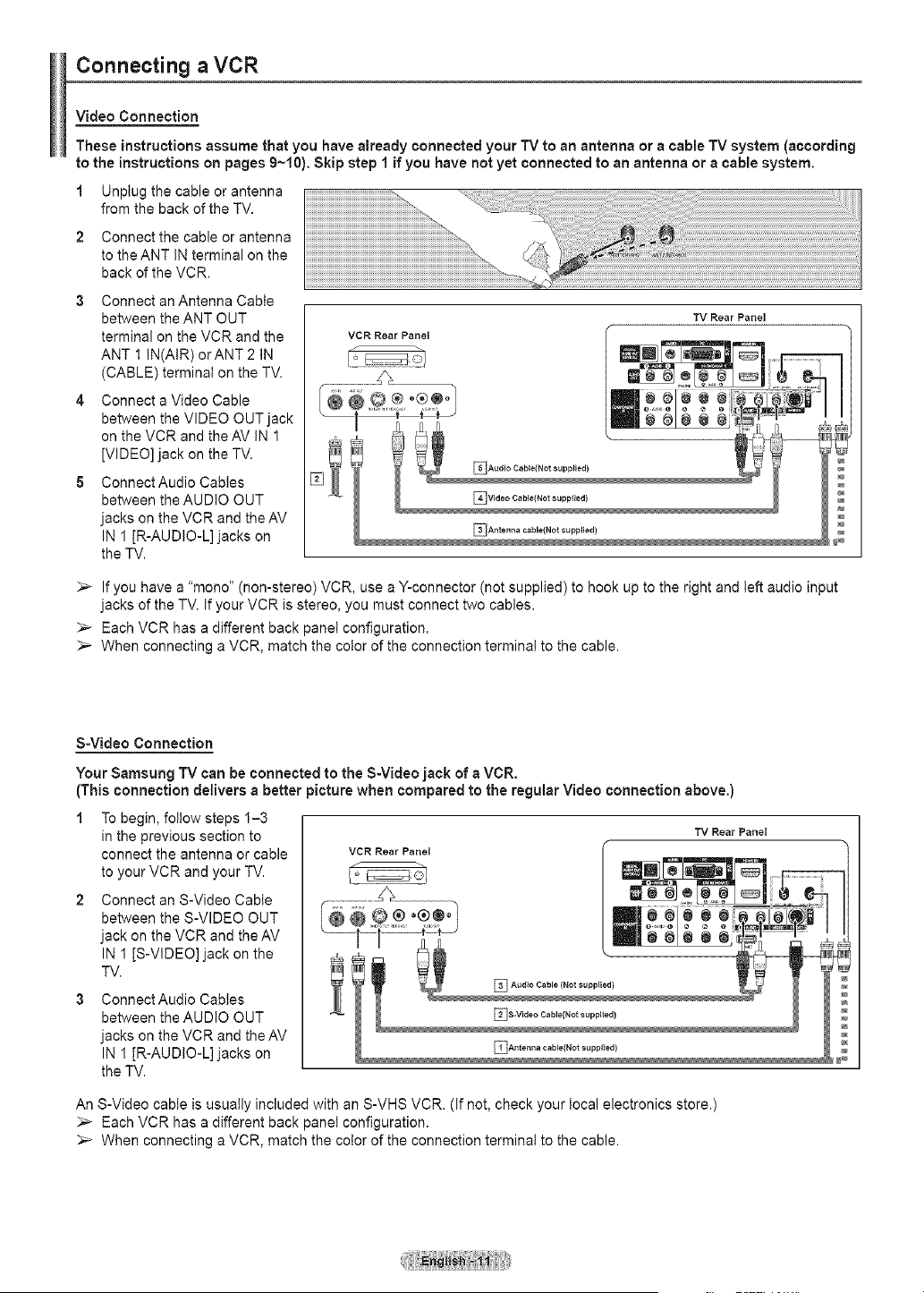
Connecting aVCR
VideoConnection
These instructionsassume that you have already connectedyour TV to an antennaora cable TV system (according
to theinstructionson pages 9~10).Skip step 1 if you have not yet connectedto an antennaora cablesystem.
1 Unplug the cable or antenna
from the back of the TV.
Connect the cable or antenna
to the ANT iN terminal on the
back of the VCR.
3 Connect anAntenna Cabte
between the ANT OUT
terminal on the VCR and the
ANT 1 IN(AIR)orANT 2 IN
(CABLE) terminal on the TV.
4 Connect aVideo Cable
between the VIDEO OUT jack
on the VCR and the AV iN 1
[VIDEO] jack on the TV.
5 ConnectAudio Cables
between the AUDIO OUT
jacks on the VCR and theAV
IN 1 JR-AUDIO-L] jacks on
the TV.
VCR Rear Panel
TV Rear Panel
_IAudio Cable(Not supptied)
:,_ Ifyou have a "mono" (non-stereo) VCR, use a Y-connector (not supplied) to hook up to the right and left audio input
jacks of the TV. if your VCR is stereo, you must connect two cables.
_-- Each VCR has a different back panel configuration.
:,_ When connecting a VCR, match the color of the connection terminal to the cable.
S-Video Connection
Your Samsung TV can be connected to the S-Video jack of a VCR.
(This connection delivers a better picture when compared to the regular Video connection above.)
1 To begin, foitow steps 1-3
in the previous section to
connect the antenna or cable VCR Rear Panel
to your VCR and your TV.
2 Connect an S-Video Cable
between the S-VIDEO OUT
jack on the VCR and theAV
IN 1 IS-VIDEO] jack on the
TV.
Connect Audio Cables
between the AUDIO OUT
jacks on the VCR and theAV
IN 1 JR-AUDIO-L] jacks on
the TV.
TV Rear Panel
An S-Video cable is usually included with an S-VHS VCR. (if not, check your local electronics store.)
Each VCR has adifferent back panel configuration.
_-- When connecting a VCR, match the color of the connection terminal to the cable.
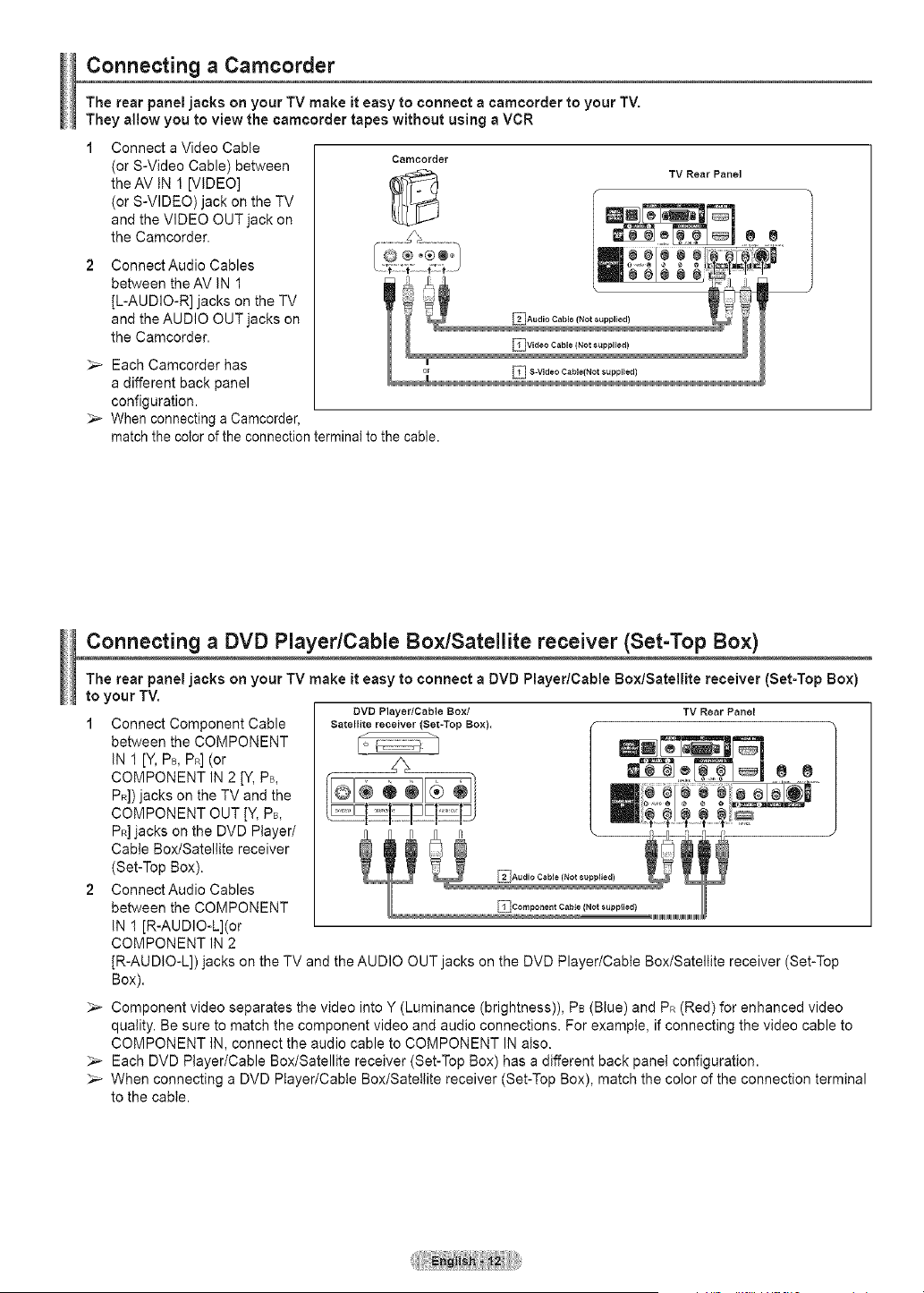
Connecting a Camcorder
The rear panel jacks on your TV make it easy to connect a camcorder to your TV.
They allow you to view the camcorder tapes without using a VCR
1 Connect aVideo Cable
(or S-Video Cable) between _Camc°rder
the AV iN 1[VIDEO] (_
(or S-VIDEO) jack on the TV
and the VIDEO OUT jack on
the Camcorder.
Connect Audio Cables
between theAV iN 1
[L-AUDIO-R] jacks on the TV
and the AUDIO OUT jacks on
the Camcorder.
Each Camcorder has
a different back panel
configuration.
When connecting a Camcorder,
match the color ofthe connection terminal to the cable.
TV Rear Panel
_ 00
El S-Video Cable(Not supplied)
Connecting a DVD Player/Cable Box/Satellite receiver (Set-Top Box)
The rear panel jacks on your TV make it easy to connect a DVD Player/Cable Box/Satellite receiver (Set-Top Box)
to your TV.
DVD Player/Cable Box/
Satellite receiver (Set-Top Box).
I_ _:
1 Connect Component Cable
between the COMPONENT
IN 1[Y, PB,PR] (or
COMPONENT IN 2 [Y, P+,
PR])jacks on the TV and the
COMPONENT OUT [Y, PB,
PR]jacks on the DVD Player/
Cable Box/Satellite receiver
(Set-Top Box).
2 ConnectAudio Cables
between the COMPONENT
IN 1[R-AUDIO-L](or
COMPONENT IN 2
TV Rear Panel
_Audio Cable (Not supplied)
JR-AUDIO-L]) jacks on the TV and the AUDIO OUT jacks on the DVD Player/Cable Box/Satellite receiver (Set-Top
Box).
Component video separates the video into Y (Luminance (brightness)), PB(Blue) and PR (Red) for enhanced video
quality. Be sure to match the component video and audio connections. For example, if connecting the video cable to
COMPONENT IN, connect the audio cable to COMPONENT IN also.
Each DVD Player/Cable Box/Satellite receiver (Set-Top Box) has a different back panel configuration.
_-- When connecting a DVD Player/Cable Box/Satellite receiver (Set-Top Box), match the color of the connection terminal
to the cable.
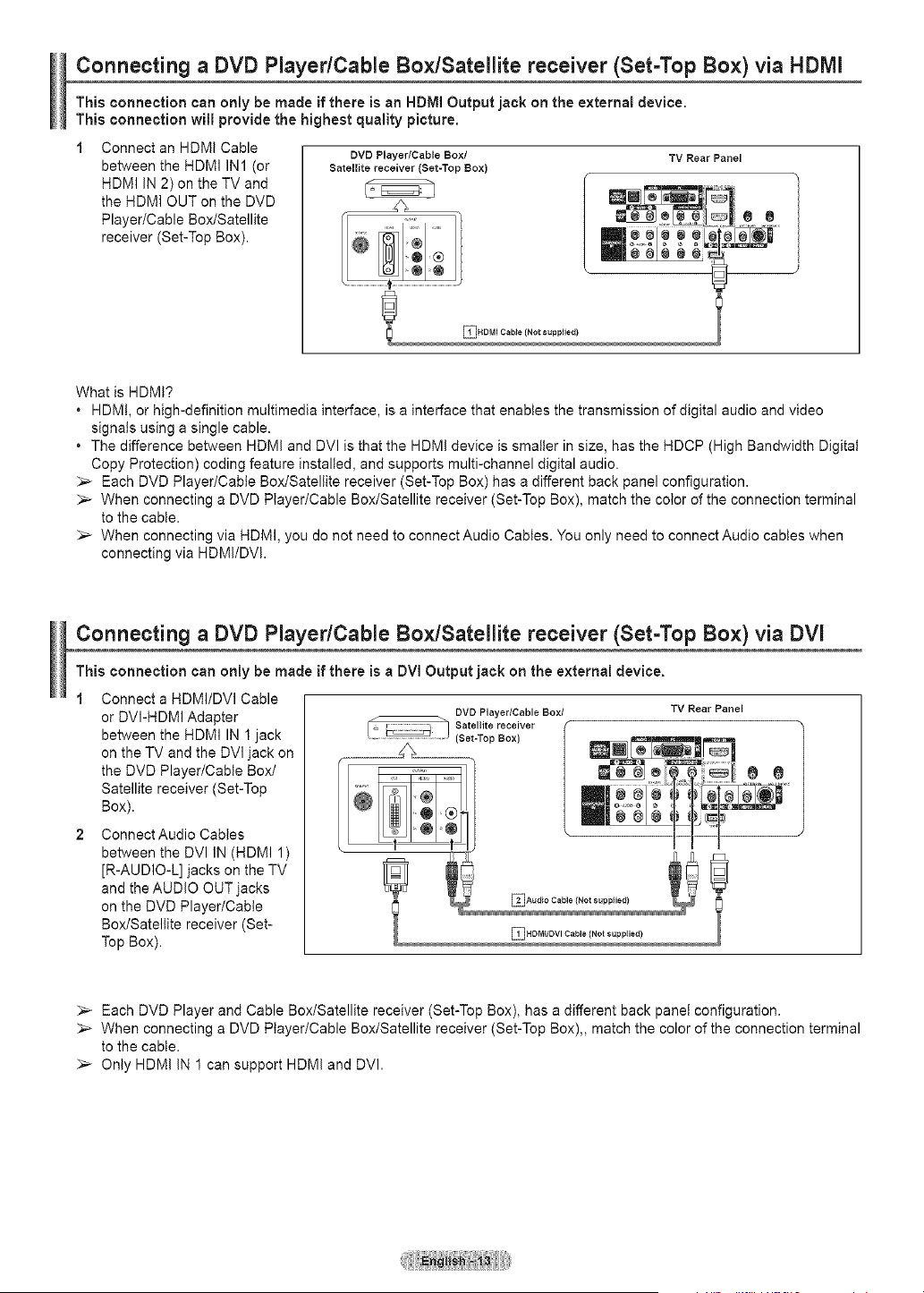
Connecting a DVD PlayedCable Box/Satellite receiver (Set-Top Box) via HDMI
This connection can only be made if there is an HDMI Output jack on the external device.
This connection will provide the highest quality picture.
1 Connect an HDMI Cable
DVD Player/Cable Box/
between the HDMI IN1 (or SatelLitereceiver(Set-TopBox)
HDMI IN 2) on the TV and
the HDMI OUT on the DVD
Player/Cable Box/Satellite _ _
receiver (Set-Top Box).
TV Rear Panel
DHDMI Cable (Not supplied)
What is HDMt?
. HDM!, or high-definition multimedia interface, is a interface that enables the transmission of digital audio and video
signals using asingle cable.
. The difference between HDMI and DVl is that the HDMI device is smaller in size, has the HDCP (High Bandwidth Digital
Copy Protection) coding feature installed, and supports multi-channel digital audio.
_- Each DVD Player/Cable Box/Satellite receiver (Set-Top Box) has a different back panel configuration.
_-- When connecting a DVD Player/Cable Box/Satellite receiver (Set-Top Box), match the color of the connection terminal
to the cable.
_,_ When connecting via HDMI, you do not need to connect Audio Cables. You only need to connect Audio cables when
connecting via HDMI/DVl.
Connecting a DVD PlayedCable Box/Satellite receiver (Set-Top Box) via DVI
This connection can only be made if there is a DVI Output jack on the external device.
1 Connect a HDMI/DVI Cable
or DVI-HDMI Adapter _ _ DVDPLayer/CableBox/
between the HDMI IN 1 jack / ,.j SatelLitereceiver
.... (Set-Top Box)
on the TV and the DVl jack on ................................._............................._
the DVD Player/Cable Box/ _ ®
Satellite receiver (Set-Top
Box).
2 ConnectAudio Cables
between the DVl IN (HDMI 1)
[R-AUDIO-L] jacks on the TV
and the AUDIO OUT jacks
on the DVD Player/Cable EIA,,d_oC,ble(Notsupplied)
Box/Satellite receiver (Set- _}HDMI/DVI Cable {Not supplied)
Top Box).
TV Rear Panel
Each DVD Player and Cable Box/Satellite receiver (Set-Top Box), has adifferent back panel configuration.
_-- When connecting a DVD Player/Cable Box/Satellite receiver (Set-Top Box),, match the color of the connection terminal
to the cable.
_,_ Only HDMi IN 1can support HDMi and DVl.
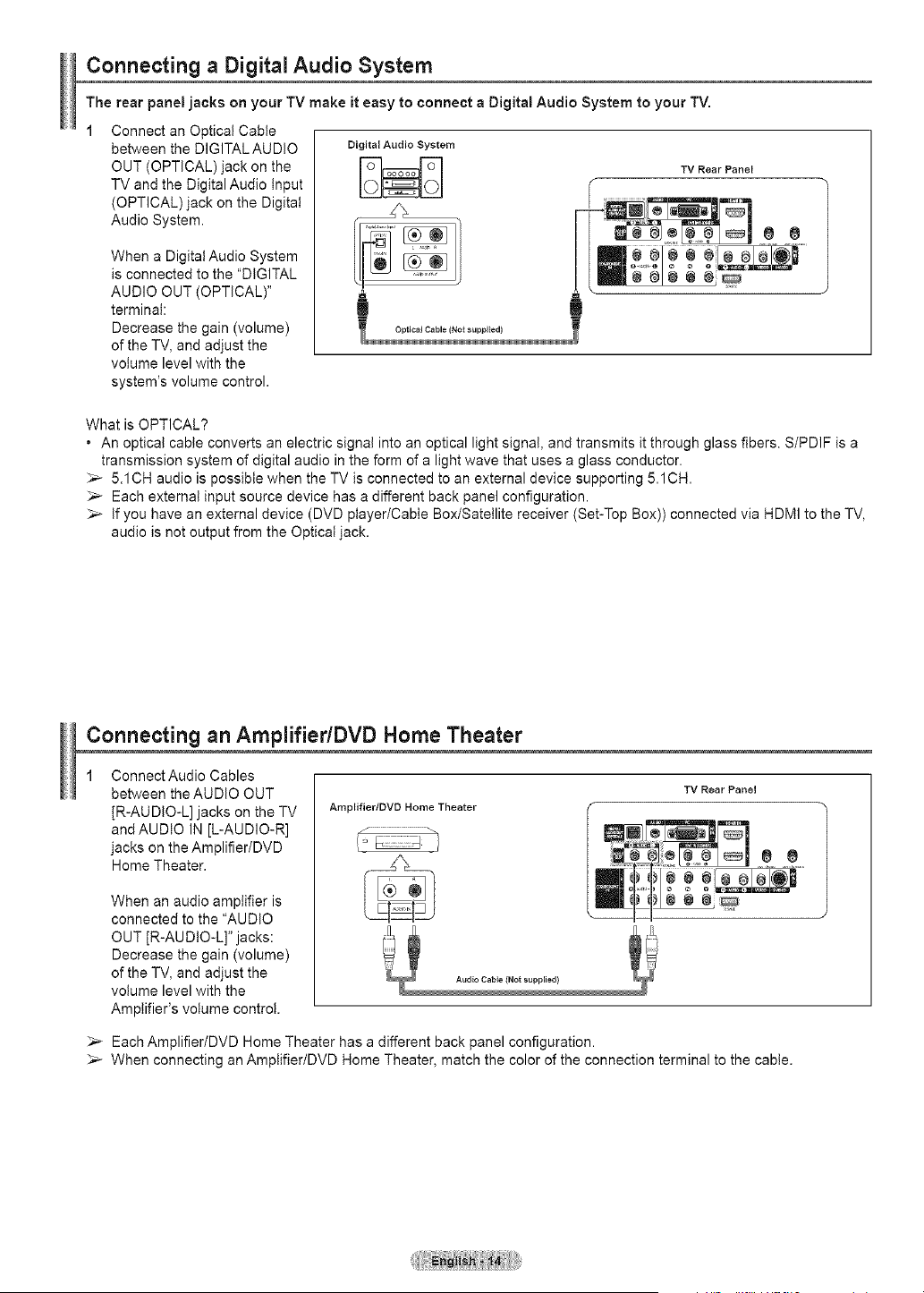
Connecting a DigitalAudio System
The rear panel jacks on your TV make it easy to connect a Digital Audio System to your TV.
1 Connect an Optica! Cable
between the DIGITAL AUDIO DigitalAudioSystem
OUT (OPTICAL)j ack on the [_l_
TV and the Digital Audio input _-
(OPTICAL)jack on the Digital
Audio System.
When a Digital Audio System
is connected tothe "DIGITAL
AUDIO OUT (OPTICAL)"
terminal:
Decrease the gain (volume)
of the TV, and adjust the
volume level with the
system's volume control.
Optical Cable (Not supplied}
TV RearPanel
What is OPTICAL?
• An optical cable converts an electric signal into an optical light signal, and transmits it through glass fibers. S/PDIF is a
transmission system of digital audio in the form of a light wave that uses a glass conductor.
_-- 5.1CH audio is possibie when the TV is connected to an external device supporting 5.1CH.
Each external input source device has a different back panel configuration.
_-- If you have an external device (DVD player/Cable Box/Satellite receiver (Set-Top Box)) connected via HDMI to the TV,
audio is not output from the Optical jack.
Connecting an AmplifiedDVD Home Theater
Connect Audio Cables
between the AUDIO OUT
JR-AUDIO-L] jacks on the TV
and AUDIO IN [L-AUDIO-R]
jacks on the Amplifier/DVD
Home Theater.
When an audio amplifier is
connected to the "AUDIO
OUT [R-AU DtO-L]" jacks:
Decrease the gain (volume)
of the TV, and adjust the
volume level with the
Amplifier's volume control.
Amplifier/DVD Home Theater
TV Rear Panel
Each Amplifier/DVD Home Theater has a different back panel configuration.
_-- When connecting an Ampiifier/DVD Home Theater, match the color of the connection terminal to the cable.
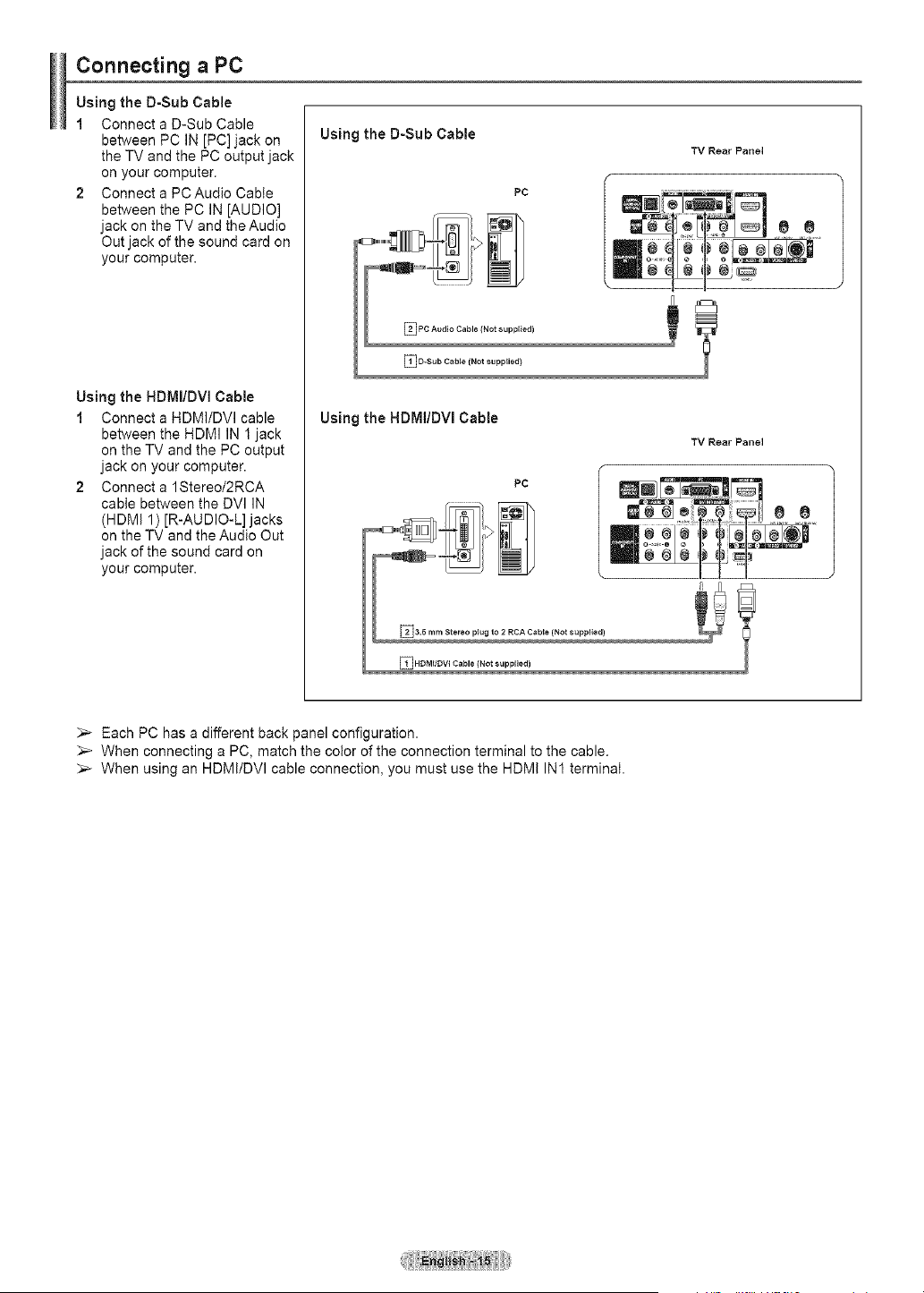
Connecting a PC
Using the D-Sub Cable
1 Connect a D-Sub Cable
between PC IN [PC] jack on
the TV and the PC output jack
on your computer.
2 Connect a PCAudio Cable
between the PC IN [AUDIO]
jack on the TV and the Audio
Out jack of the sound card on
your computer.
Using the HDMI/DVI Cable
1 Connect a HDMI/DVI cable
between the HDMI IN I jack
on the TV and the PC output
jack on your computer.
2 Connect a 1Stereo/2RCA
cabte between the DVI IN
(HDMI 1) [R-AUDIO-L] jacks
on the TV and the Audio Out
jack of the sound card on
your computer.
Using the D-Sub Cable
Using the HDMI/DVl Cable
TV Rear Panel
TV Rear Panel
PC
_-- Each PC has a different back panel configuration.
When connecting a PC, match the color of the connection terminal to the cable.
_-- When using an HDMI/DVI cable connection, you must use the HDMI IN1 terminaI.
Operation
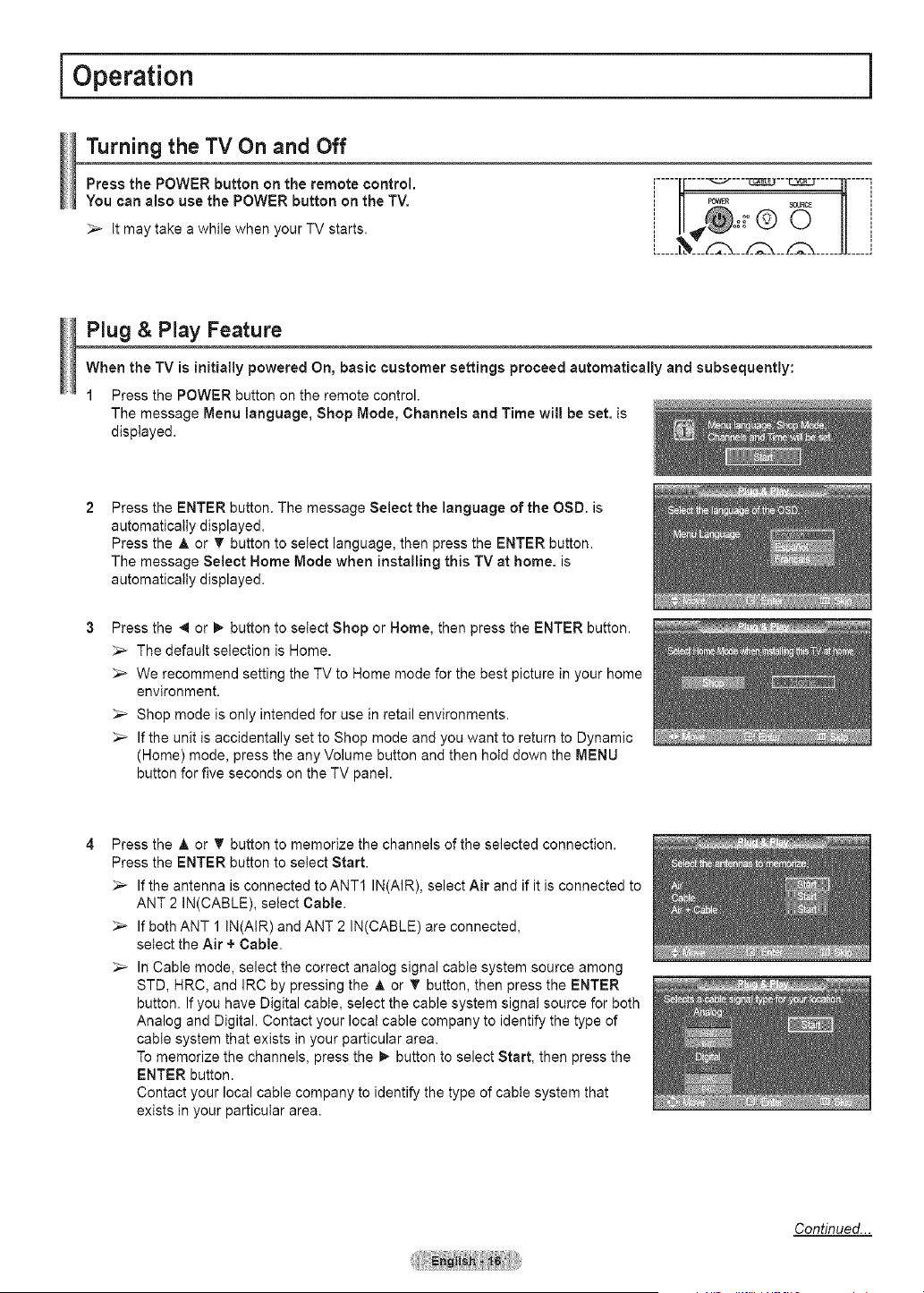
Turning the TV On and Off
Press the POWER button on the remote control.
You can also use the POWER button on the TV.
It may take awhile when your TV starts.
!
_JJ_J
Plug & Play Feature
When the TV is initially powered On, basic customer settings proceed automatically and subsequently:
1 Press the POWER button on the remote control.
The message Menu language, Shop Mode, Channels and Time will be set. is
displayed.
Press the ENTER button. The message Select the language of the OSD. is
automatically displayed.
Press the A or T button to select language, then press the ENTER button.
The message Select Home Mode when installing this TV at home. is
automatically displayed.
Press the _ or _ button to select Shop or Home, then press the ENTER button.
_,_ The default selection is Home.
_,_ We recommend setting the TV to Home mode for the best picture in your home
environment.
_-- Shop mode is only intended for use in retail environments.
_,_ Ifthe unit is accidentally set to Shop mode and you want to return to Dynamic
(Home) mode, press the any Volume button and then hold down the MENU
button for five seconds on the TV panel.
Press the A or T button to memorize the channels of the selected connection.
Press the ENTER button to select Start.
_-- If the antenna is connected to ANT1 IN(AIR), select Air and if it is connected to
ANT 2IN(CABLE), select Cable.
_,_ Ifboth ANT 1 IN(AIR) and ANT 2 IN(CABLE) are connected,
select the Air + Cable.
_,_ InCable mode, select the correct analog signal cable system source among
STD, HRC, and IRC by pressing the A or T button, then press the ENTER
button. If you have Digital cable, select the cable system signal source for both
Analog and Digital. Contact your local cable company to identify the type of
cable system that exists in your particular area.
To memorize the channels, press the _- button to select Start, then press the
ENTER button.
Contact your local cable company to identify the type of cable system that
exists in your particular area.
Continued...
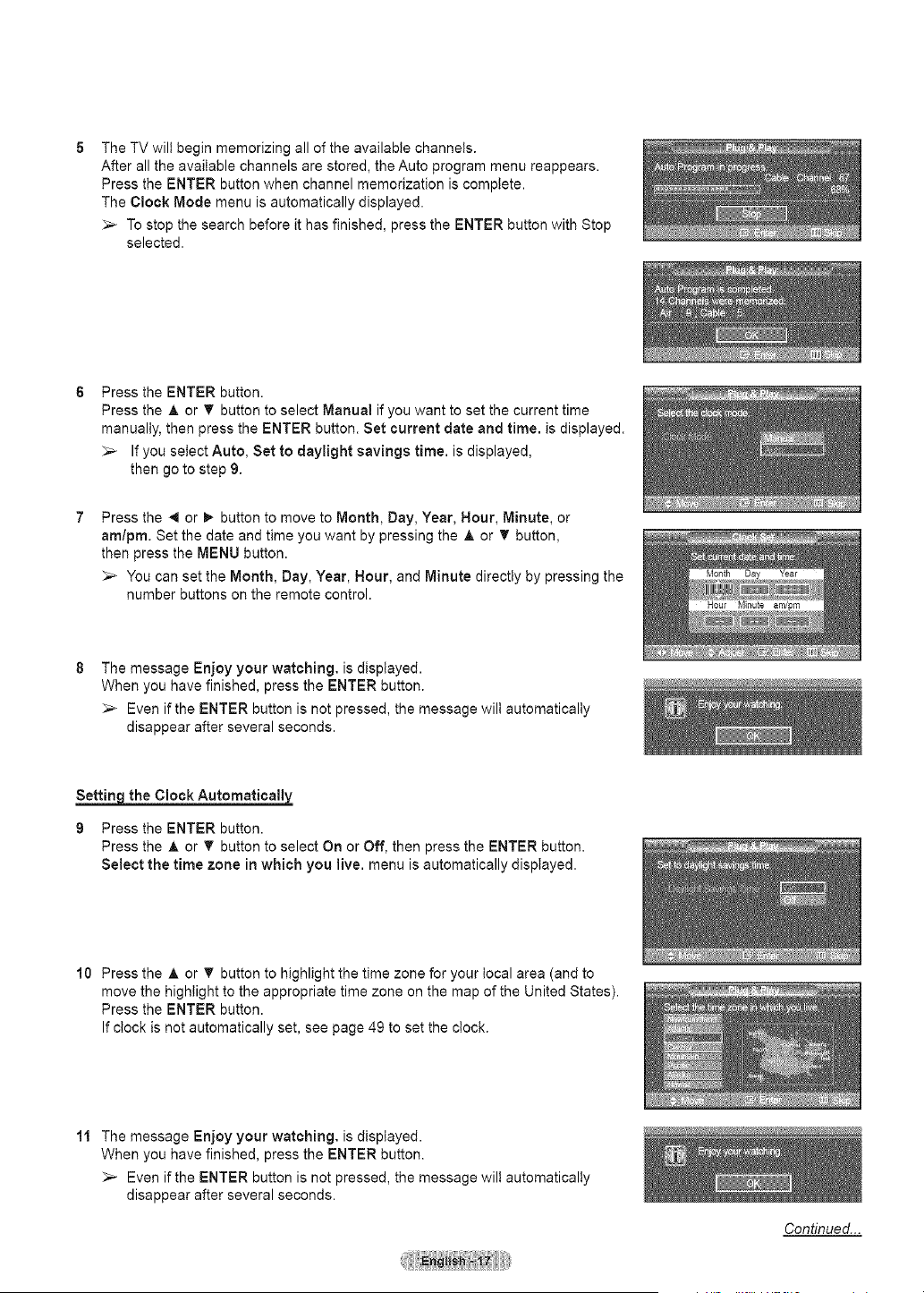
The TV wilt begin memorizing all of the available channels.
After all the available channels are stored, the Auto program menu reappears.
Press the ENTER button when channel memorization iscomplete.
The Clock Mode menu is automatically displayed.
To stop the search before it has finished, press the ENTER button with Stop
selected.
Press the ENTER button.
Press the A or _ button to select Manual if you want to set the current time
manually, then press the ENTER button. Set current date and time. is displayed.
_-- If you select Auto, Set to daylight savings time. is displayed,
then go to step 9.
Press the ,.q or _ button to move to Month, Day, Year, Hour, Minute, or
am/pro. Set the date and time you want by pressing the A or _' button,
then press the MENU button.
_-- You can set the Month, Day, Year, Hour, and Minute directly by pressing the
number buttons on the remote control.
Hour Minute am!pro
The message Enjoy your watching, isdisplayed.
When you have finished, press the ENTER button.
_,_ Even if the ENTER button is not pressed, the message wilt automatically
disappear after several seconds.
the Clock Automatically
9 Pressthe ENTER button.
Press the A or T button to select Onor Off, thenpress the ENTERbutton.
Select the time zone in which you live. menuisautomatically displayed.
10 Press the A or T button to highlight the time zone for your local area (and to
move the highlight to the appropriate time zone on the map of the United States).
Press the ENTER button.
Ifclock is not automatically set, see page 49 to set the clock.
11 The message Enjoy your watching, isdisplayed.
When you have finished, press the ENTER button.
_-- Even if the ENTER button is not pressed, the message wilt automatically
disappear after several seconds.
Continued...
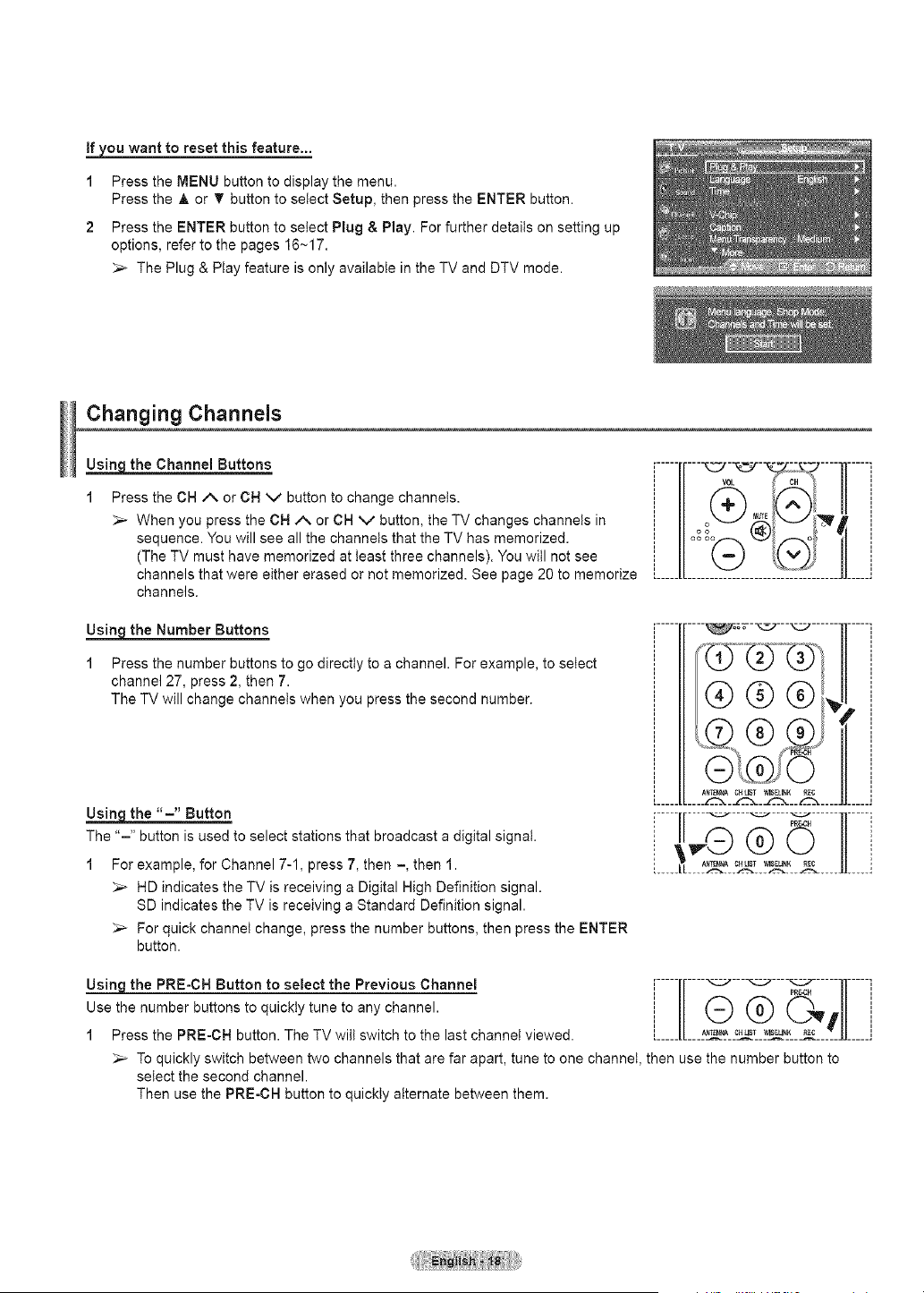
If_ want to reset thisfeature...
i
2
Press the MENU button to display the menu.
Press the A or T button to select Setup, then press the ENTER button.
Press the ENTER button to select Plug & Play. For further details on setting up
options, refer to the pages 16~17.
The Plug & Play feature is only available in the TV and DTV mode.
Changing Channels
_the Channel Buttons
1 Press the CH A or CH V button to change channels.
_-- When you press the CH A or CH v button, the TV changes channels in
sequence. You will see all the channels that the TV has memorized.
(The TV must have memorized at least three channels). You will not see
channels that were either erased or not memorized. See page 20 to memorize
channels.
ill /tl
I/.....
= t =
LI[ Li
_the Number Buttons
1 Press the number buttons to go directly to a channel. For example, to select
channel 27, press 2, then 7.
The TV will change channels when you press the second number.
_the "=" Button
The "=" button is used to select stations that broadcast adigital signal.
1 For example, for Channel 7-1, press 7, then -, then 1.
_-- HD indicates the TV is receiving a Digital High Definition signal.
SD indicates the TV is receiving aStandard Definition signal.
For quick channel change, press the number buttons, then press the ENTER
button.
......r----'_--_---_ ......1]-----i
7®
® ® ® ?i i
......... ....
[.............................
_the PRE-CH Button to select the Previous Channel
Use the number buttons to quickly tune to any channel.
1 Press the PRE-CN button. The TV will switch to the last channel viewed.
lII[......... Q_----'_----_-@P__V_ll l..........
[_____[L_____r___N____c_1___S___E_N_K___EC_____ll_____i
_" TO quickly switch between two channels that are far apart, tune to one channel, then use the number button to
select the second channel.
Then use the PRE-CH button to quickly alternate between them.
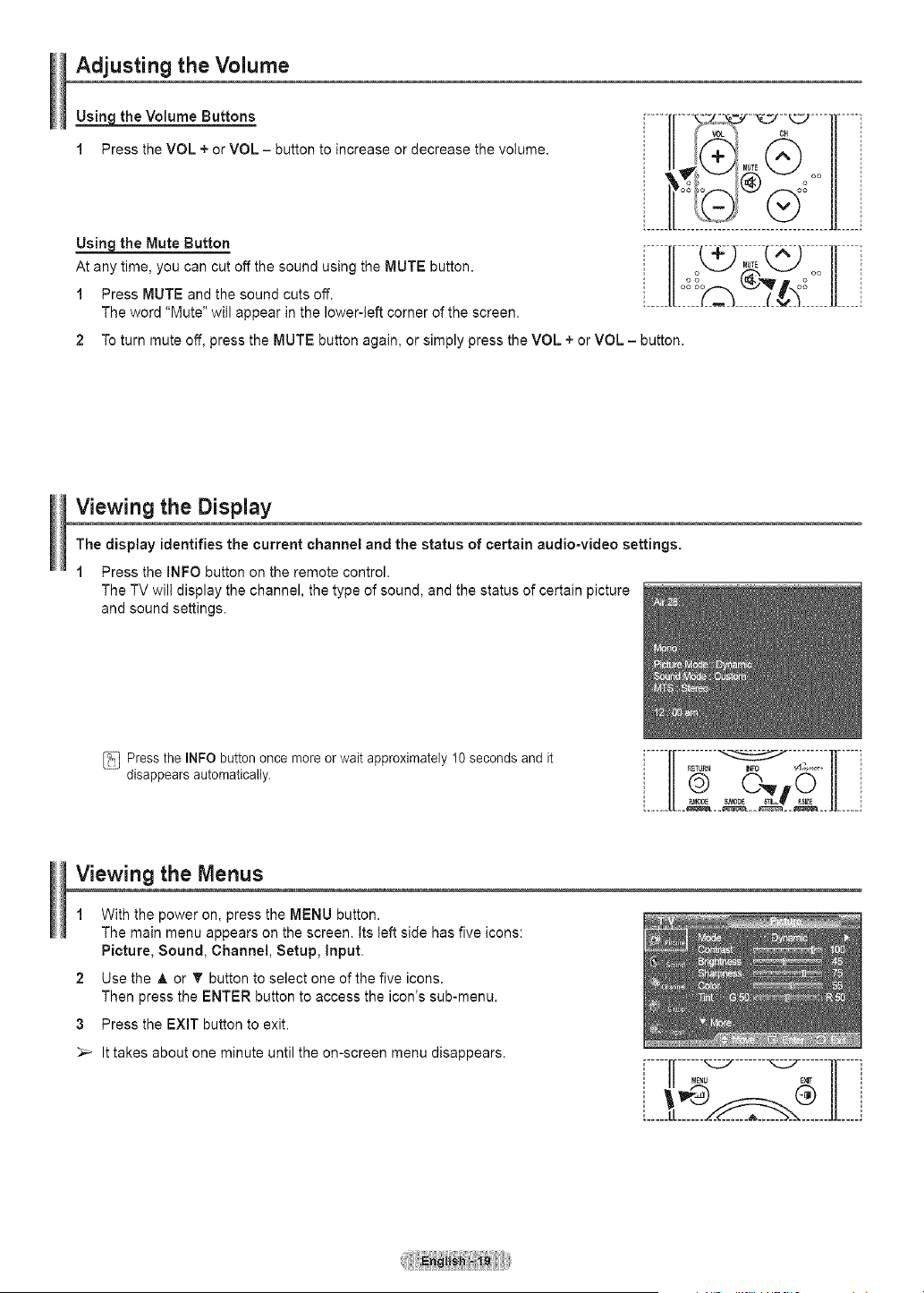
Adjusting the Volume
Usin theVolume Buttons
1 Press the VOL + or VOL- button toincrease or decreasethe volume.
Using the Mute Button
At any time, you can cut off the sound using the MUTE button.
1 Press MUTE and the sound cuts off.
The word "Mute" will appear in the lower-left corner of the screen.
_ oo
2 To turn mute off, press the MUTE button again, or simply press the VOL + or VOL - button.
Viewing the Display
The display identifies the current channel and the status of certain audio-video settings.
1 Press the INFO button on the remote control.
The TV will display the channel, the type of sound, and the status of certain picture
and sound settings.
Pressthe INFO button once moreor wait approximately 10seconds and it
disappears automatically.
r----l[........._ .........1]----q
viewing the Menus
1 With the power on, press the MENU button.
The main menu appears on the screen, tts left side has five icons:
Picture, Sound, Channel, Setup, input.
2 Use the A or T button to select one of the five icons.
Then press the ENTER button to access the icon's sub-menu.
3 Press the EXiT button to exit.
_-- It takes about one minute until the on-screen menu disappears.
II J
Memorizing the Channels
Your TV can memorize and store all ofthe availablechannels for both "off=air" (air) and cable channels.
Afterthe available channelsare memorized, usethe CHA or CH v _buttontoscan through the channels.
This eliminates the need to change channelsby entering the channel digits. There arethreestepsfor memorizing
channels: selecting a broadcast source, memorizingthe channels (automatic) and adding ordeleting channels
(Channel Lists).
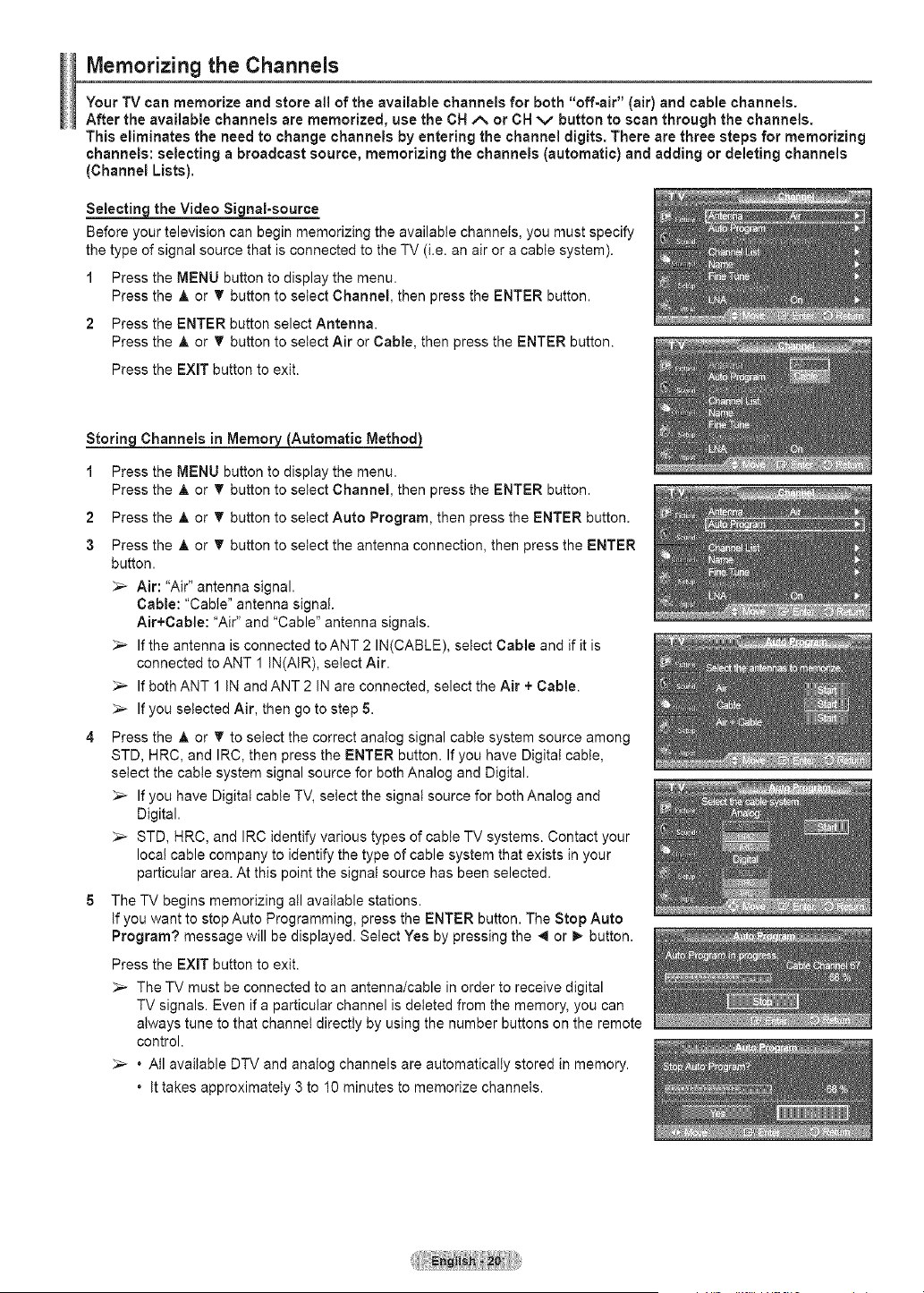
_the Video Si£1nal-source
Before your television can begin memorizing the available channels, you must specify
the type of signal source that is connected to the TV (i.e. an air or a cable system).
1 Press the MENU button to display the menu.
Press the A or _' button to select Channel, then press the ENTER button.
2 Press the ENTER button select Antenna.
Press the A or _' button to select Air or Cable, then press the ENTER button.
Press the EXIT button to exit.
Storing Channels in Memorv_Automatic Method)
1 Press the MENU button to display the menu.
Press the A or _' button to select Channel, then press the ENTER button.
2 Press the A or _' button to setect Auto Program, then press the ENTER button.
3 Press the A or T button to setect the antenna connection, then press the ENTER
button.
_-- Air: "Air" antenna signal.
Cable: "Cable" antenna signal.
Air+Cable: "Air" and "Cable" antenna signals.
_-- If the antenna is connected to ANT 2 IN(CABLE), setect Cable and if it is
connected to ANT 1 IN(AIR), setect Air.
Ifboth ANT 1 IN and ANT 2 IN are connected, select the Air + Cable.
_-- If you setected Air, then go to step 5.
4 Press the A or T to select the correct analog signal cable system source among
STD, HRC, and IRC, then press the ENTER button. Ifyou have Digital cable,
select the cable system signal source for both Analog and Digital.
_-- If you have Digital cable TV, select the signal source for both Analog and
Digital.
_-- STD, HRC, and IRC identify various types of cable TV systems. Contact your
Ioca! cable company to identify the type of cable system that exists in your
particular area. At this point the signal source has been selected.
5 The TV begins memorizing all available stations.
If you want to stop Auto Programming, press the ENTER button. The Stop Auto
Program? message will be displayed. Select Yes by pressing the _ or _ button.
Press the EXIT button to exit.
_-- The TV must be connected to an antenna/cable in order to receive digital
TV signals. Even if a particular channel isdeteted from the memory, you can
always tune to that channel directly by using the number buttons on the remote
control.
. All available DTV and analog channels are automatically stored in memory.
. Ittakes approximately 3 to 10 minutes to memorize channels.
Setting Up Your Remote Control
Afteryour remotecontroJhasbeen properlyset up, your remote control canoperate in five different modes:
TV, VCR, Cable, DVD, or Set-Top Box. Pressingthe corresponding buttonon the remotecontrol allows you to
switchamong these modes,and control whichever piece of equipmentyou choose.
_-- The remote control mightnotbe compatible with all DVD Players,VCRs, Cable boxes, and Set-Top Boxes.
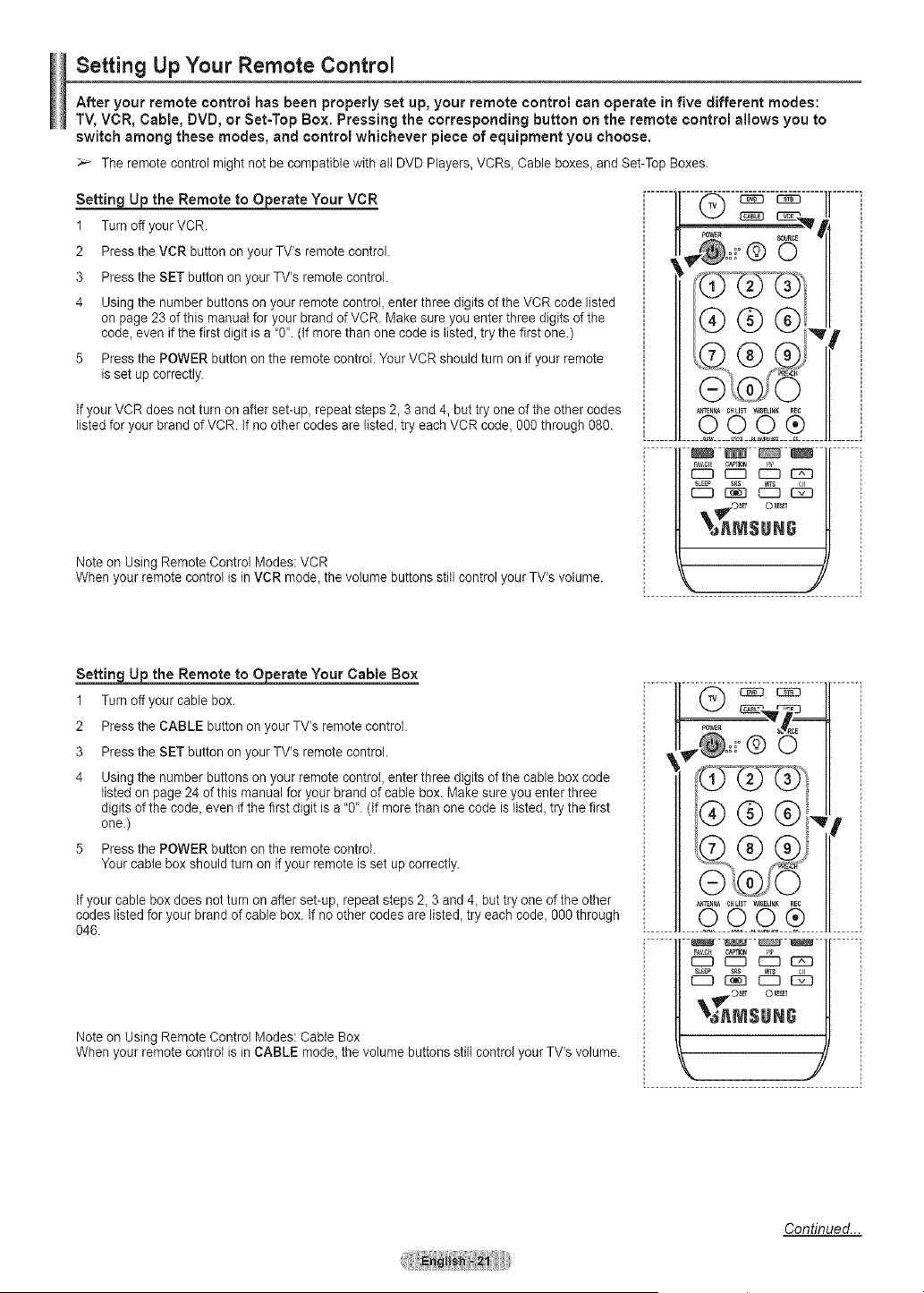
Settin 9 _ the Remote to Operate Your VCR
1 Turn off your VCR.
2 Press the VCR button on your TV's remote control.
3 Press the SET button on your TV's remotecontrol.
4 Using the number buttons on your remote control, enterthree digits ofthe VCR codelisted
on page 23 of this manualfor your brandof VCR. Make sure youenter threedigits of the
code, even if the firstdigit isa"0'. (Ifmorethan one code islisted,trythe first one.)
5 Press the POWER button on the remote control. Your VCR should turn onif your remote
isset up correctly.
Ifyour VCR does not turnon after set-up, repeat steps 2, 3 and 4, but tryone of the other codes
listed foryour brand of VCR. If no othercodes arelisted, try eachVCR code,0% through 080.
Note on Using Remote Control Modes: VCR
When your remote control isin VCR mode, the volume buttons stillcontrol your TV's volume.
............._________ ..............
® o
/®®®I.,
.......HbL .2¢....
_AVCt c_
r-m C:D _ r-xn
_,_£r_lsu N£
Setting _ the Remote to Operate Your Cable Box
1 Turn off your cable box.
2 Press the CABLE buttonon your TV's remote control.
3 Press the SET button on your TV's remotecontrol.
4 Using the number buttons on your remote control, enterthree digits ofthe cable box code
listed on page 24 ofthis manual foryour brand ofcable box. Makesure you enterthree
digits of the code, even ifthefirstdigit isa"0". (tfmorethan one codeislisted, try the first
one.)
5 Press the POWER button on the remote control.
Your cable box should turnon ifyourremote is set up correctly.
Ifyour cable box does not turn on afterset-up, repeat steps 2, 3and 4, but try one of the other
codes listed for your brand of cable box. If no othercodes are listed, try eachcode, 000 through
046.
Note on Using Remote Control Modes: Cable Box
When your remote control isin CABLE mode, the volume buttonsstill controlyour TV's volume.
,,@;=.® o
f
IFIVCI ICAPI _ I
_III£1111
J
Continued...
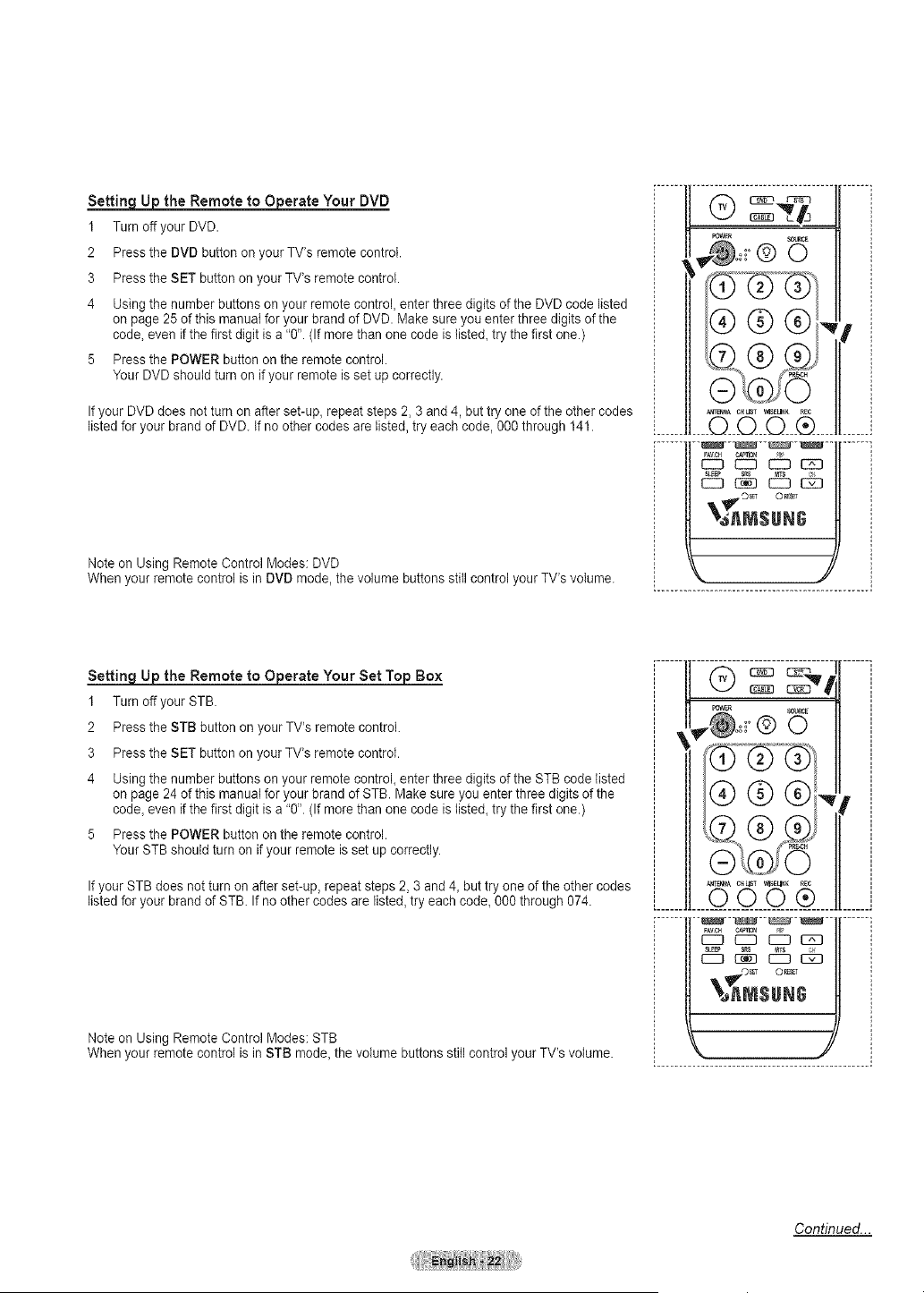
Ujo the Remote to Oj_erate Your DVD
I Turn off your DVD.
2 Press the DVD button on your TV's remote control.
3 Press the SET button onyour TV's remote control,
4 Using the number buttons on your remote control, enterthree digits of the DVD code listed
on page 25 of this manuat foryour brandof DVD. Makesure you enterthree digits of the
code,even if thefirst digit is a"g". (Ifmorethan one code islisted_try the first one,)
5 Press the POWER button onthe remote control,
Your DVD should turnon if your remote isset upcorrectly,
Ifyour DVD does not turn on afterset-up, repeat steps 2, 3 and 4, but try one ofthe othercodes
listed for your brandof DVD. If no other codes arelisted, try each code, %0 through 141.
Note on Using Remote Control Modes: DVD
When your remote controlis in DVD mode, thevolume buttons still controlyour TV's volume.
;ts
i II _ _._ ,,zJ_'_t, !
@®@, I ,
[......ll____O__©_O___®____ll......]
FAVCH ¢AmlO_
CZ3 CZ3 _ 12El
_ c_ dS@
_',_AMSUNG
_ the Remote to _erate Your Set Top Box
1 Turnoffyour STB.
2 Press the STB button on your TV's remote control.
3 Press the SET button onyour TV's remote control.
4 Using the number buttons on your remote control enter three digits of the STB codelisted
on page 24 of this manual foryour brandof STB. Makesure you enter three digits ofthe
code_even if thefirst digit isa "0". (Ifmorethan one code isliste& try the first one.)
5 Press the POWER button onthe remote control.
Your STB should turn onif your remoteisset up correctly.
Ifyour STB does not turn on afterset-up, repeat steps 2, 3 and 4_but try one of the othercodes
listed for your brandof STB. If no other codes arelisted, try each code_O00through 074.
Note on Using Remote Control Modes: STB
When your remote controlis in STB mode_the volume buttonsstill controlyour TV's volume.
J ® ® ®J",r J
J ,,,@® @,_ J
j ® j
i......J!8°__ @ .......J
_J'_MSUNG
Continued...
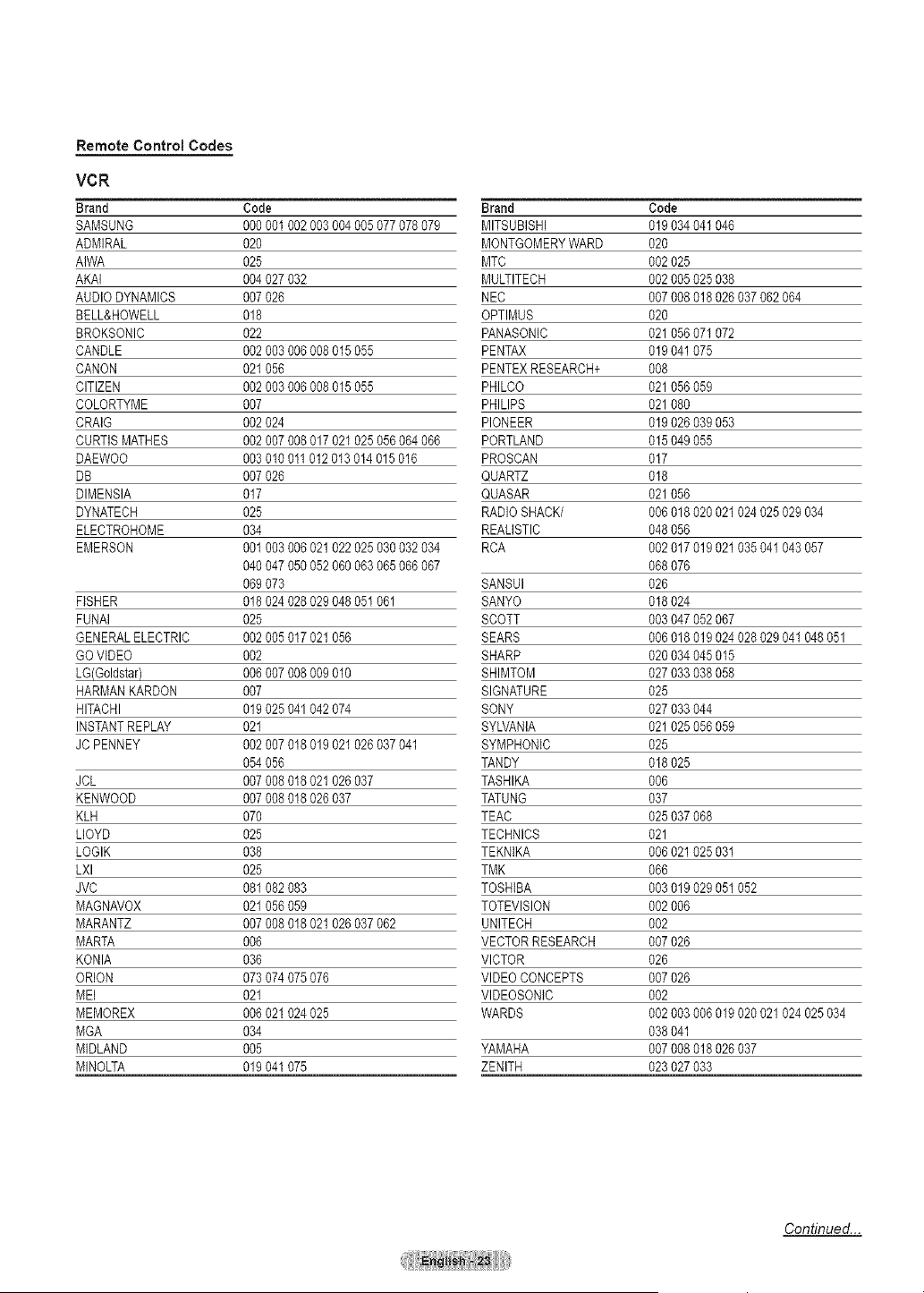
Remote Control Codes
VCR
Brand Code Brand Code
SAMSUNG %0001002 003004 005077 078079 MITSUBISHI 019 034041 046
ADMIRAL 020 MONTGOMERYWARD 020
AIWA 025 MTC 002 025
AKAI 004027032 MULTITECH 002 005025 038
AUDIODYNAMICS 007026 NEC 007 008018 026037 062064
BELL&HOWELL 018 OPTIMUS 020
BROKSONIC 022 PANASONIC 021056071 072
CANDLE 002003006 008015 055 PENTAX 019 041075
CANON 021056 PENTEXRESEARCH+ 008
CITIZEN 002003006 008015 055 PHILCO 021 056059
COLORTYME 007 PHILIPS 021 080
CRAIG 002024 PIONEER 019 026039 053
CURTISMATHES 002007008 017021 025056 064066 PORTLAND 015 049055
DAEWOO 003010011 012013014 015016 PROSCAN 017
DB 007026 QUARTZ 018
DIMENSIA 017 QUASAR 021 056
DYNATECH 025 RADIOSHACK/ 006 018020 021024 025029 034
ELECTROHOME 034 REALISTIC 048 056
EMERSON 001003006 021022 025030 032034 RCA 002 017019 021035 041043 057
040047050 052060 063065 066067 068 076
069073 SANSUI 026
FISHER 018024028 029048 05t 061 SANYO 018024
FUNAI 025 SCOTT 003 047052 067
GENERALELECTRIC 002005017 021056 SEARS 006 018019 024028 029041 048051
GOVIDEO 002 SHARP 020 034045 015
LG(Goldstar) 006007008 009010 SHIMTOM 027 033038 058
HARMANKARDON 007 SIGNATURE 025
HITACHI 019025041 042074 SONY 027 033044
INSTANTREPLAY 021 SYLVANIA 021 025056 059
JC PENNEY 0020070t8 019021 026037 041 SYMPHONIC 025
054056 TANDY 018 025
JCL 007008018 021026 037 TASHIKA 006
KENWOOD 007008018 026037 TATUNG 037
KLH 070 TEAC 025 037068
LLOYD 025 TECHNICS 021
LOGIK 038 TEKNIKA 006 021025 03t
LXl 025 TMK 066
JVC 081082083 TOSHIBA 003 019029 05t052
MAGNAVOX 021056059 TOTEVlSION 002 006
MARANTZ 007008018 021026 037062 UNITECH 002
MARTA 006 VECTORRESEARCH 007 026
KONIA 036 VICTOR 026
ORLON 073074075 076 VIDEOCONCEPTS 007 026
MEI 021 VlDEOSONIC 002
MEMOREX 006021024 025 WARDS 002 003006 019020 021024 025034
MGA 034 038 041
MIDLAND 005 YAMAHA 007 008018 026037
MINOLTA 019041075 ZENITH 023 027033
Continued...
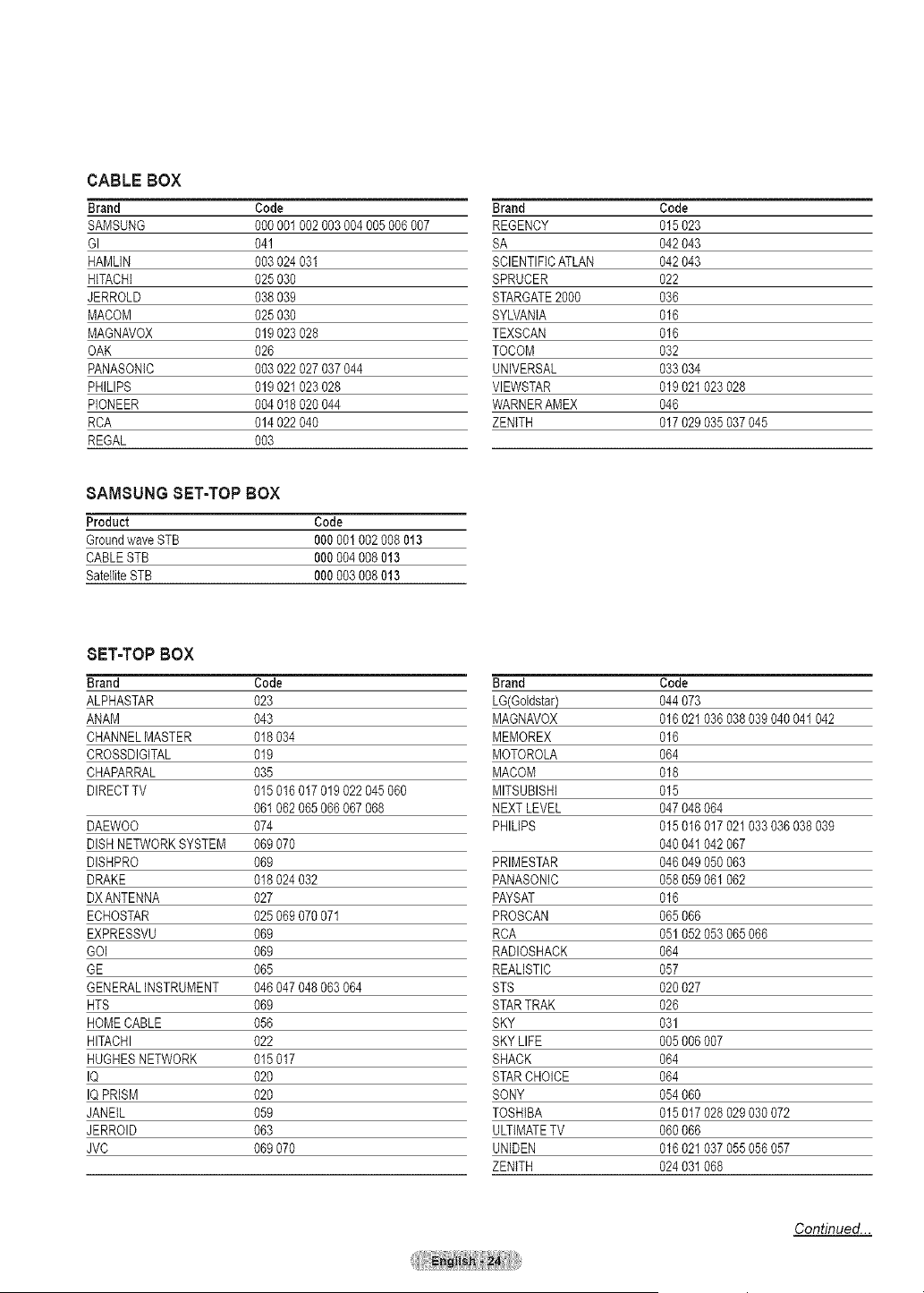
CABLE BOX
Brand Code
SAMSUNG 0% 001 002 003004005 006007
GI 041
HAMLIN 003024 031
HITACHI 025030
JERROLD 038039
MACOM 025030
MAGNAVOX 019023 028
OAK 026
PANASONIC 003022 027 037044
PHILIPS 019021 023 028
PIONEER 004018 020 044
RCA 014022 040
REGAL 003
8AMSUNG SET-TOP BOX
Product Code
GroundwaveSTB 000 00I 002 008013
CABLESTB 000 004008 013
SatelliteSTB 000 003008 0t3
SET-TOP BOX
Brand Code
ALPHASTAR 023
ANAM 043
CHANNELMASTER 018 034
CROSSDIGITAL 019
CHAPARRAL 035
DIRECTTV 015 016 017019022 045060
061 062 065066067 068
DAEWOO 074
DISHNETWORKSYSTEM 069 070
DISHPRO 069
DRAKE 018 024 032
DXANTENNA 027
ECHOSTAR 025 069 070071
EXPRESSVU 069
GOI 069
GE 065
GENERALINSTRUMENT 046 047 048063064
HTS 069
HOMECABLE 056
HITACHI 022
HUGHESNETWORK 015017
IQ 020
IQ PRISM 020
JANEIL 059
JERROID 063
JVC 069 070
Brand Code
REGENCY 015023
SA 042043
SCIENTIFICATLAN 042 043
SPRUCER 022
STARGATE2000 036
SYLVANIA 016
TEXSCAN 016
TOCOM 032
UNIVERSAL 033034
VlEWSTAR 019 021023 028
WARNERAMEX 046
ZENITH 017 029035 037045
Brand Code
LG(Goldstar) 044 073
MAGNAVOX 016 021036 038039 040041 042
MEMOREX 016
MOTOROLA 064
MACOM 018
MITSUBISNI 015
NEXTLEVEL 047 048064
PNILIPS 015 016017 021033 036038 039
040 041042 067
PRIMESTAR 046 049050 063
PANASONIC 058059061 062
PAYSAT 016
PROSCAN 065066
RCA 051 052053 065066
RADIOSHACK 064
REALISTIC 057
STS 020 027
STARTRAK 026
SKY 031
SKYLIFE 005 006007
SHACK 064
STARCHOICE 064
SONY 054 060
TOSHIBA 015 017028 029030 072
ULTIMATETV 060 066
UNIDEN 016 021037 055056 057
ZENITH 024 031068
Continued...
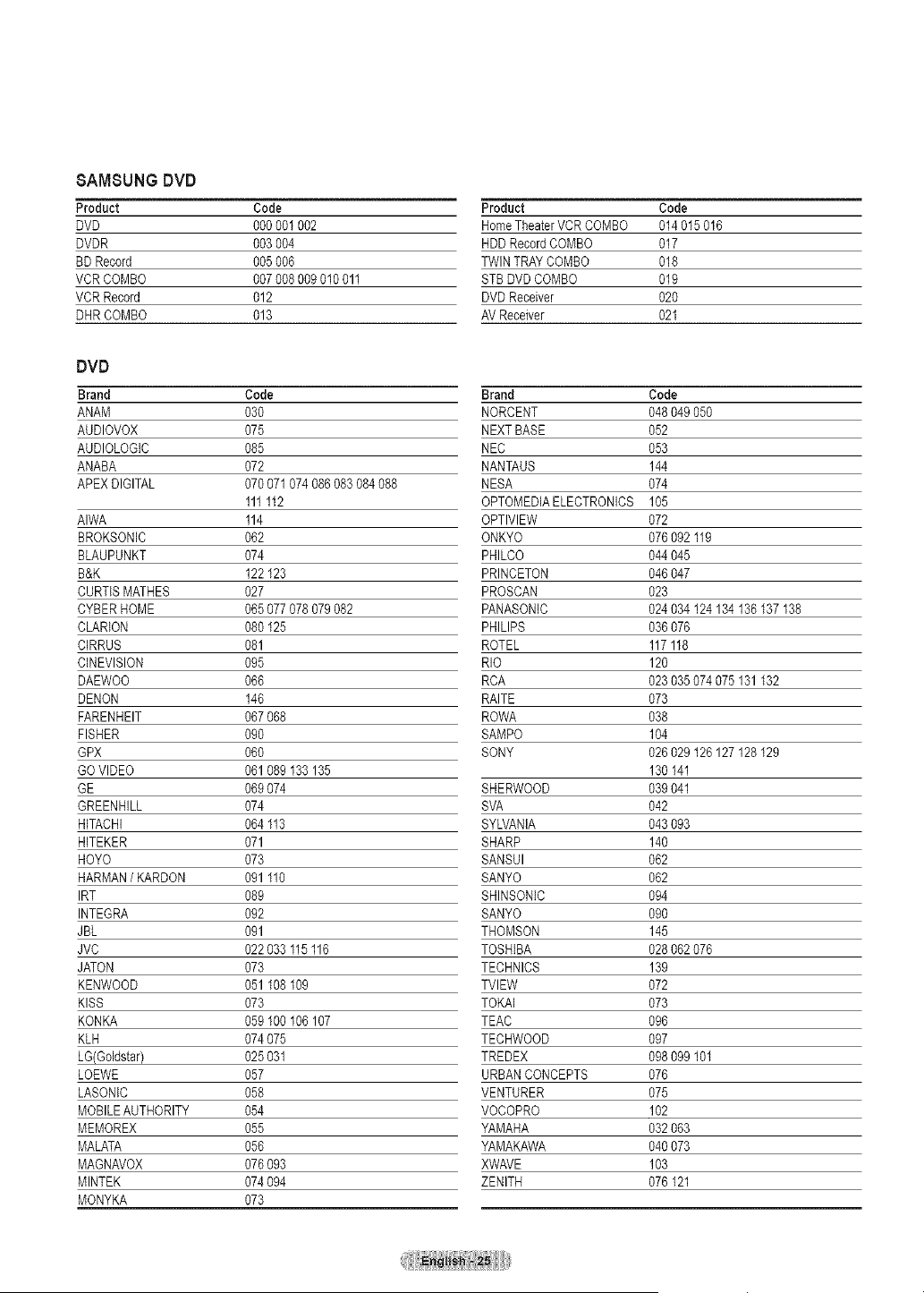
8AMSUNG DVD
Product Code
DVD 0% 001002
DVDR 003 004
BD Record 005 006
VCRCOMBO 007 008009 010011
VCR Record 012
DHRCOMBO 013
DVD
Brand Code
ANAM 030
AUDIOVOX 075
AUDIOLOGtC 085
ANABA 072
APEXDIGITAL 070071074 086083 084088
111112
AIWA 114
BROKSONIC 062
BLAUPUNKT 074
B&K 122 123
CURTISMATHES 027
CYBERHOME 065077078 079082
CLARION 080 125
CIRRUS 081
CINEVlSlON 095
DAEWOO 066
DENON 146
FARENHEIT 067068
FISHER 090
GPX 060
GOVIDEO 061089 133135
GE 069074
GREENHILL 074
HITACHI 064 113
HITEKER 071
HOYO 073
HARMAN/KARDON 091 110
IRT 089
INTEGRA 092
JBL 091
JVC 022033 115116
JATON 073
KENWOOD 051 108109
KISS 073
KONKA 059 100106107
KLH 074075
LG(Goldstar) 025031
LOEWE 057
LASONIC 058
MOBILEAUTHORITY 054
MEMOREX 055
MALATA 056
MAGNAVOX 076093
MINTEK 074094
MONYKA 073
Product Code
HomeTheaterVCRCOMBO 014 015016
HDDRecordCOMBO 017
TWINTRAYCOMBO 018
STBDVDCOMBO 019
DVDReceiver 020
AVReceiver 021
Brand Code
NORCENT 048049050
NEXTBASE 052
NEC 053
NANTAUS 144
NESA 074
OPTOMEDIAELECTRONICS 105
OPTIVlEW 072
ONKYO 076 092 119
PHILCO 044 045
PRINCETON 046047
PROSCAN 023
PANASONIC 024034 124134136 137 138
PHILIPS 036 076
ROTEL 117118
RIO 120
RCA 023 035074 075131 132
RAITE 073
ROWA 038
SAMPO 104
SONY 026 029 I26 127128129
130141
SHERWOOD 039 041
SVA 042
SYLVANIA 043 093
SHARP 140
SANSUI 062
SANYO 062
SHINSONIC 094
SANYO 090
THOMSON 145
TOSHIBA 028 062076
TECHNICS 139
TVIEW 072
TOKAI 073
TEAC 096
TECHWOOD 097
TREDEX 098 099 101
URBANCONCEPTS 076
VENTURER 075
VOCOPRO 102
YAMAHA 032 063
YAMAKAWA 040 073
XWAVE 103
ZENITH 076 121
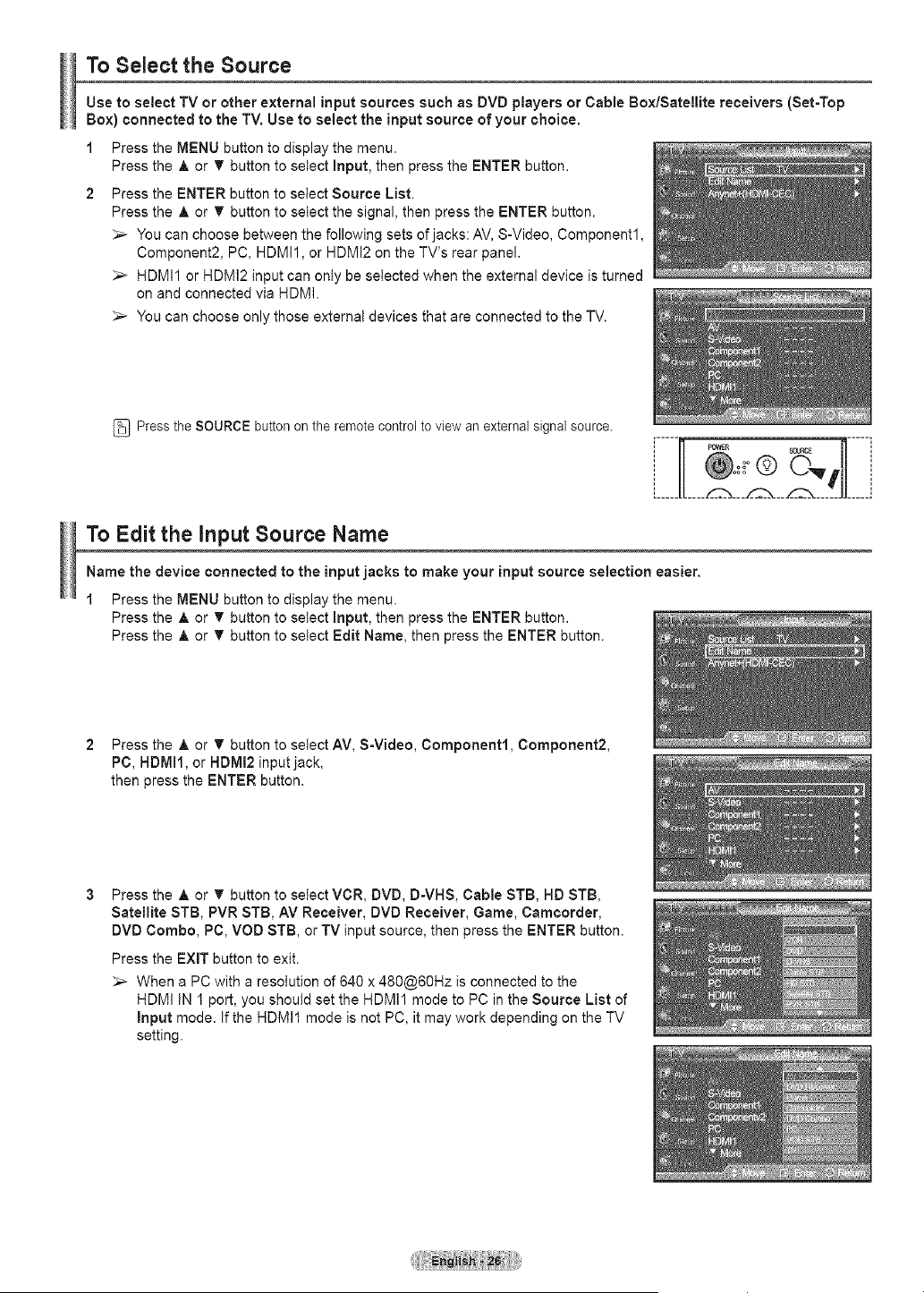
To Select the Source
Use to select TV or other external input sources such as DVD players or Cable Box/Satellite receivers (Set-Top
Box) connected to the TV. Use to select the input source of your choice.
1 Press the MENU button to display the menu.
Press the A or _' button to setect Input, then press the ENTER button.
2 Press the ENTER button to setect Source List.
Press the A or T button to select the signal, then press the ENTER button.
_-- You can choose between the following sets of jacks: AV, S-Video, Component1,
Component2, PC, HDMI1, or HDMI2 on the TV's rear panel.
HDMI1 or HDMI2 input can only be selected when the external device is turned
on and connected via HDMI.
_-- You can choose only those externat devices that are connected to the TV.
Press the SOURCE button on the remote control to view an external signal source.
To Edit the input Source Name
Name the device connected to the input jacks to make your input source selection easier.
1 Press the MENU button to display the menu.
Press the A or _' button to setect Input, then press the ENTER button.
Press the A or T button to select Edit Name, then press the ENTER button.
2 Press the A or T button to select AV, S-Video, Component1, Component2,
PC, HDMII, or HDMI2 inputjack,
then press the ENTER button.
Press the A or _ button to select VCR, DVD, D=VHS, Cable STB, HD STB,
Satellite STB, PVR STB, AV Receiver, DVD Receiver, Game, Camcorder,
DVD Combo, PC, VOD STB, or TV input source, then press the ENTER button.
Press the EXiT button to exit.
When a PC with a resolution of 640 x 480@60Hz is connected to the
HDMI IN 1 port, you shoutd set the HDMI1 mode to PC in the Source List of
Input mode. if the HDMI1 mode is not PC, it may work depending on the TV
setting.
i Picture Control i
Using Automatic Picture Settings
Your new Plasma TV gives you optimal control overthe picture you're watching. You canchange the screen size,
improve the imagequality, even watchsomething else without turning off what you're currently watching. Please
be aware that the best pictureonthis TV will be obtained from HighDefinition(HD) sources such as Digital cable
or DVDplayers.
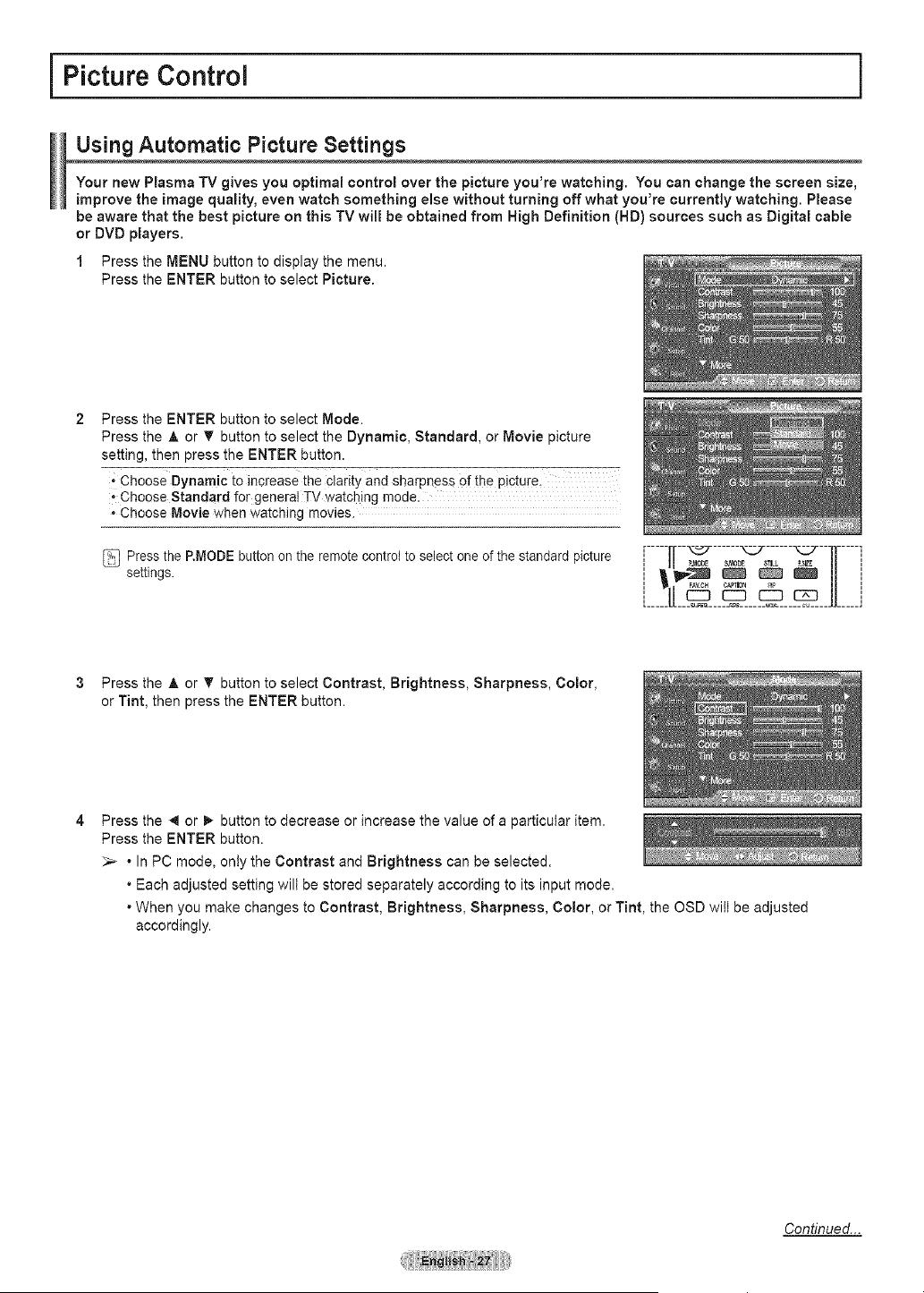
1 Press the MENU button to display the menu.
Press the ENTER button to select Picture.
Press the ENTER button to select Mode.
Press the A or T button to select the Dynamic, Standard, or Movie picture
setting, then press the ENTER button.
* Choose Dynamic to increase the clarity and sharpness of the picture,
. Choose Standard for general TV watching mode.
* Choose Movie when watching movies.
Pressthe P.MODE button on the remote control toselect one of the standard picture
settings.
[.......[1 _ ...... _2" ...... _ .......11 i
i IIN:z _ _ _ l/ i
3 Press the A or 'V'button to select Contrast, Brightness, Sharpness, Color,
or Tint, then press the ENTER button.
Press the _ or _,-button to decrease or increase the value of aparticular item.
Press the ENTER button.
_-- • In PC mode, onty the Contrast and Brightness can be selected.
• Each adjusted setting will be stored separately according to its input mode.
• When you make changes to Contrast, Brightness, Sharpness, Color, or Tint, the OSD wilt be adjusted
accordingly.
Continued...
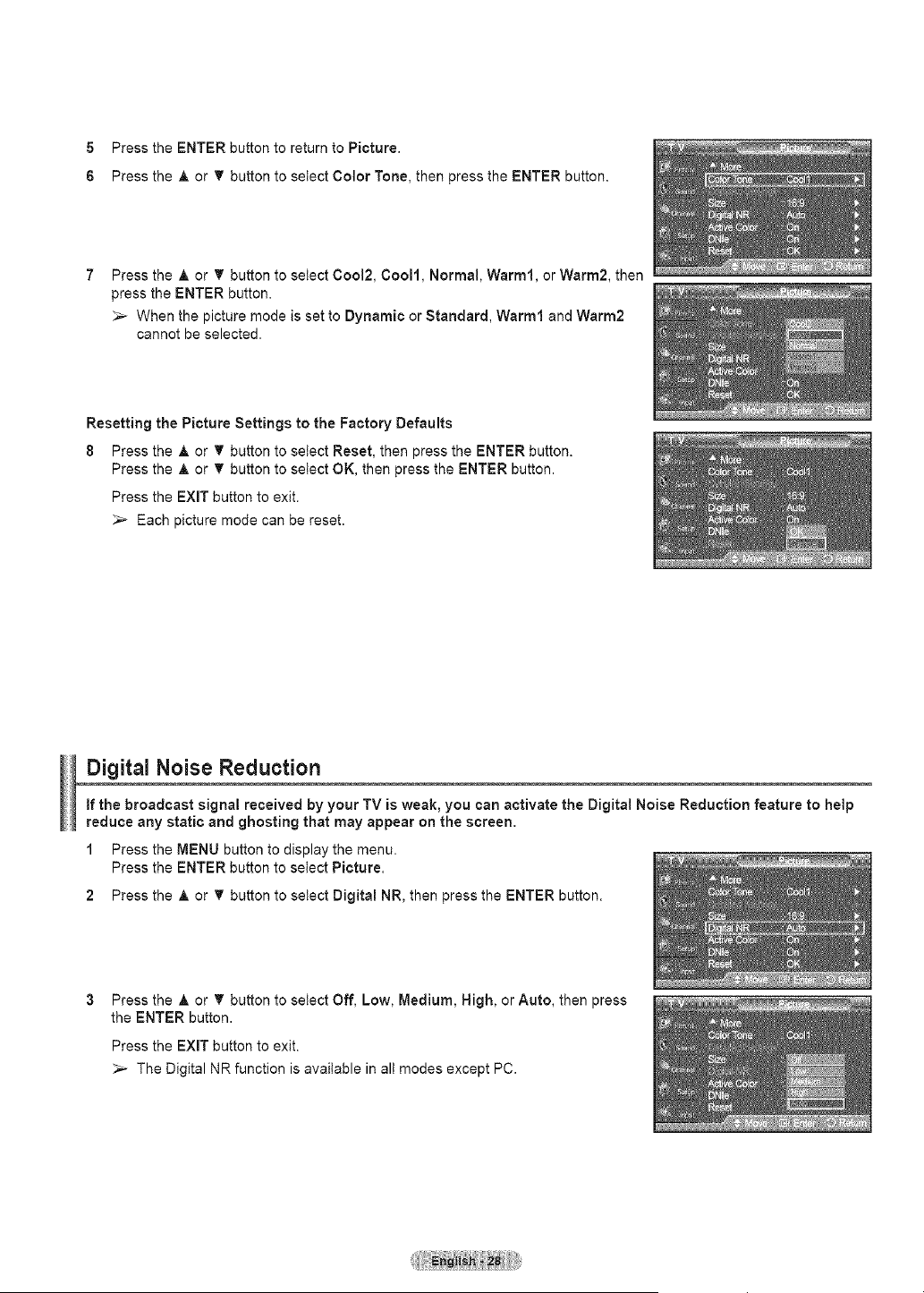
5 Press the ENTER button to return to Picture.
6 Press the A or _' button to select Color Tone, then press the ENTER button.
Press the A or T button to select Cool2, Coo11, Normal, Warm1, or Warm2, then
press the ENTER button.
_-- When the picture mode is set to Dynamic or Standard, Warm1 and Warm2
cannot be selected.
Resetting the Picture Settings to the Factory Defaults
8 Press the A or _' button to select Reset, then press the ENTER button.
Press the A or _' button to select OK, then press the ENTER button.
Press the EXIT button to exit.
Each picture mode can be reset.
Digital Noise Reduction
If the broadcast signal received by your TV is weak, you can activate the Digital Noise Reduction feature to help
reduce any static and ghosting that may appear on the screen.
1 Press the MENU button to display the menu.
Press the ENTER button to select Picture.
2 Press the A or _' button to select Digital NR, then press the ENTER button.
Press the A or _' button to select Off, Low, Medium, High, or Auto, then press
the ENTER button.
Press the EXIT button to exit.
_-- The Digital NR function is available in all modes except PC.
Changing the Screen Size
Occasionally,you may want to changethe size of the imageonyour screen. Your TV comes with six screensize
options, each designed to workbest with specific typesof video input. Your cable box orsatellite receivermay
have its own setof screensizes as well.
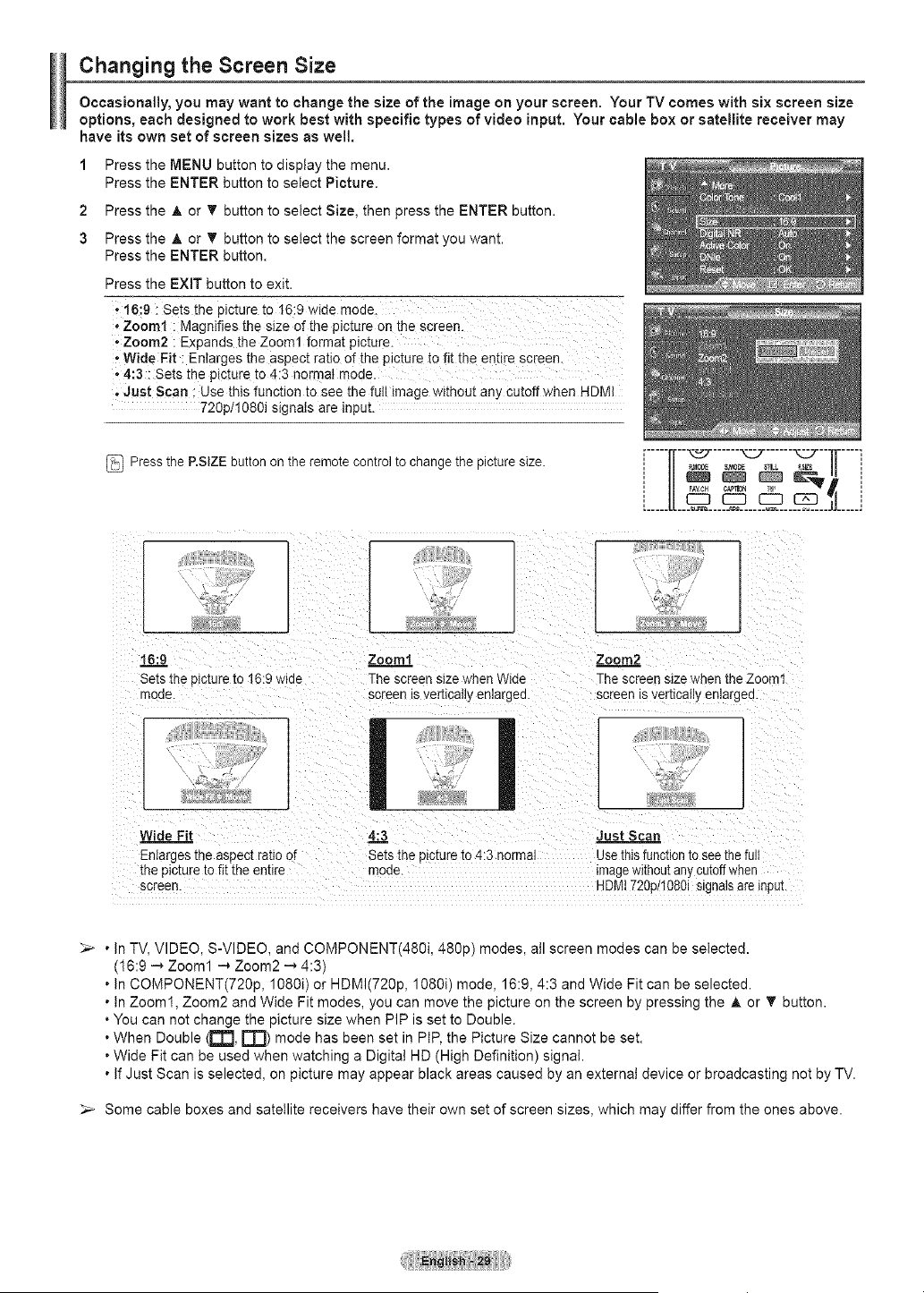
1 Press the MENU button to display the menu.
Press the ENTER button to select Picture.
2 Press the _, or T button to select Size, then press the ENTER button.
3 Press the _t, or T button to select the screen format you want.
Press the ENTER button.
Press the EXIT button to exit.
* t6:g : Sets the picture to 16:9 wide mode.
* Zo0ml : Magnifies the size of the picture on the screen.
+Zoom2 : Expands the Zoom1 format picture.
, Wide Fit :Enlarges the aspect ratio of the picture to fit the entire screen.
,4:3 :Sets the picture to 4:3 normal mode.
, Just Scan : Use this function to see the full image without any Cutoff when HDMI
729p/1080i signats are input.
Pressthe P.SiZE buttononthe remote controlto change the picture size.
i-----ff--_ ......-::.7......"_-7--]]-----i
', U _ S,MO_ STILL _SEE J/ ',
', FAVCH CAPliON J_+ _ ',
L J
i: L
16:9 Zoom1
Setsthe picture to16:9 wide The screensize when @+de
moae. screen isver[+callyenlarge&
Zoom2
]-hescreen size when the Zoom1
screenisvertically enlargea.
2- J
Wide Fit 4::3 Just Scan
Enlarges the aspect ratio of Sets the 3ictureto 4:3 normal Usethisfunctionto seethe fu
the pictureto fit the entire moae. mage withoutanycutoffwhen
screen. HDMt720plt086i signals areinpul
_-+ • InTV, VIDEO, S-VIDEO, and COMPONENT(480!, 480p) modes, all screen modes can be selected.
(16:9 _ Zoom1 ...+Zoom2 _ 4:3)
• In COMPONENT(720p, 1080i) or HDMI(720p, 1080i) mode, 16:9, 4:3 and Wide Fit can be selected.
• tn Zoom1, Zoom2 and Wide Fit modes, you can move the picture on the screen by pressing the A or T button.
• You can not change the picture size when PIP is set to Double.
• When Double (M'I, rN) mode has been set in PtP, the Picture Size cannot be set.
• Wide Fit can be used when watching a Digital HD (High Definition) signal.
• IfJust Scan is selected, on picture may appear black areas caused by an externat device or broadcasting not by TV.
Some cable boxes and satellite receivers have their own set of screen sizes, which may differ from the ones above.
Making Detailed Picture Settings
Samsung's new TVsallowyou to make even more precise picturesettingsthan
previous models. See belowto make Detailed picturesettings.
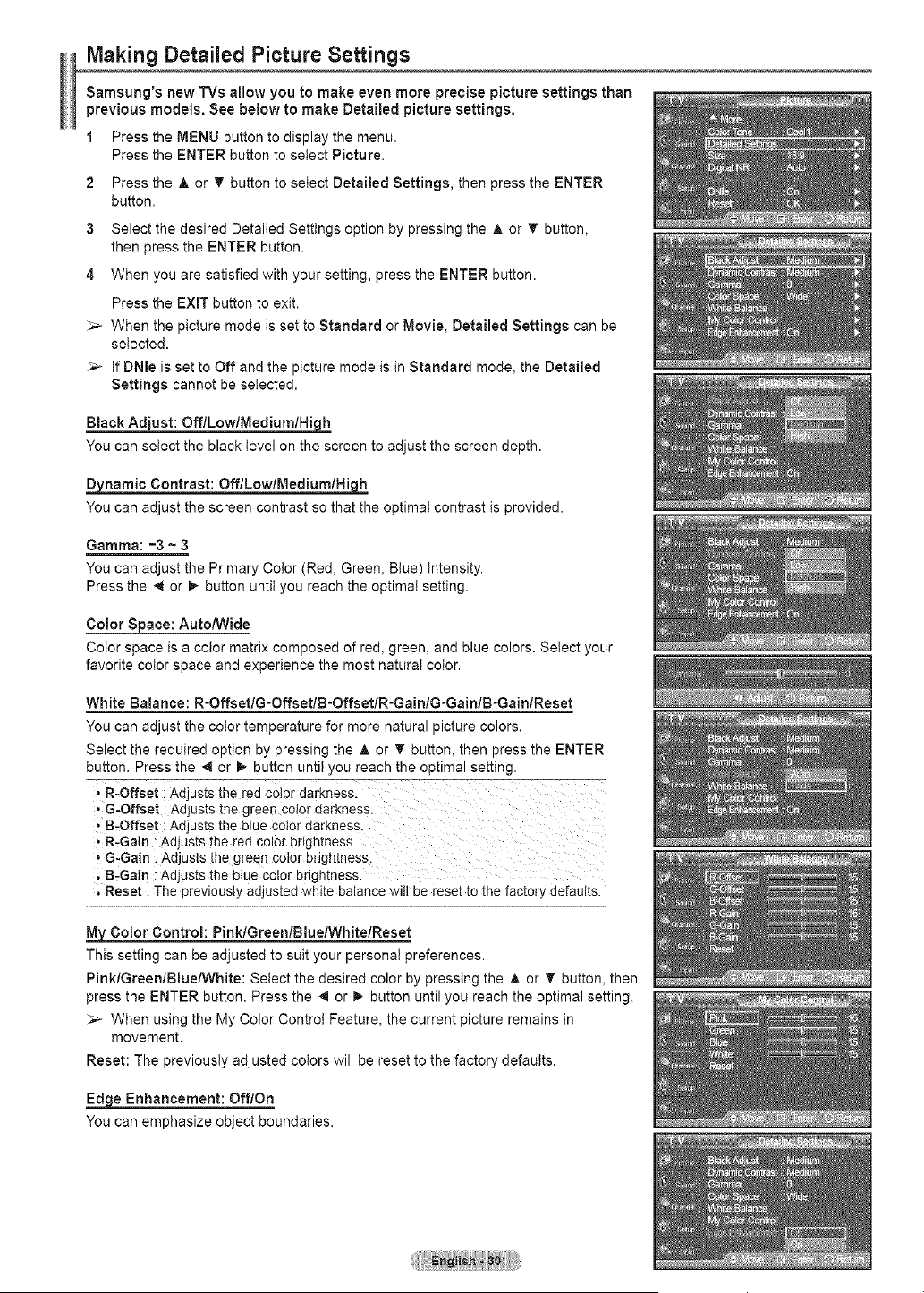
1 Press the MENU button to display the menu.
Press the ENTER button to select Picture.
2 Press theA or _' button toselect Detailed Settings, then press the ENTER
button.
3 Select the desired Detailed Settings option by pressing the A or T button,
then press the ENTER button.
4 When you are satisfied with your setting, press the ENTER button.
Press the EXIT button to exit.
_,_ When the picture mode is set to Standard or Movie, Detailed Settings can be
selected.
_-- if DNle isset to Off and the picture mode is in Standard mode, the Detailed
Settings cannot be selected.
Black Adjust: OfflLowlMediumlHiqh
You cansetect the black tevelonthe screentoadjust the screen depth.
Dynamic Contrast:OfflLowlMediumlHigh_
You canadjust thescreen contrast so that the optimal contrast isprovided.
Gamma: -3 ~ 3
You can adjust the Primary Color (Red, Green, Blue) Intensity.
Press the 4 or I_ button until you reach the optimal setting.
Color Sjoace: Auto/Wide
Color space is a color matrix composed of red, green, and blue colors. Select your
favorite color space and experience the most naturat color.
White Balance: R-OffsetlG-OffsetlB-OffsetlR-GainlG-GainlB-GainlReset
You can adjust the color temperature for more natural picture colors.
Select the required option by pressing the A or T button, then press the ENTER
button. Press the 4 or _ button until you reach the optimal setting.
, R-Offset :Adjusts the red color darkness.
, G=Offset : Adjusts the green color darkness .
, B-Offset : Ad usts the blue color darkness.
, R-Gain :Adjusts the red col0r brightness.
• G-Gain :Adjusts the green Color brightness.
. B_Gain :Adjusts the blue color brightness.
. Reset :]-he previously adjusted white balance will be reset to the factory defaults.
My Color Control: PinklGreenlBluelWhitelReset
This setting can be adjusted to suit your personal preferences.
Pink/Green/Blue/White: Setect the desired color by pressing the ,_ or T button, then
press the ENTER button. Press the _ or _ button until you reach the optimal setting.
_-- When using the My Color Control Feature, the current picture remains in
movement.
Reset: The previously adjusted cotors will be reset to the factory defaults.
_e Enhancement: Off/On
You can emphasize object boundaries.
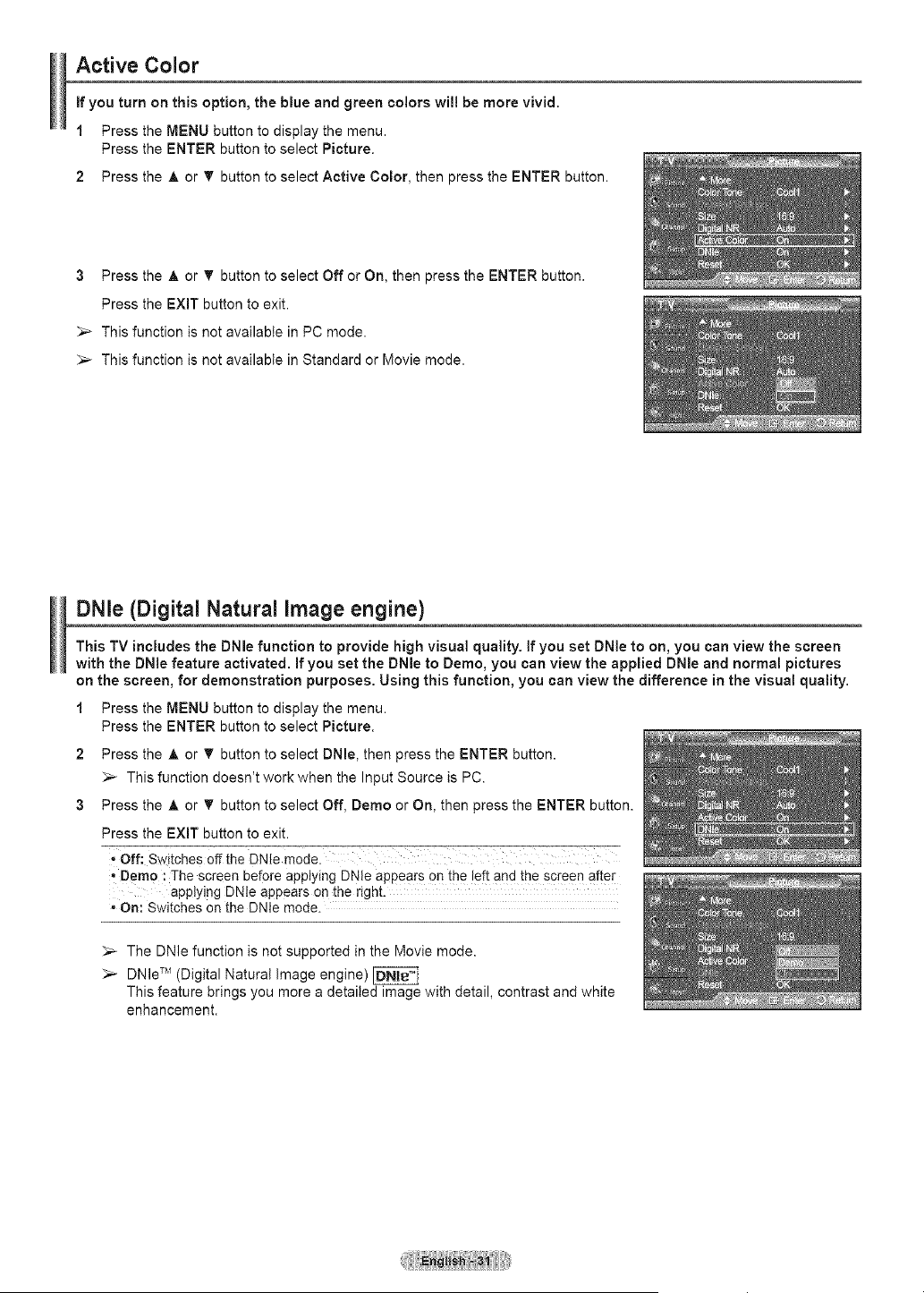
Active Color
if you turn on this option, the blue and green colors will be more vivid.
1 Press the MENU button to display the menu.
Press the ENTER button to select Picture.
2 Press the A or 'V'button to select Active Color, then press the ENTER button.
3 Press the A or 'V'button to select Off or On, then press the ENTER button.
Press the EXIT button to exit.
_-- This function is not available in PC mode.
_,_ This function is not available in Standard or Movie mode.
DNle (Digital Natural image engine)
This TV includes the DNle function to provide high visual quality. If you set DNle to on, you can view the screen
with the DNie feature activated. If you set the DNle to Demo, you can view the applied DNle and normal pictures
on the screen, for demonstration purposes. Using this function, you can view the difference in the visual quality.
1 Press the MENU button to display the menu.
Press the ENTER button to select Picture.
2
3
Press the A or _ button to select DNme,then press the ENTER button.
_-- This function doesn't work when the Input Source is PC.
Press the A or _' button to select Off, Demo or On, then press the ENTER button.
Press the EXIT button to exit.
. Off: SWitches off the DNle mode. _--
• Demo : The screen before applying DNIe appears on the left and the screen afte[
applying DNIe appears on the right.
• On: Switches on the DNIe mode.
_-- The DNle function is not supported in the Movie mode.
_-- DNle TM (Digital Natural Image engine)
This feature brings you more a detailed image with detail, contrast and white
enhancement.
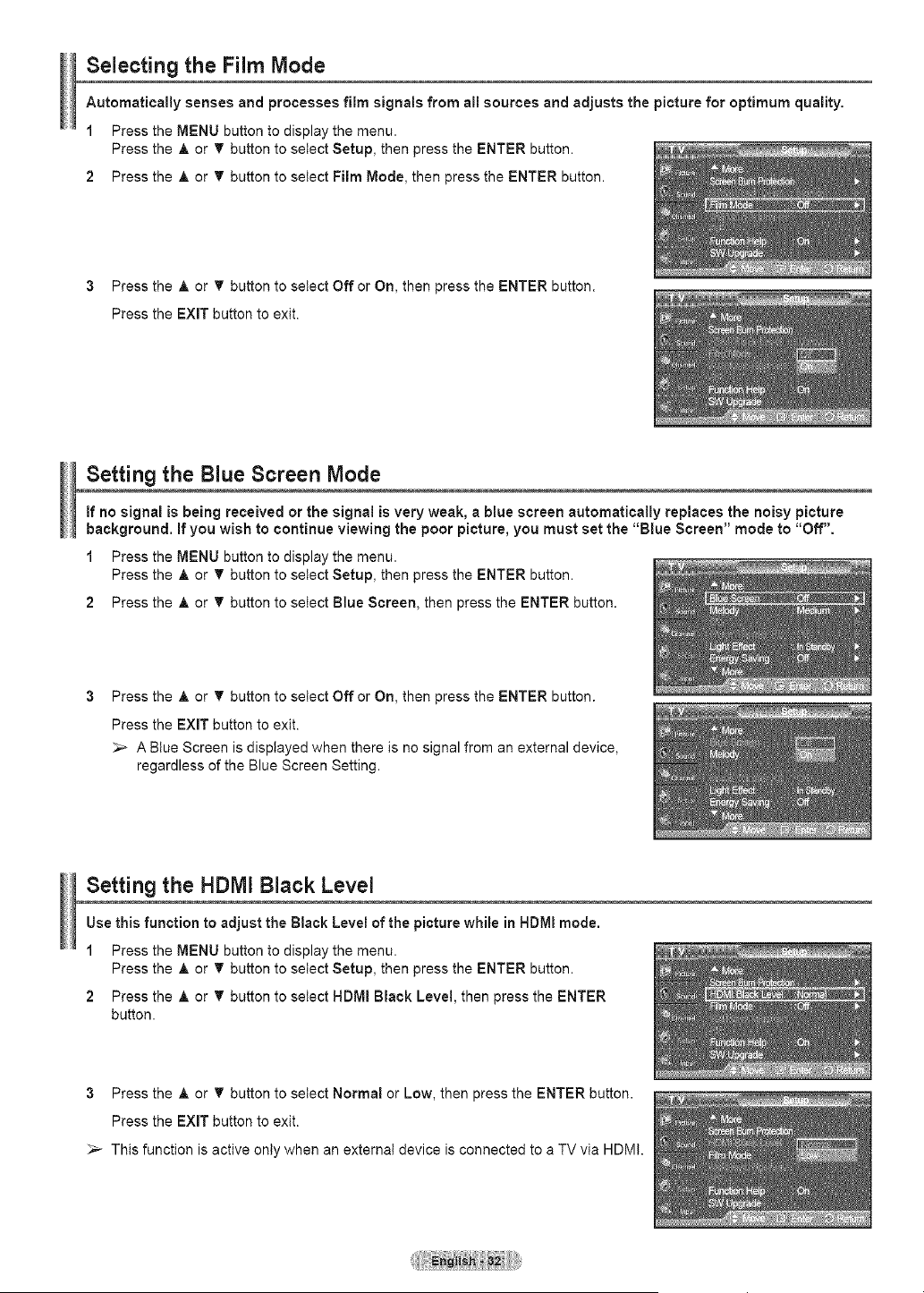
Selecting the Film Mode
Automatically senses and processes film signals from all sources and adjusts the picture for optimum quality.
1 Press the MENU button to display the menu.
Press the A or T button to select Setup, then press the ENTER button.
2 Press the A or T button to select Film Mode, then press the ENTER button.
3 Press the A or T button to select Off or On, then press the ENTER button.
Press the EXIT button to exit.
Setting the Blue Screen Mode
If no signal is being received or the signal is very weak, a blue screen automatically replaces the noisy picture
background. Ifyou wish to continue viewing the poor picture, you must set the "Blue Screen" mode to "Off".
1 Press the MENU button to display the menu.
Press the A or T button to select Setup, then press the ENTER button.
2 Press the A or T button to select Blue Screen, then press the ENTER button.
Press the A or T button to select Off or On, then press the ENTER button.
Press the EXIT button to exit.
_,_ A Blue Screen is displayed when there is no signal from an external device,
regardless of the Blue Screen Setting.
Setting the HDMI Black Level
Use this function to adjust the Black Level of the picture while in HDMI mode.
1 Press the MENU button to display the menu.
Press the A or T button to select Setup, then press the ENTER button.
2 Press the A or T button to select HDMI Black Level, then press the ENTER
button.
3 Press the A or T button to select Normal or Low, then press the ENTER button.
Press the EXIT button to exit.
_-_ This function is active only when an externat device isconnected to a TV via HDMI.
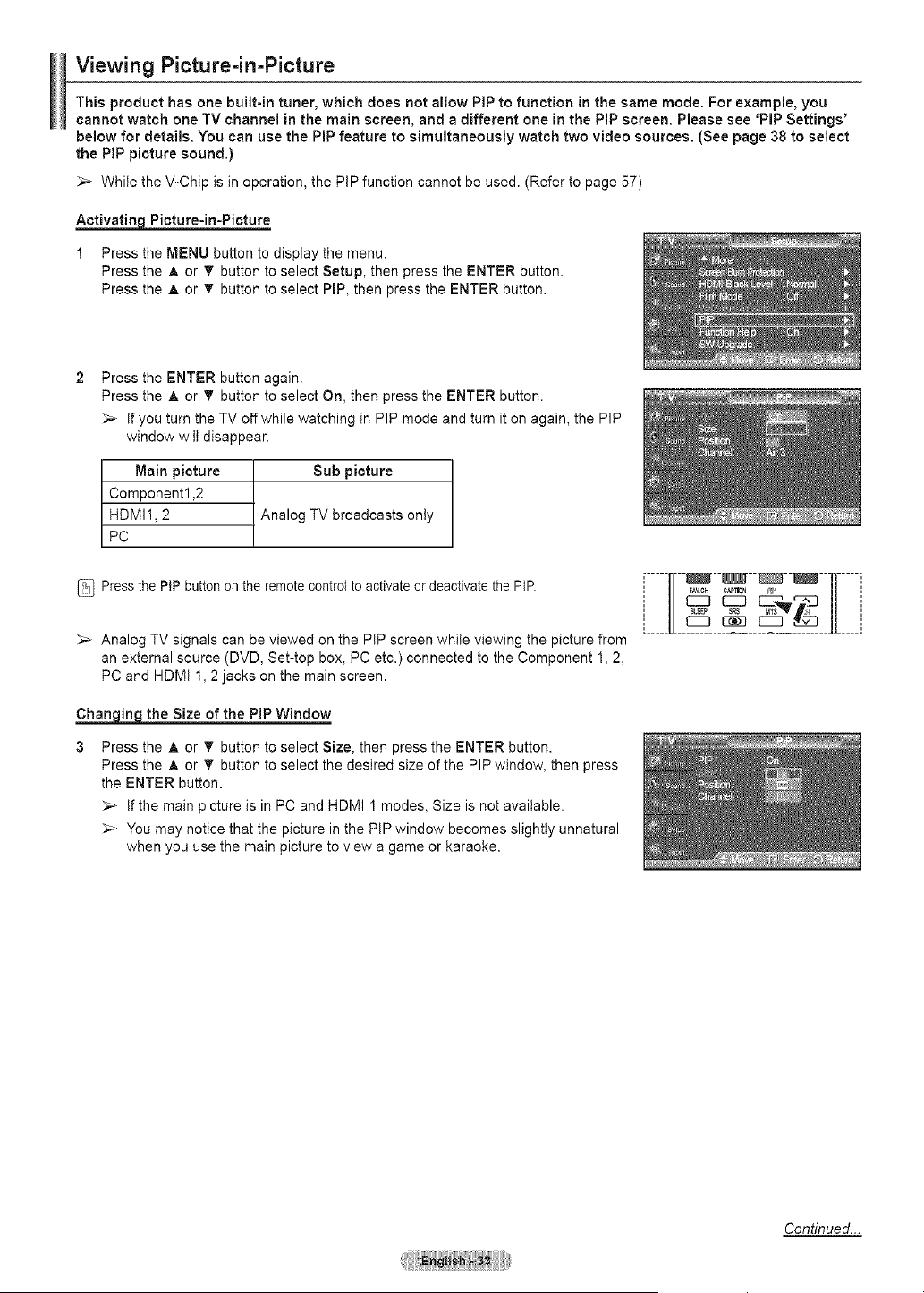
Viewing Picture=in-Picture
This product hasone built-in tuner, whichdoes not allow PiPto function in the same mode.Forexample, you
cannot watchone TV channel inthe mainscreen, and a different one inthe PiPscreen. Please see 'PiPSettings'
belowfor details.Youcan use the PiP feature to simultaneously watchtwo video sources.(See page38to select
the PiPpicturesound.)
While the V-Chip is in operation, the PiP function cannot be used. (Refer to page 57)
Activatin=qPicture-in-Picture
1 Press the MENU button to display the menu.
Press the A or _ button to select Setup, then press the ENTER button.
Press the A or 'V' button to select PIP, then press the ENTER button.
Press the ENTER button again.
Press the A or T button to select On, then press the ENTER button.
_,_ if you turn the TV off while watching in PIP mode and turn it on again, the PIP
window wilt disappear.
Main picture
Component1,2
HDMI1,2
PC
Sub picture
Analog TV broadcasts only
Pressthe PIP button on the remote control to activate or deactivate the PIP.
_-- Analog TV signals can be viewed on the PiP screen while viewing the picture from
an external source (DVD, Set-top box, PC etc.) connected to the Component 1, 2,
PC and HDMI 1, 2jacks on the main screen.
_the Size of the PIP Window
Press the A or T button to select Size, then press the ENTER button.
Press the A or T button to select the desired size of the PIP window, then press
the ENTER button.
_-- If the main picture is in PC and HDMI 1modes, Size is not available.
_-- You may notice that the picture in the PiP window becomes slightty unnatural
when you use the main picture to view a game or karaoke.
,, EC3 EC3 _%_ %x-j ,,
[_____[[_____c_______c_3____c:_3____jj_____j
Continued...
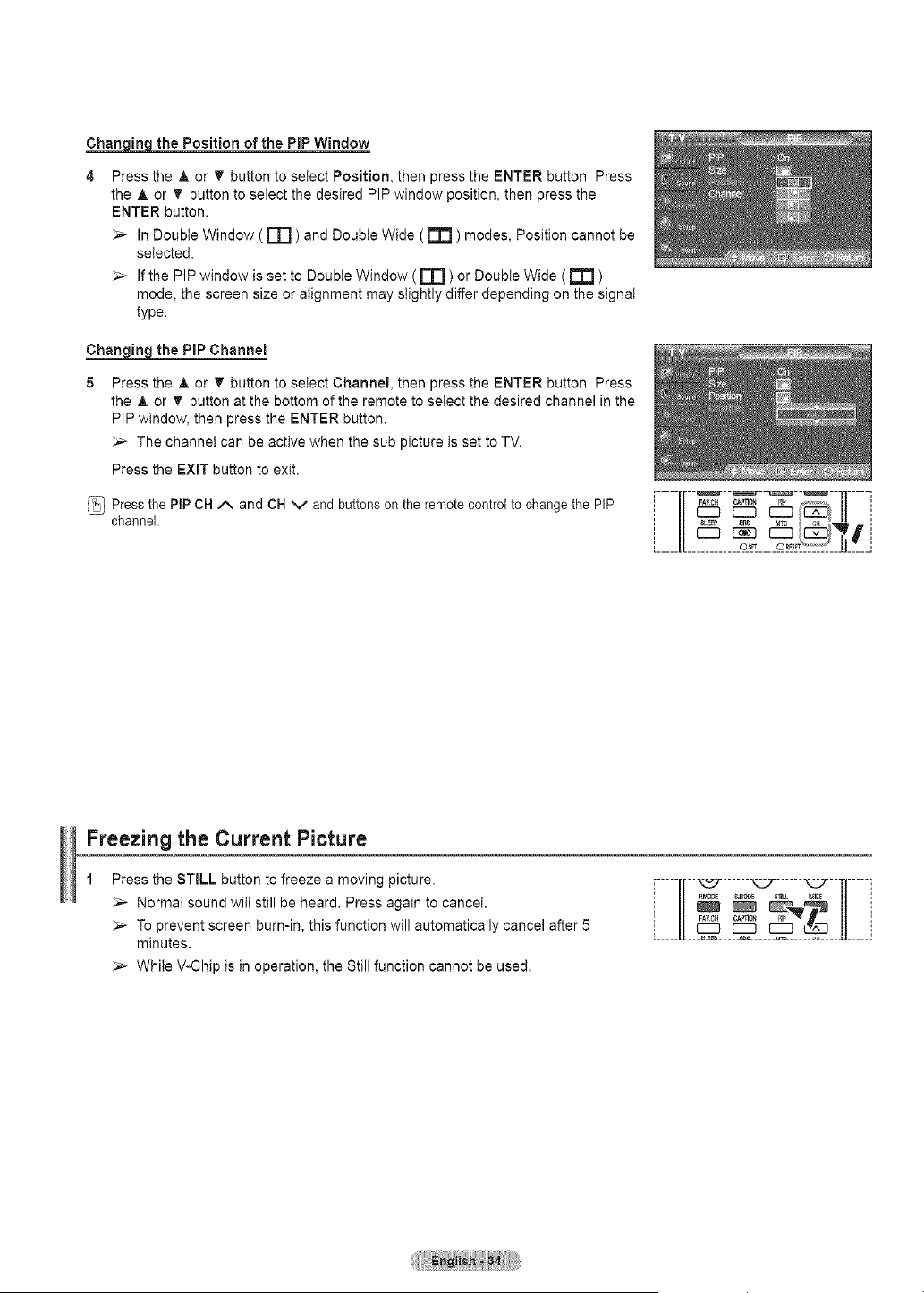
Chartig_ the Position of thePiP Window
Press the A or T button to select Position, then press the ENTER button. Press
the A or _ button to select the desired PIP window position, then press the
ENTER button.
_-- In Doubte Window ( rTl ) and Double Wide ( _ ) modes, Position cannot be
selected.
_-- If the PIP window is set to Double Window ( rl=l )or Double Wide (_ )
mode, the screen size or alignment may slightly differ depending on the signal
type.
Chartig_ the PiPChannel
Press the A or T button to select Channel, then press the ENTER button. Press
the A or T button at the bottom of the remote to select the desired channel in the
PIP window, then press the ENTER button.
The channel can be active when the sub picture is set to TV.
Press the EXIT button to exit.
Pressthe PiPCH z_. and CH V and buttons on the remote controtto change the PIP
channel.
,, c3( ,,
: its cJl :
L____[[ o_ o_' ''''J E___]
Freezing the Current Picture
Press the STILL button to freeze a moving picture.
Normal sound wilt still be heard. Press again to cancel.
_-- To prevent screen burn-in, this function will automatically cancel after 5
minutes.
While V-Chip is in operation, the Still function cannot be used.
rm-m-][m-x.s_......_-J......x:.:T-11---]
i Sound Control i
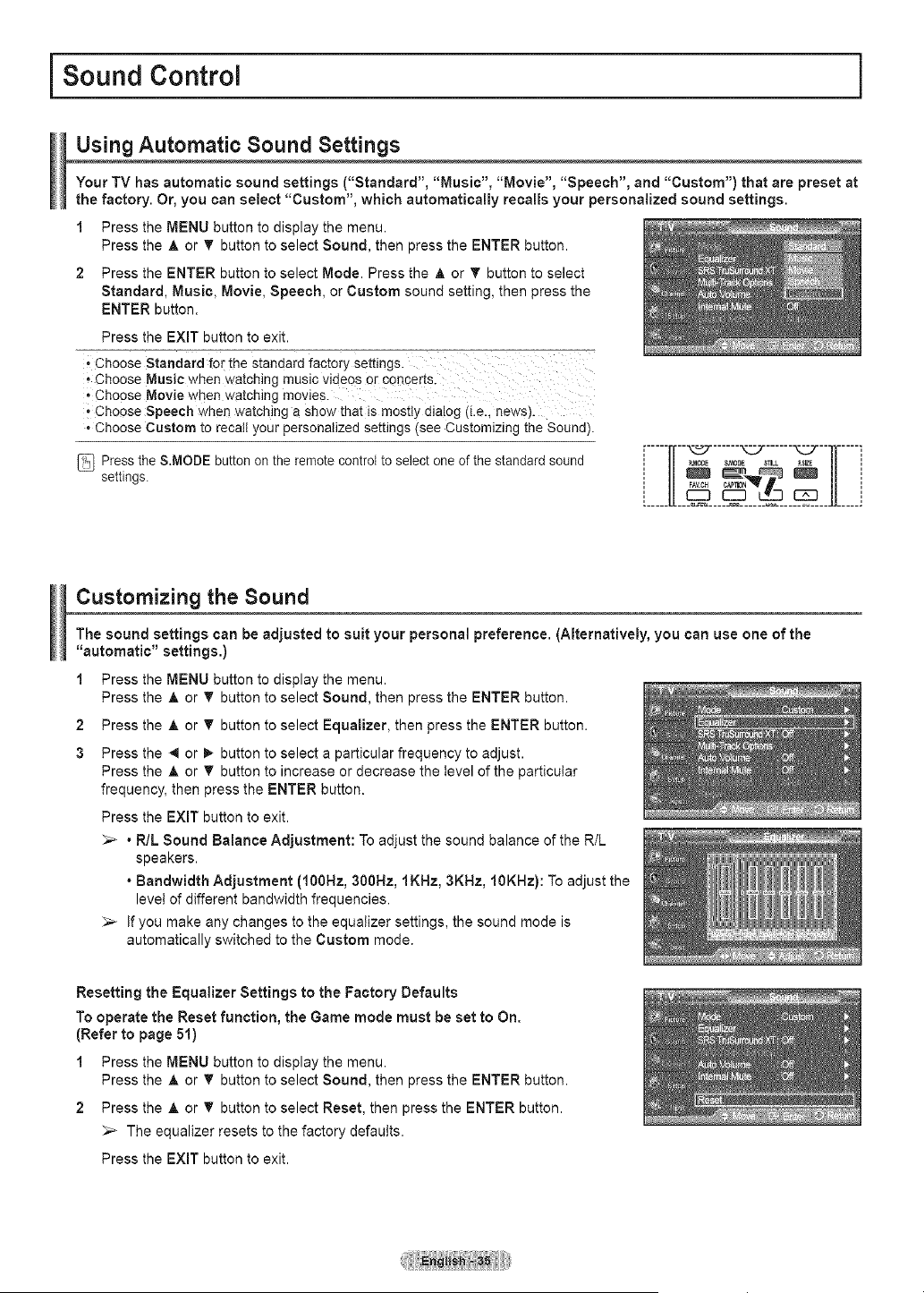
Using Automatic Sound Settings
Your TV has automatic sound settings ("Standard", "Music", "Movie", "Speech", and "Custom") that are preset at
the factory. Or, you can select "Custom", which automatically recalls your personalized sound settings.
1 Press the MENU button to display the menu.
Press the A or _' button to select Sound, then press the ENTER button.
2 Press the ENTER button to select Mode. Press the A or T button to select
Standard, Music, Movie, Speech, or Custom sound setting, then press the
ENTER button.
Press the EXIT button to exit.
i Choose Standard f0r the standard factory settings.
,,Choose Music when watching music videos or cQncerts.
'Choose Movie when watching movies.
, Choose Speech when watching a show that is mostly dia!og (i.e., news).
• Choose Custom torecall your personalized settings (see Customizing the Sound).
Pressthe S.MODE button on the remotecontrol to select one of the standard sound
settings.
,_____"__'___'___'__'__"_____,
Customizing the Sound
The sound settings can be adjusted to suit your personal preference. (Alternatively, you can use one of the
"automatic" settings.)
1 Press the MENU button to display the menu.
Press the A or 'V' button to select Sound, then press the ENTER button.
2 Press the A or T button to select Equalizer, then press the ENTER button.
3 Press the _ or _ button to select a particular frequency to adjust.
Press the _, or _ button to increase or decrease the level of the particular
frequency, then press the ENTER button.
Press the EXiT button to exit.
_-- • R/L Sound Balance Adjustment: Toadjust the sound balance of the R/L
speakers.
• Bandwidth Adjustment (100Hz, 300Hz, IKHz, 3KBz, 10KHz): To adjust the
level of different bandwidth frequencies.
Ifyou make any changes to the equalizer settings, the sound mode is
automatically switched to the Custom mode.
Resetting the Equalizer Settings to the Factory Defaults
To operate the Reset function, the Game mode must be set to On.
(Refer to page 51)
1 Press the MENU button to display the menu.
Press the A or 'V' button to select Sound, then press the ENTER button.
2 Press the A or T button to select Reset, then press the ENTER button.
_-- The equalizer resets to the factory defaults.
Press the EXIT button to exit.
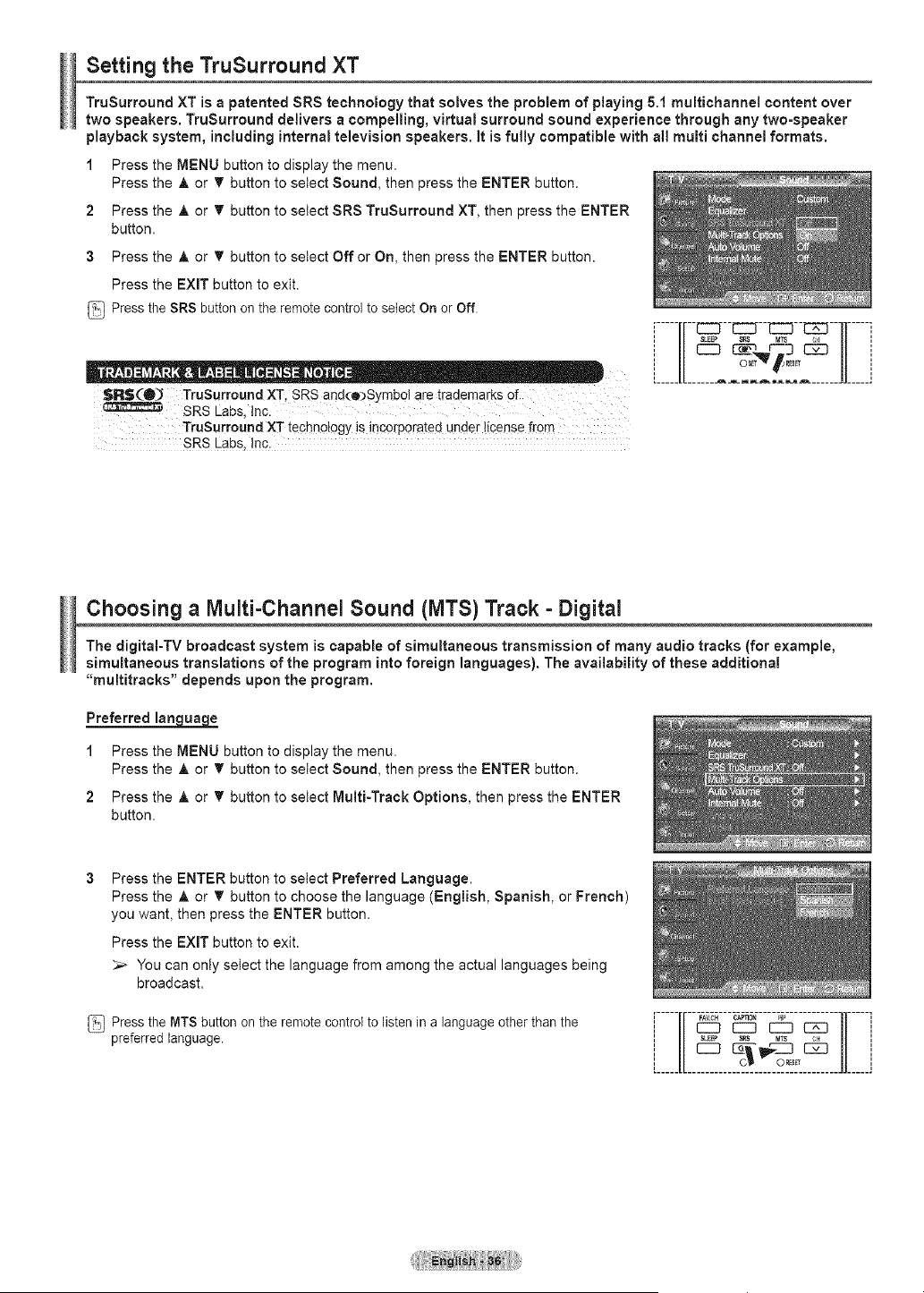
Setting the TruSurround ×T
TruSurroundXT is a patented SRS technology thatsolvesthe problem of playing 5.1multichannel content over
twospeakers.TruSurround delivers a compelling, virtualsurround sound experiencethrough anytwo-speaker
playback system, includinginternaltelevisionspeakers, itisfully compatible with al! multi channelformats.
1 Press the MENU button to display the menu.
Press the A or _' button to select Sound, then press the ENTER button.
2 Press theA or _' button toselect SRS TruSurround XT, then pressthe ENTER
button.
3 Press the A or _' button to select Off or On, then press the ENTER button.
Press the EXIT button to exit.
Pressthe SRS button on the remote control to select On or Off.
SlR_(O_ TruSurround XT, SRS and(e)Symbot are trademarks Qf
SRS Labs, Inc.
TruSurround XT technology isincorporated under license from
SRS Labs, Inc.
,-----,,--.---.--.--.--,,-----,
=1/ ..../t=
i IZZ} _--sq--,_- E2ZI i
[................................... i
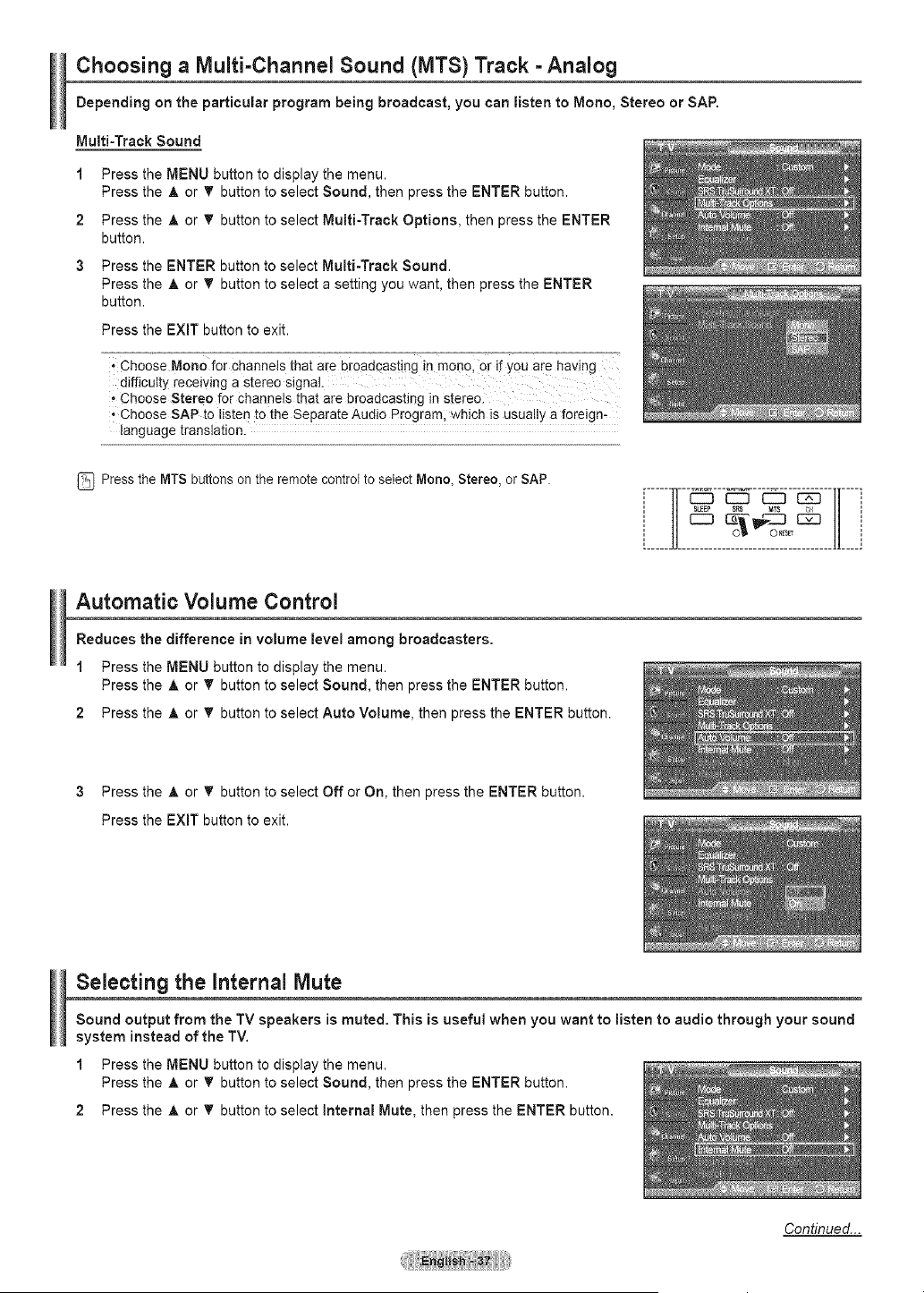
Choosing a Multi-Channel Sound (IVlTS) Track =Digital
The digitaI-TV broadcast system is capable of simultaneous transmission of many audio tracks (for example,
simultaneous translations of the program into foreign languages). The availability of these additional
"multitracks" depends upon the program.
Preferred lan ua •
1 Press the MENU button to display the menu.
Press the A or _' button to select Sound, then press the ENTER button.
2 Press the A or _' button to select Multi-Track Options, then press the ENTER
button.
Press the ENTER button to select Preferred Language.
Press the _, or T button to choose the language (English, Spanish, or French)
you want, then press the ENTER button.
Press the EXIT button to exit.
_,_ You can only select the language from among the actual languages being
broadcast.
Pressthe MTSbutton onthe remote controlto listen in a languageother than the
preferred language.
i i
Choosing a Niulti-Channei Sound (NITS) Track =Analog
Depending on the particular program being broadcast, you can listen to Mono, Stereo or SAP.
Multi-TrackSound
1
2
3
Press the MENU button to display the menu.
Press the A or _' button to select Sound, then press the ENTER button.
Press the A or 'V' button to select Multi-Track Options, then press the ENTER
button.
Press the ENTER button to select Multi-Track Sound.
Press the A or 'V' button to select a setting you want, then press the ENTER
button.
Press the EXIT button to exit.
'Choose Mono for channels that am broadcasting in mono, or if you are having
difficulty receiving a stereo signal
• Choose Stereo for channels that are broadcasting in stereo.
• Choose SAP to listen to the Separate Audio Programl which isusually a foreign-
language translation.
Pressthe MTS buttonson the remote controlto select IVlono_Stereo, or SAP.
i-----;1---_---_:::T-_--_---lF--i
i II 1] i
o, H____J
Automatic Volume Control
Reduces the difference in volume level among broadcasters.
1 Press the MENU button to display the menu.
Press the A or 'V' button to select Sound, then press the ENTER button.
2 Press the A or 'V'button to select Auto Volume, then press the ENTER button.
3 Press the A or _' button to select Off or On, then press the ENTER button.
Press the EXiT button to exit.
Selecting the Internal Mute
Sound output from the TV speakers is muted. This isuseful when you want to listen to audio through your sound
system instead of the TV.
1 Press the MENU button to display the menu.
Press the A or T button to select Sound, then press the ENTER button.
2 Press the A or T button to select Internal Mute, then press the ENTER button.
Continued._
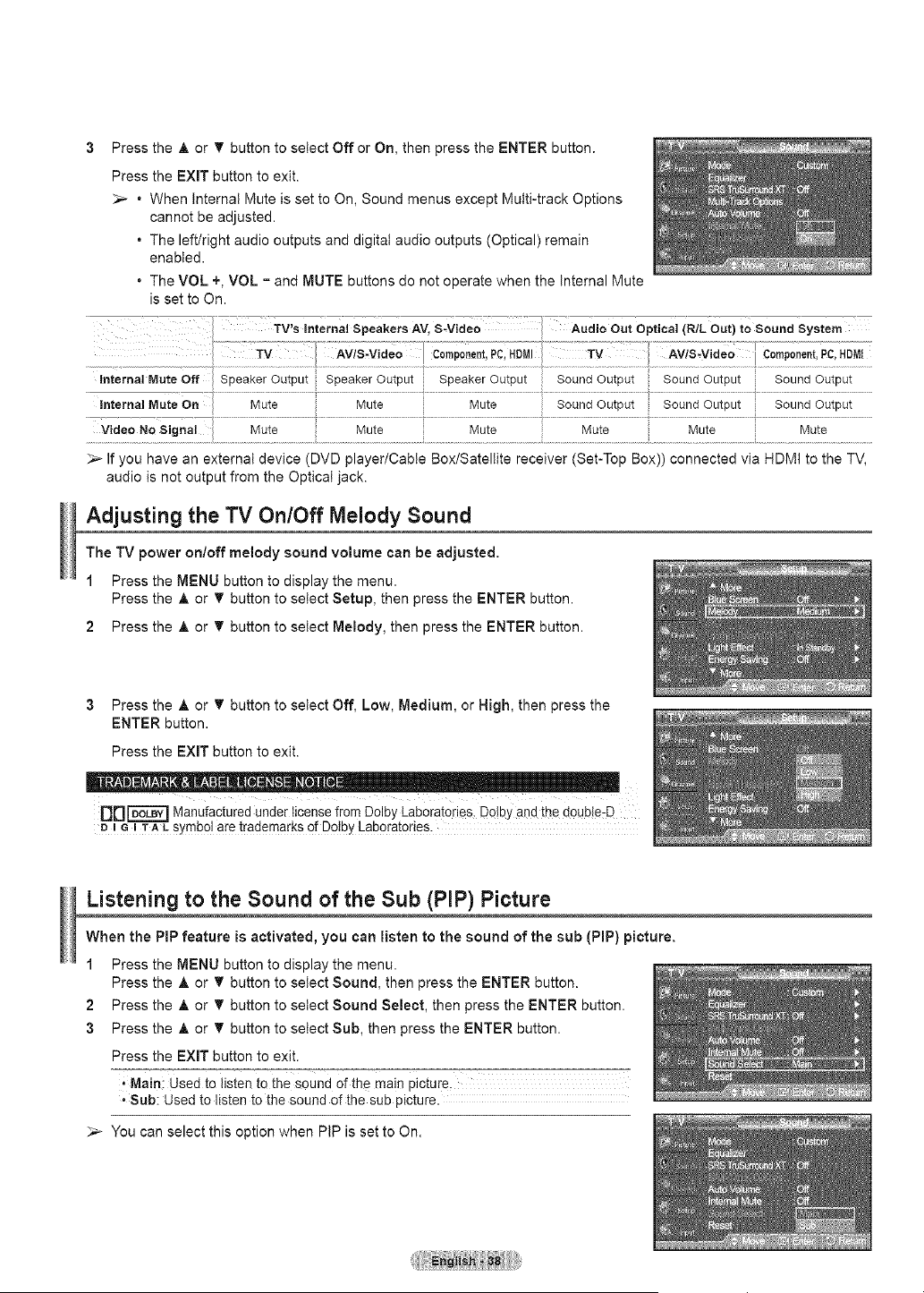
3 Press the A or T button to select Off, Low, Medium, or Nigh, then press the
ENTER button.
Press the EXiT button to exit.
_D ['6"6-_"_Manufactured under license from DolbyLaboratories. DolbYand the double-D
# i e t TALsymbol aretrademarks of Dolby Laboratories.
Listening to the Sound of the Sub (PIP) Picture
When the PiP feature is activated, you can listen to the sound of the sub (PIP} picture.
1 Press the MENU button to display the menu.
Press the A or 'V' button to setect Sound, then press the ENTER button.
2 Press the A or _' button to setect Sound Select, then press the ENTER button.
3 Press the A or _' button to select Sub, then press the ENTER button.
Press the EXiT button to exit.
,,Main: Used to listen to the Sound of the main picture.
• Sub: Used to listen to the sound of the sub picture.
_-- You can select this option when PIP is set to On.
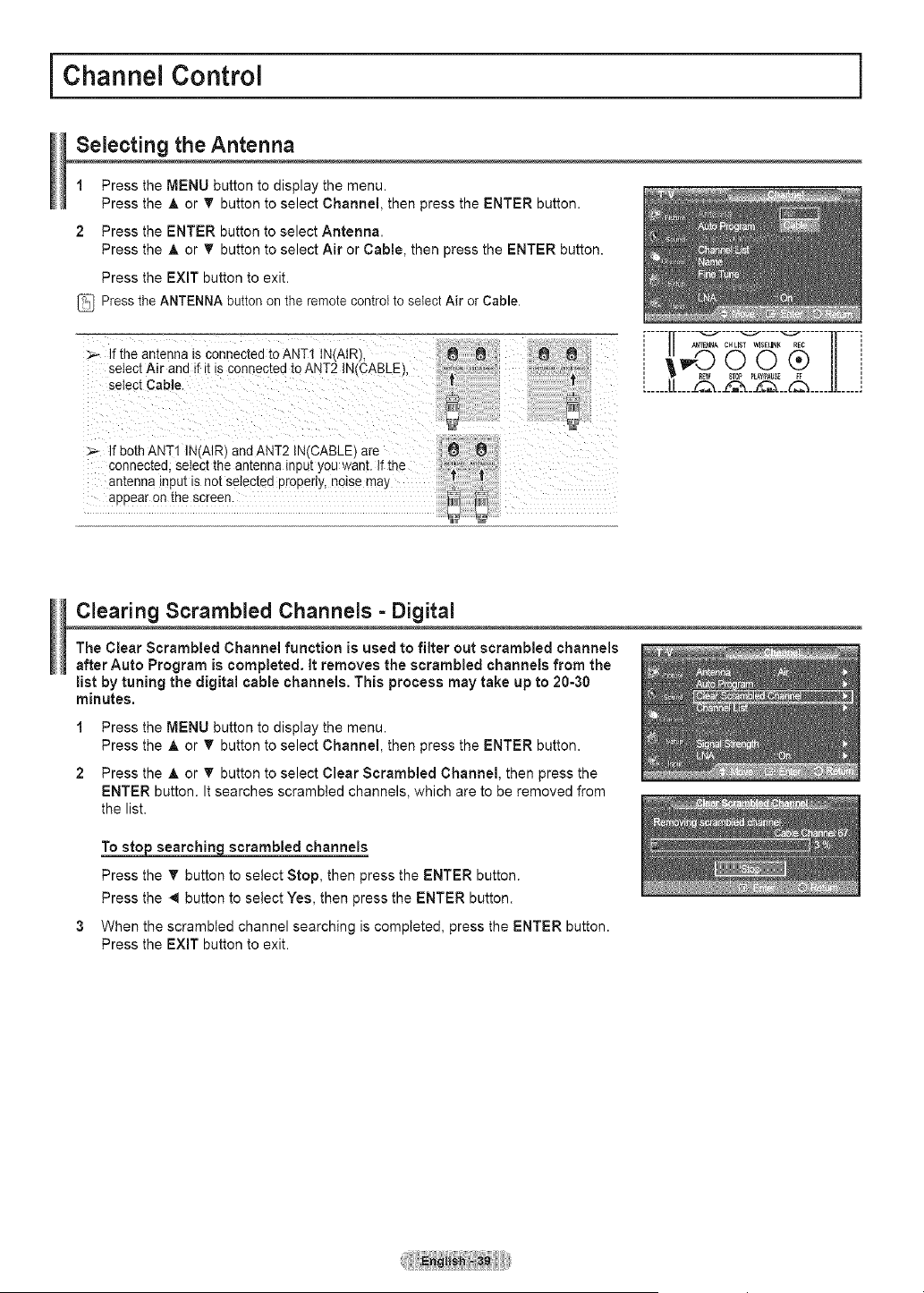
i Channel Control i
Selecting the Antenna
1 Press the MENU button to display the menu.
Press the A or 'V' button to select Channel, then press the ENTER button.
2 Press the ENTER button to select Antenna.
Press the A or _' button to select Air or Cable, then press the ENTER button.
Press the EXiT button to exit.
Pressthe ANTENNA button on the remote control to select Air or Cable.
Ifthe antenna isconnected to ANT1 N,AIR).
select Air and if it msconnected toANT2 IN(CABLB.
select Cable.
............... _ w so_ _Y_kUE i/
Clearing Scrambled Channels = Digital
The Clear Scrambled Channel function is used to filter out scrambled channels
after Auto Program is completed, it removes the scrambled channels from the
list by tuning the digital cable channels. This process may take up to 20-30
minutes.
1 Press the MENU button to display the menu.
Press the A or _ button to select Channel, then press the ENTER button.
2 Press the A or T button to select Clear Scrambled Channel, then press the
ENTER button. It searches scrambled channels, which are to be removed from
the list.
To stop searchingscrambled channels
Press the T button to select Stop, then press the ENTER button.
Press the -,4button to select Yes, then press the ENTER button.
When the scrambled channel searching is completed, press the ENTER button.
Press the EXIT button to exit.
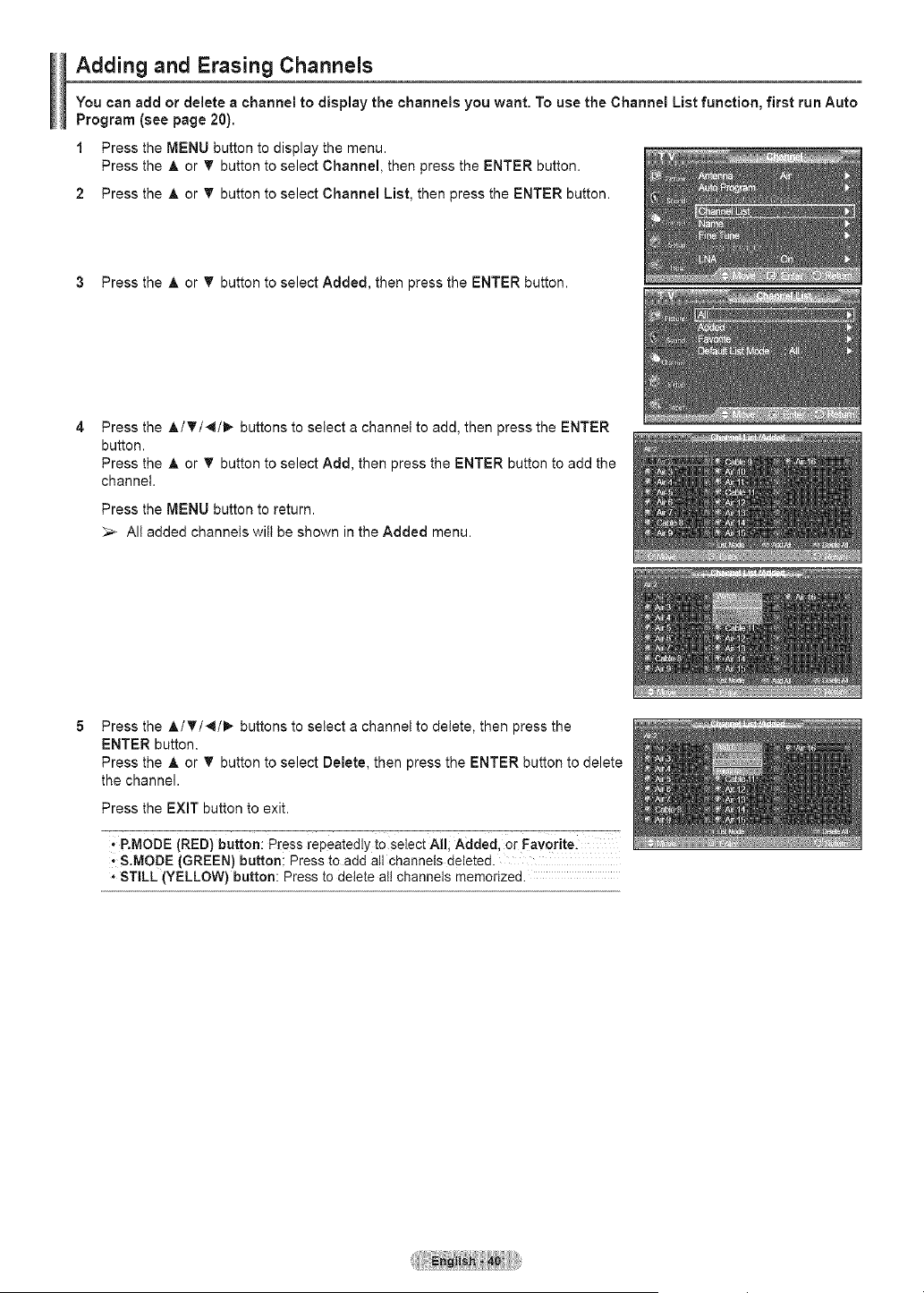
Adding and Erasing Channels
You can add or delete a channel to display the channels you want. To use the Channel List function, first run Auto
Program (see page 20).
1 Press the MENU button to display the menu.
Press the A or T button to select Channel, then press the ENTER button.
2 Press the A or T button to select Channel List, then press the ENTER button.
3 Press the A or T button to select Added, then press the ENTER button.
Press the A/T/4/I_ buttons toselecta channeltoadd,then press the ENTER
button.
Press the _t,or T button to select Add, thenpress the ENTER button to add the
channel.
Press the MENU button to return.
:,_ Alt added channels wilt be shown in the Added menu.
Press the A/T/4/I_ buttons to select a channel to delete, then press the
ENTER button.
Press the A or T button to select Delete, then press the ENTER button to delete
the channel.
Press the EXiT button to exit.
; P.MODE (RED) button: Press repeatedly to select Alll Added, Or Favotitel
j S.MODE (GREEN) button: Press to add all channels deleted.
• STILL (YELLOW) button: Press todelete all channels memorized.
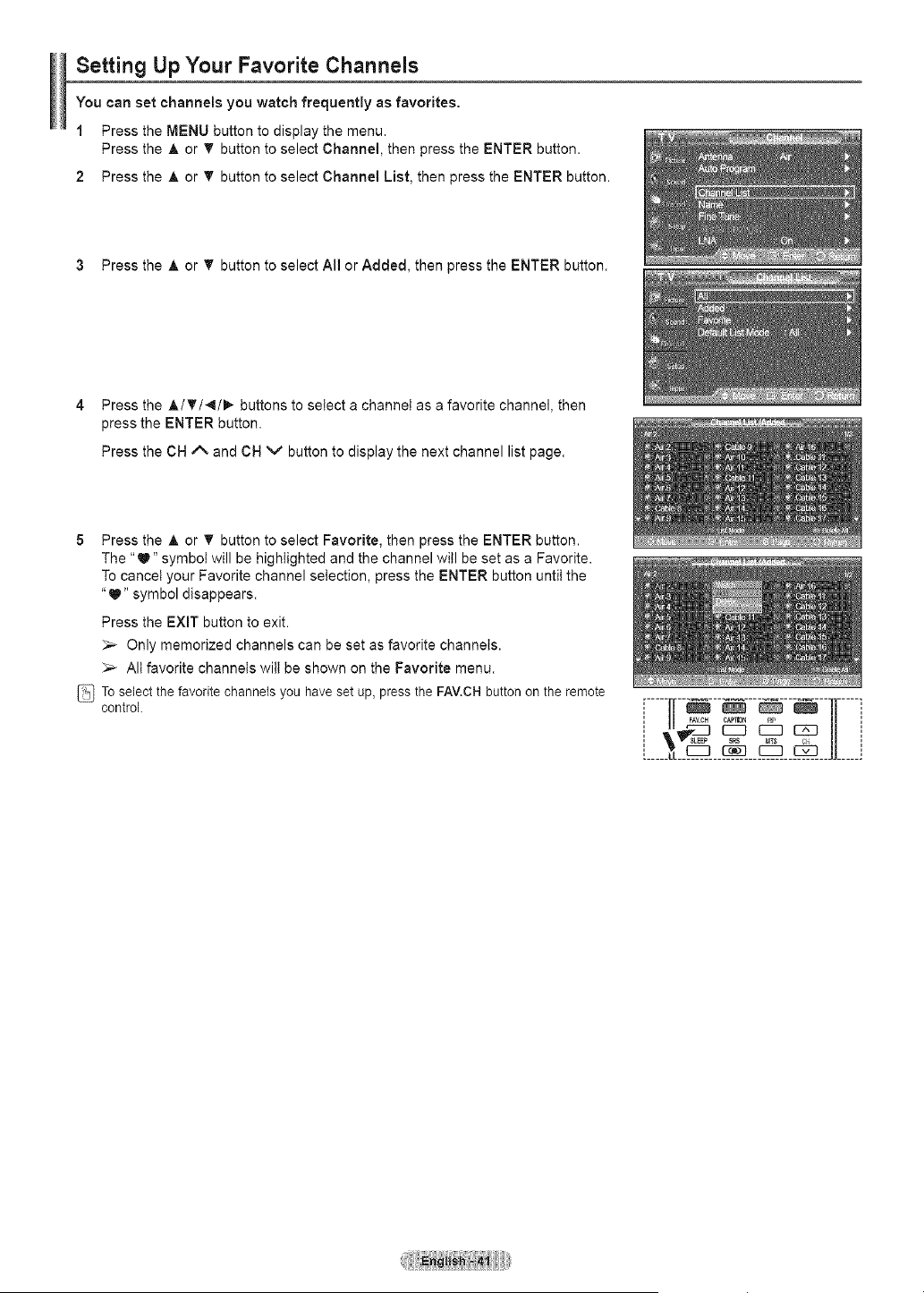
Setting Up Your Favorite Channels
You can set channels you watch frequently as favorites.
1 Press the MENU button to display the menu.
Press the A or 'V' button to select Channel, then press the ENTER button.
2 Press the A or 'V'button to select Channel List, then press the ENTER button.
3 Press the A or 'V'button to select All or Added, then press the ENTER button.
4 Press the A/T/4/_ buttons to select a channel as a favorite channel, then
press the ENTER button.
Press the CH A and CH v button to display the next channel list page.
5 Press the A or T button to select Favorite, then press the ENTER button.
The "_" symbol will be highlighted and the channel will be set as a Favorite.
To cancel your Favorite channel selection, press the ENTER button until the
"_" symbol disappears.
Press the EXIT button to exit.
_-_ Only memorized channels can be set as favorite channels.
_-- All favorite channels wilt be shown on the Favorite menu.
Toselect the favorite channels you have set up, pressthe FAV.CH button on the remote
control.
i IFi
JJ_____j
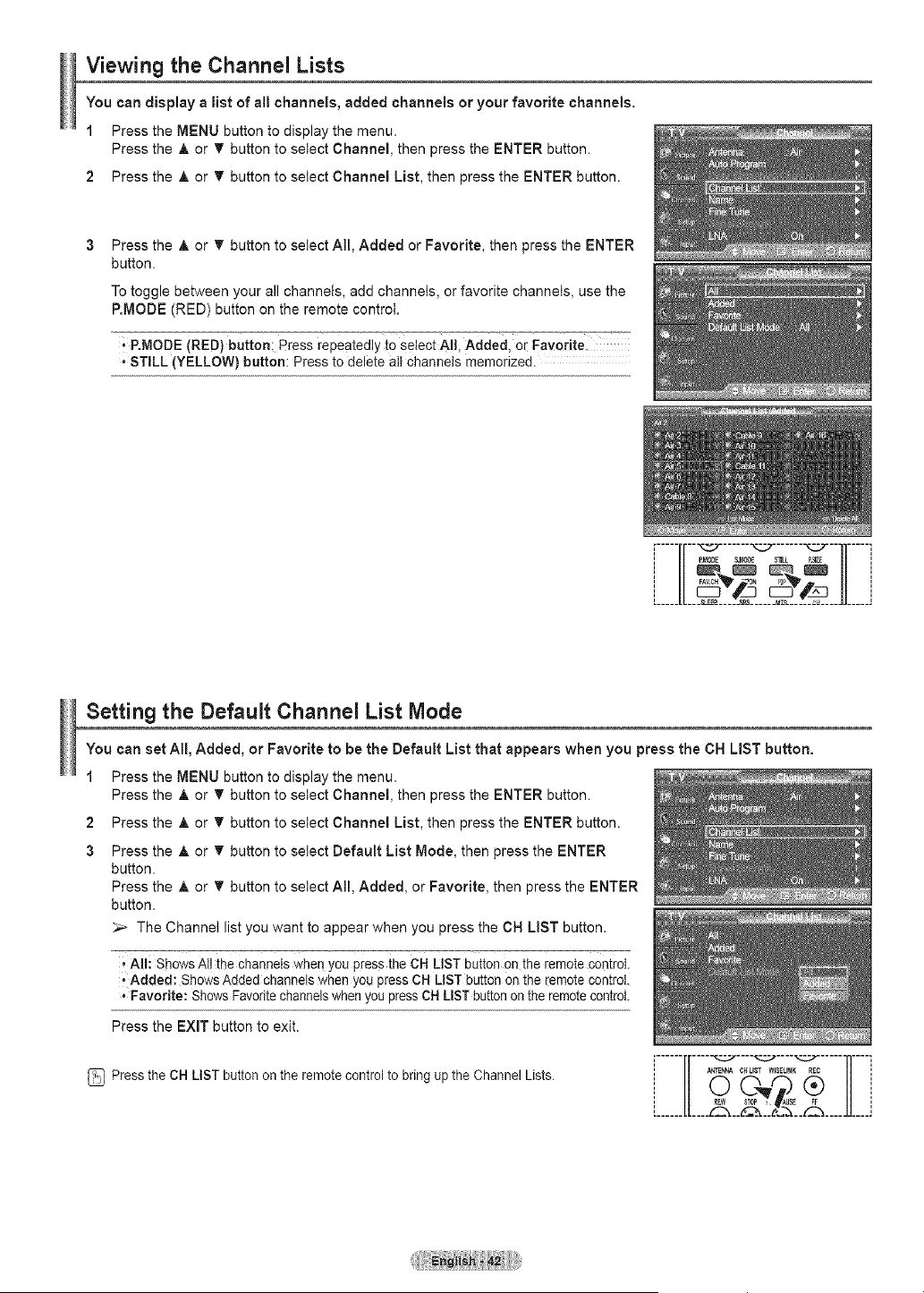
Viewing the Channel Lists
You can display a list of all channels, added channels or your favorite channels.
1 Press the MENU button to display the menu.
Press the A or _' button to select Channel, then press the ENTER button.
2 Press the A or _' button to select Channel List, then press the ENTER button.
Press the A or T button to selectAll, Added or Favorite, then press the ENTER
button.
To toggle between your all channels, add channels, or favorite channels, use the
P.MODE (RED) button on the remote control.
P.MODE (RED) button: Press repeatedly t° select All, Added, or Favorite.
• STILL (YELLOW) button: Press to delete all channels memorized.
,,,, -II......o'7 ...... -IL° ,,,,
[_ ___ _LL__ _8LEEE ___ __ ...... .._____,,____.,_____,
Setting the Default Channel List Mode
You can set All, Added, or Favorite to be the Default List that appears when you press the CH LiST button.
1 Press the MENU button to display the menu.
Press the A or _' button to select Channel, then press the ENTER button.
2 Press the A or _' button to select Channel List, then press the ENTER button.
3 Press the A or T button to select Default List Mode, then press the ENTER
button.
Press the A or _ button to setect AE Added, or Favorite, then press the ENTER
button.
_-- The Channet list you want to appear when you press the CH LiST button.
All: Shows All the channels whenyou press theCH LIST button on the remote Control
-Added: ShowsAdded channelswhen you pressCH LIST button on the remote control.
• Favorite: ShowsFavoritechannelswhen you pressCHLIST button on the remote control.
Press the EXiT button to exit.
Pressthe CHLiST button on the remote controlto bring up the Channel Lists.
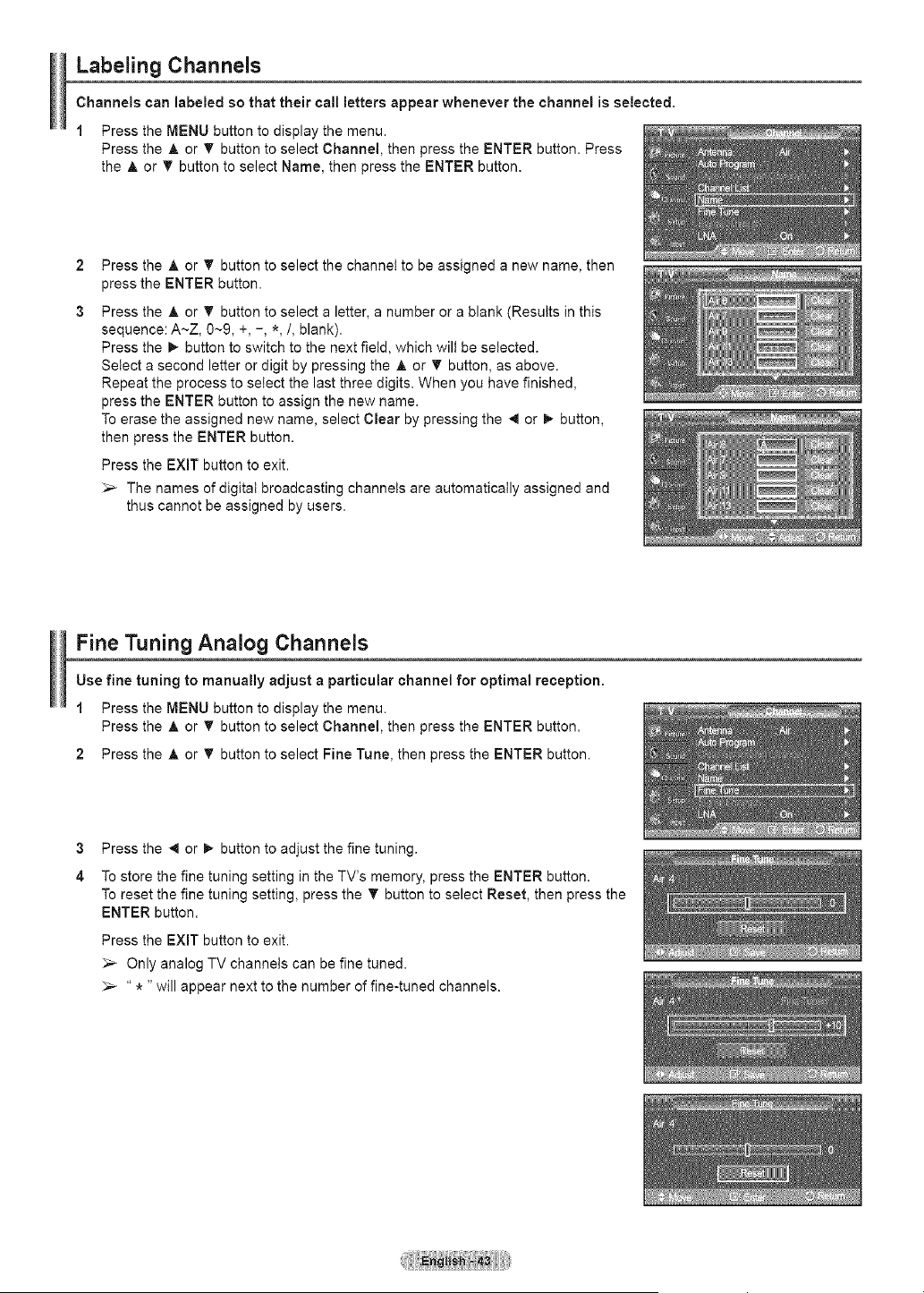
Labeling Channels
Channels can labeled so that their call letters appear whenever the channel is selected.
1 Press the MENU button to display the menu.
Press the A or _' button to select Channel, then press the ENTER button. Press
the A or T button to select Name, then press the ENTER button.
2
3
Press the A or 'V' button to select the channel to be assigned a new name, then
press the ENTER button.
Press the A or T button to select a letter, a number or a blank (Results in this
sequence: A~Z, 0~9, +, -, *,/, blank).
Press the _- button to switch to the next field, which will be selected.
Select a second letter or digit by pressing the ,_or T button, as above.
Repeat the process to select the last three digits. When you have finished,
press the ENTER button to assign the new name.
To erase the assigned new name, select Clear by pressing the -.4or _,-button,
then press the ENTER button.
Press the EXIT button to exit.
_,_ The names of digital broadcasting channels are automatically assigned and
thus cannot be assigned by users.
Fine Tuning Analog Channels
Use fine tuning to manually adjust a particular channel for optimal reception.
1 Press the MENU button to display the menu.
Press the A or 'V' button to select Channel, then press the ENTER button.
2 Press the A or 'V'button to select Fine Tune, then press the ENTER button.
3 Press the _ or _ button to adjust the fine tuning.
4 To store the fine tuning setting in the TV's memory, press the ENTER button.
To reset the fine tuning setting, press the T button to select Reset, then press the
ENTER button.
Press the EXiT button to exit.
_,_ Only analog TV channels can be fine tuned.
_-- " * "will appear next tothe number of fine-tuned channels.
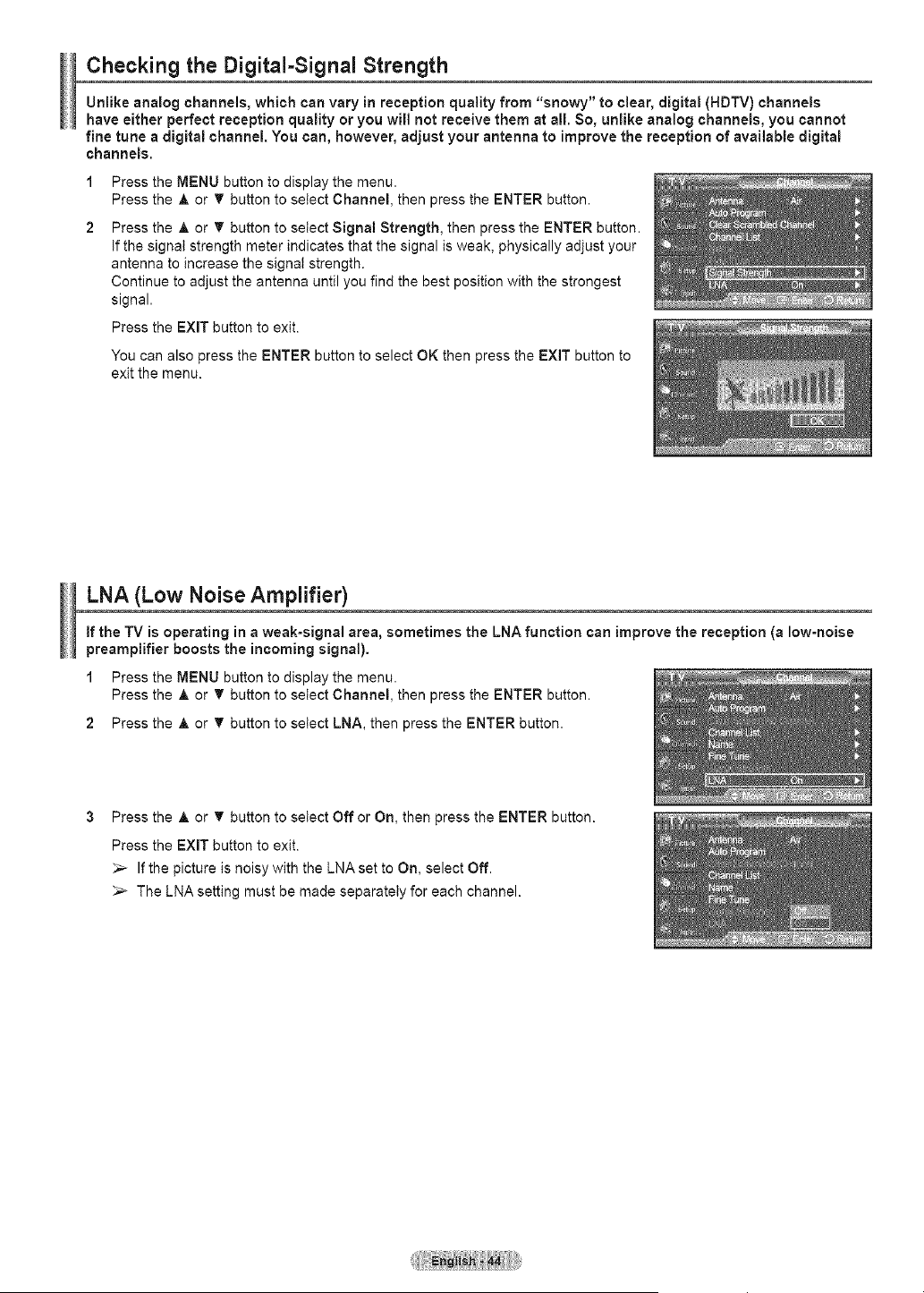
Checking the Digital-Signal Strength
Unlikeanalog channels,which canvary inreception quality from "snowy" to clear, digital(HDTV) channels
have eitherperfect reception qualityoryou will not receive them at all. So, unlike analog channels,you cannot
fine tune adigital channel. You can, however,adjust your antenna to improve the receptionof availabledigital
channels.
1
2
Press the MENU button to display the menu.
Press the A or _' button to select Channel, then press the ENTER button.
Press the A or T button to select Signal Strength, then press the ENTER button.
if the signal strength meter indicates that the signal is weak, physically adjust your
antenna to increase the signal strength.
Continue to adjust the antenna until you find the best position with the strongest
signal.
Press the EXIT button to exit.
You can also press the ENTER button to select OK then press the EXIT button to
exit the menu.
LNA (Low Noise Amplifier)
If the TV is operating in a weak-signal area, sometimes the LNA function can improve the reception (a low-noise
preamplifier boosts the incoming signal).
1 Press the MENU button to display the menu.
Press the A or _' button to setect Channel, then press the ENTER button.
2 Press the A or _' button to setect LNA, then press the ENTER button.
Press the A or _' button to setect Off or On, then press the ENTER button.
Press the EXiT button to exit.
Ifthe picture is noisy with the LNA set to On, select Off.
The LNA setting must be made separately for each channel.
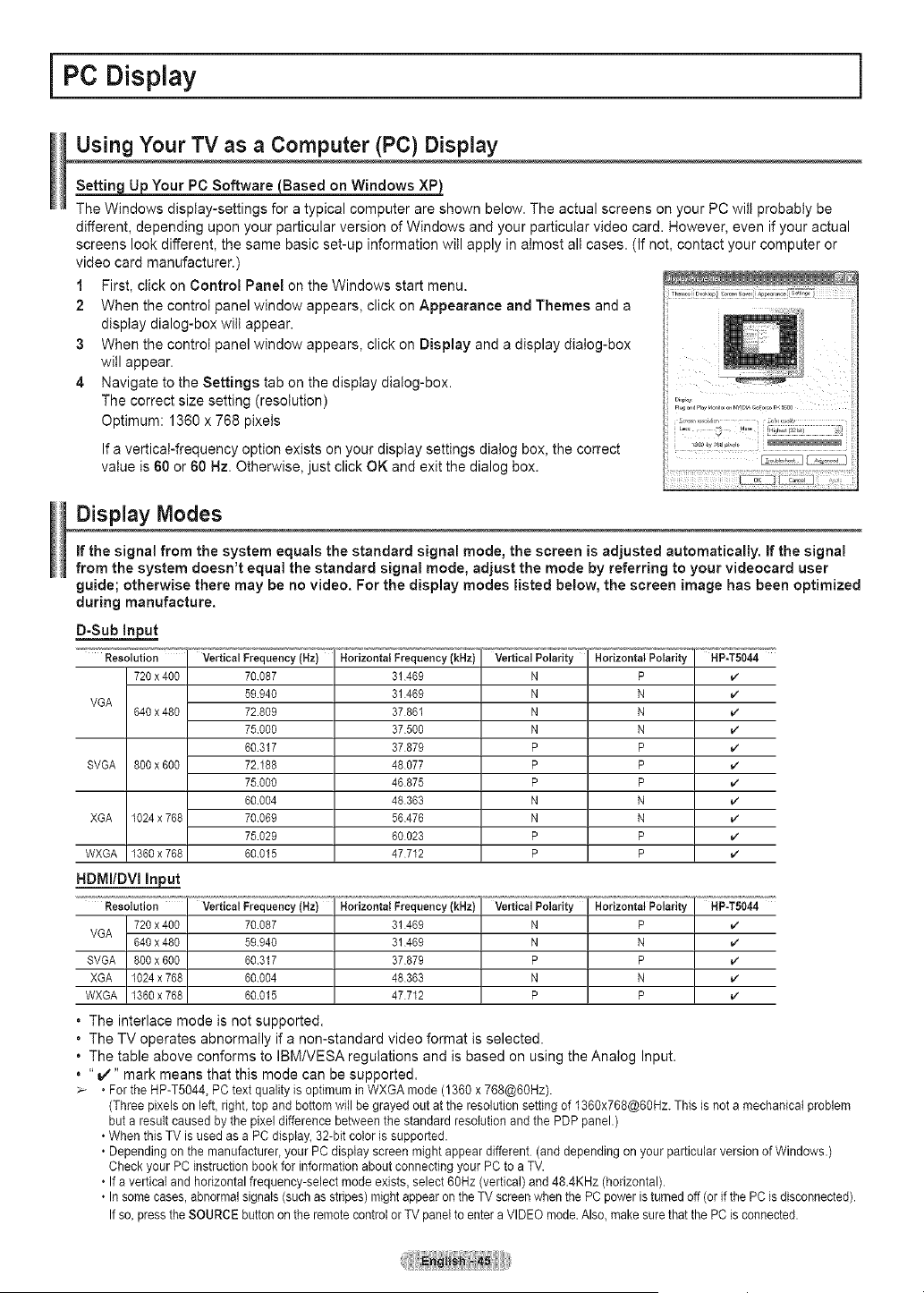
i PC Display i
Using Your TV as a Computer (PC) Display
Your PC Software Based on Windows XP
The Windows display-settings for a typical computer are shown below. The actual screens on your PC wilt probably be
different, depending upon your particular version of Windows and your particular video card. However, even if your actual
screens look different, the same basic set-up information will apply in almost all cases. (If not, contact your computer or
video card manufacturer.)
1 First, click on Control Panel on the Windows start menu.
2 When the control panel window appears, click on Appearance and Themes and a
display dialog-box will appear.
3 When the control panel window appears, click on Display and a display dialog-box
will appear.
4 Navigate tothe Settings tab on the display dialog-box.
The correct size setting (resolution)
Optimum: 1360 x 768 pixels
Ifa verticaFfrequency option exists on your display settings dialog box, the correct
value is 60 or 60 Hz. Otherwise, just click OK and exit the dialog box.
Display Modes
if the signal from thesystem equals the standard signal mode, thescreen isadjusted automatically, if the signal
from the system doesn't equal the standard signal mode, adjustthe mode by referringto your videocard user
guide; otherwise there may beno video. For the display modes listed below, the screen image has been optimized
during manufacture.
Resolution Vertical Frequency {Hz) Horizontal Frequency (kHz) Vertical Polarity Horizontal Polarity HP-TS044
720x400 70087 31469 N P v"
59940 31469 N N v"
VGA
640x480 72809 37861 N N v"
75000 37500 N N v"
60317 37879 P P v"
SVGA 600x600 72188 48077 P P v"
75000 46875 P P v"
60004 48363 N N v"
XGA 1024 x 768 70069 56476 N N v"
75029 60023 P P v"
WXGA 1360 x 768 60015 47712 P P v"
HDMI/DVI
Resolution Vertical Frequency (Hz)
720x400 70087
VGA
640x480 59940
SVGA 800x600 60317
XGA 1024x768 60004
WXGA 1360x768 60015
Horizontal Frequency (kHz) Vertical Polariiy _w" Horizontal Polarity HP-T5044
31469 N P v"
31469 N N v"
37879 P P
48363 N N
47712 P P
. The interlace mode is not supported.
. The TV operates abnormally if a non-standard video format is selected.
. The table above conforms to IBM/VESA regulations and is based on using the Analog Input.
. "iv'" mark means that this mode can be supported.
>- • For the HP-T5044, PC text quality isoptimum in WXGA mode (1360 x 768@60Hz).
(Three pixels on left, right, top and bottom will be grayed out at the resolution setting of 1360x768@60Hz. This is not a mechanical problem
but a result caused by the pixel difference between the standard resolution and the PDP panel.)
•When this TV is used as a PC display, 32-bit color is supported.
• Depending on the manufacturer, your PC display screen might appear different (and depending on your particular version ofWindows.)
Check your PC instruction book for information about connecting your PCto aTV.
• Ifa vertical and horizontal frequency-select mode exists, select 60Hz (vertical) and 48.4KHz (horizontal).
• In some cases, abnormal signals (such as stripes) might appear on theTV screen when the PC power isturned off (or if the PCis disconnected).
Ifso, press the SOURCE button on the remote control or TV panel to enter aVIDEO mode. Also, make sure that the PC isconnected.
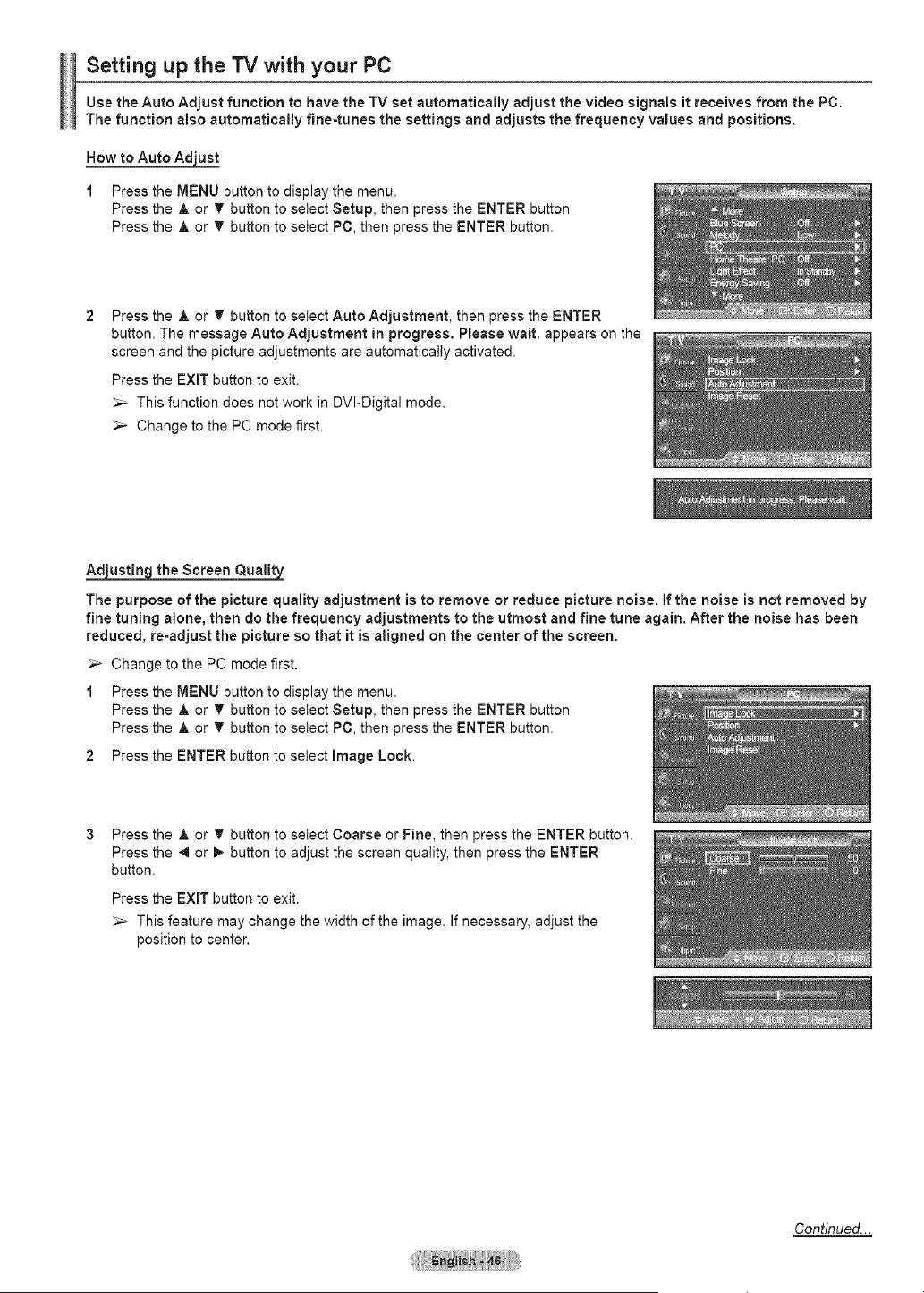
Setting up the TV with your PC
Use the Auto Adjust function to have the TV set automatically adjust the video signals it receives from the PC.
The function also automatically fine=tunes the settings and adjusts the frequency values and positions.
How to Auto Adjust
1 Press the MENU button to display the menu.
Press the A or _' button to setect Setup, then press the ENTER button.
Press the A or _' button to select PC, then press the ENTER button.
Press the A or 't" button toselect Auto Adjustment, then press the ENTER
button. The message Auto Adjustment in progress. Please wait. appears on the
screen and the picture adjustments are automatically activated.
Press the EXIT button to exit.
_-- This function does not work in DVI-Digital mode.
_-- Change to the PC mode first.
the Screen Quality
The purpose of the picture quality adjustment is to remove or reduce picture noise, if the noise is not removed by
fine tuning alone, then do the frequency adjustments to the utmost and fine tune again. After the noise has been
reduced, re-adjust the picture so that it is aligned on the center of the screen.
_-- Change to the PC mode first.
1 Press the MENU button to display the menu.
Press the A or _' button to select Setup, then press the ENTER button.
Press the A or _' button to select PC, then press the ENTER button.
2 Press the ENTER button to select image Lock.
Press the A or _' button to select Coarse or Fine, then press the ENTER button.
Press the -_ or D, button to adjust the screen quatity, then press the ENTER
button.
Press the EXiT button to exit.
_-- This feature may change the width of the image. Ifnecessary, adjust the
position to center.
Continued...
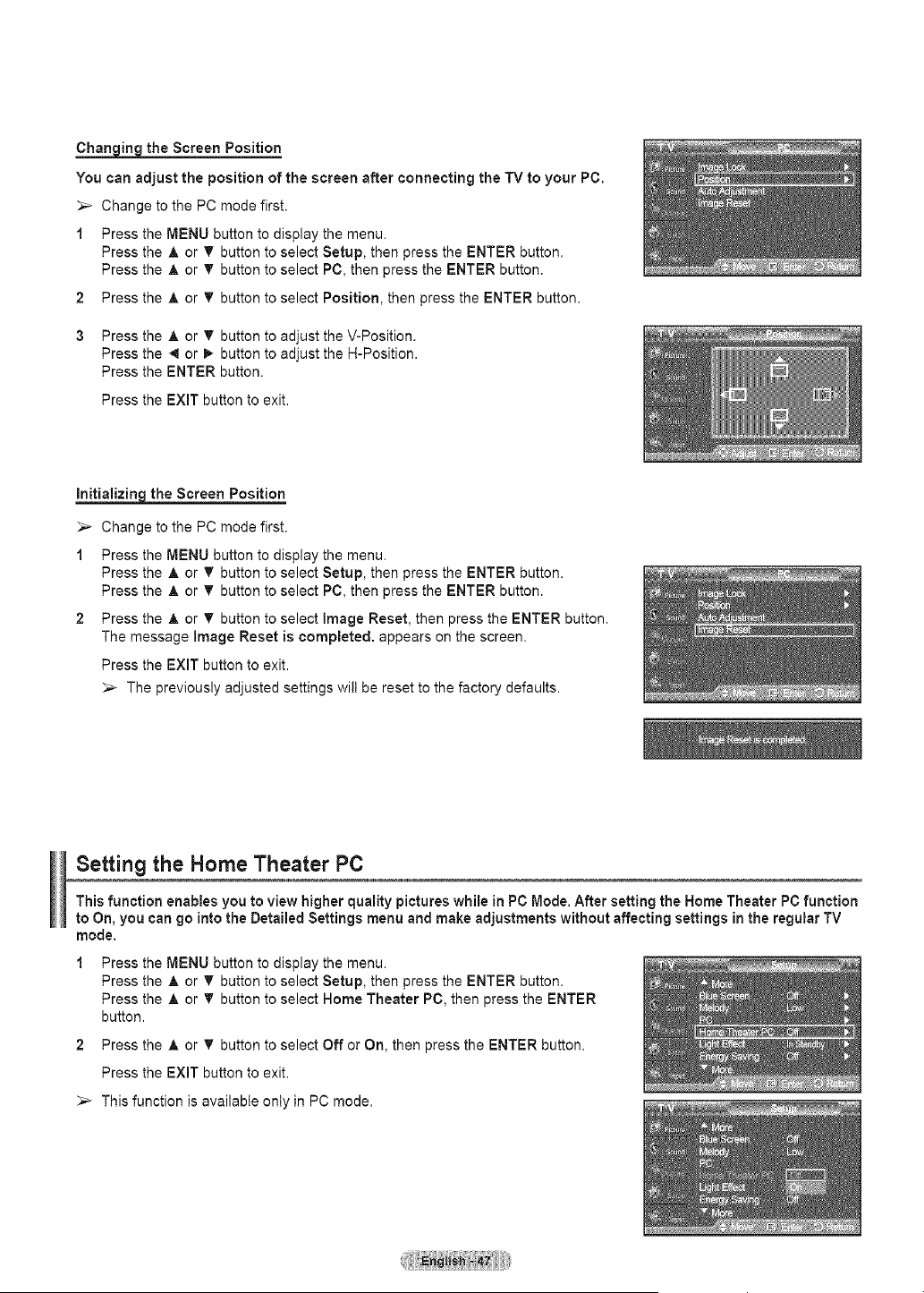
Chan iging the Screen Position
You can adjust the position of the screen after connecting the TV to your PC.
_-- Change to the PC mode first.
1 Press the MENU button to display the menu.
Press the A or T button to select Setup, then press the ENTER button.
Press the A or 'V' button to select PC, then press the ENTER button.
2 Press the A or _' button to select Position, then press the ENTER button.
3 Press the A or T button to adjust the V-Position.
Press the -,4or m,,button to adjust the H-Position.
Press the ENTER button.
Press the EXIT button to exit.
Initializin_g_the Screen Position
_,_ Change to the PC mode first.
1 Press the MENU button to display the menu.
Press the A or T button to select Setup, then press the ENTER button.
Press the A or _' button to select PC, then press the ENTER button.
2 Press the A or V' button to select image Reset, then press the ENTER button.
The message Image Reset is completed, appears on the screen.
Press the EXIT button to exit.
_,_ The previously adjusted settings wilt be reset to the factory defaults.
Setting the Home Theater PC
This function enables you to view higher quality pictures while in PC Mode. After setting the Home Theater PC function
to On, you can go into the Detailed Settings menu and make adjustments without affecting settings in the regular TV
mode.
1 Press the MENU button to display the menu.
Press the A or T button to select Setup, then press the ENTER button.
Press the A or T button to select Home Theater PC, then press the ENTER
button.
2 Press the A or 'V'button to select Off or On, then press the ENTER button.
Press the EXIT button to exit.
_-- This function is available onty in PC mode.
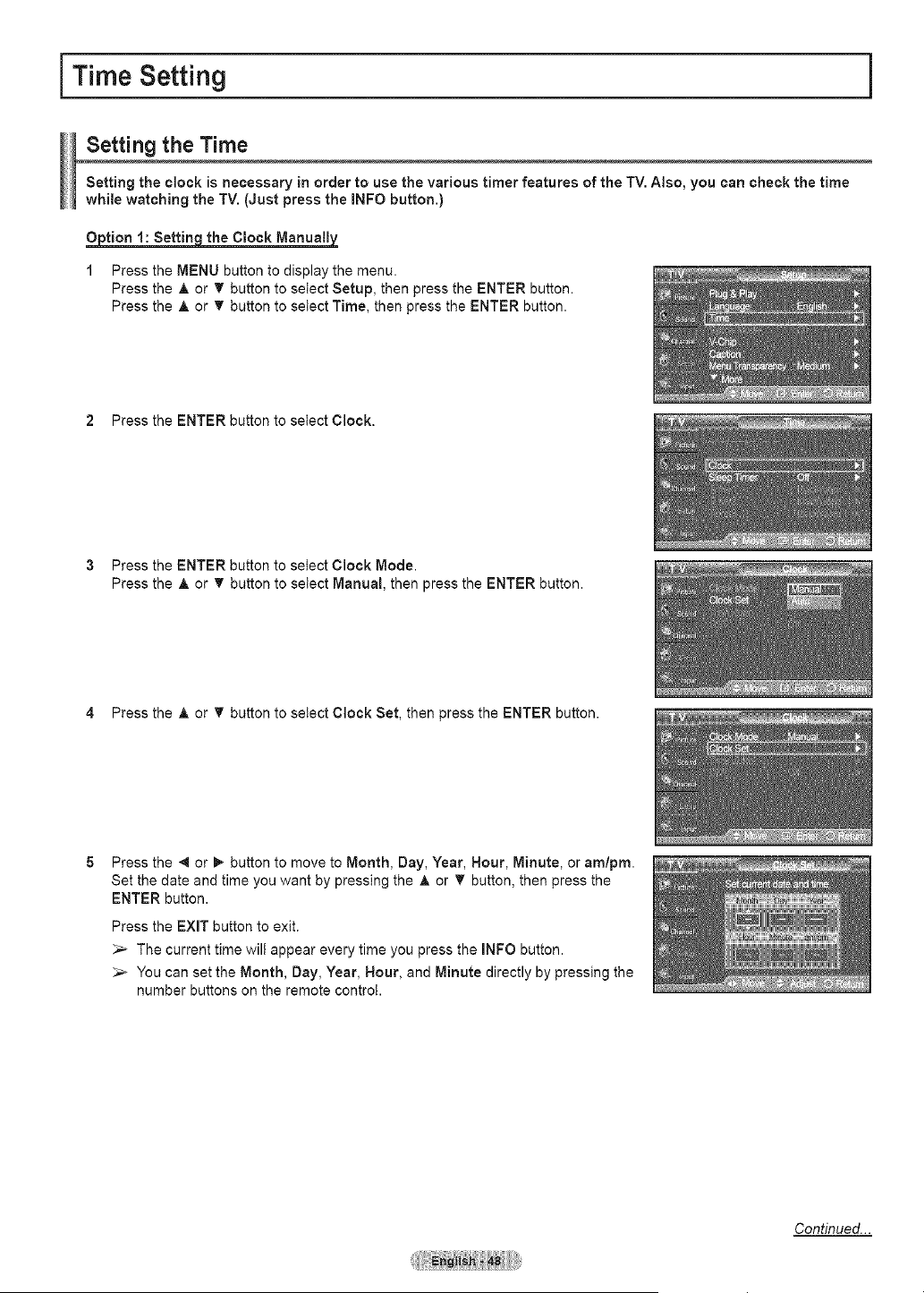
Time Setting
Setting the Time
Setting the clock is necessary in order to use the various timer features of the TV. Also, you can check the time
while watching the TV. (Just press the INFO button.)
O_tion 1: Setting the Clock Manuall_
1 Press the MENU button to display the menu.
Press the A or T button to setect Setup, then press the ENTER button.
Press the A or T button to select Time, then press the ENTER button.
2 Press the ENTER button to setect Clock.
3 Press the ENTER button to select Clock Mode.
Press the A or T button tosetect Manual, then press the ENTER button.
4 Press the A or T button to setect Clock Set, then press the ENTER button.
Press the _ or _ button to move to Month, Day, Year, Nour, Minute, or am/pro.
Set the date and time you want by pressing the A or T button, then press the
ENTER button.
Press the EXIT button to exit.
_-- The current time will appear every time you press the INFO button.
You can set the Month, Day, Year, Nour, and Minute directly by pressing the
number buttons on the remote control.
Continued...
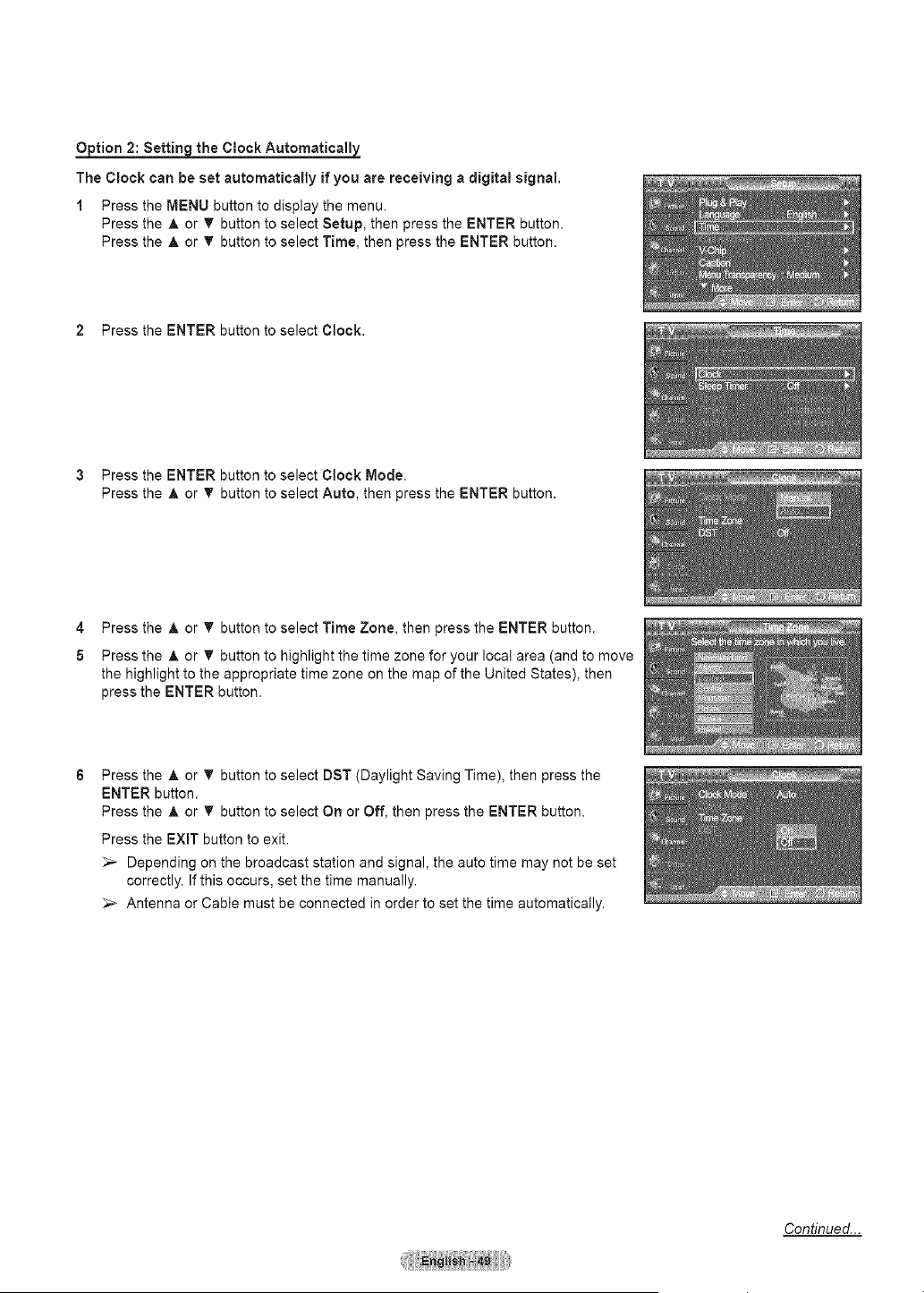
Option 2: Settin_the Clock Automatically
The Clock can be set automatically if you are receiving a digital signal.
1 Press the MENU button to display the menu.
Press the A or _ button to select Setup, then press the ENTER button.
Press the A or 'V' button to select Time, then press the ENTER button.
2 Press the ENTER button to select Clock.
3 Press the ENTER button to select Clock Mode.
Press the A or 'V' button to select Auto, then press the ENTER button.
4 Press the A or _' button to select Time Zone, then press the ENTER button.
5 Press the A or T button to highlight the time zone for your Iocat area (and to move
the highlight to the appropriate time zone on the map of the United States), then
press the ENTER button.
Press the A or T button to select DST (Daylight Saving Time), then press the
ENTER button.
Press the A or _' button to select On or Off, then press the ENTER button.
Press the EXIT button to exit.
_,_ Depending on the broadcast station and signal, the auto time may not be set
correctly. If this occurs, set the time manually.
_,_ Antenna or Cable must be connected in order to set the time automatically.
Continued...
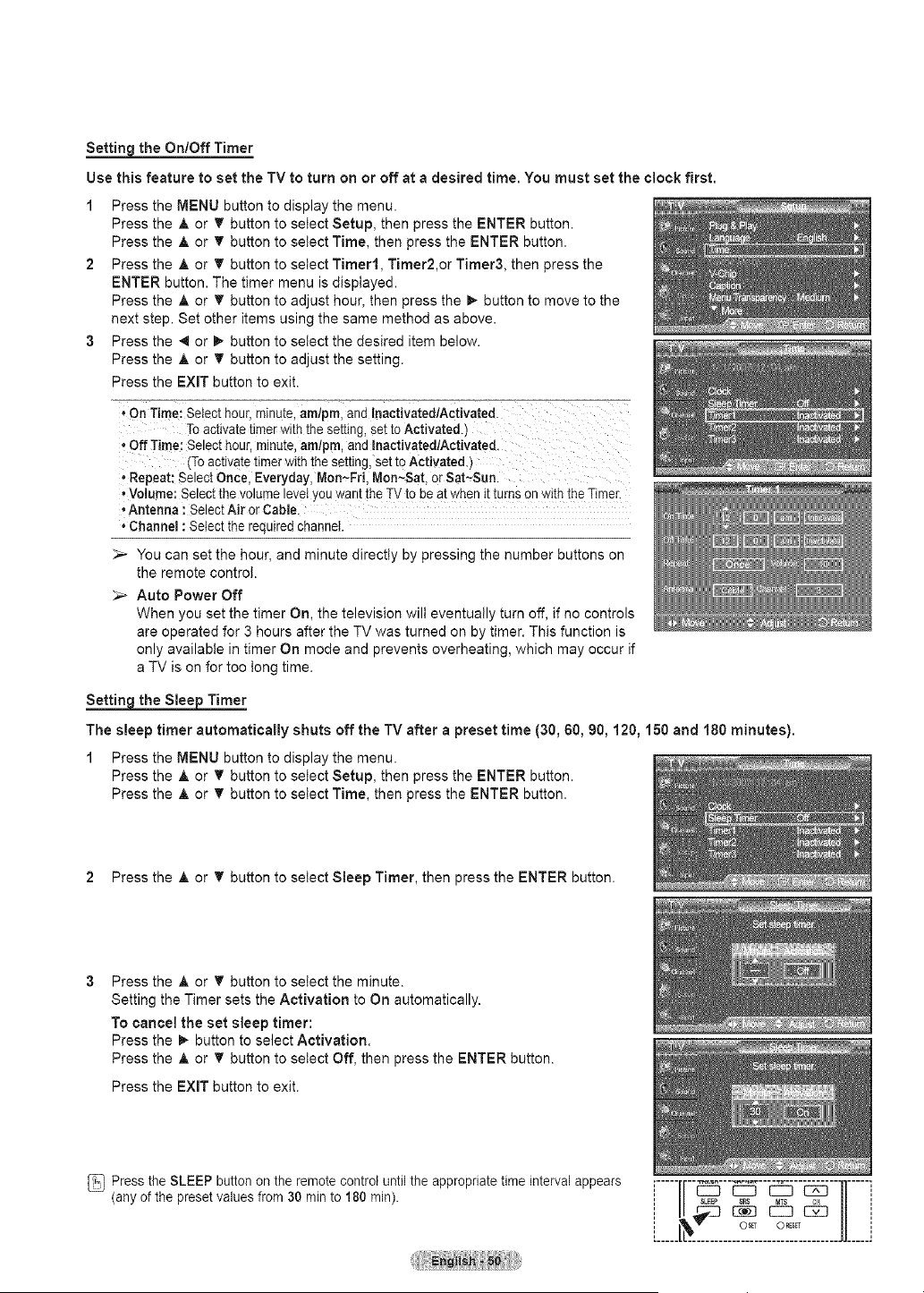
the On/Off Timer
Use this feature to set the TV to turn on or off at a desired time. You must set the clock first.
Press the MENU button to display the menu.
Press the A or T button to select Setup, then press the ENTER button.
Press the A or T button to select Time, then press the ENTER button.
Press the A or T button to select Timer1, Timer2,or Timer& then press the
ENTER button. The timer menu is displayed.
Press the A or T button to adjust hour, then press the _ button to move to the
next step. Set other items using the same method as above.
Press the _1or _ button to select the desired item below.
Press the A or T button to adjust the setting.
Press the EXIT button to exit.
, On Time: Select hour,minute,amlpm, and lnactivatedlActivated
Toactivatetimer with the setting, settoActivated.)
• Off Time: Select hour,minute, am/pro, and Inactivated/Activated.
(To activatetimer withthesetting, set toActivated.)
• Repeat: Select Once, Everyday, Mon,..Fri, Mon_Sat, orSat-Sun.
• Volume: Selectthevolume levelyou wantthe _ tobe at when itturnson with the Timer.
• Antenna :Select Air or Cable.
• Channel : Select the required channel.
_-- You can set the hour, and minute directly by pressing the number buttons on
the remote controt.
_-- Auto Power Off
When you set the timer On, the television will eventually turn off, if no controls
are operated for 3 hours after the TV was turned on by timer. This function is
only available in timer On mode and prevents overheating, which may occur if
a TV is on for too tong time.
Settin the Slee Timer
The sleep timer automatically shuts off the TV after a preset time (30, 60, 90, 120, 150 and 180 minutes).
1 Press the MENU button to display the menu.
Press the A or _' button to setect Setup, then press the ENTER button.
Press the A or _' button to select Time, then press the ENTER button.
2 Press the A or T button to select Sleep Timer, then press the ENTER button.
Press the A or T button to select the minute.
Setting the Timer sets the Activation to On automatically.
To cancel the set sleep timer:
Press the I_ button to select Activation.
Press the A or T button to select Off, then press the ENTER button.
Press the EXIT button to exit.
Pressthe SLEEP button onthe remote control untilthe appropriate time interval appears [-----1[--_---_.---_--_--]]-----]
(any of the preset values from30 rain to 180 rain). ,, i/ SLEEPs_s MTS _ U ',
i I _--'J B_ EC3 C_ /I i
.......... ........JJ_____J
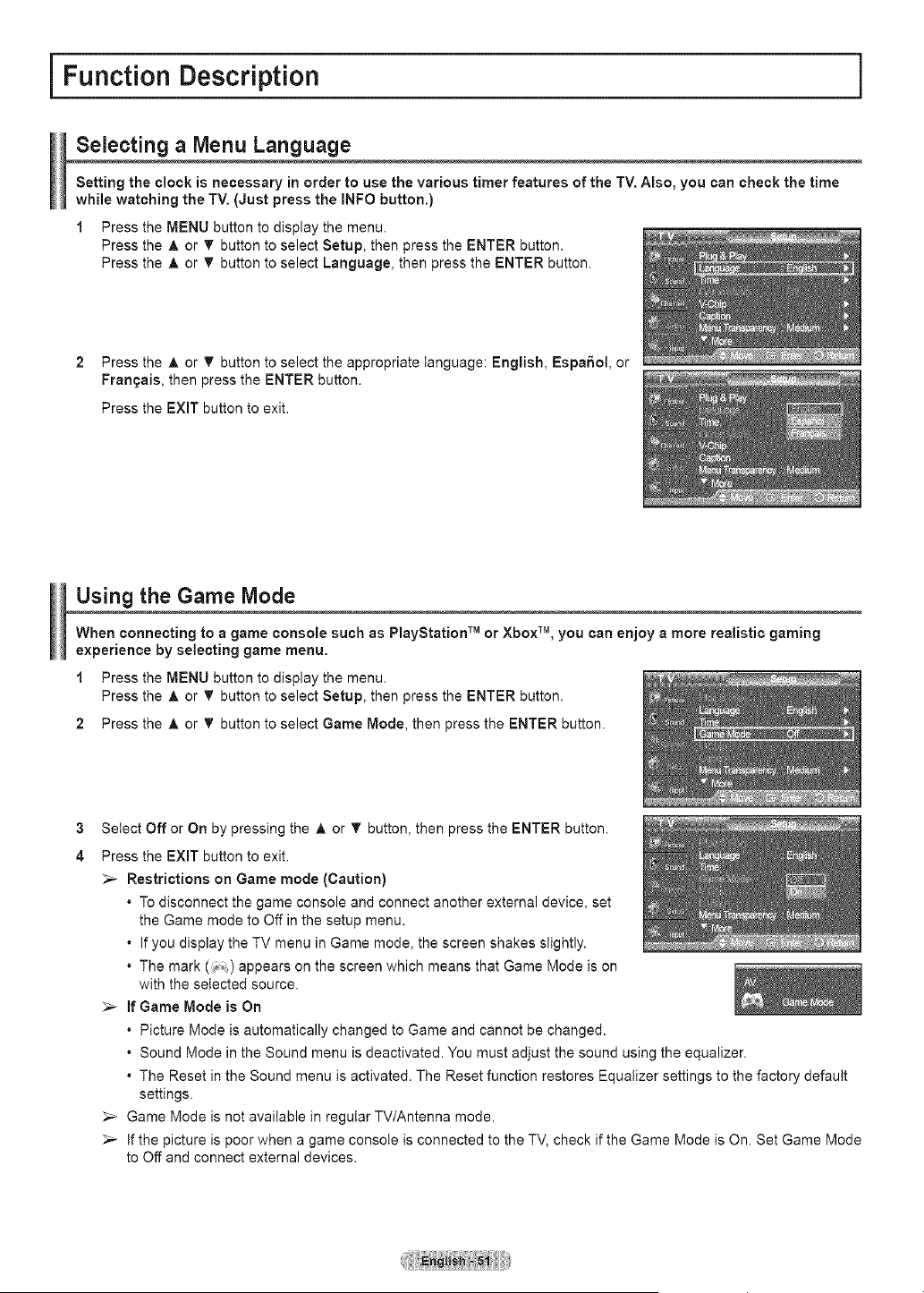
i Function Description i
Selecting a Menu Language
Setting the clock isnecessary in order to use the various timer features of the TV. Also, you can check the time
while watching the TV. (Just press the INFO button.)
1 Press the MENU button to display the menu.
Press the A or T button to select Setup, then press the ENTER button.
Press the A or _' button to select Language, then press the ENTER button.
2 Press the A or _ button toselect the appropriate language: English, Espa6ol, or
Frangais, then press the ENTER button.
Press the EXiT button to exit.
Using the Game Mode
When connecting to a game console such as PlayStation TM or Xbox TM, you can enjoy a more realistic gaming
experience by selecting game menu.
1 Press the MENU button to display the menu.
Press the A or _' button to select Setup, then press the ENTER button.
2 Press the A or _' button to select Game Mode, then press the ENTER button.
3
4
Select Off or On by pressing the A or _ button, then press the ENTER button.
Press the EXIT button to exit.
_-- Restrictions on Game mode (Caution)
• Todisconnect the game console and connect another external device, set
the Game mode to Off in the setup menu.
• Ifyou display the TV menu in Game mode, the screen shakes slightly.
• The mark (i_,) appears on the screen which means that Game Mode is on
with the selected source.
_-- if Game Mode is On
• Picture Mode is automatically changed to Game and cannot be changed.
• Sound Mode in the Sound menu is deactivated. You must adjust the sound using the equalizer.
• The Reset in the Sound menu is activated. The Reset function restores Equalizer settings to the factory default
settings.
_,_ Game Mode is not available in regular TV/Antenna mode.
_,_ Ifthe picture is poor when a game console is connected to the TV, check if the Game Mode is On. Set Game Mode
to Off and connect external devices.
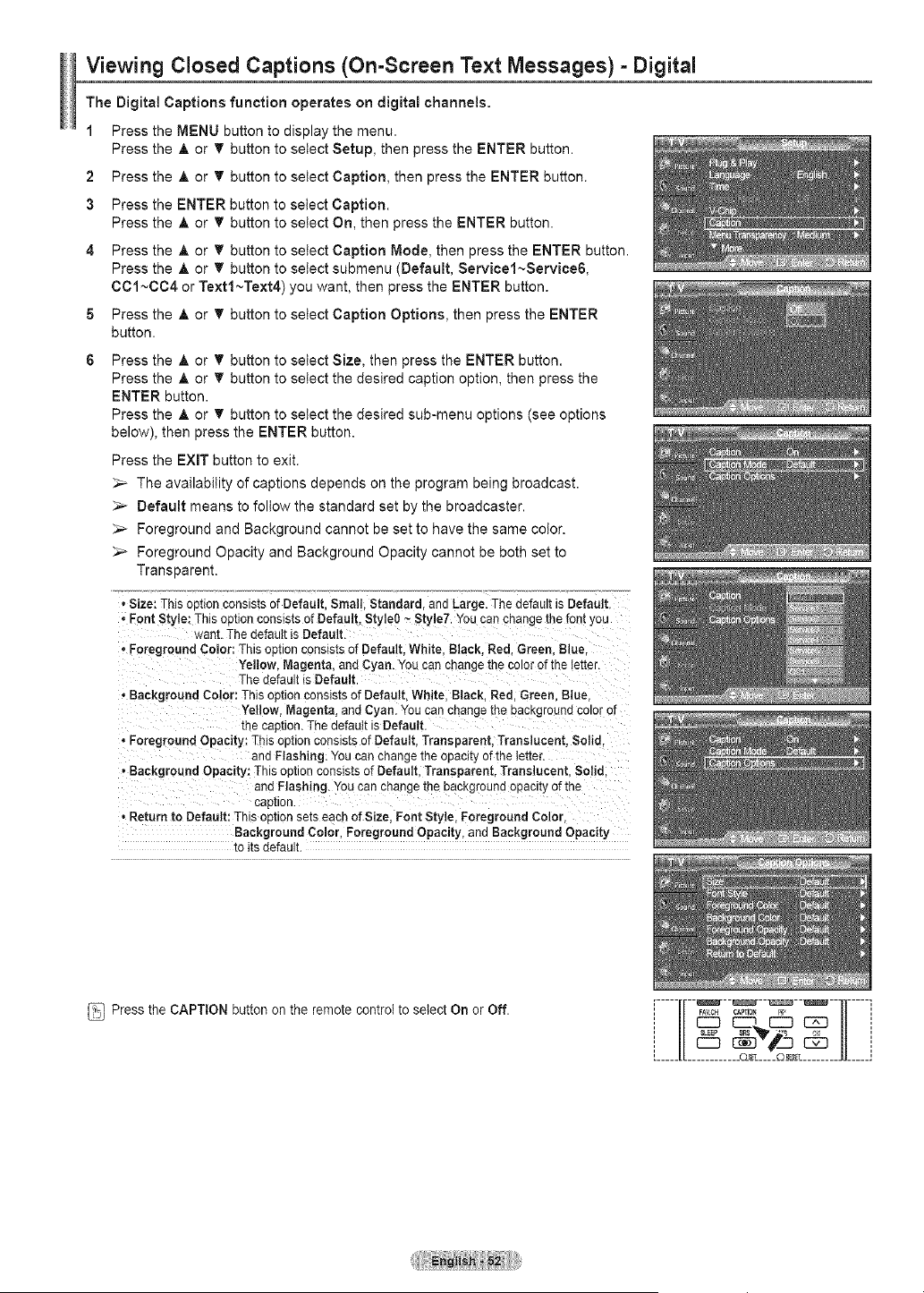
Viewing Closed Captions (On-Screen Text Messages) - Digital
The Digital Captions function operates on digital channels.
1 Press the MENU button to display the menu.
Press the A or T button to select Setup, then press the ENTER button.
2 Press the A or T button to select Caption, then press the ENTER button.
3 Press the ENTER button to select Caption.
Press the A or T button to select On, then press the ENTER button.
4 Press the _, or T button to select Caption Mode, then press the ENTER button.
Press the A or T button to select submenu (Default, Servicel~Service&
0C1~C04 or Textl~Text4) you want, then press the ENTER button.
5 Press the A or T button to select Caption Options, then press the ENTER
button.
Press the A or T button to select Size, then press the ENTER button.
Press the ,_ or T button to select the desired caption option, then press the
ENTER button.
Press the ,t, or T button to select the desired sub-menu options (see options
below), then press the ENTER button.
Press the EXIT button to exit.
_-- The availability of captions depends on the program being broadcast.
_-- Default means to follow the standard set by the broadcaster.
_,_ Foreground and Background cannot be set to have the same color.
_,_ Foreground Opacity and Background Opacity cannot be both set to
Transparent.
• Size: This oe[ionconsistsofDefault.Small. Standard. and Large.ThedefaultisDefault
• FontStyle: Thisoptionconsistsof Default, Style0 ~Style7.You canchangethe font you
went. ThedefaultisDefault.
• Foreground Color: Thisopuonconsistsof Default.White. Black. Red.Green.Blue.
Yellow. Magenta,and Cyan.Youcanchangethe colorof the _e[[er.
ThedefaultisDefault.
• Background Color: Thisoptionconsists of Default White.Black. Red.Green. Blue
Yellow. Magenta,and Cyan.Youcanchange[ne backgroundcolorof
the cap[ion.ThedefaLt isDefault.
• Foreground Opacity: ThisoetionconsistsofDefault Transparent Translucent. Solid.
and Flashing.You canchange[ne opac_[yofthe letter.
• Background Opacity: ThisoetionconsistsofDefault,Transparent. Translucent. Solid
and Flashing. Youcanchangethe backgrouneopacny of the
cap[ion.
• Returnto Default:Thisop[tonse[s eachofSize. FontStyle, Foreground Color
Background Color. Foreground Opacity, and Background Opacity
to itsdefault
Pressthe CAPTION button on the remote control toselect On or Off.
.......I["-- - "- ]1c .oo ,=
[_____[L............ O_______C)_L ........ JJ_____;
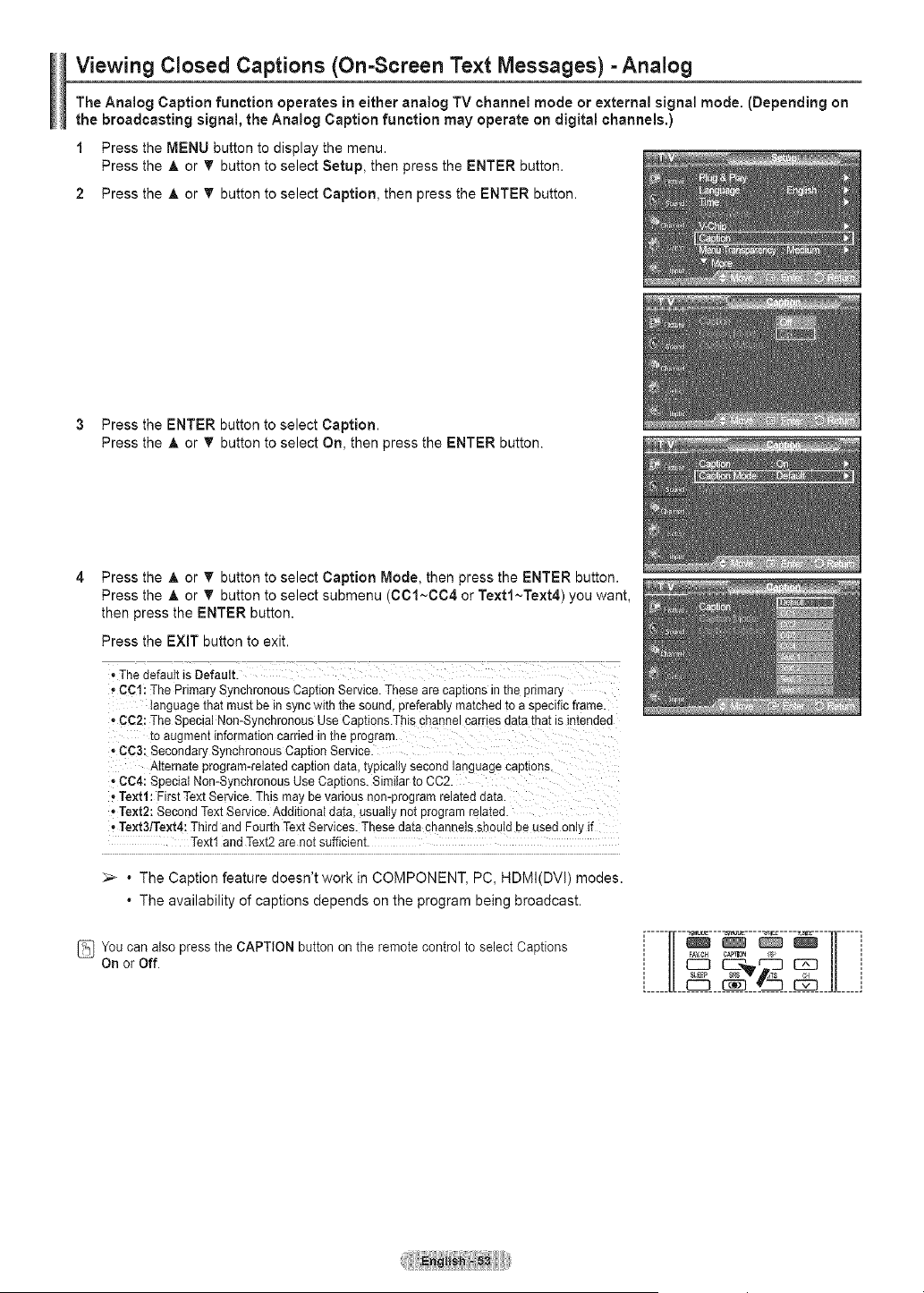
Viewing Closed Captions (On-Screen Text Messages) -Analog
The Analog Caption function operates in either analog TV channel mode or external signal mode. (Depending on
the broadcasting signal, the Analog Caption function may operate on digital channels.)
1 Press the MENU button to display the menu.
Press the A or _' button to select Setup, then press the ENTER button.
2 Press the A or _' button to select Caption, then press the ENTER button.
3 Press the ENTER button to select Caption.
Press the A or 'V' button to select On, then press the ENTER button.
Press the A or _ button to select Caption Mode, then press the ENTER button.
Press the A or _' button to select submenu (C01~CC4 or Textl~Text4) youwant,
thenpress the ENTER button.
Press the EXiT button to exit.
,ThedefaultisDefault.
• CCI: ThePrimarySynchronous CaptionService.Thesearecap[tonsJn[nepnmary
languagethat mustbe insync w_[n[ne sauna,preferabl_ma[cnea toa seecificframe.
• CC2:TheSpecial Non-SynchronousUse Caetions.Thischanne=camesuata that Is intended
toaugmentinformationcarriedin [ne program.....
• CC3:SecondarySynchronousCaptionService
Alternateprogram-relatedcaptiondata, typicallysecond languagecaptions
• CC4:SpecialNon-SynchronousUseCaptions. Similarto CC2.
• Text1: FirstTextService.Thismay Devarious non-programrelated data.
• Text2: Second TextService.Additional data. usuallynot Fogram reta[ea
• Text3/Text4:Third and FourthTextServices.These data channels shoLla DeuseaonLif
Text1and Text2arenot sufficient
_,_ ° The Caption feature doesn't work in COMPONENT, PC, HDMI(DVI) modes.
° The availability of captions depends on the program being broadcast.
You canalso pressthe CAPTION button on the remote control to select Captions
On or Off.
l FAVCH CAP'fION 4:_ l
', CZD =rZ-J EZD ',
L____[[_ 12_ _ _ Jl_____J
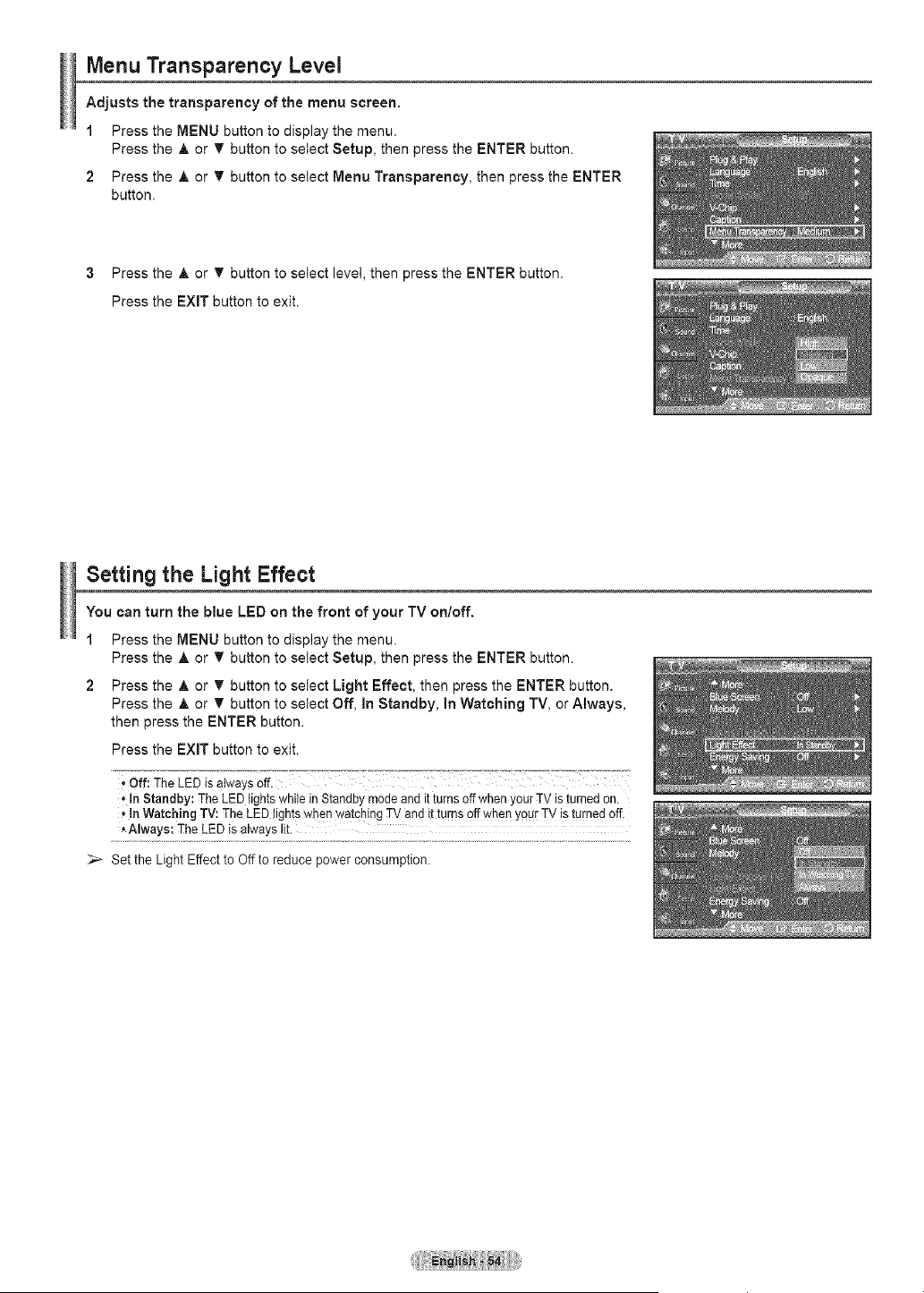
Menu Transparency Level
Adjusts the transparency of the menu screen.
1 Press the MENU button to display the menu.
Press the A or T button to select Setup, then press the ENTER button.
2 Press the A or T button to select Menu Transparency, then press the ENTER
button.
3 Press the A or T button to select level, then press the ENTER button.
Press the EXIT button to exit.
Setting the Light Effect
You can turn the blue LED on the front of your TV on/off.
1 Press the MENU button to display the menu.
Press the A or T button to select Setup, then press the ENTER button.
2 Press the A or T button to select Light Effect, then press the ENTER button.
Press the A or T button to select Off, In Standby, In Watching TV, or Always,
then press the ENTER button.
Press the EXIT button to exit.
• off: TheLED isalwaysoff. ................
• In Standby: TheLEDlightswhi!e inStandbymode and itturns off when yourTV isturned on.
• !a Watching TV: TheLED lightswben watch!rigTVandit turns off when yourTVisturned off,
,Always: TheLED isalwayslit.
_-- Setthe Light Effectto Offtoreduce power consumption.
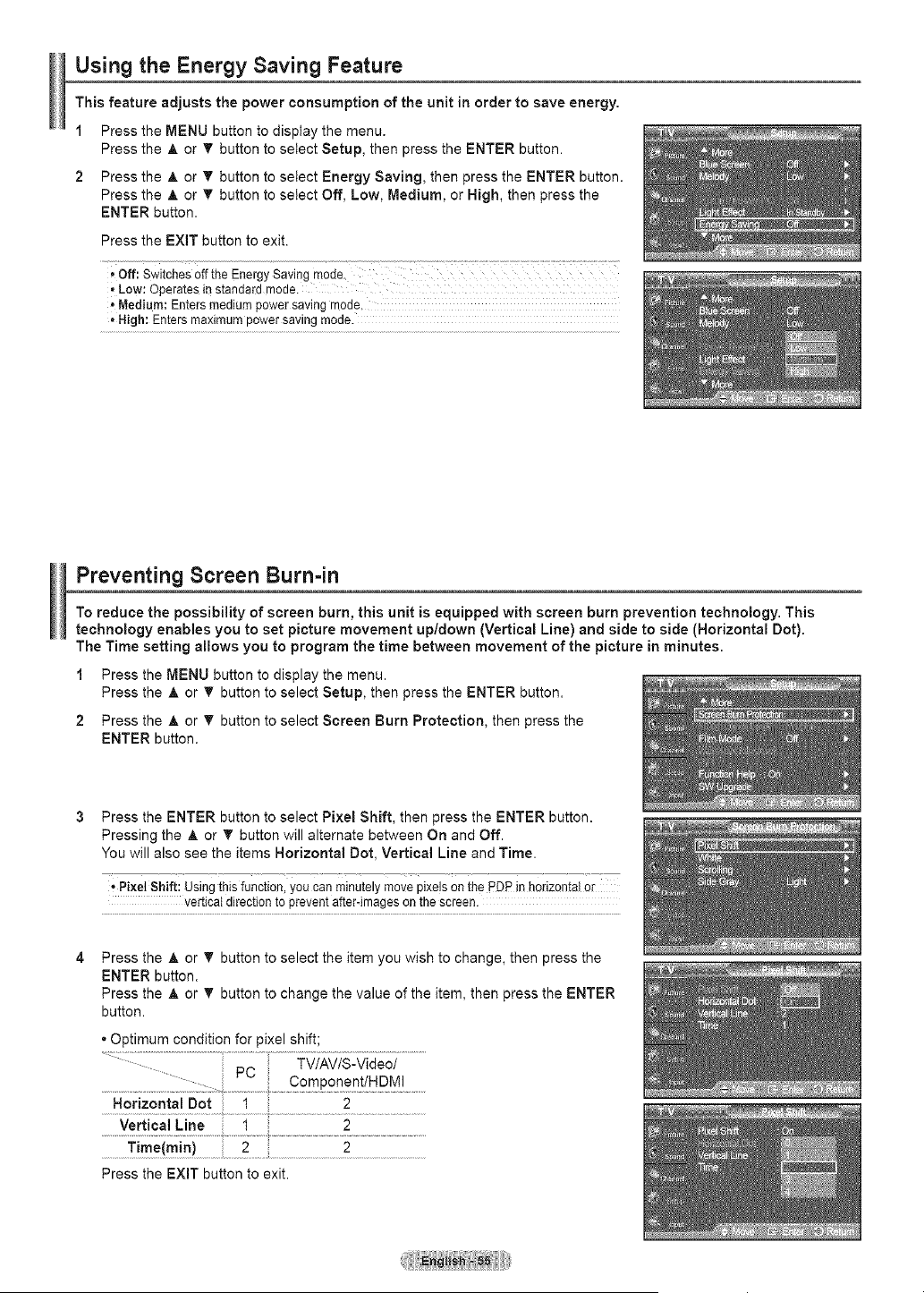
Using the Energy Saving Feature
This feature adjusts the power consumption of the unit in order to save energy.
1 Press the MENU button to display the menu.
Press the A or T button to select Setup, then press the ENTER button.
2 Press the A or T button to setect Energy Saving, then press the ENTER button.
Press the A or T button to select Off, Low, Medium, or High, then press the
ENTER button.
Press the EXIT button to exit.
' Off: Switches0ffthe EnergySaving mode.
.,Low: Operates in standa[d mode.
• Medium: Entersmediumpowersavingmode.
• High: Entersmaximumpowersavingmode.
Preventing Screen Burn-in
To reduce the possibility of screen burn, this unit is equipped with screen burn prevention technology. This
technology enables /ou to set picture movement up/down (Vertical Line) and side to side (Horizontal Dot).
The Time setting allows you to program the time between movement of the picture in minutes.
1 Press the MENU button to display the menu.
Press the A or T button to select Setup, then press the ENTER button.
2 Press the A or T button to select Screen Burn Protection, then press the
ENTER button.
Press the ENTER button to select Pixel Shift, then press the ENTER button.
Pressing the A or V' button will alternate between On and Off.
You will also see the items Horizontal Dot, Vertical Line and Time.
• Pixel Shift: Usingthis function, youcanminutelymovepixels on the PDPin horizontalor
verticaldirectionto preventafter.imagesonthe screen.
Press the A or T button to select the item you wish to change, then press the
ENTER button.
Press the A or T button to change the value of the item, then press the ENTER
button.
* Optimum condition for pixel shift;
TVlAVlS-Videol
........... PC
.................. Component/HDMI
.................................................. g:::
Horizontal Dot 1 2
Vertical Line 1 2
.................l!me{r!in).................................................................2.................................................
Press the EXiT button to exit.
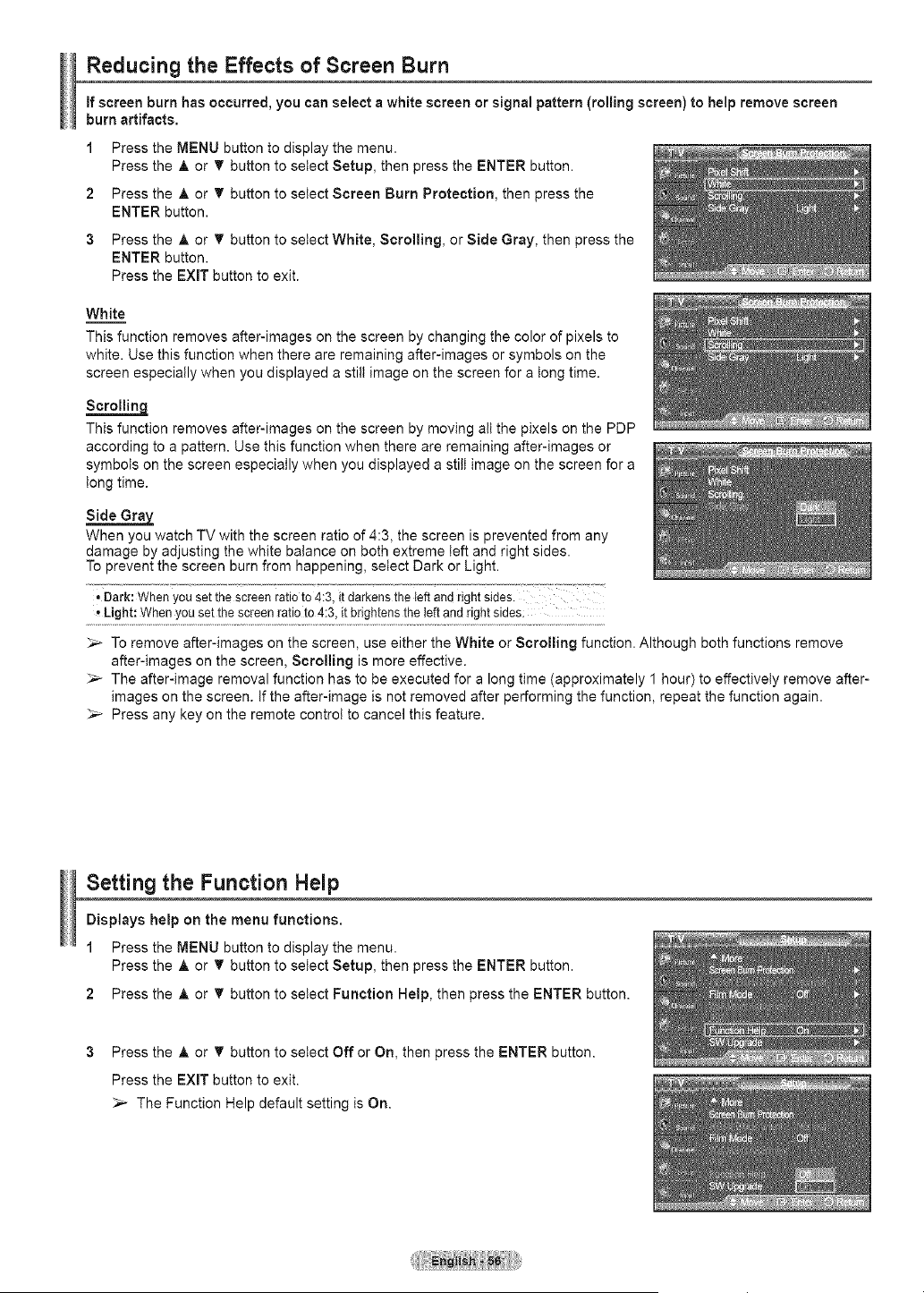
Reducing the Effects of Screen Burn
ifscreenburn hasoccurred,you canselecta white screen orsignal pattern(rollingscreen) to helpremovescreen
burn artifacts.
1 Press the MENU button to display the menu.
Press the A or _' button to select Setup, then press the ENTER button.
2 Press the A or _' button to select Screen Burn Protection, then press the
ENTER button.
3 Press the A or _' button to select White, Scrolling, or Side Gray, then press the
ENTER button.
Press the EXIT button to exit.
White
This function removes after-images on the screen by changing the color of pixels to
white. Use this function when there are remaining after-images or symbols on the
screen especially when you displayed astill image on the screen for a tong time.
Scrollin=9"
This function removes after-images on the screen by moving all the pixels on the PDP
according to a pattern. Use this function when there are remaining after-images or
symbols on the screen especially when you displayed a stilt image on the screen for a
tong time.
When you watch TV with the screen ratio of 4:3, the screen is prevented from any
damage by adjusting the white balance on both extreme left and right sides.
To prevent the screen burn from happening, select Dark or Light.
. Dark:Whenyou set the screenratio to4:3, it darkens the leftandrightsides.
Light: Whenyou setthe screenratioto 4:3, it brightensthe leftand rightsides:
_-- To remove after-images on the screen, use either the White or Scrolling function. Although both functions remove
after-images on the screen, Scrolling is more effective.
The after-image removal function has to be executed for a long time (approximately 1 hour) to effectively remove after-
images on the screen. Ifthe after-image is not removed after performing the function, repeat the function again.
_-- Press any key on the remote control to cancel this feature.
Setting the Function Help
Displays help on the menu functions.
1 Press the MENU button to display the menu.
Press the A or T button to setect Setup, then press the ENTER button.
2 Press the A or _' button to select Function Help, then press the ENTER button.
3 Press the A or _' button to select Off or On, then press the ENTER button.
Press the EXiT button to exit.
_-- The Function Help default setting is On.
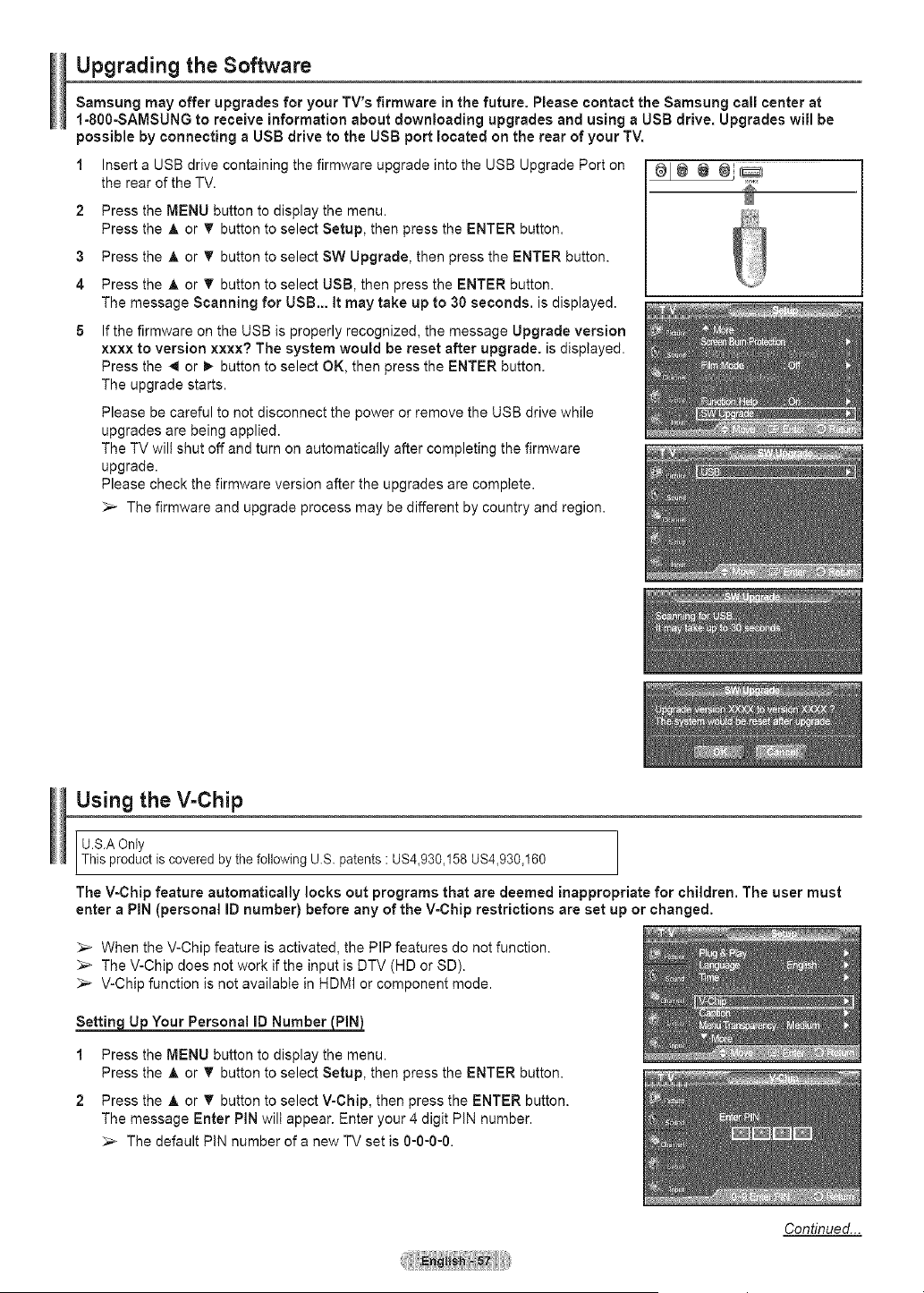
Upgrading the Software
Samsung may offer upgradesfor your TV's firmware inthe future. Please contact the Samsung call center at
I-SO0-SAMSUNG to receive informationabout downloading upgrades and using a USB drive. Upgrades will be
possible by connectinga USBdrive to the USBportlocated on the rear of your TV.
1 Insert a USB drive containing the firmware upgrade into the USB Upgrade Port on
the rear of the TV.
2
3
4
5
Press the MENU button to display the menu.
Press the A or T button to select Setup, then press the ENTER button.
Press the A or T button to select SW Upgrade, then press the ENTER button.
Press the A or T button to select USB, then press the ENTER button.
The message Scanning for USB... It may take up to 30 seconds, is displayed.
Ifthe firmware on the USB is properly recognized, the message Upgrade version
xxxx to version xxxx? The system would be reset after upgrade, is displayed.
Press the _ or _- button to select OK, then press the ENTER button.
The upgrade starts.
Please be careful to not disconnect the power or remove the USB drive while
upgrades are being applied.
The TV will shut off and turn on automatically after completing the firmware
upgrade.
Please check the firmware version after the upgrades are complete.
_-- The firmware and upgrade process may be different by country and region.
N
Using the V-Chip
U.S.AOnly
Ths product s covered by the following U.S. patents:US4,930,158 US4,930,160
The V-Chip feature automatically locks out programs that are deemed inappropriate for children. The user must
enter a PiN (personal ID number) before any of the V-Chip restrictions are set up or changed.
_,_ When the V-Chip feature isactivated, the PIP features do not function.
The V-Chip does not work if the input is DTV (HD or SD).
_-- V-Chip function is not available in HDMI or component mode.
Setting U_oYour Personal ID Number
1 Press the MENU button to display the menu.
Press the A or T button to select Setup, then press the ENTER button.
2 Press the A or _ button toselect V-Chip, then press the ENTER button.
The message Enter PIN wilt appear. Enter your 4 digit PIN number.
_,_ The default PIN number of a new TV set is O-O-O-O.
Continued...
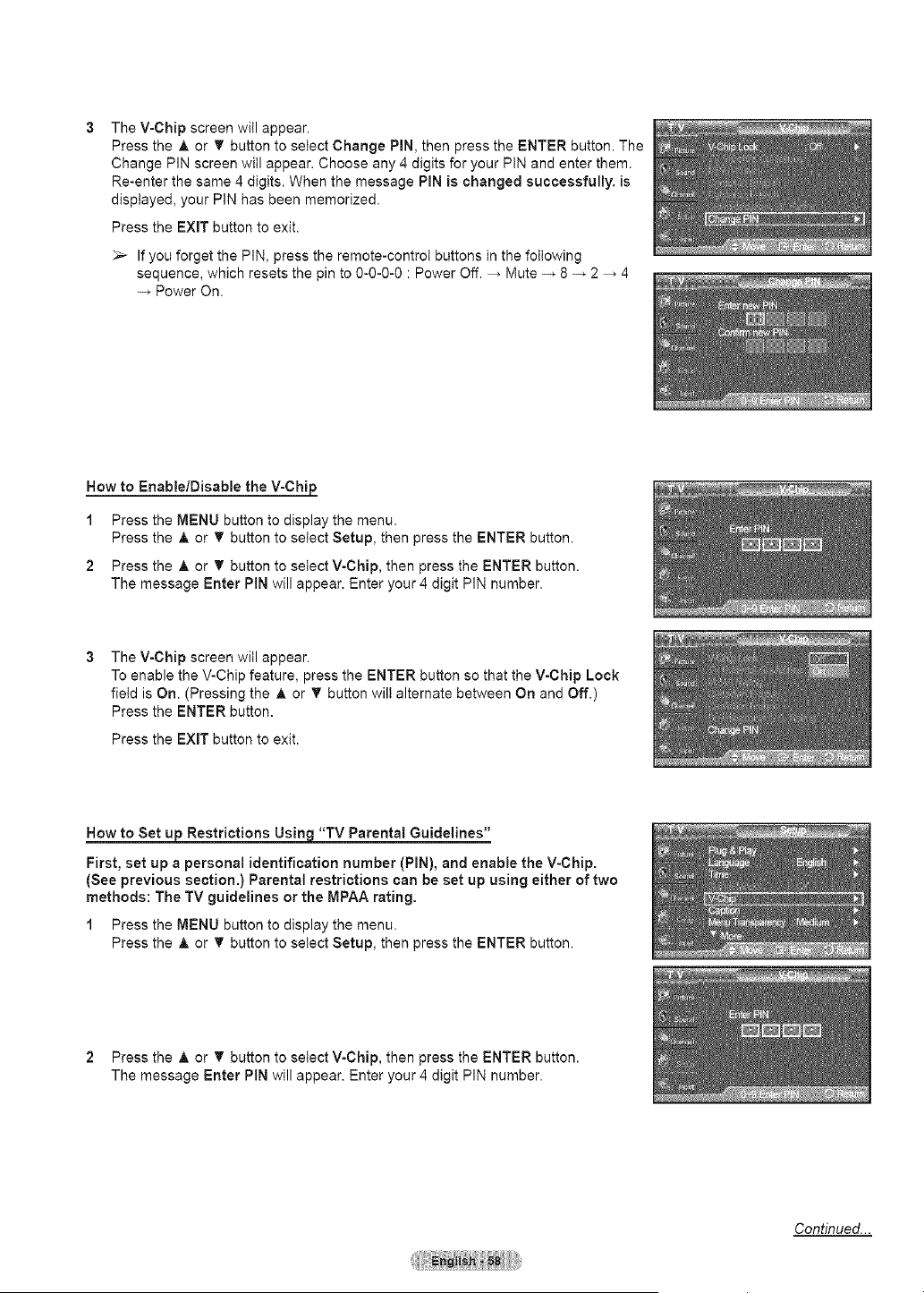
The V-Chip screen will appear.
Press the A or T button to select Change PIN, then press the ENTER button. The
Change PIN screen will appear. Choose any 4 digits for your PIN and enter them.
Re-enter the same 4 digits. When the message PIN is changed successfully, is
displayed, your PIN has been memorized.
Press the EXiT button to exit.
_-- If you forget the PIN, press the remote-control buttons in the following
sequence, which resets the pin to 0-0-0-0 : Power Off. _ Mute _ 8_ 2 _ 4
Power On.
How to Enable/Disable the V-Chip_
1
2
Press the MENU button to display the menu.
Press the A or _' button to select Setup, then press the ENTER button.
Press the A or T button to select V-Chip, then press the ENTER button.
The message Enter PIN will appear. Enter your 4 digit PIN number.
The V-Chip screen will appear.
To enable the V-Chip feature, press the ENTER button so that the V-Chip Lock
field is On. (Pressing the A or _' button wilt alternate between On and Off.)
Press the ENTER button.
Press the EXIT button to exit.
How to Set ujp Restrictions Using "TV Parental Guidelines"
First, set up a personal identification number (PIN), and enable the V-Chip.
(See previous section.) Parental restrictions can be set up using either of two
methods: The TV guidelines or the MPAA rating.
1 Press the MENU button to display the menu.
Press the A or _' button to select Setup, then press the ENTER button.
2 Press the A or T button to select V-Chip, then press the ENTER button.
The message Enter PIN will appear. Enter your 4 digit PIN number.
Continued...
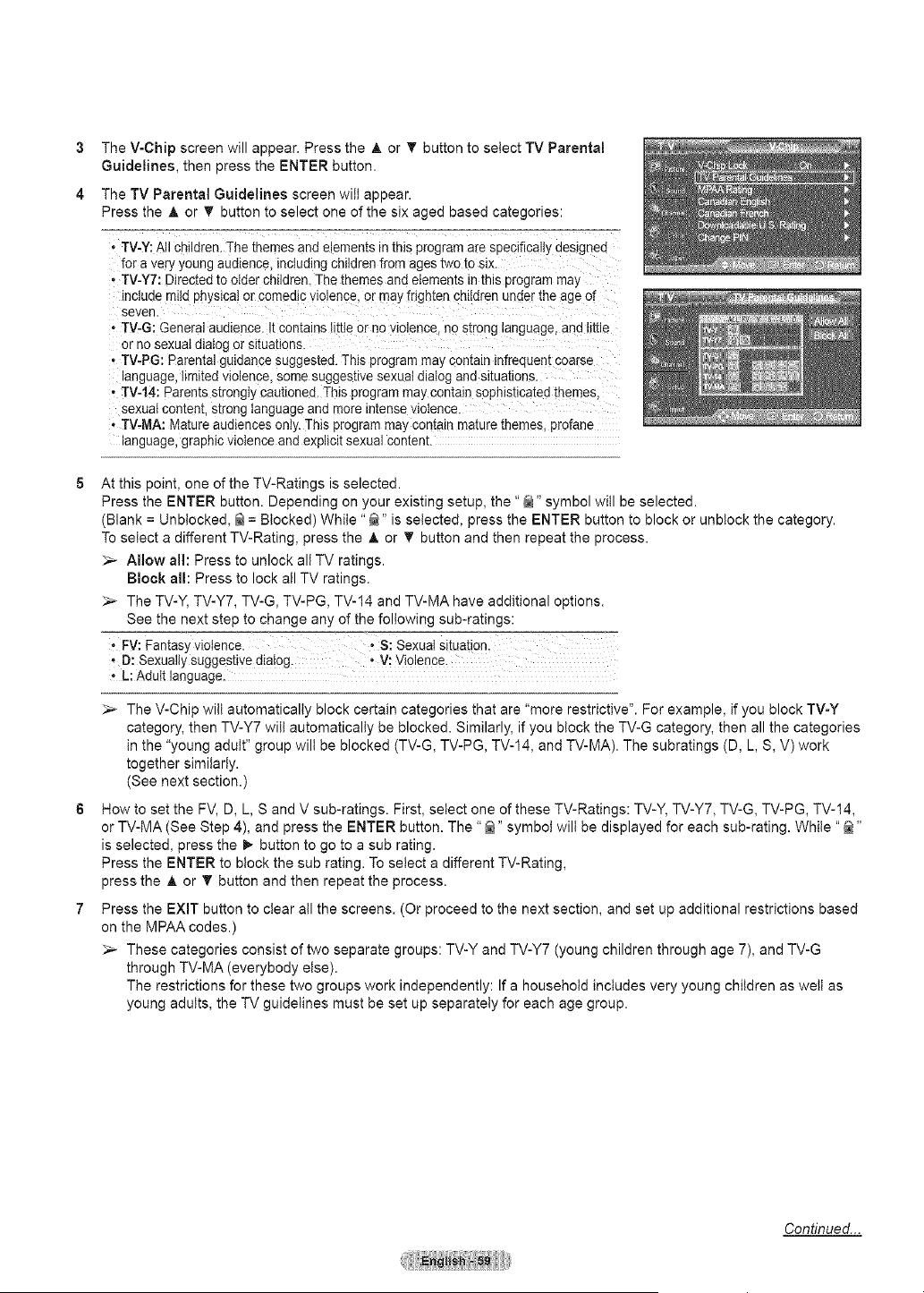
3
4
The V-Chip screen will appear. Press the A or _' button to select TV Parental
Guidelines, then press the ENTER button.
The TV Parental Guidelines screen will appear.
Press the A or _' button to select one of the six aged based categories:
• TV-Y:All children. Thethemes and elements _ thisprogram arespecifica y deslgnec
for averyyoung audience, inctud ng children fromages twoto six
• TV-Y7: Directedto older children. Thethemes and elements _nth_sprogram may
ncluae mitapn}stcai or comed_cwolence, or mayfrighten cmioren under toe age of
seven.
• TV-G: General audience. Itcontainslittle or no violence, no s[rong language, and little
or no sexuat dialog orsituations.
• TV-PG: Parentalguiaance suggested.This program may contain infrequent soarse
anguage. Itml[edviolence some suggesuvesexuaI dialog ana slruauons.
• TV-14: Parents srrongIycautioned. This program maycoma_nsopn_stlcarea_nemes
sexual conren[, s[rong languageand moreintense vloIence.
• TV-MA: Matureaudiences only. This program maycontain mature themes profane
anguage, graphic violence and ex_iclt sexual content.
At this point, one of the TV-Ratings is selected.
Press the ENTER button. Depending on your existing setup, the "_" symbol will be selected.
(Blank = Unbtocked, _ = Blocked) While "@" isselected, press the ENTER button to block or unbtock the category.
To select adifferent TV-Rating, press the A or T button and then repeat the process.
_-- Allow all: Press to unlock all TV ratings.
Block all: Press to lock all TV ratings.
The TV-Y, TV-Y7, TV-G, TV-PG, TV-14 and TV-MA have additional options.
See the next step to change any of the following sub-ratings:
. FV:Fantasy violence. • S: Sexual situation_
, D:Sexualty suggestive dia!og_ , v: Vio!ence.
. L: Adutt language.
The V-Chip will automatically block certain categories that are "more restrictive". For example, if you block TV-Y
category, then TV-Y7 will automatically be blocked. Similarly, if you block the TV-G category, then all the categories
in the "young adult" group wilt be blocked (TV-G, TV-PG, TV-14, and TV-MA). The subratings (D, L, S, V) work
together similarly.
(See next section.)
How to set the FV, D, L, S and V sub-ratings. First, select one of these TV-Ratings: TV-Y, TV-Y7, TV-G, TV-PG, TV-14,
or TV-MA (See Step 4), and press the ENTER button. The "@" symbol wilt be displayed for each sub-rating. While "@"
isselected, press the _ button to go to a sub rating.
Press the ENTER to block the sub rating. To select a different TV-Rating,
press the A or T button and then repeat the process.
Press the EXIT button to clear atl the screens. (Or proceed to the next section, and set up additional restrictions based
on the MPAA codes.)
These categories consist of two separate groups: TV-Y and TV-Y7 (young children through age 7), and TV-G
through TV-MA (everybody else).
The restrictions for these two groups work independently: If a household includes very young children as welt as
young adults, the TV guidelines must be set up separately for each age group.
Continued...
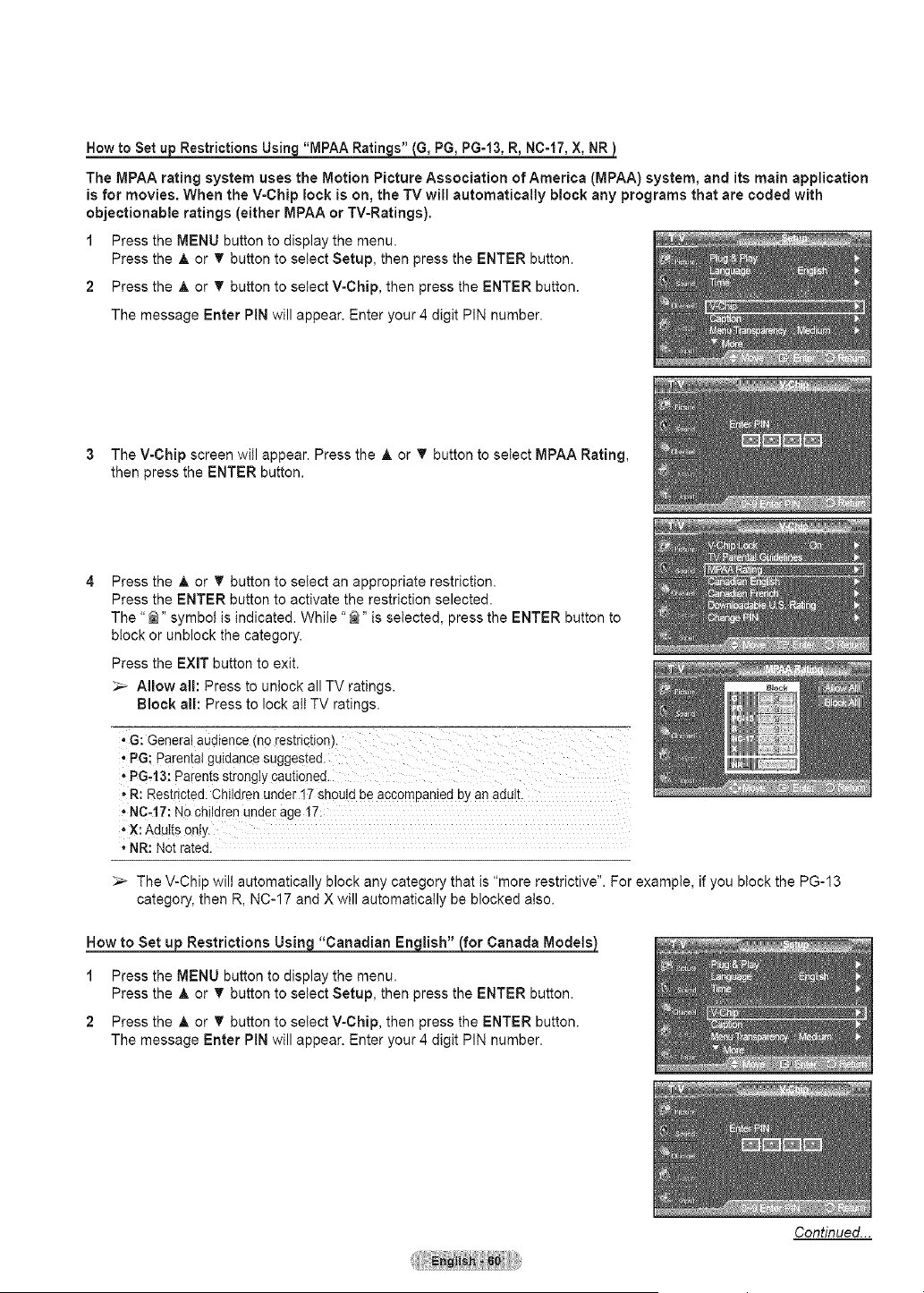
How to Set up Restrictions Usin_q "MPAA Ratin_js" (G, PG, PG-13, R, NC-17, X, NR_
The MPAA rating system uses the Motion Picture Association of America (MPAA) system, and its main application
is for movies. When the V-Chip lock is on, the TV will automatically block any programs that are coded with
objectionable ratings (either MPAA or TV-Ratings).
1 Press the MENU button to display the menu.
Press the A or T button to setect Setup, then press the ENTER button.
2 Press the A or T button to setect V-Chip, then press the ENTER button.
The message Enter PIN will appear. Enter your 4 digit PIN number.
3 The V-Chip screen will appear. Press the A or _' button to select MPAA Rating,
then press the ENTER button.
Press the A or _' button to setect an appropriate restriction.
Press the ENTER button to activate the restriction selected.
The "@" symbol is indicated. While "@" is selected, press the ENTER button to
block or unblock the category.
Press the EXiT button to exit.
_-- Allow all: Press to uniock all TV ratings.
Block all: Press to lock alt TV ratings.
' G: Generat audience (n0restriction).
, PG: Parental guidance suggested.'
,,PG43: Parents Strongly cautioned.
, R: Restricted: Children under 17should be accompanied by an adult.
• NC_17: NOchildren under age 17:
. X: Adults only.
• NR: Not rated.
_-- The V-Chip wilt automatically block any category that is "more restrictive". For example, if you block the PG-13
category, then R, NC-17 and X will automatically be blocked atso.
How to Set up Restrictions Using "Canadian English" (for Canada Models)
1 Press the MENU button to display the menu.
Press the A or _' button to setect Setup, then press the ENTER button.
2 Press the A or _' button to setect V-Chip, then press the ENTER button.
The message Enter PIN will appear. Enter your 4 digit PIN number.
Continued...
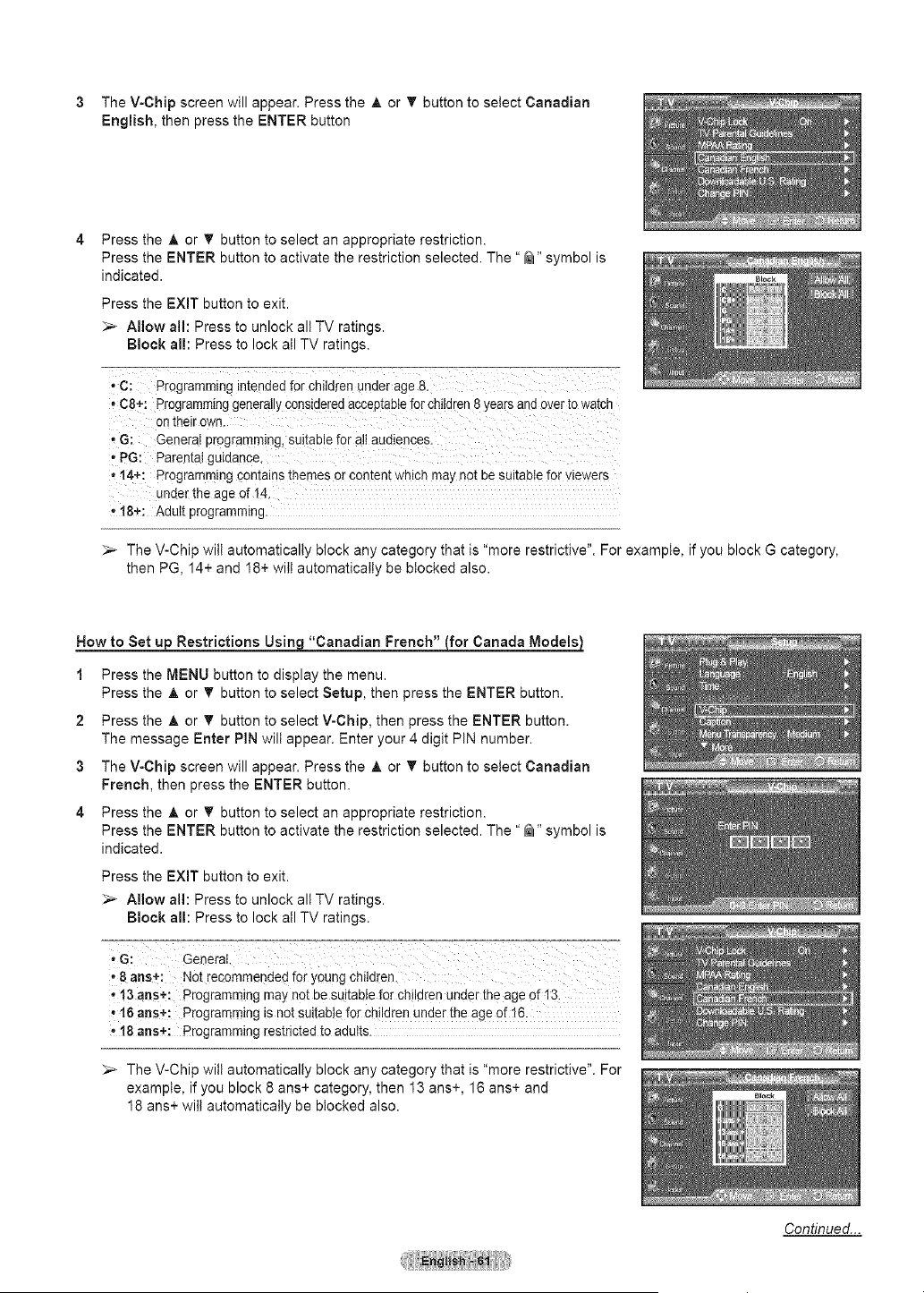
3 The V-Chip screen will appear. Press the A or T button to select Canadian
English, then press the ENTER button
Press the A or T button to select an appropriate restriction.
Press the ENTER button to activate the restriction selected. The "_" symbol is
indicated.
Press the EXIT button to exit.
_-- Allow alh Press to unlock all TV ratings.
Block all: Press to lock all TV ratings.
* C: Programming _mendedfor chilaren unaer age 8.
*C8+: Programminggenerally constaereaacceptable forchildren8 yearsana over to watcn
on their own.
.G: General programming suitablefor altaudiences.
- PG: Parenta gu_oance
. !4+: Programming comalns themesor contem wn_cnma_ not De suitableforviewers
unaerthe age of 14.
* 18+: Adult programming.
_-- The V-Chip wilt automatically block any category that is "more restrictive". For example, if you block G category,
then PG, 14+ and 18+ wilt automatically be blocked also.
How to Set u Restrictions Usin "Canadian French" {for Canada Models)
1 Press the MENU button to display the menu.
Press the A or T button to select Setup, then press the ENTER button.
2 Press the ,_ or T button to select V-Chip, then press the ENTER button.
The message Enter PIN will appear. Enter your 4 digit PIN number.
3 The V-Chip screen will appear. Press the A or T button to select Canadian
French, then press the ENTER button.
4 Press the A or T button to select an appropriate restriction.
Press the ENTER button to activate the restriction selected. The "_" symbol is
indicated.
Press the EXIT button to exit.
_,_ Allow all: Press to unlock all TV ratings.
Block all: Press to lock all TV ratings.
• 8arts+: Notrecommended foryoung child[en
t3 arts+: programming may net be suitablefor children underthe age of 13
_16 arts+: Programming isnotsuitable forchi!dren under the age of!6:
° 18 arts+: Programming restrictedto adutts.
_-- The V-Chip will automatically block any category that is "more restrictive". For
example, if you block 8 ans+ category, then 13 ans+, 16 ans+ and
18 ans+ wilt automatically be blocked also.
Continued...
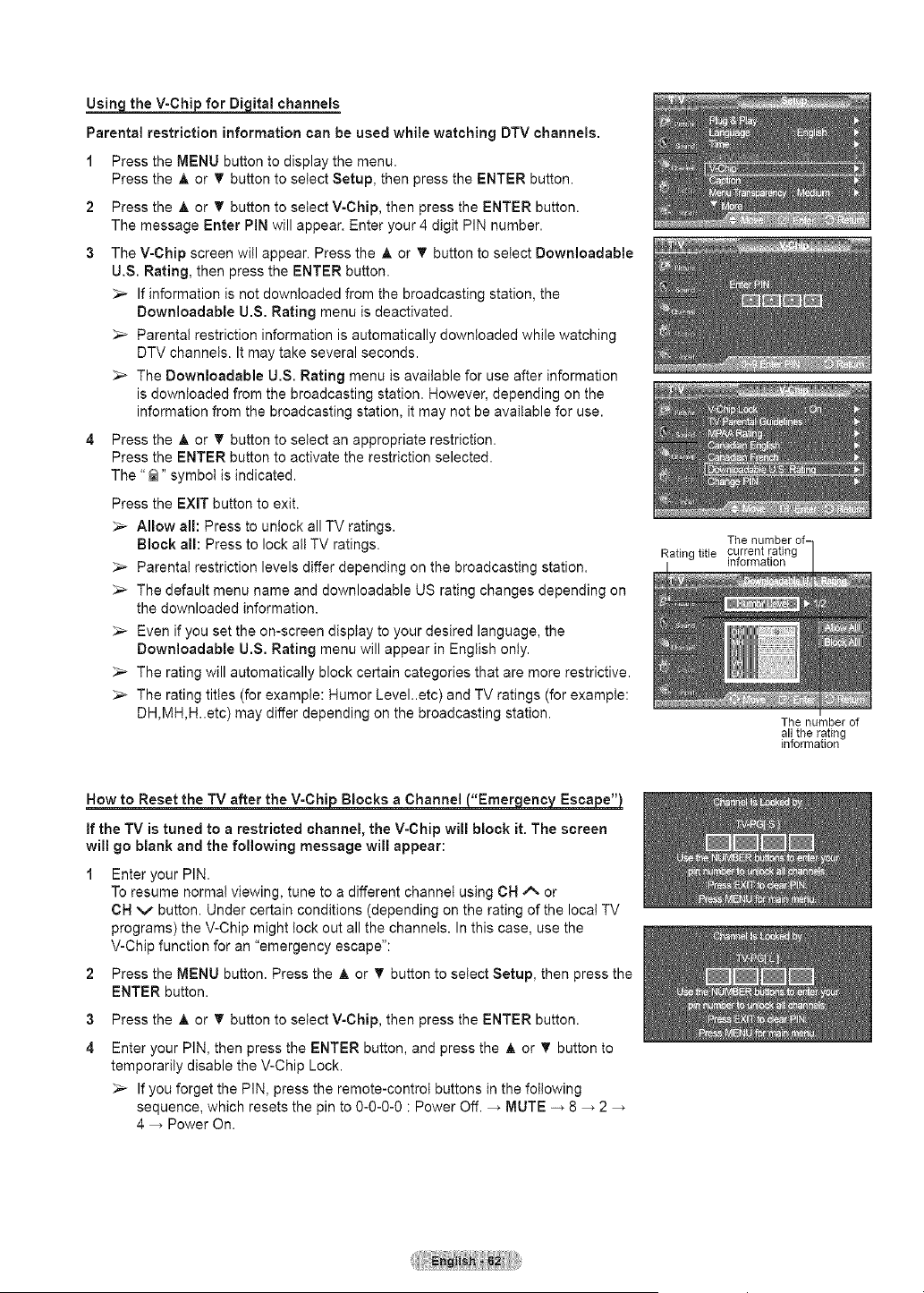
Usina the V-Chi for Di ital channels
Parental restriction information can be used while watching DTV channels.
1 Press the MENU button to display the menu.
Press the A or _' button to select Setup, then press the ENTER button.
2 Press the A or _' button to select V-Chip, then press the ENTER button.
The message Enter PIN will appear. Enter your 4 digit PIN number.
3 The V-Chip screen will appear. Press the _, or _' button to select Downloadable
U.S. Rating, then press the ENTER button.
Ifinformation is not downloaded from the broadcasting station, the
Downloadable U.S. Rating menu is deactivated.
_-- Parental restriction information is automatically downloaded while watching
DTV channels. Itmay take several seconds.
The Downloadable U.S. Rating menu is available for use after information
is downloaded from the broadcasting station. However, depending on the
information from the broadcasting station, it may not be available for use.
4 Press the A or _' button to select an appropriate restriction.
Press the ENTER button to activate the restriction selected.
The "@" symbol is indicated.
Press the EXIT button to exit.
> Allow all: Press to unlock all TV ratings.
Block all: Press to lock all TV ratings.
Parenta! restriction levels differ depending on the broadcasting station.
The default menu name and downloadable US rating changes depending on
the downloaded information.
Even if you set the on-screen display to your desired language, the
Downloadable U.S. Rating menu will appear in English only.
_-- The rating will automatically block certain categories that are more restrictive.
The rating titles (for example: Humor Level..etc) and TV ratings (for example:
DH,MH,H..etc) may differ depending on the broadcasting station.
The number of-
Rating title current rating
information
The number of
all the rating
information
How to Reset the TV after the V-Chi Block_nel "Emer eric Esca e"
If the TV is tuned to a restricted channel, the V-Chip will block it. The screen
will go blank and the following message will appear:
1 Enter your PIN.
To resume norma! viewing, tune to a different channet using CH A or
CH v button. Under certain conditions (depending on the rating of the local TV
programs) the V-Chip might lock out all the channels. In this case, use the
V-Chip function for an "emergency escape":
2 Press the MENU button. Press the A or _' button to select Setup, then press the
ENTER button.
3
4
Press the A or T button to select V-Chip, then press the ENTER button.
Enter your PIN, then press the ENTER button, and press the A or T button to
temporarily disable the V-Chip Lock.
_-- If you forget the PIN, press the remote-control buttons in the following
sequence, which resets the pin to O-O-O-O: Power Off. ; MUTE -_ 8 ; 2 ;
4 ; Power On.
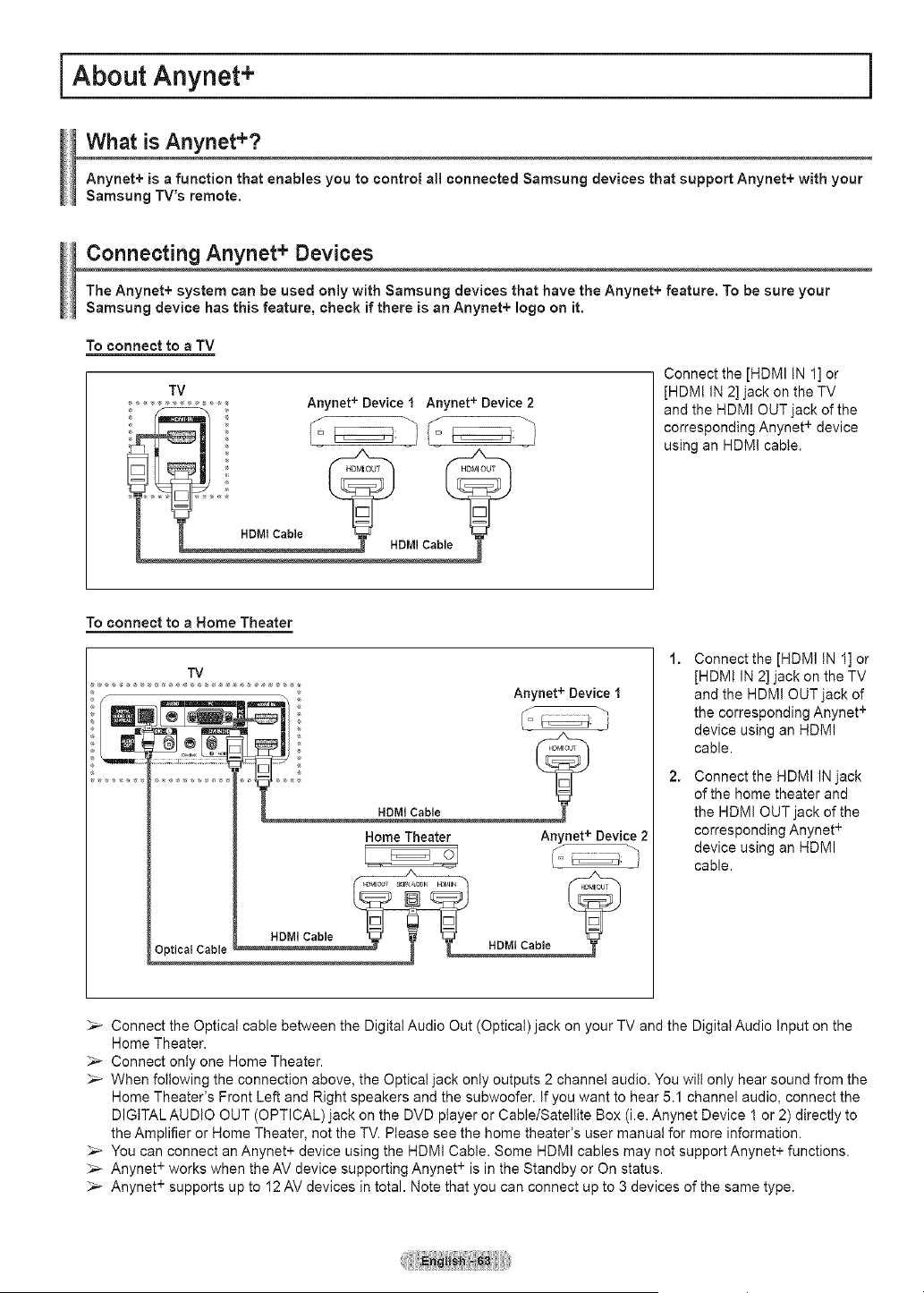
About Anynet+
What is Anynet+?
Anynet+ is a function that enables you to control al! connected Samsung devices that support Anynet+ with your
Samsung TV's remote.
Connecting Anynet + Devices
The Anynet+ system can be used only with Samsung devices that have the Anynet+ feature. To be sure your
Samsung device has this feature, check if there is an Anynet+ logo on it.
To connect to a TV
TV
Anynet + Device I Anynet + Device 2
HDMI Cable
Connect the [HDMI IN 1] or
[HDM! IN 2] jack on the TV
and the HDMt OUT jack of the
corresponding Anynet + device
using an HDMI cable.
To connect to a Home Theater
TV
Anynet + Device 1
Home Theater Anynet+ Device 2
Optical Cable _ _ _ HDMI Cable
1. Connectthe [HDMI IN 1] or
[HDM! IN 2] jack on the TV
and the HDMI OUT jack of
the corresponding Anynet +
device using an HDMI
cable.
Connect the HDMI INjack
of the home theater and
the HDMI OUT jack of the
corresponding Anynet +
device using an HDMI
cable.
_-- Connect the Optical cable between the Digital Audio Out (Optical) jack on your TV and the Digital Audio Input on the
Home Theater.
_,_ Connect onty one Home Theater.
_-- When following the connection above, the Optical jack only outputs 2 channel audio. You will only hear sound from the
Home Theater's Front Left and Right speakers and the subwoofer. If you want to hear 5.1 channel audio, connect the
DIGITAL AUDIO OUT (OPTICAL)jack on the DVD player or Cable/Satellite Box (i.e. Anynet Device 1 or 2) directly to
the Amplifier or Home Theater, not the TV. Please see the home theater's user manual for more information.
You can connect an Anynet+ device using the HDMI Cable. Some HDMI cables may not support Anynet+ functions.
Anynet + works when the AV device supporting Anynet + is in the Standby or On status.
_-- Anynet + supports up to 12 AV devices in total. Note that you can connect up to 3 devices of the same type.
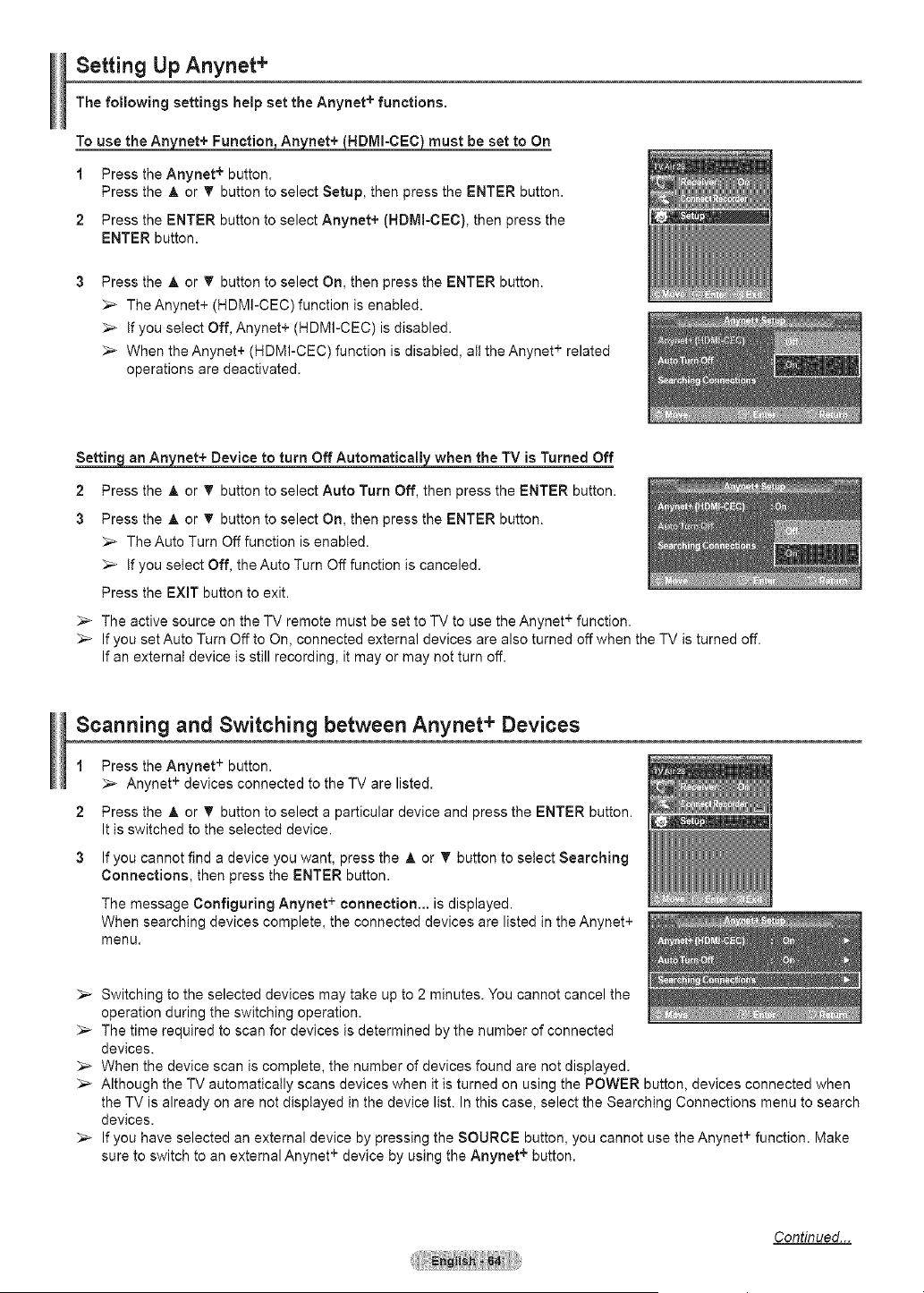
Setting Up Anynet +
The following settings help set the Anynet + functions.
To use the Anynet+ Function, _ _HDMI-CEC) must be set to On
1 Press the Anynet + button.
Press the A or T button to select Setup, then press the ENTER button.
2 Press the ENTER button to select Anynet+ (HDMI-CEC), then press the
ENTER button.
Press the A or T button to select On, then press the ENTER button.
_-_ The Anynet+ (HDMI-CEC)function is enabled.
_,_ Ifyou select Off, Anynet+ (HDMI-CEC) is disabled.
_,_ When the Anynet+ (HDMI-CEC) function is disabled, all the Anynet + related
operations are deactivated.
Setting _net+ Device to turn Off Automatically when the TV is Turned Off
2 Press the A or 'V'button to select Auto Turn Off, then press the ENTER button.
3 Press the & or T button to select On, then press the ENTER button.
_-- The Auto Turn Off function is enabted.
_-_ If you select Off, the Auto Turn Off function is canceled.
Press the EXiT button to exit.
The active source on the TV remote must be set to TV to use the Anynet + function.
_-_ Ifyou set Auto Turn Off to On, connected external devices are also turned off when the TV is turned off.
Ifan external device is still recording, it may or may not turn off.
Scanning and Switching between Anynet + Devices
1
2
Press the Anynet + button.
_,_ Anynet + devices connected to the TV are listed.
Press the A or T button to select a particular device and press the ENTER button.
Itis switched to the selected device.
Ifyou cannot find a device you want, press the A or T button to select Searching
Connections, then press the ENTER button.
The message Configuring Anynet + connection.., is displayed.
When searching devices complete, the connected devices are listed in the Anynet+
menu.
_-_ Switching to the selected devices may take up to 2 minutes. You cannot cancel the
operation during the switching operation.
_,_ The time required to scan for devices is determined by the number of connected
devices.
_,_ When the device scan is complete, the number of devices found are not displayed.
_,_ Although the TV automatically scans devices when it is turned on using the POWER button, devices connected when
the TV is already on are not displayed in the device list. In this case, select the Searching Connections menu to search
devices.
_-_ Ifyou have selected an external device by pressing the SOURCE button, you cannot use the Anynet + function. Make
sure to switch to an external Anynet + device by using the Anynet + button.
Continued...
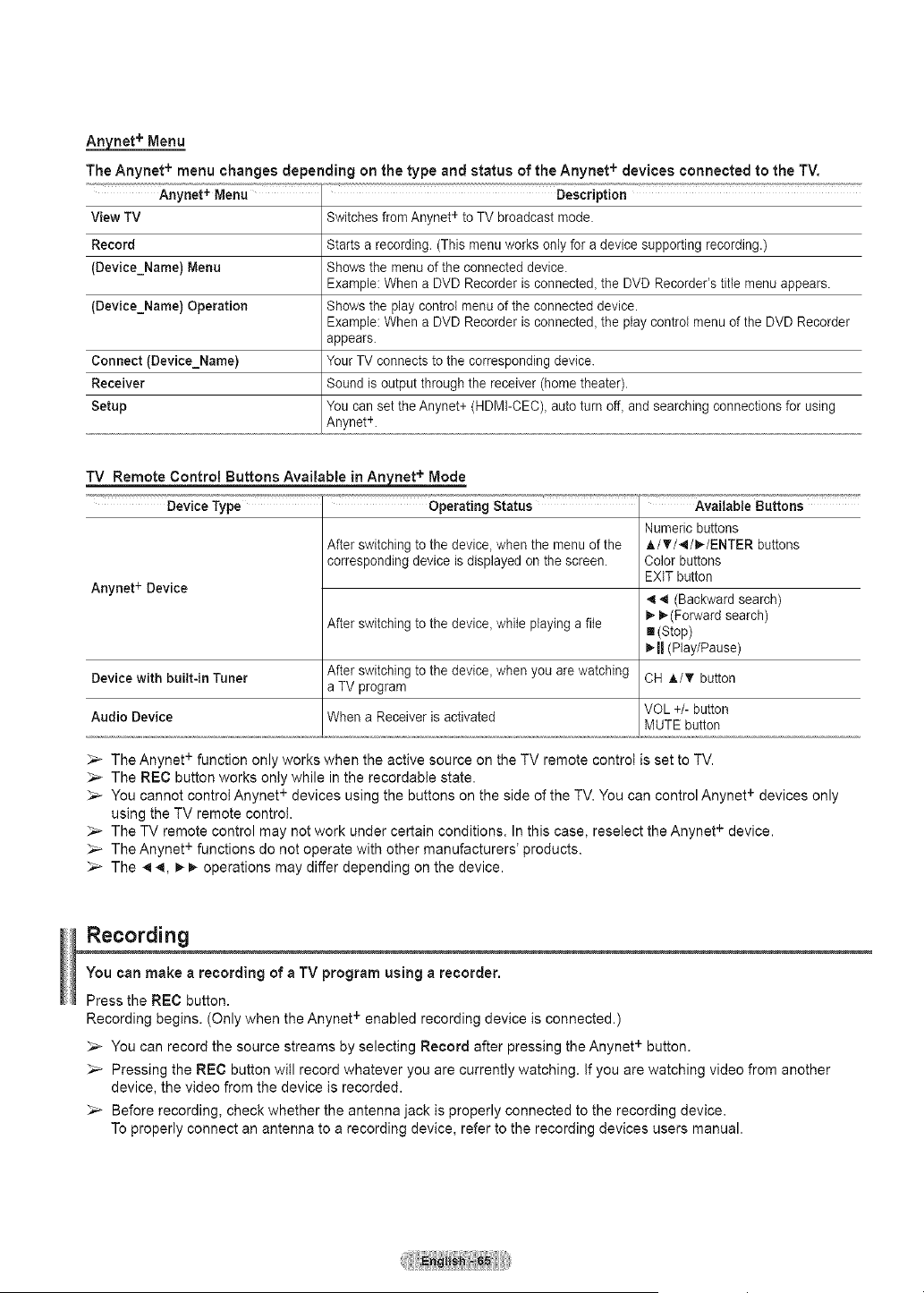
_net + Menu
The Anynet + menu changes depending on the type and status of the Anynet + devices connected to the TV.
_"_< Anynet + Menu % Description
View TV Switches from Anynet +toTV broadcast mode
Record Starts a recording. (This menu works only for adevice supporting recording.)
(Device_Name) Menu Shows the menu of the connected device.
Example:When a DVD Recorder isconnected, the DVD Recorder's title menu appears.
(Device_Name) Operation Shows the play control menu ofthe connected device.
Example:When a DVD Recorder isconnected, the play controlmenu of the DVD Recorder
appears.
Connect (Device_Name) YourTV connects tothe corresponding device.
Receiver Sound is output through the receiver (home theater).
Setup You canset the Anynet+ (HDMI-CEC), auto turn off,and searching connections for using
Anynet +.
TV Remote Control Buttons Available in Anynet + Mode
Device Type Operating Status Available Buttons
Anynet + Device
After switching to the device, when the menu ofthe
corresponding device isdisplayed on the screen.
After switching to the device, while playing a file
After switching to the device, when you arewatching
aTV program
When a Receiver isactivated
Device with built-in Tuner
Audio Device
Numeric buttons
A/T/_/I_-/ENTER buttons
Color buttons
EXiT button
4 (Backwardsearch)
D,-(Forward search)
[](Stop)
D,-II(Play/Pause)
CH A/T button
VOL+/- button
MUTE button
_-- The Anynet + function only works when the active source on the TV remote control is set to TV.
The REC button works only while in the recordable state.
_-- You cannot control Anynet + devices using the buttons on the side of the TV.You can control Anynet + devices only
using the TV remote control.
The TV remote control may not work under certain conditions. In this case, resetect the Anynet + device.
The Anynet + functions do not operate with other manufacturers' products.
_-- The 4 4, _ _ operations may differ depending on the device.
Recording
You can make a recording of a TV program using a recorder.
Press the REC button.
Recording begins. (Only when the Anynet + enabled recording device is connected.)
_,_ You can record the source streams by selecting Record after pressing the Anynet + button.
_,_ Pressing the REC button will record whatever you are currently watching, if you are watching video from another
device, the video from the device is recorded.
_-- Before recording, check whether the antenna jack is properly connected to the recording device.
To properly connect an antenna to a recording device, refer to the recording devices users manual.
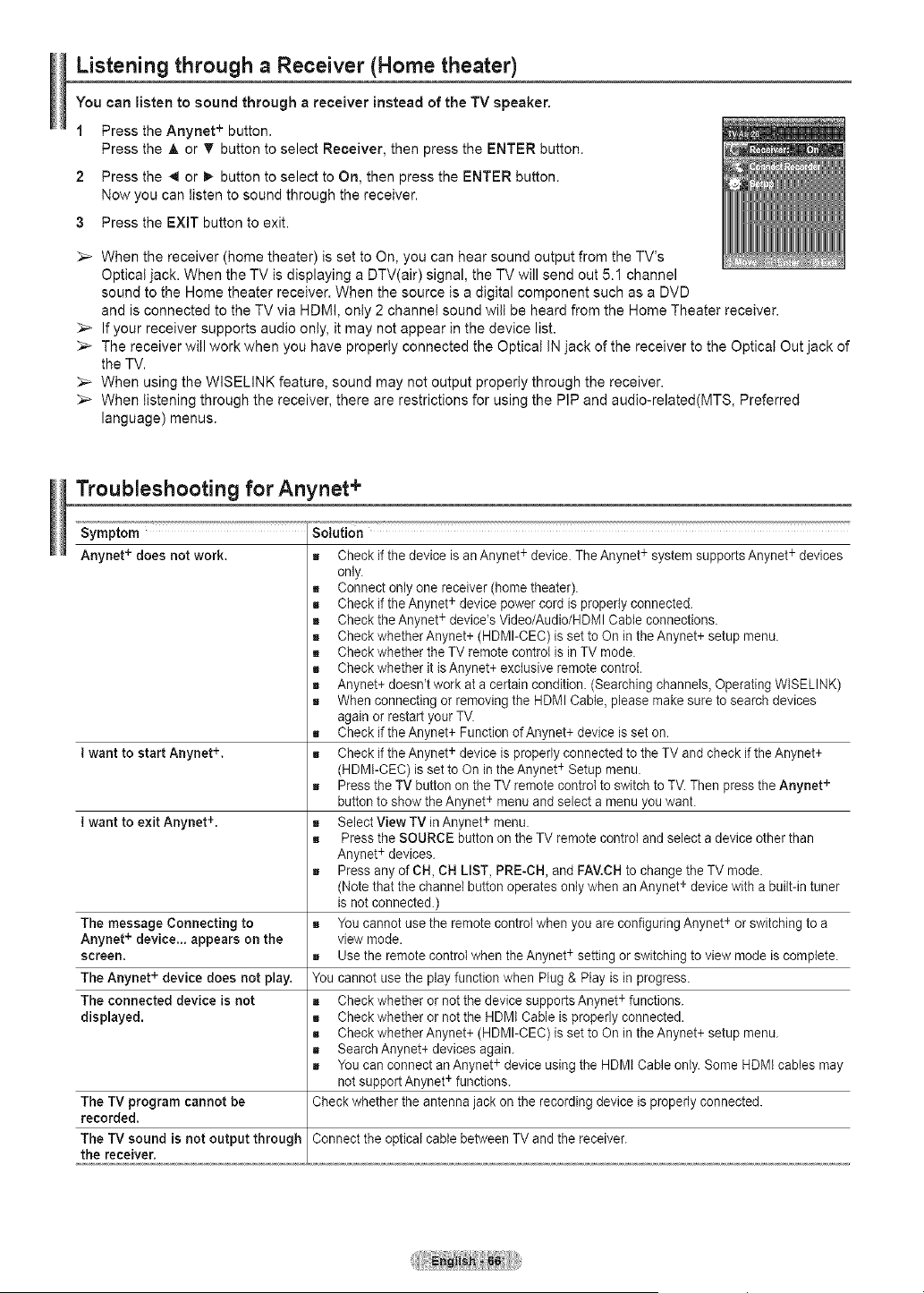
Listening through a Receiver (Home theater)
You can listen to sound through a receiver instead of the TV speaker.
1 Press the Anynet + button.
Press the A or T button to select Receiver, then press the ENTER button.
2 Press the _ or _ button to select to On, then press the ENTER button.
Now you can listen tosound through the receiver.
3 Press the EXIT button to exit.
When the receiver (home theater) is set to On, you can hear sound output from the TV's
Optical jack. When the TV is displaying aDTV(air) signal, the TV will send out 5.I channel
sound to the Home theater receiver. When the source is a digital component such as a DVD
and is connected to the TV via HDMI, only 2channel sound will be heard from the Home Theater receiver.
Ifyour receiver supports audio only, it may not appear in the device list.
>- The receiver will work when you have properly connected the Optical INjack of the receiver to the Optical Out jack of
the TV.
>- When using the WlSELINK feature, sound may not output properly through the receiver.
>- When listening through the receiver, there are restrictions for using the PIP and audio-related(MTS, Preferred
language) menus.
Troubleshooting for Anynet +
Symptom Solution
Anynet + does not work. = Check if the device isan Anynet+device. TheAnynet +system supports Anynet+devices
only.
z Connect onlyone receiver(home theater).
z Check if the Anynet+ devicepower cord isproperly connected.
m Check the Anynet +device's Video/Audio/HDMI Cable connections.
z Check whether Anynet+ (HDMI-CEC) is set toOn in the Anynet+ setupmenu.
z Check whether the TV remote control isinTV mode.
z Check whether it isAnynet+exclusive remote control.
! Anynet+ doesn't work at a certain condition. (Searching channels, Operating WISELINK)
When connecting or removing the HDMI Cable,please makesure to searchdevices
again or restart your TV.
Check if theAnynet+ Function of Anynet+device isset on.
Iwant to start Anynet +, a Check if the Anynet+ device is properly connected to the TVand check if theAnynet+
(HDMI-CEC) is set toOn inthe Anynet+Setup menu.
Pressthe TV button on the TV remote controlto switch to TV. Then presstheAnynet +
button toshow the Anynet+ menu and select a menu you want.
Iwant to exit Anynet +. = Select View TV inAnynet+menu.
Pressthe SOURCE button on the TV remote control and selecta deviceotherthan
Anynet +devices.
PressanyofCH, CHLIST, PRE-CH, and FAV.CHto change the TVmode.
(Notethat the channel button operates only when an Anynet+devicewith abuilt-in tuner
isnot connected.)
The message Connecting to = You cannotusethe remotecontrol when you areconfiguring Anynet+or switching to a
Anynet + device.., appears on the view mode.
screen. _ Use the remote controlwhen the Anynet +setting orswitching to viewmode iscomplete.
The Anynet + device does not play. You cannot use the play function when Plug& Play isin progress.
The connected device is not z Check whether or not the device supports Anynet+functions.
displayed, z Check whetheror not the HDMI Cable isproperly connected.
z Check whether Anynet+ (HDMI-CEC) is set toOn in the Anynet+ setupmenu.
Search Anynet+devices again.
! You canconnect an Anynet+device using the HDMI Cable only. Some HDMIcables may
not support Anynet +functions.
Checkwhether the antenna jack on the recording device isproperly connected.
Connect the optical cable between TVand the receiver.
The TV program cannot be
recorded.
The TV sound is not output through
the receiver.
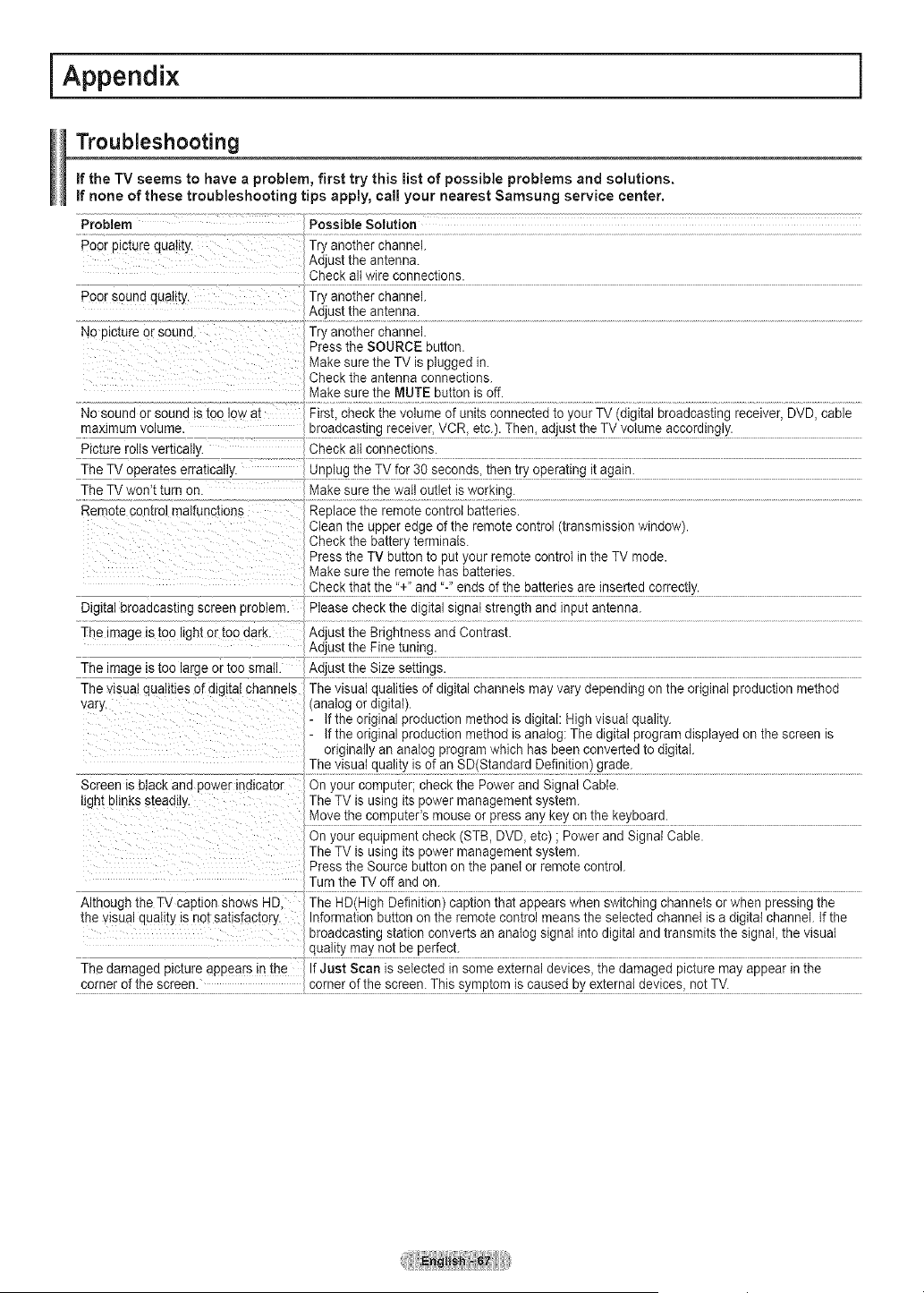
iAppendix i
Troubleshooting
If the TV seems to have a problem,first try this listof possible problems and solutions.
If none ofthese troubleshooting tips apply, call your nearest Samsungservice center.
Problem Possible Solution
_oorpicture quality Try another channel.
Adjust the antenna.
Checkall wireconnections.
3oorsound quaIt[y. Try another channel.
Aciiust the an!enna.
NoD_c[ureorsouna. Try anotherchannel.
Pressthe SOURCE button.
Makesure the TV is plugged in.
Checkthe antenna connections.
Makesure the MUTE buttonis off.
Nosound orsouna istoo low at FirsL check the volume of units connected to your TV (digital broadcasting receiver, DVD, cable
_axlmum voJume, br_0adcasting[erie!vet, VCB_e!€-) Then_adJ4S_[!he T_ Y0tumeaccordingly•
aicturerolls vertically Checkalt connections.
TheTVoperates erratically Unl_lugthe TVf?[ 30 seconds, tt_en tryoperatin#itagain,
TheTVwon't turnon Makesu[e the wa!! 0utl!! iswctrkir_g-
Remo[e comrol malfunctions Replace the remote control batteries.
Cleantheupper edge of the remote control (transmission window).
Checkthe battery terminals.
Pressthe TV button to put your remote controlin the TV mode.
Makesure the remote hasbatteries.
Check _[hatthei'!i and'-' ends °f the batte[ies areins?rted cg[rectly.
Digital broadcasting screen problem. Please check the digital signat strength and input antenna.
Theimage is[oo light ortoo dark. Adjust the Brightness and Contrast.
Adiust ttle E!ne!un!ng. .........................................................................
The _age istoo large ortoo smatl Adjust !h! Size se!!i[_gs. ..............................................................................................
Thevisuat qualities of digital channels The visual qualities of digitalchannets may varydepending on the original production method
vary. (analog ordigital).
- If the original production method isdigital: Highvisuat quality.
- If the original production method isanalog:The digital program displayed on the screen is
originally an analog program which has been converted todigital.
Thevisual qua[!!)/!s 0[ an SD(Stagdar_dS!f!niti0n! grade.
Screen isblack and powerindicator Onyourcomputer; check the Power and Signal Cable.
lightblinks steadily. The TV isusing its powermanagement system.
M£YethepRmpute[:s re°use orpress any keyor!}he keYb0a[!J.....
on your equipment check (STB,DVD_etc) ;Power and Signal Cable.
The TV isusing its powermanagement system.
Pressthe Source button on thepanelor remote control.
Turn the TV off and on.
Although the TVcaption shows HD The HD(High Definition) caption that appears when switching channels or when pressing the
the visua quality isnot satisfactory. Information button onthe remote control means the selected channel is adigital channel. If the
broadcasting station converts an analog signal intodigital and transmits the signal, the visual
qua!i!y may aotbe Pe_'fect: .....................................................................
Thedamagea picture appears in the If Just Scan isselected in some external devices, the damaged picture may appear in the
£0rner 0fthe spleen. €£[ner °f the spleen. This sympt0rn ispaused byexterna/ deybes, n°t TV-
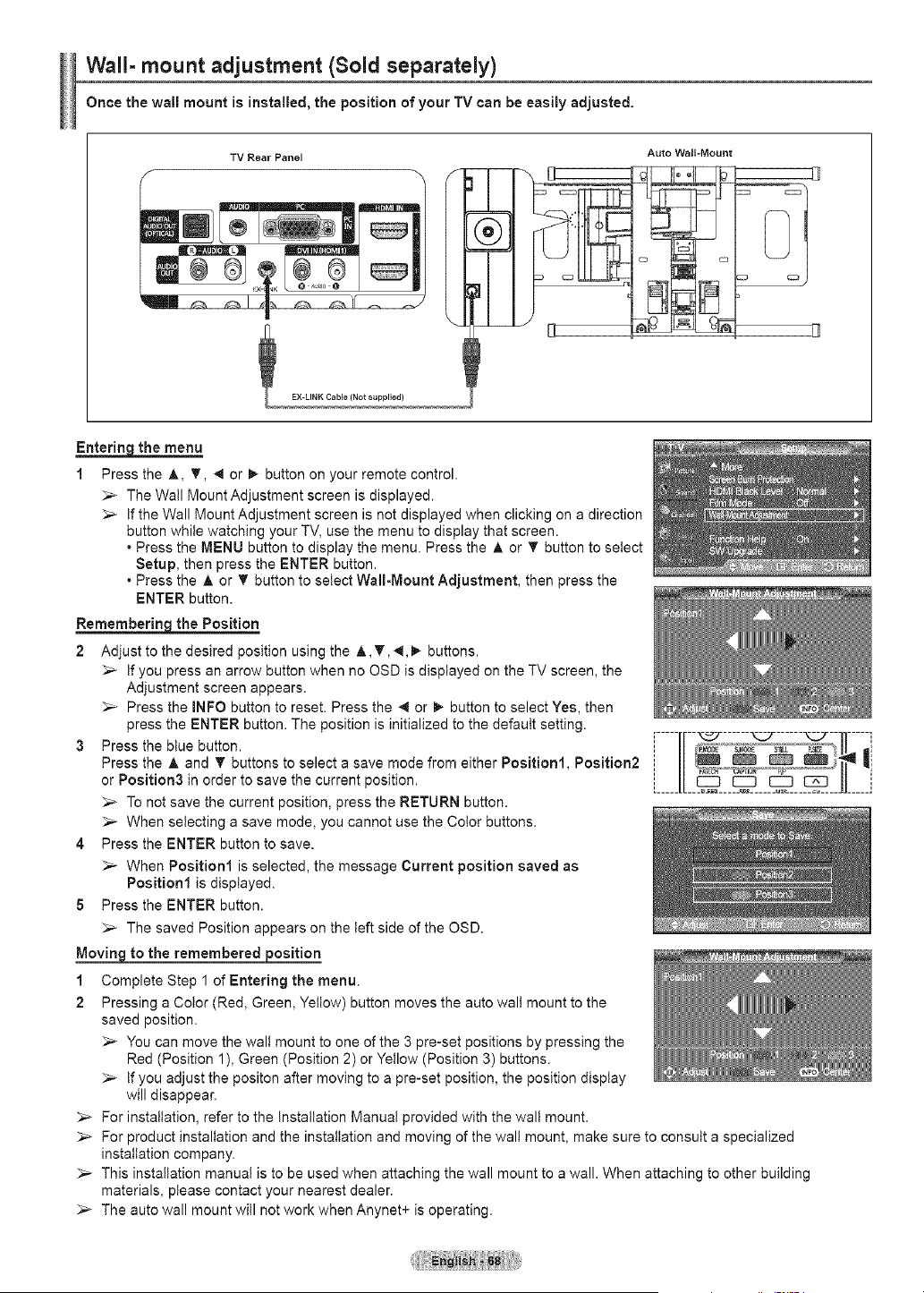
Wall- mount adjustment (Sold separately)
Once the wall mount is installed, the position of your TV can be easily adjusted.
Auto Wall=Mount
TV Rear Panel
EX-LINK Cable (Not supplied)
===_
Entering._the menu
1 Press the A, T, _ or _ button on your remote control.
_-- The Wall Mount Adjustment screen is displayed.
_,_ if the Wall Mount Adjustment screen is not displayed when clicking on a direction
button while watching your TV, use the menu to display that screen.
• Press the MENU button to display the menu. Press the A or T button to select
Setup, then press the ENTER button.
• Press the A or _' button to select Wall-Mount Adjustment, then press the
ENTER button.
Rememberin=q_ the Position
2 Adjust to the desired position using the A,,T,,.q,_ buttons.
_,_ Ifyou press an arrow button when no OSD is displayed on the TV screen, the
Adjustment screen appears.
_-- Press the INFO button to reset. Press the 4 or _ button to select Yes, then
press the ENTER button. The position is initialized to the defautt setting.
3 Press the blue button.
Press the A and "q buttons to select a save mode from either Position1, Position2
or Position3 in order to save the current position.
_,_ To not save the current position, press the RETURN button.
_,_ When selecting a save mode, you cannot use the Cotor buttons.
4 Press the ENTER button to save.
_-- When Position1 is selected, the message Current position saved as
Position1 is displayed.
5 Press the ENTER button.
The saved Position appears on the left side of the OSD.
Moving to the remembered position
1 Complete Step 1 of Entering the menu.
2 Pressing a Color (Red, Green, Yettow) button moves the auto walt mount to the
saved position.
_,_ You can move the wall mount to one of the 3pre-set positions by pressing the
Red (Position 1), Green (Position 2) or Yellow (Position 3) buttons.
_-- If you adjust the positon after moving to a pre-set position, the position disptay
will disappear.
For installation, refer to the Installation Manual provided with the wall mount.
_-- For product installation and the installation and moving of the wall mount, make sure to consutt a specialized
installation company.
_,_ This installation manua! is to be used when attaching the wall mount to a wall. When attaching to other building
materials, please contact your nearest dealer.
_,_ The auto wall mount witl not work when Anynet+ is operating.
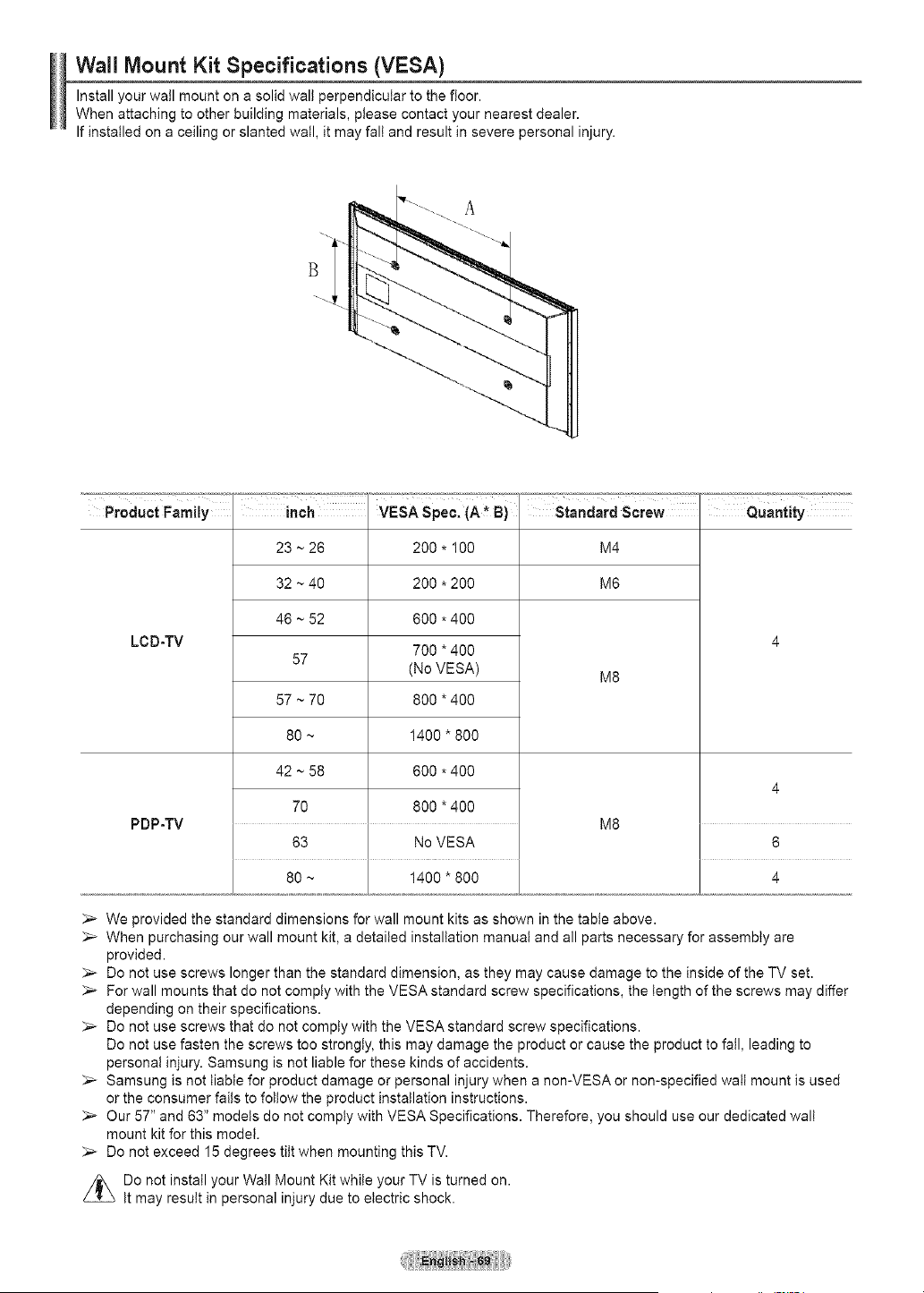
Wail Mount Kit Specifications (VESA)
Install your wall mount on a solid walt perpendicular to the floor.
When attaching to other building materials, please contact your nearest dealer.
Ifinstalled on a ceiling or slanted wall, it may fall and result in severe personal injury.
B
Product Family
LCD-TV
PDP-TV
inch
23~26
32~40
46~52
57
57~70
80~
42~58
7O
i
VESA Spec. (A* B) Standard Screw
200 * 100 M4
200 * 200 M6
800 *400
700 *400
(No VESA) M8
800 *400
1400 * 800
600 *400
800 *400
M8
63 No VESA
80 ~ 1400"800
Quantity
6
4
_,_ We provided the standard dimensions for wall mount kits as shown in the table above.
_-- When purchasing our wall mount kit, a detailed installation manual and all parts necessary for assembly are
provided.
Do not use screws longer than the standard dimension, as they may cause damage to the inside of the TV set.
_-- For wall mounts that do not comply with the VESA standard screw specifications, the length of the screws may differ
depending on their specifications.
_-- Do not use screws that do not comply with the VESA standard screw specifications.
Do not use fasten the screws too strongly, this may damage the product or cause the product to fall, leading to
personal injury. Samsung is not liable for these kinds of accidents.
_-- Samsung is not liable for product damage or personal injury when a nomVESA or non-specified walt mount is used
or the consumer fails to follow the product installation instructions.
;,_ Our 57" and 63" models do not comply with VESA Specifications. Therefore, you should use our dedicated walt
mount kit for this model.
;,_ Do not exceed 15 degrees tilt when mounting this TV.
Do not install your Wall Mount Kit while your TV is turned on.
It may result in personal injury due to electric shock.
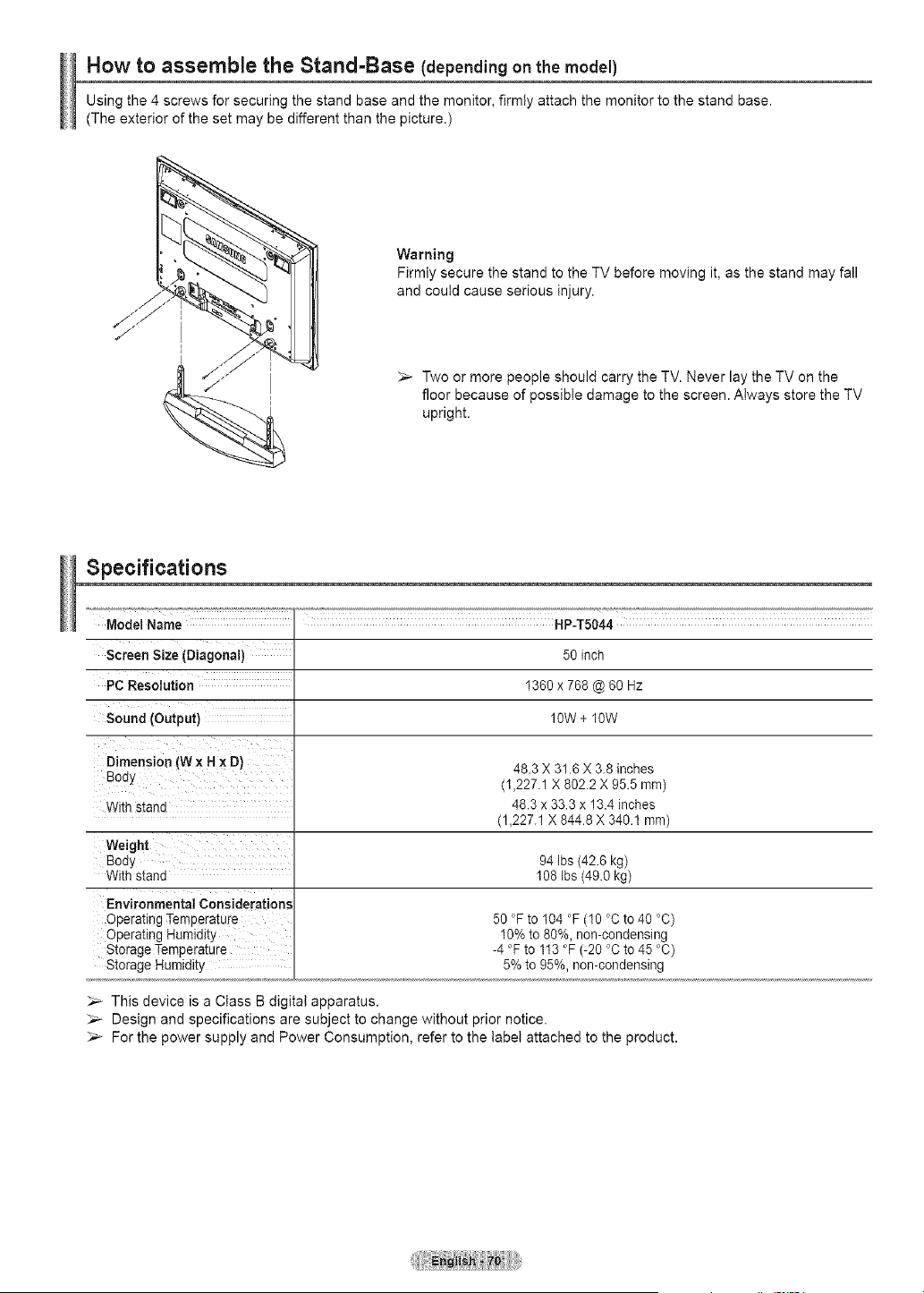
How to assemble the Stand-Base (dependingonthemodel)
Using the 4 screws for securing the stand base and the monitor, firmly attach the monitor to the stand base.
(The exterior of the set may be different than the picture.)
Warning
Firmly secure the stand to the TV before moving it, as the stand may fall
and could cause serious injury.
_-- Two or more people should carry the TV. Never lay the TV on the
floor because of possible damage to the screen. Always store the TV
upright.
Specifications
Model Name HP-T5044
Screen Size (Diagonal) 50 inch
PC Resolution 1360 x 768 @60 Hz
Sound (Output) 1OW+ 1OW
Dimension (Wx Hx D) 48.3 X 31.8 X 3.8 inches
Bod_. (1,227.1 X 882.2 X 95.5 mrn)
With stand 48.3 x 33.3 x 13.4 inches
(1,227.1 X 844.8 X 340.1 mm)
Weight
Bod_,
With stand
Environmental Considerations
Operating Tempera[ure
Operating Humldlt_
Storage Tempera[ure
Storage Humtdit_
94 ibs (42.6kg)
108 Ibs (49.0kg)
50 °Fto 104 °F(t0 °C to 40 °C)
10%to 80%,non-condensing
-4 °Fto113 °F(-20 °Cto 45 °C)
5%to 95%,non-condensing
This device is a Class B digital apparatus.
_-_ Design and specifications are subject to change without prior notice.
_-- For the power supply and Power Consumption, refer to the label attached to the product.
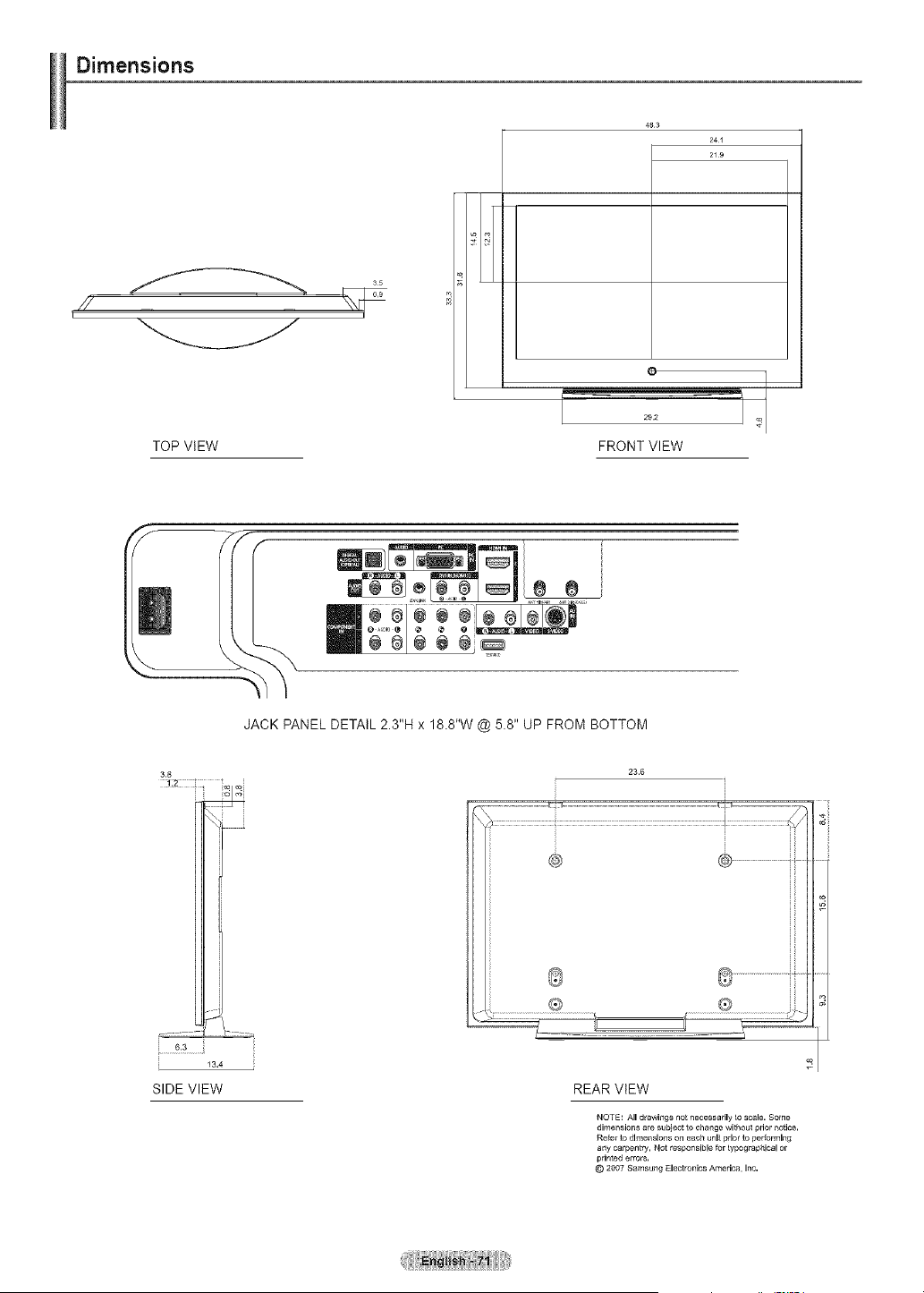
Dimensions
35
TOP VIEW
483
241
219
O
FRONT VIEW
JACK PANEL DETAIL 2.3"H x 18.8"W @ 5.8" UP FROM BOTTOM
-dJ
SIDE VIEW
23.6
i i ji
ii @ t_J¢_s_.....................................iii
i +oI i
REAR VIEW
NOTE: All drawings f;ot necessarily _o scale. Some
dimensions are subject _.ochange without prior Notice,
Refer [o dimensions on each unit prior to per_bmlll_g
any carpentl3t, Not responsible fortypographical or
pdnted errors,
@ 2007 Samsullg Electronics Americ8, Inc,
Contact SAMSUNG WORLD-WIDE
Ifyou haveany questions or comments relatingto Samsung products, please contact the SAMSUNG customer care center.
Contacte con SAMSUNG WORLD-WIDE
Sitiene atguna pregunta o comentario referente a nuestrosproductos, perfavor contacte connuestro Servicio de Atenci6n al Cliente.
1-800-SAMSUNG (7267864) www.samsung.oom/oa
CANADA
U.S.A 1-800-SAMSUNG (7267864) www.samsung.com/us
Samsung Electronics Canada tnc. Customer Service
55 Standish Court Mississauga_Ontario L5R4B2
Canada
Samsung ElectroniqueCanada Inc.,Service ala Clientele
55 Standish Court Mississauga_Ontario L5R4B2
Canada
Samsung ElectronicsAmerica, Inc.
105 Challenger Road
Ridgefield Park_NJ 07660-0511
BN68-01192T-00