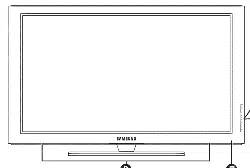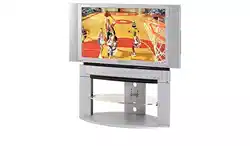
PPM42S3
PPM50H3
PPM63H3
Owner's instructions
Before operating the unit,
please read this manual thoroughly,
and retain it for future reference.
f
Intended for ¢ommerclal Use and Operation
ON-SCREEN MENUS
PICTURE IN PICTURE (PIP)
VIDEO WALL
MDC (MULTIPLE DISPLAY CONTROL)
J
Thank You for Choosing Samsung!
Thank you for choosing Samsung! Your new Samsung product represents the latest in PDP
technology. We designed it with easy-to-use on-screen menus, making it one of the best
products in its class. We are proud to offer you a product that will provide convenient,
dependable service and enjoyment for years to come.
Warning[ important Safety instructions ]
The lightning flash and arrow
head within the triangle is a
warning sign alerting you of
"dangerous voltage" inside
the product.
CAUTION:TO PREVENTELECTRICALSHOCK,DO NOT [he exclamation point within /_
REMOVEREARCOVER,NO USERSERVICEABLEPARTS tile triangle is a warning sign
iNSiDE. REFERSERViCiNGTO QUALiFiEDSERVICE alerting you of important
PERSONNEL. instru(tions accompanying
the product.
Note to CATV system installer: This reminder is provided to call CATV system installer's attention to Article 820-
40 of the National Electrical Code (Section 54 of Canadian Electrical Code, Part I), that provides guidelines for
proper grounding and, in particular, specifies that the cable ground shall be connected to the grounding system of
the building as close to the point of cable entry as practical.
Caution: FCC/CSA regulations state that any unauthorized changes or modifications to this equipment may void
the user's authority to operate it.
Caution: To prevent electric shock, match the wide blade of plug to the wide slot, and fully insert the plug.
Attention: pour eviter tes chocs electriques, introduire la tame te plus large de la fiche dans ta borne
correspondante de ta prise et pousser jusqu'au fond.
Important: One Federal Court has held that unauthorized recording of copyrighted TV programs is an
infringement of U.S. copyright laws.Certain Canadian programs may also be copyrighted and any unauthorized
recording in whole or in part may be in violation of these rights.
TO PREVENT DAMAGE WH[cH MAY RESULT iN FiRE OR ELEcTRiC SHOCK HAZARD, DO NOT
EXPOSE THiS APPLiANcE TO RAIN OR MOISTURE.
ili!i!!i,,
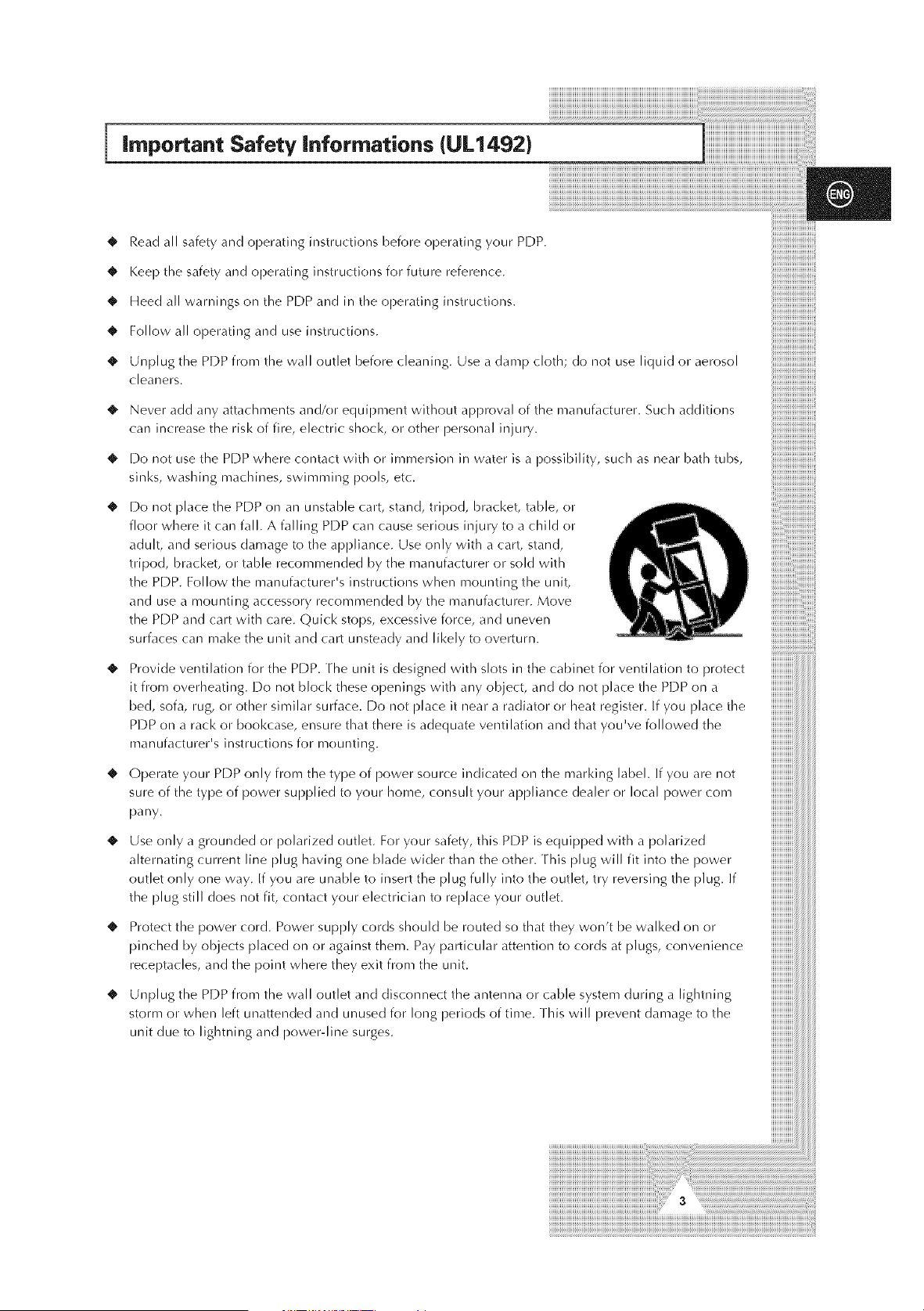
important Safety inforrnations (UL1492)
• Read all safety and operating instructions before operating your PDP.
• Keep the safety and operating instructions for future reference.
• Heed all warnings on the PDP and in the operating instructions.
Follow all operating and use instructions.
• Unplug the PDP from the wall outlet before cleaning. Use a damp cloth; do not use liquid or aerosol
cleaners.
4,
Never add any attachments and/or equil)ment without apl)roval of the manufacturer. Such additions
can increase the risk of fire, electric shock, or other i)ersonal injury.
[Do not use the PDP where contact with or immersion in water is a possibility, such as near bath tubs,
sinks, washing machines, swimming pools, etc.
Do not place the PDP on an unstable cart, stand, tripod, bracket, table, or
floor where it can fall. A falling PDP can cause serious injury to a child or
adult, and serious damage to the appliance. Use only with a cart, stand,
tripod, bracket, or table recommended by the manufacturer or sold with
the PDP. Follow the manufacturer's instructions when mounting the unit,
and use a mounting accessory recommended by the manufacturer. Move
the PDP and cart with care. Quick stops, excessive force, and uneven
surfaces can make the unit and cart unsteady and likely to overturn.
Provide ventilation for the PDP. The unit is designed with slots in the cabinet for ventilation to protect
it from overheating. 1_)o not block these openings with any object, and do not place the PDP on a
bed, sofa, rug, or other similar surface. [Do not place it near a radiator or heat register. If you place the
PDP on a rack or bookcase, ensure that there is adequate ventilation and that you've followed the
manufacturer's instructions for mounting.
• Operate },our PDP only from the type of power source indicated on the marking labeh If you are not
sure of the type of power supplied to },our home, consult },our appliance dealer or local power corn
pany.
Use only a grounded or polarized outlet. For your safety, this PDP is equipped with a polarized
alternating current line plug having one blade wider than the other. This plug will fit into the power
outlet only one way. If you are unable to insert the plug fully into the outlet, try reversing the plug. If
the plug still does not fit, contact your electrician to replace your outlet.
• Protect the power cord. Power supply cords should be routed so that they won't be walked on or
pinched by objects placed on or against them. Pay particular attention to cords at plugs, convenience
receptacles, and the point where the}, exit from the unit.
_' Unplug the PDP from the wall outlet and disconnect the antenna or cable system during a lightning
storm or when left unattended and unused for long periods of time. This will prevent damage to the
unit due to lightning and power-line surges.
important Safety informations (UL1492)(continued
Avoid overhead power lines. An outside antenna system should not be placed in the vicinity of
overhead power lines or other electric light or power circuits or where it can fall into such power
lines or circuits. When installing an outside antenna system, be extremely careful to keep from
touching the power lines or circuits. Contact with such lines can be fatal.
Do not overload the wall outlet or extension cords. Overloading can result in fire or electric shock.
Do not insert anything through the openings in the unit, where they can touch dangerous voltage
points or damage parts. Never spill liquid of any kind on the PDP.
Ground outdoor antennas. If an outside antenna or cable system is connected to the PDP, be sure the
antenna or cable system is grounded so as to provide some protection against voltage surges and
built-up static charges. Section 810 of the National Electrical Code, ANSI/NFPA No.70-1984,
provides information about proper grounding of the mast and supporting structure, grounding of the
lead-in wire to an antenna discharge unit, size of grounding conductors, location of antenna
discharge unit, connection to grounding electrodes, and requirements for the grounding electrode.
_' Do not attempt to service the PDP yourself. Refer all servicing to qualified service personneh Unplug
the unit from the wall outlet and refer servicing to qualified service personnel under the following
conditions:
- when the power-supply cord or plug is damaged
- if liquid has been spilled on the unit or if objects have fallen into the unit
- if the PDP has been exposed to rain or water
- if the PDP does not operate normally by following the operating instructions
- if the PDP has been dropped or the cabinet has been damaged
- when the PDP exhibits a distinct change in performance
'_ If you make adjustments yourself, adjust only those controls that are covered by the operating
instructions. Adjusting other controls may result in damage and will often require extensive work by a
qualified technician to restore the PDP to normah
When replacement parts are required, be sure the service technician uses replacement parts specified
by the manufacturer or those that have the same characteristics as the original part. Unauthorized
substitutions may result in additional damage to the unit.
Upon completion of any service or repairs to this PDP, ask the service technician to perform safety
checks to determine that the PDP is in a safe operating condition.
The PDP can properly operate in a temperature range of 32-104°F(0-40°C) and 80% humidity. Do
not use in a hot and humid place.
Before moving the PDP equipped with speakers, separate the speakers from the PDP. If you move the
PDP with the speakers attached, it may result in damage or injury.
important Safety instructions (UL6500}
• Read these instructions.
• Keep these instructions.
• Heed all wan'tings.
• Follow all instructions.
• Do not use this apparatus near water.
• Clean only with dry cloth.
• Do not block any, ventilation openings, Install in accordance with the manufacturer's instructions.
• [Do not install neat" any, heat sources such as radiators, heat registers, or other apparatus (including
amplifiers) that produce heat.
4!,
Do not defeat the safety purpose of the polarized or grounding-type plug. A polarized plug has two
blades with one wider than the other. A grounding type plug has two blades and a third grounding
prong. The wide blade or the third prong are provided for your safety. If the provided plug does not fit
into your outlet, consult an elec trician for replacement of the obsolete outlet.
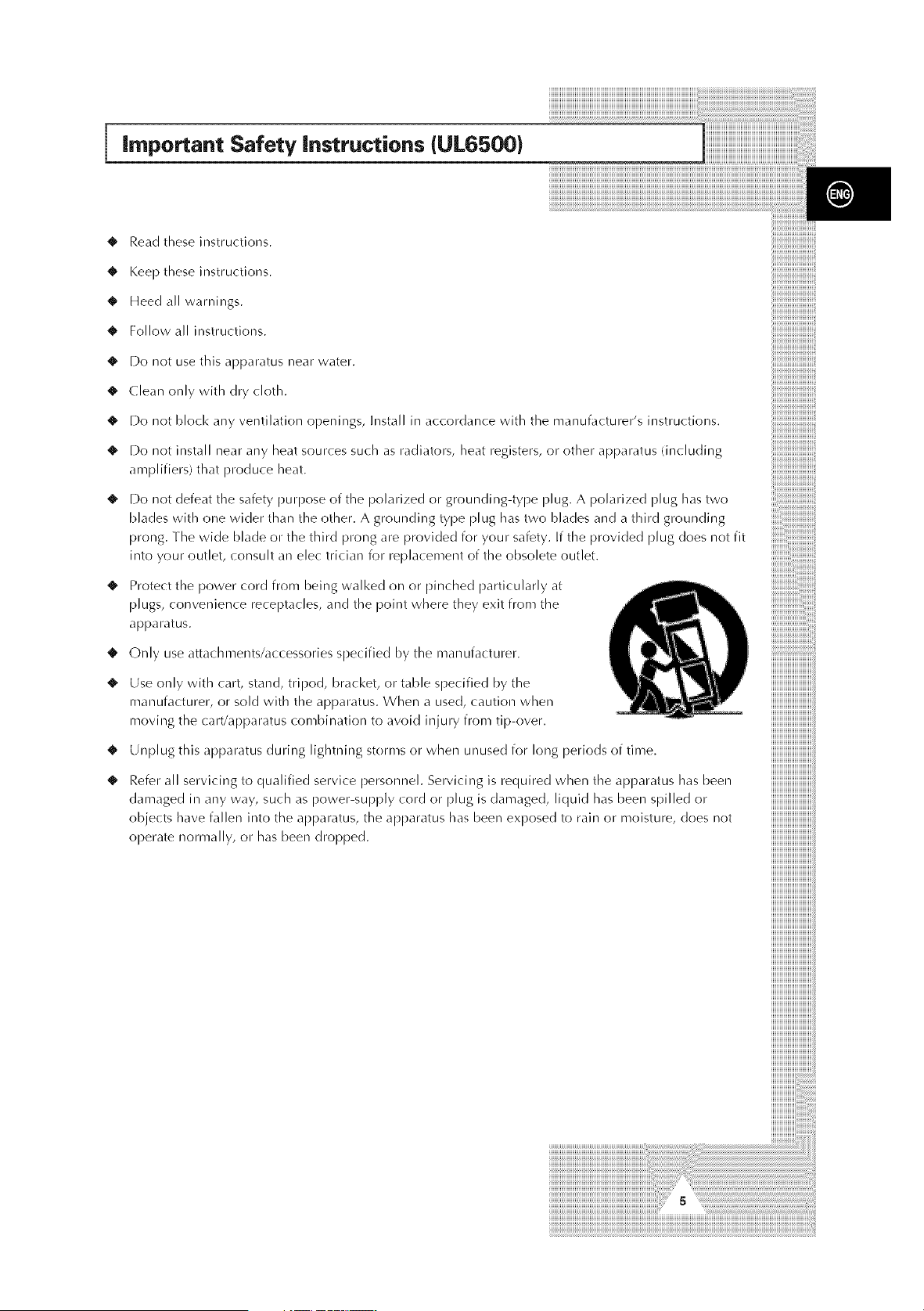
'0' Protect the power cord from being walked on or pinched particularly at
plugs, convenience receptacles, and the point where they, exit from the
apparatus.
t Only, use attachments/accessories specified by the manufacturer.
'0' Use only with cart, stand, tripod, bracket, or table specified by the
manufacturer, or sold with the apparatus. When a used, caution when
moving the cart/apparatus combination to avoid injury from tip-over.
• Unplug this apparatus during lightning storms or when unused for long periods of time.
Refer all servicing to qualified service personneh Servicing is required when the apparatus has been
damaged in any way, such as power-supply cord or plug is damaged, liquid has been spilled or
objects have fallen into the apparatus, the apparatus has been exposed to rain or moisture, does not
operate normally, or has been dropped.
iiiiiiiiiiiiiiiiiiiiiiiiiiiiiiiiiiiiiiiiiiiiiiiiiiiiiiiiii_i
iiiiiiiiiiiiiiiiiiiiiiiiiiiiii
iiiiiiiiiiiiiiiiiiiiiiiiiiiiii
iiiiiiiiiiiiiiiiiiiiiiiiiiiiii
iiiiiiiiiiiiiiiiiiiiiiiiiiiiii
iiiiiiiiiiiiiiiiiiiiiiiiiiiiii
iiiiiiiiiiiiiiiiiiiiiiiiiiiiii
iiiiiiiiiiiiiiiiiiiiiiiiiiiiii
iiiiiiiiiiiiiiiiiiiiiiiiiiiiii
iiiiiiiiiiiiiiiiiiiiiiiiiiiiii
iiiiiiiiiiiiiiiiiiiiiiiiiiiiii
iiiiiiiiiiiiiiiiiiiiiiiiiiiiii
iiiiiiiiiiiiiiiiiiiiiiiiiiiiii
iiiiiiiiiiiiiiiiiiiiiiiiiiiiii
iiiiiiiiiiiiiiiiiiiiiiiiiiiiii
iiiiiiiiiiiiiiiiiiiiiiiiiiiiii
iiiiiiiiiiiiiiiiiiiiiiiiiiiiii
iiiiiiiiiiiiiiiiiiiiiiiiiiiiii
iiiiiiiiiiiiiiiiiiiiiiiiiiiiii
iiiiiiiiiiiiiiiiiiiiiiiiiiiiii
iiiiiiiiiiiiiiiiiiiiiiiiiiiiii
iiiiiiiiiiiiiiiiiiiiiiiiiiiiii
iiiiiiiiiiiiiiiiiiiiiiiiiiiiii
iiiiiiiiiiiiiiiiiiiiiiiiiiiiii
iiiiiiiiiiiiiiiiiiiiiiiiiiiiii
iiiiiiiiiiiiiiiiiiiiiiiiiiiiii
iiiiiiiiiiiiiiiiiiiiiiiiiiiiii
iiiiiiiiiiiiiiiiiiiiiiiiiiiiii
iiiiiiiiiiiiiiiiiiiiiiiiiiiiii
iiiiiiiiiiiiiiiiiiiiiiiiiiiiii
iiiiiiiiiiiiiiiiiiiiiiiiiiiiii
iiiiiiiiiiiiiiiiiiiiiiiiiiiiii
iiiiiiiiiiiiiiiiiiiiiiiiiiiiii
iiiiiiiiiiiiiiiiiiiiiiiiiiiiii
iiiiiiiiiiiiiiiiiiiiiiiiiiiiii
iiiiiiiiiiiiiiiiiiiiiiiiiiiiii
iiiiiiiiiiiiiiiiiiiiiiiiiiiiii
iiiiiiiiiiiiiiiiiiiiiiiiiiiiii
iiiiiiiiiiiiiiiiiiiiiiiiiiiiii
iiiiiiiiiiiiiiiiiiiiiiiiiiiiii
iiiiiiiiiiiiiiiiiiiiiiiiiiiiii
iiiiiiiiiiiiiiiiiiiiiiiiiiiiii
iiiiiiiiiiiiiiiiiiiiiiiiiiiiii
iiiiiiiiiiiiiiiiiiiiiiiiiiiiii
iiiiiiiiiiiiiiiiiiiiiiiiiiiiii
iiiiiiiiiiiiiiiiiiiiiiiiiiiiii
iiiiiiiiiiiiiiiiiiiiiiiiiiiiii
iiiiiiiiiiiiiiiiiiiiiiiiiiiiii
iiiiiiiiiiiiiiiiiiiiiiiiiiiiii
iiiiiiiiiiiiiiiiiiiiiiiiiiiiii
iiiiiiiiiiiiiiiiiiiiiiiiiiiiii
iiiiiiiiiiiiiiiiiiiiiiiiiiiiii
FCC information
User instructions
The Federal Communications Commission Radio
Frequency interference Statement includes the
following wan'ring:
NOTE: This equipment has been tested and found to
comply with the limits for a Class B digital device,
pursuant to Part 15 of the FCC Rules. These limits are
designed to provide reasonable protection against
harmful interference in a residential installation. This
equipment generates, uses, and can radiate radio
frequency energy and, if not installed and used in
accordance with the instructions, may cause harmful
nterferencetoradiocommunications.However,there
is no guarantee that interference will not occur in a
particu,ar, sta,lat,on
If this equipment does cause harmful interference to
radio or PDP receptions, which can he determined by
turning the equipment off and on, the user is
encouraged to try to correct the interference by one or
more of the following measures:
• Reorient or relocate the receiving antenna,
• Increase the separation between the equipment
and receiver.
• Connect the equipment into an outlet on a circuit
different from that to which the receiver is
connected,
• Consult the dealer or an experienced radio/PDP
technician for help.
Warnh_g
User must use shielded signal interface cables to
maintain FCC compliance for the product. Provided
with this monitor is a detachable power supply cord
with IEC320 style terminations, It may be suitable for
connection to any LJI.Listed personal computer with
similar configuration. Before making the connection,
make sure the voltage rating of the computer
convenience outlet is the same as the monitor and that
the ampere rating of the computer convenience outlet
is equal to or exceeds the monitor voltage rating,
For 120 Volt applications, use only LJI. Listed
detachable power cord with NEMA configuration 5-
15P type (parallel blades) plug cap. For 240 Volt
applications use only LJI.Listed Detachable power
supply cord with NEMA configuration 6015P type
/tandem blades) plug cap.
IC Compliance Notice
This Class B digital apparatus meets all requirements of
the Canadian Interference-Causing Equipment
Regulations of ICES-003.
Cet appareil Num6,rique de classe B respecte routes les
exigences du R_glemont NMB-03 sur les 6,quipements
produisant des interf6rences au
Canada,
User Informat_on Notice de Conformlt_ IC
Changes or modifications not expressly approved by
the party responsible for compliance could void the
user's authority to operate the equipment, if necessary,
consult your dealer or an experienced radio/PDP
technician for additional suggestions. You may find the
booklet called. How to Identify and Resolve
Radio/PDP Interference Problems helpful, This booklet
was prepared by the Federal Communications
Commission, it is available from the U,S. Government
Printing Office, Washington, DC 20402, Stock
Number
004-000-00345-4.
The party responsible for product compliance:
SAMSUNG ELECTRONICS CO., LTD
America QA Lab of Samsung
3351 Michelson Drive,
Cet appareil num_rique de classe B respecte routes les
exigences du R&glement ICES-O03 sur les &quipements
produisant des interf&rences au Canada.
VCCl
[his is a Class B product based on the standard of the
Voluntary Control Council for Interference by
Information Technology Equipment (VCCI). If this is
used near a radio or PDP receiver in a domestic
environment, it may cause radio interference. Install
and use the equipment according to the instruction
manual.
] This Class B digital apparatus complies with ]
: Canadian ICES-OO3. ]
iiiiiiiiiiiiiiiiiiiiiiiiiiiiiiil;Suite#290,1rvine, CA92612 USA I CetappareiInum_rifluedeladasseBest
iiiiiiiiiiiiiiiiiiiiiiiiiiiiiiii: ......................................................................
]]]]]]]]]]]]]]]]]]]]]]]]]]]]]]]ii, _ conformealanormeNMB-003dnCananda, i
iiiiiiiiiiiiiiiiiiiiiiiiiiiiiii
]]]]]]]]]]]]]]]]]]]]]]]]]]]]]]]]]i This device complies with Part 15 of the FCC Rules. Operation _s subjectto thefollow_ng two conditions: -'
iiiiiiiiiiiiiiiiiiiiiiiiiiiiiii_I (1) This device may not cause harmful interference, and -'
iiiiiiiiiiiiiiiiiiiiiiiiiiiiiiilli (2) Thisdevicemustacceptanyinterferencereceived_inc_udi_gi_terferencethatmayca_se_desired_perad_. i
important Warranty information Regarding PDP Format
Viewing
Wide screen format PDP Displays (1 6:9,the aspect ratio of the screen width to height) are primarily
designed to view wide screen format full-motion video. The images displayed on them should primarily
be in the wide screen 16:9 ratio format, or expanded to fill the screen if your model offers this feature and
constantly moving. Displaying stationary graphics and images on screen, such as the dark side-bars on
non-expanded standard format PDP video and programming, should be limited to no more than 5% of
the total PDP viewing per week.
Additionally, viewing other stationary images and text such as stock market reports, video game displays,
station Iogos, web sites or computer graphics and patterns, should be limited as described above for all
PDP displays. Displaying stationary images that exceed the above guidelines can cause uneven aging of
PDP Displays that leave subtle, but permanent burned-ln ghost images in the PDP plcture. To avoid
this, vary the programming and images, and prlmarily display full screen moving images, not stationary
patterns or dark bars. On PDP models that offer picture sizing features, use these controls to view
different formats as a full screen picture.
iiiiiiiii!iiiiiiiiiiiiiiiiiiiiiii
Be careful in the selection and duration of PDP formats used for viewing. Uneven PDP aging as a result
of format selection and use, as well as burned-in images, are not covered by your Samsung limited
warranty.
User instructions
• Screen Image retention
Do not display a still image/such as on a video game or when hooking up a PC to this PDP) on the
plasma display panel for more than 2 h_,_,ursas it can cause screen image retention. This image
retention is also known as "screen burn '. To avoid such image retention, reduce the degree of
brightness and contrast of this screen when displaying a still image.
Cell Defect
The plasma display panel consists of fine cells. Although the panels are produced with more than
99.9 percent active cells, there may be some cells that do not produce light or remain lit.
"_ Height
The PDP can normally operate only under 2000m in height. It might abnormally function at a place
over 2000m in height and do not install and operate there.
Warranty
- Warranty does not cover any damage caused by image retention.
- Burn-in is not covered by the warranty.
iiiiiiiiiiiiiiiiil
iiiiiiiiiiiiiiiiii_iiii
iiiiiiiiiiiiiiiiiiiiiiiiil
iiiiiiiiiiiiiiiiiiiiiiiiii_iiii
iiiiiiiiiiiiiiiiiiiiiiiiiiiiiiiiii_iiii
iiiiiiiiiiiiiiiiiiiiiiiiiiiiiiiiiiiiiiiiii_iiii
iiiiiiiiiiiiiiiiiiiiiiiiiiiiiiiiiiiiiiiiiiiiiiiiiiiiiiiiiiiiiiiiil
_'- EUROPEAN NOTICE
Products with the CE marking comply with the EMC Directive
(89/336/EEC), (92/31/EEC), (93/68/EEC) and the I.ow Voltage
Directive (73/23/EEC) issued by the Commission of the
European Community. Compliance with these directives
implies conformity to the following European Norms:
[] EN55022:1998
Radio Frequency, interference
[] EN55024:1998
Electromagnetic Immunity
[] EN61000-3-2:2000
Power [ine Harmonics
[] EN61000-3-3:1995
Voltage Fluctuations
[] EN60065
Product Safety,
Wiring the Mains Power Supply Plug (UK Only)
IMPORTANT NOTICE
iiiiiiiiiiiiiiiiiiiiiiiiiiiiii
The mains lead on this equipment is supplied with a moulded plug incorporating a fuse. The value of the fuse is indicated on the
pin face of the plug and, if it requires replaoing_a fuse approved to BSI1362 of the same rating must be used. Never use the plug
with the fuse cover omitted if the cover is detachable. If a replacement fuse cover is required, it must be of the same colour as the
pin face of the plug. Replacement covers are available from your dealer. If the fitted plug is not suitable for the power points in
your house or the cable is not tong enough to reach a power point, you should obtain a suitable safety approved extension lead
or consult your dealer for assistance. However, if there is no alternative to cut off the plug, remove the fuse and then safely
dispose of the plug. Do NOT connect the plug tea mains socket as there is a risk of shock hazard from the bared flexible cord.
mMPORTANT
The wires in the mains lead are coloured in accordance with the following code:
BLUE- NEUTRAL BROWN- LIVE
AS these co,ours may not correspond to the co,cured markings identifying the termina,s in your p,ug, proceed as fol,ows[
The wire cotoured BLUE must be connected to the terminal marked with the letter N or coloured BLUE or BLACK.
The wire coloured BROWN must be connected to the terminal marked with the letter L or coloured BROWN or RED.
WARNING: DO NOT CONNECT EITHER WIRE TO THE EARTH TERMINAL, wHICH IS MARKED wITH THE LETTER E OR BY
THE EARTH SYMBOLs, OR COLOURED GREEN OR GREEN AND YELLOw.
............................................................................................................... _ iiiiiiiiiiiiiiiiiiiiiiiiiiiiiiiii
! i_i
i i_i
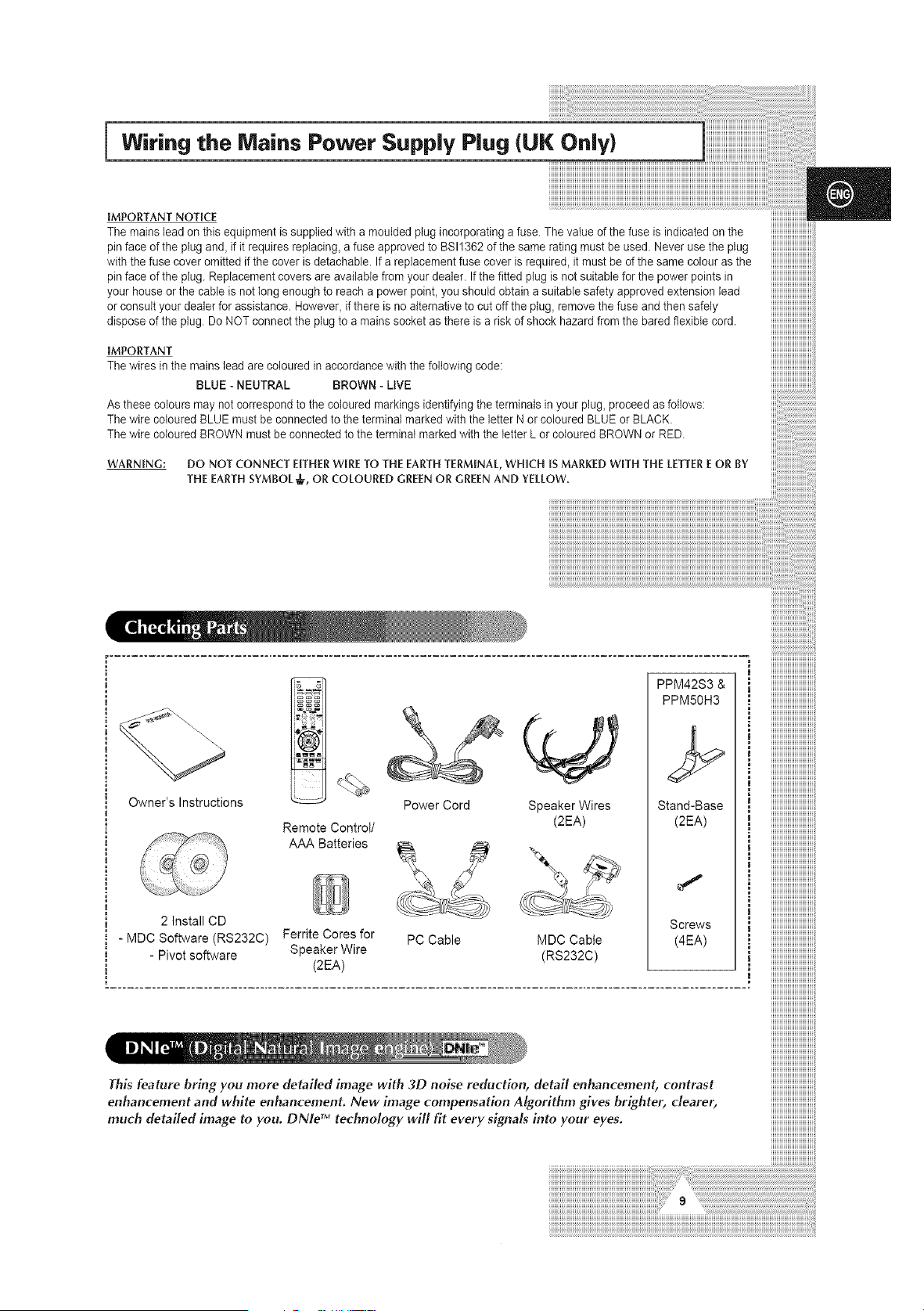
owner's Instructions
Remote Control/
AAA Batteries
m
2 Install CD
i - MDC Software (RS232C) Ferrite Cores for
- Pivot software Speaker Wire
Power Cord
PC Cable
Speaker Wires
(2EA)
iiiiiiiiiiiiiiiiiiiiiiiiiiiiiiii_
HHHHHHHHHHHHHHHH_
= HHHHHHHHHHHHHHHH_
PPM42S3 & _ iiiiiiiiiiiiiiiiiiiiiiiiiiiiiiiiii
HHHHHHHHHHHHHHHH_
PPM5OH3 i iiiiiiiiiiiiiiiiiiiiiiiiiiiiiiiiii
HHHHHHHHHHHHHHHH_
: iiiiiiiiiiiiiiiiiiiiiiiiiiiiiiiiii
Stand-Base iiiiiiiiiiiiiiiiiiiiiiiiiiiiiiiiii
(2EA) iiiiiiiiiiiiiiiiiiiiiiiiiiiiiiiiii
HHHHHHHHHHHHHHHH_
m iiiiiiiiiiiiiiiiiiiiiiiiiiiiiiiiii
iiiiiiiiiiiiiiiiiiiiiiiiiiiiiiiiii
iiiiiiiiiiiiiiiiiiiiiiiiiiiiiiiiii
iiiiiiiiiiiiiiiiiiiiiiiiiiiiiiiiii
Sorews i iiiiiiiiiiiiiiiiiiiiiiiiiiiiiiiiii
MDCCable (4EA) ; iiiiiiiiiiiiiiiiiiiiiiiiiiiiiiiiii
(RS232C) _
I iiiiiiiiiiiiiiiiiiiiiiiiiiiiiiiiii
iiiiiiiiiiiiiiiiiiiiiiiiiiiiiiiiii
..................................................................................................................iiiiiiiiiiiiiiiiiiiiiiiiiiiiiiiiii
iiiiiiiiiiiiiiiiiiiiiiiiiiiiiiiiii
iiiiiiiiiiiiiiiiiiiiiiiiiiiiiiiiii
iiiiiiiiiiiiiiiiiiiiiiiiiiiiiiiiii
This feature bring you more detailed image with 3D noise reduction, detail enhancement, contrast iiiiiiiiiiiiiiiiiiiiiiiiiiiiiiiiii
enhancement and white enhancemenL New image compensation Algorithm gives brighter, clearer, iiiiiiiiiiiiiiiiiiiiiiiiiiiiiiiiii
muchdetai/edimage,o ou. le 'technolog wi/l i,ever signalsinto oure es, iiiiiiiiiiiiiiiiiiiiiiiiiiiiiiiiii
iiiiiiiiiiiiiiiiiiiiiiiiiiiiiiiiii
Contents
O FOREWORD
[] Warning! Important Safety Instructions ......................................................... 2
[] Important Safety Informations (UL1492) ....................................................... 3
[] Important Safety Informations (UL6500) ....................................................... 5
[] FCC Information ............................................................................................ 6
[] Important Warranty Information Regarding PDP Format Viewing ................. 7
[] User Instructions ............................................................................................ 8
[] Wiring the Mains Power Supply Plug (UK Only) ............................................ 9
CONNECTING AND PREPARING YOUR DISPLAY
[] Your New Plasma Display Panel ................................................................... 12
[] Becoming Familiar with the Remote Control ................................................. 14
[] Inserting the Batteries in the Remote Control ................................................ 15
[] Assembling the Stand-Base .......................................................................... 15
[] Installing the Display on the Wall Attachment Panel ..................................... 16
[] Installing the Display Vertically ...................................................................... 18
[] Before Using the Video Wall and the Multiple Display Contol function ......... 18
[] Connecting Speakers .................................................................................... 19
[] Switching On and Off ..................................................................................... 21
[] Choosing Your Language .............................................................................. 21
• USING
[]
[]
[]
[]
[]
[]
[]
[]
[]
[]
YOUR DISPLAY
Selecting the Color System (Video or S-Video Mode) ................................... 22
Changing the Picture Mode ........................................................................... 22
Adjusting the Picture Settings ........................................................................ 23
Adjusting the Picture Settings (PC or DVI Mode) .......................................... 24
Selecting the Picture Size .............................................................................. 25
Activating/Deactivating the Digital Noise Reduction Feature ........................ 25
Freezing the Current Picture ......................................................................... 26
Changing the Sound Mode ............................................................................ 26
Adjusting the Sound Settings ........................................................................ 27
Extra Sound Settings ..................................................................................... 28
- Auto Volume
- Melody
- Pseudo Stereo / Virtual Surround
Adjusting the Screen Position and Scale ....................................................... 29
Adjusting the Image Preferences (PC Mode) ................................................ 30
Contents (continued)
_" USING YOUr DISPLAY (CONTINUED)
m Locking the Control buttons ........................................................................... 31
m Setting the MDC (Multiple Display control) ................................................... 31
[] Protecting the Screen Burning ....................................................................... 32
[] Setting the Multiple Screen ............................................................................ 33
[] Displaying the Pc Information ....................................................................... 34
[] Displaying the Setting Information ................................................................. 34
[] Setting and Displaying the Current Time ....................................................... 35
[] Switching On and Off Automatically .............................................................. 36
[] Turning On the Fan ....................................................................................... 37
[] Setting the Film Mode .................................................................................... 37
[] Viewing the Picture In Picture (PIP) .............................................................. 38
[] Listening to the Sound of the Sub Picture ..................................................... 40
• ADDITIONAL INFORMATION AND CONNECTIONS
[] Viewing Pictures From External Sources ...................................................... 40
[] Connecting to the Audio/Video Input ............................................................. 41
[] Connecting to the S-Video Input .................................................................... 42
[] Connecting to the DVD/DTV RECEIVER Input ............................................. 42
[] Connecting to the DVI Input .......................................................................... 43
[] Connecting to the RGB(PC) Input ................................................................. 43
[] Setting up Your PC Software (Windows only) ............................................... 44
[] Pin Configurations ......................................................................................... 45
[] Input Mode (PC/DVI) ..................................................................................... 46
[] Power Saver (PC1 mode only) ...................................................................... 47
• RECOMMENDATIONS FOR USE
[] Troubleshooting: Before Contacting Service Personnel ................................ 48
[] Care and Maintenance .................................................................................. 48
[] Technical Specifications ................................................................................ 49
Symbols A
Press Important Note
iiiiiiiiiiiiiiiiiiiiiiiiiiiiiiiiii
iiiiiiiiiiiiiiiiiiiiiiiiiiiiiiiiii
iii)
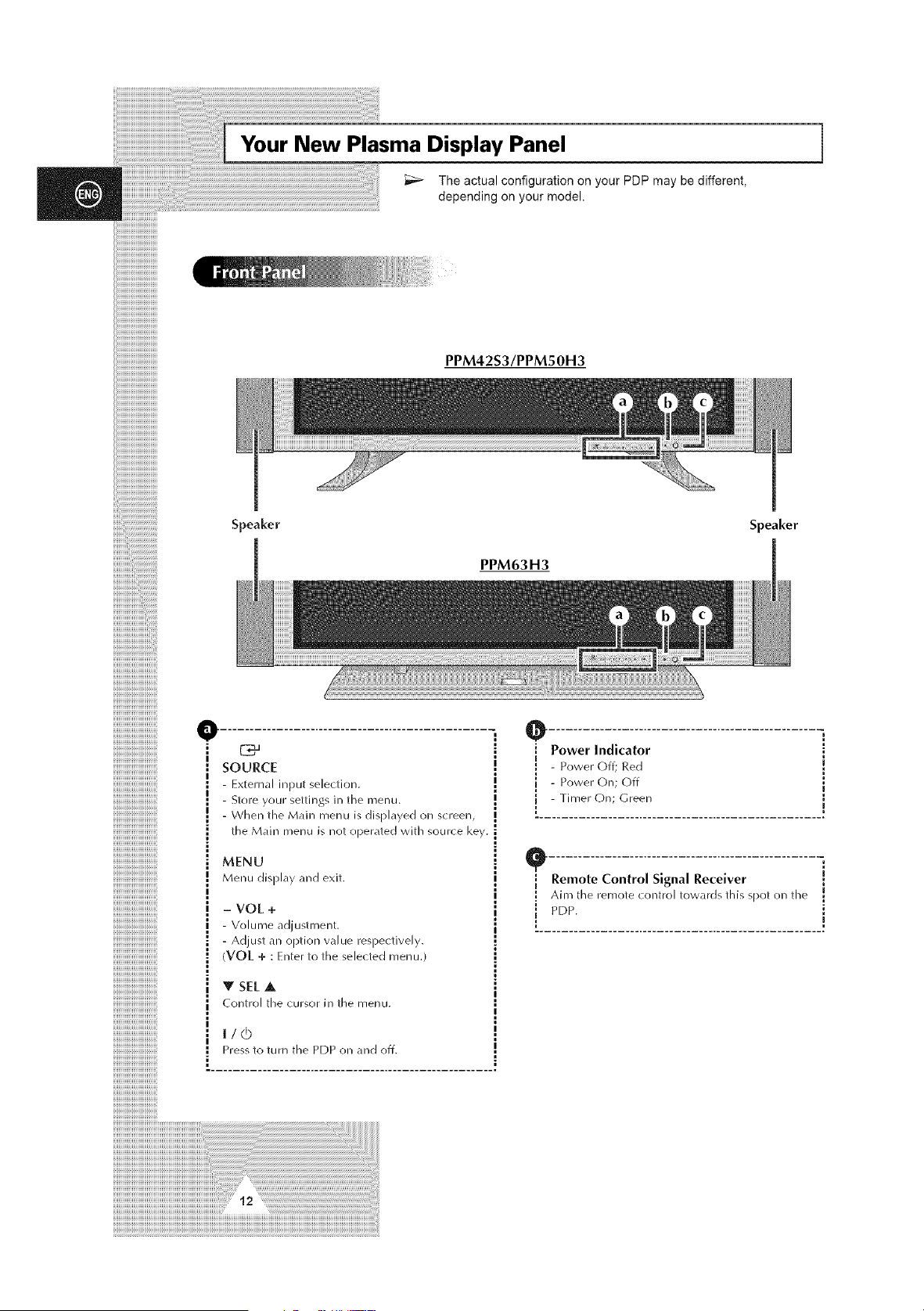
Your New Plasma Display Panel
The actual configuration on your PDP may be different,
depending on your model.
PPM42S3/PPM50H3
Speaker Speaker
PPM63H3
111111111111111111111111171:O
iiiiiiiiiiiiiiiiiiiiiiiiiiiiiiill MENU
iiiiiiiiiiiiiiiiiiiiiiiiiiiiTiMenudisphy_,ndeX_t•
iiiiiiiiiiiiiiiiiiiiiiiiiiiiiiii:- VOL+
7777777[[[_ ! - W,lumeadiustment.
!!!!!!!!!!!!!!!!!!!!!!!!!!!!!!!!! ; - Ad ust an o ?tlon value resF)ectlvelv.
1 (VOIL + : Enter to the selected menu•
iiiiiiiiiiiiiiiiiiiiiiiiiiiiiiiii m
I SEjL A
i Control the cursor in the menu.
i I ! 0
l Press to turn the PDP on and off.
SOURCE
- External input selection.
- Store your settings in the menu.
- When the Main menu is displayed on screen,
>[he M</in Fflenu is not operated with source key.
i
I
O .................................................
i Power Indicator
- Power Off; Red [
i
! - Powel" On; Off _1
[ - Timer On; Green l
.................................................
: remote Control signal receiver !
i Aim the remote control towards this spot on the I
l PDP. ;
!
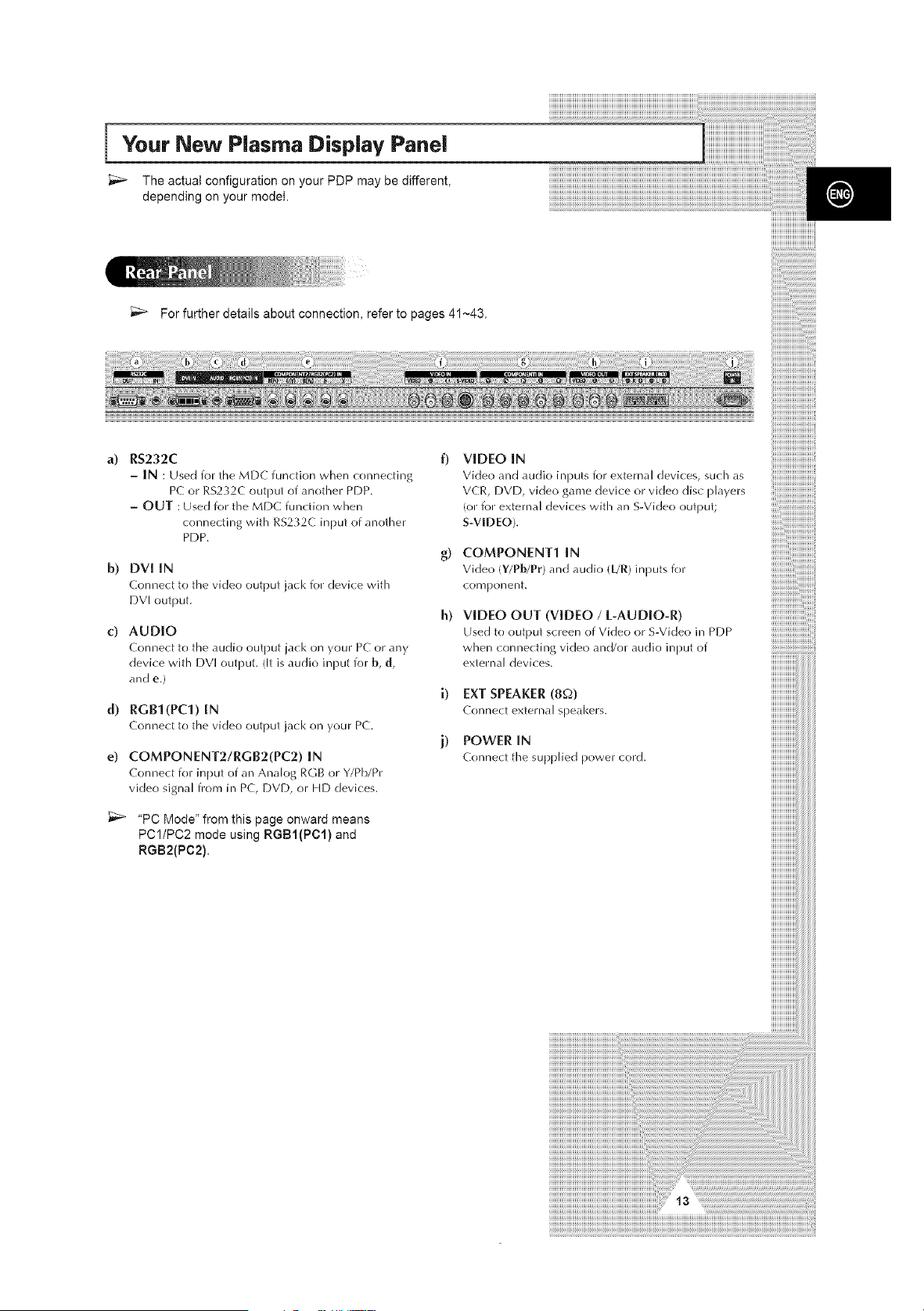
Your New Plasma Display Panel
_,_ The actual configuration on your PDP may be different,
depending on your model.
For further details about connection, refer to pages 41 ~43.
a)
RS232C
- IN : Used for the MDC function when connecting
PC or RS232C output of another PDP.
- OUT : Used for the MDC fundion when
connecting with RS232C input of another
PDP.
b) DVI IN
Connect to the video output ja(k for device with
DVI output.
c) AUDIO
Connect to the audio OUtl)ut jack on your PC or any
device with DVI output. (It is audio input for b, d,
and e.)
d) RGBI(Pcl) IN
Connect to the video output jack on your PC.
e) COMPONENT2!RGB2(PC2) IN
Connect for input of an Analog RGB or Y/Pb/Pr
video signal from in PC, DVD, or HD devices.
_;_ "PC Mode" from this page onward means
PC1/PC2 mode using RGBI(PCI) and
RGB2(PC2).
h)
i)
i)
VIDEO IN
Video and audio inputs for external devices, such as
VCR, DVD, video ganle device or video disc players
(or for external devices with an S-Video output;
S-VIDEO).
COMPONENT1 IN
Video (¥/Pb/Pr) and audio (UIR) inputs for
cornponel_t.
VIDEO OUT (VIDEO / L-AUDIO-R)
Used to output screen of Video or S-Video in PDP
when connecting video and/or audio input of
external devices.
EXT SPEAKER (8£-2)
Connect external speakers.
POWER IN
Conne{ t the supplied power cord.
iiiiiiiii!iiiiiiiiiiiiiiiiiiiiiiii

Becoming Familiar with the Remote Control 1
* _et up the PD, ,sing the of*_-,creen me.u ,_,tem
ON OFF
PDPON
PDPOFF
............................BOUNDMODOBELECT,ONI I _oii_,_o_,,D_p_
PICTUREMODEBELECTION O0RRENTTIMEDIBPLAY
[ :: : ]
NUMERIC BUTTONS _1 _ _ _ I
PICTURE STILL N _ ZOOM/PANNING MENU DISPLAY
J I V0L CH I I (ONLY PC MODE)
NEXT CHANNEL
URCEI
I I .... .....
TEMPORARYBOUNDB_ITCN-O_F EXTERNAL,NPOTBELECT,ON
_P.....o0o1.....,+botto°
tO turn the sound back On.
VOLUME DECREASE
I I PREVIOUS CHANNEL
{NOT AVAILABLE FOR THIS MONITOR)
SETTING THE TIMER
,NFORMAT,ONDIBPLAY
DISPLAY AND CLOSE THE MENU/ EXIT FROM ANY DISPLAY
RETURNTOTHEPREV,OOBMENU
MOVE TO TNE REQUIRED MENU
OPTION/
ADJUST AN OPTION VALUE
RESPECTIVELY
SCREENOPFECTBELECTIONM0CII CNANGECONF,RMAT,ON
AUTO ADJUSTMENT(BURNINGPROTECTION)INPC MODE [ I ;.EFFECT P.SIZE MULTIPLE DISPLAY CONTROL
P,CTUREB,ZEBELECT,ON
SWAP S;SEL PiPFUNCTIONS;
I _L_ _¢_. /-_ _ " PiP ON/OFF
II............ J - SIZE SELECTION (SIZE)
- LOCATION SELECTION (LOCATE)
iiiiiiiiiiiiiiiiiiiiiiiiiiiiiii - INPUT SOURCE SELECTION
(souRcE)
- INTERCHANGE THE MAIN AND THE
SUB PICTURE (SWAP)
" SOUND SELECTION (S,SEL)
rh_p_o_m_,,_eo__h__.,o_ _o,._o;maybea_,,_te,__ b_i_h_;;_h_.
_4
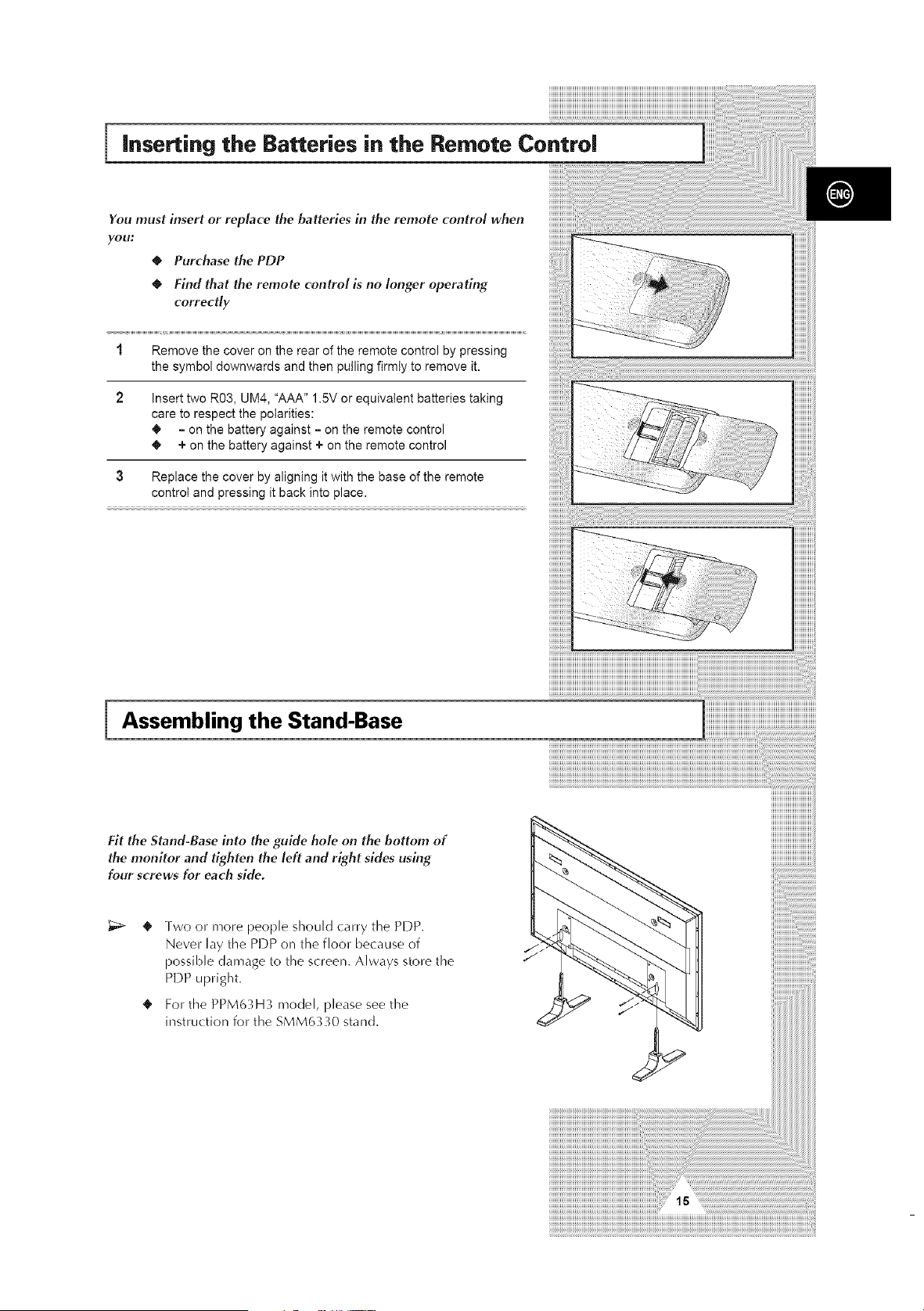
inserting the Batteries in the Remote ControJ
You must insert or replace the batteries in the remote control when
you:
0 Purchase the PDP
0 Find that the remote control is no longer operating
correctly
1 Remove the cover on the rear of the remote control by pressing
the symbol downwards and then pulling firmly to remove it.
2 insert two R03, UM4, "AAA" 1.5V or equivalent batteries taking
care to respect the polarities:
• = on the battery against = on the remote control
_i, + on the battery against + on the remote control
3 Replace the cover by aligning it with the base of the remote
control and pressing it back into place.
Assembling the Stand-Base
Fit the Stand-Base into the guide hole on the bottom of
the monitor and tighten the left and right sides using
four screws for each side.
Two or more people should carry the PDP.
Never lay the PDP on the floor because of
possible damage to the screen. Always store the
PDP upright.
For the PPM63H3 model, please see the
instruction for the SMM6330 stand.
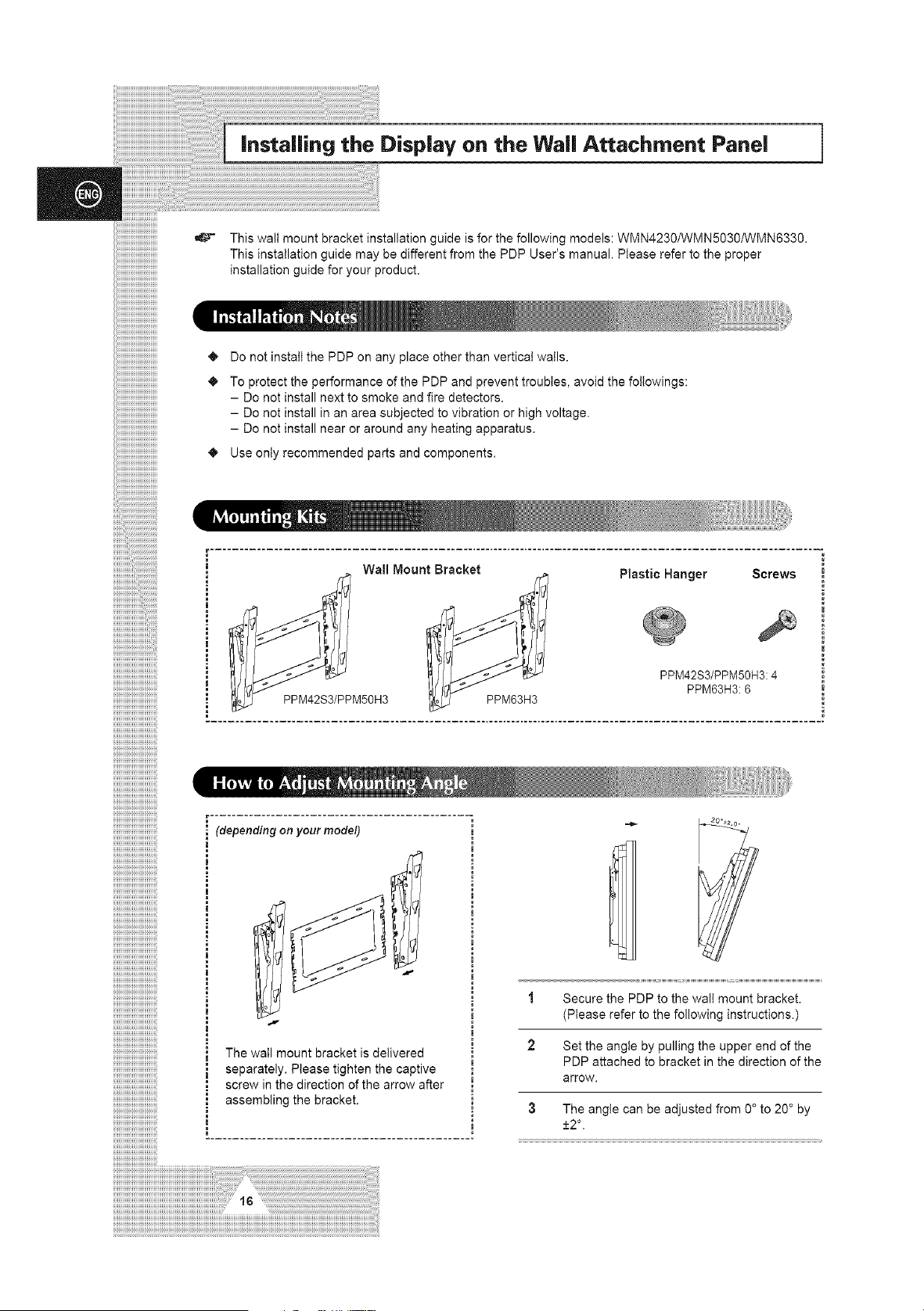
Installing the Display on the Wall Attachment Panel
This wall mount bracket installation guide is for the following models: WMN4230/WMN5030/WMN6330.
This installation guide may be different from the PDP User's manual, Please refer to the proper
installation guide for your product.
• Do not install the PDP on any place other than vertical walls.
• To protect the performance of the PDP and prevent troubles, avoid the followings:
- Do not install next to smoke and fire detectors.
- Do not install in an area subjected to vibration or high voltage.
- Do not install near or around any heating apparatus.
• Use only recommended parts and components.
r
=
Wall Mount Bracket
Plastic Hanger
iiiiiiiiiiiiiiiiiiiiiiiiiiiiiii__ PPM42S3/PPM50H3
iiiiiiiiiiiiiiiiiiiiiiiiiiiiiii"
iiiiiiiiiiiiiiiiiiiiiiiiiiiiiii,,""
iiiiiiiiiiiiiiiiiiiiiiiiiiiiiiill The wail mount bracket is delivered
iiiiiiiiiiiiiiiiiiiiiiiiiiiiiiiiiiiiiiiiiiiiiiiiiiiiiiiiiiiiiiiii, separately. Pleasetightenthecaptive
iiiiiiiiiiiiiiiiiiiiiiiiiiiiiiiii : screw in the direction of the arrow after
! assemblingthebracket.
::::::::::::::::::::::::::::::::: _
iiiiiiiiiiiiiiiiiiiiiiiiiiiiiiiii _
PPM63H3
Screws
PPM42S3/PPM50H3:4 =
PPM63H3:6
1 Secure the PDP to the wall mount bracket.
(Please refer to the following instructions.)
2 Set the angle by pulling the upper end of the
PDP attached to bracket in the direction of the
arrow.
3 The angle can be adjusted from 0 ° to 20 ° by
+2 ° '
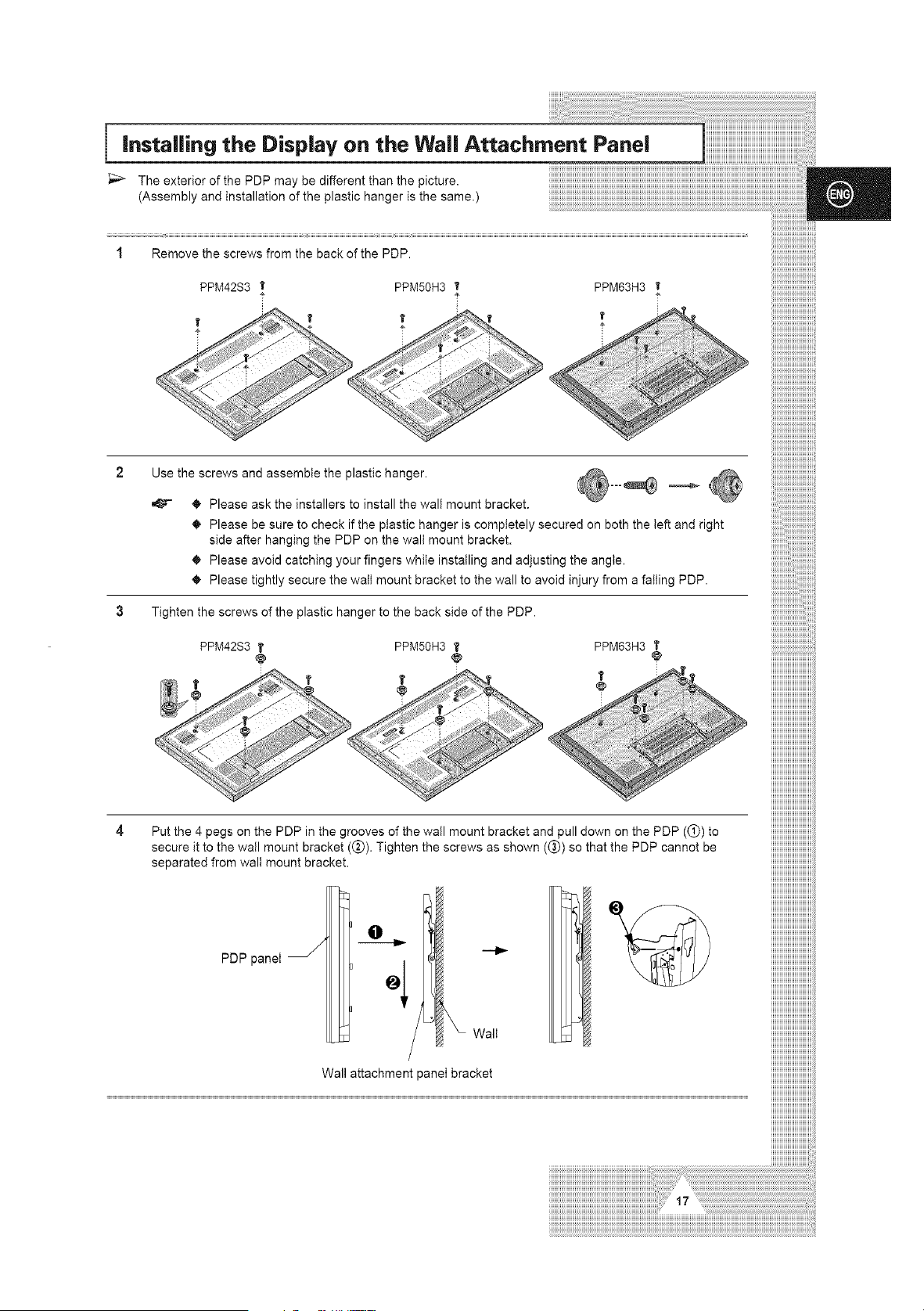
installing the Display on the Wall Attachment Panel
_;_ The exterior of the PDP may be different than the picture.
(Assembly and installation of the plastic hanger is the same.)
PPM42S3 I' PPM50H3 t' PPM63H3
t
Use the screws and assemble the plastic hanger.
_.._ _ Please ask the installers to install the wall mount bracket.
@¸'"4
_. Please be sure to check if the plastic hanger is completely secured on both the left and right
side after hanging the PDP on the wall mount bracket.
Please avoid catching your fingers while installing and adjusting the angle.
Please tightly secure the watt mount bracket to the wall to avoid injury from a falling PDP.
3 Tighten the screws of the plastic hanger to the back side of the PDP.
PPM42S3 T PPM50H3 T PPM63H3 T
¢ ¢ ¢
Put the 4 pegs on the PDP in the grooves of the wail mount bracket and pull down on the PDP ((_)) to
secure it to the wall mount bracket ((_). Tighten the screws as shown (_) so that the PDP cannot be
separated from walt mount bracket.
PDP panei
O
Wall
Wall attachment panei bracket
/iiiiiiiiiiiiiiiiiiiiiiiiiiiiiii
/iiiiiiiiiiiiiiiiiiiiiiiiiiiiiii
/iiiiiiiiiiiiiiiiiiiiiiiiiiiiiii
/iiiiiiiiiiiiiiiiiiiiiiiiiiiiiii
/iiiiiiiiiiiiiiiiiiiiiiiiiiiiiii
/iiiiiiiiiiiiiiiiiiiiiiiiiiiiiii
/iiiiiiiiiiiiiiiiiiiiiiiiiiiiiii
/iiiiiiiiiiiiiiiiiiiiiiiiiiiiiii
/iiiiiiiiiiiiiiiiiiiiiiiiiiiiiii
/iiiiiiiiiiiiiiiiiiiiiiiiiiiiiii
/iiiiiiiiiiiiiiiiiiiiiiiiiiiiiii
/iiiiiiiiiiiiiiiiiiiiiiiiiiiiiii
/iiiiiiiiiiiiiiiiiiiiiiiiiiiiiii
iiiiiiiiiiiiiiiiiiiiiiiiiiiiii
iiiiiiiiiiiiiiiiiiiiiiiiiiiiii
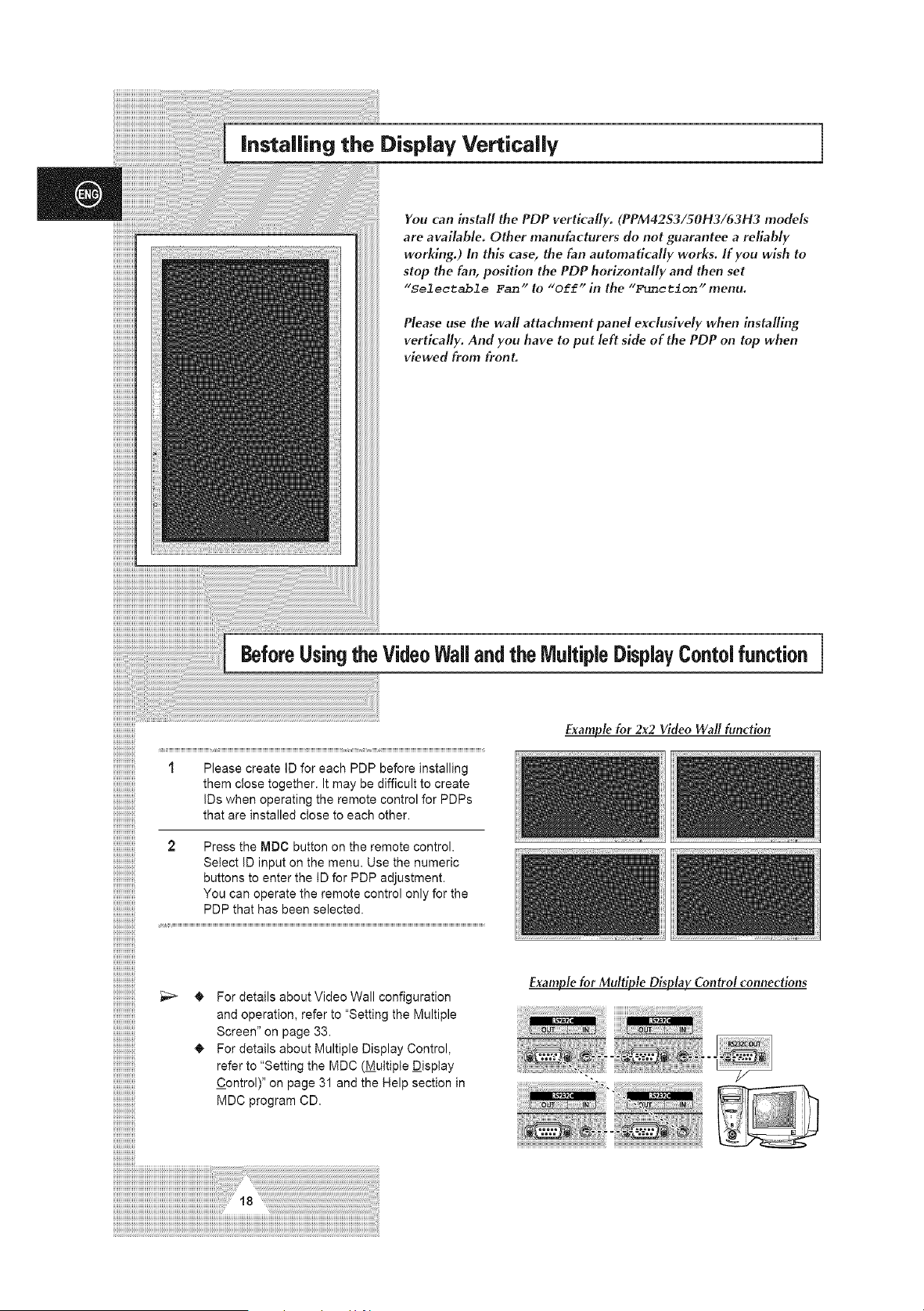
installing the Display Vertically
You can install the PDP vertically. (PPM4253/50H3/63H3 models
are available. Other manufacturers do not guarantee a reliably
working.) In this case, the fan automatically works. If you wish to
stop the fan, position the PDP horizontally and then set
"Selectable Fan"to "Off" in the "Function" menu.
Please use the wall attachment panel exclusively when installing
vertically. And you have to put left side of the PDP on top when
viewed from front.
BeforeUsingthe VideoWallandthe IVlultipleDisplayContolfunction]
I Please create ID for each PDP before installing
them close together. It may be difficult to create
IDs when operating the remote control for PDPs
that are installed close to each other.
2 Press the MDC button on the remote control.
Select ID input on the menu. Use the numeric
buttons to enter the ID for PDP adjustment.
You can operate the remote control only for the
PDP that has been selected.
Example for 2x2 Video Wall function
For details about Video Wall configuration
and operation, refer to "Setting the Multiple
Screen" on page 33.
For details about Multiple Display Control,
refer to "Setting the MDC (Multiple Display
Control)" on page 31 and the Help section in
MDC program CD.
Example for Multiple Display Control connections
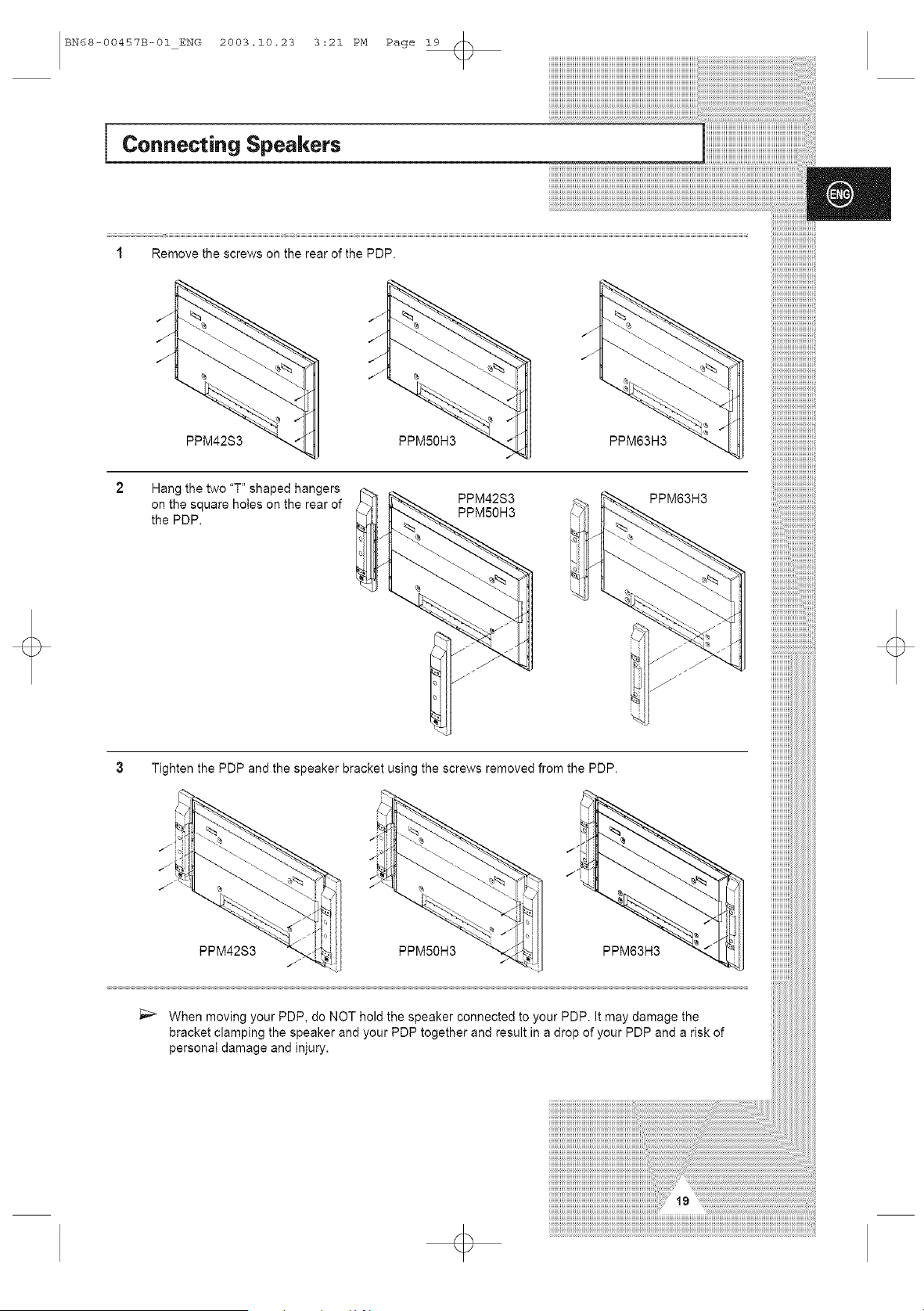
BN68-00457B-01 ENG 2003.10.23 3:21 PM Page 19
Connecting Speakers
1 Remove the screws on the rear of the PDP.
J
PPM42S3 PPM50H3 PPM63H3
Hang the two "T" shaped hangers
on the square holes on the rear of
the PDP.
PPM42S3
PPM50H3
PPM63H3
iiiiiiiii!iiiiiiiiiiiiiiiiiiiiiiii
3 Tighten the PDP and the speaker bracket using the screws removed from the PDP.
PPM42S3 PPM50H3
f
PPM63H3
_;_ When moving your PDP, do NOT hold the speaker connected to your PDP. It may damage the
bracket clamping the speaker and your PDP together and result in a drop of your PDP and a risk of
personal damage and injury.
BN68-00457B-01_ENG 2003.10.23 3:21 PM Page 20
Connecting Speakers (continued)
1
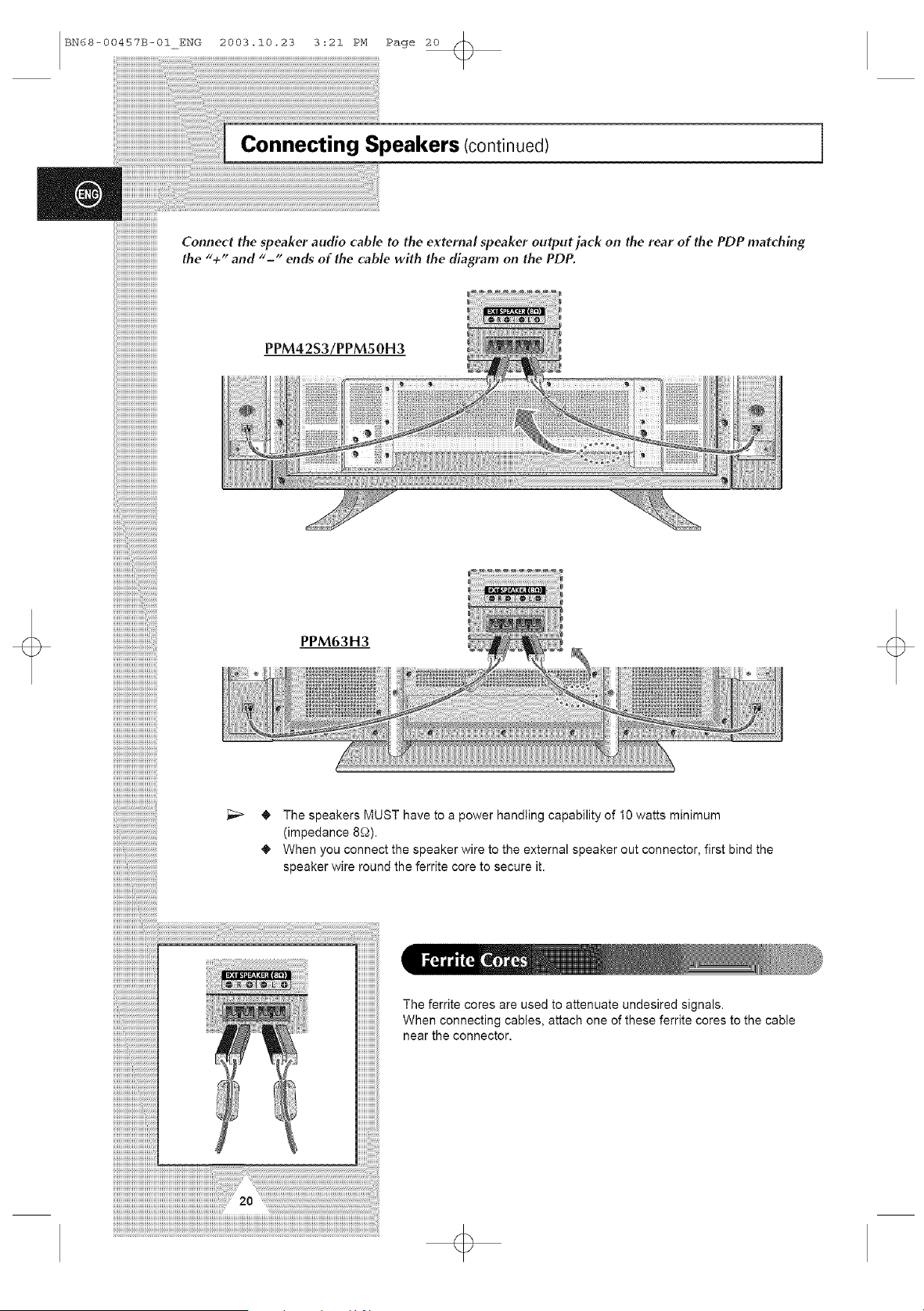
Connect the speaker audio cable to the external speaker output jack on the rear of the PDP matching
the "+" and "-" ends of the cable with the diagram on the PDP.
PPM42S3/PPMSOH3
iiiililililililililililililiiiii[i'ii!iiiiiiiiiiiiiiiiiiiiiiiii
PPM63H3
The speakers MUST have to a power handling capability of 10 watts minimum
(impedance 8£2).
When you connect the speaker wire to the external speaker out connector, first bind the
speaker wire round the ferrite core to secure it.
The ferrite cores are used to attenuate undesired signals.
When connecting cables, attach one of these ferrite cores to the cable
near the connector.
BN68-00457B-01 ENG
2003.10.23 3:21 PM Page 21
+
mmmmmmmmmmmmmmmmmmmmmmmmmmmmmmmmmmmmmmmmmmmmmmmmmmmmmmmmmmmmmmmmm_
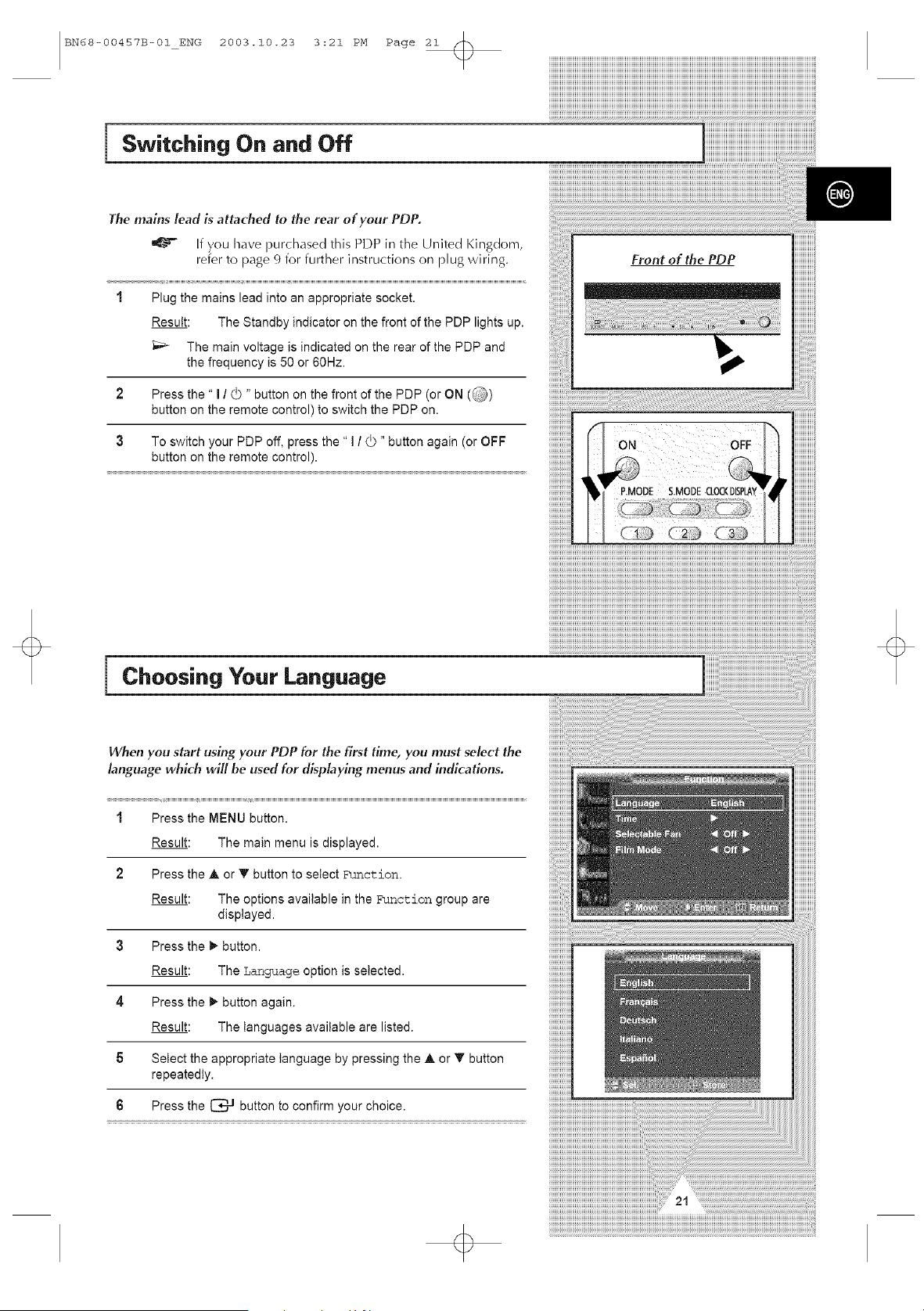
Switching On and Off
The mains lead is attached to the rear of your PDP.
_%'-_- If you have purchased this PDP in the United Kingdom,
refer to page 9 for further instructions on plug wMng.
1 Plug the mains lead into an appropriate socket.
Result: The Standby indicator on the front of the PDP lights up.
_ The main voltage is indicated on the rear of the PDP and
the frequency is 50 or 60Hz.
2 Press the" I / _ " button on the front of the PDP (or ON (_)
button on the remote control) to switch the PDP on.
3 To switch your PDP off, press the "1 / (_ " button again (or OFF
button on the remote control).
Choosing Your Language
When you start using your PDP for the first time, you must select the
language which will be used for displaying menus and indications.
1 Press the MENU button.
Result: The main menu is displayed.
2 Press the A or '_ button to select Function.
Result: The options available in the Function group are
displayed.
3 Press the _- button.
Result: The T,anguage option is selected.
4 Press the _- button again.
Result: The languages available are listed.
Select the appropriate language by pressing the • or _ button
repeatedly.
Press the [_*--_ button to confirm your choice.
+
BN68-00457B-01_ENG 2003.10.23 3:21 PM Page 22
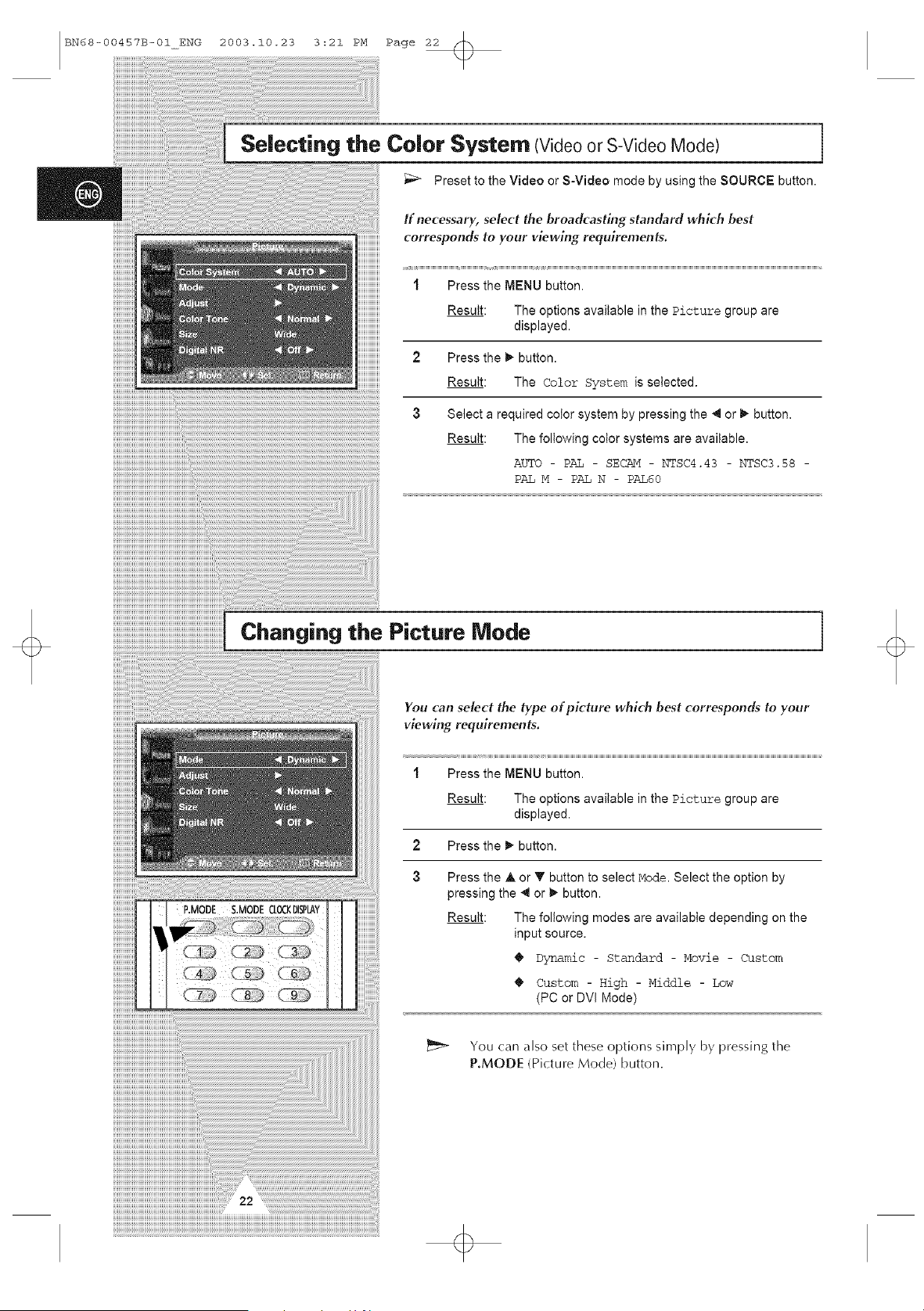
Selecting the Color System (Videoor S-Video Mode)
Preset to the Video or S-Video mode by using the SOURCE button.
If necessary, select the broadcasting standard which best
corresponds to your viewing requirements.
1 Press the MENU button.
Result: The options available in the Picture group are
displayed.
2 Press the _- button.
Result: The Color System is selected.
3 Select a required color system by pressing the _1 or _ button.
Result: The following color systems are available.
[.......... _ Picture Mode
ZZZZZIii
iiiiiiiiiiiiii i ii ' '".....
You can select the type of plcture which best corresponds to your
viewing requirements.
1 Press the MENU button.
Result: The options available in the Picture group are
displayed.
2 Press the _" button.
3 Press the A or • button to select Mode. Select the option by
pressing the _ or _- button.
Result: The following modes are available depending on the
input source.
Dynamic - Standard - Movie - Custom
Custom - High - Middle - Low
(PC or DVI Mode)
You can also set these options simply by pressing the
P.MODE IPicture Mode) button.
BN68-00457B-01 ENG 2003.10.23 3:21 PM Page 23
[
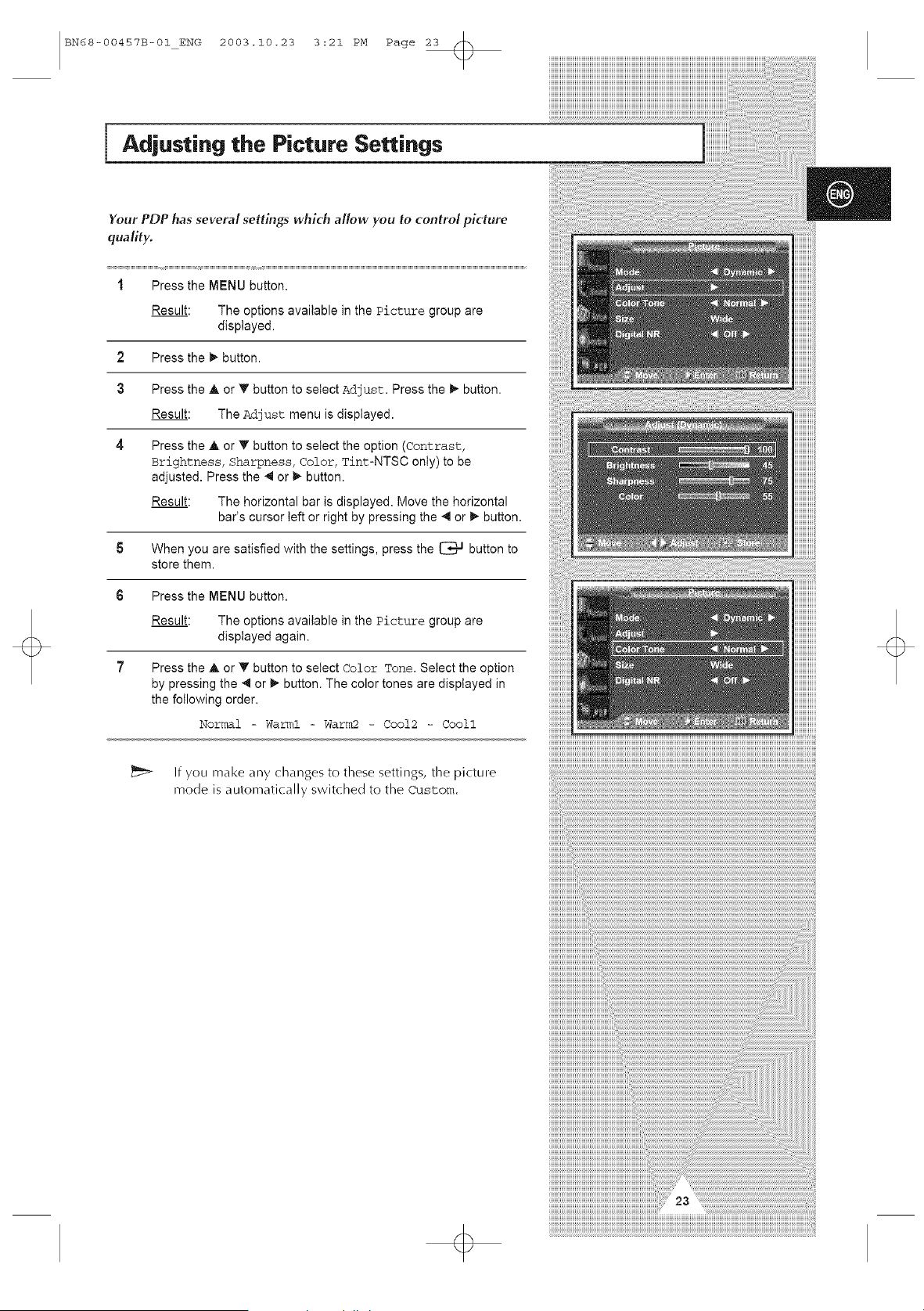
Adjusting the Picture Settings
Your PDP has several settings which allow you to control picture
quality.
1 Press the MENU button.
Result: The options available in the Picture group are
displayed.
2 Press the _- button.
3
Press the _, or T button to select Adjust. Press the _" button.
Result: The Adjust menu is displayed.
Press the A or T button to select the option (Contrast,
Brightness, Sharpness, Color, Tint-NTSC only)tobe
adjusted. Press the _ or _- button.
Result: The horizontal bar is displayed. Move the horizontal
bar's cursor left or right by pressing the _1 or l_ button.
5 When you are satisfied with the settings, press the _ button to
store them.
6 Press the MENU button.
Result: The options available in the Picture group are
displayed again.
7 Press the A or T button to setect Color Tone. Select the option
by pressing the _1or l_ button. The color tones are displayed in
the following order.
Normal - Warml - War_2 - Cool2 - Cooll
]f you make any changes to these settings, tile picture
mode is automatically switched to the custom.
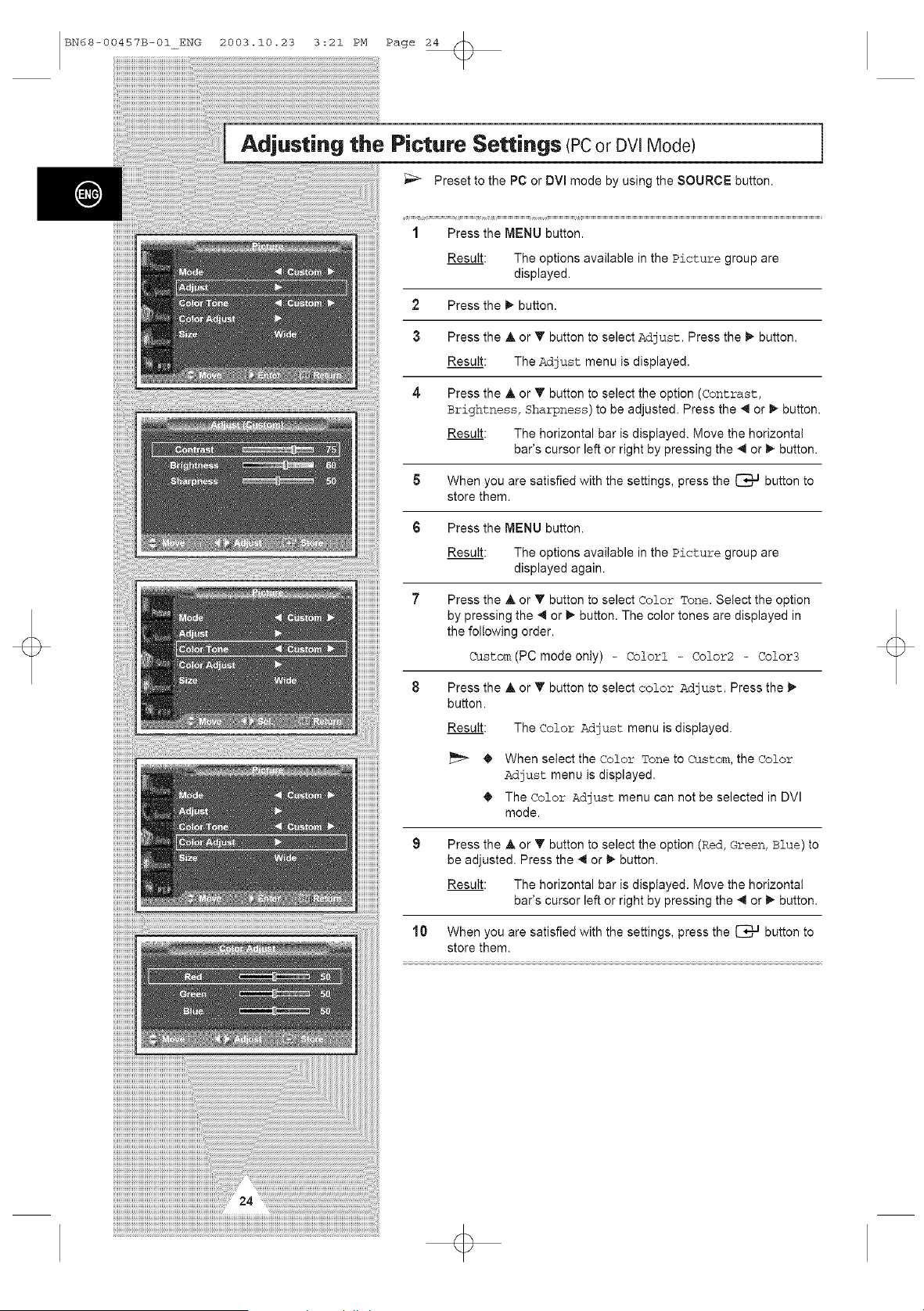
BN68-00457B-01_ENG 2003.10.23 3:21 PM Page 24
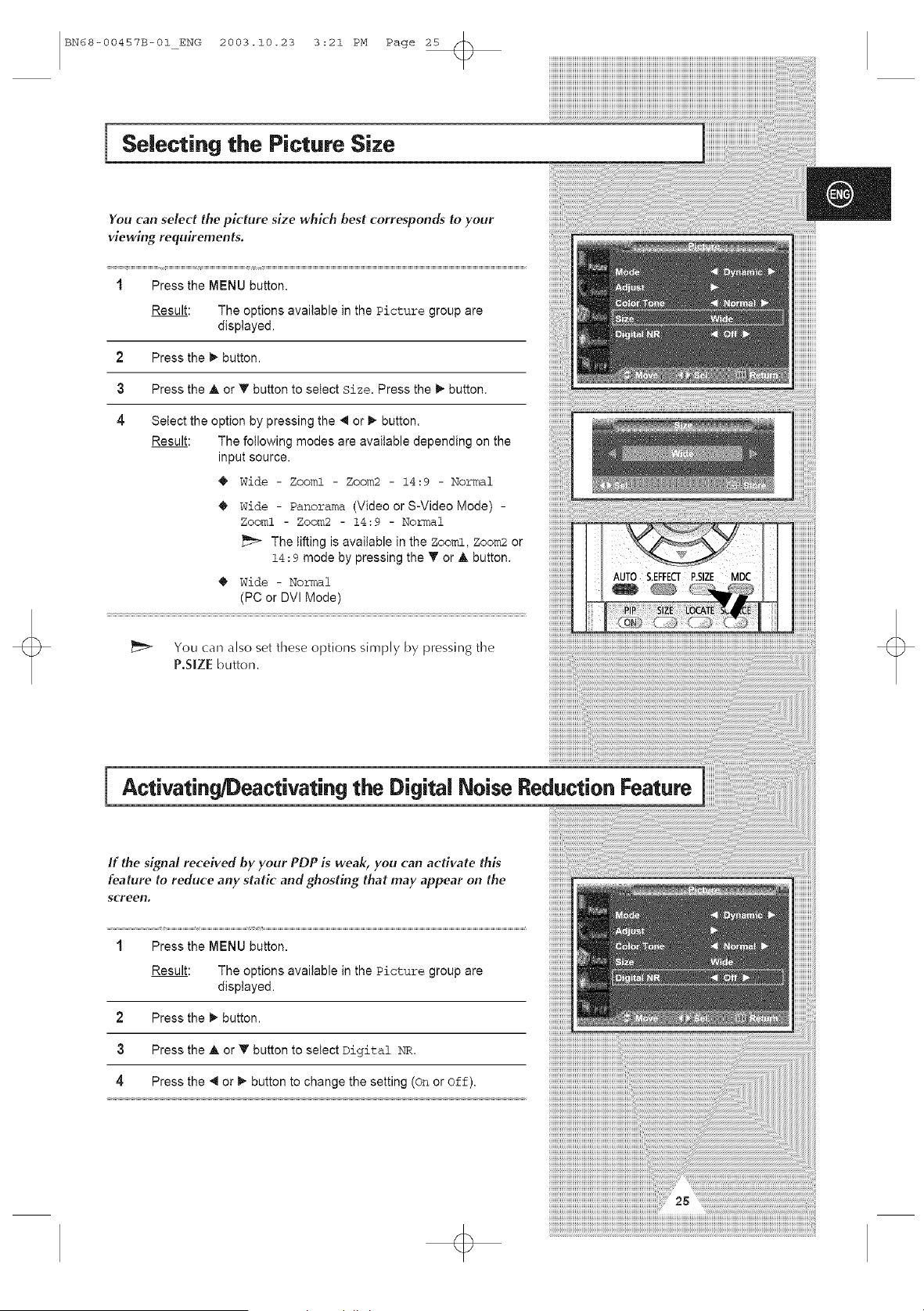
Adjusting the Picture Settings (PCor DVlMode)
Preset to the PC or DVl mode by using the SOURCE button.
1 Press the MENU button.
Result: The options available in the #±cture group are
displayed.
2 Press the _ button.
3 Press the _, or _' button to select Adjust. Press the _ button.
Result: The Adjust menu is displayed.
Press the ,& or T button to select the option (Contrast:,
Brightness, sharpness) to be adjusted. Press the _ or _ button.
Result: The horizontal bar is displayed. Move the horizontal
bar's cursor left or right by pressing the _1 or _ button.
5 When you are satisfied with the settings, press the _ button to
store them.
6 Press the MENU button.
Result: The options available in the Picture group are
displayed again.
Press the A or T button to select Color Tone. Select the option
by pressing the _l or _ button. The color tones are displayed in
the following order.
Custom (PC modeonly)- Colorl - Color2 - Color3
Press the
button.
Result:
• , or _' button to select color Adjust. Press the
The Color Adjust menu is displayed.
When select the color Tone to Custom, the color
Adjust, menu is displayed.
The color Adjust menu can not be selected in DVI
mode.
Press the A or _' button to select the option (Red, Green, Blue) to
be adjusted. Press the _1 or l_ button.
Result: The horizontal bar is displayed. Move the horizontal
bar's cursor left or right by pressing the _ or _ button.
10 When you are satisfied with the settings, press the _ button to
store them.
BN68-00457B-01 ENG 2003.10.23 3:21 PM Page 25
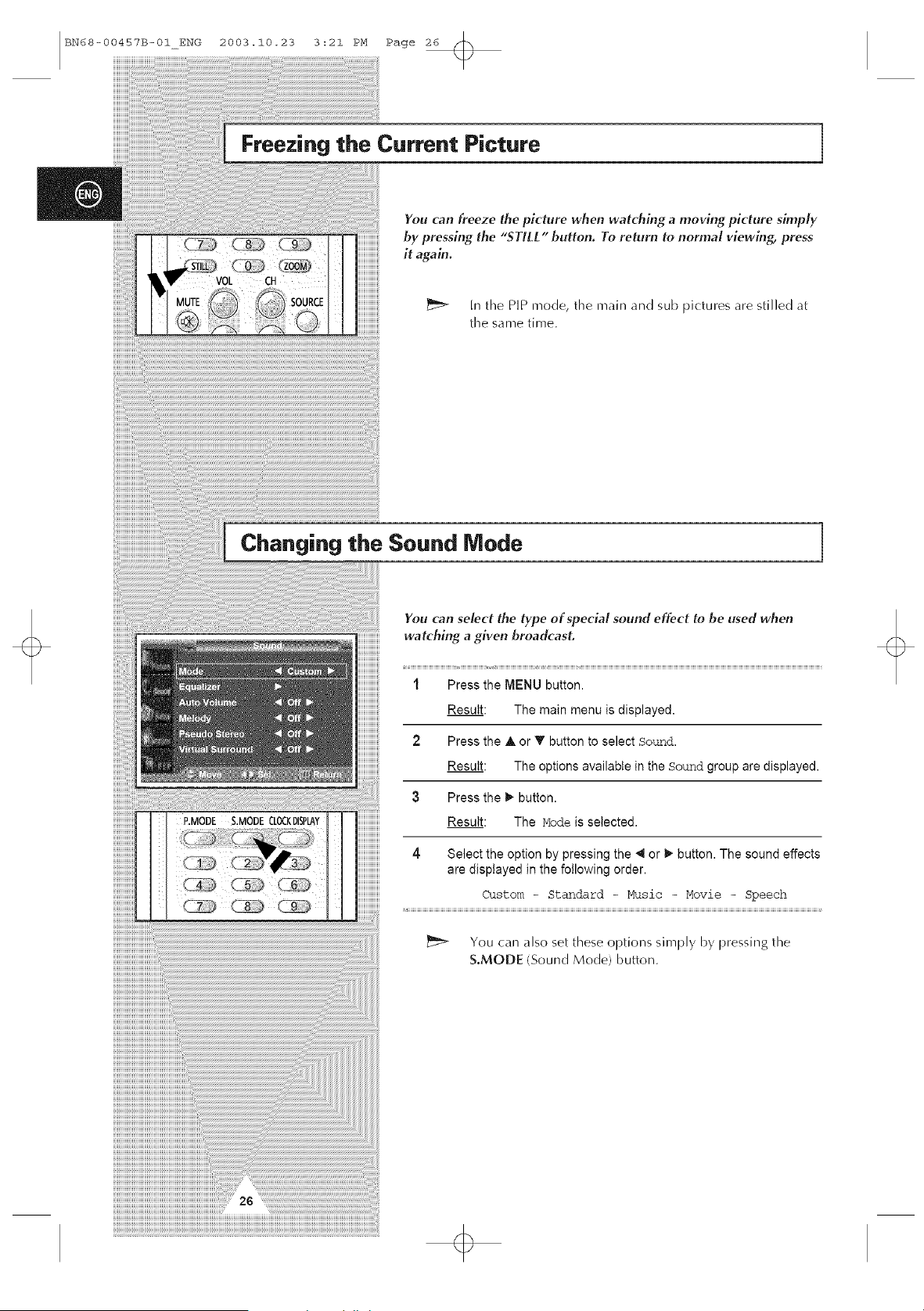
Selecting the Picture Size
You can select the picture size which best corresponds to your
viewing requirements.
1 Press the MENU button.
Result: The options available in the Picture group are
displayed.
2 Press the !_ button.
3 Press the A or T button to select Size. Press the !_ button.
4 Select the option by pressing the _1 or 1_button.
Result: The following modes are available depending on the
input source.
Wide - ZoomZ - Zoom2 - 14:9 - Normal
Wide - Panorama (Video or S-Video Mode) -
Zooml - Zoom2 - 14:9 - Normal
The lifting is available in the Zooml, Zoom2 or
14 : 9 mode by pressing the T or _ button.
Wide - Normal
(PC or DVI Mode)
You can also set these options simply by pressing the
P.S[ZE button.
[
Activating/Deactivating the Digital Noise Reduction Feature
If the signal received by your PDP is weak, you can acdvate this
feature to reduce any static and ghostlng that may appear on the
screen,
1 Press the MENU button.
Result: The options available in the Picture group are
displayed.
2 Press the !_ button.
3 Press the _, or T button to select Digital NR.
4 Press the _ or _" button to change the setting (On or off).
BN68-00457B-01ENG 2003.10.23 3:21 PM Page 26
Freezing the Current Picture
You can freeze the picture when watching a moving picture simply
by pressing the "STILL" button. To retorn to normal viewing, press
it again.
In the PIP mode, the main and sub pictures are stilled at
the same time.
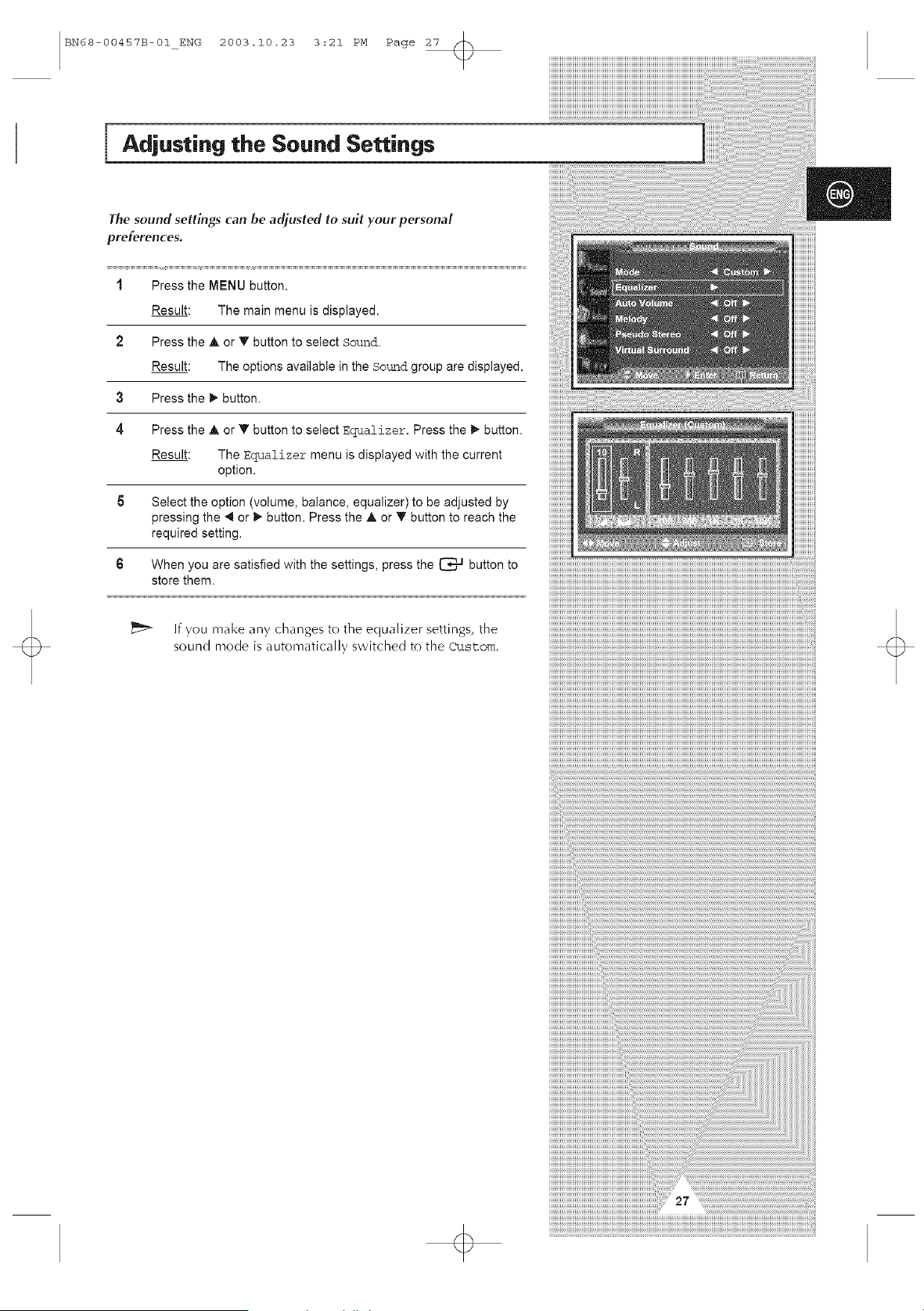
Changing the Sound Mode
You can select the type of special sound effect to be used when
watching a given broadcast.
1 Press the MENU button.
Result: The main menu is displayed.
2 Press the A or T button to select Sound.
Result: The options available in the Sound group are displayed.
3 Press the _" button.
Result: The Mode is selected.
4 Select the option by pressing the _ or _- button. The sound effects
are displayed in the following order.
Custom - Standard - Music - Movie - Speech
You can also set these options simply by pressing the
S.MODE (Sound Mode) button.
BN68-00457B-01 ENG 2003.10.23 3:21 PM Page 27 (_
[
Adjusting the Sound Settings
The sound settings can be adjusted to suit your persona[
preferences.
1 Press the MENU button.
Result: The main menu is displayed.
Press the A or _' button to setect Sound.
Result: The options available in the so_-_dgroup are displayed.
3 Press the _ button.
4
Press the A or '_ button to setect Equalizer. Press the I_ button.
Result: The Ec_alizer menu is displayed with the current
option.
5 Select the option (volume, balance, equalizer) to be adjusted by
pressing the "._or _ button. Press the _, or T button to reach the
required setting.
iiiiiiiiiiiiiiii
iiiiiiiiiiiiiiii
iiiiiiiiiiiiiiii
iiiiiiiiiiiiiiii
iiiiiiiiiiiiiiii
iiiiiiiiiiiiiiii
iiiiiiiiiiiiiiii
iiiiiiiiiiiiiiii
iiiiiiiiiiiiiiii
iiiiiiiiiiiiiiii
6 When you are satisfied with the settings, press the [Z]*-= button to
store them.
If you make any changes to the equalizer settings, tile
sour)(]mode isau[omati<allyswitched to tileCustom.
BN68-00457B-01_ENG 2003.10.23 3:21 PM Page 28
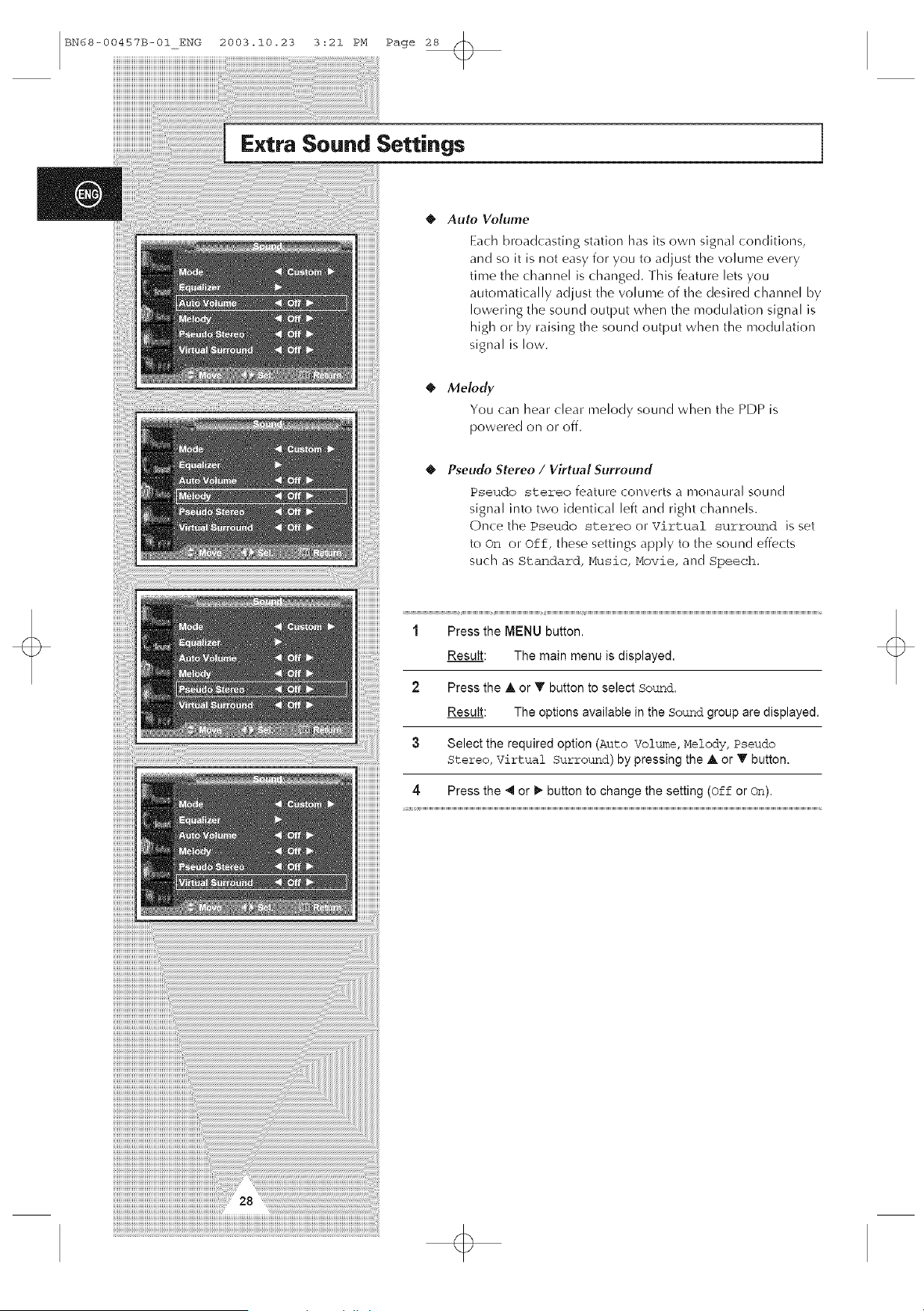
Extra Sound Settings
Auto Volume
Each broadcasting station has its own signal conditions,
and so it is not easy for you to adjust the volume every
time the channel is changed. ]his feature lets you
automatically adjust the volume of the desired channel by
lowering the sound output when the modulation signal is
high or by raising the sound output when the modulation
signal is low.
0 Melody
You can hear clear melody sound when the PDP is
powered on or off.
0 Pseudo 5tereo / Virtual Surround
Pseudo stereo feature convertsa monaural sound
signal into two identical left and right channels.
Once thePseudo stereo orVirtual surround isset
toOn or Off, thesesettingsapplytothesound effects
suchas Standard, Music, Movie, and Speech.
1 Press the MENU button.
Result: The main menu is displayed.
2 Press the & or T button to select Sound.
Result: The options available in the Sound group are displayed.
3 Select the required option (Auto Volume, Melody, Pseudo
Stereo,VirtualSurround)by pressingtheA or T button.
4 Press the 41 or _" button to change the setting (off or On).
BN68-00457B-01 ENG 2003.10.23 3:21 PM Page 29
[
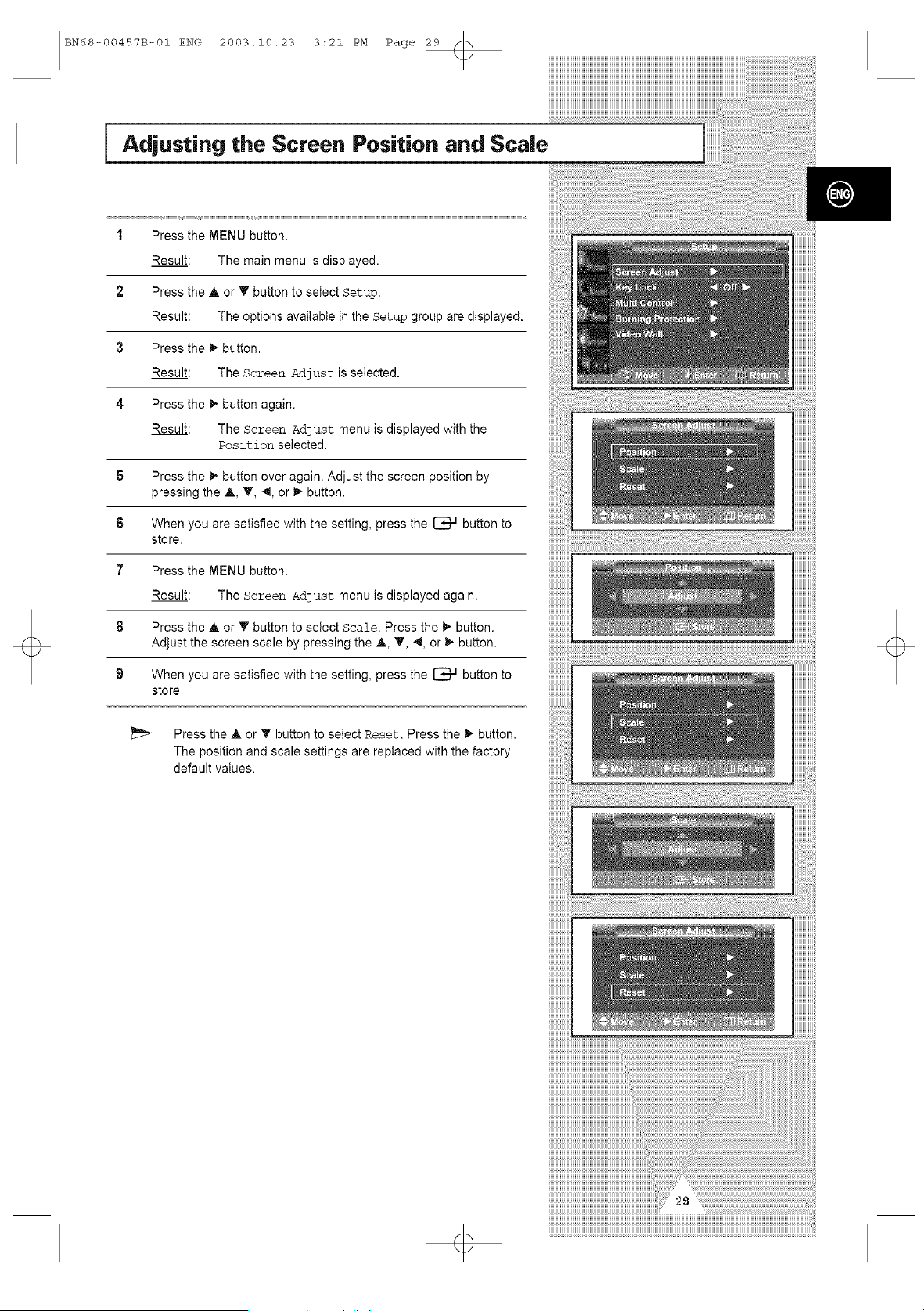
Adjusting the Screen Position and ScaJe
1 Press the MENU button.
Result: The main menu is displayed.
2 Press the _, or T button to setect Setup.
Result: The options available in the Setup group are displayed.
3 Press the _- button.
Result: The Screen Adjust is selected.
4 Press the _- button again.
Result: The Screen Adjust menu is displayed with the
Position selected.
5 Press the _,"button over again. Adjust the screen position by
pressing the A, T, 4, or _- button.
$ When you are satisfied with the setting, press the _ button to
store.
7 Press the MENU button.
Result: The Screen Adjust menu is displayed again.
8 Press the ,& or _' button to select Scale. Press the _ button.
Adjust the screen scale by pressing the A, T, 4, or _- button.
9 When you are satisfied with the setting, press the _ button to
store
Press the A or T button to select Reset. Press the _ button.
The position and scale settings are replaced with the factory
default values.
BN68-00457B-01ENG 2003.10.23 3:21 PM Page 30
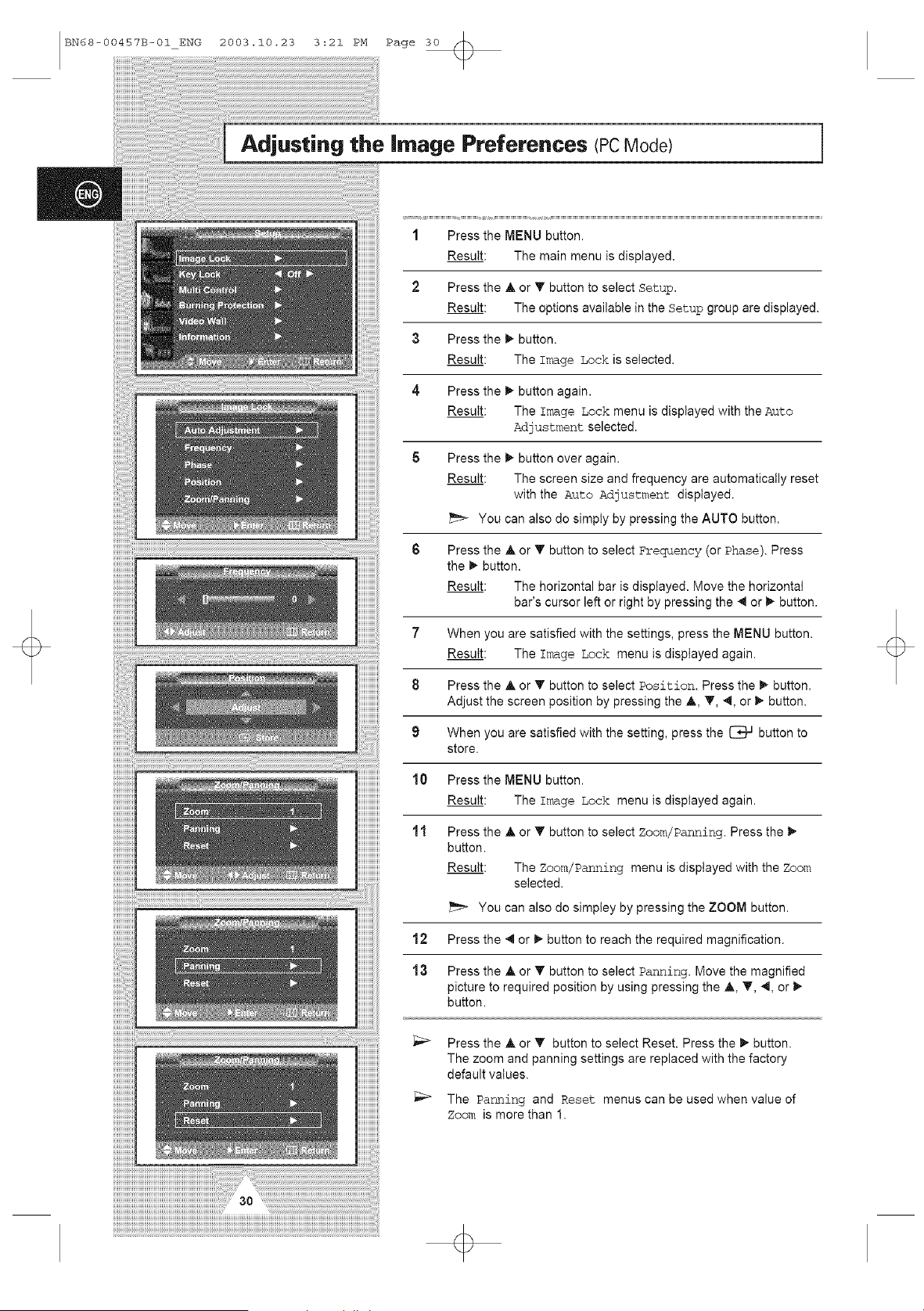
Adjusting the Image Preferences (PCMode)
1 Press the MENU button.
Result: The main menu is displayed.
2 Press the _, or V button to select Setup.
Result: The options available in the Setup group are displayed.
3 Press the _- button.
Result: The Image Lock is selected.
4 Press the _- button again.
Result: The Image Lock menu is displayed with the Auto
Adjustment selected.
Press the
Result:
You
_- button over again.
The screen size and frequency are automatically reset
with the Auto Adjustment displayed.
can also do simply by pressing the AUTO button.
7
8
9
10
11
Press the A or T button to select Frequency (or Phase). Press
the _ button.
Result: The horizontal bar is displayed. Move the horizontal
bar's cursor left or right by pressing the 4 or _- button.
When you are satisfied with the settings, press the MENU button.
Result: The Image Lock menu is displayed again.
Press the A or T button to select Position. Press the I_ button.
Adjust the screen position by pressing the _,, T, 4, or _- button.
When you are satisfied with the setting, press the _ button to
store.
Press the MENU button.
Result: The Image Lock menu is displayed again.
Press the _, or T button to select Zoom/Panning. Press the _"
button.
Result: The Zoom/Panning menu is displayed with the Zoom
selected.
You can also do simpley by pressing the ZOOM button.
12 Press the 4 or _" button to reach the required magnification.
13 Press the ,& or T button to select Panning. Move the magnified
picture to required position by using pressing the _,, T, 4, or _-
button.
_;_ Press the ,& or '_' button to select Reset. Press the _" button.
The zoom and panning settings are replaced with the factory
default values.
The Panning and Reset menus can be used when value of
Zoom is more than 1.

BN68-00457B-01 ENG 2003.10.23 3:21 PM Page 31
Locking the Control buttons
This feature allows you to lock the PDP so that lt cannot be
switched on via the front paneL It can, however, still be switched
on via the remote control Thus, by keeping the remote control
away from unauthorlsed users.
1 Press the MENU button.
Result: The main menu is displayed.
2 Press the A or _' button to select Setup.
Result: The options available in the Setup group are displayed.
3 Press the )- button.
4 Press the A or T button to select Key Lock.
5 Press the 41or )" button to change the setting (On or off).
Setting the MDC (Multiple Display Control) ]
_
1 Press the MENU button.
Result: The main menu is displayed.
Press the _, or 'T button to select Setup.
Result: The options available in the Setup group are displayed.
3 Press the _" button.
4 Press the A or T button to select Multi Control.
_i!i1
6
7 PresstheAor,'buttontose,ectIDInputEnter,D,nput iiiiiiiiiiiiiiiiiiiiiiiiiiii_ii
numberbyus,n0thenumer,ebuttons i_i_i_i_i_iJ
To operate the multi control function, PDP1 and PDP2 should be
set in the ID Setup mode. When entering the ID Input number of '
PDP1 while the PDP is set in the ID Input mode, only PDP1 is
switched to the Menu screen and you can operate the remote
control. At this time, PDP2 doesn't operate with the remote control
and displays the standby mode of ID Input.
Press the )- button.
Result: The Multi Control menu is displayed with the ZD
Setup selected.
Select the ID setup number by pressing the 41 or _" button.
_;_ For further details, refer to the MDC program guide.
BN68-00457B-01ENG 2003.10.23 3:21 PM Page 32
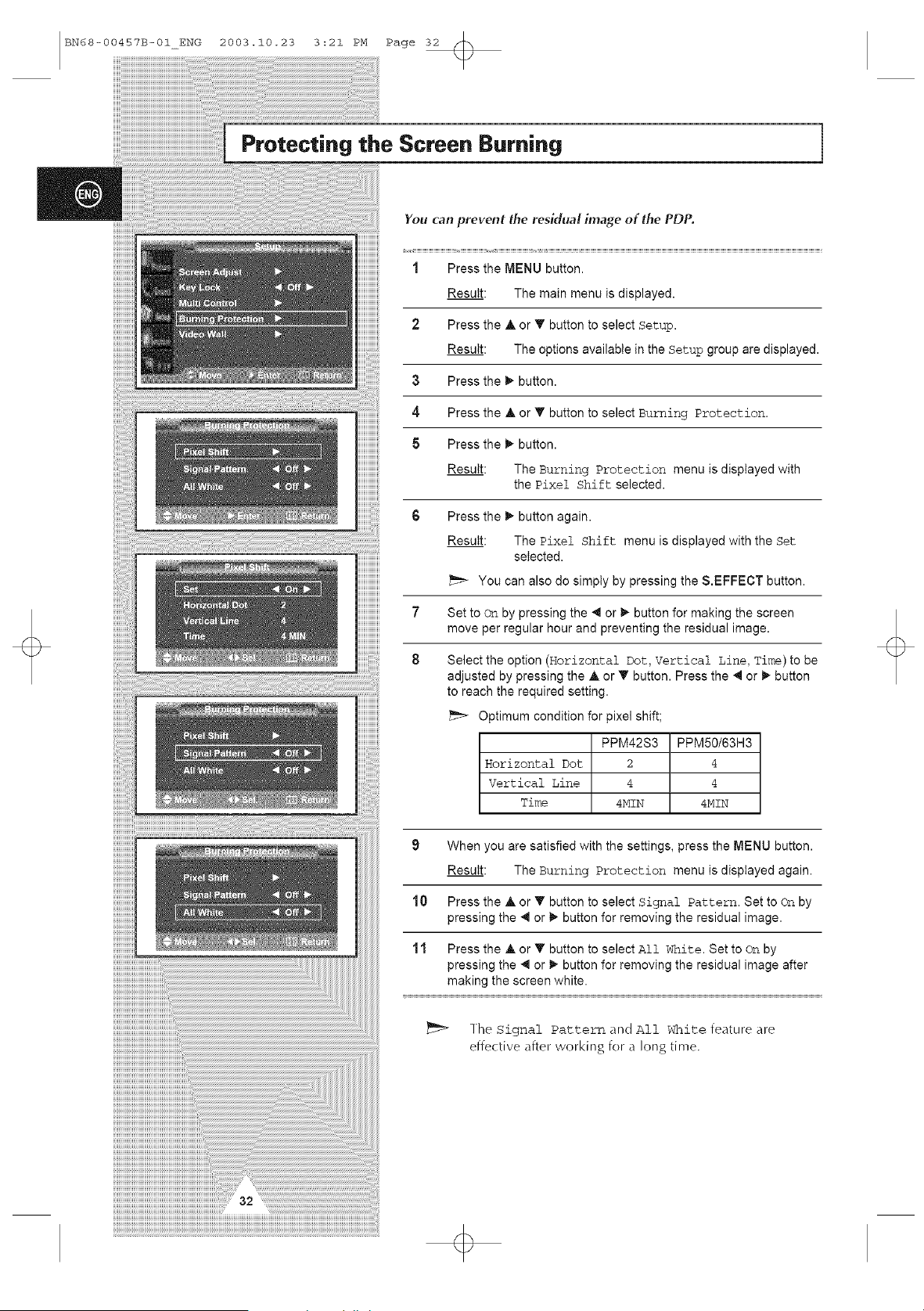
Protecting the Screen Burning
You can prevent the residual image of the PDP.
1 Press the MENU button.
Result: The main menu is displayed.
2 Press the A or T button to select Setup.
Result: The options available in the Setup group are displayed.
3 Press the _" button.
4 Pressthe _,or T buttonto selectBurningProtection.
5 Press the !_ button.
Result: The Burning Protection menu is displayed with
the #ixel Shift selected.
5 Press the _" button again.
Result: The #ixel Shift menu is displayed with the Set
selected.
You can also do simply by pressing the &EFFECT button.
7 Set to On by pressing the _1 or 1_ button for making the screen
move per regular hour and preventing the residual image.
8 Select the option (Horizontal Dot, Vertical Line, Time) to be
adjusted by pressing the _ or _' button. Press the _ or !_ button
to reach the required setting.
Optimum condition for pixel shift;
PPM42S3 PPM50/63H3
Horizontal Dot 2 4
Vertical Line 4 4
Time 4MIN 4MIN
9 When you are satisfied with the settings, press the MENU button.
Result: The Burning Protection menu is displayed again.
10 Press the A or T button to select Signal Pattern. Set to On by
pressing the _ or !_ button for removing the residual image.
11 Press the ,& or T button to select All White. Set to On by
pressing the _1or 1_ button for removing the residual image after
making the screen white.
]he Signal Pattern and All W1_itefeature are
effective after working for a long time.
BN68-00457B-01 ENG 2003.10.23 3:21 PM Page 33
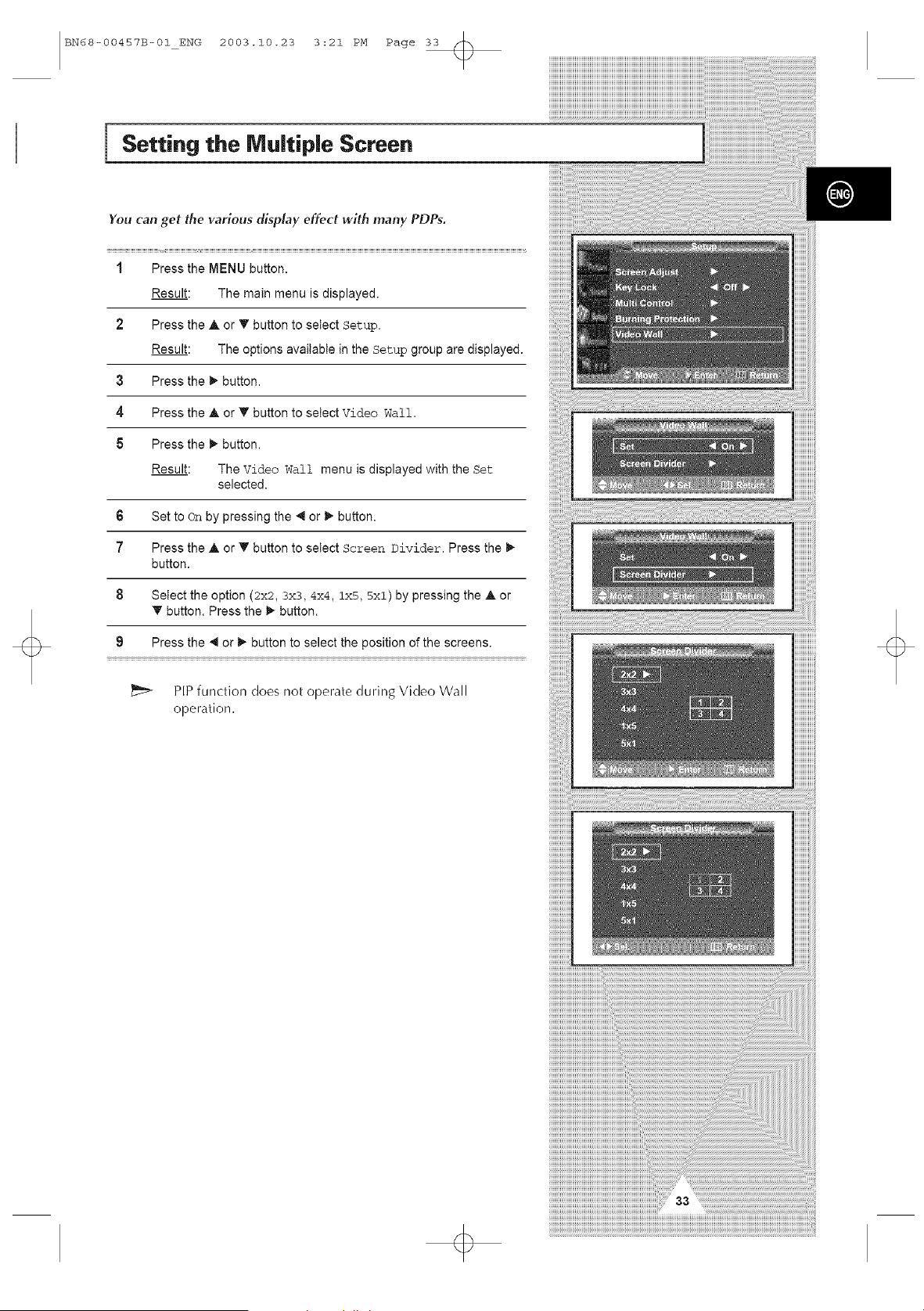
Setting the MuJtipJe Screen
You can get the various display effect with many PDPs,
1 Press the MENU button.
Result: The main menu is displayed.
2 Press the A or T button to select Setup.
Result: The options available in the Setup group are displayed.
3 Press the _- button.
4 Press the _, or T button to select Video Wall.
5 Press the _- button.
Result: The Video Wall menu is displayed with the Set
selected.
$ Set to on by pressing the _ or _- button.
7 Press the A or T button to select Screen Divider. Press the _"
button.
8 Select the option (2x2, 3x3, 4x4, lxS, 5xl) by pressing the A or
button. Press the _- button.
9 Press the _ or _- button to select the position of the screens.
PIP function does not operate during Video Wall
operahon.
BN68-00457B-01ENG 2003.10.23 3:21 PM Page 34
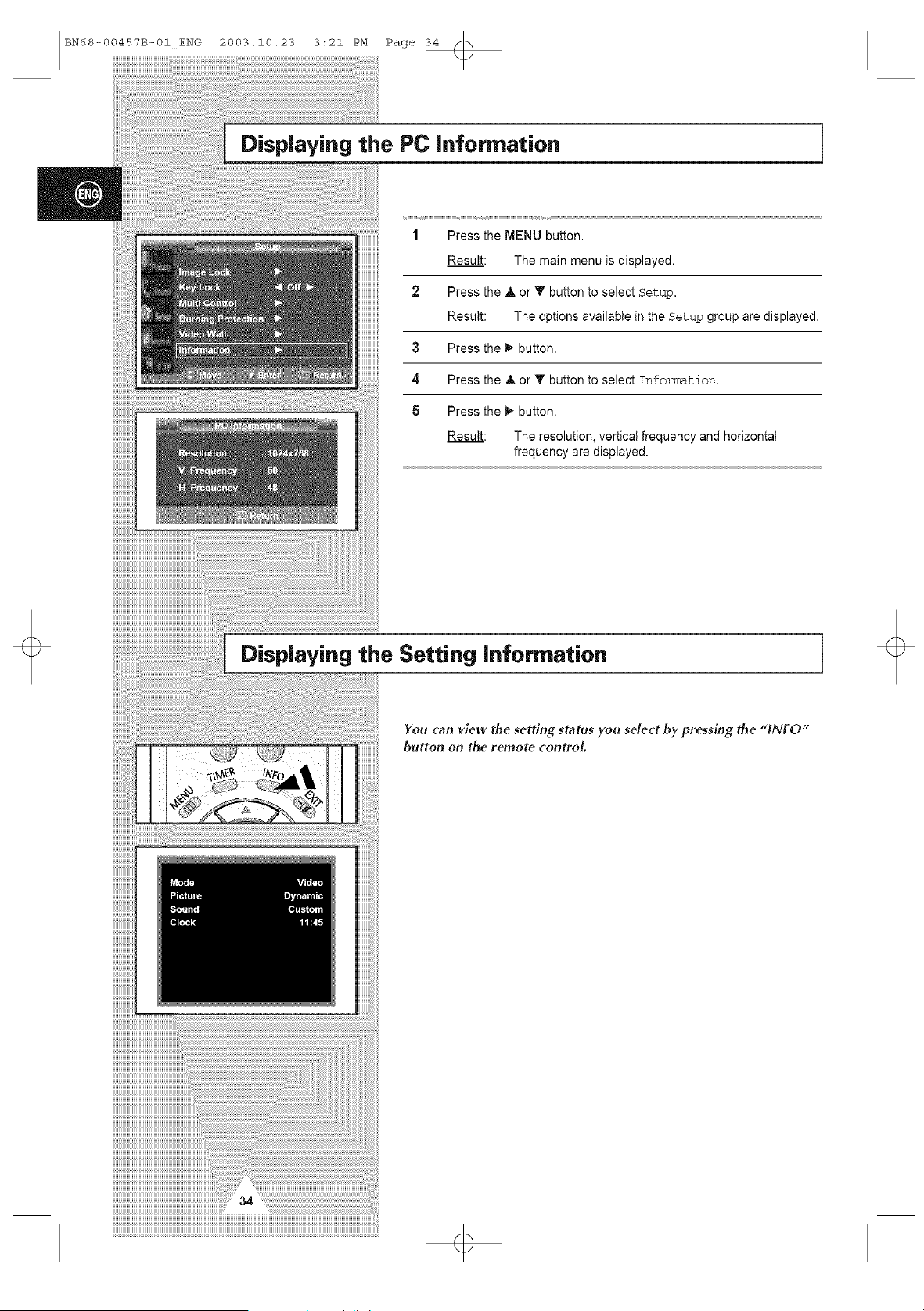
Displaying the PC information
1 Press the MENU button.
HHHHHHHi_
HHHHHHHi_
Resutt: Themainmenuisdisplayed.
HHHHHHHi_
HHHHHHHi_
2 Pressthe• or--buttontoseleot_tup.
HHHHHHHi_
Resutt:Theoptionsava,abteinthe_tupgrouparedisplayed.
3 Pressthe,button.
4 Press the A or T button to select Information.
5 Press the !_ button.
Result: The resolution, vertical frequency and horizontal
frequency are displayed.
Displaying the Setting information
1
You can view the setting status you select by pressing the "INFO"
button on the remote control.

BN68-00457B-01 ENG 2003.10.23 3:21 PM Page 35
Setting and Displaying the Current "rime
You can set the clock so that the current time is displayed. You must
also set the time if you wish to use the automatic on or off timers.
1 Press the MENU button.
Result: The main menu is displayed.
Press the A or _' button to setect Function.
Result: The options available in the Function group are
displayed.
3 Press the _" button.
4 Press the A or T button to setect Time. Press the _- button.
Result: The Time menu is displayed with the Clock option
selected.
You can also do simply by pressing the TIMER button.
Press the _ or _ button to move to the hour or minute.
Set the hour or minute by pressing the ,& or T button.
Set the clock first! If you have not yet set the clock, you can
not set other options of the Time menu.
6 Press the A or _ button to select Clock Display.
Set to On by pressing the _ or _- button for displaying the current ...............
time.
You can also do simply by pressing the CLOCK DISPLAY
button.
7 When you are satisfied with the settings, press the 1_ button to
store them.
P.MODE S.MODECLOCKDISP[AY
BN68-00457B-01_ENG 2003.10.23 3:21 PM Page 36
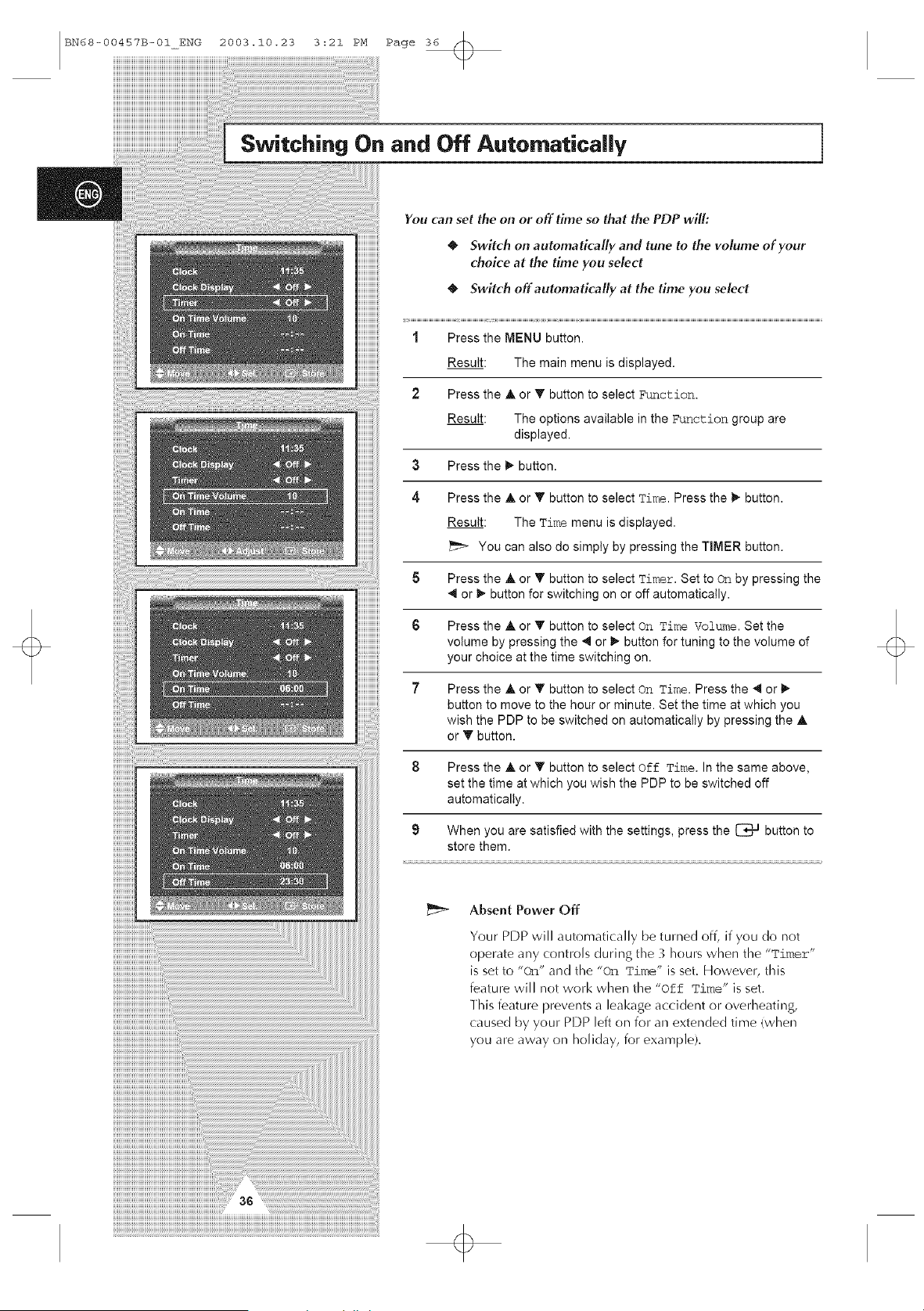
Switching On and Off Automatically
You can set the on or off time so that the PDP will:
Switch on automatically and tune to the volume of your
choice at the time you select
gwltch off automatlcally at the time you select
1 Press the MENU button.
Result: The main menu is displayed.
Press the A or T button to select Function.
Result: The options available in the ?unction group are
displayed.
3 Press the _- button.
4
Press the A or T button to select Time. Press the _" button.
Result: The Time menu is displayed.
You can also do simply by pressing the TIMER button.
5 Press the • or _' button to select Timer, Set to on by pressing the
or _- button for switching on or off automatically.
HHHHHHHH
HHHHHHHH
HHHHHHHH
6 Press the • or T button to select On Time Volume. Set the
volume by pressing the _ or _ button for tuning to the volume of
your choice at the time switching on.
7 Press the ,& or T button to select On Time. Press the '_ or _-
button to move to the hour or minute. Set the time at which you
wish the PDP to be switched the _,
on
automatically by pressing
or _ button.
8 Press the A or T button to select Off Time. In the same above,
set the time at which you wish the PDP to be switched off
automatically.
9 When you are satisfied with the settings, press the [_ button to
store them.
Absent Power Off
Your PDP will automatically be turned off, if you do not
operate any controls during the 3 hours wlnen tlne "Timer"
is set to "On" and the "on Time" is set. However, this
feature will not work when the "off Time" is set.
1his feature prevents a leakage accident or overlneating,
caused by your PDP left on for an extended time (wlnen
you are away on holiday, fmr example).
o
BN68-00457B-01 ENG 2003.10.23 3:21 PM Page 37
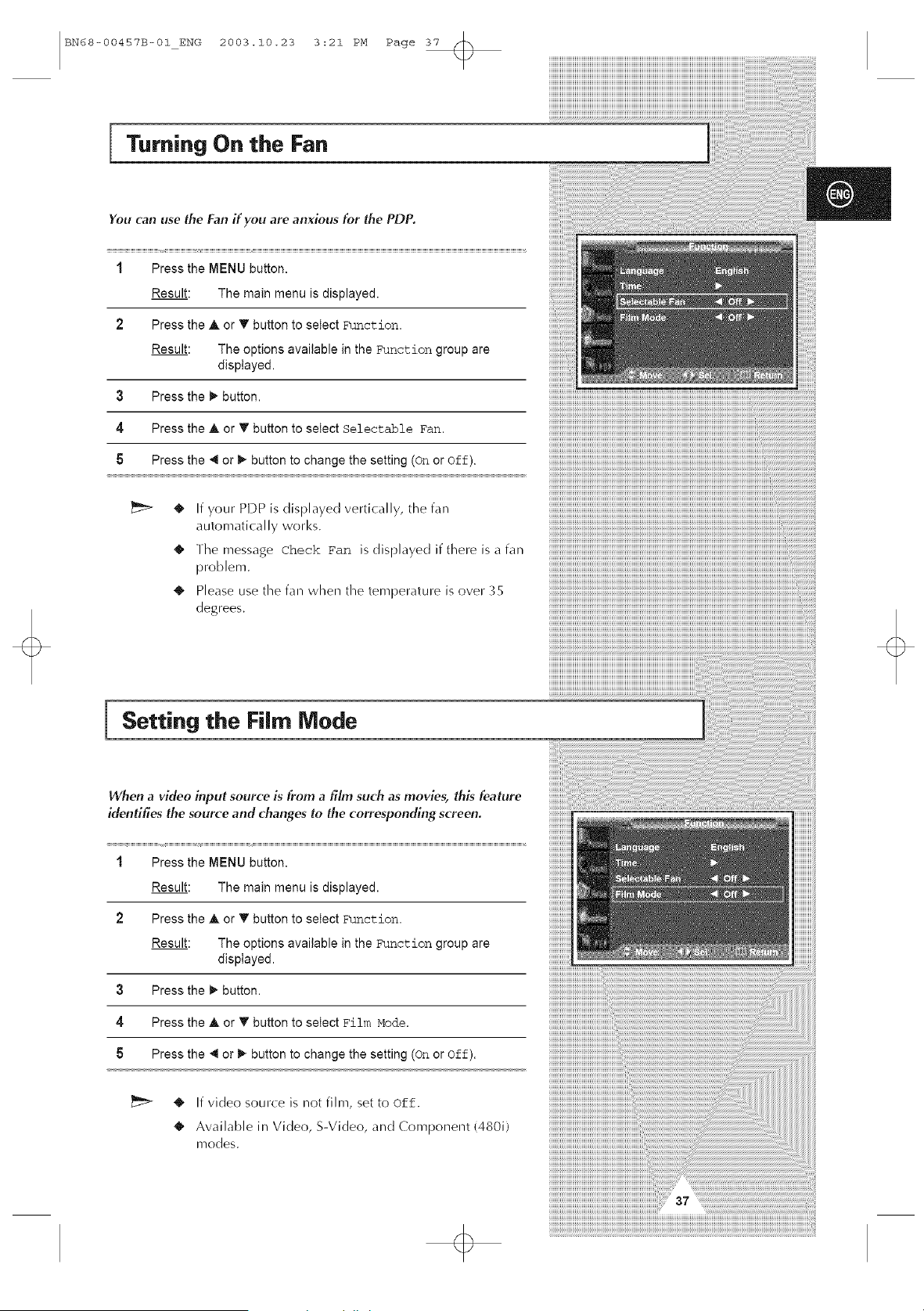
Turning On the Fan
You can use the Fan if you are anxious for the PDP.
1 Press the MENU button.
Result: The main menu is displayed.
2 Press the A or T button to select Function.
Result: The options available in the £tmction group are
displayed.
3 Press the _ button.
4 Press the A or T button to select Selectable Fan.
5 Press the _ or _ button to change the setting (On or off).
• ' If }our,,, PDP is displayed vertically, the fan
automatically works.
]he message Check Fan is dis}layed if there is a fan
• ' Please use the i'an when the temperature is over 35
degrees.
Setting the Film Mode
When a video input source is from a film such as movies, this feature
identifies the source and changes to the corresponding screen.
1 Press the MENU button.
Result: The main menu is displayed.
2 Press the • or T button to select Function.
Result: The options available in the £tmction group are
displayed.
3 Press the _ button.
4 Press the • or _ button to select Film Mode.
Press the < or _ button to change the setting (On or off).
• ' If video source is not film, set to Off.
Available in Video, S-Video, and Component {480i)
modes.
BN68-00457B-01ENG 2003.10.23 3:21 PM Page 38
Viewing the Picture in Picture (PIP)
You can display a sub picture within the main picture. In this way
you can monitor the video input from any connected devices while
monitoring other video input.
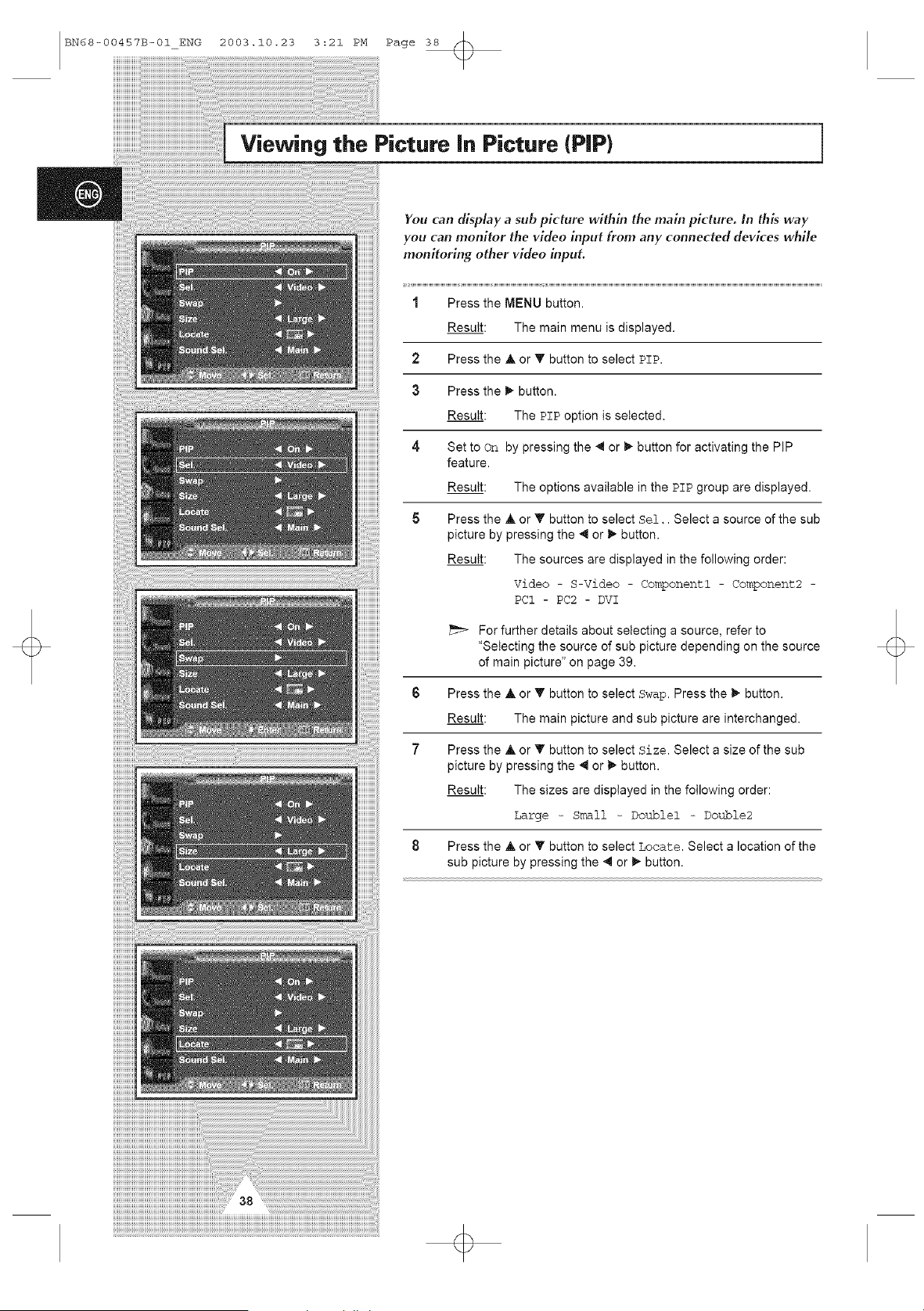
1 Press the MENU button.
Result: The main menu is displayed.
2 Press the A or T button to select PIP.
3 Press the _* button.
Result: The pip option is selected.
Set to on by pressing the _ or _- button for activating the PIP
feature.
Result: The options available in the pT# group are displayed.
Press the ,& or T button to select sel.. Select a source of the sub
picture by pressing the _ or _- button.
Result: The sources are displayed in the following order:
Video - S-Video - Componentl - Component2 -
PC1 - PC2 - DVI
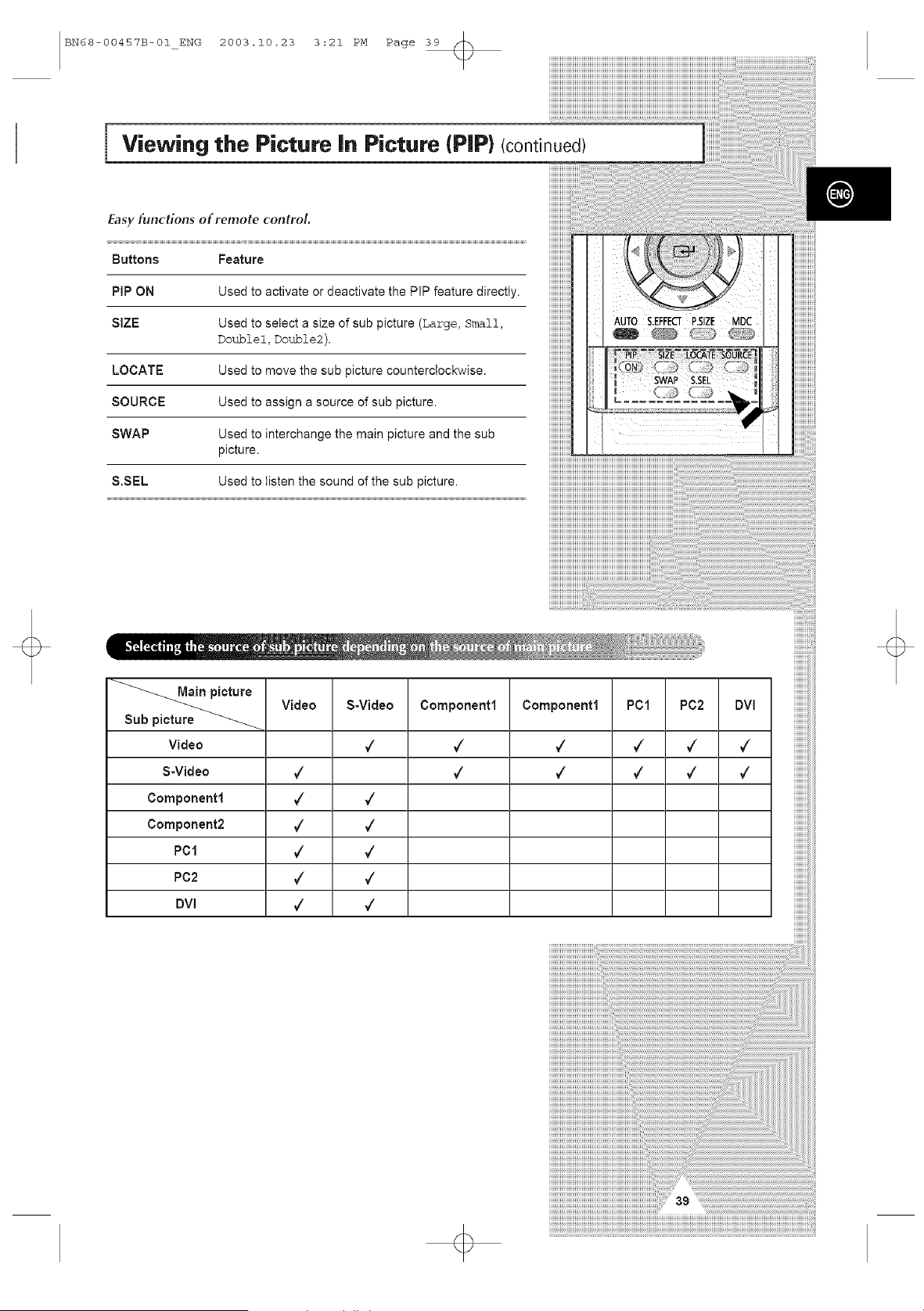
For further details about selecting a source, refer to
"Selecting the source of sub picture depending on the source
of main picture" on page 39.
Press the • or T button to select Swap. Press the _" button.
Result: The main picture and sub picture are interchanged.
Press the ,& or _ button to select Size. Select a size of the sub
picture by pressing the _1 or _- button.
Result: The sizes are displayed in the following order:
Large - Small - Doublel - Double2
8 Press the • or _' button to select T,ocate. Select a location of the
sub picture by pressing the _1or _" button.
BN68-00457B-01 ENG 2003.10.23 3:21 PM Page 39
Viewing the Picture Jr=Picture (PIP) (continued)
S.SEL Used to listen the sound of the sub picture.
Video
S-Video
Component1
Component2
PC1
PC2
DVl
Component1
Video PC1 PC2 DVI
¢ ¢ ¢
7 7 7
S-Video
¢
7
Component1
¢ ¢
7 ¢
¢ 7
7 ¢
7 ¢
¢ 7
7 ¢
BN68-00457B-01_ENG 2003.10.23 3:21 PM Page 40
Listening to the Sound of the Sub Picture
iiiiiiiiiiiiiii AUTOS.EFFECrP.SlZEMDC
iiiiiiiiiiiiiiio ®
iiiiiiiiiiiiiii SwAP S.SEL
iiiiiiiiiiiiiii ......
iiiiiiiiiiiiiii
HHHHHHHi_
iiiiiiiiiiiiiiiii
iiiiiiiiiiiiiiiii
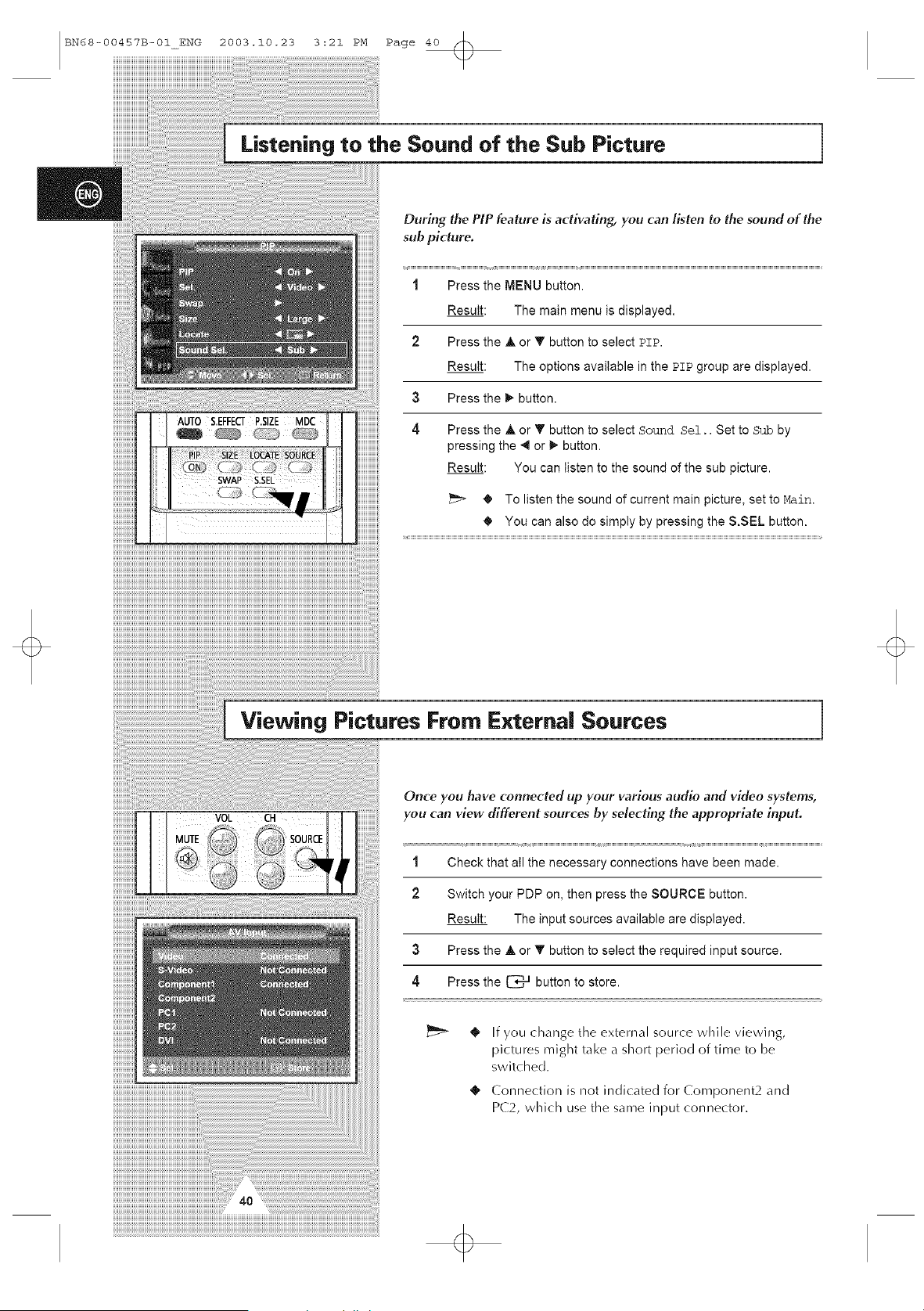
During the PIP feature is activating, you can listen to the sound of the
sub picture.
1 Press the MENU button.
Result: The main menu is displayed.
2 Press the A or T button to select pTp.
Result: The options available in the #T# group are displayed.
3 Press the _" button.
4 Press the A or T button to select Sound SeZ.. Set to sub by
pressing the _1or _ button.
Result: You can listen to the sound of the sub picture.
_I, To listen the sound of current main picture, set to Main.
You can also do simply by pressing the S.SEL button.
Viewing Pictures From External Sources
iiiiiiiiiiiiiiiiiiiiiiiiiiiiiiiiiiiiiiiiiiiiiiiiiiiiiiiiiiiiiii!!iii
Once you have connected up your various audio and video systems,
you can view different sources by selecting the appropriate input.
1 Check that all the necessary connections have been made.
2 Switch your PDP on, then press the SOURCE button.
Result: The input sources available are displayed.
3 Press the • or _ button to select the required input source.
4 Press the C__l button to store.
4_ If you change the external source while viewing,
pictures might take a short period of time to be
switched.
4!, Connection is not indicated for Component2 and
PC2, which use the same input connector.
BN68-00457B-01 ENG 2003.10.23 3:21 PM Page 41
Connecting to the Audio/Video input
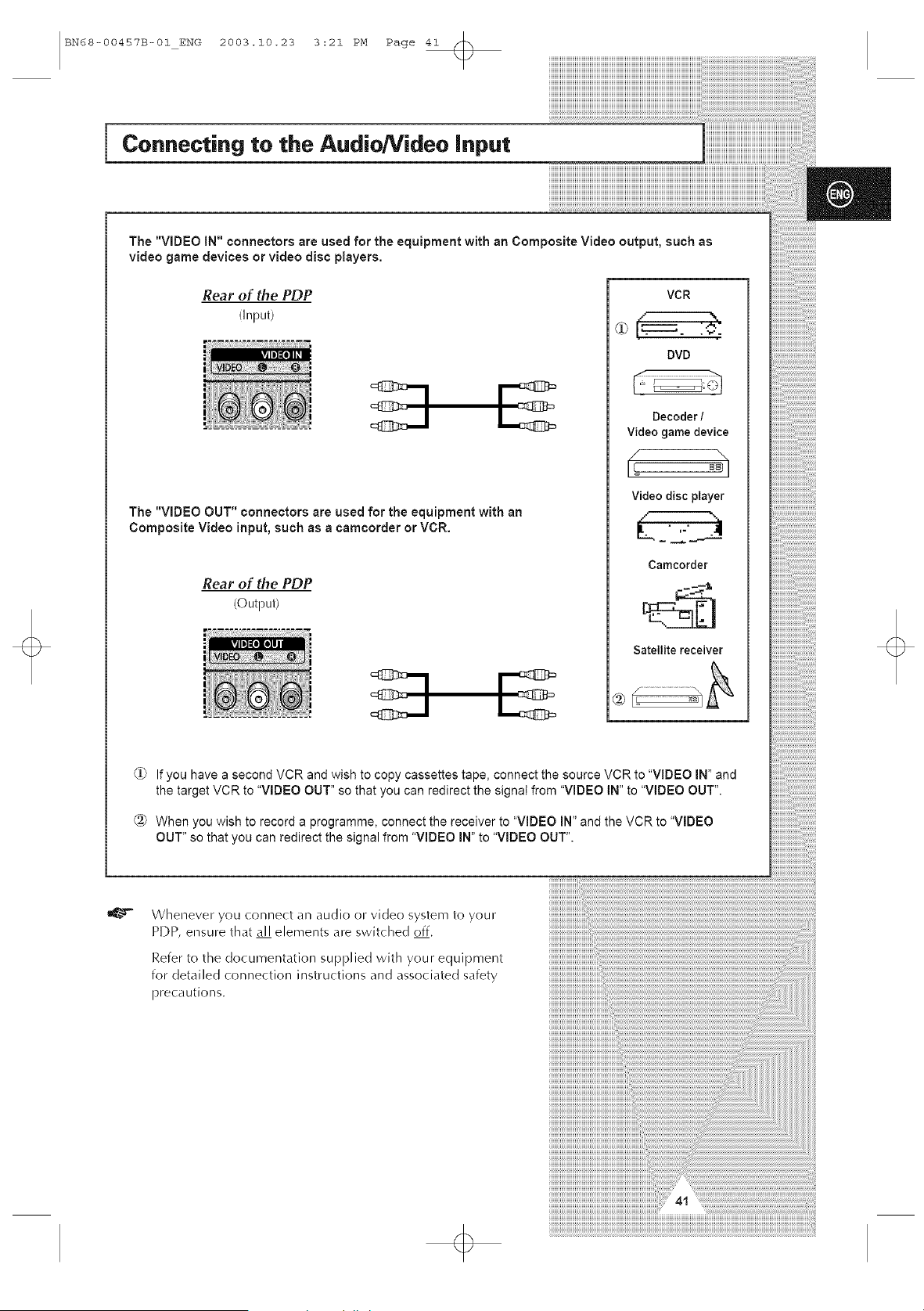
The "VIDEO iN" connectors are used for the equipment with an Composite Video output, such as
video game devices or video disc players.
Rear of the PDP
(Input)
The "VIDEO OUT" connectors are used for the equipment with an
Composite Video input, such as a oamcorder or VCR.
Rear of the PDP
(Output)
VCR
<c[-. . :,.:
DVD
Decoder /
Video game device
f \
Video disc player
L_.
Camcorder
Satellite receiver
_i] If you have a second VCR and wish to copy cassettes tape, connect the source VCR to "VIDEO iN" and
the target VCR to "VIDEO OUT" so that you can redirect the signat from "VIDEO IN" to "VIDEO OUT".
@ When you wish to record a programme, connect the receiver to "VIDEO IN" and the VCR to "VIDEO
OUT" so that you can redirect the signal from "VIDEO IN" to "VIDEO OUT".
Whenever you connect an audio or vide() system to your
PDP, ensure that all elernents are switched off.
Refer to the documentation supplied with your equipment
for detailed connection instructions and associated safety
precautions.
q>
BN68-00457B-01_ENG 2003.10.23 3:21 PM Page 42
Connecting to the S-Video input
iiiiiiiiiiiiiiiiiiiii_iiii:_i:_i:_i:_i:_i:_i:_i:_i
!i!i!i!i!i!i!i!i!i!i!i!i!i!i!i!i!i!i!i!i!i!i!i,............
iiiiiiiiiiiiiiiiiiiiiiiiii
iiiiiiiiiiiiiiiiiiiiiiiiii
iiiiiiiiiiiiiiiiiiiiiiiiiiiiiii
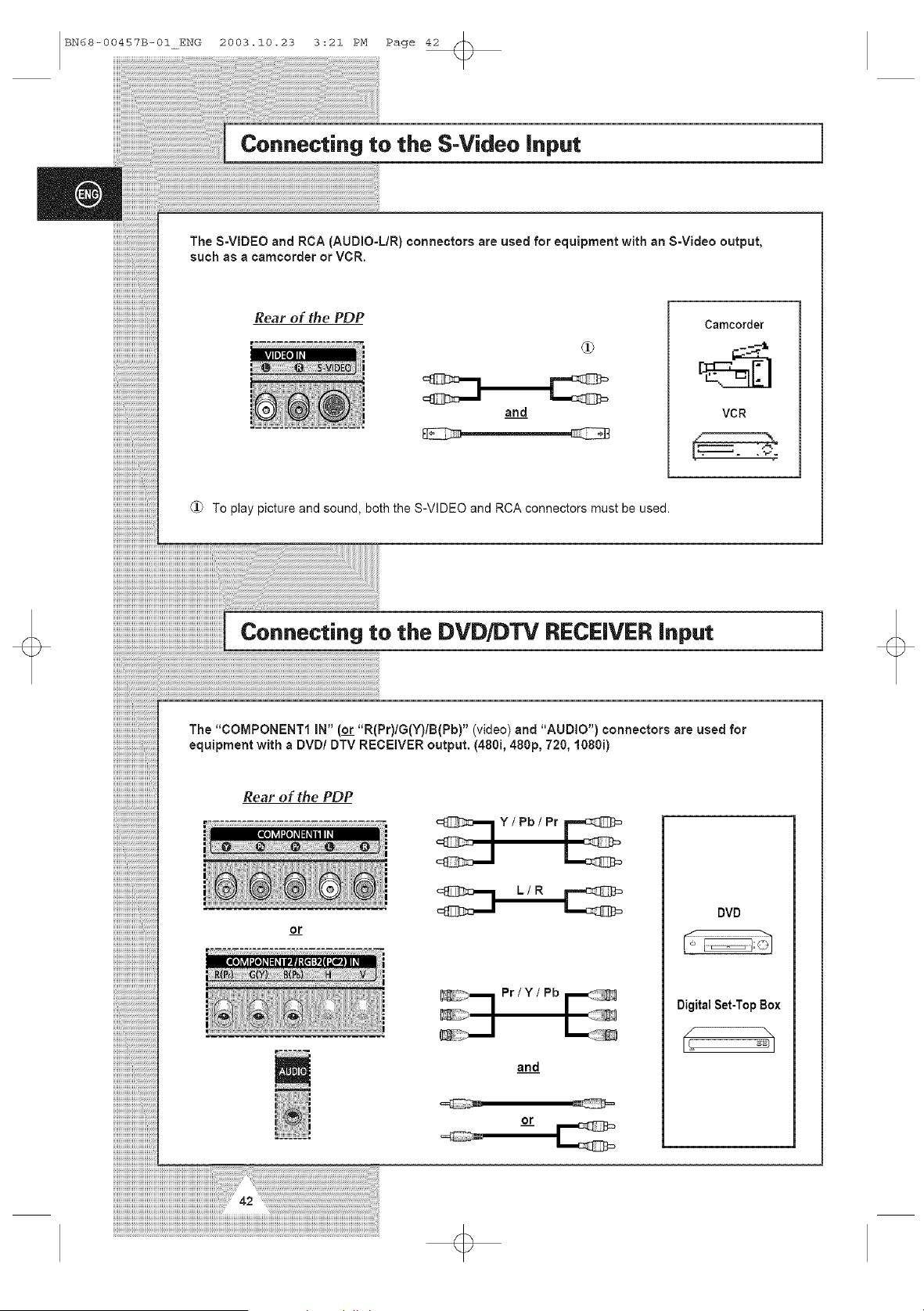
The S-VIDEO and RCA (AUDIO-L/R) connectors are used for equipment with an S-Video output,
such as a camcorder or VCR.
Rear of the PDP
and
Camcorder
VCR
To play picture and sound, both the S-VIDEO and RCA connectors must be used.
I Connecting to the DVD/DTV RECEIVER input
............................................ (or R(P )/G(Y)/B(Pb)"( ) )
................... The "COMPONENT1 IN .... r video and "AUDIO" connectors are used for
equipment with a DVD/DTV RECEIVER output. (480i, 480p, 720, 1080i)
Y/Pb/Pr
Pr/Y/Pb
and
or
DVD
DigitalSet-TopBox
Connecting to the DVI Input
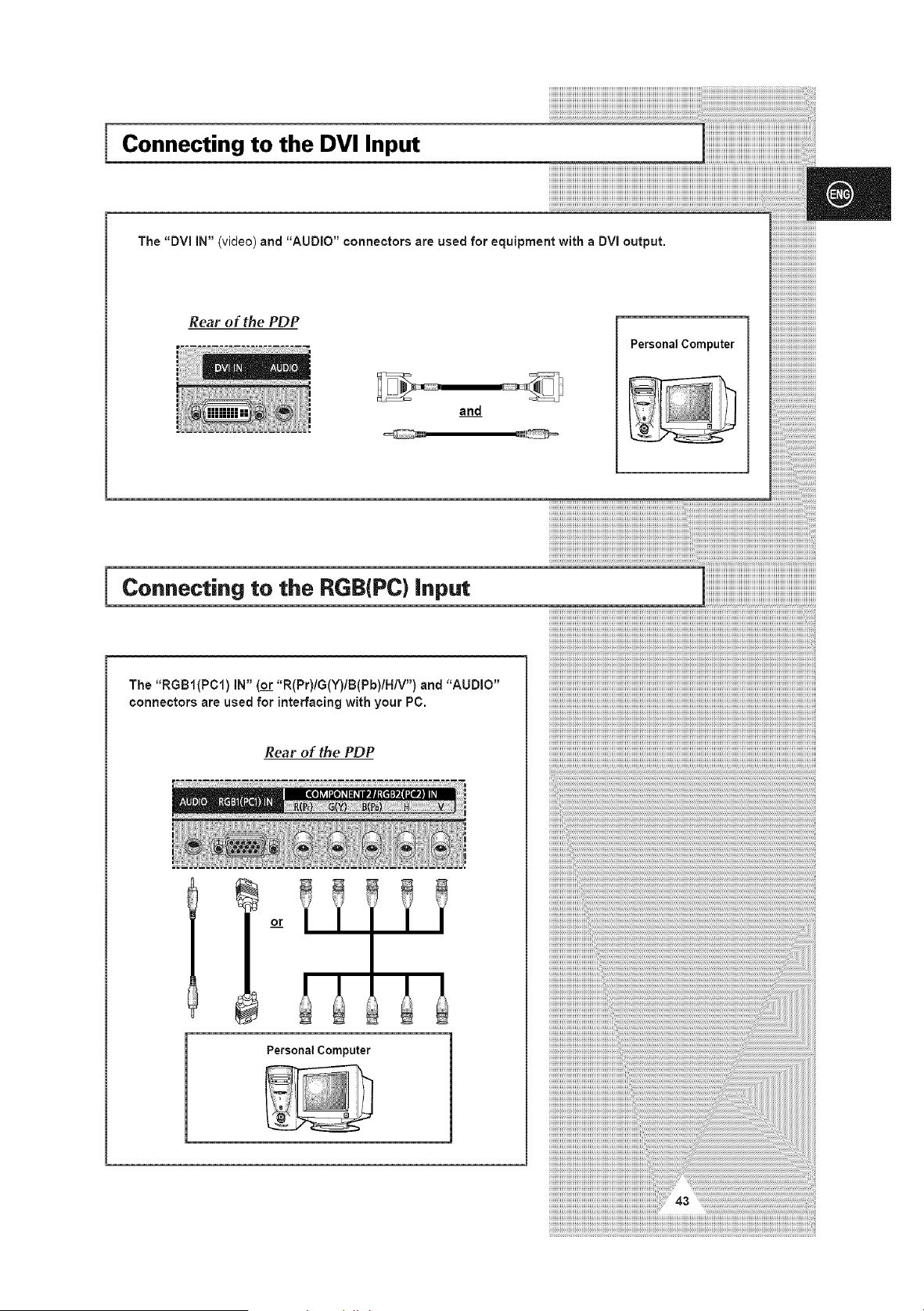
The "DVl IN" (video) and "AUDIO" connectors are used for equipment with a DVI output.
Rear of the PDP
Personal Computer
_ _ _ iiiiiiiiiiiiiii_i_iiiiiiiiiiiiiiiiiiiiiiiiiiiiiiiiiiiiiiiiiiiiiiiiiiiiiiiiiiiiiiiiiiiiiii
Connecting to the RGB(PC) input
The "RGBI(PCI) IN" (or "R(Pr)IG(Y)IB(Pb)IHIV") and "AUDIO"
connectors are used for interfacing with your PC.
Rear of the PDP
or
iiiiiiiiiiiiiiiiiiiiiiiiiiiiiiiiiiiiiiiiiiiiiiiiiiiiiiiiiiiiiiiiiiiiiiiiiiiiiiiiiiiiiiiiiiiiiiiiiiiiiiiiiiiiiiiiiiiiiiiiiiiiiiiiiiiiiiiiiiiiiiiiiiiiiiiiiiiiiiiiiiiiiiiiiiiiiiiiiiiiiiiiiiiiiiiiiiiiii
iiiiii
Personal Computer
Setting up Your PC Software (Windows only} 1
!,!,!,!,!,!,!,!,!,!,!,!,!,!,!,!,!,!,!,!,!,!,!,!,!,!,!,!,
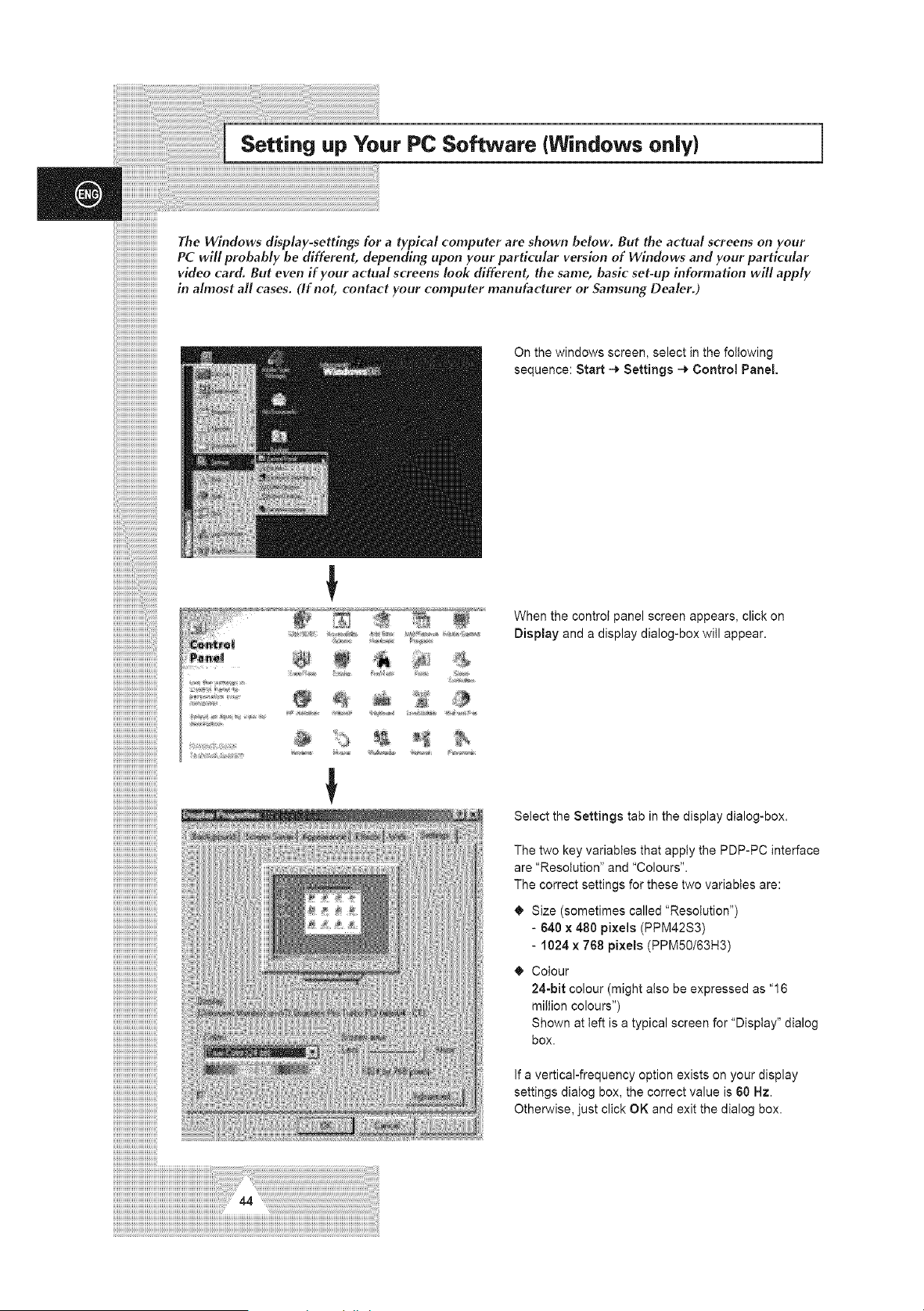
The Windows dlsplay-settlngs for a typical computer are shown below. But the actual screens on your
PC will probably be different, depending upon your particular version of Windows and your particular
video card. But even if your actual screens look different, the same, basic set-up information will apply
in almost all cases. (If not, contact your computer manufacturer or $amsung Dealer.)
On the windows screen, select in the following
sequence: Start 4 Settings 4 Control Panel.
z_....
!
When the control panel screen appears, click on
Display and a display dialog-box will appear.
Select the Settings tab in the display dialog-box.
The two key variables that apply the PDP-PC interface
are "Resolution" and "Colours".
The correct settings for these two variables are:
Size (sometimes called "Resolution")
- 640 x 480 pixels (PPM42S3)
- 1024 x 768 pixels (PPM50/63H3)
Colour
24-bit colour (might also be expressed as "16
million colours")
Shown at left is a typical screen for "Display" dialog
box.
If a vertical-frequency option exists on your display
settings dialog box, the correct value is 60 Hz.
Otherwise, just click OK and exit the dialog box.
Pin Configurations
Pin RGB(PC) IN
1 Red (R)
2 Green (G)
3 Blue (B)
4 Grounding
5 Grounding (DDC)
6 Red (R) Grounding
7 Green (G) Grounding
8 Blue (B) Grounding
9 Reserved
10 Sync Grounding
11 Grounding
12 Data (DDC)
13 Horizontal sync.
14 Vertical sync.
15
Pin Signal
1 T.M.D.S. Data2-
2 T.M.D.S. Data2+
3 T.M.D.S. Data2/4 Shield
4 T.M.D.S. Data4-
5 T.M.D.S. Data4+
6 Clock (DDC)
7 Data (DDC)
8 Not Connected
9 T.M.D.S. Data1-
10 T.M.D.S. Data1+
11 T.M.D.S. Data1/3 Shield
12 T.M.D.S. Data3-
13 T.M.D.S. Data3+
14 +5V Power
Clock (DDC)
r ....................................................
R5232C Connector
l (grln) I
I
[ ]
=
I Pin Signal I
=I 1 Carrier Detect :i
, 2 Receive Data
, 3 Transmit Data
4 Data Terminal Ready
5 System Ground
u 6 Data Set Ready =
7 Request to Send
8 Clear to Send
9 Ring Indicator
I
15 5V Grounding
16 Hot Plug Detect
17 T.M.D.S. Data0-
18 T.M.D.S. Data0+
19 T.M.D.S. DataO/5ShieId iiiiiiiiiiiiiiiiiiiiiiiiiiiiiiiiii
20 T.M.D.S. Data5- iiiiiiiiiiiiiiiiiiiiiiiiiiiiiiiiii
21 T.M.D.S. Data5+ iiiiiiiiiiiiiiiiiiiiiiiiiiiiiiiiii
22 T.M.D.S. CtockShietd iiiiiiiiiiiiiiiiiiiiiiiiiiiiiiiiii
23 T.M.D.S. Otock+ iiiiiiiiiiiiiiiiiiiiiiiiiiiiiiiiii
24 T.M.D.S. Ctock- iiiiiiiiiiiiiiiiiiiiiiiiiiiiiiiiii
iiiiiiiiiiiiiiiiiiiiiiiiiiiiiiiiii
.............................................................iiiiiiiiiiiiiiiiiiiiiiiiiiiiiiiiii
iiiiiiiiiiiiiiiiiiiiiiiiiiiiiiiiii
iiiiiiiiiiiiiiiiiiiiiiiiiiiiiiiiii
iiiiiiiiiiiiiiiiiiiiiiiiiiiiiiiiii
iiiiiiiiiiiiiiiiiiiiiiiiiiiiiiiiii
iiiiiiiiiiiiiiiiiiiiiiiiiiiiiiiiii
iiiiiiiiiiiiiiiiiiiiiiiiiiiiiiiiii
iiiiiiiiiiiiiiiiiiiiiiiiiiiiiiiiii
iiiiiiiiiiiiiiiiiiiiiiiiiiiiiiiiii
input Mode (PC/DVi)
1
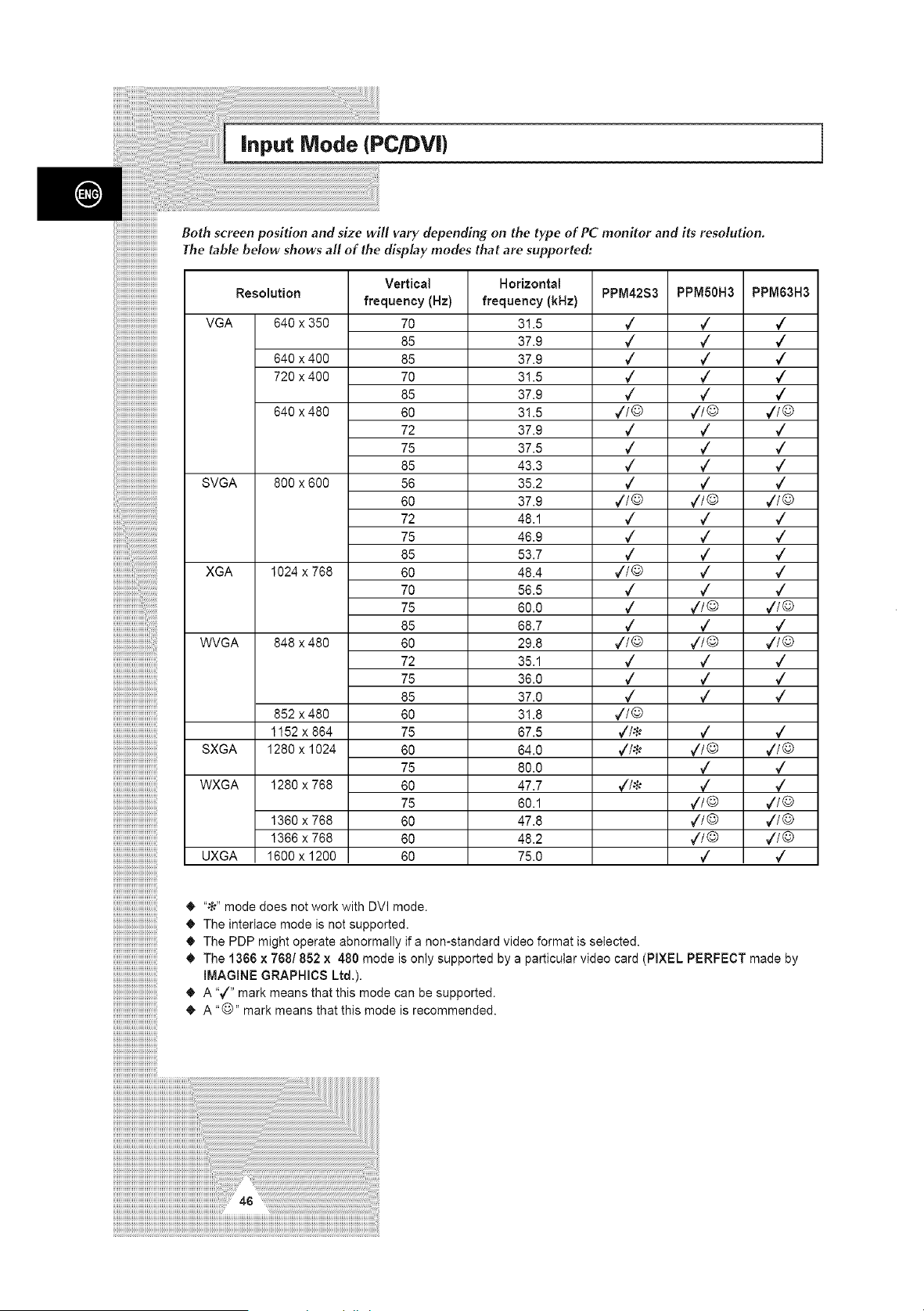
Both screen position and size will vary depending on the type of PC monitor and its resolution.
The table below shows all of the display modes that are supported:
Vertical Horizontal
Resolution frequency (Hz) frequency (kHz)
VGA 640 x 350 70 3! .5
85 37.9
640 x 400 85 37.9
720 x 400 70 3! .5
85 37,9
640 x 480 60 3!,5
72 37.9
75 37.5
85 43.3
SVGA 800 x 600 56 35.2
XGA 1024 x 768
848 x 480
852 x480
1152 x 864
1280 x 1024
1280 x 768
WVGA
SXGA
WXGA
6O
72
75
85
6O
70
75
85
60
72
75
85
60
75
6O
75
6O
75
6O
60
6O
37.9
48.1
46.9
53.7
48.4
56.5
60.0
68.7
29.8
35.1
36.0
37.0
3! ,8
67.5
64.0
80.0
47.7
60.1
47.8
48.2
75.0
1360 x 768
1366 x 768
UXGA 1600 x1200
PPM42S3 PPM50H3 PPM63H3
7
¢
7
7
¢
71@
7
7
¢
7
7/@
¢
¢
7
71©
¢
7
7
71@
7
7
¢
71©
7%1_
7
¢
7
7
¢
,//©
7
7
¢
7
¢/©
¢
¢
7
¢
¢
¢/@
7
,//@
7
7
¢
7
,//©
¢
¢
¢/©
,//@
,//@
7
,/
,/
,/
,/
,/
,/IO
¢
¢
¢
¢
7/0
7
7
¢
¢
¢
7/©
¢
¢/©
7
¢
7
¢
7/@
¢
¢
7/©
¢/@
¢1©
¢
4_ ".ld' mode does not work with DVI mode.
The interlace mode is not supported.
The PDP might operate abnormally if a non-standard video format is selected.
The 1366 x 768/852 x 480 mode is only supported by a particular video card (PIXEL PERFECT made by
iMAGiNE GRAPHICS Ltd,).
• A "_/" mark means that this mode can be supported.
_, A "@" mark means that this mode is recommended.
Power Saver (PC1 mode only)
Before Contacting Service Personnel
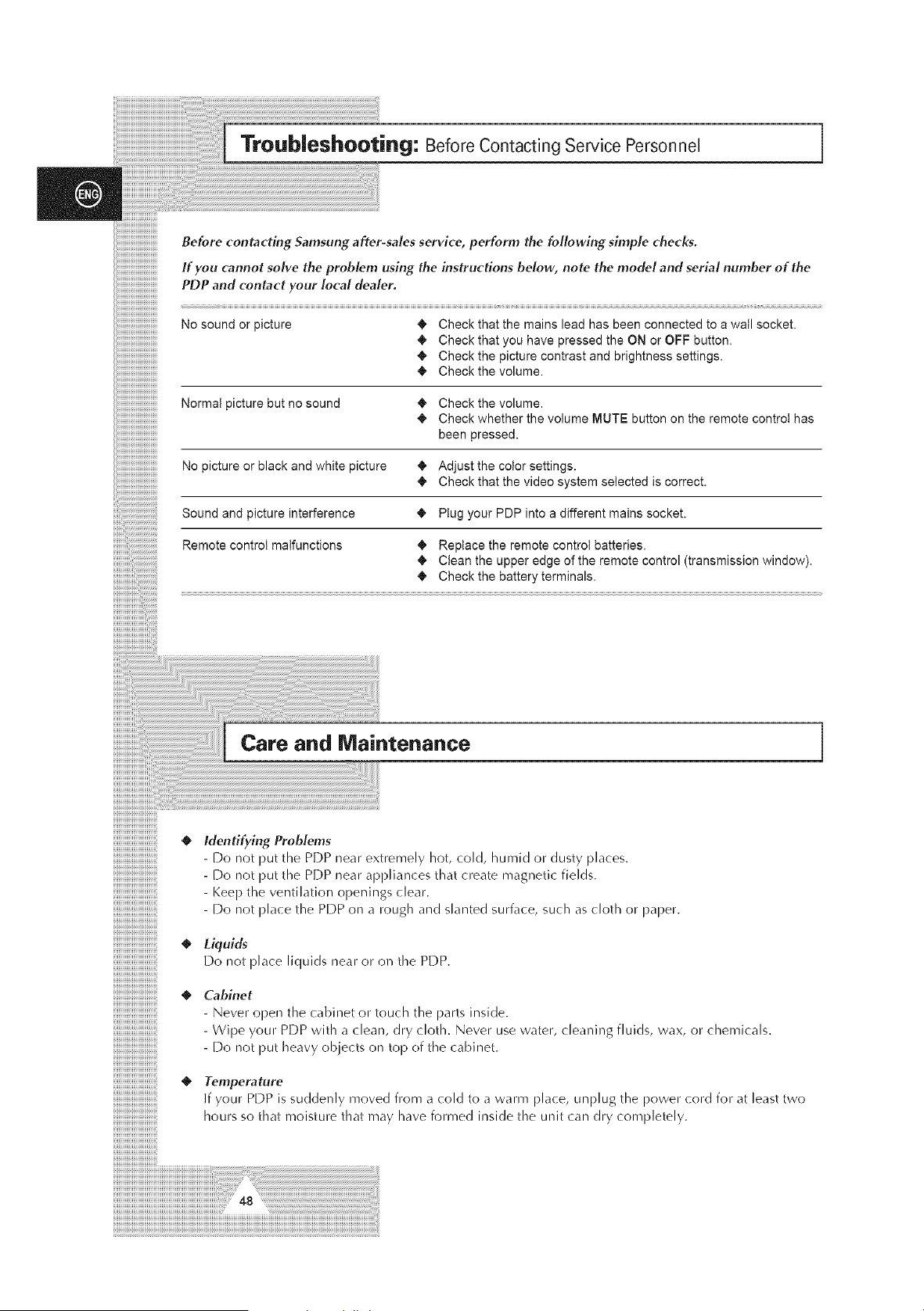
Before contacting $amsung after-sales service, perform the following simple checks.
If you cannot solve the problem using the instructions below, note the model and serial number of the
PDP and contact your local dealer.
No sound or picture • Check that the mains lead has been connected to a wall socket.
• Check that you have pressed the ON or OFF button.
• Check the picture contrast and brightness settings.
• Check the volume.
Normat picture but no sound • Check the volume.
• Check whether the volume MUTE button on the remote control has
been pressed.
No picture or black and white picture • Adjust the color settings.
• Check that the video system selected is correct.
Sound and picture interference _ Ptug your PDP into a different mains socket.
Remote control malfunctions • Replace the remote control batteries.
• Clean the upper edge of the remote control (transmission window).
• Check the battery terminals.
Care and Maintenance
Identifying Problems
- Do not put the PDP near extremely hot, cold, humid or dust}, places.
- [_)o not put the PDP near appliances that create magnetic fields.
- Keep the ventilation openings clear.
- Do not place the PDP on a rough and slanted surface, such as cloth or paper.
Liquids
Do not place liquids near or on tile PDP.
• Cabinet
- Never open tile cabinet or touch the parts inside.
- Wipe your PDP with a clean, dr}, cloth. Never use water, cleaning fluids, wax, or chemicals.
- [])o not put heavy objects on top of the cabinet.
Temperature
If your PDP is suddenly moved from a cold to a warm place, unplug the power cord for at least two
hours so that moisture that may have formed inside the unit can dr}, completely.
iiiiiiiiiiiiiiiiiiiiiiiiiiiiiiiiiiiiiiiiiiiiiiiiiiiiiiiiiiiiiii i i i i i i i i i i i i i i i i i i i i i i i i i i i i i i i i i i i i i i i i ii ! ! i! i! ii i!iiiiiiiiiiiiiiiiiiiiii i i i i !ii!ii!i i ¸ ll ll i i i i ii iiiiiiiiiiiiiiiiiiiiiiiiiiiiiiiiiiiiiiiiiiiiiiiiiiiiiiiiiiiiiiiiiiiiiiiiiiiiiiiiiiiiiiiiiiiiiiiiiiiiiiiiiiiiiiiiiiiiiiiiiiiiiiiiiiiiiiiiiiiiiiiiiiiiiiiiiiiiiiiiiiiiiiiiiiiiiiiiiiiiiiiiiiiiiiiiiiiiiiiiiiiiiiiiiiiiiiiiiiiiiiiiiiiiiiiiiiiiiiii i i i i llll
iiiiiiiiiiiiiiiiiiiiiiiiiiiiiiiiiiiiiiiiiiiiiiiiiiiiiiiiiiiiiiiiiiiiiiiiiiii i iiiii i i ! !i! ____________________________________________________________________________________________________________________________________________________________________________________
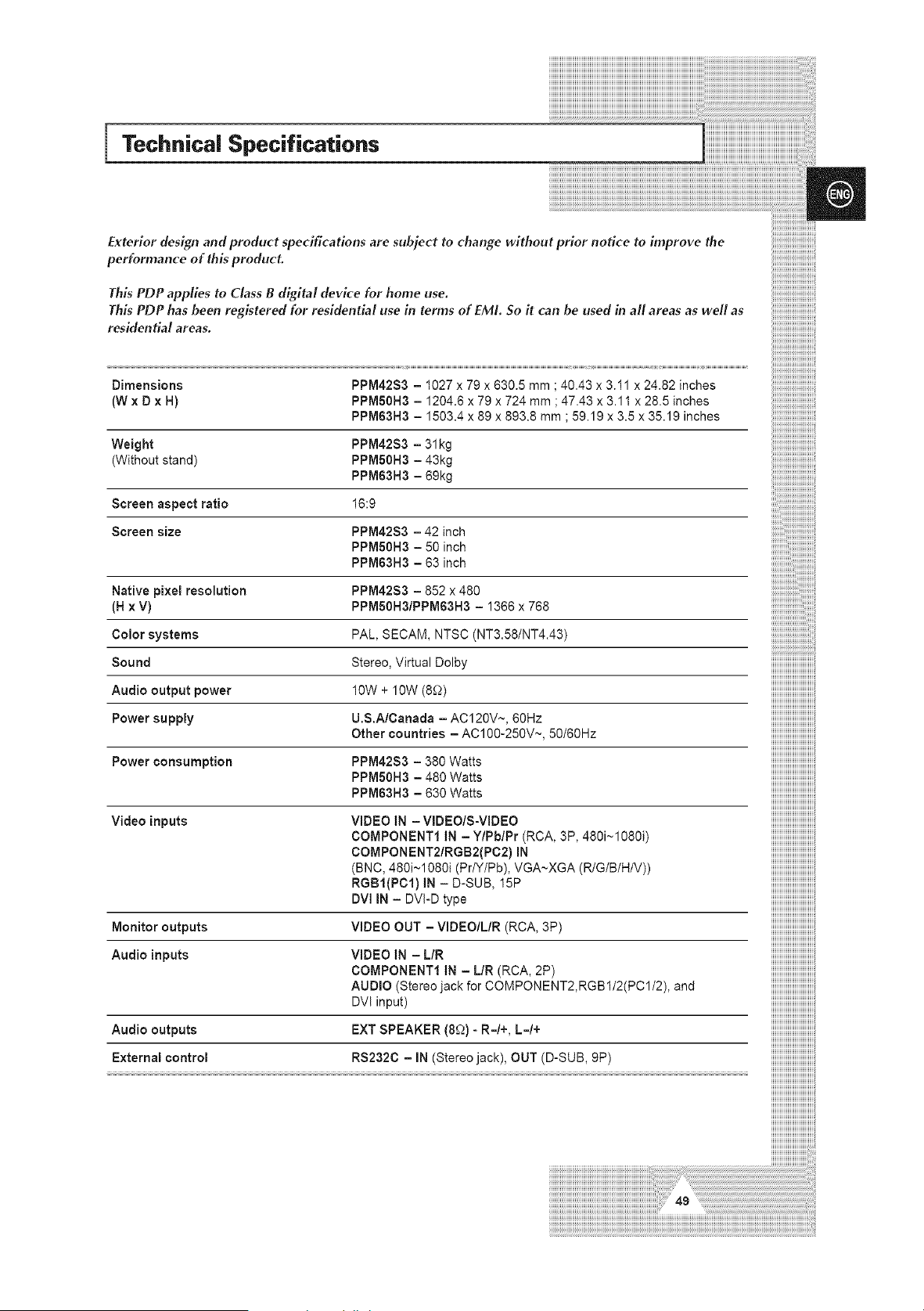
Technical Specifications
Exterior design and product specifications are subject to change without prior nodce to improve the
performance of this product.
This PDP applies to Class B digital device for home use.
This PDP has been registered for residential use in terms of EML 5o it can be used in all areas as well as
residential areas,
Dimensions PPM42S3 - 1027 x 79 x 630.5 mm ;40.43 x 3.11 x 24.82 inches
(W x D x H) PPMSOH3 - 1204.6 x 79 x 724 mm; 47.43 x 3.11 x 28.5 inches
PPM63H3 - 1503.4 x 89 x 893.8 mm ; 59.19 x 3.5 x 35.19 inches
Weight PPM42S3 - 31kg
(Without stand) PPMSOH3 - 43kg
PPM63H3 - 69kg
Screen aspect ratio 16:9
Screen size PPM42S3 - 42 inch
PPM50H3 - 50 inch
PPM63H3 - 63 inch
Native pixel resolution PPM42S3 - 852 x 480
(H x V) PPM50H3/PPM63H3 - 1366 x 768
Color systems PAL, SECAM, NTSC (NTS.58/NT4.43)
Sound Stereo, Virtual Dolby
Audio output power 10W + 10W (8£2)
Power supply U.S.A/Canada - AC120V~, 60Hz
Other countries - AC100-250V~, 50/60Hz
Power consumption PPM42S3 - 380 Watts
PPM50H3 - 480 Watts
PPM63H3 - 630 Watts
Video inputs VIDEO iN - WDEO/S-WDEO
COMPONENT1 iN - Y/Pb/Pr (RCA, 3P, 480i~1080i)
COMPONENT2/RGB2(PC2) iN
(BNC, 480i~1080i (Pr/Y/Pb), VGA~XGA (R/G/B/H/V))
RGBI(PC1) iN - D-SUB, 15P
DVI iN - DVI-D type
/iiiiiiiiiiiiiiiiiiiiiiiiiiiiiii
/iiiiiiiiiiiiiiiiiiiiiiiiiiiiiii
/iiiiiiiiiiiiiiiiiiiiiiiiiiiiiii
iiiiiiiiiiiiiiiiiiiiiiiiiiiiiiiiiiiiiiiiiiiiiiiiiiiiiiiiii_i
Monitor outputs VIDEO OUT - VIDEO/L/R (RCA, 3P)
Audio inputs VIDEO iN - L/R
COMPONENT1 iN - L/R (RCA, 2P)
AUDIO (Stereo jack for COMPONENT2,RGB1/2(PC1/2), and
DVI input)
Audio outputs EXT SPEAKER (8_.)) - R=/+, L=/+
External control RS232C - IN (Stereo jack), OUT (D-SUB, 9P)
iiiiiiiii!iiiiiiiiiiiiiiiiiiiiiiii
iiiiiiiiiiiiiiiiiiiiiiiiiiiiiiiiii
iiiiiiiiiiiiiiiiiiiiiiiiiiiiiiiiii
- AFTERSALESSERVICE
- Do not hesitate to contact your retailer or service agent
if a change in the performance of your product indicates
that a faulty condition may be present.
ELECTRONICS
BN68-00457B-01