
To ensure safety while driving
and to comply with laws,
drivers should not watch video or
operate the video device while driving.

General Information..........................................................................1
Safety Notice ..................................................................................... 2
Accessories........................................................................................3
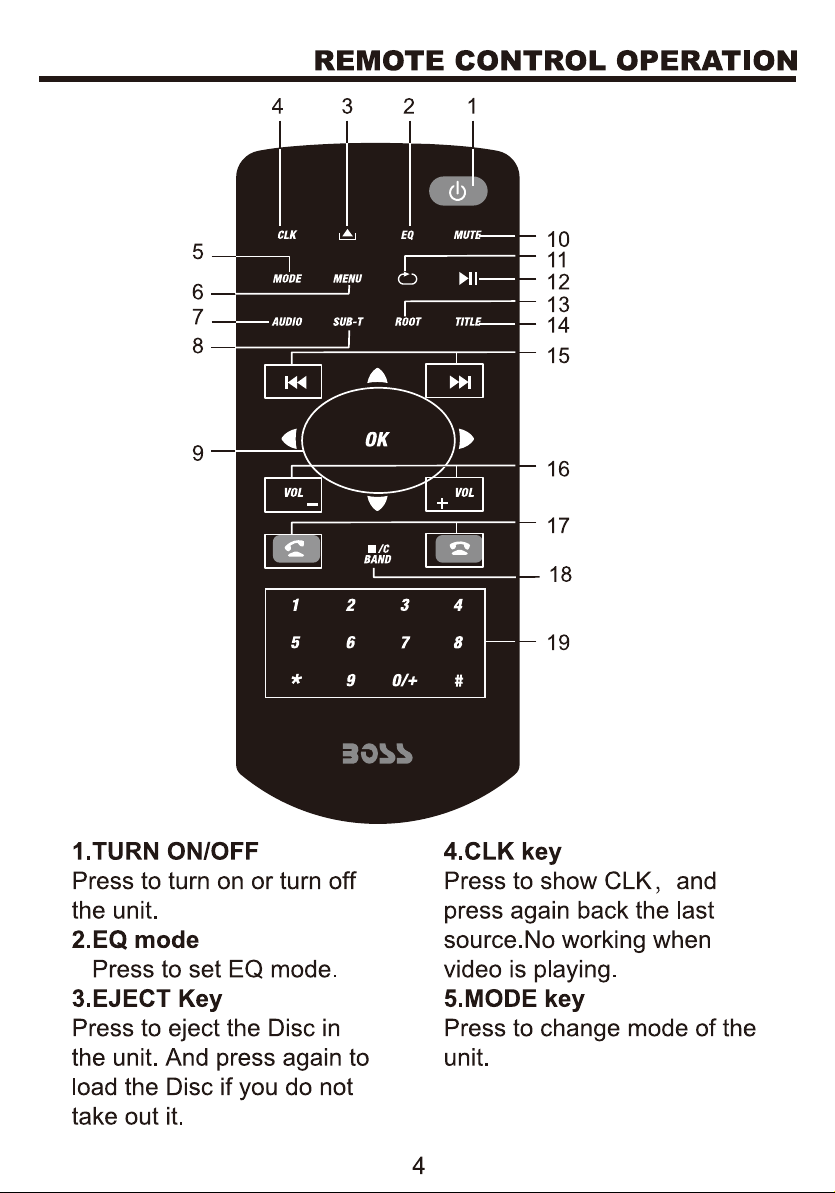
Remote Control Operation............................................................. 4
Unit Installation................................................................................. 6
Wires Connection Description...................................................... 7
Panel Introduction............................................................................ 8
Main Menu Operation Instruction.................................................9
Access Setup Interface..................................................................11
General Setup............................................................................11
Disc Setup...................................................................................12
Audio Setup................................................................................13
Navigation Setup.......................................................................13
Other Setup................................................................................14
SWC-Steering Wheel Control Setting.........................................14
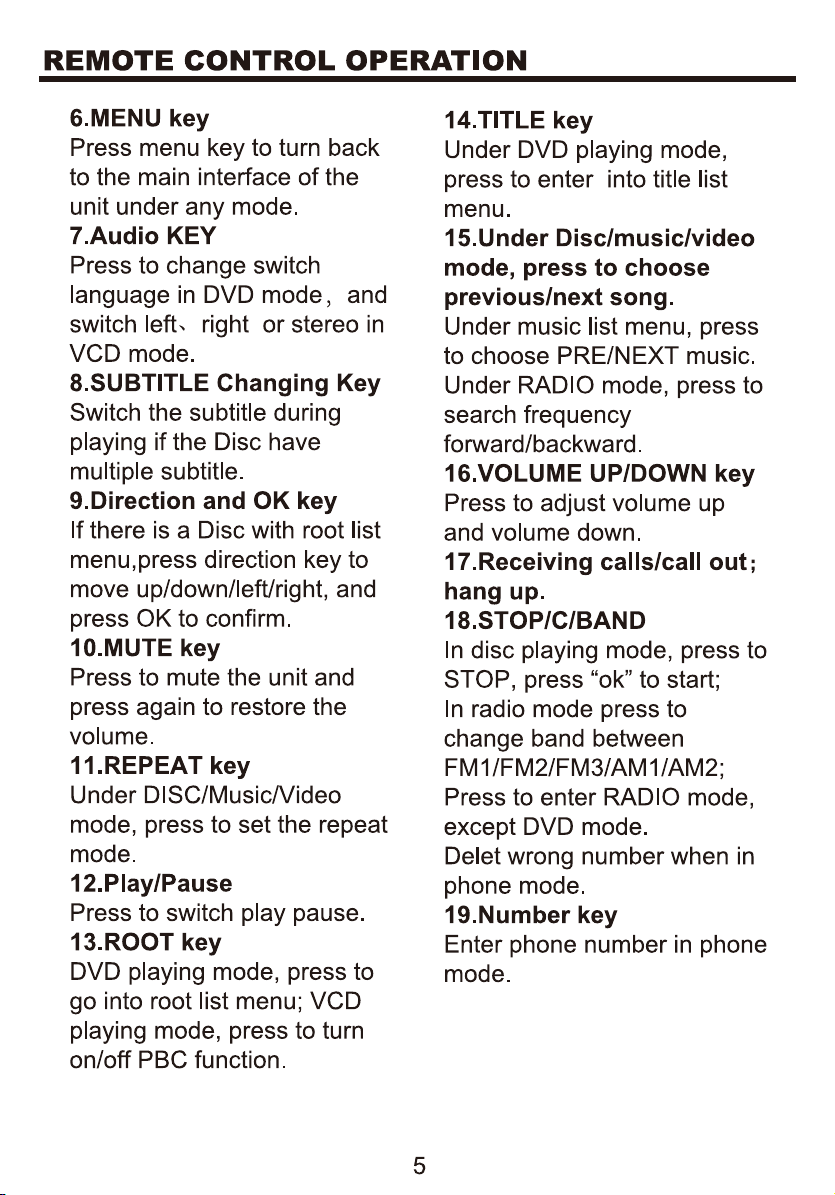
Radio Operation..............................................................................15
Disc Playback-Video......................................................................17
Disc Playback-Audio..................................................................... 18
Music Playing Menu.......................................................................19
Bluetooth Operation........................................................................19
Bluetooth Operation Menu...................................................... 19
Bluetooth Dialing........................................................................ 20
Bluetooth Call..............................................................................21
Bluetooth Phone Book..............................................................21
Bluetooth Phone Call History.................................................. 22
Bluetooth Music Streaming-A2DP.........................................23
Viewing Photos...............................................................................23
Camera/Aux/A/V Menu..................................................................25
Troubleshooting............................................................................26
INSTRUCTIONS
CONTENTS

DVD ±R/
BV9386NV
RW Audio & Video
CD ±R/RW Audio & Video
FM/AM Tuner (Switchable Tuner)
USB Port
SD Port (64GB Max)
USB Charging (1A)
A/V In/Out
Rear Camera Input
Front, Rear, Sub Pre-Amp Outputs
Steering Wheel Control Input
6.2 TFT (800 x 480 Resolution)
11-16 V DC Allowable, Negative Ground
4 x 80 Watts
JPEG, BM
Picture/Audio
formats
P, PNG, MP3,AAC,WAV
Compatible Formats
SAFTY NOTICE
Please read and understand the following safety information before
operating this unit.
The device is suitable for 12V power supply (requires grounding).
Do not connect it to 24V power supply in trucks or buses, or else it will
be damaged.
Please use genuine discs, instead of incompatible and poor discs,
or else it will damage the device or shorten the service life.
Without the guide of qualified personnel, do not replace the fuse,
or else it may damage the device or cause fire.
Please follow the traffic laws and regulations and do not watch
program or operate the device when you are driving, to avoid
accidents (excluding passengers watching through rear monitor).
To ensure safety and operate the device normally, please ask
qualified personnel to install the device. do not disassemble or repair
the device without authorization, to avoid damage and accidents.
Please contact local car audio distributor for details.
Do not put the device in moist environment or water, to avoid
electric shock, damage and fire due to short circuit.
The mechanical drive part of the monitor uses automatic precision
transmission component. Do not pull, push or rotate the device by
force or impact the TFT screen to avoid damaging the device.
Do not insert the audio plug of the vehicle into the master unit
directly. please convert with the dedicated end cable provided by our
company.
When install the unit, prevent metal objects falling into the master
unit from the vents to avoid short circuit and damaging the device.
Safety Statement
For the safety of you and others, do not watch programs or operate
the device when you are driving. It is prohibited by the laws and
regulations.
The backing monitor function should be used as auxiliary means.
we are not responsible for any accidents occurred during backing.
2
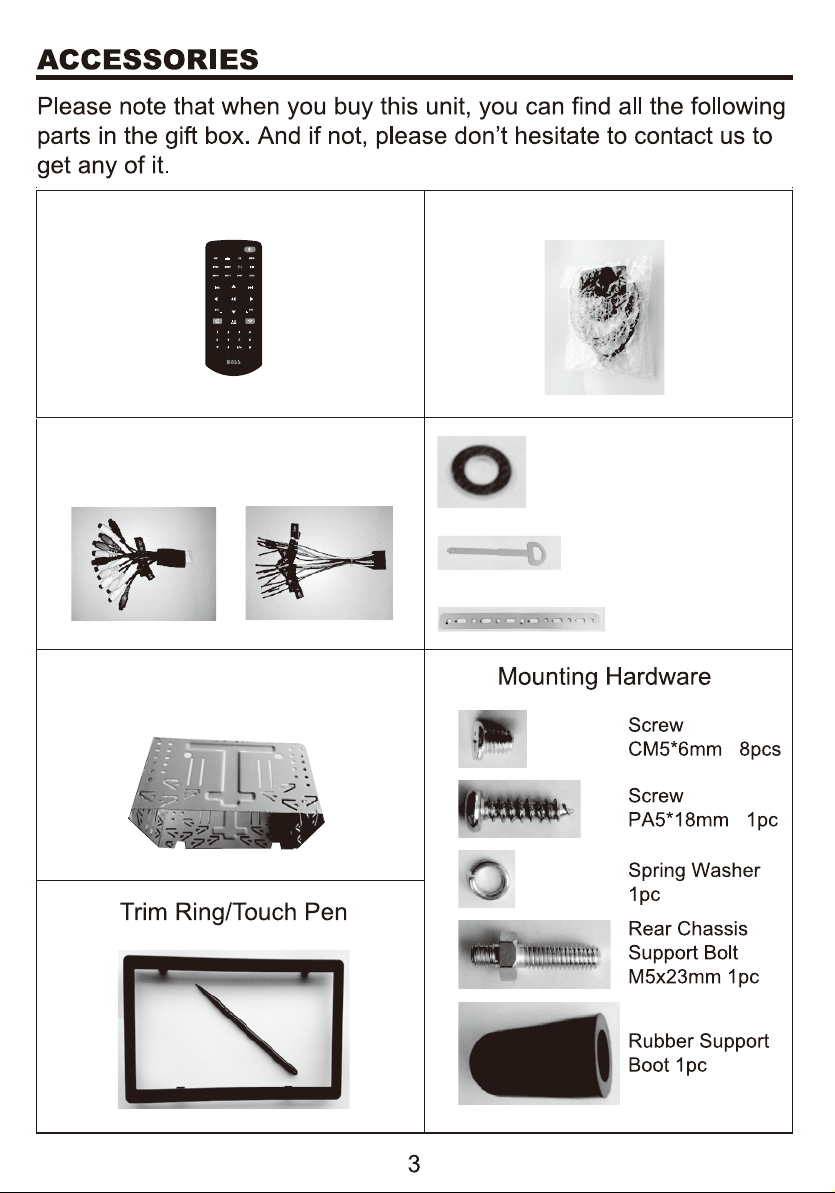
Remote
Mounting Sleeve
Control
GPS Antenna
Power Cable
Flat washer 2pcs
Installation key 2pcs
Metal Strap 1pc
RCA Cable
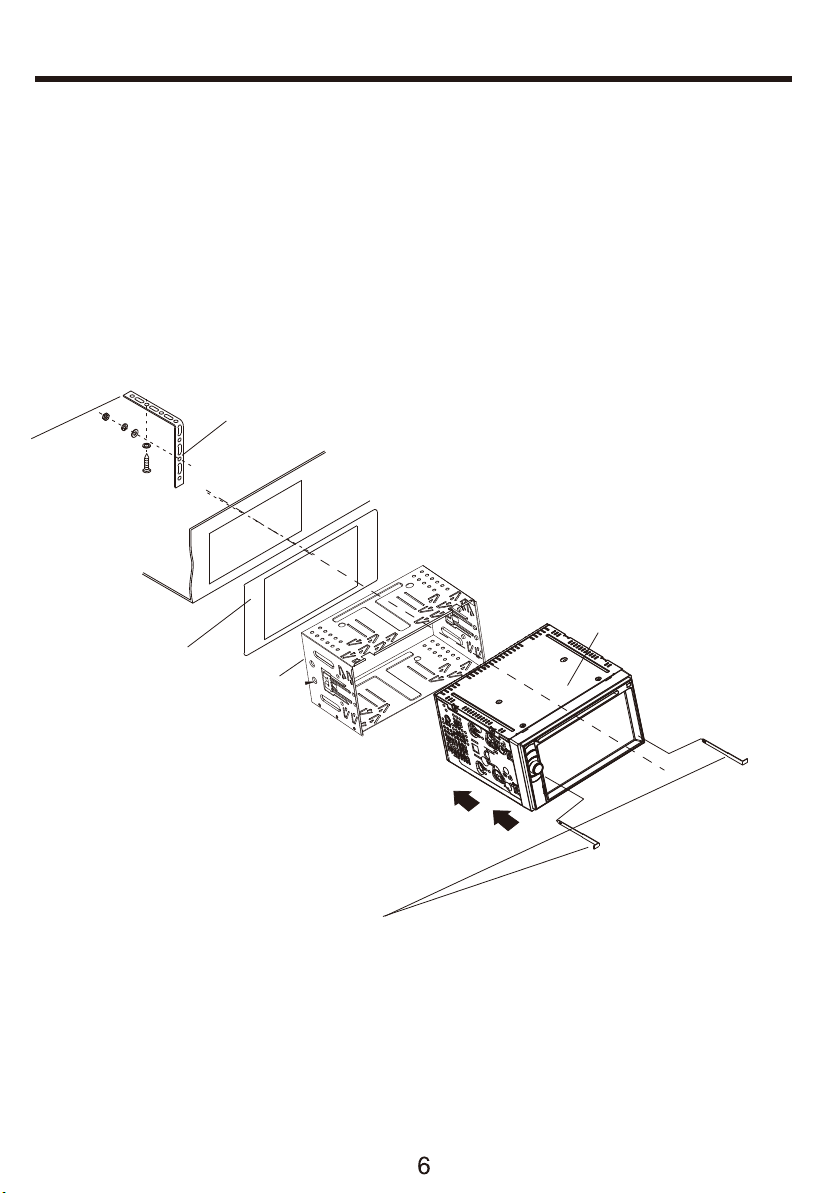
UNIT INSTALLATION
TO BOOST UP THE CAPABILITY O
ANTI-JAMMING, PLEASE FIX THE
METAL STRAP ON THE METAL
CONNECTED TO THE BOTTOM
BRACKET OF THE CAR.
METAL STRAP
DASH BOARD
SLIDING METAL HOUSING
TO DRAW THE CHASSIS OUT OF
THE SLIDING METAL HOUSING,
INSERT THE LEFT AND RIGHT KEY
PLATES INTO THE RIGHT POSITION
OF THE 2 SIDES OF CHASSIS.
UNIT CHASSIS
THE UNIT IS INSTALLED TO BE AN ANTI-THEFT ONE. THE CHASSIS
OF THE UNIT WEARS A SLIDING METAL HOUSING. PLEASE DO THE
CONNECTION OF THE POWER, SPEAKERS AND ANTENNA ACCORDING
TO THE REQUIREMENT OF THE INSTRUCTION BOOK , THEN INSTALL
THE SLIDING METAL HOUSING IN THE CAR AS FOLLOWS.
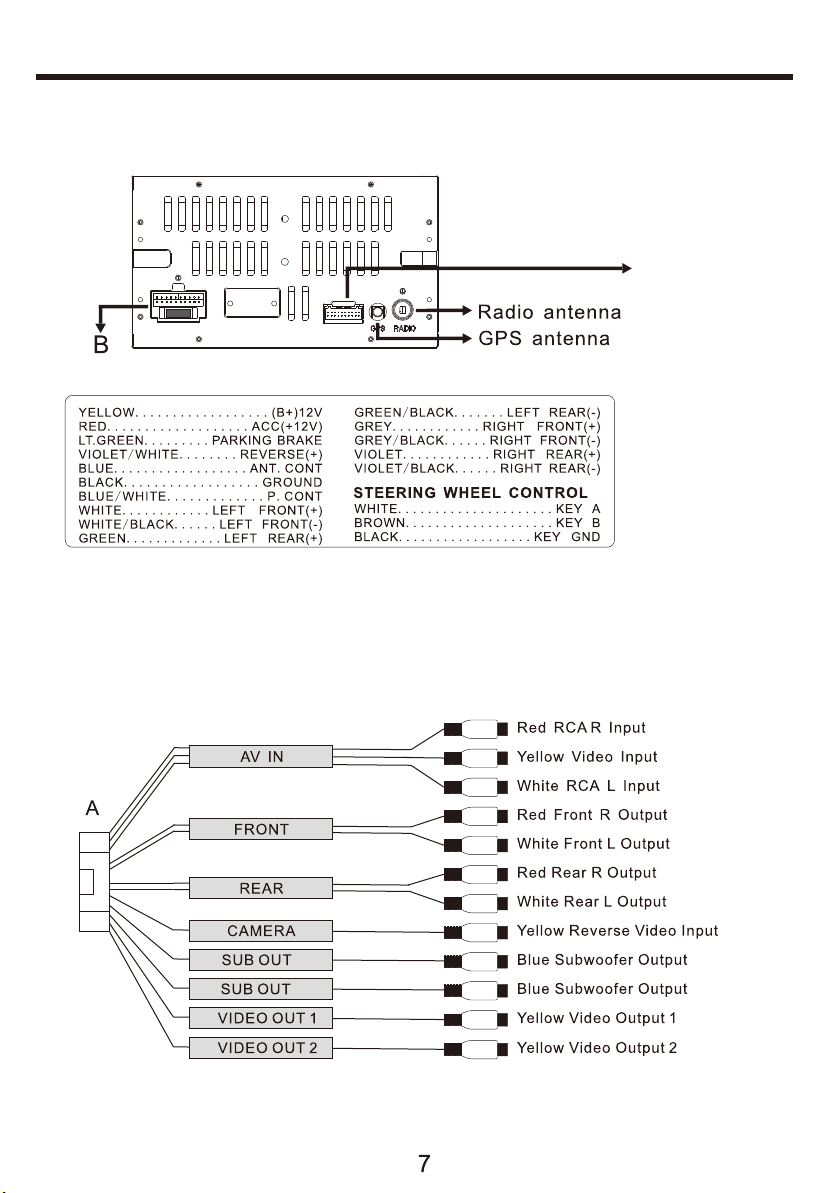
WIRES CONNECTION DESCRIPTION
The Description of the Input/Output Interface
Description of the Wiring Diagram for Socket A
A
8
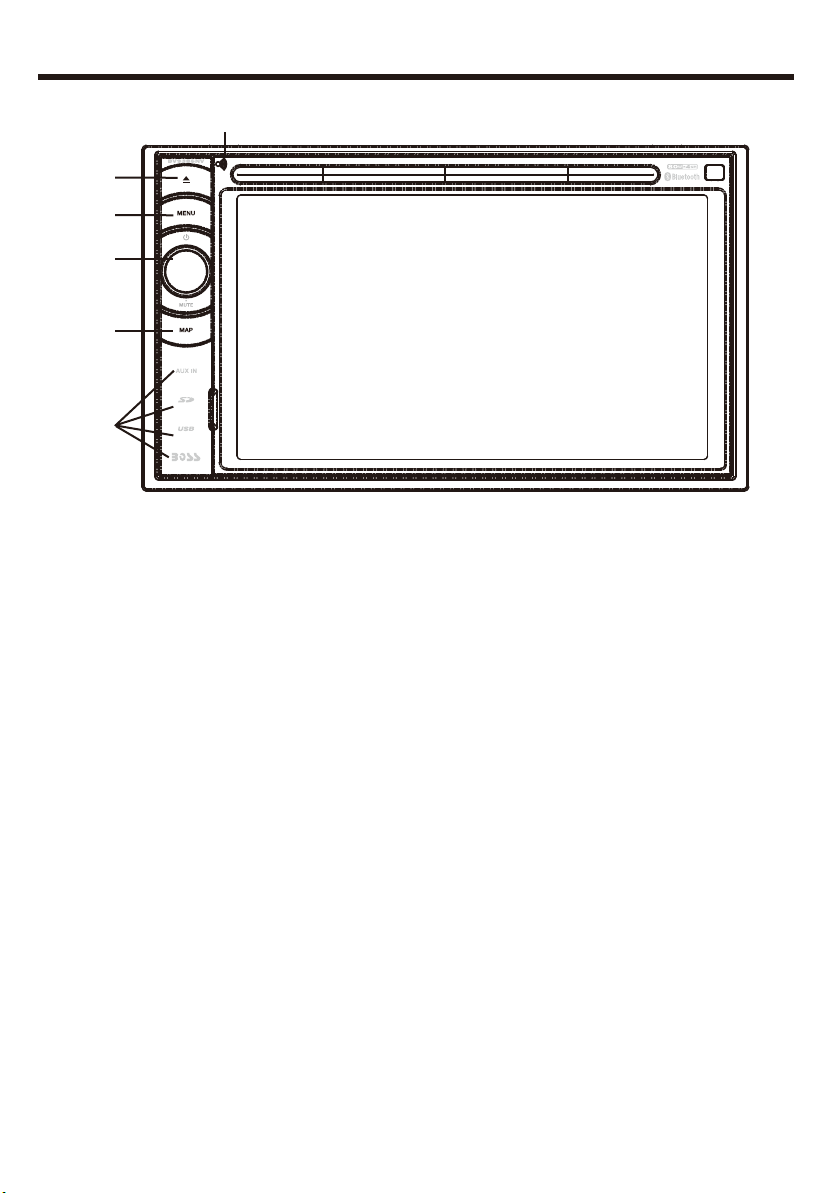
PANEL INTRODUCTION
1.MIC receive hole
Place to receive the signal of microphone.
2.Eject key
When there is a Disc in the unit, press EJECT to remove the Disc. And
press again to insert the Disc if you do not take out it.
3.MENU key
Press to go back to main menu in any interface.
4.TURN ON/OFF & VOLUNE UP/DOWN
Long touch to turn ON/OFF the unit. Short touch to activate MUTE
function and silence the audio output. Press again to restore sound.
Rotate to adjust the output volume UP or DOWN.
5.Map key
Press to enter into navigation function. Or back media from GPS.
6.AUX IN (AUX IN /SD/ USB/RESET/GPS card slot)
Open to see AUX IN /SD/ USB/GPS card port and reset key.
1
2
3
4
5
6
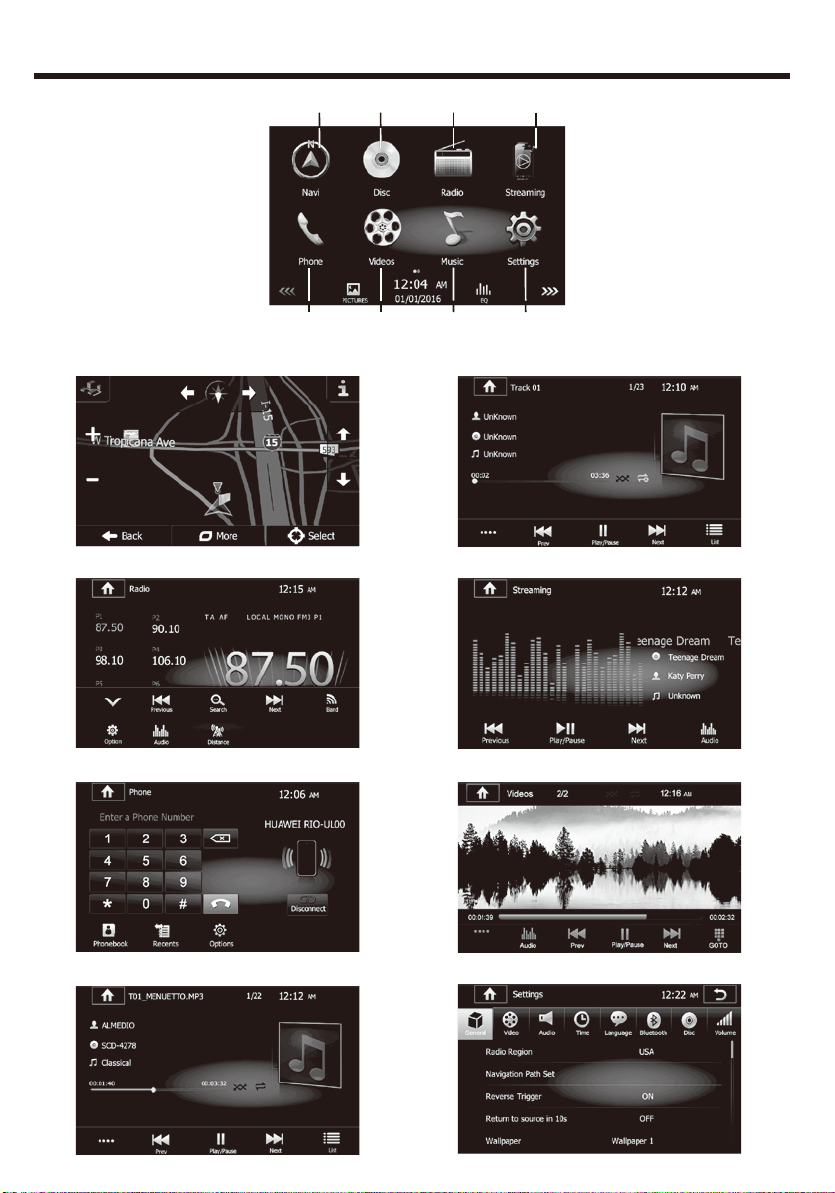
MAIN MENU OPERATION INSTRUCTION
1.NAVI: Navigation Interface 2. Disc Interface
3. Radio Interface 4. Streaming Interface
5. Phone Interface 6. Video Interface
7.Music Interface 8. Settings Interface
9
21 43
65 87
MAIN MENU 1
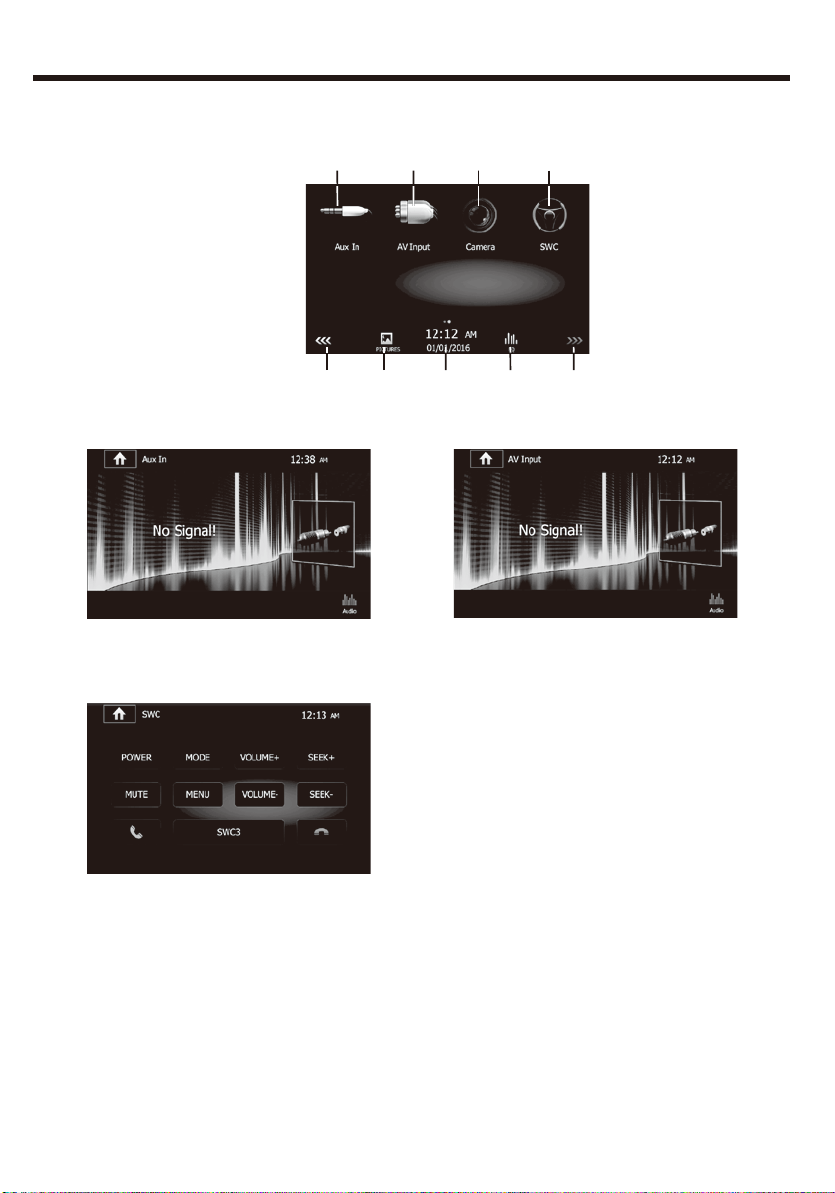
MAIN MENU OPERATION INSTRUCTION
9.AUX IN interface 10. AV In Interface
11. Camera: it will show rear camera interface when reverse.
12: SWC interface
13. Picture: Press to see picture files in the unit.
14.Shows the present date and time of the unit.
15.Press to go to EQ setting up interface.
16.Press to slide to another page. If it is grey, means this is
the last page menu.
10
MAIN MENU 2
109 1211
1316 15 1614
11
RADIO OPERATION
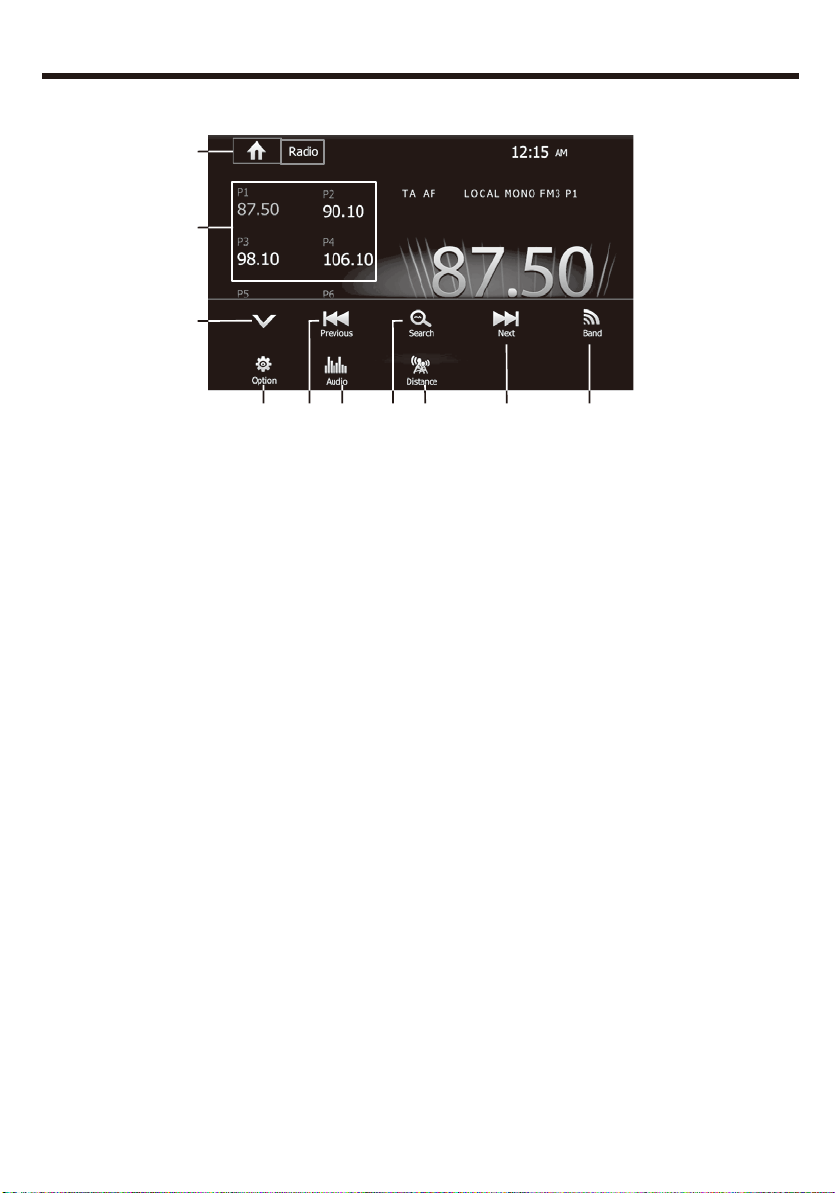
1.All this icon means return back to main menu of the unit.
2.Radio frequency saving area: can save 18 frequencies and can only
show 6 in a page;
3.Press to OPEN/HIDE the function bar.
4.Long press to search backward. Short press to move backward in
step.
5.Search the frequencies, play the searched one for 5S and go on to
search next one and repeat it.
6.Long press to search forward. Short press to move forward in step.
7.Band changing: Click to change between FM1/FM2/FM3/AM1/AM2.
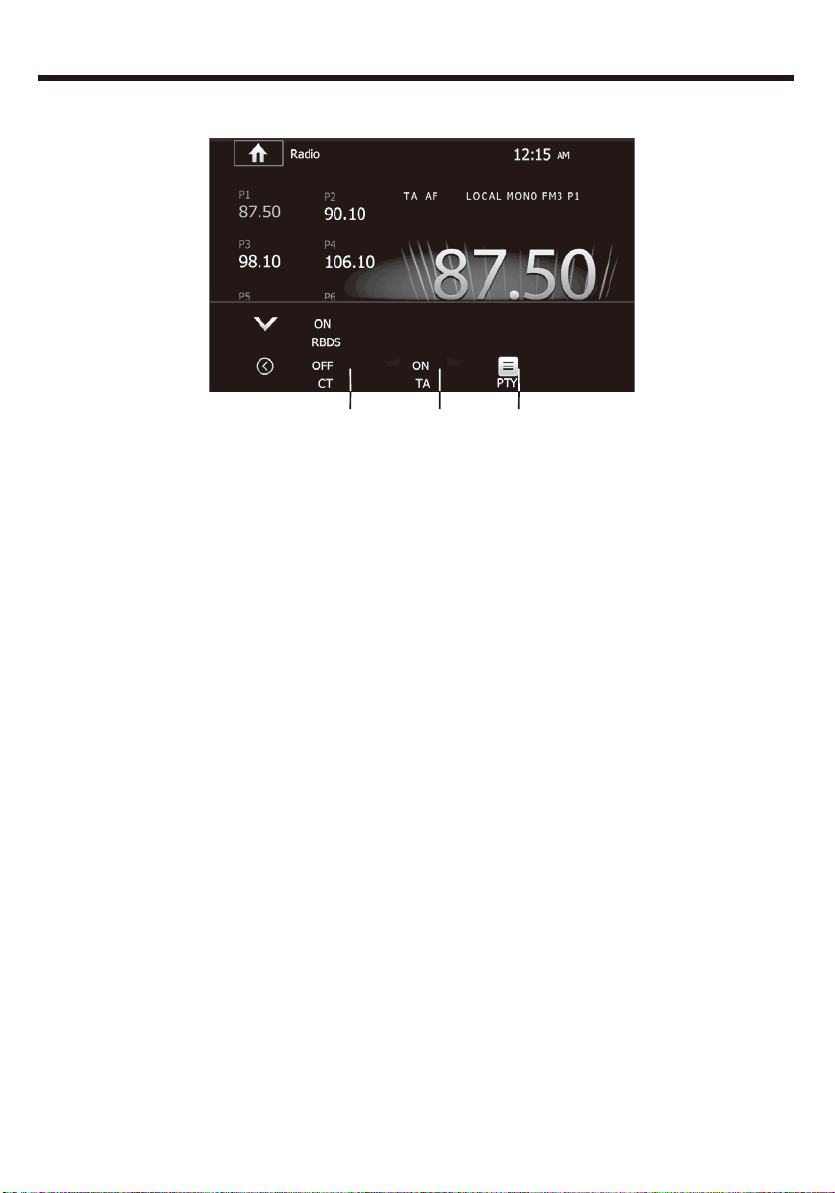
8.Press to see RBDS function(AF as default) choosing interface
show as below:
1
2
3
8
9 104 5 6 7
12
RADIO OPERATION
a. TA(Traffic Announcement)
ON: When the taffic station is turned on, the radio will automatically
search for traffic stations. After a staton is searched, screen displays
“TP” Only when traffic information is broadcasted can it be received,
after traffic information is completed, the radio will automatically
switch
to the previous mode.
OFF: Repress [TA] button to close TA function. In other modes,
traffic
announcement will automatically switch to radio mode, after the traffic
announcement is completed, it will automatically switch to the
previous
mode.
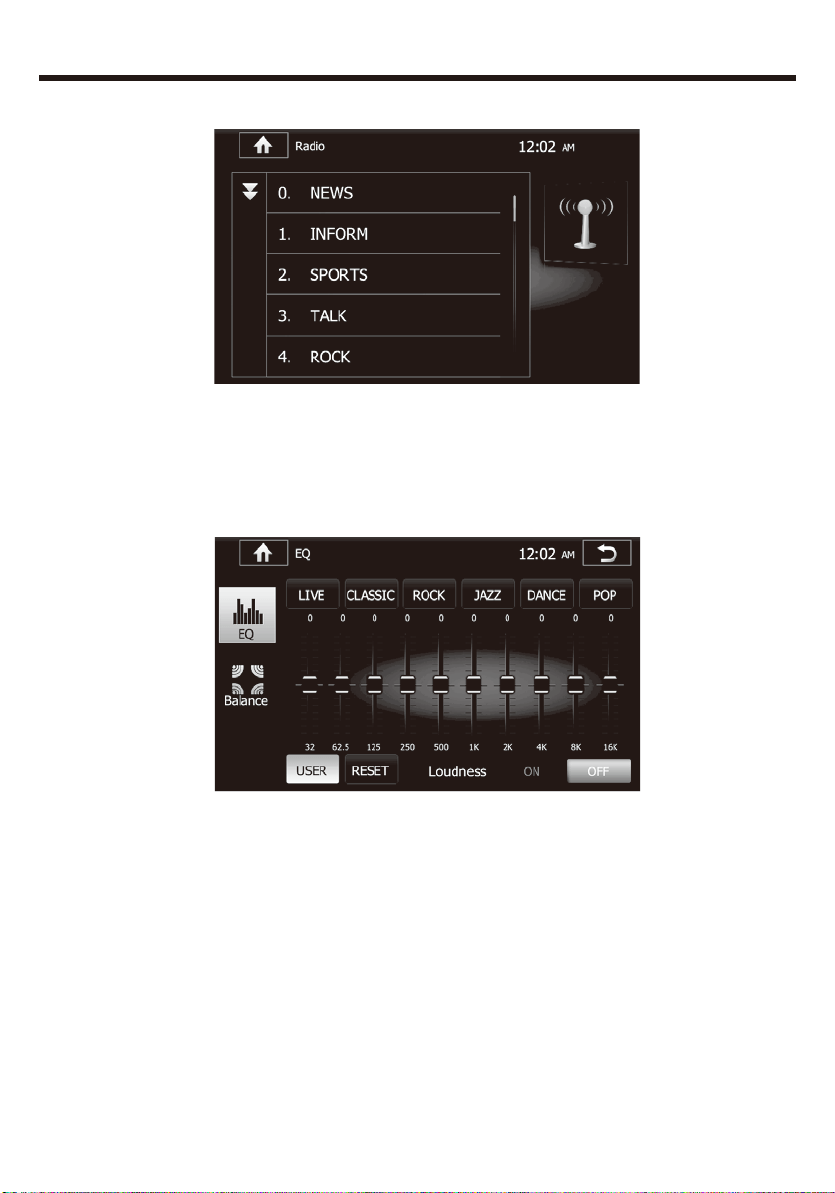
b. PTY(Programming Type)
Touch the button the screen displays program types, users can search
station according to program type.
c.CT (Clock Time)
To provide current time correction information, the RBDS station can
automatically correct the system clock of the receiver when the clock
RBDS is opened.
a bc
13
RADIO OPERATION
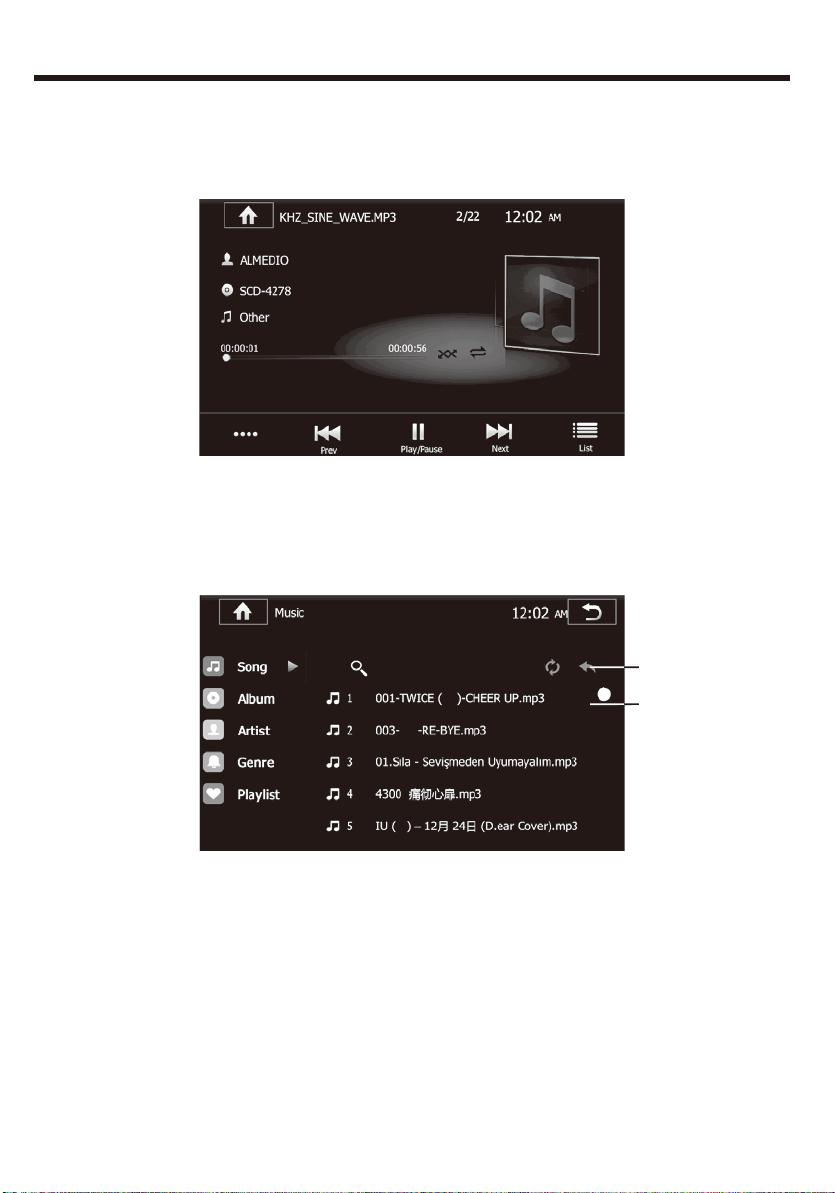
9.Press to see EQ function interface:
10.LO/DX: Touch to select Local or Distant broadcasting frequencies.
14
This refers to music playing from USB and SD. Click the Music icon in
main menu and you will see:
a. Scan the file in the SD and USB
b. Long press the song name to save the song to the playlist and you
can play anytime you want.
PRESS LIST TO SEE BELOW
MUSIC PLAYING
b
a
15
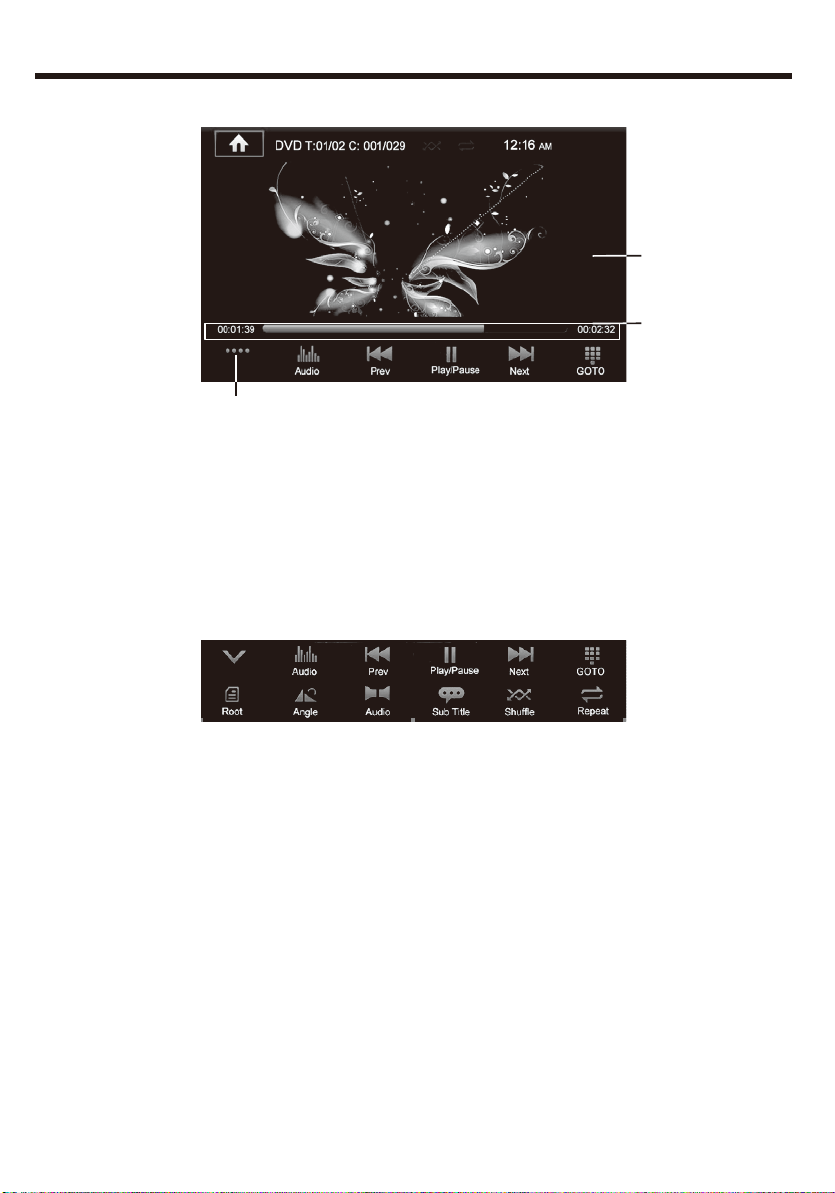
1. Show the process and time of the present video. Touch the bar to
set the playing time.
2. Function Area: This bar will disappear in a while, and click this area
to show this function bar again.
3.Press to OPEN/HIDE the whole function bar:
Audio: Touch to see EQ setting menu.
Prev: Touch to choose last item.
Play/Pause: Touch to begin playing. And touch the icon again to
pause playing.
Next: Touch to choose next item.
GOTO: Touch to choose item manually. And click the relevant key to
choose the chapter.
DISC PLAYING
2
1
3
16
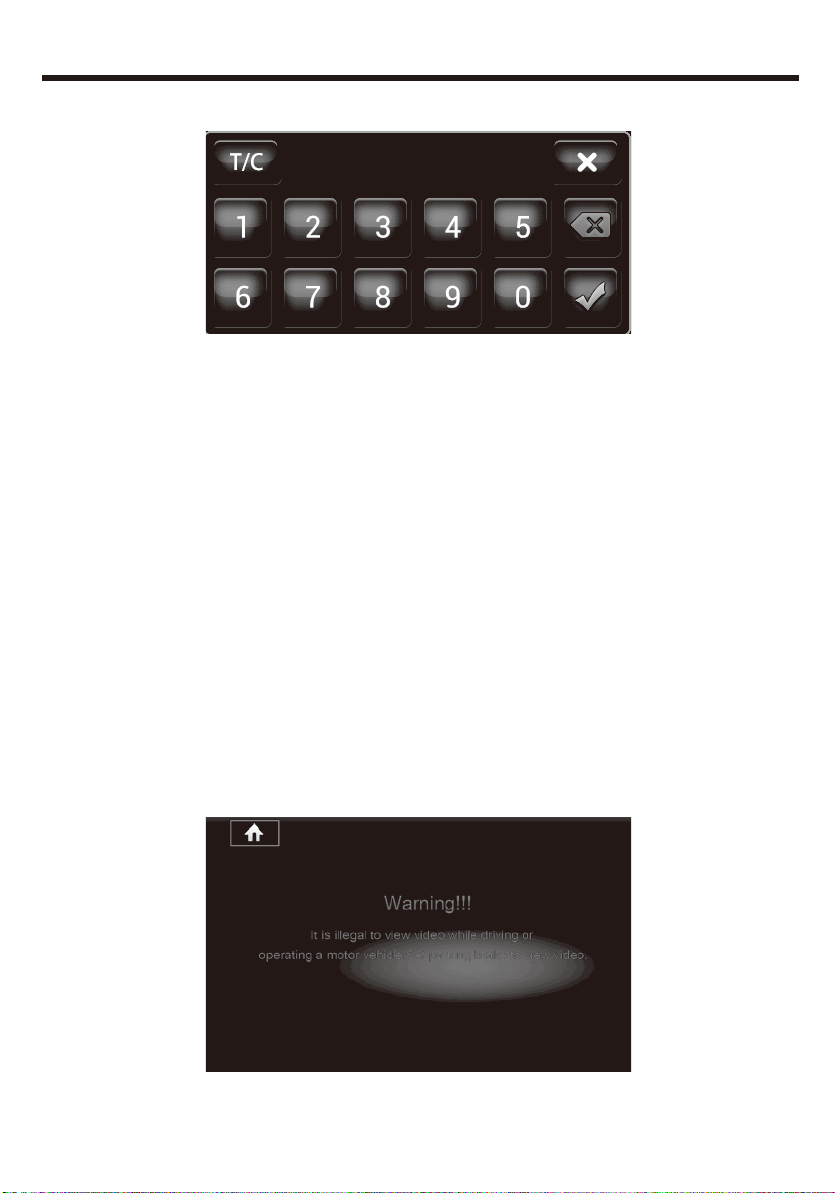
Press the no. of the item you want to listen and click GREEN CLICK
to start.
Root: Touch to enter DVD menu
Angle: Touch to select DVD video angle
Sub Title:Touch to select the subtitle languge if the disc is recorded in
multiple languages.
Shuffle: Random play
Repeat: Loop playback.(ALL/SINGLE loop play)
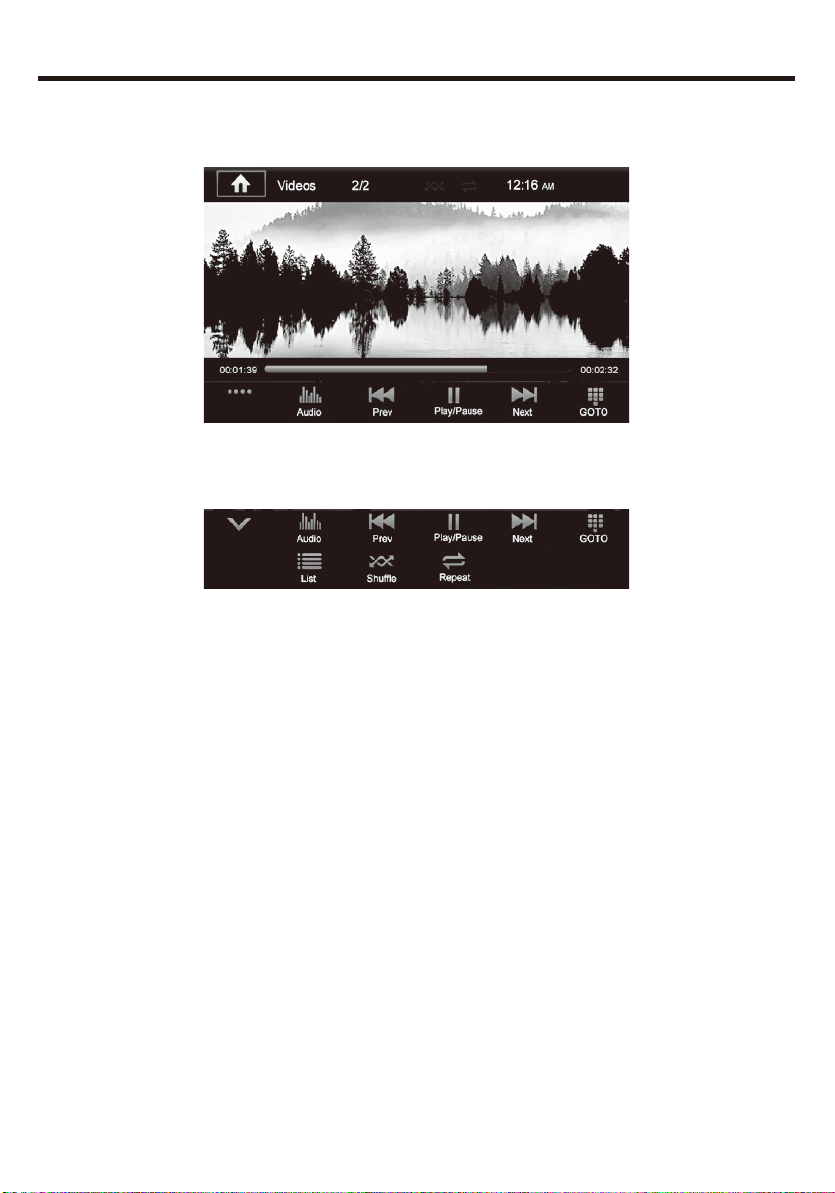
NOTE: When properly installed, DVD video cannot be displayed
unless the parking brake is applied. If you attempt to play a DVD
while the vehicle is moving, the screen displays the following warning.
DISC PLAYING
17
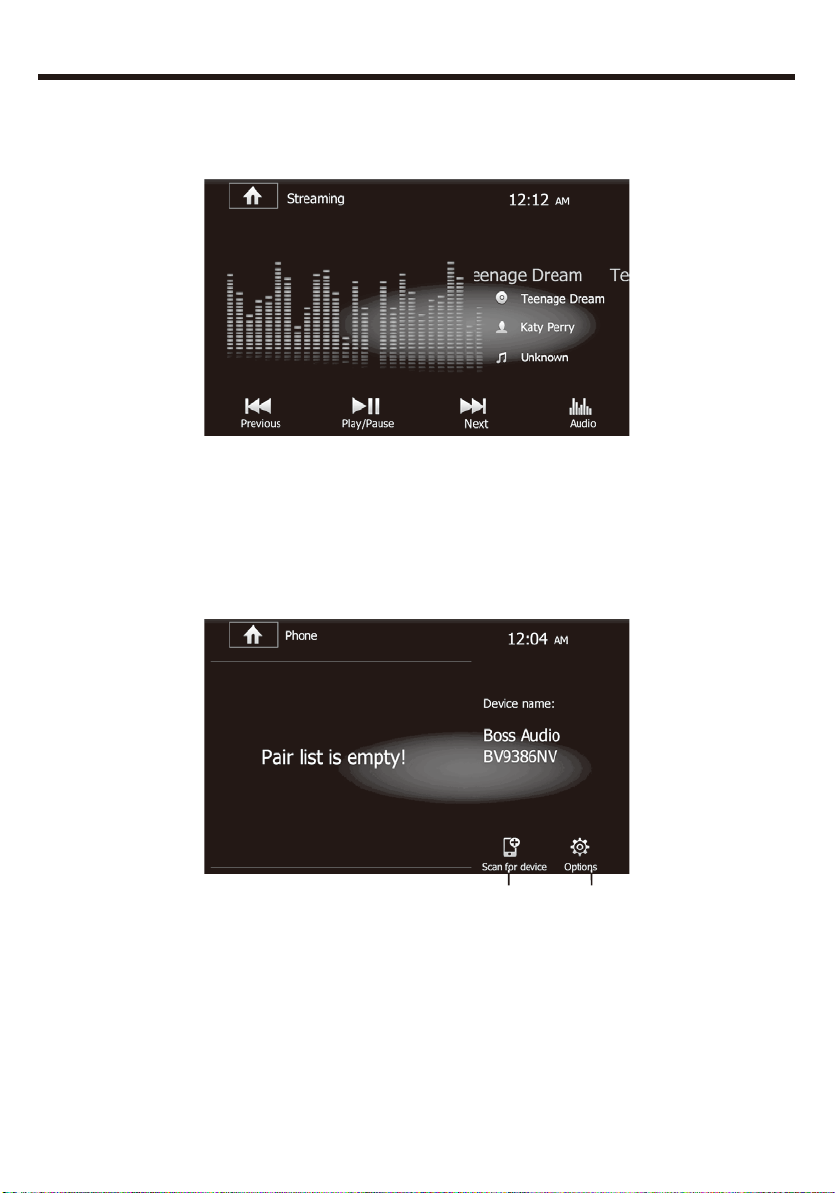
VIDEO PLAYING—AUDIO/DISC FORM PLAYIN
Buttons same as DISC menu are the same functions.
18
STREAMING PLAYING MENU ----BT MUSIC
Press STREAMING in the main menu, it refers to the music file from
BT.
PHONE ---BLUETOOTH OPERATION MENU
Bluetooth for this model is default ON. When you touch PHONE in the
main menu, if not successfully connected, you will see below
interface.
1.If not connect successfully, you need to press it and connect
manually.
2.Touch to see Bluetooth settings:
1 2
19
PHONE ---BLUETOOTH OPERATION MENU
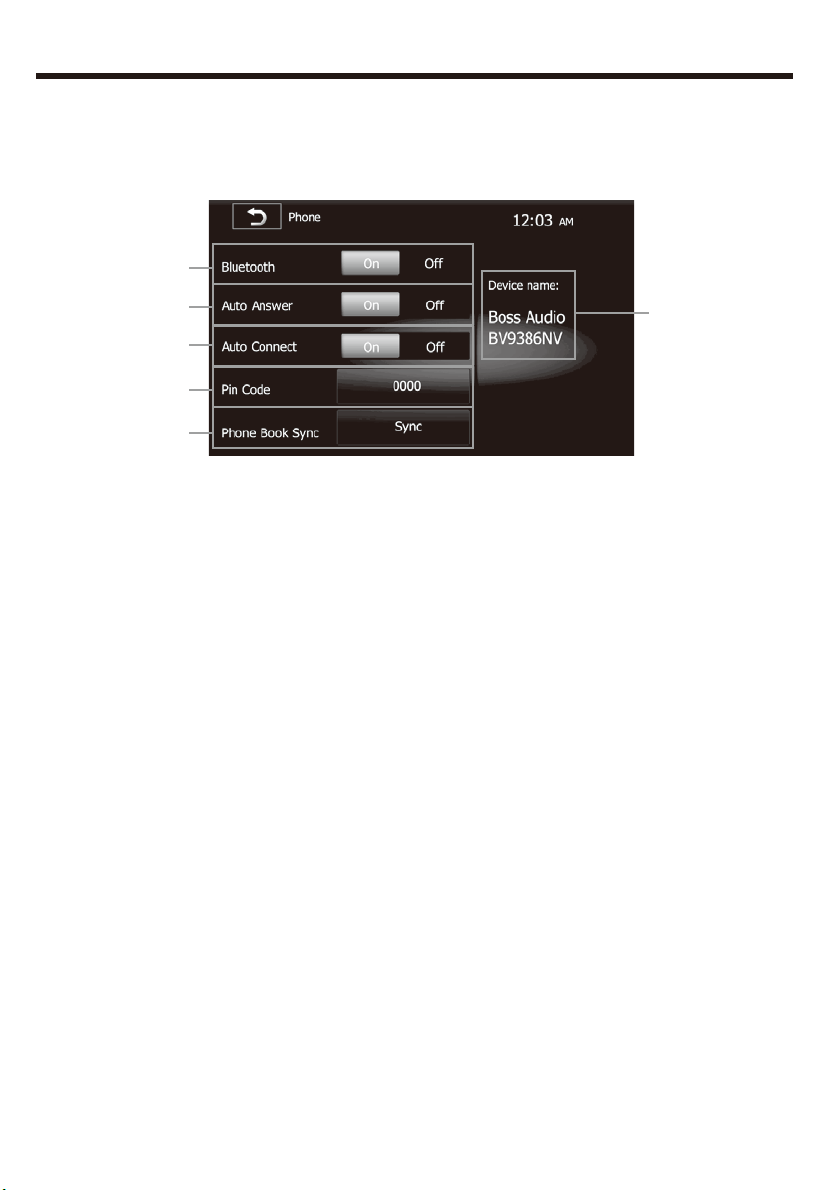
1.ON/OFF: Turn on and turn off of Bluetooth when not using
2.Can turn on or turn off the function of listen to calls automatically
3.Can connect the devices automatically which have already been
connected before.
4.PIN code: Default password”0000” for this unit to be connected with
other device
5.Synchronization of the phone book of user’s cellphone
6.Default Bluetooth name for this unit: Boss Audio BV9386NV.
1
2
3
4
5
6
BLUETOOTH DIALING
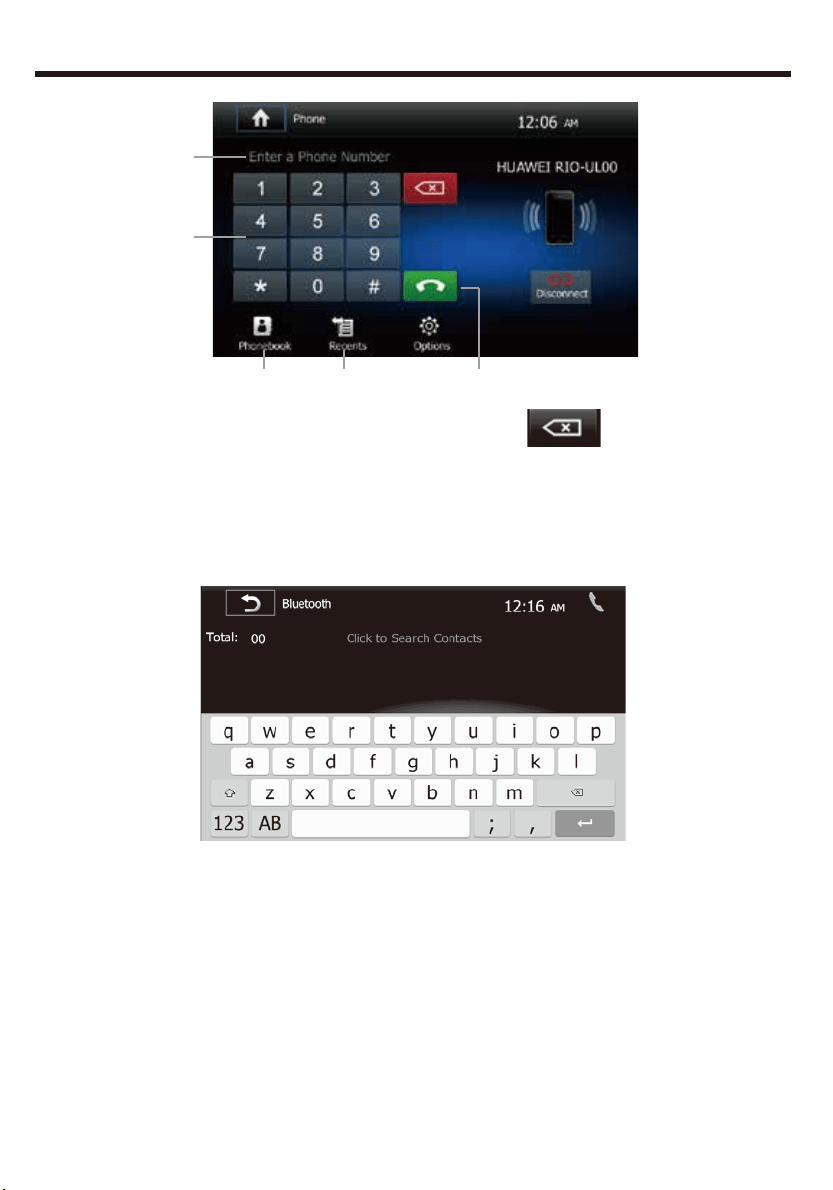
1.Shows the number you press in, and press to delete if it is
wrong.
2.Key area.
3.Touch to call out.
4.Click to see the Bluetooth phonebook.
5.Click to see the Bluetooth call history.
20
354
1
2
21
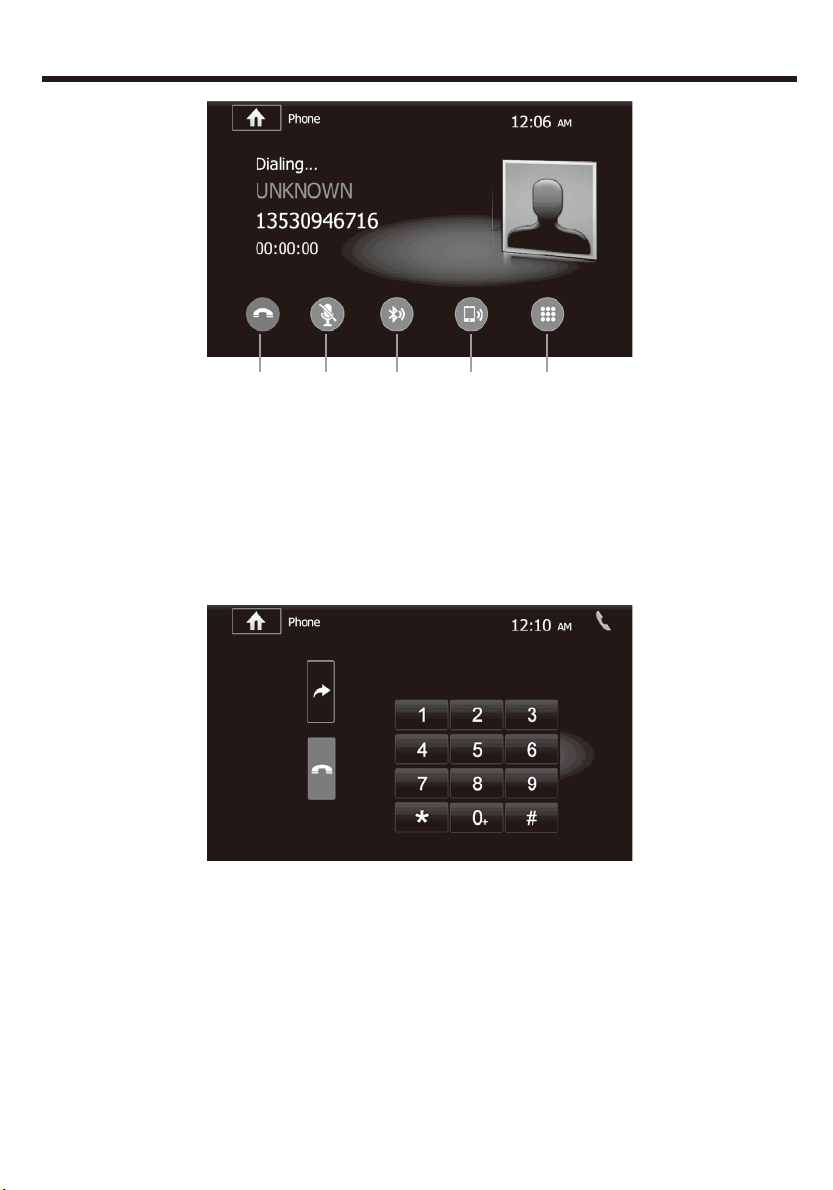
BLUETOOTH CALL
1.Press to hang up the phone call.
2.Mute the phone.
3.Touch to talk through Bluetooth.
4.Touch to talk through cellphone.
5.Touch to get keypad.
1 2 3 4 5
22
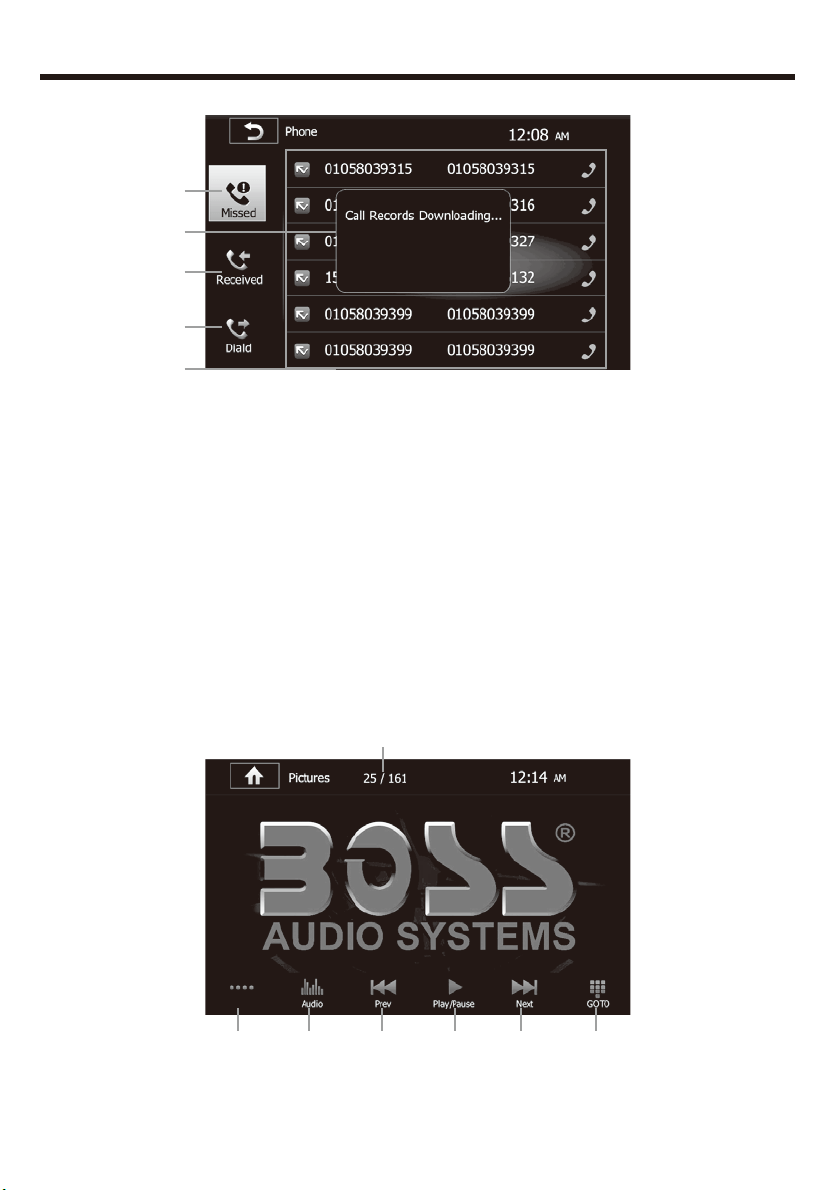
BLUETOOTH PHONE BOOK
1.Touch to see missed calls.
2.Touch to see received calls.
3.Touch to see dialed calls.
4.Move up and down to search phone number.
5.It will show on beginning of updating the cellphone book of users’
phone. And then will disappear.
PICTURE
Press PICTURE in the bottom line of main menu. You will see:
Total:110
1
2 3 4 5 6 7
1
2
3
5
4
23
1.You can see the present picture sequence and total picture
2.Touch to OPEN/HIDE function bar.
3.Touch to see EQ setting menu.
4.Press to turn to the previous picture.
5.PLAY/PAUSE: touch to begin play. Press again the icon to pause.
During picture playing mode, one picture will be played for 5s
automatically and goes to the next if you do not press it.
6.Press to turn to the next picture.
7.Press to choose picture.
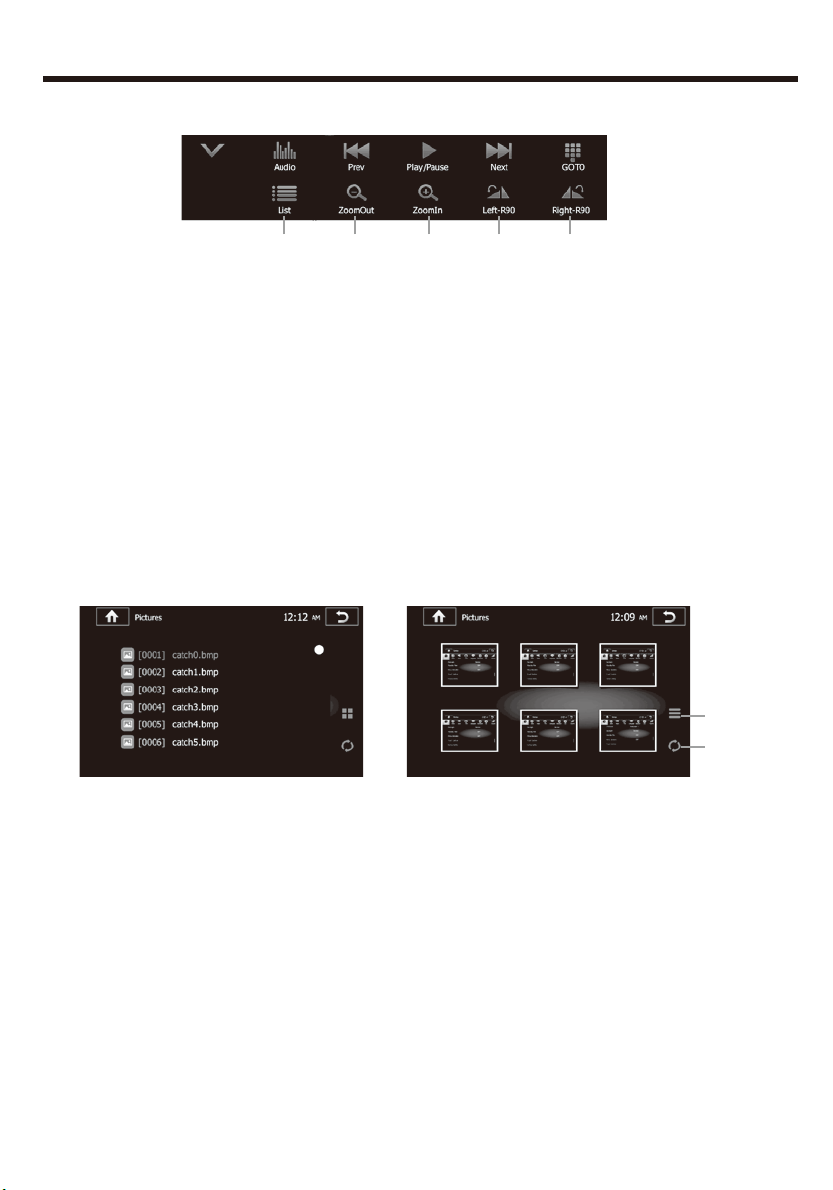
8.Touch to see picture list:
9.Zoom Out the present picture
10.Zoom In the present picture
11.Turn left 90 degree
12.Turn right 90 degree.
a.Press to go back to last picture interface.
b.Refresh the picture file of your SD or USB.
PICTURE
8 9 10 11 12
a
b
24
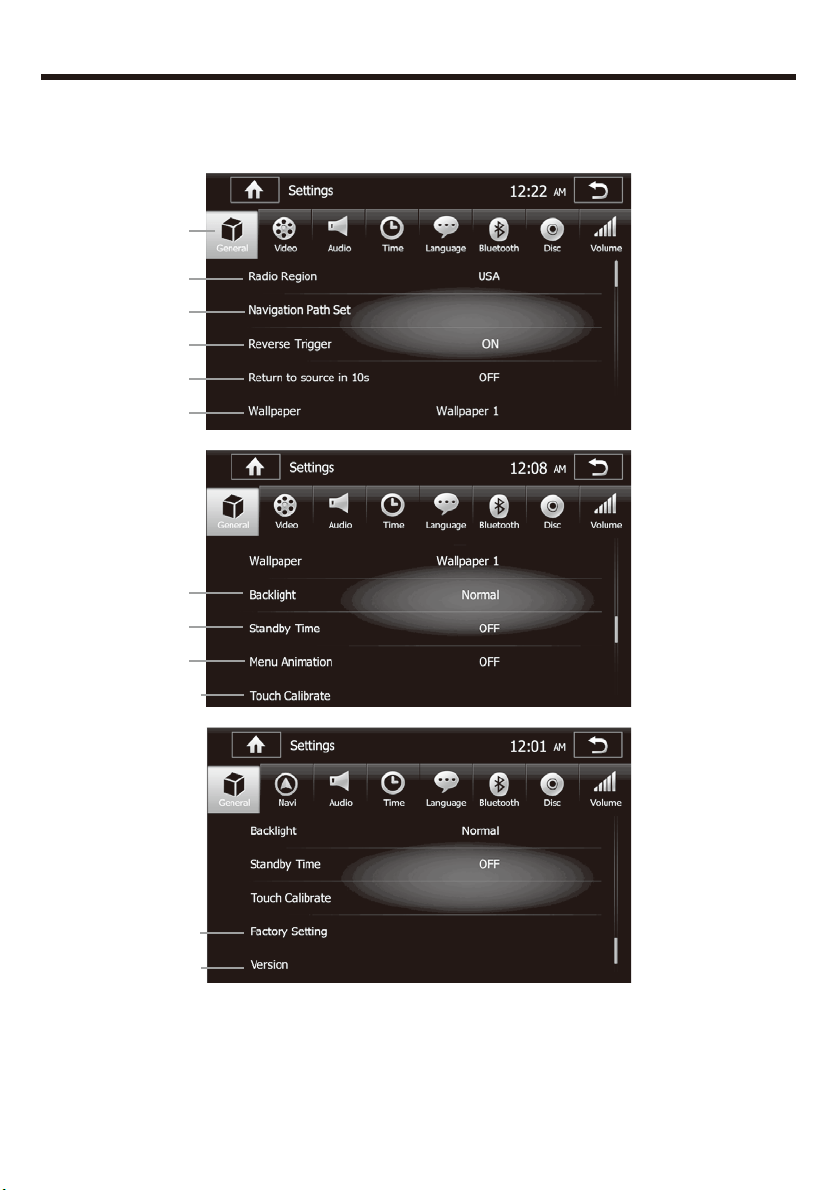
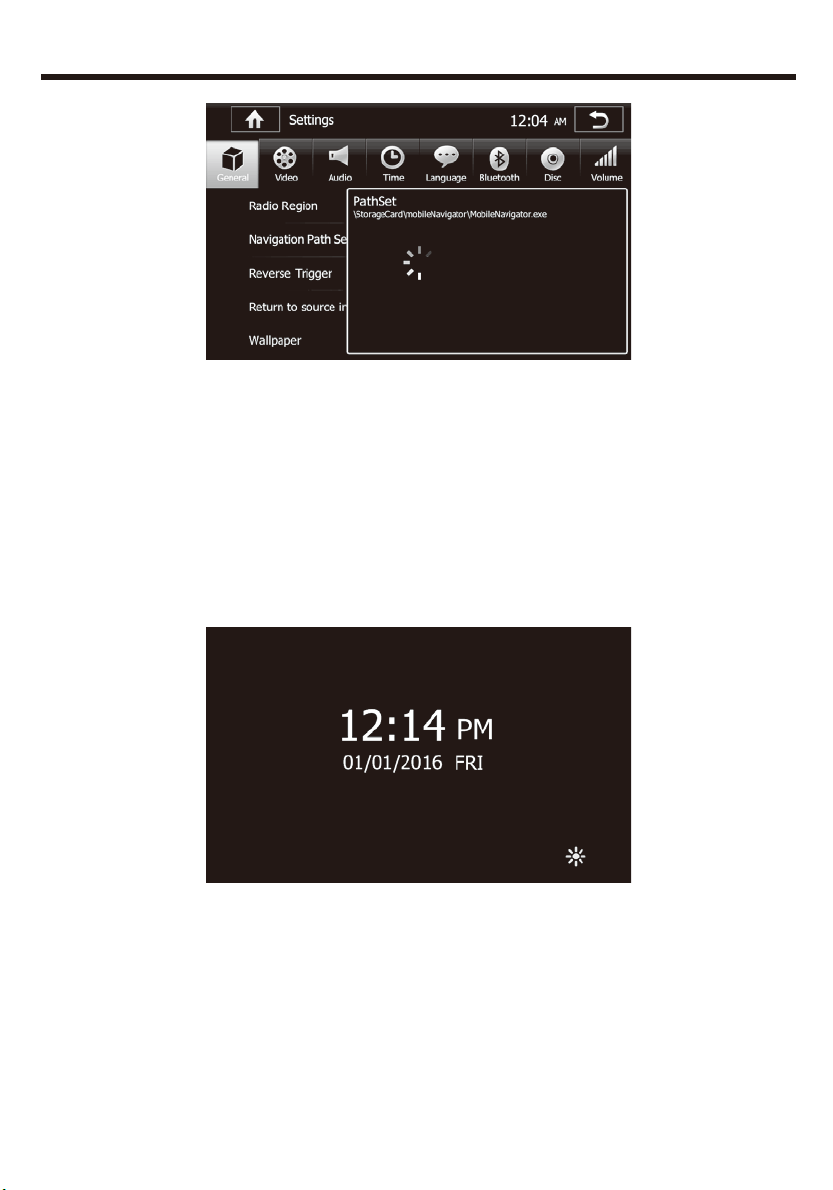
1.Press to see different setup items.
2.Touch to choose radio field between:
USA/Europe/Latin/ORIT/China/Japan/Korea.
3.Touch to choose the navigation path.
SETUP MENU
There are eight menus in setup:
GENERAL SETUP—Menu 1
1
2
3
4
5
6
7
8
9
10
11
12
25
4.Turn on if you have a rear view camera. Turn off if you don’t have it.
5.Turn it on, it will go back from the main menu to the latest playing
mode in 10S if you do not operate.
6.Touch to set wallpaper as you want from the 5 wallpapers storage of
the system.
7.Backlight dimmer selection: Night/Dark/Normal/Bright.
8.Go sleep time: OFF(one minute/five minutes/ten minutes). Will show
as below:
9.Touch to choose the menu animation style:
Left-Right/Right-Left/Top-Bottom/Bottom-Top/Big-Samll/Small-Big/Gra
dient/Random
10.Touch to do calibration for the unit.
11.Load factory setting
12.Show the software version information.
SETUP MENU
26
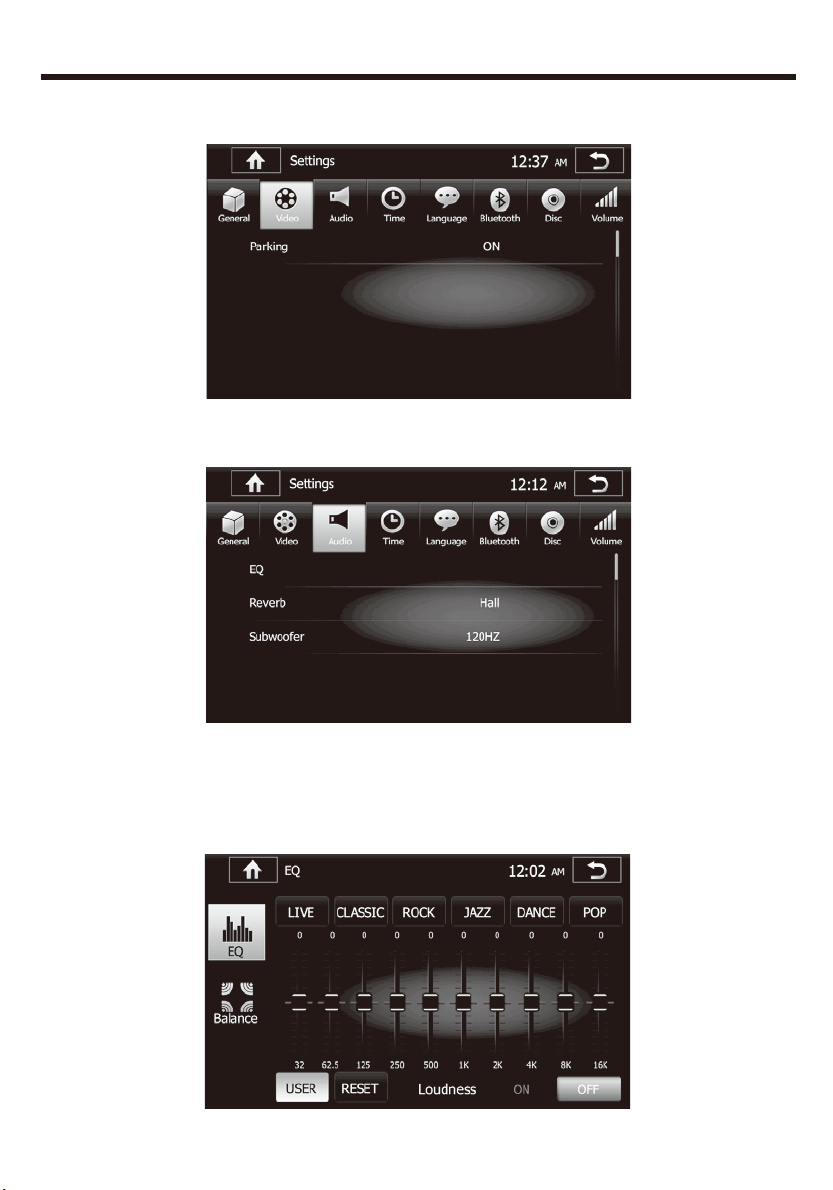
Reverb selection: OFF/Living
room/Hall/Concert/Cave/Bathroom/Arena.
Subwoofer selection: OFF/80HZ/120HZ/160HZ.
EQ Menu:
VIDEO SETUP -Menu 2
AUDIO SETUP -Menu 3
SETUP MENU
27
1.Press to choose the present Audio EQ set up menu.
2.Press to choose the audio playing mode:
LIVE/CLASSIC/ROCK/JAZZ/DANCE/POP. And USER is the default
mode.
3.Area to set the equalizing.
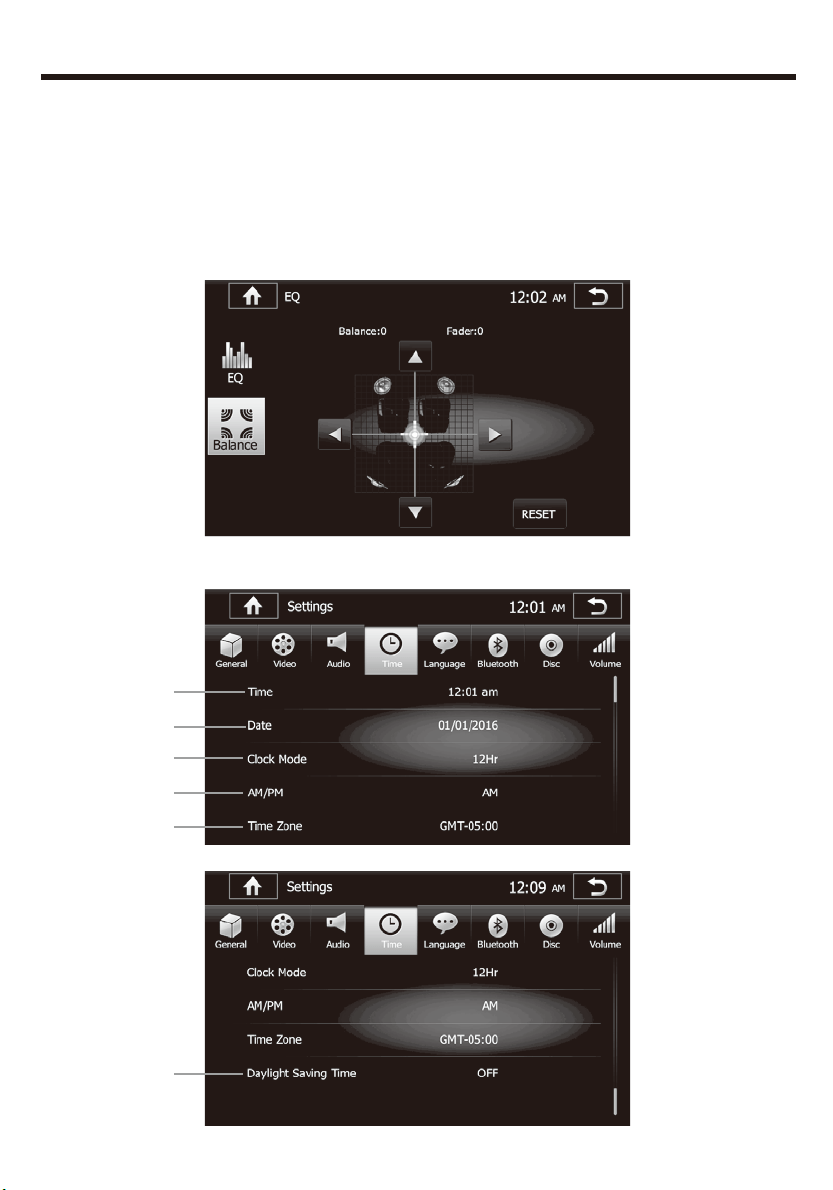
4.Press to enter into Audio Control setup menu(Balance/Fader)
TIME SETUP -Menu 4
1
2
3
4
5
6
SETUP MENU
28
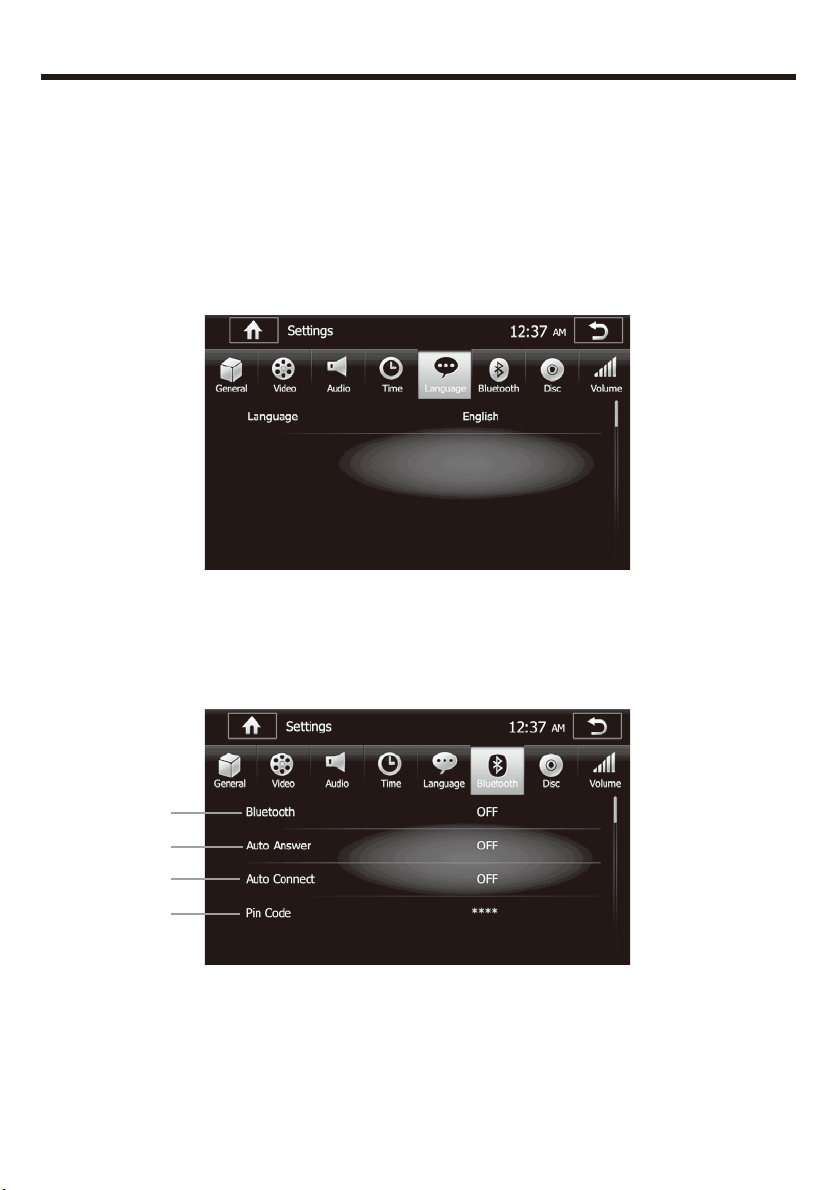
1.Touch to set the time of the unit manually.
2.Touch to set the date of the unit.
3.Touch to set the clock mode: 12hr/24hr
4.Touch to set AM/PM.
5.Touch to set time zone. Default time zone is:GMT-05:00
6.Touch to set Daylight Saving time ON/OFF
Default language is English and users can touch to set unit language
from:
English/Francais/Deutsch/Espanol
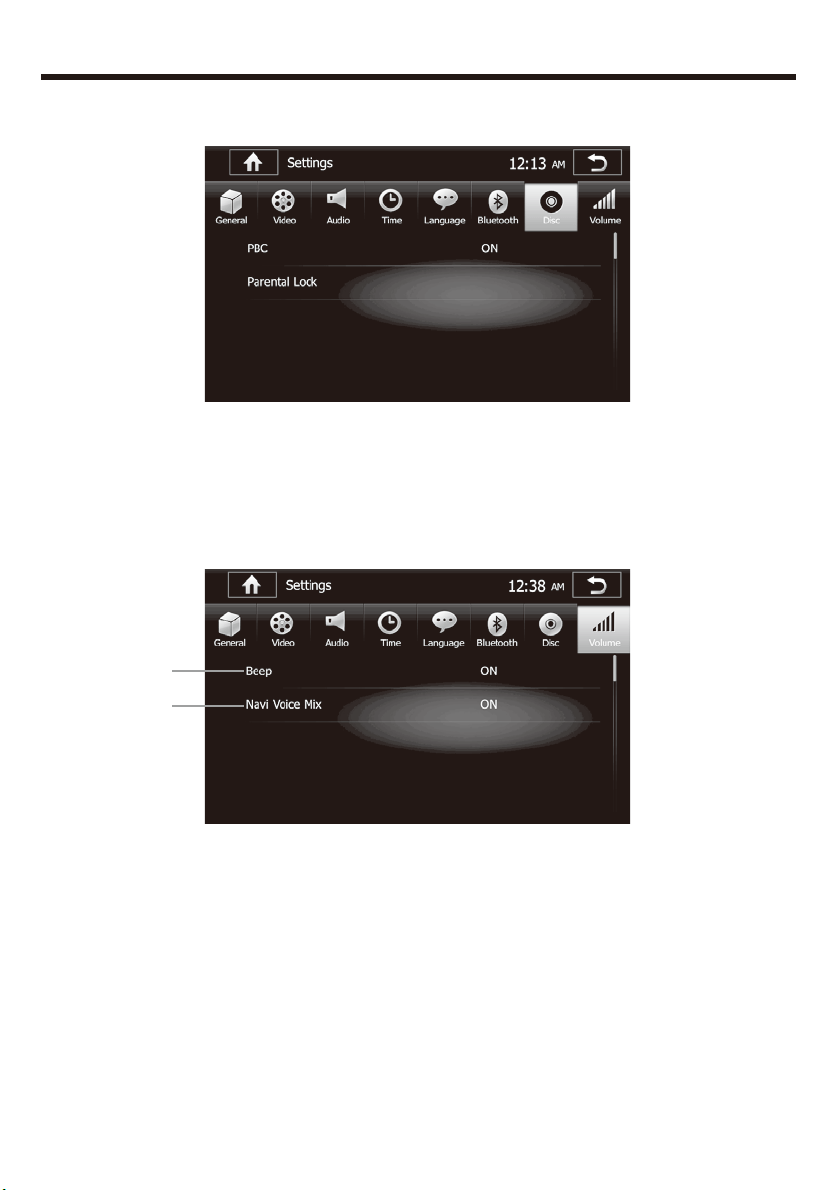
1.Bluetooth default is ON. Users can touch to set Bluetooth status:
ON/OFF.
2.Default Auto Answer is OFF. Users can touch to set it: ON/OFF.
3.Default Auto Connect is on. Users can touch to set it: ON/OFF.
4.PIN code: Default password”0000” for this unit to be connected with
other device.
LANGUAGE SETUP -Menu 5
BLUETOOTH SETUP -Menu 6
1
2
3
4
SETUP MENU
PBC: Touch to turn on/off the VCD PBC function.
Parental Lock: Touch to set the DVD level. Default password is
000000.
1.Touch to set BEEP sound: ON/OFF.
2.Turn on/off the navigation voice mix function. Turn on, once report
navigation information, and also have audio source play. Turn off,
there is only navigation broadcasting.
DISC SETUP -Menu 7
VOLUME SETUP -Menu 8
SETUP MENU
29
1
2
30
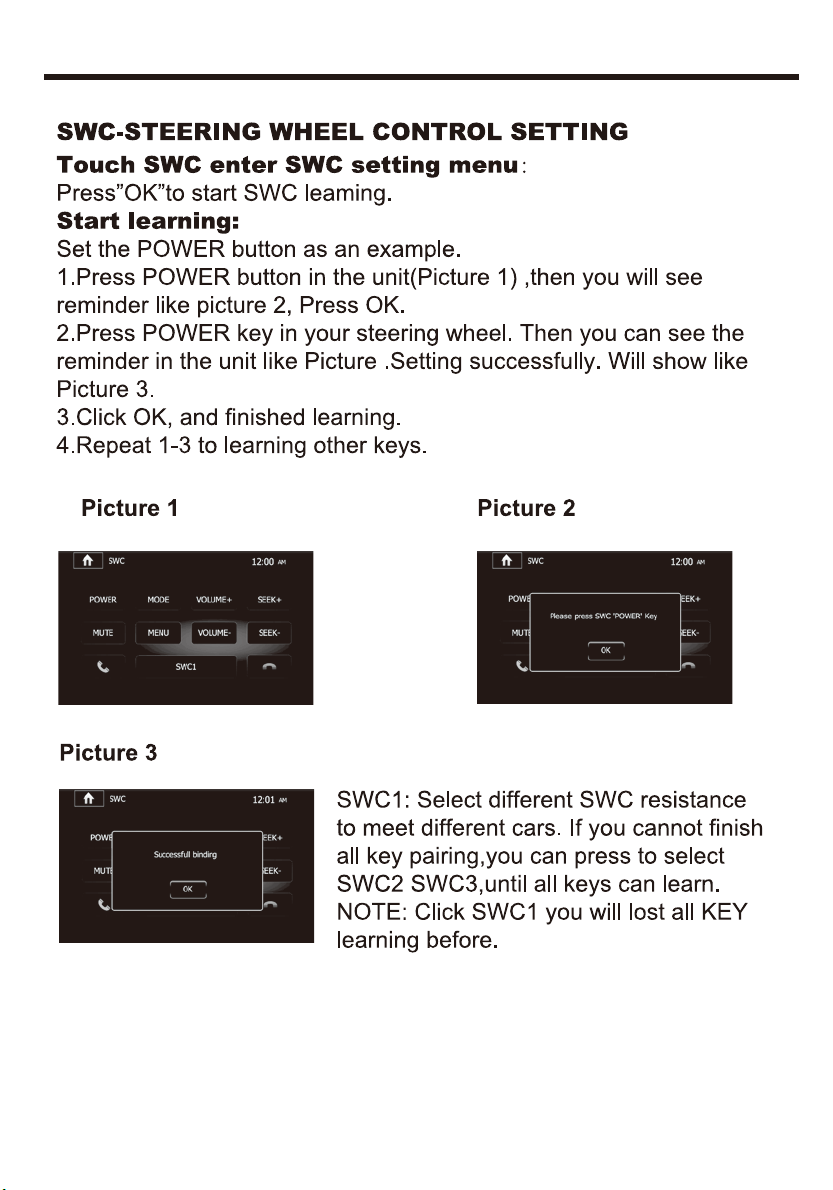
SWC-STEERING WHEEL CONTROL SETTING
TROUBLESHOOTING
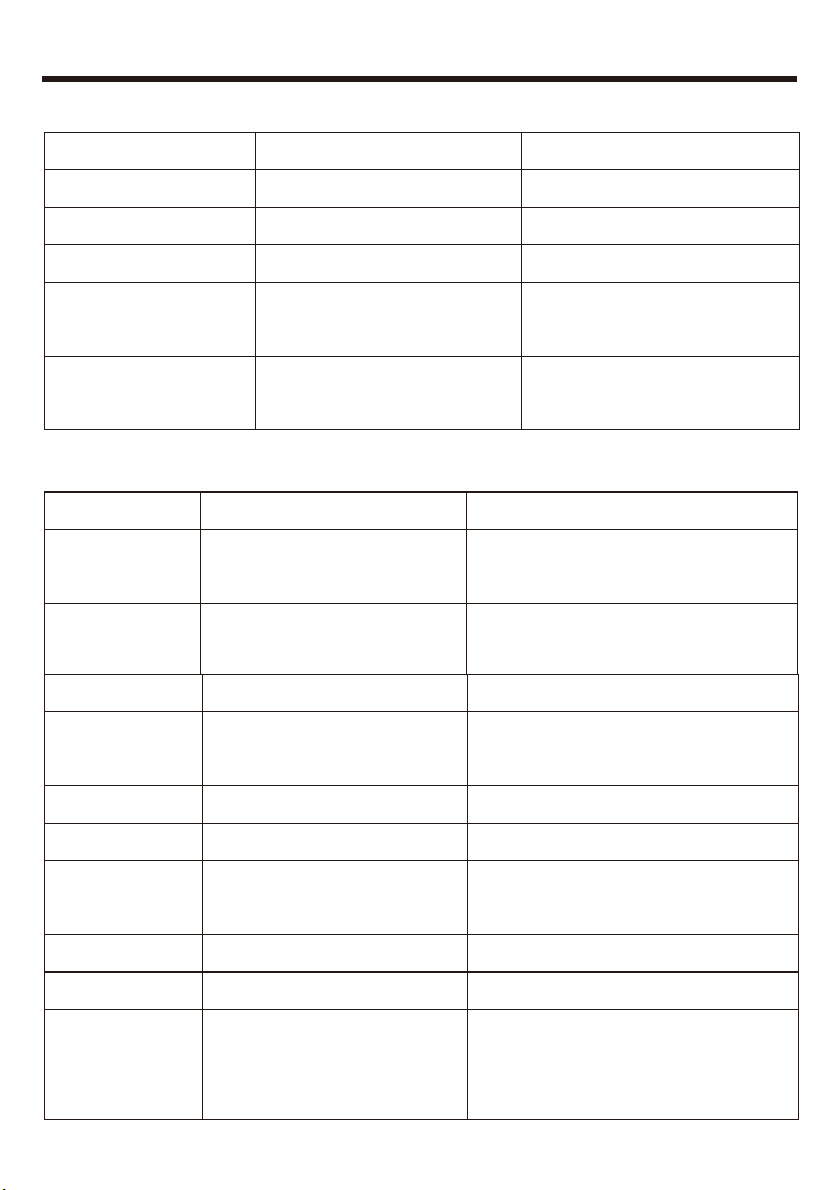
Table 1: Error message
noitcA evitcerroC esuaC deyalpsid aideM
Loading Disc is being read
csid eht naelC ytrid si csiD csiD daB/csiD oN
yaw thgir ni csiD tresnI nwod edispu si csiD
Unknown Disc Unsupported Disc type Check the disc and
change one
Illegal mechanism
operation
Error
Press EJECT for 5s to
reset loading mechanism
Table 2:General problems
noitcA evitcerroC esuaC melborP
Unit will not
power on
Install new fuse with right
rating
thgir htiw esuf wen llatsnI nwolb esuf yrettab raC
Radio fuse blown
rating
nottub TESER eht sserP noitarepo lagellI
Screen touch
is insensitive
Place of touch screen
is offset
Go to setup menu and set
the calibration
No audio output
Improper audio output connection
emulov eht pu nruT 0 EMULOV
Improper MUTE
connection
Check wiring and TEL
MUTE connection
srekaeps egnahC degamad rekaepS
Volume set too low
Heavily biased volume
balance
Check and adjust the channel
balance to the center position
Check wiring and correct
Low audio output
Increase the volume
31
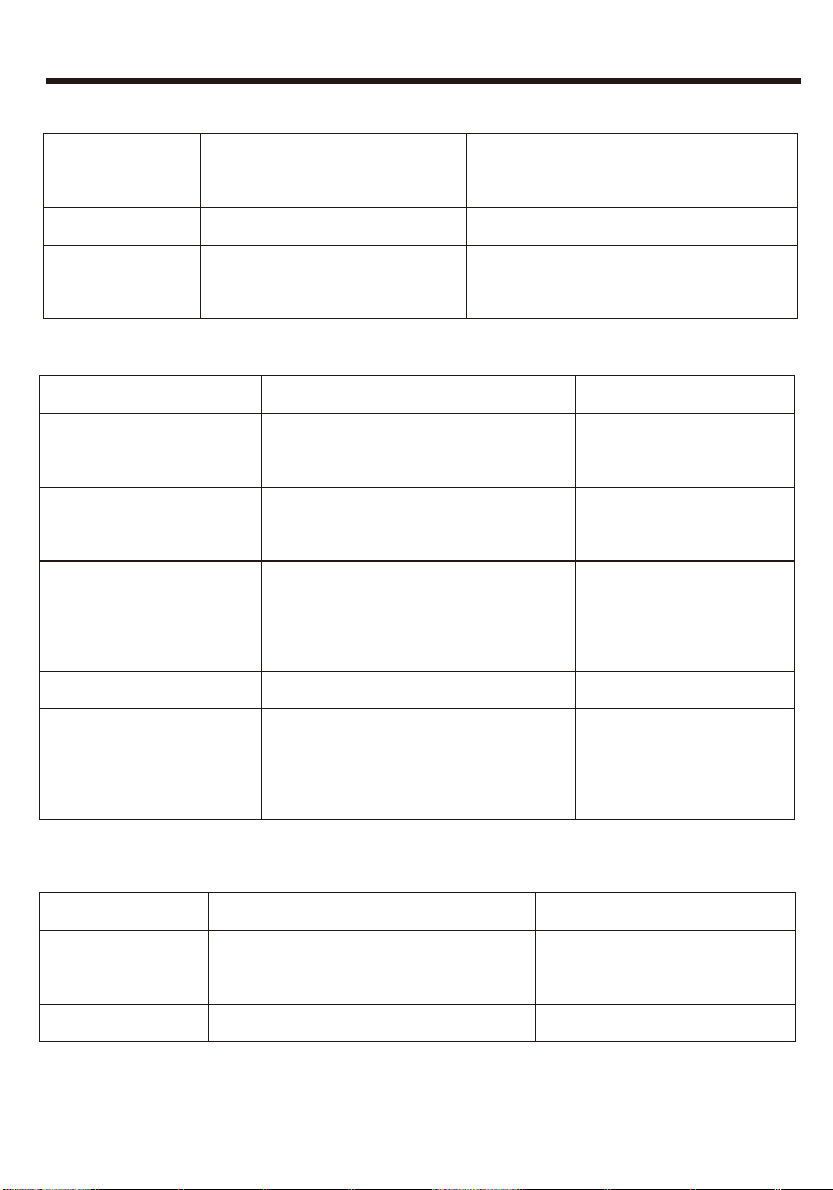
Poor sound quality
or distortion
No GPS image
Speaker power rating
not compatible with unit
Connect proper speakers
Change to GPS system
tsartnoc rekaeps kcehC detrohs si rekaepS
Image has not been
changed to GPS system
Table 3: TFT monitors
noitcA evitcerroC esuaC melborP
Incorrect connection No image
to parking wire
Check wiring and
correct
degagne
ton si ekarb gnikraP
Stop vehicle in safe place
and set parking brake ON
Flashing image
or interference
appears on screen
DVD is not compatible with
current TV system settings
Change setup to
accommodate Disc
Check wiring and correct Improper video signal connections
Improper image,
improper height/width
ratio display
Improper aspect ratio setup Use correct aspect
ratio setting
Table 4: Tuner
noitcA evitcerroC esuaC melborP
Weak station
searching
Auto antenna is not fully
extended
Connect the auto
antenna properly
tavitca si noitcnuf LACOL ed
TROUBLESHOOTING
Turn LOCAL function OFF
32

TROUBLESHOOTING
Table 5: Disc
noitcA evitcerroC esuaC melborP
Cannot insert Disc Disc already inside unit
Eject the current Disc and
insert the new one
Lots of noise during
play, and stop then
Disc is scratched or
warped
Use a new one in good
condition
csiD eht naelC tew ro ytrid si csiD
No repeat or
searching while
playing VCD
FFO CBP nruT NO si CBP
33
Technical Service Bulletin
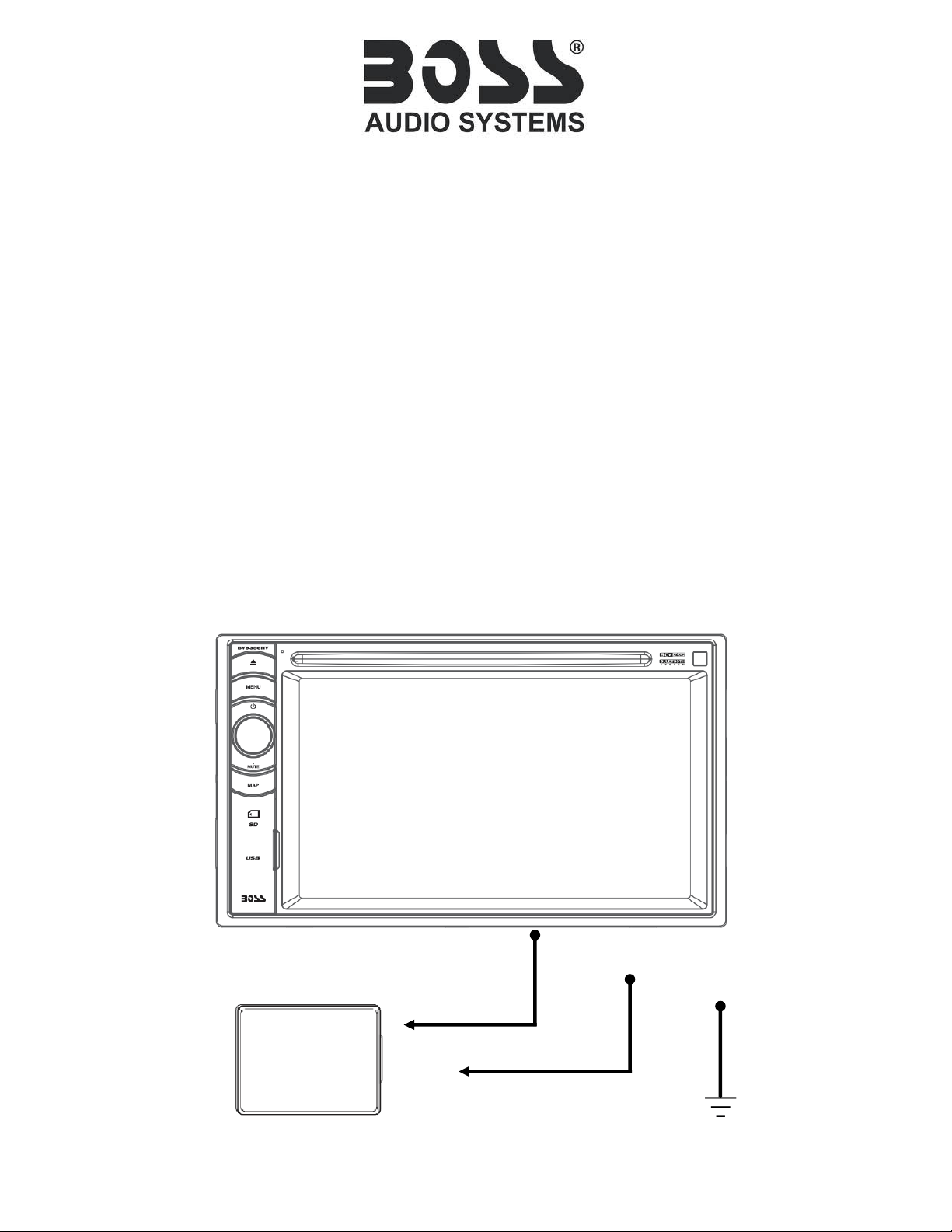
Steering Wheel Control Wiring Diagram
BV9386NV
For SWC interfacing we only recommend using the Metra Axxess ASWC with our models.
Please use the below steps as a guide to help with wiring to the Boss Audio BV9386NV.
If you have any questions, please call our Tech Support: 805.751.4853 (M-F 8:30a-5:00p PST)
Use the wired 3.5mm adapter that came with the interface, and connect the following:
ASWC BV9386NV
Brown Key A
Brown/White Key B
GND Key GND
When programming the Axxess interface, change the radio type to, “Type: 11”
Brown
Key A
Brown/White
Key B
Key GND
Metra Axxess
ASWC
TSB_1214.1