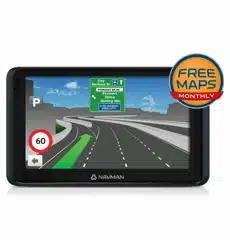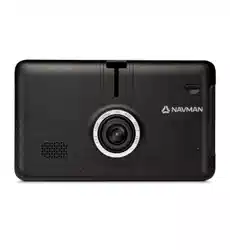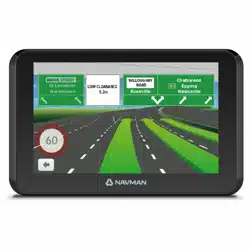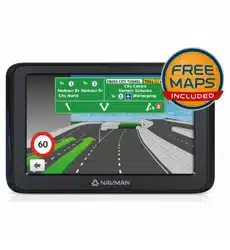

User Manual

1
Table of contents
Important safety information ...................................................................... 5
Precautions ......................................................................................5
Declaration of conformity ...................................................................7
Getting to know your Navman ...................................................................8
Mounting your Navman in a vehicle ............................................................9
Enabling traffic (TMC) reception ....................................................... 10
Turning your Navman ON and OFF ........................................................... 11
Resetting your Navman .................................................................... 11
Connecting your device to the computer ................................................... 12
Inserting a memory card .......................................................................... 13
Navigating on the screen .................................................................. 14
Main Menu ........................................................................................... 15
Navigating through the menu screens ................................................ 17
Using the Keyboard screen...................................................................... 18
How do I go from A-B? ........................................................................... 19
How do I use the FIND wizard? ......................................................... 19
How do I plan my first trip? ............................................................... 20
How do I preview the destination on map? ......................................... 21
How do I preview a route? ............................................................... 22
Changing the navigation mode ......................................................... 22
Large Vehicle and Professional Truck modes ................................ 22
How do I view my route? ........................................................................ 24
How do I select the route type? ......................................................... 24
The driving map .............................................................................. 24
How do I change the route configuration? ................................... 25
How do I view my route statistics? ..................................................... 25
How do I adjust the volume? ............................................................ 26
How do I zoom in/out the map? ........................................................ 27
How do I view the traffic status on my route? ...................................... 27
Advanced routing functions ............................................................. 27
Smart Routes ........................................................................... 27
My Drive ................................................................................ 27
Back-On-Track™ automatic rerouting .......................................... 28
Parking assistant ...................................................................... 28
How do I create a trip with multiple stops? ................................................. 29
How do I edit the waypoints in the trip? ............................................. 30
How do I skip a waypoint during a multi-stop trip? ............................... 30
How do I capture a location or a journey? .................................................. 31
How do I capture the GPS co-ordinates of my location? ........................ 31

2
How do I capture a journey? ............................................................. 31
How do I navigate to a location I have captured? ................................. 32
How do I navigate to the saved car location? ....................................... 32
How do I view a journey I have captured? .......................................... 32
My Places ............................................................................................. 33
How do I save a location as My Place or Home? .................................. 33
How do I navigate to a location I have saved? ...................................... 33
How do I navigate to Home?............................................................. 34
How do I navigate to a recent place? .................................................. 34
How do I edit a saved location in My Places? ...................................... 34
How do I navigate to a
NavPix™
? .................................................. 35
How do I navigate to a
NavPix™
? ........................................... 35
How do I edit the
NavPix™
? .................................................. 36
How do I search for a POI? ...................................................................... 38
How do I find the nearest POIs using Near Me? ................................... 38
How do I find the POIs using Explore? ............................................... 39
How do I find a POI using the POI cluster? .......................................... 40
How do I set my POI preferences? ..................................................... 40
How do I find the nearest POIs using the POI category buttons? ............ 41
How do I search for a POI by type? .................................................... 42
How do I search for a POI by Smart Find Keyword?.............................. 43
How do I receive current traffic information via TMC? ................................. 45
How will I know when a traffic event occurs? ...................................... 45
Traffic overview screen .................................................................... 45
How do I view a list of all events on my route? ..................................... 46
How do I view the traffic details? ....................................................... 46
How do I know if a detour is recommended? ............................... 47
How do I avoid an event on my route? ........................................ 47
Traffic messages .............................................................................. 47
Detour not available ................................................................. 47
Detour recommended .............................................................. 48
Traffic preferences .......................................................................... 48
Traffic service .......................................................................... 48
Accept recommended detours automatically ............................... 49
Traffic event notification ............................................................ 49
What is Travel Book? .............................................................................. 50
How do I search for a POI using Travel Book? ...................................... 50
How do I use the Bluetooth function? ....................................................... 51
How do I pair my Navman with a Bluetooth device? ............................. 51
How do I add contacts to my Navman? .............................................. 51
How do I make a hands-free call? ...................................................... 52
Making a call using the keypad .................................................. 52
Making a call from the phonebook ............................................. 52
How do I respond to a phone call? ..................................................... 53
In-call options .......................................................................... 53
How do I view my call history? .......................................................... 53
How do I control my Navman using Voice Command?................................. 55

3
Customising the system settings .............................................................. 56
What is NavDesk? .................................................................................. 63
Can I use NavDesk with my computer? .............................................. 63
How do I install NavDesk onto my computer? ..................................... 63
My Subscriptions ............................................................................ 65
How do I purchase a subscription? ............................................. 65
How do I activate my subscription? ............................................ 66
How do I update subscriptions on my Navman? ........................... 66
How do I recover my subscription? ............................................. 66
My Maps ....................................................................................... 66
How do I install maps onto my Navman? ..................................... 67
How do I remove maps from my Navman? .................................. 68
Voice Command ............................................................................. 69
Custom POIs .................................................................................. 70
How do I install custom POIs? .................................................... 70
How do I delete a custom POI file/category from my Navman? ....... 72
Photo Album .................................................................................. 72
What else can I do with pictures and albums on my computer? ...... 73
Photo Album preferences ......................................................... 74
Image Search ................................................................................. 75
How do I search for a photo with embedded GPS coordinates on the
Internet? ................................................................................. 75
How do I import a photo with embedded GPS coordinates to My Places? ....
76
Unlock Features .............................................................................. 76
Redeem ......................................................................................... 76
My Places ...................................................................................... 77
How do I sort My Place locations? .............................................. 78
How do I import or export a location? ......................................... 78
How do I edit a location from the map screen? ............................. 78
Trip Planner .................................................................................... 79
How do I pre-plan a route by search? .......................................... 80
How do I pre-plan a route using the map? ................................... 80
How do I edit a route? .............................................................. 81
My Navman ................................................................................... 81
How do I change the displayed language for NavDesk?................. 81
How do I install or remove a voice file for my Navman? ................. 81
How do I register my Navman and set a PIN? ............................... 82
How do I report mileage? .......................................................... 82
How do I backup and restore my Navman? .................................. 83
How do I recover maps and voice files for my Navman? ................. 83
How do I update my Navman? ................................................... 84
How do I recover keys on my Navman? ....................................... 84
How do I configure NavDesk? ................................................... 84
Reference ............................................................................................. 86
About GPS and signal reception ........................................................ 86
Caring for your Navman ................................................................... 86
Troubleshooting .............................................................................. 87
For more information .............................................................................. 89

4
Online support ............................................................................... 89
Navman customer support ............................................................... 89
Speed limit ..................................................................................... 89
Safety camera POIs ......................................................................... 89
POI categories ................................................................................ 90
Branded POIs ................................................................................. 91

5
Important safety information
•ItishighlyrecommendedfortheGPSdevicetostayconnectedwiththevehiclepower
adaptertoensureoptimalperformanceandtoenabletheTrafcfeatureforeligible
devices.
•Thebatteryisdesignedasabackuppowersourceforshort-termuseonlyintheevent
whenthevehicle'spowersystemisnotavailable.Itisnottobeusedasasolesourceof
powerforprolongedperiods.Batterylifemayvaryunderdifferentconditions.
•Removingoriginalequipment,addingaccessoriesormodifyingyourvehiclecouldaffect
thevehicle’ssafetyormakeitillegaltooperateinsomejurisdictions.
•Followallproductinstructionsandallinstructionsinyourvehicleowner’smanual
regardingaccessoriesormodications.
•Consultyourcountry’sand/orstate’slawsregardingoperationofavehiclewithany
accessoriesormodications.
•Itisyoursoleresponsibilitytoplace,secureanduseyourNavmaninamannerthatwill
notcauseaccidents,personalinjuryorpropertydamage.Alwaysobservesafedriving
practices.
•DonotmountyourNavmaninawaythatmayinterferewiththesafeoperationofthe
vehicle,thedeploymentofairbagsorothersafetyequipment.
•DonotoperateyourNavmanwhiledriving.
•BeforeyouuseyourNavmanforthersttime,familiariseyourselfwithyourdeviceand
itsoperation.
•Onmainroads,thedistancetoanexitcalculatedbyyourNavmanmaybefurtherthan
thedistanceshownonroadsigns.Roadsignsshowthedistancetothestartofanexit
whileyourNavmanshowsthedistancetothenextintersection,i.e.,theendoftheexit
ramporroad.Topreparetoexitaroad,alwaysfollowdistanceinformationonroad
signs.
•Theuseofinformationregardingsafetyorspeedcameralocationsmaybesubjectto
locallawsinthecountryofuse.Youareresponsibleforcheckingthatyoucanlegallyuse
theinformationinyourcountryorinthecountrywheretheinformationwillbeused.
•DonothandleyourNavmanwhileitishot.Lettheproductcool,outofdirectsunlight.
Precautions
Failuretoadheretothesewarningsandcautionsmayleadtodeath,seriousinjuryor
propertydamage.NavmandisclaimsallliabilityforinstallationoruseofyourNavmanthat
causesorcontributestodeath,injuryorpropertydamageorthatviolatesanylaw.
About vehicle power adapter
•Useonlythevehiclepoweradaptersuppliedwithyourdevice.Useofanothertypeof
vehiclepoweradapterwillresultinmalfunctionand/ordanger.

6
•ThisproductisintendedtobesuppliedbyaLISTEDPowerUnitmarkedwith“LPS,”
“LimitedPowerSource”andoutputrated5Vdc/2A.
•Donotusethevehiclepoweradapterinahighmoistureenvironment.Nevertouchthe
vehiclepoweradapterwhenyourhandsorfeetarewet.
•Allowadequateventilationaroundthevehiclepoweradapterwhenusingittooperate
thedeviceorwhenitisconnected.Donotcoverthevehiclepoweradapterwithpaper
orotherobjectsthatwillreducecooling.Donotusethevehiclepoweradapterwhileit
isinsideacarryingcase.
•Connectthevehiclepoweradaptertoaproperpowersource.Thevoltagerequirements
arefoundontheproductcaseand/orpackaging.
•Donotusethevehiclepoweradapterifthecordbecomesdamaged.
•Donotattempttoservicetheunit.Therearenoserviceablepartsinside.Replacethe
unitifitisdamagedorexposedtoexcessmoisture.
About the battery
•CAUTION:Thebatterycanburstorexplode,releasinghazardouschemicals.To
reducetheriskofreorburns,donotdisassemble,crush,puncture,ordisposeofinre
orwater.
•TheNavmanunitmustberecycledordisposedofproperly.
•Onlyusethecorrecthomecharger(soldseparately)orvehiclepoweradaptersupplied
byNavmantoconnectyourNavmanunit.
•DonotmodifyandtemperwithyourNavmanunit.
•YourNavmanusesaLithium-ionbattery.Itisimportanttofollowtheguidelinessetout
regardingthistypeofBattery.
Electronicdevicesusingalithium–ionbatterysuchasMobilephones,GPSsand
camerasaredesignedtooperateatatemperaturerangeofapproximately0°Cto50°C.
Beyondthesetemperaturelimits,theremaybeariskofbatteryfailure,whenthese
electronicgoodsareexposedtoextremeheatconditionsforlongperiods.
ItisrecommendedthatyoudonotuseyourNavmaninahumid,wetand/orcorrosive
environment.Donotput,storeorleaveyourproductinornearaheatsource,inahigh
temperaturelocation,instrongdirectsunlightanddonotexposeittotemperatures
over60°C(140°F).FailuretofollowtheseguidelinesmaycausetheLithium-ion
batterytoleakacid,becomehot,explodeorigniteandcauseinjuryand/ordamage.
Donotpierce,openordisassemblethebattery.Ifthebatteryleaksandyoucomeinto
contactwiththeleakeduids,rinsethoroughlywithwaterandseekmedicalattention
immediately.Forsafetyreasons,andtoprolongthelifetimeofthebattery,yourNavman
unitshouldnotbeconnectedatlow(below0°C/32°F)orhigh(over45°C/113°F)
temperatures.
THELITHIUM-IONBATTERYCONTAINEDINTHEPRODUCTMUSTBERECYCLED
ORDISPOSEDOFPROPERLY.

7
ItishighlyrecommendedyouuseyourNavmanonlyWITHACADAPTER(HOME
CHARGER)ORTHESUPPLIEDDCVEHICLEPOWERADAPTER.
Formoreinformationonhowtorecycleyouroldelectronicdevices,pleasecontactyour
localcouncilofce.Youcanalsovisitwww.navman.com.au/www.navman.co.nzto
viewourlatesttrade-inoffers.
Declaration of conformity
Note: Forregulatoryidenticationpurposes,thisproductisassignedamodelnameofN538-5000/
N538-6000.
Marking labels located on the exterior of your Navman indicate the regulations
that your model complies with. Please check the marking labels on your Navman
and refer to the corresponding statements in this chapter. Some notices apply to
specific models only.
R-NZ
Theuserneedstoswitchoffthedevicewhenexposedtoareaswithpotentiallyexplosive
atmospheressuchaspetrolstations,chemicalstoragedepotsandblastingoperations.
Bluetooth
BluetoothDIDD030689
Note: Thisfeatureisnotavailableonallmodels.
8
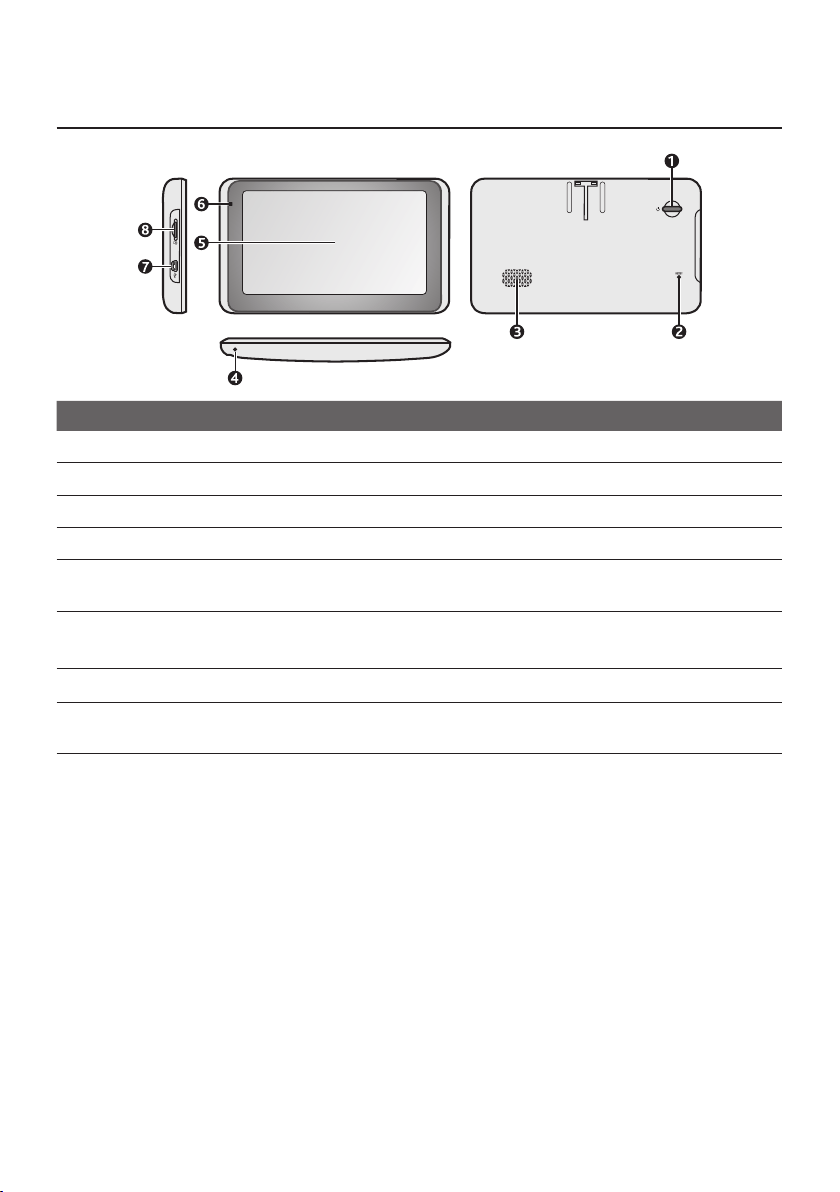
Getting to know your Navman
Name Description
Power button TurnsyourNavmanonandoff.
Reset button RestartsyourNavman.
Speaker Sendsoutsoundsandvoice.
Microphone Receivessoundandvoice.
Touch screen DisplaystheoutputofyourNavman.Tapthescreenwithyour
ngertiptoselectmenucommandsorenterinformation.
Power indicator •Glowsin
amberwhenpowered.
•Glowsin
greenwhenthebatteryisfull.
Mini-USB connector ConnectstothevehiclepoweradapterorUSBcable.
Memory card slot AcceptsaMicroSDcardforaccessingdatasuchasmaps
(optional).
9
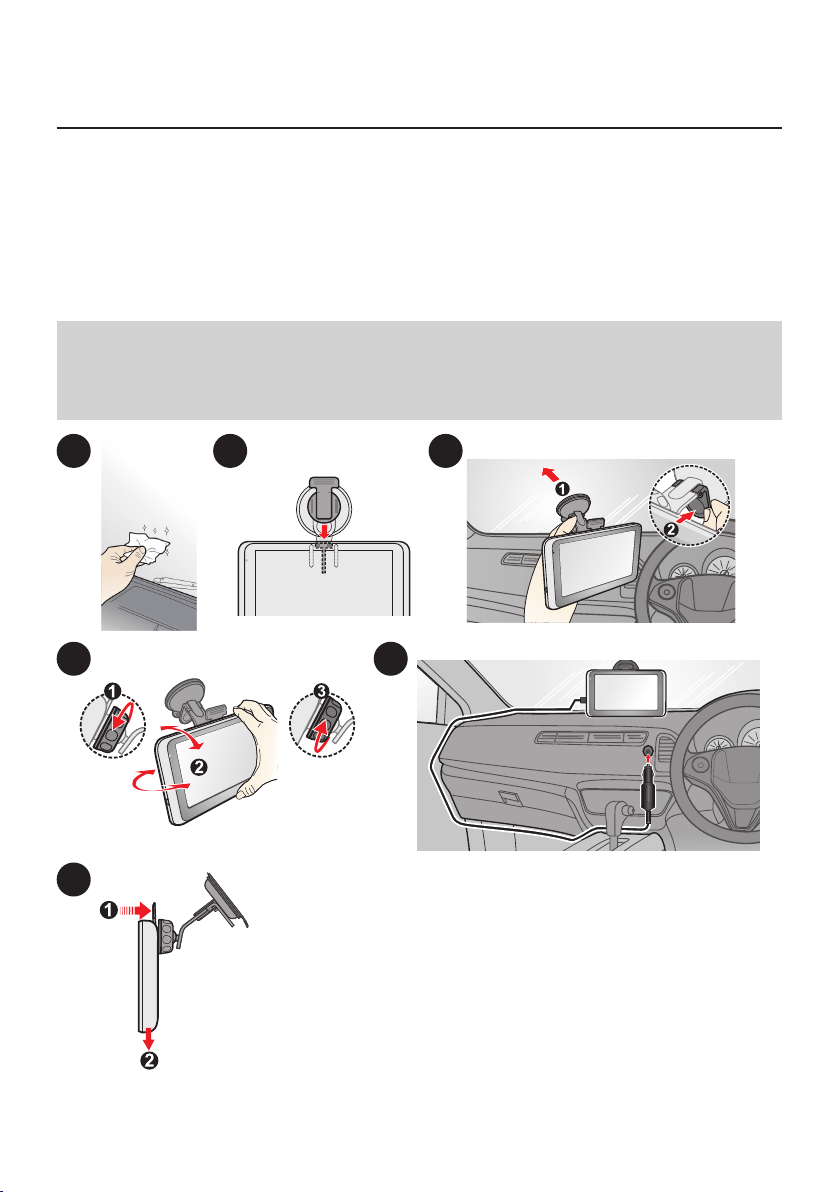
Mounting your Navman in a vehicle
UsetheprovideddeviceholderandmounttosecureyourNavmaninyourvehicle.
Thedevicewillturnonautomaticallywhenconnectingtotheexternalpowersource.
Whendisconnectingfromtheexternalpowersource,thedevicewillenterasuspended
statewithin10secondsautomatically.Tocontinueusingthedevice,tapYes.
ItishighlyrecommendedfortheGPSdevicetostayconnectedwiththein-vehiclepower
adaptortoensureoptimaldeviceperformanceandtoenabletheTrafcfeature.
CAUTION:
•NevermountyourNavmanwherethedriver’seldofvisionisblocked.
•Ifthewindscreenistintedwithareectivecoating,itmaybeathermicandimpacttheGPS
reception.Inthisinstance,pleasemountyourNavmanwherethereisa“cleararea”-usually
justbeneaththerear-viewmirror.
1 2 3
54
6

10
CAUTION:Foroptimalperformanceofthelithiumbattery:
•Donotconnectyournavmanunitwherethetemperatureishigh(e.g.indirectsunlight).
•ThereisnoneedtofullydischargetheNavmanunit.
•Whenstoringtheproductforalongperiodoftime,besuretoconnectyourNavmanatleast
onceeverytwoweeks.OverdischargeoftheNavmanUnitcanaffecttheperformance.
•FailuretofollowtheNavmanunitusageinstructionscouldcausedamagetoyourdeviceand
evenbodilyinjuryorpropertydamageandwillvoidanywarranty.
Enabling traffic (TMC) reception
Note:Trafcinformationisnotavailableonallmodelsandisonlyavailableinselectedcountries.
YourNavmanmayhaveabuilt-inTMCreceiver.Youcanreceivelivetrafcinformationvia
thevehiclepoweradapterwhichisusedasanantenna.
Note:Pleasenotethatyouwillnotbeabletoreceivethetrafcinformationwhileusingthethird-
partyaccessory(suchasyourownvehiclepoweradapter).
ForinformationonusingtrafcinformationonyourNavman,seethe"HowdoIreceive
currenttrafcinformationviaTMC?"section.
11
Turning your Navman ON and OFF
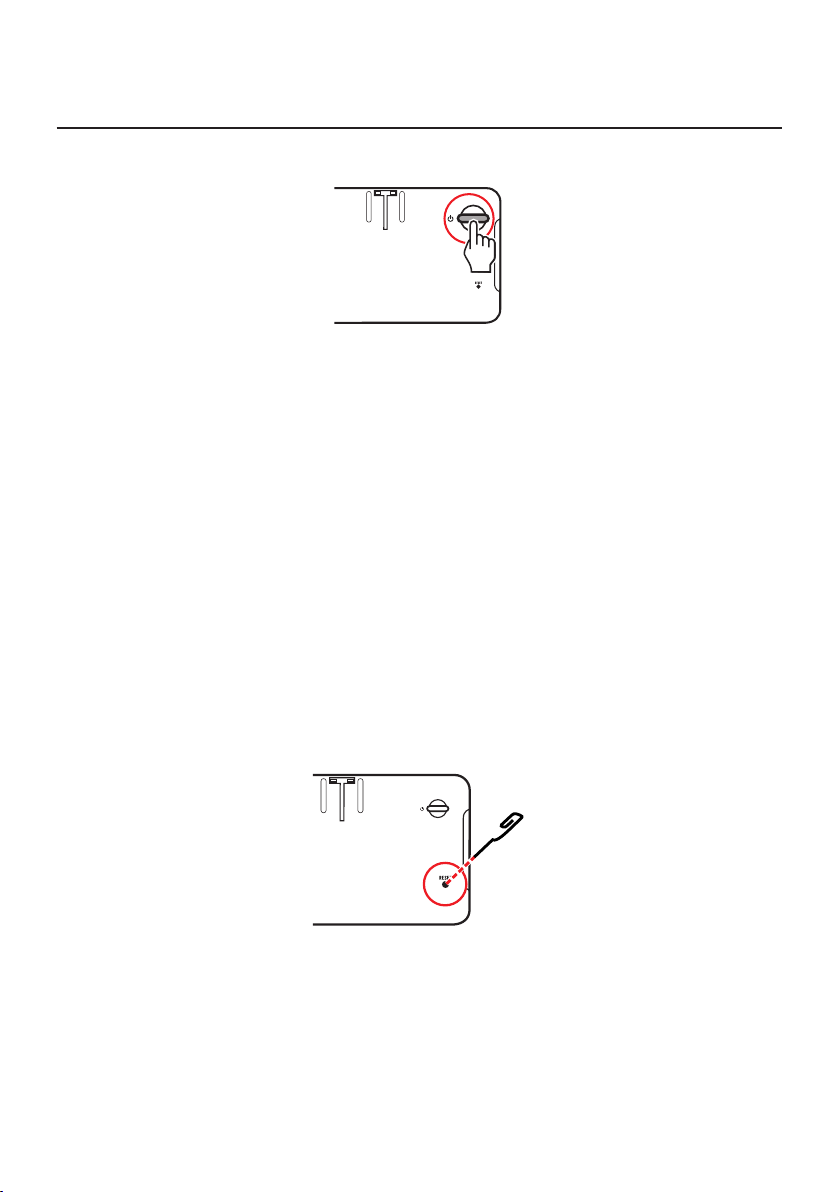
•Fortheinitialstart-up,brieypressthepowerbuttontoturnonyourNavman.
Followtheprompts.TheMainMenuwilldisplay.
Note:ThersttimeyouuseyourNavman,itmaytakeseveralminutestoestablishaGPS
connection.WhenyouhaveaGPSx,youcanstarttouseyourNavmantoplanyourtrip.
•ToputyourNavmaninasuspendedstate,brieypressthepowerbutton.
Whenyounextturniton,yourNavmanwillreturntothelastscreenthatyouused.
•Toresumeusingthedevice,dooneofthefollowing:
•Pressthepowerbuttonbriey.
•Connectthedevicetoanexternalpowersource.
•ToturnoffyourNavman,pressandholdthepowerbuttonfor3seconds.
Resetting your Navman
Occasionally,youmayneedtoperformahardwareresetwhenyourNavmanstops
responding,orappearstobe“frozen”or“locked-up.”
Insertasmallrod,suchasastraightenedpaperclipintotheresetbuttonofyourNavman.
YourNavmanwillrestartautomatically.

12
Connecting your device to the computer
1.Turnonyourcomputer.
2.PlugthelargeendoftheUSBcabledirectlyintoaUSBportonyourcomputer(nota
USBhub)andplugthesmallendintothemini-USBconnectoronyourNavman.
Note: Resetyourdeviceifitisnotrecognisedcorrectlybyyourcomputer.
3.BeforedisconnectingyourNavmanfromthecomputer,itisrecommendedtosafely
removetheUSBdrivefromthesystem.Thispreventsdatalossonthedevice.
CAUTION:WhenyourNavmanisturnedonandconnectedtoacomputer,itisrecognisedas
anexternalmass-storagedevice.DoNOTdeleteanylesthatarepre-installedonyourNavman.
DeletingthelescancauseyourNavmantocrash.Navmanisnotresponsibleforproductquality
causedbyledeletion.
13
Inserting a memory card
CAUTION:
•Donotapplypressuretothecentreofthememorycard.
•Insertingthecardinthereversedirectionmaycausedamage.
•Donotinsertorremovethememorycardwhenthedeviceisturnedonorinthesuspend
mode.
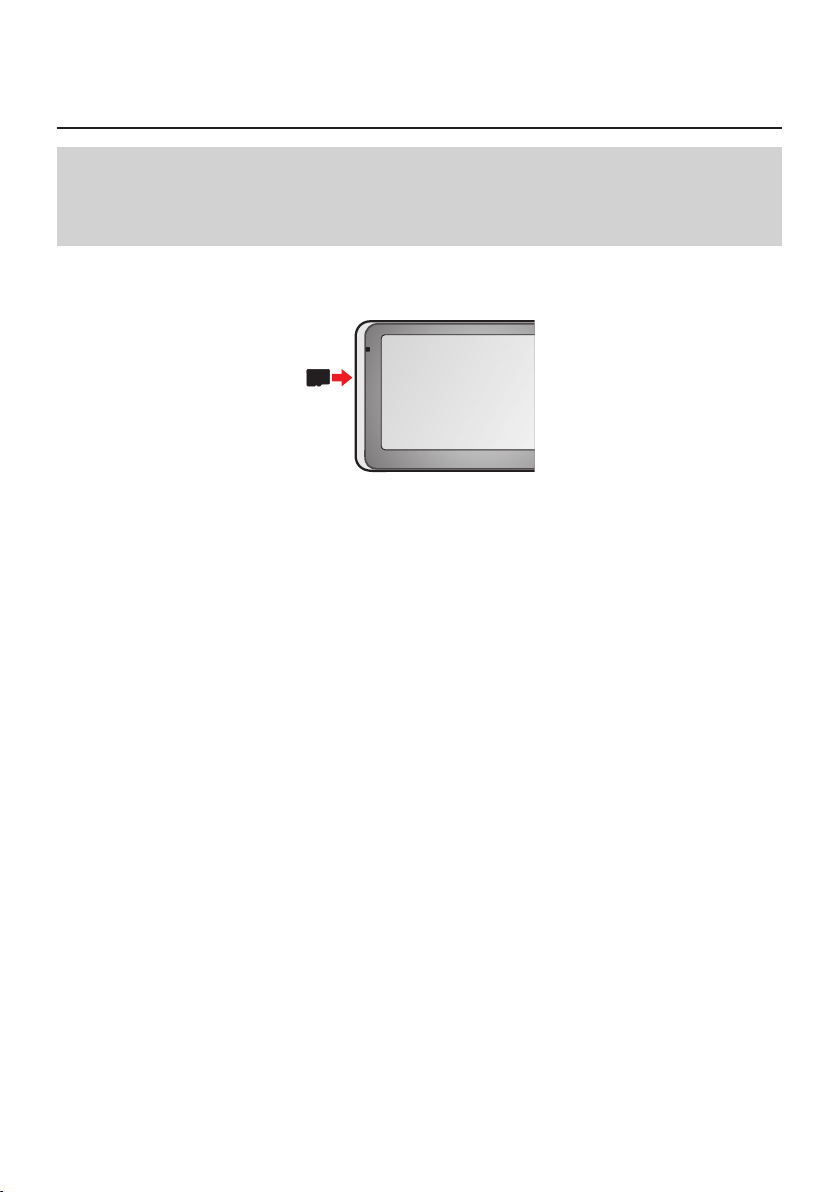
Holdthecard(MicroSD)bytheedgesandgentlyinsertitintotheslotasshowninthe
illustration.
Toremoveacard,gentlypushthetopedgeofthecardinwardstoreleaseit,andpullitout
oftheslot.
Note: Amemorycardinthedataslotisonlyrequiredifinstallingadditionalmapsandsubscriptions
thatcannolongertontheinternalmemory.Thedevicecanoperatenormallywithoutone.
Note: Navmandoesnotguaranteetheproduct’scompatibilitieswithMicroSDcardsfromall
manufacturers.
14
Navigating on the screen
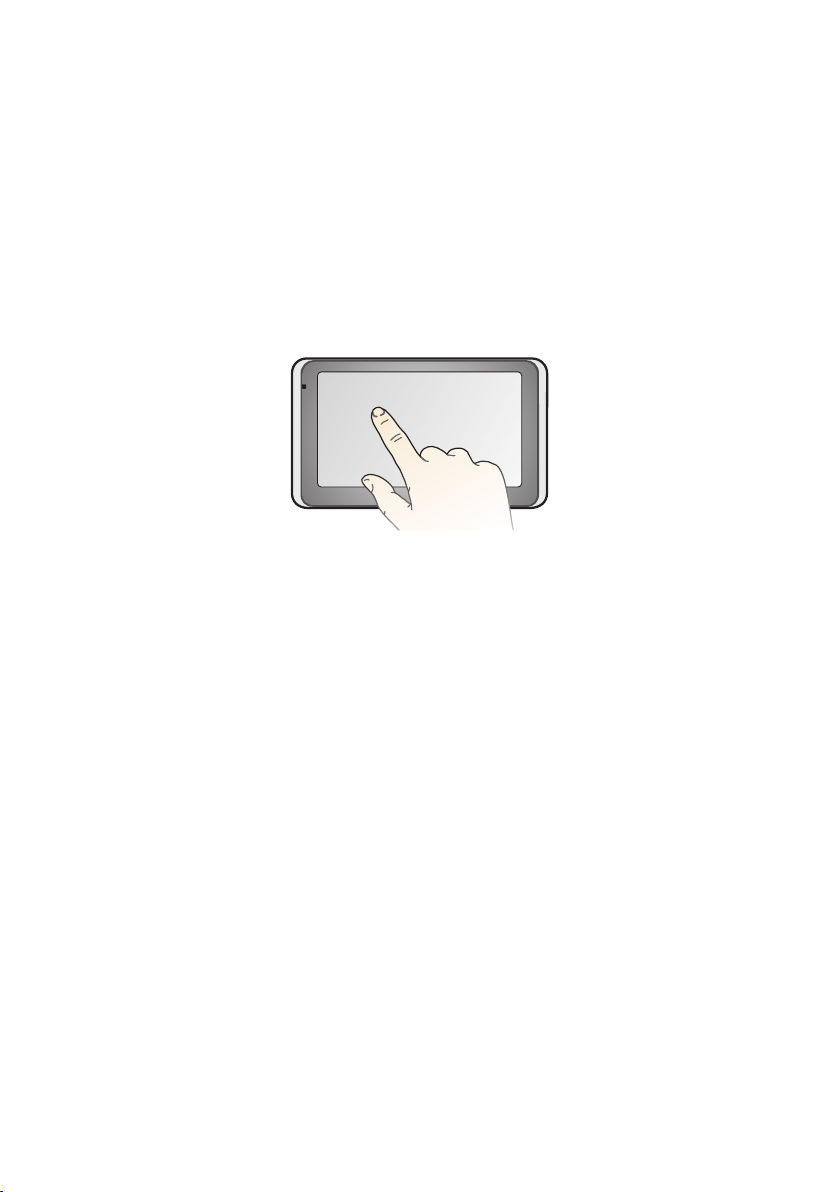
TooperateyourNavman,touchthescreenwithyourngertip.Youcanperformthe
followingactions:
•Tap
Touchthescreenoncewithyourngertiptoopenitemsorselecton-screenbuttonsor
options.
•Drag
Holdyourngertiponthescreenanddragup/down/left/rightoracrossthescreen.(This
isnotapplicabletoallapplications.)
15
Main Menu
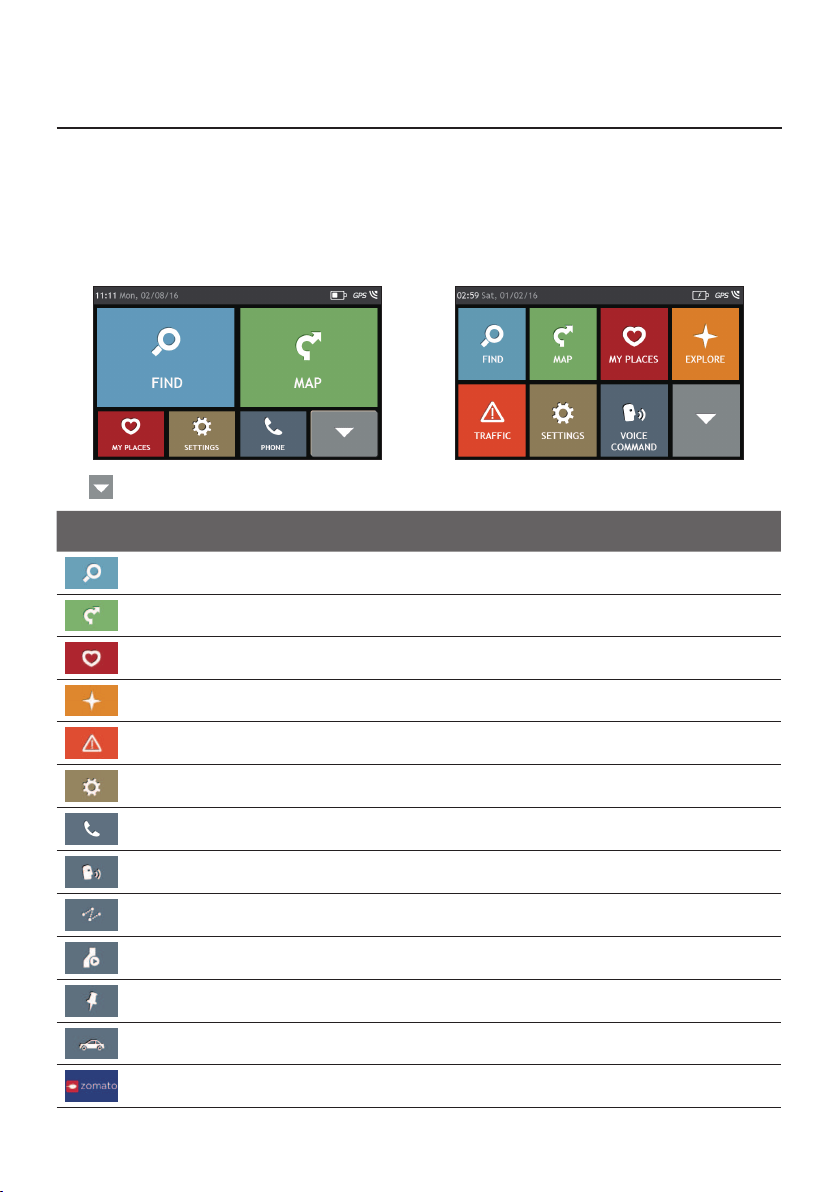
TheMainMenuisyourstartingpointforsearchingforadestination.TheMainMenualso
allowsyoutocustomiseyourNavman,viewsavedlocationsasMyPlace/Home,andsearch
forPOIsnearby,andsoon.
MainMenuscreenoptionsandtheorderoftheoptionsmaydiffer,dependingonyour
region,mapsinstalledorNavmanmodel.
Tap toshowthenextpageofMainMenu.
Icon Description
Searchforplaces,areasandstreetstohelpplanyourroute.
DisplaytheMapscreen.
Accessyoursavedlocations.
Exploretheareaaroundyourcurrentpositionordestination.
Receivelivetrafcinformationonyourrouteandsettrafcpreferences.
CongureyourNavmantoenhanceyournavigationexperience.
UseyourNavmanasahands-freecarkit.
ControlyourNavmanbyvoice,allowingyoutosearchforanaddress/place/POIeasily.
Addorbeginaplannedtripwithmultiplewaypoints.
Displaythecalculatedrouteinsimulationmode.
RecordGPSco-ordinatesofalocationorajourney.
Selectyournavigationmode:Car,LargeVehicleorProfessionalTruck.
SearchforinformationandPOIsforthecityyouarevisiting.
16
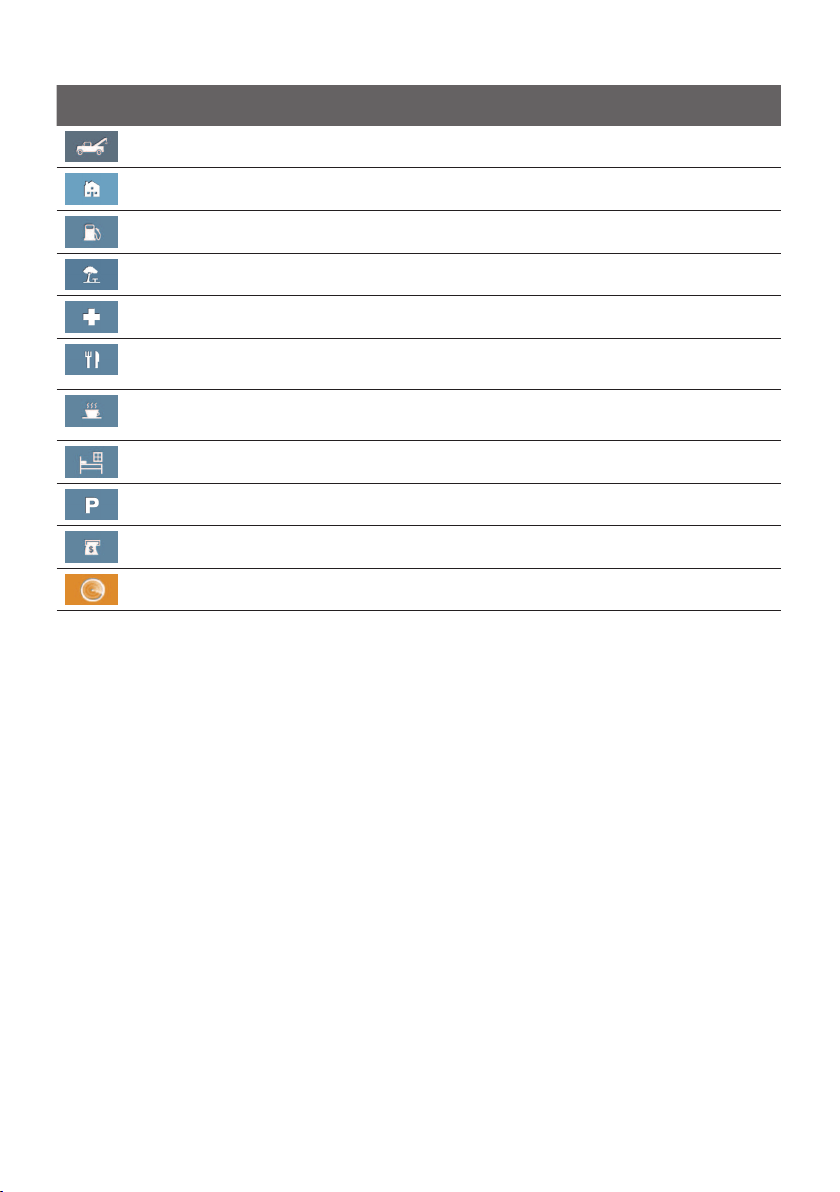
Icon Description
Gethelpwithjustaphonecallwhenyourcarbreaksdownontheroad.
Setornavigatetoyourhomeaddress.
Searchforthenearestpetrolstations.
Searchforthenearestreststops.
Searchforthenearestemergencyservices,includinghospitalsandpolicestations.
Searchforthenearestrestaurants,cafes,fast-foodpremisesandotherdining
establishments.
Searchforthenearestcafes.
Searchforthenearesthotels/motels.
Searchforthenearestparkingplaces.
SearchforthenearestbanksandATMs.
SearchforPOIsnearby.
17
Navigating through the menu screens
ThesystemprovidestheBackbutton(
)andMainMenubutton(/)inthetitlebar
ofthemenuscreenwhichallowyoutonavigatethroughthemenuscreenseasily.Youcan:
•ReturntothepreviousscreenbytappingtheBackbutton.
•ReturntotheMainMenubytappingtheMainMenubutton.
Note:Insomemenuscreens,theMainMenubuttonwillnotappearinthetitlebar.Inthisinstance,
youmayhavetotaptheBackbuttontwice.
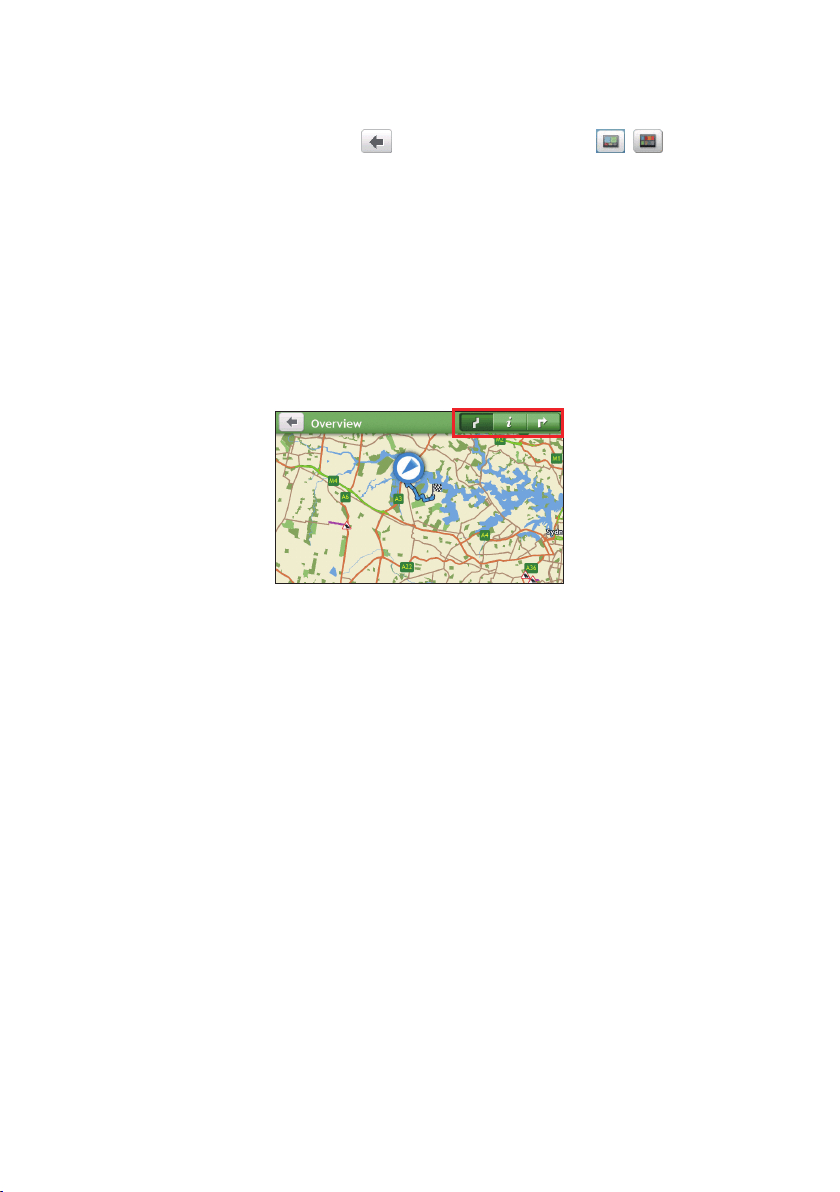
Insomemenuscreens(suchasthemapOverviewscreen),thesystemprovidesthetab
buttonsinthetitlebarthatallowyoutoentertheadditionalpageinthemenuscreen.
Simplytapthedesiredtabtochangetheview.Theselectedtabwillbehighlightedasa
darker-colourtab.
18
Using the Keyboard screen
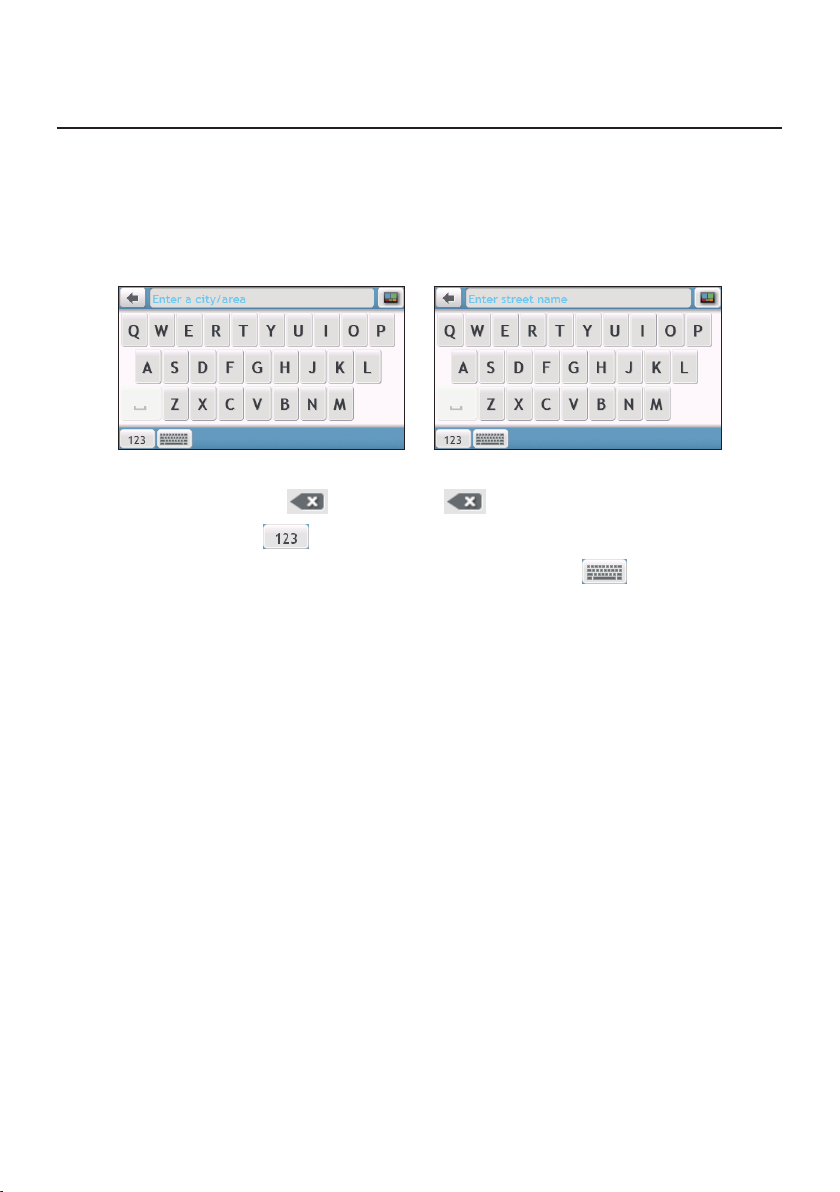
TheKeyboardscreenwilldisplaywhenyouarerequiredtoentertext,suchaswhen
searchingforastreetname.
TheKeyboardscreencandisplaywithvariouslayoutsdependingontheinformationyou
needtoenter,includingalphabets,numbers,alternatecharactersandcombinationsof
these.
•Toselectacharacter,tapthecharacter.
•Todeleteacharacter,tap
.Tapandholdtodeletetheentiretext.
•Toenternumbers,tap
.
•TosetthekeyboardpreferencefromtheKeyboardscreen,tap
.Selectthe
preferredkeyboardtypefromthelist.
19
How do I go from A-B?
CAUTION:Foryoursafety,enterdestinationinformationbeforeyoustartajourney.Donotenter
adestinationwhiledriving.
How do I use the FIND wizard?
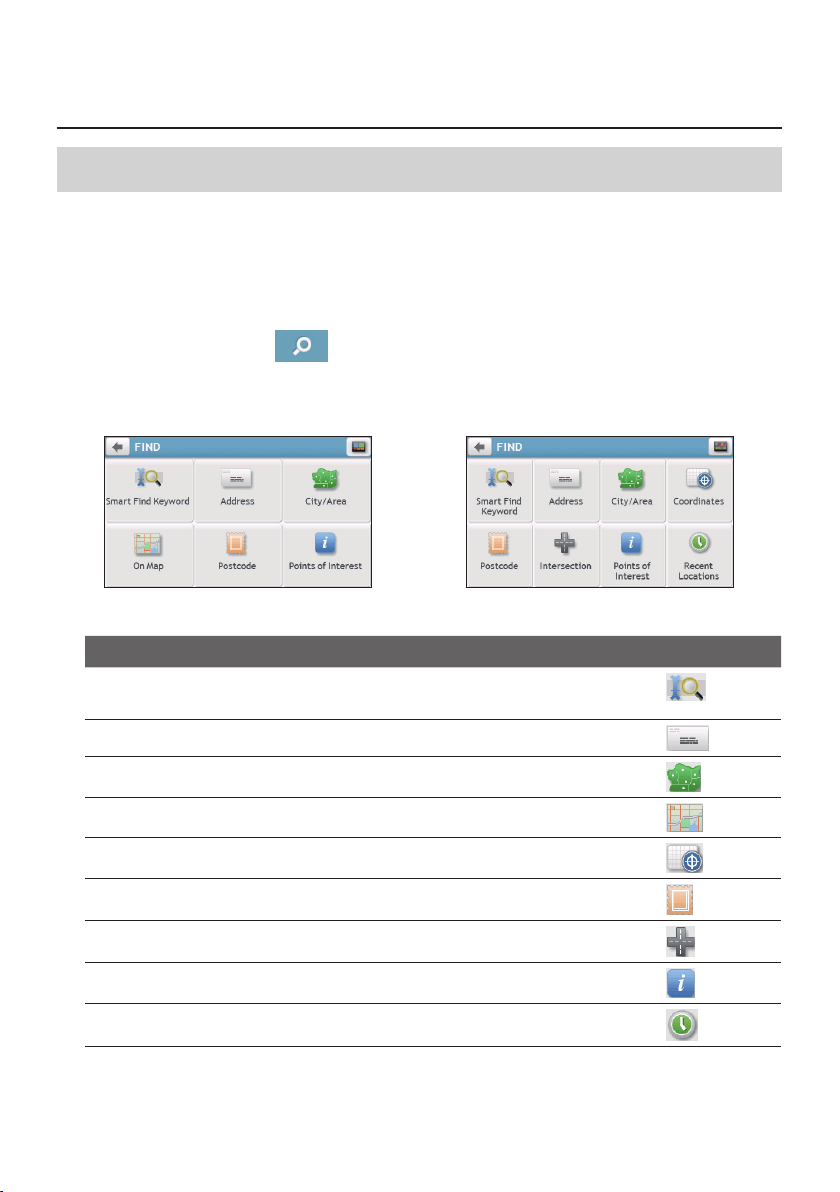
YourNavmanisequippedwithmapsthatprovidestreet-leveldetailsfordoor-to-door
navigation,includingPOIssuchasaccommodation,parkingareas,petrolstations,railway
stationsandairports.TheFINDwizardallowsyoutosearchthelocationeasily.
1.OntheMainMenu,tap
todisplaytheFINDscreen.
TheoptionsontheFINDscreenmaydiffer,dependingonyourregion,mapsinstalledor
Navmanmodel.
2.Completethefollowing:
If you want to… Then…
searchallinformationonthedevice-city,streets,namedsites,features,
landmarksorvenues,
tap
.
searchforanaddress,
tap
.
searchforacity/area,
tap
.
searchforalocationfromtheMapscreen,
tap
.
searchforalocationusingaGPScoordinate,
tap
.
searchalocationbypostcode,
tap
.
searchforastreetintersection,
tap
.
searchforaPOI,
tap
.
navigatetoarecentlyvisitedlocation,
tap
.
Note: FormoreinformationonsearchingforaPOI,seethe"HowdoIsearchforaPOI?"section.
20
How do I plan my first trip?
Note: Menudisplaysmayvary,dependingonyourNavmanmodel.
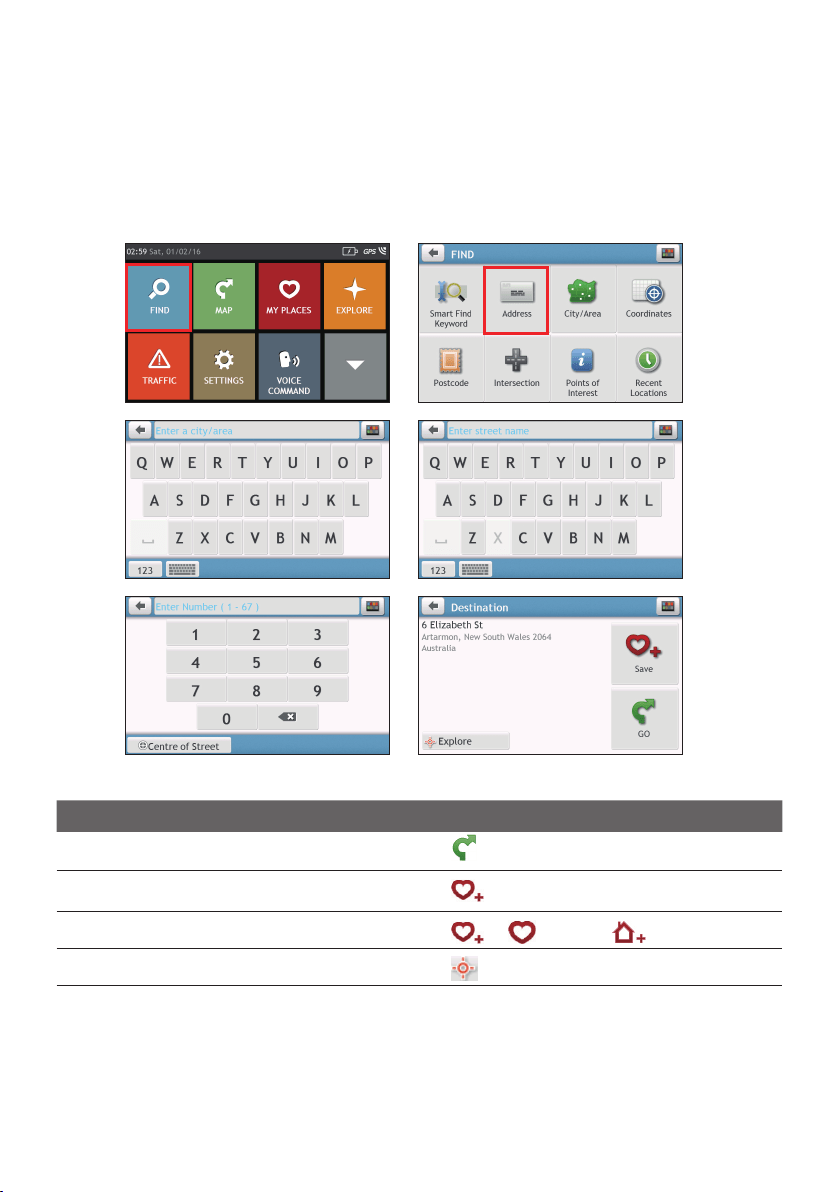
UsingyourNavmantoplanyourrsttripiseasy.Thereareseveralwaystoselectyour
destination.Thefollowingstepswillshowyouhowtoplanyourroutebysearchingthe
address.
Completethefollowing:
If you want to… Then…
calculatetherouteandstartnavigating,
tap
.
savethelocationasafavourite,
tap
.
savethelocationasHome,
tap
.Thentap.
explorethemap,
tap.
21
How do I preview the destination on map?
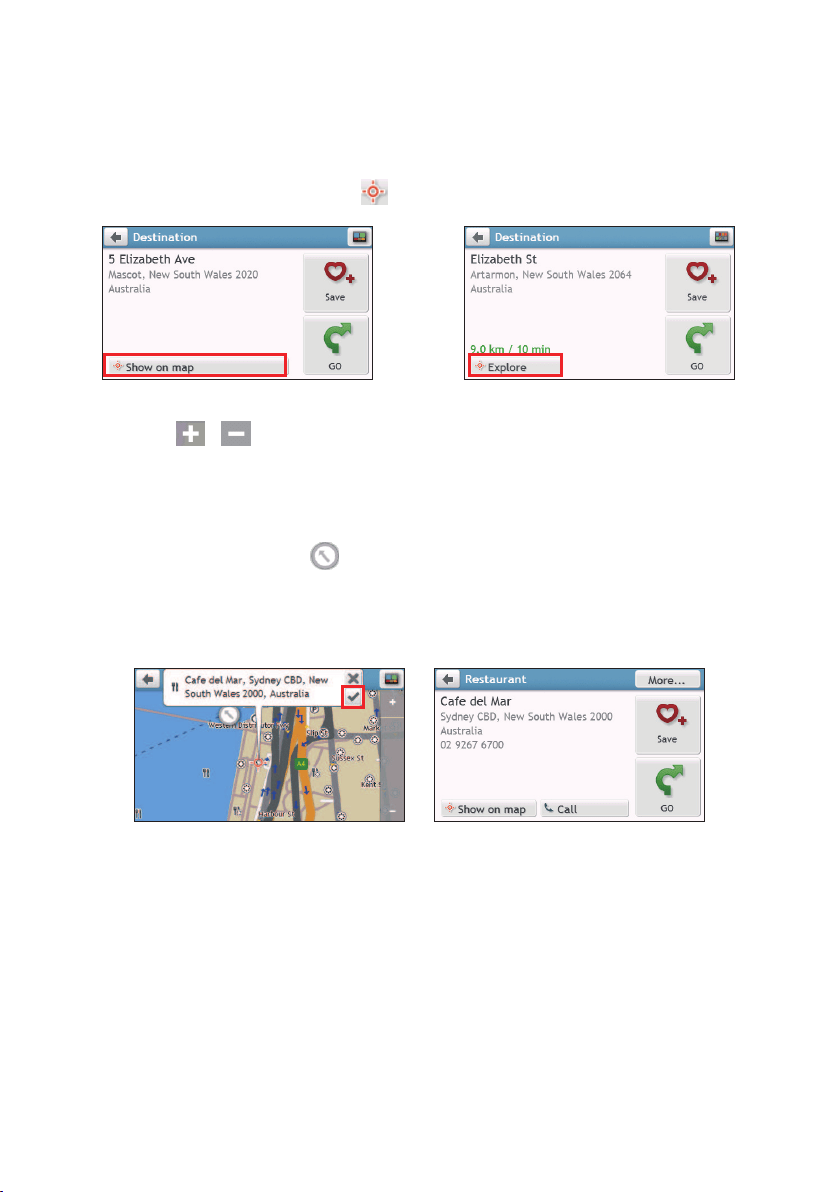
Aftersearchinganaddress(oraPOI),youcanpreviewthedestinationonmaptoexplore
theareanearthelocation.
1.OntheDestinationscreen,tapthe
buttontodisplaythedestinationpreviewmap.
2.Onthedestinationpreviewmap,youcan:
•Tapthe
/buttontozoomin/outthemap.
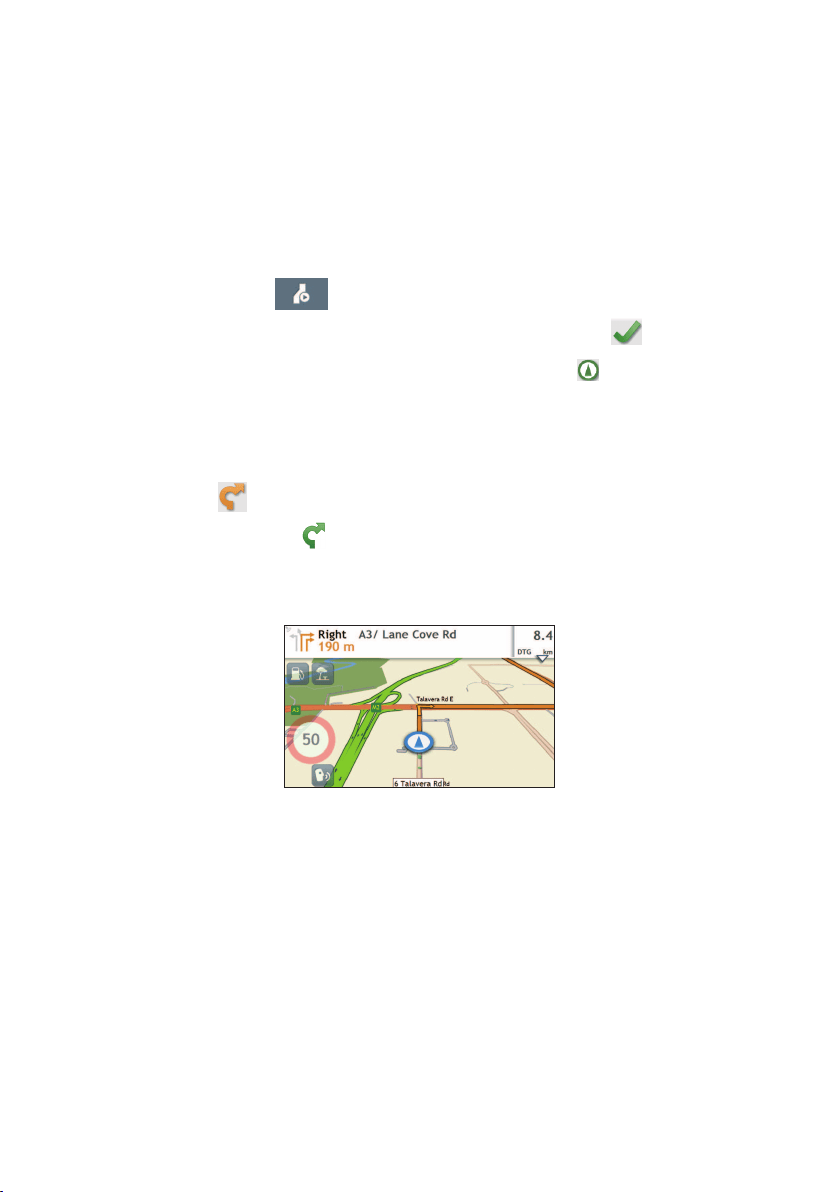
•ViewtheinformationofyourdestinationthatisshownatthetopoftheMapscreen.
•Taponastreet/area/POItodisplaytherelatedinformationofthelocationnearyour
destination.
•Tapthegreyarrowicon(
)toreturntoyourcurrentpositiononthemap.
•Dragandthentaponthemaptoselectotherdestinations.Theinformationofthe
selectedstreet/area/POInearyourdestinationwillbedisplayed.Tappingthecheck
markwillbringuptheDestinationscreenoftheselectedlocation.
22
How do I preview a route?
Note:Thisfeatureisnotavailableonallmodels.
Youcanplanarouteinsimulationmodethatallowsyouto:
•previewaroute.
•planandviewaroutewithoutaGPSx,suchaswhenyouareinsideabuilding.
Thefollowingstepswillshowyouhowtopreviewaroute.
1.OntheMainMenu,tap
.
2.SelectadeparturepointthroughtheLeavingfromscreen,andtap
.
Note:IfyouhaveaGPSx,youcansimplyselectthe Here button()sothatyoudonotneed
toselectadeparturepoint.Otherwise,usetheFINDaddresswizard,Exploremap, My Places/
Recent placesmenuorHometosetthedeparturepointifyouwantthedemonstratedrouteto
startelsewhere.
3.SelectadestinationpointthroughtheGoingtoscreen.
4.Whendone,tap
.
5.Selectaroutetypeandtap
,andtheroutedemonstrationwillstartautomatically.
TheMapscreenwilldisplaythecalculatedrouteinroutesimulationmode.The
simulatedroutewillbedisplayedasorangecolour.
Changing the navigation mode
Large Vehicle and Professional Truck modes
Note:Thisfeatureisnotavailableonallmodels.
TheLargeVehicleandProfessionalTruckmodesarespecicallydesignedforlargevehicles.
Withtheinputofyourvehicleortrailerdetails,themodeenablestocalculatesaferand
moreefcientroutestoavoidthelength/width/height/weightrestrictedtunnelsand
bridges,aswellassharpturnsandnarrowcountrylanes.
Note:Donotrelysolelyonthisproductanditsfeatures.Usingthisproductdoesnotchangethe
requirementforadrivertotakefullresponsibilityfortheirbehaviour.Thisresponsibilityincludes
observingalltrafcrulesandregulationsinordertoavoidaccidents,personalinjuriesorproperty
damages.
23
1.OntheMainMenu,tap.
2.Selectyourlargevehicletype.
•Ifyourvehicleisupto9tonnes,selectLarge Vehicle.
•Ifyourvehicleisupto65tonnes,selectProfessional Truck.
3.Completethefollowing:
If you want to… Then…
setthedetailsforyourtruck,enterthefollowingdataofthetruck:
•totaltruckweight
•maximumaxleweight
•totaltrucklength
•maximumtruckwidth
•maximumtruckheight
Note: Youmustcompletethedetailsofthetruck
settingsbeforeyoucanusetheLargeVehicle/
ProfessionalTruckmodetoplanyourroute.
drivetheroadtraintypevehiclesinthe
ProfessionalTruckmode,
tapB-Doubletoturniton.
limittherouteplanningwhileshipping
hazardousmaterialsintheProfessionalTruck
mode,
tapHazmat(HazardousMaterials)andthen
selectthecorrectoptionfromthelist.
enable/disablethespeedlimitalerts,tapSpeed limit display /Speed limit alerts
toturnitonoroff.
Note: Bydefault,thespeedlimitalertissetto100km/h.
Note: IntheLargeVehicle/ProfessionalTruckmode,yourcurrentpositionwillbedisplayedwiththe
icon.
24
How do I view my route?
How do I select the route type?
Note:Thisfeatureisnotavailableonallmodels.
DependingonyourNavmanmodel,theSelectRouteTypescreenmaybedisplayedwhen
youtap
fromtheDestinationscreen.Allofthefourroutetypes(Fastest,Economical,
Easiest,andShortest)willbecalculated.
Selectyourpreferredrouteandtaptostartnavigating.
Note:Formoreinformationonsettingthepreferredroutetype,seethe"Routeoptions"sectionin
“Customisingthesystemsettings.”
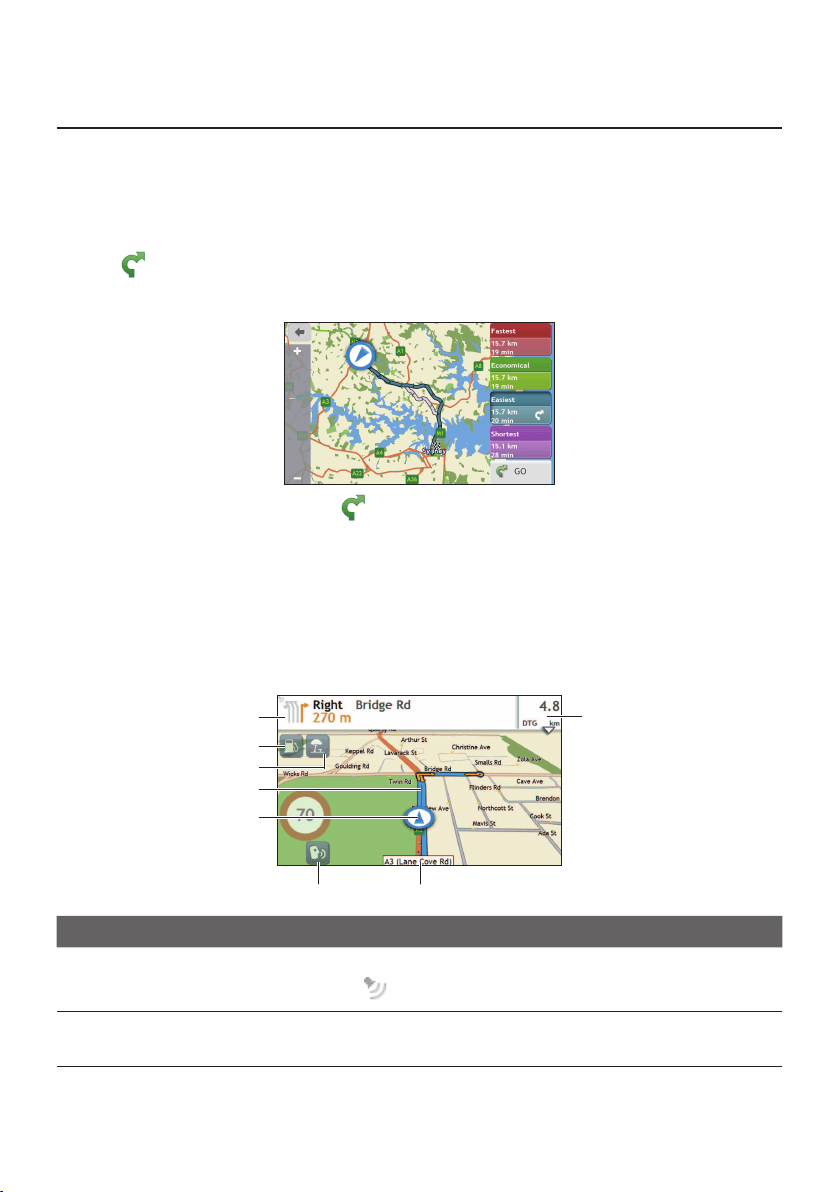
The driving map
Whenaroutehasbeencalculated(andselected,forsomemodels),theMapscreenwill
display.Youwillbedirectedtoyourdestinationbyspokenandvisualinstructions.
Item Description
Direction and distance of
next turn
Thedirectionanddistancetoyournextturn.
Tap
torepeatthevocalinstruction.
Petrol stations
Searchforthenearestpetrolstations.
Note:Thisfeatureisnotavailableonallmodels.
25
Item Description
Rest stops
Searchforthenearestreststops.
Note:Thisfeatureisnotavailableonallmodels.
Current route Yourcurrentrouteishighlighted.
Current position
Yourcurrentpositionismarkedwith
.
Voice command DependingonyourNavmanmodel,youmaybeabletotap
tousetheVoiceCommandfunction.
Note:Thisfeatureisnotavailableonallmodels.
Address bar Thecurrentaddresswillbedisplayedinthetextboxatthe
bottomofthescreen.
Distance and time
information
Taptoexpandandselectthefollowingoptions:
•DTG(DistancetoGo)
•TTG(TimetoGo)
•km/hormph(speed)andcompassheading
•ETA(EstimatedTimeofArrival)
•Time
Note:Dependingonyourdrivingroute,youmayseesomeiconsthatprovidedifferentinformation
onyourMapscreen.Pleasenotethattheseiconswillnotbealwaysdisplayedduringyourjourneys.
How do I change the route configuration?
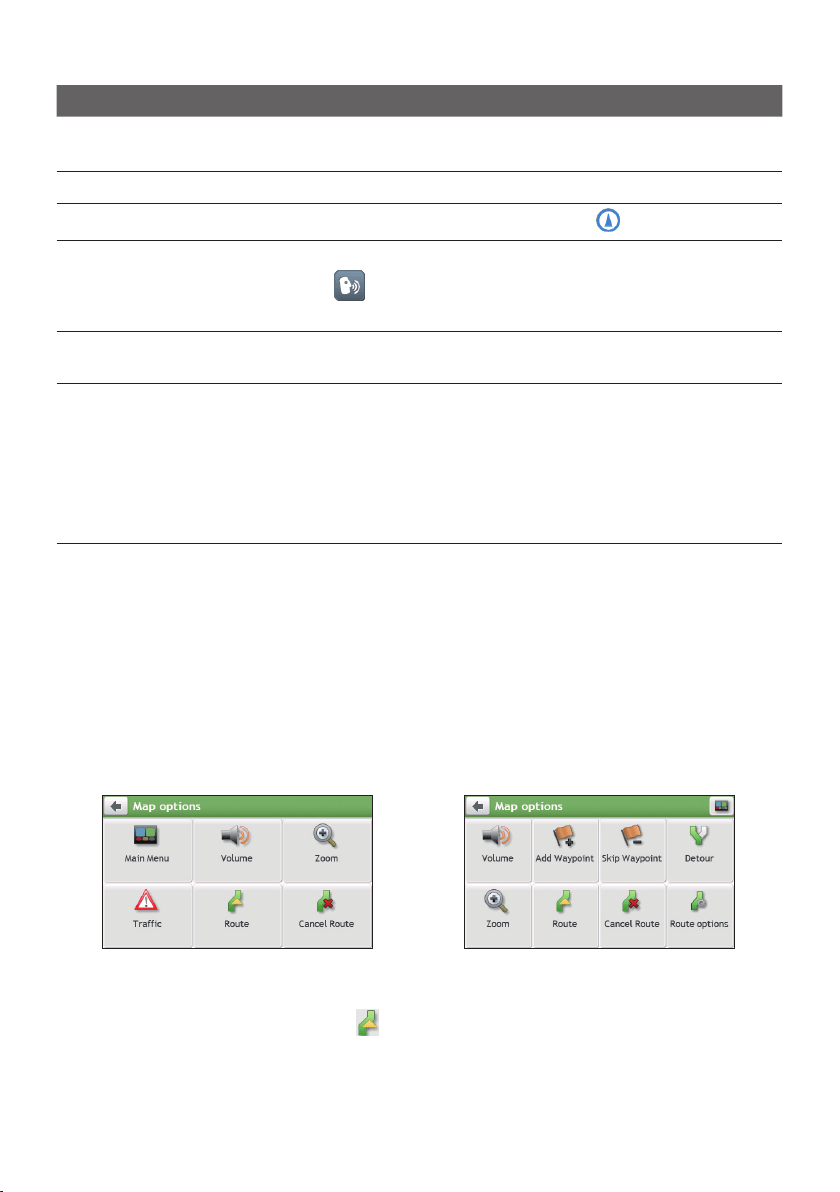
TapanywhereontheMapscreentobringuptheMapoptionsscreen,whichallowsyouto
changetheroute-relatedconguration.
Formoreinformationonchangingtherouteconguration,seethefollowingsections.
Note:Mapoptionsscreendisplayandtheorderoftheitemsmayvary,dependingonyourregion,
mapsinstalledorNavmanmodel.
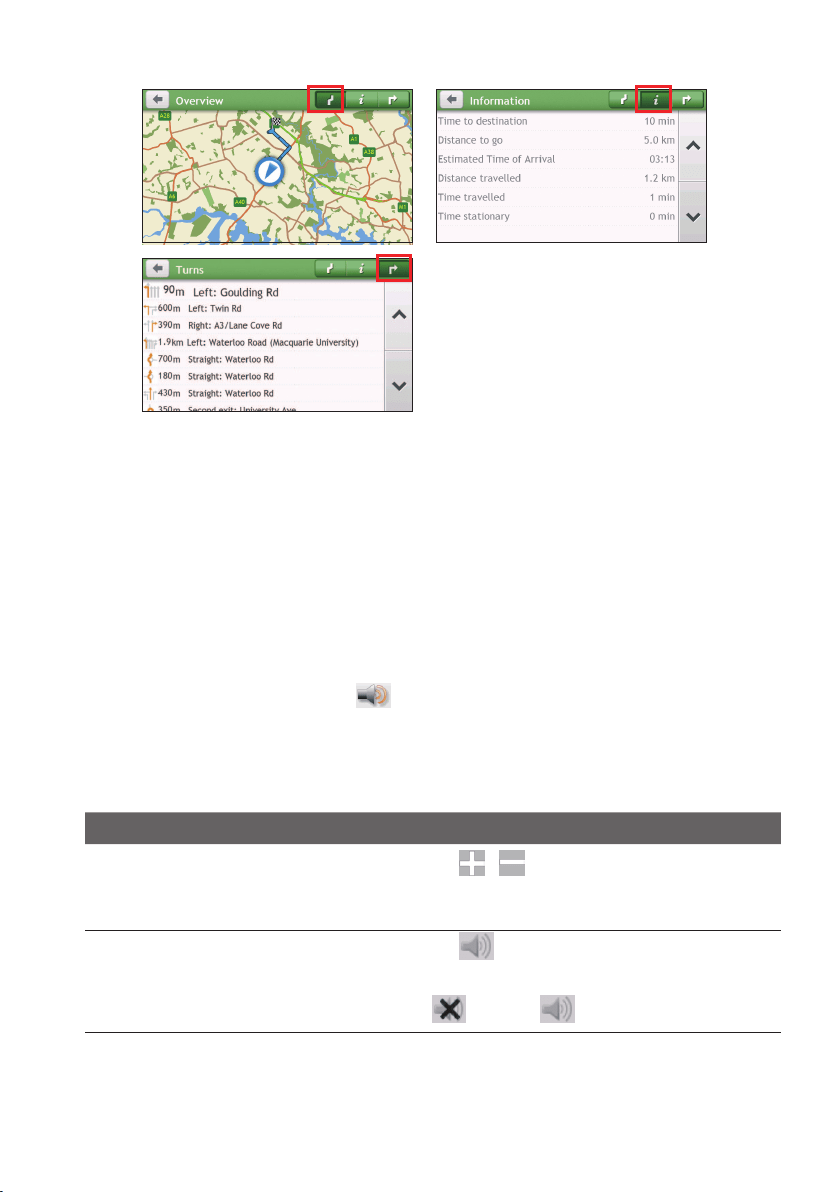
How do I view my route statistics?
1.FromtheMapoptionsscreen,tap
.
2.Tapthetabsinthetitlebartoviewtheadditionalinformationinthedifferentscreens.
26
3.YourNavmanprovidestheinformationonyour:
•timetodestination•timetravelled
•distancetogo•timestationary
•estimatedtimeofarrival•TTD/DTG/ETAforthejourney*
•distancetravelled•trafcdelay*
*Dependingontheroutecalculated,youmayseemoreinformationonthescreensuchasthe
estimatedtime/distancetothenextstopwhenyourtripcontainsmultiplewaypointsandthetrafc
delayinformationifatrafceventoccursinyourtrip.
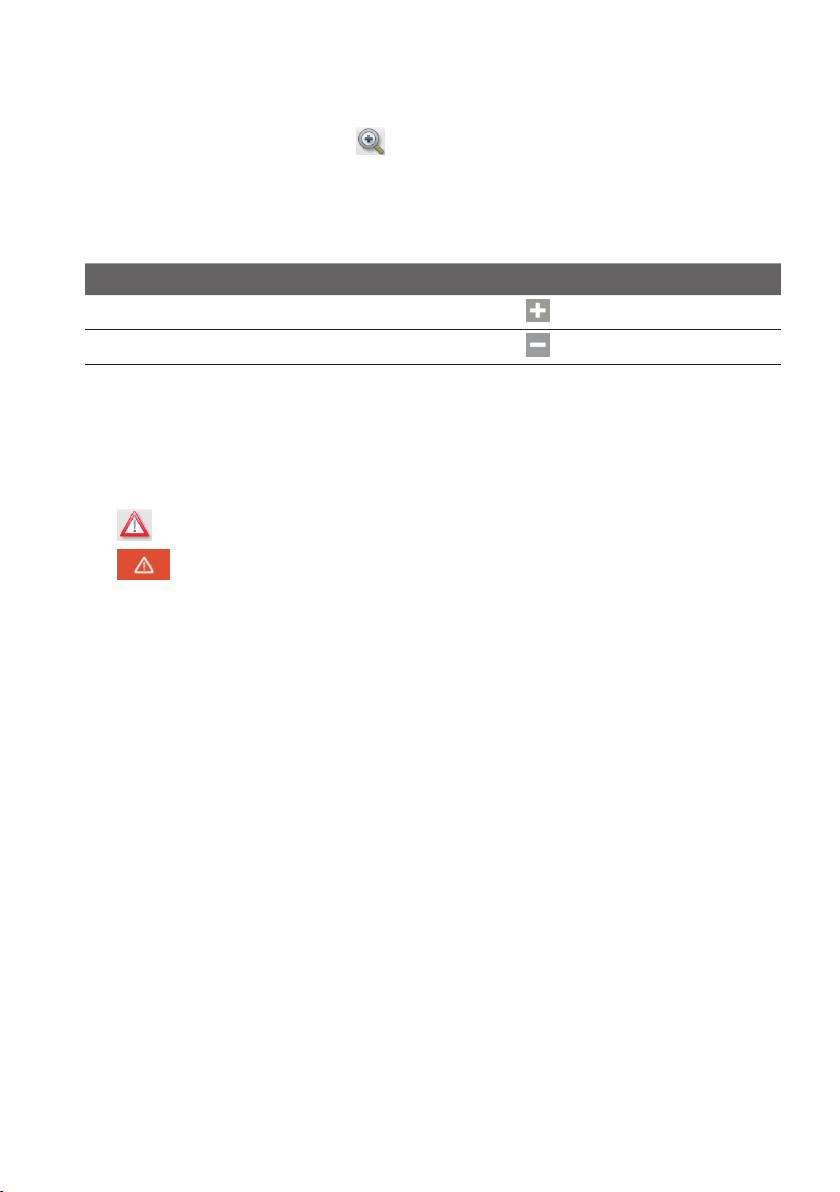
How do I adjust the volume?
1.FromtheMapoptionsscreen,tap
.
2.ThevolumebuttonswillbedisplayedontheMapscreenintranslucentmode.
Note:Thevolumebuttonswillautomaticallydisappearafterthemapisidledfor5seconds.
3.Completethefollowing:
If you want to… Then…
increase/decreasethevolume,
tap
/.
Thevolumebarindicatesthecurrentvolume
level.
mute/unmute,
tap
.
Thespeakericonindicatesthestatus:
:muted:unmuted
27
How do I zoom in/out the map?
1.FromtheMapoptionsscreen,tap
.
2.ThezoombuttonswillbedisplayedontheMapscreenintranslucentmode.
Note:Thezoombuttonswillautomaticallydisappearafterthemapisidledfor5seconds.
3.Completethefollowing:
If you want to… Then…
zoominthemap,
tapandhold
.
zoomoutthemap,
tapandhold
.
How do I view the traffic status on my route?
Note:Trafcinformationisnotavailableonallmodelsandisonlyavailableinselectedcountries.
DependingonyourNavmanmodel,youcanviewthetrafcstatusbyoneofthefollowing
methods:
•Tap
ontheMapoptionsscreen.
•Tap
ontheMainMenu.
Formoreinformation,seethe“HowdoIreceivecurrenttrafcinformationviaTMC?”
section.
Advanced routing functions
Smart Routes
YourNavmanfeaturesSmartRoutes,whichintelligentlyanticipatescongestedroadsatpeak
timessothattheycanbeavoided.SmartRoutesdoesthisbyusinghistorical,anomalised
datafrommillionsoffellowdrivers.SinceSmartRouteshelpsyouautomaticallyavoid
predictedheavycongestion,youwillbeabletosavetimeandmoneyduringyourjourneys.
Note:SmartRoutesisnotavailableonallmodelsandisonlyavailableinselectedcountries.
My Drive
Note:Thisfeatureisnotavailableonallmodels.
WithMyDrivetechnology,yourNavmanincludesanintelligentcapabilitythatlearnsand
adaptstoyourpersonaldrivingstyle.Overtime,yourNavmanlearnsyourpreferencefor
roadtypesanddrivingspeeds,turnsandmore.YourNavmanwillsavetheinformationand
provideamorepersonalisedrouteandaccuratetimeofarrivalthenexttimeyouplanatrip.
Note:FormoreinformationonSmartRoutesandMyDrivesettings,seethe"Routeoptions"section
in“Customisingthesystemsettings.”

28
Back-On-Track™ automatic rerouting
Youwillberedirectedifyoumakeawrongturn.Amessageinformingyouthatyourrouteis
beingrecalculatedwilldisplayatthetopofthescreen.
Tocancelarouterecalculation,tap
fromtheMapoptionsscreen.Awarningwilldisplay
askingyoutoconrmthecancellation.Ifconrmed,boththerecalculationandyourcurrent
routewillbecancelled.
Parking assistant
Note:Thisfeatureisnotavailableonallmodels.
Youwillberemindedoftheparkinginformationwhenyouarearrivingatthedestination
(within1km)oftheroute.Simplytapthe
iconontheMapscreentoshowthenearby
parkinglotsthataresortedbydistance.
29
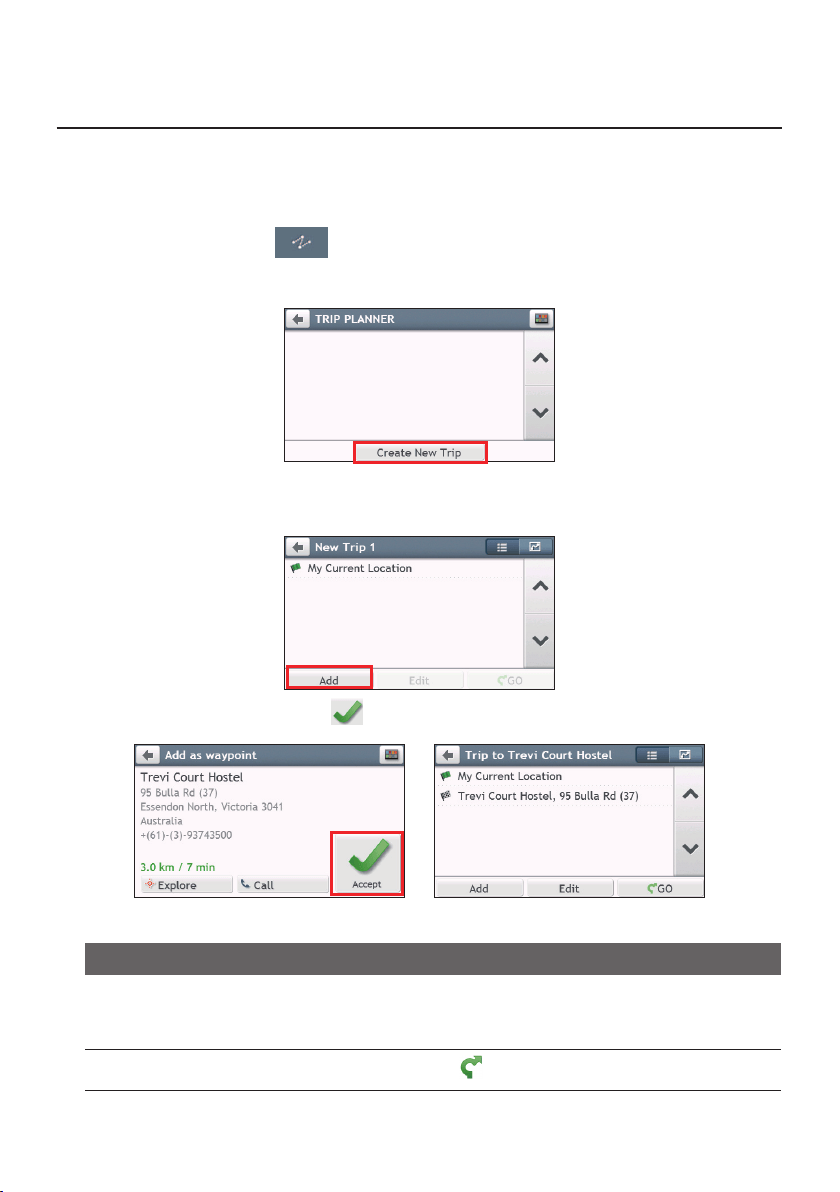
How do I create a trip with multiple stops?
Note: TripPlannerisnotavailableonallmodelsandisonlyavailableinselectedcountries.
DependingonyourNavmanmodel,youmaybeabletosetmultiplestopsorwaypointsfor
yourtrip.Yourroutewillbecalculatedtogoviaeachofthesepointsinthespeciedorder.
1.OntheMainMenu,tap
.
2.TapCreate New Trip.
3.TapAdd.UsetheFIND addresswizard,Explore map,My Places/Recent
LocationsmenuorHere/Return to start tosetthewaypoint.
4.Whenyoursearchisdone,tap.
5.Completethefollowing:
If you want to… Then…
addanotherwaypoint,tapAdd.
Note: Waypointsaddedafteramulti-stoptriphas
commencedwillnotbeincludedinthecurrentroute.
navigatetoyourselecteddestination,
tap
.
30
If you want to… Then…
editthetrip,tapEdit,thenyoucan:
•optimiseyourtripbyselectingOptimise.
•changethetriptitlebyselectingRename.
•deletetheplannedtripbyselectingDelete.
Note:The Optimisefunctiondoesnottakeallthefactorsintoaccount. Yourwaypointsmightbe
reorderedtoreduceyourestimatedtraveldistance.Besuretoconrmthetriponthemapandmake
adjustmentsasappropriate,particularlyifyourtripreturnstothestartlocation.
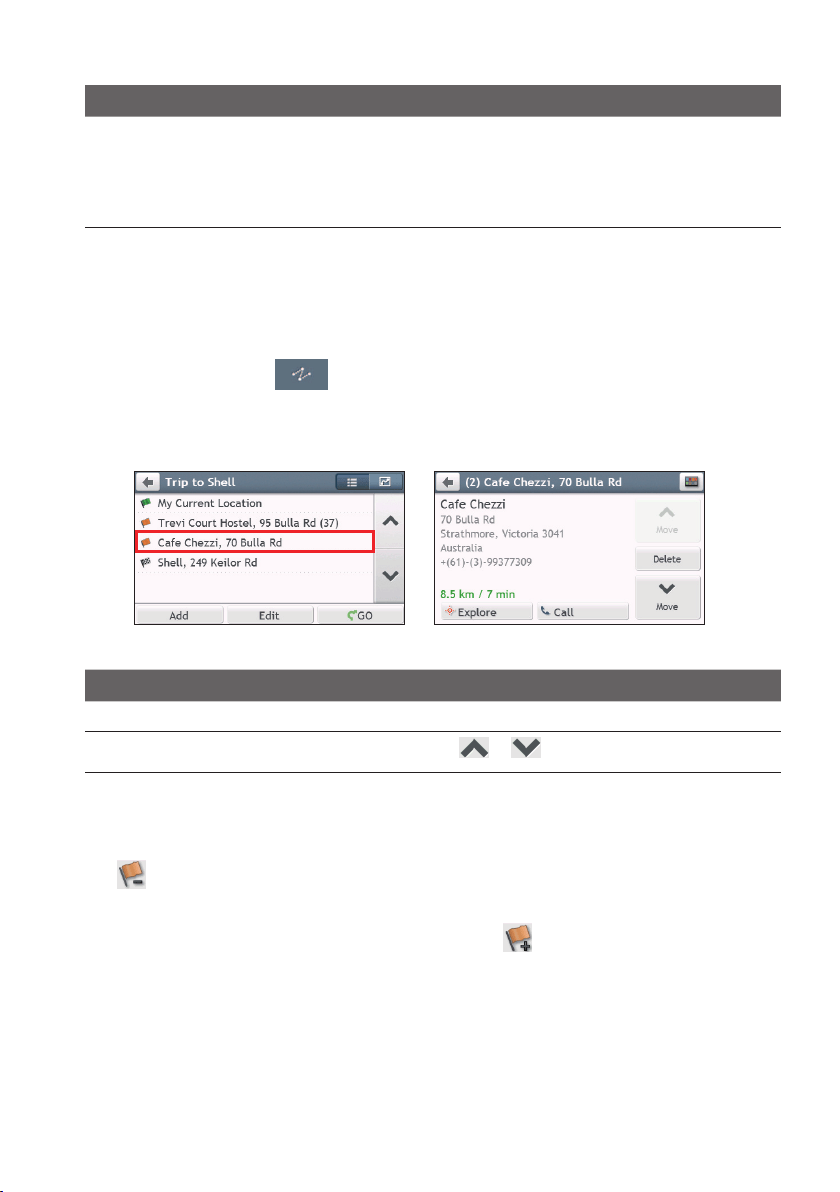
How do I edit the waypoints in the trip?
1.OntheMainMenu,tap
.
2.Tapthetriptoedit.
3.Tapthedesiredwaypointinthetrip.
4.Completethefollowing:
If you want to… Then…
deleteawaypoint,tapDelete,thenselectOK.
changetheorderofthewaypoint,
tap
or.
How do I skip a waypoint during a multi-stop trip?
1.TapanywhereontheMapscreentobringuptheMapoptionsscreen.
2.Tap
,thenselectYes.Thenextwaypointwillbeskippedandtherouterecalculated
tothefollowingwaypoint.
Note:YoucanalsoaddwaypointsduringthetripbyselectingfromtheMapoptionsscreen.
31
How do I capture a location or a journey?
Note:Thecapturefunctionalityisnotavailableonallmodels.
YourNavmanmayhaveacapturefeaturewhichallowsyoutorecordGPSco-ordinatesofa
locationandcaptureajourney,andsavethemsoyoucannavigatebackatalatertime.
How do I capture the GPS co-ordinates of my location?
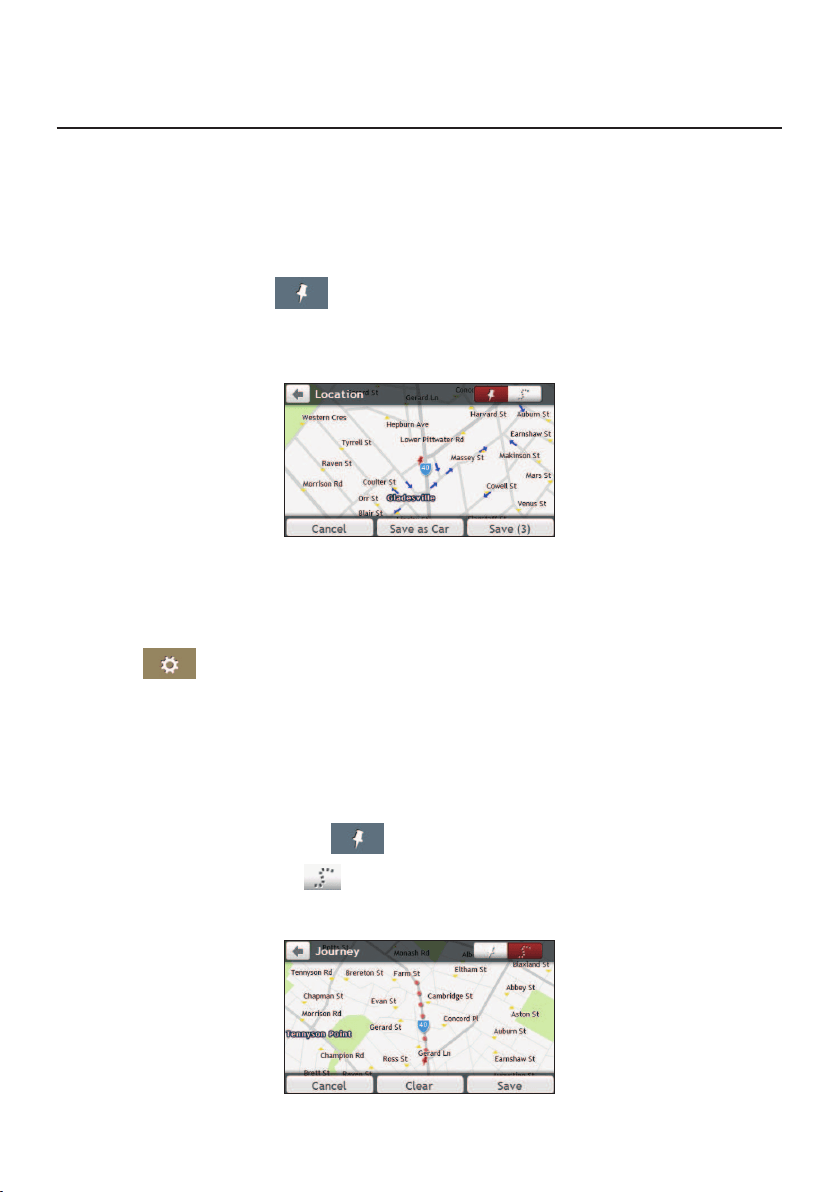
1.OntheMainMenu,tap
.
2.TapSave,orwaitfor5seconds.YouwillhearashuttersoundtoindicatethattheGPS
co-ordinateshavebeensaved.ThelocationissavedinMyPlaces.
Note:TappingSave as CarwillsavethecurrentcarlocationinMyPlaces.
How do I capture a journey?
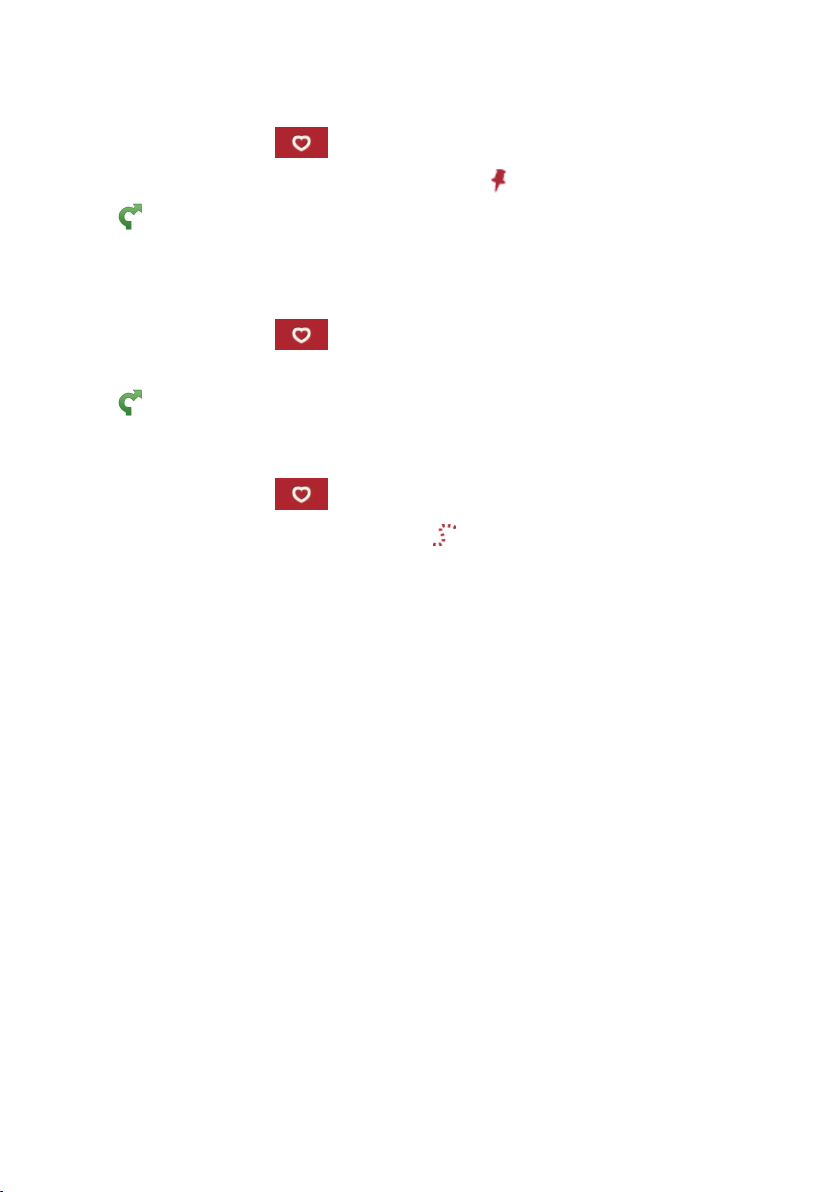
Toenablecapturingofjourneys,youmustrstenableCapture JourneyfromtheMain
Menu:tap
Route options.Formoreinformation,seethe“Customisingthe
systemsettings”section.
1.Atthebeginningofthejourneyyouwouldliketorecord,tapClear.Alltravelthat
youhavemade(i)sincemidnight,(ii)theprevioustimeyoutappedClear,or(iii)last
capturedajourney,willbedeleted.
2.Travelonyourjourney.YourNavmanwillkeeparecordofwhereyoutravel.
3.Attheendofyourjourney,tap
ontheMainMenu.
4.OntheCapturescreen,tap
.
5.TapSave,then Yes.ThejourneyissavedinMyPlaces.
32
How do I navigate to a location I have captured?
1.OntheMainMenu,tap
.
2.Tapthecaptureddestinationyouwanttotravelto(
).
3.Tap
.YourNavmanwillcalculatearoutefromyourcurrentlocation.
How do I navigate to the saved car location?
Note:Thisfeaturemaynotbeavailableforallmodels.
1.OntheMainMenu,tap.
2.TapFind My Car.
3.Tap
.YourNavmanwillcalculatearoutefromyourcurrentlocation.
How do I view a journey I have captured?
1.OntheMainMenu,tap
.
2.Tapthecapturedjourneyyouwanttoview(
).
33
My Places
MyPlaceshasallyoursavedlocations.
How do I save a location as My Place or Home?
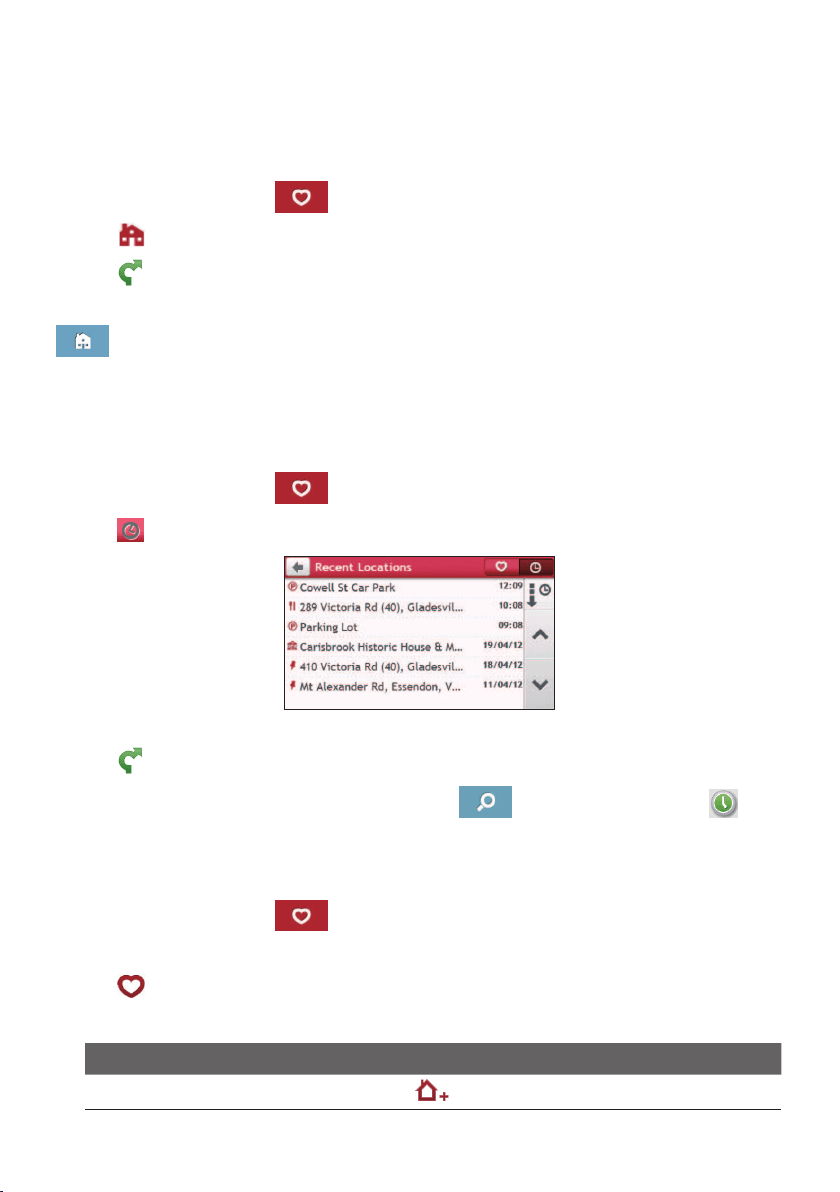
1.SearchforanaddressuntilthePreviewscreenisdisplayed.
2.Tap.ThelocationwillbeaddedtoMyPlaces.
3.TosavethelocationasHome,tap
.ThelocationwillbesetasHome.
How do I navigate to a location I have saved?
1.OntheMainMenu,tap
.
2.TaptheSortbybuttontochangethesortingorderoftheitems:
:bytime:byname:bytype
3.Tapthefavouritedestinationyouwanttotravelto.
4.Tap
.YourNavmanwillcalculatearoutefromyourcurrentlocation.
34
How do I navigate to Home?
IfyouhavenotsetanaddressasHome,thersttimeyoutrytonavigatetoHomeyouwill
bepromptedtosearchforanaddressusingtheaddress-entrywizard.
1.OntheMainMenu,tap
.
2.Tap
.
3.Tap
.YourNavmanwillcalculatearoutefromyourcurrentlocation.
DependingonyourNavmanmodel,onceyourhomehasbeensetonyourNavman,tap
ontheMainMenuandyouwillbedirectedtoHome.
How do I navigate to a recent place?
Tomakenavigatingtoalocationeasier,yourNavmanwillautomaticallysaveallyourstart
locationsanddestinationsinalistofrecentplaces.
1.OntheMainMenu,tap
.
2.Tap
.
3.Taparecentplace.
4.Tap
.YourNavmanwillcalculatearoutefromyourcurrentlocation.
Note:DependingonyourNavmanmodel,youmaytapontheMainMenuandtapto
displayalistofrecentlocations.
How do I edit a saved location in My Places?
1.OntheMainMenu,tap
.
2.Selectalocationtoedit.
3.Tap
.
4.Completethefollowing:
If you want to… Then…
savethelocationasHome,
tap
.
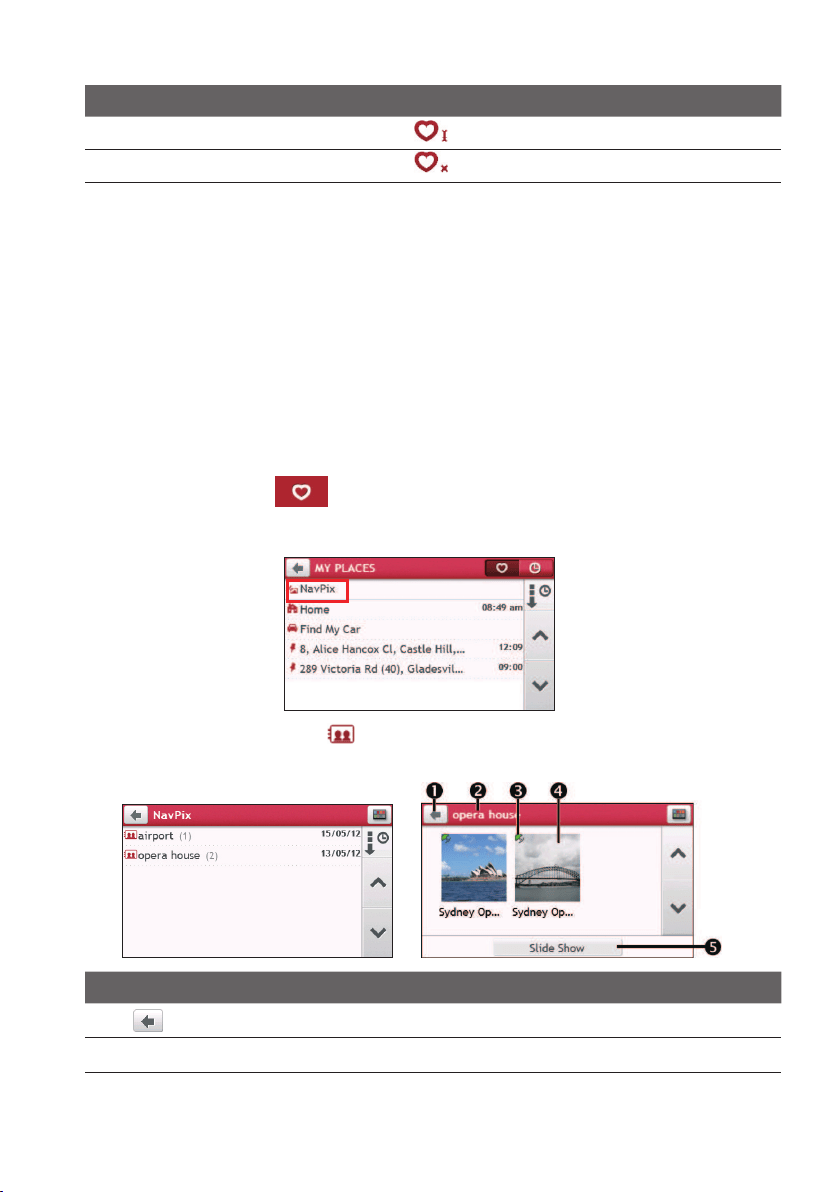
35
If you want to… Then…
renamethelocation,
tap
.Afteryouhaveeditedthename,tapOK.
deletethelocation,
tap
.
How do I navigate to a
NavPix™
?
Note:
NavPix™
isnotavailableonallmodelsandisonlyavailableinselectedcountries.
NavPix™
isanimageorpicture,normallyofalocation,whichcontainsembeddedGPS
co-ordinatesthatyoucannavigateto.
Tonavigatetoa
NavPix™
location,eitheraGPSxmusthavebeenavailablewhenthe
NavPix™
wastaken,orGPSco-ordinateshavebeenaddedusingNavDesk.
How do I navigate to a
NavPix™
?
Note: Formoreinformationaboutimportingthe
NavPix™
toyourNavman,refertothe"Photo
Album"sectionin“WhatisNavDesk?”
1.OntheMainMenu,tap.
2.TapNavPix.
3.Fromthelistselectthealbum()youwant.Thealbumcontainsyourpicturesand
displaysthemasthumbnails.
Item Description
Taptoreturntothepreviousscreen.
Album title Titleofthealbum.
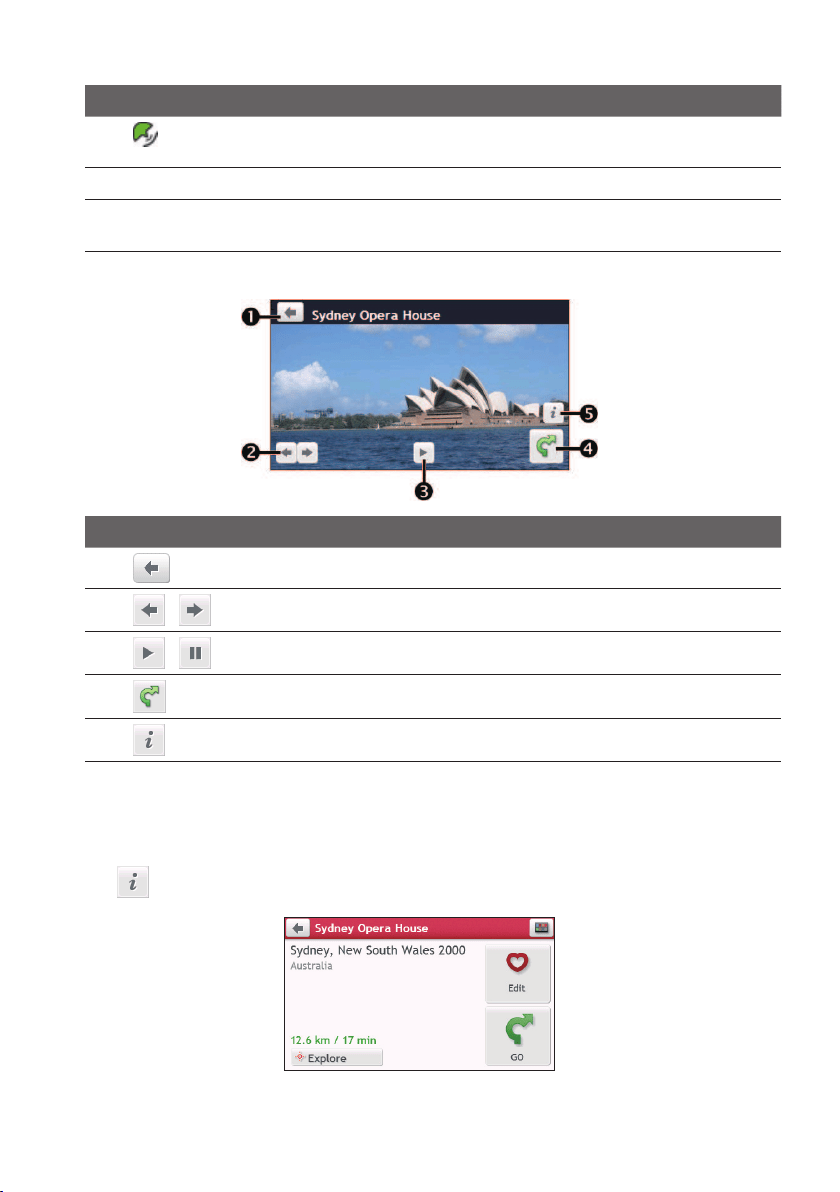
36
Item Description
Indicatesthatthepictureisa
NavPix™
withembedded
GPSco-ordinates.
Thumbnail Athumbnailofa
NavPix™
containedinthealbum.
Slide show Displaysallimagesinthealbumasafullscreen
slideshow.
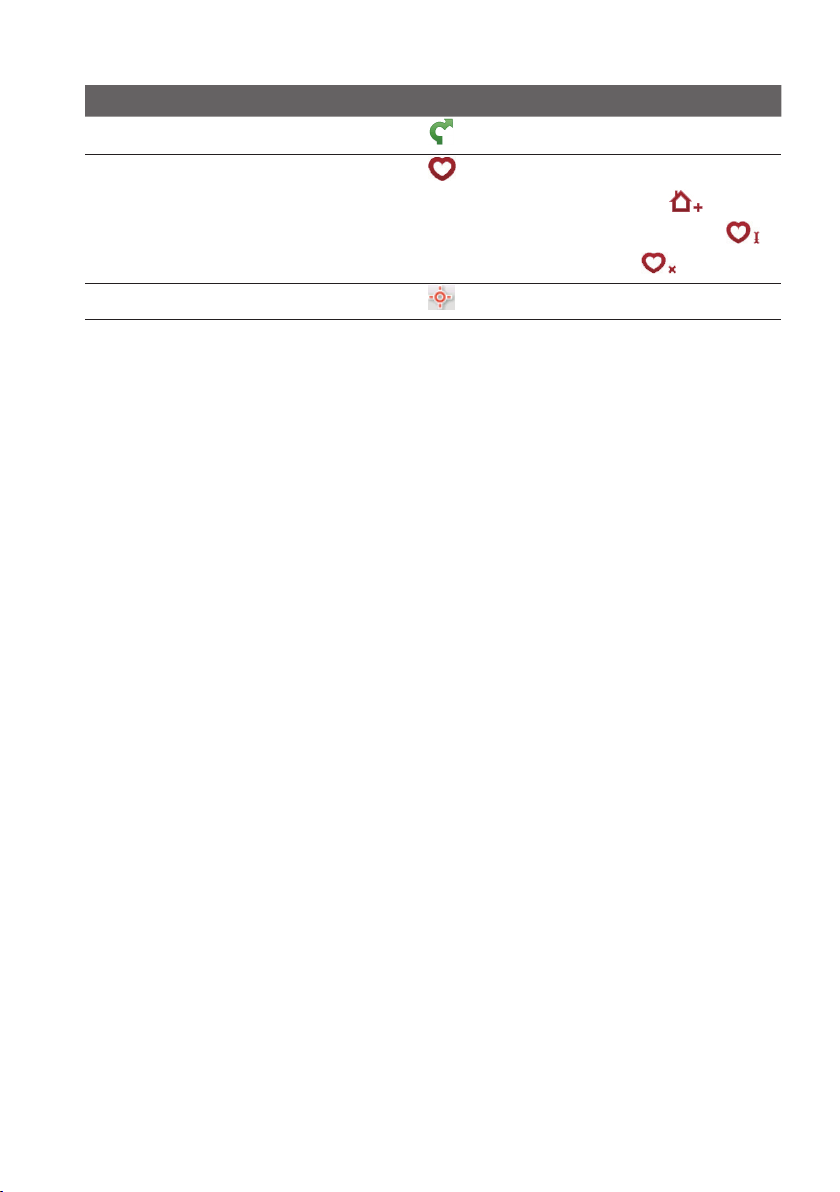
4.Tapthedesiredthumbnailtoopenthe
NavPix™
infullscreen.
Item Description
Taptoreturntothepreviousscreen.
/
Taptodisplaytheprevious/next
NavPix™
.
/
Taptostart/stopslideshow.
Taptocalculatetheroute,opentheMapscreenandstartnavigating.
Taptodisplaythe
NavPix™
Details screen.
How do I edit the
NavPix™
?
1.FromtheAlbumscreen,tapthedesiredthumbnailtoopenthe
NavPix™
infull
screen.
2.Tap
.
3.Completethefollowing:
37
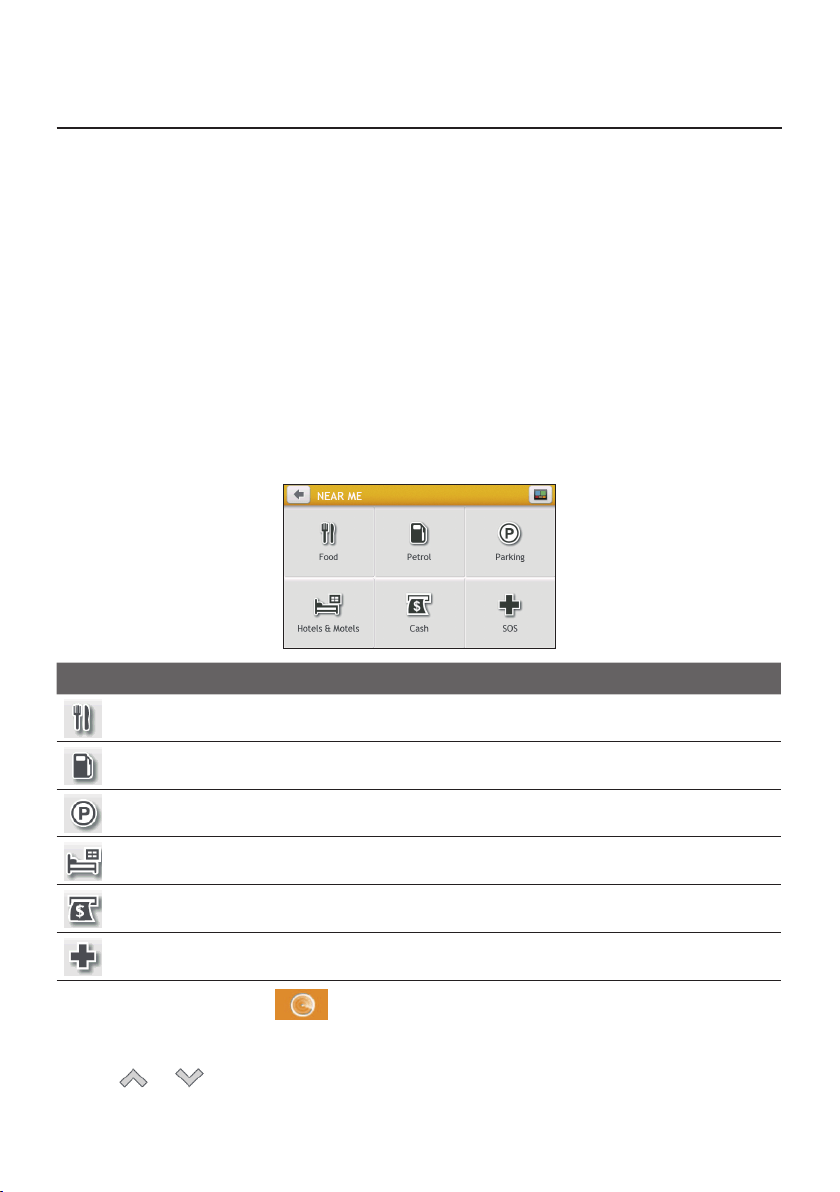
If you want to… Then…
calculatetherouteandstartnavigating,
tap
.
editthe
NavPix™
,
tap
.
•TosavethelocationasHome,tap
.
•Torenamethetitleofthe
NavPix™
,tap
.
•Todeletethe
NavPix™
,tap
.
explorethemap,
tap
.
38
How do I search for a POI?
APOI(PointofInterest)isanamedsite,feature,landmarkorpublicvenuewhichcanbe
displayedasanicononthemap.POIsaregroupedbycategory,suchaspetrolstations,
parks,beachesandmuseums.
YourNavmanmayprovideseveralwaystosearchforthenearbyPOIs.Dependingonyour
Navmanmodel,youcansearchforthenearestPOIsbyusing:
•NearMe
•Explore
•thePOIcategorybuttonsontheMainMenu
How do I find the nearest POIs using Near Me?
NearMeservicesallowyoutoquicklysearchthelocalareaforcommontypesofimportant
POIs.
Icon Description
Searchforthenearestrestaurants,cafes,fast-foodpremisesandotherdining
establishments.
Searchforthenearestpetrolstations.
Searchforthenearestparkingplaces.
Searchforthenearesthotelsandmotels.
SearchforthenearestbanksandATMs.
Searchforthenearestemergencyservices,includinghospitalsandpolicestations.
1.OntheMainMenu,tap
.
2.SelectthedesiredPOIcategory.
3.Tap
ortoscrollupordowntheresultlist.
4.Selectthedesireditemtodisplaythedestinationscreen.
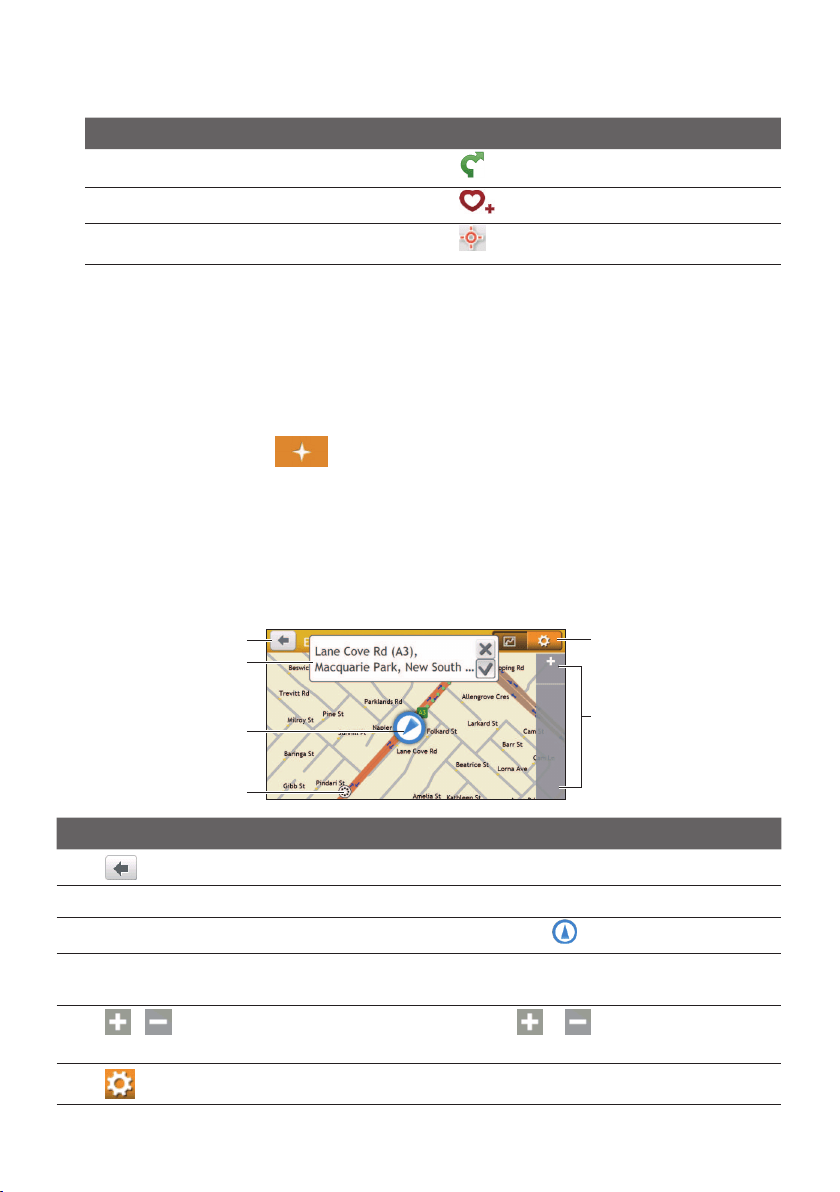
39
5.Completethefollowing:
If you want to… Then…
calculatetherouteandstartnavigating,
tap
.
savethelocationasafavourite,
tap
.
explorethemap,
tap
.
How do I find the POIs using Explore?
Note: Exploreisnotavailableonallmodelsandisonlyavailableinselectedcountries.
DependingonyourNavmanmodel,youmaysearchforthePOIsusingtheExploremap.
TheExploremapallowsyoutoexplorethelocalareatondPOIsornavigatetoanaddress.
IfyoudonothaveaGPSx,themapwilldisplayyourlastknownposition.
1.OntheMainMenu,tap
.
2.OntheExploremap,youcan:
•ViewtheinformationoftheselectedPOIthatisshownatthetopofthescreen.
•Tapanddragthemaptoexploreyourdesiredlocalarea.
•TapanddragthemaptodisplayaPOIclustershowingPOIsinthesurroundingarea.
TapaPOIicontoshowmoreinformationandnavigatetothePOI.
Item Description
Taptoreturntothepreviousscreen.
Information area DisplaytheinformationoftheselectedPOI/position.
Current position
Yourcurrentpositionismarkedwith
.
POI cluster TapaniconorstreetnameinthePOIclustertoviewinformation
andoptions.
/Tozoominorout,tapandholdor.Zoominginoroutwill
decreaseorincreasetheareacontainedwithintheExplorearea.
TaptosetPOIpreferences.
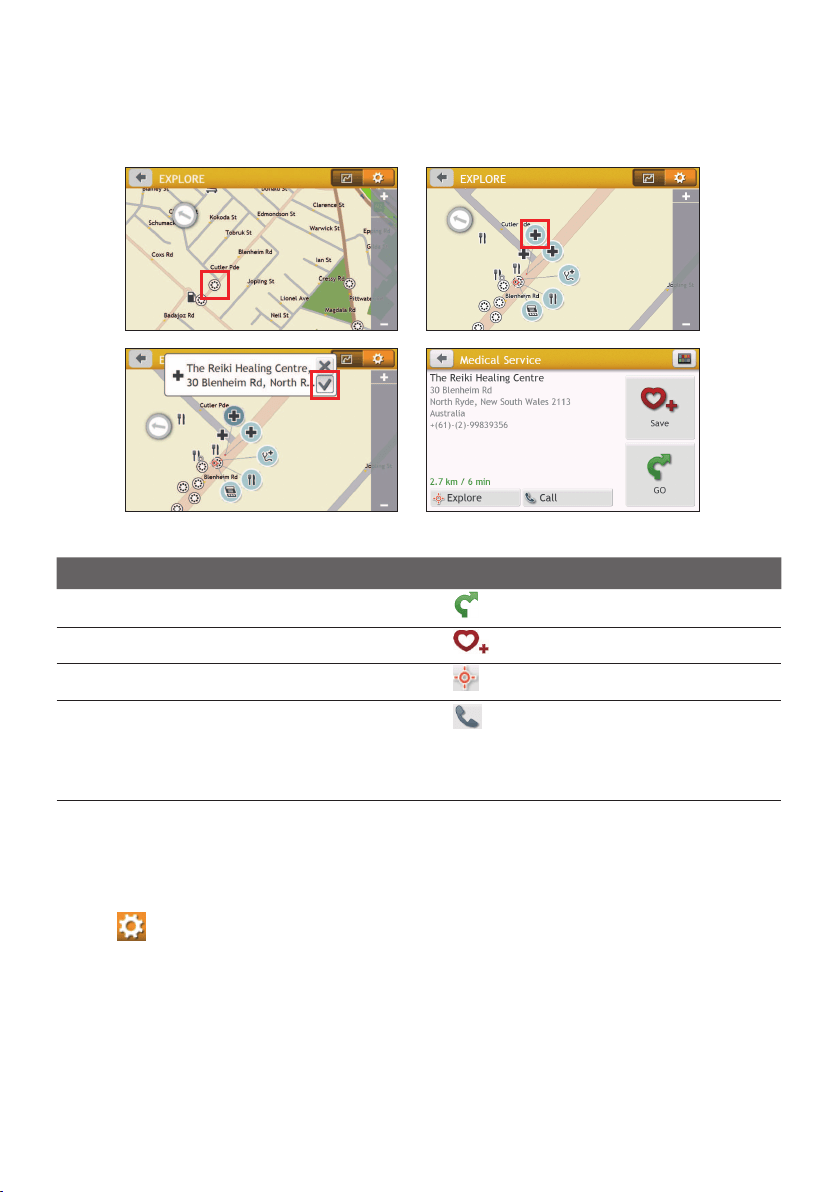
40
How do I find a POI using the POI cluster?
TappingontheselectedPOIwillbringupthescreenwiththePOIdestinationdetails.
Completethefollowing:
If you want to… Then…
calculatetherouteandstartnavigating,
tap
.
savethelocationasafavourite,
tap
.
explorethemap,
tap.
placeaphonecalltothePOI,
tap
.
Note: Thisfeatureisnotavailableonallmodelsand
isonlyshownwhenthephonenumberofthePOIis
available.
How do I set my POI preferences?
POIsaregroupedintocategories.Youmaychoosetoeitherdisplay(orhide)iconsofallPOI
categoriesontheMapscreen,oronlydisplaytheiconsfromselectedcategories.
1.Tap
.
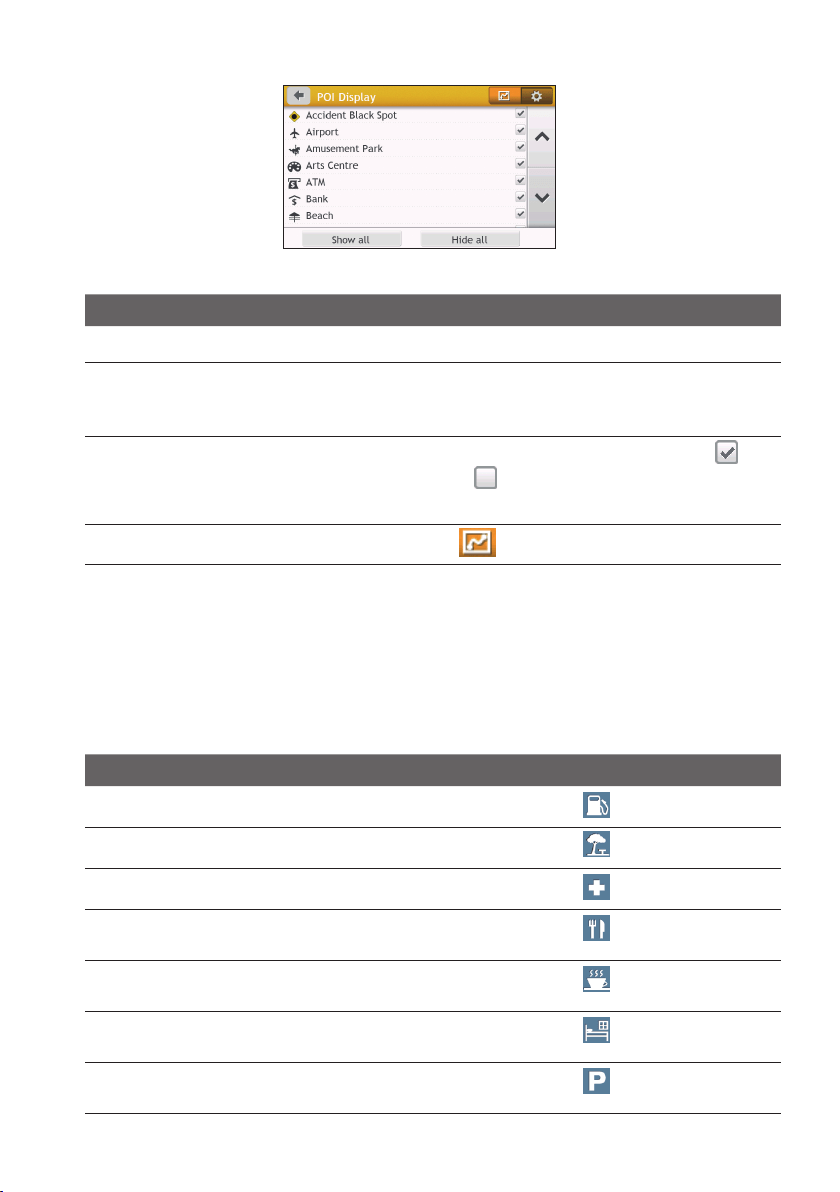
41
2.Completethefollowing:
If you want to… Then…
displayallPOIicons,tapShow all.
displaynoPOIicons,tapHide all.
Note:HidingPOIswillstopyoufromndingthem
whenusingexploremode/clustersearch.
selectaspecicPOIiconfordisplay,
taptherequiredPOIcategorytoshow(
)or
hide(
)ontheMapscreen.
Repeatuntilallrequiredcategoriesareselected.
returntotheExploremap,
tap
.
•Yourpreferencesareautomaticallysaved.
How do I find the nearest POIs using the POI category
buttons?
Note:ThePOIcategorybuttonsarenotavailableonallmodels.
1.FromtheMainMenu,selectoneofthefollowing:
If you want to… Then…
searchforthenearestpetrolstations,
tap
.
searchforthenearestreststops,
tap
.
searchforthenearestemergencyservice,
tap
.
searchforthenearestrestaurants,
tap
.
searchforthenearestcafe,
tap
.
searchforthenearesthotels/motels,
tap
.
searchforthenearestparkingplaces,
tap
.
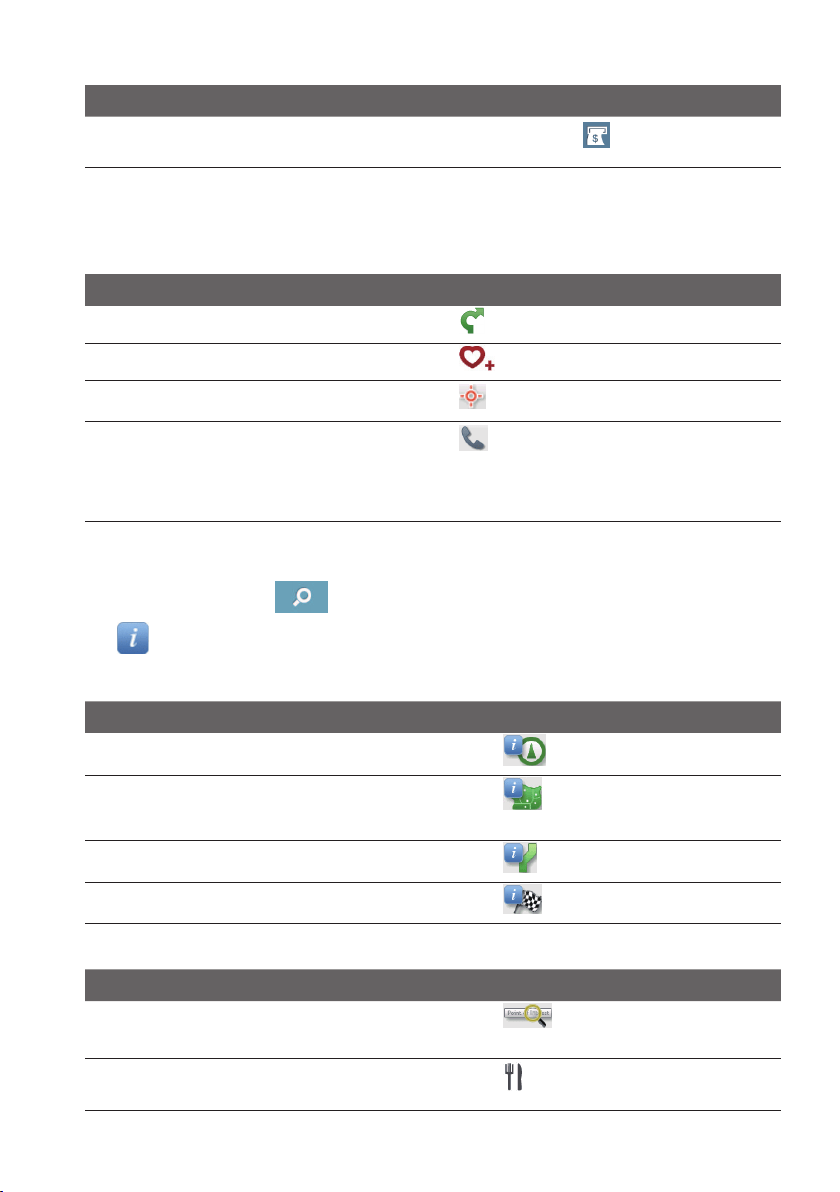
42
If you want to… Then…
searchforthenearestbanksandATMs,
tap
.
2.AlistoftheselectedPOIcategorybaseduponyourcurrentlocationisdisplayed.
3.Selectthedesireditemtodisplaythedestinationscreen.
4.Completethefollowing:
If you want to… Then…
calculatetherouteandstartnavigating,
tap
.
savethelocationasafavourite,
tap
.
explorethemap,
tap.
placeaphonecalltothePOI,
tap
.
Note: Thisfeatureisnotavailableonallmodelsand
isonlyshownwhenthephonenumberofthePOIis
available.
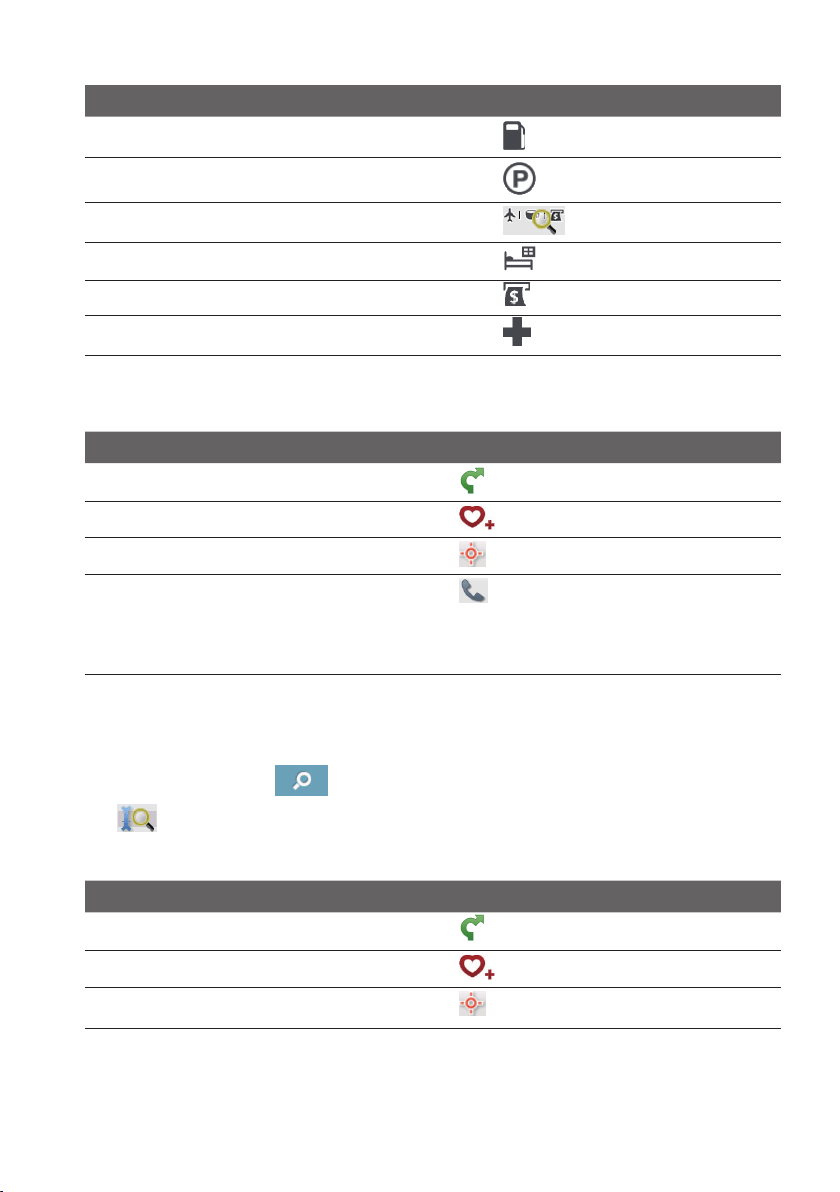
How do I search for a POI by type?
1.OntheMainMenu,tap
.
2.Tap
.
3.Completethefollowing:
If you want to… Then…
searchforthePOIsnearyourcurrentlocation,
tap
.
searchforthePOIsinaspeciedcityorarea,
tap
.Afteryouhaveenteredaname
ofacity/area,tapOK.
searchforthePOIsonyourroute,
tap
.
searchforthePOIsnearyourdestination,
tap
.
4.Completethefollowing:
If you want to… Then…
searchforPOIsbykeyword,
tap
.Afteryouhaveentereda
keyword,tapOK.
searchforrestaurants,cafes,fast-foodpremises
andotherdiningestablishments,
tap
.
43
If you want to… Then…
searchforpetrolstations,
tap
.
searchforparkingplaces,
tap
.
viewmorePOItypes,
tap
andselectaPOItype.
searchforhotelsandmotels,
tap
.
searchforbanksandATMs,
tap
.
searchforemergencyservices,
tap
.
5.Tapthedesireditemfromthelist.
6.Completethefollowing:
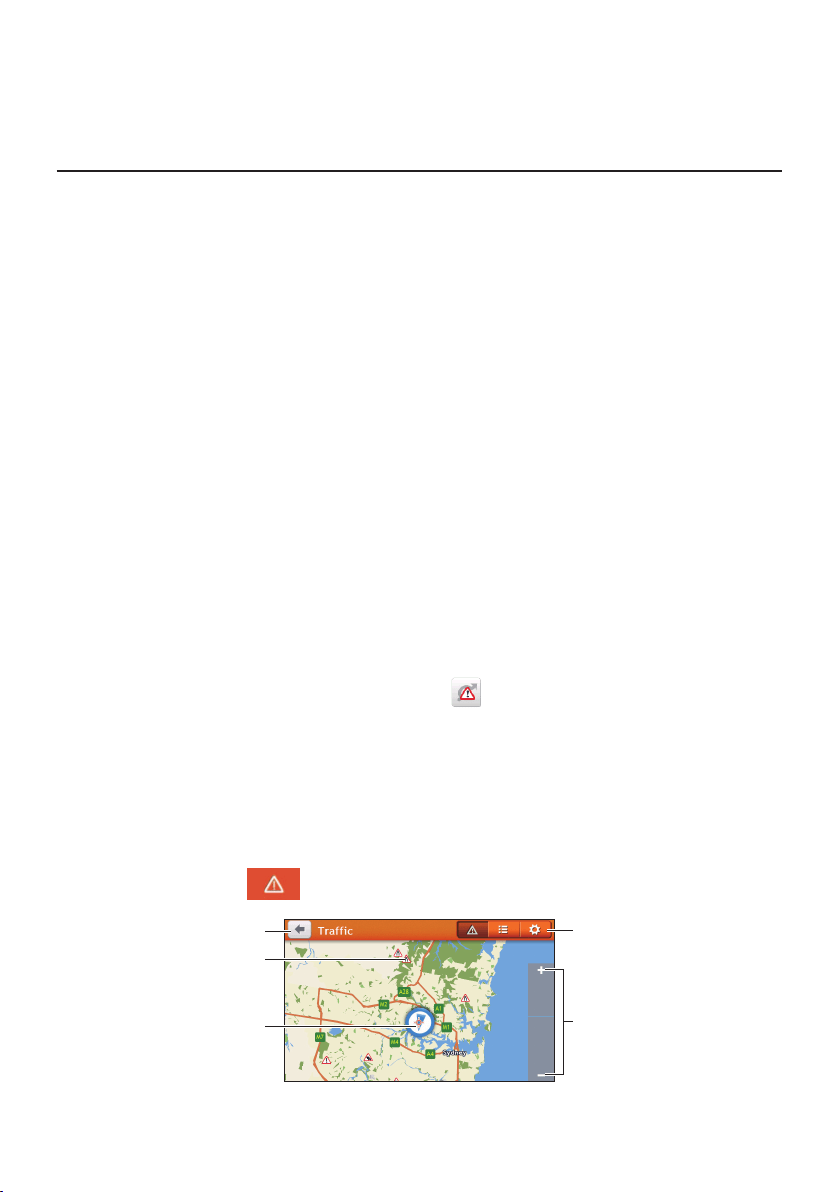
If you want to… Then…
calculatetherouteandstartnavigating,
tap
.
savethelocationasafavourite,
tap
.
explorethemap,
tap.
placeaphonecalltothePOI,
tap
.
Note: Thisfeatureisnotavailableonallmodelsand
isonlyshownwhenthephonenumberofthePOIis
available.
How do I search for a POI by Smart Find Keyword?
CompletethefollowingtonavigatetoaPOIorthestreetaddressthatyoundbykeyword.
1.OntheMainMenu,tap
.
2.Tap
.EnterthekeywordofthePOIorstreetaddressthatyouwanttosearch.
3.Completethefollowing:
If you want to… Then…
calculatetherouteandstartnavigating,
tap
.
savethelocationasafavourite,
tap
.
explorethemap,
tap
.

44
If you want to… Then…
placeaphonecalltothePOI,
tap
.
Note: Thisfeatureisnotavailableonallmodelsand
isonlyshownwhenthephonenumberofthePOIis
available.
45
How do I receive current traffic
information via TMC?
Note:Trafcinformationisnotavailableonallmodelsandisonlyavailableinselectedcountries.
TheTrafcMessageChannel(TMC)broadcastsreal-timetrafcinformationviatheFM
RadioDataSystem(RDS).FMradiostationstransmitTMCdataonacycleofseveral
minutes,withhundredsofeventsabletobebroadcasttoTMCreceivers.
YourNavmancanreceivecurrenttrafcinformationforallmainroads,motorwaysand
majorcities,enablingyoutoavoidpotentialdelaysonyourroute.Eventmessagesand
trafciconswilldisplayastheyoccur.Ifaneventmessageobscuresyourcurrentlocation,
themapwilladjusttodisplayboththemessageandyourlocation.
YoumayhavetopayfortheTMCserviceinsomecountries.
How will I know when a traffic event occurs?
Whentravellingthroughanareainwhichyoucanreceivetrafcupdates,yourNavman
willdecodetheseeventsanddisplaythem.Aniconwilldisplayattheeventlocationonthe
Mapscreen,andanaudiblewarningisgivenifaneventisonyourroute.Whereanevent
spansaspecicdistance,theroadwillbehighlightedandarrowswillindicatethedirection
affected.
Amessagewilldisplayatthebottomofthescreenwiththeroadname,thesectionofroad
affectedandthetypeofeventthathasoccurred.Themessageremainsonthescreenfor8
secondsandisaddedtotheAlltrafcevents.
Whenthemessageissuppressed,theTMCicon(
)willbedisplayedontheMapscreen.
YoucantaptheicontobringuptheAlltrafceventsscreen.
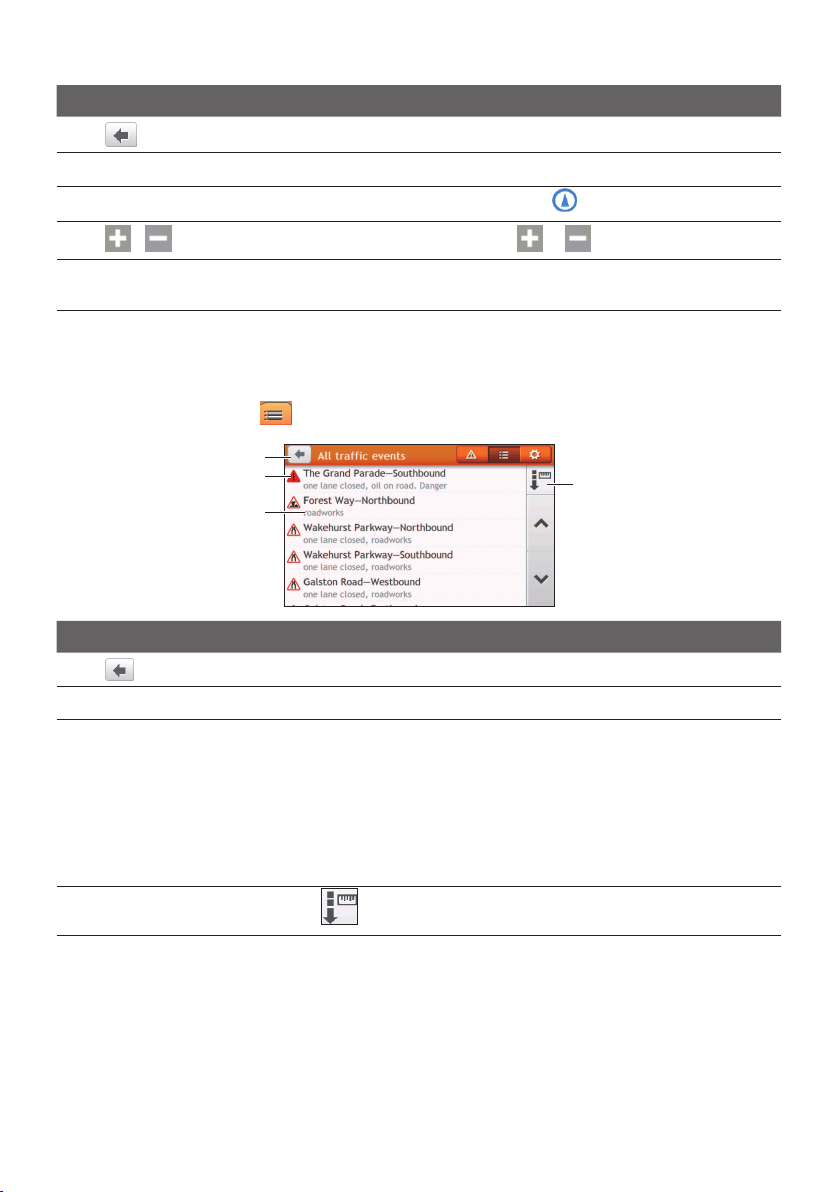
Traffic overview screen
WhenyouseethetrafceventmessageontheMapscreen,youcanopentheTrafcscreen
todisplayageneraloverviewofthetrafcsituationonyourroute,includingalleventsinthe
immediatevicinity.
OntheMainMenu,tap
todisplaytheTrafcscreen.
46
Item Description
Taptoreturntothepreviousscreen.
Event icon Displaysanicontoindicatetypeofevent.
Current position
Yourcurrentpositionismarkedwith
.
/Tozoominorout,tapandholdor.
Title bar tabs TaptochangethedisplaybetweentheTrafc,Alltrafcevents,and
TrafcOptionswindows.
How do I view a list of all events on my route?
YourNavmancreatesalistofeventsastheyarereceivedontheAlltrafceventsscreen.
OntheTrafcscreen,tap
.
Item Description
Taptoreturntothepreviousscreen.
Event icon Displaysanicontoindicatetypeofevent.
Event description Displaysthedetailsoftheevent,including:
•Nameofroadanddirectioninwhichtheeventistakingplace.
•Locationofwheretheeventbeginsandends.
•>indicatesaneventfromalocation,toalocation.
•<>indicatesaneventbetweenlocations.
•Typeofevent.
Sort by
Tap
toselectAll eventsorOnly events on my route.
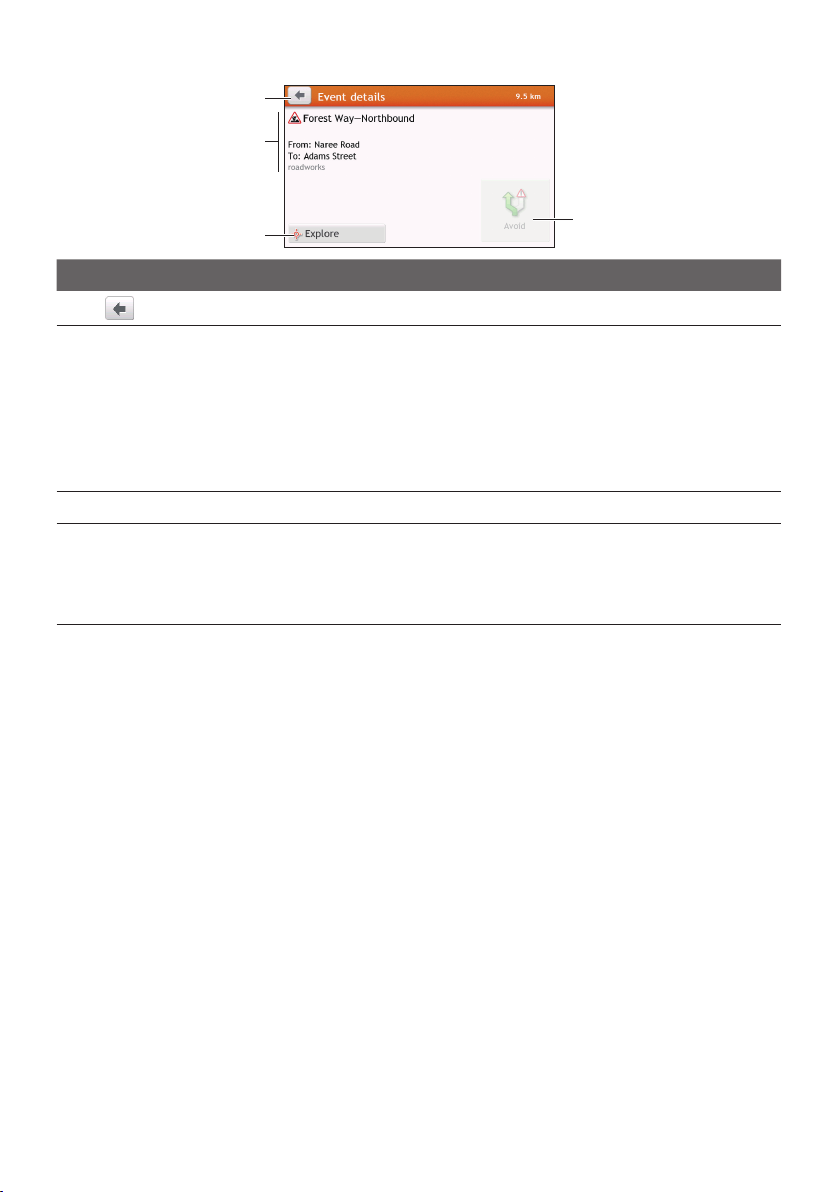
How do I view the traffic details?
OntheAlltrafceventsscreen,taptheeventyouwanttoview.
47
Item Description
Taptoreturntothepreviousscreen.
Event icon and
description
Displaysdetailsoftheevent,including:
•Nameofroadanddirectioninwhichtheeventistakingplace.
•Locationofwheretheeventbeginsandends.
•>indicatesaneventfromalocation,toalocation.
•<>indicatesaneventbetweenlocations.
•Typeofevent.
Explore Taptoexplorethemap.
Avoid Taptoinitiateanewroutetoavoidtheevent.Onlyavailableifa
detourorre-routeisavailable.
The Unavoid buttonisdisplayedwhenare-routehasbeen
calculated.
Note:Whenthedetourinformationisprovided,thedetailswillbedisplayedasdetour
recommendationontheEventdetailsscreen.
How do I know if a detour is recommended?
WhenaTrafcorClearanceeventoccursonyourroute,adetourwilloftenbe
recommended.ThedetoureventmessagewilldisplayinthestatusbaronMapscreen.
Note:DetoursareonlyrecommendedforTrafcorClearanceEventsonacalculatedroute.
How do I avoid an event on my route?
1.OntheAlltrafceventsscreen,taptheevent.
2.Ifadetourhasbeencalculatedtoavoidaneventonyourroute,Avoidisavailable;tap
toacceptthenewrouteandavoidtheevent.
Traffic messages
TheEventDetailsscreendisplaysdetourstatusinformation.
Detour not available
Ifadetourisnotavailable,oneofthefollowingmessageswilldisplay:
48
Message Description
Thiseventisnotlocatable
Thisclearanceisnotlocatable
Aspeciclocationfortheeventcannotbe
identied.
Thiseventdoesnotaffectyourroute
Thisclearancedoesnotaffectyourroute
Theeventisnotonthecurrentlegofyourjourney,
orisbehindyourcurrentposition.
Youareavoidingthisevent
Youhaveacceptedthisclearance
Theeventisnotonthecurrentlegofyourjourney.
Youaretoodistanttore-route
Youaretoodistanttoacceptthisclearance
Theeventiscurrentlytoodistanttoaffectyour
journey.
Detournotfound
Clearanceroutenotfound
Adetour/re-routecouldnotbecalculated.
Detour recommended
Ifadetourisrecommended,oneofthefollowingmessageswilldisplay:
Message Description
Findingdetour…
Recalculatingroute…
YourNavmaniscalculatinganewroute.During
calculation,the%completewilldisplay.
Note: Exitingthisscreenbeforethenewrouteis
calculatedwillcanceltheoperation.
Detourdistance…
Clearancechange
Adetourhasbeencalculated.Thedifference
betweenthedistanceofyourcurrentrouteandthe
proposedrouteisdisplayed.
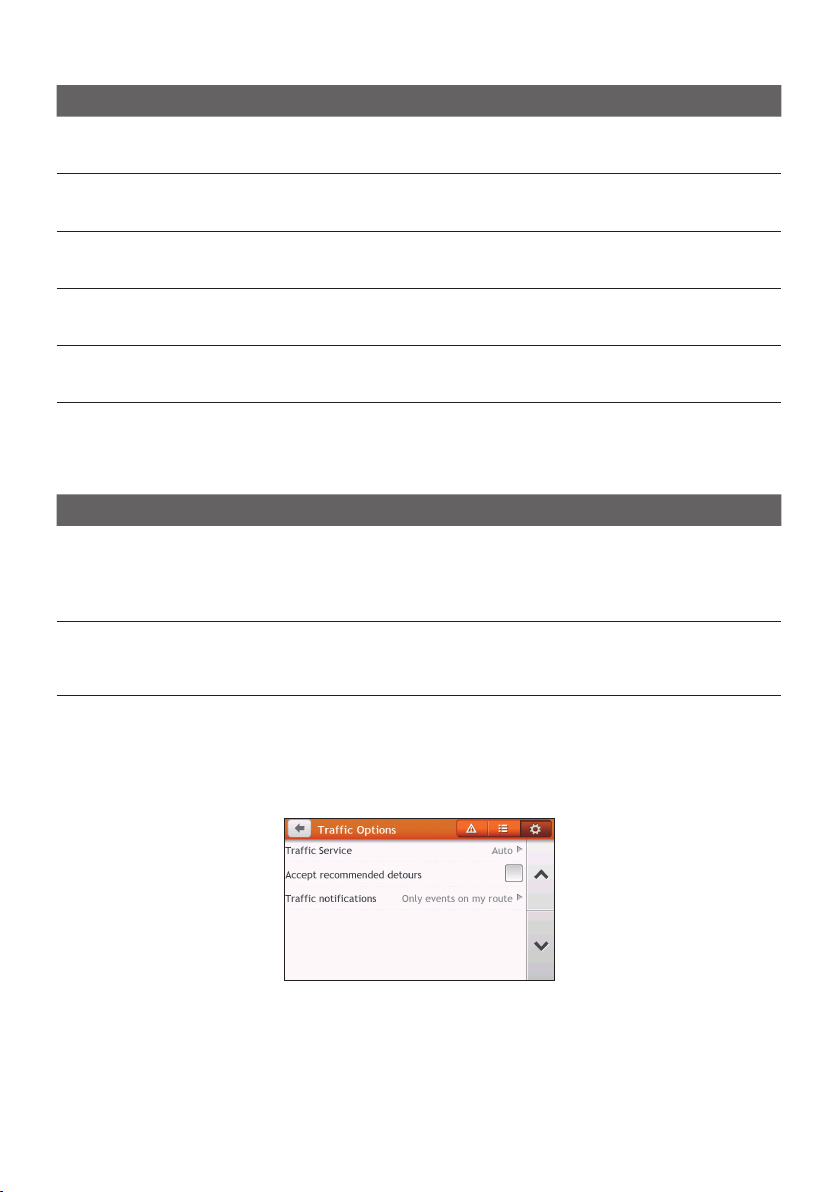
Traffic preferences
Youcanviewyourcurrenttrafcsystemstatusandchangeoptionsbycustomisingthe
trafcpreferences.
Traffic service
1.OntheTrafcOptionsscreen,tapTraffic Service.
Thescreendisplaysthefrequencyoftheradiostationcurrentlyusedtoreceivetrafc
eventinformation.
Abarshowsthestrengthofthetrafcsignalbeingreceived;the

49
moregreenbars,thestrongerthesignal.
2.Tochangeyourpreferredradiostation,selectyourpreferredradiostationfromthelist.
YoucanselectAutomatictoreceivethetrafcsignalautomatically.
Accept recommended detours automatically
Whenthe Accept recommended detoursisselected,yourroutewillbere-planned
automaticallywhenthedetourisrecommendedbythetrafcevent.
Traffic event notification
1.OntheTrafcOptionsscreen,tapTraffic notifications.
2.Completethefollowing:
If you want to… Then…
viewalltrafceventsnearby,selectAll events nearby.
viewthetrafceventsonyourroute,selectOnly events on my route.
viewthetrafceventswithdetourinformation
provided,
selectOnly if a detour is recommended.
rejectthetrafcsignal,selectTurn off notifications.
50
What is Travel Book?
Note:Thisfeatureisnotavailableonallmodels.
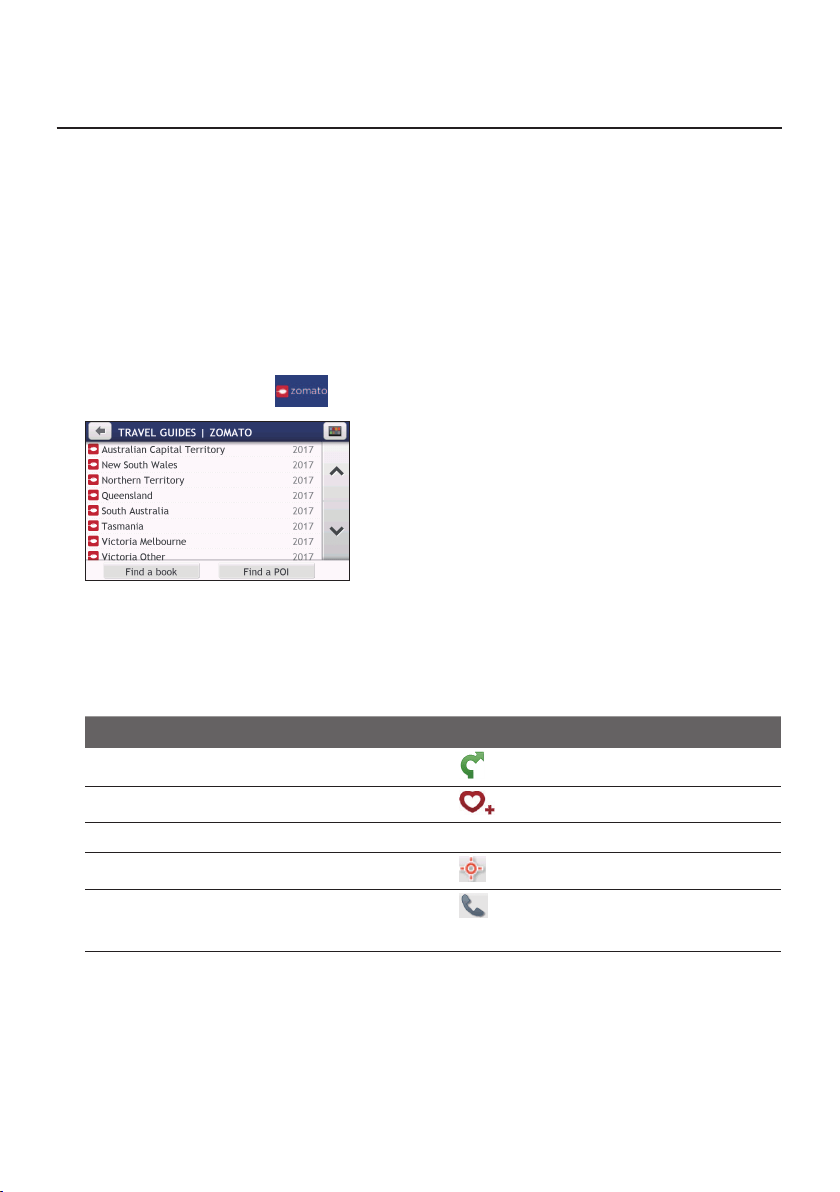
TravelBookisacollectionofcityguidesthatprovidedetailedPOImapsformajorcitiesin
thelocalregion.Thecityguidesprovideinformationonaccommodation,dining,nightlife,
businessessentials,shopping,importanttouristspotsandpracticalinformationsuchas
banks,medicalcentres,busstations,etc.
Note:TravelBookisprovidedbythirdparty.Navmandoesnotguaranteetheaccuracyofthedata
containedwithinthisdatabaseeitherexpressedorimplied.
How do I search for a POI using Travel Book?
1.OntheMainMenu,tap
.
2.Followthepromptstoselectyourcity,areaorstateandthePOIcategory.
3.EnterthekeywordtosearchaPOI.Whendone,tapOK.
4.SelectaPOIfromthelist.
5.Completethefollowing:
If you want to… Then…
calculatetherouteandstartnavigating,
tap
.
savethelocationasafavourite,
tap
.
viewmoreinformationonthePOI,tapMore....
explorethemap,
tap
.
placeaphonecalltothePOI,
tap
.
Note: Thisfeatureisnotavailableonallmodels.
51
How do I use the Bluetooth function?
Note:Thisfeatureisnotavailableonallmodels.
IfyouhaveacompatiblemobilephonewithBluetoothwirelesstechnology,youcanuse
yourNavmanasahands-freecarkit.
Note:Alistofcompatiblemobilephonesislistedatwww.navman.com.au(Australia)or
www.navman.co.nz(NewZealand).NavmandoesnotguaranteetheBluetoothfunctionalityand
compatibilityfromallmobilephonemanufacturers.
How do I pair my Navman with a Bluetooth device?
1.OntheMainMenu,tap
Bluetooth.
2.TapOntoturnontheBluetoothofyourNavman.
3.MakesurethattheBluetoothfeatureofyourphoneisturnedon.
4.Fromyourphone,scanfornearbyBluetoothdevices.
5.Fromthedevicelist,selectyourNavman.
6.TopairwithyourphonewithyourNavman,enter"1234"onthemobilephonewhen
prompted.
Note: TopairanotherBluetoothmobilephonewithyourNavman,rstdisconnectthecurrent
Bluetoothconnectiononthemobilephone,andthenrepeattheaboveproceduretosetupanew
connection.
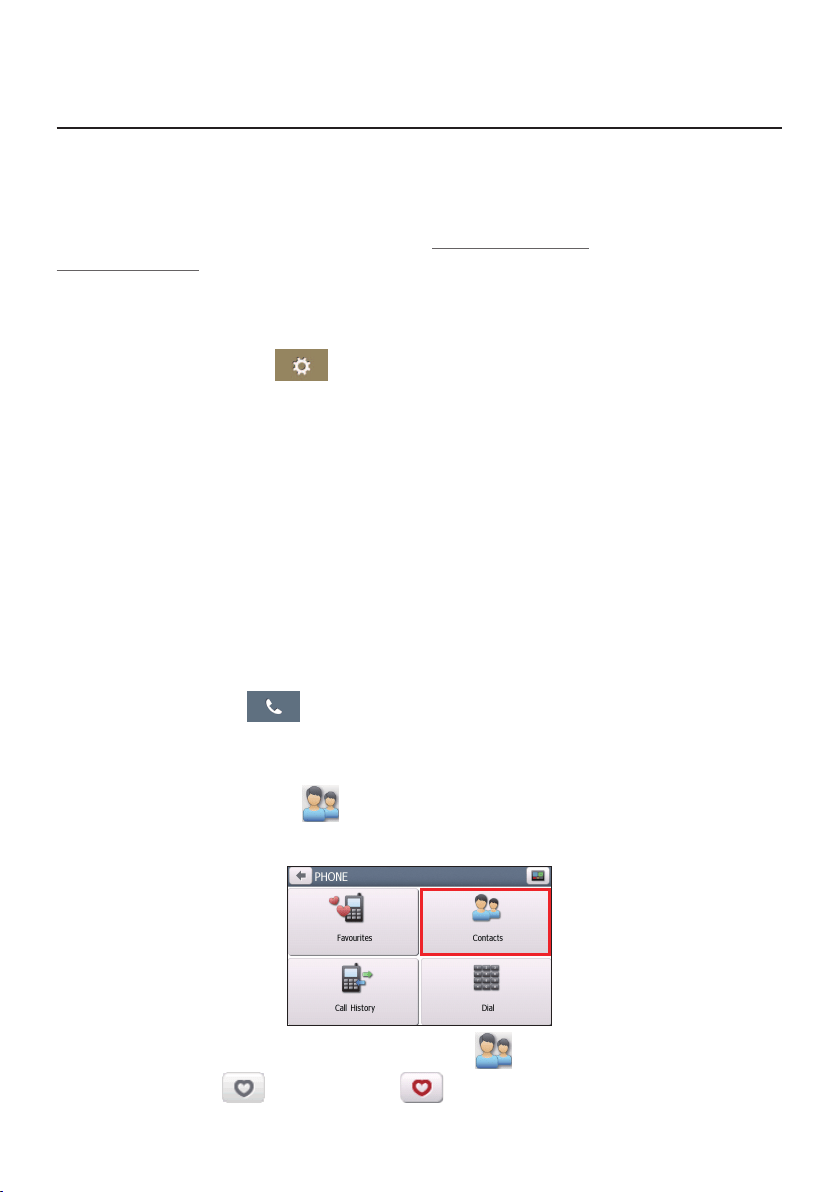
How do I add contacts to my Navman?
OntheMainMenu,tap
.
YourNavmanusescontactscreatedonyourmobilephone.Iftherearenocontactsoyour
Navman,youwillbepromptedtodownloadthecontactlistfromyourphone.
•Tosearchforacontact,tap
andtap Filtertoenterthenameofthecontact.Then
tapOK.
•Toaddacontact'snumbertoyourfavourites,tapandtapthedesiredcontactfrom
thelist.Thentapintheentry.Taptoremovetheitemfromthefavourites.
52
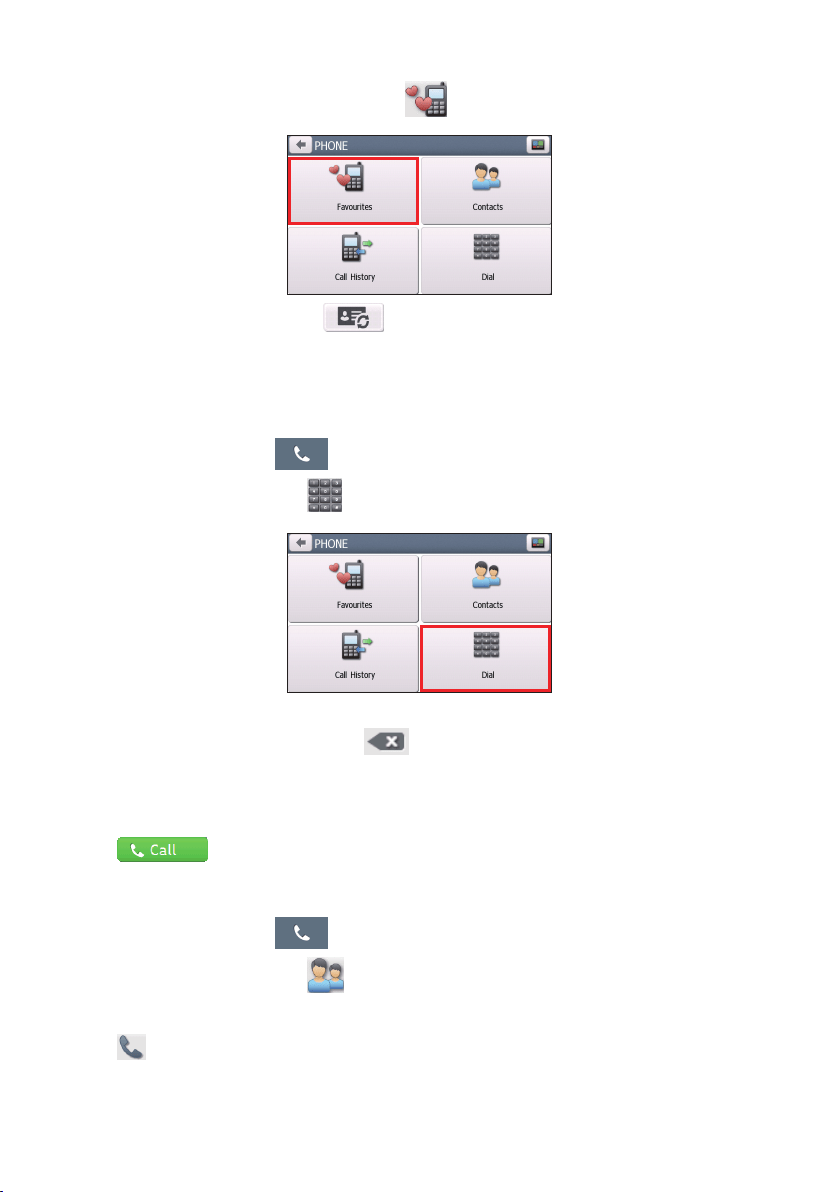
YoucanviewyourfavouritesbytappingfromthePhonescreen.
•Torefreshthecontactlist,tapnexttotheFiltereld.(Selectedmodelsonly.)
How do I make a hands-free call?
Making a call using the keypad
1.OntheMainMenu,tap
.
2.FromthePhonescreen,tap
.
3.Enterthenumberyouwanttocall.
Todeletethelastdigitentered,tap
.
Note:Internationalcallsrequireacountrycodetobeincludedinthephonenumber.Onyour
Navman,thecountrycodeisseparatedfromtherestofthenumbersequencebya+sign.Ifyou
aremakinganinternationalcall,tapandhold0untilthe+signdisplays.
4.Taptoplacethecall.
Making a call from the phonebook
1.OntheMainMenu,tap
.
2.FromthePhonescreen,tap
.
3.Selectthedesireditemfromthecontactlist.
4.Tap
nexttothedesirednumbertoplacethecall.
53
How do I respond to a phone call?
Whenyoureceiveacall:
•tapAnswer
toanswerthecall.
•tapIgnore
torejectthecall.
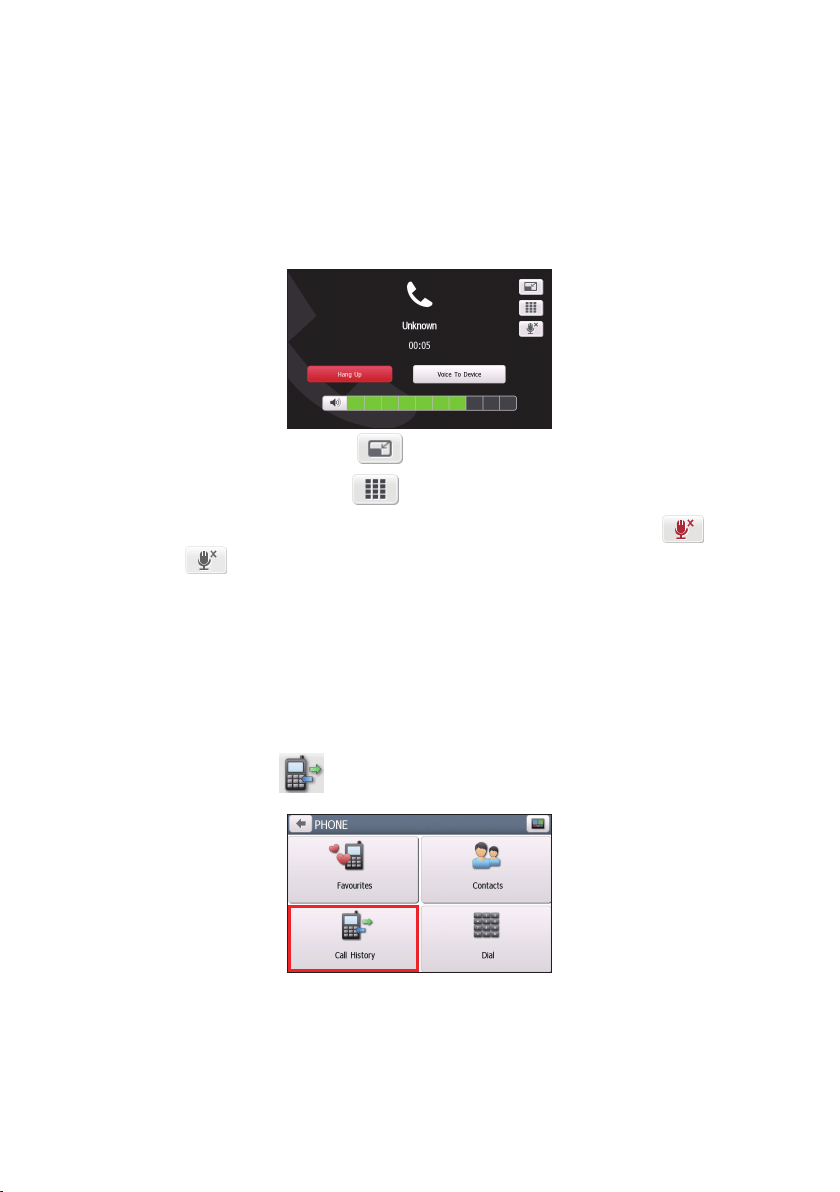
In-call options
•Tominimizethein-callscreen,tap.
•Todisplaythekeypadscreen,tap
.
•Toswitchoffthemicrophonesothereceivingpartycannothearyou,tap
.To
unmute,tap
.
•Totransferthecalltoyourphone,tapVoice to Phone.
•Toadjustthevolume,taponthevolumebartoincreaseordecreasethevolume.
Note: Thephonevolumeadjustmentdoesnotchangethedevicevolume.
•Toendthecall,tapHang Up.
How do I view my call history?
FromthePhonescreen,tap
.
TheCallHistoryscreenliststhecallsmadeduringthetimeyourNavmanisconnectedto
amobilephone.Numbersarearrangedbytimewiththemostrecenttimeatthetop.Your
Navmancanstoreupto30historyentries(limitedto10entriesforincoming,outgoingand
missedcallseach).

54
•Toviewthespecictypeofcalls,tapthesortingbuttonontheupper-rightcornerto
selectAll,Outgoing Call,Incoming CallorMissed Call.
•Toaddanumbertoyourfavourites,tap
intheentry.Taptoremovetheitem
fromthefavourites.
•Todeleteanentryfromthehistory,taptheentryandtap
.
•Toplaceacall,taptheentryandtap
.
•Todeleteallentriesinthehistory,tap
fromtheCallHistoryscreen.

55
How do I control my Navman using Voice
Command?
Note:VoiceCommandisnotavailableonallmodelsandisonlyavailableinselectedcountries.
VoiceCommandisatoolthatallowsyoutocompleteataskwithouttouchingthescreen.
Note:VoiceCommandrequirestherespectivevoicele,English(AUS)orEnglish(UK/NZ),installed
andusedonyourNavman.Forfurtherinstructionsoninstallingyourpreferredlanguage,refertothe
"VoiceCommand"sectionin“WhatistheNavDesk?”
1.OntheMainMenu,tap.
Note:Wheninnavigationmode,youcanlaunchVoiceCommanddirectlybytappingthe
iconontheMapscreen.
2.Youcanusethefollowingcommandsafterthebeepsound:
•Address
•Home
•Intersection
•MyPlaces
•NearbyParking
•NearbyFood
•NearbyHotels&Motels
•NearbySOS
•NearbyCash
•NearbyPetrol
•Nearby(Airport,Library,Zoo…)
•IncreaseVolume
•DecreaseVolume
•IncreaseBrightness
•DecreaseBrightness
Note:OnlywhenyourhomehasbeensetonyourNavmancanyoubedirectedtoHomeby
VoiceCommand.
3.Followthepromptstonishyourroutesettings.
4.Whendone,say“Correct”andyourNavmanstartstoplantheroute.
56
Customising the system settings
Note:DependingonyourNavmanmodel,certainfeaturesandsettingoptionsmaynotbeavailable.
Therearevariouscustomisationoptionsavailabletoenhanceyournavigationexperience.
1.OntheMainMenu,tap
.
2.Selecttheoptionyouwanttocustomise.
3.Onceyouchangethesettingsandreturntothepreviousscreen,yourpreferencesare
automaticallysaved.
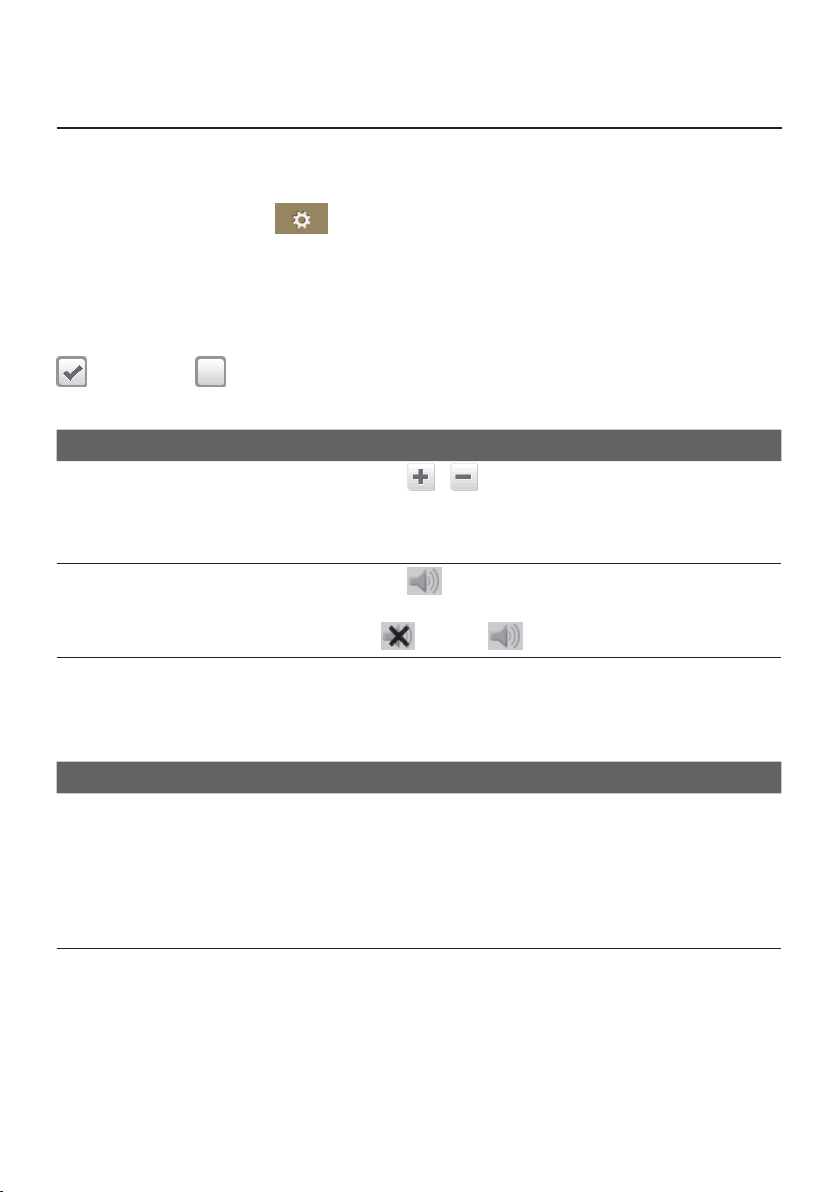
Note:Whilechangingthesettings,thecheckboxnexttotheoptionindicatesthesettingstatus:
:on/enabled:off/disabled
Audio
If you want to… Then…
increase/decreasethevolume,
tap
/.
Note: Youcansimplytaponthevolumebarandthevolume
willbesetimmediatelyatthepositionyoutapped.The
volumebarindicatesthecurrentvolumelevel.
mute/unmute,
tap
.
Thespeakericonindicatesthestatus:
:muted:unmuted
hearthetappingsoundwhenyoutapan
itemonthetouchscreen,
tap Touch audiototurniton.
Screen
If you want to… Then…
changethedisplayedscreenmode,tapScreen modeandselect:
•Auto:settoautomaticallychangebetweenDay
andNightmodes.
•Day: setthescreentobedisplayedinDaymode.
•Night:setthescreentobedisplayedinNight
mode.

57
If you want to… Then…
changethescreenbrightnessinday/night
mode,
tap
/ontheDaybrightness/Nightbrightness
bar.
Thebrightnessbarindicatesthebrightnesslevel.
Note: Youcansimplytaponthebrightnessbarandthe
screenbrightnesswillbesetimmediatelyatthepositionyou
tapped.
Note: YourNavmancanheatupwhenthebrightness
scaleissethigh,therefore,uselowerbrightnesswhenever
acceptable.
Safety
If you want to… Then…
enable/disablethewarningmessageafter
long-distancedriving,
tapDriver fatigue alerttoturnitonoroff.
enable/disablespeedlimitalerts,which
warnyouofthespeedlimitonanygiven
road,
tapSpeed limit displaytoturnitonoroff.
enable/disablespeedlimitalerts,which
warnyouofthespeedlimitonanygiven
road,
tapSpeed limit alertsandselect:
•Off:disablethespeedlimitalert.
•Auto:setthesystemtoalertautomaticallywhile
yourspeedisabovethelimit.
•Speed limit + 5 km/h (+ 3 mph):setthe
systemtoalertwhileyourspeedis5km/h(3mph)
ormoreabovethelimit.
•Speed limit + 10 km/h (+ 7 mph):setthe
systemtoalertwhileyourspeedis10km/h(7mph)
ormoreabovethelimit.
setthespeedlimitalertsmanually,tapSet manual speed alert toselectthespeedlimit
orturnitoff.
enable/disableavisualwarningifthe
screenisaccessedinamovingvehicle,
tapWarn me not to operate my Navman while
drivingtoturnitonoroff.
sethowyouwanttoreceivethecamera
andsafetyalerts,
tapSpeed Camera/Mobile Speed Camera/ Red
Light Camera/Accident Black Spot/School
Zone/Railway Crossing/Speed Check toselect:
•Noalerts
•Visualalert
•Visual&audiblealerts
Note:Notalloptionsareavailableonallmodels.

58
Route options
If you want to… Then…
changethenavigatingmode,tapModetoselectCar,Large vehicleor
Professional Truck.
Note:Thisfeatureisnotavailableonallmodels.Notall
optionsareavailableonallmodels.
setroutetypeoptionsforyourroute,tapRoute typetoselectyourroutetypepreference
fromthelist:
•Fastest:Theroutethatshouldbethefastestwhen
navigating.
•Economical:Theroutewithleastnumberofstops,
turnsandurbanareaswhichshouldsaveonfuel
usage.
•Easiest:Thesimplestroutewiththeleastnumber
ofturnsandfavoursmotorwayswhereappropriate.
Thisisthedefaultroutetype.
•Shortest:Theroutewiththeshortestphysical
length.
Note:Ifyoudonotselectthepreferredroutetype,Choose
on mapissetasdefaultforthisoption.Allofthefourroute
typeswillbecalculatedafteryoursearch.Then,youhaveto
selectoneroutetypeonthemaptostartnavigating.
settypesofroadoptionsforyourroute,tapTypes of road.Selectyourroadpreferencefrom
thelist.
Note:Avoidingferryroutesmaypreventyoufromnavigating
betweencertaincountries,evenwhenabridgeortunnel
exists.
settheroutingpreferences,tapAdvanced routingtoturntheSmartRoutes
functiononoroff.
•Use historic traffic speed data:enable/disable
theSmartRoutesfunction.
•Use learned driver behaviour:enable/disable
theMyDrivefunction.
•Driving speed records:displaytheinformation
ofyourdrivingspeedonamotorway/highway/
majorroad/minorroad.

59
If you want to… Then…
settheavoidancemanually,tapCustom Avoidance.
•TapAdd Avoid Roadandthenfollowtheon-
screeninstructionstoselecttheavoidroadfromthe
mapviewscreen.
•TapAdd Avoid Areaandthenfollowtheon-
screeninstructionstoselecttheavoidareafromthe
mapviewscreen.
Oncetheavoidancehasbeenset,itwillnotbeadded
toyourroutewhileyouareplanningthetrip.
Note:Toedittheassignedavoidance,taptheitemfrom
theCustomAvoidancescreenandthenselectEnabled/
Disabled,Rename,orDelete.
Note:Thisfeatureisnotavailableonallmodels.
displaytheinstalledcustomPOI,tapCustom POI alerts.
displaythelandmarksonyourroute,tapLandmark guidancetoturniton.
Note:Thisfeatureisnotavailableonallmodelsandisonly
availableinselectedcountries.
recordmileageforyourroutetogenerate
expensereports,
tapMileage recordertoturniton.
Note:Thisfeatureisnotavailableonallmodels.
recordyourjourney,tapCapture Journeytoturniton.
Note:Thisfeatureisnotavailableonallmodels.
Map display
If you want to… Then…
enable/disableautomaticzoomingduring
navigation,
tapAuto-zoom map when navigating toturnit
on.
Whenselected,theMapscreenwillautomatically
zoominorout,dependingonyourspeed,toallow
optimalviewingofyourroute.
display“noentry”iconson“noentry”
roadsontheMapscreen,
tapShow no-entry road signs toturniton.
Whenturnedon,themapdisplayperformancecan
slowdownduetothenumberofnoentryroadsin
somemajorcities.
setyourMapscreenpreference,tapMaptoselectbetweena3Dor2Dviewofthe
Mapscreen.
sethowtodisplaythejunctionviews,taptheJunction viewsoptiontoselectOff orStill.
Note:Thisfeatureisnotavailableonallmodels.
changethemapcolourscheme,tapMap scheme,thenselectacolourschemefrom
thelist.

60
My Maps
If you want to… Then…
viewthemapinformation,tapMap versiontodisplayalistofallmapsandthe
detailedinformation.
selectasetofmapstoload,tapMap set,thenselectyourpreferencefromthelist.
Thismaynotbeavailableinallregions.
checktheexpiringmaps,tapExpiring maps todisplayalistofmapsthatareto
expiresoon.
Language
If you want to… Then…
changetheon-screenlanguage,tapLanguageandselectyourpreferredlanguage
fromthelist.
changethevoicescheme,tapVoiceandselectyourpreferredvoicescheme
fromthelist.
Note:TheavailablesettingsoftheVoiceoptioncanbecustomisedbyadding/deletingthevoicele
throughNavDeskwhenyourNavmanisconnectedtothecomputer.Formoreinformation,seethe
"MyNavman"sectionin“WhatisNavDesk?”
Units
If you want to… Then…
changethedistanceunits,tapDistance units andthenselectyourpreferred
distanceunittype.
changethetimeformat,tap Time format andthenselectyourpreferredtime
format.
changethedateformat,tapDate format andthenselectyourpreferreddate
formattype.
Time Zone
If you want to… Then…
setthetimezoneautomatically,select Auto time zone.
changethetimezonemanually,selectManual time zone,thenadjustthesettingby
tapping
/.
Bluetooth
Note:Thisfeatureisnotavailableonallmodels.
TheBluetoothoptionallowsyoutopairaBluetoothmobilephonewithyourNavman.For
thecompatibilitylist,visit:www.navman.com.au(Australia)orwww.navman.co.nz(New
Zealand).Formoreinformation,seethe"WhatisTravelBook?"section.

61
Trip Meter
Note:Thisfeatureisnotavailableonallmodels.
TheTripMeteroptiondisplaystheinformationofyourtrips.
:displaythecurrenttrip
:displayalltrips
Device
If you want to… Then…
deletethesavedinformationonyour
Navman,
tap Delete saved information:
•Tap Delete My Placesandtap Yeswhenthe
warningdialogboxdisplays.ThedatasavedinMy
Placeswillbedeleted.
•TapDelete recent locations andtapYes when
thewarningdialogboxdisplays.Thedataofrecent
locationswillbedeleted.
•TapDelete planned tripsandtap Yeswhen
thewarningdialogboxdisplays.Theplannedtrips
savedonyourNavmanwillbedeleted.
Note:Thisfeatureisnotavailableonallmodels.
•TapDelete phone dataandtapYeswhenthe
warningdialogboxdisplays.
Note:Thisfeatureisnotavailableonallmodels.Notall
optionsareavailableonallmodels.
restorefactorydefaultsettings,tapRestore factory defaults.Whenthewarning
dialogboxdisplays,tapYes.YourNavmanwillrestart.
Thisoptionallowsyoutorestoredefaultfactory
settings;therecentlocationsandsavedMyPlaces
destinationsonthedevicewillbedeleted.
resettheGPS,tapReset GPS.Whenthewarningdialogbox
displays,tapYes.
Note:Occasionally,theGPSxmayneedtobereset.This
mayoccurifthereceiverhasbeentransportedalongdistance
sincelastbeingused;forexample,toadifferentcountry,and
isstilltryingtoestablishthepreviousposition.
recordaGPSlogofyourtrip,tapGPS loggingtoturniton.

62
Demo
If you want to… Then…
enableashopdemonstrationofthe
navigationfeaturetobeplayed,
selectademonstrationcountryfromthelistandtap
Start.TapOK.YourNavmanwillrestart.
WhenyourNavmanisinShopdemomode,youwill
seethenavigationdemonstrationofthepre-dened
routewithouthavingtosetadestination.
Note:YoucannotoperateyourNavmanproperlyinShop
demomode.
enablethescreensaverfeatureonyour
Navman,
tapScreen Saver Video.
WhenyourNavmanisidlefor10/30/60minutes,the
screensaverwilldisplay.
Help
If you want to… Then…
viewthetutorial,tapView Tutorial.Todisplaythetutorialoneach
start-up,selectthe Show tutorial on start-up
optionontheinitialscreenoftutorial.
knowhowtoupdatethesoftwareand
mapsofyourNavman,
tapUpdate software and mapstoviewtheupdate
instructions.
viewcopyrightandtrademarkinformation,tapAbout.

63
What is NavDesk?
NavDeskisasuiteoftoolsyoucanusetoaccessgreaterfunctionalityandproduct
informationviayourcomputer.
NavDeskallowsyouto:
•obtainsoftwareupdates
•managemaps
•searchonlineforlocalPOIs
•managecustomPOIs
•managesafetycamerasubscriptions
•browsetheNavmanwebsiteforspecialoffers
Can I use NavDesk with my computer?
Ensureyourcomputerhasthefollowingminimumsystemrequirementsbeforeinstalling
NavDesk:
•IBMcompatiblePCorMaccomputer
•WindowsVista,Windows7,Windows8,orMacOSXandabove
•InternetExplorer6andlaterversions,orSafari
•DVDdrive
•USBport
•Internetconnectionforactivation
Note:Microsoft.NET2.0,3.0and3.5willbeinstalledonyourcomputeraspartoftheinstallationof
NavDesk.
How do I install NavDesk onto my computer?
For Windows systems:
1.Closeallprogramsonyourcomputer.
2.InserttheNavDeskApplicationInstallerDVDintoyourcomputerDVDdrive.The
NavDeskinstallerwillstart.
3.Selectyourpreferredlanguage.
4.Click Install Software,then Install NavDesk.
5.Followtheon-screenpromptstoinstallNavDesk.
6.YoucanaccessNavDeskvia:Start
All Programs
Navman
NavDesk.
For Mac systems:
1.Closeallprogramsonyourcomputer.

64
2.InserttheNavDeskApplicationInstallerDVDintoyourcomputerDVDdrive.
3.InFinder,accesstheNavDeskdirectoryoftheDVD.
4.DraganddroptheNavDesk vx.xx.xxxx(Mac).mpkg.zipletothedesktop.
5.Double-clicktheNavDesk vx.xx.xxxx(Mac).mpkg.ziple.
6.Accessanddouble-clicktheNavDesk vx.xx.xxxx(Mac).mpkgleonthedesktop.
7.Followtheon-screenpromptstoinstallNavDesk.
8.YoucanaccessNavDeskinLaunchPad.
Connecting your Navman with NavDesk
1.ConnectyourNavmantoyourcomputerwhenprompted.
2.TurnonyourNavman,andthenselecttheComputeroptionfromthepop-upmessage
screen.
Note:IfpromptedtoupdateyourNavmansoftware,followtheon-screenprompts.
Note: OnceyourNavmanisconnectedandthesystemretrievesthedevice’sdatafromtheserver,
theFirstUseDate(FUD)informationwillbedisplayedinthestatusbar(atthebottomoftheNavDesk
window).
Note:Notallfeaturesandsettingoptionsareavailableonallmodelsorinallcountries.
Name Description PC Mac
Navman Online DisplaytheNavmanwebsite,NavmanStoreandother
onlinefeatures.
√ √
My Subscriptions Informationonyourcurrentsubscriptions,including
safetycamerasubscriptions.
√ √
My Maps Installandmanagemaps.√ √
Voice Command Installorremoveavoicecommandle.√
Custom POIs ApplicationthatallowsyoutoimportcustomPOIs.√ √
Photo Album Importandedit
NavPix™
images.√
Image Search Searchonlineanddownloadimagesoflocationsthat
containembeddedGPScoordinatesthatyoucan
navigateto.
Note:
ThisfeatureispoweredbyFlickr™.
√
Unlock Features Allowyoutoentertheactivationkeyfortheservice
youpurchased.
√ √
Redeem Allowyoutoentertheproductkeyforthelifetimemap
updateservice.
Note:
Thisfeatureisnotrequiredforselectedmodels.
√ √
My Places Viewandmodifyallplacesincludingaddresses,POIs
andothersaddedusingNavDeskandstoredonyour
Navman.
√
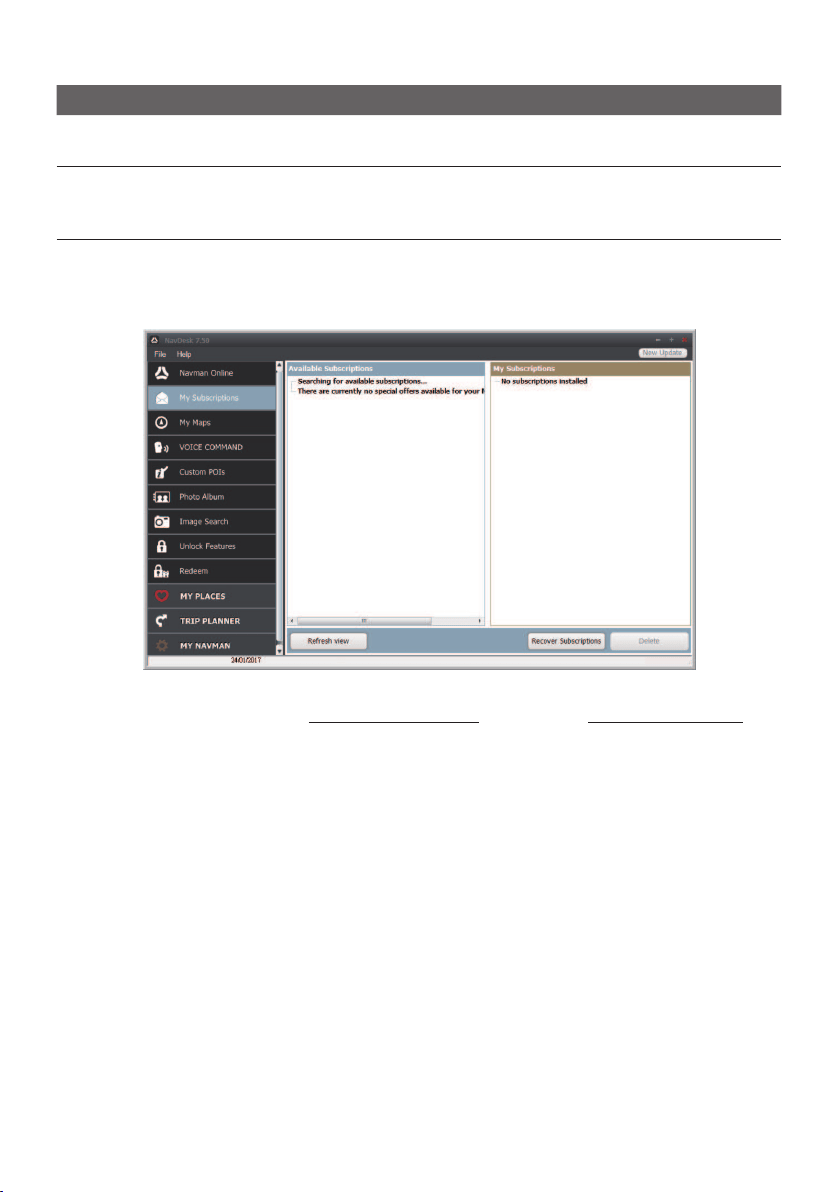
65
Name Description PC Mac
Trip Planner Addorbeginaplannedtripwithmultiplewaypointson
yourcomputer,andthensavethetriptoyourNavman.
√
MY Navman Acollectionofapplicationsthatallowyoutocongure
NavDesk,downloadupdates,andtransferdatatoand
fromyourNavman.
√ √
My Subscriptions
NavDesk
My Subscriptions
YourNavmancontainspre-loadedsubscriptions,suchassafetycamerainformation.Forthe
latestsubscriptionupdates,visitwww.navman.com.au(Australia)orwww.navman.co.nz
(NewZealand).
Note: Safetycameraalertscanbeenabledtoprovidewarningswhenontheroute.
How do I purchase a subscription?
1.Selectatypeofsubscription.
2.Selectaregion.
3.Selectasubscriptionoroffer,thenclickPurchase an activation key from the
Navman store.
4.Followthepromptstopurchaseyoursubscription.
Aproductkeywillbesenttoyouviaemailwhenyouhavesubscribed.Youwillneedtouse
thisproductkeytoactivateyoursubscription.

66
How do I activate my subscription?
NavDesk
Unlock Features
1.Enteryourproductkey.
2.Followthepromptstoactivateyoursubscription.
How do I update subscriptions on my Navman?
TheMySubscriptionssectionwilldisplayalistofsubscriptionsalreadyinstalledonyour
Navman:
Icon Description
RedExpiredsubscriptions.
Right-clicktopurchaseanewsubscription.
YellowAvailablesubscriptions.
Right-clicktoupdateandpurchaseanewsubscription.
GreenActivesubscriptions.
Note:
Noupdatesareavailableforthesesubscriptions.
How do I recover my subscription?
Ifyoursubscriptionsaredeletedandyouwanttorecoverthem,clickRecover
Subscriptionsatthebottom-rightcornerinMySubscriptionstorecoverallsubscriptions.
My Maps
NavDesk
My Maps
My Mapsallowsyoutoinstallnewmaps,removemapsfromyourNavmanandpurchase
newmaps.
Note:Thedownloaded/purchasedmap(*.iso)fromNavmanStorewebsitewillbesavedonyour
computer’smapfolder(e.g.C:\username\Documents\Maps)andthendisplayedinMyMaps.The
defaultmapfoldermayvarydependingonyouroperatingsystem.
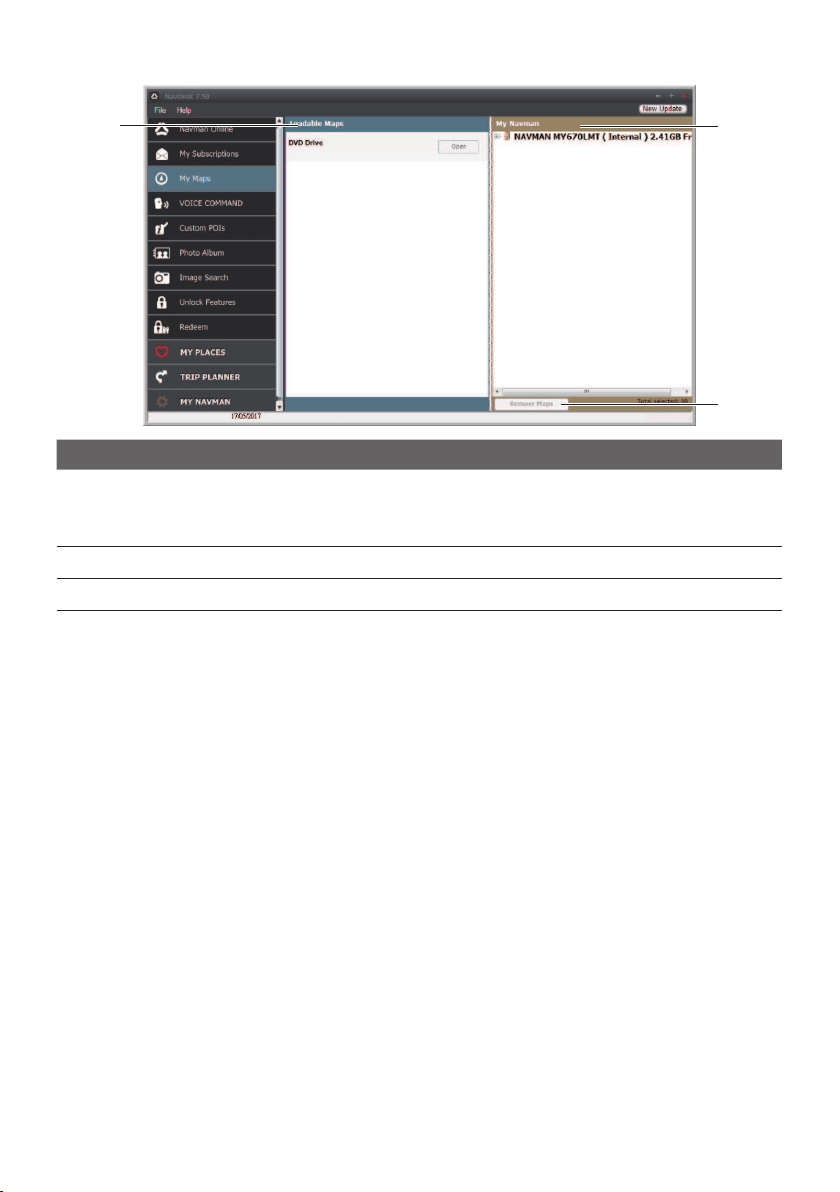
67
Name Description
Loadable Maps AlistofmapsontheDVDoravailableforpurchaseviatheNavman
Storewebsite.
Note: MapinstallationfromtheDVDisnotavailableforMacsystems.
My Navman AlistofmapsinstalledonyourNavman.
Remove map ClicktoremovetheselectedmapfromyourNavman.
How do I install maps onto my Navman?
YourNavmancomeswithoneormorepre-activatedmaps.Maplestakeupspaceonyour
Navman’sinternalmemory.Ifyoudonotuseamaple,youcanremoveittofreeupspace.
YoucanlaterreinstallittoyourNavmanifrequired.
Youcaninstallmapsfromthefollowing:
•DVDthatcamewithyourNavman
YoumayneedtopurchaseaMapProductKeytoactivatemapsontheDVDthatcame
withyourNavman.
•Thedownloadedmapupdate
Formoreinformationondownloadingthefreemapupdate,seethe“HowdoIupdate
myNavman?”section.
•ThemapthatyouhavepurchasedseparatelyonamemorycardoryourNavmaninternal
memory
1.OpenNavDesk,andthenclickMy Maps.
2.SelectamapsourceandthenclickOpentodisplaytheMapSourcesection.
•ThemapsalreadyinstalledonyourNavmanare
green.
•ThemapsthatareunlockedandreadytobeinstalledtoyourNavmanareyellow.

68
•ThemapsthatrequireactivationbeforebeinginstalledtoyourNavmanarered.
•ThemapsthatareavailableforpurchasefromNavmanareblue.
Note: IfyourcomputeropensWindowsExplorerwhentheDVDisinserted,closetheWindows
Explorerwindow.
3.Completethefollowing:
If the map to be installed is… Then…
Yellowgotostep6.
RedthemapneedstobeactivatedviatheInternet
beforeitcanbeinstalled;continuetostep4.
4.IfyouconnecttotheInternetviaadial-upconnection,connecttotheInternetnow.
5.FollowthepromptstoactivateyourMapProductKey,including:
•EntertheMapProductKeywhenprompted.
•YourcomputerwillconnecttotheInternetandactivateyourMapProductKey.
•Whenactivationhascompleted,themapwillchangecolourtoyellow;continueto
step6.
6.ClickthemapyouwanttoinstalltoyourNavman.Themapwillchangecolourtoa
brighteryellowtoindicateithasbeenselected.Todeselectamap,clickthemapagain.
Note:Youmayneedtoinstallmultiplemapstocovertherequiredgeographicalarea.Please
visitwww.navman.com.au/map-installation/key/main.htmlandwww.navman.com.au/map-
installation/auto/main.htmlformoreinformation.
7.Completethefollowing:
If you want to… Then…
installayellowmap,gobacktostep6.
installa
redmap,themapneedstobeactivatedviatheInternet
beforeitcanbeinstalled;gobacktostep4.
installtheselectedmapstoyourNavman,continuetostep8.
8.Selectthedestinationmedia(Navmaninternalmemory)fortheselectedmaps,then
click Install Maps.
Theselectedmapswillbeinstalledandchangecolourto
green.
DonotdisconnecttheUSBcableuntiltheinstalledmapormapshavechangedcolour
togreen.
9.TouseyourNavman,disconnecttheUSBcable.Youmayneedtomanuallyresetyour
Navman.
How do I remove maps from my Navman?
1.OpenNavDesk,andthenclickMy Maps.
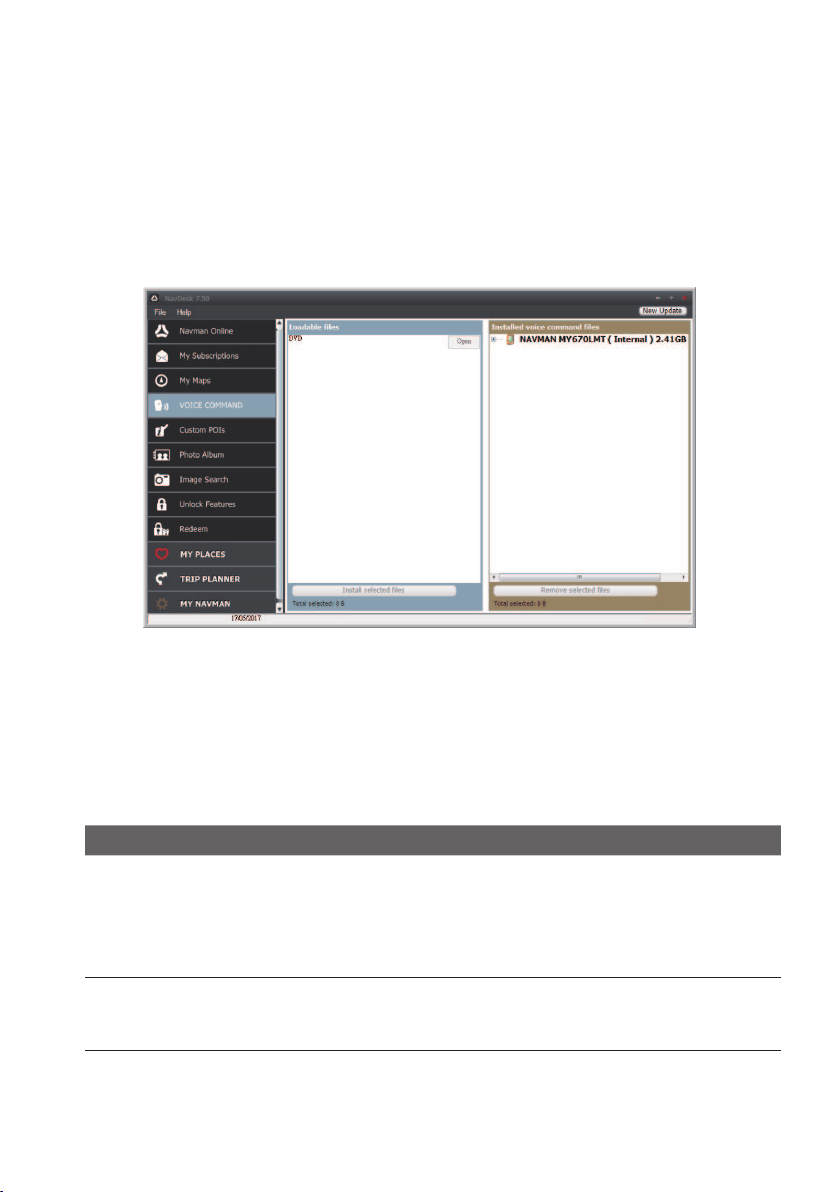
69
2.FromtheMyNavmanpanel,selectthecheckboxnexttothemapyouwanttoremove.
3.ClickRemove Mapstoremovetheselectedmaps.
4.Conrmthatyouwanttoremovetheselectedmapwhenprompted.Themapis
removedfromyourNavman.YoucanreinstallthesemapsatanytimeviaNavDesk.
Voice Command
NavDesk
VOICE COMMAND
DependingonyourNavmanmodel,youmaybeabletosetthedestinationquicklybyusing
VoiceCommand.NavDesk'sVoiceCommandallowsyoutoinstallorremovevoiceleson
yourNavman.
Note:YoucandownloadandinstallfreeVoiceCommandupdateswhenavailable.Formore
informationondownloadingtheupdates,refertothe“HowdoIupdatemyNavman?”section.
1.OpenNavDesk,andthenclickVOICE COMMAND.
2.Completethefollowing:
If you want to… Then…
installavoicecommandle,fromtheLoadablelessection,selectalesourceand
thenclick Open.
IntheAvailablevoicecommandlessection,selectthe
desiredvoicecommandleandclickInstall selected
files.
removeavoicecommandle,intheInstalledvoicecommandlessection,selectthe
voiceleyouwouldliketoremoveandclickRemove
selected files.
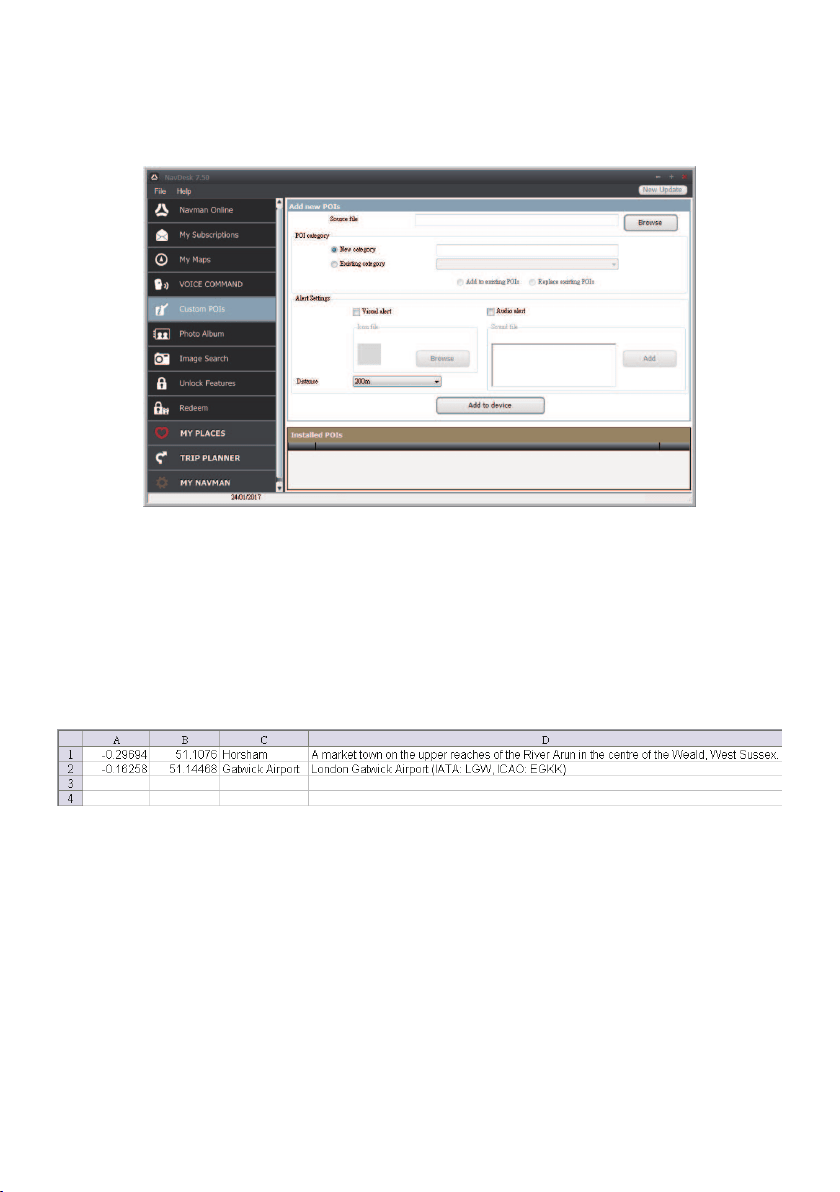
70
Custom POIs
NavDesk
Custom POIs
TheCustom POIsapplicationallowsyoutocreateorimportyourownPOIles.These
arecalledcustomPOIs.UnlikepreinstalledPOIs,customPOIscanberemovedfromyour
Navmanandcanhaveaudioaswellasvisualalertsassociatedwiththem.
TocreateyourPOIles,openMicrosoftExcelandthenenterthePOIlocationdetails
(includingthelongitude,latitude,name,anddescription)inseparatecells.Alwaysuse
decimaldegreesforcoordinatesandstartanewlocationfromanewline.Whendone,click
File
Save Astosaveitasa*.csvle.NowyouhavesuccessfullycreatedaPOICSVle.
ThefollowingdisplaystheexampleofcreatingthePOIlebyusingMicrosoftExcel:
Note:VariousPOIlesareavailableforfreedownloadorbysubscriptionfromthird-party
websites.Ensurethatdownloadedlesarein.csv(CommaSeparatedValues)format.Navmanis
notresponsibleforthecontentoraccuracyoftheinformationorthereliabilityoravailabilityofthese
websites.Theuseofinformationregardingsafetycameralocationsmaybesubjecttolocallawsinthe
countryofuse.Youareresponsibleforcheckingthatyoucanusetheinformationinyourcountryorin
thecountrywheretheinformationwillbeused.
How do I install custom POIs?
1.IntheAddnewPOIssection,clickBrowsetoselectasourcele.
2.Selectthelefromyourlocalornetworkdrive,thenclickOpen.
3.FromthePOICategorysection:

71
If you want to… Then…
useanexistingcustomPOIcategory,select Existing category,thenselectatypefromthe
drop-downlist.
replaceanexistingPOI,selectExisting categoryandatypefromthedrop-
downlist,thenselectReplace existing POIs.
Note: IfyouwanttocreateanewPOIinstead,thenselect
Add to existing POIs.
createanewcustomPOIcategory,selectNew category,thentypeanameforthePOI
category.
4.Setalertsettingsasrequired:
If you want to… Then…
enableavisualwarningwhenaPOI
ofthiscategoryisincloseproximity,
selecttheVisual alertcheckbox.
selectanicontodisplayontheMap
screenforPOIsofthiscategory,
clickBrowsetoselecttheiconlefromyourlocalor
networkdrive.
•Whenyouhavelocatedtheiconle,selectitand
clickOpen.
•Theiconlemustbeabitmap(*.bmpor*.png)
graphicwithaminimumsizeof6x6pixelsanda
maximumsizeof32x32pixels.
Note: Ifyoudonotselectacustomicon,adefaulticonwill
display.
selectthedistancefromaPOIofthis
categoryatwhichthevisualwarning
shoulddisplayorthewarningchime
shouldsound,
selectthedistancefromtheDistancebox.
Note: Tochangetheunitsusedtomeasurethedistancefor
thisPOIcategory,click My Navman
Options andfrom
theGeneraloptionselectUse metric units checkbox.
enableawarningsoundwhenaPOI
ofthiscategoryisincloseproximity,
selectthe Audio alertcheckbox.
selectacustomsoundalertleto
playwhenaPOIofthiscategoryisin
closeproximity,
dooneofthefollowings:
•Selectasoundlefromthelist.
•ClickAdd toselectasoundle(.WAVformat)from
yourlocalornetworkdrive.Whenyouhavelocated
thele,selectitandclickOpen.
Note: Ifyoudonotselectacustomsoundle,adefaultsound
alertwillplay.
5.Click Add to devicetoaddthePOItoyourNavman.
Note:EachlecorrespondstoaPOIcategory;forexample,Hotels.csvwillbelistedonyourNavman
astheHotelscategory.
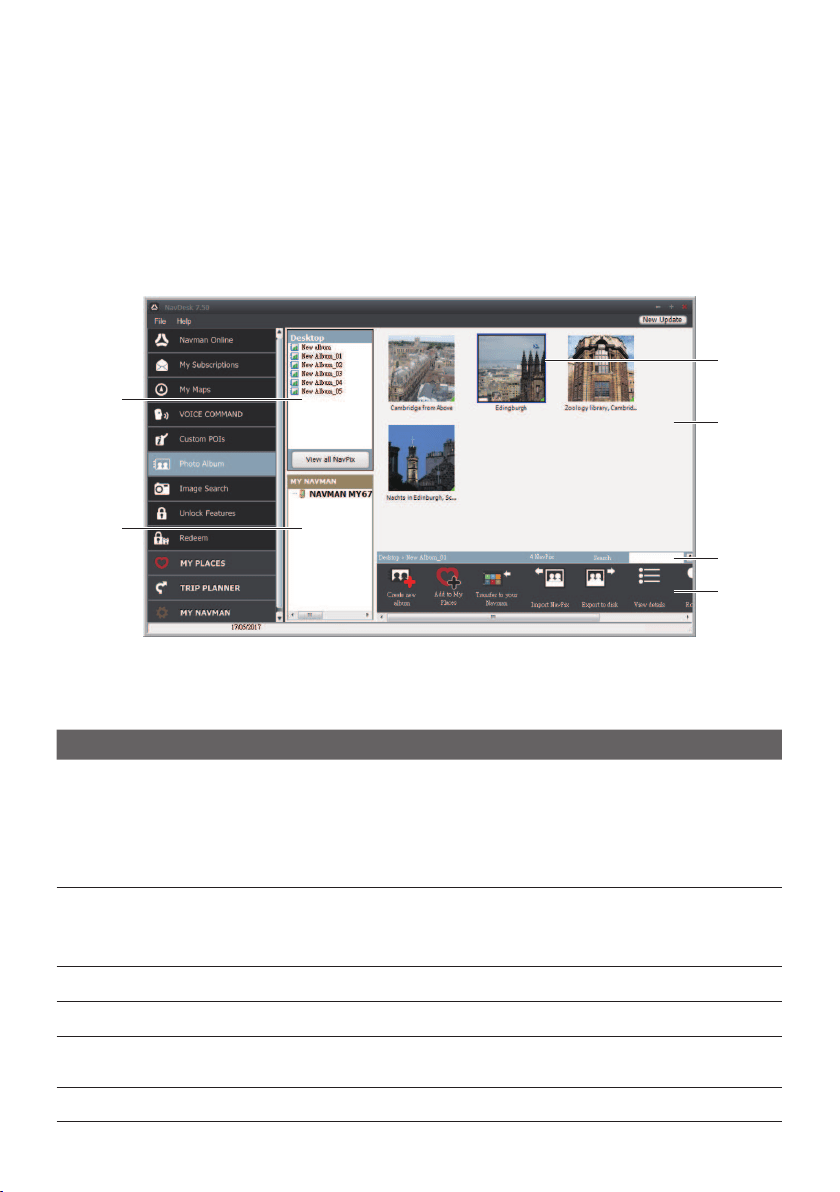
72
How do I delete a custom POI file/category from my Navman?
1.IntheInstalledPOIssection,clickDelete nexttothelename.Theleisremoved
fromthelist,butisnotyetdeleted.
2.Acceptthewarningmessage.Theselectedle/categoryisdeleted.
Photo Album
NavDesk
Photo Album
PhotoAlbumisaNavDeskapplicationwhichallowsyoutocopy,deleteormovepictures
oralbumsbetweenthe
NavPix™
libraryonyourNavmanandthe
NavPix™
libraryon
yourcomputer.
Name Description
Desktop albums Displaysalistofallalbumsstoredinthe
NavPix™
libraryonyour
computer.
•Clickanalbumtodisplayitscontentsinthe albumdisplayarea.
•ClickView all NavPixtodisplayallpicturesstoredinthe
NavPix™
libraryonyourcomputer.
My Navman
albums
DisplaysalistofalbumsstoredontheNavmaninternalmemoryandon
thememorycardifoneisinserted.
•Clickanalbumtodisplayitscontentsinthe albumdisplayarea.
Toolbar Whenapictureisselected,theiconswhichcanbeusedwillbeactive.
Search Typetosearchfora
NavPix™
byname.
Album display
area
Displaysthumbnailsofpicturesintheselectedalbum.
Selected picture Whenathumbnailisselected,itdisplayswithablueborder.
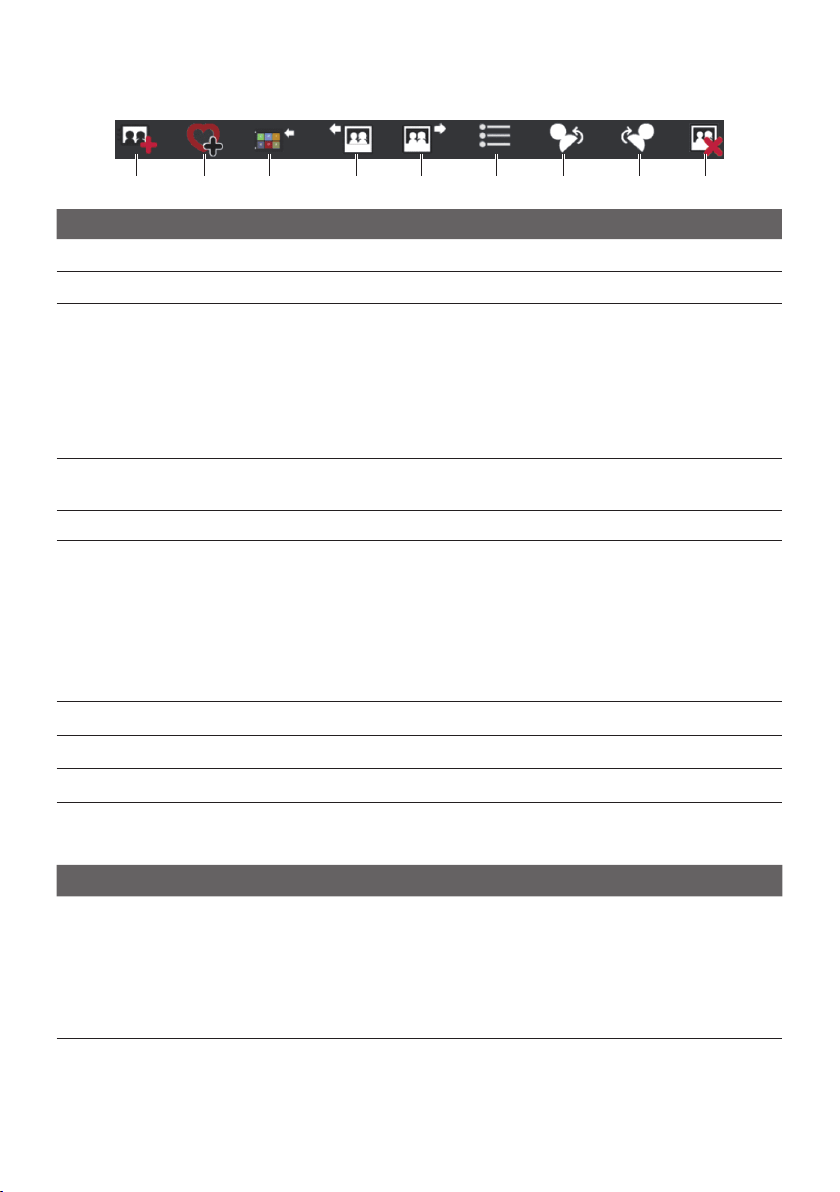
73
Toolbar
Name Description
Create new album Clicktocreateanewalbuminthe
NavPix™
libraryyouareviewing.
Add to My Places Clicktotransfer
NavPix™
toMyPlaces.
Transfer to your
Navman
or
Transfer to your
computer
•Ifyouareviewing
NavPix™
inthe
NavPix™
libraryonyour
computer,thiswilldisplayasTransfer to your Navman.
Clicktotransfertheselected
NavPix™
toyourNavman.
•Ifyouareviewing
NavPix™
intheNavmanlibrary,thiswill
displayasTransfer to your computer.
Clicktotransfertheselected
NavPix™
toyourcomputer.
Import
NavPix™
Imports
NavPix™
fromyourcomputertothe
NavPix™
libraryon
yourcomputer.
Export to disk Clicktosave
NavPix™
toyourcomputeroranetworkdrive.
View details Clicktoviewtheselected
NavPix™
andedit
NavPix™
details,
including:
•NavPix™
name
•latitude
•longitude
•description
Rotate left Rotatestheselected
NavPix™
90°totheleft.
Rotate right Rotatestheselected
NavPix™
90°totheright.
Delete
NavPix™
Clicktodeletetheselected
NavPix™
.
What else can I do with pictures and albums on my computer?
If you want to… Then…
addapicturetoanotheralbum,intheDesktopalbumssection,selectthealbumcontaining
the
NavPix™
youwanttoincludeinanotheralbum.
Selectthe
NavPix™
thendragittotheotheralbum.
Note: Theselected
NavPix™
isincludedinthenewalbum,but
isnotmoved.Oneinstanceofthe
NavPix™
inthelibrarymaybe
includedinmultiplealbums.

74
If you want to… Then…
removeapicturefromanalbum,intheDesktopalbumssection,selectthealbumcontaining
the
NavPix™
youwanttoremove.
Right-clickontheselectedpictureandselectRemove from
album.
Note:Ifyouwanttodeletethe
NavPix™
fromallalbums,right-
clickontheselectedpictureandselectDelete NavPix,orsimply
clicktheDelete NavPix icononthetoolbar.
adda
NavPix™
toMyPlaces,intheDesktopalbumssection,selectthealbumcontaining
the
NavPix™
youwanttoaddtoMyPlaces.
Right-clickontheselectedpictureandselectAdd to My
Places.
uploadpicturetotheFlickrwebsite,
intheDesktopalbumssection,selectthealbumcontaining
the
NavPix™
youwanttouploadtotheFlickrwebsite.
Right-clickontheselectedpictureandselectUpload to
Flickr.
Note:YouneedaFlickraccounttoupload
NavPix™
.Tocreatea
Flickraccount,visitwww.ickr.com.
exporta
NavPix™
toGoogle
Earth™,
intheDesktopalbumssection,selectthealbumcontaining
thepictureyouwanttoexporttoGoogleEarth.
Right-clickontheselectedpictureandselectExport to
Google Earth.
Navigatetoafolderonyourcomputertosavetheleand
thenopenitinGoogleEarth.
Note:YouneedtoinstalltheGoogleEarthsoftwareonyour
computertobeabletoviewtheleyouhavecreated.Youcan
downloadGoogleEarthfromearth.google.com.
searchforother
NavPix™
,right-clickonthedesired
NavPix™
andselectSearch for
NavPix near this.
Photo Album preferences
NavDesk
MY Navman
Options
Photo Album
Completethefollowing:
If you want to… Then…
changeyour
NavPix™
locationonyour
computer,
clickChangeandselectalocationforyour
NavPix™
library.
Click Save orOK.Thewarningmessagewill
displayandyouwillbepromptedtoconrmyour
action.
receiveawarningmessagebeforedeleting
animagefromyourdevice,
selecttheWarn me when permanently
deleting a NavPix from my Navmancheckbox.
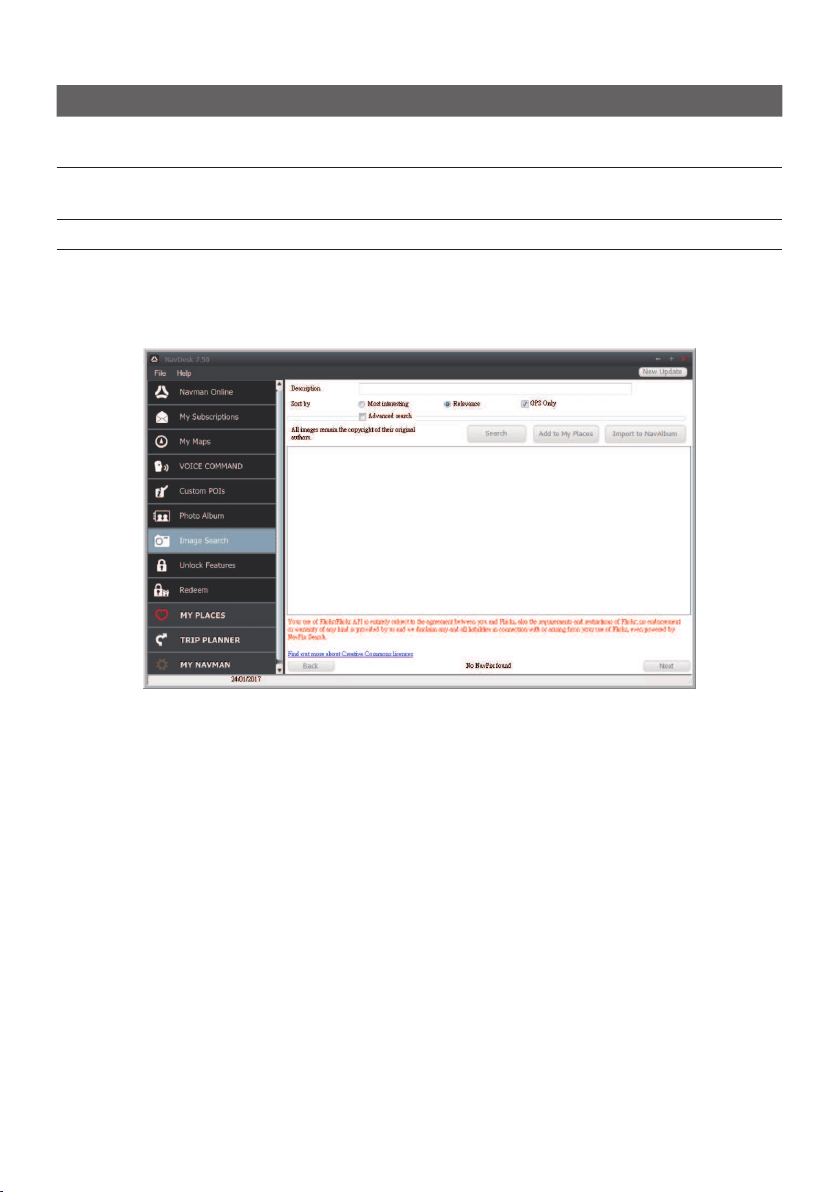
75
If you want to… Then…
receiveawarningmessagebeforedeleting
animagefromyour
NavPix™
library,
selectthe Warn me when permanently
deleting a NavPix from my library checkbox.
createanewfoldereverytimeyouimport
newphotos,
selectthe Import photos to a new album
checkbox.
view
NavPix™
whenonaroute,selecttheShow NavPix on mapcheckbox.
Image Search
NavDesk
Image Search
ImageSearchisaNavDeskapplicationpoweredbyFlickr™allowingyoutodownload
photosthatcontainembeddedGPScoordinates.Youcanthenuploadthephototothe
Flickrwebsite,transferphotostoyourNavman,orexportpicturestoGoogleEarth.
How do I search for a photo with embedded GPS coordinates on the
Internet?
1.IntheDescriptioneldenterasearchdescriptionfortheimageyouarelookingfor.
2.SelectoneoftheSortbyoptions.
3.ClickSearch.ThumbnailsofthephotoswithembeddedGPScoordinateswillbe
displayedinthedisplayarea.
Note:Youcannarrowyoursearchbyselectingthe Advanced searchcheckboxandthenselecting
acityfromthedrop-downlistorbyenteringthelatitudeandlongitudedetails.
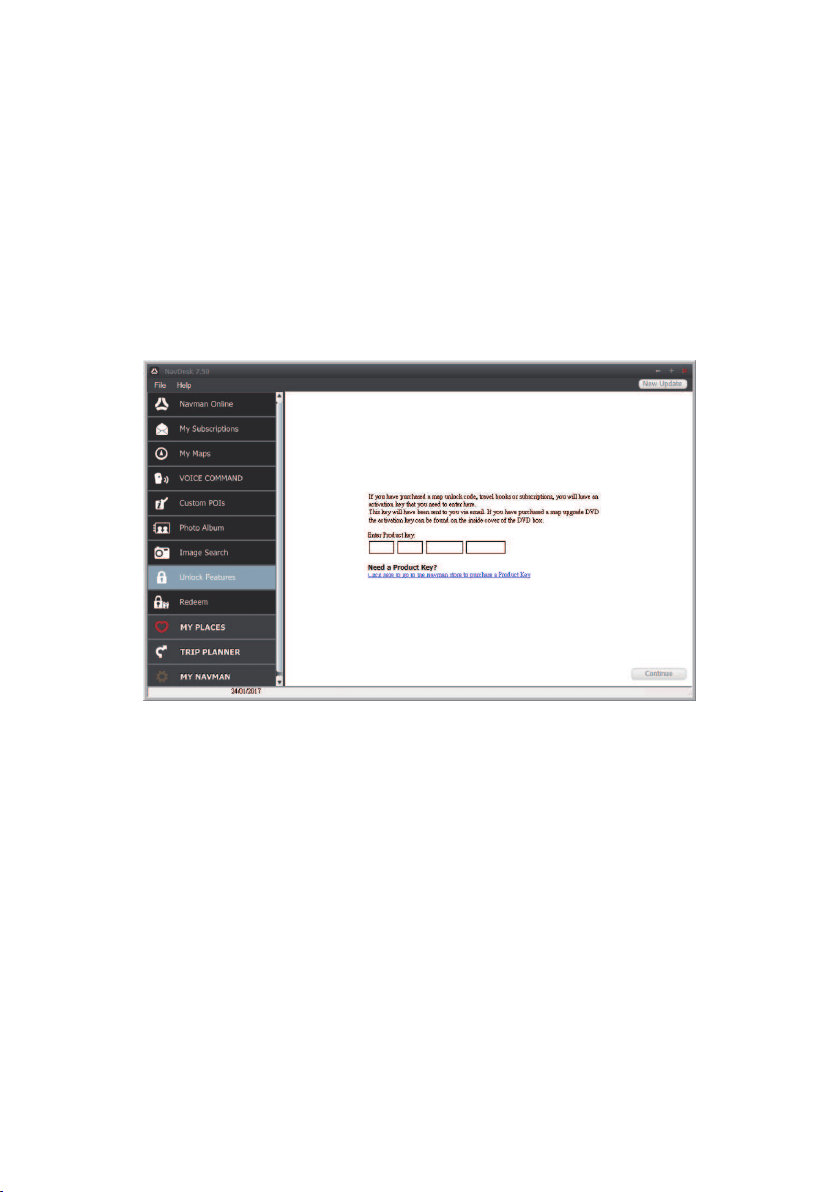
76
How do I import a photo with embedded GPS coordinates to My
Places?
1.SelectapictureorgroupofpicturesyouwanttoaddtoyourMyPlaces.
2.DooneofthefollowingtoaddtheselectedimagetoMyPlaces:
•ClicktheAdd to My Places button.
•Right-clickontheselectedpictureandthenselectAdd to My Places.
Unlock Features
NavDesk
Unlock Features
IfyouhavepurchasedamapunlockcodeorsubscriptionsforyourNavman,youhaveto
entertheactivationkeyusingtheUnlockFeaturesapplication.
Note:MakesureyouhaveanactiveInternetconnectionforthisfeature.
Note: Theactivationkeywillbesenttoyoubyemail.Youcanclicktheprovidedlinktopurchasean
activationkeyonline.
Redeem
NavDesk
Redeem
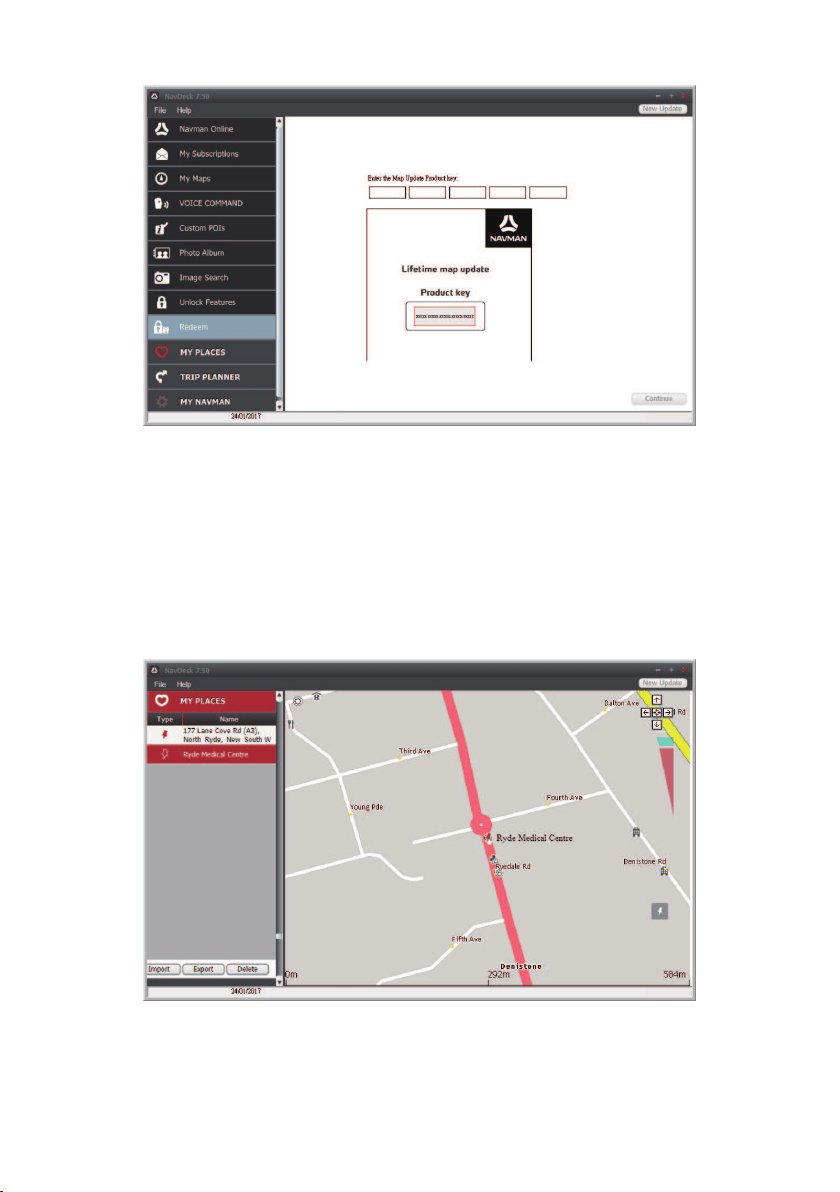
77
ToredeemNavman’slifetimemapupdateservice,youneedtoentertheproductkeyusing
theRedeemapplication.Pleasenotethattheproductkeycanonlybeusedonceandisnot
transferable.
Note:MakesureyouhaveanactiveInternetconnectionforthisfeature.
Note:Thisfeatureisnotrequiredforselectedmodels.
My Places
NavDesk
MY PLACES
MyPlacesincludessavedaddresses,capturedjourneys,POIs,photoswithembeddedGPS
coordinates,andotherlocations.Youcanselect,modifyanddeleteplaces.Youcanalsoadd
locationsfromImageSearchtoMyPlaces.
Note:MakesureyouhaveanactiveInternetconnectionforthisfeature.

78
Note: Youcaninstallamaximumof99locationsonyourNavmanviaMyPlaces.
How do I sort My Place locations?
YoucansortMyPlacelocationsbytypeandname:
If you want to… Then…
sortMyPlacelocationsbytype,clickTypeontheMyPlacespanel.
sortMyPlacelocationsbyname,clickNameontheMyPlacespanel.
How do I import or export a location?
Completethefollowing:
If you want to… Then…
importalocationfromthecomputer
toyourNavman,
fromtheMyPlacespanel,clickImport.
LocatetheleyouwanttoimportandthenclickOpen.
Note: Thesupportedleformatforimportingincludes:*.KMLand
*.KMZ.
exportalocationfromyourNavman
tothecomputer,
fromtheMyPlacespanel,selectalocationandthenclick
Export.
EnteradescriptivenamefortheleandthenclickSave.
Note:Thesupportedleformatforexportingincludes:*.KMZ.
Note:YoucanasloimportorexportalocationbyclickingFile
Import (orExport)
My
Places.
How do I edit a location from the map screen?
1.FromtheMyPlacespanel,selectthelocationyouwanttoedit.
2.Clickthelocationicononthemap.
3.Completethefollowing:
If you want to… Then…
editthelocationname,clickthelocationname.
Enteranewnameoredittheexistingname.The
locationnameischangedinbothNavDeskandyour
Navman.
editthelocationnotes,clickEdit notes.
Enternotes.Thelocationnotesarechangedinboth
NavDeskandyourNavman.

79
If you want to… Then…
sharethelocation,
click
.
Anemailwillopenreadytosendtoyourfriends.Your
friendwillreceivetheemailwithlinkstoeithersavethe
imageortosavethelocationinMyPlacesinNavDesk.
Note:IfthelocationisaphotowithembeddedGPS
coordinates,yourfriendwillreceivetheimageasan
attachmenttotheemail.
Note:Ifthelocationisacapturedjourney,yourfriendwill
receivethejourneyasa*.KMZleattachedtotheemail.Your
friendwillneedtohaveGoogleEarthinstalledonthecomputer
toviewtheKMZle.
deletethelocation,
click
,thenclickYestodeletethelocation.
Note:YoucandeletealllocationsinMyPlacesbyclicking
DeleteontheMyPlacespanel.
exportthelocation,
click.
Enteradescriptivenamefortheleandthenclick
Save.
Trip Planner
NavDesk
TRIP PLANNER
Trip PlannerinNavDeskallowsyoutopre-planyourtriponthecomputer.
Name Description
Route planner PlanaroutebyenteringtheFrompointand Topoint.Alistofplanned
routeswilldisplayinthePre-PlannedRoutessection.
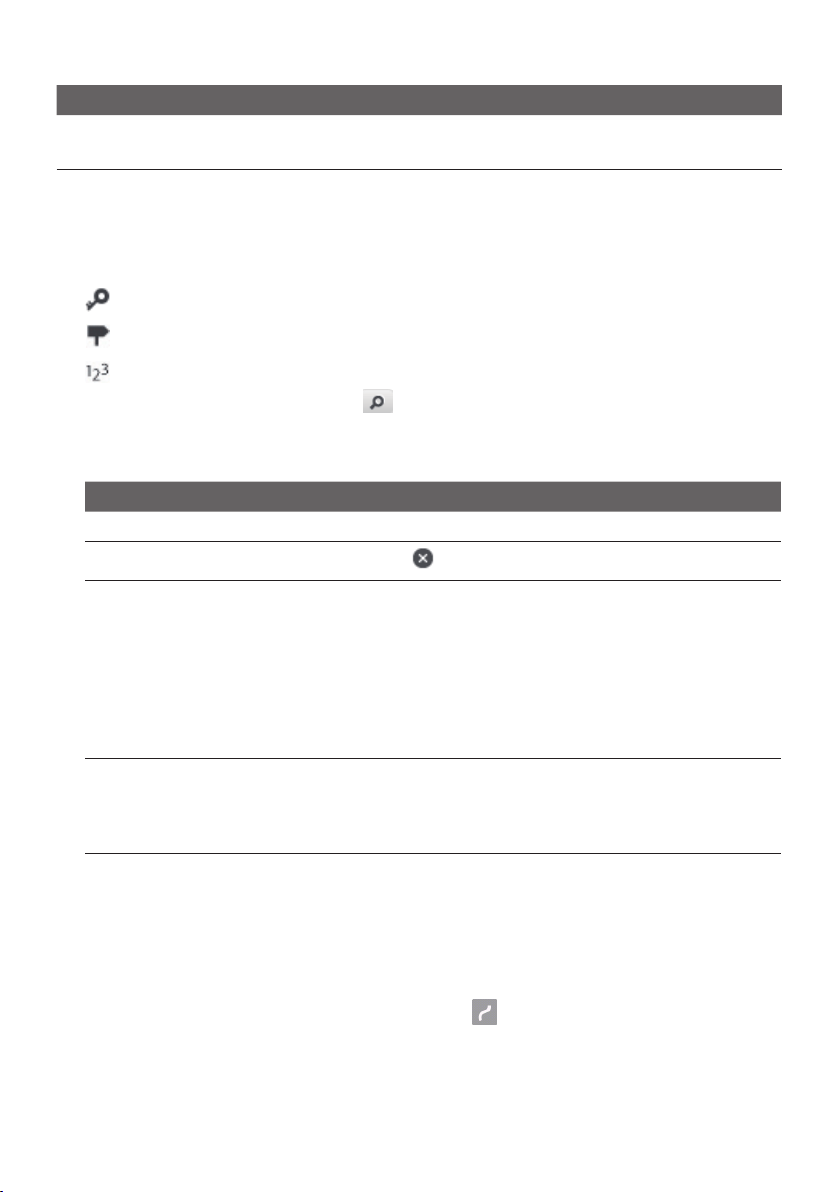
80
Name Description
Display area Displaytherouteonthemap.
Note:Youcanalsoplanyourroutedirectlyonthemap.
How do I pre-plan a route by search?
1.FromtheRouteplannerpanel,setyourFromandTopoints.
Youcanndalocationby:
:Keyword
:Address
:Postcode
Enteryourtextforsearchandclick
tostartasearch.Youmayneedtoselectfroma
categorylisttonarrowyoursearchresults.
2.Completethefollowing:
If you want to… Then…
addawaypoint,clickAdd Waypoint.
resetorremoveawaypoint,
click
nexttothewaypoint.
settheroutepreferences,clickRoute optionandselect:
•Mode:Selectthedesiredmodetoplanyourroute.
•Type of route:Selectawaytoplanyourroute.
•Avoidance:AvoidUnsurfaced roads,Toll
roadsorFerry routesonyourroute.
Note:The Route option settingswillonlyapplytotheroute
youareediting.
arrangethedestinationsinthe
mostefcientorderwhiletwoor
morewaypointsareincludedinthe
plannedtrip,
clickWaypoint Optimisation.
3.Click Plan Routetocalculateyourroute.Theroutewillbedisplayedonthemap.
4.ClickSave this route.TherouteissavedtothePre-PlannedRoutessectionandyour
Navmansimultaneously.
How do I pre-plan a route using the map?
1.Fromthemapdisplayedinthedisplayarea,click
.
2.Thecursorwillbemarkedwith“Addroute.”Movethecursorandthenclickonthemap
tosettheFrompoint.
3.Thecursorwillbemarkedwith“Clicktosetdestination.”Youcan:

81
•Movethecursorandthenclickonthemaptosetthewaypoint.
•Movethecursorandthendouble-clickonthemaptosettheTopoint.
4.Whendone,clickSave this route.TherouteissavedtothePre-PlannedRoutes
sectionandyourNavmansimultaneously.
How do I edit a route?
1.FromthePre-PlannedRoutessection,selectaroutetoedit.
2.Completethefollowing:
If you want to… Then…
renametheroute,clickthetitleoftherouteintheNamecolumn,then
enteranewname.Yourchangesareautomatically
saved.
deleteasavedroute,
click
nexttotherouteyouwanttoremove.
My Navman
NavDesk
MY Navman
How do I change the displayed language for NavDesk?
1.ClickLanguage.
2.Selectyourpreferredlanguage.
How do I install or remove a voice file for my Navman?
1.ClickMy Voices.
2.Completethefollowing:
If you want to… Then…
installavoicele,intheAvailablevoicelessection,selectthevoicele
youwouldliketoinstall.
ClickInstall selected voices.
removeavoicele,intheAvailablevoicelessection,selectthevoicele
youwouldliketoremove.
ClickRemove selected voices.
Note:VoicelestakeupspaceonyourNavman’sinternalmemory.Ifyoudonotuseavoicele,
youcanremoveittofreeupspace.YoucanlaterreinstallittoyourNavmanifrequired.Theprovided
DVDofyourNavmanisneededwhileinstallingthevoicele.
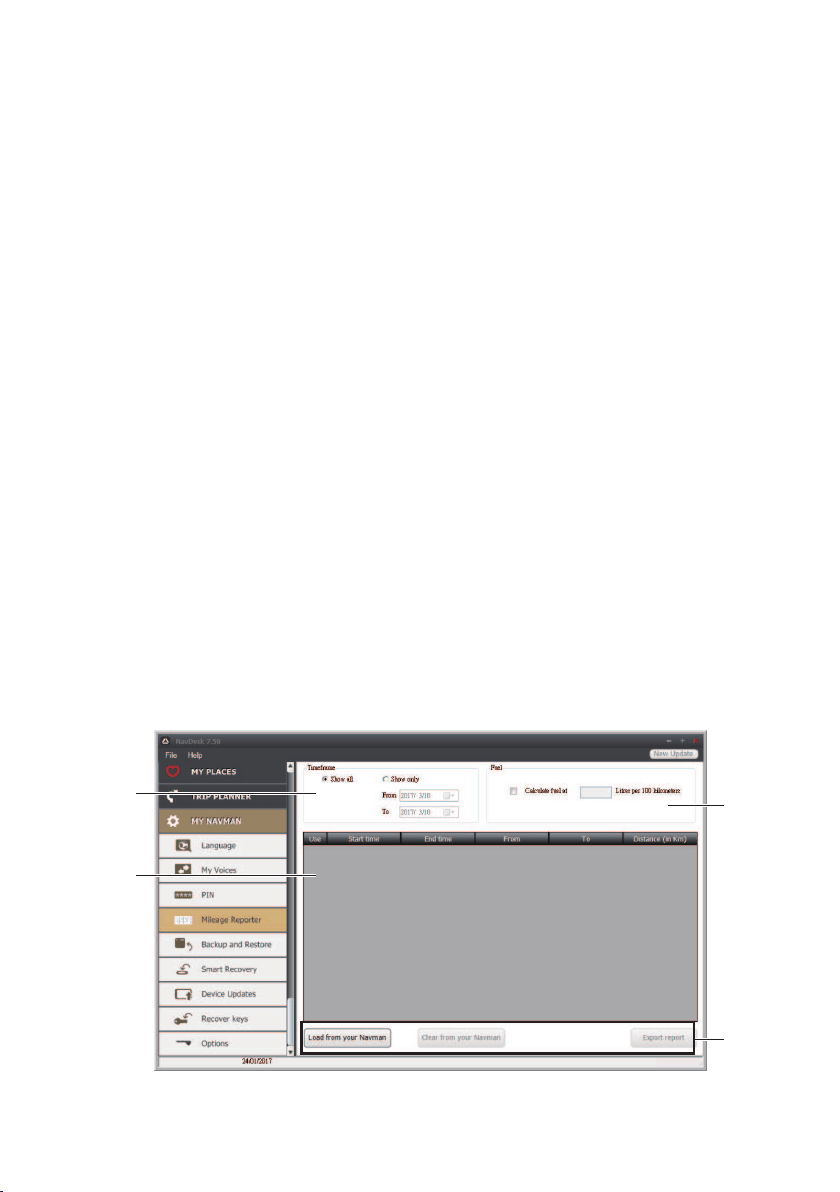
82
How do I register my Navman and set a PIN?
PINisaNavDeskapplicationthatallowsyoutosetasecurityPINonyourNavman.The
PINwilldisableyourNavmanintheeventoftheft.TosetaPIN,youmustrstregisteryour
NavmanonNavman’swebsite.
1.ClickPIN.
2.ClickRegister nowandfollowthepromptstocompletetheregistrationformonline.
3.Whentheregistrationiscomplete,clickI have registered my Navman.
4.IntheUserNameandPasswordelds,entertheusernameandpasswordthatyouhave
enteredwhenregisteringonline.
5.InthePINeld,enterthePINyouwanttoassigntoyourNavman.YourPINmustbe
betweenfourandeightnumericaldigits.
6.ClickOK.ThePINforyourNavmanhasbeenset.YouwillberequiredtoenteryourPIN
whenyouturnonyourNavman.
7.TodisableorchangethePINonyourNavmanatalatertime,entertheUsernameand
passwordtoenterthePINscreen.Thendooneofthefollowing:
•LeavethePINeldblankandclickOK.ThePINisremovedandyourNavmanwill
nolongerrequireyoutoenteraPIN.
•InthePINeld,enteranewPINyouwanttoassigntoyourNavman.ThenewPIN
foryourNavmanhasbeenset.
How do I report mileage?
MileageReporterisaNavDeskfeaturethatallowsyoutocreateexpensereports(.csv
format)basedonthemileageandestimatedfuelusagerecordedbyyourNavman.

83
Name Description
Timeframe Speciesthetimeforwhichthemileagereportwillbecreatedwhen
Show onlyisselected.
Select Show All toincludeallrecordedmileage.
Report panel Displaysyourtriplogdata.
Report data
buttons
ImportreportdatafromyourNavman,clearallreportdatafromyour
Navmanorexportdatatoareport(.csvand.HTML).
Fuel Selecttoincludetheamountoffuel(estimate)usedforthemileage
recorded.Ifselected,specifythenumberofmilestravelledpergallon,
ormiles/kilometrestravelledperlitre.
Note:Tousethe Mileage ReporterfunctionofNavDesk,theMileage recorder optiononyour
Navmanmustbeenabled.Formoreinformation,seethe"Routeoptions"sectionin“Customisingthe
systemsettings.”
How do I backup and restore my Navman?
YoucansavebackupsofdatafromyourNavman,andlaterrestoreitifrequired.
1.ClickBackup and Restore.
2.Completethefollowing:
If you want to… Then…
backupyourNavman,clickCreate new backup.
Selectthedatayouwouldliketobackup,thenclickOK.
Thebackupwillbesavedtoyourcomputer.Thebackup
willbelistedontheBackup&Restorewindow.
restoreabackuptoyourNavman,selectthebackupfromthelistthatyouwouldliketo
restore.
ClickRestore,thenclickOK.
ThebackupwillberestoredtoyourNavman.
deleteabackup,selectthebackupfromthelistthatyouwouldliketo
delete.
ClickDelete,thenclickOK.
Thebackupwillbedeleted.
How do I recover maps and voice files for my Navman?
TheSmart RecoveryapplicationallowsyoutorecoveralldatatoxyourNavmanifa
problemoccursduringoperation,includingsoftware,maps,voiceles,andsubscriptions.
1.MakesureyouhaveanactiveInternetconnectionandtheInstallerDVDisinsertedinto
yourcomputerDVDdrive.
2.Click Smart Recovery.
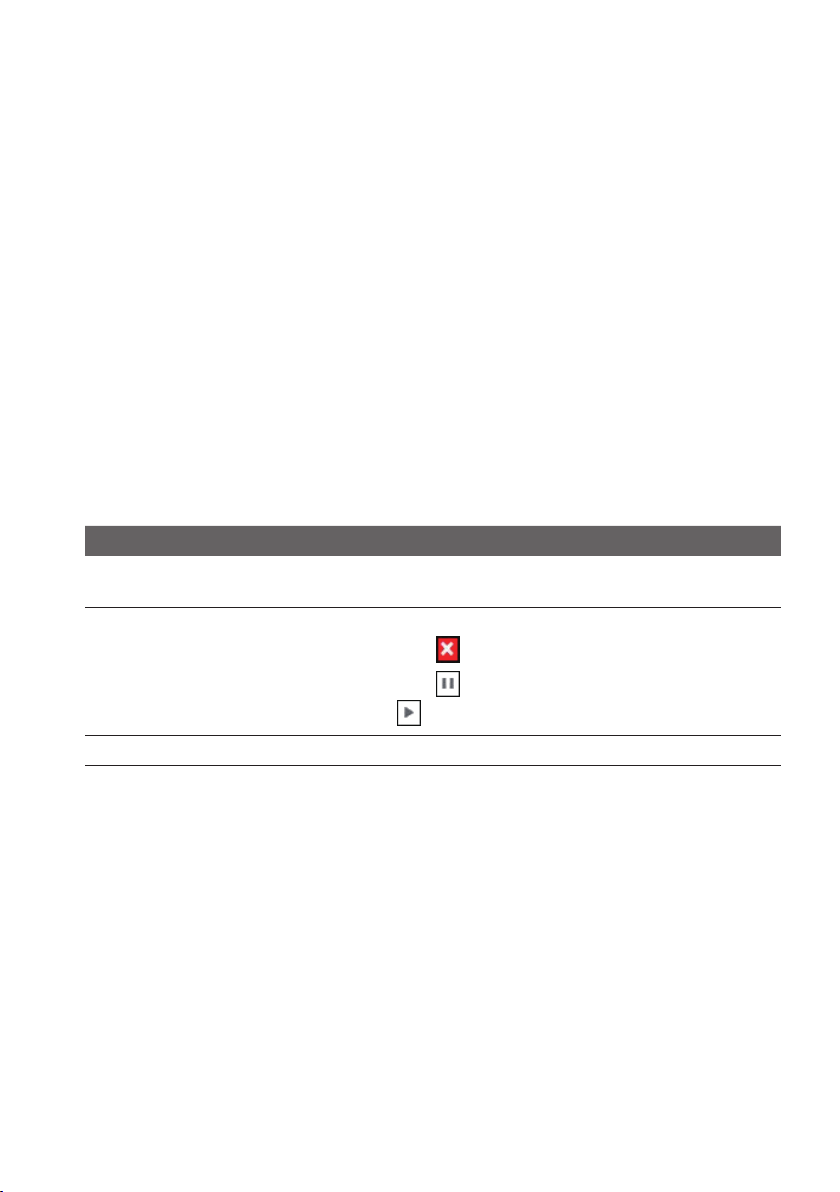
84
3.Theavailabledatawillbedisplayedinthe Maps and Voiceselds.Selectthedesired
dataandclickRecovertorecoverthedataonyourNavman.
How do I update my Navman?
OccasionallyNavmanmayofferyoufreeupdates,includingsoftwareapplications,maps,
andmore.YoucanchecktheavailableupdatesviatheDeviceUpdatesfunction.
1.IfafreeupdateisavailableandyourNavmanisconnectedtoyourcomputer,amessage
willdisplaywhenyoustartNavDesk.
Fromthepop-upmessagewindow,clickViewtodisplaytheDeviceUpdatesscreen
thatcontainstheavailableupdates.
Note:YoucanalsoopentheDeviceUpdatesscreenbyclickingtheNew Updatebuttonatthe
top-rightcornerofNavDesk.
Note:Insomecertainupdates,youmustupgradeyoursystemtothelatestversion(including
theNavDeskandyourNavman)beforeyoucanusetheupdates.Ifthenewversionisdetected,
amessagewilldisplaytoaskyoutoupgradethesystem.Whenprompted,clickYestostart
upgradingthesystem.
2.Completethefollowing:
If you want to… Then…
downloadtheupdates,selecttheavailableupdatefromthelist,andthenlick
Download.
stop/pausethedownload,duringthedownload:
•Click
tostopthedownload.
•Click
topausethedownload;whenpaused,click
toresumedownloading.
changethedownloadfolder,clickChange Path.
3.Whencompleted,thedownloadedlewillbesavedtotheassignedfolder.
•Forsoftwareupdate,the*.exelewillbelaunchedautomaticallytoinstallthe
update.
•Formapupdate,thesystemwilldisplaytheMyMapsscreenautomaticallytoinstall
theupdate.
How do I recover keys on my Navman?
TheRecover keysapplicationallowsyoutoxyourNavmanifaproblemoccursduring
operation.ClicktheRecover keysoptioninthemenuandthenfollowthepromptsto
completetheprocess.
How do I configure NavDesk?
1.ClickOptions,andthenselectthedesiredsettingoptionstocongure.

85
2.Completethefollowing:
If you want to… Then…
keepNavDeskupdated,clickGeneral,andthenselecttheAuto check for
updates checkbox.
Whenyouselectthisoption,everytimeyouopen
NavDesk,theavailableservicepacksandbugxeswill
bedownloadedfromtheNavmanserverandappliedto
yourNavman.
changetheunitsofmeasurement
thatNavDeskuses,
clickGeneral,andthen:
•SelectorcleartheUse metric unitscheckboxto
changebetweenimperialandmetricunits.
•SelectorcleartheUse decimal degrees
checkboxtochangebetweendecimaldegreesand
latitude/longitudecoordinates.
changetheMileageReporter
settings,
clickMileage Reporter,andthen:
•Selectorclearthe Warn me when deleting all
log files from my Navman checkbox.
•SelectDistance per volumeorVolume per
distance tochangethefueleconomystyle.
changethe
NavPix™
library
location,
clickPhoto Album,andthenclickChange.
Selectafolderforthe
NavPix™
library.The
downloaded
NavPix™
ismovedtothenewlocation.
changethelocationofwhere
downloadedupdateswillbesaved,
clickMy Maps,andthenclickChange.
Selectafolderfortheupdates.Thedownloaded
updatesaremovedtothenewlocation.
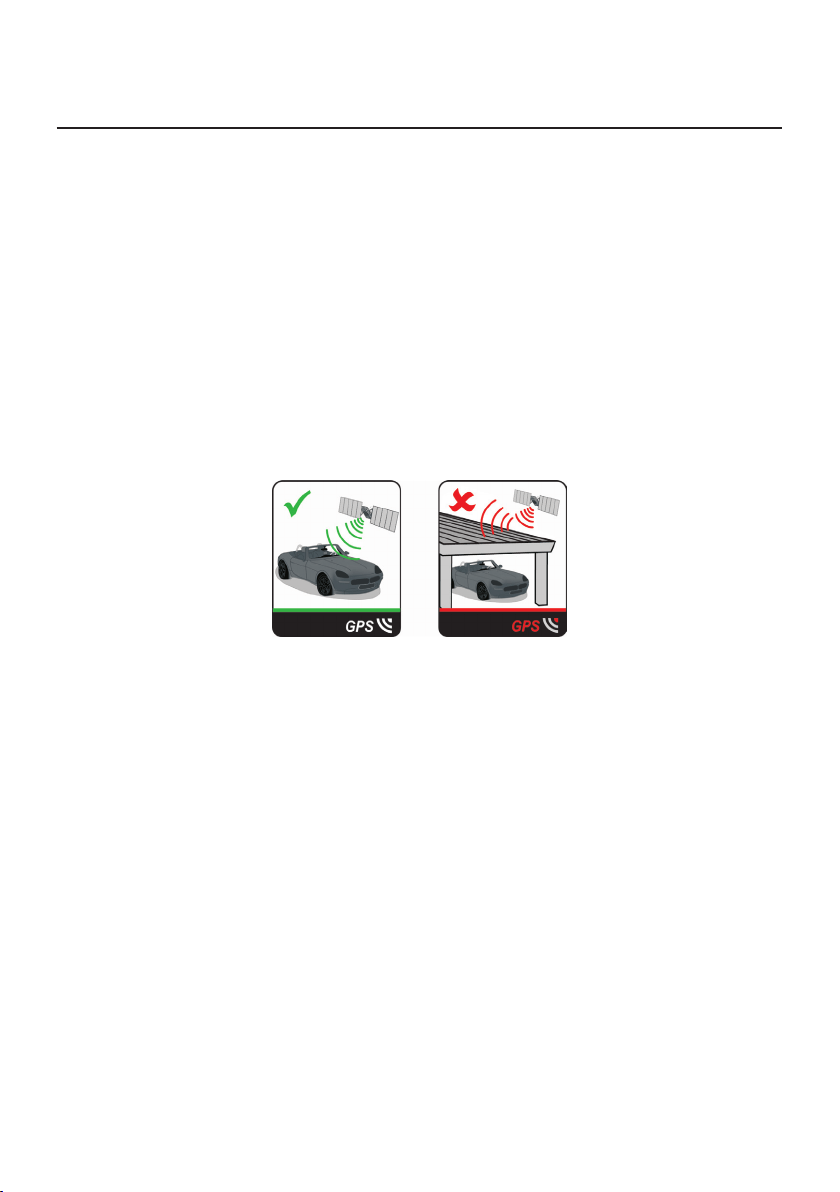
86
Reference
About GPS and signal reception
TheGlobalPositioningSystem(GPS)isavailableatanytime,freeofcharge,andisaccurate
towithin5m(15ft).GPSnavigationismadepossiblebyanetworkofsatellitesthatorbitthe
Earthataround20,200km(12,552mi).Eachsatellitetransmitsarangeofsignalswhichare
utilizedbyGPSreceivers,suchasyourNavman,todetermineanexactlocation.Although
aGPSreceivercandetectsignalsfromupto12satellitesatanytime,onlyfoursignalsare
requiredtoprovideapositionor"GPSx"(latitudeandlongitude),forvehiclenavigation
systems.
YourNavmanreceivesGPSsignalsviatheinternalGPSantenna.Toguaranteetheoptimum
GPSsignalstrength,ensureyourNavmanisoutdoors,orinavehicleoutdoors,andhasan
unobstructedviewofthesky.GPSreceptionisnotusuallyaffectedbyweather,however,
veryheavyrainorsnowmayhaveanegativeeffectonyourreception.
Caring for your Navman
TakinggoodcareofyourNavmanwillensuretrouble-freeoperationandreducetheriskof
damagetoyourNavman:
•KeepyourNavmanawayfromexcessivemoistureandextremetemperatures.
•AvoidexposingyourNavmantodirectsunlightorstrongultravioletlightforextended
periodsoftime.
•DonotplaceanythingontopofyourNavmanordropobjectsonyourNavman.
•DonotdropyourNavmanorsubjectittosevereshock.
•DonotsubjectyourNavmantosuddenandseveretemperaturechanges.Thiscould
causemoisturecondensationinsidetheunit,whichcoulddamageyourNavman.Inthe
eventofmoisturecondensation,allowyourNavmantodryoutcompletelybeforeuse.
•Thescreensurfacecaneasilybescratched.Avoidtouchingitwithsharpobjects.Non-
adhesivegenericscreenprotectorsdesignedspecicallyforuseonportabledevices
withLCDpanelsmaybeusedtohelpprotectthescreenfromminorscratches.
•NevercleanyourNavmanwhenitisturnedon.Useasoft,lint-freeclothtowipethe
screenandtheexteriorofyourNavman.

87
•Donotusepapertowelstocleanthescreen.
•Neverattempttodisassemble,repairormakeanymodicationstoyourNavman.
Disassembly,modicationoranyattemptatrepaircouldcausedamagetoyourNavman
andevenbodilyinjuryorpropertydamageandwillvoidanywarranty.
•Donotstoreorcarryammableliquids,gasesorexplosivematerialsinthesame
compartmentasyourNavman,itspartsoraccessories.
•Donotexposeyourdevicetodirectsunlightinanunattendedvehicleforprolonged
periods.Overheatingmaydamagetheunit.
•Todiscouragetheft,donotleaveyourdevice,mountingbracketoranycablesinplain
viewinanunattendedvehicle.
Troubleshooting
Ifyouencounteraproblemyoucannotsolve,contactanauthorizedservicecentrefor
assistance.
Problem Solution
Theunitisnotturning
on.
TrytopowertheunitthroughaUSB
cableconnectedtoacomputer.Ifthe
unitpowersupthentheissueiswiththe
vehiclepoweradapter.Iftheunitstill
failstopowerup,thenthefaultiswith
theunit.
Contacttechnicalsupport
andanRMAwillbecreated
toxtheunitorreplacethe
vehiclepoweradapter.
IcannotgetaGPSsignal.Makesureyouarestationaryandhavea
clearlineofsitetothesky.Ifthisfailsto
resolvetheissue,pleaseresettheGPS
chipthroughtheSettingsmenuofyour
unit.
Ifthefaultisstillnotresolved,
pleasevisitourselfhelpsite
(seetheinformationfrom
"Navmancustomersupport"
section),orcontactour
technicalsupportteam.
Myunitisalwaysshowing
thatthespeedlimitis110
kphevenwhenitisnot.
Theunitsaresetatamanualspeed
limitdefaultedat110kph.Thiscanbe
changedthroughthe"Safety"sectionof
yourSettingsmenu.
Ifthefaultisstillnotresolved,
pleasevisitourselfhelpsite
(seetheinformationfrom
"Navmancustomersupport"
section),orcontactour
technicalsupportteam.
Whereismyproduct
key?Iwanttoactivate
myunit.
Thereisnoneedtoactivateyourunitin
anyway.ThisActivationtabwithinthe
NavDesksoftwareisforsubscriptions,
travelbooks,internationalmapsand
mapupgradesonly.Yourunitwillwork
straightoutoftheboxandthereisno
needtoactivateitinanyway.
Ifthefaultisstillnotresolved,
pleasevisitourselfhelpsite
(seetheinformationbelow),
orcontactourtechnical
supportteam.

88
Problem Solution
Myunitkeepsdisplaying
batterylow.
PoweryourunitthroughaUSBcable
connectedtoacomputerfor8hours.
Ensurethedeviceisturnedonandis
displayingtheUSBconnectionscreen.
Ifitisstilldisplayingbattery
lowafterfollowingthis
process,contactourtechnical
supportteam.

89
For more information
Online support
For24/7helpandsupportwithNavmanproducts,visitourTechnicalSupportWebsite:
www.navman.com.au(Australia),orwww.navman.co.nz(NewZealand).
Navman customer support
IfyouhaveafaultyproductoryouwouldliketospeaktoamemberofourTechnical
Supportteam,contact:
Australia:1300NAVMAN(1300628626),orvisitwww.navman.com.au
NewZealand:0800GONAVM(0800466286),orvisitwww.navman.co.nz
Speed limit
Navmanproductsaredesignedtobeusedasanaidtosaferdriving.Navmandoesnot
condonespeedingoranyotherfailuretocomplywithyourlocaltrafclaws.Itisyour
responsibilitytodrivewithinthepostedspeedlimitatalltimesandtodriveinacareful
manner.NavmanacceptsNOliabilitywhatsoeverforyoureceivinganyspeedingnesor
pointsonyourlicensethroughusingthisdevice.Navmandoesnotguaranteetheaccuracy
ofthedatacontainedwithinthisdatabaseeitherexpressedorimplied.Intheeventyou
receiveaneoranyotherpenaltyforspeedingorcontraventionofanytrafclaw,orare
involvedinanaccident,Navmanisnotresponsibleforanydamagesofanytype.Insome
countriesthedatainformationregardingspeedlimitsmayconictwithlocallawand/or
regulations.Itisyourresponsibilitytomakesurethatyouruseofthedataisincompliance
withlocallawsand/orregulations.Usageisatyourownrisk.
Safety camera POIs
Navmanproductsaredesignedtobeusedasanaidtosaferdriving.Youcanreceive
messagestoalertyoutolocationsofsafetycameras,whichwillenableyoutomonitoryour
speedthroughtheseareas.Navmandoesnotwarrantthatalltypesandlocationsofsafety
cameradataareavailable,ascamerasmayberemoved,relocatedornewcamerasinstalled.
Navmandoesnotcondonespeedingoranyotherfailuretocomplywithyourlocaltrafc
laws.Itisyourresponsibilitytodrivewithinthepostedspeedlimitatalltimesandtodrivein
acarefulmanner.NavmanacceptsNOliabilitywhatsoeverforyoureceivinganyspeeding
nesorpointsonyourlicensethroughusingthisdevice.Navmandoesnotguaranteethe
accuracyofthedatacontainedwithinthisdatabaseeitherexpressedorimplied.Inthe
eventyoureceiveaneoranyotherpenaltyforspeedingorcontraventionofanytrafc
law,orareinvolvedinanaccident,Navmanisnotresponsibleforanydamagesofanytype.
Insomecountriesthedatainformationregardingsafetyorspeedcamerasmayconictwith
locallawand/orregulations.Itisyourresponsibilitytomakesurethatyouruseofthedata
isincompliancewithlocallawsand/orregulations.Usageisatyourownrisk.
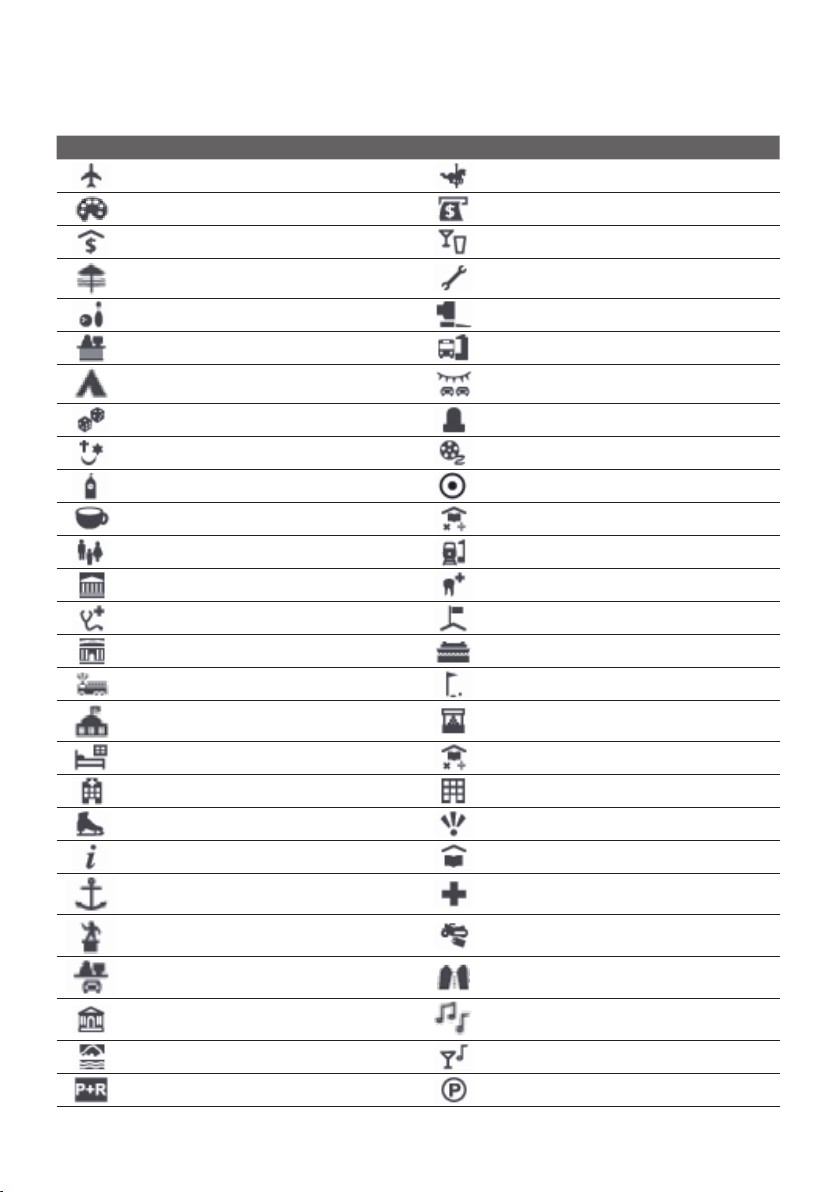
90
POI categories
Icon Description Icon Description
AirportAmusementpark
ArtcentreATM/Cashdispenser
BankBar/Pub
BeachBreakdownservice/Carrepairfacility
BowlingcentreBusinessfacilityorcompany
BusinessofceBusstation
CampinggroundCardealer/Automobiledealer
CasinoCemetery
ChurchCinema
CityhallCity,townorvillage
CoffeeshopCollege/University
CommunitycentreCommuterrailwaystation
CourthouseDentist
DoctorEmbassy
ExhibitioncentreFerryterminal
FireBrigadeGolfcourse
GovernmentofceGrocerystore
GuesthouseHighereducation
Hospital/PolyclinicHotel
IceskatingImportanttouristattraction
Information/TouristinformationofceLibrary
Marina/YachtbasinMedical
MonumentMotorcycledealer
MotoringorganisationofceMountainpass
MuseumMusiccentre
NaturalattractionNightlife
ParkandrideParking
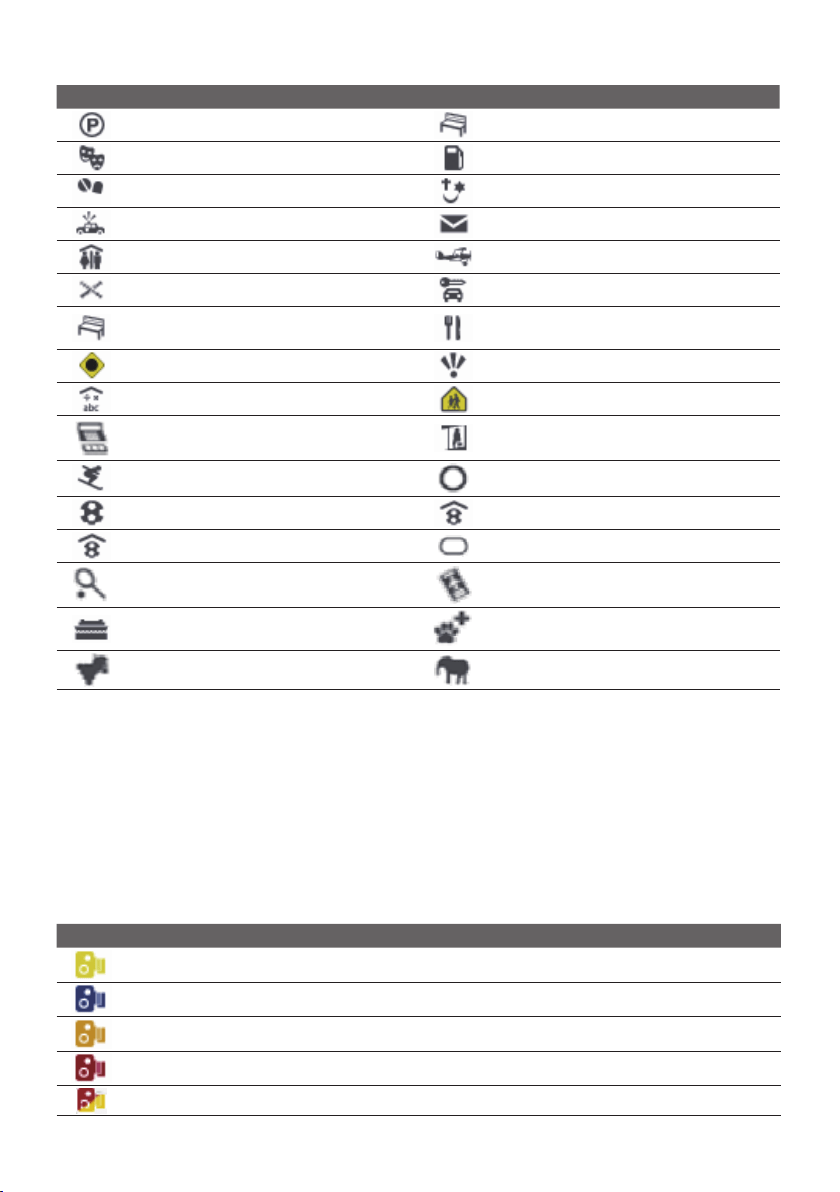
91
Icon Description Icon Description
ParkinggaragePark/Recreationarea
Performanceart/TheatrePetrolstation
PharmacyPlaceofworship
PolicestationPostofce
Publicrestroom/ToiletfacilitiesPublicsportairport
RailwaycrossingRentalcaragency
RestareaRestaurant
RoadaccidentblackspotScenic/Panoramicviews
SchoolSchoolzone
ShopShopping
Skiresort/SkiliftstationSpeedcheck
SportcentreSportshall
SportscomplexStadium
TenniscourtTravelagency
TransportferryVeterinarian
WineryZoo
Note:ThePOIcategoriesandtheordermaydiffer,dependingonyourregion,maps
installedorNavmanmodel.
Branded POIs
BrandedPOIsareavailableonsomemaps.Theseincludewellknownrestaurants,
accommodationproviders,touristattractions,Petrolstations,etc.Theiconwillusually
displaythecompanylogo.
POI categories by subscription
Icon Description
SafetyCameras
SafetyCamera(Mobile)
SafetyCamera(Average)
RedLightCamera
CombineCamera
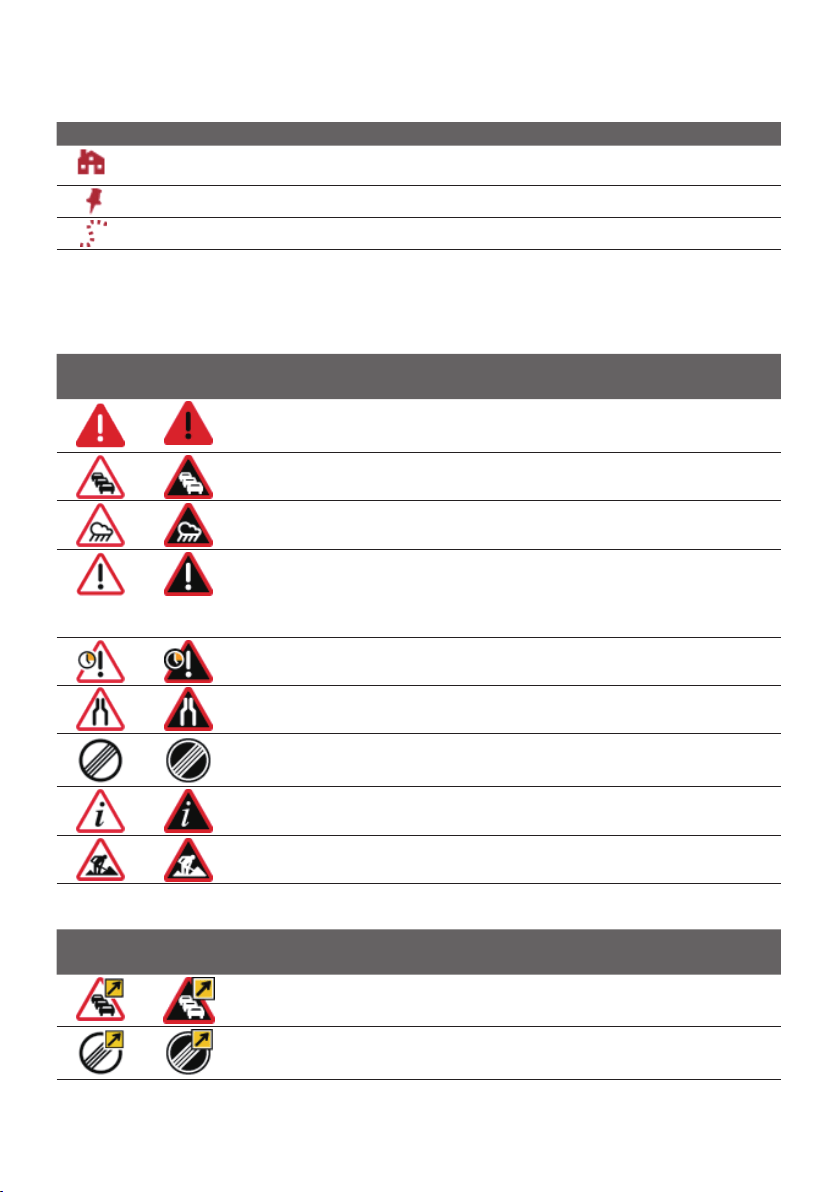
92
My Places categories
Icon Description
Home
Savedlocations
Capturedjourney
Traffic and other TMC events
EachTMCEventissortedintooneofninecategories.WhenanEventisreceived,oneof
thefollowingiconswilldisplay:
Event Avoided
Event
Message Type Event Description
Danger Thereisadangeroussituationontheroute;for
example,peopleareontheroad.
Traffic Anyeventthatwillcauseadelayonaroute.
Weather Weatherconditionsareadverselyaffectingaroute;
forexample,thereisiceontheroad.
Warnings Thereisasituationofwhichyoushouldbeaware
ontheroute,butitisnotseriousenoughtobe
consideredadangeroussituation;forexample,a
minoraccidenthastakenplace.
Forecast Aneventisexpectedtooccuronaroute.
Restrictions Thereisarestrictedowoftrafconaroute;for
example,alanehasbeenclosedonamotorway.
Clearance Atrafceventthathasnowbeencleared.
Information Allotherevents.
Roadworks Roadworksaretakingplaceonaroute.
IfaTrafcorClearanceeventhasarecommendeddetour,thefollowingiconswilldisplay:
Event Avoided
Event
Message Type Event Description
Traffic Detour ATrafcEvent,forwhichadetourisrecommended.
Clearance Re-route AClearanceEvent,forwhichare-routeis
recommended.
Note: AvoidedEventiconswillonlydisplayonthe Mapscreen,attheeventlocation.

93
Revision:R00
(5/2018)
Trademark
Allbrandandproductnamesaretrademarksorregisteredtrademarksoftheirrespective
companies.
Disclaimer
Specicationsanddocumentsaresubjecttochangewithoutnotice.
Note
Not all models are available in all regions.
Dependinguponthespecicmodelpurchased,thecolourandlookofyourdeviceand
accessoriesmaynotexactlymatchthegraphicsshowninthisdocument.
Thescreenshotsandotherpresentationsshowninthisdocumentareforreferenceonly.
Theymaydifferfromtheactualscreensandpresentationsgeneratedbytheactualproduct.

User Manual

1
Table of contents
Important safety information ...................................................................... 5
Precautions ......................................................................................5
Declaration of conformity ...................................................................7
Getting to know your Navman ...................................................................8
Mounting your Navman in a vehicle ............................................................9
Enabling traffic (TMC) reception ....................................................... 10
Turning your Navman ON and OFF ........................................................... 11
Resetting your Navman .................................................................... 11
Connecting your device to the computer ................................................... 12
Inserting a memory card .......................................................................... 13
Accessing the recording files ............................................................ 13
Navigating on the screen ......................................................................... 14
Main Menu ........................................................................................... 15
Navigating through the menu screens ................................................ 17
Using the Keyboard screen...................................................................... 18
How do I go from A-B? ........................................................................... 19
How do I use the FIND wizard? ......................................................... 19
How do I plan my first trip? ............................................................... 20
How do I preview the destination on map? ......................................... 21
How do I preview a route? ............................................................... 22
Changing the navigation mode ......................................................... 22
Large Vehicle and Professional Truck modes ................................ 22
How do I view my route? ........................................................................ 24
How do I select the route type? ......................................................... 24
The driving map .............................................................................. 24
How do I change the route configuration? ................................... 25
How do I view my route statistics? ..................................................... 26
How do I adjust the volume? ............................................................ 26
How do I zoom in/out the map? ........................................................ 27
How do I view the traffic status on my route? ...................................... 27
Advanced routing functions ............................................................. 27
Smart Routes ........................................................................... 27
My Drive ................................................................................ 28
Back-On-Track™ automatic rerouting .......................................... 28
Parking assistant ...................................................................... 28
How do I create a trip with multiple stops? ................................................. 29
How do I edit the waypoints in the trip? ............................................. 30
How do I skip a waypoint during a multi-stop trip? ............................... 30
How do I capture a location or a journey? .................................................. 31

2
How do I capture the GPS co-ordinates of my location? ........................ 31
How do I capture a journey? ............................................................. 31
How do I navigate to a location I have captured? ................................. 32
How do I navigate to the saved car location? ....................................... 32
How do I view a journey I have captured? .......................................... 32
My Places ............................................................................................. 33
How do I save a location as My Place or Home? .................................. 33
How do I navigate to a location I have saved? ...................................... 33
How do I navigate to Home?............................................................. 34
How do I navigate to a recent place? .................................................. 34
How do I edit a saved location in My Places? ...................................... 34
How do I navigate to a
NavPix™
? .................................................. 35
How do I navigate to a
NavPix™
? ........................................... 35
How do I edit the
NavPix™
? .................................................. 36
How do I search for a POI? ...................................................................... 38
How do I find the POIs using Explore? ............................................... 38
How do I find a POI using the POI cluster? .......................................... 39
How do I set my POI preferences? ..................................................... 39
How do I find the nearest POIs using the POI category buttons? ............ 40
How do I search for a POI by type? .................................................... 41
How do I search for a POI by Smart Find Keyword?.............................. 42
How do I receive current traffic information via TMC? ................................. 44
How will I know when a traffic event occurs? ...................................... 44
Traffic overview screen .................................................................... 44
How do I view a list of all events on my route? ..................................... 45
How do I view the traffic details? ....................................................... 46
How do I know if a detour is recommended? ............................... 46
How do I avoid an event on my route? ........................................ 46
Traffic messages .............................................................................. 47
Detour not available ................................................................. 47
Detour recommended .............................................................. 47
Traffic preferences .......................................................................... 47
Traffic service .......................................................................... 48
Accept recommended detours automatically ............................... 48
Traffic event notification ............................................................ 48
What is Travel Book? .............................................................................. 49
How do I search for a POI using Travel Book? ...................................... 49
How do I use the Bluetooth function? ....................................................... 50
How do I pair my Navman with a Bluetooth device? ............................. 50
How do I add contacts to my Navman? .............................................. 50
How do I make a hands-free call? ...................................................... 51
Making a call using the keypad .................................................. 51
How do I respond to a phone call? ..................................................... 52
In-call options .......................................................................... 52
How do I view my call history? .......................................................... 52
Recording your driving ........................................................................... 54
Precautions and notices ................................................................... 54

3
Memory card for recording .............................................................. 54
Making a recording ......................................................................... 54
Photo mode ................................................................................... 55
Playback mode ............................................................................... 55
Customising the settings .................................................................. 56
How do I control my Navman using Voice Command?................................. 59
Customising the system settings .............................................................. 60
What is NavDesk? .................................................................................. 67
Can I use NavDesk with my computer? .............................................. 67
How do I install NavDesk onto my computer? ..................................... 67
My Subscriptions ............................................................................ 69
How do I purchase a subscription? ............................................. 69
How do I activate my subscription? ............................................ 70
How do I update subscriptions on my Navman? ........................... 70
How do I recover my subscription? ............................................. 70
My Maps ....................................................................................... 70
How do I install maps onto my Navman? ..................................... 71
How do I remove maps from my Navman? .................................. 72
Voice Command ............................................................................. 73
Custom POIs .................................................................................. 74
How do I install custom POIs? .................................................... 74
How do I delete a custom POI file/category from my Navman? ....... 76
Photo Album .................................................................................. 76
What else can I do with pictures and albums on my computer? ...... 77
Photo Album preferences ......................................................... 78
Image Search ................................................................................. 79
How do I search for a
NavPix™
on the Internet? ....................... 79
How do I import
NavPix™
to My Places? ................................. 79
Unlock Features .............................................................................. 80
Redeem ......................................................................................... 80
My Places ...................................................................................... 81
How do I sort My Place locations? .............................................. 82
How do I import or export a location? ......................................... 82
How do I edit a location from the map screen? ............................. 82
Trip Planner .................................................................................... 83
How do I pre-plan a route by search? .......................................... 84
How do I pre-plan a route using the map? ................................... 84
How do I edit a route? .............................................................. 85
My Navman ................................................................................... 85
How do I change the displayed language for NavDesk?................. 85
How do I install or remove a voice file for my Navman? ................. 85
How do I register my Navman and set a PIN? ............................... 86
How do I report mileage? .......................................................... 86
How do I backup and restore my Navman? .................................. 87
How do I recover maps and voice files for my Navman? ................. 87
How do I update my Navman? ................................................... 88
How do I recover keys on my Navman? ....................................... 88
How do I configure NavDesk? ................................................... 88
MiVue Manager ..................................................................................... 90

4
Installing MiVue Manager ................................................................ 90
Playing the recording files ................................................................ 90
Reference ............................................................................................. 93
About GPS and signal reception ........................................................ 93
Caring for your Navman ................................................................... 93
Troubleshooting .............................................................................. 94
For more information .............................................................................. 96
Online support ............................................................................... 96
Navman customer support ............................................................... 96
Speed limit ..................................................................................... 96
Safety camera POIs ......................................................................... 96
POI categories ................................................................................ 97
Branded POIs ................................................................................. 98

5
Important safety information
•ItishighlyrecommendedfortheGPSdevicetostayconnectedwiththevehiclepower
adaptertoensureoptimalperformanceandtoenabletheTrafcfeatureforeligible
devices.
•Thebatteryisdesignedasabackuppowersourceforshort-termuseonlyintheevent
whenthevehicle'spowersystemisnotavailable.Itisnottobeusedasasolesourceof
powerforprolongedperiods.Batterylifemayvaryunderdifferentconditions.
•Removingoriginalequipment,addingaccessoriesormodifyingyourvehiclecouldaffect
thevehicle’ssafetyormakeitillegaltooperateinsomejurisdictions.
•Followallproductinstructionsandallinstructionsinyourvehicleowner’smanual
regardingaccessoriesormodications.
•Consultyourcountry’sand/orstate’slawsregardingoperationofavehiclewithany
accessoriesormodications.
•Itisyoursoleresponsibilitytoplace,secureanduseyourNavmaninamannerthatwill
notcauseaccidents,personalinjuryorpropertydamage.Alwaysobservesafedriving
practices.
•DonotmountyourNavmaninawaythatmayinterferewiththesafeoperationofthe
vehicle,thedeploymentofairbagsorothersafetyequipment.
•DonotoperateyourNavmanwhiledriving.
•BeforeyouuseyourNavmanforthersttime,familiariseyourselfwithyourdeviceand
itsoperation.
•Onmainroads,thedistancetoanexitcalculatedbyyourNavmanmaybefurtherthan
thedistanceshownonroadsigns.Roadsignsshowthedistancetothestartofanexit
whileyourNavmanshowsthedistancetothenextintersection,i.e.,theendoftheexit
ramporroad.Topreparetoexitaroad,alwaysfollowdistanceinformationonroad
signs.
•Theuseofinformationregardingsafetyorspeedcameralocationsmaybesubjectto
locallawsinthecountryofuse.Youareresponsibleforcheckingthatyoucanlegallyuse
theinformationinyourcountryorinthecountrywheretheinformationwillbeused.
•DonothandleyourNavmanwhileitishot.Lettheproductcool,outofdirectsunlight.
Precautions
Failuretoadheretothesewarningsandcautionsmayleadtodeath,seriousinjuryor
propertydamage.NavmandisclaimsallliabilityforinstallationoruseofyourNavmanthat
causesorcontributestodeath,injuryorpropertydamageorthatviolatesanylaw.
About the vehicle power adapter
•Useonlythevehiclepoweradaptersuppliedwithyourdevice.Useofanothertypeof
vehiclepoweradapterwillresultinmalfunctionand/ordanger.

6
•ThisproductisintendedtobesuppliedbyaLISTEDPowerUnitmarkedwith“LPS,”
“LimitedPowerSource”andoutputrated5Vdc/2A.
•Donotusethevehiclepoweradapterinahighmoistureenvironment.Nevertouchthe
vehiclepoweradapterwhenyourhandsorfeetarewet.
•Allowadequateventilationaroundthevehiclepoweradapterwhenusingittooperate
thedeviceorwhenitisconnected.Donotcoverthevehiclepoweradapterwithpaper
orotherobjectsthatwillreducecooling.Donotusethevehiclepoweradapterwhileit
isinsideacarryingcase.
•Connectthevehiclepoweradaptertoaproperpowersource.Thevoltagerequirements
arefoundontheproductcaseand/orpackaging.
•Donotusethevehiclepoweradapterifthecordbecomesdamaged.
•Donotattempttoservicetheunit.Therearenoserviceablepartsinside.Replacethe
unitifitisdamagedorexposedtoexcessmoisture.
About the battery
•CAUTION:Thebatterycanburstorexplode,releasinghazardouschemicals.To
reducetheriskofreorburns,donotdisassemble,crush,puncture,ordisposeofinre
orwater.
•TheNavmanunitmustberecycledordisposedofproperly.
•Onlyusethecorrecthomecharger(soldseparately)orvehiclepoweradaptersupplied
byNavmantoconnectyourNavmanunit.
•DonotmodifyandtemperwithyourNavmanunit.
•YourNavmanusesaLithium-ionbattery.Itisimportanttofollowtheguidelinessetout
regardingthistypeofBattery.
Electronicdevicesusingalithium–ionbatterysuchasMobilephones,GPSsand
camerasaredesignedtooperateatatemperaturerangeofapproximately0°Cto50°C.
Beyondthesetemperaturelimits,theremaybeariskofbatteryfailure,whenthese
electronicgoodsareexposedtoextremeheatconditionsforlongperiods.
ItisrecommendedthatyoudonotuseyourNavmaninahumid,wetand/orcorrosive
environment.Donotput,storeorleaveyourproductinornearaheatsource,inahigh
temperaturelocation,instrongdirectsunlightanddonotexposeittotemperatures
over60°C(140°F).FailuretofollowtheseguidelinesmaycausetheLithium-ion
batterytoleakacid,becomehot,explodeorigniteandcauseinjuryand/ordamage.
Donotpierce,openordisassemblethebattery.Ifthebatteryleaksandyoucomeinto
contactwiththeleakeduids,rinsethoroughlywithwaterandseekmedicalattention
immediately.Forsafetyreasons,andtoprolongthelifetimeofthebattery,yourNavman
unitshouldnotbeconnectedatlow(below0°C/32°F)orhigh(over45°C/113°F)
temperatures.
THELITHIUM-IONBATTERYCONTAINEDINTHEPRODUCTMUSTBERECYCLED
ORDISPOSEDOFPROPERLY.

7
ItishighlyrecommendedyouuseyourNavmanonlyWITHACADAPTER(HOME
CHARGER)ORTHESUPPLIEDDCVEHICLEPOWERADAPTER.
Formoreinformationonhowtorecycleyouroldelectronicdevices,pleasecontactyour
localcouncilofce.Youcanalsovisitwww.navman.com.au/www.navman.co.nzto
viewourlatesttrade-inoffers.
Declaration of conformity
Note: Forregulatoryidenticationpurposes,thisproductisassignedamodelnameofN538-D5000/
N538-D6000.
Marking labels located on the exterior of your Navman indicate the regulations
that your model complies with. Please check the marking labels on your Navman
and refer to the corresponding statements in this chapter. Some notices apply to
specific models only.
R-NZ
Theuserneedstoswitchoffthedevicewhenexposedtoareaswithpotentiallyexplosive
atmospheressuchaspetrolstations,chemicalstoragedepotsandblastingoperations.
Bluetooth
DIDD030689
Note: Thisfeatureisnotavailableonallmodels.
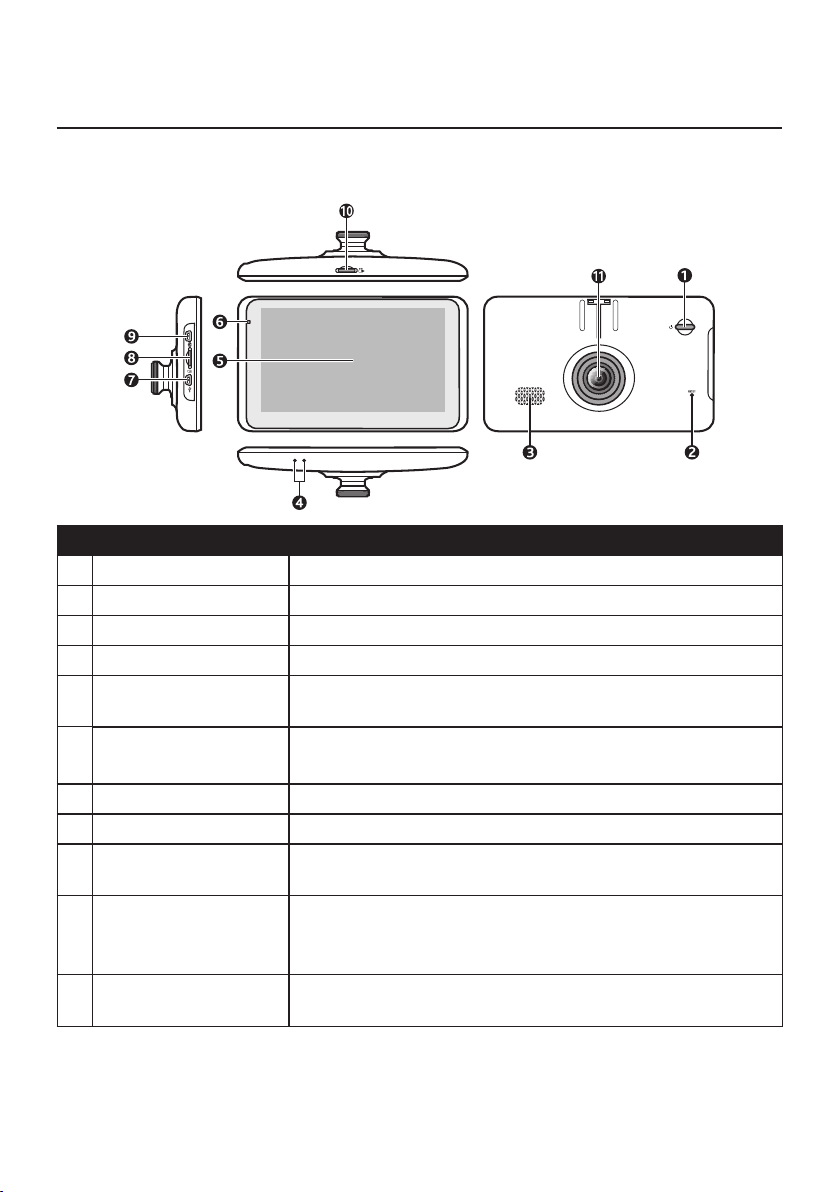
8
Getting to know your Navman
Note: Dependingonthespecicmodelpurchased,thecolourandlookofyourdeviceand
accessoriesmaynotexactlymatchthegraphicsshowninthisdocument.
Name Description
❶
Power button TurnsyourNavmanonandoff.
❷
Reset button RestartsyourNavman.
❸
Speaker Sendsoutsoundsandvoice.
❹
Microphone Receivessoundandvoice.
❺
Touch screen DisplaystheoutputofyourNavman.Tapthescreenwithyour
ngertiptoselectmenucommandsorenterinformation.
❻
Power indicator •Glowsin
amberwhenpowered.
•Glowsin
greenwhenthebatteryisfull.
❼
Mini-USB connector ConnectstothevehiclepoweradapterorUSBcable.
❽
Data card slot AcceptsaMicroSDcardforaccessingdatasuchasmaps(optional).
❾
Rear dash cam
connector
Connectstothereardashcam(optional;soldseparately).
❿
Recorder card slot AcceptsaMicroSDcard(4GB-64GB)forrecording.
Note: YoushoulduseseparateMicroSDcardsforrecordingand
forregulardatastorage.
⓫
Camera lens Makesurethatnoobjectisblockingthecameralensandno
reectivematerialappearsnearthelens.
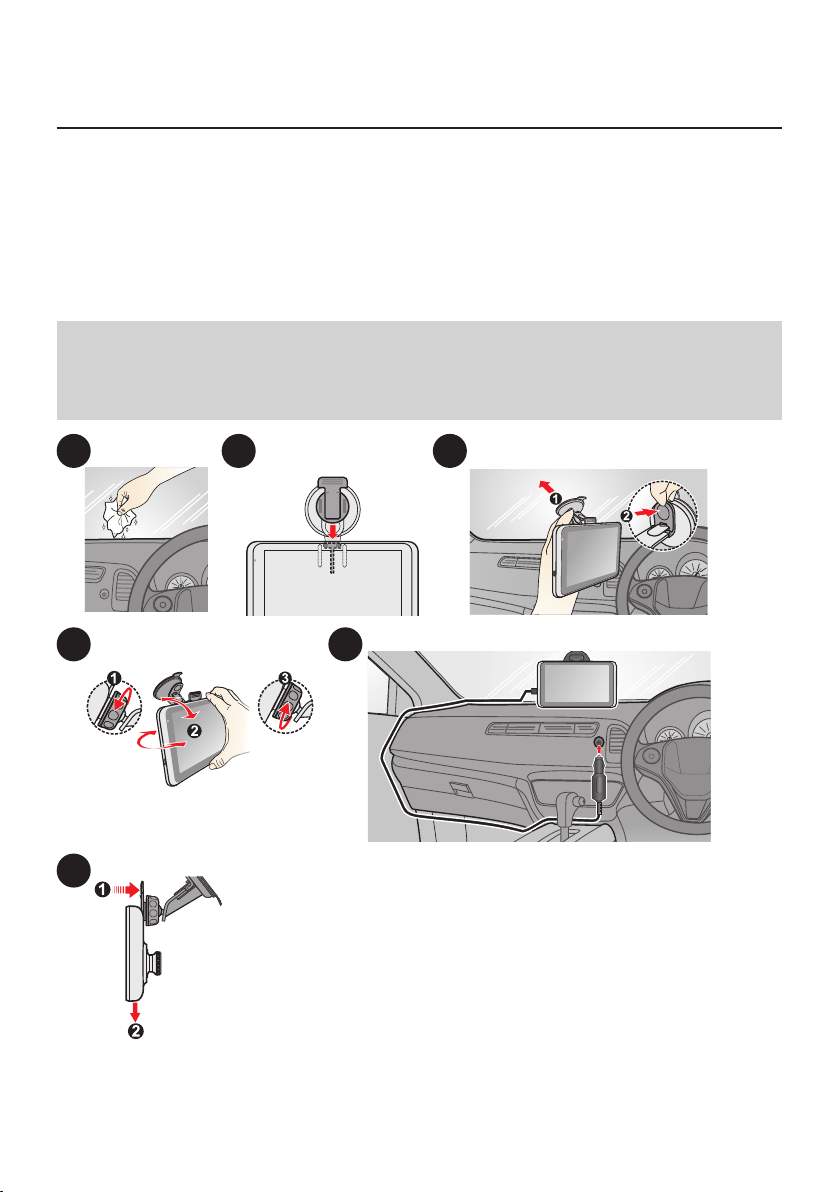
9
Mounting your Navman in a vehicle
UsetheprovideddeviceholderandmounttosecureyourNavmaninyourvehicle.
Thedevicewillturnonautomaticallywhenconnectingtotheexternalpowersource.
Whendisconnectingfromtheexternalpowersource,thedevicewillenterasuspended
statewithin10secondsautomatically.Tocontinueusingthedevice,tapYes.
ItishighlyrecommendedfortheGPSdevicetostayconnectedwiththevehiclepower
adaptertoensureoptimaldeviceperformanceandtoenabletheTrafcfeature.
CAUTION:
•NevermountyourNavmanwherethedriver’seldofvisionisblocked.
•Ifthewindscreenistintedwithareectivecoating,itmaybeathermicandimpacttheGPS
reception.Inthisinstance,pleasemountyourNavmanwherethereisa“cleararea”-usually
justbeneaththerear-viewmirror.
1 2 3
4 5
6

10
CAUTION:Foroptimalperformanceofthelithiumbattery:
•Donotconnectyournavmanunitwherethetemperatureishigh(e.g.indirectsunlight).
•ThereisnoneedtofullydischargetheNavmanunit.
•Whenstoringtheproductforalongperiodoftime,besuretoconnectyourNavmanatleast
onceeverytwoweeks.OverdischargeoftheNavmanUnitcanaffecttheperformance.
•FailuretofollowtheNavmanunitusageinstructionscouldcausedamagetoyourdeviceand
evenbodilyinjuryorpropertydamageandwillvoidanywarranty.
Enabling traffic (TMC) reception
Note:Trafcinformationisnotavailableonallmodelsandisonlyavailableinselectedcountries.
YourNavmanmayhaveabuilt-inTMCreceiver.Youcanreceivelivetrafcinformationvia
thevehiclepoweradapterwhichisusedasanantenna.
Note:Pleasenotethatyouwillnotbeabletoreceivethetrafcinformationwhileusingthethird-
partyaccessory(suchasyourownvehiclepoweradapter).
ForinformationonusingtrafcinformationonyourNavman,seethe"HowdoIreceive
currenttrafcinformationviaTMC?"section.
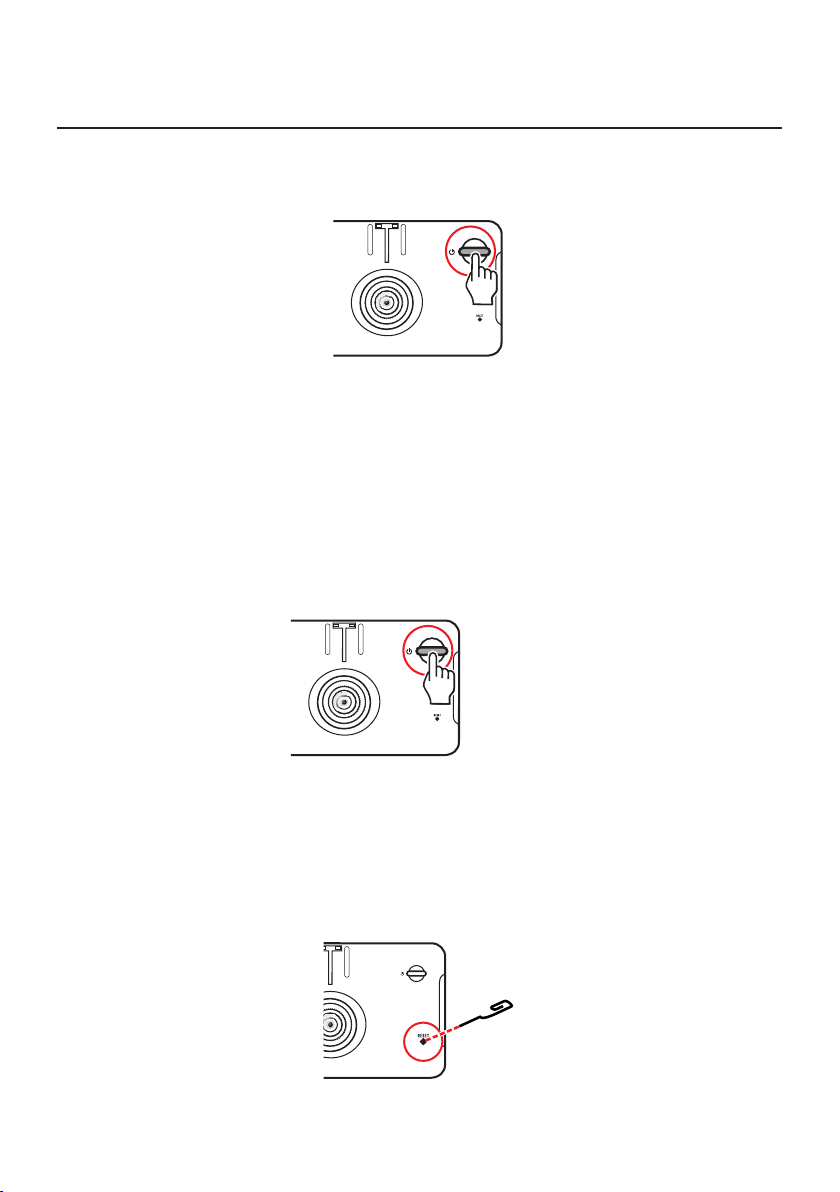
11
Turning your Navman ON and OFF
•Fortheinitialstart-up,brieypressthepowerbuttontoturnonyourNavman.
Followtheprompts.TheMainMenuwilldisplay.
Note:ThersttimeyouuseyourNavman,itmaytakeseveralminutestoestablishaGPS
connection.WhenyouhaveaGPSx,youcanstarttouseyourNavmantoplanyourtrip.
•ToputyourNavmaninasuspendedstate,brieypressthepowerbutton.
Whenyounextturniton,yourNavmanwillreturntothelastscreenthatyouused.
•Toresumeusingthedevice,dooneofthefollowing:
•Pressthepowerbuttonbriey.
•Connectthedevicetoanexternalpowersource.
•ToturnoffyourNavman,pressandholdthepowerbuttonfor3seconds.
3 SEC
Resetting your Navman
Occasionally,youmayneedtoperformahardwareresetwhenyourNavmanstops
responding,orappearstobe“frozen”or“locked-up.”
Insertasmallrod,suchasastraightenedpaperclipintotheresetbuttonofyourNavman.
YourNavmanwillrestartautomatically.
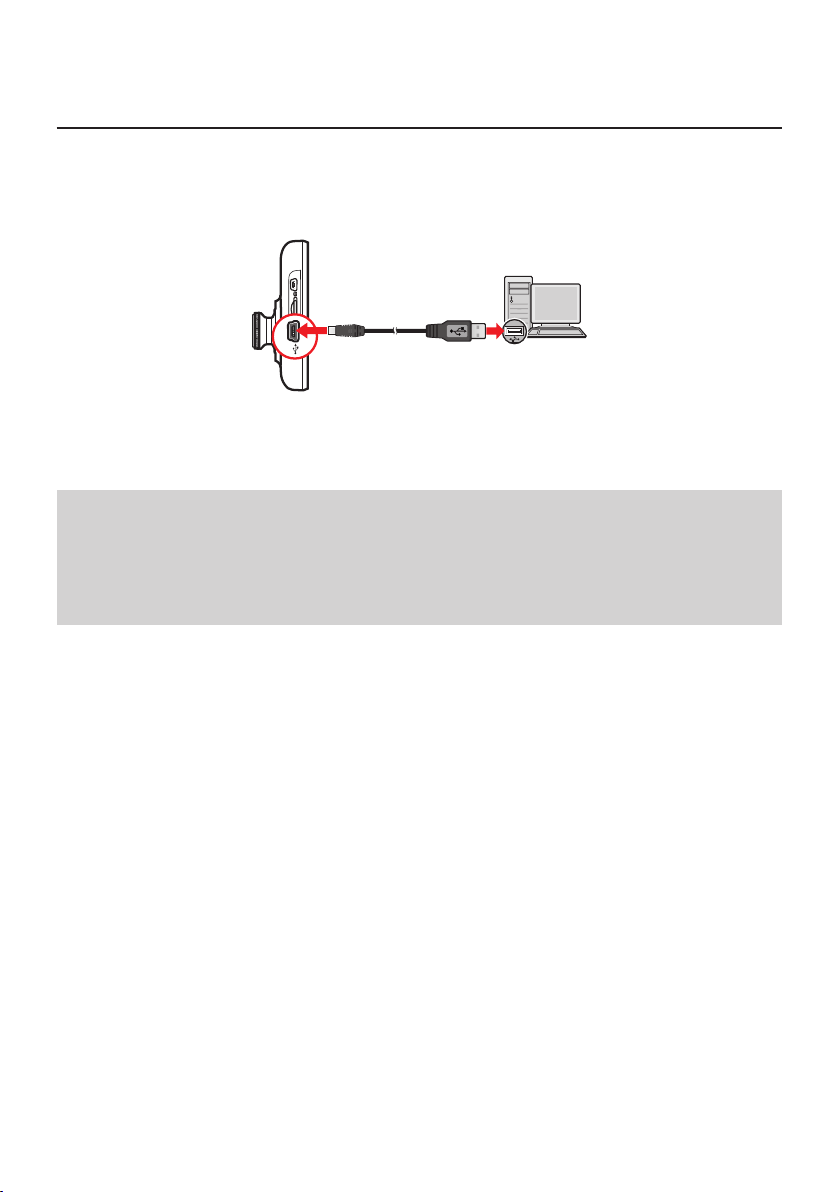
12
Connecting your device to the computer
1.Turnonyourcomputer.
2.PlugthelargeendoftheUSBcabledirectlyintoaUSBportonyourcomputer(nota
USBhub)andplugthesmallendintothemini-USBconnectoronyourNavman.
Note: Resetyourdeviceifitisnotrecognisedcorrectlybyyourcomputer.
3.BeforedisconnectingyourNavmanfromthecomputer,itisrecommendedtosafely
removetheUSBdrivefromthesystem.Thispreventsdatalossonthedevice.
CAUTION:
•WhenyourNavmanisturnedonandconnectedtoacomputer,itisrecognisedasanexternal
mass-storagedevice.DoNOTdeleteanylesthatarepre-installedonyourNavman.Deleting
thelescancauseyourNavmantocrash.Navmanisnotresponsibleforproductqualitycaused
byledeletion.
•DonotconnecttheUSBcableintotheRearDashCamconnectorportasyourcomputerwill
notrecognisethedevice.
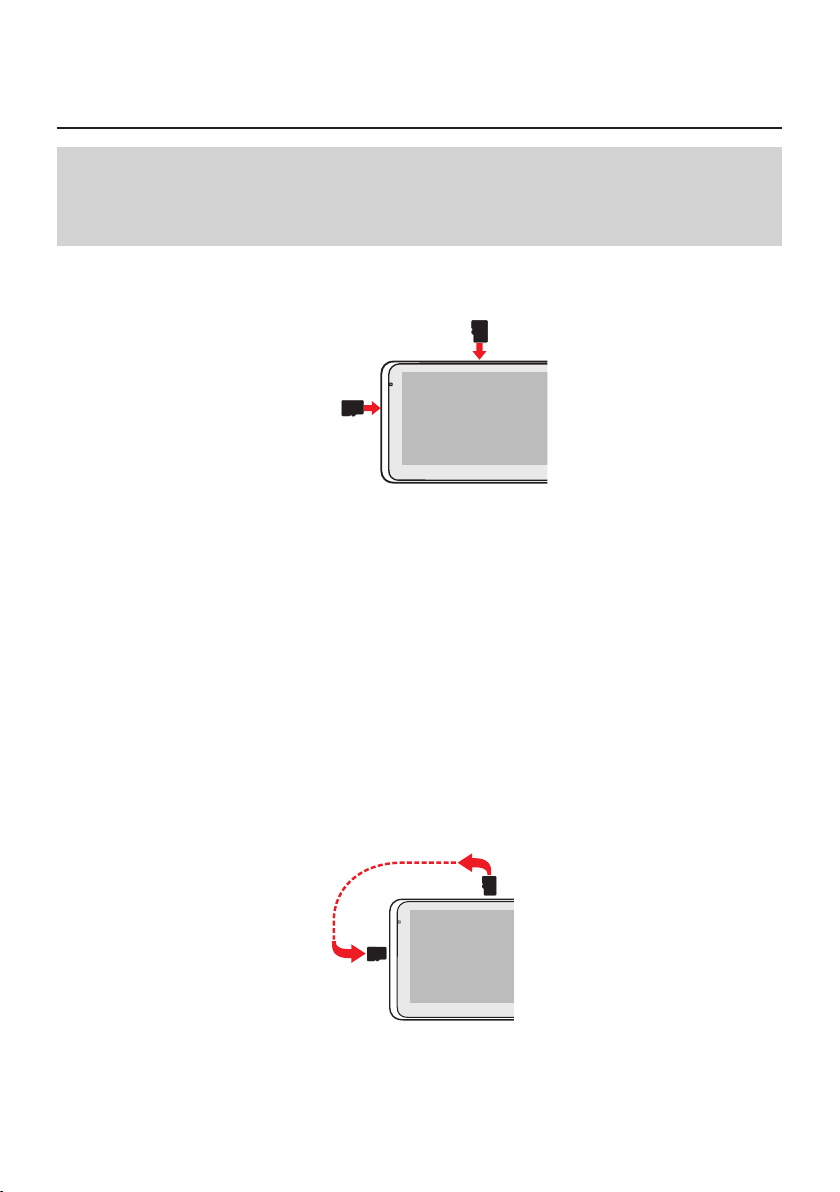
13
Inserting a memory card
CAUTION:
•Donotapplypressuretothecentreofthememorycard.
•Insertingthecardinthereversedirectionmaycausedamage.
•Donotinsertorremovethememorycardwhenthedeviceisturnedonorinthesuspend
mode.
Holdthecard(MicroSD)bytheedgesandgentlyinsertitintotheslotasshowninthe
illustration.
For recording
For accessing data
Toremoveacard,gentlypushthetopedgeofthecardinwardstoreleaseit,andpullitout
oftheslot.
Note: Asecondmemorycardinthedataslotisonlyrequiredifinstallingadditionalmapsand
subscriptionsthatcannolongertontheinternalmemory.Thedevicecanoperatenormallywithout
one.
Note: Navmandoesnotguaranteetheproduct’scompatibilitieswithMicroSDcardsfromall
manufacturers.
Accessing the recording files
Ifyouwanttoaccesstherecordinglesonyourcomputer:
1.Turnoffthedevicebypressingandholdingthepowerbuttonfor3seconds.
2.MovetheMicroSDcardfromtherecordercardslot(onthetopofthedevice)tothe
datacardslot(ontheleftsideofthedevice).
3.ConnectthedevicetoyourcomputerbyusingtheUSBcable.
Youcannowaccesstherecordinglesintheremovablediskonthecomputer.
Note: Resetyourdeviceifitisnotrecognisedcorrectlybyyourcomputer.
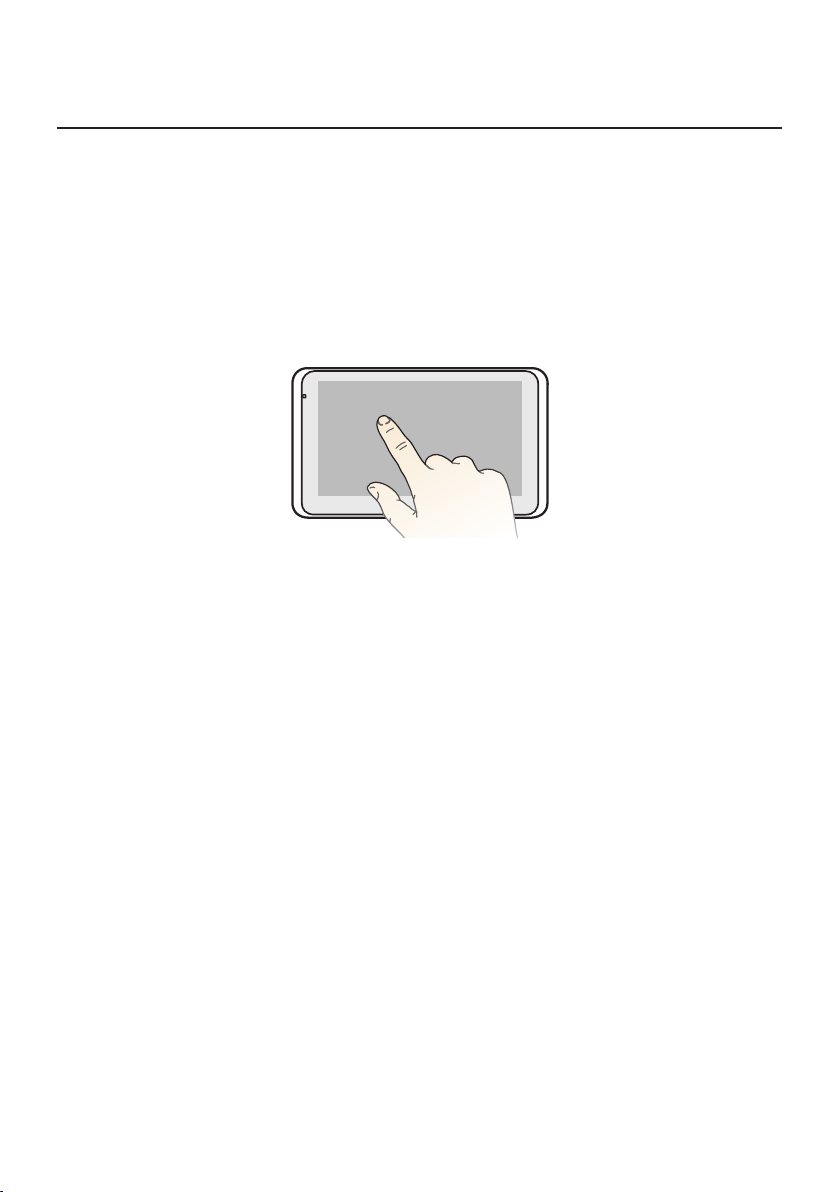
14
Navigating on the screen
TooperateyourNavman,touchthescreenwithyourngertip.Youcanperformthe
followingactions:
•Tap
Touchthescreenoncewithyourngertiptoopenitemsorselecton-screenbuttonsor
options.
•Drag
Holdyourngertiponthescreenanddragup/down/left/rightoracrossthescreen.(This
isnotapplicabletoallapplications.)
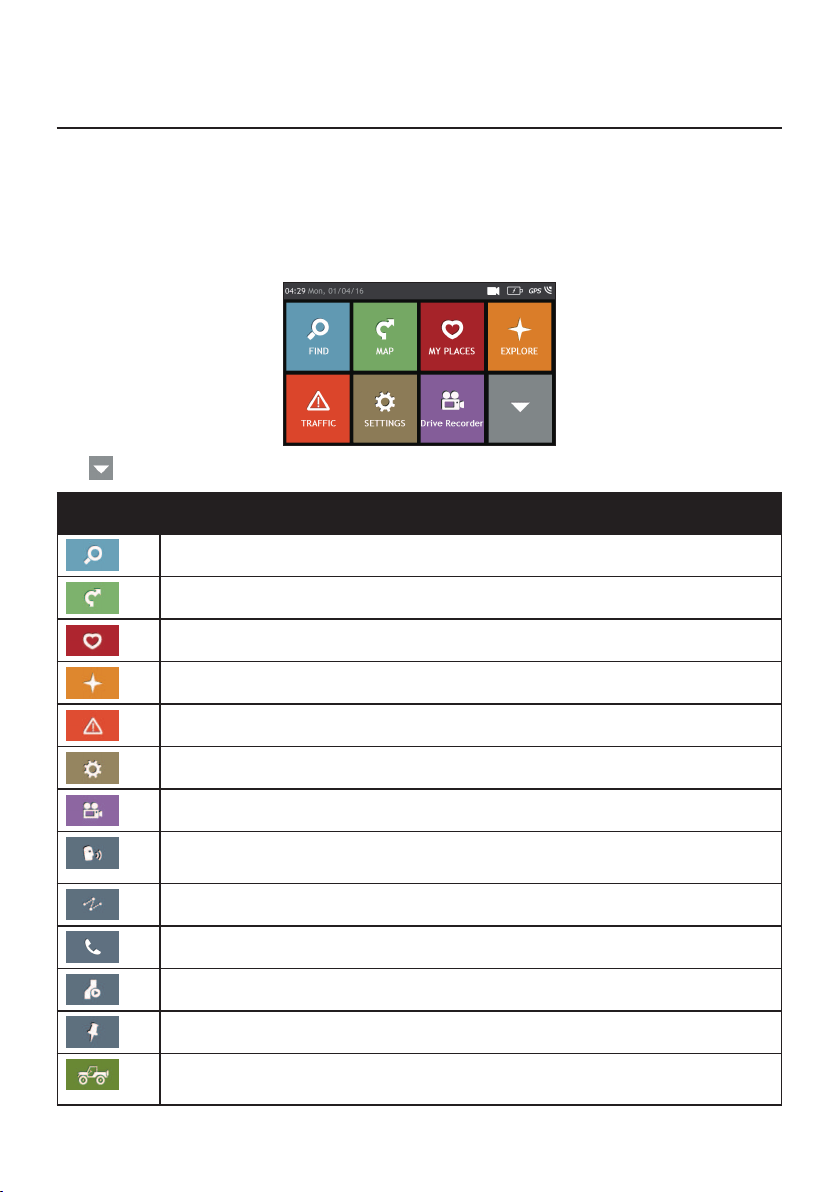
15
Main Menu
TheMainMenuisyourstartingpointforsearchingforadestination.TheMainMenualso
allowsyoutocustomiseyourNavman,viewsavedlocationsasMyPlace/Home,andsearch
forPOIsnearby,andsoon.
MainMenu screenoptionsandtheorderoftheoptionsmaydifferfromtheabove,
dependingonyourregion,mapsinstalledorNavmanmodel.
Tap toshowthenextpageofMainMenu.
Icon Description
Searchforplaces,areasandstreetstohelpplanyourroute.
DisplaytheMapscreen.
Accessyoursavedlocations.
Exploretheareaaroundyourcurrentpositionordestination.
Receivelivetrafcinformationonyourrouteandsettrafcpreferences.
CongureyourNavmantoenhanceyournavigationexperience.
Displaytherecordingscreen.
ControlyourNavmanbyvoice,allowingyoutosearchforanaddress/place/POI
easily.
Addorbeginaplannedtripwithmultiplewaypoints.
UseyourNavmanasahands-freecarkit.
Displaythecalculatedrouteinsimulationmode.
RecordGPSco-ordinatesofalocationorajourney.
Setyourpreferencesaboutfour-wheeltracksandPOIdisplaysettingsonthese
tracks.
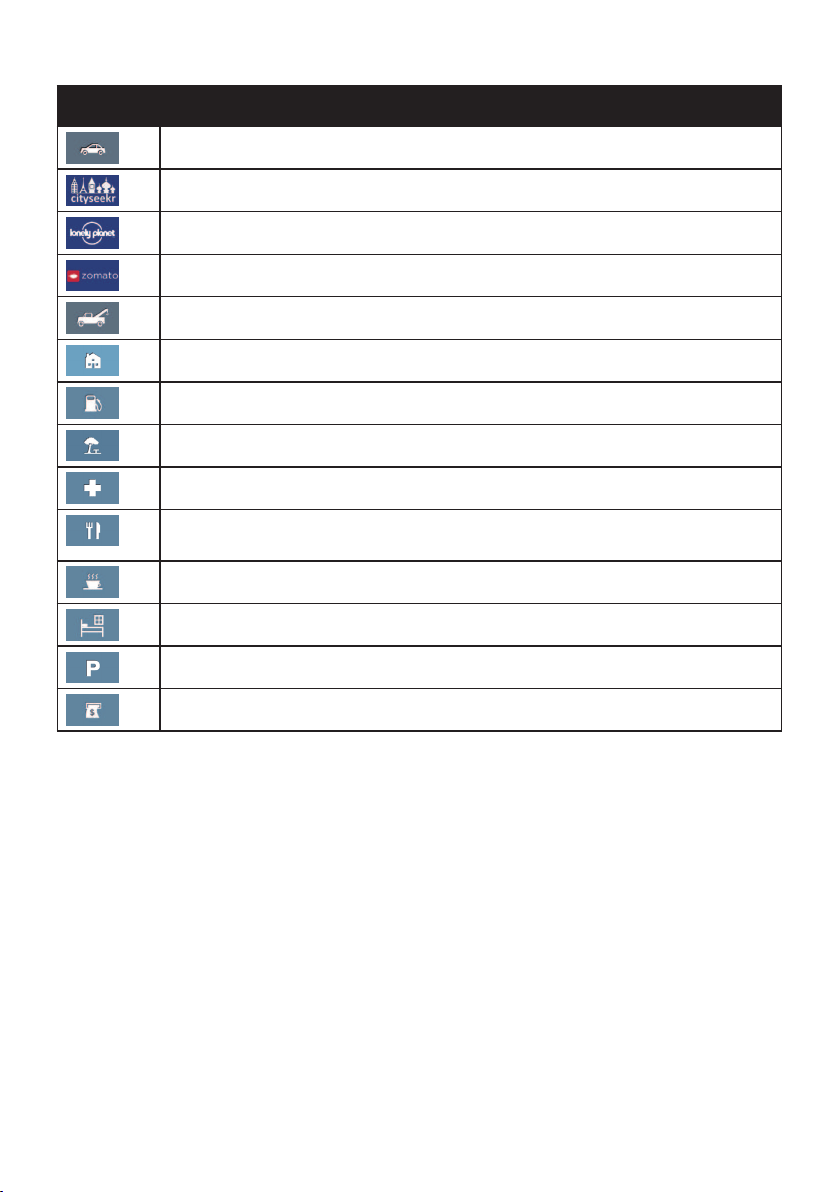
16
Icon Description
Selectyournavigationmode:Car,LargeVehicleorProfessionalTruck.
SearchforinformationandPOIsforthecityyouarevisiting.
SearchforinformationandPOIsusingLonelyPlanetScenicToursorTravelGuides.
SearchforinformationandPOIsforthecityyouarevisiting.
Gethelpwithjustaphonecallwhenyourcarbreaksdownontheroad.
Setornavigatetoyourhomeaddress.
Searchforthenearestpetrolstations.
Searchforthenearestreststops.
Searchforthenearestemergencyservices,includinghospitalsandpolicestations.
Searchforthenearestrestaurants,cafes,fast-foodpremisesandotherdining
establishments.
Searchforthenearestcafes.
Searchforthenearesthotels/motels.
Searchforthenearestparkingplaces.
SearchforthenearestbanksandATMs.
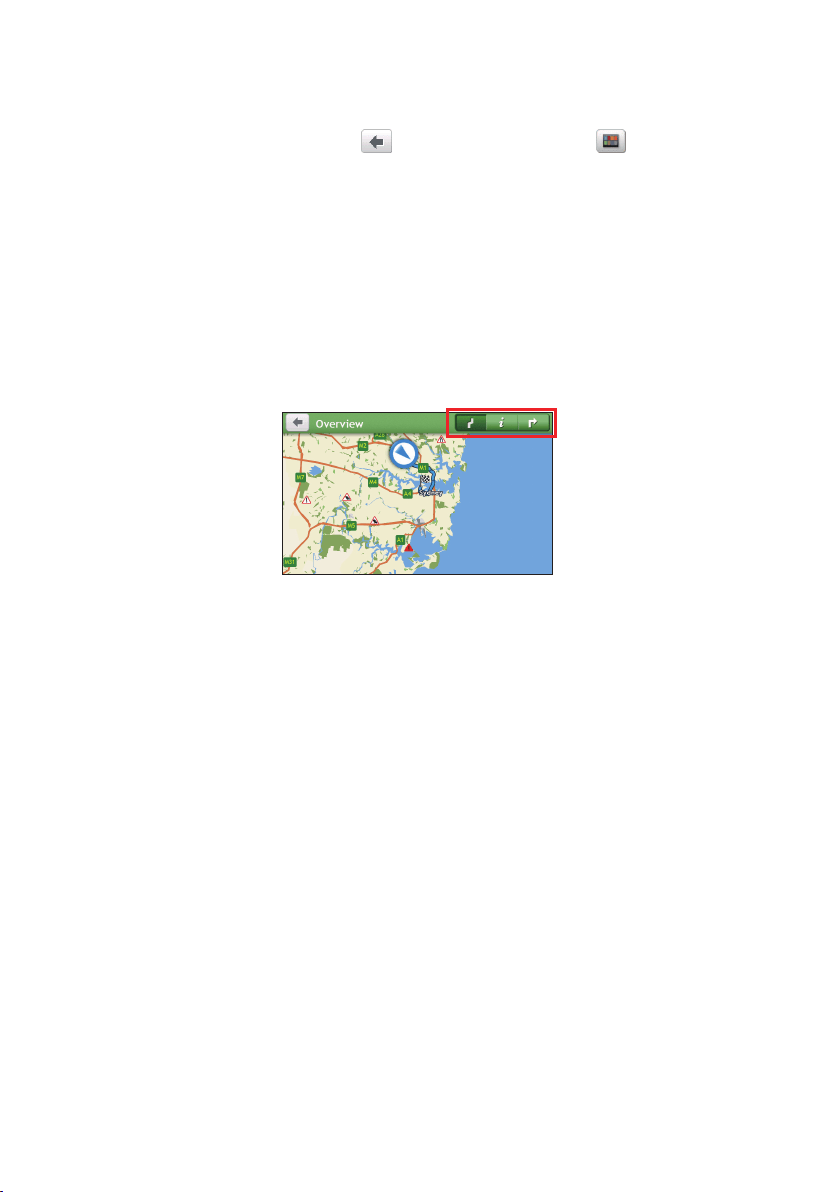
17
Navigating through the menu screens
ThesystemprovidestheBackbutton(
)andMainMenubutton()inthetitlebarof
themenuscreenwhichallowyoutonavigatethroughthemenuscreenseasily.Youcan:
•ReturntothepreviousscreenbytappingtheBackbutton.
•ReturntotheMainMenubytappingtheMainMenubutton.
Note:Insomemenuscreens,theMainMenubuttonwillnotappearinthetitlebar.Inthisinstance,
youmayhavetotaptheBackbuttontwice.
Insomemenuscreens(suchasthemapOverviewscreen),thesystemprovidesthetab
buttonsinthetitlebarthatallowyoutoentertheadditionalpageinthemenuscreen.
Simplytapthedesiredtabtochangetheview.Theselectedtabwillbehighlightedasa
darker-colourtab.
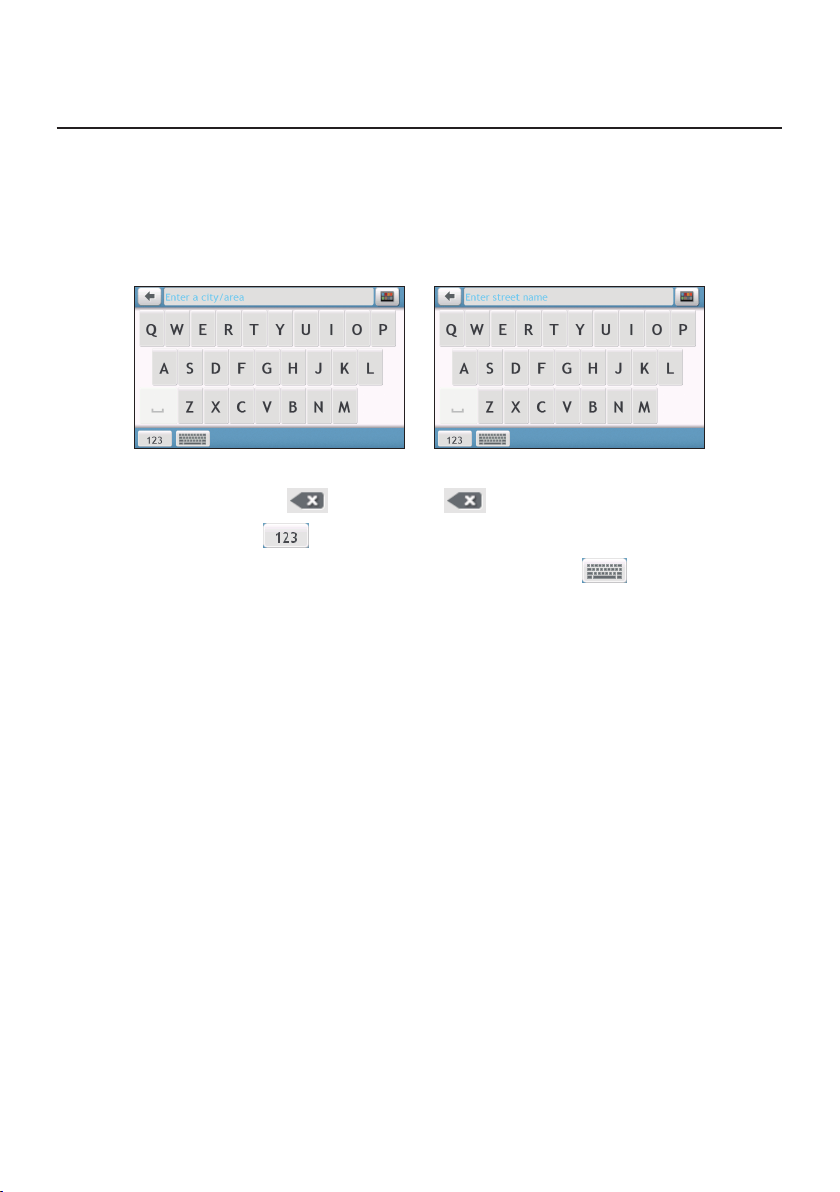
18
Using the Keyboard screen
TheKeyboardscreenwilldisplaywhenyouarerequiredtoentertext,suchaswhen
searchingforastreetname.
TheKeyboardscreencandisplaywithvariouslayoutsdependingontheinformationyou
needtoenter,includingalphabets,numbers,alternatecharactersandcombinationsof
these.
•Toselectacharacter,tapthecharacter.
•Todeleteacharacter,tap
.Tapandholdtodeletetheentiretext.
•Toenternumbers,tap
.
•TosetthekeyboardpreferencefromtheKeyboardscreen,tap
.Selectthe
preferredkeyboardtypefromthelist.
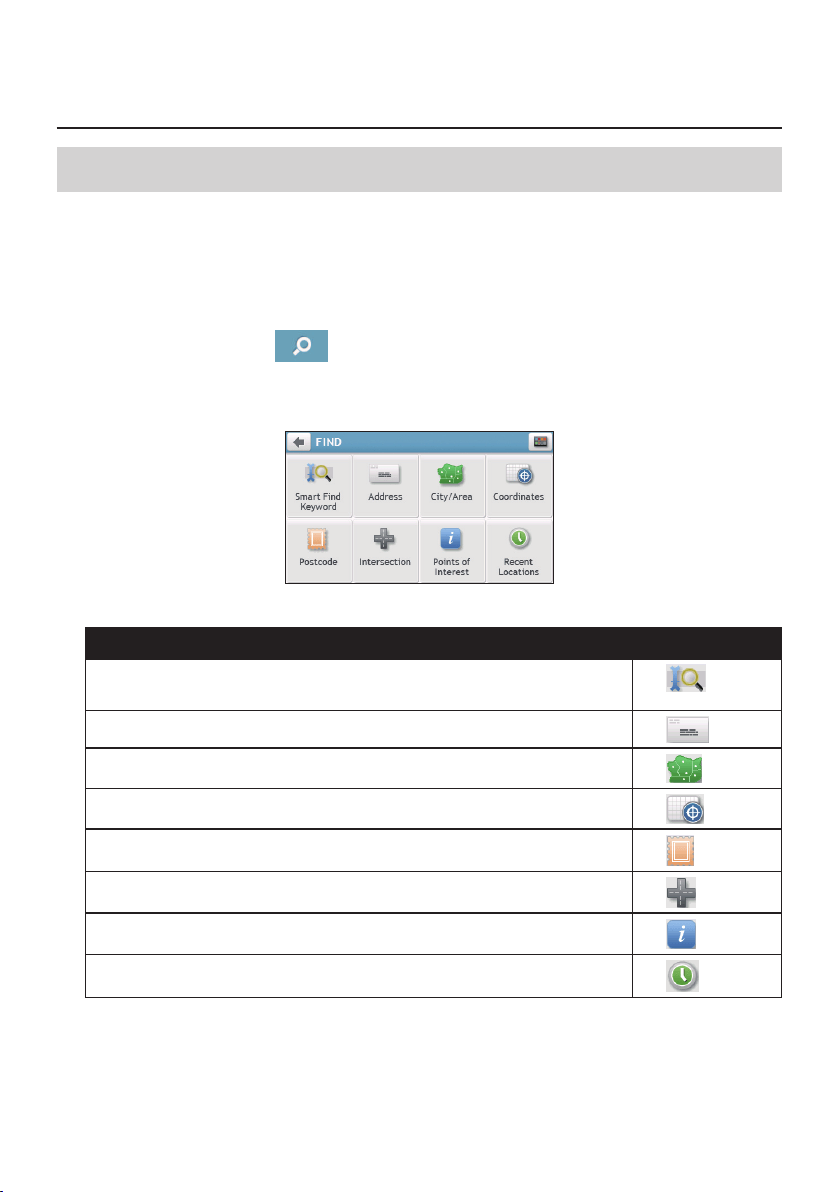
19
How do I go from A-B?
CAUTION:Foryoursafety,enterdestinationinformationbeforeyoustartajourney.Donotenter
adestinationwhiledriving.
How do I use the FIND wizard?
YourNavmanisequippedwithmapsthatprovidestreet-leveldetailsfordoor-to-door
navigation,includingPOIssuchasaccommodation,parkingareas,petrolstations,railway
stationsandairports.TheFINDwizardallowsyoutosearchthelocationeasily.
1.OntheMainMenu,tap
todisplaytheFINDscreen.
TheoptionsontheFINDscreenmaydiffer,dependingonyourregion,mapsinstalledor
Navmanmodel.
2.Completethefollowing:
If you want to… Then…
searchallinformationonthedevice-city,streets,namedsites,features,
landmarksorvenues,
tap
.
searchforanaddress,
tap
.
searchforacity/area,
tap
.
searchforalocationusingaGPScoordinate,
tap
.
searchalocationbypostcode,
tap
.
searchforastreetintersection,
tap
.
searchforaPOI,
tap
.
navigatetoarecentlyvisitedlocation,
tap
.
Note: FormoreinformationonsearchingforaPOI,seethe“HowdoIsearchforaPOI?”section.
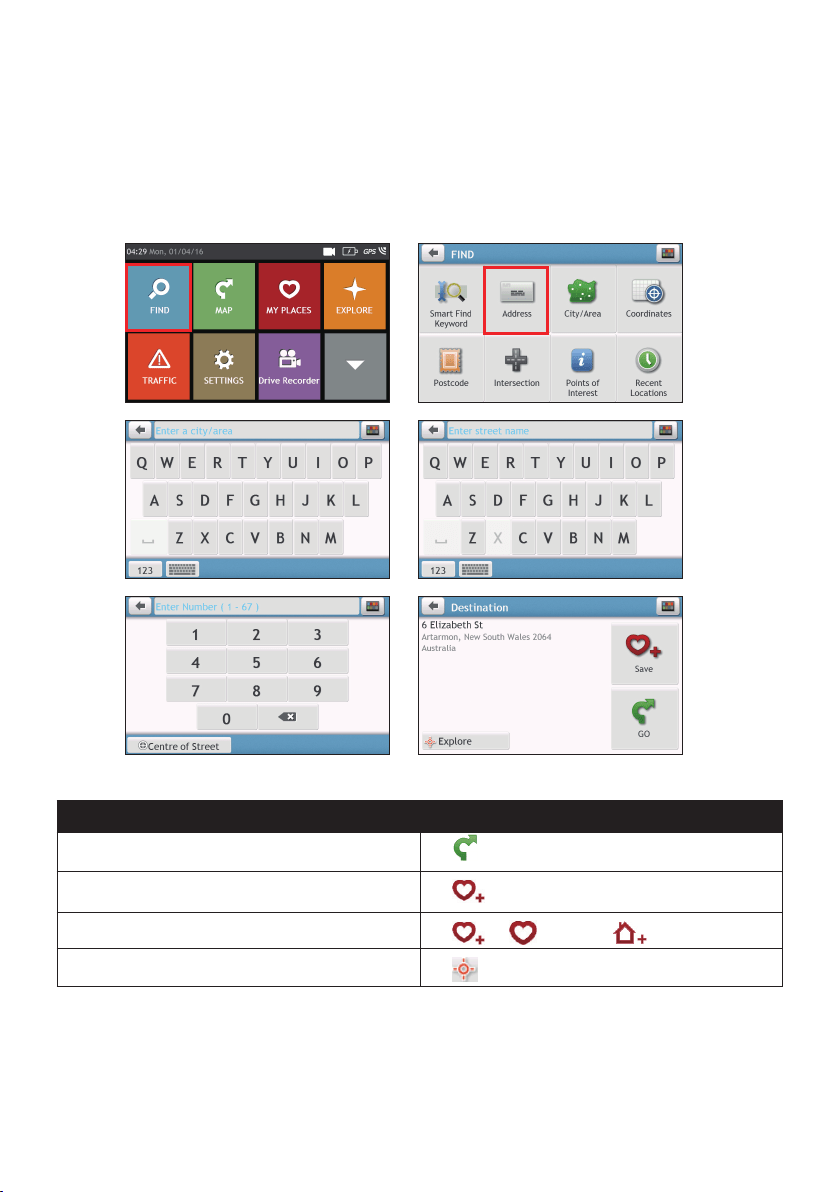
20
How do I plan my first trip?
Note: Menudisplaysmayvary,dependingonyourNavmanmodel.
UsingyourNavmantoplanyourrsttripiseasy.Thereareseveralwaystoselectyour
destination.Thefollowingstepswillshowyouhowtoplanyourroutebysearchingthe
address.
Completethefollowing:
If you want to… Then…
calculatetherouteandstartnavigating,
tap
.
savethelocationasafavourite,
tap
.
savethelocationasHome,
tap
.Thentap.
explorethemap,
tap.
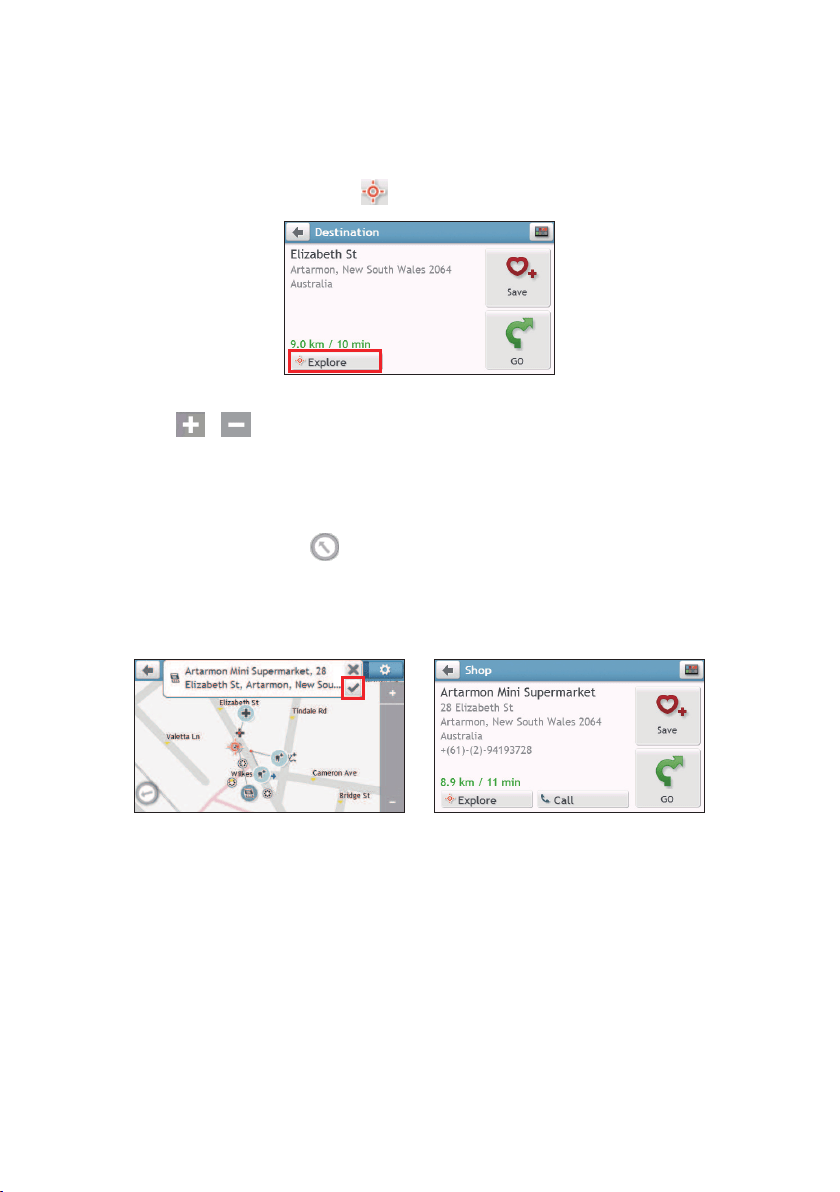
21
How do I preview the destination on map?
Aftersearchinganaddress(oraPOI),youcanpreviewthedestinationonmaptoexplore
theareanearthelocation.
1.OntheDestinationscreen,tapthe
buttontodisplaythedestinationpreviewmap.
2.Onthedestinationpreviewmap,youcan:
•Tapthe
/buttontozoomin/outthemap.
•ViewtheinformationofyourdestinationthatisshownatthetopoftheMapscreen.
•Taponastreet/area/POItodisplaytherelatedinformationofthelocationnearyour
destination.
•Tapthegreyarrowicon(
)toreturntoyourcurrentpositiononthemap.
•Dragandthentaponthemaptoselectotherdestinations.Theinformationofthe
selectedstreet/area/POInearyourdestinationwillbedisplayed.Tappingthecheck
markwillbringuptheDestinationscreenoftheselectedlocation.
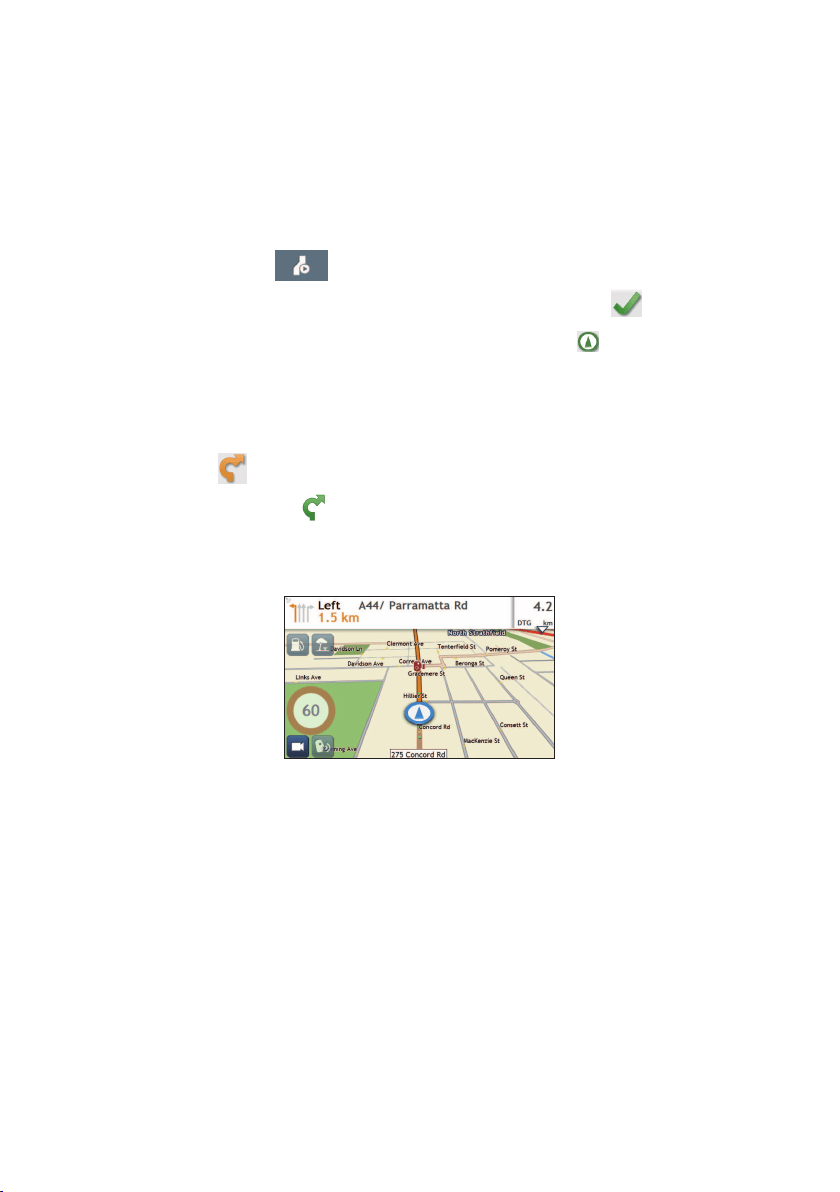
22
How do I preview a route?
Youcanplanarouteinsimulationmodethatallowsyouto:
•previewaroute.
•planandviewaroutewithoutaGPSx,suchaswhenyouareinsideabuilding.
Thefollowingstepswillshowyouhowtopreviewaroute.
1.OntheMainMenu,tap
.
2.SelectadeparturepointthroughtheLeavingfromscreen,andtap
.
Note:IfyouhaveaGPSx,youcansimplyselectthe Here button()sothatyoudonotneed
toselectadeparturepoint.Otherwise,usetheFINDaddresswizard,Exploremap, My Places/
Recent placesmenuorHometosetthedeparturepointifyouwantthedemonstratedrouteto
startelsewhere.
3.SelectadestinationpointthroughtheGoingtoscreen.
4.Whendone,tap
.
5.Selectaroutetypeandtap
,andtheroutedemonstrationwillstartautomatically.
TheMapscreenwilldisplaythecalculatedrouteinroutesimulationmode.The
simulatedroutewillbedisplayedasorangecolour.
Changing the navigation mode
Large Vehicle and Professional Truck modes
Note:Thisfeatureisnotavailableonallmodels.
TheLargeVehicleandProfessionalTruckmodesarespecicallydesignedforlargevehicles.
Withtheinputofyourvehicleortrailerdetails,themodeenablestocalculatesaferand
moreefcientroutestoavoidthelength/width/height/weightrestrictedtunnelsand
bridges,aswellassharpturnsandnarrowcountrylanes.
Note:Donotrelysolelyonthisproductanditsfeatures.Usingthisproductdoesnotchangethe
requirementforadrivertotakefullresponsibilityfortheirbehaviour.Thisresponsibilityincludes
observingalltrafcrulesandregulationsinordertoavoidaccidents,personalinjuriesorproperty
damages.
23
1.OntheMainMenu,tap.
2.Selectyourlargevehicletype.
•Ifyourvehicleisupto9tonnes,selectLarge Vehicle.
•Ifyourvehicleisupto65tonnes,selectProfessional Truck.
3.Completethefollowing:
If you want to… Then…
setthedetailsforyourtruck,enterthefollowingdataofthetruck:
•totaltruckweight
•maximumaxleweight
•totaltrucklength
•maximumtruckwidth
•maximumtruckheight
Note: Youmustcompletethedetailsofthetruck
settingsbeforeyoucanusetheLargeVehicle/
ProfessionalTruckmodetoplanyourroute.
drivetheroadtraintypevehiclesinthe
ProfessionalTruckmode,
tapB-Doubletoturniton.
limittherouteplanningwhileshipping
hazardousmaterialsintheProfessionalTruck
mode,
tapHazmat(HazardousMaterials)andthen
selectthecorrectoptionfromthelist.
enable/disablethespeedlimitalerts,tapSpeed limit display /Speed limit alerts
toturnitonoroff.
Note: Bydefault,thespeedlimitalertissetto100km/h.
Note: IntheLargeVehicle/ProfessionalTruckmode,yourcurrentpositionwillbedisplayedwiththe
icon.
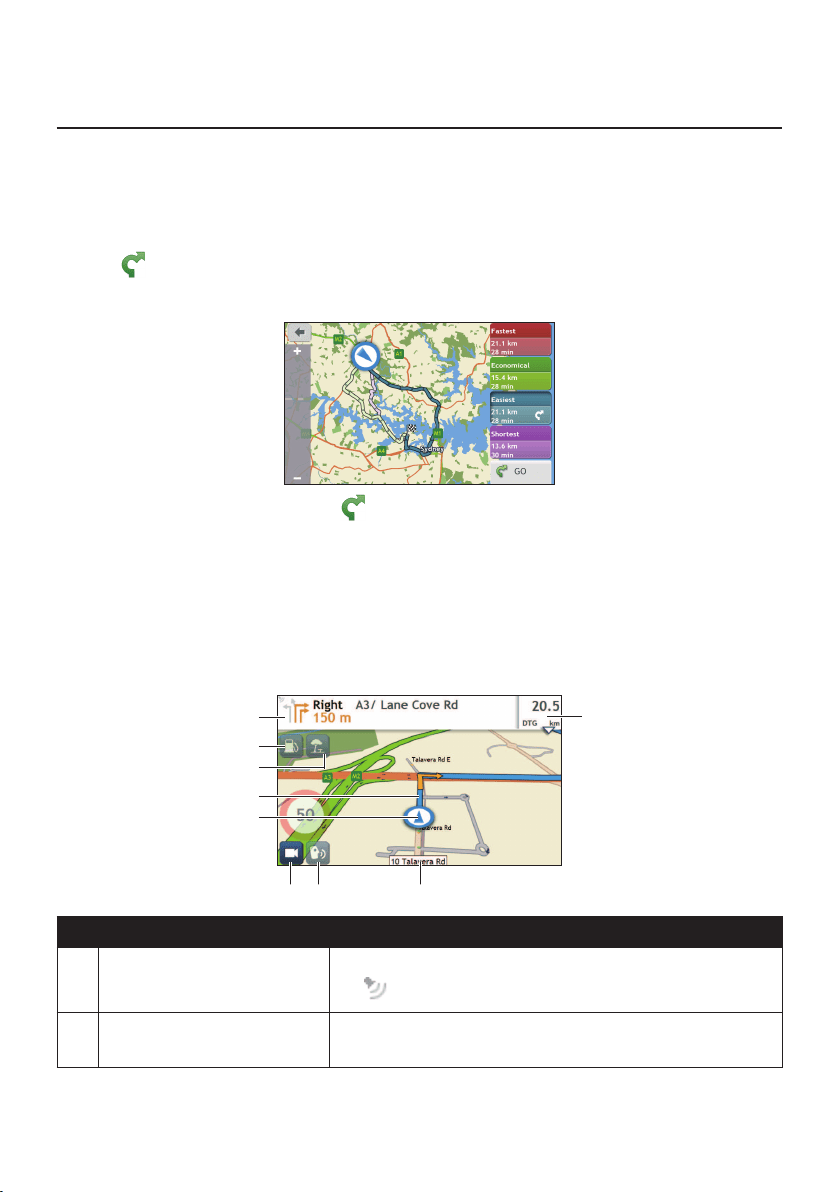
24
How do I view my route?
How do I select the route type?
Note:Thisfeatureisnotavailableonallmodels.
DependingonyourNavmanmodel,theSelectRouteTypescreenmaybedisplayedwhen
youtap
fromtheDestinationscreen.Allofthefourroutetypes(Fastest,Economical,
Easiest,andShortest)willbecalculated.
Selectyourpreferredrouteandtaptostartnavigating.
Note:Formoreinformationonsettingthepreferredroutetype,seethe"Routeoptions"sectionin
“Customisingthesystemsettings.”
The driving map
Whenaroutehasbeencalculated(andselected,forsomemodels),theMapscreenwill
display.Youwillbedirectedtoyourdestinationbyspokenandvisualinstructions.
Item Description
Direction and distance of
next turn
Thedirectionanddistancetoyournextturn.
Tap
torepeatthevocalinstruction.
Petrol stations
Searchforthenearestpetrolstations.
Note:Thisfeatureisnotavailableonallmodels.
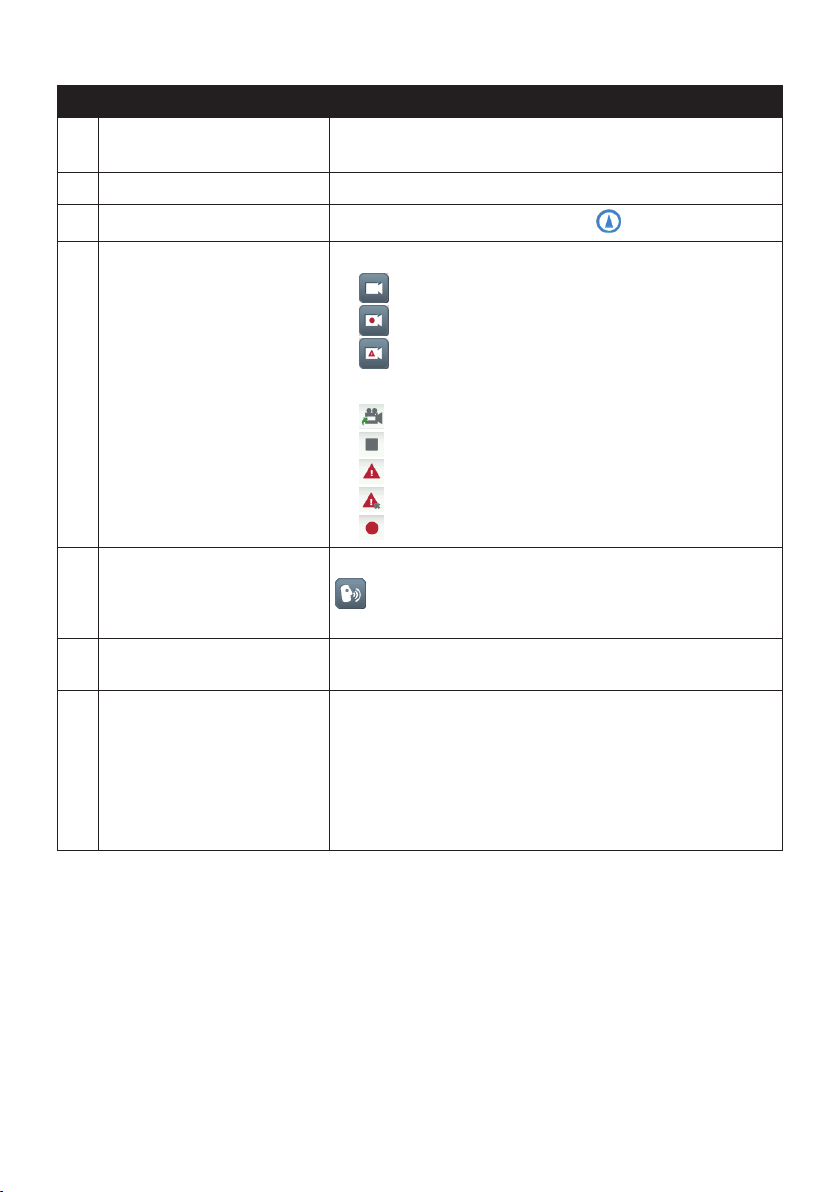
25
Item Description
Rest stops
Searchforthenearestreststops.
Note:Thisfeatureisnotavailableonallmodels.
Current route Yourcurrentrouteishighlighted.
Current position
Yourcurrentpositionismarkedwith
.
Driving Recorder Thestatusofyourdriverecording.
•
:notrecording.
•
:continuousrecording.
•
:emergency/eventrecording.
Taptoaccessthefollowingoptions:
•
:changestotherecordingscreen.
•
:stopstherecording.
•
:changestoemergency/eventrecording.
•
:stopsemergency/eventrecording.
•
:startstherecording.
Voice command DependingonyourNavmanmodel,youmaybeabletotap
tousetheVoiceCommandfunction.
Note:Thisfeatureisnotavailableonallmodels.
Address bar Thecurrentaddresswillbedisplayedinthetextboxatthe
bottomofthescreen.
Distance and time
information
Taptoexpandandselectthefollowingoptions:
•DTG(DistancetoGo)
•TTG(TimetoGo)
•km/hormph(speed)andcompassheading
•ETA(EstimatedTimeofArrival)
•Time
Note:Dependingonyourdrivingroute,youmayseesomeiconsthatprovidedifferentinformation
onyourMapscreen.Pleasenotethattheseiconswillnotbealwaysdisplayedduringyourjourneys.
How do I change the route configuration?
TapanywhereontheMapscreentobringuptheMapoptionsscreen,whichallowsyouto
changetheroute-relatedconguration.
Formoreinformationonchangingtherouteconguration,seethefollowingsections.
Note:Mapoptionsscreendisplayandtheorderoftheitemsmayvary,dependingonyourregion,
mapsinstalledorNavmanmodel.
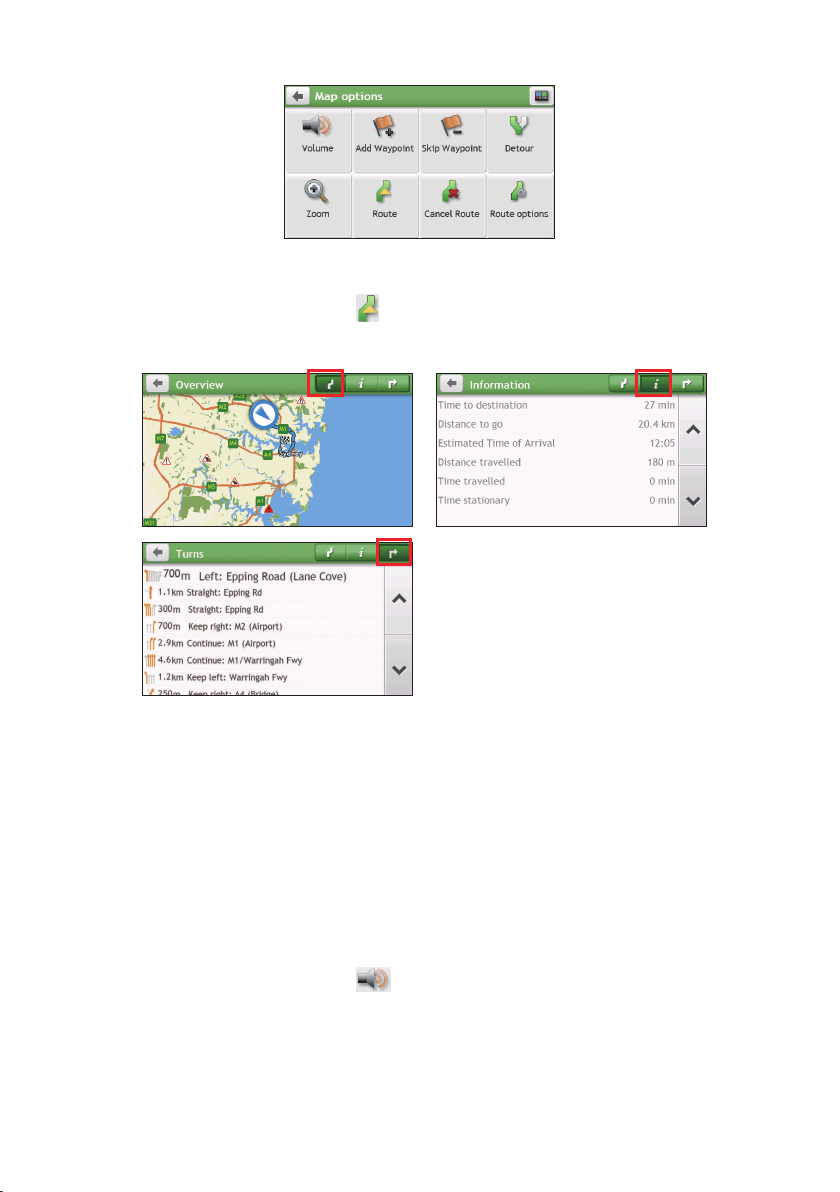
26
How do I view my route statistics?
1.FromtheMapoptionsscreen,tap
.
2.Tapthetabsinthetitlebartoviewtheadditionalinformationinthedifferentscreens.
3.YourNavmanprovidestheinformationonyour:
•timetodestination•timetravelled
•distancetogo•timestationary
•estimatedtimeofarrival•TTD/DTG/ETAforthejourney*
•distancetravelled•trafcdelay*
*Dependingontheroutecalculated,youmayseemoreinformationonthescreensuchasthe
estimatedtime/distancetothenextstopwhenyourtripcontainsmultiplewaypointsandthetrafc
delayinformationifatrafceventoccursinyourtrip.
How do I adjust the volume?
1.FromtheMapoptionsscreen,tap.
2.ThevolumebuttonswillbedisplayedontheMapscreenintranslucentmode.
Note:Thevolumebuttonswillautomaticallydisappearafterthemapisidledfor5seconds.
3.Completethefollowing:
27
If you want to… Then…
increase/decreasethevolume,
tap
/.
Thevolumebarindicatesthecurrentvolume
level.
mute/unmute,
tap
.
Thespeakericonindicatesthestatus:
:muted:unmuted
How do I zoom in/out the map?
1.FromtheMapoptionsscreen,tap
.
2.ThezoombuttonswillbedisplayedontheMapscreenintranslucentmode.
Note:Thezoombuttonswillautomaticallydisappearafterthemapisidledfor5seconds.
3.Completethefollowing:
If you want to… Then…
zoominthemap,
tapandhold
.
zoomoutthemap,
tapandhold
.
How do I view the traffic status on my route?
Note:Trafcinformationisnotavailableonallmodelsandisonlyavailableinselectedcountries.
YoucanviewthetrafcstatusbytappingontheMainMenu.
Formoreinformation,seethe“HowdoIreceivecurrenttrafcinformationviaTMC?”
section.
Advanced routing functions
Smart Routes
YourNavmanfeaturesSmartRoutes,whichintelligentlyanticipatescongestedroadsatpeak
timessothattheycanbeavoided.SmartRoutesdoesthisbyusinghistorical,anomalised
datafrommillionsoffellowdrivers.SinceSmartRouteshelpsyouautomaticallyavoid
predictedheavycongestion,youwillbeabletosavetimeandmoneyduringyourjourneys.
Note:SmartRoutesisnotavailableonallmodelsandisonlyavailableinselectedcountries.

28
My Drive
Note:Thisfeatureisnotavailableonallmodels.
WithMyDrivetechnology,yourNavmanincludesanintelligentcapabilitythatlearnsand
adaptstoyourpersonaldrivingstyle.Overtime,yourNavmanlearnsyourpreferencefor
roadtypesanddrivingspeeds,turnsandmore.YourNavmanwillsavetheinformationand
provideamorepersonalisedrouteandaccuratetimeofarrivalthenexttimeyouplanatrip.
Note:FormoreinformationaboutSmartRoutesandMyDrivesettings,seethe"Routeoptions"
sectionin“Customisingthesystemsettings.”
Back-On-Track™ automatic rerouting
Youwillberedirectedifyoumakeawrongturn.Amessageinformingyouthatyourrouteis
beingrecalculatedwilldisplayatthetopofthescreen.
Tocancelarouterecalculation,tap
fromtheMapoptionsscreen.Awarningwilldisplay
askingyoutoconrmthecancellation.Ifconrmed,boththerecalculationandyourcurrent
routewillbecancelled.
Parking assistant
Note:Thisfeatureisnotavailableonallmodels.
Youwillberemindedoftheparkinginformationwhenyouarearrivingatthedestination
(within1km)oftheroute.Simplytapthe
iconontheMapscreentoshowthenearby
parkinglotsthataresortedbydistance.
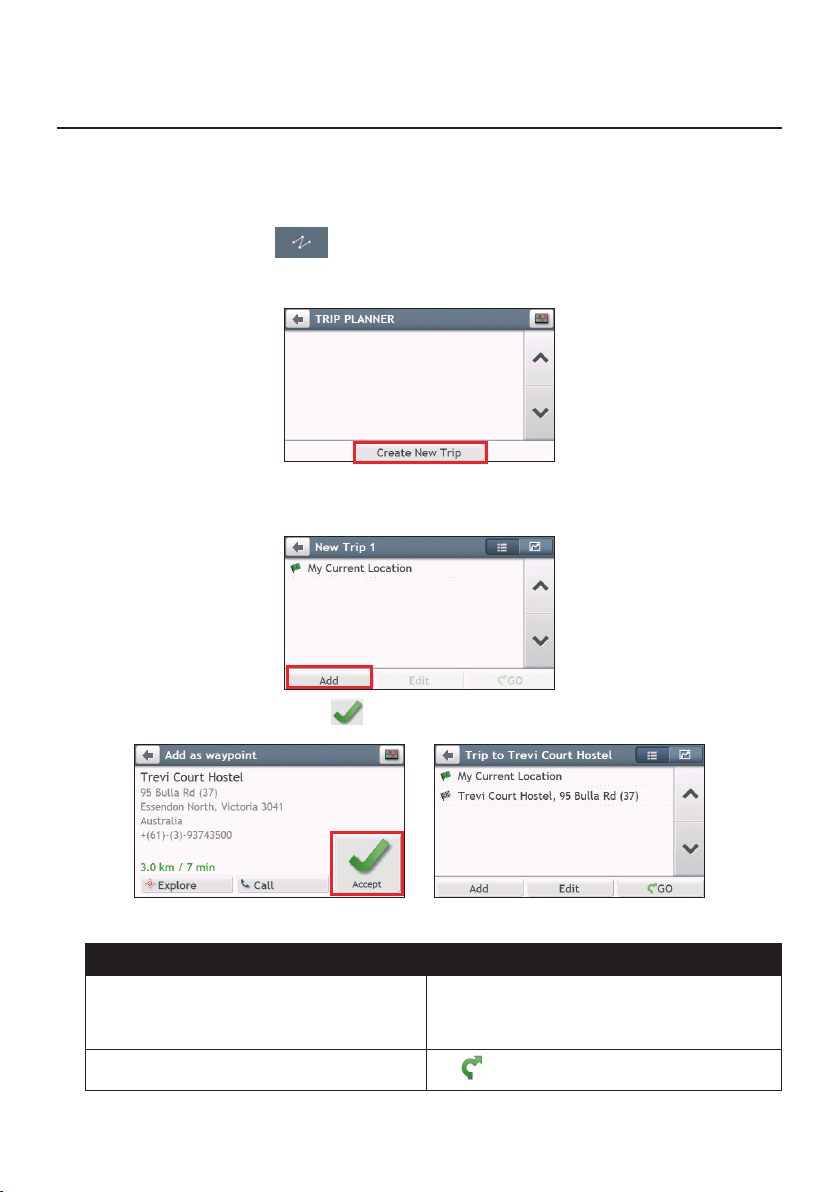
29
How do I create a trip with multiple stops?
Note: TripPlannerisnotavailableonallmodelsandisonlyavailableinselectedcountries.
DependingonyourNavmanmodel,youmaybeabletosetmultiplestopsorwaypointsfor
yourtrip.Yourroutewillbecalculatedtogoviaeachofthesepointsinthespeciedorder.
1.OntheMainMenu,tap
.
2.TapCreate New Trip.
3.TapAdd.UsetheFIND addresswizard,Explore map,My Places/Recent
LocationsmenuorHere/Return to start tosetthewaypoint.
4.Whenyoursearchisdone,tap.
5.Completethefollowing:
If you want to… Then…
addanotherwaypoint,tapAdd.
Note: Waypointsaddedafteramulti-stoptriphas
commencedwillnotbeincludedinthecurrentroute.
navigatetoyourselecteddestination,
tap
.
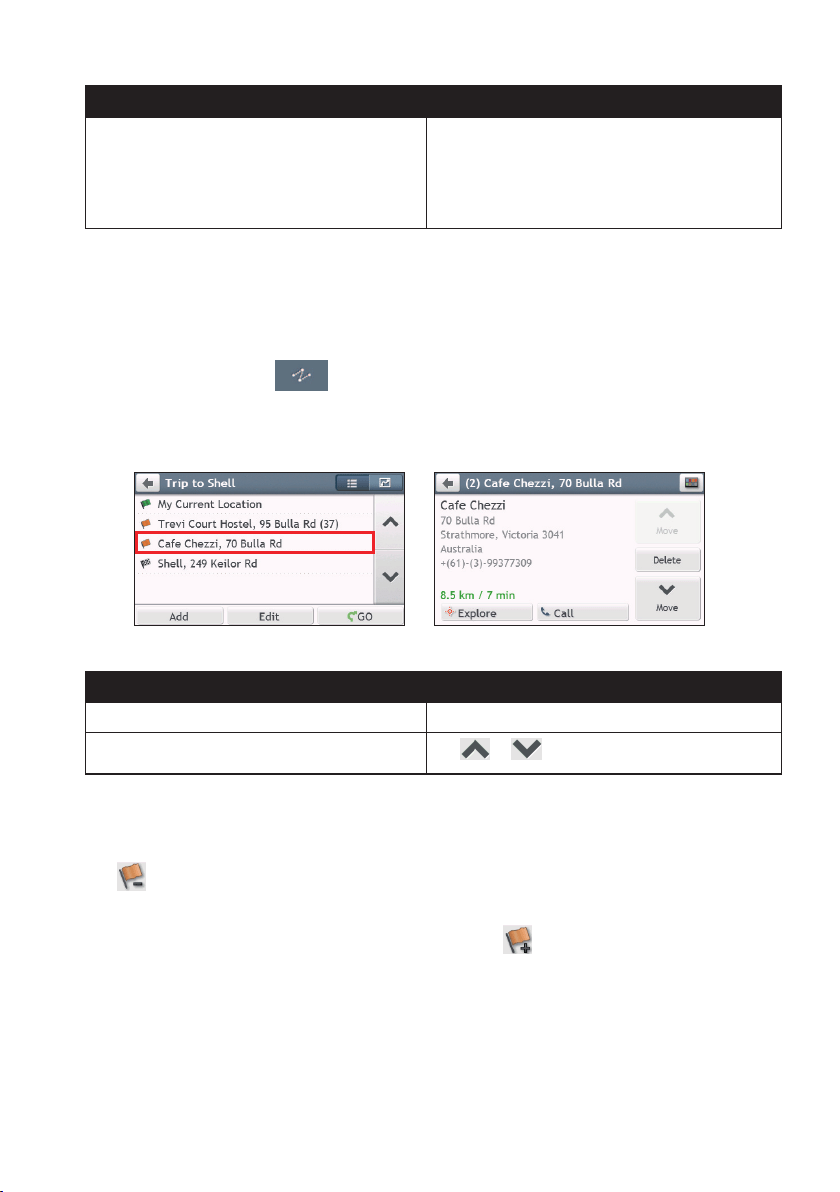
30
If you want to… Then…
editthetrip,tapEdit,thenyoucan:
•optimiseyourtripbyselectingOptimise.
•changethetriptitlebyselectingRename.
•deletetheplannedtripbyselectingDelete.
Note:The Optimisefunctiondoesnottakeallthefactorsintoaccount. Yourwaypointsmightbe
reorderedtoreduceyourestimatedtraveldistance.Besuretoconrmthetriponthemapandmake
adjustmentsasappropriate,particularlyifyourtripreturnstothestartlocation.
How do I edit the waypoints in the trip?
1.OntheMainMenu,tap
.
2.Tapthetriptoedit.
3.Tapthedesiredwaypointinthetrip.
4.Completethefollowing:
If you want to… Then…
deleteawaypoint,tapDelete,thenselectOK.
changetheorderofthewaypoint,
tap
or.
How do I skip a waypoint during a multi-stop trip?
1.TapanywhereontheMapscreentobringuptheMapoptionsscreen.
2.Tap
,thenselectYes.Thenextwaypointwillbeskippedandtherouterecalculated
tothefollowingwaypoint.
Note:YoucanalsoaddwaypointsduringthetripbyselectingfromtheMapoptionsscreen.
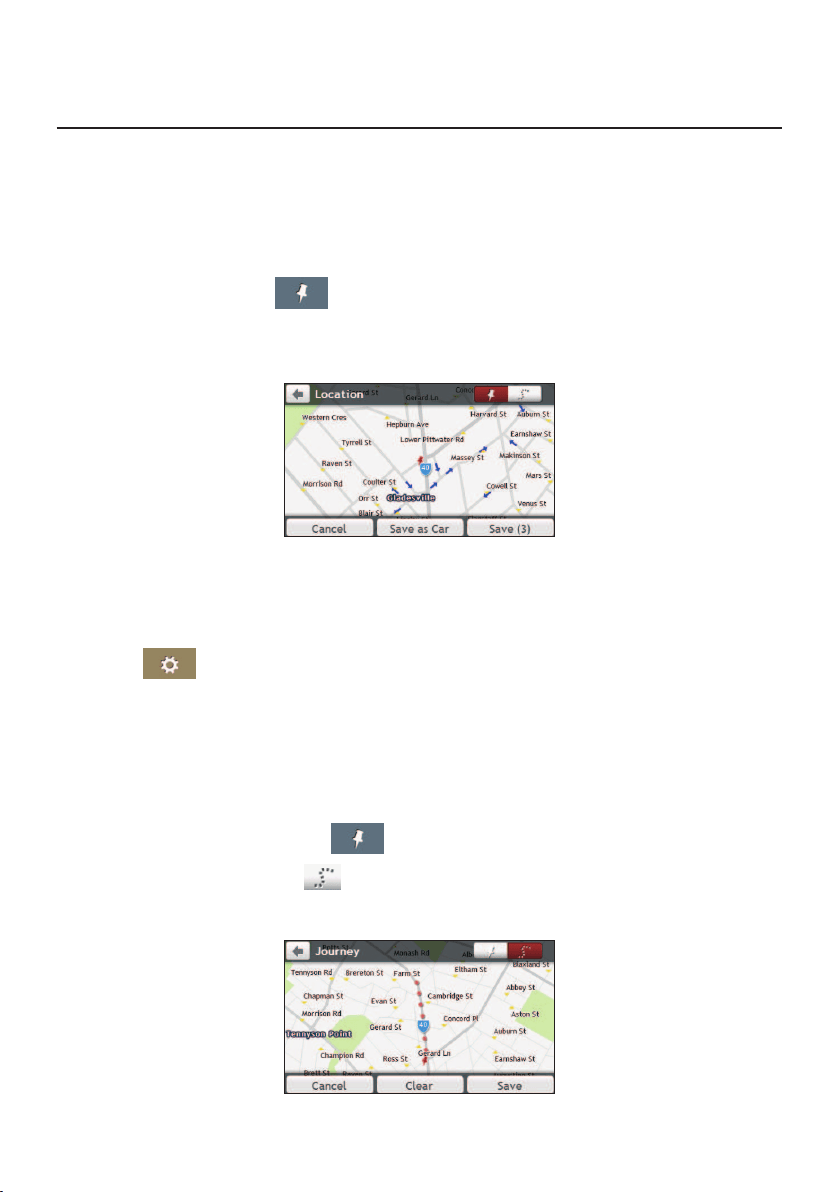
31
How do I capture a location or a journey?
Note:Thecapturefunctionalityisnotavailableonallmodels.
YourNavmanmayhaveacapturefeaturewhichallowsyoutorecordGPSco-ordinatesofa
locationandcaptureajourney,andsavethemsoyoucannavigatebackatalatertime.
How do I capture the GPS co-ordinates of my location?
1.OntheMainMenu,tap
.
2.TapSave,orwaitfor5seconds.YouwillhearashuttersoundtoindicatethattheGPS
co-ordinateshavebeensaved.ThelocationissavedinMyPlaces.
Note:TappingSave as CarwillsavethecurrentcarlocationinMyPlaces.
How do I capture a journey?
Toenablecapturingofjourneys,youmustrstenableCapture JourneyfromtheMain
Menu:tap
Route options.Formoreinformation,seethe“Customisingthe
systemsettings”section.
1.Atthebeginningofthejourneyyouwouldliketorecord,tapClear.Alltravelthat
youhavemade(i)sincemidnight,(ii)theprevioustimeyoutappedClear,or(iii)last
capturedajourney,willbedeleted.
2.Travelonyourjourney.YourNavmanwillkeeparecordofwhereyoutravel.
3.Attheendofyourjourney,tap
ontheMainMenu.
4.OntheCapturescreen,tap
.
5.TapSave,then Yes.ThejourneyissavedinMyPlaces.
32
How do I navigate to a location I have captured?
1.OntheMainMenu,tap
.
2.Tapthecaptureddestinationyouwanttotravelto(
).
3.Tap
.YourNavmanwillcalculatearoutefromyourcurrentlocation.
How do I navigate to the saved car location?
Note:Thisfeaturemaynotbeavailableforallmodels.
1.OntheMainMenu,tap.
2.TapFind My Car.
3.Tap
.YourNavmanwillcalculatearoutefromyourcurrentlocation.
How do I view a journey I have captured?
1.OntheMainMenu,tap
.
2.Tapthecapturedjourneyyouwanttoview(
).
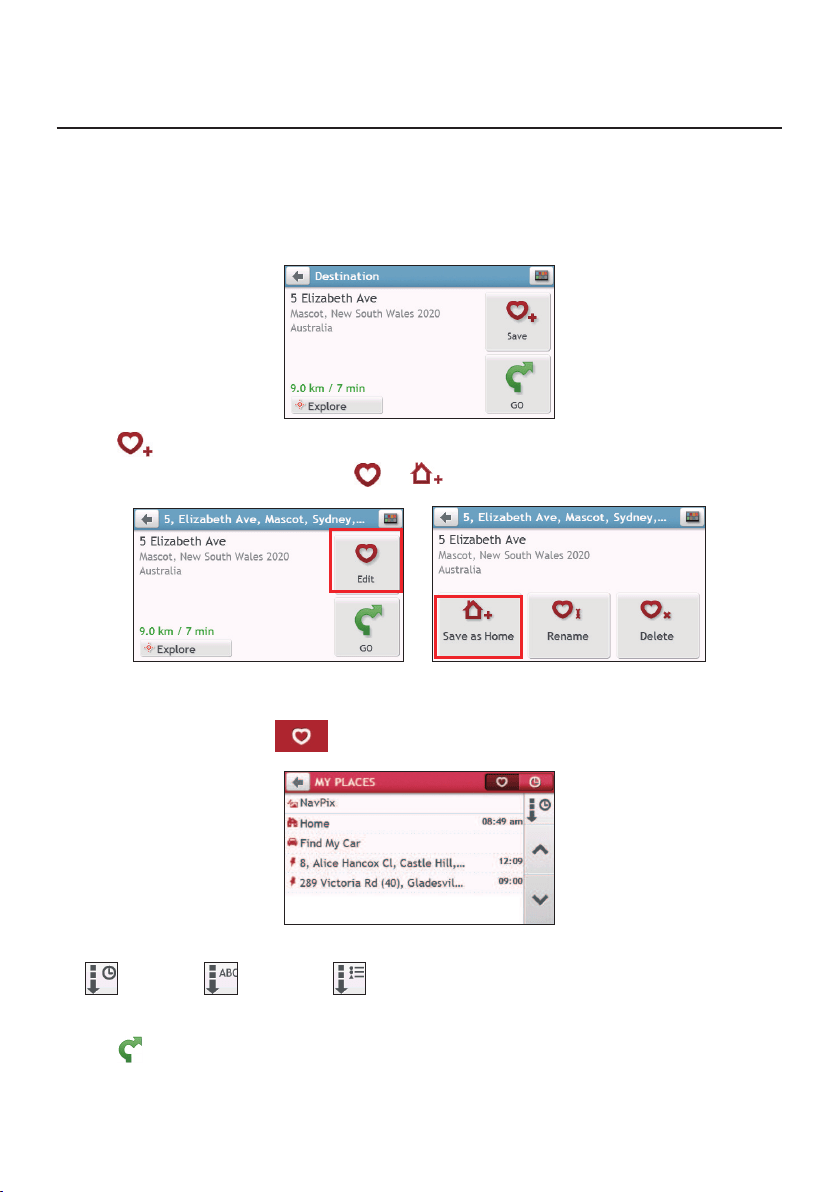
33
My Places
MyPlaceshasallyoursavedlocations.
How do I save a location as My Place or Home?
1.SearchforanaddressuntilthePreviewscreenisdisplayed.
2.Tap.ThelocationwillbeaddedtoMyPlaces.
3.TosavethelocationasHome,tap
.ThelocationwillbesetasHome.
How do I navigate to a location I have saved?
1.OntheMainMenu,tap
.
2.TaptheSortbybuttontochangethesortingorderoftheitems:
:bytime:byname:bytype
3.Tapthefavouritedestinationyouwanttotravelto.
4.Tap
.YourNavmanwillcalculatearoutefromyourcurrentlocation.
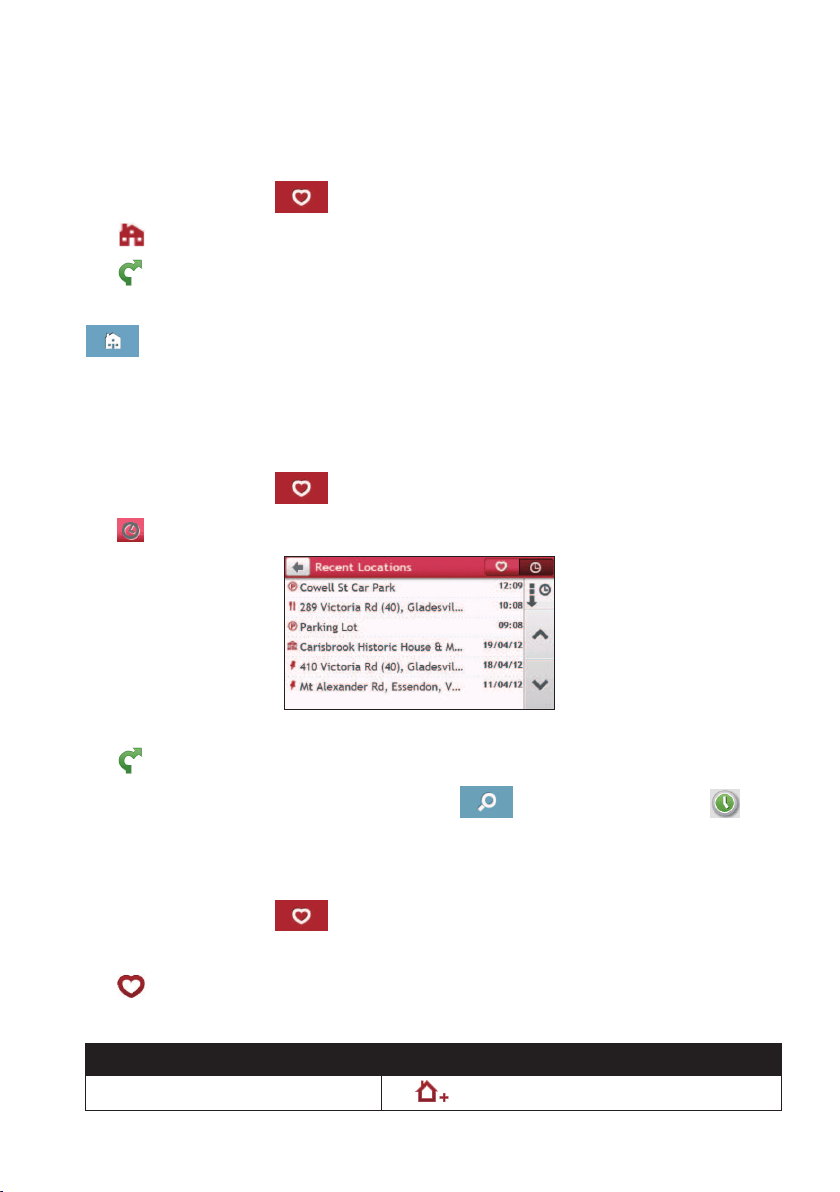
34
How do I navigate to Home?
IfyouhavenotsetanaddressasHome,thersttimeyoutrytonavigatetoHomeyouwill
bepromptedtosearchforanaddressusingtheaddress-entrywizard.
1.OntheMainMenu,tap
.
2.Tap
.
3.Tap
.YourNavmanwillcalculatearoutefromyourcurrentlocation.
DependingonyourNavmanmodel,onceyourhomehasbeensetonyourNavman,simply
tap
ontheMainMenuandyouwillbedirectedtoHome.
How do I navigate to a recent place?
Tomakenavigatingtoalocationeasier,yourNavmanwillautomaticallysaveallyourstart
locationsanddestinationsinalistofrecentplaces.
1.OntheMainMenu,tap
.
2.Tap
.
3.Taparecentplace.
4.Tap
.YourNavmanwillcalculatearoutefromyourcurrentlocation.
Note: DependingonyourNavmanmodel,youmaytapontheMainMenuandtapto
displayalistofrecentlocations.
How do I edit a saved location in My Places?
1.OntheMainMenu,tap
.
2.Selectalocationtoedit.
3.Tap
.
4.Completethefollowing:
If you want to… Then…
savethelocationasHome,
tap
.
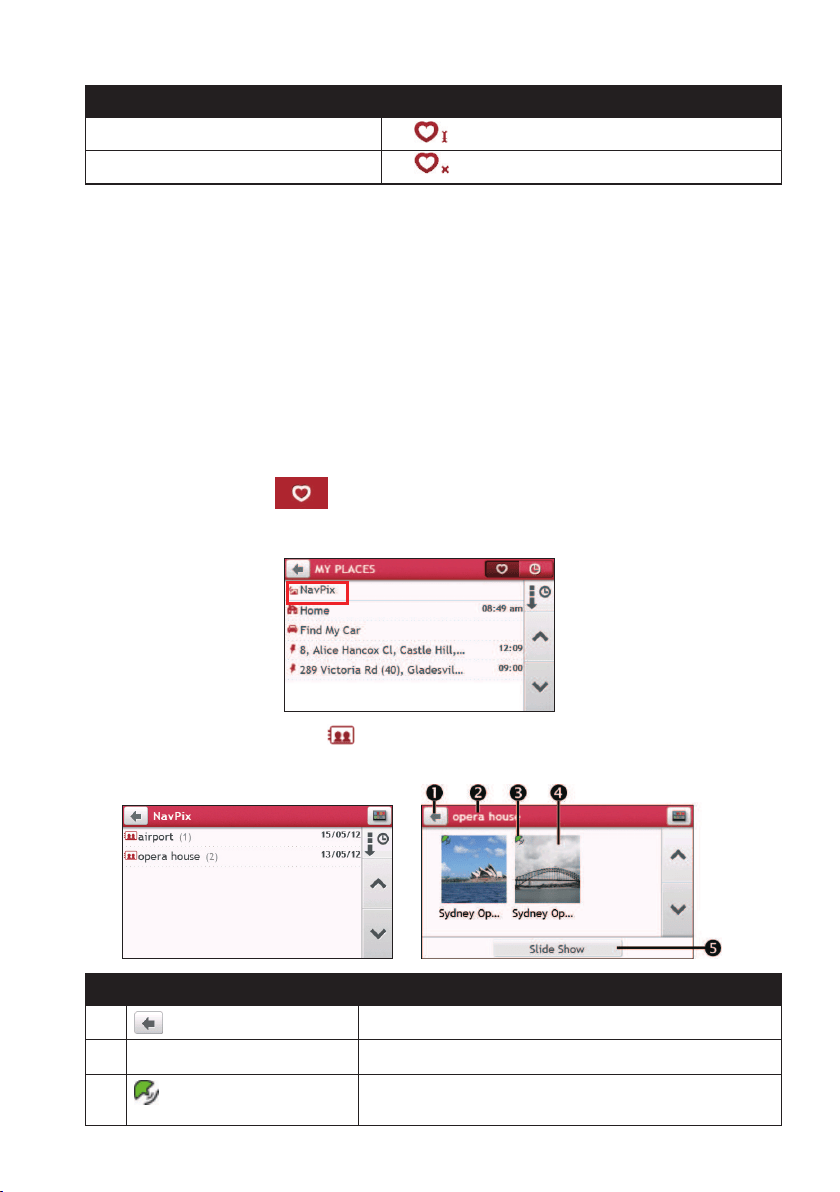
35
If you want to… Then…
renamethelocation,
tap
.Afteryouhaveeditedthename,tapOK.
deletethelocation,
tap
.
How do I navigate to a
NavPix™
?
Note:
NavPix™
isnotavailableonallmodelsandisonlyavailableinselectedcountries.
NavPix™
isanimageorpicture,normallyofalocation,whichcontainsembeddedGPS
co-ordinatesthatyoucannavigateto.
Tonavigatetoa
NavPix™
location,eitheraGPSxmusthavebeenavailablewhenthe
NavPix™
wastaken,orGPSco-ordinateshavebeenaddedusingNavDesk.
How do I navigate to a
NavPix™
?
Note: Formoreinformationaboutimportingthe
NavPix™
toyourNavman,seethe"PhotoAlbum"
sectionin“WhatisNavDesk?”
1.OntheMainMenu,tap.
2.TapNavPix.
3.Fromthelistselectthealbum()youwant.Thealbumcontainsyourpicturesand
displaysthemasthumbnails.
Item Description
Taptoreturntothepreviousscreen.
Album title Titleofthealbum.
Indicatesthatthepictureisa
NavPix™
withembedded
GPSco-ordinates.
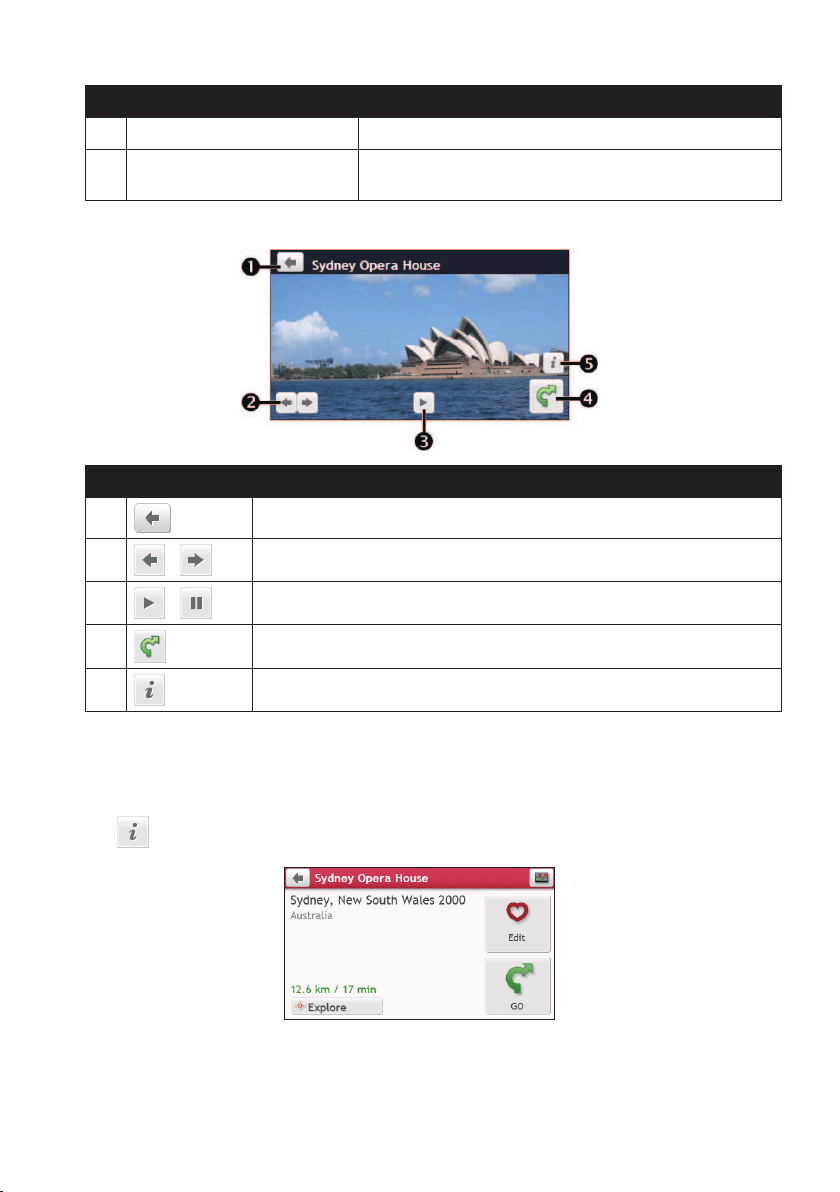
36
Item Description
Thumbnail Athumbnailofa
NavPix™
containedinthealbum.
Slide show Displaysallimagesinthealbumasafullscreen
slideshow.
4.Tapthedesiredthumbnailtoopenthe
NavPix™
infullscreen.
Item Description
Taptoreturntothepreviousscreen.
/
Taptodisplaytheprevious/next
NavPix™
.
/
Taptostart/stopslideshow.
Taptocalculatetheroute,opentheMapscreenandstartnavigating.
Taptodisplaythe
NavPix™
Details screen.
How do I edit the
NavPix™
?
1.FromtheAlbumscreen,tapthedesiredthumbnailtoopenthe
NavPix™
infull
screen.
2.Tap
.
3.Completethefollowing:
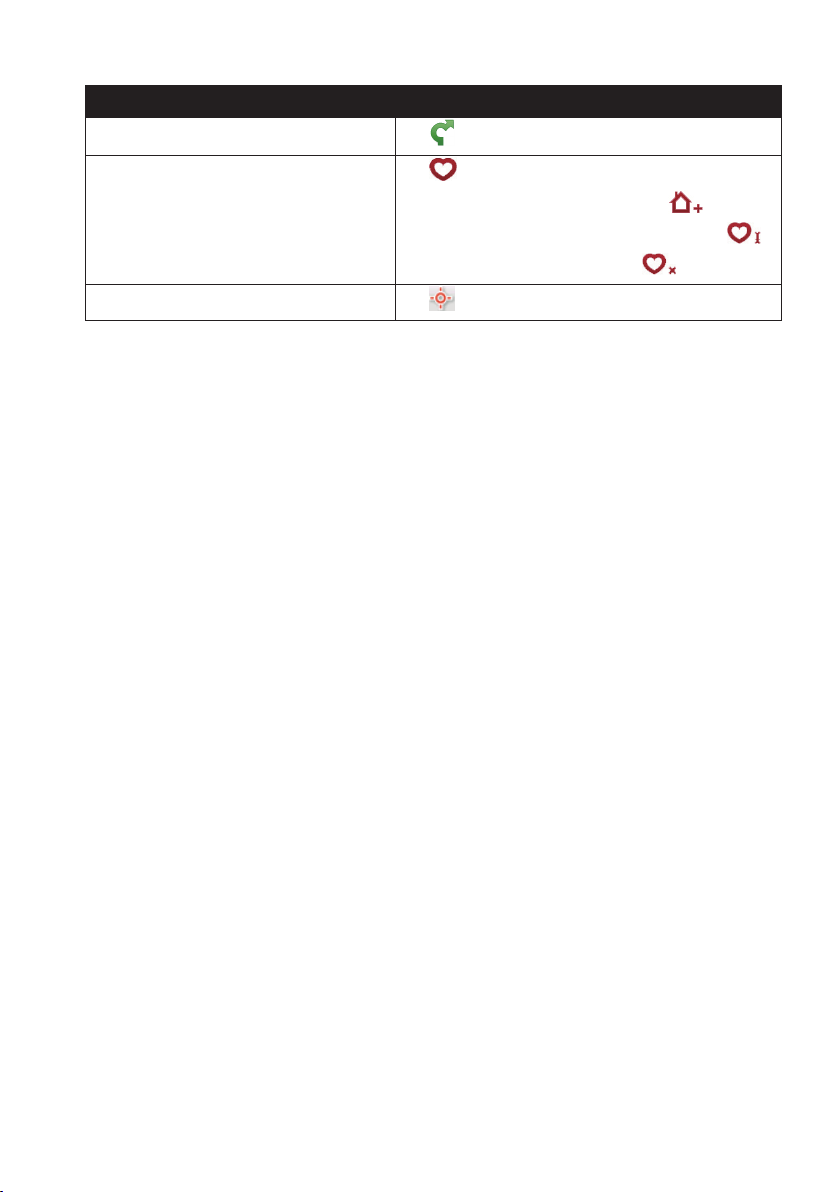
37
If you want to… Then…
calculatetherouteandstartnavigating,
tap
.
editthe
NavPix™
,
tap
.
•TosavethelocationasHome,tap
.
•Torenamethetitleofthe
NavPix™
,tap
.
•Todeletethe
NavPix™
,tap
.
explorethemap,
tap
.
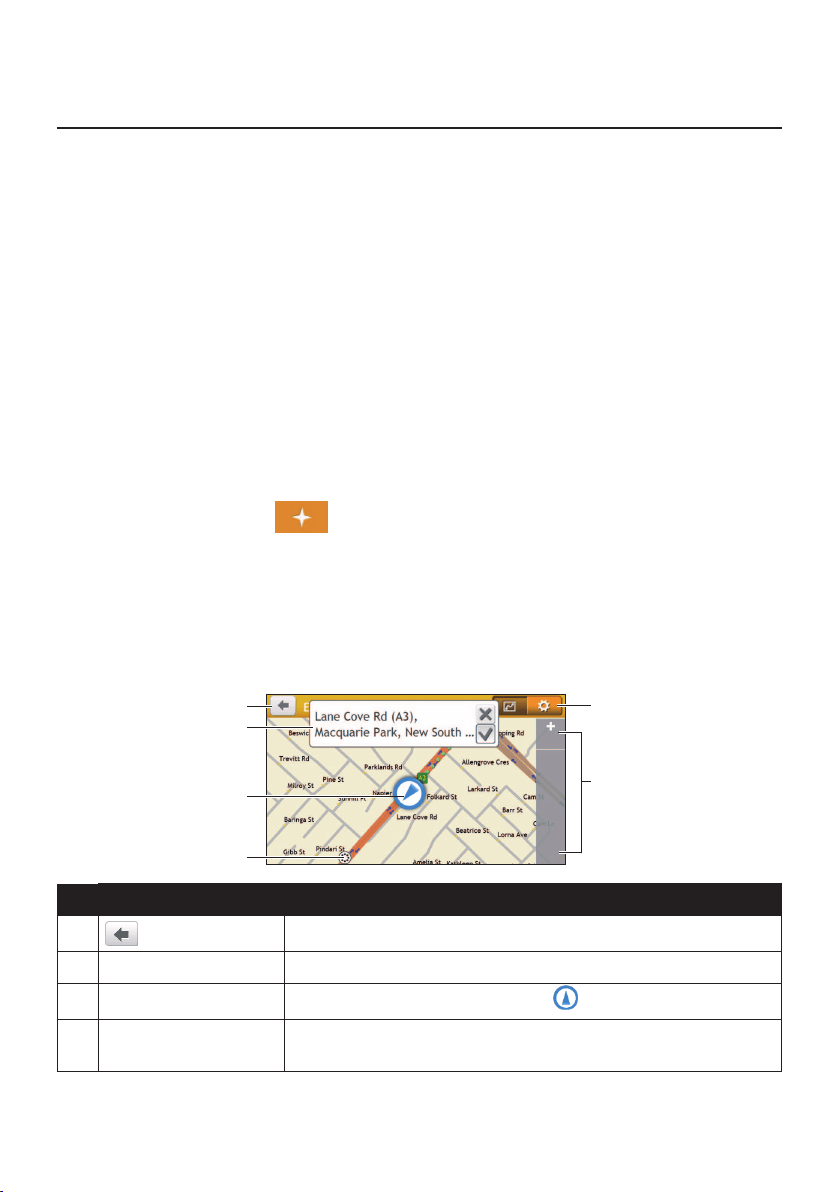
38
How do I search for a POI?
APOI(PointofInterest)isanamedsite,feature,landmarkorpublicvenuewhichcanbe
displayedasanicononthemap.POIsaregroupedbycategory,suchaspetrolstations,
parks,beachesandmuseums.
YourNavmanmayprovideseveralwaystosearchforthenearbyPOIs.Dependingonyour
Navmanmodel,youcansearchforthenearestPOIsbyusing:
•Explore
•thePOIcategorybuttonsontheMainMenu
How do I find the POIs using Explore?
Note: Exploreisnotavailableonallmodelsandisonlyavailableinselectedcountries.
DependingonyourNavmanmodel,youmaysearchforthePOIsusingtheExploremap.
TheExploremapallowsyoutoexplorethelocalareatondPOIsornavigatetoanaddress.
IfyoudonothaveaGPSx,themapwilldisplayyourlastknownposition.
1.OntheMainMenu,tap
.
2.OntheExploremap,youcan:
•ViewtheinformationoftheselectedPOIthatisshownatthetopofthescreen.
•Tapanddragthemaptoexploreyourdesiredlocalarea.
•TapanddragthemaptodisplayaPOIclustershowingPOIsinthesurroundingarea.
TapaPOIicontoshowmoreinformationandnavigatetothePOI.
Item Description
Taptoreturntothepreviousscreen.
Information area DisplaytheinformationoftheselectedPOI/position.
Current position
Yourcurrentpositionismarkedwith
.
POI cluster TapaniconorstreetnameinthePOIclustertoviewinformation
andoptions.
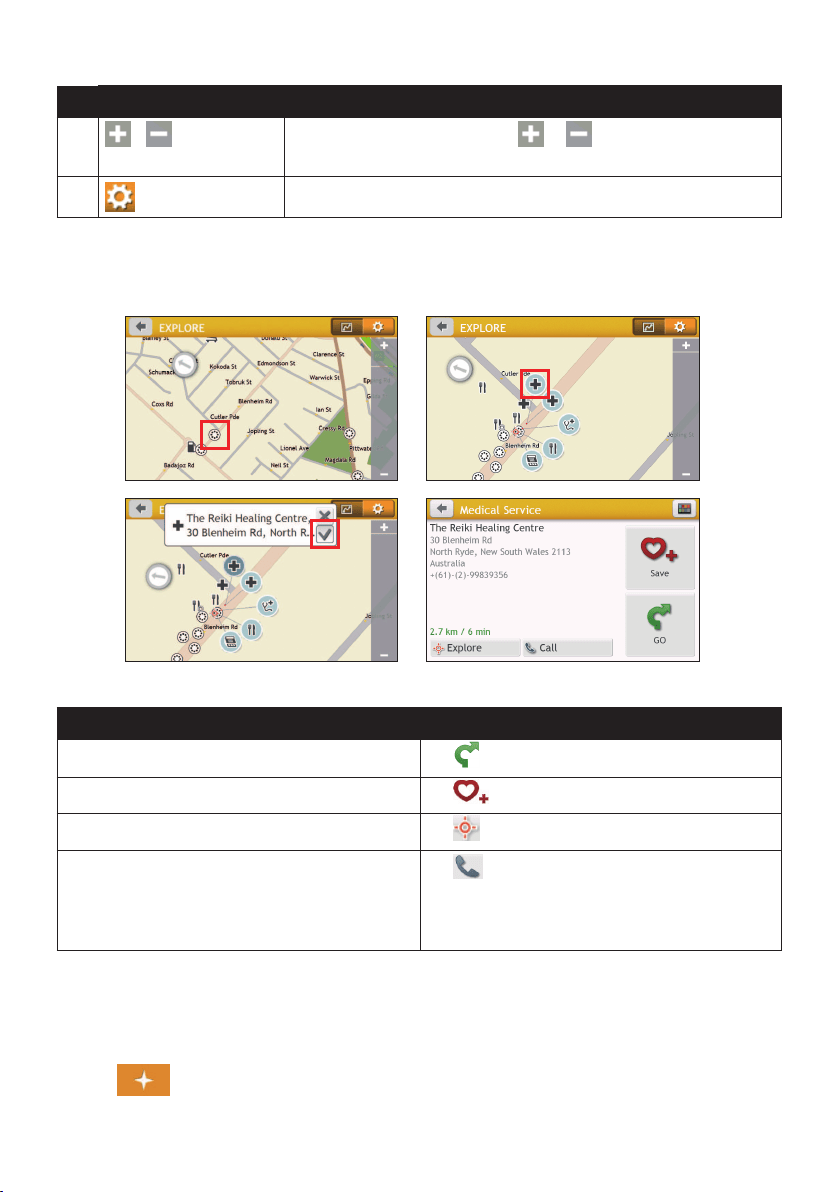
39
Item Description
/Tozoominorout,tapandholdor.Zoominginoroutwill
decreaseorincreasetheareacontainedwithintheExplorearea.
TaptosetPOIpreferences.
How do I find a POI using the POI cluster?
TappingontheselectedPOIwillbringupthescreenwiththePOIdestinationdetails.
Completethefollowing:
If you want to… Then…
calculatetherouteandstartnavigating,
tap
.
savethelocationasafavourite,
tap
.
explorethemap,
tap
.
placeaphonecalltothePOI,
tap
.
Note: Thisfeatureisnotavailableonallmodelsand
isonlyshownwhenthephonenumberofthePOIis
available.
How do I set my POI preferences?
POIsaregroupedintocategories.Youmaychoosetoeitherdisplay(orhide)iconsofallPOI
categoriesontheMapscreen,oronlydisplaytheiconsfromselectedcategories.
1.Tap
.
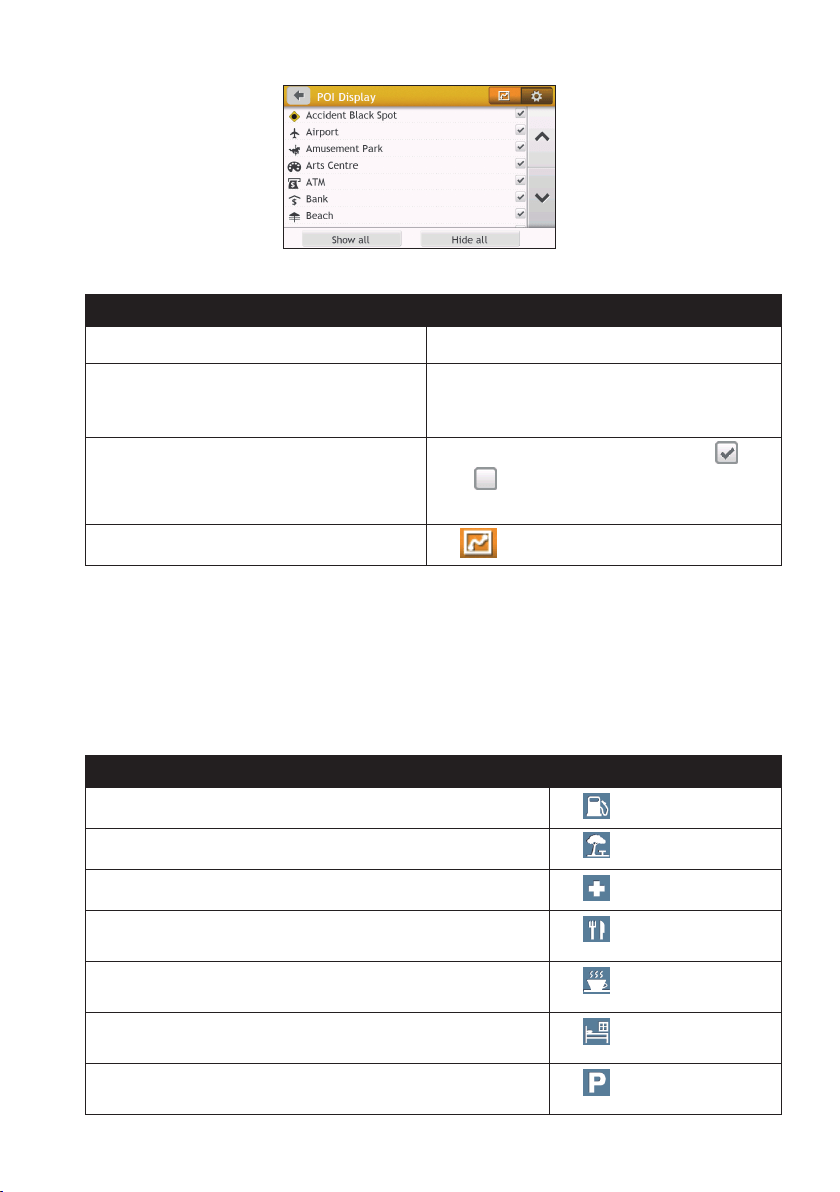
40
2.Completethefollowing:
If you want to… Then…
displayallPOIicons,tapShow all.
displaynoPOIicons,tapHide all.
Note:HidingPOIswillstopyoufromndingthem
whenusingexploremode/clustersearch.
selectaspecicPOIiconfordisplay,
taptherequiredPOIcategorytoshow(
)or
hide(
)ontheMapscreen.
Repeatuntilallrequiredcategoriesareselected.
returntotheExploremap,
tap
.
•Yourpreferencesareautomaticallysaved.
How do I find the nearest POIs using the POI category
buttons?
Note:ThePOIcategorybuttonsarenotavailableonallmodels.
1.FromtheMainMenu,selectoneofthefollowing:
If you want to… Then…
searchforthenearestpetrolstations,
tap
.
searchforthenearestreststops,
tap
.
searchforthenearestemergencyservice,
tap
.
searchforthenearestrestaurants,
tap
.
searchforthenearestcafe,
tap
.
searchforthenearesthotels/motels,
tap
.
searchforthenearestparkingplaces,
tap
.
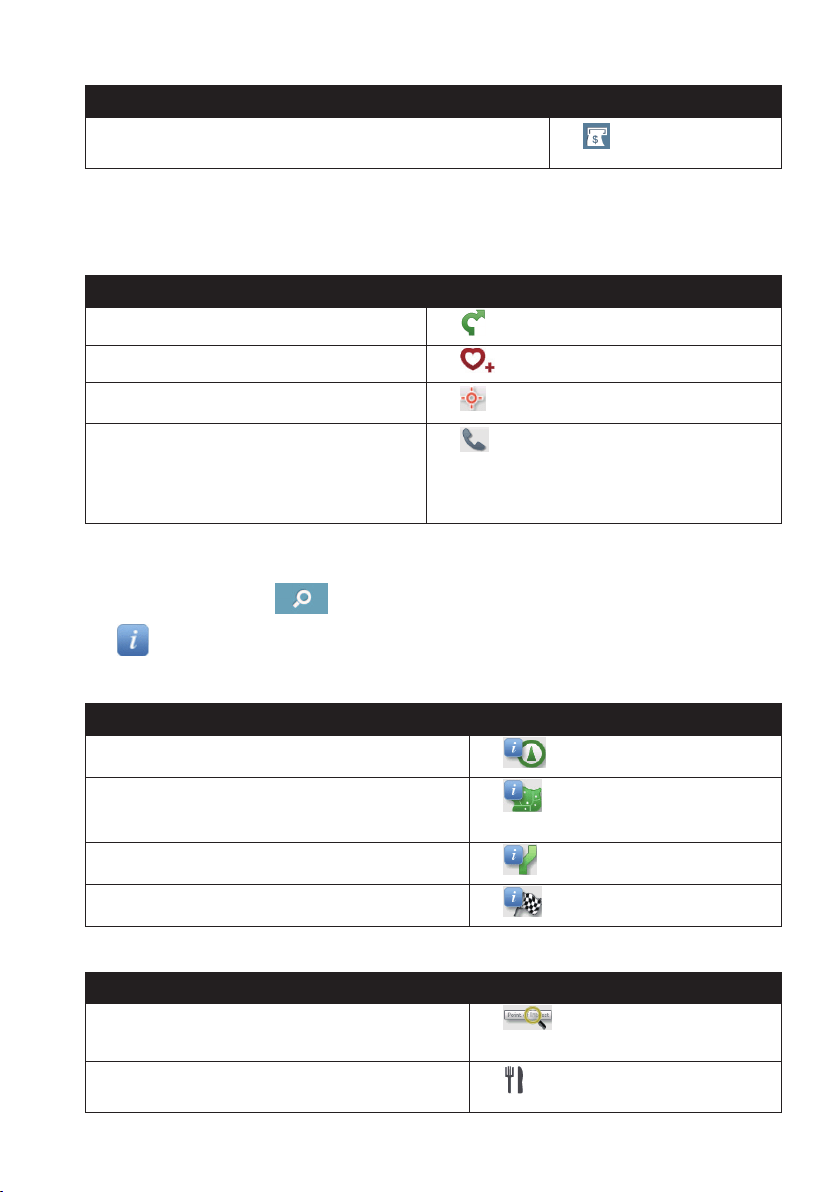
41
If you want to… Then…
searchforthenearestbanksandATMs,
tap
.
2.AlistoftheselectedPOIcategorybaseduponyourcurrentlocationisdisplayed.
3.Selectthedesireditemtodisplaythedestinationscreen.
4.Completethefollowing:
If you want to… Then…
calculatetherouteandstartnavigating,
tap
.
savethelocationasafavourite,
tap
.
explorethemap,
tap.
placeaphonecalltothePOI,
tap
.
Note: Thisfeatureisnotavailableonallmodelsand
isonlyshownwhenthephonenumberofthePOIis
available.
How do I search for a POI by type?
1.OntheMainMenu,tap
.
2.Tap
.
3.Completethefollowing:
If you want to… Then…
searchforthePOIsnearyourcurrentlocation,
tap
.
searchforthePOIsinaspeciedcityorarea,
tap
.Afteryouhaveenteredaname
ofacity/area,tapOK.
searchforthePOIsonyourroute,
tap
.
searchforthePOIsnearyourdestination,
tap
.
4.Completethefollowing:
If you want to… Then…
searchforPOIsbykeyword,
tap
.Afteryouhaveentereda
keyword,tapOK.
searchforrestaurants,cafes,fast-foodpremises
andotherdiningestablishments,
tap
.
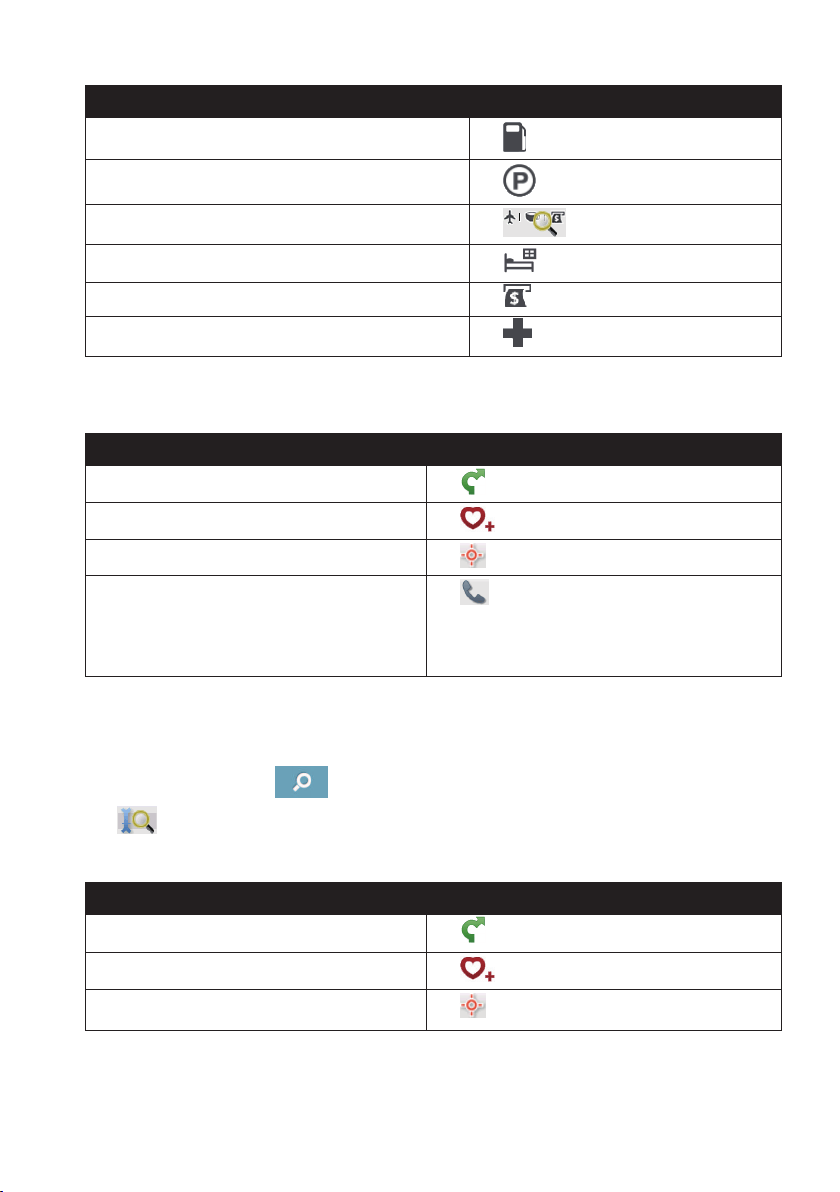
42
If you want to… Then…
searchforpetrolstations,
tap
.
searchforparkingplaces,
tap
.
viewmorePOItypes,
tap
andselectaPOItype.
searchforhotelsandmotels,
tap
.
searchforbanksandATMs,
tap
.
searchforemergencyservices,
tap
.
5.Tapthedesireditemfromthelist.
6.Completethefollowing:
If you want to… Then…
calculatetherouteandstartnavigating,
tap
.
savethelocationasafavourite,
tap
.
explorethemap,
tap.
placeaphonecalltothePOI,
tap
.
Note: Thisfeatureisnotavailableonallmodelsand
isonlyshownwhenthephonenumberofthePOIis
available.
How do I search for a POI by Smart Find Keyword?
CompletethefollowingtonavigatetoaPOIorthestreetaddressthatyoundbykeyword.
1.OntheMainMenu,tap
.
2.Tap
.EnterthekeywordofthePOIorstreetaddressthatyouwanttosearch.
3.Completethefollowing:
If you want to… Then…
calculatetherouteandstartnavigating,
tap
.
savethelocationasafavourite,
tap
.
explorethemap,
tap
.

43
If you want to… Then…
placeaphonecalltothePOI,
tap
.
Note: Thisfeatureisnotavailableonallmodelsand
isonlyshownwhenthephonenumberofthePOIis
available.
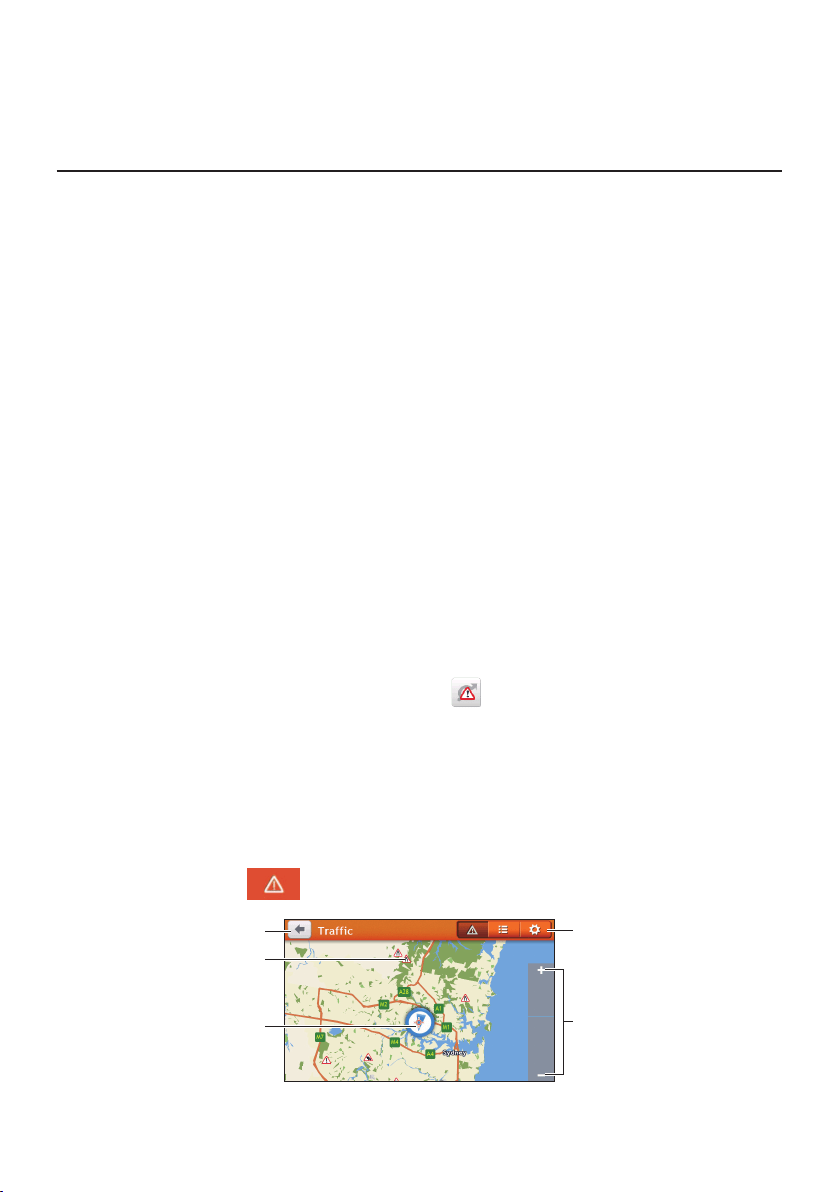
44
How do I receive current traffic
information via TMC?
Note:Trafcinformationisnotavailableonallmodelsandisonlyavailableinselectedcountries.
TheTrafcMessageChannel(TMC)broadcastsreal-timetrafcinformationviatheFM
RadioDataSystem(RDS).FMradiostationstransmitTMCdataonacycleofseveral
minutes,withhundredsofeventsabletobebroadcasttoTMCreceivers.
YourNavmancanreceivecurrenttrafcinformationforallmainroads,motorwaysand
majorcities,enablingyoutoavoidpotentialdelaysonyourroute.Eventmessagesand
trafciconswilldisplayastheyoccur.Ifaneventmessageobscuresyourcurrentlocation,
themapwilladjusttodisplayboththemessageandyourlocation.
YoumayhavetopayfortheTMCserviceinsomecountries.
How will I know when a traffic event occurs?
Whentravellingthroughanareainwhichyoucanreceivetrafcupdates,yourNavman
willdecodetheseeventsanddisplaythem.Aniconwilldisplayattheeventlocationonthe
Mapscreen,andanaudiblewarningisgivenifaneventisonyourroute.Whereanevent
spansaspecicdistance,theroadwillbehighlightedandarrowswillindicatethedirection
affected.
Amessagewilldisplayatthebottomofthescreenwiththeroadname,thesectionofroad
affectedandthetypeofeventthathasoccurred.Themessageremainsonthescreenfor8
secondsandisaddedtotheAlltrafcevents.
Whenthemessageissuppressed,theTMCicon(
)willbedisplayedontheMapscreen.
YoucantaptheicontobringuptheAlltrafceventsscreen.
Traffic overview screen
WhenyouseethetrafceventmessageontheMapscreen,youcanopentheTrafcscreen
todisplayageneraloverviewofthetrafcsituationonyourroute,includingalleventsinthe
immediatevicinity.
OntheMainMenu,tap
todisplaytheTrafcscreen.
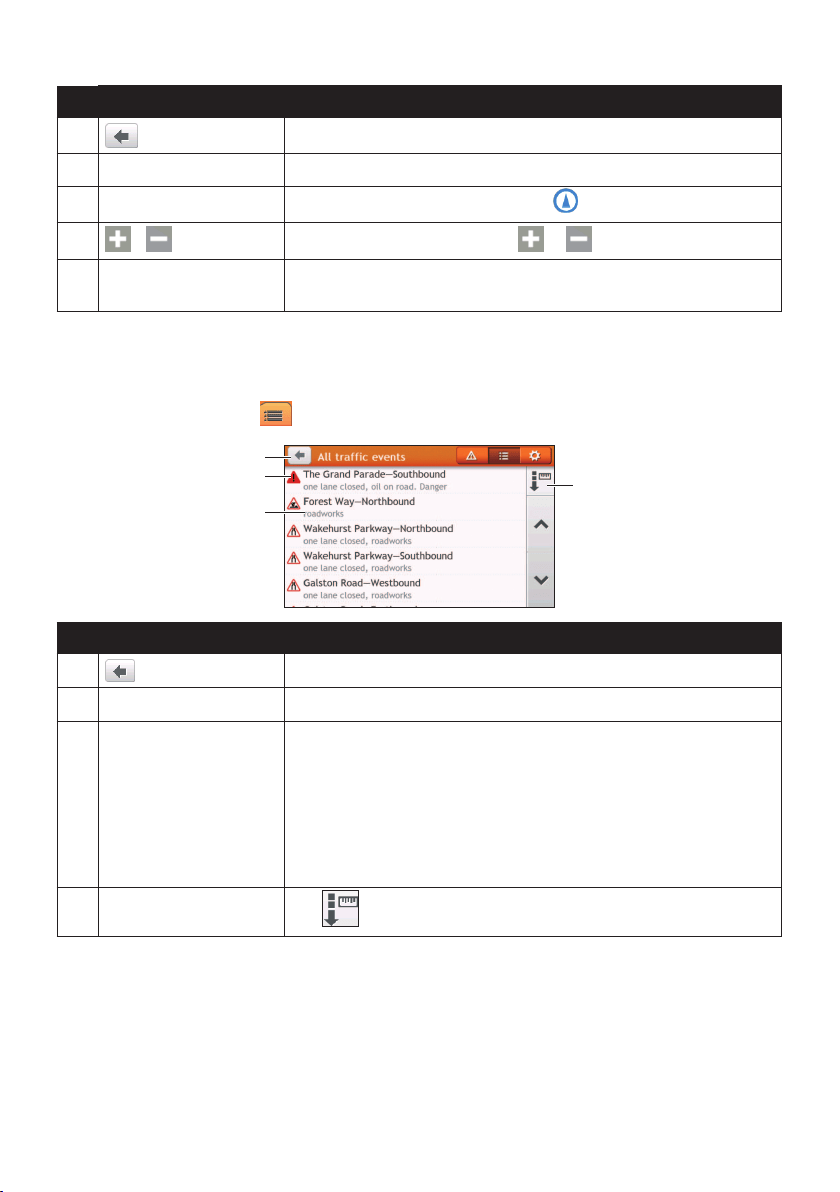
45
Item Description
Taptoreturntothepreviousscreen.
Event icon Displaysanicontoindicatetypeofevent.
Current position
Yourcurrentpositionismarkedwith
.
/Tozoominorout,tapandholdor.
Title bar tabs TaptochangethedisplaybetweentheTrafc,Alltrafcevents,and
TrafcOptionswindows.
How do I view a list of all events on my route?
YourNavmancreatesalistofeventsastheyarereceivedontheAlltrafceventsscreen.
OntheTrafcscreen,tap
.
Item Description
Taptoreturntothepreviousscreen.
Event icon Displaysanicontoindicatetypeofevent.
Event description Displaysthedetailsoftheevent,including:
•Nameofroadanddirectioninwhichtheeventistakingplace.
•Locationofwheretheeventbeginsandends.
•>indicatesaneventfromalocation,toalocation.
•<>indicatesaneventbetweenlocations.
•Typeofevent.
Sort by
Tap
toselectAll eventsorOnly events on my route.
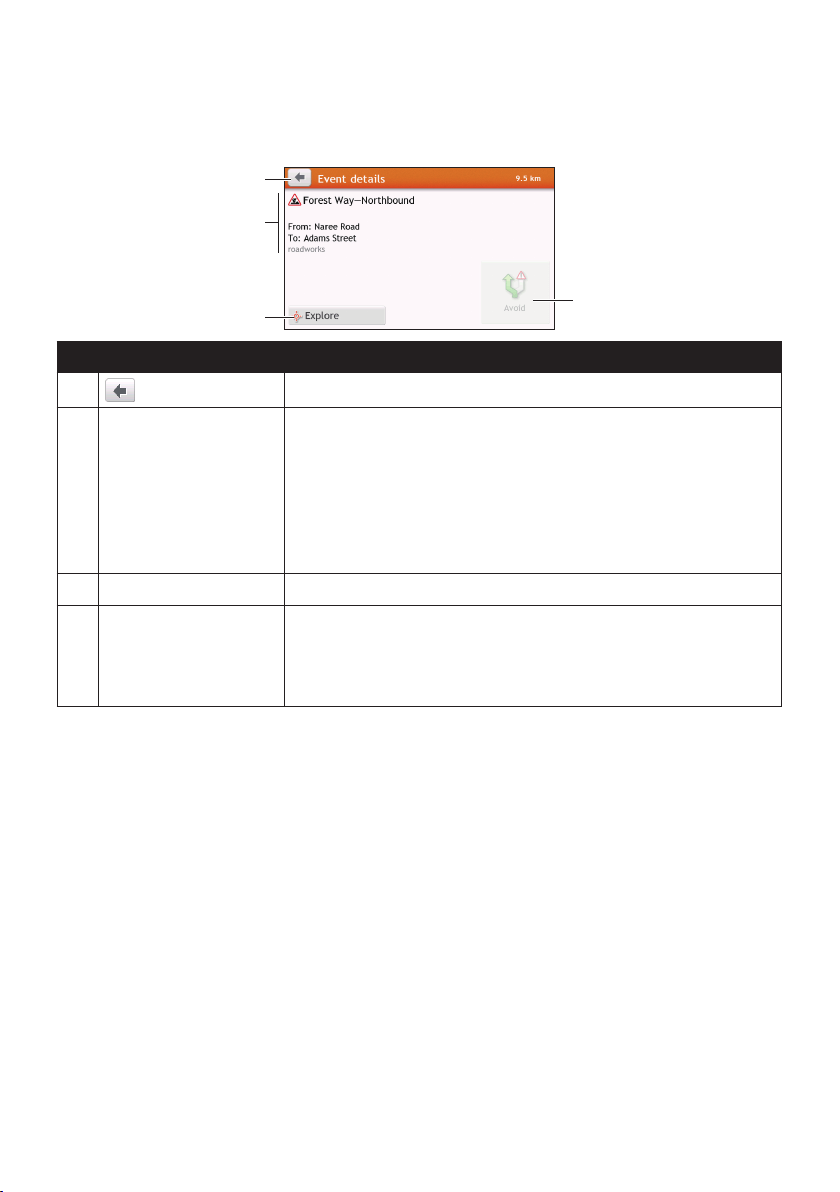
46
How do I view the traffic details?
OntheAlltrafceventsscreen,taptheeventyouwanttoview.
Item Description
Taptoreturntothepreviousscreen.
Event icon and
description
Displaysdetailsoftheevent,including:
•Nameofroadanddirectioninwhichtheeventistakingplace.
•Locationofwheretheeventbeginsandends.
•>indicatesaneventfromalocation,toalocation.
•<>indicatesaneventbetweenlocations.
•Typeofevent.
Explore Taptoexplorethemap.
Avoid Taptoinitiateanewroutetoavoidtheevent.Onlyavailableifa
detourorre-routeisavailable.
The Unavoid buttonisdisplayedwhenare-routehasbeen
calculated.
Note:Whenthedetourinformationisprovided,thedetailswillbedisplayedasdetour
recommendationontheEventdetailsscreen.
How do I know if a detour is recommended?
WhenaTrafcorClearanceeventoccursonyourroute,adetourwilloftenbe
recommended.ThedetoureventmessagewilldisplayinthestatusbaronMapscreen.
Note:DetoursareonlyrecommendedforTrafcorClearanceEventsonacalculatedroute.
How do I avoid an event on my route?
1.OntheAlltrafceventsscreen,taptheevent.
2.Ifadetourhasbeencalculatedtoavoidaneventonyourroute,Avoidisavailable;tap
toacceptthenewrouteandavoidtheevent.

47
Traffic messages
TheEventDetailsscreendisplaysdetourstatusinformation.
Detour not available
Ifadetourisnotavailable,oneofthefollowingmessageswilldisplay:
Message Description
Thiseventisnotlocatable
Thisclearanceisnotlocatable
Aspeciclocationfortheeventcannotbe
identied.
Thiseventdoesnotaffectyourroute
Thisclearancedoesnotaffectyourroute
Theeventisnotonthecurrentlegofyourjourney,
orisbehindyourcurrentposition.
Youareavoidingthisevent
Youhaveacceptedthisclearance
Theeventisnotonthecurrentlegofyourjourney.
Youaretoodistanttore-route
Youaretoodistanttoacceptthisclearance
Theeventiscurrentlytoodistanttoaffectyour
journey.
Detournotfound
Clearanceroutenotfound
Adetour/re-routecouldnotbecalculated.
Detour recommended
Ifadetourisrecommended,oneofthefollowingmessageswilldisplay:
Message Description
Findingdetour…
Recalculatingroute…
YourNavmaniscalculatinganewroute.During
calculation,the%completewilldisplay.
Note: Exitingthisscreenbeforethenewrouteis
calculatedwillcanceltheoperation.
Detourdistance…
Clearancechange
Adetourhasbeencalculated.Thedifference
betweenthedistanceofyourcurrentrouteandthe
proposedrouteisdisplayed.
Traffic preferences
Youcanviewyourcurrenttrafcsystemstatusandchangeoptionsbycustomisingthe
trafcpreferences.
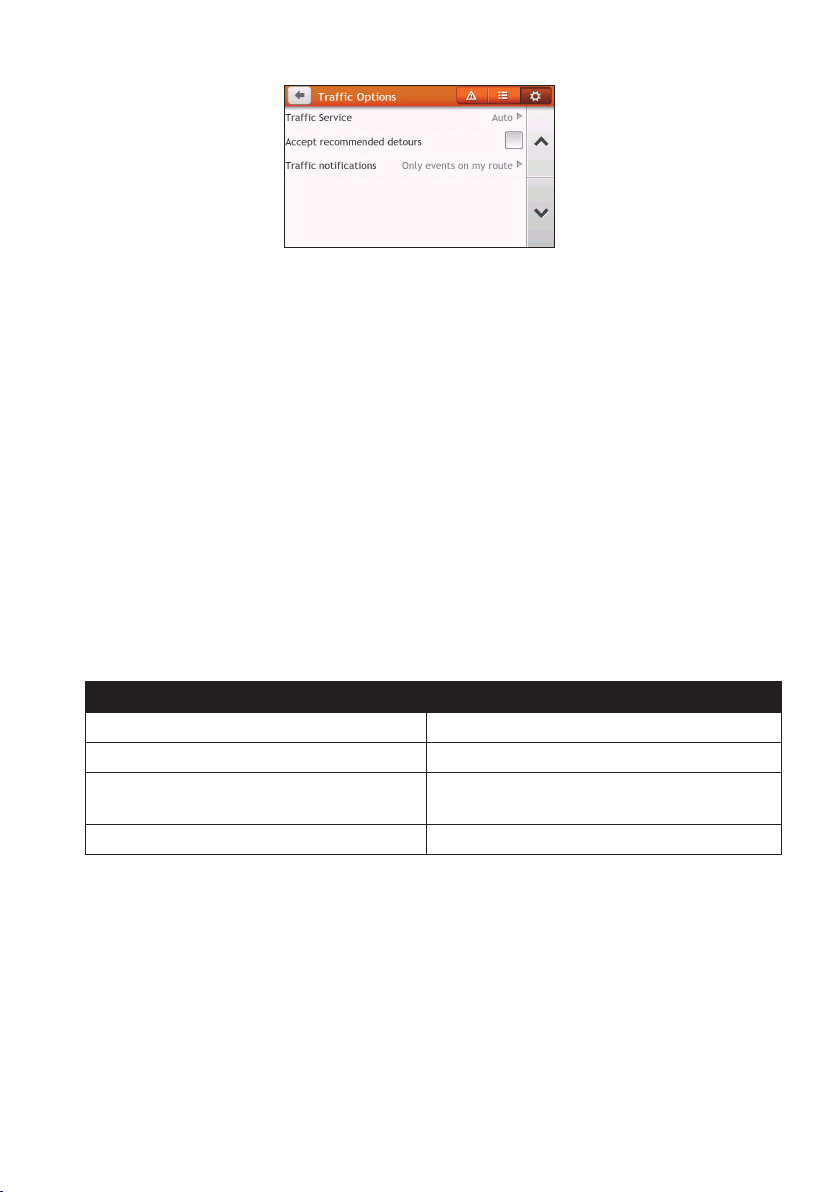
48
Traffic service
1.OntheTrafcOptionsscreen,tapTraffic Service.
Thescreendisplaysthefrequencyoftheradiostationcurrentlyusedtoreceivetrafc
eventinformation.
Abarshowsthestrengthofthetrafcsignalbeingreceived;the
moregreenbars,thestrongerthesignal.
2.Tochangeyourpreferredradiostation,selectyourpreferredradiostationfromthelist.
YoucanselectAutomatictoreceivethetrafcsignalautomatically.
Accept recommended detours automatically
Whenthe Accept recommended detoursisselected,yourroutewillbere-planned
automaticallywhenthedetourisrecommendedbythetrafcevent.
Traffic event notification
1.OntheTrafcOptionsscreen,tapTraffic notifications.
2.Completethefollowing:
If you want to… Then…
viewalltrafceventsnearby,selectAll events nearby.
viewthetrafceventsonyourroute,selectOnly events on my route.
viewthetrafceventswithdetourinformation
provided,
selectOnly if a detour is recommended.
rejectthetrafcsignal,selectTurn off notifications.
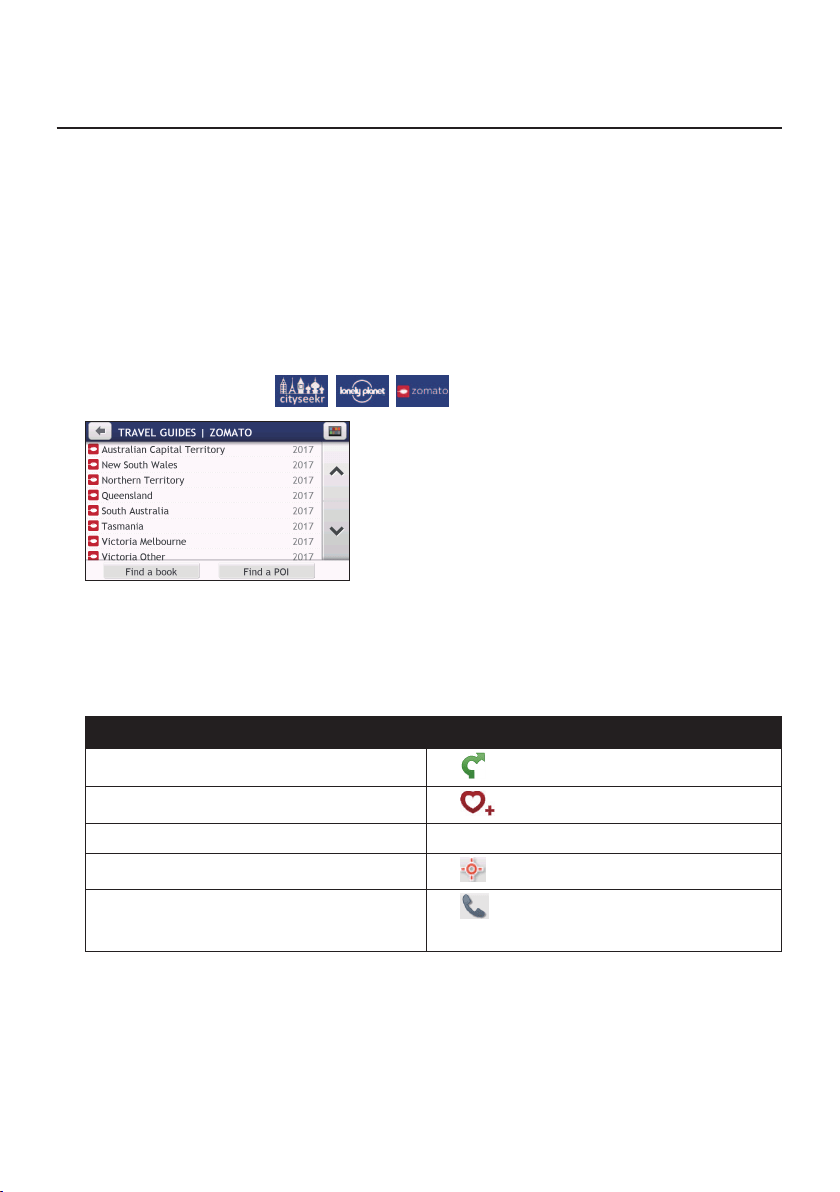
49
What is Travel Book?
Note:Thisfeatureisnotavailableonallmodels.
TravelBookisacollectionofcityguidesthatprovidedetailedPOImapsformajorcitiesin
thelocalregion.Thecityguidesprovideinformationonaccommodation,dining,nightlife,
businessessentials,shopping,importanttouristspotsandpracticalinformationsuchas
banks,medicalcentres,busstations,etc.
Note:TravelBookisprovidedbythirdparty.Navmandoesnotguaranteetheaccuracyofthedata
containedwithinthisdatabaseeitherexpressedorimplied.
How do I search for a POI using Travel Book?
1.OntheMainMenu,tap
//.
2.Followthepromptstoselectyourcity,areaorstateandthePOIcategory.
3.EnterthekeywordtosearchaPOI.Whendone,tapOK.
4.SelectaPOIfromthelist.
5.Completethefollowing:
If you want to… Then…
calculatetherouteandstartnavigating,
tap
.
savethelocationasafavourite,
tap
.
viewmoreinformationonthePOI,tapMore....
explorethemap,
tap
.
placeaphonecalltothePOI,
tap
.
Note: Thisfeatureisnotavailableonallmodels.
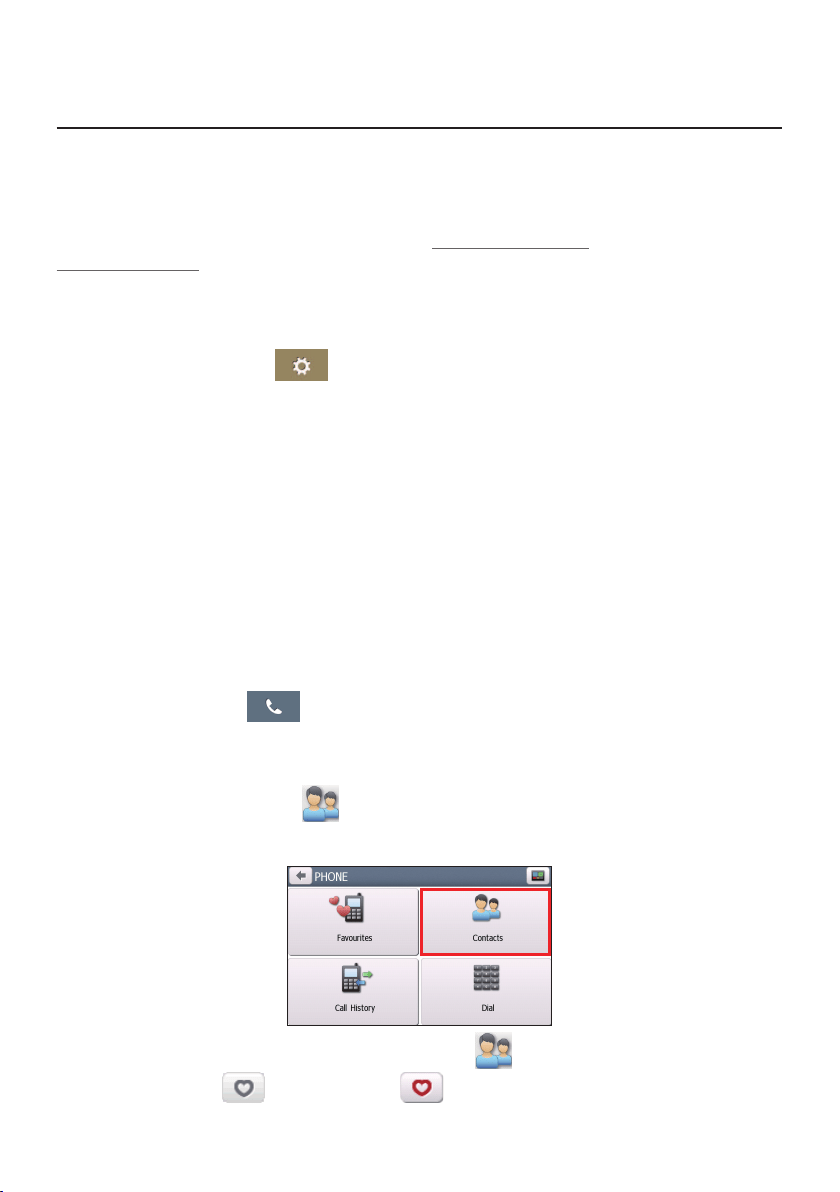
50
How do I use the Bluetooth function?
Note:Thisfeatureisnotavailableonallmodels.
IfyouhaveacompatiblemobilephonewithBluetoothwirelesstechnology,youcanuse
yourNavmanasahands-freecarkit.
Note:Alistofcompatiblemobilephonesislistedatwww.navman.com.au(Australia)or
www.navman.co.nz(NewZealand).NavmandoesnotguaranteetheBluetoothfunctionalityand
compatibilityfromallmobilephonemanufacturers.
How do I pair my Navman with a Bluetooth device?
1.OntheMainMenu,tap
Bluetooth.
2.TapOntoturnontheBluetoothofyourNavman.
3.MakesurethattheBluetoothfeatureofyourphoneisturnedon.
4.Fromyourphone,scanfornearbyBluetoothdevices.
5.Fromthedevicelist,selectyourNavman.
6.TopairwithyourphonewithyourNavman,enter"1234"onthemobilephonewhen
prompted.
Note: TopairanotherBluetoothmobilephonewithyourNavman,rstdisconnectthecurrent
Bluetoothconnectiononthemobilephone,andthenrepeattheaboveproceduretosetupanew
connection
How do I add contacts to my Navman?
OntheMainMenu,tap
.
YourNavmanusescontactscreatedonyourmobilephone.Iftherearenocontactsoyour
Navman,youwillbepromptedtodownloadthecontactlistfromyourphone.
•Tosearchforacontact,tap
andtap Filtertoenterthenameofthecontact.Then
tapOK.
•Toaddacontact'snumbertoyourfavourites,tapandtapthedesiredcontactfrom
thelist.Thentapintheentry.Taptoremovetheitemfromthefavourites.
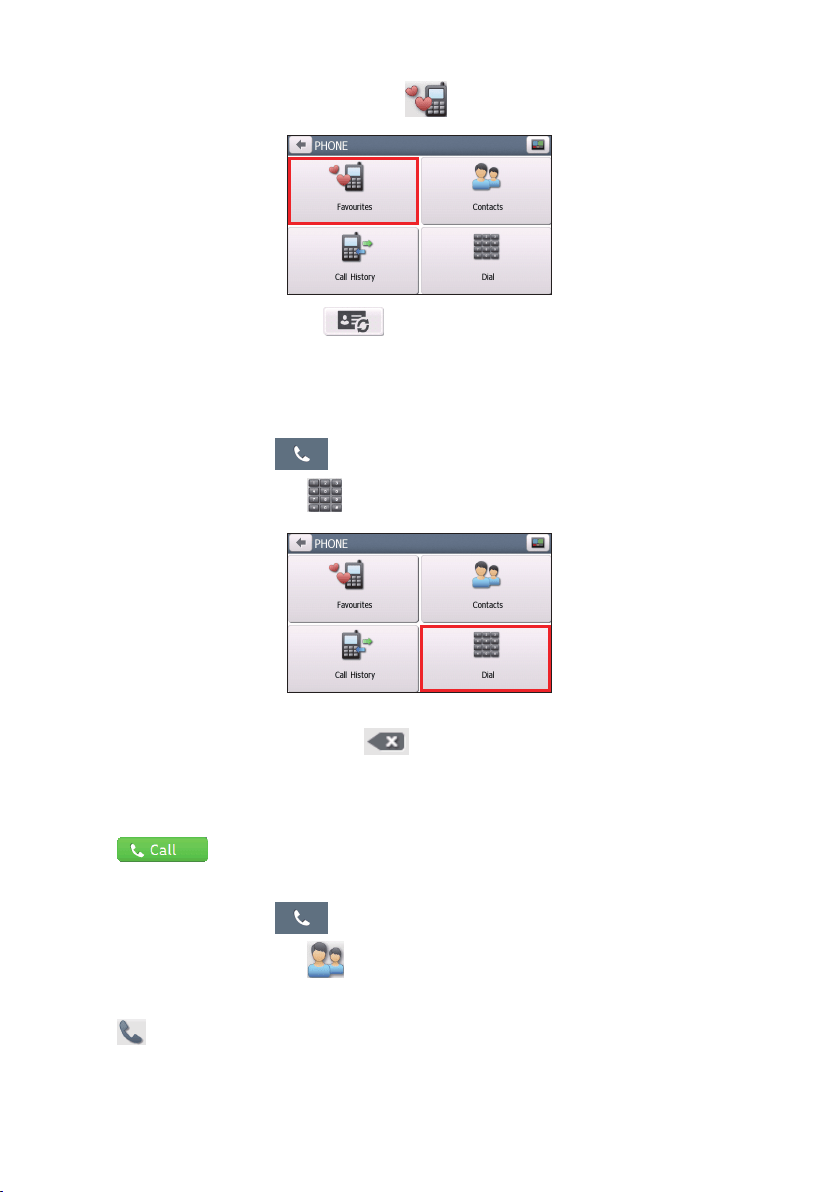
51
YoucanviewyourfavouritesbytappingfromthePhonescreen.
•Torefreshthecontactlist,tapnexttotheFiltereld.
How do I make a hands-free call?
Making a call using the keypad
1.OntheMainMenu,tap
.
2.FromthePhonescreen,tap
.
3.Enterthenumberyouwanttocall.
Todeletethelastdigitentered,tap
.
Note:Internationalcallsrequireacountrycodetobeincludedinthephonenumber.Onyour
Navman,thecountrycodeisseparatedfromtherestofthenumbersequencebya+sign.Ifyou
aremakinganinternationalcall,tapandhold0untilthe+signdisplays.
4.Taptoplacethecall.
Making a call from the phonebook
1.OntheMainMenu,tap
.
2.FromthePhonescreen,tap
.
3.Selectthedesireditemfromthecontactlist.
4.Tap
nexttothedesirednumbertoplacethecall.
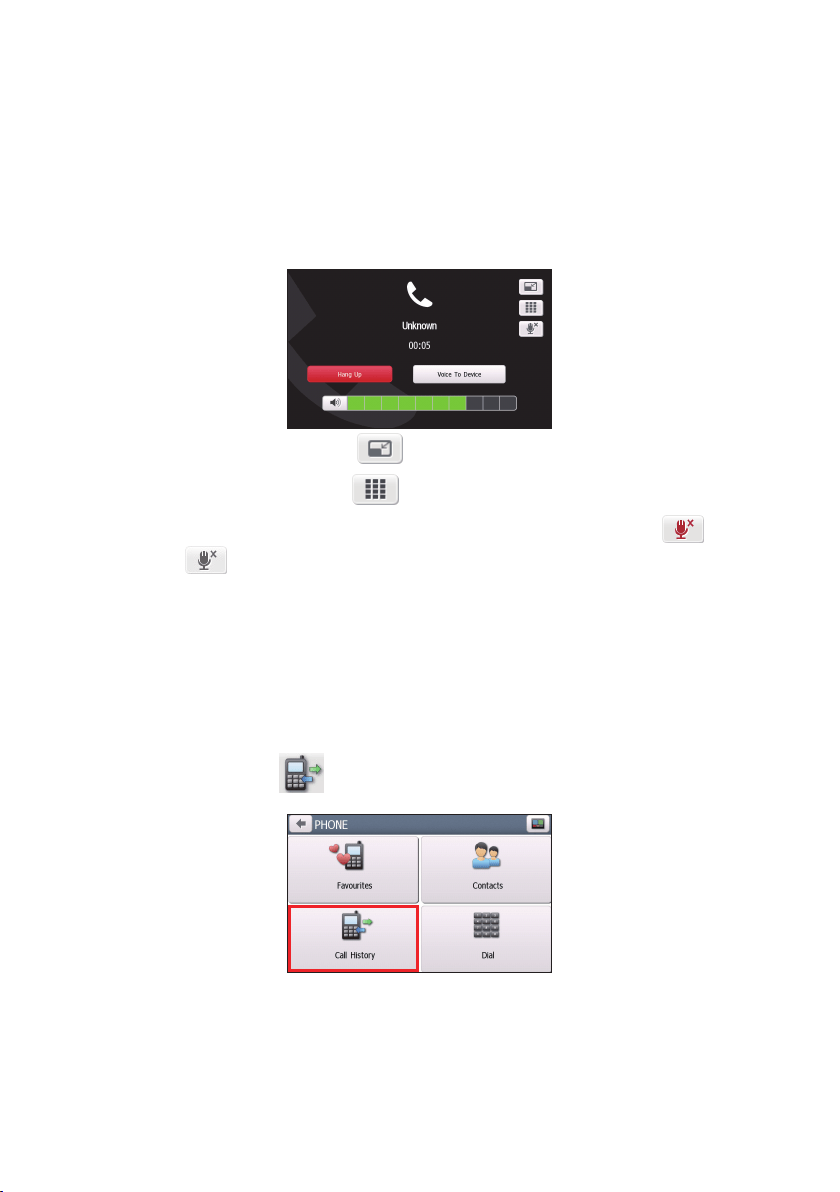
52
How do I respond to a phone call?
Whenyoureceiveacall:
•tapAnswer
toanswerthecall.
•tapIgnore
torejectthecall.
In-call options
•Tominimizethein-callscreen,tap.
•Todisplaythekeypadscreen,tap
.
•Toswitchoffthemicrophonesothereceivingpartycannothearyou,tap
.To
unmute,tap
.
•Totransferthecalltoyourphone,tapVoice to Phone.
•Toadjustthevolume,taponthevolumebartoincreaseordecreasethevolume.
Note: Thephonevolumeadjustmentdoesnotchangethedevicevolume.
•Toendthecall,tapHang Up.
How do I view my call history?
FromthePhonescreen,tap
.
TheCallHistoryscreenliststhecallsmadeduringthetimeyourNavmanisconnectedto
amobilephone.Numbersarearrangedbytimewiththemostrecenttimeatthetop.Your
Navmancanstoreupto30historyentries(limitedto10entriesforincoming,outgoingand
missedcallseach).

53
•Toviewthespecictypeofcalls,tapthesortingbuttonontheupper-rightcornerto
selectAll,Outgoing Call,Incoming CallorMissed Call.
•Toaddanumbertoyourfavourites,tap
intheentry.Taptoremovetheitem
fromthefavourites.
•Todeleteanentryfromthehistory,taptheentryandtap
.
•Toplaceacall,taptheentryandtap
.
•Todeleteallentriesinthehistory,tap
fromtheCallHistoryscreen.
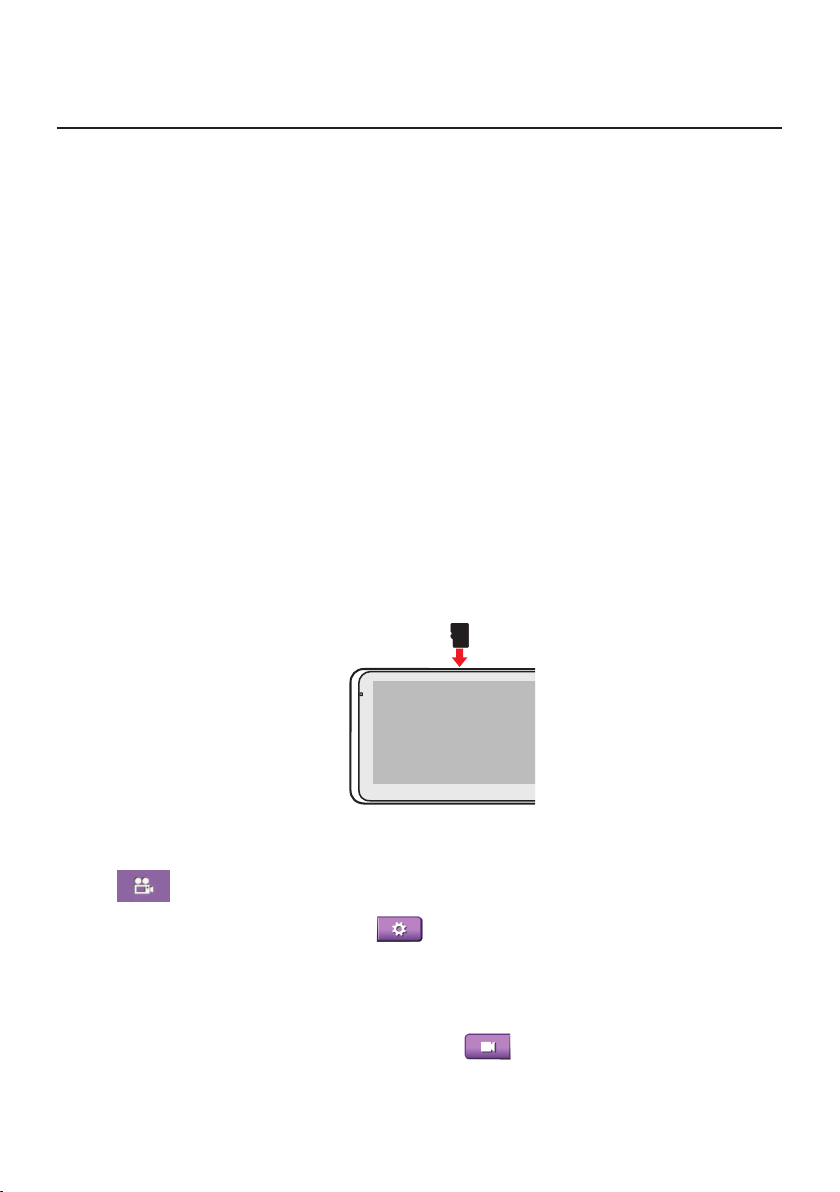
54
Recording your driving
Precautions and notices
•Makesurethatnoobjectisblockingthecameralensandnoreectivematerialappears
nearthelens.Pleasekeepthelensclean.
•Ifthecar’swindscreenistintedwithacoating,itmayimpacttherecordingquality.
•Minoraccidentsmaynottriggereventrecording.
•Toensuretheoptimalrecordingangle,payattentiontothefollowing:
•Makesurethatyourcarisparkedonalevelground.
•Whenadjustingtheangleofmounting,makesurethatthecamera’sviewisparallel
withthelevelground,andtheground:skyratioiscloseto6:4.
•Tomakesureofthecorrectdateandtimeforyourrecordings,pleasemakesurethatthe
devicehasalreadygottenaGPSxbeforeyoubeginrecording.
Memory card for recording
Makesurethattherecording-specicMicroSDcard(recommendedClass10memorycard
witha16GB–64GBcapacity)hasbeeninsertedintothememorycardslotforrecording
onthetopofthedevice.
WhenyouuseanewMicroSDcardforrecordingforthersttime,formatthecardonthe
devicetomakeitrecording-specic.
1.Tap
ontheMainMenu.
2.Tapanywhereonthescreenandtap
.
3.TapSystem>Format>Yes.
Making a recording
Recordingsaremadeinthevideorecordingmode(
).Arecordingcanbetriggered
automaticallywhen:
•anACpowersourceisconnectedtothedevicethathasbeenturnedon.
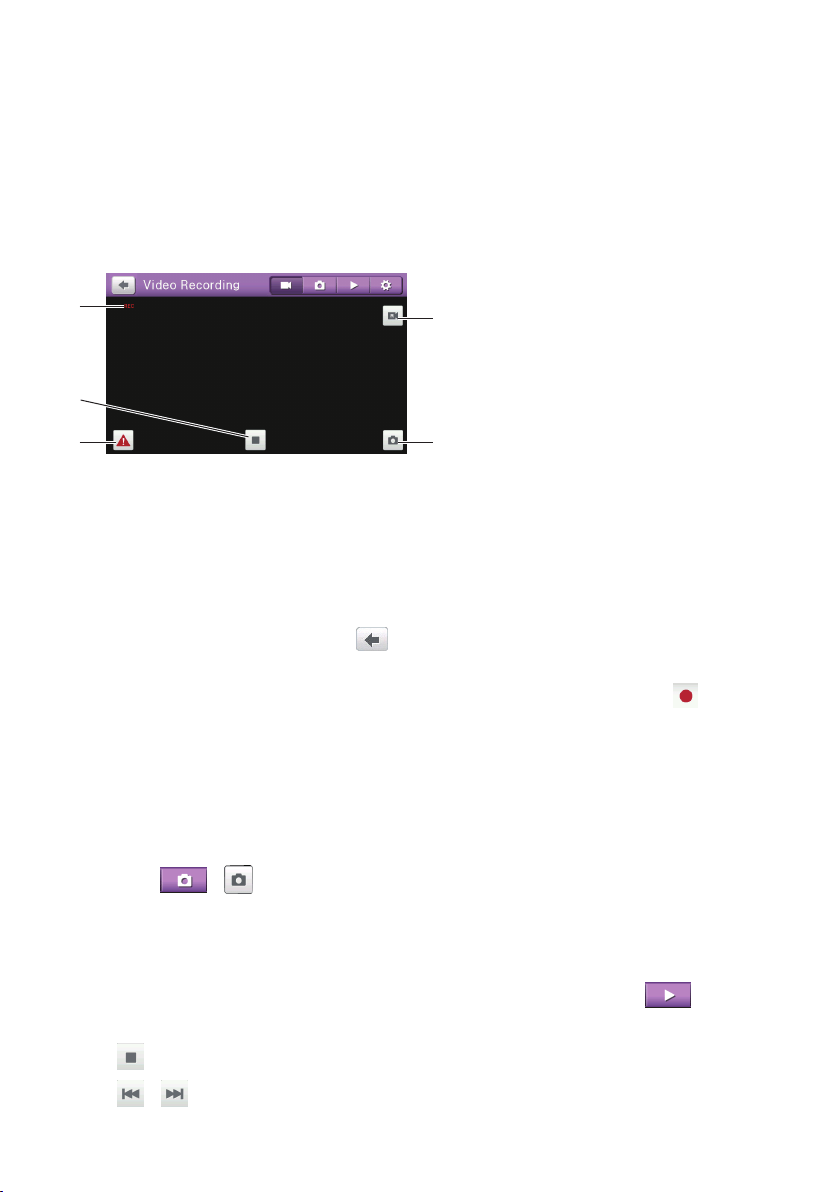
55
•aneventhappens(suchassuddenimpact,high-speeddriving,anoverdoneturnor
anaccidentalcrash)duringrecordingfortheGsensortopromptthedevicetostartan
eventrecordingautomatically.
Therecordingproceedsinacontinuousmodeandisdividedintoseveraltemporaryvideo
clips(segments).Therecordingwillnotstopbetweenvideoclips.Ifcontinuousrecording
isongoingbutthereisnotenoughspaceonyourmemorycard,newvideoclipswillreplace
theoldones.
Recordinginprogress
Taptostoprecording.
Taptoswitchbetweenemergency/
eventrecordingandnormal
continuousrecording.
Taptotakeaphotowiththecurrent
GPScoordinatesduringrecording.
Taptoswitchbetweenthedevice’s
cameraandtherearcamera
(optional).
Note: Therearcamerafeatureisnotavailableonallmodels.
Note: Therearcamera(optional)doesnotfunctionwhenthedeviceisusingbatterypower.
ToreturntotheMainMenuortheMapscreenwithoutstoppingtherecording,tap
anywhereonthescreenandthentap
.Therecordingwillstillcontinueinthe
backgrounduntilyoustopit.
Torestartthecontinuousrecording,tapanywhereonthescreenandthentap
.
Note: Emergencyrecordingswillnotbeoverwrittenbycontinuousrecordings.However,ifthereis
notenoughspaceonyourmemorycardforemergencyrecordings,newemergencyvideoclipswill
replacetheoldones.
Photo mode
YoucantakeaphotowiththecurrentGPScoordinatesbytappinganywhereonthescreen
andthentap
>.
Note:Therearcamera(optional)doesnotsupportthisfeature.
Playback mode
Toswitchtotheplaybackmode,tapanywhereonthescreenandthentap
.Selectthe
desiredletypeandthenthedesiredlefromthelist.
•Tap
tostoptheplayback.
•Tap
/toswitchtotheprevious/nextle.
56
•Tap/whenplaybackispausedtoadjustthevolumelevel.
•Tap
todeletethecurrentle.
•Tap
tomovethecurrentrecordingtotheemergency/eventfolder.
Note: Ifyouencounterproblemswhendeletingarecording,deleteitinFileExploreronyour
computerinstead.
Customising the settings
Toaccessthedashcamsettings,tapanywhereonthescreenandthentap.
Toexitthesettings,tap
.
Category Item Description
Video
Recording
Video clip length Setsthelengthofeachvideoclipforacontinuous
recording(1min,3min,5min).
Sound recording Setsifyouwanttoenablesoundintherecordings.
Itisonbydefault.
WDR WideDynamicRange.
Whenenabled,thisfeaturecanoptimisethe
imagequalityinahigh-contrastlightingcondition.
EV Setstheexposureleveltoadjustthebrightnessof
theimage.
Frequency Setsthefrequencyforthecameratoavoid
problemscausedbyarticiallightsourcesthatare
notconstant.
G-sensor sensitivity SetsthesensitivityleveloftheGsensor.
Stamps Setstheinformation(CoordinatesorG-sensor)
thatwillbedisplayedontherecordedvideo.
Speed stamp Setsifyouwanttoincludethedrivingspeed
stampontherecordedvideo.Itisonbydefault.
Video resolution Dependingonyourmodel,youmaybeableto
changethevideoresolution.
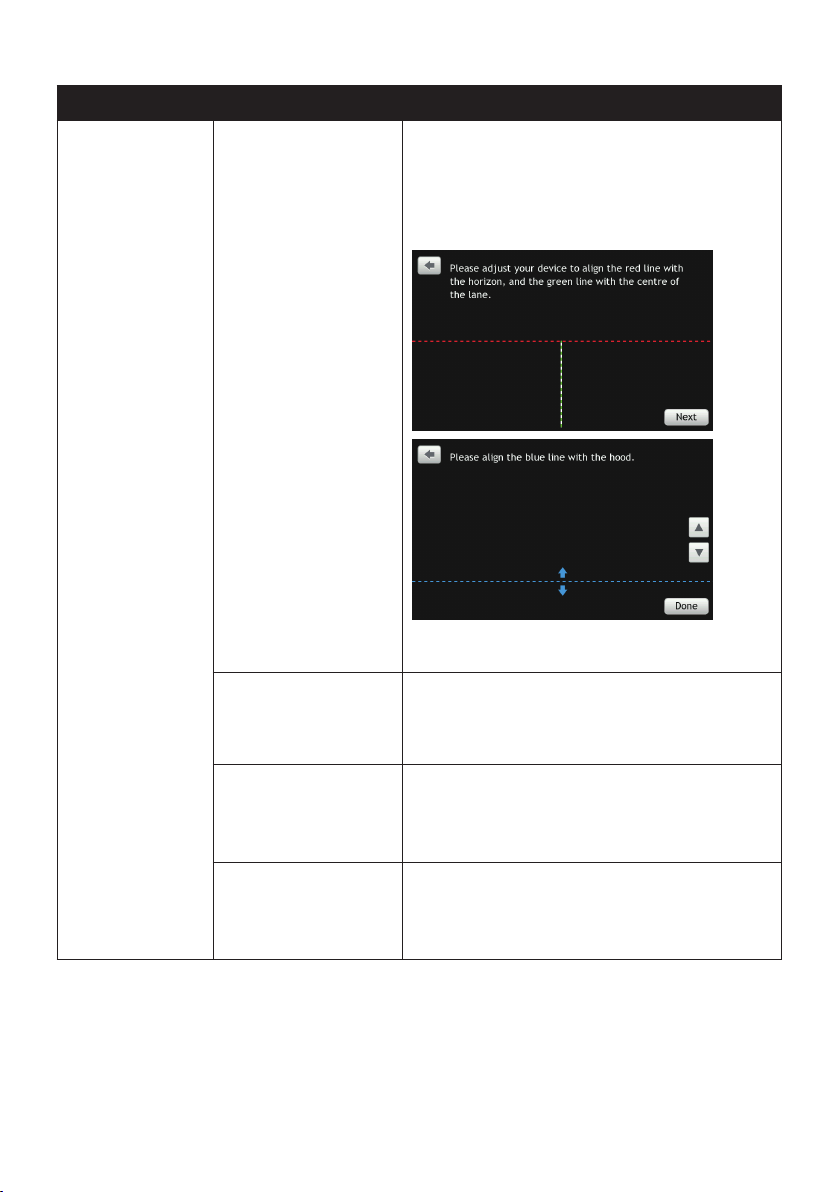
57
Category Item Description
Driving
Assistance
Calibration Followthestepstocalibratethesystem:
1.Drivethevehicleinthemiddleofthelane.
2.Askapassengertoselectthisoptionandthen
followtheon-screeninstructionstocomplete
calibration.
Youareadvisedtocalibratethesystemconstantly
inordertobealertedcorrectly.
Device mounting
height
Setstheheightofthedevicewhenitismountedin
thevehicle.Doingsoallowsthesystemtoprovide
moreaccuratewarningsbasedondifferenttypes
ofvehicles.
LDWS* LaneDepartureWarningSystem.
Onceenabled,thesystemwillalertyouwhenit
detectsthatthecarspeedisover80km/handthe
carhasstrayedfromitsintendedlane.
FCWS** ForwardCollisionWarningSystem.
Onceenabled,thesystemwillalertyouwhen
thecarspeedisover5km/handthecargetstoo
closetothecarahead.

58
Category Item Description
System Format
F
ormatsaMicroSDcardforrecording-specic
purposes.(Alldatawillbeerased.)
Restore to defaults Restoressystemsettingstofactorydefaults.
Version Displaysthesoftwareinformation.
Firmware update Allowsyoutoupdatethecamerarmwareofyour
device.
Note: YouneedtostorethermwarelesonaMicroSD
cardandinsertitinthedatacardslotontheleftsideof
thedevice.
*LDWS:Certainconditionsmaypreventthelanedeparturewarningsfromoperatingcorrectly.Itrequirescorrect
calibrationtocaptureroadmarkingsandisrecommendedtobeusedonmainroadswithgoodvisibleroad
markings.Objectsthatareobstructingthecameraview,glare,harshreections,lowlightconditions,rain,fog,dirt,
snowonwindscreenandonroadmarkingscanimpacthowthisfeaturefunctions.
Lanedeparturewarningswillworkbestonstraightroadslikemotorwaysandhighways,andperformancemaybe
limitedonbendsandwindyroads.Changinglanesmayalsotriggerthealerts.
**FCWS:Certainconditionsmaypreventtheforwardcollisionwarningsfromoperatingcorrectly.Objectsthatare
obstructingthecameraview,glare,harshreections,lowlightconditions,rain,fog,dirt,snowonwindscreenand
ontheroadcanimpacthowthisfeaturefunctions.
Forwardcollisionwillonlyoperateinnormaldaylightconditionsnotlowerthanthelightconditionsonacloudy
day.

59
How do I control my Navman using Voice
Command?
Note:VoiceCommandisnotavailableonallmodelsandisonlyavailableinselectedcountries.
VoiceCommandisatoolthatallowsyoutocompleteataskwithouttouchingthescreen.
Note:VoiceCommandrequirestherespectivevoicele,English(AUS)orEnglish(UK/NZ),installed
andusedonyourNavman.Forfurtherinstructionsoninstallingyourpreferredlanguage,seethe
"VoiceCommand"sectionin“WhatistheNavDesk?”
1.OntheMainMenu,tap.
Note:Wheninnavigationmode,youcanlaunchVoiceCommanddirectlybytappingthe
iconontheMapscreen.
2.Youcanusethefollowingcommandsafterthebeepsound:
•Address
•Home
•Intersection
•MyPlaces
•NearbyParking
•NearbyFood
•NearbyHotels&Motels
•NearbySOS
•NearbyCash
•NearbyPetrol
•Nearby(Airport,Library,Zoo…)
•IncreaseVolume
•DecreaseVolume
•IncreaseBrightness
•DecreaseBrightness
Note:OnlywhenyourhomehasbeensetonyourNavmancanyoubedirectedtoHomeby
VoiceCommand.
3.Followthepromptstonishyourroutesettings.
4.Whendone,say“Correct”andyourNavmanstartstoplantheroute.
60
Customising the system settings
Note:DependingonyourNavmanmodel,certainfeaturesandsettingoptionsmaynotbeavailable.
Therearevariouscustomisationoptionsavailabletoenhanceyournavigationexperience.
1.OntheMainMenu,tap
.
2.Selecttheoptionyouwanttocustomise.
3.Onceyouchangethesettingsandreturntothepreviousscreen,yourpreferencesare
automaticallysaved.
Note:Whilechangingthesettings,thecheckboxnexttotheoptionindicatesthesettingstatus:
:on/enabled:off/disabled
Audio
If you want to… Then…
increase/decreasethevolume,
tap
/.
Note: Youcansimplytaponthevolumebarandthevolume
willbesetimmediatelyatthepositionyoutapped.The
volumebarindicatesthecurrentvolumelevel.
mute/unmute,
tap
.
Thespeakericonindicatesthestatus:
:muted:unmuted
hearthetappingsoundwhenyoutapan
itemonthetouchscreen,
tap Touch audiototurniton.
Screen
If you want to… Then…
changethedisplayedscreenmode,tapScreen modeandselect:
•Auto:settoautomaticallychangebetweenDay
andNightmodes.
•Day: setthescreentobedisplayedinDaymode.
•Night:setthescreentobedisplayedinNight
mode.

61
If you want to… Then…
changethescreenbrightnessinday/night
mode,
tap
/ontheDaybrightness/Nightbrightness
bar.
Thebrightnessbarindicatesthebrightnesslevel.
Note: Youcansimplytaponthebrightnessbarandthe
screenbrightnesswillbesetimmediatelyatthepositionyou
tapped.
Note: YourNavmancanheatupwhenthebrightness
scaleissethigh,therefore,uselowerbrightnesswhenever
acceptable.
Safety
If you want to… Then…
enable/disablethewarningmessageafter
long-distancedriving,
tapDriver fatigue alerttoturnitonoroff.
enable/disablespeedlimitalerts,which
warnyouofthespeedlimitonanygiven
road,
tapSpeed limit displaytoturnitonoroff.
enable/disablespeedlimitalerts,which
warnyouofthespeedlimitonanygiven
road,
tapSpeed limit alertsandselect:
•Off:disablethespeedlimitalert.
•Auto:setthesystemtoalertautomaticallywhile
yourspeedisabovethelimit.
•Speed limit + 5 km/h (+ 3 mph):setthe
systemtoalertwhileyourspeedis5km/h(3mph)
ormoreabovethelimit.
•Speed limit + 10 km/h (+ 7 mph):setthe
systemtoalertwhileyourspeedis10km/h(7mph)
ormoreabovethelimit.
setthespeedlimitalertsmanually,tapSet manual speed alert toselectthespeedlimit
orturnitoff.
enable/disableavisualwarningifthe
screenisaccessedinamovingvehicle,
tapWarn me not to operate my Navman while
drivingtoturnitonoroff.
sethowyouwanttoreceivethecamera
andsafetyalerts,
tapSpeed Camera / Mobile Speed Camera /
Average Speed Camera / Red Light Camera /
Accident Black Spot / School Zone / Railway
Crossing / Speed Check toselect:
•Noalerts
•Visualalert
•Visual&audiblealerts
Note:Notalloptionsareavailableonallmodels.

62
If you want to… Then…
sethowyouwanttoreceivethedriver
alerts,
tapDriver Alert toselect:
•Auto(default):Whenthedrivingspeedisabove
80km/h,theaudioandvisualalertsofalldriveralert
optionswillbeenabledautomatically.
Whenthedrivingspeedisbelow80km/h,the
audioandvisualalertsforovertakinglaneand
merginglaneoptionswillbeenabled,butallother
driveralertswillhavevisualalertonly.
•User-defined:Allowsyoutosetallofthedriver
alertsmanuallybyselecting:
•Noalerts
•Visualalert
•Visual&audiblealerts
Note:Thisfeatureisnotavailableonallmodels.Notall
optionsareavailableonallmodels.
Route options
If you want to… Then…
changethenavigatingmode,tapModetoselectCar,Large vehicleor
Professional Truck.
Note:Thisfeatureisnotavailableonallmodels.Notall
optionsareavailableonallmodels.
setroutetypeoptionsforyourroute,tapRoute typetoselectyourroutetypepreference
fromthelist:
•Fastest:Theroutethatshouldbethefastestwhen
navigating.
•Economical:Theroutewithleastnumberofstops,
turnsandurbanareaswhichshouldsaveonfuel
usage.
•Easiest:Thesimplestroutewiththeleastnumber
ofturnsandfavoursmotorwayswhereappropriate.
•Shortest:Theroutewiththeshortestphysical
length.
Note:Ifyoudonotselectthepreferredroutetype,Choose
on mapissetasdefaultforthisoption.Allofthefourroute
typeswillbecalculatedafteryoursearch.Then,youhaveto
selectoneroutetypeonthemaptostartnavigating.
settypesofroadoptionsforyourroute,tapTypes of road.Selectyourroadpreferencefrom
thelist.
Note:Avoidingferryroutesmaypreventyoufromnavigating
betweencertaincountries,evenwhenabridgeortunnel
exists.

63
If you want to… Then…
settheroutingpreferences,tapAdvanced routingtoturntheSmartRoutes
functiononoroff.
•Use historic traffic speed data:enable/disable
theSmartRoutesfunction.
•Use learned driver behaviour:enable/disable
theMyDrivefunction.
•Driving speed records:displaytheinformation
ofyourdrivingspeedonamotorway/highway/
majorroad/minorroad.
settheavoidancemanually,tapCustom Avoidance.
•TapAdd Avoid Roadandthenfollowtheon-
screeninstructionstoselecttheavoidroadfromthe
mapviewscreen.
•TapAdd Avoid Areaandthenfollowtheon-
screeninstructionstoselecttheavoidareafromthe
mapviewscreen.
Oncetheavoidancehasbeenset,itwillnotbeadded
toyourroutewhileyouareplanningthetrip.
Note:Toedittheassignedavoidance,taptheitemfrom
theCustomAvoidancescreenandthenselectEnabled/
Disabled,Rename,orDelete.
Note:Thisfeatureisnotavailableonallmodels.
displaytheinstalledcustomPOI,tapCustom POI alerts.
displaythenaturallandmarksonyour
route,
tapLandmark guidance PLUStoturniton.
Note:Thisfeatureisnotavailableonallmodelsandisonly
availableinselectedcountries.
displaythelandmarksonyourroute,tapLandmark guidancetoturniton.
Note:Thisfeatureisnotavailableonallmodelsandisonly
availableinselectedcountries.
recordmileageforyourroutetogenerate
expensereports,
tapMileage recordertoturniton.
Note:Thisfeatureisnotavailableonallmodels.
recordyourjourney,tapCapture Journeytoturniton.
Note:Thisfeatureisnotavailableonallmodels.
Map display
If you want to… Then…
enable/disableautomaticzoomingduring
navigation,
tapAuto-zoom map when navigating toturnit
on.
Whenselected,theMapscreenwillautomatically
zoominorout,dependingonyourspeed,toallow
optimalviewingofyourroute.

64
If you want to… Then…
display“noentry”iconson“noentry”
roadsontheMapscreen,
tapShow no-entry road signs toturniton.
Whenturnedon,themapdisplayperformancecan
slowdownduetothenumberofnoentryroadsin
somemajorcities.
display3Dlandmarksonyourroute,tap3D landmarkstoshoworhide3Dlandmarks.
Note:Thisfeatureisnotavailableonallmodelsandisonly
availableinselectedcountries.
setyourMapscreenpreference,tapMaptoselectbetweena3Dor2Dviewofthe
Mapscreen.
sethowtodisplaythejunctionviews,taptheJunction viewsoptiontoselectOff orStill.
changethemapcolourscheme,tapMap scheme,thenselectacolourschemefrom
thelist.
My Maps
If you want to… Then…
viewthemapinformation,tapMap versiontodisplayalistofallmapsandthe
detailedinformation.
selectasetofmapstoload,tapMap set,thenselectyourpreferencefromthelist.
Thismaynotbeavailableinallregions.
checktheexpiringmaps,tapExpiring maps todisplayalistofmapsthatareto
expiresoon.
Language
If you want to… Then…
changetheon-screenlanguage,tapLanguageandselectyourpreferredlanguage
fromthelist.
changethevoicescheme,tapVoiceandselectyourpreferredvoicescheme
fromthelist.
Note:TheavailablesettingsoftheVoiceoptioncanbecustomisedbyadding/deletingthevoicele
throughNavDeskwhenyourNavmanisconnectedtothecomputer.Formoreinformation,seethe
"MyNavman"sectionin“WhatisNavDesk?”
Units
If you want to… Then…
changethedistanceunits,tapDistance units andthenselectyourpreferred
distanceunittype.
changethetimeformat,tap Time format andthenselectyourpreferredtime
format.

65
If you want to… Then…
changethedateformat,tapDate format andthenselectyourpreferreddate
formattype.
Time Zone
If you want to… Then…
setthetimezoneautomatically,select Auto time zone.
changethetimezonemanually,selectManual time zone,thenadjustthesettingby
tapping
/.
Bluetooth
Note:Thisfeatureisnotavailableonallmodels.
TheBluetoothoptionallowsyoutopairaBluetoothmobilephonewithyourNavman.For
thecompatibilitylist,visit:www.navman.com.au(Australia)orwww.navman.co.nz(New
Zealand).Formoreinformation,seethe"HowdoIusetheBluetoothfunction?"section.
Trip Meter
Note:Thisfeatureisnotavailableonallmodels.
TheTripMeteroptiondisplaystheinformationofyourtrips.
:displaythecurrenttrip
:displayalltrips
Device
If you want to… Then…
deletethesavedinformationonyour
Navman,
tap Delete saved information:
•Tap Delete My Placesandtap Yeswhenthe
warningdialogboxdisplays.ThedatasavedinMy
Placeswillbedeleted.
•TapDelete recent locations andtapYes when
thewarningdialogboxdisplays.Thedataofrecent
locationswillbedeleted.
•TapDelete planned tripsandtap Yeswhen
thewarningdialogboxdisplays.Theplannedtrips
savedonyourNavmanwillbedeleted.
•TapDelete phone dataandtapYeswhenthe
warningdialogboxdisplays.
Note:Thisfeatureisnotavailableonallmodels.Notall
optionsareavailableonallmodels.

66
If you want to… Then…
restorefactorydefaultsettings,tapRestore factory defaults.Whenthewarning
dialogboxdisplays,tapYes.YourNavmanwillrestart.
Thisoptionallowsyoutorestoredefaultfactory
settings;therecentlocations,savedMyPlaces
destinationsandMyDriveproleonthedevicewillbe
deleted.
resettheGPS,tapReset GPS.Whenthewarningdialogbox
displays,tapYes.
Note:Occasionally,theGPSxmayneedtobereset.This
mayoccurifthereceiverhasbeentransportedalongdistance
sincelastbeingused;forexample,toadifferentcountry,and
isstilltryingtoestablishthepreviousposition.
recordaGPSlogofyourtrip,tapGPS loggingtoturniton.
Demo
If you want to… Then…
enableashopdemonstrationofthe
navigationfeaturetobeplayed,
selectademonstrationcountryfromthelistandtap
Start.TapOK.YourNavmanwillrestart.
WhenyourNavmanisinShopdemomode,youwill
seethenavigationdemonstrationofthepre-dened
routewithouthavingtosetadestination.
Note:YoucannotoperateyourNavmanproperlyinShop
demomode.
enablethescreensaverfeatureonyour
Navman,
tapScreen Saver Video.
WhenyourNavmanisidlefor10/30/60minutes,the
screensaverwilldisplay.
Help
If you want to… Then…
viewthetutorial,tapView Tutorial.Todisplaythetutorialoneachstart-
up,selectthe Show tutorial on start-up optionon
theinitialscreenoftutorial.
knowhowtoupdatethesoftwareand
mapsofyourNavman,
tapUpdate software and mapstoviewtheupdate
instructions.
viewcopyrightandtrademark
information,
tapAbout.

67
What is NavDesk?
NavDeskisasuiteoftoolsyoucanusetoaccessgreaterfunctionalityandproduct
informationviayourcomputer.
NavDeskallowsyouto:
•obtainsoftwareupdates
•managemaps
•searchonlineforlocalPOIs
•managecustomPOIs
•plantrips
•managesafetycamerasubscriptions
•browsetheNavmanwebsiteforspecialoffers
Can I use NavDesk with my computer?
Ensureyourcomputerhasthefollowingminimumsystemrequirementsbeforeinstalling
NavDesk:
•IBMcompatiblePCorMaccomputer
•WindowsVista,Windows7,Windows8,orMacOSXandabove
•InternetExplorer6andlaterversions,orSafari
•DVDdrive
•USBport
•Internetconnectionforactivation
Note:Microsoft.NET2.0,3.0and3.5willbeinstalledonyourcomputeraspartoftheinstallationof
NavDesk.
How do I install NavDesk onto my computer?
For Windows systems:
1.Closeallprogramsonyourcomputer.
2.InserttheNavDeskApplicationInstallerDVDintoyourcomputerDVDdrive.The
NavDeskinstallerwillstart.
3.Selectyourpreferredlanguage.
4.Click Install Software,then Install NavDesk.
5.Followtheon-screenpromptstoinstallNavDesk.
6.YoucanaccessNavDeskvia:Start
All Programs
Navman
NavDesk.

68
For Mac systems:
1.Closeallprogramsonyourcomputer.
2.InserttheNavDeskApplicationInstallerDVDintoyourcomputerDVDdrive.
3.InFinder,accesstheNavDeskdirectoryoftheDVD.
4.DraganddroptheNavDesk vx.xx.xxxx(Mac).mpkg.zipletothedesktop.
5.Double-clicktheNavDesk vx.xx.xxxx(Mac).mpkg.ziple.
6.Accessanddouble-clicktheNavDesk vx.xx.xxxx(Mac).mpkgleonthedesktop.
7.Followtheon-screenpromptstoinstallNavDesk.
8.YoucanaccessNavDeskinLaunchPad.
Connecting your Navman with NavDesk
1.ConnectyourNavmantoyourcomputerwhenprompted.
2.TurnonyourNavman,andthenselecttheComputeroptionfromthepop-upmessage
screen.
Note:IfpromptedtoupdateyourNavmansoftware,followtheon-screenprompts.
Note: OnceyourNavmanisconnectedandthesystemretrievesthedevice’sdatafromtheserver,
theFirstUseDate(FUD)informationwillbedisplayedinthestatusbar(atthebottomoftheNavDesk
window).
Note:Notallfeaturesandsettingoptionsareavailableonallmodelsorinallcountries.
Name Description PC Mac
Navman Online DisplaytheNavmanwebsite,NavmanStoreandother
onlinefeatures.
√ √
My Subscriptions Informationonyourcurrentsubscriptions,including
safetycamerasubscriptions.
√ √
My Maps Installandmanagemaps.√ √
Voice Command Installorremoveavoicecommandle.√
Custom POIs ApplicationthatallowsyoutoimportcustomPOIs.√ √
Photo Album Importandedit
NavPix™
images.√
Image Search Searchonlineanddownload
NavPix™
whichcanbe
addedtoMyPlacesofyourNavman.
Note:
ThisfeatureispoweredbyFlickr™.
√
Unlock Features Allowyoutoentertheactivationkeyfortheservice
youpurchased.
√ √
Redeem Allowyoutoentertheproductkeyforthelifetimemap
updateservice.
Note:
Thisfeatureisnotrequiredforselectedmodels.
√ √
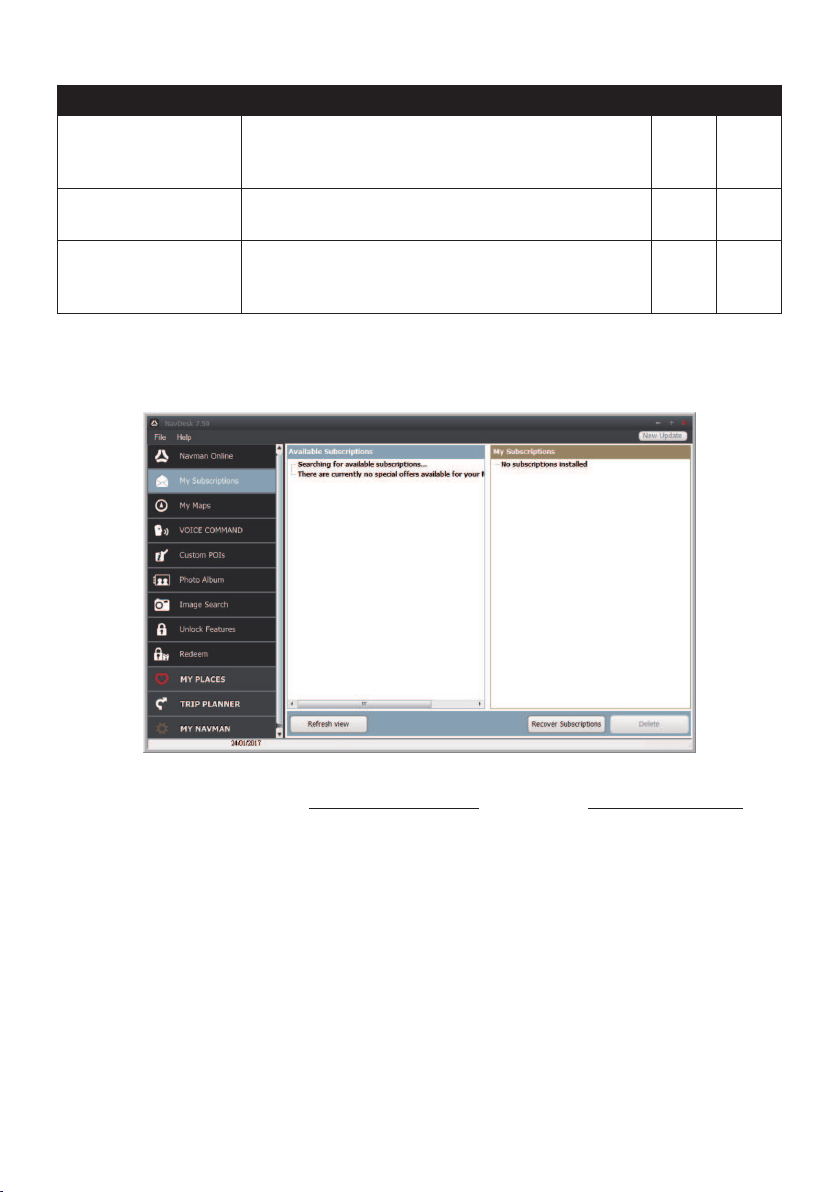
69
Name Description PC Mac
My Places Viewandmodifyallplacesincludingaddresses,POIs,
NavPix™
,andothersaddedusingNavDeskand
storedonyourNavman.
√
Trip Planner Addorbeginaplannedtripwithmultiplewaypointson
yourcomputer,andthensavethetriptoyourNavman.
√
MY Navman Acollectionofapplicationsthatallowyoutocongure
NavDesk,downloadupdates,andtransferdatatoand
fromyourNavman.
√ √
My Subscriptions
NavDesk
My Subscriptions
YourNavmancontainspre-loadedsubscriptions,suchassafetycamerainformation.Forthe
latestsubscriptionupdates,visitwww.navman.com.au(Australia)orwww.navman.co.nz
(NewZealand).
Note: Safetycameraalertscanbeenabledtoprovidewarningswhenontheroute.
How do I purchase a subscription?
1.Selectatypeofsubscription.
2.Selectaregion.
3.Selectasubscriptionoroffer,thenclickPurchase an activation key from the
Navman store.
4.Followthepromptstopurchaseyoursubscription.
Aproductkeywillbesenttoyouviaemailwhenyouhavesubscribed.Youwillneedtouse
thisproductkeytoactivateyoursubscription.

70
How do I activate my subscription?
NavDesk
Unlock Features
1.Enteryourproductkey.
2.Followthepromptstoactivateyoursubscription.
How do I update subscriptions on my Navman?
TheMySubscriptionssectionwilldisplayalistofsubscriptionsalreadyinstalledonyour
Navman:
Icon Description
RedExpiredsubscriptions.
Right-clicktopurchaseanewsubscription.
YellowAvailablesubscriptions.
Right-clicktoupdateandpurchaseanewsubscription.
GreenActivesubscriptions.
Note:
Noupdatesareavailableforthesesubscriptions.
How do I recover my subscription?
Ifyoursubscriptionsaredeletedandyouwanttorecoverthem,clickRecover
Subscriptionsatthebottom-rightcornerinMySubscriptionstorecoverallsubscriptions.
My Maps
NavDesk
My Maps
My Mapsallowsyoutoinstallnewmaps,removemapsfromyourNavmanandpurchase
newmaps.
Note:Thedownloaded/purchasedmap(*.iso)fromNavmanStorewebsitewillbesavedonyour
computer’smapfolder(e.g.C:\username\Documents\Maps)andthendisplayedinMyMaps.The
defaultmapfoldermayvarydependingonyouroperatingsystem.
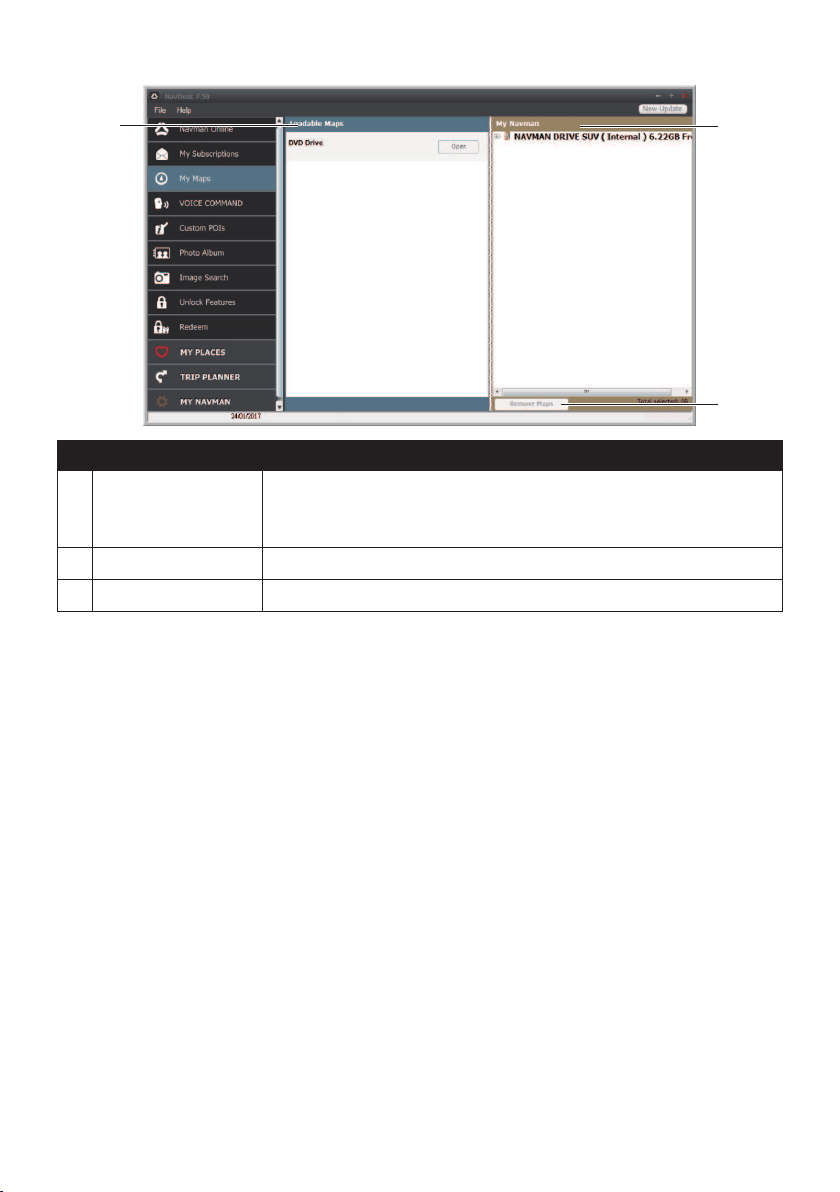
71
Name Description
Loadable Maps AlistofmapsontheDVDoravailableforpurchaseviatheNavman
Storewebsite.
Note: MapinstallationfromtheDVDisnotavailableforMacsystems.
Remove map ClicktoremovetheselectedmapfromyourNavman.
My Navman AlistofmapsinstalledonyourNavman.
How do I install maps onto my Navman?
YourNavmancomeswithoneormorepre-activatedmaps.Maplestakeupspaceonyour
Navman’sinternalmemory.Ifyoudonotuseamaple,youcanremoveittofreeupspace.
YoucanlaterreinstallittoyourNavmanifrequired.
Youcaninstallmapsfromthefollowing:
•DVDthatcamewithyourNavman
YoumayneedtopurchaseaMapProductKeytoactivatemapsontheDVDthatcame
withyourNavman.
•Thedownloadedmapupdate
Formoreinformationondownloadingthefreemapupdate,seethe“HowdoIupdate
myNavman?”section.
•ThemapthatyouhavepurchasedseparatelyonamemorycardoryourNavmaninternal
memory
1.OpenNavDesk,andthenclickMy Maps.
2.SelectamapsourceandthenclickOpentodisplaytheMapSourcesection.
•ThemapsalreadyinstalledonyourNavmanare
green.
•ThemapsthatareunlockedandreadytobeinstalledtoyourNavmanareyellow.

72
•ThemapsthatrequireactivationbeforebeinginstalledtoyourNavmanarered.
•ThemapsthatareavailableforpurchasefromNavmanareblue.
Note: IfyourcomputeropensWindowsExplorerwhentheDVDisinserted,closetheWindows
Explorerwindow.
3.Completethefollowing:
If the map to be installed is… Then…
Yellowgotostep6.
RedthemapneedstobeactivatedviatheInternet
beforeitcanbeinstalled;continuetostep4.
4.IfyouconnecttotheInternetviaadial-upconnection,connecttotheInternetnow.
5.FollowthepromptstoactivateyourMapProductKey,including:
•EntertheMapProductKeywhenprompted.
•YourcomputerwillconnecttotheInternetandactivateyourMapProductKey.
•Whenactivationhascompleted,themapwillchangecolourto
yellow;continueto
step6.
6.ClickthemapyouwanttoinstalltoyourNavman.Themapwillchangecolourtoa
brighteryellowtoindicateithasbeenselected.Todeselectamap,clickthemapagain.
Note:Youmayneedtoinstallmultiplemapstocovertherequiredgeographicalarea.
7.Completethefollowing:
If you want to… Then…
installayellowmap,gobacktostep6.
installa
redmap,themapneedstobeactivatedviatheInternet
beforeitcanbeinstalled;gobacktostep4.
installtheselectedmapstoyourNavman,continuetostep8.
8.Selectthedestinationmedia(Navmaninternalmemory)fortheselectedmaps,then
click Install Maps.
Theselectedmapswillbeinstalledandchangecolourto
green.
DonotdisconnecttheUSBcableuntiltheinstalledmapormapshavechangedcolour
togreen.
9.TouseyourNavman,disconnecttheUSBcable.Youmayneedtomanuallyresetyour
Navman.
How do I remove maps from my Navman?
1.OpenNavDesk,andthenclickMy Maps.
2.FromtheMyNavmanpanel,selectthecheckboxnexttothemapyouwanttoremove.
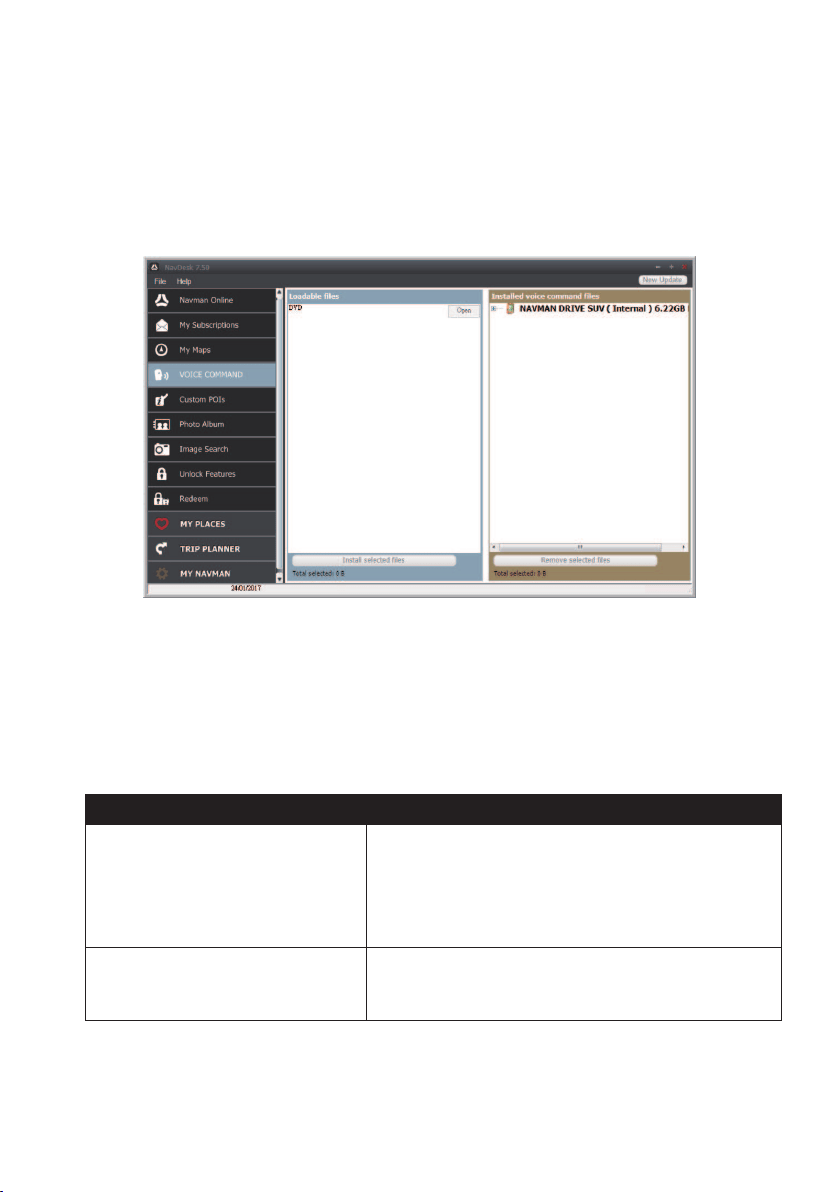
73
3.ClickRemove Mapstoremovetheselectedmaps.
4.Conrmthatyouwanttoremovetheselectedmapwhenprompted.Themapis
removedfromyourNavman.YoucanreinstallthesemapsatanytimeviaNavDesk.
Voice Command
NavDesk
VOICE COMMAND
DependingonyourNavmanmodel,youmaybeabletosetthedestinationquicklybyusing
VoiceCommand.NavDesk'sVoiceCommandallowsyoutoinstallorremovevoiceleson
yourNavman.
Note:YoucandownloadandinstallfreeVoiceCommandupdateswhenavailable.Formore
informationondownloadingtheupdates,seethe“HowdoIupdatemyNavman?”section.
1.OpenNavDesk,andthenclickVOICE COMMAND.
2.Completethefollowing:
If you want to… Then…
installavoicecommandle,fromtheLoadablelessection,selectalesourceand
thenclick Open.
IntheAvailablevoicecommandlessection,selectthe
desiredvoicecommandleandclickInstall selected
files.
removeavoicecommandle,intheInstalledvoicecommandlessection,selectthe
voiceleyouwouldliketoremoveandclickRemove
selected files.
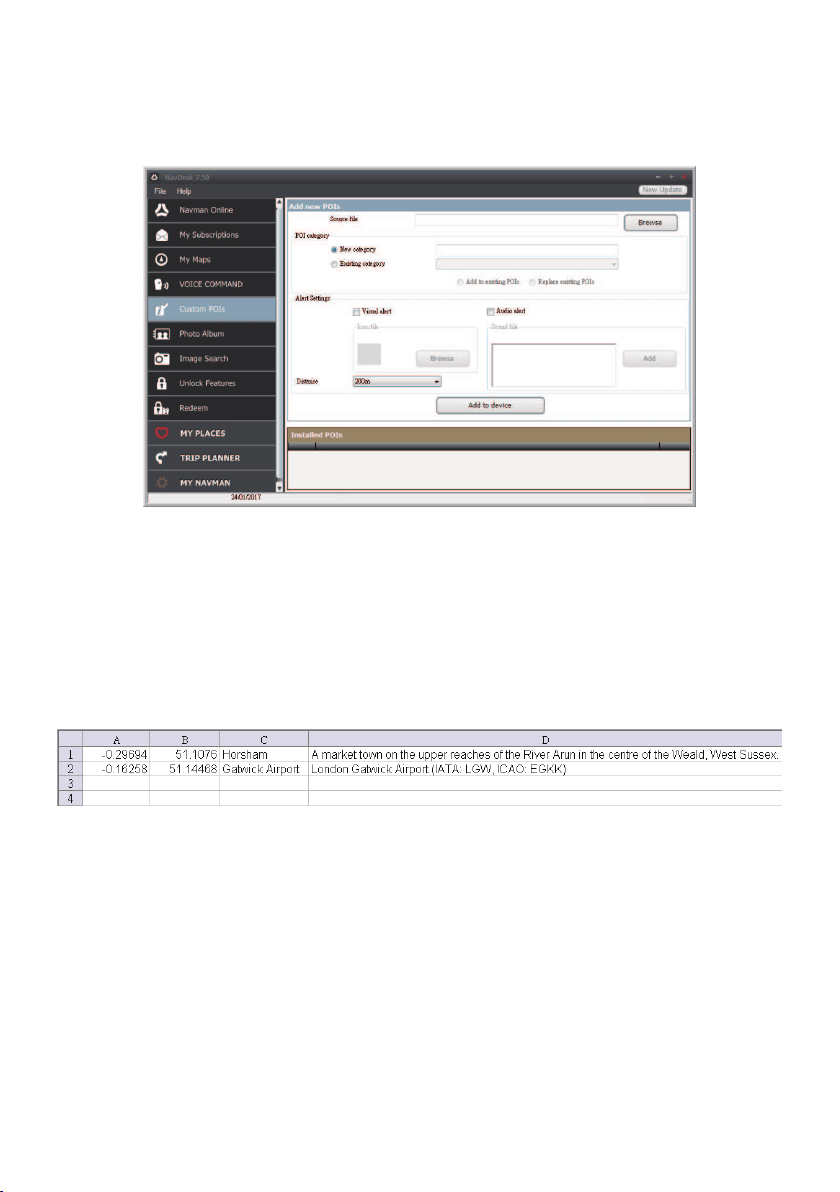
74
Custom POIs
NavDesk
Custom POIs
TheCustom POIsapplicationallowsyoutocreateorimportyourownPOIles.These
arecalledcustomPOIs.UnlikepreinstalledPOIs,customPOIscanberemovedfromyour
Navmanandcanhaveaudioaswellasvisualalertsassociatedwiththem.
TocreateyourPOIles,openMicrosoftExcelandthenenterthePOIlocationdetails
(includingthelongitude,latitude,name,anddescription)inseparatecells.Alwaysuse
decimaldegreesforcoordinatesandstartanewlocationfromanewline.Whendone,click
File
Save Astosaveitasa*.csvle.NowyouhavesuccessfullycreatedaPOICSVle.
ThefollowingdisplaystheexampleofcreatingthePOIlebyusingMicrosoftExcel:
Note:VariousPOIlesareavailableforfreedownloadorbysubscriptionfromthird-party
websites.Ensurethatdownloadedlesarein.csv(CommaSeparatedValues)format.Navmanis
notresponsibleforthecontentoraccuracyoftheinformationorthereliabilityoravailabilityofthese
websites.Theuseofinformationregardingsafetycameralocationsmaybesubjecttolocallawsinthe
countryofuse.Youareresponsibleforcheckingthatyoucanusetheinformationinyourcountryorin
thecountrywheretheinformationwillbeused.
How do I install custom POIs?
1.IntheAddnewPOIssection,clickBrowsetoselectasourcele.
2.Selectthelefromyourlocalornetworkdrive,thenclickOpen.
3.FromthePOICategorysection:

75
If you want to… Then…
useanexistingcustomPOIcategory,select Existing category,thenselectatypefromthe
drop-downlist.
replaceanexistingPOI,selectExisting categoryandatypefromthedrop-
downlist,thenselectReplace existing POIs.
Note: IfyouwanttocreateanewPOIinstead,thenselect
Add to existing POIs.
createanewcustomPOIcategory,selectNew category,thentypeanameforthePOI
category.
4.Setalertsettingsasrequired:
If you want to… Then…
enableavisualwarningwhenaPOI
ofthiscategoryisincloseproximity,
selecttheVisual alertcheckbox.
selectanicontodisplayontheMap
screenforPOIsofthiscategory,
clickBrowsetoselecttheiconlefromyourlocalor
networkdrive.
•Whenyouhavelocatedtheiconle,selectitand
clickOpen.
•Theiconlemustbeabitmap(*.bmpor*.png)
graphicwithaminimumsizeof6x6pixelsanda
maximumsizeof32x32pixels.
Note: Ifyoudonotselectacustomicon,adefaulticonwill
display.
selectthedistancefromaPOIofthis
categoryatwhichthevisualwarning
shoulddisplayorthewarningchime
shouldsound,
selectthedistancefromtheDistancebox.
Note: Tochangetheunitsusedtomeasurethedistancefor
thisPOIcategory,click My Navman
Options andfrom
theGeneraloptionselectUse metric units checkbox.
enableawarningsoundwhenaPOI
ofthiscategoryisincloseproximity,
selectthe Audio alertcheckbox.
selectacustomsoundalertleto
playwhenaPOIofthiscategoryisin
closeproximity,
dooneofthefollowings:
•Selectasoundlefromthelist.
•ClickAdd toselectasoundle(.WAVformat)from
yourlocalornetworkdrive.Whenyouhavelocated
thele,selectitandclickOpen.
Note: Ifyoudonotselectacustomsoundle,adefaultsound
alertwillplay.
5.Click Add to devicetoaddthePOItoyourNavman.
Note:EachlecorrespondstoaPOIcategory;forexample,Hotels.csvwillbelistedonyourNavman
astheHotelscategory.
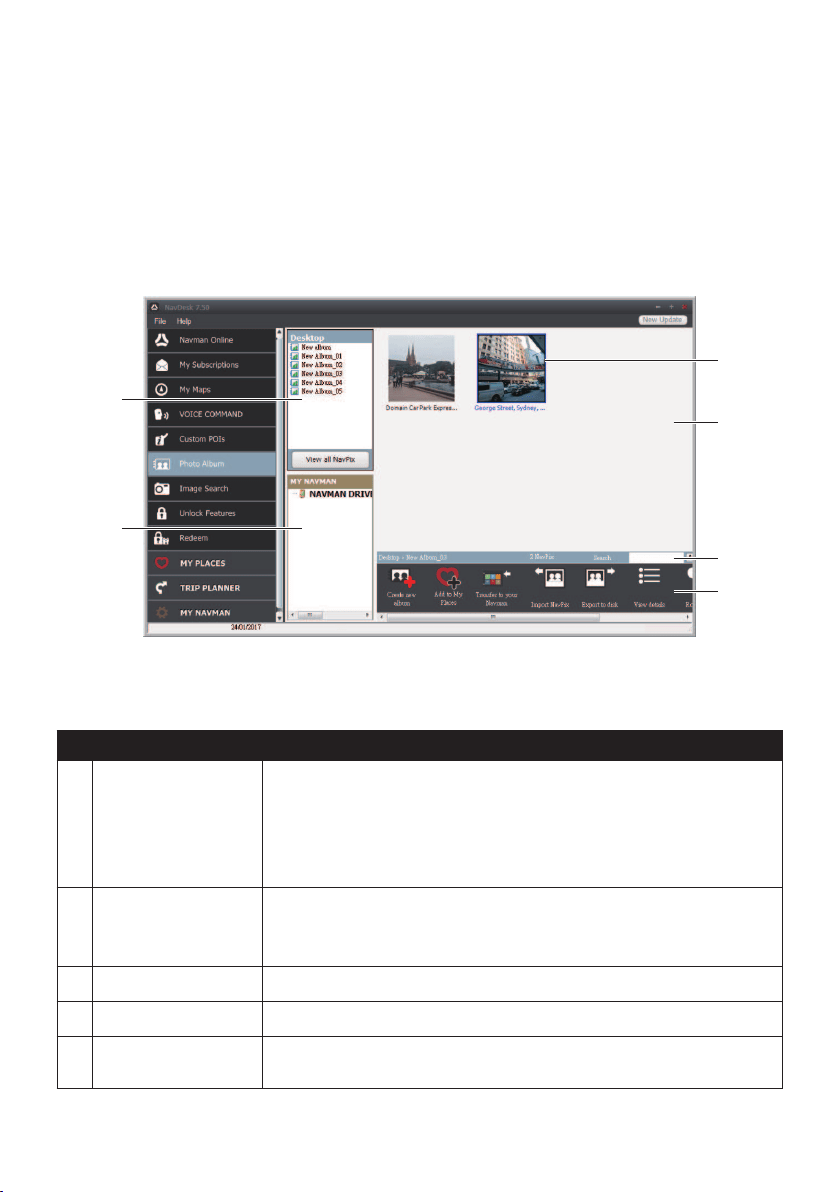
76
How do I delete a custom POI file/category from my Navman?
1.IntheInstalledPOIssection,clickDelete nexttothelename.Theleisremoved
fromthelist,butisnotyetdeleted.
2.Acceptthewarningmessage.Theselectedle/categoryisdeleted.
Photo Album
NavDesk
Photo Album
PhotoAlbumisaNavDeskapplicationwhichallowsyoutocopy,deleteormovepictures
oralbumsbetweenthe
NavPix™
libraryonyourNavmanandthe
NavPix™
libraryon
yourcomputer.
Name Description
Desktop albums Displaysalistofallalbumsstoredinthe
NavPix™
libraryonyour
computer.
•Clickanalbumtodisplayitscontentsinthe albumdisplayarea.
•ClickView all NavPixtodisplayallpicturesstoredinthe
NavPix™
libraryonyourcomputer.
My Navman
albums
DisplaysalistofalbumsstoredontheNavmaninternalmemoryandon
thememorycardifoneisinserted.
•Clickanalbumtodisplayitscontentsinthe albumdisplayarea.
Toolbar Whenapictureisselected,theiconswhichcanbeusedwillbeactive.
Search Typetosearchfora
NavPix™
byname.
Album display
area
Displaysthumbnailsofpicturesintheselectedalbum.
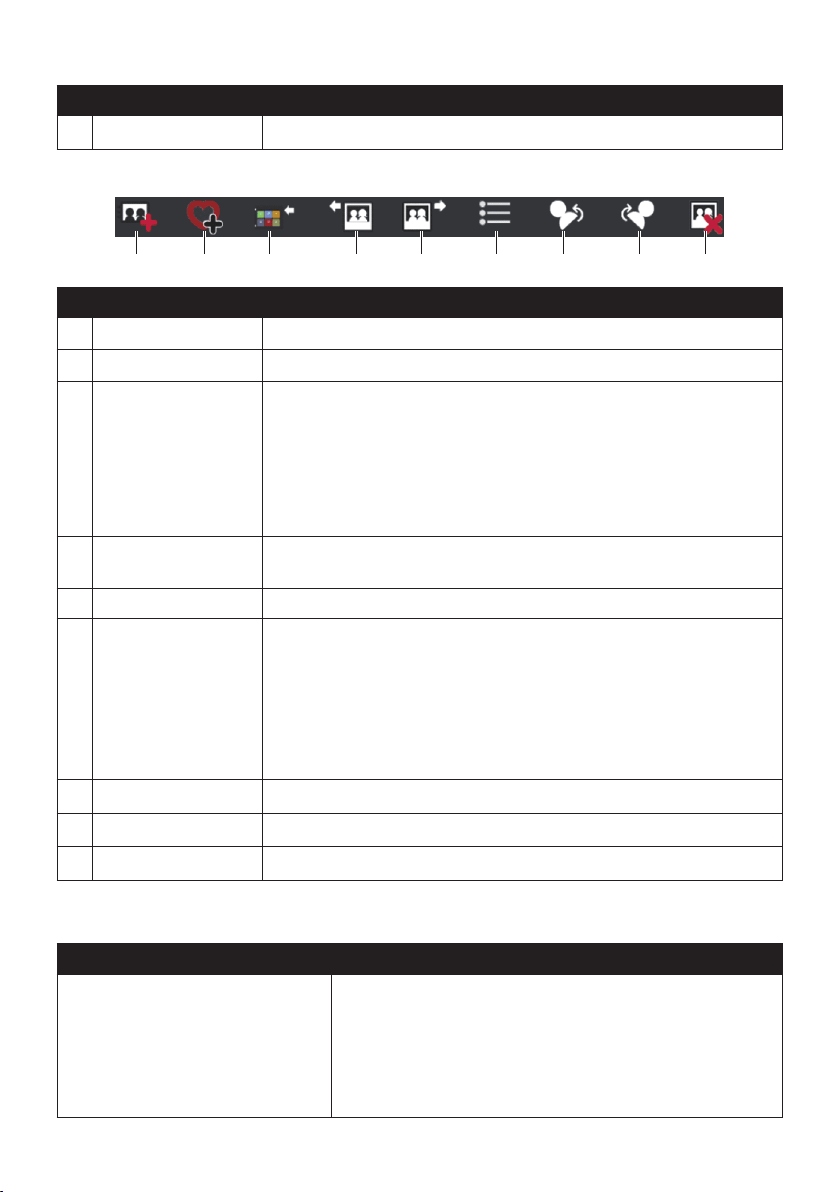
77
Name Description
Selected picture Whenathumbnailisselected,itdisplayswithablueborder.
Toolbar
Name Description
Create new album Clicktocreateanewalbuminthe
NavPix™
libraryyouareviewing.
Add to My Places Clicktotransfer
NavPix™
toMyPlaces.
Transfer to your
Navman
or
Transfer to your
computer
•Ifyouareviewing
NavPix™
inthe
NavPix™
libraryonyour
computer,thiswilldisplayasTransfer to your Navman.
Clicktotransfertheselected
NavPix™
toyourNavman.
•Ifyouareviewing
NavPix™
intheNavmanlibrary,thiswill
displayasTransfer to your computer.
Clicktotransfertheselected
NavPix™
toyourcomputer.
Import
NavPix™
Imports
NavPix™
fromyourcomputertothe
NavPix™
libraryon
yourcomputer.
Export to disk Clicktosave
NavPix™
toyourcomputeroranetworkdrive.
View details Clicktoviewtheselected
NavPix™
andedit
NavPix™
details,
including:
•NavPix™
name
•latitude
•longitude
•description
Rotate left Rotatestheselected
NavPix™
90°totheleft.
Rotate right Rotatestheselected
NavPix™
90°totheright.
Delete
NavPix™
Clicktodeletetheselected
NavPix™
.
What else can I do with pictures and albums on my computer?
If you want to… Then…
addapicturetoanotheralbum,intheDesktopalbumssection,selectthealbumcontaining
the
NavPix™
youwanttoincludeinanotheralbum.
Selectthe
NavPix™
thendragittotheotheralbum.
Note: Theselected
NavPix™
isincludedinthenewalbum,but
isnotmoved.Oneinstanceofthe
NavPix™
inthelibrarymaybe
includedinmultiplealbums.

78
If you want to… Then…
removeapicturefromanalbum,intheDesktopalbumssection,selectthealbumcontaining
the
NavPix™
youwanttoremove.
Right-clickontheselectedpictureandselectRemove from
album.
Note:Ifyouwanttodeletethe
NavPix™
fromallalbums,right-
clickontheselectedpictureandselectDelete NavPix,orsimply
clicktheDelete NavPix icononthetoolbar.
adda
NavPix™
toMyPlaces,intheDesktopalbumssection,selectthealbumcontaining
the
NavPix™
youwanttoaddtoMyPlaces.
Right-clickontheselectedpictureandselectAdd to My
Places.
uploadpicturetotheFlickrwebsite,
intheDesktopalbumssection,selectthealbumcontaining
the
NavPix™
youwanttouploadtotheFlickrwebsite.
Right-clickontheselectedpictureandselectUpload to
Flickr.
Note:YouneedaFlickraccounttoupload
NavPix™
.Tocreatea
Flickraccount,visitwww.ickr.com.
exporta
NavPix™
toGoogle
Earth™,
intheDesktopalbumssection,selectthealbumcontaining
thepictureyouwanttoexporttoGoogleEarth.
Right-clickontheselectedpictureandselectExport to
Google Earth.
Navigatetoafolderonyourcomputertosavetheleand
thenopenitinGoogleEarth.
Note:YouneedtoinstalltheGoogleEarthsoftwareonyour
computertobeabletoviewtheleyouhavecreated.Youcan
downloadGoogleEarthfromearth.google.com.
searchforother
NavPix™
,right-clickonthedesired
NavPix™
andselectSearch for
NavPix near this.
Photo Album preferences
NavDesk
MY Navman
Options
Photo Album
Completethefollowing:
If you want to… Then…
changeyour
NavPix™
locationonyour
computer,
clickChangeandselectalocationforyour
NavPix™
library.
Click Save orOK.Thewarningmessagewill
displayandyouwillbepromptedtoconrmyour
action.
receiveawarningmessagebeforedeleting
animagefromyourdevice,
selecttheWarn me when permanently
deleting a NavPix from my Navmancheckbox.
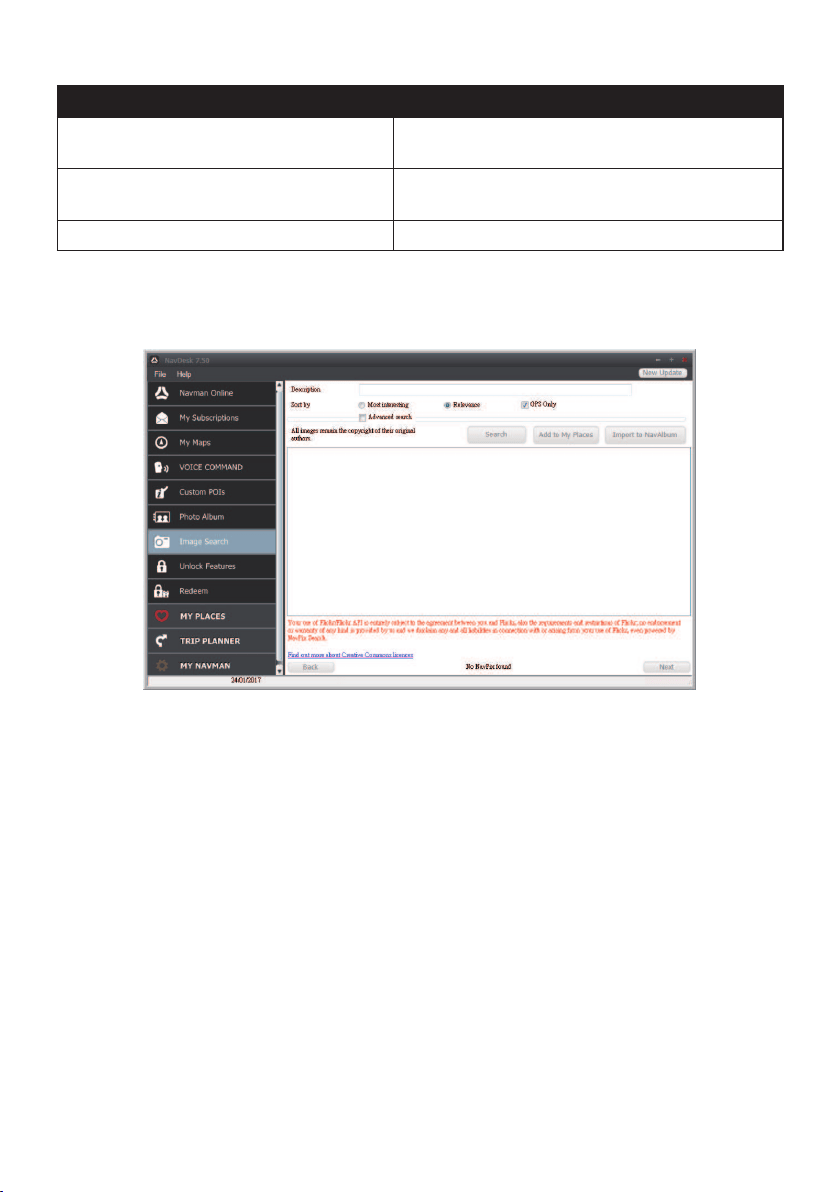
79
If you want to… Then…
receiveawarningmessagebeforedeleting
animagefromyour
NavPix™
library,
selectthe Warn me when permanently
deleting a NavPix from my library checkbox.
createanewfoldereverytimeyouimport
newphotos,
selectthe Import photos to a new album
checkbox.
view
NavPix™
whenonaroute,selecttheShow NavPix on mapcheckbox.
Image Search
NavDesk
Image Search
ImageSearchisaNavDeskapplicationpoweredbyFlickr™allowingyoutodownload
photosandimportthemtoPhotoAlbum.YoucanthenuploadthephotototheFlickr
website,transferphotostoyourNavman,exportpicturestoGoogleEarthorsearchfor
other
NavPix™
nearthelongitudeandlatitudeofyour
NavPix™
.
How do I search for a
NavPix™
on the Internet?
1.IntheDescriptioneldenterasearchdescriptionfortheimageyouarelookingfor.
2.SelectoneoftheSortbyoptions.
3.ClickSearch.Thumbnailsofthe
NavPix™
willbedisplayedinthe
NavPix™
displayarea.
Note:Youcannarrowyoursearchbyselectingthe Advanced searchcheckboxandthenselecting
acityfromthedrop-downlistorbyenteringthelatitudeandlongitudedetails.
How do I import
NavPix™
to My Places?
1.SelectapictureorgroupofpicturesyouwanttoaddtoyourMyPlaces.
2.DooneofthefollowingtoaddtheselectedimagetoMyPlaces:
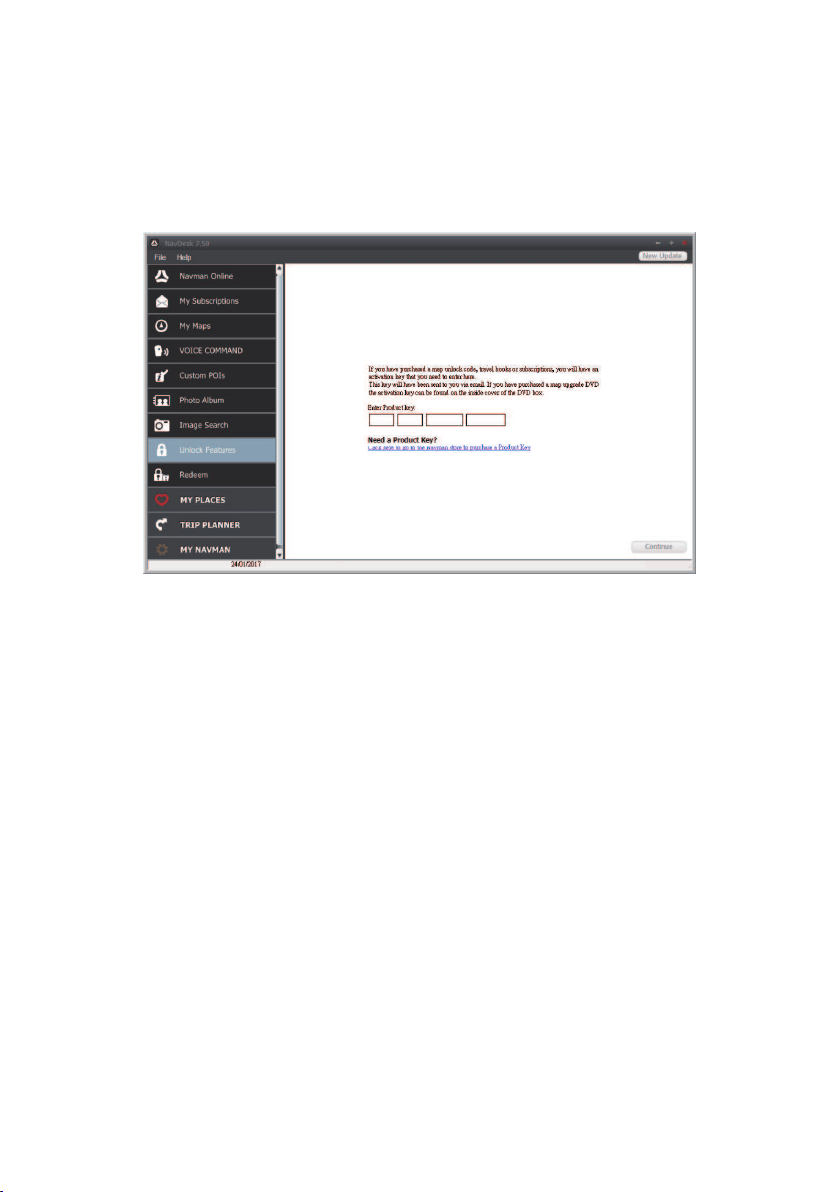
80
•ClicktheAdd to My Places button.
•Right-clickontheselectedpictureandthenselectAdd to My Places.
Unlock Features
NavDesk
Unlock Features
IfyouhavepurchasedamapunlockcodeorsubscriptionsforyourNavman,youhaveto
entertheactivationkeyusingtheUnlockFeaturesapplication.
Note:MakesureyouhaveanactiveInternetconnectionforthisfeature.
Note: Theactivationkeywillbesenttoyoubyemail.Youcanclicktheprovidedlinktopurchasean
activationkeyonline.
Redeem
NavDesk
Redeem
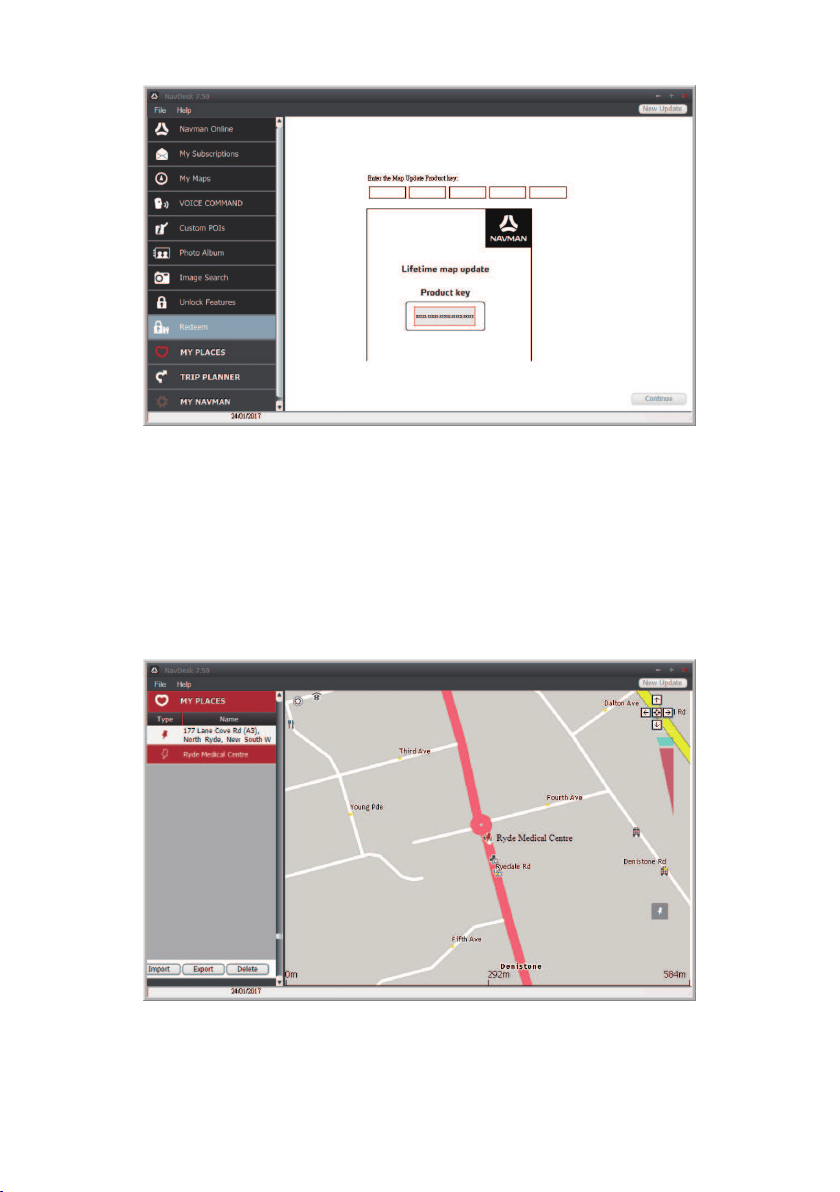
81
ToredeemNavman’slifetimemapupdateservice,youneedtoentertheproductkeyusing
theRedeemapplication.Pleasenotethattheproductkeycanonlybeusedonceandisnot
transferable.
Note:MakesureyouhaveanactiveInternetconnectionforthisfeature.
Note:Thisfeatureisnotrequiredforselectedmodels.
My Places
NavDesk
MY PLACES
MyPlacesincludessavedaddresses,capturedjourneys,POIs,
NavPix™
,andother
locations.Youcanselect,modifyanddeleteplaces.YoucanalsoaddlocationsfromImage
SearchtoMyPlaces.
Note:MakesureyouhaveanactiveInternetconnectionforthisfeature.

82
Note: Youcaninstallamaximumof99locationsonyourNavmanviaMyPlaces.
How do I sort My Place locations?
YoucansortMyPlacelocationsbytypeandname:
If you want to… Then…
sortMyPlacelocationsbytype,clickTypeontheMyPlacespanel.
sortMyPlacelocationsbyname,clickNameontheMyPlacespanel.
How do I import or export a location?
Completethefollowing:
If you want to… Then…
importalocationfromthecomputer
toyourNavman,
fromtheMyPlacespanel,clickImport.
LocatetheleyouwanttoimportandthenclickOpen.
Note: Thesupportedleformatforimportingincludes:*.KMLand
*.KMZ.
exportalocationfromyourNavman
tothecomputer,
fromtheMyPlacespanel,selectalocationandthenclick
Export.
EnteradescriptivenamefortheleandthenclickSave.
Note:Thesupportedleformatforexportingincludes:*.KMZ.
Note:YoucanasloimportorexportalocationbyclickingFile
Import (orExport)
My
Places.
How do I edit a location from the map screen?
1.FromtheMyPlacespanel,selectthelocationyouwanttoedit.
2.Clickthelocationicononthemap.
3.Completethefollowing:
If you want to… Then…
editthelocationname,clickthelocationname.
Enteranewnameoredittheexistingname.The
locationnameischangedinbothNavDeskandyour
Navman.
editthelocationnotes,clickEdit notes.
Enternotes.Thelocationnotesarechangedinboth
NavDeskandyourNavman.
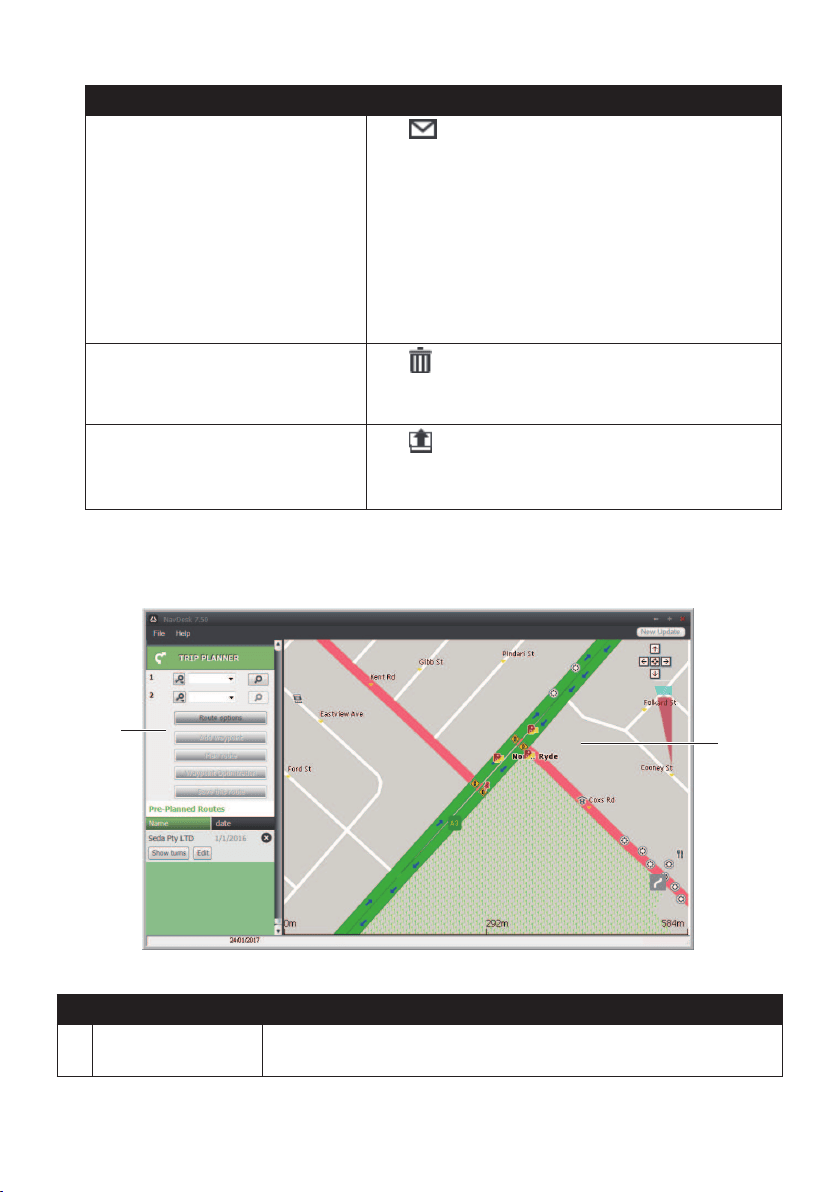
83
If you want to… Then…
sharethelocation,
click
.
Anemailwillopenreadytosendtoyourfriends.Your
friendwillreceivetheemailwithlinkstoeithersavethe
imageortosavethelocationinMyPlacesinNavDesk.
Note:Ifthelocationisa
NavPix™
,yourfriendwillreceive
theimageasanattachmenttotheemail.
Note:Ifthelocationisacapturedjourney,yourfriendwill
receivethejourneyasa*.KMZleattachedtotheemail.Your
friendwillneedtohaveGoogleEarthinstalledonthecomputer
toviewtheKMZle.
deletethelocation,
click
,thenclickYestodeletethelocation.
Note:YoucandeletealllocationsinMyPlacesbyclicking
DeleteontheMyPlacespanel.
exportthelocation,
click.
Enteradescriptivenamefortheleandthenclick
Save.
Trip Planner
NavDesk
TRIP PLANNER
Trip PlannerinNavDeskallowsyoutopre-planyourtriponthecomputer.
Name Description
Route planner PlanaroutebyenteringtheFrompointand Topoint.Alistofplanned
routeswilldisplayinthePre-PlannedRoutessection.
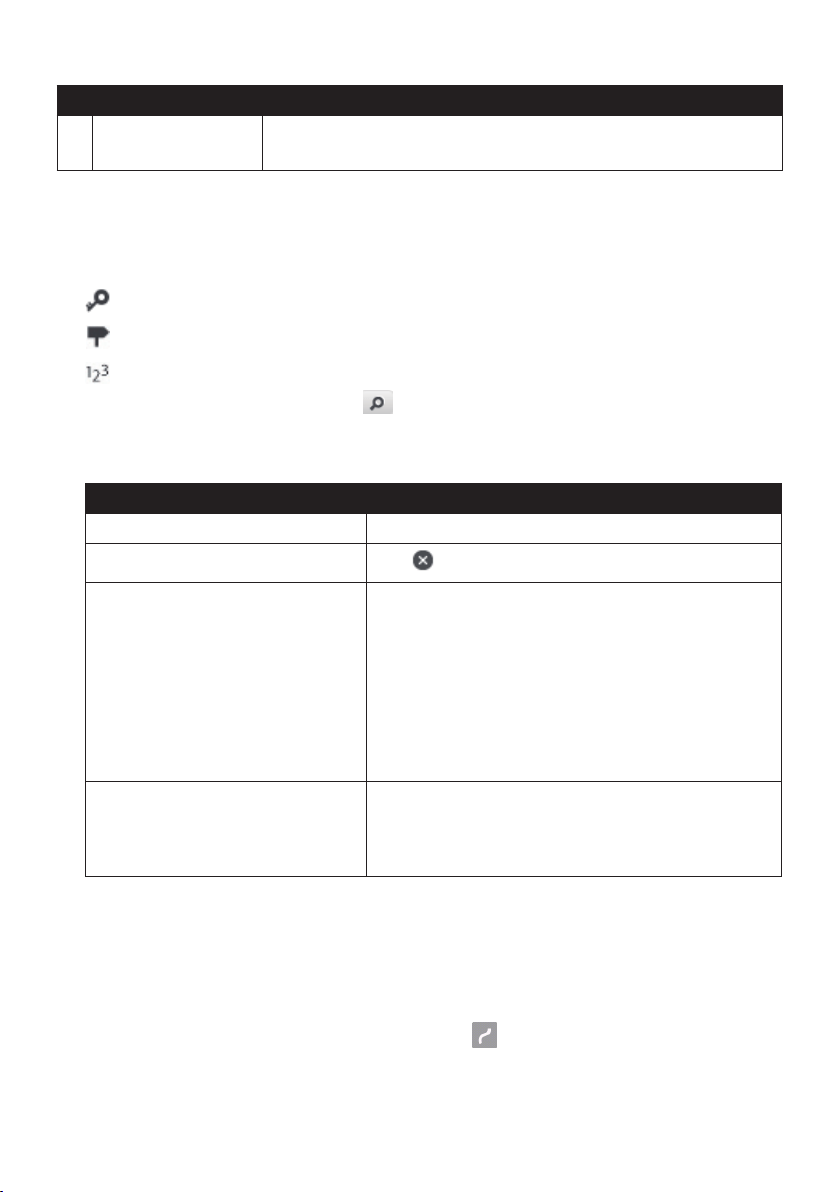
84
Name Description
Display area Displaytherouteonthemap.
Note:Youcanalsoplanyourroutedirectlyonthemap.
How do I pre-plan a route by search?
1.FromtheRouteplannerpanel,setyourFromandTopoints.
Youcanndalocationby:
:Keyword
:Address
:Postcode
Enteryourtextforsearchandclick
tostartasearch.Youmayneedtoselectfroma
categorylisttonarrowyoursearchresults.
2.Completethefollowing:
If you want to… Then…
addawaypoint,clickAdd Waypoint.
resetorremoveawaypoint,
click
nexttothewaypoint.
settheroutepreferences,clickRoute optionandselect:
•Mode:Selectthedesiredmodetoplanyourroute.
•Type of route:Selectawaytoplanyourroute.
•Avoidance:AvoidUnsurfaced roads,Toll
roads,Ferry routes,orSpecial zoneonyour
route.
Note:The Route option settingswillonlyapplytotheroute
youareediting.
arrangethedestinationsinthe
mostefcientorderwhiletwoor
morewaypointsareincludedinthe
plannedtrip,
clickWaypoint Optimisation.
3.Click Plan Routetocalculateyourroute.Theroutewillbedisplayedonthemap.
4.ClickSave this route.TherouteissavedtothePre-PlannedRoutessectionandyour
Navmansimultaneously.
How do I pre-plan a route using the map?
1.Fromthemapdisplayedinthedisplayarea,click
.
2.Thecursorwillbemarkedwith“Addroute.”Movethecursorandthenclickonthemap
tosettheFrompoint.

85
3.Thecursorwillbemarkedwith“Clicktosetdestination.”Youcan:
•Movethecursorandthenclickonthemaptosetthewaypoint.
•Movethecursorandthendouble-clickonthemaptosettheTopoint.
4.Whendone,clickSave this route.TherouteissavedtothePre-PlannedRoutes
sectionandyourNavmansimultaneously.
How do I edit a route?
1.FromthePre-PlannedRoutessection,selectaroutetoedit.
2.Completethefollowing:
If you want to… Then…
renametheroute,clickthetitleoftherouteintheNamecolumn,then
enteranewname.Yourchangesareautomatically
saved.
deleteasavedroute,
click
nexttotherouteyouwanttoremove.
My Navman
NavDesk
MY Navman
How do I change the displayed language for NavDesk?
1.ClickLanguage.
2.Selectyourpreferredlanguage.
How do I install or remove a voice file for my Navman?
1.ClickMy Voices.
2.Completethefollowing:
If you want to… Then…
installavoicele,intheAvailablevoicelessection,selectthevoicele
youwouldliketoinstall.
ClickInstall selected voices.
removeavoicele,intheAvailablevoicelessection,selectthevoicele
youwouldliketoremove.
ClickRemove selected voices.
Note:VoicelestakeupspaceonyourNavman’sinternalmemory.Ifyoudonotuseavoicele,
youcanremoveittofreeupspace.YoucanlaterreinstallittoyourNavmanifrequired.Theprovided
DVDofyourNavmanisneededwhileinstallingthevoicele.
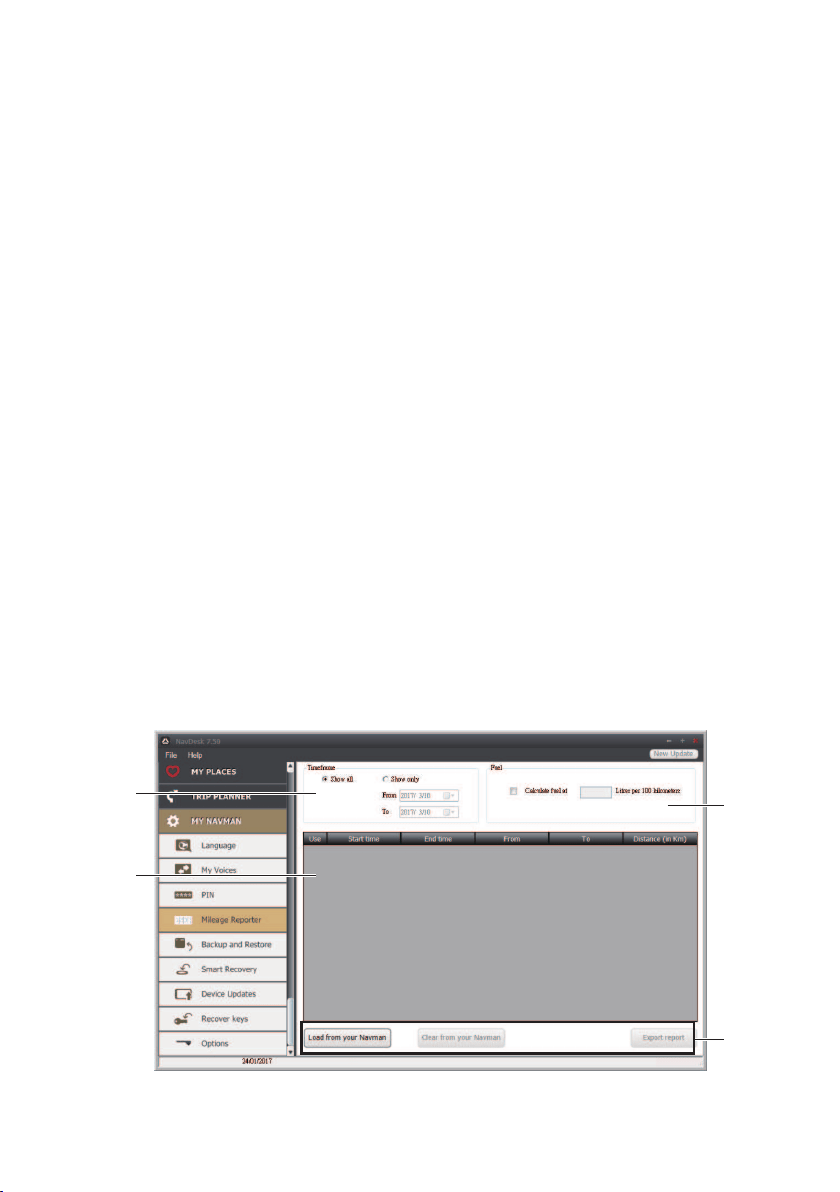
86
How do I register my Navman and set a PIN?
PINisaNavDeskapplicationthatallowsyoutosetasecurityPINonyourNavman.The
PINwilldisableyourNavmanintheeventoftheft.TosetaPIN,youmustrstregisteryour
NavmanonNavman’swebsite.
1.ClickPIN.
2.ClickRegister nowandfollowthepromptstocompletetheregistrationformonline.
3.Whentheregistrationiscomplete,clickI have registered my Navman.
4.IntheUserNameandPasswordelds,entertheusernameandpasswordthatyouhave
enteredwhenregisteringonline.
5.InthePINeld,enterthePINyouwanttoassigntoyourNavman.YourPINmustbe
betweenfourandeightnumericaldigits.
6.ClickOK.ThePINforyourNavmanhasbeenset.YouwillberequiredtoenteryourPIN
whenyouturnonyourNavman.
7.TodisableorchangethePINonyourNavmanatalatertime,entertheUsernameand
passwordtoenterthePINscreen.Thendooneofthefollowing:
•LeavethePINeldblankandclickOK.ThePINisremovedandyourNavmanwill
nolongerrequireyoutoenteraPIN.
•InthePINeld,enteranewPINyouwanttoassigntoyourNavman.ThenewPIN
foryourNavmanhasbeenset.
How do I report mileage?
MileageReporterisaNavDeskfeaturethatallowsyoutocreateexpensereports(.csv
format)basedonthemileageandestimatedfuelusagerecordedbyyourNavman.

87
Name Description
Timeframe Speciesthetimeforwhichthemileagereportwillbecreatedwhen
Show onlyisselected.
Select Show All toincludeallrecordedmileage.
Report panel Displaysyourtriplogdata.
Report data
buttons
ImportreportdatafromyourNavman,clearallreportdatafromyour
Navmanorexportdatatoareport(.csvand.HTML).
Fuel Selecttoincludetheamountoffuel(estimate)usedforthemileage
recorded.Ifselected,specifythenumberofmilestravelledpergallon,
ormiles/kilometrestravelledperlitre.
Note:Tousethe Mileage ReporterfunctionofNavDesk,theMileage recorder optiononyour
Navmanmustbeenabled.Formoreinformation,seethe"Routeoptions"sectionin“Customisingthe
systemsettings.”
How do I backup and restore my Navman?
YoucansavebackupsofdatafromyourNavman,andlaterrestoreitifrequired.
1.ClickBackup and Restore.
2.Completethefollowing:
If you want to… Then…
backupyourNavman,clickCreate new backup.
Selectthedatayouwouldliketobackup,thenclickOK.
Thebackupwillbesavedtoyourcomputer.Thebackup
willbelistedontheBackup&Restorewindow.
restoreabackuptoyourNavman,selectthebackupfromthelistthatyouwouldliketo
restore.
ClickRestore,thenclickOK.
ThebackupwillberestoredtoyourNavman.
deleteabackup,selectthebackupfromthelistthatyouwouldliketo
delete.
ClickDelete,thenclickOK.
Thebackupwillbedeleted.
How do I recover maps and voice files for my Navman?
TheSmart RecoveryapplicationallowsyoutorecoveralldatatoxyourNavmanifa
problemoccursduringoperation,includingsoftware,maps,voiceles,andsubscriptions.
1.MakesureyouhaveanactiveInternetconnectionandtheInstallerDVDisinsertedinto
yourcomputerDVDdrive.
2.Click Smart Recovery.
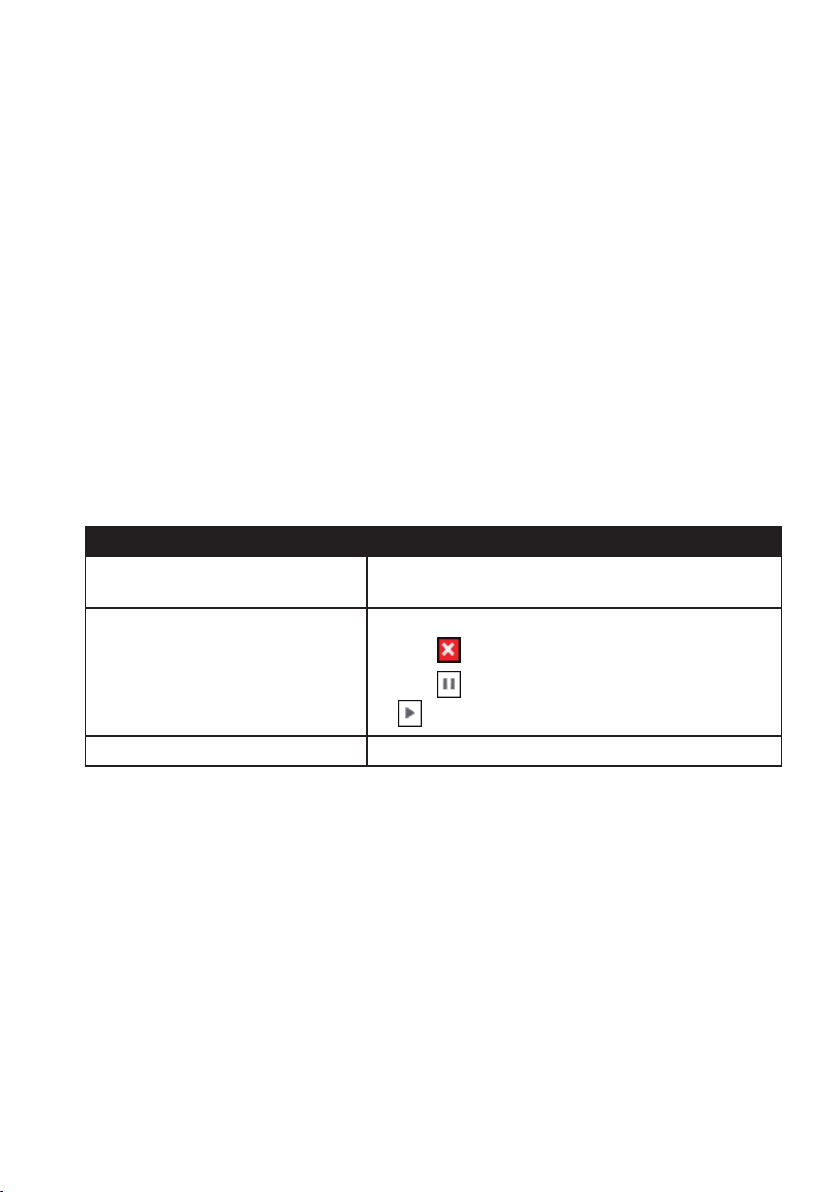
88
3.Theavailabledatawillbedisplayedinthe Maps and Voiceselds.Selectthedesired
dataandclickRecovertorecoverthedataonyourNavman.
How do I update my Navman?
OccasionallyNavmanmayofferyoufreeupdates,includingsoftwareapplications,maps,
andmore.YoucanchecktheavailableupdatesviatheDeviceUpdatesfunction.
1.IfafreeupdateisavailableandyourNavmanisconnectedtoyourcomputer,amessage
willdisplaywhenyoustartNavDesk.
Fromthepop-upmessagewindow,clickViewtodisplaytheDeviceUpdatesscreen
thatcontainstheavailableupdates.
Note:YoucanalsoopentheDeviceUpdatesscreenbyclickingtheNew Updatebuttonatthe
top-rightcornerofNavDesk.
Note:Insomecertainupdates,youmustupgradeyoursystemtothelatestversion(including
theNavDeskandyourNavman)beforeyoucanusetheupdates.Ifthenewversionisdetected,
amessagewilldisplaytoaskyoutoupgradethesystem.Whenprompted,clickYestostart
upgradingthesystem.
2.Completethefollowing:
If you want to… Then…
downloadtheupdates,selecttheavailableupdatefromthelist,andthenlick
Download.
stop/pausethedownload,duringthedownload:
•Click
tostopthedownload.
•Click
topausethedownload;whenpaused,click
toresumedownloading.
changethedownloadfolder,clickChange Path.
3.Whencompleted,thedownloadedlewillbesavedtotheassignedfolder.
•Forsoftwareupdate,the*.exelewillbelaunchedautomaticallytoinstallthe
update.
•Formap/voicecommandupdate,thesystemwilldisplaytheMyMaps/Voice
Commandscreenautomaticallytoinstalltheupdate.
How do I recover keys on my Navman?
TheRecover keysapplicationallowsyoutoxyourNavmanifaproblemoccursduring
operation.ClicktheRecover keysoptioninthemenuandthenfollowthepromptsto
completetheprocess.
How do I configure NavDesk?
1.ClickOptions,andthenselectthedesiredsettingoptionstocongure.

89
2.Completethefollowing:
If you want to… Then…
keepNavDeskupdated,clickGeneral,andthenselecttheAuto check for
updates checkbox.
Whenyouselectthisoption,everytimeyouopen
NavDesk,theavailableservicepacksandbugxeswill
bedownloadedfromtheNavmanserverandappliedto
yourNavman.
changetheunitsofmeasurement
thatNavDeskuses,
clickGeneral,andthen:
•SelectorcleartheUse metric unitscheckboxto
changebetweenimperialandmetricunits.
•SelectorcleartheUse decimal degrees
checkboxtochangebetweendecimaldegreesand
latitude/longitudeco-ordinates.
changetheMileageReporter
settings,
clickMileage Reporter,andthen:
•Selectorclearthe Warn me when deleting all
log files from my Navman checkbox.
•SelectDistance per volumeorVolume per
distance tochangethefueleconomystyle.
changethe
NavPix™
library
location,
clickPhoto Album,andthenclickChange.
Selectafolderforthe
NavPix™
library.The
downloaded
NavPix™
ismovedtothenewlocation.
changethelocationofwhere
downloadedupdateswillbesaved,
clickMy Maps,andthenclickChange.
Selectafolderfortheupdates.Thedownloaded
updatesaremovedtothenewlocation.
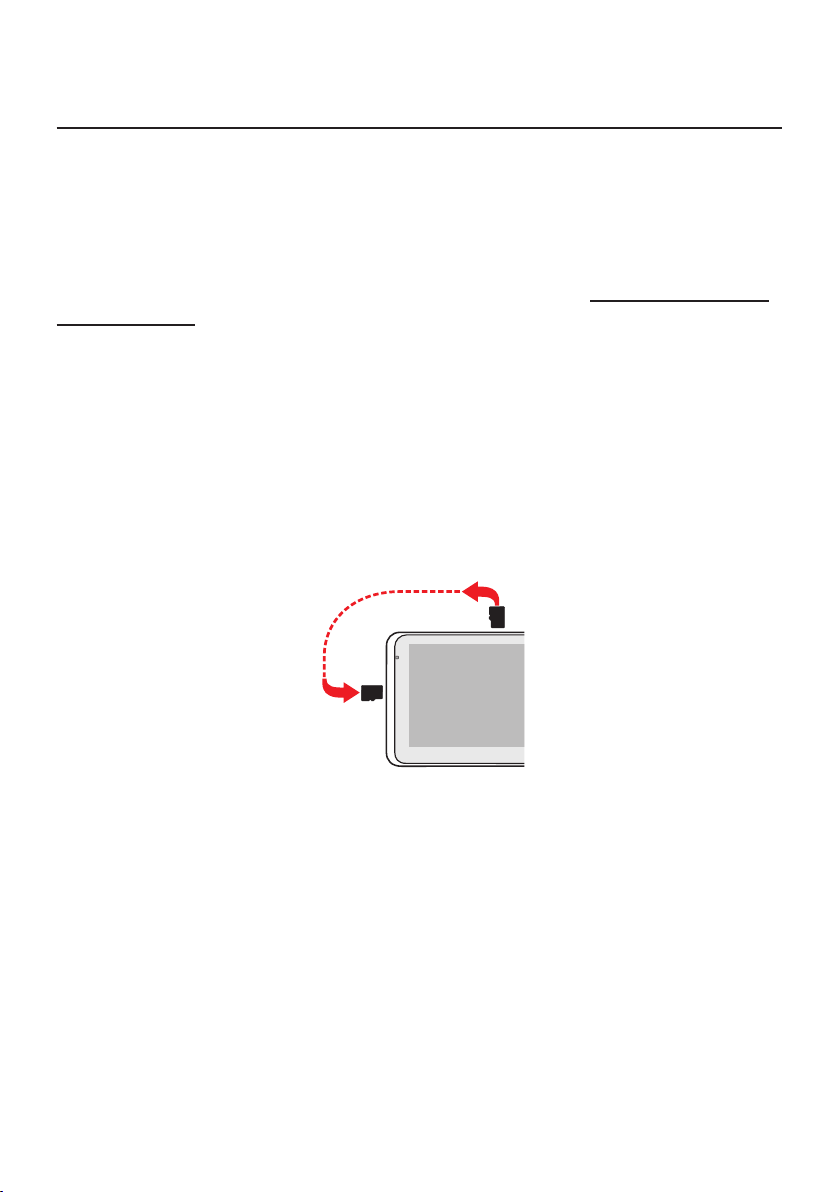
90
MiVue Manager
MiVueManager™isatoolforyoutoviewthevideosrecordedonyourNavman.
Note: Notallfeaturesareavailableforeverymodel.
Installing MiVue Manager
TheMiVueManagersoftwareisavailableonthesuppliedDVDforWindowsandMac.
AlternativelyyoucandownloadMiVueManagerfromthewebsite(https://www.navman.
com.au/mapping).Double-clickMivue Manager x_x_xx_xx.exe(Win)/Mivue
Manager x_x_x_xx.dmg(Mac)andfollowtheon-screenpromptstoinstallMiVue
Manager.
Note: YoumaybepromptedtoinstalltheMOVandAVIcodecsforvideoplaybackiftheyaremissing
onyourcomputer.Searchonlinetoinstalltherequiredcodecs.
Playing the recording files
1.Dooneofthefollowing:
•MovetheMicroSDcardfromtherecordercardslottothedatacardslot.(Seethe
"Accessingtherecordingles"sectionforinformation.)
•Removethememorycardfromthedeviceandaccessthecardonthecomputerviaa
cardreader.Youareadvisedtocopytherecordinglestoyourcomputerforbackup
andplayback.
2.StartMiVueManageronthecomputer.
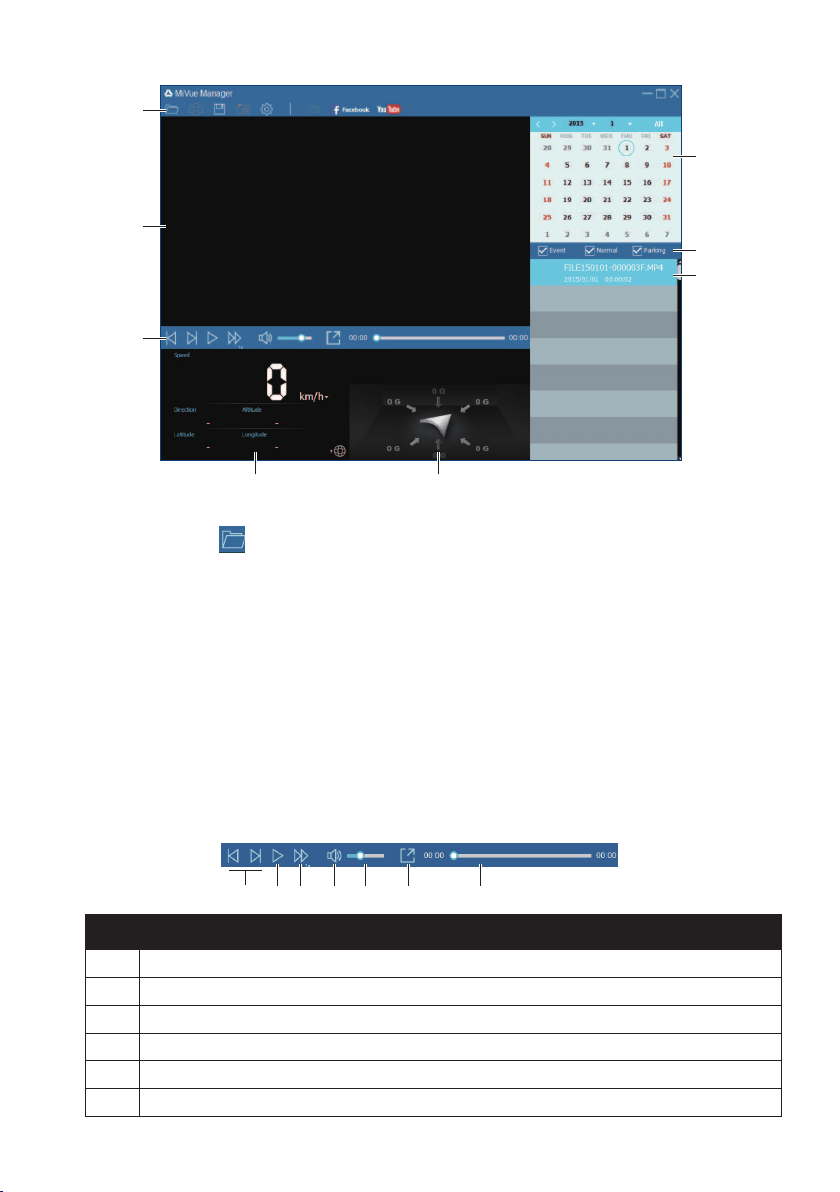
91
Calendar
File type
File list
G sensor chartDashboard panel
Playback
controls
Playback
screen
Toolbar
3.Bydefault,MiVueManagershowsthecalendarandthelelistontheright.
•Youcanclick
ontheupper-leftcornertoselectthefolderthatstoresthe
recordingles.
•Whenarecordingleexists,youwillseethedatemarkedwith“•.”Clickthatdate
todisplaythelesthatwererecordedonthatdate.
•Youcanchoosetheletypetodisplay:Event(emergencyeventrecordings),
Normal(continuousrecordings),orParking(recordingsinparkingmode).
Note: Yourmodelmaynotsupportallletypes.
•Todisplayalllesinthecurrentfolder,clickAll.Toreturntothecalendarview,click
Calendar.
4.Double-clickthedesiredleonthelelisttostartplayback.Theplaybackcontrolsare
describedasfollows:
❷ ❸ ❹ ❺ ❻ ❼❶
No. Description
❶
Skipstotheprevious/nextleonthelist.
❷
Startsorpausestheplayback.
❸
Changestheplaybackspeedto1/4x,1/2x,1x(default),1.5x,or2x.
❹
Mutesorunmutesthevolume.
❺
Adjuststhevolumelevel.
❻
Playsthevideoinfullscreen.
92
No. Description
❼
Displaystheplaybackprogress.Youcanclickonapointalongthetrackbartomove
directlytoadifferentlocationfortheplayback.
5.Duringplayback,youcancheckmoredrivinginformationfromthedashboardpanel
andtheGsensorchartthataredisplayedbelowtheplaybackscreen.Onthedashboard
panel,click
todisplaythemapscreen.
Note: TheMapscreenmaynotdisplaywhenthecomputerisnotconnectedtotheInternetor
whenyourmodeldoesnotsupporttheGPSfunction.
Note: TheGsensorchartdisplaysdatain3-axiswaveformaboutthecar’sshiftforward/
backward(X),totheright/left(Y)andupward/downward(Z).
6.Thetoolbarallowsyoutodothefollowing:
❶ ❷ ❸ ❹ ❺ ❻ ❼
No. Description
❶
Selectsthefolderthatstorestherecordingles.
❷
Previewsandprintsthecurrentvideoimage.
❸
Savestheselectedlestothespeciedlocationonyourcomputer.
❹
Capturesandsavesthecurrentvideoimagetothespeciedlocationonyourcomputer.
❺
OpenstheSettingsmenu.TheSettingsitemsincludeChange Language,Change
Skin,Check for Update(requiringInterentaccess)andAbout.
❻
ExportstheGPSinformationoftheselectedleintheKMLformattothespecied
locationonyourcomputer.
❼
UploadstheselectedletoFacebookorYouTube™(userloginrequired).
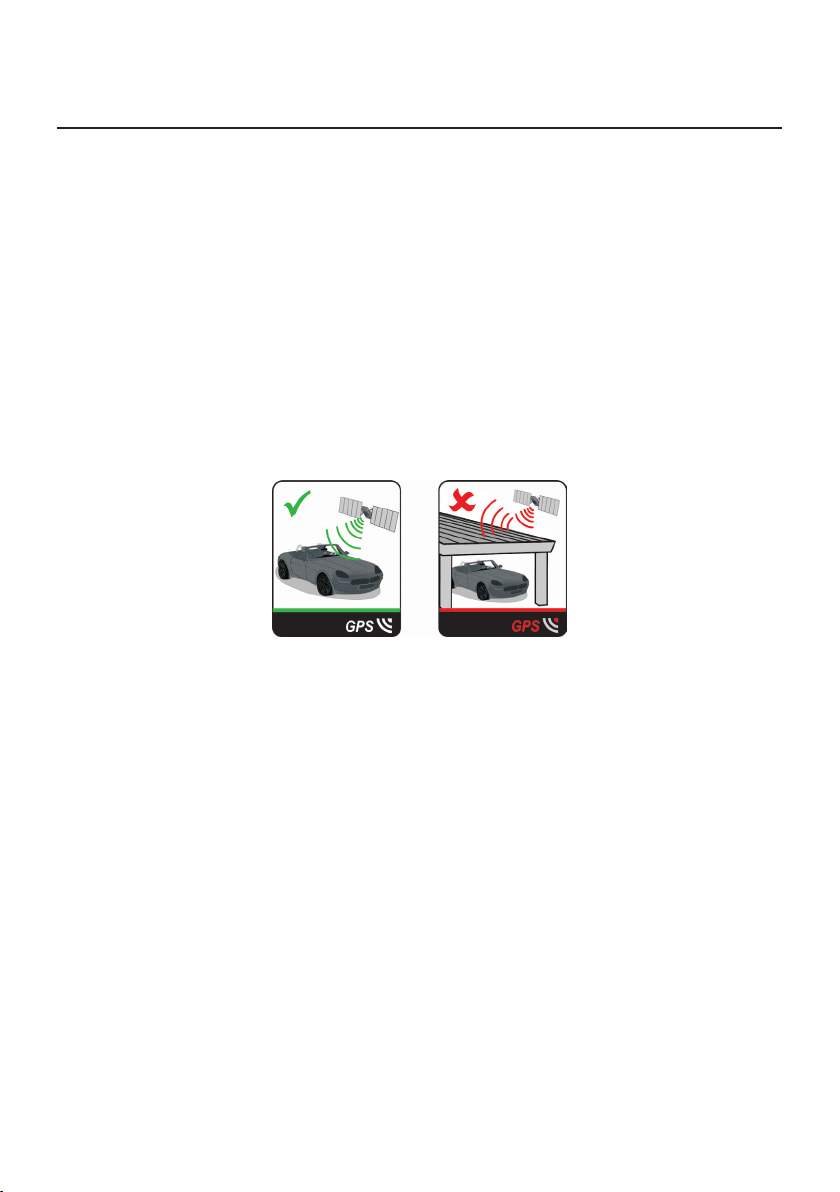
93
Reference
About GPS and signal reception
TheGlobalPositioningSystem(GPS)isavailableatanytime,freeofcharge,andisaccurate
towithin5m(15ft).GPSnavigationismadepossiblebyanetworkofsatellitesthatorbitthe
Earthataround20,200km(12,552mi).Eachsatellitetransmitsarangeofsignalswhichare
utilizedbyGPSreceivers,suchasyourNavman,todetermineanexactlocation.Although
aGPSreceivercandetectsignalsfromupto12satellitesatanytime,onlyfoursignalsare
requiredtoprovideapositionor"GPSx"(latitudeandlongitude),forvehiclenavigation
systems.
YourNavmanreceivesGPSsignalsviatheinternalGPSantenna.Toguaranteetheoptimum
GPSsignalstrength,ensureyourNavmanisoutdoors,orinavehicleoutdoors,andhasan
unobstructedviewofthesky.GPSreceptionisnotusuallyaffectedbyweather,however,
veryheavyrainorsnowmayhaveanegativeeffectonyourreception.
Caring for your Navman
TakinggoodcareofyourNavmanwillensuretrouble-freeoperationandreducetheriskof
damagetoyourNavman:
•KeepyourNavmanawayfromexcessivemoistureandextremetemperatures.
•AvoidexposingyourNavmantodirectsunlightorstrongultravioletlightforextended
periodsoftime.
•DonotplaceanythingontopofyourNavmanordropobjectsonyourNavman.
•DonotdropyourNavmanorsubjectittosevereshock.
•DonotsubjectyourNavmantosuddenandseveretemperaturechanges.Thiscould
causemoisturecondensationinsidetheunit,whichcoulddamageyourNavman.Inthe
eventofmoisturecondensation,allowyourNavmantodryoutcompletelybeforeuse.
•Thescreensurfacecaneasilybescratched.Avoidtouchingitwithsharpobjects.Non-
adhesivegenericscreenprotectorsdesignedspecicallyforuseonportabledevices
withLCDpanelsmaybeusedtohelpprotectthescreenfromminorscratches.
•NevercleanyourNavmanwhenitisturnedon.Useasoft,lint-freeclothtowipethe
screenandtheexteriorofyourNavman.

94
•Donotusepapertowelstocleanthescreen.
•Neverattempttodisassemble,repairormakeanymodicationstoyourNavman.
Disassembly,modicationoranyattemptatrepaircouldcausedamagetoyourNavman
andevenbodilyinjuryorpropertydamageandwillvoidanywarranty.
•Donotstoreorcarryammableliquids,gasesorexplosivematerialsinthesame
compartmentasyourNavman,itspartsoraccessories.
•Donotexposeyourdevicetodirectsunlightinanunattendedvehicleforprolonged
periods.Overheatingmaydamagetheunit.
•Todiscouragetheft,donotleaveyourdevice,mountingbracketoranycablesinplain
viewinanunattendedvehicle.
Troubleshooting
Ifyouencounteraproblemyoucannotsolve,contactanauthorizedservicecentrefor
assistance.
Problem Solution
Theunitisnotturning
on.
TrytopowertheunitthroughaUSB
cableconnectedtoacomputer.Ifthe
unitpowersupthentheissueiswiththe
vehiclepoweradapter.Iftheunitstill
failstopowerup,thenthefaultiswith
theunit.
Contacttechnicalsupport
andanRMAwillbecreated
toxtheunitorreplacethe
vehiclepoweradapter.
IcannotgetaGPSsignal.Makesureyouarestationaryandhavea
clearlineofsitetothesky.Ifthisfailsto
resolvetheissue,pleaseresettheGPS
chipthroughtheSettingsmenuofyour
unit.
Ifthefaultisstillnotresolved,
pleasevisitourselfhelpsite
(seetheinformationfrom
"Navmancustomersupport"
section),orcontactour
technicalsupportteam.
Myunitisalwaysshowing
thatthespeedlimitis110
kphevenwhenitisnot.
Theunitsaresetatamanualspeed
limitdefaultedat110kph.Thiscanbe
changedthroughthe"Safety"sectionof
yourSettingsmenu.
Ifthefaultisstillnotresolved,
pleasevisitourselfhelpsite
(seetheinformationfrom
"Navmancustomersupport"
section),orcontactour
technicalsupportteam.
Whereismyproduct
key?Iwanttoactivate
myunit.
Thereisnoneedtoactivateyourunitin
anyway.ThisActivationtabwithinthe
NavDesksoftwareisforsubscriptions,
travelbooks,internationalmapsand
mapupgradesonly.Yourunitwillwork
straightoutoftheboxandthereisno
needtoactivateitinanyway.
Ifthefaultisstillnotresolved,
pleasevisitourselfhelpsite
(seetheinformationbelow),
orcontactourtechnical
supportteam.

95
Problem Solution
Myunitkeepsdisplaying
batterylow.
PoweryourunitthroughaUSBcable
connectedtoacomputerfor8hours.
Ensurethedeviceisturnedonandis
displayingtheUSBconnectionscreen.
Ifitisstilldisplayingbattery
lowafterfollowingthis
process,contactourtechnical
supportteam.

96
For more information
Online support
For24/7helpandsupportwithNavmanproducts,visitourTechnicalSupportWebsite:
www.navman.com.au(Australia),orwww.navman.co.nz(NewZealand).
Navman customer support
IfyouhaveafaultyproductoryouwouldliketospeaktoamemberofourTechnical
Supportteam,contact:
Australia:1300NAVMAN(1300628626),orvisitwww.navman.com.au
NewZealand:0800GONAVM(0800466286),orvisitwww.navman.co.nz
Speed limit
Navmanproductsaredesignedtobeusedasanaidtosaferdriving.Navmandoesnot
condonespeedingoranyotherfailuretocomplywithyourlocaltrafclaws.Itisyour
responsibilitytodrivewithinthepostedspeedlimitatalltimesandtodriveinacareful
manner.NavmanacceptsNOliabilitywhatsoeverforyoureceivinganyspeedingnesor
pointsonyourlicensethroughusingthisdevice.Navmandoesnotguaranteetheaccuracy
ofthedatacontainedwithinthisdatabaseeitherexpressedorimplied.Intheeventyou
receiveaneoranyotherpenaltyforspeedingorcontraventionofanytrafclaw,orare
involvedinanaccident,Navmanisnotresponsibleforanydamagesofanytype.Insome
countriesthedatainformationregardingspeedlimitsmayconictwithlocallawand/or
regulations.Itisyourresponsibilitytomakesurethatyouruseofthedataisincompliance
withlocallawsand/orregulations.Usageisatyourownrisk.
Safety camera POIs
Navmanproductsaredesignedtobeusedasanaidtosaferdriving.Youcanreceive
messagestoalertyoutolocationsofsafetycameras,whichwillenableyoutomonitoryour
speedthroughtheseareas.Navmandoesnotwarrantthatalltypesandlocationsofsafety
cameradataareavailable,ascamerasmayberemoved,relocatedornewcamerasinstalled.
Navmandoesnotcondonespeedingoranyotherfailuretocomplywithyourlocaltrafc
laws.Itisyourresponsibilitytodrivewithinthepostedspeedlimitatalltimesandtodrivein
acarefulmanner.NavmanacceptsNOliabilitywhatsoeverforyoureceivinganyspeeding
nesorpointsonyourlicensethroughusingthisdevice.Navmandoesnotguaranteethe
accuracyofthedatacontainedwithinthisdatabaseeitherexpressedorimplied.Inthe
eventyoureceiveaneoranyotherpenaltyforspeedingorcontraventionofanytrafc
law,orareinvolvedinanaccident,Navmanisnotresponsibleforanydamagesofanytype.
Insomecountriesthedatainformationregardingsafetyorspeedcamerasmayconictwith
locallawand/orregulations.Itisyourresponsibilitytomakesurethatyouruseofthedata
isincompliancewithlocallawsand/orregulations.Usageisatyourownrisk.
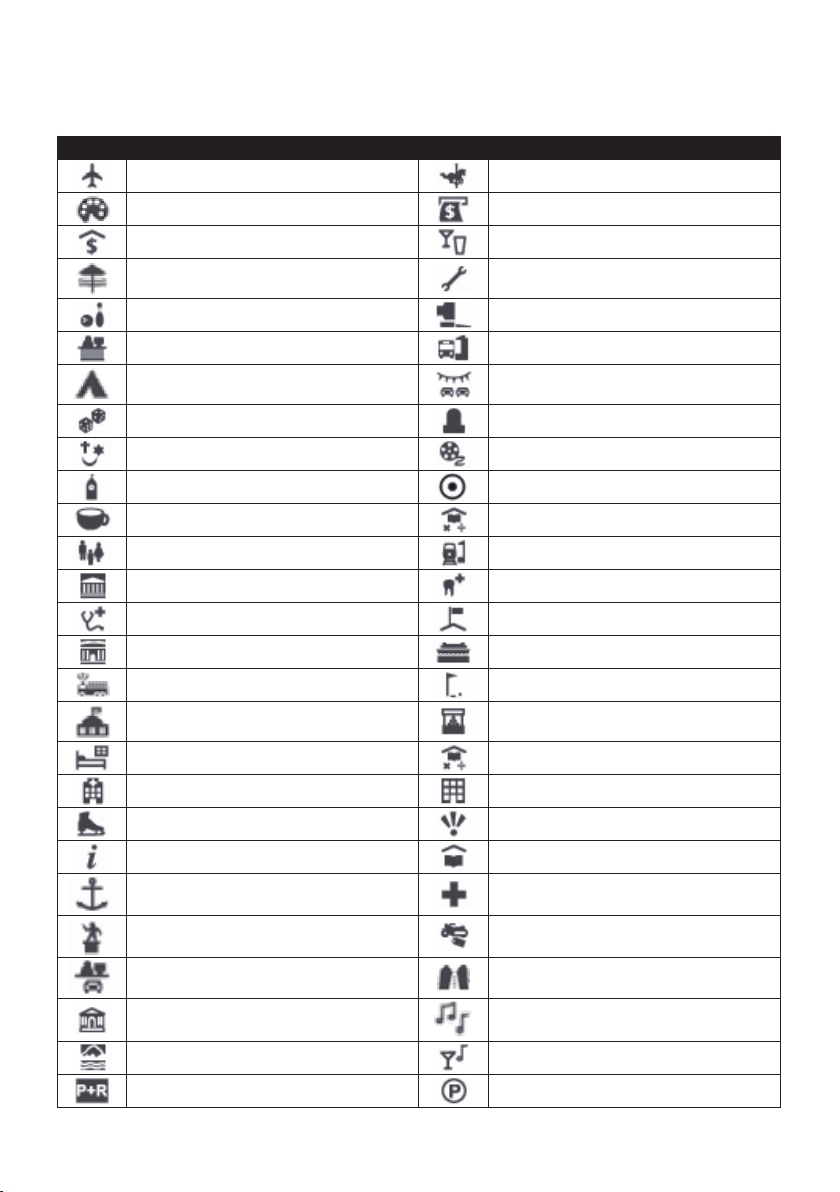
97
POI categories
Icon Description Icon Description
AirportAmusementpark
ArtcentreATM/Cashdispenser
BankBar/Pub
BeachBreakdownservice/Carrepairfacility
BowlingcentreBusinessfacilityorcompany
BusinessofceBusstation
CampinggroundCardealer/Automobiledealer
CasinoCemetery
ChurchCinema
CityhallCity,townorvillage
CoffeeshopCollege/University
CommunitycentreCommuterrailwaystation
CourthouseDentist
DoctorEmbassy
ExhibitioncentreFerryterminal
FireBrigadeGolfcourse
GovernmentofceGrocerystore
GuesthouseHighereducation
Hospital/PolyclinicHotel
IceskatingImportanttouristattraction
Information/TouristinformationofceLibrary
Marina/YachtbasinMedical
MonumentMotorcycledealer
MotoringorganisationofceMountainpass
MuseumMusiccentre
NaturalattractionNightlife
ParkandrideParking
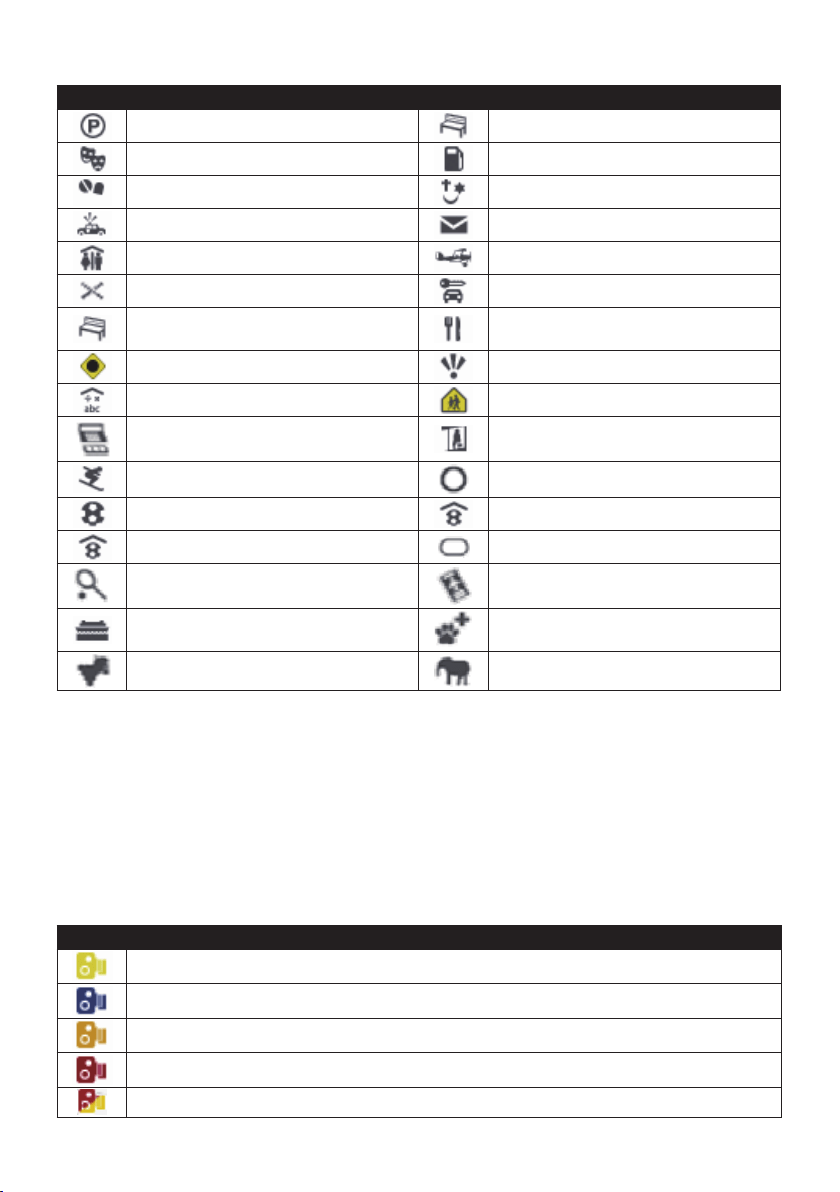
98
Icon Description Icon Description
ParkinggaragePark/Recreationarea
Performanceart/TheatrePetrolstation
PharmacyPlaceofworship
PolicestationPostofce
Publicrestroom/ToiletfacilitiesPublicsportairport
RailwaycrossingRentalcaragency
RestareaRestaurant
RoadaccidentblackspotScenic/Panoramicviews
SchoolSchoolzone
ShopShopping
Skiresort/SkiliftstationSpeedcheck
SportcentreSportshall
SportscomplexStadium
TenniscourtTravelagency
TransportferryVeterinarian
WineryZoo
Note:ThePOIcategoriesandtheordermaydiffer,dependingonyourregion,maps
installedorNavmanmodel.
Branded POIs
BrandedPOIsareavailableonsomemaps.Theseincludewellknownrestaurants,
accommodationproviders,touristattractions,Petrolstations,etc.Theiconwillusually
displaythecompanylogo.
POI categories by subscription
Icon Description
SafetyCameras
SafetyCamera(Mobile)
SafetyCamera(Average)
RedLightCamera
CombineCamera
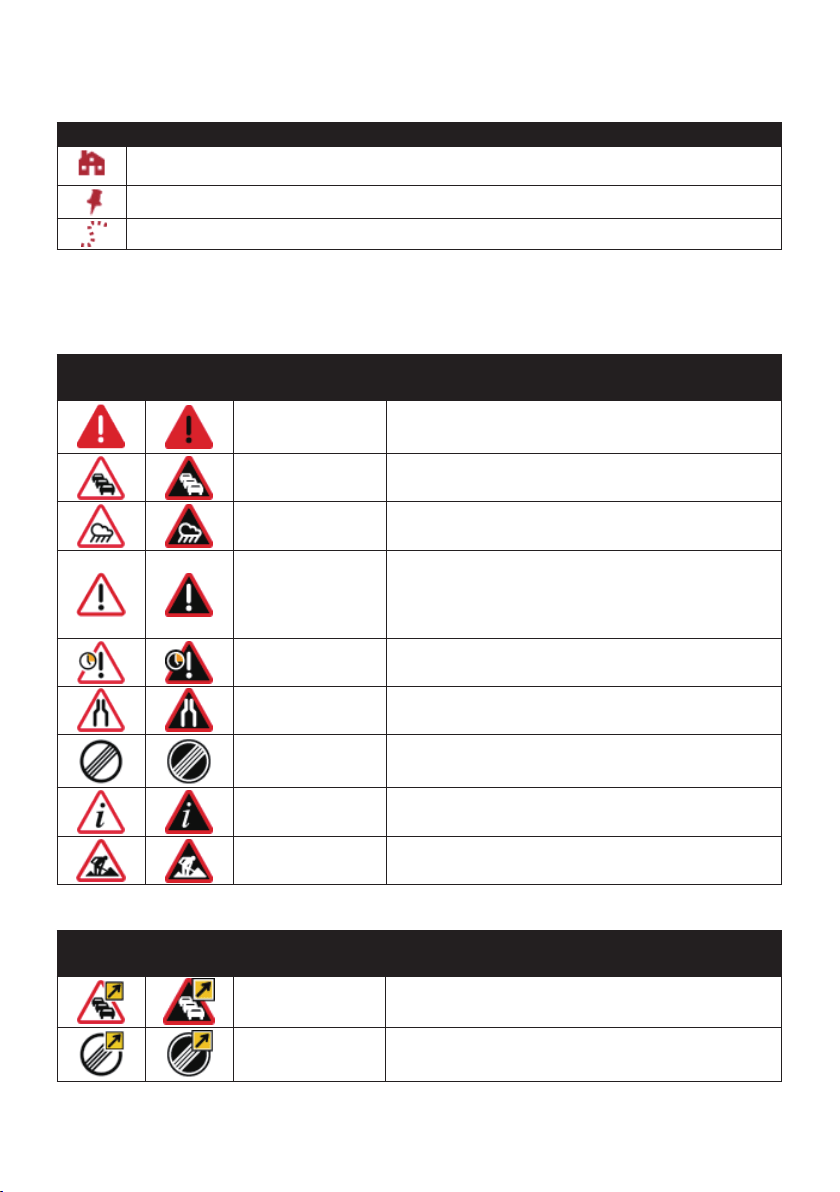
99
My Places categories
Icon Description
Home
Savedlocations
Capturedjourney
Traffic and other TMC events
EachTMCEventissortedintooneofninecategories.WhenanEventisreceived,oneof
thefollowingiconswilldisplay:
Event Avoided
Event
Message Type Event Description
Danger Thereisadangeroussituationontheroute;for
example,peopleareontheroad.
Traffic Anyeventthatwillcauseadelayonaroute.
Weather Weatherconditionsareadverselyaffectingaroute;
forexample,thereisiceontheroad.
Warnings Thereisasituationofwhichyoushouldbeaware
ontheroute,butitisnotseriousenoughtobe
consideredadangeroussituation;forexample,a
minoraccidenthastakenplace.
Forecast Aneventisexpectedtooccuronaroute.
Restrictions Thereisarestrictedowoftrafconaroute;for
example,alanehasbeenclosedonamotorway.
Clearance Atrafceventthathasnowbeencleared.
Information Allotherevents.
Roadworks Roadworksaretakingplaceonaroute.
IfaTrafcorClearanceeventhasarecommendeddetour,thefollowingiconswilldisplay:
Event Avoided
Event
Message Type Event Description
Traffic Detour ATrafcEvent,forwhichadetourisrecommended.
Clearance Re-route AClearanceEvent,forwhichare-routeis
recommended.
Note: AvoidedEventiconswillonlydisplayonthe Mapscreen,attheeventlocation.

100
Revision:R02
(5/2018)
Trademark
Allbrandandproductnamesaretrademarksorregisteredtrademarksoftheirrespective
companies.
Disclaimer
Specicationsanddocumentsaresubjecttochangewithoutnotice.
Note
Notallmodelsareavailableinallregions.
Dependingonthespecicmodelpurchased,thecolourandlookofyourdeviceand
accessoriesmaynotexactlymatchthegraphicsshowninthisdocument.
Thescreenshotsandotherpresentationsshowninthisdocumentareforreferenceonly.
Theymaydifferfromtheactualscreensandpresentationsgeneratedbytheactualproduct.