
E
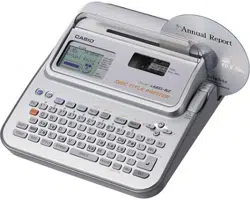
CW-L300
User’s Guide
• We recommend that you print on a disc* before you record anything
on it. Printing on a disc that already has data recorded on it can
cause the data to become corrupted.
• Note that CASIO COMPUTER CO., LTD. shall not be held liable for
any loss or corruption of data on discs arising through the use of this
printer.
* CD-R, CD-RW, DVD-R, etc.
Be sure to read the Safety Precautions contained in this manual before trying
to use the printer for the first time, and always keep this manual on hand for
future reference.
RJA514733-10
GUIDELINES LAID DOWN BY FCC RULES FOR USE OF THE
UNIT IN THE U.S.A. (not applicable to other areas).
NOTICE
This equipment has been tested and found to comply with the limits for a Class B digital
device, pursuant to Part 15 of the FCC Rules. These limits are designed to provide
reasonable protection against harmful interference in a residential installation. This
equipment generates, uses and can radiate radio frequency energy and, if not installed
and used in accordance with the instructions, may cause harmful interference to radio
communications. However, there is no guarantee that interference will not occur in a
particular installation. If this equipment does cause harmful interference to radio or
television reception, which can be determined by turning the equipment off and on, the
user is encouraged to try to correct the interference by one or more of the following
measures:
• Reorient or relocate the receiving antenna.
• Increase the separation between the equipment and receiver.
• Connect the equipment into an outlet on a circuit different from that to which the
receiver is connected.
• Consult the dealer or an experienced radio/TV technician for help.
Caution: Changes or modification to the product not expressly approved by CASIO
could void the user’s authority to operate the product.
FCC WARNING
Changes or modifications not expressly approved by the party responsible for
compliance could void the user’s authority to operate the equipment.
Proper connectors must be used for connection to host computer and/or
peripherals in order to meet FCC emission limits.
Cable specified for PC Windows
®
compatible PC to CW-L300
Declaration of Conformity
Model Number: CW-L300
Trade Name: CASIO COMPUTER CO., LTD.
Responsible party: CASIO, INC.
Address: 570 MT.PLEASANT AVENUE, DOVER, NEW JERSEY 07801
Telephone number: 201-361-5400
This device complies with Part 15 of the FCC Rules. Operation is subject to the
following two conditions: (1) This device may not cause harmful interference,
and (2) this device must accept any interference received, including interference
that may cause undesired operation.
1
E
Read This First!
• CASIO COMPUTER CO., LTD. shall not be held liable for any loss or
claims by you or any other person or entity that may arise through the use
of this printer.
• Reproduction of this manual in any form, either in part or its entirety, is
forbidden without the express permission of CASIO COMPUTER CO.,
LTD.
• The contents of the manual are subject to change without notice.
• Windows is a registered trademark of Microsoft Corporation in the United
States and other countries.
• Other company and product names used herein may also be company
and product names of others.
© Copyright 2004 CASIO COMPUTER CO., LTD. All rights reserved.
• Be sure to read this manual carefully before attempting to use the product
for the first time.
Safety Precautions
Thank you for purchasing this quality CASIO product.
Before using it, be sure to read the following Safety Precautions. Keep the
manual in a convenient location for future reference when necessary.
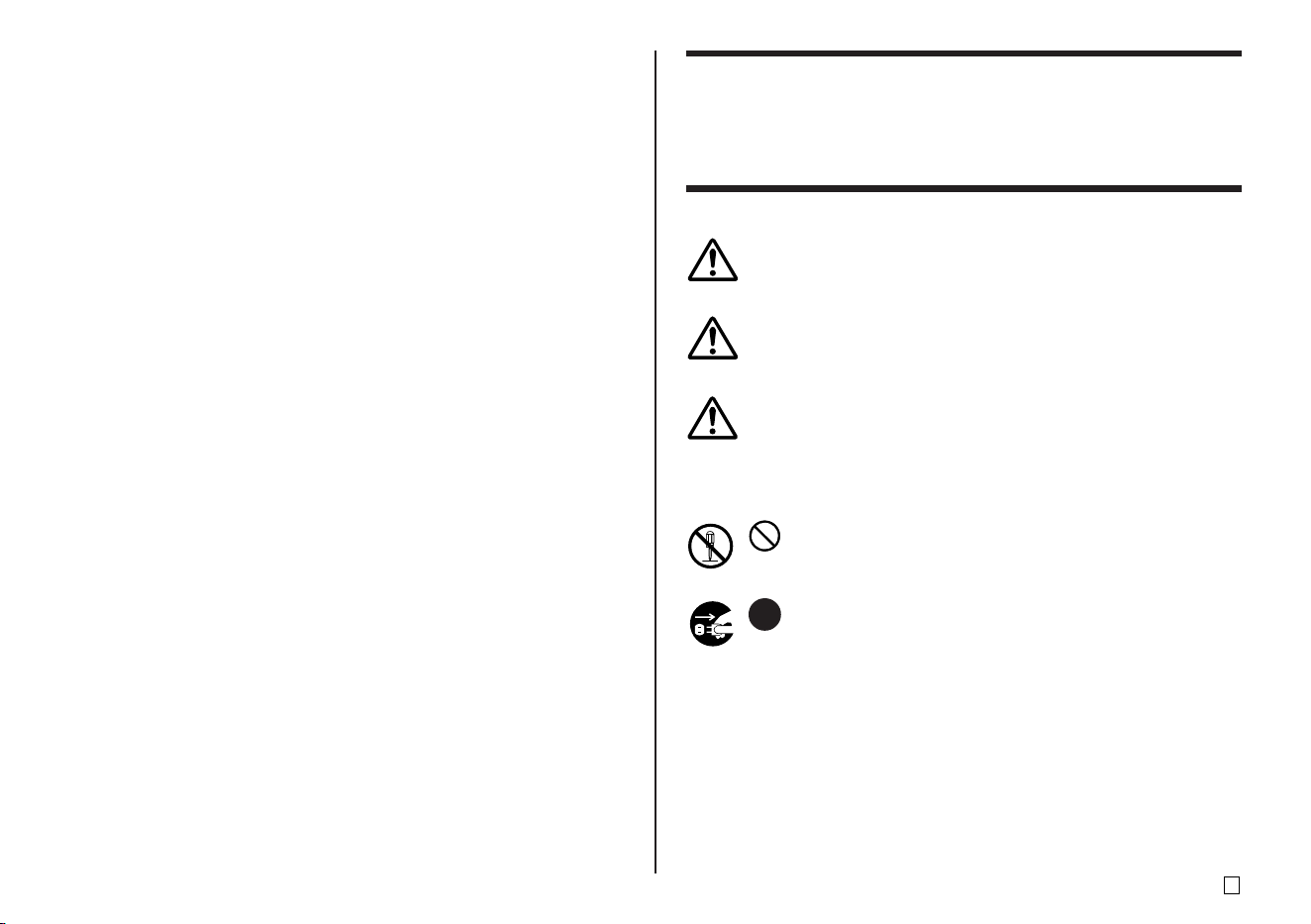
Danger
This symbol indicates information that, if ignored or applied incorrectly,
creates the danger of death or serious personal injury.
Warning
This symbol indicates information that, if ignored or applied incorrectly,
creates the possibility of death or serious personal injury.
Caution
This symbol indicates information that, if ignored or applied incorrectly,
creates the possibility of personal injury or material damage.
Examples of graphic markings
indicates something you should not do. The symbol shown here
indicates you should not try to take the unit apart.
indicates something you should do. The symbol shown here
indicates you should unplug the unit from the wall outlet.
E
2
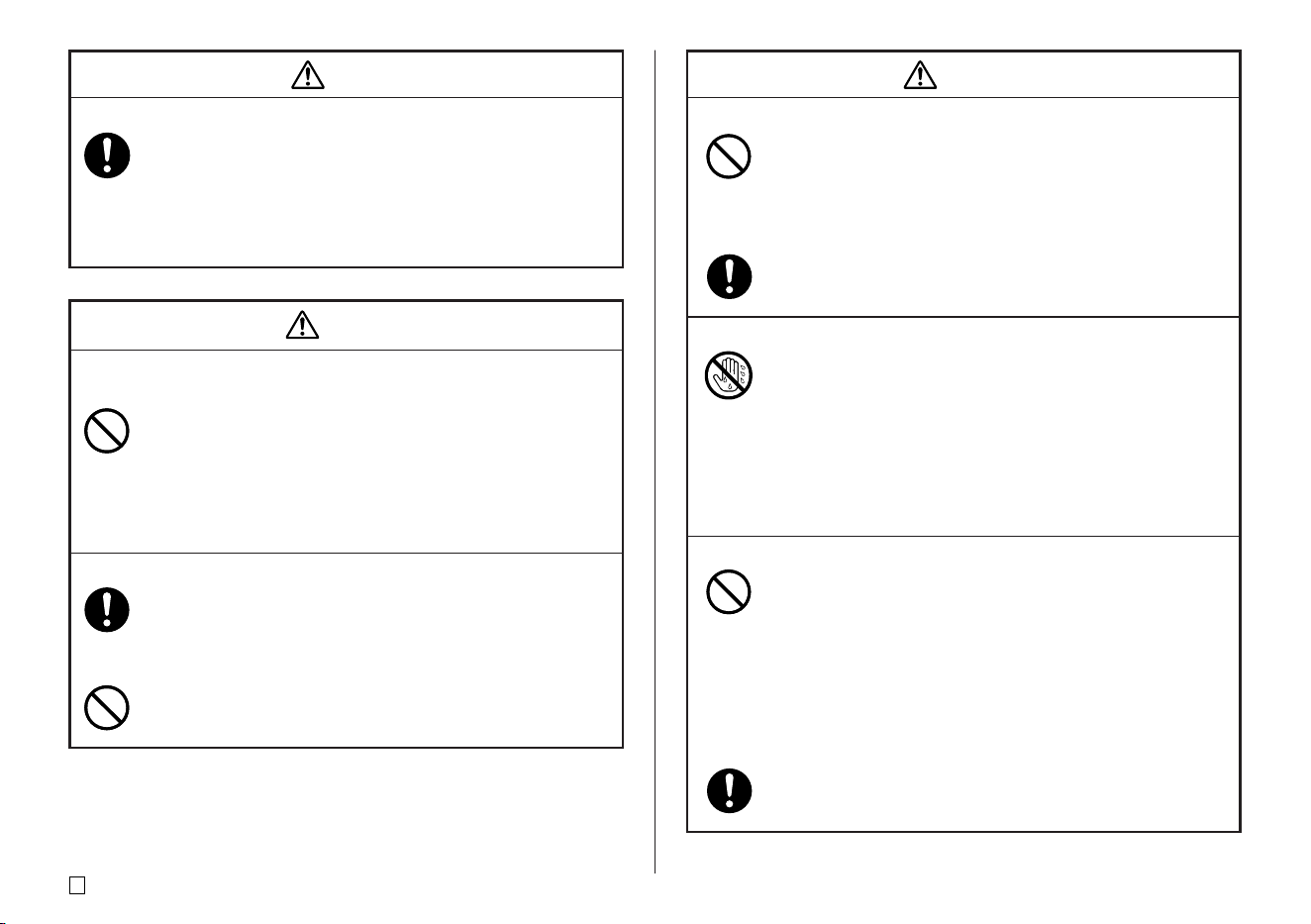
Danger
Alkaline Batteries
Perform the following steps immediately if fluid leaking from
alkaline batteries ever gets into your eyes.
1. Do not rub your eyes! Rinse them with water.
2. Contact your physician immediately.
Leaving alkaline battery fluid in your eyes can lead to loss of
sight.
Warning
Smoke, abnormal odor, overheating, and other
abnormalities
Continued use of the product while it is emitting smoke or strange
odor, or overheating creates the risk of fire and electric shock.
Immediately perform the following steps whenever any of the
above symptoms are present.
1. Turn off power.
2. Unplug the power cord from the wall outlet.
3. Contact your original retailer.
Power cord, AC adaptor, USB cable
Misuse of the power cord, AC adaptor, or USB cable creates
the risk of fire and electric shock.
Make sure you follow the precautions listed below.
• Use only items that are specified for the product.
• Use only a power source whose output matches the rating
marked on the plate on the back of the product.
• Never plug the power cord into a wall outlet that is shared by
other devices, or into a shared extension cord.
Warning
Power cord, AC adaptor, USB cable
Misuse of the power cord, AC adaptor, or USB cable can damage
it and create the risk of fire and electric shock. Make sure you
follow the precautions listed below.
• Never place heavy objects on these items or subject them to
direct heat.
• Never modify these items or subject them to bending.
• Do not subject these items to twisting or pulling.
• Should the power cord, AC adaptor, or USB cable or its plug
ever become damaged, contact your original retailer.
Power cord, AC adaptor, USB cable
• Never touch the power cord, AC adaptor, or USB cable or its
plugs while your hands are wet. Doing so creates the risk of
electric shock.
• Never use the power cord or AC adaptor in areas where it
may become wet. Water creates the risk of fire and electric
shock.
• Never place a vase or any other liquid container on top of the
power cord, AC adaptor, or USB cable. Water creates the
risk of fire and electric shock.
Batteries
Misuse of batteries can cause them to leak, resulting in damage
to nearby objects, or to explode, creating the risk of fire and
personal injury. Always make sure you observe the following
precautions.
• Never try to take batteries apart or allow them to become
shorted.
• Never expose batteries to heat or dispose of them by
incineration.
• Never mix old batteries with new ones.
• Never mix batteries of different types.
• Do not charge the batteries.
• Make sure the positive (+) and negative (–) ends of the
batteries are facing correctly.
3
E
Warning
Dropping and rough treatment
Continued use of the product after it has been damaged due to
dropping or other rough treatment creates the risk of fire and
electric shock. Immediately perform the following steps if the
product should ever become damaged.
1. Turn off power.
2. Unplug the power cord from the wall outlet.
3. Contact your original retailer.
Do not disassemble or modify the product.
Never try to take the product apart or modify it in any way. Doing
so creates the risk of electric shock, burn injury, or other personal
injury.
Leave all internal inspection, maintenance, and repair up to your
original retailer.
Water and foreign objects
Water, liquids, or foreign objects (especially metal) getting inside
the product creates the risk of fire and electric shock. Immediately
perform the following steps if liquid or a foreign object should
ever get inside the product.
1. Turn off power.
2. Unplug the power cord from the wall outlet.
3. Contact your original retailer.
Do not incinerate.
Never dispose of the product by incineration. Doing so creates
the risk of fire and personal injury due to explosion.
Plastic bag precaution
Never place the plastic bags in which the product comes packed
over your head. Doing so creates the risk of suffocation.
Particular care is required in households where young children
are present.
Caution
Power cord, AC adaptor, USB cable
Misuse of the power cord, AC adaptor, or USB cable can damage
it and create the risk of fire and electric shock. Make sure you
follow the precautions listed below.
• Never locate these items near a stove or other source of
intense heat.
• When unplugging the power cord and USB cable, be sure to
grasp the plug. Never pull on the cord or cable.
• Plug in the power cord into the wall outlet as far as it will go.
• Plug in the USB cable into the computer and the printer as
far as it will go.
• Before leaving the product unattended for long periods (such
as when you go on a trip), unplug the power cord and USB
cable.
• At least once a year, clean away any dust built up in the area
around the prongs of the power cord’s plug.
Batteries
Misuse of batteries can cause them to leak resulting in damage
to nearby objects, or to explode, creating the risk of fire and
personal injury. Always make sure you observe the following
precautions.
• Use only batteries that are specified for use with this product.
• Remove batteries from the product if you do not plan to use
it for a long time.
Warning
Do not affix labels to a container to be used in a
microwave oven.
Do not affix labels to any container you plan to use in a microwave
range. The label material contains metal, which creates the risk
of fire and burn injury when heated in a microwave oven. It can
also cause deformation of the container to which the label is
affixed.
E
4
Caution
Connection precaution
Connect only items that are specified for the product to its
connectors. Connecting a non-specified item creates the risk of
fire and electric shock.
Keep backup copies of all important data
Be sure that you keep separate copies of important data in a
notebook or some other location. Malfunction of the product,
repairs, and dead batteries can cause data stored memory to
be lost.
Keep heavy objects off.
Never place a heavy object on top of the product. Doing so can
cause the object to lose balance and fall, creating the risk of
personal injury.
Location
Avoid the locations listed below for the product. Such locations
create the risk of fire and electric shock.
• Areas subject to high humidity and large amounts of dust
• Food preparation areas or other location subjected to oil
steam
• Near heaters, on a heated carpet, in direct sunlight, in a
closed vehicle parked in the sun, and other areas subjected
to high heat.
Avoid unstable surfaces.
Never place the product on an unstable table, desk, etc. Doing
so can cause the product to fall, creating the risk of personal
injury.
Caution
Loading and replacing batteries
The springs inside of the battery compartment have sharp edges.
Take care that you do not touch the springs with your fingers
when loading or replacing batteries. Doing so creates the risk of
personal injury.
Display Screen
• Never push on the display screen’s LCD panel or subject it
to strong impact. Doing so can cause the LCD panel’s glass
to crack, creating the risk of personal injury.
• Should the LCD panel ever crack or break, never touch the
liquid inside of the panel. LCD panel liquid can cause skin
irritation.
• Should LCD panel liquid ever get inside your mouth,
immediately wash out your mouth with water and contact
your physician.
• Should LCD panel liquid ever get into your eyes or onto your
skin, rinse with clear water for at least 15 minutes, and then
contact a physician.
High temperature precaution
Never touch the print head or other metal objects near the head.
These items become very hot, and touching them creates the
risk of burn injury.
Auto Cutter
While the printer is turned on or printing, never touch the printer
head or the area where the tape passes.
Unexpected operation of the cutter creates the risk of personal
injury.
5
E
Operating Precautions
Observe the following precautions to ensure that the printer provides you with
the years of trouble-free operation for which it is designed.
• Avoid use in areas subjected to direct sunlight, high humidity, and temperature
extremes. Operating Temperature Range: 10°C to 35°C (50°F to 95°F)
• Never allow paper clips, pins, or other similar objects to get inside the printer
mechanism.
• Never pull on the tape with excessive force or try to push it into the cassette.
• Place the printer on a level surface when printing. A tilted surface can make
normal printing impossible.
• Unclear printing can indicate a dirty print head. If printing becomes unclear,
use the procedures on page 58 to clean the print head and rubber roller.
• Using the printer in an area that is exposed to direct sunlight or any other
source of bright light can cause malfunction of its optical sensor, and display
of an error message. Use the printer in an area that is not exposed to bright
light.
• You cannot perform disc label printing and tape label printing at the same
time.
Contents
Safety Precautions ................................................................ 1
Operating Precautions.......................................................... 5
Part 1 - DISC Mode ................................................................ 8
Disc Printing Terms ............................................................... 8
DISC Mode ............................................................................. 8
Creating Disc Label Data .................................................. 8
Creating a New Label ............................................................ 9
Inserting a Logo Into a Label ............................................. 11
Built In Logos .................................................................. 11
Output Samples .............................................................. 11
To insert a logo into a label ............................................. 12
Inputting Text into an AUTO Format .................................. 12
To input text into an AUTO format label ........................... 12
Specifying Character Spacing ........................................... 13
To turn proportional spacing on and off .......................... 13
Specifying Text Alignment .................................................. 13
To specify text alignment ................................................. 14
Printing Disc Case Labels .................................................. 14
Creating and Printing a Disc Case Label ........................ 14
Part 2 - TAPE Mode .............................................................. 16
Creating a Tape Label ......................................................... 16
Creating and Printing a Sequentially Numbered Tape Label ....
17
Numbering Formats ........................................................ 17
Creating and Printing a Large Tape Label ......................... 19
Creating and Printing a Tape Label with a Logo ........................
20
Built-in Logos .................................................................. 20

E
6
Creating and Printing an Original (Free Design) Tape Label
.....
22
FREE DESIGN: Using Text Blocks ..................................... 22
FREE DESIGN: Using Multiple Lines in a Tape Label ...... 23
FREE DESIGN: Configuring Block Form Settings ........... 25
FREE DESIGN: Configuring Label Form Settings ............ 26
FREE DESIGN: Controlling the Length of a Tape Label ... 27
FREE DESIGN: Aligning Tape Label Text .......................... 29
Example 1:
Aligning the term “Round Estimate1” in a block
(fixed block length)
........................................ 29
Example 2: Aligning blocks within a tape label .............. 30
FREE DESIGN: Changing the Size of Tape Label Text .... 31
Specifying the Size of a String of Characters ................. 31
Specifying the Size of Text Lines ....................................33
FREE DESIGN: Using Frames ............................................ 35
Creating a Barcode Tape Label .......................................... 36
Supported Barcode Types ............................................... 36
Barcode Specifications ................................................... 37
Using Tape Labels ............................................................... 38
Tape Cut Modes .............................................................. 38
Types of Tape Cuts .......................................................... 38
Cut Modes ....................................................................... 38
Cut Modes and Margins .................................................. 40
Part 3 - Inputting and Editing Label Text ........................... 41
Moving the Cursor .............................................................. 41
Basic Alpha Numeric Input ................................................ 41
To input alpha-numeric characters .................................. 41
About the CODE key ....................................................... 42
Inputting Symbols and Special Characters ...................... 42
To use the SYMBOL menu.............................................. 42
Inputting Illustrations ......................................................... 43
To input illustrations......................................................... 43
Deleting an Individual Character ....................................... 43
To delete a character using the BS key ........................... 43
To delete a character using the DEL key ........................ 43
Clearing Input Text .............................................................. 44
To clear all text ................................................................ 44
To delete a range of text (Free Design) ........................... 44
Text Editing .......................................................................... 44
To switch between overwrite and insert .......................... 44
Using Phrase Memory ........................................................ 45
To recall a phrase ............................................................ 45
To create new phrase memory text ................................. 45
To save input text in phrase memory............................... 45
To edit a phrase memory record ..................................... 46
To delete a phrase memory record ................................. 46
Using Copy and Paste ........................................................ 47
User Characters .................................................................. 47
To recall a user character ................................................ 49
To delete a user character............................................... 49
Part 4 - Controlling the Appearance of Text ...................... 50
Selecting a Font .................................................................. 50
SMALL FONT .................................................................. 50
To change the default font setting ................................... 51
To change the font of text you have just input ................. 51
Using STYLE Menu Attributes ........................................... 52
Using EFFECT Menu Attributes ......................................... 53
Part 5 - Saving, Recalling and Deleting Labels ................ 54
To save a label ................................................................ 54
To recall a label ............................................................... 54
To delete a label .............................................................. 54
7
E
Part 6 - Configuring the Printer Setup............................... 55
Demo Printing ................................................................. 55
Reference ............................................................................. 57
Power Requirements .......................................................... 57
Caring for the Printer .......................................................... 58
Troubleshooting .................................................................. 59
DISC Mode ..................................................................... 60
TAPE Mode ..................................................................... 61
Error Messages ................................................................... 63
Illustrations .......................................................................... 68
Symbols, Dingbats, and Special Characters .................... 68
Frames ................................................................................. 69
Disc Label Formats ............................................................. 70
Numbering Formats ............................................................ 71
Tape Width and the Number of Lines and Character Sizes ..
72
Supported Tape Widths ...................................................... 72
Enlarged Label Printing Tape Widths and Character Sizes ..
73
Specifications ...................................................................... 74
E
8
Part 1 - DISC Mode
Disc Printing Terms
The following defines a few disc printing terms that are used in this part of the
manual.
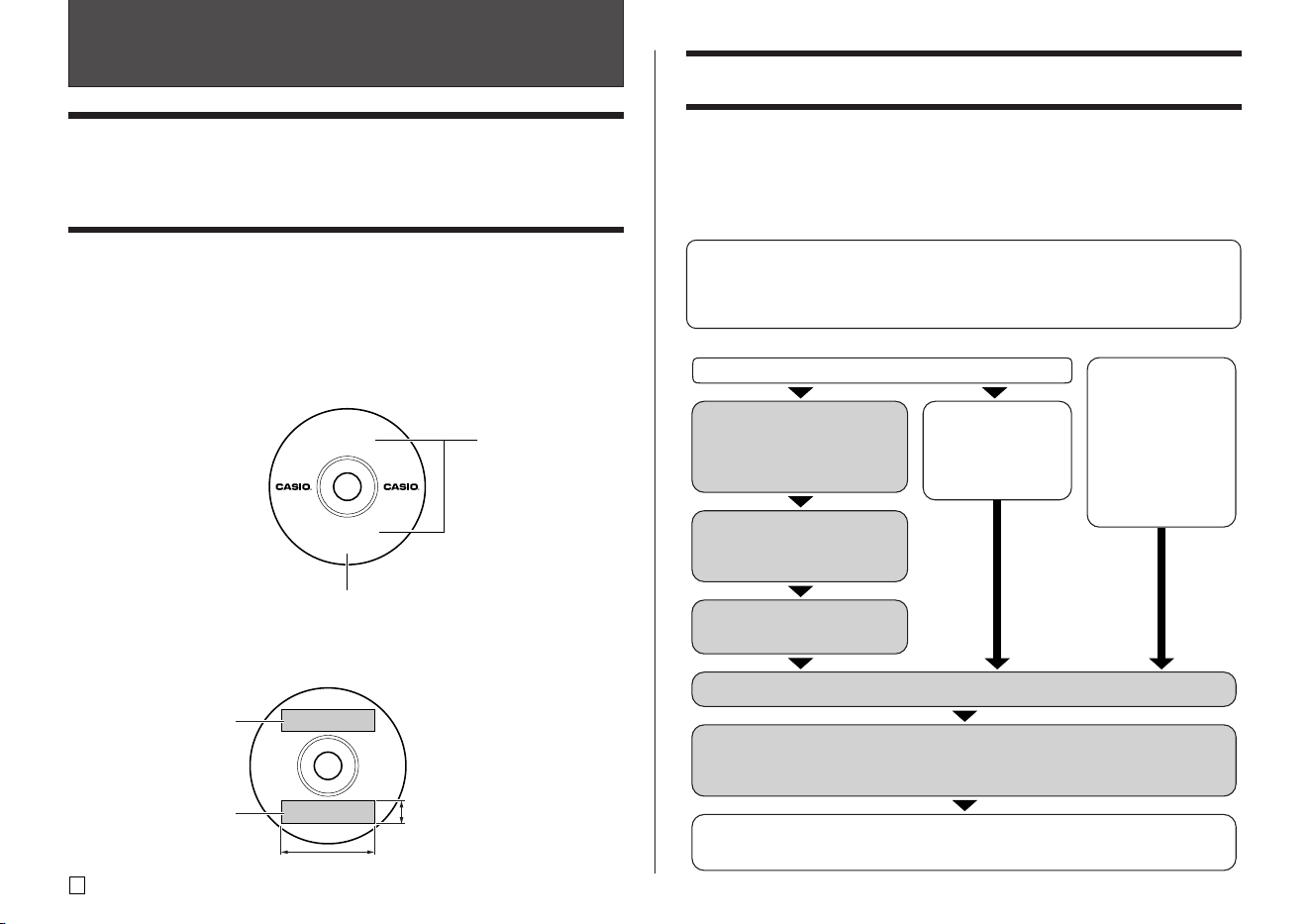
■ Print Surface
This is the side of the disc that the printer will print on. Some discs may have
manufacturer logos or other information pre-printed on this side.
■ Print Data
This is the text, illustrations,and all other items that the printer will print onto
the print surface of the disc.
CONTEST
SPEECH
Print data
Print surface
■ Print Areas
These are the areas on the disc where the printer prints. The printer can print
in two print areas: an upper print area and a lower printer area.
Width: 74mm (2 15/16")
Upper print area
(AREA A)
Height: 16mm (5/8")
Lower print area
(AREA B)
DISC Mode
Creating Disc Label Data
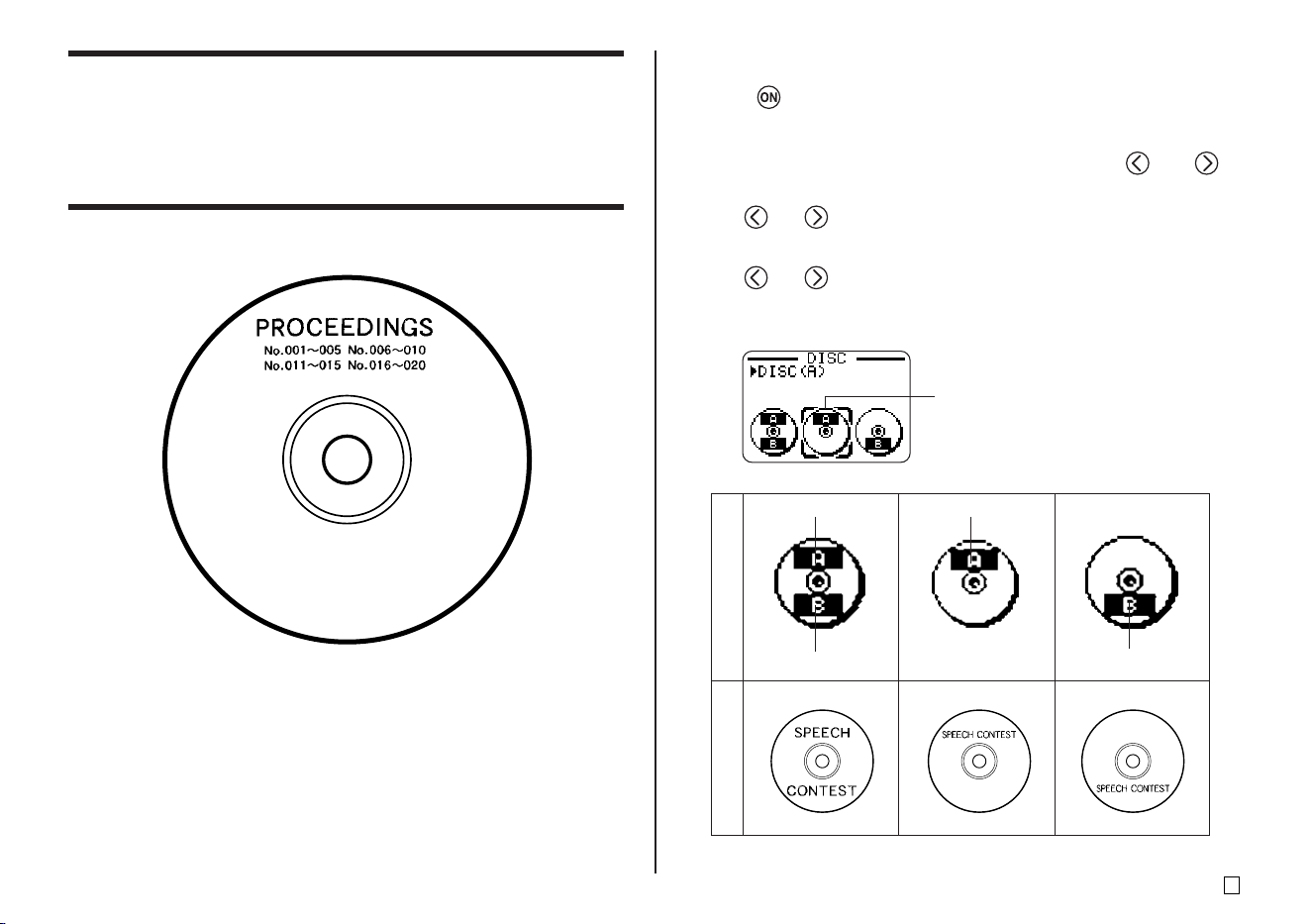
The following are the general steps when preparing data for disc labeling.
After inputting the required data, you can then use it to print directly onto the
disc, or for output on a tape that you can affix to the disc case.
Getting Ready
• Connect the AC adaptor or load batteries (page 7 of the Startup Guide).
• Load an ink ribbon cassette (page 11 of the Startup Guide).
• If you plan to print a disc case label, load a tape cartridge (page 13 of
the Startup Guide).
1.
To create a new label
from scratch, select
NEW on the initial
screen (page 9).
2.
Select the print pattern
you want to use (page
9).
3.
Select the format you
want to use (page 10).
4.
Input the text you want (page 41).
5.
Select the text attributes you want.
• Specify the font (page 50), select the style (page 52), and specify
the text alignment (page 14).
To edit an existing
label, select
STORED DATA
(page 54).
To edit the label
data you were
working on the last
time you were
using the printer,
select LAST DATA
(page 10 of the
Startup Guide).
General Flow for Creating a Disc Label
Select the DISC Mode (page 9).
Print the label (page 20 of the Startup Guide) and store it in memory
(page 54), if you want.
9
E
Creating a New Label
This section explains how to specify the print area and select a label format
for creating new disc printing data.
• For information about printing data that you have previously saved to memory,
see page 54.
Example
■ To create a new disc label
1. Press to turn on the printer.
• A LAST DATA icon will also appear on the Main Menu if there is input
data left over from the last time you used the printer. If you want to continue
working with the data from your previous session, use and to
select LAST DATA, and then press SET.
2. Use and to select DISC, and then press SET.
• You can also press DISC here.
3. Use and to select NEW, and then press SET.
• This displays a print pattern selection screen.
4. Use the cursor keys to select the print pattern you want.
Print Pattern
Example
AREA A AREA A
AREA B
AREA B
Selected print pattern
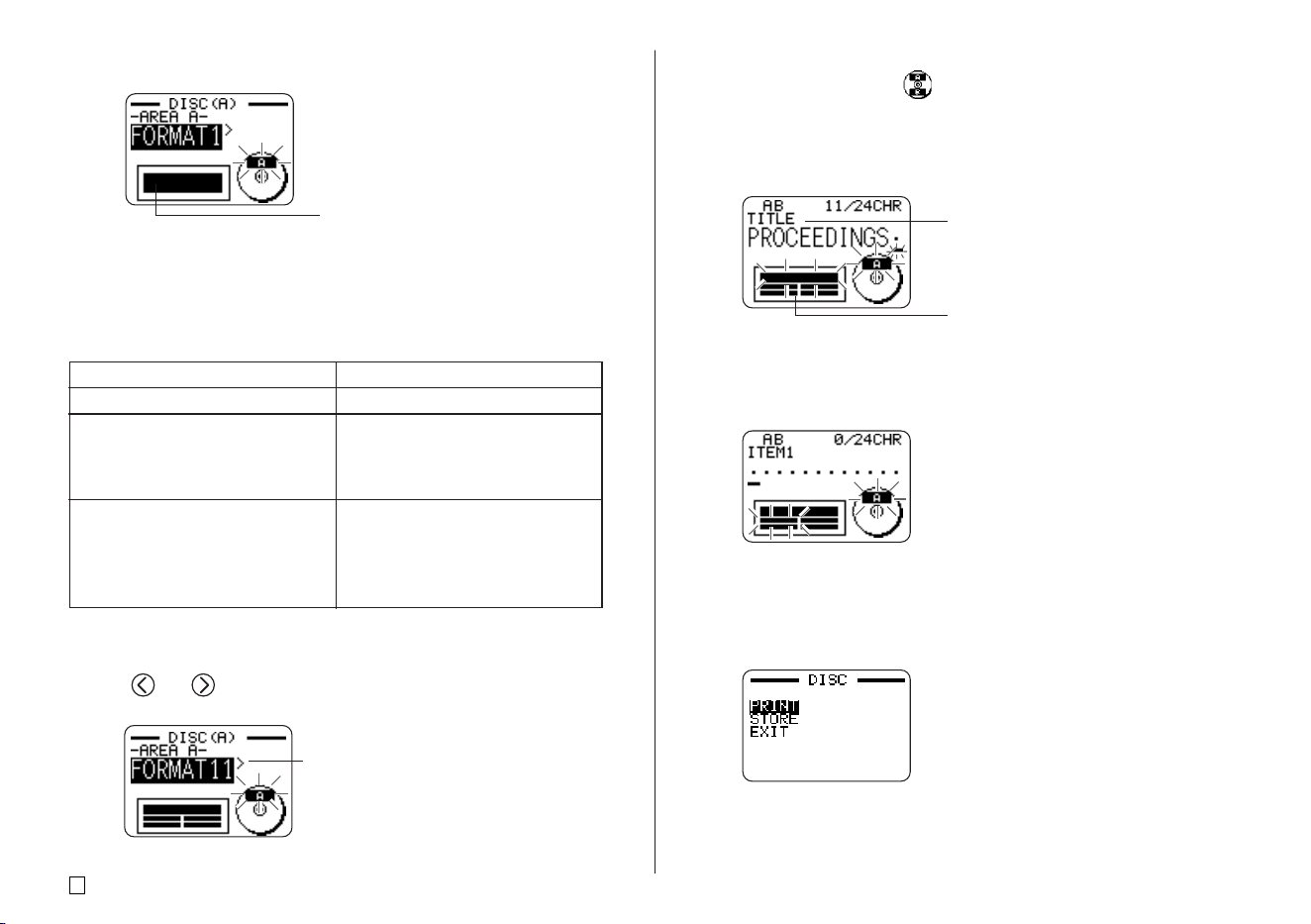
E
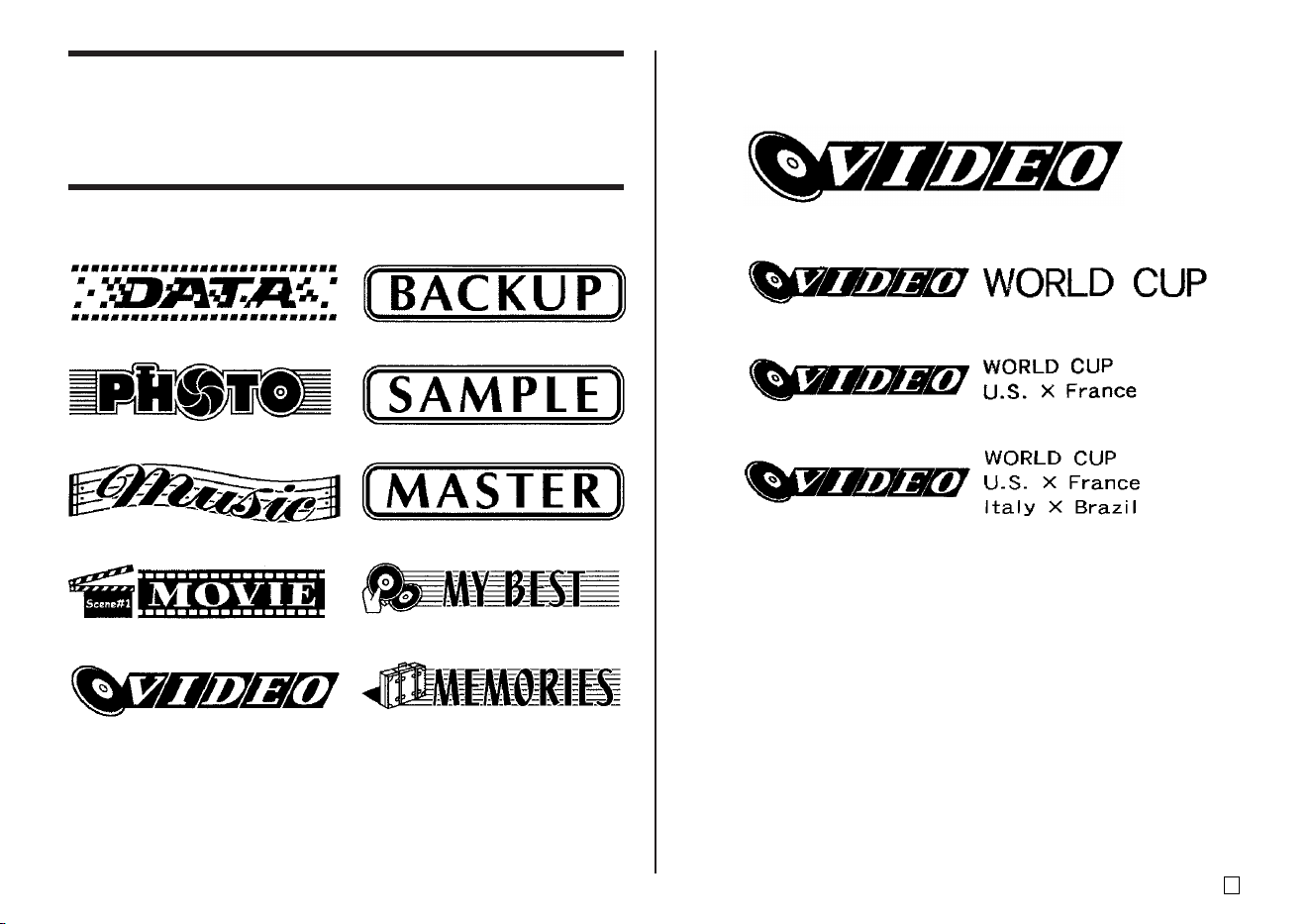
10
5. Press SET.
■ Label Formats
The label format determines the types and positions of text and logo data for
each block. There are a total of 24 different formats, which are divided among
three groups: standard formats (FORMAT 1 through FORMAT 18), logo for-
mats (LOGO 1 through LOGO 4), and auto formats (AUTO 1 and AUTO 2).
•See “Disc Label Formats” on page 70 for details about all the label formats
that are available.
6. Use and to scroll through the available label formats until the one
you want is displayed.
7. Press SET.
• Note that if you selected as the print pattern in step 4, pressing SET
will display a screen for specifying the label format for the AREA B area.
Repeat steps 6 and 7.
• Pressing SET causes the text input screen to appear.
8. Input the text you want.
• See “Inputting and Editing Label Text” on page 41 for information about
inputting text.
9. Press SET.
10. Repeat steps 8 and 9 for other blocks.
11. After all input is complete, press SET.
• This displays a screen, which you can use to print the label (page 20 of
the Startup Guide) or to save the label (page 54).
• You can also exit your label making session by using the cursor keys to
select EXIT, and then pressing SET twice.
Label format image
If you want to do this:
Input text only
Input text and a logo
• See “Inserting a Logo Into a La-
bel” on page 11 for information
about inputting logos.
Have the printer automatically se-
lect text size in accordance with
the number of characters
• See page 12 for more informa-
tion.
Select this type of format:
FORMAT 1 through FORMAT 18
LOGO 1 through LOGO 4
AUTO 1 or AUTO 2
Name of block where you are
currently inputting text.
Block where you are inputting text flashes.
This is the currently selected label format.
11
E
Output Samples
The following shows examples of labels that use logos.
Inserting a Logo Into a Label
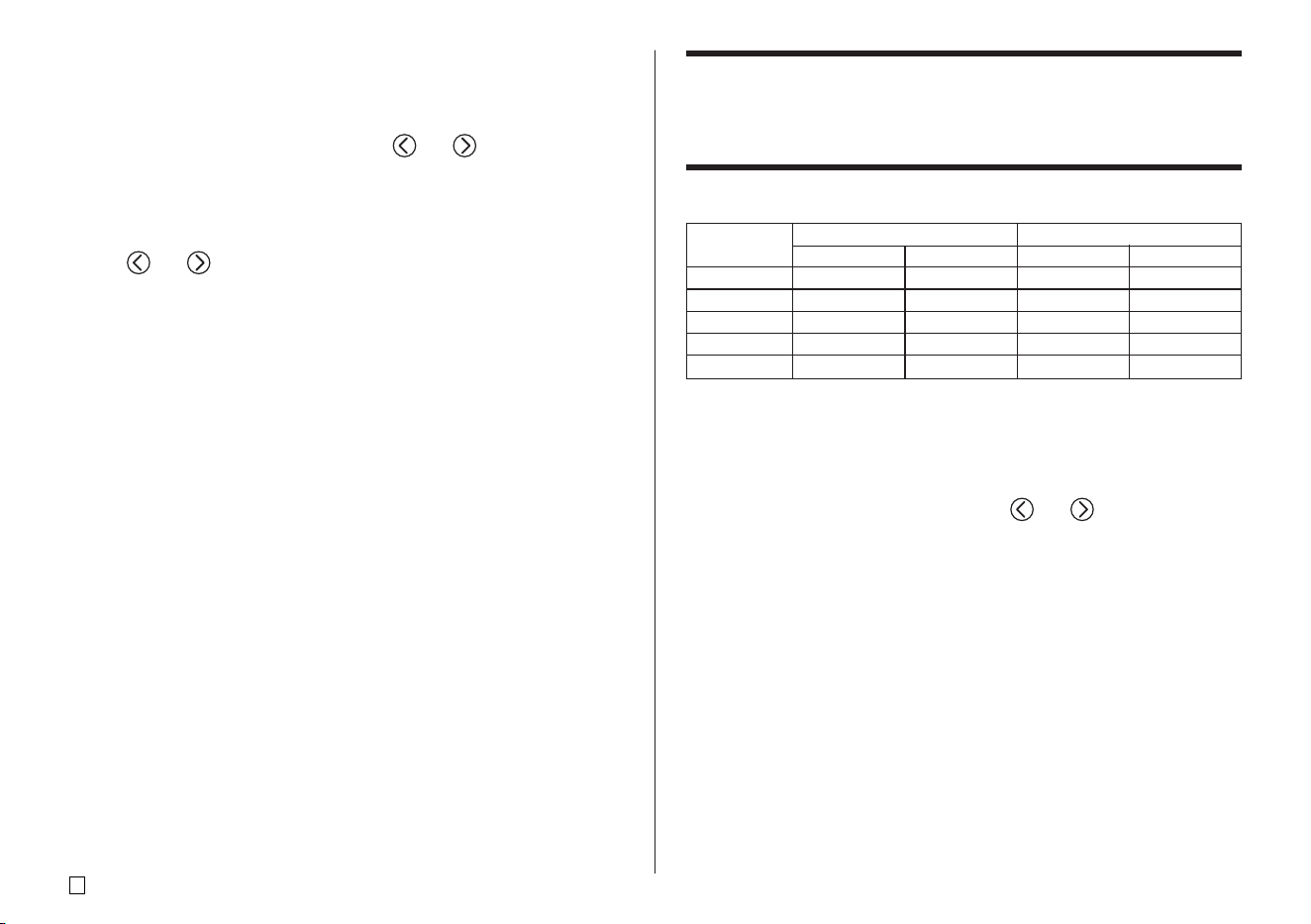
When creating a label using a LOGO format (LOGO 1 through LOGO 4), you
can insert one of the printer’s 10 built-in logos into the graphic block of the
format.
Built-in Logos
LOGO 1
LOGO 2
LOGO 3
LOGO 4
E
12
To insert a logo into a label
1. Perform steps 1 through 5 of the procedure under “To create a new disc
label” on page 9.
2. On the label format selection screen, use and to scroll through the
label formats until one of the LOGO formats (LOGO 1 through LOGO 4) is
displayed.
3. Press SET.
4. Use and to scroll through the logo data names, until the one you
want is on the display.
5. Press SET.
• This inserts the logo into the label. Now you can perform the other steps
under “To create a new disc label” on page 9 to input text.
Inputting Text into an AUTO Format
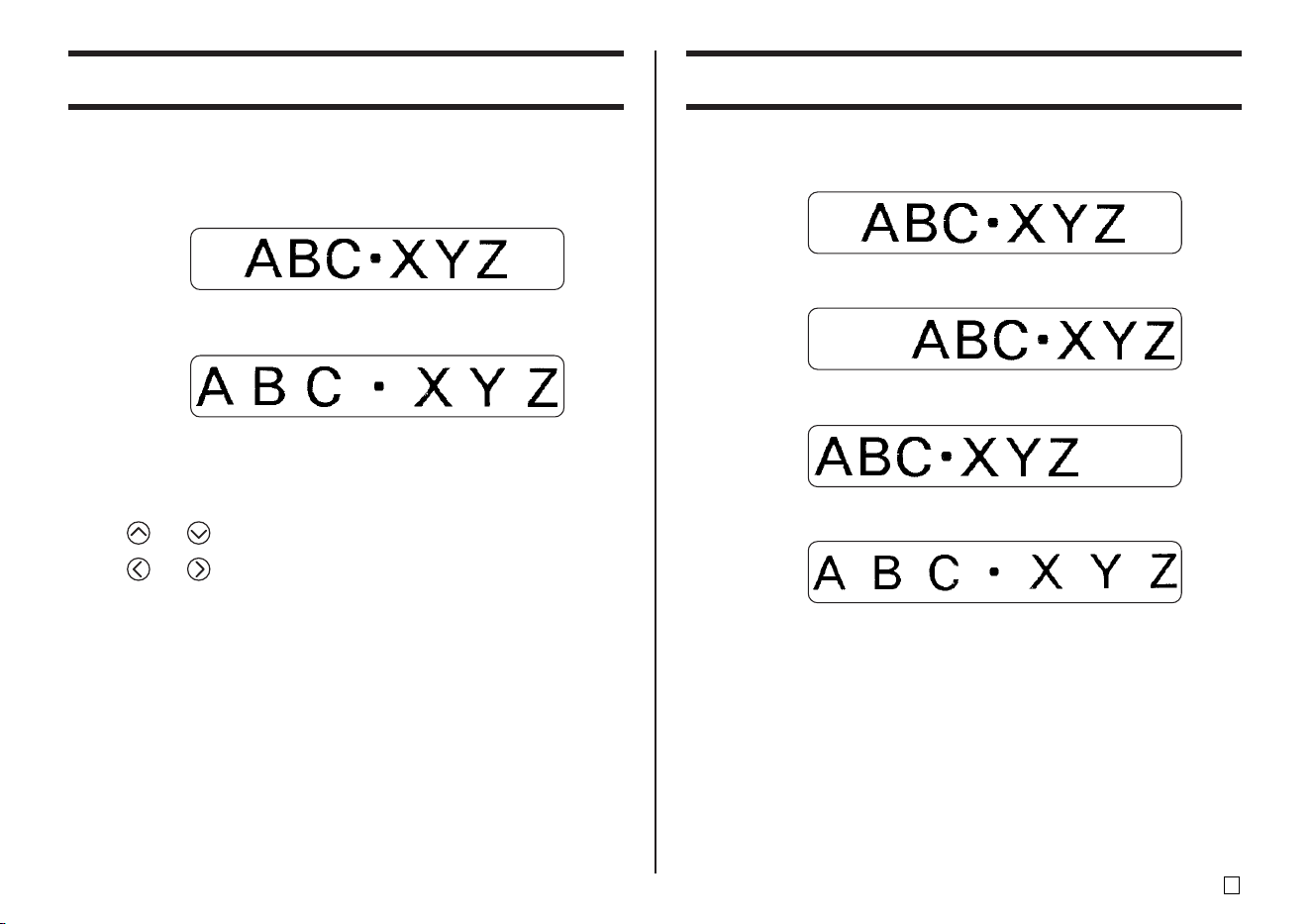
The two AUTO formats automatically adjust the size of characters in accord-
ance with the number of characters you input.
The table below shows how character size is adjusted for each auto format.
To input text into an AUTO format label
1. Perform steps 1 through 5 of the procedure under “To create a new disc
label” on page 9.
2. On the label format selection screen, use and to scroll through the
label formats until AUTO1 or AUTO2 is displayed.
3. Press SET.
4. Input the text you want.
5. Press SET.
• Now you can perform the other steps under “To create a new disc label” on
page 9 to complete the label.
AUTO 1 (1 line) AUTO 2 (2 lines)
Displayed Size Printed Size Displayed Size Printed Size
0 to 9 ×5 15mm (
5
⁄⁄
⁄⁄
⁄
8
") ×2 6mm (
1
⁄⁄
⁄⁄
⁄
4
")
10 to 12 ×4 12mm (
1
⁄⁄
⁄⁄
⁄
2
") ×2 6mm (
1
⁄⁄
⁄⁄
⁄
4
")
13 to 16 ×3 9mm (
3
⁄⁄
⁄⁄
⁄
8
") ×2 6mm (
1
⁄⁄
⁄⁄
⁄
4
")
17 to 24 ×2 6mm (
1
⁄⁄
⁄⁄
⁄
4
") ×2 6mm (
1
⁄⁄
⁄⁄
⁄
4
")
25 to 49 ×1 3mm (
1
⁄⁄
⁄⁄
⁄
8
") ×1 3mm (
1
⁄⁄
⁄⁄
⁄
8
")
Number of Input
Characters
13
E
Specifying Character Spacing
There are two ways that characters can be spaced: proportional spacing and
uniform spacing.
With proportional spacing, the amount of space between two characters de-
pends on what those two characters are.
With uniform spacing, all characters are separated by the same amount of
space.
To turn proportional spacing on and off
1. While inputting text, press FORM.
2. Use and to select PROPORTIONAL, and then press SET.
3. Use and to turn proportional spacing on or off.
• Note that the setting you select is applied to all the text of the label.
4. Press SET to apply your setting and return to the text input screen.
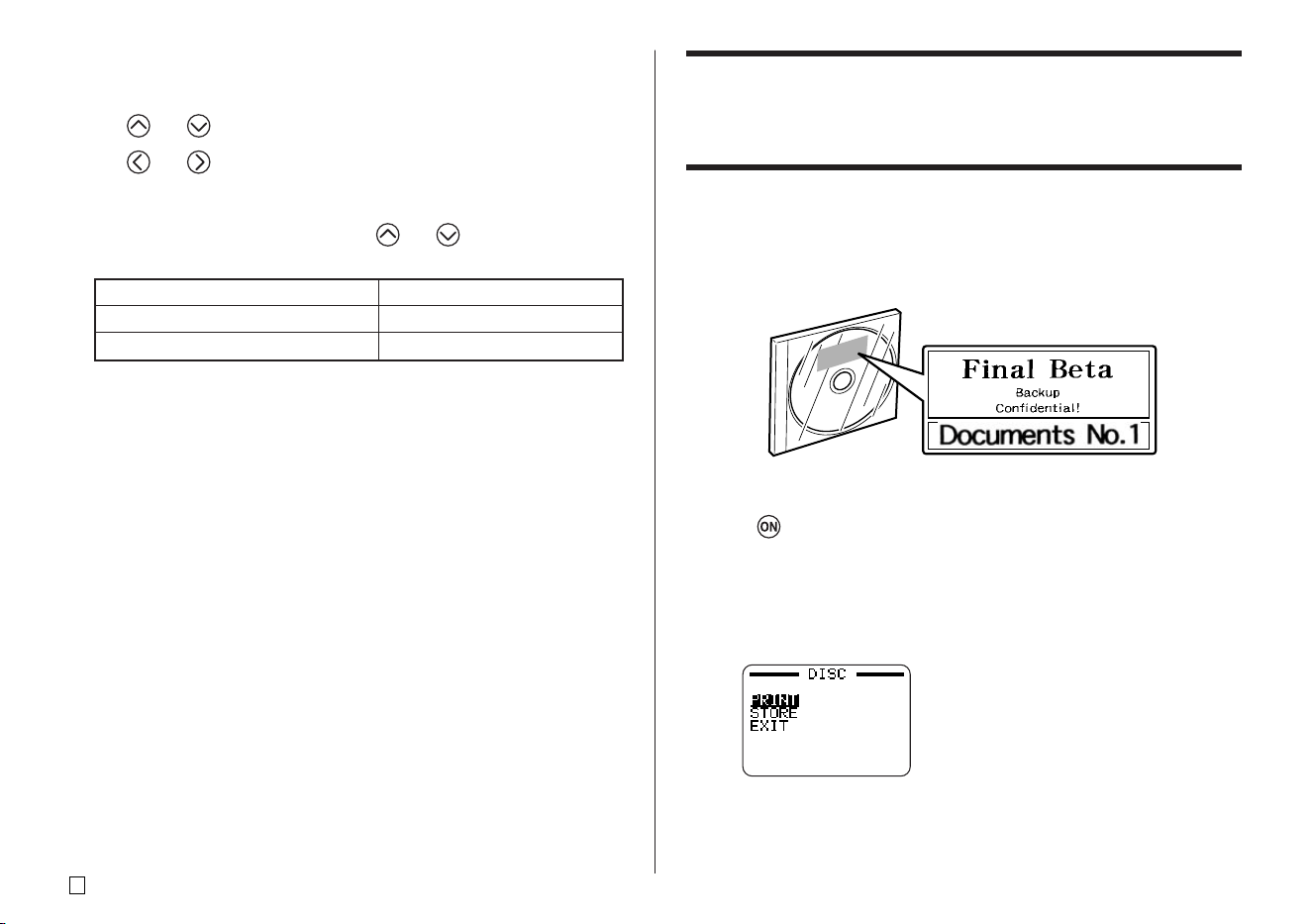
Specifying Text Alignment
You can select any one of the following four text alignments for your label text.
Centering
Right Alignment
Left Alignment
Equal Spacing
E
14
To specify text alignment
1. While inputting text, press FORM.
2. Use and to select ALIGN, and then press SET.
3. Use and to select the alignment setting you want.
4. When the setting you want is selected, press SET.
5. On the next screen that appears, use and to select the range of
text to which you want to apply your alignment setting.
6. After selecting the range, press SET to apply your setting and return to the
text input screen.
To apply the alignment setting to this text:
All of the text in the label
All of the text in the current line only
Select this option:
ALL
LINE
Printing Disc Case Labels
Use the procedures in this section to print a tape label that can be affixed to
the case of a disc.
Creating and Printing a Disc Case Label
Important!
• When printing a disc case label, use 24mm or 18mm wide tape only.
■ To print a disc case label
1. Press to turn on the printer.
2. Use the procedures under “Creating Disc Label Data” on page 8 to pre-
pare the data you want to print.
3. Pressing SET in step 11 of the procedure under “To create a new disc
label” on page 10 will cause the screen shown below to appear.
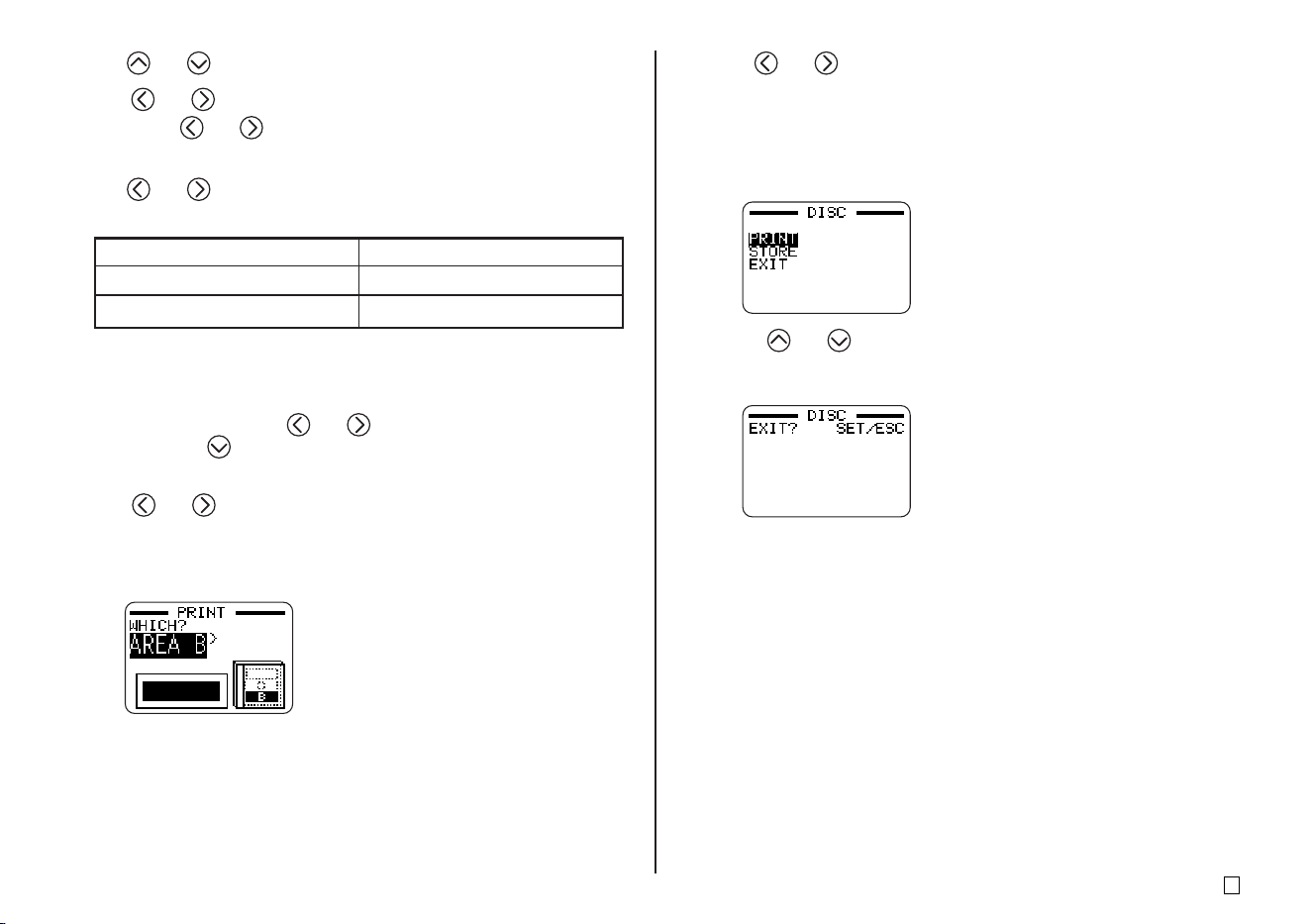
15
E
4. Use and to select PRINT, and then press SET .
5. Use and to select TAPE, and then press SET.
• Pressing and toggles the selection on the above screen between
DISC and TAPE.
6. Use and to select the label area data you want to print first, and
then press SET.
• The above step is not necessary if your label has data in only one of the
label areas. In this case, go directly to step 7.
• Here we will select AREA A.
7. Use the number keys (or and ) to specify the number of copies,
and then press .
• You can specify a value from 1 to 100 for the number of copies.
8. Use and to select the tape cut mode (page 38), and then press
SET.
9. When printing is complete, the screen shown below will appear on the
display.
• The above display will not appear if your label has data in only one of the
label areas. In this case, skip steps 10 and 11, and go directly to step 12.
10. Use and to select the label area data you want to print next, and
then press SET.
• Here we will select AREA B.
11. Repeat steps 7 through 9 above to print in the other label area.
12. The following screen will appear when printing is complete.
13. Press and to select EXIT, and then press SET.
• Use STORE if you want to save the data. See page 54 for more
information.
14. Press SET to exit the print operation.
To print this data:
Upper label area
Lower label area
Select this option:
AREA A
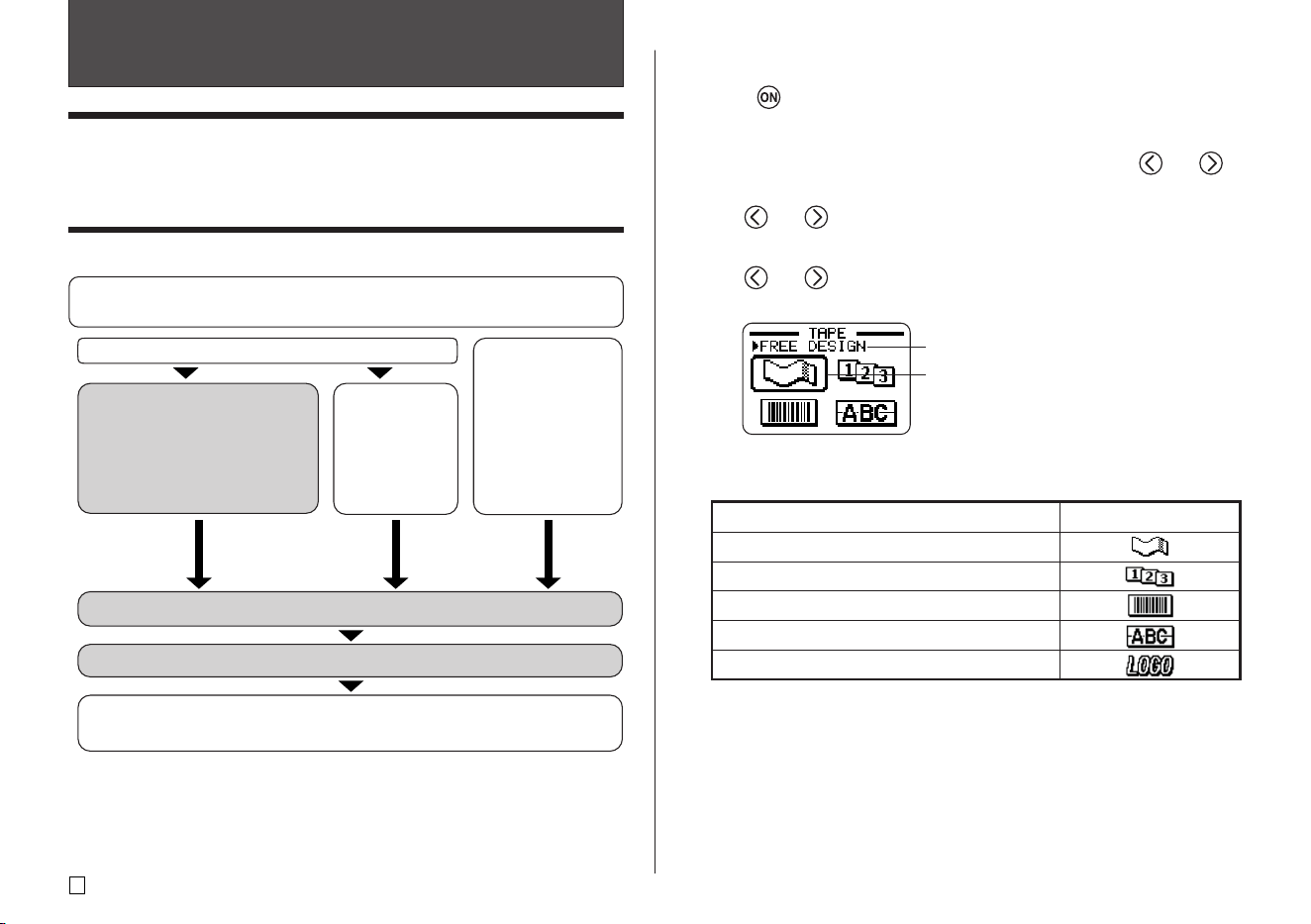
AREA B
E
16
■ To create a new tape label
1. Press to turn on the printer.
• A LAST DATA icon will also appear on the Main Menu if there is input
data left over from the last time you used the printer. If you want to continue
working with the data from your previous session, use and to
select LAST DATA, and then press SET.
2. Use and to select TAPE, and then press SET.
• You can also press TAPE here.
3. Use and to select NEW, and then press SET.
• This displays a label mode selection screen.
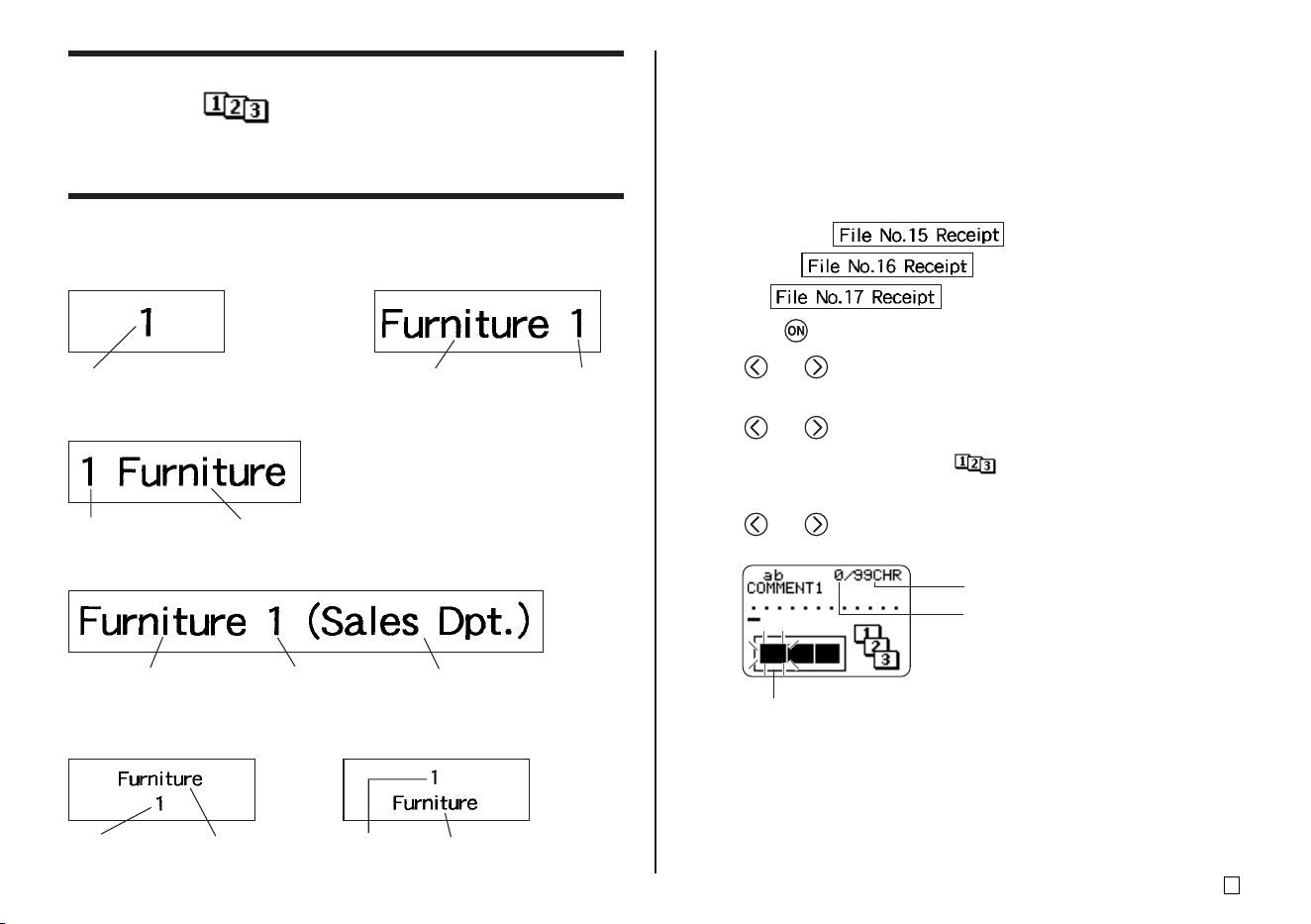
4. Use the cursor keys to move the selection boundary to icon for the label
mode you want to use.
Shows the function of the currently selected
icon.
Part 2 - TAPE Mode
Creating a Tape Label
The following are the general steps when preparing data for printing a tape
label.
Getting Ready
• Connect the AC adaptor or load batteries (page 7 of the Startup Guide).
• Load a tape cartridge (page 13 of the Startup Guide).
1. Select the label mode.
Free Design ...........page 22
Numbering Label ...page 17
Barcode Label .......page 36
Enlarged Label ......page 19
Logo Label ............ page 20
2. Input the text you want (page 41).
3. Select the font (page 50) and the style (page 52).
To edit an
existing label,
select
STORED
DATA (page
54).
To edit the label
data you were
working on the last
time you were
using the printer,
select LAST DATA
(page 10 of the
Startup Guide).
Print the label (page 23 of the Startup Guide) and store it in memory
(page 54), if you want.
Select the TAPE Mode (page 16).
Selection boundary
5. After you select a mode, press SET.
6. What you should do next depends on the label mode you selected in step
4. See the pages referenced in the table under step 4 for more information.
To create this type of tape label:
Original (Free Design) tape label (page 22)
Sequentially numbered tape label (page 17)
Barcode tape label (page 36)
Large tape label (page 19)
Tape label with logo (page 20)
Select this icon:
17
E
Creating and Printing a Sequentially Numbered
Tape Label
This label printer gives you a choice of six different numbering formats that
you can use to print sequentially numbered labels from 0 to 99999.
Numbering Formats
Important!
• When printing sequentially numbered tape labels, printing is performed up
to the number you specify. Before printing, make sure that the tape cartridge
has enough tape left to finish the print operation. If the tape cartridge runs
out of tape during a print operation, press ESC to cancel the print operation.
■ To create and print sequentially numbered tape labels
Example
1. Press the to turn on the printer.
2. Use and to select TAPE, and then press SET.
• You can also press TAPE to enter the TAPE Mode.
3. Use and to select NEW, and then press SET.
4. Use the cursor keys to select the icon, and then press SET.
• This enters the Numbering Mode.
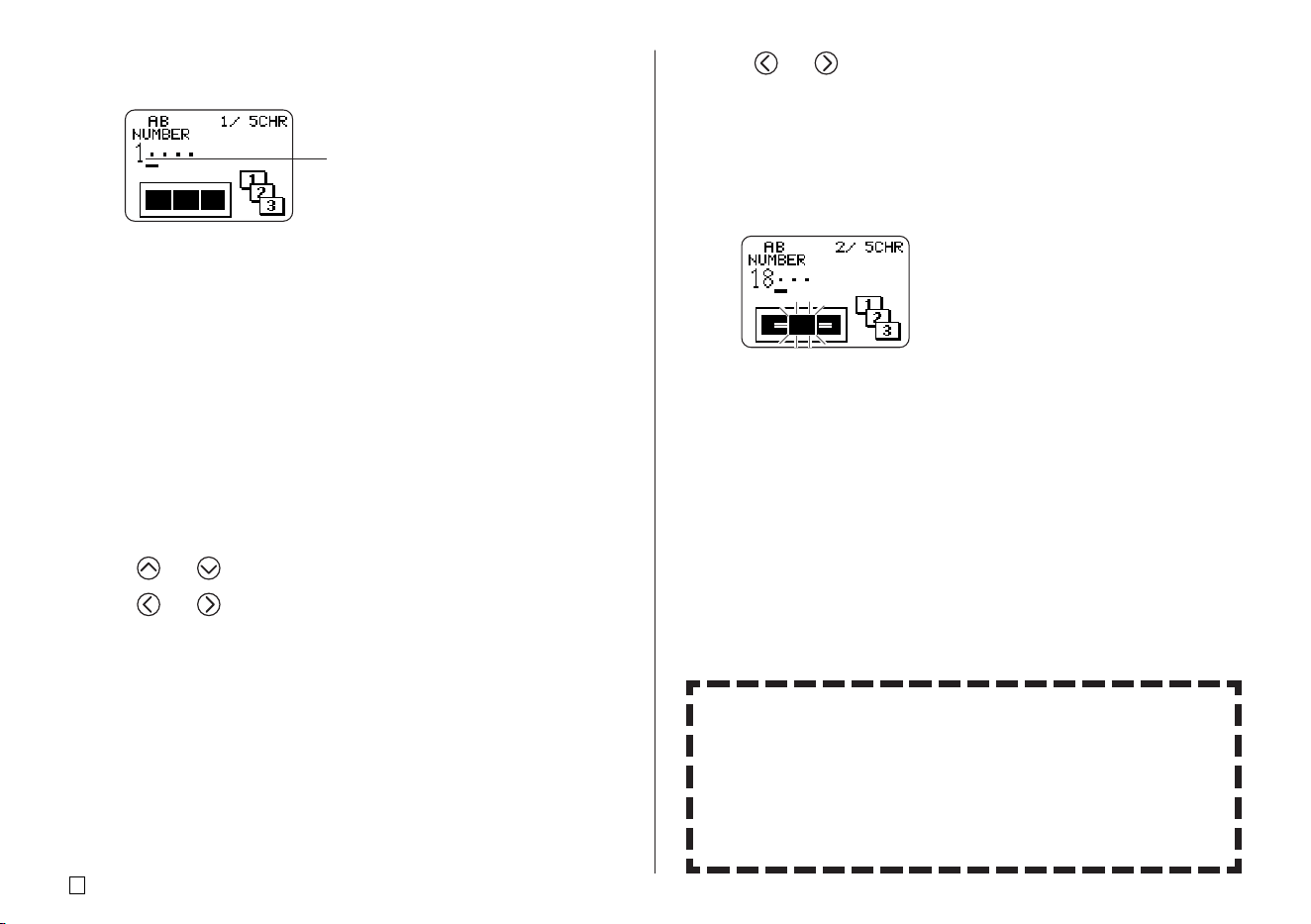
5. Use and to select the numbering format, and then press SET.
Here we will select Format 4.
Flashing indicates the current input area.
• Format 1
Number
• Format 2
Up to 99 characters of text Number
• Format 3
Number Up to 99 characters of text
• Format 4
Up to 99 characters of text Number Up to 99 characters of text
(COMMENT 1) (COMMENT 2)
• Format 5
Number Up to 99 characters
of text
• Format 6
Number Up to 99 characters
of text
Number of characters that
can be input
Number of currently input characters
E
18
6. Input the text for the COMMENT 1 box, and then press SET.
Here we will input “File”.
7. Change the starting number, if you want, and then press SET.
Here we want to number the labels from 15 through 17, so we would input
15 here.
• If you make a mistake and input the wrong number, delete the current
number and re-input. You can specify a number up to five digits long.
8. Input the text for the COMMENT 2 box, and then press SET.
• Here we will input “Receipt”.
• While inputting text in the Numbering Mode, you can also change the
DIRECTION setting (page 25), MIRROR setting (page 26), and the
MARGINS setting (page 26).
9. Use the cursor keys to select the number style you want, and then press
SET.
• Here we will select No.1.
10. Use and to select PRINT, and then press SET.
11. Use and to specify the number of labels to be printed, checking
the start and end numbers to make sure that they are correct, and then
press SET.
• Here we want to print one set of labels numbered 15, 16, and 17, so we
will specify 3 for the number of labels to be printed.
• For the number of labels to be printed, you can specify a value in the
range of 1 to 100.
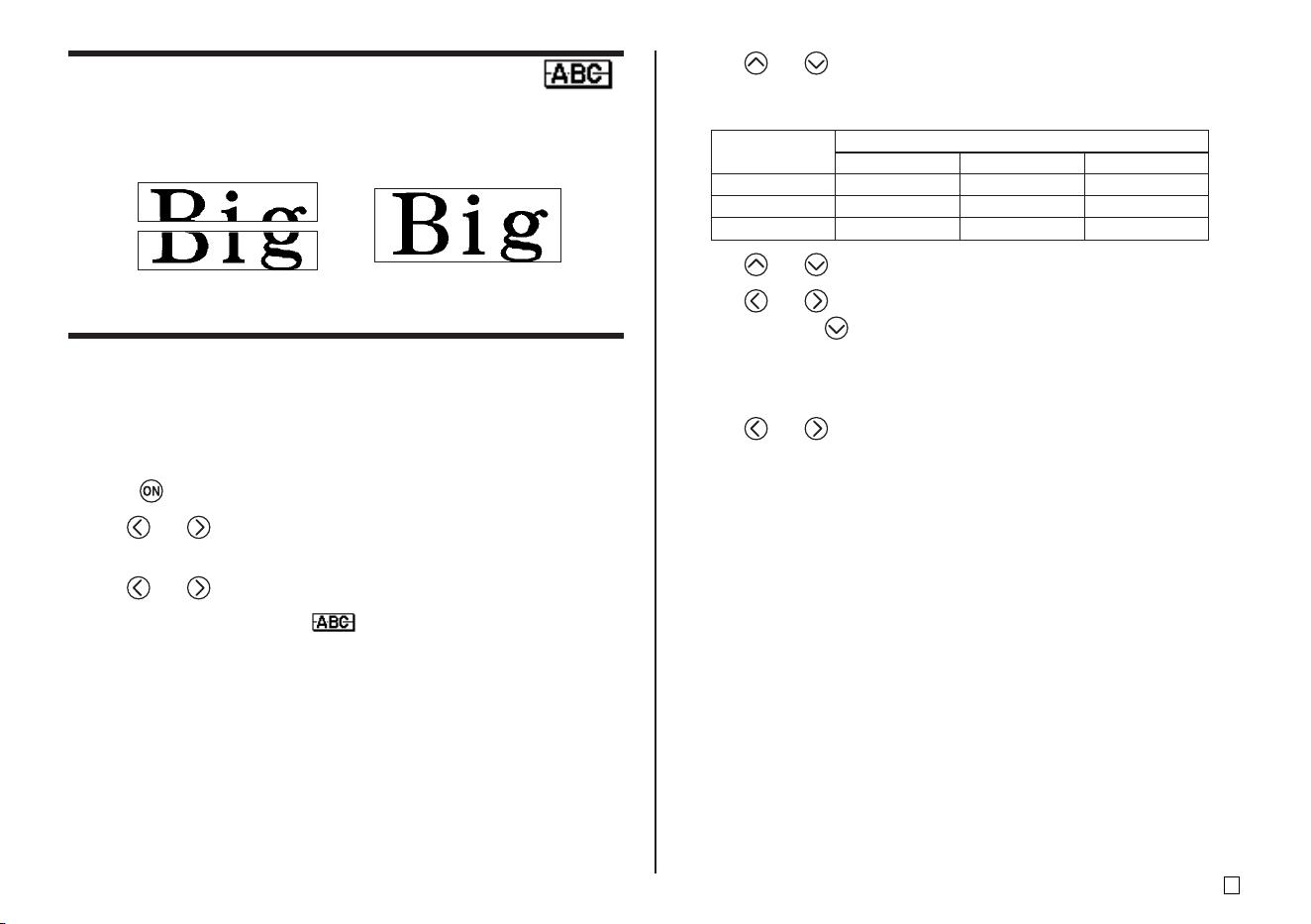
Shows the starting number.
12. Use and to select the tape cut mode (page 38), and then press
SET.
• Pressing SET starts the print operation and causes a screen like the
one shown below to appear.
• If printing reaches the number 99999, the next number printed is 00000.
• If the message “LENGTH OF PRINT IS TOO LONG! ” “ TOO SHORT TO
CUT!” appears, see pages 63, 67 for information about what you need
to do.
The number that appears here depends on the label you created.
Important!
• Make sure that cut tape does not pile up in the area around the tape outlet.
Tape building up around the tape outlet can cause the outlet to become
blocked, causing a tape jam and malfunction of the printer.
• For information about saving tape label data, see page 54.
Controlling the Appearance of Your Labels
In steps from 6 through 8 of the basic procedure described above, you
can also configure the following settings to control the appearance of
your label.
• Direction (horizontal or vertical)
• Mirror printing (off or on)
• Margin size
See page 25 for information about how to configure these settings.
19
E
Creating and Printing a Large Tape Label
Though your printer can print on tapes up to 24mm wide, there may be times
that you need to produce even larger labels. You can do this by printing the
large label in sections, and then assembling the sections into the final label.
Important!
• You must have a tape cartridge that is 12mm wide or wider loaded in the
printer to perform this operation.
Example
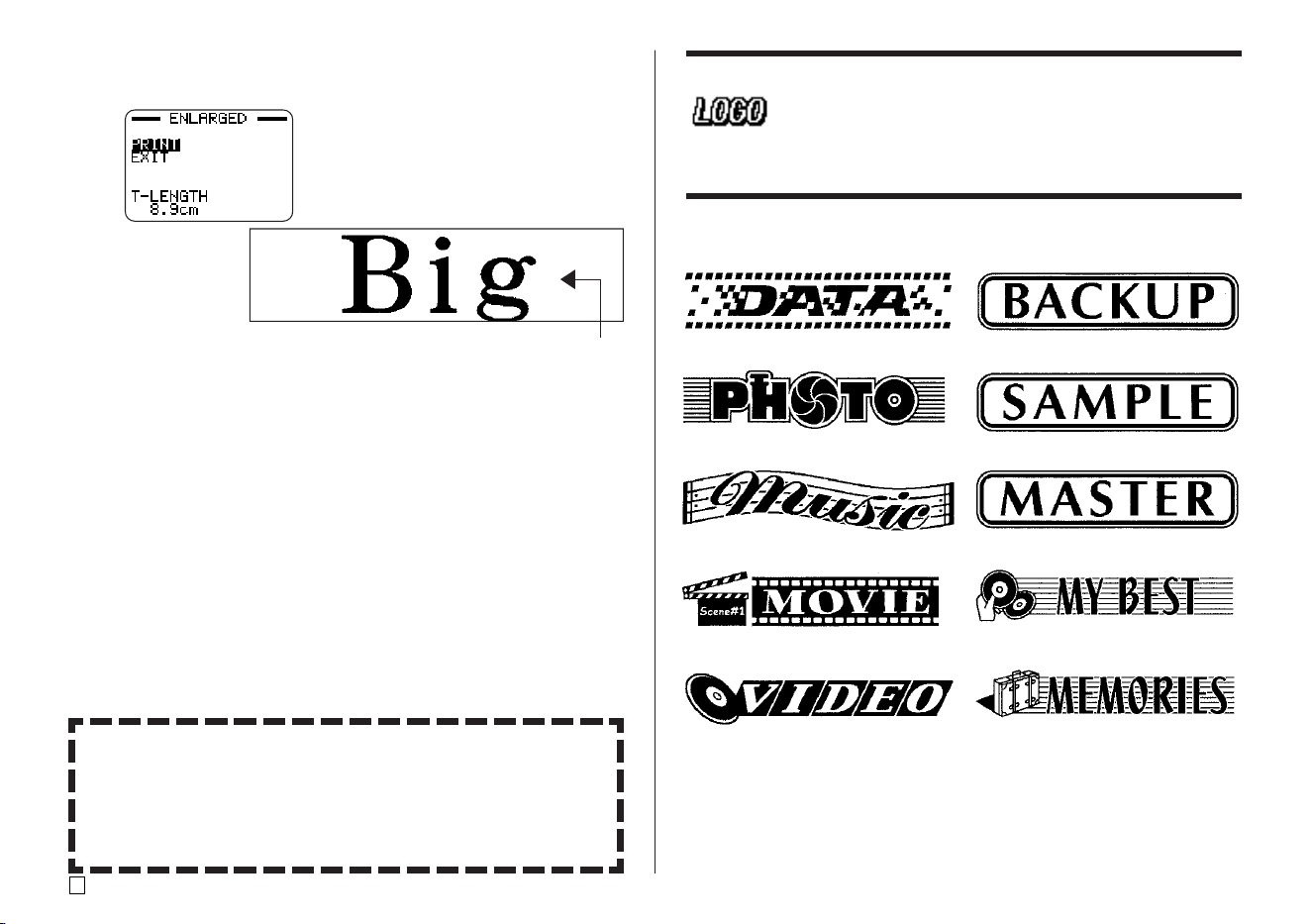
Big (printed on two pieces of 12mm tape)
1. Press to turn on the printer.
2. Use and to select TAPE, and then press SET.
• You can also press TAPE to enter the TAPE Mode.
3. Use and to select NEW, and then press SET.
4. Use the cursor keys to select , and then press SET.
• This enters the Enlarged Label Mode.
5. Input the label text and then press SET.
• While inputting text in the Enlarged Label Mode, you can also change
the DIRECTION setting (page 25) and the MIRROR setting (page 26).
➜
Large label printed using
two pieces of tape
Arranging the printed labels
produces the large label.
6. Use and to select the size of the final label (how many pieces of
tape will be used), and then press SET.
• Since we will be using two pieces of tape here, we will select 2 PIECES.
7. Use and to select PRINT, and then press SET.
8. Use and to specify what part of the large label you wish to print,
and then press .
• Here we want to select the entire label, so we will select ALL. If you want
to print only one part of the large label, you can select 1, 2, 3, or 4,
depending on the number of pieces that make up the large label.
9. Use and to select the tape cut mode (page 38), and then press
SET.
• This starts printing.
Tape Width
Character Size
2 PIECES 3 PIECES 4 PIECES
12mm 24mm (15/16") 36mm (1 7/16") 48mm (1 7/8")
18mm 30mm (1 3/16") 45mm (1 3/4") 60mm (2 3/8")
24mm 30mm (1 3/16") 45mm (1 3/4") 60mm (2 3/8")
E
20
10. The screen shown here appears after printing of the last piece is com-
plete.
Combine the tapes to create the large label.
• If you use the above procedure to print on 18mm or 24mm tape, the
tapes that are output will have blank margins along the bottom and/or
the top of the upper tape and the top and/or the bottom of the lower tape.
You will need to trim off these margins before combining the tapes.
Another way to deal with margins is to use transparent tape. Then you
can combine them without trimming, by laying one of the tapes over the
other.
Controlling the Appearance of Your Labels
In step 5 of the basic procedure described above, you can also configure
the following settings to control the appearance of your label.
• Direction (horizontal or vertical)
• Mirror printing (off or on)
See page 25 for information about how to configure these settings.
Creating and Printing a Tape Label with a Logo
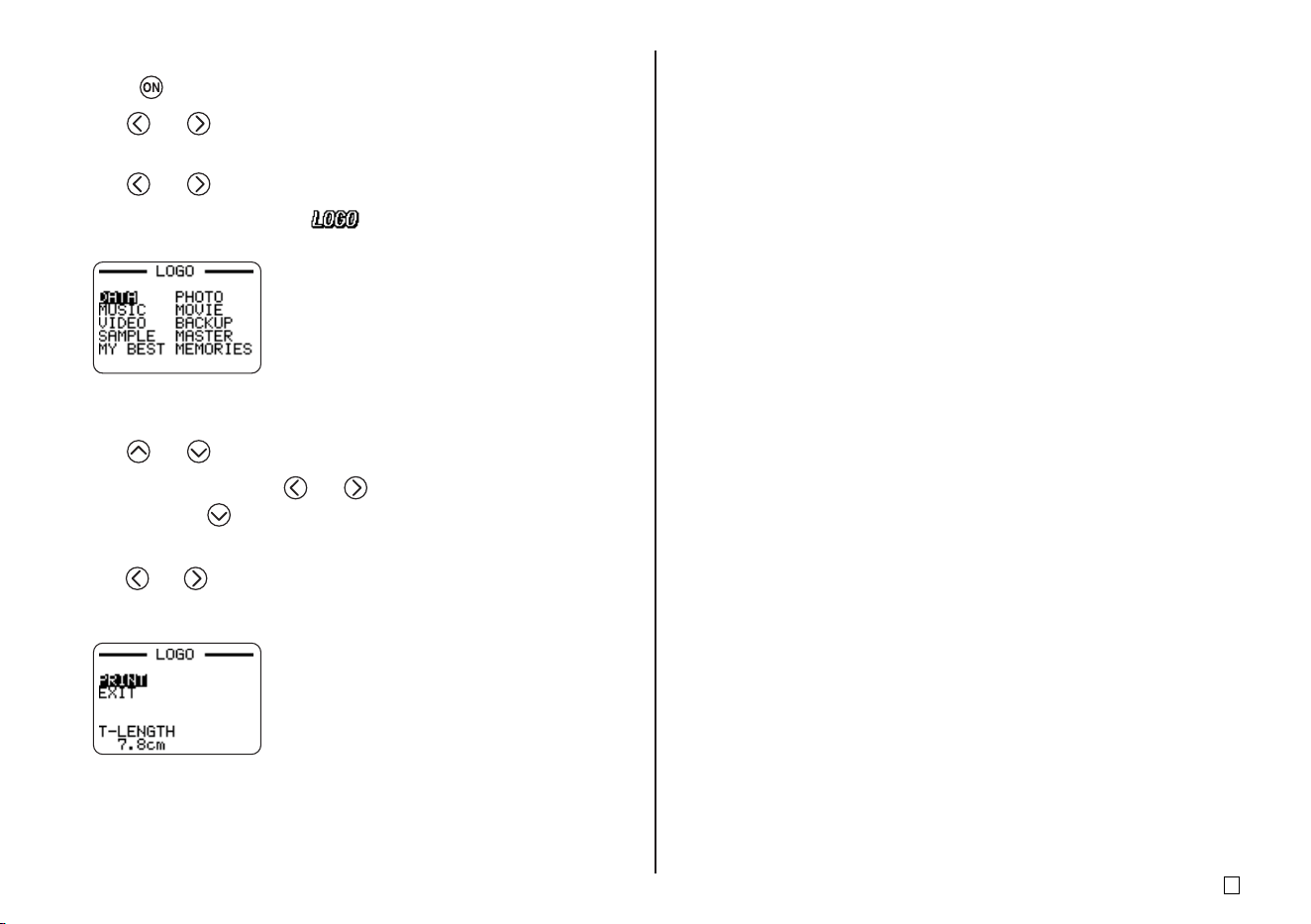
Your printer comes with 10 built-in logos that you can incorporate into your
tape labels quickly and easily.
Built-in Logos
Important!
• You can incorporate built-in logos into tape labels that are printed using
18mm or 24mm tape only.
21
E
■ To create and print a label with a logo
1. Press to turn on the printer.
2. Use and to select TAPE, and then press SET.
• You can also press TAPE to enter the TAPE Mode.
3. Use and to select NEW, and then press SET.
4. Use the cursor keys to select , and then press SET.
• This enters the Logo Mode.
5. Use the cursor keys to select the logo you want to use, and then press
SET.
6. Use and to select PRINT, and then press SET.
7. Use the number keys (or and ) to specify the number of copies,
and then press .
• You can specify a value from 1 to 100 for the number of copies.
8. Use and to select the tape cut mode (page 38), and then press SET.
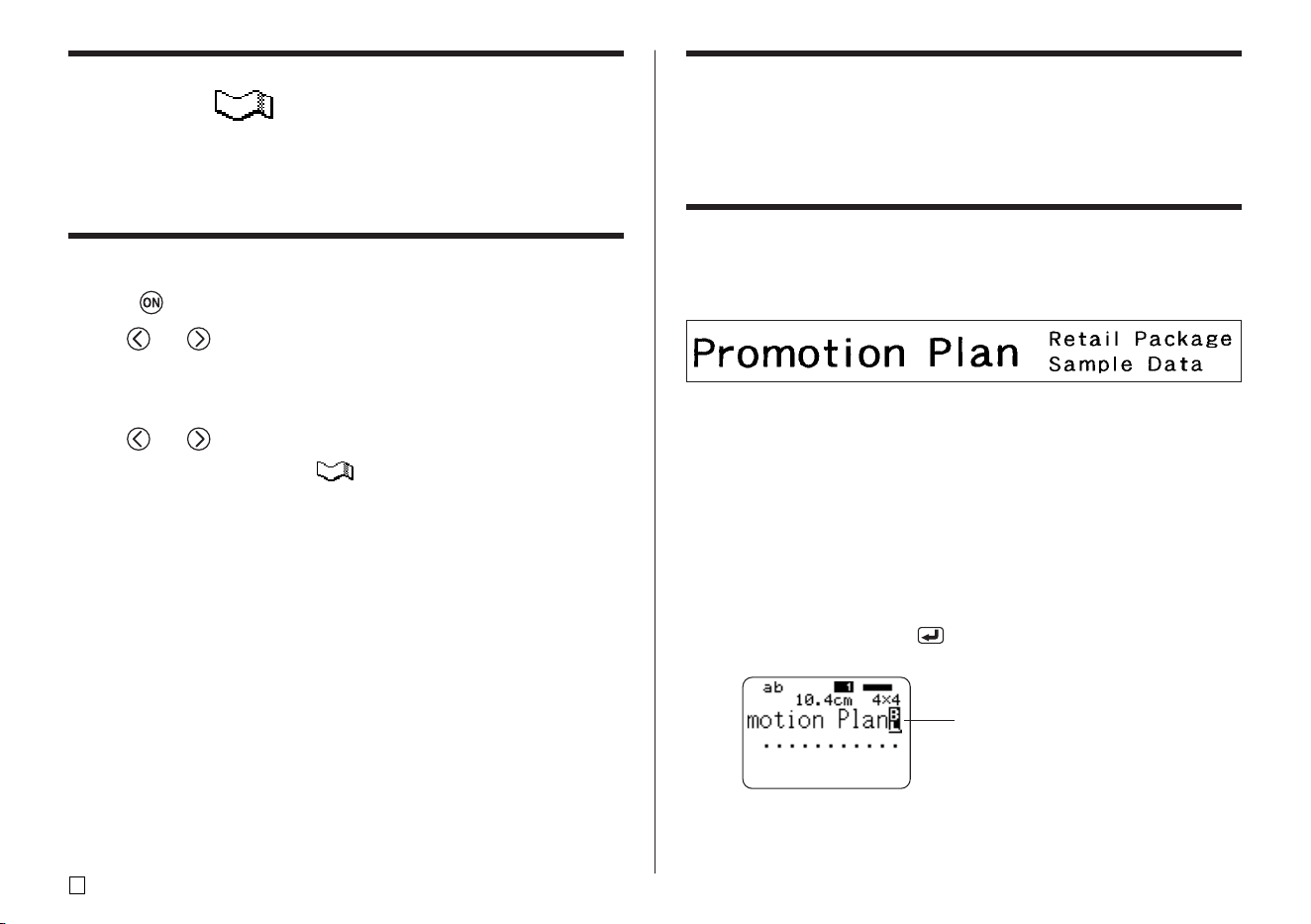
• This starts the print operation. The screen shown below appears when
printing is complete.
E
22
Creating and Printing an Original (Free Design)
Tape Label
This section describes what you can do with the Free Design mode of the
printer, which lets you design your own tape labels. All of the following sec-
tions whose titles start with “FREE DESIGN:” indicate features and functions
that are available in the Free Design mode only.
■ To create a basic Free Design
1. Press to turn on the printer.
2. Use and to select TAPE, and then press SET.
• You can also press TAPE here.
• A LAST DATA icon will also appear on the Main Menu if there is input
data left over from the last time you used the printer.
3. Use and to select NEW, and then press SET.
4. Use the cursor keys to select , and then press SET.
• This enters the Free Design Mode.
5. Use the procedures described in the following “FREE DESIGN” sections
to layout your label and input text.
FREE DESIGN: Using Text Blocks
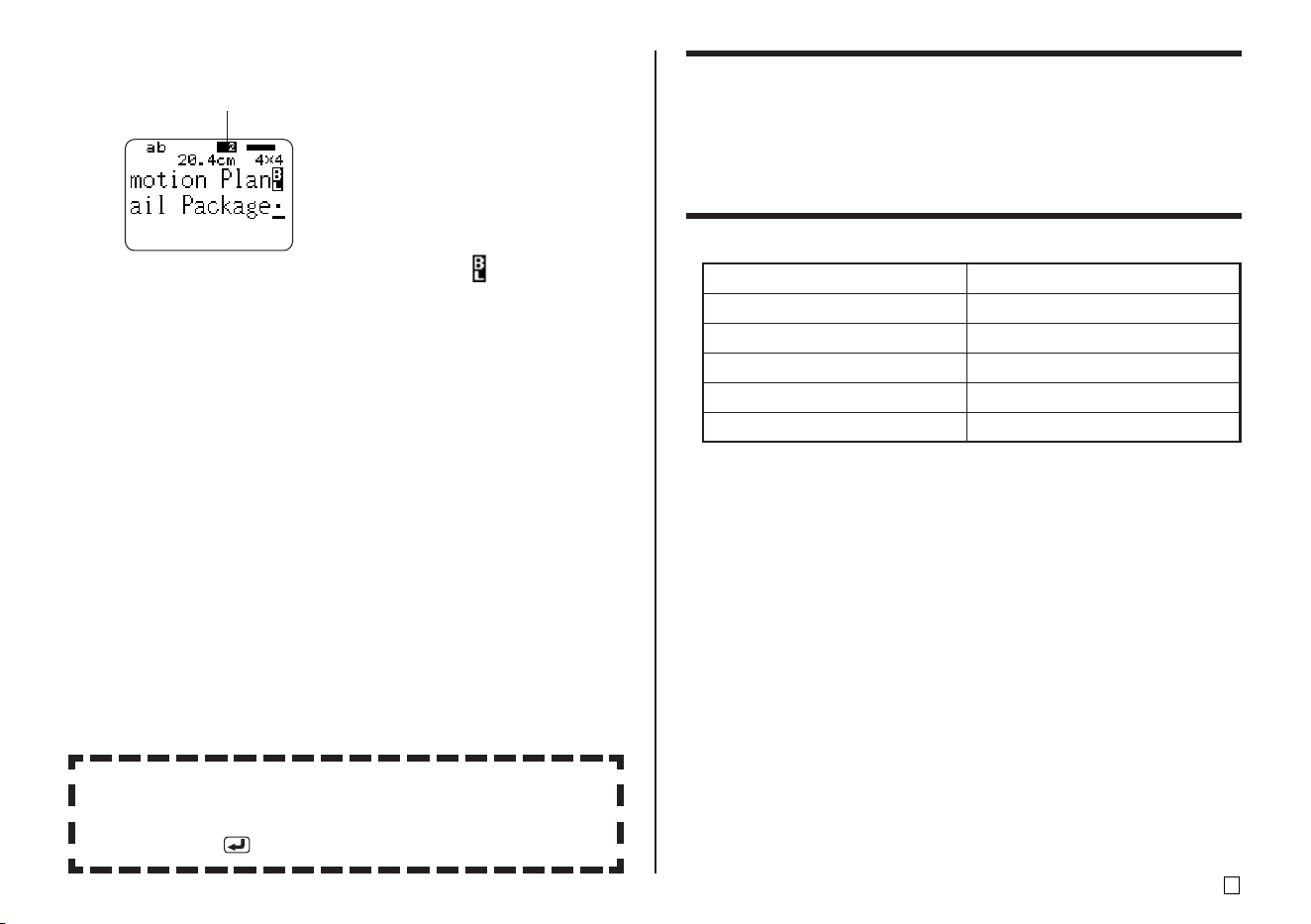
In the example label shown below, “Promotion Plan” and “Retail Package Sam-
ple Data” are independent units called “text blocks,” or simply “blocks.” You can
divided your tape label text into blocks and then apply the following settings
on a block-by-block basis.
• Number of text lines (page 23)
• Text alignment (page 25)
• Character pitch (page 25)
• Block length (page 25)
Block 1 Block 2
• Two lines (page 23)
■ To layout a tape label using blocks
Example
To layout “Promotion Plan” and “Retail Package Sample Data” as separate
blocks within the same tape label
1. In the Free Design Mode, input the text for the first block.
• Here we will input “Promotion Plan”.
2. Press FUNCTION and then .
• This inputs a “block mark,” which makes the text to the left of a block.
Block mark
Block marks appear on the display only.
They are not printed on the tape.
23
E
3. Input the text for the next first block.
• Here we will input “Retail Package”.
Indicates the block number where the cursor is currently located.
• To delete a block mark, move the cursor to the symbol, and then
press DEL. Note that you cannot delete a block mark by pressing the
BS key.
• You can have up to 16 blocks inside of a single tape label layout.
• See page 24 of the Startup Guide for information about printing the label.
• For information about saving tape label data, see page 54.
Dividing Existing Text into Blocks
You can also divide text you have already input into blocks. Simply move
the cursor to the location where you want to input a block mark, and then
press FUNCTION .
FREE DESIGN: Using Multiple Lines in a Tape
Label
This section explains how to use multiple lines in a label or a specific block in
the Free Design Mode. Note that the maximum number of lines depends on
the width of the tape you are using.
Important!
• Note that the character size of the printed label will be adjusted by the printer
automatically in accordance with the tape width and the number of lines
(Auto Fit). This is true even if you specified the character size manually
(page 31).
Example
Tape Width
6mm
9mm
12mm
18mm
24mm
Maximum Number of Lines
2
3
5
8
8
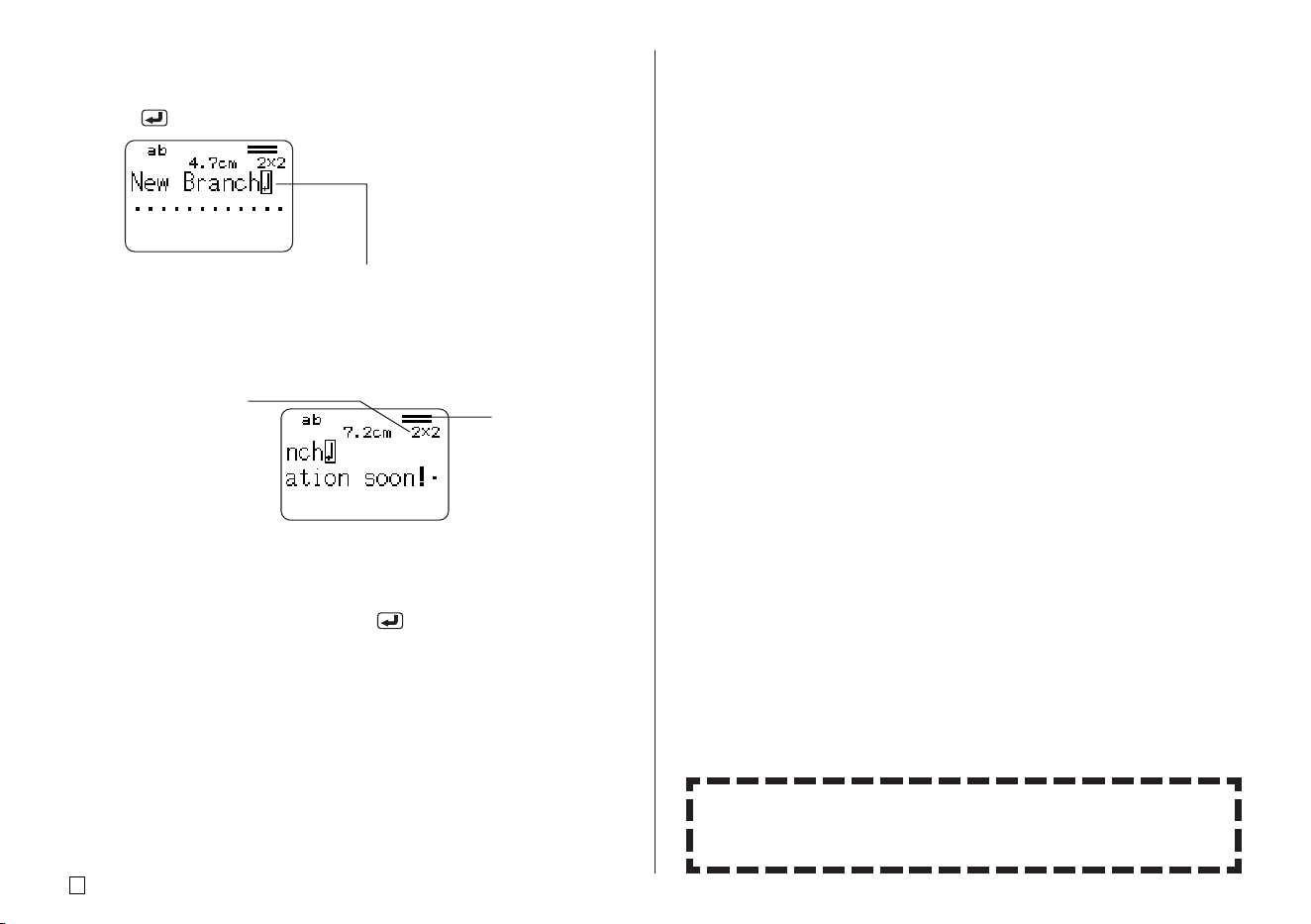
New Branch
In Operation soon!
E
24
1. In the Free Design Mode, input the first line of text.
• Here we will input “New Branch”.
2. Press .
The newline mark indicates a newline operation.
Newline marks appear on the display only.
They are not printed on the tape.
3. Input the second line of text.
• Here we will input “In Operation soon!”.
• You can also insert a newline mark into existing text. Move the cursor to
the desired location, and then press .
• To delete a newline mark, move the cursor to it and then press DEL.
Note that you cannot delete a newline mark by pressing BS.
• An indicator like “5/8” appears for the label format indicator when the
Small Font is selected for printing. This indicates that the total number of
lines is 8, and the cursor is currently located in line 5. For details about
using the Small Font, see page 34.
• The message “TOO MANY LINES!” appears if the width of the tape
loaded in the printer is not compatible with the number of lines in the
label you are creating. If this happens, reduce the number of lines or use
a different width tape.
• See page 24 of the Startup Guide for information about printing the label.
• For information about saving tape label data, see page 54.
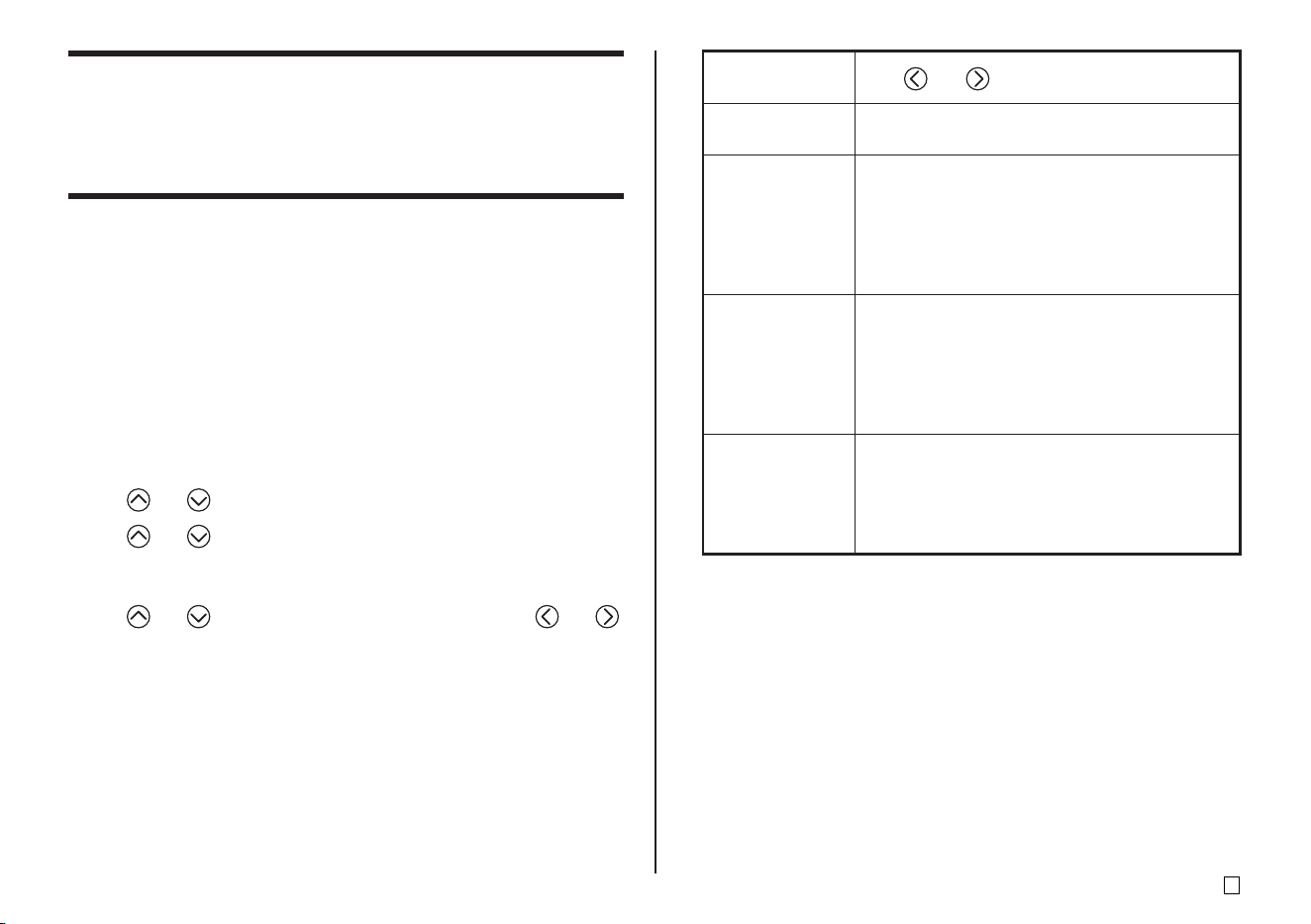
The character size is
adjusted automatically
in accordance with the
number of lines.
Label format
The lines indicate the
number of lines in the
label. Line thickness
indicates character size.
Other Tape Label Examples
Insert block mark (page 22).
Specify different character sizes for each line (page 31).
25
E
FREE DESIGN: Configuring Block Form
Settings
You can use the procedure in this section to configure direction, alignment,
pitch, and block length settings for each individual block.
Important!
• The following procedure applies when you have multiple blocks in a tape
label. If there is only one block (no block markers), use the procedure under
“FREE DESIGN: Configuring Label Form Settings” on page 26.
■ To configure block form settings
1. In the Free Design Mode, input the text you want, and divide it into blocks
as required.
2. Move the cursor to the block whose form you want to change.
• The cursor can be located anywhere within the block.
3. Press FORM.
4. Use and to select BLOCK FORM, and then press SET.
5. Use and to select ONE BLOCK, and then press SET.
• Selecting ALL BLOCKS applies your settings to all of the blocks that
make up the tape label.
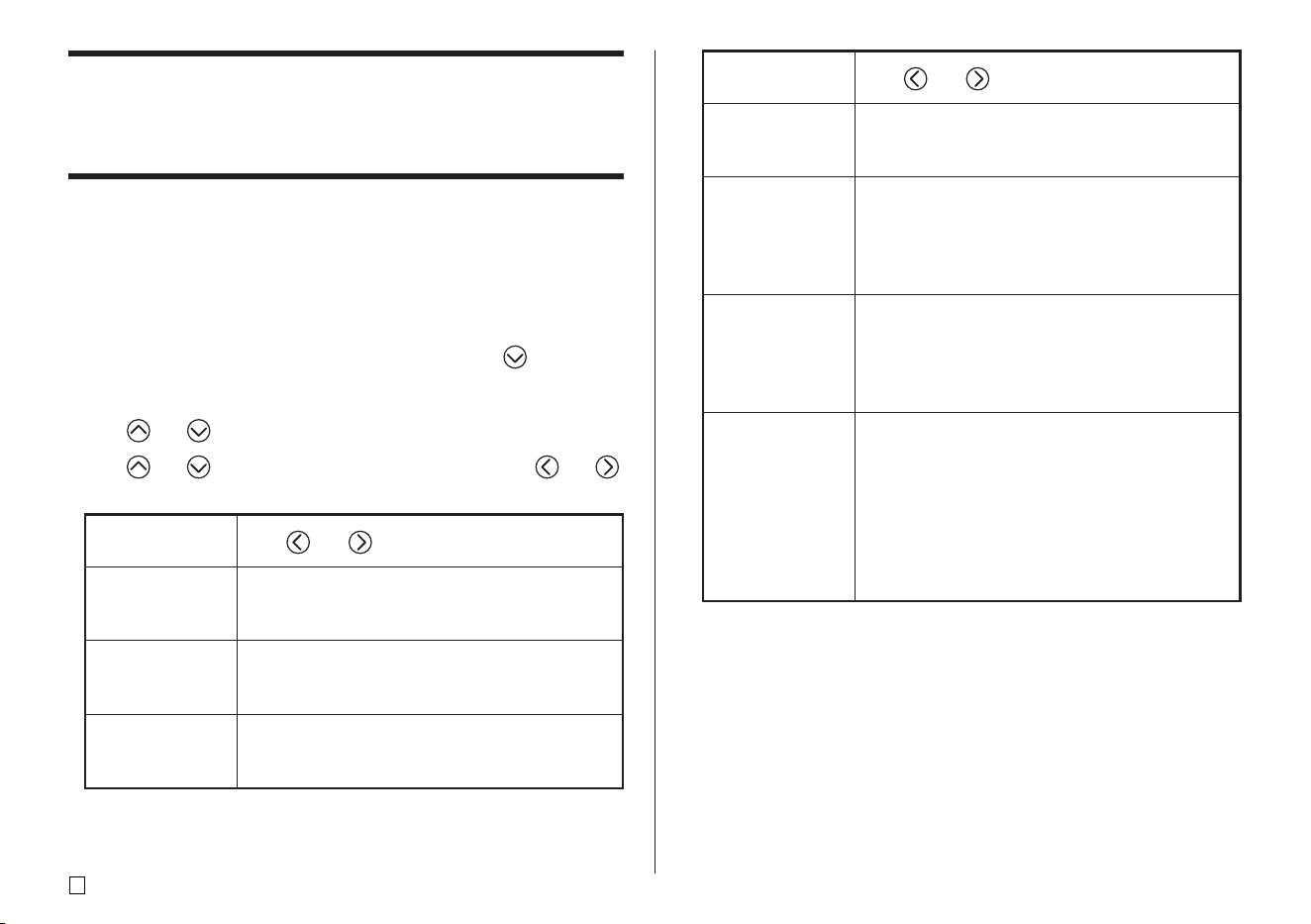
6. Use and to select the setting you want to change, and and
to change the currently selected setting.
When this setting
is selected:
DIRECTION
ALIGN
PITCH
B-LENGTH
Use and to select the option you want:
• HORZ: Positions text from left to right
• VERT: Positions text from top to bottom
• LEFT: Aligns text flush left.
• EQUAL: Equally spaces text to fill the entire
space available.
• CENTER: Centers text.
• RIGHT: Aligns text flush right.
• See page 29 for more information.
• Specify a value from 0.0 mm (0") to 31.9mm
(1
1
/
4
"). Changing this setting also causes the
tape length to change accordingly.
• This setting cannot be changed when EQUAL
is selected for the ALIGN setting, and when
FIX is selected for the B-LENGTH setting.
• AUTO: Automatically adjusts block length in
accordance with the number of characters.
• FIX: Maintains a fixed block length in the range
of 0cm (0") to 99.9cm (39
5
/
16
"). See page 27
for more information.
• You can also change the DIRECTION setting when creating a label in
the Numbering Mode (page 17) and the Enlarged Label Mode (page
19).
7. After all the block form settings are the way you want, press SET.
E
26
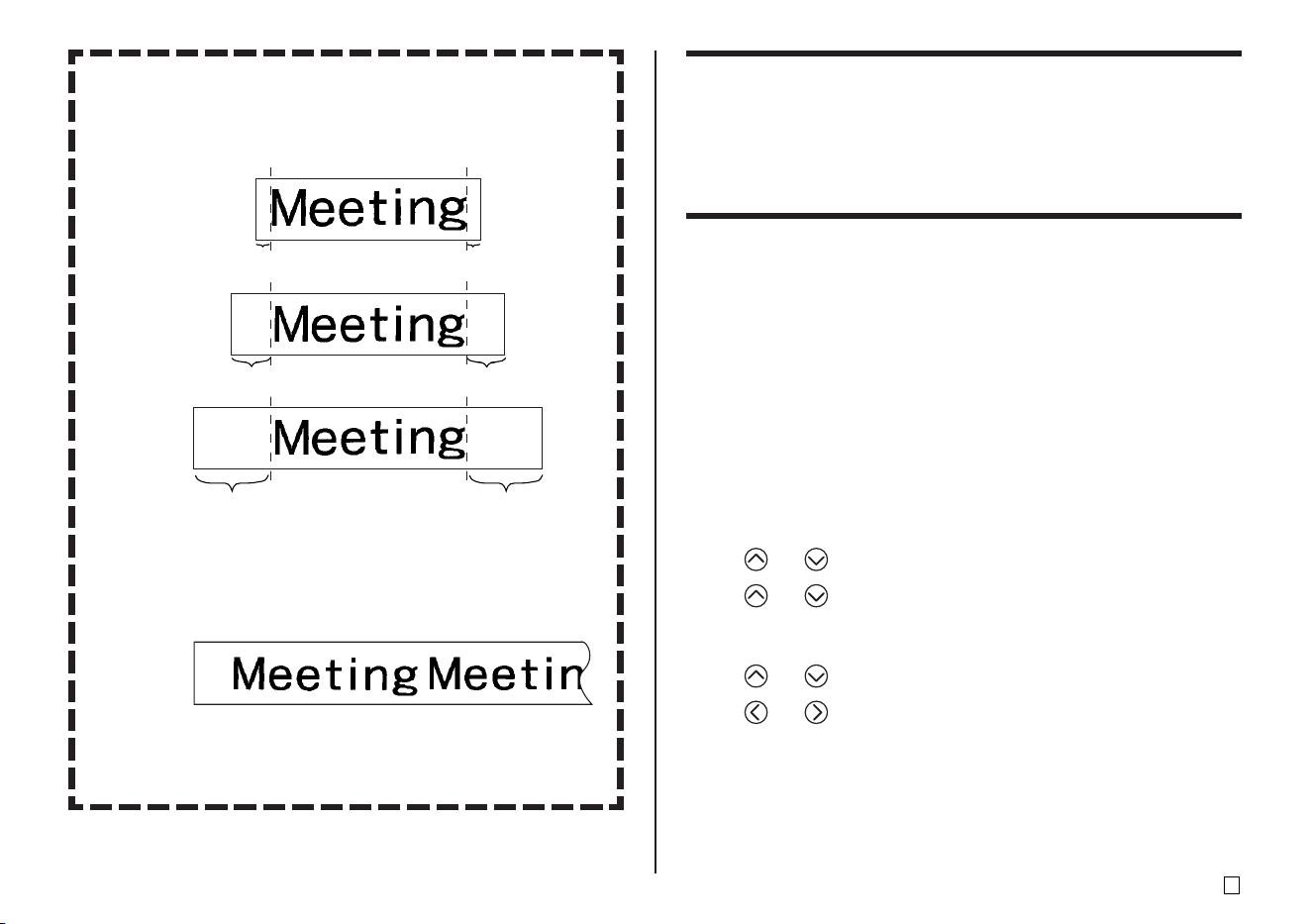
Use and to select the option you want:
• NARROW: 2mm (1/16") block spacing
• WIDE: 4mm (3/16") block spacing
• NONE: 0mm (0") block spacing
• NARROW: 6mm (
1
/
4
") margins
• NONE: 0mm (0") margins
• WIDE: 43mm (1
11
/
16
") margins
• MEDIUM: 20mm (
13
/
16
") margins
• See page 27 for more information.
• AUTO: Automatically adjusts tape length in
accordance with the number of characters.
• FIX: Maintains a fixed tape length in the range
of 0cm (0") to 99.9cm (39
5
/
16
"). See page 27
for more information.
• LEFT: Aligns blocks flush left.
• EQUAL: Equally spaces blocks to fill the entire
space available.
• CENTER: Centers blocks .
• RIGHT: Aligns blocks flush right.
• Note that this setting is available only when FIX
is selected for the T-LENGTH setting. See
page 29 for more information.
FREE DESIGN: Configuring Label Form Settings
Unlike the block form settings described in the previous section, label form
settings are applied to the entire tape label, even if the label consists of multi-
ple blocks.
■ To configure label form settings
1. In the Free Design Mode, input the text you want.
2. Press FORM.
• If your label has only one block, the block form settings (page 25) will
appear when you press FORM. If you perform the steps under “To
configure block form settings” on page 25, the label form settings in step
4 of this procedure will appear when you press SET (or ) to complete
the block form setting procedure (step 7 of “To configure block form
settings”).
3. Use and to select ALL FORM, and then press SET.
4. Use and to select the setting you want to change, and and
to change the currently selected setting.
• You can also change the MARGINS setting when creating a label in the
Numbering Mode (page 17), and the MIRROR setting when creating a
label in the Numbering Mode (page 17) or the Enlarged Label Mode
(page 19).
5. After all the label form settings are the way you want, press SET.
When this setting
is selected:
BL-SPACE
MARGINS
T-LENGTH
B-ALIGN
When this setting
is selected:
MIRROR
PROPOR-
TIONAL
SMOOTHING
Use and to select the option you want:
• NORMAL: Prints the tape normally.
• MIRROR: Prints the tape in mirror image onto
special optionally available iron transfer tape.
• ON: Automatically adjusts letter spacing to the
optional pitch.
• OFF: Spaces letters using a uniform pitch.
• ON: Smoothes printed lines to eliminate jagged
edges from text and graphics.
• OFF: No smoothing performed.
27
E
Margins
You can select from among the following four margin settings.
Note
• All of the margin measurements mentioned below are approximate.
NARROW
MEDIUM
WIDE
Important!
• Margins are not cut in the case of short tape lengths 31mm (1 1/4")
for NARROW, 38mm (1 1/2") for MEDIUM, 50mm (1 15/16") for
WIDE). After printing, you can use scissors to trim to the margin you
want.
NONE
• Setting with the NONE setting makes it possible to print consecutive
labels one after another.
• The auto tape cut operation is not performed when NONE is selected
for the margins. To cut the tape, press FUNCTION and then CUT.
3.0mm (1/8")
10mm (3/8")
21.5mm (7/8") 21.5mm (7/8")
FREE DESIGN: Controlling the Length of a Tape
Label
Tape label length is normally adjusted in accordance with the size and number
of the characters in the label. This section explains how you can control the
length of your labels.
There are two different ways to control label length:
• Specifying the length of each block contained in the label (fixed block length);
• Specifying the overall length of the label (fixed tape length).
■ To control label length using fixed block lengths
1. In the Free Design Mode, input the text you want, and divide it into blocks
as required.
• See page 22 for information about blocks.
2. Move the cursor to the block whose length you want to fix.
• The cursor can be located anywhere within the block.
3. Press FORM.
• If your label has only one block, advance directly to step 6 of this
procedure.
4. Use and to select BLOCK FORM, and then press SET.
5. Use and to select ONE BLOCK, and then press SET.
• If you want to apply your setting to all of the blocks in your label, select
ALL BLOCKS instead.
6. Use and to select B-LENGTH.
7. Use and to change the setting to FIX.
3.0mm (1/8")
10mm (3/8")
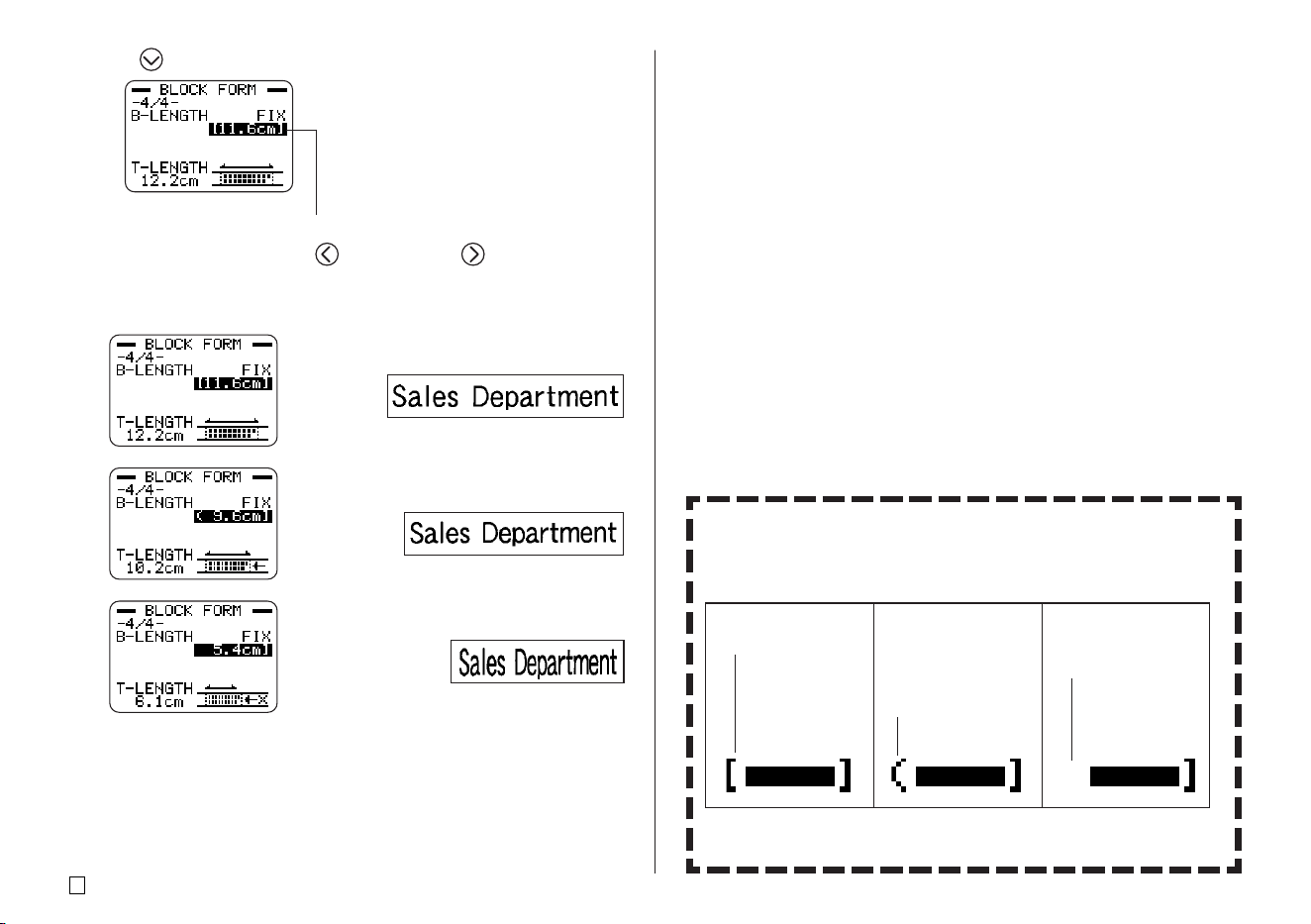
E
28
8. Press .
Length value becomes highlighted.
9. Use the number keys, or the (decrease) and (increase) keys to
change the block length setting.
• The appearance of the block length value on the display will change in
accordance with your setting as described below.
10. Press SET.
[11.6cm]
Label can be
printed as-is.
➜
(9.6cm]
Text is condensed
horizontally, and
label is printed
as-is.
➜
5.4cm]
Block length is
printed longer
than specified
length value.
➜
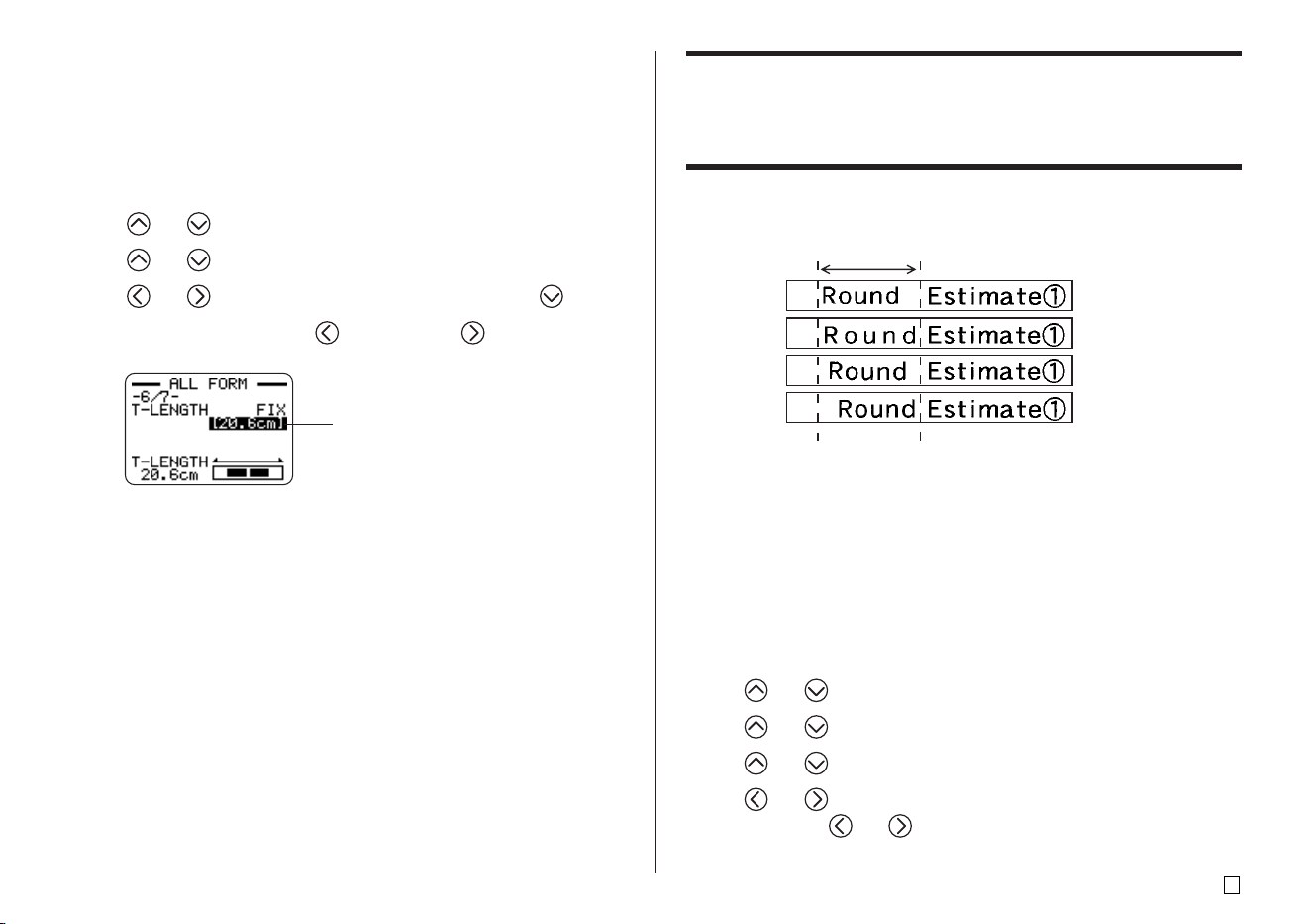
Fixed Block Length and the Label Format Indicator
Selecting FIX for the B-LENGTH setting causes the label format indica-
tor in the upper right corner of the display to indicate the information
described below.
* Text is printed at 50% normal size in the printing direction. The printed
block length is longer than the specified length.
Label can be printed
at specified length.
Label will be
printed at specified
length with
condensed
characters.
Label will be longer
than specified
length.*
29
E
FREE DESIGN: Aligning Tape Label Text
This section explains how to align tape label text within a block and how to
align blocks within a tape label.
Example 1: Aligning the term “Round Estimate
11
11
1” in
a block (fixed block length)
LEFT
EQUAL
CENTER
RIGHT
■ To align tape label text
1. In the Free Design Mode, input the text you want, and divide it into blocks
as required.
• See page 22 for information about blocks.
2. Move the cursor the block whose text you want to align, and then press
FORM.
• Here we will move the cursor to the block that contains “Round”.
• If your label has only one block, advance directly to step 5 of this
procedure.
3. Use and to select BLOCK FORM, and then press SET.
4. Use and to select ONE BLOCK, and then press SET.
5. Use and to scroll to the ALIGN setting screen.
6. Use and to select the alignment setting you want.
• Each press or and cycles the setting between EQUAL, CENTER,
RIGHT, and LEFT.
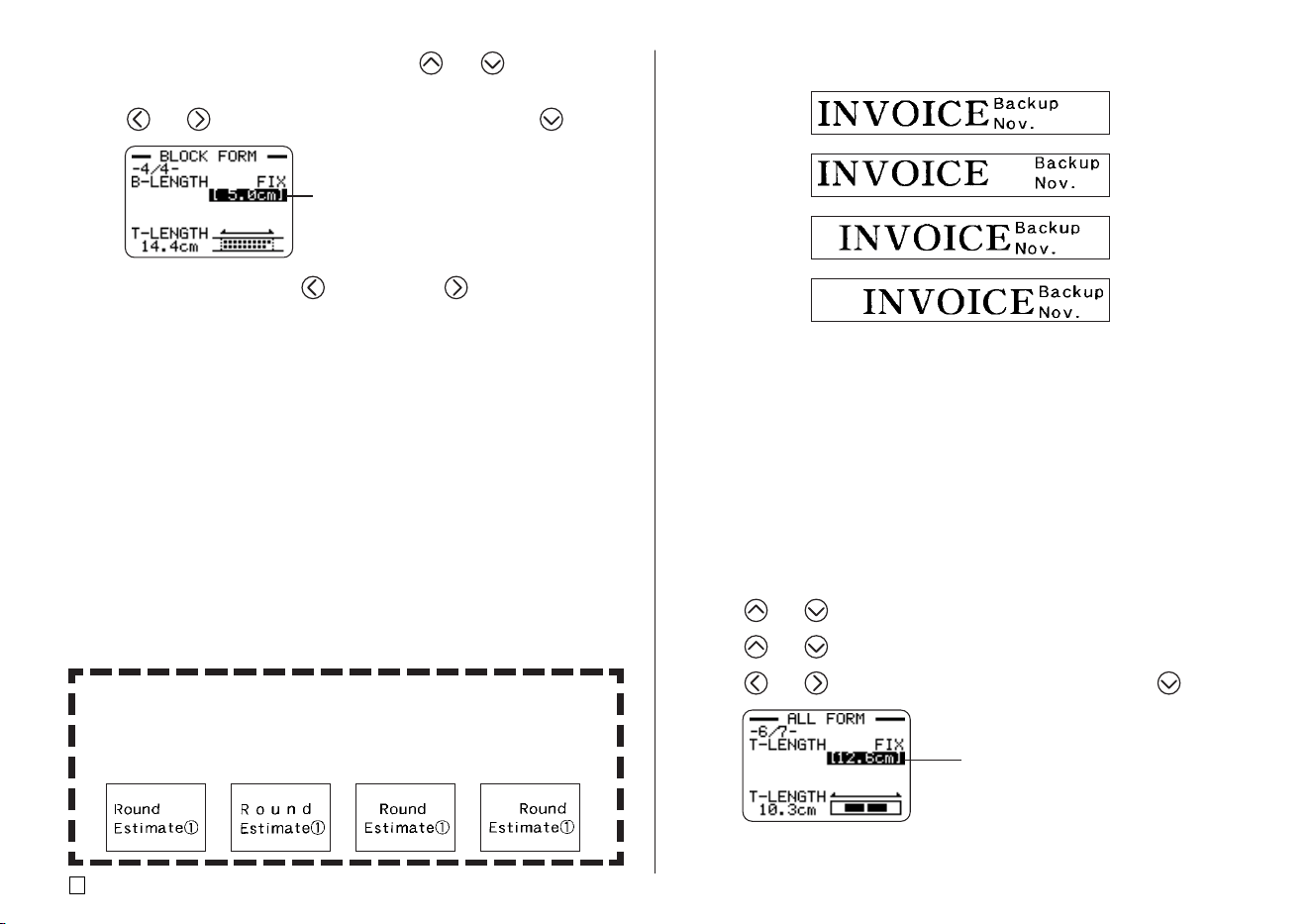
■ To control the overall label length using a fixed tape
length
1. In the Free Design Mode, input the text you want.
2. Press FORM.
• If your label has only one block, advance directly to step 4 of this
procedure.
3. Use and to select ALL FORM, and then press SET.
4. Use and to scroll to the T-LENGTH setting screen.
5. Use and to change the setting to FIX, and then press .
6. Use the number keys, or the (decrease) and (increase) keys to
change the label length setting.
• The appearance of the tape length value on the display will change in
accordance with your setting as described below.
Length value becomes highlighted.
[20.6cm]
Label can be printed
as specified.
➜
20.5cm]
Label will be printed but the tape length
will be longer than specified.
➜
E
30
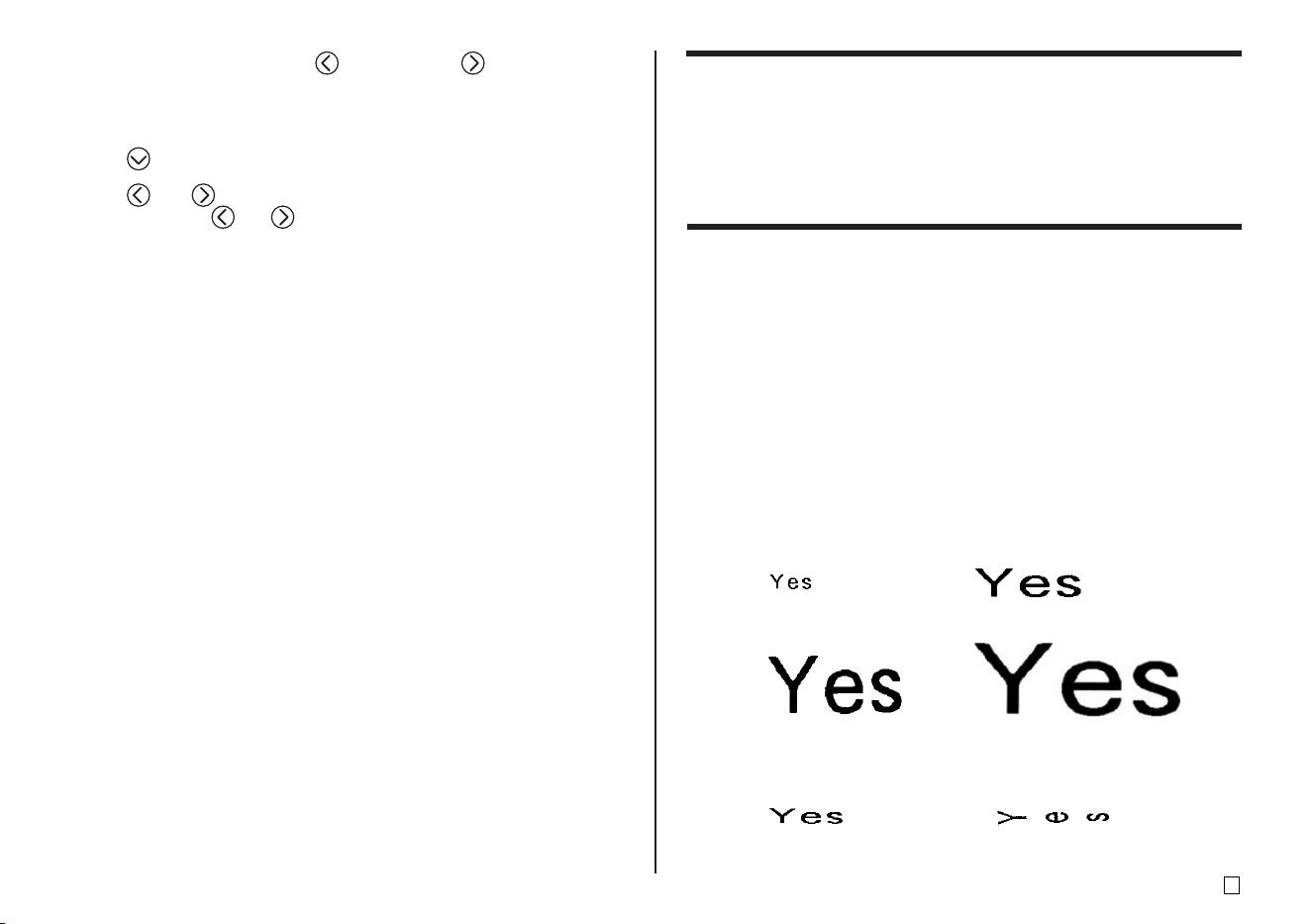
Example 2: Aligning blocks within a tape label
LEFT
EQUAL
CENTER
RIGHT
Important!
• The block alignment setting is applied only when FIX is selected for the
T-LENGTH setting.
■ To align blocks within a tape label
1. In the Free Design Mode, input the text you want, and divide it into blocks
as required.
• See page 22 for information about blocks.
2. Press FORM.
• If your label has only one block, advance directly to step 4 of this
procedure.
3. Use and to select ALL FORM, and then press SET.
4. Use and to scroll to the T-LENGTH setting screen.
5. Use and to change the setting to FIX, and then press .
7. After selecting the alignment setting, use and to scroll to the
B-LENGTH setting screen.
8. Use and to change the setting to FIX, and then press .
9. Use the number keys, or the (decrease) and (increase) keys to in-
crease the length of the block, and then press SET.
Length value becomes
highlighted.
• If a block contains multiple lines, you can also align its text using the
B-LENGTH AUTO setting. In this case, alignment will be performed
on the shorter line of text as shown below.
LEFT EQUAL CENTER RIGHT
Length value becomes
highlighted.
31
E
FREE DESIGN: Changing the Size of Tape Label Text
Normally when you print, the printer automatically selects the optimum char-
acter size in accordance with the tape width and the number of text lines (Auto
Fit).
You can also use the procedures in this section to override the Auto Fit feature
and specify the character sizes you want to use.
There are two ways to specify the character size:
• Specifying the size of a string of characters
• Specifying the size of text lines
Important!
• Note that the character size values that you specify do not indicate absolute
sizes, but rather multipliers. A size of “2×3” for example, specifies double
the normal height and three times the normal width.
Specifying the Size of a String of Characters
You can specify the size in the range of 1×1 to 5×8 for a string of characters.
Note that the maximum vertical size you can specify depends on the width of
the tape you are using. For more information, see the “Tape Width and the
Number of Lines and Character Sizes” on page 72.
1×12×3
4×45×6
• Note that how a character size specification affects text depends on whether
the text is vertical or horizontal.
1×2 (Horizontal) 1×2 (Vertical)
6. Use the number keys, or the (decrease) and (increase) keys to
change the label length setting.
• Use a label length setting that is longer than the value that originally
appears on the display.
7. Use to scroll to the B-ALIGN setting screen.
8. Use and to select the alignment setting you want.
• Each press or and cycles the setting between EQUAL, CENTER,
RIGHT, and LEFT.
E
32
■ To specify the size of a string of characters
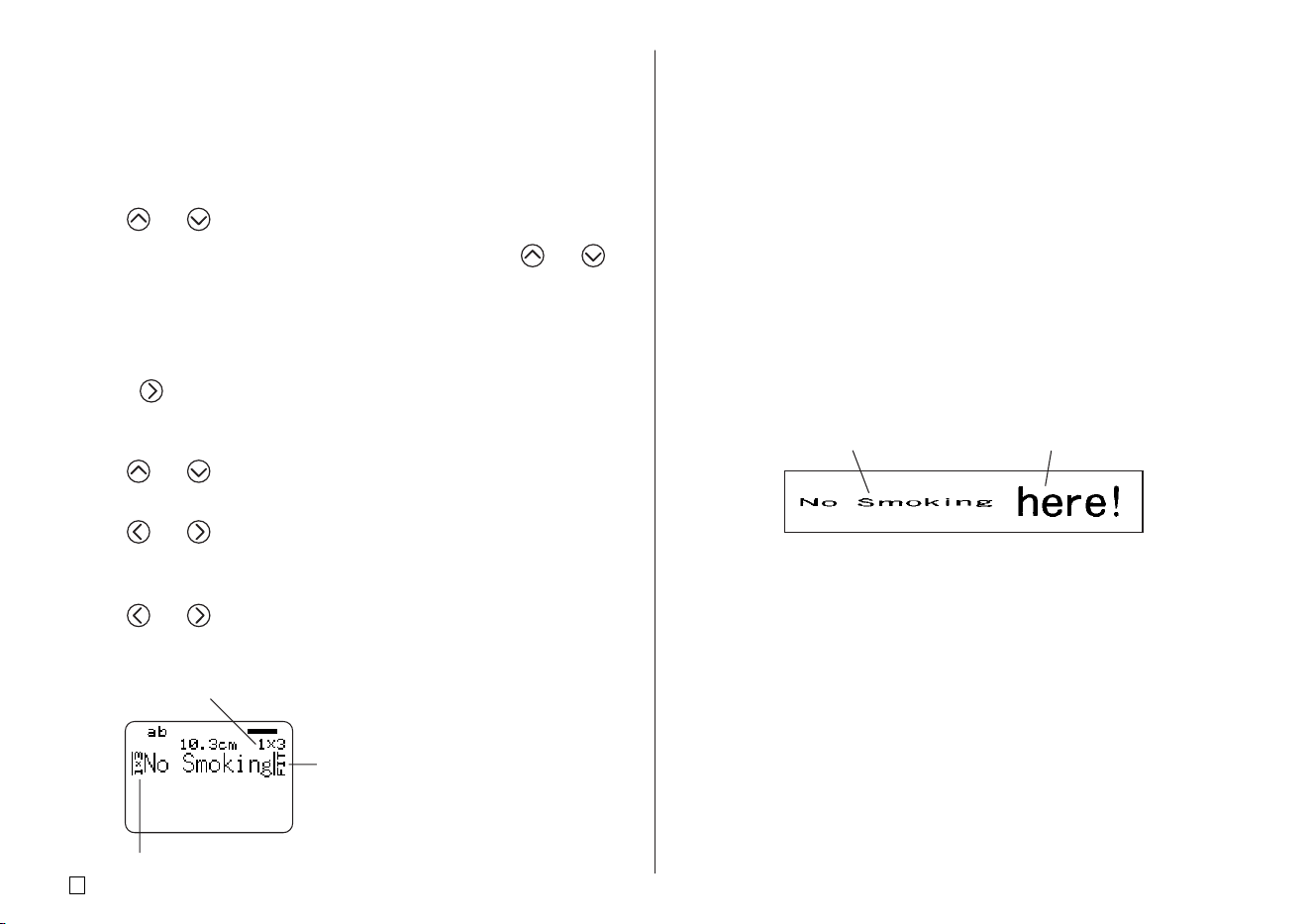
Example: To change the size of “No Smoking” in the text “No Smoking
here!” to 1
××
××
×3
1. In the Free Design Mode, input the text you want.
2. Press SIZE.
3. Use and to select CHARACTER, and then press SET.
4. With the highlighting located at the HEIGHT value, use and to
change the value.
• Here we will change the value to 1.
• You can also input a value with the number keys.
• The printer will beep and not accept your input if you try to input a value
that is not allowed.
5. Press to move the highlighting to the WIDTH value.
• If you specified the HEIGHT value by pressing a number key, the
highlighting will move the WIDTH value automatically.
6. Use and to change the WIDTH value, and then press SET.
• Here we will change the value to 3.
7. Use and to move the cursor to the first character of the string to
which you want to apply the size setting, and then press SET.
• Here, align the cursor with “N”.
8. Use and to move the cursor to the last character of the string to
which you want to apply the size setting, and then press SET.
• Here we will select “No Smoking”.
Character Size
Character Size Mark
Character Size: This indicates the character size at the current cur-
sor position.
Character Size Mark: This mark indicates the point from which a charac-
ter size specification is applied.
Auto Fit Mark: This mark is inserted automatically by the printer to
indicate that the text to the right of it will be adjusted
automatically.
• The character size mark and auto fit mark appear on the display only.
They are not printed in the label.
• To delete a character size mark, move the cursor to the mark and then
press DEL.
• Deleting a character size mark causes the text to the right of it to assume
the size of the next character size to the left. Deleting the last character
size mark causes the size of the text to be set by the printer automatically
in accordance with the width of the tape being used and the number of
text lines.
• Note that a character size specification applies up to the end of the current
block. A size specification does not span multiple blocks.
1×3 character size Auto Fit
Auto Fit Mark
33
E
Specifying the Size of Text Lines
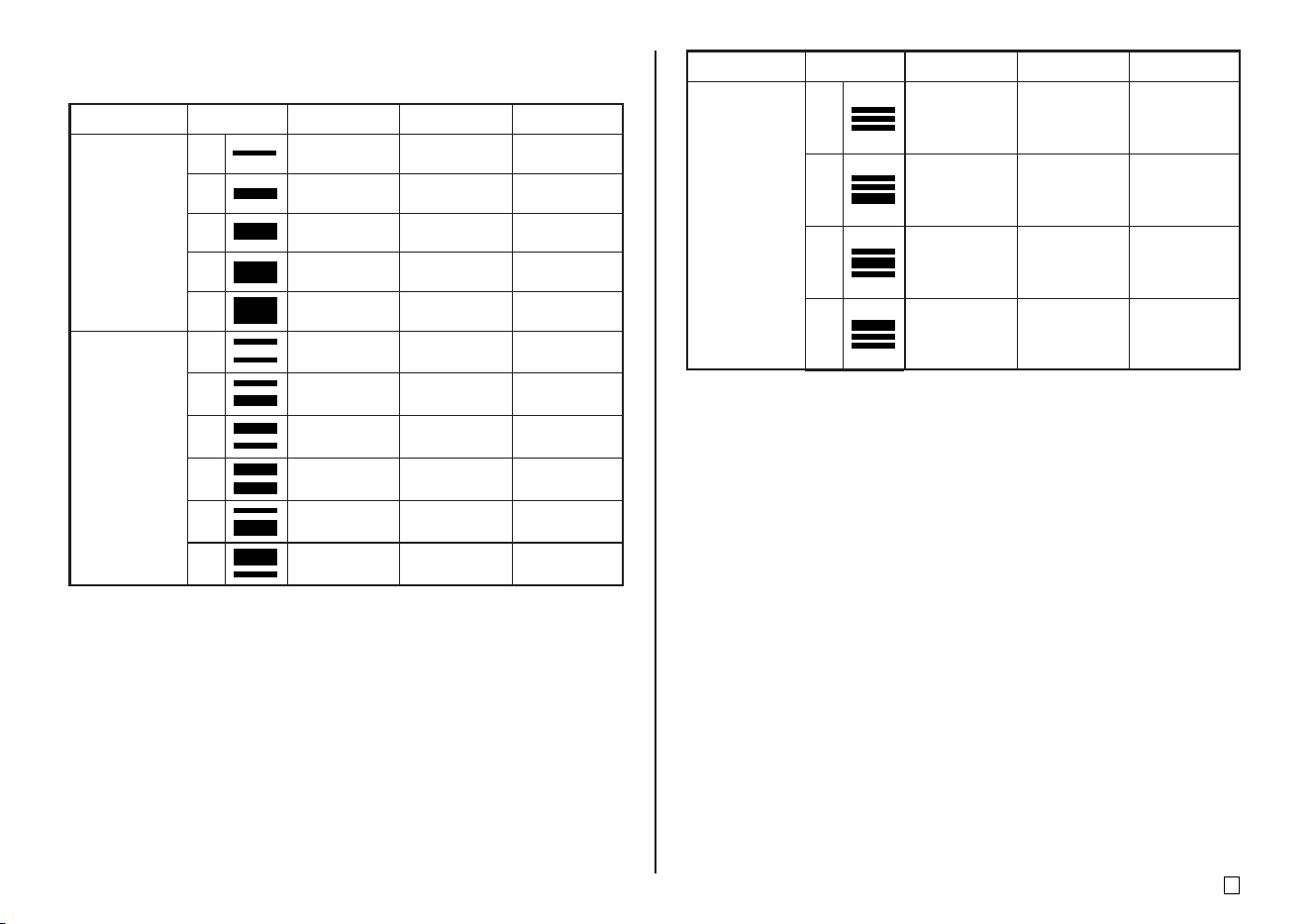
You can specify the size of text lines by selecting a format as shown below.
Number of Lines
1
2
Format
A
B
C
D
E
A
B
C
D
E
F
24 or 18mm Wide
1 × 1
2 × 2
3 × 3
4 × 4
5 × 5*
1 × 1
1 × 1
1 × 1
2 × 2
2 × 2
1 × 1
2 × 2
2 × 2
1 × 1
3 × 3*
3 × 3*
1 × 1
Number of Lines
3
Format
A
B
C
D
24 or 18mm Wide
1 × 1
1 × 1
1 × 1
1 × 1
1 × 1
2 × 2*
1 × 1
2 × 2*
1 × 1
2 × 2*
1 × 1
1 × 1
12mm Wide
1 × 1
2 × 2
3 × 3*
–
–
–
–
–
–
–
–
9mm Wide
1 × 1
2 × 2*
–
–
–
–
–
–
–
–
–
12mm Wide
–
–
–
–
9mm Wide
–
–
–
–
∗ Smaller when the label includes a frame.
Important!
• The size of text lines cannot be specified in the case of 6mm wide tape.
• The size of text lines cannot be specified if there are four or more lines of
text.
• The size of text lines cannot be specified if the label already contains size
specifications for a string of characters.
E
34
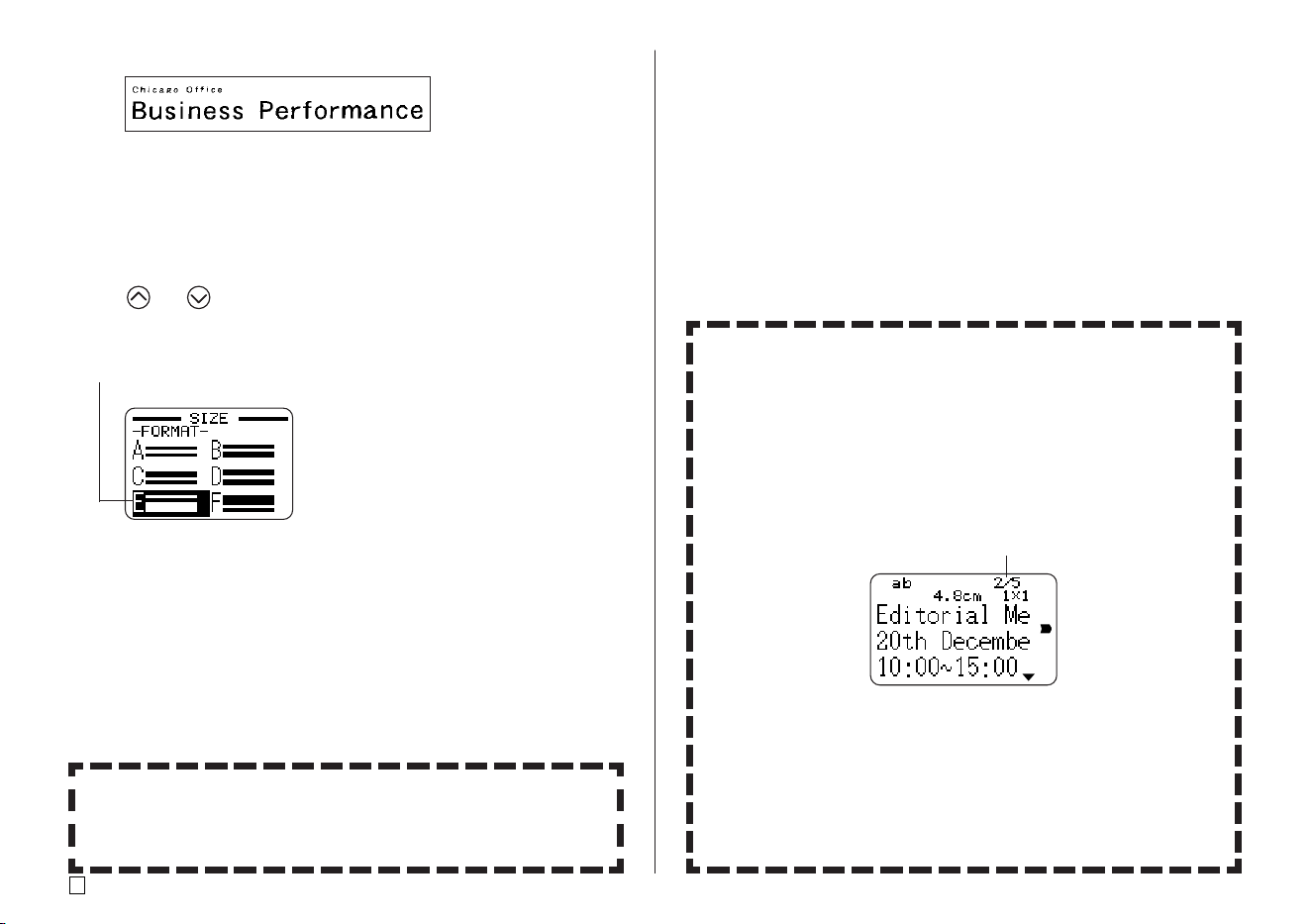
Example:
1. In the Free Design Mode, input the text you want.
2. Press SIZE.
3. Use and to select LINE, and then press SET.
4. Use the cursor keys to select the format you want, and then press SET.
Selected format
Small Font
• The printer has a Small Font setting, which it may select automatically
depending on the number of lines (the number of text lines you input or
the number of lines in the format you are using) and the tape width. An
indicator appears next to the [SMALL FONT] indicator when the Small
Font is in use.
• An indicator like “2/5” appears for the label format indicator when the
Small Font is selected. This indicates that the total number of lines is 5,
and the cursor is currently located in line 2.
Label format indicator
• Note the following about the Small Font.
- Font settings are not applied (everything is printed using the same
font).
- The proportional setting is turned off.
- Changing the style or effect while Small Font is being used can
produce undesirable printing results.
- Illustrations and user characters may not print correctly while Small
Font is being used.
Line 1: 1×1
Line 2: 3×3
(
Two lines, Format E
)
18mm wide tape
Either of the following will cause a text line size specification to be can-
celled automatically.
• Changing the number of lines
• Specifying the size of a string of characters (page 32)
Small Font
35
E
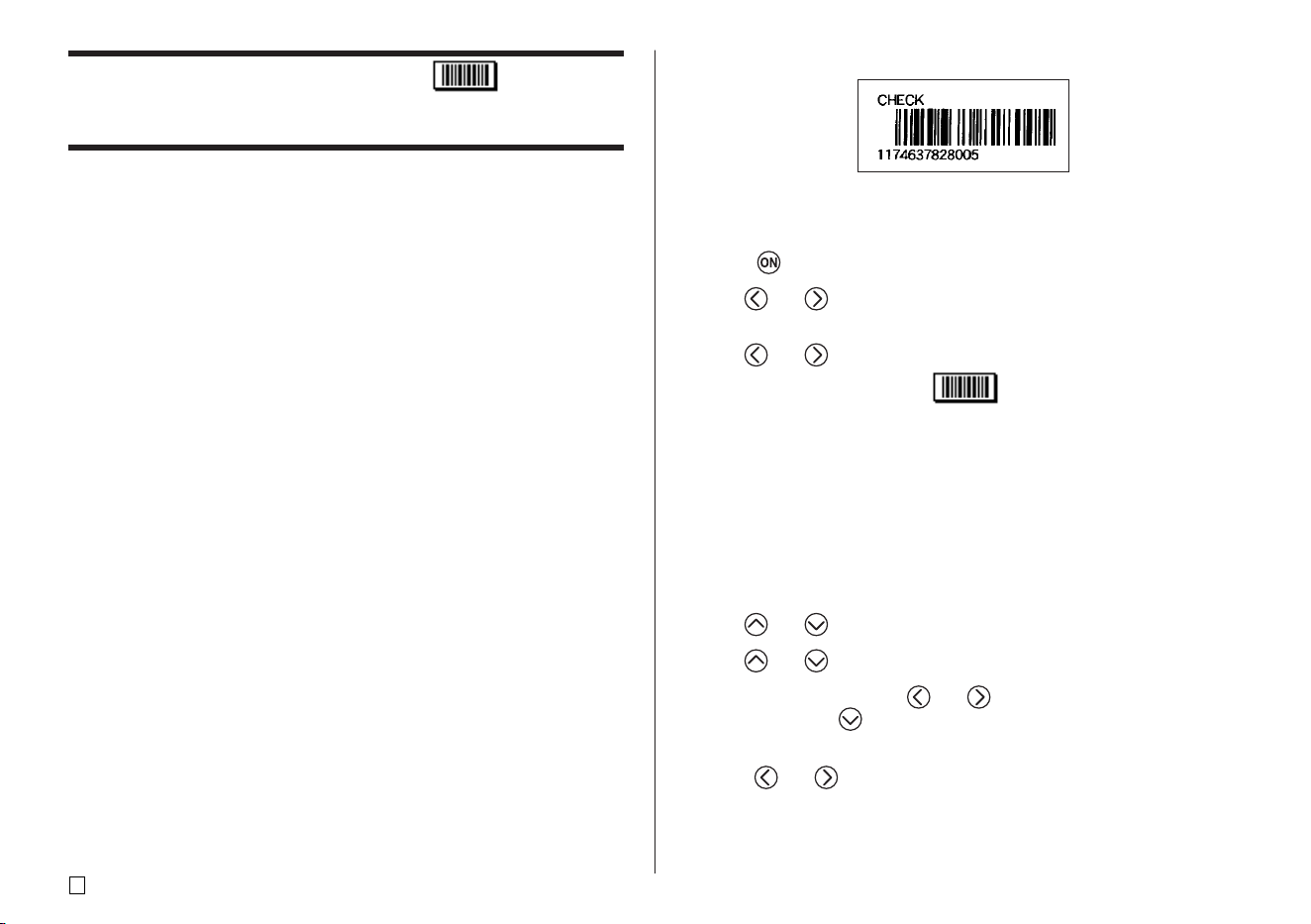
FREE DESIGN: Using Frames
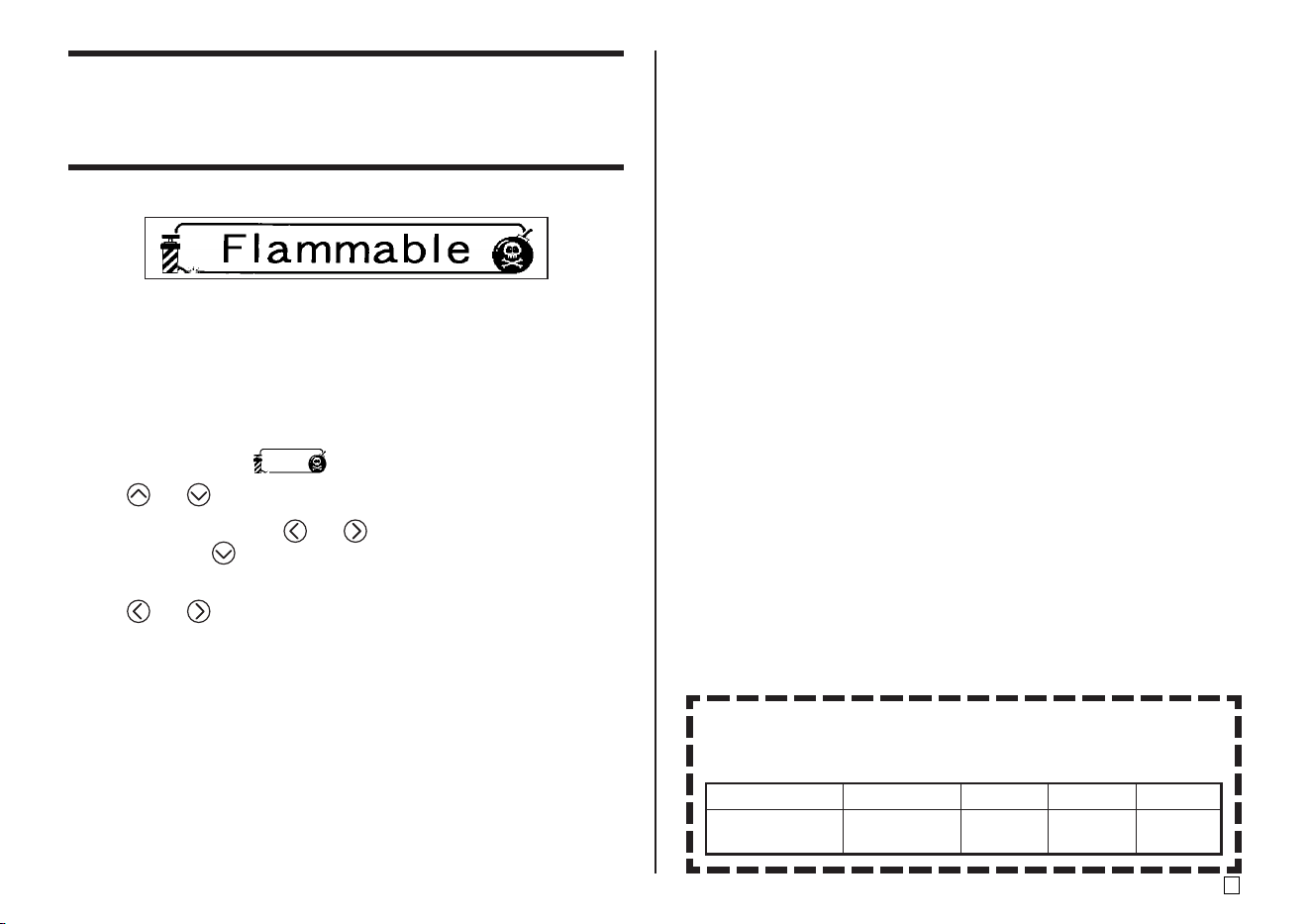
The printer comes with a selection of built-in frames that you can use in your
tape labels. See page 69 for a list of frames that are available.
Example
18mm wide tape, Frame Number 55
■ To add a frame to a tape label
1. In the Free Design Mode, input the text you want.
2. Press FRAME.
3. Use the cursor keys to select the frame you want, and then press SET.
• Here we will select .
4. Use and to select PRINT, and then press SET .
5. Use the number keys (or and ) to specify the number of copies,
and then press .
• You can specify a value from 1 to 100 for the number of copies.
6. Use and to select the tape cut mode (page 38), and then press
SET.
• This starts the print operation.
• The BOX text attribute is not applied when printing with a frame.
Frames and the Number of Lines
The number of lines that can be printed with a frame depends on the
width of the tape.
Number of Lines
with Frame
24/18mm
Up to 6
12mm
Up to 3
9mm
Up to 2
6mm
1
E
36
Example
18mm wide tape cartridge
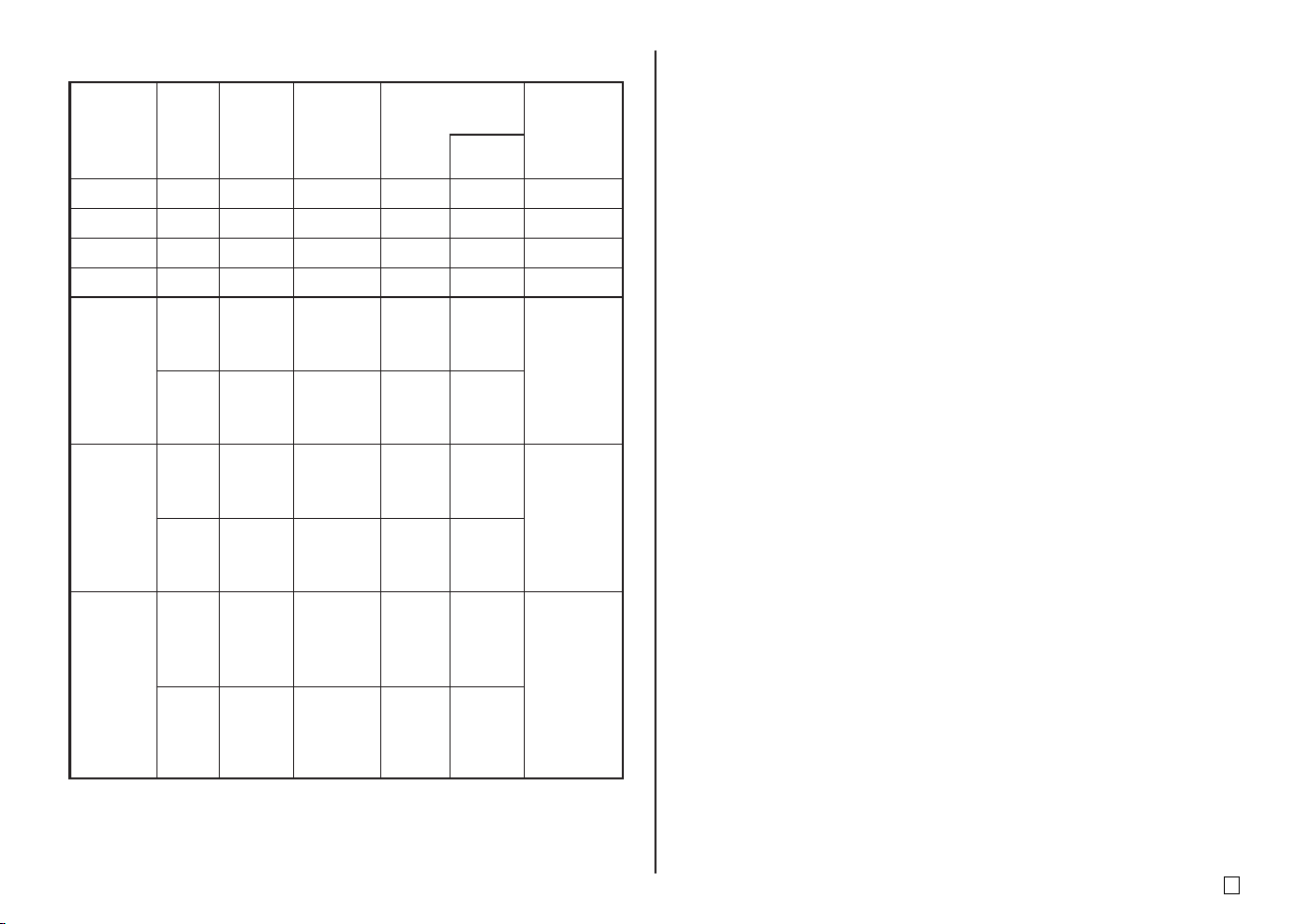
■ To create a barcode tape label
1. Press to turn on the printer.
2. Use and to select TAPE, and then press SET.
• You can also press TAPE to enter the TAPE Mode.
3. Use and to select NEW, and then press SET.
4. Use the cursor keys to select , and then press SET.
5. Use the cursor keys to select a barcode type, and then press SET.
• If you selected ITF, CODE39, or CODABAR as the barcode type, use
the next screen that appears to specify whether to use a check digit, and
then press SET.
6. Input comment text if you want, and then press SET.
• If you do not want to input any comment text, simply press SET without
inputting anything.
7. Input the data for the barcode, and then press SET.
8. Use and to select the barcode size, and then press SET.
9. Use and to select PRINT, and then press SET.
10. Use the number keys (or and ) to specify the number of copies,
and then press .
• You can specify a value from 1 to 100 for the number of copies.
11. Use and to select the tape cut mode (page 38), and then press
SET.
• This starts the print operation.
• For information about saving tape label data, see page 54.
Creating a Barcode Tape Label
Your printer lets you create and print tape labels with barcodes.
Supported Barcode Types
■ EAN
EAN-13
EAN-8
UPC-A
UPC-E
■ ITF
ITF
■ CODE39
■ CODABAR (NW-7)
Important!
• Use a 12mm or wider tape cartridge when printing barcodes.
• You can input up to 60 characters of comment text above a barcode.
• Be sure to check each barcode for proper reading. Make the following
adjustments if you experience difficulties reading the barcodes produced by
this printer.
Lighten the print density (page 55).
Increase the barcode size (step 8 of “To create a barcode tape label” on
this page).
Select FULL CUT or UNCUT for the tape cut mode (page 38).
• The following tapes work best for barcode printing. Letters in parentheses
indicate tape model names.
White tape, black printing (WE)
White tape, blue printing (WEB)
Yellow tape, black printing (YW)
37
E
Barcode
EAN-13
EAN-8
UPC-A
UPC-E
ITF
CODE39
CODABAR
(NW-7)
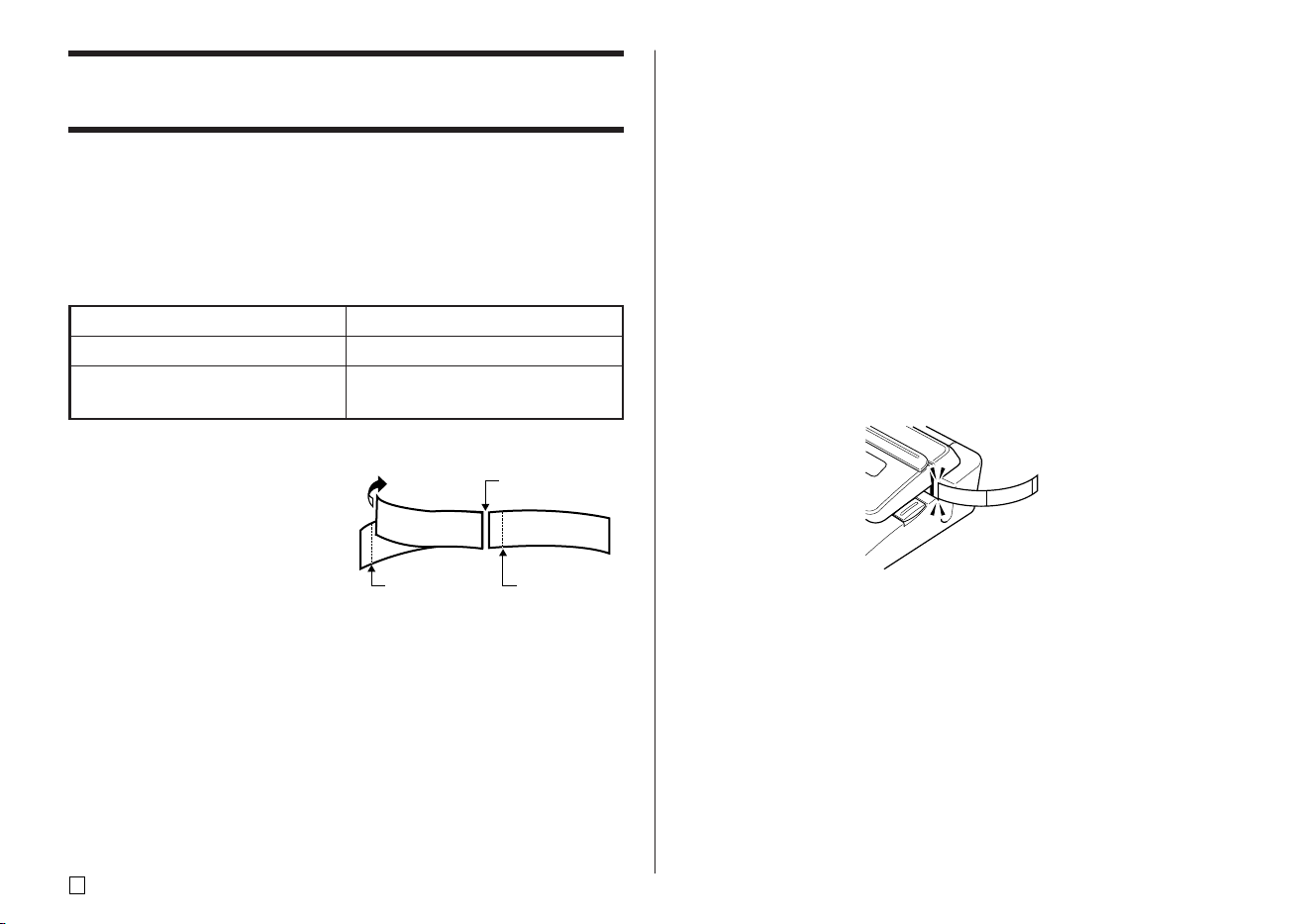
Barcode Specifications
Check
Digit*1
Ye s
Ye s
Ye s
Yes*2
No
Ye s
No
Ye s
No
Ye s
Printed
Digits*3
13 digits
8 digits
12 digits
6 digits
4 to 22
digits
4 to 22
digits
4 to 22
digits
4 to 22
digits
4 to 22
digits
4 to 22
digits
Number
of Input
Digits*4
12 digits
7 digits
11 digits
6 digits
4 to 22 digits
Even numbers
only*5
3 to 21 digits
Odd numbers
only*6
2 to 20
digits
1 to 19
digits
4 to 22
digits
3 to 21
digits
Automatically
Added Digits
– 1 digit
– 1 digit
– 1 digit
––
––
– 1 digit
2 digits*7
–
2 digits*7
1 digit
––
– 1 digit
Input
Charac-
ters*8
Numerals
Numerals
Numerals
Numerals
Numerals
Numerals
Alpha
A to Z
Symbols
(–)(.)(Space)
($)(/)(+)(%)
Numerals
Symbols
(–)($)(:)(/)
(.)(+)
Alpha
(first, last
only)*9
A to D
Check
Digit*1
*1 The check digit is automatically calculated in accordance with input data. For
EAN-13, EAN-8, and UPC-A, and when using a check digit with ITF, the
check digit is appended at the end of the printed digits. When using a check
digit with CODE39 or CODABAR, the check digit is appended one digit before
the final digit.
*2 UPC-E includes a check digit, but it is not printed as a numeral below the bar
code.
*3 The number of digits printed below a bar code equals the input characters
plus automatically appended characters.
*4 An error message is displayed whenever there are insufficient digits. The
printer will not allow input of too many digits.
*5 An error message appears and printing is impossible if an odd number of
digits are input when an ITF check digit is not being used. Append a zero to
the beginning of the digits and re-input.
*6 An error message appears and printing is impossible if an even number of
digits are input when an ITF check digit is being used. Append a zero to the
beginning of the digits and re-input.
*7 Both the start code and end stop code of CODE39 must be asterisks.
*8 An error message appears and printing is impossible if any characters other
than those specified here are used.
*9 With CODABAR, A, B, C, or D can be used as the start code and stop code.
An error message appears and printing is impossible if any other character is
used.
E
38
Using Tape Labels
Tape Cut Modes
When you are printing a series of tape labels, the tape cut mode controls
whether or not a cut operation is performed for each label. You can also specify
the type of cut operation that should be performed.
Note that cutting certain types of tape can damage the cutter blade. Be sure to
use the correct tape cut mode settings whenever printing on the type of tapes
listed below.
Types of Tape Cuts
There are two types of tape cuts,
half cut and full cut.
■ Half cut
With half cut, only the label part is
cut, without cutting the paper back-
ing.
• Half cut is may not be possible
with 6mm wide tape
■ Full cut
Full cut cuts both the tape and its
backing.
When printing on this type of tape:
• Iron transfer tape
• Magnetic tape
• Reflective tape
Always use this tape cut mode setting:
FULL CUT
UNCUT
Full cut
Half cut Half cut
F
o
r
S
a
l
e
F
o
r
S
a
l
e
Cut Modes
You can select from among four different cut modes.
• Note that the type of cut operation performed depends on the cut mode and
the margin setting. See “Cut Modes and Margins” on page 40 for more
information.
• No cutting (neither full nor half) is performed when NONE is selected for the
MARGINS setting.
• Half cutting and full cutting may not be performed when label tapes are the
following lengths: less than about 31mm (1 1/4") when using the NARROW
margin setting, less than about 38mm (1 1/2") when using the MEDIUM
margin setting, or less than about 50mm (1 15/16") when using the WIDE
margin setting. In this case, use scissors to cut the labels after printing is
complete.
■ CONT HALF CUT
• CONT HALF CUT performs a half cut between labels, and a full cut when
the end of the printing is reached.
F
o
r
S
a
l
e
F
o
r
S
a
l
e
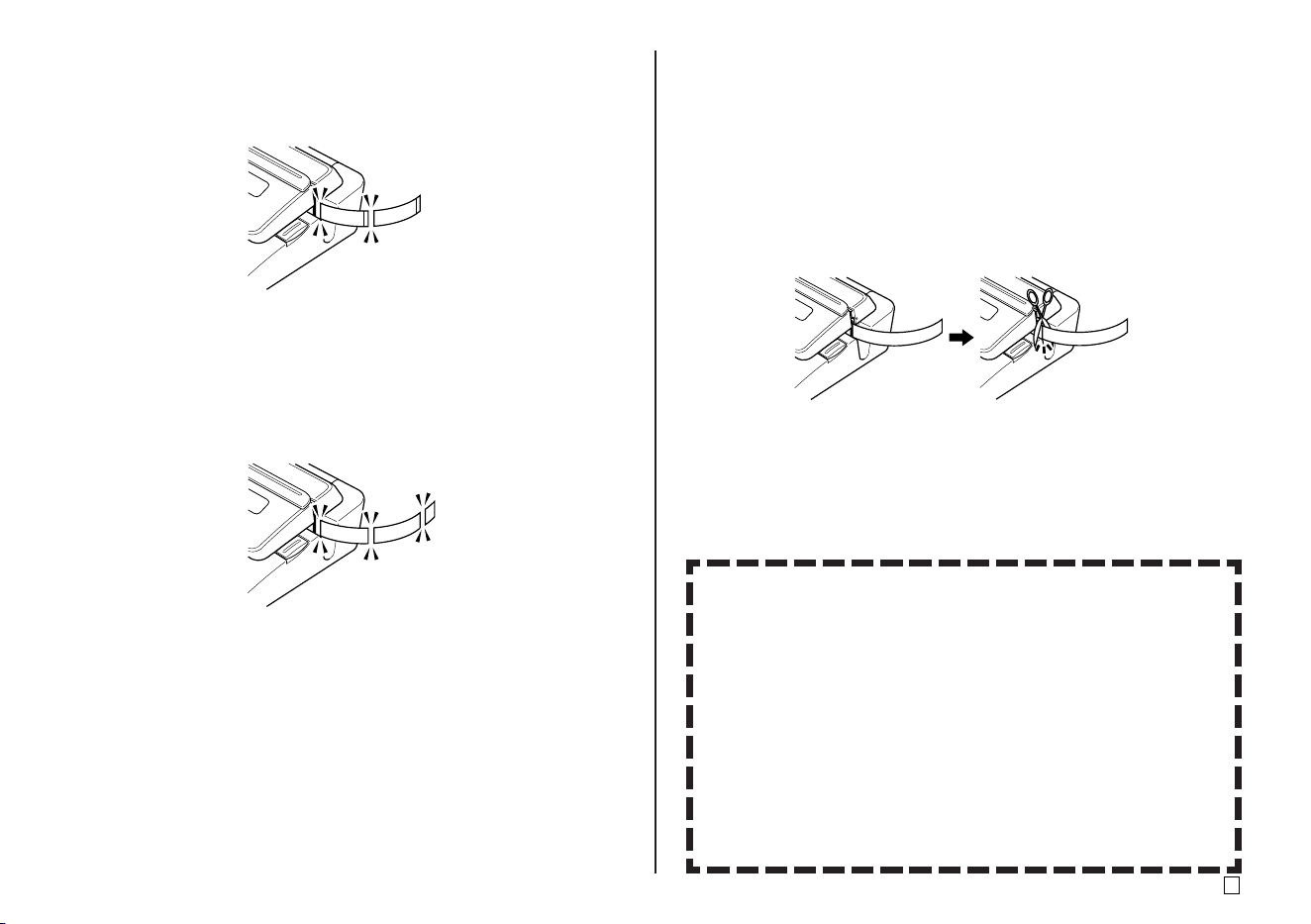
39
E
■ FULL+HALF CUT
• FULL+HALF CUT perform a full cut at the end of each label, and a half cut
near the beginning of each label to make the backing paper easier to remove.
F
o
r
S
a
l
e
F
o
r
S
a
l
e
■ FULL CUT
• FULL CUT performs a full cut at the end of each label.
• Use this setting when printing on iron transfer tape.
• When using the NARROW and MEDIUM margin settings, this setting
automatically performs a full cut to trim off excess tape.
F
o
r
S
a
l
e
F
o
r
S
a
l
e
■ UNCUT
• When UNCUT is selected, the printer does not perform any cut operation
between labels.
• This setting is best when you want to print labels without spaces between
them, which saves label tape.
• Be sure to select UNCUT when printing on magnetic tape and reflective
tape. After printing is complete, press FUNCTION and then FEED to feed
the tape, and then cut it with a pair of scissors.
F
o
r
S
a
l
e
F
o
r
S
a
l
e
F
o
r
S
a
l
e
F
o
r
S
a
l
e
Using Magnetic Tape and Reflective Tape
Special handling is required when printing on magnetic tape and reflec-
tive tape. Whenever printing on magnetic tape or reflective tape, select
UNCUT as the tape cut mode, and cut the tape using a pair of scissors
as described below.
Important!
• Using the printer's built-in cutter to half cut or full cut magnetic tape or
reflective tape will shorten the service life of the cutter blade, and can
damage the cutter mechanism.
1. Select NONE for the ALL FORM MARGINS setting (page 26), or
UNCUT for the tape cut mode.
2. Print the tape.
3. Press FUNCTION FEED to feed the tape.
4. Use a pair of scissors to cut the tape.
E
40
Cut Modes and Margins
The following shows how the tape cut type (full or half) and margin length are affected by the tape cut mode and margin settings.
Cut Mode CONT HALF CUT FULL+HALF CUT FULL CUT UNCUT
Margin
*1: Printing of first label
*2: Printing of second and subsequent labels
Cut
Timing
Cutting
after
printing is
complete
Cutting
between
each label
Trimming of
excess at
beginning
of label
Cutting
after
printing is
complete
Cutting
between
each label
Trimming of
excess at
beginning
of label
Cutting
after
printing is
complete
Cutting
between
each label
Trimming of
excess at
beginning
of label
Cutting
after
printing is
complete
Cutting
between
each label
Trimming of
excess at
beginning
of label
Cut
Margin
NARROW
Half cut Half cut Full cut Half cut Full cut Full cut Full cut Full cut Full cut None None None
18.5mm
(3/4")
18.5mm (3/4")*
1
5mm (3/16")*
2
11.5mm (7/16")*
1
5mm (3/16")*
2
5mm (3/16")*
1
5mm (3/16")*
2
3mm (1/8") 3mm (1/8")3mm (1/8") 3mm (1/8") 3mm (1/8") 3mm (1/8") 3mm (1/8") 3mm (1/8")
23.5mm
(15/16")
23.5mm
(15/16")
23.5mm
(15/16")
Cut
Cut
Margin
MEDIUM
WIDE
Half cut Half cut Full cut Half cut Full cut Full cut Full cut Full cut Full cut None None None
11.5mm
(7/16")
10mm (3/8") 10mm (3/8") 10mm (3/8") 10mm (3/8") 10mm (3/8") 10mm (3/8")10mm (3/8") 10mm (3/8")
Margin
Half cut Half cut Full cut Half cut Full cut Full cut None Full cut Full cut None None None
5mm (3/16")
21.5mm
(7/8")
23.5mm
(15/16")
21.5mm
(7/8")
21.5mm
(7/8")
21.5mm
(7/8")
–
21.5mm
(7/8")
21.5mm
(7/8")
–
21.5mm
(7/8")
21.5mm
(7/8")
Cut
NONE
Margin
None None None None None None None None None None None None
–––– ––––––––
41
E
Part 3 - Inputting and Editing Label
Text
This section describes everything you need to know about deleting and
editing text you have already input.
Moving the Cursor
Use the cursor keys to move the cursor around the display and position it for
deleting and editing characters.
■ To move the cursor
Basic Alpha Numeric Input
The following operation shows you the basic procedures for inputting letters
and numbers. Note that it assumes that a text input screen is already on the
display.
To input alpha-numeric characters
Example: ABXYZ 1234567890
1. Input the characters by typing them on the printer’s keyboard.
• To input the uppercase letters, you can use either SHIFT or CAPS. With
SHIFT you must shift the keyboard for each character. With CAPS the
keyboard keeps its uppercase/ lowercase setting until you press CAPS
again.
• Press SPACE to input spaces.
• If you input a wrong character, press BS or DEL to delete it and input
again.
2. When you reach the end of a line of text, press SET.
To perform this operation:
Move the cursor left
Move the cursor right
Move the cursor up
Move the cursor down
Move the cursor to the beginning of
the current line of text
Move the cursor to the end of the
current line of text
Press this:
FUNCTION
FUNCTION
E
42
About the CODE key
The CODE key makes it possible to input punctuation needed for a number of
different languages. The following shows the key operations you should use
for each of the characters formed using the CODE key.
■ CAPS on
■ CAPS off
Example: To input á CODE 1 (´) A
Key Operation Input Key Operation Input Key Operation Input
CODE U ü
CODE O œ
CODE P å
CODE A æ
CODE S ß
CODE J ö
CODE K ä
CODE L j
CODE Z w
CODE C ç
CODE N ñ
CODE 1
´
CODE 2
`
CODE 3
¨
CODE 4
˜
CODE 5
ˆ
CODE 6
ˇ
CODE 7
°
CODE 8
/
CODE 9
˝
CODE 0
˛
Key Operation Input Key Operation Input Key Operation Input
CODE U Ü
CODE O Œ
CODE P Å
CODE A Æ
CODE J Ö
CODE K Ä
CODE L J
CODE Z W
CODE C Ç
CODE N Ñ
CODE 1
´
CODE 2
`
CODE 3
¨
CODE 4
˜
CODE 5
ˆ
CODE 6
ˇ
CODE 7
°
CODE 8
/
CODE 9
˝
CODE 0
˛
Inputting Symbols and Special Characters
The SYMBOL menu provides you with a choice of symbols, dingbats, and
special number formats, in addition to Greek and Russian letters.
To use the SYMBOL menu
1. With the cursor at the location where you want to input a symbol, dingbat,
number, Greek letter, or Russian letter, press SYMBOL to display the
SYMBOL menu.
2. Use and to select the type of character you want, and then press
SET.
• Pressing SET causes a menu of symbols, dingbats, number formats,
Greek letters, or Russian letters to appear.
• To exit the SYMBOL menu without selecting anything, press ESC.
3. Use the cursor keys to select the character you want to input, and then
press SET.
• Pressing SET returns to the input screen, with the symbol, dingbat,
number, Greek letter, or Russian letter you selected input at the location
where the cursor was located when you displayed the SYMBOL menu.
• See page 68 for a complete list of symbols, dingbats, number formats,
Greek letters, and Russian letters that are available from each menu.
43
E
Inputting Illustrations
Your printer gives you a choice of 124 illustrations that you can use in your
labels.
To input illustrations
1. With the cursor at the location where you want to input an illustration, press
ILLUST to display the ILLUST menu.
2. Use the cursor keys to select the illustration you want to input, and then
press SET.
• Pressing SET returns to the input screen with the illustration you selected
input at the location where the cursor was located when you displayed
the ILLUST menu.
• See page 68 for a complete list of illustrations that are available.
Deleting an Individual Character
You can delete an individual character with either the BS key or the DEL key.
The only difference between the operations of these two keys is the location
of the cursor.
To delete a character using the BS key
Example: To change the word “commmputer” to “computer”.
1. Use and to move the cursor under “p”.
2. Press BS twice to delete the two m’s to the left of the cursor, shifting “puter”
to the left as you do.
To delete a character using the DEL key
Example: To change the word “commmputer” to “computer”.
1. Use and to move the cursor under the first (far left) “m”.
2. Press DEL twice to delete the two m’s at the cursor’s position, shifting
“mputer” to the left as you do.
E
44
Clearing Input Text
Use the following steps to clear text on the input screen.
To clear all text
1. Press FUNCTION and then BS (CLS).
• If you are deleting all text in the Free Design label mode, a screen will appear
to offer you a choice between ALL or PART . Use and to select ALL,
and then press SET.
2. In response to the confirmation message that appears, press SET.
• This clears all the text from the input screen.
• If you want to abort the clear operation without deleting anything, press
ESC in place of SET.
To delete a range of text (Free Design)
1. Press FUNCTION and then BS (CLS).
2. Use and to select PART , and then press SET.
3. Use and to move the cursor to the first character of the range of
text from which you want to delete, and then press SET.
4. Use and to move the cursor to the last character of the range of
text to which you want to delete, and then press SET.
Text Editing
You can set up the label printer so it either inserts new input between existing
characters, or overwrites existing characters with new input. Note the follow-
ing example.
Example
Existing text: ABCDEFGHI
Cursor location: E
New input: XXX
Insert
Result: ABCDXXXEFGHI
Overwrite
Result: ABCDXXXHI
To switch between overwrite and insert
1. Press FUNCTION and then SET UP to display the SET UP menu.
2. Use and to select INPUT and then press SET.
3. On the next screen that appears, use and to select INSERT, or
OVERWRITE and then press SET.
• The CAPS indicator on the display is highlighted when overwrite is turned
on. The CAPS indicator appears normally (unhighlighted) when insert is
turned on.
45
E
Using Phrase Memory
Phrase memory provides storage of nine phrases you can recall and input
into your labels. Initially, phrase memory records 1 through 8 are preset with
often-used label phrases. You can use these as they are or replace them with
your own text.
The following are the initial contents of the phrase memory records.
1 Digital Image
2 Date Recorded:
3 Backup Data
4 Confidential
5 Hit Album
6 Omnibus
7 My Favorites
8 Recorded At:
9 <Empty>
To recall a phrase
1. While inputting text, press PHRASE MEMORY.
• This displays a list of available phrases.
2. Use and to select the phrase you want to recall, and then press
SET.
• This recalls the phrase you selected and inputs it into the input screen.
• You can also select a phrase by inputting its record number, from 1 through
9.
• If the phrase you selected causes the number of input characters to exceed
the allowable limit, the error message “ENTIRE PHRASE COULD NOT BE
RECALLED!” appears. The phrase is partially input, up to the allowable limit.
To create new phrase memory text
1. Press PHRASE MEMORY.
2. Use and to select [DATA EDIT], and then press SET.
3. Use and to select MAKE, and then press SET.
4. Use and to select NEW, and then press SET.
• The NEW / STRING→PHRASE screen does not appear if there is not
text currently input on the text input screen.
5. On input screen that appears, input the text that you want, and then press
SET.
6. Use and to select the phrase memory where you want to store the
text, and then press SET.
7. In response to the confirmation message that appears, press SET to save
the phrase or ESC to abort.
To save input text in phrase memory
1. While inputting the text you want to save on the input screen, press PHRASE
MEMORY.
2. Use and to select [DATA EDIT], and then press SET.
3. Use and to select MAKE, and then press SET.
4. Use and to select STRING→PHRASE, and then press SET.
5. On the input screen that appears, check the text and make any changes
that you want and then press SET.
E
46
When you save input text in phrase memory
• If the text includes character size marks, new line marks, block marks
and so on, these characters are saved as spaces.
• If the text includes 49 characters or more, the first 49 characters are
saved as input text.
6. Use and to select the phrase memory where you want to store the
text, and then press SET.
7. In response to the confirmation message that appears, press SET to save
the phrase or ESC to abort.
To edit a phrase memory record
1. Press PHRASE MEMORY.
2. Use and to select [DATA EDIT], and then press SET.
3. Use and to select EDIT, and then press SET.
4. Use and to select the phrase memory record whose contents you
want to edit, and then press SET.
5. On the text screen that appears, check the text and make any changes
that you want, and then press SET.
6. Use and to select the phrase memory where you want to store the
text, and then press SET.
7. In response to the confirmation message that appears, press SET to save
the phrase or ESC to abort.
To delete a phrase memory record
1. Press PHRASE MEMORY.
2. Use and to select [DATA EDIT], and then press SET.
3. Use and to select DELETE, and then press SET.
4. Use and to select the phrase memory record whose contents you
want to delete, and then press SET.
5. In response to the confirmation message that appears, press SET to de-
lete the phrase or ESC to abort.
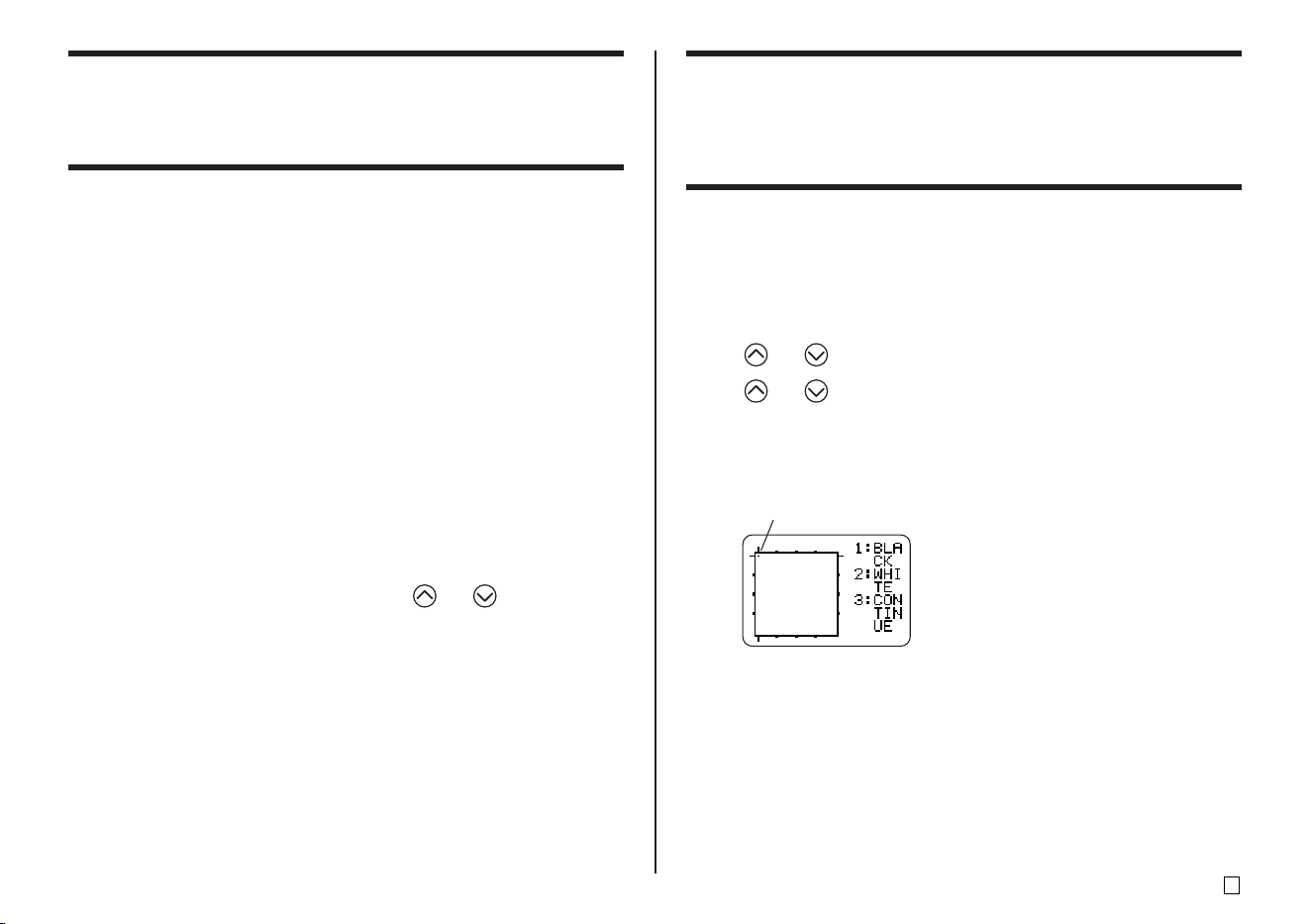
47
E
Using Copy and Paste
You can copy text data you have input in one location, and paste it into an-
other location.
■ To copy text
1. Input the text you want to copy.
2. Press FUNCTION and then COPY.
• The message ”COPY OPERATION COMPLETE” appears and the input
screen appears when the copy operation is complete.
• The above operation will leave the displayed text the way it is, and save
a copy of it in memory.
• You can copy up to 49 characters at one time. If there are more than 49
characters on the display, only the first 49 characters are selected.
• You can have up to nine copies in memory. The 10th copy operation
causes the oldest copied text to be deleted to make room for the newly
copied text.
• Any character size, newline, and block marks included in the text are
automatically replaced with spaces when the text is copied.
■ To paste copied text
1. When inputting text, press PASTE.
2. On the list of copied text that appears, use and to select the text
you want, and then press SET.
• This pastes the selected data at the current cursor location.
• If the text you are copying causes the maximum number of input character
limit to be exceeded, the message “TOO MANY CHARACTERS! SOME
WERE NOT PASTED” appears and some of the text is not pasted.
User Characters
You can create up to four user characters and store them in memory. You can
create a character from scratch, or you can use an existing character or sym-
bol as a basis for your new character.
■ To create a user character from scratch
1. Press FUNCTION and then USER CHR.
• If the screen is blank or if the cursor is located where there is no character,
performing the above step will take you directly to the User Character
Drawing Screen. In this case, skip step 3, and go directly to step 4.
2. Use and to select MAKE and then press SET.
3. Use and to select NEW and then press SET.
• The NEW/USE INPUT CHAR screen does not appear if there is no input
character at the cursor location on the text input screen.
User Character Drawing Screen
Cursor
E
48
Do this:
Use the cursor keys.
Press FUNCTION followed
by , , , or .
Press 1 so BLACK is
highlighted on the display.
Press 2 so WHITE is
highlighted on the display.
Press 1 and 3 so BLACK
and CONTINUE are
highlighted on the display,
and then use the cursor
keys to move the cursor.
Press 2 and 3 so WHITE
and CONTINUE are
highlighted on the display,
and then use the cursor
keys to move the cursor.
4. Use the following operations to draw the character you want.
■ To create a user character using an existing character
1. Input the character or symbol you want to use as a basis for your new
character and locate the cursor under the character.
2. Press FUNCTION and then USER CHR.
3. Use and to select MAKE and then press SET.
4. Use and to select USE INPUT CHAR and then press SET.
5. Perform steps 4 through 7 under “To create a user character from scratch”
to create and save the new character.
■ To create a user character using user character you
created previously
1. Press FUNCTION and then USER CHR.
2. Use and to select EDIT and then press SET.
3. Use the cursor keys to select the character you want to use as the basis for
your new character and then press SET.
4. Perform steps 4 through 7 under “To create a user character from scratch”
to create and save the new character.
To do this:
Move the cursor
Make the cursor jump to the left, right,
top or bottom of the drawing screen
Draw a black dot
Draw a white dot
Draw a line of black dots
Draw a line of white dots
• Note that you can draw and delete straight lines only. You cannot draw
and delete diagonal lines. To create a diagonal line, you need to input
each of its dots, one-by-one.
• Each press of 3 while BLACK or WHITE is highlighted toggles the
CONTINUE setting on (highlighted) and off (unhighlighted).
5. After you are finished drawing the character you want, press SET.
6. Use the cursor keys to select the user character area where you want to
store the character, and then press SET.
7. In response to the confirmation message that appears, press SET to store
the character.

49
E
To recall a user character
1. With the cursor located in the input screen where you want to input the
user character, press FUNCTION and then press USER CHR.
2. Use and to select RECALL and then press SET.
3. Use the cursor keys to select the user character you want to recall and
then press SET.
To delete a user character
1. Press FUNCTION and then USER CHR.
2. Use and to select DELETE and then press SET.
3. Use the cursor keys to select the user character you want to delete and
then press SET.
4. In response to the confirmation message that appears, press SET to de-
lete the selected character or ESC to abort.
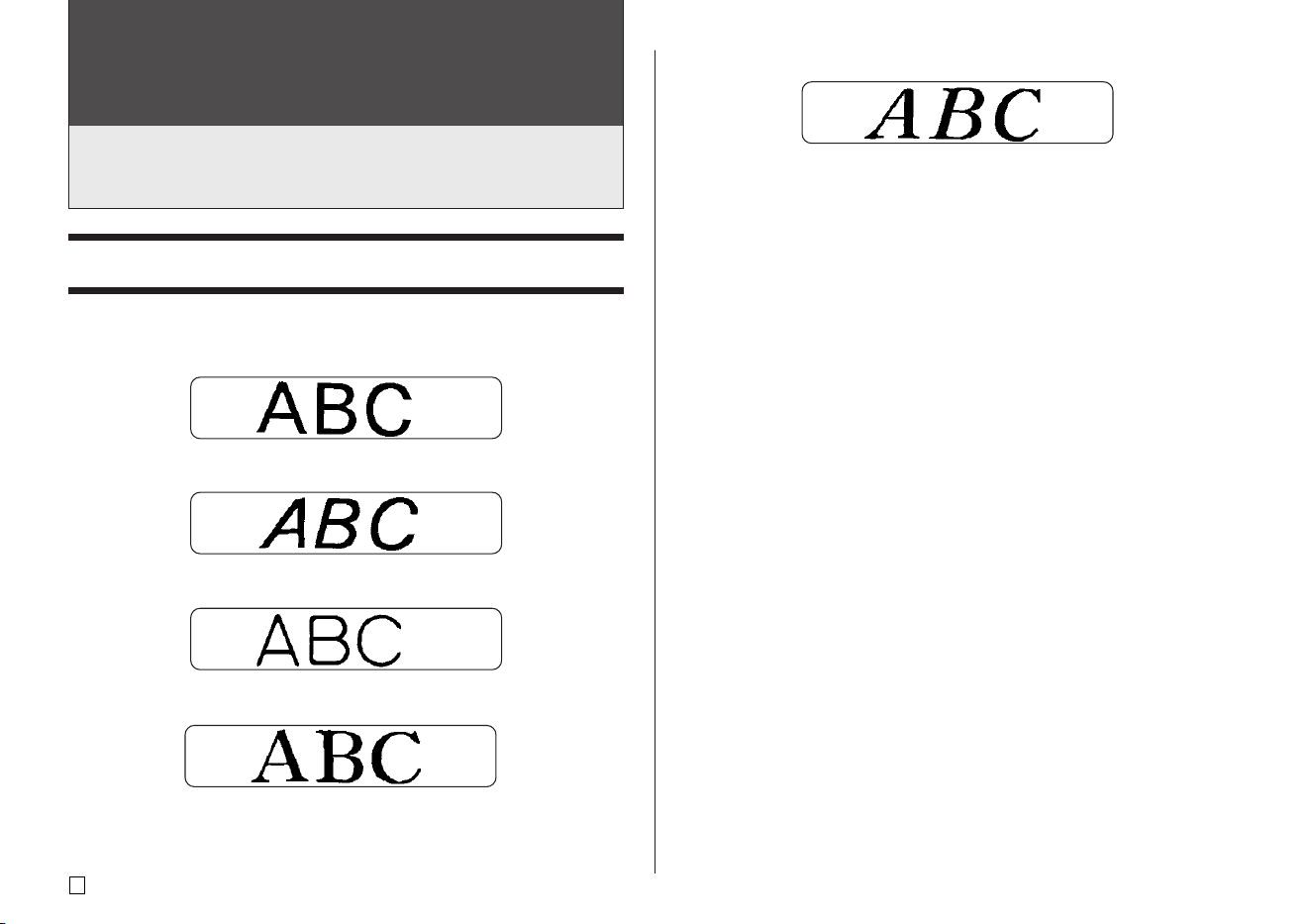
E
50
Part 4 - Controlling the Appearance
of Text
The operations in this section explain how to select fonts, and how to use
font attributes (styles and effects) to make text more attractive and eye-
catching.
• New Roman Italic (ROMAN ITC)
You can specify a font for the text you have just input or you can specify a
default font that is used automatically whenever you create a new label.
The current font setting is indicated by the pointer along the right side of the
display.
SMALL FONT
When printing on a disc, SMALL FONT is used for printing when the character
size is 2mm, regardless of the current font setting. In the case of tape printing,
SMALL FONT is used for printing when the number of lines (number of input
lines or number of lines in the selected format) and the tape width require it. A
pointer appears next to the SMALL FONT indicator when the SMALL FONT
is in use.
• The following points all apply while SMALL FONT is in use.
• All font settings are ignored. Everything is printed using the same font.
• The proportional setting is turned off.
• Changing the style or effect while SMALL FONT is in use can produce
undesirable printing results.
• Illustrations and user characters may not print correctly while SMALL FONT
is in use.
Selecting a Font
Your printer gives you a choice of the following five fonts.
• New Sans-serif (SANS-SERIF)
• New Sans-serif Italic (SANS-SERIF ITC)
• New Sans-serif Rounded (SANS-SERIF RND)
• New Roman (ROMAN)
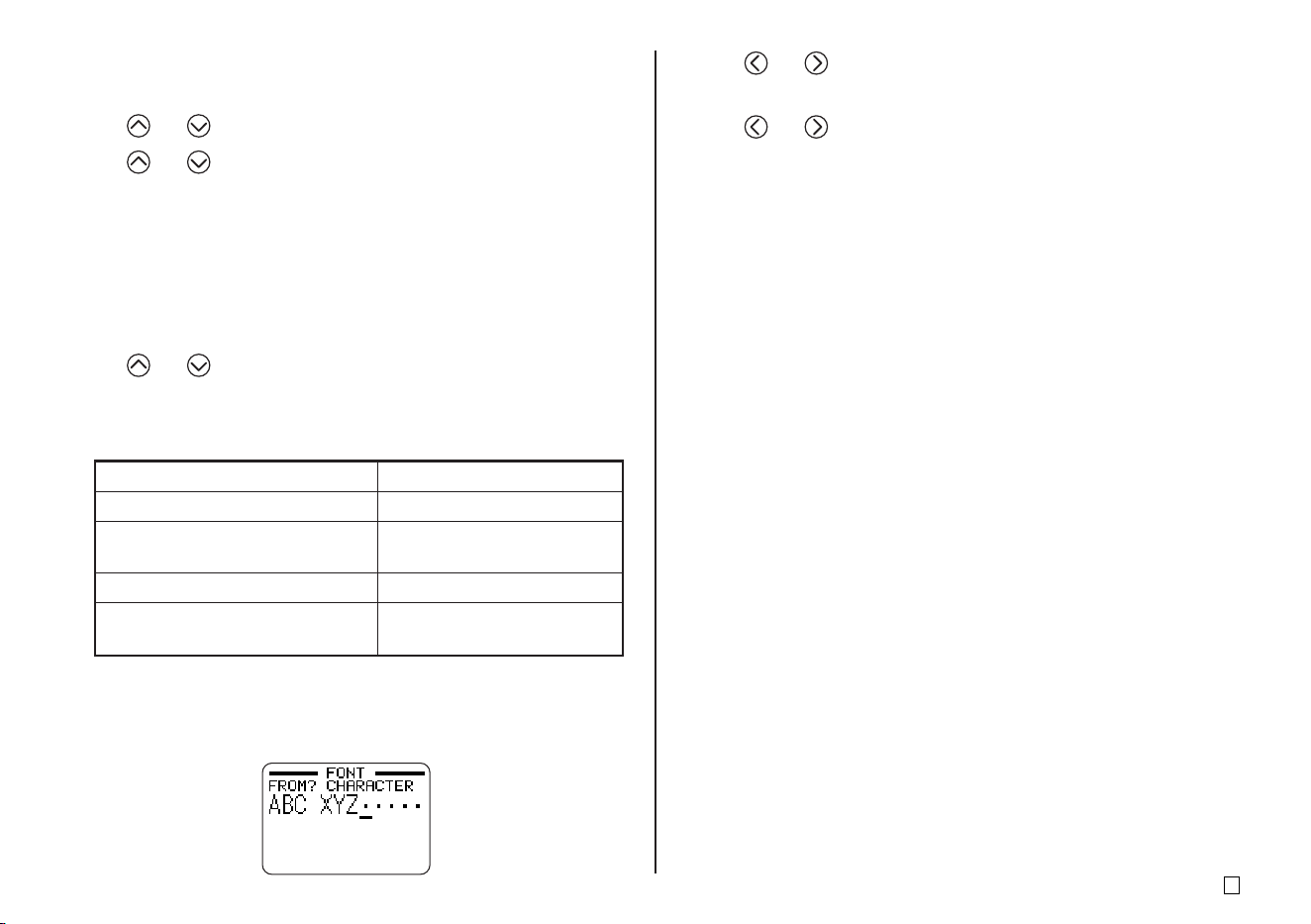
51
E
To apply the font setting to this text:
All of the text in the label
All of the text in the current block
(Free Design Mode only)
All of the text in the current line
Specific characters (Free Design
Mode only)
Select this option:
ALL
BLOCK
LINE
CHARACTER
To change the default font setting
1. Press FUNCTION and then SET UP to display the SET UP menu.
2. Use and to select DEFAULT FONT and then press SET.
3. Use and to select the font you want to use as the default, and then
press SET.
• The default font you specified will be used first for all new labels. When
inputting text, you can use the procedure above to change the font to another
style, if you want.
To change the font of text you have just input
1. After inputting the text you want, press FONT.
2. Use and to select the font you want to change to and then press
SET.
3. On the next screen that appears, select the range of text to which you want
to apply your font setting, and then press SET.
• If you select ALL for Free Design Mode text, press SET. This will apply
the setting and return to the text input screen.
• Selecting any other setting in the Free Design Mode cause a range setting
screen like the one shown below to appear. Use steps 4 and 5 to specify
the range of text.
4. Use and to move the cursor to the first character of the string of
text to which you want to apply the FONT setting, and then press SET.
5. Use and to move the cursor to the last character of the string of
text to which you want to apply the FONT setting, and then press SET.
• This will apply the setting and return to the text input screen.
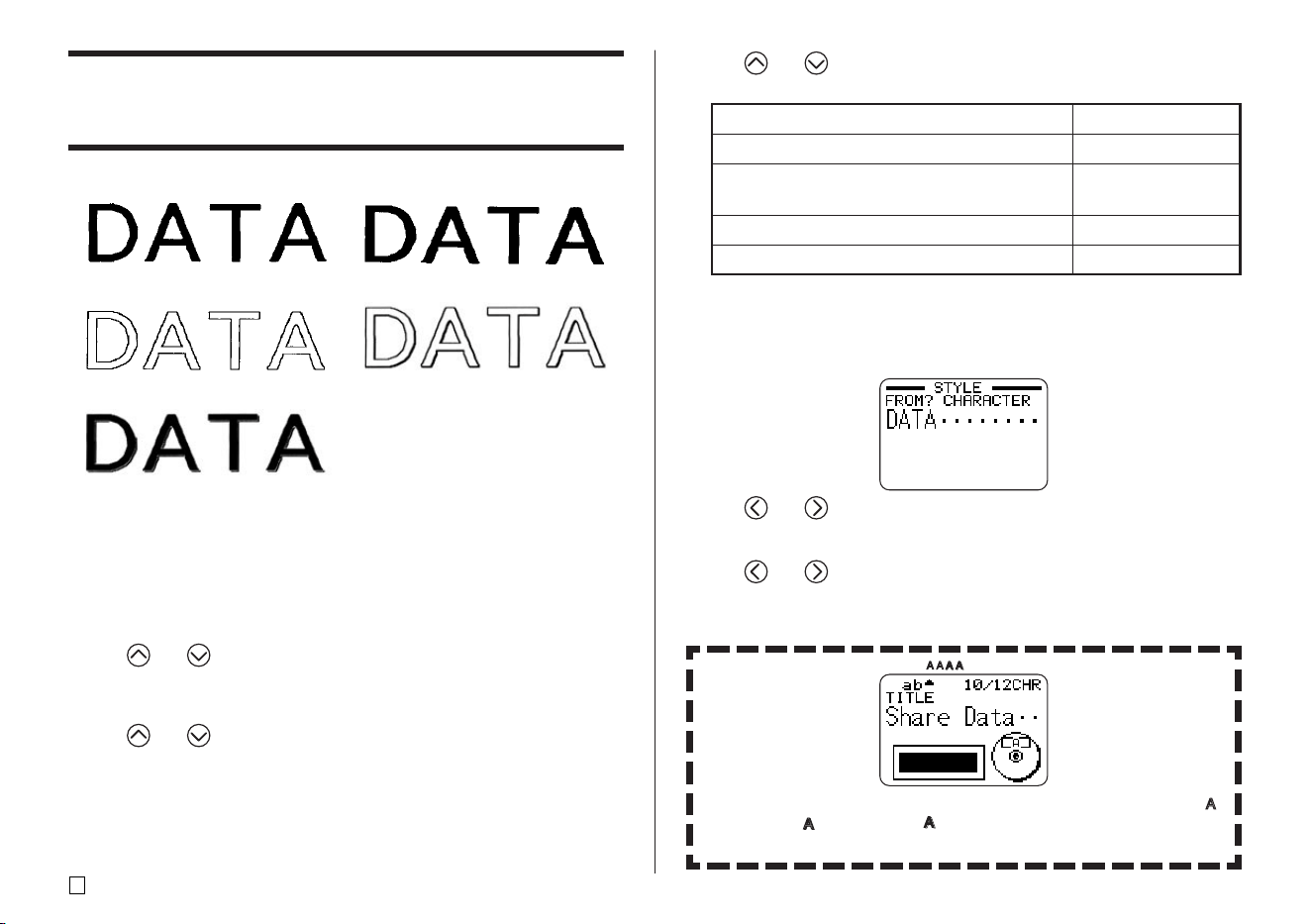
E
52
5. Use and to select the range of text for the STYLE setting you want,
and then press SET.
• If you select ALL for Free Design Mode text, press SET. This will apply
the setting and return to the text input screen.
• Selecting any other setting in the Free Design Mode cause a range setting
screen like the one shown below to appear. Use steps 6 and 7 to specify
the range of text.
6. Use and to move the cursor to the first character of the string of
text to which you want to apply the STYLE setting, and then press SET.
7. Use and to move the cursor to the last character of the string of
text to which you want to apply the STYLE setting, and then press SET.
• This will apply the setting and return to the text input screen.
To apply the STYLE setting to this text:
All of the text in the label
All of the text in the current block (Free
Design Mode only)
All of the text in the current line
Specific characters (Free Design Mode only)
Select this option:
ALL
BLOCK
LINE
CHARACTER
A pointer appears to indicate the current STYLE setting: [A] (BOLD), [ ]
(OUTLINE), [ ] (SHADOW), [ ] (RAISED).
No pointer is shown when NORMAL is selected.
Using STYLE Menu Attributes
The STYLE menu lets you apply the following attributes to your text.
NORMAL BOLD
OUTLINE SHADOW
RAISED
• Note that STYLE menu text attributes cannot be applied to illustrations or
user characters.
■ To apply STYLE menu text attributes
1. Input the text whose attributes you want to change.
2. Press STYLE.
3. Use and to select STYLE, and then press SET.
• If there is no EFFECT option on the screen that appears, jump directly
to step 4.
4. Use and to select the STYLE setting you want, and then press
SET.
• Selecting NORMAL cancels the current STYLE menu setting.
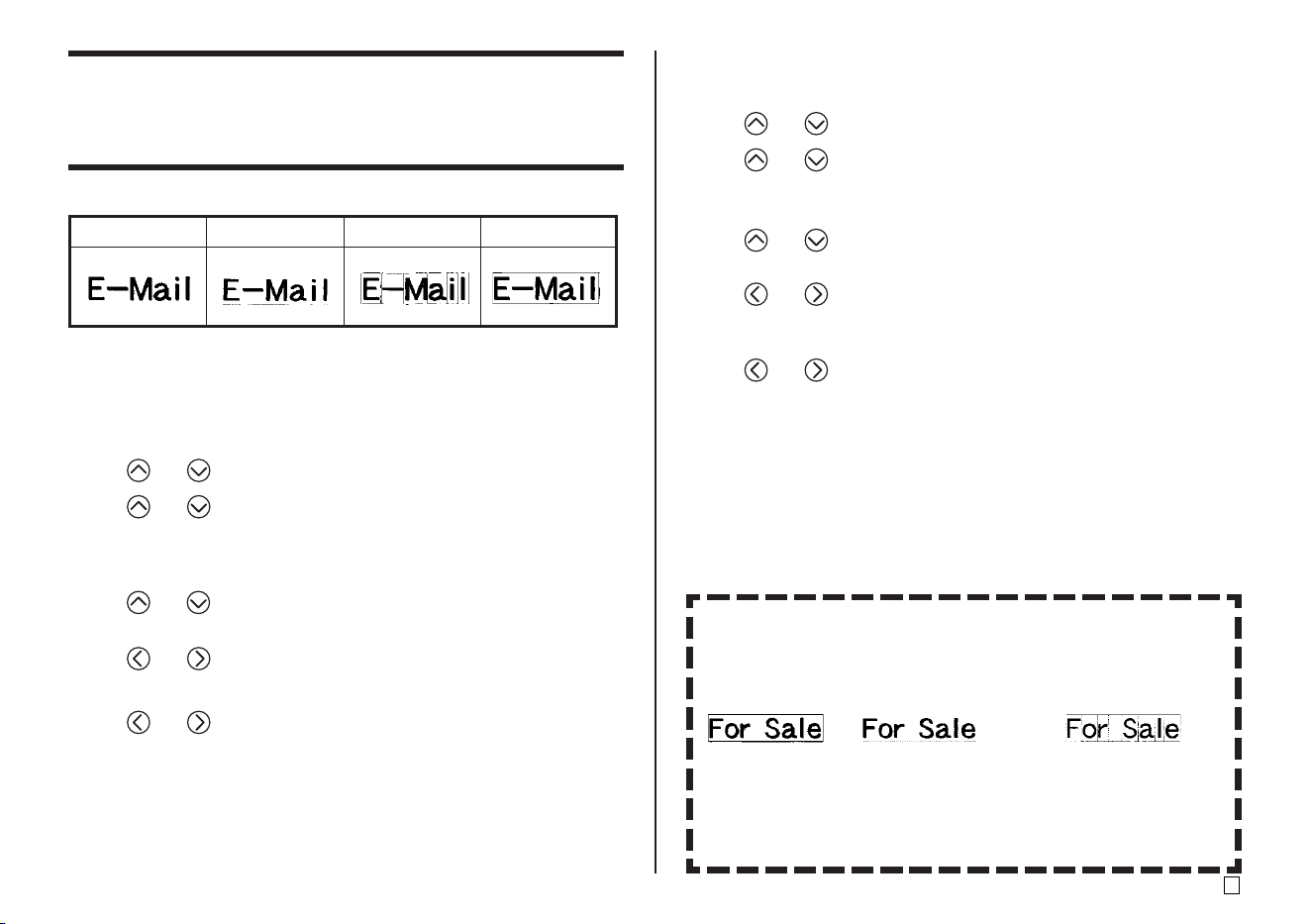
53
E
Using EFFECT Menu Attributes
The EFFECT menu lets you apply the text attributes shown below to label text
in the Free Design Mode.
■ To remove all EFFECT settings
1. Press STYLE.
2. Use and to select EFFECT, and then press SET.
3. Use and to select CANCEL, and then press SET.
• If you want to remove a particular EFFECT setting, use the cursor keys
to select its name, and then press SET.*
1
4. Use and to select CHARACTER*
2
, and then press SET.
*
2
You can select other settings if you want.
5. Use and to move the cursor to the first character of the string of
text from which you want to remove EFFECT settings, and then press
SET.
6. Use and to move the cursor to the last character of the string of
text from which you want to remove EFFECT settings, and then press
SET.
*
1
If you want to remove a particular EFFECT setting, press DEL instead of
SET.
■ To apply EFFECT menu text attributes
1. Input the text whose attributes you want to change.
2. Press STYLE.
3. Use and to select EFFECT, and then press SET.
4. Use and to select the EFFECT setting you want, and then press
SET.
• To remove all of the currently selected text attributes, select CANCEL
and then press SET.
5. Use and to specify how you want the effect applied, and then press
SET.
6. Use and to move the cursor to the first character of the string to
which you want to apply the EFFECT setting, and then press SET.
7. Use and to move the cursor to the last character of the string to
which you want to apply the EFFECT setting, and then press SET.
• This will apply the setting and return to the text input screen.
SHADING UNDERLINE
BOX(CHARACTER)
BOX(TEXT)
Combining Effects
SHADING, UNDERLINE, and BOX effects can be combined, if you want.
Simple apply one effect, and then repeat the above procedure to apply
another one.
SHADING + BOX SHADING + UNDERLINE SHADING + UNDERLINE + BOX
(TEXT) (CHARACTER)
• Using BOX and UNDERLINE in combination with certain character
sizes can cause the underline and the lower line of the box to overlap
with each other.
Examples
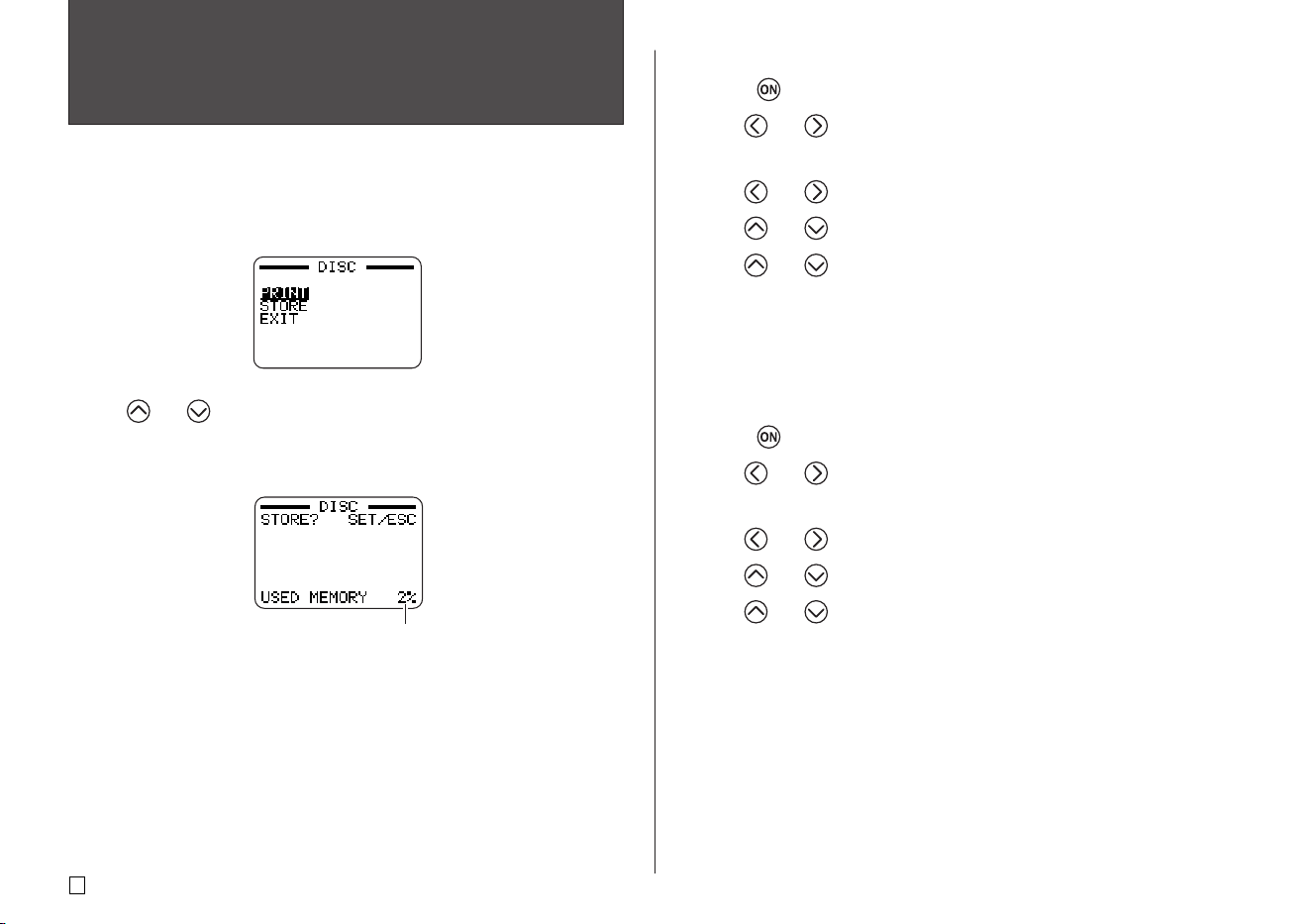
E
54
Part 5 - Saving, Recalling and
Deleting Labels
To save a label
1. Create the label you want to save.
2. After you finish inputting text, the following screen will appear on the printer
display.
3. Use and to select STORE.
4. Press SET.
5. Input up to five characters for the label name, and then press SET.
6. In response to the confirmation message that appears, press SET to save
the label or ESC to abort.
To recall a label
1. Press to turn on the printer.
2. Use and to select DISC or TAPE, and then press SET.
• You can also press DISC or TAPE to enter the DISC or the TAPE Mode.
3. Use and to select STORED DATA, and then press SET.
4. Use and to select RECALL, and then press SET.
5. Use and to scroll through the label names until the one you want to
recall is displayed.
6. Press SET to display the label.
• Now you can print the label or make any changes you want in it.
To delete a label
1. Press to turn on the printer.
2. Use and to select DISC or TAPE, and then press SET.
• You can also press DISC or TAPE to enter the DISC or the TAPE Mode.
3. Use and to select STORED DATA, and then press SET.
4. Use and to select DELETE, and then press SET.
5. Use and to scroll through the label names until the one you want
to delete is displayed.
6. Press SET.
7. In response to the confirmation message that appears, press SET to de-
lete the label or ESC to abort.
• If there are multiple labels stored in memory, deleting a label will cause the
next label name to appear. You can repeat the above procedure to delete
other labels, if you want.
• To exit the label delete operation, press ESC.
Total amount of memory
used by currently stored
labels.
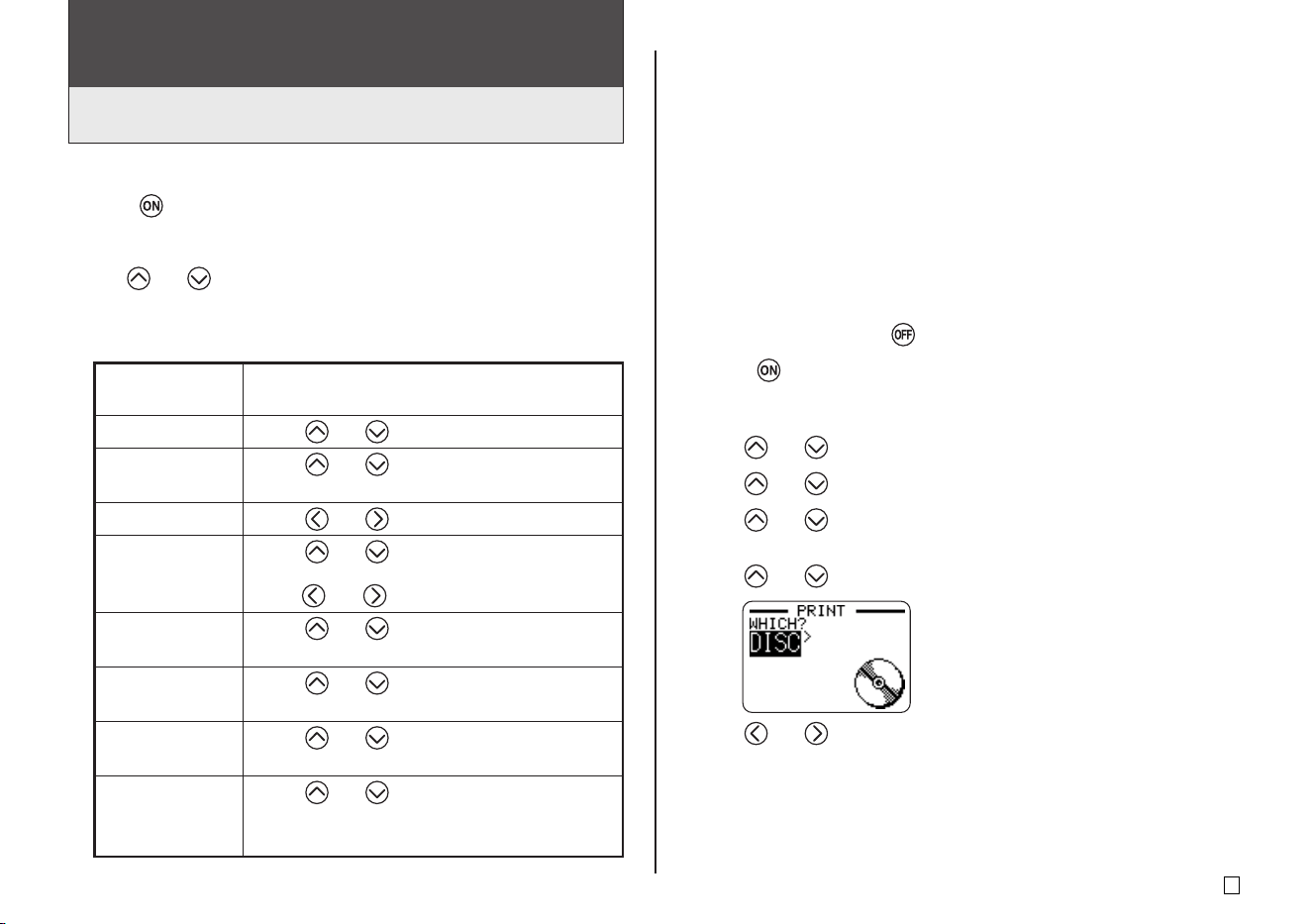
55
E
Demo Printing
Demo printing uses built-in data to demonstrate the type of disc printing and
tape label printing that can be performed by the printer.
Important!
• If there is label data from your last label layout session is still in memory,
performing a demo print will delete it. If you think you will need the data
later, save it in memory (page 54) before performing a demo print.
■ To perform disc demo printing
1. Make sure an ink ribbon cassette is loaded in the printer.
• See page 11 of the Startup Guide for information about loading ink ribbon
cassettes.
2. If the printer is on, press to turn it off.
3. Press to turn on the printer.
4. Press FUNCTION and then SET UP.
5. Use and to select DEMO PRINT, and then press SET.
6. Use and to select DISC, and then press SET.
7. Use and to select the demo data you want to print, and then press
SET.
8. Use and to select PRINT, and then press SET.
9. Use and to select DISC, and then press SET.
• If you want to print a disc case label, select TAPE instead
• If you want to print a disc case label, see page 13 of the Startup Guide
for information about loading tape cartridges.
Part 6 - Configuring the Printer Setup
The printer has a SET UP screen that you can use to configure a variety of
basic settings.
■ To configure the printer setup
1. Press to turn on the printer.
2. Press FUNCTION and then SET UP.
3. Use and to select the SET UP item whose setting you want to
change, and then press SET.
4. Use the cursor keys to change it.
When this setting
is selected:
DEFAULT FONT
INPUT
CONTRAST
DENSITY
SOUND
LANGUAGE
cm/inch
DEMO PRINT
Change its setting like this:
•
Use and to select the font (page 51).
• Use
and
to select INSERT or
OVERWRITE (page 44).
• Use and to adjust the display contrast.
• Use
and
to select DISC Mode or TAPE
Mode.
•
Use and to adjust the print density setting.
• Use
and
to turn printer sound effect on
or off.
• Use
and
to select the display language
you want to use.
• Use
and
to select centimeters (cm) or
inches as the unit of measurement.
• Use
and
to select DISC Mode or TAPE
Mode, and then press SET to start demo
printing.
E
56
10. Use and to select the print area you want to print, and then press
SET.
11.Insert a disc into the printer.
12. Press SET to start printing.
• Both DATA 1 and DATA 2 print in both the upper print area and
the lower print area of the disc.
13. After printing is complete, use and to select EXIT, and then press
SET.
14. In response to the confirmation message that appears, press SET.
■ To perform tape demo printing
1. Make sure a tape cartridge is loaded in the printer.
• See page 13 for the Startup Guide for information about loading tape
cartridges.
2. If the printer is on, press to turn it off.
3. Press to turn on the printer.
4. Press FUNCTION and then SET UP.
5. Use and to select DEMO PRINT, and then press SET.
6. Use and to select TAPE, and then press SET.
7. Use and to select PRINT, and then press SET.
8. Confirm that 1 is specified for the number of copies and CONT HALF CUT
is specified for the tape cut mode.
• You can change the number of copies and the tape cut mode (page 38)
settings if you want.
• If you are using a non-standard type of tape, select the appropriate tape
cut mode (page 38) for the tape you are using.
9. Press SET to start printing.
• The demo print contents depend on the width of the tape cartridge
currently loaded in the printer.
10. After printing is complete, use and to select EXIT, and then press
SET.
11. In response to the confirmation message that appears, press SET.
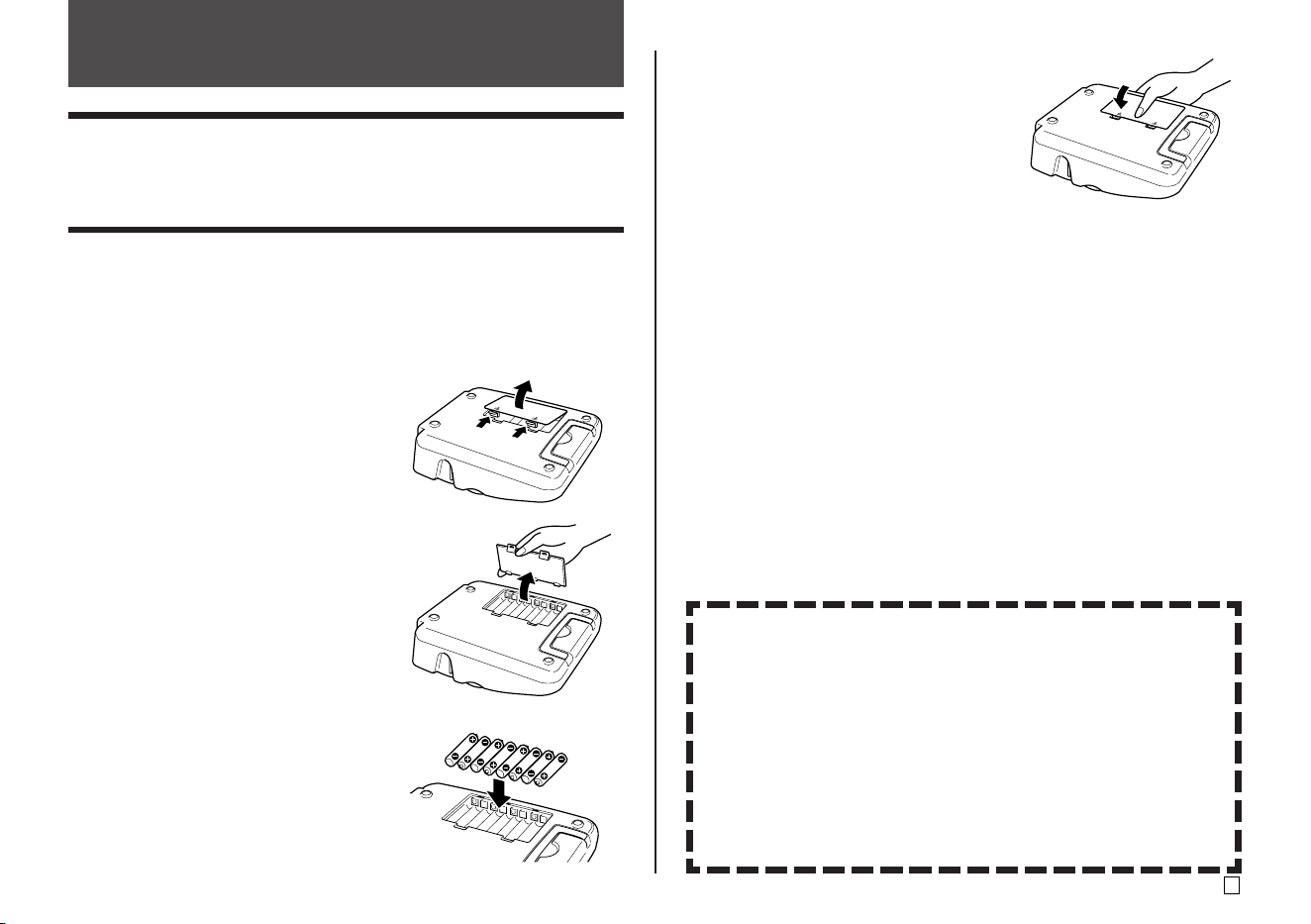
57
E
3. Replace the battery cover.
Important!
• The printer may suddenly turn off during printing if battery power goes low.
Because of this, use of the bundled AC adaptor is recommended to power
the printer.
• Because of the affect cold has on batteries, the “LOW BATTERY!” may appear
prematurely when the temperature is below 10˚C(50˚F). If this happens,
move the printer to a location where the temperature is within the operating
temperature range (10˚C to 35˚C (50˚F to 95˚F))
Reference
Power Requirements
You can run the printer by using its bundled AC adaptor to plug it into a power
outlet. It can also run on commercially available alkaline batteries.
■ Using Batteries
Note
• The printer can run on eight AA-size alkaline batteries. Be sure to use alkaline
batteries only.
1. Turn over the printer and remove the bat-
tery cover.
• Never bend or twist the battery cover,
or otherwise subject it to rough
handling. Doing so creates the risk of
printer malfunction.
2. Load a set of eight new batteries.
• Make sure the positive g and negative
h poles of the batteries are facing in
the proper directions.
Battery Life
Disc Label Printing
• Printing of approximately 150 discs*
Normal temperature (20˚C (68˚F)), one printing per disc.
Label Tape Printing
• Printing of approximately two 18mm tape cartridges under standard
printing conditions*
* When printing text or graphics that contain large areas of black, and
printing under cold temperatures can shorten battery life for both disc
label printing and label tape printing.
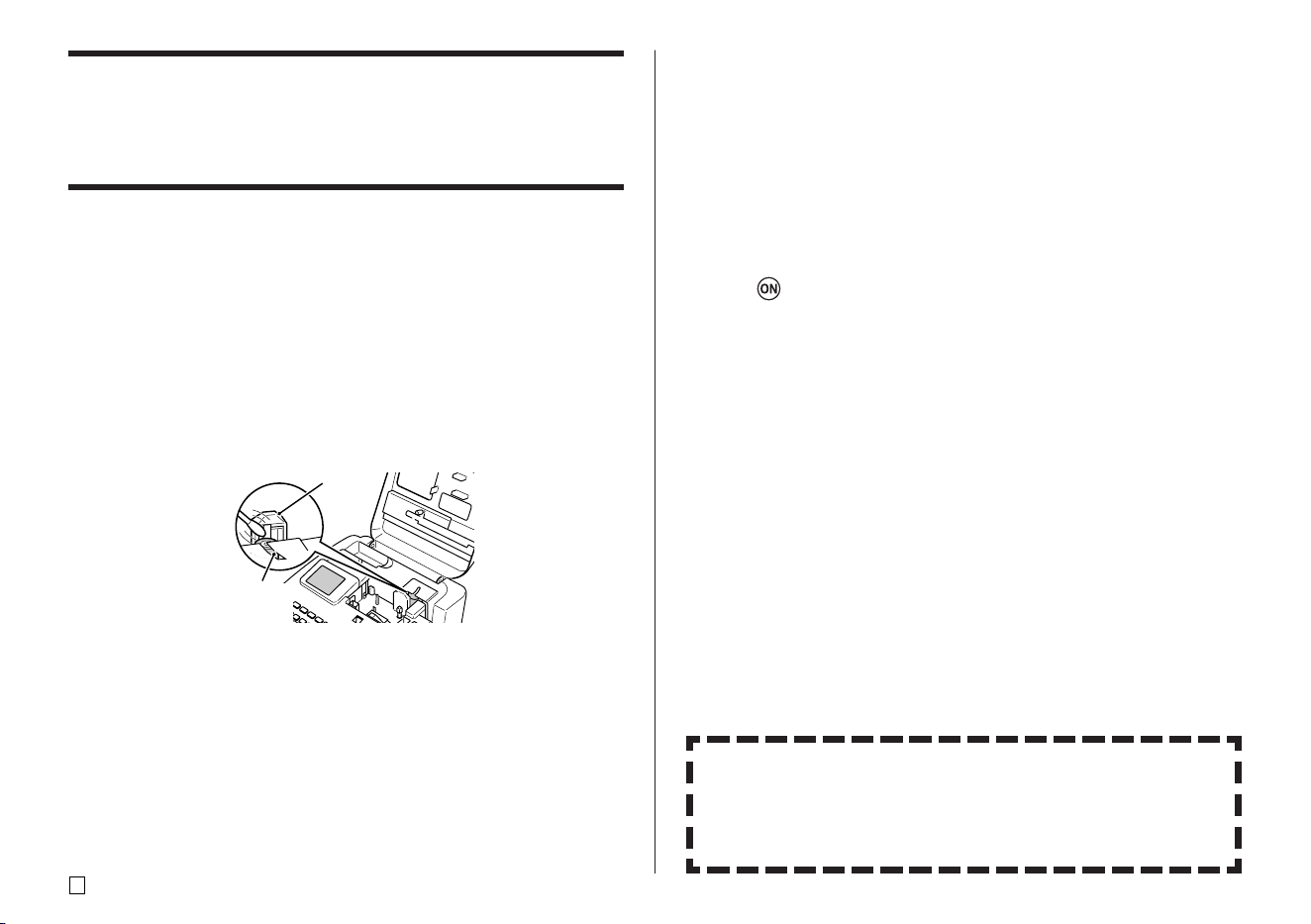
E
58
Caring for the Printer
Disc and tape label printing can become unclear if the printer's print head and
rubber roller become dirty. Perform the following steps to clean the print head
and rubber roller.
■ To use a cotton swab for cleaning
Important!
• Use only a cotton swab or some other soft material to clean the print head
and rubber roller. Use of a very fine type cotton swab is recommended.
1. Press the cassette cover release and open the cover.
• If a tape cartridge or the ink ribbon cassette adaptor is loaded in the
printer, remove it.
2. Use a cotton swab moistened with alcohol to thoroughly swab the areas
where the print head and rubber roller come into contact.
Print
head
Rubber
roller
• You can rotate the rubber roller by pressing FUNCTION and then FEED.
• You can also use a commercially available cassette tape recorder head
cleaning kit to clean the print head.
■ To clean with a cleaning tape
Note
• Use an optionally available cleaning tape (XR-24CLE) to perform this
procedure.
1. Press the cassette cover release and open the cover.
• If there is a tape cartridge or ink ribbon cassette adaptor loaded in the
printer, remove it.
2. Load the cleaning tape into the printer.
3. Press to turn on the printer.
4. Press FUNCTION and then FEED to feed the tape one or two times.
• For details about using the cleaning tape, see the instructions that come
with it.
Cleaning the Printer Exterior
Wipe the exterior of the printer with a cloth moistened with plain water.
Wring all excess liquid from the cloth before wiping the printer.
Never use benzene, alcohol, thinner, or other volatile agents to clean the
printer exterior. Doing so can damage the case.
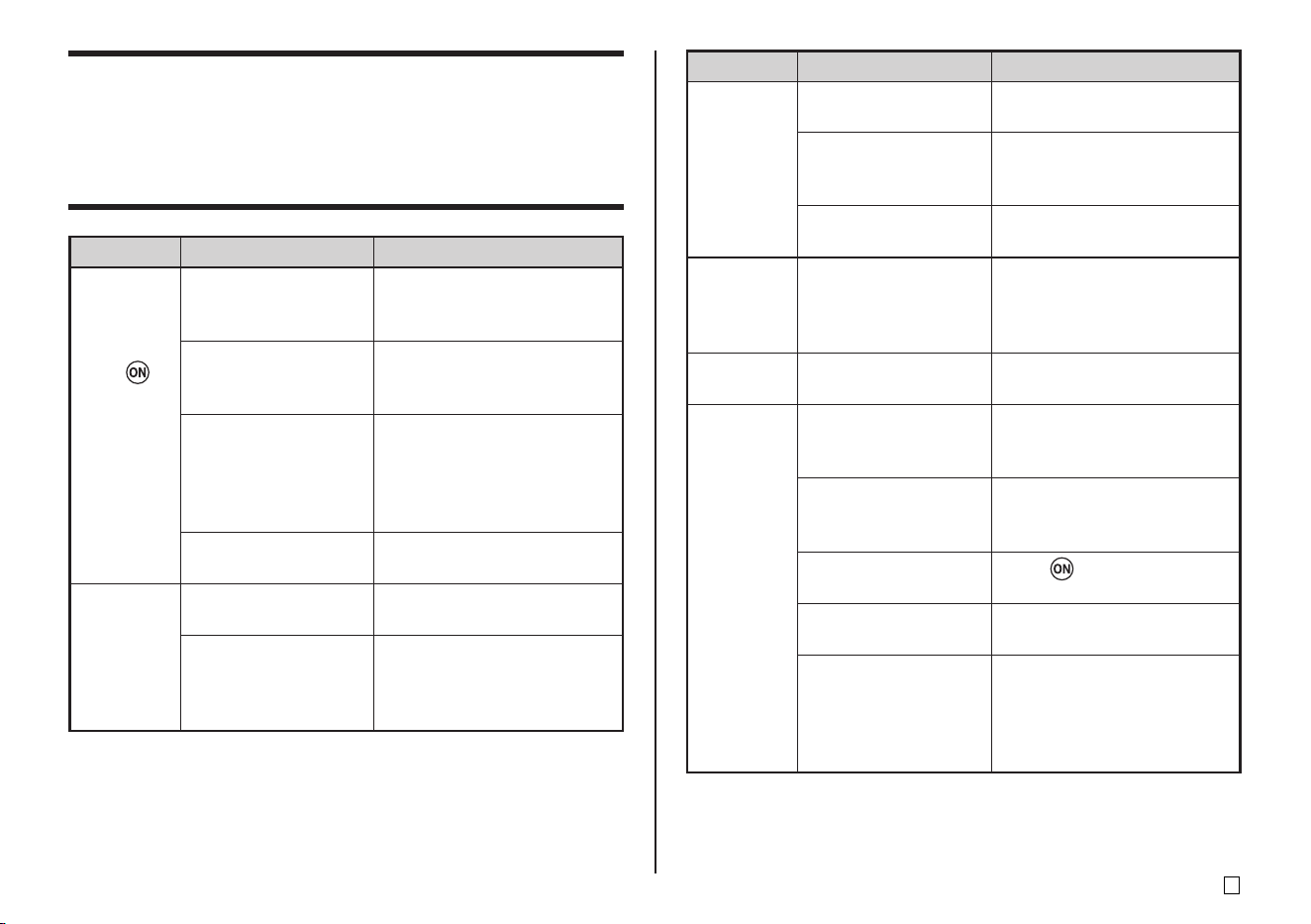
59
E
Clean the print head and roller.
(page 58)
Change to AC adaptor power
or load a fresh set of batteries
(supplied by you). (page 57)
Adjust the print density. (page
55)
Change to AC adaptor power
or load a fresh set of AA-size
alkaline batteries (supplied by
you). (page 57)
Press ESC to cancel the
FUNCTION key operation.
Press the COMPUTER LINK
button to establish a connec-
tion.
Re-connect the cable properly.
Press to turn on the
printer.
Unplug the USB cable and the
plug it back in again.
Try using a different USB port
on your computer, or try using
a different USB cable.
The print head or roller
is dirty.
Battery power is low.
Improper print density
Battery power is low or
the wrong type of
batteries are loaded in
the printer.
The FUNCTION key
has been pressed.
The COMPUTER
LINK button has not
been pressed.
The bundled USB
cabled is not con-
nected properly.
The printer is turned
off.
The USB driver is not
installed correctly.
Though the USB driver
is installed correctly,
data communication is
not possible for some
reason.
Troubleshooting
Consult the troubleshooting tables below whenever you start to have prob-
lems with the printer or application. If you can't find the solution to your prob-
lem below, contact your original retailer or your nearest authorized CASIO
service center.
Symptom
Nothing
appears on
the display
when I
press .
Recommended Action
Adjust the display contrast
setting. (page 55)
Make sure the AC adaptor is
properly connected. (Startup
Guide, page 7)
Change to AC adaptor power
or replace the current
batteries with a fresh set of
AA-size alkaline batteries
(supplied by you). (page 57)
Reload the batteries properly.
(page 57)
Input the text you want to
print.
Re-import the data.
Possible Cause
The display contrast
setting needs
adjustment.
The AC adaptor is not
connected properly.
Battery power is low or
the wrong type of
batteries are loaded in
the printer.
Batteries are not
loaded properly.
Only spaces are input
for the label.
The file imported from
a computer does not
contain any data.
The printing
operation is
finished
normally,
but nothing
is printed.
Printing is
not clear.
Printing is
poor
quality.
Printing is
too light.
Symptom Recommended ActionPossible Cause
Cannot
print.
I can't input
text.
I can't get a
connection
between
the printer
and a
computer.
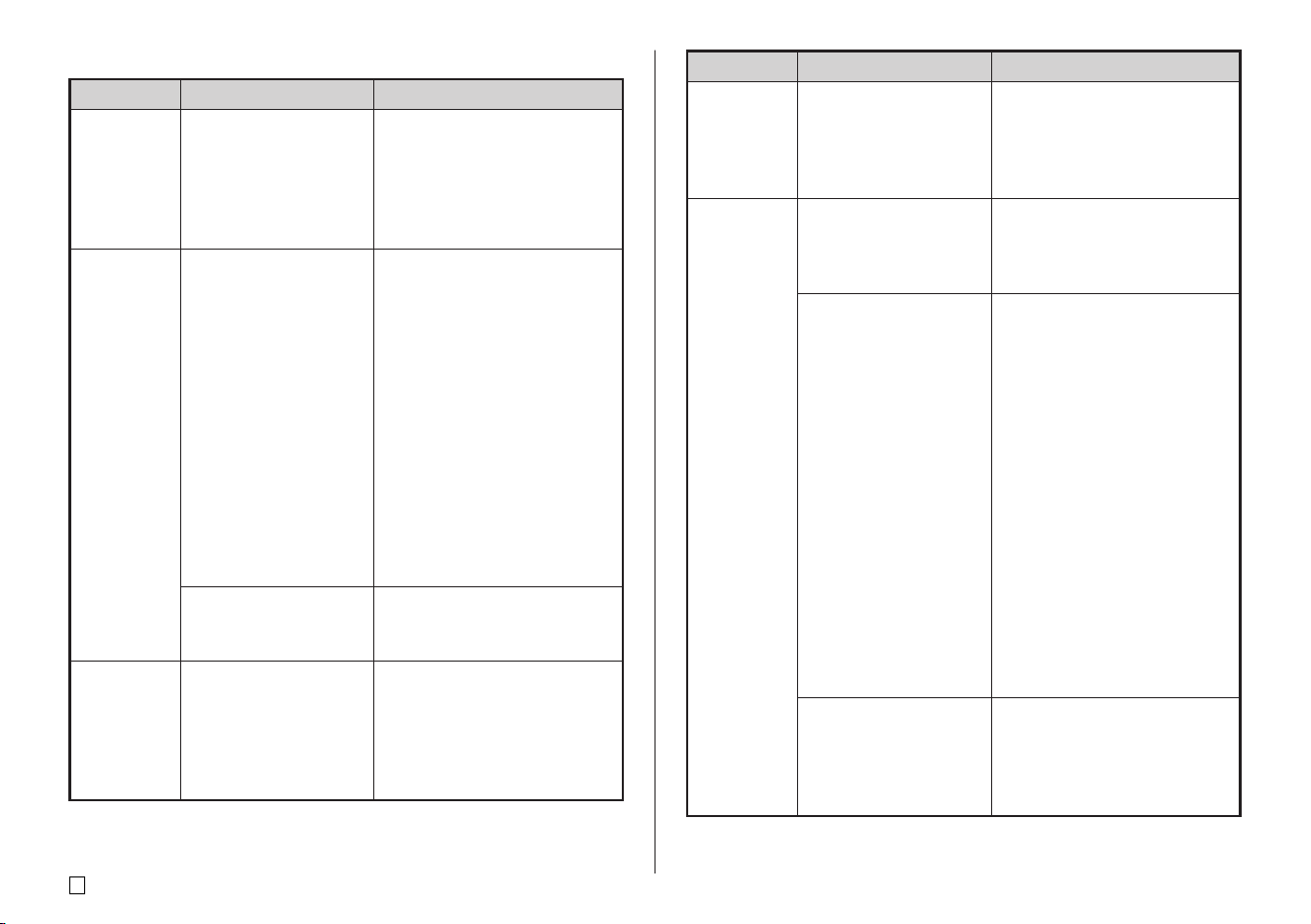
E
60
DISC Mode
Symptom
The printing
operation is
finished
normally,
but nothing
is printed.
Recommended Action
Load a new ink ribbon
cassette (option). (Startup
Guide, page 11)
Use a disc that meets the
requirements described in the
bundled “Printing Precautions”
or at the following Internet
URL.
http://world.casio.com/ds/
media/
You can also try adjusting the
print density to make it darker.
(page 55)
Re-load the ink ribbon
cassette properly.
Try using a lighter color disc or
a darker color ink ribbon.
Possible Cause
The ink ribbon is used
up.
Any of the following
can interfere with
proper printing.
• A disc printing
surface that is not
smooth and flat
• A disc printing
surface that has a
design or lines
printed on it
• A disc printing
surface that
supports ink jet
printing only
The ink ribbon
cassette is not loaded
properly.
The color of the final
printout is affected by
both the color of the
ink ribbon and the
color of the disc you
are printing on.
Printing is
not clear.
Printing is
poor
quality.
Printing is
too light.
Symptom Recommended ActionPossible Cause
The printed
color is
different
from the ink
ribbon
color.
The printing
is not
positioned
correctly on
the disc.
The disc
stops part
way
through
printing.
Improper alignment of
the disc when it is
placed in the printer.
The power cord plug
or the AC adaptor is
not plugged in as far
as it will go.
The printer is
malfunctioning.
Battery power is low or
the wrong type of
batteries are loaded in
the printer.
Use the positioning guide
when aligning the disc.
(Startup Guide, page 21)
Correctly connect the power
cord and the AC adaptor.
(Startup Guide, page 7)
If you cannot easily remove
the disc from between the
print head and roller, do not try
to force it. Insert a thin object
into the print head release
button hole (Startup Guide,
page 4) and press to release
the print head. This should
allow you to remove the disc.
After removing the disc, press
the release lever inside the
cassette case (Startup Guide,
page 4) to its original position
before trying to print again. If
you are still unable to remove
the disc from the printer,
contact your retailer or your
nearest CASIO service center.
Use the bundled AC adaptor
to power the printer, or replace
the current batteries with a
fresh set of AA-size alkaline
batteries.
61
E
TAPE Mode
Symptom Recommended ActionPossible Cause
I cannot
insert a
disc into
the printer.
Printing will
not start.
A tape cartridge is
loaded in the printer.
The disc is not
positioned correctly in
the printer.
A disc cannot be inserted into
the printer while a tape
cartridge is loaded. Remove
the tape cartridge and replace
it with an ink ribbon cassette.
(Startup Guide, page 11)
Remove the disc and then re-
insert it straight into the left
side of the slit along the top of
the printer. (Startup Guide,
page 20)
Symptom
The printing
operation is
finished
normally,
but nothing
is printed.
Printing is
not clear.
Printing is
poor
quality.
Printing is
too light.
Recommended Action
Replace the tape cartridge
with a new one.
Re-load the tape cartridge
properly.
Adjust the print density to
make it darker.
Close the cassette cover.
(Startup Guide, page 5)
Replace the tape cartridge
with a new one. (Startup
Guide, page 13)
Remove the tape cartridge and
pull out the jammed tape. Use
scissors to cut off the tape you
pulled out. Load the tape
cartridge back into the printer.
(Startup Guide, page 13)
Important!
Note the following while
printing is in progress.
• Do not allow the tape outlet
to become blocked.
• Do not touch the tape
coming out of the printer.
• Do not open the cassette
cover.
• Do not turn off the printer.
Possible Cause
The tape is used up.
The tape cartridge is
not loaded properly.
The print density
setting is too light.
The cassette cover is
not closed completely.
The tape is used up.
The tape is jammed.
No tape
comes out
when I
press
PRINT.
E
62
Change to AC adaptor power
or load a fresh set of batteries
(supplied by you). (page 57)
Remove the tape cartridge.
After making sure that the ink
ribbon is not broken, take up
all the slack. Reload the tape
cartridge into the printer.
(Startup Guide, page 13)
Important!
• Always make sure you
remove all slack from the ink
ribbon before loading a tape
cartridge into the printer.
• If the ink ribbon is broken,
replace the tape cartridge
with a new one.
Have the tape cutter replaced by
your retailer or your local CASIO
service center.
Turn off the printer, remove the
tape cartridge, and remove
the jammed label.
Change the MARGINS
setting to NARROW, MEDIUM
or WIDE. (page 26)
Change the tape cut mode
setting to something other
than UNCUT. (page 38)
Symptom Recommended ActionPossible Cause
Battery power is low.
Slack in the ink ribbon
when the tape
cartridge was loaded
in the printer.
The tape cutter is dull.
Tape is jammed in the
tape outlet.
NONE is selected for
the MARGINS setting
of the format being
used.
UNCUT is selected for
the tape cut mode.
No tape
comes out
when I
press
PRINT.
The ink
ribbon is
coming out
of the tape
outlet
together
with the
tape.
The tape
will not cut.
Symptom Recommended ActionPossible Cause
The tape
will not cut.
The label is too short.
The tape cutter is dull.
FULL CUT or UNCUT
is selected for the tape
cut mode.
You are printing on
magnetic tape.
The label is too short.
The backing paper has
not been removed.
The location or the
surface is not
compatible.
Use scissors to cut the labels
after printing is complete.
Have the tape cutter replaced
by your retailer or your local
CASIO service center.
Change the tape cut mode
setting to CONT HALF CUT or
FULL+HALF CUT.
Half cutting is not supported
for magnetic tape. Use
scissors to cut the labels after
printing is complete.
• Select UNCUT for the tape
cut mode whenever printing
on magnetic tape or
reflective tape (page 39).
Use scissors to cut the labels
after printing is complete.
Remove the backing paper.
(Startup Guide, page 25)
Do not try to affix a label to a
surface that is rough, wet, oily,
or dirty. (Startup Guide, page
25)
Less than approximately 31mm
(1 1/4") with narrow margins
Less than approximately 38mm
(1 1/2") with medium margins
Less than approximately 50mm
(1 15/16") with wide margins
The printer
will not half
cut.
Less than approximately 31mm
(1 1/4") with narrow margins
Less than approximately 38mm
(1 1/2") with medium margins
Less than approximately 50mm
(1 15/16") with wide margins
The label
does not
stick.
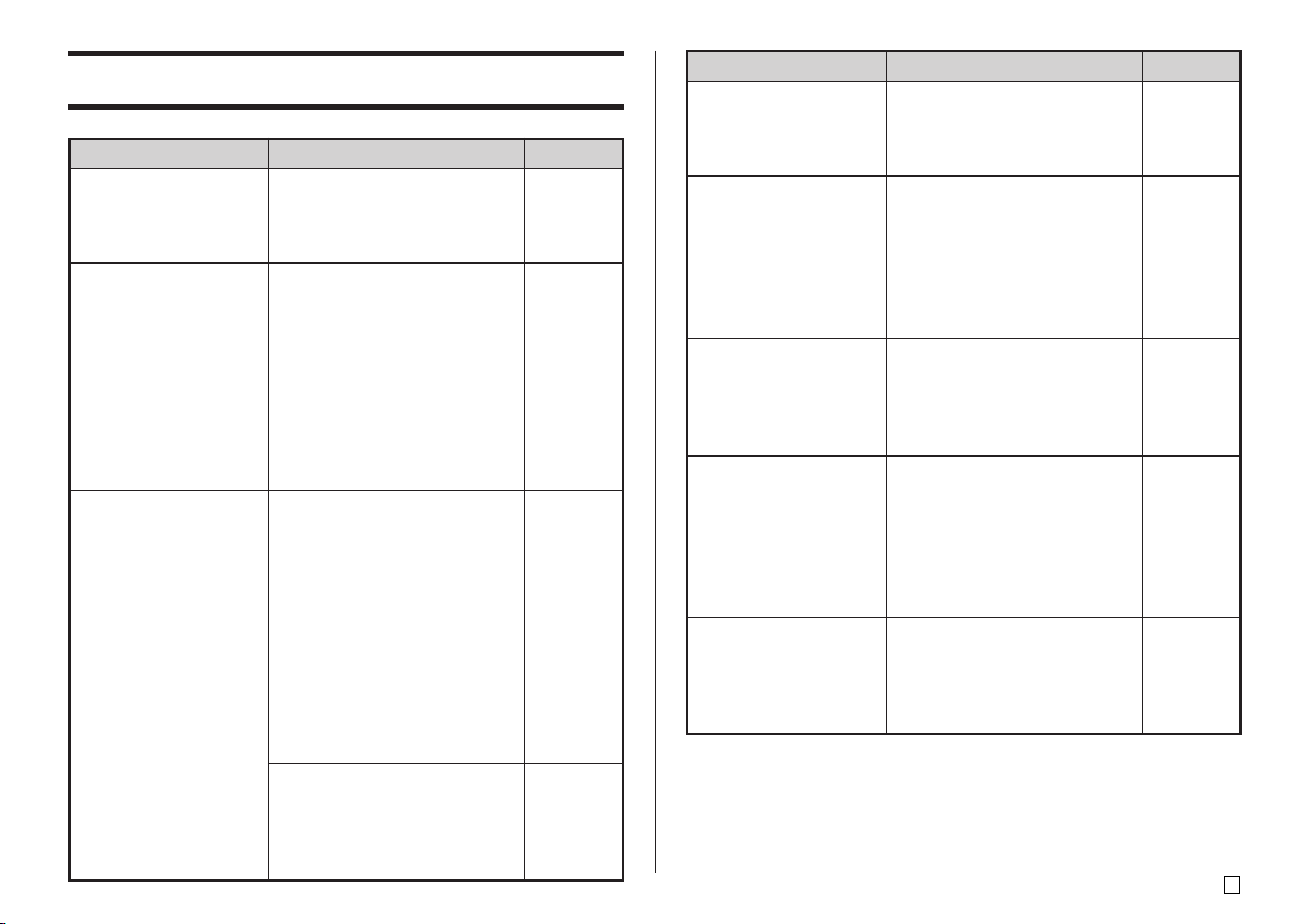
63
E
Error Messages
Message
See page:
Cause and Action
Message
See page:
Cause and Action
DATA ERROR!
INITIALIZE THE
PRINTER!
ENTIRE PHRASE
COULD NOT BE
RECALLED!
ILLEGAL
CHARACTERS!
• You are trying to operate the
printer without initializing its
memory first.
➜
Initialize printer memory.
• The text in the phrase
memory you are trying to
recall will cause the number
of characters to exceed the
allowable limit for the location
where you are inserting it.
➜
Re-input so the recalled
phrase memory text does not
cause the allowable number
of characters to be exceeded.
• You are attempting to input
characters that are not
allowed for bar code printing.
➜
Delete the disallowed
characters.
• For a CODABAR barcode,
you are trying to use a
character other than A, B, C,
or D as the start code or stop
code.
➜
Re-input the correct
character.
• In the case of a numbering
label, you are trying input a
space after a number.
➜
Delete the space after the
number.
Startup
Guide,
page 8
46
36
17
INPUT A VALUE!
LABEL LONGER THAN
SETTING
SET/ESC
LENGTH OF PRINT IS
TOO LONG!
LINK ERROR!
CHECK ALL
CONNECTIONS!
LOAD A TAPE
CARTRIDGE
• You are trying to print
numbering labels without any
input.
➜
Input the numbers you want.
• To print, press SET.
• To cancel printing, press
ESC. You can then decrease
the number of characters,
change to a longer tape
setting, or select auto tape
length.
• You are trying to print
something that is longer than
the length of tape available.
➜
Make the label shorter or
reduce the number of copies.
• The USB cable is not
connected securely to the
USB port.
➜
Plug the USB cable securely
into the USB port.
• The computer is shut down.
➜
Start up the computer.
• There is no tape cartridge
loaded in the printer or the
tape cartridge is not loaded
correctly.
➜
Check the tape cartridge.
17
26
26
Read this
first
Startup
Guide,
page 13
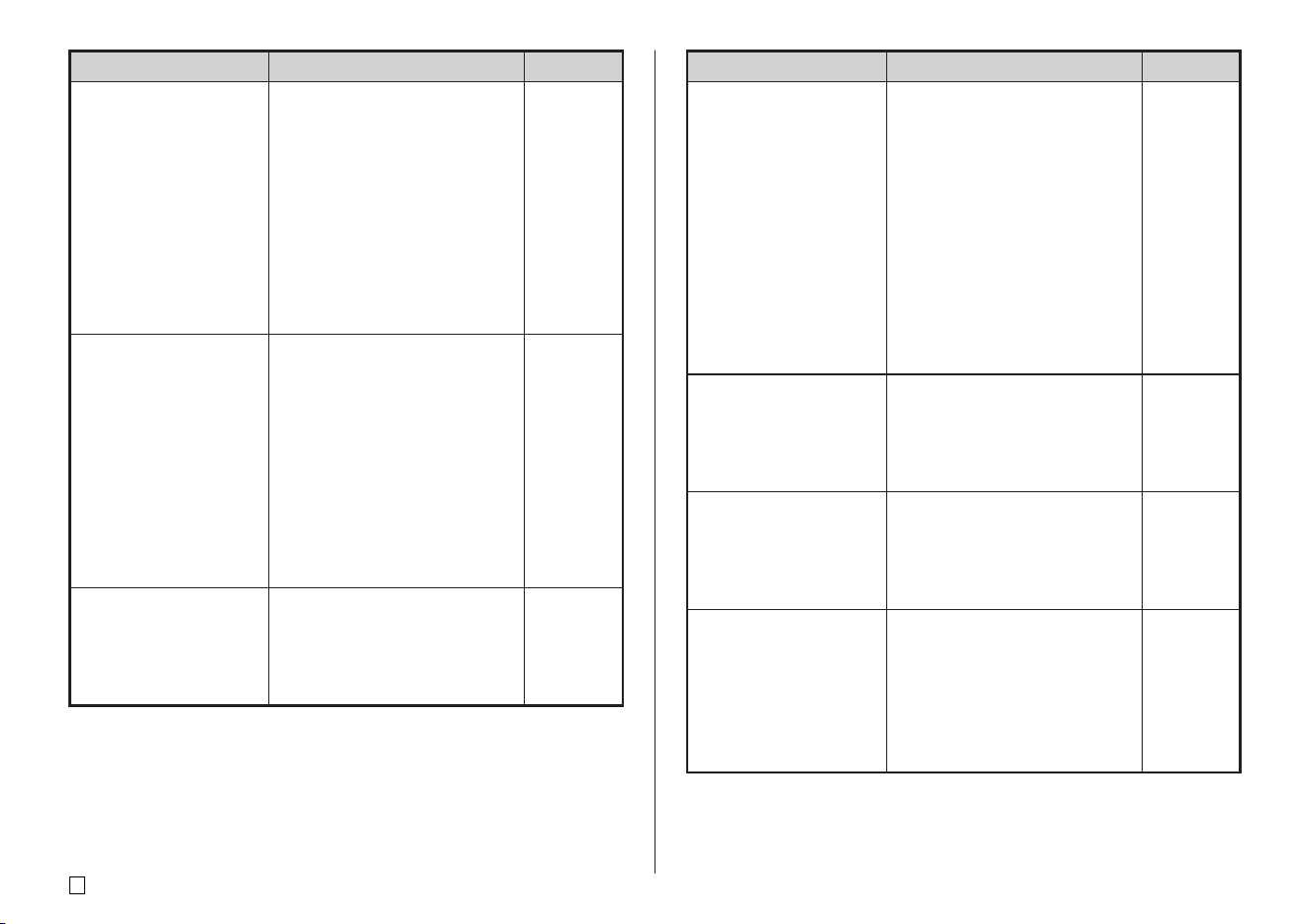
E
64
Message
See page:
Cause and Action Message
See page:
Cause and Action
LOW BATTERY!
LOW BATTERY!
CONTINUE TO
PRINT?
SET/ESC
MEMORY FULL!
• Battery power is low.
➜
Replace the batteries or use
the bundled AC adaptor to
power the printer.
• Temperature is below 10˚C
(50˚F)
➜
Move the printer to a location
where the temperature is
within the operating
temperature range (10˚C to
35˚C (50˚F to 95˚F)).
• Battery power is low.
➜
Replace the batteries or use
the bundled AC adaptor to
power the printer.
• Temperature is below 10˚C
(50˚F)
➜
Move the printer to a location
where the temperature is
within the operating
temperature range (10˚C to
35˚C (50˚F to 95˚F)).
• There is not enough memory
available to save the data
you are trying to save.
➜
Delete memory data you no
longer need and try again.
57
57
54
NO DATA!
NO INPUT TEXT!
NOT ENOUGH
DIGITS!
NOT ENOUGH INK
RIBBON FOR NEXT
PRINT
• You are trying to perform a
recall, edit, or delete
operation on a phrase
memory that does not
contain any data.
➜
Select a different phrase
memory.
• You are trying to recall or
delete memory data when
there is no data in memory.
➜
Store data in memory before
performing the current
operation.
• You are attempting a print or
preview operation when
there is no text input.
➜
Input text before printing or
previewing.
• You are trying to print a bar
code that does not have the
required number of digits.
➜
Re-input the correct number
of digits.
• There is not enough ink
ribbon left to perform the
current print job.
➜
After printing finishes,
replace the ink ribbon
cassette before starting the
next print.
45
Startup
Guide,
pages 20
and 24
36
Startup
Guide,
page 11
65
E
Message
See page:
Cause and Action Message
See page:
Cause and Action
NOT ENOUGH
MEMORY!
SET/ESC
NOW PRINTING
ODD (EVEN) NUMBER
OF DIGITS!
PENDING DATA WILL
BE LOST
CONTINUE? SET/ESC
• There is not enough memory
available to save the data
you are editing.
➜
To edit and print without
saving the data, press SET to
continue. If you want to save
the data, delete memory data
you no longer need.
• The printer has overheated.
➜
Stand by and printing will
resume as soon as the
printer returns to normal
temperature.
* If the “NOW PRINTING”
message remains on the
display and it appears as if
printing will not resume,
contact your retailer or your
nearest CASIO service
center.
• You specified no check digit
for an ITF barcode and input
an odd number of digits.
➜
Append a zero to the
beginning and re-input.
• You specified a check digit
for an ITF barcode and input
an even number of digits
➜
Append a zero to the
beginning and re-input.
• To delete the text, press SET.
• If you do not want to delete
the text, press ESC.
54
—
36
—
PRINT ERROR!
CHECK THE TAPE
CARTRIDGE!
• The tape became jammed
during printing.
➜
Turn off the printer and
remove the tape cartridge.
Next, remove the jammed
tape.
• There is something stuck in
the auto tape cutter.
➜
Turn off the printer and
remove the tape cartridge.
Next, remove whatever is
stuck in the auto tape cutter.
• There is dirt, tape pieces, or
other foreign matter stuck to
the rubber roller.
➜
After removing the foreign
matter from the rubber roller,
clean the rubber roller.
• The printer is being used in
an area that is exposed to
direct sunlight or some other
source of bright light, causing
malfunction of its optical
sensor.
➜
Turn off the printer and then
move it to a location that is
not exposed to bright light.
* If the steps described above
do not clear the error
message, contact your
retailer or your nearest
CASIO service center.
Startup
Guide,
page 13
58
—
E
66
Message
See page:
Cause and Action Message
See page:
Cause and Action
PRINT ERROR!
LOAD AN INK RIBBON
CASSETTE!
PRINT ERROR!
NO INK RIBBON!
PRINT ERROR!
PLACE DISC IN
PRINTER
CORRECTLY!
SAME NAME
ALREADY USED!
• There is no ink ribbon
cassette loaded in the printer
or the ink ribbon cassette is
not loaded correctly.
➜
Check the ink ribbon
cassette.
• The ink ribbon cassete has
reached its end.
➜
Replace the ink ribbon
cassette
• The disc is not inserted
properly into the printer.
➜
Insert the disc properly.
• The name you are trying to
assign to data is already
being used by previously
stored data.
➜
Input a different name
Startup
Guide,
page 11
Startup
Guide,
page 11
Startup
Guide,
page 20
54
THIS IS THE WRONG
TYPE OF TAPE
CARTRIDGE!
TOO MANY BL!
TOO MANY
CHARACTERS!
SOME WERE LOST
• The cassette cover is not
closed completely.
➜
Close the cassette cover.
• The label you are trying to
print or recall is not compat-
ible with the currently loaded
tape cartridge.
➜
Turn off the printer and
replace the tape cartridge.
• You replaced the tape
cartridge in the TAPE mode.
➜
Turn off the printer and
replace the tape cartridge.
• An ink ribbon cassette is
loaded in the printer.
➜
Turn off the printer and load
the appropriate tape
cartridge.
• The layout already contains
15 block marks.
➜
Delete block marks you no
longer need.
• You are trying to save input
text in phrase memory that
contains more than 49
characters.
➜
Only the first 49 characters
will be saved. Edit the text as
required to make sure it is
less than 50 characters long.
Startup
Guide,
page 13
Startup
Guide,
page 13
Startup
Guide,
pages 11
and 13
22
45
67
E
Message
See page:
Cause and Action Message
See page:
Cause and Action
TOO MANY
CHARACTERS!
SOME WERE NOT
COPIED
TOO MANY
CHARACTERS!
SOME WERE NOT
PASTED
TOO MANY LINES TO
FRAME!
TOO MANY LINES!
• You are trying to copy text
that contains more than 49
characters.
➜
Decrease the number of
characters you are copying.
• Pasting copied text will cause
the number of characters to
exceed the allowable limit for
the location where you are
pasting.
➜
Re-input so the pasted text
does not cause the allowable
number of characters to be
exceeded.
• Printing with a frame will
cause your label to have
more than the allowable
number of lines.
➜
Decrease the number of lines
or change to a wider tape.
• You are trying to print a label
that has more than the
allowable number of lines.
➜
Decrease the number of lines
or change to a wider tape.
47
47
35
23
TOO SHORT TO CUT!
SET/ESC
The unused tape at the
beginning of a numbering label
cannot be cut or cutting
between labels is not possible.
• To print without cutting, press
SET.
After printing is complete,
use scissors to cut the labels.
• To print with auto cutting,
change the settings to
increase the margin width
(from NARROW to MEDIUM,
or from MEDIUM to WIDE).
Left and right margins can
auto cutting can be ensured
by selecting FULL CUT for
the tape cut mode and WIDE
for the margins setting.
26, 38
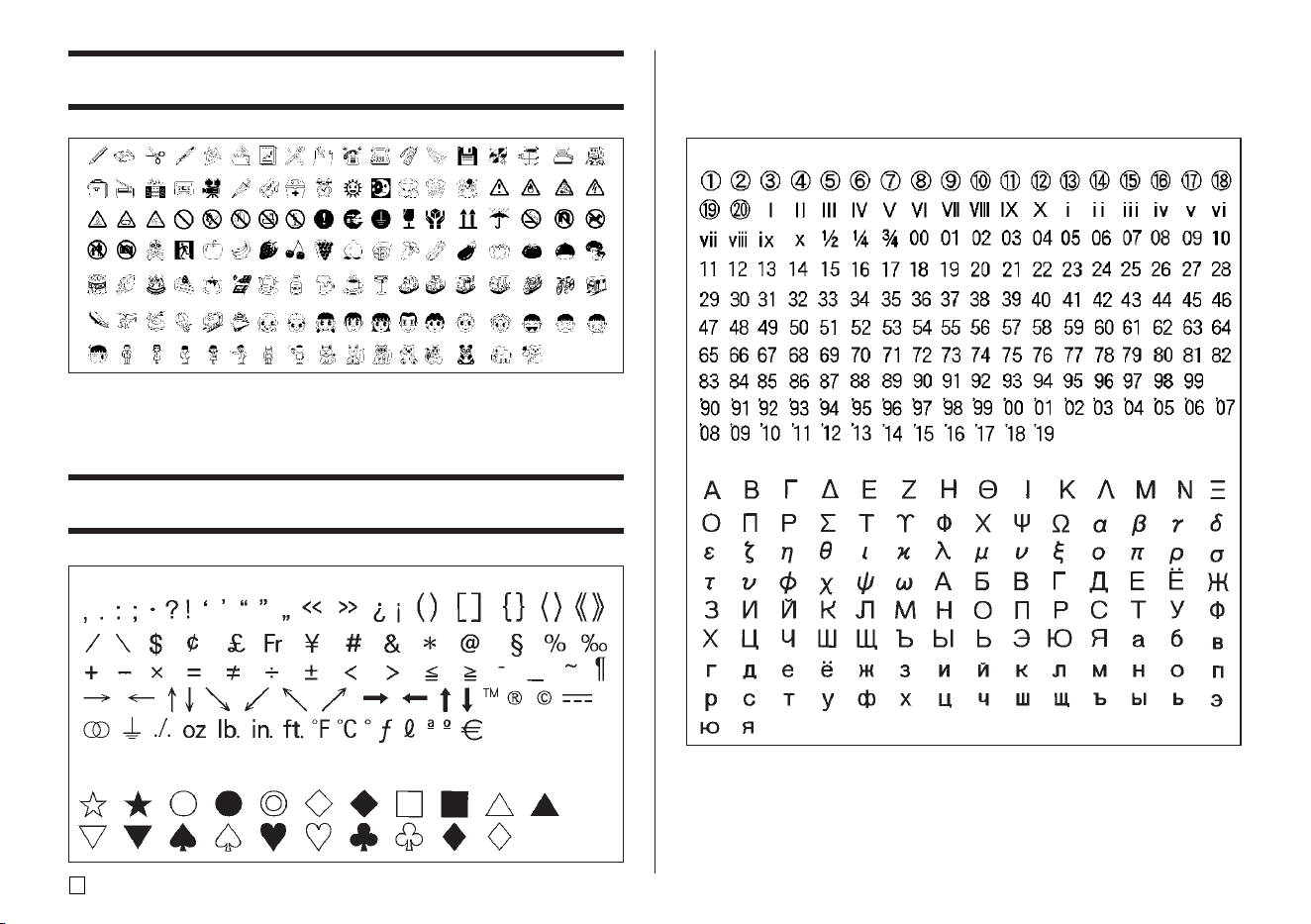
E
68
● NUMBER
● GREEK, RUSSIAN
● SYMBOL
● DINGBAT
Illustrations
Symbols, Dingbats, and Special Characters
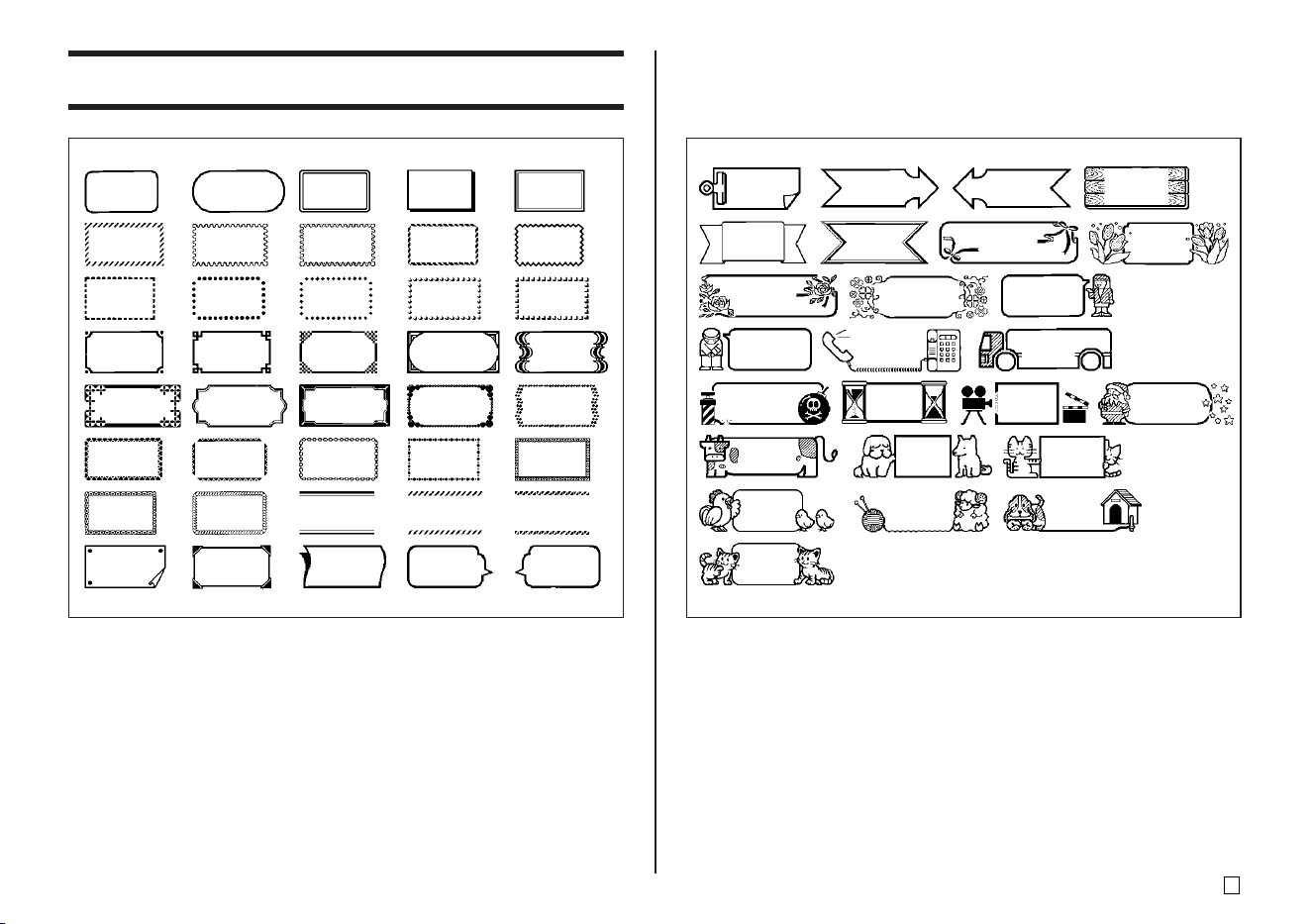
69
E
Frames
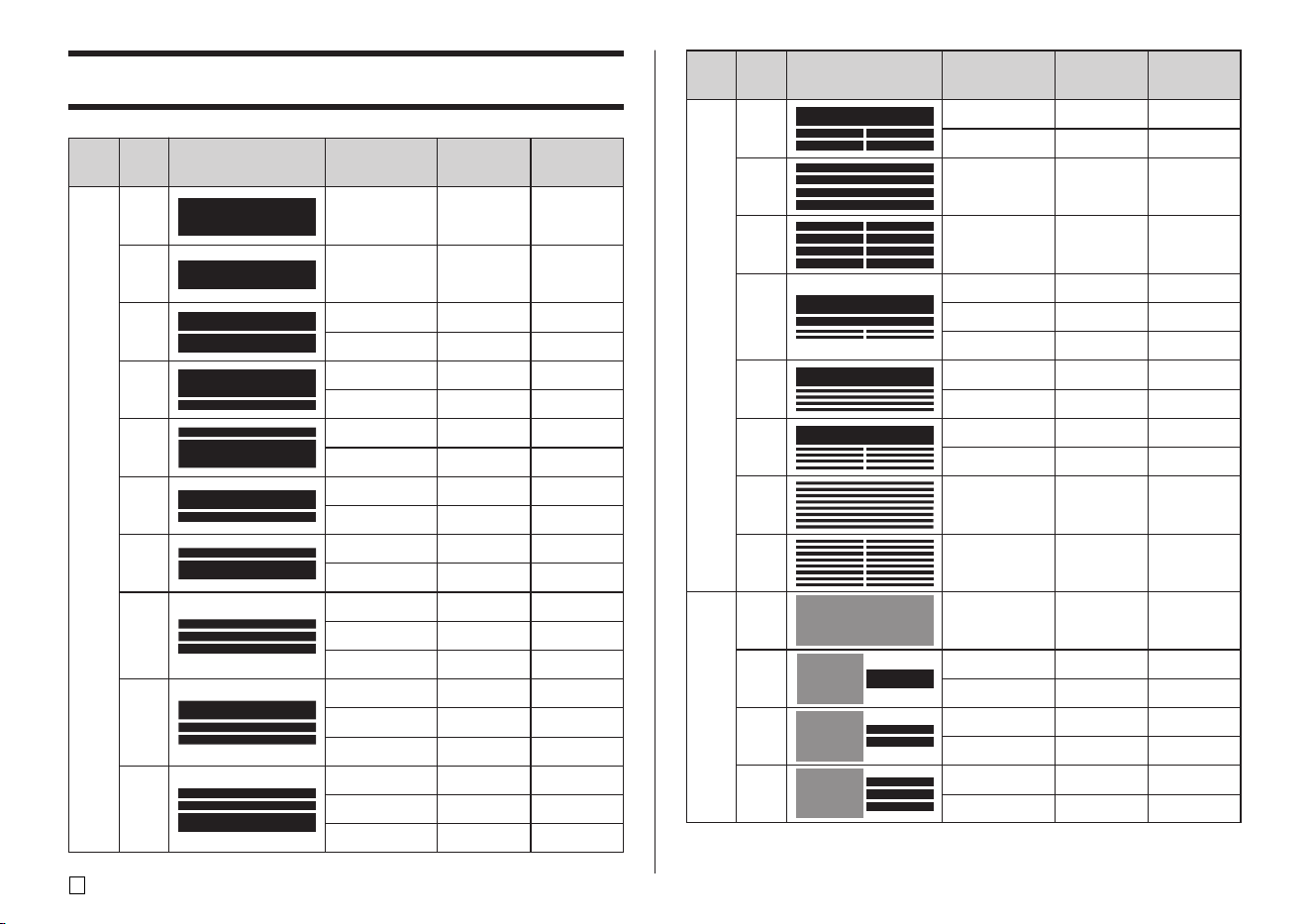
E
70
Type
FOR-
MAT
Num-
ber
1
2
3
4
5
6
7
8
9
10
Input Item
TITLE
TITLE
TITLE1
TITLE2
TITLE
COMMENT
COMMENT
TITLE
TITLE
COMMENT
COMMENT
TITLE
TITLE1
TITLE2
TITLE3
TITLE
COMMENT1
COMMENT2
COMMENT1
COMMENT2
TITLE
Vertical Size
(mm/inch)
12/
1
⁄⁄
⁄⁄
⁄
2
"
9/
3
⁄⁄
⁄⁄
⁄
8
"
6/
1
⁄⁄
⁄⁄
⁄
4
"
6/
1
⁄⁄
⁄⁄
⁄
4
"
9/
3
⁄⁄
⁄⁄
⁄
8
"
3/
1
⁄⁄
⁄⁄
⁄
8
"
3/
1
⁄⁄
⁄⁄
⁄
8
"
9/
3
⁄⁄
⁄⁄
⁄
8
"
6/
1
⁄⁄
⁄⁄
⁄
4
"
3/
1
⁄⁄
⁄⁄
⁄
8
"
3/
1
⁄⁄
⁄⁄
⁄
8
"
6/
1
⁄⁄
⁄⁄
⁄
4
"
3/
1
⁄⁄
⁄⁄
⁄
8
"
3/
1
⁄⁄
⁄⁄
⁄
8
"
3/
1
⁄⁄
⁄⁄
⁄
8
"
6/
1
⁄⁄
⁄⁄
⁄
4
"
3/
1
⁄⁄
⁄⁄
⁄
8
"
3/
1
⁄⁄
⁄⁄
⁄
8
"
3/
1
⁄⁄
⁄⁄
⁄
8
"
3/
1
⁄⁄
⁄⁄
⁄
8
"
6/
1
⁄⁄
⁄⁄
⁄
4
"
Maximum
Number
12
16
24
24
16
49
49
16
24
49
49
24
49
49
49
24
49
49
49
49
24
Format
Num-
ber
11
12
13
14
15
16
17
18
1
2
3
4
Vertical Size
(mm/inch)
6/
1
⁄⁄
⁄⁄
⁄
4
"
3/
1
⁄⁄
⁄⁄
⁄
8
"
3/
1
⁄⁄
⁄⁄
⁄
8
"
3/
1
⁄⁄
⁄⁄
⁄
8
"
6/
1
⁄⁄
⁄⁄
⁄
4
"
3/
1
⁄⁄
⁄⁄
⁄
8
"
2/
1
⁄⁄
⁄⁄
⁄
16
"
6/
1
⁄⁄
⁄⁄
⁄
4
"
2/
1
⁄⁄
⁄⁄
⁄
16
"
6/
1
⁄⁄
⁄⁄
⁄
4
"
2/
1
⁄⁄
⁄⁄
⁄
16
"
2/
1
⁄⁄
⁄⁄
⁄
16
"
2/
1
⁄⁄
⁄⁄
⁄
16
"
—
—
6/
1
⁄⁄
⁄⁄
⁄
4
"
—
3/
1
⁄⁄
⁄⁄
⁄
8
"
—
3/
1
⁄⁄
⁄⁄
⁄
8
"
Maximum
Number
24
24 (×4)
49 (×4)
24 (×8)
24
49
18 (×4)
24
37 (×4)
24
18 (×8)
37 (×8)
18 (×16)
—
—
12
—
24 (×2)
—
24 (×3)
FormatType
FOR-
MAT
LOGO
Input Item
TITLE
ITEM1~4
TITLE1~4
ITEM1~8
TITLE
COMMENT
ITEM1~4
TITLE
ITEM1~4
TITLE
ITEM1~8
ITEM1~8
ITEM1~16
LOGO
LOGO
TITLE
LOGO
TITLE1~2
LOGO
TITLE1~3
Disc Label Formats
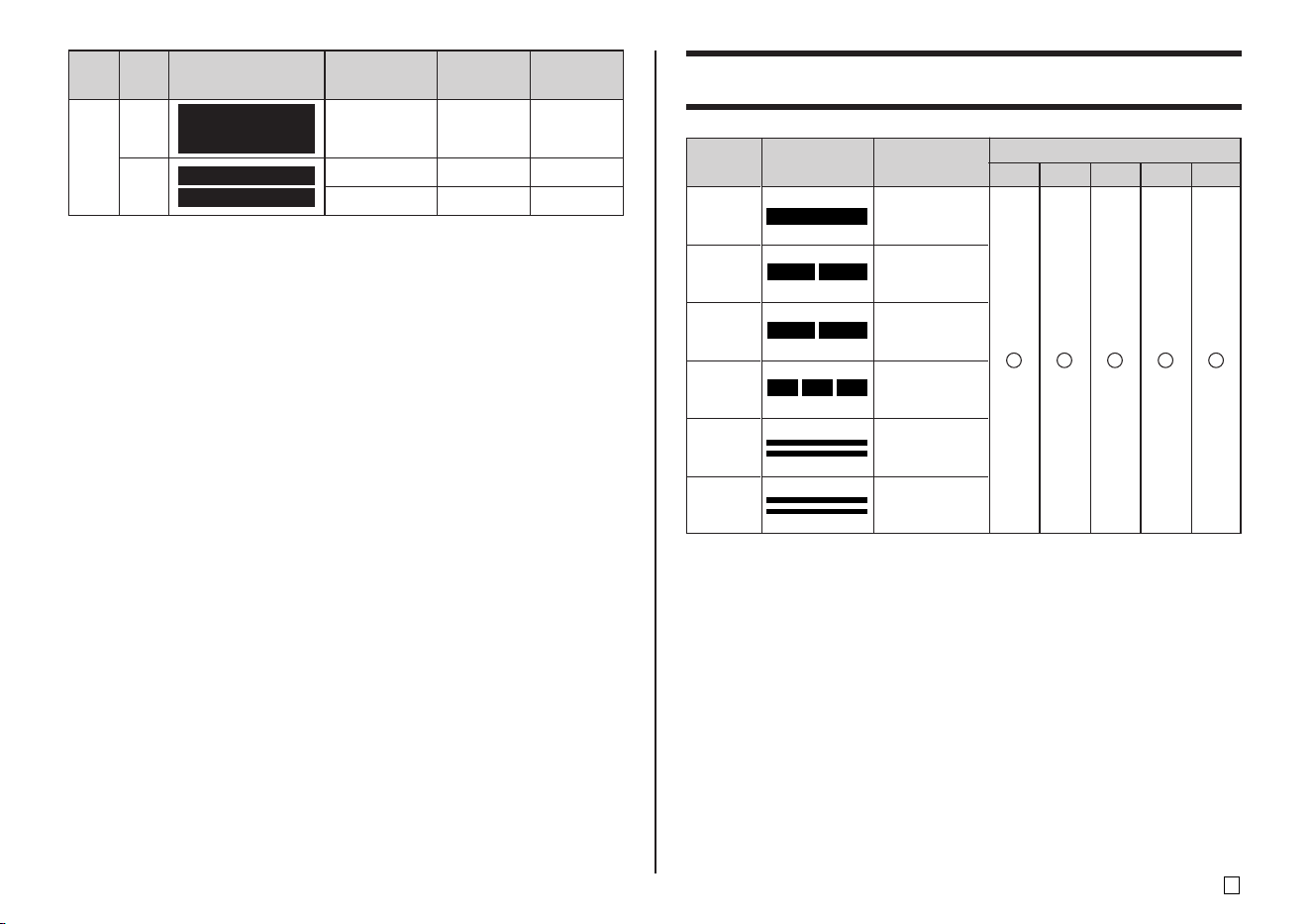
71
E
Type
AUTO
Num-
ber
1
2
Input Item
TITLE
TITLE1
TITLE2
Vertical Size
(mm/inch)
15~3/
9
⁄⁄
⁄⁄
⁄
16
"~
1
⁄⁄
⁄⁄
⁄
8
"
6~3/
1
⁄⁄
⁄⁄
⁄
4
"~
1
⁄⁄
⁄⁄
⁄
8
"
6~3/
1
⁄⁄
⁄⁄
⁄
4
"~
1
⁄⁄
⁄⁄
⁄
8
"
Maximum
Number
49
49
49
Format
6
FormatNumber
1
2
3
4
5
6
Input Item
NUMBER
COMMENT,
NUMBER
NUMBER,
COMMENT
COMMENT1, NUMBER,
COMMENT2,
COMMENT,
NUMBER
NUMBER,
COMMENT
9121824
Numbering Formats
Tape Width (mm)
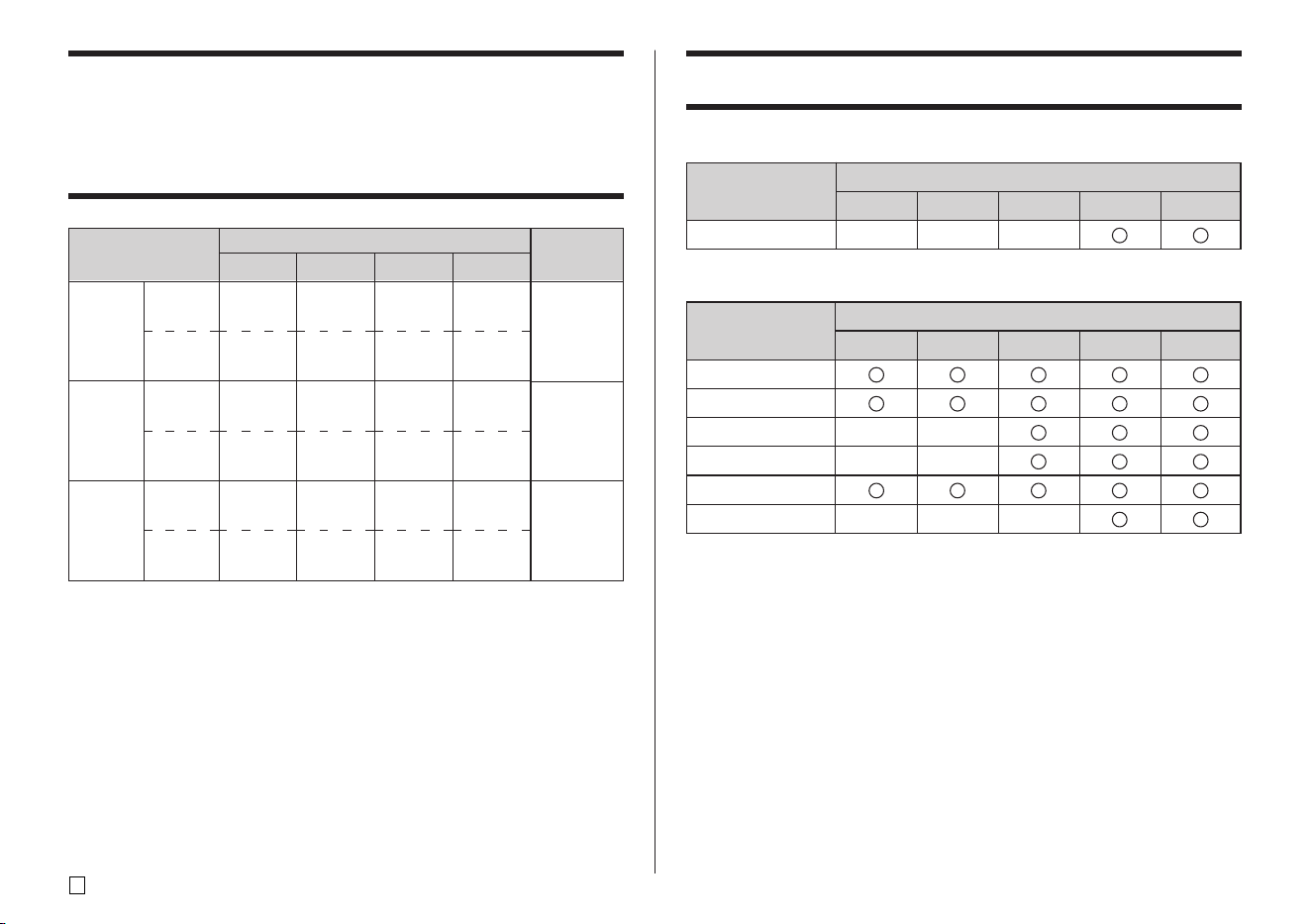
E
72
Supported Tape Widths
■ DISC
Case Label
6
×
9
×
12
×
18
24
■ TAPE
Free Design
Frame
Enlarged Label
Bar Code
Numbering
Logo
6
×
×
×
9
×
×
×
12
×
18
24
Maximum
vertical
size
Total
vertical
size
Tape Width and the Number of Lines and
Character Sizes
The number of print lines and the vertical character size depends on the tape
width and format being used.
* Total when there are multiple lines
Tape Width (mm)
Tape Width (mm)
Tape Width (mm)
6
1 line
2 lines
1
1
1
Up to 2*
9
1 line
3 lines
2
2
Up to 2
Up to 3*
12
2 lines
5 lines
3
3
Up to 2*
Up to 5*
18, 24
4 lines
8 lines
5
4
Up to 4*
Up to 8*
User’s
Guide page
23
34
50
31
34
50
23
31
34
50
Normal
Font
Small
Font
Normal
Font
Small
Font
Normal
Font
Small
Font
Maximum
Number
of Print
Lines
73
E
Enlarged Label Printing Tape Widths and
Character Sizes
2 Pieces
3 Pieces
4 Pieces
6, 9
×
×
×
12
24/
15
/
16
"
36/1
7
/
16
"
48/1
7
/
8
"
18
30/1
3
/
16
"
45/1
3
/
4
"
60/2
3
/
8
"
24
30/1
3
/
16
"
45/1
3
/
4
"
60/2
3
/
8
"
∗ Printing on 18mm or 24mm tape creates blank margins along the bottom
and the top of each tape. Trim off these margins before combining the tapes,
or print on transparent tape. Then you can combine the tapes without
trimming, by laying one over the other.
Tape Width (mm)
(mm/inch)
E
74
Specifications
Model : CW-L300
Input
Keyboard Layout : Typewriter (QWERTY)
Character Types
Alpha : 52 (A to Z, a to z); 99 (Á, ß, Ç, etc.)
Numbers : 10
Greek : 48
Russian : 66
Symbols : 281
Illustrations: 124
User : Memory for storage of four characters
Display
Type : Liquid crystal display (96 × 64 dots, 12 columns × 4 lines)
Input Area : 12 columns × 1 line (non Free Design Mode)
12 columns × 3 lines (Free Design Mode)
Printing
Resolution : 200dpi
Print System : Thermal transfer
Disc Printing
Approximate Speed : 8.3mm (5/16")/second
Print Width : Approximately 16mm (5/8")
Print Length : Approximately 74mm (2 15/16")
Label Tape Printing
Approximate Speed : 6.0 mm (1/4")/second
Print Width : Approximately 16mm (5/8")
• 4mm (3/16") (6mm tape)
• 7mm (1/4") (9mm tape)
• 10mm (3/8") (normal printing 12mm tape)
• 12mm (1/2") (Enlarged printing 12mm tape)
• 16mm (5/8") (18mm or 24mm tape)
• Actual print speed depends on printing environment and
conditions.
Characters : Bitmap
Fonts : New Sans-serif, New Sans-serif Italic, New Sans-serif
Rounded, New Roman, New Roman Italic
Print Directions : Horizontal, Vertical, Mirror*
* Vertical and mirror printing are possible on tape only.
Character Styles : Normal, Bold, Outline, Shadow, Raised
Number of Disc Printing Lines : 8 maximum
Number of Tape Label Printing Lines : 1 to 2 lines on 6mm tape
1 to 3 lines on 9mm tape
1 to 5 lines on 12mm tape
1 to 8 lines on 18mm or 24mm tape
Memory
Text : Approximately 4,000 characters for DISC Mode;
2,000 characters for TAPE Mode
Copy and Paste : Up to 49 characters; 9 entries
Phrase Memory : 9 phrases, up to 49 characters per phrase
General
Power Requirements : AC adaptor (AD-2105S); Eight AA-size alkaline
batteries
Memory Backup : Built-in battery
Memory Backup Battery Life : As noted on the sticker on the back of the
printer (at 20°C (68° F))
Replacement requires charged maintenance
by CASIO service center.
Power Consumption : 15W
Auto Power Off : Approximately six minutes after last key operation
• Auto Power Off disabled under AC adaptor power and
when printer is connected to a computer.
Dimensions : 88 (H) × 215 (W) × 246 (D) mm
(3 7/16" H × 8 7/16" W × 9 11/16" D)
Approximate Weight : 1.4 kg (3.1 lbs) excluding batteries
Operating Temperature : 10°C to 35°C (50° F to 95° F)
CASIO Europe GmbH Bornbarch
10, 22848 Norderstedt, Germany

CASIO COMPUTER CO., LTD.
6-2, Hon-machi 1-chome
Shibuya-ku, Tokyo 151-8543, Japan
MO0504-B Printed in China/Imprimé en Chine
