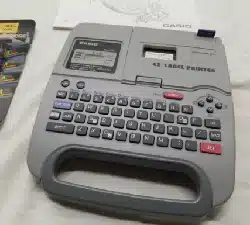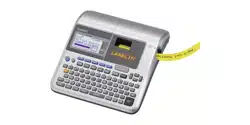
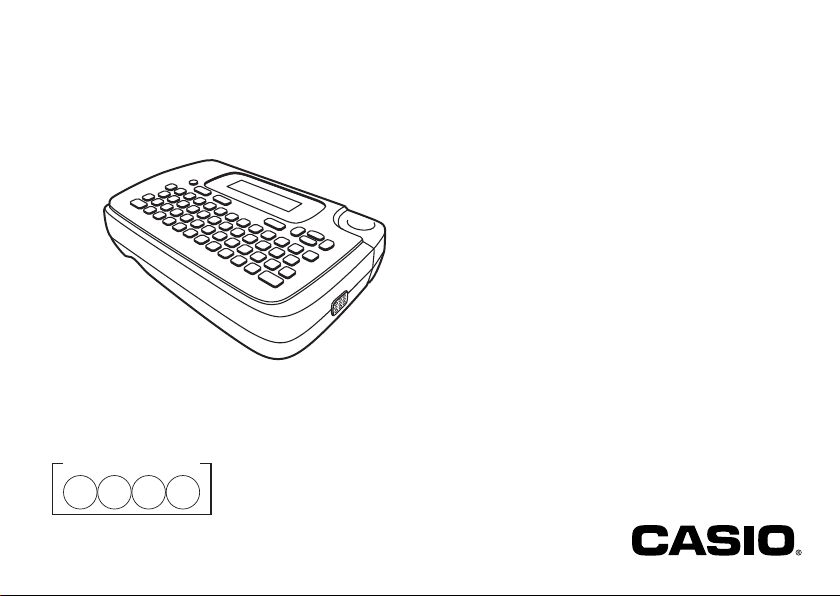
User’s Guide
KL-130
EN
RJA533401-001V01
Supported Tape Widths
6
mm
9
mm
12
mm
18
mm

Important!
Be sure to keep all user documentation handy for future reference.

1
EN
Read This First!
x
CASIO COMPUTER CO., LTD. shall not be held liable for any loss or
claims by you or any other person or entity that may arise through the use
of this printer.
x
Reproduction of this manual in any form, either in part or its entirety, is
forbidden without the express permission of CASIO COMPUTER CO.,
LTD.
x
The contents of the manual are subject to change without notice.
x
The software is continually being revised and updated. Because of this,
the software supplied to you and the contents of the displays it produces
may be different from those described in this manual, or some items
described in this manual may no longer be available.
x
Screen shots and examples shown in this manual assume that “English”
was selected as the display language. Screens produced when another
display language is selected may be different from the screen shots
shown here.
x
Be sure to read this manual carefully before attempting to use the product
for the fi rst time.
English
Contents
Safety Precautions ....................................................................... 2
Operating Precautions ................................................................. 5
Part 1 Getting Ready ................................................................. 6
Part 2 Inputting Characters and Symbols ............................... 9
Part 3 Deleting and Inserting Characters .............................. 11
Part 4 Fonts, Character Sizes and Character Styles ............ 11
Part 5 Printing .......................................................................... 14
Part 6 Confi guring Form Settings .......................................... 16
Part 7 Creating and Printing a Label with a Logo ................ 17
Part 8 Bar Code Labels ........................................................... 18
Part 9 Memory ......................................................................... 20
Part 10 Confi guring the Printer Setup ..................................... 21
Part 11 Reference ...................................................................... 22
Appendix ...............................................................................APP-1
2
EN
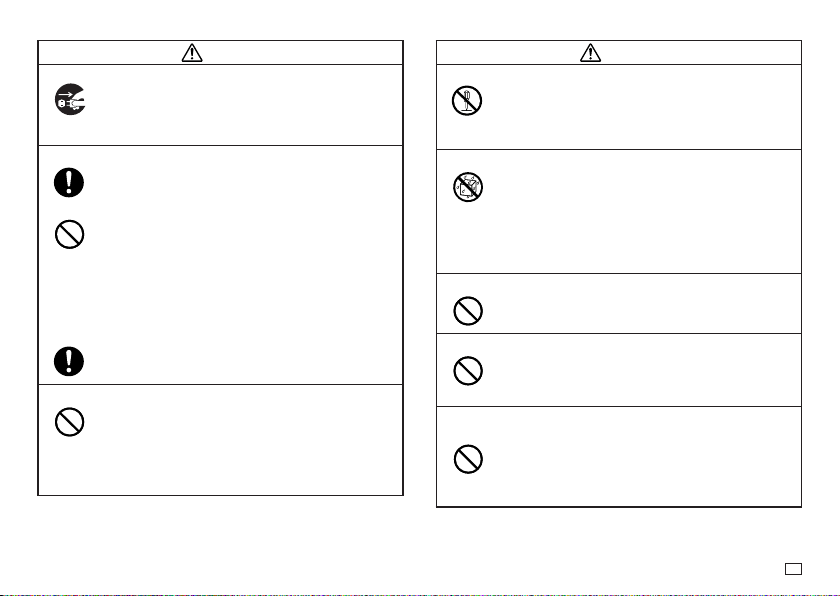
Warning
Smoke, abnormal odor, overheating, and other
abnormalities
Do not continue to use this product while it is emitting smoke
or strange odor, or generating heat. Continued use creates the
risk of fi re and electric shock. Immediately perform the following
steps whenever any of the above symptoms are present.
1. Turn off power.
2. Unplug the AC adaptor from the wall outlet.
3. Contact your original retailer.
AC Adaptor
Misuse of the optional AC adaptor creates the risk of fi re and
electric shock. Make sure you observe the following.
x
Use only the specifi ed AC adaptor.
x
Use only a power source that is within the input voltage
range indicated by INPUT on the AC adaptor’s rating plate.
x
Never plug the power cord into a wall outlet that is shared
by other devices, or into a shared extension cord.
x
Never place heavy objects on the AC adaptor or subject it
to direct heat.
x
Never try to modify the AC adaptor or subject it to bending.
x
Do not twist or pull on the AC adaptor cord.
x
Do not wrap the cord around the adaptor.
x
Should the AC adaptor or its plug ever become damaged,
contact your original retailer.
x
Never touch the AC adaptor or plug while your hands are
wet. Doing so creates the risk of electric shock.
x
Do not use the AC adapter in areas where liquids might spill
on it. Water creates the risk of fi re and electric shock.
x
Do not place a fl ower vase or any other liquid container on
top of the AC adapter or power cord. Water creates the risk
of fi re and electric shock.
x
Do not cover the AC adaptor with a newspaper, tablecloth,
curtain, futon, blanket, or other similar object. Doing so
creates the risk of fi re.
Safety Precautions
Thank you for purchasing this quality CASIO product.
Before using it, be sure to read the following Safety Precautions. Keep the
manual in a convenient location for future reference when necessary.
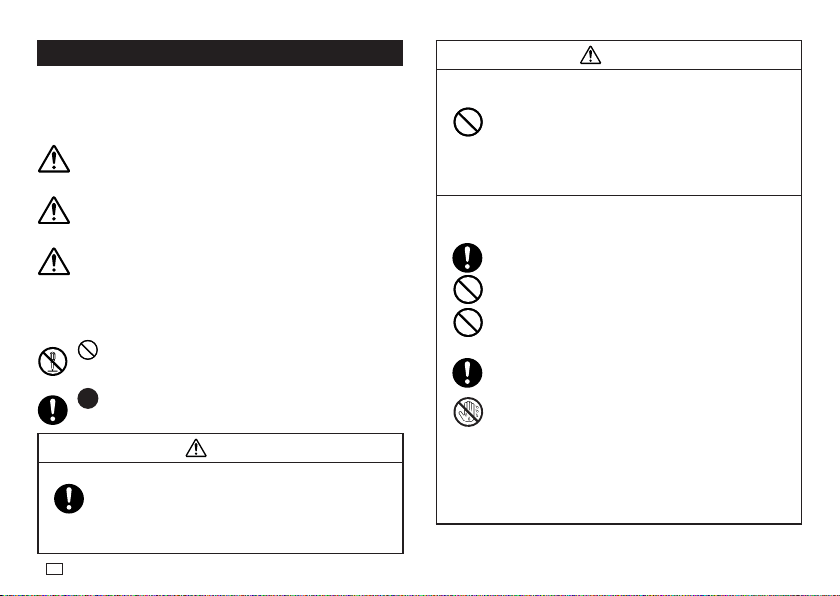
Danger
This symbol indicates information that, if ignored or applied
incorrectly, creates the danger of death or serious personal injury.
Warning
This symbol indicates information that, if ignored or applied
incorrectly, creates the possibility of death or serious personal injury.
Caution
This symbol indicates information that, if ignored or applied
incorrectly, creates the possibility of personal injury or material
damage.
Examples of graphic markings
indicates something you should not do. The symbol shown here
indicates you should not try to take the unit apart.
indicates something you should do.
Danger
Batteries
Perform the following steps immediately if fl uid leaking from
batteries ever gets into your eyes.
1. Do not rub your eyes! Rinse them with water.
2. Contact your physician immediately.
Leaving alkaline battery fl uid in your eyes can lead to loss of sight.
3
EN
Warning
AC Adaptor
Before going out, be sure to unplug the power cord/AC adaptor
from the power outlet and put it in a place away from objects
used by animals and pets. An animal or pet chewing on the
power cord/AC adaptor can cause it short, leading to the risk of
fi re and electric shock.
Batteries
Continued use of the printer without removing the batteries
after they have leaked creates the risk of fi re and electric
shock. Should batteries leak, immediately stop using the printer
and contact your original retailer.
Misuse of batteries can cause them to leak, resulting in
damage to nearby objects, or to explode, creating the risk of
fi re and personal injury. Always make sure you observe the
following precautions.
x
Never try to take batteries apart or allow them to become
shorted.
x
Never expose batteries to heat or dispose of them by
incineration.
x
Never mix old batteries with new ones.
x
Never mix batteries of different types.
x
Do not charge the batteries.
x
Make sure the plus (+) and minus (–) ends of the batteries
are facing correctly.
Dropping and rough treatment
Continued use of the product after it has been damaged due to
dropping or other rough treatment creates the risk of fi re and
electric shock. Immediately perform the following steps if the
product should ever become damaged.
1. Turn off power.
2. Unplug the AC adaptor from the wall outlet.
3. Contact your original retailer.
Warning
Disassembly and Modifi cation
Never try to take this product apart or modify it in any way.
Doing so creates the risk of electric shock, burn injury, and
other personal injury.
Leave all internal inspection, maintenance, and repair up to
your original retailer.
Liquids and Foreign Matter
Water, sports drinks, seawater, animal or pet urine, or foreign
objects (pieces of metal, etc.) getting into this product creates
the risk of fi re and electric shock.
Immediately perform the steps below whenever any of the
above symptoms are present.
1. Turn off power.
2. Unplug the AC adaptor from the wall outlet.
3. Contact your original retailer.
Keep Away From Fire
Never throw this product into fi re to dispose of it.
Doing so creates the risk of explosion, which can cause fi re or
personal injury.
Packaging Plastic Bag
Take care never to allow the plastic bag this product comes in to
be ingested or placed over anyone’s head.
Doing so creates the risk of suffocation. Particular care is required
in households where small children are present.
Do not affi x labels to a container to be used in
a microwave oven.
Do not affi x labels to any container you plan to use in a
microwave oven. The label material contains metal, which
creates the risk of fi re and burn injury when heated in a
microwave oven. It can also cause deformation of the container
to which the label is affi xed.
4
EN
Caution
AC Adaptor
Misuse of the AC adaptor creates the risk of fi re and electric
shock. Make sure you observe the points below.
x
Never locate the AC adaptor near a stove or other heating
device.
x
When unplugging from the wall outlet, grasp the AC adaptor
plug. Never pull on the AC adaptor.
x
Insert the AC adaptor plug into the wall outlet as far as it
will go.
x
Unplug the AC adaptor from the power outlet from the
connector before leaving this product unattended for long
periods, such as when leaving on a trip, etc.
x
After you are fi nished using this product, unplug the AC
adaptor from the power outlet.
x
At least once a year, unplug the power cord from the wall
outlet and use a cloth or vacuum cleaner to clean any dust
build up on the prongs of the power plug and in the area
around the jack.
x
Do not use detergent when cleaning the power cord
(especially the plug) or the AC adapter (especially the jack).
x
Plug the AC adaptor into a power outlet that is near this
product and easily accessible so you can quickly unplug it
in case of problems.
x
Store the AC adaptor in a dry place.
x
Connect the AC adaptor to the printer using the specifi ed
power cord.
x
Do not use the power cord that comes with this product with
any other device. Doing so can lead to malfunction.
Batteries
Misuse of batteries can cause them to leak, resulting in
damage to nearby objects, or to explode, creating the risk of
fi re and personal injury. Always make sure you observe the
following precautions.
x
Use only batteries that are specifi ed for use with this product.
x
Remove batteries from the product if you do not plan to use
it for a long time.
Caution
Connections
Plug only specifi ed devices into the connectors of this product.
Non-specifi ed devices create the risk of fi re and electric shock.
Keep backup copies of all important data.
Be sure to keep separate copies of important data in a
notebook or some other location. Malfunction of the product,
repairs, and dead batteries can cause data stored memory to
be lost.
Heavy Objects
Do not place heavy objects on this product. Doing so can
cause this product to tip over or fall, creating the risk of
personal injury.
Unstable Locations
Never place the product on an unstable surface, on a high
shelf, etc. Doing so can cause the product to fall, creating the
risk of personal injury.
Locations to be Avoided
Never leave this product in any of the types of locations
described below.
Doing so creates the risk of fi re and electric shock.
x
Areas subject to large amounts of humidity or dust.
x
Food preparation areas or other locations where oil smoke
is present.
x
Near heaters, on a heated carpet, in areas exposed to
direct sunlight, in a closed vehicle parked in the sun, or
other areas subject to very high temperatures.
5
EN
Important!
x
Contact a nearby dealer whenever you require servicing.
x
Note that the manufacturer shall not be held liable for any loss
or claims by third parties, which may arise out of the use of this
product.
x
Note that CASIO COMPUTER CO., LTD. shall not be held liable
for any damages incurred as a result of data loss caused by
malfunctions, repairs, or interruption of power supply.
x
It is up to the user to keep backup records of important data.
Operating Precautions
Observe the following precautions to ensure that the printer provides you with
the years of trouble-free operation for which it is designed.
x
Avoid using the printer in areas exposed to direct sunlight, and in areas
subjected to high humidity, electrostatic charge, sudden temperature
changes, and temperature extremes. Operating Temperature Range: 10°C
to 35°C (50°F to 95°F)
x
Battery capacity becomes lower at temperatures of 10°C (50°F) and colder.
This can cause the message "
LOW BATTERY!
" to appear sooner than
normal. If this happens, move the printer to a location that is within the
operating temperature range (10°C to 35°C (50°F to 95°F)).
x
Never subject the printer to strong impact or shock.
x
Never allow paper clips, pins, or other similar objects to get inside the
printer mechanism.
x
Never pull on the tape with excessive force or try to push it into the cassette.
x
Place the printer on a level surface when printing. A tilted surface can make
normal printing impossible.
x
Unclear printing can indicate a dirty print head. If printing becomes unclear,
use the procedures on page 22 to clean the print head and rubber roller.
Caution
Loading and replacing batteries
The springs inside of the battery compartment have sharp
edges. Take care that you do not touch the springs with your
fi ngers when loading or replacing batteries. Doing so creates
the risk of personal injury.
Display Screen
x
Never push on the display screen’s LCD panel or subject it
to strong impact. Doing so can cause the LCD panel’s glass
to crack, creating the risk of personal injury.
x
Should the LCD panel ever crack or break, never touch the
liquid inside of the panel. LCD panel liquid can cause skin
irritation.
x
Should LCD panel liquid ever get inside your mouth,
immediately wash out your mouth with water and contact
your physician.
x
Should LCD panel liquid ever get into your eyes or onto
your skin, rinse with clear water for at least 15 minutes, and
then contact a physician.
High temperature precaution
The print head and the metal parts around it can become very
hot. Do not touch them. Doing so creates the risk of burn injury.
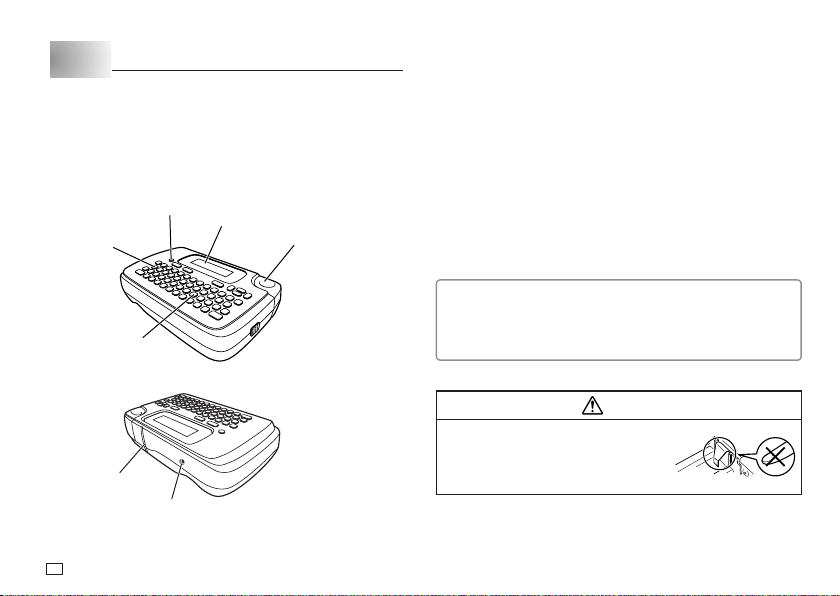
Cutter Precautions
Do not insert your fi ngers into the print head or the cutter at
the tape outlet. Doing so creates the risk of fi nger cuts and
personal injury.
6
EN
Part 1 Getting Ready
Important!
x
Be sure to read this section before attempting to use the printer.
Power Supply
The printer can run on 6 AA-size alkaline batteries. Be sure to use
alkaline batteries only. You could also use a separately available AC adaptor.
x
For information about how to connect the optionally available AC adaptor,
see page 22.
Replacing Batteries
The message “
LOW BATTERY!
” appears on the display if battery power is low
when you perform any of the following operations.
x
Turn power on
x
Execute a print operation
Whenever the “
LOW BATTERY!
” message appears, press
OK
to clear it from
the display. You should still be able to perform some printer operations, but
some power intensive operations (like printing) may become impossible if
battery power is too low. In any case, you should replace batteries as soon as
possible after the “
LOW BATTERY!
” message appears.
To load batteries
Caution
x
Do not touch the springs inside the battery
compartment cover with your fi ngers while
loading or replacing batteries. The springs
have sharp areas and can cut your fi ngers.
Battery Life
• Printing of approximately four 18mm tape cartridges under standard
printing conditions
- Printing text or graphics that contain large areas of black, and
printing under cold temperatures can shorten battery life.
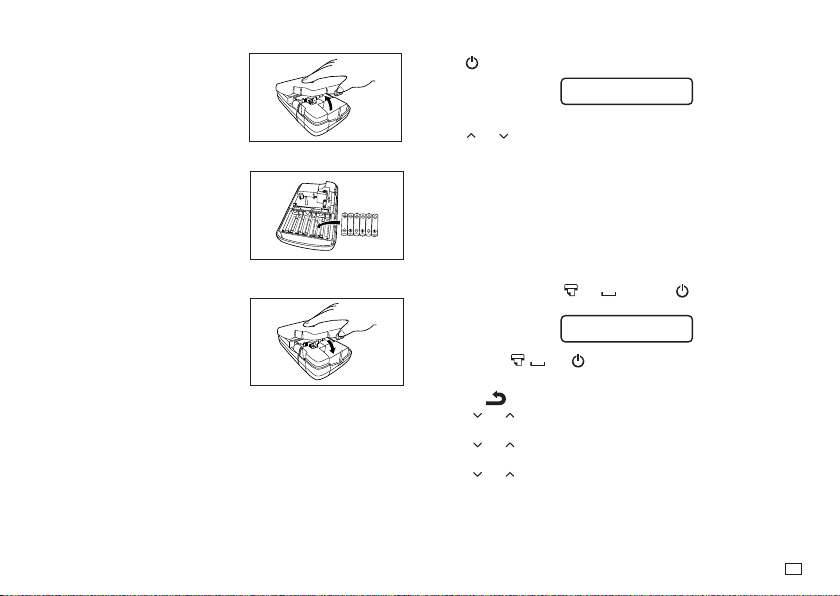
General Guide
Power Key
Turn power on and off.
Function key
Letter keys
Display (LCD)
Tape cutter button
Tape outlet
AC adaptor connection terminal
Connect the separately available AC adaptor.
7
EN
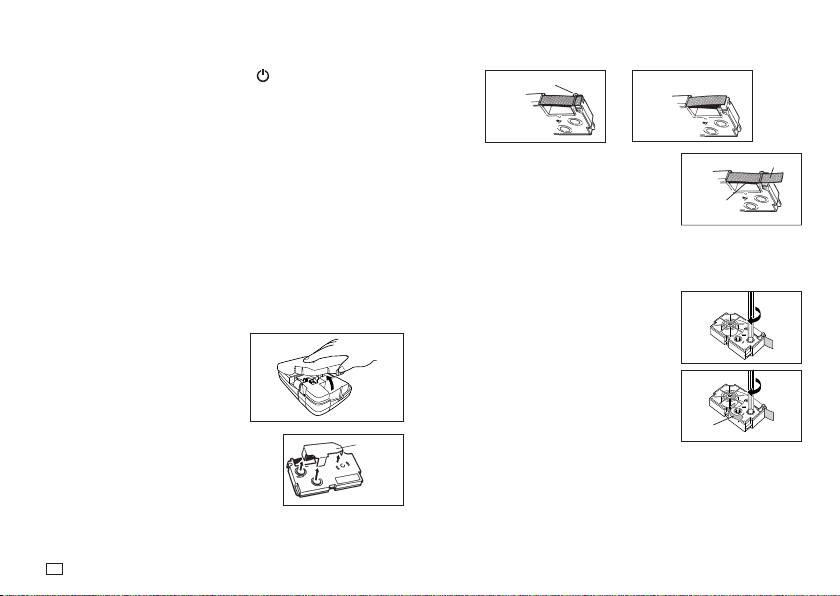
1. Turn off the printer.
2. Turn over the Label Printer and
remove the back cover while pressing
down on its lock as shown in the
illustration.
3. Load batteries into the battery
compartment.
x
Be sure to use alkaline batteries.
x
Make sure the plus (+) and minus
(–) ends of the batteries are facing
correctly when you load them.
4. Replace the printer cover.
Turning the Printer On and Off
Press to turn the printer on and off.
SE L ECT
TAPE I
DTH
W
x
When you turn on the printer, the tape width selection screen will appear.
Use
and
to select the tape width you will use, and then press
OK
.
Initializing Memory
Important!
x
If you are using the Label Printer for the fi rst time, you should Initialize it
fi rst.
x
Note that initializing memory will delete all currently stored data. You
should only initialize memory before using the printer for the fi rst time.
To initialize memory
1. Make sure that printer power is off.
2. While holding down the
and keys, press to turn power on.
x
A message appears to confi rm whether you want to initialize memory.
I N I T I AL I ZE?
OK / CANCEL
3. Release the , , and keys.
4. Press
OK
to initialize the Label Printer.
• This displays the language setting screen.
• Press
to abort the reset operation
5. Use and to select the display language you want and then press
OK
.
• This displays the length unit setting screen.
6. Use and to select the length unit you want and then press
OK
.
• This displays the tape width selection screen.
7. Use and to select the width of the tape you will use and then press
OK
.
8
EN
Auto Power Off Function
If you do not perform any key operation for about six minutes, the printer will
turn off automatically. To restore power, press .
Retrieving a Sentence from Memory
If power is turned off or if Auto Power Off is triggered while you are creating a
sentence, the sentence that was being created is saved temporarily in printer
memory. The next time you turn on power, the message “
[OK] TO RECALL
”
will appear. Pressing
OK
will display the sentence currently stored in memory.
Tape Cartridges
Use the procedures described below to load a tape cartridge into the printer.
Important!
x
Never try to push the tape back into the cassette. Once tape is out of the
cassette, there is no way to wind it back in. Trying to do so can cause op-
erational problems with the printer.
x
The following are the tape widths that can be used with this printer: 6mm,
9mm, 12mm, 18mm.
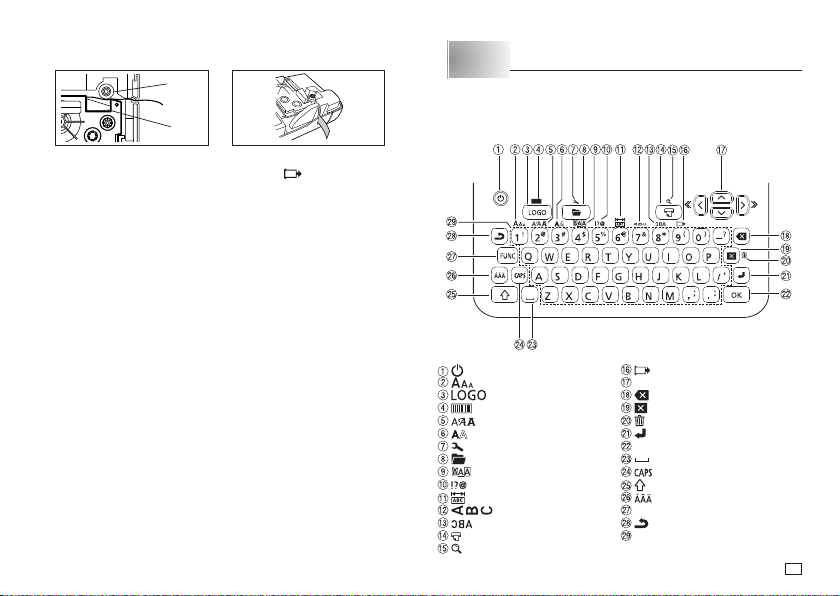
To load a tape cartridge
1. Make sure that the printer is turned off.
2. Open the back cover while pressing
down on its lock.
3. Remove the stopper from a new tape cartridge
and check to see that the tape is ready to use.
Stopper
x
Make sure that the tape is under the tape guide and that it is not bent or
twisted.
OK! NO!
Tape guide
4. Pull the tape out about 3cm.
Important!
x
Once tape is pulled out, there is no way to get it back into the cartridge.
x
Never use excessive force when pulling on the tape. Doing so can cause
the ink ribbon to break, creating the risk of malfunction.
5. Use a pencil or some other thin object to take
up slack in the ink ribbon as shown in the
illustration. Note that the tape does not move
at this time.
x
If the ink ribbon is slack when you load it into
the printer, it can break or cause some other
problem.
x
Be sure to turn the ink ribbon take up spool
only in the direction indicated by the arrow (a).
x
Turn the spool until the other spool (b) starts
turning in the direction noted by the arrow.
This indicates there is no slack in the ribbon.
Tape
Ink ribbon
(under the tape)
(b)
(a)
9
EN
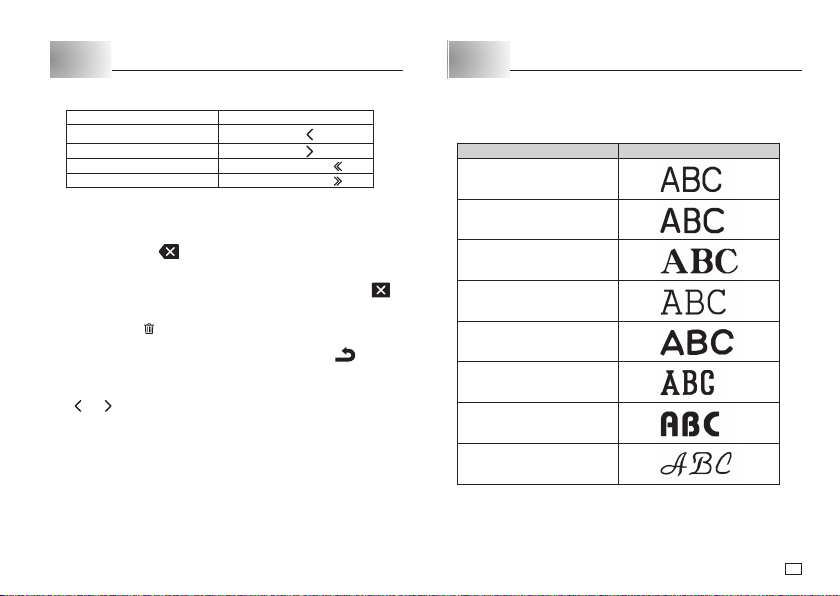
Part 2 Inputting Characters and Symbols
Important!
x
You can input up to 80 characters per label.
Key Name
(On/Off)
(Character size)
(Logo)
(Bar code)
(Font)
(Character style)
(Set up)
(Memory)
(Effect)
(Symbol)
(Tape length)
(Vertical print)
(Mirror print)
(Print)
(Print preview)
(Feed)
Arrow keys
(Backspace)
(Delete)
(Delete all)
(Return)
OK
(Space)
(Caps)
(Shift)
(Accent)
FUNC
(Function)
(Cancel)
Character keys
6. Load the tape cartridge into the printer, making sure that the tape and ink
ribbon pass between the head and roller.
Roller
Head
7. Close the printer cover.
8. Turn on printer power and press
FUNC
and then two or three times to
make sure that the tape comes out without any problem.
x
If the tape does not come out normally, turn off power and start again
from step 1.
10
EN
Display Symbols and Indicators
Before getting into actual input, you should fi rst become acquainted with the
symbols and indicators used on the printer display.
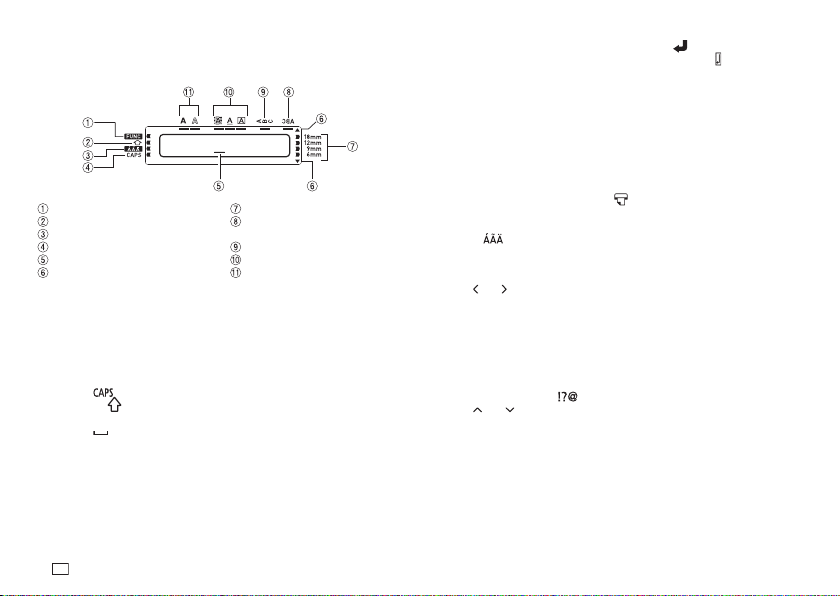
Function indicator
Shift indicator
Accent indicator (page 10)
Caps indicator (page 10)
Cursor
Scroll indicator
Tape indicators
Mirror image printing indicator
(page 16)
Vertical text indicator (page 16)
Effect indicators (page 14)
Style indicators (page 13)
CAS O
•••••••
I
Basic Alpha-Numeric Input
To input alpha-numeric characters
1. Turn on the printer (page 7).
2. Specify the tape width.
3. Input the fi rst line of characters.
x
Press to toggle between upper case and lower case input.
x
Pressing
will toggle input of the next character only from upper case
to lower case, or from lower case to upper case.
x
Press
to input spaces.
4. When you reach the end of a line of text, press
to input a newline mark.
x
A newline operation is indicated on the display by the
symbol. This
shows where you changed lines.
x
The maximum number of lines you can input depends on the width of
the tape you have loaded in the Label Printer.
Tape Width Number of Maximum Lines
x
6mm ......................... 1
x
9mm ......................... 1
x
12mm ....................... 2
x
18mm ....................... 3
5. Input the characters in the second line.
6. To print the text that you input, press
. For details on printing, see page 14.
To input accented characters
1. Press .
2. Press the key that corresponds to the accented character you want to
input.
x
This will display a menu of accented characters.
3. Use
and to select the accented character you want and then press
OK
.
Symbols and Illustrations
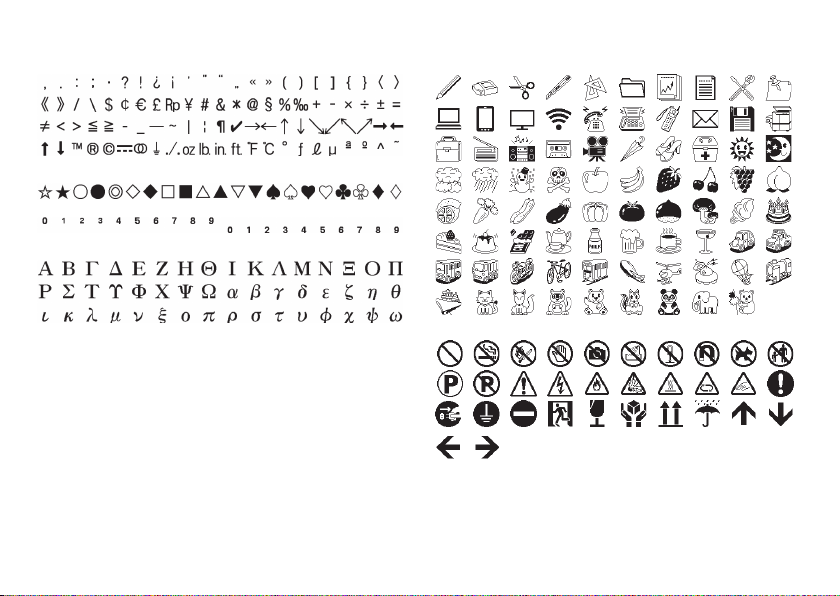
The printer has a collection of built-in symbols divided among six groups. For
information about available symbols and their groups, see the symbol table
(page APP-3).
To input symbols and illustrations
1. Press
FUNC
and then .
2. Use and to select the group that contains the symbol you want to
use, and then press
OK
.
x
This displays a selection screen for the group you selected.
3. Use the cursor keys to select the symbol or illustration you want to input
and then press
OK
.
11
EN
Part 3 Deleting and Inserting Characters
Moving the Cursor
To make the cursor do this: Do this:
Move left Press
.
Move right Press
.
Jump to the fi rst text character Press
FUNC
then
.
Jump to the last text character Press
FUNC
then
.
To delete the character to the left of the current cursor
position
1. Move the cursor to the character to the right of the character you want to
delete and then press
.
To delete the character at the current cursor position
1. Move the cursor to the character you want to delete and then press .
To clear the display
Press
FUNC
and then .
At this time the message “
CLEAR? OK/CANCEL
” appears on the display to
confi rm that you want to clear the display. Press
OK
to clear or
to abort
the operation without clearing anything.
To insert characters
1. Use and to move the cursor to the location where you want to insert
the characters.
2. Input the new characters.
x
This inserts the characters at the current cursor position.
Part 4
Fonts, Character Sizes and Character Styles
Selecting a Font
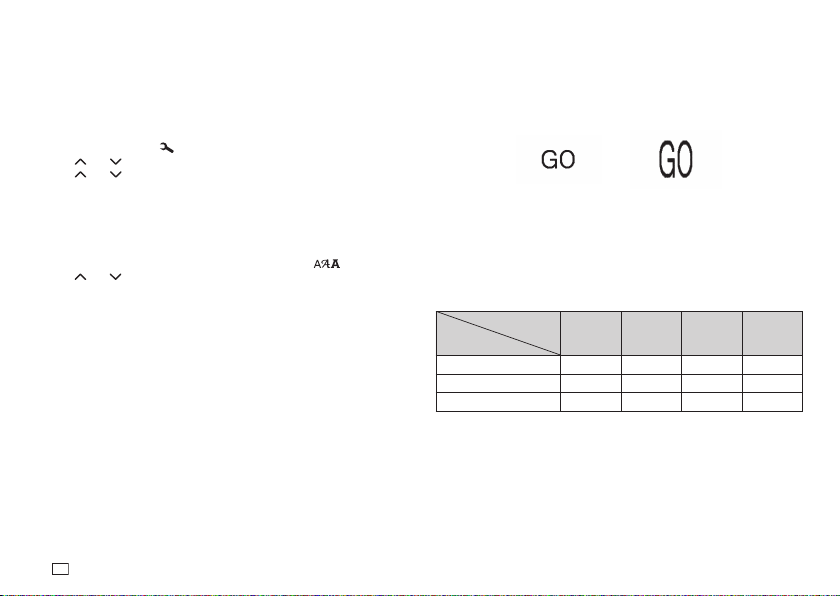
Your printer gives you a choice of eight fonts (examples shown below).
Font Sample
SANS-SERIF
SANS-SERIF RND
(Sans-serif Rounded)
ROMAN
COURIER
POP
SLAB SERIF
BORDEAUX HEAVY
CURSIVE
12
EN
You can specify a font for the text you have just input or you can specify a
default font that is used automatically whenever you create a new label.
Important!
x
The font setting is applied to all of the characters. You cannot make multiple
specifi cations for specifi c characters.
To change the default font setting
1. Press
FUNC
and then to display the
SET UP
menu.
2. Use and to select
DEFAULT FONT
and then press
OK
.
3. Use and to select the font you want to use as the default, and then
press
OK
.
x
The default font you specifi ed will be used initially for all new labels.
When inputting text, you can use the procedure above to change the
font to another style, if you want.
To change the font of text you have just input
1. After inputting the text you want, press
FUNC
and then .
2. Use and
to select the font you want to change to and then press
OK
.
x
This will apply the setting and return to the text input screen.
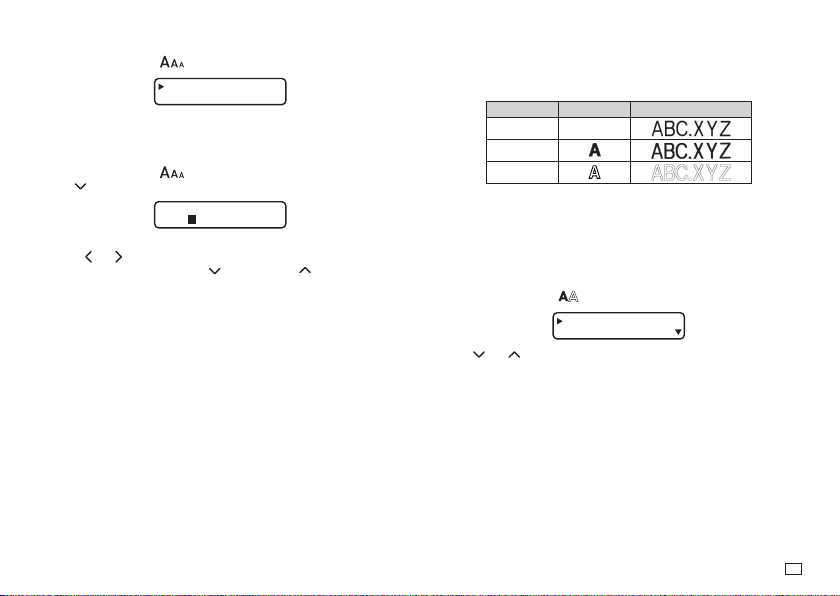
Character Size
There are two methods you can use to set the character size: AUTO and
MANUAL. With AUTO, character size is set automatically in accordance with
the tape size you are using and the number of lines you are printing. MANUAL
lets you set the character size manually within the range of 1×1 to 4×6.
2×2
4×2
Important!
x
The maximum character size you can print depends on the size of the tape
you have loaded in the Label Printer and the number of lines of text you
are printing. If the character size you specify is greater than the maximum
characters size limit, the Label Printer automatically adjust your text
vertically to fi t as shown in the tables below.
Tape Width, and the Number of Lines and Maximum Vertical Size Factor
Tape Width
Number
of Lines
6mm 9mm 12mm 18mm
1 line 1× 2× 3× 4×
2 lines – – 1× 1×
3 lines – – – 1×
13
EN
Using Auto Sizing (AUTO)
1. Press
FUNC
and then to display the size setting menu.
AUTO
MANUA L
2. Make sure to select
AUTO
and then press
OK
.
x
Now the character size is automatically set.
To specify character sizes (MANUAL)
1. Press
FUNC
and then to display the size setting menu.
2. Use to select
MANUAL
and then press
OK
.
✕
3
3
HE I GHT
I DTH
W
3. Specify the character size you want.
x
Use
and to move the highlighting between the two dimensions.
x
To change a dimension, press
to increase it or to decrease it.
(You also can enter a value using the number keys. )
4. When the character size you want to specify is on the display, press
OK
to
select it and return to the text display.
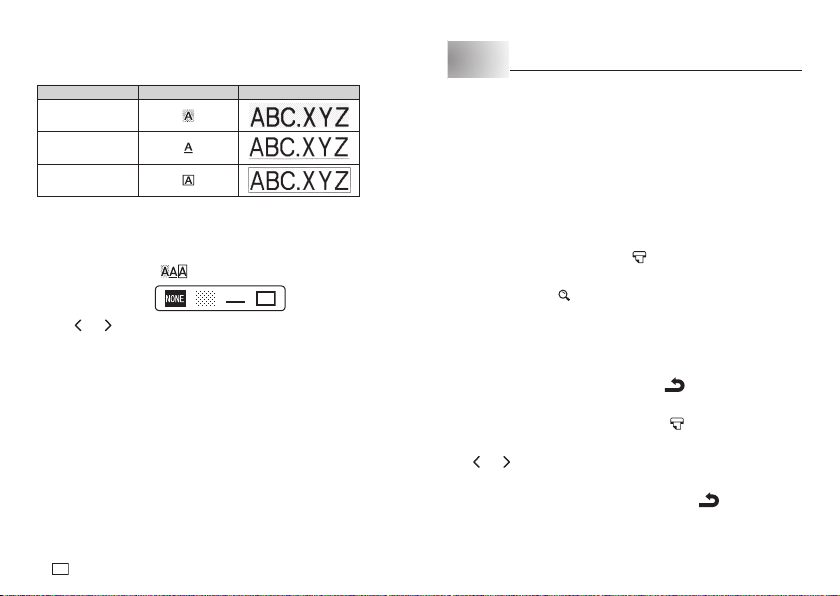
Character Styles
There are three character styles that you can assign; normal, bold, and
outline. The following shows examples of each.
Style Indicator Sample
Normal None
Bold
Outline
The character style indicators will show you when a character style is being
used.
Important!
x
Only one character style can be in effect at a time. You cannot combine
character styles.
To specify a character style
1. Press
FUNC
and then to display a menu of character styles.
NORMA L
BOLD
2. Use and to move the pointer to the style you want to use.
3. When the pointer is located at the style you want to specify, press
OK
to
select it and return to the text display.
14
EN
Text Effects
There are three text effects that you can assign: shading, underlining, and
boxed text. The following shows examples of each.
Effect Indicator
Sample
Shading
Underlining
Boxed Text
The text effect indicators will show you when a text effect is being used.
x
You can use the Shading, Underline, and Box effects in combination with
each other, and even specify all three at the same time.
To specify a text effect
1. Press
FUNC
and then to display a menu of text effects.
2. Use and to move the pointer to the effect you want to use.
x
To delete a currently applied effect, select
NONE
.
3. Press
OK
to apply the settings and return to the text screen.
x
To apply multiple effects, repeat the above from step 1.
Part 5 Printing
Printing Precautions
x
Never turn power off while printing is being in progress.
x
Make sure that the tape outlet is not blocked before you start printing.
x
Never operate the tape cutter while printing is being in progress (indicated
by the message “NOW PRINTING” on the display).
Important!
x
Never touch the tape cutter while a tape cut operation is being in progress.
Doing so can result in cuts and other personal injury.
Printing a Tape
Printing a tape is as easy as pressing the key.
To display the print preview
1. Press
FUNC
and then .
x
The print image that appears scrolls on the display for easy viewing.
2. To stop the scrolling, press
OK
. Press
OK
again to restart scrolling.
x
After the preview (scrolling) operation is complete, the tape length
will appear on the display for a short while, and then the display will
automatically return to the screen that was shown before you performed
step 1, above.
x
To cancel preview part way through, press
.
To print a tape
1. While the text input screen is displayed, press .
x
This will display the tape length, followed by a screen for specifying the
number of copies.
2. Use
and , to specify the number of copies.
x
You can also input a value for the number of copies.
3. Press
OK
to start printing.
x
To stop a print operation that is in progress, press
.
4. After the print operation is complete, press down on the tape cutter button
to cut the tape.
15
EN
Important!
Check to make sure that printing is completely stopped before cutting the
tape. Cutting the tape while printing is in progress can cause tape jams and
damage to the printer.
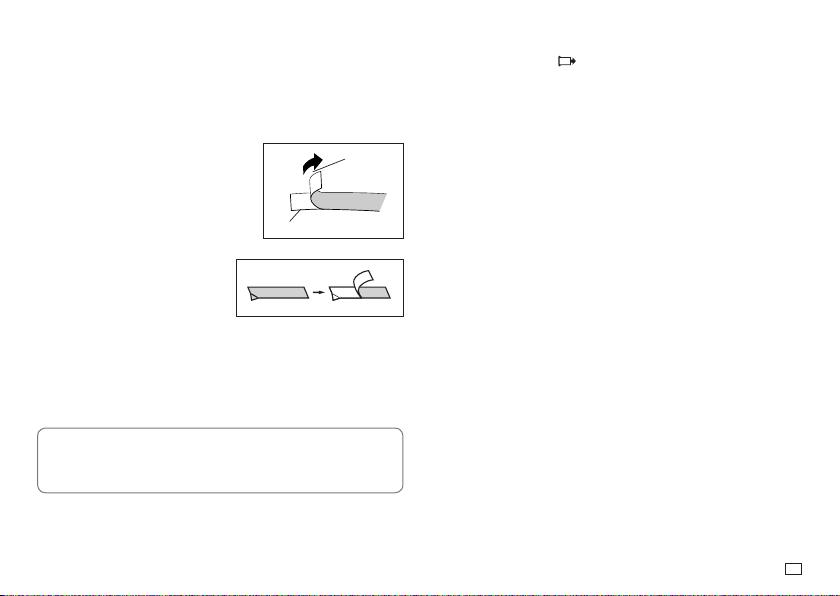
To affi x a tape to a surface
1. Use scissors or some other implement to trim the tape to the required size,
if necessary.
2. Remove the backing from the tape and
affi x it to the desired surface.
x
Bending a corner of the label makes
the backing easier to peel off.
x
Removing a label from a surface
where it was affi xed may cause
adhesive residue to remain on the
surface.
Important!
Do not try to affi x a label to the objects or in the locations described below.
x
On a surface exposed to direct sunlight or rain
x
On the body of a person or animal
x
On a utility pole, on a fence or structure not owned by you, etc.
x
On a container used for heating in a microwave oven
Unsuitable Surfaces (Label may not stick.)
x
Rough surfaces
x
Surfaces that are wet, oily, dusty, or covered with other matter
x
Special plastic materials (silicon, polypropylene, etc.)
Tape
Backing
HAPPY!
PPY!
To feed the Tape
1. Press
FUNC
and then .
x
This will feed the tape approximately 20.5mm.
16
EN
Part 6 Confi guring Form Settings
You can use the procedures in this section to confi gure tape length, vertical
text, and mirror text.
x
For information about text alignment and pitch, see “Confi guring the Printer
Setup”(page 21).
Tape Length Setting
You can use either of the methods below to specify the tape length.
x
AUTO:
Automatically adjusts tape length in accordance with the input
characters.
x
FIX:
Maintains a fi xed tape length in the range of 0cm to 99.9cm.
To have tape length set automatically (AUTO)
1. Press
FUNC
and then .
2. Use
and to select
AUTO
, and then press
OK
.
To specify a fi xed tape length (FIX)
1. Press
FUNC
and then .
2. Use
and to select
FIX
.
3. Use
and
to specify the tape length and then press
OK
.
x
You can also input a value for the tape length.
Note
x
Brackets to the left and right of the display tape length value provide the
information described below.
[ 6.0 cm]: Print will be the specifi ed length.
( 6.0 cm]: Print will be the specifi ed length, but text will be compressed
horizontally.
6.0 cm]: Print will be longer than that specifi ed length. (Text will be
compressed 50% in the text direction. Print will be longer than
specifi ed length.)
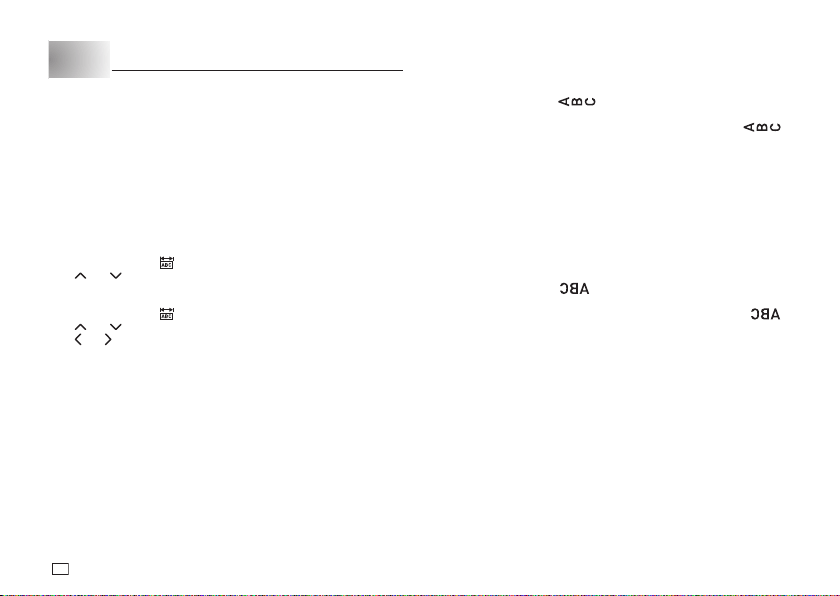
Vertical Text Printing
Use the procedure below to print text that reads vertically, from top to bottom.
To enable or disable vertical text printing
1. Press
FUNC
and then .
x
This causes the vertical print indicator to appear.
x
To cancel vertical text printing, press
FUNC
and then press
again.
Mirror Image Text
This setting makes it possible to print a mirror image of text.
x
Select mirror image text when printing with an iron-on transfer cartridge (sold
separately) for transfer to a handkerchief, T-shirt, etc.
x
Mirror image text can also be printed with a transparent tape cartridges
(sold separately) and affi xed to the back of glass or some other transparent
surface.
To confi gure the mirror image text setting
1. Press
FUNC
and then .
x
This causes the mirror image printing indicator to appear.
x
To cancel mirror image printing, press
FUNC
and then press
again.
17
EN
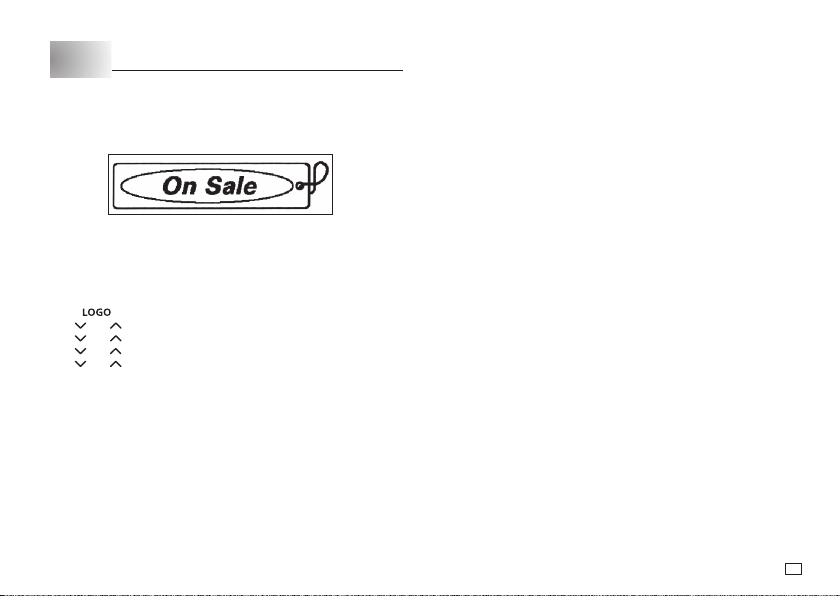
Part 7
Creating and Printing a Label with a Logo
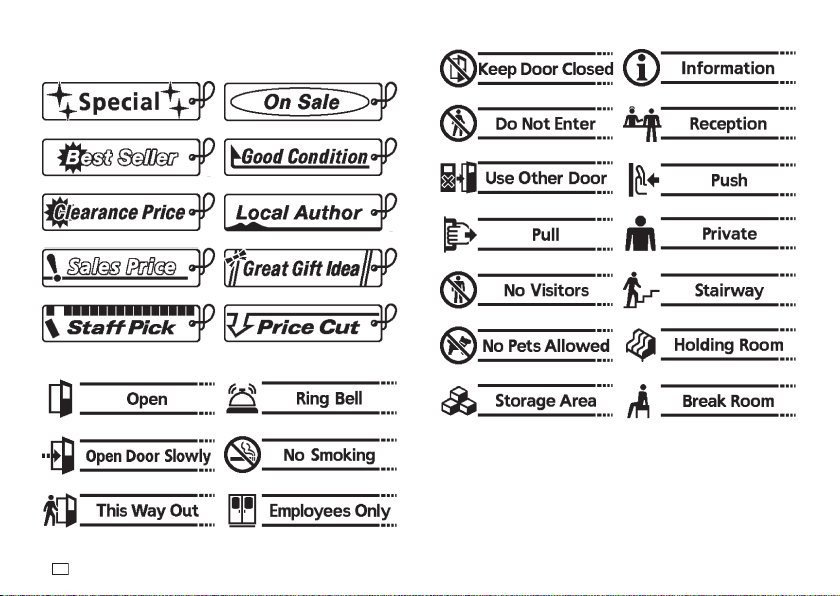
The printer has a number of built-in labels that include logos and text for retail
and offi ce use that you can print.
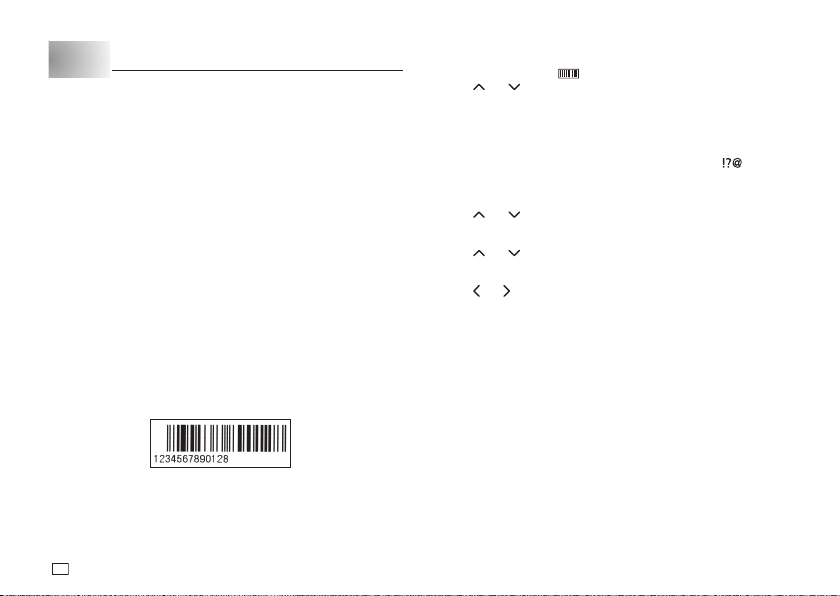
Sample Print
To create a label with a logo
Important!
x
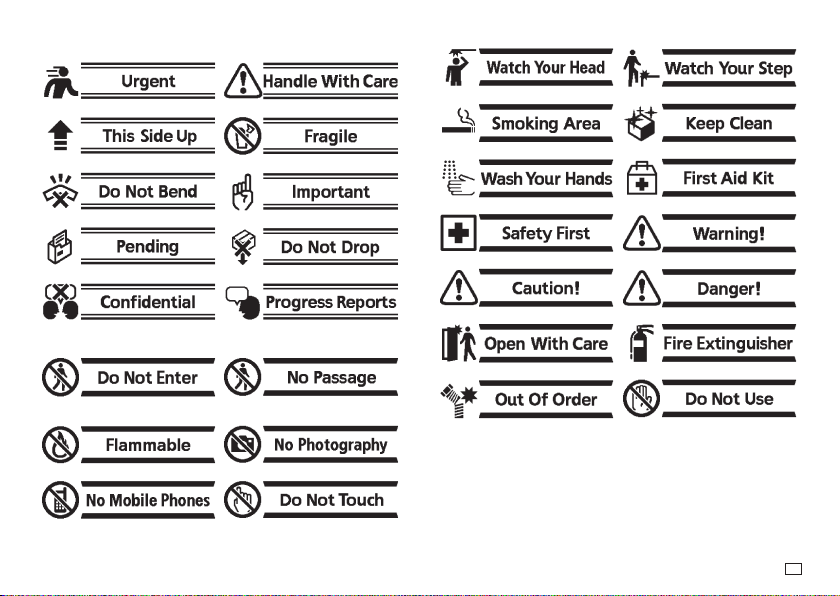
For details, see “Built-in Logos” on page 26.
x
You can incorporate built-in logos into tape labels that are printed using
12mm or 18mm tape only.
1. Press
.
2. Use and to select the group you want to use, and then press
OK
.
3. Use and
to select the logo you want to use, and then press
OK
.
4. Use
and
to select the language you want to use, and then press
OK
.
5. Use
and
to select
PRINT
and then press
OK
.
x
This will display the tape length, followed by a screen for specifying the
number of copies.
6. Specify the number of copies and then press
OK
to start printing.
18
EN
Part 8 Bar Code Labels
Bar Code Types
This printer supports printing of the bar code types listed below.
x
EAN-13
x
EAN-8
x
UPC-A
x
UPC-E
x
ITF
x
CODE39
x
CODABAR (NW-7)
Important!
• Be sure to use a 12mm wide or 18mm wide tape cartridge for bar code
label printing.
• You should confi rm that a printed bar code can be read correctly before
actually using it. If a bar code cannot be read correctly, make the
adjustments below.
Lighten the print density (page 21).
Increase the size of the print (step 4).
• The tapes below are suitable for bar code label printing.
• Black lettering on white tape (WE)
• Blue lettering on white tape (WEB)
• Black lettering on yellow tape (YW)
The letters in parentheses indicate the tape model number.
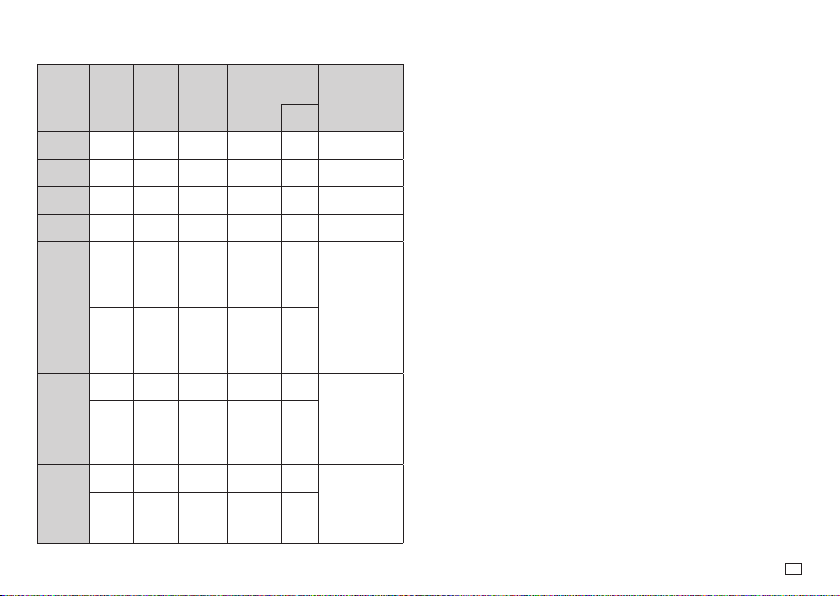
Sample Print
To create a bar code
1. Press
FUNC
and then .
2. Use and to select the type of bar code you want to create and then
press
OK
.
x
If you select ITF, CODE39, or CODABAR (NW-7) as the bar code type,
specify whether or not to include a check digit and then press
OK
.
3. On the text input screen that appears, input the bar code data and then
press
OK
.
x
In the case of CODE39 and CODABAR, you can press
and then
input symbols.
x
If a bar code has a check digit, the check digit will appear on the display
for about one second.
4. Use
and to select the bar code size you want and then press
OK
.
x
You can select one of the following for the bar code size:
SMALL
,
MEDIUM
,
LARGE
.
5. Use and to select
PRINT
and then press
OK
.
x
This will display the tape length, followed by a screen for specifying the
number of copies.
6. Use
and to specify the number of copies, and then press
OK
to start
printing.
19
EN
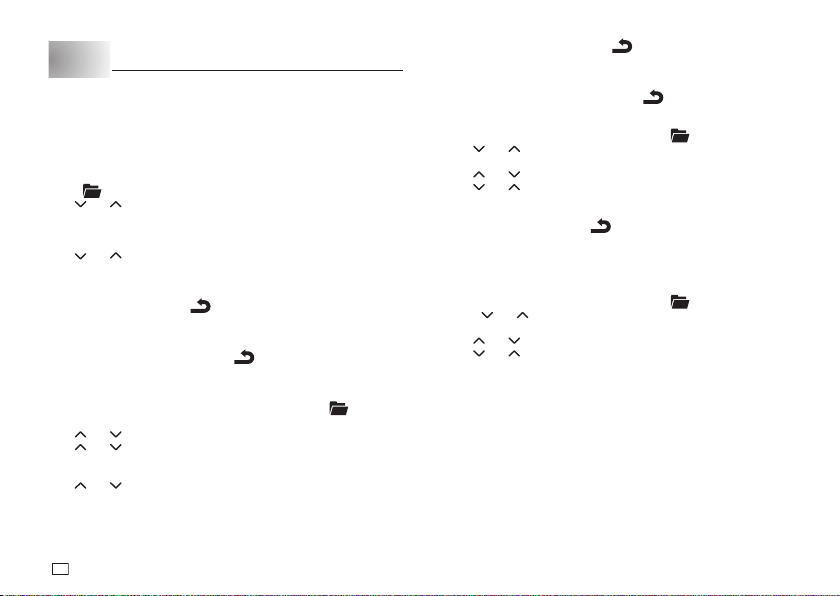
Bar Code Specifi cations
Bar Code
Check
digit
*1
Number
of print
digits
*3
Number
of input
digits
*4
Number of
auto appended
digits
*1
Input
characters
*8
Check
digit
*1
EAN-13 YES 13 12 - 1
Numbers
(0 to 9)
EAN-8 YES 8 7 - 1
Numbers
(0 to 9)
UPC-A YES 12 11 - 1
Numbers
(0 to 9)
UPC-E (YES)
*2
66 --
Numbers
(0 to 9)
ITF
NO
4 to 22
digits
4 to 22
digits,
even
numbers
only
*5
--
Numbers
(0 to 9)
YES
4 to 22
digits
3 to 21
digits,
odd
numbers
only
*6
-1
CODE39
NO
4 to 22
digits
2 to 20
digits
2 digits
*7
-
Numbers
(0 to 9), alpha
characters
(A to Z),
symbols
(-, ., space, $, /,
+, %)
YES
4 to 22
digits
1 to 19
digits
2 digits
*7
1
CODABAR
(NW-7)
NO
4 to 22
digits
4 to 22
digits
--
Numbers (0 to
9), symbols (-, $,
:, /, ., +), alpha
characters (first
and last only) A
to D
*9
YES
4 to 22
digits
3 to 21
digits
-1
*1
The check digit is automatically calculated in accordance with input data.
For EAN-13, EAN-8, and UPC-A, and when using a check digit with ITF,
the check digit is appended at the end of the printed digits. When using a
check digit with CODE39 or CODABAR, the check digit is appended one
digit before the fi nal digit.
*2
UPC-E includes a check digit, but it is not printed as a numeral below the
bar code.
*3
The number of digits printed below a bar code equals the input characters
plus automatically appended characters.
*4
An error message is displayed whenever there are insuffi cient digits. The
printer will not allow input of too many digits.
*5
An error message appears and printing is impossible if an odd number of
digits are input when an ITF check digit is not being used. Append a zero
to the beginning of the digits and re-input.
*6
An error message appears and printing is impossible if an even number
of digits are input when an ITF check digit is being used. Append a zero
to the beginning of the digits and re-input.
*7
Both the start code and end stop code of CODE39 must be asterisks.
*8
An error message appears and printing is impossible if any characters
other than those specifi ed here are used.
*9
With CODABAR, A, B, C, or D can be used as the start code and stop
code. An error message appears and printing is impossible if any other
character is used.
20
EN
Part 9 Memory
Your printer has memory for up to 10 text segments and 10 bar codes.
Important!
x
Be sure to keep written backup copies of all important data.
To store text
1. Input the text you want to store.
2. Press .
3. Use and to select
STORE
.
4. Press
OK
.
5. Input the name you want to assign to the text segment and then press
OK
.
x
You can input up to 10 characters for the name.
6. Use and
to select the location where you want to store the text and
then press
OK
.
x
<NO DATA>
will be shown when a memory location does not contain
any text.
7. Press
OK
to store the text or
to abort the store procedure without
storing anything.
•
If there is already text stored at the location, the message “
OVERWRITE?
OK/CANCEL
” will appear when you press
OK
. Press
OK
again to replace
the existing text with the new text, or
to cancel the store operation.
To store a bar code
1. After creating the bar code you want, press
OK
.
x
If you want to store the bar code you are creating, press
and then
advance to step 3 of this procedure.
2. Use
and to select the bar code size you want and then press
OK
.
3. Use and to select
STORE
and then press
OK
.
4. Input the name you want to assign to the bar code and then press
OK
.
x
You can input up to 10 characters for the name.
5. Use and to select the memory location where you want to store the
bar code and then press
OK
.
x
<NO DATA>
will be shown when a memory location does not contain a
bar code.
6. Press
OK
to save the bar code or
to cancel the save operation.
x
If the selected memory location already contains bar code data,
pressing
OK
will cause the message “
OVERWRITE? OK/CANCEL
”
to appear on the display. Press
OK
to replace the data at the selected
memory location with the new data, or
to cancel the save operation.
To recall text
1. While the input screen is on the display, press .
2. Use and to select
RECALL
.
3. Press
OK
.
4. Use and to select
TEXT
and then press
OK
.
5. Use and to select the text you want to recall and then press
OK
.
x
This will cause the message “
RECALL? OK/CANCEL
” to appear on the
display.
6. Press
OK
to recall the text or
to cancel the recall operation.
x
This recalls the text.
x
Note that recalling text replaces anything that is currently on the input
display.
To delete stored text
1. While the input screen is on the display, press .
2. Press
and to select
DELETE
.
3. Press
OK
.
4. Use and to select
TEXT
and then press
OK
.
5. Use and
to select the text you want to delete and then press
OK
.
x
This will display the message “
DELETE? OK/CANCEL
” to confi rm.
6. Press
OK
to delete the text.
To recall or delete a saved bar code
Perform the same steps as those under “To recall text” and “To delete stored
text”, selecting
BAR CODE
in place of
TEXT
in step 4.
21
EN
Part 10 Confi guring the Printer Setup
The printer has a
SET UP
screen that you can use to confi gure a variety of
basic settings.
To confi gure the printer setup
1. Press
FUNC
and then .
2. Use and to select the
SET UP
item whose setting you want to
change, and then press
OK
.
3. Use the cursor keys to change the currently selected setting.
When this setting
is selected:
Change its setting like this:
TAPE WIDTH
Use
and
to select the tape width setting you
want to use.
ALIGN
Use
and to select the text alignment setting
you want (
LEFT
,
CENTER
,
RIGHT
,
EQUAL
).
• LEFT: Aligns text fl ush left.
• CENTER: Centers text.
• RIGHT: Aligns text fl ush right.
• EQUAL: Equally spaces text to fi ll the entire space
available.
PITCH
Use
and to select the following settings for
the pitch (space between characters): “
NONE
”
(0 mm), “
NARROW
” (1 mm), or “
WIDE
” (2 mm).
Changing this setting also causes the tape length to
change accordingly.
• This setting cannot be changed when EQUAL is
selected for the ALIGN setting, and when FIX is
selected for the TAPE LENGTH setting.
DEFAULT FONT
Use
and
to select the font you want to use.
CONTRAST
Use
and to adjust the display contrast.
DENSITY
Use
and to adjust the print density setting.
When this setting
is selected:
Change its setting like this:
LANGUAGE
Use
and
to select the display language you
want to use.
cm/inch
Use
and
to select centimeters (cm) or inches
as the unit of measurement.
4. Press
OK
to apply the setting.
22
EN
Part 11 Reference
Using the Separately Available AC Adaptor
The separately available AC adaptor (AD-A95100) lets you print without
loading batteries into the printer.
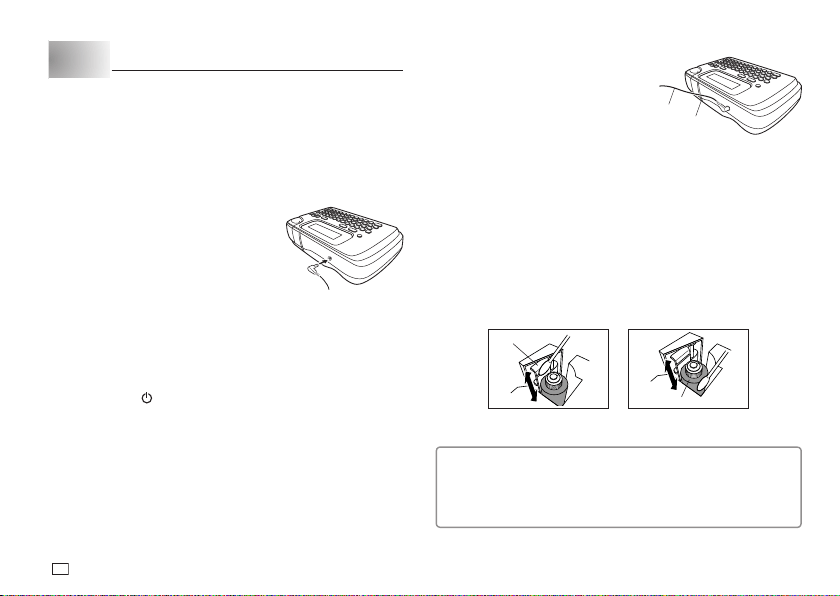
To connect the AC adaptor
Important!
• Use only the AC adaptor specifi ed for this printer.
1. Plug the AC adaptor plug into the AC adaptor
connection terminal of the printer.
2. Plug the AC adaptor into a household power outlet.
To disconnect the AC adaptor
Important!
• Do not disconnect the AC adaptor from the printer while printing is in
progress. Doing so can lead to malfunction.
1. Press the printer’s
button to turn off power.
2. Unplug the AC adaptor from the power outlet.
3. Unplug the AC adaptor from the printers AC adaptor terminal.
Important!
•
On either end of the power cord, avoid excessive bending, twisting, and
pulling. Do not store the power cord with either end bend. The above
conditions can cause the power cord to break and lead to printer malfunction.
• Make sure the AC adaptor cord does not block the tape outlet.
Tape outlet
Power cord
Cleaning the Printer Head and Roller
A dirty printer head and roller can result in poor print quality. If you have
problems with print quality, use the following procedure to clean the printer
head and roller.
To clean the printer head and roller
1. Make sure the printer is turned off.
2. Turn over the Label Printer, and open the back cover while pressing down
on its lock.
x
If a tape cartridge is loaded in the printer, remove it.
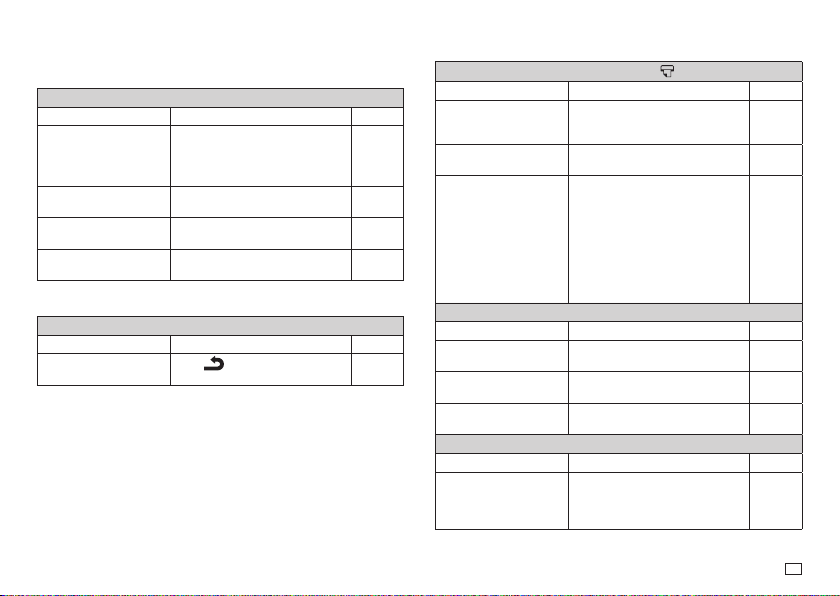
3. Use a cotton swab dipped in alcohol to clean the printer head and roller as
shown in the illustration.
Roller
Printer head
4. Replace the tape cartridge and close the printer cover.
Cleaning the Printer Exterior
Wipe the exterior of the printer with a cloth moistened with plain water.
Wring all excess liquid from the cloth before wiping the printer.
Never use benzene, alcohol, thinner, or other volatile agents to clean the
printer exterior. Doing so can damage the case.
23
EN
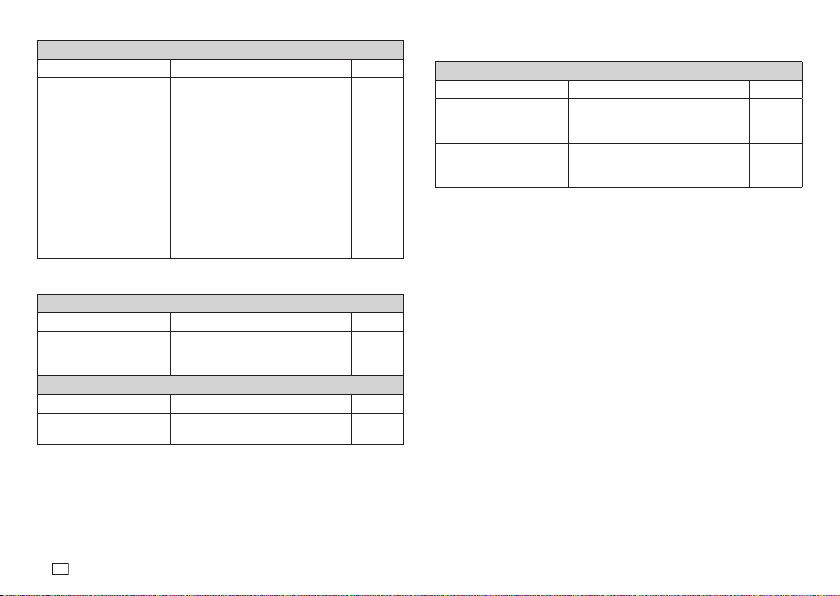
Troubleshooting
• Power Supply
Nothing appears on the display.
Possible Causes Action Page
Battery power is low or the
wrong type of batteries
are loaded in the printer.
Load a fresh set of AA-size alkaline
batteries (supplied by you). Or use
the specifi ed separately available AC
adaptor.
6
7
22
Improper display contrast
setting
Adjust display contrast.
21
Batteries loaded
incorrectly
Remove batteries and reload them
correctly.
7
The AC adaptor is not
connected securely.
Correctly connect the specifi ed
separately available AC adaptor.
22
• Text Input
Cannot input text.
Possible Causes Action Page
FUNC
key has been
pressed.
Press
to clear
FUNC
key
operation.
9
• Printing
Tape does not come out when is pressed.
Possible Causes Action Page
Tape cartridge
compartment cover is not
closed completely.
Securely close the printer cover.
8
No more tape left in the
cartridge.
Replace the tape cartridge with a
new one.
8
Tape jam Remove the tape cartridge and pull
out the jammed tape by hand. Cut
off excess tape with scissors, and
carefully replace the cartridge into
the Label Printer.
Important!
Never allow the tape outlet to
become blocked and never touch
tape as it is being fed during printing.
8
Printing is blurred, blotched, broken, etc.
Possible Causes Action Page
Improper print density
setting
Adjust the print density setting.
21
Improper loading of the
cartridge
Remove the tape cartridge and
reload it correctly.
8
Dirty printer head or
rubber roller
Clean the printer head and roller.
22
Printer powers down while printing is in progress.
Possible Causes Action Page
Battery power is low or the
wrong type of batteries
are loaded in the printer.
Load a fresh set of AA-size alkaline
batteries (supplied by you). Or use
the specifi ed separately available AC
adaptor.
6
7
22
24
EN
Ink ribbon is being fed from the tape outlet along with the tape.
Possible Causes Action Page
Tape cartridge loaded
while the ink ribbon is
slack.
Remove the tape cartridge and
check to make sure the ink ribbon is
not broken. Next, take up any slack
in the ink ribbon and then reload the
tape cartridge.
Important!
• Before loading a tape cartridge
into the Label Printer, always
make sure you take up any slack
in the ink ribbon fi rst.
• If the ink ribbon is broken, you
must change to another tape
cartridge.
8
• Tape Cutting
Cannot cut tape.
Possible Causes Action Page
Tape cutter blade is dull. Take the Label Printer to the dealer
from whom you purchased it to have
the tape cutter blade replaced.
—
Printed text is cut off by tape cut operation.
Possible Causes Action Page
Out of tape Replace the tape cartridge with a
new one.
8
• Using Labels
Label will not adhere to a surface.
Possible Causes Action Page
The backing paper is still
on the back of the tape.
Peel the backing paper from the
back of the tape to expose the
adhesive.
15
Surface is unsuitable for
affi xing a tape.
Labels do not adhere well to
surfaces that are rough, wet, oily, or
dirty.
15
25
EN
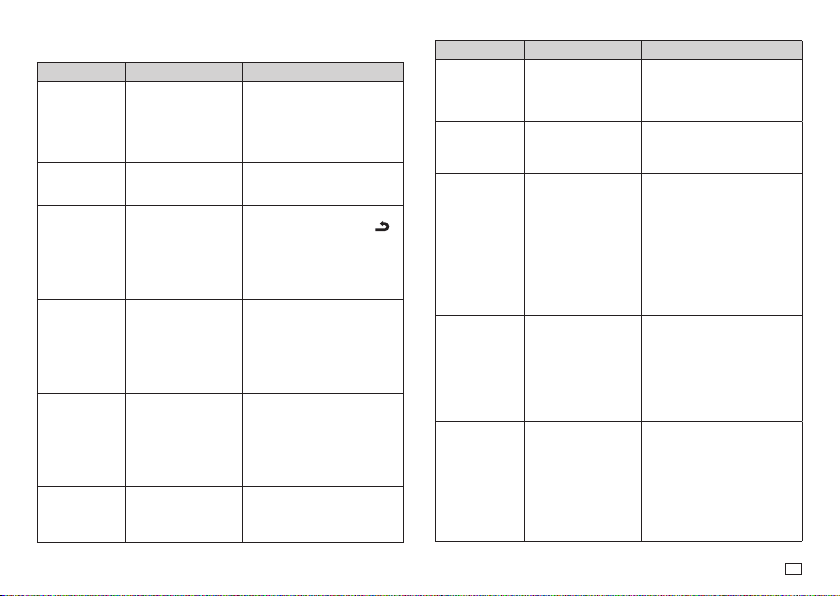
Error Messages/Display Messages
Message Possible Causes Action
ILLEGAL
CHARACTERS!
•
You are attempting
to input and print
characters that are
not allowed for the
bar code you are
printing.
• Re-input using proper
characters. (page 19)
INITIALIZE!
•
Data in memory has
become corrupted for
some reason.
• Press any key to initialize the
Label Printer.
LONGER
THAN SET!
OK/CANCEL
•
This message
appears when the
length of the tape
that will actually be
printed is longer than
the specifi ed tape
length.
• To print, press OK.
• To cancel printing, press .
You can then decrease the
number of characters, change
to a longer tape setting, or
select auto tape length.
LOAD A TAPE
12mm OR 18mm
• You are trying to use
the Logo function
or the bar code
function while a
6mm or 9mm tape
cartridge is loaded
in the printer.
•
Turn off the printer and
replace the tape cartridge
with a 12mm or 18mm
cartridge, and specify the
tape width setting on the
printer.
LOW BATTERY!
• Battery power is
low.
• Ambient
temperature is
below 10°C (50°F).
• Replace the batteries with
new ones or use the specifi ed
AC adaptor.
• Use the printer in a location
within the operating
temperature range (10°C to
35°C; 50°F to 95°F).
NO DATA!
• You are attempting
to recall data from
memory when there
is none stored.
• Store the data in memory and
then try again.
Message Possible Causes Action
NOT ENOUGH
DIGITS!
• You are trying to
print a bar code that
does not have the
required number of
digits.
• Re-input the correct number
of digits.
NO INPUT
TEXT!
• You are attempting
a print or preview
operation when no
text is input.
• Input the text and then try
again.
ODD NUMBER
OF DIGITS!
• There is an odd
number of input
digits when printing
an ITF bar code with
NO specifi ed for the
check digit.
• There is an even
number of input
digits when printing
an ITF bar code with
YES specifi ed for
the check digit.
• Re-input with a leading zero.
(page 19)
• Re-input with a leading zero.
(page 19)
PRINT ERROR!
• The tape became
jammed during
printing.
• Turn off the printer and
remove the tape cartridge.
Next, remove the jammed
tape.
• If the steps described above
do not clear the error message,
contact your retailer or your
nearest CASIO service center.
TOO MANY
LINES!
• The number of line
breaks you input
caused the label to
exceed the maximum
number of lines for
the tape you are
using.
• Use wider tape or reduce
the number of lines. The
maximum number of lines
for each tape width is shown
below.
6mm tape...1 line
9mm tape...1 line
12mm tape...Up to 2 lines
18mm tape...Up to 3 lines
26
EN
Built-in Logos
● PRICE Labels
● SIGN Labels
27
EN
● WORK Labels
● ATTENTION

28
EN
Specifi cations
Model: KL-130
Input
Keyboard Layout: Typewriter (QWERTY)
Character Types
Alpha (English and other languages): 231
Numbers: 10
Symbols: 293
Display
Type: Liquid crystal display
Character matrix: 96
u
16 dots, 12 columns
u
1 line
Printing
Resolution: 96 dots/200dpi
Type: Thermal transfer
Speed: Approximately 6mm/second
Width: 4mm (6mm tape), 7mm (9mm tape), 10mm (12mm tape), 12mm
(18mm tape)
Number of printable lines: 1 for 6mm and 9mm wide tape
1 to 2 for 12mm wide tape
1 to 3 for 18mm wide tape
Character fonts: SANS-SERIF, SANS-SERIF RND (Sans-serif
Rounded), ROMAN, COURIER, POP, SLAB SERIF,
BORDEAUX HEAVY, CURSIVE
Character effects: Shade, Underline, Box
Character styles: Normal, Bold, Outline
Character sizes: 1x1 - 4x6
Memory
Memory area: 10 text segments
10 Bar codes
General
Power supply: 6 AA-size alkaline batteries
Specifi ed AC adaptor (AD-A95100: separately available)
Rated voltage: 9V DC
Power consumption: 1A (9W)
Auto Power Off: Approximately 6 minutes
Dimensions: 54.5 (H)
u
189 (W)
u
115 (D)mm (2
1
/
8
" (H)
u
7
7
/
16
" (W)
u
4
1
/
2
" (D))
Weight: Approximately 430 g (15.2 oz) excluding batteries
Ambient Temperature: 10°C to 35°C (50°F to 95°F)
Optionally Available Items
• Specifi ed AC adoptor: AD-A95100
- Details about optionally available items are subject to change
without notice.
APP-1
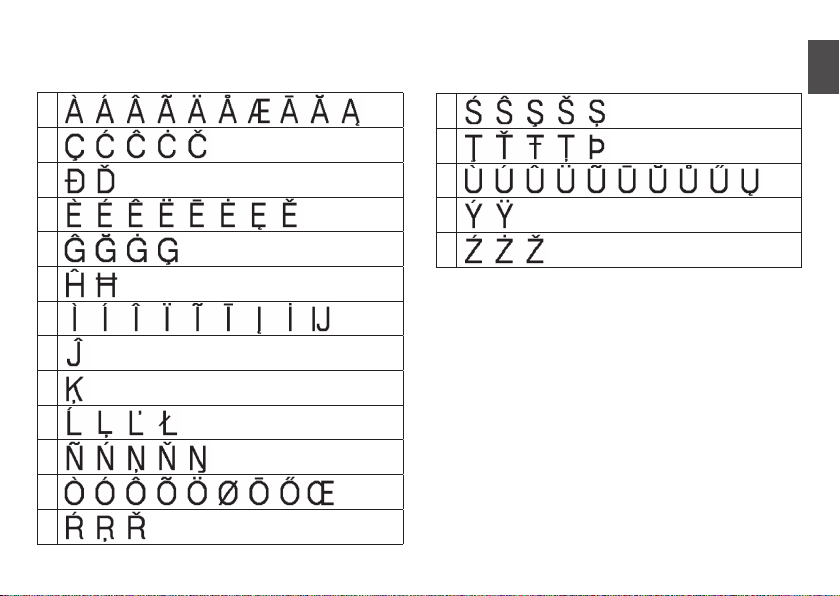
Accented Characters
A
C
D
E
G
H
I
J
K
L
N
O
R
Appendix
S
T
U
Y
Z
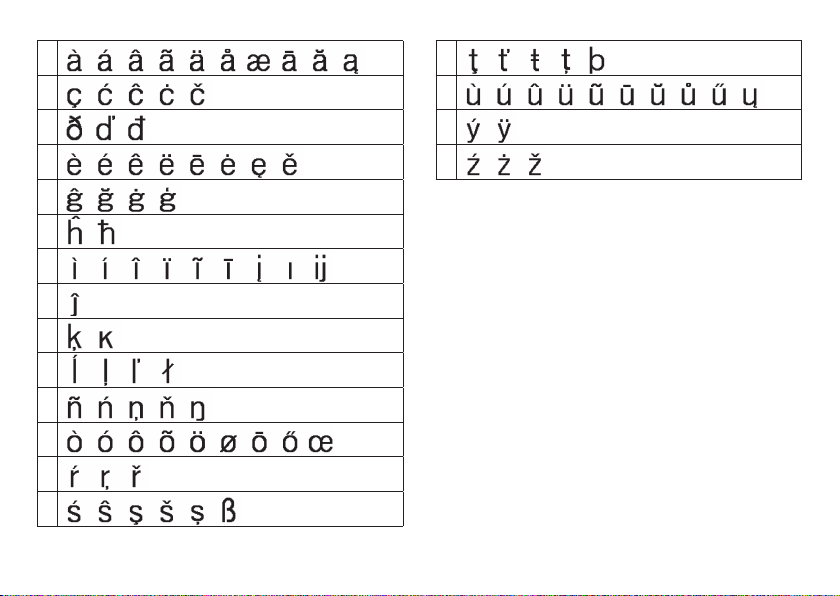
APP-2
a
c
d
e
g
h
i
j
k
l
n
o
r
s
t
u
y
z
APP-3
Symbols
● SYMBOL
● DINGBAT
● NUMBER
● GREEK
Illustrations
● ILLUST 1
● ILLUST 2
KL-130_Appendix_EU.indd 3KL-130_Appendix_EU.indd 3 2015-3-9 13:36:40 PM2015-3-9 13:36:40 PM
Manufacturer:
CASIO COMPUTER CO., LTD.
6-2, Hon-machi 1-chome, Shibuya-ku, Tokyo 151-8543, Japan
Responsible within the European Union:
Casio Europe GmbH
Casio-Platz 1, 22848 Norderstedt, Germany
www.casio-europe.com

CASIO COMPUTER CO., LTD.
6-2, Hon-machi 1-chome
Shibuya-ku, Tokyo 151-8543, Japan
MO1503-A Printed in China/Imprimé en Chine
© 2015 CASIO COMPUTER CO., LTD.