User’s Guide
KL-G2TC
標籤打印機
EN
RJA533744-001V01
Supported Tape Widths
6
mm
9
mm
12
mm
18
mm
24
mm

Important!
Be sure to keep all user documentation handy for future reference.

1
EN
Important!
x
Microsoft, Windows, and Windows Vista are registered trademarks or
trademarks of Microsoft Corporation of the United States in the United
States and other countries.
x
Other company names and product names used herein are trademarks or
registered trademarks of others. Note that TM and ® marks are not used
within the text of this manual.
Except as required for proper use or for creating backup copies, any
reproduction of this manual and/or the program, either in part or in their
entirety, is strictly forbidden without the express written permission of
CASIO COMPUTER CO., LTD.
English
x
Be sure to read this manual carefully before attempting to use the product
for the fi rst time.
Read This fi rst!
x
This manual explains how to use the CASIO KL-G2TC Label Printer.
x
The contents of this manual have been checked at each step along the
production process. Feel free to contact us if you notice anything that is
questionable, erroneous, etc.
x
CASIO COMPUTER CO., LTD. shall not be held liable for any loss or claims
by you or any other person or entity that may arise through the use of this
printer.
x
Reproduction of this manual in any form, either in part or its entirety, is
forbidden without the express permission of CASIO COMPUTER CO., LTD.
x
The contents of the manual are subject to change without notice.
x
The software is continually being revised and updated. Because of this, the
software supplied to you and the contents of the displays it produces may
be different from those described in this manual, or some items described
in this manual may no longer be available.
x
Computer screen shots shown in this manual are based on the English
version of Windows 7, and examples assume that “English” was selected as
the computer's display language during installation. Screens produced by
other operating systems or when another display language is selected may
be different from the screen shots shown in this manual.
2
EN
Creating an Index Label ................................................................24
Creating a Large Label by Combining Smaller Parts
(Large Label) ..................................................................................27
Part 4 - Free Design Label ...........................................................28
Creating a Free Design Label with Text You Input ......................28
Creating a Label with Multiple Lines of Text ...............................28
Dividing Text Into Blocks ..............................................................28
Specifying the Label Print Format ...............................................29
Specifying the Label Length .........................................................31
Specifying Text Alignment ............................................................34
Specifying Character Size ............................................................35
Adding a Frame to a Label ............................................................38
Part 5 - Bar Code Labels ...............................................................38
Creating a Bar Code Label ............................................................38
Part 6 - Storing and Recalling Label Data ...................................41
Part 7 - Using a Built-in Logo .......................................................41
Inserting a Built-in Logo into a Label .........................................41
Part 8 - Inputting and Editing Text ................................................42
Moving the Cursor .........................................................................42
Inputting Text .................................................................................42
Editing and Deleting Text ..............................................................46
Changing the Font .........................................................................47
Changing the Character Style ......................................................47
Using Text Effects ..........................................................................48
Contents
Safety Precautions ..........................................................................4
Precautions during Use ..................................................................7
Check to make sure that everything has been included with
the printer. ........................................................................................8
Read this before using the printer! ................................................8
About the supplied CD-ROM ..........................................................9
Installing the Software ..................................................................10
Part 1 - Getting Ready ...................................................................12
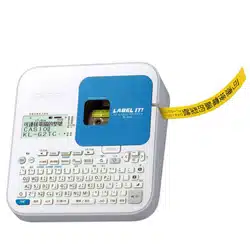
Names of Parts and Their Functions ...........................................12
Power Requirements .....................................................................13
Connecting the Printer to a Computer ........................................14
Initializing Memory ........................................................................14
Turning Power On and Off ............................................................15
Loading and Removing a Tape Cartridge ....................................16
Main Key Functions .......................................................................17
Display Indicators ..........................................................................18
Part 2 - Performing a Test Print ....................................................18
Printing a Label ..............................................................................18
Printing Precautions .....................................................................21
Cut Modes (Auto Cutter) ...............................................................21
Part 3 - Creating a Label ...............................................................23
Label Creation Basics ...................................................................23
Creating Labels that Include an Automatically Incremented
Number (Numbered Label) ...........................................................23
3
EN
Saving and Recalling Frequently Used Expressions
(Phrase Memory) ...........................................................................49
Inserting the Current Date and/or Time into Text ........................50
Copying and Pasting Input Text ...................................................51
Creating a User Character ............................................................51
Part 9 - Printer Settings .................................................................54
Confi guring Printer Settings ........................................................54
Setting Items ...................................................................................54
Part 10 - Reference ........................................................................55
Power Requirements .....................................................................55
User Maintenance ..........................................................................56
Troubleshooting .............................................................................56
Error Messages ..............................................................................58
Specifi cations ................................................................................60
Appendix ................................................................................. APP-1
4
EN
Safety Precautions
Thank you for purchasing this CASIO product.
Before using it, be sure to read the following Safety Precautions. Keep the
manual in a convenient location for future reference when necessary.
Danger
This symbol indicates information that, if ignored or applied
incorrectly, creates the danger of death or serious personal injury.
Warning
This symbol indicates information that, if ignored or applied
incorrectly, creates the possibility of death or serious personal injury.
Caution
This symbol indicates information that, if ignored or applied
incorrectly, creates the possibility of personal injury or material
damage.
Examples of graphic markings
indicates something you should not do. The symbol shown here
indicates you should not try to take the unit apart.
indicates something you should do.
Danger
Batteries
Perform the following steps immediately if fl uid leaking from
batteries ever gets into your eyes.
1. Do not rub your eyes! Rinse them with water.
2. Contact your physician immediately.
Leaving alkaline battery fl uid in your eyes can lead to loss of sight.
Warning
Smoke, abnormal odor, overheating, and other
abnormalities
Do not continue to use this product while it is emitting smoke
or strange odor, or generating heat. Continued use creates the
risk of fi re and electric shock. Immediately perform the following
steps whenever any of the above symptoms are present.
1. Turn off power.
2. Disconnect the USB cable.
3. Disconnect the AC adaptor plug from the power outlet.
4. Contact your original retailer.
AC Adaptor/USB Cable
Misuse of the optional AC adaptor/USB Cable creates the risk
of fi re and electric shock. Make sure you observe the following.
x
Use only the specifi ed AC adaptor.
x
Use only a power source that is within the input voltage
range indicated by INPUT on the AC adaptor’s rating plate.
x
Never plug the power cord into a wall outlet that is shared
by other devices, or into a shared extension cord.
x
Never place heavy objects on the AC adaptor/USB cable or
subject it to direct heat.
x
Never try to modify the AC adaptor/USB cable or subject it
to bending.
x
Do not twist or pull on the AC adaptor/USB cable cord.
x
Do not wrap the cord around the adaptor.
x
Should the AC adaptor/USB cable or its plug ever become
damaged, contact your original retailer.
x
Never touch the AC adaptor/USB cable or plug while your
hands are wet. Doing so creates the risk of electric shock.
x
Do not use the AC adapter/USB cable in areas where
liquids might spill on it. Water creates the risk of fi re and
electric shock.
x
Do not place a fl ower vase or any other liquid container
on top of the AC adapter/USB cable or power cord. Water
creates the risk of fi re and electric shock.
x
Do not cover the AC adaptor/USB cable with a newspaper,
tablecloth, curtain, futon, blanket, or other similar object.
Doing so creates the risk of fi re.
5
EN
Warning
AC Adaptor
Before going out, be sure to unplug the power cord/AC adaptor
from the power outlet and put it in a place away from objects
used by animals and pets. An animal or pet chewing on the
power cord/AC adaptor can cause it short, leading to the risk of
fi re and electric shock.
Batteries
Continued use of the printer without removing the batteries
after they have leaked creates the risk of fi re and electric
shock. Should batteries leak, immediately stop using the printer
and contact your original retailer.
Misuse of batteries can cause them to leak, resulting in
damage to nearby objects, or to explode, creating the risk of
fi re and personal injury. Always make sure you observe the
following precautions.
x
Never try to take batteries apart or allow them to become
shorted.
x
Never expose batteries to heat or dispose of them by
incineration.
x
Never mix old batteries with new ones.
x
Never mix batteries of different types.
x
Do not charge the batteries.
x
Make sure the plus (+) and minus (–) ends of the batteries
are facing correctly.
Dropping and rough treatment
Continued use of the product after it has been damaged due to
dropping or other rough treatment creates the risk of fi re and
electric shock. Immediately perform the following steps if the
product should ever become damaged.
1. Turn off power.
2. Disconnect the USB cable.
3. Disconnect the AC adaptor plug from the power outlet.
4. Contact your original retailer.
Warning
Disassembly and Modifi cation
Never try to take this product apart or modify it in any way.
Doing so creates the risk of electric shock, burn injury, and
other personal injury.
Leave all internal inspection, maintenance, and repair up to
your original retailer.
Liquids and Foreign Matter
Water, sports drinks, seawater, animal or pet urine, or foreign
objects (pieces of metal, etc.) getting into this product creates
the risk of fi re and electric shock.
Immediately perform the steps below whenever any of the
above symptoms are present.
1. Turn off power.
2. Disconnect the USB cable.
3. Disconnect the AC adaptor plug from the power outlet.
4. Contact your original retailer.
Keep Away From Fire
Never throw this product into fi re to dispose of it.
Doing so creates the risk of explosion, which can cause fi re or
personal injury.
Packaging Plastic Bag
Take care never to allow the plastic bag this product comes in to
be ingested or placed over anyone’s head.
Doing so creates the risk of suffocation. Particular care is required
in households where small children are present.
Do not affi x labels to a container to be used in
a microwave oven.
Do not affi x labels to any container you plan to use in a
microwave oven. The label material contains metal, which
creates the risk of fi re and burn injury when heated in a
microwave oven. It can also cause deformation of the container
to which the label is affi xed.
6
EN
Caution
AC Adaptor/USB Cable
Misuse of the AC adaptor/USB cable creates the risk of fi re
and electric shock. Make sure you observe the points below.
x
Never locate the AC adaptor/USB cable near a stove or
other heating device.
x
When unplugging from the wall outlet, grasp the AC adaptor/
USB cable plug. Never pull on the AC adaptor/USB cable.
x
Insert the AC adaptor plug into the wall outlet as far as it will go.
x
Insert the USB cable plug into the connector as far as it will go.
x
Unplug the AC adaptor from the power outlet and the USB
cable from the connector before leaving this product unattended
for long periods, such as when leaving on a trip, etc.
x
After you are fi nished using this product, unplug the AC adaptor
from the power outlet and the USB cable from the connector.
x
At least once a year, unplug the power cord from the wall outlet
and use a cloth or vacuum cleaner to clean any dust build up on
the prongs of the power plug and in the area around the plug.
x
Do not use detergent when cleaning the power cord
(especially the plug) or the AC adapter (especially the jack).
x
Plug the AC adaptor into a power outlet that is near this
product and easily accessible so you can quickly unplug it
in case of problems.
x
Store the AC adaptor in a dry place.
x
Connect the AC adaptor to the printer using the supplied
power cord.
x
Do not use the power cord that comes with this product with
any other device. Doing so can lead to malfunction.
Caution
Batteries
Misuse of batteries can cause them to leak, resulting in
damage to nearby objects, or to explode, creating the risk of
fi re and personal injury. Always make sure you observe the
following precautions.
x
Use o
nly batteries that are specifi ed for use with this product.
x
Rem
ove batteries from the product if you do not plan to use
it for a long time.
Connections
Plug only specifi ed devices into the connectors of this product.
Non-specifi ed devices create the risk of fi re and electric shock.
Keep backup copies of all important data.
Be sure to keep separate copies of important data in a
notebook or some other location. Malfunction of the product,
repairs, and dead batteries can cause data stored memory to
be lost.
Heavy Objects
Do not place heavy objects on this product. Doing so can
cause this product to tip over or fall, creating the risk of
personal injury.
Location to be Avoided
Never leave this product in any of the types of locations
described below.
Doing so creates the risk of fi re and electric shock.
x
Areas subject to large amounts of humidity or dust.
x
Food preparation areas or other locations where oil smoke
is present.
x
Near heaters, on a heated carpet, in areas exposed to
direct sunlight, in a closed vehicle parked in the sun, or
other areas subject to very high temperatures.
7
EN
Caution
Unstable Locations
Never place the product on an unstable surface, on a high
shelf, etc.
Doing so can cause the product to fall, creating the risk of
personal injury.
Loading and replacing batteries
The springs inside of the battery compartment have sharp
edges. Take care that you do not touch the springs with your
fi ngers when loading or replacing batteries. Doing so creates
the risk of personal injury.
High temperature precaution
The print head and the metal parts around it can become very
hot.
Do not touch them. Doing so creates the risk of burn injury.
Display Screen
x
Never push on the display screen’s LCD panel or subject it
to strong impact. Doing so can cause the LCD panel’s glass
to crack, creating the risk of personal injury.
x
Should the LCD panel ever crack or break, never touch the
liquid inside of the panel. LCD panel liquid can cause skin
irritation.
x
Should LCD panel liquid ever get inside your mouth,
immediately wash out your mouth with water and contact
your physician.
x
Should LCD panel liquid ever get into your eyes or onto
your skin, rinse with clear water for at least 15 minutes, and
then contact a physician.
Cutter Precautions
Do not insert your fi ngers into the print head or the cutter at
the tape outlet. Doing so creates the risk of fi nger cuts and
personal injury.
Precautions during Use
Observe the following precautions to ensure that the printer provides you with
the years of trouble-free operation for which it is designed.
x
Avoid using the printer in areas exposed to direct sunlight, and in areas
subjected to high humidity, electrostatic charge, sudden temperature
changes, and temperature extremes. Operating Temperature Range: 10°C
to 35°C
x
Battery capacity becomes lower at temperatures of 10°C and colder. This
can cause the message
電池剩餘電量過少
(Low Battery!) to appear sooner
than normal. If this happens, move the printer to a location that is within the
operating temperature range (10°C to 35°C).
x
Never subject the printer to strong impact or shock.
x
Never allow paper clips, pins, or other similar objects to get inside the
printer mechanism.
x
Do not pull on the tape with undue force or try to push it back into the
printer.
x
Unclear printing can indicate a dirty print head. If printing becomes unclear,
use the procedures on page 56 to clean the print head and rubber roller.
Conventions Used In This Manual
x
The conventions described below are used in this manual to describe how
to select display items and perform other operations.
Example: Use the arrow keys to select
新增
(New) and then press
執行
.
p
Select
新增
(New) and then press
執行
.
Example: Use the and arrow keys to change the
列印份數
(Copies) value.
p
Specify the number of copies to be printed.
8
EN
Check to make sure that everything has been
included with the printer.
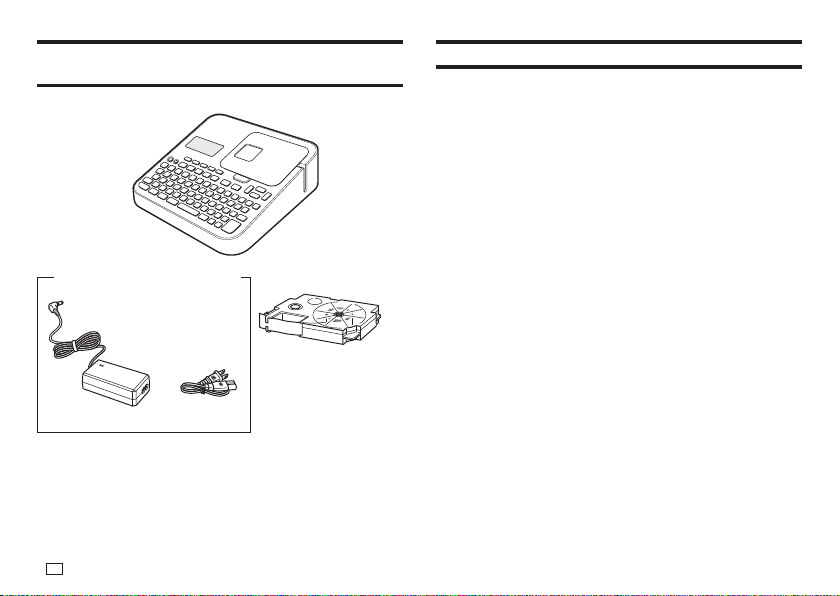
Label printer
Tape cartridge
User's Guide
Label Printing Software FA-3000 CD-ROM
AD-1832L AC adaptor (with power cord)
The shape of the
power cord plug varies
according to country or
geographic area.
Read this before using the printer!
About the printer
This printer can be used to print labels using either of the two methods below.
①
Stand-alone printing with the printer only.
x
This method lets you take your printer along anywhere your printing
needs take you.
x
Software installation and connection to a computer is not required.
②
Connecting the printer to a computer to print.
x
This method lets you view a print image on your computer screen as
you edit the label. The fi nal data is printed on the printer.
x
Before connecting the printer to a computer, you need to install the
Label Printing Software FA-3000 onto your computer from the CD that
comes with the printer.
Preparing the Printer for Operation
You need to perform the steps below before using the printer.
Connect the AC adaptor. (page 13)
p
Initialize printer memory and confi gure current date and time settings.
(page 14)
p
Load a tape cartridge into the printer. (page 16)
9
EN
Printer User Documentation
This section explains the user documentation required for using this printer.
x
KL-G2TC User's Guide (This Manual)
x
Label Printing Software FA-3000 User's Guide
The Label Printing Software FA-3000 User's Guide is in a PDF fi le on the
CD-ROM that comes with the printer.
If you are connecting the printer to a computer, view the PDF fi le on the
computer.
■
To view the contents of the Label Printing Software
FA-3000 User's Guide
1.
Places the CD-ROM that comes with the printer into your computer's CD
drive.
2.
When the install screen appears, click Cancel.
3.
Select the applicable folder on the CD-ROM.
4.
Open the User's Guide PDF fi le.
About the supplied CD-ROM
Computer Operating Environment (for included
PC Link Software)
Operating System: Microsoft Windows 8, Windows 7, Windows Vista,
Windows XP SP3
Computer: Computer that satisfi es the conditions below.
x
One of the above operating system pre-installed
x
CPU recommended for the operating system being used
x
USB port built in as standard
x
CD-ROM drive, keyboard
Memory: At least 1 GB, as recommended for operating system being
used. (At least 512MB in the case of Windows XP)
Hard disk: At least 120MB of free space available
Display: At least 800 × 600 pixels of resolution
Pointing device: Mouse or other pointing device
x
Other items should conform to the recommendations for the operating
system being used.
x
Certain device confi gurations may make normal operation impossible.
x
Operation under Windows XP 64bit versions is not supported.
x
Operation under an operating system that has been upgraded or modifi ed
from its pre-installed state is not guaranteed.
Warning
The provided disk is a CD-ROM disk. Do not play it on a CD player.
Doing so will produce sound that creates the risk of hearing damage and
damage to speakers.
10
EN
Installing the Software
Important!
x
Be sure to install the software on your computer before connecting the
Printer. You may experience problems with operation if you install the
software after connecting.
x
Exit all other programs currently running on your computer before installing
the software. Installation may not be performed correctly if there is another
program running.
The examples in this manual assume that D: drive is the CD drive.
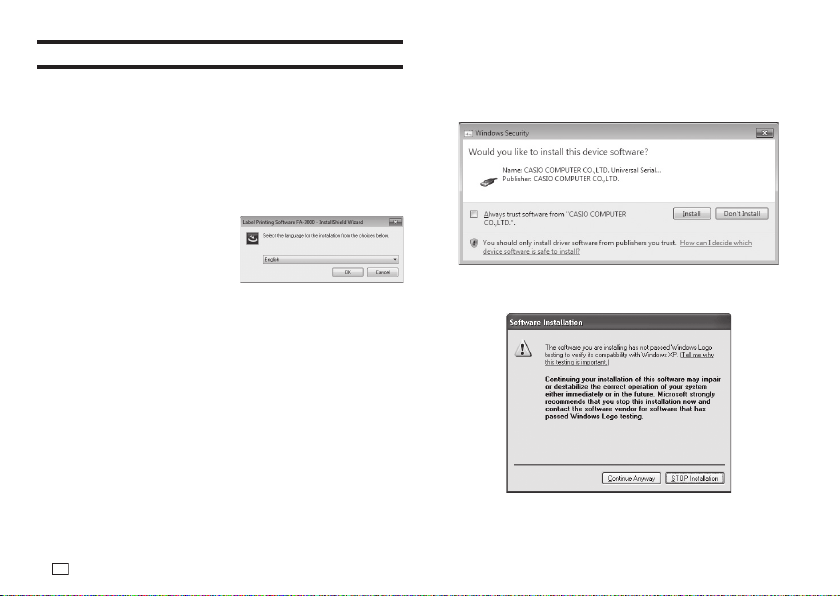
1.
Start up Windows and place the CD-ROM into the computer’s CD drive.
x
Windows 8, Windows 7,
Windows Vista
An AutoPlay menu will appear at
this time. Select Run setup.exe
under “Install or run program
from your media” or “Install
or run program”. When the
user account control dialog box
appears, click Yes or Continue.
This displays a screen like the one shown nearby.
x
Windows XP
Normally, placing the CD-ROM into the CD drive should automatically
display a screen like the one shown nearby.
x
On some computers, the nearby screen may not appear automatically.
If this happens, press Win+R on your computer keyboard. On the
Run… dialog box that appears, enter D:\setup.exe and then click OK.
2.
Select the installation language and then click OK.
x
This starts the installation process. Follow the instructions that appear
on the display.
x
If your computer is running Windows 8, Windows 7, or Windows Vista,
the message shown below will appear during installation. Click Install
to proceed with the installation.
x
If your computer is running Windows XP, the message shown below
may appear during installation. Click Continue Anyway to proceed with
the installation.
3.
After all installation is complete, click Finish on the install menu.
11
EN
4.
If a restart message appears, click Yes.
x
This restarts your computer.
x
To cancel installation, click Cancel.
x
Attempting installation while an anti-virus program is running may
cause the anti-virus program to display an error or warning message on
your computer. If this happens, perform the steps below.
1. After installation is complete, uninstall the printer software.
2. Exit the anti-virus program and all other programs that are
currently running on your computer.
3. Re-install the printer software.
4. After printer software installation is complete, restart the programs
you exited in step 2 of this procedure.
Check to make sure that the printer software is installed correctly.
x
FA-3000 Application: Installing this printer software on your computer
puts a shortcut icon on your computer’s desktop.
x
USB driver: On your Windows Start menu, right-click Computer and
then select Properties on the menu that appears.
On the left side of the screen, click Device Manager. If the USB driver is
installed, you will see CASIO NAMELAND KL16H Device in Universal
Serial Bus Controllers.
Uninstalling the software
On the Windows Control Panel–Add or Remove Programs screen, remove
FA-3000.
12
EN
Part 1 - Getting Ready
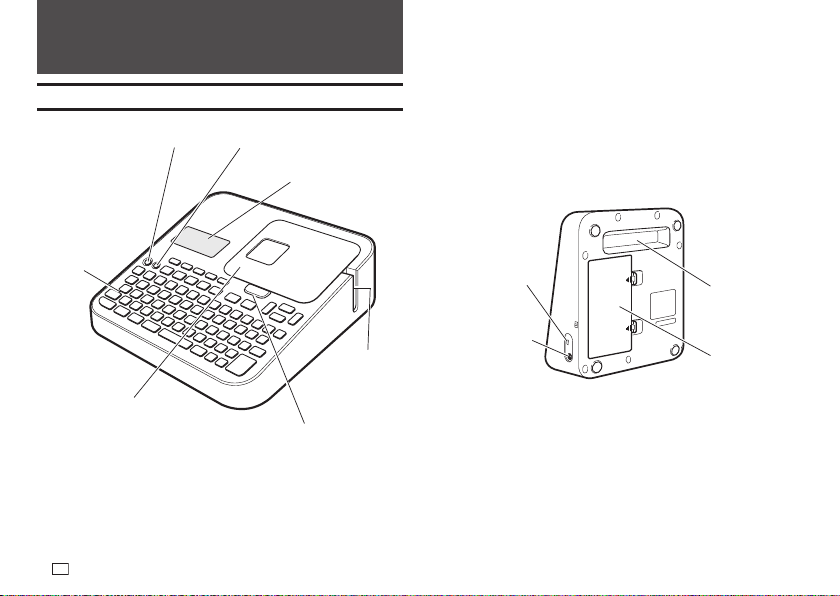
Names of Parts and Their Functions
ON
Display*
Keyboard
Tape compartment cover open button
Tape
outlet
Tape compartment
OFF
* With backlight that can be turned on or off as required (page 54).
AC adaptor
connection terminal
Recessed handle
USB port
Battery cover
13
EN
Power Requirements
Your printer can be powered using the specifi ed AC adaptor or by
commercially available alkaline batteries.
x
Before using the printer, be sure to read the information under "Safety
Precautions" (pages 4 through 7).
x
For information about how to load batteries, see page 55.
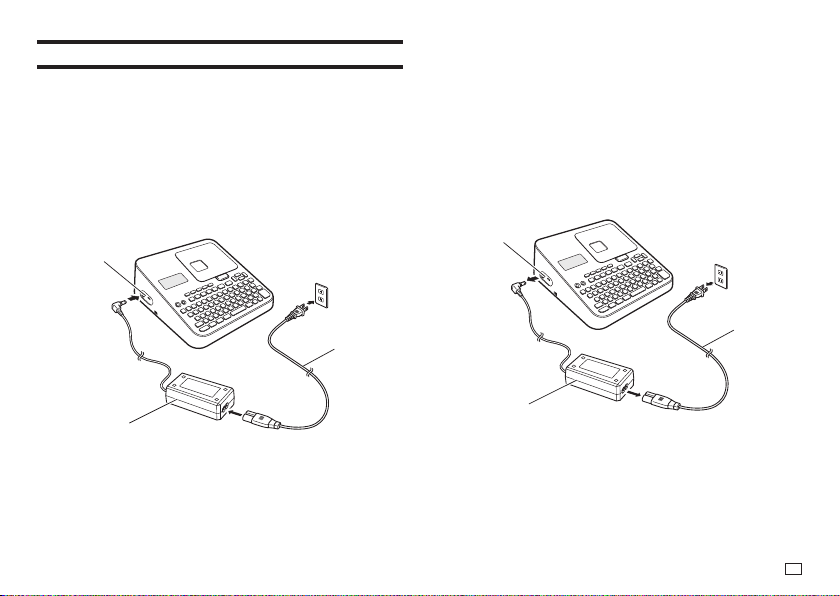
Using the AC Adaptor
■
Connecting the AC Adaptor
Important!
x
Use only the AC adaptor specifi ed for this printer.
2
1
3
AC adaptor
Power cord
AC adaptor
connection
terminal
■
Disconnecting the AC Adaptor
Important!
x
Do not disconnect the AC adaptor from the printer while printing is in
progress. Doing so can lead to malfunction.
x
Do not disconnect the AC adaptor from the printer while printer power is
turned on. After turning off power, wait until the display goes blank before
disconnecting the AC adaptor. Otherwise, temporarily stored text, text
stored in printer memory, user characters, copied text, or printer settings
may be deleted.
x
If you are operating the printer under battery power and wish to connect
or disconnect the AC adaptor, be sure to turn off printer power fi rst.
Connecting or disconnecting with printer power on can cause it to turn off
and delete unsaved text you are working on.
2
3
1
AC adaptor
Power cord
AC adaptor
connection
terminal
14
EN
Connecting the Printer to a Computer
Be sure to install the printer software on your computer before connecting
the printer to it.
Important!
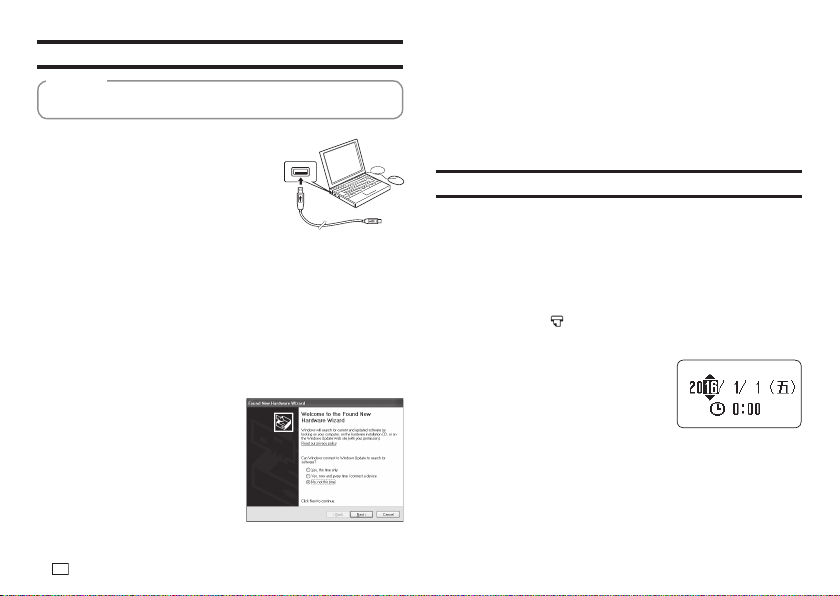
1.
Start up Windows and then connect a USB
cable* to a USB port on the computer.
* Use a commercially available cable
(A-microB type) that complies with USB
standards.
2.
Connect the USB cable to the printer USB port.
Important!
When connecting for the fi rst time, remove the sticker from the printer's USB
port.
3.
On the printer, press ON.
4.
On the printer, press PC
連接
.
x
This will display a USB driver install wizard on your computer. A
USB driver is required for proper data communication between your
computer and printer. Follow the instructions that appear on your
computer screen to install.
x
If your computer is running
Windows XP Service Pack3 (SP3),
the message shown nearby will
appear sometime during
installation. Select No, not this
time and then click Next to
proceed with the installation.
The message
通訊準備完畢
(Ready to transfer data) will appear on the
printer display after USB driver installation is complete.
Important!
To print computer data with the printer, fi rst press PC
連接
on the printer to
display the message
通訊準備完畢
(Ready to transfer data) on the printer
display.
x
For information about how to use the PC Link software, refer to the Label
Printing Software FA-3000 User's Guide.
Initializing Memory
Initialize printer memory before using it for the fi rst time.
Important!
Note that initializing memory will delete all currently stored data. You should
only initialize memory before using the printer for the fi rst time.
1.
Check to make sure that the printer is turned off.
x
If power is on, press OFF.
2.
While holding down and
變換/空白
, press ON.
Keep all of the keys depressed until the message
初始化記憶體 ? 執行 /
取消
(Initialize? Set/Esc) appears on the printer display.
3.
Press
執行
.
4.
Confi gure current date and time settings.
x
After settings are the way you want, press
執行
.
x
You can change the date and time settings
later, if you want (page 54).
15
EN
Turning Power On and Off
■
To turn power on
Press ON.
x
For information about how to adjust the display contrast and to change the
backlight setting, see page 54.
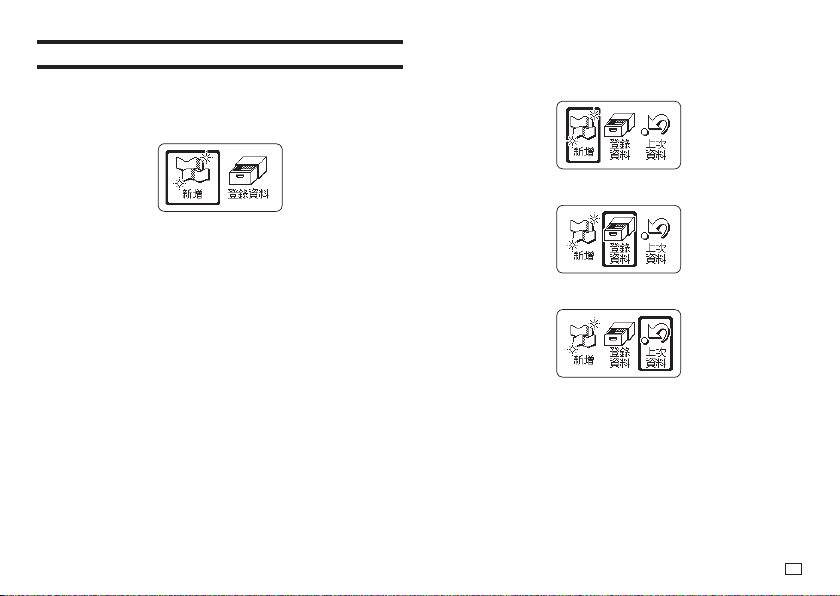
Main menu
■
To turn power off
Press OFF.
x
Check to make sure the printer display is blank.
Auto Power Off
Auto Power Off turns off printer power if you do not perform any operation for
about six minutes. When you need to use the printer again, press ON.
x
Auto Power Off is disabled while the printer is being powered by the AC
adaptor and when it is connected to a computer.
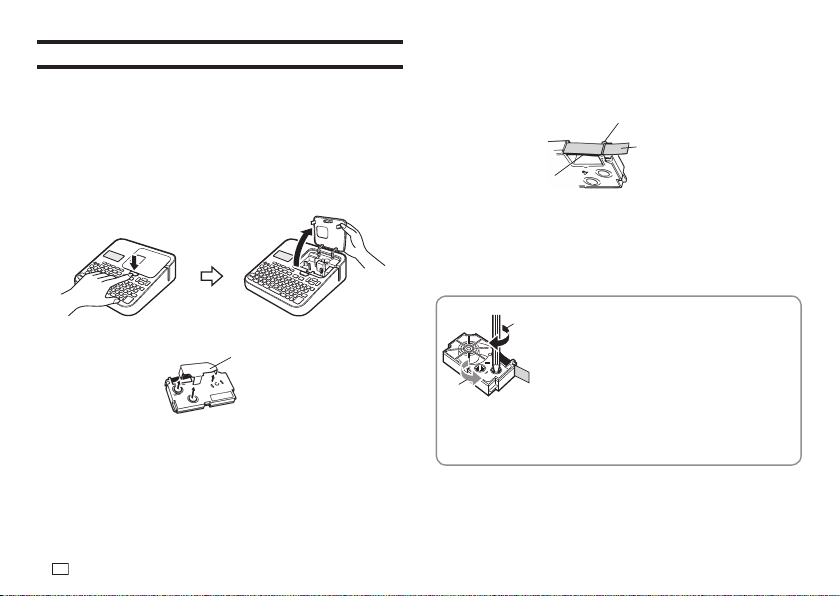
Creating Text for Printing
There are three ways that you can create text for printing.
x
Create new text
o
Select
新增
(New) and then select the type of label you
want to create.
x
Recall existing text
o
Select
登錄資料
(Stored Data), select
調出
(Recall),
and then select the data you want to recall.
x
Recall the text that was being input the last time the printer was turned off
(last session's data)
o
Select
上次資料
(Previous Data).
Important!
Selecting something other than
上次資料
(Previous Data) causes the last
session's data to be deleted. To avoid loss of important data, you should save
it to printer memory (Storing Label Data, page 41) before selecting something
other than
上次資料
(Previous Data).
16
EN
Loading and Removing a Tape Cartridge
A tape cartridge is required when printing tape labels. You should use only the
special tape cartridges that are specifi ed for this printer.
x
This printer supports the following tape widths: 6mm, 9mm, 12mm, 18mm,
24mm.
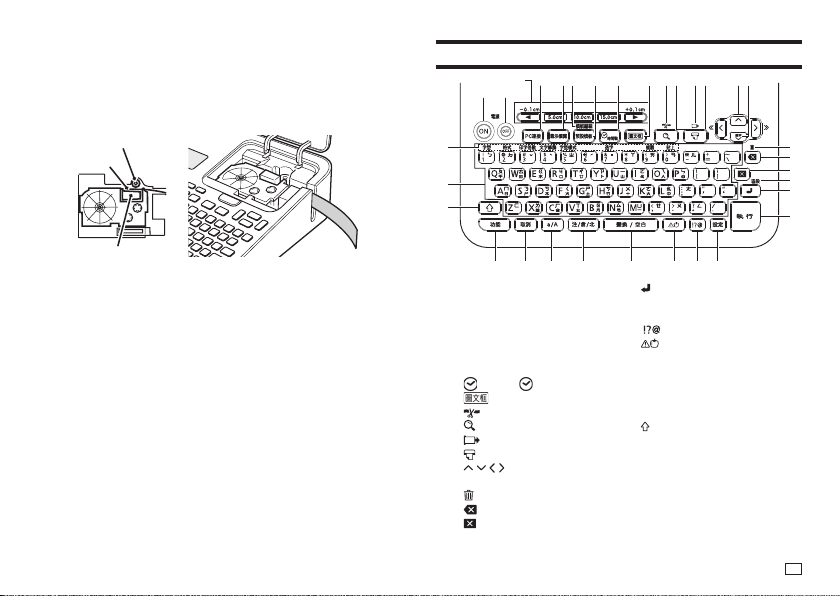
Loading a Tape Cartridge
1.
Press OFF to turn off the printer.
2.
Press the tape compartment cover open button and open the cover.
3.
Remove the stopper attached to the tape cartridge.
Stopper
4.
Check the condition of the tape and the ink ribbon.
x
Make sure the leading end of the tape is not bent. If it is, use scissors
to trim off the bent part.
x
Make sure the leading end of the tape is passing through the tape
guide.
x
Make sure there is no slack in the ink ribbon.
Tape (Pull out about
3cm.)
Ink ribbon
(under the tape)
Tape guide
Important!
x
Tape once pulled out of the cartridge cannot be pushed back in.
x
Do not apply excessive force when pulling on the tape. Doing so can break
or otherwise damage the ink ribbon.
x
Loading the tape cartridge into the printer while the ink ribbon is slack can
cause the ink ribbon to break, creating the risk of malfunction.
Take up any slack in the ink ribbon.
a
b
If there is slack in the ink ribbon, insert a pencil or similar object into
the upper right spindle (a in the nearby illustration) and rotate in the
direction indicated by the arrow. Rotate until the lower left spindle (b in the
illustration) starts to rotate. Note that the tape will not move along with the
ink ribbon at this time.
17
EN
5.
Set the tape cartridge in place.
x
Taking care not to pull on the ink ribbon, pass the tape and ink ribbon
between the print head and the rubber roller (illustration below). Press
down on the tape cartridge until it clicks securely into place.
Important!
An improperly loaded tape cartridge can cause the ribbon to break.
Rubber roller
Tape
Print head
6.
Close the tape compartment cover.
x
Press down on the cover until it clicks securely into place.
x
Do not pull with excessive force on the tape or try to force tape back in
while the tape cartridge is loaded in the printer.
Removing a Tape Cartridge
1.
Press OFF to turn off the printer.
2.
Press the tape compartment cover open button and open the cover.
3.
Grasp the left and right sides of the tape cartridge with your fi ngers and
lift straight up.
x
The print head is hot immediately after printing, so wait until it is cooled
down before removing the tape cartridge.
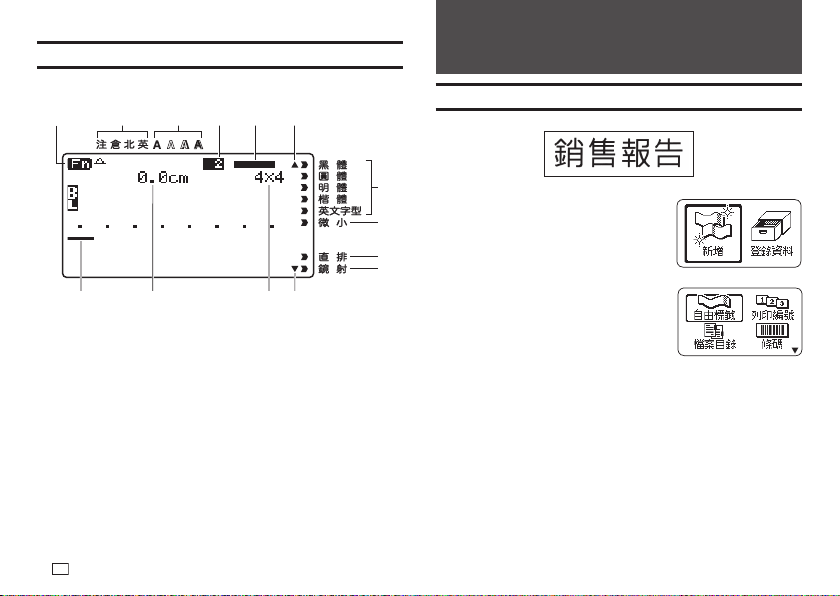
Main Key Functions
③
④
⑤⑥ ⑦ ⑮
⑰
⑯
⑱
⑲
⑳
㉑
㉒㉓㉔㉕㉖㉗㉘㉙
㉚
㉛
㉜
⑧⑨⑪⑬ ⑭⑩⑫
①②
①
ON
⑳
(Line break)
②
OFF
㉑
執行
(Set)
③
One-touch length setting keys
㉒
設定
(Set up)
④
PC
連接
(PC Link)
㉓
(Symbol)
⑤
圖示標識
(Built-in Logo)
㉔
(Illustrations)
⑥
模板編輯
(Edit Phrase)
㉕
變換/空白
(Convert/Space)
⑦
預設模板
(Recall Phrase)
㉖
注/倉/北
(Chinese Input Method)
⑧
時間戳
(
Date)
㉗
a/A (Caps)
⑨
(Frame)
㉘
取消
(Esc)
⑩
(Cut)
㉙
功能
(Function)
⑪
(Preview)
㉚
(Shift)
⑫
(Feed)
㉛
Character keys
⑬
(Print)
㉜
字型
(Font)
格式
(Format)
印字倍數
(Character Size)
文字修飾
(Text Effect)
字型樣式
(Character Style)
造字
(User characters)
複製
(Copy)
貼上
(Paste)
⑭
(Arrow keys)
⑮
選字
(Select Character)
⑯
(All Text Clear)
⑰
(Back space)
⑱
(Delete)
⑲
區段
(Block)
18
EN
Part 2 - Performing a Test Print
Printing a Label
Sample Print
1.
Press ON to turn on power.
x
This displays the main menu.
x
A screen including a
上次資料
(Previous Data) (last session's
data) option may appear in place
in the screen shown here.
(page 15)
2.
Select
新增
(New) and then press
執行
.
3.
Select the type of label you want to create and then press
執行
.
x
Here we will select
自由標籤
(Free Design).
Display Indicators
x
For information about how to adjust the display contrast and to change the
backlight setting, see page 54.
②③①④⑤⑥
⑦
⑧
⑨
⑩
⑪⑫⑬Cursor
①
Function indicator/shift indicator
⑧
微小
(Small Font) indicator
②
Input character/input mode indicator
⑨
Vertical text indicator
③
Character style indicator
⑩
Mirror image text indicator
④
Block number indicator
⑪
Scroll indicator
⑤
Imager
⑫
Character size
⑥
Scroll indicator
⑬
Tape length
⑦
Font indicator
19
EN
4.
Input text.
x
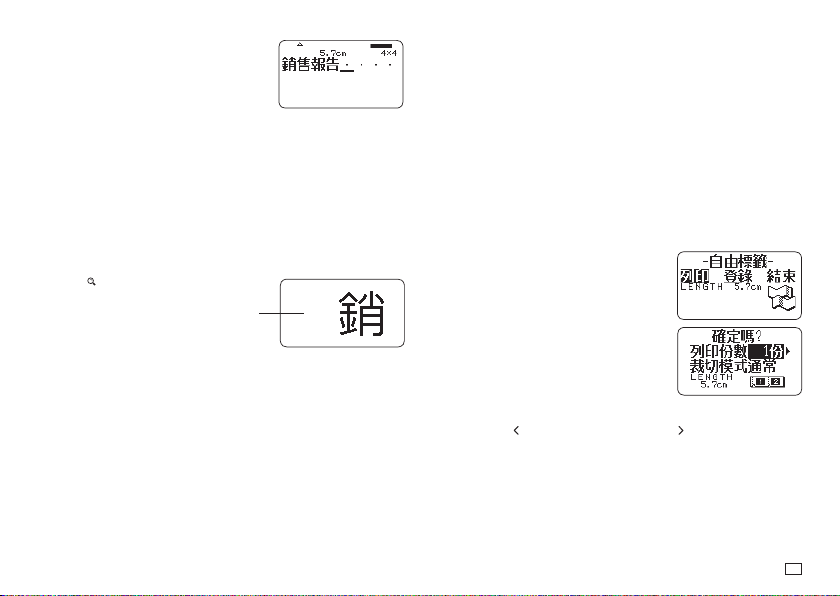
Here, we will input "
銷售報告
".
x
For information about how to input text, see
page 42.
■
Confi guring Print Format Settings
While inputting text, pressing
功能
and then
格式
displays a menu for
confi guring print format settings (page 29).
x
Tape length
(帶長)
x
Text direction (vertical, horizontal)
(方向)
x
Mirror printing (enable/disable)
(鏡射)
■
Displaying a Print Preview Image
You can display a print preview image to get an idea of what your label will
look like before actually printing it. Note that the print preview image will not
appear unless there is a tape cartridge loaded in the printer.
1.
Press .
2.
When the scrolling image reaches a location you want to check more
closely, press
執行
.
x
This will pause the scrolling image.
3.
Press
執行
again to resume scrolling.
x
To cancel the scrolling, press
取消
.
A preview image of what will
be printed will scroll across
the printer's display.
■
Printing a Label
A simple operation prints a label you have created. You can specify the
number of copies and print multiple labels with a single operation. You also
can select from among a variety of different tape cutting options.
x
Before using the tape cutter, be sure to read the information under "Cutter
Precautions" in the "Safety Precautions" (page 7).
x
Note that the tape length displayed by the printer is only a rough
approximation. Certain usage conditions and print contents may result a
printed label that does not exactly match the displayed length value.
Important!
Before printing, note the important points below.
x
Be sure to read "Printing Precautions" (page 21) before printing.
x
Check to make sure the printer has a tape cartridge loaded, and that there
is nothing blocking or interfering with the tape outlet (page 12).
1.
After inputting the text you want, press
執行
.
2.
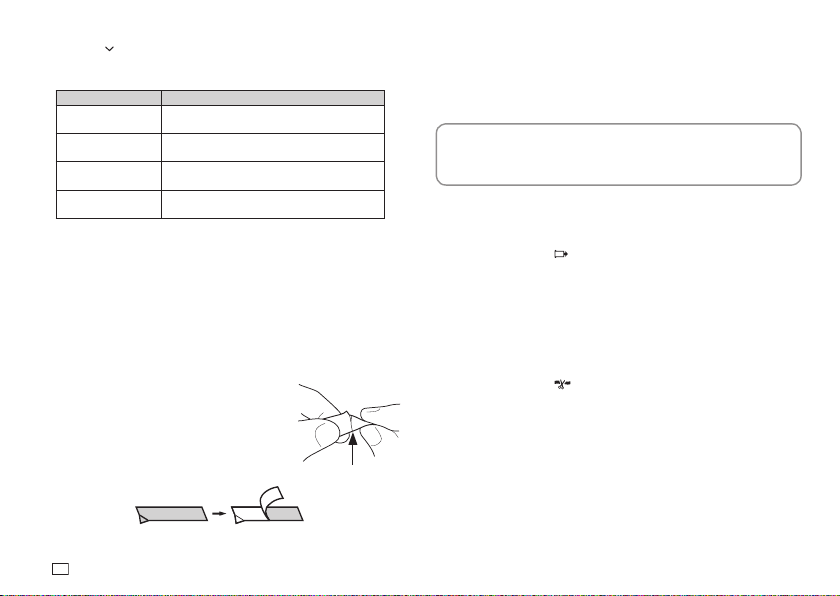
After confi rming that
列印
(Print) is selected,
press
執行
.
3.
Specify the number of copies to be printed.
x
Here we will specify one copy.
x
Press the
arrow key to reduce the value, or to increase it.
x
Direct input of values is also supported. You can specify up to 100
copies for a single print operation.
20
EN
4.
Press the arrow key.
5.
Specify a cut mode.
x
Cut modes are explained in the table below.
Select this mode: To do this:
通常
(Normal)
Print without cutting the backing paper
between labels.
切斷
(Cut) Cut between labels.
特殊
(Special Tape) Print on iron-on transfer tape.
不裁切
(Uncut)
Print on refl ective tape, magnetic tape or iron-
on fabric tape.
Here, we will specify
通常
(Normal).
6.
Press
執行
.
x
This starts printing.
x
The backlight will be unlit while printing is in progress.
x
To interrupt printing part way through, press
取消
.
Affi xing a Label to a Surface
1.
If required, use scissors or some other implement to trim the label to the
desired size or shape.
2.
Peel off the backing of the label and affi x the
label to the desired surface.
x
Peeling off the backing of a half cut label
Carefully twist at the half cut point and then
peel the backing from the label.
x
Peeling off the backing of a full cut label
Bending a corner of the label makes the backing easier to peel off.
HAPPY!
PPY!
x
Removing a label from a surface where it was affi xed may cause
adhesive residue to remain on the surface.
Important!
Do not try to affi x a label to the objects or in the locations described below.
x
On a surface exposed to direct sunlight or rain
x
On the body of a person or animal
x
On a utility pole, on a fence or structure not owned by you, etc.
x
On a container used for heating in a microwave oven
Incompatible Surfaces
x
Rough or grainy surfaces
x
Wet, oily, dusty, or otherwise soiled surfaces
x
Special plastic (silicon, polypropylene, etc.) surfaces
Feeding Tape
You can perform a tape feed operation either before or after printing.
1.
Press
功能
and then .
x
This feeds the tape approximately 21mm.
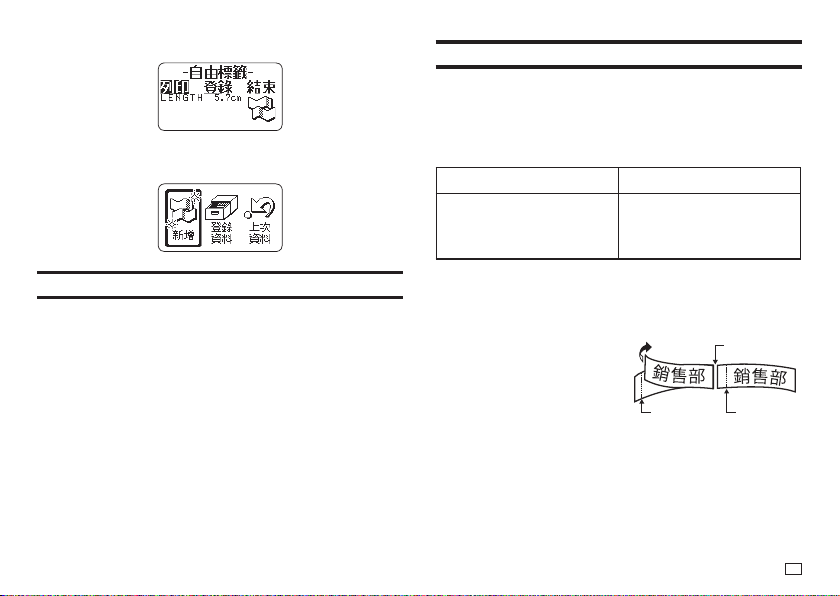
Finalizing a Print Operation when
不留
(None) is
Selected for the Margin Setting
When
不留
(None) is specifi ed for the margin setting (page 30), the printer
does not cut the tape automatically at the end of a print operation. In this
case, perform the operation below to cut the tape.
1.
Press
功能
and then .
x
This cuts the tape.
21
EN
Exiting Text Creation and Tape Printing
1.
When the screen shown above is on the display, select
結束
(Exit) and
then press
執行
twice.
x
This returns to the screen shown below.
Printing Precautions
Important!
x
Never turn off printer power while printing is in progress.
x
Never open the tape compartment cover while printing is in progress.
(page 12)
x
Do not touch the tape coming out of the printer until it is automatically cut or
until printing is complete.
x
Avoid allowing tape cuttings to pile up around the printer tape outlet.
Tape cuttings around the tape outlet creates the risk of tap jamming and
malfunction.
Cut Modes (Auto Cutter)
When printing multiple labels during a single print operation, you can
confi gure printer settings that control whether or not there should be an
automatic cut between each of them. Depending on the type of tape you are
printing, use of the cutter can cause cutter wear and malfunction.
x
The tape types in the table below are special tape. Make sure you use
特殊
(Special Tape) or
不裁切
(Uncut) whenever printing on special tape.
x
Iron-on transfer tape
特殊
(Special Tape)
x
Magnetic tape
x
Refl ective tape
x
Iron-on fabric tape
x
Heat shrink tube
不裁切
(Uncut)
■
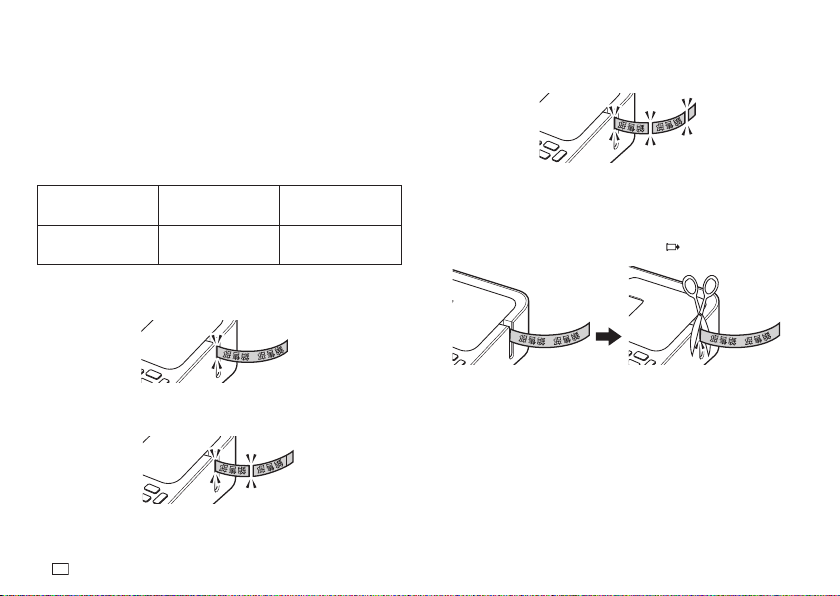
Cutting Types
The printer can perform two types of cutting.
x
Half Cut
Half Cut cuts only the sticker part of
the tape without cutting the backing
paper. This means you can peel labels
from the backing paper as you need
them.
x
Full Cut
Full Cut cuts both the backing paper
and the sticker parts.
Full cut
Half cut Half cut
22
EN
■
Four cut modes
The printer has four cut modes.
x
To specify a cut mode, perform step 5 under "Printing a Label" (page 20).
x
Note that the cut method and margin length depends on the margin
settings.
x
Regardless of the currently selected cut mode, full cutting and half cutting
are never performed while
邊距 不留
(Margins None) is specifi ed for the
print format (page 30).
x
Tape cutting is not performed when the tape length is one of those shown in
the table below. In this case, you can use scissors or some other implement
to cut the tape after printing is complete.
邊距 小
(Margins Narrow)
邊距 中
(Margins Medium)
邊距 大
(Margins Wide)
Approximately 28mm
or less
Approximately 35mm
or less
Approximately 44mm
or less
■
通常
(Normal)
x
通常
(Normal) performs a half cut between labels, and a full cut when the
end of the printing is reached.
■
切斷
(Cut)
x
切斷
(Cut) perform a full cut at the end of each label, and a half cut near the
beginning of each label to make the backing paper easier to remove.
■
特殊
(Special Tape)
x
特殊
(Special Tape) performs a full cut at the end of each label.
x
When using the
小
(Narrow) and
中
(Medium) margin settings, this setting
automatically performs a full cut to trim off excess tape.
■
不裁切
(Uncut)
x
When
不裁切
(Uncut) is selected, the printer does not perform any cut
operation between labels.
x
This setting is best when you want to print labels without spaces between
them, which saves label tape.
x
After printing is complete, press
功能
and then
to feed the tape, and
then cut it with a pair of scissors.
23
EN
Part 3 - Creating a Label
Label Creation Basics
You can use your printer to create the types of labels described below.
x
Free design label (page 28)
Enter any text you want to include in your label.
x
Numbered label (page 23)
Create labels that include an automatically incremented number.
x
Index label (page 24)
These labels come in handy when managing fi les, etc.
x
Bar code label (page 38)
Bar codes based on input data can be printed in labels.
x
Built-in logo label (page 41)
The printer has a number of built-in labels that include logos and text for
retail and offi ce use that you can print.
x
Large label (page 27)
You can print multiple labels and then assemble them into a large, multi-
label sign, etc.
Important!
x
You can change the font (page 47) and character style (page 47) as you
like.
x
You can also save data you create in printer memory (page 41).
Creating Labels that Include an Automatically
Incremented Number (Numbered Label)
You can use the procedure in this section to create labels with an
automatically incremented number as a page number, etc.
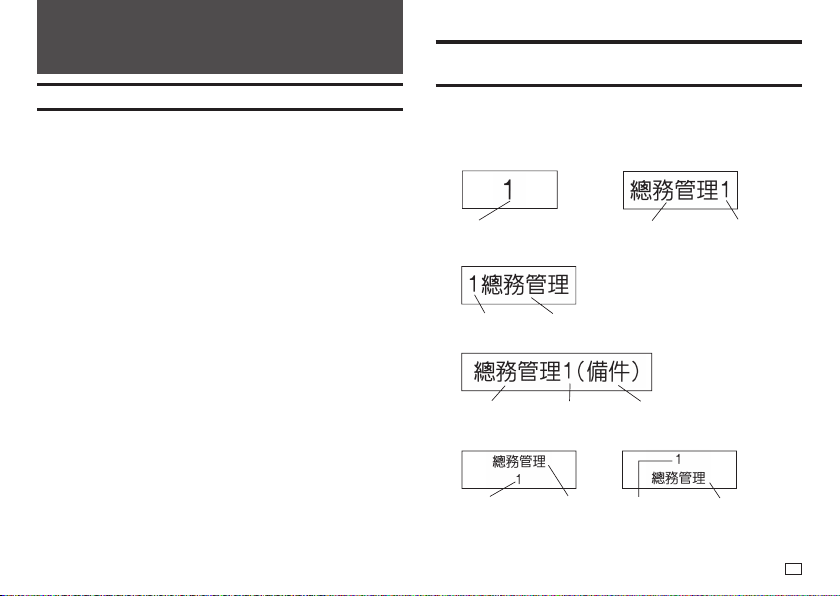
Numbering Formats
Number
x
Format 1
Text (up to 99
characters)
Number
x
Format 2
Number Text (up to 99 characters)
x
Format 3
Text 1 (up to 99
characters)
Number Text 2 (up to 99
characters)
x
Format 4
Number Text (up to 99
characters)
x
Format 5
Number
Text (up to 99
characters)
x
Format 6
x
The number is incremented each time a label is printed.
24
EN
Important!
Numbered label printing continues for the specifi ed number of copies. To avoid
running out of tape during a print operation, check before hand to ensure that
the tape cartridge being used has suffi cient tape remaining.
1.
On the main menu (page 15), select
新增
(New) and then press
執行
.
2.
Select
列印編號
(Numbering) and then press
執行
.
3.
Select a print format and then press
執行
.
x
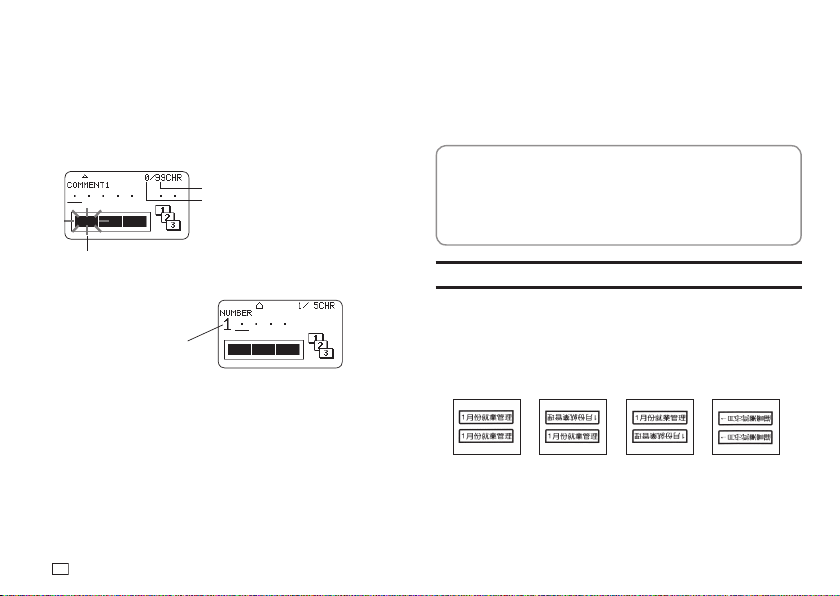
Here we will select 4.
Allowable number of input characters
Flashes (Indicates area where input is enabled.)
Current number of input characters
4.
Input COMMENT1 text and then press
執行
.
The start number is
displayed.
5.
Change the start number if you want, and then press
執行
.
x
To change the start number, delete the current number and then
re-input. You can input up to fi ve digits.
6.
Input COMMENT2 text and then press
執行
.
7.
Select the numbering style and then press
執行
.
8.
Select
列印
(Print) and then press
執行
.
9.
Specify the number of copies to be printed with consecutive numbers,
confi rm that the start
(開始)
and end
(結束)
numbers are what you
want, and then press
執行
.
x
You can input a number of copies value from 1 to 100.
x
Direct input of values is also supported.
10.
Specify a cut mode (page 21) and then press
執行
.
x
The number following 99999 is 00000.
Important!
x
Avoid allowing tape cuttings to pile up around the printer tape outlet.
Tape cuttings around the tape outlet create the risk of tape jamming and
malfunction.
Confi guring Print Format Settings
You can confi gure the print format settings below as you input text.
x
Tape length (3.0 to 30.0 cm)
(帶長)
x
Vertical or horizontal text direction
(方向)
x
Mirror printing enable/disable
(鏡射)
While inputting text, press
功能
and then
格式
to display the print format
setting screen. Use the screen to confi gure the settings you want.
Creating an Index Label
Index labels come in handy when managing fi les, etc. You can also use any of
the canned phrases that are built-into printer memory.
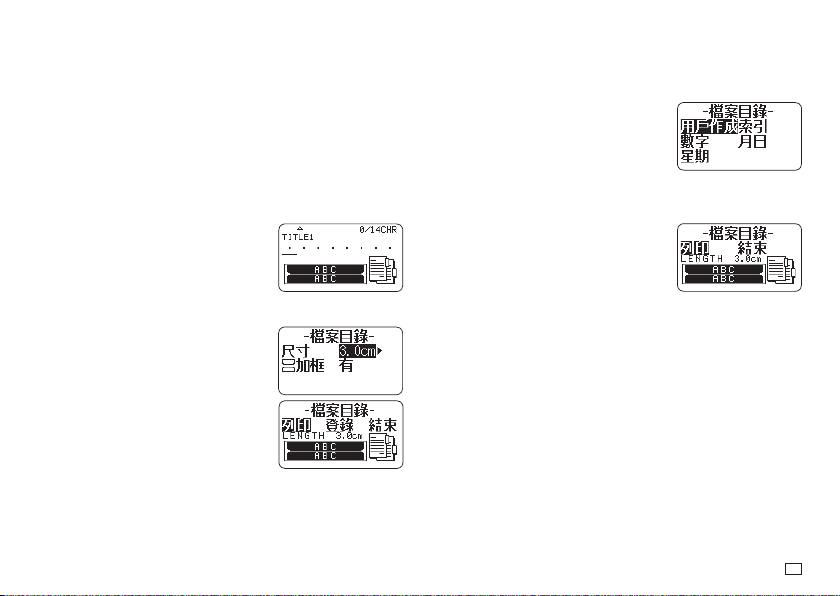
Index Label Formats
You can choose from among the four index label formats below, depending on
your fi ling system and desired text orientation.
Format 1
Format 4 (Vertical)
Format 3
Format 2
x
The same content is printed on the front and back of the index label.
Important!
x
Index label creation is supported for 24mm wide tape only. Make sure that a
24mm wide tape cartridge is loaded in the printer.
25
EN
x
To avoid detachment of an index label when it is attached directly to the
edge of a document, make sure that the part of the label that attaches to
the document is at least 4mm wide.
x
When affi xing index labels to the tabs of commercially available index cards,
use of 24mm wide transparent tape, without framing, is recommended.
Creating an Index Label with Text You Input
Enter any text you want to include in your index label.
You can create and print up to six different index labels at one time.
1.
On the main menu (page 15), select
新增
(New) and then press
執行
.
2.
Select
檔案目錄
(Index) and then press
執行
.
3.
Select the desired print orientation and then press
執行
.
4.
Select
用戶作成
(User Created) and then
press
執行
.
5.
Input text and then press
執行
.
x
This displays the input screen for the next index label. If you want to
create another index label, repeat step 5.
6.
After you are fi nished creating all of the index
labels you want, press
執行
as many time
as necessary to navigate to the screen for
confi guring size and frame settings.
7.
Specify the size (index label length) and
whether or not to include a frame, and then
press
執行
.
8.
Select
列印
(Print) and then press
執行
.
9.
Select the fi rst index label to be printed and then press
執行
.
x
You can use the number keys to input the number next to an index label
to select it for printing.
10.
Select the last index label to be printed and then press
執行
.
11.
Specify a cut mode (page 21) and then press
執行
.
Creating an Index Label Using Canned Phrases
You can use the canned phrases built into printer memory to create an index
label.
1.
Perform steps 1 through 3 under “Creating
an Index Label with Text Your Input” on
page 25.
2.
Select the desired canned phrase type and then press
執行
.
3.
Select the desired canned phrase and then press
執行
.
4.
Specify the size (index label length) and
whether or not to include a frame, and then
press
執行
.
5.
For the remainder of this procedure, perform steps 8 through 11 under
“Creating an Index Label with Text Your Input” on page 25.
x
Canned phrases are printed using the initial power on default font
(page 54).
26
EN
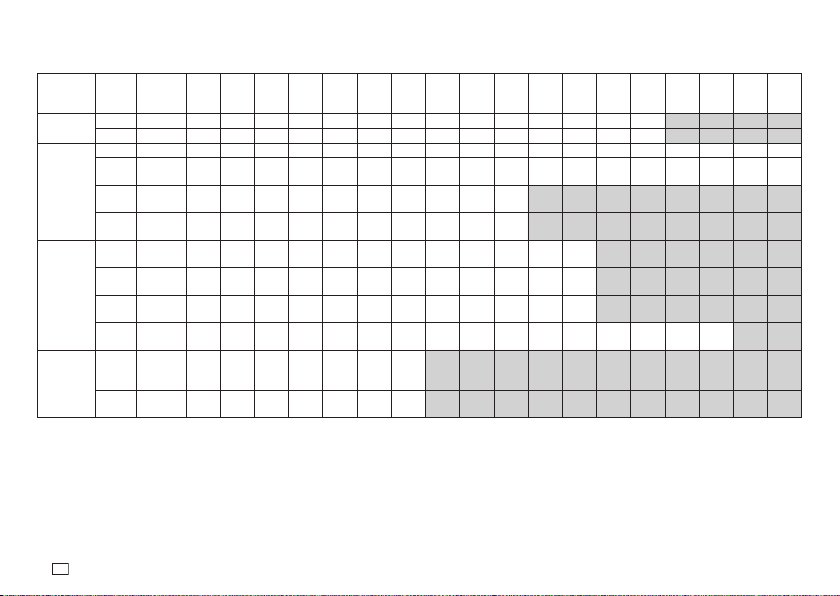
Index Label Canned Phrase List
Category
Printed
Content
Maximum
Number
of Copies
123456789101112…26…31…99
索引
(Index)
A - Z26 ABCDEFGH I JKL…Z
a - z 26 a b c d e f g h i j k l … z
數字
(Numbers)
1 - 99 99 1 2 3 4 5 6 7 8 9 10 11 12 … 26 … 31 … 99
No.1 -
No.99
99
No.1 No.2 No.3 No.4 No.5 No.6 No.7 No.8 No.9 No.10 No.11 No.12 … No.26 … No.31 … No.99
1~ -
90~
10 1~ 10~ 20~ 30~ 40~ 50~ 60~ 70~ 80~ 90~
No.1~ -
No.90~
10
No.1~
No.10~ No.20~ No.30~ No.40~ No.50~ No.60~ No.70~ No.80~ No.90~
月日
(Date) 1
月
-
12
月
12 1
月
2
月
3
月
4
月
5
月
6
月
7
月
8
月
9
月
10
月
11
月
12
月
Jan. -
Dec.
12 Jan. Feb. Mar. Apr. May June July Aug. Sep. Oct. Nov. Dec.
1
月份
-
12
月份
12 1
月份
2
月份
3
月份
4
月份
5
月份
6
月份
7
月份
8
月份
9
月份
10
月份
11
月份
12
月份
1
日
-
31
日
31 1
日
2
日
3
日
4
日
5
日
6
日
7
日
8
日
9
日
10
日
11
日
12
日
…
26
日
…
31
日
星期
(Day of the
week)
星期日
-
星期六
7
星期日 星期一 星期二 星期三 星期四 星期五 星期六
Sun. -
Sat.
7 Sun. Mon. Tue. Wed. Thu. Fri. Sat.
27
EN
Creating a Large Label by Combining Smaller
Parts (Large Label)
You can print multiple parts and then assemble them into a large, multi-part
label.
Example: To create a sign consisting of two parts
Important!
x
Make sure that a 12mm wide or wider tape cartridge is loaded in the printer.
x
Printing on an 18mm wide tape or 24mm wide tape will result in margins
above and below the printing. Trim away the margins before assembling the
parts into a fi nal label. When using 18mm or 24mm wide tape, printing on
transparent tape and overlapping of the pieces is recommended.
1.
On the main menu (page 15), select
新增
(New) and then press
執行
.
2.
Select
放大列印
(Enlarged) and then press
執行
.
3.
Input text and then press
執行
.
4.
Specify the size of the fi nal (combined label) text and then press
執行
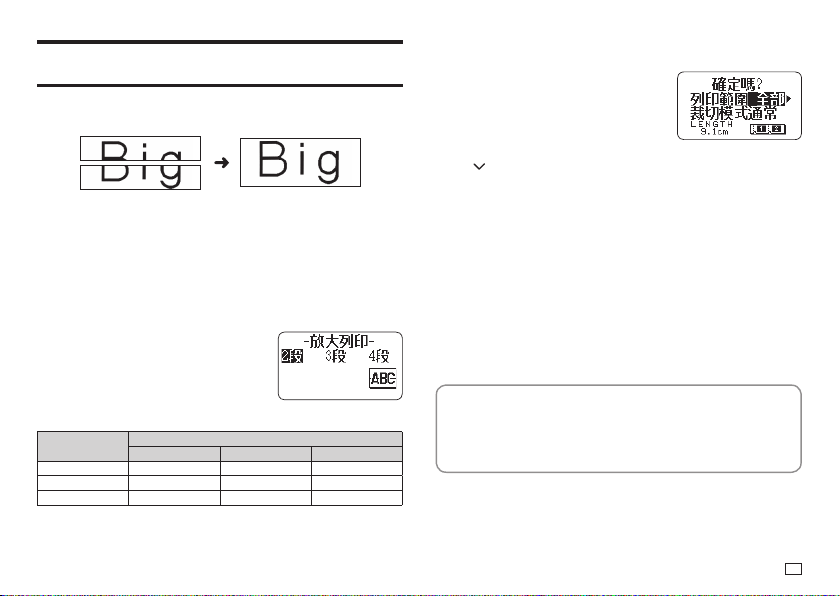
.
Tape width
Text Size
2
段
(2 pieces) 3
段
(3 pieces) 4
段
(4 pieces)
12mm 24mm 36mm 48mm
18mm 30mm 45mm 60mm
24mm 30mm 45mm 60mm
"2
段
(2 pieces)" means "printing is divided between two parts". Printing can
be divided among up to four parts.
5.
Select
列印
(Print) and then press
執行
.
x
A preview image (page 19) of the parts
that make up a large label cannot be
displayed.
6.
Specify which of the parts of the label you want to print and then press
the
arrow key.
x
Normally select
全部
(All) here.
7.
Specify a cut mode (page 21) and then press
執行
.
x
When printing multiple parts that contain a large amount of text, you
may not be able to print all of the parts with a single tape cartridge. In
this case, printing one part of a time while keeping an eye on how much
tape remains in the cartridge you are using is recommended. If a tape
cartridge runs out of tape during printing, press
取消
to stop printing,
replace the cartridge, and then restart printing.
x
Printing text that has a lot of black or performing continuous printing
can cause the printer to overheat. If this happens, printing will pause
and the message
正在準備列印
(Please Wait) will appear on the printer
display. Printing will resume automatically when the printer returns to
normal temperature.
x
If printing starts to pause with the message
正在準備列印
(Please Wait)
on the display too frequently, try lowering the print density setting.
Confi guring Print Format Settings
You can confi gure the print format settings below as you input text.
x
Vertical or horizontal text direction
(方向)
x
Mirror printing enable/disable
(鏡射)
While inputting text, press
功能
and then
格式
to display the print format
setting screen. Use the screen to confi gure the settings you want.
28
EN
2.
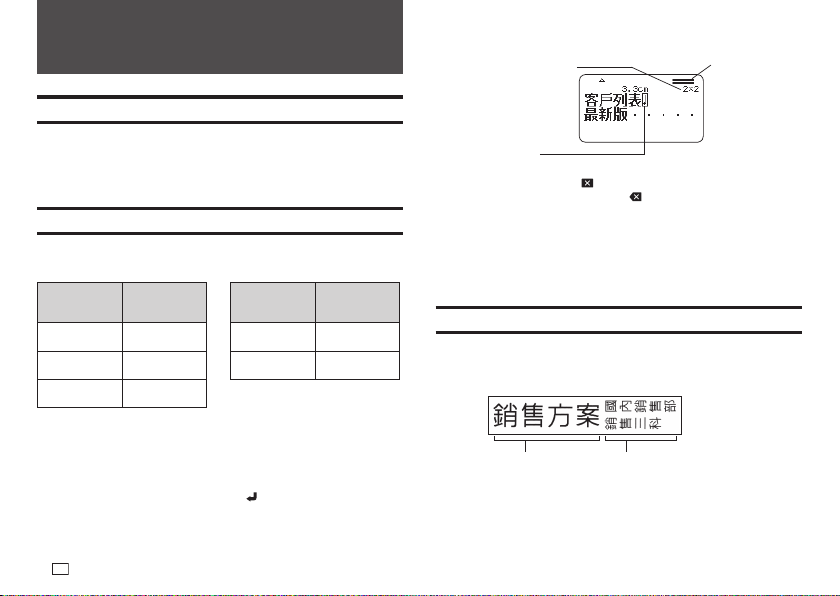
Input the second line of text.
Character size adjusted
according to number of
lines.
Created Label
Layout (Imager)
Line break symbol
(not printed)
x
To delete a line break, press
to delete the line break symbol. You can not
delete a line break symbol by pressing .
x
The Imager shows something like 5/8 when printing with
微小
(Small Font).
5/8 means there are eight lines and the cursor is in line 5.
Printing with
微小
(Small Font)
o
page 37
x
The message
行數超限
(Too Many Lines) appears on the display and
printing becomes impossible when the number of lines is greater than those
allowed for the width of the loaded tape cartridge. If this happens, reduce
the number of lines or load a tape cartridge of the appropriate width.
Dividing Text Into Blocks
You can assign label text to individual blocks and then specify a print format
and number of lines for each block.
Sample Print
Block
18mm wide
tape
Block
x
Two lines (page 28)
x
Vertical text (page 29)
Part 4 - Free Design Label
Creating a Free Design Label with Text You Input
1.
On the main menu (page 15), select
新增
(New) and then press
執行
.
2.
Select
自由標籤
(Free Design) and then press
執行
.
3.
Input the text you want.
x
Refer to page 19 for information about the printing operation.
Creating a Label with Multiple Lines of Text
The number of lines you can include in a label depends on the width of the
tape you are using.
Tape Width
Maximum
Number of
Lines
Tape Width
Maximum
Number of
Lines
6mm 2 18mm 8
9mm 3 24mm 8
12mm 5
x
The character size changes automatically in accordance with the tape width
and the number of lines (Just Fit Print).
x
Even if you specifi ed character size manually (page 35), characters will be
re-sized automatically in accordance with the number of lines.
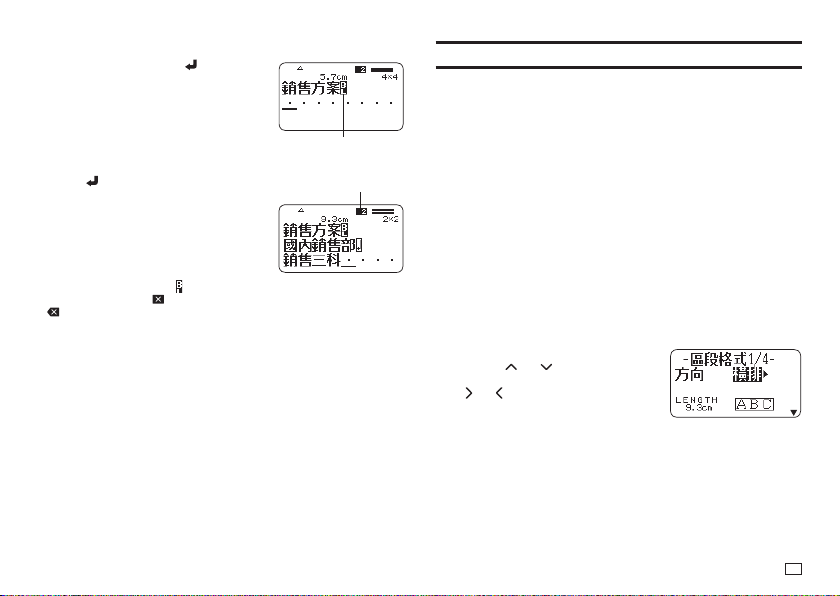
1.
Input the fi rst line of text and then press .
29
EN
1.
Input the text for the fi rst block.
2.
Press
功能
and then press .
x
This makes the input text a block.
3.
Input line 1 of the next block's text,
press
, and then input line 2.
x
To delete a block indicator (
), move the cursor to the indicator you want to
delete and then press
. You can not delete a block indicator by pressing
.
x
A label can have up to 16 blocks.
x
For information about a two-line label, see page 28.
x
For information about the vertical text setting, see page 29.
Block indicator (not printed)
Indicates in which block the
cursor is currently located.
Specifying the Label Print Format
You should change the print format in accordance with the label length,
character spacing, text alignment, etc. You can change the format of each
block and for the overall label.
Specifying the Print Format of Each Block
You can specify text direction, text alignment, and other settings for each
block (page 28).
1.
Input text and divide it into blocks.
2.
Move the cursor to the block whose print format you want to change.
x
The cursor can be located anywhere within the block.
3.
Press
功能
and then
格式
.
x
If there is only one block in the label, advance to step 6. In this case,
you can confi gure either block print format or overall print format
settings.
4.
Select
區段格式
(Block Form) and then press
執行
.
5.
Select
僅此區段
(One Block) and then press
執行
.
x
To apply the same print format to all of the blocks, select
全部區段
(All
Blocks).
6.
Confi gure the settings of each item.
x
Use the
and arrow keys to
select a setting item and then use
and to change its setting.
30
EN
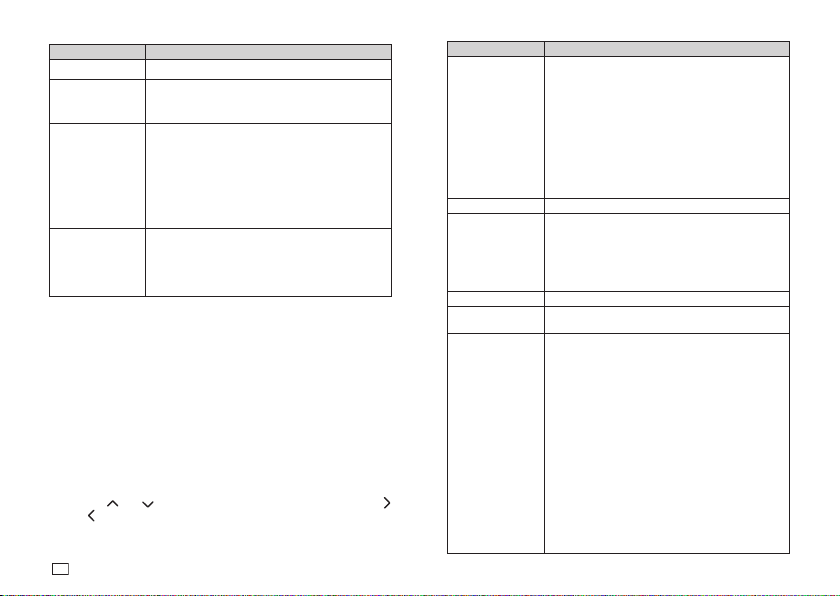
Setting Item Description
方向
(Direction) Specifi es either
直排
(Vertical) or
橫排
(Horizontal).
文字排版
(Text Alignment)
Specifi es alignment (
靠左
(Left),
等距
(Equal),
置
中
(Center),
靠右
(Right)) of the text within a block.
o
page 34
文字間隔
(Text Pitch)
Specifi es the space between characters in the
range of 0 to 31.9mm.
x
The tape length is also adjusted in accordance
with the character pitch setting.
x
Specifi cation of character spacing is not
supported when
等距
(Equal) is specifi ed for
文
字排版
(Text Alignment) or when
固定
(Fix) is
specifi ed for
區段長度
(Block-Length).
區段長度
(Block-Length)
x
自動
(Auto): Automatically adjusts the block
length in accordance with the number of
characters in the block.
x
If you want to specify the block length manually,
select
固定
(Fix) for this setting.
o
page 31
7.
After all of the settings are the way you want, press
執行
.
Specifying the Print Format of All Text
Settings you confi gure with the procedure in this section is applied to all of the
text in a label, even if there are multiple blocks.
1.
Input text.
2.
Press
功能
and then
格式
.
x
If there is only one block in the label, advance to step 4. In this case,
you can confi gure either block print format or overall print format
settings.
3.
Select
全文格式
(All Form) and then press
執行
.
4.
Confi gure the settings of each item.
x
Use the
and arrow keys to select a setting item and then use
and
to change its setting.
Setting Item Description
鏡射
(Mirror)
Enables/disables mirror image printing. Select
否
(Normal) to print normal (not mirror image) text.
x
Select mirror image text when printing with an
iron-on transfer cartridge (sold separately) for
transfer to a handkerchief, T-shirt, etc.
x
鏡射
(Mirror) setting is not required when
printing to iron-on fabric tape (sold separately).
x
Mirror image text can also be printed with a
transparent tape cartridges (sold separately)
and affi xed to the back of glass or some other
transparent surface.
傾斜
(Slanted) Enables/disables slanted printing.
均衡
(Proportional)
是
(On): Adjusts the character pitch in accordance
with differences in the width of each alphanumeric
character.
否
(Off): Adjusts the alphanumeric character pitch
in accordance with differences in the width of each
Chinese character.
平滑
(Smoothing) Enables/disables character line smoothing.
區段間隔
(Block-Space)
Specifi es the spacing between blocks.
邊距
(Margins)
Specifi es the size of leading and trailing margins.
x
You can select one of the margin settings below,
or
不留
(None) (page 20).
小
(Narrow): Approximately 3mm wide leading and
trailing label margins
中
(Medium): Approximately 10mm wide leading
and trailing label margins
大
(Wide): Approximately 19mm wide leading and
trailing label margins
Important!
Margin cut may not be performed when the tape
is short as defi ned by the following: approximately
28mm or less with
小
(Narrow) margins;
approximately 35mm or less with
中
(Medium)
margins; approximately 44mm or less with
大
(Wide) margins. After printing, use scissors or
some other implement to trim the margins.
31
EN
Setting Item Description
帶長
(Tape Length)
x
自動
(Auto): Automatically adjusts the label
length in accordance with the number of
characters.
x
If you want to specify the label length manually,
select
固定
(Fix) for this setting.
o
page 32
區段排版
(Block Alignment)
Specifi es the label overall block alignment.
o
page 34
x
This setting is valid only when
固定
(Fix) is
selected for the
帶長
(Tape Length) setting.
Available settings are:
靠左
(Left),
等距
(Equal),
置中
(Center),
靠右
(Right).
5.
After all of the settings are the way you want, press
執行
.
Specifying the Label Length
Use the procedure in this section to specify the label length manually.
You can set the label length using any one of the three methods below.
Fixed Block Length: Specifi es the overall label length by specifying the length
of each block.
Fixed Tape Length: Specifi es the overall label length.
With the one-touch length setting keys: Use this method to specify the lengths
of commonly used labels for CD or DVD cases, fi les, etc.
x
Note that the label length displayed by the printer is only a rough
approximation. Certain usage conditions and print contents may result a
printed label that does not exactly match the displayed length value.
Specifying the Length of Each Block (Fixed Block
Length)
1.
Input text and divide it into blocks (page 28).
2.
Move the cursor to the block whose length you want to specify.
3.
Press
功能
and then
格式
.
x
If there is only one block in the label, advance to step 6.
4.
Select
區段格式
(Block Form) and then press
執行
.
5.
Select
僅此區段
(One Block) and then press
執行
.
x
To apply the same print format to all of the blocks, select
全部區段
(All
Blocks).
6.
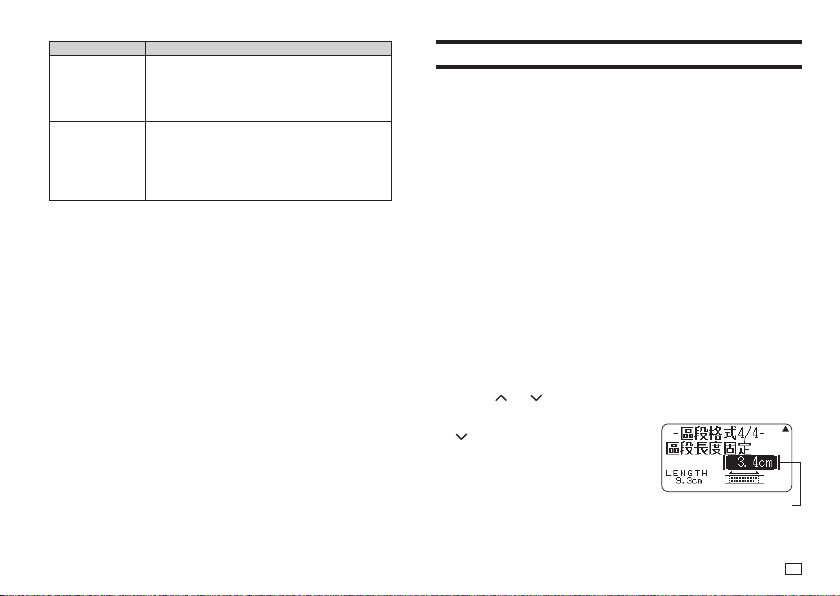
Use the and arrow keys to display the
區段長度
(Block-Length)
setting screen.
7.
Select
固定
(Fix) and then press the
arrow key.
This highlights the value.
32
EN
8.
Specify the length of the block and then press
執行
.
x
Direct input of values is also supported.
x
The length of each block and the number of input characters affects
how the label is printed. You can check the status of the printout by
looking at whether the displayed block length is enclosed in brackets as
described below.
[6.0cm]: Print will be the specifi ed length.
(6.0cm]: Print will be the specifi ed length, but text will be compressed
horizontally.
6.0cm]: Print will be longer than that specifi ed length. (Text will be
compressed 50% in the text direction.)
x
You can also check the printout with the Imager in the upper side of the
display.
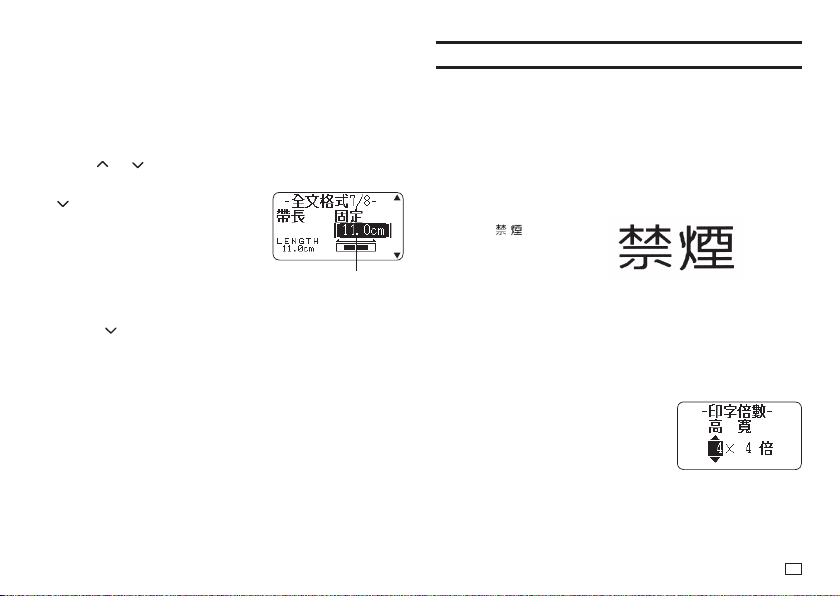
Specifying the Overall Label Length (Fixed Tape
Length)
1.
Input text.
2.
Press
功能
and then
格式
.
x
If there is only one block in the label, advance to step 4.
3.
Select
全文格式
(All Form) and then press
執行
.
4.
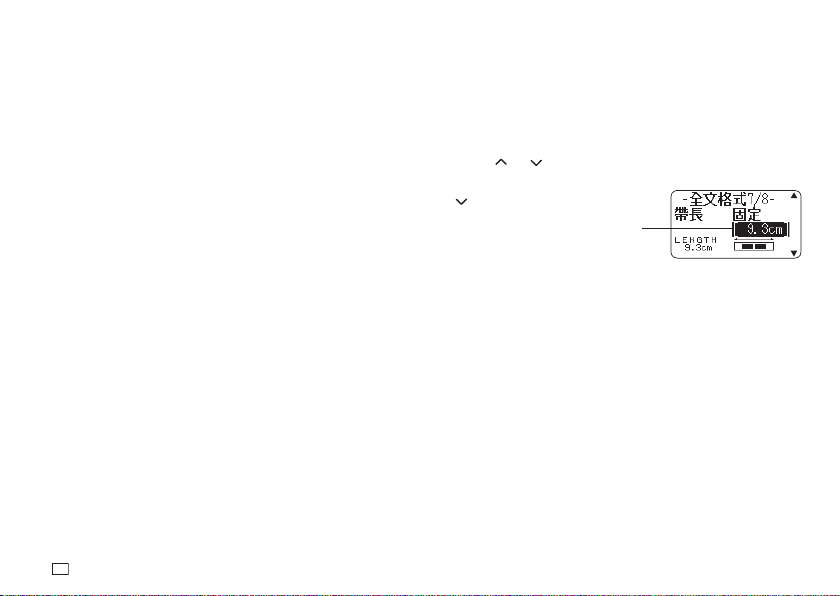
Use the and arrow keys to display the
帶長
(Tape Length) setting
screen.
5.
Select
固定
(Fix) and then press the
arrow key.
6.
Specify the length of the label and then press
執行
.
x
Direct input of values is also supported.
The message
長度錯誤
(Length Error) will appear on the display if the
text you input is incompatible with the length setting. You can check the
status of the printout by looking at whether the displayed tape length is
enclosed in brackets as described below.
[10.5cm]: Print will be the specifi ed length.
10.5cm]: Print will be longer than that specifi ed length.
This highlights the value.
33
EN
Simple Length Setting for CD or DVD Case
Labels (One-touch Length Setting Keys)
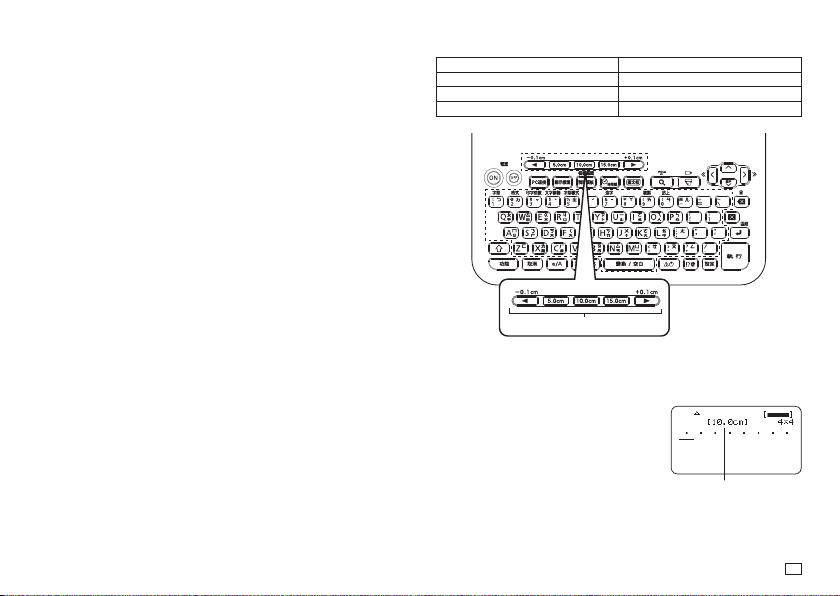
You can use the one-touch length setting keys for quick and easy specifi cation
of the lengths of commonly used labels for CD or DVD cases, fi les, etc. One-
touch setting simplifi es the task of printing multiple labels of the same length.
Important!
x
Use the
帶長
(Tape Length) or
區段長度
(Block-Length) settings to specify
the label length when using blocks to lay out the label. Using the one-touch
length setting keys to specify the tape length in this case may produce a
label that is longer than the specifi ed value.
x
A length specifi ed with the one-touch length setting keys will also become
the Fixed Tape Length setting value.
x
Specifying a tape length with the one-touch length setting keys
automatically confi gures following settings:
區段長度
(Block-Length) :
固定
(Fix),
文字排版
(Text Alignment) :
等距
(Equal),
區段排版
(Block Alignment) :
等距
(Equal). Note that the block length can be fi xed when there is one
block only.
x
The one-touch length setting keys can be used for a free design label only.
■
Supported Tape Lengths
One-touch length setting keys Label Application
15.0cm Paper fi le, binder, etc.
10.0cm CD/DVD case, etc.
5.0cm Name sticker, etc.
x
You can adjust the label length in 1mm units.
One-touch length setting keys
■
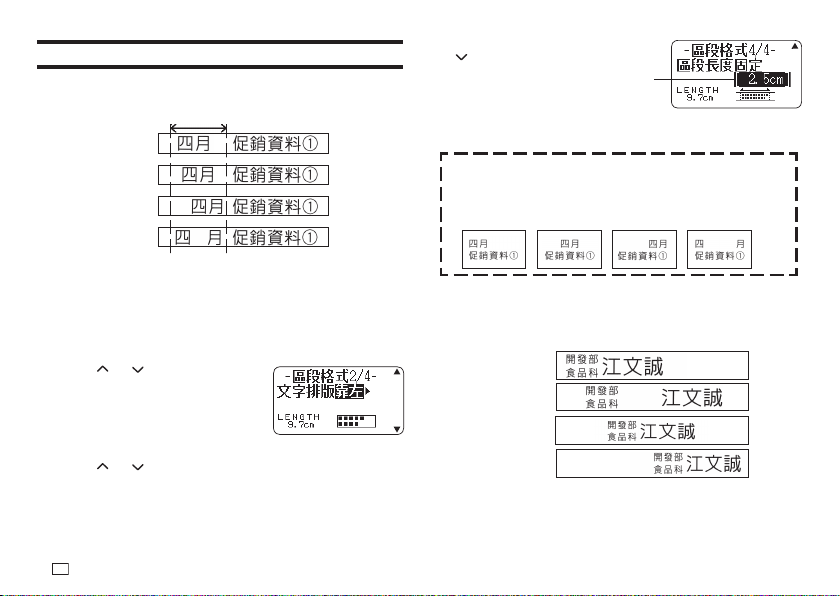
To specify a label length
Example: To specify the length of a CD/DVD case label
1.
Press 10.0cm.
You can make the label longer by pressing
+0.1cm or shorter by pressing -0.1cm.
x
You can input text either before or after
specifying the label length.
Length indicator changes
to 10.0cm.
34
EN
Specifying Text Alignment
Specifying Text Alignment within a Block
Use the procedure below to specify text alignment within a block.
Fixed block length
Align center
Align left
Align right
Equal
1.
Input text and divide it into blocks (page 28).
2.
Move the cursor to the block whose text alignment you want to change,
press
功能
and then press
格式
.
x
If there is only one block in the label, advance to step 5.
3.
Select
區段格式
(Block Form) and then press
執行
.
4.
Select
僅此區段
(One Block) and then press
執行
.
5.
Use the and arrow keys to
display the
文字排版
(Text
Alignment) setting screen.
6.
Select the desired alignment.
7.
Use the and arrow keys to display the
區段長度
(Block-Length)
setting screen.
8.
Select
固定
(Fix) and then press the
arrow key.
9.
Specify a value that is greater than the original value and then press
執行
.
x
Direct input of values is also supported.
When there is more than one line of text, you can specify alignment
even when
自動
(Auto) is selected for the
區段長度
(Block-Length)
setting. Doing so affects the line of text with fewest characters, as
shown below.
Align left EqualAlign center Align right
Specifying Label Block Alignment
You can use the procedure below to specify the overall alignment of blocks
within a label.
Align left
Align center
Equal
Align right
This highlights the value.
35
EN
Important!
Note that the block alignment specifi cation is valid only when
固定
(Fix) is
selected for the
帶長
(Tape Length) setting.
1.
Input text and divide it into blocks (page 28).
2.
Press
功能
and then
格式
.
x
If there is only one block in the label, advance to step 4.
3.
Select
全文格式
(All Form) and then press
執行
.
4.
Use the and arrow keys to display the
帶長
(Tape Length) setting
screen.
5.
Select
固定
(Fix) and then press the
arrow key.
6.
Specify a value that is greater than the original label length value.
x
Direct input of values is also supported.
7.
Press the arrow key to display the
區段排版
(Block Alignment) setting
screen.
8.
Select the desired alignment and then press
執行
.
The value is highlighted.
Specifying Character Size
You can use the procedures in this section to manually specify character size.
x
If you don't specify character size manually, the size is adjusted
automatically (Just Fit Print).
Specifying the Size of Specifi c Characters
You can specify the size of specifi c characters within the range of 1x1 to 5x8.
The maximum character size (vertical) that can be printed depends on the
tape width. For more information, see "Tape Width, Number of Lines, Size
Factor List" (page 60).
1×1
5×6
x
Printing results may differ depending on whether text is vertical or
horizontal. For example, when 1×2 is specifi ed, horizontal text is elongated
horizontally while vertical text is elongated vertically.
1.
Input text.
2.
Press
功能
and then
印字倍數
.
3.
Select
文字單位
(Character Unit) and then press
執行
.
4.
Specify the
高
(Height) and
寬
(Width) factors
and then press
執行
.
x
Direct input of values is also supported.
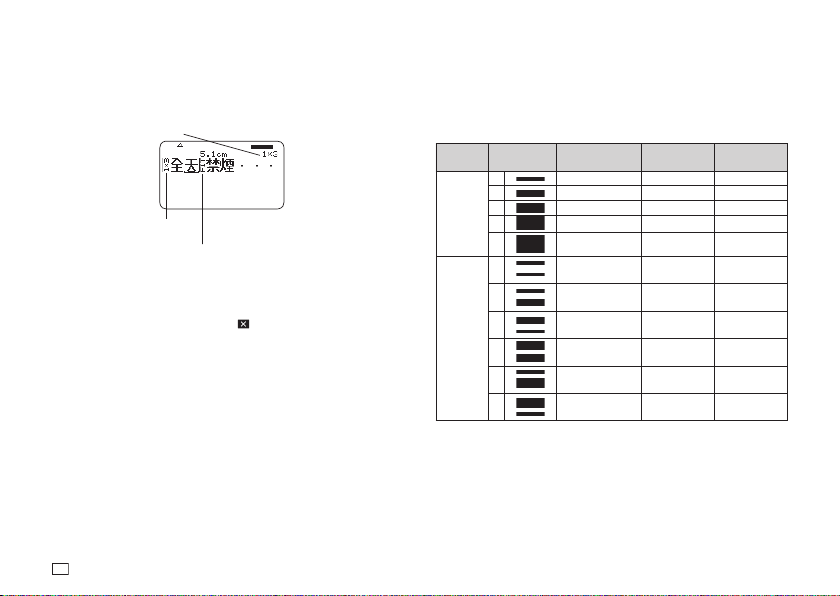
36
EN
5.
Move the cursor to the fi rst character of the text whose size you want to
change and then press
執行
.
6.
Move the cursor to the last character of the text whose size you want to
change and then press
執行
.
Character size factors
Size of character at
current cursor position
Size factor indicator
Size of printed character
Just Fit Indicator
Any text following this indicator is printed at a
size determined by the Just Fit feature.
x
The size factor indicator and Just Fit indicator appear on the display but are
not printed on the label.
x
To delete a size factor specifi cation, use
to delete the size factor
indicator.
x
Deleting a size factor indicator causes the character size to change
automatically in accordance with the tape width and the number of lines.
Note, however that if there is a size factor indicator to the left of the one that
is deleted, the text will change to the size specifi ed by the remaining size
factor indicator.
x
A character size factor specifi cation affects only the block where it is
located.
Specifying the Character Size for a Specifi c Line
of Text
You can use the formats in the table below to specify the character size for a
specifi c line of text.
x
Depending on the number of text lines and the type of tape cartridge loaded
in the printer, printing may not change even if you select a different format.
Number
of Lines
Format
24mm, 18mm
wide
12mm wide 9mm wide
1
A
1×1 1×1 1×1
B
2×2 2×2 2×2*
C
3×3 3×3* -
D
4×4 - -
E
5×5* - -
2
A
1×1
1×1
--
B
1×1
2×2
--
C
2×2
1×1
--
D
2×2*
2×2*
--
E
1×1
3×3*
--
F
3×3*
1×1
--
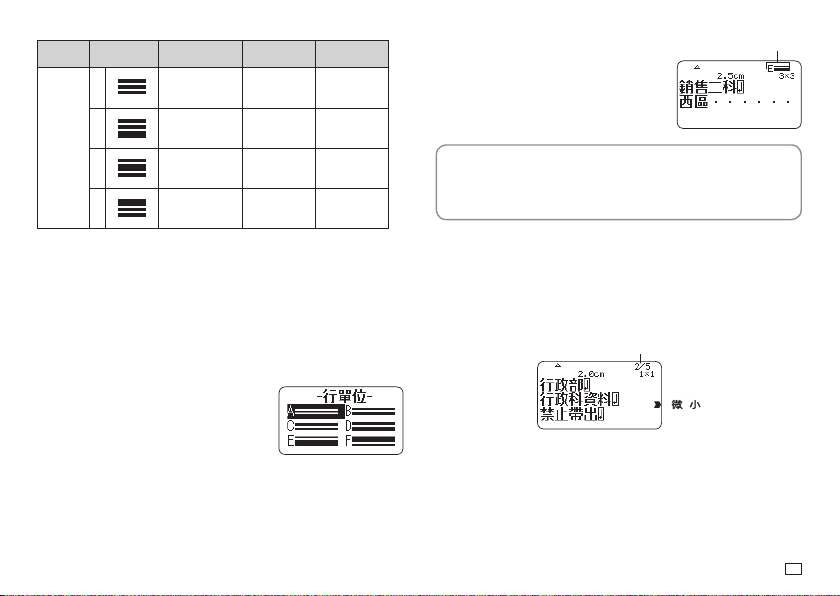
37
EN
Number
of Lines
Format
24mm, 18mm
wide
12mm wide 9mm wide
3
A
1×1
1×1
1×1
--
B
1×1
1×1
2×2*
--
C
1×1
2×2*
1×1
--
D
2×2*
1×1
1×1
--
* Smaller printing with a frame.
Important!
You cannot specify the character size for a line of text when any one of the
conditions below exists.
x
When 6mm wide tape is loaded in the printer
x
When there are more than three lines of text
x
When a character size is specifi ed for specifi c characters (page 35)
1.
Input text.
2.
Press
功能
and then
印字倍數
.
3.
Select
行單位
(Line Unit) and then
press
執行
.
4.
Select the format you want to use
and then press
執行
.
Important!
Either of the events below will cause a line character size setting to be
cancelled automatically.
x
Changing the number of lines
x
Specifying the size of specifi c characters (page 35)
■
Small Font
Certain number of line (number of input lines or the number of lines in a
selected format) and tape width combinations may cause
微小
(Small Font) to
become selected.
x
A pointer will appear next to
微小
(Small Font) on the right side of the
display when this happens.
x
In the case of a free design label, the Imager will show a fractional value.
Imager
Important!
x
Font and proportional settings become invalid while
微小
(Small Font) is
selected.
x
Text that has a character style or effect applied, as well as illustrations and
user characters may not print correctly while
微小
(Small Font) is selected.
Selected format
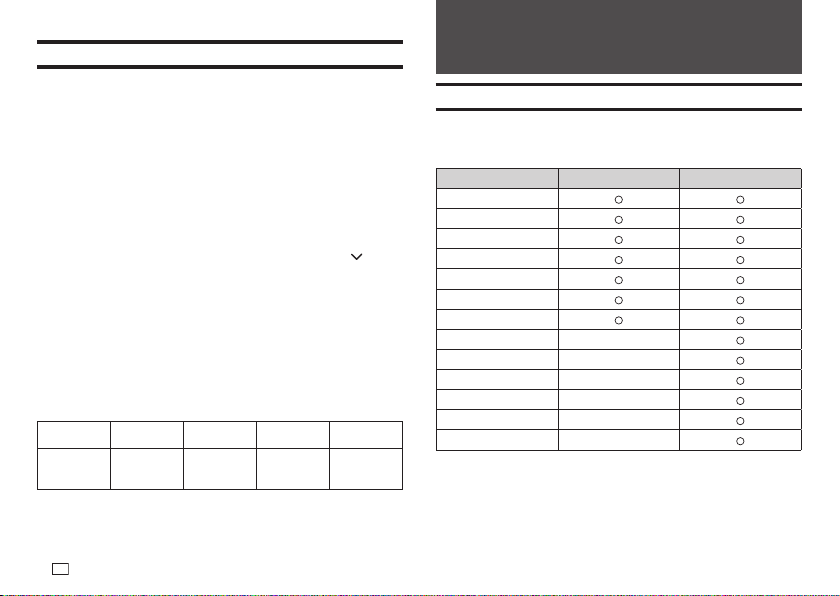
38
EN
Adding a Frame to a Label
You can add one of a variety of different frames (page APP-4) to a free design
label.
1.
Input text.
2.
Press
圖文框
.
3.
Select the frame you want to use and then press
執行
.
4.
Select
列印
(Print) and then press
執行
.
Important!
If you print with a frame when a tape length is specifi ed (page 31), the printed
label may be longer than the specifi ed length.
5.
Specify the number of copies to be printed and then press the arrow
key.
x
Direct input of values is also supported.
x
You can specify from 1 to 100 copies.
6.
Specify a cut mode (page 21) and then press
執行
.
This starts printing.
x
If framed printing is performed while
傾斜
是
(Italic On) is selected for
the format, normal printing (without italics) will be performed.
x
The
文字修飾
(Effect)
加框
(Box) text effect cannot be used in a framed
label.
x
The number of lines you can include in a framed label depends on the
width of the tape you are using.
24mm, 18mm
wide
12 mm wide 9mm wide 6mm wide
Number of
framed label
lines
Up to 6 Up to 3 Up to 2 1
Part 5 - Bar Code Labels
Creating a Bar Code Label
Bar Code Types
You can use your printer and the Label Printing Software FA-3000 to create a
variety of different bar codes.
Bar Code Types KL-G2TC (Printer) FA-3000
EAN-13
EAN-8
CODE39
ITF
CODABAR (NW-7)
UPC-A
UPC-E
CODE128 -
GS1-128/EAN-128 -
GS1 Databar -
PDF417 -
QR code -
Data Matrix -
x
For details about how to use the Label Printing Software FA-3000, refer to
the "Label Printing Software FA-3000 User’s Guide".
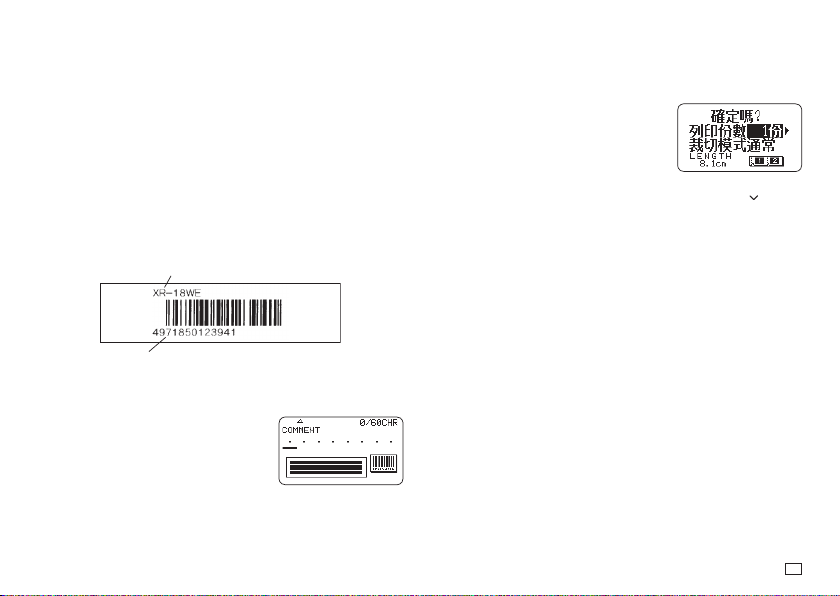
39
EN
4.
Input comment text (0 to 60 characters) and then press
執行
.
x
Without inputting any comment text, press
執行
.
5.
Input data and then press
執行
.
6.
Select the size of the bar code label and then press
執行
.
7.
Select
列印
(Print) and then press
執行
.
8.
Specify the number of copies to be printed and then press the arrow
key.
x
Direct input of values is also supported.
x
You can specify from 1 to 100 copies.
9.
Specify a cut mode (page 21) and then press
執行
.
Important!
x
Be sure to use a 12mm wide or wider tape cartridge for bar code label
printing.
x
You can input comment text above a bar code (up to 60 characters).
x
You should confi rm that a printed bar code can be read correctly before
actually using it. If a bar code cannot be read correctly, make the
adjustments below.
Lighten the print density (page 54).
Increase the size of the print (step 6, page 39).
Use
特殊
(Special Tape) or
不裁切
(Uncut) as the cut mode (page 22).
x
The tapes below are suitable for bar code label printing.
x
Black lettering on white tape (WE)
x
Blue lettering on white tape (WEB)
x
Black lettering on yellow tape (YW)
The letters in parentheses indicate the tape model number.
Sample Print
Data
Tex t
1.
On the main menu (page 15), select
新增
(New) and then press
執行
.
2.
Select
條碼
(Bar Code) and then press
執行
.
3.
Select the type of bar code you want to use
and then press
執行
.
x
If you select ITF, CODE39, or CODABAR
as the bar code type, specify whether or
not to include a check digit and then press
執行
.
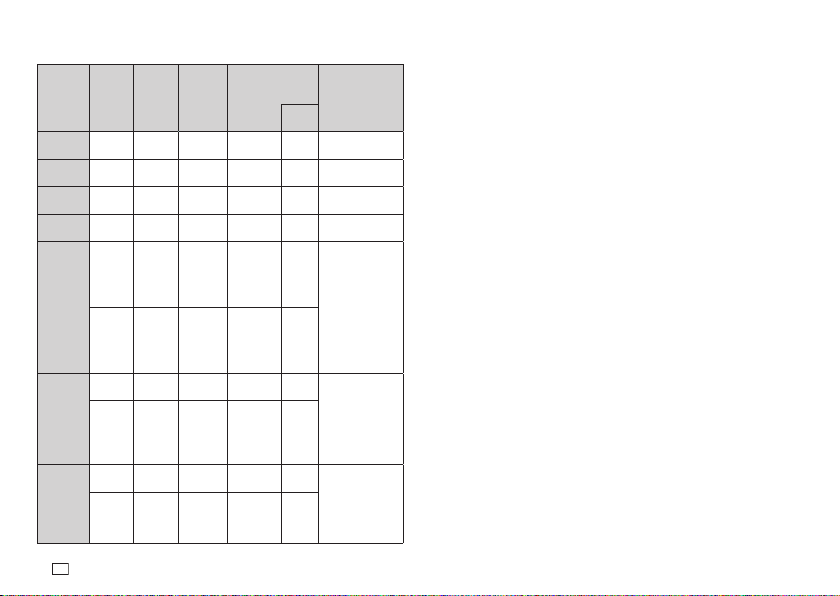
40
EN
Bar Code Specifi cations
Bar Code
Check
digit
*1
Number
of print
digits
*3
Number
of input
digits
*4
Number of
auto appended
digits
*1
Input
characters
*8
Check
digit
*1
EAN-13
有
(Yes) 13 12 - 1
Numbers
(0 to 9)
EAN-8
有
(Yes) 8 7 - 1
Numbers
(0 to 9)
UPC-A
有
(Yes) 12 11 - 1
Numbers
(0 to 9)
UPC-E
(
有
(Yes))
*2
66 --
Numbers
(0 to 9)
ITF
無
(No)
4 to 22
digits
4 to 22
digits,
even
numbers
only
*5
--
Numbers
(0 to 9)
有
(Yes)
4 to 22
digits
3 to 21
digits,
odd
numbers
only
*6
-1
CODE39
無
(No)
4 to 22
digits
2 to 20
digits
2 digits
*7
-
Numbers
(0 to 9), alpha
characters
(A to Z),
symbols
(-, ., space, $, /,
+, %)
有
(Yes)
4 to 22
digits
1 to 19
digits
2 digits
*7
1
CODABAR
(NW-7)
無
(No)
4 to 22
digits
4 to 22
digits
--
Numbers (0 to
9), symbols (-, $,
:, /, ., +), alpha
characters (first
and last only) A
to D
*9
有
(Yes)
4 to 22
digits
3 to 21
digits
-1
*1
The check digit is automatically calculated in accordance with input data.
For EAN-13, EAN-8, and UPC-A, and when using a check digit with ITF,
the check digit is appended at the end of the printed digits. When using a
check digit with CODE39 or CODABAR, the check digit is appended one
digit before the fi nal digit.
*2
UPC-E includes a check digit, but it is not printed as a numeral below the
bar code.
*3
The number of digits printed below a bar code equals the input characters
plus automatically appended characters.
*4
An error message is displayed whenever there are insuffi cient digits. The
printer will not allow input of too many digits.
*5
An error message appears and printing is impossible if an odd number of
digits are input when an ITF check digit is not being used. Append a zero
to the beginning of the digits and re-input.
*6
An error message appears and printing is impossible if an even number
of digits are input when an ITF check digit is being used. Append a zero
to the beginning of the digits and re-input.
*7
Both the start code and end stop code of CODE39 must be asterisks.
*8
An error message appears and printing is impossible if any characters
other than those specifi ed here are used.
*9
With CODABAR, A, B, C, or D can be used as the start code and stop
code. An error message appears and printing is impossible if any other
character is used.
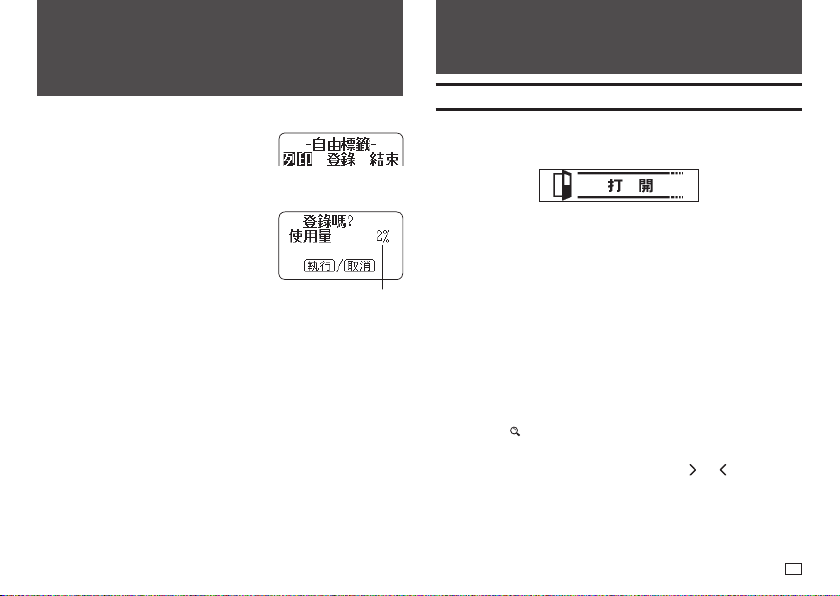
41
EN
Part 7 - Using a Built-in Logo
Inserting a Built-in Logo into a Label
The printer has a number of built-in labels that include logos and text for retail
and offi ce use that you can print.
Sample Print
x
For information about the printer's built-in logos, see the Built-in Logo List
(page APP-5).
x
A built-in logo can be printed on a label only when 12mm, 18mm, or 24mm
wide tape is being used.
Printing a Label with a Built-in Logo
1.
On the main menu (page 15), select
圖示標識
(Built-in Logo) and then
press
執行
.
x
Instead of the above operation, you could also simply press the
圖示標
識
key.
2.
Select a built-in logo category and then press
執行
.
3.
Select the logo you want to use and then press
執行
.
x
You can also select a logo by looking up its number on the built-in logo
list (page APP-5) and then inputting the number with the number keys.
x
Pressing
will cause a preview image of what the selected design
looks like when printed to scroll across the display. To pause preview
image scrolling, press
執行
.
x
While text scrolling is stopped, you can use the
and arrow keys to
scroll through item by item.
x
To exit the preview image, press
取消
.
Part 6 - Storing and Recalling
Label Data
Storing Label Data
You can use the screen that appears after text
input is complete to assign a name to the data
and save it in printer memory.
1.
After you fi nish inputting text, select
登錄
(Store) and then press
執行
.
2.
Input a label data name and then press
執行
.
x
You can input up to seven characters for
the label data name.
3.
Press
執行
.
x
The message
登錄完畢
(Complete) will appear and then the screen
that was displayed in step 1 will re-appear.
Recalling Stored Data
You can recall stored data from the main menu screen (page 15).
1.
Select
登錄資料
(Stored Data) and then press
執行
.
2.
Select
調出
(Recall) and then press
執行
.
3.
Select the name of the data you want to recall and then press
執行
.
Deleting Stored Data
You can delete stored data from the main menu screen (page 15).
1.
Select
登錄資料
(Stored Data) and then press
執行
.
2.
Select
刪除
(Delete) and then press
執行
.
3.
Select the name of the data you want to delete and then press
執行
.
4.
Press
執行
.
x
To cancel the data delete operation, press
取消
.
Memory capacity
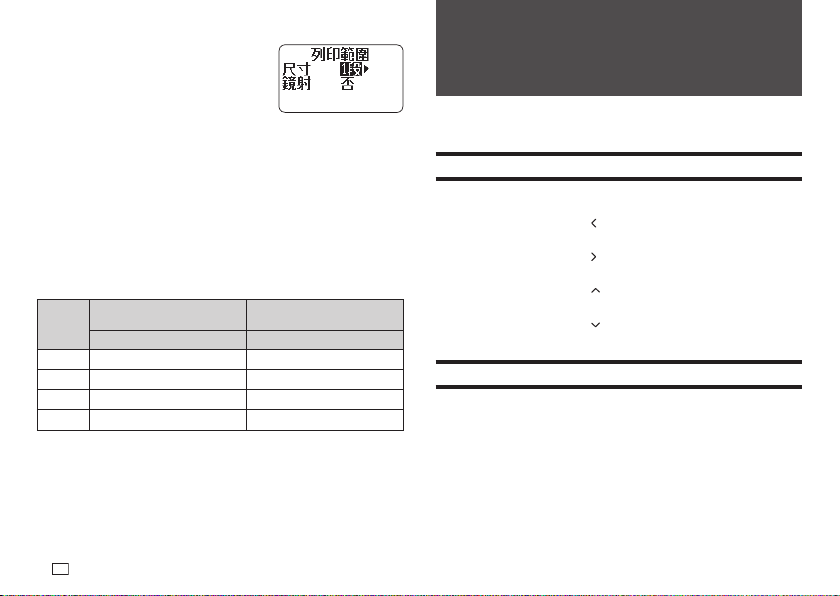
42
EN
4.
Select the print size, enable or disable mirror
image printing, and then press
執行
.
x
You can also print multiple tapes and later
assemble them into a large label. For
information about print sizes, see page 42.
x
When printing a large label, select
放大
2
段
(2 pieces) (two tapes),
放大
3
段
(3 pieces) (three tapes), or
放大
4
段
(4 pieces) (four tapes).
5.
Select
列印
(Print) and then press
執行
.
6.
Specify the number of copies to be printed, select the cut mode (page 21),
and then press
執行
.
x
Note that you will not be able to specify the number of copies if you are
printing a large label. In this case, you can select
全部
(All) or one of
the tapes (1, 2, etc.) that make up the fi nal label. Normally select
全部
(All) here.
Print sizes of built-in logos
(All sizes indicated as Vertical x Horizontal.)
24mm,
18mm wide
12mm wide
Data Size Data Size
1
段
15mm × 67.5mm 10mm × 45mm
放大
2
段
30mm × 135mm 20mm × 90mm
放大
3
段
45mm × 202.5mm 30mm × 135mm
放大
4
段
60mm × 270mm 40mm × 180mm
x
Printing a large label on an 18mm or 24mm wide tape will result in margins
above and below the printing. Trim away the margins before assembling the
parts into a fi nal label. Or you can print on transparent tape and overlap the
margins of the different tapes without trimming them.
Part 8 - Inputting and Editing
Text
This section explains basic text input and editing operations. It also includes
information about how to apply text styles and effects, and how to create user
characters.
Moving the Cursor
You can use the arrow keys to move the cursor (input position) around the
display.
x
Press
功能
and then press the
arrow key.
o
Moves the cursor to the beginning of the current line.
x
Press
功能
and then press the
arrow key.
o
Moves the cursor to the end of the current line.
x
Press
功能
and then press the
arrow key.
o
Moves the cursor to the beginning of the text.
x
Press
功能
and then press the
arrow key.
o
Moves the cursor to the end of the text.
Inputting Text
You can use the operations in this section to input Chinese characters,
English alpha characters, numerals, and symbols.
Chinese Input Mode and English Input Mode
Chinese Input Mode: Use this mode to input Chinese characters. You can
use any one of three different input methods: Zhuyin, Cangjie, or Pinyin.
English Input Mode: Use this mode to input upper-case and lower-case
English alpha characters, numerals and symbols.
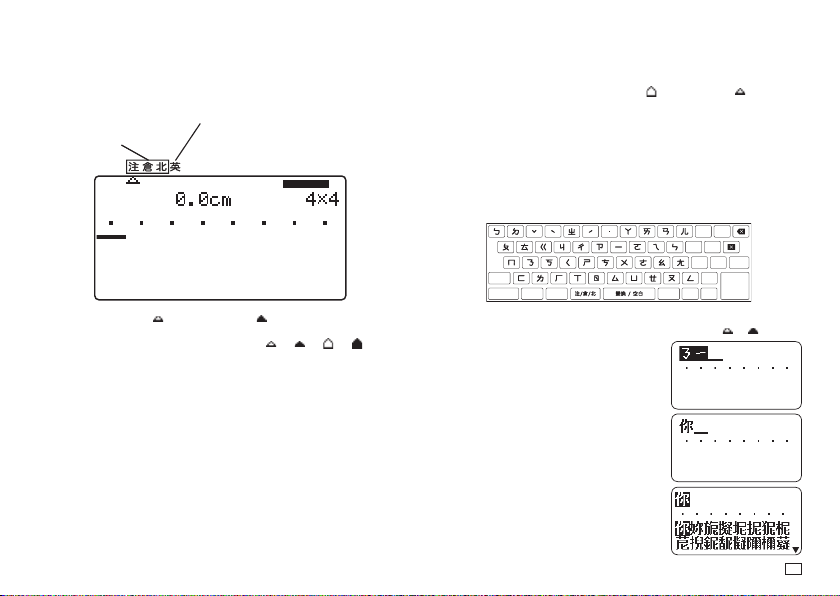
43
EN
Display Screen and Input Mode
Chinese Input Mode English Input Mode
x
Zhuyin (
注
)
x
English lower-case (
英
)
x
Cangjie (
倉
)
x
English upper-case (
英
)
x
Pinyin (
北
)
The input mode pointer ( in the insert mode, in the overwrite mode)
points to the currently selected input mode. During upper-case English
character input, the pointer shape changes from (or ) to (or ).
x
For information about how to toggle between the insert mode and overwrite
mode, see page 54.
■
To enter the Chinese input mode
1.
Press
注/倉/北
.
x
If you are currently in the English input mode, the above operation will
return to the input method that was selected when you were last in the
Chinese input mode.
x
While in the Chinese input mode, each press of
注/倉/北
cycles
through input methods in sequence: Zhuyin
→
Cangjie
→
Pinyin
→
Zhuyin, etc.
■
To enter the English input mode
1.
Press a/A.
x
If you are currently in the Chinese input mode, the above operation will
return to the input mode (upper-case (
) or lower-case ( )) that was
selected when you were last in the English input mode.
x
While in the English input mode, each press of the a/A button toggles
between lower-case and upper-case input.
Inputting Chinese Using the Zhuyin Input Method
With the Zhuyin input method, phonetic symbols input by you are converted to
Chinese characters.
Keys Use for Zhuyin Input
Example:
你好
1.
Press
注/倉/北
and then move the input mode pointer ( or ) to
注
.
2.
Press
ㄋ一
.
3.
Press
ˇ
.
x
This displays
你
.
x
You can select a different character by
pressing
選字
. After selecting the character
you want, press
執行
.
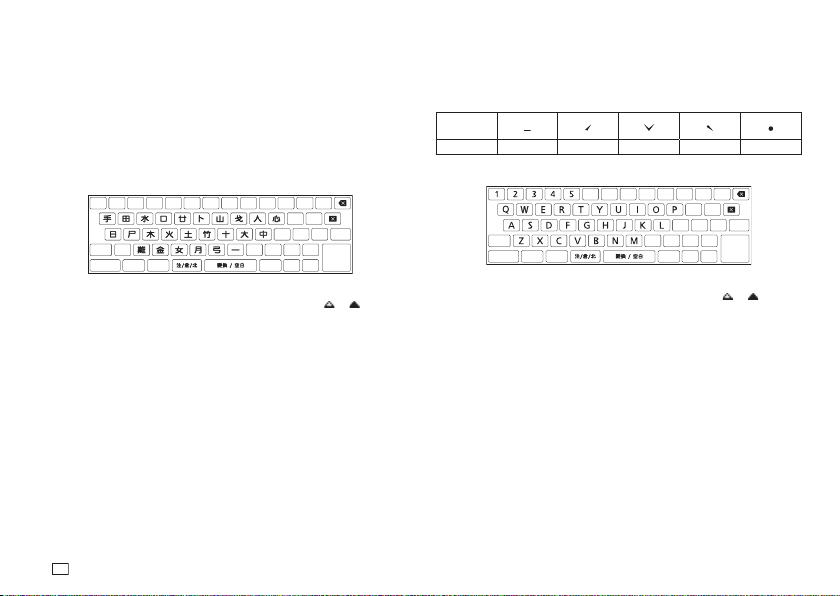
44
EN
4.
Press
ㄏㄠ
.
5.
Press
ˇ
.
x
This displays
好
.
x
You can select a different character by pressing
選字
. After selecting
the character you want, press
執行
.
Inputting Chinese Using the Cangjie Input Method
With the Cangjie input method, combinations of radicals input by you are
converted to Chinese characters.
Keys Use for Cangjie Input
Example:
你好
1.
Press
注/倉/北
and then move the input mode pointer ( or ) to
倉
.
2.
Press
人弓火
3.
Press
變換/空白
.
x
This displays
你
.
x
If there is more than one candidate displayed at the bottom of the
screen, select the one you want and then press
執行
.
4.
Press
女弓木
.
5.
Press
變換/空白
.
x
This displays
好
.
x
If there is more than one candidate displayed at the bottom of the
screen, select the one you want and then press
執行
.
Inputting Chinese Using the Pinyin Input Method
The Pinyin input method uses the pinyin method of Romanization and tones
(rising or falling) to input Chinese. Each syllable can have one of four tones
or a light voice, which is specifi ed following the alpha character input of the
symbol.
Tone/Light
Voice
Number key
12345
Keys Used for Pinyin Input
Example:
你好
(ni3hao3)
1.
Press
注/倉/北
and then move the input mode pointer ( or ) to
北
.
2.
Press N I.
3.
Press 3.
x
This displays
你
.
x
You can select a different character by pressing
選字
. After selecting
the character you want, press
執行
.
4.
Press H A O.
5.
Press 3.
x
This displays
好
.
x
You can select a different character by pressing
選字
. After selecting
the character you want, press
執行
.
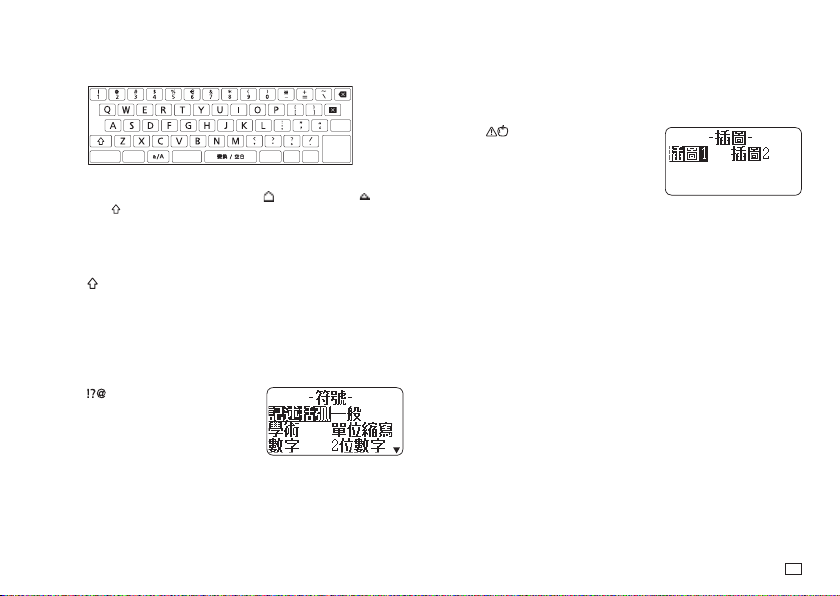
45
EN
Inputting English Characters
Keys Used for English Input
1.
Press the key that corresponds to the character you want to input.
x
Press a/A to toggle between upper case (
) and lower case ( ) input.
x
Pressing will toggle input of the next character only from upper case
to lower case, or from lower case to upper case.
Inputting a Symbol Marked On a Key
1.
Press and then press the key for the symbol you want to input.
Inputting Other Symbols
The printer has a collection of built-in symbols divided among 13 groups. For
information about available symbols and their groups, see the symbol table
(page APP-1).
1.
Press .
2.
Select the group that contains the symbol you want to use and then press
執行
.
3.
Select the symbol you want to use and then press
執行
.
Inputting Illustrations
The printer has a collection of built-in illustrations divided between two
groups. For information about available illustrations and their groups, see the
illustrations table (page APP-2).
x
Character styles are not applied to illustrations.
1.
Press .
2.
Select the group that contains the illustration you want to use and then
press
執行
.
3.
Select the illustration you want to use and then press
執行
.
Symbol group name
Illustration group name
46
EN
Editing and Deleting Text
Deleting a Single Character
■
Deleting the Character to the Left of the Current Cursor
Position
1.
Move the cursor to the character to the right of the character you want to
delete and then press
.
■
Deleting the Character at the Current Cursor Position
1.
Move the cursor to the character you want to delete and then press .
Clearing All Characters (All Text Clear)
1.
Press
功能
and then press .
x
If you were creating a free design label, select
全文刪除
(Clear All) here
and then press
執行
.
x
To cancel the operation, press
取消
.
2.
Press
執行
.
■
Deleting a Range of Characters (Free Design Label Only)
1.
Press
功能
and then press .
2.
Select
部分刪除
(Delete Part) and then press
執行
.
x
To cancel the operation, press
取消
.
3.
Move the cursor to the fi rst character of the part you want to delete and
then press
執行
.
4.
Move the cursor to the last character of the part you want to delete and
then press
執行
.
Editing Input Text
The method for editing text depends on whether you are using the
插入
(Insert)
mode or
覆寫
(Overwrite) mode. For information about switching between
插
入
(Insert) and
覆寫
(Overwrite), see "Confi guring Printer Settings" (page 54).
■
Editing Input Text Using
插入
(Insert)
1.
Move the cursor to the wrong character and then press .
2.
Input the correct character.
■
Editing Input Text Using
覆寫
(Overwrite)
1.
Move the cursor to the wrong character.
2.
Input the correct character.
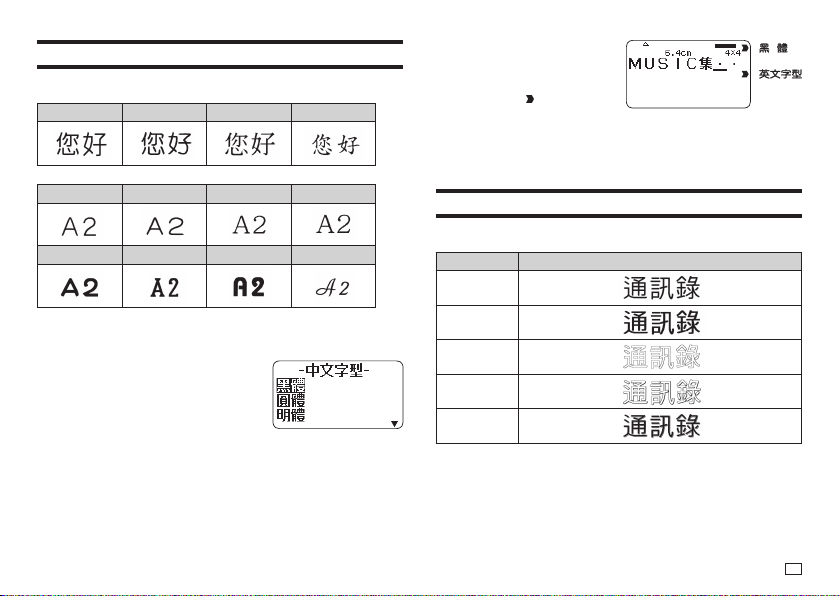
47
EN
Changing the Font
Your printer supports the fonts below.
■
Chinese Fonts
黑體 圓體 明體 楷體
■
English Fonts
黑體 圓體 明體 楷體
PP
體
SLB
體
BRD
體
CRS
體
Changing the Font of Previously Input Text
1.
Press
功能
and then
字型
.
2.
Select the Chinese font you want to
use and then press
執行
.
3.
Select the English font you want to use and
then press
執行
.
x
You can also select (
與中文字型相同
) (Same as Chinese font) for the
English font.
4.
Select the range of text where you want to apply the font setting and then
press
執行
.
x
If you selected
全文
(All) for a free design label, simply press
執行
.
x
If you selected something else for a free design label, use steps 5 and
6 to specify a range of text.
5.
Move the cursor to the fi rst character of the text whose font you want to
change and then press
執行
.
6.
Move the cursor to the last
character of the text whose
font you want to change and
then press
執行
.
x
The pointer (
) on the right
side of the display indicates the
currently selected font.
x
You can use
設定
(page 54) to specify the printer's initial power on
default font. When using
登錄資料
(Stored Data) or
上次資料
(Previous
Data) for text, the font setting will be the font specifi ed when the data
was created.
Changing the Character Style
You can use the following character styles to emphasize text:
標準
(Normal),
粗體
(Bold),
中空
(Outline),
陰影
(Shadow),
立體
(Raised).
Style Example
標準
(Normal)
粗體
(Bold)
中空
(Outline)
陰影
(Shadow)
立體
(Raised)
x
Character styles cannot be used with illustrations or user characters.
x
Applying a character style to a Chinese character that has a large number
of strokes may make the character diffi cult to read.
1.
Input text.
2.
Press
功能
and then
字型樣式
.
3.
Select the character style you want to change and then press
執行
.
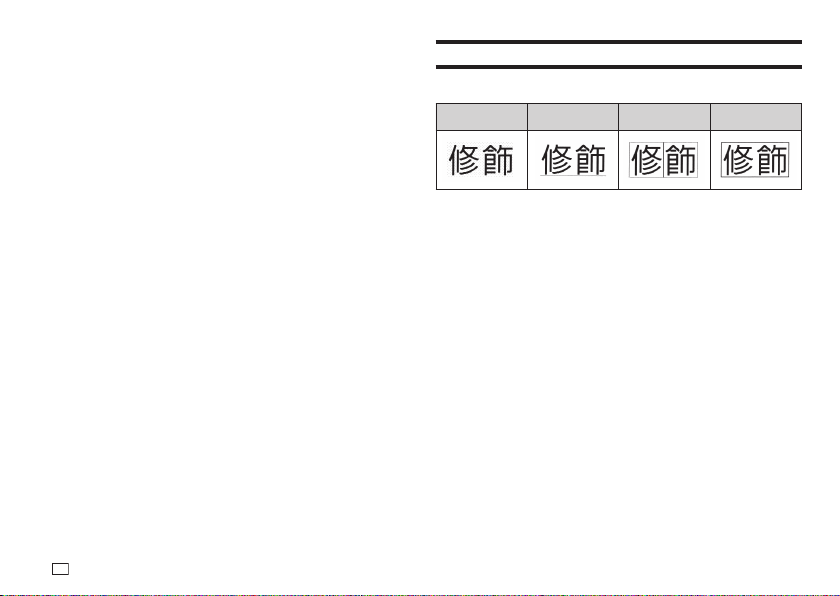
48
EN
4.
Select the range of text where you want to apply the character style
setting and then press
執行
.
x
If
全文
(All) is selected for the Free Design Label setting of the selected
range of text, simply press
執行
.
x
If you selected something else for a free design label, use steps 5 and
6 to specify a range of text.
5.
Move the cursor to the fi rst character of the text you want to change and
then press
執行
.
6.
Move the cursor to the last character of the text you want to change and
then press
執行
.
Using Text Effects
Use the procedures in this section with a free design label to shade or
underline text, or to enclose text in a box.
網點
(Shading)
底線
(Underline)
加框
(Box)
(
文字
(Character))
加框
(Box)
(
詳細
(Text))
Specifying a Text Effect
1.
Input text.
2.
Press
功能
and then
文字修飾
.
3.
Select the desired text effect type and then press
執行
.
x
Selecting
取消
(Cancel) removes the currently applied text effect.
4.
Select the range of text where you want to apply the text effect and then
press
執行
.
x
區段
(Block): Specifi es all the text in a particular block.
x
行
(Line): Specifi es all the text in a particular line.
x
文字
(Character): Specifi es a particular character.
x
詳細
(Text): Specifi es a desired range of text.
5.
Move the cursor to the fi rst character of the text to which you want to
apply the text effect and then press
執行
.
6.
Move the cursor to the last character of the text to which you want to
apply the text effect and then press
執行
.
x
Multiple text effects can be applied at the same time.
x
Depending on the character size, specifying box and underline for the
same text can cause the bottom line of the box and the underlining to
overlap each other.
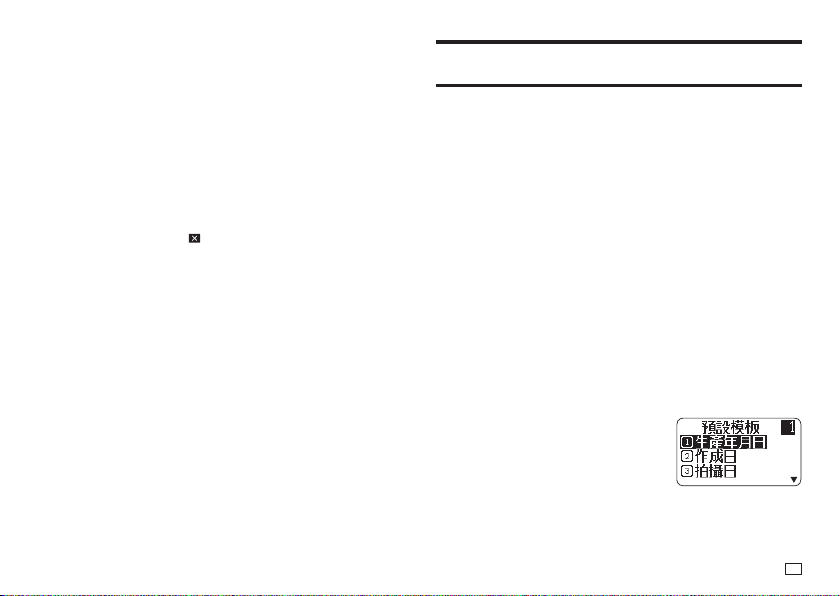
49
EN
Removing a Text Effect
1.
Press
功能
and then
文字修飾
.
2.
Select
取消
(Cancel) and then press
執行
.
x
If you want to remove a single text effect from text where multiple text
effects are applied, select the text effect to be removed and then press
執行
.
3.
Select
文字
(Character) and then press
執行
.
4.
Move the cursor to the fi rst character of the text whose text effect you
want to remove and then press
執行
.
5.
Move the cursor to the last character of the text whose text effect you
want to remove and then press
執行
.
x
If you are removing a single text effect from text where multiple text
effects are applied, press
here instead of
執行
.
Saving and Recalling Frequently Used
Expressions (Phrase Memory)
You can save frequently used terms and expressions in printer memory for
later recall when you need them.
x
You can store up to 50 entries, each with up to 49 characters.
x
The printer comes with 20 expressions preset. You can edit or overwrite the
preset expressions, if you want.
1.
生產年月日
(Date Produced) 11.
交換期限
(Replacement Period)
2.
作成日
(Date Created) 12.
品嚐期限
(Best Before: )
3.
拍攝日
(Date Recorded) 13.
品質保持期限
(Quality Assurance
4.
更新日期和時間
(Date Updated) Period)
5.
交換日
(Date Replaced) 14.
消費期限
(Best Consumed Before: )
6.
購買日
(Date Purchased) 15.
含稅
(Tax Included)
7.
儲存期間
(Retention Period) 16.
本體價格
(Main Unit Price)
8.
有效期間
(Validity Period) 17. BACKUP_DATA
9.
保管到
(Store until: ) 18. BEST_ALBUM
10.
有效至
(Valid until: ) 19. http://
20. E-mail:
All other items have the text
未登錄
(No Data) assigned to them.
Recalling a Phrase
1.
Press
預設模板
.
2.
Select the expression you want to insert and then press
執行
.
x
You can also select a phrase by inputting its number (1 to 50) with the
number keys.
50
EN
Creating, Editing, or Deleting a Phrase Memory
Record
1.
Press
功能
and then
模板編輯
.
2.
Select
作成
(Make) and then press
執行
.
x
If there is no text in the text input area, go
to step 4.
x
Here, we will select
修正
(Edit) and then
press
執行
to edit an existing expression.
Select the expression you want to edit,
press
執行
, and then advance to step 4.
x
Here, you can select
刪除
(Delete) and
then press
執行
to delete an existing
expression. Select the expression you
want to delete and then press
執行
. If a
confi rmation message appears on the
display, press
執行
again.
3.
Select expression creation operation you want to use and then press
執行
.
x
新增
(New): Select to input new text from scratch.
x
參考作成
(Use Input): Select to use text you were inputting before you
pressed
功能
and then
模板編輯
in step 1 of this procedure.
4.
Input text and then press
執行
.
x
If you selected
參考作成
(Use Input) in the previous step, the text that
you were inputting before you pressed
功能
and then
模板編輯
in step
1 of this procedure will be displayed. Edit the text as required and then
press
執行
.
x
You cannot confi gure font, character style, or print format settings for
expressions.
5.
Select the location where you want to save the expression and then press
執行
.
6.
Press
執行
.
x
To cancel the save operation, press
取消
.
Precautions when Using Existing Text to Create a New Phrase
x
Any size factor indicators, line break symbols, and block indicators in the
existing text will be replaced by a space.
x
If the text you were inputting before starting the phrase memory text
creation operation has more than 49 characters, only the fi rst 49
characters of the text will appear on the text input screen.
Inserting the Current Date and/or Time into Text
1.
Press
時間戳
.
x
This displays the current date and time (page 54), and then displays a
screen for specifying the date and time input format.
2.
Select the date/time input format and then press
執行
.
x
There are 11 input formats from which to choose.
51
EN
Copying and Pasting Input Text
Copying Text
1.
While inputting text, press
功能
and then
複製
.
2.
Move the cursor to the fi rst character of the text you want to copy and
then press
執行
.
3.
Move the cursor to the last character of the text you want to copy and
then press
執行
.
x
You can copy up to 49 characters.
x
The printer retains up to nine of the last items copied. Performing a
copy operation while nine items are already saved will cause the oldest
copy to be deleted to make room for the new one.
x
Any size factor indicators, line break symbols, and block indicators in
the copied text will be replaced by a space.
Pasting Copied Text
1.
Press
功能
and then
貼上
.
2.
Select the text you want to paste and then press
執行
.
Creating a User Character
You can create user characters that are not included with the printer's normal
character and symbol set.
x
You can have up to four user characters stored in printer memory.
x
You cannot confi gure character style settings for a user character.
x
You can use either of the two methods below to create a user character.
- From scratch: Use this method when you want to create a user character
from scratch.
- Modifying an existing character: With this method, you modify an existing
character to create a user character.
Creating a User Character from Scratch
1.
Press
功能
and then
造字
.
2.
Select
作成
(Make) and then press
執行
.
x
If there is no character at the position the cursor was located in step 1,
a user character creation screen (as shown in step 4 below) will appear.
Go directly to step 4.
3.
Select
新增
(New) and then press
執行
.
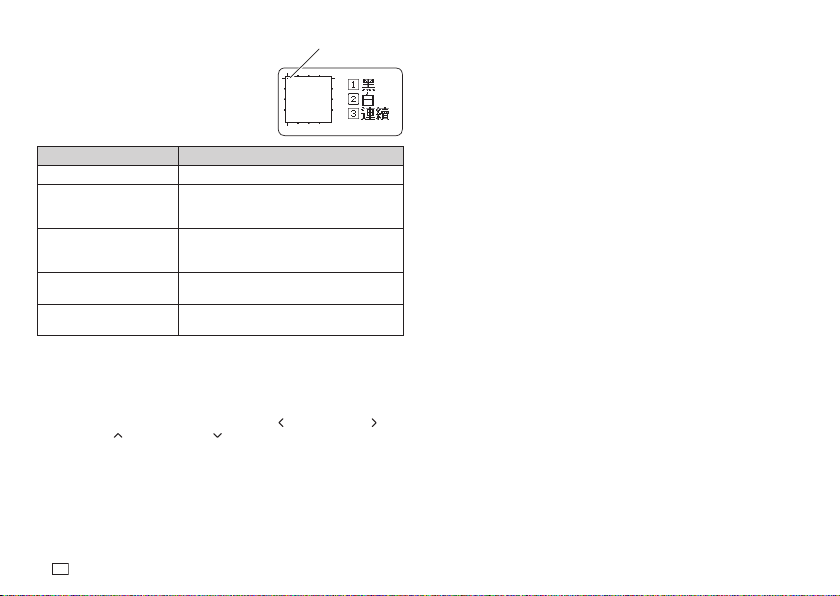
52
EN
4.
Create a user character.
Function Operation
Move the cursor. Use arrow keys.
Make the dot at the current
cursor position black.
Press 1 (black).
x
This will cause 1
黑
(1 Black) to be
highlighted on the display.
Make the dot at the current
cursor position white.
Press 2 (white).
x
This will cause 2
白
(2 White) to be
highlighted on the display.
Draw a black line.
Press 1 (black) and then 3 (continuous), and
then move the cursor.
Draw a white line.
Press 2 (white) and then 3 (continuous), and
then move the cursor.
x
Drawing of diagonal lines is not supported.
x
After pressing 1 (black) or 2 (white), each press of 3 (continuous) enables or
disables continuous line drawing. While continuous line drawing is enabled,
3
連續
(3 Continue) is highlighted on the display.
x
While continuous line drawing is disabled (3
連續
(3 Continue) not
highlighted), you can perform the following operations to make the cursor
jump to one of the edges of the input area:
功能
+
(left edge),
功能
+ (right
edge),
功能
+ (top edge),
功能
+ (bottom edge).
5.
After creating a user character, press
執行
.
6.
Select the location where you want to save the user character and then
press
執行
.
x
If the location already contains a user character, the above step will
delete the existing character and replace it with the new one.
x
To cancel the user character save operation, press
取消
.
7.
Press
執行
.
Using an Existing Printer Character to Create a
User Character
You can create a user character based on an existing printer character.
x
You can also use a symbol (page APP-1) or a illustration (page APP-2) to
create a user character.
1.
Input the existing character you want to use and then align the cursor with
it.
2.
Press
功能
and then
造字
.
3.
Select
作成
(Make) and then press
執行
.
4.
Select
參考作成
(Use Input) and then press
執行
.
5.
Perform the steps from step 4 of the procedure under "Creating a User
Character from Scratch" on page 52.
Scale
↓
Scale
↓
Cursor
53
EN
Editing an Existing User Character
1.
Press
功能
and then
造字
.
2.
Select
修正
(Edit) and then press
執行
.
3.
Select the user character you want to edit and then press
執行
.
4.
Perform the steps from step 4 of the procedure under "Creating a User
Character from Scratch" on page 52.
Using a User Character in a Label
1.
Move the cursor to the location where you want to input the user
character.
2.
Press
功能
and then
造字
.
3.
Select
調出
(Recall) and then press
執行
.
4.
Select the user character you want
to use and then press
執行
.
x
You can delete an input user
character using the same
procedure as that for a standard
character.
Deleting a User Character from Memory
1.
Press
功能
and then
造字
.
2.
Select
刪除
(Delete) and then press
執行
.
3.
Select the user character you want to delete and then press
執行
.
4.
Press
執行
.
x
Deleting a user character from memory will cause a space to be input
in all locations where it is input in label data.
User character indicator
Displayed during user character input.
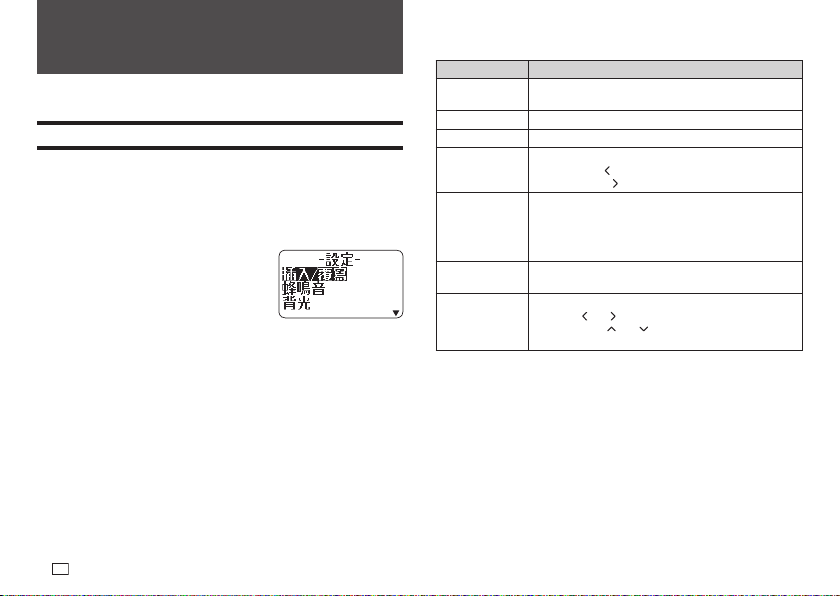
54
EN
Part 9 - Printer Settings
This section explains how to confi gure text input mode, screen brightness,
and other printer settings.
Confi guring Printer Settings
Use the procedure in this section to confi gure text input mode, screen
brightness, and other printer settings to suit your particular needs.
The procedure below shows an example of how to specify the text input mode
(insert or overwrite).
x
Use the same procedure to confi gure other settings as well.
1.
Turn on the printer and then press
設定
.
x
If you press
設定
after performing some
other printer operation, some setting items
may not appear. Press
設定
immediately
after turning on printer power.
2.
Select
插入/覆寫
(Insert / Overwrite) and
then press
執行
.
3.
Select
插入
(Insert) or
覆寫
(Overwrite) and then press
執行
.
Setting Items
Setting Item Description
插入 / 覆寫
(Insert / Overwrite)
Specifi es the text input mode (
插入
(Insert) or
覆寫
(Overwrite)).
蜂鳴音
(Sound) Enables or disables the operation beeper.
背光
(Backlight) Enables or disables the screen backlight.
液晶對比度
(Contrast)
Adjusts display contrast.
x
Pressing the
arrow key makes screen fi gures lighter,
while pressing makes them darker.
列印濃度
(Density)
Adjusts the printed text density.
x
1 is lightest, while 5 is darkest.
x
Depending on the environment where you are printing,
you may not be able to notice any change in printing
density even if you change this setting.
初始字型
(Default Font)
Specifi es the initial default font setting for input.
日期和時間
(Date/Time)
For setting the current date and time.
x
Use the
and arrow keys to select a setting item,
and then use and to change the setting.
x
Direct input of values is also supported.
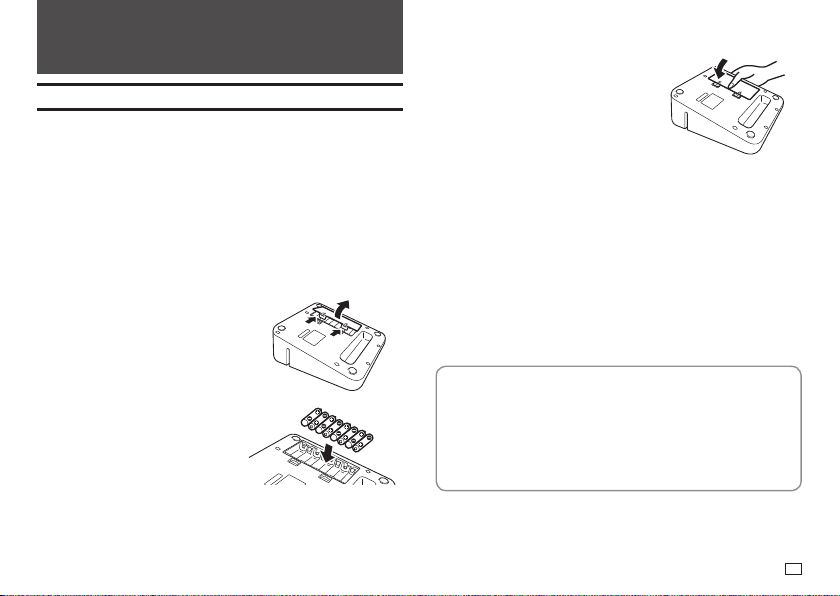
55
EN
Part 10 - Reference
Power Requirements
Your printer can be powered using the specifi ed AC adaptor or by
commercially available alkaline batteries.
x
Before using the printer, be sure to read the information under "Safety
Precautions" (pages 4 through 7).
Powering the Printer with Batteries
Use eight commercially available AA-size alkaline batteries to power the
printer.
x
Use a full set of eight new alkaline batteries. Use of mixing old batteries with
new ones can result in a mismatch between the battery characteristics and
printer specifi cations, making batteries go dead before their normal service
life and causing malfunction of the printer.
1.
Remove the battery cover on the
back of the printer.
Do not try to force the battery cover
too far open or otherwise apply
undue force. Doing so can lead to
malfunction.
2.
Load the batteries.
Make sure the plus (+) and minus
(-) ends of each battery are facing in
the proper directions.
3.
Close the battery cover.
Important!
x
Batteries lose capacity at temperatures below 10°C, which can tend to
cause the message
電池剩餘電量過少
(Low Battery!) to appear on the
printer display.
Use the printer in a location within the operating temperature range of 10°C
to 35°C.
x
Do not disconnect the AC adaptor or remove batteries from the printer while
printer power is turned on. After turning off power, wait until the display
goes blank before disconnecting the AC adaptor or removing batteries.
Otherwise, temporarily stored text, text stored in printer memory, user
characters, copied text, or printer settings may be deleted.
x
If you are operating the printer under battery power and wish to connect or
disconnect the AC adaptor, be sure to fi rst turn off printer power. Connecting
or disconnecting with printer power on can cause it to turn off and delete
unsaved text you are working on.
Battery Life
Under normal conditions, a set of new batteries can supply enough power
to print labels for approximately two 18mm tape cartridges.
x
Battery life can be extended by disabling the display backlight (page 54).
x
Printing labels with large amounts of black text or images, low ambient
temperatures, and storing the printer for a long time with batteries
loaded can all shorten battery life.
x
Even if you do not use the printer, you should replace the batteries at
least once every two years.
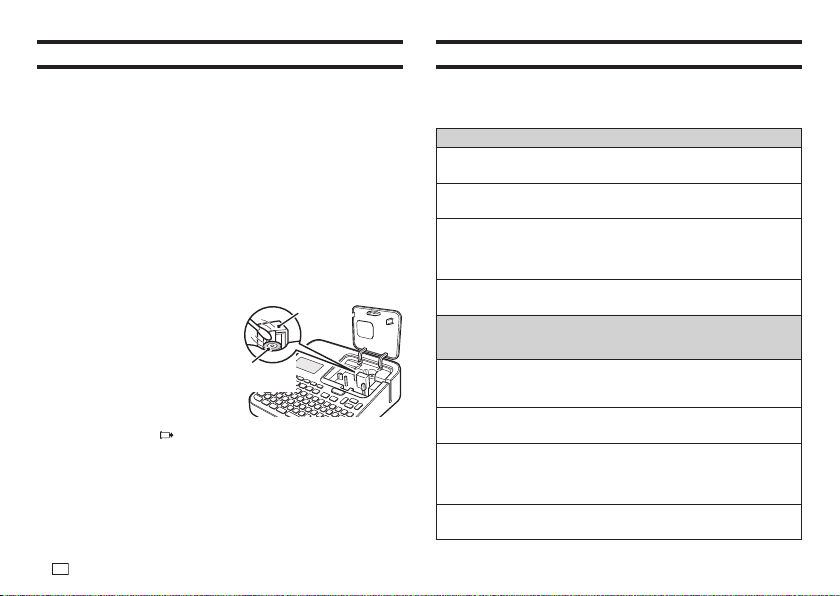
56
EN
User Maintenance
A dirty print head or rubber roller will make proper label printing impossible.
Perform the procedure below to clean the print head and the rubber roller as
required.
Important!
Use a cotton swab or some other soft object to clean the print head and the
rubber roller. Use of a thin cotton swab is recommended.
1.
Press the tape compartment cover open button and open the cover.
x
If a tape cartridge is loaded in the printer, remove it.
Important!
x
The print head is hot immediately after printing, so wait until it is cooled
down before removing the tape cartridge.
2.
Use a cotton swab moistened with alcohol to wipe the surfaces of the
print head and rubber roller.
Take particular care when wiping
the points where the print head and
rubber roller come into contact.
x
Pressing
功能
and then
will cause the rubber roller to rotate.
x
You can also use a commercially available cassette tape recorder head
cleaning set for cleaning.
Troubleshooting
This section explains reference information that comes in handy when you
experience problems with printer operation. If, for any reason, you cannot fi nd
the solution to your problem here, contact your original retailer or authorized
CASIO service center.
x
Nothing appears on the display when I press ON.
x
Display contrast needs to be adjusted.
o
Adjust display contrast. (page 54)
x
The AC adaptor is not connected securely.
o
Correctly connect the AC adaptor. (page 13)
x
Batteries are dead or you are using the wrong type of batteries.
x
You are using the wrong type of AC adaptor.
o
Use the specifi ed AC adaptor or replace the batteries with new ones (sold
separately).
x
Batteries are not loaded correctly.
o
Remove the batteries and correctly reload them. (page 55)
x
Printing is unclear.
x
Printout is dirty.
x
Printing is light.
x
Dirt, dust, or other foreign matter is on the print head and/or the
rubber roller.
o
Clean the printer. (page 56)
x
There is slack in the ink ribbon.
o
Take up ink ribbon slack and correctly re-load the tape cartridge. (page 16)
x
Batteries are dead or you are using the wrong type of batteries.
x
You are using the wrong type of AC adaptor.
o
Use the specifi ed AC adaptor or replace the batteries with new ones (sold
separately).
x
Print density is not correct.
o
Adjust print density. (page 54)
Print head
Rubber
roller
57
EN
x
The printer doesn't print.
x
Power turned off during printing.
x
Batteries are dead or you are using the wrong type of batteries.
x
You are using the wrong type of AC adaptor.
o
Use the specifi ed AC adaptor or replace the batteries with new ones (sold
separately).
x
The print head is very hot.
o
Wait for some time and then try performing the operation again.
x
The printer won't connect with a computer.
x
The printer is not in the communication mode.
o
Press PC
連接
to enable connection with a computer.
x
The USB cable is not connected correctly.
o
Make sure that the USB cable is connected correctly.
x
Printer power is turned off.
o
Press ON to turn on power.
x
The USB driver is not installed on the computer.
o
Install the USB driver on your computer from the CD-ROM that comes
with the printer.
If the above steps don't solve the problem, try connecting the USB cable to
a different USB port on the computer or try using a different USB cable.
x
No tape comes out when I press
.
x
The tape compartment cover is not closed securely.
o
Close the cover securely. (page 17)
x
The cartridge is out of tape.
o
Replace the tape cartridge with a new one (sold separately). (page 17)
x
Tape is jammed.
o
Remove the tape cartridge from the printer and pull out the jammed tape
with your fi ngers. Use scissors to trim off the tape you pulled out.
Next, correctly load the cartridge back into the printer. (page 17)
x
Ink ribbon is coming out of the tape outlet along with the tape.
x
The tape cartridge was loaded while there was slack in the ink
ribbon.
o
Remove the tape cartridge from the printer. After checking to make sure
the ink ribbon is not broken, take up any slack in it. After taking up ink
ribbon slack, load the tape cartridge back into the printer. (page 16)
Important!
x
Be sure to always take up any slack in the ink ribbon before loading a
tape cartridge.
x
If the ink ribbon is broken, replace the tape cartridge with a new one (sold
separately).
x
The printer does not cut the tape.
x
Tape is jammed in the tape outlet.
o
Turn off power, remove the tape cartridge, and clear the jammed tape.
x
The print format margin setting is
不留
(None).
o
Specify
小
(Narrow),
中
(Medium), or
大
(Wide) for the margins. (page
30)
x
The label is short as defi ned by the following: approximately 28mm
or less with
小
(Narrow) margins; approximately 35mm or less with
中
(Medium) margins; approximately 44mm or less with
大
(Wide)
margins.
o
After printing, use scissors or some other implement to cut the tape.
x
The printer does not half cut the tape.
x
The label is short as defi ned by the following: approximately 28mm
or less with
小
(Narrow) margins; approximately 35mm or less with
中
(Medium) margins; approximately 44mm or less with
大
(Wide)
margins.
o
After printing, use scissors or some other implement to cut the tape.
x
The label does not stick to the intended surface.
x
The surface or object is inappropriate.
o
A label cannot be affi xed to a surface that is rough, wet, oily, dirty, etc.
(page 20)
58
EN
Error Messages
x
有無效的文字
(Illegal characters!)
x
You are attempting to input and print characters that are not allowed
for the bar code you are printing.
o
Re-input using proper characters. (page 40)
x
請確認與電腦的連接狀態
(Link error! Check all connections!)
x
The USB cable is not connected securely.
o
Secure and fully insert the USB cable into the connector.
x
The computer is turned off.
o
Turn on your computer and then perform the operation.
x
色帶錯誤 請安裝色帶墨盒
(Tape error! Load a tape cartridge)
x
There is no tape cartridge loaded in the printer or the current tape
cartridge was loaded improperly.
o
Correctly load the tape cartridge. (page 16)
x
電池剩餘電量過少
(Low battery!)
x
Battery power is low.
o
Replace the batteries with new ones (sold separately) or use the
specifi ed AC adaptor. (pages 13, 55)
x
Ambient temperature is below 10°C.
o
Use in the printer in a location within the operating temperature range
(10°C to 35°C).
x
記憶體已滿 無法登錄
(Not enough memory! Data cannot be saved.)
執行
/
取消
x
There is not enough memory for the data you are trying to save.
o
If you want to print without saving data, press
執行
and then continue
with the operation. To save the data, you fi rst need to delete unneeded
text data currently stored in memory. (page 41)
x
正在準備列印
(Getting ready to print (Appears when a print operation
stops.))
x
The printer has become overheated due to successive print
operations.
o
Please wait without doing anything.
Printing will resume when the printer returns to normal temperature.
x
位數是奇數
(Odd number of digits!)
x
There is an odd number of input digits when printing an ITF bar code
with
無
(No) specifi ed for the check digit.
o
Re-input with a leading zero. (page 40)
x
There is an even number of input digits when printing an ITF bar
code with
有
(Yes) specifi ed for the check digit.
o
Re-input with a leading zero. (page 40)
x
列印錯誤 請檢查色帶墨盒
(Print error! Check the tape cartridge!)
x
Tape became jammed during printing.
o
Turn off power, remove the tape cartridge, and clear the jammed tape.
(page 17)
x
The tape auto cutter is jammed with foreign matter.
o
Turn off power, remove the tape cartridge, and clear whatever is jammed
in the auto cutter. (page 17)
x
Dirt, tape cuttings, or other foreign matter adhering to the rubber
roller.
o
Remove anything adhering to the rubber roller and clean the roller.
(page 56)
x
Tape cuttings or other foreign matter is adhering to the sensor in the
tape compartment.
o
Clear the foreign matter from inside in the tape compartment. (page 56)
x
上次可能沒有正常結束
(Printer not shut down properly last time)
x
The last time the printer was used, the AC adaptor was disconnected
or power to the printer was otherwise abnormally cut off.
o
Press any key to initialize the data that was partially deleted the last time
the printer powered down. (page 13)
59
EN
x
色帶錯誤 色帶墨盒不適合
(Tape error! This is the wrong type of tape
cartridge!)
x
The tape compartment cover is not closed securely.
o
Close the cover securely. (page 17)
x
The data you are trying to print or recall is not compatible with the
type of tape cartridge loaded in the printer.
o
Turn off power and replace the tape cartridge. (pages 16, 17)
x
The tape cartridge was replaced while printer power was turned on.
o
Turn off power and replace the tape cartridge. (pages 16, 17)
x
長度超限 無法列印
(Too long! Cannot print)
x
The label you are trying to print is longer than the printable length.
o
Shorten the label or reduce the number of copies. (pages 19, 31)
x
字數超限 有未能引用的文字
(Too many characters! Some were lost.)
x
You attempted to create a phrase memory text based on an
expression that contains more than 49 characters.
o
Only the fi rst 49 characters of the expression will be used. Edit the
expression as required. (page 49)
x
字數超限 有未能複製的文字
(Too many characters! Some were not
copied.)
x
You attempted to copy more than 49 characters.
o
Reduce the number of characters. (page 51)
x
行數超限 無法加框列印
(Too many lines to frame!)
x
You are trying to print a label with more lines than allowed for frame
printing on the width of tape you are using.
o
Decrease the number of label lines or change to a wider tape.
x
行數超限 無法列印
(Too many lines! Cannot print)
x
The label you are trying to print contains more than the allowable
number of lines for the tape width you are using.
o
Reduce the number of lines or change to a wider tape. (pages 28, 38, 60)
x
長度太短了 無法裁切可以嗎
? (Too short to cut!)
執行
/
取消
The tape being printed is so short that unneeded part cannot be
trimmed or a cut cannot be performed between labels.
x
To print
o
Press
執行
. Use scissors or some other implement to cut the tape after
printing is complete. (page 21)
x
To print with auto tape cutting (excluding numbered label printing)
o
Increase the margins (from
小
(Narrow) to
中
(Medium) or from
中
(Medium) to
大
(Wide)). You can specify
特殊
(Special Tape) for the cut
mode and
大
(Wide) for the margin setting to make leading and trailing
margins equal. (page 30)
x
To print with auto tape cutting (numbered label printing)
o
Use the print format settings to change the tape length setting to
固定
(Fix). (page 24)
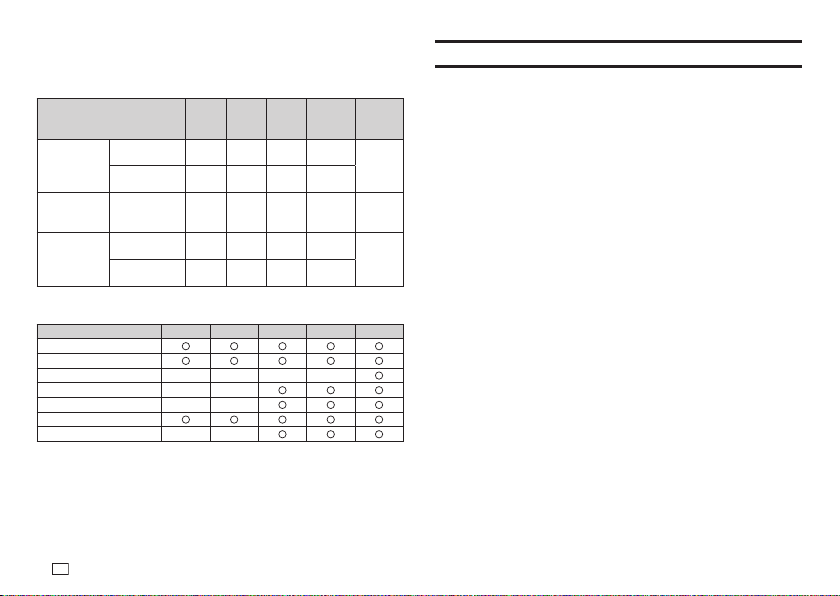
60
EN
Tape Width, Number of Lines, Size Factor List
The maximum number of printable lines and maximum vertical size factor
depend on the tape width and format being used.
6mm 9mm 12mm 18mm
24mm
User's
Guide
Page
Maximum
Number of
Printable
Lines
Normal font 1 1 2 4
Page 28
Page 37
Small Font 2 3 5 8
Maximum
vertical size
factor
Normal font 1X 2X 3X 5X Page 35
Total vertical
size factor for
multiple lines
Normal font - - Up to 2 Up to 4
Page 28
Page 35
Page 37
Small Font Up to 2 Up to 3 Up to 5 Up to 8
List of Supported Tape Widths for Each Function
6mm 9mm 12mm 18mm 24mm
Free Design
Frame
Index
uuuu
Large Label
uu
Bar Code
uu
Numbering
Logo
uu
Specifi cations
Model: KL-G2TC
INPUT
Keyboard Layout: Chinese/QWERTY
Dictionary
Chinese characters conversion Approximately 17,500 entries
Character Types
Chinese characters
BIG5: 13,060
HKSCS: 4,536
Alpha: 52 (A to Z, a to z)
Numbers: 10
Symbols: 783
Illustrations: 245
Display
Type: Liquid crystal display
LCD: 128 × 64 dots + symbols (8 characters x 4 lines)
With backlight
Input area: 8 characters × 1 line (During input of a label type that is not
自由
標籤
(Free Design).)
8 characters × 3 lines (During input of a
自由標籤
(Free Design)
label.)
Screen confi guration: 16 × 16 dots
Printing
Printing resolution: 200 dpi
Printing method: Thermal transfer
Printing speed: Approximately 20mm/seconds (AC adaptor power)
Approximately 10mm/seconds (battery power)
x
Printing speed depends on the printing environment, printing conditions, etc.

61
EN
Maximum print width: Approximately 16mm
a) 4mm; Tape width: 6mm
b) 7mm; Tape width: 9mm
c) 10mm; Tape width: 12mm, normal printing
d) 12mm;
Tape width: 12mm
,
large label printing
e) 16mm; Tape width: 18mm, 24mm
Character formation: Bit map fonts
Fonts : 4 Chinese
(
黑體
,
圓體
,
明體
,
楷體
)
:
8
English (
黑體
,
圓體
,
明體
,
楷體
, PP
體
, SLB
體
, BRD
體
, CRS
體
)
Text orientation: Horizontal, vertical, mirror image printing
Character styles: Normal, bold, outline, shadow, raised
Number of printable lines: 1 to 2 for 6mm wide tape
1 to 3 for 9mm wide tape
1 to 5 for 12mm wide tape
1 to 8 for 18mm and 24mm
wide tape
Built-in Memory
Text memory: Approximately 2,000 characters
Phrase Memory: Up to 49 characters (50 sets)
Copy/paste: Up to 49 characters (9 sets)
Power Supply, Other
Operation power supply: Specifi ed AC adaptor (AD-1832L)
8 AA-size alkaline batteries (commercially available)
Built-in clock battery life: Approximately 8 years
If the date and time inserted into labels are wrong, it could mean that
the built-in clock battery is low. If this happens, request servicing from
your original retailer. (Charges borne by you.)
Rated voltage: 18.8V DC
Power consumption: 800mA (15W)
Auto Power Off: Approximately 6 minutes
x
Auto Power Off is disabled while the printer is being powered by the AC
adaptor and connected to a computer.
Clock accuracy: ±3 seconds per day at normal temperature of 15°C to 35°C
(59°F to 95°F)
Dimensions: 67.5 (H) × 202 (W) × 212 (D) mm (2
7
/
16
"H × 7
15
/
16
"W × 8
3
/
8
"D)
Weight: Approximately 850 g (1.87 lb) excluding batteries
Operating temperature: 10°C to 35°C (50°F to 95°F)
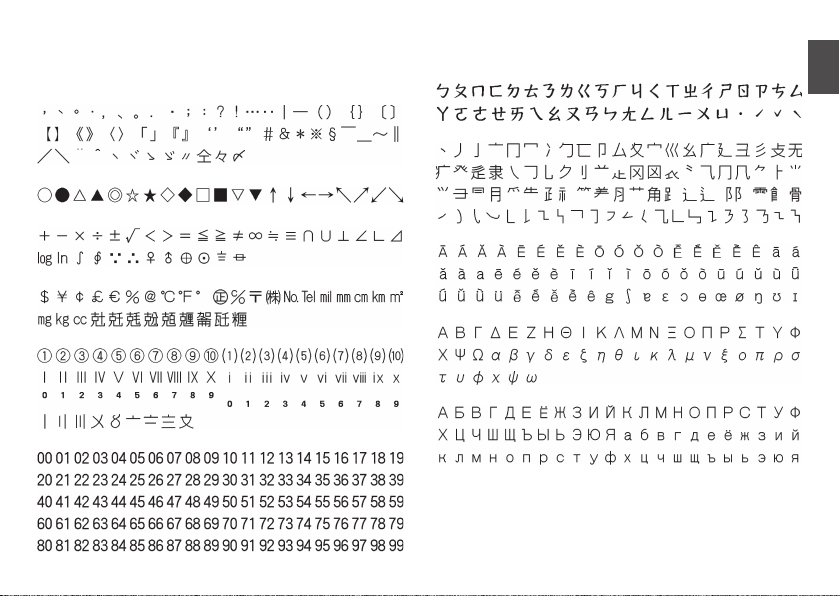
APP-1
● 注音 (Phonetics)
● 部首 (Radicals)
● 發音 (Diacritics)
● 希臘 (Greek)
● 俄文 (Russian)
符號
(Symbols)
● 記述括弧 (Punctuation)
● 一般 (General)
● 學術 (Scientifi c)
● 單位縮寫 (Units, Abbreviations)
● 數字 (Numbers)
● 2位數字 (Paired Numbers)
Appendix
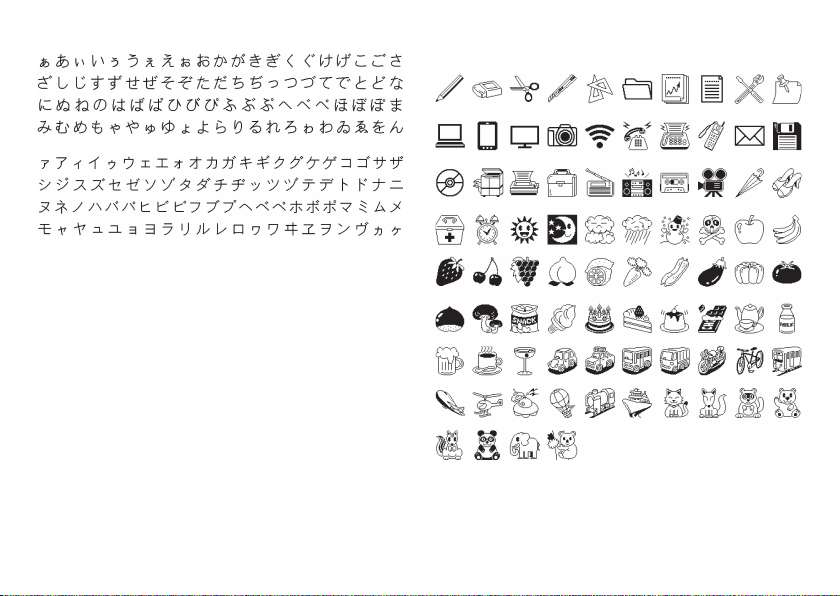
APP-2
插圖
(Illustratons)
● 插圖1 (Illustration 1)
● 平假名 (Hiragana)
● 片假名 (Katakana)
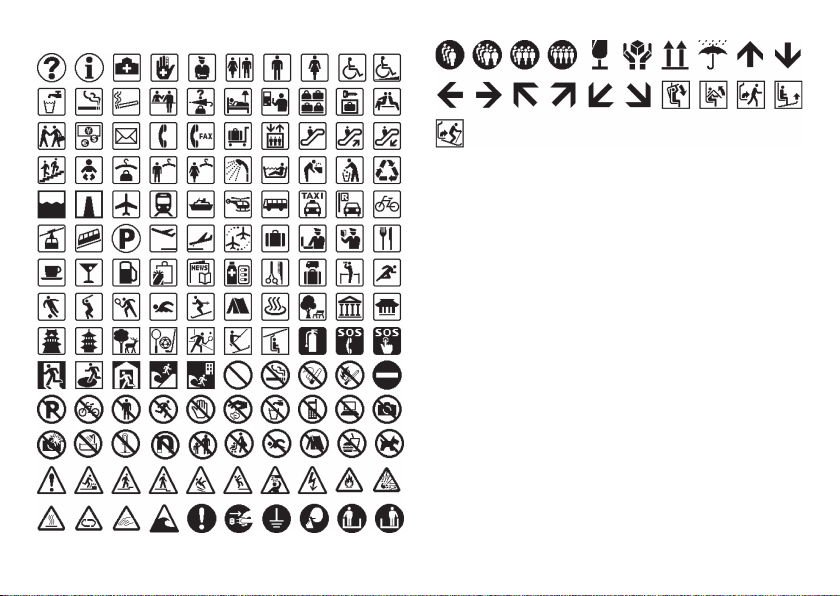
APP-3
● 插圖2 (Illustration 2)
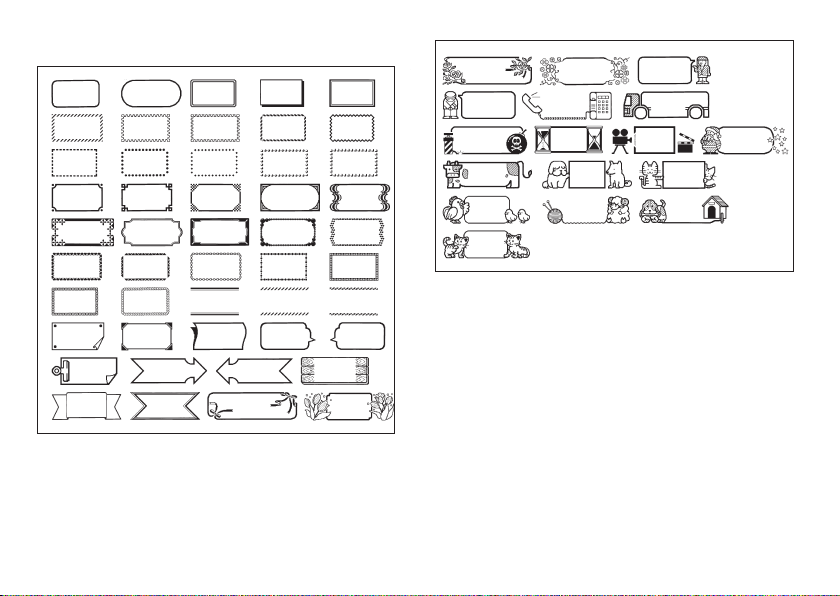
APP-4
圖文框
(Frames)
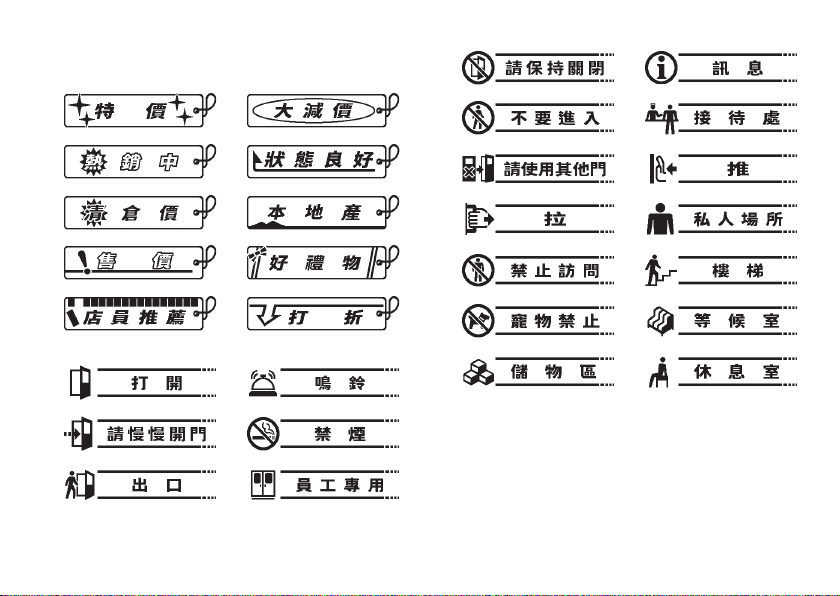
APP-5
圖示標識
(Built-in logo)
x
價格
(Price)
1
2
3 4
5 6
7 8
9 10
x
標識
(Sign)
1
2
3 4
5 6
7 8
9 10
11 12
13 14
15 16
17 18
19 20
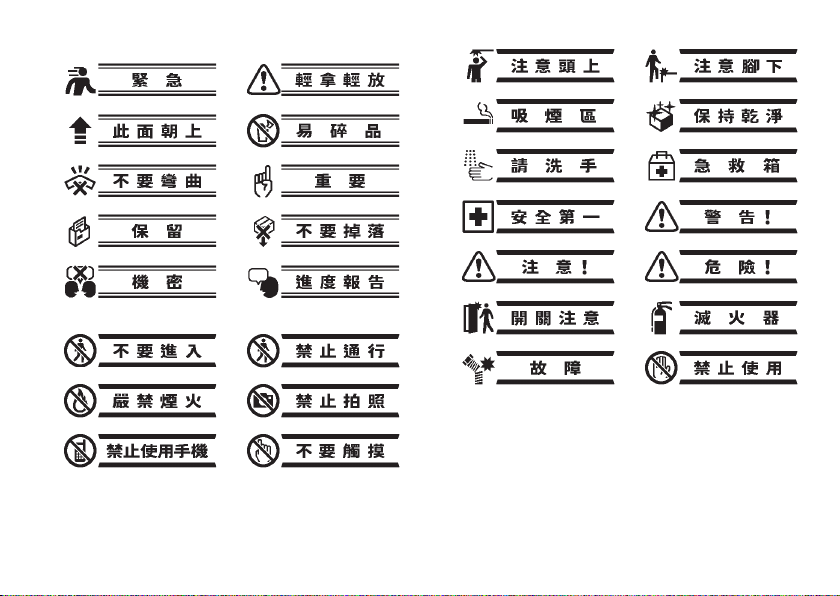
APP-6
x
工作
(Work)
1
2
3 4
5 6
7 8
9 10
x
注意
(Attention)
1
2
3 4
5 6
7 8
9 10
11 12
13 14
15 16
17 18
19 20
APP-7
x
PRICE
1
2
3 4
5 6
7 8
9 10
x
SIGN
1
2
3 4
5 6
7 8
9 10
11 12
13 14
15 16
17 18
19 20
APP-8
x
WORK
1
2
3 4
5 6
7 8
9 10
x
ATTENTION
1
2
3 4
5 6
7 8
9 10
11 12
13 14
15 16
17 18
19 20
Manufacturer:
CASIO COMPUTER CO., LTD.
6-2, Hon-machi 1-chome, Shibuya-ku, Tokyo 151-8543, Japan
Responsible within the European Union:
Casio Europe GmbH
Casio-Platz 1, 22848 Norderstedt, Germany
www.casio-europe.com

CASIO COMPUTER CO., LTD.
6-2, Hon-machi 1-chome
Shibuya-ku, Tokyo 151-8543, Japan
MO1507-A Printed in China
© 2015 CASIO COMPUTER CO., LTD.