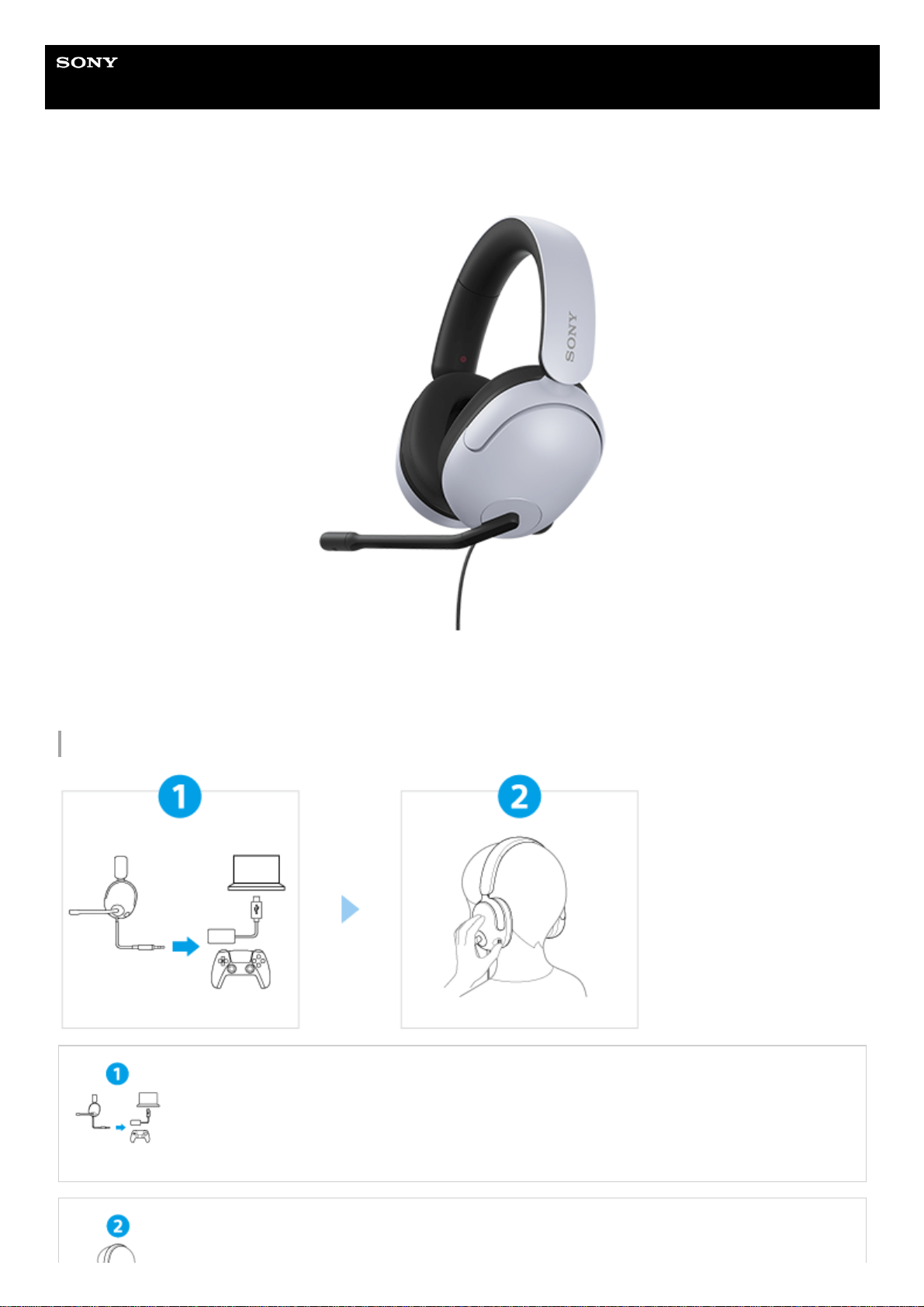
To use all functions and improved performances
Update the computer software “INZONE Hub” to the latest version.
For details on “INZONE Hub”, refer to the following URL.
https://www.sony.net/inzonehub-support
Enjoy games and voice chat by operating the headset.
Turning the VOL (volume) –/+ dial: To adjust the volume
Raising the boom microphone: To turn off the microphone
Lowering the boom microphone: To turn on the microphone
Getting started
Supplied accessories
Checking the package contents
Parts and controls
Location and function of parts
Wearing the headset
Using by connecting to a game console
Connecting the headset to a computer or PlayStation®5
What you can do while connected to a game console
Customizing the headset
Using “INZONE Hub”
What you can do with “INZONE Hub”
Installing “INZONE Hub”
Important information
Precautions
To prevent burning or malfunction due to getting wet
Trademarks
Customer support websites
2

5-038-207-11(2) Copyright 2022 Sony Corporation
Troubleshooting
What can I do to solve a problem?
Sound
No sound, low sound level
Cannot hear a person during a call/low voice from callers, your voice does not reach the person during a call/your voice is low on
the caller’s side.
Low sound quality
Sound of the microphone is disturbed by noises./Sound of the microphone is distorted.
Specifications
Specifications
3
Help Guide
Gaming Headset
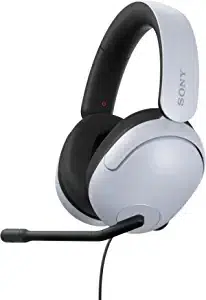
INZONE H3
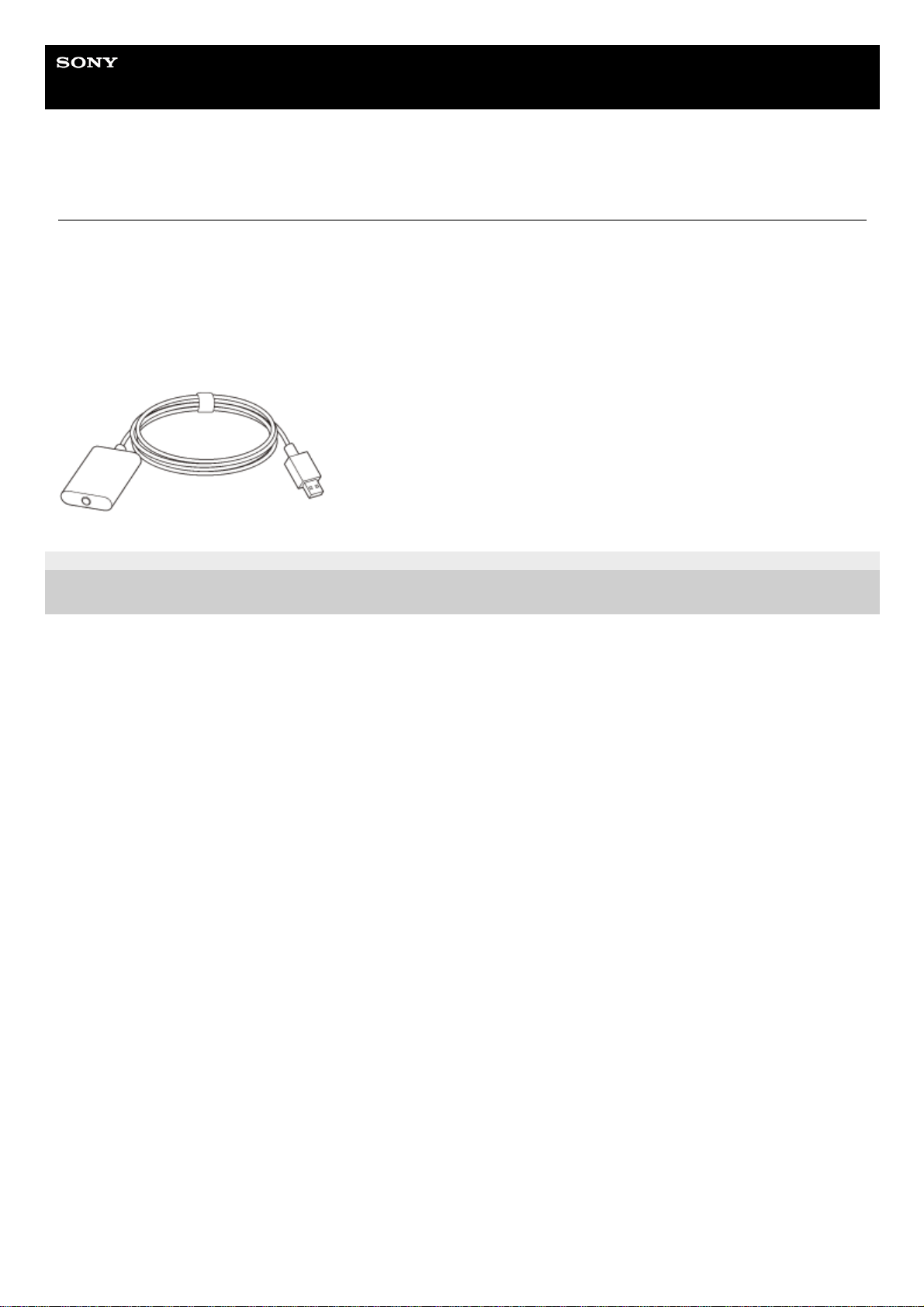
Checking the package contents
After opening the package, check that all of the items in the list are included. If any items are missing, contact your
dealer.
Numbers in ( ) indicate the item amount.
Gaming Headset (1)
USB audio box (1)
5-038-207-11(2) Copyright 2022 Sony Corporation
4
Help Guide
Gaming Headset
INZONE H3
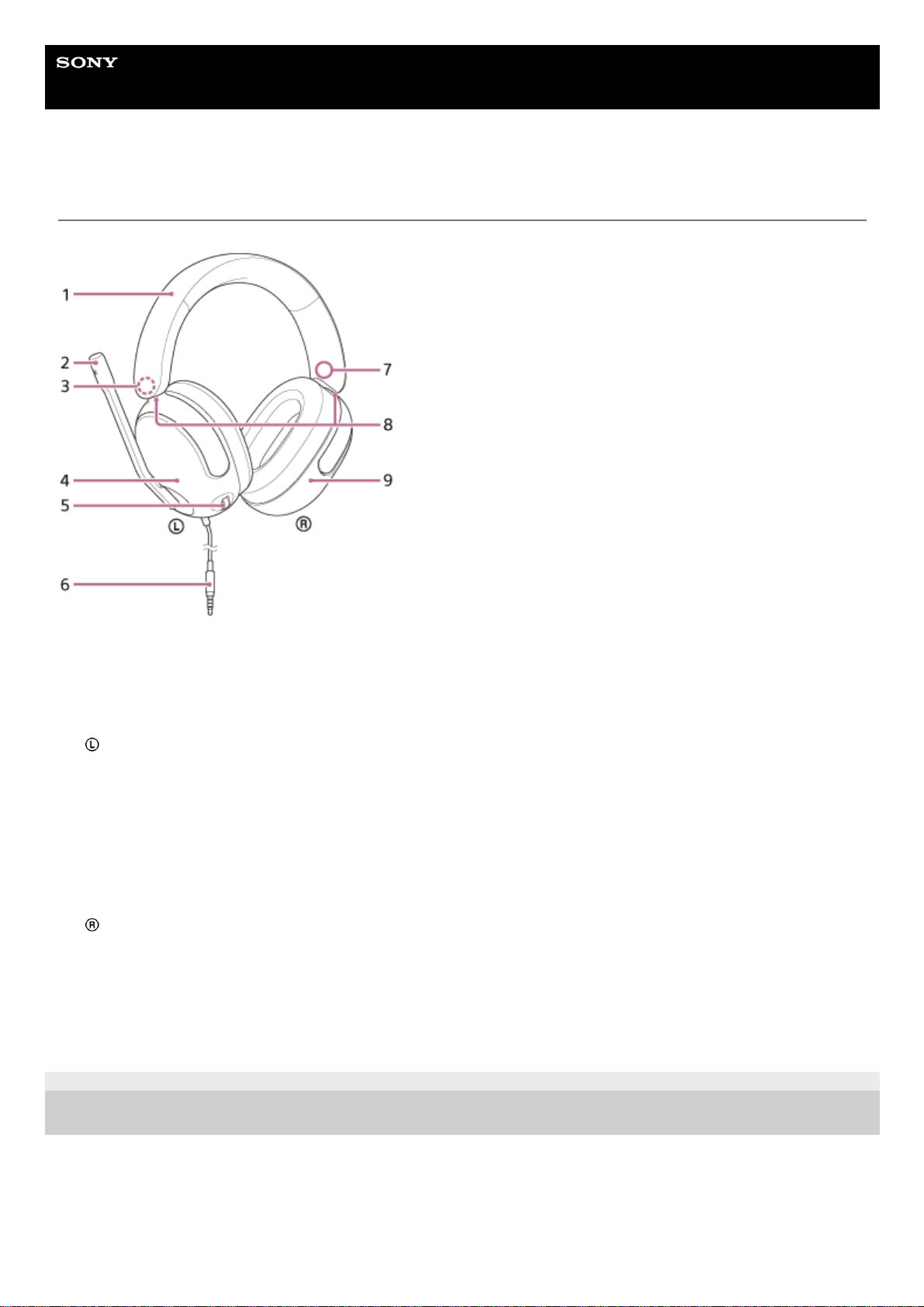
Location and function of parts
5-038-207-11(2) Copyright 2022 Sony Corporation
Headband1.
Boom microphone
There is a boom microphone on the left unit.
2.
(left) mark3.
Left unit4.
VOL (volume) –/+ dial
There is a tactile dot on the + side.
5.
Headphone cable6.
(right) mark7.
Sliders (left, right)
Slide to adjust the length of the headband.
8.
Right unit9.
5
Help Guide
Gaming Headset
INZONE H3
Wearing the headset
5-038-207-11(2)
Copyright 2022 Sony Corporation
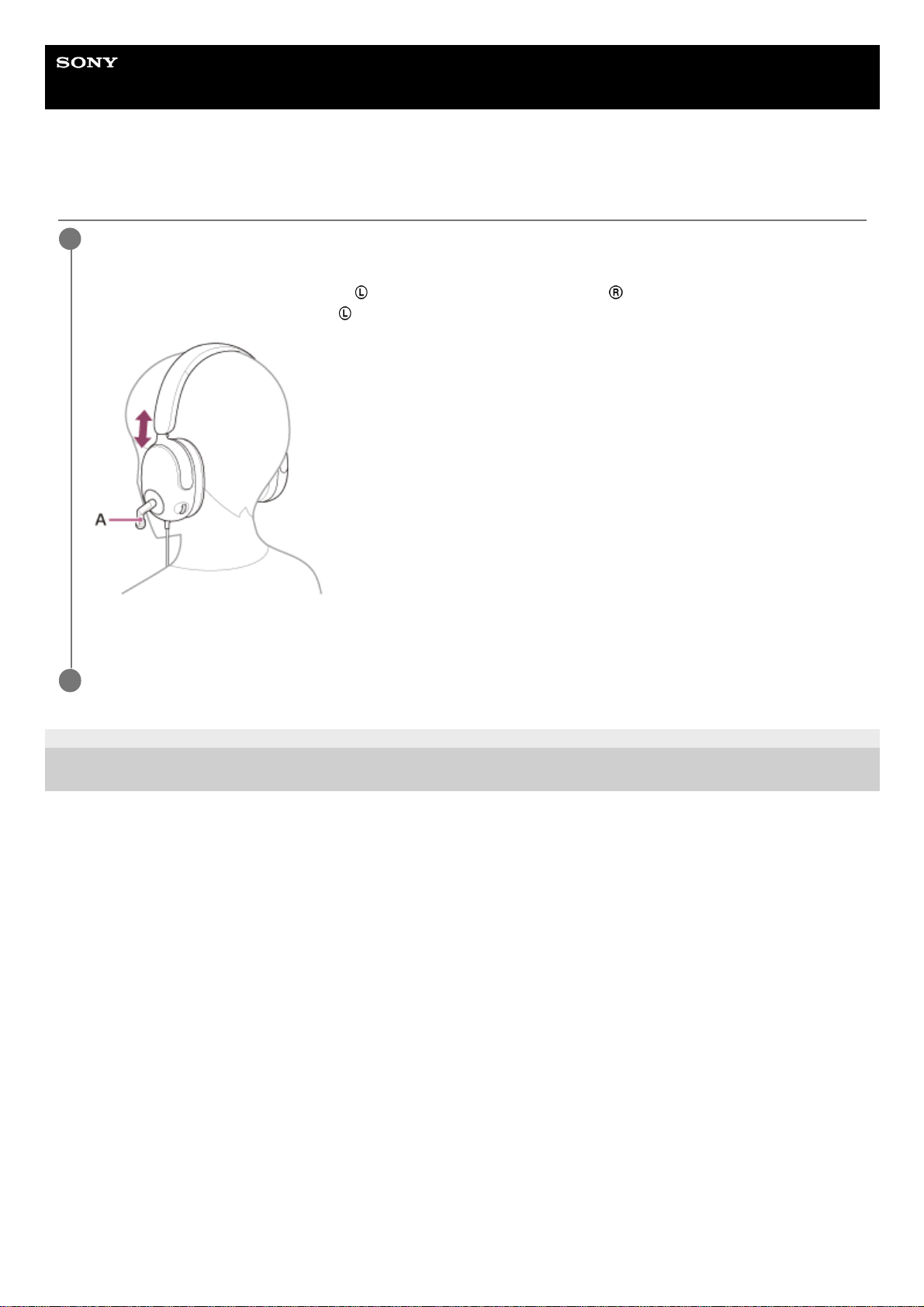
Put the headset on your ears.
Extend the slider to adjust the length of the headband.
Put the headset on your head with the
(left) mark on your left ear and the (right) mark on your right ear.
There is a boom microphone on the
(left) mark side.
A: Boom microphone
1
Adjust the position of the boom microphone so that it is near your mouth.
2
6
Help Guide
Gaming Headset
INZONE H3
Connecting the headset to a computer or PlayStation®5
Before starting the operation, make sure of the following:
The operating instructions of the computer or PS5™ is in hand.
Note
Connection is not guaranteed with a PS5 through the USB audio box. Follow the procedures described above to connect to the
PS5.
Connect the USB audio box directly to the computer, and not via a USB hub.
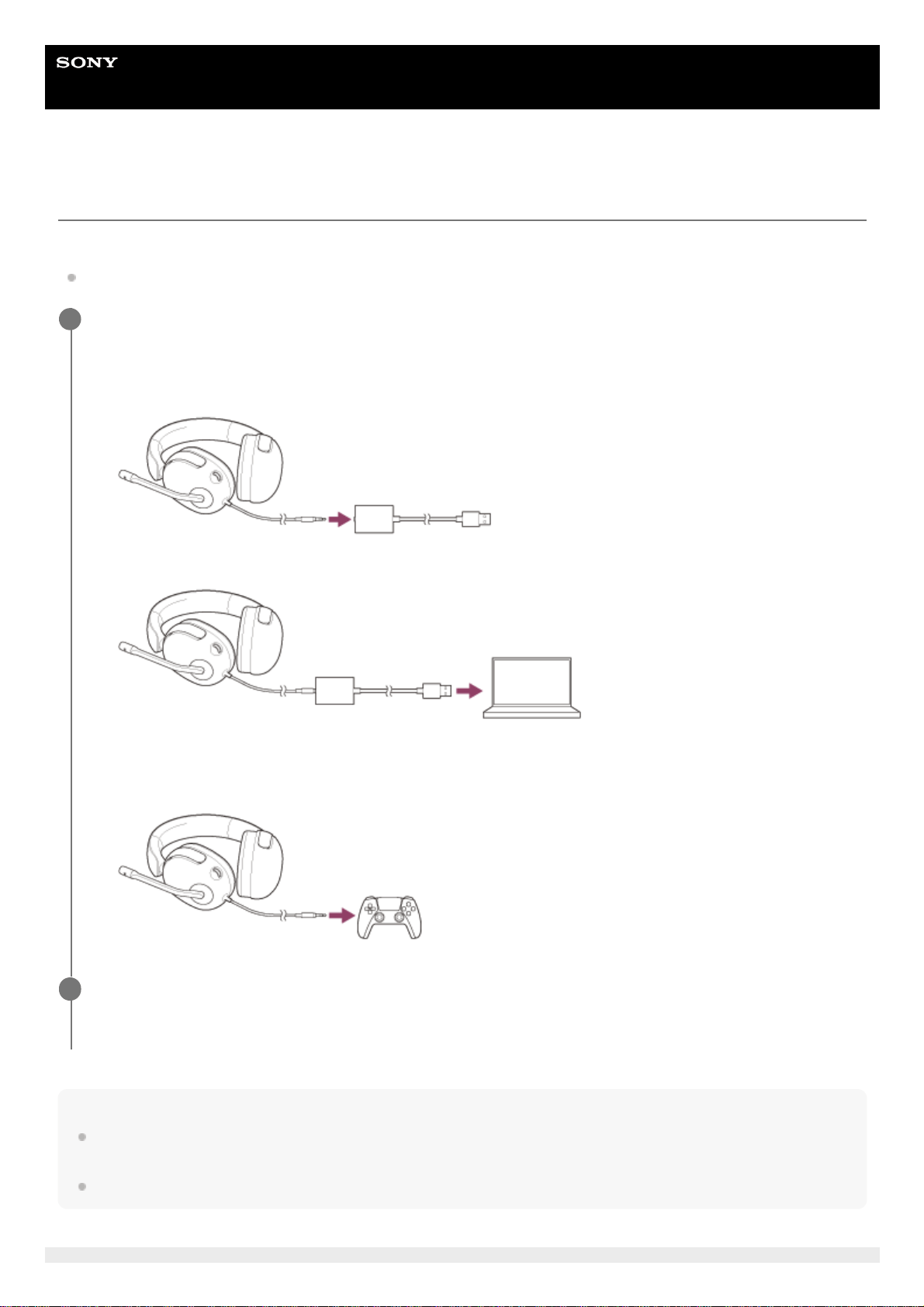
Connect the headset to a computer or PS5 controller.
When connecting to a computer
When connecting to a PS5
1
Connect the headset to the USB audio box.
1.
Connect the USB audio box to a USB port of a computer.
2.
Connect the headset to a headphone terminal on a PS5 controller.
1.
When connected to a computer, select the headset as the audio device.
Audio input/output device: [INZONE H3]
2
7

5-038-207-11(2) Copyright 2022 Sony Corporation
8
Help Guide
Gaming Headset
INZONE H3
What you can do while connected to a game console
When you connect the headset to a game console (computer or PS5™), you can do the following.
Adjusting the volume
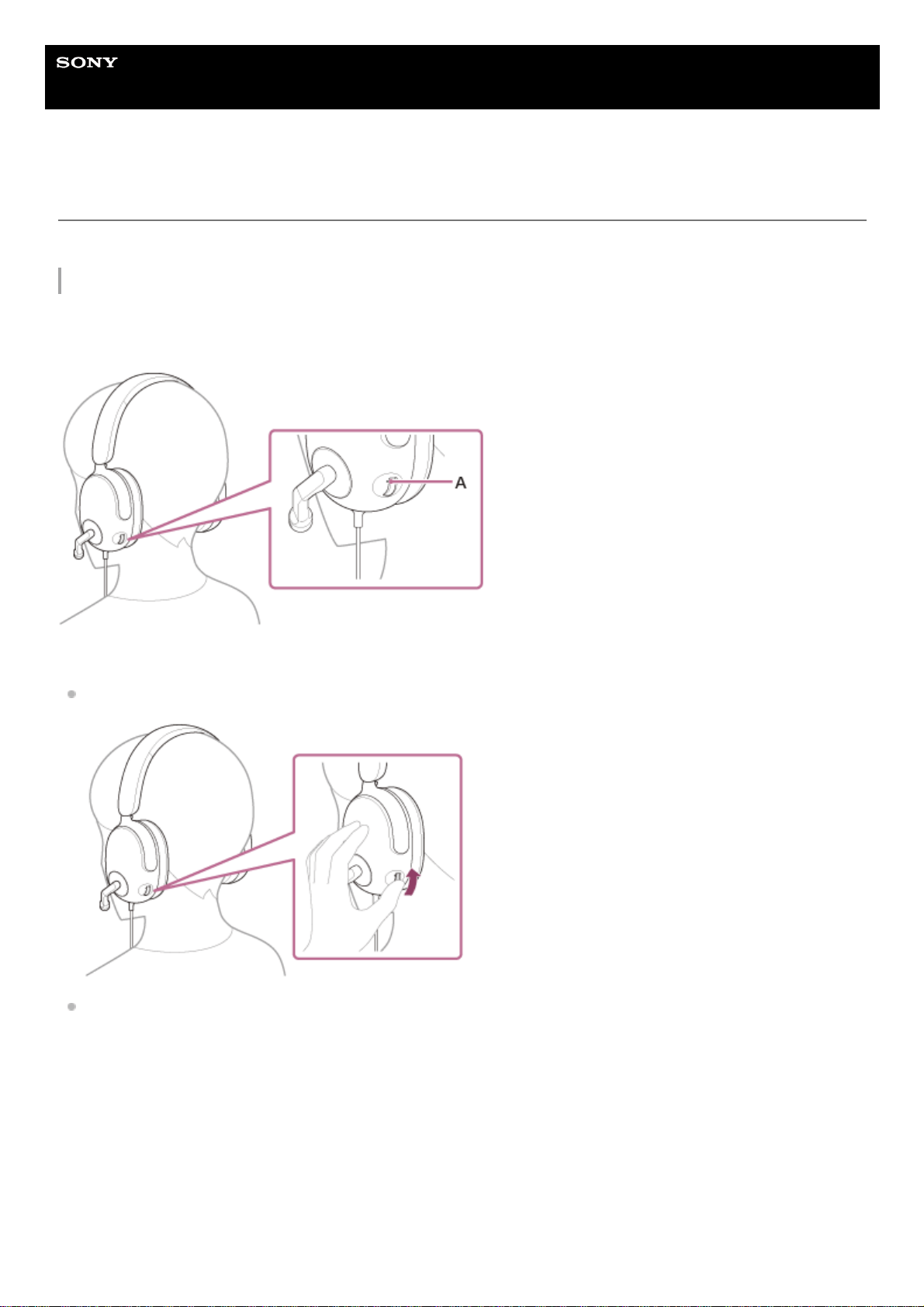
You can adjust the volume to the desired level with the VOL (volume) –/+ dial.
There is a tactile dot on the + side.
A: Tactile dot
Increase the volume: Turn the VOL (volume) –/+ dial to the + side.
Decrease the volume: Turn the VOL (volume) –/+ dial to the – side.
9
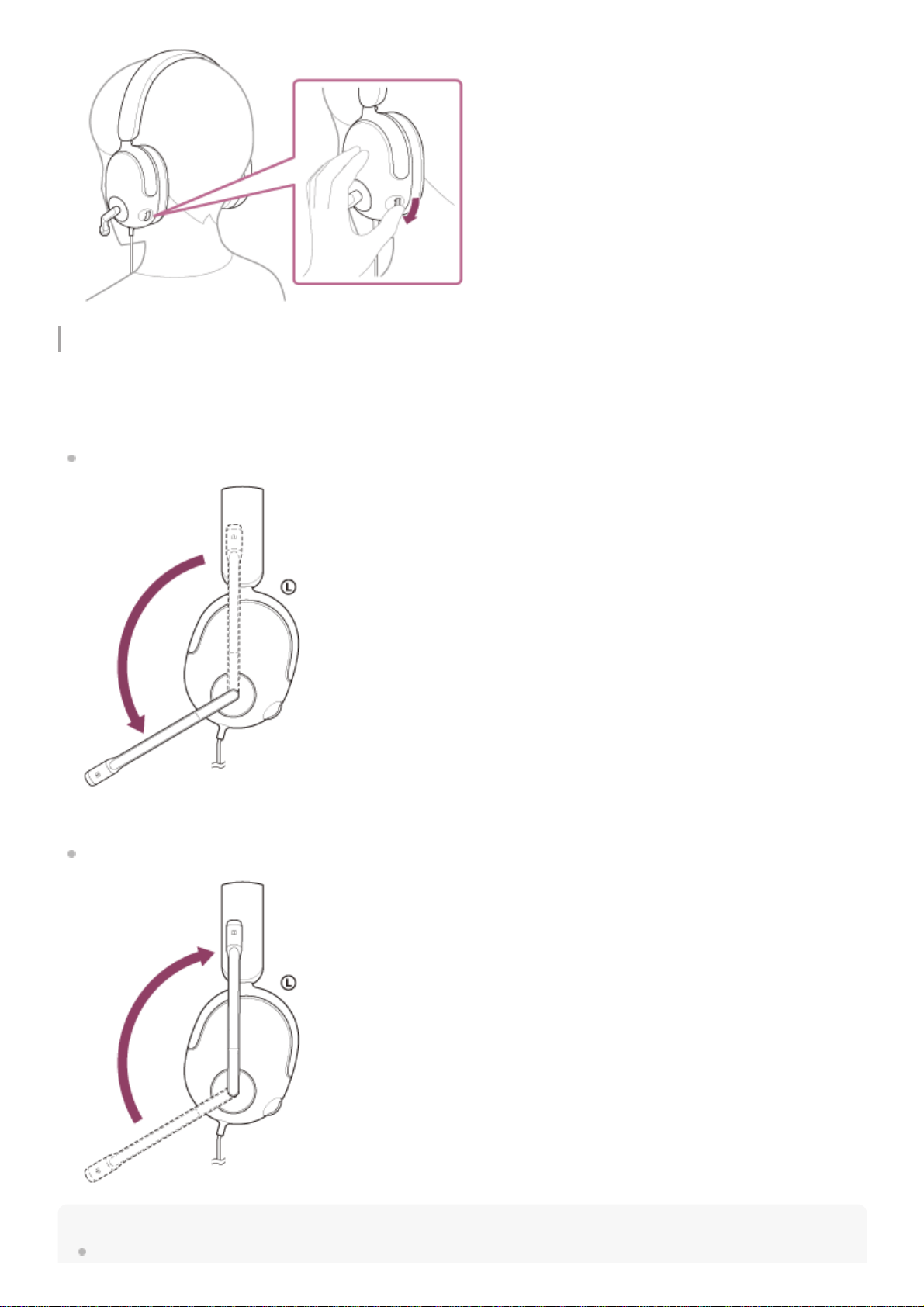
Switching the microphone on/off
When the boom microphone is lowered, the microphone turns on. When the boom microphone is raised, the microphone
turns off.
The boom microphone clicks when it switches on and off.
Turning on the microphone
Turning off the microphone
Note
Be careful not to hit your eyes with the boom microphone when putting on, taking off or using the headset.
10

5-038-207-11(2) Copyright 2022 Sony Corporation
11

Help Guide
Gaming Headset
INZONE H3
What you can do with “INZONE Hub”
When you connect a computer with the “INZONE Hub” software installed and the headset with the USB audio box, you
can do the following.
Select the Equalizer setting
Customize the Equalizer setting
Adjust the dynamic range (DYNAMIC RANGE CONTROL)
Create/save sound profile
Export/import sound profile
Adjust the microphone volume
Adjust the sidetone volume
Microphone test
Set the microphone input volume to be constant (AUTO GAIN CONTROL)
Set the spatial sound
For details on “INZONE Hub”, refer to the following URL.
https://www.sony.net/inzonehub-support
5-038-207-11(2)
Copyright 2022 Sony Corporation
12

Help Guide
Gaming Headset
INZONE H3
Installing “INZONE Hub”
5-038-207-11(2)
Copyright 2022 Sony Corporation
Download the “INZONE Hub” software from the support site and install it on your computer.
For details, refer to the following URL:
https://www.sony.net/inzonehub-support
Compatible OS: Windows® 10 or later
1
After installing, launch “INZONE Hub”.
2
13

Help Guide
Gaming Headset
INZONE H3
Precautions
Note on static electricity
If you use the headset when the air is dry, you may experience discomfort due to static electricity accumulated on
your body. This is not a malfunction of the headset. You can reduce the effect by wearing clothes made of natural
materials that do not easily generate static electricity.
Notes on wearing the headset
After use, remove the headset from your ears slowly.
Because the headset achieves a tight seal over the ears, forcibly pressing it against your ears or quickly pulling it off
can result in eardrum damage. When wearing the headset, the speaker diaphragm may produce a click sound. This
is not a malfunction.
Other notes
When the volume is increased too much, sound may leak. Be careful not to bother others. As a guide, use at a
volume that allows you to be called and answer even in a noisy place.
Do not subject the headset to excessive shock as it is a precision device.
Do not breathe into the driver unit.
Do not apply weight or pressure to the headset for long periods, including when it is stored, as it may cause
deformation.
If you experience discomfort while using the headset, stop using it immediately.
The earpads may be damaged or deteriorate with long-term use and storage.
Be careful not to hit your eyes with the boom microphone when putting on, taking off or using the headset.
Earpads are consumables. If the earpads deteriorate or are damaged through long-term use and storage, contact
your nearest Sony dealer.
Cleaning the headset
When the headset exterior is dirty, wipe it clean with a soft dry cloth. If the headset is particularly dirty, soak a cloth in
diluted neutral detergent and wring it well before using it to clean the headset (excluding the earpads). Do not use
solvents such as thinner, benzene, or alcohol, as they may damage the finish on the surface of the headset or cause
other damages.
Keep the headset away from the magnetic card
The headset has magnets. If you bring a magnetic card close to the headset, the card magnet may be affected and
become unusable.
5-038-207-11(2)
Copyright 2022 Sony Corporation
14
Help Guide
Gaming Headset
INZONE H3
To prevent burning or malfunction due to getting wet
On waterproof performance of the headset
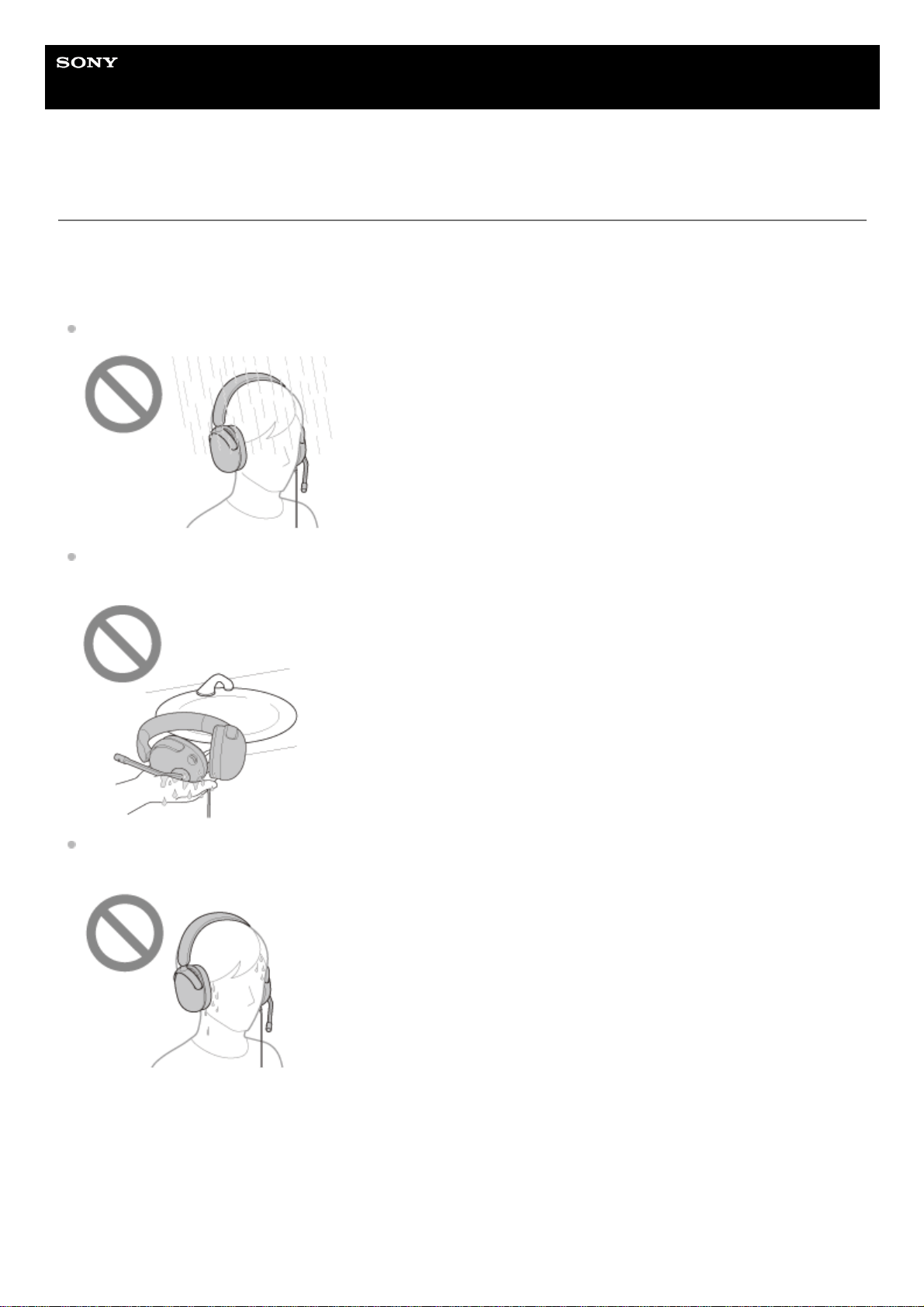
The headset is not waterproof. If water or foreign matter enters the headset, this can result in burnout or malfunction.
Avoid situations such as the following and be careful not to get moisture or dirt on the headset.
Using the headset in the rain or snow
Touching the headset without drying wet hands after doing housework in the kitchen or washing hands in the
washroom
Touching the headset with sweaty hands, or using the headset in situations where the headset may get soaked in
sweat
15
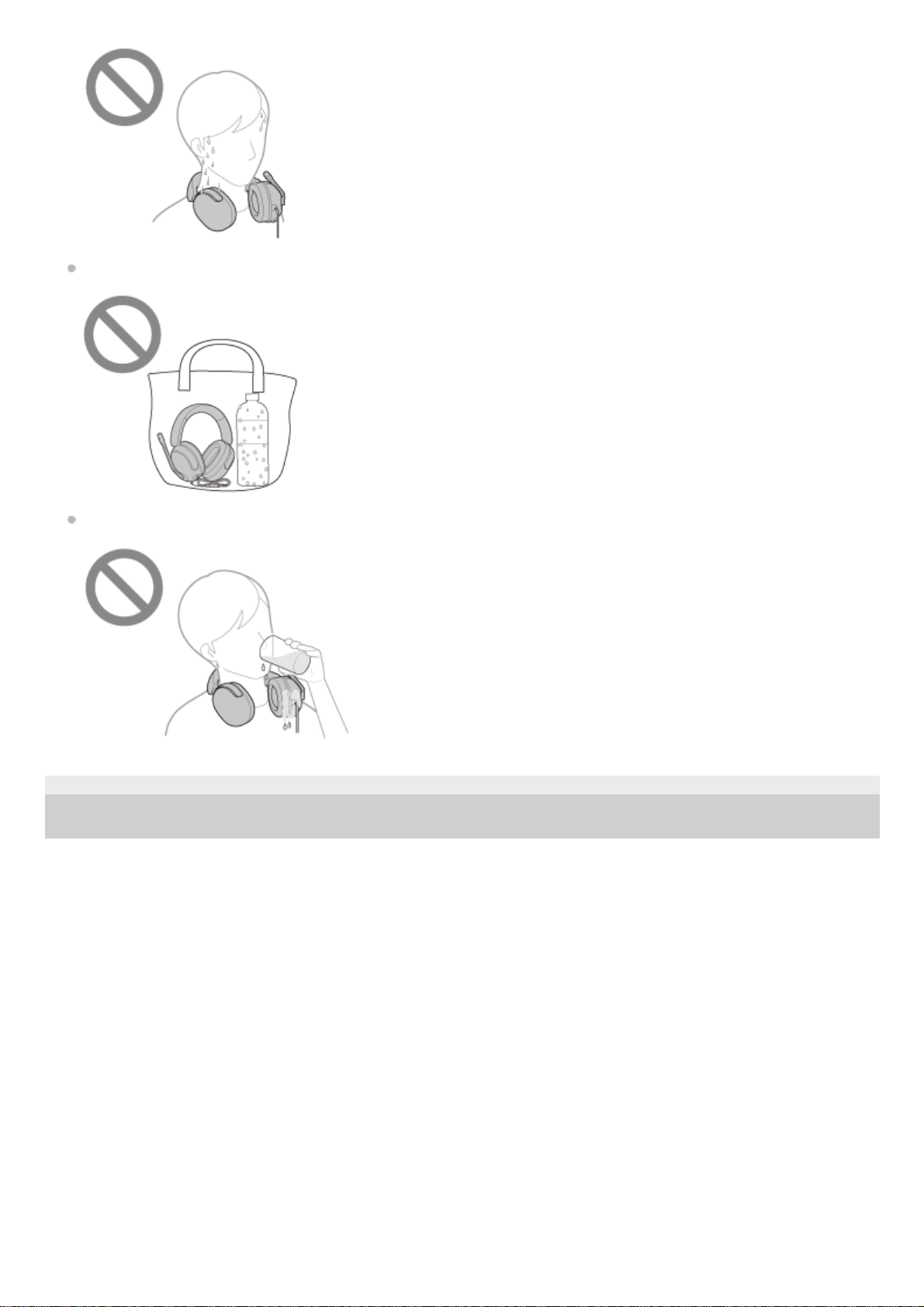
Putting the headset in a bag with a cold PET bottle
Spilling a drink while eating or drinking
5-038-207-11(2) Copyright 2022 Sony Corporation
16

Help Guide
Gaming Headset
INZONE H3
Trademarks
Microsoft, Windows and Windows Media are either trademarks or registered trademarks of Microsoft Corporation in
the United States and/or other countries.
macOS and Mac are trademarks of Apple Inc., registered in the U.S. and other countries.
“PlayStation” and “PS5” are registered trademarks or trademarks of Sony Interactive Entertainment Inc.
Sony and INZONE are registered trademarks or trademarks of Sony Group Corporation or its affiliates.
All other trademarks and registered trademarks are trademarks or registered trademarks of their respective holders.
In this manual, TM and ® marks are not specified.
5-038-207-11(2)
Copyright 2022 Sony Corporation
17

Help Guide
Gaming Headset
INZONE H3
Customer support websites
For customers in the U.S.A, Canada, and Latin America:
https://www.sony.com/am/support
For customers in European countries:
https://www.sony.eu/support
For customers in China:
https://service.sony.com.cn
For customers in other countries/regions:
https://www.sony-asia.com/support
5-038-207-11(2)
Copyright 2022 Sony Corporation
18

Help Guide
Gaming Headset
INZONE H3
What can I do to solve a problem?
If the headset does not function as expected, try the following steps to resolve the issue.
Find the symptoms of the issue in this Help Guide, and try any corrective actions listed.
Restart the device that is being connected to the headset.
You may be able to resolve some issues by restarting the connected device such as your computer.
Look up information on the issue on the customer support website.
If the operations above do not work, consult your nearest Sony dealer.
Related Topic
Customer support websites
5-038-207-11(2)
Copyright 2022 Sony Corporation
19

Help Guide
Gaming Headset
INZONE H3
No sound, low sound level
Check that the connected device is turned on.
Adjust the volume of the headset and the connected device. Turn up the volume if it is too low.
If you are connecting a computer to the headset, make sure the audio output setting of the computer is set for the
USB audio box.
Check that the 4-pole mini plug of the headset is securely inserted into the mini jack on the USB audio box.
Restart the connected device.
Note
Connection is not guaranteed with the USB ports of TVs, etc.
5-038-207-11(2)
Copyright 2022 Sony Corporation
20

Help Guide
Gaming Headset
INZONE H3
Cannot hear a person during a call/low voice from callers, your voice does not reach
the person during a call/your voice is low on the caller’s side.
Check that the connected device is turned on.
Adjust the volume of the headset and the connected device. Turn up the volume if it is too low.
If the boom microphone of the headset is raised, lower the boom microphone and adjust its position so that it is near
your mouth.
When you use the video calling application, open the settings (*) of the video calling application, and check that the
speaker or microphone setting is specified as [INZONE H3] (**). When the settings of the video calling application
cannot be checked, or calling connections [INZONE H3] cannot be selected, select [INZONE H3] on the settings of
your computer to make connections.
Check the call settings of the in-game voice chat and video calling application.
If the mini jack on the USB audio box and the 4-pole mini plug of the headset are not properly connected, reinsert the
4-pole mini plug of the headset.
Pull out and insert the 4-pole mini plug of the headset.
5-038-207-11(2)
Copyright 2022 Sony Corporation
Depending on the video calling application you are using, this function may not be available.
*
Names may vary according to the computer or the video calling application you are using.
**
21


Help Guide
Gaming Headset
INZONE H3
Sound of the microphone is disturbed by noises./Sound of the microphone is
distorted.
If there is an electric light line, fluorescent light, mobile phone, etc. near the headset, keep them away from the
headset.
When using a video calling application, sound quality may drop depending on the condition of the communication
line.
Lower the microphone input level of the connected device such as computer and PS5™.
5-038-207-11(2)
Copyright 2022 Sony Corporation
23

Help Guide
Gaming Headset
INZONE H3
Specifications
Headset
Power source:
USB bus power compliant (5 V 100 mA)
Operating temperature:
0 °C to 40 °C (32 °F to 104 °F)
Headphones
Type:
Closed, dynamic
Driver unit:
40 mm, dome type (CCAW Voice Coil)
Power handling capacity:
1 500 mW (IEC (*1))
Impedance:
36 Ω at 1 kHz
Sensitivity:
92 dB/mW
Frequency response:
10 Hz - 20 000 Hz (JEITA)
Cable:
Approx. 1.2 m (47.25 in.), 4-pole mini plug
Mass:
Approx. 299 g (10.55 oz) without cable
Microphone
Type:
Electret condenser
Directivity:
Uni directional
Design and specifications are subject to change without notice.
IEC = International Electrotechnical Commission
*1
24

5-038-207-11(2) Copyright 2022 Sony Corporation
25
