
HDX Card Installation Guide

Legal Notices
This guide is copyrighted ©2011 by Avid Technology, Inc.,
(hereafter “Avid”), with all rights reserved. Under copyright
laws, this guide may not be duplicated in whole or in part
without the written consent of Avid.
003, 96 I/O, 96i I/O, 192 Digital I/O, 192 I/O, 888|24 I/O,
882|20 I/O, 1622 I/O, 24-Bit ADAT Bridge I/O, AudioSuite,
Avid, Avid DNA, Avid Mojo, Avid Unity, Avid Unity ISIS,
Avid Xpress, AVoption, Axiom, Beat Detective, Bomb Factory,
Bruno, C|24, Command|8, Control|24, D-Command, D-Control,
D-Fi, D-fx, D-Show, D-Verb, DAE, Digi 002, DigiBase,
DigiDelivery, Digidesign, Digidesign Audio Engine, Digidesign
Intelligent Noise Reduction, Digidesign TDM Bus, DigiDrive,
DigiRack, DigiTest, DigiTranslator, DINR, DV Toolkit, EditPack,
Eleven, EUCON, HD Core, HD Process, HDX, Hybrid, Impact,
Interplay, LoFi, M-Audio, MachineControl, Maxim, Mbox,
MediaComposer, MIDI I/O, MIX, MultiShell, Nitris, OMF,
OMF Interchange, PRE, ProControl, Pro Tools, Pro Tools|HD,
Pro Tools LE, Pro Tools M-Powered, Pro Tools MP,
QuickPunch, Recti-Fi, Reel Tape, Reso, Reverb One, ReVibe,
RTAS, Sibelius, Smack!, SoundReplacer, Sound Designer II,
Strike, Structure, SYNC HD, SYNC I/O, Synchronic, TL Aggro,
TL AutoPan, TL Drum Rehab, TL Everyphase, TL Fauxlder,
TL In Tune, TL MasterMeter, TL Metro, TL Space, TL Utilities,
Transfuser, Trillium Lane Labs, Vari-Fi, Velvet, X-Form, and
XMON are trademarks or registered trademarks of Avid
Technology, Inc. Xpand! is Registered in the U.S. Patent and
Trademark Office. All other trademarks are the property of their
respective owners.
Product features, specifications, system requirements, and
availability are subject to change without notice.
Guide Part Number 9320-65041-00 REV A 08/11
Documentation Feedback
At Avid, we are always looking for ways to improve our
documentation. If you have comments, corrections, or
suggestions regarding our documentation, email us at

Contents iii
contents
Chapter 1. Welcome to HDX
. . . . . . . . . . . . . . . . . . . . . . . . . . . . . . . . . . . . . . . . . . . . . . . . . . . . . 1
HDX Package
. . . . . . . . . . . . . . . . . . . . . . . . . . . . . . . . . . . . . . . . . . . . . . . . . . . . . . . . . . . . . . 1
HDX Hardware-Accelerated Pro Tools HD Systems
. . . . . . . . . . . . . . . . . . . . . . . . . . . . . . 2
Registration
. . . . . . . . . . . . . . . . . . . . . . . . . . . . . . . . . . . . . . . . . . . . . . . . . . . . . . . . . . . . . . . . 2
System Requirements and Compatibility
. . . . . . . . . . . . . . . . . . . . . . . . . . . . . . . . . . . . . . . . 3
Conventions Used in This Guide
. . . . . . . . . . . . . . . . . . . . . . . . . . . . . . . . . . . . . . . . . . . . . . 4
About www.avid.com
. . . . . . . . . . . . . . . . . . . . . . . . . . . . . . . . . . . . . . . . . . . . . . . . . . . . . . . . 4
Chapter 2. HDX Hardware Overview
. . . . . . . . . . . . . . . . . . . . . . . . . . . . . . . . . . . . . . . . . . . . 5
HDX Hardware
. . . . . . . . . . . . . . . . . . . . . . . . . . . . . . . . . . . . . . . . . . . . . . . . . . . . . . . . . . . . . 5
DigiLink Mini Cables
. . . . . . . . . . . . . . . . . . . . . . . . . . . . . . . . . . . . . . . . . . . . . . . . . . . . . . . . . 7
Avid HD Audio Interfaces
. . . . . . . . . . . . . . . . . . . . . . . . . . . . . . . . . . . . . . . . . . . . . . . . . . . . . 7
Chapter 3. Installing HDX Cards
. . . . . . . . . . . . . . . . . . . . . . . . . . . . . . . . . . . . . . . . . . . . . . . 11
Installing HDX Cards in a Mac Pro
. . . . . . . . . . . . . . . . . . . . . . . . . . . . . . . . . . . . . . . . . . . . 11
Installing HDX Cards in a Windows Computer
. . . . . . . . . . . . . . . . . . . . . . . . . . . . . . . . . . 17
Connecting Multiple HDX PCIe Cards Using HDX TDM Cables
. . . . . . . . . . . . . . . . . . . 21
Connecting Audio Interfaces
. . . . . . . . . . . . . . . . . . . . . . . . . . . . . . . . . . . . . . . . . . . . . . . . . 22
Installing Pro Tools HD Software and HDX Hardware Drivers
. . . . . . . . . . . . . . . . . . . . . 25
Configuring Your Pro Tools System
. . . . . . . . . . . . . . . . . . . . . . . . . . . . . . . . . . . . . . . . . . . 25
Chapter 4. Configuring Core Audio (Mac OS X Only)
. . . . . . . . . . . . . . . . . . . . . . . . . . 27
Avid Core Audio Driver Capabilities
. . . . . . . . . . . . . . . . . . . . . . . . . . . . . . . . . . . . . . . . . . . 27
Installing the Avid Core Audio Driver
. . . . . . . . . . . . . . . . . . . . . . . . . . . . . . . . . . . . . . . . . . 28
CoreAudio Manager
. . . . . . . . . . . . . . . . . . . . . . . . . . . . . . . . . . . . . . . . . . . . . . . . . . . . . . . . 28
Configuring HD Audio Interfaces for Third-Party Applications
. . . . . . . . . . . . . . . . . . . . . 31
Configuring the Apple Sound Preferences or Apple Audio MIDI Setup
. . . . . . . . . . . . . . 32
Chapter 5. Configuring ASIO (Windows Only)
. . . . . . . . . . . . . . . . . . . . . . . . . . . . . . . . . 35
ASIO Driver Capabilities
. . . . . . . . . . . . . . . . . . . . . . . . . . . . . . . . . . . . . . . . . . . . . . . . . . . . 35
Installing the ASIO Driver
. . . . . . . . . . . . . . . . . . . . . . . . . . . . . . . . . . . . . . . . . . . . . . . . . . . 35
Avid ASIO Control Panel
. . . . . . . . . . . . . . . . . . . . . . . . . . . . . . . . . . . . . . . . . . . . . . . . . . . . 36

HDX Card Installation Guideiv
Chapter 6. HDX
について . . . . . . . . . . . . . . . . . . . . . . . . . . . . . . . . . . . . . . . . . . . . . . . . . . . . . . . . . 39
HDX
パッケージ . . . . . . . . . . . . . . . . . . . . . . . . . . . . . . . . . . . . . . . . . . . . . . . . . . . . . . . . . . . . . 39
HDX
ハードウェア・アクセラレーター付き
Pro Tools HD
システム . . . . . . . . . . . . . . . . . . . . . . . . . 40
システム要件と互換性 . . . . . . . . . . . . . . . . . . . . . . . . . . . . . . . . . . . . . . . . . . . . . . . . . . . . . . . . . . 40
本ガイドで使用される表記規則 . . . . . . . . . . . . . . . . . . . . . . . . . . . . . . . . . . . . . . . . . . . . . . . . . . . . 41
www.avid.com
について . . . . . . . . . . . . . . . . . . . . . . . . . . . . . . . . . . . . . . . . . . . . . . . . . . . . . . 42
Chapter 7. HDX
ハードウェアの概要 . . . . . . . . . . . . . . . . . . . . . . . . . . . . . . . . . . . . . . . . . . . . . . . . . 43
HDX
ハードウェア. . . . . . . . . . . . . . . . . . . . . . . . . . . . . . . . . . . . . . . . . . . . . . . . . . . . . . . . . . . . 43
DigiLink Mini
ケーブル . . . . . . . . . . . . . . . . . . . . . . . . . . . . . . . . . . . . . . . . . . . . . . . . . . . . . . . . 45
Avid HD
オーディオ・インターフェース. . . . . . . . . . . . . . . . . . . . . . . . . . . . . . . . . . . . . . . . . . . . . 45
Chapter 8. HDX
カードをインストールする. . . . . . . . . . . . . . . . . . . . . . . . . . . . . . . . . . . . . . . . . . . . 49
Mac Pro
に
HDX
カードをインストールする . . . . . . . . . . . . . . . . . . . . . . . . . . . . . . . . . . . . . . . . . 49
Windows
コンピューターに
HDX
カードをインストールする . . . . . . . . . . . . . . . . . . . . . . . . . . . . . . 55
複数の
HDX PCle
カードを
HDX TDM
ケーブルで接続する . . . . . . . . . . . . . . . . . . . . . . . . . . . . . . 58
オーディオ・インターフェイスの接続. . . . . . . . . . . . . . . . . . . . . . . . . . . . . . . . . . . . . . . . . . . . . . . . 59
Pro Tools HD
ソフトウェアおよび
HDX
ハードウェア・ドライバーのインストール . . . . . . . . . . . . . . 62
Pro Tools
システムを設定する . . . . . . . . . . . . . . . . . . . . . . . . . . . . . . . . . . . . . . . . . . . . . . . . . . . 62
Chapter 9. Core Audio
の構成(
Mac OS X
のみ) . . . . . . . . . . . . . . . . . . . . . . . . . . . . . . . . . . 63
Avid Core Audio Driver
の機能 . . . . . . . . . . . . . . . . . . . . . . . . . . . . . . . . . . . . . . . . . . . . . . . . 63
Avid Core Audio Driver
のインストール . . . . . . . . . . . . . . . . . . . . . . . . . . . . . . . . . . . . . . . . . . 64
CoreAudio Manager
. . . . . . . . . . . . . . . . . . . . . . . . . . . . . . . . . . . . . . . . . . . . . . . . . . . . . . . . 64
サードパーティ製アプリケーション用に
HD
オーディオ・インターフェイスを設定する . . . . . . . . . . . . . . 67
Apple
サウンド環境設定または
Apple
オーディオ
MIDI
設定の構成. . . . . . . . . . . . . . . . . . . . . . . . . . 68
Chapter 10. ASIO
の設定(
Windows
のみ). . . . . . . . . . . . . . . . . . . . . . . . . . . . . . . . . . . . . . . . . 71
ASIO
ドライバーの性能 . . . . . . . . . . . . . . . . . . . . . . . . . . . . . . . . . . . . . . . . . . . . . . . . . . . . . . . . 71
ASIO
ドライバーのインストール . . . . . . . . . . . . . . . . . . . . . . . . . . . . . . . . . . . . . . . . . . . . . . . . . . 71
Avid ASIO
コントロール・パネル . . . . . . . . . . . . . . . . . . . . . . . . . . . . . . . . . . . . . . . . . . . . . . . . . 72
Appendix A. Compliance Information
. . . . . . . . . . . . . . . . . . . . . . . . . . . . . . . . . . . . . . . . . . 75
Environmental Compliance
. . . . . . . . . . . . . . . . . . . . . . . . . . . . . . . . . . . . . . . . . . . . . . . . . . 75
EMC (Electromagnetic Compliance)
. . . . . . . . . . . . . . . . . . . . . . . . . . . . . . . . . . . . . . . . . . 76
Safety Compliance
. . . . . . . . . . . . . . . . . . . . . . . . . . . . . . . . . . . . . . . . . . . . . . . . . . . . . . . . . 77
安全性コンプライアンス. . . . . . . . . . . . . . . . . . . . . . . . . . . . . . . . . . . . . . . . . . . . . . . . . . . . . . . . . 78

Chapter 1: Welcome to HDX 1
chapter 1
Welcome to HDX
Avid
®
HDX PCIe cards provide dedicated digital
signal processing (DSP) for high-definition
digital audio recording, editing, signal process-
ing, mixing, and I/O capabilities with Avid
Pro Tools
®
HD software and Avid HD audio
interfaces and synchronization peripherals.
HDX hardware with HD audio interfaces can
also be used with Core Audio and ASIO-compat-
ible digital audio software, and supports up to
64 channels of I/O with the first HDX card in
your system. However, HDX DSP and multiple
card configurations for expanded I/O are only
available with Pro Tools HD software.
This guide covers the installation and configu-
ration of HDX cards and hardware drivers on
Mac and Windows platforms.
HDX Package
The HDX package includes the following:
•HDX PCIe card
•HDX TDM cable
• HDX PCIe power cable for Mac
• HDX PCIe power cable for PC
• 12’ DigiLink
™
Mini cable for connecting
the HDX card to an audio interface
• Registration Information Card
•This Install Guide, covering installation
and configuration of HDX hardware in de-
tail
• HDX Card Quick Setup, covering basic
hardware installation
• Health and Safety Guide
For information about installing Pro Tools
software, see the
Pro Tools Installation
Guide
included with your Pro Tools software
package (sold separately). For information
about using Pro Tools software, see the
Pro Tools Reference Guide

HDX Card Installation Guide2
HDX Hardware-Accelerated
Pro Tools HD Systems
HDX hardware-accelerated Pro Tools HD
systems include the following:
• Pro Tools HD software (sold separately)
• One or more HDX PCIe cards
• Power cable for powering the card (included)
• HDX TDM cable (multi-card systems only) to
connect HDX cards to each other (included)
• DigiLink™ Mini cable for connecting HDX
cards to audio interfaces (included)
• At least one (up to sixteen) of the following
Avid HD audio interfaces (sold separately):
•HD OMNI
•HD I/O
•HD MADI
• A qualified synchronization peripheral
(optional, sold separately)
• A qualified MIDI interface (optional, sold sep-
arately)
Registration
Review the enclosed Registration Information
Card and follow the instructions on it to quickly
register your purchase online. By registering,
you become eligible to receive the following:
• Information regarding technical support
• Software update and upgrade notices
• Limited warranty on hardware
Hardware Warranty
Your warranty can be found on the Registration
Information Card.
Only one HD OMNI can be used in a single
system.

Chapter 1: Welcome to HDX 3
System Requirements and
Compatibility
HDX PCIe cards can be installed in any qualified
Mac or Windows computer.
Avid can only assure compatibility and provide
support for hardware and software it has tested
and approved.
For complete system requirements and a list of
qualified computers, operating systems, hard
drives, and third-party devices, visit:
www.avid.com/compatibility
Important Installation Notes
HDX is a high performance PCIe card. Ensure
that the host system into which you are going to
install your HDX cards provides direct airflow
of a minimum of 275 lfm (linear feet per minute)
over any HDX card. Failure to comply with this
minimum requirement may result in permanent
damage to your host system and to the HDX
cards in your system. Damage caused by exces-
sive heat or failure to maintain adequate airflow
in accordance with these instructions is not cov-
ered by the Avid Limited Warranty.
Check the compatibility pages on the Avid
website (www.avid.com) for fully compliant
systems.
Important Safety Notes
1 Only use HDX in compatible systems, tested
and certified by Avid (see www.avid.com).
2 The host system needs to have a minimum air-
flow of 275 lfm. Failure to comply could result in
a hazardous situation and damage the host as
well as any HDX cards in your system.
3 Do not obstruct airflow of the host system
(either intake on the host system or exhaust
through the perforated mounting brackets).
4 DigiLink connectors will get hot over an ex-
tended period of use. Allow the system to cool
down before making modifications.
5 The area surrounding the HDX cards in your
host system will get hot. Leave sufficient airflow
around your host system, and do not place any
combustible material, such as cloths or paper, on
the host system.
6 Do not exceed the maximum ambient temper-
ature specification of your host system.
You can test your HDX hardware using Avid
DigiTest. For more information, see the Avid
DigiTest Guide.pdf (available online and
also installed with Pro Tools).
HDX Card Installation Guide4
Conventions Used in This
Guide
All of our guides use the following conventions
to indicate menu choices and key commands:
The names of
Commands, Options, and Settings
that appear on-screen are in a different font.
The following symbols are used to highlight im-
portant information:
About www.avid.com
The Avid website (www.avid.com) is your best
online source for information to help you get the
most out of your Pro Tools system. The follow-
ing are just a few of the services and features
available.
Product Registration
Register your purchase
online.
Support and Downloads
Contact Avid Customer
Success (technical support); download software
updates and the latest online manuals; browse
the Compatibility documents for system re-
quirements; search the online Knowledge Base
or join the worldwide Pro Tools community on
the User Conference.
Training and Education
Study on your own using
courses available online or find out how you can
learn in a classroom setting at a certified
Pro Tools training center.
Products and Developers
Learn about Avid
products; download demo software or learn
about our Development Partners and their
plug-ins, applications, and hardware.
News and Events
Get the latest news from Avid
or sign up for a Pro Tools demo.
Convention Action
File > Save Choose Save from the
File menu
Control+N Hold down the Control
key and press the N key
Control-click Hold down the Control
key and click the mouse
button
Right-click Click with the right
mouse button
User Tips are helpful hints for getting the
most from your Pro Tools system.
Important Notices include information that
could affect your Pro Tools session data or
the performance of your Pro Tools system.
Shortcuts show you useful keyboard or
mouse shortcuts.
Cross References point to related sections in
the Pro Tools Guides.
Chapter 2: HDX Hardware Overview 5
chapter 2
HDX Hardware Overview
This chapter describes each component of an HDX hardware accelerated Pro Tools HD system. The
number of HDX cards in your system will differ depending on your system configuration.
HDX Hardware
HDX PCIe Card
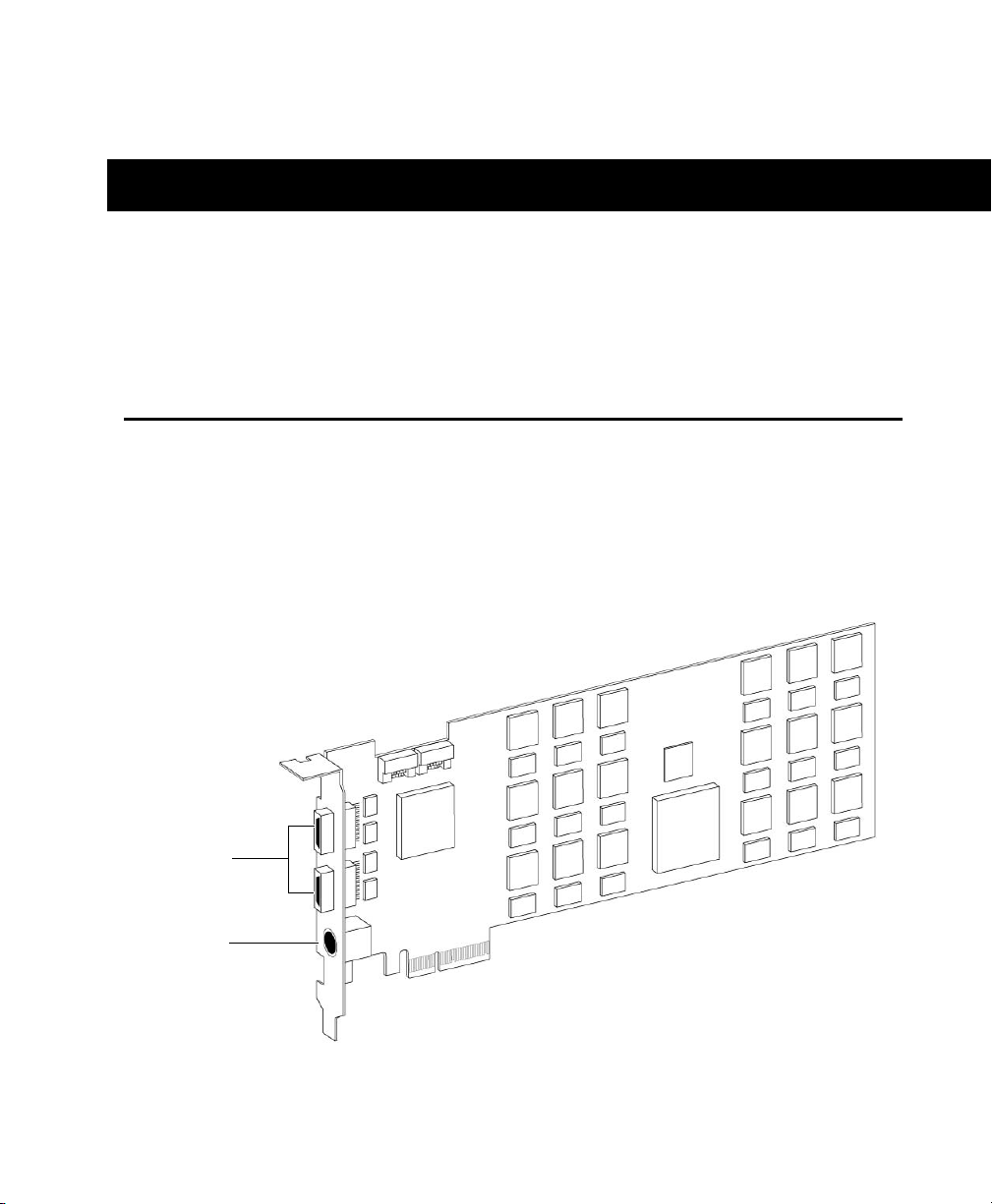
A single HDX PCIe card provides up to 256 voiceable tracks of direct-to-disk recording and playback,
as well as DSP power for mixing and plug-in processing. The HDX card supports up to 24-bit, 192 kHz
Pro Tools sessions.
Figure 1. HDX PCIe card
DigiLink
Mini ports
DigiSerial
port
HDX Card Installation Guide6
DigiLink Mini Ports
The HDX card provides two DigiLink Mini ports
for connecting up to four HD audio interfaces
for up to 64 channels of audio input and output.
DigiSerial Port
The Serial port on the HDX card is for connect-
ing a SYNC peripheral. This connector is an
8-pin mini-DIN.
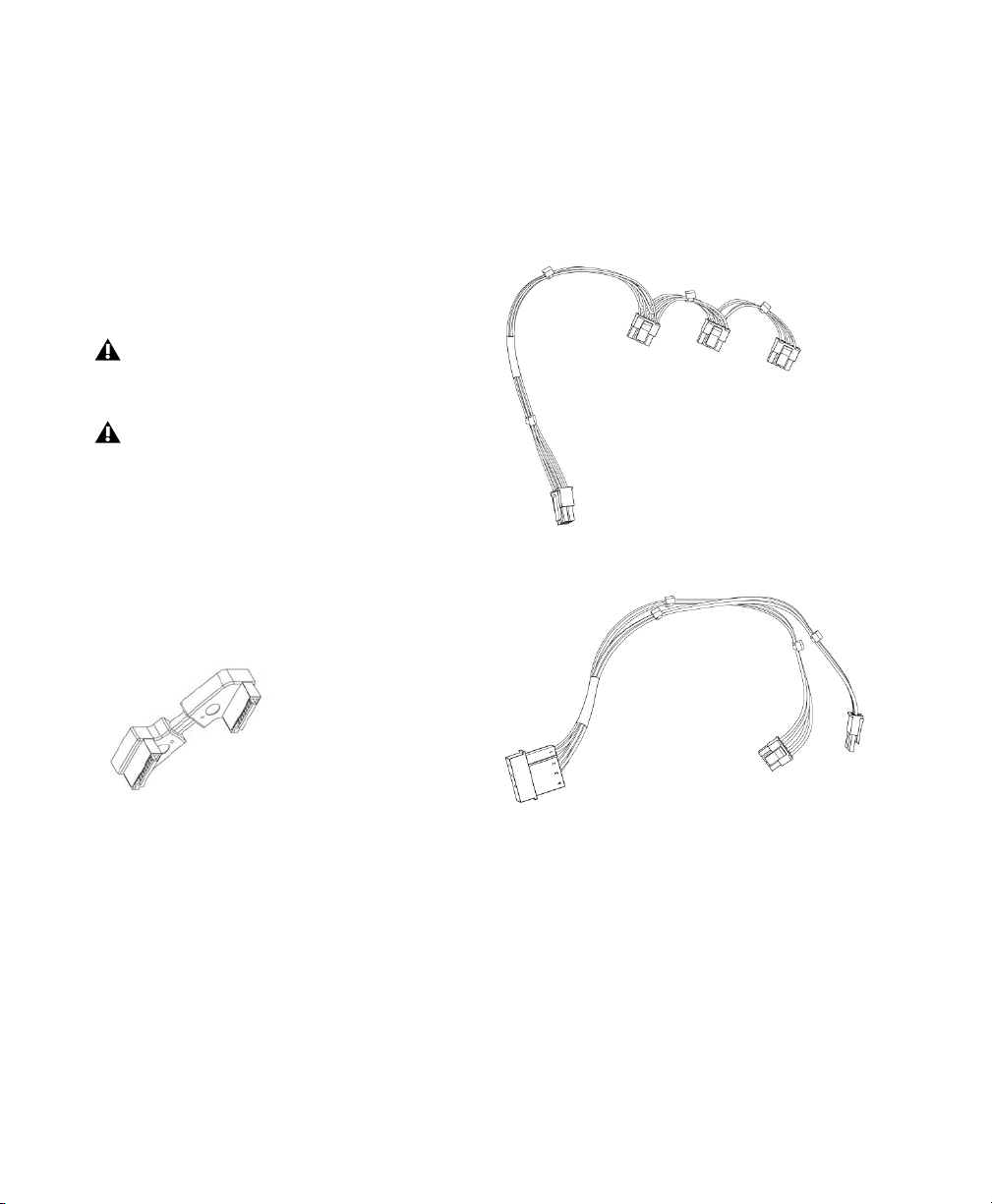
HDX TDM Cable
Use the included HDX TDM cable (a SATA ca-
ble) to connect a pair of HDX cards in your sys-
tem so they can share data along the TDM bus.
One HDX TDM cable comes with each HDX card.
Power Cable
HDX PCIe cards require power beyond what the
PCIe bus can deliver. A custom power cable
(included) is used to connect HDX PCIe cards to
the motherboard in your Mac or to a hard drive
power source in your PC.
The Serial port on an HDX card does not sup-
port MachineControl connections.
If you have more than one HDX card with a
SYNC peripheral, you must connect the SYNC
peripheral to the first card in the system.
HDX TDM cable
HDX card power cable (Mac)
HDX card power cable (PC)

Chapter 2: HDX Hardware Overview 7
DigiLink Mini Cables
Use DigiLink Mini cables to connect HD I/O,
HD OMNI, and HD MADI audio interfaces to
HDX cards. There are five different lengths of
DigiLink Mini cables:
•18
” (0.46m) (included with HD I/O,
HD OMNI, and HD MADI audio interfaces)
•12’ (3.6m) (one included with each HDX
card)
•25’ (7.62m) (sold separately)
•50’ (15.25m), the maximum length sup-
ported for 176.4 kHz and 192 kHz sessions
(sold separately)
• 100’ (30.5m), the maximum length sup-
ported by 88.2 kHz and 96 kHz sessions
(sold separately)
Avid HD Audio Interfaces
To record and play audio with Pro Tools (or
with a qualified third-party Core Audio-com-
patible or ASIO-compatible application), you
must have at least one Avid HD audio interface
connected to the first port of the first HDX card
in your system.
HD OMNI Audio Interface
HD OMNI provides a compact preamp, monitor-
ing, and I/O solution for music production and
recording, and post production studios.
HD OMNI Features
HD OMNI provides up to 8 discrete channels of
Pro Tools input and output, with 4-segment
LED meters for input or output (selectable).
Analog I/O
• 24-bit analog-to-digital (A/D) and digital-to-
analog (D/A) converters, with support for
sample rates up to 192 kHz
• 2 high-quality Mic/DI preamps (Channels
1–2)
• 2 combined XLR and 1/4-inch TRS front panel
inputs for microphone and instrument level
input
• 2 XLR back panel microphone inputs
• 2 1/4-inch TRS Send and 2 1/4-inch TRS
Return back panel jacks for hardware inserts
on channels 1 and 2
• 4 analog TRS line level back panel inputs
(Channels 1–4)
For more information, see the HD OMNI
Guide.
Only one HD OMNI can be used in a single
system.

HDX Card Installation Guide8
• Soft Clip and Curv limiting circuits to protect
against clipping on analog input
• 8 channels of analog back panel output using a
DB-25 breakout cable (sold separately) with
variable output gain
• 2 channels of analog back panel output using
TRS (Mirrors channels 1–2 or 7–8 on DB-25
connector)
• Front panel stereo 1/4” headphone jack
Digital I/O
• 8 channels of AES/EBU output (up to 192 kHz
Single Wire) using a DB-25 breakout cable
(sold separately)
• 2 channels of AES/EBU XLR input (up to
192 kHz Single Wire)
• 2 channels of S/PDIF RCA input and output
(up to 192 kHz)
• 8 channels of ADAT TOSLINK input and out-
put
• Support for ADAT S/MUX Optical for sample
rates of 88.2 kHz, 96 kHz, 176.4 kHz, and
192 kHz
• Support for two channels of S/PDIF Optical
with sample rates of up to 96 kHz
• Real-time sample rate conversion (SRC) on
Digital Inputs 1–2 of either AES/EBU, S/PDIF,
or Optical (S/PDIF)
Monitoring
• An additional stereo “CUE” output path in
Pro Tools for headphone monitoring from the
front panel headphone jack
• Front panel Control Room (MAIN/ALT) and
Headphone monitoring volume control
• Flexible monitoring with fold-down from all
stereo and surround formats (up to 7.1
surround)
• Input mixer for low latency direct monitoring
of a variety of incoming signals (configured in
the Pro Tools Hardware Setup)
Synchronization
• Loop Sync input and output for connecting ad-
ditional HD interfaces and peripherals
• External Clock input and output for synchro-
nizing HD OMNI with external Word Clock
devices
HD OMNI provides up to four channels of
simultaneous analog input from any of
several possible analog input connection.
SRC is not supported with ADAT S/MUX.

Chapter 2: HDX Hardware Overview 9
HD I/O Audio Interface
HD I/O features exceptionally high quality
24-bit analog-to-digital (A/D) and digital-to-an-
alog (D/A) converters, and supports sample
rates of up to 192 kHz.
HD I/O comes in three standard configurations:
• 8 x 8 x 8 (8 analog in, 8 analog out, and 8
digital in and out)
• 16 x 16 analog in and out
• 16 x 16 digital in and out
You can also add or remove HD I/O Analog Ex-
pansion cards (ADC and DAC) and HD I/O Dig-
ital Expansion cards for custom configurations.
HD I/O Features
HD I/O provides up to 16 discrete channels of
Pro Tools input and output, with 4-segment
LED meters for input and output.
Analog I/O
• Up to sixteen channels of 24-bit D/A and A/D
converters for superior analog input and
output at sample rates of 44.1 kHz, 48 kHz,
88.2 kHz, 96 kHz, 176.4 kHz, and 192 kHz
with Analog In and Analog Out HD I/O cards
• Soft Clip and Curv limiting circuits to protect
against clipping on analog input
Digital I/O
• Up to sixteen channels of 24-bit digital I/O,
using AES/EBU, TDIF DB-25, or Optical at
sample rates of 44.1 kHz, 48 kHz, 88.2 kHz,
96 kHz, 176.4 kHz, and 192 kHz with a Digital
HD I/O card
• Real-time sample rate conversion on digital
inputs with a Digital I/O card (up to sixteen
channels of AES/EBU, Optical, or TDIF)
• Support for S/MUX Optical for sample rates of
88.2 kHz and higher
• Support for 2 channels of S/PDIF Optical (en-
closed) with sample rates of up to 96 kHz
• 2 channels of AES/EBU I/O (enclosed) with
support for sample rates up to 192 kHz
• 2 channels of 24-bit-capable S/PDIF I/O (en-
closed) with support for sample rates up to
192 kHz
Synchronization
• Loop Sync input and output for connecting ad-
ditional HD interfaces and peripherals
• External Clock input and output for synchro-
nizing HD I/O with external Word Clock
devices
Expandability
• Optional addition of I/O cards to expand ana-
log or digital I/O
• Simultaneous use of multiple Avid HD audio
interfaces to further expand system input and
output (for more information see the
Expanded Systems Guide)
For more information, see the HD I/O
Guide.

HDX Card Installation Guide10
HD MADI Digital Audio Interface
HD MADI provides up to 64 channels of digital
audio. HD MADI supports the Multichannel Au-
dio Digital Interface (MADI) format and sample
rates of up to 192 kHz. HD MADI provides sim-
plified connectivity between your digital audio
workstation and MADI-compatible audio equip-
ment, such as routers, digital mixing consoles,
and converters.
`
HD MADI Features
• 2 MADI Optical and Coaxial inputs and 2
MADI Optical and Coaxial outputs for up
to 64 discrete channels of digital input and
output (32 channels per DigiLink Mini port)
• Supports sample rates of 44.1 kHz, 48 kHz,
88.2 kHz, 96 kHz, 176.4 kHz, and 192 kHz
• 24- or 16-bit resolution
• Sample Rate Conversion (SRC) on input or
output
• Front panel clock and SRC indicators
• Front panel signal present LEDs for input and
output
• BNC Word Clock I/O for synchronizing HD
MADI with external 1x Word Clock
•BNC Loop Sync I/O for synchronizing
HD MADI with additional HD audio interfaces
and peripherals (such as HD I/O, HD OMNI,
or SYNC HD)
• Dedicated BNC Word Clock input and XLR
AES/EBU input (clock input only) for external
MADI synchronization (when using SRC on
output)
• Clock support for the following formats: Inter-
nal, Loop Sync, Word Clock, AES/EBU, and
MADI
• Varispeed modes (supports both 64- and 56-
channel standards)
For more information, see the HD MADI
Guide.
Chapter 3: Installing HDX Cards 11
chapter 3
Installing HDX Cards
Install HDX PCIe cards in your computer before
installing Pro Tools. For systems with more
than one card, connect the cards using the in-
cluded HDX TDM cables. Once the cards are in-
stalled, connect HD audio interfaces.
Installing HDX Cards in a
Mac Pro
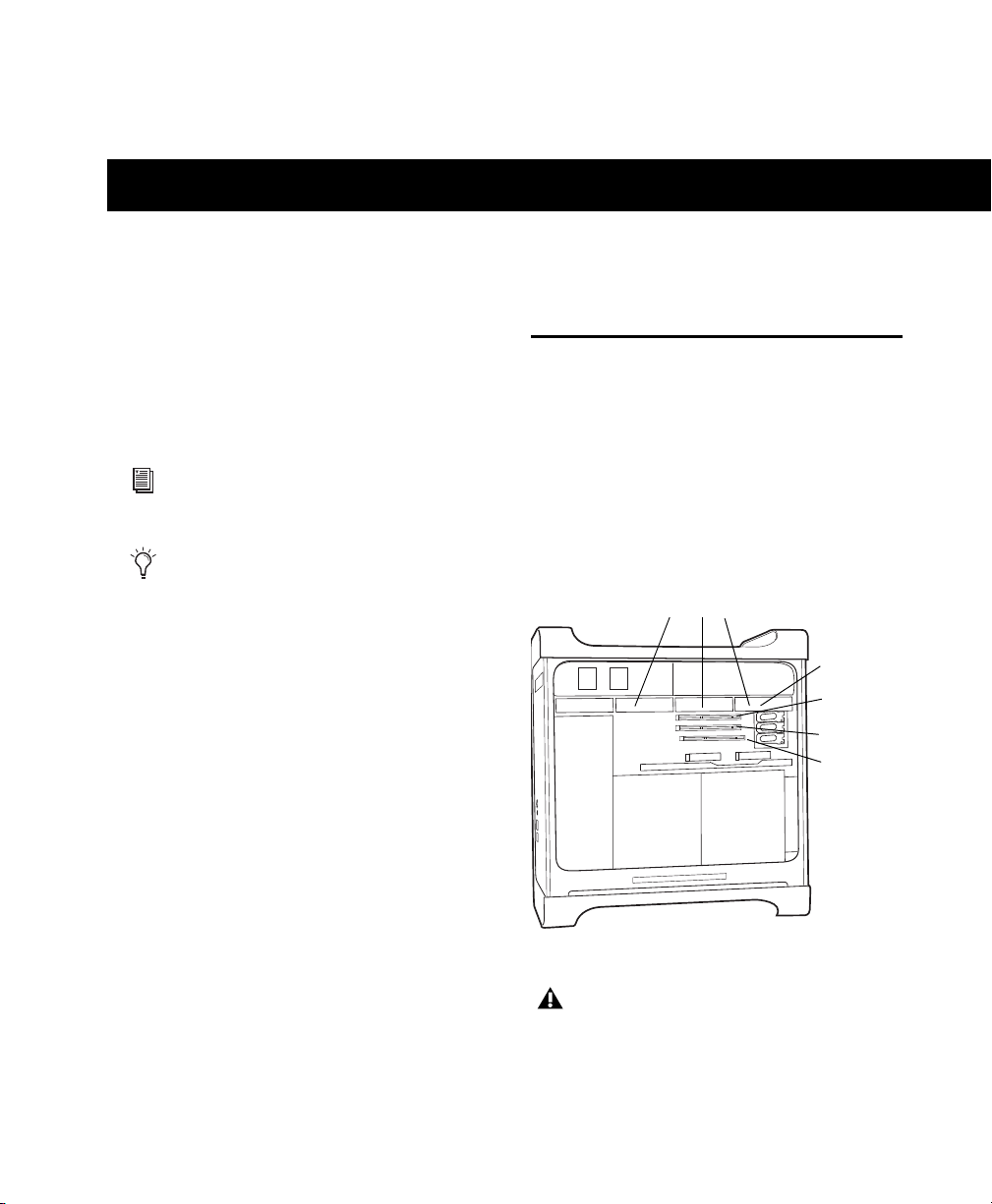
This section shows how to install HDX cards in a
Mac Pro. The PCI Express-equipped Mac Pro has
three
PCI Express (PCIe) slots (named slots 2, 3,
and 4). The PCI Express slot numbers increase
from
bottom to top as you face the open computer
case from the side. Install the first HDX card
into PCIe slot 2.
To install cards into an expansion chassis,
see the HDX
Expanded Systems Guide.
Install Pro Tools software only after you
have installed your HDX cards and HD au-
dio interfaces. For information on
installing Pro Tools software, see the
Pro Tools Installation Guide that came
with your Pro Tools software package.
Figure 2. Mac Pro
Follow these instructions carefully to avoid
damaging the card and its components.
PCIe slot 1
(video card)
PCIe slot 2
PCIe slot 3
PCIe slot 4
(hidden)
SATA drive trays and drives
HDX Card Installation Guide12
To install Pro Tools cards in a Mac Pro:
1 Turn off your computer and any peripherals.
Leave your computer’s power cable plugged in so
the computer is grounded.
2 Disconnect all cables attached to the computer
(such as hard drives, displays, USB and FireWire
devices) except for the power cable.
3 Lay the computer on its side so the access
panel is facing up.
4 Open the computer case using the latch
located on the back of the computer.
5 Remove the clamp that secures the metal
access port covers to the chassis.
6 Remove the metal access port covers for the
slots you want to use.
7 Remove your computer’s SATA drive trays. If
any extra SATA drives are installed, remove
them also. Refer to your computer’s documenta-
tion for information on removing SATA drives
and SATA drive trays.
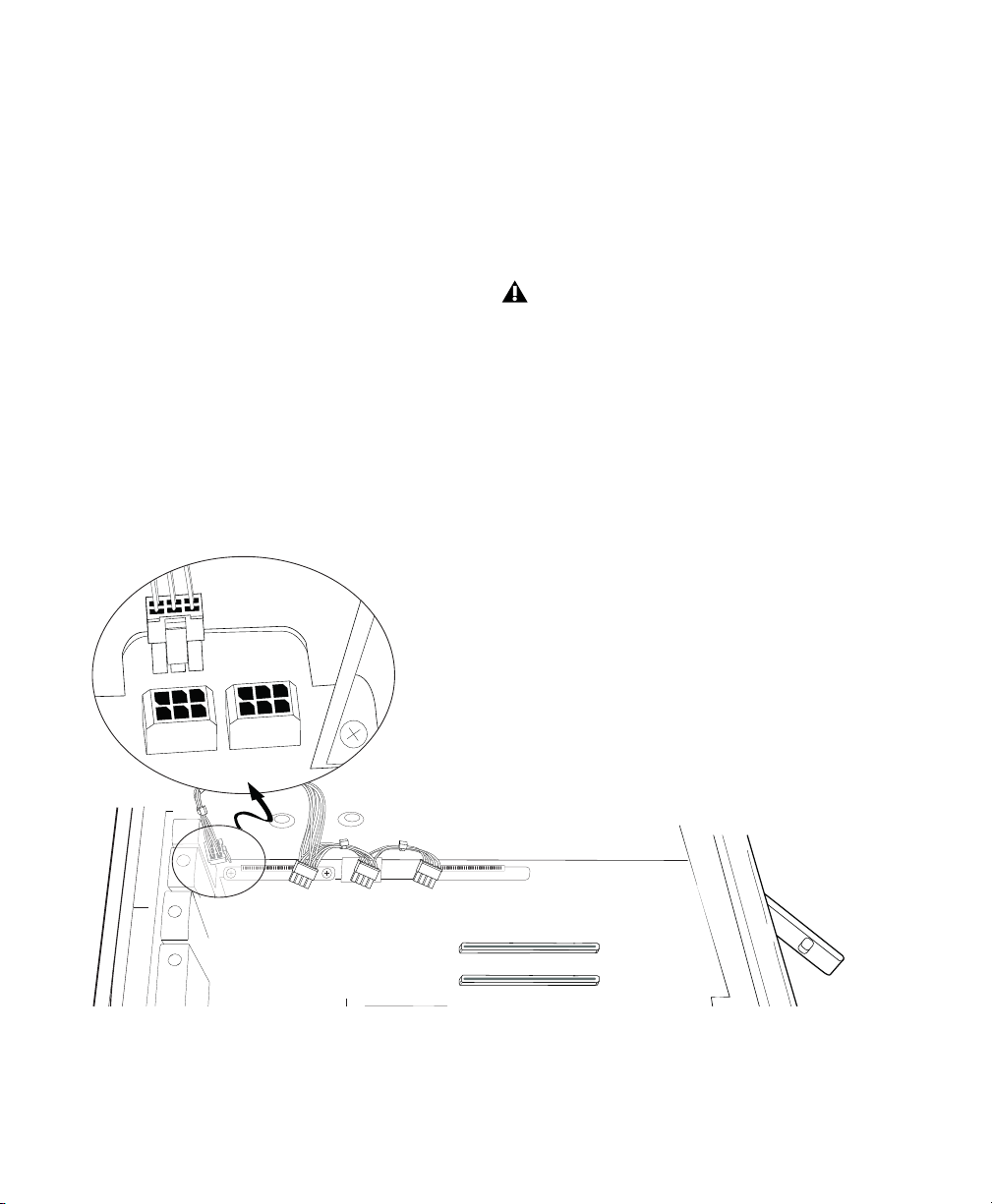
8 Connect the included custom power cable to
the motherboard and move the cable away from
the PCIe card slots. (See Figure 3 on page 12).
Before handling any card, discharge static
electricity from your clothes or body by
touching a grounded metal surface, such as
the power supply case inside your computer
with the power cable connected.
Figure 3. HDX card power cable connected to the motherboard
2
4
3
4

Chapter 3: Installing HDX Cards 13
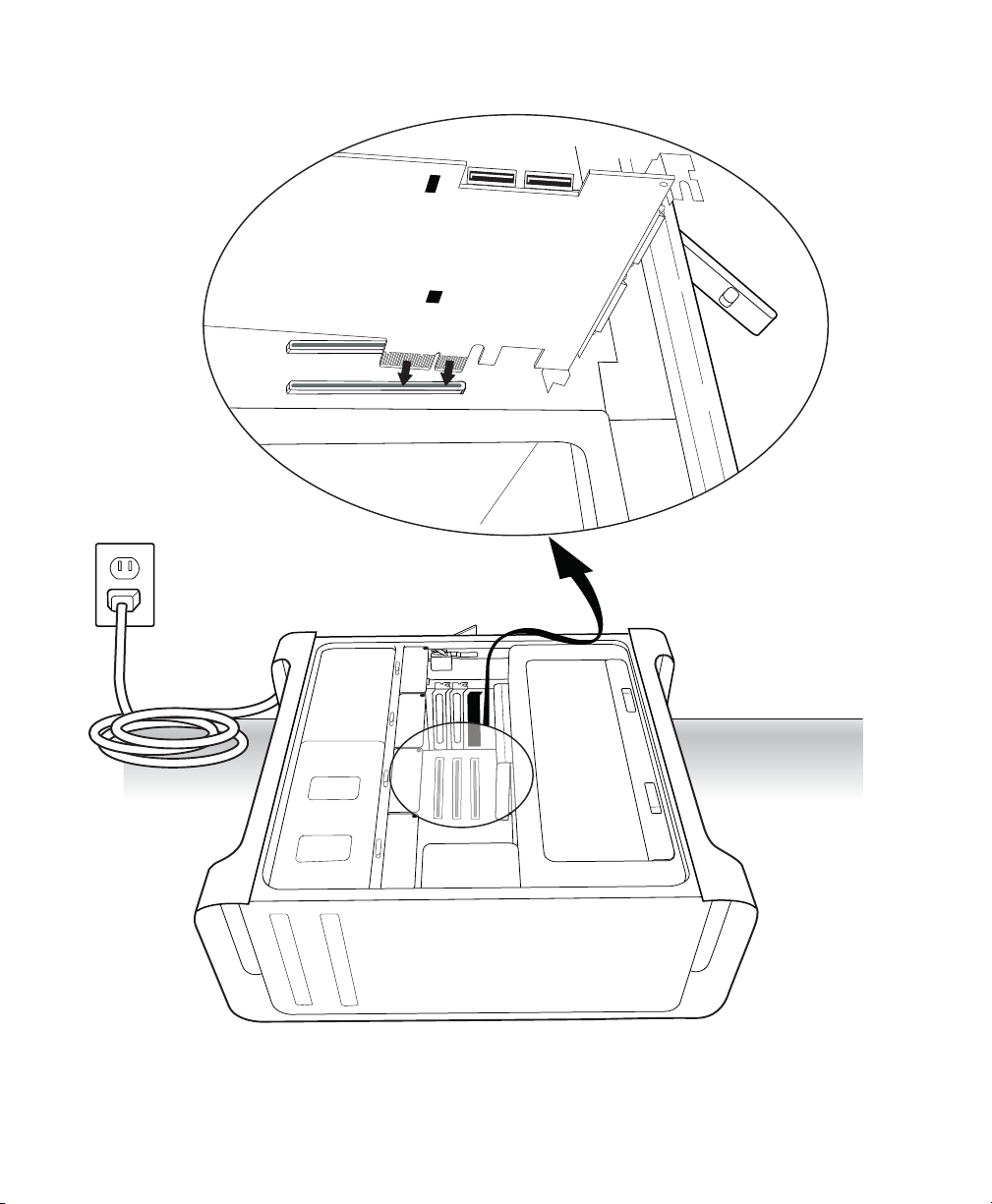
9 Install the first HDX card into the lowest-num-
bered available PCIe slot in the computer. (See
Figure 4 on page 14).
Do the following:
• Hold the card above the PCIe slot at a slight
angle so that the back of the card is higher
than the front of the card (where the Di-
giLink Mini connectors are located on the
card).
• With the card at an angle, rest the card’s
front bracket against the edge of the chas-
sis, where the computer’s slot access port is
located.
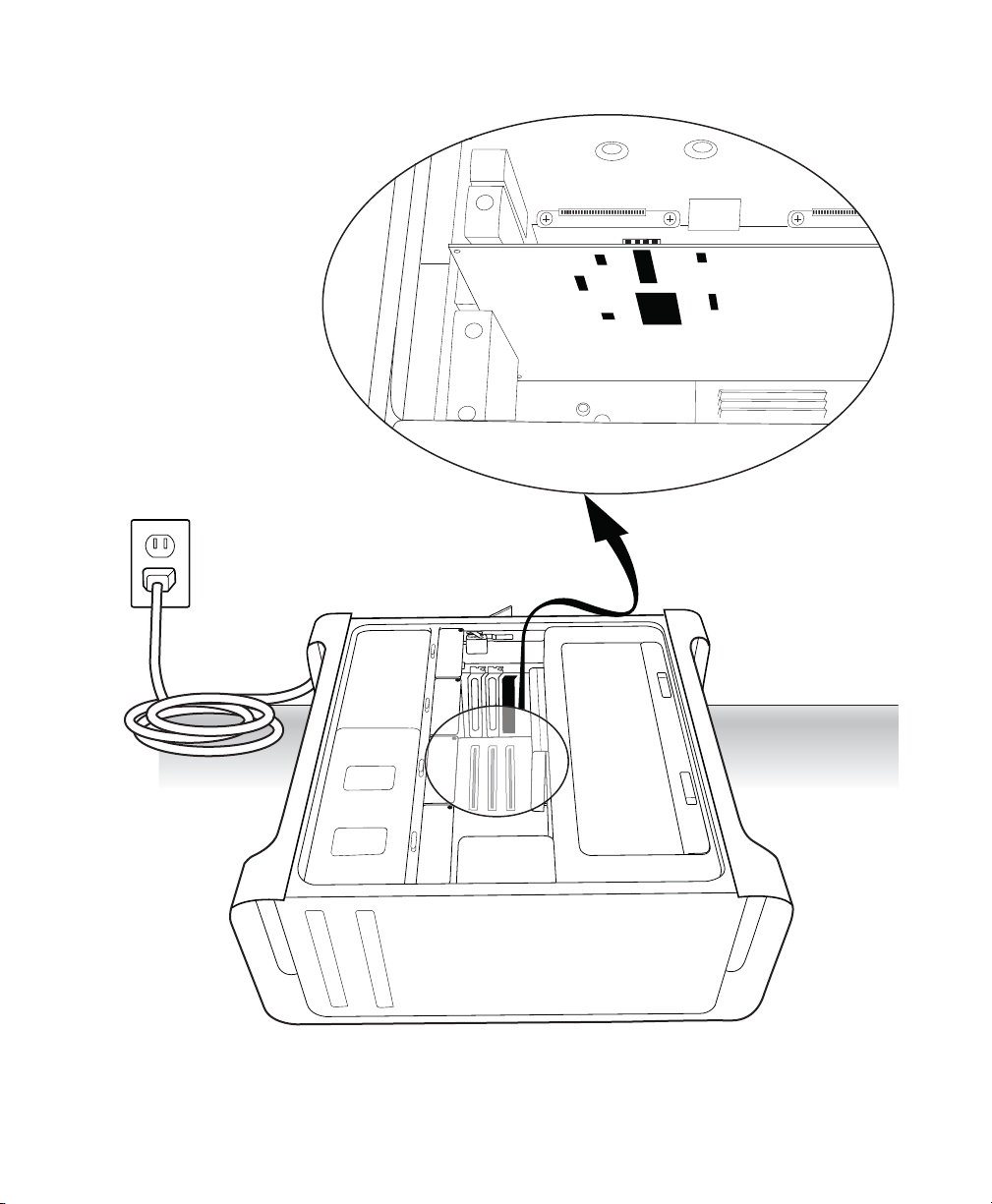
• Carefully slide the back of the card down
into the PCIe slot’s grey plastic PCIe card
support (where the slot numbers appear).
(See Figure 5 on page 15.)
• With the card PCIe connectors facing down,
carefully slide the card straight down and
firmly seat the PCIe connector into the
PCIe slot, making sure that all card compo-
nents on the back of the card have clearance
from the grey plastic PCIe card support.
On Mac Pro “Westmere” machines, you may
need to carefully push the grey plastic PCIe
card support back to install the HDX PCIe
card without damaging it.
Do not force the card into the PCIe card
support slot. When you have the correct
installation angle, the card should slide in
easily. If you do not have the correct angle,
reposition the card.
HDX Card Installation Guide14
Figure 4. Installing an HDX card into a Mac Pro
3
2
1
4
2
2
1
Chapter 3: Installing HDX Cards 15
Figure 5. HDX card sliding into the grey plastic PCIe card support
3
2
1
4
1
2
4
2
2
HDX Card Installation Guide16
10 If you are installing additional HDX cards (or
other cards), install any additional HDX PCIe
cards in the remaining consecutive PCIe slots.
Otherwise, skip to step 12.
11 If you have installed more than one HDX PCIe
card, connect the cards using the included HDX
TDM cable (see “Connecting Multiple HDX PCIe
Cards Using HDX TDM Cables” on page 21).
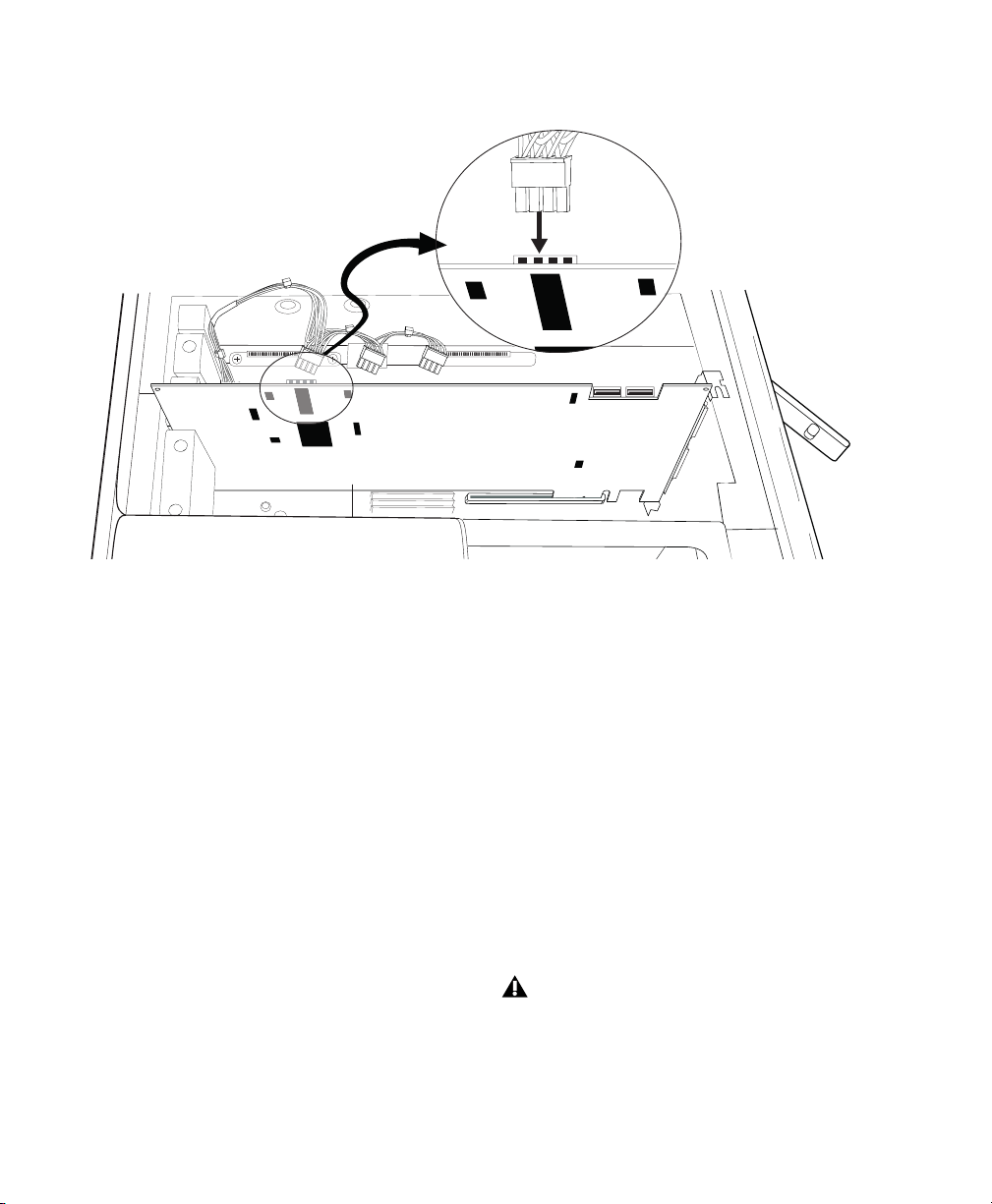
12 Connect the power cable to the installed HDX
PCIe cards. (See Figure 6 above).
13 Check to be sure that your cards are installed
in the proper order for your system, starting
with the lowest numeric slot:
• Display card for your computer monitor
•HDX cards
• Avid-approved video capture card (op-
tional)
• Host Bus Adapter (HBA) card (optional)
14 Reattach the clamp that secures the cards and
the slot covers to the chassis.
15 Replace the SATA drives.
16 Close the computer case.
Figure 6. Connecting the power cable to an installed HDX card
1
2
4
The card’s PCIe connectors will not seat
completely until you have replaced the
clamp that secures the cards and the metal
access port covers to the chassis.

Chapter 3: Installing HDX Cards 17
Installing HDX Cards in a
Windows Computer
This section shows how to install HDX cards in a
PC.
Disabling Driver Signing Warnings
Before you install any HDX cards, temporarily
disable the Driver Signing warning option for
Windows. This expedites and automates much
of the installation process. If you do not tempo-
rarily disable this option, warning messages
(that you are installing an unsigned driver) will
appear for each HDX card detected during HDX
driver or Pro Tools software installation.
To disable the warning option on Windows:
1 Right-click on My Computer and choose
Properties.
2 Click the Hardware tab in the System Proper-
ties dialog.
3 Click the Driver Signing button.
4 Select “Ignore—Install the software anyway and
don’t ask for my approval.”
5 Click OK to close the Driver Signing Options
window.
6 Click OK to close the System Properties dialog.
7 Shut down the computer.
Installing HDX Cards in a PC
To install Pro Tools cards:
1 Turn off your computer and any peripherals.
Leave your computer’s power cable plugged in so
the computer is grounded.
2 Disconnect all cables attached to the computer
(such as hard drives, displays, USB and FireWire
devices) except for the power cable.
3 Open the computer case.
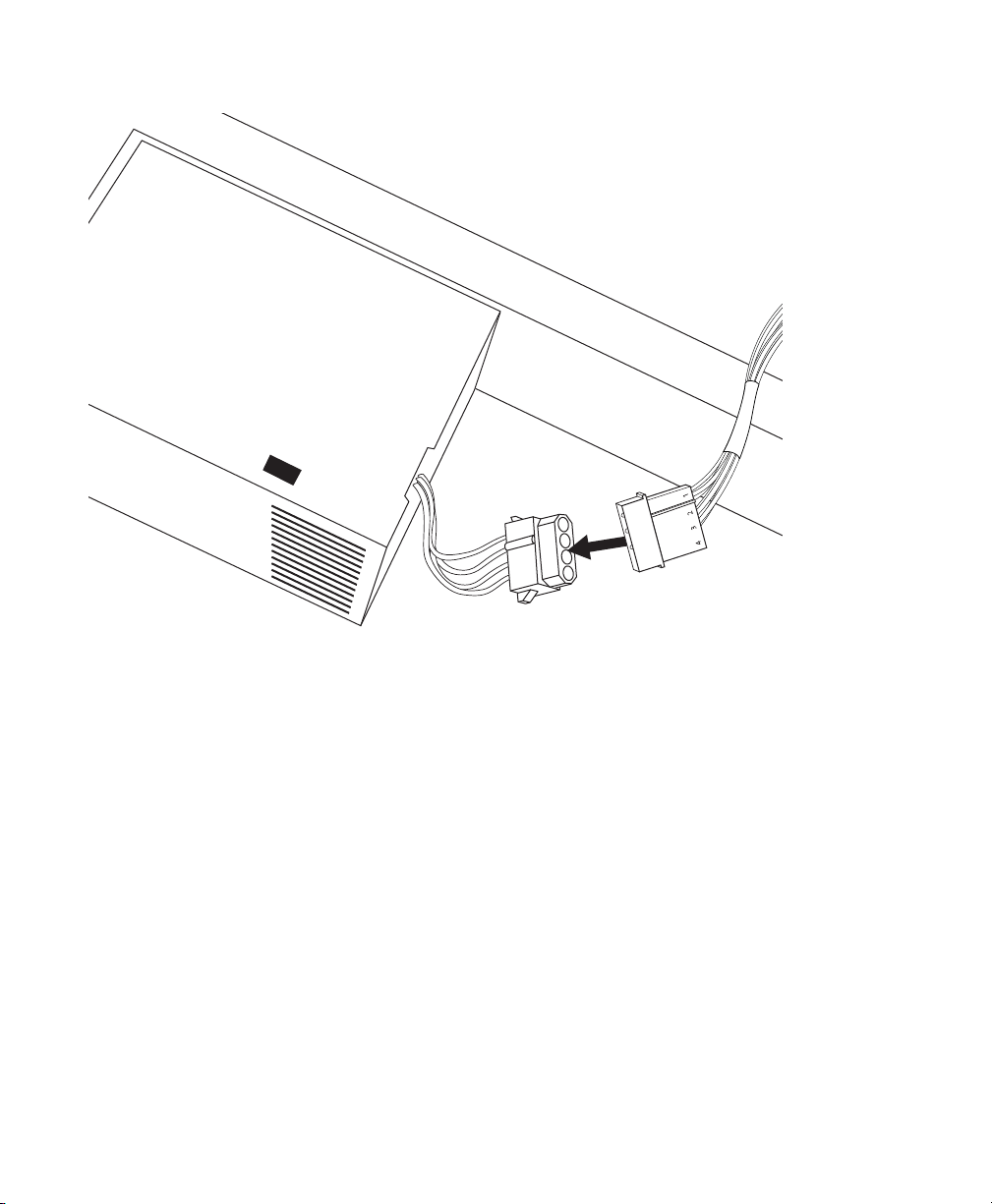
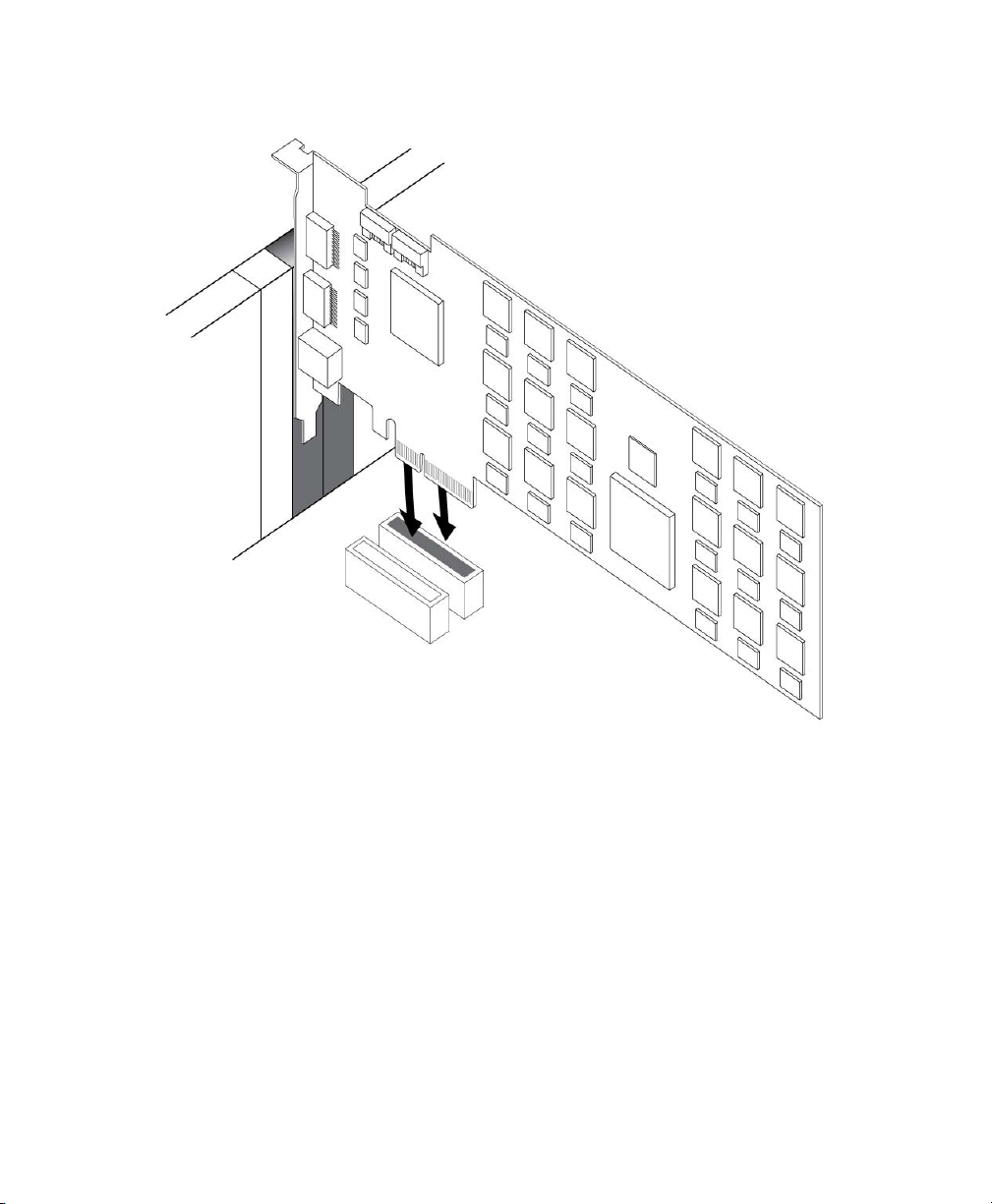
4 Connect the included custom power cable to
any available hard drive power connector com-
ing from the main power supply. (See Figure 7
on page 18.)
5 Remove the metal access port cover behind the
slot you want to use by removing the screw and
sliding the cover out from the access port.
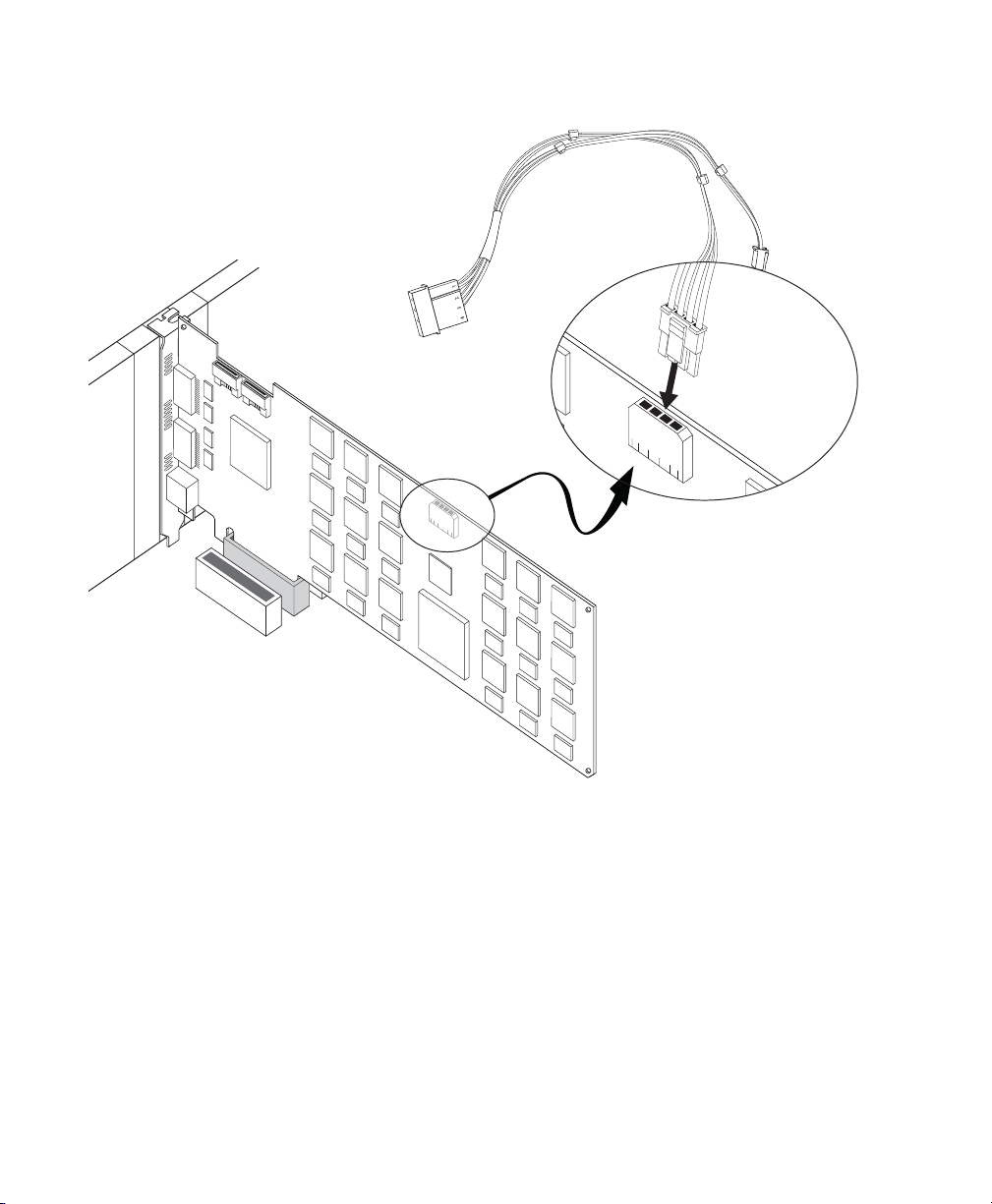
6 Install the first HDX PCIe card in the recom-
mended PCIe slot (typically this is the first PCIe
slot, closest to the video card). (See Figure 8 on
page 19.)
7 If you are installing additional HDX cards (or
other cards), install them in the remaining con-
secutive PCIe slots. Otherwise, skip to step 9.
8 If you have installed more than one HDX PCIe
card, connect the cards using the included HDX
TDM cable (see “Connecting Multiple HDX PCIe
Cards Using HDX TDM Cables” on page 21).
For the latest slot order and configurations
for Windows computers, visit www.avid.com.
It is recommended that you have it available
for reference before opening the computer
and installing Pro Tools hardware.
Before handling any card, discharge static
electricity from your clothes or body by
touching a grounded metal surface, such as
the power supply case inside your computer.
For slot order recommendations in quali-
fied Windows computers, visit the Avid
website (www.avid.com).
HDX Card Installation Guide18
Figure 7. Connecting the HDX card power cable to a hard drive power source (PC)
Chapter 3: Installing HDX Cards 19
Figure 8. Installing an HDX card in your PC
HDX Card Installation Guide20
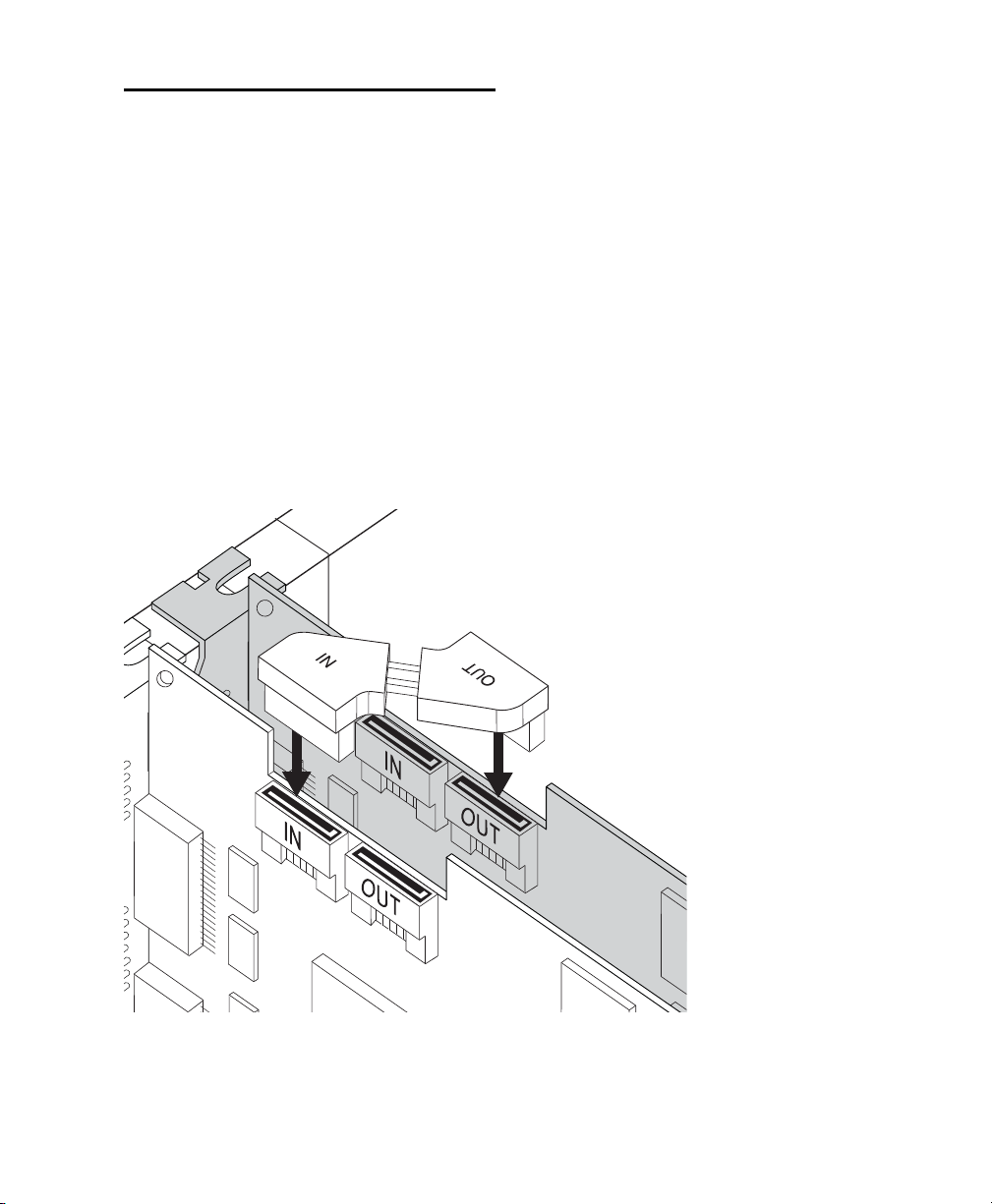
9 Connect the power cable to the installed HDX
PCIe cards. (See Figure 9 above.)
10 Check to be sure that all cards are installed in
the proper order for your system (this may vary
depending on your machine):
• Display card for your computer monitor
•HDX cards
• Host Bus Adapter (HBA) card (optional)
11 Secure each card in place with the slot access
port screws you removed earlier.
12 Close the computer case.
13 Connect your HD audio interfaces (see “Con-
necting Audio Interfaces” on page 22).
Figure 9. Connecting the HDX card power cable (PC)
Chapter 3: Installing HDX Cards 21
Connecting Multiple HDX
PCIe Cards Using HDX TDM
Cables
In systems that have more than one card, you
must connect all the HDX PCIe cards to each
other with HDX TDM cables (custom SATA
cables). Each HDX card has two ports along the
top of the card, labeled
IN and OUT. Data com-
munication across multiple cards is achieved by
connecting the OUT port of the first card to the
IN port of the next card with an HDX TDM
cable.
To connect HDX PCIe cards with an HDX TDM
cable:
1 Connect the end of the HDX TDM cable
labeled OUT to the OUT port of the first HDX
card.
2 Connect the other end of the HDX TDM cable,
labeled IN, to the IN port of the second HDX
card.
3 For systems with more than two cards, connect
each additional card to its preceding card. Use
additional HDX TDM cables to connect card
pairs together, as described above, until all cards
are connected. (Each HDX card is packaged with
an HDX TDM cable.)
Figure 10. Connecting two HDX cards with an HDX TDM cable

HDX Card Installation Guide22
Connecting Audio Interfaces
Each Avid HD audio interface provides several
different input and output options. For exam-
ple, HD OMNI supplies up to 8 channels of input
and output to your Pro Tools system, HD I/O
supplies up to 16 channels of input and output,
and HD MADI provides up to 64 channels. Au-
dio interfaces can be connected directly to HDX
cards, or through the Expansion ports on other
HD audio interfaces.
Each HDX card supports up to 64 channels of
audio input and output. To get a full 64 channels
of I/O, you can connect up to four 16-channel
HD I/O to an HDX card. Two of the interfaces
connect directly to DigiLink Mini Ports 1 and 2,
and the other 2 HD I/O connect to the Expansion
ports on first two HD I/O.
You can also get a full 64 channels of I/O with a
single HD MADI connected to an HDX card us-
ing 2 DigiLink Mini cables.
Refer to the HD OMNI Guide, HD I/O Guide, or
HD MADI Guide for specific details regarding:
• Front and back panel connectors and indi-
cators
• Installation of optional expansion I/O cards
(HD I/O only)
To connect HD audio interfaces:
1 Do one or more of the following depending on
the audio interface you are connecting:
• If you are using a single HD OMNI or
HD I/O, connect its Primary Port to Di-
giLink Mini Port 1 on the first HDX card in
your system using the provided DigiLink
Mini cable.
• If you are connecting an additional HD au-
dio interface (such as HD I/O), you can
connect its Primary Port to DigiLink Mini
Port 2 on the first HDX card in your system
using the provided DigiLink Mini cable.
• If you are connecting HD MADI to your sys-
tem, connect HD MADI Primary Port 1 to
DigiLink Mini Port 1 on the HDX card using
a DigiLink Mini cable (included). For the
full 64 channels of I/O possible with HD
MADI, connect HD MADI Primary Port 2 to
DigiLink Mini Port 2 on the HDX card using
a DigiLink Mini cable (included).
2 Connect additional HD audio interfaces to
subsequent HDX cards, or daisy-chain the inter-
faces (by connecting the Primary Port of the sec-
ondary interface to the Expansion Port of the
primary interface).
You can also connect up to two HD interfaces di-
rectly to each HDX card in your system using the
provided DigiLink Mini cables. (Note that there
is no advantage or disadvantage to this configu-
ration over daisy-chaining interfaces.)
In an expanded system, you should connect au-
dio interfaces only to the first 4 HDX cards in
your system.
At least one HD audio interface must be
connected to the first port on the first HDX
card in your system.
Pro Tools HD supports only one HD OMNI
per system. If you are connecting HD OMNI
to your system, it is generally recommended
that you connect it directly to the first port
on the first HDX card in your system.
Connecting the DigiLink Mini ports of the
HD MADI to separate HDX cards is not sup-
ported.
Chapter 3: Installing HDX Cards 23
Connecting Loop Sync
If you are using two or more HD audio interfaces
or a SYNC peripheral, Loop Sync must be con-
nected to maintain proper clock among the
devices.
To make Loop Sync connections:
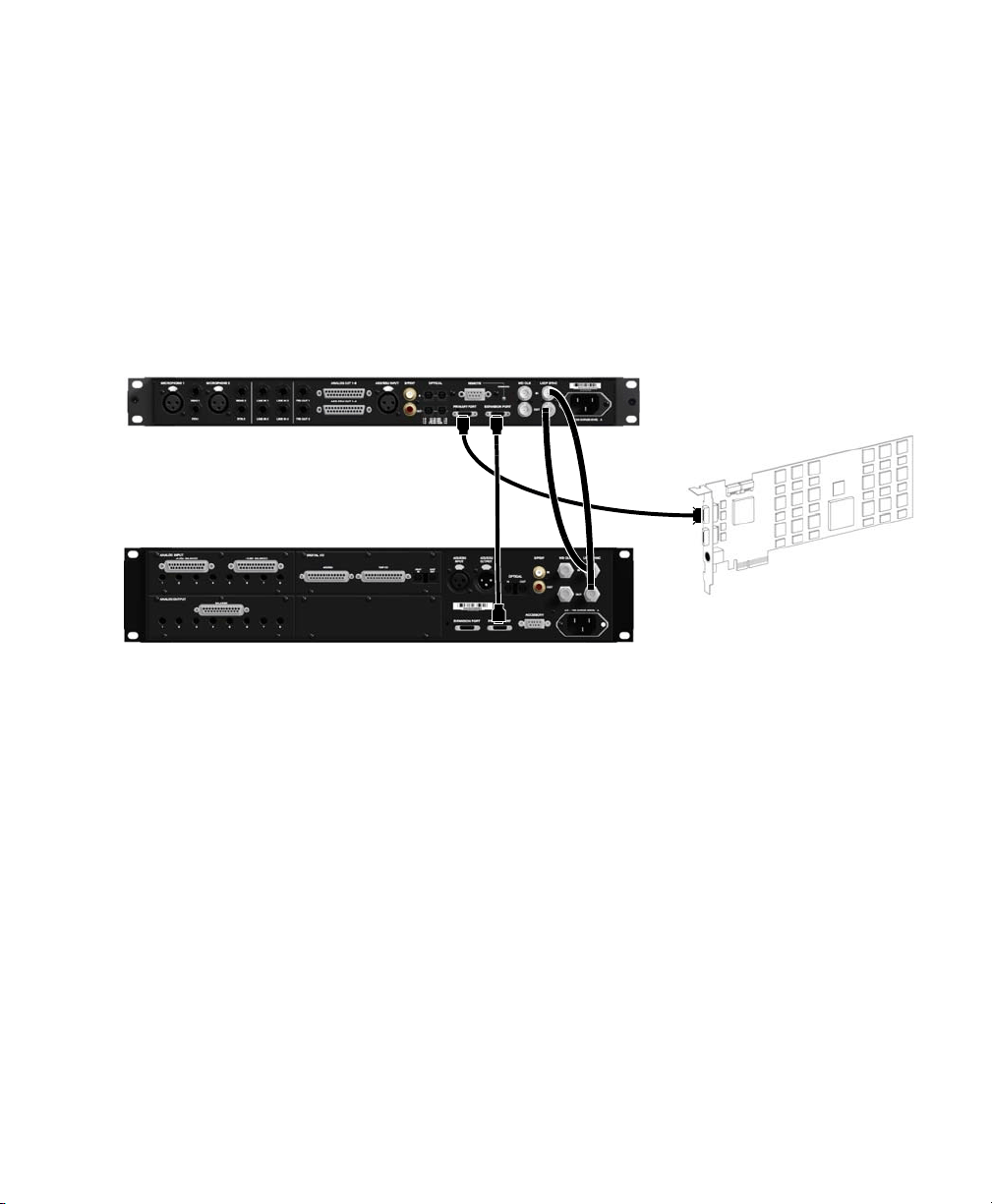
1 Connect the Loop Sync Out of each interface to
the Loop Sync In of the next interface with the
BNC cables included in your I/O packaging.
2 Connect the Loop Sync Out of the last inter-
face to the Loop Sync In of the primary interface
or SYNC peripheral.
Figure 11. Making DigiLink and Loop Sync connections with HD OMNI and HD I/O.
12-foot DigiLink Mini
A single HDX card
cable
Loop Sync cables
18-inch DigiLink
Mini cable
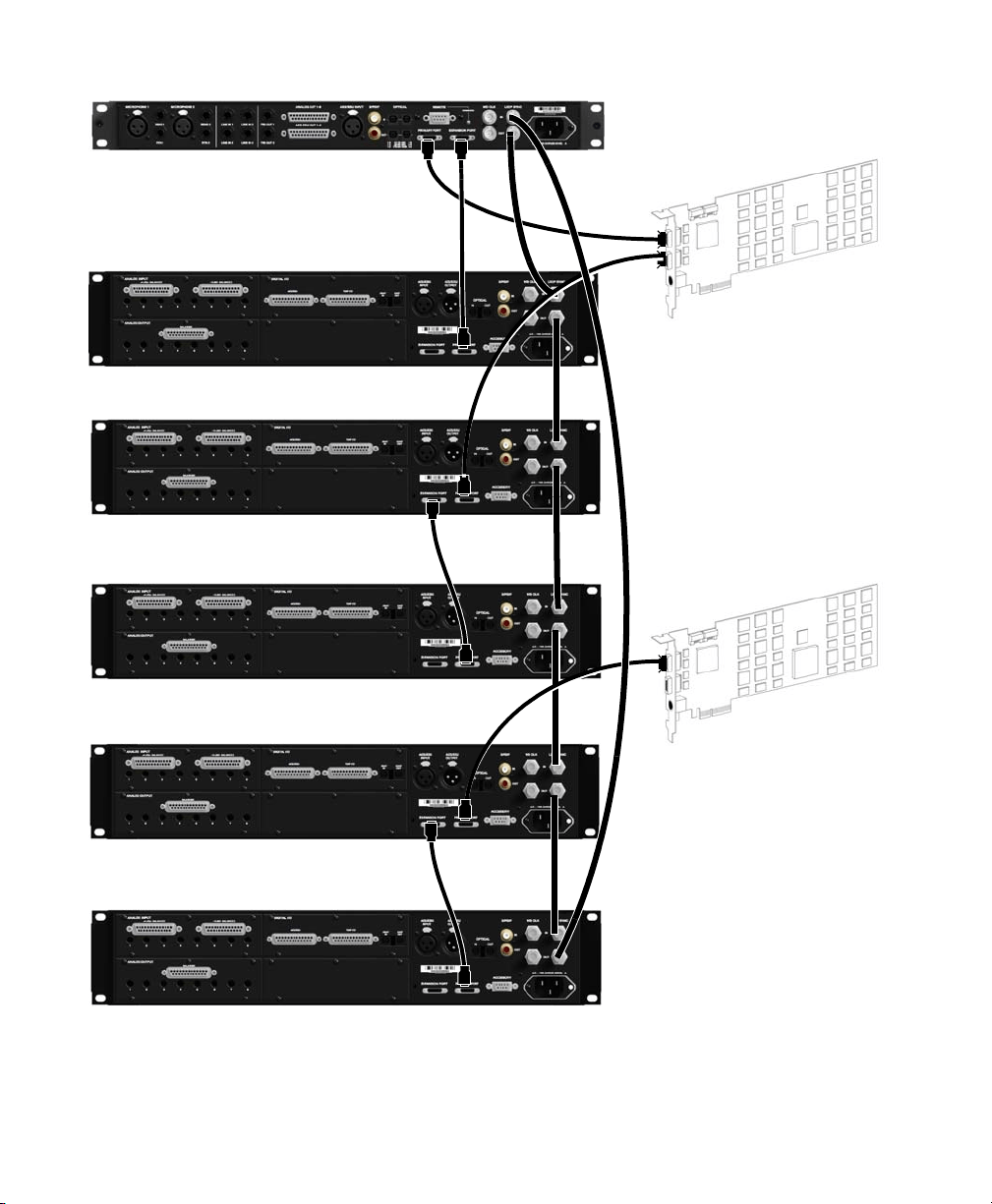
HDX Card Installation Guide24
Figure 12. Making DigiLink and Loop Sync connections with HD OMNI and five HD I/Os
12-foot DigiLink Mini
First HDX card
cable
Loop Sync cables
18-inch DigiLink
Mini cable
Second HDX card
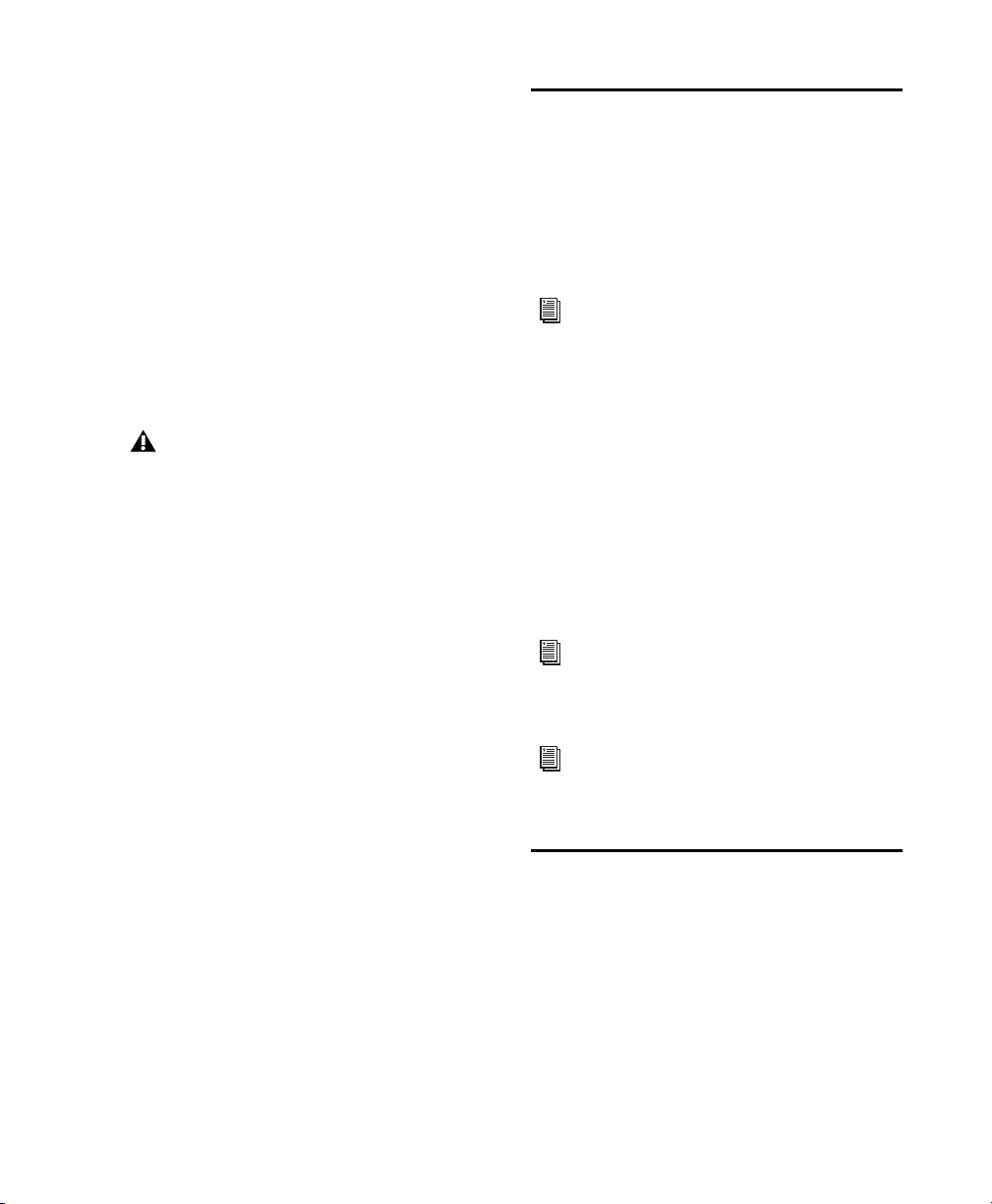
Chapter 3: Installing HDX Cards 25
Maximum I/O Configurations
Pro Tools HD with HDX cards supports up to a
maximum combination of 16 total of the follow-
ing audio interfaces:
• HD OMNI (only one HD OMNI is supported
in a single system)
• HD I/O (up to 16 HD I/O can be used
simultaneously—requires 4 HDX cards)
• HD MADI (up to 4 HD MADI can be used
simultaneously—requires 4 HDX cards)
For examples of connecting multiple I/Os, see
Figure 11 on page 23 and Figure 12 on page 24.
Installing Pro Tools HD
Software and HDX Hardware
Drivers
Once you have installed your Avid HDX cards
and connected your Avid HD audio interfaces,
you can install and authorize your Pro Tools HD
software (sold separately).
To use your Avid HDX hardware with Core Au-
dio (Mac) or ASIO (Windows) compatible digi-
tal audio software (such as Logic, Live, or Cu-
base), you must first install the hardware
drivers for HDX. If you install Pro Tools HD
software, these drivers are installed automati-
cally. If you are not installing Pro Tools, you can
download the driver installers from the Avid
website (www.avid.com)
Configuring Your Pro Tools
System
After you have installed, authorized, and
launched Pro Tools, you can configure your sys-
tem to meet the specific needs of your studio.
For detailed information on configuring your
Pro Tools software, see the Pro Tools Reference
Guide (which is available from the
Help menu in
Pro Tools).
HD audio interfaces need room at their
sides to maintain proper air flow for cool-
ing. Do not block the sides of the unit or
disconnect the internal fan. If the units are
rack-mounted in a case, remove the case
lids or doors before operating the system.
Failure to do so can result in the units over-
heating, which can permanently damage
sensitive components.
For complete installation and authoriza-
tion instructions, see the
Pro Tools Instal-
lation Guide
that came with your Pro Tools
software package.
For instructions on installing the Core
Audio driver, see “Installing the Avid
Core Audio Driver” on page 27.
For instructions on installing the ASIO
driver, see “Installing the ASIO Driver”
on page 35.

HDX Card Installation Guide26

Chapter 4: Configuring Core Audio (Mac OS X Only) 27
chapter 4
Configuring Core Audio
(Mac OS X Only)
Avid Core Audio Driver
Capabilities
The Avid Core Audio Driver is a multi-client,
multichannel sound driver that lets Core Au-
dio–compatible applications record and play
back through Pro Tools hardware.
Full-duplex recording and playback of 24-bit
audio is supported at sample rates up to 96 kHz,
depending on your Pro Tools hardware and
CoreAudio client application.
The Avid Core Audio Driver provides up to 64
channels of I/O with the first HDX card in your
system.
Limitations of the CoreAudio Driver
The Avid Core Audio Driver has the following
limitations:
The Avid Core Audio Driver cannot be used to
preview sound files from the Mac Finder. When
a sound file is located in the Mac OS X naviga-
tion window, a QuickTime transport bar is dis-
played next to it. The QuickTime transport bar
lets you audition the sound file. The sound will
always play back though the Mac’s built-in audio
controller (through the Mac speaker or head-
phone jack). However, if you double-click a
sound file, the QuickTime application will
launch, and can use the CoreAudio Driver for
playback.
The Avid Core Audio Driver cannot be used
for playback of Mac System Sounds.
The Core Audio Driver does not support
more than the first HDX card in your
system.
HDX Card Installation Guide28
Installing the Avid Core
Audio Driver
The Avid Core Audio Driver is installed by de-
fault when you install Pro Tools. The Avid Core
Audio Driver can also be installed as a stand-
alone driver on Mac systems that do not have
Pro Tools software installed. The installer for
the standalone Avid Core Audio Driver is avail-
able on the Driver Installers disc that came with
your Pro Tools Software package, or from our
website (www.avid.com).
To install the standalone Avid Core Audio Driver:
1 Ensure that your HDX hardware is correctly
installed.
2 Do one of the following:
• Insert the Driver Installers Disc that came
with your Pro Tools Software package in
your computer.
– or –
• Download the standalone Avid Core Audio
driver installer from our website
(www.avid.com).
3 Locate and double-click the Install HD Family
Driver.mpkg
.
4 Follow the on-screen instructions to complete
the installation.
5 When the installation is complete, click Re-
start
.
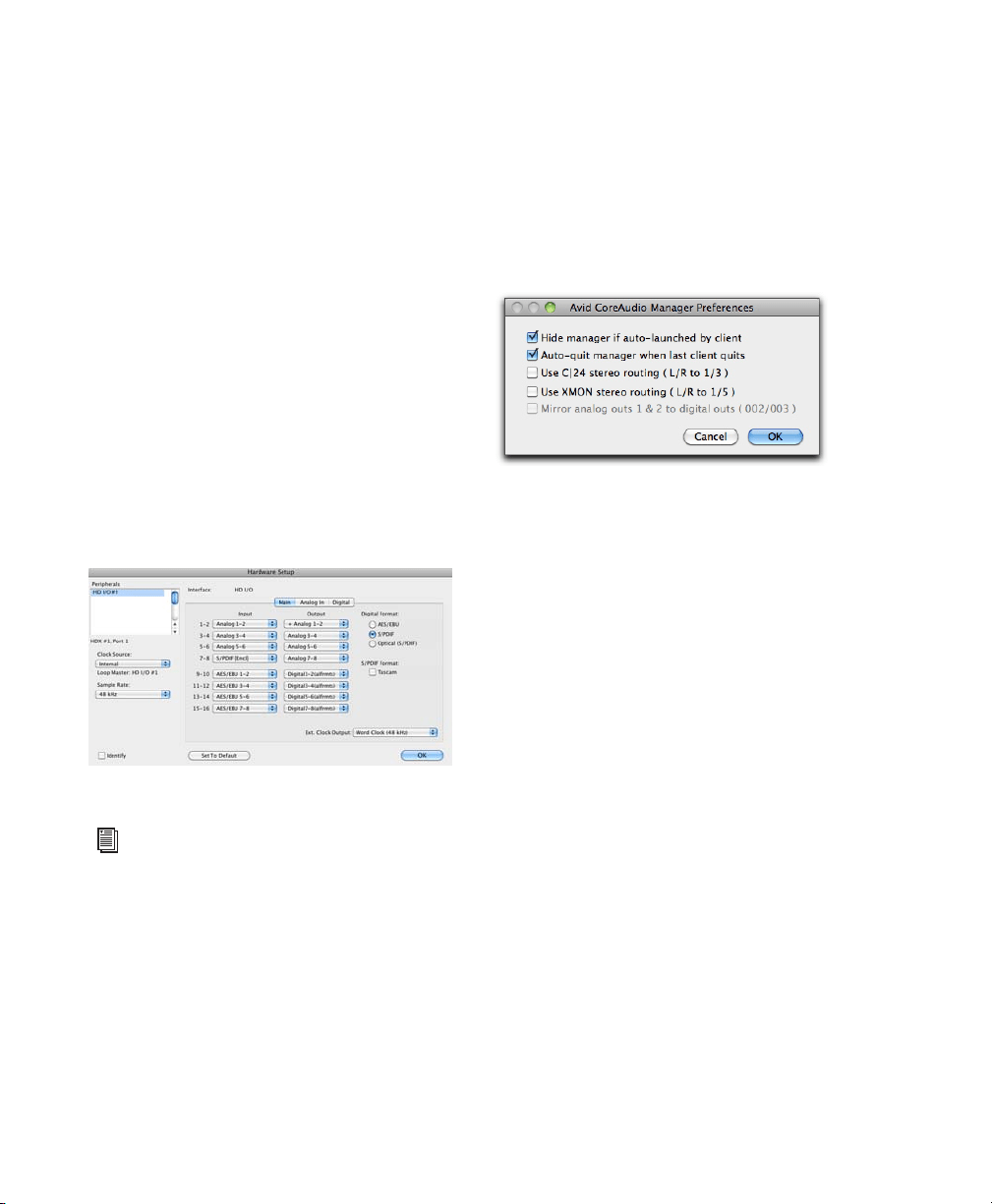
CoreAudio Manager
You can configure the Avid Core Audio Driver
using CoreAudio Manager, or from within most
third-party CoreAudio-compatible client appli-
cations (such as BIAS Peak or Logic). Refer to
the manufacturer’s documentation for more in-
formation.
Some applications (such as Apple’s iTunes or
QuickTime Player), also require that you config-
ure either the Apple Sound Preferences or Apple
Audio MIDI Setup (AMS) to use the Avid Core
Audio Driver.
The Avid Core Audio Manager is configured to
auto-hide when first launched. To bring it to the
foreground, click on its icon in the dock.
The Avid Core Audio Manager is not used by
Pro Tools. It is only used by other Core Audio
applications.
Accessing the CoreAudio
Manager
The Avid Core Audio Manager application
launches automatically when the first client ap-
plication accesses the Avid Core Audio Driver.
If you uninstall Pro Tools, the Avid Core
Audio Driver is automatically uninstalled
at that time.
CoreAudio Manager

Chapter 4: Configuring Core Audio (Mac OS X Only) 29
Avid Core Audio Manager cannot be accessed
under the following circumstances:
• When Pro Tools is running
• When another application is using
Direct IO
Preventing an Application from Accessing the
Avid Core Audio Driver
You can prevent an application from accessing
the Avid Core Audio Driver by holding down the
Shift key just before the application would ac-
cess the Avid Core Audio Driver, typically when
launching the application. Certain applications
(such as Apple Mail and iChat), do not access
the Avid Core Audio Driver until they first play
a sound, so you will need to hold down the Shift
key just prior to sound playback in order to pre-
vent the use of your Avid hardware for playback.
Using the Avid Core Audio
Manager
Use the Avid Core Audio Manager to change the
Core Audio Buffer Size setting, access the Hard-
ware Setup dialog for your Avid hardware, and
control volume and mute for the Avid Core Au-
dio Driver. The Avid Core Audio Manager also
identifies your Avid hardware, the supported
number of Input and Output Channels and the
number of attached clients (applications).
Buffer Size
You can select from the following buffer sizes
(depending on your Avid hardware):
• 64 samples
• 128 samples
• 256 samples
• 512 samples
• 1024 samples
• 2048 samples
Changing the Buffer Size for the Avid Core Au-
dio Driver does not affect the
H/W Buffer Size
setting in the Pro Tools Playback Engine dialog.
To configure Avid Core Audio Hardware Buffer
Size:
1 Double-click the Avid Core Audio Manager file
(located in /Applications/Avid/).
2 From the Buffer Size pop-up menu, select the
desired Core Audio buffer size (in samples).
Generally, smaller buffer sizes are preferable.
However, if you experience any problems with
performance (such as clicks and pops during re-
cording or playback), try increasing the Core
Audio
Buffer Size setting. You can also change
the buffer size from within the client application
if it is the only client attached to the Core Audio
Driver. Once two or more clients are active, you
will not be able to change the sample rate or the
buffer size.
To ensure proper playback with the Avid
Core Audio Driver, launch the Avid Core
Audio Manager first, making sure that its
status is “Connected.”
HDX Card Installation Guide30
HW Setup Button
The HW Setup button opens the Hardware Setup
dialog for your Avid hardware. The
HW Setup
button is only available when no clients are us-
ing the Avid Core Audio Driver.
To configure Core Audio HW Setup:
1 Quit any Core Audio client applications.
2 Double-click the Avid Core Audio Manager file
(located in /Applications/Avid/).
3 Click the HW Setup button to open the Hard-
ware Setup dialog.
4 Configure the Hardware Setup dialog for your
Avid audio hardware. If you have more than one
HDX card in your system, be sure to select and
configure only the audio interfaces connected to
the first HDX card.
5 When you are finished, click OK to close the
Hardware Setup dialog.
Prefs Button
The Prefs button opens the Avid Core Audio
Manager Preferences dialog. There are several
options available configuring the Manager ap-
plication. When finished setting these options,
click
OK to close the Avid Core Audio Manager
Preferences window.
Hide Manager if Auto-Launched by Client
En-
able this option to hide the Manager panel after
the first client application accesses the Avid
Core Audio Driver. To open the Manager panel,
click on the Avid Core Audio Manager applica-
tion icon in the Dock.
Auto-Quit Manager when Last Client Quits
En-
able this option to make the Manager applica-
tion quit when there are no longer any clients
using the Avid Core Audio Driver.
Use C|24 Stereo Routing (L/R to 1/3)
When us-
ing C|24, enable this option to configure the
Avid Core Audio Driver to output through the
C|24 standard stereo routing (outputs 1 and 3).
Use XMON Stereo Routing (L/R to 1/5)
When us-
ing D-Control or D-Command, enable this op-
tion to configure the Avid Core Audio Driver to
output through the D-Control or D-Command
standard stereo routing (outputs 1 and 5).
Hardware Setup dialog, HD I/O shown
For more information on the Hardware Setup
dialog, refer to the Pro Tools Reference
Guide.
CoreAudio Manager Preferences

Chapter 4: Configuring Core Audio (Mac OS X Only) 31
Mirror Analog Outs 1 & 2 to Digital Outs (002/003)
This option is grayed out for systems using an
HDX card. When using 003, 003 Rack, 003
Rack+, Digi 002, or Digi 002 Rack, enable this
option to mirror the main outputs through the
digital outputs that are selected in the Hardware
Setup dialog.
Connect Button
The Connect button is available when the Avid
Core Audio Manager is launched and cannot
connect with the Pro Tools hardware (such as
when Pro Tools is launched and the hardware is
disconnected or disabled). Before trying to con-
nect, make sure to quit Pro Tools and make sure
that your hardware is connected and turned on.
You can then click on the
Connect button to ac-
quire the hardware.
Quit Button
Use the Quit button to quit the Avid Core Audio
Manger. Be sure to quit any client applications
before using the
Quit button in the Manager. If
any applications are currently attached to the
Manager application when quitting, you may get
an error message indicating that the Pro Tools
hardware is no longer available. You may have
to change the application’s preferences to use
different hardware for playback or possibly quit
and relaunch the application for proper play-
back to be resumed.
Configuring HD Audio
Interfaces for Third-Party
Applications
When using an HDX card with an application
other than Pro Tools (such as Apple Garage-
Band), you can configure hardware settings
using the audio preference settings available in
that application.
To configure hardware settings through a Core
Audio application (such as Apple GarageBand):
1 Select Avid HW (HDX) for Audio Output and
Audio Input.
2 Select a buffer size for your system from one of
the following options:
•Maximum/Large buffer size
– or –
•Minimum/Small buffer size
If any application is launched prior to
pressing the Connect button and you want
that application to use the Avid Core Audio
Driver for playback, you will need to quit
and relaunch the application for it to con-
nect properly to the CoreAudio Manager.
For more information about the hardware
settings options for your specific Core Audio
application, refer to the manufacturer’s
documentation.
HDX Card Installation Guide32
Configuring the Apple Sound
Preferences or Apple Audio
MIDI Setup
(Required for Using Avid Audio Interfaces with
Apple iTunes or QuickTime Player)
To use your Avid audio interface with certain
Core Audio–compatible playback applications
(such as Apple iTunes or QuickTime Player),
you will need to configure either Sound Prefer-
ences or Audio MIDI Setup in addition to Avid
Core Audio Manager. However, for most Core
Audio–compatible client applications (such as
BIAS Peak or Ableton Live) this is unnecessary
since you can configure the Core Audio Buffer
Size setting and audio input and output chan-
nels from within the client application.
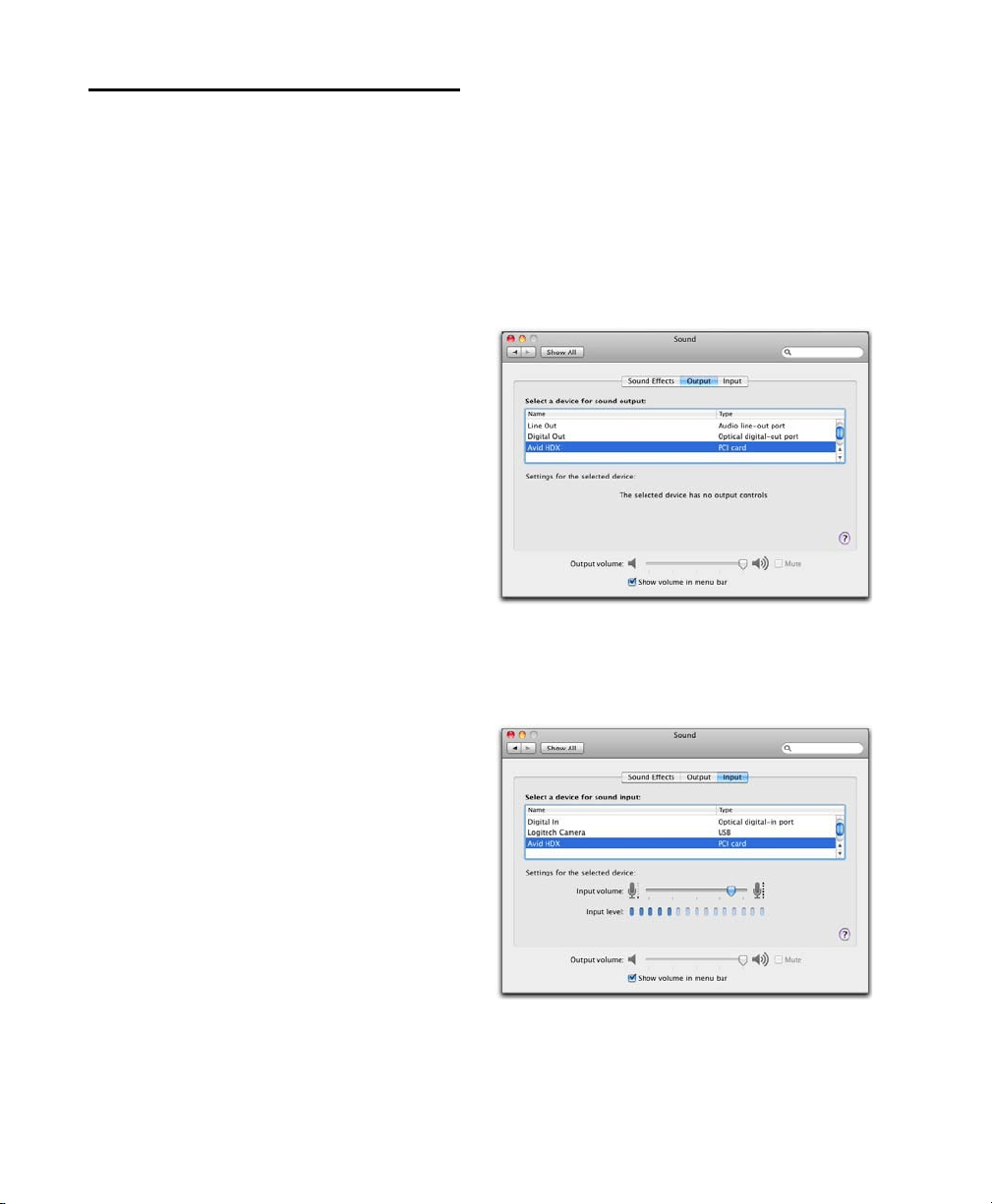
Apple Sound Preferences
To configure the Apple Sound Preferences:
1 Launch System Preferences (Apple menu >
System Preferences).
2 Click Sound.
3 Click Output and select HDX as the device for
sound output.
4 Click Input and select HDX as the device for
sound input.
5 Quit System Preferences.
Sound Preferences, Output settings
Sound Preferences, Input settings (Pro Tools HD
shown)
Chapter 4: Configuring Core Audio (Mac OS X Only) 33
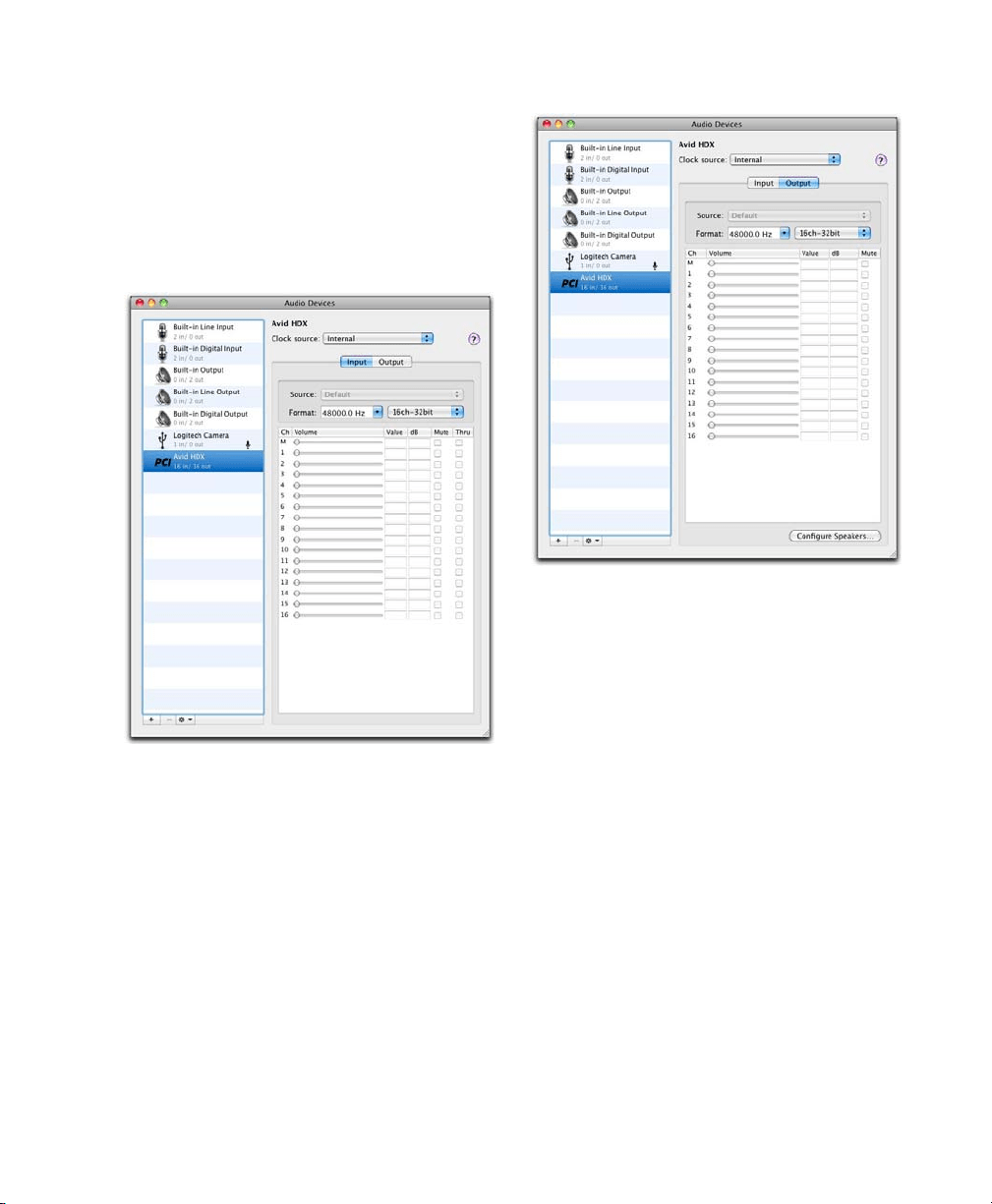
Apple Audio MIDI Setup
To configure the Apple Audio MIDI Setup:
1 Launch Audio MIDI Setup (located in
Home/Applications/Utilities).
2 In the Audio Devices window, click the Input
tab.
3 From the Audio Devices list on the left, select
HDX.
4 In the Audio Devices window, click the Output
tab.
5 From the Audio Devices list on the left, select
HDX.
6 In the Audio Input or Audio Output page, se-
lect the
Format (sample rate). Note that the input
sample rate and output rate are linked.
7 Choose Audio MIDI Setup > Quit Audio MIDI
Setup
.
Apple Audio MIDI Setup application, Audio Devices
Input settings
Apple Audio MIDI Setup application, Audio Devices
Output settings

HDX Card Installation Guide34

Chapter 5: Configuring ASIO (Windows Only) 35
chapter 5
Configuring ASIO (Windows Only)
ASIO Driver Capabilities
The ASIO Driver is a single-client, multichannel
sound driver that allows third-party audio
programs that support the ASIO Driver standard
to record and play back through qualified Avid
audio interfaces.
Full-duplex playback of 24- and 16-bit audio are
supported at sample rates up to 96 kHz, depend-
ing on your Avid hardware and ASIO-client pro-
gram (such as Cubase, Live, or Reason).
The ASIO Driver provides up to 64 channels of
input and output with the first HDX card in your
system.
Limitations of the ASIO Driver
The Avid ASIO Driver has the following limita-
tions:
The Avid ASIO Driver is a single-client driver
and cannot be used with multiple applications at
the same time. Only one application at a time
can use the Avid ASIO Driver.
The Avid ASIO Driver cannot be used for play-
back of Windows system sounds.
It is also recommended that you use a separate
sound card for games or other general work.
Installing the ASIO Driver
The ASIO Driver is installed by default when you
install Pro Tools. The ASIO Driver can also be
installed as a standalone driver on Windows sys-
tems that do not have Pro Tools software in-
stalled. The installer for the standalone ASIO
Driver is available on the Drivers Installer disc
that came with your Pro Tools Software pack-
age, or from our website (www.avid.com).
To install the standalone ASIO Driver:
1 Ensure that your HDX card is correctly
installed.
2 Do one of the following:
• Insert the Driver Installers Disc that came
with your Pro Tools Software package in
your computer.
– or –
• Download the standalone ASIO driver in-
staller from our website (www.avid.com).
3 Locate and double-click the HD Family Driver
Setup.exe
.
4 Follow the on-screen instructions to complete
the installation.
5 When the installation is complete, click Finish
to quit the installer and restart your computer.
If you uninstall Pro Tools, the ASIO Driver
is automatically uninstalled at that time.
HDX Card Installation Guide36
Avid ASIO Control Panel
Configuring the Avid ASIO Driver settings can
be done using the Avid ASIO Control Panel,
which can accessed from compatible third-party
ASIO-compatible client applications.
Accessing the Avid ASIO Driver
Control Panel
To access the Avid ASIO Control Panel from a
third-party application:
Refer to your ASIO-client program’s documen-
tation.
The Avid ASIO Control Panel cannot be accessed
under the following circumstances:
• When Pro Tools is running.
• When playing or recording in an audio pro-
gram that does not support the Avid ASIO
driver.
• When using a third-party audio program
that has an option to keep the ASIO Driver
open even when you are not playing or re-
cording. (You must close the audio program
before you can open the ASIO Driver Con-
trol Panel.)
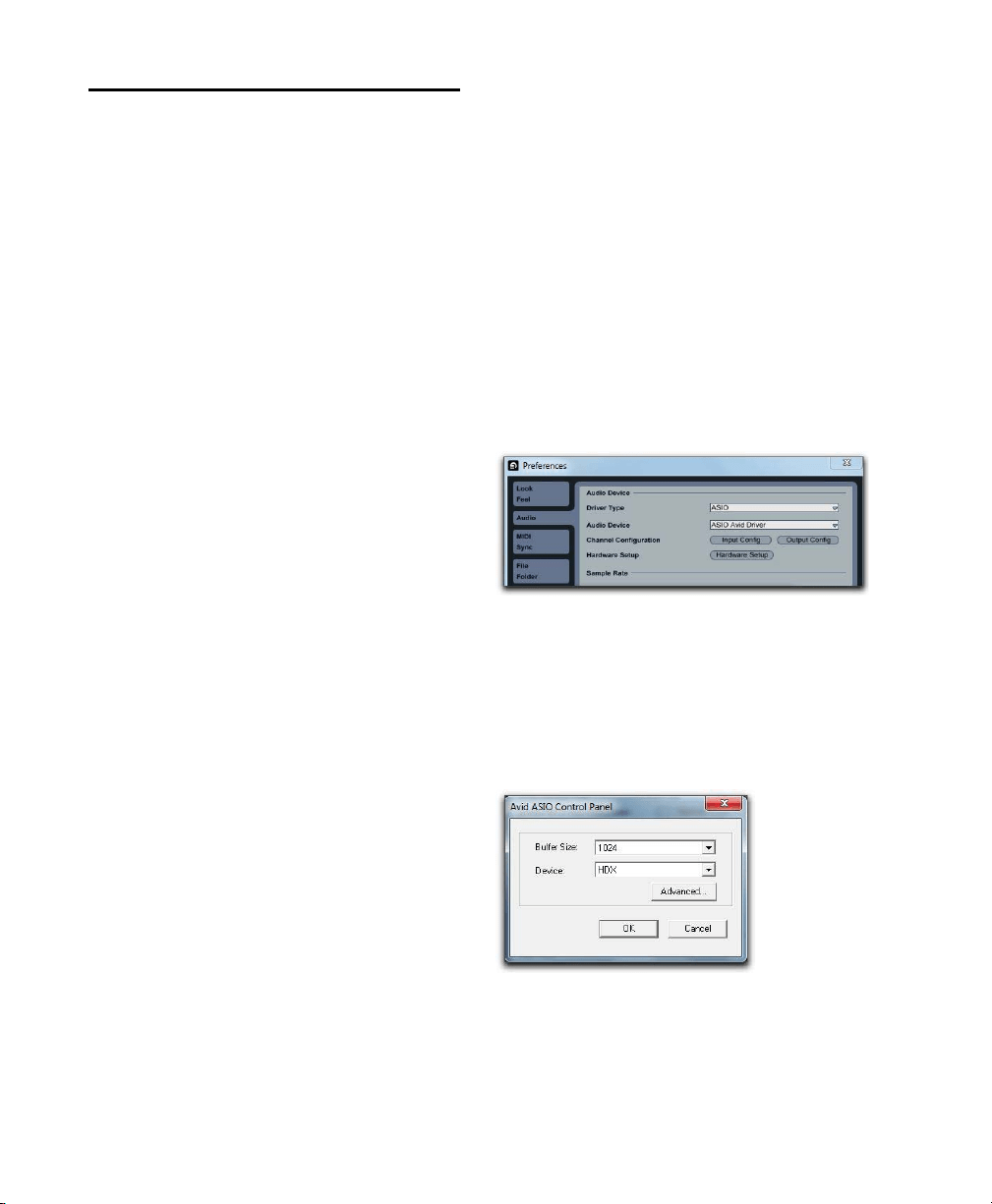
Example: Accessing the Avid ASIO Control
Panel from Ableton Live
To access the Avid ASIO Control Panel from
Ableton Live, do the following:
1 Open the Live Preferences.
2 Select the Audio tab.
3 Select ASIO from the Driver Type pop-up
menu.
4 Select ASIO Avid Driver from the Audio Devices
pop-up menu.
5 Click the Hardware Setup button to open the
Avid ASIO Control Panel.
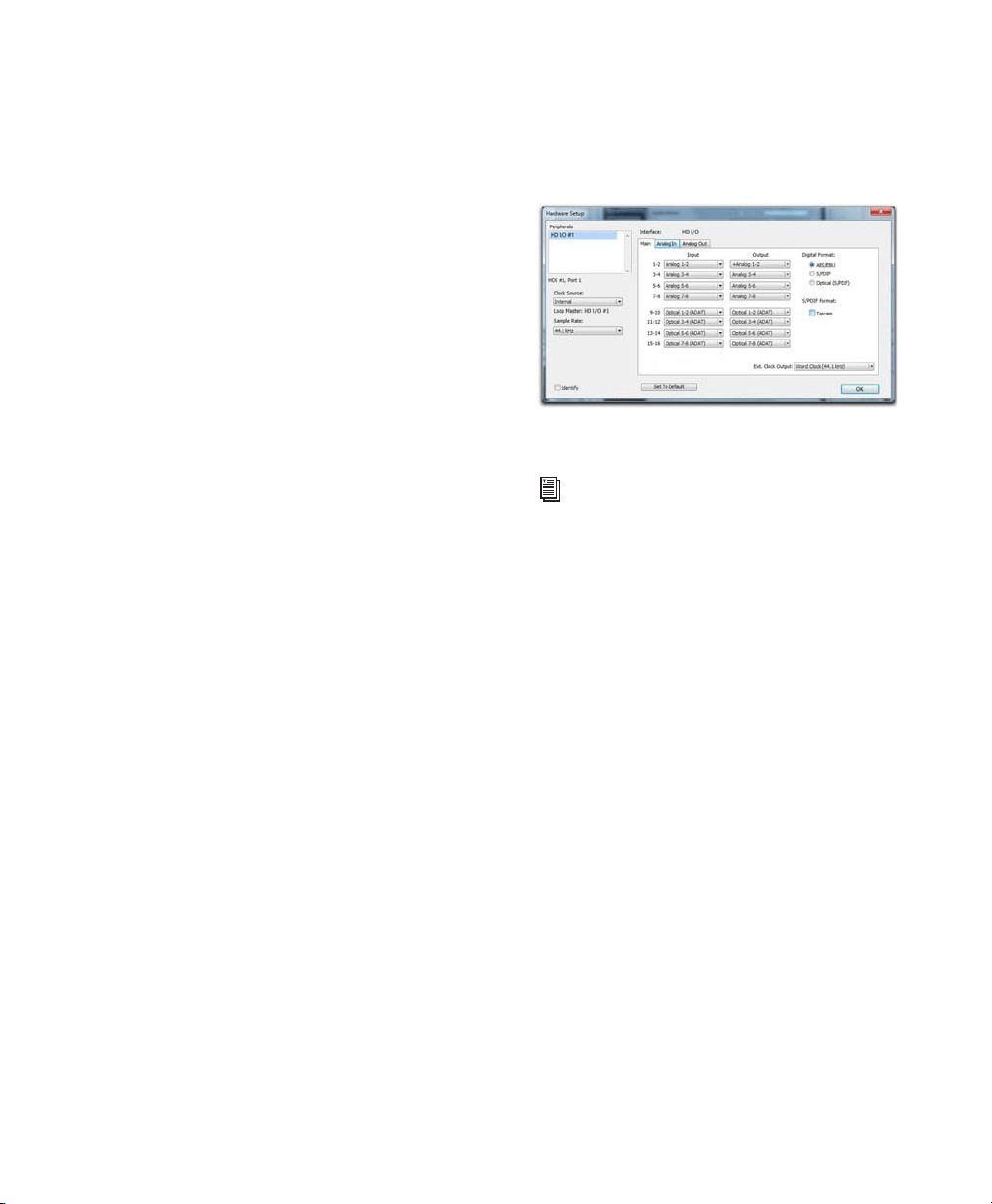
Using the ASIO Driver Control
Panel
From the ASIO Driver Control Panel, you can
change the Buffer Size setting or access the
Hardware Setup dialog for your Avid hardware.
Setup Example, Ableton Live 8 shown
ASIO Control Panel
Chapter 5: Configuring ASIO (Windows Only) 37
Buffer Size
You may select from the following buffer sizes
(depending on your Pro Tools hardware):
• 64 samples
• 128 samples
• 256 samples
• 512 samples
• 1024 samples
• 2048 samples
Small buffers have the advantage of low
latency in the record monitor path. (Latency is
the time delay between a signal entering the
audio inputs and leaving the outputs during
recording.)
Larger buffers have the advantage of making
the ASIO Driver more immune to audio dropouts
during playback and recording.
In some ASIO-compatible audio programs, per-
forming various tasks will interrupt the ASIO
Driver and may result in clicks and pops in au-
dio playback or recording. Choosing medium or
large buffers (such as 256, 512, or 1024) can help
alleviate this problem.
Changing the
Buffer Size setting for the ASIO
Driver does not affect the
H/W Buffer Size set-
tings in the Pro Tools Playback Engine dialog.
Device
The Device setting is always set to your installed
Pro Tools hardware.
Advanced Button
The Advanced button opens the Hardware Setup
dialog for the Avid hardware that you are using.
Hardware Setup dialog, HD I/O shown
For more information on the Hardware Setup
dialog, refer to the Pro Tools Reference
Guide.

HDX Card Installation Guide38
第
6
章:
HDX
について
39
第
6
章
HDX
について
Avid® HDX PCIe
カードは、高精度デジタル・オーディ
オのレコーディング、編集、信号処理、ミキシング、入出
力に対して、専用のデジタル信号処理(
DSP
)を提供し、
Avid Pro Tools® HD
ソフトウェアおよび
Avid HD
オー
ディオ・インターフェース、同期周辺機器に使用できます。
また、
HDX
ハードウェアは、
HD
オーディオ・インター
フェースを使用して、
Core Audio
、
ASIO
互換のデジタル・
オーディオ・ソフトウェアにも使用でき、一枚の
HDX
カードで最大
64
チャンネルの
I/O
をサポートします。し
かし、
HDX DSP
および複数のカードを使用する構成で
の
I/O
の拡張は、
Pro Tools HD
ソフトウェアでのみ可能
です。
このガイドでは、
HDX
カードおよびハードウェア・ドラ
イバーのインストールと設定(
Mac
用と
Windows
用)に
ついて説明します。
HDX
パッケージ
HDX
パッケージには、以下のものが含まれています:
• HDX PCIe
カード
• HDX TDM
ケーブル
• HDX PCIe
電源ケーブル(
Mac
用)
• HDX PCIe
電源ケーブル(
PC
用)
• HDX
カードをオーディオ・インターフェースに接
続するための
12’ DigiLink™ Mini
ケーブル
•
オンライン登録カード
•
このインストール・ガイドでは、
HDX
ハードウェア
のインストールと設定の詳細について説明します。
• HDX
カード・クイック・セットアップでは、基本
的なハードウェアのインストールを説明します。
•
安全にお使いいただくためのガイド
Pro Tools
ソフトウェアのインストールについ
て
詳しくは、
Pro Tools
ソフトウェア・パッケー
ジ
(別売)に付属の『
Pro Tools
インストール・
ガイド』
をご参照ください。

HDX
カード・インストール・ガイド
40
HDX
ハードウェア・アクセラレーター付
き
Pro Tools HD
システム
HDX
ハードウェア・アクセラレーター付き
Pro Tools
HD
システムには以下が含まれます:
•Pro Tools HD
ソフトウェア(別売)
•1
つ以上の
HDX PCIe
カード
•
カード用電源ケーブル(同梱)
• HDX
カードとカードを相互に接続するための
HDX
TDM
ケーブル(マルチカード・システムのみ)(同梱)
• HDX
カードをオーディオ・インターフェースに接続す
る
DigiLink™ Mini
ケーブル(同梱)
•
以下に挙げる、最少
1
つ(最大
16
)の
Avid HD
オー
ディオ・インターフェース(別売)が必要です:
• HD OMNI
• HD I/O
• HD MADI
•
認定済み同期周辺機器(オプション、別売)
•
認定済み
MIDI
インターフェース(オプション、別売)
システム要件と互換性
HDX PCIe
カードは、認定された
Mac
および
Windows
コンピューターにインストールできます。
Avid
は、動作が確認されたハードウェアとソフトウェア
に対してのみ互換性の保証とサポートの提供を行ってい
ます。
完全なシステム要件および認定されたコンピューター、オ
ペレーティング・システム、ハードディスク、サードパー
ティデバイスのリストについては、次のサイトにアクセス
してください:
www.avid.com/compatibility
1
つのシステムでは
1
つの
HD OMNI
が使用でき
ます。
Pro Tools
ソフトウェアのインストールについ
て詳しくは、
Pro Tools
ソフトウェア・パッケー
ジ(別売)に付属の『
Pro Tools
インストール・
ガイド』
をご参照ください。
Pro Tools
ソフト
ウェアの詳しい使い方については、『
Pro Tools
リファレンス・ガイド』をご参照ください。
ご使用の
HDX
ハードウェアを
Avid DigiTest
で
テストできます。詳しい情報は、
Avid
DigiTest Guide.pdf
(オンラインまたは
Pro Tools
をインストールすることでご覧にな
れます)を参照してください。
第
6
章:
HDX
について
41
重要なインストールの注意事項
HDX
は高性能
PCIe
カードです。
HDX
カードをインス
トールするシステムが、
HDX
カードに対して、最低
275lfm
(
linear feet per minute
)の直接送風量がある
ことを確認してください。この要件に満たない場合、ご
使用のシステムおよび
HDX
カードに致命的な障害を起
す場合があります。十分な送風量が無いことによる障害
は
Avid
ハードウェアの限定保証の保証対象外です。
適正なシステムについては、
Avid
のウェブサイト
(
www.avid.com
)の互換性ページでご確認ください。
重要な安全の注意
1
Avid
がテストし検証したシステムでのみ
HDX
をご使
用ください(
www.avid.com
を参照)。
2
ホスト・システムは最低
275lfm
の風量が必要です。こ
の要件に満たない場合、有害な状態になり、ホストおよ
び
HDX
カードに障害を生じる場合があります。
3
ホスト・システムの送風を妨げないようにしてください
(送風の入り口、出口にご注意ください)。
4
DigiLink
コネクターは長時間の使用で高温になります。
変更をする前に、システムをクールダウンしてください。
5
HDX
カード周辺のエリアは高温になります。システム
周辺に十分な送風を確保し、服や紙などの可燃物を周辺に
置かないでください。
6
ホスト・システムが仕様温度を超えないようにしてく
ださい。
本ガイドで使用される表記規則
本書では、メニュー・アイテムの選び方やマウスの操作
方法を簡略化するために、以下のような方法で表記して
います。
画面に表示される
コマンド、オプション、設定の名前は、フォ
ントが異なります。
以下の記号は重要な情報を示すために使用します:
表記法 アクション
[ファイル](
File
)
>
[保存](
Save
)
ファイルメニューから保存を選択する
Control+N Control
キーを押しながら
N
キーを押す
Control-
クリック
Control
キーを押しながらクリックする
右クリック 右側のマウスボタンをクリックする
Pro Tools
システムを有効活用する上で、ヒント
になるようなポイントを紹介しています。
Pro Tools
セッションのデータや
Pro Tools
シス
テムの処理能力に影響がある重要な注意が含まれ
ています。
コンピューターのキーボードやマウスを使った
ショートカットを紹介しています。
クロスリファレンスは
Pro Tools
ガイド中の関
連あるセクションを指しています。

HDX
カード・インストール・ガイド
42
www.avid.com
について
Avid
のウェブサイト(
www.avid.com
)は、
Pro Tools
システムを最大限に活用するための最良のオンライン情
報源です。以下に利用可能なサービスと機能の一部を紹介
します。
製品登録
購入した製品をオンラインで登録できます。
サポートとダウンロード
AvidCustomer Success
(技術サ
ポート)にアクセスします。ソフトウェア・アップデート
と最新のオンライン・マニュアルのダウンロード、互換性
に関するマニュアルでのシステム要件の参照、オンライン・
ナレッジベースの検索、ユーザー・フォーラムおよび世界
規模の
Pro Tools
コミュニティへの参加などを行えます。
トレーニングと教育
オンラインで利用可能なコースを通じ
て自己学習を行ったり、認定された
Pro Tools
トレーニ
ング・センターのクラスルーム設定で学習方法を見つけた
りできます。
製品と開発者
Avid
製品に関する情報、ソフトウェアのデモ
版のダウンロード、デベロップメント・パートナーとその
プラグイン、アプリケーション、ハードウェアに関する情
報をご覧いただけます。
ニュースとイベント
Avid
の最新ニュースを取得したり、
Pro Tools
デモにサイン・アップしたりします。
第
7
章:
HDX
ハードウェアの概要
43
第
7
章
HDX
ハードウェアの概要
この章では
HDX
ハードウェアでアクセラレートした
Pro Tools HD
システムの各コンポーネントについて説明します(拡
張シャーシで最大
7
つのカードが使用できます)。使用する
HDX
カードの数は、システムの構成により異なります。
HDX
ハードウェア
HDX PCIe
カード
HDX PCIe
カードは、最大
256
トラックのダイレクト・ディスク・レコーディングとプレイバックを可能にし、さらにミ
キシングとプラグイン・プロセッシングに
DSP
パワーを提供します。
HDX
カードは、最大
24-bit/192 kHz
の
Pro Tools
セッションに対応しています。
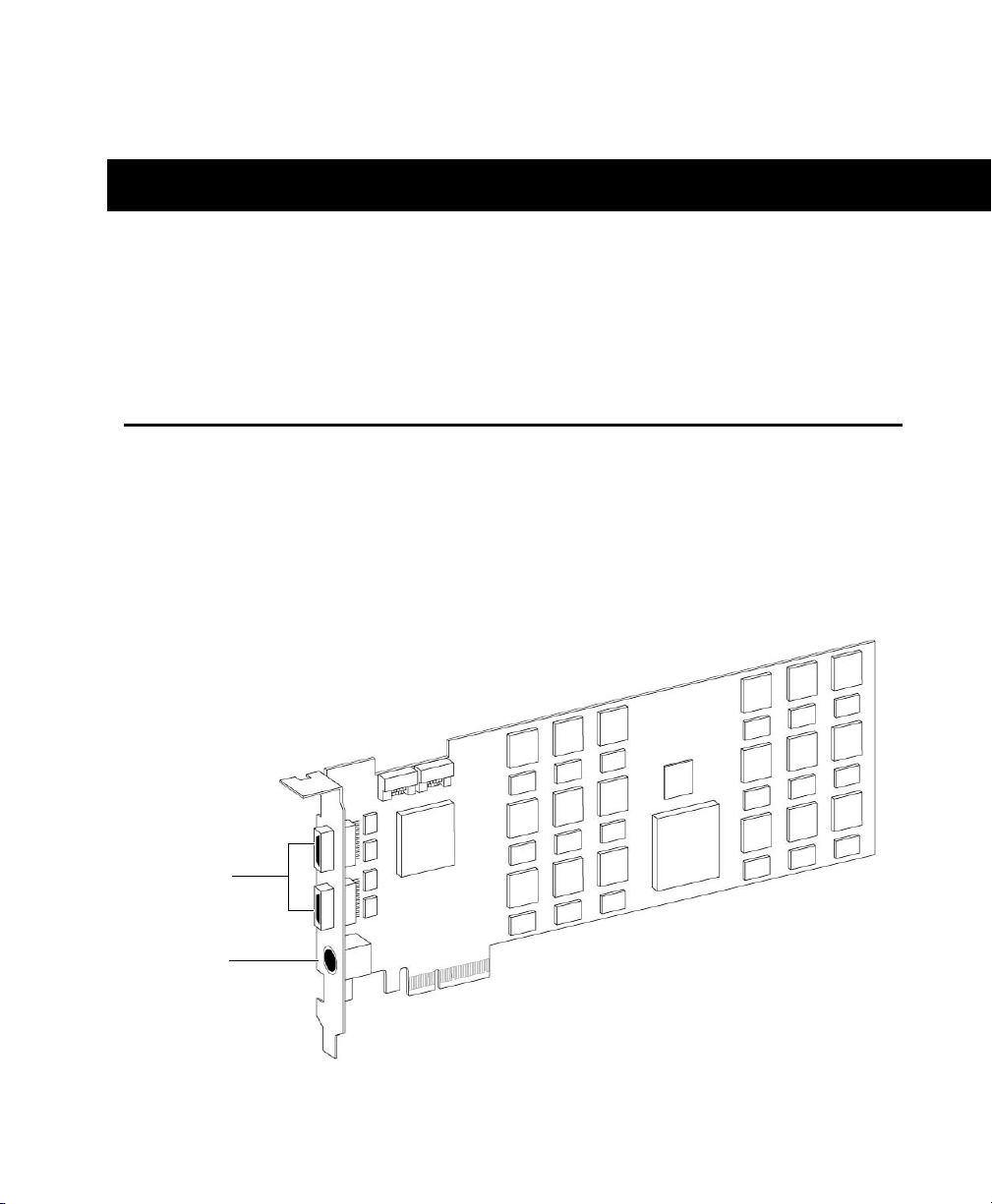
図
1 HDX PCIe
カード
DigiLink Mini
ポート
DigiSerial
ポート
HDX
カード・インストール・ガイド
44
DigiLink Mini
ポート
HDX
カードには
2
つの
DigiLink Mini
ポートがあり、最
大
4
つの
HD
オーディオ・インターフェースに接続しま
す。これらは、最大
64
のオーディオ・インプット、オー
ディオ・アウトプットに接続します。
DigiSerial
ポート
HDX
カードのシリアル・ポートは
SYNC
同期機器の接続
に使用します。このコネクターは
8
ピンのミニ
DIN
です。
HDX TDM
ケーブル
同梱の
HDX TDM
ケーブル(
SATA
ケーブル)を使用し
て、
HDX
カードのペアを接続してください。
TDM
バス
を介してデータを共有できます。
1
つの
HDX TDM
ケー
ブルが各
HDX
カードに付属します。
電源コード
HDX PCIe
カードは
PCle
バスが供給する以上の電力を必
要とします。カスタム電源ケーブル(同梱)を使用して、
ご使用の
Mac
のマザーボードまたは、ご使用の
PC
の
ハード・ドライブ電源に
HDX PCle
カードを接続してくだ
さい。
HDX
カードのシリアル・ポートは、
MachineControl
の接続には対応していません。
2
つ以上の
HDX
カードで
SYNC
同期機器を使用
する場合、
SYNC
同期機器は第一の
HDX
カード
に接続することが必要です。
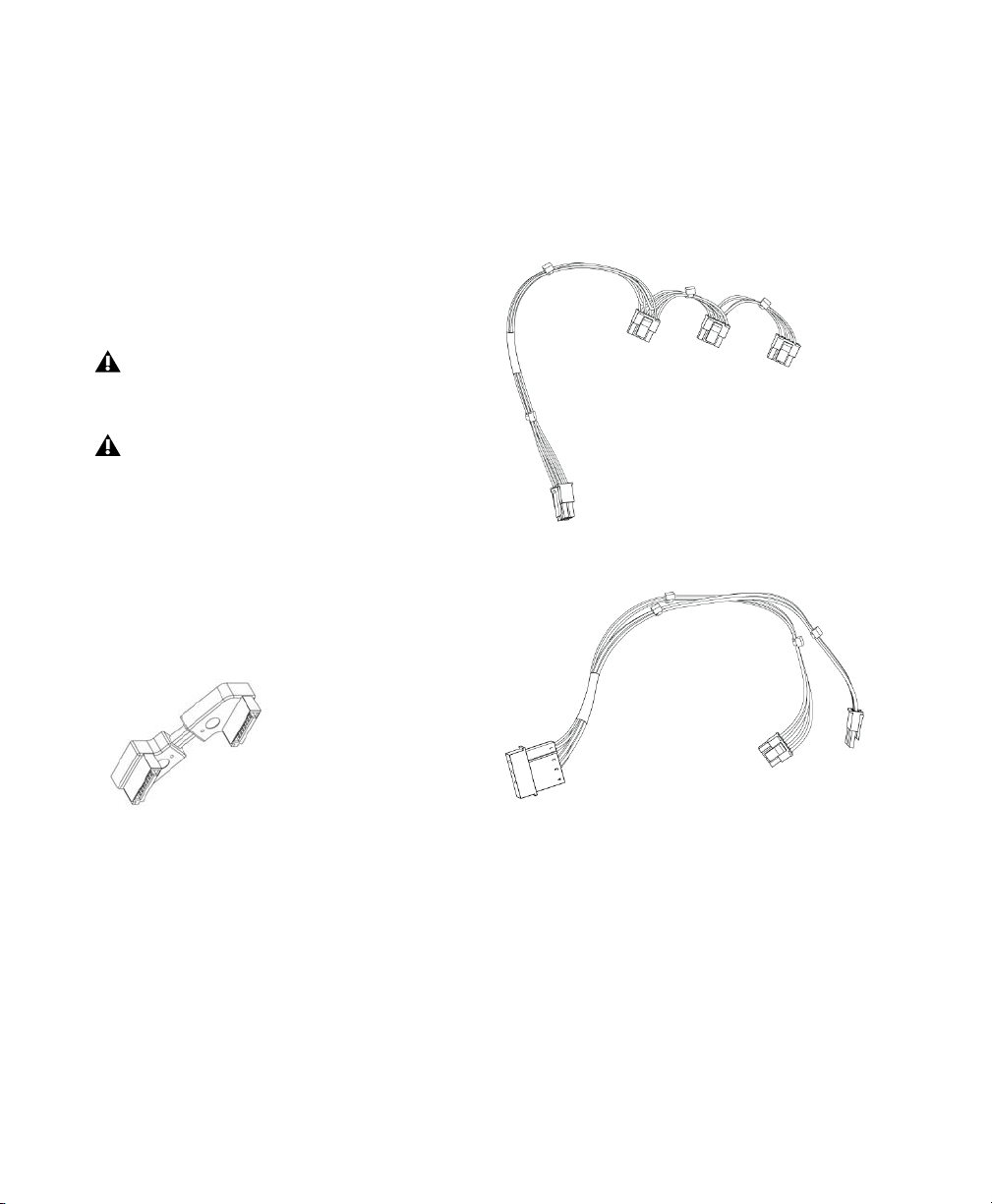
HDX TDM
ケーブル
HDX
カード電源ケーブル(
Mac
)
HDX
カード電源ケーブル(
PC
)

第
7
章:
HDX
ハードウェアの概要
45
DigiLink Mini
ケーブル
HDX
カードと
HD I/O
、
HD OMNI
、
HD MADI
オーディ
オ・インターフェースの接続には
DigiLink Mini
ケーブル
を使用してください。
DigiLink Mini
ケーブルには
5
種類
の長さがあります:
•18”
(
0.46m
)(
HD I/O
、
HD OMNI
、
HD MADI
に
含まれています)
•12’
(
3.6m
)(各
HDX
カードに
1
つ含まれています)
•25’
(
7.62m
)(別売)
•50’
(
15.25m
)、
176.4 kHz
と
192 kHz
のセッショ
ンに対する最大長(別売)
• 100’
(
30.5m
)、
88.2 kHz
と
96 kHz
のセッション
に対する最大長(別売)
Avid HD
オーディオ・インターフェース
Pro Tools
(または認定されたサードパーティの
Core Audio
互換または
ASIO
互換アプリケーション)
でレコード、再生するには、
Avid HD
オーディオ・イン
ターフェースがご使用のシステムの第一
HDX
カードの第
一ポートに接続されている必要があります。
HD OMNI
オーディオ・インターフェース
HD OMNI
は、音楽制作、レコーディング、ポストプロダ
クションの各スタジオにおいて、コンパクトなプリアンプ、
モニタリング、
I/O
ソリューションを提供します。
HD OMNI
の機能
HD OMNI
は、
Pro Tools
のインプットとアウトプット
の最大
8
のディスクリート・チャンネルを提供し、イン
プットまたはアウトプット(選択可能)用の
4
セグメント
LED
メーターを搭載しています。
アナログ
I/O
•24-bit
の
AD/DA
コンバーター、サンプルレートは最大
192kHz
まで対応
•
高品質
Mic/DI
プリアンプ
x 2
(チャンネル
1-2
)
•
マイクと楽器レベル入力用の
XLR
と
1/4
インチ
TRS
のフロントパネル・インプット
x 2
•XLR
バックパネル・マイク・インプット
x 2
•
チャンネル
1
と
2
のハードウェア・インサート用のバッ
クパネルの
1/4
インチ
TRS
センド・ジャック
x 2
と
1/4
インチ
TRS
リターン・ジャック
x 2
•
アナログ
TRS
ライン・レベル・バックパネル・イン
プット
x 4
(チャンネル
1-4
)
HD OMNI
について、詳しくは『
HD OMNI
ガイ
ド』をご参照ください。
HD OMNI
は最大
4
チャンネルの同時アナログ・
インプットを提供し、複数のアナログ・インプット
接続が可能です。

HDX
カード・インストール・ガイド
46
•
アナログ入力のクリッピングを防ぐ「ソフトクリップ」
および「カーブ」リミッティング回路
•
バックパネルに
DB-25
ブレイクアウト・ケーブル(別売)
使用を使用した可変アウトプット・ゲイン付き
8
チャ
ンネルのアナログ・アウトプット
•TRS
を使用した、
2
チャンネルのアナログ・バックパ
ネル・アウトプット(
DB-25
コネクターのチャンネル
1-2
または
7-8
を反映)
•
フロントパネル・ステレオ
1/4”
ヘッドフォン・ジャック
デジタル
I/O
•DB-25
ブレイクアウト・ケーブル(別売)を使用した、
8
チャンネルの
AES/EBU
アウトプット(最大
192kHz
のシングルワイヤ)
•2
チャンネルの
AES/EBU XLR
インプット(最大
192kHz
のシングルワイヤ)
•2
チャンネルの
S/PDIF RCA
インプットとアウトプッ
ト(最大
192kHz
)
•8
チャンネルの
ADAT TOSLINK
のインプットとアウ
トプット
•
サンプルレート
88.2kHz
、
96kHz
、
176.4kHz
、
192kHz
の
ADAT S/MUX Optical
に対応
•
サンプルレート
96kHz
までの
S/PDIF Optical2
チャ
ンネルに対応
• AES/EBU
、
S/PDIF
、ま た は
Optical
(
S/PDIF
)の デ
ジタル・インプット
1-2
のリアルタイム・サンプルレー
ト変換(
SRC
)
モニタリング
•Pro Tools
に、追加ステレオ「キュー」アウトプット・
パス、フロントパネルのヘッドフォン・ジャックから
のヘッドフォン・モニタリング用
•
フロントパネルのコントロール・ルーム(
MAIN/ALT
)
とヘッドフォンのモニタリング・ボリューム・コント
ロール
•
ステレオ・フォーマットとサラウンド・フォーマット
(最大
7.1
サラウンド)すべてのフォールドダウン機能
を搭載した柔軟なモニタリング
•
さまざまな入力信号の低レイテンシー・ダイレクト・
モニタリング用インプット・ミキサー(
Pro Tools
の
[ハードウェア設定]で設定)
同期(
Synchronization
)
•
追加
HD
インターフェースや周辺機器を接続するため
の
Loop Sync
インプットとアウトプット
• HD OMNI
を外部ワードクロック機器と同期するため
の外部クロック・インプットとアウトプット
HD I/O
オーディオ・インターフェース
HD I/O
は、極めて高品質の
24-bit
の
AD/DA
コンバー
ターを搭載し、サンプルレートは最大
192kHz
まで対応
しています。
HD I/O
は、
3
種類の標準構成で提供されます:
• 8 x 8 x 8
(
8
アナログ・イン、
8
アナログ・アウト、
8
デジタル・イン
/
アウト)
•16 x 16
アナログ・イン
/
アウト
•16 x 16
デジタル・イン
/
アウト
HD I/O
アナログ拡張カード(
ADC
と
DAC
)と
HD I/O
デジタル拡張カードを追加または取り外し、独自に構成に
することも可能です。
SRC
は
ADAT S/MUX
に対応していません。
HD I/O
について、詳しくは『
HD I/O
ガイド』を
ご参照ください。

第
7
章:
HDX
ハードウェアの概要
47
HD I/O
の機能
HD I/O
は、
Pro Tools
のインプットとアウトプットの最
大
16
のディスクリート・チャンネルを提供し、インプッ
トとアウトプット用の
4
セグメント
LED
メーターを搭載
しています。
アナログ
I/O
•
優れたアナログのインプットとアウトプットを提供す
る
24-bit
の
D/A
コンバーターと
A/D
コンバーターを搭
載し、
Analog In HD I/O
カードと
Analog Out HD I/O
カードを使ってサンプルレート
44.1kHz
、
48kHz
、
88.2kHz
、
96kHz
、
176.4kHz
、
192kHz
に対応
•
アナログ入力のクリッピングを防ぐ「ソフト・クリッ
プ」と「カーブ」リミッティング回路
デジタル
I/O
• AES/EBU
、
TDIF DB-25
、または
Optical
を使った
24-bit
デジタル
I/O
の最大
16
チャンネルを提供し、
Digital HD I/O
カードを使ってサンプルレート
44.1kHz
、
48kHz
、
88.2kHz
、
96kHz
、
176.4kHz
、
192kHz
に対応
• Digital I/O
カードを使った、デジタル入力のリアルタ
イム・サンプルレート変換(最大
16
チャンネルの
AES/EBU
、
Optical
、または
TDIF
)
•
サンプルレート
88.2kHz
以上の
S/MUX Optical
に対
応
•
サンプルレート
96kHz
までの
S/PDIF Optical
(付属)
2
チャンネルに対応
•
サンプルレート
192kHz
までの
AES/EBU I/O
(付属)
2
チャンネル
•
サンプルレート
192kHz
までの
24-bit S/PDIF I/O
(付属)
2
チャンネル
同期(
Synchronization
)
•
追加
HD
インターフェースや周辺機器を接続するため
の
Loop Sync
インプットとアウトプット
• HD I/O
を外部ワードクロック機器と同期するための
外部クロック・インプットとアウトプット
拡張性
•
オプションの追加
I/O
カードでアナログまたはデジタ
ル
I/O
を拡張
•
複数の
Avid HD
オーディオ・インターフェースを同時
に使用し、さらにシステムのインプットとアウトプッ
トを拡張できます(詳しくは『拡張システム・ガイド』
をご覧ください)
HD MADI
デジタル・オーディオ・インター
フェース
HD MADI
は、
64
チャンネルのデジタル・オーディオを
提供します。
HD MADI
は、
MADI
(
Multichannel Audio
Digital Interface
)フォーマットと最大
192kHz
のサン
プルレートに対応しています。
HD MADI
により、ルー
ター、デジタル・ミキシング・コンソール、コンバーター
などの
MADI
対応オーディオ機器とデジタル・オーディ
オ・ワークステーションとの接続が簡単になります。
`
HD MADI
について、詳しくは『
HD MADI
ガイ
ド』をご参照ください。

HDX
カード・インストール・ガイド
48
HD MADI
の機能
•
最大
64
のディスクリート・チャンネルのデジタル入出力
(
DigiLink Mini
ポートごとに
32
チャンネル)に対応
する、
MADI
オプティカル・インプットと同軸イン
プット
x 2
および
MADI
オプティカル・アウトプット
と同軸アウトプット
x 2
•
サンプルレート
44.1kHz
、
48kHz
、
88.2kHz
、
96kHz
、
176.4kHz
、
192kHz
に対応
•
分解能
24-bit
または
16-bit
•
インプットまたはアウトプット上でのサンプルレート
変換(
SRC
)
•
フロントパネルにクロックと
SRC
のインジケータ
•
フロントパネルにインプットとアウトプット用の
LED
•HDMADI
を外部
1x
ワードクロックと同期させる
BNC
ワードクロック
I/O
• HD MADI
を追加
HD
オーディオ・インターフェース
および周辺機器(
HD I/O
、
HD OMNI
、
SYNC HD
な
ど)と同期させる
BNC Loop Sync I/O
•
外部
MADI
同期(アウトプットに
SRC
を使用する場合)
のための専用
BNC
ワードクロック・インプットと
XLR
AES/EBU
インプット(クロック入力のみ)
•
以下のフォーマットのクロックに対応:
Internal
、
Loop
Sync
、
Word Clock
、
AES/EBU
、
MADI
•
バリスピード・モード(
64
チャンネルと
56
チャンネ
ルの両方の規格に対応)
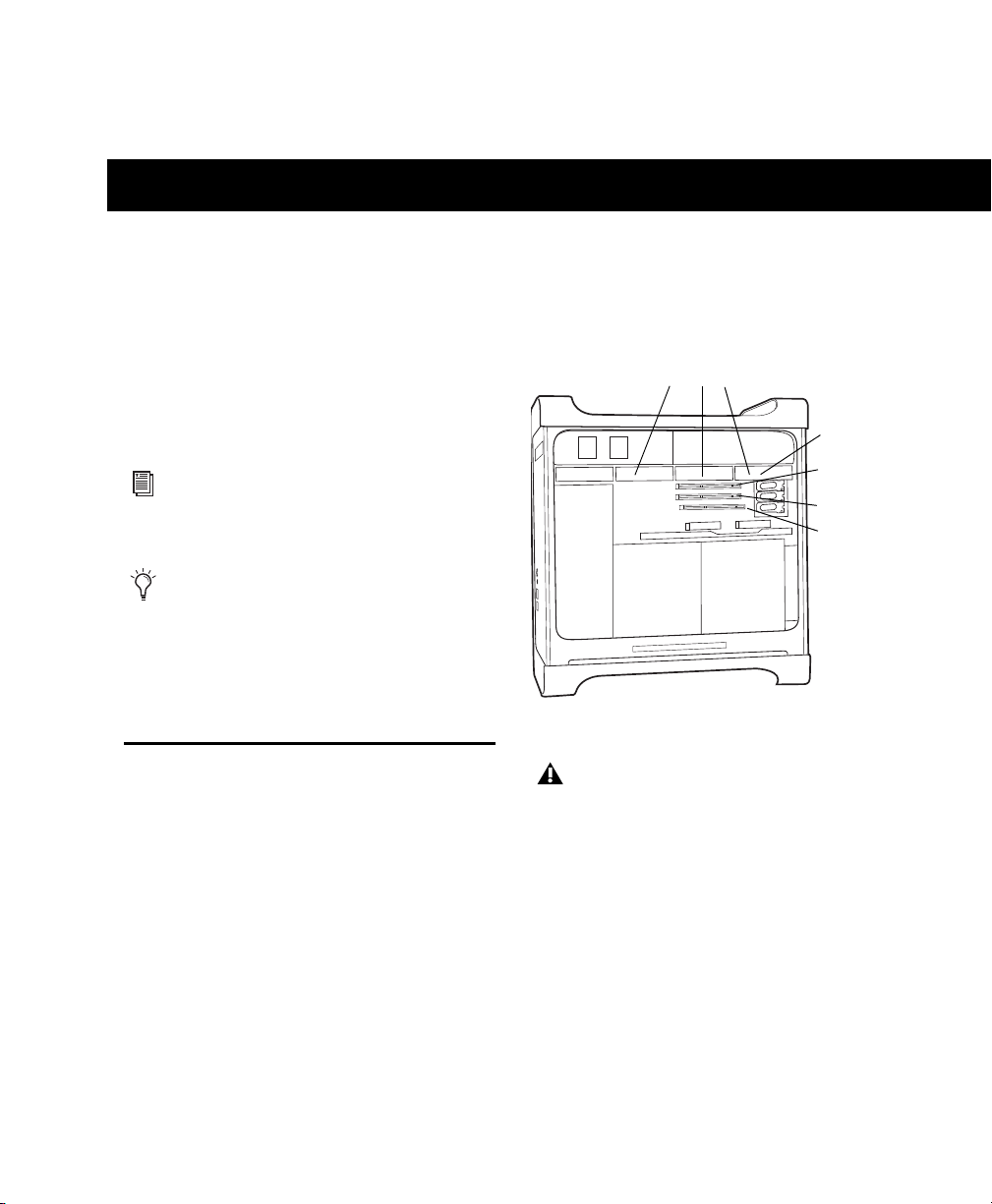
第
8
章:
HDX
カードをインストールする
49
第
8
章
HDX
カードをインストールする
HDX PCIe
カードのインストールは、
Pro Tools
をイン
ストールする前に行ってください。複数のカードを使用し
たシステムの場合、付属の
HDX TDM
ケーブルを使用し
てカード同士を接続します。カードがインストールできた
ら、
HD
オーディオ・インターフェースを接続します。
MacPro
に
HDX
カードをインストール
する
このセクションでは
HDX
カードを
Mac Pro
へインス
トールする方法を説明します。
PCI Express
装備の
Mac
Pro
には
PCI Express
(
PCIe
)スロットが
3
つあります
(スロット
2
、スロ ット
3
、スロット
4
)。
PCI Express
の
スロット番号は、ケースを開いたコンピューターを横から
みて下から上へつけられています。
PCIe
スロット
2
に最
初の
HDX
カードをインストールします。
拡張シャーシへカードをインストールする方法
については、『
拡張システム・ガイド』をご参照く
ださい。
Pro Tools software
は、
HDX
カードおよび
HD
オーディオ・インターフェースのインストール後
に行ってください。
Pro Tools
ソフトウェアのイ
ンストールについて詳しくは、
Pro Tools
ソフト
ウェア・パッケージに同梱されている『
Pro Tools
インストール・ガイド』をご参照ください。
図
2 Mac Pro
以下の説明をよく読み、カードや部品を傷つけな
いよう気をつけてください。
SATA
ドライブ・トレイとドライブ
PCIe
スロット
4
(隠れている)
PCIe
スロット
2
PCIe
スロット
3
PCIe
スロット
1
(ビデオ・カード)
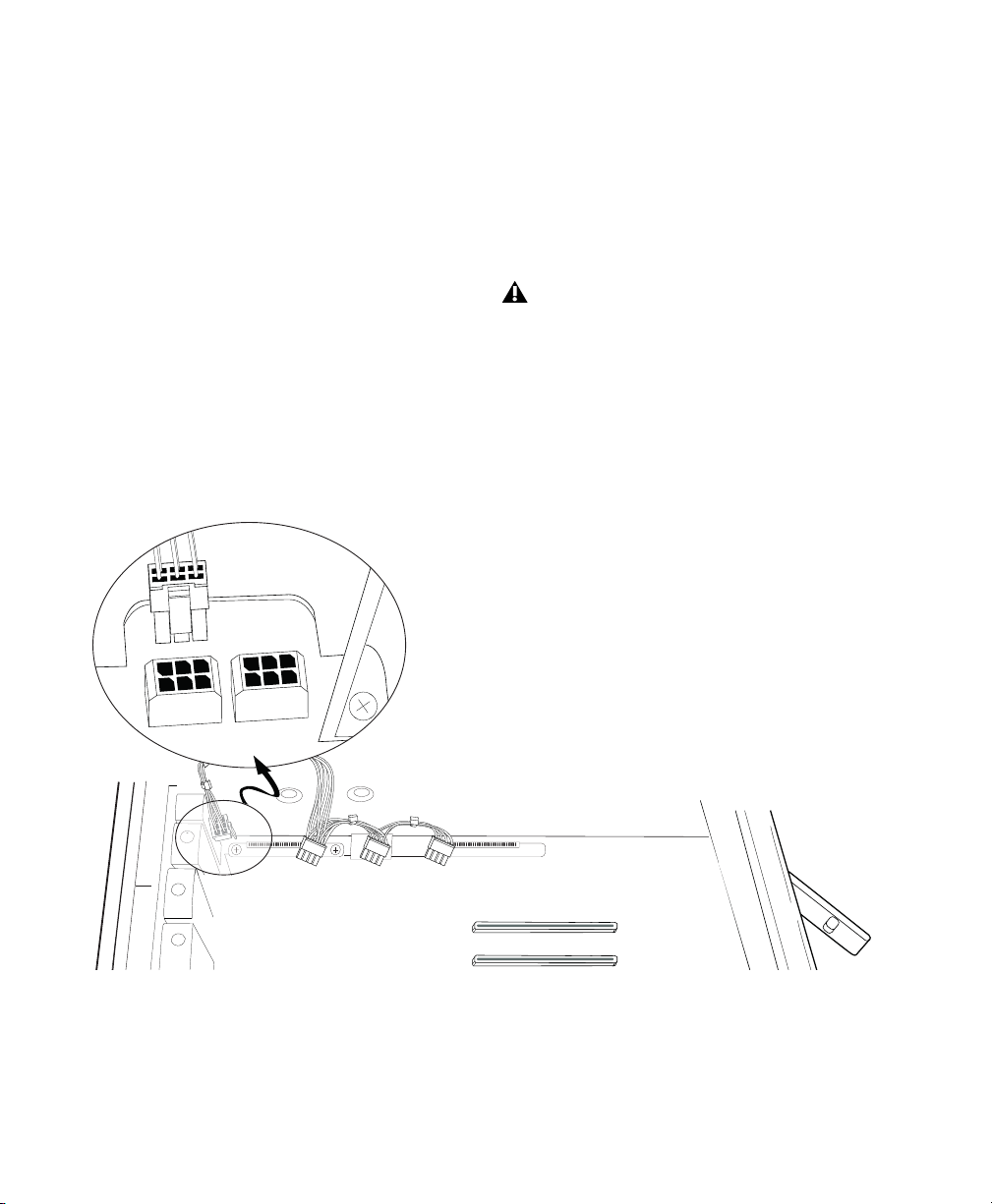
HDX
カード・インストール・ガイド
50
Mac Pro
に
ProTools
カードをインストールするには:
1
コンピューターおよび周辺機器の電源を切ります。コン
ピューターが接地(アース)されるよう、電源ケーブルは
接続したままにします。
2
コンピューターに取り付けられている、電源ケーブル以
外のケーブル(ハードディスク、モニター、
USB
、
FireWire
など)をすべて外します。
3
アクセス・パネルが上を向くようにコンピューターを横
にします。
4
コンピューターの背面にある掛け金を使ってコン
ピューターのケースを開けます。
5
金属のアクセス・ポート・カバーをシャーシへ固定して
いる金具を取り外します。
6
使用するスロットの金属のアクセス・ポート・カバーを
取り外します。
7
コンピューターの
SATA
ドライブ・トレイを取り外し
ます。追加の
SATA
ドライブがインストールされている
場合は、これらも取り外します。
SATA
ドライブと
SATA
ドライブ・トレイの取り外し方については、コンピュー
ターの説明書をご覧ください。
8
付属のカスタム電源ケーブルをマザーボードに接続し、
PCle
カード・スロットからケーブルを避けてください。
(
50
ペー
ジの図
3
をご参照ください。)
カードを持つ前に、電源ケーブルで接続されてい
るコンピューター内の電源ケースなどの接地
(アース)された金属に触れ、体や服の静電気を
あらかじめ除去しておきます。
図
3 HDX
カード電源ケーブルをマザーボードに接続する
2
4
3
4

第
8
章:
HDX
カードをインストールする
51
9
HDX
カードを、コンピューターの最も小さい番号の
PCle
スロットへインストールします(
52
ページの図
4
を
ご参照ください)。
以下のように行います:
•PCle
スロットの上でカードの後がカードの前
(
DigiLink Mini
コネクタのある方)より高くなるよ
う斜めに持ちます。
•
カードを斜めにしたまま、カードの前のブラケット
をアクセス・ポートがあるシャーシの端に置きます。
•
カードの後を、
PCIe
スロットの番号が表記されてい
る灰色のプラスチックの
PCle
カード・サポートに、
慎重に差し込みます(
53
ページの図
5
を参照してく
ださい)。
•
カードの
PCIe
コネクタが下を向いた状態でカード
を真っ直ぐ差し込み、カードの
PCIe
コネクタを
PCIe
スロットへしっかりと固定します。カードの前
の部品が
PCIe
カード・サポート(灰色のプラスチッ
ク)に接触していないことを確認してください。
Mac Pro
「
Westmere
」搭載マシンでは、十分
に注意して、
HDX PCle
カードを傷つけないよう
に、灰色のプラスチック
PCle
カード・スロット
を押し下げてください。
カードを
PCIe
カード・スロットへ無理に差し込
まないでください。正しい角度で差し込めば、
カードは簡単にインストールされます。角度が正
しくないようであれば、カードの位置を変えてく
ださい。
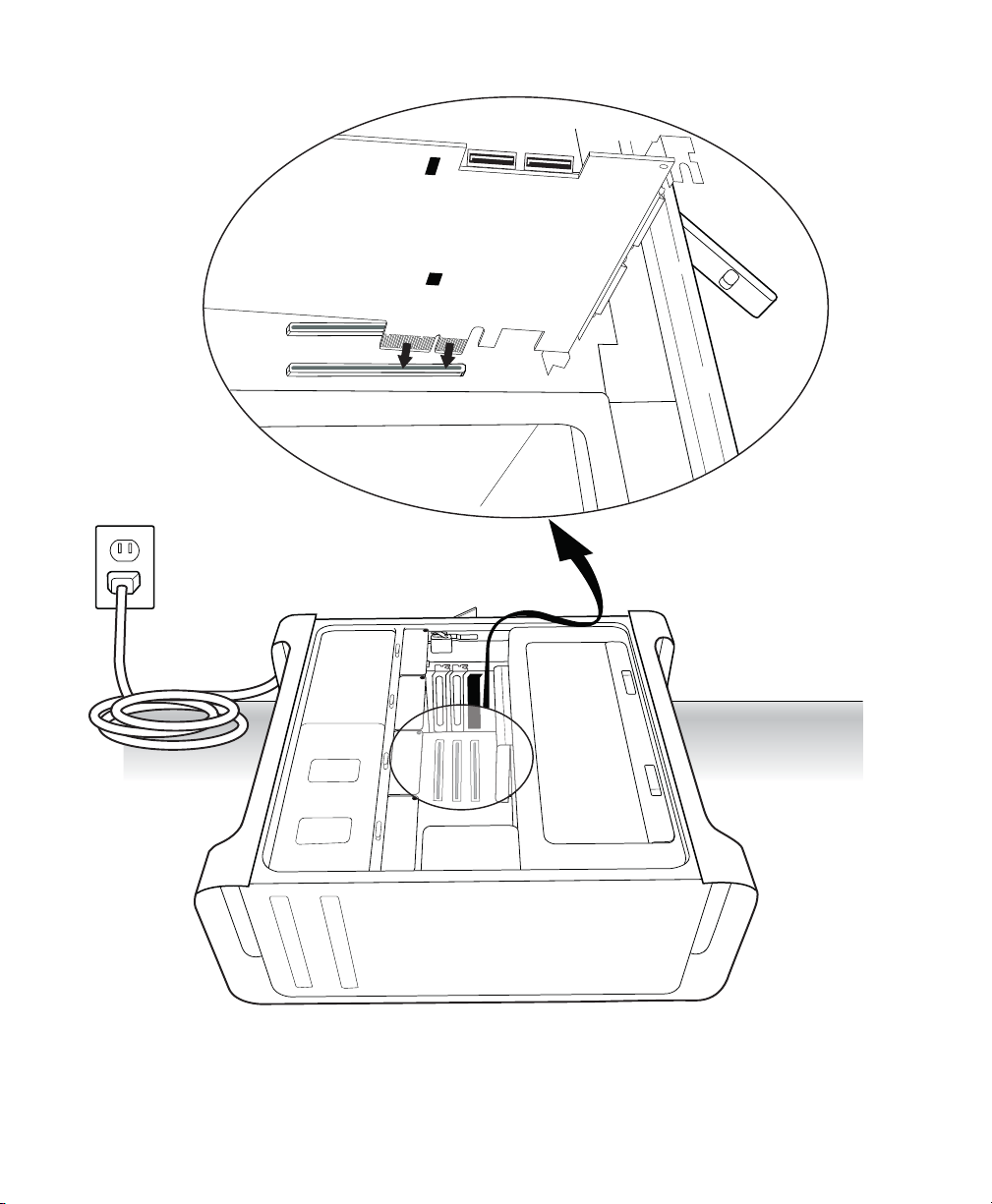
HDX
カード・インストール・ガイド
52
図
4 Mac Pro
のスロット
2
に
HDX
カードをインストールするには
3
2
1
4
2
2
1
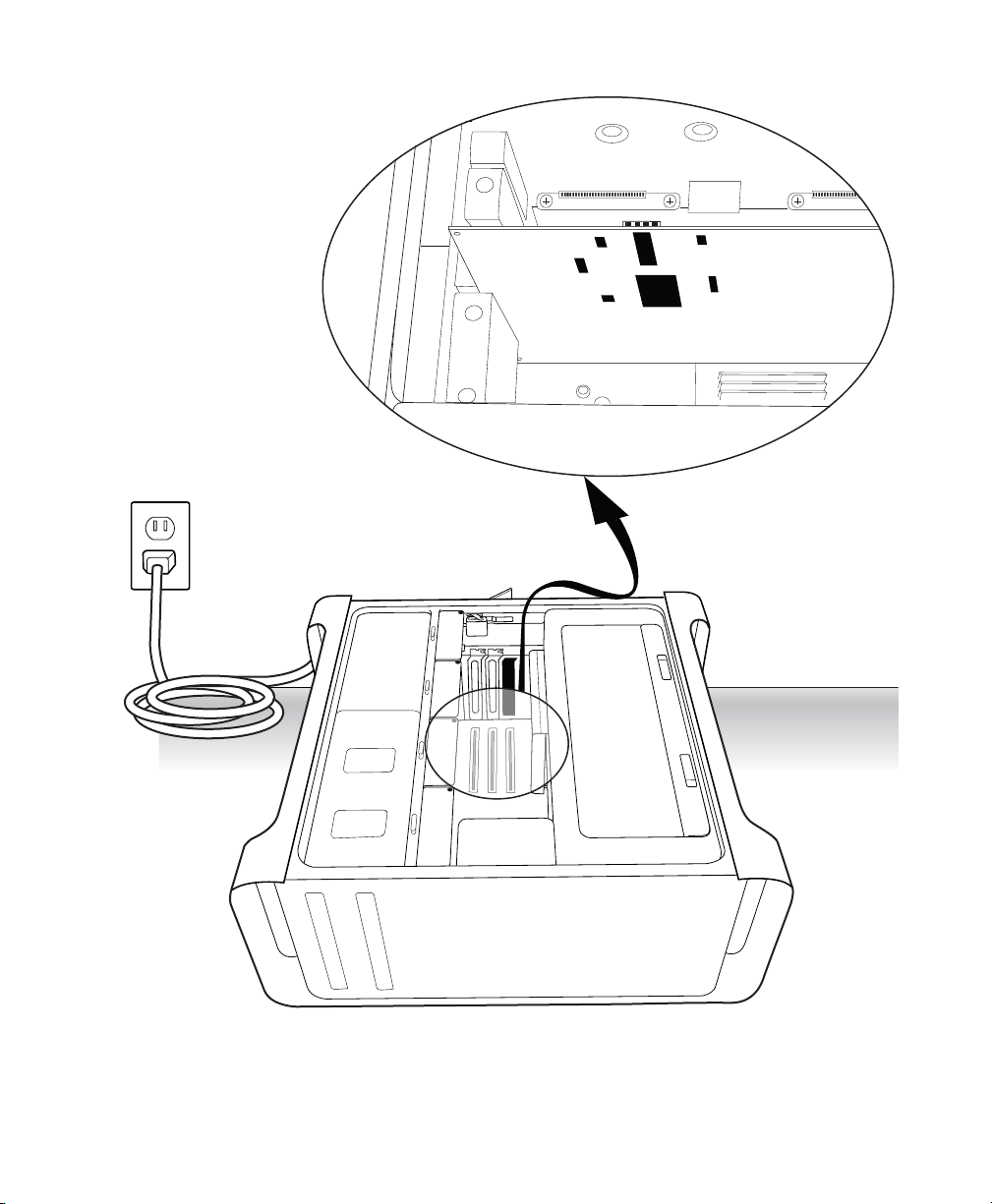
第
8
章:
HDX
カードをインストールする
53
図
5 HDX
カードを灰色のプラスチック
PCle
カード・サポートに差し込む
3
2
1
4
1
2
4
2
2
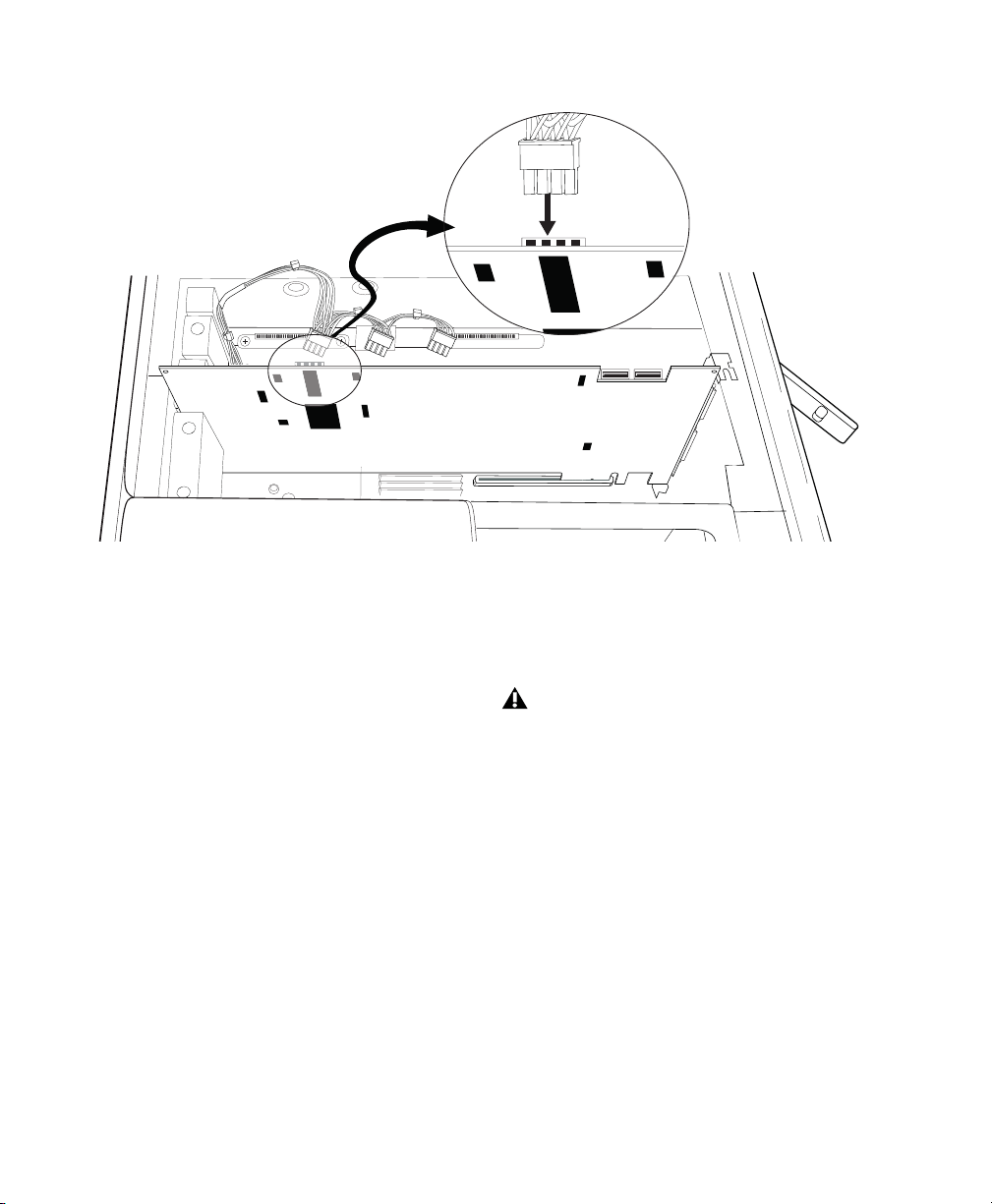
HDX
カード・インストール・ガイド
54
10
追加
HDX
カード(または他のカード)をインストー
ルする場合には、追加の
HDX PCle
カードを連続した残
りの
PCle
スロットにインストールしてください。そうで
ない場合は、ステップ
12
に進んでください。
11
2
つ以上の
HDX PCle
カードをインストールする場合
には、カードを付属の
HDX TDM
ケーブルで接続してく
ださい。(
58
ページの「複数の
HDX PCle
カードを
HDX
TDM
ケーブルで接続する」をご覧ください)。
12
電源ケーブルをインストールした
HDX PCle
カード
に接続します
(上記図
6
参照)。
13
最も小さい番号のスロットから正しい順序でカードが
インストールされているかどうか確認します:
•
コンピューター・モニターのディスプレイ・カード
• HDX
カード
•Avid
推奨のビデオ・キャプチャー・カード(オプ
ション)
•
ホスト・バス・アダプタ(
HBA
)カード(オプション)
14
カードとスロット・カバーをシャーシへ固定する金具
を取り付けます。
15
SATA
ドライブを元に戻します。
16
コンピューターの本体を閉じます。
図
6
電源ケーブルをインストールされた
HDX
カードへ接続する
1
2
4
カードの
PCIe
コネクタは、カードと金属のアク
セス・ポート・カバーをシャーシへ固定する金具
を取り付けるまでは完全には固定されません。

第
8
章:
HDX
カードをインストールする
55
Windows
コンピューターに
HDX
カー
ドをインストールする
このセクションでは、
HDX
カードを
PC
へインストール
する方法を説明します。
[ドライバーの署名]警告ダイアログが表示されないようにする
HDX
カードをインストールする前に、
Windows
の[ ド
ライバーの署名]警告ダイアログが表示されないよう、一
時的に設定を変更してください。こうすることで、インス
トレーション処理の多くが自動で行われるようになり
ます。このオプションを一時的に無効にしないと、
HDX
ドライバーまたは
Pro Tools
ソフトウェアのインストー
ル中に、
HDX
チップが検知されるたびに(署名のないド
ライバーがインストールされるという)警告ダイアログが
表示されます。
この警告ダイアログが表示されないようにするには:
1
[マイ
コンピュータ]を右クリックし、[プロパティ]を
選択します。
2
システムのプロパティダイアログの[ハードウェア]タ
ブをクリックします。
3
[ドライバーの署名]ボタンをクリックします。
4
[無視−ソフトウェアをインストールし、確認を求めない]
を選択します。
5
[
OK
]をクリックして[ドライバー署名オプション]
ウィンドウを閉じます。
6
[
OK
]をクリックして[システムプロパティー]ダイア
ログを閉じます。
7
コンピューターをシャットダウンします。
PC
に
HDX
カードをインストールする
ProTools
カードをインストールするには:
1
コンピューターおよび周辺機器の電源を切ります。コン
ピューターが接地(アース)されるよう、電源ケーブルは
接続したままにします。
2
コンピューターに取り付けられている、電源ケーブル以
外のケーブル(ハードディスク、モニター、
USB
、
FireWire
など)をすべて外します。
3
コンピューターの本体を開けます。
4
付属のカスタム電源ケーブルを、主電源から来ている
ハード・ドライブ電源コネクターに接続します
(
56
ペー
ジの図
7
参照)。
5
使用するスロットの後にある金属のアクセス・ポート・
カバーのネジを外し、カバーをスライドさせてアクセス・
ポートから外します。
6
推奨される
PCIe
スロット(通常、ビデオ・カードに一
番近い
1
番目の
PCIe
スロット)に
HDX PCle
カードを
インストールします
(
56
ページの図
8
参照)。
7
追加
HDX
カード(または他のカード)をインストール
する場合には、追加の
HDX PCle
カードを連続した残り
の
PCle
スロットにインストールしてください。その他の
場合は、ステップ
9
に進んでください。
8
2
つ以上の
HDX PCle
カードをインストールする場合
には、カードを付属の
HDX TDM
ケーブルで接続してく
ださい(
58
ページの「複数の
HDX PCle
カードを
HDX
TDM
ケーブルで接続する」参照)。
Windows
コンピューターの最新のスロット順と
構成については、
www.avid.com
をご参照くだ
さい。コンピューターを開け、
Pro Tools
ハード
ウェアをインストールする前に、そのコンピュー
ターの情報をプリントアウトしておくことをお勧
めします。
カードを持つ前に、コンピューター内の電源ケー
スなどの接地(アース)された金属に触れ、体や
服の静電気をあらかじめ除去しておきます。
認定された
Windows
コンピューターの推奨ス
ロット順については
Avid
ウ ェ ブ・サ イ ト
(
www.avid.com
)
をご覧ください。
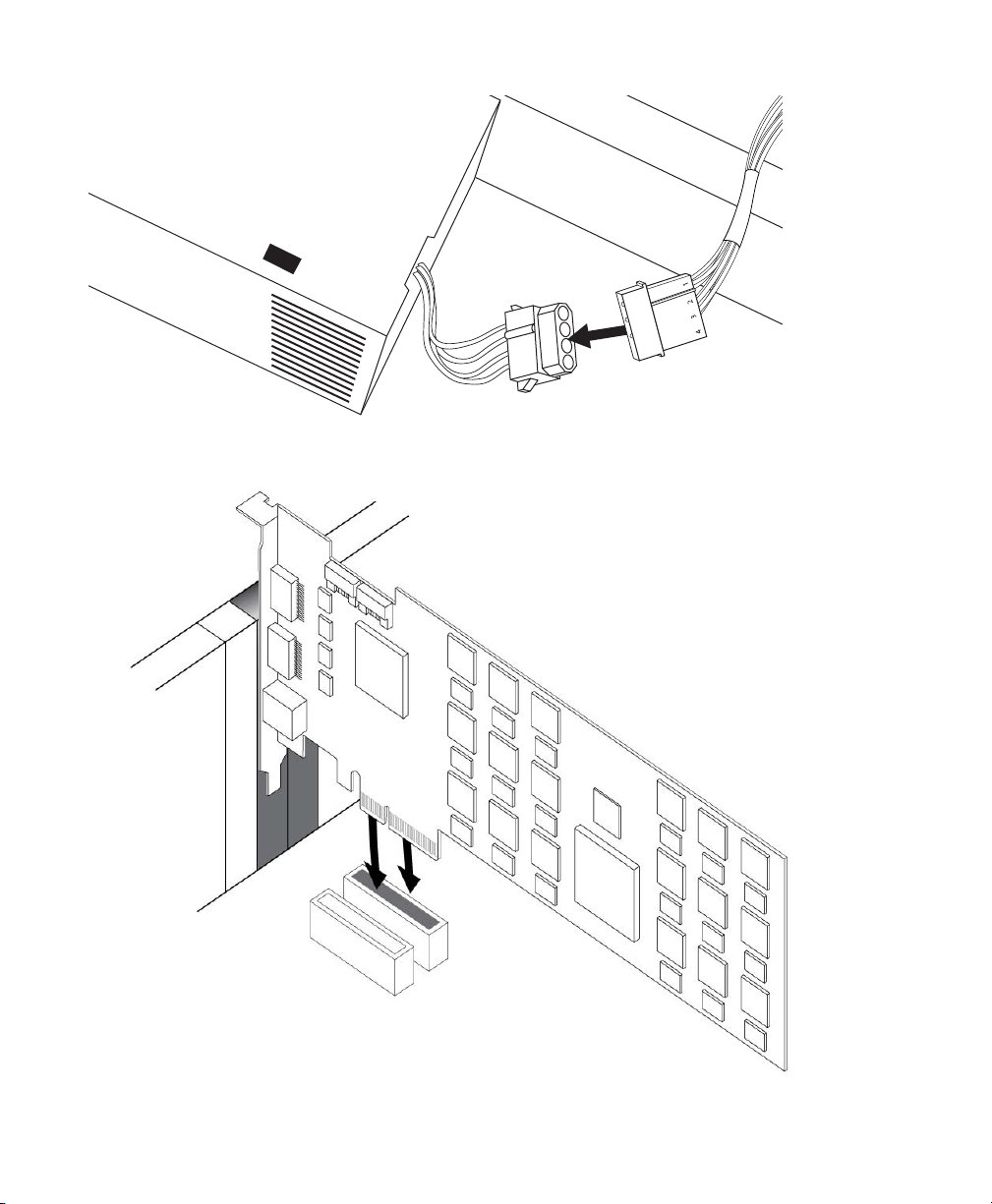
HDX
カード・インストール・ガイド
56
図
7 HDX
カードの電源ケーブルをハード・ドライブの電源に接続する(
PC
)
図
8 PC
に
HDX
カードをインストールする
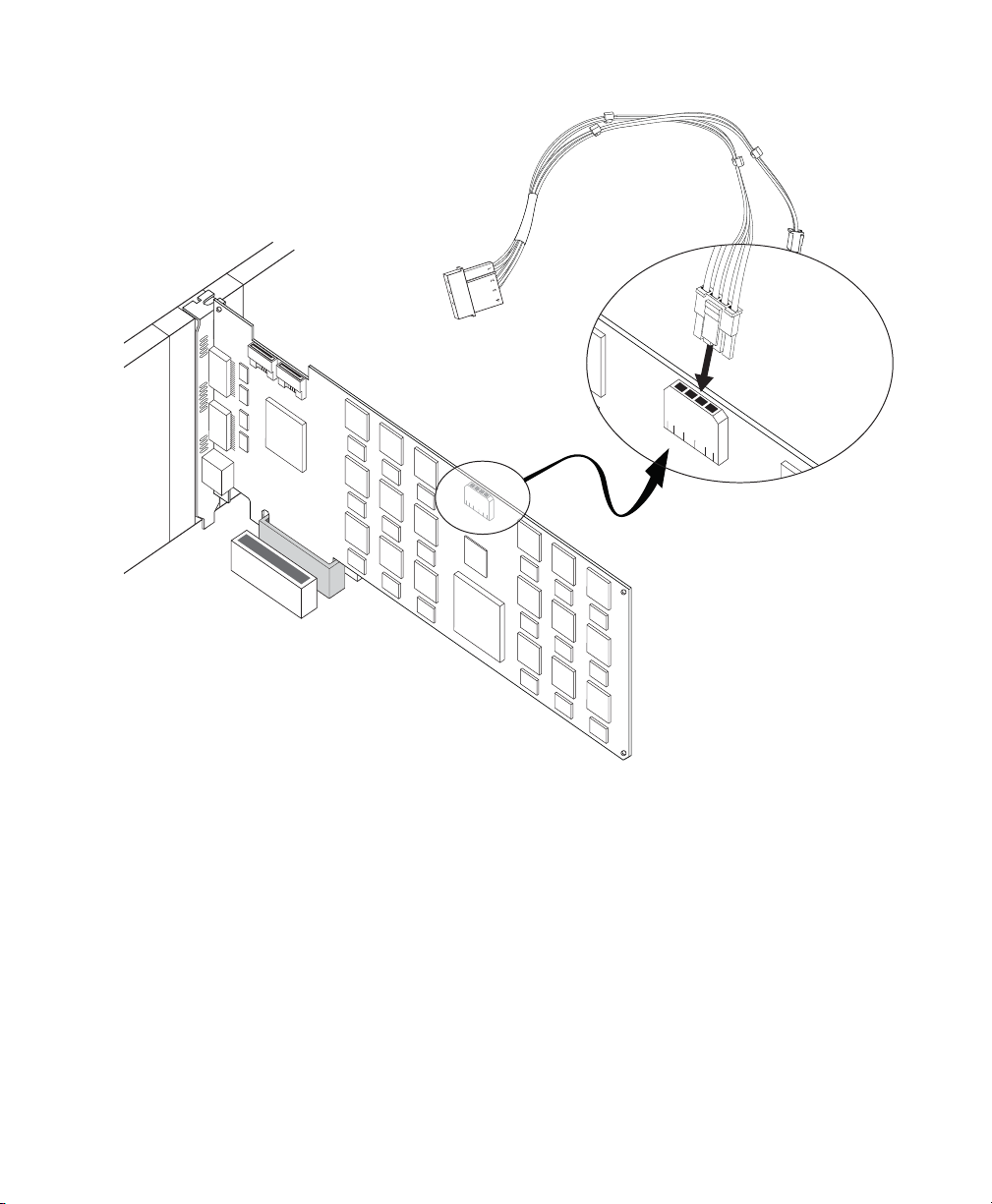
第
8
章:
HDX
カードをインストールする
57
9
電源ケーブルをインストールした
HDX PCle
カードに
接続します
(図
9
参照)。
10
以下のとおり、正しい順序でカードがインストールさ
れていることを確認してください(この順序はマシンによ
り異なることもあります):
•
コンピューター・モニターのディスプレイ・カード
• HDX
カード
•
ホスト・バス・アダプタ(
HBA
)カード(オプション)
11
先程取り外したアクセス・ポートのネジで各カードを
固定します。
12
コンピューターの本体を閉じます。
13
オーディオ・インターフェースを接続するには(
59
ペー
ジの「オーディオ・インターフェイスの接続」を参照して
ください)。
図
9 HDX
カード電源ケーブルを接続する(
PC
)
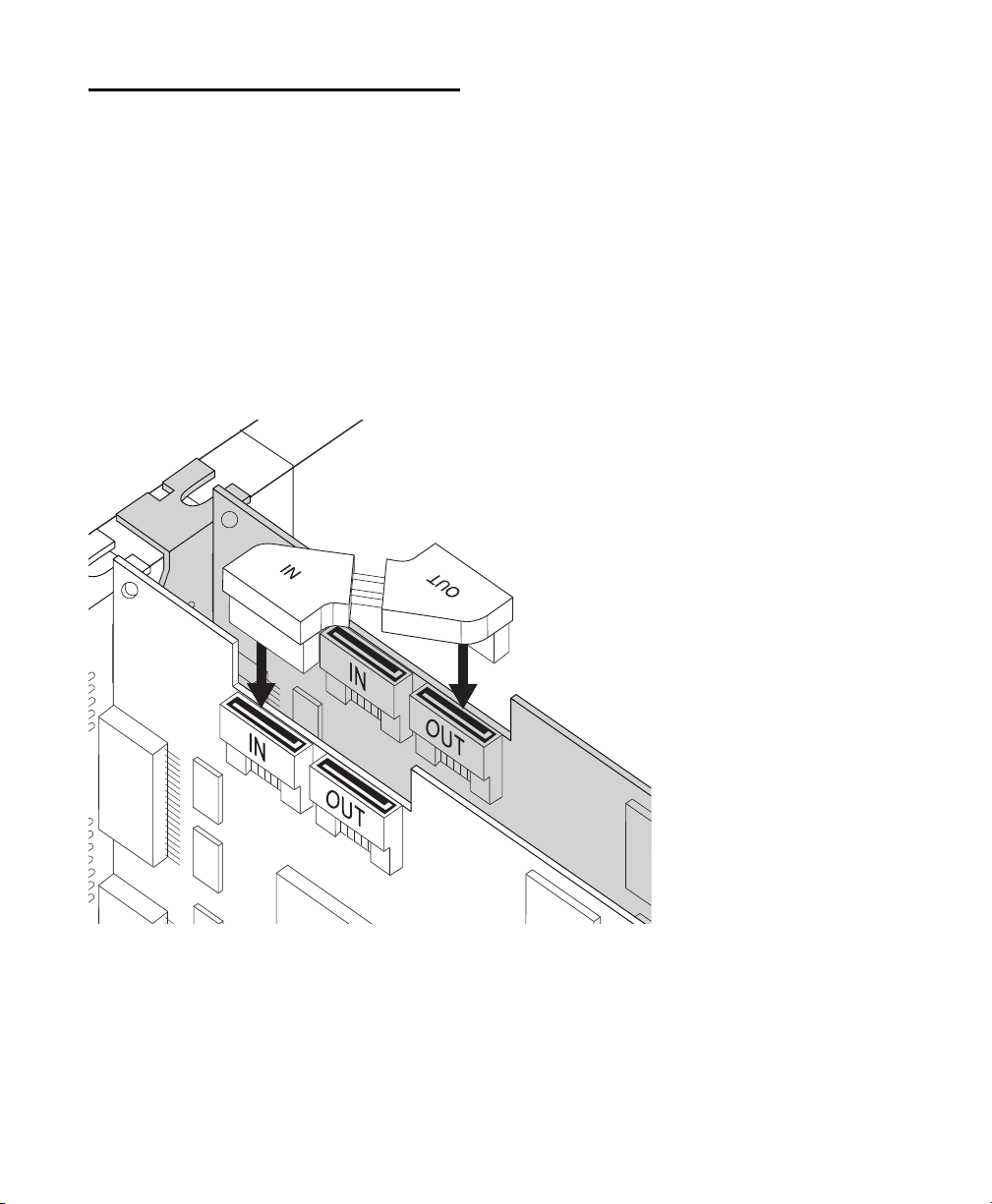
HDX
カード・インストール・ガイド
58
複数の
HDX PCle
カードを
HDX TDM
ケーブルで接続する
複数のカードを使用するシステムの場合は、すべての
HDX PCle
カードを
HDX TDM
ケーブル(カスタム
SATA
ケーブル)で互いに接続しなければなりません。各
HDX
カードの上部には、
IN
と
OUT
と表記された
2
つの
ポートがあります。カード間のデータ通信は、最初のカー
ドの
OUT
ポートと次のカードの
IN
ポートを
HDX TDM
ケーブルで接続することによって可能になります。
HDX PCIe
カードを
HDX TDM
ケーブルで接続する:
1
OUT
と表記されている、
HDX TDM
ケーブルの端を最
初の
HDX
カードの
OUT
ポートに接続します。
2
IN
と表記されている、
HDX TDM
ケーブルの端を二番
目の
HDX
カードの
IN
ポートに接続します。
3
複数のカードを使用するシステムの場合は、それぞれの
カードを前のカードへ接続します。上記のとおり、追加の
HDX TDM
ケーブルを使用して、追加カードをその前の
カードに接続します
(
HDX TDM
ケーブルは各
HDX
カー
ドに同梱されています)。
図
10 2
つの
HDX
カードを
HDX TDM
ケーブルで接続する

第
8
章:
HDX
カードをインストールする
59
オーディオ・インターフェイスの接続
各
Avid HD
オーディオ・インターフェースは、さまざま
なインプットとアウトプットのオプションを提供します。
たとえば、
HD OMNI
は
Pro Tools
システムに最大
8
チャ
ンネルの入出力を、
HD I/O
は最大
16
チャンネルの入出
力を、
HD MADI
は最大
64
チャンネルを提供します。オー
ディオ・インターフェースは、直接
HDX
カードへ接続す
るか、別の
HD
オーディオ・インターフェースの拡張ポー
トへ接続します。
各
HDX
カードは
64
チャンネルのオーディオ・インプッ
トとアウトプットを提供します。
64
チャンネル
I/O
をフル
に使うには、
4
組の
16
チャンネル
HD I/O
を
HDX
カード
に接続します。
2
つのインターフェースは直接
DigiLink
Mini
ポート
1
と
2
に接続し、他の
2
つは最初の
2
つの
HD
I/O
の拡張ポートに接続します。
2
本の
DigiLink Mini
ケーブルを使って
1
つの
HD MADI
に
接続した場合、全
64
チャンネルの
I/O
を使用できます。
以下について詳しくは、『
HD OMNI
ガイド』、『
HD I/O
ガイド』、『
HD MADI
ガイド』をご覧ください。
•
フロントパネルとバックパネルのコネクターとイ
ンジケータ
•
オプションの拡張
I/O
カードのインストレーション
(
HD I/O
のみ)
HD
オーディオ・インターフェースを接続するには:
1
接続しているオーディオ・インターフェースの構成に応
じて、以下のいずれかを行います:
•1
つの
HD OMNI
または
HD I/O
を使用している
場合、プライマリ・ポートを
HDX
カードの
DigiLink Mini
ポート
1
に、付属の
DigiLink Mini
ケー
ブルで接続します。
•
追加
HD
オーディオ・インターフェース(
HD I/O
など)を使用している場合には、プライマリ・ポー
トを最初の
HDX
カードの
DigiLink Mini
ポート
2
に
付属の
DigiLink Mini
ケーブルで接続してくださ
い。
•HDMADI
をシステムに接続する場合には、
HD
MADI
プライマリ・ポート
1
を、
HDX
カードの
DigiLink Mini
ポート
1
に
DigiLink Mini
ケーブル
(同梱)で接続します。
HD MADI
で
64
チャンネル
の
I/O
をフルに使うには、
HD MADI
プライマリ・
ポート
2
と
HDX
カードの
DigiLink Mini
ポート
2
に
DigiLink Mini
ケーブル(同梱)で接続します。
2
追加する
HDX
オーディオ・インターフェースをデイ
ジー・チェイン接続(
1
台目のインターフェースの
[
Expansion Port
]へ
2
台目のインターフェースの
[
Primary Port
]を接続)するか、次の
HDX
カードへ接
続します。
各
HDX
カードに最大
2
つの
HD
インターフェースを付属
の
DigiLink Mini
ケーブルで接続することもできます
(た
だし、インターフェースをデイジー・チェイン接続する場
合と比べても違いはありません)。
拡張システムでは、オーディオ・インターフェースを最初
の
4
つの
HDX
カードのみに接続してください。
最低
1
つの
HD
オーディオ・インターフェースが、
ご使用のシステムの最初の
HDX
カードに接続さ
れていることが必要です。
Pro Tools HD
は、システムごとに
1
つの
HD
OMNI
にのみ対応しています。
HD OMNI
をシス
テムへ接続する場合、最初の
HDX
カードの最初
のポートに直接接続することをお勧めします。
HD MADI
の
DigiLink Mini
ポートを別の
HDX
カードに接続することはサポートされていません。
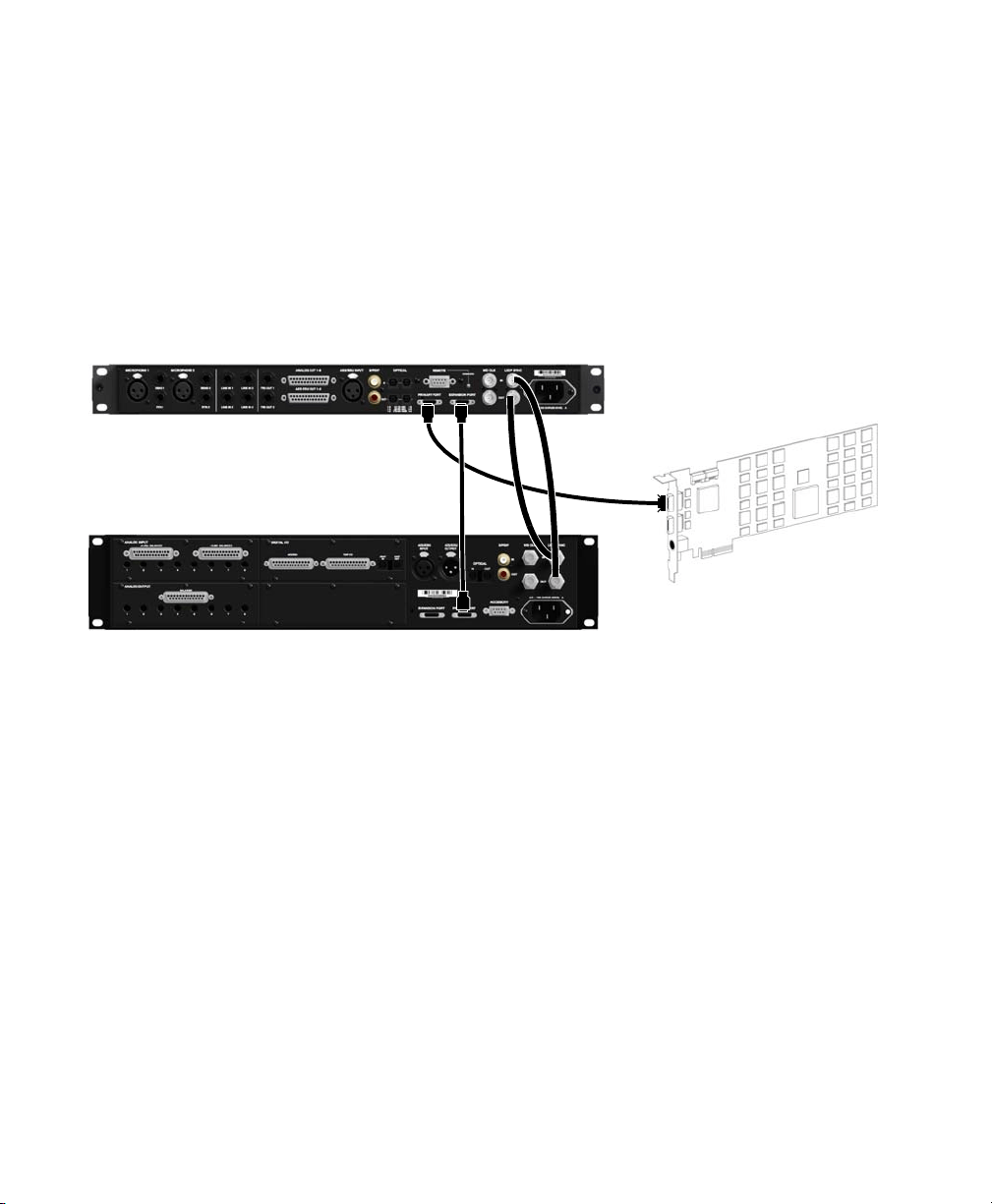
HDX
カード・インストール・ガイド
60
Loop Sync
を接続する
2
台以上の
HD
オーディオ・インターフェースまたは
SYNC
同期機器を使用する場合は、機器を正しく同期させるため
Loop Sync
を接続する必要があります。
ループ・シンクを接続するには:
1
各インターフェースの[
Loop Sync Out
]を
I/O
パッケージに含まれている
BNC
ケーブルで次のインターフェースの
[
Loop Sync In
]に接続します。
2
最後のインターフェースの[
Loop Sync Out
]を
1
台目のインタ−フェースまたは
SYNC
の[
Loop Sync In
]へ接
続します。
図
11 HD OMNI
と
HD I/O
の
DigiLink
接続とループ・シンク接続
12
フィート
DigiLink Mini
ケーブル
18
インチ
DigiLink
Mini
ケーブル
Loop Sync
ケーブル
HDX
カード
1
枚
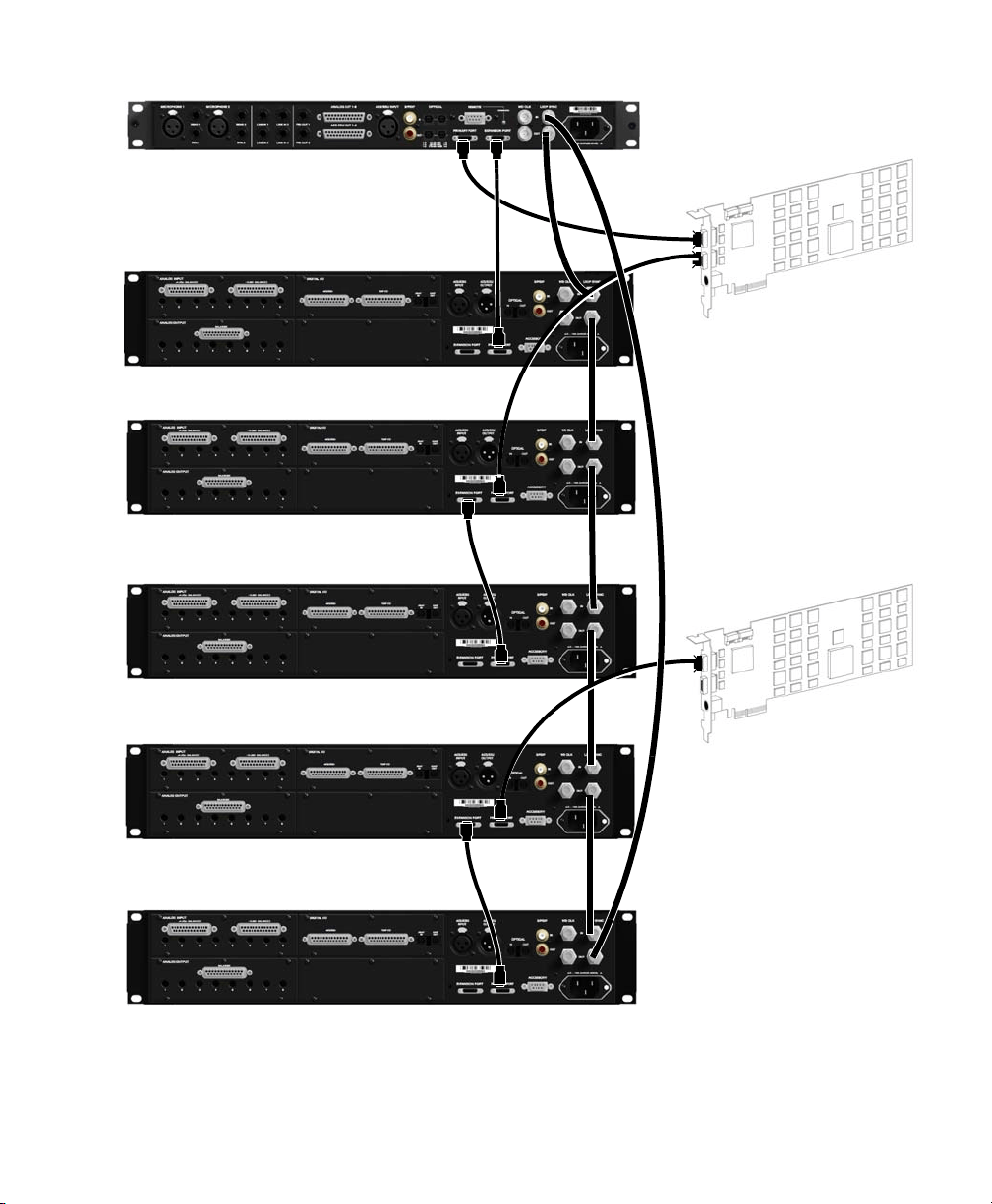
第
8
章:
HDX
カードをインストールする
61
図
12 HD OMNI
と
5
つの
HD I/O
の
DigiLink
接続とループ・シンク接続
12
フィート
DigiLink Mini
ケーブル
18
インチ
DigiLink Mini
ケーブル
Loop Sync
ケーブル
第一
HDX
カード
第二
HDX
カード
HDX
カード・インストール・ガイド
62
最大
I/O
構成
HDX
カードを使用した
Pro Tools HD
では、以下のオー
ディオ・インターフェースの最大
16
までの組み合わせに
対応しています:
• HD OMNI
(
1
つのシステムにつき、
1
つの
HD
OMNI
のみ対応)
• HD I/O
(最大
16
の
HD I/O
を同時使用可
—
4
枚
の
HDX
カードが必要)
• HD MADI
(最大
4
つの
HD MADI
を同時使用可
—
4
枚の
HDX
カードが必要)
複数の
I/O
を接続する例については、
60
ページの図
11
と
61
ページの図
12
をご参照ください。
ProTools HD
ソフトウェアおよび
HDX
ハードウェア・ドライバーのインス
トール
Avid HDX
カードをインストールし、
Avid HD
オーディ
オ・インターフェースを接続したら、
Pro Tools HD
ソフ
トウェア(別売)をインストールし、オーソライズするこ
とができます。
Avid HDX
ハードウェアと
Core Audio
(
Mac
)または
ASIO
(
Windows
)互換のデジタル・オーディオ・ソフ
トウェア(
Logic
、
Live
、
Cubase
など)を使用するには、
まず、
HDX
用のハードウェア・ドライバーをインストー
ルする必要があります。
Pro Tools HD
ソフトウェアをイ
ンストールする場合には、これらのドライバーは自動的に
インストールされます。
Pro Tools
をインストールしない
場合には、
Avid
ウェブ・サイト(
www.avid.com
)から
ドライバー・インストーラーをダウンロードしてくださ
い。
Pro Tools
システムを設定する
Pro Tools
ソフトウェアのインストール、承認、起動の後
で、
Pro Tools
システムを構成し、スタジオでの使用方法
に合わせることができます。
Pro Tools
ソフトウェアの
構成について詳しくは『
Pro Tools
リファレンス・ガイ
ド』をご参照ください(
Pro Tools
の[ヘルプ]メニュー
から見ることができます)。
HD
オーディオ・インターフェースは、本体の両
側に通気(冷却)用の空間を必要とします。本体
の両側を塞いだり、内蔵のファンを取り外したり
しないでください。本体をケースにラックマウント
している場合は、システムを起動する前にケースの
蓋や扉を取り外してください。本体が急激に加熱
され、繊細な部品を損傷する原因となります。
Pro Tools
ソフトウェアのインストールについ
て詳しくは、
Pro Tools
ソフトウェア・パッケー
ジに同梱されている『
Pro Tools
インストール・
ガイド』
をご参照ください。
Core Audio
ドライバーのインストール方法につ
いては、『
Avid Core Audio Driver
』の
27
ペー
ジをご覧ください。
ASIO
ドライバーのインストール方法については
『
ASIO Driver
のインストール』の
35
ページを
ご覧ください。
第
9
章:
Core Audio
の構成(
MacOSX
のみ)
63
第
9
章
Core Audio
の構成(
MacOSX
のみ)
Avid Core Audio Driver
の機能
Avid Core Audio Driver
は、マルチクライアント、マル
チチャンネル・サウンド・ドライバーです。このドライ
バーをインストールすると、
Core Audio
互換アプリケー
ションで
Pro Tools
ハードウェアを使用して録音と再生
を実行できます。
使用する
Pro Tools
ハードウェアと
CoreAudio
クライア
ント・アプリケーションによって、最大
24-bit/96kHz
の
サンプルレートで、フル・デュプレックスのレコーディン
グと再生が可能です。
Avid Core Audio Driver
は、最初の
HDX
カード使用し
て、
64
チャンネルの
I/O
を提供します。
CoreAudio Driver
の制限
Avid CoreAudio Driver
には、以下のような制限があり
ます:
Mac Finder
でサウンド・ファイルを試聴するのに、
CoreAudio Driver
を使用することはできません。サウン
ド・ファイルが
Mac OS X
のナビゲーション・ウィンド
ウにある場合は、ファイルの隣に
QuickTime
のトランス
ポート・バーが表示されます。
QuickTime
トランスポー
ト・バーを使用してサウンド・ファイルを作成できます。
サウンドは、常に
Mac
内蔵のオーディオ・コントローラー
(
Mac
のスピーカーやヘッドフォン・ジャック)を通して
再生されます。ただし、サウンド・ファイルをダブルクリッ
クすると、
QuickTime
が起動し、
CoreAudio Driver
を通
して再生できるようになります。
Avid Core Audio Driver
は、
Mac
のシステムサウンド
の再生には使用できません。
Core Audio Driver
は、
2
枚以上の
HDX
カード
をサポートしません。
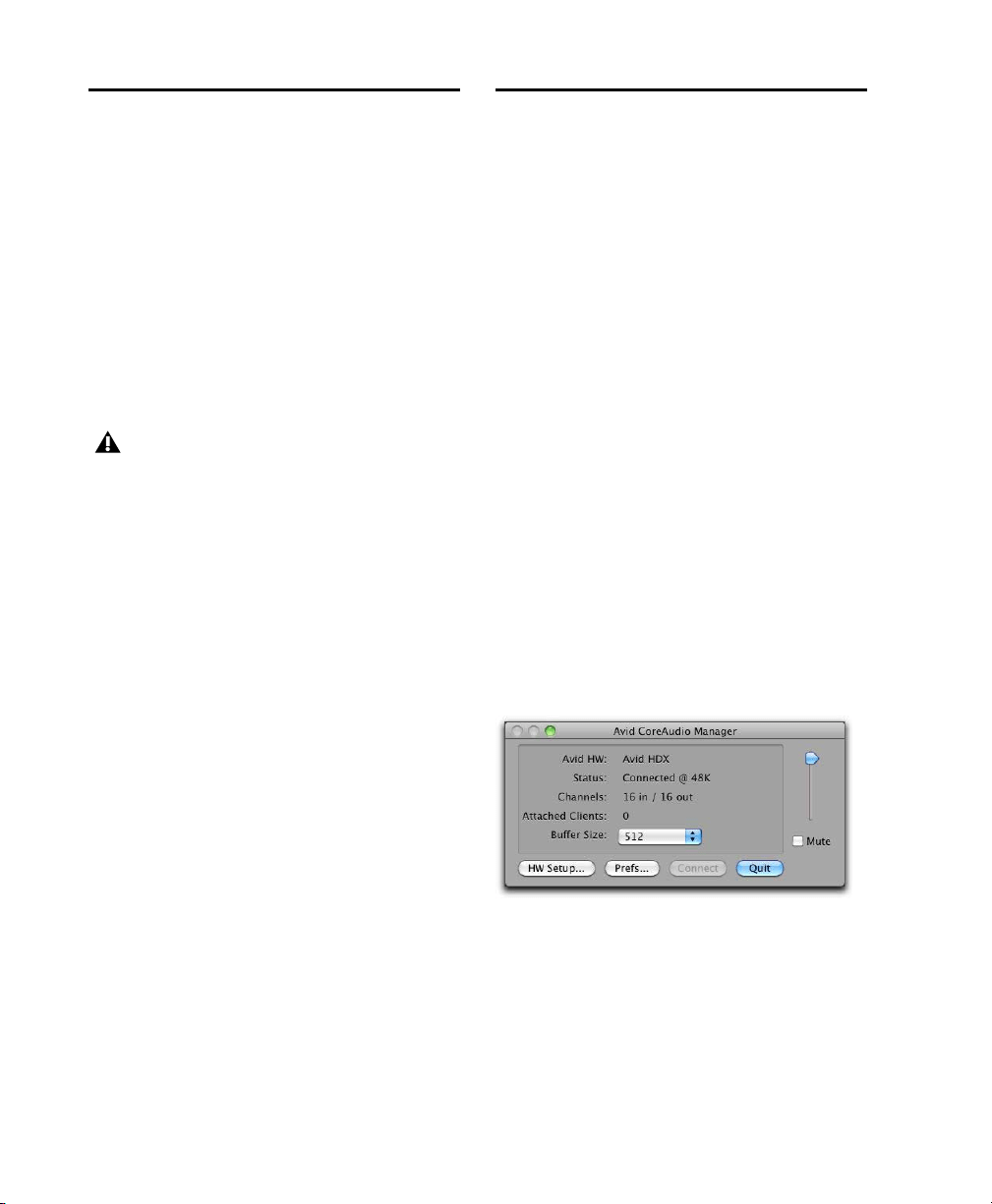
HDX
カード・インストール・ガイド
64
Avid Core Audio Driver
のインス
トール
Pro Tools
をインストールすると、
Avid Core Audio
Driver
が自動的にインストールされます。
Avid Core
Audio Driver
は、
Pro Tools
ソフトウェアがインストー
ルされていない
Mac
システムにスタンドアロン
ドライ
バーとしてインストールできます。スタンドアロン
Avid
Core Audio Driver
のインストーラーは、ドライバー・
インストーラー・ディスクに収められており、
Pro Tools
ソフトウェア・パッケージに付属しています。また、
Avid
ウェブサイトからもダウンロードできます
(
www.avid.com
)。
スタンドアロン
Avid Core Audio Driver
のインストール:
1
HDX
ハードウェアが正しくインストールされているこ
とを確認してください。
2
以下のいずれかの操作を行います:
•
ドライバー・インストーラー・ディスクを差し込み
ます。ディスクは
Pro Tools
ソフトウェア・パッ
ケージに含まれています。
または
•
スタンドアロン
Avid Core Audio Driver
インス
トーラーを
Avid
ウェブサイトからダウンロードし
ます(
www.avid.com
)。
3
Install HD Family Driver.mpkg
をダブルクリックします。
4
画面に表示される指示に従い、インストールを完了し
ます。
5
インストール作業が完了したら、[再起動]をクリックし
ます。
CoreAudio Manager
Avid Core Audio Driver
を構成するには、
CoreAudio
Manager
を使います。また、サードパーティ製の大部分の
対応クライアント・アプリケーション(
BIAS Peak
、
Logic
など)では、クライアント側でも設定できます。詳しくは、
それぞれのメーカーのマニュアルをご参照ください。
また、
Apple
の
iTunes
や
QuickTime Player
などのア
プリケーションでは、
Mac
サウンド環境設定または
Apple
オーディオ
MIDI
設定にて、
Avid Core Audio
Driver
を使用するように設定する必要があります。
Avid Core Audio Manager
は初回起動時には自動非表
示に設定されています。前面に移動するには、ドックのア
イコンをクリックします。
Avid Core Audio Manager
は
Pro Tools
では使用され
ません。その他の
Core Audio
対応アプリケーションでの
み使用されます。
CoreAudio Manager
へのアクセス
最初のクライアント・アプリケーションが
Avid Core
Audio Driver
にアクセスすると、
Avid Core Audio
Manager
アプリケーションが自動的に起動します。
Pro Tools
をアンインストールすると、その時点
で
Avid Core Audio Driver
が自動的にアンイン
ストールされます。
CoreAudio Manager

第
9
章:
Core Audio
の構成(
MacOSX
のみ)
65
以下のような状態では、
Avid Core Audio Manager
に
アクセスすることはできません:
•Pro Tools
を実行している
•
別のアプリケーションが
Direct IO
を使用している
アプリケーションによる
Avid Core Audio Driver
への
アクセスを防止
アプリケーションを起動する際にアプリケーションが
Avid Core Audio Driver
にアクセスする前に、
Shift
キー
を押したままにすると、アプリケーションが
Avid Core
Audio Driver
にアクセスすることを防止できます。特定の
アプリケーション(
Apple Mail
や
iChat
など)では、最
初にサウンドを再生するまでは、
Avid Core Audio
Driver
にアクセスしないため、
Avid
ハードウェアを使用
して再生するのを防止するために、サウンド再生前に
Shift
キーを押したままにする操作が必要になります。
Core Audio Manager
の使用
Avid Core Audio Manager
では、
Core Audio
バッファ
サイズの設定値を変更したりできるほか、
Avid
ハード
ウェアの機種に応じたハードウェア設定ダイアログに直
接アクセスし、
Avid Core Audio Driver
のボリュームを
コントロールしたりミュートしたりできます。また、
Avid
Core Audio Manage
には、
Avid
ハードウェアの機種、
サポートされている
I/O
チャンネル数、および接続されて
いるクライアント(アプリケーション)数を認識する機能
が装備されています。
バッファーサイズ
(使用している
Avid
ハードウェアにより)以下のバッファ
サイズから選択できます。
•64
サンプル
•128
サンプル
•256
サンプル
•512
サンプル
•1024
サンプル
•2048
サンプル
Avid Core Audio Driver
のバッファーサイズを変更して
も、
Pro Tools
側のプレイバック・エンジン・ダイアログ
の
H/W
バッファーサイズの設定値には影響ありません。
Avid Core Audio
ハードウェア・バッファーサイズの設定:
1
Avid Core Audio Manager
のファイル
(
/Applications/Avid/
)をダブルクリックします。
2
バッファーサイズ・ポップアップメニューで、必要な
Core
Audio
バッファーサイズをサンプル数で選択します。一般
的には、バッファーを小さめのサイズに設定するのが望
ましいです。ただし、パフォーマンスに問題が発生する
(レコーディング
/
再生時にクリックやポップなどのノイ
ズが出る)場合は、
Core Audio
バッファーサイズ設定を大
きめにしてみてください。クライアント・アプリケーショ
ンが
Core Audio Driver
に接続されている唯一のクライ
アントの場合、そのアプリケーション側からバッファーサ
イズを変更することもできます。複数のクライアントがア
クティブになっていると、サンプルレートやバッファーサ
イズを変更することはできません。
HW
(ハードウェア)設定ボタン
Avid
ハードウェアの[
HW Setup
]ボタンをクリックす
ると、ハードウェア設定ダイアログが開きます。
[
HW
設定]
ボタンは、別のクライアント・アプリケーションによって
Avid Core Audio Driver
が使用されている場合は使用で
きません。
Core Audio
ハードウェアの設定:
1
Core Audio
クライアント・アプリケーションを終了し
ます。
2
Avid Core Audio Manager
のファイル
(
/Applications/Avid/
)をダブルクリックします。
3
[
HW
設定]ボタンをクリックし、ハードウェア設定ダ
イアログを開きます。
Avid Core Audio Driver
で正常に再生するには、
Avid Core Audio Manager
を最初に起動し、そ
のステータスが「接続中」かどうかを確認してく
ださい。
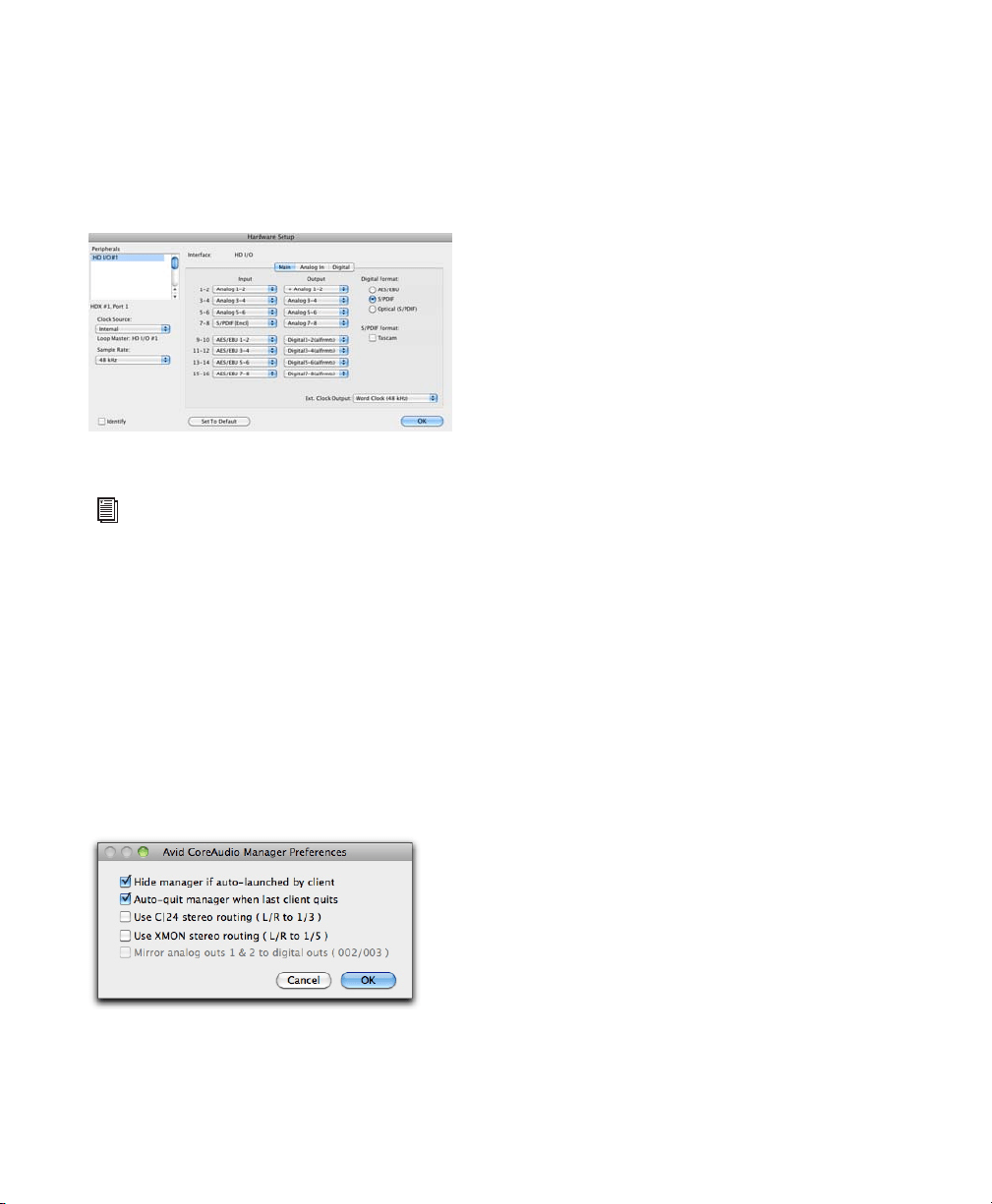
HDX
カード・インストール・ガイド
66
4
使用している
Avid
オーディオ・ハードウェアに応じて、
ハードウェア設定ダイアログを設定します。
2
つ以上の
HDX
カードを接続しているシステムの場合は、最初の
HDX
カードに接続しているオーディオ・インターフェー
スだけを選択し、設定してください。
5
設定作業が終わったら、[
OK
]ボタンをクリックして、
ハードウェア設定ダイアログを閉じます。
Prefs
(環境設定)ボタン
Prefs
ボタンで
Avid Core Audio Manager
環境設定ダ
イアログを開きます。
Manager
アプリケーションを設定
するには、いくつかのオプションがあります。これらのオ
プションの選択を終了したら、[
OK
]をクリックして
Avid
Core Audio Manager
環境設定ウィンドウを閉じます。
クライアントによる自動起動時に
Manager
を非表示にする
このオプションを選択すると、最初のクライアント・アプ
リケーションが
Avid Core Audio Driver
にアクセスした
時点で、
Manager
のパネルが非表示に切り換わります。
Manager
のパネルを開くには、ドック上の
Avid Core
Audio Manager
のアイコンをクリックします。
最後のクライアント終了時に
Manager
を自動終了
このオプ
ションを選択すると、クライアント・アプリケーションが
Avid Core Audio Driver
を使用しなくなった時点で、
Manager
アプリケーションが自動的に終了します。
C|24
ステレオ・ルーティングを使用(
L/R
から
1/3
)
C|24
を使用する場合、このオプションを選択すると、
Avid
Core Audio Driver
を
C|24
の標準ステレオ・ルーティン
グ(アウトプット
1
と
3
)を使用して出力されるように設
定できます。
XMON
ステレオ・ルーティングを使用(
L/R
から
1/5
)
このオ
プションを選択すると、
D-Control
または
D-Command
を
使用しているとき、
D-Control
または
D-Command
標準
のステレオ・ルーティング(アウトプット
1
と
5
)を通し
て出力されるように
Avid Core Audio Driver
を設定しま
す。
アナログ・アウトプット
1
と
2
をデジタル・アウトプットにミ
ラーリング(
003
、
003 Rack
、
003 Rack+
、
Digi002
、
Digi002 Rack
のみ)
このオプションを選択すると、
003
、
003 Rack
、
003 Rack+
、
Digi 002
、
Digi 002 Rack
を使用しているとき、メイン・アウトプットをハードウェ
ア設定ダイアログで選択したデジタル・アウトプットにミ
ラーリングします。(このオプションは、
HDX
カードを使
用しているシステムではグレイアウトされています。)
ハードウェア設定ダイアログ、(
HD I/O
の場合)
ハードウェア設定ダイアログについての詳しい内
容は『
Pro Tools
リファレンス・ガイド』をご覧
ください。
CoreAudio Manager
環境設定

第
9
章:
Core Audio
の構成(
MacOSX
のみ)
67
接続ボタン
Avid Core Audio Manager
が起動していながら、
Pro Tools
ハードウェアに接続できない場合(
Pro Tools
起動時にハードウェアの接続が解除または無効にされて
いる場合など)、[
接続]ボタンが表示されます。接続する
前に、必ず
Pro Tools
を終了し、ハードウェアを接続し
て電源を入れてください。次に、[
接続]ボタンをクリッ
クしてハードウェアを取得します。
終了ボタン
[終了]ボタンにて、
Avid Core Audio Manger
を終了し
ます。
Manager
で[終了]ボタンを使用する前に、クライ
アント・アプリケーションを必ず終了しておいてください。
Manager
アプリケーションの終了時にその他のアプリ
ケーションが接続されている場合、
Pro Tools
ハードウェ
アが利用できなくなった旨を示すエラーメッセージが表
示されます。この場合、他のハードウェアを使用するよう
アプリケーションの設定を変更するか、場合によってはア
プリケーションを再起動しないと、再生を再開することが
できません。
サードパーティ製アプリケーション用に
HD
オーディオ・インターフェイスを設定
する
HDX
カードを
Pro Tools
以外のアプリケーション
(
Apple GarageBand
など)で使用するときは、そのア
プリケーションで利用できるオーディオ環境設定から
ハードウェアの設定を行うことができます。
Core Audio
アプリケーション(
Apple GarageBand
など)
からハードウェアの設定を行うには:
1
オーディオ・インプットとオーディオ・アウトプットに
Avid HW
(
HDX
)を選択します。
2
以下のオプションからご使用のシステムのバッファ・
サイズを選択:
• Maximum/Large
バッファ・サイズ
または
• Minimum/Small
バッファ・サイズ
接続ボタンを押す前にアプリケーションが起動し
ていて、そのアプリケーションで
Avid Core
Audio Driver
を使用して再生を行う場合、アプリ
ケーションを
CoreAudio Manager
に正しく接
続するにはアプリケーションを終了してから再起
動する必要があります。
Core Audio
アプリケーションのハードウェア・
オプション設定の詳しい情報は、各メーカーの
ドキュメントを参照してください。
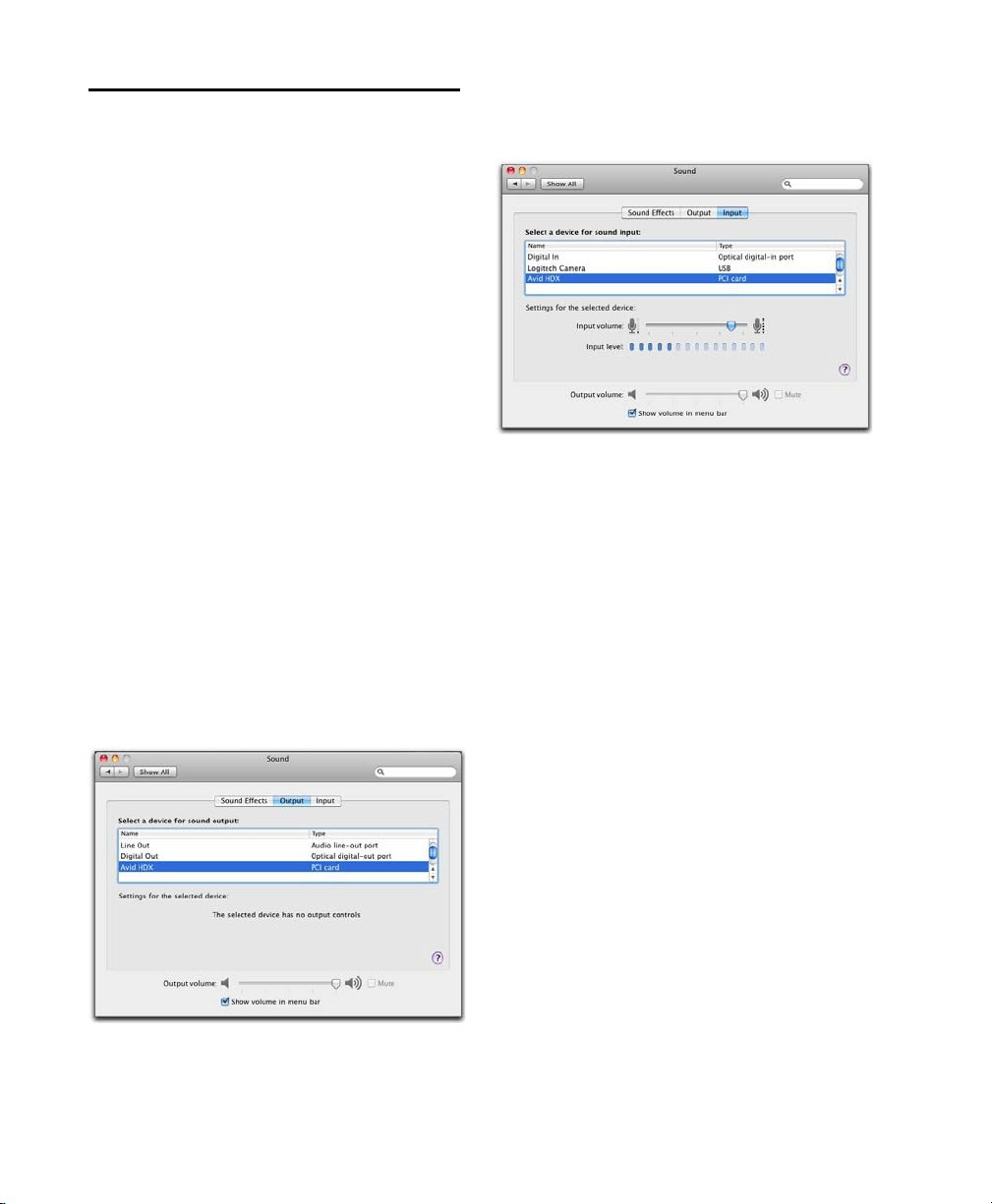
HDX
カード・インストール・ガイド
68
Apple
サウンド環境設定または
Apple
オーディオ
MIDI
設定の構成
(
Apple iTunes
または
QuickTime Player
で
Avid
Audio
インターフェースを使用するときに必要)
特定の
Core Audio
対応再生アプリケーション(
iTunes
や
QuickTime Player
など)で
Avid
オーディオ・イン
ターフェースを使用するには、
Avid Core Audio
Manager
に加え、サウンド環境設定または
Apple
オー
ディオ
MIDI
設定で設定を行う必要があります。ただし、
Core Audio
に対応しているクライアント・アプリケー
ションの多く(
BIAS Peak
や
Ableton Live
など)では、
アプリケーション側から
Core Audio
のバッファーサイ
ズ、および入出力チャンネルを設定できるため、これは不
要です。
Apple
サウンド環境設定
Apple
サウンド環境設定の設定
1
環境設定([
Apple
]メニュー]
>
[環境設定]を起動し
ます)。
2
[サウンド]をクリックします。
3
[アウトプット]をクリックし、[
HDX
]をサウンド・ア
ウトプットのデバイスとして選択します。
4
[インプット]をクリックし、サウンド・インプットのデ
バイスとして[
HDX
]を選択します。
5
環境設定を終了します。
サウンド環境設定、アウトプット設定
サウンド環境設定、インプット設定(
ProTools HD
を表示)
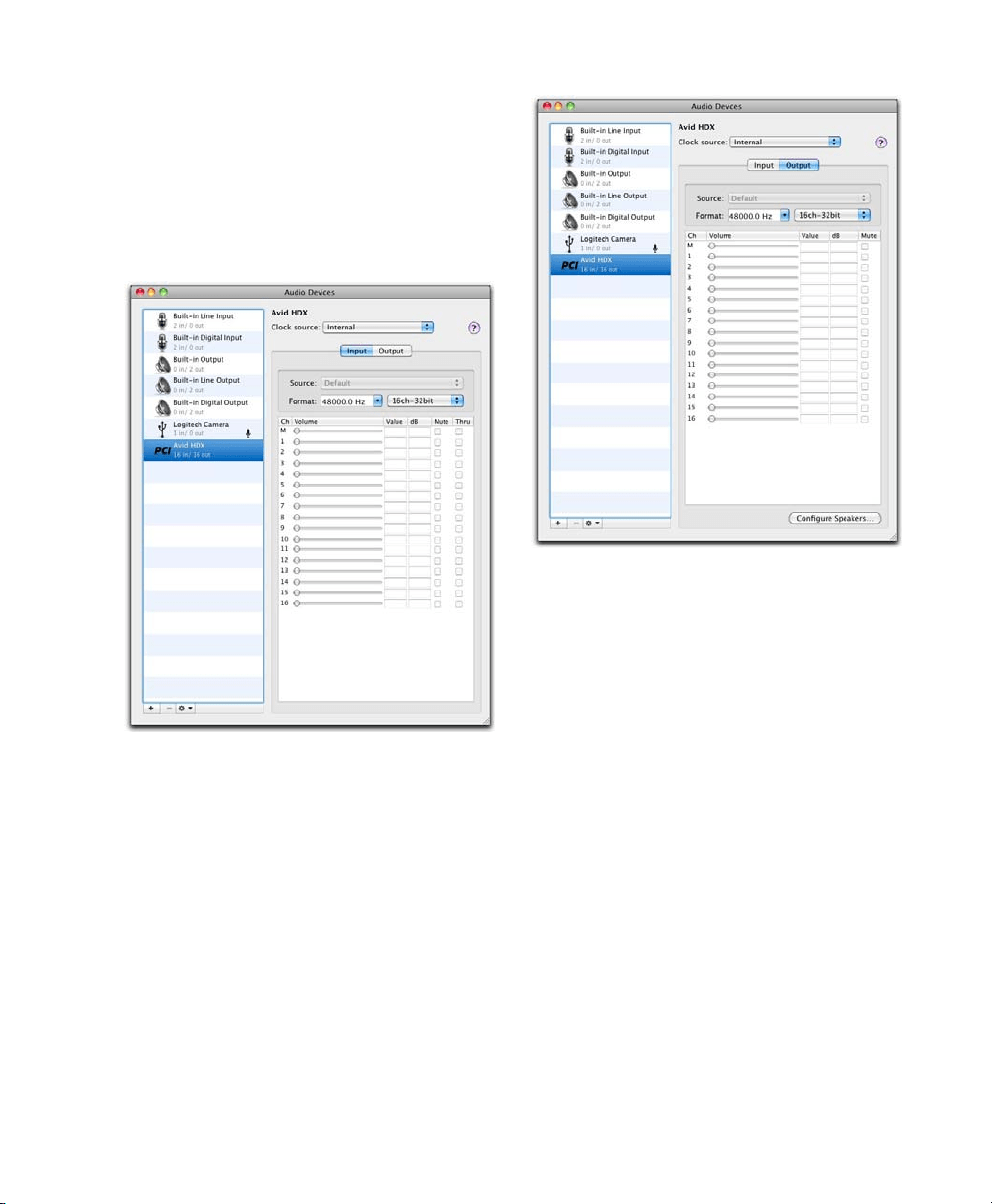
第
9
章:
Core Audio
の構成(
MacOSX
のみ)
69
Apple
オーディオ
MIDI
設定
Apple
オーディオ
MIDI
設定を設定するには:
1
オーディオ
MIDI
設定を起動します(ホーム
/
アプリケー
ション
/
ユーティリティ)。
2
オーディオ・デバイス・ウィンドウで、[インプット]
タブをクリックします。
3
左の[オーディオ・デバイス]リストで、[
HDX
]を選
択します。
4
オーディオ・デバイス・ウィンドウで、[アウトプット]
タブをクリックします。
5
左の[オーディオ・デバイス]リストで、[
HDX
]を選
択します。
6
オーディオ・インプットまたはオーディオ・アウトプット・
ページで、
フォーマット(サンプルレート)を選択します。
インプットとアウトプットのサンプルレートはリンクし
ています。
7
[
Audio MIDI
設定]
>
[
Audio MIDI
設定の終了]を選
択します。
Apple
オーディオ
MIDI
設定アプリケーション、オーディオ・
デバイス・インプット設定
Apple
オーディオ
MIDI
設定アプリケーション、オーディオ・
デバイス・アウトプット設定

HDX
カード・インストール・ガイド
70

第
10
章:
ASIO
の設定(
Windows
のみ)
71
第
10
章
ASIO
の設定(
Windows
のみ)
ASIO
ドライバーの性能
ASIO
ドライバーはシングル・クライアントのマルチチャ
ンネル・サウンド・ドライバーです。認定された
Avid
オー
ディオ・インターフェースを使って、
ASIO
ドライバー規
格対応のサードパーティ製オーディオ・プログラムが、オー
ディオの録音と再生を行います。
使用する
Avid
ハードウェアと
ASIO-client
プログラム
(
Cubase
、
Live
、
Reason
など)によって、最大
16
お
よび
24-bit/96kHz
サンプルレートで、フル・デュプレッ
クスの再生が可能です。
ASIO Driver
では、最初の
HDX
カードで、最大
64
チャ
ンネルのインプットとアウトプットが使用できます。
ASIO
ドライバーの制限事項
Avid ASIO
ドライバーには、以下のような制限があります:
Avid ASIO
ドライバーは、シングル・クライアントの
ドライバーであり、複数のアプリケーションが同時に使用
することはできません。
Avid ASIO
ドライバーを使用で
きるのは、
1
度につき
1
つのアプリケーションだけです。
Avid ASIO Driver
は、
Windows
のシステムサウンド
の再生には使用できません。
ゲームとその他の一般的な作業では、別々のサウンド
カードを使用することを推奨します。
ASIO
ドライバーのインストール
ASIO
ドライバーは
Pro Tools
と共にインストールされ
ます。
ASIO
ドライバーは、
Pro Tools
ソフトウェアがイ
ンストールされていない
Window
システムに、スタンドア
ロン・ドライバーとしてもインストールできます。
ASIO
ドライバーのスタンドアロン用インストーラーが、
Pro Tools
ソフトウェア・パッケージに付属のドライバー・
インストーラー・ディスクにあり、また、
Avid
ウェブサイ
ト
(
www.avid.com
)からもダウンロードできます。
スタンドアロン
ASIO
ドライバーのインストール:
1
HDX
カードが正しくインストールされていることを確
認してください。
2
以下のいずれかの操作を行います:
•
ドライバー・インストーラー・ディスクを差し込み
ます。ディスクは
Pro Tools
ソフトウェア・パッ
ケージに含まれています。
または
•
スタンドアロン
ASIO
ドライバー・インストーラー
を
Avid
ウェブサイトからダウンロードします
(
www.avid.com
)。
3
HD Family Driver Setup.exe
をダブルクリックします。
4
画面に表示される指示に従い、インストールを完了し
ます。
5
インストールが完了したら、[終了]をクリックしてイ
ンストーラーを終了し、コンピューターを再起動します。
Pro Tools
をアンインストールすると、その時点で
ASIO
ドライバーが自動的にアンインストールさ
れます。
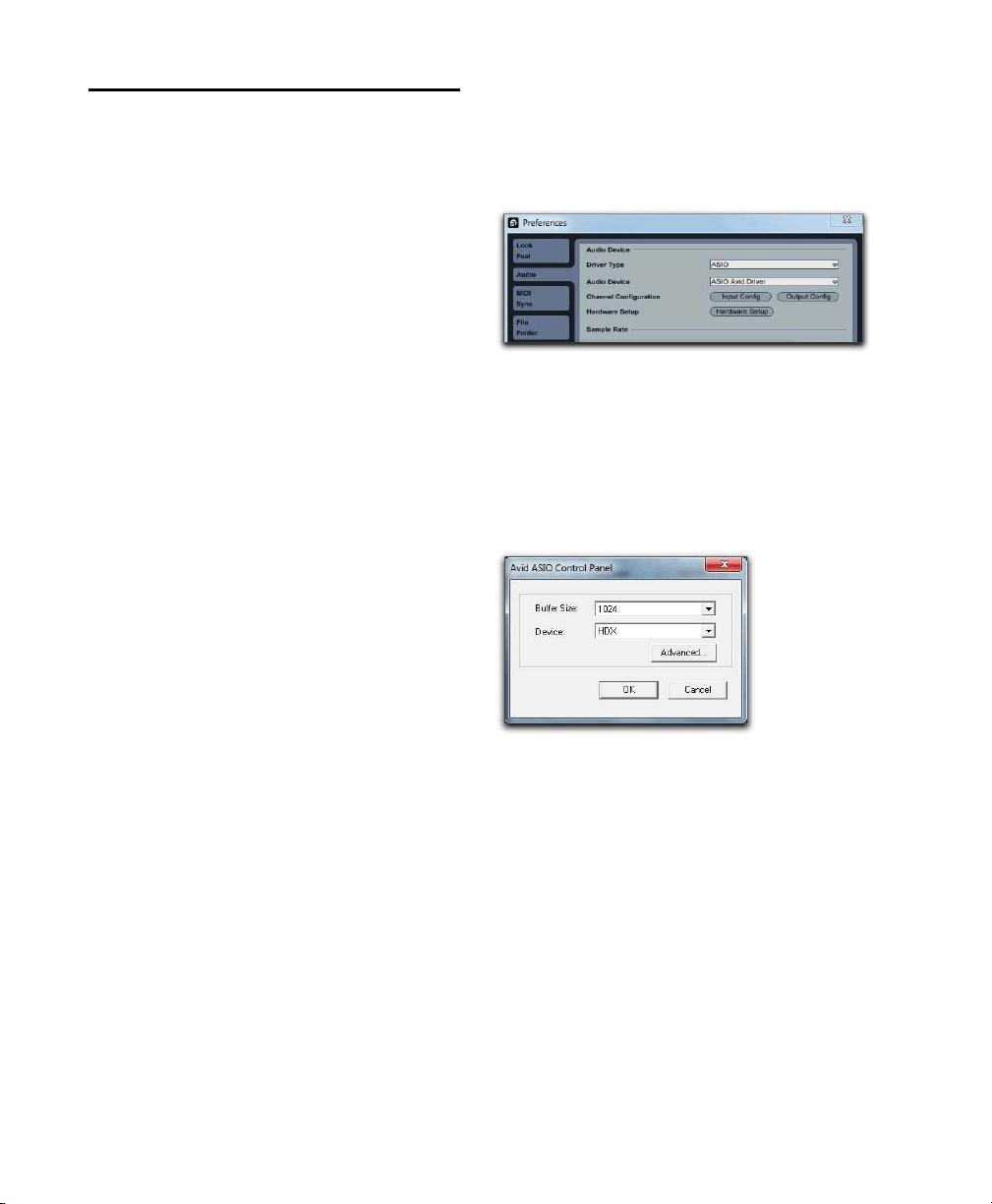
HDX
カード・インストール・ガイド
72
Avid ASIO
コントロール・パネル
Avid ASIO
ドライバーの設定は
ASIO
コントロール・
パネルで行えます。コントロール・パネルは、いくつかの
サードパーティー製
ASIO
互換クライアント・アプリケー
ションからもアクセスできます。
Avid ASIO Driver
コントロール・パネルに
アクセスする
サードパーティ製アプリケーションを開かずに
Avid ASIO
コン
トロール・パネルにアクセスするには:
詳細は、
ASIO
クライアント・プログラムに付属してい
るマニュアルをご参照ください。
以下の状況では、
Avid ASIO
コントロール・パネルにア
クセスできません:
•Pro Tools
の実行中。
•
Avid ASIO
ドライバーをサポートしないオーディオ・
プログラムで再生またはレコーディングをしてい
るとき。
•
再生またはレコーディングをしていない場合でも、
ASIO
ドライバーを開いた状態にするようなサード
パーティ製オーディオ・プログラムを使用している
とき(この場合、
ASIO
ドライバー・コントロール・
パネルを開く前に、そのアプリケーションを終了す
る必要があります)。
例:
Avid ASIO
コントロール・パネルに
Ableton Live
か
らアクセスする
Avid ASIO
コントロール・パネルに
Ableton Live
からアクセ
スするには以下のようにします:
1
Live Preferences
をオープンします。
2
[
Audio
]タブを選択します。
3
[
ASIO
]を
Driver Type
ポップアップ・メニューから
選択します。
4
[
ASIO Avid Driver
]を
Audio Devices
ポップアップ・
メニューから選択します。
5
[
Hardware Setup
]ボタンをクリックし、
Avid ASIO
コントロール・パネルをオープンします。
ASIO
ドライバー・コントロール・パネルを使用
ASIO Driver
コントロール・パネルでは、バッファサイ
ズの設定を変更したり、
Avid
ハードウェアの[ハードウェ
ア設定]ダイアログにアクセスすることができます。
設定の例、
Ableton Live 8
ASIO
コントロール・パネル
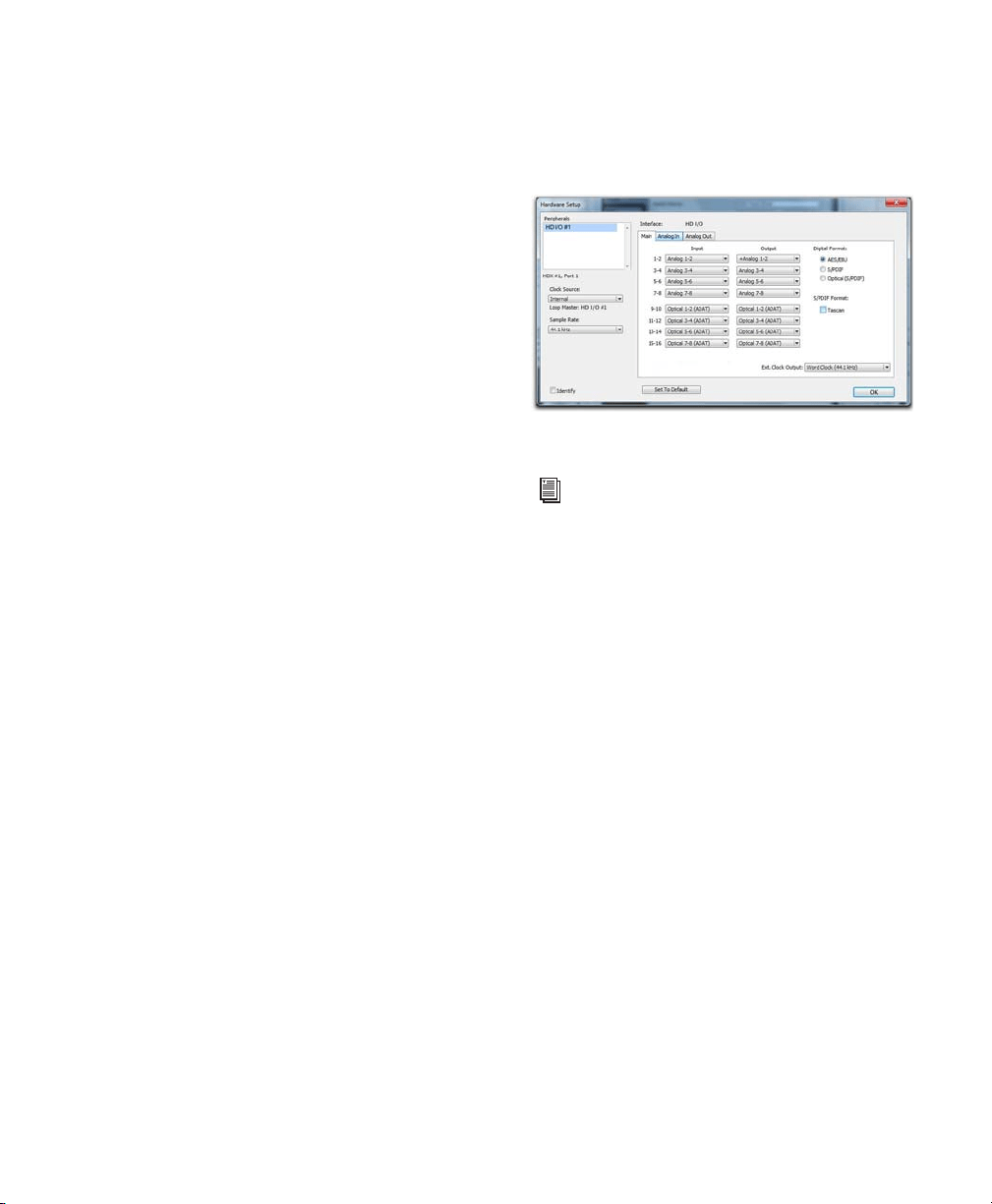
第
10
章:
ASIO
の設定(
Windows
のみ)
73
バッファーサイズ
以下のバッファーサイズから選択できます(使用している
Pro Tools
ハードウェアによる):
•64
サンプル
•128
サンプル
•256
サンプル
•512
サンプル
• 1024
サンプル
• 2048
サンプル
バッファーサイズを小さく設定すると、レコード・モニ
ター時のレイテンシーを軽減できるという長所があり
ます(レイテンシーとは、オーディオ・インプットに入る
信号からレコーディング中にアウトプットを出るまでの
時間の遅れを指します
)
。
これに対して、バッファーサイズを大きくすると、再生
時とレコーディング時の両方で、
ASIO
ドライバーで、
オーディオ信号のドロップ・アウトが少なくなるという長
所があります
いくつか
ASIO
対応オーディオ・プログラムでは、操作を
行うと、オーディオの再生やレコーディング時にクリック
やポップなどのノイズを生じてしまうものがあります。
バッファーサイズを中または大(
256
、
512
または
1024
など)に設定することで、症状を緩和できます。
ASIO
ドライバーのバッファーサイズを変更しても、
Pro Tools
再生エンジン・ダイアログのハードウェア・
バッファーサイズ
には影響しません。
Device
[デバイス]設定は常にインストールされている
Pro Tools
ハードウェアを選択してください。
詳細ボタン
[詳細]ボタンは使用している
Avid
ハードウェアの[ハー
ドウェア設定]ダイアログを開きます。
[ハードウェア設定]ダイアログ、(
HD I/O
の場合)
ハードウェア設定ダイアログについて詳しくは
『
Pro Tools
リファレンス・ガイド』をご覧くだ
さい。

HDX
カード・インストール・ガイド
74
Appendix A: Compliance Information 75
appendix a
Compliance Information
Environmental Compliance
Disposal of Waste Equipment by Users
in the European Union
This symbol on the product or its packaging indicates that this
product must not be disposed of with other waste. Instead, it
is your responsibility to dispose of your waste equipment by
handing it over to a designated collection point for the recycling
of waste electrical and electronic equipment. The separate
collection and recycling of your waste equipment at the time of
disposal will help conserve natural resources and ensure that
it is recycled in a manner that protects human health and the
environment. For more information about where you can drop
off your waste equipment for recycling, please contact your
local city recycling office or the dealer from whom you
purchased the product.
Proposition 65 Warning
Perchlorate Notice
This product may contain a lithium coin battery. The State of
California requires the following disclosure statement:
“Perchlorate Material – special handling may apply, See
www.dtsc.ca.gov/hazardouswaste/perchlorate.”
Recycling Notice
This product contains chemicals, including
lead, known to the State of California to
cause cancer and birth defects or other
reproductive harm. Wash hands after
handling.
HDX Card Installation Guide76
EMC (Electromagnetic
Compliance)
Avid declares that this product complies with the following
standards regulating emissions and immunity:
• FCC Part 15 Class B
• EN55022 Class B
• EN55024 Class B
• AS/NZS CISPR 22 Class B
• CISPR 22 Class B
FCC Compliance for United States
Australia and New Zealand EMC
Regulations
Canadian Compliance
This Class B digital apparatus complies with Canadian
ICES-003.
Cet appareil numérique de la classe B est conforme à la norme
NMB-003 du Canada.
European Union Declaration of
Conformity
(EMC and Safety)
Avid is authorized to apply the CE (Conformité Europénne)
mark on this compliant equipment thereby declaring conformity
to EMC Directive 2004/108/EC and Low Voltage Directive
2006/95/EC.
Japan VCCI Compliance
Korean EMC Regulations
Communication Statement
NOTE: This equipment has been tested and found to comply
with the limits for a Class B digital device, pursuant to Part
15 of the FCC Rules. These limits are designed to provide
reasonable protection against harmful interference in a
residential installation. This equipment generates, uses,
and can radiate radio frequency energy and, if not installed
and used in accordance with the instructions, may cause
harmful interference to radio communications. However,
there is no guarantee that interference will not occur in a
particular installation. If this equipment does cause harmful
interference to radio or television reception, which can be
determined by turning the equipment off and on, the user is
encouraged to try and correct the interference by one or
more of the following measures:
• Reorient or locate the receiving antenna.
• Increase the separation between the equipment and
receiver.
• Connect the equipment into an outlet on a circuit different
from that to which the receiver is connected.
• Consult the dealer or an experienced radio/TV technician
for help.
Any modifications to the unit, unless expressly approved by
Avid, could void the user's authority to operate the
equipment.
Appendix A: Compliance Information 77
Safety Compliance
Safety Statement
This equipment has been tested to comply with USA and
Canadian safety certification in accordance with the
specifications of UL Standard UL60950-1, 2nd
Edition/IEC60950-1, 2nd Edition and Canadian CAN/CSA
C22.2 No. 60950-1-07; 2007 2nd Ed. Avid Technology, Inc.
has been authorized to apply the appropriate NRTL marks on
its compliant equipment.
For use only with UL Listed ITE Equipment.
Warning
Important Safety Instructions
1) Read these instructions.
2) Keep these instructions.
3) Heed all warnings.
4) Follow all instructions.
5) Do not use this equipment near water.
6) Clean only with dry cloth.
7) Do not block any ventilation openings. Install in accordance
with the manufacturer’s instructions.
8) Do not install near any heat sources such as radiators, heat
registers, stoves, or other equipment (including amplifiers)
that produce heat.
9) Do not defeat the safety purpose of the polarized or
grounding-type plug. A polarized plug has two blades with one
wider than the other. A grounding type plug has two blades and
a third grounding prong. The wide blade or the third prong are
provided for your safety. If the provided plug does not fit into
your outlet, consult an electrician for replacement of the
obsolete outlet.
10) Protect power cords from being walked on or pinched
particularly at plugs, convenience receptacles, and the point
where they exit from the equipment.
11) Only use attachments/accessories specified by the
manufacturer.
12) For products that are not rack-mountable: Use only with a
cart, stand, tripod, bracket, or table specified by the
manufacturer, or sold with the equipment. When a cart is used,
use caution when moving the cart/equipment combination to
avoid injury from tip-over.
13) Unplug this equipment during lightning storms or when
unused for long periods of time.
14) Refer all servicing to qualified service personnel. Servicing
is required when the equipment has been damaged in any way,
such as power-supply cord or plug is damaged, liquid has been
spilled or objects have fallen into the equipment, the
equipment has been exposed to rain or moisture, does not
operate normally, or has been dropped.
15) For products that are a Mains powered device:
The equipment shall not be exposed to dripping or splashing
and no objects filled with liquids (such as vases) shall be
placed on the equipment.
Warning! To reduce the risk of fire or electric shock, do not
expose this equipment to rain or moisture.
16) For products containing a lithium battery:
CAUTION! Danger of explosion if battery is incorrectly
replaced. Replace only with the same or equivalent type.
17) The equipment shall be used at a maximum ambient
temperature of 40° C.
18) Use only with Listed ITE equipment.
HDX Card Installation Guide78
安全性コンプライアンス
安全性ステートメント
本製品は、試験の結果、
UL
規格の仕様である
UL60950-1, 2nd Edition /
IEC 60950-1 2nd Edition
およびカナダの
CAN/CSA C22.2
No.60950-1-07, 2007, 2nd Edition
に従って米国およびカナダの安全認
証に適合しています。
Avid Technology Inc.
は、その規格準拠装置に適切な
NRTL
マークを適用する権限を与えられています。
一緒に使用する機器は
UL
により、
ITE
にリストされているものに限られます。
警告
重要な安全指示
1)
これらの指示をお読みください。
2)
これらの指示を保管してください。
3
)すべての警告に注意してください。
4
)すべての指示に従ってください。
5)
本製品は水などの液体に近づけて使用しないでください。
6)
必ず乾いた布で清掃してください。
7)
通気口を塞がないでください。メーカーの指示に従って設置してください。
8)
熱を発生する放熱器、蓄熱器、ストーブなどの(アンプを含む)熱源の近く
に設置しないでください。
9)
分極または接地タイプのプラグの安全規定を妨げないでください。分極プラ
グには
2
つのブレードがあり、一方が他方より幅広になっています。接地タイ
プのプラグには、
2
つのブレードと
3
番目の接地用ピンが付いています。幅広
のブレードまたは
3
番目のピンは、安全のために付いています。提供されたプ
ラグがコンセントに合わない場合は、役立たないコンセントを電気技師に交換
してもらう必要があります。
10)
特にプラグ、利便性レセプタクル、製品に近い位置などで電源コードが踏
みつけられたり、つままれたりしないよう保護してください。
11)
メーカーが指定した付属品またはアクセサリーのみを使用してください。
12)
ラック・マウントできない製品の場合は、メーカーが指定しているか、
または製品とともに販売されるカート、スタンド、三脚、ブラケット、または
テーブルのみと一緒に使用してください。カートを使用するときは、カートと
製品を一緒に移動するときに転倒による怪我を負わないよう十分注意してくだ
さい。
13)
雷雨時または長期間使用しない場合は、本製品のプラグを抜いてください。
14)
すべての補修・修理は認定された保守要員に依頼してください。製品が何
らかの原因で破損した場合は、保守・サービスが必要になります。電源コード
またはプラグが破損した、液体がこぼれた、製品に物が落下した、製品が雨ま
たは湿気にさらされた、製品が正しく作動しない、製品を落としたなどのケー
スが考えられます。
15)
製品が主電源を使用するデバイスの場合:
製品に水滴や水などがかからないようにしてください。また液体が入った物
(花瓶など)を本製品の上に置かないでください。
警告
!
火災や電気ショックの危険を減らすため、本製品を雨や湿気にさらさな
いようにしてください。
16
)リチウム電池を含んでいる製品の場合:
注意
!
電池を正しく交換しないと爆発する可能性があります。同じまたは同等
なタイプの電池に交換してください。
17
)本製品は周囲温度を
40° C
以内に保って使用してください。
18
)一緒に使用する機器は
ITE
にリストされているものに限られます。


Avid
2001 Junipero Serra Boulevard
Daly City, CA 94014-3886 USA
Technical Support (USA)
Visit the Online Support Center at
www.avid.com/support
Product Information
For company and product information,
visit us on the web at www.avid.com