AUDIO INTERFACE
INTERFACE AUDIO
INTERFAZ DE AUDIO
АУДИОИНТЕРФЕЙС
갉곸歲
킮쪎핳
؛٭ظؔ؛ؕ٤ذ٭نؘ٭ت
Owner’s Manual
Benutzerhandbuch
Mode d’emploi
Manual de instrucciones
Manual do Proprietário
Manuale di istruzioni
Руководство пользователя
EN
DE
FR
ES
PT
IT
RU
ZH
KO
JA
㡴㦻崭
EnglishDeutschFrançaisEspañolPortuguêsItalianoPусский₼㠖
뼑霢꽩
About VST Rack
https://www.yamaha.com/2/vst_rack
RUio16-D Owner’s Manual
2
1. IMPORTANT NOTICE: DO NOT MODIFY
THIS UNIT!
This product, when installed as indicated in the
instructions contained in this manual, meets
FCC requirements. Modifications not expressly
approved by Yamaha may void your authority,
granted by the FCC, to use the product.
2. IMPORTANT: When connecting this product
to accessories and/or another product use only
high quality shielded cables. Cable/s supplied
with this product MUST be used. Follow all
installation instructions. Failure to follow instruc-
tions could void your FCC authorization to use
this product in the USA
3. NOTE: This product has been tested and found
to comply with the requirements listed in FCC
Regulations, Part 15 for Class “B” digital
devices. Compliance with these requirements
provides a reasonable level of assurance that
your use of this product in a residential environ-
ment will not result in harmful interference with
other electronic devices. This equipment gener-
ates/uses radio frequencies and, if not installed
and used according to the instructions found in
the users manual, may cause interference harm-
ful to the operation of other electronic devices.
Compliance with FCC regulations does not guar-
antee that interference will not occur in all instal-
lations. If this product is found to be the source
of interference, which can be determined by
turning the unit “OFF” and “ON”, please try to
eliminate the problem by using one of the follow-
ing measures:
- Relocate either this product or the device that
is being affected by the interference.
- Utilize power outlets that are on different
branch (circuit breaker or fuse) circuits or
install AC line filter/s.
- In the case of radio or TV interference, relo-
cate/reorient the antenna. If the antenna lead-
in is 300 ohm ribbon lead, change the lead-in
to co-axial type cable.
If these corrective measures do not produce sat-
isfactory results, please contact the local retailer
authorized to distribute this type of product. If
you cannot locate the appropriate retailer,
please contact Yamaha Corporation of America,
6600 Orangethorpe Ave., Buena Park,
CA90620, USA.
The above statements apply ONLY to those
products distributed by Yamaha Corporation of
America or its subsidiaries.
(529-M04 FCC class B YCA 01)
FCC INFORMATION (U.S.A.)
* This applies only to products distributed by Yamaha Corporation of America. (FCC SDoC)
COMPLIANCE INFORMATION STATEMENT
(Supplierʼs declaration of conformity procedure)
Responsible Party : Yamaha Corporation of America
Address : 6600 Orangethorpe Ave., Buena Park, Calif. 90620
Telephone : 714-522-9011
Type of Equipment : AUDIO INTERFACE
Model Name : RUio16-D
This device complies with Part 15 of the FCC Rules.
Operation is subject to the following two conditions:
1) this device may not cause harmful interference, and
2) this device must accept any interference received including interference that may cause undesired
operation.
* This applies only to products distributed by Yamaha Corporation of America. (Ser.No)
IMPORTANT
Please record the serial number of this unit in the space below.
Model RUio16-D
Serial No.
The serial number is located on the bottom or rear of the unit. Retain this Owner’s Manual in a safe
place for future reference.
RUio16-D Owner’s Manual
3
PRECAUTIONS
PLEASE READ CAREFULLY
BEFORE PROCEEDING
Please keep this manual in a safe
place for future reference.
WARNING
Always follow the basic precautions
listed below to avoid the possibility of
serious injury or even death from
electrical shock, short-circuiting,
damages, fire or other hazards. These
precautions include, but are not limited
to, the following:
If you notice any abnormality
• If any of the following problems occur,
immediately unplug the USB cable from the
computer.
- The USB cable becomes frayed or
damaged.
- Unusual smells or smoke are emitted.
- Some object, or water has been dropped
into the product.
- There is a sudden loss of sound during
use of the product.
- Cracks or other visible damage appear on
the product.
Then have the product inspected or
repaired by qualified Yamaha service
personnel.
Do not open
• This product contains no user-serviceable
parts. Do not attempt to disassemble the
internal parts or modify them in any way.
Water warning
• Do not expose the product to rain, use it
near water or in damp or wet conditions, or
place on it any containers (such as vases,
bottles or glasses) containing liquids which
might spill into any openings.
• Never insert or remove an electric plug with
wet hands.
Fire warning
• Do not place any burning items or open
flames near the product, since they may
cause a fire.
Hearing loss
• Before turning the power of all devices on or
off, make sure that all volume levels are set
to the minimum. Failing to do so may result
in hearing loss, electric shock, or device
damage.
• When turning on the AC power in your audio
system, always turn on the power amplifier
LAST, to avoid hearing loss and speaker
damage. When turning the power off, the
power amplifier should be turned off FIRST
for the same reason.
• Do not use headphones for a long period of
time at a high or uncomfortable volume
level, since this can cause permanent
hearing loss. If you experience any hearing
loss or ringing in the ears, consult a
physician.
PA-12 1/2
RUio16-D Owner’s Manual
4
CAUTION
Always follow the basic precautions
listed below to avoid the possibility of
physical injury to you or others. These
precautions include, but are not limited
to, the following:
Location and connection
• Do not place the product in an unstable
position or a location with excessive
vibration, where it might accidentally fall
over and cause injury.
• Keep this product out of reach of children.
This product is not suitable for use in
locations where children are likely to be
present.
• If the product is mounted in a rack, carefully
read the section “Installing in a Rack” on
page 19. Inadequate ventilation can result
in overheating, possibly causing damage to
the product(s), malfunction, or even fire.
• Do not place the product in a location where
it may come into contact with corrosive
gases or salt air. Doing so may result in
malfunction.
• Before moving the product, remove all
connected cables.
Maintenance
• Remove the USB cable from the computer
when cleaning the product.
Handling caution
• Do not rest your weight on the product or
place heavy objects on it.
NOTICE
To avoid the possibility of malfunction/damage
to the product, damage to data, or damage to
other property, follow the notices below.
Handling and maintenance
• Do not connect this product to a public
Wi-Fi and/or Internet service directly. Only
connect this product to the Internet through
a router with strong password protections.
Consult your router manufacturer for
information on optimum security practices.
• Do not use the product in the vicinity of a TV,
radio, or other electric products. Otherwise,
the product, TV, or radio may generate
noise.
• Do not expose the product to excessive
dust or vibration, or extreme cold or heat, in
order to prevent the possibility of panel
disfiguration, unstable operation, or
damage to the internal components.
• Do not install in locations where temperature
changes are severe. Otherwise,
condensation may form on the inside or the
surface of the product, causing it to break.
• If there is reason to believe that
condensation might have occurred, leave
the product for several hours without turning
on the power until the condensation has
completely dried out, in order to prevent
possible damage.
• Do not place vinyl, plastic or rubber objects
on the product, since this might cause
alteration or discoloration of the panel.
• When cleaning the product, use a dry and
soft cloth. Do not use paint thinners,
solvents, cleaning fluids, or chemical-
impregnated wiping cloths, since this might
cause alteration or discoloration.
PA-12 1/2
RUio16-D Owner’s Manual
5
Information
About functions bundled with
the product
• This product uses Dante Broadway.
Refer to the Audinate website (English) for
details on the open source licenses for the
particular software.
https://www.audinate.com/software-
licensing
• XLR-type connectors are wired as follows
(IEC60268 standard): pin 1: ground, pin 2:
hot (+), and pin 3: cold (-).
About this manual
• The illustrations as shown in this manual are
for instructional purposes only.
• The company names and product names in
this manual are the trademarks or registered
trademarks of their respective companies.
• VST and eLicenser are registered
trademarks of Steinberg Media
Technologies GmbH.
• Software may be revised and updated
without prior notice.
About disposal
• This product contains recyclable
components. When disposing of this
product, please contact the appropriate
local authorities.
Yamaha cannot be held responsible for
damage caused by improper use or
modifications to the product, or data that
is lost or destroyed.
The model number, serial number, power requirements, etc., may be found on or near the name
plate, which is at the bottom of the unit. You should note this serial number in the space provided
below and retain this manual as a permanent record of your purchase to aid identification in the
event of theft.
Model No.
Serial No.
(bottom_en_01)

RUio16-D Owner’s Manual
6
Contents
PRECAUTIONS....................................................................... 3
NOTICE .........................................................................................4
Information .................................................................................... 5
Introduction ............................................................................ 7
Main Features......................................................................... 7
How This Manual is Organized .....................................................7
Included Accessories (Please Check).......................................... 7
VST Rack.......................................................................................8
Yamaha Steinberg USB Driver...................................................... 8
Dante Controller ............................................................................ 8
Updating the Firmware..................................................................8
Panel Controls and Functions .............................................. 9
Before Using This Product.................................................. 14
Using with USB Bus Power ......................................................... 14
Using with a USB Power Adaptor or USB Mobile Battery........... 14
Basic Operations .................................................................15
Example Using Analog Input/Output .......................................... 15
How to Connect via Dante................................................... 17
Daisy Chain Network................................................................... 17
Star Connection...........................................................................17
Attaching the Cable Hook ................................................... 18
Attaching the Rubber Feet .................................................. 18
Installing in a Rack .............................................................. 19
Restoring the Factory Default Settings (Initialization) ..... 20
Messages.............................................................................. 20
General Specifications ........................................................ 22
Dimensions...........................................................................23

RUio16-D Owner’s Manual
7
Introduction
Thank you for purchasing the RUio16-D audio interface. This product is for use by
sound engineers, and uses VST plug-ins to expand the effects used by mixers.
Make sure to read through this Owner’s Manual before using this product to make
effective use of its various features. Also, make sure to keep this manual on hand
after you have read it.
Main Features
• Dante-Analog-USB audio
interface
This product features 16 Dante input/
outputs and two analog input/outputs,
and a maximum of 16 inputs can be
selected to transmit data to a
computer via USB. It can be used for a
wide variety of applications, such as
acoustic measurement utilizing the
+48V phantom power built into the
analog inputs, outputting audio via
Dante processed with effects by a
computer to a mixer to create a plug-in
system and so on.
• Rock-solid housing
This product features a compact yet
rock-solid housing, designed to stand
up to the rigors of touring. EtherCON
has been added to the Dante input/
output connectors, and the analog
input jacks use an XLR design with
latch. The USB-C port also features a
locking mechanism to minimize the risk
of trouble due to cables getting
yanked out.
• Highly reliable plug-in
solutions made possible
Along with the use of the Yamaha
software-based VST Rack, this product
makes it possible to build a highly
stable plug-in environment. In the
event that a problem occurs with the
VST Rack, the unit will automatically
bypass the audio processing on the
plug-in side, which prevents any
trouble that might stop the sound on
the entire system.
How This Manual is
Organized
Owner’s Manual (this book)
This manual explains how to set up the
unit and use its basic operations.
VST Rack User’s Guide
(HTML)
This guide explains how to use the VST
Rack application software.
https://manual.yamaha.com/pa/app/
vst_rack/
Included Accessories
(Please Check)
• USB 2.0 cable (type-A to type-C,
1.5 m) × 1
• USB 2.0 cable (type-C to type-C,
1.5 m) × 1
• Cable hook (refer to “Attaching the
Cable Hook,” page 18) × 1
• Rubber feet × 4
• Owner’s Manual (this book, including
warranty) × 1
• VST Rack Pro Download Information
(leaflet) × 1

RUio16-D Owner’s Manual
8
VST Rack
VST Rack is an application that lets
you build a software plug-in rack in
combination with the RUio16-D. The
software can also be used to configure
the settings of this unit.
Before using this product, download
and install the VST Rack software from
the website shown below onto your
computer.
https://www.yamaha.com/2/vst_rack/
You will need to create a “My
Steinberg” account to download the
VST Rack. See the website for details.
NOTE
A download access code is required to
download this software. The download access
code is shown in the “VST Rack Download
Information” leaflet, included with this product.
Read the “VST Rack User’s Guide” to
learn about the functions and how to
use this software.
Yamaha Steinberg USB
Driver
This software is for exchanging data
between this product and your
computer.
The Yamaha Steinberg USB Driver is
included in the downloadable VST
Rack package.
Dante Controller
Dante Controller is an application for
configuring a Dante network and for
routing audio. Use Dante Controller
when connecting to or configuring
devices that support Dante. This
software is available from the Audinate
website.
At a minimum, you will need to make
the following settings with the Dante
Controller.
• Redundant/daisy chain settings
• Input/output patching settings
• Clock leader settings
• Sampling frequency settings
See the Dante Controller Owner’s
Manual for more information on this
software.
Updating the Firmware
This product uses firmware that can be
updated to improve the operability,
add functionality and correct issues.
Information on any firmware updates (if
available) can be found on the
following website.
http://www.yamahaproaudio.com/
NOTE
You may need to update the firmware of other
devices in your Dante network, depending on
the version.
RUio16-D Owner’s Manual
9
Panel Controls and Functions
Front panel
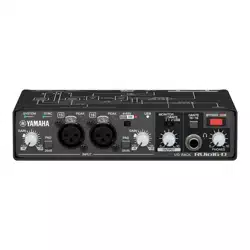
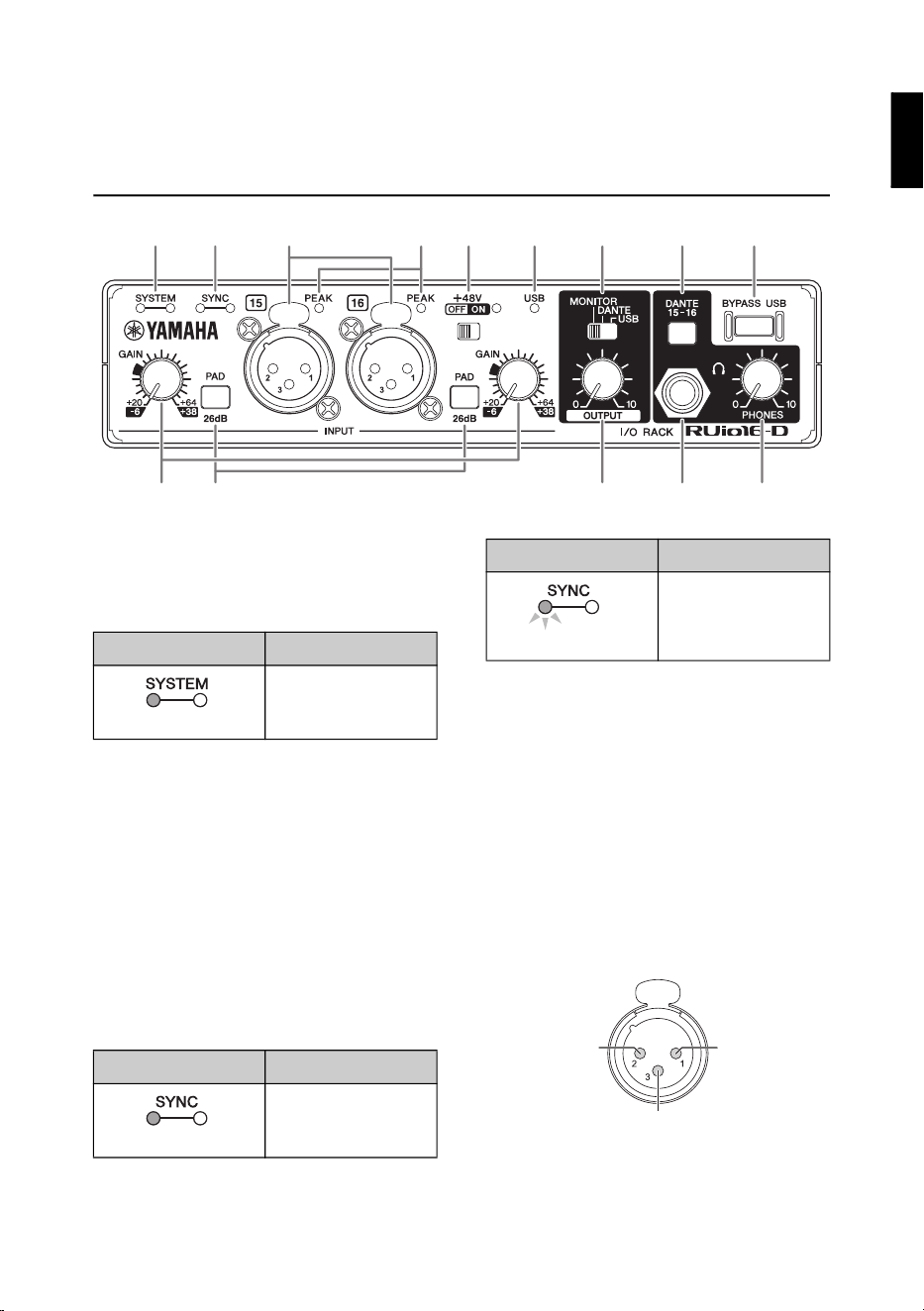
1 Dante [SYSTEM] indicators
These indicators show the operating
status of this unit.
An abnormality has occurred if you
have turned on the power but the
green indicator is dark and the red
indicator is either lit or flashing. If this
happens, refer to “Messages”
(page 20).
2 Dante [SYNC] indicators
These indicators show the
synchronization status of the Dante
network and of this unit.
An abnormality has occurred if you
have turned on the power but the
green indicator is dark and the orange
indicator is either lit or flashing. If this
happens, refer to “Messages”
(page 20).
3 INPUT [CH15]/[CH16] jacks
These are XLR-type analog input
jacks.
The jack polarities are shown below
(IEC 60268).
1 2 5 6 7 8 9
@ # $
3
!)
4
Indicator display Operating status
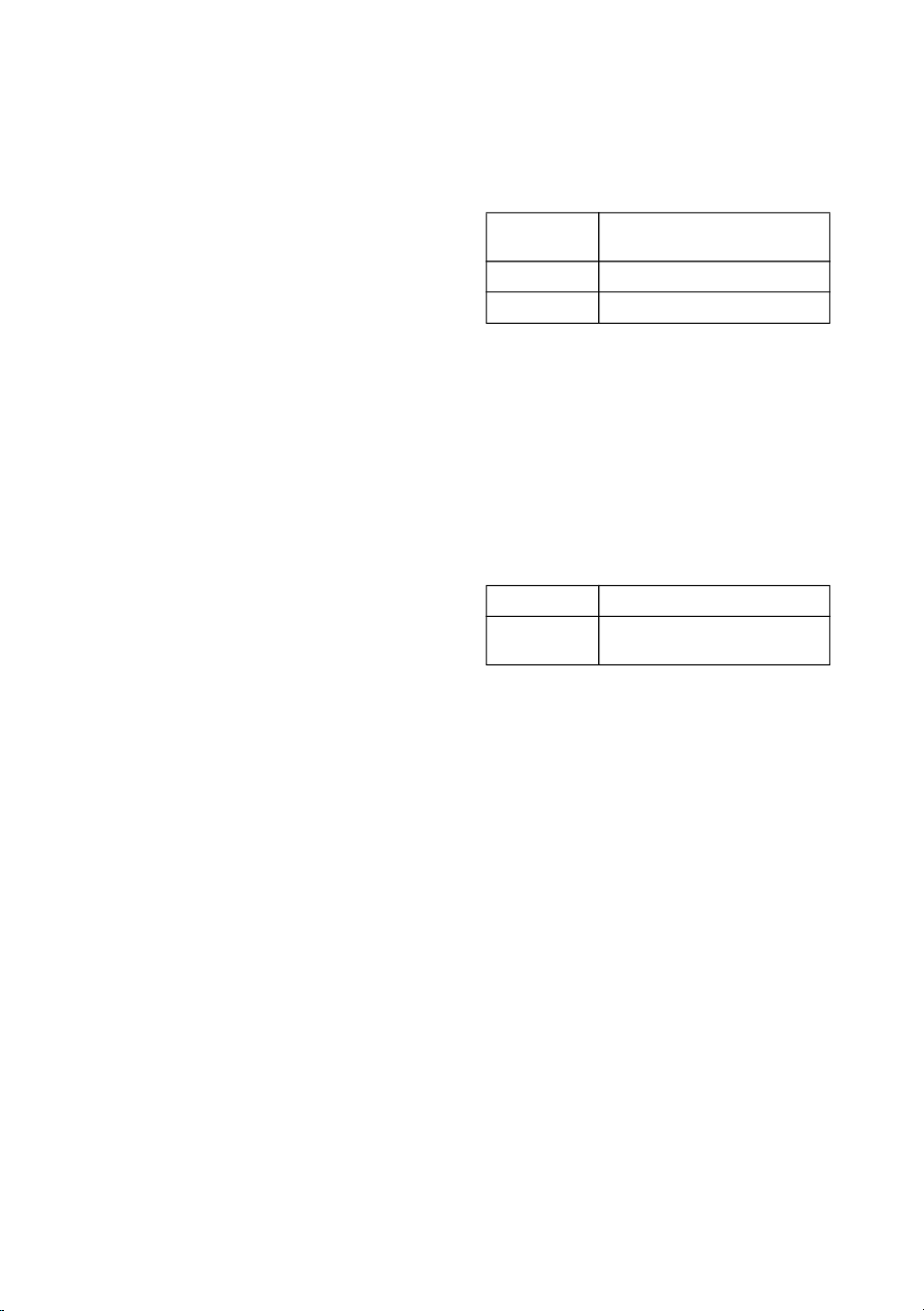
Normal
Indicator display Operating status
The unit is functioning
correctly as the word
clock follower.
Lights up green
Lights up green
The unit is functioning
correctly as the word
clock leader.
Indicator display Operating status
Flashes green
Hot Ground
Cold
RUio16-D Owner’s Manual
10
4 [PEAK] indicators
This indicator lights when the volume
of the input sound is too high (when it
is only 3 dB before clipping). If the
indicator lights frequently, turn the
[GAIN] knob to the left to lower the
volume.
5 [+48V] switch
Turns the phantom power (+48V) on
(lit) or off (unlit). When you turn this
switch on, phantom power will be
supplied to the XLR jack connected to
the INPUT [CH15]/[CH16] jacks. Turn
this switch on when using a phantom
powered condenser microphone.
NOTICE
When using phantom power, observe the
following to prevent this unit or any external
devices from malfunctioning, or from noise
being generated.
• Do not connect or disconnect any devices
while the phantom power switch is turned
on.
• Set the [OUTPUT] knob to the minimum
setting before turning the phantom power
switch on/off.
• When connecting devices not requiring
phantom power to the INPUT [CH15]/
[CH16] jacks, make sure to turn the
phantom power switch off.
NOTE
When the phantom power switch is turned on/
off, the input signals from INPUT [CH15]/
[CH16] will be muted for several seconds.
6 [USB] indicator
This indicator lights up when the power
is turned on and the unit is able to
communicate with the computer. The
indicator blinks when the unit cannot
communicate with the computer.
7 [MONITOR/DANTE/USB]
switch
This switch lets you select the signal to
be output to the OUTPUT jacks.
If the unit is not connected to a
computer, the [USB] setting outputs
the Dante 15/16 or INPUT 15/16
signals, and the [MONITOR] setting
outputs the INPUT 15/16 signals.
8 [DANTE 15-16] switch
This switch lets you select the signal to
be output to the PHONES jack.
If the unit is not connected to a
computer, the INPUT 15/16 signals are
output when this is switched off.
9 [BYPASS USB] switch
When this is turned on, input/output to
and from the computer will be
bypassed and the audio will be output
as-is without going through the
computer. This reduces noises that
may occur if VST Rack has stopped
operating or if incorrect audio data has
been output due to a problem with
your computer.
The switch will light red when bypass
is active.
MONITOR USB from PC (MONITOR L/R
(17/18))
DANTE Dante input 15/16
USB USB from PC 15/16
Switched on Dante input 15/16
Switched off USB from PC (MONITOR L/R
(17/18))
RUio16-D Owner’s Manual
11
NOTE
• In combination with VST Rack, this offers a
function for detecting any abnormalities that
may have occurred on the computer and
automatically turning the bypass on.
• The unit continuously operates in bypass
mode when not connected to a computer.
) [GAIN] knob
Adjusts the input signal level from the
INPUT jacks.
! [PAD] switch
When this is turned on, the levels of
sound inputted to this unit will be
attenuated. Turn this on if the sound is
distorting or if the [PEAK] indicators
are lighting up.
NOTE
A noise may be heard when you operate this
switch. Set the [GAIN] knob to minimum (0)
before using this switch.
@ [OUTPUT] knob
Adjusts the output signal level from the
[OUTPUT +4dBu] jacks.
# [PHONES] jack
Connect your headphones here. The
jack supports stereo phone plugs.
$ [PHONES] knob
Adjusts the output signal level for the
headphones.
About output
When this unit is starting up and
you press the [BYPASS USB]
switch, the signal from the
computer can be output once the
switch’s light turns off.
The unit is continuously in bypass
mode when not connected to a
computer.
RUio16-D Owner’s Manual
12
Rear Panel
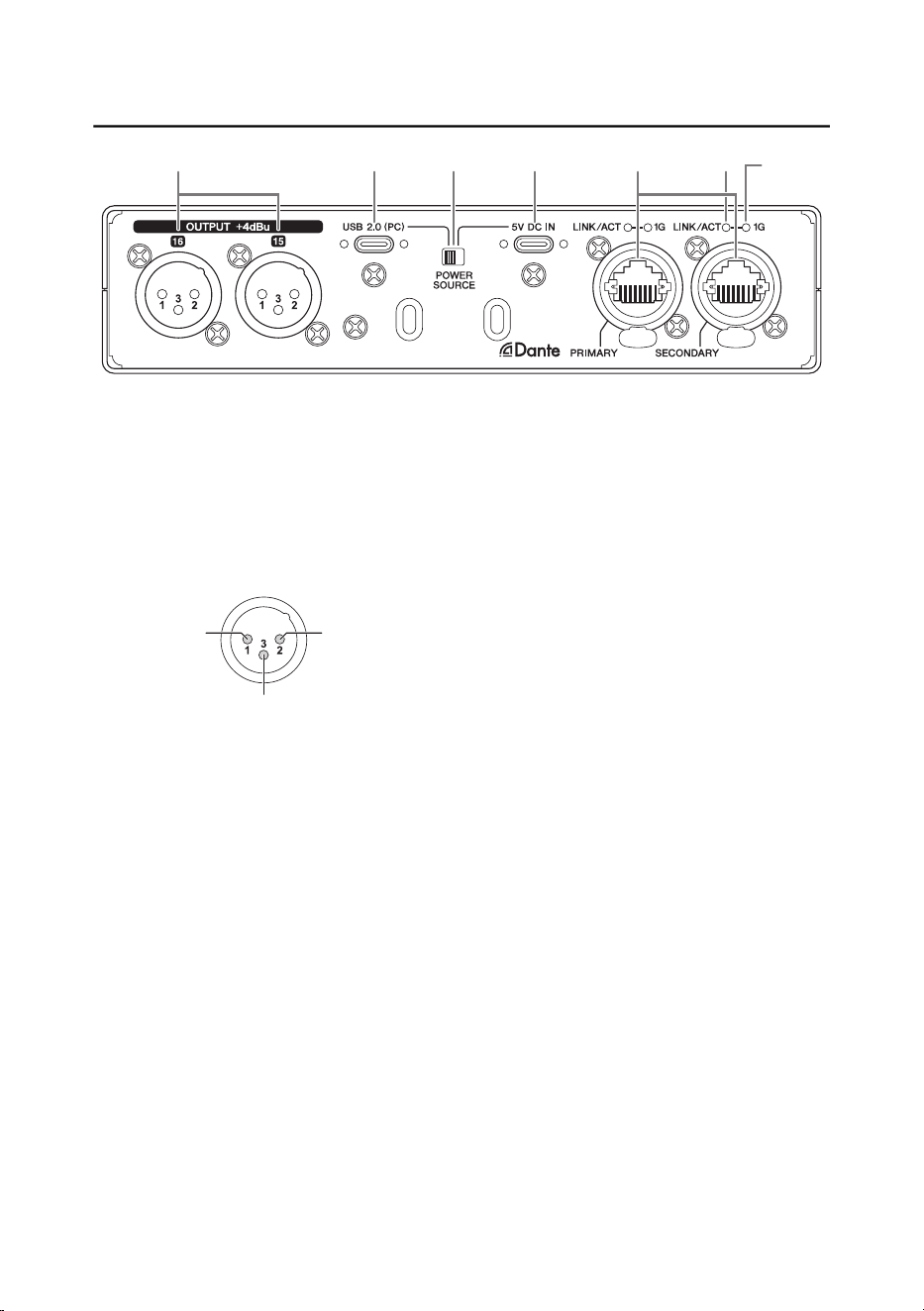
1 [OUTPUT +4dBu] jacks
These are XLR-type analog output
jacks. Connect an analog mixer,
monitor speakers or related equipment
here. You can adjust the output level
with the [OUTPUT] knob on the front
panel of this unit.
2 [USB 2.0 (PC)] port
Connect your computer to this port.
NOTICE
When connecting your computer to the
[USB 2.0 (PC)] port, observe the following
to prevent the computer or this unit from
freezing or shutting down, which could lead
to data loss.
• Observe the following before connecting/
disconnecting the USB cables.
- Quit all open software applications.
- Check whether data is still being
transmitted from this unit.
• Wait at least six seconds between
connecting/disconnecting the USB
cables.
• Make sure to use the USB cables included
with this unit.
3
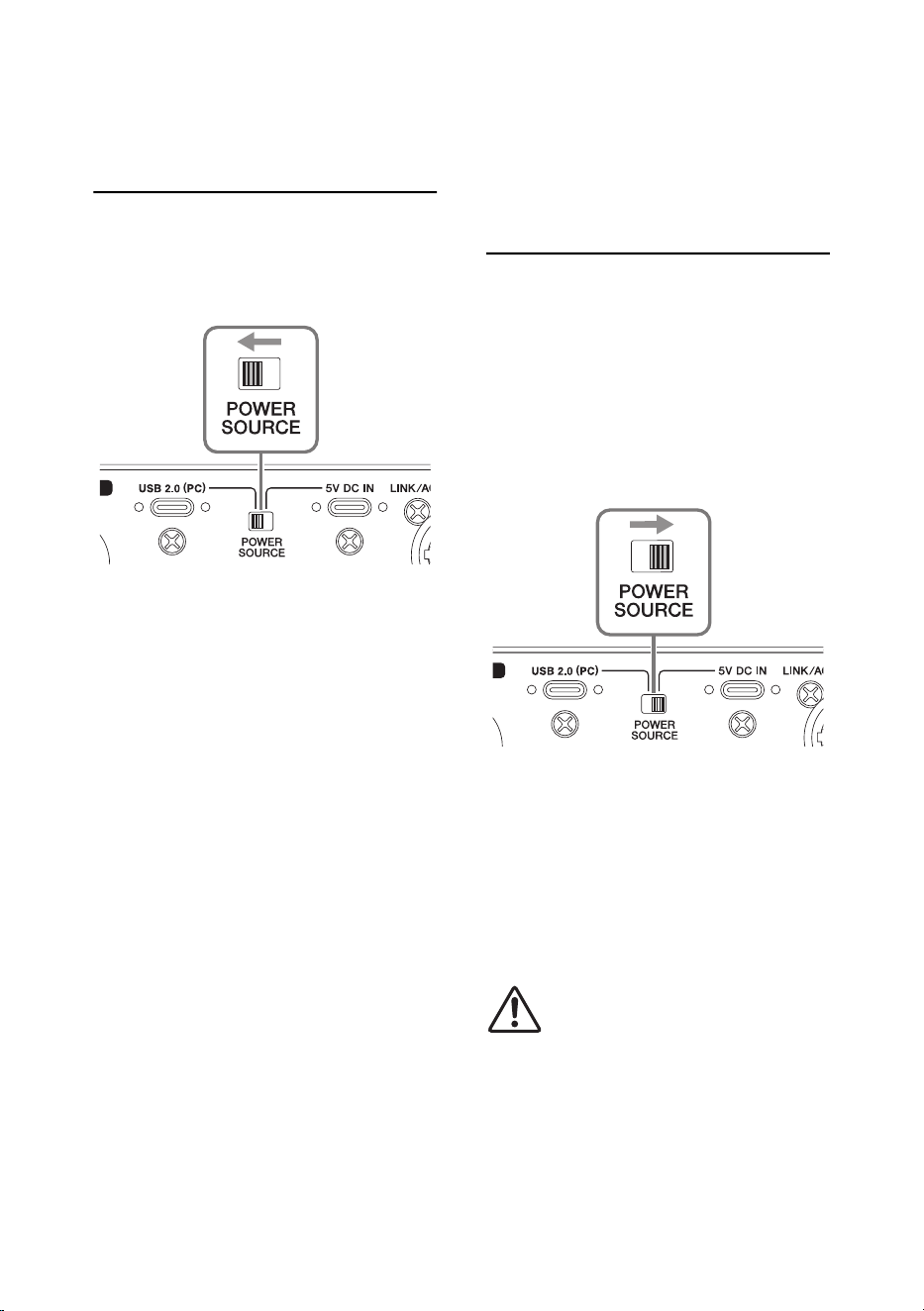
[POWER SOURCE] switch
This switch selects the jack used to
supply power on this unit. Switch this
to “USB 2.0 (PC)” to supply power
from the [USB 2.0 (PC)] jack, or switch
this to “5V DC IN” to supply power
from the [5V DC IN] jack.
4 [5V DC IN] jack
For connecting a USB power adapter
or USB mobile battery. Connect a USB
type-C cable to this jack.
Use a power supply when connecting
this unit to a computer that does not
supply sufficient bus power. (This unit
does not include a USB power adapter
or USB mobile battery.)
NOTICE
• Read the safety precautions for the USB
power adapter that you are using.
• Use a USB power adapter that can supply
power via USB cable.
Output voltage: 4.8–5.2 V
Output current: 1.5 A or greater
2 4 63 751
HotGround
Cold
RUio16-D Owner’s Manual
13
5 Dante [PRIMARY] connector
Dante [SECONDARY]
connector
This is an etherCON jack to which you
connect Dante-enabled devices like a
Yamaha digital mixer, using an
Ethernet cable (CAT5e or better is
recommended).
NOTICE
Use an STP (shielded twisted pair cable) to
avoid electromagnetic interference. Make
sure that the gold part of the connector and
the cable shield are securely in contact by
using conductor tape or similar material.
NOTE
• The etherCON latch faces downward on this
product. Use caution when unplugging the
cable.
• Do not connect devices besides those which
are Dante-enabled or support GbE
(including computers).
• Cables up to a length of 100 m
*1
can be
used.
*1: This length may differ depending on the
cable type.
• Do not use the EEE function
*2
of network
switches in a Dante network.
Although power management should be
negotiated automatically in switches that
support EEE, some switches do not perform
the negotiation properly.
This may cause EEE to be enabled in Dante
networks when it is not appropriate, resulting
in poor clock synchronization performance
and occasional audio dropouts.
Therefore, we strongly recommend the
following:
- When using a managed switch, turn off the
EEE function on all ports used by Dante.
Do not use a switch on which the EEE
function cannot be disabled.
- For unmanaged switches, do not use a
switch that supports the EEE function.
These switches cannot turn off the EEE
function.
*2: EEE (Energy Efficient Ethernet) is a
technology that reduces switch power
consumption the Ethernet devices during
periods of low network traffic. This is also
known as Green Ethernet or IEEE802.3az.
6 [LINK/ACT] indicators
These indicators flash when the Dante
[PRIMARY]/[SECONDARY] connectors
are connected to a Dante network.
7 [1G] indicators
These indicators light up when the
Dante [PRIMARY]/[SECONDARY]
connectors are connected to a Dante
network on a gigabit connection.
Using the 5V DC IN jack
Even when this unit is connected
to a computer, you can power this
unit from an external power supply
via the [5V DC IN] jack if the
[POWER SOURCE] switch is
switched to [5V DC IN]. Using an
external power supply prevents
the unit from operating erratically
due to insufficient power from your
computer’s USB port, and
prevents noise-related problems
caused by the power supply.
RUio16-D Owner’s Manual
14
Before Using This Product
Using with USB Bus Power
1. Move the [POWER SOURCE]
switch on the rear panel to the
left.
2. Connect the included USB cable
to the [USB 2.0] port on the rear
panel.
3. Connect the included USB cable
to the USB type-C port on the
computer.
4. The indicators on the front panel
light when the power is turned
on.
NOTE
• Use a USB type-C to USB type-C cable
when powering this unit via USB bus power.
• There may not be enough power supplied
from the computer, depending on the
computer’s specs or heat produced. This
may cause the RUio16-D to operate
unpredictably. To ensure stable operations,
use a USB power adapter.
Using with a USB Power
Adaptor or USB Mobile
Battery
If the power supplied via bus power is
insufficient, external power may need
to be supplied from a commercially
available USB power adapter or USB
mobile battery.
1. Move the [POWER SOURCE]
switch on the rear panel to the
right.
2. Insert the plug of the USB power
adapter or USB mobile battery
into the [5V DC IN] port on the
rear panel.
3. The indicators on the front panel
light when the power is turned
on.
WARNING
Before turning on the power, be sure to set
the [GAIN] knob to the minimum setting.
Failure to do so may result in hearing loss,
electric shock, or damage to the device.
NOTE
Switching the [POWER SOURCE] switch will
temporarily reset this unit.
RUio16-D Owner’s Manual
15
Basic Operations
With this unit, you can process the signals from a Dante-enabled device such a
digital mixer that are coming into input channels 1–16, send them to your computer
via USB, process the signals using the effects in VST Rack, output the resulting
signals via Dante channels 1–16 and play them back on the Dante-enabled device.
NOTE
• Use the Dante Controller for Dante audio patching.
• Check the sounds below in your headphones as necessary.
DANTE 15-16 switch OFF: MONITOR L/R (17/18) on your computer
DANTE 15-16 switch ON: Dante 15/16 input to this unit
Example Using Analog Input/Output
You can use analog I/O channels 15/16 for various applications while applying
effects to the signals of Dante channels 1–14.
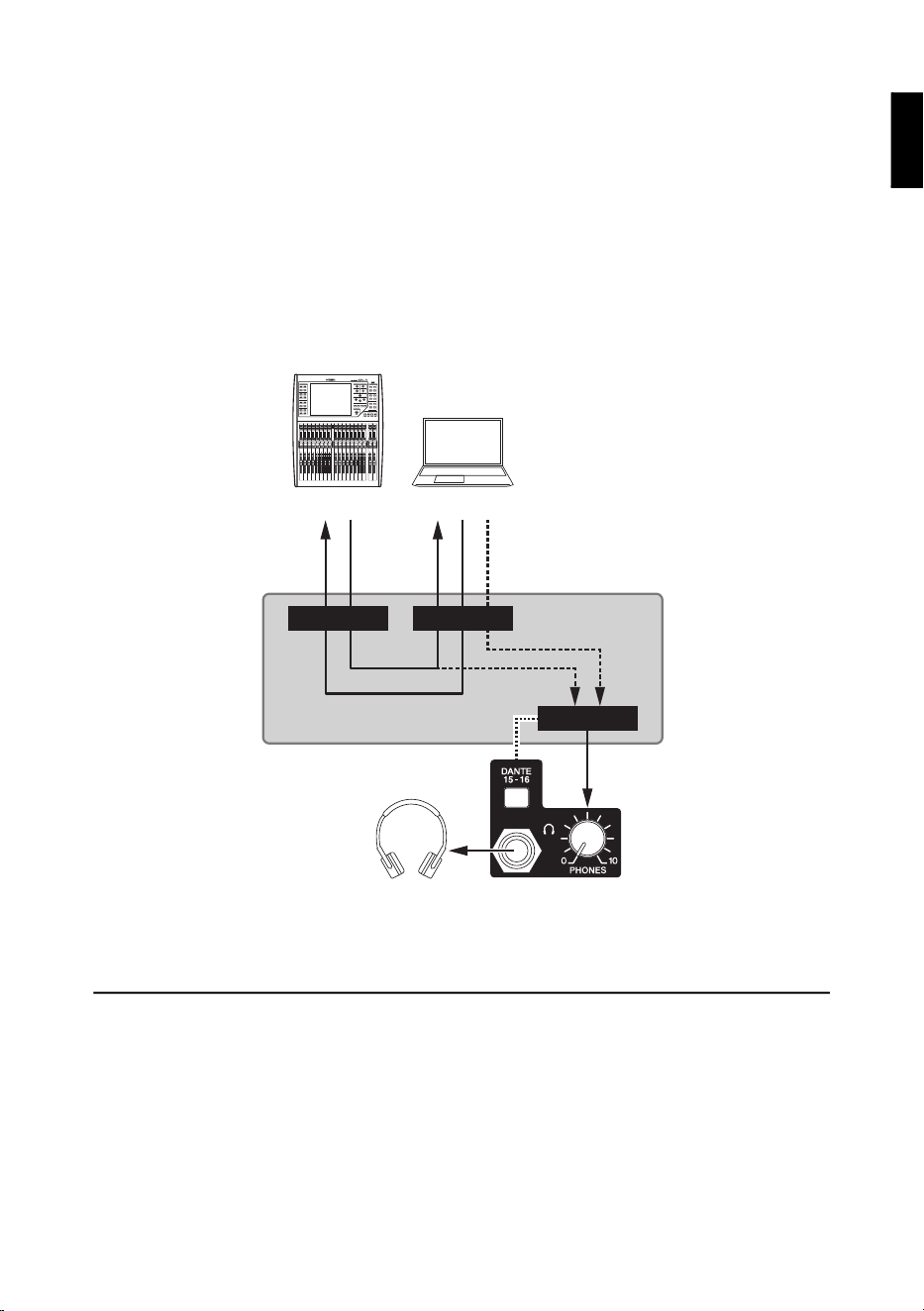
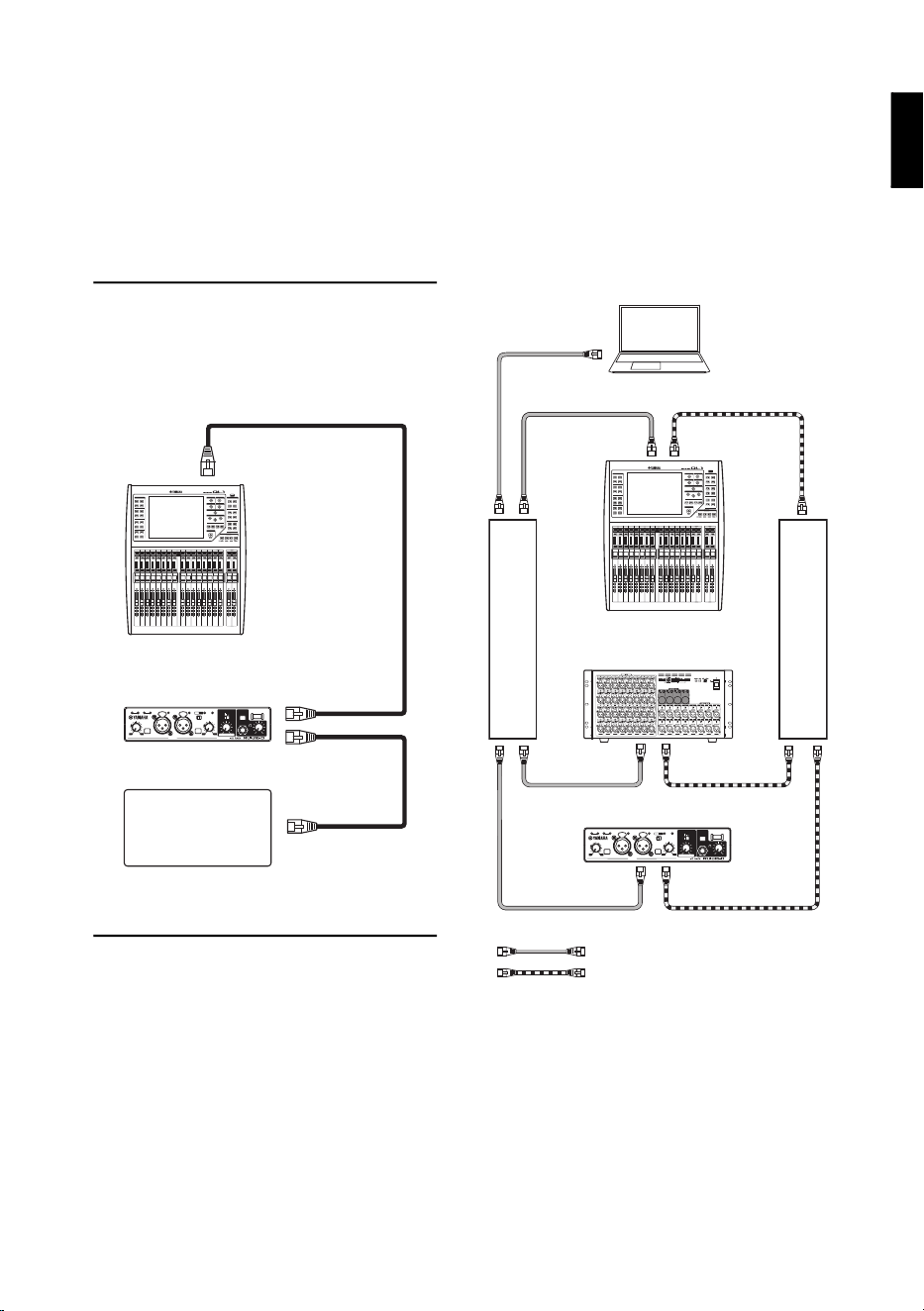
Example 1: Using the unit as a two-channel effect processor for
an analog mixer
• This processes the audio signal from analog input jacks 15/16 using the effects in VST
Rack, and outputs to analog.
Set the [MONITOR/DANTE/USB] switch to “USB.”
USBDante
VST Rack
RUio16-D
Volume adjustment
Ch 1-16
Ch 1-16
Ch 1-16
Ch 1-16
MONITOR
LR
Ch 15-16
Switch
Digital mixer Computer
Headphones
RUio16-D Owner’s Manual
16
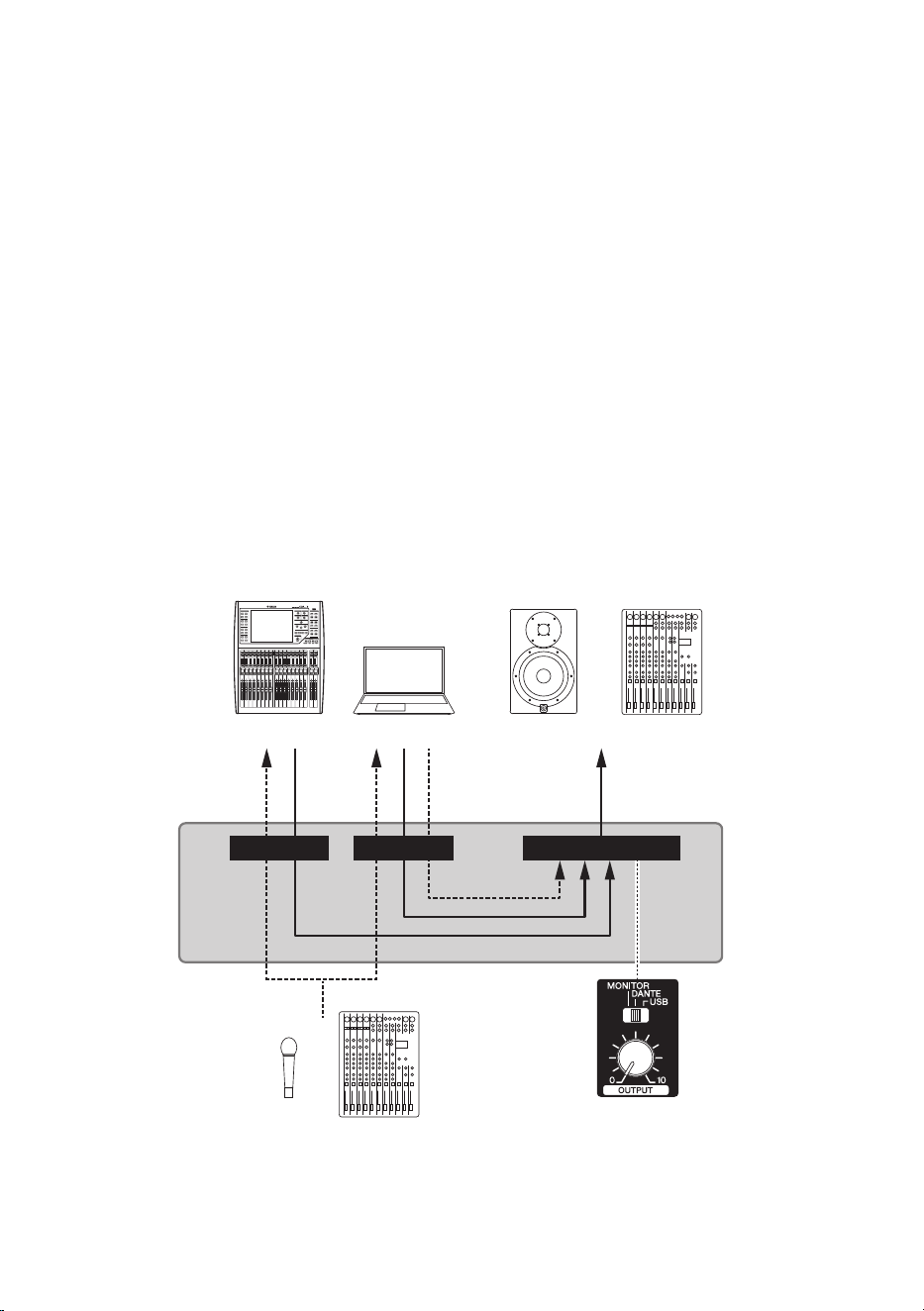
Example 2: Sending audio (such as a mic signal) to a Dante-
enabled device
• This sends the audio from devices connected to INPUT 15/16 to DANTE 15/16.
Example 3: Listening to audio from your computer or Dante via
monitor speakers
• This outputs the analog signal from the computer’s MONITOR L/R.
Set the [MONITOR/DANTE/USB] switch to “MONITOR.”
• This outputs the analog signal that is input from DANTE 15/16.
Set the [MONITOR/DANTE/USB] switch to “DANTE.”
NOTE
• When connecting to the INPUT 15/16 jacks, the analog signal is sent to the Dante output and to the
computer via USB.
• You can also use the PHONES output.
• To listen to the sound from your computer without using VST Rack, select “RUio16-D MONITOR L/
R” as the playback audio device, and set the OUTPUT switch to “MONITOR.”
• When bringing in the sound from INPUT 15/16 using software other than VST Rack, select
“RUio16-D 15–16” as the recording audio device. Note that you may not be able to select this
device depending on the OS and software.
USBDante
VST Rack
RUio16-D
Volume adjustment
Ch 1-16
Ch 1-16
Ch 1-16
Ch 1-16
MONITOR
LR
Ch 15/16
OUTPUT SWITCH
Digital mixer Computer Monitor speakers or analog mixer
Mic or analog mixer
RUio16-D Owner’s Manual
17
How to Connect via
Dante
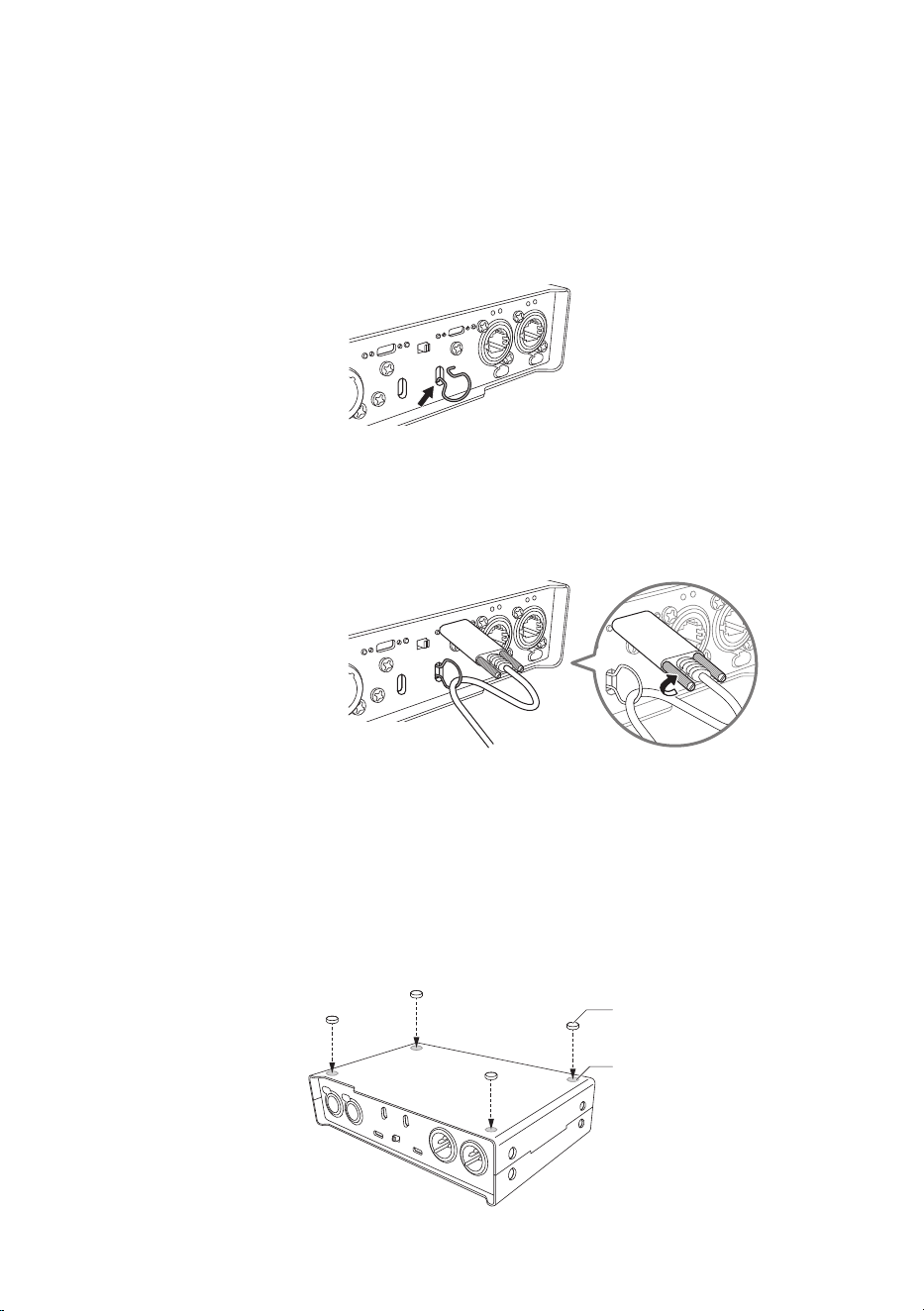
There are two ways to connect this
product to a Dante network.
Daisy Chain Network
A daisy chain is a wiring scheme in
which multiple devices are connected
together in sequence. In this way,
networking is simple and requires no
network switches.
Star Connection
With a star connection, the network
switches are at the center of the
network, to which other devices are
connected. This kind of connection will
also support large-scale networks over
a wide range of bands, through the
use of network switches that support
GbE. For star connections, we
recommend using network switches
that offer a variety of functions to
control and monitor networks (such as
clock synchronization of desired data
lines, QoS for prioritizing audio
transmission and so on).
Also, by creating a redundant network
when using a star connection, you can
build an environment that is much
more robust in terms of failure than a
daisy-chain network.
NOTE
• This product is set up for use in a daisy chain
by factory default. If you wish to use a star
connection, configure the settings with Dante
Controller.
• See the Audinate website for more
information on Dante.
RUio16-D
Other Dante-
enabled device
Digital mixer
PRIMARY
PRIMARY
SECONDARY
RUio16-D
Primary Dante
Secondary Dante
Digital mixer
Computer (Dante Controller)
Network switch A
Network switch B
Audio I/O
RUio16-D Owner’s Manual
18
Attaching the Cable Hook
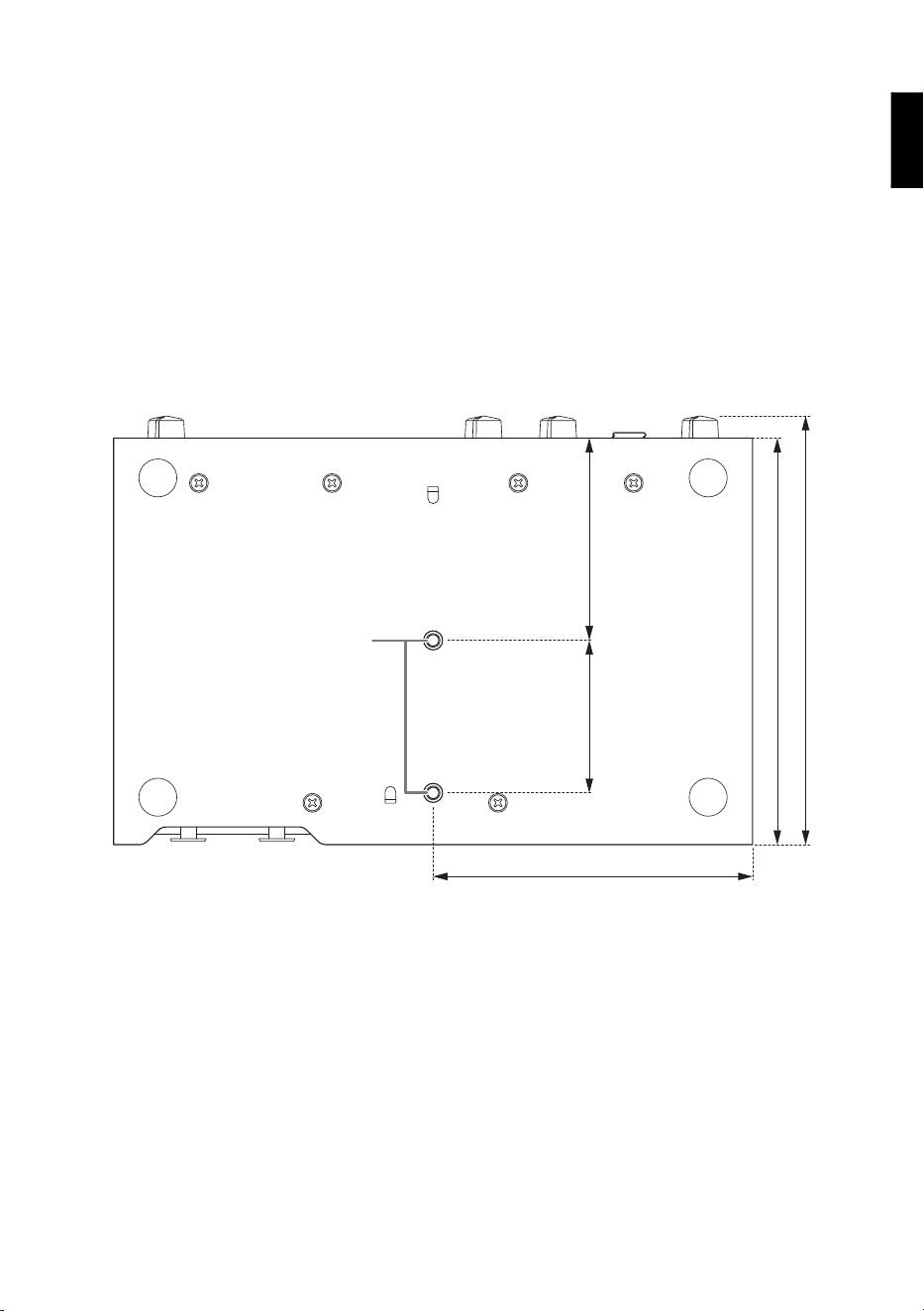
Use the following steps to attach the cable hook that is included with this product, if
you will use it. The cable hook helps prevent the USB cable from being accidentally
yanked out during recording or in other situations.
1. Insert one of the tips of the cable hook that is included with this unit into
the bottom part of the security slot, located at the center of the rear panel.
2. Squeeze the other side of the hook and insert the other tip into the top part
of the security slot.
3. Thread the USB cable through the cable hook, and plug the USB connector
into the USB port.
Twist the screws clockwise on the USB cable to lock it in place.
Attaching the Rubber Feet
Attach the rubber feet onto this product if you will be using it on a table or platform
with a slippery surface.
Attach the rubber feet in the positions shown in the illustration, and place the unit on
a level surface.
Rubber feet
Guides for attaching
the rubber feet
RUio16-D Owner’s Manual
19
Installing in a Rack
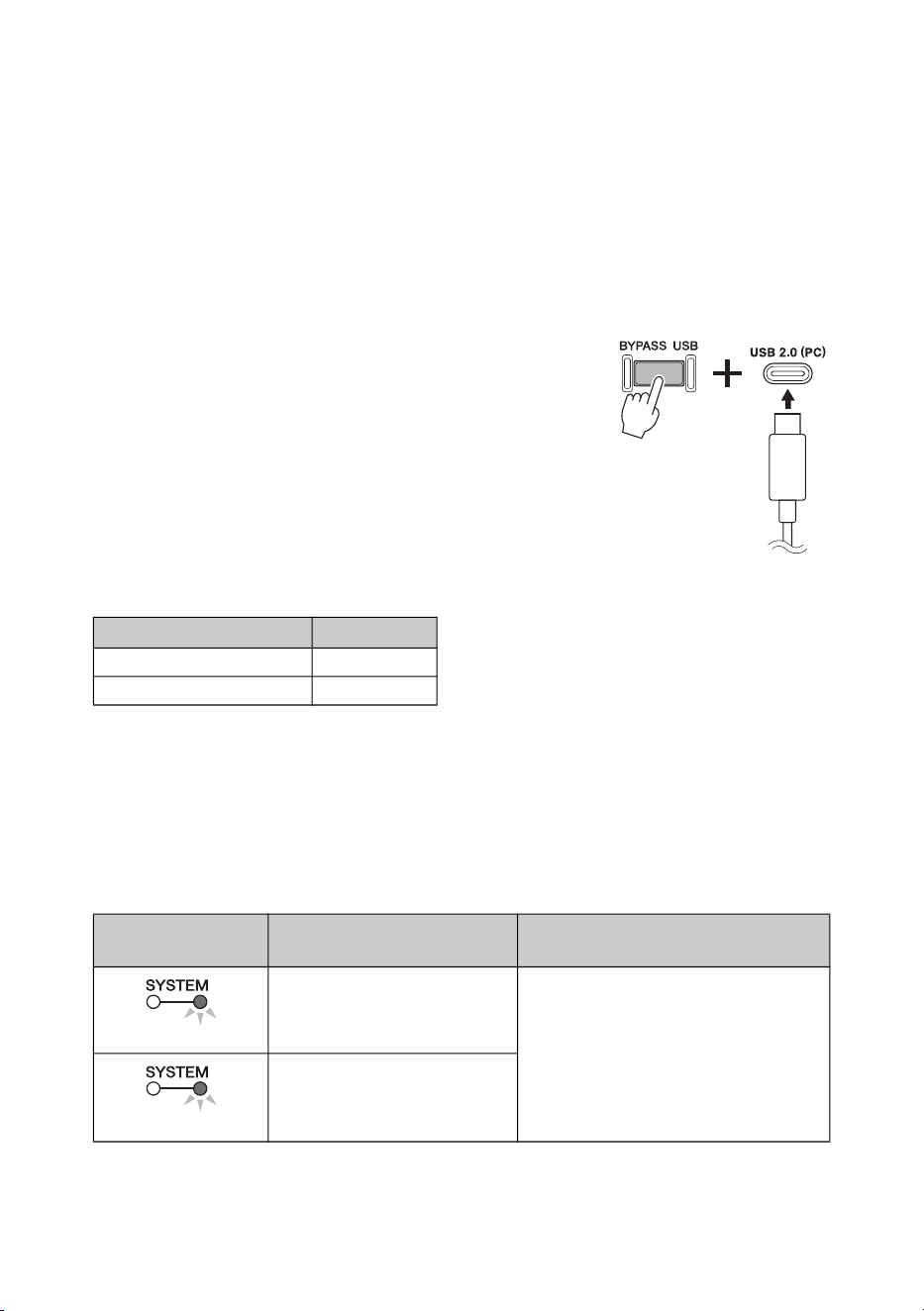
You can install this unit onto a standard 19-inch rack shelf, using screws to hold it in
place.
Have ready two small M4 screws with a 0.7 mm pitch and a length of 6 mm. Line the
threads of the screws up with those of the screw holes at the bottom of this unit, and
install the screws into the panel. Check the dimensional drawing for the hole
positions.
NOTICE
• The rubber feet should not be attached when using screws to hold the RUio16-D in place.
• Make sure that the mounted screws are sufficiently tightened.
NOTICE
This unit is rated for operation at ambient temperatures ranging from 0 to 40 degrees Celsius.
When mounting the unit with other devices in a rack, the heat generated from other devices
can cause the overall temperature inside the rack to rise, which may have an adverse effect on
the performance of this unit. Be sure to observe the following requirements when rack-
mounting this unit to avoid heat buildup:
• When mounting the unit in a rack with devices such as power amplifiers that generate a
significant amount of heat, leave at least 1U of space between this unit and other equipment.
Also, either leave the open spaces uncovered or install appropriate ventilating panels to
maintain sufficient air flow.
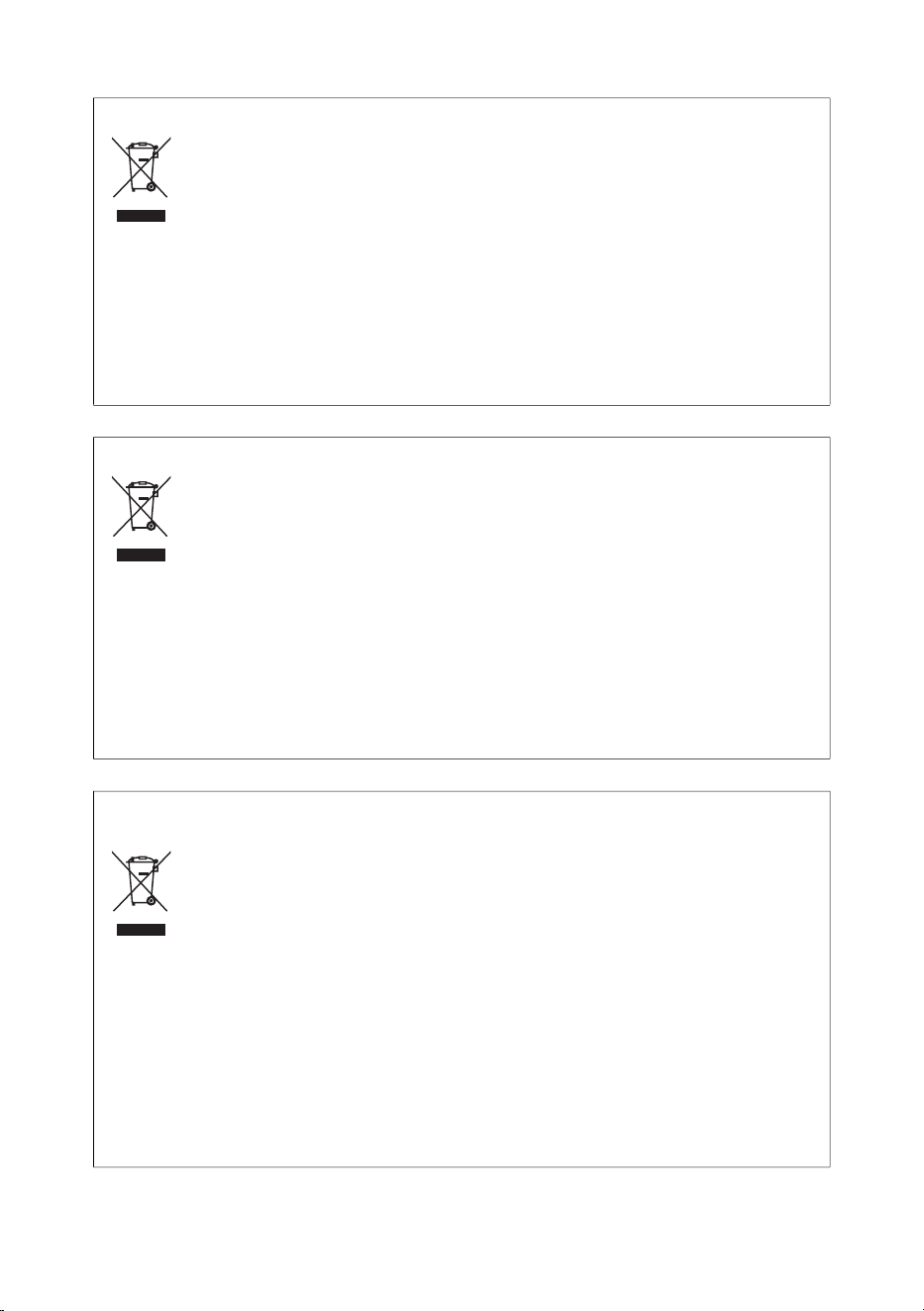
114.4
121
90
5743
Units: mm
Bottom of this unit
M4 screw hole positions
RUio16-D Owner’s Manual
20
Restoring the Factory Default Settings
(Initialization)
Follow the steps below to initialize this device if you wish to reset the parameters
configured using VST Rack or reset the Dante Broadway settings to their factory
defaults.
1. Unplug the USB cable from the [5V DC IN] and [USB 2.0 (PC)] ports, and
turn off the power.
2. Insert the USB cable while holding down the
[BYPASS USB] switch on the front panel of this
unit.
All indicators on the front panel will flash while
initialization is in progress.
Once initialization is finished, all indicators will go dark,
and then return to their normal lit status.
The following parameters will change as a result of
initialization.
Messages
Errors, warnings, and other information messages on the RUio16-D are displayed
via the front panel indicators.
Error message
Parameter Setting
Dante Device ID 1
Bypass enable/disable Enabled
[SYSTEM]
indicators
Description Status
An internal error has occurred. The device has failed. Contact your
Yamaha dealer for repair.
Communication cannot occur
because the MAC address
setting has been corrupted.
Flashes red x2
Flashes red x3
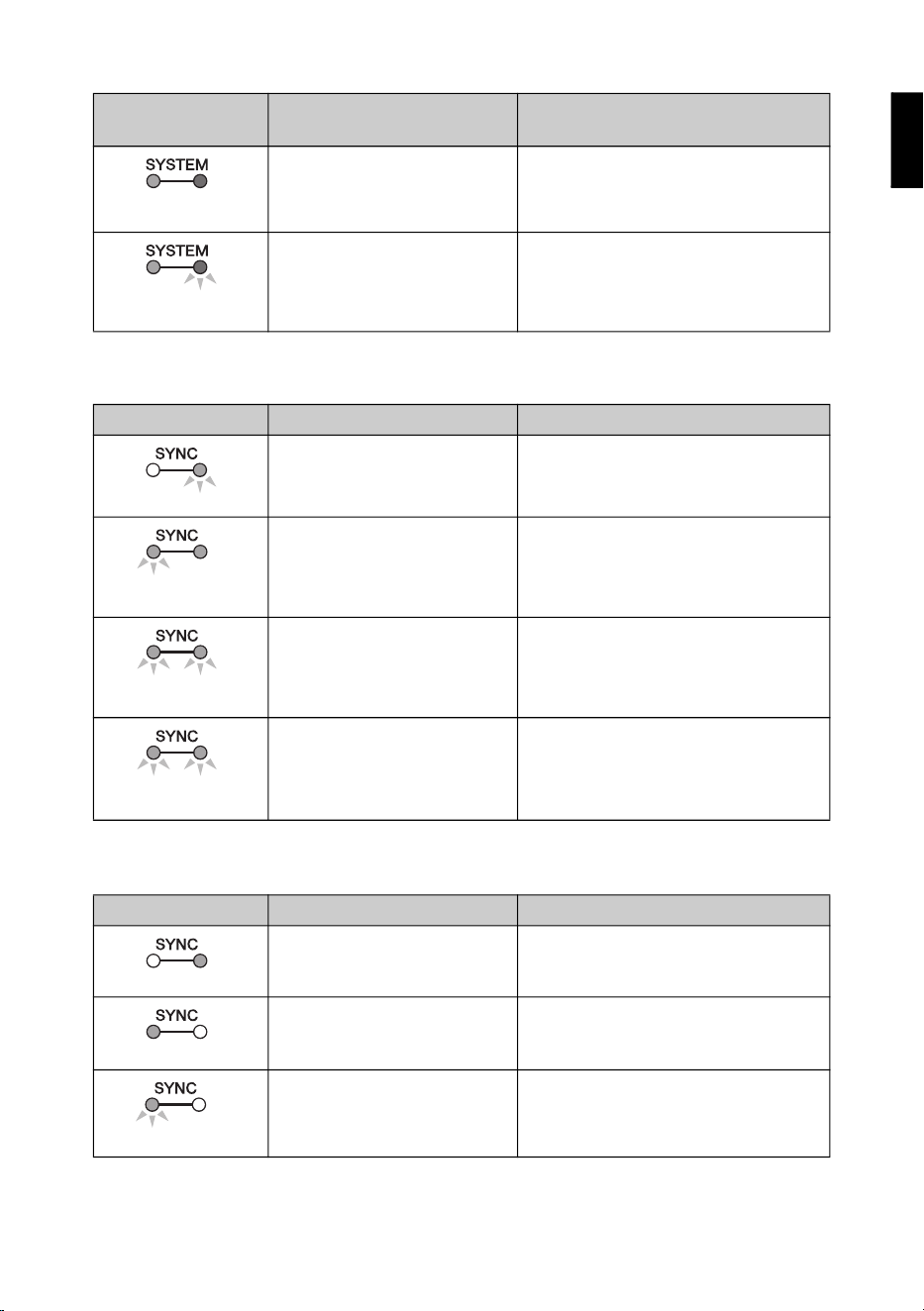
RUio16-D Owner’s Manual
21
Warning Messages
Information Messages
As the settings have been
changed using the Dante
Controller, they do not match the
actual Dante settings.
If the Device Lock setting was enabled
from Dante Controller, disable the setting.
The internal memory has been
corrupted.
If the problem persists even after turning
the power off and on again, consult your
Yamaha dealer for repair.
[SYNC] indicators Description Status
The Dante network line is not
connected.
Make sure that the Ethernet cables have
not been removed or short-circuited.
A non-GbE-compatible device is
connected.
When transferring audio via Dante, use a
device that supports GbE.
The [SECONDARY] connector
has taken over communications
during redundant network
operation.
Check the line connected to the
[PRIMARY] connector.
An abnormality has occurred on
the circuit connected to the
[SECONDARY] connector during
redundant network operation.
Check the circuit connected to the
[SECONDARY] connector.
[SYNC] indicators Description Status
Now synchronizing within the
Dante network.
Please wait until the unit finishes starting
up or until finishes synchronization. This
may take up to 45 seconds to complete.
The unit is functioning correctly
as the word clock follower.
This indicates that the device is operating
as the word clock follower and the clock is
synchronized.
The unit is functioning correctly
as the word clock leader.
The unit is operating as the word clock
leader.
[SYSTEM]
indicators
Description Status
Lights up
green
Lights up
red
Flashes
red x3
Lights up
green
Flashes orange x2
Lights up green
or flashes
Lights up
orange
Lights up green
or flashes
Flashes
orange
Lights up green
or flashes
Flashes
orange x2
Lights up orange
Lights up green
Flashes green
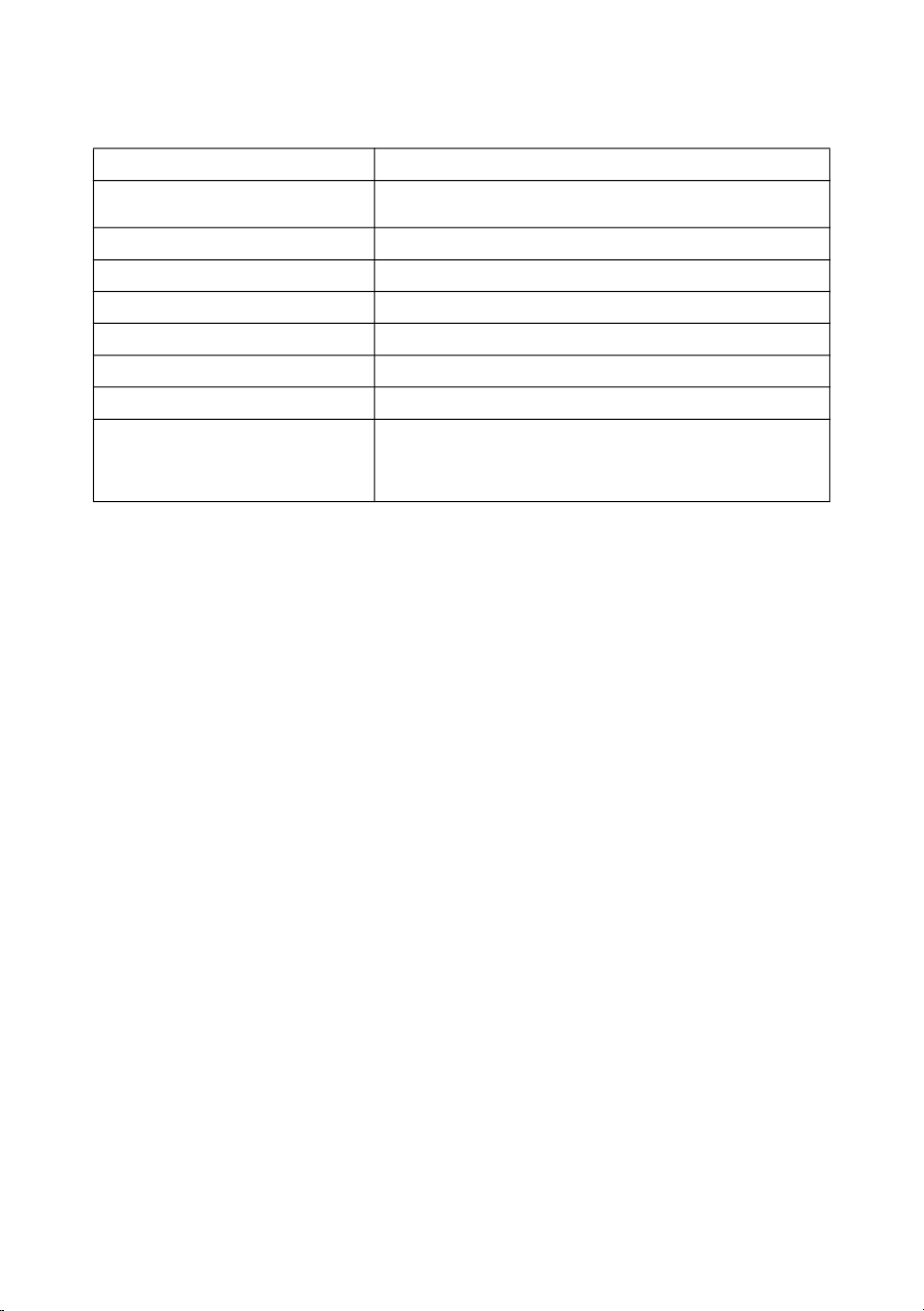
RUio16-D Owner’s Manual
22
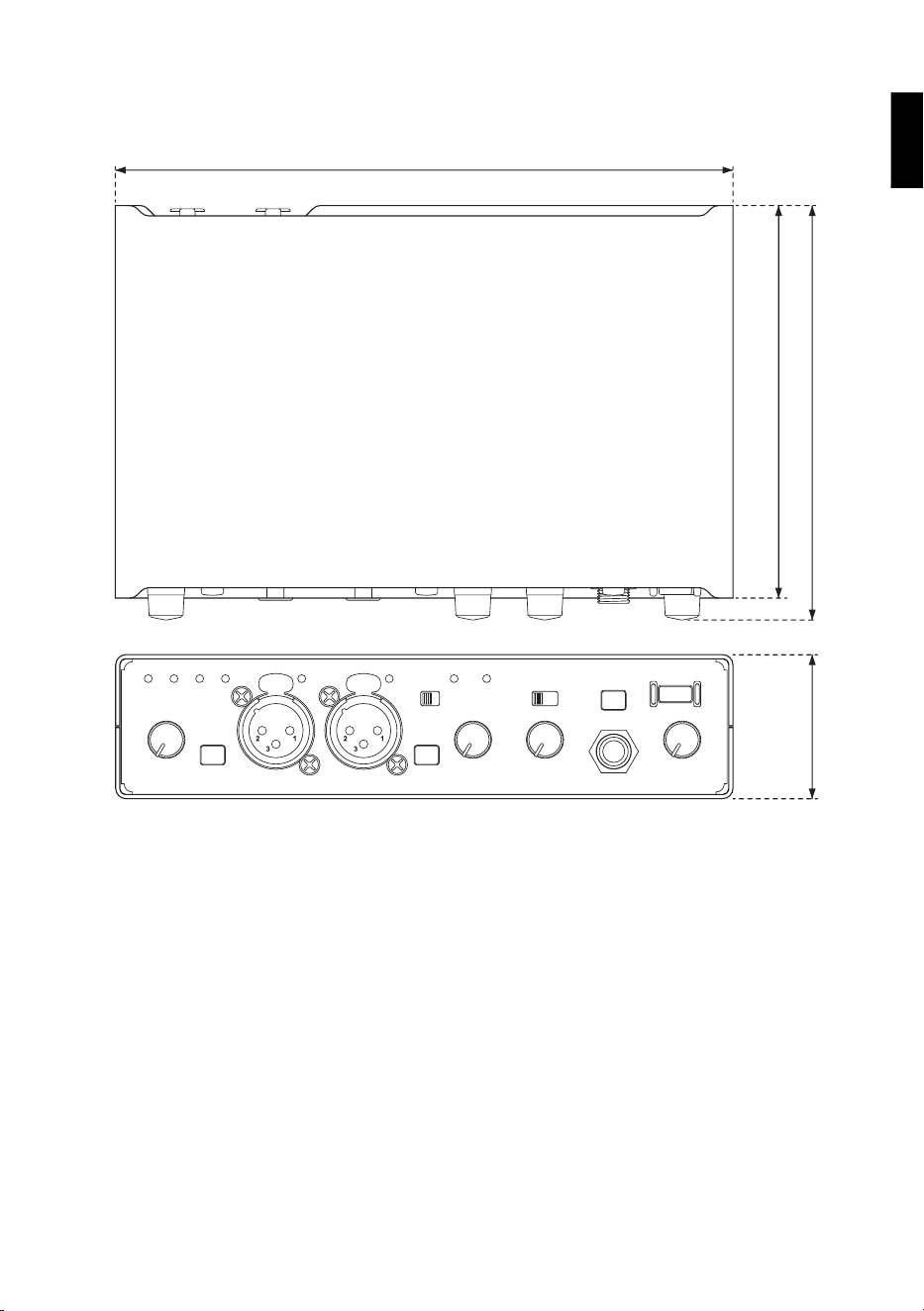
General Specifications
The contents of this manual apply to the latest specifications as of the date of publication. Visit the Yamaha
website to download the latest version of this manual.
Sampling frequencies
44.1 kHz, 48 kHz, 88.2 kHz, 96 kHz
Signal delay
Less than 250 µs, Analog IN to Analog OUT @fs=96 kHz,
BYPASS USB mode
Power supply and voltage
5 V/1.5 A
Power requirements
7.5 W
Dimensions (W × H × D)
180 mm × 42 mm × 121 mm
Weight
1.0 kg
Operating temperature range
0–40°C
Storage temperature range
-20–60°C
Included accessories
USB 2.0 cable (type-A to type-C, 1.5 m) × 1,
USB 2.0 cable (type-C to type-C, 1.5 m) × 1,
cable hook × 1, rubber feet × 4, Owner’s Manual × 1,
VST Rack Pro Download Information × 1
RUio16-D Owner’s Manual
23
Dimensions
Units: mm
42
114.4
䠍䠎䠍
180
RUio16-D Owner’s Manual
(weee_eu_en_02)
(weee_eu_de_02)
(weee_eu_fr_02)
Information for users on collection and disposal of old equipment:
This symbol on the products, packaging, and/or accompanying documents means that used electrical and
electronic products should not be mixed with general household waste.
For proper treatment, recovery and recycling of old products, please take them to applicable collection
points, in accordance with your national legislation.
By disposing of these products correctly, you will help to save valuable resources and prevent any potential
negative effects on human health and the environment which could otherwise arise from inappropriate
waste handling.
For more information about collection and recycling of old products, please contact your local municipality, your waste
disposal service or the point of sale where you purchased the items.
For business users in the European Union:
If you wish to discard electrical and electronic equipment, please contact your dealer or supplier for further information.
Information on Disposal in other Countries outside the European Union:
This symbol is only valid in the European Union. If you wish to discard these items, please contact your local authorities
or dealer and ask for the correct method of disposal.
Verbraucherinformation zur Sammlung und Entsorgung alter Elektrogeräte
Befindet sich dieses Symbol auf den Produkten, der Verpackung und/oder beiliegenden Unterlagen, so
sollten benutzte elektrische Geräte nicht mit dem normalen Haushaltsabfall entsorgt werden.
In Übereinstimmung mit Ihren nationalen Bestimmungen bringen Sie alte Geräte bitte zur fachgerechten
Entsorgung, Wiederaufbereitung und Wiederverwendung zu den entsprechenden Sammelstellen.
Durch die fachgerechte Entsorgung der Elektrogeräte helfen Sie, wertvolle Ressourcen zu schützen, und
verhindern mögliche negative Auswirkungen auf die menschliche Gesundheit und die Umwelt, die
andernfalls durch unsachgerechte Müllentsorgung auftreten könnten.
Für weitere Informationen zum Sammeln und Wiederaufbereiten alter Elektrogeräte kontaktieren Sie bitte Ihre örtliche
Stadt- oder Gemeindeverwaltung, Ihren Abfallentsorgungsdienst oder die Verkaufsstelle der Artikel.
Information für geschäftliche Anwender in der Europäischen Union:
Wenn Sie Elektrogeräte ausrangieren möchten, kontaktieren Sie bitte Ihren Händler oder Zulieferer für weitere
Informationen.
Entsorgungsinformation für Länder außerhalb der Europäischen Union:
Dieses Symbol gilt nur innerhalb der Europäischen Union. Wenn Sie solche Artikel ausrangieren möchten, kontaktieren
Sie bitte Ihre örtlichen Behörden oder Ihren Händler und fragen Sie nach der sachgerechten Entsorgungsmethode.
Informations concernant la collecte et le traitement des déchets d’équipements
électriques et électroniques
Le symbole sur les produits, l'emballage et/ou les documents joints signifie que les produits électriques ou
électroniques usagés ne doivent pas être mélangés avec les déchets domestiques habituels.
Pour un traitement, une récupération et un recyclage appropriés des déchets d’équipements électriques et
électroniques, veuillez les déposer aux points de collecte prévus à cet effet, conformément à la
réglementation nationale.
En vous débarrassant correctement des déchets d’équipements électriques et électroniques, vous
contribuerez à la sauvegarde de précieuses ressources et à la prévention de potentiels effets négatifs sur la
santé humaine qui pourraient advenir lors d'un traitement inapproprié des déchets.
Pour plus d'informations à propos de la collecte et du recyclage des déchets d’équipements électriques et
électroniques, veuillez contacter votre municipalité, votre service de traitement des déchets ou le point de vente où vous
avez acheté les produits.
Pour les professionnels dans l'Union européenne :
Si vous souhaitez vous débarrasser des déchets d’équipements électriques et électroniques, veuillez contacter votre
vendeur ou fournisseur pour plus d'informations.
Informations sur la mise au rebut dans d'autres pays en dehors de l'Union européenne :
Ce symbole est seulement valable dans l'Union européenne. Si vous souhaitez vous débarrasser de déchets
d’équipements électriques et électroniques, veuillez contacter les autorités locales ou votre fournisseur et demander la
méthode de traitement appropriée.
RUio16-D Owner’s Manual
(weee_eu_es_02)
(weee_eu_pt_02a)
(weee_eu_it_02)
Información para usuarios sobre la recogida y eliminación de los equipos antiguos
Este símbolo en los productos, embalajes y documentos anexos significa que los productos eléctricos y
electrónicos no deben mezclarse con los desperdicios domésticos normales.
Para el tratamiento, recuperación y reciclaje apropiados de los productos antiguos, llévelos a puntos de
reciclaje correspondientes, de acuerdo con la legislación nacional.
Al deshacerse de estos productos de forma correcta, ayudará a ahorrar recursos valiosos y a impedir los
posibles efectos desfavorables en la salud humana y en el entorno que de otro modo se producirían si se
trataran los desperdicios de modo inapropiado.
Para obtener más información acerca de la recogida y el reciclaje de los productos antiguos, póngase en contacto con
las autoridades locales, con el servicio de eliminación de basuras o con el punto de venta donde adquirió los artículos.
Para los usuarios empresariales de la Unión Europea:
Si desea desechar equipos eléctricos y electrónicos, póngase en contacto con su vendedor o proveedor para obtener
más información.
Información sobre la eliminación en otros países fuera de la Unión Europea:
Este símbolo solo es válido en la Unión Europea. Si desea desechar estos artículos, póngase en contacto con las
autoridades locales o con el vendedor y pregúnteles el método correcto.
Informações para os utilizadores relativas à recolha e eliminação de equipamentos usados
Este símbolo, presente em produtos, embalagens e/ou incluído na documentação associada, indica que
os produtos elétricos e eletrónicos usados não devem ser eliminados juntamente com os resíduos
domésticos em geral.
O procedimento correto consiste no tratamento, recuperação e reciclagem de produtos usados, pelo que
deve proceder à respetiva entrega nos pontos de recolha adequados, em conformidade com a legislação
nacional em vigor.
A eliminação destes produtos de forma adequada permite poupar recursos valiosos e evitar potenciais
efeitos prejudiciais para a saúde pública e para o ambiente, associados ao processamento incorreto dos
resíduos.
Para mais informações relativas à recolha e reciclagem de produtos usados, contacte as autoridades locais, o serviço
de eliminação de resíduos ou o ponto de venda onde foram adquiridos os itens relevantes.
Informações para utilizadores empresariais na União Europeia:
Para proceder à eliminação de equipamento elétrico e eletrónico, contacte o seu revendedor ou fornecedor para obter
informações adicionais.
Informações relativas à eliminação em países não pertencentes à União Europeia:
Este símbolo é válido exclusivamente na União Europeia. Caso pretenda eliminar este tipo de itens, contacte as
autoridades locais ou o seu revendedor e informe-se acerca do procedimento correto para proceder à respetiva
eliminação.
Informazioni per gli utenti sulla raccolta e lo smaltimento di vecchia attrezzatura
Questi simboli sui prodotti, sull'imballaggio e/o sui documenti che li accompagnano, indicano che i
prodotti elettrici ed elettronici non devono essere mischiati con i rifiuti generici.
Per il trattamento, il recupero e il riciclaggio appropriato di vecchi prodotti, si prega di portarli ai punti di
raccolta designati, in accordo con la legislazione locale.
Smaltendo correttamente questi prodotti si potranno recuperare risorse preziose, oltre a prevenire
potenziali effetti negativi sulla salute e l'ambiente che potrebbero sorgere a causa del trattamento
improprio dei rifiuti.
Per ulteriori informazioni sulla raccolta e il riciclaggio di vecchi prodotti, si prega di contattare l’amministrazione
comunale locale, il servizio di smaltimento dei rifiuti o il punto vendita dove sono stati acquistati gli articoli.
Per utenti imprenditori dell'Unione europea:
Se si desidera scartare attrezzatura elettrica ed elettronica, si prega di contattare il proprio rivenditore o il proprio
fornitore per ulteriori informazioni.
Informazioni sullo smaltimento negli altri Paesi al di fuori dell'Unione europea:
Questi simboli sono validi solamente nell'Unione Europea; se si desidera scartare questi articoli, si prega di contattare le
autorità locali o il rivenditore e richiedere informazioni sulla corretta modalità di smaltimento.
RUio16-D Owner’s Manual
RUio16-D Owner’s Manual

雅马哈乐器音响(中国)投资有限公司
上海市静安区新闸路 1818 号云和大厦 2 楼
客户服务热线:4000517700
公司网址:https://www.yamaha.com.cn
厂名 : 雅马哈电子(苏州)有限公司
厂址 : 江苏省苏州市苏州新区鹿山路 18 号
Manual Development Group
© 2021 Yamaha Corporation
Published 08/2021
2021
年
8
月 发行
MWES-A0
Yamaha Pro Audio global website
http://www.yamahaproaudio.com/
Yamaha Downloads
https://download.yamaha.com/
VEA0210
ヤマハ株式会社
〒430-8650静岡県浜松市中区中沢町10-1