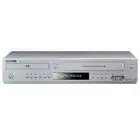
DVD-V2000
Instruction Manual
--i
_ Hi-Fi
V_DEO
www.samsungasc.com
WARNING:
TO PREVENT DAMAGE WHICH MAY RESULT IN
FIRE OR ELECTRIC SHOCK HAZARD, DO NOT
EXPOSE THIS APPLIANCE TO RAIN OR
MOISTURE
WARNING:
TO AVOID HAZARDOUS EXPOSURE TO
INVISIBLE LASER RADIATION DO NOT OPEN
OR REMOVE/DEFEAT LASER TRANSPORT
PROTECTIVE HOUSING
USER/INSTALLERCAUTION:
Your authorety to operate this FCC Certified
equkpment Could be voided if you make changes of
modifications not expressly approved by the
manufacturer who is responsible for ¢omphance
w_th Part 15 ECC rules
NOTE TO CATV SYSTEM INSTALLER:
This remrnder is provided to cat_ the CATV system
installer s attention to Article 820-40 of the
Na(Ional Elect_'onlc Code that provides guldeJines
for proper groundtng and _n particular specifies
that the cable ground shaFI be connected to the
grounding syslem of [he building, as close Io the
point of caole entry as pracltcal
Th_s symbol _sintended to .alert
the user to the presence of
unmsulated dangerous voltage
Within the product's enclosure
that may be Of sufficient
magnrtude to constltLIte risk of
fire or electric shock
Th_s symbol Js intended to alert
the user to the presence of
Importan_ operating and
maintenance iFisEuctlons in the
I:terature accompanying this
product
Copy Notification
Federal law provides severe CiVil and ¢rlmtnal
penalties for the unauthorpzed reproduction
d_strlbutJon or exhlbltlOrl Of copyrighted motion
pictures and videotapes (Title 17, United States
Code Sections 501 and 506)
Macrovision Notification
Th_s product incorporates copyright protection
technology that _spro(ected by method cla=ms of
certain U S patents and other =ntellectua[ property
rights owned by Macrows_on Corporation and other
rights owners Use of this copyright protection
technology must be authorized by Macrows_on
Corporation and _sintended for home and other
I_mded viewing uses only unless otherwise
authorized by MacrovJslon Corpora{ion Reverse
engineering or disassembly _$ prohloKed
CAUTION:
To prevent fire, shock hazard or annoying
intel_erence use only the recommended
accessories To prevent electric shock, do not use
[h_s (polarized) plug w_h an extension cord
receptacle or other outlet unless the Olades can be
fullj inserted to prevent blade exposure TO reduce
the rJsk of electric shock, do not remove the un=t
cover or back There are no _ervlceabl8 parts
Jnslde Refer servicing to quahfled personnel only
CUIDADO:
Pare prevenlr irlcendlO rlesgo de choque o
_nterferenc_a enfadosa use soiamente los
accesor,os recomendados Para prevel_lr
electrochoque, no use este enchufe (pOlar,zero)
con un cordon de extension tome de corrlen(e o
cualqu_er otra tome a mends que los dlentes
puedan ser completamente insel_ados para prevenlr
exposlcldn de los dlentes Pare reducer el rlesgo de
desGarga electnca no remueva la Cublerta o la
porte posterior del eqblpo Dentro del eqL_lpO no
hay partes que requleren servlclo D_rl_ase
so[amen_e a personal ca[_flcado cuando reqLllera
servlcio
ATTENTION:
Pour eviler [es ]ncendis risque de Chocs OU
inlerferences f_cheuses employei" seulemen[ les
accessoires recommat'ldes Pour evl{er les _hocs
electrlques ne pas employer cette pr_se (polanseel
ave[; L_ner_llonge une prise de COL_rarttou une
aM[re sortie de cogrant a RIOII_S qLse les lathes
peuvent 6tre inserees bfond pour I'exposlt_on des
lames Pour reduire les rlsques de chocs
electrlques ne pas retlrer le couvercle ou I arrlere
du module II n'y a pas de p_ece Utlhsable a
I interleL_r Ne loire effectuer I en{retlen que par un
personnel quahfle
Important Safety Instructions .............................
1 Read these instructions
2 Keep these mstructlom
3 Heed all warnings
4 Follow all instructions
5 DO not use this apparltus near water
6 CJean only With dry cloth
7 Do no( block any ventdat_on opemngs Install in accordance with the manufacturer's ths_JCtiOnS.
8 Do not instil near any heat sources such as radiators, heat registers, of other apparatu_ (ir_cthding amplifiers) that
produce heat.
9 Do not defeat the safety purpose of the polarized or grounding-type plug. A polarized plug has two blades with
one wider than the other A grounding type plug has two blades and a third grounding prong. The wide blade or
the third prong are provtded for your safety If the provtded plug does not fit into your outlet, consult an
electrtclan fo_ replacement of the obsotete outlet
10 Protect the power cord from being from betng walked on or pinched particularly at plugs, convenience
receptacles, and the point where they exit from the apparatus.
11. OnFy use attachments/accessories speclhed by the manufacturer
12 Use only with cart, stand, tripod, bracket, or table specified by the manufacturer, or sold with the applwat_
When a used, caution when moving the cartJapparatus combination to avoid injury from tip-over.
13 Unplug this apparatus When a cart is used, use cauttonlll_en mowng the cart/apparatus combination to avoid
injury from tip-over
14 Refer all servicing to quaidled service personnel Servicing is required when the apparatus has been damaged in
any way. such as power-supply cord or ptug is damaged, hquld has been spdled or obJeCtS have fallen into the
apparatus, the apparatus has been exposed to rain or moisture, does not operate normally, or been dropped
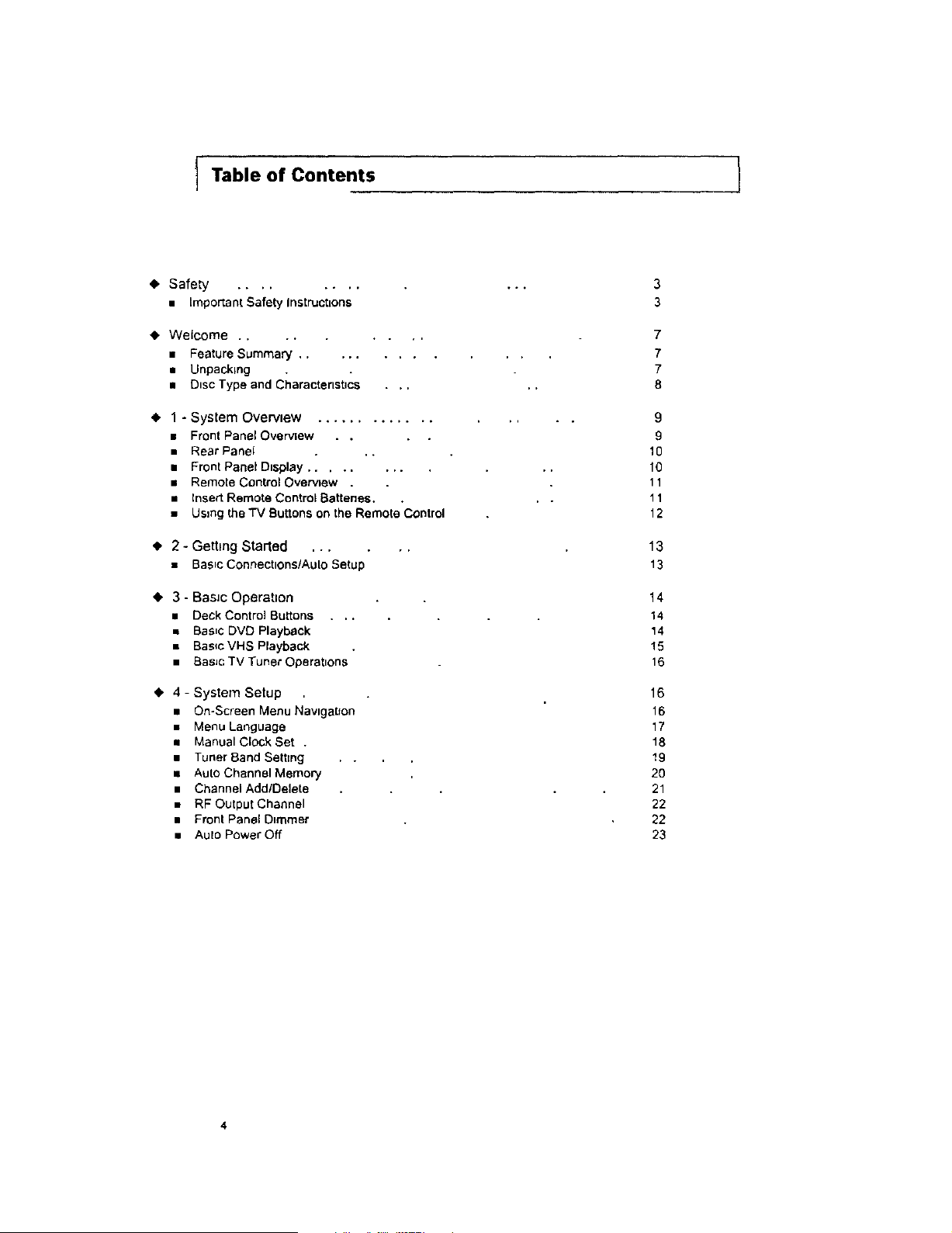
f Table of Contents
1
Safety ........
• Important Safety Instructions
• Welcome ........
• Feature Summary .........
• Unpacking . .
m Disc Type end Characteristics . . .
• 1 - System Overview .............
• Front Panel Overview . .
• Rear Panel ..
a Front Panel Dnsplay ........
• Remote Control Overview .
• Insert Remote Control Battenea. .
• Usmg theTV Buttons on the Remote ContTot
• 2 - Gettmg Started ...
• Basic Connectlons/AuloSetu
• 3 - Basic Operation
• Deck Control Buttons . ..
• Beaut DVD Playback
• Bas_cVHS Playback
• Basic TV Tuner Operatnons
• 4 - System Setup
• On-Screen Menu NavlgaL_on
• Menu Language
• ManuaICIock Set .
• Tuner Band Settmg
• Auto Channel Memory
• Channel Add/Delete
• RF Output Channel
• Front Panel Dimmer
• Auto Power Off
7
7
7
8
9
g
10
10
11
11
12
13
13
14
14
14
15
16
16
16
17
18
19
20
21
22
22
23
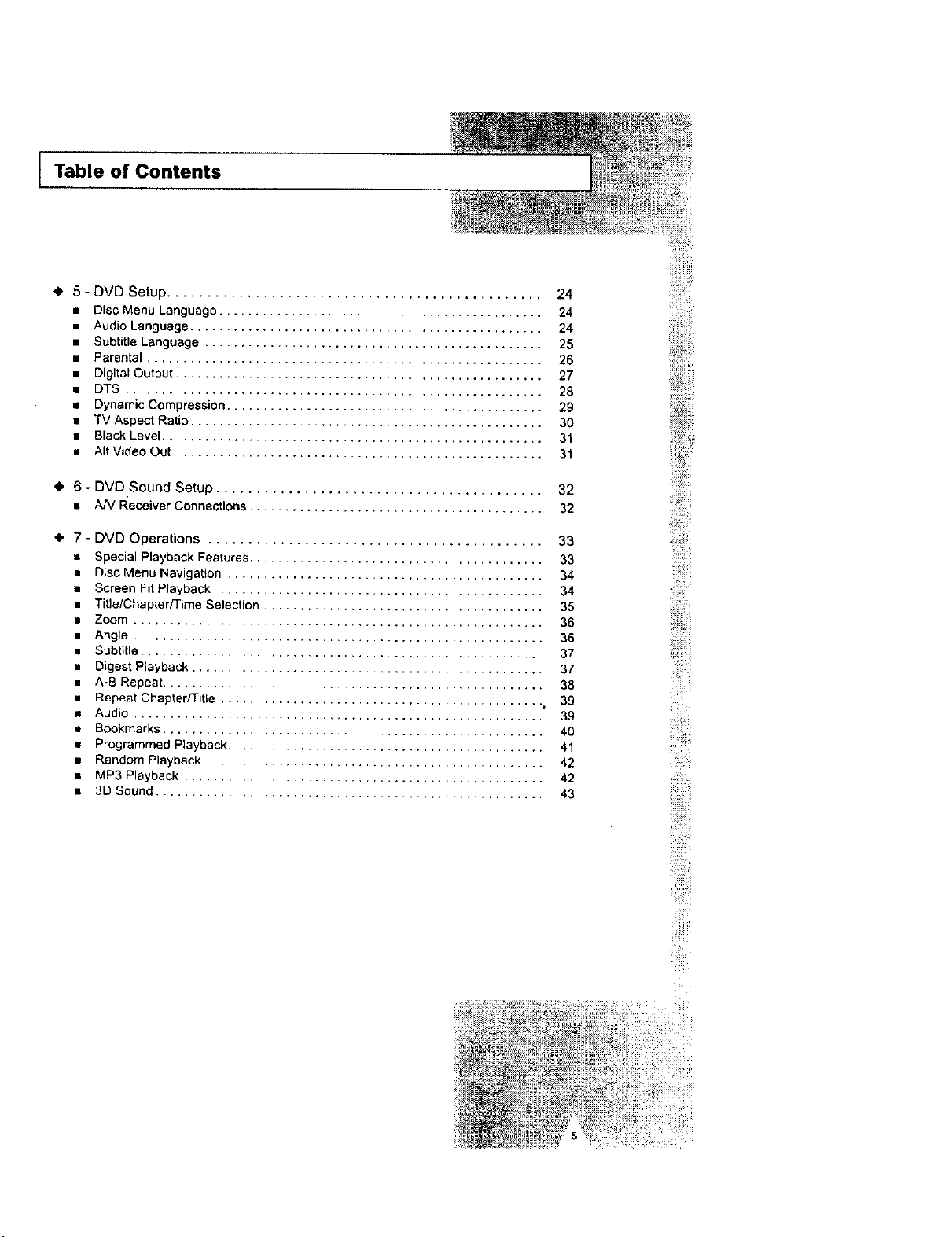
Table of Contents
t 5- DVD Setup ...............................................
• Disc Menu Language .............................................
• Audio Language .................................................
• Subtitle Language ...............................................
• Parental .......................................................
• Digital Output ...................................................
• DTS ..........................................................
• Dynamic Compression ............................................
• TV Aspect Ratio ................................................
• Black Level .....................................................
• AIt Video Out ...................................................
24
24
24
25
26
27
28
29
30
31
31
6 - DVD•Sound Setup ......................................... 32
• A/VReceiver Connections ......................................... 32
7 - DVD Operations .......................................... 33
• Special Playback Features ......................................... 33
• Disc Menu Navigation ............................................ 34
• Screen Fit Playback .............................................. 34
• Title/Chapter/Time Selection ....................................... 35
• Zoom ......................................................... 36
• Angle ......................................................... 36
• Subtitle ....................................................... 37
• Digest Playback ................................................. 37
• A-B Repeat ..................................................... 38
• Repeat Chapter/Title ............................................. , 39
• Audio ........................................................ 39
• Bookmarks ..................................................... 40
• Programmed Playback ............................................ 41
• Random Playback ............................................. 42
• MP3 Playback ............................................... 42
• 3D Sound ...................................................... 43
i!!ii!i! i!i i
i_¸¸_i:_!
iii_iii!
2 _
i[
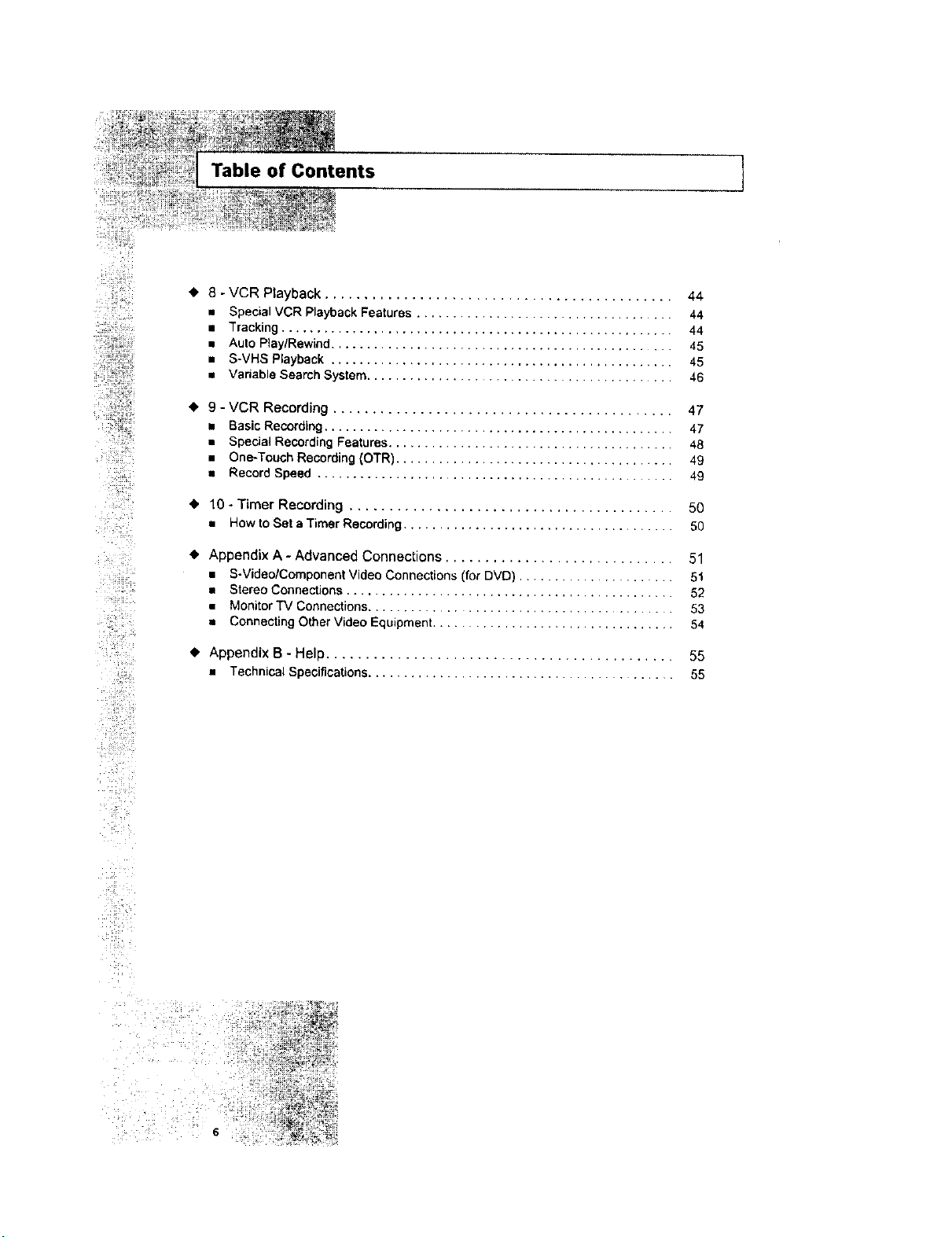
Table of Contents
8 - VCR PZayback ............................................ 44
• Special VGR Playback Features .................................... 44
• Tracking ....................................................... 44
• Auto Play/Rewind ................................................ 45
• S-VHS Playback ................................................ 45
• Vadable Search System ........................................... 46
9 - VCR Recording ........................................... 47
• Basic Recording ................................................. 47
• Special Recording Features ........................................ 48
• One-Touch Recording (OTR) ....................................... 49
• Record Speed .................................................. 49
• 10 -Timer Recording ......................................... 50
• HowtoSet a Timer Recording ...................................... 50
Appendix A - Advanced Connections ............................. 51
• S-Video/Component Video Connections (for DVD) .................... 51
• Stereo Connections .............................................. 52
• Monitor TV Connections .......................................... 53
• Connecting Other Video Equipment .................................. 54
• Appendix B - Help ............................................ 55
• Technical Specifications ........................................ 55

I Feature Summary
System Features
• Complete versatilityto playDVD, VCDs, audio CDs, MP3 discsor VHS Tapes.
• Watch a DVD while recordinga TVshowto the VCR.
• Aulo Setup automaticallysetsclockand searchesfor channels•
, Remote controlsboth DVD and VCRdecks.
• Composite, S-Video and Componenl videooutputs for high connectivityand optimum performance.
• RFinputsand outputs for connectionto allTVs-new or old.
• English/French/Spanish on-screen programming
DVD Features
• 10-bgvideodigital toanalog converterand 27MHz advanced digital filter,
• Playbackof96KHz/24.bit sources.
• DTS digital output for DTS-enhanced DVDs.
• Playback MP3 filesfrom CD-ROM.
. Continued audio during 2x speedplayback.
VCR Features
• Hi-Fi Stereo VCR.
• 4 headsfor superiorslow motion and stop action.
• Playback of S-VH$ tapes at betterthan standard resolution.
• VISS Index Search/Scan, ZeroReturn, BlankSearch.
• 8-event/1 month timerrecording.
• Time remaining counter, real timecounter•
*Discs which cannot be played with this player
. DVD-ROM • DVD-RAM
• CD-ROM • CDV
• CDI
• HD layer ofsuper Audio CD
• CDGs playaudio only, not graphics.
*Abilityto play back maydepend on recording
conditions.
• DVD.R • CD-RW
• DVD+RW,-RW
Unpacking
As you unpack, please check that the following items are included in your D VD. VCR packing case:
• DVD-VCR
RegistrationCard (AD68-00078A)
User's Guide (AC68-01816A)
RCA cable for Audio/Videoconnection (AC99-tO500H)
RF (Radio Frequency) Antenna Cable (AC39-42001J)
Remote Control (AC59-00058K)
1.5V "AA" Batteries - 2EA (AC43*12002J)
$$_6I _-e$ =
: _;;s_;),}s r i i
i; i
?
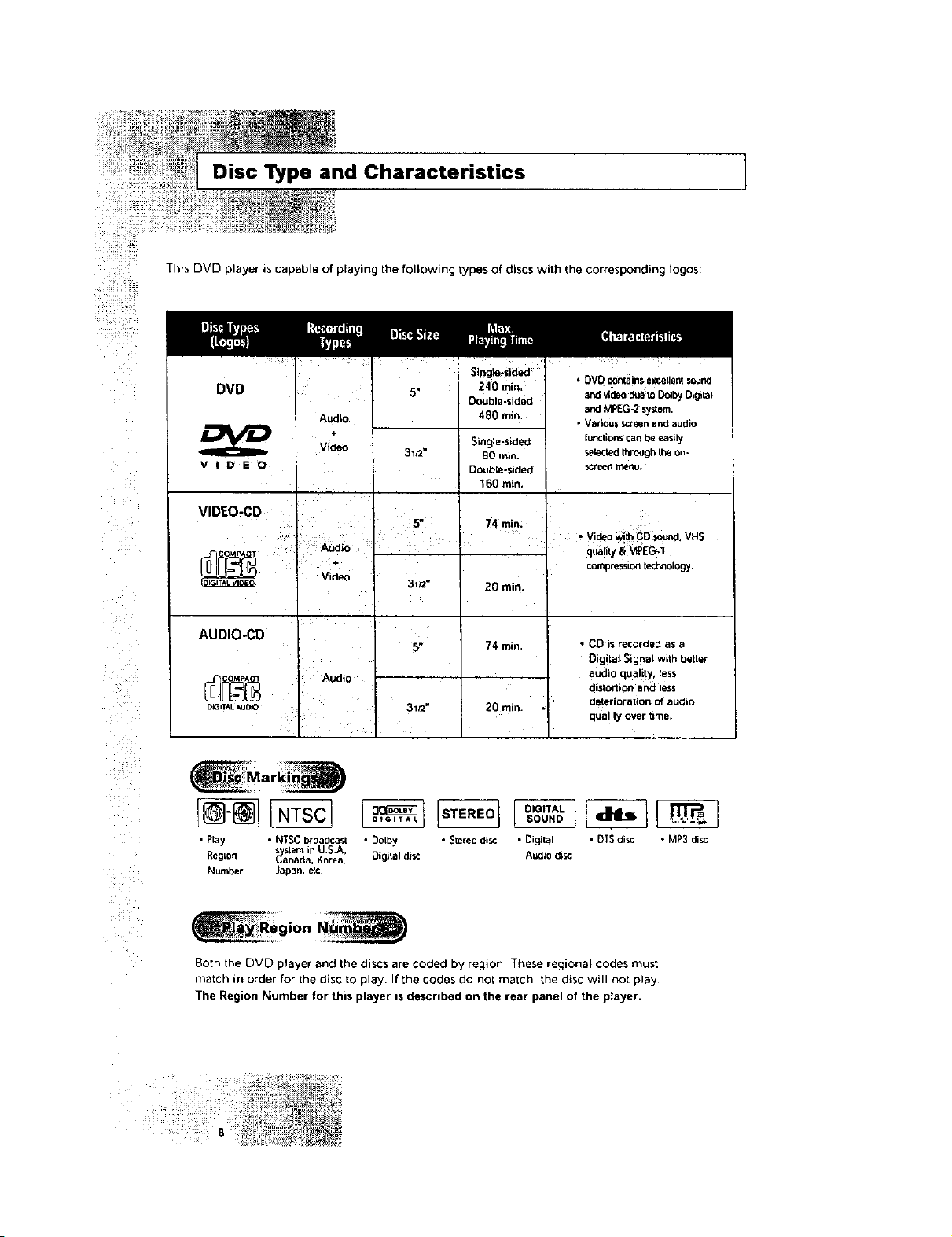
Disc Type and Characteristics ]
This DVD player ascapable of playing the following [ypes of discs with the correspondmg Iogos:
DVD
V I D E D
VIDEO-CD
AUDIO-CD
)_Grr,_ AU_
Audio
Video
Audio
Video
Audio
Single-sided
5" 240 rnin,
Double-sided
480 rain
Single-sided
3_/2" 80 min.
Double-sided
160 rain.
5" 74 rain.
3_/z" 20 rain.
5" 74 min
31_" 20 rain
• DVD con_ain$axcellentsound
and videodueto DolbyDigital
and MPEG-2 system.
• VBdou$screenandaudio
lunctions canbe easily
selected_rough theon-
v
. Video_h CD sound,VHS
q=Utya,MPEC,.i
compressiontechnology.
• CD is recorded as a
Digital Signal wgh beUer
audio qua!!ty, less
distortion and less
deterioratlon of audio
quality over time.
• Pray • NTSCbroadcast • Dolby • Siereo ols¢ - Digital . DTSdisc • MP3disc
s stemin U.S.A
Regmn _/aSnada.Korea OIg$taldl_ Audio disc
Number lapan, e{c.
Both The DVD player and the d_scs are coded by region These regional codes must
match in order for Tile disc to Dlay f the codes do not match. Tne disc will not play
The Region Number for this player is described on the rear panel of the player.
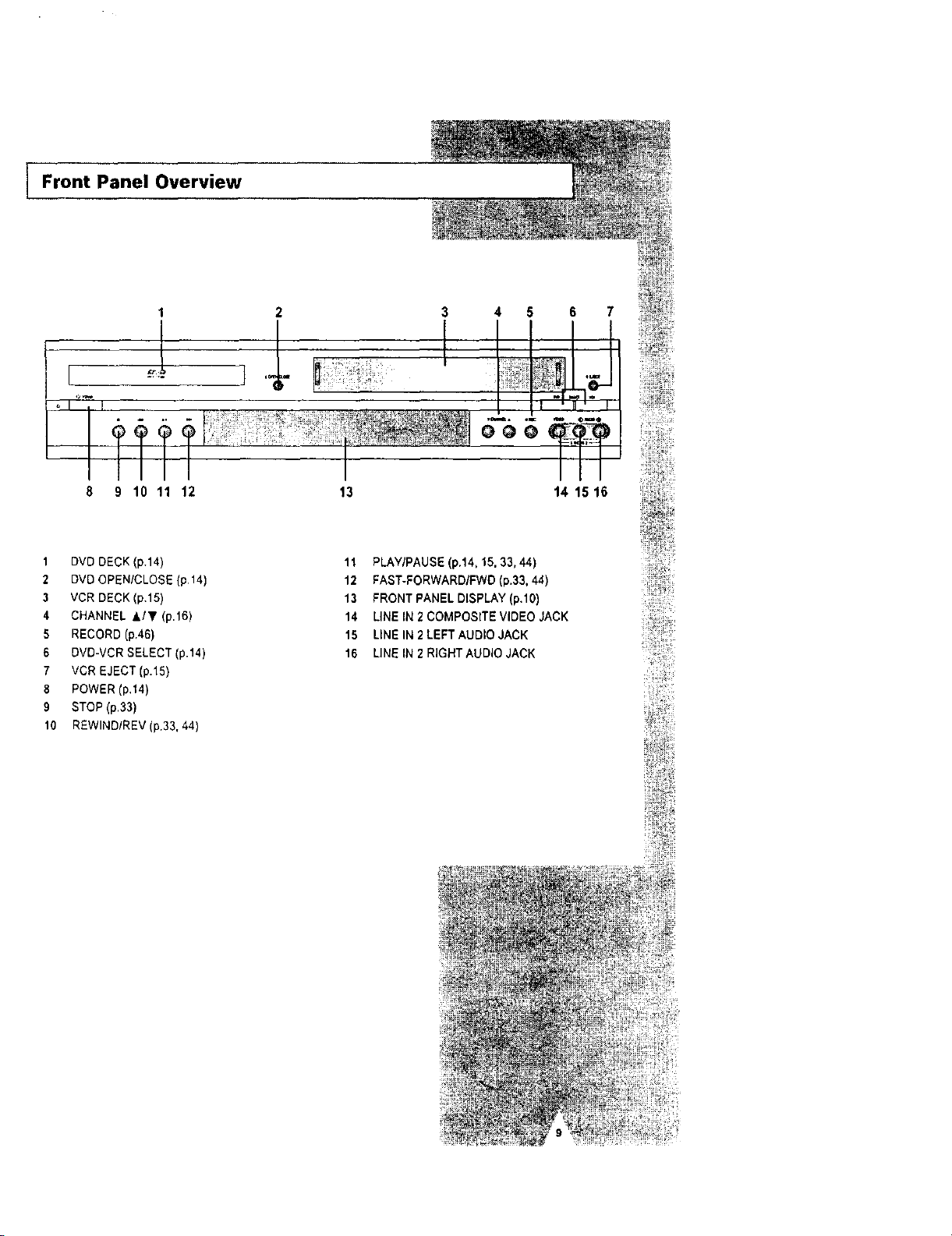
Front Panel Overview
1 2 4 5 6 7
8 9 10 11 12
13
14 15 16
1 DVD DECK (p.14)
2 DVD OPEN/CLOSE (p.14)
3 VCR DECK(p.15)
4 CHANNEL &/y (p.16)
5 RECORD (p.46)
6 DVD-VCR SELECT (p.14)
7 VCR EJECT (p.15)
8 POWER (p.14)
9 STOP (p.33)
10 REWIND/REV(p.33, 44)
11 PLAY/PAUSE (p.14, 15, 33,44)
12 FAST-FORWARD/FWD (p.33, 44)
13 FRONT PANEL DISPLAY (p.10)
14 LINE IN2COMPOSITE VIDEO JACK
15 UNE IN2 LEFT AUDIO JACK
t6 LINE IN2 RIGHTAUDIO JACK
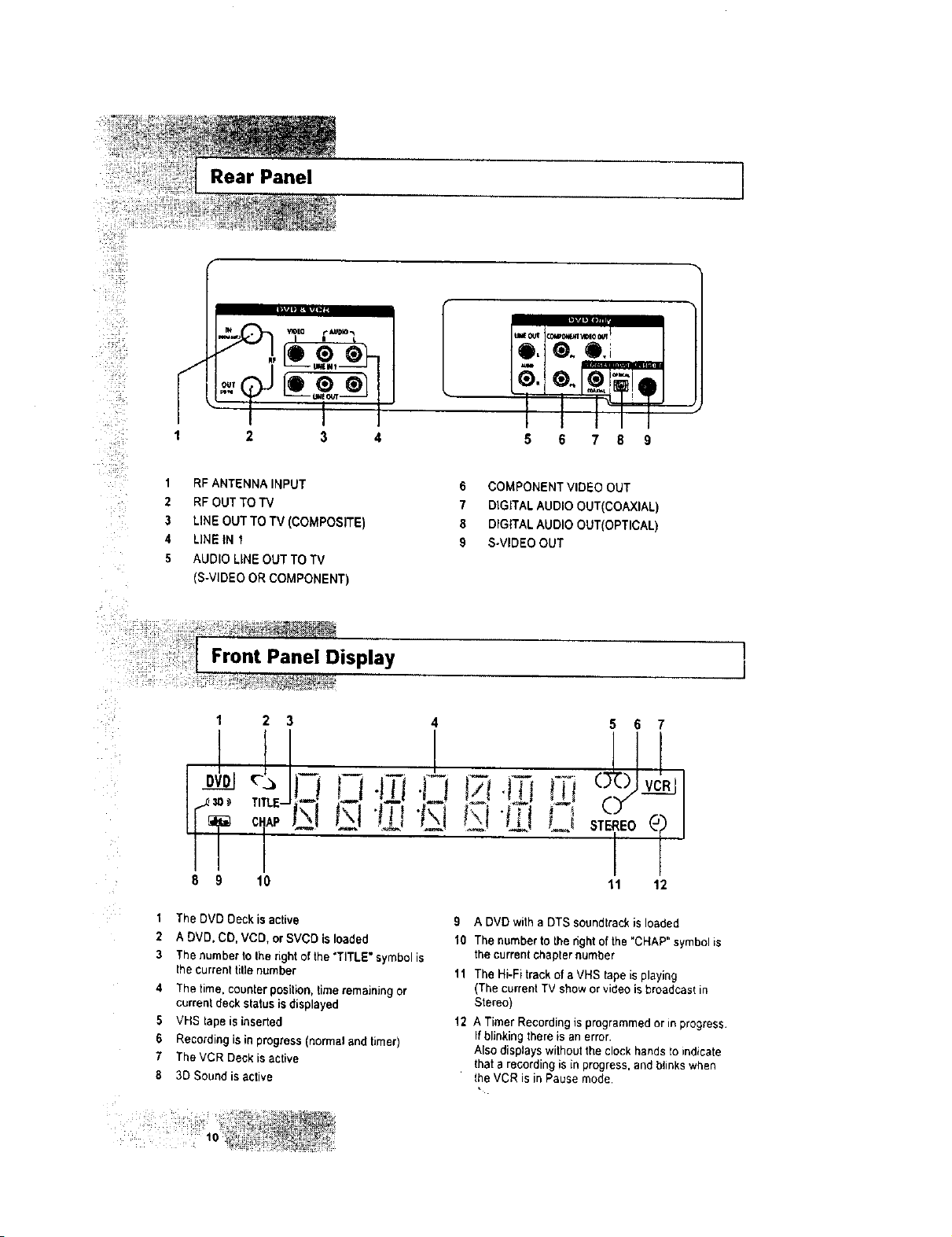
Rear Panel 1
/
VIOEo _ AUDbD"_
2 3 4
5 6 7 8
1 RFANTENNA INPUT 6 COMPONENT VIDEO OUT
2 RF OUT TO TV 7 DIGITALAUDIO OUT(COAXIAL)
3 LINEOUT TO TV (COMPOSITE) 8 DIG|TALAUDIO OUT(OPTICAL)
4 LiNE IN 1 9 S-VIDEO OUT
5 AUDIO LiNE OUT TO "iV
-S-VIDEO OR COMPONENT)
I Front Panel Display
I
I
1 2 3 4 5 6
8 9 10 11 12
1
2
3
5
6
7
8
The DVD Deck is active
ADVD. CD. VCD, orSVCD is loaded
The number to Iberight of the "TITLE" symbolis
the currentti,e number
The time. counterposition,time remaining or
currentdeck status is displayed
VHS tape is inserted
Recording is inprogress(normal and timer)
The VCR Deck is active
3D Sound is active
9
1o
11
12
A DVD with a DTS soundtrackis loaded
The number to the rightof the "CHAP"symbolis
the current chapter number
The Hi-Fitrack of a VHS tape isplaying
(The current TV show or _ideo isbroadcast in
Stereo)
A Timer Recording isprogrammed or in progress
Ifblinking there is an error.
Also displayswithout the clock hands _oindicate
thata recording is in progress, and blinkswhen
lhe VCR is inPause mode.
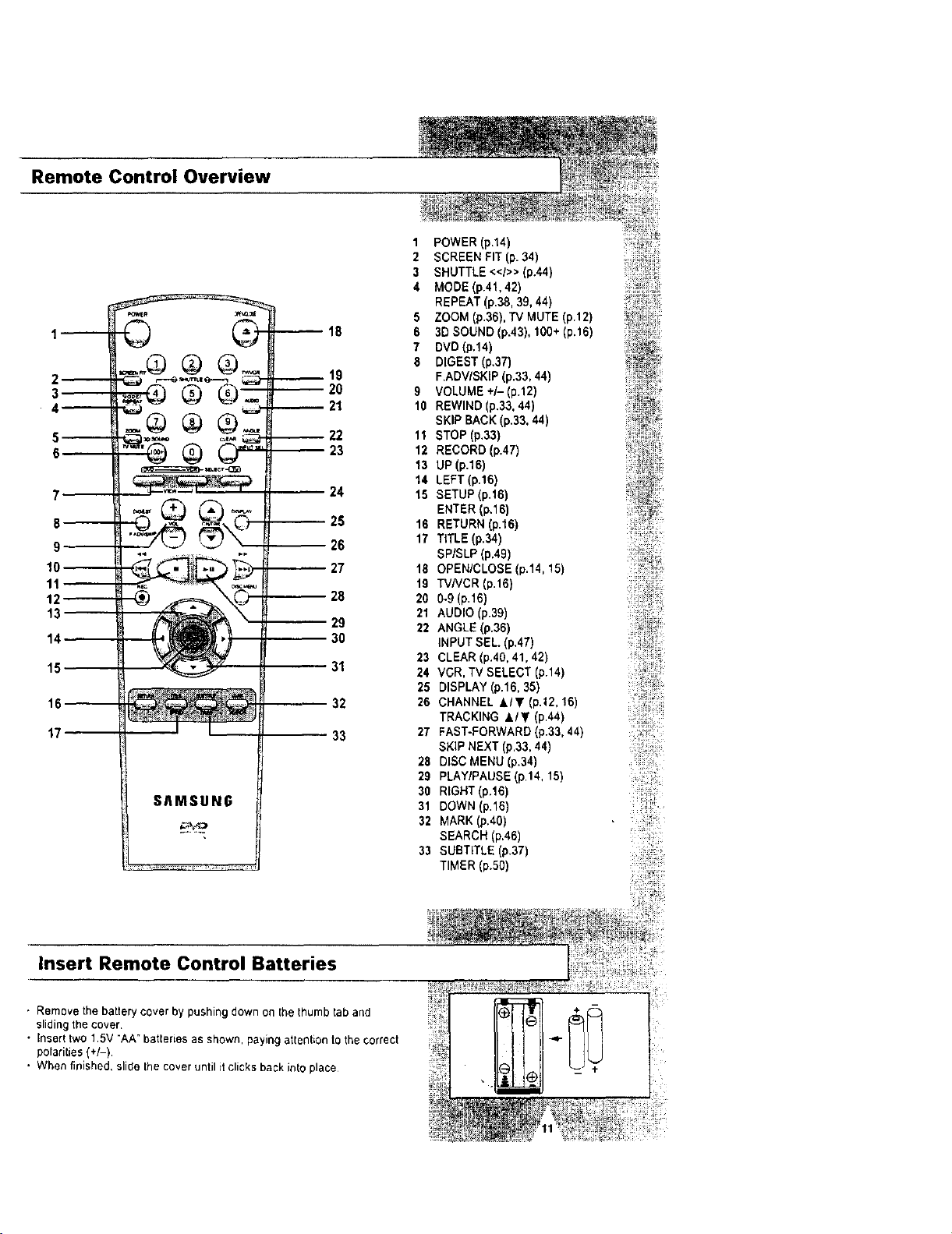
Remote Control Overview
2_
3--
4_
5_
6
7
8--
9
10_
11_
12_
13
14
15
16--
17
© @
®
S/IMSUNG
_18
19
-- 20
21
22
23
24
2S
-- 26
27
-- 28
29
30
31
32
33
1 POWER (p.14)
2 SCREEN FIT (p. 34)
3 SHUTTLE <<1>>(p.44)
4 MODE (p.41,42)
REPEAT (p.38, 39, 44)
5 ZOOM (p.36), TV MUTE (p.12)
6 3DSOUND (p.43), 100+ (p.16)
7 DVD(p.14)
8 DIGEST (p.37)
F.ADV/SKIP (p.33, 44)
9 VOLUME +/- (p.12)
10 REWIND (p.33.44)
SKIP BACK(p.33. 44)
11 STOP (p.33)
12 RECORD (p.47)
13 UP (p.16)
14 LEFT (p.16)
15 SETUP (p.16)
ENTER (p.16)
16 RETURN (p.16)
17 TITLE (p.34)
SP/SLP (p.49)
18 OPENICLOSE (p.14, 15)
t9 TVNCR (p.16)
20 0-9 (p.16)
21 AUDIO (p.39)
22 ANGLE (p.36)
INPUT SEL (p.47)
23 CLEAR (p,40, 41,42)
24 VCR, TV SELECT (p.14)
25 DISPLAY (p.16,35)
26 CHANNEL A/T (p.12, 16)
TRACKING ,&IT (p.44)
27 FAST-FORWARD (p.33,44)
SKIP NEXT (p.33, 44)
28 DISC MENU (p.34)
29 PLAY/PAUSE (p,14, 15)
30 RIGHT (p.16)
31 DOWN (p.16)
32 MARK (p.40)
SEARCH (p,46)
33 SUBTITLE (p.37)
TIMER (p.50)
Insert Remote Control Batteries
• Remove the battery cover by pushing down on the thumbtab and
sliding the cover.
• Inserttwo1.5V "AA°batteries as shown, paying attention to the correct
polarities(+/-).
• When finished, slide the cover until it clicks back into place
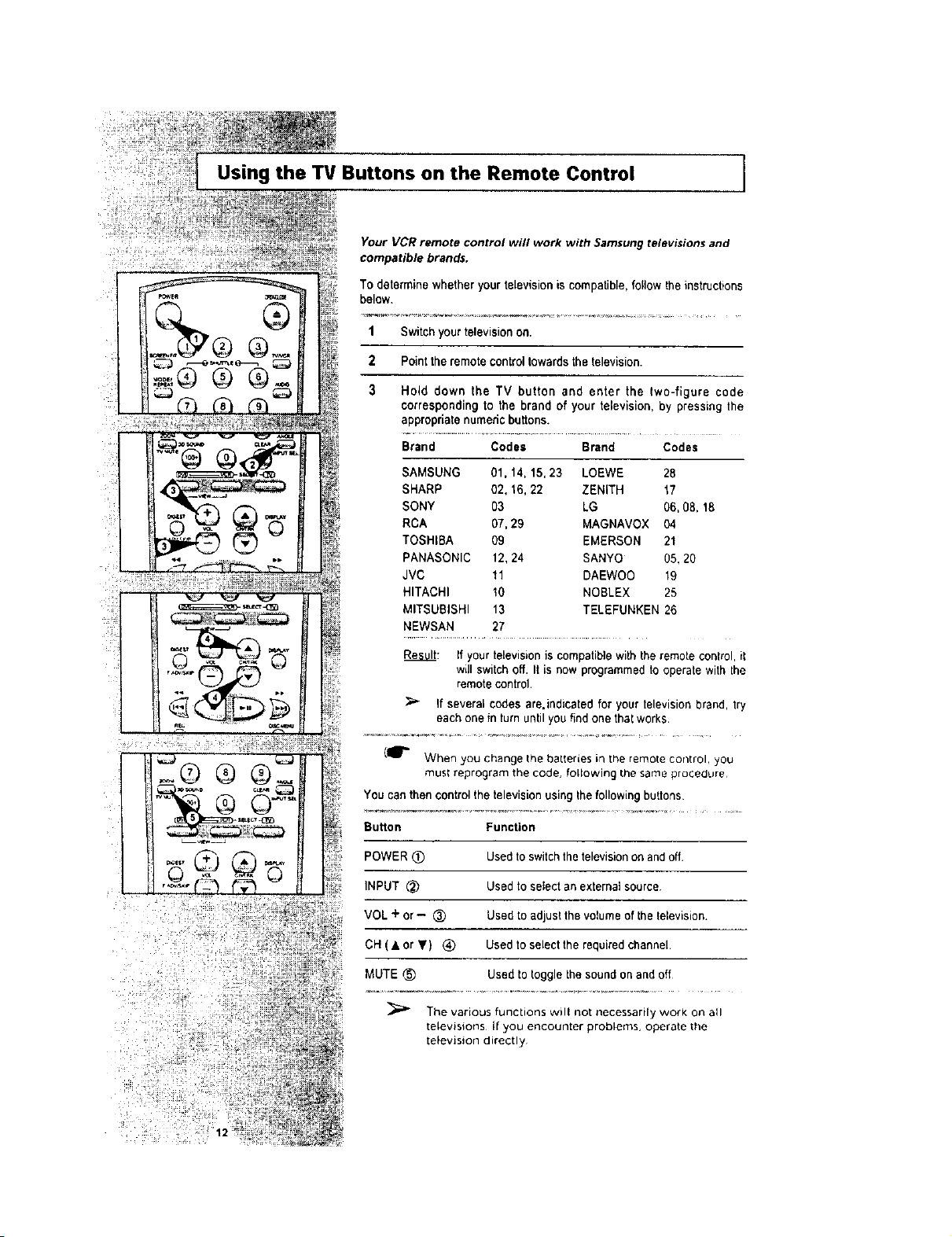
Using the TV Buttons on the Remote Control
Your VCR remote control will work with Samsung televisions and
compatible brands.
To determinewhetheryour televisionis compatible,follow theinstructions
below,
1 Switch yourtelevisionon.
2 Pointthe remotecontroltowards the television.
3 Hold down the TV button and enter the two-figure cede
corresponding to the brand of your television, by pressing the
appropriatenumericbuttons.
Brand Codes Brand Codes
$AMSUNG 01, 14, 15, 23 LOEWE 28
SHARP 02, 16,22 ZENITH "_7
SONY 03 LG 06, 08, 18
RCA 07,29 MAGNAVOX 04
TOSHIBA 09 EMERSON 21
PANASONIC 12, 24 SANYO 05, 20
JVC 11 DAEWOO 19
HITACHI 10 NOBLEX 25
MITSUBISHI 13 TELEFUNKEN 26
NEWSAN 27
Result: If your televisionis compatiblewiththeremote control it
will switch Off. It is now programmed to operatewith the
remote control.
If several codes are.indicated for your televisionbrand, try
each one in turn untilyou find one that works•
(_"= When you change the batleries in the remote cor_trol, you
must reprogram the code. following the same procedure
YOUcan then controlthe television using the following buttons
Button Function
POWER (_ Used to switch the televisionon and off.
INPUT _) Used to select an external source
VOL + or - (_) Used to adjust the volume of the lelevision.
CH(• orT) (_ Used to select the required channel•
MUTE _ Used to togglethe sound on and off
"[he various functions will not necessarily work on all
televisions Ityou encounter problems, operate the
television directly

I Basic Connections/Auto Setup
in this section, you will connect the DVD-VCR to your television
and run Auto Setup, which automatically searches for channels and
setsthe player's internal clock.
NOTES:
• Advanced Connections are covered inAppendix A.
• Even ifyou plan to use the S.Video or Component Video Outputs,
_y_ you MUST connect the DVD.VCR to your television with
either the standard RFor the Line Out connection. This
enables you to operate the DVD-VCR setup menus.
1 Connect Antenna/Cable to DVDoVCR
Connectthe RFantennacable from yourindoor/outdoorantennaor
cablewalloutletto the IN (FROM ANT.) jack on the backpanelof
the DVD-VCR.
Connect DVD-VCR to TV
Choose one of the following methodstoconnect the DVD-VCR to
yourIV:
RF Connection
Connectthe supplied RF antenna cablefrom the OUT (TO TV)jack
on the backpaneloftheDVD-VCR to yourtelevision'sAntenna
input.
NOTE : Checkthe channelto connectDVD-VCR to your
television'sAntenna Input; See page22.
Line Connection
Connectan RCA-typeaudio/videocable (red.white,yellow) from
the LINE OUT jacks on the backpanel of the DVD-VCR to your
_elevision'sLine In jacks. Use redfor right audio, whitefor left
audio, and yellow for video.
NOTE: Itisrecommended thatyou use the Line Connection if your
TVis equipped with RCA jacks.
3
Plug In DVD-VCR
Connect the DVD-VCR power cordto a standard 120V/60Hz wall
ouUet. Don't press any buttons on the DVD-VCR or remoteduring
auto setup. "AUTO" blinks while the DVD-VCR runs an auto setup
procedure,where it will automatically search for all active channels
and set the clock. When Auto setting has been completed, the front
paneldisplays the currenttime.IfAuto Clock setisunable to find a
channel to set the clock, you can set the clock manually; See page
18
4 TurnOn DVD-VCR
PressthePOWERbuttonontheremotecontro_oron the
DVD-VCR'sfrontpanel.
5 Turn On TV
PressthePOWERbuttononyour TV.
6
Set TV to Channel 3, 4 or Line
Besure _ousethe same channel youselectedin Step 2 If you
used the LineConnection, setyour TV to itsLine Input.
FromAntennaorCable
To TV's AntennaInput
r
Deck Control Buttons
]
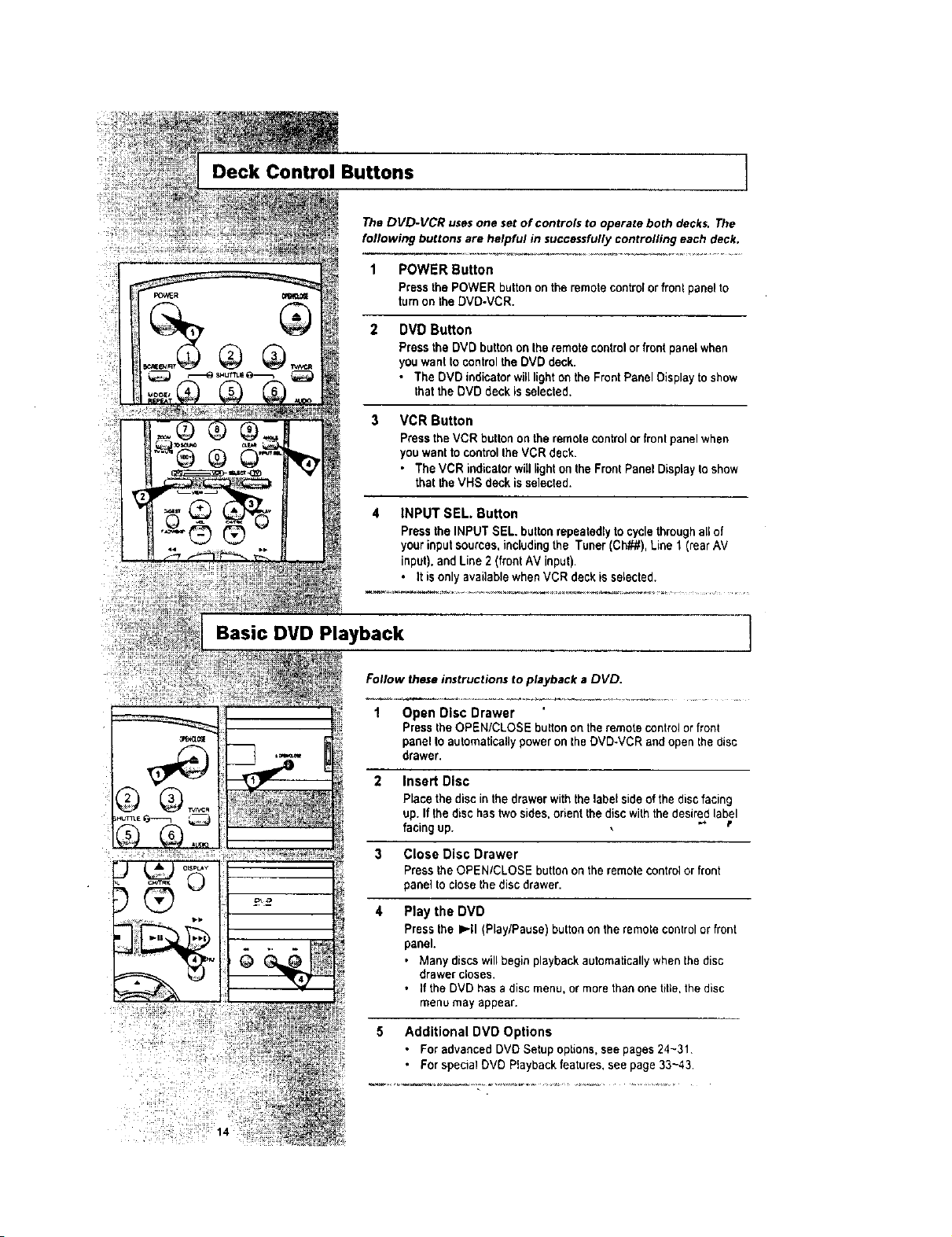
The DVD-VCR usesone setof controls to operate both decks. The
following buttons are helpful in successfully controlling each deck.
1 POWER Button
Pressthe POWER button on the remote controlor front panelto
turn on the DVD-VCR.
2 DVD Button
Pressthe DVD buttonon Ihe remote controlorfrontpanelwhen
you want to controlthe DVD deck.
• The DVD thdicator willlighton the Front Panel Oisplayto show
thattheDVD deckisselected.
VCR Button
Pressthe VCR button on the remote controlor frontpanelwhen
you wantto controlthe VCR deck.
• The VCR indicatorwilllight on the FrontPanel Displayto show
thatthe VHS deckis selected.
INPUT SEL. Button
Pressthe INPUT SEL buttonrepeatedlyto cycle throughallof
yourinputsources, includingthe Tuner (Oh##),Line 1 (rear AV
input),and Line 2(front AV input).
• It isonlyavailablewhen VCR deckisselected.
Basic DVD Playback ]
Follow these instructions to playback aDVD.
1 Open Disc Drawer
Pressthe OPEN/CLOSE buttonon the remotecontrolorfront
panel to automatically power on the DVD-VCR and open thedisc
drawer,
2 Insert Disc
P_acethe disc in the drawerwiththe label side of the disc facing
up. If the dischastwosides, orientthe disc with the desired label
facing up. ._- t
3 Close Disc Drawer
Pressthe OPEN/CLOSE button on the remotecontrolor front
panel to close the discdrawer.
4 Play the DVD
Press the ),'-II (Play/Pause) button onthe remotecontrolor front
panel.
• Many discs willbegin playbackautomaticallywhenthe disc
drawercloses.
• Ifthe DVD hasadisc menu, or more than one tit;e, the disc
menu may appear.
5 Additional DVD Options
• Forsdvancod DVD Setup options, see pages24~31
• Forspecia!DVD Playback features, see page 33~43.
Basic VHS Playback
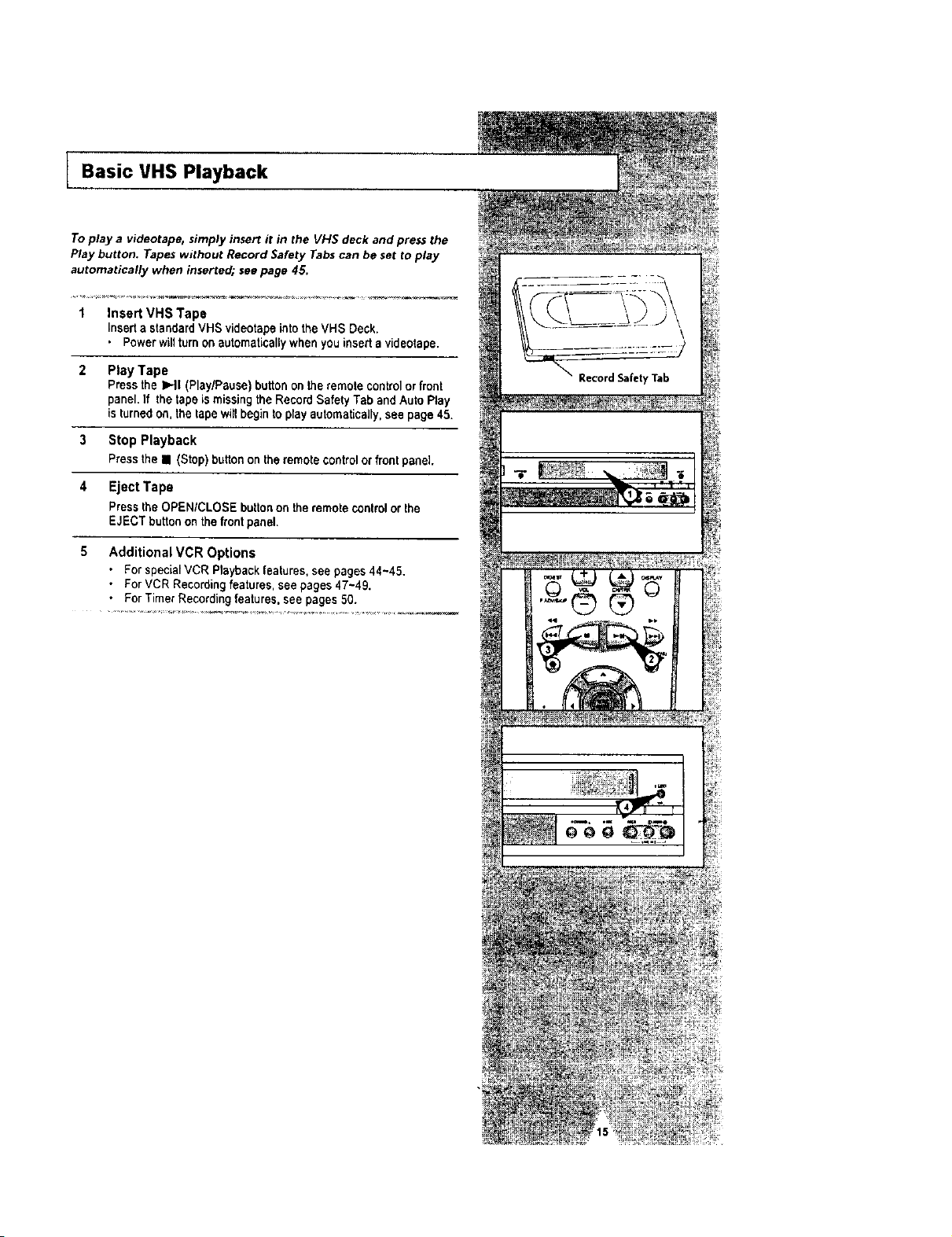
To play a videotape, simply insert it in the VHS deck and press the
Play button. Tapes without Record Safety Tabs can be set to play
automatically when inserted; see page 45.
1 Insert VHS Tape
Insert a standard VHS videotape intothe VHS Deck.
• Power will turn onautomatically when you insed avideotape.
2 Play Tape
Pressthe >..ll (Play/Pause) button on theremote controlorfront
panel. ]f the tape ismissing the Record Safety Tab andAuto Play
is turnedon, the tape witl begin to play automatically, see page 45.
3 Stop Playback
Press the • (Stop) button on the remote controlor front panel•
4 Eject Tape
Press the OPENICLOSE button on theremote control or the
EJECT button on the frontpanel.
5 Additional VCR Options
• Forspecial VCR Playbackfeatures, see pages44~45.
• ForVCR Recordingfeatures, see pages 47~49.
• ForTimerRecordthgfeatures, see pages50.
RecordSafetyTab

Basic TV Tuner Operations
The following buttons are used when watching television via the
DVD.VCR's built-in TV tuner.
1 TVNCR
Pressto switch between your TV's tuner and the VCRIs internal
tuner.
2 Channel Up/Down
Presstochange to the nextorpreviouschannel.
3 0-9 Buttons
Pressto selectchannelsdirectly.
4 100+ Button
Pressto selectchannels100 and higher.First,press the log+
button, thenpress theremaining digitsusing the 0-g buttons.
5 Display
Pressto displaythe channel you are watching.
• Alsoworksin DVD andVCR mode.
On-Screen Menu Navigation
]
MAIN MENU
gBi
OVD $owp
_RETURN _ < I* _ENT_
The Setup Menu is the opening
screen of the on-screen menu
system
The on.screen menu system allo'wsyou to setall functions for your
DVD.VCR, The following buttons are used to open and navigate
through the on-screen menu system,
I SETUP Button
With the DVD in stopmode, press to accessthe DVD-VCR on-
screen menu system.
2 UplDown and LefURight
Moves menu selection cursorup, down, left and right to cycle
throughmenu options
3 ENTER Button
Pressto confirmsettingsincertain menus,
4 RETURN Button
Returns to the last menu viewed orexits the menu system.
l Menu Language
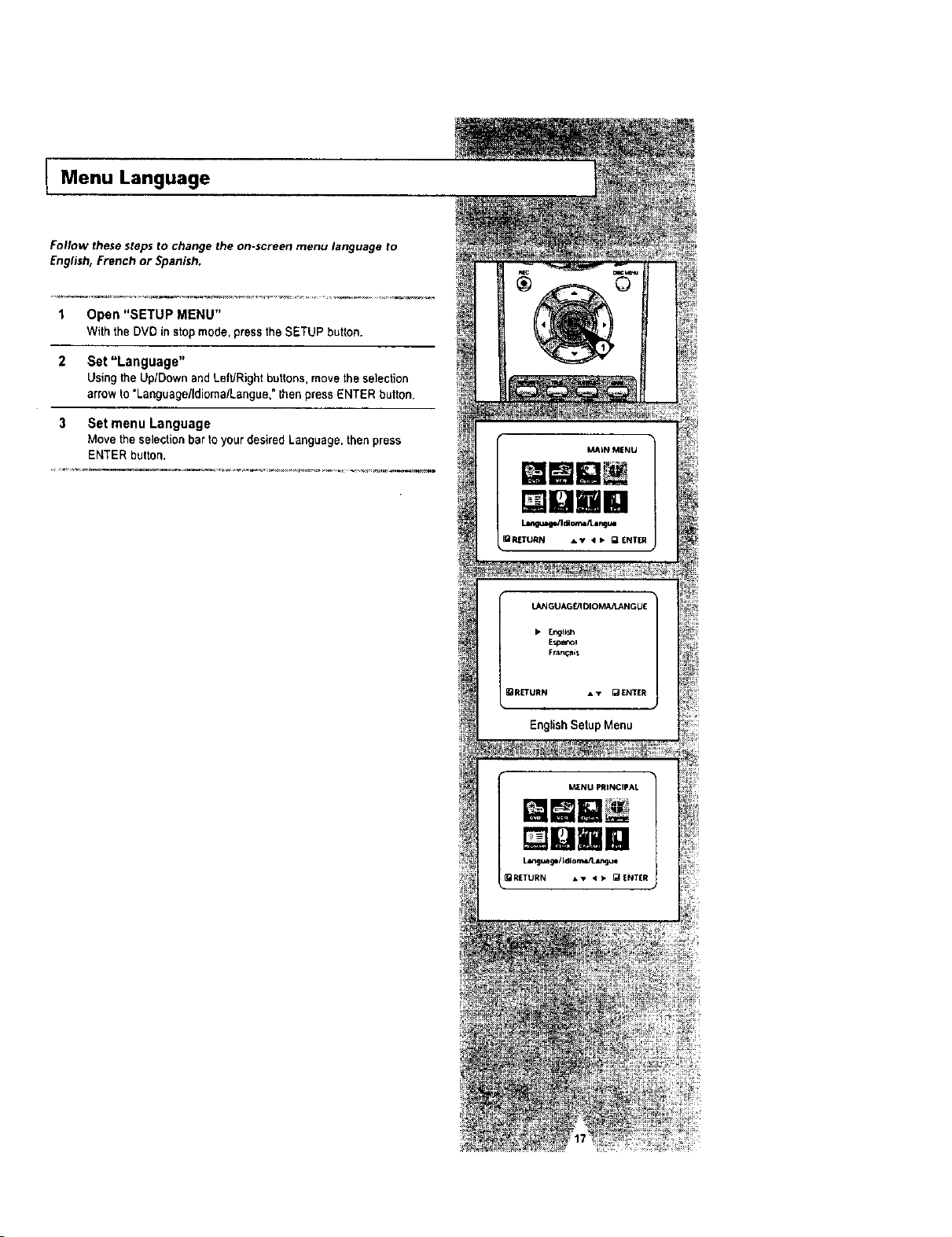
Follow these stepsto change the on-screen menu language to
English, French or Spanish.
1 Open "SETUP MENU"
Withthe DVD instopmode, press the SETUP button.
2 Set "Language"
UsingtheUp[DownandLeftJRightbuttons,movetheselection
arrowto "LanguagelldiomalLangue,"thenp,'essENTERbutton.
3 Set menu Language
Move the selectionbar to your desired Language,then press
ENTER button,
gjla
Manual Clock Set
AUtO
• M_nual
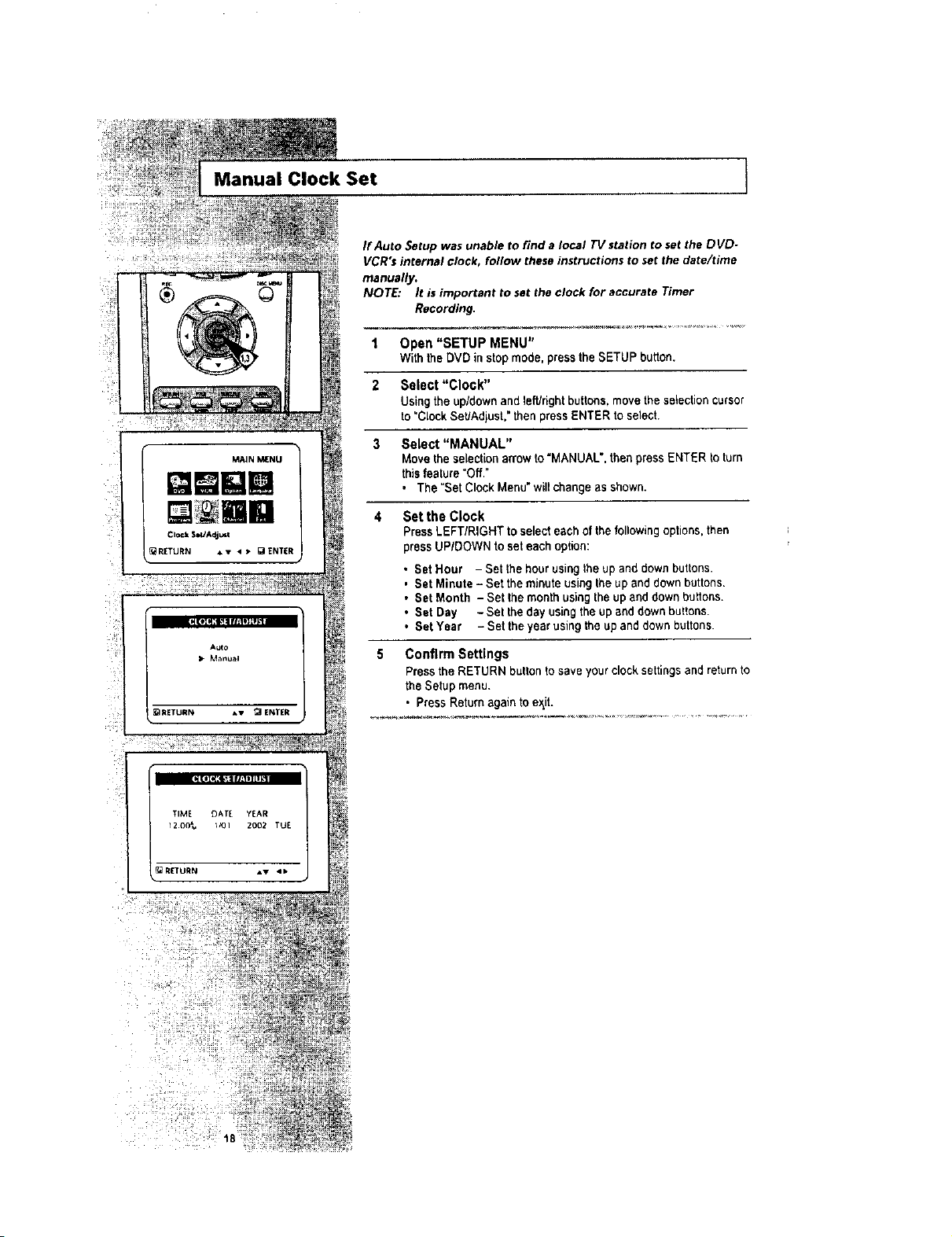
If Auto Setup was unable to find a local TV station to set the DVD-
VCR'$ internal clock, follow these instructions to set the date/time
ITlanually.
NOTE: It is important to set the clock for accurate Timer
Recording,
]
1 Open "SETUP MENU"
Withthe DVD instopmode. pressthe SETUP button.
2 Select "Clock"
Using the up/down and left/rightbuttons,move the selectioncursor
to "Clock SeUAdjust,"thenpress ENTER to select,
3 Select "MANUAL"
Movethe selectionarrowto "MANUAL', than press ENTER to turn
thisfeature "Off,"
• The "SetClock Menu" willchange as shown.
4 Set the Clock
PressLEFT/RIGHT to select eachof thefollowingoptions,then
press UP/DOWN to seteachoption:
• Sat Hour - Set the hour usingthe up and downbuttons.
, Set Minute - Set the minute using the up and down buttons.
• Set Month - Set the month using the up and down buttons.
• Set Day - Set the day using the up and down buttons.
• Set Year - Set the year using the up and down buttons.
5 Confirm Settings
Pressthe RETURN buttonto save your clocksettings and return to
the Setup menu.
• Press Return again to e._it.
t8

I Tuner Band Setting
This feature allows you to manually set the DVD. VCR's tuner band
to Antenna or Cable, whichever you connected to the Antenna In
jack during initial setup.
• Use this setting only if Auto Setup detected the incorrect tuner
band, i,e. channels are coming in on the wrong channel numbers.
1 Open "SETUP MENU"
With the DVD instop mode, press the SETUP button.
2 Select "Channel"
Using theup/downand left/rightbuttons, movethe selection cursor
to =ChannelSetup", thenpress ENTER to select.
3 Select "AnUCable"
Movethe selectionarrowto "Ant/Cable" then press hght to select
from the following options:
• Antenna - Indicates that the DVO-VCR is connected to anindoor
or outdoor VHFIUHF antenna.
• CableTV -Indicates that the DVD-VCR is connected to Cable TV.
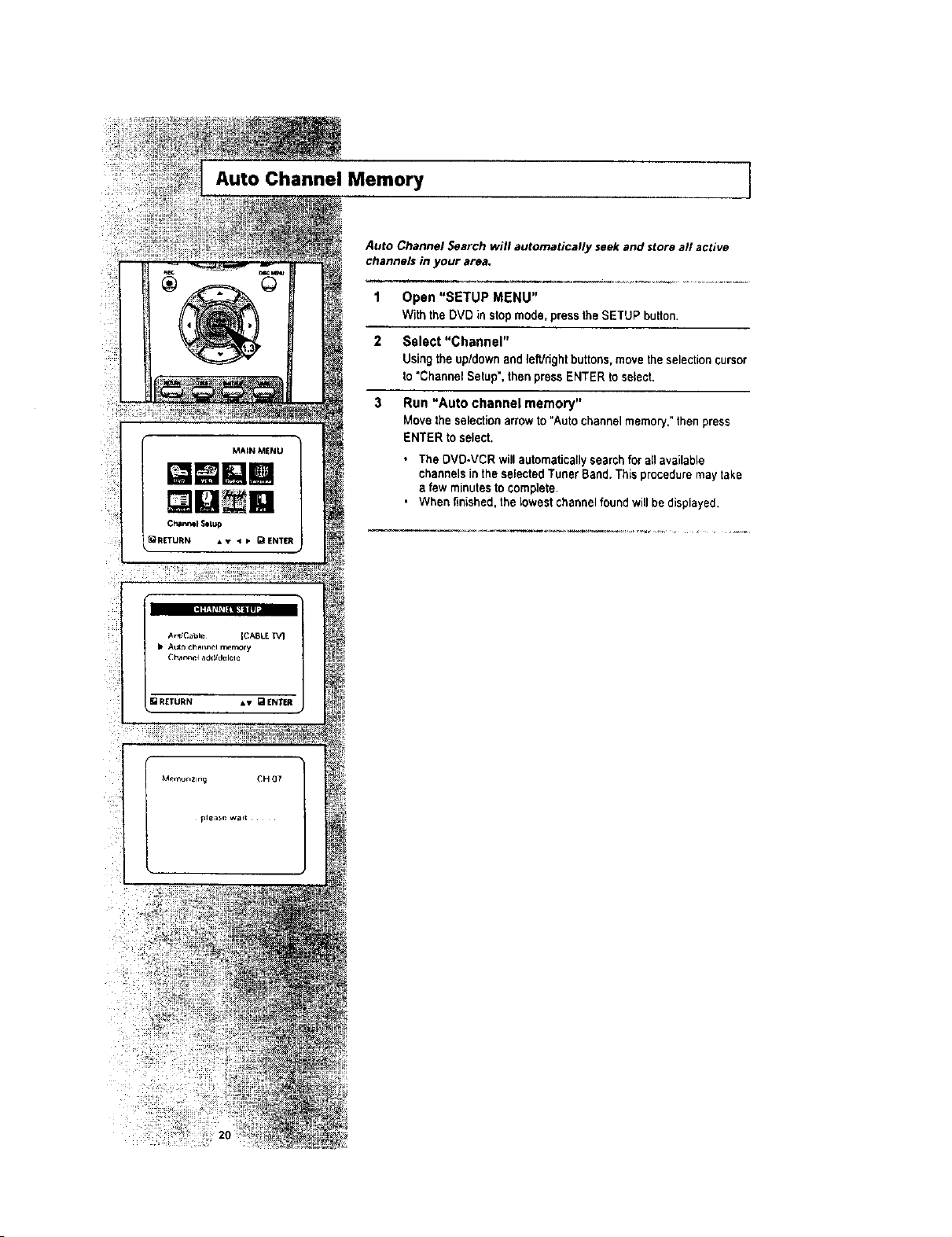
Auto Channel Memory ]
Auto Channel Search will automatically seek and store all active
channels in ),our area.
1 Open "SETUP MENU"
Withthe DVD instopmode, press the SETUP button.
2 Select "Channel"
Using theup/downand leWdghtbuttons, movethe selectioncursor
to "ChannelSetup',then press ENTER to select.
3 Run "Auto channel memory"
Movethe selectionarrowto "Autochannelmemory."thenpress
ENTER to select.
• The DVD.VCR willautomatically search for all available
channels inthe selectedTuner Band.This proceduremaytake
afew minutesto complete.
• When finished,the lowest channel found willbedisplayed,

Channel Add/Delete
Use this feature ifAuto Channel Search missed a channel that you
would like to add, or added a channel you wish to remove.
1 Open "SETUP MENU"
Withthe DVD instopmode, press the SETUP button.
2 Select "Channel"
Using theup/down and left/rightbuttons, movethe selectioncursor
to "Channel Setup', then press ENTER toselect.
3 Select "Channel add/delete"
Movethe selectionbarto "Channel add/delete," then press ENTER
to select.
4 Select Channel to addldelete
Usethe0-9 buttonsto tune inthe channel number you wish to add
OF remove.
5 Select "CHANNEL ADD/DELETE"
Press right to add or press left to remove the channel from
your channel list.
• Repeat steps 4 and 5to add or remove additional channels.
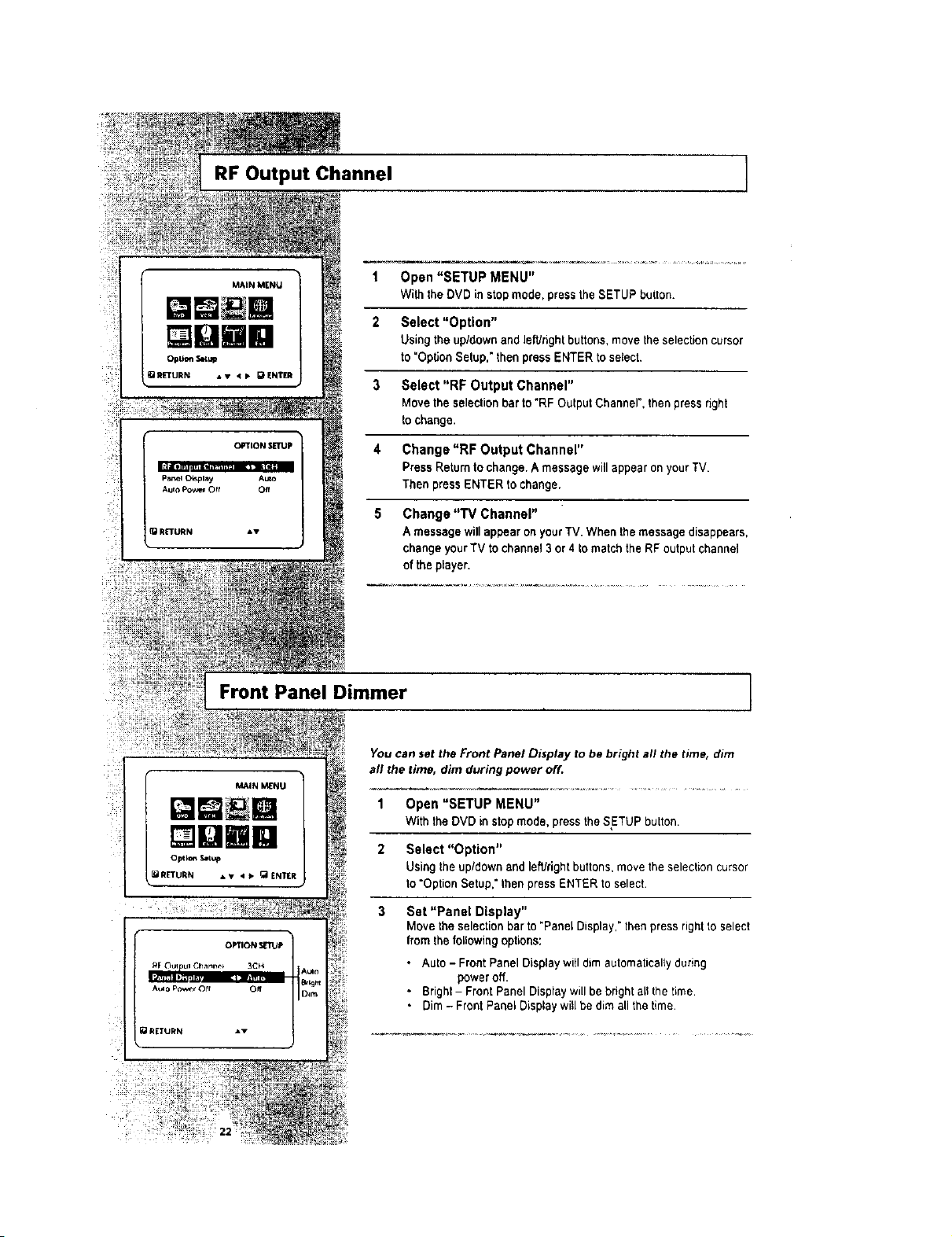
RF Output Channel ]
1 Open "SETUP MENU"
Withthe DVD instopmode, press theSETUP button.
2 Select "Option"
Using the up/down and leWrightbuttons, movethe selection cursor
to "OpUoo Setup," then press ENTER to select.
3 Select "RF Output Channel"
Move the selectionbarto "RF Output Channel", then press right
tochange.
4 Change "RF Output Channel"
Press Returnto change.Amessage will appear on your TV.
Then press ENTER to change.
5 Change "TV Channel"
A message willappear on your TV.When the message disappears,
change your TV to channel 3 or 4 to match the RF output channel
ofthe player.
Front Panel Dimmer ]
_IN _NU
[]UBR
Option Setup
_RETURN • • • > (_ ENTER
You can set the Front Panel Display to be bright all the time, dim
all the time, dim during power off.
1 Open "SETUP MENU"
With the DVD instop mode, press the SETUP button.
2 Select "Option"
Using theup/downand leWrightbuttons,move the selection cursor
to "OptionSetup." then press ENTER to select.
3 Set "Panel Display"
Movethe selection barto "Panel Display,"then press rightto select
from the following options:
• Auto - Front Panel Displaywi(I dim automaticallyduring
power off.
• Bright- Front Panel Display will be bright allthetime.
• Dim - Front Panel Display will be dim all thetime.
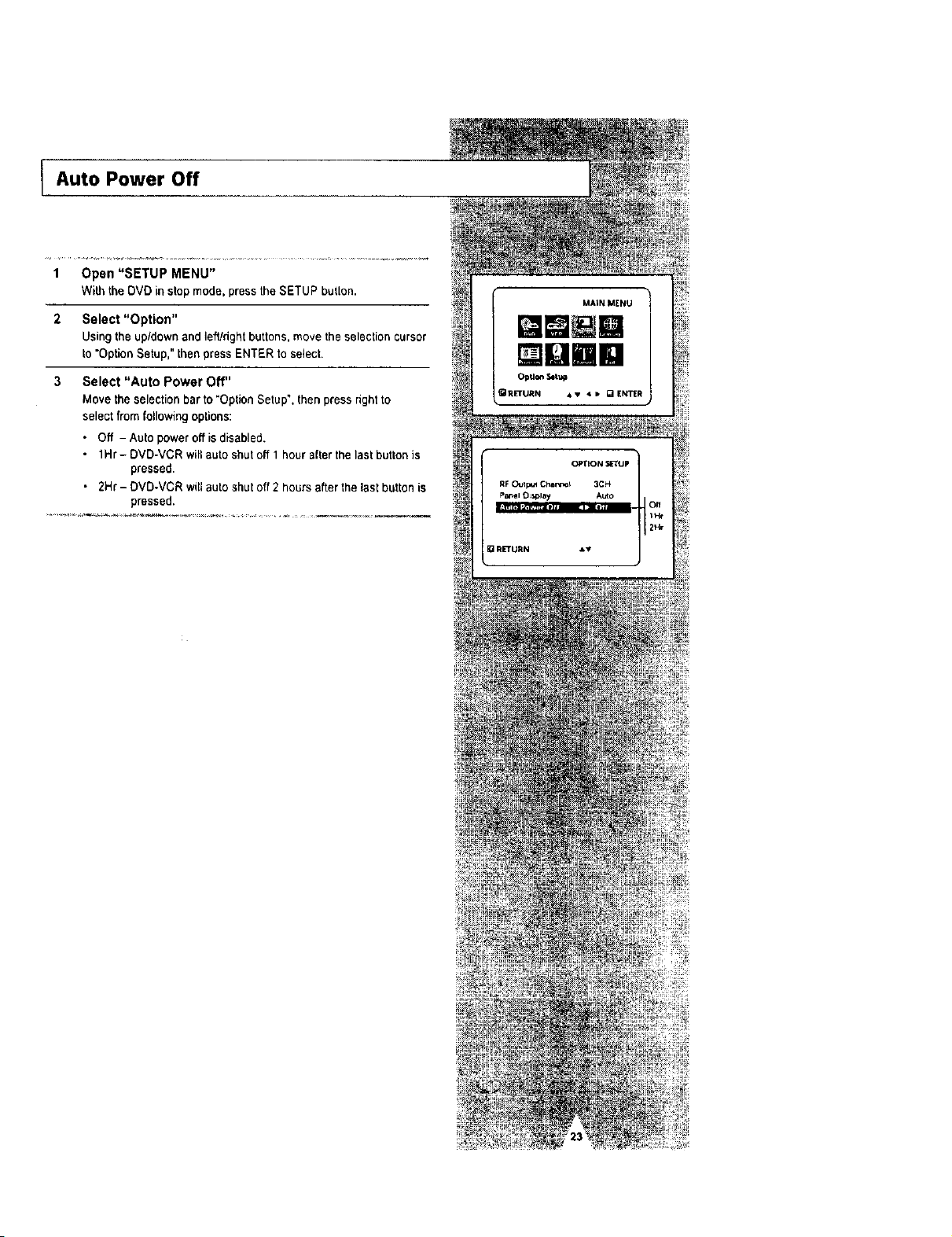
l Auto Power Off
1 Open "SETUP MENU"
With the DVD in stop mode, press the SETUP button.
2 Select "Option"
Using the up/downandleWdght buttons, move the selection cursor
to"Option Setup," then press ENTER toselect.
3 Select "Auto Power Off"
Movethe selection barto "Option Setup", then press rightto
selectfrom following options:
• Off - Auto power offis disabled,
• 1Hr- DVD-VCR willauto shut off1hour after thelast buttonis
pressed•
• 2Hr- DVD-VCR willautoshutoff 2hours afterthe lastbutton is
pressed.
[][]rid

Disc Menu Language 1
HUR
Follow thesesteps to choose your preferred language for DVD disc
menus. The DVD-VCR will automatically default to the language
you choose if it isavailable on agiven DVD.
1 Open "SETUP MENU"
With the DVD instopmode, press the SETUP button,
2 Select "DMD"
Using the up/down and left/right buttons, move the selection cursor
to"DVD Setup,"then press ENTER to select.
3 Select "Disc Menu"
Move theselectionbarto "Disc Menu," then press ENTER to select.
4 Set "Disc Menu Language" Preference
Move the selectionbarto yourpreferredlanguage for DVD disc
menus, then press ENTER to select.
Audio Language
RETURN • • _ ENTER
Follow these stepsto choose your preferred language for DVD
audio soundtracks. The DVD.VCR will automatically default to the
language you choose if it isavailable on agiven DVD.
1 Open"SETUP MENU"
With the DVD instopmode, press the SETUP button.
2 Select "DVD"
Using theup/downand left/right buttons, move the setection cursor
to"DVD Setup," then press ENTER to selecl.
3 Select "Audio"
Move theselection bar to "Audio," then press ENTER to select
4 Set "Audio Language" Preference
Move the selectionbarto yourprefeEredlanguage for DVDaudio
soundtracks,then press ENTER to select•
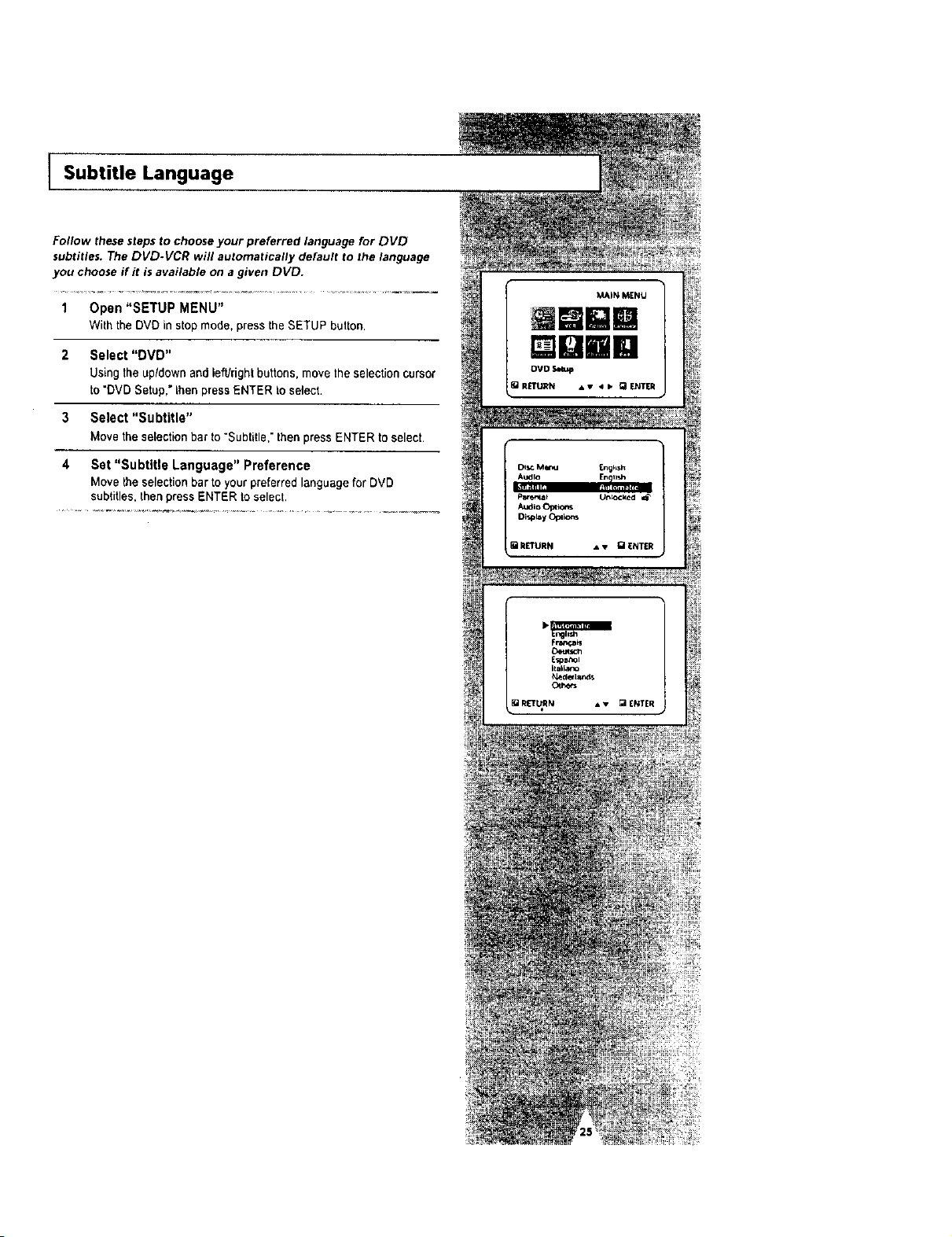
Subtitle Language
Follow these steps to choose your preferred language for DVD
subtitles. The DVD.VCR will automatically default to the language
you choose if it i5 available on a given DVD.
1 Open "SETUP MENU"
With the DVO in stop mode, press the SETUP button.
2 Select "DMD"
Using the upldown and left/right buttons, move the selectioncursor
to "DVD Setup," then press ENTER toselect.
3 Select "Subtitle"
Move the selectionbar to "Subtitle," then press ENTER toselect.
4 Set "Subtitle Language" Preference
Move the selectionbarto yourpreferred language for DVD
subtitles, then press ENTER to select.
[][]mm

Parental ]
MAIN MENU
Qmlll
DVO _tu p
Q RETURN AV q • _EN_R
Oq,_ Me, nu EPgli_,h
Audno Engli_
Sublme Aul_n Jm_c
Audio (bpl i¢_,_
Display Opllor'_
RETURN • • _1 ENTE_
_ RETURN _ENTER
I]_ R[TURN pRE,TN_0-9
RETURN • • g ENTER
Rating Control is apassword protected system that allows you to
block playback of DVDs based on their content, The system usesan
eight level rating system•
• Ifyou try to play a DVD that exceeds the selected rating, an error
message will appear•
• Not all discsare rated.
1 Open "SETUP MENU"
Withthe OVD instopmode, press the SETUP button
2 Select "DVD"
Using theup/downand left/rightbuttons, movethe selectioncursor
to "DVD Setup,"then press ENTER to select.
3 Select "Parental"
Movethe selectionbarto "Parental,"then press ENTER to select•
4 Select "Use Password"
Movetheselectionarrowto"UsePassword,"thenpresstheright
buttontoselectfromthefollowingoptions:
• NO- Indicatesthat no password isrequiredtoviewanyDVD
discorto change RatingControl options.NoadditionalRating
Controlsettingsare necessary.
, Yes - Indicates thata password is requiredto viewsomeDVD
discsand to viewRatingControl options.The menu wil!change
as shown.
NOTES:
• The firsttime"Require Password"is setto "Yes,"you willbe
promptedtoentera new password.
• Ifthe "Enter Password"screen appears, then "Requ=re
Password" has already been set to "Yes," Pleaseskip to Step 5
5 Enter Password
Entera 4-digit password using the 0-9 buttons on the remote
control.
• Write your password down, and keep it in a safe p3acein case
you need it tochange your settingslater
6 Select "Rating Level"
Move the selection barto "Rating Level." then press ENTER to
select.
7 Change Rating Level
Use the up/down to selectoneofthefotlowing ratings:
• Level 8Adult • Level 4
• Level 7 • Level 3
• Level 6 • Level 2
• Level 5 • Level 1 KidsSafe
All ratingsabovethe level you selectwillalsobe blocked, e.g., if
you block Level 6.then Levels 7and 8 will alsobe blocked.
Press ENTER to confirm your selection.
• If you forgot your password, press power on from a cold start
withno discin the unit. Pressthe REW and F.F buttons
simultaneouslyon the front panel for 5 seconds,The "resel ok'
message will appear. Press the power button and the DVD-VCR
will go to the "Auto Setup" mode. (See page 13)
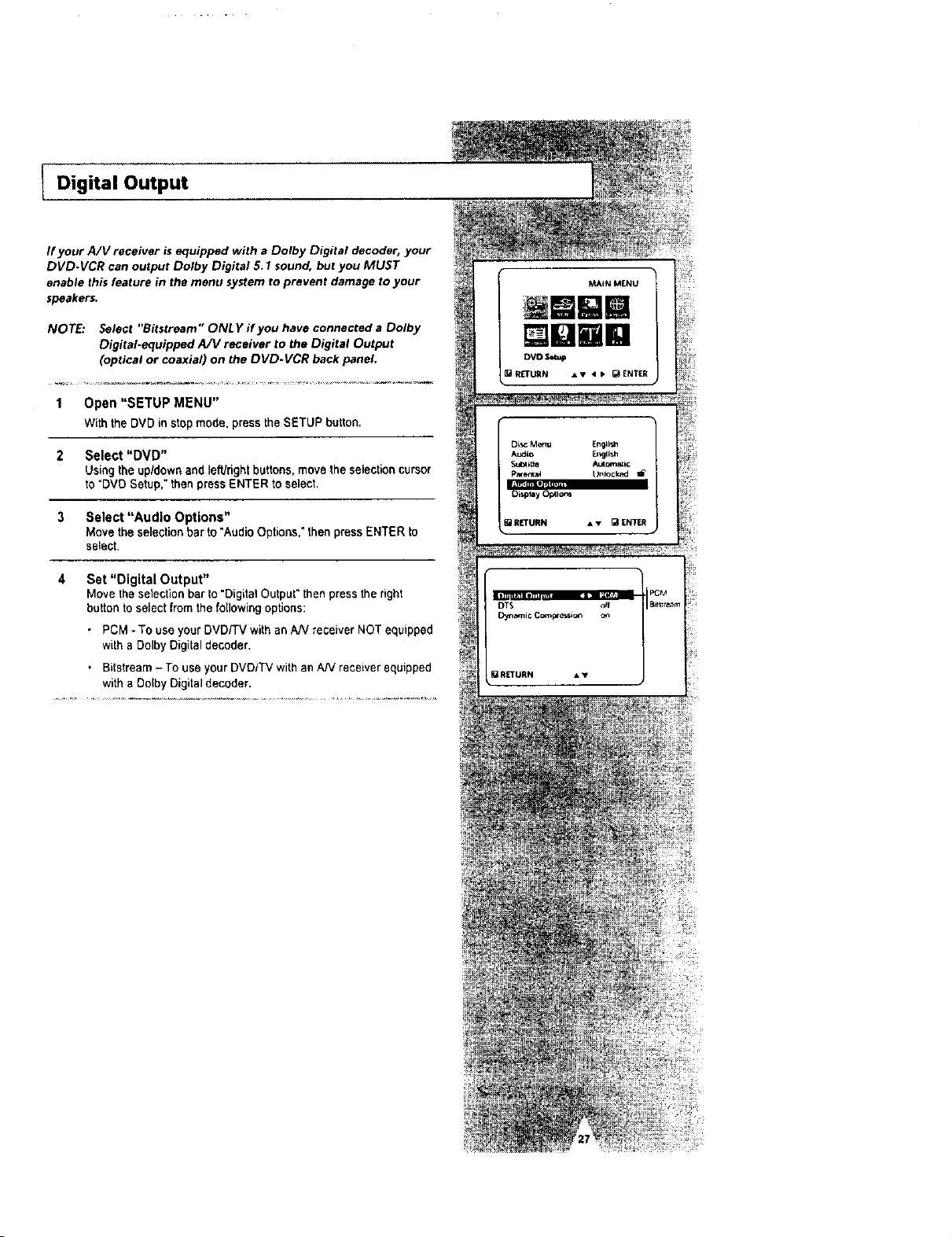
Digital Output
If your A/V receiver isequipped with a Dolby Digital decoder, your
DVD.VCR can output Dolby Digital 5.1 sound, but you MUST
enable this feature in the menu system to prevent damage to your
speakers.
NOTE: Select "Bitstream " ONLY if you have connected a Dolby
Digital-equipped A/V receiver to the Digital Output
(optical or coaxial) on the DVD-VCR back panel.
1 Open "SETUP MENU"
Withthe DVD instopmode, press the SETUP button,
2 Select "DVD"
Using theup/downand left/rightbuttons, movethe selectioncursor
to "DVD Setup," then press ENTER to select.
3 Select "Audio Options"
Movethe selectionbarto *Audio Options,"then press ENTER to
select.
4 Set "Digital Output"
Move theselection bar to "Digita_Output" then press the right
button to selectfrom the following options:
• PCM - To useyour DVD/TV with an AN receiver NOT equipped
with a Dolby Digital decoder.
• Bitstream - Touseyour DVDITV with an A/V receiver equipped
with a Dolby Digital decoder.
[][]mm

[]unm
DTS
If your A/V receiver is equipped with a DTS decoder, your DVD-
VCR can output DTS digital sound, but you MUST enable this
feature in the menu system.
NOTE: Select "Yes" ONLY if you have connected a DTS-equipped
A/V receiver to the DIGITAL AUDIO OUT (optical or coaxial) on
the DVD.VCR back panel.
1 Open"SETUPMENU"
With the DVD instop mode, press the SETUP button.
2 Select "DVD"
Using the up/downandle_right buttons,move the selectioncursor
to "DVD Setup." thenpress ENTER to select.
3 Select "Audio Options"
Movethe selection bar to "Audio Options," then press ENTER to
select.
4 Set "DTS"
Movethe selection barto "DTS," thenpress rightto select from the
following options:
• off- To useyourDVD/TV withanAN receiver NOT equipped
withaDTS decoder.
• on- To useyourDVDFrV withanAN receiverequippedwitha
DTS decoder,

Dynamic Compression
Dynamic Compression constrains the dynamic range, Le, the
difference between the quietest and loudest passages of a DVD
soundtrack, This enables you to limit loud noises, such as
explosions, or raise the volume of quiet passages, such as
whispering, while watching a movie, This is convenient for viewing
movies late at night,
1 Open "SETUP MENU"
Withthe DVD instopmode, press the SETUP button,
2 Select "DVD"
Usingthe up/down and left/right buttons,move the selectioncursor
to "OVD Setup."then press ENTER to select,
3 Select "Audio Options"
Movethe selection bar to"Audio Options," thenpress ENTER to
select.
4 Set "Dynamic Compression"
Move the selection bar to "Dynamic Compression," then press
right to select from the following options:
• On -The totaldynamic range of the DVDsoundtrack will be
compressed, so quiet passages will be louder and loud
passages will be softer.
• Off- The original dynamic range witl be preserved.

TV Aspect Ratio I
RETURN • • Q ENTER
Set the aspect ratio (length x width) of your TV screen so the DVD
player will display movies at the appropriate size for your
television. Choose from standard, letterbox, or widescreen format.
1 Open "SETUP MENU"
With the DVD in stopmode. press the SETUP button.
2 Select "DVD"
Using the up/down and leftJrightbuttons,movethe selectioncursor
to "DVD Setup," then press ENTER to select,
3 Set "Display Options"
Movethe selectionbar to "DisplayOptions", then press ENTER to
select.
4 Set "TV Aspect"
Move the selectionarrowto "TV Aspect", then press ENTER to
selectfrom the following options:
• 4:3 Letterbox - This method displays the full widthof the
widescreenmovie on a standard 4:3lelevision. As a result,
blackbars willappearat thetop and bottom of the screen.
• 4;3 Pan-Scan - The familiarwayof watchingDVDand VHS
movies, thismethod selectivelycrops(by panningand scanning
to keepthe most importantpartofthe picturevisible)wide
screen moviesto fit a standard 4:3 televisionscreen,
• 16:9 Widescreen- This method allowsyou to viewthe full 16:9
pictureon a widescreentetevision.
la

Black Level
The Black Level feature adjusts the reference level of black in the
video signal to one of two choices:
• Low. Standard NTSC black level. Yields consistent contrast
through all sources,
• High. Enhanced black level, for increased contrast during DVD
playback.
1 Open "SETUP MENU"
Withthe DVD instopmode, press the SETUP button.
2 Select "DVD"
Usingthe up/down and left/righl buttons,move the selectioncursor
to "DVD Setup," then press ENTER to select.
3 Set "Display Options"
Movethe selection barto "Display Options', then press ENTER to
select.
4 Set "Black Level"
Move theselection bar to "Black Level,"then press right to select
from the following options:
• Low - Standard NTSC reference Black Level for consistent
brightness/contrast across allsources.
• High - Enhanced Black Levelfor increasedbrightness/contrast
whenviewing DVDs.
AIt Video Out
If you connected your DVD-VCR to your television using the
S-VIDEO OUT or COMPONENT VIDEO OUT jacks, you MUST set
the "AIt (alternative) Video Out" selection in the on-screen menu
system.
• TheS-VideoorComponent Videoconnectionisonlyforthe
DVD player. The tuner and VCR will still be viewed through the
RE or line outputs.
I Open "SETUP MENU"
Withthe OVD instopmode. press the SETUP button.
2 Select "DVD"
Using theup/downand le_right buttons, move the selectioncursor
to "DVDSetup," then press ENTER to select,
3 Set "Display Options"
Movethe selectionbarto "DisplayOptions",thenpress ENTER to
select.
4 Select "Alt Video Out"
Movelhe selectionbar to "AItVideoOut," thenpress right to
se_eclfrom the followingoptions:
• S-Video - Indicatesthatyou areusing the S-VIDEO OUT jack on
the rear panel to connect Io your TV.
• Component- Indicatesthat you areusing the COMPONENT
VIDEO OUT jacks on the rear panel to connect _oyour TV.
Dmm
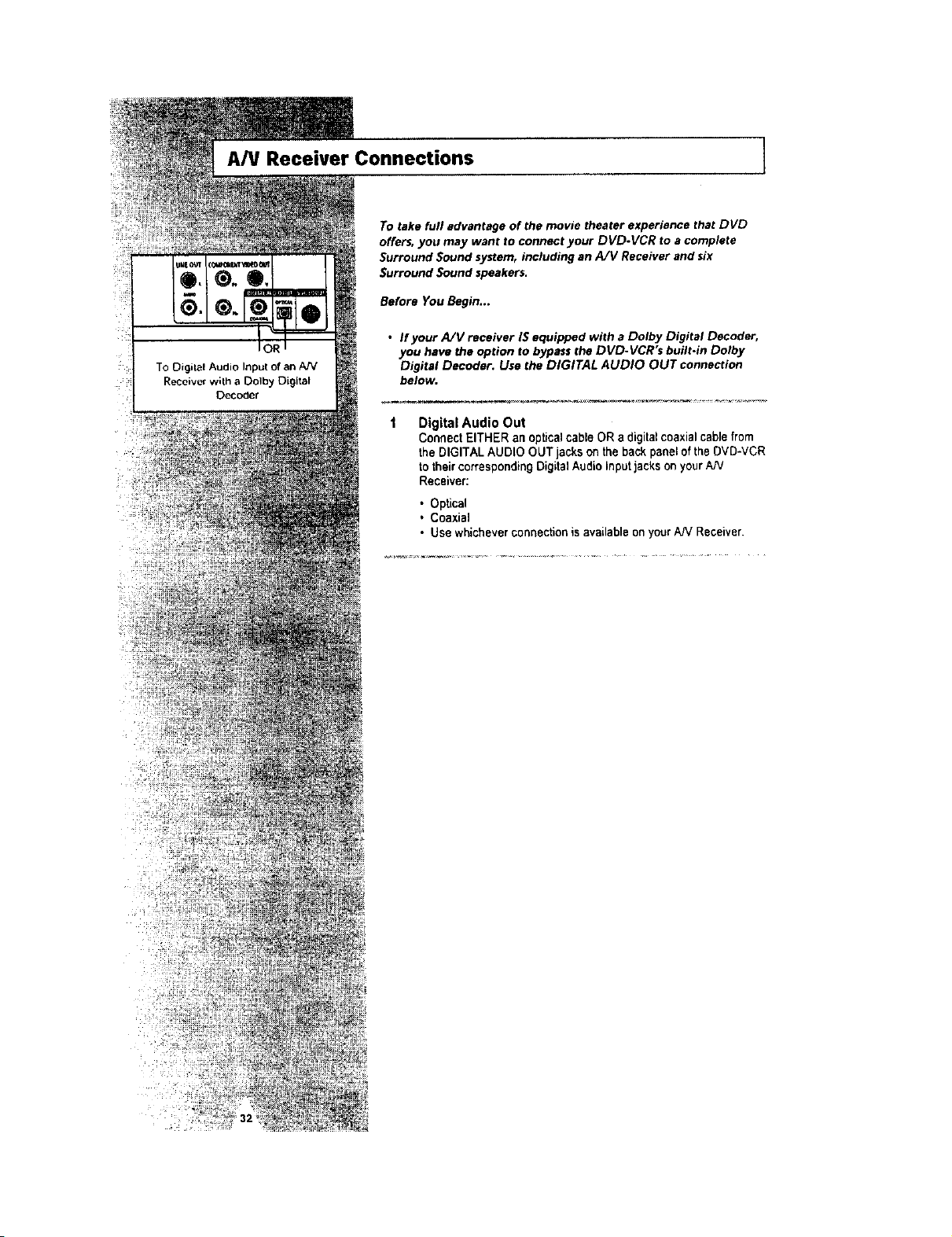
A/V Receiver Connections ]
To Digital Audio Input of an AN
Recoiver with a Do]by Digital
Decoder
To take full advantage of the movie theater experience that DVD
offers, you may want to connect your DVD.VCR to acomplete
Surround Sound system, including an A/V Receiver and six
Surround Sound speakers.
Before You Begin...
• If your A/V receiver IS equipped with a Dolby Digital Decoder,
you have the option to bypass the DVD-VCR's built.in Dolby
Digital Decoder. Use the DIGITAL AUDIO OUT connection
below.
Digital Audio Out
ConnectEITHERan opticalcableORa digitalcoaxialcablefrom
theDIGITALAUDIOGUT jackson thebackpaneloftheDVD-VCR
totheircorrespondingDigitalAudioInputjackson yourAN
Receiver:
• Optical
. Coaxial
• Use whicheverconnectionis available on yourAJVReceiver.
/
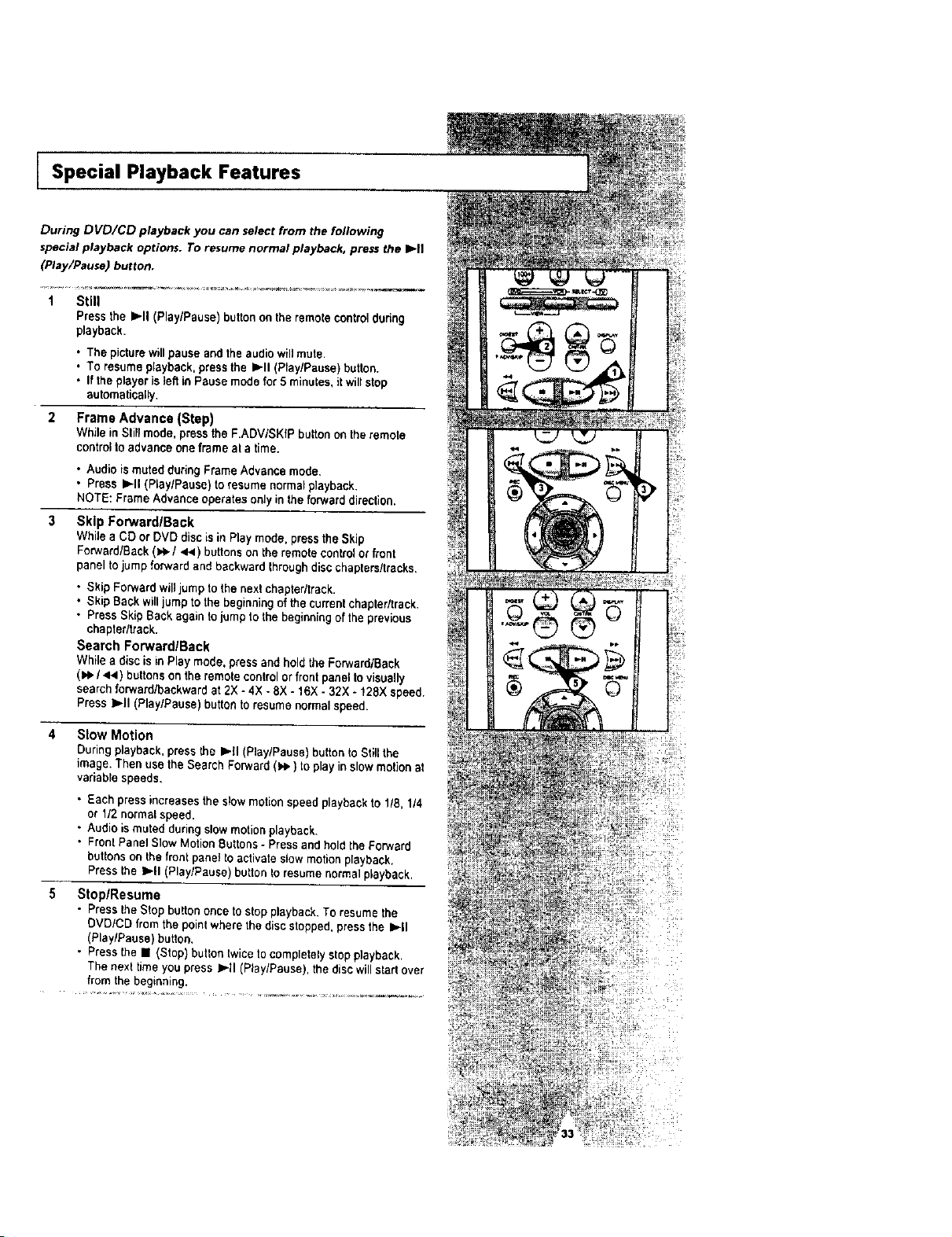
I Special Playback Features
During DVD/CD playback you can select from the following
special playb#ck options. To resume normal playback, press the b,-n
(Play/Pause) button,
1 Still
Pressthe I_11(Play/Pause) button on the remotecontr01dottng
playback.
• The picturewillpause and the audiowill mute.
• To resumeplayback, press the I_11 (Play/Pause) button.
• Ifthe player is ]eft inPause mode for5minutes, itwillstop
automatically.
2 Frame Advance {Step)
While inStiltmode, press the F.ADV/SKfP buttonon the remote
controlto advance one frameat atime.
• Audio ismutedduring FrameAdvance mode.
• Press IP-ll(Play/Pause) to resume normal playback.
NOTE: Frame A_vanceoperatesonly in the forward _irection.
Skip ForwardlBack
While aCO orOVO diecis inPlay mode, press the S;'Jp
Forward/Back (),,_./44 ) buttonson the remote controlorfont
paneltojump forward and backward throughdiscchapters/tracks.
• Skip Forward willjump to the next chapter/track.
• Skip Back willjump to the beginningof the currentchapter/track.
• PressSkip Back again tojump to the beginningof theprevious
chapter/track.
Search Forward/Back
While adiscis inPlay mode, press and hold the Forward/Back
(),e./441) buttonson the remote controlorfront panelto visually
search forward/backward at 2X -4X - 8X - 16X - 32X - 128X speed.
Press l_tt (PiaylPause) button to resumenormalspeed.
4 Slow Motion
During playback,press the I_.ll (P_ay/Pause')button _oStillthe
image,Thenusethe Search Forward ()e,) to playinslow motionat
variable speeds.
• Each press increasesthe slow motion speed playback to 118,1/4
or 1/2 normal speed.
• AL_dieismuted during stowmotion playback.
• Fronl Panel Slow Motion Buttons- Pressand hold the Forward
butlons on the front panel to activate slow motion playback,
Pressthe I=,.|1{P_ay/Pause) button to resumenormalp_ayback.
Stop/Resume
• Pressthe Stop button once tostop playback. To resume the
OVD/CD from the pointwhere the discstepped, press the I=,-II
(Play/Pause) button.
• Press the I (Stop) button twice to completelystop playback.
The next time you press I=,-II(Play/Pause), the discwillstartover
from the beginning.
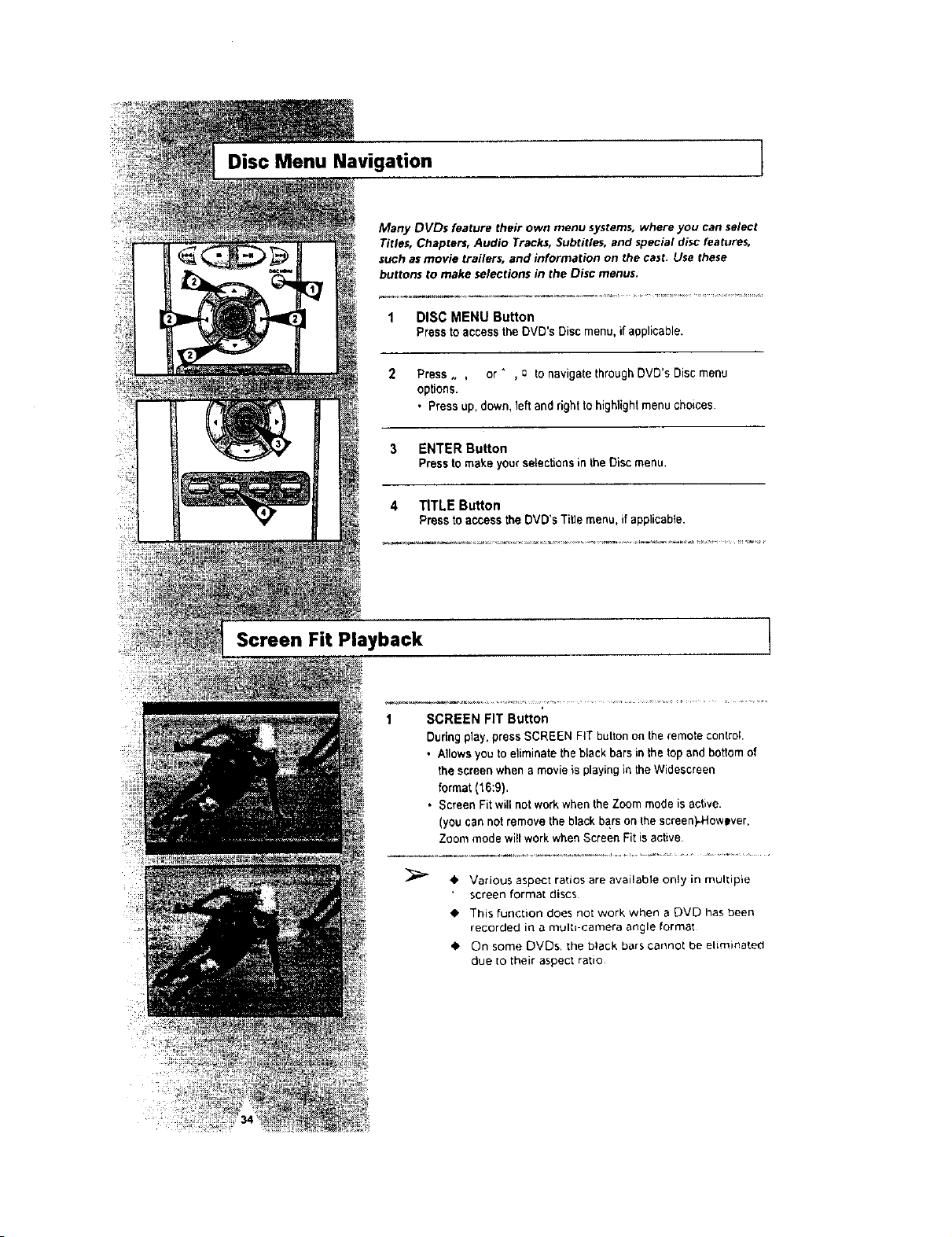
Disc Menu Navigation I
Many DVDs feature their own menu systems,where you can select
Titles, Chapters, Audio Tracks, Subtitles, and special disc features,
such as movie trailers, and information on the cast. Use these
buttons to make selections in the Disc menus.
1 DISC MENU Button
Pressto accessthe DVD's Disc menu, if applicable.
2 Press. , or " , 0 to navigate through DVD's Disc menu
options.
• Press up, down, left and right to highlight menu choices.
3 ENTER Button
Pressto makeyourselectionsin the Disc menu.
4 TITLE Button
Pressto access the DVD's Title menu, if applicable.
Screen Fit Playback !
1 SCREEN FIT Button
During play.press SCREEN FiT button on the remotecontrol
• Allowsyou to eliminate the black bars inthe topand bottomof
the screen whena movieisplaying inthe Widescreen
format (16:9).
• ScreenFit willnotwork whenthe Zoommode isactive.
(youcannot removethe blackbars on the screen)..However,
Zoommode wi!l workwhenScreen Fit is active.
• Various aspect ratios are availabte only in multiple
screen format discs
• This function does not work when a DVD has been
recorded in a multi-camera angle format
• On some DVDs, the black bars cannot be etiminated
due 1otheir aspect ratio

Title/Chapter/Time Selection
If you press the DlSPLA Y button during DVD playback, you can
view the current Title, Chapter/Track, and counter position. You
can also use this screen as shortcut to select any Title,
Chapter[Track, or counter position on the disc.
1 View DVD/CD Display
Pressthe DISPLAY button on the remote controlduring DVD/CD
playback.
Select Title
Pressthe up/down and left/right buttons to selectTitle, thenpress
ENTER to change among allavailable titleson the disc.
• The"TITLE" iconwilllighton the Front Panel Display,followed by
the current title number, hours, minutes, and seconds.
Select Chapter or Track
Pressthe up/down and left/rightbuttonsto selectChapterorTrack,
thenpress ENTER to change amongall available Chapters/Tracks
on the disc.
• The "CHAP" iconwitl light on the FrontPanel Display,followed
by the current titlenumber, hours, minutes, and seconds.
4 Select Counter PosJtion
Press the up/downand left/right buttonsto selectthecounter
positionindicator,thenuse thenumberbuttons(0-9) to enterthe
desired counter positionin theformat HH:MM:SS (H= Hours,M =
Minutes, S = Seconds).
Then press ENTER to enterthe desired counterposition,

Zoom
J
You can zoom in at 2 or 4 times the normal magnification while
watching a DVD.
1 Open Zoom Magnifying Glass
During PlaybackorSTILL mode, press the ZOOM button to display
the "Magnifying Glass icon" on the screen.
2 Position Magnifying Glass
Use the .... " ,a buttons to movethe magnifying glass to any
positionon thescreenyou wantto zoom.
3 Zoom In
Pressthe ENTER button repeatedly to zoom in at2X - 4X - 2X +
and normal magnification.
Angle !
Some DVDs allow .you to view the same scene from
different perspectives, or angles, while watching a
movie. Press the ANGLE button to activate this feature,
1 Check for Angle Marker
Ifmultiple Angles are available on the DVD, the Angte mark wilt
appear on the screen during playback.
2 View Angte Options
Ifthe Angle mark ispresent, press the ANGLE button toview the
Angle Selection menu. P
3 Select Screen Angle
Press the up/down buttons toselect one of the available screen
angles.
I Subtitle
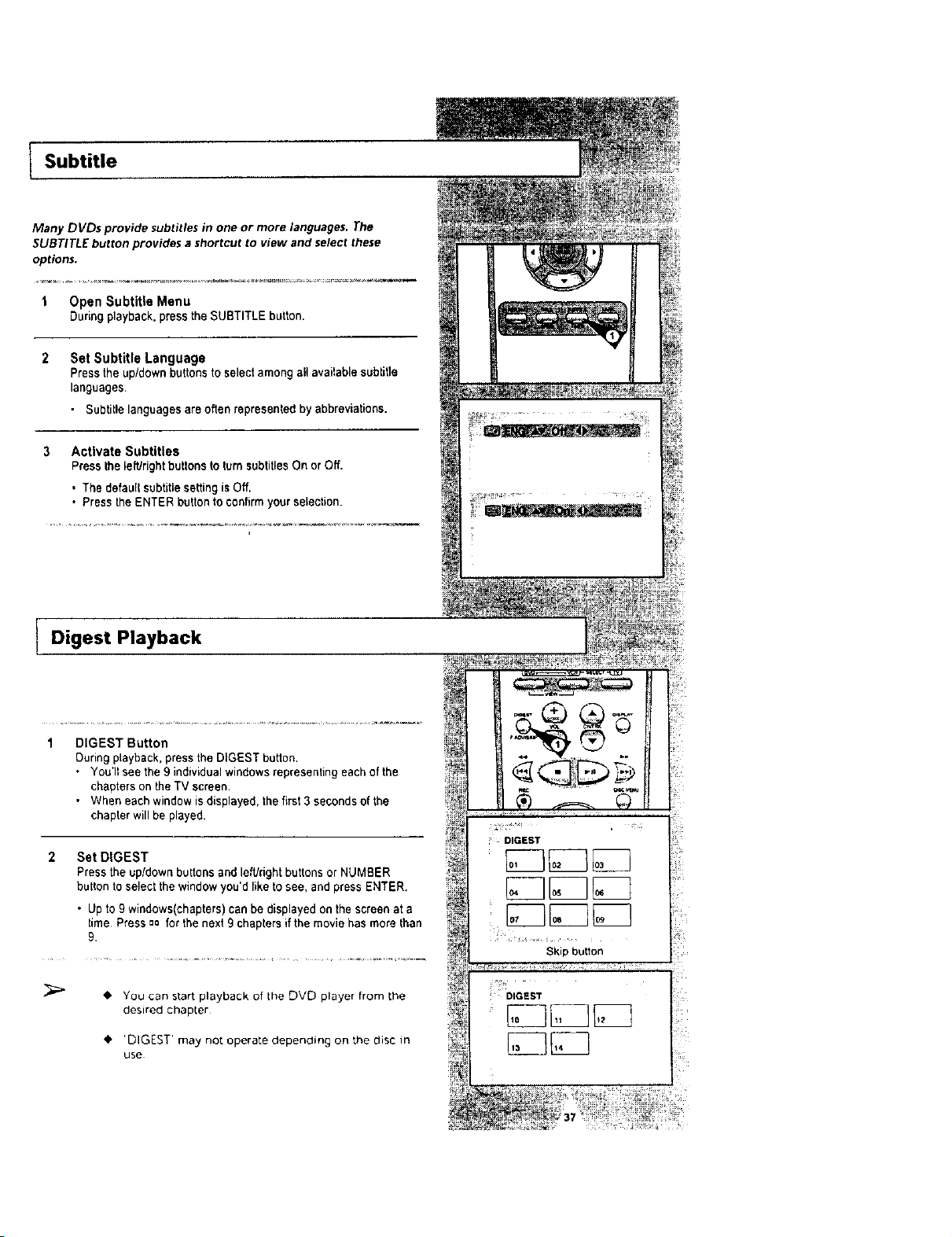
Many DVDs provide subtitles in one or more languages. The
SUBTITLE button provides a shortcut to view and select these
options.
1 Open Subtitle Menu
During playback,press the SUBTITLE button.
Set Subtitle Language
Pressthe up/downbuttons to selectamong all available subtitle
languages.
• Subtitle languages areoftenrepresented by abbreviations.
Activate Subtitles
PresstheleftJrightbuttonstoturnsubtitlesOnorOff,
• The default subtitlesettingis Off,
• Press the ENTER button toconfirmyour selection.
Digest Playback
DIGEST Button
During playback, press the DIGEST button.
• You'll see the 9individual windows representing eachof the
chapters on the TV screen.
• When each window isdisplayed, thefirst 3 seconds of the
chaplet will be played.
2 Set DIGEST
Pressthe upfdown buttons and left/right buttons or NUMBER
button to select the window you'd like tosee, and press ENTER.
• Up to9 windows(chapters) canbedisplayed on thescreenata
time Press =ofor the next 9 chaptersif the movie hasmore than
9.
_" You can start playback of the DVD player from [he
desired chap[er
•' 'DIGEST' may not operate depending on the disc in
use
A-B Repeat I
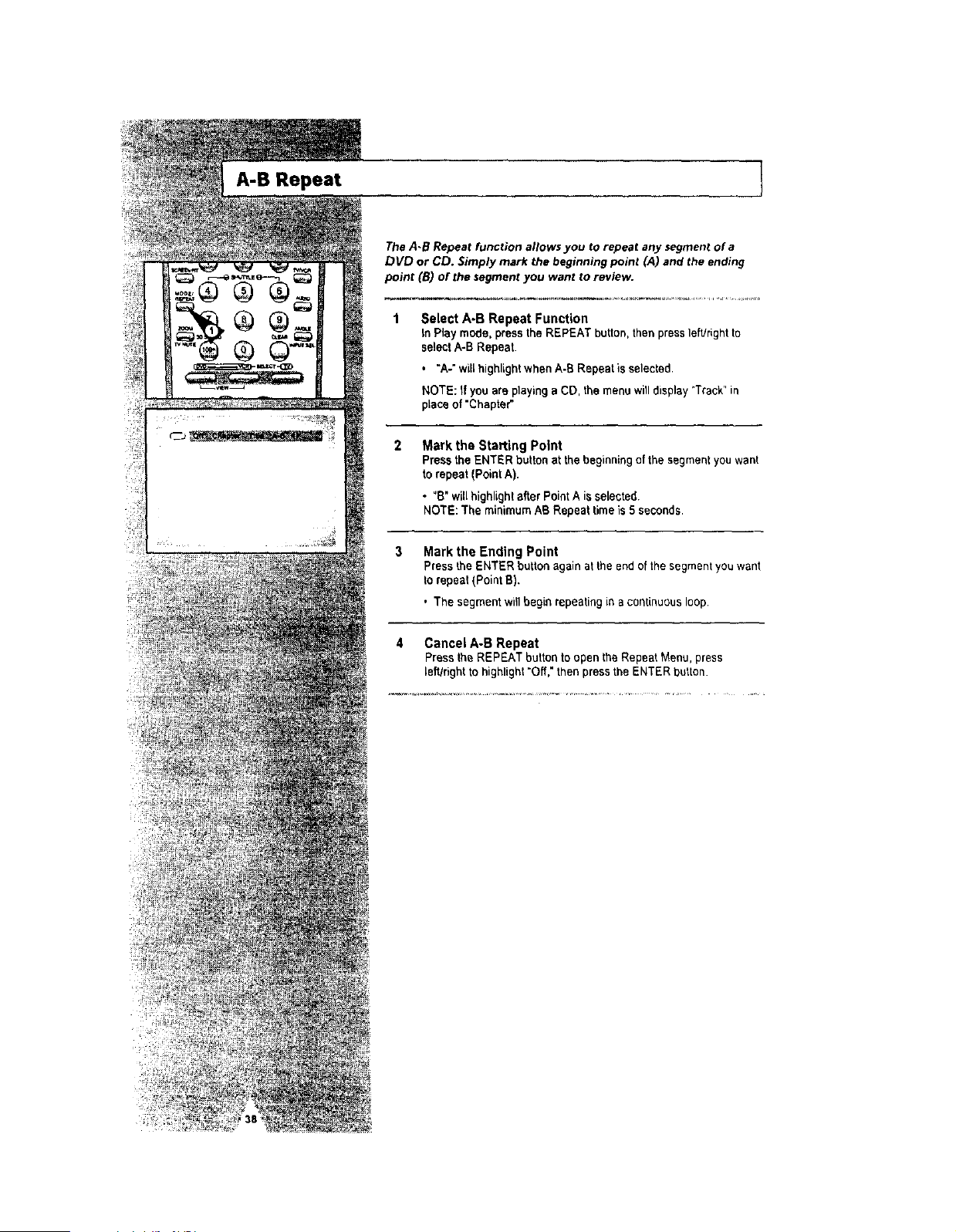
The A.B Repeat function allows you to repeat any segment of a
DVD or CD. Simply mark the beginning point (A) and the ending
point (B) of the segment you want to review.
1 Select A-B Repeat Function
tnPlay mode, pressthe REPEAT button, then press left#ightto
selectA-B Repeat.
• "A-" willhighlightwhenA-B Repeatis selected.
NOTE: If you are playing aCD, the menu willdisplay "Track" in
placeof'Chapter"
2
Mark the Starting Point
Pressthe ENTER button atthe beginningof the segmentyouwent
to repeat(Point A).
• "B" will highlightafter Point Aisselected,
NOTE: The minimum ABRepeat time is5 seconds.
Mark the Ending Point
Pressthe ENTER button again atthe end of the segmentyou want
to repeat (Point B),
• The segment willbegin repeatingin acontinuous loop.
Cancel A-B Repeat
Press the REPEAT button to openthe Repeat Menu, press
left/right to highlight "Off," then press the ENTER button.

Repeat Chapter/Title
Youcan repeat a single chapter, orrepeat a complete title.
1 Open Repeat Menu
In Playmode, press the REPEAT button toopen the Repeat menu.
, The currentRepeat Mode willhighlighted.
2 Select "Chapter"
Pressthe left/rightbuttonsto select"Chapter"
• "Chapter"willhighlightwhen Chapter Repeat is selected.
3 Repeat Chapter
Pressthe ENTER button to repeatthe currentchaptedtreck.
4 Select "Title"
Pressthe leftJdght buttons to select"Title".
• "Title"willhighlightwhen Title Repeat isselected
5 Repeat Title
Press the ENTER button to repeat the titSe.
LAudio
Many DVDs provide multiple language and audio setup options,
such as Dolby Digital 5.1, Dolby Pro Logic, or LPCM 2 Channel
audio. The AUDIO button provides a shortcut to view and select
among aft available options for a given disc.
1 Open the Audio Menu
During playback, press the AUDIO button on the remote control.
Select DVD Audio Track
Pressthe up/down buttonsto select the desired language/audio
setup on the DVD.
• Languages are represented by abbreviations;i.e."ESP" for
"espef_ol."
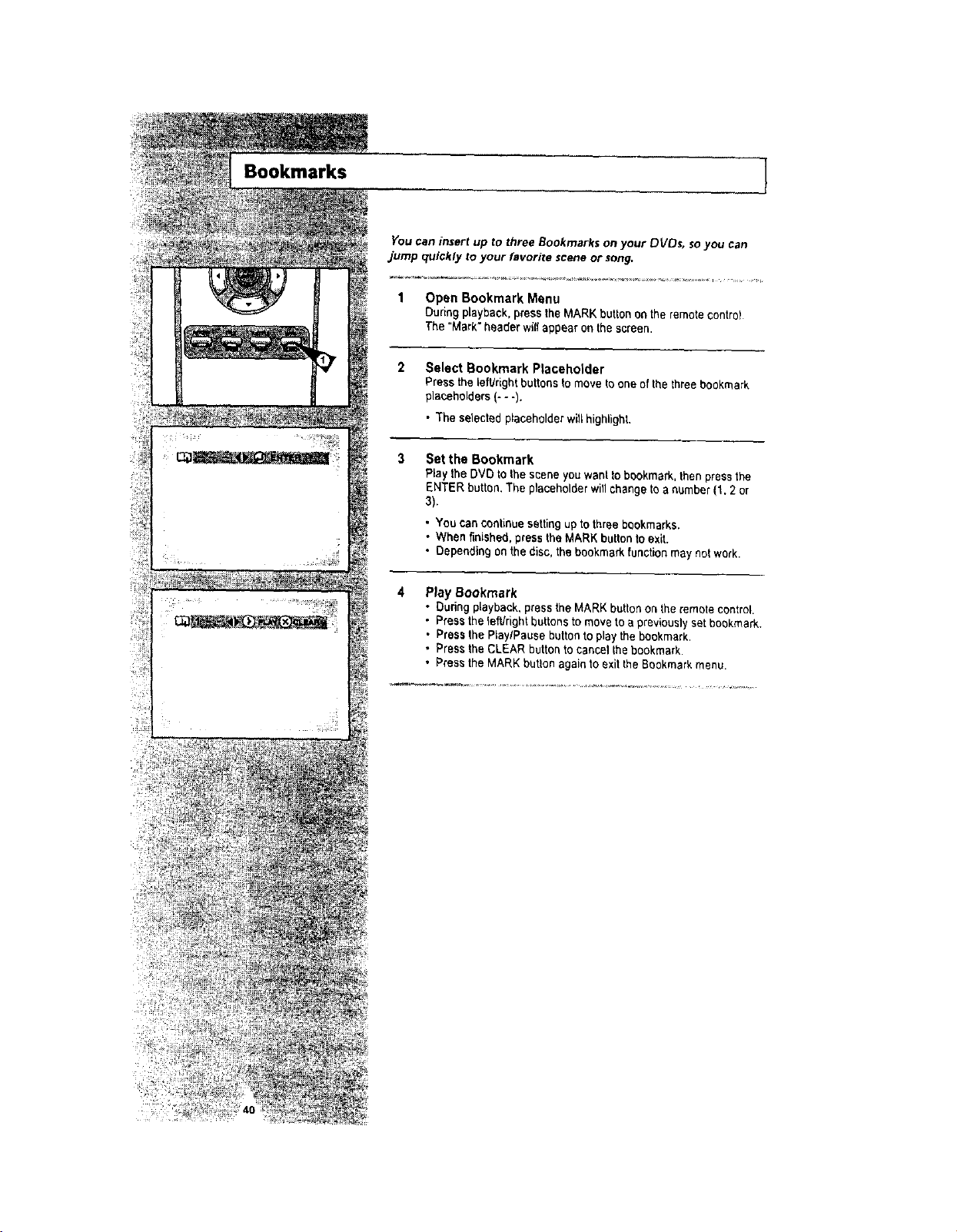
You can insert up to three Bookmarks on your DVDs, so you can
jump quickly to your favorite scene or song,
I Open Bookmark Menu
Ouri_ playback, press the _ARK button _,_ the remote Control
The "Mark" header will appearon the screen.
Bookmarks
2
3
Select Bookmark Placeholder
Pressthe iefVdghtbuttons to move to one of the threebookmark
placeholders(- - -).
• 3"heselectedplaceholder will highlight.
Set the Bookmark
Ray theDVDto thesceneyouwanttobookmark,thenpressthe
ENTERbutton,Theplacaholderwillchangetoa number(1.2 or
3).
, You cancontinuesettingup to threebookmarks.
• When finished, press the MARKbutton to exit.
• Dependingon the disc, the bookmark function may not work.
Play Bookmark
• Dudng playback, press the MARK buttonon the remote control.
• Presstheto,rightbuttonstomove toa previouslysetbookmark,
• Press the PlaylPause button to play the bookmark,
• Pressthe CLEAR button to cancel thebookmark.
• Pressthe MARK button again to exit the Bookmark menu.

l Programmed Playback
Programmed Playback letsyou setacustom order for playback of
chapters/tracks on a DVD or CD.
1 Open Playback Mode Menu
While in Stop mode, press the MODE button.
2 Select "PROGRAM"
Using the lefUdghtbuttons, movethe selection bar to "PROGRAM"
then press ENTER to select.
3 Select Chapter/Track
Press the up/down and left/right buttons to select thefirst
chapter/track in yourrevised playback Ust.then pressthe ENTER
button.
4 Program Playback Order
Use the up/down and left/right buttons to selectthe remaining
chapters/tracks, pressing Enter after each.
• PresstheCLEAR button tochange selections,
5 Play Revised Order
Pressthe c_II(Play/Pause) button,The disc willplaybackin the
customprogrammed order,
• While inplaybackmode, press the CLEAR button on the remote
control to cancel ProgrammedPlay.
Chep (T:01) p_c_ram Otoer
_102 03 04 ......
_ 05 07 08
IO 11 1Z
13 t4 1_ 16_
- b
_R[TLIIN QC_R _[NTEI OPLAy
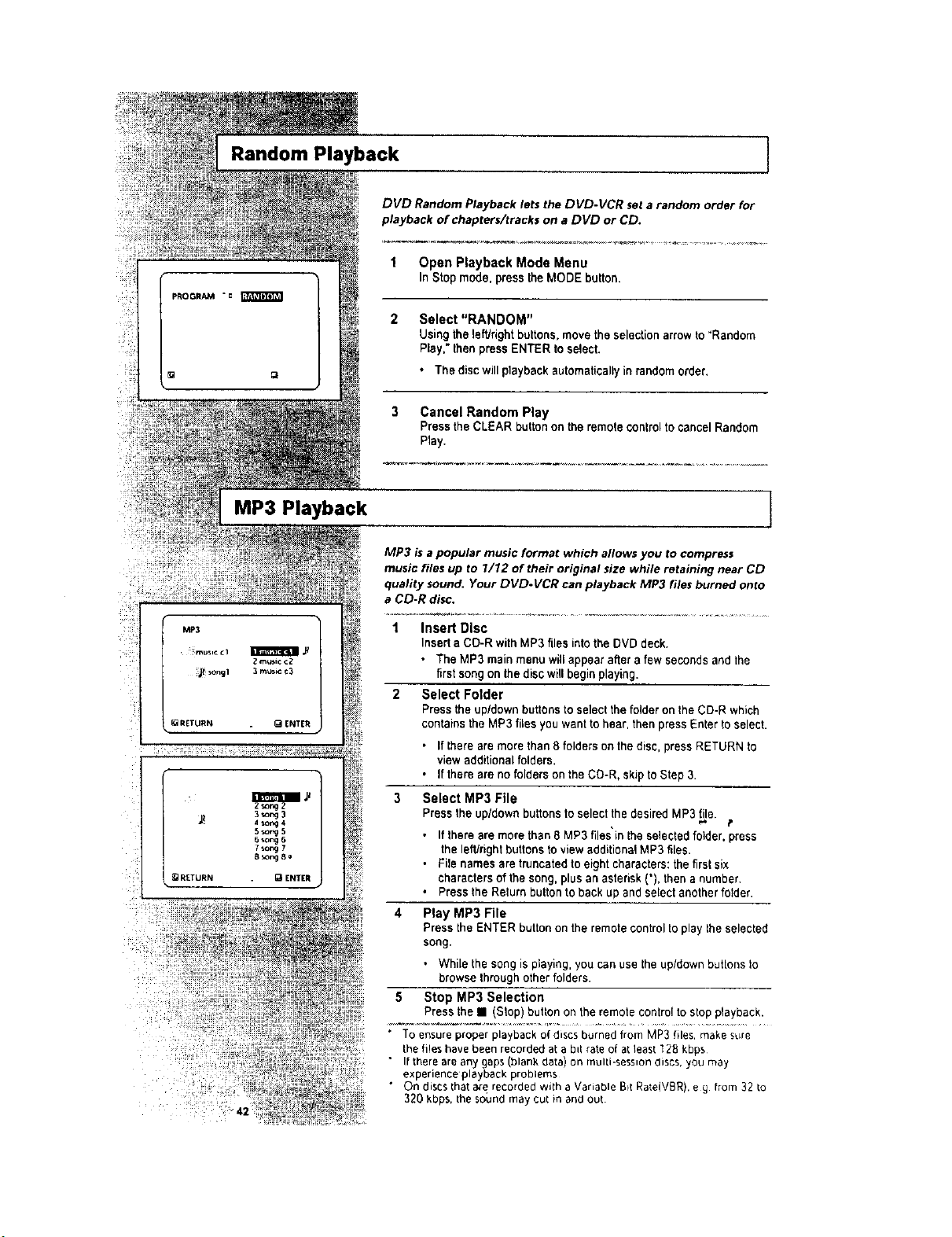
Random Playback
]
DVD Random Playback lets the DVD-VCR set a random order for
playback of chapters/tracks on a DVD or CD.
1 Open Playback Mode Menu
InStop mode. press the MODE button.
Select "RANDOM"
Using the leftJright buttons,movethe selectionarrowto "Random
Play," then press ENTER to select.
• The discwillplaybackautomatically in random order.
3 Cancel Random Play
Press the CLEAR button on the remote controlto cancel Random
Play.
MP3 Playback
MP3 isa popular music format which allows you to compress
music files up to 1/12 of their original size while retaining near CD
quality sound. Your DVD.VCR canplayback MP3 files burned onto
a CD-R disc.
1 Insert Disc
InsertaCD-R with MP3 files into the DVD deck.
• The MP3 main menu willappear after a few secondsand the
firstsong on the disc will begin playing.
2 Select Folder
Press the up/down buttons to select the folder on the CD-R which
contains the MP3 files you want to hear, then press Enter to select.
• Ifthereare more than 8folders on the disc, press RETURN to
view additional folders.
• If there are nofolders on the CD-R. skiptoStep 3.
3 Select MP3 File
Pressthe up/down buttonsto select the desired MP3 tile.
t
• Ifthereare morethan 8MP3 files'inthe selectedfolder, press
the leWrightbuttons to viewadditionalMP3 files.
• Filenames are truncated to eight characters: the first six
characters of the song, plusanasterisk ('), then anumber
° Pressthe Relurnbuttonto back up andselectanother folder.
4 Play MP3 File
Pressthe ENTER button on the remote control to play the selected
song.
. While the song is playing, you can use the up/down buttons to
browse throughother folders.
5 Stop MP3 Selection
Press the • (Stop)button on the remote control to stop p_ayback.
• To ensure properplayback of discsburned from MP3 tiles,make sl_re
the fileshavebeen recorded at a b_trateof atleast 128 kbps
• It lhere arean),gaps(blank data) on muni-sess_ondiscs, you may
experience playbackproblems
• On discs that_ff recorded with aVariable B_IRate(VBR).eg from 32 _o
320 kbps, the soundmay cut in and out

I3D Sound
30 Audio is an enhanced audio mode that creates the illusion of
Surround 5ound with only two speakers.
Open 3D Sound Menu
During playbackof a DVD, pressthe 3D SOUND buttonon the
remote control.
2 Set 3D Sound
Pressthe up/down buttonsto set"3D Sound"On or Off,then press
the 3D SOUND buttonto confirmyourselection.
PLAY
Tracking
,s I
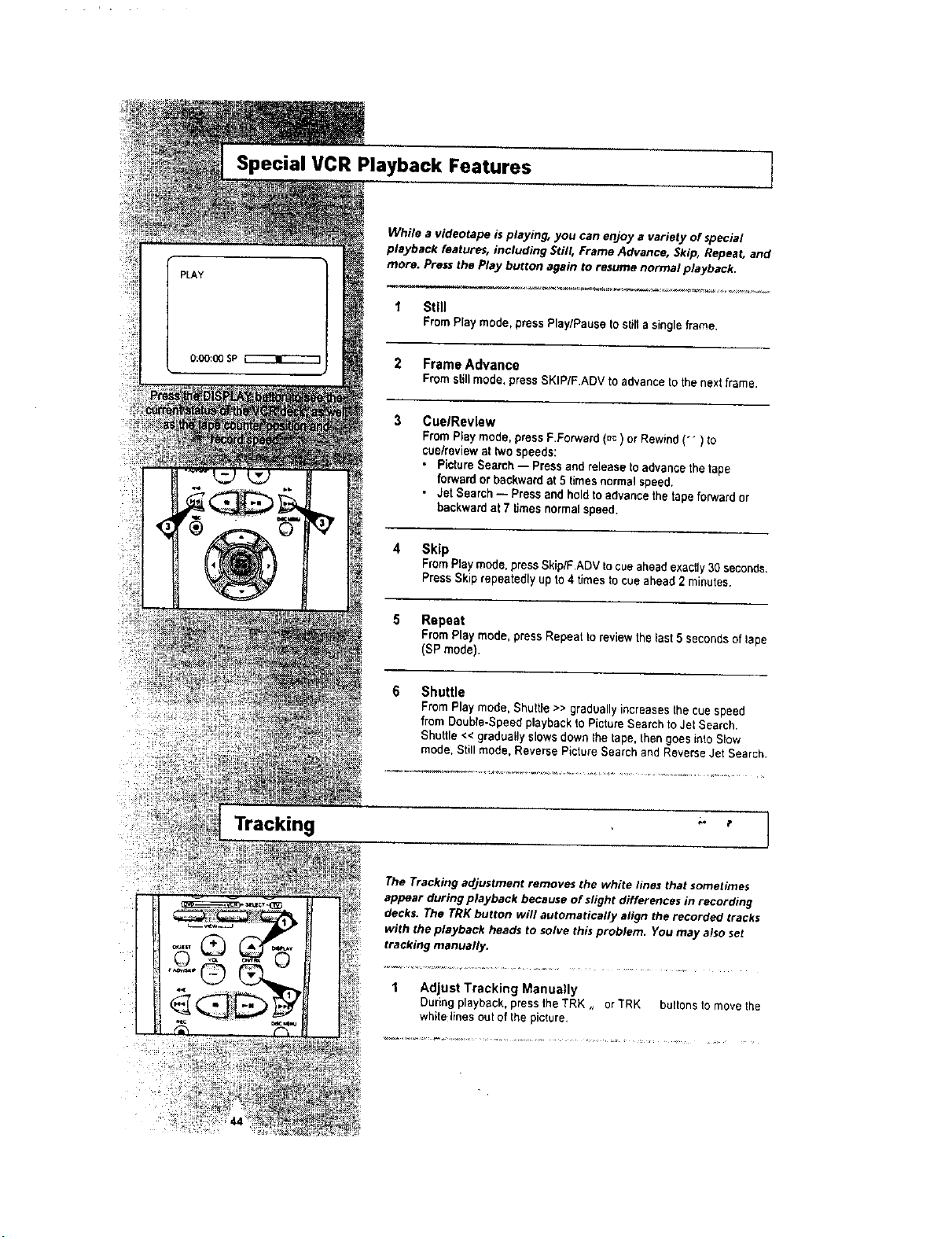
While a videotape is playing, you can enjoy a variety of special
playback features, including Still, Frame Advance, Skip, Repeat, and
more. Pressthe Play button again to resume normal playback.
1 Still
FromPlaymode,pressPlay/Pauseto stillasingleframe,
2 Frame Advance
From s_t$mode, press SKiP/F.ADV to advanceto thenext frame.
3 Cue/Revlew
From Ray mode, press F.Forward (=c) orRewind(-) to
cue/reviewat twospeeds:
• Picture Search-- Pressand release to advancethe tape
forward orbackward at 5 timesnormal speed.
• Jet Search-- Pressand hold to advancethe tape forward or
backwardat 7 timesnormal speed.
4 Skip
FromPlay mode, pressSkip/F.ADV tocueaheadexactly30 seconds.
PressSkip repeatedlyup to 4 timesto cueahead 2 minutes.
5 Repeat
From Play mode, press Repeat to review the last5 secondsof lape
(SP mode).
6 Shuttle
From Play mode, Shutde >> gradually increases the cue speed
from Double-Speed playback to Picture Search to Jet Search•
Shuttle <<gradually slowsdown the tape,thengoes into Slow
mode, Stitl mode. Reverse P_ctureSearchand Reverse Jet Search•
The Tracking adjustment removes the white lines that sometimes
appear during playback because of slight differences in recording
decks, The TRK button will automatically align the recorded tracks
with the playback heads to solve this problem. You may also set
tracking manually.
1 Adjust Tracking Manually
During playback, press the TRK ,, or"_RK buttons to move the
whitelinesout of the picture,
I AutoPlay
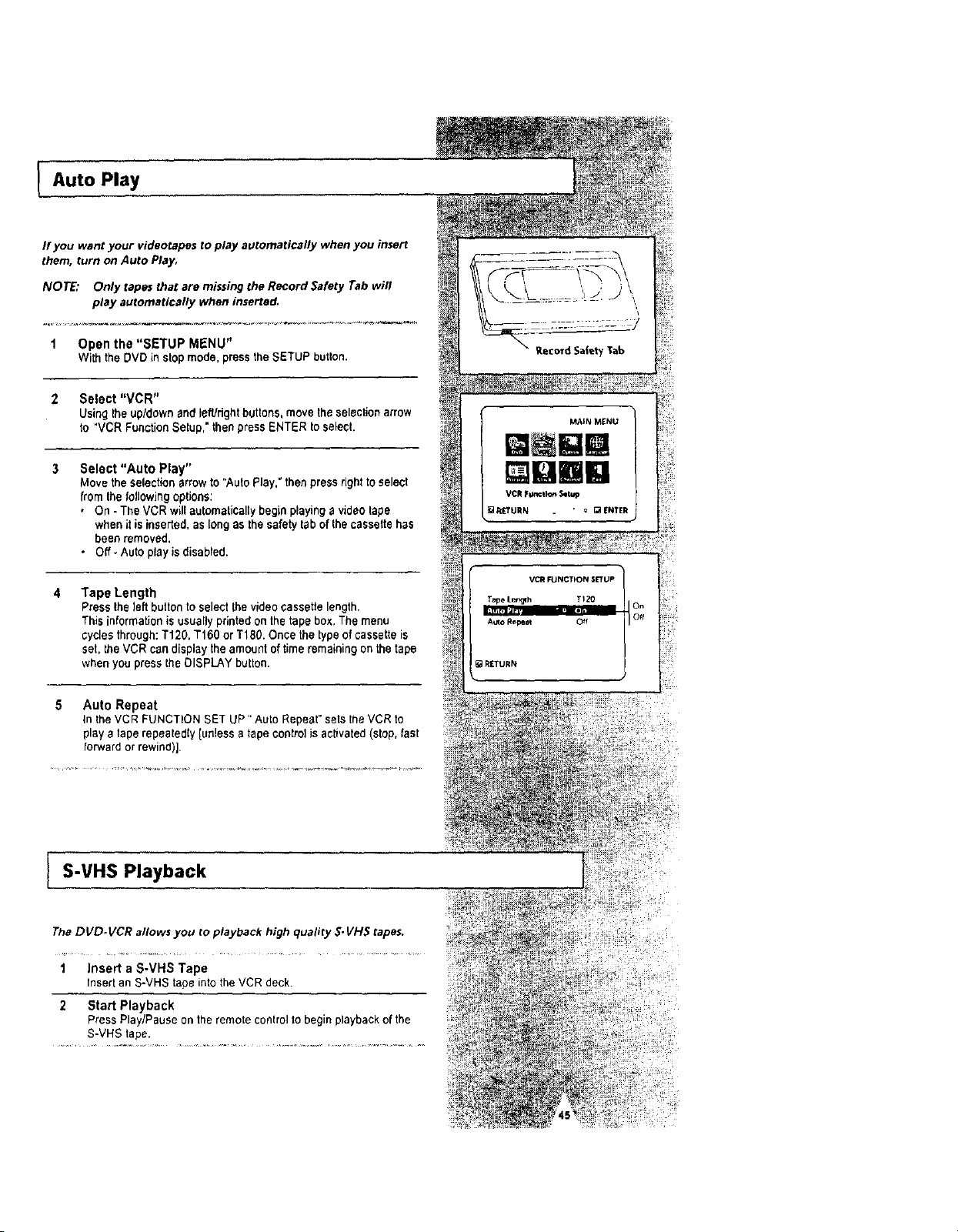
If you want your videotapes to play automatically when you insert
them, turn on Auto Play,
NOTE: Only tapes that are missing the Record Safety Tab wifl
play automatically when inserted.
1 Open the "SETUP MENU"
Withthe DVD instopmode. press the SETUP button.
2 Select "VCR"
Using the up/downand lefUdghtbuttons, move the selectionarrow
to "VCRFunctionSetup," then press ENTER to select,
3 Select "Auto Play"
Movethe selection arrowto "AutoPlay." then press rightto select
from the following options:
, On - TheVCR will automatically begin playing a video tape
when it is inserted,as long asthesafety tab of thecassettehas
been removed.
• Off_Auto playisdisabled.
Tape Length
Press the left button to selectthe videocassettelength.
This informationisusuallyprinted on the tape box,The menu
cyclesthrough:T120, T160 orT18g. Once the typeof cassette is
set, the VCR candisplaythe amountoftime remaining onthe tape
whenyoupressthe DISPLAY button.
Auto Repeat
Inthe VCR FUNCTION SET UP" Auto Repeat" setsthe VCRto
playatape repeatedly [unless atape controlisactivated(stop,fast
forward or rewind)].
S-VHS Playback
The DVD-VCR allows you to playback high quality S. VH5 tapes.
1 Insert a S-VHS Tape
Insert an S-VHS tape into the VCRdeck.
2 Start Playback
PressPlay/Pauseon theremote controlto begin playbackof the
S-VHS tape.
MAIN _NU
QBm
_RETURN " • gaENTER
VC_FUNCTION srruP
Tape Ler_h TI20
........
AutoRepeal Off
RETURN
Variable Search System
]
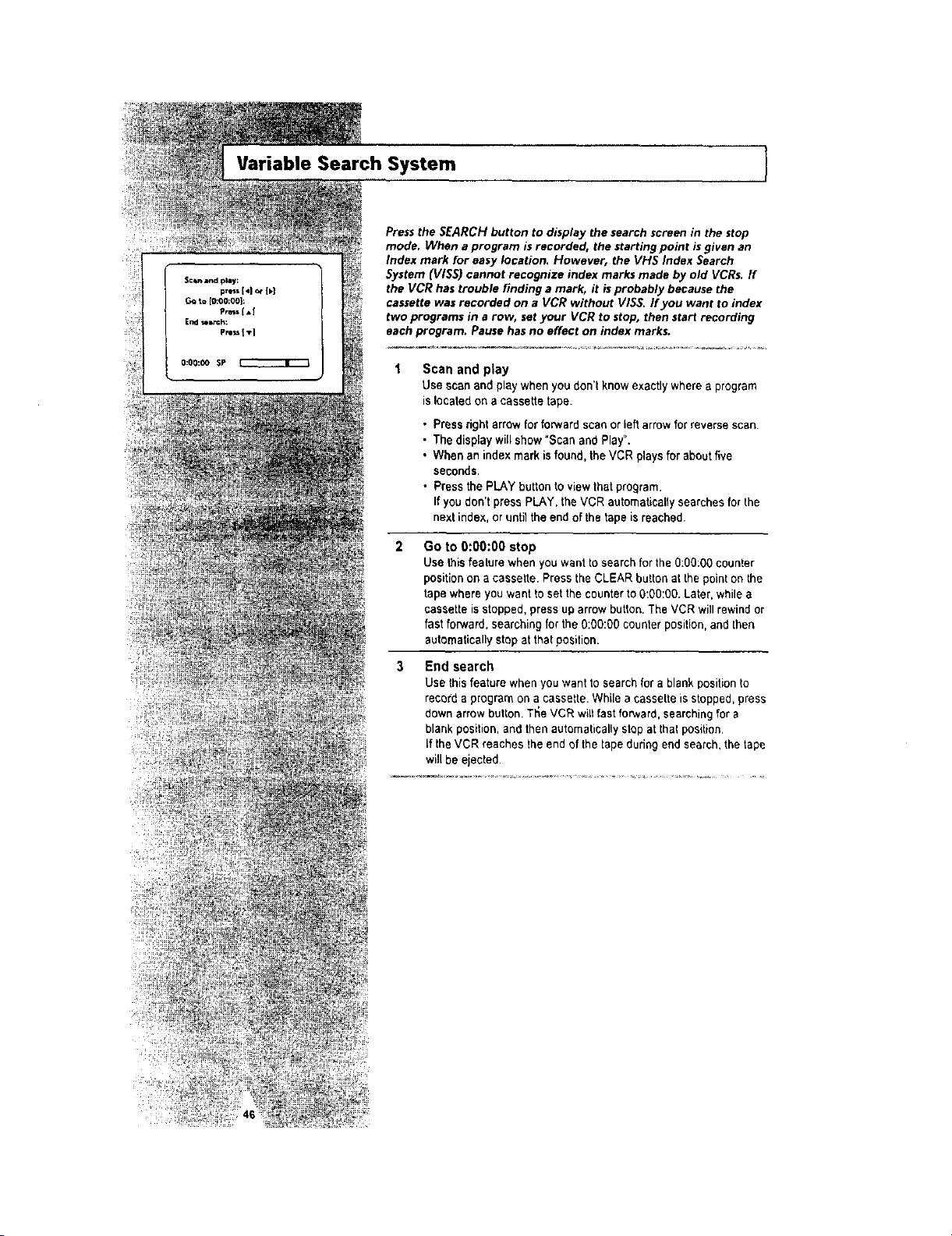
Pressthe SEARCH button to display the search screen in the stop
mode. When a program is recorded, the starting point isgiven an
Index mark for easy location. However, the VHS Index Search
System (VISS) cannot recognize index marks made by old VCRs. If
the VCR has trouble finding a mark, it isprobably because the
cassettewas recorded on a VCR without VISS. Ifyou want to index
two programs in a row, setyour VCR to stop, then start recording
eachprogram. Pause hasno effect on index marks.
Scan and play
Usescanandplaywhenyoudon'tknowexactlywherea program
islocatedon a cassettetape.
• Pressrightarrowfor forward scanor leftarrowfor reverse scan.
• The displaywillshow"Scan andPlay".
• When anindex mark isfound, the VCR playsfor aboutfive
seconds.
• Pressthe PLAY button to viewthatprogram,
Ifyou don'tpress PLAY, the VCR automaticallysearchesforthe
next index,oruntil the end of the tape is reached.
GOto 0:00:00 stop
Usethisfeature whenyouwantto search forthe O:OO:O0counter
positionon a cassette,Pressthe CLEAR button at the pointon the
tape where you wantto set the counter to 0:00:00. Later,whiles
cassette isstopped, press up arrow button. The VCR will rewind or
fast forward, searching fortheO:OO:O0counter position, and then
automatically stop at that position.
3 End search
Use thisfeature whenyou want to search fora blank position to
record a programon a cassette. While acassette isstopped, press
down arrow button. Ti_e VCR will fast forward, searching for a
blank position, antt then automatically stop at thatposition.
if the VCR reaches the end of the tape dudngend search, the tape
will be ejected

Basic Recording
Youcan record a TV show in progress by inserting a blank tape and
pressing the REC button. You can even add time in 30ominute
increments up to 4 hours by pressing the REC button repeatedly;
seepage 49.
NOTE: Be sure you videotape has a Record Safety Tab. If the tab
is missing, you can cover the opening with a small piece of
tape. Warning: Do not cover this opening unless you are
sure you want to record over the tape.
Before YouBegin...
• Power on the DVD.VCR
• Power on the TV
• Set the TV to channel 3 or 4,
1 Insert Tape
InsertablankVHS tapeintothe VCR deck
• Make sure the tapeislongenough to recordthe entire program.
To change the Recording Speed, see page 49.
2 Select a Channel to Record
Use the0-g buttons or the Channel Up/Down arrow buttons to
select the desired channel, or pressthe INPUT SEt button to
select Line 1or2ifrecording from anexternaldevice connected1o
the front or rear Line inputs, respectively.
3 Start Recording
PressIhe REC button on the remote controlor front panel.
Foroptionswhile recording is inprogress,see "Special Recording
Features"on the nextpage.
_" Recording [rum the DVD player to the VCR is not
possible
!
i
Special Recording Features 1
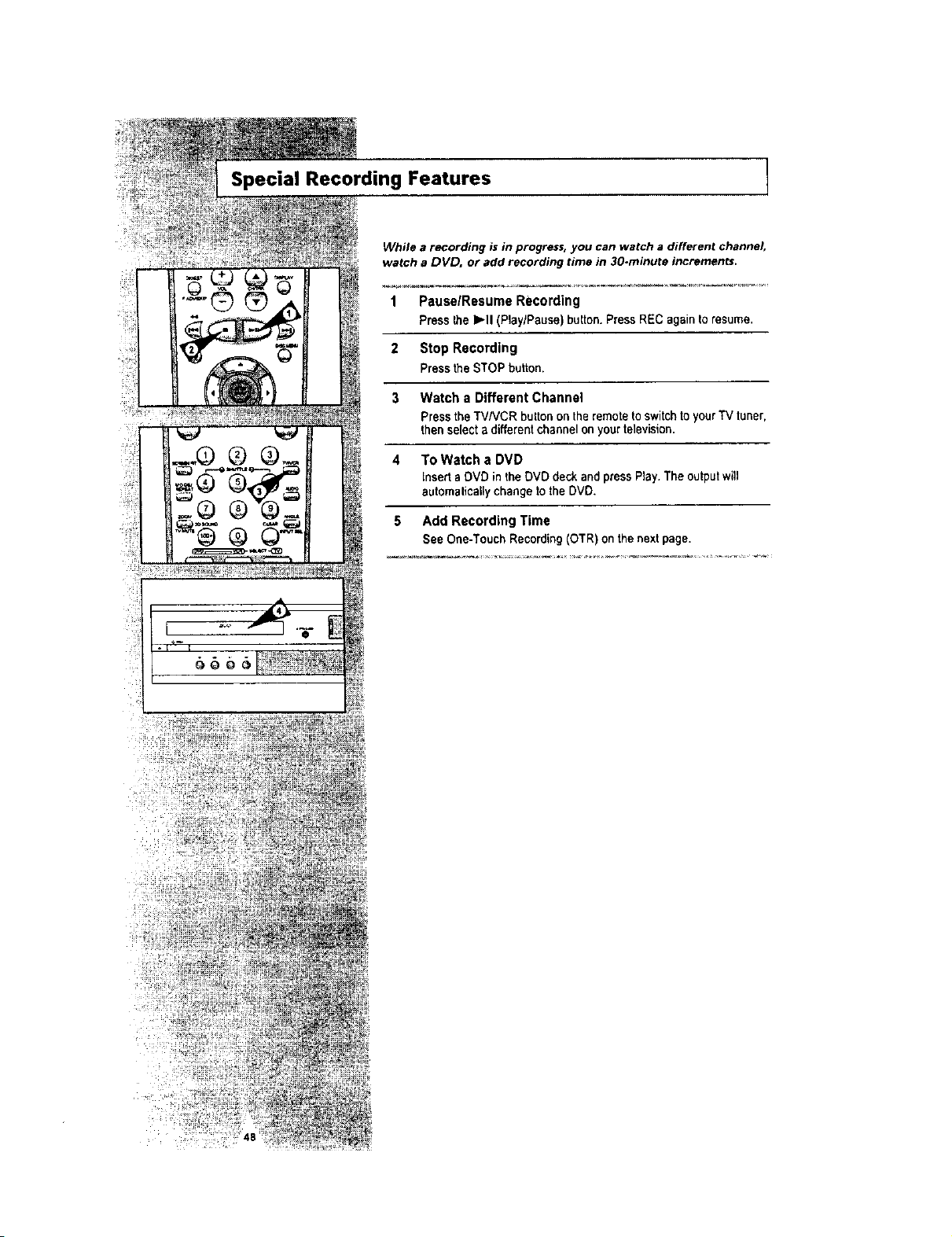
While a recording is in progress, you can watch a different channel,
watch a DVD, or add recording time in 30.minute increments.
1 PauselResumeRecording
Press _heb,,-II(PlaylPause) button. Press REC againto resume.
2 Stop Recording
PresstheSTOP button.
3 Watch a Different Channel
Pressthe TV/VCR button on the remote to switchto your TV tunel
then select a differentchannel on your television.
4 To Watch a DVD
Insert a DVD in the DVD deck and press Play. The output will
automalicallychange to the DVD.
5 Add Recording Time
See One-Touch Recording (OTR) on the nextpage.

lone-Touch Recording (OTR)
One-Touch Recording (OTR) allows you to add recording time in
30-minute increments up to 4 hours at the touch of a button.
1 Start Recording
Followthe instructionson page47to begin recording.
2 Activate OTR
While in Recordmode, press the RECbutton again to activate
One-TouchRecording (OTR)
• Recordlength 0:30 appears on the On-Screen Displayand the
DVD-VCR will record for exactly 30minutes.
3 Add Recording Time
Continue pressing REC to add recording time in 30 minute
increments up to4 hours.
• The DVD-VCR stops recording automatically when the timehas
elapsed,
I Record Speed
You can slow down the recording speed from SP to $LP in order to
fit six hours of programming on a T-120 tape.
1 Start Recording
Follow the Basic Recording instructionson page 47.
Set Record Speed
Pressthe SPEED button on theremote contro_to set the Record
Speed to one of the following options:
• SP - Standard Play, for best quality.
• SLP - Super Long Play,for maximum recording time(3 times
SP).
NOTE: The selected Record Speed will appear on the front panel
display and on-screen display.
Maximum Recording Time - SP vs. SLP
Tape Length SP (Standard Play) SLP (Super Long Play)
T- 120 2 hrs 6 h_
T-t60 2hrs 40 rnins 8 hrs
T- ] 80 3 hrs 9 hrs
RECORD

How to Set a Timer Recording 1
Ulil!lil
Insert a blank tape with a Record Safety Tab into the VCR deck.
The Timer Recording Feature allows you to program up to 8 events
at a time to record up to a month in advance.
Jet the TV to channel 3 or 4.
Before You Begin...
• Power on the DVD.VCR
• Power on the TV
1 Open "SETUP MENU"
With the DVD in stopmode, press the SETUP button or press the
TIMER button.
2 Select "Program"
Using theup/downand left/rightbuttons,move the selectioncursor
to "SetTimer Recording,"thenpress ENTER to selech
3 Select Channel Number
Pressright and up/downbuttonsto setthe charmer,Pressthe right
buttonto moveto thenext setting,
4 Set "TimelDate/Speed"
Repeat step3to setstari time,end time.date and record speed.
Date can be set forone time, daily orweekly recording. See below.
5 Save "Timer Recording"
Pressthe RETURN button to complete programming ofthe timer
recording. Stop the VCR or turn the power off. The timer indicator
comes on the VCR. The VCR willautomatically turn on and beg_n
recording at the time you set. To stopa timer recording, press the
POWER button or STOP button on theVCR.
6 Auto Speed Select
Ifyou are not sure the tape is longenough fortimerprogram
recording inthe SP tape speed, setthe recording tape speedto
"AUTO". Recording startsin the SP tape speed.Ifthe tape length is
not long enough, the tape speedautomatically changes from SP Io
SLP.
7 Daily/Weekly Date Programming
Weekly [SUN'S-SAT'S]: You can record TV programs on the same
channel at the same time every week.
Daily [MO I,,.FR] : You can record TV programs on the same
channel at the same time everyday Monday through Friday
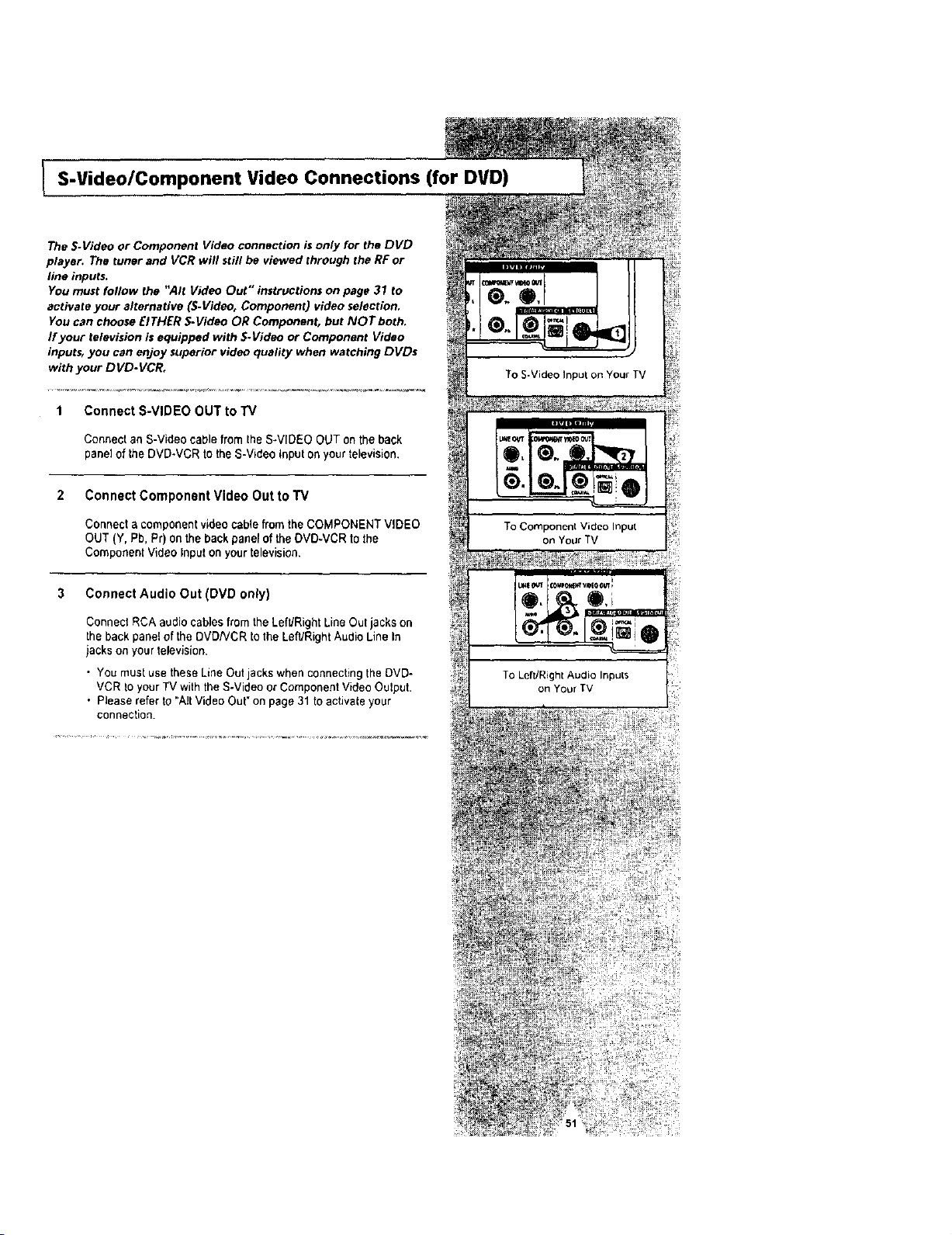
I S-Video/Component Video Connections (for DVD)
The S-Video or Component Video connection is only for the DVD
player. The tuner and VCR will still be viewed through the RF or
line inputs.
You must follow the "Air Video Out" instructions on page 31 to
activate your alternative (S-Video, Component) video selection.
You can choose EITHER S.Video ORComponent, but NOT both,
If your television is equipped with 5.Video or Component Video
inputst you can enjoy superior video quality when watching DVDs
with your DVD.VCR,
1 Connect S-VIDEO OUT to "IV
Connect an S-Video cablefrom the S-VIDEO OUT on the back
panel of the DVD-VCR to the S-Video Input on your television.
2 Connect Component Video OuttoTV
Connect acomponent video cablefrom the COMPONENT VIDEO
OUT (Y, Pb,Pr) on the back panel of the DVD-VCR to the
Component Video Inputon your television,
3 Connect AudioOut (DVD only)
Connect RCAaudio cables from the Left/Right LineOut jacks on
the back panel ofthe DVDNCR to the Left/Right Audio Line In
jacks on your television,
• You must usethese Line Out jacks when connecting the DVD-
VCR Io your TV with the S-Video or Component Video Output.
. Please refer to "AirVideo Out" on page 31 to activate your
connection.
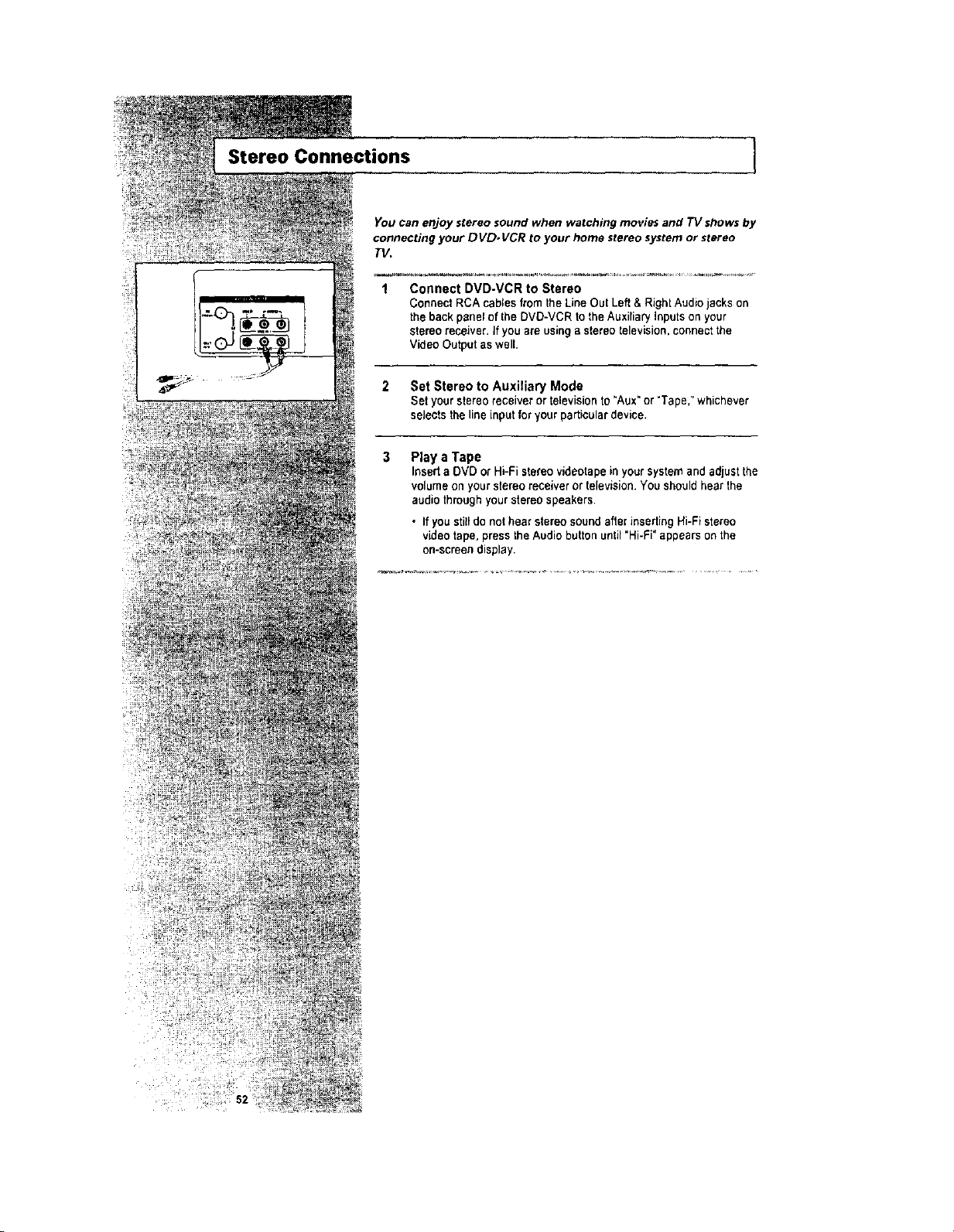
Stereo Connections 1
Youcan enjoy stereo sound when watching movies and TV showsby
connecting your DVD. VCR to your home stereo system or stereo
TV.
1 Connect DVD.VCR to Stereo
Connect RCA cables from the Line Out Left& Right Audio jacks on
the back panel of the DVD-VCR tolhe Auxiliary Inputson your
stereo receiver. Ifyou are using a stereo television, connect the
Video Output as well.
2 Set Stereo to Auxiliary Mode
Set your stereoreceiver or television to"Aux" or"Tape," whichever
selects the line input for yourparticular device.
3 Play aTape
Inserta DVD or Hi-Fi stereovideotape in your systemand adjust the
volume on your stereo receiver ortelevision. You should hearthe
audio throughyour stereo speakers•
• If you stilldo not hear stereosound afterinserting Hi-Fi stereo
video tape, press the Audio button until "Hi-Fi" appears on the
on-screen display•
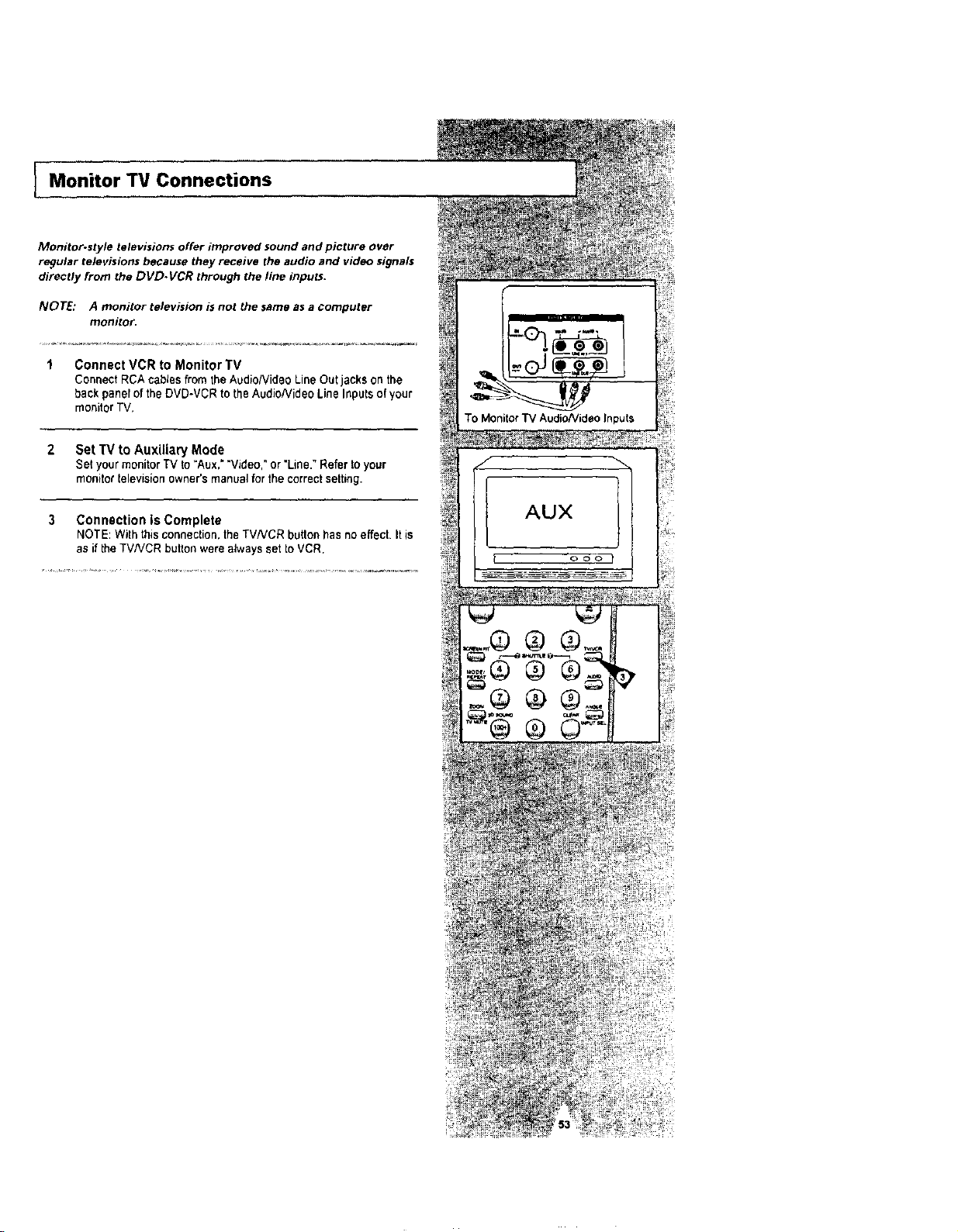
I Monitor TV Connections
Monitor.style televisions offer improved sound and picture over
regular televisions because they receive the audio and video signals
directly from the DVD-VCR through the line inputs,
NOTE: A monitor television is not the same as a computer
monitor.
1 Connect VCR to Monitor TV
ConnectRCA cablesfrom the Audio/Video LineOut jacks on the
back panel ofthe DVD-VCR to the AudioNideo LineInputs of your
monitor TV.
2 Set "IV to Auxiliary Mode
SetyourmonitorTVto "Aux," "Video,"or "Line,"Referto your
monitor televisionowner's manual forthe correctsetting.
3 Connection is Complete
NOTE: With this connection, the TVNCR button hasno effect. Itis
as if the TV/VCR button were always set to VCR.
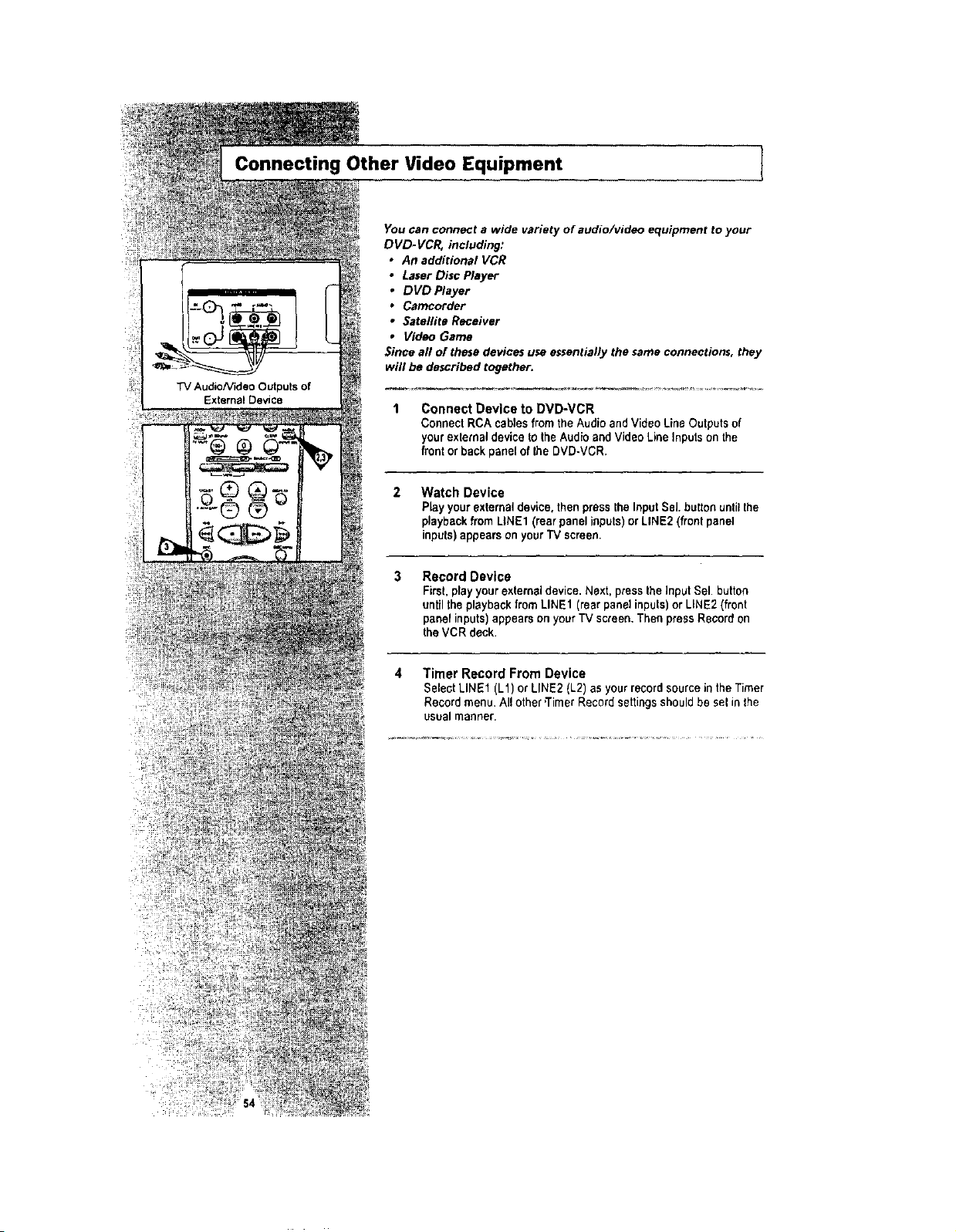
Connecting Other Video Equipment
TVAudioNideo Outputs of
External Device
Youcan connect a wide variety of audio/video equipment to your
DVD.VCR, including:
An additional VCR
Laser Disc Player
DVD Player
Carncorder
Satellite Receiver
Video Game
Since aft of these devices useessentially the same connections, they
will be described together.
Connect Device to DVD-VCR
Connect RCAcablesfrom the Audio and Video Line Outputs of
yourexternal device to theAudio endVideoLine Inputs on the
front orbackpanelof the DVD*VCR.
Watch Device
PLayyourextemaqdevice, then press the InputSeJ.button untilthe
playbackfrom LINE1 (rear panelinputs) orLINE2 (frontpanel
inputs) appearson yourTVscreen•
3 Record Device
First, play your external device. Next, press the Input Sel.button
untilthe playbackfrom LINE1 (rear pane] inputs)orLINE2 (front
panelinputs)appears onyour TV screen, Then press Recordon
the VCR deck,
4 Timer Record From Device
Select LINE1 (L1) or LINE2 (L2) asyour record sourceinthe Timer
Recordmenu. All other'Timer Recordsettingsshouldbe sel inthe
usualmanner.
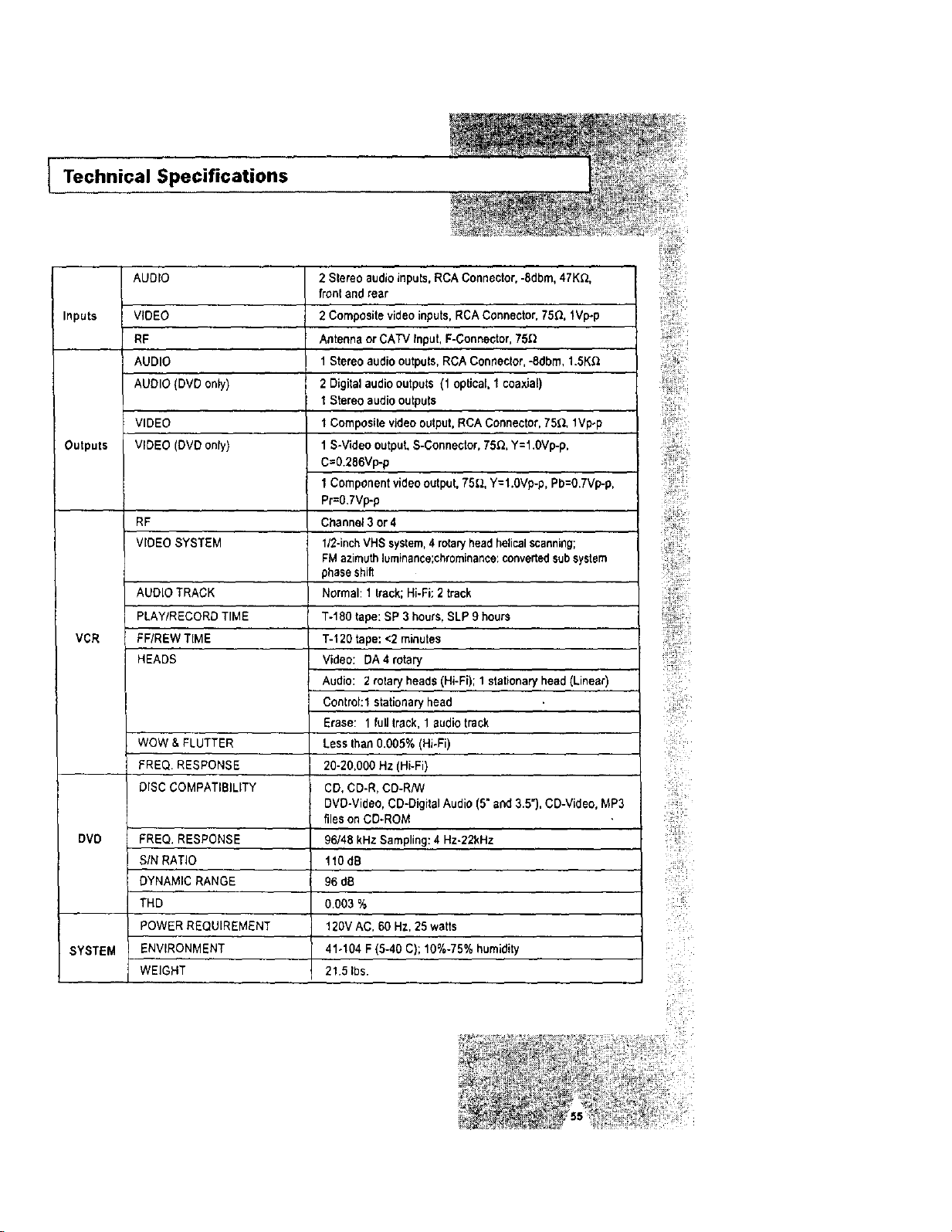
Technical Specifications
AUDIO
Inputs VIDEO
RF
AUDIO
AUDIO (DVD only)
VIDEO
Outputs VIDEO (DVDonly)
RF
VIDEO SYSTEM
AUDIO TRACK
I_LAY/RECORD TIME
VCR FF/REW TIME
HEADS
WOW & FLUTTER
FREQ•RESPONSE
DISC COMPATIBILITY
DVD FREQ. RESPONSE
SIN RATIO
DYNAMIC RANGE
THD
POWER REQUIREMENT
SYSTEM ENVIRONMENT
WEIGHT
2 Stereo audio inputs, RCA Connector, -8dbm, 47K0.
front and rear
2Compositevideoinputs,RCAConnector, 75_, 1VI>p
Antennaor CATV Input, F-Connector, 75_
1Stereo audio outputs,RCA Connector,-8dbm, 1.5K_
2Digitalaudiooutputs (1optical 1coaxial)
I Stereo audio outputs
1Composite videooutput, RCA Connector, 750. 1Vp-p
1S-Video output,S-Connector, 75_, Y=l.OVp-p,
C=0.286Vp-p
1Component video output, 75q, Y=l.0Vp-p, Pb=O.7Vp-p,
Pr=0.7Vp-p
Channel 3 or4
1/2-inchVHSsystem,4 rotar/head helicalscanning;
FMazimuthluminance;chrsminance: convertedsubsystem
phaseshift
Normal: 1 Irack; Hi-Fi:2 track
T-180 tape: SP 3hours, SLP 9 hours
T-120 tape: <2minutes
Video: DA4rotary
Audio: 2 rotary heads (Hi-Fi); 1stationary head (Linear)
Control:t stationaryhead
Erase: 1 full track, 1audiotrack
Less than 0.005% (Hi-Fi)
20-20,000 Hz (Hi-Fi)
CD, CD-R, CD-R/W
DVD-Video, CD-Digital Audio (5" and 3.5"), CD-Video, MP3
files on CD-ROM
96/48 kHzSampling: 4 Hz.22kHz
110dB
96 dB
0.003 %
120V AC, 60 HZ,25 watts
41o104 F (5-40 C); 10%-75% humidity
21.5 Ibs.
!; ii!ii¸
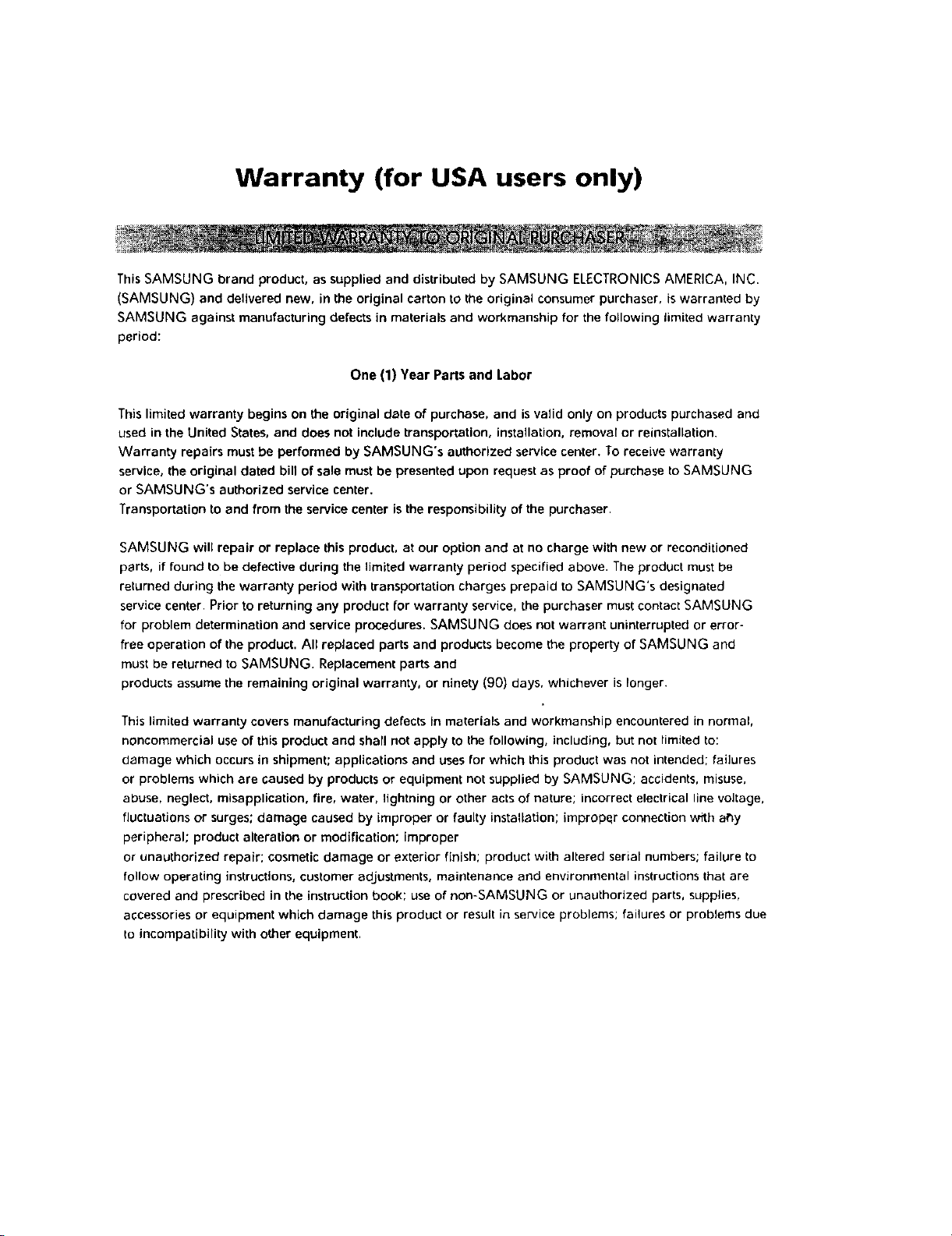
Warranty (for USA users only)
ThisSAMSUNG brand product, as suppliedand distributed by SAMSUNG ELECTRONICSAMERICA, INC.
(SAMSUNG) and delivered new, in theoriginal carton to theoriginal consumer purchaser, iswarranted by
SAMSUNG against manufacturing defects in materials and workmanship for the following limited warranty
period:
One (1) Year Partsand Labor
This limited warranty begins on the original date of purchase, and is valid only on products purchased and
used in the United States, and does not include transportation, installation, removaE or reinstallation.
Warranty repairs must be performed by SAMSUNG's authorized service center. To receive warranty
service, the original dated bill of sale must be presented upon request as proof of purchase to SAMSUNG
or SAMSUNG's authorized service center.
Transportation to and from the service center isthe responsibility of the purchaser.
SAMSUNG will repair or replace this product, at our option and at no charge with new or reconditioned
parts, if found to be defective during the limited warranty period specified above. The product must be
returned during the warranty period with transportation charges prepaid to SAMSUNG's designated
service center. Prior to returning any product for warranty service, the purchaser must contact SAMSUNG
for problem determination and service procedures. SAMSUNG does not warrant uninterrupted or error-
free operation of the product. All replaced parts and products become the property of SAMSUNG and
must be returned to SAMSUNG. Replacement parts and
products assume the remaining original warranty, or ninety (90) days, whichever is longer.
This limited warranty covers manufacturing defects in materials and workmanship encountered in normal,
noncommercial use of this product and shall not apply to the following, including, but not timited to:
damage which occurs in shipment; applications and uses for which this product was not intended; failures
or problems which are caused by products or equipment not supplied by SAMSUNG; accidents, misuse,
abuse, neglect, misapplication, fire, water, lightning or other acts of nature; incorrect electrical line voltage,
fluctuations or surges; damage caused by improper or faulty installation; improper connection with af_y
peripheral; product alteration or modification; improper
or unauthorized repair; cosmetic damage or exterior finish; product with altered serial numbers; failure to
follow operating instructions, customer adjustments, maintenance and environmental instructions that are
covered and prescribed in the instruction book; use of non-SAMSUNG or unauthorized parts, supplies,
accessories or equipment which damage this product or result in service problems; failures or problems due
to incompatibility with other equipment.

SAMSUNG ELECTRONICS AMERICA, INC.
HEADQUARTERS
105 Challenger Road, Ridgefield Park, N.J.
07660-0511
TEL: 1-800-SAMSUNG
SERVICE DIVISION
400 Valley Road, Suite 201, Mount Arlington, NJ07856
1-800-SAMSUNG (1-800-726-7864)
ELECTRONICS
AC68-01816A