User Guide
LaserJet Enterprise M507
www.hp.com/videos/LaserJet
www.hp.com/support/ljM507


HP LaserJet Enterprise M507
User Guide

Copyright and License
© Copyright 2019 HP Development Company,
L.P.
Reproduction, adaptation, or translation without
prior written permission is prohibited, except as
allowed under the copyright laws.
The information contained herein is subject to
change without notice.
The only warranties for HP products and
services are set forth in the express warranty
statements accompanying such products and
services. Nothing herein should be construed as
constituting an additional warranty. HP shall not
be liable for technical or editorial errors or
omissions contained herein.
Edition 1, 4/2019
Trademark Credits
Adobe
®
, Adobe Photoshop
®
, Acrobat
®
, and
PostScript
®
are trademarks of Adobe Systems
Incorporated.
Apple and the Apple logo are trademarks of
Apple Inc., registered in the U.S. and other
countries.
macOS is a trademark of Apple Inc., registered in
the U.S. and other countries.
AirPrint is a trademark of Apple Inc., registered in
the U.S. and other countries.
Google™ is a trademark of Google Inc.
Microsoft®, Windows®, Windows® XP, and
Windows Vista® are U.S. registered trademarks
of Microsoft Corporation.
UNIX
®
is a registered trademark of The Open
Group.

Table of contents
1 Printer overview ........................................................................................................................................................................................ 1
Warning icons ............................................................................................................................................................................ 1
Potential shock hazard ............................................................................................................................................................ 3
Printer views .............................................................................................................................................................................. 4
Printer front view ................................................................................................................................................. 4
Printer back view .................................................................................................................................................. 5
Interface ports ...................................................................................................................................................... 5
Control-panel view (2.7-in QVGA LCD color display with 24-key pad, n and dn models) ......................... 6
Control-panel view (touchscreen, x models only) .......................................................................................... 9
How to use the touchscreen control panel ............................................................................... 10
Printer specications ............................................................................................................................................................. 12
Technical specications .................................................................................................................................... 12
Supported operating systems ......................................................................................................................... 13
Mobile printing solutions .................................................................................................................................. 15
Printer dimensions ............................................................................................................................................ 15
Power consumption, electrical specications, and acoustic emissions .................................................... 16
Operating-environment range ........................................................................................................................ 17
Printer hardware setup and software installation ............................................................................................................ 17
2 Paper trays .............................................................................................................................................................................................. 19
Introduction ............................................................................................................................................................................. 19
Load paper to Tray 1 ............................................................................................................................................................. 20
Load paper to Tray 1 (multipurpose tray) ..................................................................................................... 20
Tray 1 paper orientation ................................................................................................................................... 21
Use alternative letterhead mode .................................................................................................................... 22
Enable Alternative Letterhead Mode by using the printer control-panel menus ............... 22
Load paper to Tray 2 and the 550-sheet trays ................................................................................................................. 23
Load paper to Tray 2 and the 550-sheet trays ............................................................................................ 23
Tray 2 and the 550-sheet trays paper orientation ...................................................................................... 25
Use alternative letterhead mode .................................................................................................................... 22
Enable Alternative Letterhead Mode by using the printer control-panel menus ............... 22
Load and print envelopes ..................................................................................................................................................... 27
ENWW iii

Print envelopes .................................................................................................................................................. 27
Envelope orientation ......................................................................................................................................... 27
Load and print labels ............................................................................................................................................................. 28
Manually feed labels ......................................................................................................................................... 28
Label orientation ............................................................................................................................................... 28
3 Supplies, accessories, and parts .......................................................................................................................................................... 29
Order supplies, accessories, and parts ............................................................................................................................... 30
Ordering .............................................................................................................................................................. 30
Supplies and accessories ................................................................................................................................. 30
Customer self-repair parts ............................................................................................................................... 31
Congure the HP toner-cartridge-protection supply settings ........................................................................................ 32
Introduction ........................................................................................................................................................ 32
Enable or disable the Cartridge Policy feature ............................................................................................. 33
Use the printer control panel to enable the Cartridge Policy feature ................................... 33
Use the printer control panel to disable the Cartridge Policy feature .................................. 33
Use the HP Embedded Web Server (EWS) to enable the Cartridge Policy feature ............. 33
Use the HP Embedded Web Server (EWS) to disable the Cartridge Policy feature ............ 34
Troubleshoot Cartridge Policy control panel error messages ............................................... 35
Enable or disable the Cartridge Protection feature ...................................................................................... 36
Use the printer control panel to enable the Cartridge Protection feature ........................... 36
Use the printer control panel to disable the Cartridge Protection feature .......................... 36
Use the HP Embedded Web Server (EWS) to enable the Cartridge Protection feature ..... 37
Use the HP Embedded Web Server (EWS) to disable the Cartridge Protection feature .... 38
Troubleshoot Cartridge Protection control panel error messages ....................................... 38
Replace the toner cartridge .................................................................................................................................................. 40
Cartridge information ....................................................................................................................................... 40
Remove and replace the cartridge .................................................................................................................. 41
4 Print .......................................................................................................................................................................................................... 45
Print tasks (Windows) ............................................................................................................................................................ 46
How to print (Windows) .................................................................................................................................... 46
Automatically print on both sides (Windows) ............................................................................................... 46
Manually print on both sides (Windows) ........................................................................................................ 47
Print multiple pages per sheet (Windows) .................................................................................................... 47
Select the paper type (Windows) .................................................................................................................... 48
Additional print tasks ........................................................................................................................................ 49
Print tasks (macOS) ............................................................................................................................................................... 50
How to print (macOS) ........................................................................................................................................ 50
Automatically print on both sides (macOS) ................................................................................................... 50
Manually print on both sides (macOS) ........................................................................................................... 50
iv ENWW

Print multiple pages per sheet (macOS) ........................................................................................................ 51
Select the paper type (macOS) ........................................................................................................................ 51
Additional print tasks ........................................................................................................................................ 49
Store print jobs on the printer to print later or print privately ........................................................................................ 53
Introduction ........................................................................................................................................................ 53
Create a stored job (Windows) ......................................................................................................................... 53
Create a stored job (macOS) ............................................................................................................................ 54
Print a stored job ............................................................................................................................................... 55
Delete a stored job ............................................................................................................................................ 56
Delete a job that is stored on the printer .................................................................................. 56
Change the job storage limit ....................................................................................................... 56
Information sent to printer for Job Accounting purposes ........................................................................... 56
Mobile printing ........................................................................................................................................................................ 57
Introduction ........................................................................................................................................................ 57
Wi-Fi, Wi-Fi Direct Print, NFC, and BLE printing ............................................................................................ 58
Enable wireless printing ............................................................................................................... 58
Change the Wi-Fi Direct name .................................................................................................... 58
HP ePrint via email ............................................................................................................................................ 59
AirPrint ................................................................................................................................................................. 60
Android embedded printing ............................................................................................................................. 60
Print from a USB ash drive ................................................................................................................................................. 61
Enable the USB port for printing ..................................................................................................................... 62
Method one: Enable the USB port from the printer control panel ........................................ 62
Method two: Enable the USB port from the HP Embedded Web Server (network-
connected printers only) .............................................................................................................. 62
Print USB documents ........................................................................................................................................ 64
Print USB documents (keypad control panel) .......................................................................... 64
Print USB documents (touchscreen control panel) ................................................................. 64
Print using high-speed USB 2.0 port (wired) ..................................................................................................................... 66
Enable the high-speed USB port for printing ................................................................................................ 67
Method one: Enable the high-speed USB 2.0 port from the printer control panel
menus ............................................................................................................................................. 67
Method two: Enable the high-speed USB 2.0 port from the HP Embedded Web
Server (network-connected printers only) ................................................................................ 67
5 Manage the printer ................................................................................................................................................................................. 69
Advanced conguration with the HP Embedded Web Server (EWS) ............................................................................. 70
Introduction ........................................................................................................................................................ 70
How to access the HP Embedded Web Server (EWS) .................................................................................. 70
HP Embedded Web Server features ............................................................................................................... 72
Information tab ............................................................................................................................. 72
ENWW v

General tab .................................................................................................................................... 72
Print tab .......................................................................................................................................... 73
Supplies tab ................................................................................................................................... 74
Troubleshooting tab ..................................................................................................................... 74
Security tab .................................................................................................................................... 74
HP Web Services tab ..................................................................................................................... 75
Networking tab .............................................................................................................................. 75
Other Links list ............................................................................................................................... 77
Congure IP network settings .............................................................................................................................................. 78
Printer sharing disclaimer ................................................................................................................................ 78
View or change network settings ................................................................................................................... 78
Rename the printer on a network ................................................................................................................... 79
Manually congure IPv4 TCP/IP parameters from the control panel ........................................................ 80
Manually congure IPv6 TCP/IP parameters from the control panel ........................................................ 80
Link speed and duplex settings ....................................................................................................................... 81
Printer security features ....................................................................................................................................................... 82
Introduction ........................................................................................................................................................ 82
Security statements .......................................................................................................................................... 82
Assign an administrator password ................................................................................................................. 83
Use the HP Embedded Web Server (EWS) to set the password ............................................ 83
Provide user access credentials at the printer control panel ................................................. 84
IP Security ........................................................................................................................................................... 84
Encryption support: HP High Performance Secure Hard Disks .................................................................. 84
Lock the formatter ............................................................................................................................................ 84
Energy-conservation settings .............................................................................................................................................. 85
Print with EconoMode ....................................................................................................................................... 86
Congure EconoMode from the print driver ............................................................................. 86
Congure EconoMode from the printer control panel ............................................................ 86
Set the sleep timer and congure the printer to use 1 watt or less of power ......................................... 86
HP Web Jetadmin ................................................................................................................................................................... 87
Software and rmware updates .......................................................................................................................................... 87
6 Solve problems ....................................................................................................................................................................................... 89
Customer support .................................................................................................................................................................. 90
Control panel help system .................................................................................................................................................... 90
Reset factory settings ........................................................................................................................................................... 92
Introduction ........................................................................................................................................................ 92
Method one: Reset factory settings from the printer control panel ......................................................... 92
Method two: Reset factory settings from the HP Embedded Web Server (network-connected
printers only) ...................................................................................................................................................... 92
A “Cartridge is low” or “Cartridge is very low” message displays on the printer control panel ................................. 94
vi ENWW

Change the “Very Low” settings ...................................................................................................................... 95
Change the “Very Low” settings at the control panel ............................................................. 95
For printers with fax capability ................................................................................................... 95
Order supplies .................................................................................................................................................... 95
Printer does not pick up paper or misfeeds ....................................................................................................................... 96
Introduction ........................................................................................................................................................ 96
The printer does not pick up paper ................................................................................................................. 96
The printer picks up multiple sheets of paper .............................................................................................. 98
Clear paper jams .................................................................................................................................................................. 102
Introduction ...................................................................................................................................................... 102
Paper jam locations ........................................................................................................................................ 102
Auto-navigation for clearing paper jams ..................................................................................................... 103
Experiencing frequent or recurring paper jams? ....................................................................................... 103
Clear paper jams in tray 1—13.A1 ............................................................................................................... 103
Clear paper jams in tray 2, tray 3, tray 4, tray 5—13.A2, 13.A3, 13.A4, 13.A5 .................................... 106
Clear paper jams in the output bin—13.E1 ................................................................................................ 109
Clear paper jams in the duplexer—13.CX.XX, 13.DX.XX .......................................................................... 110
Clear paper jams in the toner-cartridge area .............................................................................................. 114
Clear paper jams in the fuser—13.B9, 13.B2, 13.FF ................................................................................ 116
Resolve print-quality problems ......................................................................................................................................... 118
Introduction ...................................................................................................................................................... 118
Troubleshoot print quality ............................................................................................................................. 119
Update the printer rmware ..................................................................................................... 119
Print from a dierent software program ................................................................................ 119
Check the paper-type setting for the print job ...................................................................... 120
Check the paper type setting on the printer ..................................................... 120
Check the paper type setting (Windows) ........................................................... 120
Check the paper type setting (macOS) ............................................................... 120
Check toner-cartridge status .................................................................................................... 121
Step one: Print the supplies status page ........................................................... 121
Step two: Check supplies status .......................................................................... 121
Print a cleaning page .................................................................................................................. 121
Visually inspect the toner cartridge or cartridges ................................................................. 122
Check paper and the printing environment ............................................................................ 123
Step one: Use paper that meets HP specications .......................................... 123
Step two: Check the environment ....................................................................... 123
Step three: Set the individual tray alignment .................................................... 123
Try a dierent print driver ......................................................................................................... 124
Check the EconoMode settings ................................................................................................ 124
Adjust print density .................................................................................................................... 125
Troubleshoot image defects ..................................................................................................... 125
ENWW vii

Solve wired network problems .......................................................................................................................................... 133
Introduction ...................................................................................................................................................... 133
Poor physical connection ............................................................................................................................... 133
The computer is unable to communicate with the printer ....................................................................... 133
The printer is using incorrect link and duplex settings for the network ................................................. 134
New software programs might be causing compatibility problems ....................................................... 134
The computer or workstation might be set up incorrectly ....................................................................... 134
The printer is disabled, or other network settings are incorrect ............................................................. 134
Solve wireless network problems ..................................................................................................................................... 135
Introduction ...................................................................................................................................................... 135
Wireless connectivity checklist ...................................................................................................................... 135
The printer does not print after the wireless conguration completes ................................................. 136
The printer does not print, and the computer has a third-party rewall installed ............................... 136
The wireless connection does not work after moving the wireless router or printer .......................... 136
Cannot connect more computers to the wireless printer ......................................................................... 137
The wireless printer loses communication when connected to a VPN ................................................... 137
The network does not appear in the wireless networks list .................................................................... 137
The wireless network is not functioning ..................................................................................................... 137
Reduce interference on a wireless network ................................................................................................ 138
Index ........................................................................................................................................................................................................... 139
viii ENWW

1 Printer overview
Review the location of features on the printer, the physical and technical specications of the printer, and where
to locate setup information.
●
Warning icons
●
Potential shock hazard
●
Printer views
●
Printer specications
●
Printer hardware setup and software installation
For video assistance, see www.hp.com/videos/LaserJet.
The following information is correct at the time of publication. For current information, see www.hp.com/
support/ljM507.
For more information:
HP's all-inclusive help for the printer includes the following information:
● Install and congure
● Learn and use
● Solve problems
● Download software and rmware updates
● Join support forums
● Find warranty and regulatory information
Warning icons
Use caution if you see a warning icon on your HP printer, as indicated in the icon denitions.
● Caution: Electric shock
ENWW 1

● Caution: Hot surface
● Caution: Keep body parts away from moving parts
● Caution: Sharp edge in close proximity
● Warning
2 Chapter 1 Printer overview ENWW

Potential shock hazard
Review this important safety information.
● Read and understand these safety statements to avoid an electrical shock hazard.
● Always follow basic safety precautions when using this product to reduce risk of injury from re or electric
shock.
● Read and understand all instructions in the user guide.
Observe all warnings and instructions marked on the product.
● Use only a grounded electrical outlet when connecting the product to a power source. If you do not know
whether the outlet is grounded, check with a qualied electrician.
● Do not touch the contacts on any of the sockets on the product. Replace damaged cords immediately.
● Unplug this product from wall outlets before cleaning.
● Do not install or use this product near water or when you are wet.
● Install the product securely on a stable surface.
● Install the product in a protected location where no one can step on or trip over the power cord.
ENWW Potential shock hazard 3
Printer views
Identify certain parts of the printer and the control panel.
●
Printer front view
●
Printer back view
●
Interface ports
●
Control-panel view (2.7-in QVGA LCD color display with 24-key pad, n and dn models)
●
Control-panel view (touchscreen, x models only)
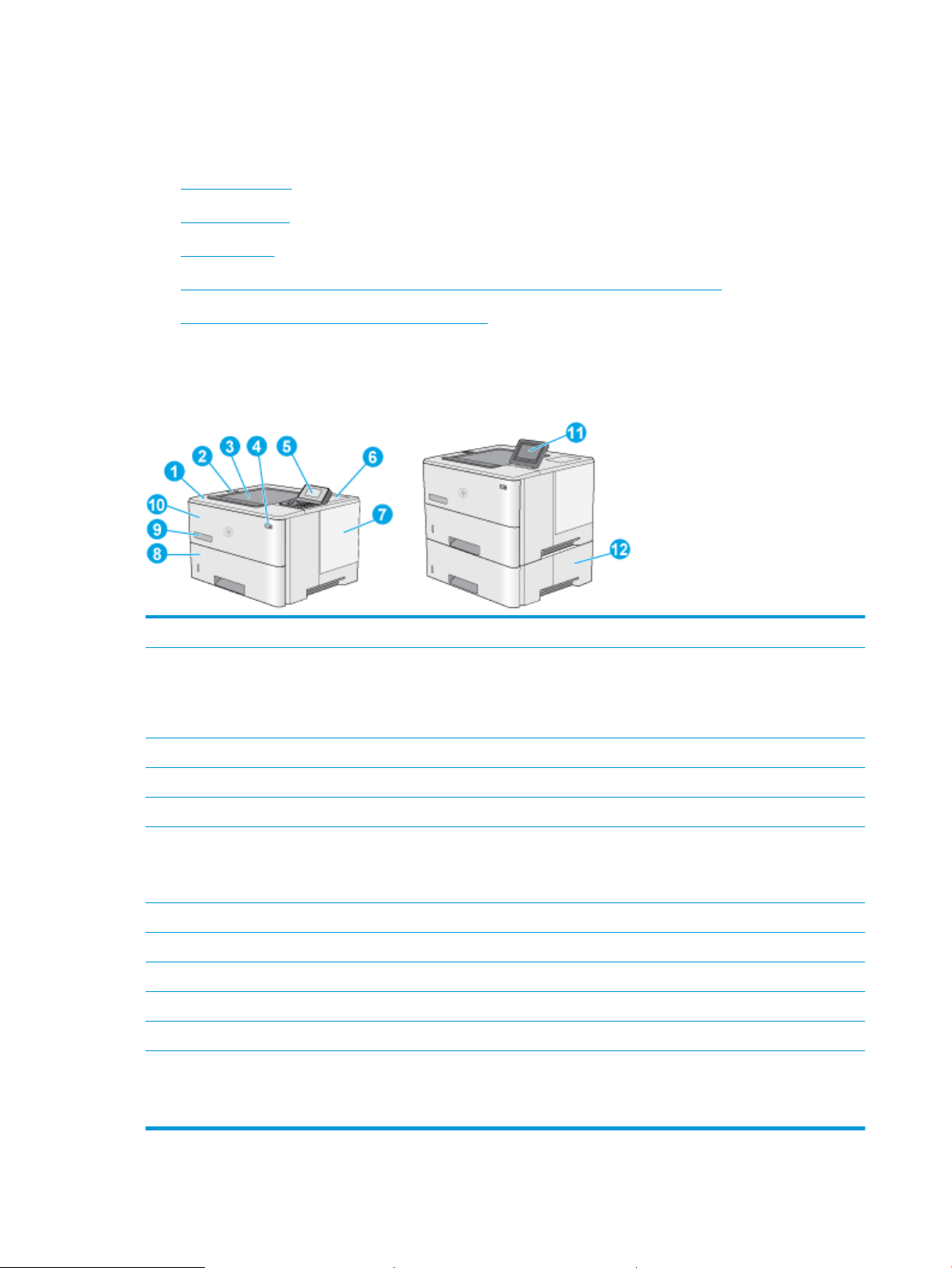
Printer front view
Use the diagram to locate important components on the printer.
1 Top cover (access to the toner cartridge)
2 Easy-access USB port
Insert a USB ash drive for printing without a computer or to update the printer rmware.
NOTE: An administrator must enable this port before use.
3 Output bin
4 On/o button
5 2.7-in QVGA LCD color display with 24-key pad (n and dn models)
6 Hardware integration pocket for connecting accessory and third-party devices
NOTE: To use the hardware integration pocket (HIP), install the HP internal USB ports accessory (B5L28A). The USB port
inside the HIP is not functional otherwise.
7 Formatter cover
8 Tray 2
9 Model name
10 Tray 1
11 Control panel with color touchscreen display (x models only)
12 1 x 550-sheet paper feeder, Tray 3 (included with the x model, optional for the other models)
NOTE: Each printer model accepts up to three optional 1 x 550-sheet feeders (Trays 3, 4, and 5). Tray 3 is included with the
x model.
4 Chapter 1 Printer overview ENWW
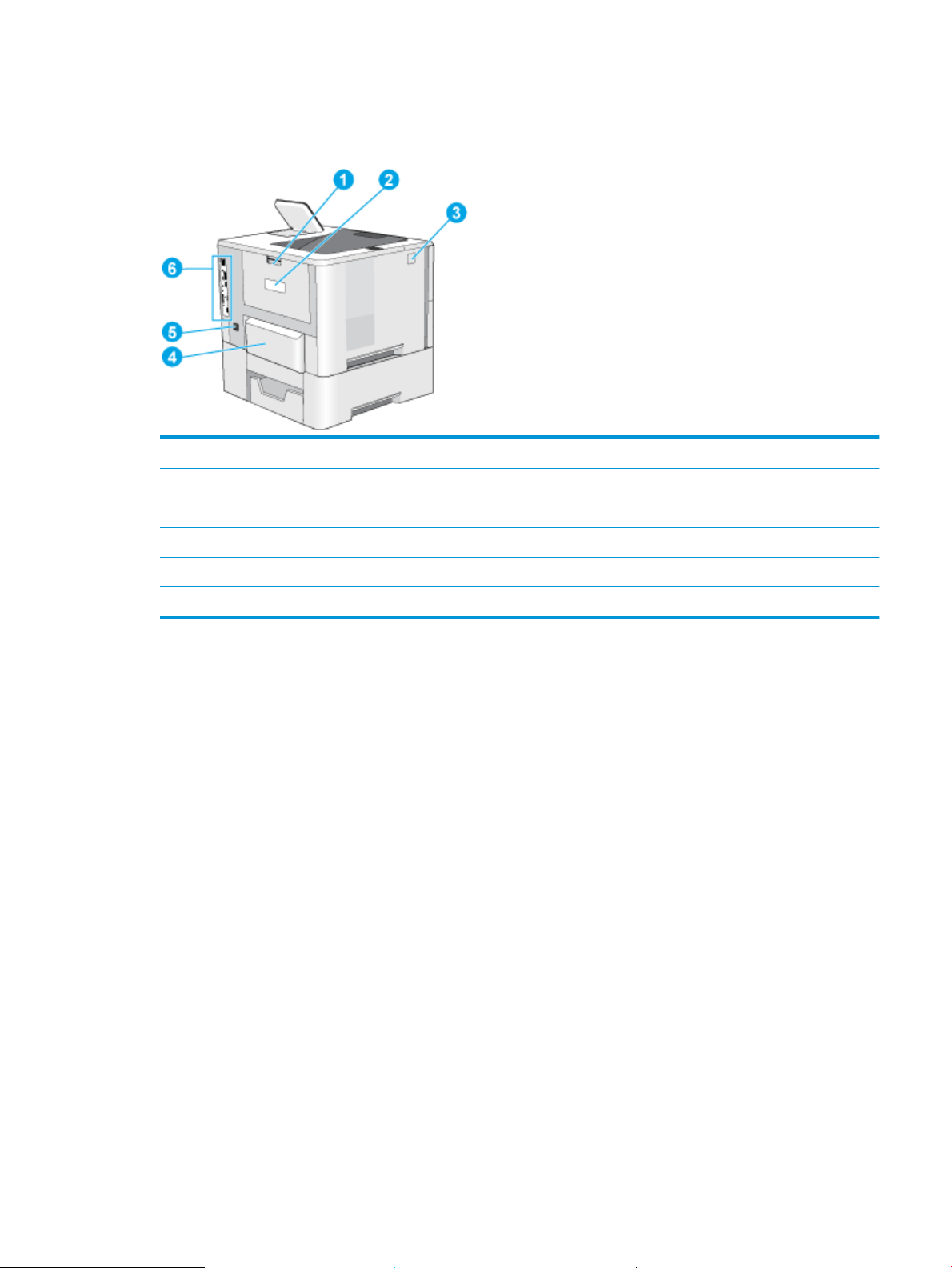
Printer back view
Use the diagram to locate important components on the printer.
1 Rear door (access for clearing jams)
2 Serial number and product number label
3 Top-cover-release button
4 Dust cover for Tray 2 (ips up when legal-size paper is loaded)
5 Power connection
6 Formatter (contains the interface ports)
Interface ports
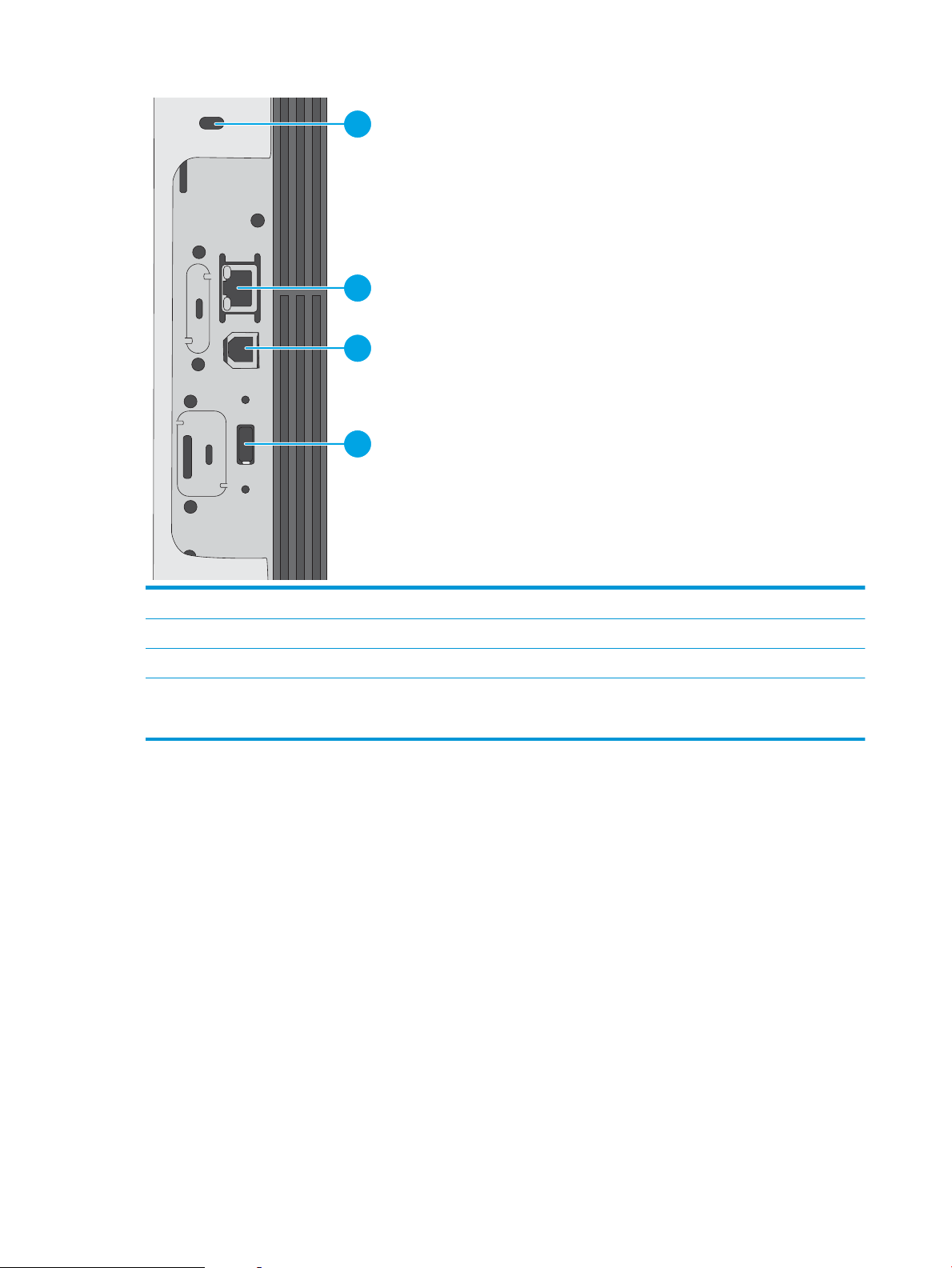
Use the diagram to identify the printer interface ports.
ENWW Printer views 5
1
2
3
4
1 Slot for a cable-type security lock
2 Local area network (LAN) Ethernet 10/100/1000 network port
3 Hi-Speed USB 2.0 printing port
4 USB port for connecting external USB devices (this port might be covered)
NOTE: For easy-access USB printing, use the USB port near the control panel.
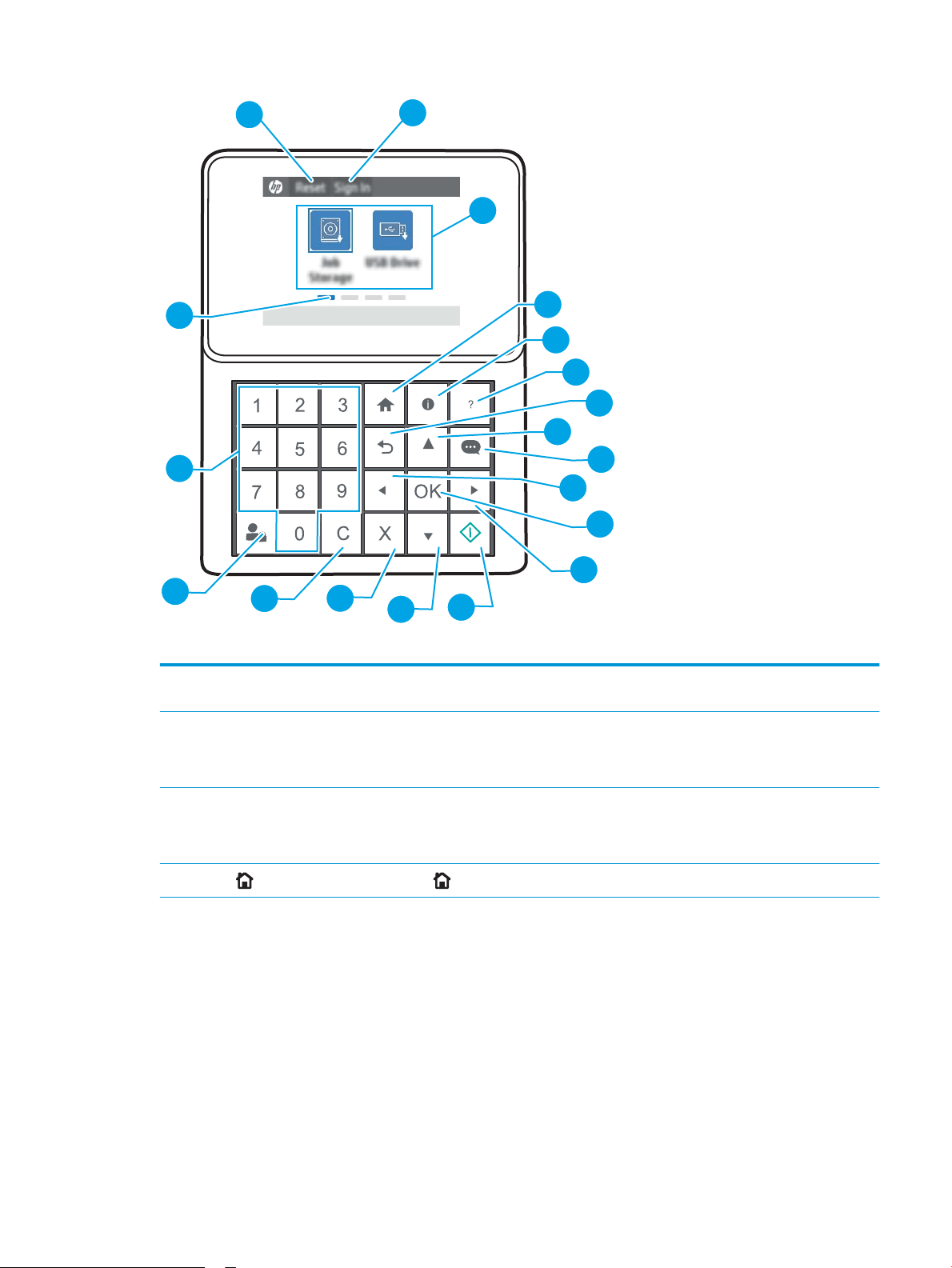
Control-panel view (2.7-in QVGA LCD color display with 24-key pad, n and dn models)
Use the 2-line control panel to obtain printer and job status information and to congure the printer.
6 Chapter 1 Printer overview ENWW
1
2
3
4
5
6
7
8
9
10
11
12
15
16
17
18
19
14
13
1 Reset button Select the Reset button to clear changes, release the printer from a paused state, display hidden errors,
and restore the default settings (including the language and keyboard layout).
2 Sign In or Sign Out button Select the Sign In button to open the Sign In screen.
Select the Sign Out button to sign out of the printer. The printer restores all options to the default
settings.
3 Applications area Select any of the icons to open the application. Swipe the screen sideways to access more applications.
NOTE: The available applications vary by printer. The administrator can congure which applications
appear and the order in which they appear.
4
Home button Select the Home button to return to the Home screen.
ENWW Printer views 7

5
Information button Select the Information button to access a screen that provides access to several types of printer
information. Select the buttons at the bottom of the screen for the following information:
● Display Language: Change the language setting for the current user session.
● Sleep Mode: Place the printer into sleep mode.
● Wi-Fi Direct: View information for how to connect directly to the printer using a phone, tablet, or
other device with Wi-Fi.
● Wireless: View or change wireless connection settings (wireless models only).
● Ethernet: View or change Ethernet connection settings.
● HP Web Services: View information to connect and print to the printer using HP Web Services
(ePrint).
6
Help button
Provides a list of help topics or information about a topic when using the Home screen, an app, an
option, or a feature.
7
Back button
Backs up one level in the menu tree.
8 Up arrow button Navigates to the previous item or widget in the list, or increases the value of numeric items.
9
Message Center
button
Displays the Message Center.
10
Left arrow button
Navigates to the previous item, widget, or level in a menu tree (but does not exit the app), or decreases
the value of numeric items.
11 OK button Accepts the selected value for an item, activates a focused button, opens the keyboard to edit the
focused text eld, or activates similar selection actions.
12
Right arrow button
Navigates to the next item, widget, or level in a menu tree, or increases the value of numeric items.
13
Start button
Starts the print job.
14 Down arrow button Navigates to the next item or widget in the list, or decreases the value of numeric items.
15
Cancel button
Pauses the printer and opens Active Jobs. From the Active Jobs screen, the user can cancel the job or
resume printing.
16
Clear button
Clears the entire entry in an input eld.
17 Sign In or Sign Out button Press the Sign In button to opent the Sign In screen.
Press the Sign Out button to sign out of the printer. The printer restores all options to the default
settings.
18 Numeric keypad Enters numeric values.
19 Home-screen page
indicator
Indicates the number of pages on the Home screen or Home screen folder. The current page is
highlighted. Swipe the screen sideways to scroll between pages.
8 Chapter 1 Printer overview ENWW
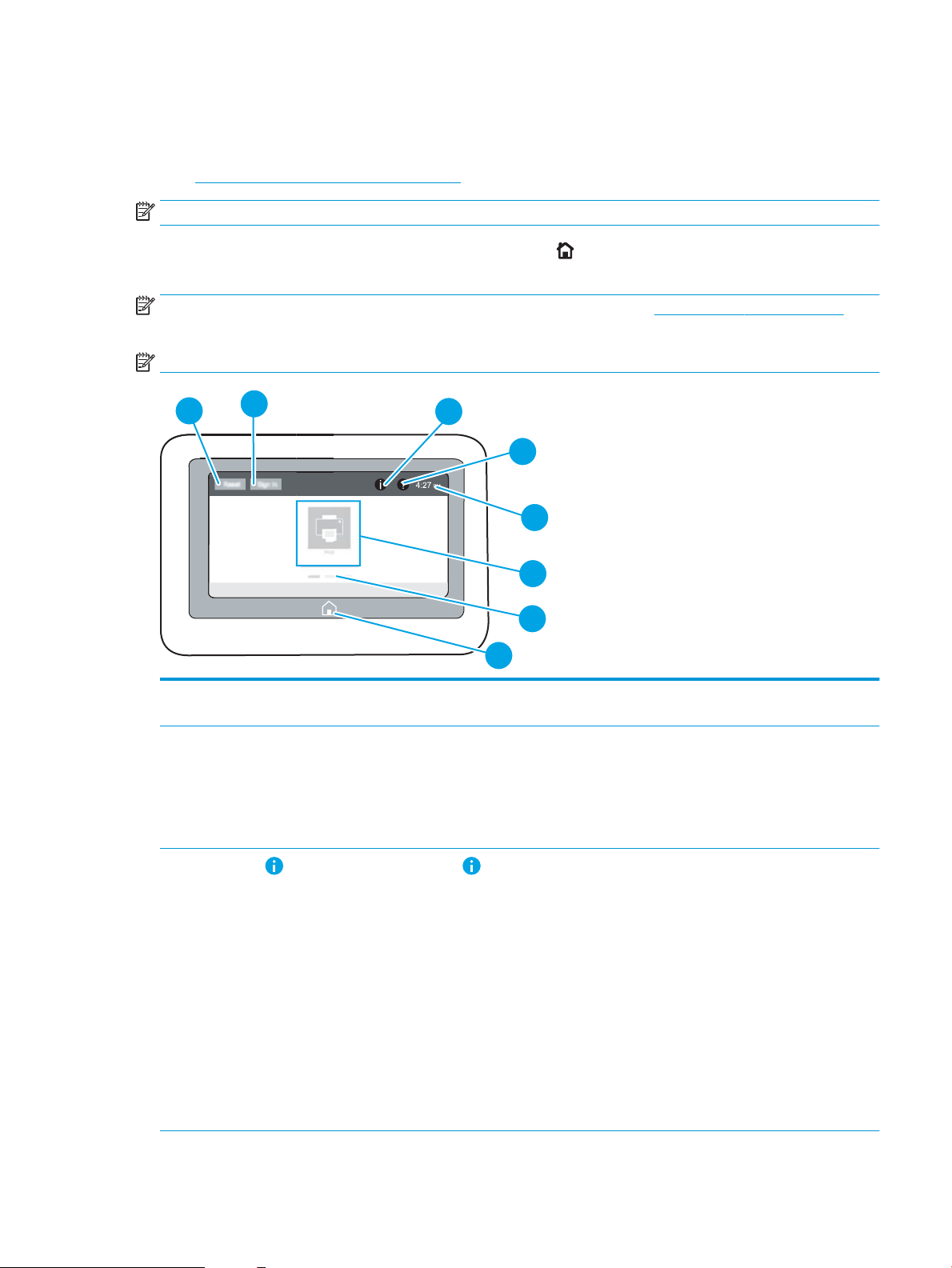
Control-panel view (touchscreen, x models only)
Use the touchscreen control panel to obtain printer and job status information and to congure the printer.
●
How to use the touchscreen control panel
NOTE: Tilt the control panel for easier viewing.
Return to the Home screen at any time by selecting the Home button at the bottom of the printer control
panel.
NOTE: For more information about the printer-control-panel features, go to www.hp.com/support/ljM507.
Select Manuals, and then select General reference.
NOTE: The features that appear on the Home screen can vary, depending on the printer conguration.
4
6
7
5
8
2
3
1
1 Reset button Select the Reset button to clear changes, release the printer from a paused state, display hidden errors,
and restore the default settings (including the language and keyboard layout).
2 Sign In or Sign Out button Select the Sign In button to open the Sign In screen.
Select the Sign Out button to sign out of the printer. The printer restores all options to the default
settings.
NOTE: This button displays only if the administrator has congured the printer to require permission
for access to features.
3
Information button Select the Information button to access a screen that provides access to several types of printer
information. Select the buttons at the bottom of the screen for the following information:
● Display Language: Change the language setting for the current user session.
● Sleep Mode: Place the printer into sleep mode.
● Wi-Fi Direct: View information for how to connect directly to the printer using a phone, tablet, or
other device with Wi-Fi.
● Wireless: View or change wireless connection settings (some models require an optional wireless
accessory).
● Ethernet: View or change Ethernet connection settings.
● HP Web Services: View information to connect and print to the printer using HP Web Services
(ePrint).
ENWW Printer views 9
4
Help button Select the Help button to open the embedded help system.
The system provides a list of help topics or information about a topic when using the Home screen, an
app, an option, or a feature.
5 Current time Displays the current time.
6 Applications area Select any of the icons to open the application. Swipe the screen sideways to access more applications.
NOTE: The available applications vary by printer. The administrator can congure which applications
appear and the order in which they appear.
7 Home-screen page
indicator
Indicates the number of pages on the Home screen or in an application. The current page is highlighted.
Swipe the screen sideways to scroll between pages.
8
Home button Select the Home button to return to the Home screen.
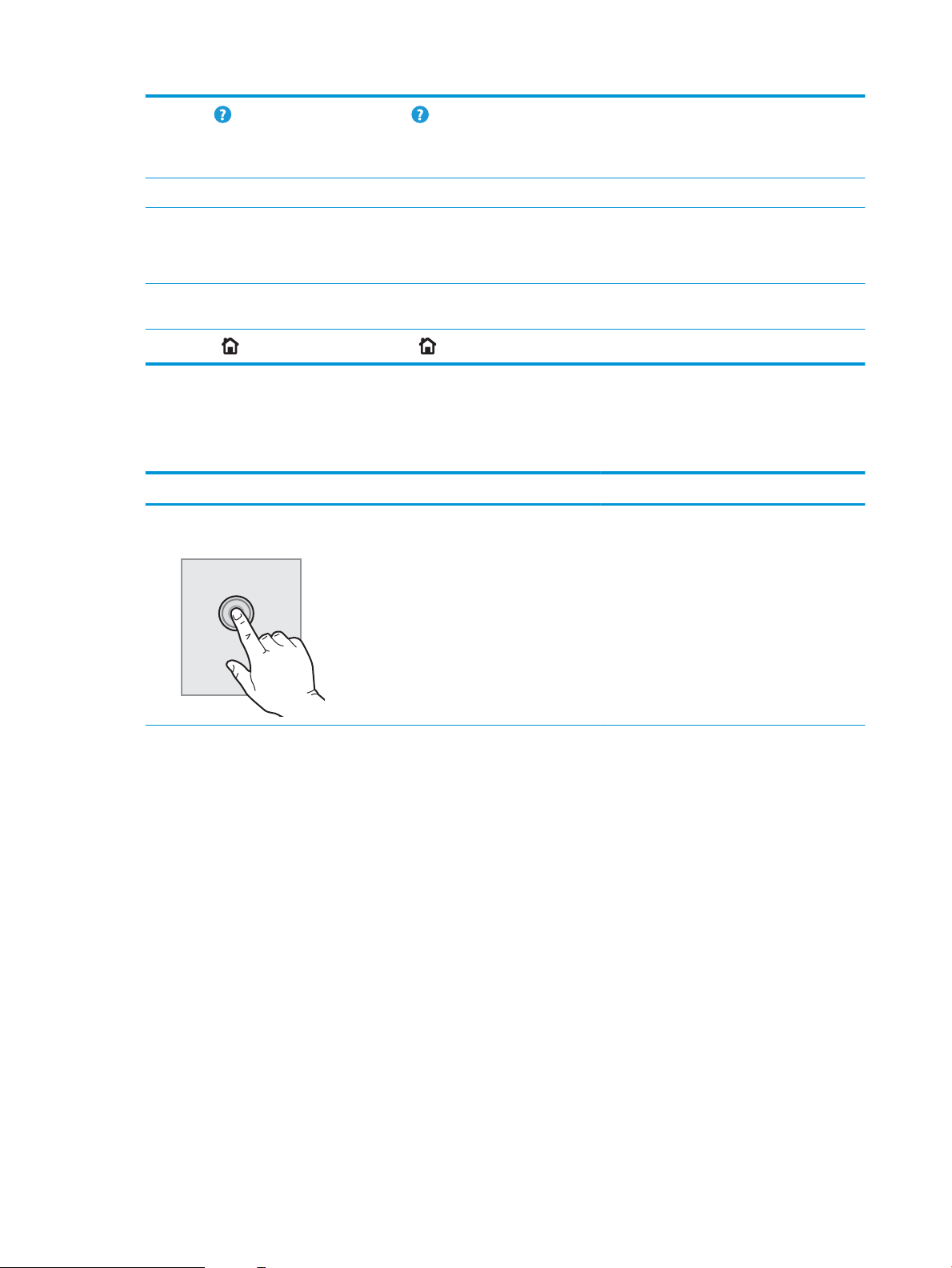
How to use the touchscreen control panel
Use the following actions to use the printer touchscreen control panel.
Action Description Example
Touch Touch an item on the screen to select that item
or open that menu. Also, when scrolling through
menus, briey touch the screen to stop the
scrolling.
Touch the Settings icon to open the Settings app.
10 Chapter 1 Printer overview ENWW
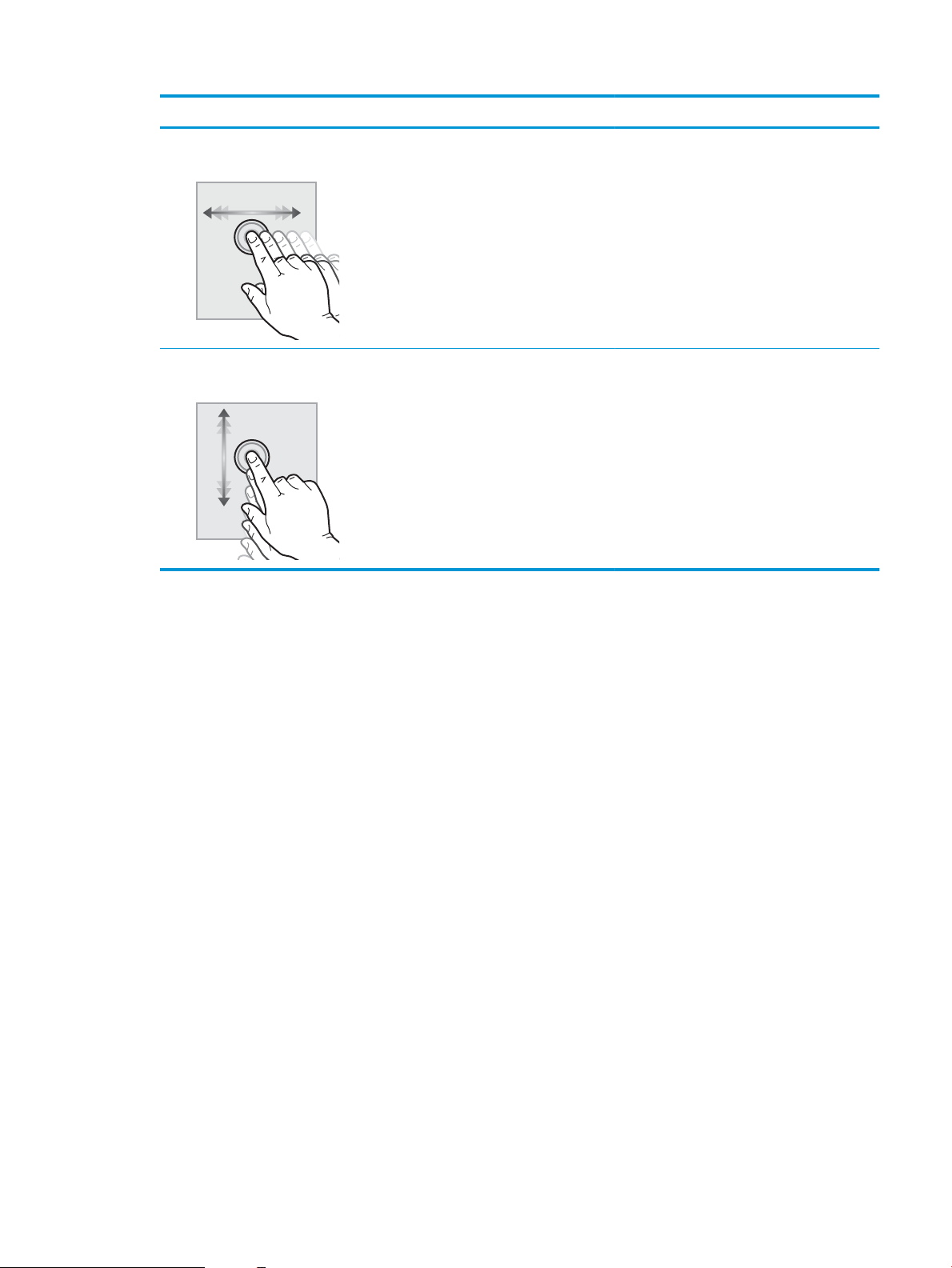
Action Description Example
Swipe Touch the screen and then move your nger
horizontally to scroll the screen sideways.
Swipe until the Settings app displays.
Scroll Touch the screen and then move your nger
vertically to scroll the screen up and down. When
scrolling through menus, briey touch the screen
to stop the scrolling.
Scroll through the Settings app.
ENWW Printer views 11

Printer specications
Use the printer specications to set up and operate the printer.
●
Technical specications
●
Supported operating systems
●
Mobile printing solutions
●
Printer dimensions
●
Power consumption, electrical specications, and acoustic emissions
●
Operating-environment range
IMPORTANT: The following specications are correct at the time of publication, but they are subject to change.
For current information, see www.hp.com/support/ljM507.
Technical specications
Model name M507n M507dn M507x
Product number 1PV86A 1PV87A 1PV88A
Paper handling Tray 1 (100-sheet capacity) Included Included Included
Tray 2 (550-sheet capacity) Included Included Included
Tray 3 (550-sheet capacity)
NOTE: The printer is limited to a
total of ve input trays, including
combination of MP tray, main
cassette, and stackable, 2,300
pages max. input.
Optional Optional Included
Automatic duplex printing Not available Included Included
Connectivity 10/100/1000 Ethernet LAN
connection with IPv4 and IPv6
Included Included Included
Hi-Speed USB 2.0 Included Included Included
Print server for wireless network
connectivity
Included Included Included
Walk-up USB port Included Included Included
Hardware Integration Pocket for
connecting accessory and third-
party devices
Included Included Included
Bluetooth Low Energy (BLE) for
printing from mobile devices
Not available Not available Included
HP Internal USB Ports Optional Included Included
HP Jetdirect 3100w BLE/NFC/
Wireless Accessory
Optional Optional Optional
HP Jetdirect 2900nw Print Server
accessory for wireless connectivity
Not available Optional Optional
12 Chapter 1 Printer overview ENWW

Model name M507n M507dn M507x
Product number 1PV86A 1PV87A 1PV88A
Memory 1 GB base memory
NOTE: The base memory is
expandable to 2 GB by adding a
DIMM memory module.
Included Included Included
Mass storage Encrypted FIPS HDD Optional Optional Optional
Security HP Trusted Platform Module for
encrypting all data that passes
through the printer
Optional Optional Optional
Control-panel display and input Control panel with color graphical
display and keypad
Included Included Not available
Color touchscreen control panel Not available Not available Included
Print Prints 43 pages per minute (ppm)
on A4 and 45 ppm letter-size paper
Included Included Included
USB printing Included Included Included
Mobile/cloud printing Optional Optional Optional
Store jobs in the printer memory to
print later or print privately
(Requires a 16 GB or greater USB
thumb drive.)
Included Included Included
Supported operating systems
Use the following information to ensure printer compatibility with your computer operating system.
Linux: For information and print drivers for Linux, go to www.hp.com/go/linuxprinting.
UNIX: For information and print drivers for UNIX®, go to www.hp.com/go/unixmodelscripts.
The following information applies to the printer-specic Windows HP PCL 6 print drivers, HP print drivers for
macOS, and to the software installer.
Windows: Download HP Easy Start from 123.hp.com/LaserJet to install the HP print driver. Or, go to the printer-
support website for this printer, www.hp.com/support/ljM507, to download the print driver or the software
installer to install the HP print driver
macOS: Mac computers are supported with this printer. Download HP Easy Start either from 123.hp.com/
LaserJet or from the Printer Support page, and then use HP Easy Start to install the HP print driver.
1. Go to 123.hp.com/LaserJet.
2. Follow the steps provided to download the printer software.
ENWW Printer specications 13

Table 1-1 Supported operating systems and print drivers
Operating system Print driver installed (for Windows, or the
installer on the web for macOS)
Notes
Windows 7, 32-bit and 64-bit The "HP PCL 6" printer-specic print driver is
installed for this operating system as part of
the software installation.
Windows 8, 32-bit and 64-bit The "HP PCL 6" printer-specic print driver is
installed for this operating system as part of
the software installation.
Windows 8 RT support is provided through
Microsoft IN OS Version 4, 32-bit driver.
Windows 8.1, 32-bit and 64-bit The "HP PCL-6" V4 printer-specic print
driver is installed for this operating system
as part of the software installation.
Windows 8.1 RT support is provided through
Microsoft IN OS Version 4, 32-bit driver.
Windows 10, 32-bit and 64-bit The "HP PCL-6" V4 printer-specic print
driver is installed for this operating system
as part of the software installation.
Windows Server 2008 R2, SP 1, 64-bit The PCL 6 printer-specic print driver is
available for download from the printer-
support website. Download the driver, and
then use the Microsoft Add Printer tool to
install it.
Windows Server 2012, 64-bit The PCL 6 printer-specic print driver is
available for download from the printer-
support website. Download the driver, and
then use the Microsoft Add Printer tool to
install it.
Windows Server 2012 R2, 64-bit The PCL 6 printer-specic print driver is
available for download from the printer-
support website. Download the driver, and
then use the Microsoft Add Printer tool to
install it.
Windows Server 2016, 64-bit The PCL 6 printer-specic print driver is
available for download from the printer-
support website. Download the driver, and
then use the Microsoft Add Printer tool to
install it.
macOS 10.12 Sierra, macOS 10.13 High
Sierra
Download HP Easy Start from 123.hp.com/
LaserJet, and then use it to install the print
driver.
NOTE: Supported operating systems can change. For a current list of supported operating systems, go to
www.hp.com/support/ljM507 for HP's all-inclusive help for the printer.
NOTE: For details on client and server operating systems and for HP UPD driver support for this printer, go to
www.hp.com/go/upd. Under Additional information, click the links.
14 Chapter 1 Printer overview ENWW

Table 1-2 Minimum system requirements
Windows macOS
● Internet connection
● Dedicated USB 1.1 or 2.0 connection or a network connection
● 2 GB of available hard-disk space
● 1 GB RAM (32-bit) or 2 GB RAM (64-bit)
● Internet connection
● Dedicated USB 1.1 or 2.0 connection or a network connection
● 1.5 GB of available hard-disk space
NOTE: The Windows software installer installs the HP Smart Device Agent Base service. The le size is
approximately 100 kb. Its only function is to check for printers connected via USB hourly. No data is collected. If a
USB printer is found, it then tries to locate a JetAdvantage Management Connector (JAMc) instance on the
network. If a JAMc is found, the HP Smart Device Agent Base is securely upgraded to a full Smart Device Agent
from JAMc, which will then allow printed pages to be accounted for in a Managed Print Services (MPS) account.
The driver-only web packs downloaded from hp.com for the printer and installed through the Add Printer wizard
do not install this service.
To uninstall the service, open the Windows Control Panel, select Programs or Programs and Features, and then
select Add/Remove Programs or Uninstall a Program to remove the service. The le name is
HPSmartDeviceAgentBase.
Mobile printing solutions
HP oers multiple mobile printing solutions to enable easy printing to an HP printer from a laptop, tablet,
smartphone, or other mobile device. To see the full list and to determine the best choice, go to www.hp.com/go/
LaserJetMobilePrinting.
NOTE: Update the printer rmware to ensure all mobile printing capabilities are supported.
● Wi-Fi Direct (wireless models only, with HP Jetdirect 3100w NFC/BLE Wireless accessory installed)
● Wireless Station (wireless models only, with HP Jetdirect 3100w NFC/BLE Wireless accessory or HP 2900nw
wireless print server installed)
● HP ePrint via email (requires HP Web Services to be enabled and the printer to be registered with
HP Connected)
● HP Smart app
● Google Cloud Print
● AirPrint
● Android Printing
● HP Roam
Printer dimensions
Table
1-3 Dimensions for the M507n and M507dn models
Printer fully closed Printer fully opened
Height 296 mm (11.7 in) 296 mm (11.7 in)
ENWW Printer specications 15

Table 1-3 Dimensions for the M507n and M507dn models (continued)
Printer fully closed Printer fully opened
Depth Tray 2 dust cover closed:376 mm (14.8 in)
Tray 2 dust cover open:444 mm (17.5 in)
569 mm (22.4 in)
Width 410 mm (16.1 in) 410 mm (16.1 in)
Weight 12 kg (26.5 lb)
Table 1-4 Dimensions for the M507x models
Printer fully closed Printer fully opened
Height 415 mm (16.3 in) 487 mm (19.2 in)
Depth Tray 2 dust cover closed:376 mm (14.8 in)
Tray 2 dust cover open:444 mm (17.5 in)
569 mm (22.4 in)
Width 410 mm (16.1 in) 410 mm (16.1 in)
Weight 13.4 kg (29.5 lb)
Table 1-5 Dimensions for the 1 x 550-sheet paper feeder
Height 130 mm (5.1 in)
Depth Tray closed: 376 mm (14.8 in)
Tray opened: 569 mm (22.4 in)
Width 410 mm (16.1 in)
Weight 1.4 kg (3 lb)
Table 1-6 Dimensions for the cabinet/stand
Height 381 mm (15 in)
Depth Door closed: 632 mm (24.9 in)
Door opened and rear castors rotated: 865 mm (34 in)
Width Door closed: 600 mm (23.6 in)
Door opened and rear castors rotated: 630 mm (24.8 in)
Weight 9 kg (20 lb)
Power consumption, electrical specications, and acoustic emissions
See www.hp.com/support/ljM507 for current information.
CAUTION: Power requirements are based on the country/region where the printer is sold. Do not convert
operating voltages. This will damage the printer and void the printer warranty.
16 Chapter 1 Printer overview ENWW

Operating-environment range
Table 1-7 Operating-environment specications
Environment Recommended Allowed
Temperature 17° to 25°C (62.6° to 77°F) 15° to 30°C (59° to 86°F)
Relative humidity 30% to 70% relative humidity (RH) 10% to 80% RH
Printer hardware setup and software installation
For basic setup instructions, see the Hardware Installation Guide that came with the printer. For additional
instructions, go to HP support on the web.
Go to www.hp.com/support/ljM507 for HP's all-inclusive help for the printer. Find the following support:
● Install and congure
● Learn and use
● Solve problems
● Download software and rmware updates
● Join support forums
● Find warranty and regulatory information
ENWW Printer hardware setup and software installation 17

18 Chapter 1 Printer overview ENWW

2 Paper trays
Discover how to load and use the paper trays, including how to load special items such as envelopes and labels.
●
Introduction
●
Load paper to Tray 1
●
Load paper to Tray 2 and the 550-sheet trays
●
Load and print envelopes
●
Load and print labels
For video assistance, see www.hp.com/videos/LaserJet.
The following information is correct at the time of publication. For current information, see www.hp.com/
support/ljM507.
For more information:
HP's all-inclusive help for the printer includes the following information:
● Install and congure
● Learn and use
● Solve problems
● Download software and rmware updates
● Join support forums
● Find warranty and regulatory information
Introduction
Use caution when loading the paper trays.
CAUTION: Do not extend more than one paper tray at a time.
Do not use paper tray as a step.
Keep hands out of paper trays when closing.
All trays must be closed when moving the printer.
ENWW 19
Load paper to Tray 1
The following information describes how to load paper into Tray 1.
●
Load paper to Tray 1 (multipurpose tray)
●
Tray 1 paper orientation
●
Use alternative letterhead mode
Load paper to Tray 1 (multipurpose tray)
This tray holds up to 100 sheets of 75 g/m
2
(20 lb) paper or 10 envelopes.
NOTE: Select the correct paper type in the print driver before printing.
CAUTION: To avoid jams, never add or remove paper from Tray 1 during printing.
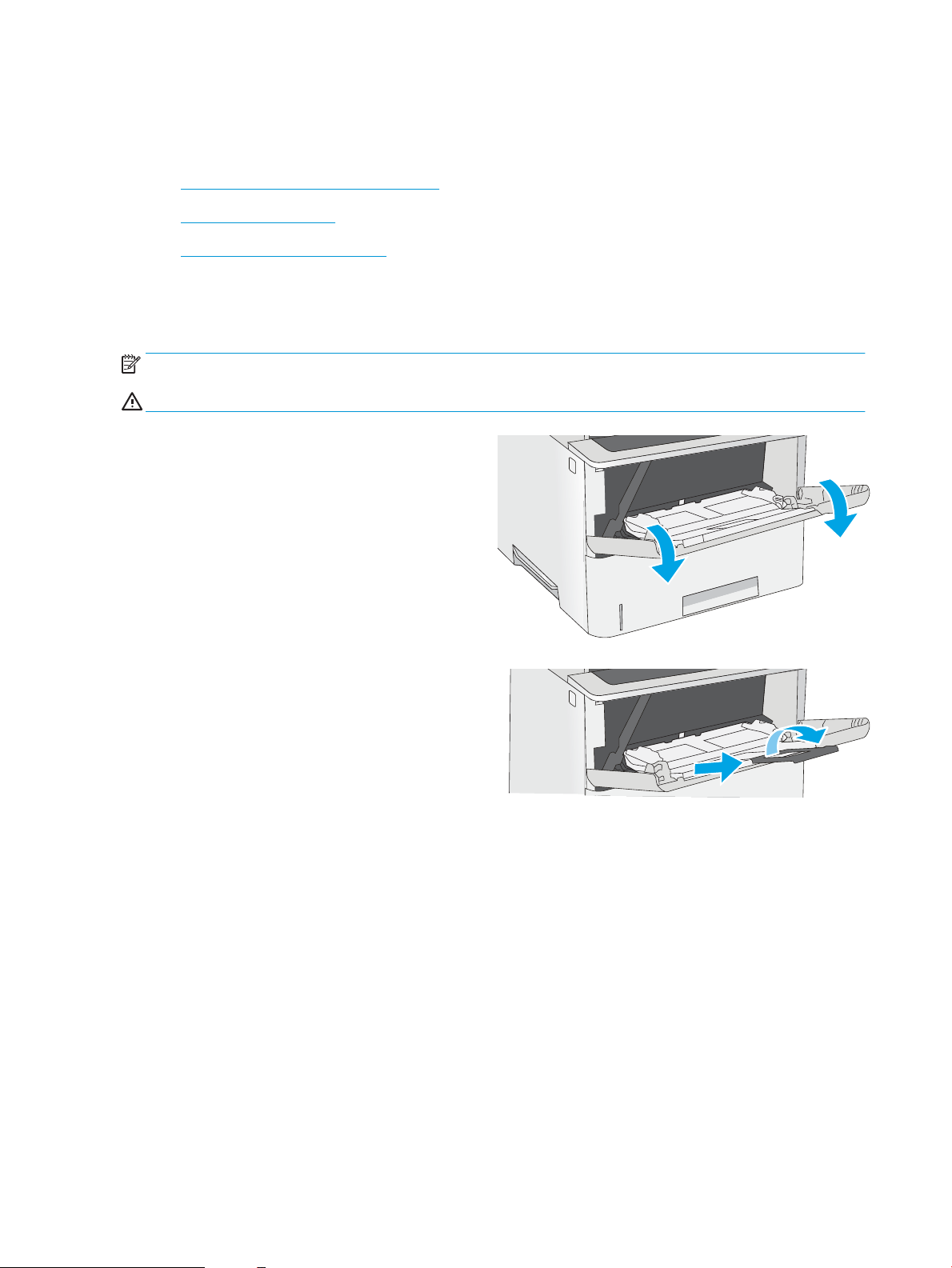
1. Grasp the handle on either side of Tray 1, and pull
it forward to open it.
2. Pull out the tray extension to support the paper.
20 Chapter 2 Paper trays ENWW
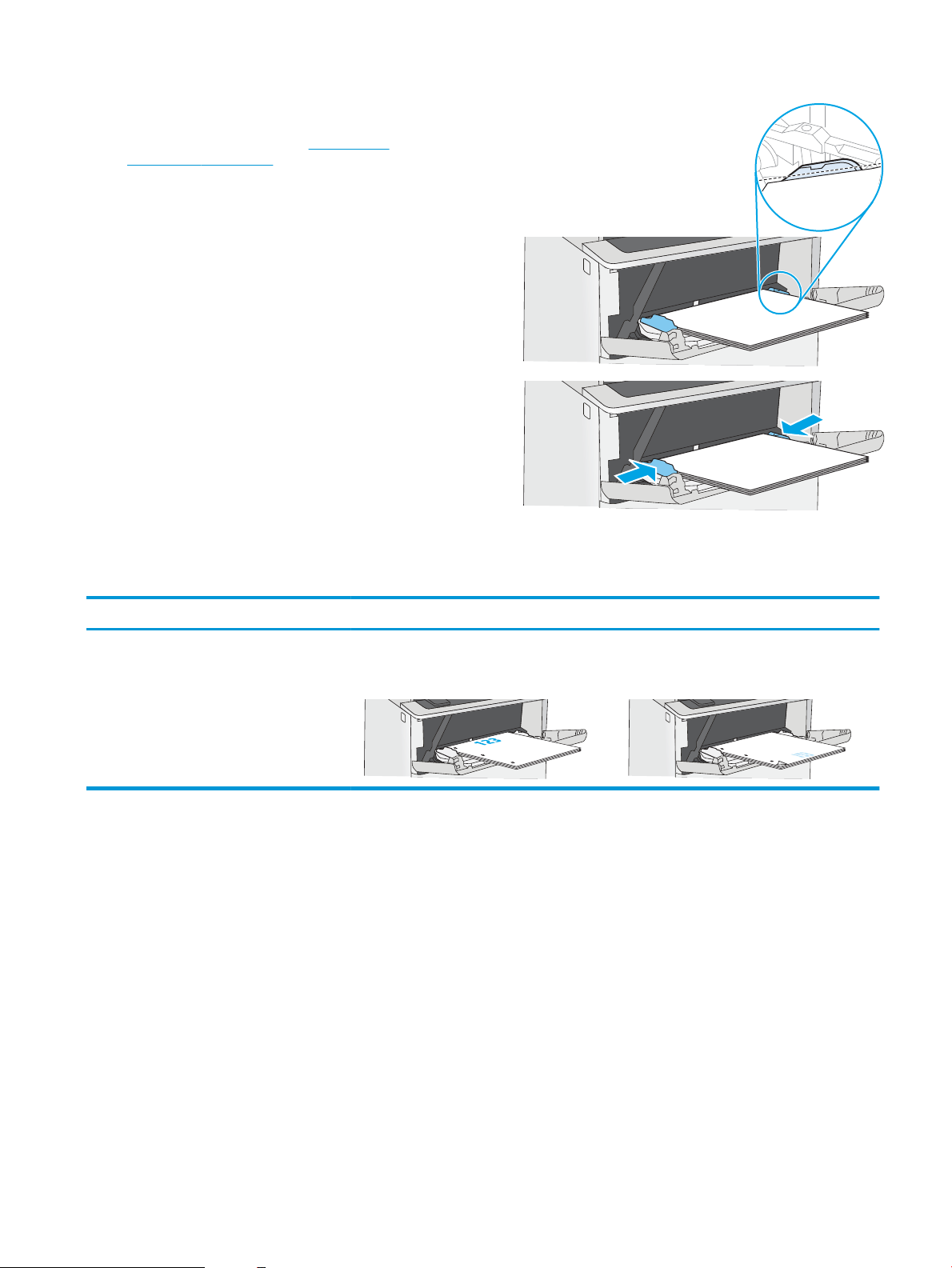
3. Spread the paper guides to the correct size, and
then load paper in the tray. For information about
how to orient the paper, see Tray 1 paper
orientation on page 21.
Make sure that the paper ts under the ll line on
the paper guides.
NOTE: The maximum stack height is 10 mm (0.4
in), or approximately 100 sheets of 75 g/m
2
(20 lb)
paper.
4. Adjust the side guides so that they lightly touch the
paper stack, but do not bend it.
Tray 1 paper orientation
Paper type Single-sided printing Duplex printing and Alternative Letterhead Mode
Letterhead, preprinted, or prepunched Face-up
Top edge leading into the printer
Face-down
Bottom edge leading into the printer
ENWW Load paper to Tray 1 21

Use alternative letterhead mode
Use the Alternative Letterhead Mode feature to load letterhead or preprinted paper into the tray the same way
for all jobs, whether printing to one side of the sheet of paper or to both sides. When using this mode, load paper
as for automatic duplex printing.
●
Enable Alternative Letterhead Mode by using the printer control-panel menus
Enable Alternative Letterhead Mode by using the printer control-panel menus
Use the Settings menu to set the Alternative Letterhead Mode setting
1. From the Home screen on the printer control panel, open the Settings menu.
2. Open the following menus:
● Copy/Print or Print
● Manage Trays
● Alternative Letterhead Mode
3. Select Enabled, and then touch the Save button or press the OK button.
22 Chapter 2 Paper trays ENWW
Load paper to Tray 2 and the 550-sheet trays
The following information describes how to load paper into Tray 2 and the optional 550-sheet trays.
●
Load paper to Tray 2 and the 550-sheet trays
●
Tray 2 and the 550-sheet trays paper orientation
●
Use alternative letterhead mode
NOTE: The procedure to load paper for the 550-sheet trays is the same as for Tray 2. Only Tray 2 is shown
here.
CAUTION: Do not extend more than one paper tray at a time.
Load paper to Tray 2 and the 550-sheet trays
The following information describes how to load paper in Tray 2 and the optional 550-sheet trays. These trays
hold up to 550 sheets of 75 g/m
2
(20 lb) paper.
NOTE: The procedure to load paper for the 550-sheet trays is the same as for Tray 2. Only Tray 2 is shown
here.
NOTE: Do not extend more than one paper tray at a time.
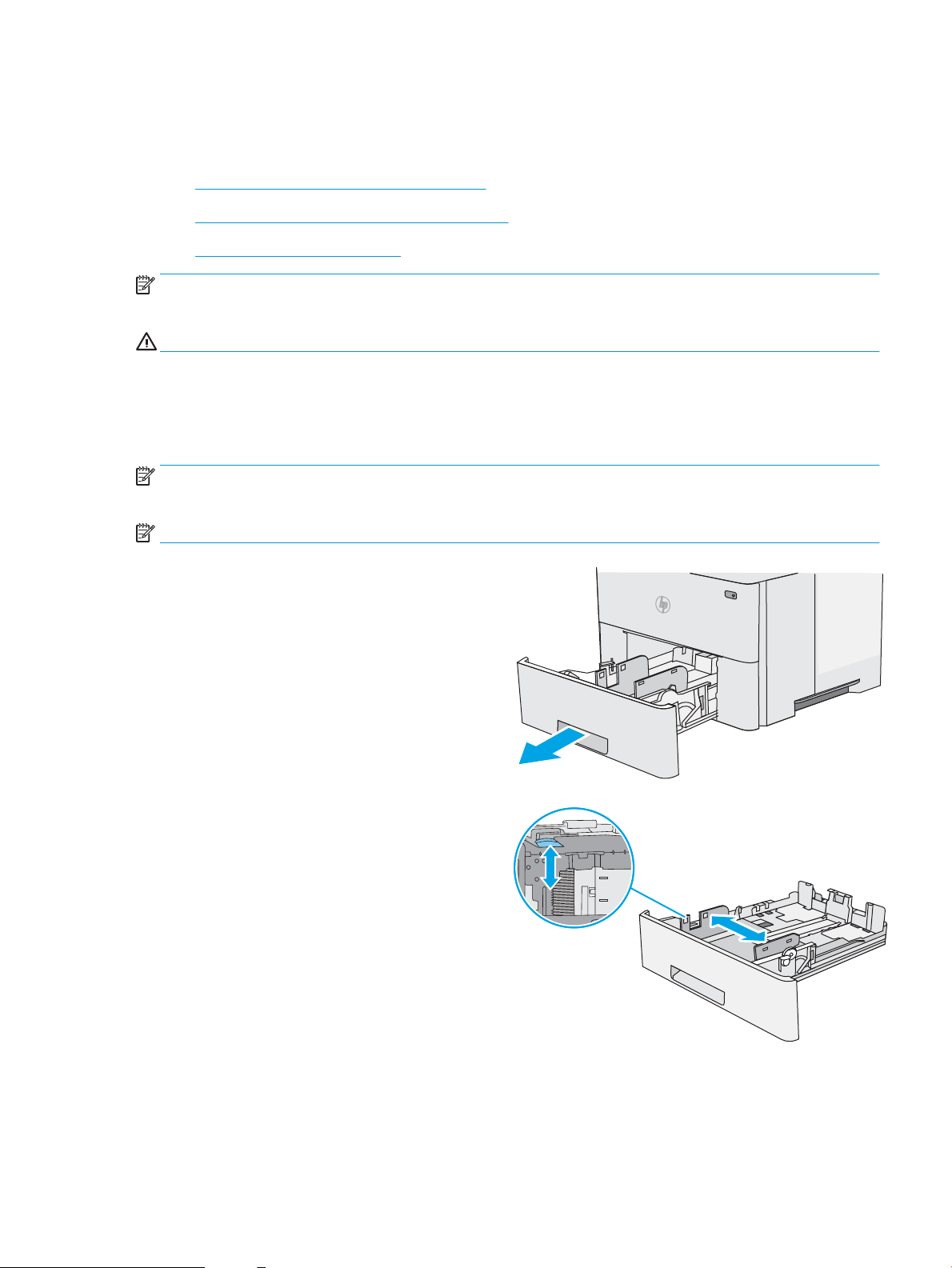
1. Open the tray.
NOTE: Do not open this tray while it is in use.
2. Before loading paper, adjust the paper-width
guides by squeezing the adjustment latches and
sliding the guides to the size of the paper being
used.
ENWW Load paper to Tray 2 and the 550-sheet trays 23
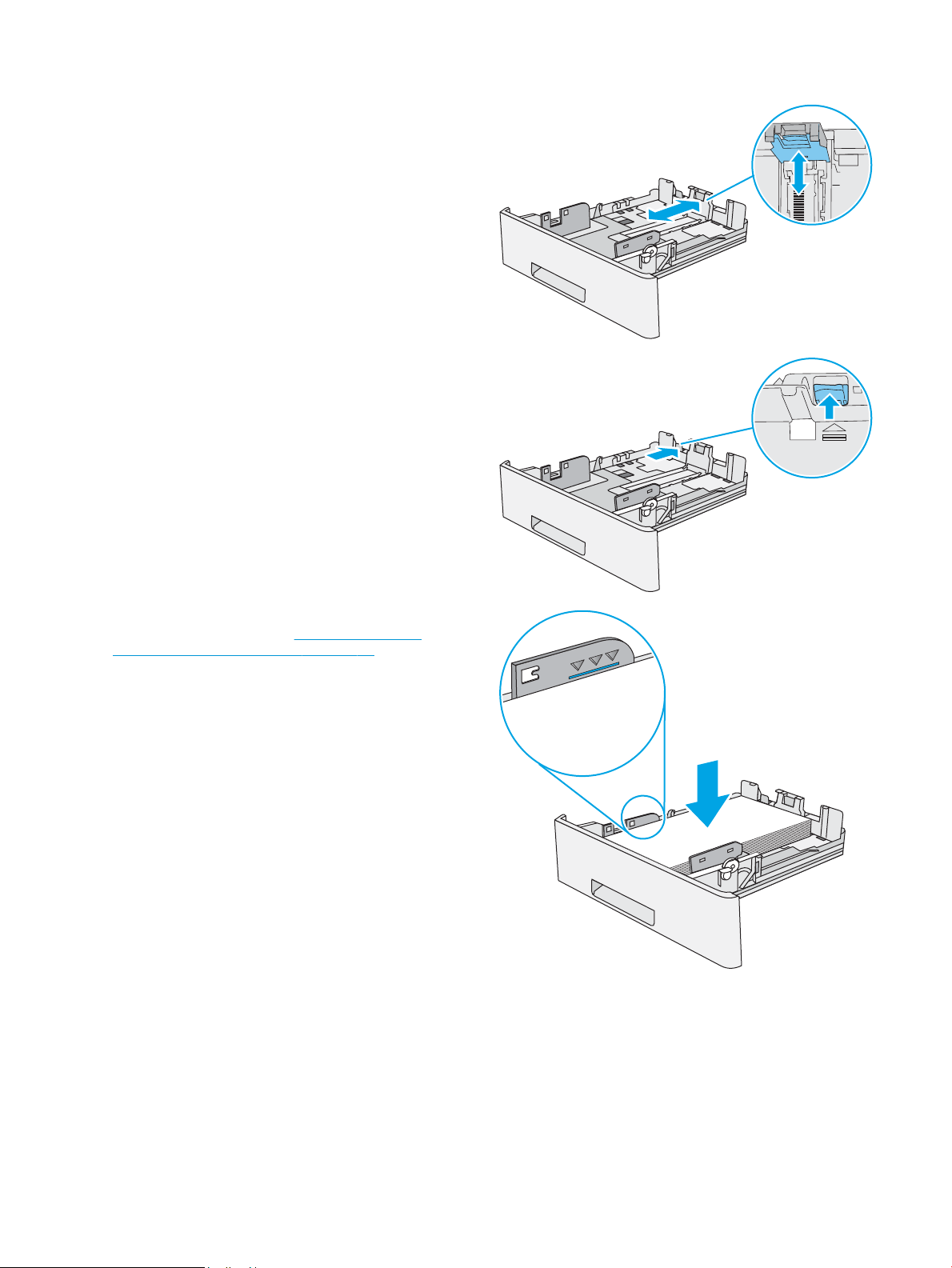
3. Adjust the paper-length guide by squeezing the
adjustment latch and sliding the guide to the size
of the paper being used.
B5
11 LTR
14 LGL
4. To load legal-size paper into the tray, squeeze the
lever on the back of the tray that is to the left of
center, and then extend the tray back to the correct
paper size.
NOTE: This step does not apply to other paper
sizes.
14 LGL
5. Load paper into the tray. For information about
how to orient the paper, see Tray 2 and the 550-
sheet trays paper orientation on page 25.
NOTE: Do not adjust the paper guides tightly
against the paper stack. Adjust them to the
indentations or markings in the tray.
NOTE: To prevent jams, adjust the paper guides
to the correct size and do not overll the tray. Be
sure that the top of the stack is below the tray full
indicator, as shown in the enlargement in the
illustration.
24 Chapter 2 Paper trays ENWW
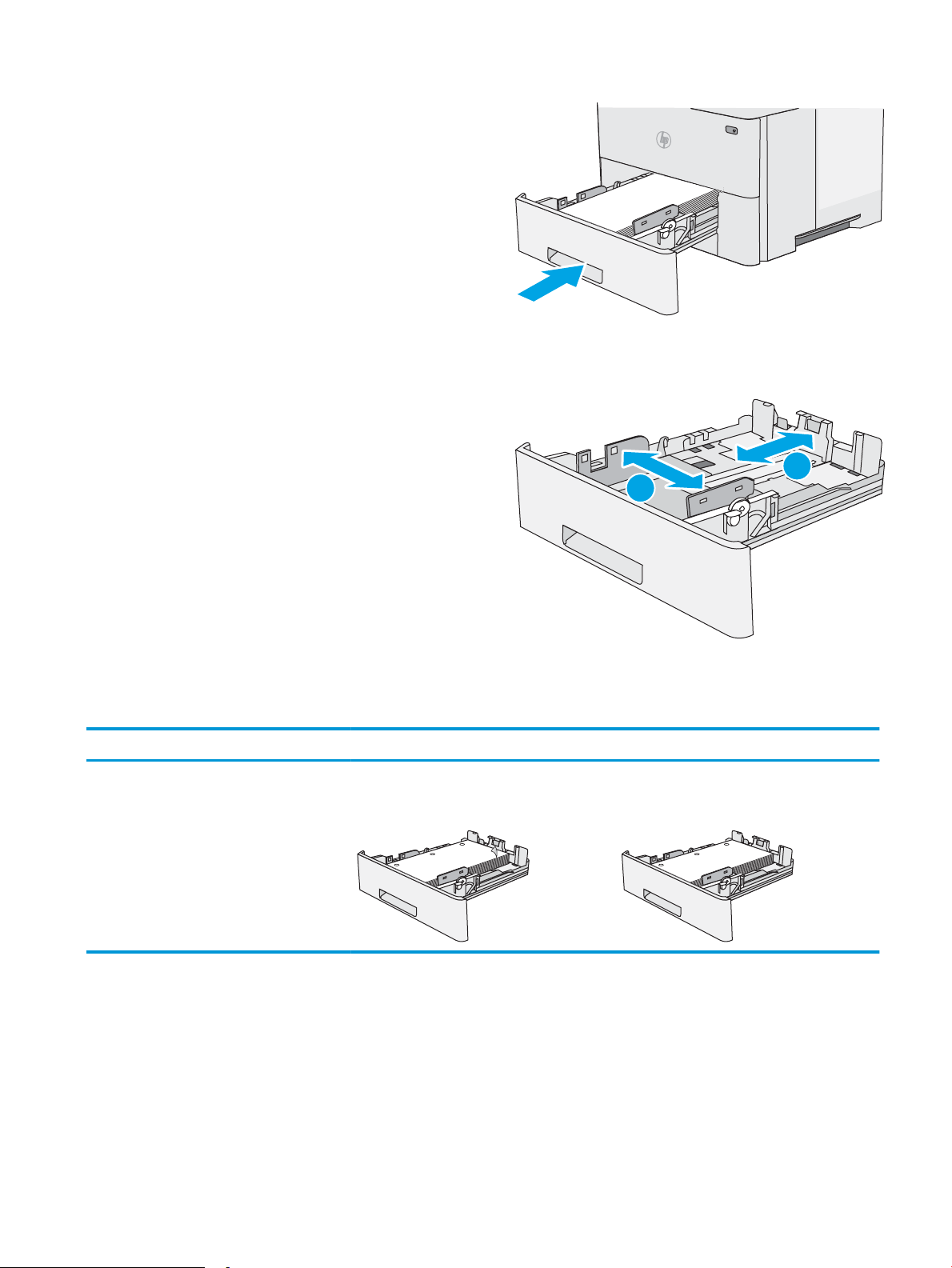
6. Close the tray.
7. The tray conguration message displays on the
printer control panel.
8. If the paper size and type shown is not correct,
select Modify to choose a dierent paper size or
type.
For custom-size paper, specify the X and Y
dimensions for the paper when the prompt
displays on the printer control panel.
X
Y
Tray 2 and the 550-sheet trays paper orientation
Paper type Single-sided printing Duplex printing and Alternative Letterhead Mode
Letterhead, preprinted, or prepunched Face-down
Top edge at the front of the tray
123
Face-up
Bottom edge at the front of the tray
123
ENWW Load paper to Tray 2 and the 550-sheet trays 25

Use alternative letterhead mode
Use the Alternative Letterhead Mode feature to load letterhead or preprinted paper into the tray the same way
for all jobs, whether printing to one side of the sheet of paper or to both sides. When using this mode, load paper
as for automatic duplex printing.
●
Enable Alternative Letterhead Mode by using the printer control-panel menus
Enable Alternative Letterhead Mode by using the printer control-panel menus
Use the Settings menu to set the Alternative Letterhead Mode setting
1. From the Home screen on the printer control panel, open the Settings menu.
2. Open the following menus:
● Copy/Print or Print
● Manage Trays
● Alternative Letterhead Mode
3. Select Enabled, and then touch the Save button or press the OK button.
26 Chapter 2 Paper trays ENWW
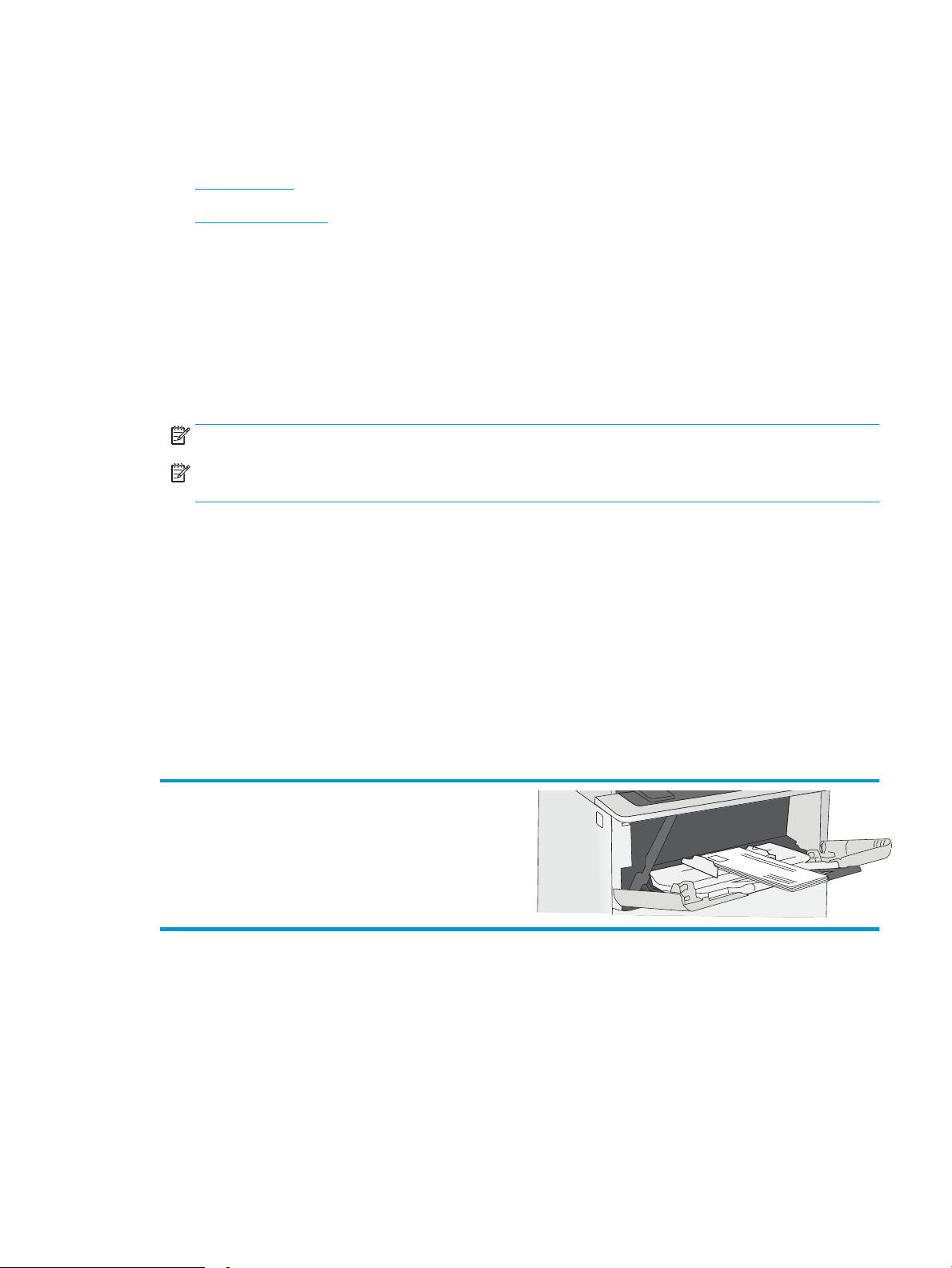
Load and print envelopes
Use only tray 1 to print on envelopes. Tray 1 holds up to 10 envelopes.
●
Print envelopes
●
Envelope orientation
Print envelopes
To print envelopes using the manual feed option, follow these steps to select the correct settings in the print
driver, and then load the envelopes into the tray after sending the print job to the printer.
1. From the software program, select the Print option.
2. Select the printer from the list of printers, and then click the Properties or Preferences button to open the
print driver.
NOTE: The name of the button varies for dierent software programs.
NOTE: To access these features from a Windows 8 or 8.1 Start screen, select Devices, select Print, and
then select the printer.
3. Click the Paper/Quality tab.
4. In the Paper size drop-down list, select the correct size for the envelopes.
5. In the Paper type drop-down list, select Envelope.
6. In the Paper source drop-down list, select Manual feed.
7. Click the OK button to close the Document Properties dialog box.
8. In the Print dialog box, click the OK button to print the job.
Envelope orientation
Load envelopes in Tray 1 face up, with the short, postage end
leading into the printer.
ENWW Load and print envelopes 27
Load and print labels
To print on sheets of labels, use tray 1. Tray 2 and the optional 550-sheet trays do not support labels.
●
Manually feed labels
●
Label orientation
Manually feed labels
Use the manual feed mode for Tray 1 to print sheets of labels.
1. From the software program, select the Print option.
2. Select the printer from the list of printers, and then click the Properties or Preferences button to open the
print driver.
NOTE: The name of the button varies for dierent software programs.
NOTE: To access these features from a Windows 8 or 8.1 Start screen, select Devices, select Print, and
then select the printer.
3. Click the Paper/Quality tab.
4. In the Paper size drop-down list, select the correct size for the sheets of labels.
5. In the Paper type drop-down list, select Labels.
6. In the Paper source drop-down list, select Manual feed.
7. Click the OK button to close the Document Properties dialog box.
8. In the Print dialog box, click the Print button to print the job.
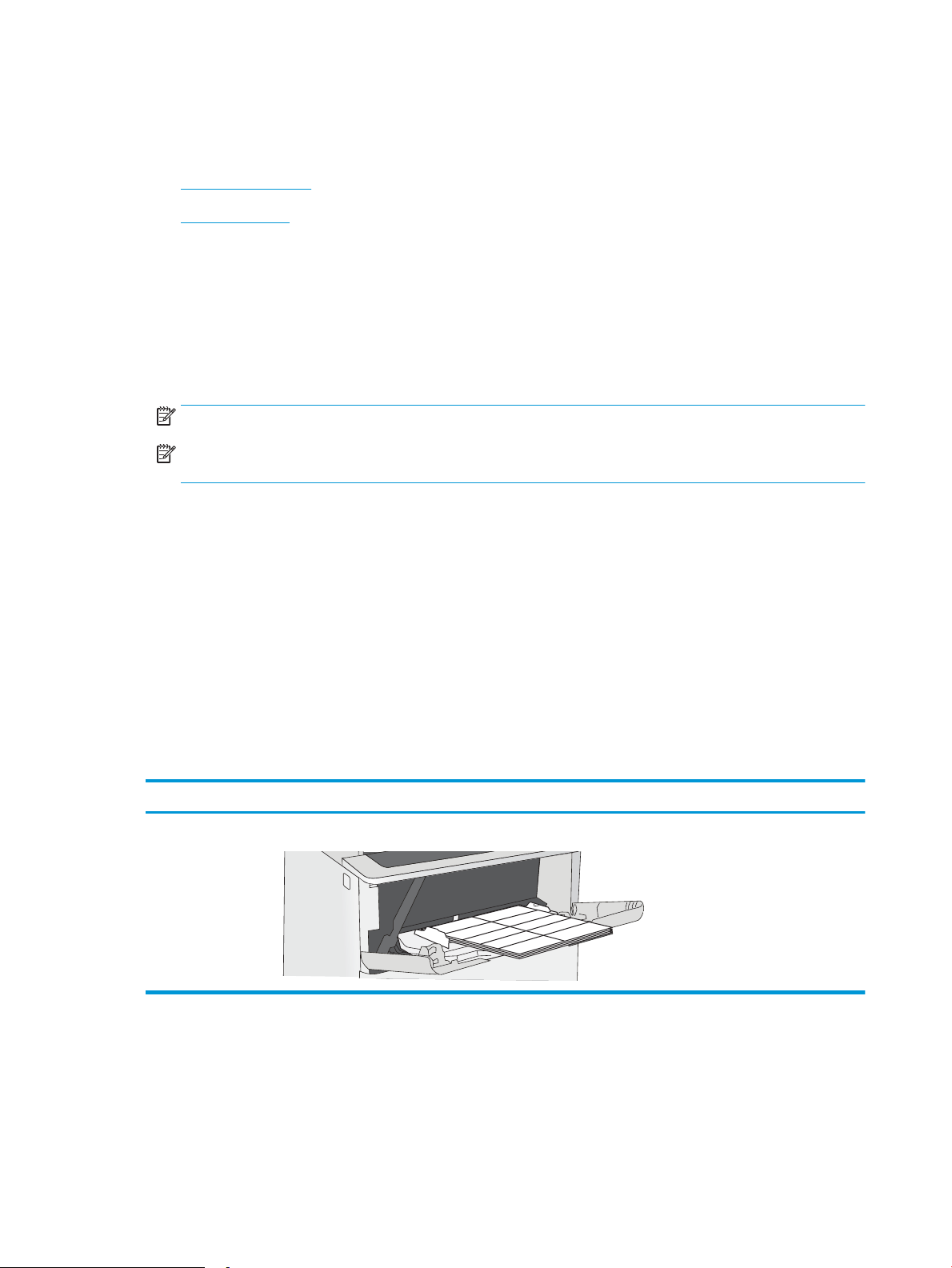
Label orientation
Labels need to be loaded in a specic manner in order to print correctly.
Tray How to load labels
Tray 1 Load sheets of labels face-up with the top of the sheet leading into the printer.
28 Chapter 2 Paper trays ENWW

3 Supplies, accessories, and parts
Order supplies or accessories, replace the toner cartridges, or remove and replace another part.
●
Order supplies, accessories, and parts
●
Congure the HP toner-cartridge-protection supply settings
●
Replace the toner cartridge
For video assistance, see www.hp.com/videos/LaserJet.
The following information is correct at the time of publication. For current information, see www.hp.com/
support/ljM507.
For more information:
HP's all-inclusive help for the printer includes the following information:
● Install and congure
● Learn and use
● Solve problems
● Download software and rmware updates
● Join support forums
● Find warranty and regulatory information
ENWW 29

Order supplies, accessories, and parts
Review details about ordering supplies, accessories and parts for your printer.
●
Ordering
●
Supplies and accessories
●
Customer self-repair parts
Ordering
Order supplies and paper www.hp.com/go/suresupply
Order genuine HP parts or accessories www.hp.com/buy/parts
Order through service or support providers Contact an HP-authorized service or support provider.
Order using the HP Embedded Web Server (EWS) To access, in a supported web browser on your computer, enter the
printer IP address or host name in the address/URL eld. The EWS
contains a link to the HP SureSupply website, which provides
options for purchasing Original HP supplies.
Supplies and accessories
Item Description Cartridge number Part number
Supplies
HP 89A Black Original LaserJet Toner
Cartridge
Black LaserJet toner cartridge 89A CF289A
HP 89X High Yield Black Original
LaserJet Toner Cartridge
Black LaserJet toner cartridge 89X CF289X
HP 89Y Extra High Yield Black Original
LaserJet Toner Cartridge
Black LaserJet toner cartridge 89Y CF289Y
Accessories
HP LaserJet 550-sheet Paper Tray Optional 550-sheet paper feeder
NOTE: The printer supports up to
three 1 x 550-sheet paper feeders
unless other input devices are present.
Not applicable F2A72A
HP LaserJet Printer Stand Optional printer stand Not applicable F2A73A
1 GB DDR3 SlimDIMM Optional DIMM for expanding the
memory
Not applicable G6W84A
HP Trusted Platform Module Automatically encrypts all data that
passes through the printer
Not applicable F5S62A
HP Secure High Performance Hard Disk
Drive
Optional secure HDD Not applicable B5L29A
HP Jetdirect 2900nw Print Server USB wireless print server accessory Not applicable J8031A
30 Chapter 3 Supplies, accessories, and parts ENWW

Item Description Cartridge number Part number
HP JetDirect 3100w BLE/NFC/Wireless
Accessory
Wi-Fi direct accessory for “touch”
printing from mobile devices
Not applicable 3JN69A
HP Internal USB ports Two internal USB ports for connecting
third-party devices
Not applicable B5L28A
Customer self-repair parts
Customer Self-Repair (CSR) parts are available for many HP LaserJet printers to reduce repair time. More
information about the CSR program and benets can be found at www.hp.com/go/csr-support and
www.hp.com/go/csr-faq.
Genuine HP replacement parts can be ordered at www.hp.com/buy/parts or by contacting an HP-authorized
service or support provider. When ordering, one of the following will be needed: part number, serial number
(found on back of printer), product number, or printer name.
● Parts listed as Mandatory self-replacement are to be installed by customers, unless you are willing to pay
HP service personnel to perform the repair. For these parts, on-site or return-to-depot support is not
provided under the HP printer warranty.
● Parts listed as Optional self-replacement can be installed by HP service personnel at your request for no
additional charge during the printer warranty period.
Item Description Self-replacement options Part number
1 x 550 Sheet Feeder Kit Replacement 1 x 550-sheet feeder Mandatory F2A72A
Secure Hard Disk Drive Replacement hard disk drive Mandatory B5L29A
1 GB DDR3 SlimDIMM Replacement memory DIMM Mandatory G6W84A
HP Trusted Platform Module kit Replacement trusted platform module Mandatory F5S62A
HP Jetdirect 2900nw Print Server Replacement USB wireless print server
accessory
Mandatory J8031A
HP JetDirect 3100w BLE/NFC/Wireless
Accessory
Replacement Wireless Direct Print
accessory for “touch” printing from mobile
devices
Mandatory 3JN69A
HP Internal USB Ports Replacement internal USB ports Mandatory B5L28A
ENWW Order supplies, accessories, and parts 31

Congure the HP toner-cartridge-protection supply settings
A network administrator can congure the toner-cartridge-protection settings using the printer control panel or
the HP Embedded Web Server (EWS).
●
Introduction
●
Enable or disable the Cartridge Policy feature
●
Enable or disable the Cartridge Protection feature
Introduction
Use HP Cartridge Policy and Cartridge Protection to control which cartridges are installed in the printer and
protect the cartridges that are installed from theft.
In HP Web Jetadmin, the settings are located under the Device Management pane in the following menu chain:
Cong > Supplies > Cartridge Policy or Cartridge Protection.
These features are available with HP FutureSmart versions 3 and later.
● Cartridge Policy: This feature protects the printer from counterfeit toner cartridges by allowing only genuine
HP cartridges to be used with the printer. Using genuine HP cartridges ensures the best possible print
quality. When someone installs a cartridge that is not a genuine HP cartridge, the printer control panel
displays a message that the cartridge is unauthorized and it provides information explaining how to
proceed.
● Cartridge Protection: This feature permanently associates toner cartridges with a specic printer, or eet of
printers, so they cannot be used in other printers. Protecting cartridges protects your investment. When
this feature is enabled, if someone attempts to transfer a protected cartridge from the original printer into
an unauthorized printer, that printer will not print with the protected cartridge. The printer control panel
displays a message that the cartridge is protected, and it provides information explaining how to proceed.
CAUTION: After enabling cartridge protection for the printer, all subsequent toner cartridges installed in
the printer are automatically and permanently protected. To avoid protecting a new cartridge, disable the
feature before installing the new cartridge.
Turning the feature o does not turn o protection for cartridges that are currently installed.
Both features are o by default. Follow these procedures to enable or disable them.
32 Chapter 3 Supplies, accessories, and parts ENWW

Enable or disable the Cartridge Policy feature
The Cartridge Policy feature can be enabled or disabled using the control panel or the Embedded Web Server
(EWS).
●
Use the printer control panel to enable the Cartridge Policy feature
●
Use the printer control panel to disable the Cartridge Policy feature
●
Use the HP Embedded Web Server (EWS) to enable the Cartridge Policy feature
●
Use the HP Embedded Web Server (EWS) to disable the Cartridge Policy feature
●
Troubleshoot Cartridge Policy control panel error messages
NOTE: Enabling or disabling this feature might require entering an administrator password.
Use the printer control panel to enable the Cartridge Policy feature
From the printer control panel, a network administrator can enable the Cartridge Policy feature. This allows only
genuine HP cartridges to be used with the printer.
1. From the Home screen on the printer control panel, navigate to the Settings application, and then select
the Settings icon.
2. Open the following menus:
● Manage Supplies
● Cartridge Policy
3. Select Authorized HP.
Use the printer control panel to disable the Cartridge Policy feature
From the printer control panel, a network administrator can disable the Cartridge Policy feature. This removes
the restriction that only genuine HP cartridges can be used.
1. From the Home screen on the printer control panel, navigate to the Settings application, and then select
the Settings icon.
2. Open the following menus:
● Manage Supplies
● Cartridge Policy
3. Select O.
Use the HP Embedded Web Server (EWS) to enable the Cartridge Policy feature
From the EWS, a network administrator can enable the Cartridge Policy feature. This allows only genuine HP
cartridges to be used with the printer.
1. Open the HP Embedded Web Server (EWS):
NOTE: The steps vary according to the type of control panel.
ENWW Congure the HP toner-cartridge-protection supply settings 33
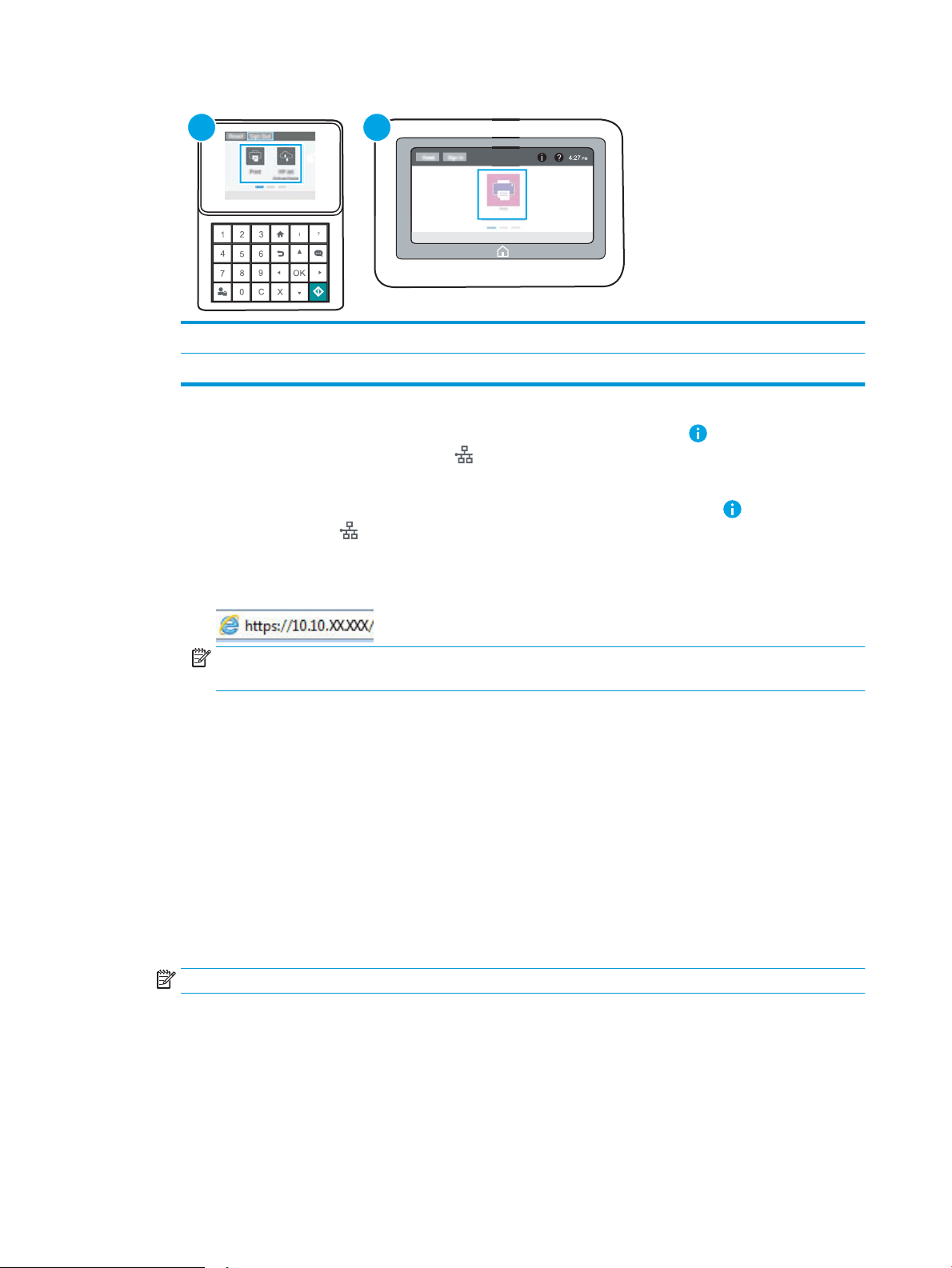
1
2
1 Keypad control panel
2 Touchscreen control panel
a. Keypad control panels: On the printer control panel, press the Information button, and then use
the arrow keys to select the Ethernet menu. Press the OK button to open the menu and display
the IP address or host name.
Touchscreen control panels: On the printer control panel, touch the Information button, and then
select the Network icon to display the IP address or host name.
b. Open a web browser, and in the address line, type the IP address or host name exactly as it displays
on the printer control panel. Press the Enter key on the computer keyboard. The EWS opens.
NOTE: If the web browser displays a message indicating that accessing the website might not be
safe, select the option to continue to the website. Accessing this website will not harm the computer.
2. Open the Copy/Print tab.
3. From the left navigation pane, select Manage Supplies.
4. In the Supply Settings area, select Authorized HP from the Cartridge Policy drop-down list.
5. Click the Apply button to save the changes.
Use the HP Embedded Web Server (EWS) to disable the Cartridge Policy feature
From the EWS, a network administrator can disable the Cartridge Policy feature. This removes the restriction that
only genuine HP cartridges can be used.
1. Open the HP Embedded Web Server (EWS):
NOTE: The steps vary according to the type of control panel.
34 Chapter 3 Supplies, accessories, and parts ENWW
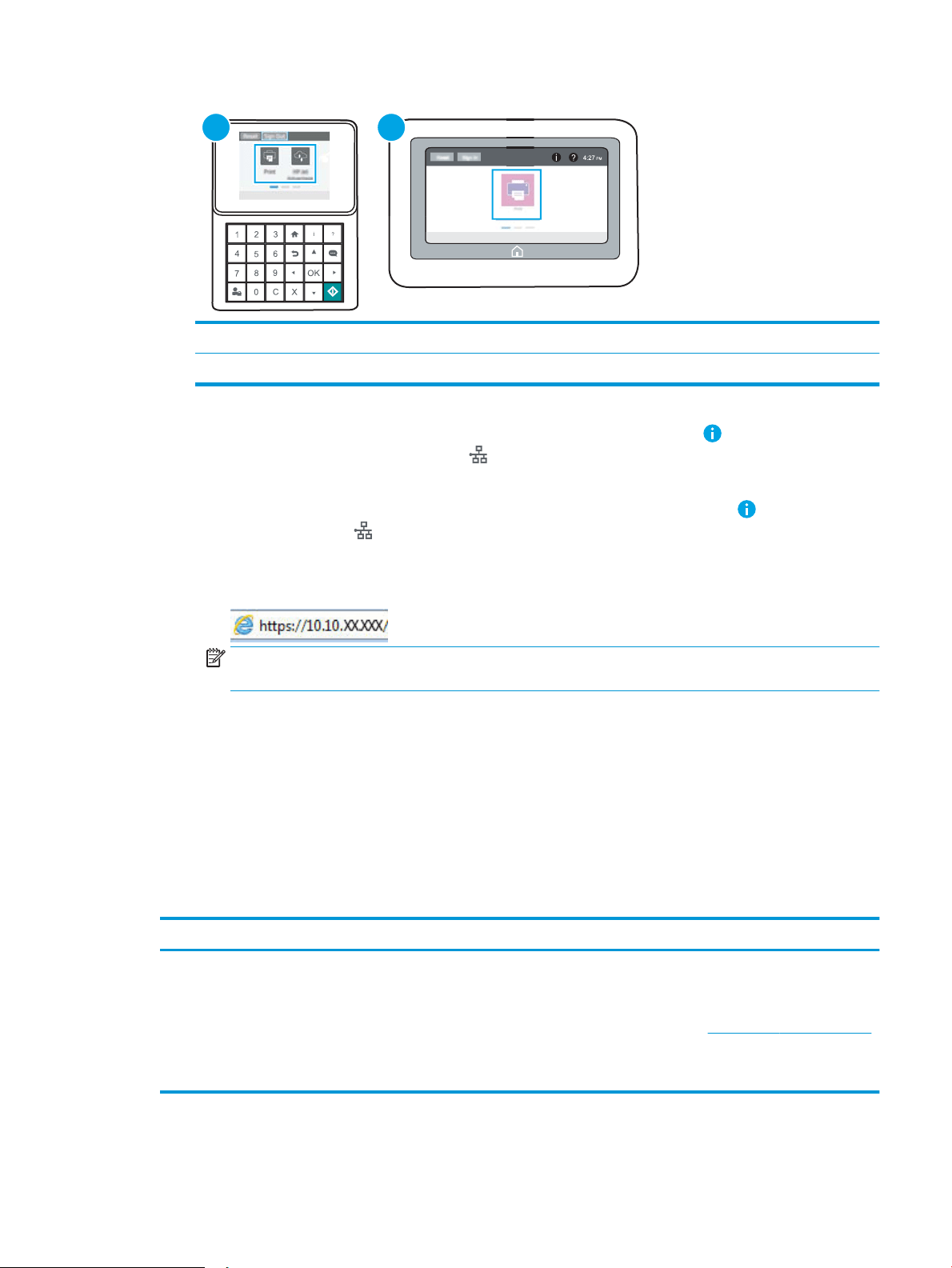
1
2
1 Keypad control panel
2 Touchscreen control panel
a. Keypad control panels: On the printer control panel, press the Information button, and then use
the arrow keys to select the Ethernet menu. Press the OK button to open the menu and display
the IP address or host name.
Touchscreen control panels: On the printer control panel, touch the Information button, and then
select the Network icon to display the IP address or host name.
b. Open a web browser, and in the address line, type the IP address or host name exactly as it displays
on the printer control panel. Press the Enter key on the computer keyboard. The EWS opens.
NOTE: If the web browser displays a message indicating that accessing the website might not be
safe, select the option to continue to the website. Accessing this website will not harm the computer.
2. Open the Copy/Print tab.
3. From the left navigation pane, select Manage Supplies.
4. In the Supply Settings area, select O from the Cartridge Policy drop-down list.
5. Click the Apply button to save the changes.
Troubleshoot Cartridge Policy control panel error messages
Review the recommended actions for Cartridge Policy error messages.
Error message Description Recommended action
10.0X.30 Unauthorized <Color> Cartridge The administrator has congured this
printer to use only genuine HP supplies that
are still under warranty. The cartridge must
be replaced to continue printing.
Replace the cartridge with a genuine HP
toner cartridge.
If you believe you purchased a genuine HP
supply, visit www.hp.com/go/anticounterfeit
to determine if the toner cartridge is a
genuine HP cartridge, and learn what to do if
it is not a genuine HP cartridge.
ENWW Congure the HP toner-cartridge-protection supply settings 35

Enable or disable the Cartridge Protection feature
The Cartridge Protection feature can be enabled or disabled using the control panel or the Embedded Web
Server (EWS).
●
Use the printer control panel to enable the Cartridge Protection feature
●
Use the printer control panel to disable the Cartridge Protection feature
●
Use the HP Embedded Web Server (EWS) to enable the Cartridge Protection feature
●
Use the HP Embedded Web Server (EWS) to disable the Cartridge Protection feature
●
Troubleshoot Cartridge Protection control panel error messages
NOTE: Enabling or disabling this feature might require entering an administrator password.
Use the printer control panel to enable the Cartridge Protection feature
From the printer control panel, a network administrator can enable the Cartridge Protection feature. This
protects the cartridges associated with the printer from being stolen and used in other printers.
1. From the Home screen on the printer control panel, navigate to the Settings application, and then select
the Settings icon.
2. Open the following menus:
● Manage Supplies
● Cartridge Protection
3. Select Protect Cartridges.
4. When the printer prompts to conrm, select Continue to enable the feature.
CAUTION: After enabling cartridge protection for the printer, all subsequent toner cartridges installed in
the printer are automatically and permanently protected. To avoid protecting a new cartridge, disable the
feature before installing the new cartridge.
Turning the feature o does not turn o protection for cartridges that are currently installed.
Use the printer control panel to disable the Cartridge Protection feature
From the printer control panel, a network administrator can disable the Cartridge Protection feature. This
removes protection for any new cartridges installed in the printer.
1. From the Home screen on the printer control panel, navigate to the Settings application, and then select
the Settings icon.
2. Open the following menus:
● Manage Supplies
● Cartridge Protection
3. Select O.
36 Chapter 3 Supplies, accessories, and parts ENWW
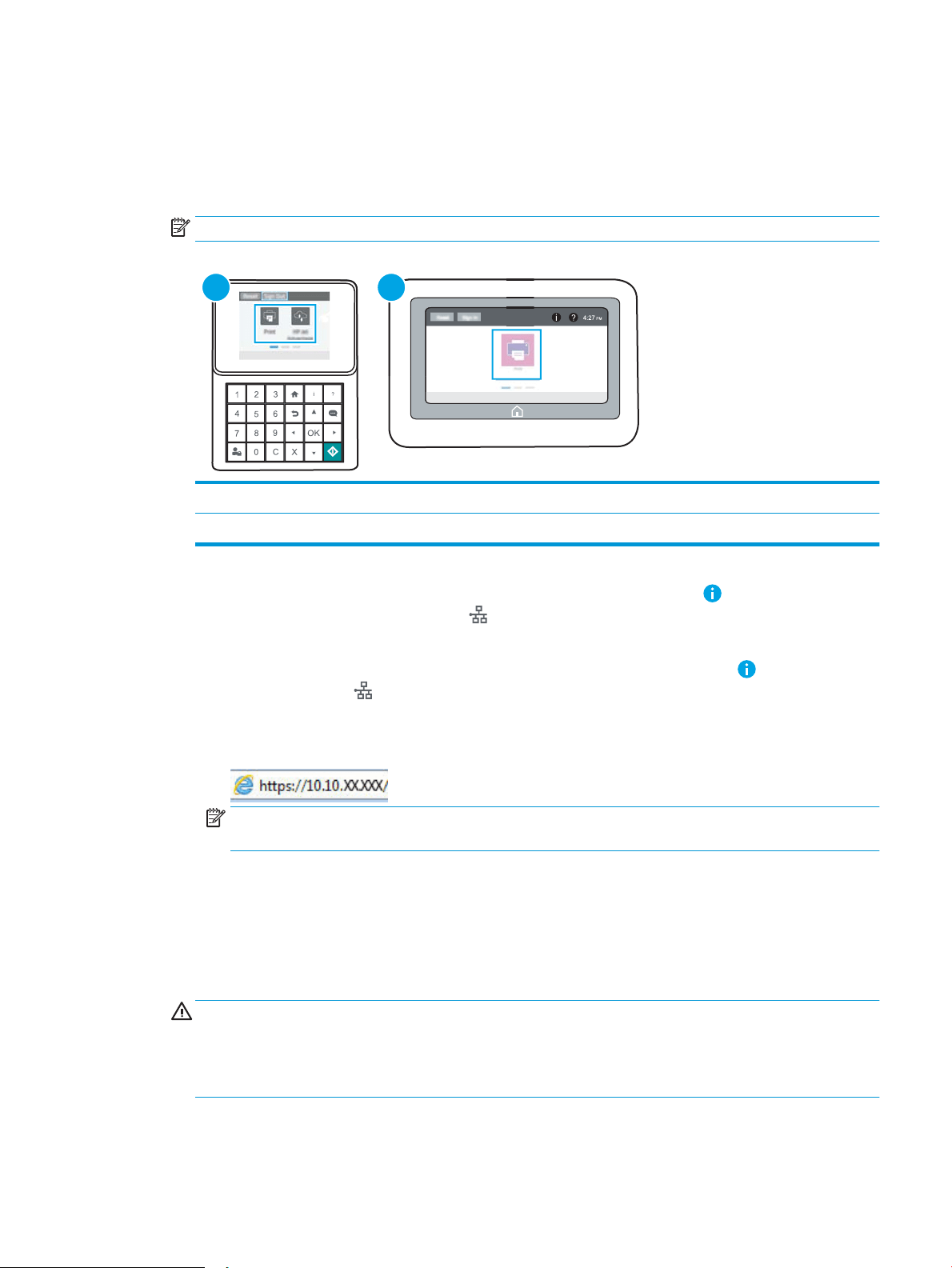
Use the HP Embedded Web Server (EWS) to enable the Cartridge Protection feature
From the EWS, a network administrator can enable the Cartridge Protection feature. This protects the cartridges
associated with the printer from being stolen and used in other printers.
1. Open the HP Embedded Web Server (EWS):
NOTE: The steps vary according to the type of control panel.
1
2
1 Keypad control panel
2 Touchscreen control panel
a. Keypad control panels: On the printer control panel, press the Information button, and then use
the arrow keys to select the Ethernet menu. Press the OK button to open the menu and display
the IP address or host name.
Touchscreen control panels: On the printer control panel, touch the Information button, and then
select the Network icon to display the IP address or host name.
b. Open a web browser, and in the address line, type the IP address or host name exactly as it displays
on the printer control panel. Press the Enter key on the computer keyboard. The EWS opens.
NOTE: If the web browser displays a message indicating that accessing the website might not be
safe, select the option to continue to the website. Accessing this website will not harm the computer.
2. Open the Copy/Print tab.
3. From the left navigation pane, select Manage Supplies.
4. In the Supply Settings area, select Protect cartridges from the Cartridge Protection drop-down list.
5. Click the Apply button to save the changes.
CAUTION: After enabling cartridge protection for the printer, all subsequent toner cartridges installed in
the printer are automatically and permanently protected. To avoid protecting a new cartridge, disable the
feature before installing the new cartridge.
Turning the feature o does not turn o protection for cartridges that are currently installed.
ENWW Congure the HP toner-cartridge-protection supply settings 37
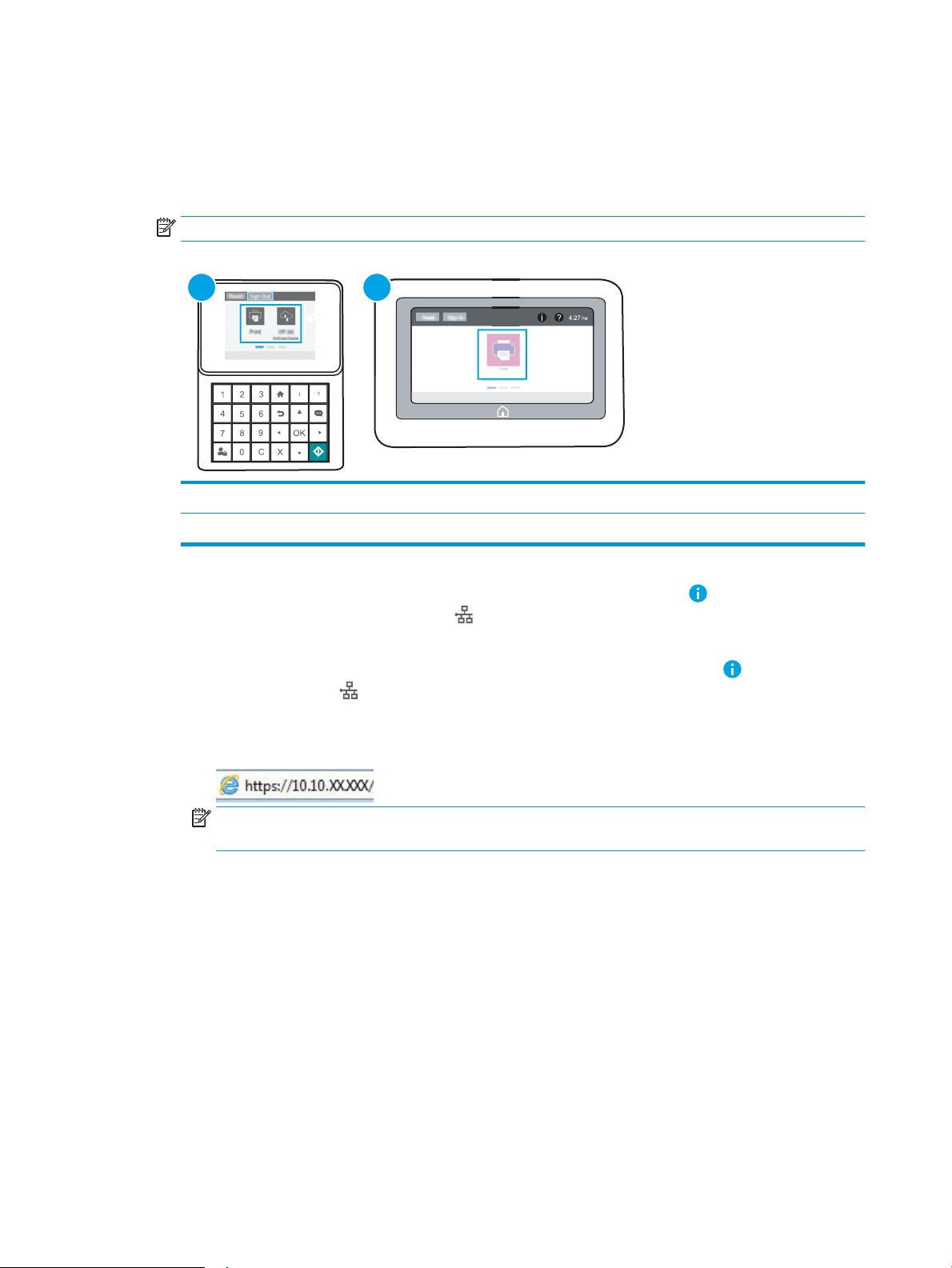
Use the HP Embedded Web Server (EWS) to disable the Cartridge Protection feature
From the EWS, a network administrator can disable the Cartridge Protection feature. This removes protection for
any new cartridges installed in the printer.
1. Open the HP Embedded Web Server (EWS):
NOTE: The steps vary according to the type of control panel.
1
2
1 Keypad control panel
2 Touchscreen control panel
a. Keypad control panels: On the printer control panel, press the Information button, and then use
the arrow keys to select the Ethernet menu. Press the OK button to open the menu and display
the IP address or host name.
Touchscreen control panels: On the printer control panel, touch the Information button, and then
select the Network icon to display the IP address or host name.
b. Open a web browser, and in the address line, type the IP address or host name exactly as it displays
on the printer control panel. Press the Enter key on the computer keyboard. The EWS opens.
NOTE: If the web browser displays a message indicating that accessing the website might not be
safe, select the option to continue to the website. Accessing this website will not harm the computer.
2. Open the Copy/Print tab.
3. From the left navigation pane, select Manage Supplies.
4. In the Supply Settings area, select O from the Cartridge Protection drop-down list.
5. Click the Apply button to save the changes.
Troubleshoot Cartridge Protection control panel error messages
Review the recommended actions for Cartridge Protection error messages.
38 Chapter 3 Supplies, accessories, and parts ENWW

Error message Description Recommended action
10.0X.57 Protected <Color> Cartridge The cartridge can only be used in the printer
or eet of printers that initially protected it
using HP Cartridge Protection.
The Cartridge Protection feature allows an
administrator to restrict cartridges to work
in only one printer or eet of printers. The
cartridge must be replaced to continue
printing.
Replace the cartridge with a new toner
cartridge.
ENWW Congure the HP toner-cartridge-protection supply settings 39

Replace the toner cartridge
Replace the toner cartridge if you receive a message on the printer, or if you have print quality problems.
●
Cartridge information
●
Remove and replace the cartridge
Cartridge information
Continue printing with the current cartridge until redistributing the toner no longer yields acceptable print quality.
To redistribute the toner, remove the toner cartridge from the printer and gently rock the cartridge back and forth
about its horizontal axis. For graphical representation, see cartridge replacement instructions. Reinsert the toner
cartridge into the printer and close the cover.
To purchase cartridges or check cartridge compatibility for the printer, go to HP SureSupply at www.hp.com/go/
SureSupply. Scroll to the bottom of the page and verify that the country/region is correct.
Item Description Cartridge number Part number
HP 89A Black Original LaserJet
Toner Cartridge
Black LaserJet toner cartridge 89A CF289A
HP 89X High Yield Black Original
LaserJet Toner Cartridge
Black LaserJet toner cartridge 89X CF289X
HP 89Y Extra High Yield Black
Original LaserJet Toner Cartridge
Black LaserJet toner cartridge 89Y CF289Y
NOTE: High-yield toner cartridges contain more toner than standard cartridges for increased page yield. For
more information, go to www.hp.com/go/learnaboutsupplies.
Do not remove the toner cartridge from its package until it is time to replace it.
CAUTION: To prevent damage to the toner cartridge, do not expose it to light for more than a few minutes.
Cover the green imaging drum if the toner cartridge must be removed from the printer for an extended period of
time.
The following illustration shows the toner-cartridge components.
40 Chapter 3 Supplies, accessories, and parts ENWW
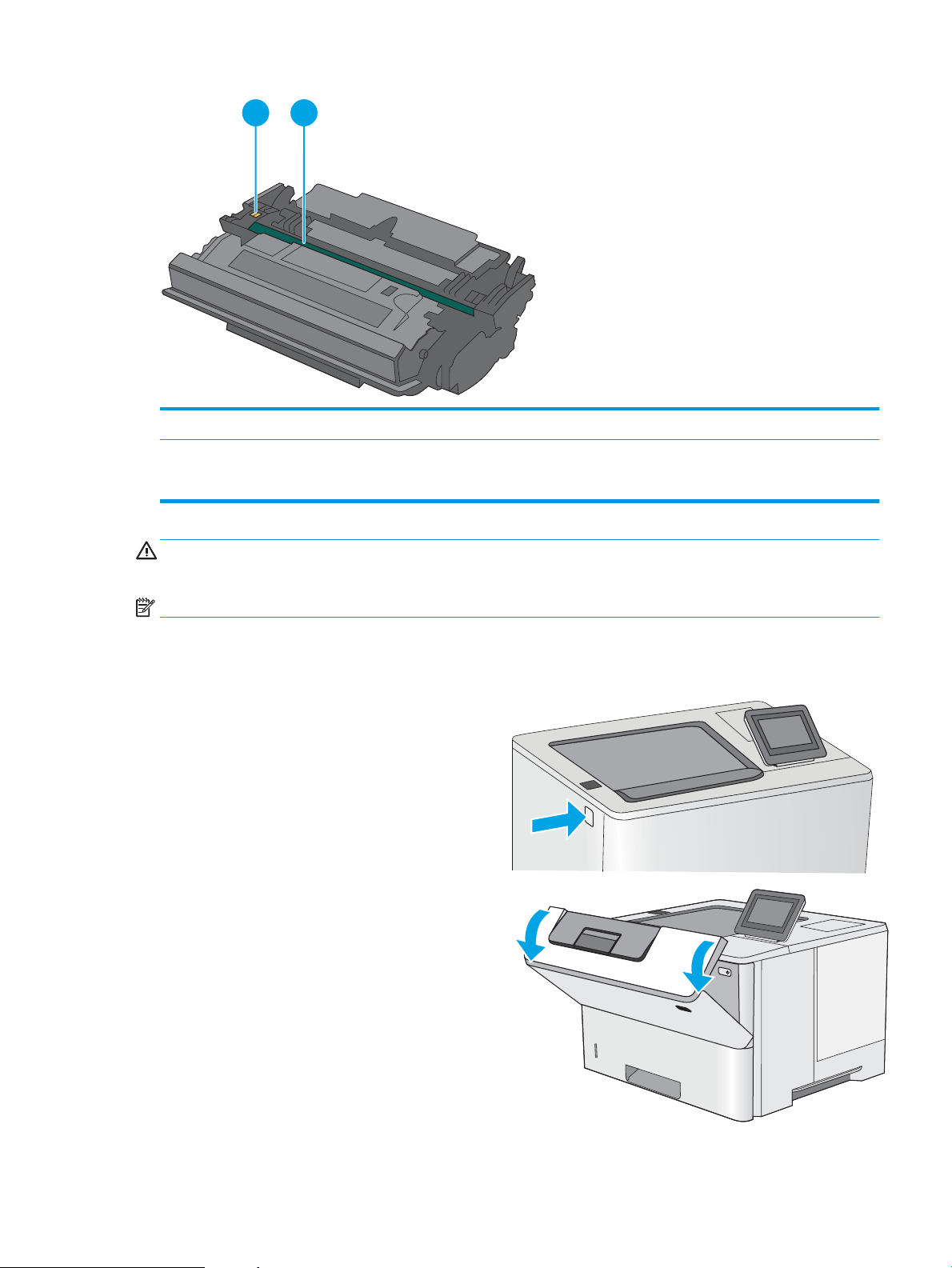
1 2
1 Memory chip
2 Imaging drum
CAUTION: Do not touch the imaging drum. Fingerprints can cause print-quality problems.
CAUTION: If toner gets on clothing, wipe it o by using a dry cloth and wash the clothes in cold water. Hot water
sets toner into fabric.
NOTE: Information about recycling used toner cartridges is in the toner-cartridge box.
Remove and replace the cartridge
1. Press the top-cover-release button on the left side
of the printer.
2. Open the front door.
ENWW Replace the toner cartridge 41
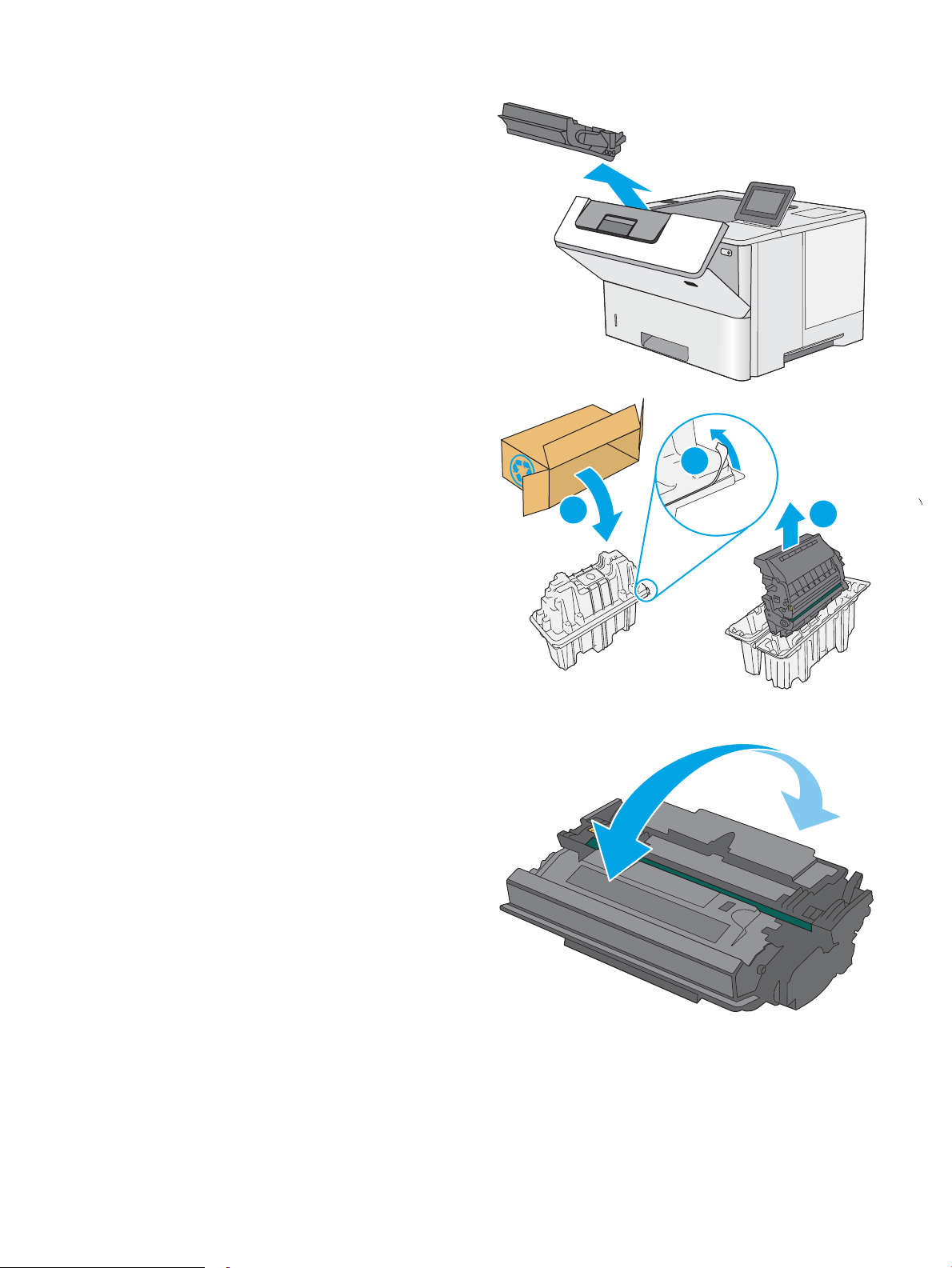
3. Grasp the handle of the used toner cartridge and
pull out to remove it.
4. Remove the new toner cartridge from its protective
shell by tearing o the plastic strip and opening the
package. Save all packaging for recycling the used
toner cartridge.
1
2
3
5. Hold both ends of the toner cartridge and rock it
5-6 times.
42 Chapter 3 Supplies, accessories, and parts ENWW
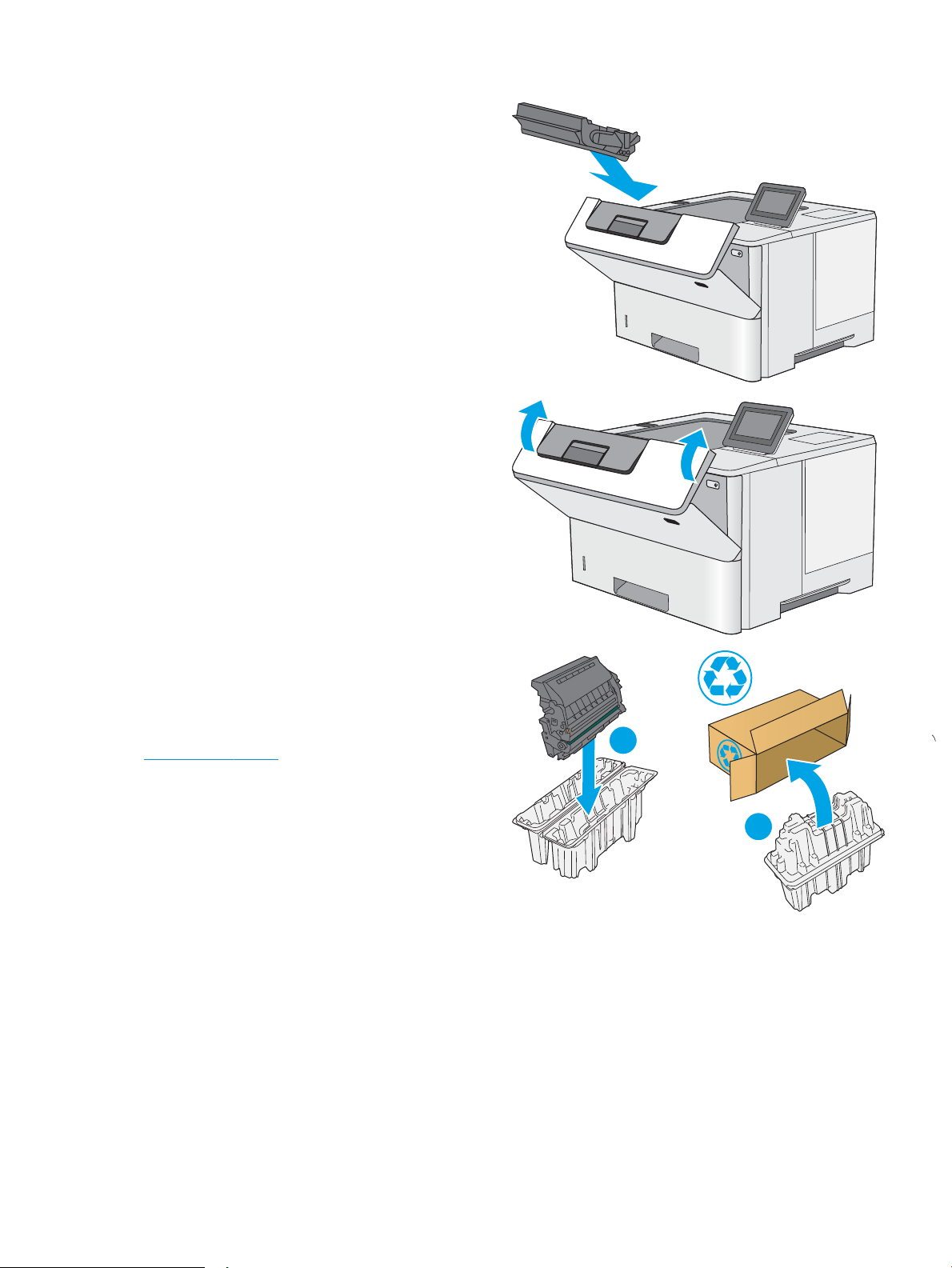
6. Align the toner cartridge with its slot, and then
insert the toner cartridge into the printer.
7. Close the front door.
8. Pack the used toner cartridge into the box that the
new cartridge came in. See the enclosed recycling
guide for information about recycling.
In the U.S. and Canada, a pre-paid shipping label is
included in the box. In other countries/regions, go
to www.hp.com/recycle to print a pre-paid
shipping label.
Adhere the pre-paid shipping label to the box, and
return the used cartridge to HP for recycling.
1
2
ENWW Replace the toner cartridge 43

44 Chapter 3 Supplies, accessories, and parts ENWW

4 Print
Print using the software, or print from a mobile device or USB ash drive.
●
Print tasks (Windows)
●
Print tasks (macOS)
●
Store print jobs on the printer to print later or print privately
●
Mobile printing
●
Print from a USB ash drive
●
Print using high-speed USB 2.0 port (wired)
For video assistance, see www.hp.com/videos/LaserJet.
The following information is correct at the time of publication. For current information, see www.hp.com/
support/ljM507.
For more information:
HP's all-inclusive help for the printer includes the following information:
● Install and congure
● Learn and use
● Solve problems
● Download software and rmware updates
● Join support forums
● Find warranty and regulatory information
ENWW 45

Print tasks (Windows)
Learn about common printing tasks for Windows users.
●
How to print (Windows)
●
Automatically print on both sides (Windows)
●
Manually print on both sides (Windows)
●
Print multiple pages per sheet (Windows)
●
Select the paper type (Windows)
●
Additional print tasks
How to print (Windows)
Use the Print option from a software application to select the printer and basic options for your print job.
The following procedure describes the basic printing process for Windows.
1. From the software program, select the Print option.
2. Select the printer from the list of printers. To change settings, click the Properties or Preferences button to
open the print driver.
NOTE: The name of the button varies for dierent software programs.
In Windows 10, 8.1, and 8, these applications will have a dierent layout with dierent features from what
is described below for desktop applications. To access the print feature from a Start screen app, complete
the following steps:
● Windows 10: Select Print, and then select the printer.
● Windows 8.1 or 8: Select Devices, select Print, and then select the printer.
For the HP PCL-6 V4 driver, the HP AiO Printer Remote application downloads additional driver features
when More settings is selected.
NOTE: For more information, click the Help (?) button in the print driver.
3. Click the tabs in the print driver to congure the available options. For example, set the paper orientation
on the Finishing tab, and set the paper source, paper type, paper size, and quality settings on the Paper/
Quality tab.
4. Click the OK button to return to the Print dialog box. Select the number of copies to print from this screen.
5. Click the Print button to print the job.
Automatically print on both sides (Windows)
If your printer has an automatic duplexer installed, you can automatically print on both sides of the paper. Use a
paper size and type supported by the duplexer.
1. From the software program, select the Print option.
2. Select the printer from the list of printers, and then click the Properties or Preferences button to open the
print driver.
46 Chapter 4 Print ENWW

NOTE: The name of the button varies for dierent software programs.
In Windows 10, 8.1, and 8, these applications will have a dierent layout with dierent features from what
is described below for desktop applications. To access the print feature from a Start screen app, complete
the following steps:
● Windows 10: Select Print, and then select the printer.
● Windows 8.1 or 8: Select Devices, select Print, and then select the printer.
For the HP PCL-6 V4 driver, the HP AiO Printer Remote application downloads additional driver features
when More settings is selected.
3. Click the Finishing tab.
4. Select Print on both sides. Click OK to close the Document Properties dialog.
5. In the Print dialog, click Print to print the job.
Manually print on both sides (Windows)
Use this procedure for printers that do not have an automatic duplexer installed or to print on paper that the
duplexer does not support.
1. From the software program, select the Print option.
2. Select the printer from the list of printers, and then click the Properties or Preferences button to open the
print driver.
NOTE: The name of the button varies for dierent software programs.
In Windows 10, 8.1, and 8, these applications will have a dierent layout with dierent features from what
is described below for desktop applications. To access the print feature from a Start screen app, complete
the following steps:
● Windows 10: Select Print, and then select the printer.
● Windows 8.1 or 8: Select Devices, select Print, and then select the printer.
For the HP PCL-6 V4 driver, the HP AiO Printer Remote application downloads additional driver features
when More settings is selected.
3. Click the Finishing tab.
4. Select Print on both sides (manually), and then click OK to close the Document Properties dialog.
5. In the Print dialog, click Print to print the rst side of the job.
6. Retrieve the printed stack from the output bin, and place it in Tray 1.
7. If prompted, select the appropriate control panel button to continue.
Print multiple pages per sheet (Windows)
When you print from a software application using the Print option, you can select an option to print multiple
pages on a single sheet of paper. For example, you might want to do this if you are printing a very large
document and want to save paper.
ENWW Print tasks (Windows) 47

1. From the software program, select the Print option.
2. Select the printer from the list of printers, and then click the Properties or Preferences button to open the
print driver.
NOTE: The name of the button varies for dierent software programs.
In Windows 10, 8.1, and 8, these applications will have a dierent layout with dierent features from what
is described below for desktop applications. To access the print feature from a Start screen app, complete
the following steps:
● Windows 10: Select Print, and then select the printer.
● Windows 8.1 or 8: Select Devices, select Print, and then select the printer.
For the HP PCL-6 V4 driver, the HP AiO Printer Remote application downloads additional driver features
when More settings is selected.
3. Click the Finishing tab.
4. Select the number of pages per sheet from the Pages per sheet drop-down.
5. Select the correct Print page borders, Page order, and Orientation options. Click OK to close the Document
Properties
dialog.
6. In the Print dialog, click Print to print the job.
Select the paper type (Windows)
When you print from a software application using the Print option, you can set the paper type you are using for
your print job. For example, if your default paper type is Letter, but you are using a dierent paper type for a print
job, select that specic paper type.
1. From the software program, select the Print option.
2. Select the printer from the list of printers, and then click the Properties or Preferences button to open the
print driver.
NOTE: The name of the button varies for dierent software programs.
In Windows 10, 8.1, and 8, these applications will have a dierent layout with dierent features from what
is described below for desktop applications. To access the print feature from a Start screen app, complete
the following steps:
● Windows 10: Select Print, and then select the printer.
● Windows 8.1 or 8: Select Devices, select Print, and then select the printer.
For the HP PCL-6 V4 driver, the HP AiO Printer Remote application downloads additional driver features
when More settings is selected.
3. Click the Paper/Quality tab.
4. Select the paper type from the Paper type drop-down list.
5. Click OK to close the Document Properties dialog. In the Print dialog, click Print to print the job.
If the tray needs to be congured, a tray conguration message displays on the printer control panel.
48 Chapter 4 Print ENWW

6. Load the tray with the specied type and size of paper, and then close the tray.
7. Touch the OK button to accept the detected type and size, or touch the Modify button to choose a dierent
paper size or type.
8. Select the correct type and size, and then touch the OK button.
Additional print tasks
Locate information on the Web for performing common printing tasks.
Go to www.hp.com/support/ljM507.
Instructions are available for print tasks, such as the following:
● Create and use printing shortcuts or presets
● Select the paper size, or use a custom paper size
● Select the page orientation
● Create a booklet
● Scale a document to t a specic paper size
● Print the rst or last pages of the document on dierent paper
● Print watermarks on a document
ENWW Print tasks (Windows) 49

Print tasks (macOS)
Print using the HP printing software for macOS, including how to print on both sides or print multiple pages per
sheet.
●
How to print (macOS)
●
Automatically print on both sides (macOS)
●
Manually print on both sides (macOS)
●
Print multiple pages per sheet (macOS)
●
Select the paper type (macOS)
●
Additional print tasks
How to print (macOS)
The following procedure describes the basic printing process for macOS.
1. Click the File menu, and then click the Print option.
2. Select the printer.
3. Click Show Details or Copies & Pages, and then select other menus to adjust the print settings.
NOTE: The name of the item varies for dierent software programs.
4. Click the Print button.
Automatically print on both sides (macOS)
NOTE: This information applies to printers that include an automatic duplexer.
NOTE: This feature is available if you install the HP print driver. It might not be available if you are using AirPrint.
1. Click the File menu, and then click the Print option.
2. Select the printer.
3. Click Show Details or Copies & Pages, and then click the Layout menu.
NOTE: The name of the item varies for dierent software programs.
4. Select a binding option from the Two-Sided drop-down list.
5. Click the Print button.
Manually print on both sides (macOS)
NOTE: This feature is available if you install the HP print driver. It might not be available if you are using AirPrint.
1. Click the File menu, and then click the Print option.
2. Select the printer.
3. Click Show Details or Copies & Pages, and then click the Manual Duplex menu.
50 Chapter 4 Print ENWW

NOTE: The name of the item varies for dierent software programs.
4. Click the Manual Duplex box, and select a binding option.
5. Click the Print button.
6. Go to the printer, and remove any blank paper that is in Tray 1.
7. Retrieve the printed stack from the output bin and place it with the printed-side facing down in the input
tray.
8. If prompted, touch the appropriate control panel button to continue.
Print multiple pages per sheet (macOS)
1. Click the File menu, and then click the Print option.
2. Select the printer.
3. Click Show Details or Copies & Pages, and then click the Layout menu.
NOTE: The name of the item varies for dierent software programs.
4. From the Pages per Sheet drop-down list, select the number of pages that you want to print on each sheet.
5. In the Layout Direction area, select the order and placement of the pages on the sheet.
6. From the Borders menu, select the type of border to print around each page on the sheet.
7. Click the Print button.
Select the paper type (macOS)
1. Click the File menu, and then click the Print option.
2. Select the printer.
3. Click Show Details or Copies & Pages, and then click the Media & Quality menu or the Paper/Quality menu.
NOTE: The name of the item varies for dierent software programs.
4. Select from the Media & Quality or Paper/Quality options.
NOTE: This list contains the master set of options available. Some options are not available on all printers.
● Media Type: Select the option for the type of paper for the print job.
● Print Quality: Select the resolution level for the print job.
● Edge-To-Edge Printing: Select this option to print close to the paper edges.
5. Click the Print button.
Additional print tasks
Locate information on the Web for performing common printing tasks.
Go to www.hp.com/support/ljM507.
ENWW Print tasks (macOS) 51

Instructions are available for print tasks, such as the following:
● Create and use printing shortcuts or presets
● Select the paper size, or use a custom paper size
● Select the page orientation
● Create a booklet
● Scale a document to t a specic paper size
● Print the rst or last pages of the document on dierent paper
● Print watermarks on a document
52 Chapter 4 Print ENWW

Store print jobs on the printer to print later or print privately
●
Introduction
●
Create a stored job (Windows)
●
Create a stored job (macOS)
●
Print a stored job
●
Delete a stored job
●
Information sent to printer for Job Accounting purposes
Introduction
The following information provides procedures for creating and printing documents that are stored on the USB
ash drive. These jobs can be printed at a later time or printed privately.
Create a stored job (Windows)
Store jobs on the USB ash drive for private or delayed printing.
1. From the software program, select the Print option.
2. Select the printer from the list of printers, and then select Properties or Preferences.
NOTE: The name of the button varies for dierent software programs.
In Windows 10, 8.1, and 8, these applications will have a dierent layout with dierent features from what
is described below for desktop applications. To access the print feature from a Start screen app, complete
the following steps:
● Windows 10: Select Print, and then select the printer.
● Windows 8.1 or 8: Select Devices, select Print, and then select the printer.
For the HP PCL-6 V4 driver, the HP AiO Printer Remote application downloads additional driver features
when More settings is selected.
3. Click the Job Storage tab.
4. Select a Job Storage Mode option:
● Proof and Hold: Print and proof one copy of a job, and then print more copies.
● Personal Job: The job does not print until you request it at the printer control panel. For this job-
storage mode, you can select one of the Make Job Private/Secure options. If you assign a personal
identication number (PIN) to the job, you must provide the required PIN at the control panel. If you
encrypt the job, you must provide the required password at the control panel. The print job is deleted
from memory after it prints and is lost if the printer loses power.
● Quick Copy: Print the requested number of copies of a job and store a copy of the job in the printer
memory so you can print it again later.
● Stored Job: Store a job on the printer and allow other users to print the job at any time. For this job-
storage mode, you can select one of the Make Job Private/Secure options. If you assign a personal
identication number (PIN) to the job, the person who prints the job must provide the required PIN at
ENWW Store print jobs on the printer to print later or print privately 53

the control panel. If you encrypt the job, the person who prints the job must provide the required
password at the control panel.
5. To use a custom user name or job name, click the Custom button, and then enter the user name or the job
name.
Select which option to use if another stored job already has that name:
● Use Job Name + (1-99): Append a unique number to the end of the job name.
● Replace Existing File: Overwrite the existing stored job with the new one.
6. Click the OK button to close the Document Properties dialog box. In the Print dialog box, click the Print
button to print the job.
Create a stored job (macOS)
Store jobs on the USB ash drive for private or delayed printing.
1. Click the File menu, and then click the Print option.
2. In the Printer menu, select the printer.
3. By default, the print driver displays the Copies & Pages menu. Open the drop-down list, and then click the
Job Storage menu.
NOTE: If the Job Storage menu is not showing, close the Print window and then reopen it to activate the
menu.
4. In the Mode drop-down list, select the type of stored job.
● Proof and Hold: Print and proof one copy of a job, and then print more copies.
● Personal Job: The job does not print until someone requests it at the printer control panel. If the job
has a personal identication number (PIN), provide the required PIN at the control panel. The print job
is deleted from memory after it prints and is lost if the printer loses power.
● Quick Copy: Print the requested number of copies of a job and store a copy of the job in the printer
memory to print it again later.
● Stored Job: Store a job on the printer and allow other users to print the job at any time. If the job has a
personal identication number (PIN), the person who prints the job must provide the required PIN at
the control panel.
5. To use a custom user name or job name, click the Custom button, and then enter the user name or the job
name.
Select which option to use if another stored job already has that name.
● Use Job Name + (1-99): Append a unique number to the end of the job name.
● Replace Existing File: Overwrite the existing stored job with the new one.
6. If you selected the Stored Job or Personal Job option in step 4, you can protect the job with a PIN. Type a 4-
digit number in the Use PIN to Print eld. When other people attempt to print this job, the printer prompts
them to enter this PIN number.
7. Click the Print button to process the job.
54 Chapter 4 Print ENWW

Print a stored job
Use the following procedure to print a job that is stored in the printer memory.
1. From the Home screen on the printer control panel, navigate to the Print application, and then select the
Print icon.
2. Select Print from Job Storage.
3. Select Choose, and then select the name of the folder where the job is stored.
4. Select the name of the job. If the job is private or encrypted, enter the PIN or password.
5. To adjust the number of copies, select the number of copies eld in the bottom-left corner of the screen.
Use the keypad to enter the number of copies to print.
6. Select Start or Print to print the job.
ENWW Store print jobs on the printer to print later or print privately 55

Delete a stored job
You can delete documents that have been saved to the printer when they are no longer needed. You also can
adjust the maximum number of jobs for the printer to store.
●
Delete a job that is stored on the printer
●
Change the job storage limit
Delete a job that is stored on the printer
Use the control panel to delete a job that is stored in the printer memory.
1. From the Home screen on the printer control panel, navigate to the Print application, and then select the
Print icon.
2. Select Print from Job Storage.
3. Select Choose, and then select the name of the folder where the job is stored.
4. Select the name of the job. If the job is private or encrypted, enter the PIN or password.
5.
Select the Trash button to delete the job.
Change the job storage limit
When a new job is stored in the printer memory, the printer overwrites any previous jobs with the same user and
job name. If a job is not already stored under the same user and job name, and the printer needs additional
space, the printer might delete other stored jobs starting with the oldest.
To change the number of jobs that the printer can store, complete the following procedure:
1. From the Home screen on the printer control panel, navigate to the Settings application, and then select
the Settings icon.
2. Open the following menus:
● Copy/Print or Print
● Manage Stored Jobs
● Temporary Job Storage Limit
3. Use the keypad to enter the number of jobs that the printer stores.
4. Select OK or Done to save the setting.
Information sent to printer for Job Accounting purposes
Printing jobs sent from drivers on the client (e.g., PC) may send personally identiable information to HP’s
Printing and Imaging devices. This information may include, but is not limited to, user name and client name
from which the job originated that may be used for job accounting purposes, as determined by the Administrator
of the printing device. This same information may also be stored with the job on the mass storage device (e.g.,
disk drive) of the printing device when using the job storage feature.
56 Chapter 4 Print ENWW

Mobile printing
●
Introduction
●
Wi-Fi, Wi-Fi Direct Print, NFC, and BLE printing
●
HP ePrint via email
●
AirPrint
●
Android embedded printing
Introduction
HP oers multiple mobile printing solutions to enable easy printing to an HP printer from a laptop, tablet,
smartphone, or other mobile device. To see the full list and to determine the best choice, go to www.hp.com/go/
LaserJetMobilePrinting.
ENWW Mobile printing 57

Wi-Fi, Wi-Fi Direct Print, NFC, and BLE printing
●
Enable wireless printing
●
Change the Wi-Fi Direct name
HP provides Wi-Fi Direct Print, Near Field Communication (NFC), and Bluetooth Low Energy (BLE) printing for
printers with a supported HP Jetdirect 3100w BLE/NFC/Wireless Accessory. This accessory is available as an
option for HP printers that include a hardware-integration pocket (HIP).
These features enable Wi-Fi capable (mobile) devices to make a wireless network connection directly to the
printer without using a wireless router.
The printer does not need to be connected to the network for this mobile walk-up printing to work.
Use Wi-Fi Direct Print to print wirelessly from the following devices:
● iPhone, iPad, or iPod touch using Apple AirPrint
● Android mobile devices using the Android embedded print solution
For more information on wireless printing, go to www.hp.com/go/LaserJetMobilePrinting.
NFC, BLE, and Wi-Fi Direct Print capabilities can be enabled or disabled from the printer control panel.
Enable wireless printing
1. From the Home screen on the printer control panel, navigate to the Settings application, and then select
the Settings icon.
2. Open the following menus:
● Networking
● Wi-Fi Direct
● Status
3. Select On, and then select OK to enable wireless printing.
Change the Wi-Fi Direct name
NOTE: In environments where more than one model of the same printer is installed, it might be helpful to
provide each printer a unique Wi-Fi Direct Name for easier printer identication for HP Wi-Fi Direct printing. The
Wireless network names, e.g., Wireless, Wi-Fi Direct, etc. are available on the Information screen by selecting the
Information icon, and then selecting the Network icon or the Wireless icon.
Complete the following procedure to change the printer Wi-Fi Direct name:
1. From the Home screen on the printer control panel, navigate to the Settings application, and then select
the Settings icon.
2. Open the following menus:
58 Chapter 4 Print ENWW
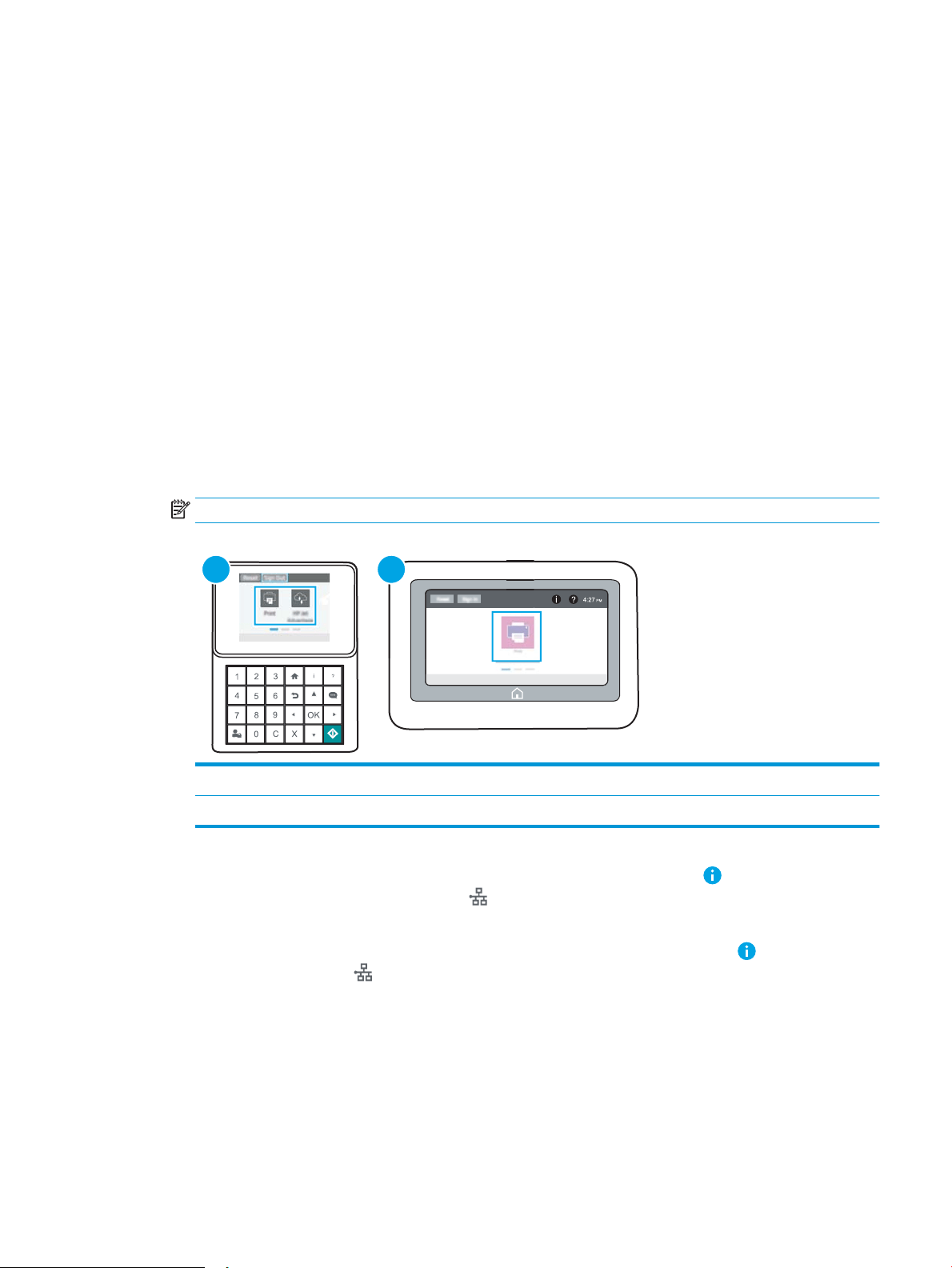
● Networking
● Wi-Fi Direct
● Wi-Fi Direct Name
3. Use the keypad to change the name in the Wi-Fi Direct Name text eld, and then select OK.
HP ePrint via email
Use HP ePrint to print documents by sending them as an email attachment to the printer's email address from
any email enabled device.
To use HP ePrint, the printer must meet these requirements:
● The printer must be connected to a wired or wireless network and have Internet access.
● HP Web Services must be enabled on the printer, and the printer must be registered with HP Connected.
Follow this procedure to enable HP Web Services and register with HP Connected:
1. Open the HP Embedded Web Server (EWS):
NOTE: The steps vary according to the type of control panel.
1
2
1 Keypad control panel
2 Touchscreen control panel
a. Keypad control panels: On the printer control panel, press the Information button, and then use
the arrow keys to select the Ethernet menu. Press the OK button to open the menu and display
the IP address or host name.
Touchscreen control panels: On the printer control panel, touch the Information button, and then
select the Network icon to display the IP address or host name.
ENWW Mobile printing 59

b. Open a web browser, and in the address line, type the IP address or host name exactly as it displays
on the printer control panel. Press the Enter key on the computer keyboard. The EWS opens.
NOTE: If the web browser displays a message indicating that accessing the website might not be
safe, select the option to continue to the website. Accessing this website will not harm the computer.
2. Click the HP Web Services tab.
3. Select the option to enable Web Services.
NOTE: Enabling Web Services might take several minutes.
4. Go to www.hpconnected.com to create an HP ePrint account and complete the setup process.
AirPrint
Direct printing using Apple’s AirPrint is supported for iOS and from Mac computers running macOS 10.7 Lion and
newer. Use AirPrint to print directly to the printer from an iPad, iPhone (3GS or later), or iPod touch (third
generation or later) in the following mobile applications:
● Mail
● Photos
● Safari
● iBooks
● Select third-party applications
To use AirPrint, the printer must be connected to the same network (sub-net) as the Apple device. For more
information about using AirPrint and about which HP printers are compatible with AirPrint, go to
www.hp.com/go/MobilePrinting.
NOTE: Before using AirPrint with a USB connection, verify the version number. AirPrint versions 1.3 and earlier
do not support USB connections.
Android embedded printing
HP's built-in print solution for Android and Kindle enables mobile devices to automatically nd and print to HP
printers that are either on a network or within wireless range for Wi-Fi Direct printing.
The print solution is built into many versions of the operating system.
NOTE: If printing is not available on your device, go to the Google Play > Android apps and install the HP Print
Service Plugin.
For more information on how to use Android embedded printing and which Android devices are supported, go to
www.hp.com/go/MobilePrinting.
60 Chapter 4 Print ENWW

Print from a USB ash drive
This printer features easy-access USB printing, for quickly printing les without sending them from a computer.
●
Enable the USB port for printing
●
Print USB documents
The printer accepts standard USB ash drives in the USB port near the control panel. It supports the following
types of les:
● .pdf
● .prn
● .pcl
● .ps
● .cht
ENWW Print from a USB ash drive 61
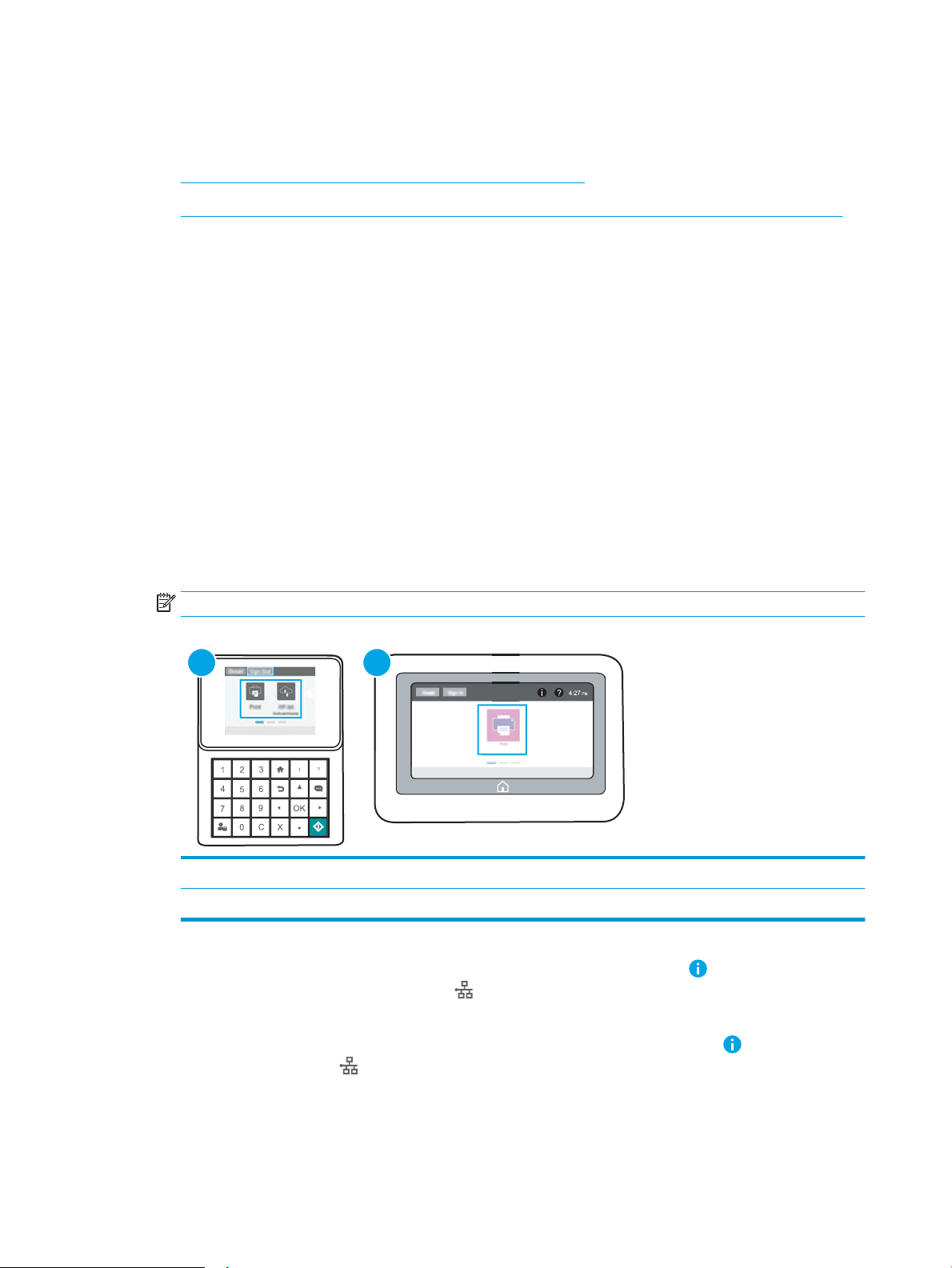
Enable the USB port for printing
The USB port is disabled by default. Before using this feature, enable the USB port.
●
Method one: Enable the USB port from the printer control panel
●
Method two: Enable the USB port from the HP Embedded Web Server (network-connected printers only)
Use one of the following methods to enable the port:
Method one: Enable the USB port from the printer control panel
1. From the Home screen on the printer control panel, navigate to the Settings application, and then select
the Settings icon.
2. Open the following menus
● Copy/Print or Print
● Enable Device USB
3. Select Enabled to enable the USB port.
Method two: Enable the USB port from the HP Embedded Web Server (network-connected printers
only)
1. Open the HP Embedded Web Server (EWS):
NOTE: The steps vary according to the type of control panel.
1
2
1 Keypad control panel
2 Touchscreen control panel
a. Keypad control panels: On the printer control panel, press the Information button, and then use
the arrow keys to select the Ethernet menu. Press the OK button to open the menu and display
the IP address or host name.
Touchscreen control panels: On the printer control panel, touch the Information button, and then
select the Network icon to display the IP address or host name.
62 Chapter 4 Print ENWW

b. Open a web browser, and in the address line, type the IP address or host name exactly as it displays
on the printer control panel. Press the Enter key on the computer keyboard. The EWS opens.
NOTE: If the web browser displays a message indicating that accessing the website might not be
safe, select the option to continue to the website. Accessing this website will not harm the computer.
2. Select the Copy/Print tab for MFP models or the Print tab for SFP models.
3. In the left menu, select Print from USB Drive Settings.
4. Select Enable Print from USB Drive.
5. Click Apply.
ENWW Print from a USB ash drive 63
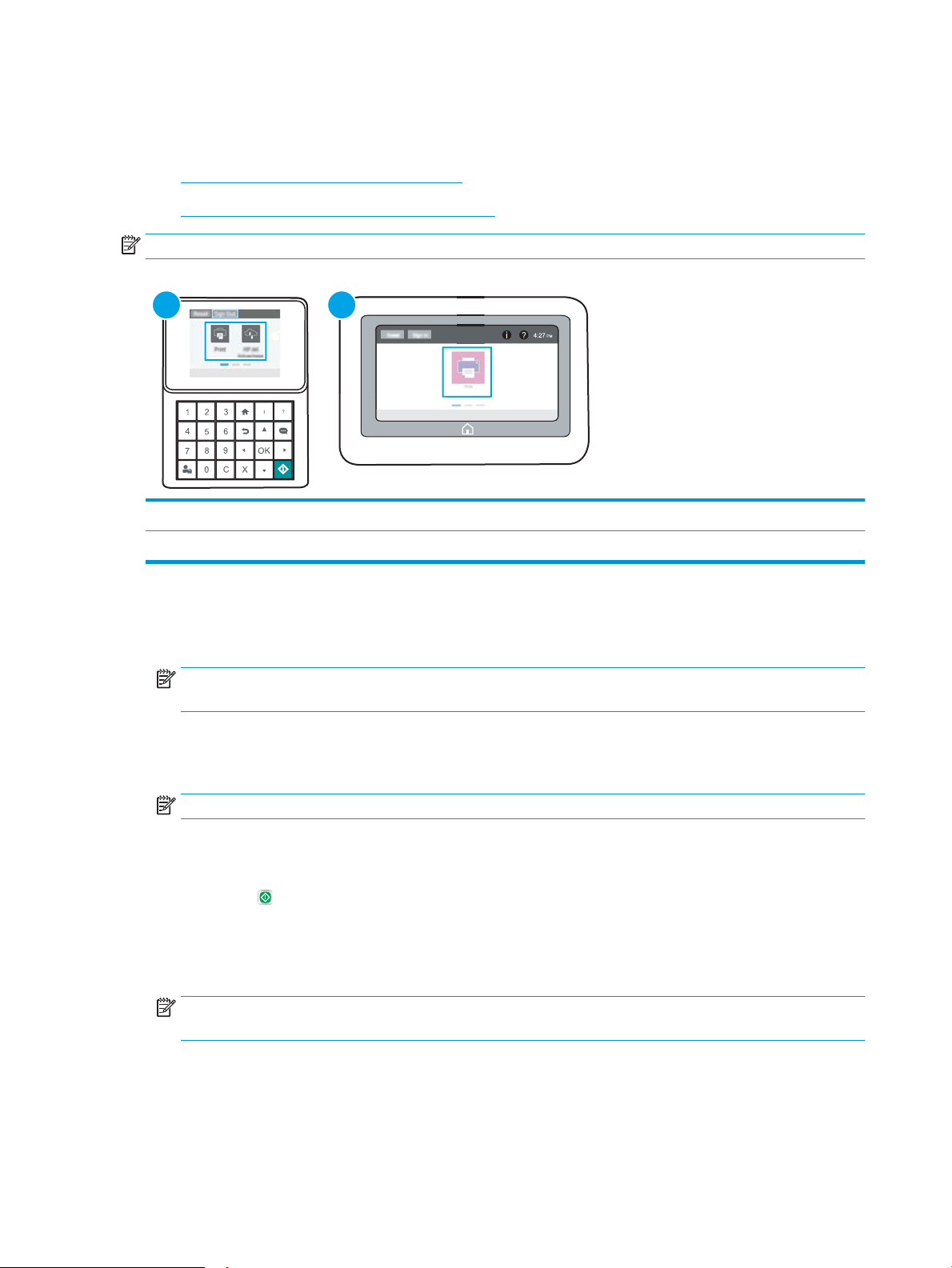
Print USB documents
Use the control panel to print documents from a USB ash drive.
●
Print USB documents (keypad control panel)
●
Print USB documents (touchscreen control panel)
NOTE: The steps vary according to the type of control panel.
1
2
1 Keypad control panel
2 Touchscreen control panel
Print USB documents (keypad control panel)
1. Insert the USB ash drive into the easy-access USB port.
NOTE: The port might be covered. For some printers, the cover ips open. For other printers, pull the
cover straight out to remove it.
2. From the Home screen on the printer control panel, select USB Drive.
3. Select Choose, select the name of the document to print, and then select Select.
NOTE: The document might be in a folder. Open folders as necessary.
4. To adjust the number of copies, select the eld for the number of copies. Use the keypad to enter the
number of copies to print.
5. Select Start to print the document.
Print USB documents (touchscreen control panel)
1. Insert the USB ash drive into the easy-access USB port.
NOTE: The port might be covered. For some printers, the cover ips open. For other printers, pull the
cover straight out to remove it.
2. From the Home screen on the printer control panel, navigate to the Print application, and then select the
Print icon.
3. Select Print from USB Drive.
64 Chapter 4 Print ENWW

4. Select Choose, select the name of the document to print, and then select Select.
NOTE: The document might be in a folder. Open folders as necessary.
5. To adjust the number of copies, select the box to the left of the Print button, and then select the number of
copies from the keypad that opens. Select the Close button to close the keypad.
6. Select Print to print the document.
ENWW Print from a USB ash drive 65

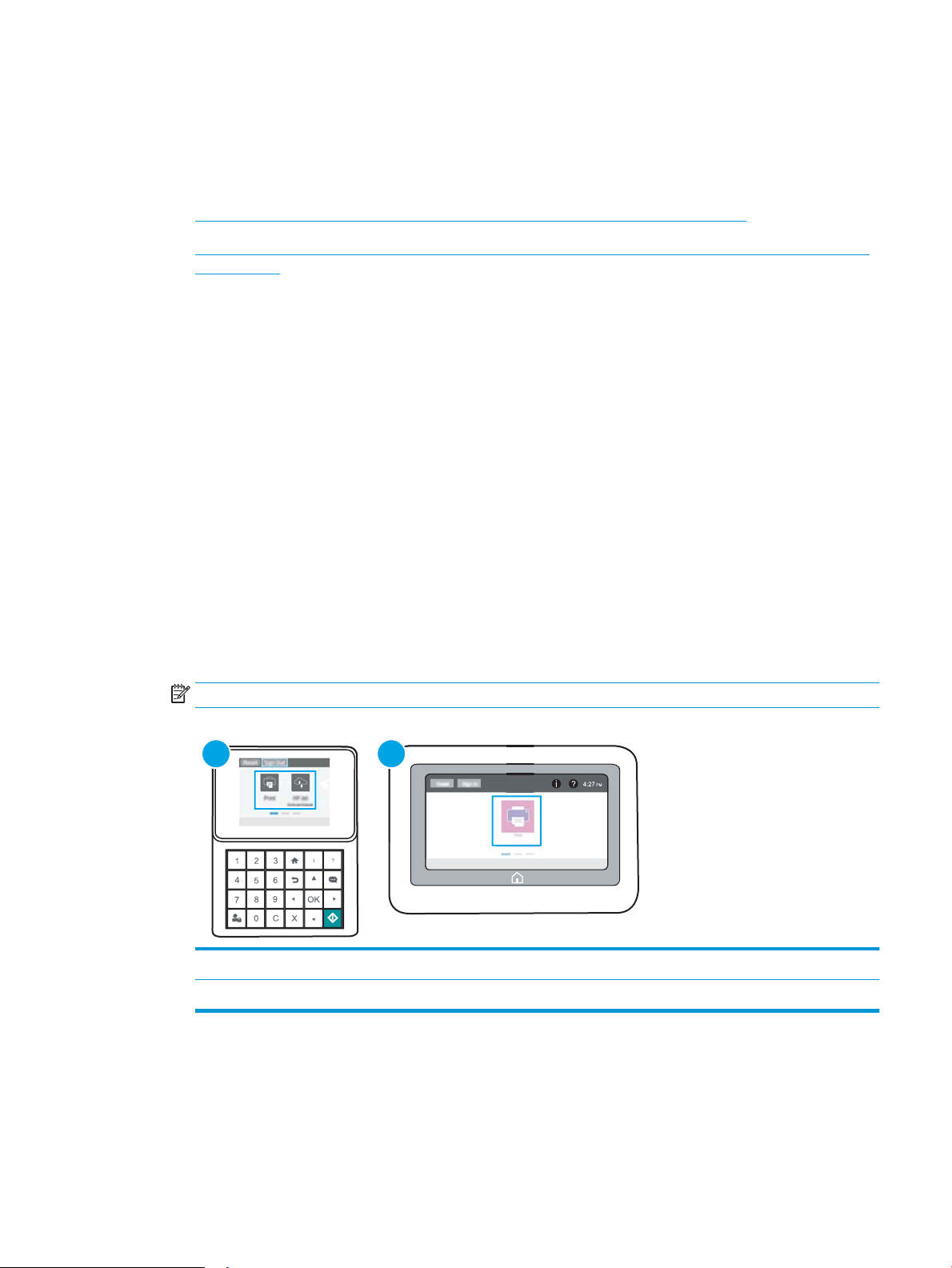
Enable the high-speed USB port for printing
This printer features a high-speed USB 2.0 port for wired USB printing. The port is located in the interface ports
area and is disabled by default. Use one of the following methods to enable the port. Once the port is enabled,
install the product software in order to print using this port.
●
Method one: Enable the high-speed USB 2.0 port from the printer control panel menus
●
Method two: Enable the high-speed USB 2.0 port from the HP Embedded Web Server (network-connected
printers only)
Method one: Enable the high-speed USB 2.0 port from the printer control panel menus
Use the control panel to enable the port.
1. From the Home screen on the printer control panel, navigate to the Settings application, and then select
the Settings icon.
2. Open the following menus
● General
● Enable Device USB
3. Select the Enabled option.
Method two: Enable the high-speed USB 2.0 port from the HP Embedded Web Server (network-
connected printers only)
Use the HP EWS to enable the port.
1. Open the HP Embedded Web Server (EWS):
NOTE: The steps vary according to the type of control panel.
1
2
1 Keypad control panel
2 Touchscreen control panel
ENWW Print using high-speed USB 2.0 port (wired) 67

a. Keypad control panels: On the printer control panel, press the Information button, and then use
the arrow keys to select the Ethernet menu. Press the OK button to open the menu and display
the IP address or host name.
Touchscreen control panels: On the printer control panel, touch the Information button, and then
select the Network icon to display the IP address or host name.
b. Open a web browser, and in the address line, type the IP address or host name exactly as it displays
on the printer control panel. Press the Enter key on the computer keyboard. The EWS opens.
NOTE: If the web browser displays a message indicating that accessing the website might not be
safe, select the option to continue to the website. Accessing this website will not harm the computer.
2. Select the Security tab.
3. On the left side of the screen, select General Security.
4. Scroll down to the Hardware Ports and select the check box to enable both of the items:
● Enable Device USB
● Enable Host USB plug and play
5. Click Apply.
68 Chapter 4 Print ENWW

5 Manage the printer
Utilize management tools, security and energy-conservation settings, and rmware updates for the printer.
●
Advanced conguration with the HP Embedded Web Server (EWS)
●
Congure IP network settings
●
Printer security features
●
Energy-conservation settings
●
HP Web Jetadmin
●
Software and rmware updates
For video assistance, see www.hp.com/videos/LaserJet.
The following information is correct at the time of publication. For current information, see www.hp.com/
support/ljM507.
For more information:
HP's all-inclusive help for the printer includes the following information:
● Install and congure
● Learn and use
● Solve problems
● Download software and rmware updates
● Join support forums
● Find warranty and regulatory information
ENWW 69
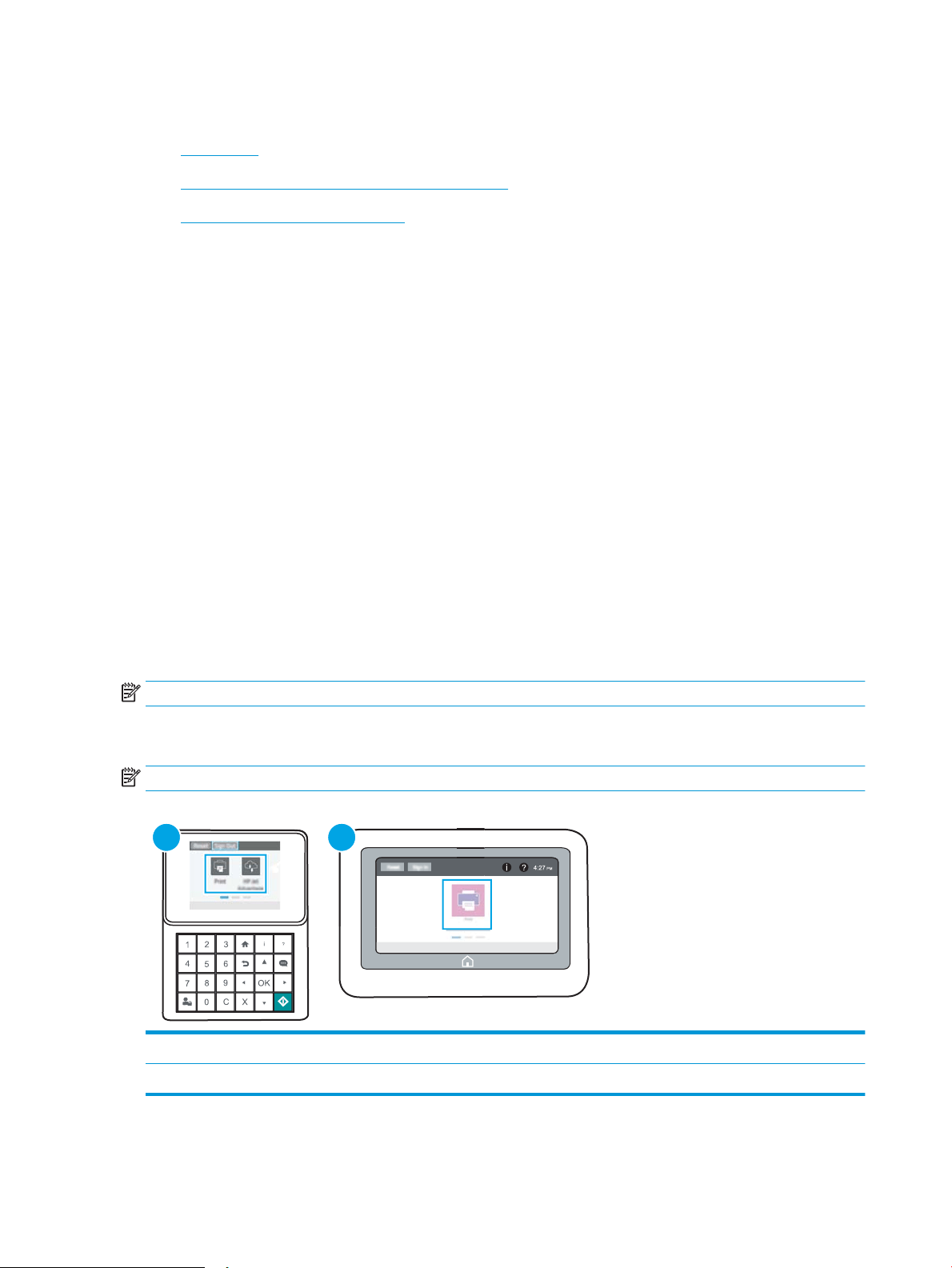
Advanced conguration with the HP Embedded Web Server (EWS)
●
Introduction
●
How to access the HP Embedded Web Server (EWS)
●
HP Embedded Web Server features
Introduction
Use the HP Embedded Web Server to manage printing functions from a computer instead of the printer control
panel.
● View printer status information
● Determine the remaining life for all supplies and order new ones
● View and change tray congurations
● View and change the printer control-panel menu conguration
● View and print internal pages
● Receive notication of printer and supplies events
● View and change network conguration
The HP Embedded Web Server works when the printer is connected to an IP-based network. The HP Embedded
Web Server does not support IPX-based printer connections. Internet access is not needed to open and use the
HP Embedded Web Server.
When the printer is connected to the network, the HP Embedded Web Server is automatically available.
NOTE: The HP Embedded Web Server is not accessible beyond the network rewall.
How to access the HP Embedded Web Server (EWS)
NOTE: The steps vary according to the type of control panel.
1
2
1 Keypad control panel
2 Touchscreen control panel
70 Chapter 5 Manage the printer ENWW

1. Keypad control panels: On the printer control panel, press the Information button, and then use the
arrow keys to select the Ethernet menu. Press the OK button to open the menu and display the IP
address or host name.
Touchscreen control panels: On the printer control panel, touch the Information button, and then select
the Network icon to display the IP address or host name.
2. Open a web browser, and in the address line, type the IP address or host name exactly as it displays on the
printer control panel. Press the Enter key on the computer keyboard. The EWS opens.
NOTE: If the web browser displays a message indicating that accessing the website might not be safe,
select the option to continue to the website. Accessing this website will not harm the computer.
To use the HP Embedded Web Server, the browser must meet the following requirements:
Windows® 7
● Internet Explorer (version 8.x or greater)
● Google Chrome (version 34.x or greater)
● Firefox (version 20.x or greater)
Windows® 8 or greater
● Internet Explorer (version 9.x or greater)
● Google Chrome (version 34.x or greater)
● Firefox (version 20.x or greater)
macOS
● Safari (version 5.x or greater)
● Google Chrome (version 34.x or greater)
Linux
● Google Chrome (version 34.x or greater)
● Firefox (version 20.x or greater)
ENWW Advanced conguration with the HP Embedded Web Server (EWS) 71

HP Embedded Web Server features
●
Information tab
●
General tab
●
Print tab
●
Supplies tab
●
Troubleshooting tab
●
Security tab
●
HP Web Services tab
●
Networking tab
●
Other Links list
Information tab
Table 5-1 HP Embedded Web Server Information tab
Menu Description
Device Status Shows the printer status and shows the estimated life remaining of HP supplies. The page
also shows the type and size of paper set for each tray. To change the default settings, click
the Change Settings link.
Conguration Page Shows the information found on the conguration page.
Supplies Status Page Shows the status of the supplies for the printer.
Event Log Page Shows a list of all printer events and errors. Use the HP Instant Support link (in the Other
Links area on all HP Embedded Web Server pages) to connect to a set of dynamic web
pages that help solve problems. These pages also show additional services available for
the printer.
Usage Page Shows a summary of the number of pages the printer has printed, grouped by size, type,
and paper print path.
Device Information Shows the printer network name, address, and model information. To customize these
entries, click the Device Information menu on the General tab.
Control Panel Snapshot Shows an image of the current screen on the control panel display.
Printable Reports and Pages Lists the internal reports and pages for the printer. Select one or more items to print or
view.
Open Source Licenses Shows a summary of the licenses for open source software programs that can be used with
the printer.
General tab
72 Chapter 5 Manage the printer ENWW

Table 5-2 HP Embedded Web Server General tab
Menu Description
Control Panel Customization Reorder, show, or hide features on the control-panel display.
Change the default display language and keyboard layouts.
Quick Sets Congure jobs that are available in the Quick Sets area of the Home screen on the printer
control panel.
Alerts Set up email alerts for various printer and supplies events.
Control Panel Settings App Shows the Settings app options that are available on the printer control panel.
General Settings Congure how the printer recovers from jams and other general printer settings.
AutoSend Congure the printer to send automated emails regarding printer conguration and
supplies to specic email addresses.
Edit Other Links Add or customize a link to another website. This link displays in the footer area on all
HP Embedded Web Server pages.
Ordering Information Enter information about ordering replacement toner cartridges. This information displays
on the supplies status page.
Device Information Name the printer and assign an asset number to it. Enter the name of the primary contact
who will receive information about the printer.
Language Set the language in which to display the HP Embedded Web Server information.
Firmware Upgrade Download and install printer rmware upgrade les.
Date/Time Settings Set the date and time or synchronize with a network time server.
Energy Settings Set or edit a wake time, sleep time, and sleep delay for the printer. Set a dierent schedule
for each day of the week and for holidays.
Set which interactions with the printer cause it to wake from sleep mode.
Back up and Restore Create a backup le that contains printer and user data. If necessary, use this le to restore
data to the printer.
Reset Factory Settings Restore printer settings to the factory defaults.
Solution Installer Install third-party software packages that extend or modify the functionality of the printer.
Job Statistics Settings Provides connection information about third-party job-statistics services.
Quota Settings Provides connection information about third-party job-quota services.
Print tab
Table
5-3 HP Embedded Web Server Print tab
Menu Description
Print from USB Drive Settings Enable or disable the Print from USB Drive menu on the control panel.
Manage Stored Jobs Enable or disable the ability to store jobs in the printer memory.
Congure job-storage options.
Default Print Options Congure the default options for print jobs.
ENWW Advanced conguration with the HP Embedded Web Server (EWS) 73

Table 5-3 HP Embedded Web Server Print tab (continued)
Menu Description
Restrict Color
(Color printers only)
Permit or restrict color printing.
Specify permissions for individual users or for jobs that are sent from specic software
programs.
PCL and PostScript Settings Adjust the PCL and PostScript settings for all print jobs.
Print Quality Congure the print quality settings, including color adjustment, image registration, and
allowed paper types.
Manage Trays Congure settings for paper trays.
Supplies tab
Table 5-4 HP Embedded Web Server Supplies tab
Menu Description
Manage Supplies Congure how the printer reacts when supplies reach a Very Low state.
Troubleshooting tab
Table
5-5 HP Embedded Web Server Troubleshooting tab
Menu Description
General Troubleshooting Select from a variety of reports and tests to help solve problems with the printer.
Online Help Link to HP cloud-based online help to assist in troubleshooting printing issues.
Diagnostic Data
NOTE: This item is available only if an
administrator password is set from the
Security tab.
Export printer information to a le that can be useful for detailed problem analysis.
Calibration/Cleaning
(Color printers only)
Enable the automatic cleaning feature, create and print the cleaning page, and select an
option to calibrate the printer immediately.
Restore Factory Settings Restore printer settings to factory defaults.
Firmware Upgrade Download and install printer rmware upgrade les.
Security tab
74 Chapter 5 Manage the printer ENWW

Table 5-6 HP Embedded Web Server Security tab
Menu Description
General Security Settings for general security, including the following:
● Congure an administrator password to restrict access to certain features on the
printer.
● Set PJL password for processing PJL commands.
● Set le system access and rmware upgrade security.
● Enable or disable the Host USB port on the control panel or the USB connectivity port
on the formatter for printing directly from a computer.
● View the status of all security settings.
Account Policy Enable administrator account settings.
Access Control Congure access to printer functions for specic individuals or groups, and select the
method individuals use to sign in to the printer.
Protect Stored Data Congure and manage the internal hard drive for the printer.
Congure settings for jobs that are stored on the printer hard drive.
Manage Remote Apps Manage or whitelist remote apps by importing or deleting certicates that allow devices to
use this product.
Certicate Management Install and manage security certicates for access to the printer and the network.
Web Service Security Allow resources on this printer to be accessed by web pages from dierent domains. If no
sites are added to the list, then all sites are trusted.
Self Test Verify that the security functions are running according to expected system parameters.
HP Web Services tab
Use the HP Web Services tab to congure and enable HP Web Services for this printer. It is necessary to Enable
HP Web Services to use the HP ePrint feature.
Table
5-7 HP Embedded Web Server HP Web Services tab
Menu Description
Web Services Setup Connect this printer to HP Connected on the web by enabling HP Web Services.
Web Proxy Congure a proxy server if there are issues enabling HP Web Services or connecting the
printer to the Internet.
HP JetAdvantage Access solutions that extend the capabilities of the printer
Smart Cloud Print Enable Smart Cloud Print, which allows access to web-based apps that extend the
capabilities of the printer.
Networking tab
Use the Networking tab to congure and secure network settings for the printer when it is connected to an IP-
based network. This tab does not display if the printer is connected to other types of networks.
ENWW Advanced conguration with the HP Embedded Web Server (EWS) 75

Table 5-8 HP Embedded Web Server Networking tab
Menu Description
Conguration
Wireless Station Congure the initial wireless settings
Wi-Fi Direct Congure Wi-Fi Direct settings for printers that include embedded Wi-Fi Direct Print and
NFC printing or that have a wireless accessory installed.
NOTE: The conguration options available depend on the print server model.
TCP/IP Settings Congure TCP/IP settings for IPv4 and IPv6 networks.
NOTE: The conguration options available depend on the print server model.
Network Settings Congure IPX/SPX, AppleTalk, DLC/LLC, and SNMP settings, depending on the print server
model.
Other Settings Congure general printing protocols and services supported by the print server. The
available options depend on the print server model, but can include rmware update, LPD
queues, USB settings, support information, and refresh rate.
AirPrint Enable, set up, or disable network printing from Apple supported printers.
Select Language Change the language displayed by the HP Embedded Web Server. This page displays if the
web pages support multiple languages. Optionally, select supported languages through
language-preference settings in the browser.
Select Location Select a country/region for the printer.
Google Cloud Print
Setup Set up Google Cloud Print options.
Web Proxy Congure proxy settings.
Security
Settings View and restore current security settings to factory-default values.
Congure security settings using the Security Conguration Wizard.
NOTE: Do not use the Security Conguration Wizard to congure security settings using
network-management applications, such as HP Web Jetadmin.
Authorization Control conguration management and use of this printer, including the following:
● Set or change the administrator password to control access to conguration
parameters.
● Request, install, and manage digital certicates on the HP Jetdirect print server.
● Limit host access to this printer through an Access Control List (ACL) (for selected print
servers on IPv4 networks only).
Secure Communication Congure security settings.
76 Chapter 5 Manage the printer ENWW

Table 5-8 HP Embedded Web Server Networking tab (continued)
Menu Description
Mgmt. Protocols Congure and manage security protocols for this printer, including the following:
● Set the security management level for the HP Embedded Web Server, and control
traic over HTTP and HTTPS.
● Congure the SNMP (Simple Network Management Protocol) operation. Enable or
disable the SNMP v1/v2c or SNMP v3 agents on the print server.
● Control access through protocols that may not be secure, such as printing protocols,
print services, discovery protocols, name resolution services, and conguration-
management protocols.
802.1X Authentication Congure 802.1X authentication settings on the Jetdirect print server as required for client
authentication on the network, and reset the 802.1X authentication settings to factory-
default values.
CAUTION: When changing the 802.1X authentication settings; the printer might lose its
connection. To reconnect, it might be necessary to reset the print server to a factory-
default state and reinstall the printer.
IPsec/Firewall View or congure a Firewall policy or an IPsec/Firewall policy.
Announcement Agent Enable or disable the HP Device Announcement Agent, set the conguration server, and
congure mutual authentication using certicates.
Diagnostics
Network Statistics Display network statistics that are collected and stored on the HP Jetdirect print server.
Protocol Info View a list of network-conguration settings on the HP Jetdirect print server for each
protocol.
Conguration Page View the HP Jetdirect conguration page, which contains status and conguration
information.
Other Links list
Congure which links display in the footer of the HP Embedded Web Server by using the Edit Other Links menu
on the General tab.
NOTE: The following are the default links.
Table 5-9 HP Embedded Web Server Other Links list
Menu Description
HP Instant Support Connect to the HP website to nd solutions to printer problems.
Shop for Supplies Connect to the HP SureSupply website for information on purchasing original HP supplies,
such as cartridges and paper.
Product Support Connect to the support site for the printer to search for help on various topics.
ENWW Advanced conguration with the HP Embedded Web Server (EWS) 77
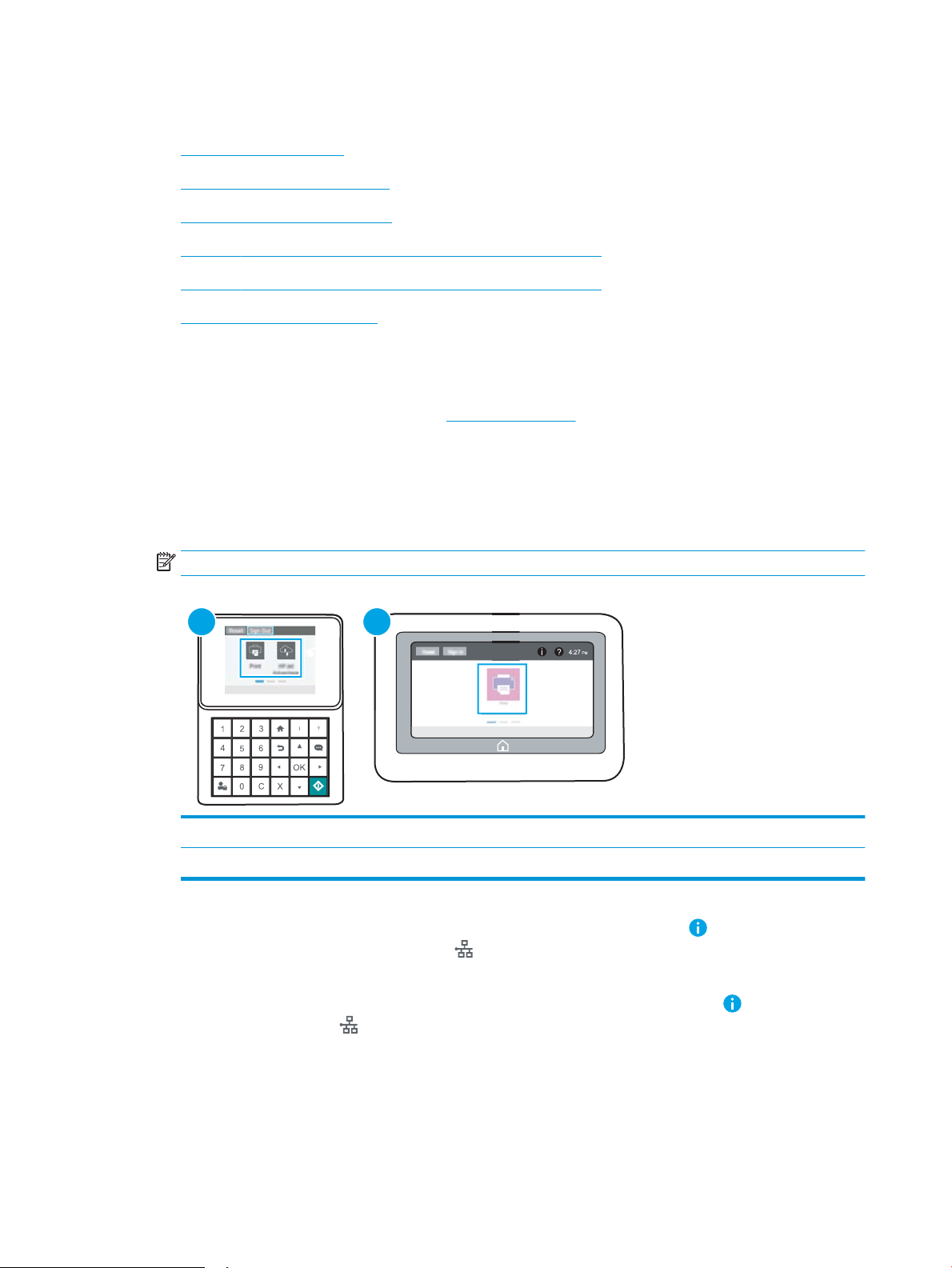
Congure IP network settings
●
Printer sharing disclaimer
●
View or change network settings
●
Rename the printer on a network
●
Manually congure IPv4 TCP/IP parameters from the control panel
●
Manually congure IPv6 TCP/IP parameters from the control panel
●
Link speed and duplex settings
Printer sharing disclaimer
HP does not support peer-to-peer networking, as the feature is a function of Microsoft operating systems and
not of the HP printer drivers. Go to Microsoft at www.microsoft.com.
View or change network settings
Use the HP Embedded Web Server to view or change IP conguration settings.
1. Open the HP Embedded Web Server (EWS):
NOTE: The steps vary according to the type of control panel.
1
2
1 Keypad control panel
2 Touchscreen control panel
a. Keypad control panels: On the printer control panel, press the Information button, and then use
the arrow keys to select the Ethernet menu. Press the OK button to open the menu and display
the IP address or host name.
Touchscreen control panels: On the printer control panel, touch the Information button, and then
select the Network icon to display the IP address or host name.
78 Chapter 5 Manage the printer ENWW
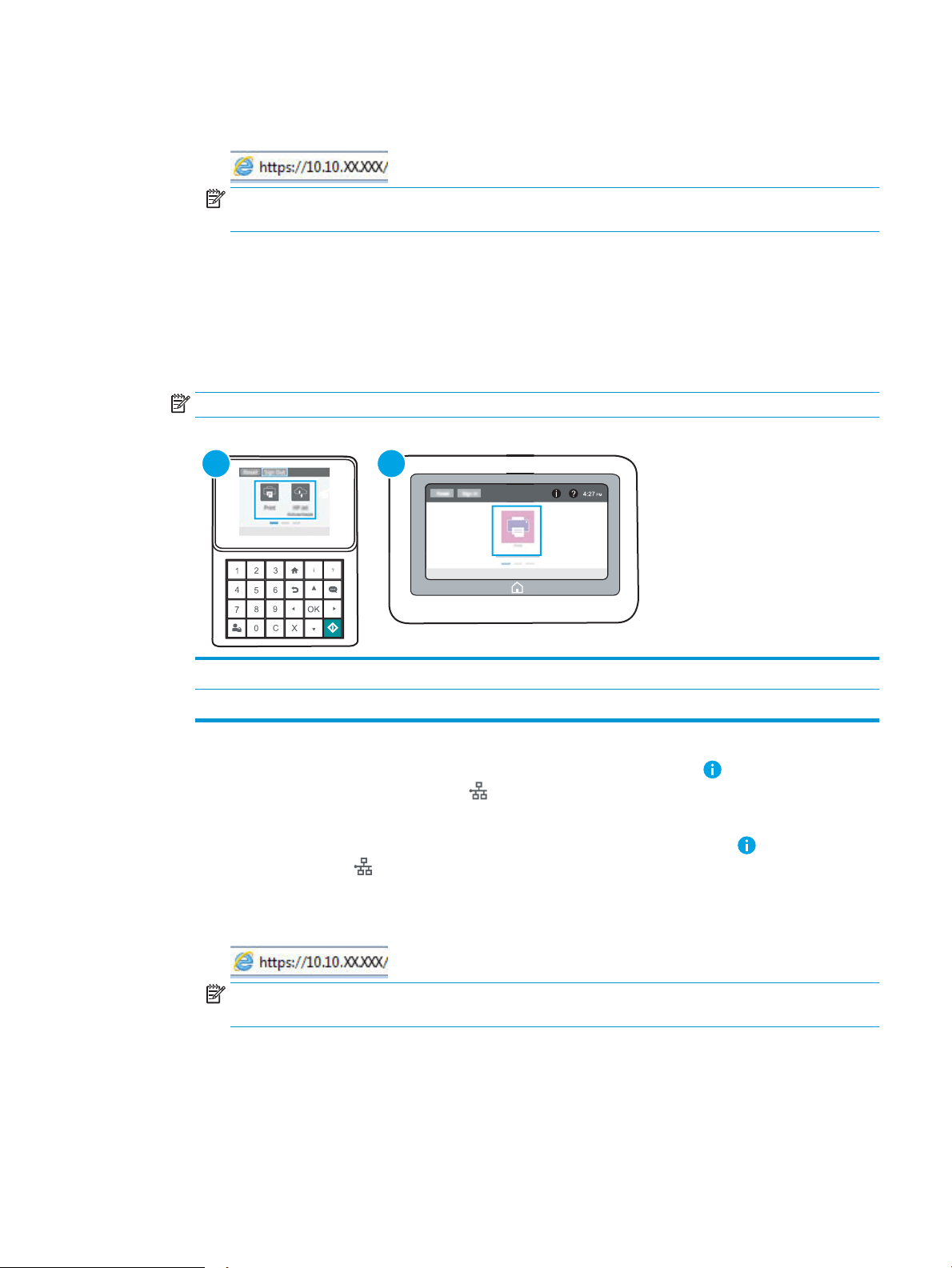
b. Open a web browser, and in the address line, type the IP address or host name exactly as it displays
on the printer control panel. Press the Enter key on the computer keyboard. The EWS opens.
NOTE: If the web browser displays a message indicating that accessing the website might not be
safe, select the option to continue to the website. Accessing this website will not harm the computer.
2. Click the Networking tab to obtain network information. Change settings as needed.
Rename the printer on a network
To rename the printer on a network so that it can be uniquely identied, use the HP Embedded Web Server.
1. Open the HP Embedded Web Server (EWS):
NOTE: The steps vary according to the type of control panel.
1
2
1 Keypad control panel
2 Touchscreen control panel
a. Keypad control panels: On the printer control panel, press the Information button, and then use
the arrow keys to select the Ethernet menu. Press the OK button to open the menu and display
the IP address or host name.
Touchscreen control panels: On the printer control panel, touch the Information button, and then
select the Network icon to display the IP address or host name.
b. Open a web browser, and in the address line, type the IP address or host name exactly as it displays
on the printer control panel. Press the Enter key on the computer keyboard. The EWS opens.
NOTE: If the web browser displays a message indicating that accessing the website might not be
safe, select the option to continue to the website. Accessing this website will not harm the computer.
2. Open the General tab.
3. On the Device Information page, the default printer name is in the Device Name eld. You can change this
name to uniquely identify this printer.
ENWW Congure IP network settings 79

NOTE: Completing the other elds on this page is optional.
4. Click the Apply button to save the changes.
Manually congure IPv4 TCP/IP parameters from the control panel
Use the control-panel Settings menus to manually set an IPv4 address, subnet mask, and default gateway.
1. From the Home screen on the printer control panel, navigate to the Settings application, and then select
the Settings icon.
2. Open the following menus:
● Networking
● Ethernet
● TCP/IP
● IPV 4 Settings
● Cong Method
3. Select the Manual option, and then touch the Save button.
4. Open the Manual Settings menu.
5. Touch the IP Address, Subnet Mask, or Default Gateway option.
6. Touch the rst eld to open a keypad. Enter the correct digits for the eld, and then touch the OK button.
Repeat the process for each eld, and then touch the Save button.
Manually congure IPv6 TCP/IP parameters from the control panel
Use the control-panel Settings menus to manually set an IPv6 address.
1. From the Home screen on the printer control panel, navigate to the Settings application, and then select
the Settings icon.
2. To enable manual conguration, open the following menus:
● Networking
● Ethernet
● TCP/IP
● IPV6 Settings
3. Select Enable, and then select On.
4. Select the Enable Manual Settings option, and then touch the Done button.
5. To congure the address, open the Address menu, and then touch the eld to open a keypad.
6. Use the keypad to enter the address, and then touch the OK button.
7. Touch Save.
80 Chapter 5 Manage the printer ENWW

Link speed and duplex settings
NOTE: This information applies only to Ethernet networks. It does not apply to wireless networks.
The link speed and communication mode of the print server must match the network hub. For most situations,
leave the printer in automatic mode. Incorrect changes to the link speed and duplex settings might prevent the
printer from communicating with other network devices. To make changes, use the printer control panel.
NOTE: The printer setting must match the setting for the network device (a network hub, switch, gateway,
router, or computer).
NOTE: Making changes to these settings causes the printer to turn o and then on. Make changes only when
the printer is idle.
1. From the Home screen on the printer control panel, navigate to the Settings application, and then select
the Settings icon.
2. Open the following menus:
● Networking
● Ethernet
● Link Speed
3. Select one of the following options:
● Auto: The print server automatically congures itself for the highest link speed and communication
mode allowed on the network.
● 10T Half: 10 megabytes per second (Mbps), half-duplex operation
● 10T Full: 10 Mbps, full-duplex operation
● 10T Auto: 10 Mbps, automatic-duplex operation
● 100TX Half: 100 Mbps, half-duplex operation
● 100TX Full: 100 Mbps, full-duplex operation
● 100TX Auto: 100 Mbps, automatic-duplex operation
● 1000T Full: 1000 Mbps, full-duplex operation
4. Touch the Save button. The printer turns o and then on.
ENWW Congure IP network settings 81

Printer security features
●
Introduction
●
Security statements
●
Assign an administrator password
●
IP Security
●
Encryption support: HP High Performance Secure Hard Disks
●
Lock the formatter
Introduction
The printer includes several security features to restrict who has access to conguration settings, to secure data,
and to prevent access to valuable hardware components.
Security statements
The printer supports security standards and recommended protocols that help you keep the printer secure,
protect critical information on your network, and simplify the way you monitor and maintain the printer.
82 Chapter 5 Manage the printer ENWW
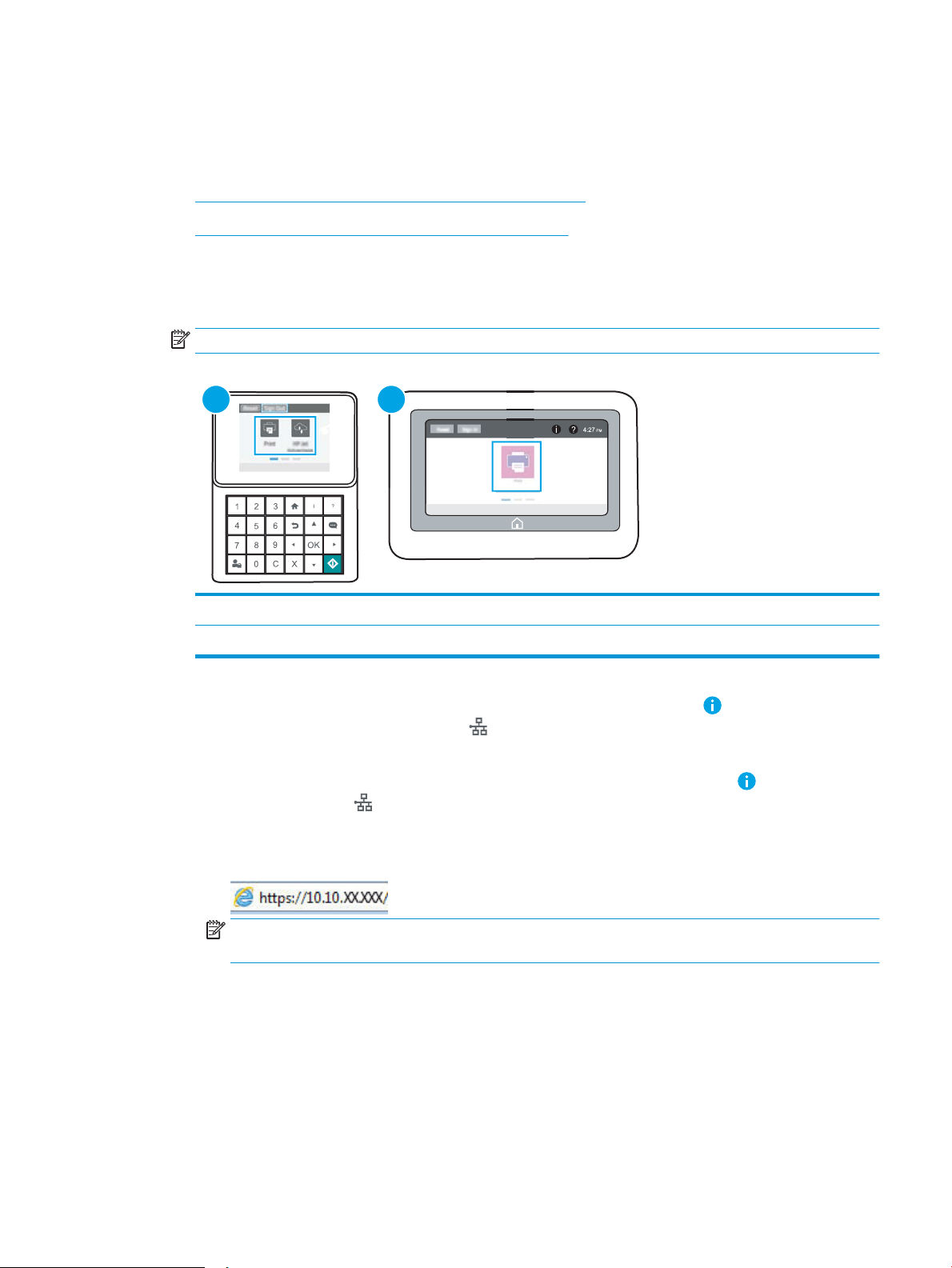
Assign an administrator password
Assign an administrator password for access to the printer and the HP Embedded Web Server so that
unauthorized users cannot change the printer settings.
●
Use the HP Embedded Web Server (EWS) to set the password
●
Provide user access credentials at the printer control panel
Use the HP Embedded Web Server (EWS) to set the password
1. Open the HP Embedded Web Server (EWS):
NOTE: The steps vary according to the type of control panel.
1
2
1 Keypad control panel
2 Touchscreen control panel
a. Keypad control panels: On the printer control panel, press the Information button, and then use
the arrow keys to select the Ethernet menu. Press the OK button to open the menu and display
the IP address or host name.
Touchscreen control panels: On the printer control panel, touch the Information button, and then
select the Network icon to display the IP address or host name.
b. Open a web browser, and in the address line, type the IP address or host name exactly as it displays
on the printer control panel. Press the Enter key on the computer keyboard. The EWS opens.
NOTE: If the web browser displays a message indicating that accessing the website might not be
safe, select the option to continue to the website. Accessing this website will not harm the computer.
2. Click the Security tab.
3. Open the General Security menu.
4. In the area labeled Set the Local Administrator Password, enter the name to associate with the password in
the Username eld.
5. Enter the password in the New Password eld, and then enter it again in the Verify Password eld.
ENWW Printer security features 83

NOTE: To change an existing password, rst enter the existing password in the Old Password eld.
6. Click the Apply button.
NOTE: Make note of the password and store it in a safe place. The administrator password cannot be
recovered. If the administrator password is lost or forgotten, contact HP Support at support.hp.com for the
assistance required to completely reset the printer.
Provide user access credentials at the printer control panel
Some features on the printer control panel can be secured so that unauthorized people cannot use them. When
a feature is secured, the printer prompts you to sign in before you can use it. You can also sign in without waiting
for a prompt by selecting Sign In from the printer control panel.
Typically, the credentials for signing in to the printer are the same as for signing in to the network. Consult the
network administrator for this printer if you have questions about which credentials to use.
1. From the Home screen on the printer control panel, select Sign In.
2. Follow the prompts to enter the credentials.
NOTE: To maintain security for the printer, select Sign Out when you have nished using the printer.
IP Security
IP Security (IPsec) is a set of protocols that control IP-based network traic to and from the printer. IPsec
provides host-to-host authentication, data integrity, and encryption of network communications.
For printers that are connected to the network and have an HP Jetdirect print server, you can congure IPsec by
using the Networking tab in the HP Embedded Web Server.
Encryption support: HP High Performance Secure Hard Disks
The hard disk provides hardware-based encryption so you can securely store sensitive data without impacting
printer performance. This hard disk uses the latest Advanced Encryption Standard (AES) and has versatile time-
saving features and robust functionality.
Use the Security menu in the HP Embedded Web Server to congure the disk.
Lock the formatter
The formatter has a slot that you can use to attach a security cable. Locking the formatter prevents someone
from removing valuable components from it.
84 Chapter 5 Manage the printer ENWW


Print with EconoMode
This printer has an EconoMode option for printing drafts of documents. Using EconoMode can use less toner.
However, using EconoMode can also reduce print quality.
●
Congure EconoMode from the print driver
●
Congure EconoMode from the printer control panel
HP does not recommend the full-time use of EconoMode. If EconoMode is used full-time, the toner supply might
outlast the mechanical parts in the toner cartridge. If print quality begins to degrade and is no longer acceptable,
consider replacing the toner cartridge.
NOTE: If this option is not available in the print driver, set it using the printer control panel.
Congure EconoMode from the print driver
1. From the software program, select the Print option.
2. Select the printer, and then click the Properties or Preferences button.
3. Click the Paper/Quality tab.
4. Click the EconoMode check box to enable the feature, and then click OK.
Congure EconoMode from the printer control panel
Use the printer control panel to change the EconoMode setting.
1. From the Home screen on the printer control panel, navigate to the Settings application, and then select
the Settings icon.
2. Open the following menus:
● Copy/Print or Print
● Default Print Options
● Economode
3. Select On or O to enable or disable the feature.
Set the sleep timer and congure the printer to use 1 watt or less of power
The sleep settings aect how much power the printer uses, the wake/sleep time, how quickly the printer enters
sleep mode, and how quickly the printer wakes up from sleep mode.
To congure the printer to use 1 watt or less of power while in sleep mode, enter times for both the Sleep after
Inactivity and Auto O after sleep settings.
1. From the Home screen on the printer control panel, navigate to the Settings application, and then select
the Settings icon.
2. Open the following menus:
86 Chapter 5 Manage the printer ENWW

● General
● Energy Settings
● Sleep Settings
3. Select Sleep after Inactivity to specify the number of minutes the printer is inactive before it enters sleep
mode. Enter the appropriate time period.
4. Select Auto O after sleep to put the printer into a deeper power save mode after a period of sleep. Enter
the appropriate time period.
NOTE: By default, the printer will wake from Auto O in response to any activity other than USB or Wi-Fi.
For greater energy settings, you can set it to wake only to the power button by selecting Shut down (wake
on power button only).
5. Select Done to save the settings.
HP Web Jetadmin
HP Web Jetadmin is an award-winning, industry-leading tool for eiciently managing a wide variety of networked
HP products, including printers, multifunction printers, and digital senders. This single solution allows you to
remotely install, monitor, maintain, troubleshoot, and secure your printing and imaging environment —
ultimately increasing business productivity by helping you save time, control costs, and protect your investment.
HP Web Jetadmin upgrades are periodically made available to provide support for specic product features. Go to
www.hp.com/go/webjetadmin for more information.
Software and rmware updates
HP regularly updates features that are available in the printer rmware. To take advantage of the most current
features, update the printer rmware. Download the most recent rmware update le from the web:
Go to www.hp.com/support/ljM507. Click Drivers & Software.
ENWW HP Web Jetadmin 87

88 Chapter 5 Manage the printer ENWW

6 Solve problems
Troubleshoot problems with the printer. Locate additional resources for help and technical support.
●
Customer support
●
Control panel help system
●
Reset factory settings
●
A “Cartridge is low” or “Cartridge is very low” message displays on the printer control panel
●
Printer does not pick up paper or misfeeds
●
Clear paper jams
●
Resolve print-quality problems
●
Solve wired network problems
●
Solve wireless network problems
For video assistance, see www.hp.com/videos/LaserJet.
The following information is correct at the time of publication. For current information, see www.hp.com/
support/ljM507.
For more information:
HP's all-inclusive help for the printer includes the following information:
● Install and congure
● Learn and use
● Solve problems
● Download software and rmware updates
● Join support forums
● Find warranty and regulatory information
ENWW 89
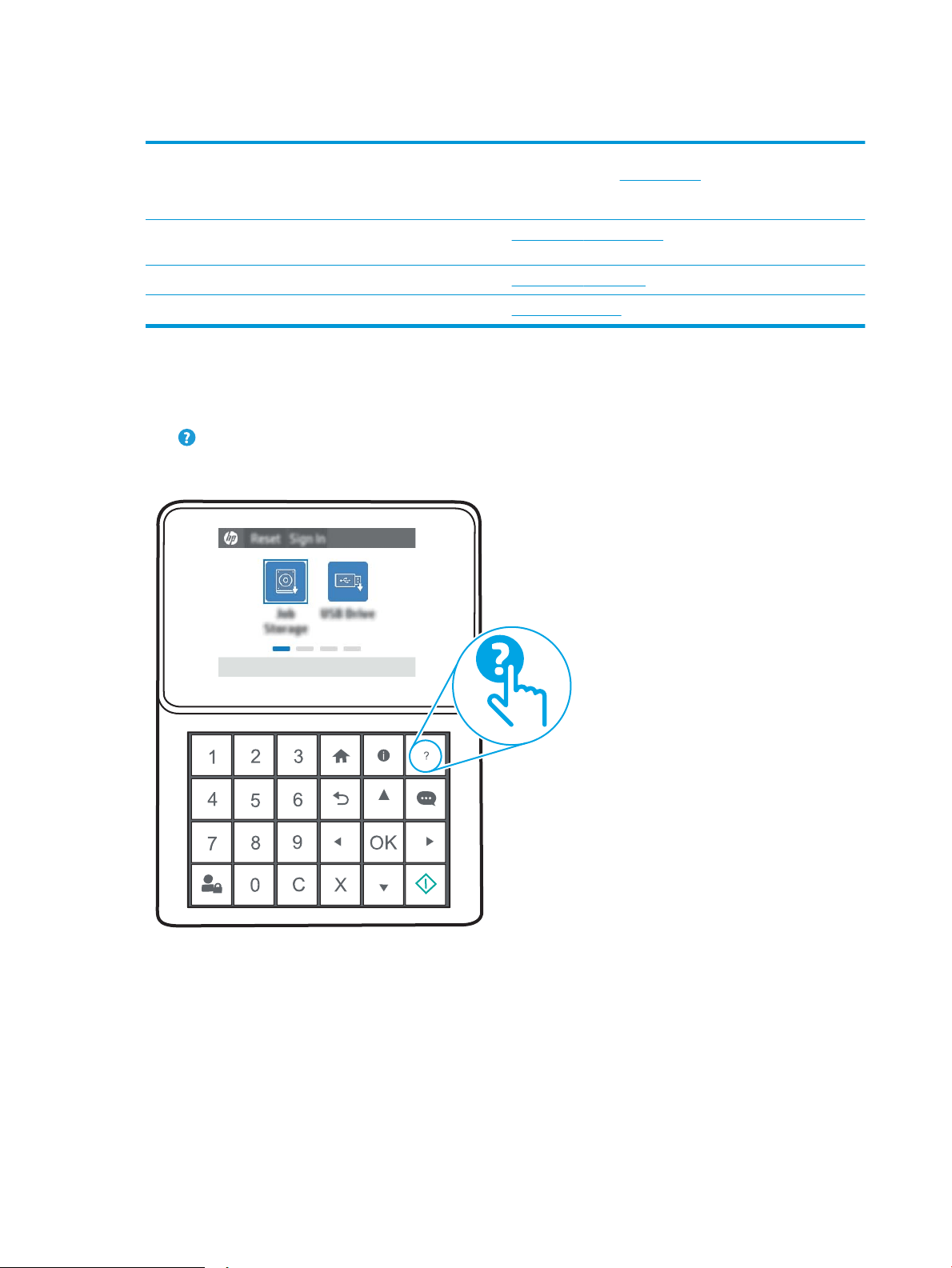
Customer support
Get telephone support for your country/region
Have the printer name, serial number, date of purchase, and
problem description ready
Country/region phone numbers are on the yer that was in the box
with the printer or at support.hp.com.
Get 24-hour Internet support, and download software utilities and
drivers
www.hp.com/support/ljM507
Order additional HP service or maintenance agreements www.hp.com/go/carepack
Register the printer www.register.hp.com
Control panel help system
The printer has a built-in Help system that explains how to use each screen. To open the Help system, touch the
Help button on the control panel.
Figure 6-1 Keypad control panel
90 Chapter 6 Solve problems ENWW

Figure 6-2 Touchscreen control panel
For some screens, the Help opens to a global menu where you can search for specic topics. You can browse
through the menu structure by touching the buttons in the menu.
Some Help screens include animations that show specic procedures, such as clearing paper jams.
If the printer alerts of an error or warning, touch the Help button to open a message that describes the
problem. The message also contains instructions to help solve the problem.
ENWW Control panel help system 91

Reset factory settings
Resetting the printer settings to the factory-set defaults can help resolve problems.
●
Introduction
●
Method one: Reset factory settings from the printer control panel
●
Method two: Reset factory settings from the HP Embedded Web Server (network-connected printers only)
Introduction
Use one of the following methods to reset the printer settings to the original settings from the factory.
Method one: Reset factory settings from the printer control panel
Use the printer control panel to restore the settings to their original values.
1. From the Home screen on the printer control panel, navigate to the Settings application, and then select
the Settings icon.
2. Open the following menus:
● General
● Reset Factory Settings
3. Select Reset.
A verication message advises that completing the reset function might result in loss of data.
4. Select Reset to complete the process.
NOTE: The printer restarts automatically after the reset operation completes.
Method two: Reset factory settings from the HP Embedded Web Server (network-
connected printers only)
Use the HP EWS to reset the printer settings to the original settings.
NOTE: The steps vary according to the type of control panel.
92 Chapter 6 Solve problems ENWW
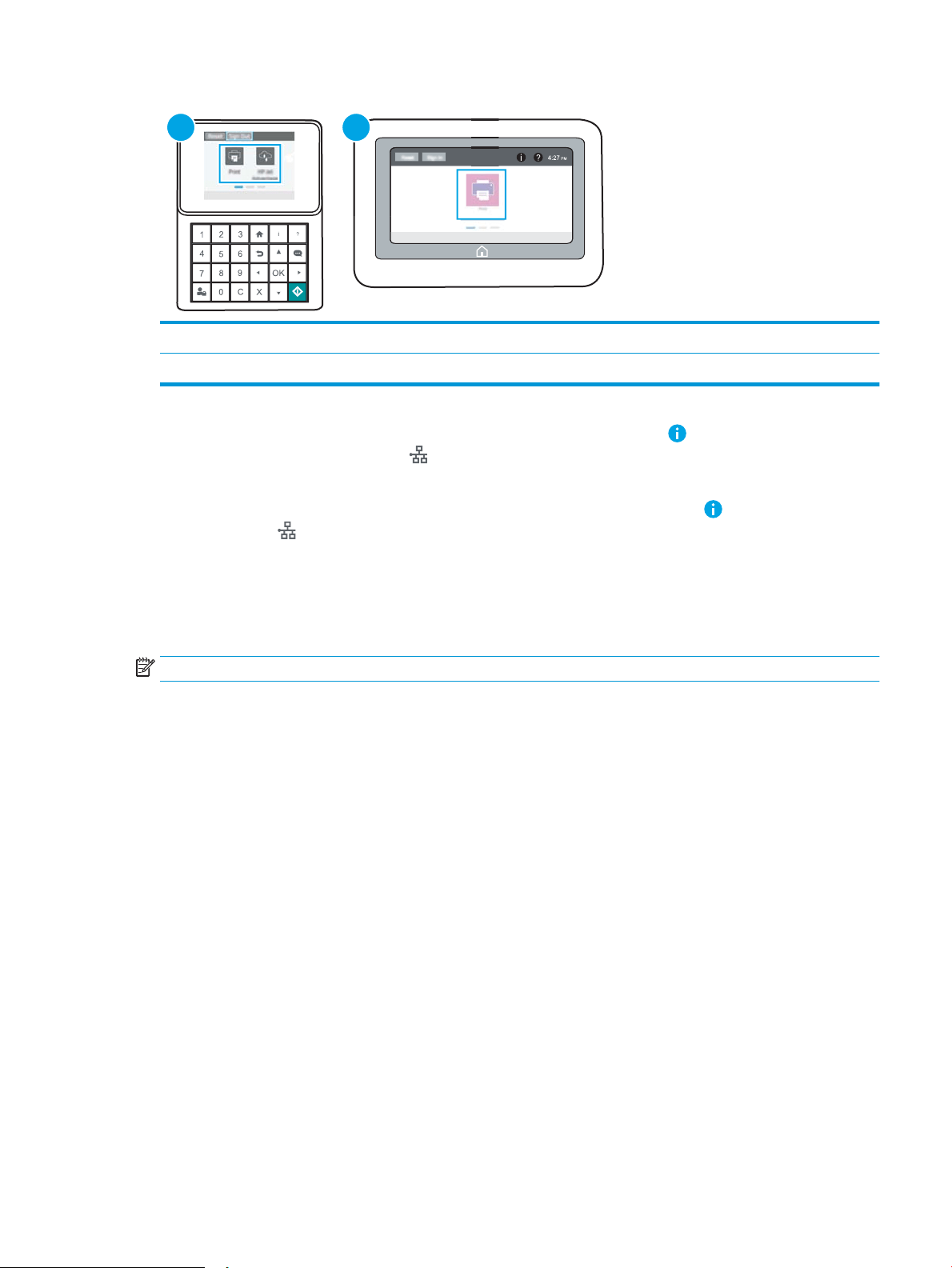
1
2
1 Keypad control panel
2 Touchscreen control panel
1. Keypad control panels: On the printer control panel, press the Information button, and then use the
arrow keys to select the Ethernet menu. Press the OK button to open the menu and display the IP
address or host name.
Touchscreen control panels: On the printer control panel, select the Information button, and then select
the Network icon to display the IP address or host name.
2. Open the General tab.
3. On the left side of the screen, click Reset Factory Settings.
4. Click the Reset button.
NOTE: The printer restarts automatically after the reset operation completes.
ENWW Reset factory settings 93

A “Cartridge is low” or “Cartridge is very low” message displays on
the printer control panel
●
Change the “Very Low” settings
●
Order supplies
Cartridge is low: The printer indicates when a toner cartridge level is low. Actual toner cartridge life remaining
may vary. Consider having a replacement available to install when print quality is no longer acceptable. The toner
cartridge does not need to be replaced now.
Continue printing with the current cartridge until redistributing the toner no longer yields acceptable print quality.
To redistribute the toner, remove the toner cartridge from the printer and gently rock the cartridge back and forth
about its horizontal axis. For graphical representation, see cartridge replacement instructions. Reinsert the toner
cartridge into the printer and close the cover.
Cartridge is very low: The printer indicates when the toner cartridge level is very low. Actual toner cartridge life
remaining may vary. Consider having a replacement available to install when print quality is no longer
acceptable. The toner cartridge does not need to be replaced now unless the print quality is no longer
acceptable.
HP’s Premium Protection Warranty expires near the end of useable cartridge life. Check the Supplies Status Page
or the HP Embedded Web Server (EWS) for the status.
94 Chapter 6 Solve problems ENWW

Change the “Very Low” settings
You can change the way the printer reacts when supplies reach the Very Low state. You do not have to re-
establish these settings when you install a new cartridge.
●
Change the “Very Low” settings at the control panel
●
For printers with fax capability
Change the “Very Low” settings at the control panel
Change the setting at the printer control panel.
1. From the Home screen on the printer control panel, navigate to the Settings application, and then select
the Settings icon.
2. Open the following menus:
● Manage Supplies
● Very Low Behavior
● Black Cartridge or Color Cartridges
3. Select one of the following options:
● Select the Stop option to set the printer to stop printing when the cartridge reaches the Very Low
threshold.
● Select the Prompt to continue option to set the printer to stop printing when the cartridge reaches the
Very Low threshold. You can acknowledge the prompt or replace the cartridge to resume printing.
● Select the Continue option to set the printer to alert you that the cartridge is very low, and to continue
printing beyond the Very Low setting without interaction. This can result in unsatisfactory print
quality.
For printers with fax capability
When the printer is set to the Stop or Prompt to continue option, there is some risk that faxes will not print when
the printer resumes printing. This can occur if the printer has received more faxes than the memory can hold
while the printer is waiting.
The printer can print faxes without interruption when it passes the Very Low threshold if you select the Continue
option for the cartridge, but print quality might degrade.
Order supplies
Order supplies and paper http://www.hp.com/go/SureSupply
Order through service or support providers Contact an HP-authorized service or support provider.
Order using the HP Embedded Web Server (EWS) To access, in a supported web browser on your computer, enter the
printer IP address or host name in the address/URL eld. The EWS
contains a link to the HP SureSupply website, which provides
options for purchasing Original HP supplies.
ENWW A “Cartridge is low” or “Cartridge is very low” message displays on the printer control panel 95

Printer does not pick up paper or misfeeds
●
Introduction
●
The printer does not pick up paper
●
The printer picks up multiple sheets of paper
Introduction
The following solutions can help solve problems if the printer is not picking up paper from the tray or is picking
up multiple sheets of paper at one time. Either of these situations can result in paper jams.
The printer does not pick up paper
If the printer does not pick up paper from the tray, try these solutions.
1. Open the printer and remove any jammed sheets of paper. Verify that no torn remnants of paper remain
inside the printer.
2. Load the tray with the correct size of paper for the job.
3. Make sure the paper size and type are set correctly on the printer control panel.
96 Chapter 6 Solve problems ENWW
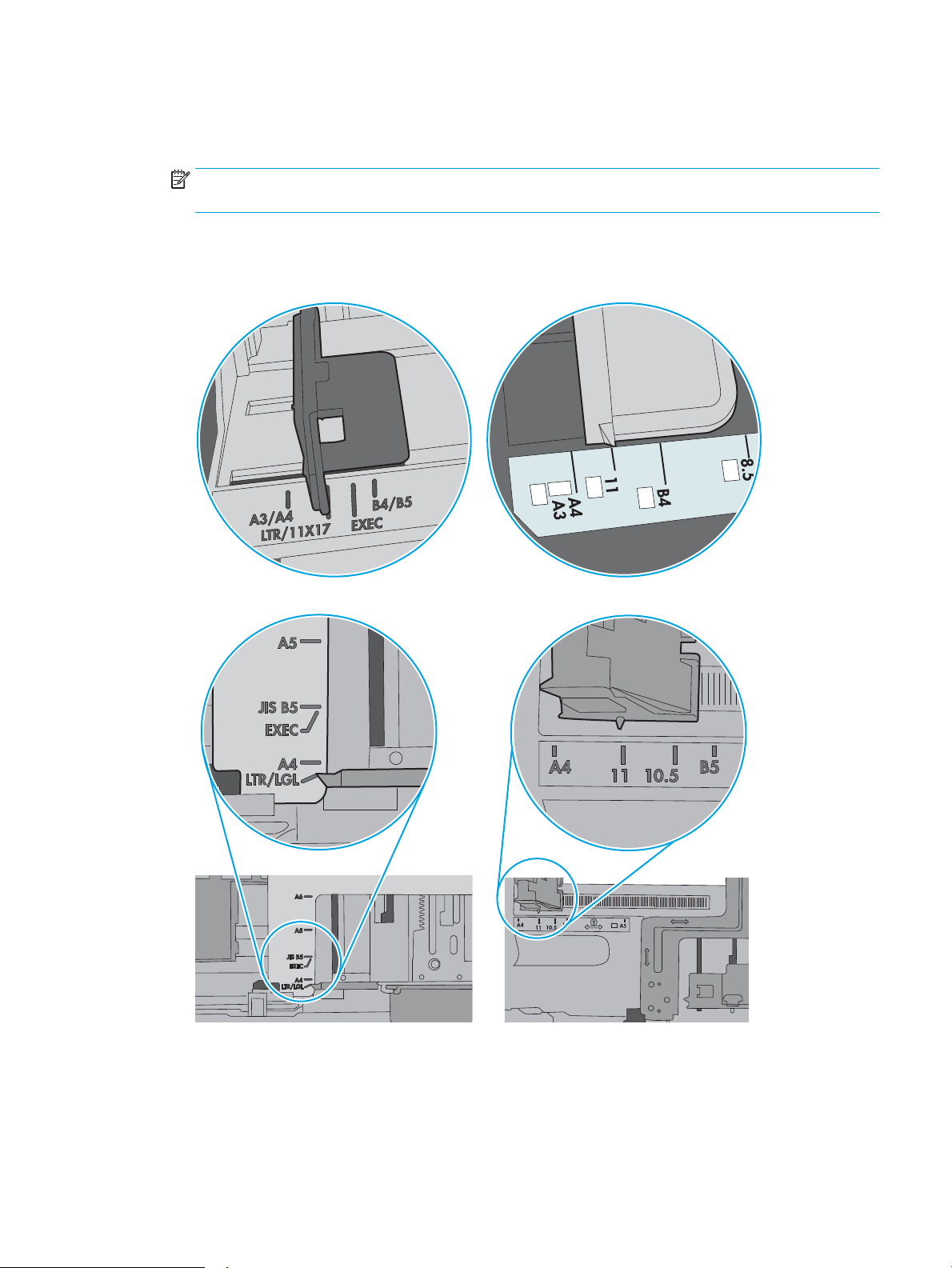
4. Make sure the paper guides in the tray are adjusted correctly for the size of paper. Adjust the guides to the
appropriate indentation in the tray. The arrow on the tray guide should line up exactly with the marking on
the tray.
NOTE: Do not adjust the paper guides tightly against the paper stack. Adjust them to the indentations or
markings in the tray.
The following images show examples of the paper-size indentations in the trays for various printers. Most
HP printers have markings similar to these.
Figure 6-3 Size markings for Tray 1 or the multipurpose tray
Figure 6-4 Size markings for cassette trays
ENWW Printer does not pick up paper or misfeeds 97
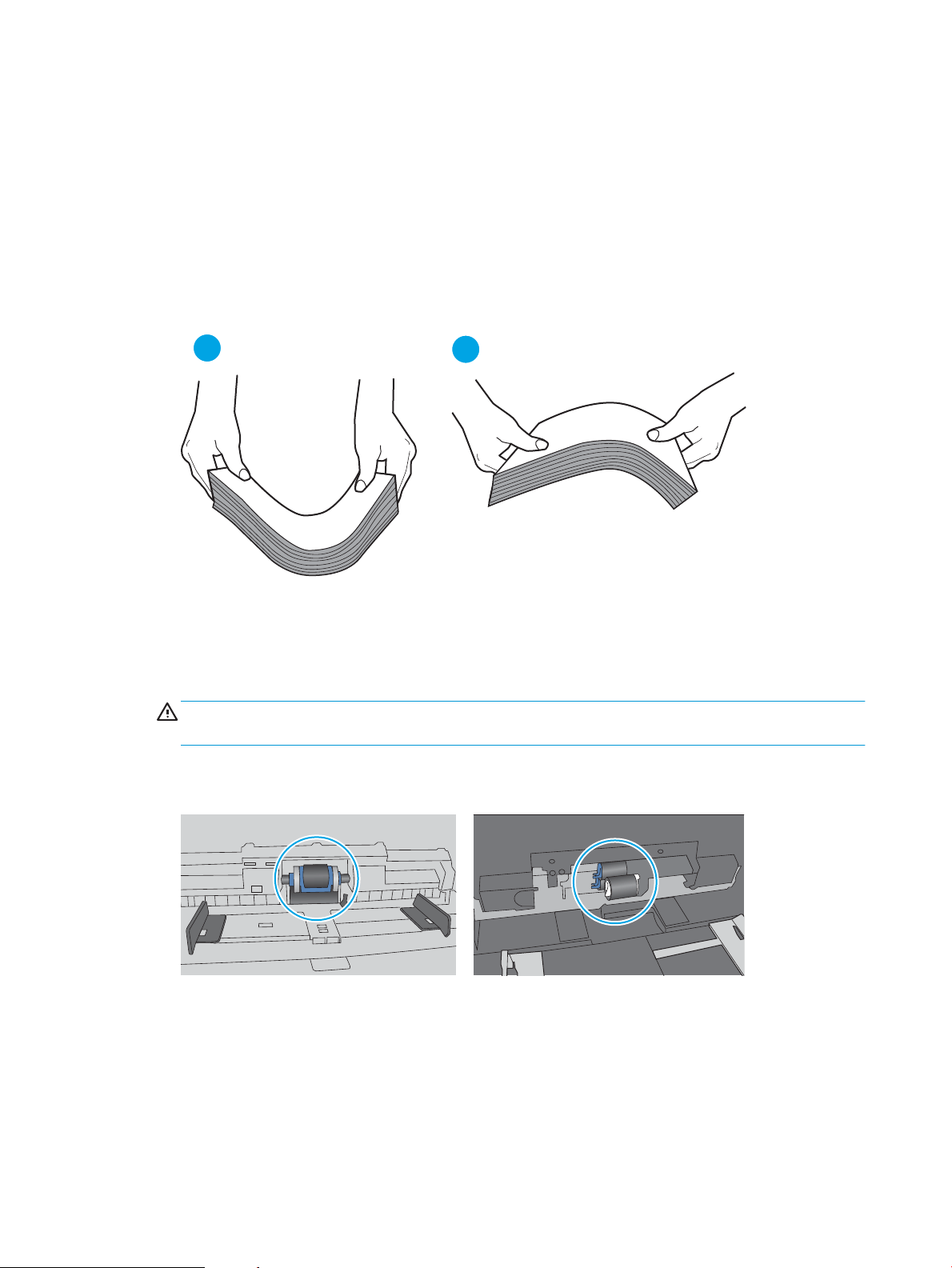
5. Verify that the humidity in the room is within specications for this printer and that paper is being stored in
unopened packages. Most reams of paper are sold in moisture-proof wrapping to keep paper dry.
In high-humidity environments, paper at the top of the stack in the tray can absorb moisture, and it might
have a wavy or uneven appearance. If this happens, remove the top 5 to 10 sheets of paper from the stack.
In low-humidity environments, excess static electricity can cause sheets of paper to stick together. If this
happens, remove the paper from the tray, and ex the stack by holding it at each end and bringing the ends
up to form a U shape. Then, rotate the ends down to reverse the U shape. Next, hold each side of the stack
of paper, and repeat this process. This process releases individual sheets without introducing static
electricity. Straighten the paper stack against a table before returning it to the tray.
Figure 6-5 Technique for exing the paper stack
1
2
6. Check the printer control panel to see if it is displaying a prompt to feed the paper manually. Load paper,
and continue.
7. The rollers above the tray might be contaminated. Clean the rollers with a lint-free cloth dampened with
warm water. Use distilled water, if it is available.
CAUTION: Do not spray water directly on to the printer. Instead, spray water on the cloth or dab the cloth
in water and wring it out before cleaning the rollers.
The following image shows examples of the roller location for various printers.
Figure 6-6 Roller locations for Tray 1 or the multipurpose tray
The printer picks up multiple sheets of paper
If the printer picks up multiple sheets of paper from the tray, try these solutions.
1. Remove the stack of paper from the tray and ex it, rotate it 180 degrees, and ip it over. Do not fan the
paper. Return the stack of paper to the tray.
98 Chapter 6 Solve problems ENWW
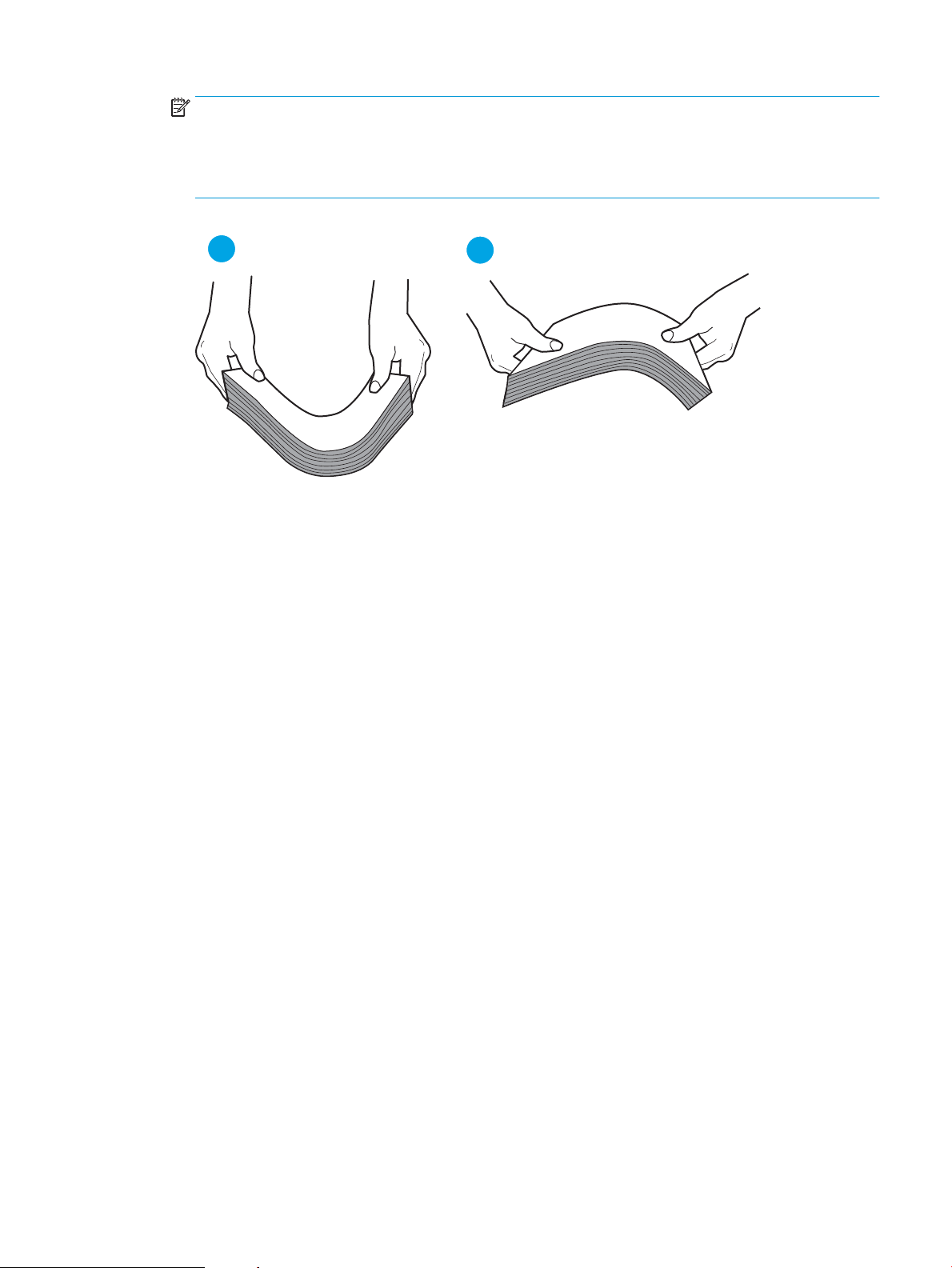
NOTE: Fanning the paper introduces static electricity. Instead of fanning the paper, ex the stack by
holding it at each end and bringing the ends up to form a U shape. Then, rotate the ends down to reverse
the U shape. Next, hold each side of the stack of paper, and repeat this process. This process releases
individual sheets without introducing static electricity. Straighten the paper stack against a table before
returning it to the tray.
Figure 6-7 Technique for exing the paper stack
1
2
2. Use only paper that meets HP specications for this printer.
3. Verify that the humidity in the room is within specications for this printer, and that paper is being stored in
unopened packages. Most reams of paper are sold in moisture-proof wrapping to keep paper dry.
In high-humidity environments, paper at the top of the stack in the tray can absorb moisture, and it might
have a wavy or uneven appearance. If this happens, remove the top 5 to 10 sheets of paper from the stack.
In low-humidity environments, excess static electricity can cause sheets of paper to stick together. If this
happens, remove the paper from the tray, and ex the stack as described above.
4. Use paper that is not wrinkled, folded, or damaged. If necessary, use paper from a dierent package.
ENWW Printer does not pick up paper or misfeeds 99
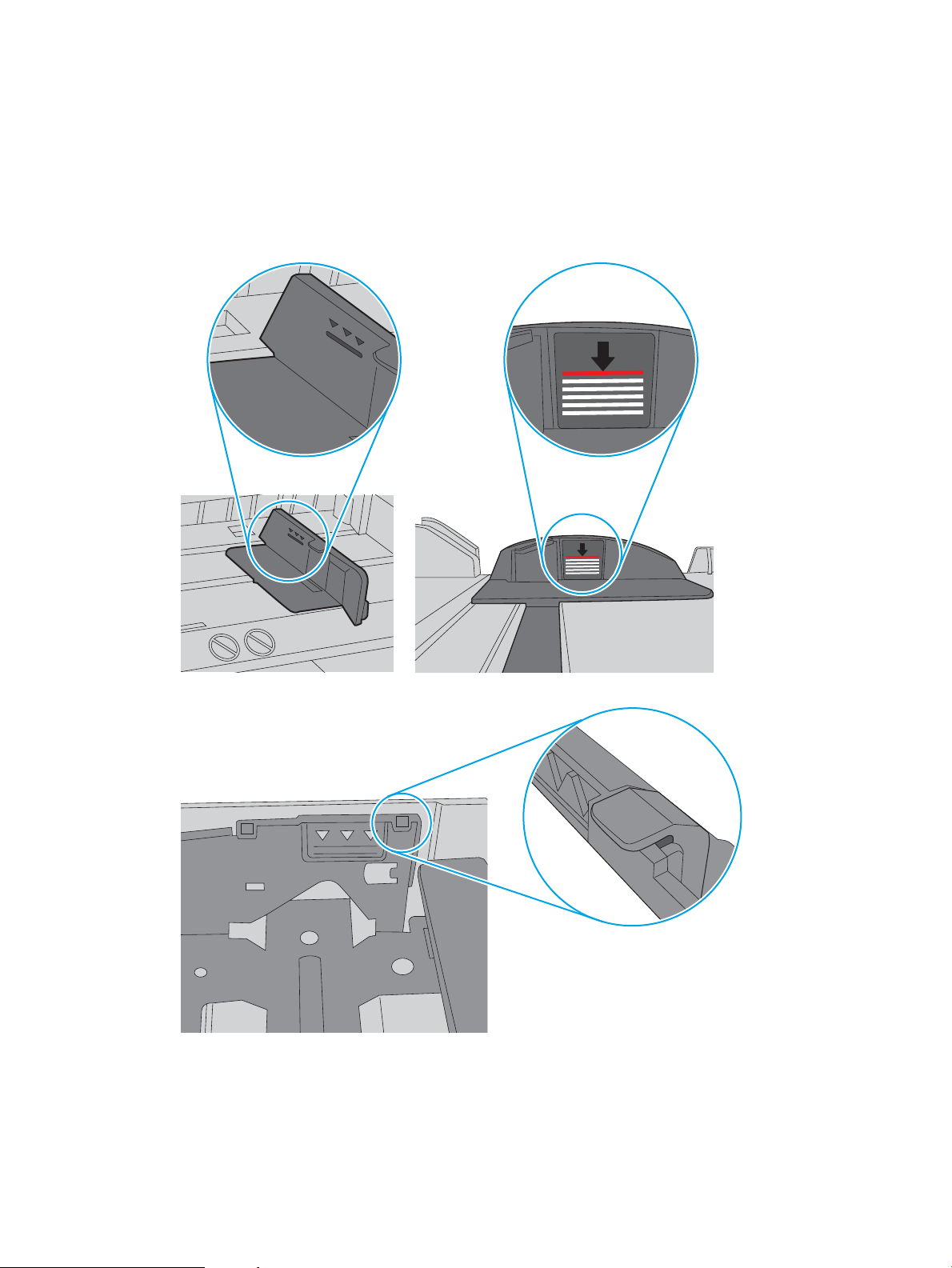
5. Make sure the tray is not overlled by checking the stack-height markings inside the tray. If it is overlled,
remove the entire stack of paper from the tray, straighten the stack, and then return some of the paper to
the tray.
The following images show examples of the stack-height markings in the trays for various printers. Most
HP printers have markings similar to these. Also make sure that all sheets of paper are below the tabs near
the stack-height marks. These tabs help hold the paper in the correct position as it enters the printer.
Figure 6-8 Stack-height markings
Figure 6-9 Tab for the paper stack
100 Chapter 6 Solve problems ENWW
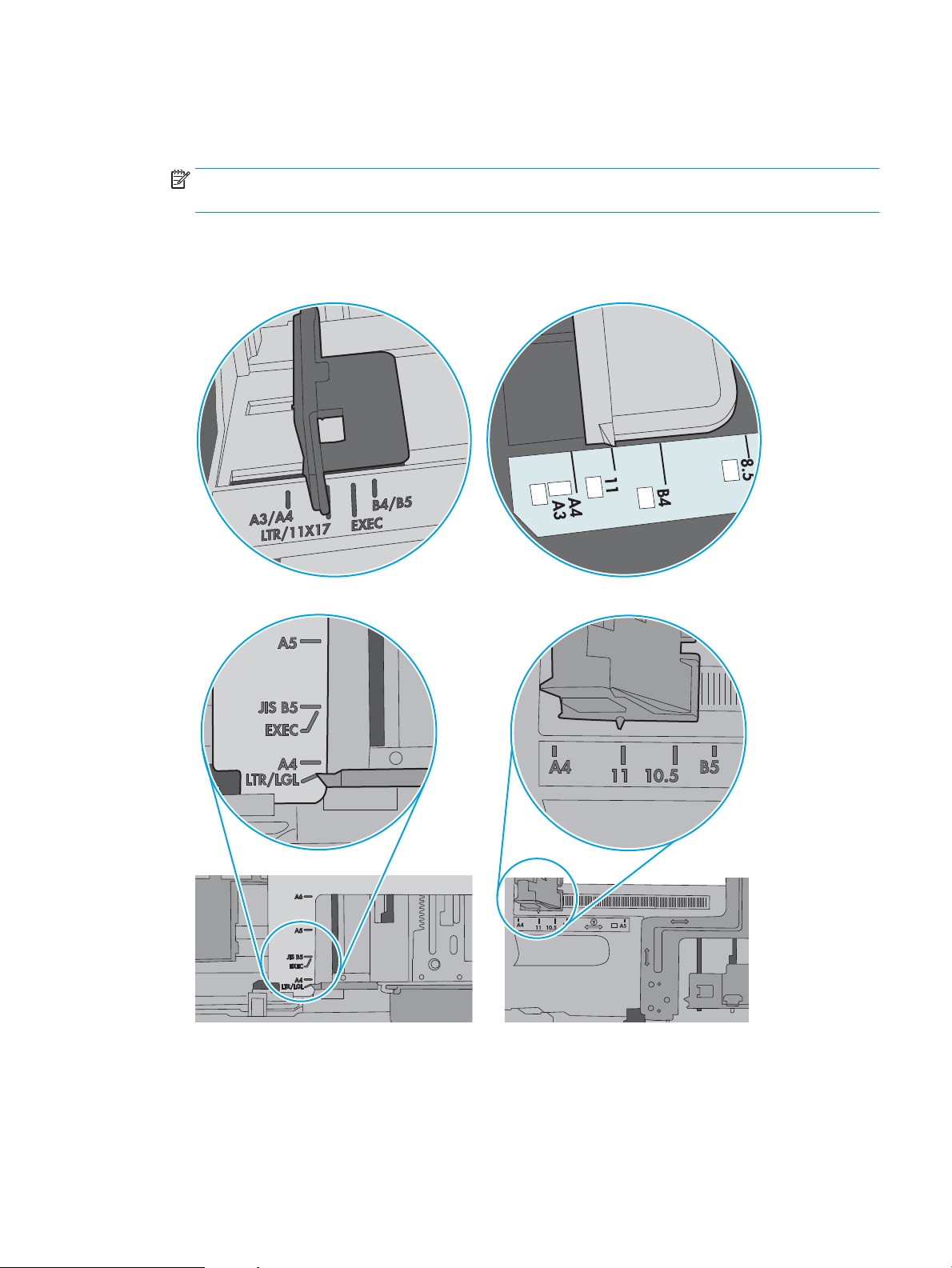
6. Make sure the paper guides in the tray are adjusted correctly for the size of paper. Adjust the guides to the
appropriate indentation in the tray. The arrow on the tray guide should line up exactly with the marking on
the tray.
NOTE: Do not adjust the paper guides tightly against the paper stack. Adjust them to the indentations or
markings in the tray.
The following images show examples of the paper-size indentations in the trays for various printers. Most
HP printers have markings similar to these.
Figure 6-10 Size markings for Tray 1 or the multipurpose tray
Figure 6-11 Size markings for cassette trays
7. Make sure the printing environment is within recommended specications.
ENWW Printer does not pick up paper or misfeeds 101
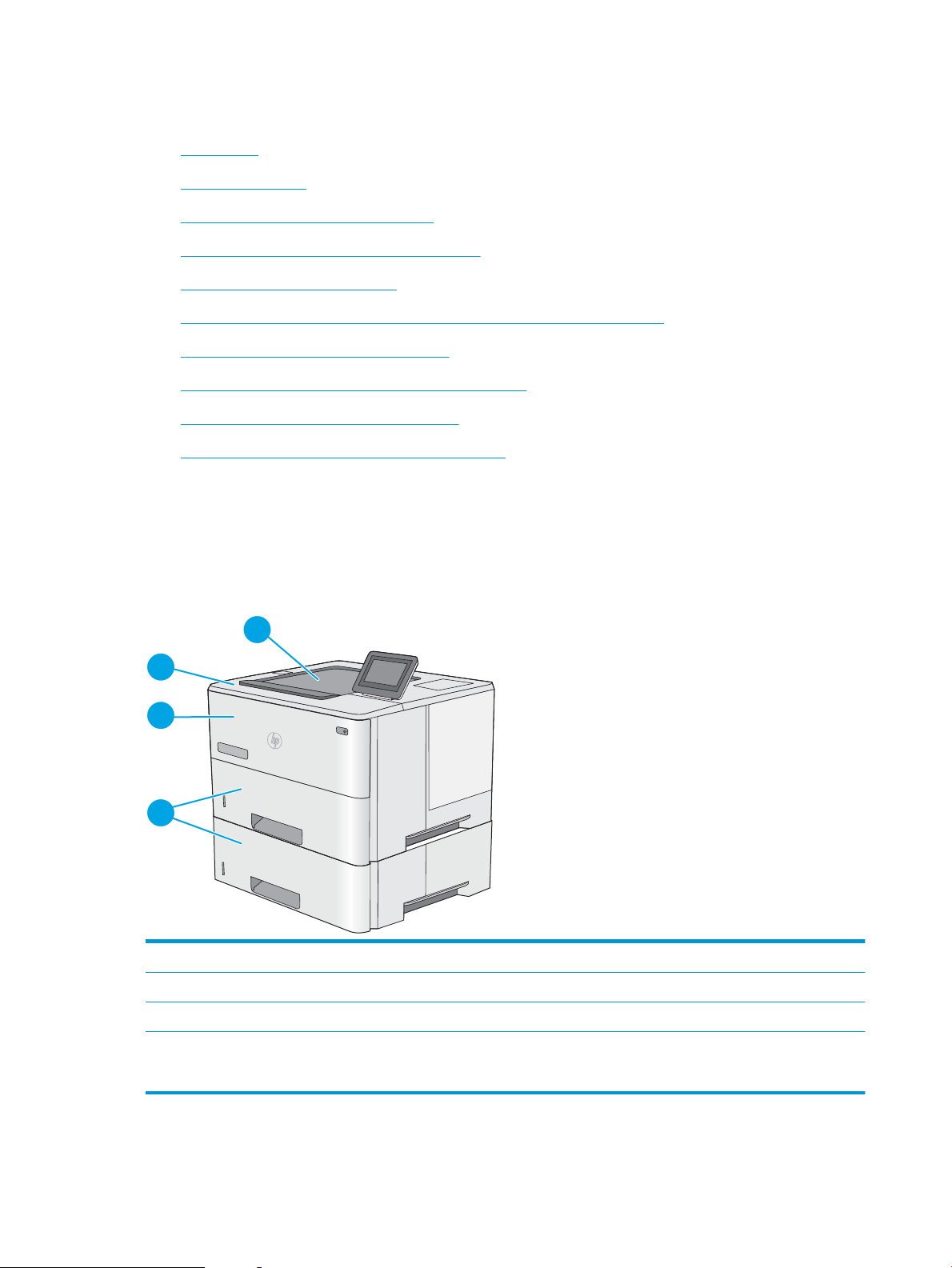
Clear paper jams
●
Introduction
●
Paper jam locations
●
Auto-navigation for clearing paper jams
●
Experiencing frequent or recurring paper jams?
●
Clear paper jams in tray 1—13.A1
●
Clear paper jams in tray 2, tray 3, tray 4, tray 5—13.A2, 13.A3, 13.A4, 13.A5
●
Clear paper jams in the output bin—13.E1
●
Clear paper jams in the duplexer—13.CX.XX, 13.DX.XX
●
Clear paper jams in the toner-cartridge area
●
Clear paper jams in the fuser—13.B9, 13.B2, 13.FF
Introduction
The following information includes instructions for clearing paper jams from the printer.
Paper jam locations
1
2
3
4
1 Output bin
2 Top cover and toner-cartridge area
3 Tray 1
4 Tray 2 and the optional 1 x 550-sheet feeders
NOTE: Remove Tray 2 to access jams in the duplexer.
102 Chapter 6 Solve problems ENWW
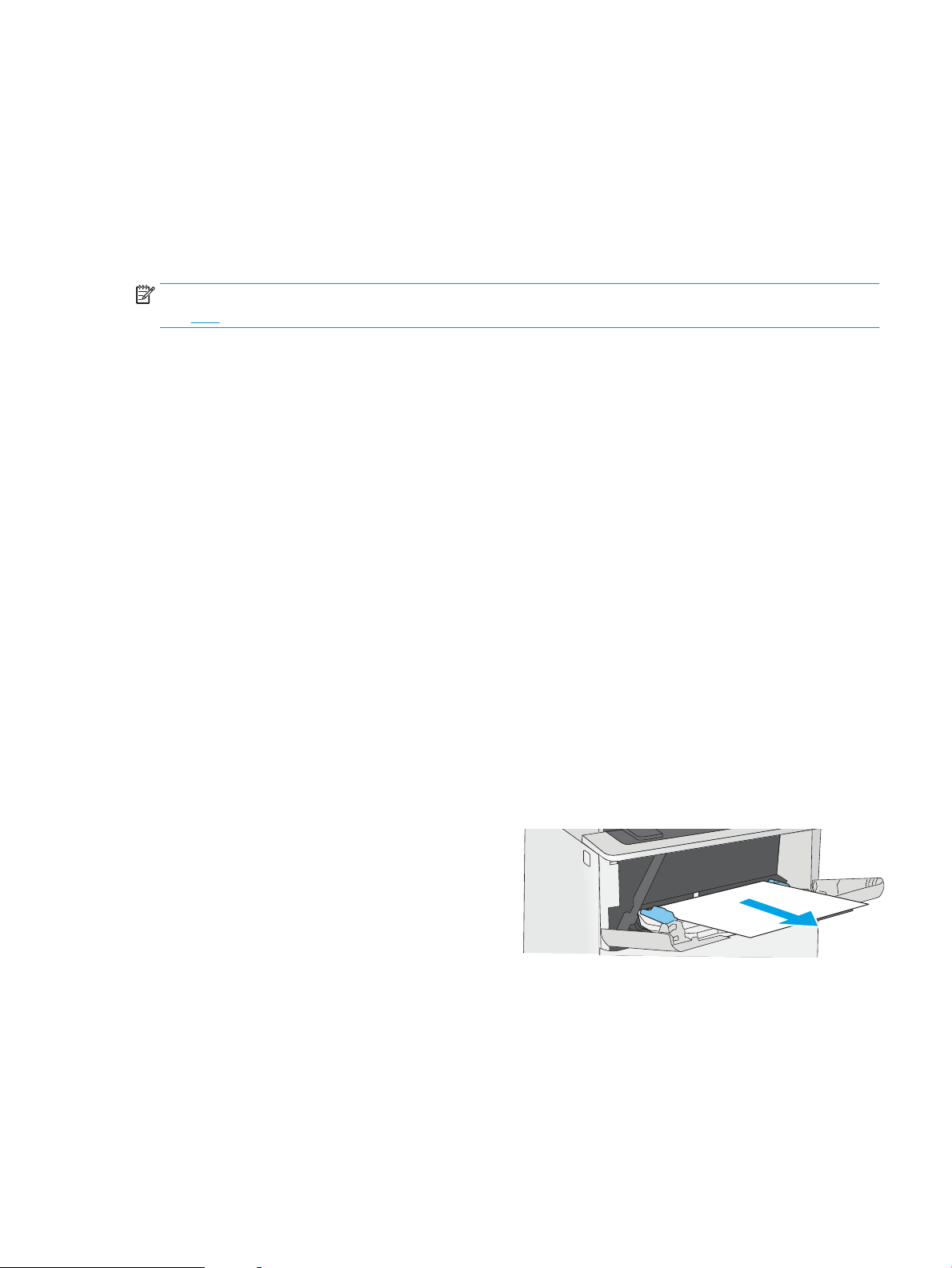
Auto-navigation for clearing paper jams
The auto-navigation feature assists in clearing jams by providing step-by-step instructions on the control panel.
When you complete a step, the printer displays instructions for the next step until you have completed all steps
in the procedure.
Experiencing frequent or recurring paper jams?
To reduce the number of paper jams, try these solutions.
NOTE: To see a video that demonstrates how to load paper in a way that reduces the number of paper jams,
click here.
1. Use only paper that meets HP specications for this printer.
2. Use paper that is not wrinkled, folded, or damaged. If necessary, use paper from a dierent package.
3. Use paper that has not previously been printed or copied on.
4. Make sure the tray is not overlled. If it is, remove the entire stack of paper from the tray, straighten the
stack, and then return some of the paper to the tray.
5. Make sure the paper guides in the tray are adjusted correctly for the size of paper. Adjust the guides so they
are touching the paper stack without bending it.
6. Make sure that the tray is fully inserted in the printer.
7. If you are printing on heavy, embossed, or perforated paper, use the manual feed feature and feed sheets
one at a time.
8. Open the Trays menu on the printer control panel. Verify that the tray is congured correctly for the paper
type and size.
9. Make sure the printing environment is within recommended specications.
Clear paper jams in tray 1—13.A1
Use the following procedure to clear paper jams in Tray 1. When a jam occurs, the control panel displays an
animation that assists in clearing the jam.
1. If most of the sheet of paper is visible in the tray,
slowly pull the jammed paper out of the printer.
Make sure that the entire sheet is removed. If it
tears, continue with the following steps to nd the
remnants.
If most of the sheet of paper has been pulled
inside the printer, continue with the following
steps.
ENWW Clear paper jams 103
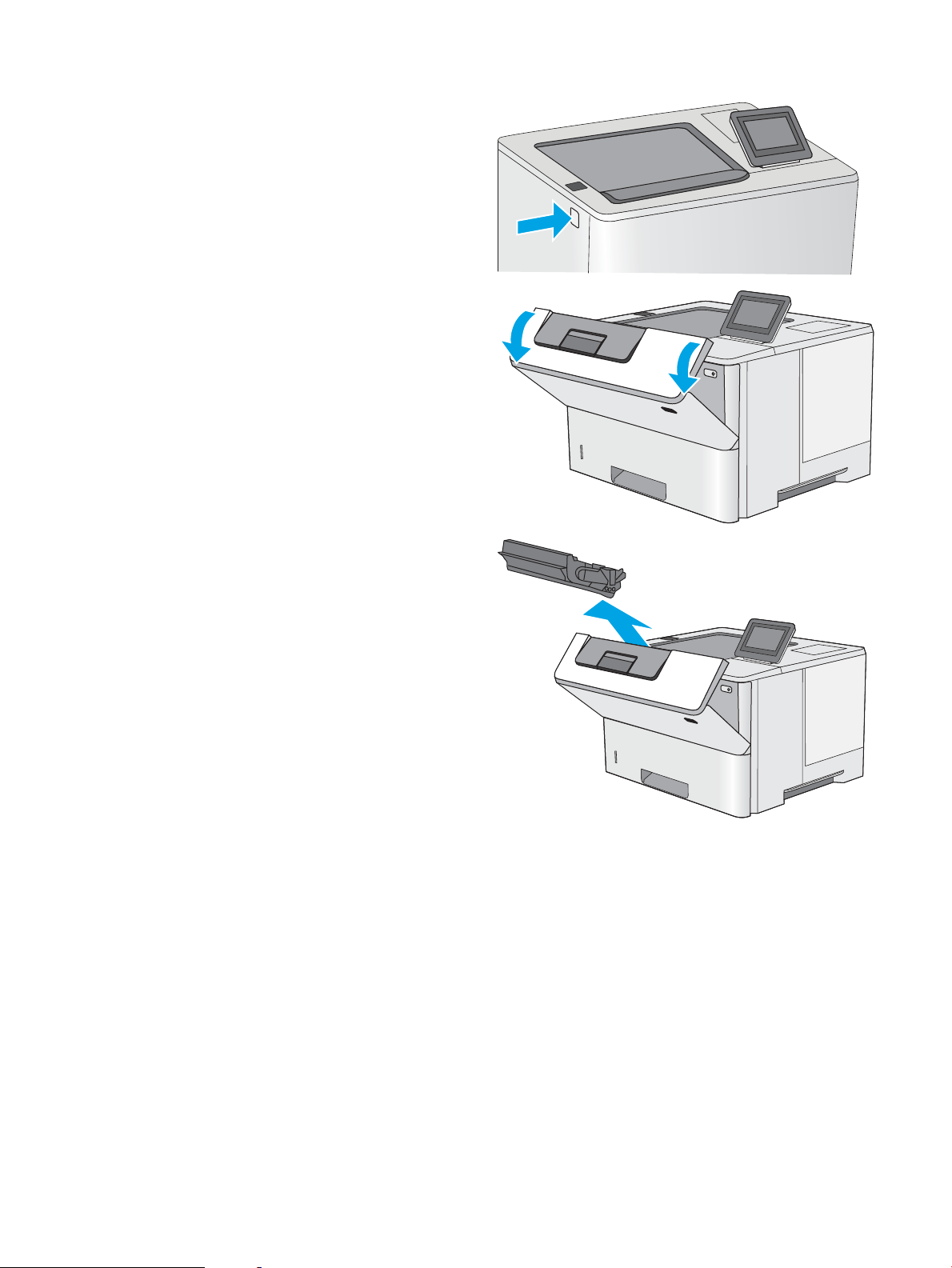
2. Press the top-cover-release button on the left side
of the printer.
3. Open the front door.
4. Remove the toner cartridge.
104 Chapter 6 Solve problems ENWW
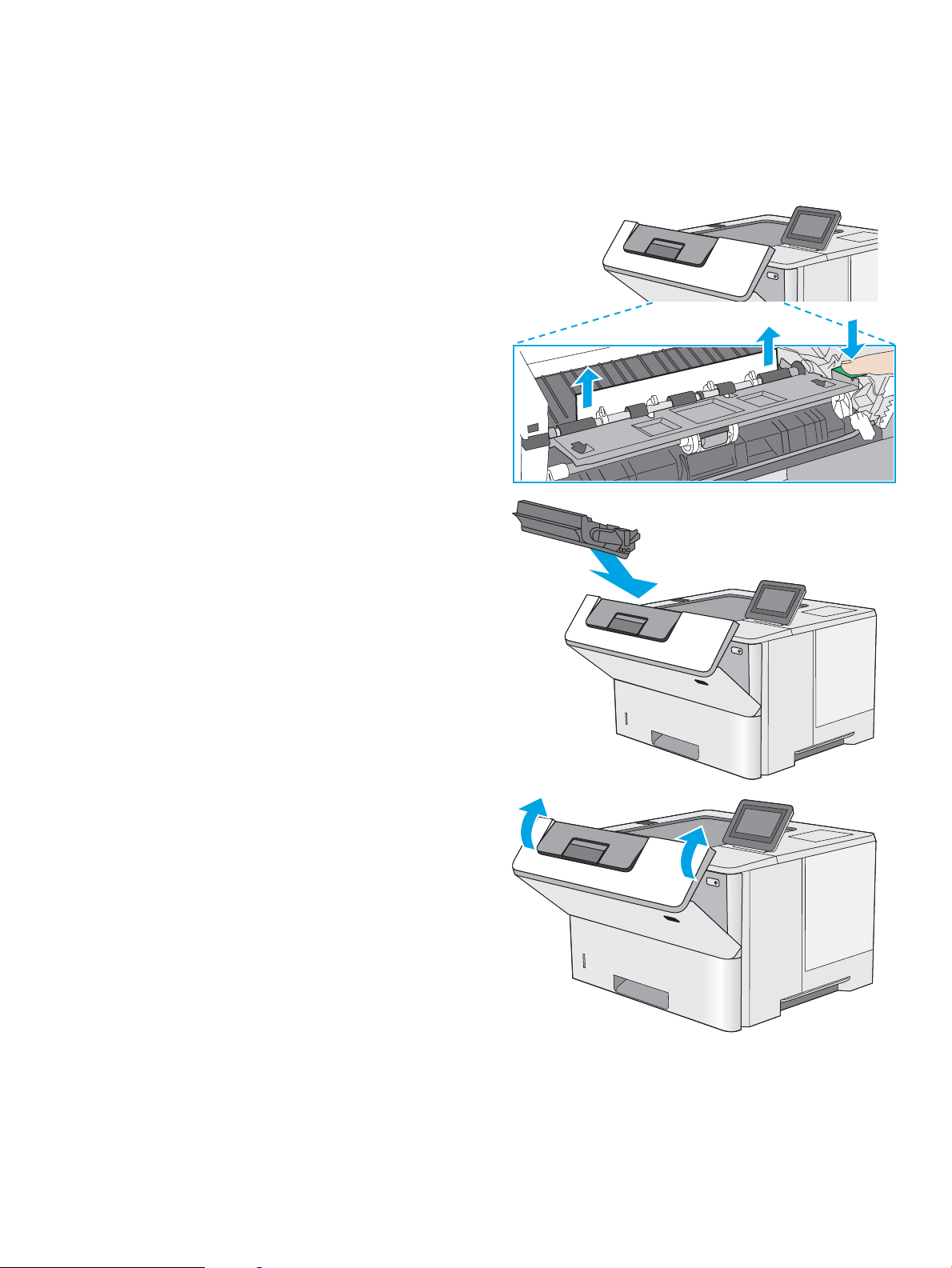
5. Lift the jam-access cover and slowly remove any
jammed paper. Be careful not to tear the paper.
6. Reinsert the toner cartridge.
7. Close the front door.
ENWW Clear paper jams 105
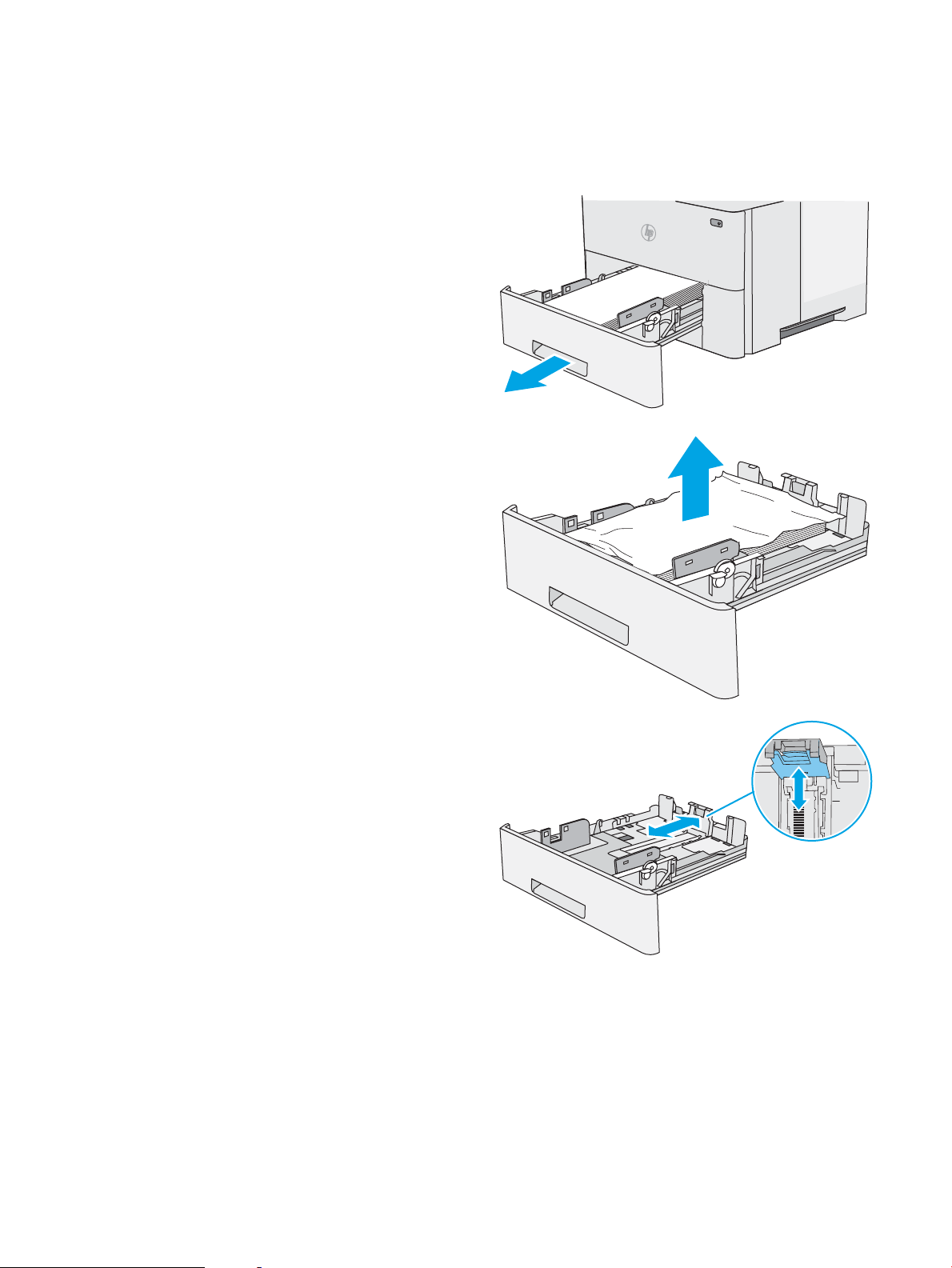
Clear paper jams in tray 2, tray 3, tray 4, tray 5—13.A2, 13.A3, 13.A4, 13.A5
Use the following procedure to check for paper in all possible jam locations related to Tray 2 and the 550-sheet
trays. When a jam occurs, the control panel displays an animation that assists in clearing the jam.
1. Remove the tray from the printer.
2. Remove the paper from the tray, and discard any
damaged paper.
3. Verify that the rear paper guide is adjusted to the
indentation for the correct paper size. If necessary,
pinch the release and move the rear paper guide to
the correct position. It should click into place.
B5
11 LTR
14 LGL
106 Chapter 6 Solve problems ENWW
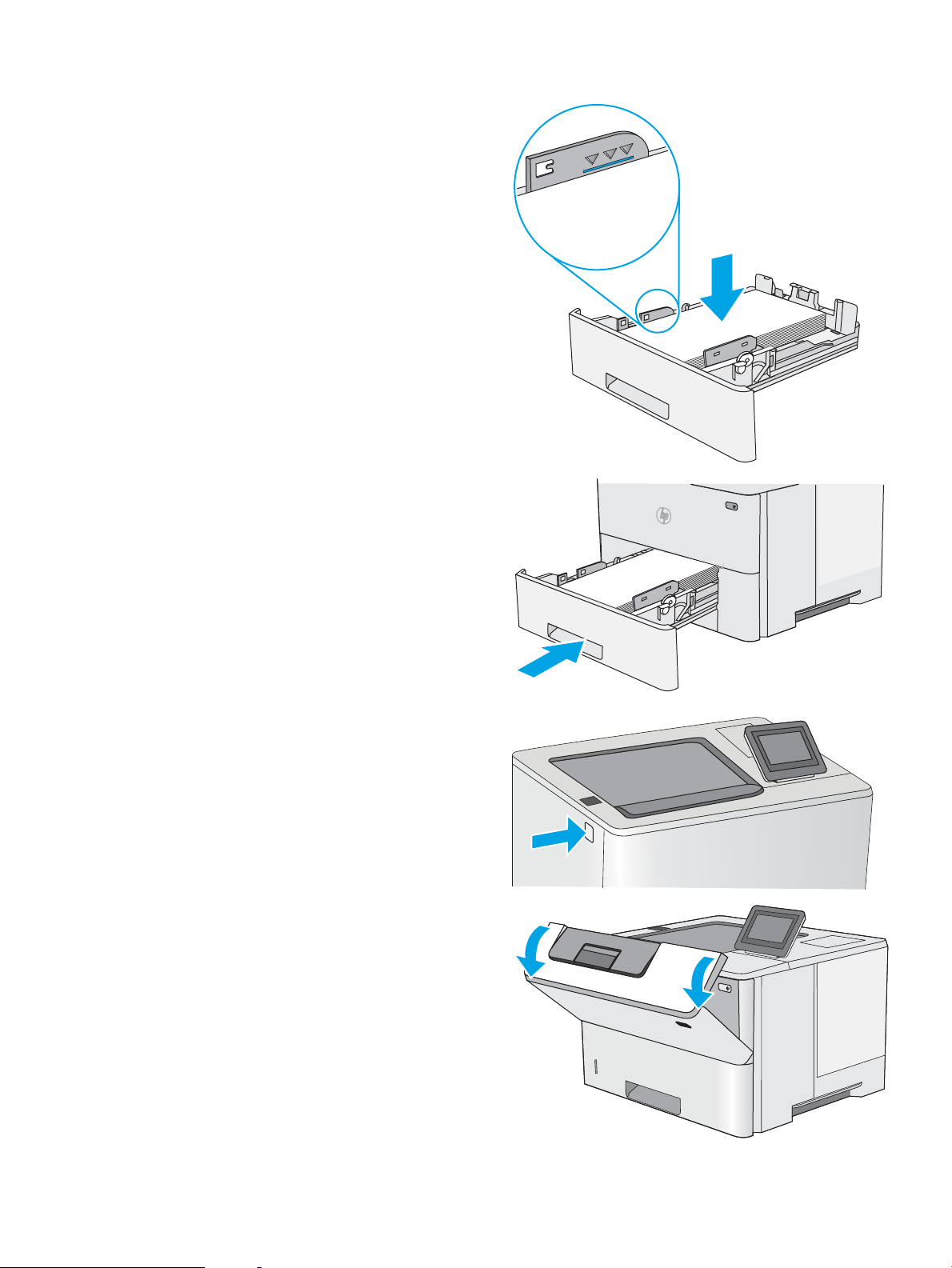
4. Load the paper into the tray. Make sure that the
stack is at at all four corners and that the top of
the stack is below the maximum-height indicators.
5. Reinsert and close the tray.
6. Press the top-cover-release button on the left side
of the printer.
7. Open the front door.
ENWW Clear paper jams 107
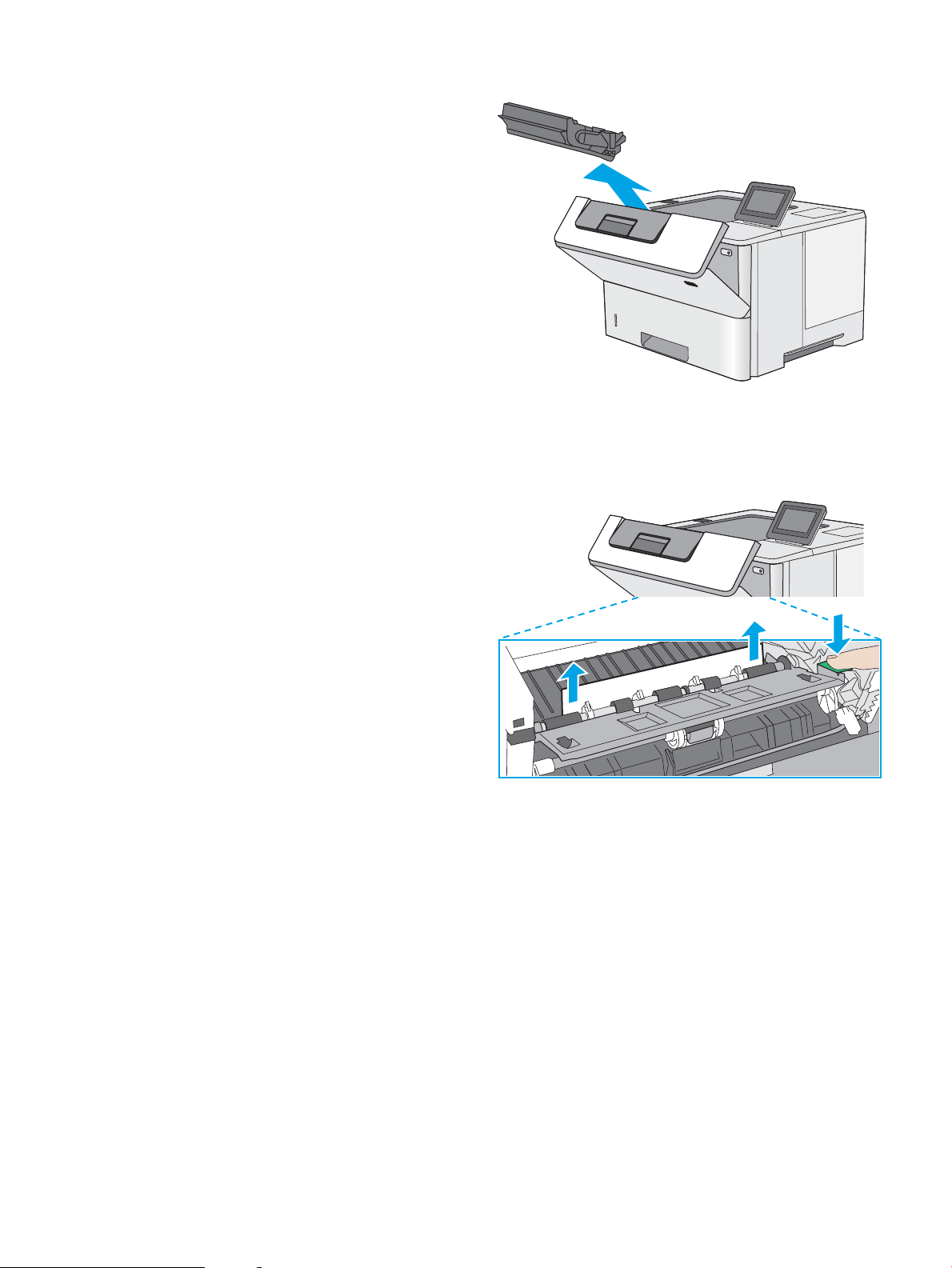
8. Remove the toner cartridge.
9. Lift the jam-access cover and slowly remove any
jammed paper. Be careful not to tear the paper.
108 Chapter 6 Solve problems ENWW
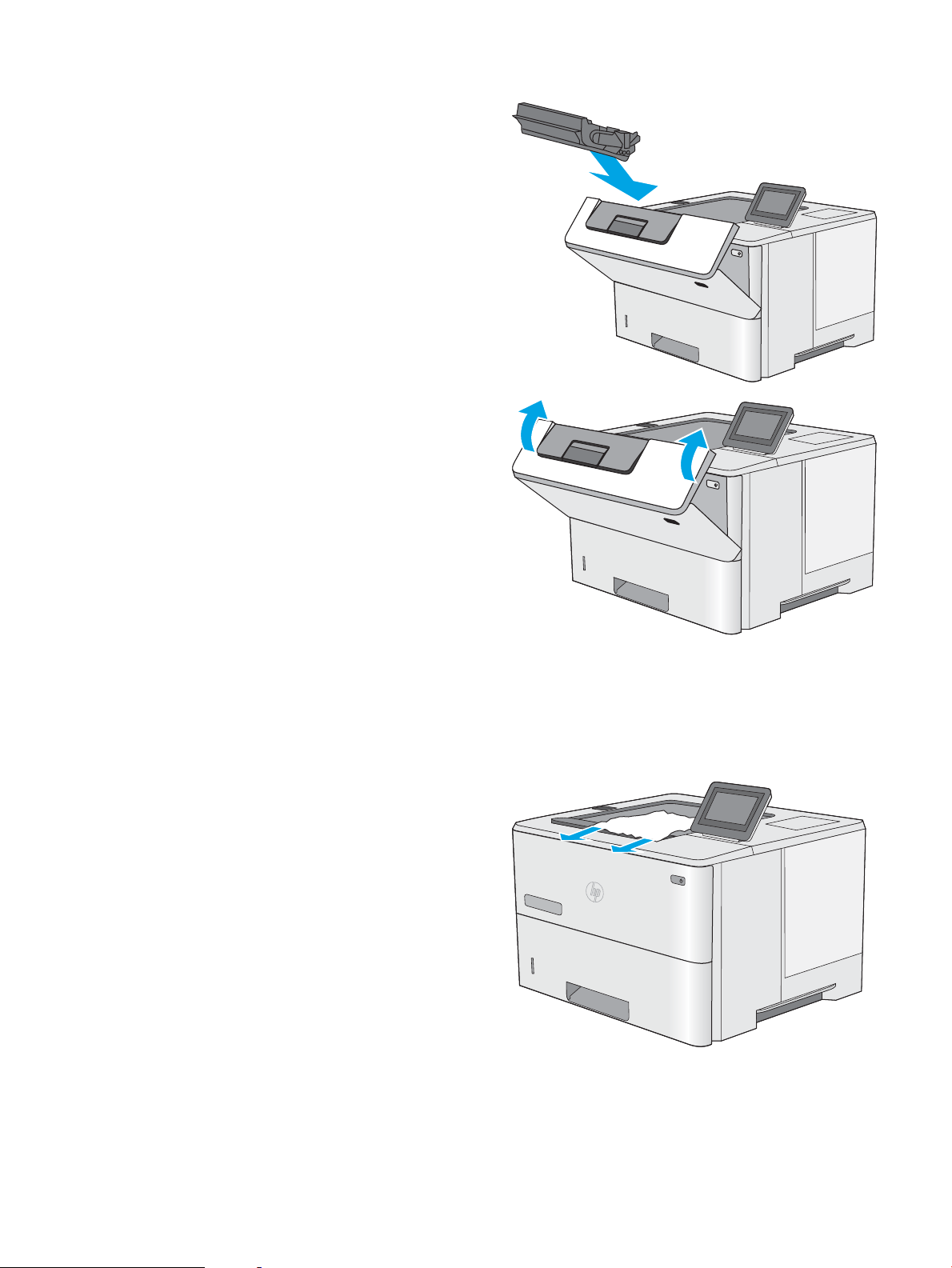
10. Reinsert the toner cartridge.
11. Close the front door.
Clear paper jams in the output bin—13.E1
Use the following procedure to check for paper in all possible jam locations in the output bin. When a jam occurs,
the control panel displays an animation that assists in clearing the jam.
1. If paper is visible in the output bin, grasp the
leading edge and remove it.
ENWW Clear paper jams 109
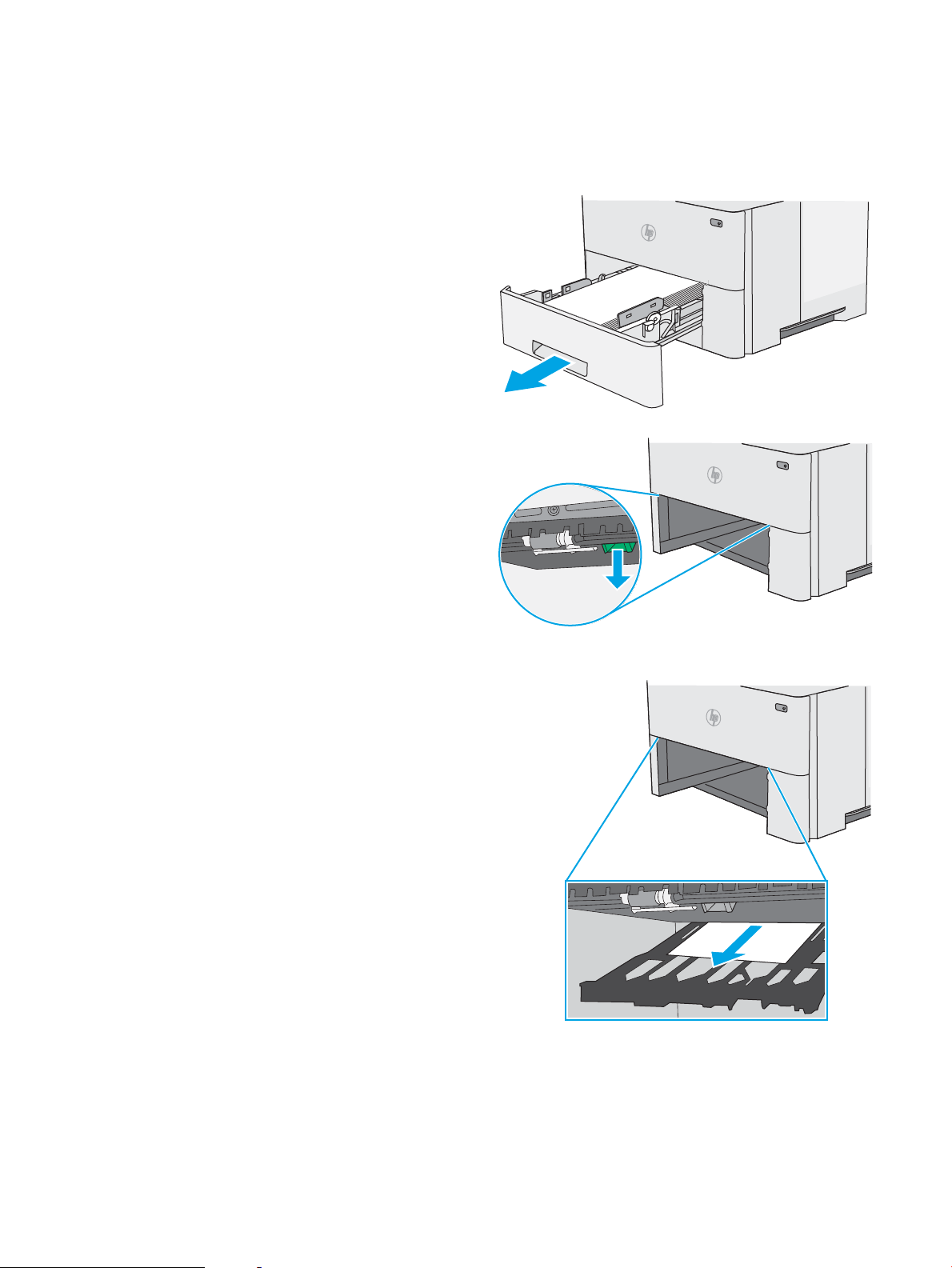
Clear paper jams in the duplexer—13.CX.XX, 13.DX.XX
Use the following procedure to check for paper in all possible jam locations in the automatic duplexer. When a
jam occurs, the control panel displays an animation that assists in clearing the jam.
1. Remove Tray 2 from the printer.
2. Pull forward on the green tab inside the tray area
to release the duplex pan.
3. Remove any jammed paper.
110 Chapter 6 Solve problems ENWW
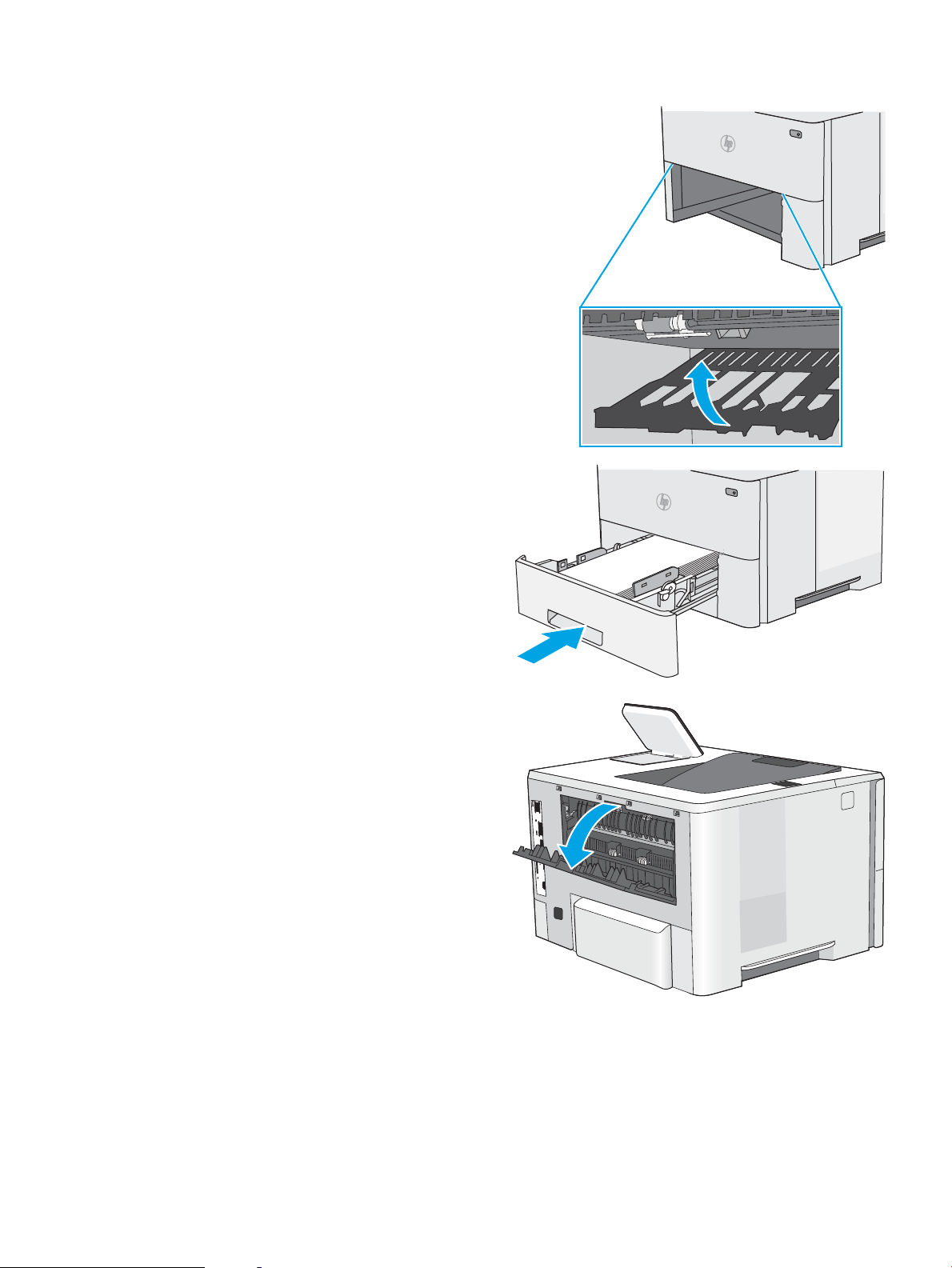
4. Close the duplex pan.
5. Reinsert and close the tray.
6. Open the rear door.
ENWW Clear paper jams 111
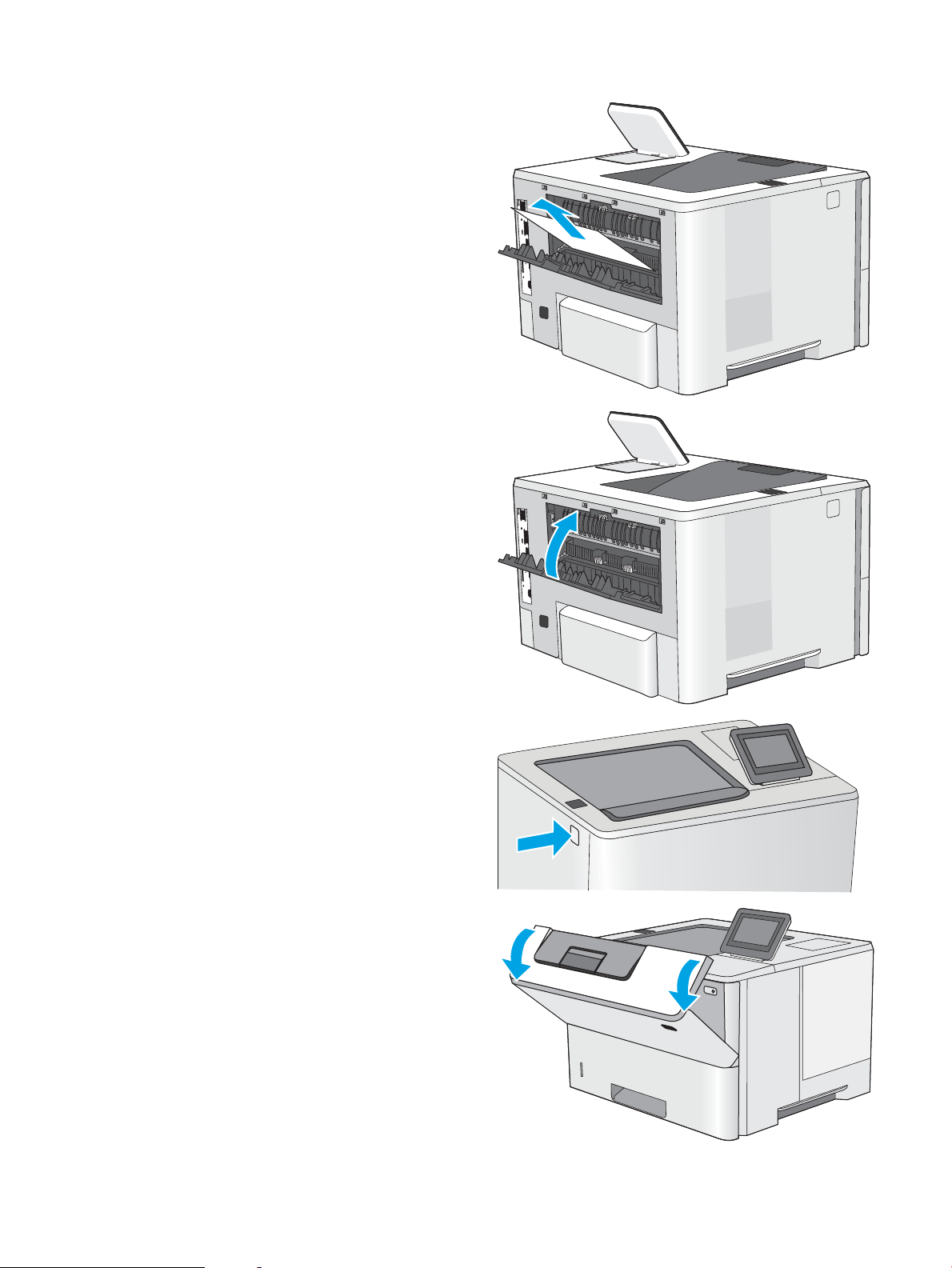
7. Remove any jammed paper.
8. Close the rear door
9. Press the top-cover-release button on the left side
of the printer.
10. Open the front door.
112 Chapter 6 Solve problems ENWW
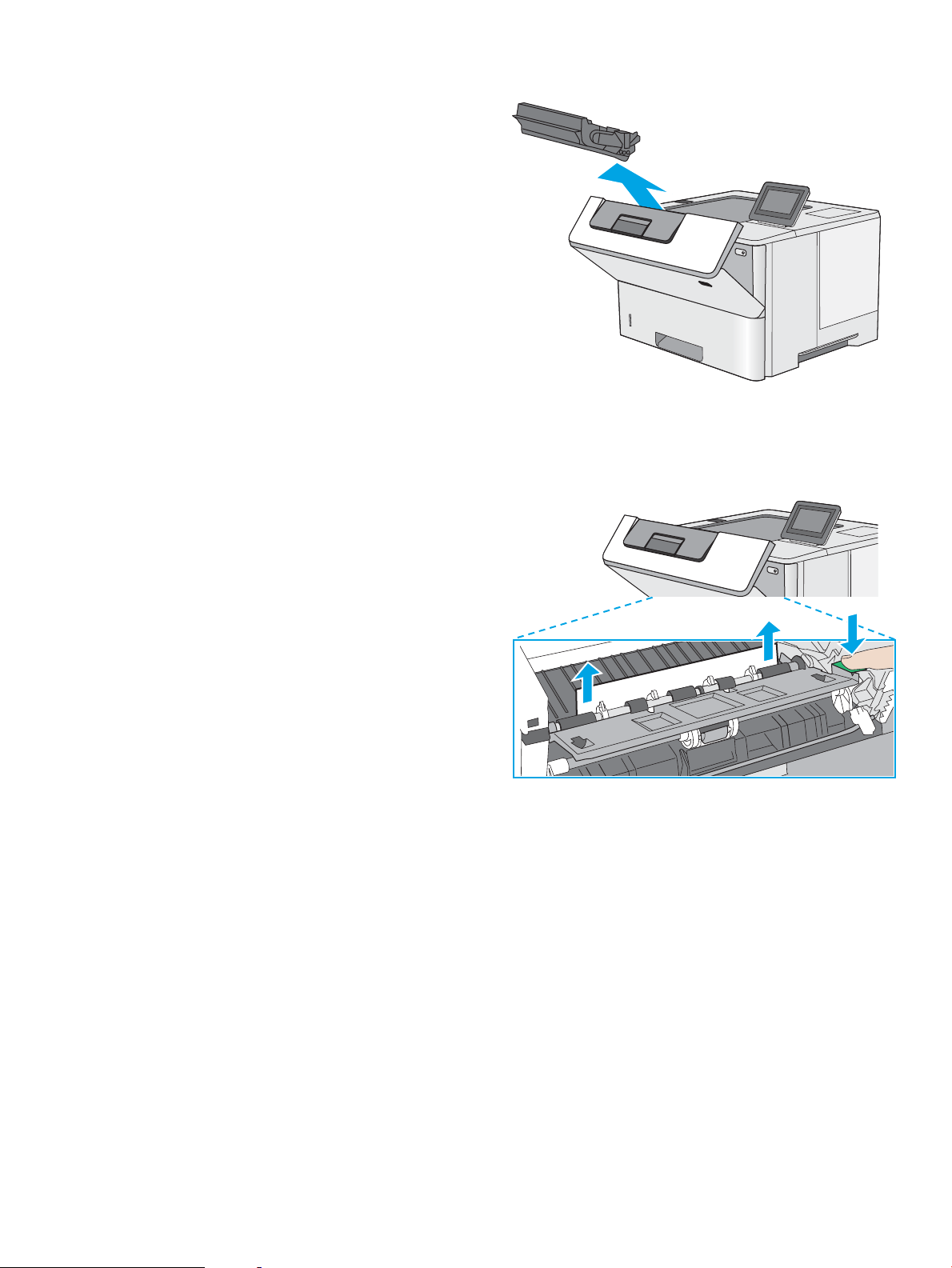
11. Remove the toner cartridge.
12. Lift the jam-access cover and slowly remove any
jammed paper. Be careful not to tear the paper.
ENWW Clear paper jams 113
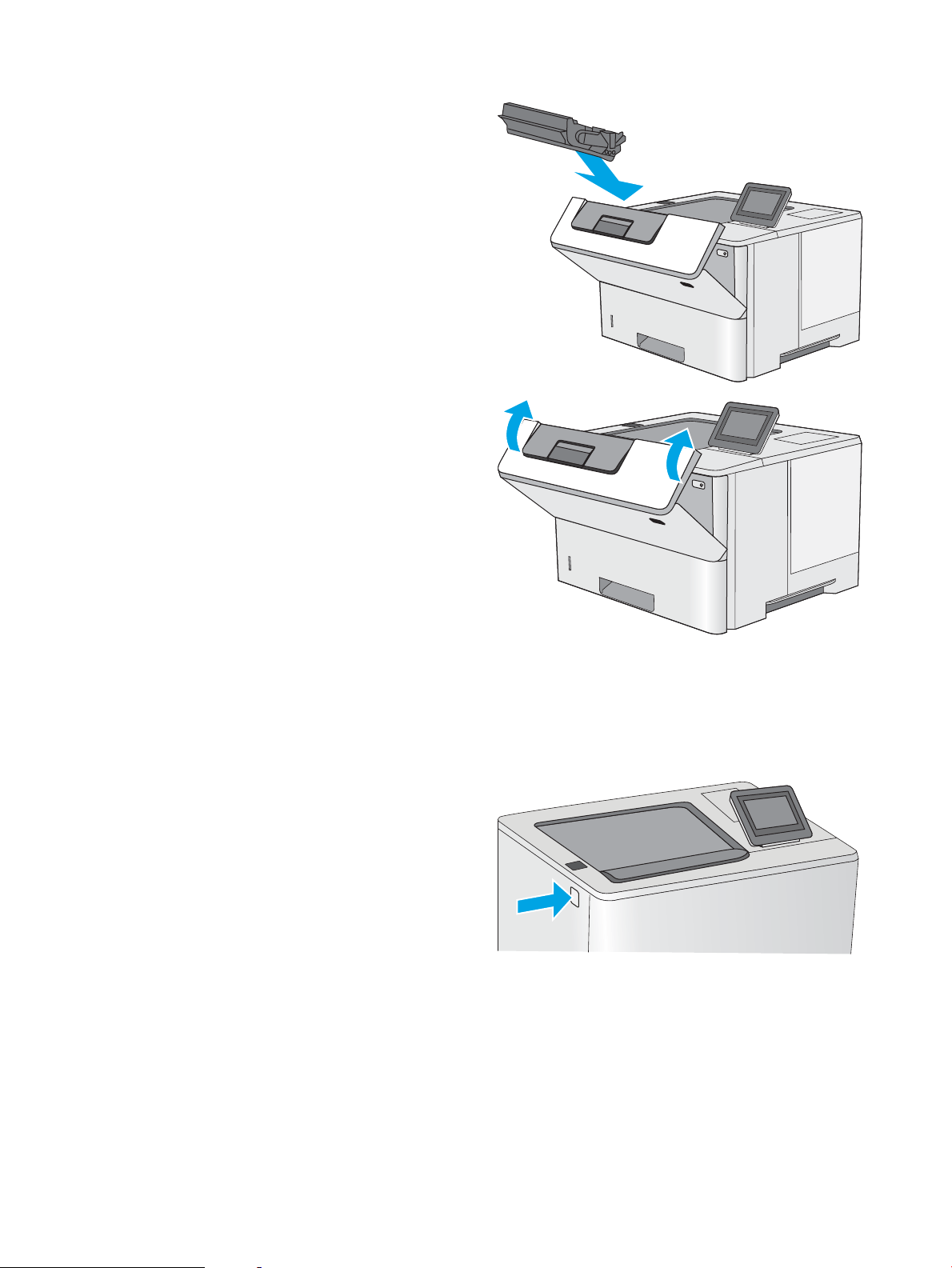
13. Reinsert the toner cartridge.
14. Close the front door.
Clear paper jams in the toner-cartridge area
Use the following procedure to check for paper in all possible jam locations in the toner-cartridge area. When a
jam occurs, the control panel displays an animation that assists in clearing the jam.
1. Press the top-cover-release button on the left side
of the printer.
114 Chapter 6 Solve problems ENWW
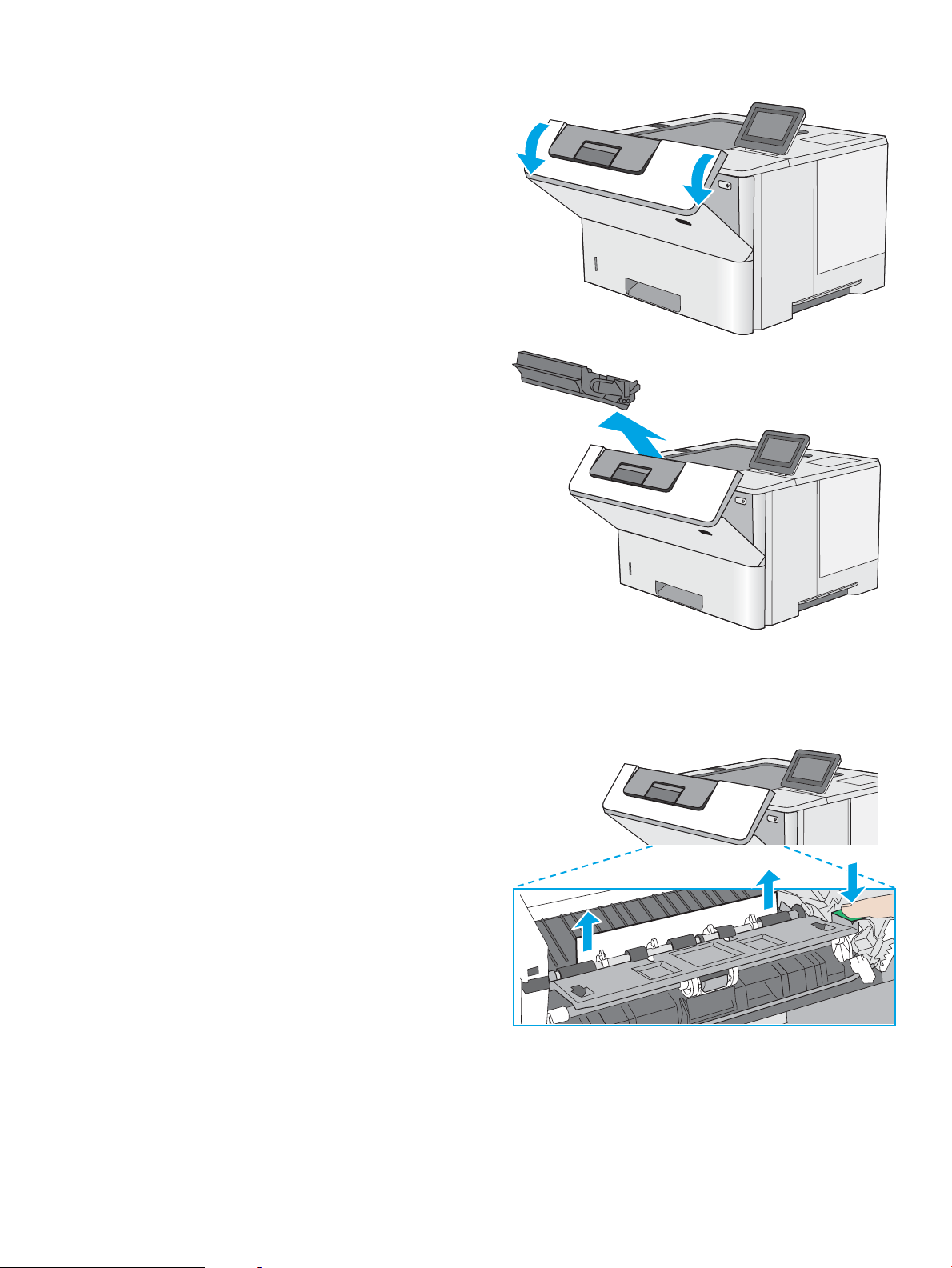
2. Open the front door.
3. Remove the toner cartridge.
4. Lift the jam-access cover and slowly remove any
jammed paper. Be careful not to tear the paper.
ENWW Clear paper jams 115
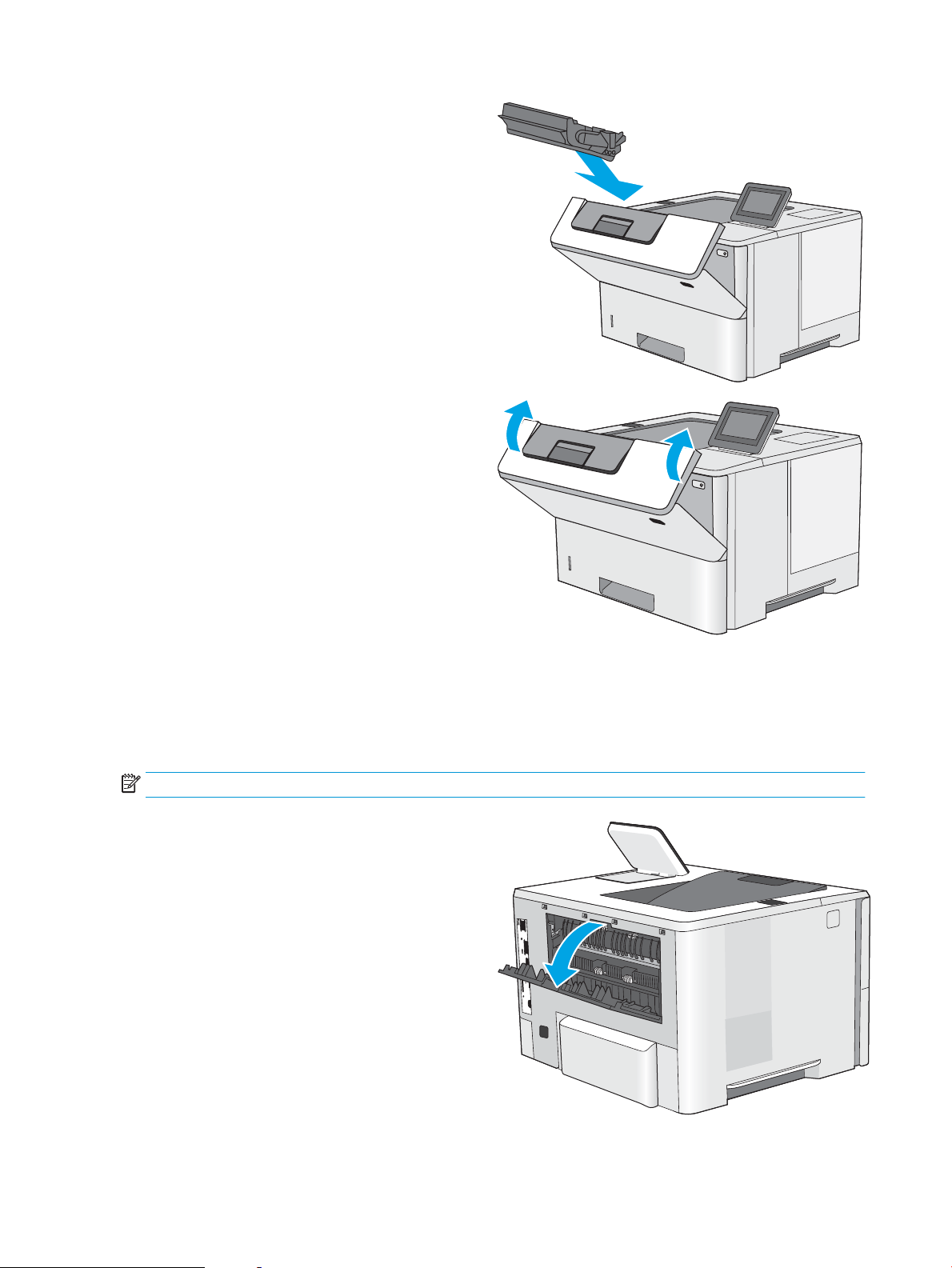
5. Reinsert the toner cartridge.
6. Close the front door.
Clear paper jams in the fuser—13.B9, 13.B2, 13.FF
Use the following procedure to clear paper jams in the rear door and fuser area. When a jam occurs, the control
panel displays an animation that assists in clearing the jam.
NOTE: The fuser is hot while the printer is in use. Wait for the fuser to cool before clearing jams.
1. Open the rear door.
116 Chapter 6 Solve problems ENWW
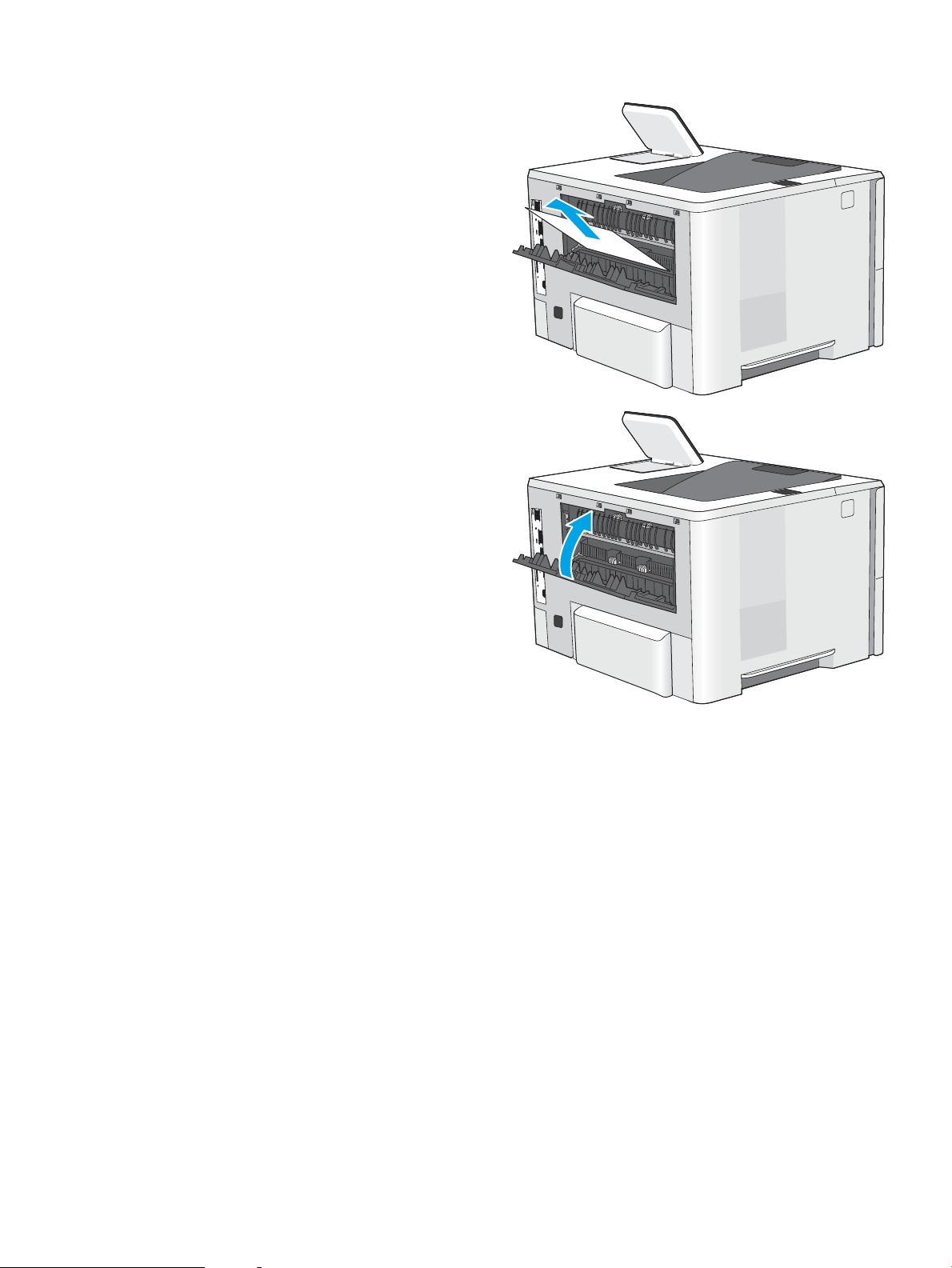
2. Remove any jammed paper.
3. Close the rear door
ENWW Clear paper jams 117

Resolve print-quality problems
●
Introduction
●
Troubleshoot print quality
Introduction
Use the information below to troubleshoot print-quality problems, including issues with image quality.
The troubleshooting steps can help resolve the following defects:
● Blank pages
● Black pages
● Curled paper
● Dark or light bands
● Dark or light streaks
● Fuzzy print
● Gray background or dark print
● Light print
● Loose toner
● Missing toner
● Scattered dots of toner
● Skewed images
● Smears
● Streaks
118 Chapter 6 Solve problems ENWW

Troubleshoot print quality
To resolve print-quality issues, try these steps in the order presented.
●
Update the printer rmware
●
Print from a dierent software program
●
Check the paper-type setting for the print job
●
Check toner-cartridge status
●
Print a cleaning page
●
Visually inspect the toner cartridge or cartridges
●
Check paper and the printing environment
●
Try a dierent print driver
●
Check the EconoMode settings
●
Adjust print density
●
Troubleshoot image defects
To troubleshoot specic image defects, see Troubleshoot Image Defects.
Update the printer rmware
Try upgrading the printer rmware.
See www.hp.com/support for more information.
Print from a dierent software program
Try printing from a dierent software program. If the page prints correctly, the problem is with the software
program from which you were printing.
ENWW Resolve print-quality problems 119

Check the paper-type setting for the print job
Check the paper type setting when printing from a software program and the printed pages have smears, fuzzy
or dark print, curled paper, scattered dots of toner, loose toner, or small areas of missing toner.
●
Check the paper type setting on the printer
●
Check the paper type setting (Windows)
●
Check the paper type setting (macOS)
Check the paper type setting on the printer
Check the paper type setting on the printer control panel, and change the setting as needed.
1. Open the tray.
2. Verify that the tray is loaded with the correct type of paper.
3. Close the tray.
4. Follow the control panel instructions to conrm or modify the paper type settings for the tray.
Check the paper type setting (Windows)
Check the paper type setting for Windows, and change the setting as needed.
1. From the software program, select the Print option.
2. Select the printer, and then click the Properties or Preferences button.
3. Click the Paper/Quality tab.
4. From the Paper Type drop-down list, click the More... option.
5. Expand the list of Type is: options.
6. Expand the category of paper types that best describes your paper.
7. Select the option for the type of paper you are using, and click the OK button.
8. Click the OK button to close the Document Properties dialog box. In the Print dialog box, click the OK button
to print the job.
Check the paper type setting (macOS)
Check the paper type setting for macOS, and change the setting as needed.
1. Click the File menu, and then click the Print option.
2. In the Printer menu, select the printer.
3. By default, the print driver displays the Copies & Pages menu. Open the menus drop-down list, and then
click the Paper/Quality menu.
4. Select a type from the Media Type drop-down list.
5. Click the Print button.
120 Chapter 6 Solve problems ENWW

Check toner-cartridge status
Follow these steps to check the estimated life remaining in the toner cartridges and if applicable, the status of
other replaceable maintenance parts.
●
Step one: Print the supplies status page
●
Step two: Check supplies status
Step one: Print the supplies status page
The supplies status page indicates the cartridge status.
1. From the Home screen on the printer control panel, navigate to the Reports application, and then select the
Reports icon.
2. Select the Conguration/Status Pages menu.
3. Select Supplies Status Page, and then select Print to print the page.
Step two: Check supplies status
1. Look at the supplies status report to check the percent of life remaining for the toner cartridges and, if
applicable, the status of other replaceable maintenance parts.
Print quality problems can occur when using a toner cartridge that is at its estimated end of life. The
supplies status page indicates when a supply level is very low. After an HP supply has reached the very low
threshold, HP’s premium protection warranty on that supply has ended.
The toner cartridge does not need to be replaced now unless the print quality is no longer acceptable.
Consider having a replacement available to install when print quality is no longer acceptable.
If you determine that you need to replace a toner cartridge or other replaceable maintenance parts, the
supplies status page lists the genuine HP part numbers.
2. Check to see if you are using a genuine HP cartridge.
A genuine HP toner cartridge has the word “HP” on it, or has the HP logo on it. For more information on
identifying HP cartridges go to www.hp.com/go/learnaboutsupplies.
Print a cleaning page
During the printing process paper, toner, and dust particles can accumulate inside the printer and can cause print-
quality issues such as toner specks or spatter, smears, streaks, lines, or repeating marks.
Follow these steps to clean the printer paper path.
1. From the Home screen on the printer control panel, navigate to the Support Tools application, and then
select the Support Tools icon.
2. Select the following menus:
ENWW Resolve print-quality problems 121

● Maintenance
● Calibration/Cleaning
● Cleaning Page
3. Select Print to print the page.
A Cleaning... message displays on the printer control panel. The cleaning process takes a few minutes to
complete. Do not turn the printer o until the cleaning process has nished. When it is nished, discard the
printed page.
Visually inspect the toner cartridge or cartridges
Follow these steps to inspect each toner cartridge.
1. Remove the toner cartridges from the printer.
2. Check the memory chip for damage.
3. Examine the surface of the green imaging drum.
CAUTION: Do not touch the imaging drum. Fingerprints on the imaging drum can cause print-quality
problems.
4. If you see any scratches, ngerprints, or other damage on the imaging drum, replace the toner cartridge.
5. Reinstall the toner cartridge, and print a few pages to see if the problem has resolved.
122 Chapter 6 Solve problems ENWW

Check paper and the printing environment
●
Step one: Use paper that meets HP specications
●
Step two: Check the environment
●
Step three: Set the individual tray alignment
Step one: Use paper that meets HP specications
Some print-quality problems arise from using paper that does not meet HP specications.
● Always use a paper type and weight that this printer supports.
● Use paper that is of good quality and free of cuts, nicks, tears, spots, loose particles, dust, wrinkles, voids,
staples, and curled or bent edges.
● Use paper that has not been previously printed on.
● Use paper that does not contain metallic material, such as glitter.
● Use paper that is designed for use in laser printers. Do not use paper that is designed only for use in Inkjet
printers.
● Use paper that is not too rough. Using smoother paper generally results in better print quality.
Step two: Check the environment
The environment can directly aect print quality and is a common cause for print-quality or paper-feeding
issues. Try the following solutions:
● Move the printer away from drafty locations, such as open windows or doors, or air-conditioning vents.
● Make sure the printer is not exposed to temperatures or humidity outside of printer specications.
● Do not place the printer in a conned space, such as a cabinet.
● Place the printer on a sturdy, level surface.
● Remove anything that is blocking the vents on the printer. The printer requires good air ow on all sides,
including the top.
● Protect the printer from airborne debris, dust, steam, grease, or other elements that can leave residue
inside the printer.
Step three: Set the individual tray alignment
Follow these steps when text or images are not centered or aligned correctly on the printed page when printing
from specic trays.
1. From the Home screen on the printer control panel, navigate to the Settings application, and then select
the Settings icon.
2. Select the following menus:
● Copy/Print or Print
● Print Quality
● Image Registration
ENWW Resolve print-quality problems 123

3. Select Tray, and then select the tray to adjust.
4. Select Print Test Page, and then follow the instructions on the printed pages.
5. Select Print Test Page again to verify the results, and then make further adjustments if necessary.
6. Select Done to save the new settings.
Try a dierent print driver
Try a dierent print driver when printing from a software program and the printed pages have unexpected lines
in graphics, missing text, missing graphics, incorrect formatting, or substituted fonts.
Download any of the following drivers from the HP Web site: www.hp.com/support/ljM507.
HP PCL.6 driver
If available, this printer-specic print driver supports older operating systems like Windows
®
XP and Windows Vista
®
. For a list of supported operating systems, go to www.hp.com/go/
support.
HP PCL 6 driver This printer-specic print driver supports Windows 7 and newer operating systems that
support version 3 drivers. For a list of supported operating systems, go to www.hp.com/go/
support.
HP PCL-6 driver This printer-specic print driver supports Windows 8 and newer operating systems that
support version 4 drivers. For a list of supported operating systems, go to www.hp.com/go/
support.
HP UPD PS driver
● Recommended for printing with Adobe
®
software programs or with other highly
graphics-intensive software programs
● Provides support for printing from postscript emulation needs, or for postscript ash
font support
HP UPD PCL 6 ● Recommended for printing in all Windows environments
● Provides the overall best speed, print quality, and printer feature support for most
users
● Developed to align with Windows Graphic Device Interface (GDI) for best speed in
Windows environments
● Might not be fully compatible with third-party and custom software programs that are
based on PCL 5
Check the EconoMode settings
HP does not recommend the full-time use of EconoMode. If EconoMode is used full-time, the toner supply might
outlast the mechanical parts in the toner cartridge. If print quality begins to degrade and is no longer acceptable,
consider replacing the toner cartridge.
NOTE: This feature is available with the PCL 6 print driver for Windows. If you are not using that driver, you can
enable the feature by using the HP Embedded Web Server.
Follow these steps if the entire page is too dark or too light.
1. From the software program, select the Print option.
2. Select the printer, and then click the Properties or Preferences button.
3. Click the Paper/Quality tab, and locate the Print Quality area.
124 Chapter 6 Solve problems ENWW
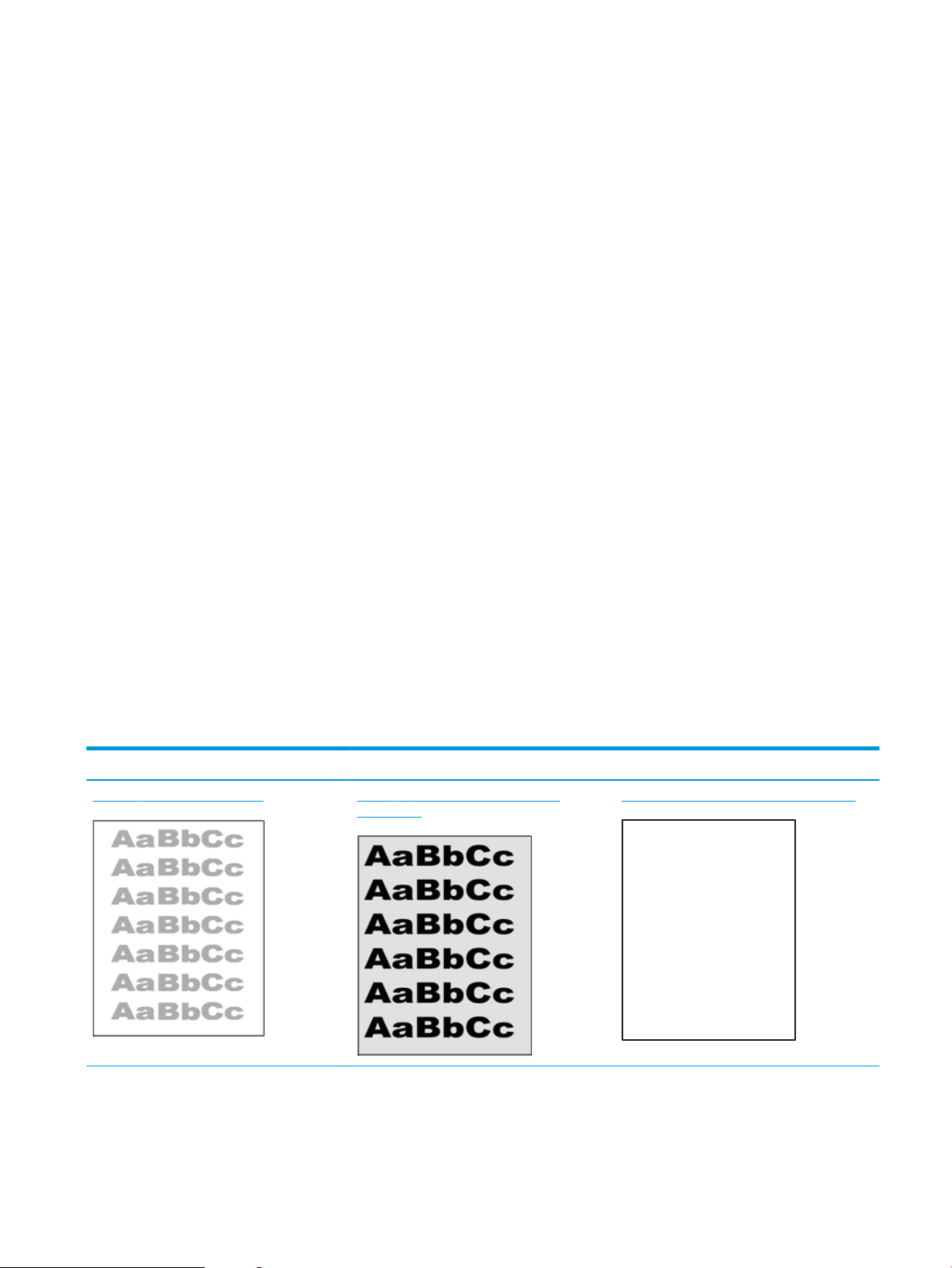
4. If the entire page is too dark, use these settings:
● Select the 600 dpi option, if available.
● Select the EconoMode check box to enable it.
If the entire page is too light, use these settings:
● Select the FastRes 1200 option, if available.
● Clear the EconoMode check box to disable it.
5. Click the OK button to close the Document Properties dialog box. In the Print dialog, click the OK button to
print the job.
Adjust print density
Use the printer control panel to adjust the print density.
1. From the Home screen on the printer control panel, navigate to the Settings application, and then select
the Settings icon.
2. Open the following menus:
● Copy/Print or Print
● Print Quality
● Toner Density
3. Move the slider toward either Less or More to the desired density setting.
Troubleshoot image defects
Review examples of image defects and steps to resolve these defects.
Table
6-1 Image defects table quick reference
Sample Description Possible solutions
Table 6-8 Light print on page 130 Table 6-6 Gray background or dark print
on page 129
Table 6-4 Blank page — No print on page 128
ENWW Resolve print-quality problems 125
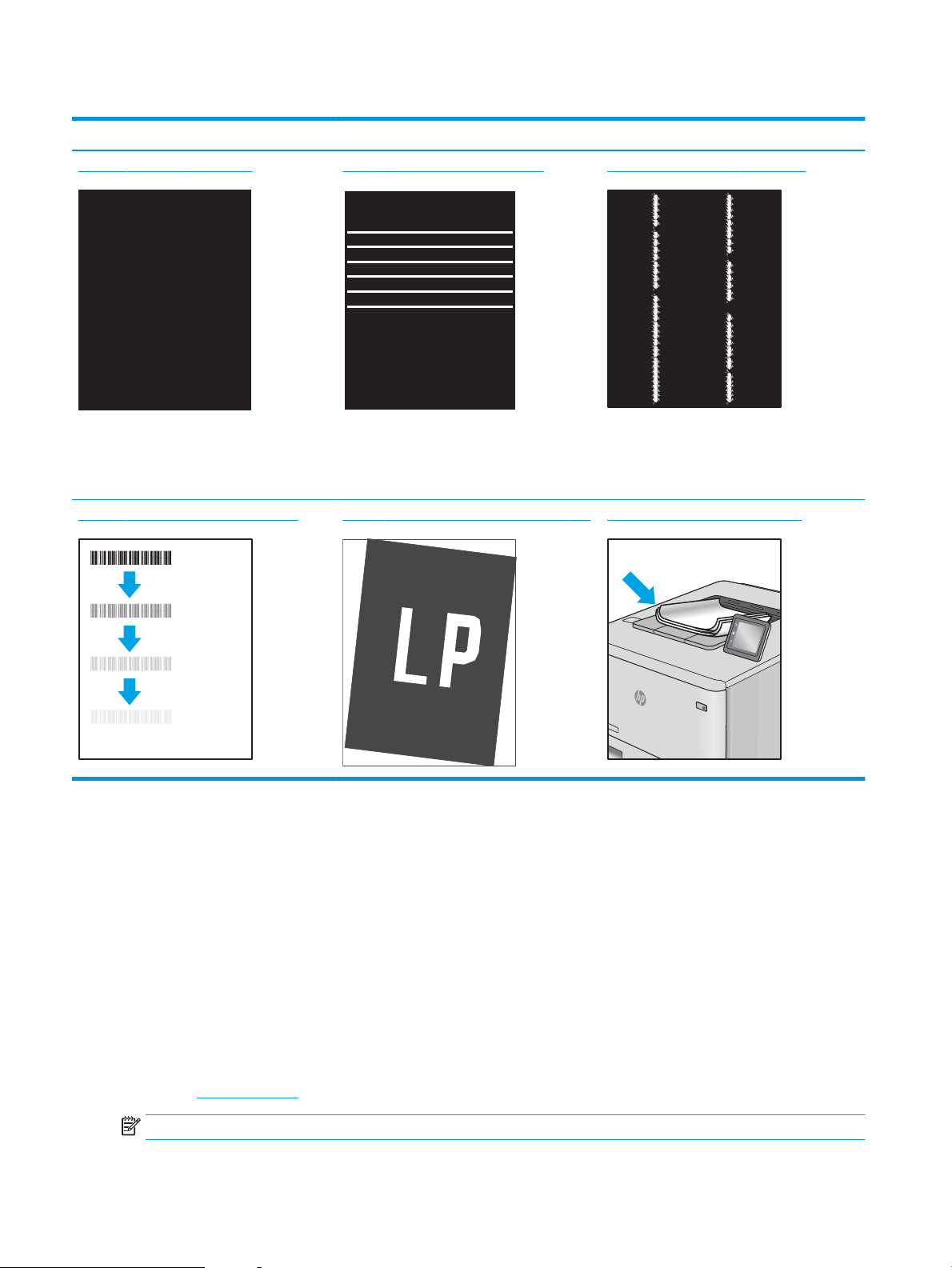
Table 6-1 Image defects table quick reference (continued)
Sample Description Possible solutions
Table 6-3 Black page on page 127 Table 6-2 Banding defects on page 127 Table 6-10 Streak defects on page 132
Table 6-5 Fixing/fuser defects on page 128 Table 6-7 Image placement defects on page 129 Table 6-9 Output defects on page 131
Image defects, no matter the cause, can often be resolved using the same steps. Use the following steps as a
starting point for solving image defect issues.
1. Reprint the document. Print quality defects can be intermittent in nature or can go away completely with
continued printing.
2. Check the condition of the cartridge or cartridges. If a cartridge is in a Very Low state (it has passed the
rated life), replace the cartridge.
3. Make sure that the driver and tray print mode settings match the media that is loaded in the tray. Try using
a dierent ream of media or a dierent tray. Try using a dierent print mode.
4. Make sure that the printer is within the supported operating temperature/humidity range.
5. Make sure that the paper type, size, and weight are supported by the printer. See the printer support page
at support.hp.com for a list of the supported paper sizes and types for the printer.
NOTE: The term “fusing” refers to the part of the printing process where toner is aixed to paper.
126 Chapter 6 Solve problems ENWW

The following examples depict letter-size paper that has passed through the printer short-edge rst.
Table 6-2 Banding defects
Sample Description Possible solutions
Dark or light lines which repeat down the
length of the page, and are wide-pitch
and/or impulse bands. They might be sharp
or soft in nature. The defect displays only in
areas of ll, not in text or sections with no
printed content.
1. Reprint the document.
2. Try printing from another tray.
3. Replace the cartridge.
4. Use a dierent paper type.
5. Enterprise models only: From the
Home screen on the printer control
panel, go to the Adjust Paper Types
menu, and then choose a print mode
that is designed for a slightly heavier
media than what you are using. This
slows the print speed and might
improve the print quality.
6. If the issue persists, go to
support.hp.com.
Table 6-3 Black page
Sample Description Possible solutions
The entire printed page is black.
1. Visually inspect the cartridge to check
for damage.
2. Make sure that the cartridge is
installed correctly.
3. Replace the cartridge
4. If the issue persists, go to
support.hp.com.
ENWW Resolve print-quality problems 127
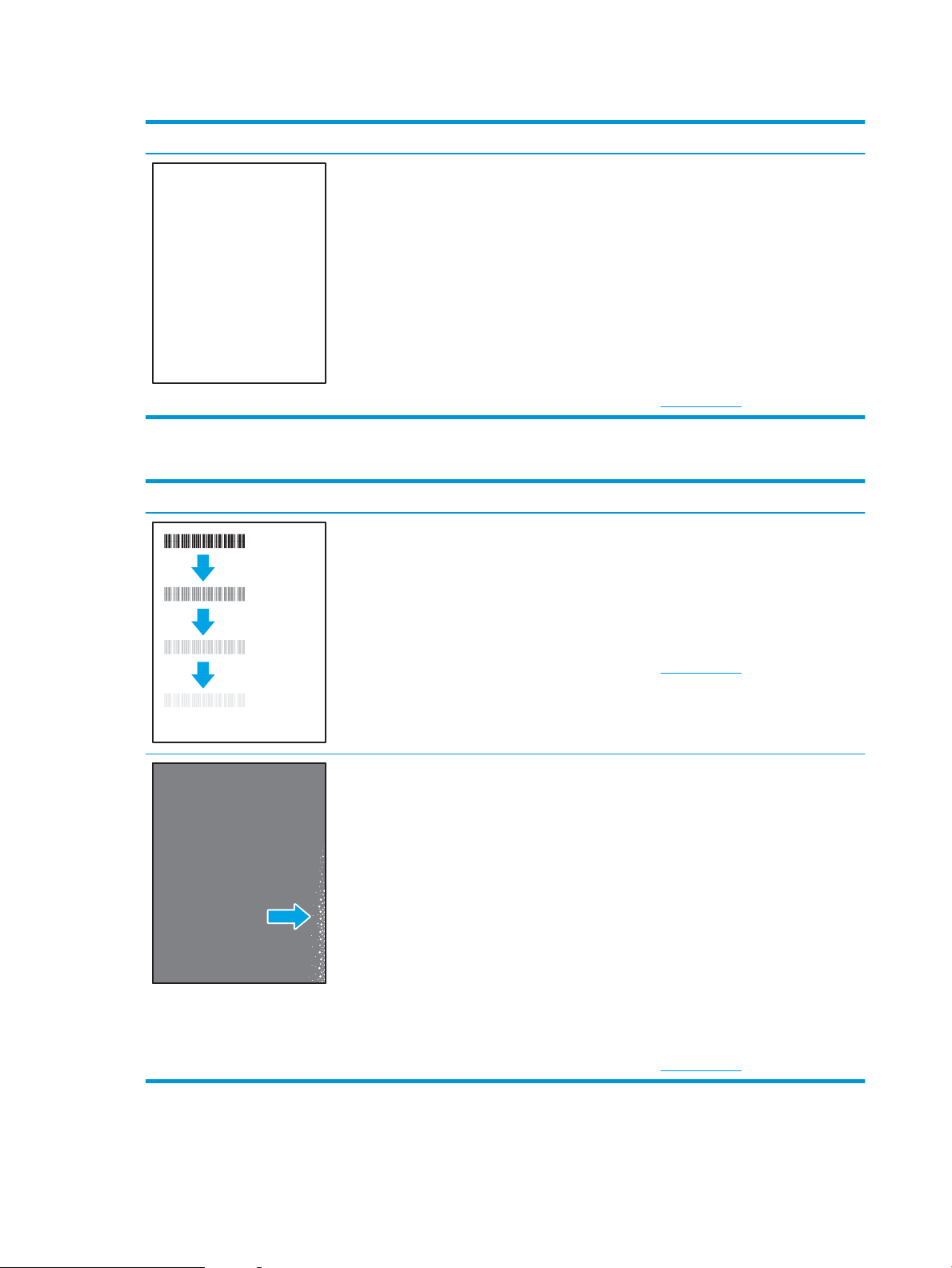
Table 6-4 Blank page — No print
Sample Description Possible solutions
The page is completely blank and contains
no printed content.
1. Make sure that the cartridges are
genuine HP cartridges.
2. Make sure that the cartridge is
installed correctly.
3. Print with a dierent cartridge.
4. Check the paper type in the paper tray
and adjust the printer settings to
match. If necessary, select a lighter
paper type.
5. If the issue persists, go to
support.hp.com.
Table 6-5 Fixing/fuser defects
Sample Description Possible solutions
Slight shadows or osets of the image are
repeated down the page. The repeated
image might fade with each recurrence.
1. Reprint the document.
2. Check the paper type in the paper tray
and adjust the printer settings to
match. If necessary, select a lighter
paper type.
3. If the issue persists, go to
support.hp.com.
Toner rubs o along either edge of the
page. This defect is more common at the
edges of high-coverage jobs, and on light
media types, but can occur anywhere on the
page.
1. Reprint the document.
2. Check the paper type in the paper tray
and adjust the printer settings to
match. If necessary, select a heavier
paper type.
3. Enterprise models only: From the
printer control panel, go to the Edge-
to-Edge menu and then select Normal.
Reprint the document.
4. Enterprise models only: From the
printer control panel, select Auto
Include Margins and then reprint the
document.
5. If the issue persists, go to
support.hp.com.
128 Chapter 6 Solve problems ENWW
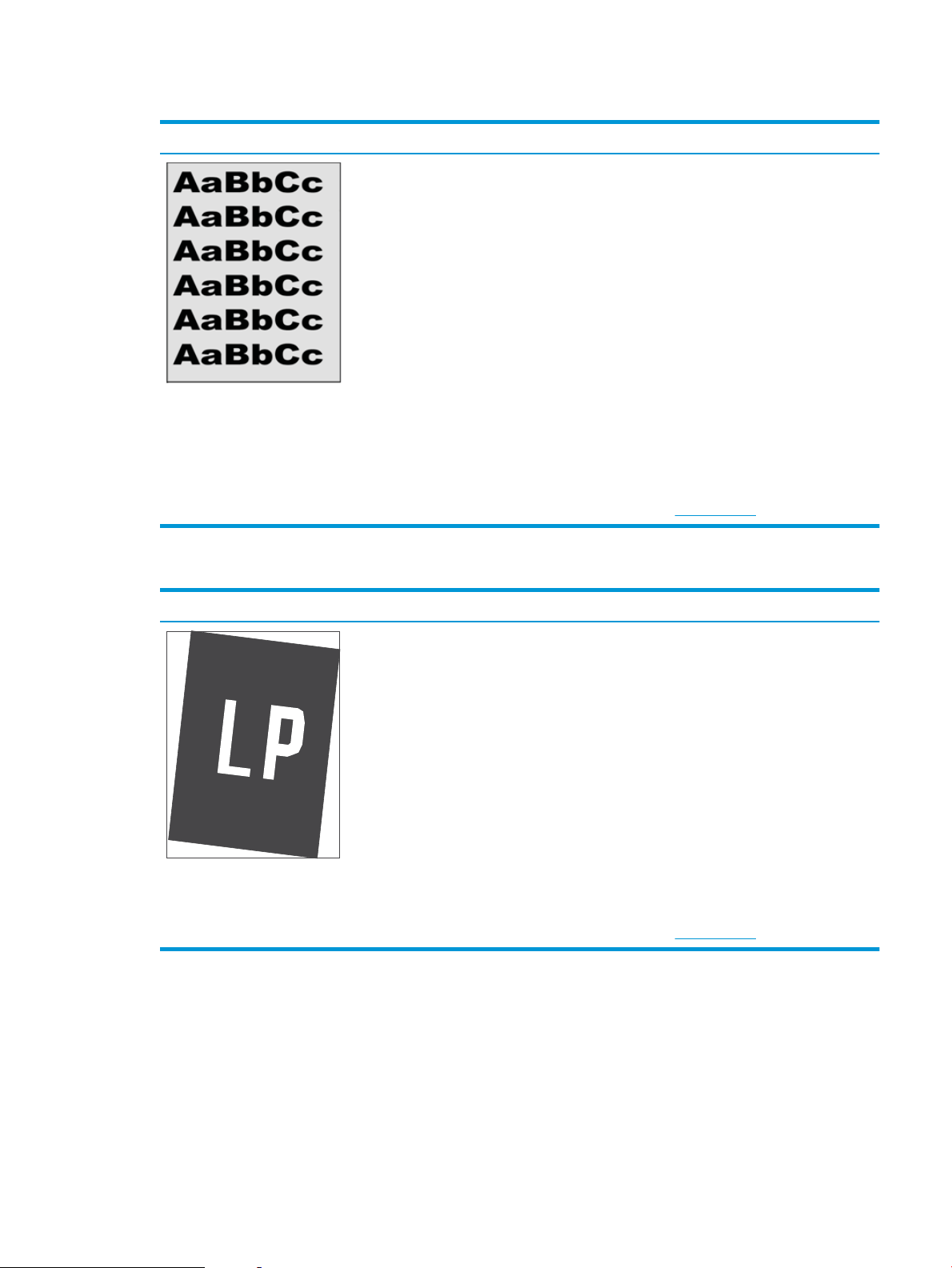
Table 6-6 Gray background or dark print
Sample Description Possible solutions
The image or text is darker than expected
and/or the background is gray.
1. Make sure that the paper in the trays
has not already been run through the
printer.
2. Use a dierent paper type.
3. Reprint the document.
4. Mono models only: From the Home
screen on the printer control panel, go
to the Adjust Toner Density menu, and
then adjust the toner density to a
lower level.
5. Make sure that the printer is within the
supported operating temperature and
humidity range.
6. Replace the cartridge.
7. If the issue persists, go to
support.hp.com.
Table 6-7 Image placement defects
Sample Description Possible solutions
The image is not centered, or is skewed on
the page. The defect occurs when the paper
is not positioned properly as it is pulled from
the tray and moves through the paper path.
1. Reprint the document.
2. Remove the paper and then reload the
tray. Make sure that all the paper
edges are even on all sides.
3. Make sure that the top of the paper
stack is below the tray-full indicator.
Do not overll the tray.
4. Make sure that the paper guides are
adjusted to the correct size for the
paper. Do not adjust the paper guides
tightly against the paper stack. Adjust
them to the indentations or markings
in the tray.
5. If the issue persists, go to
support.hp.com.
ENWW Resolve print-quality problems 129

Table 6-8 Light print
Sample Description Possible solutions
The printed content is light or faded on the
entire page.
1. Reprint the document.
2. Remove the cartridge, and then shake
it to redistribute the toner.
3. Mono models only: Make sure that the
EconoMode setting is disabled, both at
the printer control panel and in the
print driver.
4. Make sure that the cartridge is
installed correctly.
5. Print a Supplies Status Page and check
the life and usage of the cartridge.
6. Replace the cartridge.
7. If the issue persists, go to
support.hp.com.
130 Chapter 6 Solve problems ENWW
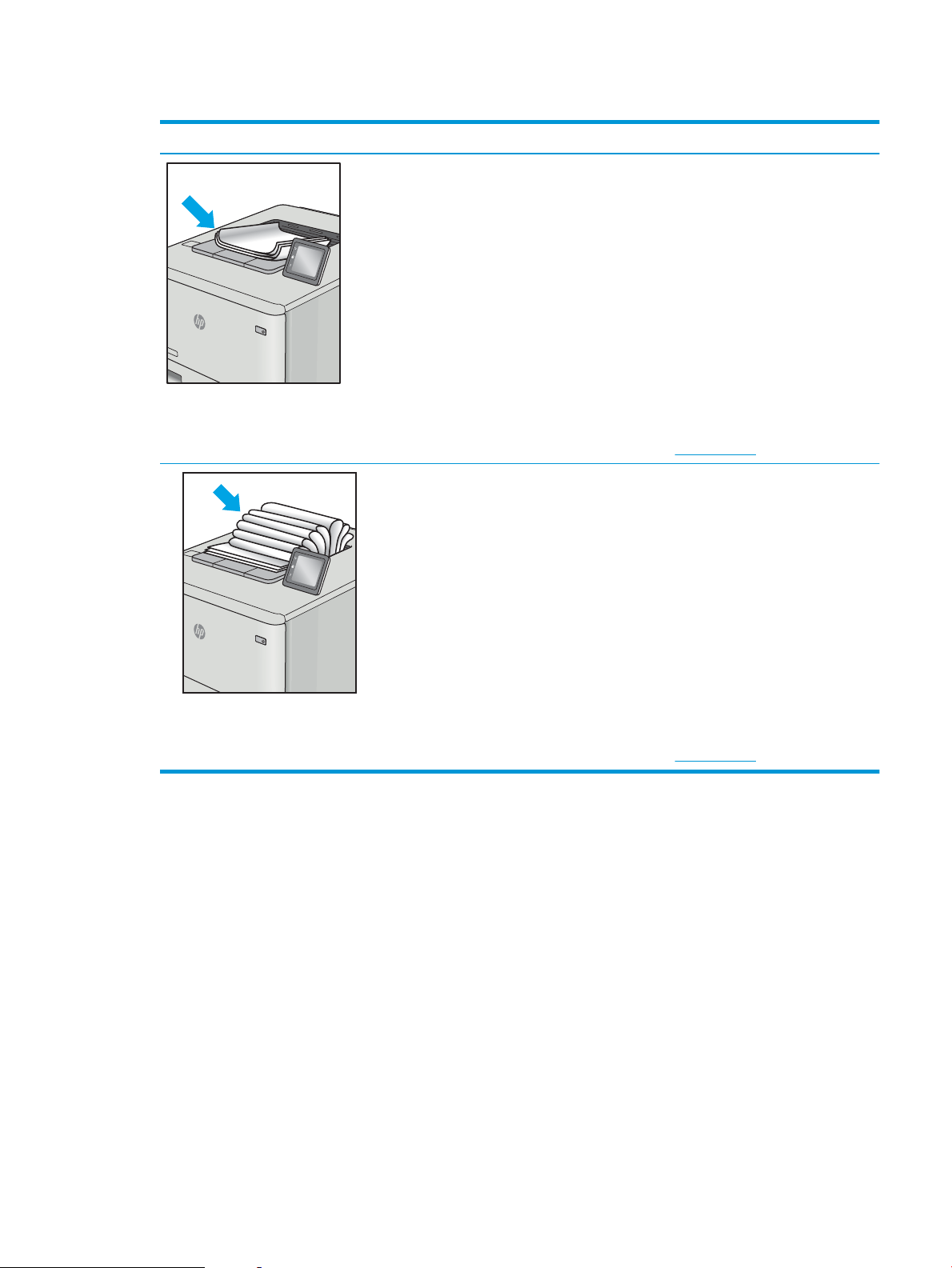
Table 6-9 Output defects
Sample Description Possible solutions
Printed pages have curled edges. The curled
edge can be along the short or long side of
the paper. Two types of curl are possible:
● Positive curl: The paper curls toward
the printed side. The defect occurs in
dry environments or when printing
high-coverage pages.
● Negative curl: The paper curls away
from the printed side. The defect
occurs in high-humidity environments
or when printing low-coverage pages.
1. Reprint the document.
2. Positive curl: From the printer control
panel, select a heavier paper type. The
heavier paper type creates a higher
temperature for printing.
Negative curl: From the printer control
panel, select a lighter paper type. The
lighter paper type creates a lower
temperature for printing. Try storing
the paper in a dry environment prior to
use, or use freshly-opened paper.
3. Print in duplex mode.
4. If the issue persists, go to
support.hp.com.
The paper does not stack well in the output
tray. The stack might be uneven, skewed, or
the pages might be pushed out of the tray
and onto the oor. Any of the following
conditions can cause this defect:
● Extreme paper curl
● The paper in the tray is wrinkled or
deformed
● The paper is a non-standard paper
type, such as envelopes
● The output tray is too full
1. Reprint the document.
2. Extend the output bin extension.
3. If the defect is caused by extreme
paper curl, refer to the
troubleshooting steps for "Output
curl."
4. Use a dierent paper type.
5. Use freshly-opened paper.
6. Remove the paper from the output
tray before the tray gets too full.
7. If the issue persists, go to
support.hp.com.
ENWW Resolve print-quality problems 131
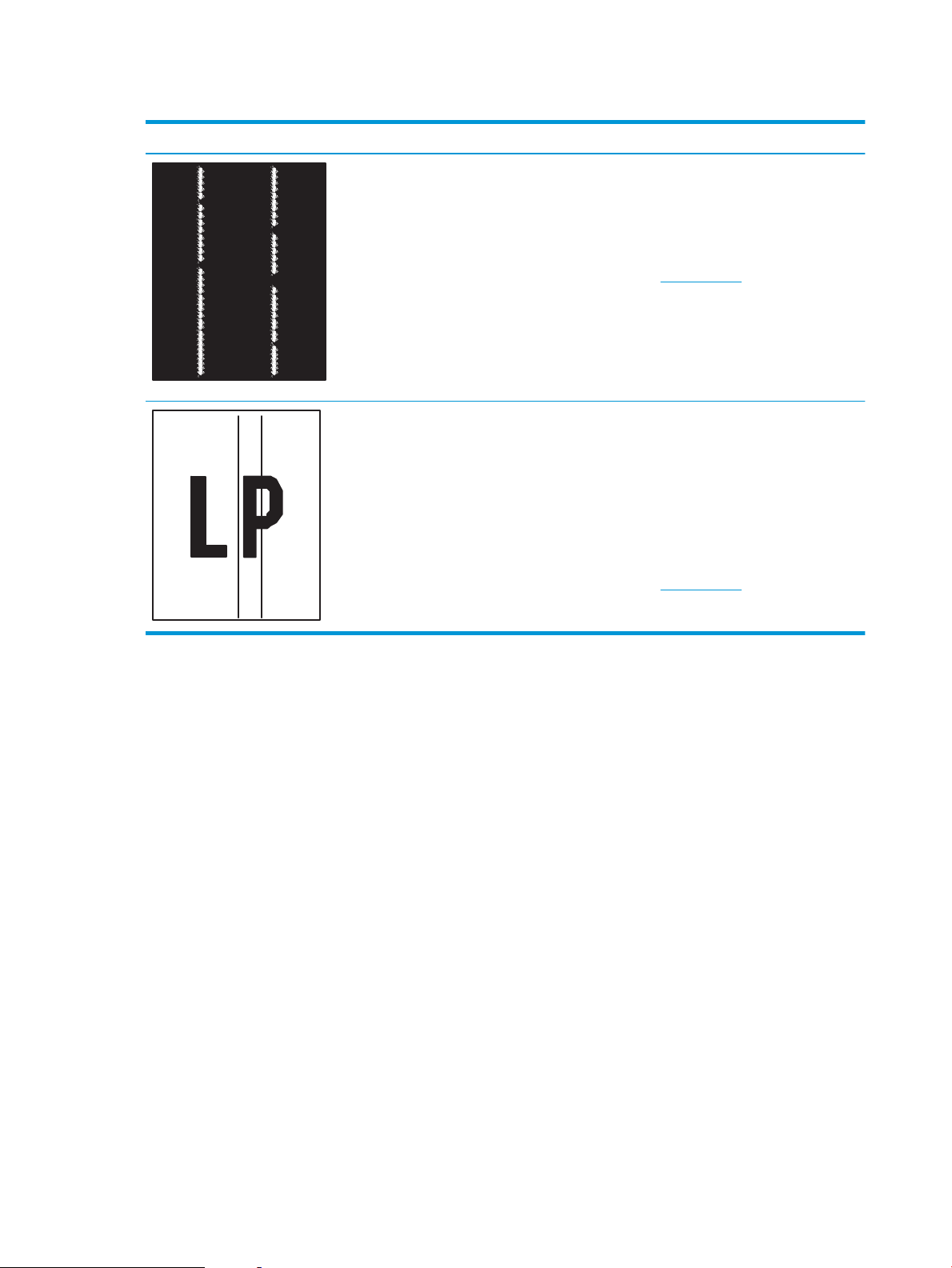
Table 6-10 Streak defects
Sample Description Possible solutions
Light vertical streaks that usually span the
length of the page. The defect displays only
in areas of ll, not in text or sections with no
printed content.
1. Reprint the document.
2. Remove the cartridge, and then shake
it to redistribute the toner.
3. If the issue persists, go to
support.hp.com.
NOTE: Both light and dark vertical streaks
can occur when the printing environment is
outside the specied range for temperature
or humidity. Refer to your printer's
environmental specications for allowable
temperature and humidity levels.
Dark vertical lines which occur down the
length of the page. The defect might occur
anywhere on the page, in areas of ll or in
sections with no printed content.
1. Reprint the document.
2. Remove the cartridge, and then shake
it to redistribute the toner.
3. Print a cleaning page.
4. Check the toner level in the cartridge.
5. If the issue persists, go to
support.hp.com.
132 Chapter 6 Solve problems ENWW

Solve wired network problems
●
Introduction
●
Poor physical connection
●
The computer is unable to communicate with the printer
●
The printer is using incorrect link and duplex settings for the network
●
New software programs might be causing compatibility problems
●
The computer or workstation might be set up incorrectly
●
The printer is disabled, or other network settings are incorrect
Introduction
Certain types of problems can indicate there is a network communication problem. These problems include the
following issues:
Poor physical connection
1. Verify that the printer is attached to the correct network port using a cable of the correct length.
2. Verify that cable connections are secure.
3. Look at the network port connection on the back of the printer, and verify that the amber activity light
ashes indicating network traic, and the green link-status light is continuously lit indicating a network link.
4. If the problem continues, try a dierent cable or port on the hub.
The computer is unable to communicate with the printer
1. Test network communication by pinging the network.
a. Open a command-line prompt on your computer.
● For Windows, click Start, click Run, type cmd, and then press Enter.
● For macOS, go to Applications, then Utilities, and open Terminal.
b. Type ping followed by the IP address for your printer.
c. If the window displays round-trip times, the network is working.
2. If the ping command failed, verify that the network hubs are on, and then verify that the network settings,
the printer, and the computer are all congured for the same network (also known as subnet).
3. Open the printer properties and click the Ports tab. Verify that the current IP address for the printer is
selected. The printer IP address is listed on the printer conguration page.
4. If you installed the printer using the HP standard TCP/IP port, select the box labeled Always print to this
printer, even if its IP address changes.
5. If you installed the printer using a Microsoft standard TCP/IP port, use the printer’s hostname instead of the
IP address.
6. If the IP address is correct, delete the printer and then add it again.
ENWW Solve wired network problems 133

The printer is using incorrect link and duplex settings for the network
HP recommends leaving these settings in automatic mode (the default setting). If you change these settings, you
must also change them for your network.
New software programs might be causing compatibility problems
Verify that any new software programs are correctly installed and that they use the correct print driver.
The computer or workstation might be set up incorrectly
1. Check the network drivers, print drivers, and the network redirection settings.
2. Verify that the operating system is congured correctly.
The printer is disabled, or other network settings are incorrect
1. Review the printer’s conguration/networking pages to check the status of the network settings and
protocols.
2. Recongure the network settings if necessary.
134 Chapter 6 Solve problems ENWW

Solve wireless network problems
●
Introduction
●
Wireless connectivity checklist
●
The printer does not print after the wireless conguration completes
●
The printer does not print, and the computer has a third-party rewall installed
●
The wireless connection does not work after moving the wireless router or printer
●
Cannot connect more computers to the wireless printer
●
The wireless printer loses communication when connected to a VPN
●
The network does not appear in the wireless networks list
●
The wireless network is not functioning
●
Reduce interference on a wireless network
Introduction
Use the troubleshooting information to help resolve issues.
NOTE: To determine whether HP NFC, Wi-Fi, BLE, or other wireless printing capabilities are enabled on the
printer, print a conguration page from the printer control panel.
NOTE: If you have been experiencing intermittent loss of network connectivity, rst update the printer
rmware. For instructions on how to update the printer rmware, go to http://support.hp.com, search for your
printer, and then search on “update the rmware.”
Wireless connectivity checklist
● For printers that do not support simultaneous wired and wireless connections, verify that the network cable
is not connected.
● Verify that the printer and the wireless router are turned on and have power. Also make sure that the
wireless radio in the printer is turned on. (The wireless network indicator is solid when the printer is
connected to a wireless network, and blinking when it is searching for a wireless network.)
● Verify that the service set identier (SSID) is correct:
– For a wireless connection to your network, conrm that your mobile device is connecting to the
correct router/access point.
– For a Wi-Fi Direct connection, print a conguration page to determine the printer’s SSID.
If you are not sure that the SSID is correct, run the wireless setup again.
● With secured networks, verify that the security information is correct. If the security information is
incorrect, run the wireless setup again.
● If the wireless network is working correctly, try accessing other computers on the wireless network. If the
network has Internet access, try connecting to the Internet over a wireless connection.
ENWW Solve wireless network problems 135

● Verify that the encryption method (AES or TKIP) is the same for the printer as it is for the wireless access
point (on networks using WPA security).
● Verify that the printer is within the range of the wireless network. For most networks, the printer must be
within 30 m (100 ft) of the wireless access point (wireless router).
● Verify that obstacles do not block the wireless signal. Remove any large metal objects between the access
point and the printer. Make sure poles, walls, or support columns containing metal or concrete do not
separate the printer and wireless access point.
● Verify that the printer is located away from electronic devices that might interfere with the wireless signal.
Many devices can interfere with the wireless signal including motors, cordless phones, security system
cameras, other wireless networks, and some Bluetooth devices.
● Verify that the print driver is installed on the computer.
● Verify that you have selected the correct printer port.
● Verify that the computer and printer connect to the same wireless network.
● If your environment has multiple wireless signals and you need the printer to support dual band networks
on both 2.4 GHz and 5 GHz, install the HP Jetdirect 2900nw print server accessory.
● For macOS, verify that the wireless router supports Bonjour.
The printer does not print after the wireless conguration completes
1. Make sure that the printer is turned on and in the ready state.
2. Turn o any third-party rewalls on your computer.
3. Make sure that the wireless network is working correctly.
4. Make sure that your computer is working correctly. If necessary, restart the computer.
5. Verify that you can open the printer HP Embedded Web Server from a computer on the network.
The printer does not print, and the computer has a third-party rewall installed
1. Update the rewall with the most recent update available from the manufacturer.
2. If programs request rewall access when you install the printer or try to print, make sure that you allow the
programs to run.
3. Temporarily turn o the rewall, and then install the wireless printer on the computer. Enable the rewall
when you have completed the wireless installation.
The wireless connection does not work after moving the wireless router or printer
1. Make sure that the router or printer connects to the same network that your computer connects to.
2. Print a conguration page.
3. Compare the service set identier (SSID) on the conguration page to the SSID in the printer conguration
for the computer.
4. If the numbers are not the same, the devices are not connecting to the same network. Recongure the
wireless setup for the printer.
136 Chapter 6 Solve problems ENWW

Cannot connect more computers to the wireless printer
1. Make sure that the other computers are within the wireless range and that no obstacles block the signal.
For most networks, the wireless range is within 30 m (100 ft) of the wireless access point.
2. Make sure that the printer is turned on and in the ready state.
3. Make sure there are not more than 5 concurrent Wireless Print Direct users.
4. Turn o any third-party rewalls on your computer.
5. Make sure that the wireless network is working correctly.
6. Make sure that your computer is working correctly. If necessary, restart the computer.
The wireless printer loses communication when connected to a VPN
● Typically, you cannot connect to a VPN and other networks at the same time.
The network does not appear in the wireless networks list
● Make sure the wireless router is turned on and has power.
● The network might be hidden. However, you can still connect to a hidden network. Make sure the router/
access point is advertising the SSID by checking for its SSID in the available networks seen by your mobile
device.
The wireless network is not functioning
1. For printers that do not support simultaneous wired and wireless connections, make sure that the network
cable is disconnected.
2. To verify if the network has lost communication, try connecting other devices to the network.
3. Test network communication by pinging the network.
a. Open a command-line prompt on your computer.
● For Windows, click Start, click Run, type cmd, and then press Enter.
● For macOS, go to Applications, then Utilities, and open Terminal.
b. Type ping followed by the router IP address.
c. If the window displays round-trip times, the network is working.
4. Make sure that the router or printer connects to the same network that the computer connects to.
a. Print a conguration page.
b. Compare the service set identier (SSID) on the conguration report to the SSID in the printer
conguration for the computer.
c. If the numbers are not the same, the devices are not connecting to the same network. Recongure
the wireless setup for the printer.
ENWW Solve wireless network problems 137

Reduce interference on a wireless network
The following tips can reduce interference in a wireless network:
● Keep the wireless devices away from large metal objects, such as ling cabinets, and other electromagnetic
devices, such as microwaves and cordless telephones. These objects can disrupt radio signals.
● Keep the wireless devices away from large masonry structures and other building structures. These objects
can absorb radio waves and lower signal strength.
● Position the wireless router in a central location in line of sight with the wireless printers on the network.
138 Chapter 6 Solve problems ENWW

Index
Symbols/Numerics
550-sheet paper trays
part numbers 30
550-sheet trays
jams 102
A
accessories
ordering 30
overview 29
part numbers 30
acoustic specications 12, 16
AirPrint 57, 60
alternative letterhead mode 20, 22,
23, 26
Android devices
printing from 57, 60
B
Back button
locating 6
bin, output
locating 4
Bonjour
identifying 70
browser requirements
HP Embedded Web Server 70
C
calibrate
colors 118
cartridge
order numbers 40
part numbers 40
replacing 40
cartridge policy 32, 33
cartridge protection 32, 36
checklist
wireless connectivity 135
cleaning
paper path 118, 119
Clear button
locating 6
color options
changing, Windows 118
color theme
changing, Windows 118
colors
calibrate 118
control panel
help 90
locating 4
locating features 4
locating features on the 2.7-in
control panel 6
locating features on the
touchscreen control panel 9
copy settings
HP Embedded Web Server 70, 72
customer support
online 90
D
default gateway, setting 78
deleting
stored jobs 53, 56
digital send settings
HP Embedded Web Server 70, 72
dimensions, printer 12, 15
document feeder
paper-feeding problems 96
double-sided printing
Mac 50
Windows 46
drivers, supported 12
duplex printing
Mac 50
duplex printing (double-sided)
settings (Windows) 46
Windows 46
duplexing
manually (Mac) 50
manually (Windows) 46
E
easy-access USB printing 61
EconoMode setting 118, 119
electrical specications 12, 16
Embedded Web Server
changing network settings 78
changing printer name 78
opening 78
Embedded Web Server (EWS)
assigning passwords 82, 83
features 70
network connection 70
energy use, optimizing 85
envelopes
orientation 20, 21
envelopes, loading 27
Ethernet (RJ-45)
locating 4, 5
Explorer, versions supported
HP Embedded Web Server 70
F
fax settings
HP Embedded Web Server 70, 72
Folder button
locating 6
formatter
locating 4, 5
fuser
jams 102
ENWW Index 139

G
gateway, setting default 78
general conguration
HP Embedded Web Server 70,
72
genuine HP cartridges 32, 33
H
hard disks
encrypted 82, 84
hard drive
part number 30
Help button
locating 4, 6, 9
help, control panel 90
Hi-Speed USB 2.0 printing port
locating 4, 5
Home button
locating 4, 6, 9
HP Customer Care 90
HP Embedded Web Server
changing network settings 78
changing printer name 78
copy settings 70, 72
digital send settings 70, 72
fax settings 70, 72
general conguration 70, 72
HP Web Services 70, 72, 75
information pages 70, 72
network settings 70, 72, 75
opening 78
other links list 70, 72, 77
print settings 70, 72, 73
scan settings 70, 72
security settings 70, 72, 74
supplies 74
troubleshooting tools 70, 72, 74
HP Embedded Web Server (EWS)
features 70
network connection 70
HP ePrint 57
HP ePrint software 57
HP Web Jetadmin 87
HP Web Services
enabling 70, 72, 75
I
image quality
check toner-cartridge status 118,
119, 121
Information button
locating 9
information pages
HP Embedded Web Server 70,
72
interface ports
locating 4, 5
Internet Explorer, versions supported
HP Embedded Web Server 70
IP Security 82, 84
IPsec 82, 84
IPv4 address 78
IPv6 address 78
J
jams
2,000-sheet high-capacity input
tray 102
550-sheet trays 102
auto-navigation 102, 103
causes of 102, 103
fuser 102
locations 102
output bin 102
rear door 102
Tray 1 102
Tray 2 102
Jetadmin, HP Web 87
jobs, stored
creating (Windows) 53
deleting 53, 56
Mac settings 53
printing 53
K
keypad
locating 4
L
label
orientation 28
labels
printing (Windows) 46
printing on 28
labels, loading 28
LAN port
locating 4, 5
loading
paper in Tray 1 20
paper in Tray 2 and the 550-sheet
trays 23
local area network (LAN)
locating 4, 5
lock
formatter 82, 84
lock, cable slot on formatter
locating 5
M
Mac driver settings
Job Storage 53
manage the printer
overview 69
managing network 78
manual duplex
Mac 50
Windows 46
memory
included 12
memory chip (toner)
locating 40
mobile printing
Android devices 57, 60
mobile printing, software supported
12, 15
multiple pages per sheet
printing (Mac) 50
printing (Windows) 46
N
Near Field Communication printing
57, 58
Netscape Navigator, versions
supported
HP Embedded Web Server 70
network
printer name, changing 78
settings, changing 78
settings, viewing 78
network duplex settings, changing
78
network link speed settings,
changing 78
network settings
HP Embedded Web Server 70,
72, 75
networks
default gateway 78
HP Web Jetadmin 87
IPv4 address 78
IPv6 address 78
140 Index ENWW

subnet mask 78
supported 12
NFC accessory
part number 30
NFC connect and print 57, 58
numerical keypad
locating 6
O
OK button
locating 6
on/o button
locating 4
online help, control panel 90
online support 90
operating systems, supported 12, 13
ordering
supplies and accessories 30
other links list
HP Embedded Web Server 70,
72, 77
output bin
clear jams 102
locating 4
P
pages per minute 12
pages per sheet
selecting (Mac) 50
selecting (Windows) 46
paper
jams 102, 103
loading Tray 1 20
loading Tray 2 and the 550-sheet
trays 23
selecting 118, 119, 123
Tray 1 orientation 20, 21
Tray 2 and the 550-sheet trays
orientation 23, 25
paper jams
550-sheet trays 102
fuser 102
locations 102
output bin 102
rear door 102
Tray 1 102
Tray 2 102
paper pickup problems
solving 96, 98
paper trays
overview 19
part numbers 30
paper type
selecting (Windows) 46
paper types
selecting (Mac) 50
paper, ordering 30
part numbers
accessories 30
replacement parts 30, 31
supplies 30, 31
toner cartridges 30, 31
parts
overview 29
ports
locating 4, 5
potential shock hazard 3
power
consumption 12, 16
power connection
locating 4, 5
power switch
locating 4
power usage
1 watts or less 85
print
document on a USB ash drive
64
overview 45
print drivers, supported 12
print media
loading in Tray 1 20
print on both sides
Mac 50
manually, Windows 46
Windows 46
print settings
HP Embedded Web Server 70,
72, 73
printer
overview 1
printing
from USB storage accessories 61
stored jobs 53
printing on both sides
settings (Windows) 46
private printing 53
product number
locating 4, 5
protect cartridges 32, 36
R
rear door
jams 102
locating 5
replacement parts
part numbers 30, 31
replacing
toner cartridge 40
reset factory settings 92
RJ-45 port
locating 4, 5
S
scan settings
HP Embedded Web Server 70, 72
secuity settings
HP Embedded Web Server 70,
72, 74
security
encrypted hard disk 82, 84
included 12
serial number
locating 4, 5
settings
reset to factory (default) settings
92
Sign In button
locating 4, 9
Sign Out button
locating 4, 9
sleep delay
setting 85
solve problems
overview 89
special paper
printing (Windows) 46
specications
electrical and acoustic 12, 16
speed, optimizing 85
stand
part number 30
Stop button
locating 6
storage, job
Mac settings 53
store print jobs 53
stored jobs
creating (Mac) 53
ENWW Index 141

creating (Windows) 53
deleting 53, 56
printing 53
storing jobs
with Windows 53
subnet mask 78
supplies
HP Embedded Web Server 74
low threshold settings 94
ordering 30
overview 29
part numbers 30, 31
replacing toner cartridge 40
using when low 94
support
online 90
supported operating systems 13
system requirements
HP Embedded Web Server 70
minimum 12
T
TCP/IP
manually conguring IPv4
parameters 78
manually conguring IPv6
parameters 78
technical specications 12
technical support
online 90
toner cartridge
components 40
low threshold settings 94
order numbers 40
part numbers 40
replacing 40
using when low 94
toner cartridges
part numbers 30, 31
touchscreen
locating features 4, 9
transparencies
printing (Windows) 46
Tray 1
jams 102
loading envelopes 27
paper orientation 20, 21
Tray 2
jams 102
Tray 2 and the 550-sheet trays
loading 23
paper orientation 23, 25
trays
capacity 12
included 12
locating 4
use alternative letterhead mode
22, 26
troubleshooting
check toner-cartridge status 118,
119, 121
jams 102, 103
network problems 133
paper feed problems 96
wired network 133
wireless network 135
troubleshooting tools
HP Embedded Web Server 70,
72, 74
two-sided printing
settings (Windows) 46
U
USB ash drive
print from 64
USB port
enabling 61, 62, 66, 67
locating 4, 5
USB ports, optional
part number 30
USB storage accessories
printing from 61
W
web browser requirements
HP Embedded Web Server 70
websites
customer support 90
HP Web Jetadmin, downloading
87
weight, printer 12, 15
Wi-Fi Direct Print 12, 15, 57, 58
wireless network
troubleshooting 135
wireless network interference 135,
138
wireless print server
part number 30
142 Index ENWW
