v1.0 2021.03
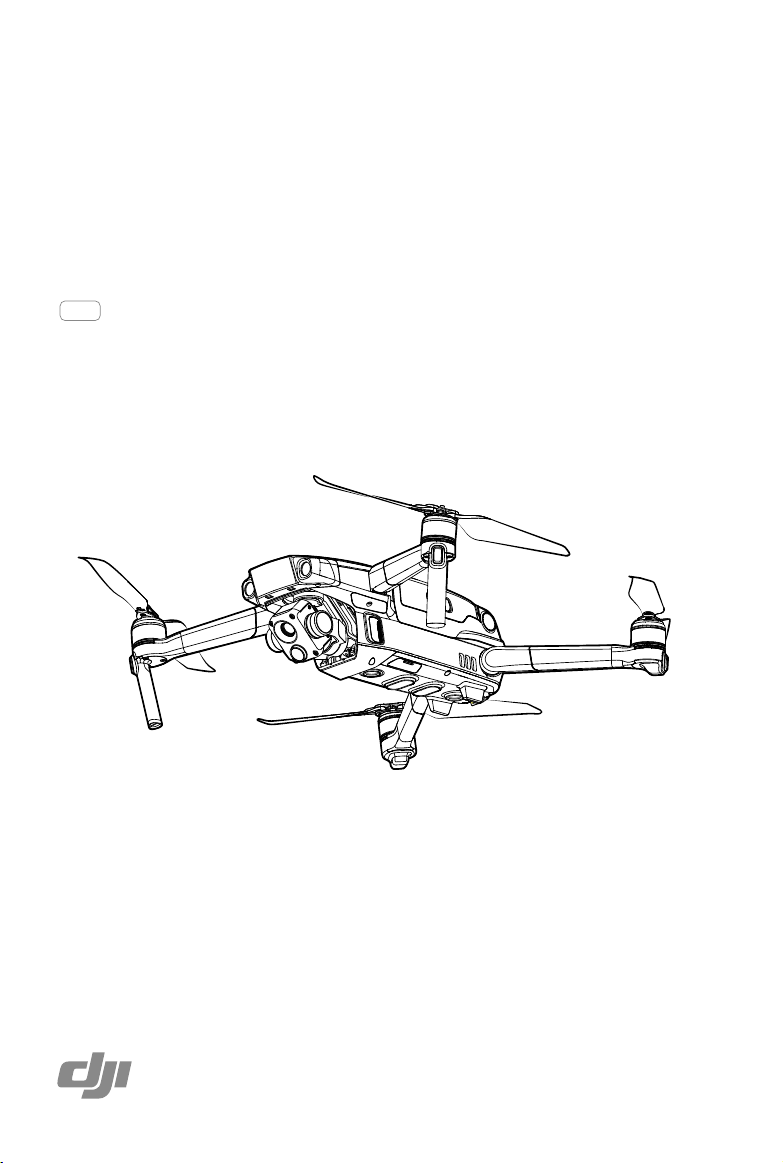
MAVIC 2
ENTERPRISE
Advanced
User Manual
Searching for Keywords
Search for keywords such as “battery” and “install” to find a topic. If you are using Adobe
Acrobat Reader to read this document, press Ctrl+F on Windows or Command+F on Mac to
begin a search.
Navigating to a Topic
View a complete list of topics in the table of contents. Click on a topic to navigate to that
section.
Printing this Document
This document supports high resolution printing.
©
2021 DJI All Rights Reserved.
3
Download DJI Assistant 2 (Enterprise Series)
Download DJI ASSISTANT
TM
2 (Enterprise Series) at
http://www.dji.com/mavic-2-enterprise-advanced
Using This Manual
Legend
Warning Important Hints and Tips Reference
Read Before the First Flight
Read the following documents before using the MAVIC
TM
2 Enterprise Advanced:
1. In the Box
2. User Manual
3. Quick Start Guide
4. Disclaimer and Safety Guidelines
5. Intelligent Flight Battery Safety Guidelines
It is recommended to read the disclaimer and safety guidelines before using for the first time.
Prepare for your rst ight by reviewing the quick start guide and refer to this user manual for more
information.
Download the DJI Pilot App
Make sure to use the DJI Pilot app during ight.* Mavic 2 Enterprise Advanced is only
compatible with the Android version of DJI Pilot and Smart Controller.
Scan the QR code on the right to download the latest version. The Android version of
DJI Pilot is compatible with Android v5.0 and later.
* For increased safety, ight is restricted to a height of 98.4 ft (30 m) and range of 164 ft (50 m) when not connected or
logged into the app during ight. This applies to DJI Pilot and all apps compatible with DJI aircraft.
The operating temperature of this product is -10° to 40° C. It does not meet the standard
operating temperature for military grade applications (-55° to 125° C), which is required to endure
greater environmental variability. Operate the product appropriately and only for applications
where it meets the operating temperature range requirements of that grade.

4
©
2021 DJI All Rights Reserved.
Contents
Using This Manual 3
Legend 3
Read Before the First Flight 3
Download the DJI Pilot App 3
Download DJI Assistant 2 (Enterprise Series) 3
Product Prole 7
Introduction 7
Preparing the Aircraft 7
Preparing the Remote Controller 9
Diagram 10
Activation 13
Aircraft 15
Flight Modes 15
Aircraft LEDs and Status Indicator 16
Return to Home 17
Vision Systems and Infrared Sensing Systems 20
Flight Recorder 23
Password Protection 23
Attaching and Detaching the Propellers 24
Intelligent Flight Battery 25
Gimbal and Camera 28
DJI AirSense 30
Modular Accessories 31
Using the RTK Module 32
Smart Controller 34
Smart Controller Prole 34
Smart Controller Operations 34
Linking the Smart Controller 39
Status LED and Battery Level LEDs Description 40
Smart Controller Warning Sounds 41

©
2021 DJI All Rights Reserved.
5
DJI Pilot App 43
Manual Flight 43
Mission Flight 49
Album 53
Flight 55
Flight Environment Requirements 55
Flight Limits and GEO Zones 55
Pre-Flight Checklist 57
Starting/Stopping the Motors 57
Flight Test 58
Appendix 60
Specications 60
Calibrating the Compass 65
Updating Firmware 66
After-Sales Information 67

6
©
2021 DJI All Rights Reserved.
Product Prole
This section introduces Mavic 2 Enterprise
Advanced and lists the components of the
aircraft and remote controller.
©
2021 DJI All Rights Reserved.
7
Product Prole
Introduction
DJI Mavic 2 Enterprise Advanced features omnidirectional Vision Systems and Infrared Sensing Systems,
and comes with a fully stabilized 3-axis gimbal camera that includes a thermal camera and a visual
camera, providing both infrared and visual images simultaneously. DJI’s Obstacle Sensing technology
helps users to y safely so they can capture complex shots while DJI AirSense provides awareness of the
surrounding airspace and password protection ensures access to the aircraft and all data is secure.
Boasting a fully stabilized 3-axis gimbal camera with a thermal camera and visual camera, Mavic 2
Enterprise Advanced oers infrared and visible light imaging simultaneously. The infrared thermal camera
records 640×512 video, and the visual camera captures 4K videos and 48MP photos. The aircraft
supports up to 32× digital zoom. Using the latest technology to reduce the angular vibration range to
within +0.005, Mavic 2 Enterprise Advanced provides increased stability and footage quality.
Built into the remote controller is DJI’s long-range transmission technology OCUSYNC
TM
2.0, oering
a maximum transmission range of 6.2 mi (10 km) and displaying video from the aircraft to DJI Pilot on
a mobile device at up to 720p. The remote controller works at both 2.4 GHz and 5.8 GHz and can
automatically select the best transmission channel without any latency. The aircraft and camera can easily
be controlled using the onboard buttons. The DJI Smart Controller comes with a number of aircraft and
gimbal controls as well as customizable buttons and has a built-in 5.5-inch high-brightness screen. The
remote controller features Bluetooth compatibility, supports GNSS, and can connect to the internet via
Wi-Fi. The detachable control sticks make the remote controller easier to store. The maximum run time is
2.5 hours.
The Mavic 2 Enterprise Advanced boasts a maximum ight speed of 44.7 mph (72 kph) and a maximum
ight time of 31 minutes.
The maximum ight time was tested in an environment with no wind while ying at a consistent
15.5 mph (25 kph) and the maximum ight speed was tested at sea level altitude with no wind.
These values are for reference only.
The remote controller reaches its maximum transmission distance (FCC) in a wide-open area with
no electromagnetic interference at an altitude of about 400 ft (120 m). The maximum runtime was
tested in a laboratory environment. This value is for reference only.
5.8 GHz is not supported in certain regions. Observe local laws and regulations.
Preparing the Aircraft
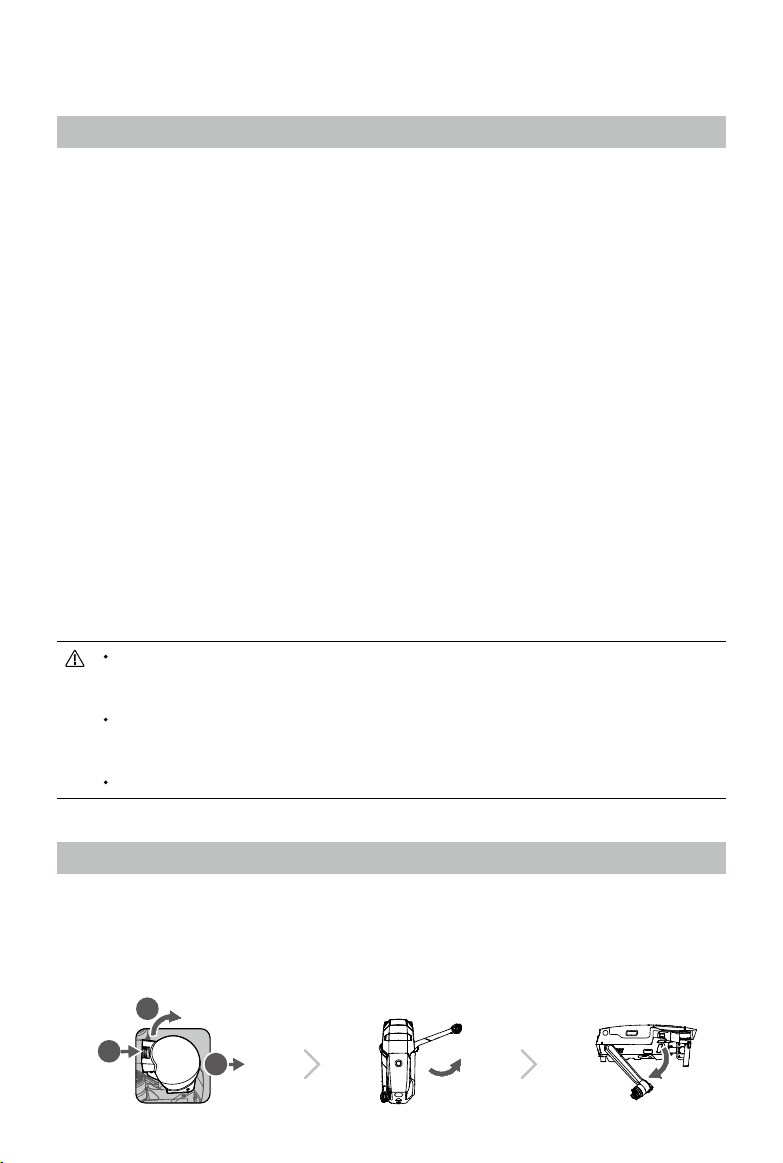
All aircraft arms are folded before the aircraft is packaged. Follow the steps below to unfold the
aircraft.
1. Remove the gimbal cover from the camera.
2. Unfold the front arms before unfolding the rear arms.
1
2
3
MAVIC 2 ENTERPRISE Advanced
User Manual
8
©
2021 DJI All Rights Reserved.
* Attach the gimbal cover when not in use.
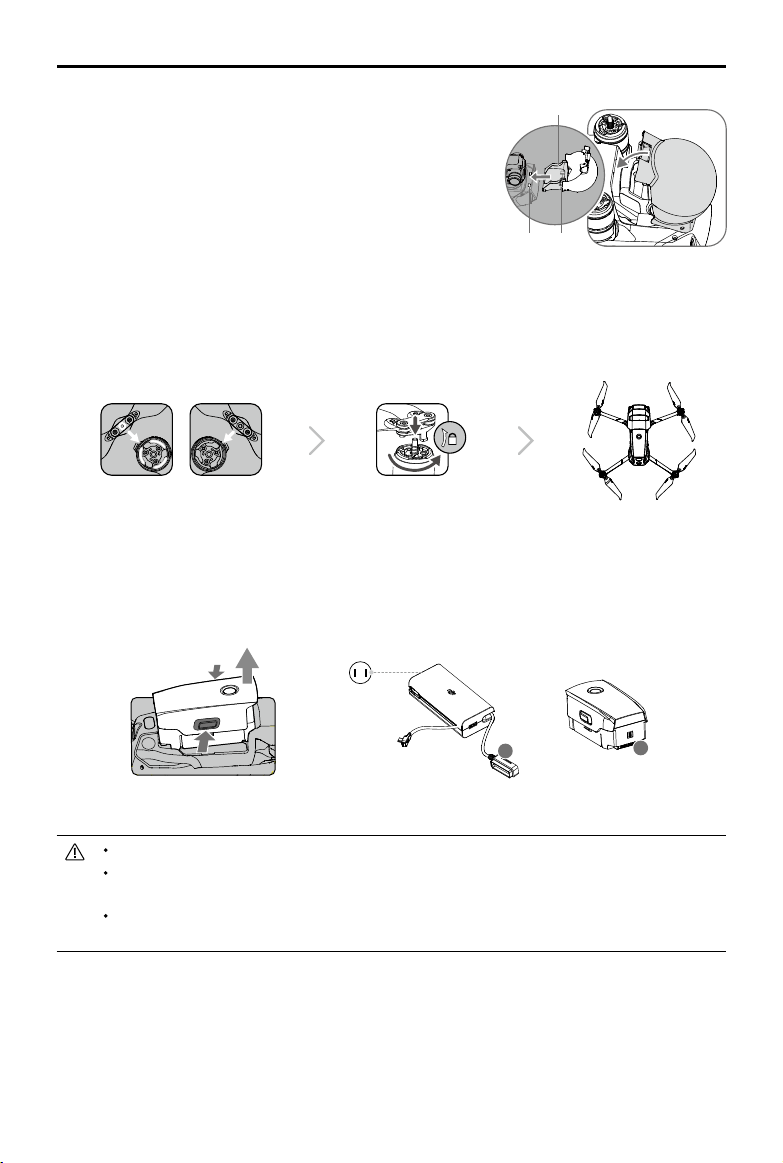
1) Hold the gimbal in place and insert the gimbal clamp
between the aircraft and the gimbal.
2) Make sure the hooks on the gimbal protector are
locked in the grooves of the aircraft. Lower the gimbal
protector over the gimbal and secure with the buckle.
The buckle will click when it is securely attached.
3. Attach the propellers with white marks to the motors with white marks. Press the propeller down
onto the motors and turn until it is secure. Attach the unmarked propellers to the unmarked
motors. Unfold all the propeller blades.
1
2
3
4. All Intelligent Flight Batteries are in Hibernation mode before shipping to ensure safety. Use the
provided AC power adapter to charge and activate Intelligent Flight Batteries for the rst time. To
charge an Intelligent Flight Battery after ight, remove from the aircraft and attach to the AC power
adapter.
Grooves Hooks
Gimbal clamp
A
A
Power Outlet
100~240 V
Charging Time:
~1 hour 30 minutes
Unfold the front arms and propellers before unfolding the rear arms.
It is normal for there to be friction on the arms and aircraft due to the folding design of Mavic 2
Enterprise Advanced.
Make sure the gimbal cover is removed and all arms and propellers are unfolded before powering
on the aircraft. Otherwise, it may aect the aircraft’s self-diagnostics.
MAVIC 2 ENTERPRISE Advanced
User Manual
©
2021 DJI All Rights Reserved.
9
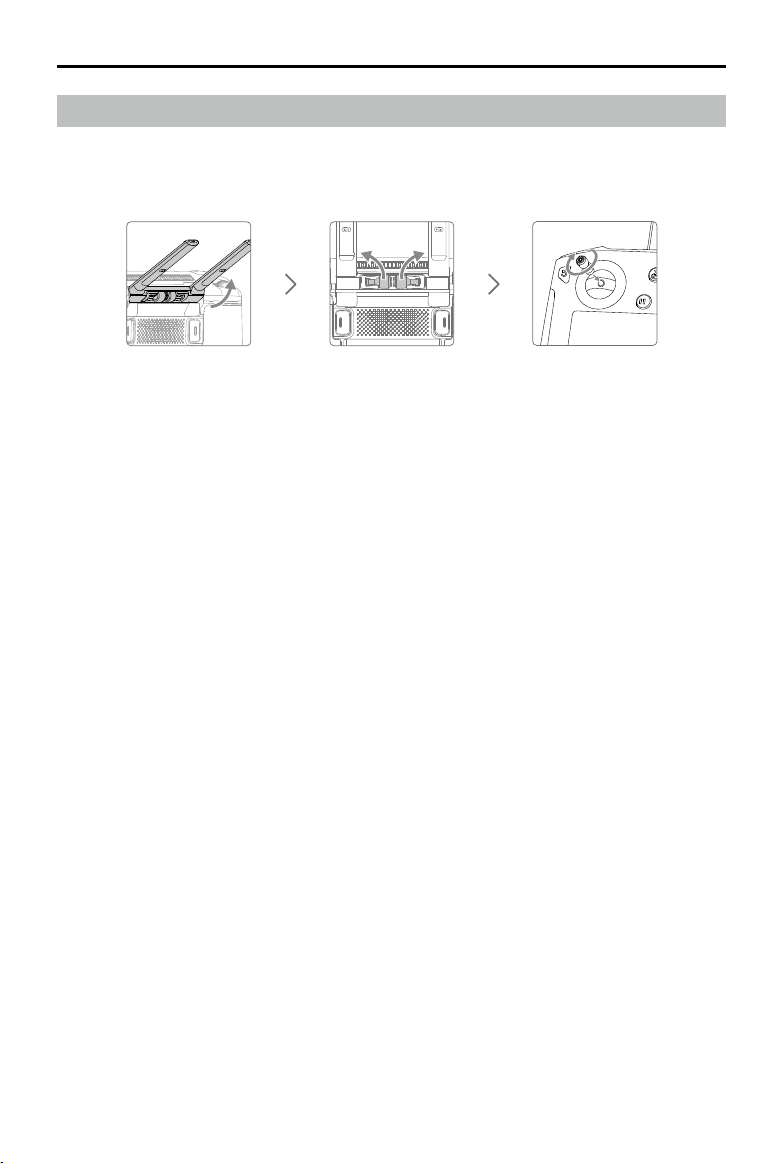
Preparing the Remote Controller
Two pairs of control sticks are included in the packaging for the Smart Controller. One pair is stored
in the sticks storage slot on the back of the remote controller. Follow the steps below to attach the
control sticks stored in the sticks storage slot to the remote controller.
Lift the antennas Remove the control sticks Rotate to attach
the control sticks
MAVIC 2 ENTERPRISE Advanced
User Manual
10
©
2021 DJI All Rights Reserved.
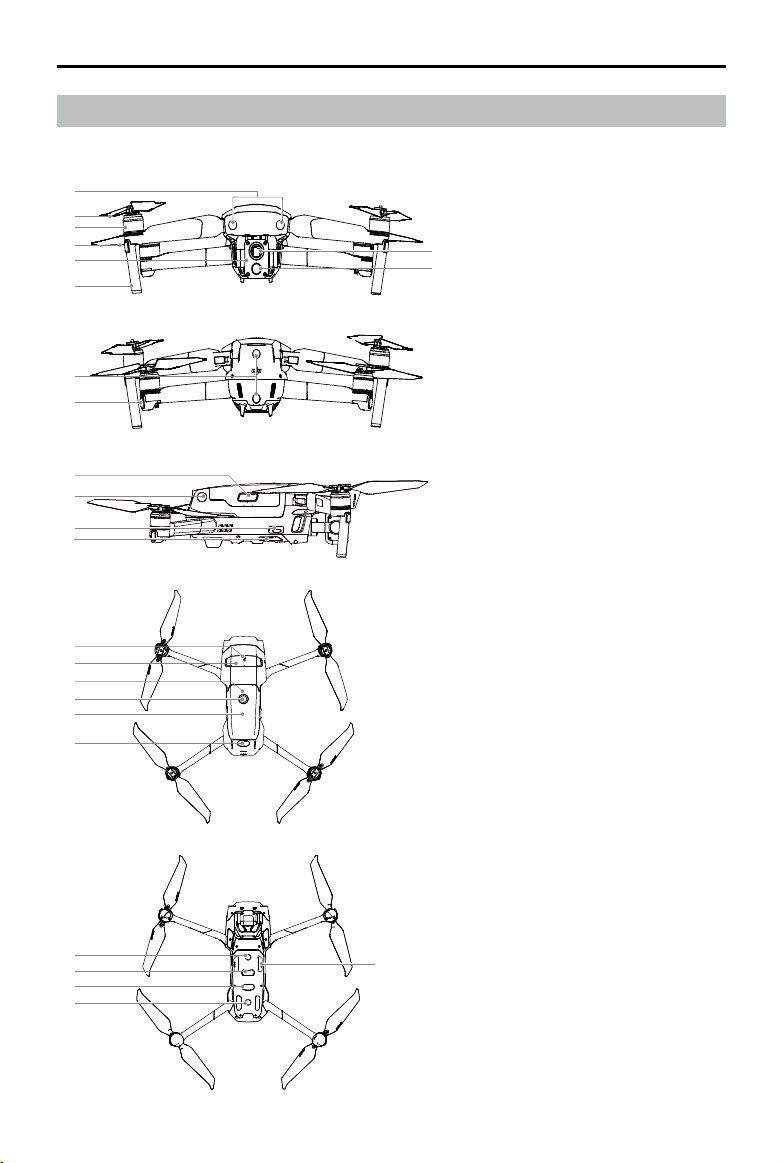
Diagram
Mavic 2 Enterprise Advanced (L1TE)
2
3
1
4
5
A
B
6
7
8
9
10
11
12
15
13
16
14
17
18
19
19
21
22
20
1. Forward Vision System
2. Propellers
3. Motors
4. Front LEDs
5. Gimbal and Camera
A. Thermal Camera
B. Visual Camera
6. Antennas
7. Backward Vision System
8. Aircraft Status Indicator
9. Battery Buckles
10. Lateral Vision System
11. USB-C Port
12. Link Button/Linking Status
Indicator
13. Extended Port (can be used to
connect accessories)
14. Extended Port Cover
15. Battery Level LEDs
16. Power Button
17. Intelligent Flight Battery
18. Upward Infrared Sensing
System
19. Downward Vision System
20. microSD Card Slot
21. Downward Infrared Sensing
System
22. Auxiliary Bottom Light (can be
used as a beacon in low light
conditions)
MAVIC 2 ENTERPRISE Advanced
User Manual
©
2021 DJI All Rights Reserved.
11
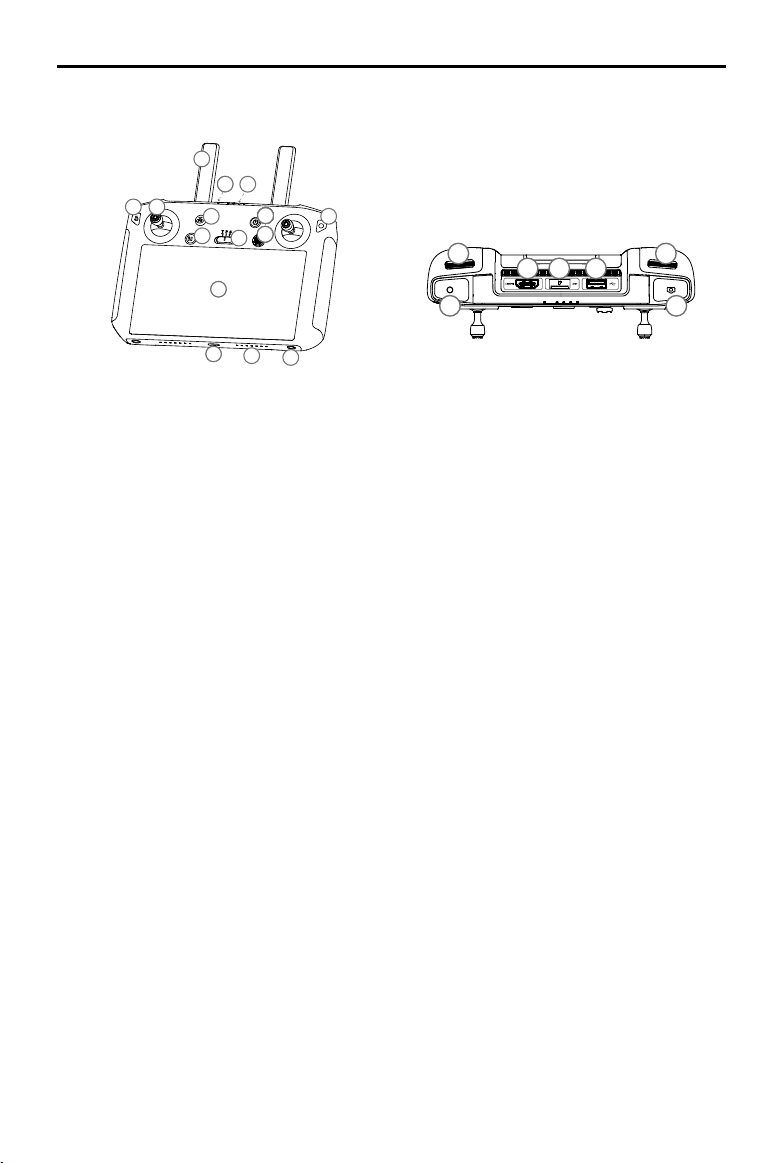
DJI Smart Controller (RM500)
1
6
9999
1010101010101010101010101010
10
12
10
13
77
8
11
3
2
4
14
15
23
27
28
26
16
17
18 19
20
21
22
24
25
5
1
6
9999
1010101010101010101010101010
10
12
10
13
77
8
11
3
2
4
14
15
23
27
28
26
16
17
18 19
20
21
22
24
25
5
1. Antennas
Relays aircraft control and video signal.
2. Back Button/Function Button
Press once to return to the previous screen
and press twice to go back to the home
screen.
3. Control Sticks
Control the orientation and movement of the
aircraft when the remote controller is linked
to an aircraft.
4. Return to Home (RTH) Button
Press and hold the button to initiate RTH.
The aircraft returns to the last recorded
Home Point. Press again to cancel RTH.
5. Flight Pause Button
Press to make the aircraft brake and hover
in place (only when GPS or Vision System
are available).
6. Flight Mode Switch
Switch between T-mode, P-mode, and
S-mode.
7. Status LED
Indicates the linking status and warnings
when the battery level is low, temperature is
high, or the control sticks are not centered.
8. Battery Level LEDs
Displays the battery level of the remote
controller.
9. 5D Button
The default conguration is listed below. The
conguration can be adjusted in DJI Pilot.
Up: Recenter gimbal/move gimbal downward
Down: Focus switch/metering
Left: Decrease EV value
Right: Increase EV value
10. Power Button
Use to power the remote controller on or o.
When the remote controller is powered on,
press the button to enter sleep mode or to
wake the controller.
11. Conrm Button/Customizable Button C3
When the remote controller is not linked
to an aircraft, press to conrm a selection.
When linked to an aircraft, the button cannot
be used to conrm a selection. The function
of the button when linked to an aircraft can
be customized in DJI Pilot.
12. Touchscreen
Tap to select.
13. USB-C Port
Use to charge or update the remote controller.
14. Microphone
Records audio.
15. Screw Holes
16. Gimbal Dial
Use to control the tilt of the camera.
MAVIC 2 ENTERPRISE Advanced
User Manual
12
©
2021 DJI All Rights Reserved.
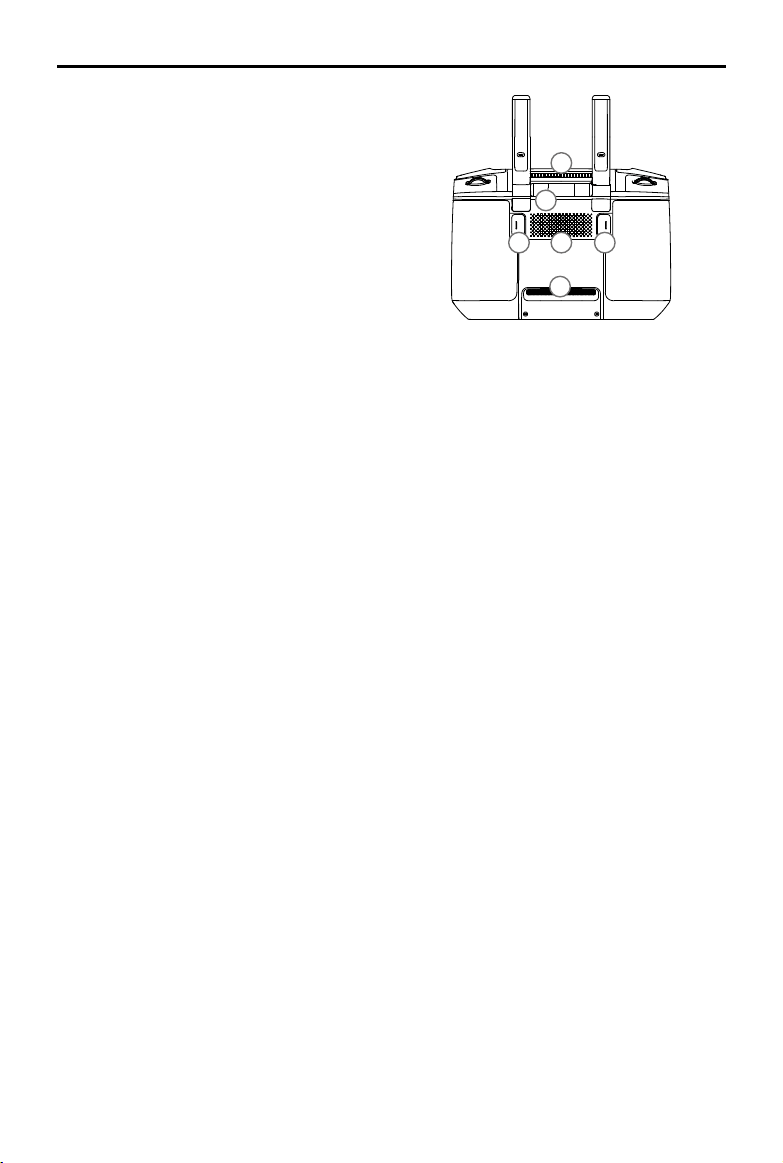
17. Record Button
Press to start recording video. Press again
to stop recording.
18. HDMI Port
For video output.
19. microSD Card Slot
Use to insert a microSD card.
20. USB-A Port
Use to connect external devices.
21. Focus/Shutter Button
Press once to take photos according to the
mode selected in DJI Pilot.
22. Camera Settings Dial/Gimbal Dial
Turn to adjust the zoom of the camera.
23. Air Vent
Used for heat dissipation. DO NOT cover
the air vent during use.
24. Sticks Storage Slot
Use to store a pair of control sticks.
25. Customizable Button C2
The default configuration is playback. The
conguration can be set in DJI Pilot.
1
6
9999
1010101010101010101010101010
10
12
10
13
77
8
11
3
2
4
14
15
23
27
28
26
16
17
18 19
20
21
22
24
25
5
26. Speaker
Outputs sound.
27. Customizable Button C1
The default configuration is center focus.
The conguration can be set in DJI Pilot.
28. Air Intake
Used for heat dissipation. DO NOT cover
the air intake during use.

MAVIC 2 ENTERPRISE Advanced
User Manual
©
2021 DJI All Rights Reserved.
13
Activation
Activating the Smart Controller
Internet
The Smart Controller needs to be activated before using it for the rst time. Make sure the
remote controller is connected to the internet during activation. Follow the steps below to
activate.
1. Power on the remote controller. Select the language and tap Next. Carefully read the terms of use
and privacy policy and tap Agree. Set the country/region.
2. Connect the remote controller to the internet via Wi-Fi. After connecting, tap Next to continue and
select the time zone, date, and time.
3. Log in with a DJI account. If you do not have an account, create a DJI account and log in.
4. Tap Activate on the activation page.
5. After activating, select whether to join the Smart Controller Improvement Project. The project helps
to improve the user experience by automatically sending diagnostic and usage data daily. No
personal data will be collected by DJI.
6. The remote controller will check for rmware updates. If a rmware update is available, a prompt
will appear to download the latest version.
Check the internet connection if the activation fails. If the internet connection is normal, try to activate
the remote controller again. If the issue persists, contact DJI.
Activating the Aircraft
Mavic 2 Enterprise Advanced requires activation before using it for the rst time. Follow the onscreen
instructions to activate Mavic 2 Enterprise Advanced using DJI Pilot.

14
©
2021 DJI All Rights Reserved.
Aircraft
This section introduces the flight controller,
Intelligent Flight Battery, and the Forward,
Backward, and Downward Vision Systems.
©
2021 DJI All Rights Reserved.
15
Aircraft
Mavic 2 Enterprise Advanced contains a flight controller, vision systems, video downlink system,
propulsion system, and an Intelligent Flight Battery. Refer to the aircraft diagram in the Product Prole
section.
Flight Modes
Mavic 2 Enterprise Advanced has three flight modes, plus a fourth flight mode that the aircraft
switches to in certain circumstances:
P-mode (Positioning): P-mode works best when the GPS signal is strong. The aircraft utilizes GPS
and the Vision Systems to locate itself, stabilize, and navigate between obstacles. When the Forward
and Backward Vision Systems are enabled and lighting conditions are sufficient, the maximum
ight altitude angle is 25°, the maximum forward ight speed is 31 mph (50 kph), and the maximum
backward ight speed is 27 mph (43 kph). Note: P-mode requires larger stick movements to achieve
high speeds. The aircraft automatically changes to Attitude (ATTI) mode when the Vision Systems are
unavailable or disabled and when the GPS signal is weak or the compass experiences interference.
When the Vision Systems are unavailable, the aircraft cannot position itself or brake automatically,
which increases the risk of potential ight hazards. In ATTI mode, the aircraft may be more easily
affected by its surroundings. Environmental factors such as wind can result in horizontal shifting,
which may present hazards, especially when ying in conned spaces.
S-mode (Sport): In S-mode, Obstacle Sensing is disabled and the aircraft uses GPS and the Vision
Systems for positioning. The maximum ight speed is 44.7 mph (72kph). The aircraft cannot sense
or avoid obstacles. Note: In S-mode, aircraft responses are optimized for agility and speed making it
more responsive to stick movements.
T-mode (Tripod): T-mode is based on P-mode and the ight speed is limited, which makes the aircraft
more stable during shooting. The maximum ight, ascent, and descent speeds are limited to 1 m/s.
Obstacle Sensing and the Upward Infrared Sensing System are disabled in S-mode, which means
the aircraft cannot sense obstacles on its route automatically.
The maximum speed of the aircraft and braking distance significantly increase in S-mode. A
minimum braking distance of 98.4 ft (30 m) is required in windless conditions.
Descent speed signicantly increases in S-mode.
The responsiveness of the aircraft signicantly increases in S-mode, which means a small stick
movement on the remote controller translates into the aircraft moving a large distance. Pay attention
and maintain adequate maneuvering space during ight.
Use the ight mode switch on the remote controller to switch between ight modes. To switch ight
modes, rst go to camera view in DJI Pliot, tap
and enable Multiple Flight Modes.
MAVIC 2 ENTERPRISE Advanced
User Manual
16
©
2021 DJI All Rights Reserved.
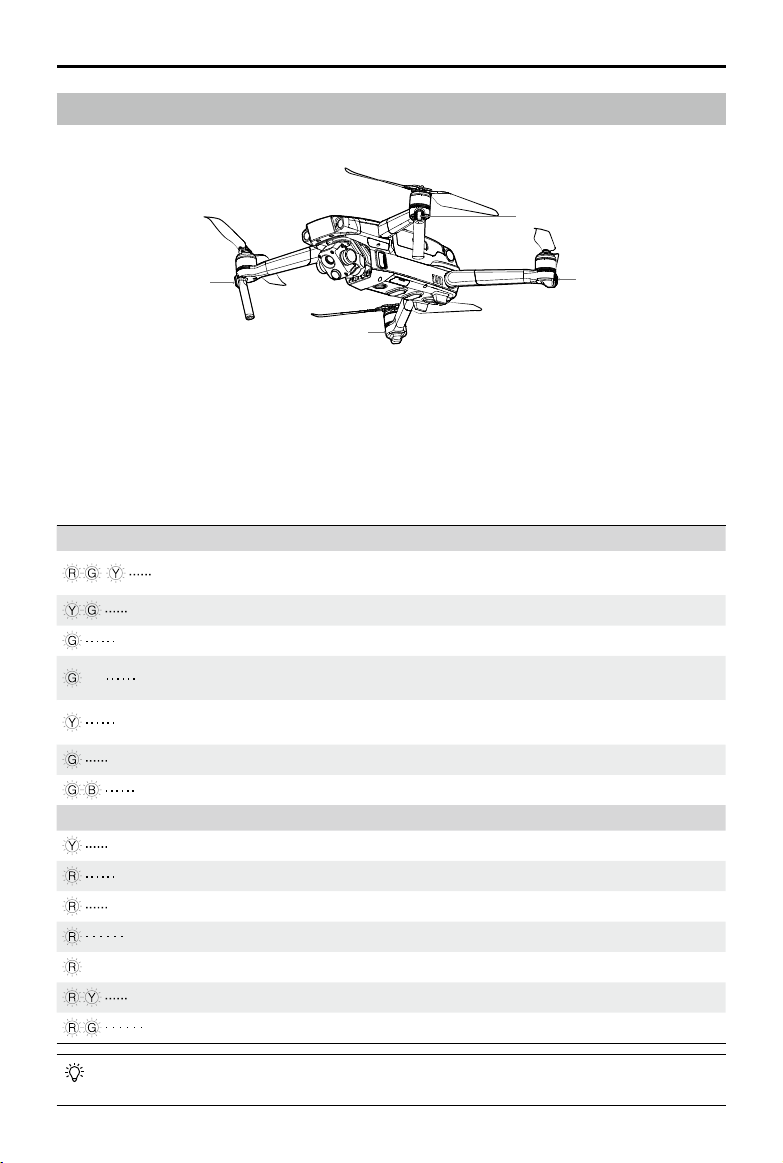
The Front LEDs show the orientation of the aircraft and glow solid red when the aircraft is powered on
to indicate the front of the aircraft. Go to settings in DJI Pilot to turn the Front LEDs on or o.
The Aircraft Status Indicators communicate the status of the ight control system of the aircraft. Refer to
the table below for more information about the Aircraft Status Indicators. The Aircraft Status Indicators
also ash when the Home Point is being recorded as described in the Return to Home section.
Aircraft LEDs and Status Indicator
Mavic 2 Enterprise Advanced has Front LEDs and Aircraft Status Indicators as shown in the gure below.
Aircraft Status Indicator States
Normal States
Blinks red, green, and yellow
continuously
Powering on and performing self-diagnostic
tests
Blinks yellow and green alternately Warming up
Blinks green slowly P-mode with GPS
×2 Blinks yellow twice continuously
P-mode with Forward and Downward Vision
Systems
Blinks yellow slowly
No GPS, Forward Vision System, or
Downward Vision System
Blinks green quickly Braking
Blinks green and blue alternately RTK enabled and RTK data is being used
Warning States
Blinks yellow quickly Remote controller signal lost
Blinks red slowly Low battery
Blinks red quickly Critically low battery
Blinks red IMU error
—
Solid red Critical error
Blinks red and yellow alternately Compass calibration required
Blinks red and green alternately RTK enabled but RTK data unavailable
For missions that require concealed ight, enter camera settings in DJI Pilot and select Smart Arm
LEDs and turn all the LEDS o.
Aircraft Status Indicator
Front LEDs
Aircraft Status Indicator
Front LEDs
MAVIC 2 ENTERPRISE Advanced
User Manual
©
2021 DJI All Rights Reserved.
17
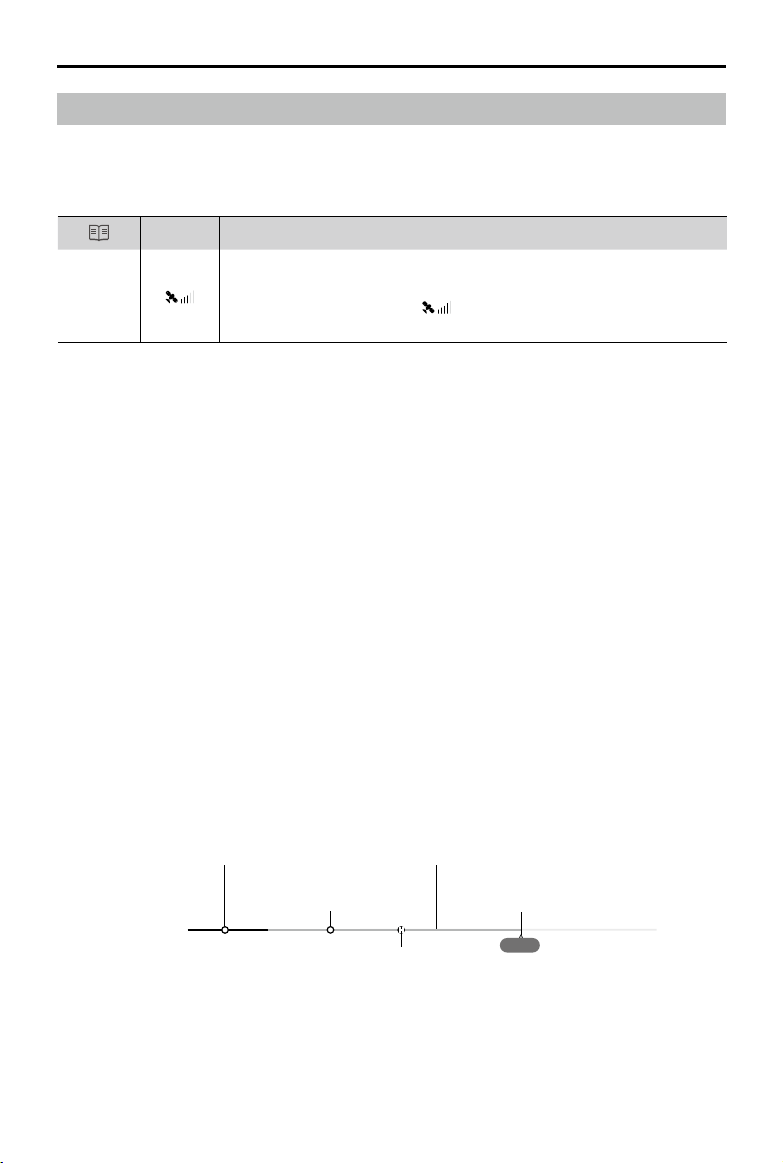
GPS
Description
Home
Point
If a strong GPS signal was acquired before takeoff, the Home Point is
the location from which the aircraft launched. The GPS signal strength is
indicated by the GPS icon (
). The Aircraft Status Indicator will blink
green quickly when the Home Point is recorded.
Smart RTH
If the GPS signal is suciently strong, Smart RTH can be used to bring the aircraft back to the Home
Point. Smart RTH is initiated by pressing and holding the RTH button on the remote controller. Exit
Smart RTH by pressing the RTH button on the remote controller.
Low Battery RTH
Low Battery RTH is triggered when the Intelligent Flight Battery is depleted to the point that the safe
return of the aircraft may be aected. Return home or land the aircraft immediately when prompted.
DJI Pilot displays a warning prompt when the battery level is low. The aircraft will automatically return
to the Home Point if no action is taken after a 10 second countdown.
The user can cancel RTH by pressing the RTH button or ight pause button on the remote controller.
If RTH is cancelled following a low battery level warning, the Intelligent Flight Battery may not have
enough power for the aircraft to land safely, which may lead to the aircraft crashing or being lost. The
thresholds for the battery level warnings are automatically determined based on the current altitude of
the aircraft and distance from the Home Point.
The aircraft will land automatically if the current battery level can only support the aircraft long enough
to descend from its current altitude. The user cannot cancel the auto landing but can use the remote
controller to alter the orientation of the aircraft during the landing process.
Return to Home
Return to Home (RTH) brings the aircraft back to the last recorded Home Point. There are three
types of RTH: Smart RTH, Low Battery RTH, and Failsafe RTH. This section describes these three
scenarios in detail.
DJI Pilot Battery Level Indicator Bar
Critically low battery level warning (Red)
Low battery level warning
(Yellow)
Battery level is sucient (Green)
Remaining ight time
Charge required to
return to Home Point
12:29

MAVIC 2 ENTERPRISE Advanced
User Manual
18
©
2021 DJI All Rights Reserved.
Warning
Scenario
Aircraft Status
Indicator
DJI Pilot App Actions
Low
Battery
Level
Remaining battery level
supports RTH.
Blinks red slowly
Choose RTH or
resume normal
ight.
Select an option. If no
action is taken, the aircraft
will enter RTH.
Remaining battery level
supports Emergency
RTH (when in RTH, with a
normal remote controller
signal, and at an altitude
higher than 50 m).
Choose
Emergency RTH
or resume RTH.
Select an option.
Emergency RTH (aircraft
descends to 50 m and
returns to the Home Point)
or resume RTH (aircraft
ies to Home Point without
descending). If no action is
taken, the aircraft will enter
Emergency RTH.
Remaining battery level
supports Emergency
Landing (when in RTH
with a normal remote
controller signal).
Aircraft lands.
Action cannot be
canceled.
Aircraft lands immediately.
Critically
Low
Battery
Level
Aircraft lands after 10
seconds (when ying
normally with a critical
low battery level).
Blinks red quickly
Aircraft lands
after 10 seconds.
Action cannot be
canceled.
Aircraft lands after 10
seconds.
Aircraft lands
automatically (when
ying normally with an
extremely critical low
battery level).
Aircraft lands
immediately.
Action cannot be
canceled.
Aircraft lands immediately.
Failsafe RTH
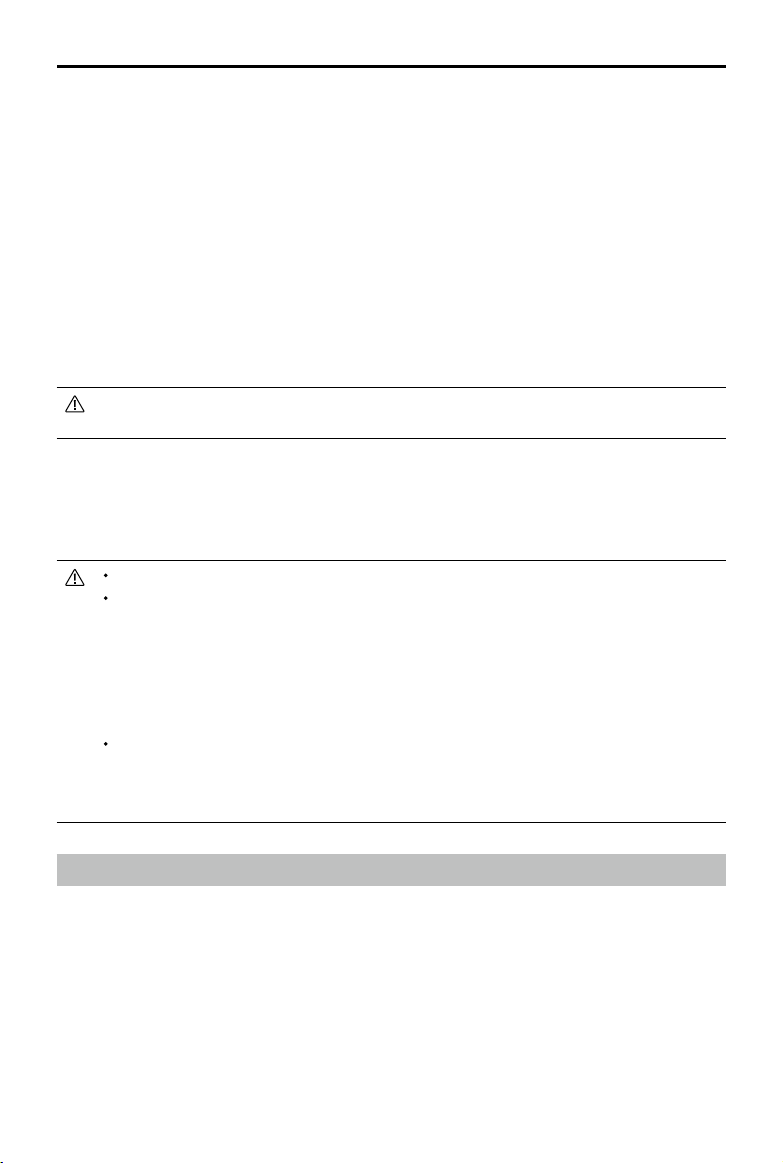
The Forward Vision System allows the aircraft to create a real-time map of its ight route as it ies.
If the Home Point was successfully recorded and the compass is functioning normally, Failsafe RTH
automatically activates after the remote controller signal is lost for more than two seconds.
When Failsafe RTH is activated, the aircraft starts to retrace its original ight route home. If the remote
control signal is re-established within 60 seconds of Failsafe RTH being activated, the aircraft hovers at
its present location for 10 seconds and waits for pilot commands. Press the RTH button on the remote
controller to cancel Failsafe RTH and retake control. If no pilot command is given, the aircraft ies to the
Home Point in a straight line. If the remote control signal is still lost 60 seconds after activating Failsafe
RTH, the aircraft stops retracing its original ight route and ies to the Home Point in a straight line.
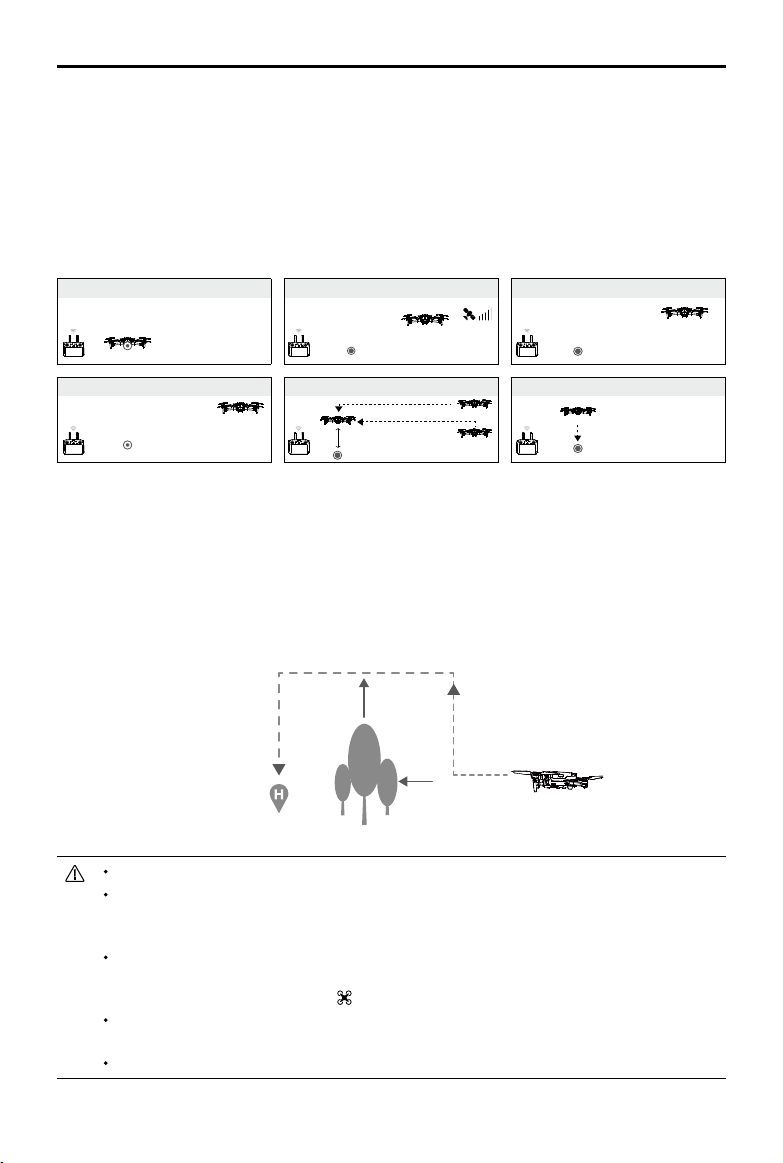
RTH Procedure
1. The aircraft adjusts its orientation.
2. a. If the aircraft is further than 20 m from the Home Point when RTH begins, it ascends to the
pre-set RTH altitude and flies to the Home Point at a speed of 12 m/s. If the current altitude
is higher than the RTH altitude, the aircraft flies to the Home Point at the current altitude.
Forward and Backward Vision Systems are enabled.
MAVIC 2 ENTERPRISE Advanced
User Manual
©
2021 DJI All Rights Reserved.
19
RTH Illustration
Obstacle Avoidance During RTH
Provided that lighting conditions are sufficient for the Forward and Backward Vision Systems to
operate, the aircraft senses and actively attempts to avoid obstacles during RTH. The obstacle
avoidance procedure is as follows:
1. The aircraft decelerates when an obstacle is sensed.
2. The aircraft stops and hovers and then ascends until no obstacle is sensed.
3. The RTH procedure resumes and the aircraft ies to the Home Point at the new altitude.
The aircraft cannot return to the Home Point if the GPS signal is weak or unavailable.
In Smart RTH and Low Battery RTH, the aircraft automatically ascends to an altitude of 65 ft
(20 m). Once the altitude is 65 ft (20 m) or higher, move the throttle stick to make the aircraft
stop ascending and fly to the Home Point at its current altitude.
The aircraft cannot avoid obstacles during Failsafe RTH if the Forward and Backward Vision
Systems are unavailable. It is important to set a suitable RTH Altitude before each ight. To set the
RTH altitude, open DJI Pilot, and tap
.
During RTH, the orientation and direction of the aircraft cannot be controlled, but the remote
controller or DJI Pilot can be used to control the speed and altitude.
During RTH, obstacles on either side of the aircraft cannot be detected or avoided.
b. If the aircraft is between 5 and 20 m from the Home Point when RTH is initiated, the aircraft
flies back at the current altitude. If the current altitude is less than 2 m, the aircraft will first
ascend to 2 m and fly to the Home Point at a speed of 3 m/s. If RTH at Current Altitude is
disabled, the aircraft lands immediately.
c. If the aircraft is less than 5 m from the Home Point when RTH is initiated, it lands immediately.
3. After reaching the Home Point, the aircraft lands and the motors stop.
1 Record Home Point 2 Conrming Home Point
4 Signal Lost for Extended Time
×
5
RTH (adjustable altitude)
Height over HP > Failsafe Altitude
Elevate to Failsafe Altitude
Height over HP≤Failsafe Altitude
Failsafe Altitude
×
6 Landing
×
3 Remote Controller Signal Lost
×
MAVIC 2 ENTERPRISE Advanced
User Manual
20
©
2021 DJI All Rights Reserved.
Landing Protection
Landing Protection is activated during Smart RTH and the aircraft performs as follows:
1. When Landing Protection determines that the ground is suitable for landing, the aircraft lands gently.
2. If the ground is not suitable for landing, the aircraft hovers and waits for the pilot to conrm if it is
suitable for landing or not.
3. If Landing Protection is not operational, DJI Pilot displays a landing prompt when the aircraft
descends below 0.5 m. To land the aircraft, push the throttle stick down for one second or use the
auto landing slider in DJI Pilot.
Landing Protection is active during Low Battery RTH and Failsafe RTH. The aircraft performs as follows:
During Low Battery RTH and Failsafe RTH, the aircraft hovers 2 m above the ground and waits for the pilot to
conrm it is suitable to land. To land the aircraft, push the throttle stick down for one second or use the auto
landing slider in the app. Landing Protection activates and the aircraft performs the steps listed above.
Vision Systems are disabled during landing. Make sure to land the aircraft with caution. Use caution
when landing the aircraft.
Precision Landing
Mavic 2 Enterprise Advanced automatically scans and attempts to match the terrain features
underneath the aircraft during RTH. When the current terrain matches the Home Point terrain, the
aircraft will start landing. A prompt will appear in DJI Pilot if the aircraft is unable to match the terrain.
Landing protection is available during precision landing.
The performance of Precision Landing is subject to the following conditions:
a) The Home Point must be recorded upon takeoff and must not be changed during flight.
Otherwise, the aircraft will have no record of the terrain features of the Home Point.
b) During takeo, the aircraft must ascend at least 7 m before moving horizontally.
c) The Home Point terrain features must remain largely unchanged.
d) The Home Point terrain features must be distinguishable.
e) The lighting conditions must not be too light or too dark.
The following actions are available during Precision Landing:
a) Press the throttle stick down to accelerate landing.
b) Move the control sticks in any other direction to stop Precision Landing. The aircraft will descend
vertically after the control sticks are released.
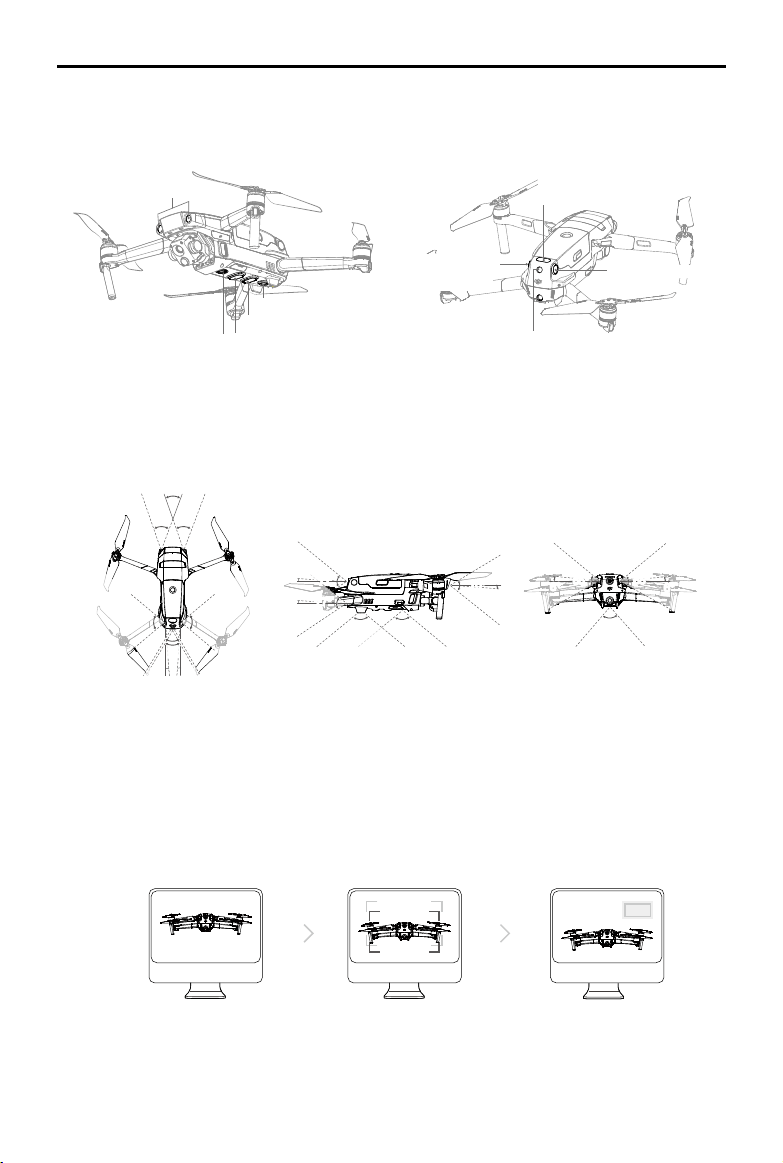
Vision Systems and Infrared Sensing Systems
Mavic 2 Enterprise Advanced is equipped with Forward, Backward, Downward, and Lateral Vision
Systems, and Upward and Downward Infrared Sensing Systems. They provide the aircraft with
omnidirectional obstacle sensing if lighting conditions are adequate.
The main components of the Forward, Backward, and Downward Vision Systems are six cameras
located on the front, back, and bottom of the aircraft. The Lateral Vision Systems are two cameras
located on either side of the aircraft. The main components of the Upward and Downward Infrared
Sensing Systems are two 3D infrared modules located on the top and bottom of the aircraft.
The Downward Vision System and Infrared Sensing System helps the aircraft maintain its current
position and hover in place more precisely and to y indoors or in other environments where a GPS
MAVIC 2 ENTERPRISE Advanced
User Manual
©
2021 DJI All Rights Reserved.
21
Detection Range
The detection range of the Vision Systems is depicted as followed. Note that the aircraft cannot sense
or avoid the obstacles that are not within detection range.
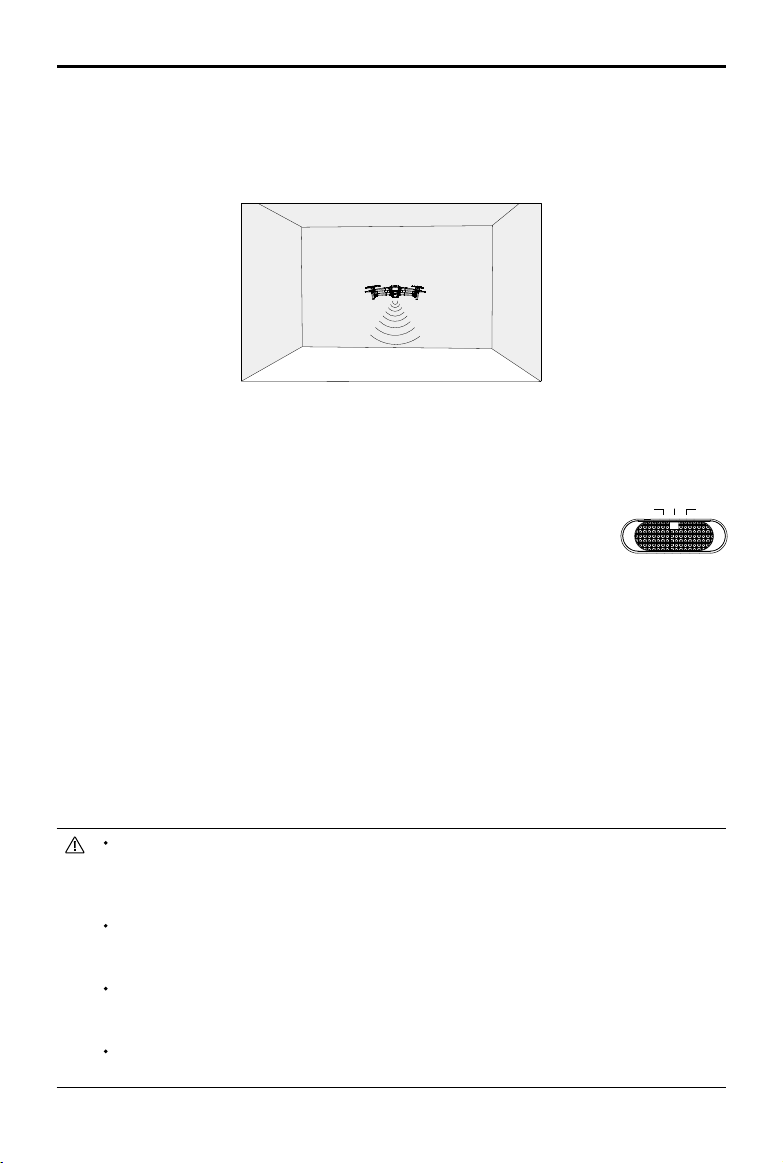
Calibrating Vision System Cameras
The Vision Systems installed on the aircraft are factory calibrated. If a collision occurs, the aircraft may
need to be calibrated via DJI Pilot or DJI Assistant 2 (Enterprise Series) for Mavic.
The most accurate way to calibrate the Vision System cameras is by using DJI Assistant 2 (Enterprise
Series) for Mavic. Follow the steps below to calibrate the Forward Vision System cameras and repeat
the steps to calibrate other Vision System cameras.
01
将飞行器面向屏幕
02
移动位置以对准方框
03
按照提示旋转飞行器
83°
65°
6°
65°
6°
40° 40°
40°
80°
4°
80°
4°
60°
100°100°
5°
70°
77°
3°
77°
3°
Forward Vision System
Downward Vision System
Downward Vision System
Downward Infrared Sensing System
Auxiliary Bottom Light
Upward Infrared
Sensing System
Backward Vision System
Lateral Vision
System
Lateral Vision System
signal is unavailable. In addition, the auxiliary bottom light located on the bottom of the aircraft
improves visibility for the Downward Vision System in weak light conditions.
Point the aircraft toward the screen Pan and tilt the aircraftAlign the boxes
MAVIC 2 ENTERPRISE Advanced
User Manual
22
©
2021 DJI All Rights Reserved.
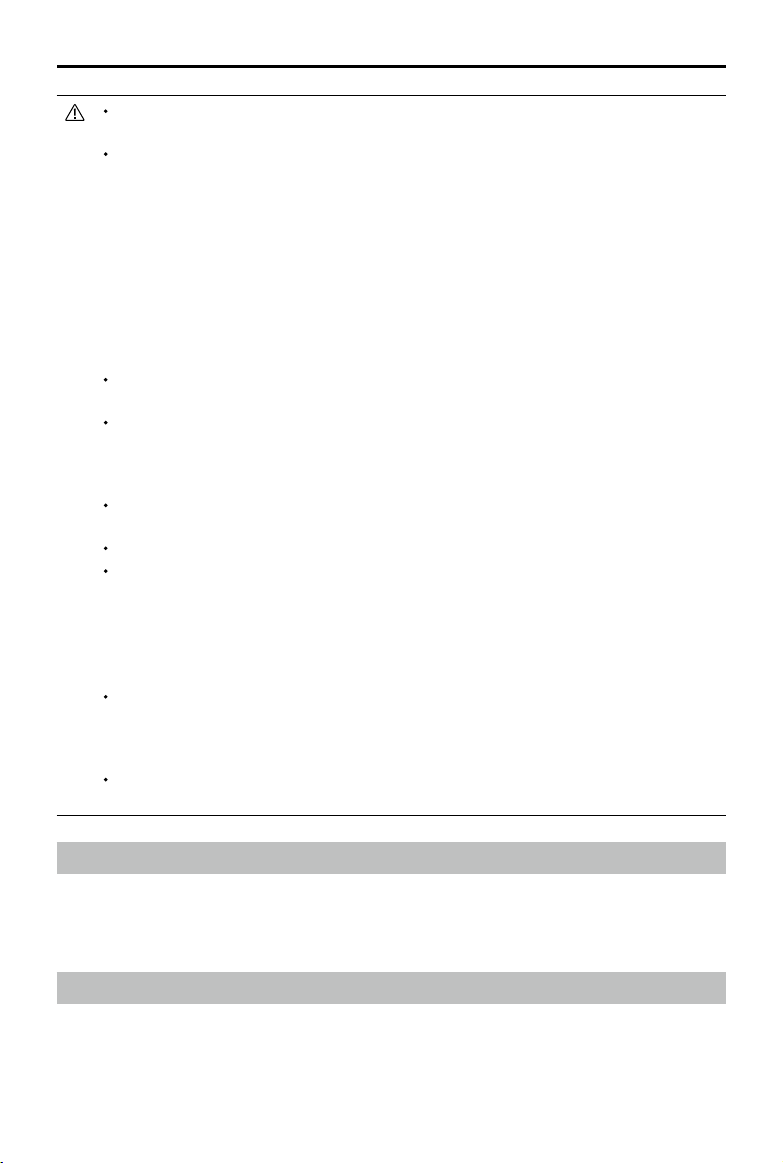
The Downward Vision System is typically used in indoor environments where GPS is unavailable. The
Downward Vision System works best when the aircraft is at an altitude of 1.6 to 33 ft (0.5 to 11 m).
Note that Vision Positioning may be aected if the altitude of the aircraft is above 33 ft (11 m).
Follow the steps below to use the Downward Vision System:
1. Make sure the aircraft is in P-mode and place the aircraft on a at surface.
Note that the Downward Vision System cannot work properly on surfaces
without clear pattern variations.
2. Power on the aircraft. The aircraft hovers in place after takeo. The Aircraft Status Indicators ash
green twice, which indicates the Downward Vision System is working.
Using the Forward and Backward Vision Systems, the aircraft can actively brake when detecting
obstacles in front. The Forward and Backward Vision Systems work best with adequate lighting and
clearly marked or textured obstacles. To allow for sucient braking time, avoid ying the aircraft more
than 31 mph (50 kph) when ying forward or more than 27 mph (42 kph) when ying backward.
The Lateral Vision Systems requires better lighting and more textured or clearly marked obstacles,
and cannot sense dynamic objects such as moving people, vehicles, tree branches, or blinking lights.
The Lateral Vision Systems are only available in Tripod Mode. The angular speed is limited to 24° /s
and the lateral ight speed is limited to 18 mph (29 km/h).
The Lateral Vision Systems have limited ability to sense and avoid obstacles, and their performance
may be aected by the surrounding environment. Make sure to maintain line of sight with the aircraft
and pay attention to prompts in DJI Pilot. DJI takes no responsibility for any aircraft that is damaged or
lost while using the Lateral Vision Systems.
The Downward Vision System cannot work properly over surfaces that DO NOT have clear pattern
variations. The Downward Vision System is only eective when the aircraft is at an altitude of 0.5 to
50 meters. Note that Vision Positioning may be aected if the altitude of the aircraft is above 33 ft (11 m).
The auxiliary bottom light is automatically enabled in low-light environments when the aircraft is
operating at an altitude under 5 m. Note that the Vision Systems cameras performance may be
aected when the auxiliary bottom light is enabled. Fly with caution if the GPS signal is weak.
The Downward Vision System may not function properly when the aircraft is ying over water or snow-
covered areas.
Using the Vision Systems
The Downward Vision System and Infrared Sensing System activate automatically when the aircraft is
powered on. No further action is required. When using the Downward Vision System, the aircraft can
hover precisely even without GPS.
2m以上
T P
S
MAVIC 2 ENTERPRISE Advanced
User Manual
©
2021 DJI All Rights Reserved.
23
Note that the Vision Systems may not function properly when the aircraft is ying too fast. Fly with
caution when ying at over 10 m/s (32.8 ft/s) at 2 m (6.6 ft) or over 5 m/s (16.4 ft) at 1 m (3.3 ft).
Operate the aircraft cautiously when in any of the following situations:
a) Flying over monochrome surfaces (e.g., pure black, pure white, pure green).
b) Flying over highly reective surfaces.
c) Flying over water or transparent surfaces.
d) Flying over moving surfaces or objects.
e) Flying in an area where the lighting changes frequently or drastically.
f) Flying over extremely dark (< 10 lux) or bright (> 40,000 lux) surfaces.
g) Flying over surfaces that strongly reect or absorb infrared waves (e.g., mirrors).
h) Flying over surfaces without clear patterns or texture.
i) Flying over surfaces with repeating identical patterns or textures (e.g., tiles with the same design).
j) Flying over obstacles with small surface areas (e.g., tree branches).
Keep the sensors clean at all times. DO NOT tamper with the sensors. Do not obstruct the Infrared
Sensing System.
The Forward and Backward Vision Systems may not be able to recognize patterns on the ground in
low light conditions (less than 100 lux). If the aircraft speed exceeds 31 mph (50 kph), the Forward
and Backward Vision Systems do not have enough time to brake and stop the aircraft at a safe
distance from an obstacle.
If the aircraft is involved in a collision, it may be necessary to calibrate the Vision Systems. Calibrate
the Vision Systems if the app prompts you to do so.
Do not y if it is rainy, foggy, or if there is no clear sight.
Check the following each time before takeo:
a) Make sure there are no stickers or any other obstructions over the glass of the Infrared Sensing
and Vision Systems.
b) Use a soft cloth if there is any dirt, dust, or water on the glass of the Infrared Sensing and Vision
Systems. Do not use any cleaning products that contains alcohol.
c) Contact DJI Support if there is any damage to the glass of the Infrared Sensing and Vision Systems.
The Upward Infrared Sensing System only detects in a straight line directly above the sensor and not
the entire area above the aircraft. Additionally, large obstacles such as roofs can be detected, but
tiny obstacles such as leaves or electrical wires cannot. Fly with caution and do not rely solely on the
Upward Infrared Sensing System to detect obstacles above the aircraft.
Do not obstruct the Downward Vision System or Downward Infrared Sensing System before takeo.
Otherwise, the aircraft cannot take o again after landing and will have to be restarted.
Flight Recorder
Flight data including ight telemetry, aircraft status information, and other parameters are automatically
saved to the internal data recorder of the aircraft. The data can be accessed using DJI Assistant 2
(Enterprise Series).
Password Protection
Mavic 2 Enterprise Advanced supports password protection. This feature helps ensure secure access
to the aircraft and its onboard data storage, which helps prevent the leaking of sensitive information.
To set, change, or delete the password, launch the DJI Pilot app, select Settings, and then Security
Password.
MAVIC 2 ENTERPRISE Advanced
User Manual
24
©
2021 DJI All Rights Reserved.
The password is stored in the aircraft only and will not be uploaded to the DJI server. Therefore, the
aircraft needs to be reformatted if the password is lost. The data stored in the aircraft will be deleted
once the aircraft is formatted.
If the aircraft requires maintenance, DJI will reformat the onboard data of the aircraft. Remove
the security password and back up data before sending the aircraft back for repair. DJI takes no
responsibility for any loss of data.
Attaching and Detaching the Propellers
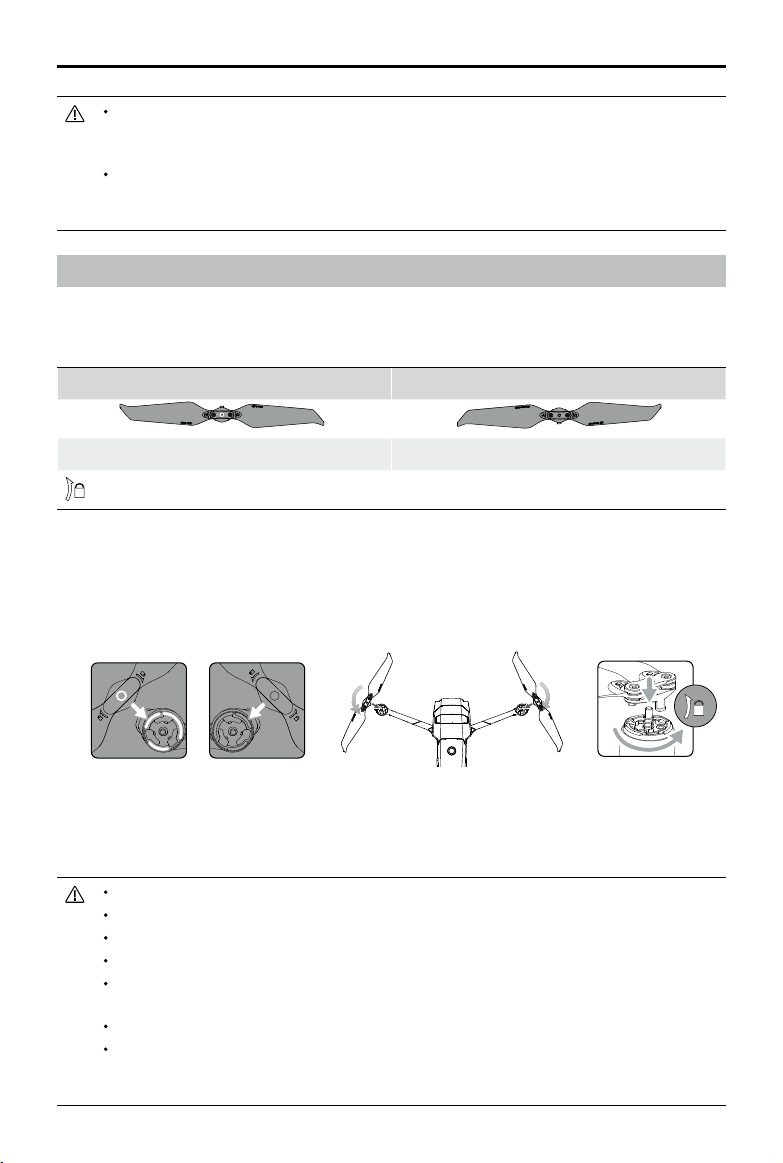
Mavic 2 Enterprise Advanced uses low-noise propellers. There are two types of propellers, which are
designed to spin in dierent directions. White marks are used to indicate which propellers should be
attached to which motors.
Marked Unmarked
Attach on motors with white marks Attach on motors without white marks
Turn the propellers in the indicated direction to mount and tighten.
Attaching the Propellers
Attach the propellers with the white marks to the motors with white marks and the unmarked
propellers to the motors without marks. Hold the motor, press the propeller down, and rotate in the
direction marked on the propeller until it pops up and locks in place.
Detaching the Propellers
Hold the motor, press the propeller down, and rotate in the opposite direction to the one marked on
the propeller until it pops out.
The propeller blades are sharp. Handle with care.
Only use original DJI propellers. Do not mix propeller types.
Purchase the propellers separately if necessary.
Make sure that the propellers and motors are installed securely before each ight.
Make sure that all propellers are in good condition before each ight. Do not use aged, chipped, or
broken propellers.
To avoid injury, stand clear of and do not touch propellers or motors when they are spinning.
To avoid damaging the propellers, place the aircraft in the direction shown in the carrying case during
transportation or storage. Do not squeeze or bend the propellers. If propellers are damaged, the ight
performance is aected.
Marked Unmarked
MAVIC 2 ENTERPRISE Advanced
User Manual
©
2021 DJI All Rights Reserved.
25
Battery Features
1. Battery Level Display: the battery level LEDs display the current battery level.
2. Auto-Discharging Function: to prevent swelling, the battery automatically discharges to less than
60% of the maximum battery level when it is idle for more than 10 days. It takes approximately three
to four days to discharge the battery to 65%. It is normal to feel moderate heat being emitted from
the battery during the discharge process.
3. Balanced Charging: the voltages of the battery cells are automatically balanced during charging.
4. Overcharge Protection: the battery stops charging automatically once fully charged.
5. Temperature Detection: the battery only charges when the temperature is between 41° and 104° F (5°
and 40° C).
6. Overcurrent Protection: the battery stops charging if an excess current is detected.
7. Over-discharge Protection: discharging stops automatically to prevent over-discharge.
8. Short Circuit Protection: the power supply is automatically cut if a short circuit is detected.
9. Battery Cell Damage Protection: a warning prompt will appear in DJI Pilot when a damaged battery
cell is detected.
10. Hibernation Mode: the battery switches off after 20 minutes of inactivity to save power. If the
battery level is less than 10%, the battery enters Hibernation mode to prevent over-discharging. In
Hibernation mode, the battery level indicators do not illuminate. Charge the battery to wake it from
hibernation.
11. Communication: information about the voltage, capacity, and current of the battery is transmitted to
the aircraft.
12. Heating: the batteries of the Mavic 2 Enterprise Advanced are self-heating, enabling them to work in
harsh and cold weather conditions as low as -4° F (-20° C).
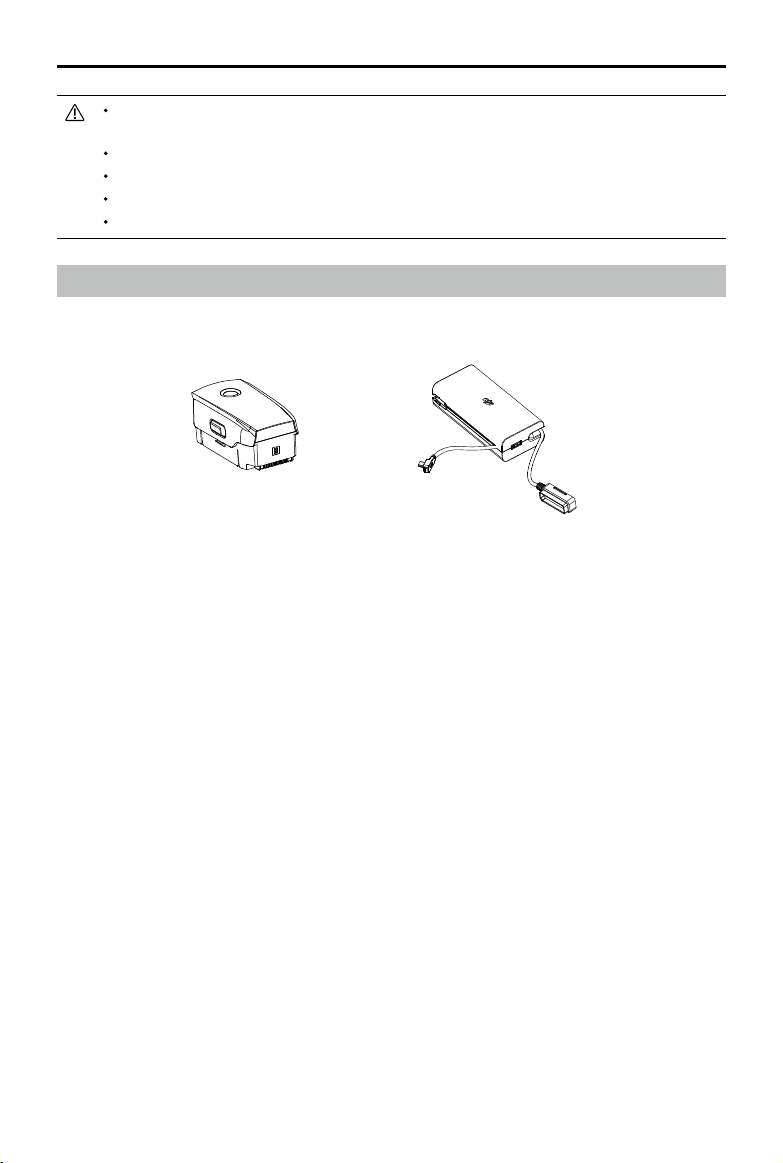
Intelligent Flight Battery
The Mavic 2 Intelligent Flight Battery is a 15.4 V, 3850 mAh battery with smart charging and
discharging functionality. Only use a DJI approved AC power adapter to charge the battery.
Make sure the motors are mounted securely and rotating smoothly. Land the aircraft immediately if a
motor is stuck and unable to rotate freely.
DO NOT attempt to modify the structure of the motors.
DO NOT touch or let hands or body parts come in contact with the motors after ight as they may be hot.
DO NOT block any of the ventilation holes on the motors or the body of the aircraft.
Make sure the ESCs sound normal when powered on.
Intelligent Flight Battery AC Power Adapter
MAVIC 2 ENTERPRISE Advanced
User Manual
26
©
2021 DJI All Rights Reserved.
Using the Battery
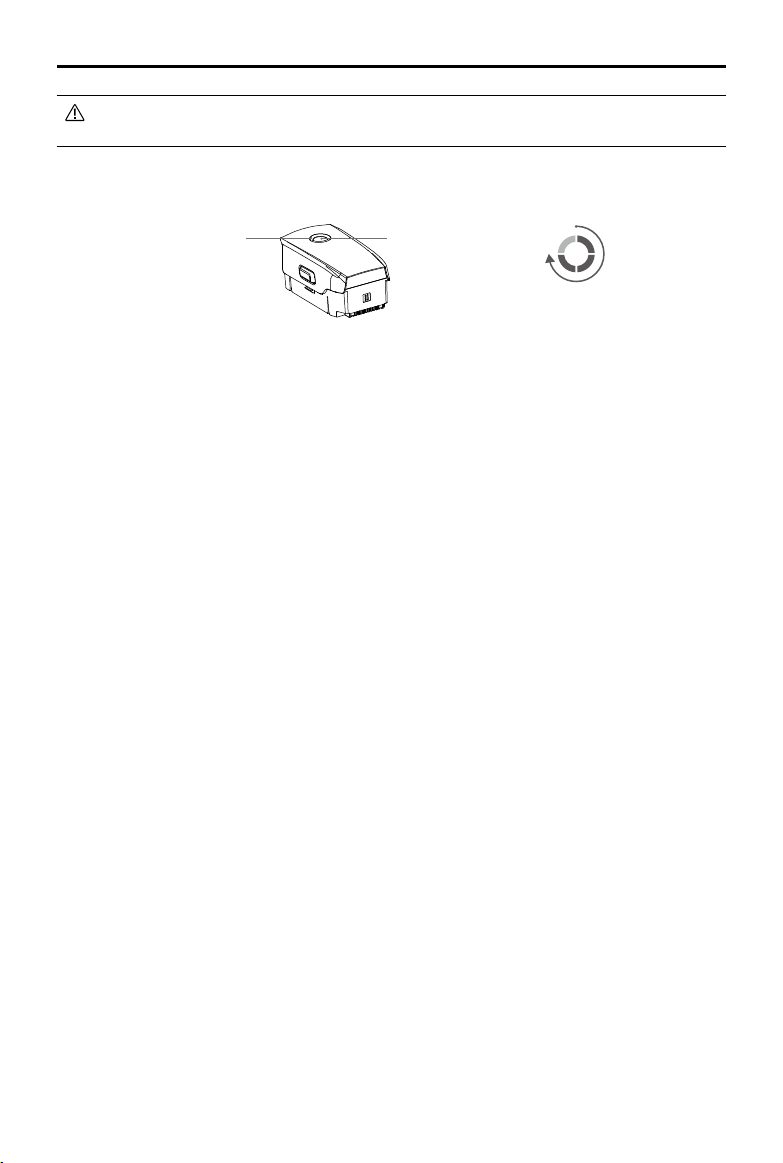
Battery Level LEDs Power Button
Low
High
Refer to the Mavic 2 Intelligent Flight Battery Safety Guidelines before use. Users take full
responsibility for all operations and usage.
Checking Battery Level
The battery level LEDs display how much charge is remaining. If the battery is powered o, press the
power button to make the battery level LEDs light up to display the current battery level.
Powering On/O
Press the power button once and press and hold for two seconds to power the battery on or o.
Heating the Battery
Manual Heating: make sure the battery is powered off. Press and hold the power button for five
seconds to warm up the battery manually.
As the battery warms up, the brightness of the battery level LEDs will change from no light, low light,
medium light, to high light. The battery will stop warming up when it reaches 46° F (8° C) and the
battery level LEDs will blink clockwise, indicating that the battery temperature is between 46° to 50° F
(8° to 10° C). This will last for approximately 20 minutes before the battery automatically powers o.
Auto Heating: insert the battery into the aircraft and power it on. When the temperature of the battery
is below 43° F (6° C) and the battery level is above 45%, it will warm up automatically and the
temperature will remain between 46° to 50° F (8° to 10° F).
Low Temperature Notice
1. Battery capacity is signicantly reduced when ying in low-temperature environments of -4° to 41° F
(-20° to 5° C). It is recommended to heat the battery before use and make sure to fully charge the
battery before takeo.
2. Batteries cannot be used in extremely low-temperature environments of less than -4° F (-20° C).
3. To ensure the optimal performance of the battery, warm up the battery so the temperature is
above 46° F (8° C) before use.
4. Reduced battery capacity in low-temperature environments reduces the wind speed resistance of
the aircraft. Fly with caution.
5. Fly with extra caution at a high sea level.
6. The heating function cannot be initiated when the battery temperature is higher than 43° F (6° C)
or the battery level is lower than 45%.
7. When the temperature is below -4° F (-20° C), low temperature protection will be triggered and
the battery will not power on. The aircraft exits low temperature protection when the battery
temperature reaches 5° F (-15° C).
MAVIC 2 ENTERPRISE Advanced
User Manual
©
2021 DJI All Rights Reserved.
27
Charging the Battery
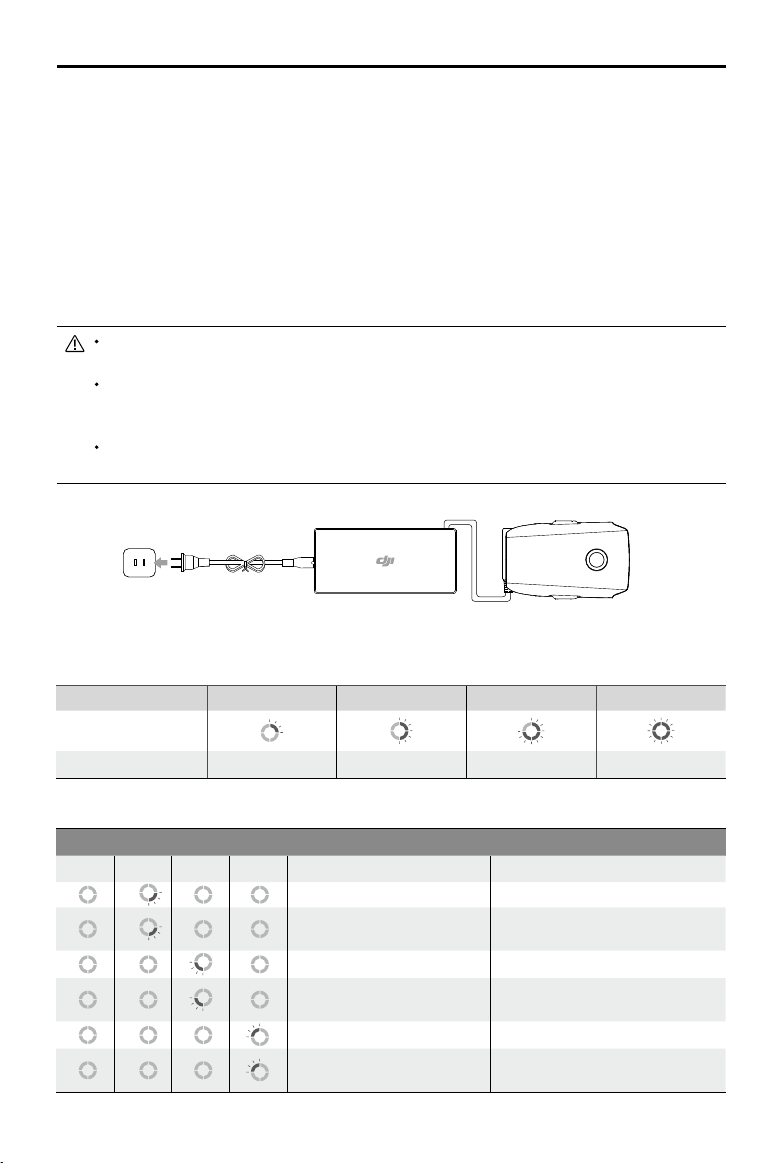
Fully charge the Intelligent Flight Battery before using for the rst time:
1. Connect the AC power adapter to a power source (100-240 V, 50/60 Hz).
2. Attach the Intelligent Flight Battery to the AC power adapter using the battery charging cable with
the battery powered o.
3. The battery level LEDs display the current battery level during charging.
4. The Intelligent Flight Battery is fully charged when the battery level LEDs are all powered off.
Detach the AC power adapter when the battery is fully charged. It takes 1 hour and 30 minutes to
fully charge.
DO NOT charge an Intelligent Flight Battery immediately after ight as the temperature may be too high.
Wait until it cools down to room temperature before charging again.
The AC power adapter stops charging the battery if the battery cell temperature is not within the
operating range of 41° to 104° F (5° to 40° C). The ideal charging temperature is 71.6° to 82.4° F (22°
to 28° C).
The Battery Charging Hub (not included) can charge up to four batteries. Visit the ocial DJI online store
for more information.
AC Power Adapter
Intelligent Flight Battery
Power Outlet
Battery Level LEDs During Charging
LED1 LED2 LED3 LED4
Battery Level LEDs
During Charging
Battery Level 0%~25% 25%~50% 50%~75% 75%~100%
Battery Protection
Battery Protection Mechanisms
LED1 LED2 LED3 LED4 Blinking Pattern Battery Protection Description
LED 2 blinks twice per second Overcurrent detected
LED 2 blinks three times per
second
Short circuit detected
LED 3 blinks twice per second Overcharge detected
LED 3 blinks three times per
second
Charger overvoltage detected
LED 4 blinks twice per second Charging temperature is too low
LED 4 blinks three times per
second
Charging temperature is too high
MAVIC 2 ENTERPRISE Advanced
User Manual
28
©
2021 DJI All Rights Reserved.
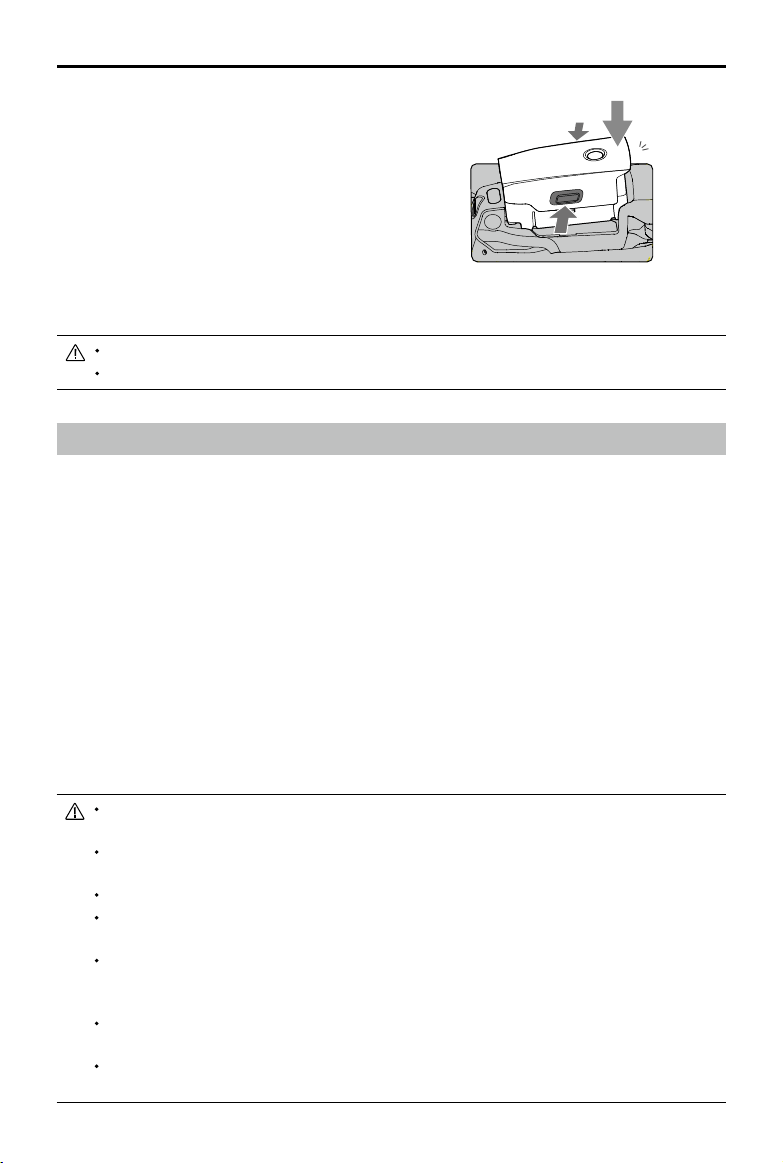
Inserting the Intelligent Flight Battery
Insert the Intelligent Flight Battery into the battery
compartment of the aircraft. Make sure it is mounted
securely and that the battery latches have clicked
into place.
Removing the Intelligent Flight Battery
Slide the battery latches on the sides of the Intelligent Flight Battery to open the battery compartment.
DO NOT insert or remove the battery while it is powered on.
Make sure the battery is mounted securely.
Click
Gimbal and Camera
Gimbal
The Mavic 2 Enterprise Advanced 3-axis gimbal provides stabilization for the camera, enabling users
to capture clear and stable images and video. The gimbal has a tilt range of -90˚ to +30˚. Users can
also go to gimbal settings to set the gimbal mode and enable auto calibration.
Use the gimbal dial on the remote controller to control the tilt of the camera. Alternatively, enter the live
view in DJI Pilot. Double tap to center or press the screen until a blue circle appears and drag the circle
up and down to control the tilt of the camera and left and right to control the orientation of the aircraft.
Gimbal Operation Modes
Two gimbal operation modes are available, which can be set under camera settings on DJI Pilot.
Follow Mode: the angle between the orientation of the gimbal and the aircraft front remains constant
at all times.
FPV Mode: the gimbal synchronizes with the movement of the aircraft to provide a rst-person ying
experience.
Do not tap or knock the gimbal when the aircraft is powered on. Take o from open and at ground to
protect the gimbal during takeo.
Precision elements in the gimbal may be damaged by a collision or impact, which may cause the
gimbal to function abnormally.
Avoid getting dust or sand on the gimbal, especially in the gimbal motors.
A gimbal motor error may occur if the aircraft is on uneven ground, the gimbal is obstructed, or the
gimbal experiences a collision or crash.
DO NOT apply external force to the gimbal after the gimbal is powered on. DO NOT add any extra
payload to the gimbal as this may cause the gimbal to function abnormally or even lead to permanent
motor damage.
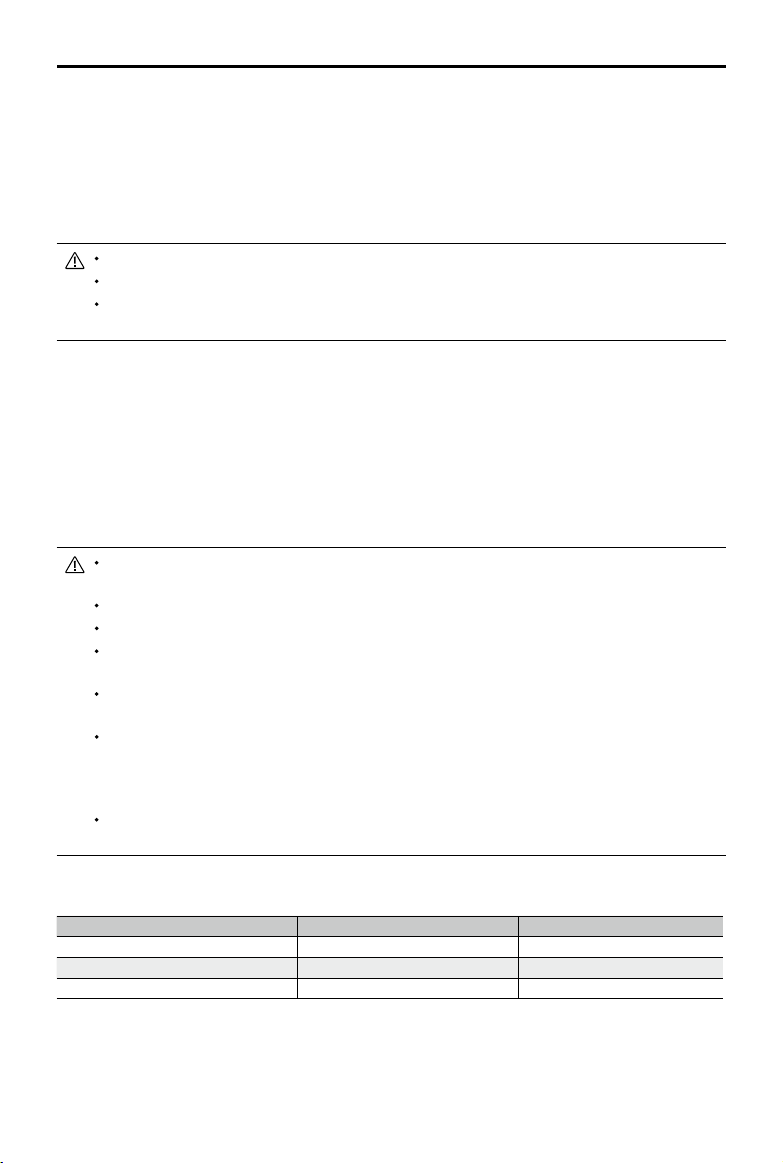
Make sure to remove the gimbal cover before powering on the aircraft. Also, make sure to mount the
gimbal cover when the aircraft is not in use.
Flying in heavy fog or clouds may make the gimbal wet, leading to temporary failure. Allow the gimbal to
dry to recover full functionality.
MAVIC 2 ENTERPRISE Advanced
User Manual
©
2021 DJI All Rights Reserved.
29
Camera
Mavic 2 Enterprise Advanced features a thermal camera and a visual camera, providing both infrared
and visible light imaging simultaneously. The visual camera uses a 1/2’’ CMOS sensor and supports
up to 32× digital zoom with focus range of 1 m to innity.
Mavic 2 Enterprise Advanced shoots up to 4K 30fps video and 48MP photos. Shooting modes
include Single Shot, Interval, and Panorama.
Make sure the temperature and humidity are suitable for the camera during use and storage.
Use a lens cleanser to clean the lens to avoid damage.
DO NOT block any ventilation holes on the camera as the heat generated may damage the device and
injure the user.
Storing Photos and Videos
Mavic 2 Enterprise Advanced comes with 24 GB of internal storage for storing photos and videos.
Enable password protection to protect data and ensure secure access to the device.
A microSD card can also be used to store photos and videos. A UHS-I Speed Grade 3 rating microSD
card is required due to the fast read and write speeds necessary for high-resolution video data.
To view the date and time photos and videos are taken, open the app and enable Add Timestamp
and GPS Info under camera settings.
Do not remove the microSD card from the aircraft when it is powered on. Otherwise, the microSD card
may be damaged.
To ensure the stability of the camera system, single video recordings are limited to 30 minutes.
Check camera settings before use to ensure they are congured correctly.
Before shooting important photos or videos, shoot a few images to test whether the camera is
operating correctly.
Photos and videos cannot be transmitted or copied from the camera if the Intelligent Flight Battery is
powered o.
Make sure to power o the Intelligent Flight Battery correctly. Otherwise, your camera parameters will
NOT be saved and any recorded videos may be damaged. Note that regardless of the reason, DJI is
not responsible for any failure of an image or video to be recorded or having been recorded in a way
that is not machine-readable.
For Mavic 2 Enterprise Advanced, only the photos and videos recorded by the visual camera will have a
timestamp and GPS info.
Three les will be saved when using Split display mode.
Display Mode Photo Video
Thermal Visible + IR Visible + IR
Visible Visible + IR Visible + IR
Split Visible + IR + Split Visible + IR
Video Edit
Mavic 2 Enterprise Advanced supports MP4 video format, as well as H.264 coding format and
capturing of visible light and thermal imaging.

MAVIC 2 ENTERPRISE Advanced
User Manual
30
©
2021 DJI All Rights Reserved.
DJI AirSense
Manned aircraft with an ADS-B transceiver actively broadcast flight information, including their
location, flight path, speed, and altitude. DJI AirSense receives this information from ADS-B
transceivers via an on-board receiver or internet connection. UAVs with DJI AirSense installed can
obtain the position, orientation, and velocity information from the built-in ADS-B transmitter (1090ES
or UAT) of a manned aircraft, calculate the collision risk level in real time, and send the warning to the
user. DJI AirSense then analyzes the potential collision risk by comparing the location of the manned
aircraft and sends timely warning prompts to the user via DJI Pilot.
DJI AirSense provides information about nearby manned aircraft to ensure ight safety. It does not
actively control the drone to avoid incoming aircraft. Always y your aircraft within a visual line of sight
and be cautious at all times. Lower your altitude when you receive warning prompts. Be aware that
DJI AirSense has the following limitations:
1. It can only receive messages sent by manned aircraft with an ADS-B out device installed in
accordance with 1090ES (RTCA DO-260) or UAT (RTCA DO-282). DJI devices cannot receive
related broadcast messages or warning prompts from manned aircraft that are not equipped with
functioning ADS-B out devices.
2. If there is an obstacle or steel structure between a manned aircraft and DJI aircraft, DJI AirSense
will not be able to receive ADS-B messages sent by the manned aircraft or send warning prompts
to the user. Pay close attention to your surroundings and y with caution.
3. Warning prompts may be delayed if DJI AirSense experiences any interference from the
surrounding environment. Closely observe the surrounding environment and y with caution.
4. Warning prompts may not be received if the DJI aircraft is unable to determine its location.
5. If disabled or misconfigured, DJI AirSense cannot receive ADS-B messages sent by manned
aircraft or send warning prompts to the user.
When DJI AirSense detects the possibility of a collision, it sends a series of warning prompts based
on the distance between the manned aircraft and the DJI aircraft (when the connection between
the DJI aircraft and the remote controller is stable). After receiving the first warning prompt it is
recommended to immediately descend or choose another ight path to avoid a collision.
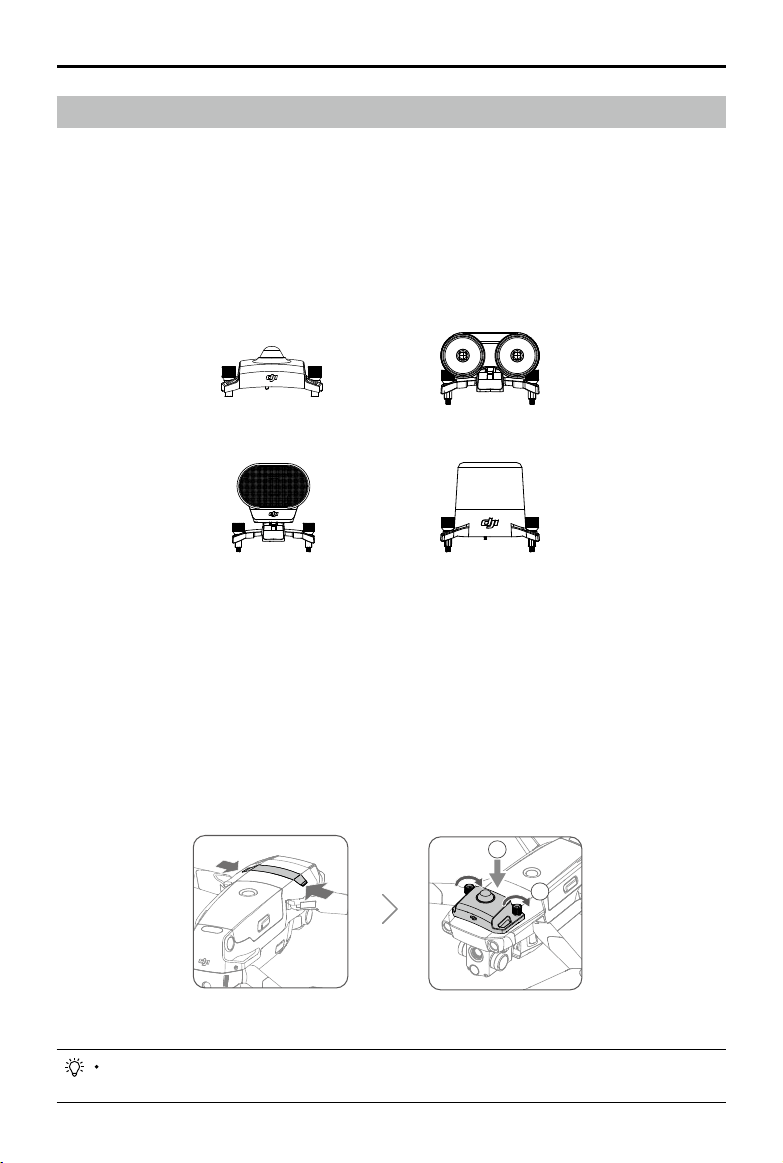
Warning Escalation:
1. The lowest level warning occurs when a manned aircraft is detected. Up to 10 detected aircraft
can be displayed in DJI Pilot at a time. Pay attention to ensure ight safety.
2. The medium level warning occurs when the DJI aircraft is two km away from a manned aircraft.
Pay attention to avoid any safety hazards.
3. The highest level warning occurs when the DJI aircraft is one km away from a manned aircraft.
Descend or change the ight path immediately to avoid the manned aircraft.
Red: The third level warning
Blue: The rst level warning Yellow: The second level warning
MAVIC 2 ENTERPRISE Advanced
User Manual
©
2021 DJI All Rights Reserved.
31
Modular Accessories
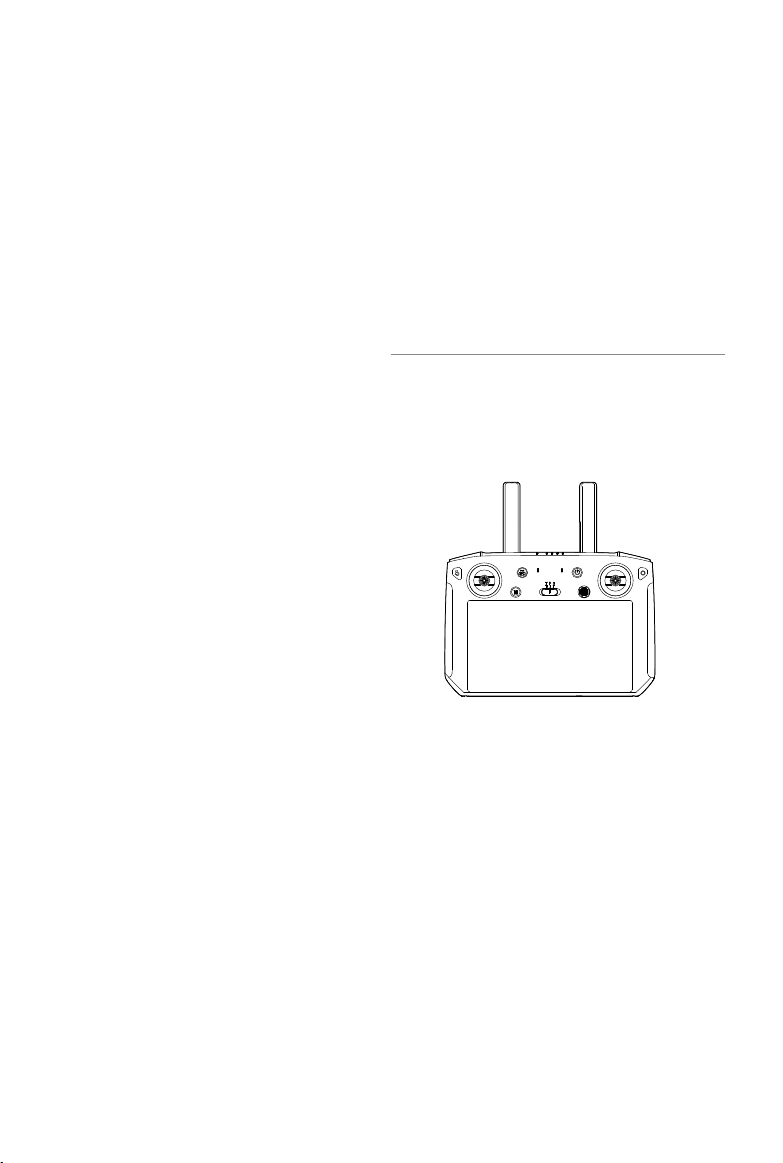
Mavic 2 Enterprise Advanced features an extended port for mounting additional compatible DJI
modular accessories that are listed below:
M2E Beacon: helps to identify aircraft during ight at night or in low light areas.
M2E Spotlight: used for long-range illumination to search in low-light conditions and assist when
shooting with the camera at night.
M2E Speaker: used for long-range, real-time broadcasting or audio playback.
M2EA RTK Module: supports NTRIP and is capable of centimeter-level positioning accuracy.
1
2
4. Power on the aircraft and launch DJI Pilot to use the beacon.
The auxiliary bottom light can be used as a beacon. Go to Visual Navigation Settings in the app and
set the Bottom Auxiliary Light to Night Light.
Usage
The following example illustrates how to install and use the modular accessories. The M2E Beacon is
used as an example.
1. Remove the extended port cover on top of the aircraft. Make sure it is stored in a safe place for
future use.
2. Mount the beacon onto the extended port of the aircraft.
3. Tighten the knobs on both sides to ensure that the beacon is rmly mounted onto the aircraft.
M2E Beacon
M2E Spotlight
M2E Speaker
M2EA RTK Module
(not included)

MAVIC 2 ENTERPRISE Advanced
User Manual
32
©
2021 DJI All Rights Reserved.
Using the RTK Module
Enable/Disable RTK
Make sure that RTK positioning is enabled and the RTK service type is correctly set to either Network
RTK or Custom Network RTK before each use. Go to Camera View >
> RTK to set the service
type. Otherwise, the aircraft will be unable to take o when there is no dierential data.
Using with Custom Network RTK
Connect a dongle to the remote controller or use the app to connect to Wi-Fi and to use the Custom
Network RTK. Custom Network RTK can be used in place of a RTK base station. Connect the
Custom Network RTK account to the designated NTRIP server to send and receive dierential data.
Keep the remote controller powered on and connected to the internet while using this function.
1. Make sure the remote controller and the aircraft are linked and the app is connected to the
internet.
2. Go to Camera View >
> RTK to set the RTK service type as Custom Network RTK and ll in
the NTRIP host, port, account, password, and mount point information.
3. Wait to connect to the NTRIP server. In RTK Settings, the positioning of the aircraft is displayed
as FIX to indicate that the aircraft has obtained and used the dierential data from the Custom
Network RTK.
Make sure that the accessories are correctly and securely mounted on the aircraft before use.
Otherwise, they may fall from the aircraft during ight.
DO NOT point the spotlight or the beacon directly at people’s eyes.
DO NOT use the speaker near people or in an urban area where noise-sensitive structures are
concentrated as the loudness could lead to accidents or injuries.
©
2021 DJI All Rights Reserved.
33
Smart Controller
This section describes the features of the
remote controller and includes instructions
for controlling the aircraft and the camera.
34
©
2021 DJI All Rights Reserved.
Smart Controller
Smart Controller Prole
The DJI Smart Controller uses DJI’s OcuSync 2.0 long-range transmission technology, offering a
maximum transmission range of 6.2 mi (10 km) and displaying video from the aircraft to DJI Pilot on
a mobile device at up to 720p resolution. The onboard buttons make controlling the aircraft easy and
its detachable control sticks make it convenient to store.
In wide-open areas with no electromagnetic interference, OcuSync 2.0 smoothly transmits video links at
up to 720p regardless of the ight attitude. The remote controller transmission works at both 2.4 GHz
and 5.8 GHz, automatically selecting the best transmission channel.
OcuSync 2.0 also reduces latency to 120-130 ms by improving the camera performance through the
video decoding algorithm and the wireless link.
The Smart Controller has a built-in 5.5-inch high-brightness screen with multiple functions such as
Bluetooth connectivity and GNSS satellite positioning. The remote controller can also connect to the
internet via Wi-Fi and has a maximum working time of 2.5 hours.
Smart Controller Operations
Powering the Smart Controller On and O
Follow the steps below to power the remote controller on and o.
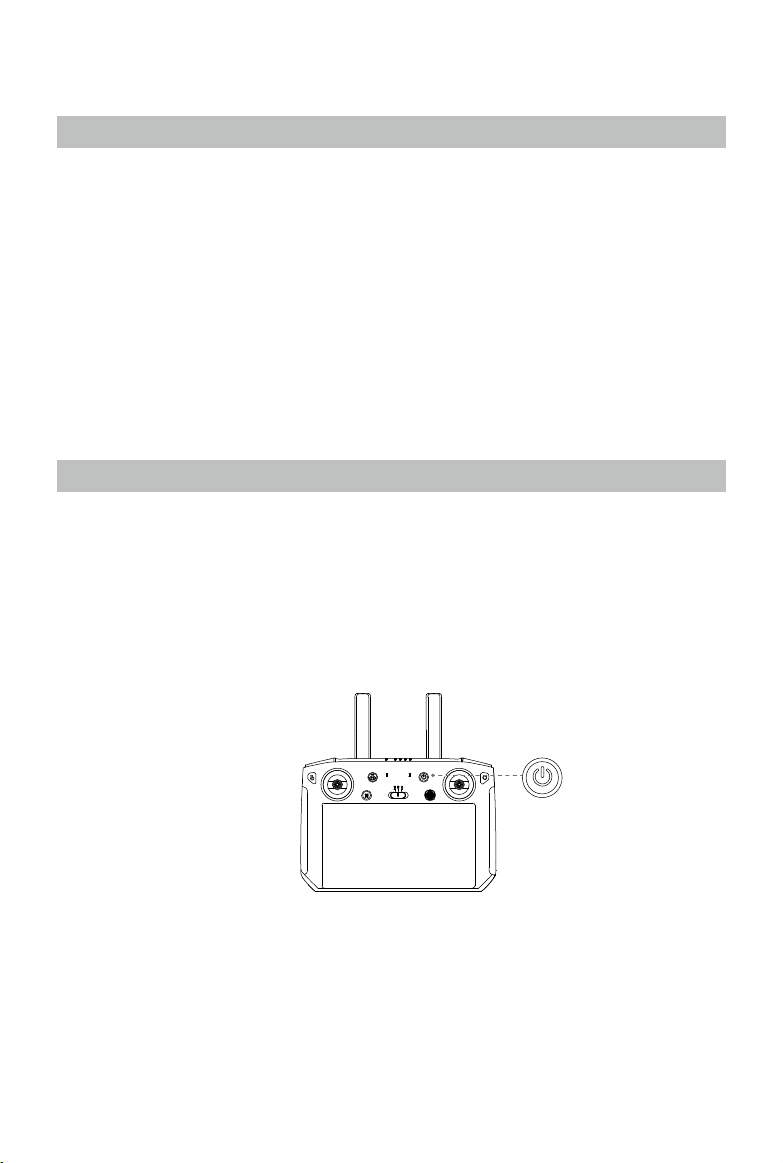
1. Press the power button once to check the current battery level. Charge the remote controller if the
battery level is too low.
2. Hold the power button or press and hold the power button to power on the remote controller.
3. Repeat Step 2 to power o the remote controller.
MAVIC 2 ENTERPRISE Advanced
User Manual
©
2021 DJI All Rights Reserved.
35
Charging the Battery
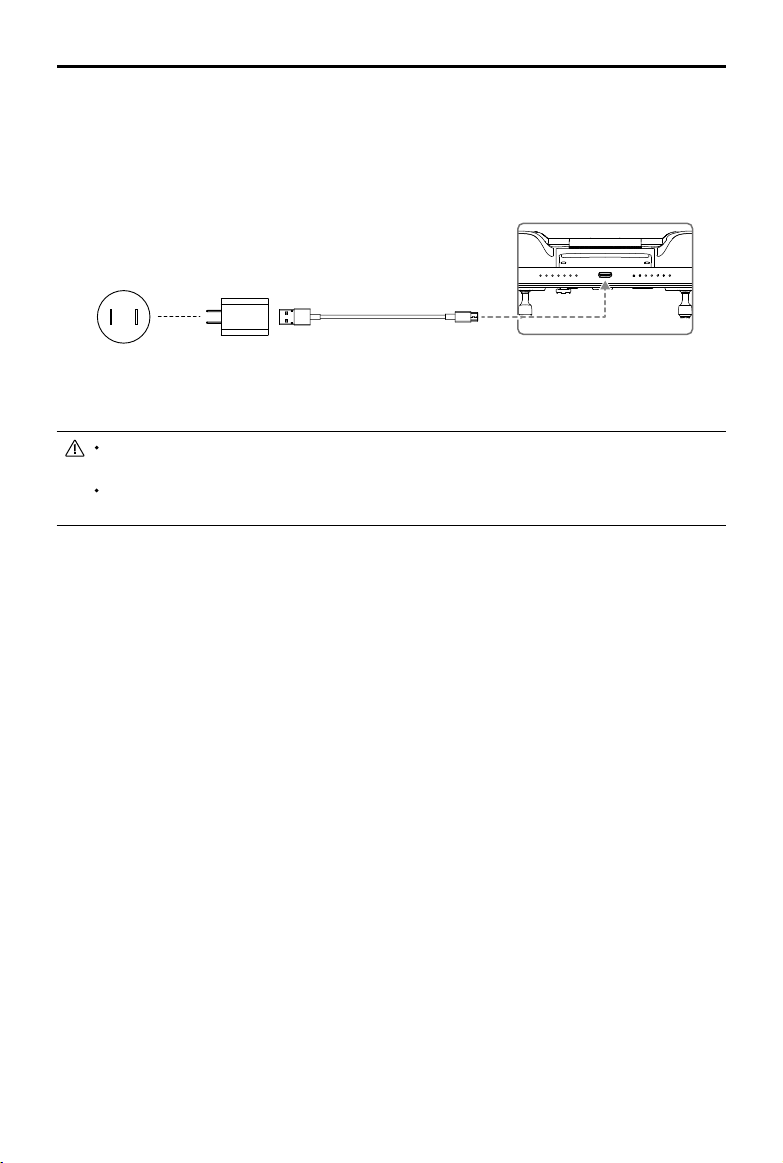
There are two pairs of built-in 18650 Li-ion batteries in the remote controller. Charge the remote
controller using the USB-C port.
Charging Time: approx. 2 hours and 15 minutes. (using a standard USB charger adapter )
Use a DJI official USB power adapter to charge the remote controller. If a DJI official adaptor is
unavailable, using a certied FCC/CE rated 12V/2A USB adapter is recommended.
The battery will deplete when stored for an extended period. Recharge the battery at least once every
three months to prevent over discharge.
Operating the Camera
Shoot photos and videos with the focus/shutter button and record button on the remote controller.
1. Focus/Shutter Button
Press to take a photo.
2. Record Button
Press once to start recording video and press again to stop.
3. Camera Settings Dial
Turn to adjust the zoom of the camera.
Power Outlet
100~240 V
USB Charger USB-C Cable
Controlling the Aircraft
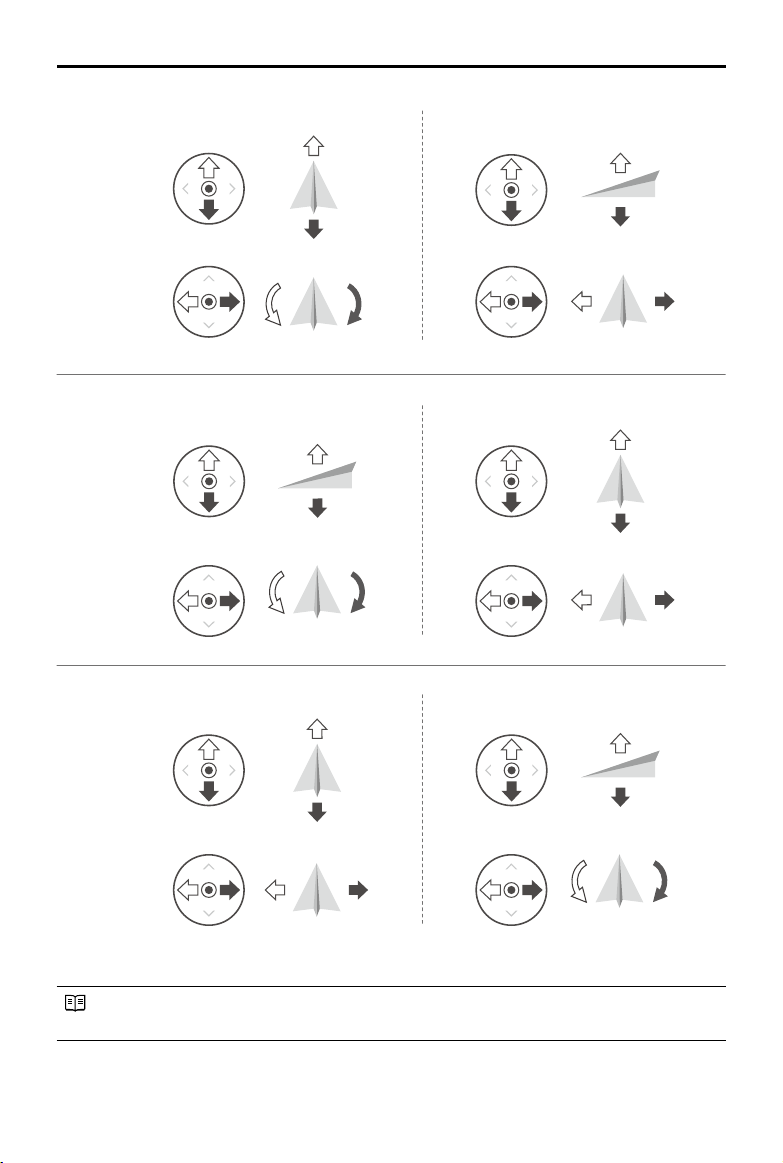
The control sticks control the aircraft’s orientation (yaw), forward and backward movement (pitch),
altitude (throttle), and left and right movement (roll). The control stick mode determines the function
of each control stick. There are three pre-programmed modes as well as custom modes that can be
congured in DJI Pilot. The modes are Mode 1, Mode 2, and Mode 3. The default mode is Mode 2. In
each of the three pre-programmed modes, the aircraft hovers in place at a constant orientation when
both sticks are centered. See the gures below to check the function of each control stick in the three
pre-programmed modes.
MAVIC 2 ENTERPRISE Advanced
User Manual
36
©
2021 DJI All Rights Reserved.
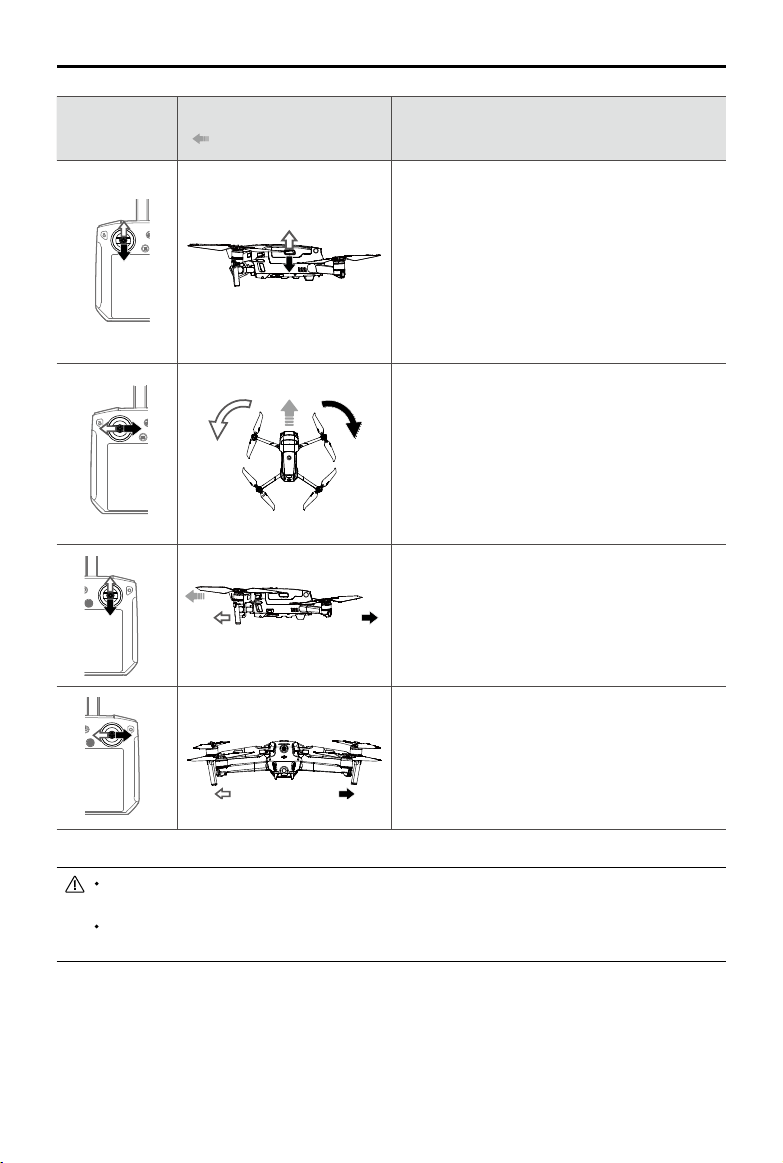
The gure below explains how to use each control stick. Mode 2 is used as an example.
Center position: control sticks are centered.
Moving the control stick: control sticks are pushed away from the center.
Right StickLeft Stick
Turn RightTurn Left
UP
Down
RightLeft
UP
Down
Turn RightTurn Left
RightLeft
Forward
Backward
Left Stick Right Stick
Forward
Backward
Right Stick
UP
Down
Forward
Backward
Left Stick
Turn RightTurn Left
RightLeft
Mode 2
Mode 1
Mode 3
MAVIC 2 ENTERPRISE Advanced
User Manual
©
2021 DJI All Rights Reserved.
37
Remote
Controller
(Mode 2)
Aircraft
(
Indicates Nose Direction)
Remarks
Moving the left stick up or down changes the
altitude of the aircraft.
Push the stick up to ascend and down to
descend.
The more the stick is pushed away from the
center, the faster the aircraft changes altitude.
Push the stick gently to prevent sudden and
unexpected changes in altitude.
Moving the left stick to the left or right controls
the orientation of the aircraft.
Push the stick left to rotate the aircraft counter-
clockwise and right to rotate the aircraft
clockwise.
The more the stick is pushed away from the
center, the faster the aircraft rotates.
Move the right stick up and down to change
the pitch of the aircraft.
Push the stick up to y forward and down to y
backward. The more the stick is pushed away
from the center, the faster the aircraft moves.
Moving the right stick to the left or right
changes the roll of the aircraft.
Push the stick left to y left and right to y right.
The more the stick is pushed away from the
center, the faster the aircraft moves.
Keep the remote controller away from magnetic materials to avoid it being affected by magnetic
interference.
To avoid damage, it is recommended that the control sticks are removed and stored in the storage
slot on the remote controller during transportation or storage.
MAVIC 2 ENTERPRISE Advanced
User Manual
38
©
2021 DJI All Rights Reserved.
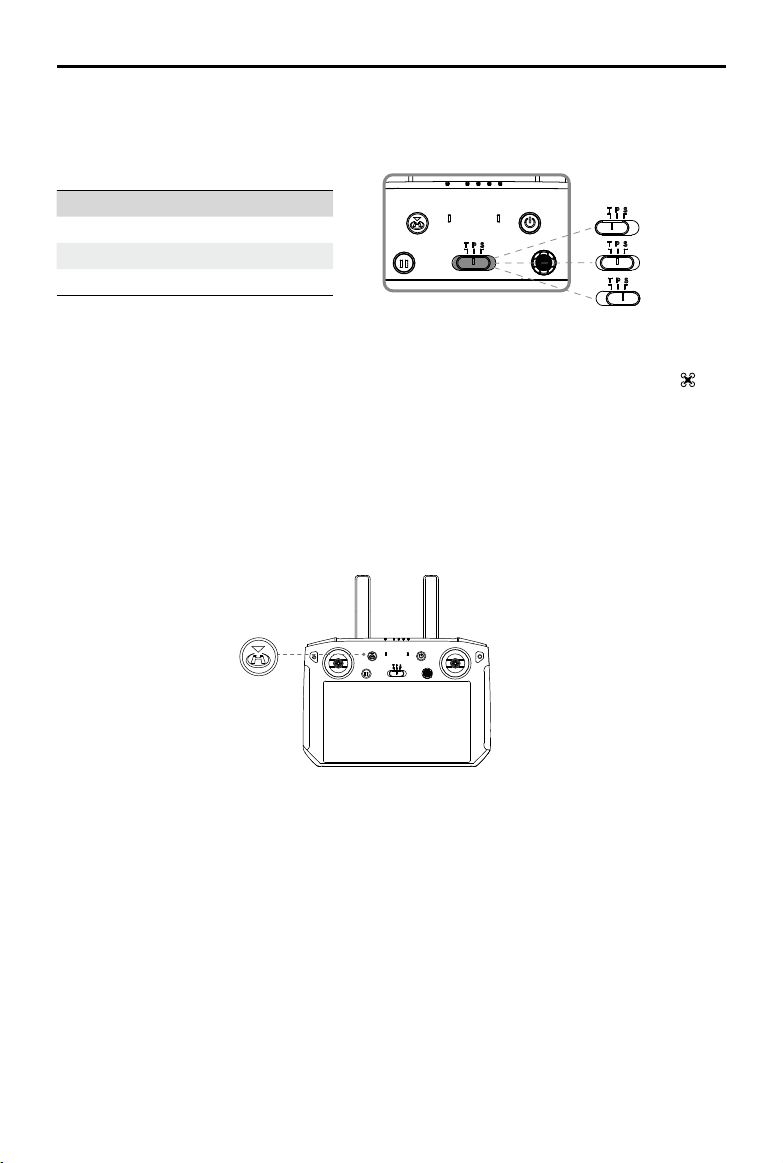
Flight Mode Switch
Toggle the switch to select the ight mode. Choose between T-mode, P-mode, and S-mode.
Mavic 2 Enterprise Advanced begins in P-mode by default regardless of the position the switch is
in on the remote controller. To switch ight modes, rst go to Camera View in DJI Pilot, tap
and
enable Multiple Flight Modes. After enabling multiple ight modes, toggle the switch to P and then to
S or T to switch ight modes.
RTH Button
Press and hold the RTH button to initiate RTH and the aircraft will return to the last recorded Home
Point. Press the button again to cancel RTH and regain control of the aircraft. Refer to the Return to
Home section for more information about RTH.
Customizable Buttons
There are three customizable buttons on the controller: C1, C2, and the Conrm button. When the
remote controller is not linked to an aircraft, press the Conrm button to conrm a selection. When the
remote controller is linked to an aircraft, the button cannot be used to conrm a selection. However,
the function of the button when linked to an aircraft can be customized in DJI Pilot.
The functions of the C1 and C2 buttons are set in DJI Pilot. The default configuration for the C1
button is center focus and the default conguration for the C2 button is playback.
位置T
位置S
位置P
Position Flight Mode
T T-mode (Tripod)
P P-mode (Positioning)
S S-mode (Sport)
Position T
Position P
Position S
MAVIC 2 ENTERPRISE Advanced
User Manual
©
2021 DJI All Rights Reserved.
39
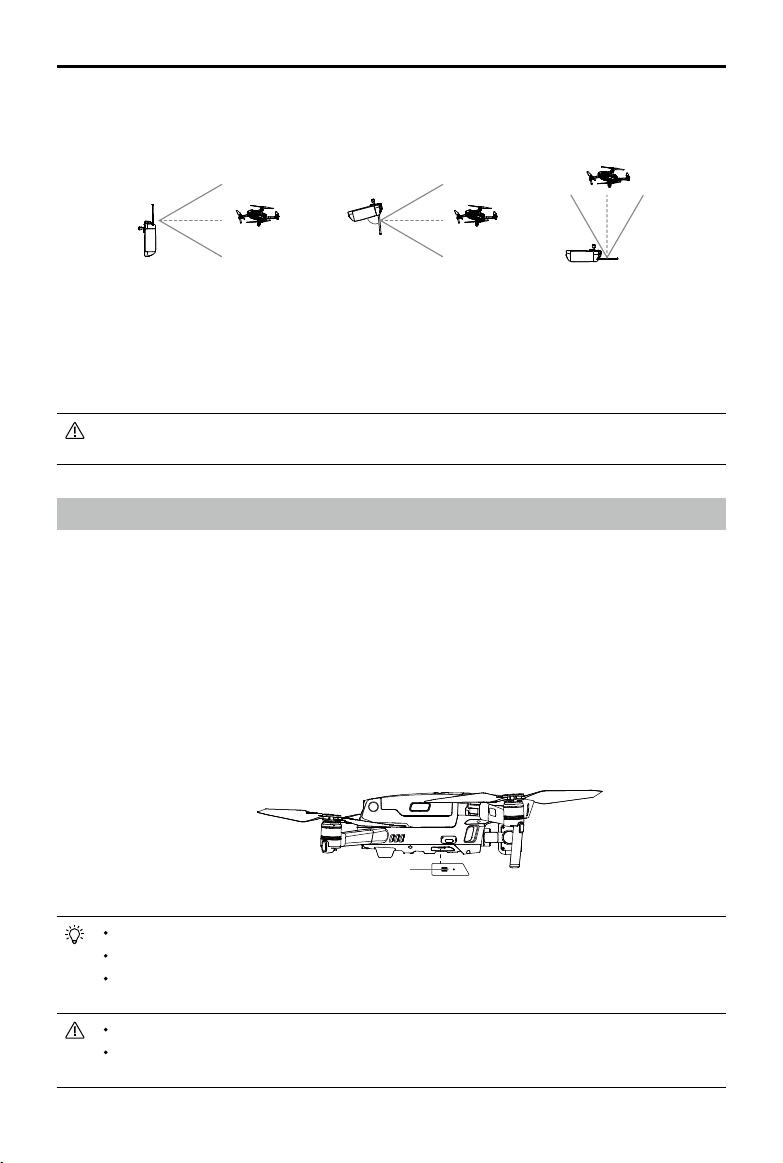
Optimal Transmission Zone
The optimal transmission range of the Smart Controller is shown below:
Link Button
Make sure the remote controller is within 1.6 ft (0.5 m) of the aircraft during linking.
Make sure the remote controller is connected to the internet when logging in using a DJI account.
For more linking methods, visit https://www.dji.com/smart-controller/downloads and download the
DJI Smart Controller User Manual.
Fully charge the remote controller before each ight.
If the remote controller is powered on and is not in use for 5 minutes, an alert will sound. After
10 minutes, it will automatically power o. Move the control sticks to cancel the alert.
80°
Make sure the antennas are facing towards the aircraft. The signal between the remote controller and
the aircraft can reach its optimal performance when the angle between the antennas and the back of
the Smart Controller is 80° or 180°.
Note that the illustrations above do not reect the actual distances between the user and aircraft and
are for reference only.
A warning prompt appears in DJI Pilot if the transmission signal is weak. Adjust the antennas to make
sure that the aircraft is within the optimal transmission range.
Linking the Smart Controller
When the Smart Controller is purchased together with an aircraft, the remote controller has already
been linked to the aircraft, and they can be directly used after activating the remote controller and
aircraft. If the Smart Controller and the aircraft were purchased separately, follow the steps below to
link the remote controller to the aircraft.
1. Power on the aircraft and the remote controller.
2. Press the customizable button C1, C2, and Record button simultaneously. The status LED blinks
blue and the controller beeps twice to indicate the linking has started.
3. Press the linking button on the aircraft. The remote controller’s status LED will be solid green if the
linking is successful.
MAVIC 2 ENTERPRISE Advanced
User Manual
40
©
2021 DJI All Rights Reserved.
Make sure the antennas of the remote controller are unfolded and adjusted to the proper position to
achieve optimal transmission quality.
Repair or replace the remote controller if damaged. A damaged remote controller antenna greatly
decreases performance.
Fully charge the battery at least once every three months to maintain battery health.
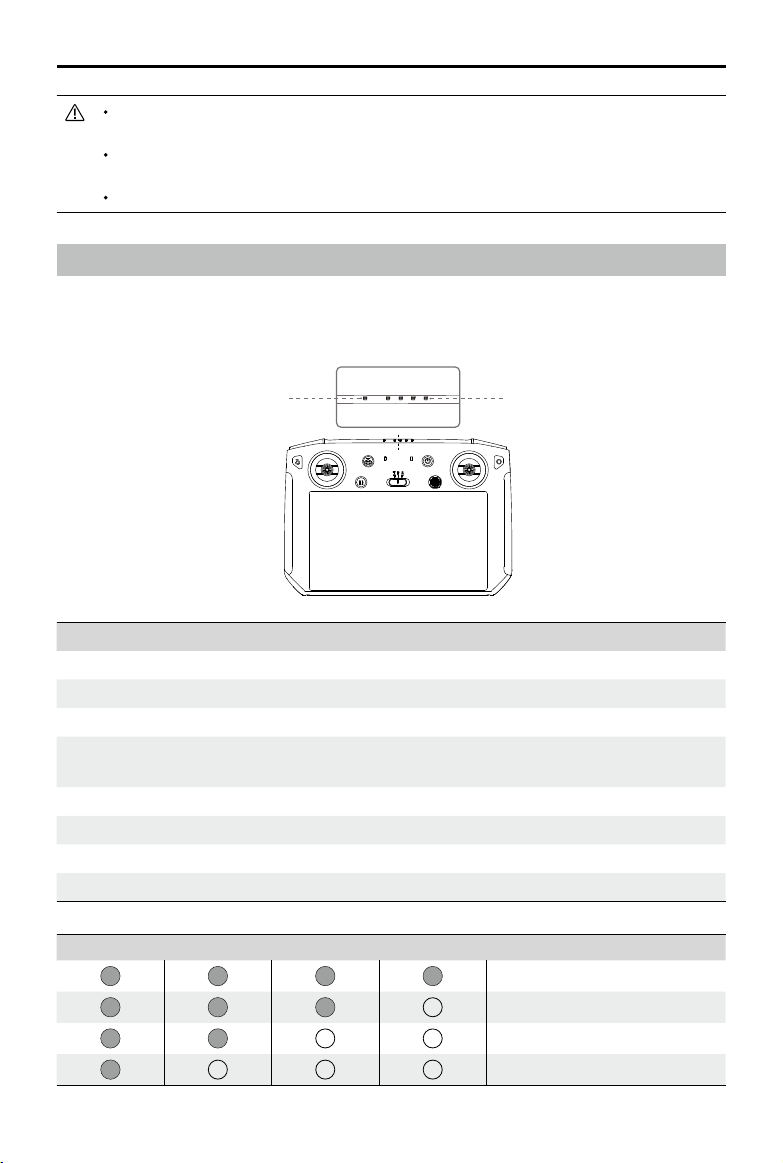
Status LED and Battery Level LEDs Description
The battery level LEDs displays the battery level of the controller. The status LED displays the linking
status and warnings when the battery level is low, the temperature is high, and the control sticks are
not centered.
Status LED Description
Solid Red The remote controller is not linked to an aircraft.
Solid Green The remote controller is linked to an aircraft.
Blinks Blue The remote controller is linking to an aircraft.
Blinks Red The temperature of the remote controller is too high or the battery level of
the aircraft is low.
Blinks Yellow The battery level of the remote controller is low.
Blinks Cyan The control sticks are not centered.
Solid Blue The remote controller rmware updated successfully.
Solid Yellow The remote controller rmware update failed.
Battery Level Indicators Battery Level
75%~100%
50%~75%
25%~50%
0%~25%
Status LED
Battery Level Indicators

MAVIC 2 ENTERPRISE Advanced
User Manual
©
2021 DJI All Rights Reserved.
41
Smart Controller Warning Sounds
The Smart Controller will vibrate and/or beep when there is a warning prompt. If the error is related to
the aircraft or ight status, the remote controller beeps and the status LED is solid green. If the error
is related to the Smart Controller, a warning prompt will appear on the screen of the remote controller.
To disable the beeping, power on the remote controller, tap
and then , and disable Notication
Volume.

42
©
2021 DJI All Rights Reserved.
DJI Pilot App
This section introduces the main functions
of the DJI Pilot app.
©
2021 DJI All Rights Reserved.
43
DJI Pilot App
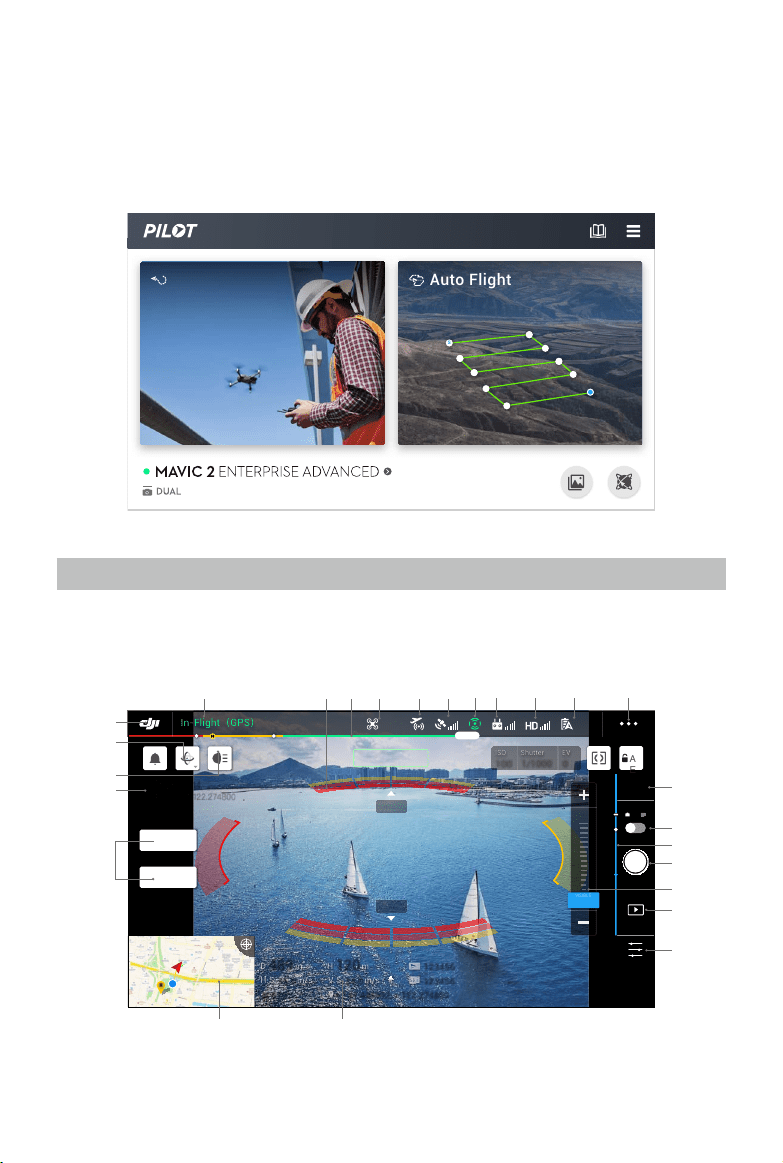
DJI Pilot is specifically developed for enterprise users and offers two types of flight. Manual flight
integrates a variety of professional features that make flying simple and intuitive. Mission flight
supports ight planning, and allows users to control the drone automatically, making workows much
simpler and more ecient.
Manual Flight
Camera View
Enter the Camera View by tapping Manual Flight.
1.5M
1.5M
489 489
D
D
m
m
120 120
H
H
m
m
16.0 16.0
H.S
H.S
m/s
m/s
N 010° N 010°
24.0 24.0
V.S
V.S
m/s
m/s
123456 123456
123456 123456
+ 147.498992, - 122.274800 + 147.498992, - 122.274800
2021-2-5 13:14
147.498992,-122.274800
A
E
ISO
ISO
100
100
Shutter
Shutter
1/1000
1/1000
EV
EV
0
0
In-Flight
(
GPS
)
19:29
GPS
12
2.4G
61%
MENU
00:05
12
12
VISIBLE 1.0x
SPLIT
IR
2 X
1 X
1 X
VISIBLE
9 10 11
13
14
16
15
17
19
18
2021
12
23
24
22
25
8765432
1
S
Auto Flight
Manual Flight
MAVIC 2 ENTERPRISE Advanced
User Manual
44
©
2021 DJI All Rights Reserved.
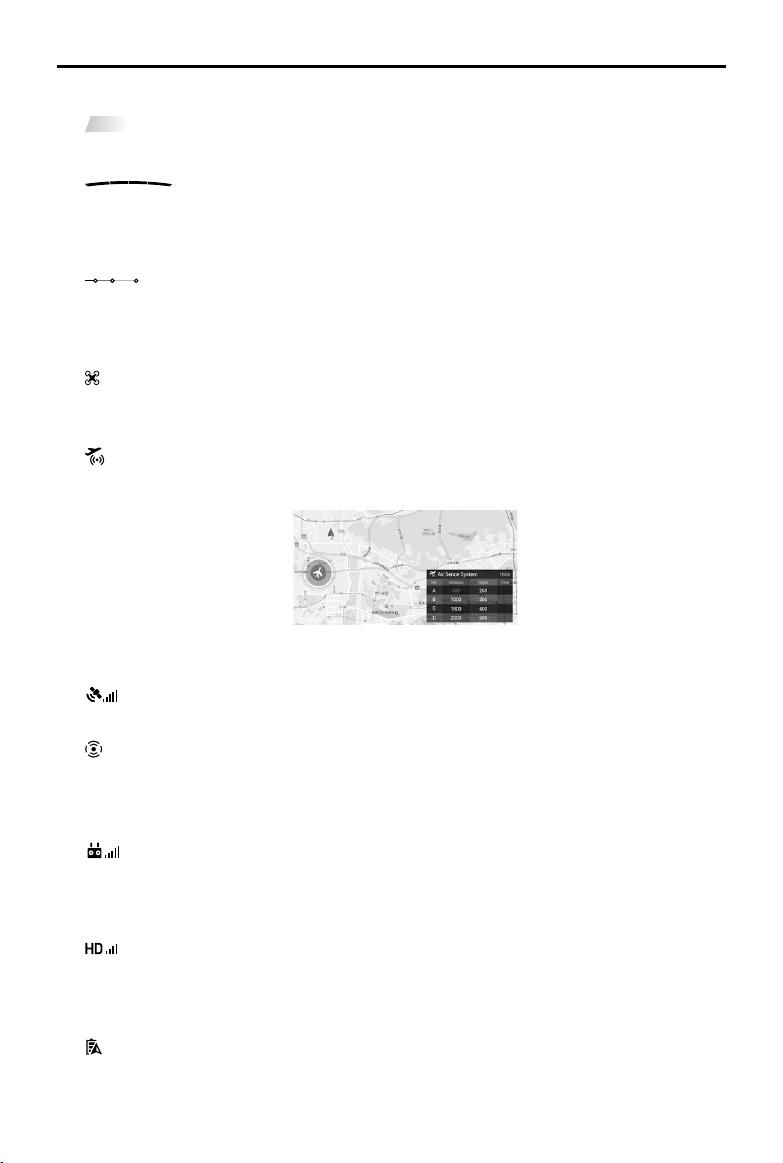
1. System Status Bar
In ight (GPS)
: indicates aircraft ight status and displays various warning prompts.
2. Obstacle Detection Status
: red bars are displayed when obstacles are close to the aircraft. Orange bars are
displayed when obstacles are within the detection range. Grey bars are displayed when there are
no obstacles within the detection range.
3. Battery Level Indicator Bar
: the battery level indicator provides a dynamic display of the battery level. The colored
zones on the battery level indicator represent the power levels needed to carry out different
functions.
4. Flight Mode
: the text next to the icon indicates the current flight mode. Tap to configure the Flight
Controller settings. These settings allow you to modify ight limits and set gain values.
5. DJI AirSense Status
: displays information about nearby manned aircraft to ensure flight safety, including the
distance between DJI aircraft and manned aircraft. DJI AirSense will instruct users to land if
nearby aircraft are detected.
6. GPS Signal Strength
: displays the current GPS signal strength. White bars indicate adequate GPS strength.
7. Vision Systems Status
: displays the status for all Vision Systems. The green icon indicates the corresponding vision
system is available while the red icon indicates it is unavailable. Tap the icon settings and enable
or disable the features of the Vision Systems.
8. Remote Controller Signal
: displays the strength of the remote controller signal. The icon will blink when interference
is detected during ight. The interference will not aect operation or overall ight experience if
there are no additional warning prompts.
9. HD Video Link Signal Strength
: displays the strength of the HD video downlink connection between the aircraft and the
remote controller. The icon will blink when interference is detected during ight. The interference
will not aect operation or overall ight experience if there are no additional warning prompts.
10. Battery Settings
61%
: displays the current battery level. Tap to view the battery information, set the various
battery warning prompt thresholds, and view the battery warning prompt history.

MAVIC 2 ENTERPRISE Advanced
User Manual
©
2021 DJI All Rights Reserved.
45
11. General Settings
: tap to enter the General Settings to set units of measurement, enable or disable livestream,
and more.
12. Display Mode
Tap to switch between the Visible, IR, and Split display modes.
Visible mode: only displays the footage that the visual camera captures.
IR mode: only displays the footage that the infrared thermal camera captures.
Split mode: displays the infrared and visual footage side by side. Spot meter and Area
measurement are only available in IR mode.
13. Camera Settings
Tap to enter photo and video settings. Tap
to congure photo settings such as photo mode
and image format. Tap
to congure video settings such as video size and format. Tap to
congure the video caption, grid lines, smart arm LED, temperature alerts, gain mode settings,
and more.
14. Photo/Video Toggle
: tap to switch between photo and video recording modes.
15. Gimbal Slider
: displays the gimbal tilt angle.
16. Zoom Menu
a) Visible mode: tap or drag
2 X
1 X
1 X
VI
S
IBL
E
to adjust the visual camera zoom rate.
b) IR mode: tap
1X
to adjust the thermal camera zoom rate.
c) Split mode: tap
1X
to adjust the zoom rate of the visual camera and thermal camera simultaneously.
Users can also use the remote controller dial to zoom.
17. Shutter/Record Button
/ : tap to take a photo or record video. When recording a video, a shutter icon will display
on the screen. Tap the icon to take a photo while recording a video.
18. Album
: tap to preview photos and videos as soon as they are captured.
19. Parameter Settings
: tap to set exposure values.
20. Flight Telemetry
D 30 m
: distance between the aircraft and the Home Point.
H 10.0 m
: height from the Home Point.
HS 10.0 m/s
: aircraft horizontal speed.
VS 2.0 m/s
: aircraft vertical speed.
N 010°
: orientation and angle of the aircraft.
113.95, 22.54
Coordinate: longitude and latitude of the aircraft.
10
:
15
: remaining capacity or recording duration of the internal storage.
12
:
45
: remaining capacity or recording duration of the microSD card.

MAVIC 2 ENTERPRISE Advanced
User Manual
46
©
2021 DJI All Rights Reserved.
21. Map
Tap to view the map.
22. Time and GPS Information
Displays current date, time, and the longitude and latitude of the aircraft. Only available in Visible
mode.
23. Accessory
Shows if an accessory is connected such as the beacon
, spotlight or speaker . Tap to
set or use.
24. Gimbal Orientation Adjustment
: tap to select the Gimbal Orientation Adjustment as Gimbal Recenter, Recenter Gimbal Yaw,
Gimbal Yaw Downward or Gimbal Downward.
25. Back
: tap to return to the main menu.
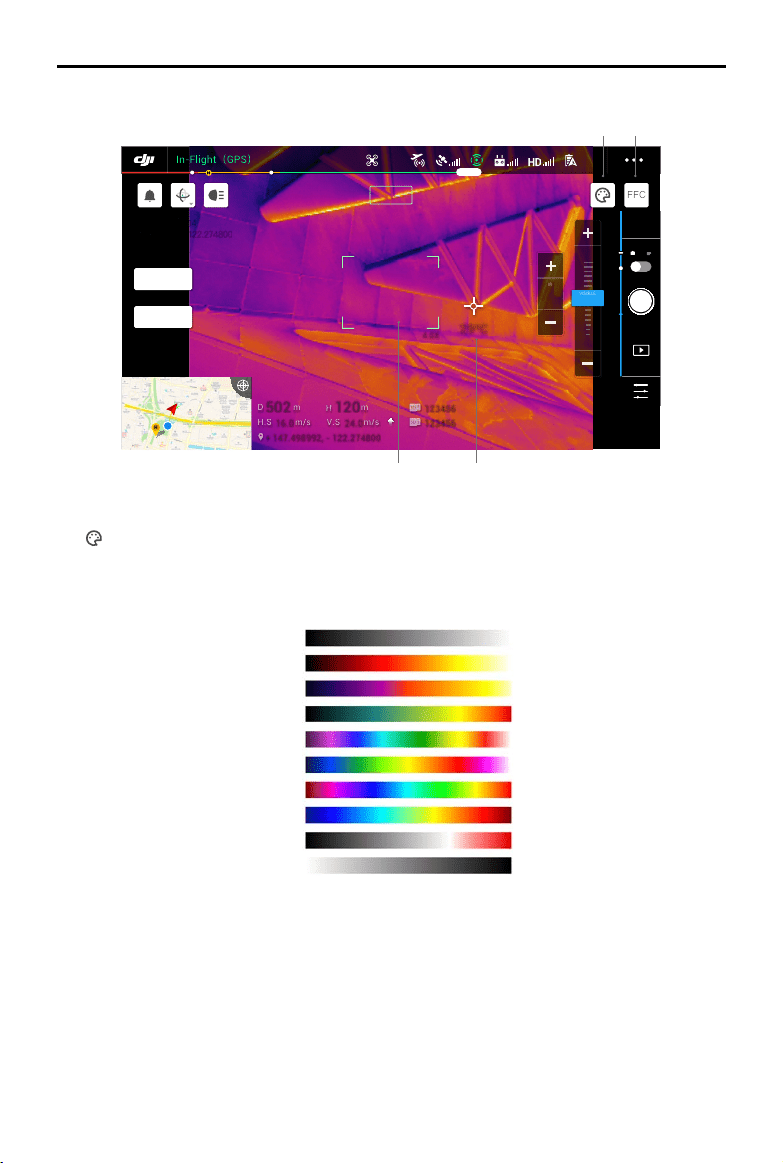
MAVIC 2 ENTERPRISE Advanced
User Manual
©
2021 DJI All Rights Reserved.
47
IR View
4.0X
4.0X
29ºC 29ºC
502 502
D
D
m
m
120 120
H
H
m
m
16.0 16.0
H.S
H.S
m/s
m/s
24.0 24.0
V.S
V.S
m/s
m/s
123456 123456
123456 123456
+ 147.498992, - 122.274800
2021-2-5 13:14
147.498992,-122.274800
FFC
In-Flight
(
GPS
)
19:29
GPS
12
2.4G
61%
MENU
12
12
IR 1x
SPLIT
VISIBLE
1X
IR
8 X
2 X
4 X
VISIBLE
1. Palette
: Mavic 2 Enterprise Advanced oers a variety of palette options. Distinct colors are used to
show temperature dierences in the thermal image, which are related to grayscale intensity. The
temperature range of the image is mapped to 256 colors and displayed in 8-bit JPEG or MP4
format. The following table shows all palette options.
2. FFC Calibration
Tap this button to enable FCC calibration in IR Mode. FCC calibration is used to optimize image
quality, during which the screen may freeze momentarily.
3. Temperature Measurement
Tap to enable the temperature measurement. Spot Meter and Area Measurement are available in
IR mode. Close Area Measurement to exit temperature measurement.
a) Spot Meter: the temperature of any position in an image can be measured. Refer to the
Specications for more information about measurement accuracy.
1 2
34
White Hot
Fulgurite
Iron Red
Hot Iron
Medical
Arctic
Rainbow 1
Rainbow 2
Tint
Black Hot
MAVIC 2 ENTERPRISE Advanced
User Manual
48
©
2021 DJI All Rights Reserved.
b) Area Measurement: drag an area within the temperature measurement area on the screen. The
average temperature, lowest temperature, highest temperature, and corresponding locations
of this area will be displayed.
The temperature measurement accuracy is aected by various factors:
a) Reectivity of objects – shiny metals with high reectivity will reect more of the background
radiation and result in lower accuracy, whereas objects with matte surfaces will produce a
higher accuracy.
b) Temperature of background radiation – sunlight has a great influence on the temperature
measurement accuracy, direct or reflected sunlight should be avoided from the infrared
thermal camera.
c) Air temperature and humidity – the temperature and humidity have been calibrated before
delivery, but some temperature measurement errors are inevitable. Extreme temperatures or
humidity levels will aect the measurement accuracy.
d) Distance between the camera and the object – the default distance used in calibration is 5 m,
and the temperature measurement is most accurate at this distance. Deviations from this
distance will lower the accuracy.
e) Emissivity of objects – the emissivity of the object will aect the temperature measurement
accuracy. Generally, accuracy increases proportionally to emissivity. Emissivity is aected by
factors such as the material, the roughness or the degree of oxidation of the object’s surface.
When measuring a blackbody 5 m away in high gain mode at a windless 25℃ indoors, the
camera provides an accuracy of up to ±2℃ or ±2% (whichever is the larger value). Since the
emissivity of dierent objects varies, this measurement result only represents the accuracy of
the tested blackbody, for reference only.
4. Visual Camera FOV
: the visual camera FOV range in IR mode. The FOV range will change if the zoom of the visual
camera is adjusted.
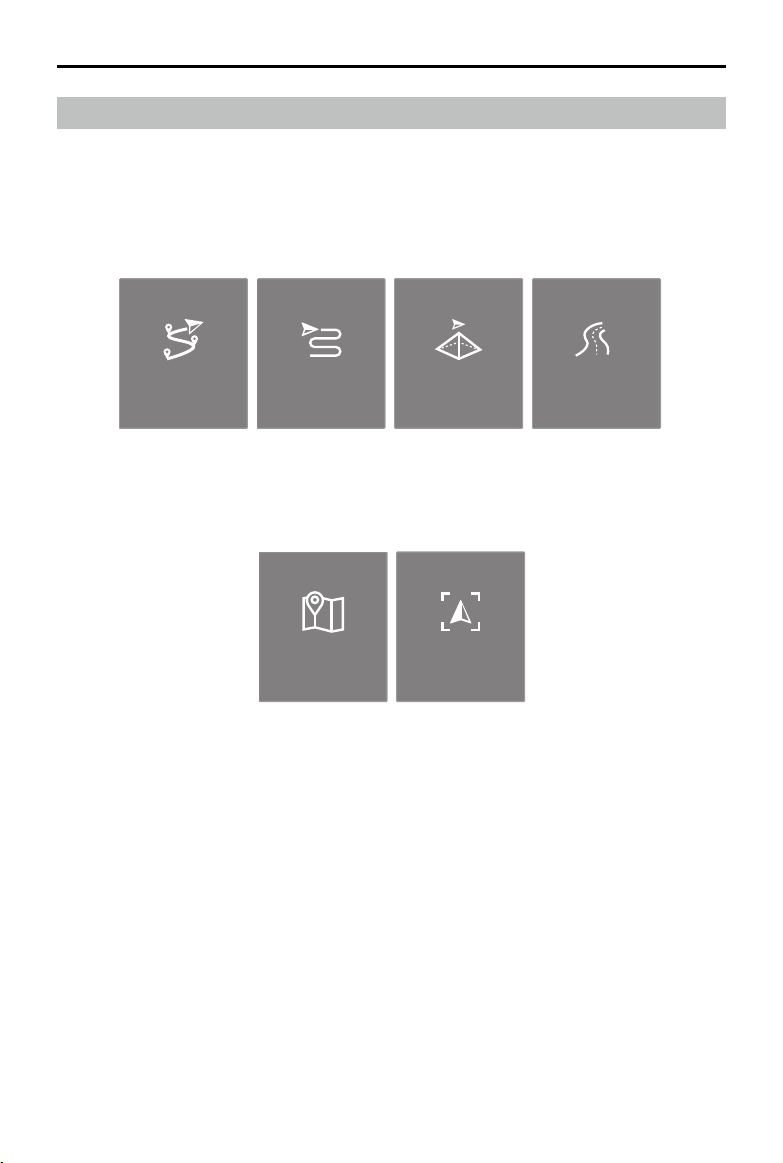
MAVIC 2 ENTERPRISE Advanced
User Manual
©
2021 DJI All Rights Reserved.
49
Mission Flight
Introduction
Tap to enter the mission library. View created flight routes or the most recent Waypoint flights,
Mapping missions, or Oblique Photography missions. Mapping and Oblique Photography missions
are generated using the app and Waypoint ights can be created by selecting Set Waypoints or Live
Mission Recording.
Waypoint Mapping Oblique
Set Waypionts
Linear Fight
Mission
Live Mission
Recording
Use Set Waypoints to create a route by adding editable waypoints on the map. Use Live Mission
Recording to create a route by recording the position information along the route.
Waypoint Mapping Oblique
Set Waypionts
Linear Fight
Mission
Live Mission
Recording
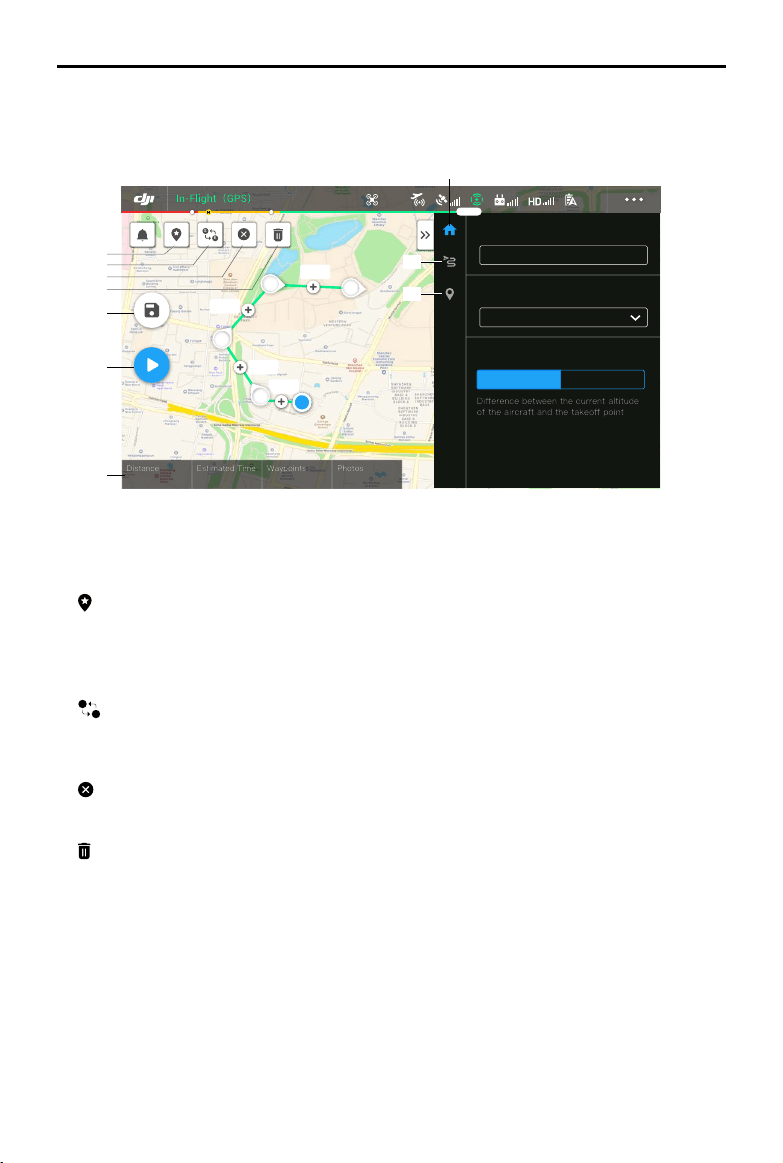
MAVIC 2 ENTERPRISE Advanced
User Manual
50
©
2021 DJI All Rights Reserved.
Set Waypoints
Tap Create a Route, Waypoint Flight, and then Set Waypoints to create a new ight route and edit
waypoints.
Tap on the map to add waypoints and congure route and waypoints settings.
1. Point of Interest (POI)
: tap to enable POI. A POI will be displayed on the map and can be dragged to adjust the
position. When POI is enabled, the yaw of the aircraft can be set to center on the POI so that the
aircraft front points at the POI during the mission. Tap this icon again to disable POI.
2. Reverse Path
S
E
: tap to swap the start and end points, which reverses the ight path. S refers to the start
point.
3. Clear Waypoints
: tap to clear all the added waypoints.
4. Delete Selected Waypoint
: tap to delete the selected waypoint.
5. Parameters List
Edit the route name, set the aircraft type as Mavic 2 Enterprise Advanced, and configure the
gimbal and camera.
6. Route Settings
Route settings are applied to the entire route including action upon completion, gimbal control,
and aircraft speed, height, and yaw.
7. Waypoint Settings
Select a waypoint and set waypoint parameters. Tap < or > to switch to the previous or next
S
E
Waypoint1
Mavic 2 Enterprise Advanced
Select Aircraft
Height Altitude
Difference between the current altitude
of the aircraft and the takeoff point
Display Altitude/Height
Flight Route Name
In-Flight
(
GPS
)
19:29
GPS
12
2.4G
61%
24.8m
54.8m
58.8m
54.8m
2
3
4
5
S
193.2 m
12 m 28 s
Distance
Estimated Time
5
Waypoints
10
Photos
1
2
3
4
8
9
10
5
6
7
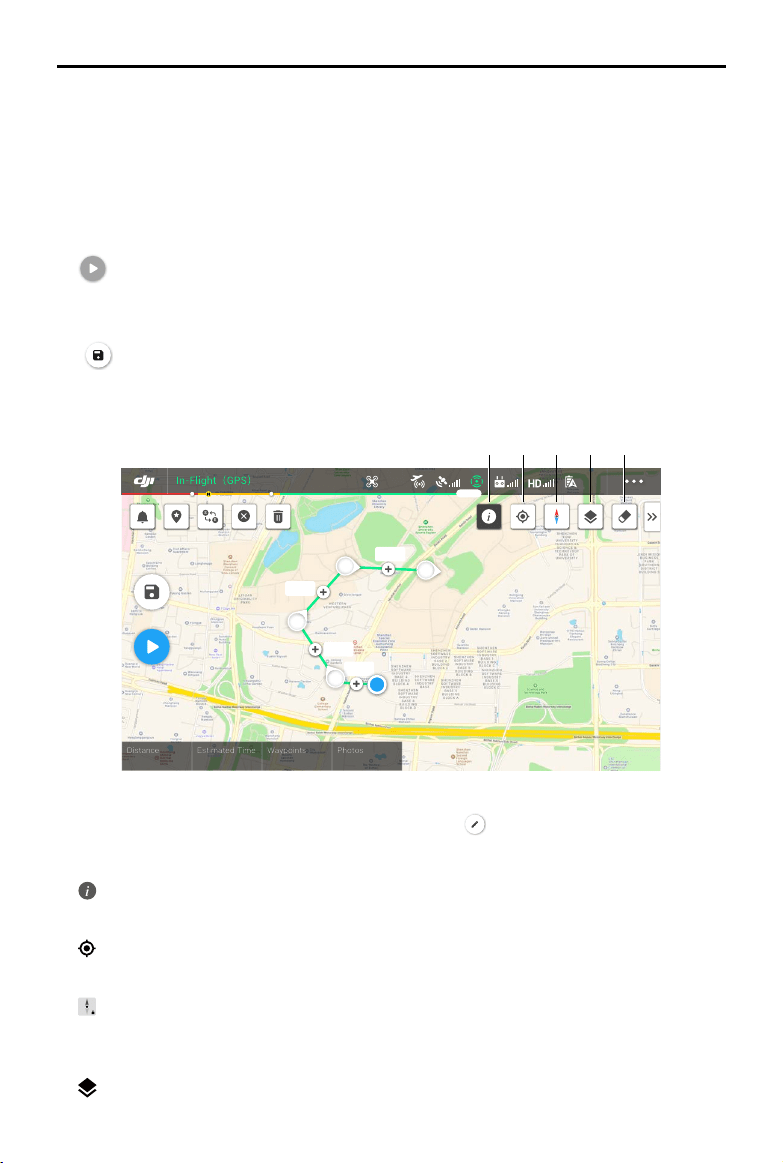
MAVIC 2 ENTERPRISE Advanced
User Manual
©
2021 DJI All Rights Reserved.
51
waypoint. The settings are applied to the selected waypoint including aircraft speed, height, yaw,
longitude, latitude, and waypoint type and actions.
8. Mission Information
Displays the ight length, estimated ight time, waypoint quantity, photo quantity, longitude, and
latitude.
9. Perform
: tap and check the settings and status of the aircraft in the pop-up checklist. Tap Start to Fly
to perform the mission.
10. Save
: tap to save current settings.
Waypoints Editing
Enter the mission library, select a created ight route, and tap to edit the ight route.
1. Flight Restriction Information
: tap to view the ight restriction information.
2. Location
: tap to center the map around the location of the aircraft.
3. Map Lock
: map rotation is locked by default with north at the top of the map. Tap to unlock rotation.
Hold two ngers on the map and rotate to adjust the orientation.
4. Map Mode
: tap to switch between Standard and Satellite modes.
193.2 m
12 m 28 s
Distance
Estimated Time
5
Waypoints
10
Photos
24.8m
54.8m
58.8m
54.8m
2
3
4
5
S
S
E
In-Flight
(
GPS
)
19:29
GPS
12
2.4G
61%
21 3 4 5
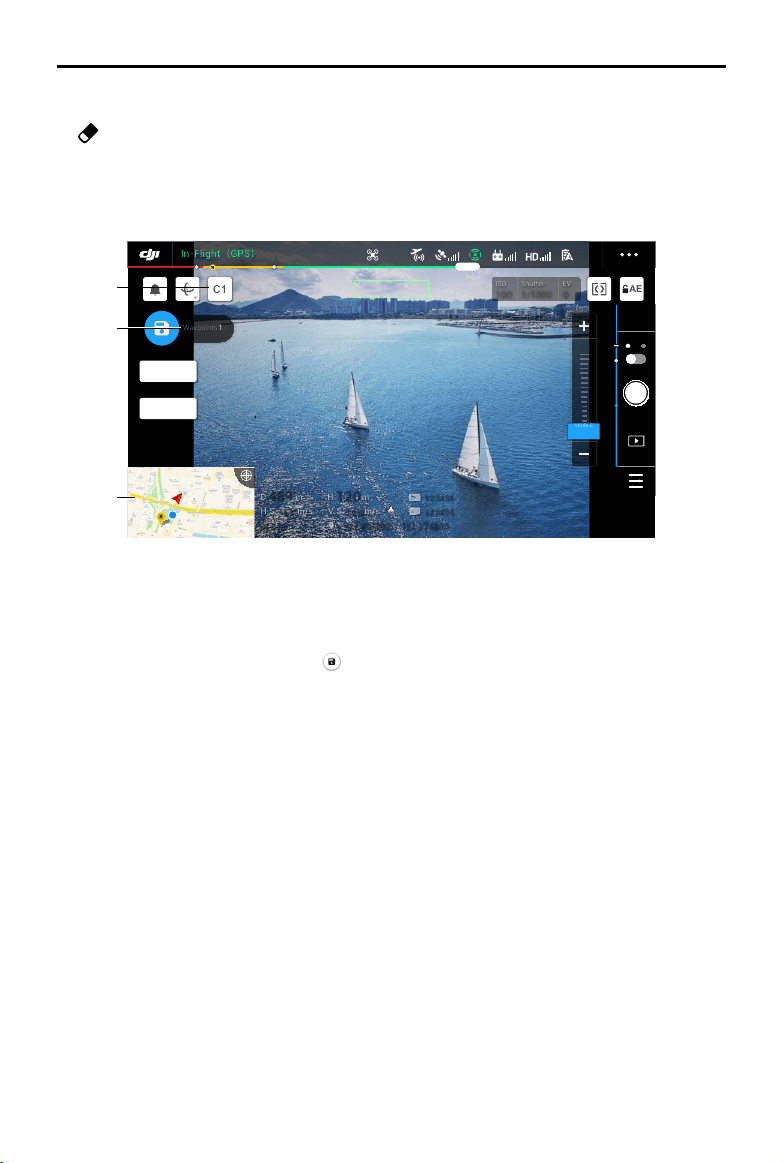
MAVIC 2 ENTERPRISE Advanced
User Manual
52
©
2021 DJI All Rights Reserved.
Live Mission Recording
1. Tap C1 to add a new waypoint.
2. Total number of waypoints.
3. Tap to enter the map for editing. Tap
to save current settings and a ight route is created.
5. Clear Screen
: tap to clear the ight path currently shown on the map.
489 489
D
D
m
m
120 120
H
H
m
m
16.0 16.0
H.S
H.S
m/s
m/s
N 010° N 010°
24.0 24.0
V.S
V.S
m/s
m/s
123456 123456
123456 123456
+ 147.498992, - 122.274800 + 147.498992, - 122.274800
C1
Waypoints
1
AE
ISO
ISO
100
100
Shutter
Shutter
1/1000
1/1000
EV
EV
0
0
In-Flight
(
GPS
)
19:29
GPS
12
2.4G
61%
MENU
00:05
12
12
VISIBLE 1.0x
SPLIT
IR
2 X
1 X
1 X
VISIBLE
1
2
3
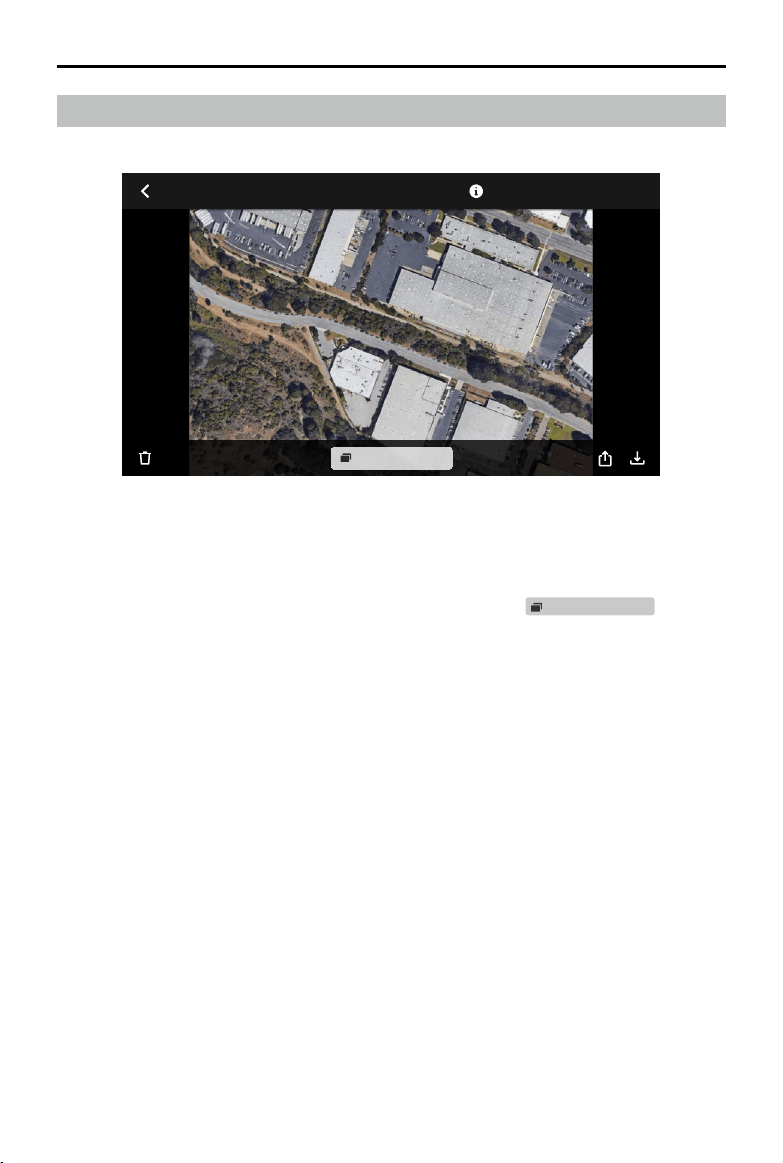
MAVIC 2 ENTERPRISE Advanced
User Manual
©
2021 DJI All Rights Reserved.
53
Jan27,2021 4:21:23 PM
Single Shot (3 photos)
Tap to view photos or videos that can be saved to a mobile device.
When saving a photo or video, the format will vary depending on the display mode. Refer to the
Storing the Photos and Videos section for more information. Tap
Single Shot (3 photos)
to switch
between the footage of the photo or video.
Album

54
©
2021 DJI All Rights Reserved.
Flight
This section describes safe ight practices
and ight restrictions.
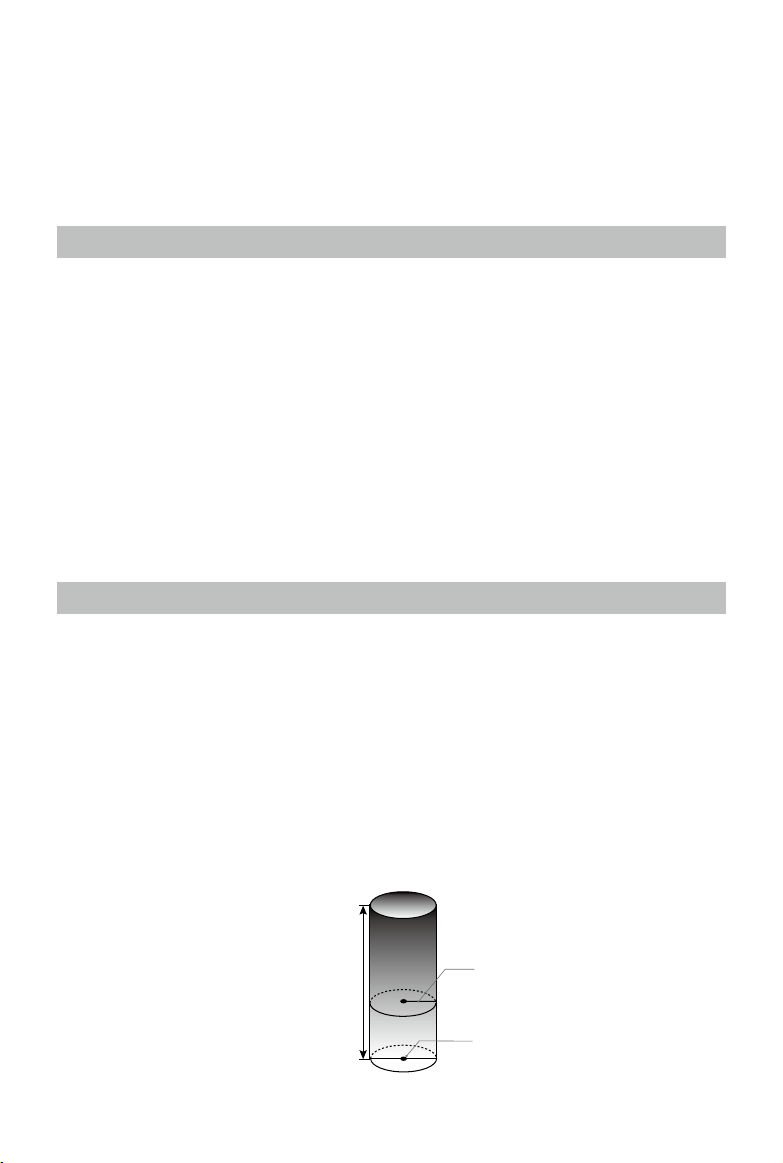
©
2021 DJI All Rights Reserved.
55
Flight
Once pre-ight preparation is complete, it is recommended to hone your ight skills and practice ying
safely. Make sure that all ights are carried out in an open area. The ight height is limited to 500 m. DO
NOT exceed this height. Strictly abide by local laws and regulations when ying. Make sure to read the
Mavic 2 Enterprise Series Disclaimer and Safety Guidelines to understand the safety notices before ying.
Flight Environment Requirements
1. Do not use the aircraft in severe weather conditions including wind speeds exceeding 10 m/s,
snow, rain, and fog.
2. Only y in open areas. Tall structures and large metal structures may aect the accuracy of the
onboard compass and GPS system.
3. Avoid obstacles, crowds, high voltage power lines, trees, and bodies of water.
4. Minimize interference by avoiding areas with high levels of electromagnetism such as locations
near power lines, base stations, electrical substations, and broadcasting towers.
5. Aircraft and battery performance is subject to environmental factors such as air density and
temperature. Exercise extreme caution when ying 19,685 ft (6,000 m) or more above sea level
since battery and aircraft performance may be reduced.
6. The aircraft cannot use GPS within the polar regions. Use the Downward Vision System when
ying in such locations.
Flight Limits and GEO Zones
Abide by all laws and regulations when ying the aircraft. Flight limitations are applied by default to
help users operate the aircraft safely and legally. Flight limitations include altitude limits, distance
limits, and GEO zones.
Altitude limits, distance limits, and GEO Zones function concurrently to manage ight safety when
operating in P-mode.
Flight Altitude and Distance Limits
The flight altitude and distance limits can be set in DJI Pilot. The maximum flight altitude setting
cannot exceed 1,640 ft (500 m). Based on these settings, the aircraft will y in a restricted cylinder as
shown below.
Max Flight Altitude
Max Radius
Home Point
Height of aircraft
when turned on
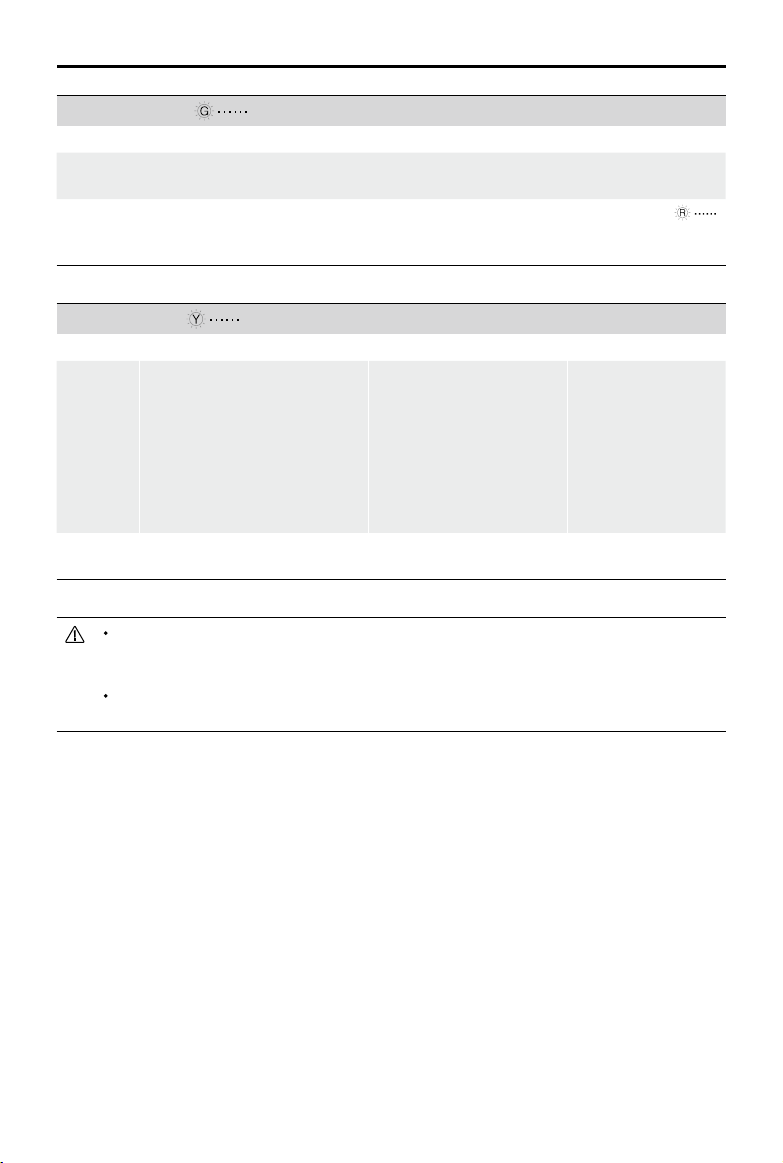
MAVIC 2 ENTERPRISE Advanced
User Manual
56
©
2021 DJI All Rights Reserved.
GPS Signal Strong Blinking Green
Flight Limits DJI Pilot App Aircraft Status Indicator
Max
Altitude
Altitude of the aircraft cannot
exceed the specied value.
Warning: Height limit
reached.
N/A
Max
Radius
Flight distance must be within
the max radius.
Warning: Distance limit
reached.
Blinks red quickly
when close to the max
radius limit.
GPS Signal Weak Blinking Yellow
Flight Limits DJI Pilot App Aircraft Status Indicator
Max
Altitude
Height is restricted to 16 ft (5
m) when the GPS signal is weak
and Downward Vision System is
activated.
Height is restricted to 98 ft (30
m) when the GPS signal is weak
and Downward Vision System is
inactivate.
Warning: Height limit
reached.
N/A
Max
Radius
No limit
If the aircraft reaches one of the limits, users can still control the aircraft, but cannot y it any farther.
If the aircraft ies out of the max radius, it will automatically y back within range when the GPS
signal is strong.
For safety reasons, do not y close to airports, highways, railway stations, railway lines, city centers,
or other sensitive areas. Only y the aircraft within visual line of sight.
GEO Zones
All GEO Zones are listed on the DJI ocial website at http://www.dji.com/ysafe. GEO Zones are
divided into dierent categories and include locations such as airports, ight areas where manned
aircraft operate at low altitudes, international borders, and sensitive locations such as power plants.
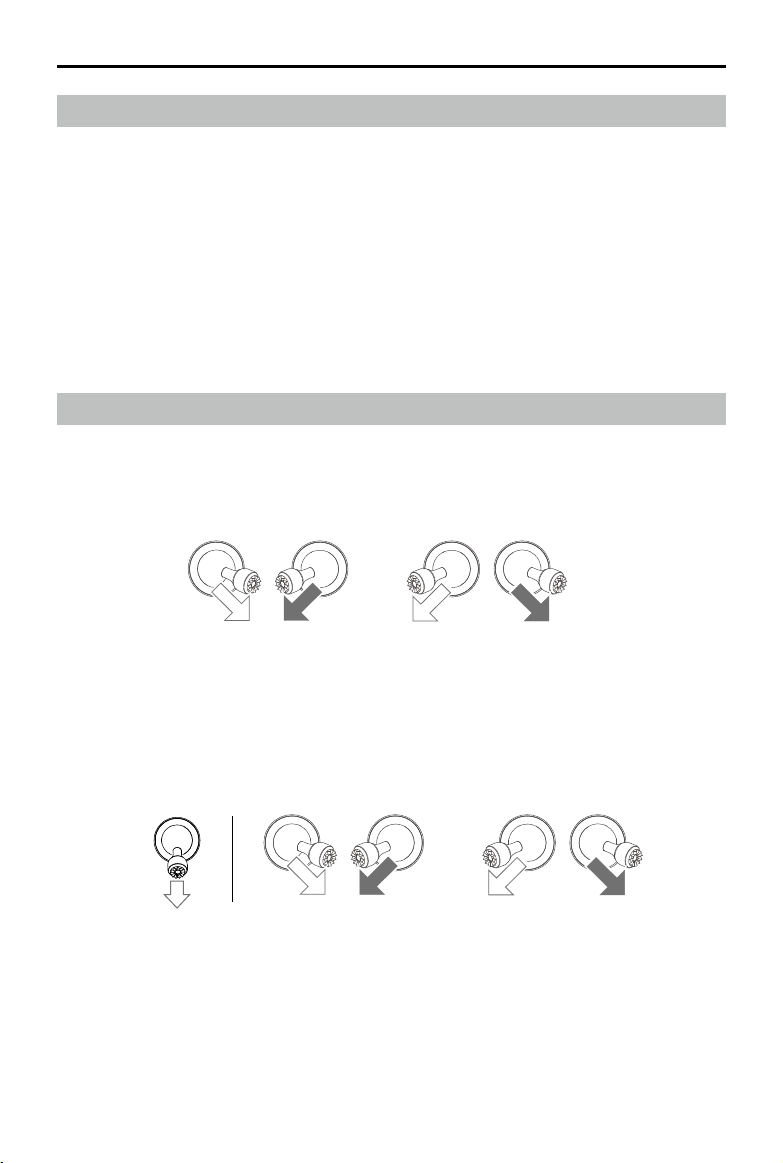
MAVIC 2 ENTERPRISE Advanced
User Manual
©
2021 DJI All Rights Reserved.
57
Pre-Flight Checklist
1. Make sure the remote controller, mobile device, and Intelligent Flight Battery are fully charged.
2. Make sure the Intelligent Flight Battery and the propellers are mounted securely.
3. Make sure the aircraft arms and propellers are unfolded.
4. Make sure the gimbal and camera are functioning normally.
5. Make sure that there is nothing obstructing the motors and that they are functioning normally.
6. Make sure that DJI Pilot is successfully connected to the aircraft.
7. Make sure all camera lenses and sensors are clean.
8. Make sure all accessories are correctly and securely mounted on the aircraft before use.
9. Use only genuine DJI parts or parts certied by DJI. Unauthorized parts or parts from non-DJI
certied manufacturers may cause system malfunctions and compromise safety.
Starting/Stopping the Motors
Starting the Motors
A Combination Stick Command (CSC) is used to start the motors. Push both sticks to the inner or
outer bottom corners to start the motors. Once the motors have started spinning, release both sticks
simultaneously.
Stopping the Motors
There are two methods to stop the motors:
Method 1: when the aircraft has landed, push and hold the left control stick down. The motors stop
after three seconds.
Method 2: when the aircraft has landed, perform the same CSC that was used to start the motors as
described above. The motors stop immediately. Release both sticks once the motors have stopped.
OR
Method 1 Method 2
OR
Stopping Motors Mid-Flight
Stopping the motors mid-ight will cause the aircraft to crash. The motors should only be stopped
mid-ight in an emergency situation such as if the aircraft is involved in a collision, a motor has stalled,
the aircraft is rolling in the air, or the aircraft is out of control and is ascending or descending very
quickly. To stop the motors mid-ight, perform the same CSC that was used to start the motors.
MAVIC 2 ENTERPRISE Advanced
User Manual
58
©
2021 DJI All Rights Reserved.
Flight Test
Takeo/Landing Procedures
1. Place the aircraft in an open, at area with the Aircraft Status Indicators facing towards you.
2. Power on the aircraft and the remote controller.
3. Launch DJI Pilot and enter the live view.
4. Wait until the Aircraft Status Indicator blinks green indicating that the Home Point has been
recorded and it is now safe to y.
5. Push the throttle stick up slowly to take o.
6. To land, hover over a level surface and gently push the throttle stick down to descend.
7. After landing, hold the throttle stick down completely until the motors stop.
8. Power o the Intelligent Flight Battery before the remote controller.
Video Suggestions and Tips
1. The pre-ight checklist is designed to help you y safely and to make sure that you can shoot
video during ight. Go through the full pre-ight checklist before each ight.
2. Select the gimbal operation mode in DJI Pilot.
3. Only shoot video when ying in P-mode or T-mode.
4. DO NOT y in adverse weather conditions such as when it is raining or windy.
5. Choose the camera settings that best suit your needs. Settings include photo format and exposure
compensation.
6. Perform ight tests to establish ight routes and to preview scenes.
7. Push the control sticks gently to keep the aircraft movement smooth and stable.
It is important to understand the basic ight guidelines for the safety of both you and
those around you.
DO NOT forget to read the disclaimer and safety guidelines.

©
2021 DJI All Rights Reserved.
59
Appendix

60
©
2021 DJI All Rights Reserved.
Appendix
Specications
Aircraft
Takeo Weight (excl. accessories) 909 g
Max Takeo Weight 1100 g
Dimensions Folded: 214×91×84 mm
Unfolded: 322×242×84 mm
Diagonal Distance 354 mm
Max Ascent Speed 6 m/s (S-mode)
5 m/s (P-mode)
Max Descent Speed Vertical Descent
5 m/s (S-mode)
4 m/s (P-mode)
Tilt
7 m/s (S-mode)
4 m/s (P-mode)
Max Speed 72 kph (S-mode, without wind)
Max Service Ceiling Above Sea Level 6000 m
Max Flight Time 31 min (measured while ying at 25 kph in windless conditions)
28 min (RTK module attached)
29 min (with beacon powered on) 30 min (with beacon powered o)
24 min (with spotlight powered on) 28 min (with spotlight powered o)
27 min (with speaker powered on) 28 min (with speaker powered o)
Max Wind Speed Resistance 10 m/s (scale 5)
Max Tilt Angle 35° (S-mode, with remote controller)
25° (P-mode)
Max Angular Velocity 200°/s (S-mode)
100°/s (P-mode)
Operating Temperature Range 14° to 104° F (-10° to 40° C)
GNSS GPS+GLONASS
Hovering Accuracy Range Vertical:
± 0.1 m (with RTK)
± 0.1 m (with Vision Positioning)
± 0.5 m (with GPS Positioning)
Horizontal:
± 0.1 m (with RTK)
± 0.3 m (with Vision Positioning)
± 1.5 m (with GPS Positioning)
Operating Frequency 2.4-2.4835 GHz; 5.725-5.850 GHz
Transmitter Power (EIRP) 2.4 GHz
FCC: ≤26 dBm; CE: ≤20 dBm; SRRC: ≤20 dBm; MIC: ≤20 dBm
5.8 GHz
FCC: ≤26 dBm; CE: ≤14 dBm; SRRC: ≤26 dBm
Internal Storage 24 GB
MAVIC 2 ENTERPRISE Advanced
User Manual
©
2021 DJI All Rights Reserved.
61
Thermal Camera
Sensor Uncooled VOx Microbolometer
Focal Length Approx. 9 mm
35mm Format Equivalent: Approx. 38 mm
Sensor Resolution 640×512 @30Hz
Digital Zoom 16×
Pixel Pitch 12 μm
Spectral Band 8-14 μm
Photo Format 640×512
Still Photography Modes Single shot
Interval: 2/3/5/7/10/15/20/30/60 s
Video Resolution 640×512@30fps
Supported File Formats FAT32, exFAT
Photo Format R-JPEG
Video Format MP4
Temperature Measurement Method Spot Meter, Area Measurement
FFC Auto/Manual
Visual Camera
Sensor 1/2” CMOS, Eective Pixels: 48 MP
Lens FOV: approx. 84°
35 mm format equivalent: 24 mm
Aperture: f/2.8
Focus: 1 m to ∞
Digital Zoom Video: zoom is only supported in 1080p; up to ×4 digital zoom is
supported in the live view and during recording
Photos: up to ×32 digital zoom is supported in the live view
ISO Range Video: 100-12800 (auto)
Photo: 100-1600 (auto)
Shutter Mode Mode P (Programmed Auto)
Max Image Size 8000×6000
Still Photography Modes Single Shot
Interval: 2/3/5/7/10/15/20/30/60 s
Panorama: Sphere
Video Resolution 3840×2160@30fps
1920×1080@30fps
Max Video Bitrate 95.37 Mb/s
Supported File Formats FAT32, exFAT
Photo Format JPEG
Video Format MP4
Gimbal
Controllable Range Tilt: -90° to +30°
Pan: -75° to +75°
Mechanical Range Tilt: -135° to +45°
Roll: -45° to +45°
Pan: -100° to +100°

MAVIC 2 ENTERPRISE Advanced
User Manual
62
©
2021 DJI All Rights Reserved.
Stabilization 3-axis (tilt, roll, pan)
Max Controllable Speed 120°/s
Angular Vibration Range ±0.005°
Sensing System
Sensing System Omnidirectional Obstacle Sensing
FOV (Forward) Horizontal: 40°, Vertical: 70°
(Backward) Horizontal: 60°, Vertical: 77°
(Downward) Front and Back: 100°, Left and Right: 83°
(Lateral) Horizontal: 80°, Vertical: 65°
Obstacle Sensing Range (Forward) Precision Measurement Range: 0.5 - 20 m
Detectable Range: 20 - 40 m
Eective Sensing Speed: ≤ 14 m/s
(Backward) Backward: Precision Measurement Range: 0.5 - 16 m
Detectable Range: 16 - 32 m
Eective Sensing Speed: ≤ 12 m/s
(Downward) Precision Measurement Range: 0.5 - 11 m
Detectable Range: 11 - 22 m
(Lateral) Precision Measurement Range: 0.5 - 10 m
Eective Sensing Speed: ≤ 8 m/s
(Upward) Precision Measurement Range: 0.1 - 8 m
Operating Environment Surface with a clear pattern and adequate lighting (lux >15)
Diuse reective surface such as walls, trees, people (>20%)
Velocity Range ≤ 31mph (50 kph) (at 6.6 ft (2 m) above ground)
Altitude Range: 0.1 to 11 m
Operating Range 0.3 to 50 m
Remote Controller
Ocusync 2.0
Operating Frequency 2.4-2.4835 GHz; 5.725-5.850 GHz
Max Transmission Distance
(unobstructed, free of interference)
2.400-2.4835 GHz; 5.725-5.850 GHz
FCC: 10 km
CE: 6 km
SRRC: 6 km
MIC: 6 km
Transmission Power (EIRP) 2.400-2.4835 GHz:
25.5 dBm (FCC); 18.5 dBm (CE); 19 dBm (SRRC)
5.725-5.850 GHz:
25.5 dBm (FCC); 12.5 dBm (CE); 18.5 dBm (SRRC)
Wi-Fi
Protocol Wi-Fi Direct, Wi-Fi Display, 802.11a/g/n/ac
Wi-Fi with 2×2 MIMO is supported
Operating Frequency 2.400-2.4835 GHz; 5.725-5.850 GHz
Transmission Power (EIRP) 2.400-2.4835 GHz:
21.5 dBm (FCC); 18.5 dBm (CE)
18.5 dBm (SRRC); 20.5 dBm (MIC)
5.725-5.850 GHz:
21 dBm (FCC); 13 dBm (CE)
21 dBm (SRRC)
Bluetooth
Protocol Bluetooth 4.2
MAVIC 2 ENTERPRISE Advanced
User Manual
©
2021 DJI All Rights Reserved.
63
Operating Frequency 2.400-2.4835 GHz
Transmission Power (EIRP) 4 dBm (FCC); 4 dBm (CE)
4 dBm (SRRC); 4 dBm (MIC)
Others
Battery 18650 Li-ion (5000 mAh @ 7.2 V)
Charging Mode Charged with USB charger at 12 V/2 A
Rated Power 15 W
Storage ROM 16GB + expandable storage via microSD card*
Charging Time 2 hours (with a USB charger at 12 V/2 A)
Power Supply 2 hours 30 minutes
Video Output Port HDMI Port
Supply Current/Voltage of the USB-A
Port
5 V/900 mA
Operating Temperature Range -20° to 40° C (-4° to 104° F)
Storage Temperature <1 month: -30° to 60° C (-22° to 140° F)
1 - 3 months: -30° to 45° C (-22° to 113° F)
3 - 6 months: -30° to 35° C (-22° to 95° F)
>6 months: -30° to 25° C (-22° to 77° F)
Charging Temperature 5° to 40° C (41° to 104° F)
Recommended microSD Cards: SanDisk Extreme 32GB UHS-3 microSDHC
SanDisk Extreme 64GB UHS-3 microSDXC
Panasonic 32GB UHS-3 microSDHC
Panasonic 64GB UHS-3 microSDXC
Samsung PRO 32GB UHS-3 microSDHC
Samsung PRO 64GB UHS-3 microSDXC
Samsung PRO 128GB UHS-3 microSDXC
Satellite Positioning Module GPS+GLONASS
Dimensions 177.5x121.3x40 mm (folded without control sticks
177.5x181x60 mm (unfolded with control sticks)
Weight Approx. 630 g
24W USB Charger Input: 100-240 V, 50-60 Hz, Max. 0.8 A
Output: 3.6-8 V
3.0 A/12 V 2.0 A
Intelligent Flight Battery
Capacity 3850 mAh
Voltage 17.6 V (max)
15.4 V (typical)
Battery Type LiPo
Energy 59.29 Wh
Weight Approx. 297 g
Charging Temperature 5° to 40° C (41° to 104° F)
Operating Temperature Range -10° to 40° C (14° to 104° F)
Heating Method Manual/Auto
Heating Temperature Range -4° to 43° F (-20° to 6° C)
Heating Time 500 s (max)
Heating Power 55 W (max)
MAVIC 2 ENTERPRISE Advanced
User Manual
64
©
2021 DJI All Rights Reserved.
Charging Time 1 hour 30 minutes
Max Charging Power 80 W
Intelligent Flight Battery
Input 100-240 V, 50-60 Hz, Max. 0.8 A
Output Main: 17.6 V
3.41 A or 17.0 V 3.53 A
USB: 5 V
2 A
Rated Power 60 W
APP
Name DJI Pilot (Android version)
Video Transmission System OcuSync 2.0
Live View Quality 720p@30fps
Latency (depending on environment
and mobile device)
120 - 130 ms
M2EA RTK Module
Dimensions 69×69×59 mm
Port Type USB Micro-B
Power Approx. 3 W
GNSS GPS L1/L2, GLONASS F1/F2, BDS B1/B2, GALILEO E1/E5
RTK Position Accuracy In RTK FIX
1cm+1ppm (Horizontal) <br> 1.5cm+1ppm (Vertical)
M2E Beacon
Dimensions 68×40×27.8 mm
Port Type USB Micro-B
Power Avg. 1.6 W
Illuminance Min. angle: 55 cd; light intensity: 157 cd
Max. Visible Distance 5,000 m (with good air quality and high visibility)
M2E Spotlight
Dimensions 68×60×41 mm
Port Type USB Micro-B
Power Max. 26 W
Illuminance FOV 17°, max. 11 lux @ 30 m straight
Illumination area 30 m
M2E Speaker
Dimensions 68×55×65 mm
Port Type USB Micro-B
Power Max. 10 W
Decibel 100 dB at 1 m (international standard)
Bit Rate 16 kbps
* The DJI Smart Controller supports a microSD with a capacity of up to 128 GB.
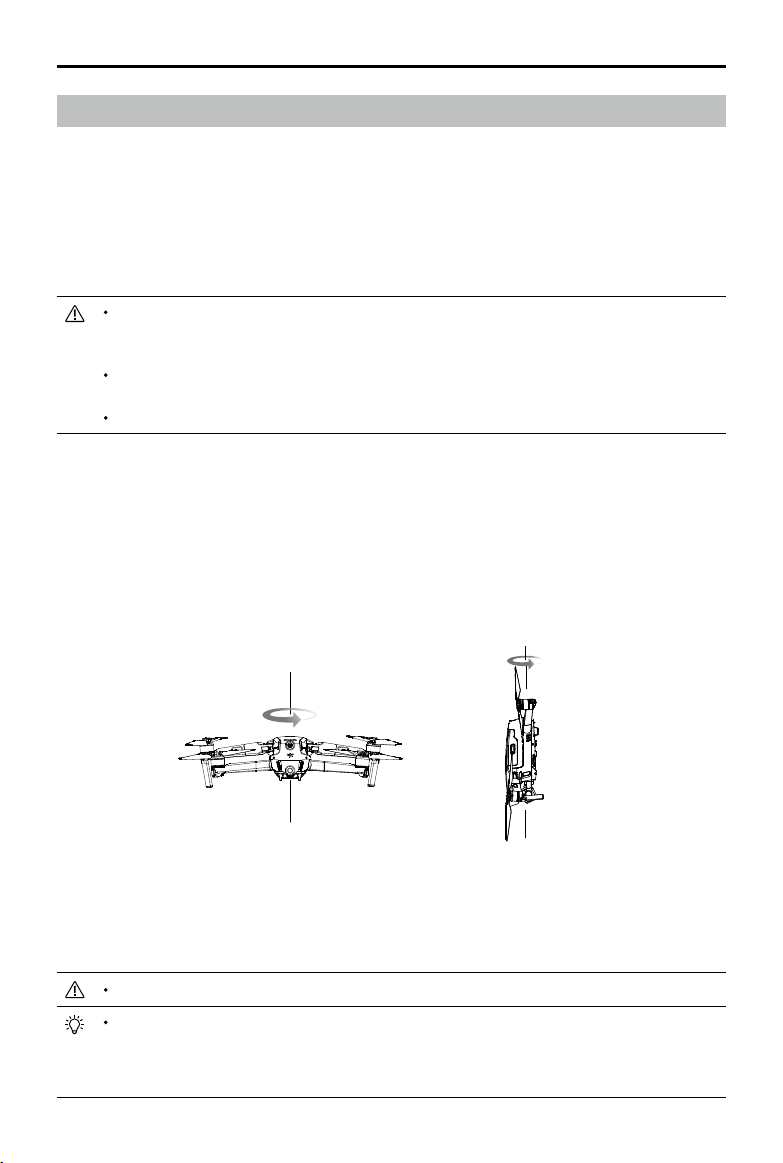
MAVIC 2 ENTERPRISE Advanced
User Manual
©
2021 DJI All Rights Reserved.
65
If the Aircraft Status Indicator blinks red and yellow alternately after calibration is completed,
this indicates the current location is unsuitable for flying the aircraft due to the level of magnetic
interference. Choose a new location.
A prompt will appear in DJI Pilot if compass calibration is required before takeo.
The aircraft can take o immediately once calibration is complete. If users wait more than three
minutes to take o, the aircraft may need to be calibrated again. It is possible that another compass
interference warning will appear while the aircraft is on the ground. This indicates that the current
location is unsuitable for ying the aircraft due to the level of magnetic interference.
Calibrating the Compass
Aircraft
It is recommended to calibrate the compass in any of the following situations when ying outdoors:
1. Flying in a location more than 31 miles (50 km) away from the location the drone was last own.
2. The aircraft has not been own for more than 30 days.
3. A compass interference warning prompt appears in DJI Pilot and/or the Aircraft Status Indicators
blink red and yellow alternately.
DO NOT calibrate the compass in locations where magnetic interference may occur, such as close
to magnetite deposits or large metallic structures such as parking structures, steel reinforced
basements, bridges, cars, or scaolding.
DO NOT carry objects such as cell phones that contain ferromagnetic materials near the aircraft
during calibration.
It is not necessary to calibrate the compass when ying indoors.
Calibration Procedure
Choose an open area to carry out the following procedure.
1. Tap the System Status Bar in DJI Pilot, select Calibrate, and follow the on-screen instructions.
2. Hold the aircraft horizontally and rotate it 360°. The Aircraft Status Indicator will turn solid green.
3. Hold the aircraft vertically with the front pointing downward and rotate it 360° around a vertical axis.
4. If the Aircraft Status Indicator blinks red, calibration has failed. Change locations and try calibration again.
Horizontal Calibration
Vertical Calibration

MAVIC 2 ENTERPRISE Advanced
User Manual
66
©
2021 DJI All Rights Reserved.
Make sure the aircraft is connected to the computer before powering on.
The rmware update will take approximately 15 minutes. It is normal for the gimbal to go limp, the
aircraft status indicators to blink, and the aircraft to reboot during the update. Wait until the update
is complete.
Make sure the computer is connected to the internet.
Before performing an update, make sure the Intelligent Flight Battery and the remote controller have
at least 50% power.
Do not disconnect the aircraft from the computer during an update.
Note that the update may reset various main controller settings, such as the RTH altitude and the
maximum ight distance, to default settings. Before updating, take note of your preferred DJI Pilot
settings and readjust them after the rmware update.
Smart Controller
After the remote controller is used in locations with electro-magnetic interference, the compass
may need to be calibrated. A warning prompt will appear if the compass requires calibration. Tap
the warning prompt to start calibrating. When a prompt does not appear, follow the steps below to
calibrate the remote controller.
1. Enter the App Center, tap
, then scroll down and tap Compass.
2. Follow the onscreen diagram to calibrate the remote controller.
3. A prompt will appear when calibration is successful.
Updating Firmware
Aircraft
Use DJI Pilot or DJI Assistant 2 (Enterprise Series) to update the aircraft rmware.
Using DJI Pilot
When the aircraft or remote controller is connected to DJI Pilot, a prompt will appear if a new rmware
update is available. To update, connect the mobile device to the internet and follow the onscreen
instructions. The rmware cannot be updated if the remote controller is not linked to the aircraft.
Using DJI Assistant 2 (Enterprise Series)
The USB-C port is used when connecting the aircraft to a computer to update rmware. Follow the
instructions below to update the rmware through DJI Assistant 2 (Enterprise Series):
1. With the aircraft is powered o, connect the aircraft to a computer via the Micro USB port using a
Micro USB cable.
2. Power on the aircraft.
3. Launch DJI Assistant 2 (Enterprise Series) and log into a DJI account.
4. Select Mavic 2 and click on Firmware Updates on the left panel.
5. Select the rmware version to update to.
6. Wait for the rmware to download. The rmware update will start automatically.
7. Reboot the aircraft after the rmware update is complete.
MAVIC 2 ENTERPRISE Advanced
User Manual
©
2021 DJI All Rights Reserved.
67
Smart Controller
Method 1: Wireless
Make sure the remote controller is connected to the internet while updating.
1. Power on the remote controller. Tap
and then , and scroll to the bottom of the page and tap
System Update.
2. Tap Check for Updates to check the firmware. A prompt will appear if a firmware update is
available.
3. Follow the prompts to nish the update.
4. The remote controller automatically restarts when the update is complete.
Method 2: DJI Assistant 2 (Enterprise Series)
1. Make sure the remote controller is powered o and connect it to a computer using a USB 3.0
Type-C cable.
2. Power on the remote controller.
3. Launch DJI Assistant 2 and log in using a DJI account.
4. Click the Smart Controller icon and then Firmware Update.
5. Select and conrm the rmware version to update to.
6. DJI Assistant 2 will download and update the rmware automatically.
7. The remote controller will restart when the update is complete.
Make sure the remote controller has a battery level of more than 50% before updating.
DO NOT disconnect the USB-C cable during the update.
Make sure the remote controller or the computer is connected to the internet during the update.
The update takes approximately 15 minutes.
After-Sales Information
Visit https://www.dji.com/support to learn more about after-sales service policies, repair services and
support.
Keep people and animals at a safe distance during any rmware update, system calibration, or
parameter setting procedures.
For safety, always update to the latest rmware version.
If a rmware update is available, users will be prompted to update immediately or within three days.
If the rmware update is ignored, users are required to agree to the disclaimer. The user’s decision
not to update to the latest rmware is recorded to be uploaded and maintained on a DJI designated
server.
The remote controller may unlink from the aircraft after updating firmware. Re-link the remote
controller and aircraft.
Make sure to check all connections and remove the propellers from the motors before updating
rmware.

This content is subject to change.
Download the latest version from
www.dji.com/mavic-2-enterprise-advanced
If you have any questions about this document, please contact DJI
by sending a message to
.
MAVIC is a trademark of DJI.
Copyright © 2021 DJI All Rights Reserved.
DJI Support
http://www.dji.com/support