........."Ow r_s
cti
Register your product at www.samsung.com/global/register
Record your Model and Serial number here for future reference.
- Model - Serial No.
i ImportantWarrantyInformationRegardingTelevisionFormatViewing i
Wide screen format PDP Displays (16:9, the aspect ratio of the screen width to height) are primarily designed to view wide
screen format full-motion video. The images displayed on them should primarily be in the wide screen 16:9 ratio format,
or expanded to fill the screen if your modet offers this feature and the images are constantly moving. Displaying stationary
graphics and images on screen, such as the dark side-bars on nonexpanded standard format television video and
programming, should be limited to no more than 5% of the total television viewing per week.
Additionally, viewing other stationary images and text such as stock market reports, video game displays, station Iogos,
web sites or computer graphics and patterns, should be limited as described above for all televisions. Displaying stationary
images that exceed the above guidelines can cause uneven aging of PDP Displays that leave subtle, but permanent
burned-in ghost images in the PDP picture. To avoid this, vary the programming and images, and primarily display
full screen moving images, not stationary patterns or dark bars.
On PDP models that offer picture sizing features, use these controls to view different formats as a full screen picture.
Be careful in the selection and duration of television formats used for viewing. Uneven PDP aging as a result of format
selection and use, as well as burned-in images, are not covered by your Samsung limited warranty.
U.S.A Only
The product unit accompanying this user manual is licensed under certain intellectual property rights of certain
third parties. In particular, this product is licensed under the following US patents: 5,991,715, 5,740,317, 4,972,484,
5,214,678, 5,323,396, 5,539,829, 5,606,618, 5,530,655, 5,777,992, 6,289,308, 5,610,985, 5,481,643, 5,544,247,
5,960,037, 6,023,490, 5,878,080, and under US Published Patent Application No. 2001-44713-A1.
This license is limited to private non-commercial use by end-user consumers for licensed contents. No rights are
granted for commercial use. The license does not cover any product unit other than this product unit and the license
does not extend to any unlicensed product unit or process conforming to ISO/tEC 11172-3 or ISO/IEC 13818-3 used or
sotd in combination with this product unit. The license only covers the use of this product unit to encode and/or decode
audio files conforming to the ISO/IEC 11172-3 or ISO/IEC 13818-3. No rights are granted under this license for product
features or functions that do not conform to the ISO/IEC 11172-3 or ISO/IEC 13818-3.
Other countries
The product unit accompanying this user manual is licensed under certain intellectual property rights of certain third
parties. This license is limited to private non-commercial use by end=user consumers for licensed contents. No rights
are granted for commercial use. The license does not cover any product unit other than this product unit and the license
does not extend to any unlicensed product unit or process conforming to ISO/IEC 11172-3 or ISO/IEC 13818-3 used or
sold in combination with this product unit. The license only covers the use of this product unit to encode and/or decode
audio files conforming to the ISO/IEC 11172-3 or ISO/IEC 13818-3. No rights are granted under this license for product
features or functions that do not conform to the ISO/IEC 11172-3 or ISO/IEC 13818-3.
© 2007 Samsung Electronics Co., Ltd. All rights reserved.
i User instructions
O Screen image retention
Do not display a still image (such as on a video game) on the plasma display panel for more than several minutes as it can
cause screen image retention. This image retention is also known as "screen burn". To avoid such image retention, refer to
page 26 of this manual to reduce the degree of brightness and contrast of the screen when displaying a still image.
Altitude
The PDP can only operate normally at heights under 6500ft.
Heat on the top of the PDP TV
The top side of the product may be hot after tong periods of use as heat dissipates from the panel through the vent hole in
the upper part of the product.
This is normal and does not indicate any defect or operation failure of the product.
However, children should be prevented from touching the upper part of the product.
The product is making a 'cracking' noise.
A 'cracking' noise may occur when the product contracts or expands due to a change of surrounding environment such as
temperature or humidity. This is normal and not a defect of the unit.
Cell Defects
The PDP uses a panel consisting of 1,230,000(SD-levet) to 3,150,000(HD-level) pixels which require sophisticated
technology to produce. However, there may be a few bright or dark pixets on the screen. These pixels will have no impact
on the performance of the product.
Avoid operating the TV at temperatures below 5°C (41°F}
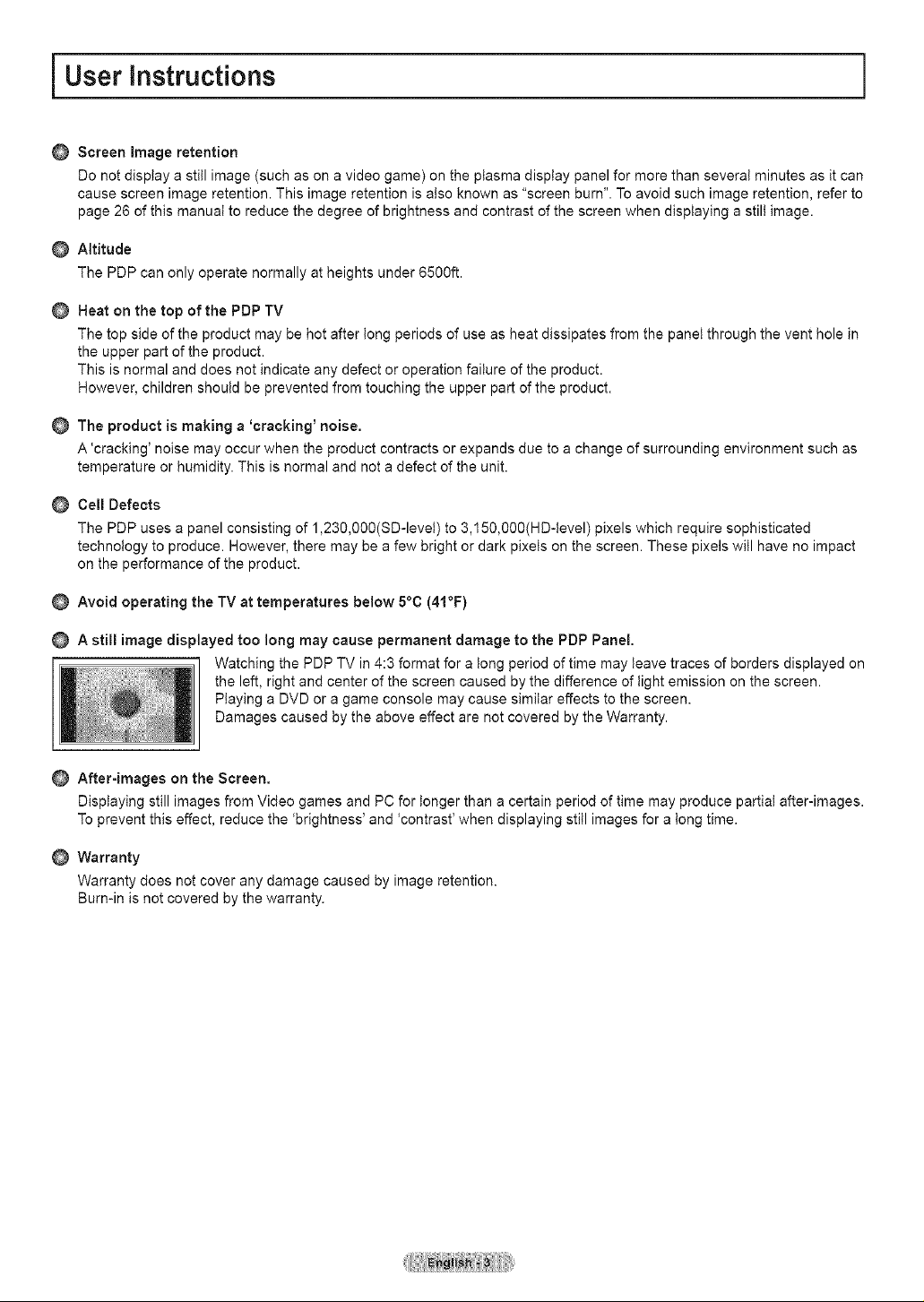
A still image displayed too long may cause permanent damage to the PDP Panel.
Watching the PDP TV in 4:3 format for a tong period of time may leave traces of borders displayed on
the left, right and center of the screen caused by the difference of light emission on the screen.
Playing a DVD or a game console may cause similar effects to the screen.
Damages caused by the above effect are not covered by the Warranty.
After-images on the Screen.
Displaying still images from Video games and PC for longer than a certain period of time may produce partial after-images.
To prevent this effect, reduce the 'brightness' and 'contrast' when displaying still images for a tong time.
Warranty
Warranty does not cover any damage caused by image retention.
Burn-in is not covered by the warranty.
i Contents
[] List of Features .............................................................. 5
[] Accessories .................................................................... 5
[] Viewing the Control Panel ............................................. 6
[] Viewing the Connection Panel ....................................... 7
[] Remote Control .............................................................. 8
[] Installing Batteries in the Remote Control ..................... 9
[] Connecting VHF and UHF Antennas ............................. 9
[] Connecting Cable TV ................................................... 10
[] Connecting a VCR ....................................................... 11
[] Connecting an S-VHS VCR ......................................... 11
[] Connecting a Camcorder ............................................. 12
[] Connecting a DVD Player/Cable Box/Satellite receiver
(Set-Top Box) .............................................................. 12
[] Connecting a DVD Player/Cable Box/Satellite receiver
(Set-Top Box) via HDMI .............................................. 13
[] Connecting a DVD Player/Cable Box/Satellite receiver
(Set-Top Box) via DVl ................................................. 13
[] Connecting a Digital Audio System .............................. 14
[] Connecting an Amptifier/DVD Home Theater .............. 14
[] Connecting a PC .......................................................... 14
[] Turning the TV On and Off ........................................... 15
[] Plug & Play Feature ..................................................... 15
[] Changing Channels ..................................................... 17
[] Adjusting the Volume ................................................... 18
[] Viewing the Display ..................................................... 18
[] Viewing the Menus ...................................................... 18
[] Memorizing the Channels ............................................ 19
[] Setting Up Your Remote Control .................................. 20
[] To Select the Source .................................................... 25
[] To Edit the Input Source Name .................................... 25
[] Using Automatic Picture Settings ................................. 26
[] Digital Noise Reduction ............................................... 27
[] Changing the Screen Size ........................................... 28
[] Configuring Detailed Settings on the Picture ............... 29
[] Active Color .................................................................. 30
[] DNle (Digital Natural Image engine) ............................ 30
[] Selecting the Film Mode .............................................. 31
[] Setting the Blue Screen Mode ..................................... 31
[] Setting the HDMI Black Level ...................................... 31
[] Viewing Picture-in-Picture ............................................ 32
[] Freezing the Current Picture ........................................ 33
[] Using Automatic Sound Settings ................................. 34
[] Customizing the Sound ................................................ 34
[] Setting the TruSurround XT ......................................... 35
[] Choosing a Multi-Channel Sound (MTS) Track - Digital ..35
[] Choosing a Multi-Channel Sound (MTS) Track - Analog.. 36
[] Automatic Volume Control ........................................... 36
[] Selecting the Internal Mute .......................................... 36
[] Adjusting the TV On/Off Melody Sound ....................... 37
[] Listening to the Sound of the Sub (PIP) Picture .......... 37
Symbols ,m
Press One-Touch Note
Button
[] Selecting the Antenna .................................................. 38
[] Adding and Erasing Channels ..................................... 38
[] Setting Your Favorite Channels ................................... 39
[] Viewing the Channel Lists ........................................... 40
[] Setting the Default Channel List Mode ........................ 40
[] Labeling Channels ....................................................... 41
[] Fine Tuning Analog Channels ...................................... 41
[] Checking the Digital-Signal Strength ........................... 42
R LNA (Low Noise Amplifier) ........................................... 42
[] Using Your TV as a Computer (PC) Display ................ 43
! Display Modes ............................................................ 43
,,, Setting up the TV with your PC .................................... 44
R Setting the Home Theater PC ...................................... 45
R Setting the Time ........................................................... 46
[] Selecting a Menu Language ........................................ 49
[] Using the Game Mode ................................................. 49
[] ViewingClosed Captions (On-ScreenText Messages)- Digital.._50
[] ViewingClosed Captions (On-ScreenText Messages)-Analog.. 51
[] Menu Transparency Level ........................................... 52
[] Setting the Light Effect ................................................. 52
[] Using the Energy Saving Feature ................................ 53
[] Preventing Screen Burn-in ........................................... 53
[] Reducing the Effects of Screen Burn ........................... 54
[] Setting the Function Help ............................................ 54
,,, Using the V-Chip .......................................................... 55
R Upgrading the Software ............................................... 61
m Using the WISELINK Function ..................................... 62
m Using the WISELINK Mode ......................................... 63
m Using the Photo (JPEG) List ........................................ 64
m Using the Music (MP3) List .......................................... 70
R Using the Setup Menu ................................................. 71
What is Anynet+? ......................................................... 72
Connecting Anynet + Devices ....................................... 72
Setting Up Anynet + ...................................................... 73
m Scanning and Switching between Anynet + Devices.... 73
m Recording .................................................................... 74
,,, Listening through a Receiver (Home theater) .............. 75
R Troubleshooting forAnynet + ........................................ 75
m Troubleshootin_ ........................................................... 76
m Auto Wall-mount adjustment (Sold separately) (FP-T5084) .. 77
m Wall Mount Kit Specifications (VESA) .......................... 78
m How to attach the Stand-Base ..................................... 79
m Specifications ............................................................... 79
m Dimensions (FP-T5084) ............................................... 80
m Dimensions (FP-T5884) ............................................... 81
R Dimensions (FP-T6374) ............................................... 82
i General information
List of Features
. Adjustable picture settings that can be stored in the TV's memory.
. Automatic timer to turn the TV on and off.
. A special sleep timer.
. V-Chip function.
. Excellent Digita! Interface & Networking :
With a built-in HD digital tuner, nomsubscription HD broadcasts can be viewed with no Cable Box/Satellite receiver (Set-
Top Box) needed.
. HDMI/DVl connection of your PC to this TV.
. Remote Control
The supplied remote can be used to operate the TV as well as most DVD players, Set-top boxes, Cable Boxes and VCRs.
. Excellent Picture Quality
- DNle technology provides life-like clear images.
. SRS TruSurround XT
- SRS TruSurround XT provides a virtual Dolby surround system.
Accessories
Please make sure the following items are included with your TV. if any items are missing, contact your dealer.
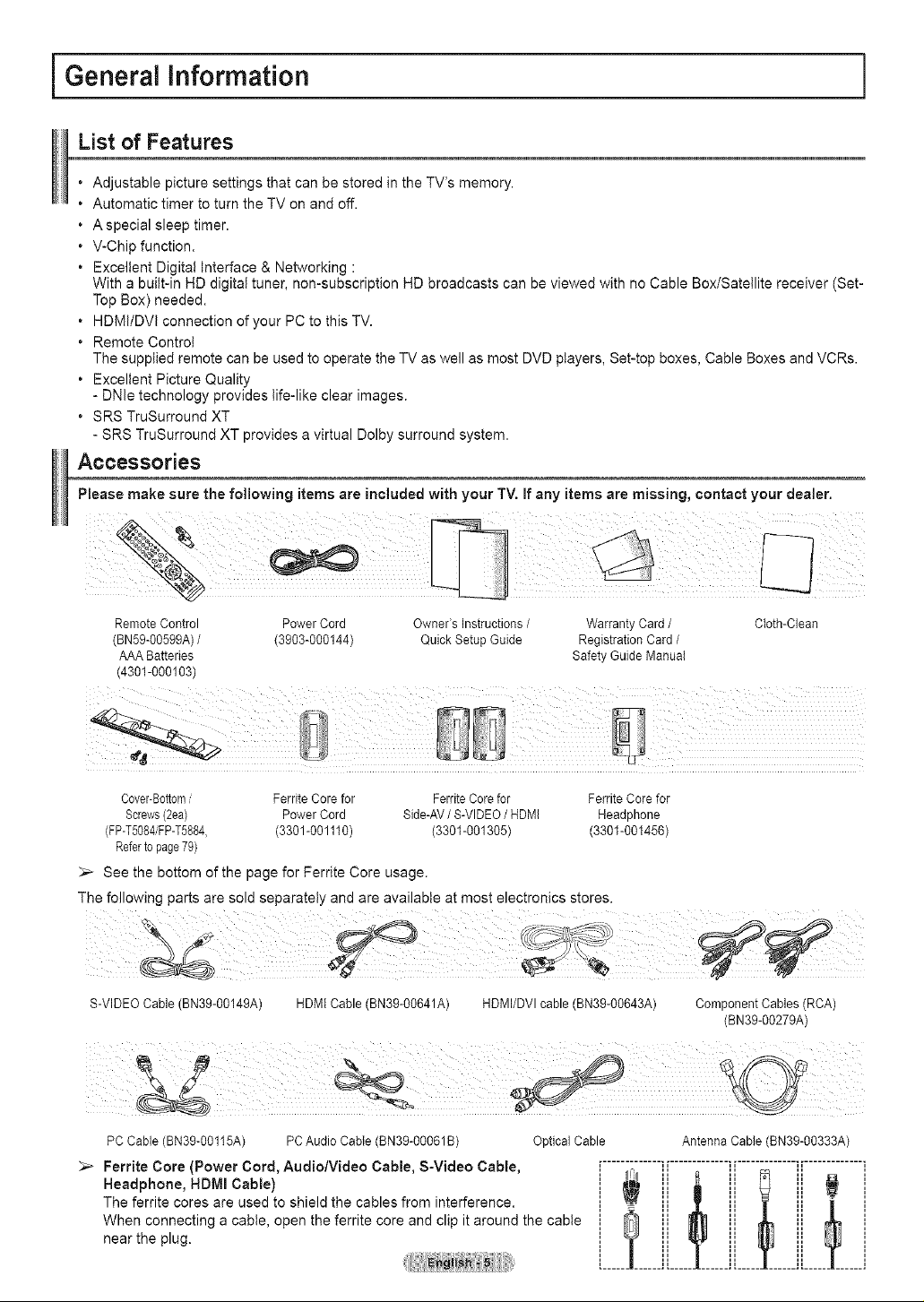
RemoteControl Power Cord Owner's Instructions/ WarrantyCard/ Cloth-Clean
(BN59-00599A)/ (3903-000144) Quick Setup Guide RegistrationCard /
AAA Batteries Safety Guide Manual
(4301-000103)
Cover-Bottom/ FerriteCore for FerriteCorefor FerriteCore for
Screws(2ea) Power Cord Side-AV/ S-VIDEO/ HDMI Headphone
(FP-T5084iFP-T5884, (3301-001110) (3301-001305) (3301-001456)
Referto page79)
_-- See the bottom of the page for Ferrite Core usage.
The following parts are sold separately and are available at most electronics stores.
S-VIDEO Cable (BN39-00149A) HDMI Cable (BN39-00641A) HDMI/DVI cable (BN39-00643A) Component Cables (RCA)
(BN39-00279A)
PC Cable (BN39-00115A) PC Audio Cable (BN39-00061B) Optical Cable Antenna Cable (BN39-00333A)
Ferrite Core (Power Cord, Audio/Video Cable, S-Video Cable,
Headphone, HDIVil Cable)
The ferrite cores are used to shield the cables from interference.
When connecting a cable, open the ferrite core and clip it around the cable
near the plug.
............................. i [ .............................
Viewing the Control Panel
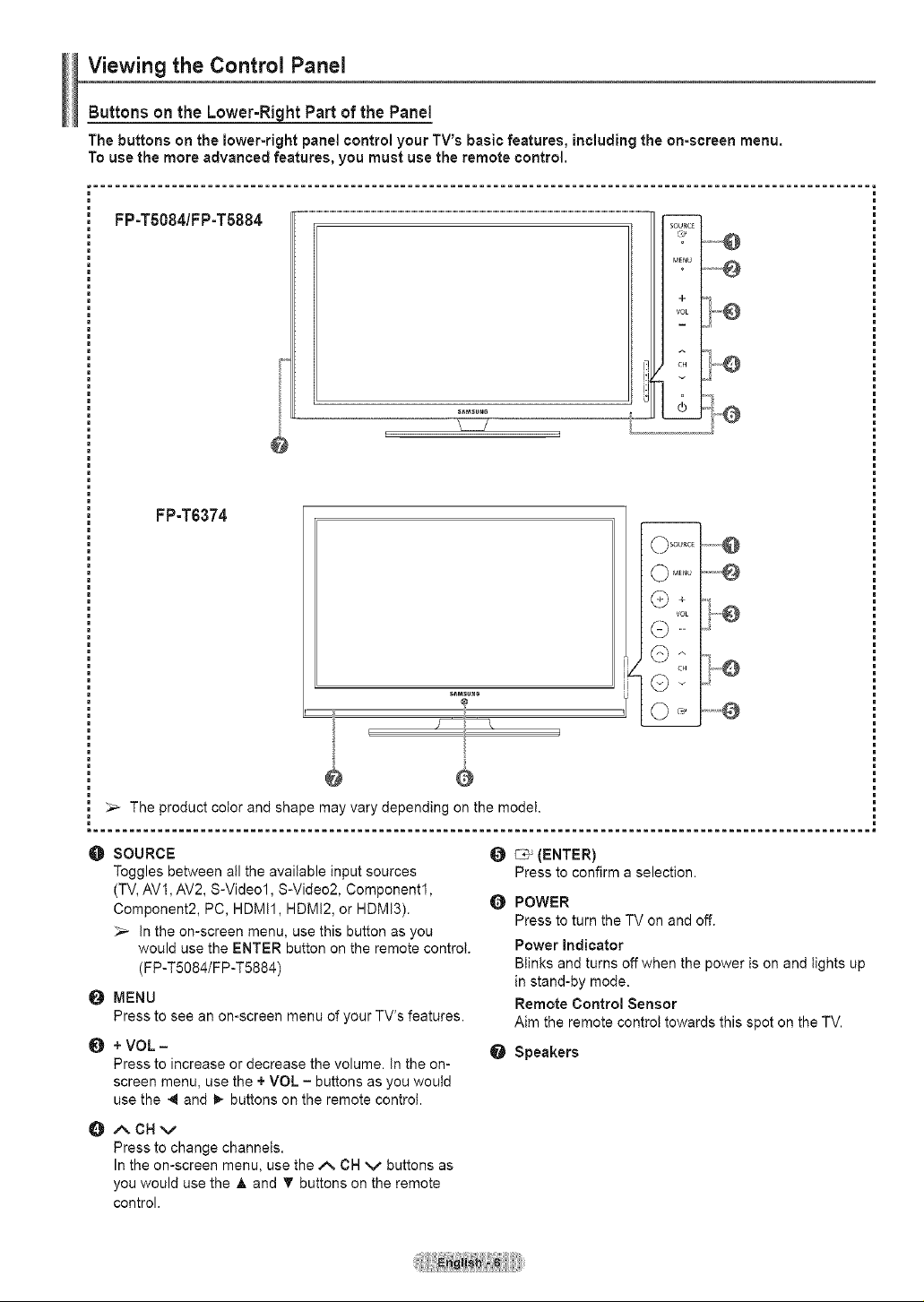
Buttons on the Lower-Right Part of the Panel
The buttons on the lower-right panel control your TV's basic features, including the on-screen menu.
To use the more advanced features, you must use the remote control.
............................................................................................................. i
FP-TSO84/FP-T5884
@
\._._/
L J
i'l
i:!
U
SOURC_
o
CH .....
i
FP-T6374
E
s_Msu_o
The product color and shape may vary depending on the model.
SOURCE
Toggles between a!l the avai{able input sources
(TV, AV1, AV2, S-Video1, S-Video2, Component1,
Component2, PC, HDMI1, HDMI2, or HDMI3).
In the on-screen menu, use this button as you
would use the ENTER button on the remote control.
(FP-T5084/FP-T5884)
O MENU
Press to see an on-screen menu of your TV's features.
+ VOL -
Press to increase or decrease the volume. In the on-
screen menu, use the + VOL - buttons as you woutd
use the 4 and _ buttons on the remote control.
_ (ENTER)
Press to confirm a selection.
POWER
Press to turn the TV on and off.
Power indicator
Blinks and turns off when the power is on and tights up
in stand-by mode.
Remote Control Sensor
Aim the remote controt towards this spot on the TV.
Speakers
ACHv
Press to change channels.
In the on-screen menu, use the/_ CH v buttons as
you would use the A and T buttons on the remote
control.
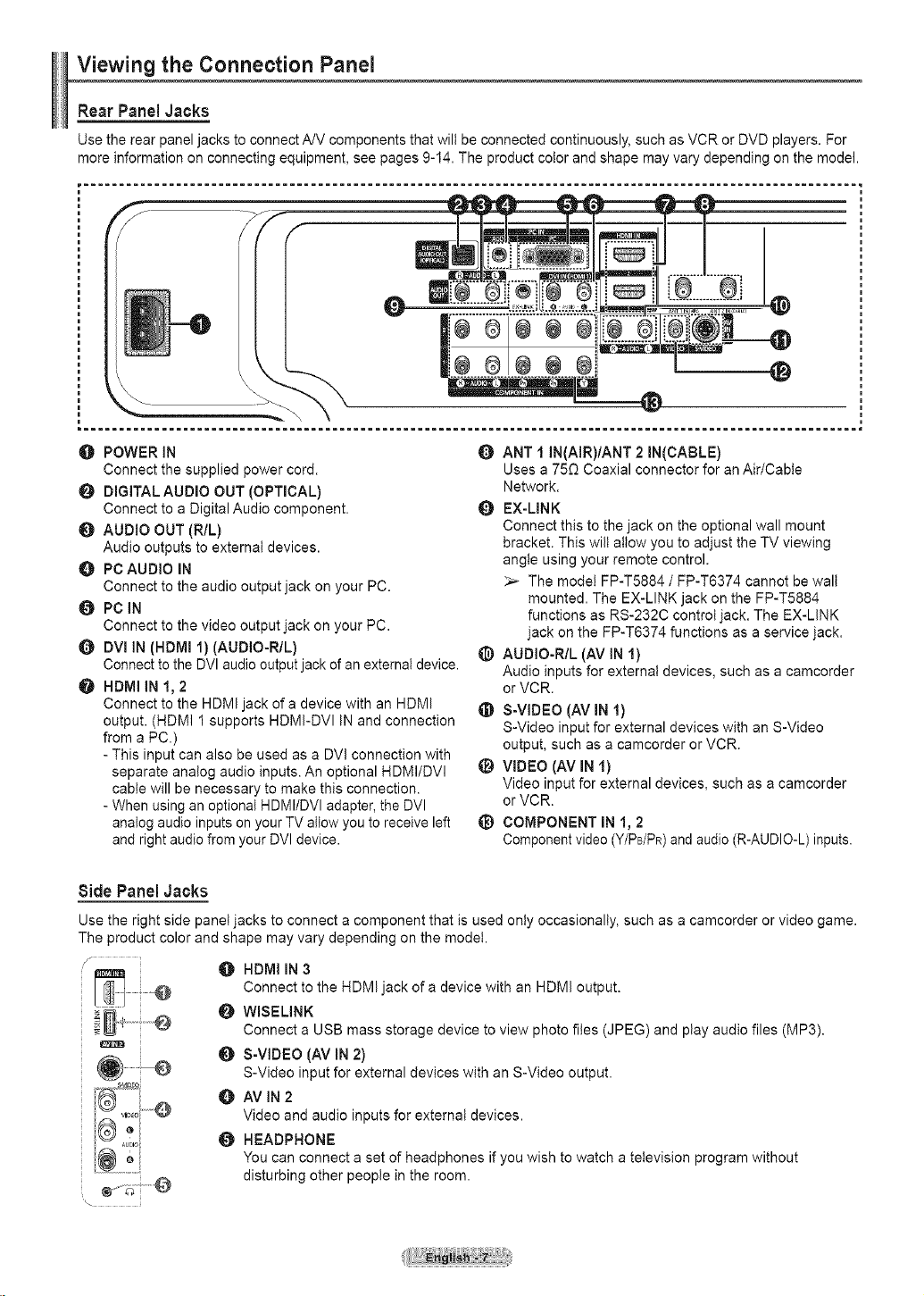
Viewing the Connection Panel
Rear Panel Jacks
Use the rear panel jacks to connect A/V components that wilt be connected continuously, such as VCR or DVD players. For
more information on connecting equipment, see pages 9-14. The product color and shape may vary depending on the model.
O POWER IN
Connect the supplied power cord.
O DIGITAL AUDIO OUT (OPTICAL)
Connect to a Digital Audio component.
0 AUDIO OUT (R/L)
Audio outputs to external devices.
PC AUDIO IN
Connect to the audio output jack on your PC.
O PC_N
Connect to the video output jack on your PC.
Q DVl iN (HDMI 1) (AUDIO-R/L)
Connect to the DVI audio output jack of an external device.
HDMI iN 1, 2
Connect to the HDMI jack of a device with an HDMI
output. (HDMI 1 supports HDMI-DVI IN and connection
from a PC.)
- This input can also be used as a DVl connection with
separate analog audio inputs. An optional HDMI/DVI
cable will be necessary to make this connection.
- When using an optional HDMI/DVl adapter, the DVl
analog audio inputs on your TV allow you to receive left
and right audio from your DVI device.
Q ANT 1 IN(AIR)/ANT 2 IN(CABLE)
Uses a 75_ Coaxial connector for an Air/Cable
Network.
Q EX-LINK
Connect this to the jack on the optional wall mount
bracket. This will attow you to adjust the TV viewing
angle using your remote control.
_,_ The model FP-T5884 / FP-T6374 cannot be wall
mounted. The EX-LINK jack on the FP-T5884
functions as RS-232C control jack. The EX-LINK
jack on the FP-T6374 functions as a service jack.
@ AUDIO-R/L (AV IN 1)
Audio inputs for external devices, such as a camcorder
or VCR.
@ S-VIDEO(AVIN 1)
S-Video input for external devices with an S-Video
output, such as a camcorder or VCR.
_) VIDEO (AV IN 1)
Video input for external devices, such as a camcorder
or VCR.
_) COMPONENT IN 1, 2
Component video (Y/PB/PR)and audio (R-AUDIO-L) inputs.
Side Panel Jacks
Use the right side panel jacks to connect a component that is used only occasionally, such as a camcorder or video game.
The product color and shape may vary depending on the model.
HDMI IN 3
Connect to the HDMI jack of a device with an HDMI output.
WISELINK
Connect a USB mass storage device to view photo files (JPEG) and play audio files (MP3).
{]) S-VIDEO (AV IN 2)
S-Video input for external devices with an S-Video output.
AVIN2
Video and audio inputs for external devices.
0 HEADPHONE
You can connect a set of headphones if you wish to watch a television program without
disturbing other people in the room.
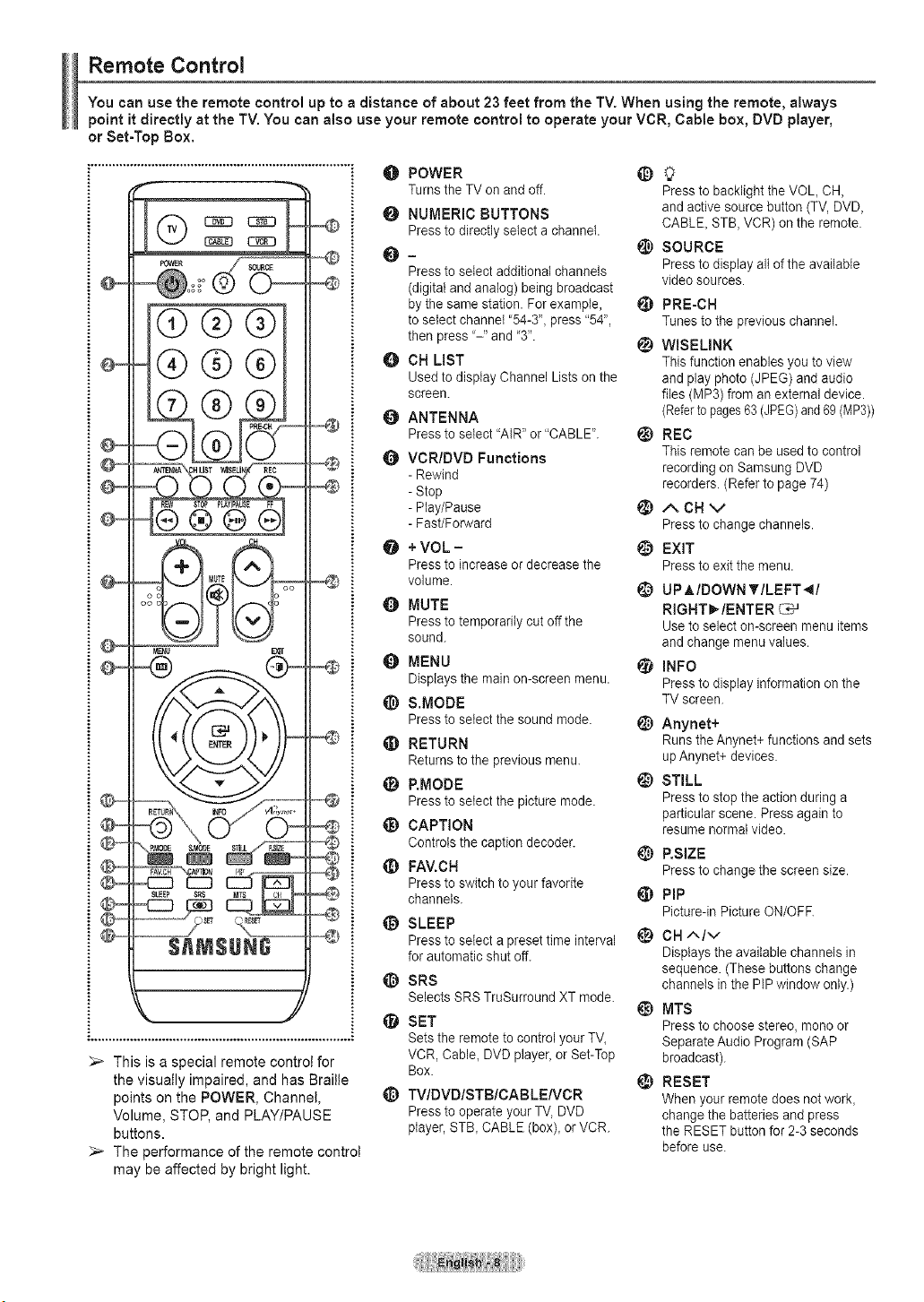
Remote Control
You can use the remote control up to a distance of about 23 feet from the TV. When using the remote, always
point it directly at the TV. You can also use your remote control to operate your VCR, Cable box, DVD player,
or Set-Top Box.
1o
@®®
®®®
®®®®
a MUTE oo
oo o
t01Nu _
This is a special remote control for
the visually impaired, and has Braille
points on the POWER, Channel,
Volume, STOP, and PLAY/PAUSE
buttons.
The performance of the remote control
may be affected by bright light.
O POWER _)
Turns the TV on and off. Press to backlight the VOL CH,
t_ NUMERIC BUTTONS and active source button (TV, DVD,
Press to directly select a channel. CABLE, STB, VCR) on the remote.
_) SOURCE
O-
Press to select additional channels Press to display all of the available
video sources.
(digital and analog) being broadcast
by the same station. For example, _) PRE-CH
to select channel '54-3", press "54", Tunes to the previous channel.
then press '-" and '3".
WBEUNK
O CB LIST This function enables you to view
Used to display Channel Lists on the and play photo (JPEG) and audio
screen, files (MP3) from an external device.
ANTENNA (Referto pages63 (JPEG)and 69 (MP3))
Press to select "AIR" or "CABLE". _) REC
Q VCR/DVD Functions This remote can be used to control
- Rewind recording on Samsung DVD
recorders. (Refer to page 74)
- Stop
- Play/Pause I_) t-. CH V
- Fast/Forward Press to change channels.
* VOL- _) EXIT
Press to increaseor decrease the Press to exit the menu.
volume. (_) UPMDOWN _'/LEFT_/
MUTE RIGHT_/ENTER G*J
Press to temporarily cut off the Use to select on-screen menu items
sound, and change menu values.
Q MENU _ INFO
Displays the main on-screen menu. Press to display information on the
_) S.MODE TV screen.
Press to select the sound mode. _) Anynet+
t[_ RETURN Runs the Anynet+ functions and sets
Returns to the previous menu. up Anynet+ devices.
_) P.MODE t_) STILL
Press to select the picture mode. Press to stop the action during a
particular scene. Press again to
(_) CAPTION resume normal video.
Controls the caption decoder. _) P.SIZE
_) FAV.CH Press to change the screen size.
Press to switch to your favorite
channels. _ PIP
Picture-in Picture ON/OFF.
SLEEP
Press to select a preset time interval 1_) CH ^Iv
for automatic shut off. Displays the available channels in
sequence, (These buttons change
@ SRS channels in the PIP window only.)
Selects SRS TruSurround XT mode.
_) MTS
SET Press to choose stereo, mono or
Sets the remote to control your TV, Separate Audio Program (SAP
VCR, Cable, DVD player, or Set-Top broadcast).
Box.
_) RESET
1_) TVIDVDISTBICABLENCR When your remote does not work,
Press to operate your TV, DVD change the batteries and press
player, ST& CABLE (box), or VCR. the RESET button for 2-3 seconds
before use.
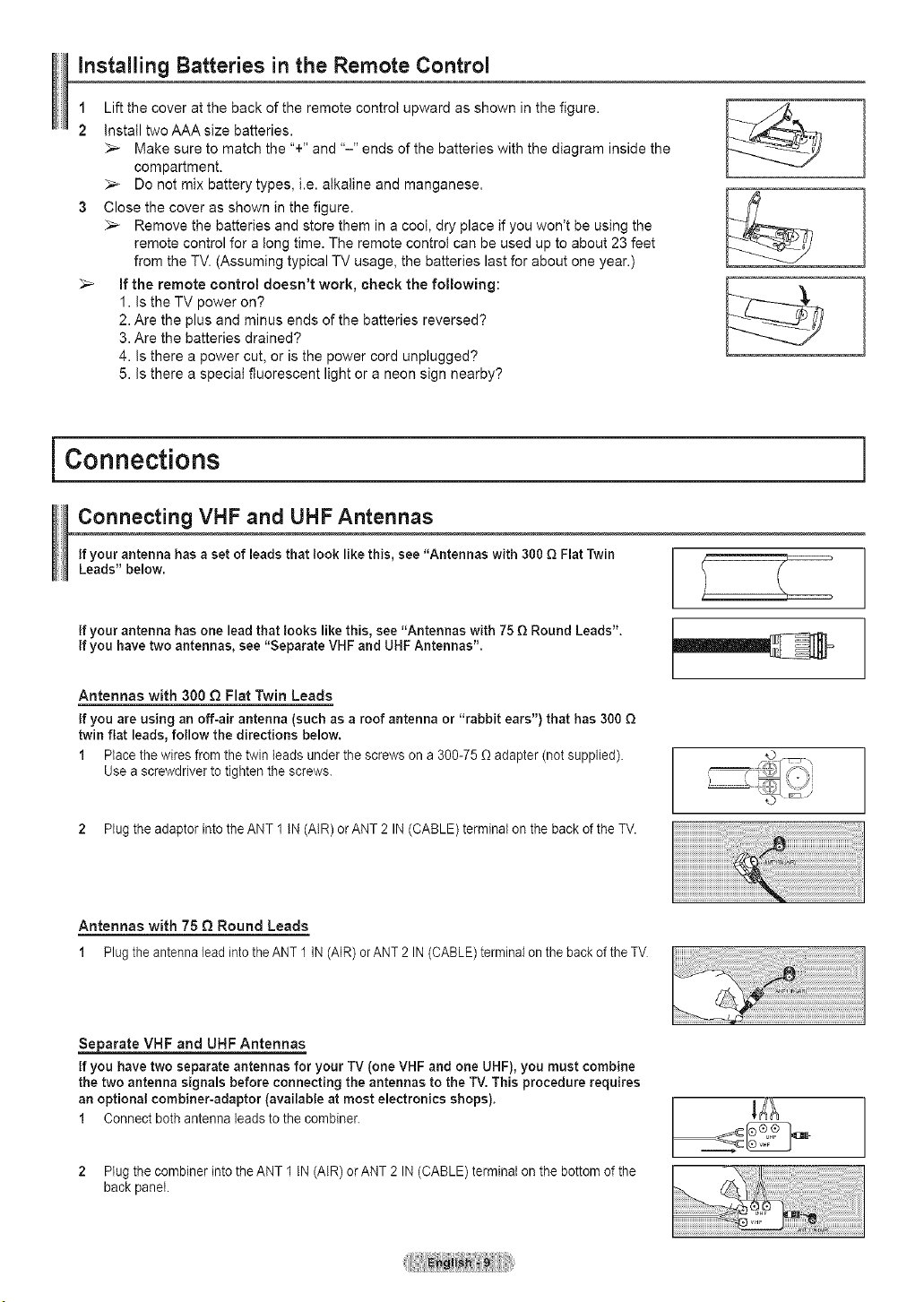
Installing Batteries in the Remote Control
1 Lift the cover at the back of the remote control upward as shown in the figure.
2 Install twoAAAsize batteries.
_-- Make sure to match the "+" and "-" ends of the batteries with the diagram inside the
compartment.
_-- Do not mix battery types, i.e. alkaline and manganese.
3 Close the cover as shown in the figure.
_,_ Remove the batteries and store them in a cool, dry place if you won't be using the
remote control for a long time. The remote control can be used up to about 23 feet
from the TV. (Assuming typical TV usage, the batteries last for about one year.)
_,_ If the remote control doesn't work, check the following:
1. Is the TV power on?
2. Are the plus and minus ends of the batteries reversed?
3. Are the batteries drained?
4. Is there a power cut, or is the power cord unplugged?
5. Is there a special fluorescent light or a neon sign nearby?
i Connections
Connecting VHF and UHF Antennas
If your antenna has a set of leads that look like this, see "Antennas with 300 Q Flat Twin
Leads" below.
If your antenna has one lead that looks like this, see "Antennas with 75 Q Round Leads".
If you have two antennas, see "Separate VHF and UHF Antennas".
Antennas with 300 Q Flat Twin Leads
If you are using an off-air antenna (such as a roof antenna or "rabbit ears") that has 300 Q
twin flat leads, follow the directions below.
1 Place the wires from the twin leads under the screws on a 300-75 _ adapter (not supplied).
Use a screwdriver to tighten the screws.
2 Plug the adaptor into the ANT1 IN(AIR)orANT21N(CABLE)terminalonthebackoftheTV.
Antennas with 75 £_Round Leads
1 PlugtheantennaleadintotheANT 1IN (AIR)orANT2 IN (CABLE)terminalon the backof theTV
S_j_arate VHF and UHF Antennas
If you have two separate antennas for your TV (one VHF and one UHF), you must combine
the two antenna signals before connecting the antennas to the TV. This procedure requires
an optional combiner-adaptor (available at most electronics shops).
1 Connect both antenna leadsto the combiner
2 Plug the combiner into the ANT 1 IN (AIR) or ANT 2 IN (CABLE) terminal on the bottom of the
back panel.
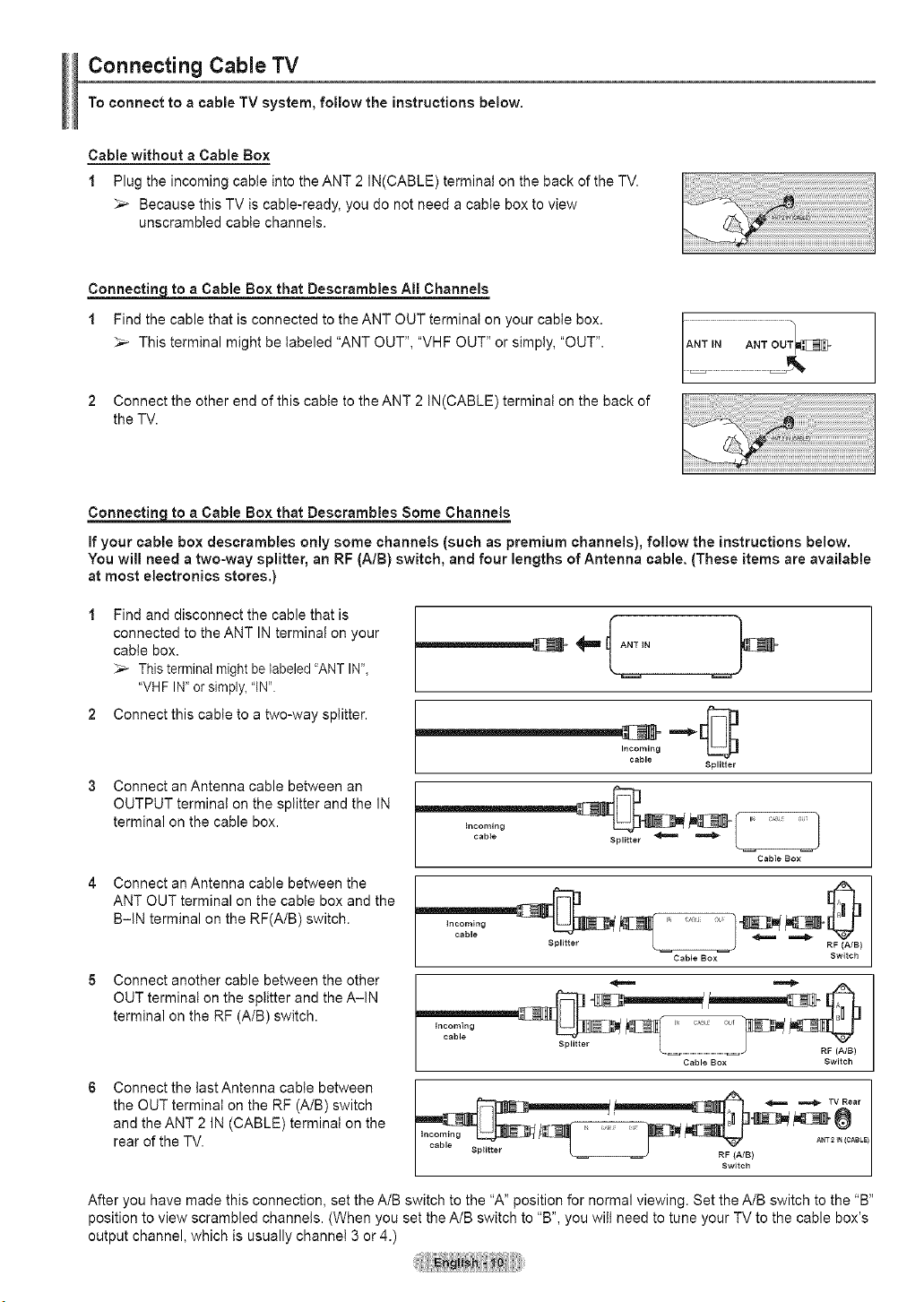
Connecting Cable TV
To connect to a cable TV system, follow the instructions below.
Cable without a Cable Box
1 Plug the incoming cable into the ANT 2 IN(CABLE) terminal on the back of the TV.
_-- Because this TV is cable-ready, you do not need a cable box to view
unscrambled cable channels.
Connectin=q t£ a Cable Box that Descrambles All Channels
1 Find the cable that is connected to the ANT OUT terminal on your cabte box.
_-- This terminal might be labeled "ANT OUT", "VHF OUT" or simply, "OUT".
2 Connect the other end of this cable to the ANT 2 IN(CABLE) terminal on the back of
the TV.
Connecting to a Cable Box that Descrambles Some Channels
If your cable box descrambles only some channels (such as premium channels), follow the instructions below.
You will need a two-way splitter, an RF (A/B) switch, and four lengths of Antenna cable. (These items are available
at most electronics stores.)
1 Find and disconnect the cable that is
connected to the ANT IN terminal on your
cabte box.
This terminal might be labeled 'ANT IN_',
"VHF IN" or simply, "IN".
2 Connect this cable to a two-way splitter.
Connect an Antenna cable between an
OUTPUT terminal on the splitter and the IN
terminal on the cable box.
Connect an Antenna cable between the
ANT OUT terminal on the cable box and the
B-IN terminal on the RF(A/B) switch.
Connect another cable between the other
OUT terminal on the splitter and the A-IN
terminal on the RF (A/B) switch.
Connect the last Antenna cabte between
the OUT terminaI on the RF (A/B) switch
and the ANT 2 IN (CABLE) terminal on the
rear of the TV.
Incoming
cable
Splitter
Incoming
cable
Splitter _
J
Cable Box
Incoming
cable
Splitter
4=== .=_
RF (A/B}
Cable Box Switch
\ _ _J RF (A/B)
Cable Box Switch
__ _ _ TV Rear
Spl{tter _ RF (A/B)
Sw ch
After you have made this connection, set the A/B switch to the "A" position for normal viewing. Set the A/B switch to the "B"
position to view scrambled channels. (When you set the A/B switch to "B", you wilt need to tune your TV to the cable box's
output channel, which is usually channel 3 or 4.)
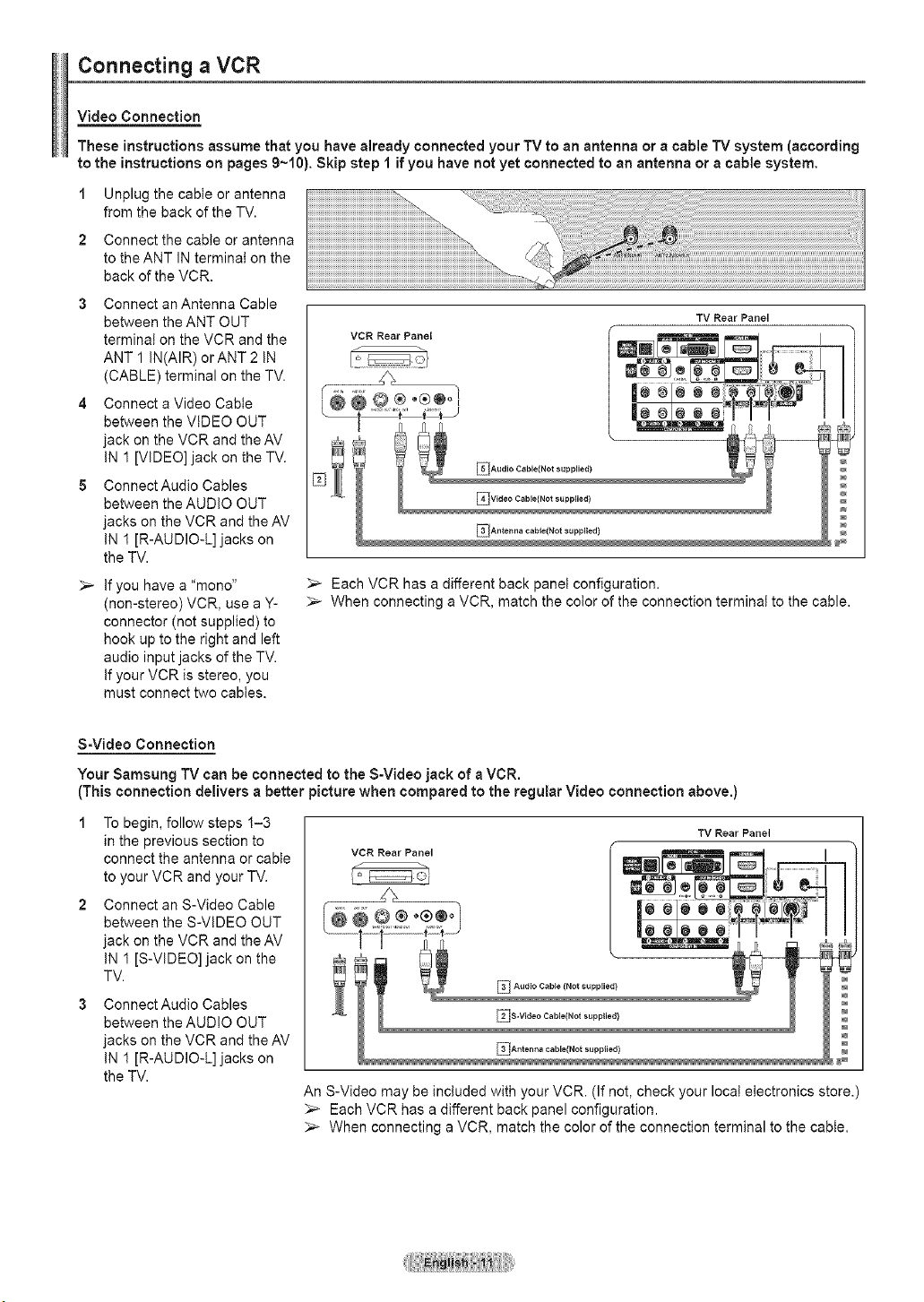
Connecting a VCR
Video Connection
These instructions assume that you have already connected your TV to an antenna or a cable TV system (according
to the instructions on pages 9~10). Skip step 1 if you have not yet connected to an antenna or a cable system,
1 Unplug the cabte or antenna
from the back of the TV.
2 Connect the cable or antenna
to the ANT IN terminal on the
back of the VCR.
3 Connect anAntenna Cable
between the ANT OUT
terminal on the VCR and the
ANT 1 IN(AIR) orANT 2 iN
(CABLE) terminal on the TV.
4 Connect a Video Cabte
between the VIDEO OUT
jack on the VCR and the AV
iN 1 [VIDEO] jack on the TV.
5 ConnectAudio Cables
between the AUDIO OUT
jacks on the VCR and the AV
IN 1 [R-AUDIO-L] jacks on
the TV.
if you have a "mono"
(non-stereo) VCR, use a Y-
connector (not supplied) to
hook up to the right and left
audio input jacks of the TV.
if your VCR is stereo, you
must connect two cables.
VCR Rear Panel
TV Rear Panel
Each VCR has a different back panel configuration.
_-- When connecting a VCR, match the color of the connection terminal to the cable.
S-Video Connection
Your Samsung TV can be connected to the S-Video jack of a VCR.
(This connection delivers a better picture when compared to the regular Video connection above.)
1 To begin, follow steps 1-3
in the previous section to
connect the antenna or cable
to your VCR and your TV.
2 Connect an S-Video Cable
between the S-VIDEO OUT
jack on the VCR and the AV
IN 1 [S-VIDEO] jack on the
TV.
Connect Audio Cables
between the AUDIO OUT
jacks on the VCR and the AV
IN 1 [R-AUDIO-L] jacks on
the TV.
TV Rear Panel
VCRReorPo°e, '
..............._,.. ..................................... , .
® !++++ j ..........
i i ,it ,_ ,. --"++"+-- A _q3
+;+
An S-Video may be included with your VCR. (If not, check your local electronics store.)
>_ Each VCR has a different back panel configuration.
_-- When connecting a VCR, match the color of the connection terminal to the cane.
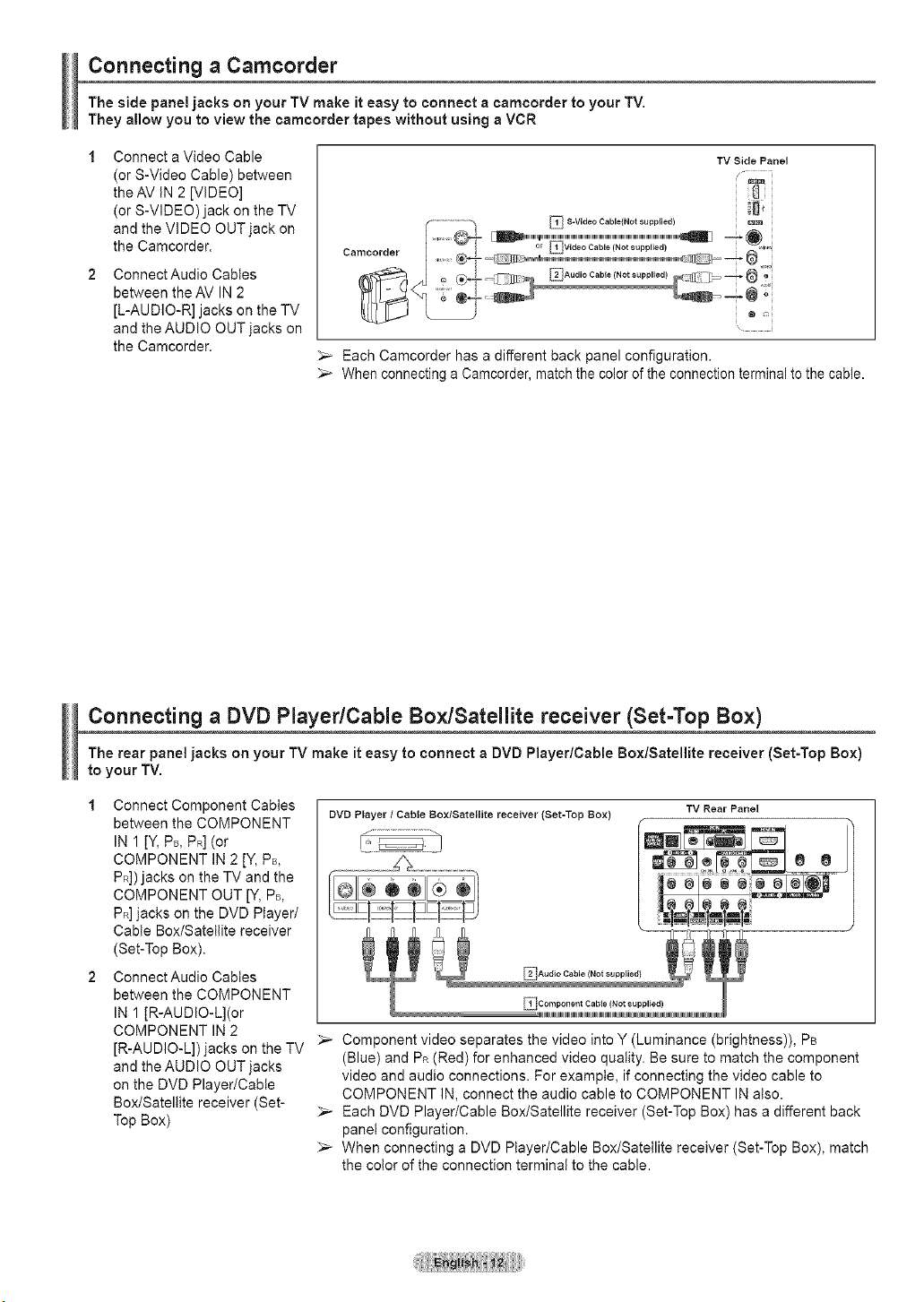
Connecting a Camcorder
The side panel jacks on your TV make it easy to connect a camcorder to your TV.
They allow you to view the camcorder tapes without using a VCR
Connect a Video Cable
(or S-Video Cable) between
the AV tN 2 [VIDEO]
(or S-VIDEO) jack on the TV
and the VIDEO OUT jack on
the Camcorder.
Connect Audio Cabtes
between the AV IN 2
[UAUDIO-R] jacks on the TV
and the AUDIO OUT jacks on
the Camcorder.
TV Side Panel
/
_'i ..............i_'_ _} S-Video Cable{Not supplied)
-- -- I or EIVide o Cable (Not supplied) _1,_.
_.amcoraer }
1 O _" ........ _AudioCable Notsupplied _[_--I _"
+,; ......
_-- Each Camcorder has a different back panel configuration.
_-- When connecting a Camcorder, match the color of the connection terminal to the cable.
Connecting a DVD PlayedCable Box/Satellite receiver (Set-Top Box)
The rear panel jacks on your TV make it easy to connect a DVD Player/Cable Box/Satellite receiver (Set-Top Box)
to your TV.
1 Connect Component Cables
between the COMPONENT
IN 1 [Y, PB, PR] (or
COMPONENT IN 2 [Y, PB,
PR]) jacks on the TV and the
COMPONENT OUT [Y, P+,
PR]jacks on the DVD Player/
Cable Box/Satellite receiver
(Set-Top Box).
2 ConnectAudio Cabtes
between the COMPONENT
IN 1 [R-AUDIO-L](or
COMPONENT IN 2
[R-AUDIO-L]) jacks on the TV
and the AUDIO OUT jacks
on the DVD Player/Cable
Box/Satellite receiver (Set-
Top Box)
DVD Player / Cable Box/Satellite receiver (Set-Top Box)
TV Rear Panel
I+ ++ + +,%+J
+_m_mm, " +
++P+++++
Component video separates the video into Y (Luminance (brightness)), PB
(Blue) and PR (Red) for enhanced video quality. Be sure to match the component
video and audio connections. For example, if connecting the video cable to
COMPONENT IN, connect the audio cable to COMPONENT IN also.
_-- Each DVD Player/Cable Box/Satellite receiver (Set-Top Box) has a different back
panel configuration.
When connecting a DVD Player/Cable Box/Satellite receiver (Set-Top Box), match
the color of the connection terminal to the cable.
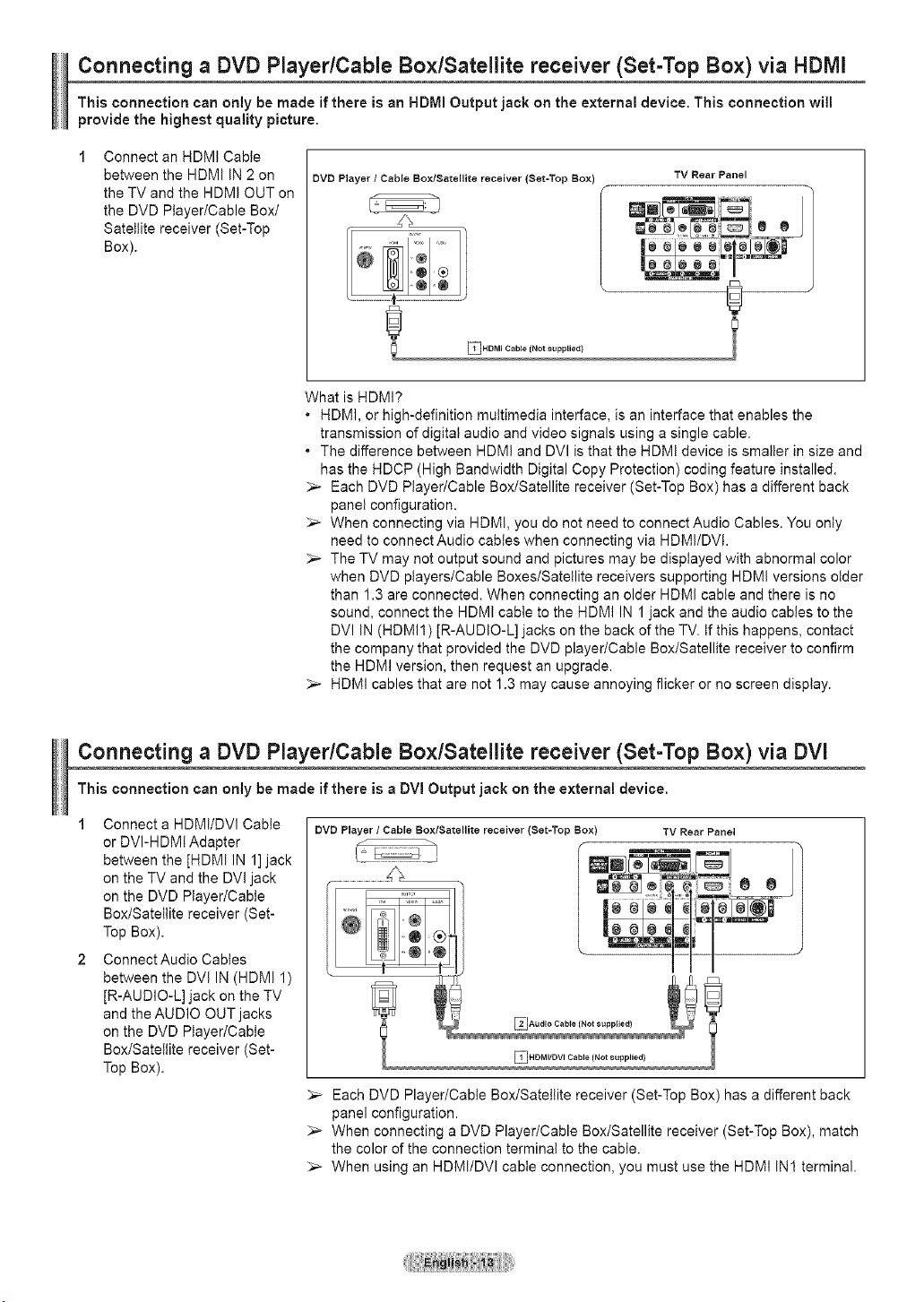
Connecting a DVD PlayedCable Box/Satellite receiver (Set-Top Box) via HDMI
This connection can only be made if there is an HDMI Output jack on the external device. This connection will
provide the highest quality picture.
Connect an HDMI Cable
between the HDMI IN 2 on
the TV and the HDMI OUT on
the DVD Player/Cable Box/
Satellite receiver (Set-Top
Box).
DVD Player / Cable Box/Satellite receiver (Set-Top Box)
Z_
EIHDMI Cable {Not supplied)
TV Rear Panel
What is HDMI?
• HDMI, or high-definition multimedia interface, is an interface that enables the
transmission of digital audio and video signals using a single cable.
• The difference between HDMI and DVl is that the HDM! device is smaller in size and
has the HDCP (High Bandwidth Digital Copy Protection) coding feature installed.
_-- Each DVD Player/Cable Box/Satellite receiver (Set-Top Box) has a different back
panel configuration.
_,_ When connecting via HDM!, you do not need to connect Audio Cables. You only
need to connect Audio cables when connecting via HDMI/DVt.
_,_ The TV may not output sound and pictures may be displayed with abnormal color
when DVD players/Cable Boxes/Satellite receivers supporting HDMI versions older
than 1.3 are connected. When connecting an older HDMI cable and there is no
sound, connect the HDMI cable to the HDMI IN 1 jack and the audio cables to the
DVl IN (HDMI1) [R-AUDIO-L] jacks on the back of the TV. tf this happens, contact
the company that provided the DVD player/Cable Box/Satellite receiver to confirm
the HDMI version, then request an upgrade.
_-- HDMI cables that are not 1.3 may cause annoying flicker or no screen display.
Connecting a DVD Player/Cable Box/Satellite receiver (Set-Top Box) via DVl
This connection can only be made if there is a DVl Output jack on the external device.
1 Connect a HDMI/DVl Cable
or DVI-HDMt Adapter
between the [HDMI IN 1] jack
on the TV and the DVl jack
on the DVD Player/Cable
Box/Satellite receiver (Set-
Top Box).
2 ConnectAudio Cables
between the DV! IN (HDMI 1)
JR-AUDIO-L] jack on the TV
and the AUDIO OUT jacks
on the DVD Player/Cable
Box/Satellite receiver (Set-
Top Box).
DVD Player / Cable Box/Satellite receiver (Set=Top Box) TV Rear Panel
_lAudio Cable (Not supplied)
EIHDMI/DVI Cable (Not supplied}
_-- Each DVD Player/Cable Box/Satellite receiver (Set-Top Box) has a different back
panel configuration.
_,_ When connecting a DVD Player/Cable Box/Satellite receiver (Set-Top Box), match
the color of the connection terminal to the cable.
_,_ When using an HDMI/DVl cable connection, you must use the HDMI IN1 terminal.
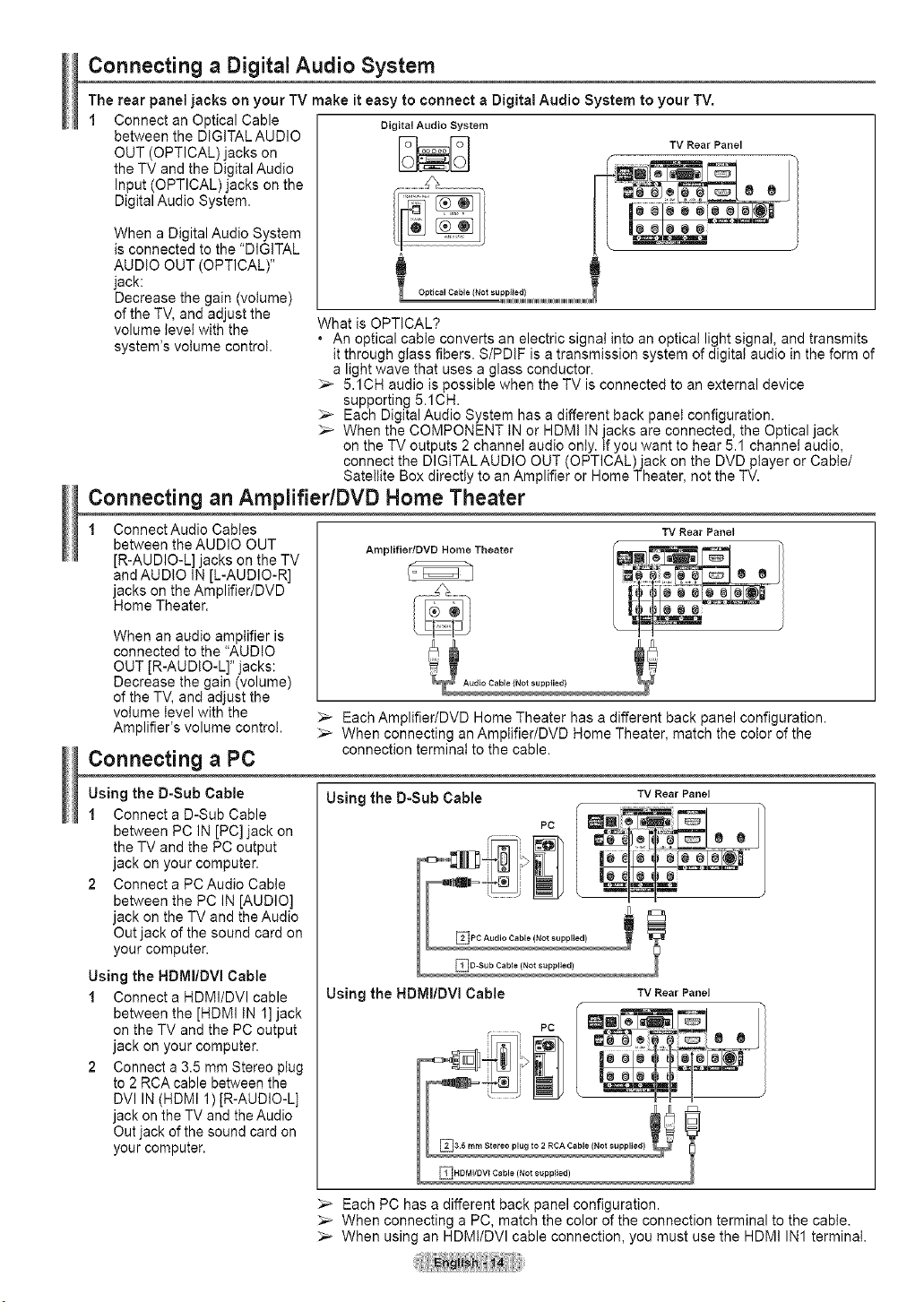
Connecting a Digital Audio System
The rear panel jacks on your TV make it easy to connect a Digital Audio System to your TV.
1 Digital Audio System
Connect an Optical Cable
between the DIGITAL AUDIO
OUT (OPTICAL) jacks on
the TV and the Digital Audio
Input (OPTICAL)jacks on the
Digital Audio System.
When a Digital Audio System
is connected to the "DIGITAL
AUDIO OUT (OPTICAL)"
jack:
Decrease the gain (volume)
of the TV, and adjust the
volume level with the
system's volume control.
TV Rear Panel
What is OPTICAL?
. An optical cable converts an electric signal into an optical light signa!, and transmits
it through glass fibers. S/PDtF is a transmission system of digital audio in the form of
a light wave that uses a glass conductor.
5.1CH audio is possible when the TV is connected to an external device
supporting 5.1CH.
_,_ Each Digital Audio System has a different back panel configuration.
_-- When the COMPONENT IN or HDM! IN jacks are connected, the Optical jack
on the TV outputs 2 channel audio only. if you want to hear 5.1 channel audio,
connect the DIGITALAUDIO OUT (OPTICAL)jack on the DVD player or Cable/
Satellite Box directiy to an Amplifier or Home Theater, not the TV.
Connecting an Amplifier/DVD Home Theater
Connect Audio Cables
between the AUDIO OUT
[R-AUDIO-L] jacks on the TV
and AUDIO IN [L-AUDIO-R]
jacks on the Amplifier/DVD
Home Theater.
When an audio amplifier is
connected to the "AUDIO
OUT [R-AU DIO-L]" jacks:
Decrease the gain (volume)
of the TV, and adjust the
volume level with the
Amplifier's volume control.
Amplifier/DVD Home Theater
TV Rear Panel
_-- Each Amplifier/DVD Home Theater has a different back panel configuration.
When connecting an Amptifier/DVD Home Theater, match the color of the
connection terminal to the cable.
Connecting a PC
Using the D-Sub Cable
1 Connect a D-Sub Cable
between PC IN [PC] jack on
the TV and the PC output
jack on your computer.
2 Connect a PCAudio Cable
between the PC IN [AUDIO]
jack on the TV and the Audio
Out jack of the sound card on
your computer.
Using the HDMI/DVI Cable
1 Connect a HDMI/DVI cable
between the [HDMI tN 1] jack
on the TV and the PC output
jack on your computer.
2 Connect a 3.5 mm Stereo piug
to 2 RCA cable between the
DVI IN (HDMI 1)[R-AUDIO-L]
jack on the TV and the Audio
Out jack of the sound card on
your computer.
Using the D-Sub Cable TV RearPanel
Ei.C.°dioCob,e,.o,supp,edl
D-Sub Cable (Not supplied)
Using the HDMI/DVI Cable TV RearPanel
_ HDMI/DV_ Cable (Not supplied)
Each PC has a different back panel configuration.
When connecting a PC, match the color of the connection terminal to the cable.
_-- When using an HDM!/DVl cable connection, you must use the HDMI IN1 terminaI.

Operation
Turning the TV On and Off
Press the POWER button on the remote control.
You can also use the POWER button on the TV.
It may take a while when your TV starts.
[ ........................ J
Plug & Play Feature
When the TV is initially powered On, basic settings proceed automatically and subsequently:
1 Press the POWER button on the remote control.
The message Menu language, Shop Mode, Channels and Time will be set. is
displayed.
Press the ENTER button, the Select the language of the OSD menu is
automatically displayed.
Press the A or T button to select language, then press the ENTER button.
The message Select Home Mode when installing this TV at home. is
automatically displayed.
Press the _ or _ button to select Shop or Home, then press the ENTER
button.
_,_ The default selection is Home.
_,_ We recommend setting the TV to Home mode for the best picture in your
home environment.
_-- Shop mode is only intended for use in retail environments.
_,_ If the unit is accidentally set to Shop mode and you want to return to
Dynamic (Home) mode, press any Volume button and then hold down the
MENU button for five seconds on the TV panel.
Press the _, or T button to memorize the channels of the selected connection.
Press the ENTER button to select Start.
_,_ If the antenna is connected to ANT1 IN(AIR), select Air and if it is connected
to ANT 2 IN(CABLE), select Cable.
_,_ If both ANT 1 IN(AIR) and ANT 2 IN(CABLE) are connected,
select the Air + Cable.
_-- In Cable mode, select the correct analog signal cable system source among
STD, HRC, and IRC by pressing the J, or _' button, then press the ENTER
button. If you have Digital cable, select the cable system signal source for
both Analog and Digital. Contact your local cable company to identify the
type of cable system that exists in your particular area.
To memorize the channels, press the _ button to select Start, then press
the ENTER button.
Contact your local cable company to identify the type of cable system that
exists in your particular area.
Con_nued...
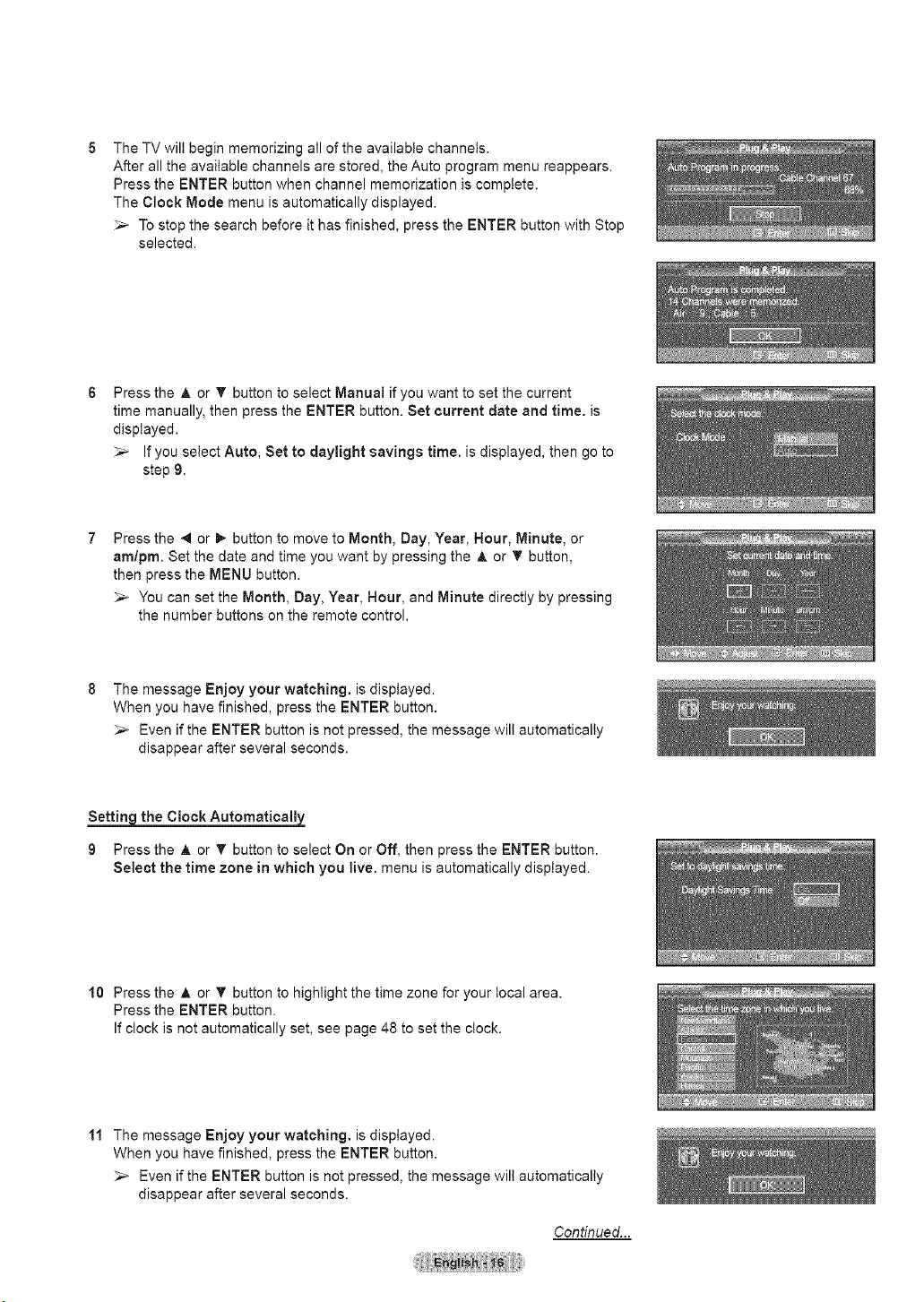
The TV wilt begin memorizing all of the available channels.
After all the available channels are stored, the Auto program menu reappears.
Press the ENTER button when channel memorization is complete.
The Clock Mode menu is automatically displayed.
_,_ To stop the search before it has finished, press the ENTER button with Stop
selected.
Press the A or _' button to select Manual if you want to set the current
time manually, then press the ENTER button. Set current date and time. is
displayed.
_-- If you select Auto, Set to daylight savings time. is displayed, then go to
step 9.
Press the 4 or _, button to move to Month, Day, Year, Hour, Minute, or
am/pro. Set the date and time you want by pressing the A or _' button,
then press the MENU button.
_-- You can set the Month, Day, Year, Hour, and Minute directly by pressing
the number buttons on the remote control.
The message Enjoy your watching, is displayed.
When you have finished, press the ENTER button.
_,_ Even if the ENTER button is not pressed, the message wilt automatically
disappear after several seconds.
Setting the Clock Automatically
9 Press the A or T button to select On or Off, then press the ENTER button.
Select the time zone in which you live. menu is automatically displayed.
10 Press the A or T button to highlight the time zone for your local area.
Press the ENTER button.
If clock is not automatically set, see page 48 to set the clock.
11 The message Enjoy your watching, is displayed.
When you have finished, press the ENTER button.
_,_ Even if the ENTER button is not pressed, the message wilt automatically
disappear after several seconds.
Continued...
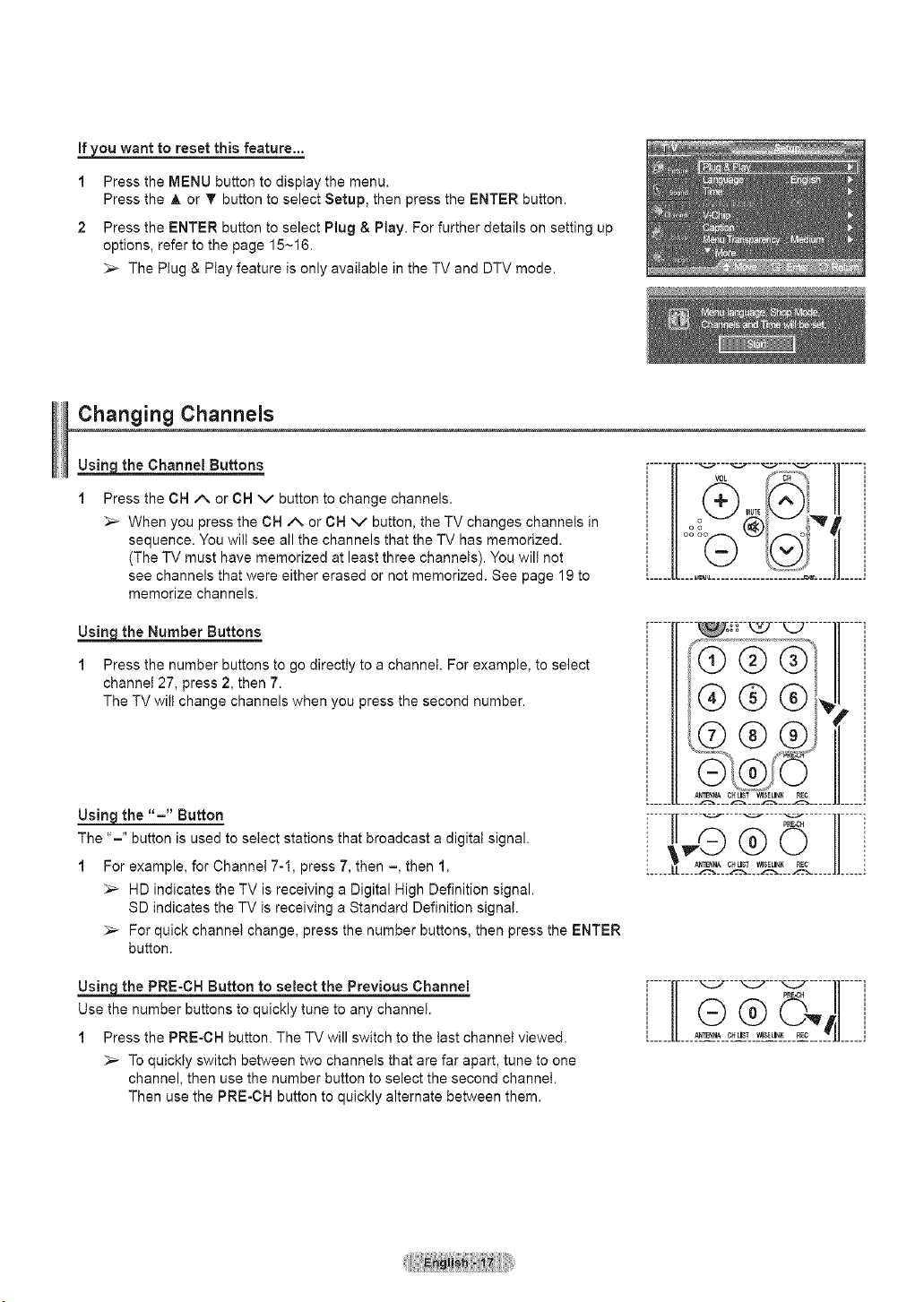
_ou want to reset this feature...
1
2
Press the MENU button to display the menu.
Press the A or T button to select Setup, then press the ENTER button.
Press the ENTER button to select Plug & Play. For further details on setting up
options, refer to the page 15~16.
_,_ The Plug & Play feature is only available in the TV and DTV mode.
Changing Channels
_the Channel Buttons
Press the CH A or CH v button to change channels.
_,_ When you press the OH A or OH V button, the TV changes channels in
sequence. You will see all the channels that the TV has memorized.
(The TV must have memorized at least three channels). You will not
see channels that were either erased or not memorized. See page 19 to
memorize channels.
_the Number Buttons
1 Press the number buttons to go directty to a channel. For example, to select
channel 27, press 2, then 7.
The TV wilt change channels when you press the second number.
Using the "-" Button
The "-" button is used to select stations that broadcast a digital signal.
1 For example, for Channel 7-1, press 7, then =, then 1.
_,_ HD indicates the TV is receiving a Digital High Definition signal.
SD indicates the TV is receiving a Standard Definition signal.
_,_ For quick channel change, press the number buttons, then press the ENTER
button.
_the PRE-CH Button to select the Previous Channel
Use the number buttons to quickly tune to any channel.
1 Press the PRE-CH button. The TV will switch to the last channel viewed.
_,_ To quickly switch between two channels that are far apart, tune to one
channel, then use the number button to select the second channel.
Then use the PRE-CH button to quickly alternate between them.
//oo oG I4'
[_____[[..................2:::_JL___Jl_____i
........... _r- --'L_---t:j.............
pEE4;H
,-----,----__---__---__-----,,-----,
i " ..... /' i
@ ®
..... .....
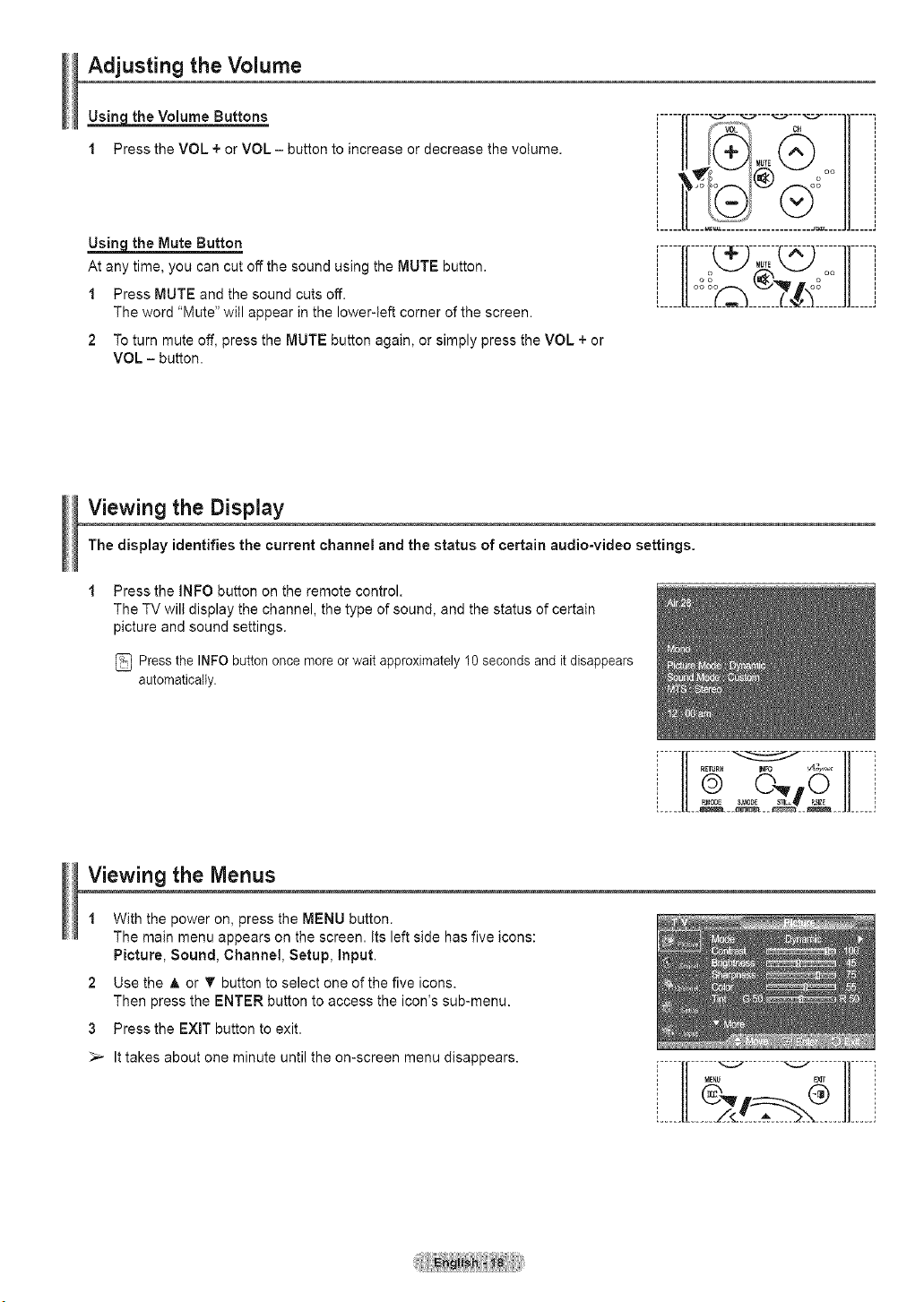
Adjusting the Volume
the Volume Buttons
1 Press the VOL + or VOL - button to increase or decrease the votume.
Using the Mute Button
At any time, you can cut off the sound using the MUTE button.
1 Press MUTE and the sound cuts off.
The word "Mute" win appear in the lower-left corner of the screen.
2 To turn mute off, press the MUTE button again, or simply press the VOL + or
VOL - button.
Viewing the Display
The display identifies the current channel and the status of certain audio-video settings.
Press the INFO button on the remote control.
The TV win display the channel, the type of sound, and the status of certain
picture and sound settings.
Press the INFO button once more or wait approximately 10 seconds and it disappears
automatically.
Viewing the Menus
1 With the power on, press the MENU button.
The main menu appears on the screen, its left side has five icons:
Picture, Sound, Channel, Setup, input.
2 Use the A or T button to select one of the five icons.
Then press the ENTER button to access the icon's sub-menu.
3 Press the EXIT button to exit.
_-- It takes about one minute until the omscreen menu disappears.
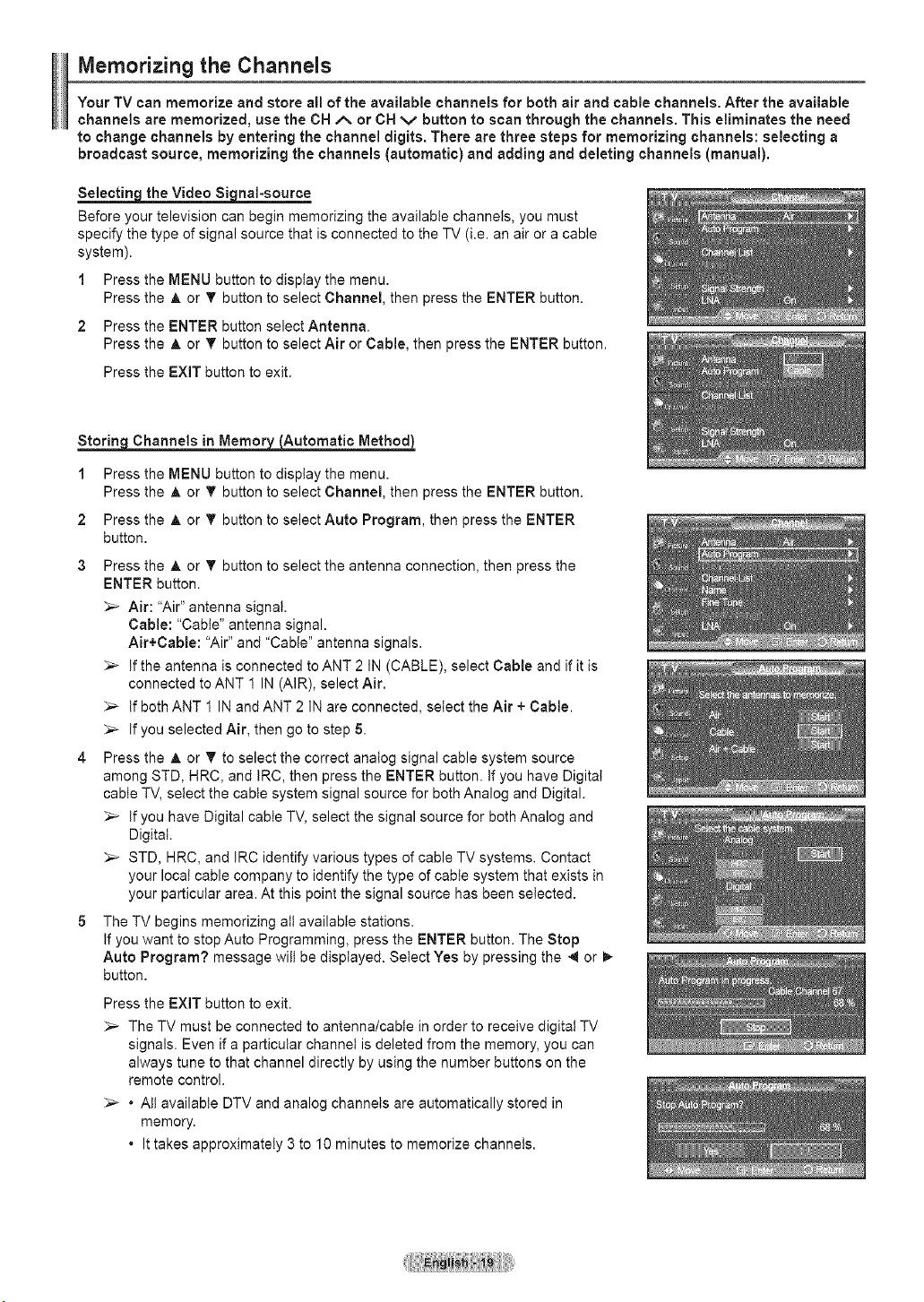
Memorizing the Channels
Your TV can memorize and store all of the available channels for both air and cable channels. After the available
channels are memorized, use the CH A or CH v button to scan through the channels. This eliminates the need
to change channels by entering the channel digits. There are three steps for memorizing channels: selecting a
broadcast source, memorizing the channels (automatic) and adding and deleting channels (manual).
Seiectin_the Video _nal-source
Before your television can begin memorizing the available channels, you must
specify the type of signal source that is connected to the TV (i.e. an air or a cable
system).
1 Press the MENU button to display the menu.
Press the A or T button to select Channel, then press the ENTER button.
2 Press the ENTER button select Antenna.
Press the A or T button to select Air or Cable, then press the ENTER button.
Press the EXIT button to exit.
Storincl Channels in Memor_L_AutomaticMethod_
1 Press the MENU button to display the menu.
Press the A or T button to select Channel, then press the ENTER button.
2 Press the A or T button to select Auto Program, then press the ENTER
button.
3 Press the A or T button to select the antenna connection, then press the
ENTER button.
_-- Air: "Air" antenna signa!.
Cable: "Cable" antenna signal.
Air+Cable: "Air" and "Cable" antenna signals.
_-- If the antenna is connected to ANT 2 IN (CABLE), select Cable and if it is
connected to ANT 1 IN (AIR), select Air.
If both ANT 1 IN and ANT 2 IN are connected, select the Air + Cable.
_-- If you selected Air, then go to step 5.
4 Press the A or T to select the correct analog signal cable system source
among STD, HRC, and IRC, then press the ENTER button. If you have Digital
cable TV, select the cable system signal source for both Analog and Digital.
_-- If you have Digital cable TV, select the signal source for both Analog and
Digital.
_-- STD, HRC, and IRC identify various types of cable TV systems. Contact
your local cable company to identify the type of cable system that exists in
your particular area. At this point the signal source has been selected.
5 The TV begins memorizing att available stations.
If you want to stop Auto Programming, press the ENTER button. The Stop
Auto Program? message wilt be displayed. Select Yes by pressing the 4 or _-
button.
Press the EXiT button to exit.
The TV must be connected to antenna/cable in order to receive digitat TV
signals. Even if a particular channel is deleted from the memory, you can
always tune to that channel directly by using the number buttons on the
remote control.
• All available DTV and analog channels are automatically stored in
memory.
• It takes approximately 3 to 10 minutes to memorize channels.
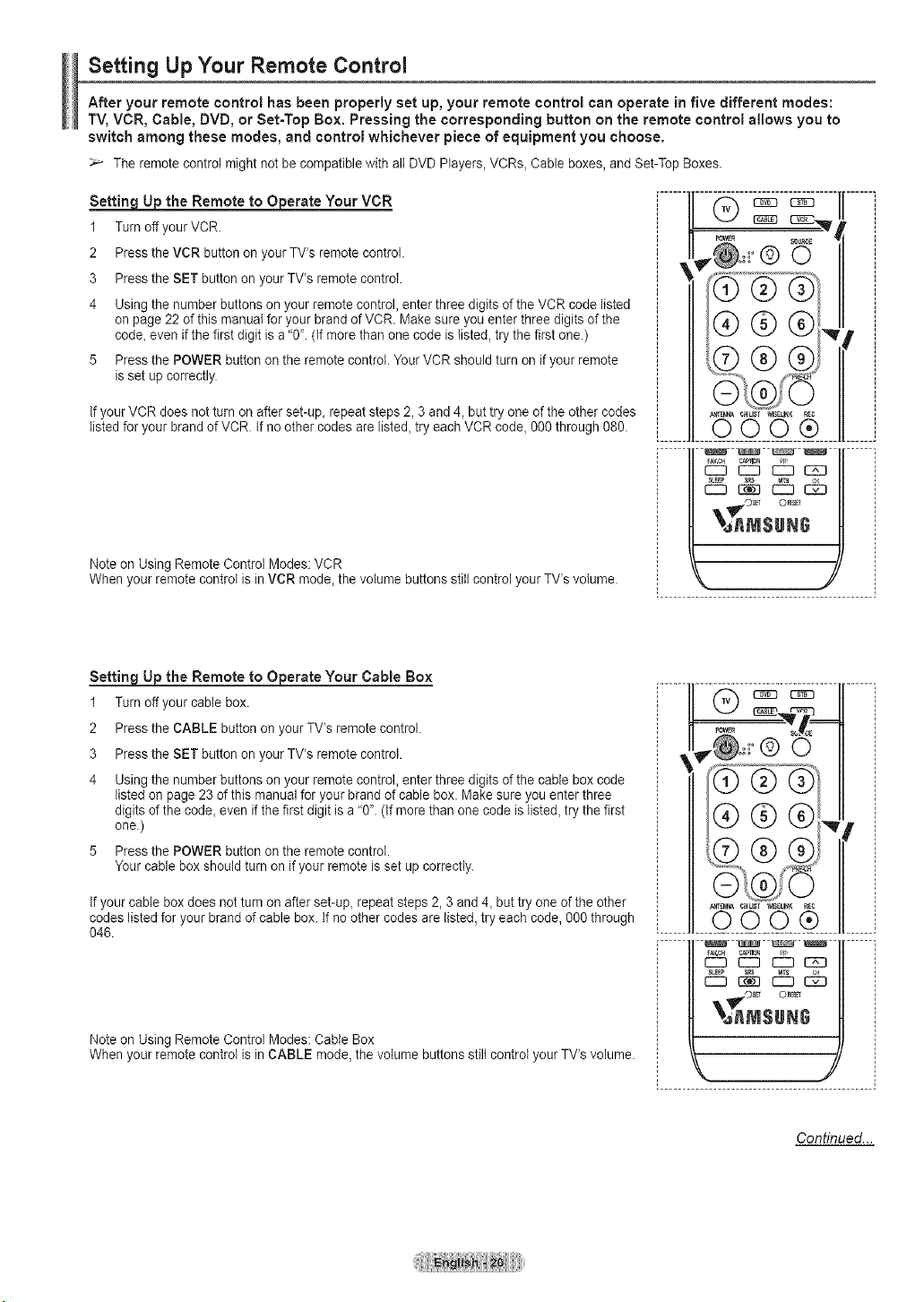
Setting Up Your Remote Control
After your remote control has been properly set up, your remote control can operate in five different modes:
TV, VCR, Cable, DVD, or Set-Top Box. Pressing the corresponding button on the remote control allows you to
switch among these modes, and control whichever piece of equipment you choose.
_-- The remote control might not be compatible with all DVD Players, VCRs, Cable boxes, and Set-Top Boxes.
SettingUj3U the Remote to Operate Your VCR
1 Turn off your VCR
2 Press the VCR button on your TV's remote control.
3 Press the SET button on your TV's remote control.
4 Using the number buttons on your remote control, enter three digits of the VCR code listed
on page 22 of this manual for your brand of VCR. Make sure you enter three digits of the
code_even if the first digit is a "0". (If more than one code is listed, try the first one.)
5 Press the POWER button on the remote control. Your VCR should turn on if your remote
is set up correctly.
If your VCR does not turn on after set-up_ repeat steps 2, 3 and 4, but try one of the other codes
listed for your brand of VCR If no other codes are listed, try each VCR code, %0 through 080.
Note on Using Remote Control Modes: VCR
When your remote control is in VCR mode_the volume buttons still control your TV's volume.
i......[ .......
i
i
[......Jk.OOO® 1__
FAV,C_ C_
r-7 EZD _ EE3
_Os_ ORFS_
%_MSUNG
Settin_UU the Remote to Operate Your Cable Box
1 Turn off your cable box.
2 Press the CABLE button on your TV's remote control.
3 Press the SET button on your TV's remote control.
4 Using the number buttons on your remote control, enter three digits of the cable box code
listed on page 23 of this manual for your brand of cable box. Make sure you enter three
digits of the code, even if the first digit is a "0". (If more than one code is listed, try the first
one.)
5 Press the POWER button on the remote control.
Your cable box should turn on if your remote is set up correctly.
If your cable box does not turn on after set-up, repeat steps 2, 3 and 4, but try one of the other
codes listed for your brand of cable box. If no other codes are listed, try each code, 000 through
046.
Note on Using Remote Control Modes: Cable Box
When your remote control is in CABLE mode, the volume buttons still control your TV's volume.
o II
®®
FAV,C_ C_O_
CID C1:13_ E_
_Osg O_ESg
%_NgiJN[;
Continued...
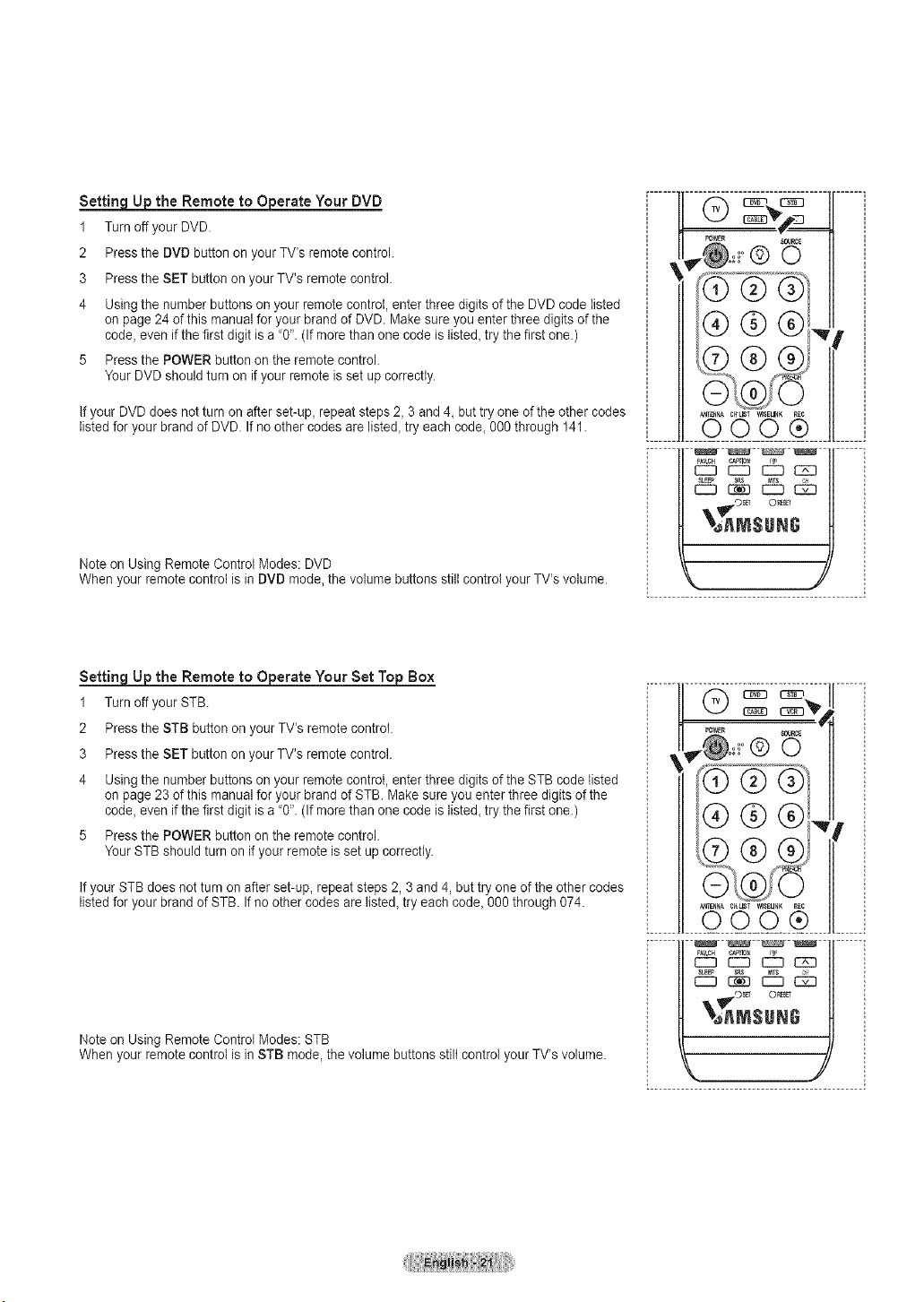
Setting _ the Remote to _erate Your DVD
1 Turn off your DVD.
2 Press the DVD button on your TV's remote control.
3 Press the SET button on your TV's remote control.
4 Using the number buttons on your remote control, enter three digits of the DVD code listed
on page 24 of this manual for your brand of DVD. Make sure you enter three digits of the
code, even if the first digit is a '0". (If more than one code is listed, try the first one.)
5 Press the POWER button on the remote control.
Your DVD should turn on if your remote is set up correctly.
If your DVD does not turn on after set-up, repeat steps 2, 3 and 4, but try one of the other codes
listed for your brand of DVD. If no other codes are listed, try each code, 000 through 141.
Note on Using Remote Control Modes: DVD
When your remote control is in DVD mode, the volume buttons still control your TV's volume.
...........................6-------_..............
FOtt_ SO_Rt_
\'
I '
A_ c_r WlSE_K R_C
....... OOO® ........
CZ3 CZ3 _ C_
!_OSB O_&_T
_AN$UNG
Setting _ the Remote to _erate Your Set Top Box
1 Turn off your STB.
2 Press the STB button on your TV's remote control.
3 Press the SET button on your TV's remote control.
4 Using the number buttons on your remote control, enter three digits of the STB code listed
on page 23 of this manual for your brand of STB. Make sure you enter three digits of the
code, even if the first digit is a '0". (If more than one code is listed, try the first one.)
5 Press the POWER button on the remote control.
Your STB should turn on if your remote is set up correctly.
If your STB does not turn on after set-up, repeat steps 2, 3 and 4, but try one of the other codes
listed for your brand of STB. If no other codes are listed, try each code, 000 through 074.
Note on Using Remote Control Modes: STB
When your remote control is in STB mode, the volume buttons still control your TV's volume.
rower SOURCE
@ O
® ®
_AMSUHG
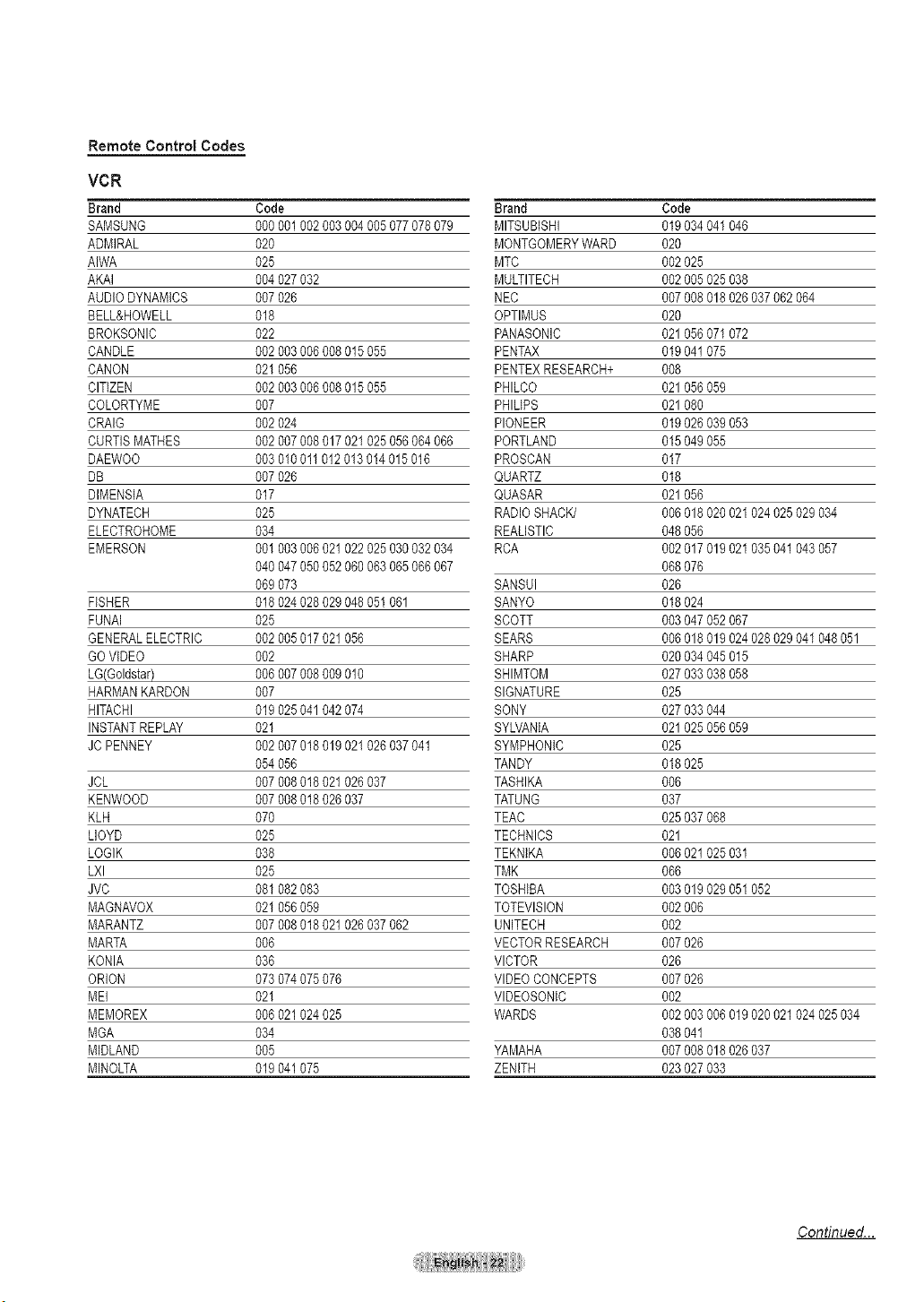
Remote Control Codes
VCR
Brand Code Brand Code
SAMSUNG 000 001002 003004 005077078 079 MITSUBISHI 019034 041046
ADMIRAL 020 MONTGOMERYWARD 020
AIWA 025 MTC 002025
AKAI 004 027032 MULTITECH 002005 025038
AUDIODYNAMICS 007 026 NEC 007008 018026 037062 064
BELL&HOWELL 018 OPTIMUS 020
BROKBONIC 022 PANASONIC 021056 071072
CANDLE 002 003006 008015 055 PENTAX 019041 075
CANON 021 056 PENTEXRESEARCH+ 008
CITIZEN 002 003006 008015 055 PHILCO 021056 059
COLORTYME 007 PHILIPS 021080
CRAIG 002 024 PIONEER 019026 039053
CURTISMATHES 002 007008 017021 025056064 066 PORTLAND 015049 055
DAEWOO 003 010011012 013014015 016 PROSCAN 017
DB 007 026 QUARTZ 018
DIMENSIA 017 QUASAR 021056
DYNATECH 025 RADIOSHACK/ 006018 020021 024025 029034
ELECTROHOME 034 REALISTIC 048056
EMERSON 001 003006 021022 025030032 034 RCA 002017 019021 035041 043057
040 047050 052060 063065066 067 068076
069 073 SANSUI 026
FISHER 018 024028 029048 05t 061 SANYO 018024
FUNAI 025 SCOTT 003047 052067
GENERALELECTRIC 002 005017 021056 SEARS 006018 019024 028029 041048 051
GOVIDEO 002 SHARP 020034 045015
LG(Goldstar) 006 007008 009010 SHIMTOM 027033 038058
HARMANKARDON 007 SIGNATURE 025
HITACHI 019 025041 042074 SONY 027033 044
INSTANTREPLAY 021 SYLVANIA 021025 056059
JC PENNEY 002 007018 019021 026037041 SYMPHONIC 025
054 056 TANDY 018025
JCL 007 008018 021026 037 TASHIKA 006
KENWOOD 007 008018 026037 TATUNG 037
KLH 070 TEAC 025037 068
LLOYD 025 TECHNICS 021
LOGIK 038 TEKNIKA 006021 025031
LXl 025 TMK 066
JVC 081 082083 TOSHIBA 003019 029051 052
MAGNAVOX 021 056059 TOTEVlSION 002006
MARANTZ 007 008018 021026 037062 UNITECH 002
MARTA 006 VECTORRESEARCH 007026
KONIA 036 VICTOR 026
ORLON 073 074075 076 VIDEOCONCEPTS 007026
MEI 021 VlDEOSONIC 002
MEMOREX 006 021024 025 WARDS 002003 006019 020021 024025 034
MGA 034 038041
MIDLAND 005 YAMAHA 007008 018026 037
MINOLTA 019 041075 ZENITH 023027 033
Continued...
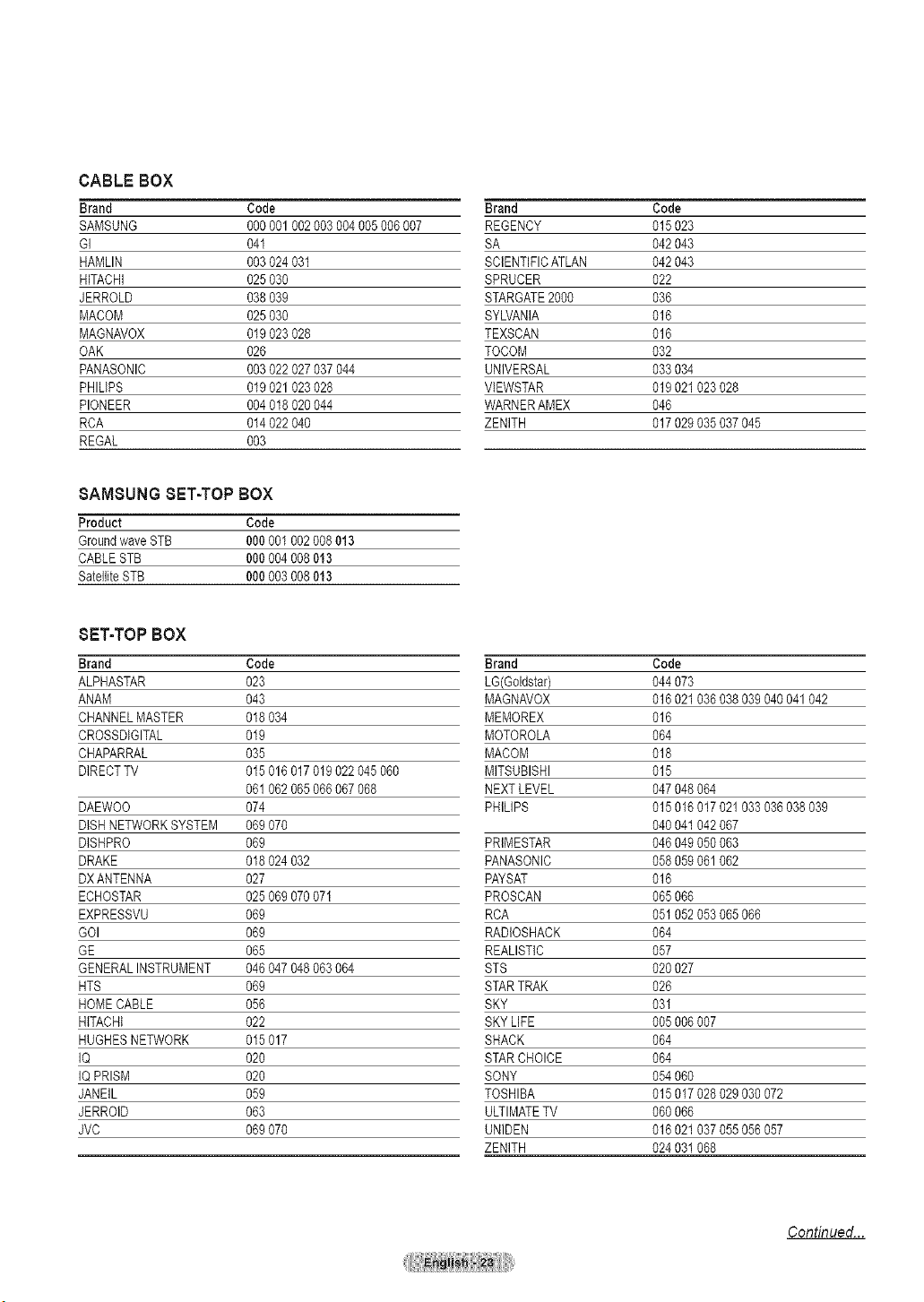
CABLE BOX
Brand Code Brand Code
SAMSUNG 0% 001002 003004 005006007 REGENCY 015023
GI 041 SA 042043
HAMLIN 003 024031 SCIENTIFICATLAN 042043
HITACHI 025 030 SPRUCER 022
JERROLD 038 039 STARGATE2000 036
MACOM 025 030 SYLVANIA 016
MAGNAVOX 019 023028 TEXSCAN 016
OAK 026 TOCOM 032
PANASONIC 003 022027 037044 UNIVERSAL 033034
PHILIPS 019 021023 028 VIEWSTAR 019021 023028
PIONEER 004 018020 044 WARNERAMEX 046
RCA 014 022040 ZENITH 017029 035037045
REGAL 003
8AMBUNG BET-TOP BOX
Product Code
GroundwaveSTB 000001 002008 013
CABLESTB 000004 008013
SatelliteSTB 000003 008013
BET-TOP BOX
Brand Code Brand Code
ALPHASTAR 023 LG(Goldstar) 044073
ANAM 043 MAGNAVOX 016021 036038039 040041 042
CHANNELMASTER 018034 MEMOREX 016
CROSSDIGITAL 019 MOTOROLA 064
CHAPARRAL 035 MACOM 018
DIRECTTV 015016 017019 022045 060 MITSUBISHI 015
061062 065066 067068 NEXTLEVEL 047048 064
DAEWOO 074 PHILIPS 015016 017021033 036038 039
DISHNETWORKSYSTEM 069070 04004I 042067
DISHPRO 069 PRIMESTAR 046049 050063
DRAKE 018024 032 PANASONIC 058059 061062
DXANTENNA 027 PAYSAT 016
ECHOSTAR 025069 070071 PROSCAN 065066
EXPRESSVU 069 RCA 051052 053065066
GOI 069 RADIOSHACK 064
GE 065 REALISTIC 057
GENERALINSTRUMENT 046047 048063 064 STS 020027
HTS 069 STARTRAK 026
HOMECABLE 056 SKY 031
HITACHI 022 SKY LIFE 005006 007
HUGHESNETWORK 015017 SHACK 064
IQ 020 STARCHOICE 064
IQPRISM 020 SONY 054060
JANEIL 059 TOSHIBA 015017 028029030 072
JERROID 063 ULTIMATETV 060066
JVC 069070 UNIDEN 016021 037055056 057
ZENITH 02403t 068
Continued...
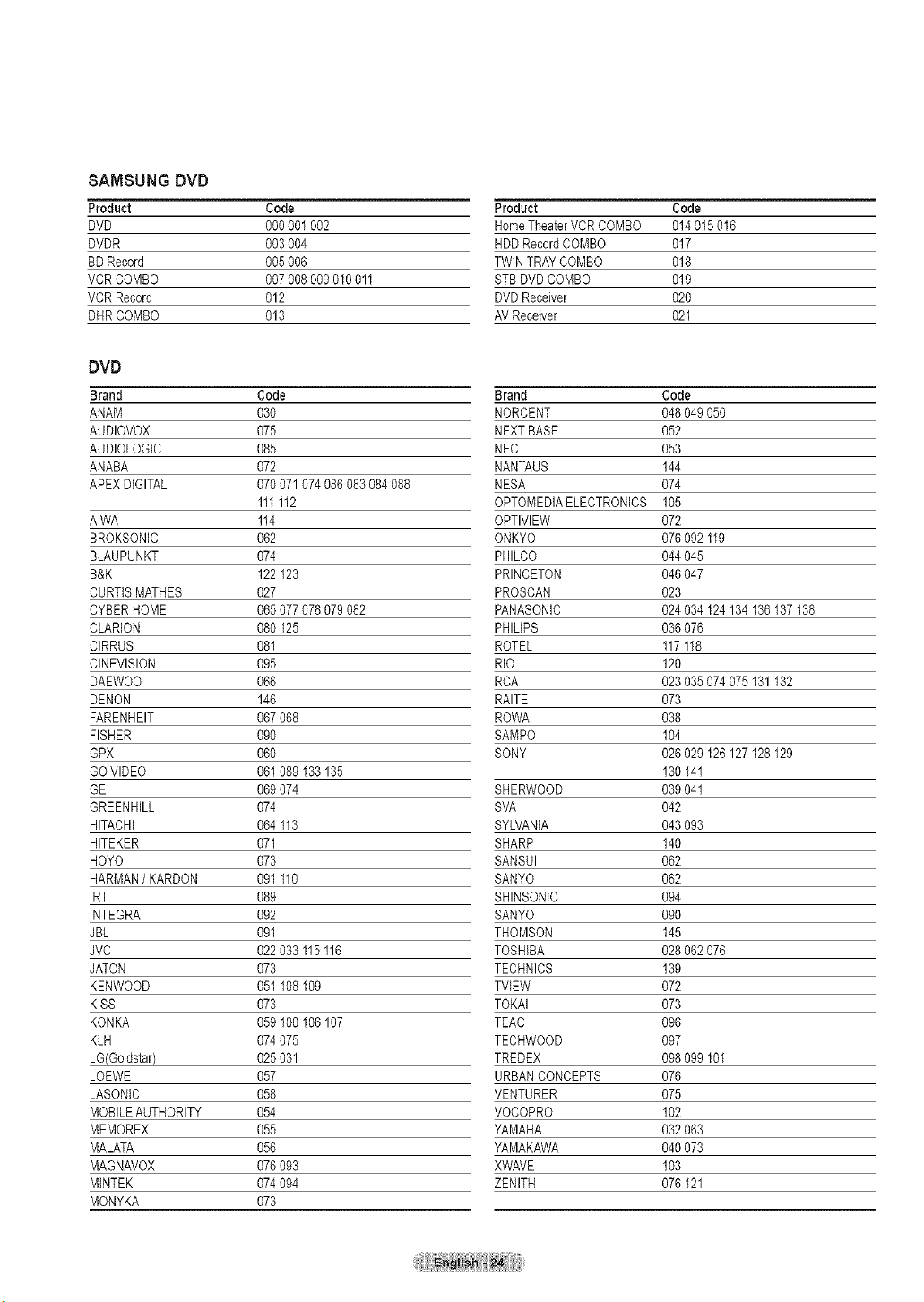
8AMSUNG DVD
Product Code
DVD 0% 001 002
DVDR 003004
BDRecord 005006
VCR COMBO 007008 009010 011
VCR Record 012
DHRCOMBO 013
DVD
Brand Code
ANAM 030
AUDIOVOX 075
AUDIOLOGIC 085
ANABA 072
APEX DIGITAL 070 071074 086083084 088
111112
AIWA 1t4
BROKSONIC 062
BLAUPUNKT 074
B&K 122123
CURTISMATHES 027
CYBERHOME 065 077078 079082
CLARION 080 125
CIRRUS 08I
CINEVlSlON 095
DAEWOO 066
DENON 146
FARENHEIT 067 068
FISHER 090
GPX 060
GOVIDEO 061 089 133135
GE 069 074
GREENHILL 074
HITACHI 064 113
I-tlTEKER 071
HOYO 073
I-tARMAN/ KARDON 091 110
IRT 089
INTEGRA 092
JBL 091
JVC 022 033 115116
JATON 073
KENWOOD 05t 108 109
KISS 073
KONKA 059 100 106107
KLH 074 075
LG(Goldstar) 025 031
LOEWE 057
LASONIC 058
MOBILEAUTHORITY 054
MEMOREX 055
MALATA 056
MAGNAVOX 076 093
MINTEK 074 094
MONYKA 073
Product Code
HomeTheaterVCRCOMBO 014015 016
HDDRecordCOMBO 017
TWINTRAYCOMBO 018
STB DVDCOMBO 019
DVDReceiver 020
AVReceiver 021
Brand Code
NORCENT 048049 050
NEXTBASE 052
NEC 053
NANTAUS 144
NESA 074
OPTOMEDIAELECTRONICS 105
OPTIVlEW 072
ONKYO 076092 119
PHILCO 044045
PRINCETON 046047
PROSCAN 023
PANASONIC 024034 124 134136 137138
PHILIPS 036076
ROTEL 117118
RIO 120
RCA 023035 074075131 132
RAITE 073
ROWA 038
SAMPO 104
SONY 026029 I26 127128 129
130 141
SHERWOOD 039041
SVA 042
SYLVANIA 043093
SHARP 140
SANSUI 062
SANYO 062
SI-tlNSONIC 094
SANYO 090
THOMSON 145
TOSHIBA 028062 076
TECHNICS 139
TVIEW 072
TOKAI 073
TEAC 096
TECHWOOD 097
TREDEX 098099 101
URBANCONCEPTS 076
VENTURER 075
VOCOPRO 102
YAMAHA 032063
YAMAKAWA 040073
XWAVE 103
ZENITH 076 121
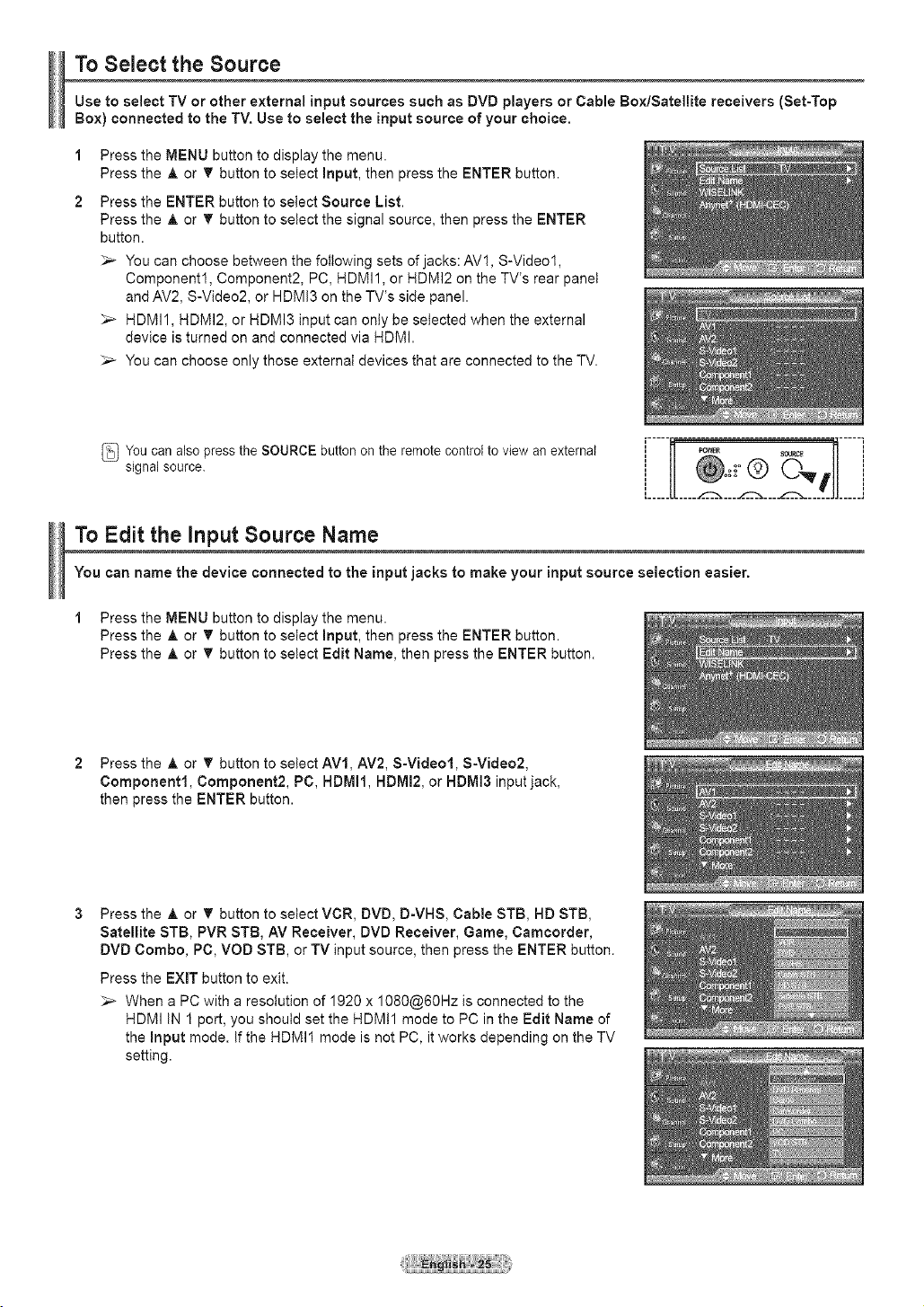
To Select the Source
Use to select TV or other external input sources such as DVD players or Cable Box/Satellite receivers (Set-Top
Box) connected to the TV. Use to select the input source of your choice.
1
2
Press the MENU button to display the menu.
Press the A or T button to select input, then press the ENTER button.
Press the ENTER button to select Source List.
Press the A or _ button to select the signal source, then press the ENTER
button.
_-- You can choose between the following sets of jacks: AV1, S-Video1,
Component1, Component2, PC, HDMI1, or HDMI2 on the TV's rear panel
and AV2, S-Video2, or HDMI3 on the TV's side panel.
_-- HDMI1, HDMI2, or HDMI3 input can only be selected when the external
device is turned on and connected via HDMI.
_,_ You can choose only those external devices that are connected to the TV.
You can also press the SOURCE button on the remote control to view an external
signal source.
To Edit the input Source Name
You can name the device connected to the input jacks to make your input source selection easier.
1 Press the MENU button to display the menu.
Press the A or T button to select input, then press the ENTER button.
Press the A or T button to select Edit Name, then press the ENTER button.
2 Press the A or _' button to select AVI, AV2, S-Videol, S-Video2,
Component1, Component2, PC, HDMII, HDMI2, or HDMI3 input jack,
then press the ENTER button.
Press the A or T button to select VCR, DVD, D-VHS, Cable STB, HD STB,
Satellite STB, PVR STB, AV Receiver, DVD Receiver, Game, Camcorder,
DVD Combo, PC, VOD STB, or TV input source, then press the ENTER button.
Press the EXIT button to exit.
_,_ When a PC with a resolution of 1920 x 1080@60Hz is connected to the
HDMI IN 1 port, you should set the HDM!I mode to PC in the Edit Name of
the Input mode. if the HDMI1 mode is not PC, it works depending on the TV
setting.
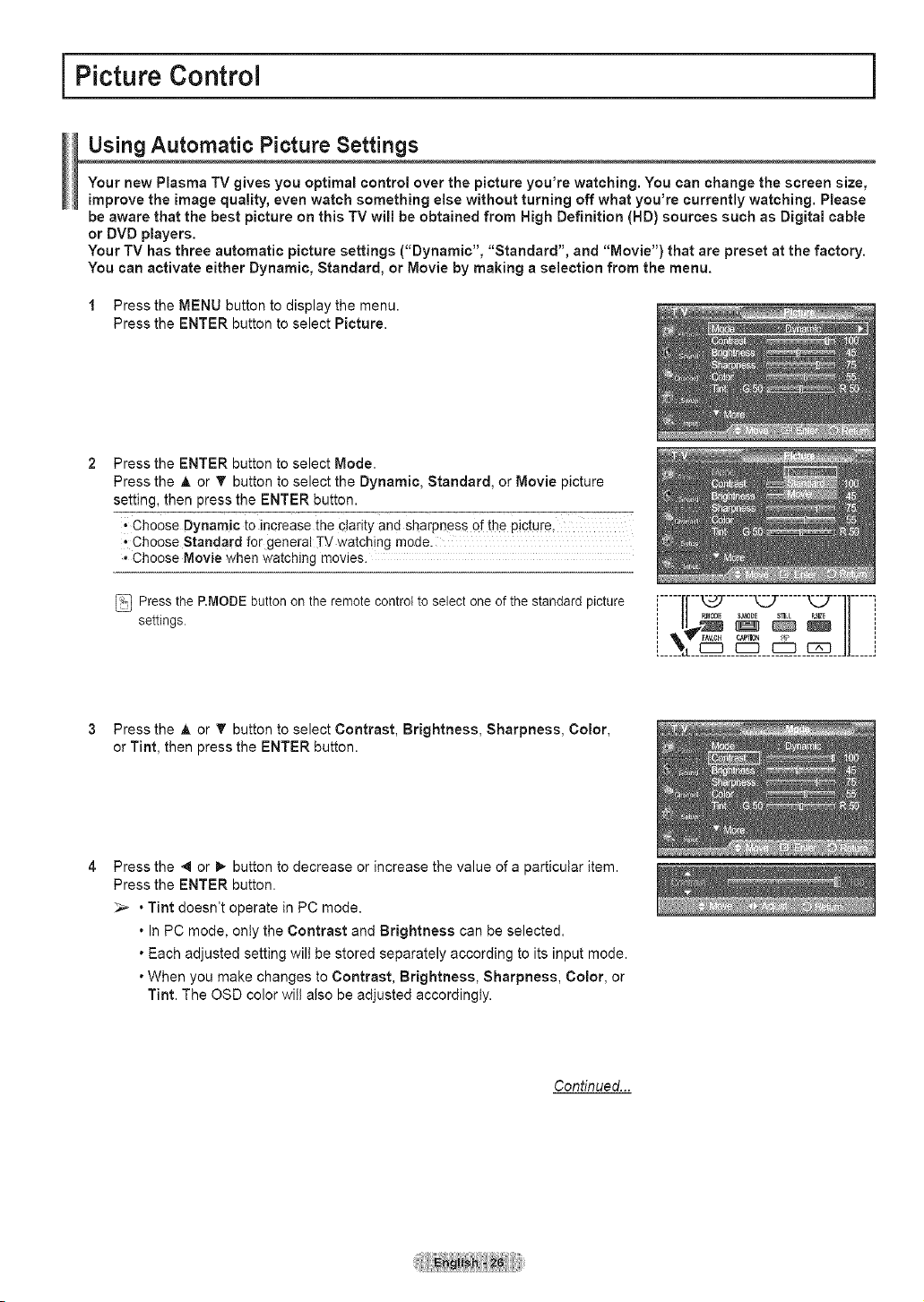
i Picture Control
Using Automatic Picture Settings
Your new Plasma TV gives you optimal control over the picture you're watching. You can change the screen size,
improve the image quality, even watch something else without turning off what you're currently watching. Please
be aware that the best picture on this TV will be obtained from High Definition (HD) sources such as Digital cable
or DVD players.
Your TV has three automatic picture settings ("Dynamic", "Standard", and "Movie") that are preset at the factory.
You can activate either Dynamic, Standard, or Movie by making a selection from the menu.
1 Press the MENU button to display the menu.
Press the ENTER button to select Picture.
Press the ENTER button to select Mode.
Press the ,tk or _' button to select the Dynamic, Standard, or Movie picture
setting, then press the ENTER button.
., Choose Dynamic to increase the clarity and sharpness of the picture.
, Choose Standard for general TV watching mode.
. Choose Movie when watching movies.
Press the P.MODE button on the remote control to select one of the standard picture
settings.
...... ......
', V" AV.¢_ r_F110N I_ ',
__"__.___.___.__.__".....
3 Press the A or T button to select Contrast, Brightness, Sharpness, Color,
or Tint, then press the ENTER button.
Press the 4 or I_ button to decrease or increase the value of a particular item.
Press the ENTER button.
_,_ • Tint doesn't operate in PC mode.
• In PC mode, only the Contrast and Brightness can be selected.
• Each adjusted setting will be stored separately according to its input mode.
• When you make changes to Contrast, Brightness, Sharpness, Color, or
Tint. The OSD color wilt also be adjusted accordingly.
Continued...
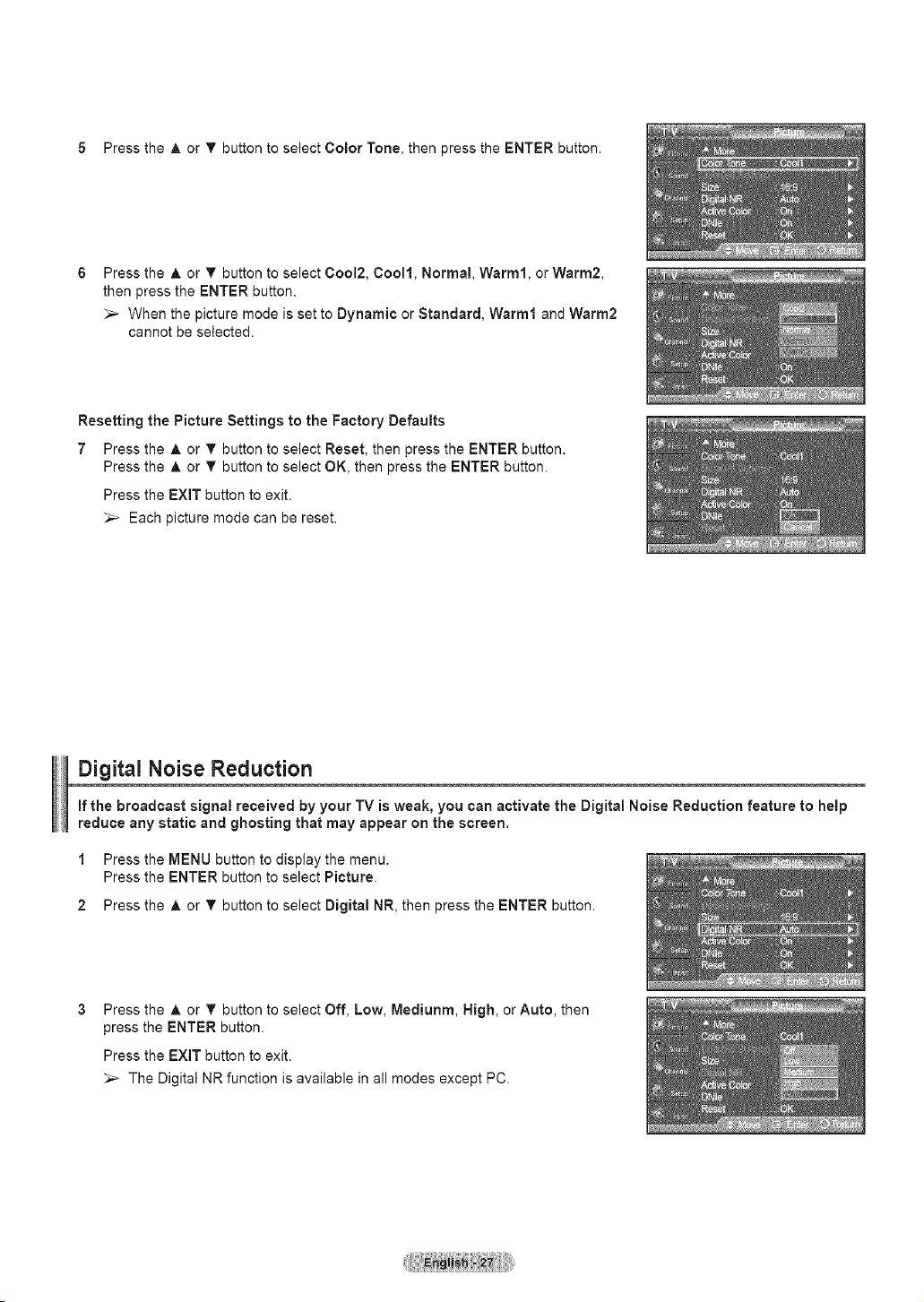
5 Press the A or T button to select Color Tone, then press the ENTER button.
Press the ,_ or T button to select 0ool2, Cool1, Normal, Warm1, or Warm2,
then press the ENTER button.
_,_ When the picture mode is set to Dynamic or Standard, Warm1 and Warm2
cannot be selected.
Resetting the Picture Settings to the Factory Defaults
7 Press the A, or T button to select Reset, then press the ENTER button.
Press the A or T button to select OK, then press the ENTER button.
Press the EXIT button to exit.
_-- Each picture mode can be reset.
Digital Noise Reduction
If the broadcast signal received by your TV is weak, you can activate the Digital Noise Reduction feature to help
reduce any static and ghosting that may appear on the screen.
1 Press the MENU button to display the menu.
Press the ENTER button to select Picture.
2 Press the A or T button to select Digital NR, then press the ENTER button.
Press the A or T button to select Off, Low, Mediunm, High, or Auto, then
press the ENTER button.
Press the EXiT button to exit.
_-- The Digital NR function is available in all modes except PC.

Changing the Screen Size
Occasionally, you may want to change the size of the image on your screen. Your TV comes with six screen size
options, each designed to work best with specific types of video input. Your cable box or satellite receiver may
have its own set of screen sizes as well.
in general you should view the TV in 16:9 mode as much as possible.
1 Press the MENU button to display the menu.
Press the ENTER button to select Picture.
2 Press the A or _' button to select Size, then press the ENTER button.
3 Press the A or T button to select the screen format you want.
Press the ENTER button.
Press the EXiT button to exit.
' 16:9 : sets the picture t0 16:9 wide model
' Zoomt : Magnifies the size Ofthe picture On the Screen.
* Zoom2 : Expands the Zoom1 forma t picture.
'Wide Fit : Enlarges the aspect ratio of the picture to fit the entire screen.
' 4:3 : Sets the picture to 4:3 normat mode.
*Just Scan : Use this function to see the full image without any cutoff when HDMI;
Component (720p/108Oi/tOSOp) or DTV(1OSOi) signals are input.
Press the P.SIZEbutton on the remote control to change the picture size.
...... ...... i
I u PJ_oD_s._ s_u. P.s_z_|j I
I FAV,¢_ r,_IlON :# I
L___[l_ JJ ___J
16:9
Sets the Dic[ure to 16:9
wJac moae,
Zooml Zoom2
The screer s_zewhen The screen s_zewnen
W_aescreen s vertical y the Zoom1 screen is
en_argea, erbcatty en_argea.
Wide Fit
Enlarges the aspect rat o
of the p_c[ure[o fk me
en_lrescreen.
4.'3 Just Scan
Sets the picture to 4:3 Use this function [o see [ne
norma_moae, full image wJ[nou[ any cu[off
_nen HDMI, Comaonen[
ff20D/1O80i/1O80pt or
DTV(1080i) signals are inpuL
. Some cable boxes and satellite receivers have their own set of screen sizes,
which may differ from the ones above.
. In TV, VIDEO, S-VIDEO, and COMPONENT(480i, 480p) modes, all screen
modes can be selected. (16:9 -_ Zoom1 -_ Zoom2 -_ 4:3)
. in COMPONENT(720p, 1080i) or HDMI(720p, 1080i) mode, 16:9, 4:3 and
Wide Fit can be selected.
. in Zoom1, Zoom2 and Wide Fit modes, you can move the picture on the
screen by pressing the A or T button.
. You can not change the picture size when PiP is set to Double.
. When Double (_, r_) mode has been set in PIP, the Picture Size cannot
be set.
. Wide Fit can be used when watching a Digital HD (High Definition) signal.
Wide Fit sets the optimum picture format by expanding it both horizontally and
vertically. For example, you can reset the picture in 4:3 format to 16:9. Wide Fit
does not support all external devices (DVD, VCR etc.).
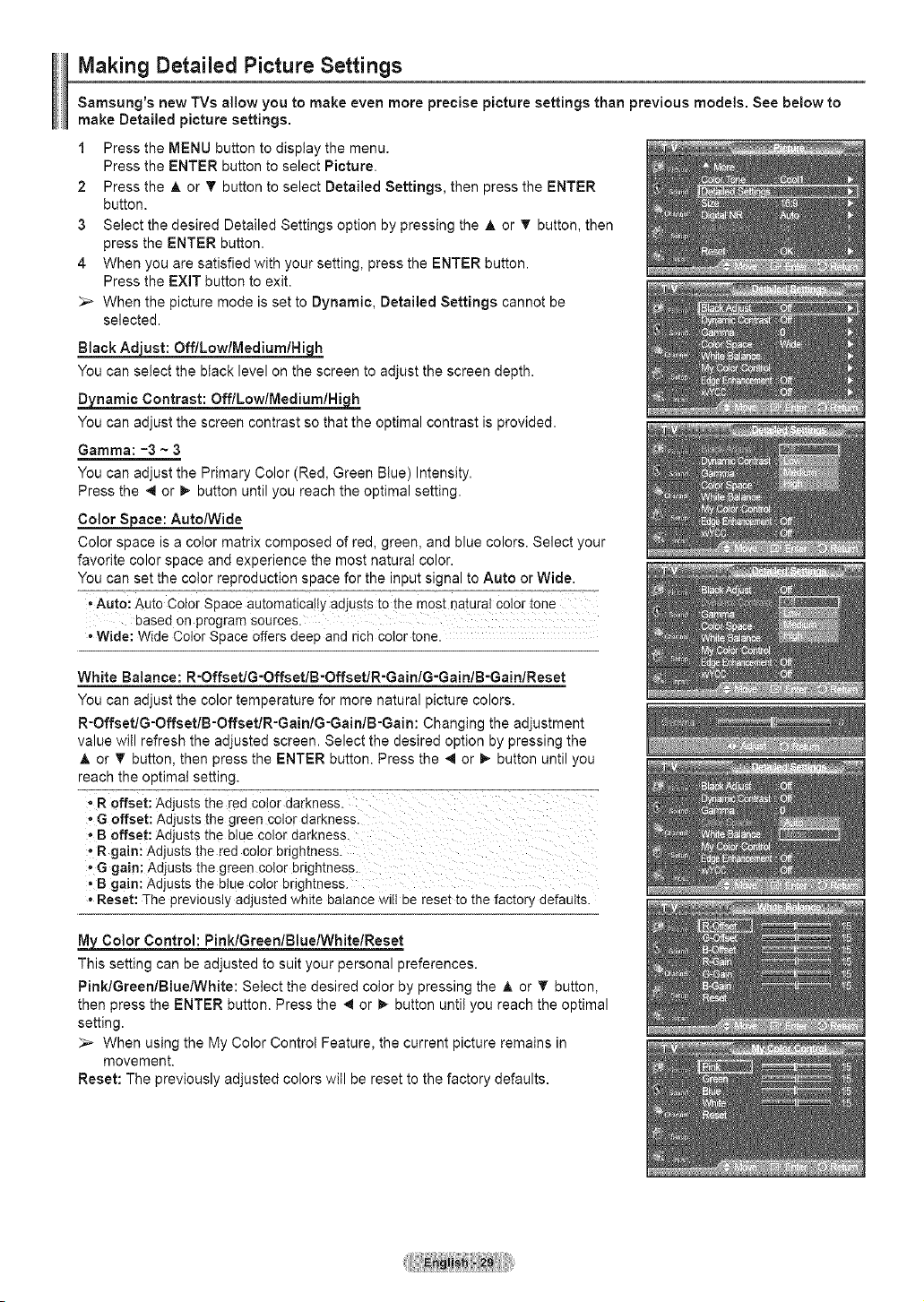
Making Detailed Picture Settings
Samsung's new TVs allow you to make even more precise picture settings than previous models. See below to
make Detailed picture settings.
1 Press the MENU button to display the menu.
Press the ENTER button to select Picture.
2 Press the A or T button to select Detailed Settings, then press the ENTER
button.
3 Select the desired Detailed Settings option by pressing the A or _' button, then
press the ENTER button.
4 When you are satisfied with your setting, press the ENTER button.
Press the EXIT button to exit.
When the picture mode is set to Dynamic, Detailed Settings cannot be
selected.
Black _hJst: OfflLowlMediumlHig_h
You can select the black level on the screen to adjust the screen depth.
Dynamic Contrast: OfflLowlMediumlHi[__
You can adjust the screen contrast so that the optimal contrast is provided.
Gamma: -3 ~ 3
You can adjust the Primary Color (Red, Green Blue) Intensity.
Press the 4 or !1_button until you reach the optimal setting.
Color Sjoace: AutoNVide
Color space is a color matrix composed of red, green, and blue colors. Select your
favorite color space and experience the most natural color.
You can set the color reproduction space for the input signal to Auto or Wide.
, Auto: Auto Color Space automatica!!y adjusts to the most natural color tone
based on program sources.
• Wide: Wide Color Space offers deep and rich color tone.
White Balance: R-OffsetlG-OffsetlB-OffsetlR-GainlG-GainlB-GainlReset
You can adjust the color temperature for more natural picture colors.
R-OffsetlG-OffsetlB-OffsetlR-GainlG-GainlB-Gain: Changing the adjustment
value will refresh the adjusted screen. Select the desired option by pressing the
A. or V' button, then press the ENTER button. Press the 4 or _- button until you
reach the optimal setting.
: R 0ffset: Adjusts the red color darkness.
G offset: Adjusts the green Color darkness.
- B offset: Adjusts the blue color darkness.
° R gaim Adjusts the red color brightness.
° G gain: Adjusts the green color brightness.
= B gain: Adjusts the blue color brightness.
• Reset: The previously adjusted white balance will be reset to the factory defaults.
Color Control: PinklGreenlBluelWhitelReset
This setting can be adjusted to suit your personal preferences.
Pink/Green/Blue/VVhite: Select the desired color by pressing the A or T button,
then press the ENTER button. Press the 4 or _- button until you reach the optimal
setting.
When using the My Color Control Feature, the current picture remains in
movement.
Reset: The previously adjusted colors will be reset to the factory defaults.
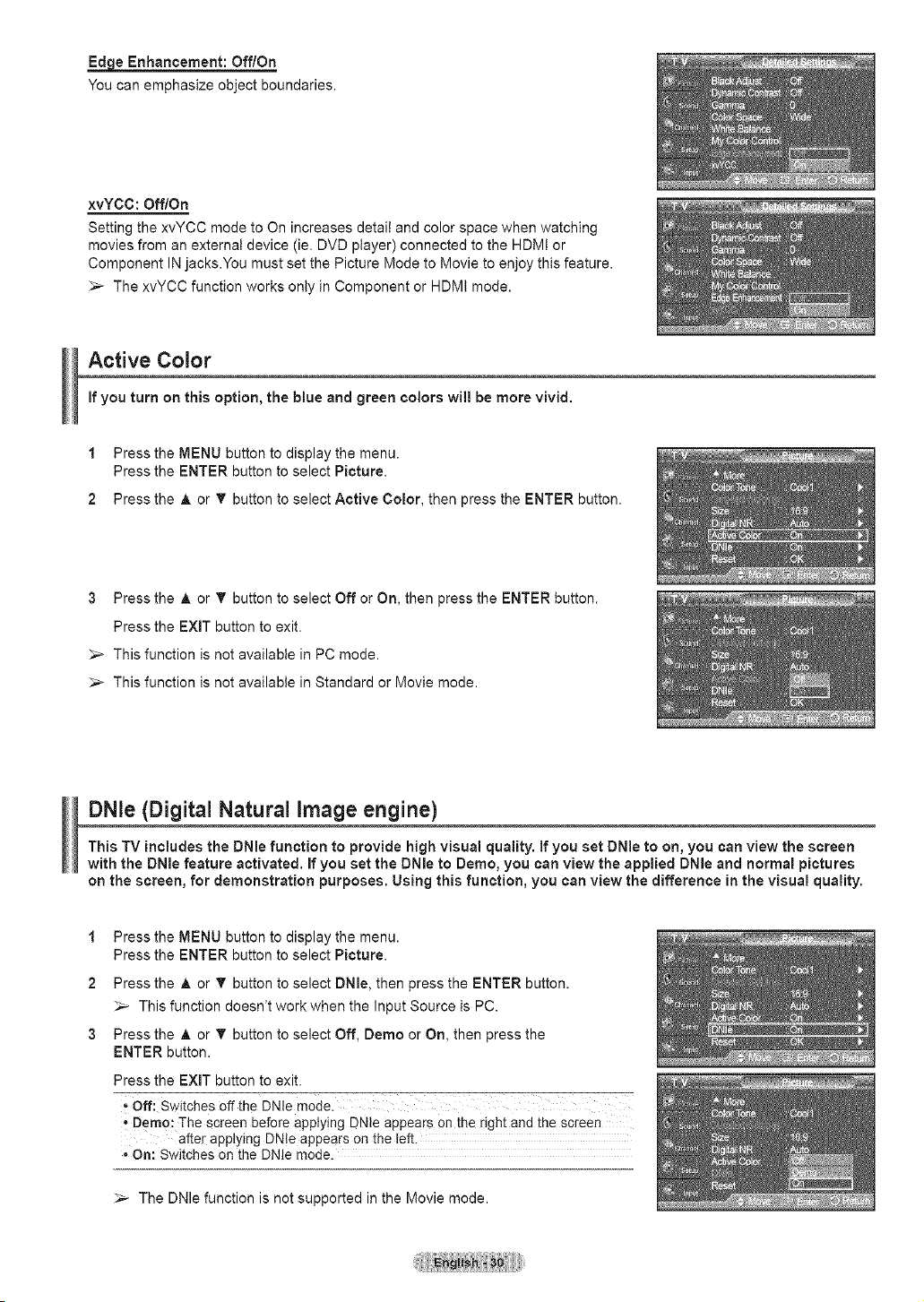
Ed_ Enhancement: Off/On
You can emphasize object boundaries.
xvYCC: Off/On
Setting the xvYCC mode to On increases detail and color space when watching
movies from an external device (ie. DVD ptayer) connected to the HDMt or
Component IN jacks.You must set the Picture Mode to Movie to enjoy this feature.
The xvYCC function works only in Component or HDMI mode.
Active Color
if you turn on this option, the blue and green colors wi!! be more vivid.
1 Press the MENU button to display the menu.
Press the ENTER button to select Picture.
2 Press the A or T button to select Active Color, then press the ENTER button.
3 Press the A or T button to select Off or On, then press the ENTER button.
Press the EXIT button to exit.
_,_ This function is not available in PC mode.
_,_ This function is not available in Standard or Movie mode.
DNle (Digital Natural image engine)
This TV includes the DNle function to provide high visual quality. If you set DNle to on, you can view the screen
with the DNle feature activated. If you set the DNle to Demo, you can view the applied DNle and normal pictures
on the screen, for demonstration purposes. Using this function, you can view the difference in the visual quality.
1
2
3
Press the MENU button to display the menu.
Press the ENTER button to select Picture.
Press the A or T button to select DNle, then press the ENTER button.
_-_ This function doesn't work when the Input Source is PC.
Press the A or 'f' button to select Off, Demo or On, then press the
ENTER button.
Press the EXIT button to exit.
. Off: Switches 0ff the DNle mode.
• Demo: The screen before applying DNle appears on the right and the screen
after applying DN!e appears on the left.
On: Switches on the DNIe mode.
_-- The DNle function is not supported in the Movie mode.
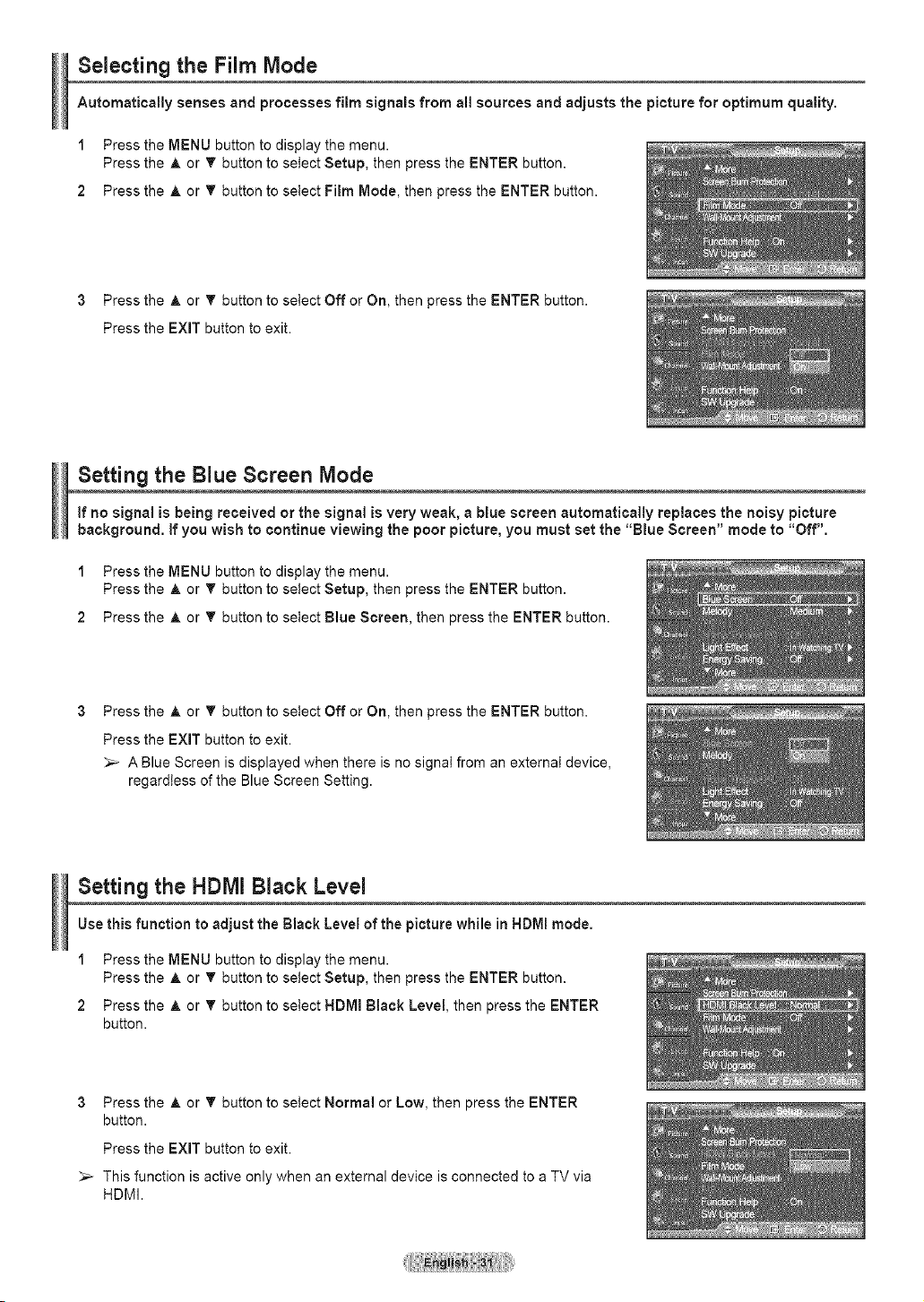
Selecting the Film Mode
Automatically senses and processes film signals from all sources and adjusts the picture for optimum quality.
1 Press the MENU button to display the menu.
Press the A or T button to select Setup, then press the ENTER button.
2 Press the A or _' button to select Film Mode, then press the ENTER button.
3 Press the A or _' button to select Off or On, then press the ENTER button.
Press the EXIT button to exit.
Setting the Blue Screen Mode
If no signal is being received or the signal is very weak, a blue screen automatically replaces the noisy picture
background, if you wish to continue viewing the poor picture, you must set the "Blue Screen" mode to "Off".
Press the MENU button to display the menu.
Press the A or _' button to select Setup, then press the ENTER button.
2 Press the A or _' button to select Blue Screen, then press the ENTER button.
Press the A or _' button to select Off or On, then press the ENTER button.
Press the EXIT button to exit.
_-- A Blue Screen is displayed when there is no signal from an external device,
regardless of the Blue Screen Setting.
Setting the HDMI Black Level
Use this function to adjust the Black Level of the picture while in HDMI mode.
1 Press the MENU button to display the menu.
Press the A or _' button to setect Setup, then press the ENTER button.
2 Press the A or _' button to select HDMI Black Level, then press the ENTER
button.
3 Press the A or _' button to select Normal or Low, then press the ENTER
button.
Press the EXIT button to exit.
_-- This function is active only when an external device is connected to a TV via
HDMI.
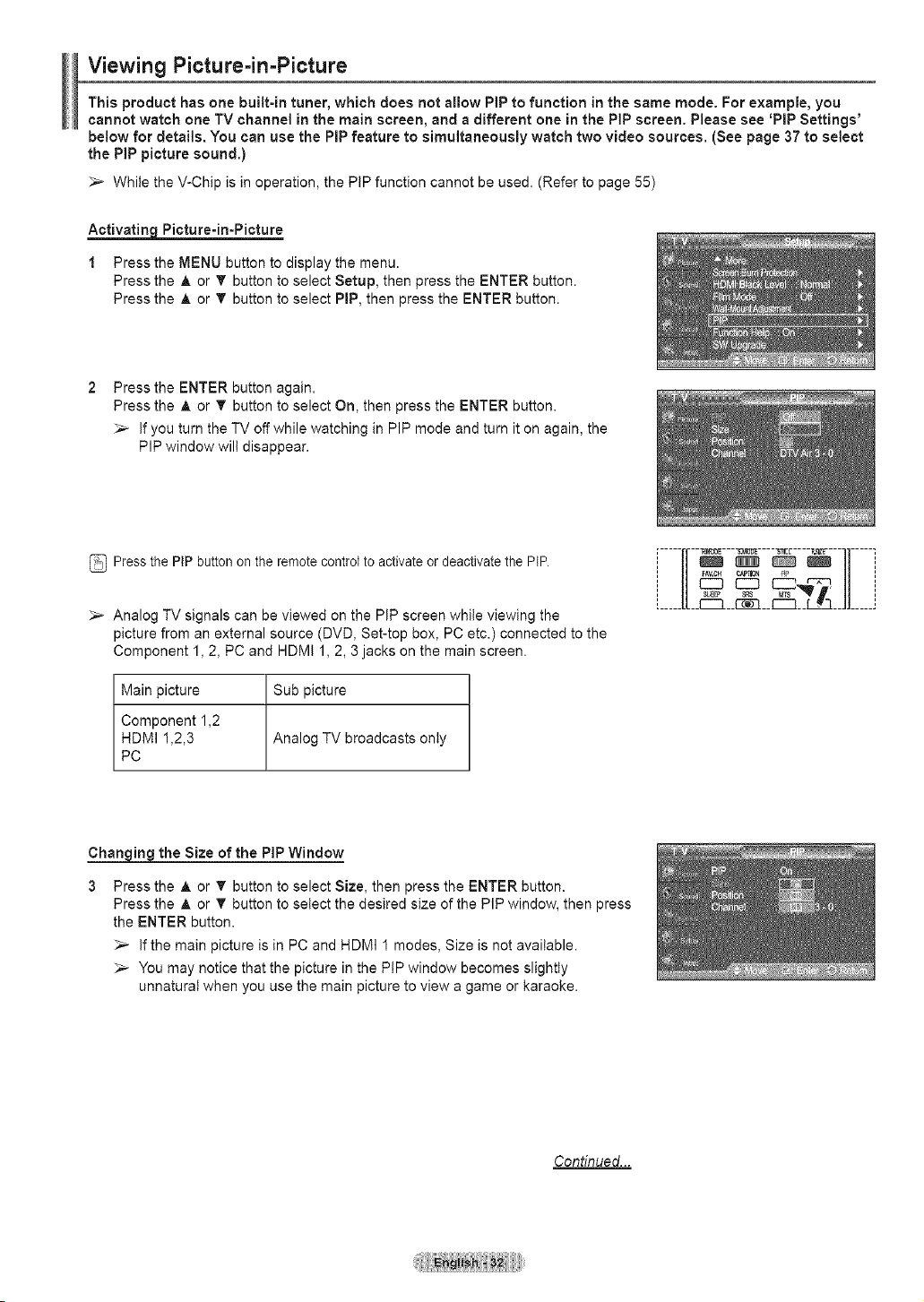
Viewing Picture=in-Picture
This product has one built-in tuner, which does not allow PiP to function in the same mode. For example, you
cannot watch one TV channel in the main screen, and a different one in the PiP screen. Please see 'PiP Settings'
below for details. You can use the PiP feature to simultaneously watch two video sources. (See page 37 to select
the PiP picture sound.)
_,_ While the V-Chip is in operation, the PiP function cannot be used. (Refer to page 55)
Activatin9 Picture-in-Picture
1 Press the MENU button to display the menu.
Press the A or _ button to select Setup, then press the ENTER button.
Press the A or 'V' button to select PIP, then press the ENTER button.
Press the ENTER button again.
Press the A or T button to select On, then press the ENTER button.
_,_ if you turn the TV off while watching in PIP mode and turn it on again, the
PIP window wilt disappear.
Press the PIP button on the remote control to activate or deactivate the PIP.
_,_ Analog TV signals can be viewed on the PiP screen while viewing the
picture from an external source (DVD, Set-top box, PC etc.) connected to the
Component 1, 2, PC and HDMI 1, 2, 3 jacks on the main screen.
Main picture Sub picture
Component 1,2
HDMI 1,2,3 Analog TV broadcasts onty
PC
', SL_E_ SRS MTS _ ',
,L I
Chan ig_the Size of the PIP Window
Press the A or T button to select Size, then press the ENTER button.
Press the A or T button to select the desired size of the PIP window, then press
the ENTER button.
_,_ If the main picture is in PC and HDMI 1 modes, Size is not available.
_-- You may notice that the picture in the PiP window becomes slightly
unnatural when you use the main picture to view a game or karaoke.
Continued...
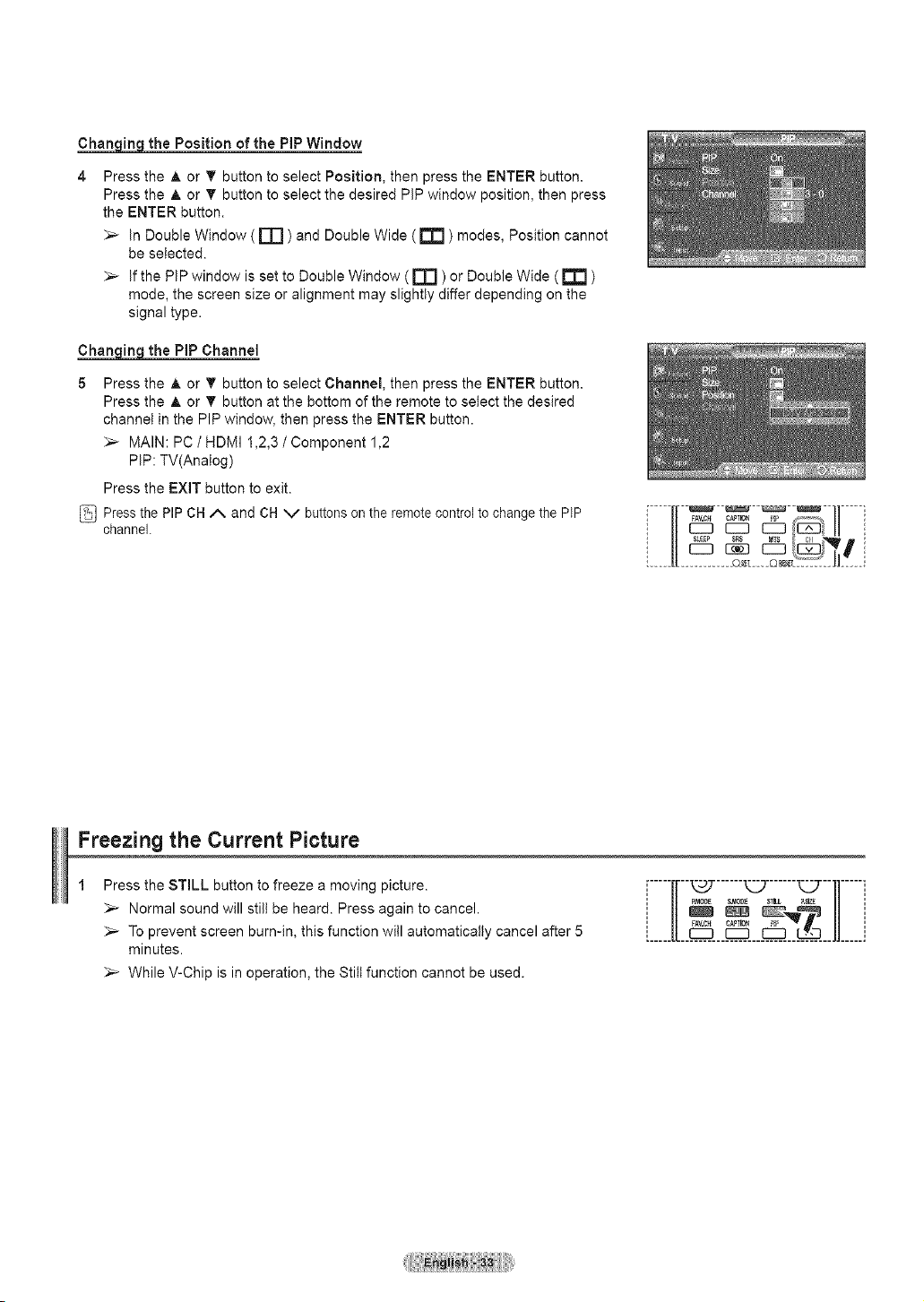
Chan_ the Position of the PIP Window
Press the A. or T button to select Position, then press the ENTER button.
Press the A or T button to select the desired PIP window position, then press
the ENTER button.
In Double Window ( rT'] ) and Double Wide ( _ ) modes, Position cannot
be selected.
If the PIP window is set to Double Window ( rT1 ) or Double Wide ( _ )
mode, the screen size or alignment may slightly differ depending on the
signal type.
Chan iq_ the PIP Channel
5 Press the & or T button to select Channel, then press the ENTER button.
Press the A or T button at the bottom of the remote to select the desired
channel in the PIP window, then press the ENTER button.
_- MAIN: PC / HDMI 1,2,3 / Component 1,2
PIP: TV(Analog)
Press the EXIT button to exit.
Press the PIP CH/', and CH V buttons on the remote control to change the PIP
channel.
C3 CJ C3_
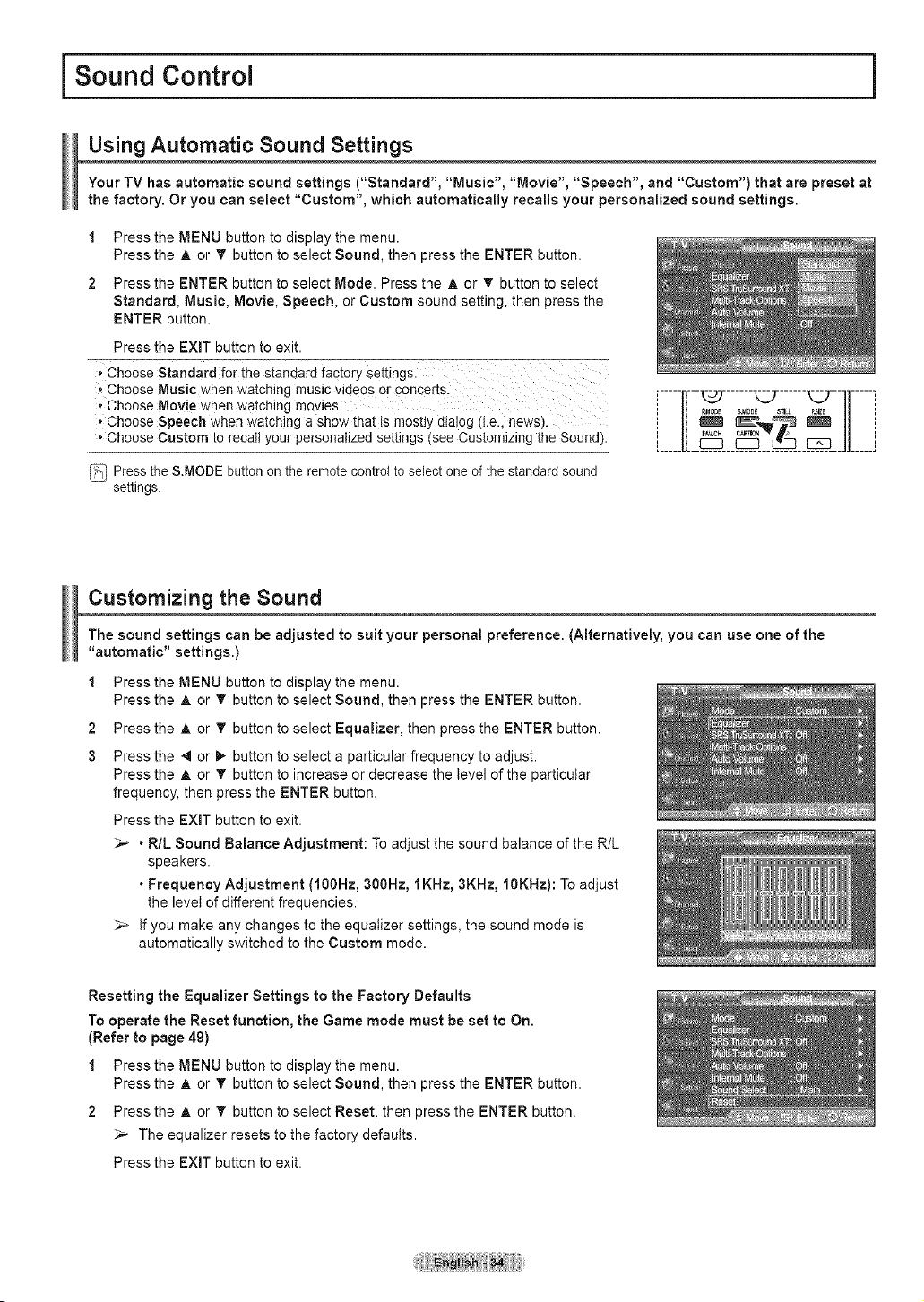
Freezing the Current Picture
Press the STILL button to freeze a moving picture.
Normal sound will still be heard. Press again to cancel.
_- To prevent screen burn-in, this function will automatically cancel after 5
minutes.
While V-Chip is in operation, the Still function cannot be used.
[-----IT--'c_7......_ ......_7-11-----i
i i
II FAV.CH C_TIO_ _ II
i Sound Control
Using Automatic Sound Settings
Your TV has automatic sound settings ("Standard", "Music", "Movie", "Speech", and "Custom") that are preset at
the factory. Or you can select "Custom", which automatically recalls your personalized sound settings.
1 Press the MENU button to display the menu.
Press the A or _' button to select Sound, then press the ENTER button.
2 Press the ENTER button to select Mode. Press the A or T button to select
Standard, Music, Movie, Speech, or Custom sound setting, then press the
ENTER button.
Press the EXiT button to exit.
* Choose Standard for the standard factory settings.
, Choose Music when watching music videos or c0ncerts:
,,Choose Movie when watching movies.
, Choose Speech when watching a show that is mostly dia!og (i.e., news).
. Choose Custom to recall your personalized settings (see Customizing the Sound).
Press the &MODE button on the remote controt to select one of the standard sound
settings.
...... ......
', FAV,CH C/_2110N
L____[[ JJ_____J
Customizing the Sound
The sound settings can be adjusted to suit your personal preference. (Alternatively, you can use one of the
"automatic" settings.)
1 Press the MENU button to display the menu.
Press the A or _' button to select Sound, then press the ENTER button.
2 Press the A or T button to select Equalizer, then press the ENTER button.
3 Press the 4 or _ button to select a particular frequency to adjust.
Press the _, or V button to increase or decrease the level of the particular
frequency, then press the ENTER button.
Press the EXiT button to exit.
_-- • R/L Sound Balance Adjustment: To adjust the sound balance of the R/L
speakers.
• Frequency Adjustment (i00Hz, 300Hz, 1KHz, 3KHz, 10KHz): To adjust
the levet of different frequencies.
If you make any changes to the equalizer settings, the sound mode is
automatically switched to the Custom mode.
Resetting the Equalizer Settings to the Factory Defaults
To operate the Reset function, the Game mode must be set to On.
(Refer to page 49)
1 Press the MENU button to display the menu.
Press the A or 'V' button to select Sound, then press the ENTER button.
2 Press the A or V' button to select Reset, then press the ENTER button.
_-- The equalizer resets to the factory defaults.
Press the EXiT button to exit.
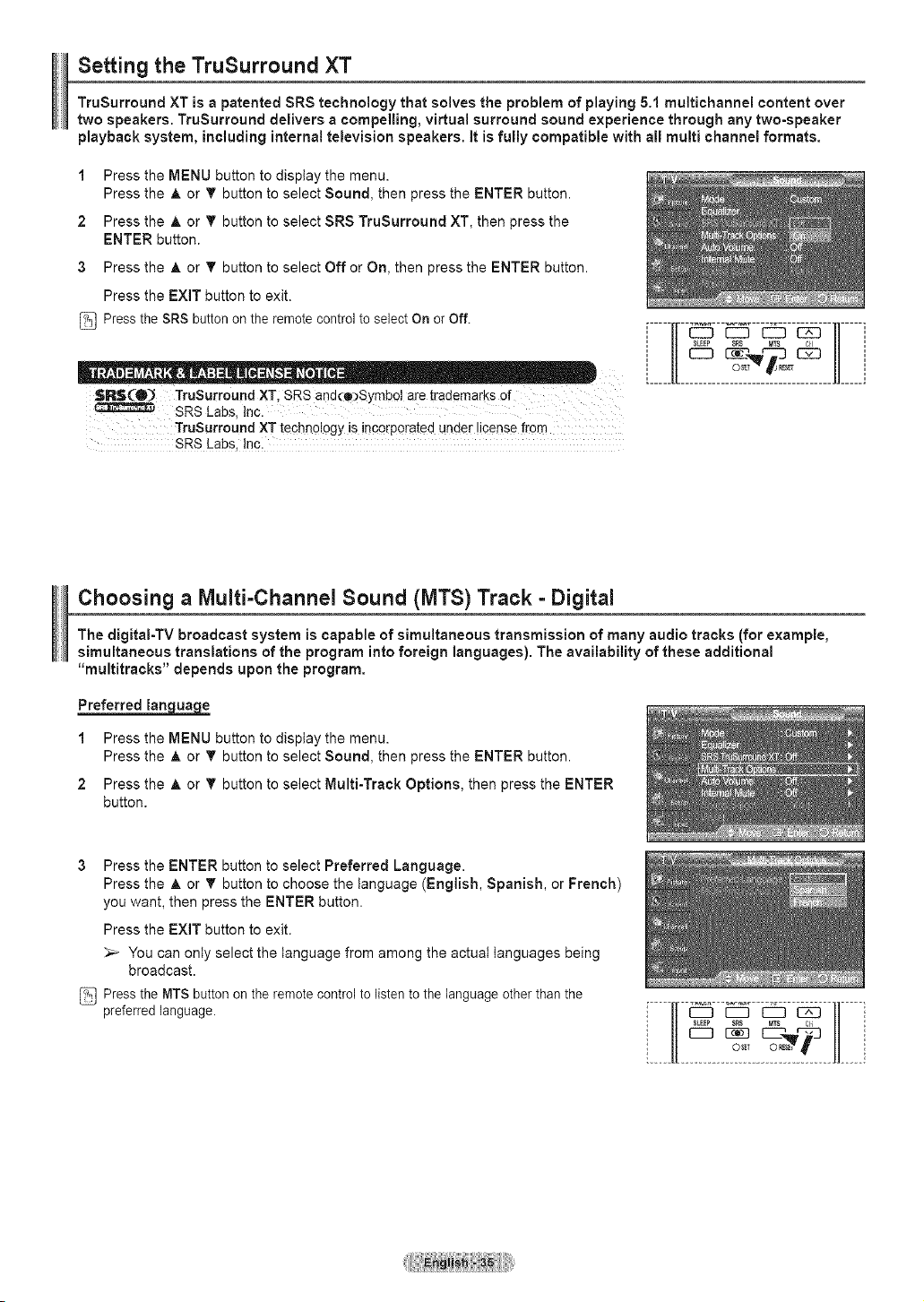
Setting the TruSurround XT
TruSurround XT is a patented SRS technology that solves the problem of playing 5.1 multichannel content over
two speakers. TruSurround delivers a compelling, virtual surround sound experience through any two-speaker
playback system, including internal television speakers, it is fully compatible with all multi channel formats.
1 Press the MENU button to display the menu.
Press the ,& or T button to select Sound, then press the ENTER button.
2 Press the A or T button to select SRS TruSurround XT, then press the
ENTER button.
3 Press the A or T button to select Off or On, then press the ENTER button.
Press the EXIT button to exit.
Press the SRS button on the remote control to select On or Off.
$R$(O) TruSurround XT SRS and(o)Symbot are [rademarks of
SRS Labs, Inc.
TruSurround XT technology is incorporated under license from
SRS Labs, Inc:
Choosing a Multi-Channel Sound (MTS) Track - Digital
The digitaI-TV broadcast system is capable of simultaneous transmission of many audio tracks (for example,
simultaneous translations of the program into foreign languages). The availability of these additional
"multitracks" depends upon the program.
Preferred lan uaae
1 Press the MENU button to display the menu.
Press the A or T button to select Sound, then press the ENTER button.
2 Press the A or T button to select Multi-Track Options, then press the ENTER
button.
3 Press the ENTER button to select Preferred Language.
Press the A or T button to choose the language (English, Spanish, or French)
you want, then press the ENTER button.
Press the EXiT button to exit.
_-- You can onty select the tanguage from among the actuat languages being
broadcast.
Press the MTS button on the remote control to listen to the language other than the
preferred language.
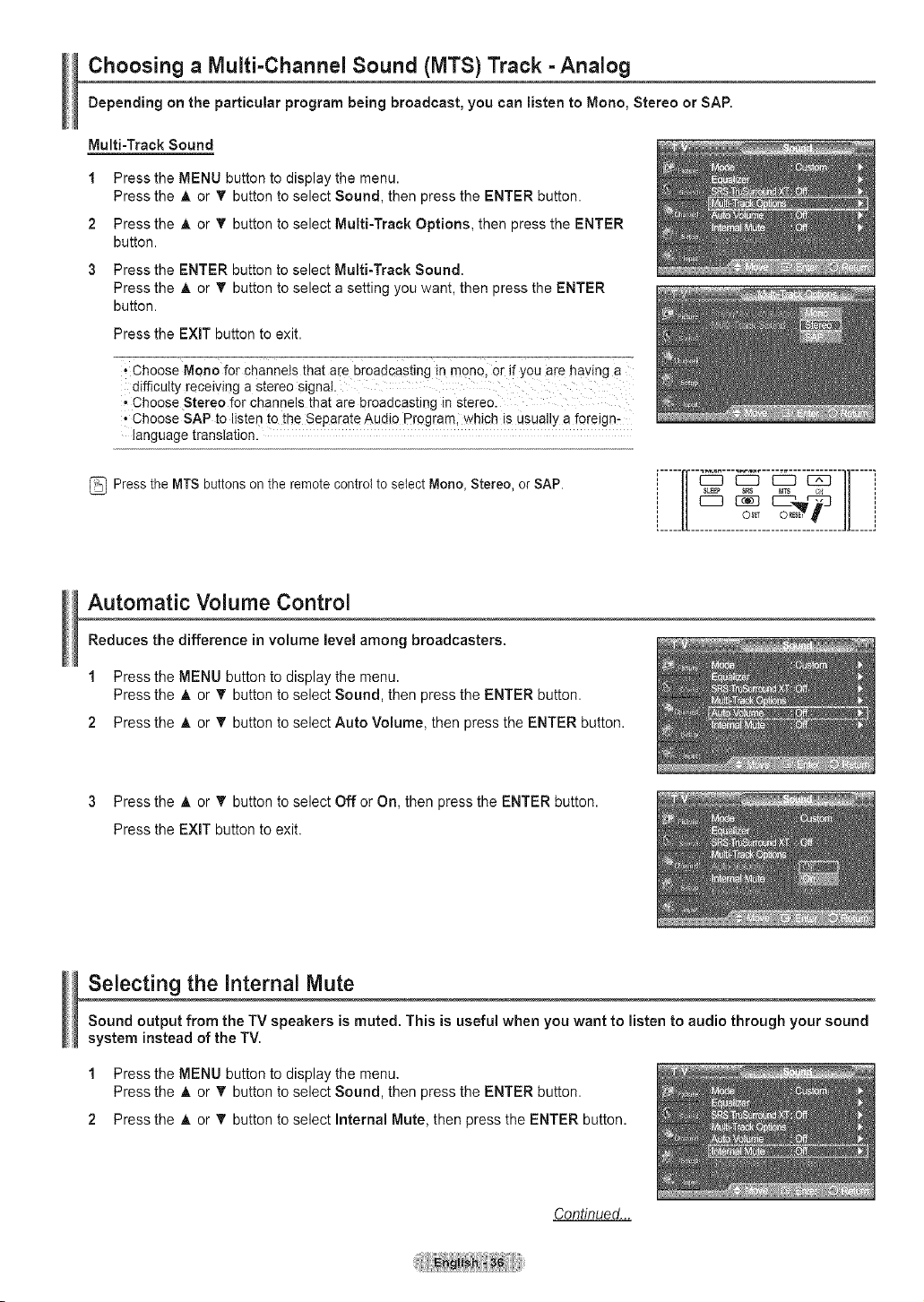
Choosing a Multi-Channel Sound (MTS) Track =Analog
Depending on the par{ioular program being broadcast, you can listen to Mono, Stereo or SAP.
Multi-Track Sound
1
2
3
Press the MENU button to display the menu.
Press the A or T button to select Sound, then press the ENTER button.
Press the A or T button to select Multi-Track Options, then press the ENTER
button.
Press the ENTER button to select Multi-Track Sound.
Press the A or _' button to select a setting you want, then press the ENTER
button.
Press the EXIT button to exit.
, Ch0o_e_-for channets that are broadcasting !n_ono, or if you are haying a
difficulty receiving a stereo signal
* Choose Stereo for channels that are broadcasting in stereo.
. Choose SAP to listen to the Separate Audio F'rograrn, which is usually a foreigm
language translation.
Press the MTS buttons on the remote control to select Mono, Stereo, or SAP.
i_____u H_____J
Automatic Volume Control
Reduces the difference in volume level among broadcasters.
1 Press the MENU button to display the menu.
Press the A or T button to select Sound, then press the ENTER button.
2 Press the A or _' button to select Auto Volume, then press the ENTER button.
3 Press the A or _' button to select Off or On, then press the ENTER button.
Press the EXIT button to exit.
Selecting the internal Mute
Sound output from the TV speakers is muted. This is useful when you want to listen to audio through your sound
system instead of the TV.
1 Press the MENU button to display the menu,
Press the A or T button to select Sound, then press the ENTER button.
2 Press the A or _' button to select Internal Mute, then press the ENTER button.
Continued...
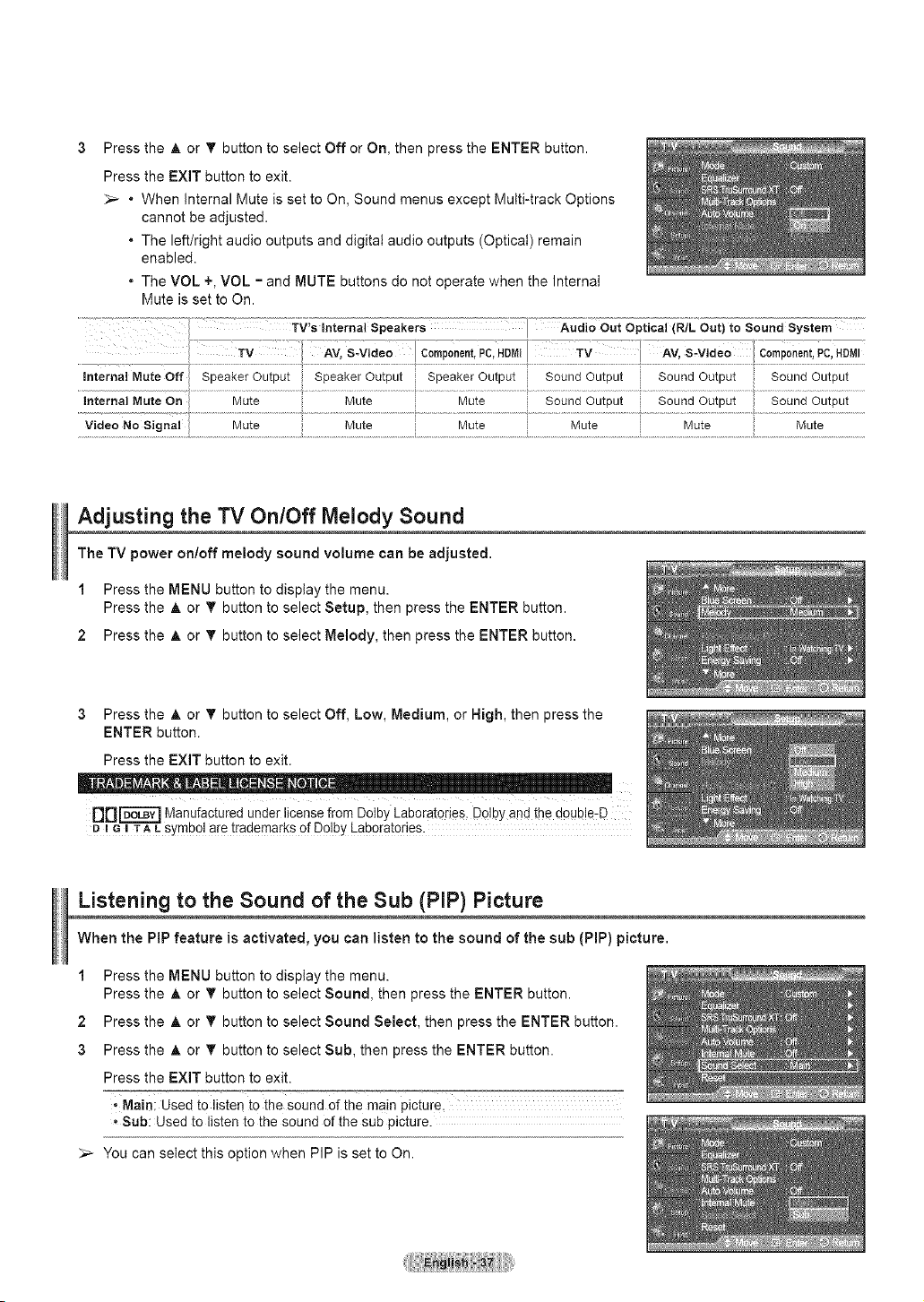
Press the A or T button to select Off or On, then press the ENTER button.
Press the EXIT button to exit.
_,_ • When Internal Mute is set to On, Sound menus except Multi-track Options
cannot be adjusted.
• The left/right audio outputs and digital audio outputs (Optical) remain
enabled.
• The VOL +, VOL = and MUTE buttons do not operate when the Internal
Mute is set to On.
Mute Sound Output Sound Output Sound Output
Adjusting the TV On/Off Melody Sound
The TV power on/off melody sound volume can be adjusted.
1 Press the MENU button to display the menu.
Press the A or T button to select Setup, then press the ENTER button.
2 Press the A or T button to select Melody, then press the ENTER button.
3 Press the A or T button to select Off, Low, Medium, or High, then press the
ENTER button.
Press the EXiT button to exit.
DD_ Manufactured under license from Doiby Laboratories, Dolby and the doub!e:D
D i e I T,_ Lsymbol are trademarks of Dolby Laboratories.
Listening to the Sound of the Sub (PIP) Picture
When the PiP feature is activated, you can listen to the sound of the sub (PIP) picture.
1 Press the MENU button to display the menu.
Press the A or T button to select Sound, then press the ENTER button.
2 Press the A or T button to select Sound Select, then press the ENTER button.
3 Press the A or T button to select Sub, then press the ENTER button.
Press the EXIT button to exit.
, Maini Used to listen to the sound of the main picture.
, Sub: Used to listen to the sound of the sub picture.
_,_ You can select this option when PIP is set to On.
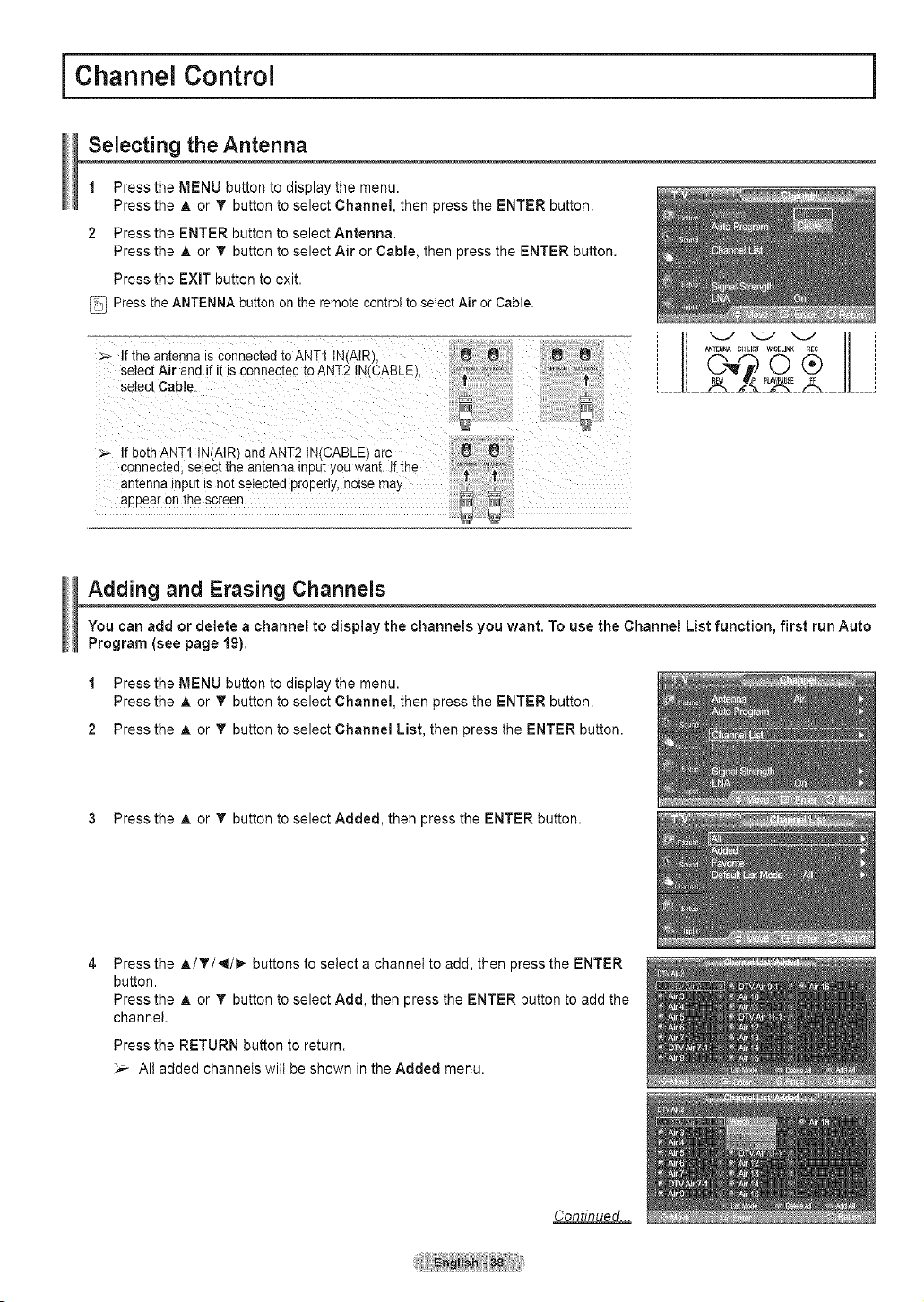
j Channel Control
Selecting the Antenna
1 Press the MENU button to display the menu.
Press the A or T button to select Channel, then press the ENTER button.
2 Press the ENTER button to select Antenna.
Press the A or T button to select Air or Cable, then press the ENTER button.
Press the EXIT button to exit.
Press the ANTENNA button on the remote control to select Air or Cable.
If the an[enna _sconnected to ANT1 IN(AIR/.
select Air and _fit is connected to ANT2 IN CABLE.
select CabJe.
:_ If both ANT1 INIAIRI and ANT2 IN(CABLE1 are
connec[ea select the antenna input _)u want. If the
anl:enna InPut ISnot seIectea properly, noise may
aDDear on tne screen.
Adding and Erasing Channels
You can add or delete a channel to display the channels you want. To use the Channel List function, first run Auto
Program (see page 19).
1 Press the MENU button to display the menu.
Press the A or T button to select Channel, then press the ENTER button.
2 Press the A or T button to select Channel List, then press the ENTER button.
3 Press the A or T button to select Added, then press the ENTER button.
Pressthe A/T/4/_ buttonsto selecta channetto add, then pressthe ENTER
bu_on.
Pressthe A or T button to select Add, then pressthe ENTER button to add the
channel.
Press the RETURN button to return.
_-- Alt added channels wilt be shown in the Added menu.
Continued...
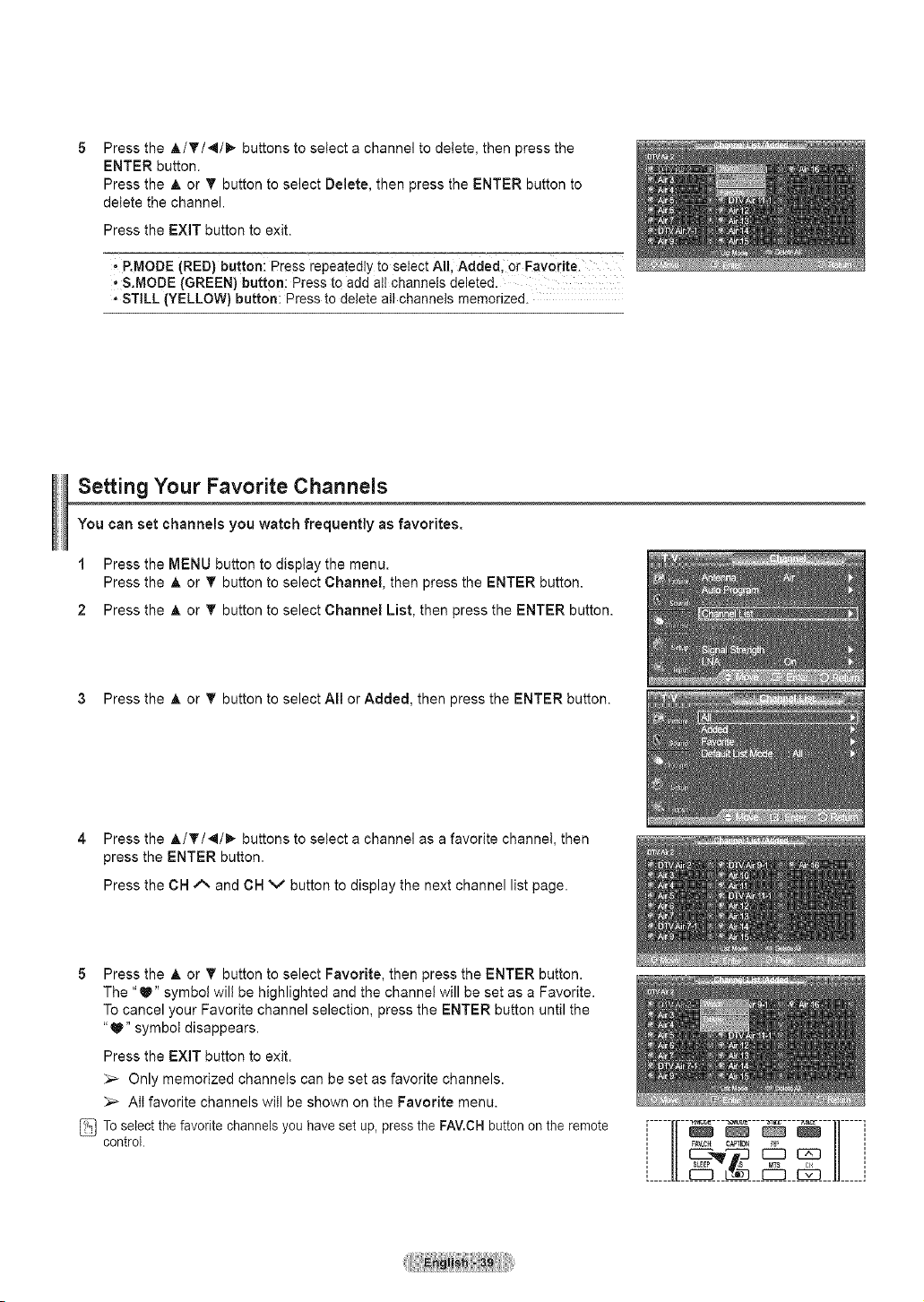
Press the _,/T/4/_- buttons to select a channel to delete, then press the
ENTER button.
Press the A or T button to select Delete, then press the ENTER button to
delete the channel.
Press the EXIT button to exit.
,. RMODE (RED) button! Press repeatedly to select All, Added, Or Favorite. =
,, &MODE (GREEN) button: Press to add all channels deleted.
• STILL (YELLOW) button: Press to delete all channels memorized.
Setting Your Favorite Channels
You can set channels you watch frequently as favorites.
1 Press the MENU button to display the menu.
Press the A or T button to select Channel, then press the ENTER button.
2 Press the A or T button to select Channel List, then press the ENTER button.
3 Press the A or T button to select All or Added, then press the ENTER button.
4 Press the A/T/4/I_ buttons to select a channel as a favorite channel, then
press the ENTER button.
Press the CH _'_ and CH v button to display the next channel list page.
5 Press the ,& or T button to select Favorite, then press the ENTER button.
The "_" symbol will be highlighted and the channel will be set as a Favorite.
To cancel your Favorite channel selection, press the ENTER button until the
"U" symbol disappears.
Press the EXIT button to exit.
_,_ Only memorized channels can be set as favorite channels.
_'_ All favorite channels will be shown on the Favorite menu.
To select the favorite channels you have set up, press the FAV.CH button on the remote
control. ', FAV.CH CApT_ I_ ',
L___U L__i
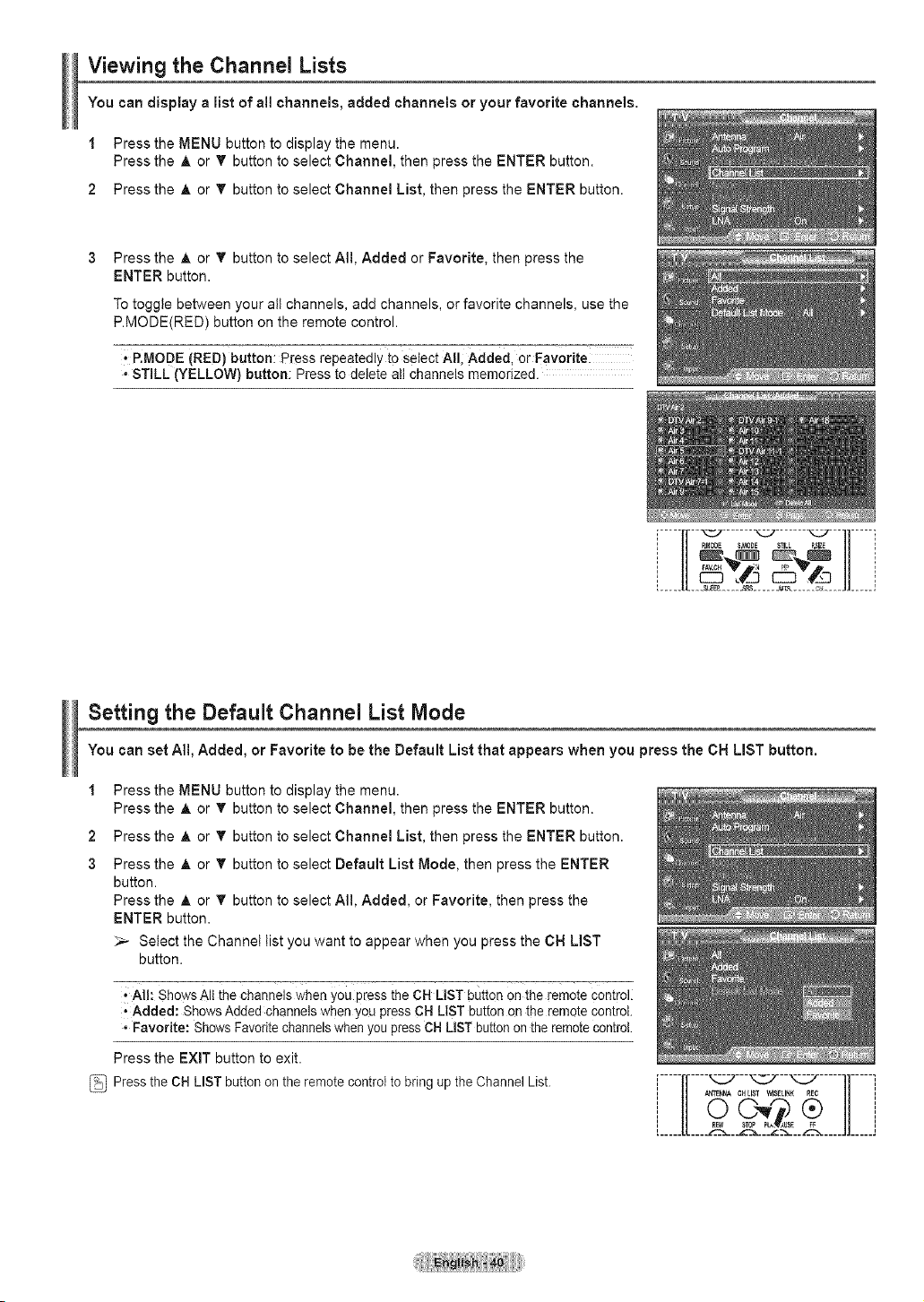
Viewing the Channel Lists
You can display a list of al! channels, added channels or your favorite channels.
1 Press the MENU button to display the menu.
Press the A or T button to select Channel, then press the ENTER button.
2 Press the A or T button to select Channel List, then press the ENTER button.
Press the A or T button to select All, Added or Favorite, then press the
ENTER button.
To toggle between your all channels, add channels, or favorite channels, use the
P.MODE(RED) button on the remote control.
, P.MODE (RED) button: Press repeatedly to select AIII Added, or Favorite:
* STILL (YELLOW) button: Press to delete all channels memorized.
i I/ P'MODE &MODE STILL p._IZE i
1 FAY.OH_ "a :'P _V [
[ _ _ _ _ _LL _ _ _SLOE _ _ _ __P,_ ...... eT&___ _ _e___ __ J J_ ____ J
Setting the Default Channel List Mode
You can set All, Added, or Favorite to be the Default List that appears when you press the CN LIST button.
1
2
3
Press the MENU button to display the menu.
Press the A or T button to select Channel, then press the ENTER button.
Press the A or T button to select Channel List, then press the ENTER button.
Press the A or T button to select Default List Mode, then press the ENTER
button.
Press the A or T button to select All, Added, or Favorite, then press the
ENTER button.
>-- Select the Channet list you want to appear when you press the ON LIST
button.
, All: Shows AII the channels when you press the CH LIST button on the remote Control
, Added: Shows Added channels when you press CH LIST button on the remote control.
• Favorite: Shows Favoritechannels when you press CH LIST button on the remote control.
Press the EXIT button to exit.
Pressthe CH LISTbuttonon the remotecontrolto bringup theChannelList.
i
o ®
.....
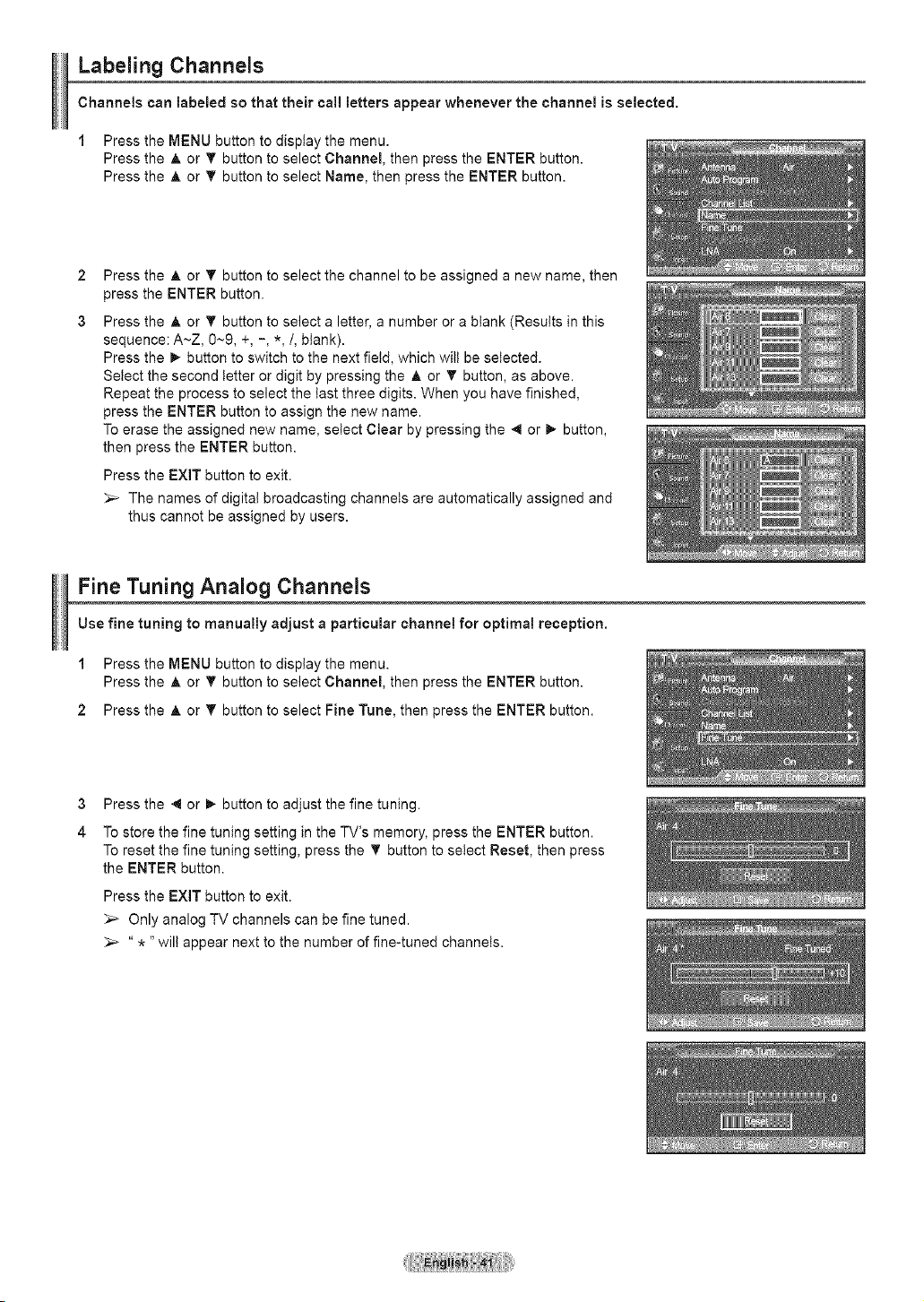
Labeling Channels
Channels can labeled so that their cal! letters appear whenever the channel is selected.
1 Press the MENU button to display the menu.
Press the ,i_ or T button to select Channel, then press the ENTER button.
Press the A or T button to select Name, then press the ENTER button.
2
3
Press the A or T button to select the channel to be assigned a new name, then
press the ENTER button.
Press the A or T button to select a letter, a number or a blank (Results in this
sequence: A~Z, 0~9, +, -, *,/, blank).
Press the !1_button to switch to the next field, which wilt be selected.
Select the second letter or digit by pressing the _, or 'V button, as above.
Repeat the process to select the last three digits. When you have finished,
press the ENTER button to assign the new name.
To erase the assigned new name, select Clear by pressing the 4 or !1_button,
then press the ENTER button.
Press the EXIT button to exit.
_-- The names of digital broadcasting channels are automatically assigned and
thus cannot be assigned by users.
Fine Tuning Analog Channels
Use fine tuning to manually adjust a particular channel for optimal reception.
1 Press the MENU button to display the menu.
Press the A or T button to select Channel, then press the ENTER button.
2 Press the A or T button to select Fine Tune, then press the ENTER button.
3 Press the 4 or _ button to adjust the fine tuning.
4 To store the fine tuning setting in the TV's memory, press the ENTER button.
To reset the fine tuning setting, press the T button to select Reset, then press
the ENTER button.
Press the EXIT button to exit.
Only analog TV channels can be fine tuned.
_-- " * "wilt appear next to the number of fine-tuned channels.
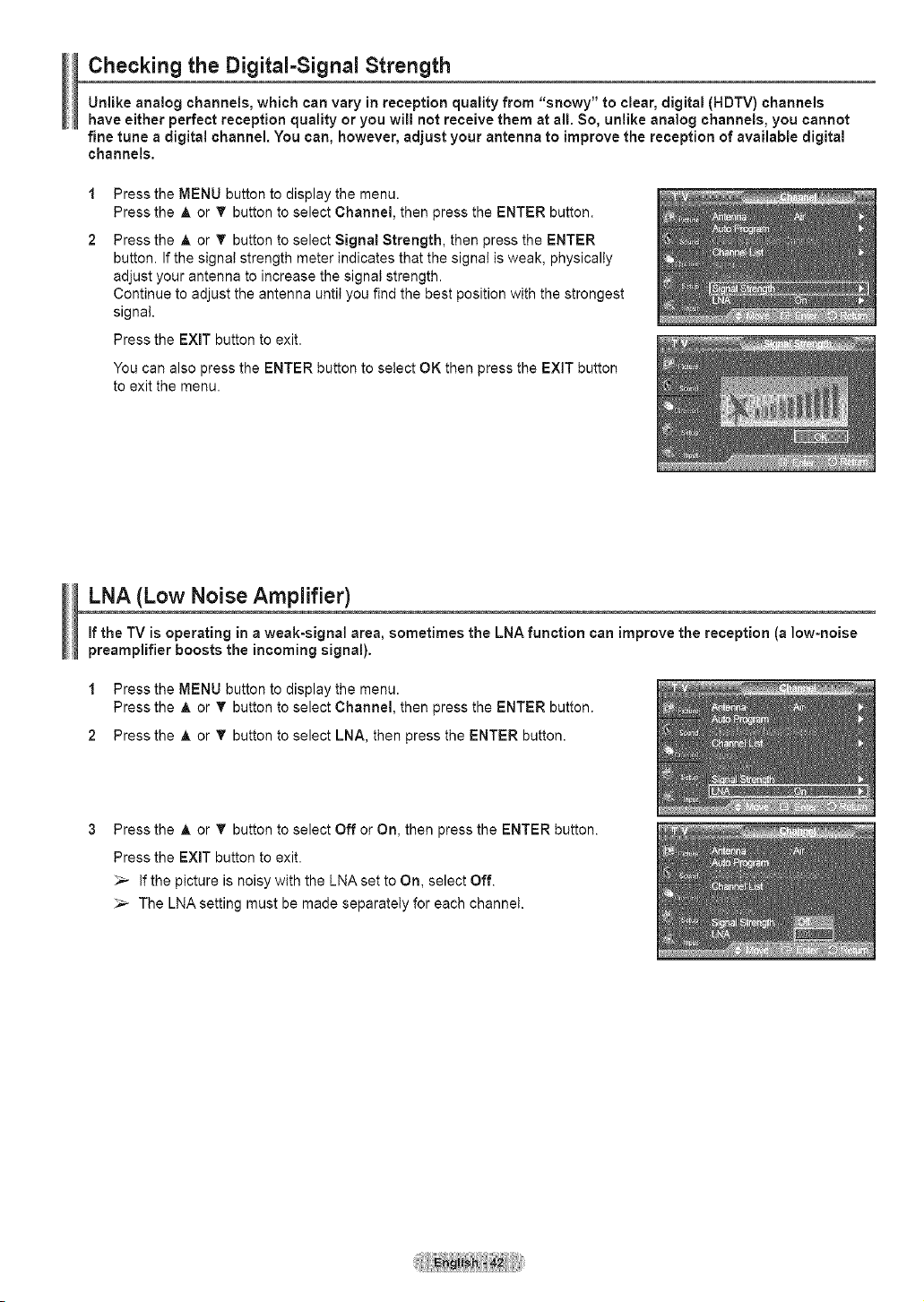
Checking the Digital-Signal Strength
Unlike analog channels, which can vary in reception quality from "snowy" to clear, digital (HDTV) channels
have either perfect reception quality or you will not receive them at all. So, unlike analog channels, you cannot
fine tune a digital channel. You can, however, adjust your antenna to improve the reception of available digital
channels.
1
2
Press the MENU button to display the menu.
Press the A or T button to select Channel, then press the ENTER button.
Press the A or T button to select Signal Strength, then press the ENTER
button. If the signa! strength meter indicates that the signal is weak, physically
adjust your antenna to increase the signal strength.
Continue to adjust the antenna until you find the best position with the strongest
signal.
Press the EXIT button to exit.
You can also press the ENTER button to select OK then press the EXIT button
to exit the menu.
LNA (Low Noise Amplifier)
if the TV is operating in a weak-signal area, sometimes the LNA function can improve the reception (a low-noise
preamplifier boosts the incoming signal).
1 Press the MENU button to display the menu.
Press the A or T button to select Channel, then press the ENTER button.
2 Press the A or 'V' button to select LNA, then press the ENTER button.
Press the A or 'V' button to select Off or On, then press the ENTER button.
Press the EXIT button to exit.
_-- If the picture is noisy with the LNA set to On, select Off.
The LNA setting must be made separately for each channet.
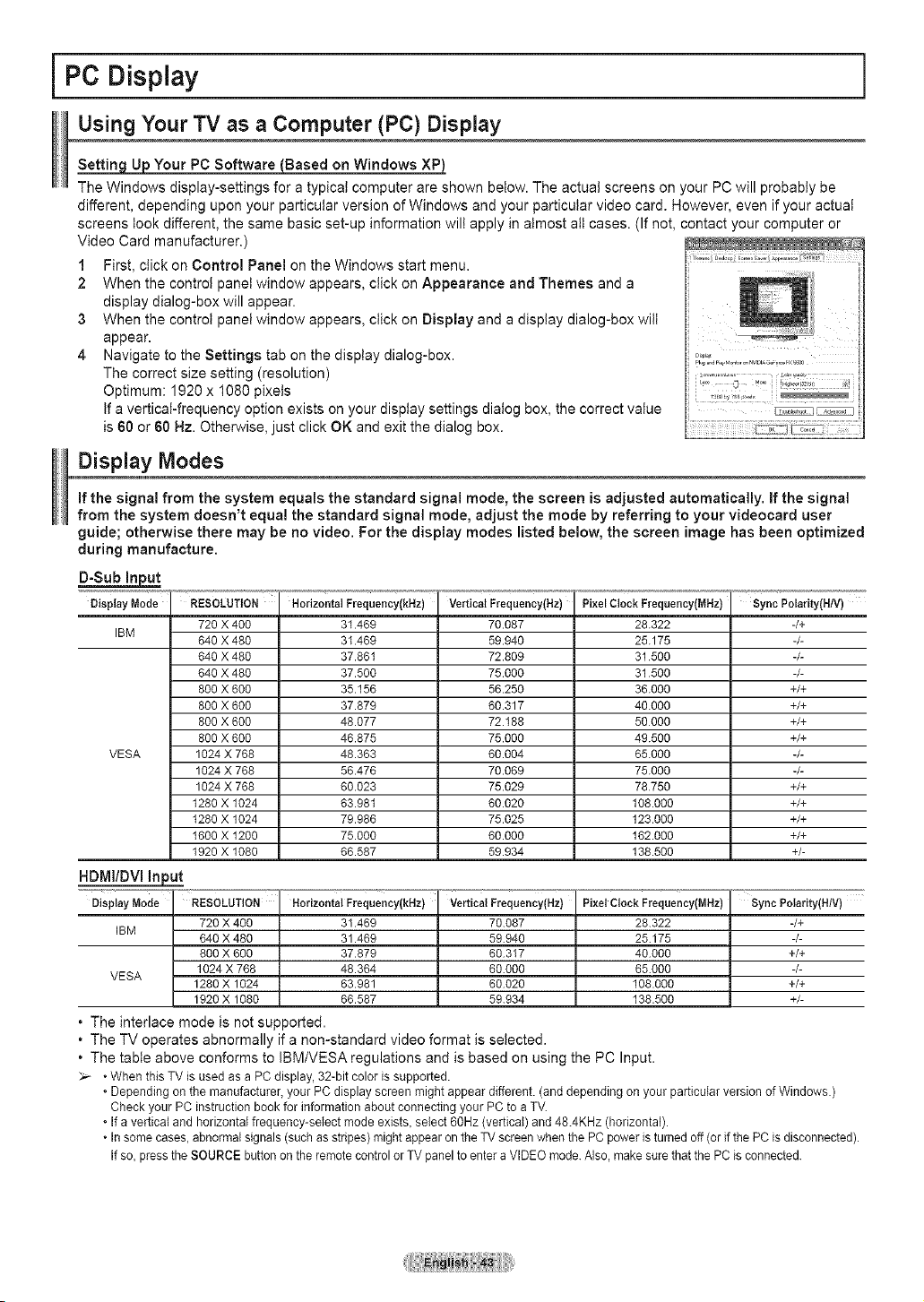
PC Display
Using Your TV as a Computer (PC) Display
Settin U Your PC Software Based on Windows
The Windows display-settings for a typical computer are shown below. The actual screens on your PC will probably be
different, depending upon your particular version of Windows and your particular video card. However, even if your actual
screens took different, the same basic set-up information wilt apply in almost alt cases. (If not, contact your computer or
Video Card manufacturer.)
1 First, click on Control Panel on the Windows start menu.
2 When the control panel window appears, click on Appearance and Themes and a
display dialog-box will appear.
3 When the control panel window appears, click on Display and a display dialog-box wilt
appear.
4 Navigate to the Settings tab on the display dialog-box.
The correct size setting (resolution)
Optimum: 1920 x 1080 pixels
If a vertical-frequency option exists on your display settings dialog box, the correct value
is 60 or 60 Hz. Otherwise, just click OK and exit the dialog box.
Display Modes
If the signal from the system equals the standard signal mode, the screen is adjusted automatically. If the signal
from the system doesn't equal the standard signal mode, adjust the mode by referring to your videocard user
guide; otherwise there may be no video. For the display modes listed below, the screen image has been optimized
during manufacture.
Display Mode Horizontal Frequency(kHz)
RESOLUTION
720 X 400
640 X 480
640 X 480
640 X 480
800 X 600
800 X 6OO
800 X 6OO
800 X 6OO
1024 X 768
1024 X 768
1024 X 768
1280 X 1024
I280 X 1024
I600 X 1200
1920 X 1080
VeAicalFrequency(Nz) Pixel Clock Frequency(MHz)
31.469 70.087 28.322
IBM
31.469 59.940 25.175
37.861 72.809 31500
37.500 75.000 31500
35.156 56.250 36.000
37.879 60.317 40.000
48.077 72.188 50000
46.875 75.000 49.500
VESA 48.363 60.004 65.000
56.476 70.069 75.000
60.023 75.029 78750
63.981 60.020 108.000
79.986 75.025 123.000
75.000 60.000 162.000
66.587 59.934 138.500
_'J_'_'Syn c Polarity(HtV)
-/+
-/-
-/-
-/-
+/+
+/+
+/+
+/+
-/-
-/-
+/+
+/+
+/+
+/+
+/-
HDIVlI/DVl Input
Display Mode RESOLUTION
720X 400
IBM
840 X 480
800X 600
1024X 768
VESA
1280X 1024
1920X 1080
Horizontal Frequency(kHz)
31.489
31.489
37.879
48.364
83.981
88.587
VerticaIFrequency(Hz)
70.087
59.940
60.317
60.000
60.020
59.934
PixelClock F_quency(MHz)
28.322
25.175
40.000
65.000
108.000
138.500
Sync Polarity(H/V)
-/+
4-
+/+
4-
+/+
+/-
. The interlace mode is not supported.
. The TV operates abnormally if a non-standard video format is selected.
. The table above conforms to IBM/VESA regulations and is based on using the PC Input.
• When this TV is used as a PC display,32-bit color issupported.
• Dependingon the manufacturer,your PC display screen might appear different.(and dependingon your particularversion of Windows.)
Check your PC instructionbook for informationabout connectingyour PC to a TV.
• if a verticaland horizontalfrequency-selectmodeexists, select 60Hz(vertical) and 48.4KHz (horizontal).
• in somecases,abnormalsignals(such as stripes)mightappearon the TV screenwhen the PCpower isturned off (or ifthe PC is disconnected).
if so, pressthe SOURCEbuttonon the remotecontrolor TV panelto enter a VIDEOmode.Also,make surethat the PC isconnected.
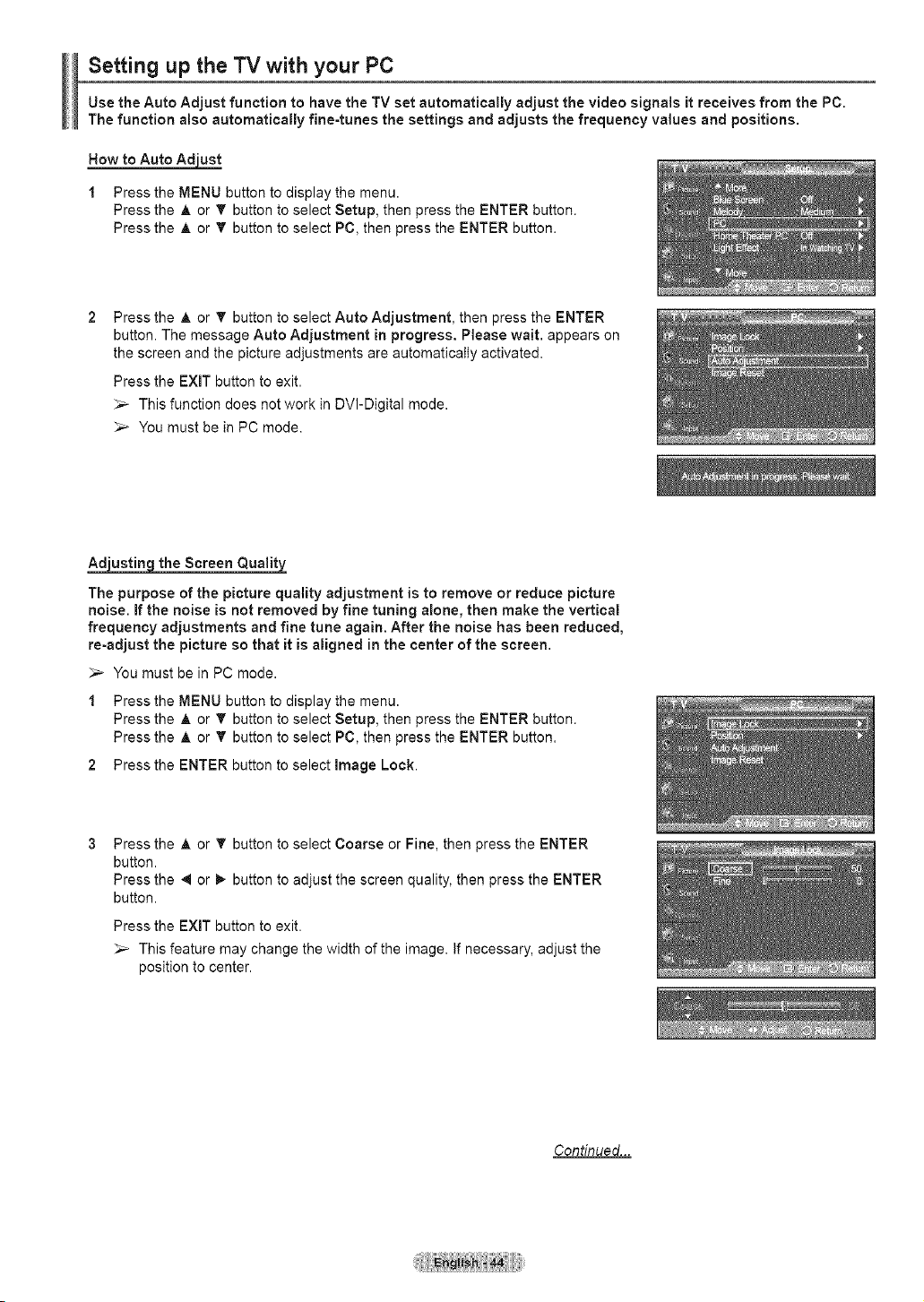
Setting up the TV with your PC
Use the Auto Adjust function to have the TV set automatically adjust the video signals it receives from the PC.
The function also automatically fine-tunes the settings and adjusts the frequency values and positions.
How to Auto Adjust
1 Press the MENU button to display the menu.
Press the A or 'lr button to select Setup, then press the ENTER button.
Press the A or T button to select PC, then press the ENTER button.
Press the A or T button to select Auto Adjustment, then press the ENTER
button. The message Auto Adjustment in progress. Please wait. appears on
the screen and the picture adjustments are automatically activated.
Press the EXiT button to exit.
_-- This function does not work in DVI-Digital mode.
_-- You must be in PC mode.
Adustin the Screen Qualit
The purpose of the picture quality adjustment is to remove or reduce picture
noise, if the noise is not removed by fine tuning alone, then make the vertical
frequency adjustments and fine tune again. After the noise has been reduced,
re-adjust the picture so that it is aligned in the center of the screen.
_-- You mustbein PC mode.
1 Press the MENU button to display the menu.
Press the A or 'lr button to select Setup, then press the ENTER button.
Press the A or T button to select PC, then press the ENTER button.
2 Press the ENTER button to select image Lock.
Press the A or T button to select Coarse or Fine, then press the ENTER
button.
Press the 4 or _- button to adjust the screen quality, then press the ENTER
button.
Press the EXIT button to exit.
_,_ This feature may change the width of the image, if necessary, adjust the
position to center.
Continued...
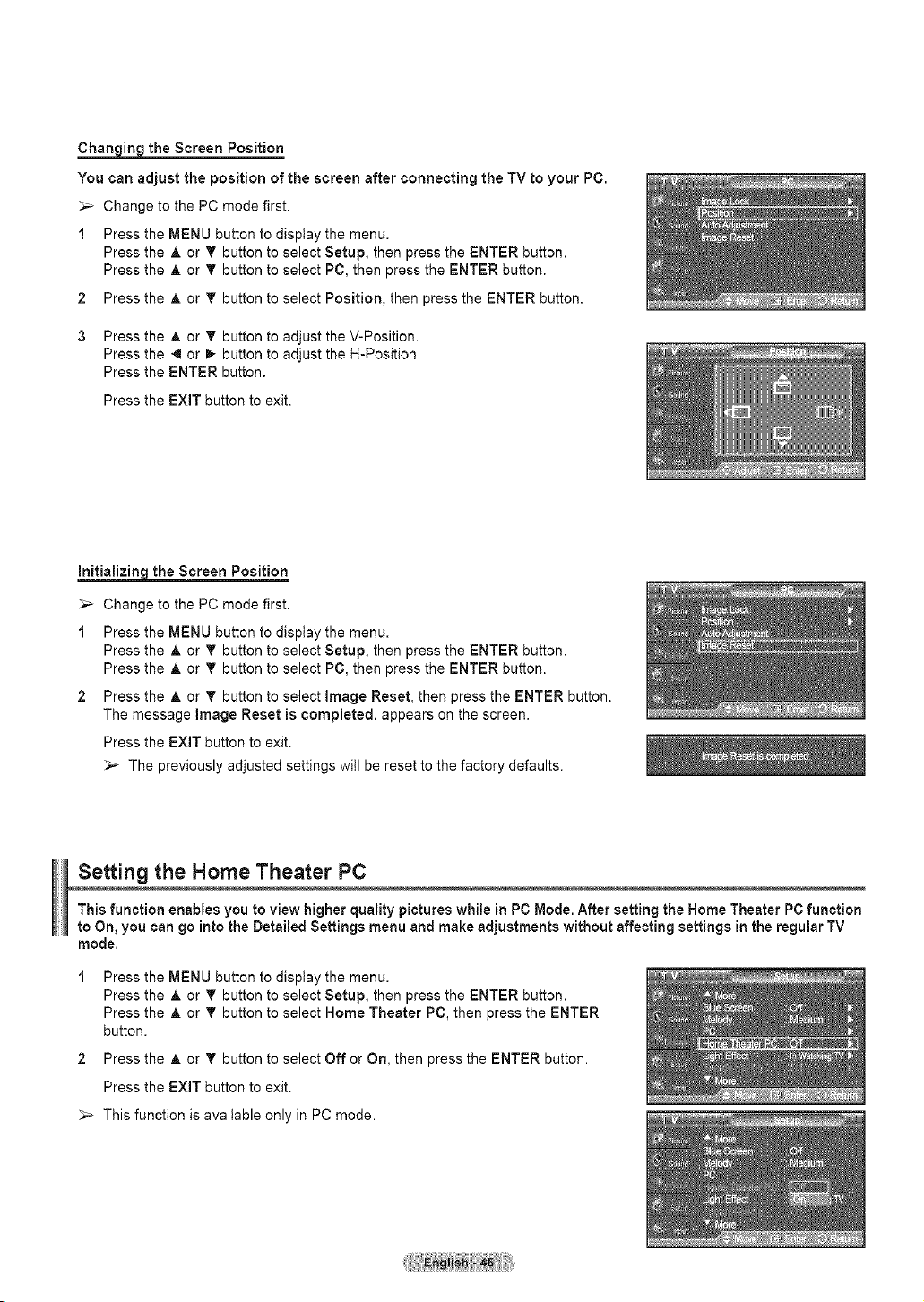
the Screen Position
You can adjust the position of the screen after connecting the TV to your PC.
_-- Change to the PC mode first.
1 Press the MENU button to display the menu.
2
3
Press the
Press the
Press the
Press the
Press the
Press the
A or T button to select Setup, then press the ENTER button.
A or T button to select PC, then press the ENTER button.
A or T button to select Position, then press the ENTER button.
_, or T button to adjust the V-Position.
4 or _ button to adjust the H-Position.
ENTER button.
Press the EXiT button to exit.
Initializin_ the Screen Position
_,_ Change to the PC mode first.
1 Press the MENU button to display the menu.
Press the A. or T button to select Setup, then press the ENTER button.
Press the ,& or T button to select PC, then press the ENTER button.
2 Press the A or 'V button to select Image Reset, then press the ENTER button.
The message Image Reset is completed, appears on the screen.
Press the EXIT button to exit.
_,_ The previously adjusted settings will be reset to the factory defaults.
Setting the Home Theater PC
This function enables you to view higher quality pictures while in PC Mode. After setting the Home Theater PC function
to On, you can go into the Detailed Settings menu and make adjustments without affecting settings in the regular TV
mode.
Press the MENU button to display the menu.
Press the A. or T button to select Setup, then press the ENTER button.
Press the A or T button to select Home Theater PC, then press the ENTER
button.
2 Press the A or T button to select Off or On, then press the ENTER button.
Press the EXIT button to exit.
_,_ This function is available only in PC mode.
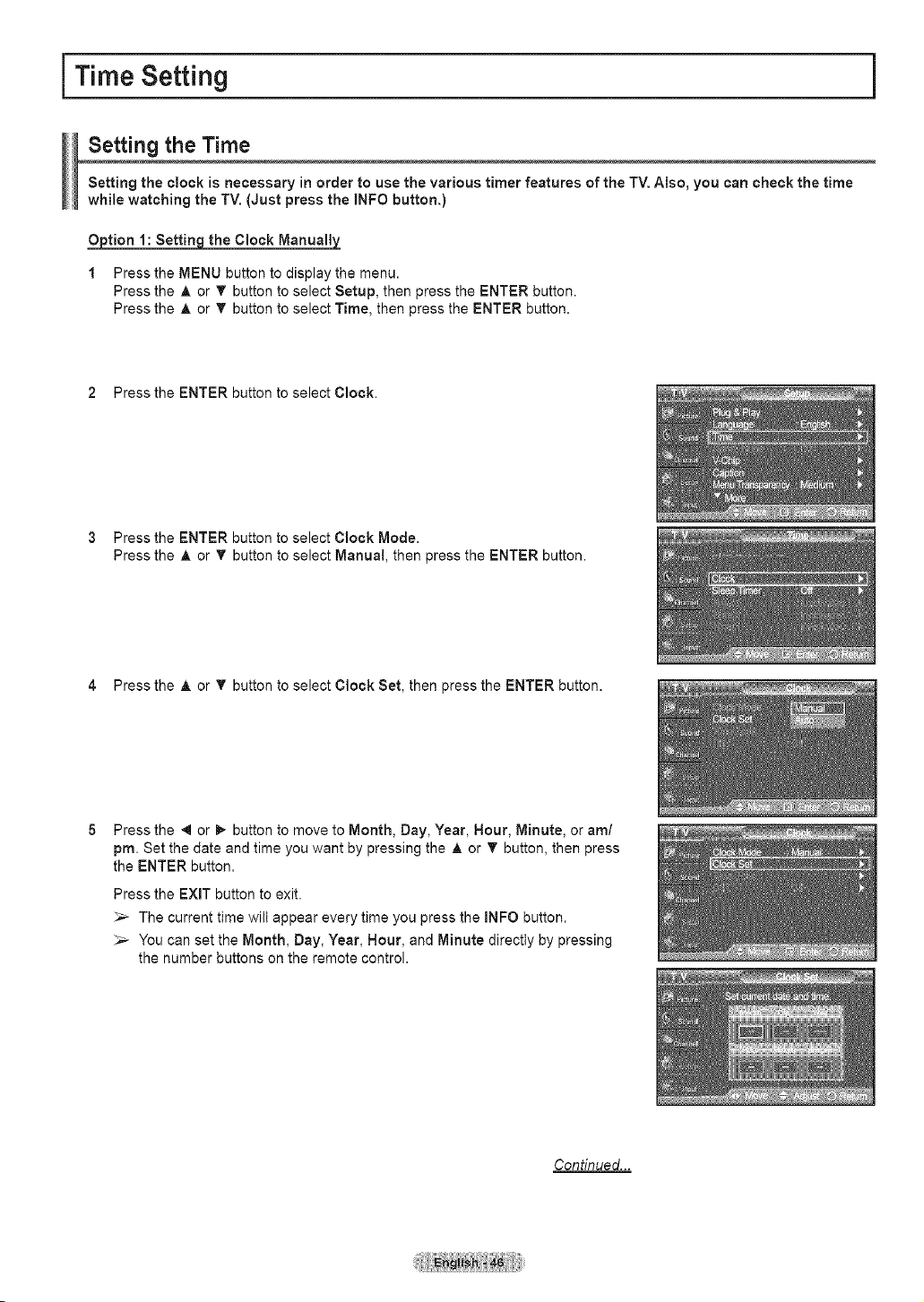
i Time Setting
Setting the Time
Setting the clock is necessary in order to use the various timer features of the TV. Also, you can check the time
while watching the TV. (Just press the INFO button.)
Ojotion 1: Settingthe Clock Manually
1 Press the MENU button to display the menu.
Press the A or T button to select Setup, then press the ENTER button.
Press the A or _' button to select Time, then press the ENTER button.
2 Press the ENTER button to select Clock.
3 Press the ENTER button to select Clock Mode.
Press the A or _' button to select Manual, then press the ENTER button.
4 Press the A or _' button to select Clock Set, then press the ENTER button.
Press the 4 or I_ button to move to Month, Day, Year, Hour, Minute, or am/
pro. Set the date and time you want by pressing the A or T button, then press
the ENTER button.
Press the EXIT button to exit.
_,_ The current time will appear every time you press the INFO button.
_-- You can set the Month, Day, Year, Hour, and Minute directly by presstng
the number buttons on the remote control.
Continued...
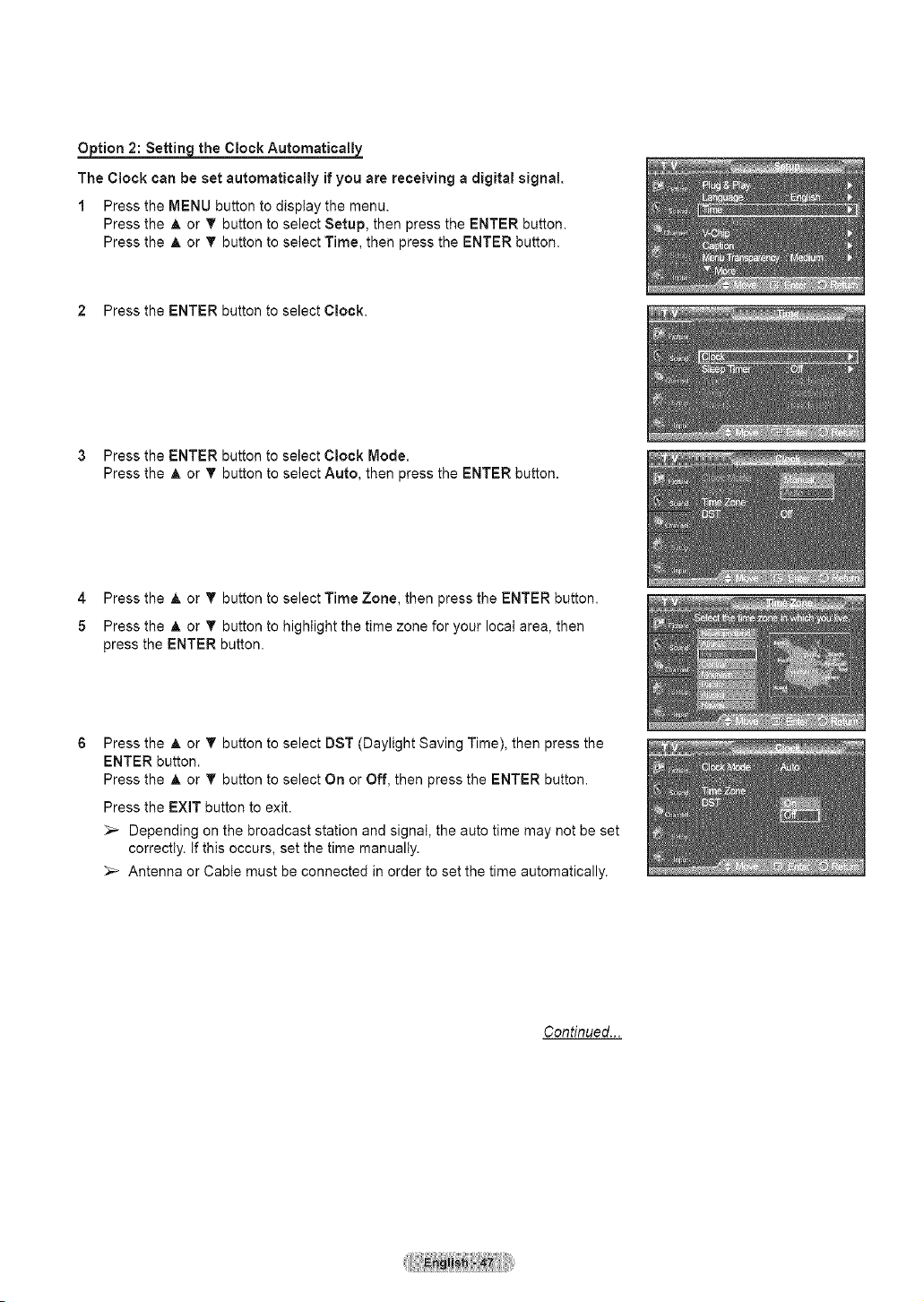
the Clock Automatically
The Clock can be set automatically if you are receiving a digital signal.
1 Press the MENU button to display the menu.
Press the A. or T button to select Setup, then press the ENTER button.
Press the A or T button to select Time, then press the ENTER button.
2 Press the ENTER button to select Clock.
3 Press the ENTER button to select Clock Mode.
Press the A or T button to select Auto, then press the ENTER button.
4 Press the _, or T button to select Time Zone, then press the ENTER button.
5 Press the A or T button to highlight the time zone for your local area, then
press the ENTER button.
Press the A or T button to select DST (Daylight Saving Time), then press the
ENTER button.
Press the A or T button to select On or Off, then press the ENTER button.
Press the EXIT button to exit.
_,_ Depending on the broadcast station and signal, the auto time may not be set
correctly. If this occurs, set the time manually.
_-- Antenna or Cable must be connected in order to set the time automatically.
Continued...
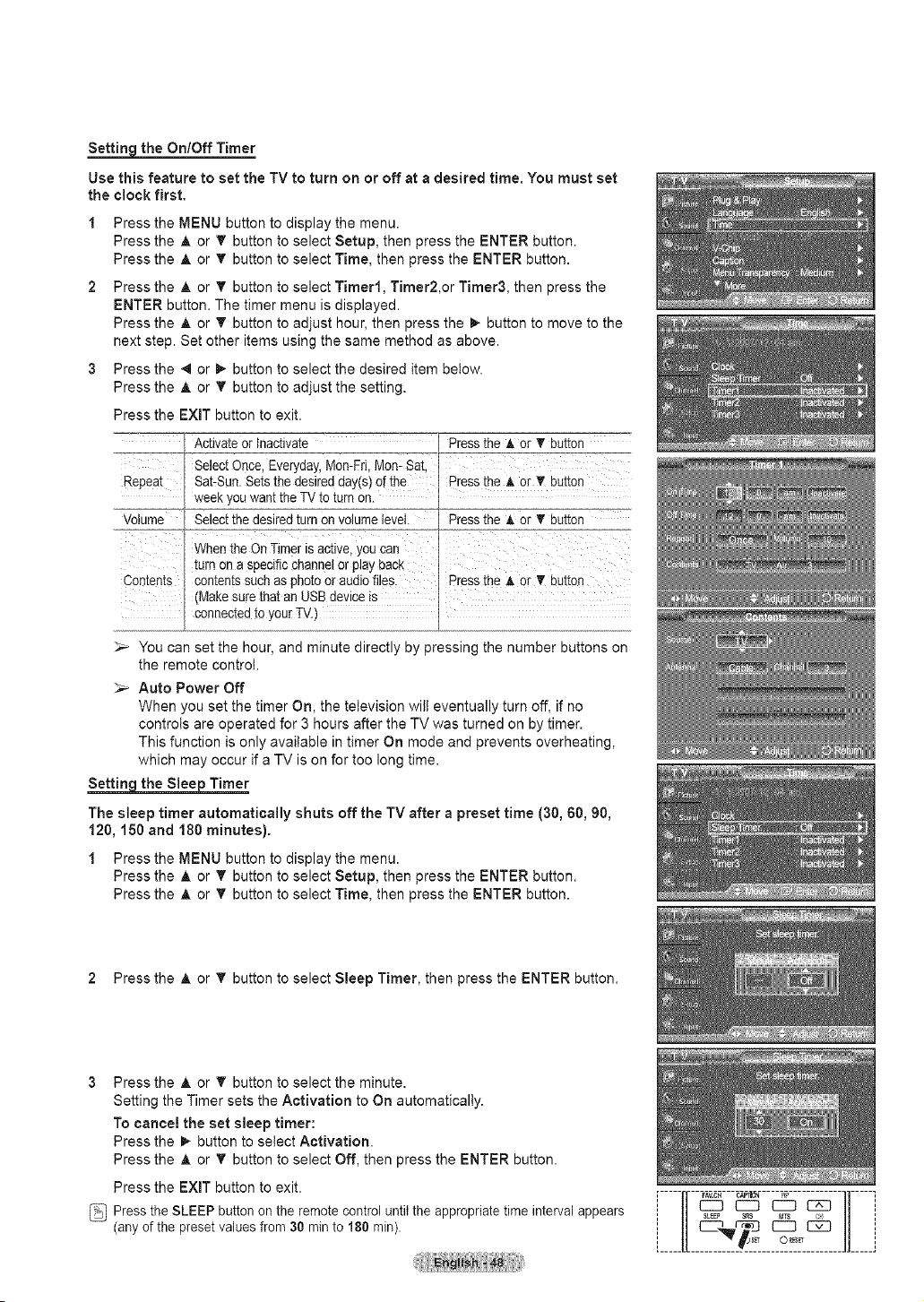
SettingtheOn/Off Timer
Use this feature to set the TV to turn on or off at a desired time. You must set
the clock first.
Press the MENU button to display the menu.
Press the A or T button to select Setup, then press the ENTER button.
Press the A or T button to select Time, then press the ENTER button.
Press the A or T button to select Timer1, Timer2,or Timer& then press the
ENTER button. The timer menu is displayed.
Press the A, or T button to adjust hour, then press the I_ button to move to the
next step. Set other items using the same method as above.
Press the 4 or D., button to select the desired item below.
Press the A or T button to adjust the setting.
Press the EXIT button to exit.
_-- Activate or inactivate 3ress the A or _' button
Select Once Everyday.Mon-FrL Mort-Sat
Repeat Sat-Sun. Sets the desired day[s of the _ress the A or T Du[_o_
week you want the TV to turn on.
Volume -- Select the desired turn on volume level. 3ressthe A or T button
When the On Timer is active,you can
turn on a specific channel or play back
Contents contents such as photo or audiofiles. =ressthe A or T button
(Make sure that an USB deviceis
conneo_ea[o your TV.)
_-- You can set the hour, and minute directly by pressing the number buttons on
the remote control.
_-- Auto Power Off
When you set the timer On, the television will eventually turn off, if no
controls are operated for 3 hours after the TV was turned on by timer.
This function is only available in timer On mode and prevents overheating,
which may occur if a TV is on for too long time.
Settin the Sloe Timer
The sleep timer automatically shuts offthe TV after a preset time (30, 60, 90,
120, 150 and 180 minutes).
1 Press the MENU button to display the menu.
Press the A or T button to select Setup, then press the ENTER button.
Press the A or T button to select Time, then press the ENTER button.
2 Press the A or 'V' button to select Sleep Timer, then press the ENTER button.
3 Press the A or T button to select the minute.
Setting the Timer sets the Activation to On automatically.
To cancel the set sleep timer:
Press the _- button to select Activation.
Press the A or T button to select Off, then press the ENTER button.
Press the EXiT button to exit.
Press the SLEEP button on the remote control until the appropriate time interval appears
(any of the preset values from 30 min to 180 rain).
[ -IF© i
[_____[[ JJ_____j
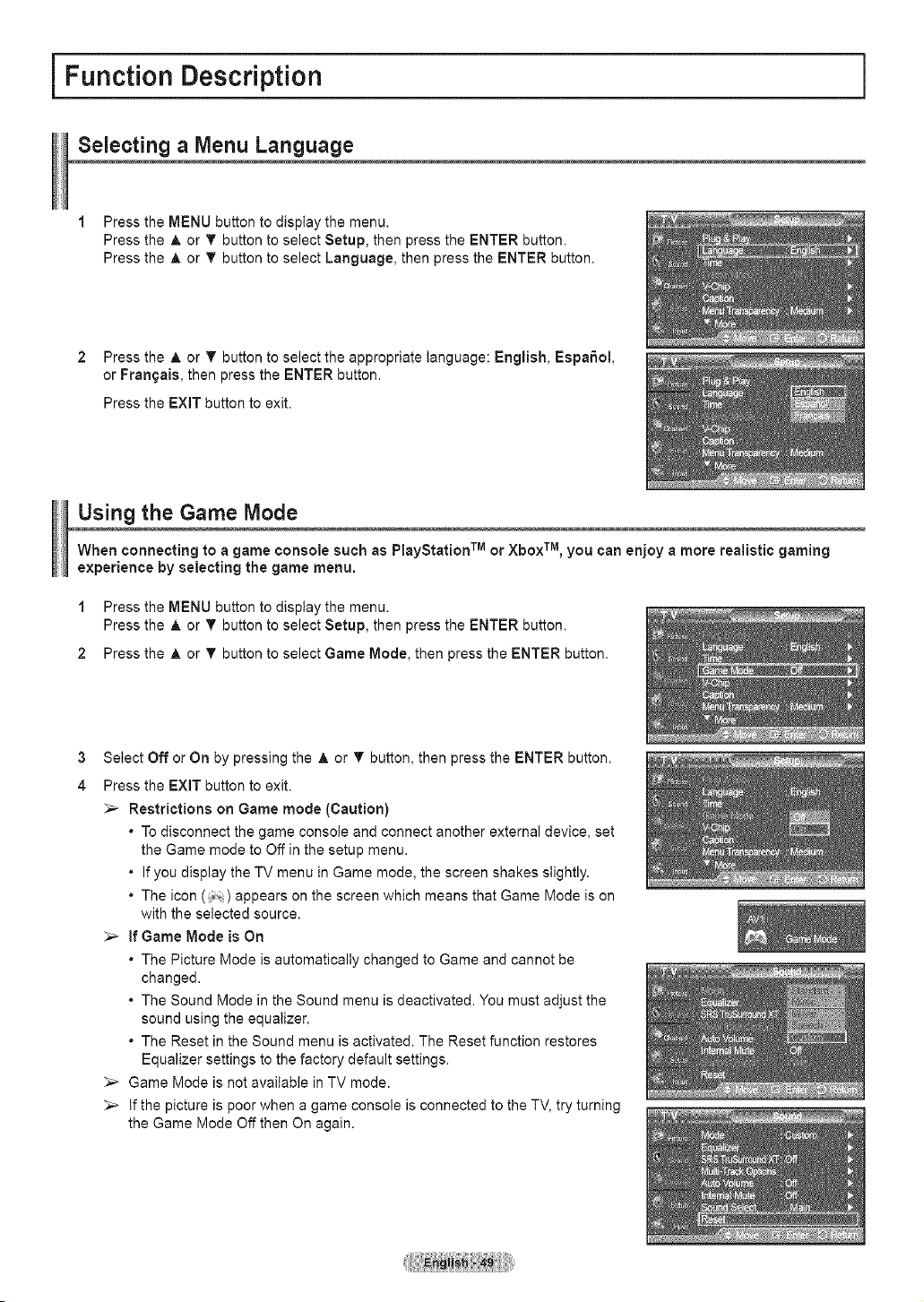
Function Description
Selecting a Menu Language
1 Press the MENU button to display the menu.
Press the ,_ or T button to select Setup, then press the ENTER button.
Press the A or T button to select Language, then press the ENTER button.
2 Press the A or V' button to select the appropriate language: English, EspaSol,
or Frangais, then press the ENTER button.
Press the EXIT button to exit.
Using the Game Mode
When connecting to a game console such as PlayStation TM or Xbox TM, you can enjoy a more realistic gaming
experience by selecting the game menu.
1 Press the MENU button to display the menu.
Press the A or T button to select Setup, then press the ENTER button.
2 Press the A or T button to select Game Mode, then press the ENTER button.
3
4
Select Off or On by pressing the A or T button, then press the ENTER button.
Press the EXiT button to exit.
Restrictions on Game mode (Caution)
• To disconnect the game consote and connect another external device, set
the Game mode to Off in the setup menu.
• If you display the TV menu in Game mode, the screen shakes slightly.
• The icon (_;) appears on the screen which means that Game Mode is on
with the selected source.
if Game Mode is On
• The Picture Mode is automatically changed to Game and cannot be
changed.
• The Sound Mode in the Sound menu is deactivated. You must adjust the
sound using the equalizer.
• The Reset in the Sound menu is activated. The Reset function restores
Equalizer settings to the factory default settings.
_,_ Game Mode is not available in TV mode.
_-- If the picture is poor when a game console is connected to the TV, try turning
the Game Mode Off then On again.
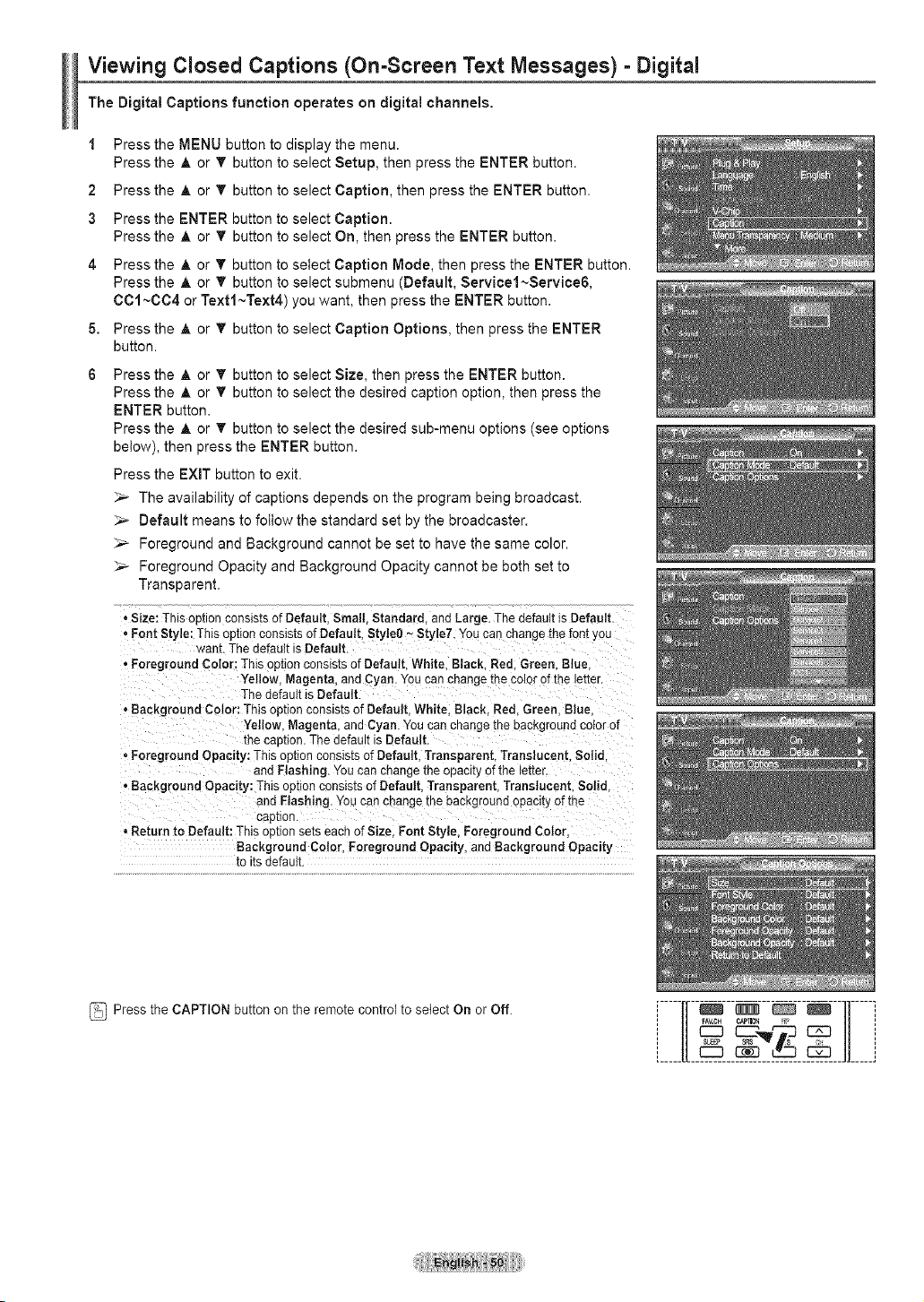
Viewing Closed Captions (On-Screen Text Messages) - Digital
The Digital Captions function operates on digital channels.
1 Press the MENU button to display the menu.
Press the A or T button to select Setup, then press the ENTER button.
2 Press the A or T button to select Caption, then press the ENTER button.
3 Press the ENTER button to select Caption.
Press the A or T button to select On, then press the ENTER button.
4 Press the A or T button to select Caption Mode, then press the ENTER button.
Press the A or T button to select submenu (Default, Servicel~Service6,
COl ~0C4 or Text1 ~Text4) you want, then press the ENTER button.
5. Press the A or T button to select Caption Options, then press the ENTER
button.
6 Press the A or _ button to select Size, then press the ENTER button.
Press the A or T button to select the desired caption option, then press the
ENTER button.
Press the A or T button to select the desired sub-menu options (see options
below), then press the ENTER button.
Press the EXiT button to exit.
_-- The availability of captions depends on the program being broadcast.
_,_ Default means to follow the standard set by the broadcaster.
_,_ Foreground and Background cannot be set to have the same color.
_-- Foreground Opacity and Background Opacity cannot be both set to
Transparent.
. Size: This op[ton consts[s of Default. Sma& Standard. and Large. The default is Default.
. Font Style: This option consists of Default Style0 - StyleT. You can change the font you
want. The default is Default
oForeground Color: This option consists of Default White. Black. Red. Green. Blue.
Yellow. Magenta, and Cyan. You can change [he color of the te[ter.
The default is Default
oBackground Color: TNs option consists of Default. White. Black. Red. Green. Blue.
Yellow. Magenta, and Cyan. You can change [ne oacKground color of
[ne caption. The default is Default.
. Foreground Opacity: This op[ion cons_s[s of Default. Transparent. Translucent. Solid.
and Flashing. You can change the opactb of the letter.
oBackground Opacity: This op[_on consists of Default. Transparent. Translucent. Solid.
and Flashing. You can change the background opaclt_ of the
cap[lot
, Return to Default: This option sets each of Size. Font Style, Foreground Color
Background Color. Foreground Opacity, and Background Opacity
to its default.
Press the CAPTION button on the remote control to select On or Off.
I°°°°ll
rAM.OH CA_ON !_>
SCEEP SRS s
......
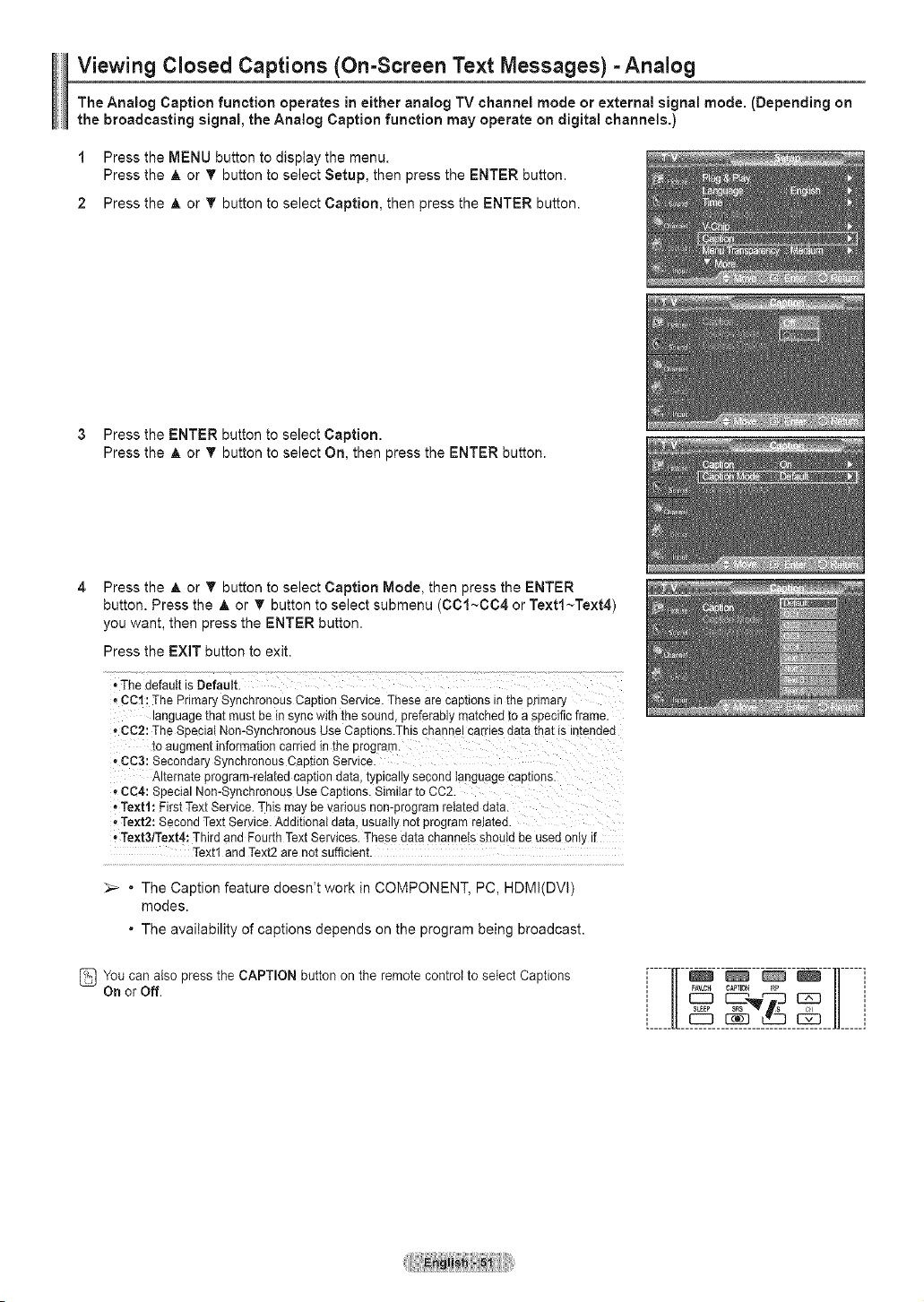
Viewing Closed Captions (On-Screen Text Messages) -Analog
The Analog Caption function operates in either analog TV channel mode or external signal mode. (Depending on
the broadcasting signal, the Analog Caption function may operate on digital channels.)
1 Press the MENU button to display the menu.
Press the A or T button to select Setup, then press the ENTER button.
2 Press the A or T button to select Caption, then press the ENTER button.
3 Press the ENTER button to select Caption.
Press the A or T button to select On, then press the ENTER button.
Press the ,_ or V' button to select Caption Mode, then press the ENTER
button. Press the A or T button to select submenu (C01~C04 or Textl~Text4)
you want, then press the ENTER button.
Press the EXIT button to exit.
• The default is Default
• CCt: The Primary Synchronous Caption Service.These are captions inthe primary
tanguagethat must be {ns_qcwanme sounc preferably matched [o a seecificframe
• CC2: The Special Non-SynchronousUse Captions.Thischannelcarries ua[a_na[is _tenaea
[o augment informationcarried in the program.
, CC3: SecondarySynchronousCaD[ionService.
Alternate program-relatedcaption data, typtcally second languagecaD[tons.
• CC4: Special Non-SynchronousUseCaptions. Similarto CC2
• Text1: First TextService. This may be various non-programrelated data.
• Text2: Second TextService.Additionaldata. usuallyno[ program reJa[ea.
, Text3/Text4: Third and FourthTextSerwces. Theseaa[a channels snou_aDeused on., tf
Textl and Text2are not sufficient.
• The Caption feature doesn't work in COMPONENT, PC, HDMI(DVI)
modes.
• The availability of captions depends on the program being broadcast.
You can also press the CAPTION button on the remote control to select Captions
On or Off.
[_____[I
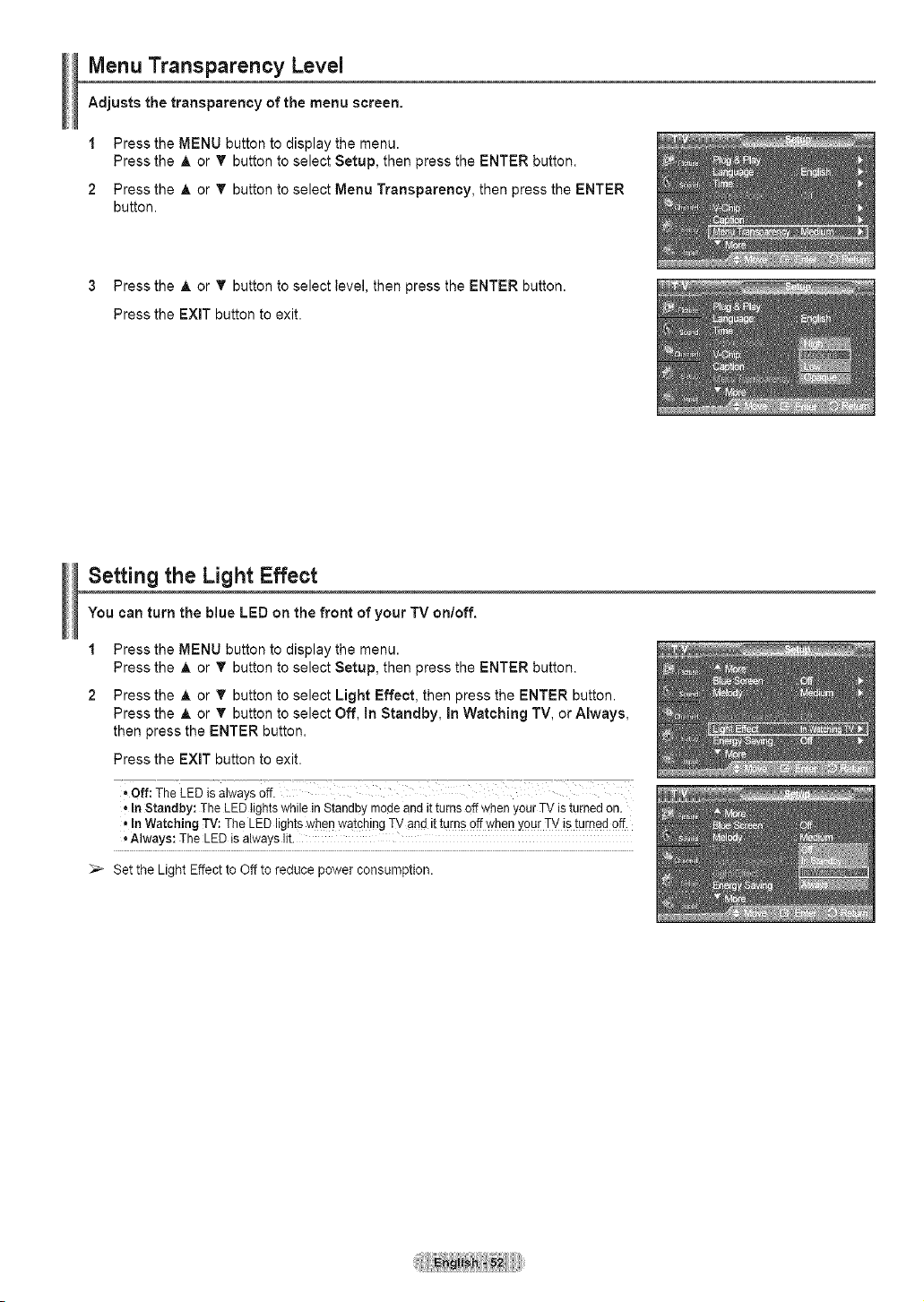
Menu Transparency Level
Adjusts the transparency of the menu screen.
1
2
Press the MENU button to display the menu.
Press the A or _' button to select Setup, then press the ENTER button.
Press the A or _' button to select Menu Transparency, then press the ENTER
button.
3 Press the A or _' button to select level, then press the ENTER button.
Press the EXIT button to exit.
Setting the Light Effect
You can turn the blue LED on the front of your TV on/off.
1 Press the MENU button to display the menu.
Press the A or _' button to select Setup, then press the ENTER button.
2 Press the A or T button to select Light Effect, then press the ENTER button.
Press the _, or _' button to select Off, In Standby, in Watching TV, or Always,
then press the ENTER button.
Press the EXIT button to exit.
* Off: The LED is alwaysoff.
, In Standby: The LEDlightswhile in Standby modeand itturns off when yourTV is turned on.
In Watching TV: The LEDlights when watchingTV and it tu[ns off whenyou[ TV is turned off.
Always: The LED is always lit.
_-- Set the Light Effect to Off to reduce power consumption.
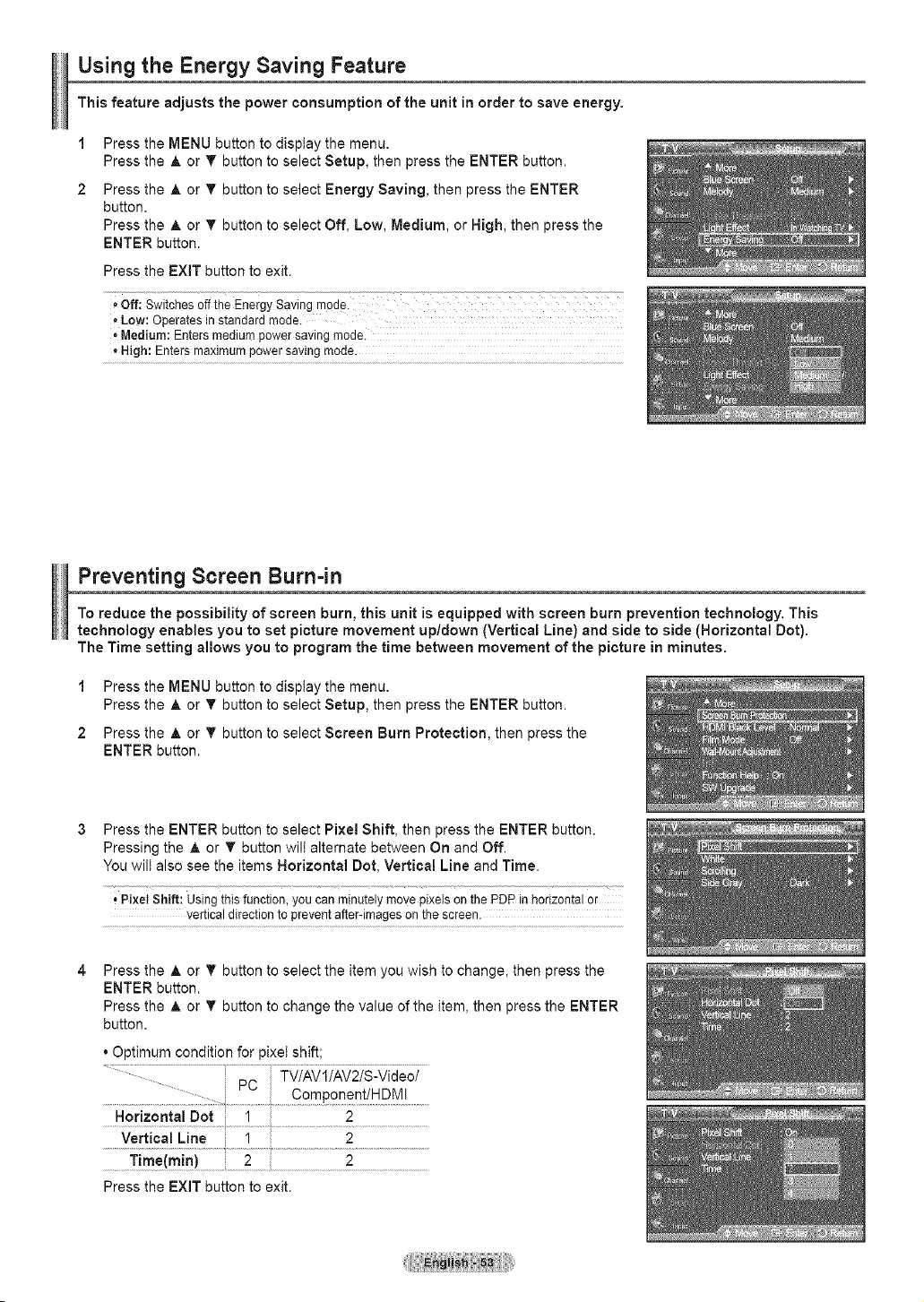
Using the Energy Saving Feature
This feature adjusts the power consumption of the unit in order to save energy.
1
2
Press the MENU button to display the menu.
Press the A or T button to select Setup, then press the ENTER button.
Press the A or T button to select Energy Saving, then press the ENTER
button.
Press the ,& or T button to select Off, Low, Medium, or High, then press the
ENTER button.
Press the EXIT button to exit.
, Low: Operatesinstandard mode.
, Medium: Entersmedium power saving mode,
,, High: Enters maximumpower savingmode.
Preventing Screen Burn-in
To reduce the possibility of screen burn, this unit is equipped with screen burn prevention technology. This
technology enables you to set picture movement up/down (Vertical Line) and side to side (Horizontal Dot).
The Time setting allows you to program the time between movement of the picture in minutes.
1 Press the MENU button to display the menu.
Press the A or T button to select Setup, then press the ENTER button.
2 Press the A or T button to select Screen Burn Protection, then press the
ENTER button.
Press the ENTER button to select Pi×el Shift, then press the ENTER button.
Pressing the A or T button will alternate between On and Off.
You will also see the items Norizontal Dot, Vertical Line and Time.
• Pixei sNft: using this function, youcan minutelymove pixels on the PDPin horizontal or
vertical directionto preventafteFimageson the screen.
Press the A or T button to select the item you wish to change, then press the
ENTER button.
Press the _, or T button to change the value of the item, then press the ENTER
button.
. Optimum condition for pixel shift;
........... PC
.................................................££mp0ner!!_@NI.....
Horizontal Dot 1 2
Vertical Line 1 2
................T!me{m!n) ...................2............................................................2 ................................................
Press the EXiT button to exit.
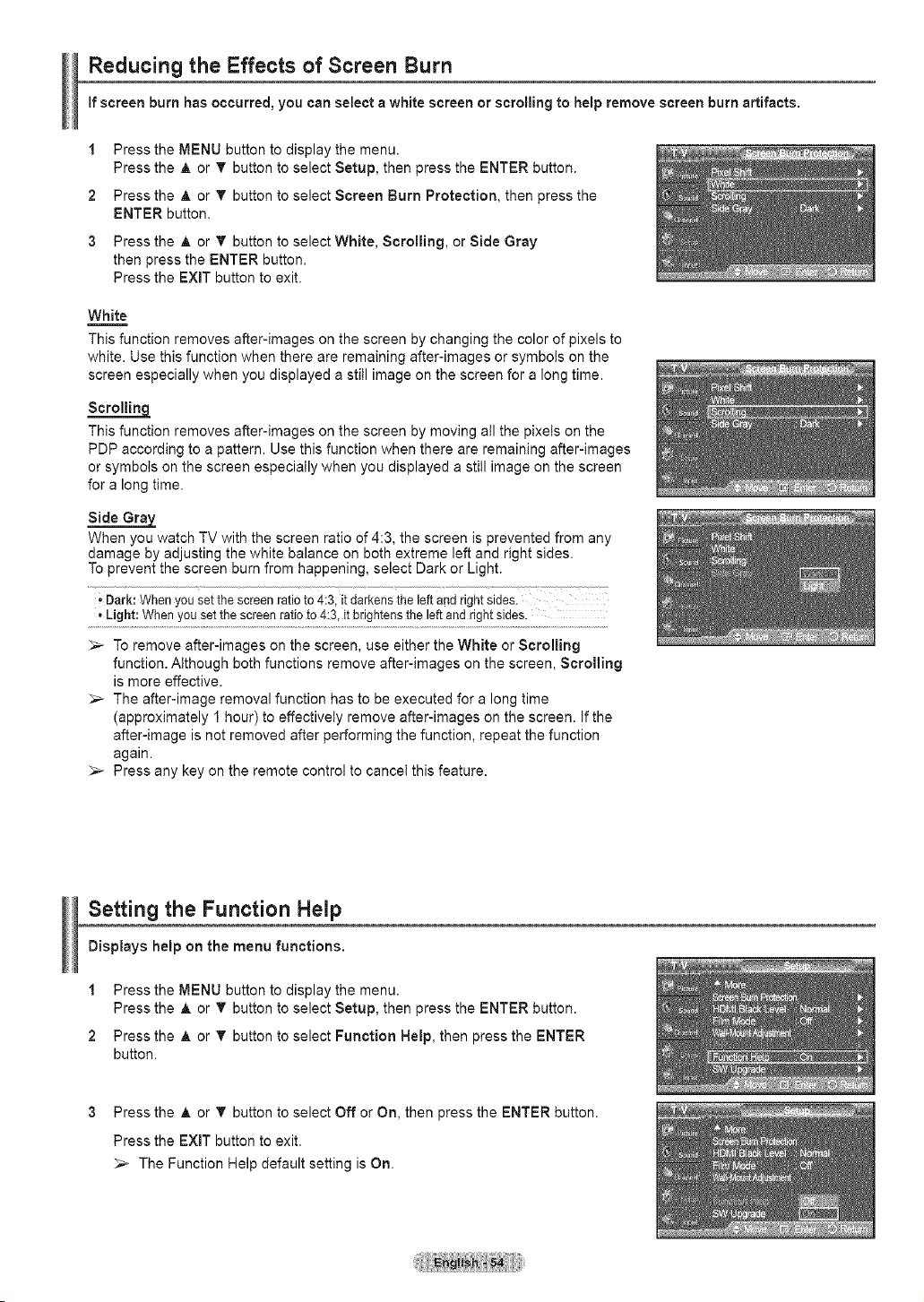
Reducing the Effects of Screen Burn
if screen burn has occurred, you can select a white screen or scrolling to help remove screen burn artifacts.
1
2
3
Press the MENU button to display the menu.
Press the A or _' button to select Setup, then press the ENTER button.
Press the ,& or _' button to select Screen Burn Protection, then press the
ENTER button.
Press the A or _' button to select White, Scrolling, or Side Gray
then press the ENTER button.
Press the EXiT button to exit.
White
This function removes after-images on the screen by changing the color of pixels to
white. Use this function when there are remaining after-images or symbols on the
screen especially when you displayed a still image on the screen for a long time.
Scrolling
This function removes after-images on the screen by moving all the pixels on the
PDP according to a pattern. Use this function when there are remaining after-images
or symbols on the screen especially when you displayed a still image on the screen
for a long time.
Side Gray=
When you watch TV with the screen ratio of 4:3, the screen is prevented from any
damage by adjusting the white balance on both extreme left and right sides.
To prevent the screen burn from happening, select Dark or Light.
• Bark: When you set the screen ratio to 4:3, it darkens the left and right sides.
Light: When youset the screen ratio to 4:3, it brightens the leftand right sides.
To remove after-images on the screen, use either the White or Scrolling
function, Although both functions remove after-images on the screen, Scrolling
is more effective,
The after-image removal function has to be executed for a long time
(approximately 1 hour) to effectively remove after-images on the screen. If the
after-image is not removed after performing the function, repeat the function
again.
_-- Press any key on the remote control to cancel this feature,
Setting the Function Help
Displays help on the menu functions.
1 Press the MENU button to display the menu.
Press the A or _' button to select Setup, then press the ENTER button.
2 Press the A or _' button to select Function Help, then press the ENTER
button.
3 Press the A or _' button to select Off or On, then press the ENTER button.
Press the EXIT button to exit.
_,_ The Function Help default setting is On.
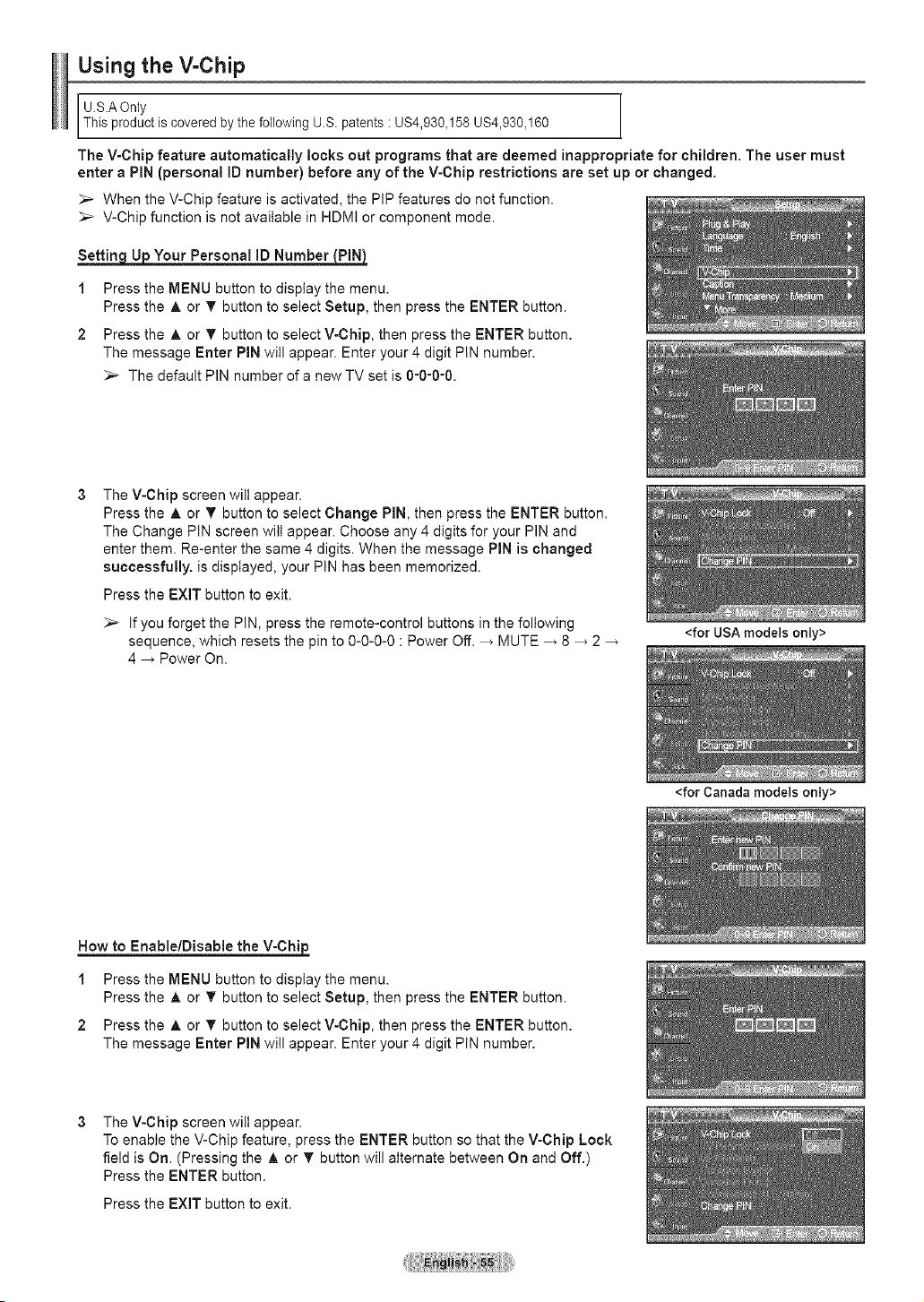
Using the V-Chip
U.S.A Only
This product is covered by the following U.S. patents : US4,930_158 US4,930_160
The V-Chip feature automatically locks out programs that are deemed inappropriate for children. The user must
enter a PiN (personal ID number) before any of the V-Chip restrictions are set up or changed.
_,_ When the V-Chip feature is activated, the PIP features do not function.
_,_ V-Chip function is not available in HDMI or component mode.
Your Personal ID Number
1 Press the MENU button to display the menu.
Press the A or T button to select Setup, then press the ENTER button.
2 Press the _, or T button to select V-Chip, then press the ENTER button.
The message Enter PIN will appear. Enter your 4 digit PiN number.
_-- The default PIN number of a new TV set is 0-0-0-0.
The V-Chip screen will appear.
Press the A or T button to select Change PIN, then press the ENTER button.
The Change PtN screen wilt appear. Choose any 4 digits for your PIN and
enter them. Re-enter the same 4 digits. When the message PIN is changed
successfully, is displayed, your PIN has been memorized.
Press the EXIT button to exit.
_,_ If you forget the PIN, press the remote-control buttons in the following
sequence, which resets the pin to 0-0-0-0 : Power Off. _ MUTE -_ 8 _ 2 -_
4 _ Power On.
Now to Enable/Disable the V-Chijp_
1 Press the MENU button to display the menu.
Press the A or T button to select Setup, then press the ENTER button.
2 Press the ,& or _' button to select V-Chip, then press the ENTER button.
The message Enter PIN will appear. Enter your 4 digit PIN number.
The V-Chip screen wilt appear.
To enable the V-Chip feature, press the ENTER button so that the V-Chip Lock
field is On. (Pressing the A or T button will alternate between On and Off.)
Press the ENTER button.
Press the EXIT button to exit.
<for USA models only>
<for Canada models only>
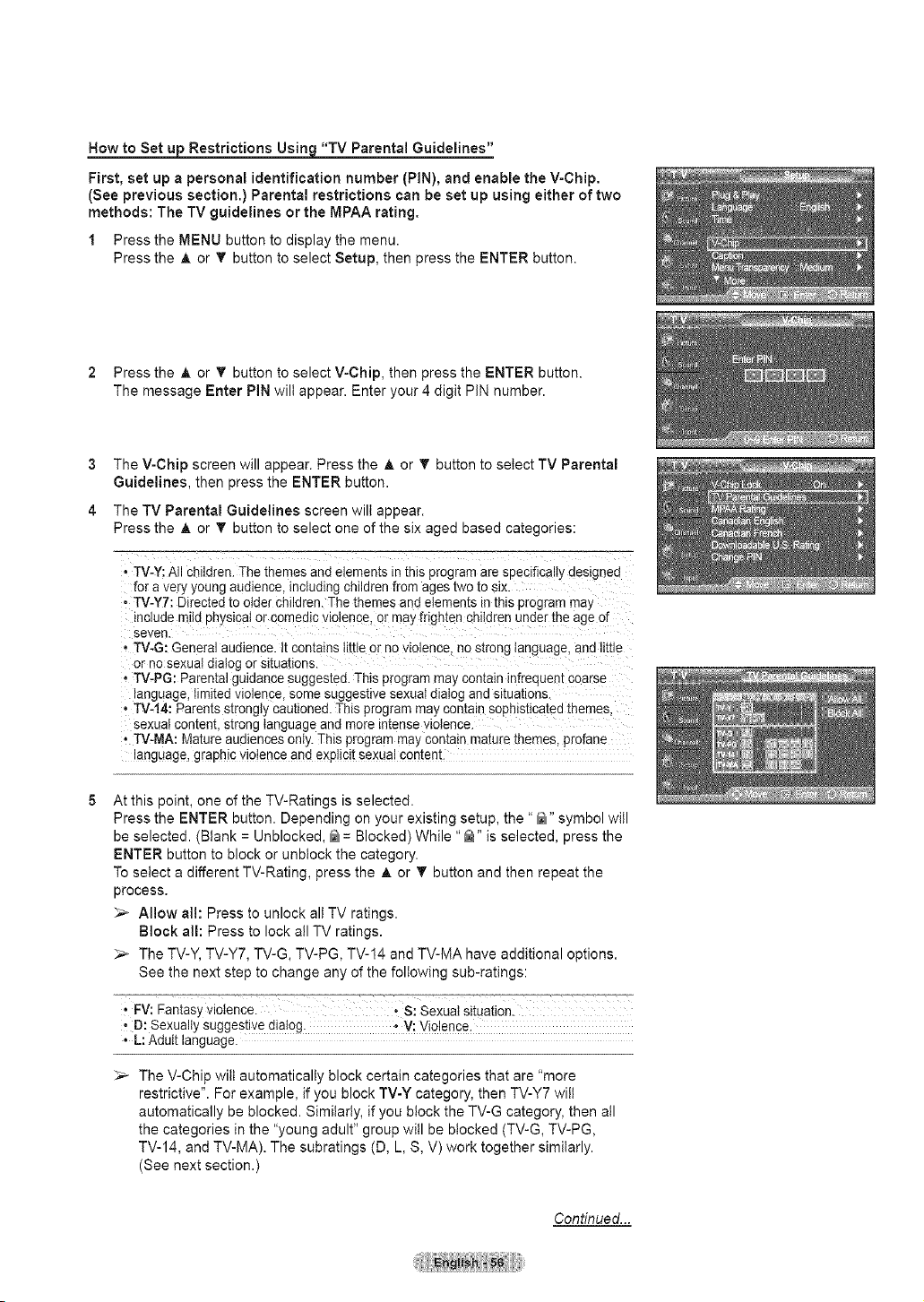
How to Set u Restrictions Usin "TV Parental Guidelines"
First, set up a personal identification number (PIN), and enable the V-Chip.
(See previous section.) Parental restrictions can be set up using either of two
methods: The TV guidelines or the MPAA rating.
1 Press the MENU button to display the menu.
Press the A or T button to select Setup, then press the ENTER button.
2 Press the A or T button to select V-Chip, then press the ENTER button.
The message Enter PIN wilt appear. Enter your 4 digit PiN number.
3
4
The V-Chip screen will appear. Press the A or T button to select TV Parental
Guidelines, then press the ENTER button.
The TV Parental Guidelines screen will appear.
Press the A or T button to select one of the six aged based categories:
• TV-Y: All cn_ldren.The tnemes and e amems _nthis program are specificallI designed
for a very young audience, including children from ages two to six.
• TV-YT: Directed to otde- children. The themes and elements in this program ma}
_nclueemltd phystcaI or comedlc wolence, or may frigh[en cmldren under the age of
seven
• TV-G: General audieqce, ir comalns little or no violence qo strong language, and little
or no sexual alaiog or situations.
• TV-PG: Paren[al guidance suggested. This program may contain infrequent coarse
anguage, llml[ea Violence some sugges[we sexual dialog and slrua[lons
, TV-14: 3arents strongiy cautioned. This program may coma q sophisticated themes
sexual conrem, strong language and more intense violence.
• TV-MA: Mature audiences only. This program may contain mature themes, profane
anguage, graphic violence and exF tcltsexual content.
At this point, one of the TV-Ratings is selected.
Press the ENTER button. Depending on your existing setup, the "@" symbol will
be selected. (Blank = Unblocked, _ = Blocked) While "@" is selected, press the
ENTER button to block or unbiock the category.
To select a different TV-Rating, press the A or T button and then repeat the
process.
> Allow all: Press to unlock all TV ratings.
Block all: Press to lock all TV ratings.
_,_ The TV-Y, TV-Y7, TV-G, TV-PG, TV-14 and TV-MA have additional options.
See the next step to change any of the following sub-ratings:
• FV: Eantasy violence. S: Sexual situation.
D: Sexually suggestive dialog. • V: Violence.
• L: Adult language.
_-- The V-Chip will automatically block certain categories that are "more
restrictive". For example, if you block TV-Y category, then TV-Y7 wilt
automatically be blocked. Similarly, if you block the TV-G category, then all
the categories in the "young adult" group will be blocked (TV-G, TV-PG,
TV-14, and TV-MA). The subratings (D, L, S, V) work together similarly.
(See next section.)
Continued...
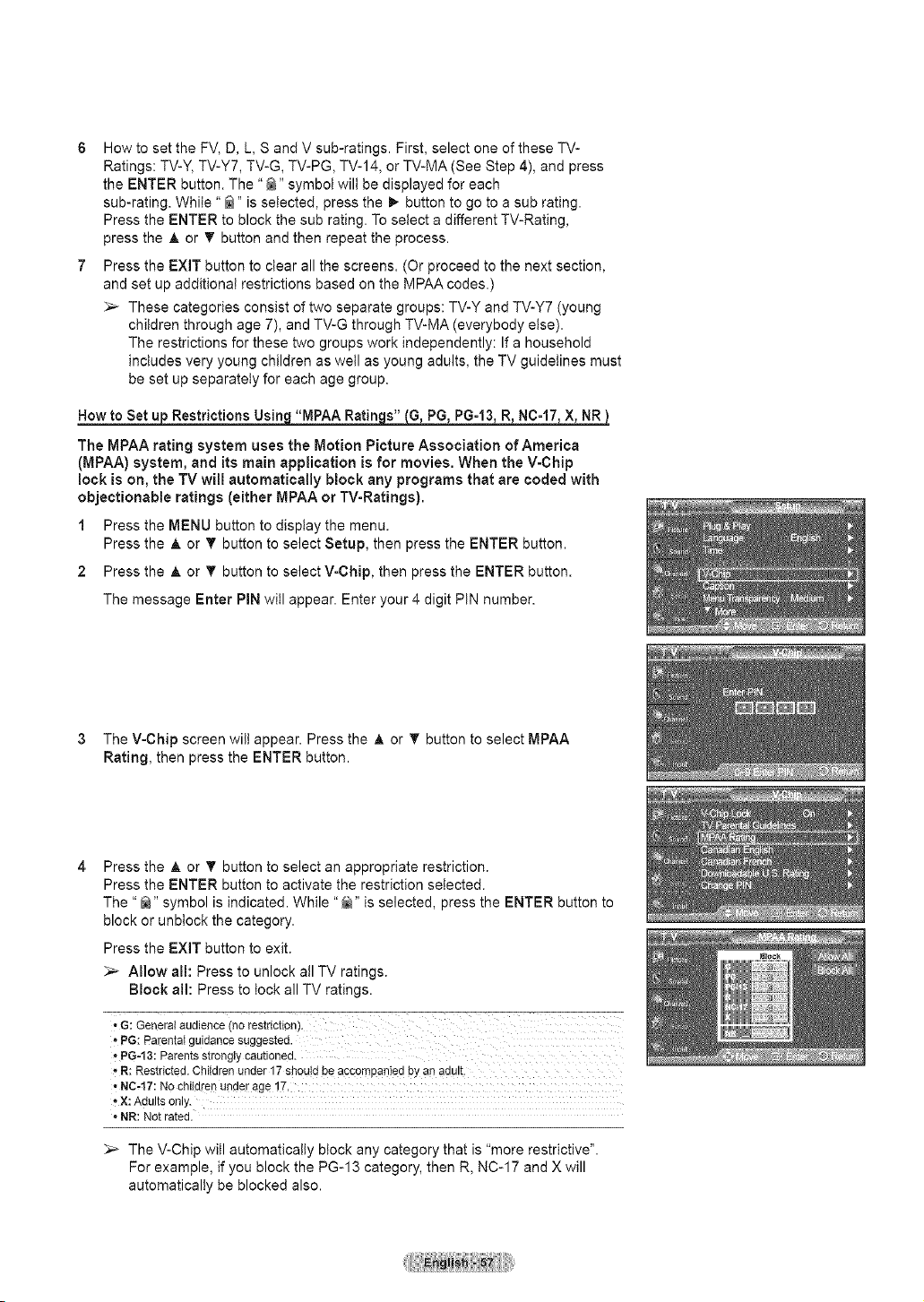
6 How to set the FV, D, L, S and V sub-ratings. First, select one of these TV-
Ratings: TV-Y, TV-Y7, TV-G, TV-PG, TV-14, or TV-MA (See Step 4), and press
the ENTER button. The "_" symbol will be displayed for each
sub-rating. While "@" is selected, press the I_ button to go to a sub rating.
Press the ENTER to block the sub rating. To select a different TV-Rating,
press the A or T button and then repeat the process.
7 Press the EXIT button to clear all the screens. (Or proceed to the next section,
and set up additional restrictions based on the MPAA codes.)
_,_ These categories consist of two separate groups: TV-Y and TV-Y7 (young
children through age 7), and TV-G through TV-MA (everybody else).
The restrictions for these two groups work independently: If a household
includes very young children as well as young adults, the TV guidelines must
be set up separately for each age group.
H_= = Ratin s" G, PG, PG-13 R NC-17 X, NR
The MPAA rating system uses the Motion Picture Association of America
(MPAA) system, and its main application is for movies. When the V-Chip
lock is on, the TV will automatically block any programs that are coded with
objectionable ratings (either MPAA or TV-Ratings).
1 Press the MENU button to display the menu.
Press the A or T button to select Setup, then press the ENTER button.
2 Press the A or T button to select V-Chip, then press the ENTER button.
The message Enter PIN will appear. Enter your 4 digit PiN number.
3 The V-Chip screen will appear. Press the A or T button to select MPAA
Rating, then press the ENTER button.
Press the _, or T button to select an appropriate restriction.
Press the ENTER button to activate the restriction selected.
The "_" symbol is indicated. While "@" is selected, press the ENTER button to
block or unblock the category.
Press the EXIT button to exit.
> Allow all: Press to unlock all TV ratings.
Block al!: Press to lock all TV ratings.
-PG-13: Parents strongly cautioned.
- R: Restricted. Children under 17 shou!d be accompanied bYan adu!t_
• NC-17: No children underage !7,
° X: Adults only.
• NR: Not rated.
_,_ The V-Chip will automatically block any category that is "more restrictive".
For example, if you block the PG-13 category, then R, NC-17 and X will
automatically be blocked also.
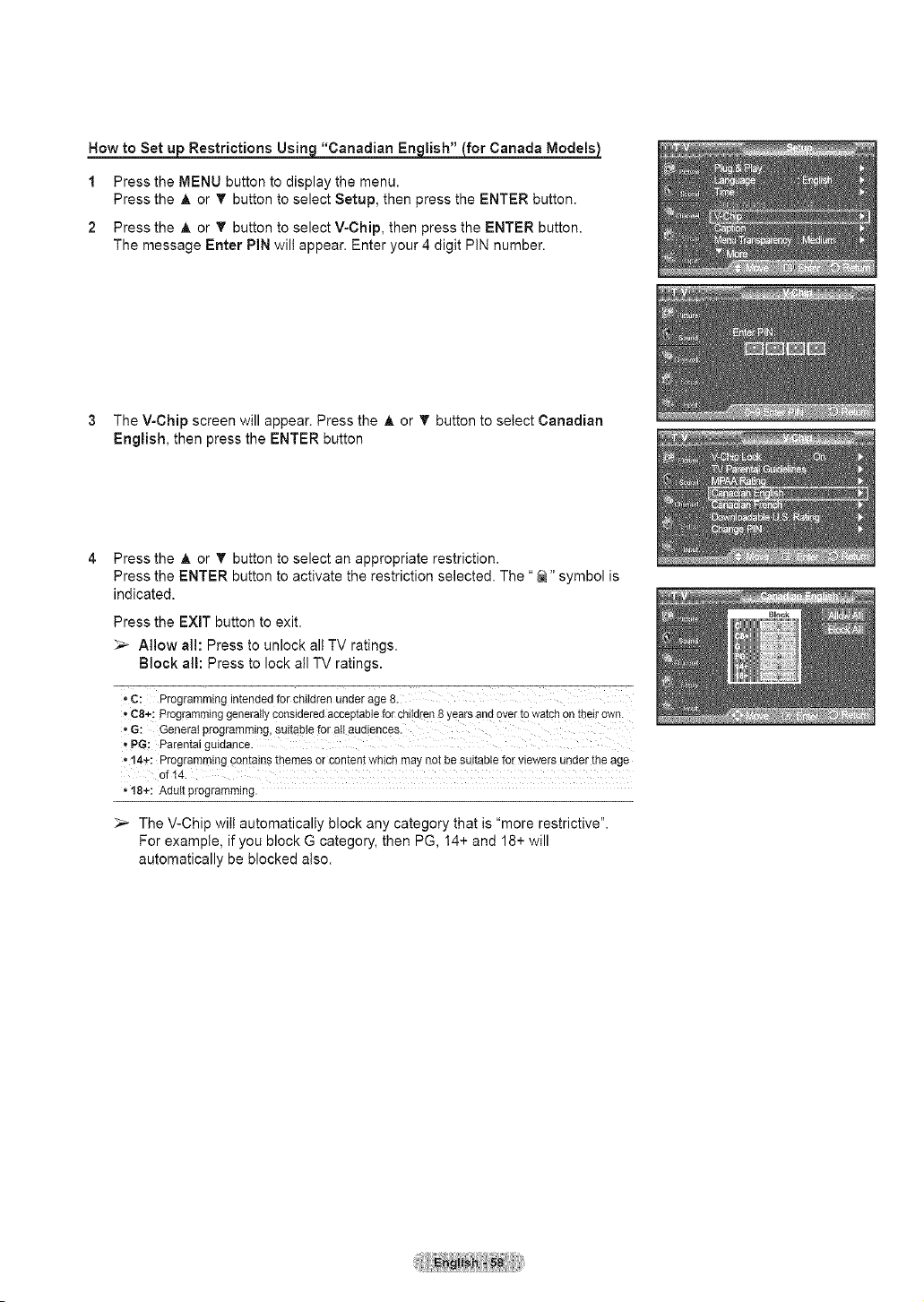
Now to Set u Restrictions Usin "Canadian En_for Canada Models)
1
2
Press the MENU button to display the menu.
Press the A or T button to select Setup, then press the ENTER button.
Press the A or T button to select V-Chip, then press the ENTER button.
The message Enter PiN wilt appear. Enter your 4 digit PIN number.
3 The V-Chip screen will appear. Press the A or T button to select Canadian
English, then press the ENTER button
Press the A or T button to select an appropriate restriction.
Press the ENTER button to activate the restriction selected. The "_" symbol is
indicated.
Press the EXIT button to exit.
_-- AHow all: Press to unlock all TV ratings.
Block all: Press to lock all TV ratings.
• c: Programmingintendedfor childrenunderage8.
,, C8÷: programminggenerallyconsideredacceptableforchi!d_en8 yearsandOvertowatchOntheirown.
,,G: Generatprogramming,Suitablefor all audiences.
• PG; Parentalguidance.
• t4÷: Programmingcontainsthemesor contentwhichmay notbe suitablefor vie_veraundertheage
of 14.
• 18+: Adult programming.
The V-Chip wilt automatically block any category that is "more restrictive".
For example, if you block G category, then PG, 14+ and 18+ will
automatically be blocked also.
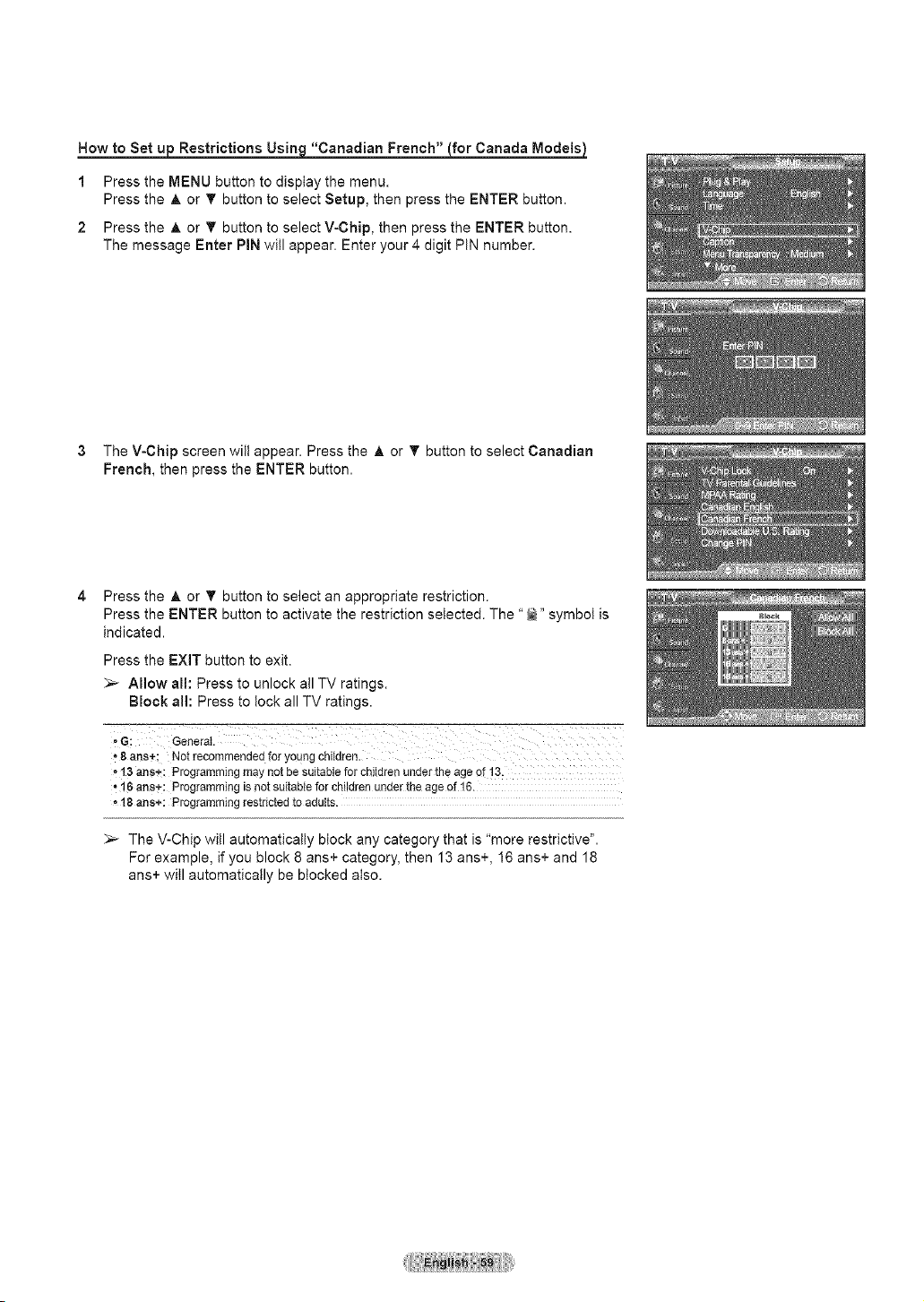
How to Set _ Restrictions Usin_q"Canadian French" (for Canada Models)
1
2
Press the MENU button to display the menu.
Press the ,& or T button to select Setup, then press the ENTER button.
Press the A or T button to select V-Chip, then press the ENTER button.
The message Enter PIN will appear. Enter your 4 digit PIN number.
3 The V-Chip screen will appear. Press the A or T button to select Canadian
French, then press the ENTER button.
Press the _, or T button to select an appropriate restriction.
Press the ENTER button to activate the restriction selected. The "_" symbol is
indicated.
Press the EXIT button to exit.
_-- Allow all: Press to unlock all TV ratings.
Block al!: Press to lock all TV ratings.
- t3 ans+: Programming may not be suitab{e for children under the age of ! 3:
• 16 ansi: Programming is not suitable for children ui_der the age of 16.
= 18 arts+: Programming restricted to adults.
_-- The V-Chip will automatically block any category that is "more restrictive".
For example, if you block 8 ans+ category, then 13 ans+, 16 ans+ and 18
ans+ will automatically be blocked also.
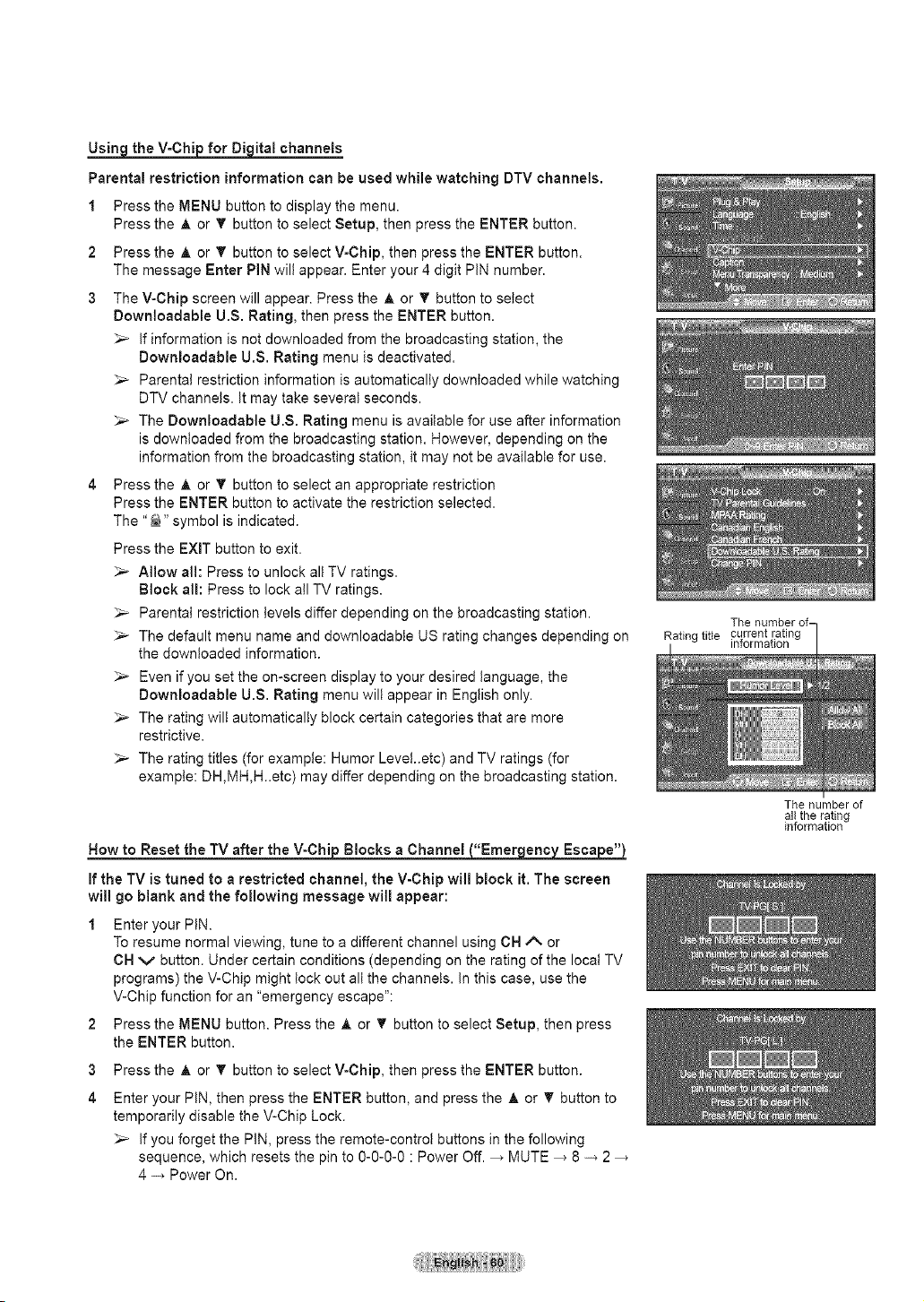
Usin theV-Chi for Di italchannels
Parental restriction information can be used while watching DTV channels.
1 Press the MENU button to display the menu.
Press the A or T button to select Setup, then press the ENTER button.
2 Press the A or T button to select V-Chip, then press the ENTER button.
The message Enter PIN will appear. Enter your 4 digit PIN number.
3 The V-Chip screen will appear. Press the A or T button to select
Downloadable U.S. Rating, then press the ENTER button.
_,_ If information is not downloaded from the broadcasting station, the
Downloadable U.S. Rating menu is deactivated.
_,_ Parental restriction information is automatically downloaded while watching
DTV channels. It may take several seconds.
_-- The Downloadable U.S. Rating menu is available for use after information
is downloaded from the broadcasting station. However, depending on the
information from the broadcasting station, it may not be available for use.
4 Press the A or T button to select an appropriate restriction
Press the ENTER button to activate the restriction selected.
The "_" symbol is indicated.
Press the EXIT button to exit.
_-- Allow all: Press to unlock all TV ratings.
Block all: Press to lock all TV ratings.
_-- Parental restriction levels differ depending on the broadcasting station.
_-- The default menu name and downloadable US rating changes depending on
the downloaded information.
_,_ Even if you set the on-screen display to your desired language, the
Downloadable U.S. Rating menu will appear in English only.
_,_ The rating wilt automatically block certain categories that are more
restrictive.
_-- The rating titles (for example: Humor Levet..etc) and TV ratings (for
example: DH,MH,H..etc) may differ depending on the broadcasting station.
N_ after the V_nnel "Emer eric Esca e"
If the TV is tuned to a restricted channel, the V-Chip will block it. The screen
wi!! go blank and the following message will appear:
1 Enter your PtN.
To resume normal viewing, tune to a different channel using CH A or
CH v button. Under certain conditions (depending on the rating of the local TV
programs) the V-Chip might lock out all the channels. In this case, use the
V-Chip function for an "emergency escape":
2 Press the MENU button. Press the A or T button to select Setup, then press
the ENTER button.
3
4
Press the A or T button to select V-Chip, then press the ENTER button.
Enter your PIN, then press the ENTER button, and press the A or T button to
temporarily disable the V-Chip Lock.
_,_ If you forget the PIN, press the remote-control buttons in the following
sequence, which resets the pin to O-O-O-O: Power Off. _ MUTE _ 8 -_ 2
4 -_ Power On.
The number of-
Rating title current rating
information
The number of
al_ the rating
information
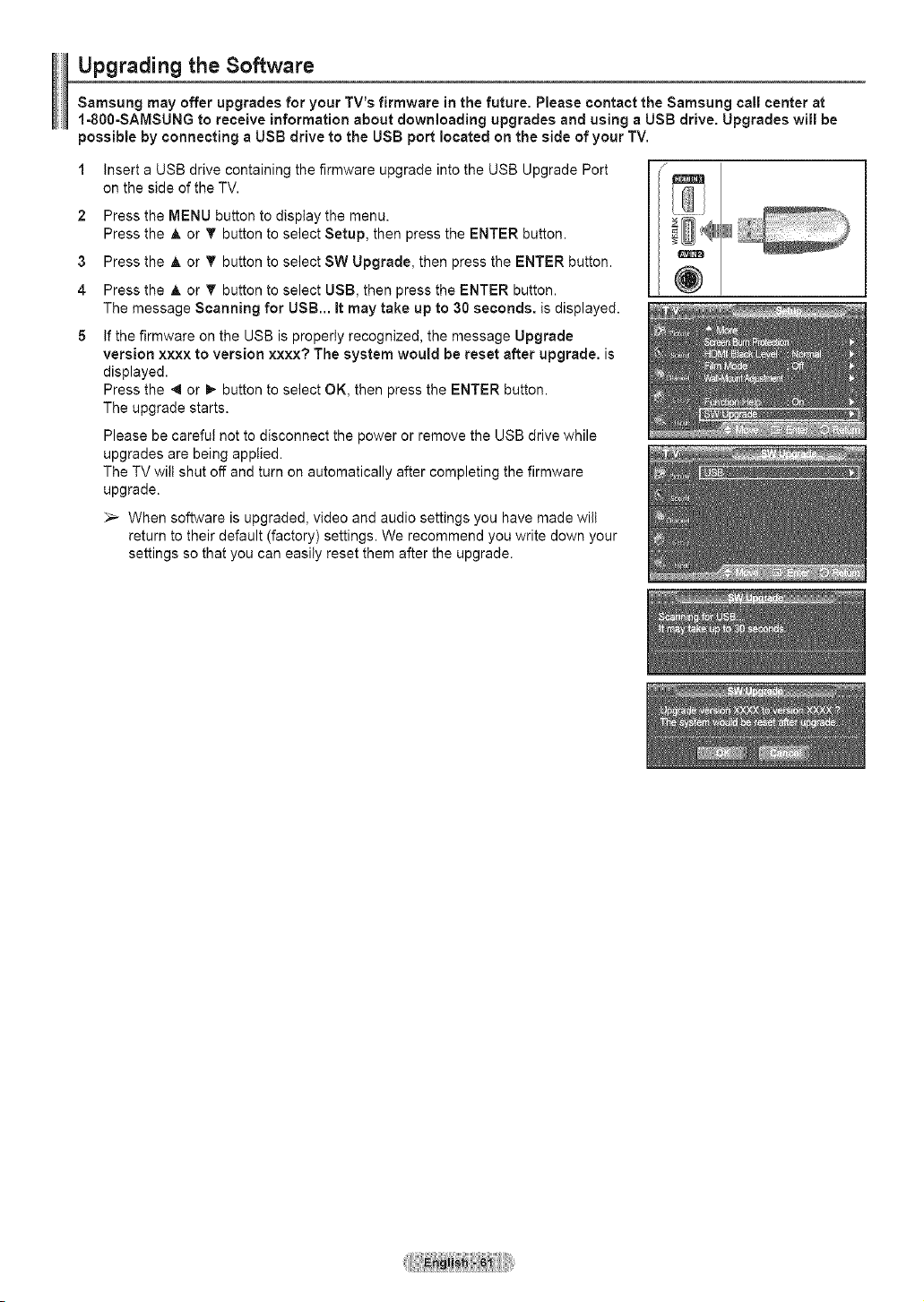
Upgrading the Software
Samsung may offer upgrades for your TV's firmware in the future. Please contact the Samsung call center at
1-800-SAMSUNG to receive information about downloading upgrades and using a USB drive. Upgrades will be
possible by connecting a USB drive to the USB port located on the side of your TV.
1
2
3
4
5
Insert a USB drive containing the firmware upgrade into the USB Upgrade Port
on the side of the TV.
Press the MENU button to display the menu.
Press the A or T button to select Setup, then press the ENTER button.
Press the A or T button to select SW Upgrade, then press the ENTER button.
Press the ,& or V' button to select USB, then press the ENTER button.
The message Scanning for USB... It may take up to 30 seconds, is displayed.
If the firmware on the USB is properly recognized, the message Upgrade
version xxxx to version xxxx? The system would be reset after upgrade, is
displayed.
Press the ,9 or _,- button to select OK, then press the ENTER button.
The upgrade starts.
Please be carefut not to disconnect the power or remove the USB drive while
upgrades are being appiied.
The TV wilt shut off and turn on automatically after completing the firmware
upgrade.
_,_ When software is upgraded, video and audio settings you have made will
return to their default (factory) settings. We recommend you write down your
settings so that you can easily reset them after the upgrade.
@
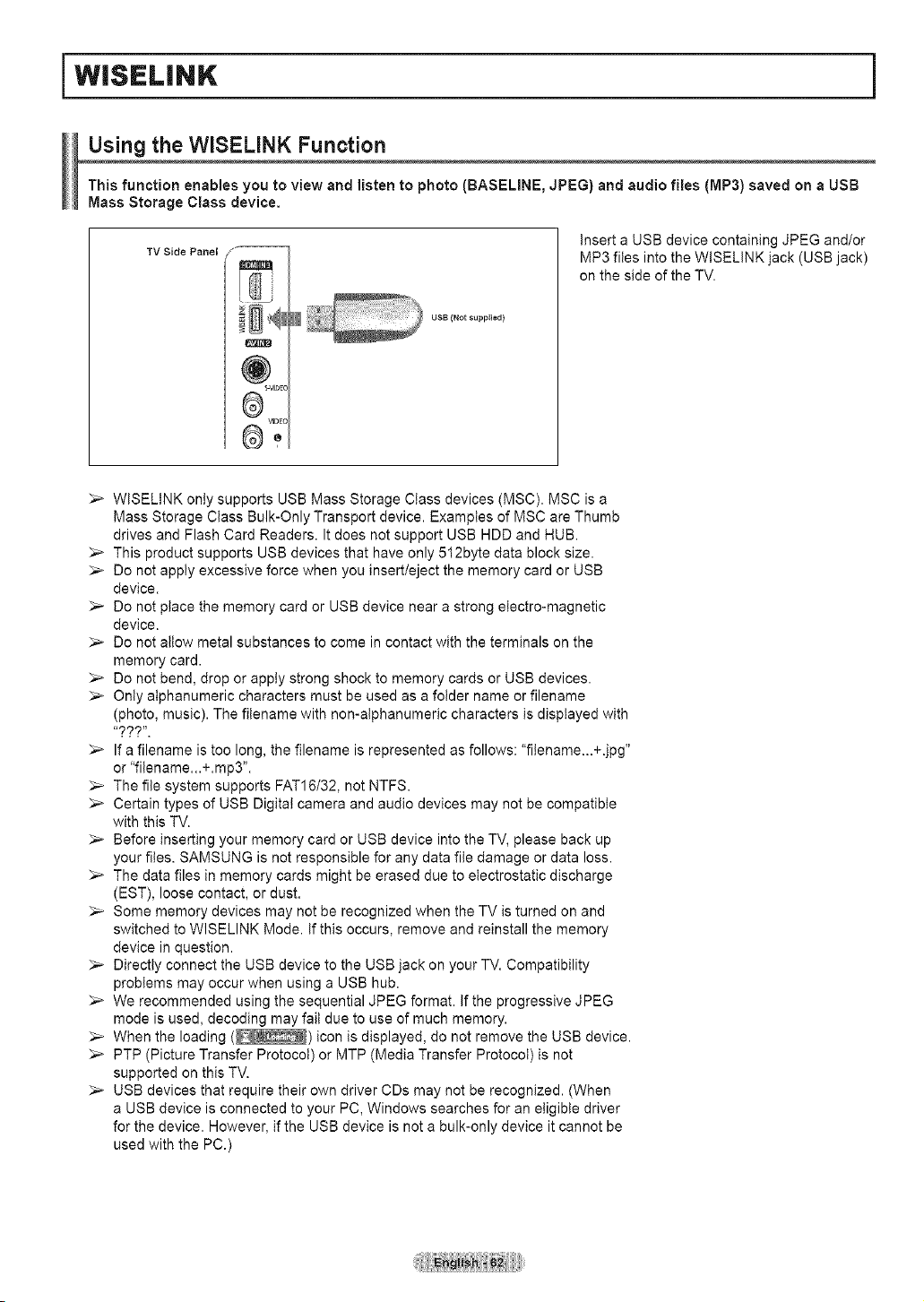
i WiSELiNK
Using the WiSELiNK Function
This function enables you to view and listen to photo (BASELINE, JPEG) and audio flies (MP3) saved on a USB
Mass Storage Class device.
TV Side Panel
insert a USB device containing JPEG and/or
MP3 files into the WISELINK jack (USB jack)
on the side of the TV.
USB (Not supplied)
@
S-VIDe(
®
WDE_
_,_ WISELINK only supports USB Mass Storage Class devices (MSC). MSC is a
Mass Storage Class Bulk-Only Transport device. Examples of MSC are Thumb
drives and Flash Card Readers. It does not support USB HDD and HUB.
_,_ This product supports USB devices that have only 512byte data block size.
_-- Do not apply excessive force when you insert/eject the memory card or USB
device.
_,_ Do not place the memory card or USB device near a strong electro-magnetic
device.
_,_ Do not allow metal substances to come in contact with the terminals on the
memory card.
_-- Do not bend, drop or apply strong shock to memory cards or USB devices.
_,_ Only alphanumeric characters must be used as a folder name or filename
(photo, music). The fitename with non-alphanumeric characters is displayed with
,???,,.
_,_ If a filename is too long, the filename is represented as follows: "filename...+.jpg"
or "filename...+.mp3".
_,_ The file system supports FAT16/32, not NTFS.
_,_ Certain types of USB Digitat camera and audio devices may not be compatible
with this TV.
_,_ Before inserting your memory card or USB device into the TV, please back up
your files. SAMSUNG is not responsible for any data file damage or data loss.
_-- The data files in memory cards might be erased due to electrostatic discharge
(EST), loose contact, or dust.
_-- Some memory devices may not be recognized when the TV is turned on and
switched to WISELINK Mode. If this occurs, remove and reinstall the memory
device in question.
_-- Directly connect the USB device to the USB jack on your TV. Compatibility
problems may occur when using a USB hub.
_,_ We recommended using the sequential JPEG format. If the progressive JPEG
mode is used, decoding may fail due to use of much memory.
_,_ When the loading ( ) icon is displayed, do not remove the USB device.
_,_ PTP (Picture Transfer Protocol) or MTP (Media Transfer Protocol) is not
supported on this TV.
_,_ USB devices that require their own driver CDs may not be recognized. (When
a USB device is connected to your PC, Windows searches for an eligible driver
for the device. However, if the USB device is not a bulk-only device it cannot be
used with the PC.)
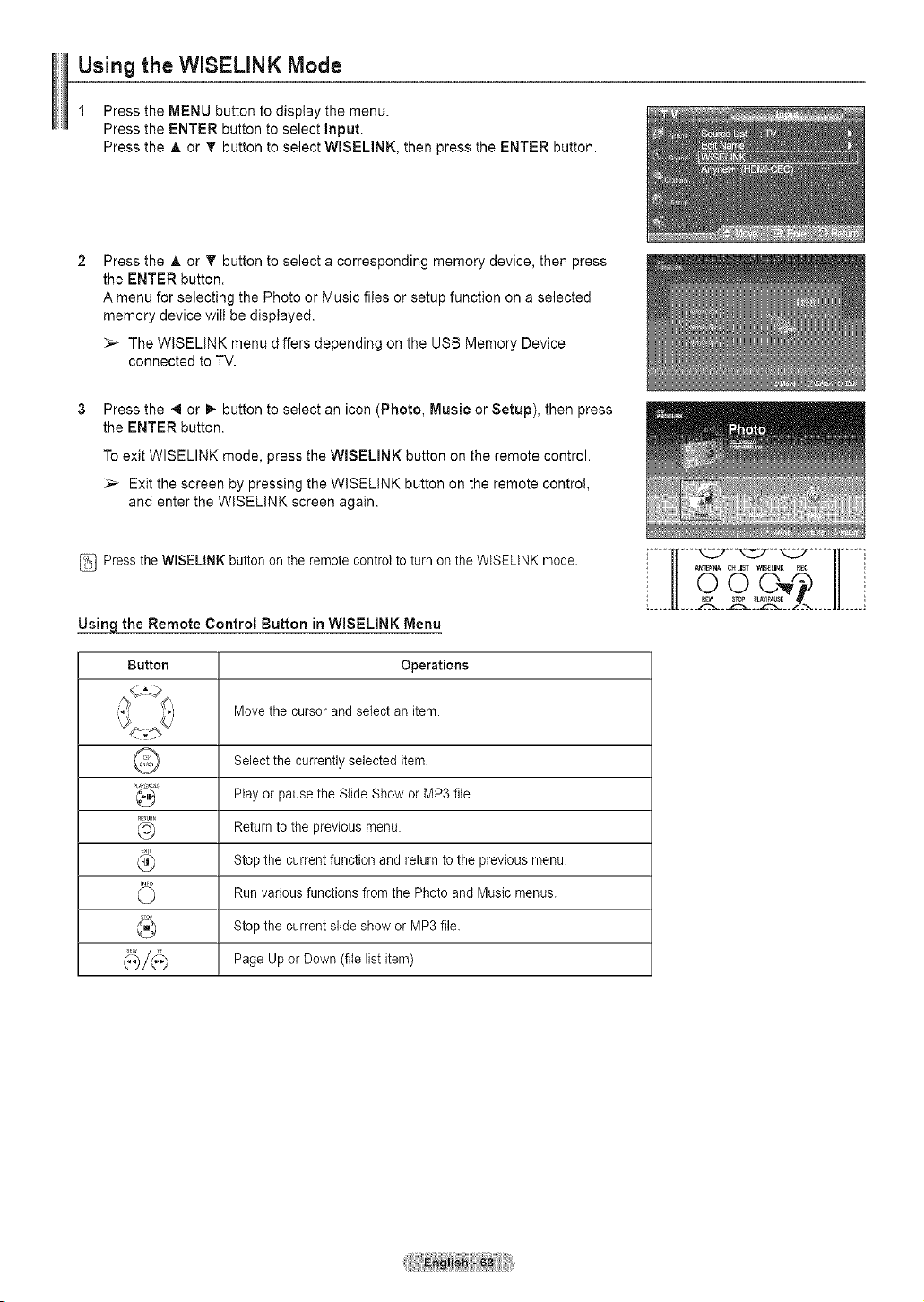
Using the WISELINK Mode
1 Press the MENU button to display the menu.
Press the ENTER button to select input.
Press the A or T button to select WISELINK, then press the ENTER button.
Press the A or T button to select a corresponding memory device, then press
the ENTER button.
A menu for selecting the Photo or Music files or setup function on a selected
memory device wilt be displayed.
The WISELINK menu differs depending on the USB Memory Device
connected to TV.
Press the 4 or _ button to select an icon (Photo, Music or Setup), then press
the ENTER button.
To exit WlSELINK mode, press the WISELINK button on the remote control.
Exit the screen by pressing the WISELINK button on the remote control,
and enter the WISELINK screen again.
Press the WISELINK button on the remote control to turn on the WISELINK mode.
_the Remote Control Button in WISELINK Menu
Button Operations
Move the cursor and select an item.
Select the currently selected item.
Play or pause the Slide Show or MP3 file.
RETURN
,_ Return to the previous menu.
Stop the current function and return to the previous menu.
Run various functions from the Photo and Music menus.
Stop the current slide show or MP3 file.
Page Up or Down (file list item)
i
i l[°°: tlJi
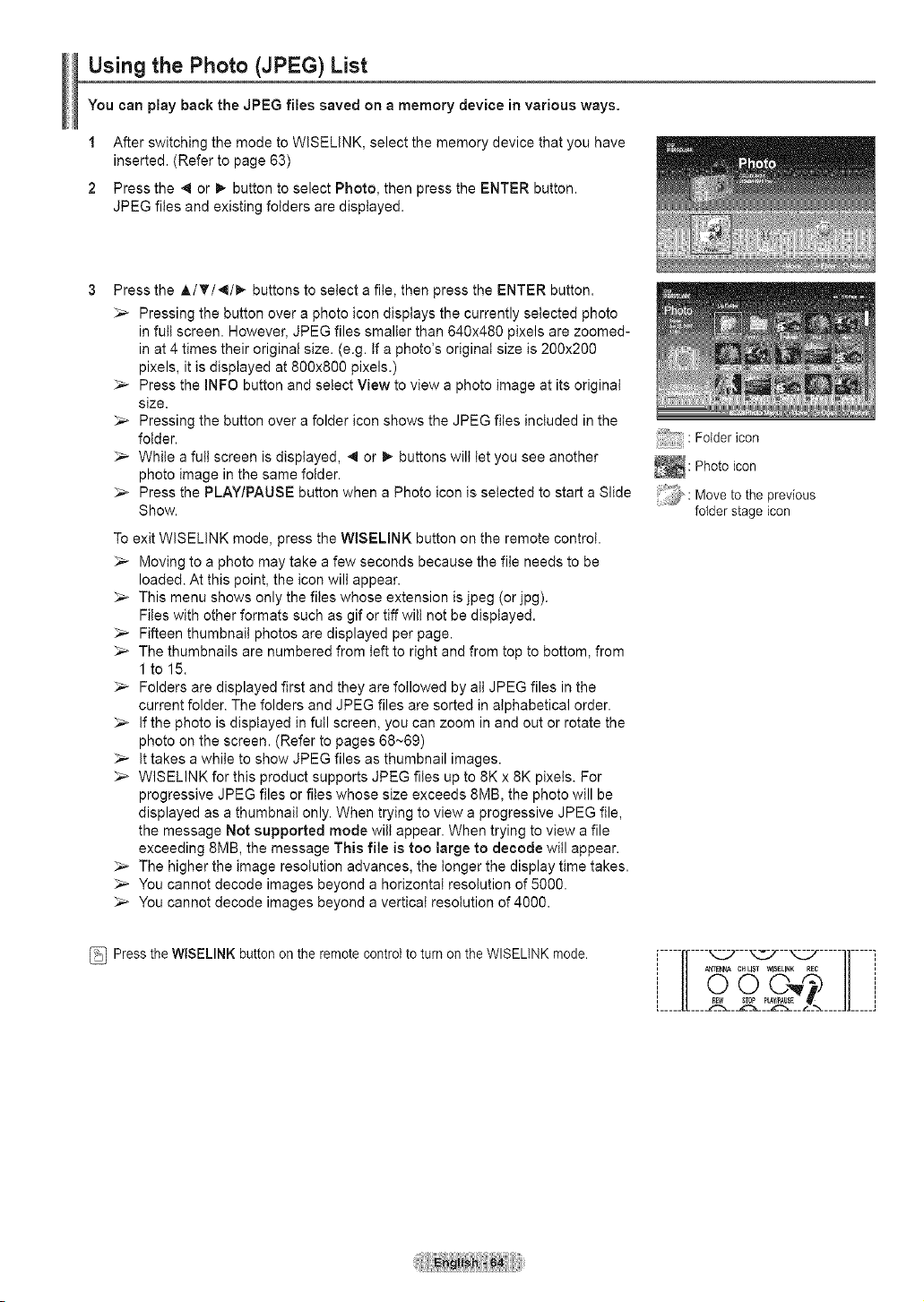
Using the Photo (JPEG) List
You can play back the JPEG flies saved on a memory device in various ways.
1 After switching the mode to WISELINK, select the memory device that you have
inserted. (Refer to page 63)
2 Press the ,,1 or I_ button to select Photo, then press the ENTER button.
JPEG files and existing folders are displayed.
Press the A/T/4/I_ buttons to select a file, then press the ENTER button.
:,_ Pressing the button over a photo icon displays the currently selected photo
in full screen. However, JPEG files smaller than 640x480 pixels are zoomed-
in at 4 times their original size. (e.g. If a photo's original size is 200x200
pixels, it is displayed at 800x800 pixels.)
_-- Press the INFO button and select View to view a photo image at its original
size.
_-- Pressing the button over a folder icon shows the JPEG files included in the
folder.
:,_ While a full screen is displayed, 4 or I_ buttons will let you see another
photo image in the same folder.
:,_ Press the PLAY/PAUSE button when a Photo icon is selected to start a Slide
Show.
To exit WISELINK mode, press the WBELINK button on the remote control.
_-- Moving to a photo may take a few seconds because the file needs to be
loaded. At this point, the icon will appear.
_-- This menu shows only the files whose extension is jpeg (or jpg).
Files with other formats such as gif or tiff will not be displayed.
:,_ Fifteen thumbnail photos are displayed per page.
_-- The thumbnails are numbered from left to right and from top to bottom, from
1 to15.
:,_ Folders are displayed first and they are followed by all JPEG files in the
current folder. The folders and JPEG files are sorted in alphabetical order.
:,_ If the photo is displayed in full screen, you can zoom in and out or rotate the
photo on the screen. (Refer to pages 68~69)
_-- It takes a while to show JPEG files as thumbnail images.
:,_ WISELINK for this product supports JPEG files up to 8K x 8K pixels. For
progressive JPEG files or files whose size exceeds 8MB, the photo will be
displayed as a thumbnail only. When trying to view a progressive JPEG file,
the message Not supported mode wilt appear. When trying to view a file
exceeding 8MB, the message This file is too large to decode will appear.
:,_ The higher the image resolution advances, the longer the display time takes.
You cannot decode images beyond a horizontal resolution of 5000.
_-- You cannot decode images beyond a vertical resolution of 4000.
Press the WISELINK button on the remote control to turn on the WISELINK mode.
Folder icon
_: Photo icon
_,.
. Move to the previous
folder stage icon
,-----,,----..---..--__-----,,-----,
I II A_3FNNA CHLIST WlSELINK REC l| I
L 11......
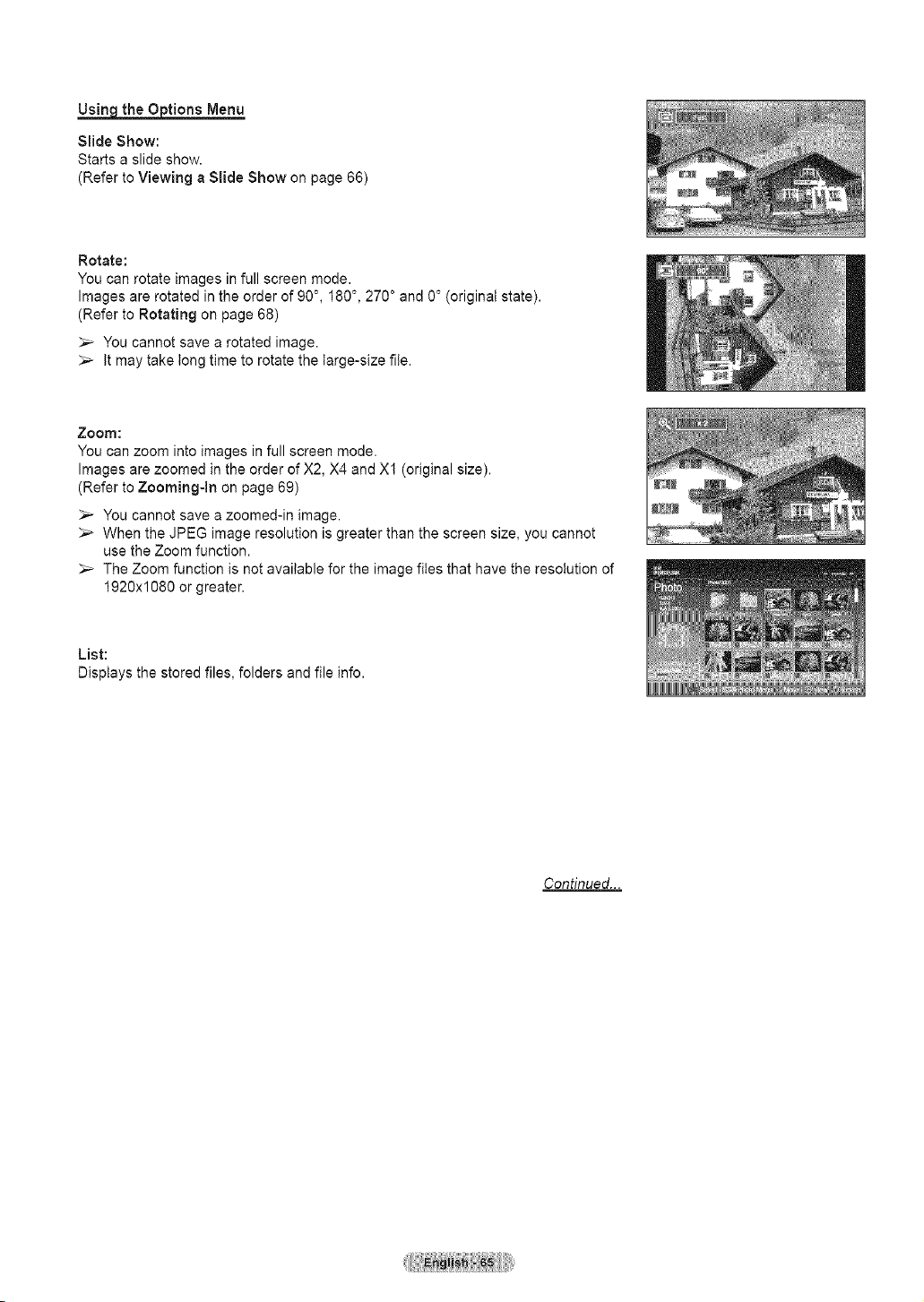
Usin theO tions Menu
Slide Show:
Starts a slide show.
(Refer to Viewing a Slide Show on page 66)
Rotate:
You can rotate images in full screen mode.
Images are rotated in the order of 90 °, 180 °, 270 ° and 0 ° (original state).
(Refer to Rotating on page 68)
_-- You cannot save a rotated image.
It may take tong time to rotate the large-size file.
Zoom:
You can zoom into images in full screen mode.
Images are zoomed in the order of X2, X4 and Xl (original size).
(Refer to Zooming-In on page 69)
_-- You cannot save a zoomed-in image.
When the JPEG image resolution is greater than the screen size, you cannot
use the Zoom function.
The Zoom function is not available for the image files that have the resolution of
1920x1080 or greater.
List:
Displays the stored files, folders and file info.
Continued...
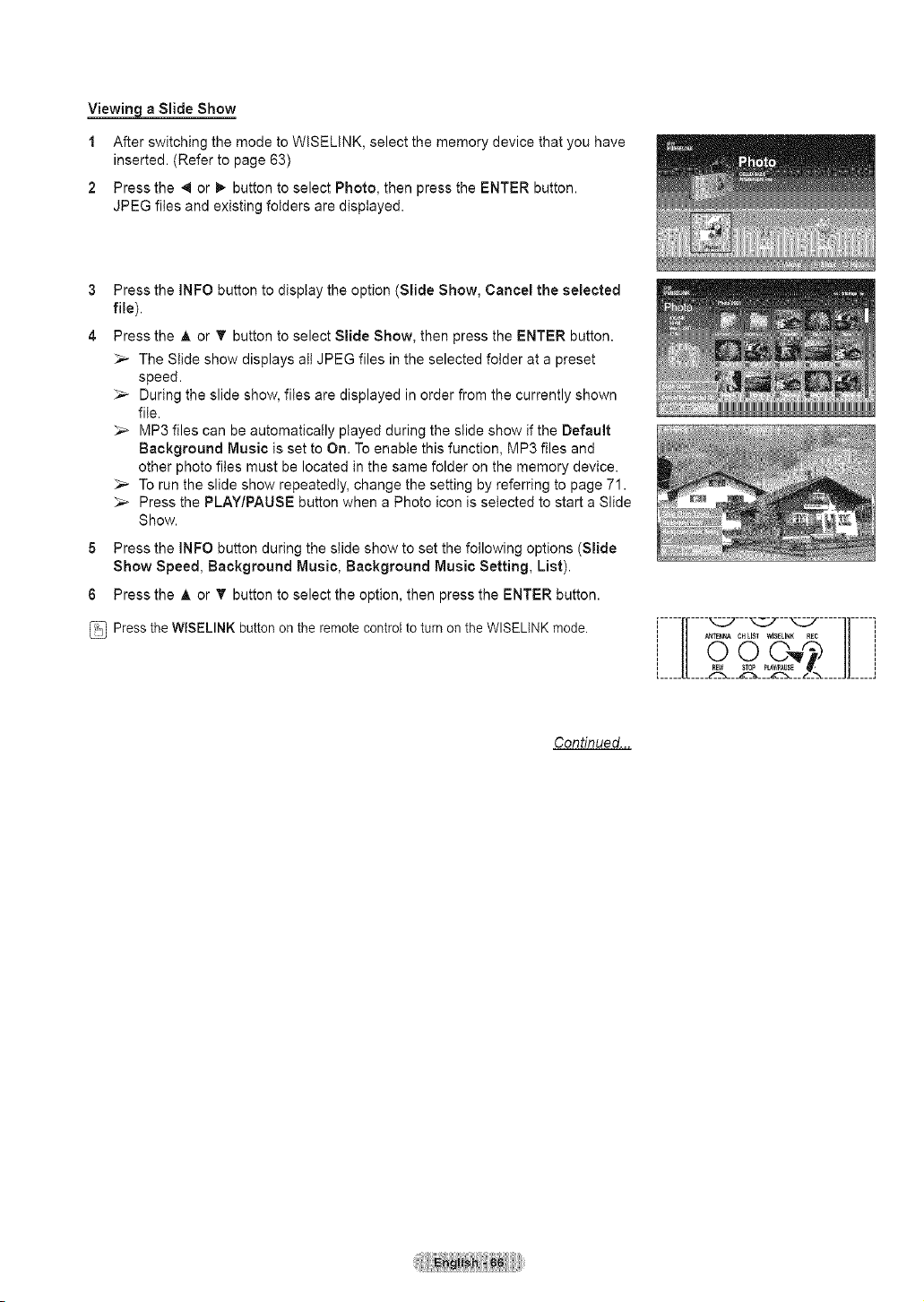
_a Slide Show
1 After switching the mode to WISEUNK, select the memory device that you have
inserted. (Refer to page 63)
2 Press the 4 or _- button to select Photo, then press the ENTER button.
JPEG files and existing folders are displayed.
3
4
Press the INFO button to display the option (Slide Show, Cancel the selected
file).
Press the A or T button to select Slide Show, then press the ENTER button.
_-- The Slide show displays all JPEG files in the selected folder at a preset
speed.
_,_ During the slide show, files are displayed in order from the currently shown
file.
_,_ MP3 files can be automatically played during the slide show if the Default
Background Music is set to On. To enable this function, MP3 files and
other photo files must be located in the same folder on the memory device.
_,_ To run the slide show repeatedly, change the setting by referring to page 71.
_-- Press the PLAY/PAUSE button when a Photo icon is selected to start a Slide
Show.
5 Press the INFO button during the slide show to set the following options (Slide
Show Speed, Background Music, Background Music Setting, List).
6 Press the A or _' button to select the option, then press the ENTER button.
Press the WISELINK button on the remote control to turn on the WISELINK mode.
,-----,----__---__--__-----,,-----,
i- cHL' ' '' i
i U22, Z JlJ
Continued...
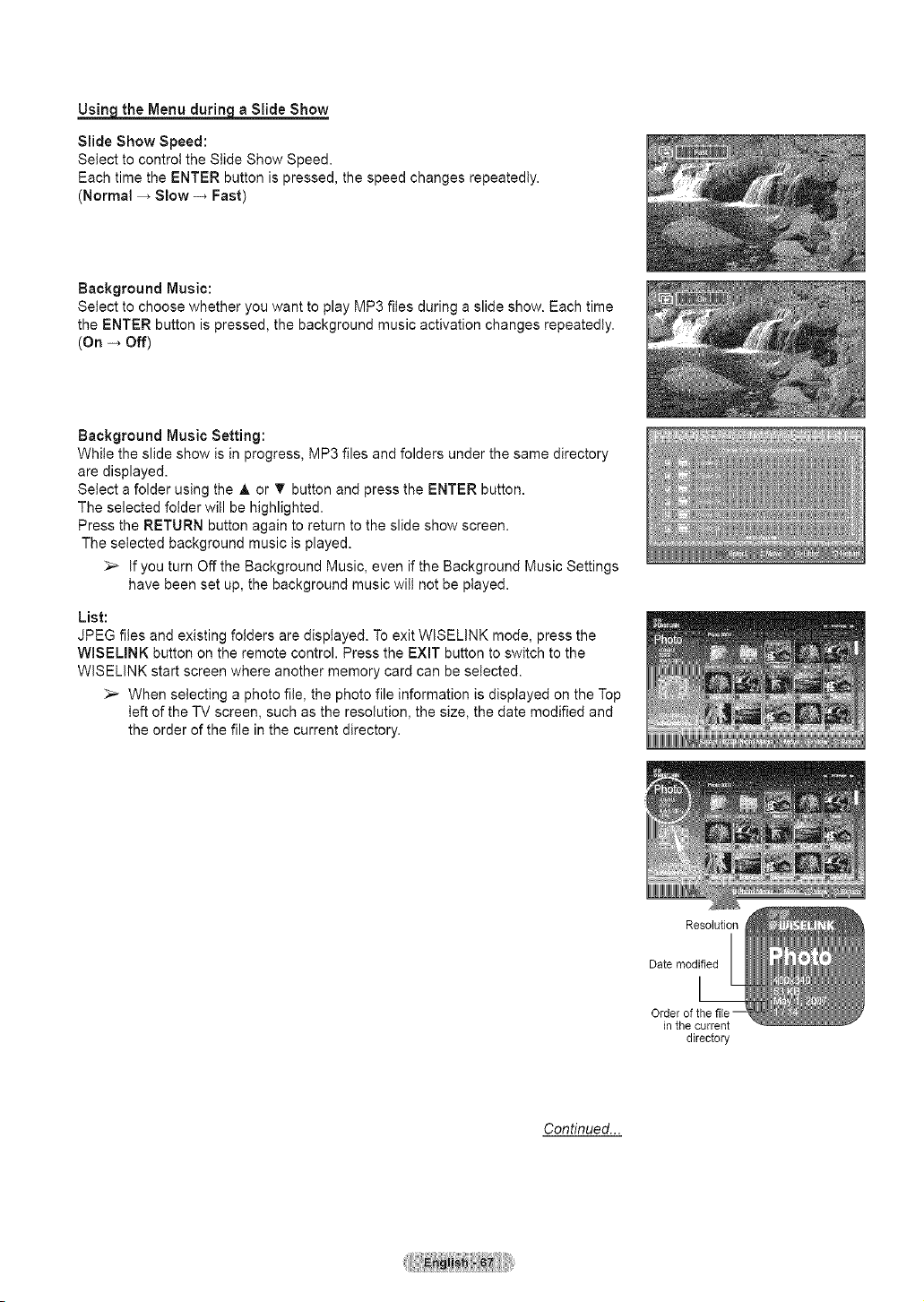
Usin the Menu durin a Slide Show
Slide Show Speed:
Setect to control the Slide Show Speed.
Each time the ENTER button is pressed, the speed changes repeatedly.
(Normal _ Slow -_ Fast)
Background Music:
Select to choose whether you want to play MP3 files during a slide show. Each time
the ENTER button is pressed, the background music activation changes repeatedly.
(On _ Off)
Background Music Setting:
While the slide show is in progress, MP3 files and folders under the same directory
are displayed.
Setect a folder using the A or T button and press the ENTER button.
The selected folder will be highlighted.
Press the RETURN button again to return to the slide show screen.
The selected background music is played.
_,_ if you turn Off the Background Music, even if the Background Music Settings
have been set up, the background music wilt not be ptayed.
List:
JPEG flies and existing folders are displayed. To exit WISELINK mode, press the
WISELINK button on the remote control. Press the EXiT button to switch to the
WISELINK start screen where another memory card can be selected.
_,_ When selecting a photo file, the photo file information is displayed on the Top
left of the TV screen, such as the resolution, the size, the date modified and
the order of the file in the current directory.
Resolution
Date modified
inthe current
directory
Condnued...
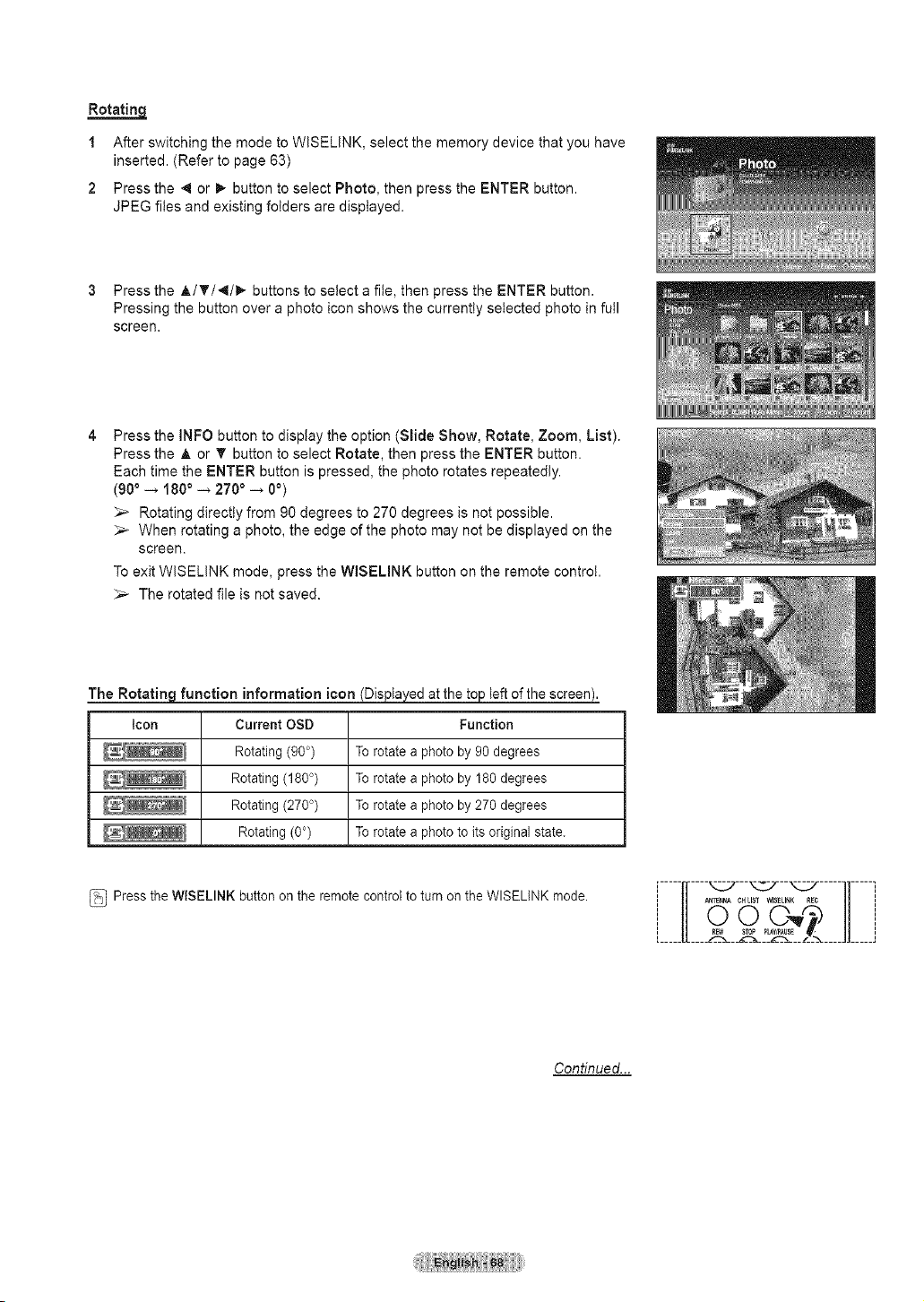
Rotatin=q,
1 After switching the mode to WISELINK, select the memory device that you have
inserted. (Refer to page 63)
2 Press the ,,1 or !1_button to select Photo, then press the ENTER button.
JPEG files and existing folders are displayed.
3 Press the A/T/,_/I_ buttons to select a file, then press the ENTER button.
Pressing the button over a photo icon shows the currently selected photo in full
screen.
Press the INFO button to display the option (Slide Show, Rotate, Zoom, List).
Press the A or T button to select Rotate, then press the ENTER button.
Each time the ENTER button is pressed, the photo rotates repeatedly.
(900 -_ 1800 -_ 2700 -_ Oo)
Rotating directly from 90 degrees to 270 degrees is not possible.
_-- When rotating a photo, the edge of the photo may not be displayed on the
screen.
To exit WISELINK mode, press the WlSELINK button on the remote control.
_-- The rotated file is not saved.
function information icon _ed at the to_oleft of the screen_.
Icon Current OSD Function
Rotating (90°) To rotate a photo by 90 degrees
Rotating (180°) To rotate a photo by 180 degrees
Rotating (270°) To rotate a photo by 270 degrees
Rotating (0°) To rotate a photo to its original state.
Press the WISELINK button on the remote control to turn on the WISELINK mode.
,-----,,----..---__--__-----,,-----,
j n _..A CHUSTw_s_u_K_c a j
k II* ......
Continued...
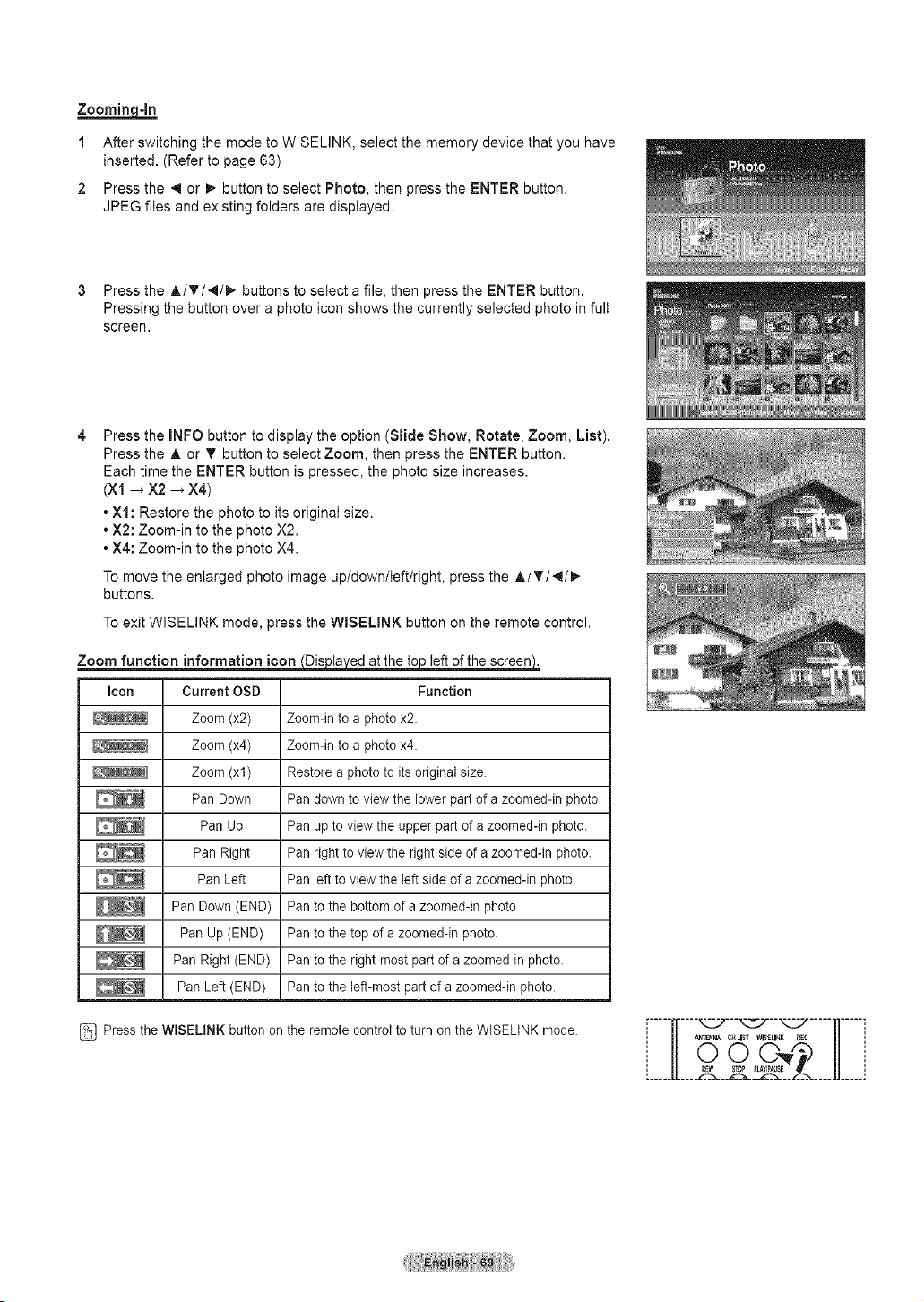
1 After switching the mode to WISELINK, select the memory device that you have
inserted. (Refer to page 63)
2 Press the _1 or m,-button to select Photo, then press the ENTER button.
JPEG files and existing folders are displayed.
3 Press the A/T/4/I_ buttons to select a file, then press the ENTER button.
Pressing the button over a photo icon shows the currently selected photo in full
screen.
Press the INFO button to display the option (Slide Show, Rotate, Zoom, List).
Press the _, or T button to select Zoom, then press the ENTER button.
Each time the ENTER button is pressed, the photo size increases.
(Xl _ X2 _ X4)
, Xl: Restore the photo to its original size.
, X2: Zoom-in to the photo X2.
, X4: Zoom-in to the photo X4.
To move the enlarged photo image up/down/left/right, press the A/T/4/I_-
buttons.
To exit WISELINK mode, press the WISEUNK button on the remote control.
Zoom function information icon _ed at the toj_ left of the screen).
Icon Current OSD Function
Zoom (x2) Zoom-in to a photo x2.
Zoom (x4) Zoom-in to a photo x4.
Zoom (xl) Restore a photo to its original size.
Pan Down Pan down to view the lower part of a zoomed-in photo.
Pan Up Pan up to view the upper part of a zoomed-in photo.
Pan Right Pan right to view the right side of a zoomed-in photo.
Pan Left Pan left to view the left side of a zoomed-in photo.
Pan Down (END) Pan to the bottom of a zoomed-in photo
Pan Up (END) Pan to the top of a zoomed-in photo.
Pan Right (END) Pan to the right-most part of a zoomed-in photo.
Pan Left (END) Pan to the left-most part of a zoomed-in photo.
Press the WISELINK button on the remote control to turn on the WISELINK mode.
r----[r----_:zz--,,_y--._cT---ll-----i
" H _ C}{LIST_SE _K REC || ',
i II 000 ,@ // i
I REW STOP _L_YIP_gSE_ I
L ___[L____,'::'____r___L: ..... _',_____JJ_____:
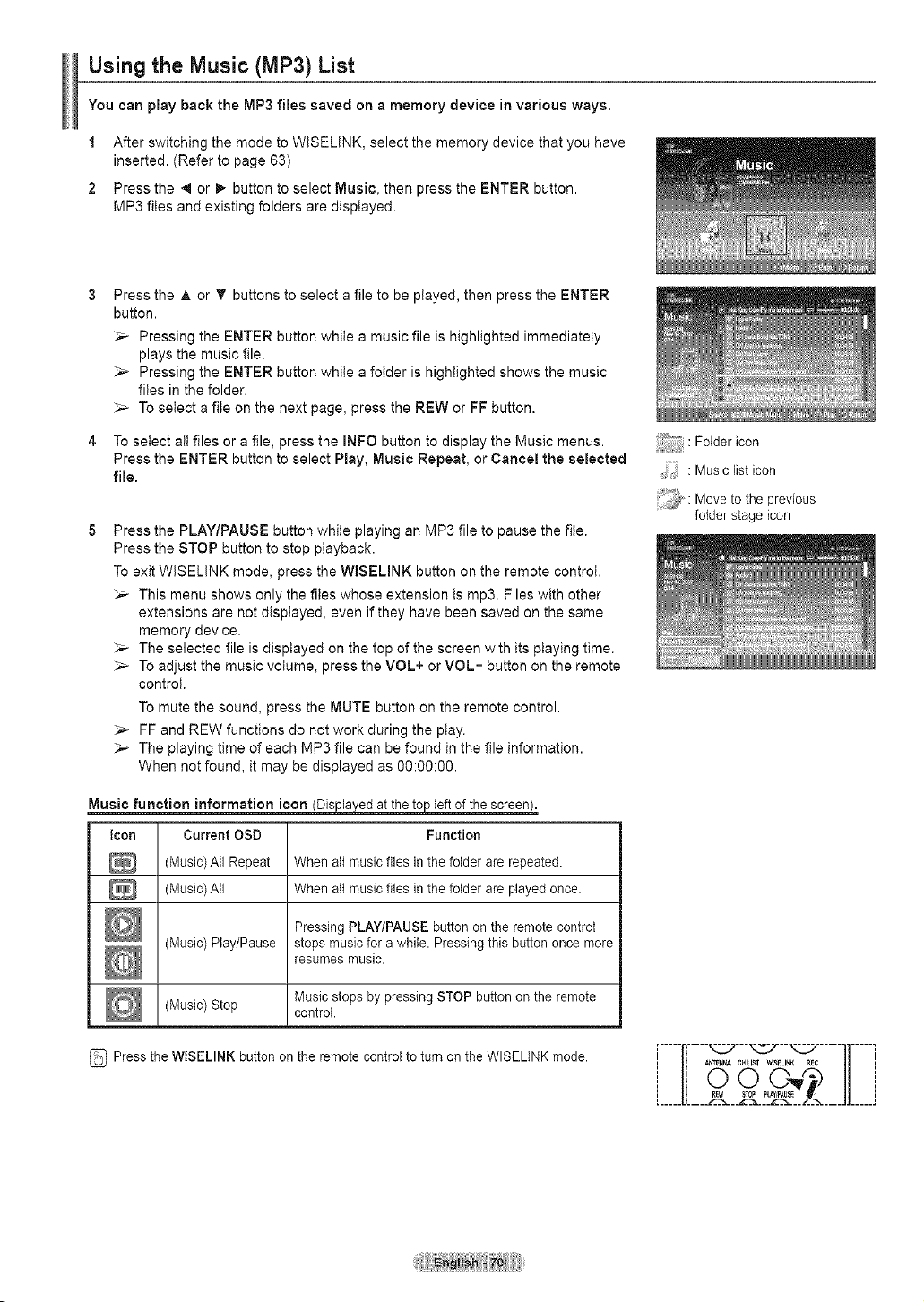
Using the Music (MP3) List
You can play back the MP3 flies saved on a memory device in various ways.
1 After switching the mode to WISEUNK, select the memory device that you have
inserted. (Refer to page 63)
2 Press the 4 or I_ button to select Music, then press the ENTER button.
MP3 files and existing folders are displayed.
Press the A or T buttons to select a file to be played, then press the ENTER
button.
_-- Pressing the ENTER button while a music file is highlighted immediately
plays the music file.
:,_ Pressing the ENTER button while a folder is highlighted shows the music
files in the folder.
:,_ To select a file on the next page, press the REW or FF button.
To select all files or a file, press the INFO button to display the Music menus.
Press the ENTER button to select Play, Music Repeat, or Cancel the selected
file,
Press the PLAY/PAUSE button while playing an MP3 file to pause the file.
Press the STOP button to stop playback.
To exit WISELINK mode, press the WBELINK button on the remote control.
_-- This menu shows only the files whose extension is mp3. Files with other
extensions are not displayed, even if they have been saved on the same
memory device.
_-- The selected file is displayed on the top of the screen with its playing time.
:,_ To adjust the music volume, press the VOL+ or VOL= button on the remote
control.
To mute the sound, press the MUTE button on the remote control.
:,_ FF and REW functions do not work during the play.
_-- The playing time of each MP3 file can be found in the file information.
When not found, it may be displayed as 00:00:00.
Music function information icon Dis la ed at the to left of the screen.
Icon Current OSD Function
(Music) All Repeat When all music files in the folder are repeated.
(Music) All When all music files in the folder are played once.
Pressing PLAY/PAUSE button on the remote control
(Music) Play/Pause stops music for a while. Pressing this button once more
resumes music.
(Music) Stop Music stops by pressing STOP button on the remote
control.
Press the WISELINK button on the remote control to turn on the WISELINK mode.
Folder icon
:Musiclisticon
Move to the previous
folder stage icon
,-----,,----__---__--__-----,,-----,
000
, , . .,,., ,, ,, ,,.,
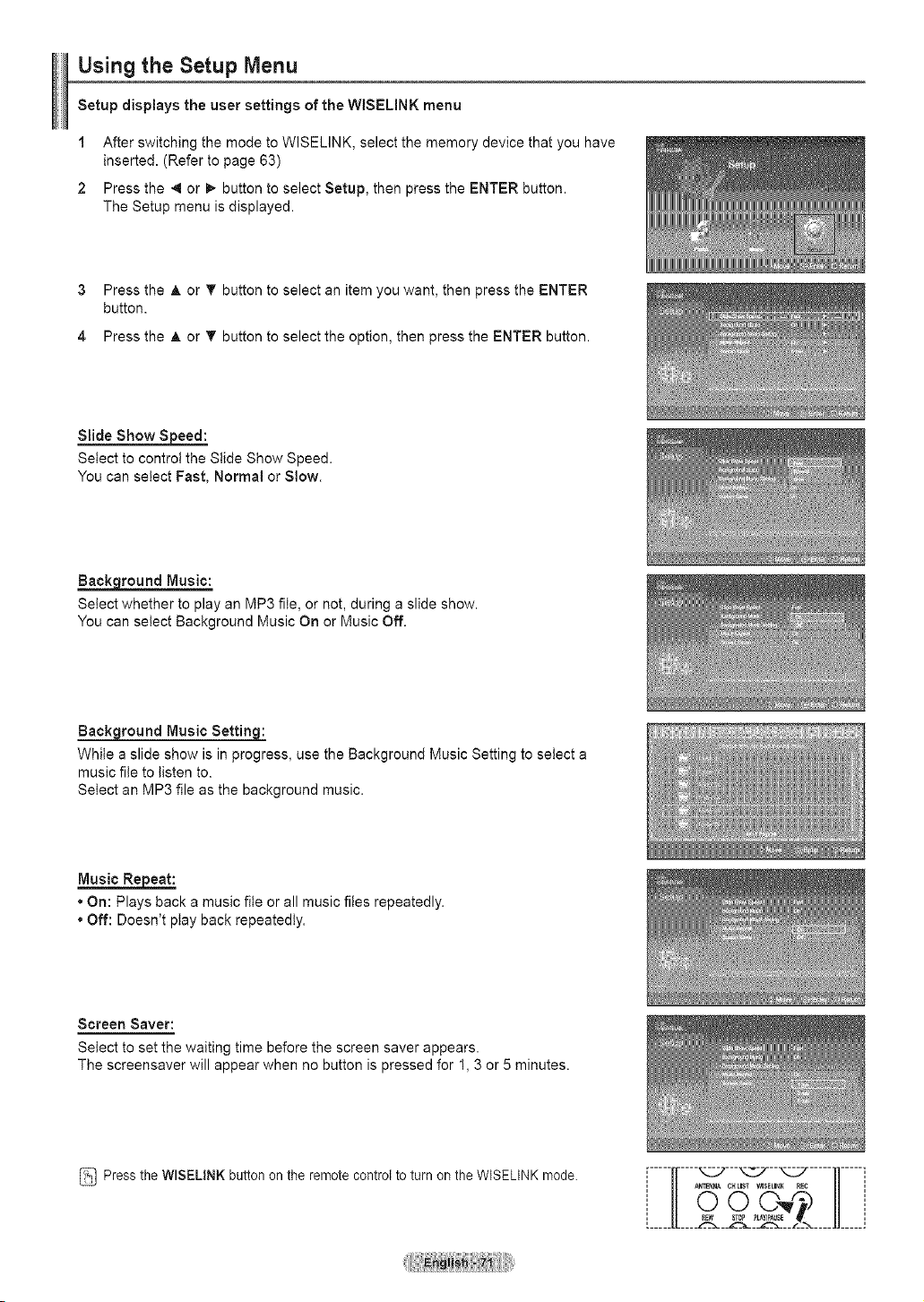
Using the Setup Menu
Setup displays the user settings of the WISELINK menu
1 After switching the mode to WISELINK, select the memory device that you have
inserted. (Refer to page 63)
2 Press the 4 or _,- button to select Setup, then press the ENTER button.
The Setup menu is displayed.
3 Press the ,_ or T button to select an item you want, then press the ENTER
button.
4 Press the ,_ or T button to select the option, then press the ENTER button.
Slide Show Speed:
Select to control the Slide Show Speed.
You can select Fast, Normal or Slow,
_round Music:
Select whether to play an MP3 file, or not, during a slide show.
You can select Background Music On or Music Off.
Sack round Music Settin :
While a slide show is in progress, use the Background Music Setting to select a
music file to listen to.
Select an MP3 file as the background music.
Music Repeat:
• On: Plays back a music file or all music files repeatedly.
• Off: Doesn't play back repeatedly.
Screen Saver:
Select to set the waiting time before the screen saver appears.
The screensaver will appear when no button is pressed for 1, 3 or 5 minutes.
Press the WISELINK button on the remote control to turn on the WISELINK mode.
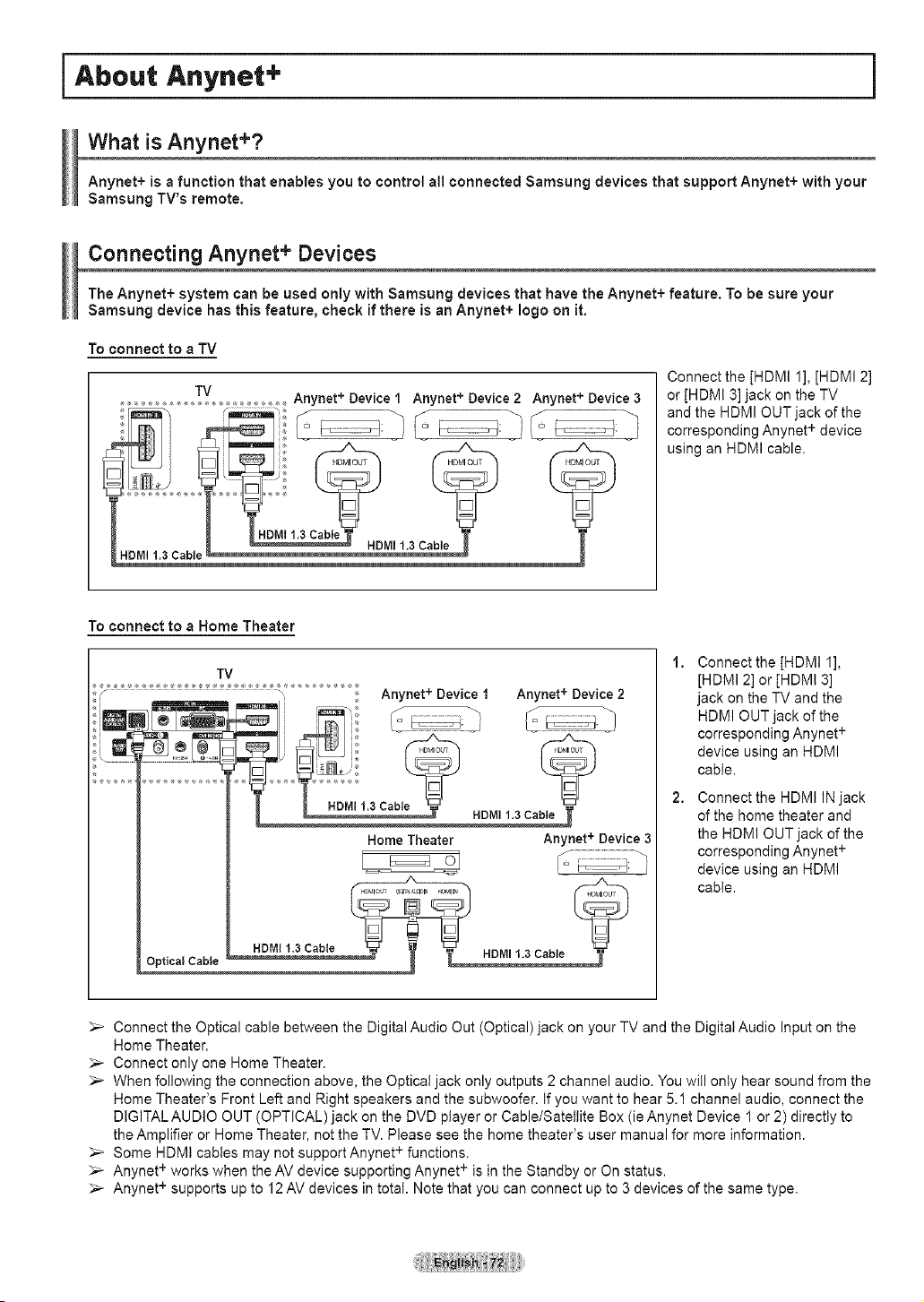
i About Anynet+
What is Anynet+?
Anynet+ is a function that enables you to control all connected Samsung devices that support Anynet+ with your
Samsung TV's remote.
Connecting Anynet + Devices
The Anynet+ system can be used only with Samsung devices that have the Anynet+ feature. To be sure your
Samsung device has this feature, check if there is an Anynet+ logo on it.
To connect to a TV
TV Anynet + Device 1 Anynet + Device 2 Anynet + Device 3
Connect the [HDMI 1], [HDMI 2]
or [HDMI 3] jack on the TV
and the HDMI OUT jack of the
corresponding Anynet + device
using an HDMI cable.
To connect to a Home Theater
TV
Optical Cable
Home Theater Anynet + Device
2,
Connect the [HDMt 1],
[HDMI 2] or [HDMI 3]
jack on the TV and the
HDMI OUT jack of the
corresponding Anynet +
device using an HDMI
cable.
Connect the HDMI IN jack
of the home theater and
the HDMI OUT jack of the
corresponding Anynet +
device using an HDMI
cable.
_-- Connect the Optical cable between the Digital Audio Out (Optical) jack on your TV and the Digital Audio Input on the
Home Theater.
Connect only one Home Theater.
_-- When following the connection above, the Opticat jack only outputs 2 channel audio. You will only hear sound from the
Home Theater's Front Left and Right speakers and the subwoofer. If you want to hear 5.1 channel audio, connect the
DIGITAL AUDIO OUT (OPTICAL) jack on the DVD player or Cable/Satellite Box (ie Anynet Device 1 or 2) directly to
the Amplifier or Home Theater, not the TV. Please see the home theater's user manual for more information.
Some HDMt cables may not support Anynet + functions.
_-- Anynet + works when the AV device supporting Anynet + is in the Standby or On status.
_,_ Anynet + supports up to 12 AV devices in total. Note that you can connect up to 3 devices of the same type.
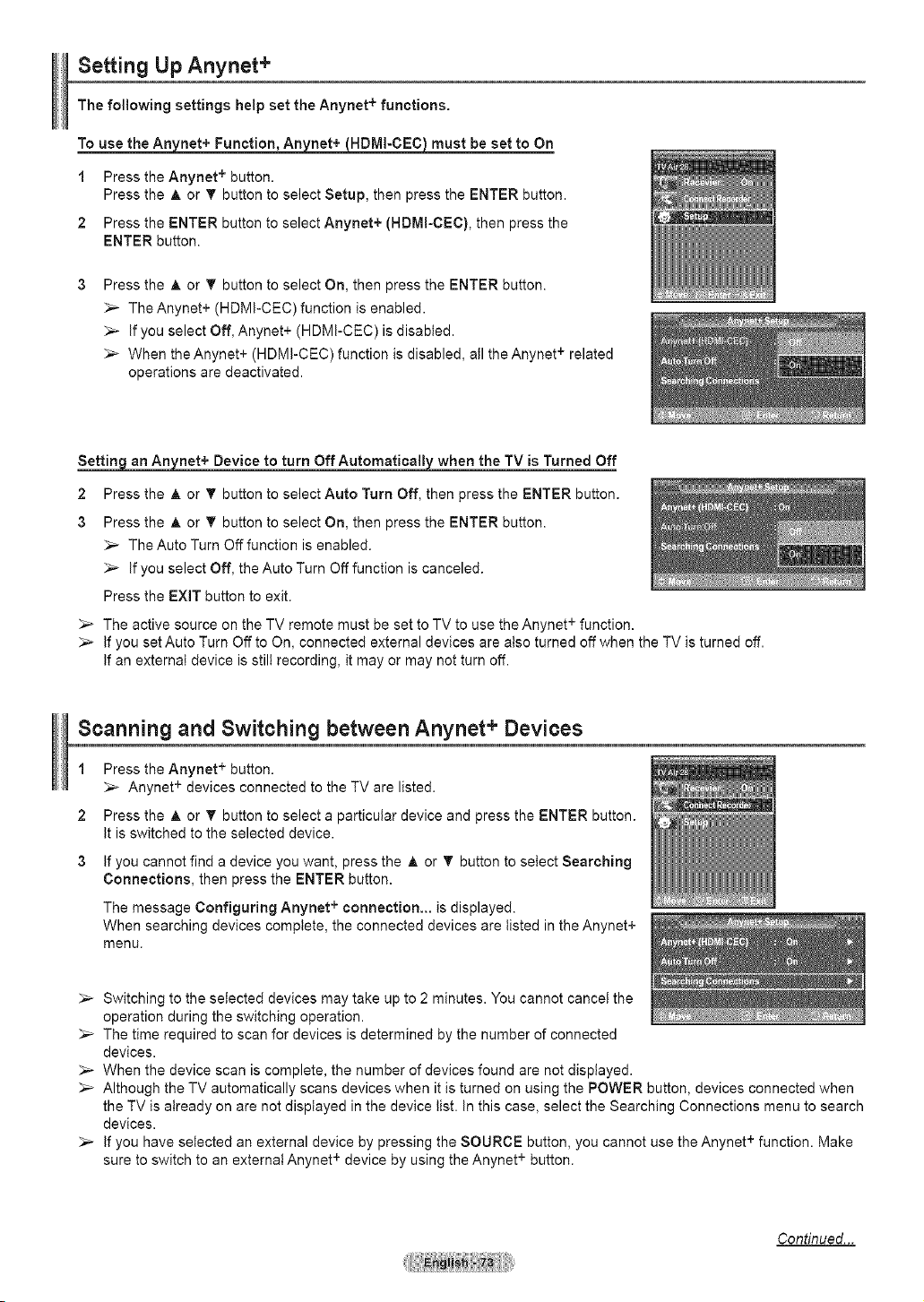
Setting Up Anynet +
The following settings help set the Anynet + functions.
To use the Anynet+ Function, AnjLEet+_HDMI-CEC) must be set to On
1 Press the Anynet + button.
Press the A or T button to select Setup, then press the ENTER button.
2 Press the ENTER button to select Anynet+ (HDMI-CEC), then press the
ENTER button.
Press the A or T button to select On, then press the ENTER button.
_,_ The Anynet+ (HDMI-CEC) function is enabled.
_-- If you select Off, Anynet+ (HDMI-CEC) is disabled.
_-- When the Anynet+ (HDMI-CEC)function is disabled, all the Anynet + related
operations are deactivated.
_net+ Device to turn Off Automatically when the TV is Turned Off
2 Press the A or T button to select Auto Turn Off, then press the ENTER button.
3 Press the & or T button to select On, then press the ENTER button.
_,_ The Auto Turn Off function is enabled.
_,_ If you select Off, the Auto Turn Off function is canceled.
Press the EXIT button to exit.
_-- The active source on the TV remote must be set to TV to use the Anynet + function.
_,_ If you set Auto Turn Off to On, connected external devices are also turned off when the TV is turned off.
If an external device is still recording, it may or may not turn off.
Scanning and Switching between Anynet + Devices
1
2
Press the Anynet + button.
_-- Anynet + devices connected to the TV are listed.
Press the _, or T button to select a particular device and press the ENTER button.
It is switched to the selected device.
If you cannot find a device you want, press the A or _' button to select Searching
Connections, then press the ENTER button.
The message Configuring Anynet + connection.., is displayed.
When searching devices complete, the connected devices are listed in the Anynet+
menu.
_,_ Switching to the selected devices may take up to 2 minutes. You cannot cancel the
operation during the switching operation.
_-- The time required to scan for devices is determined by the number of connected
devices.
_-- When the device scan is complete, the number of devices found are not displayed.
_-- Although the TV automatically scans devices when it is turned on using the POWER button, devices connected when
the TV is already on are not displayed in the device list. In this case, select the Searching Connections menu to search
devices.
_,_ If you have selected an external device by pressing the SOURCE button, you cannot use the Anynet + function. Make
sure to switch to an external Anynet + device by using the Anynet + button.
Continued...
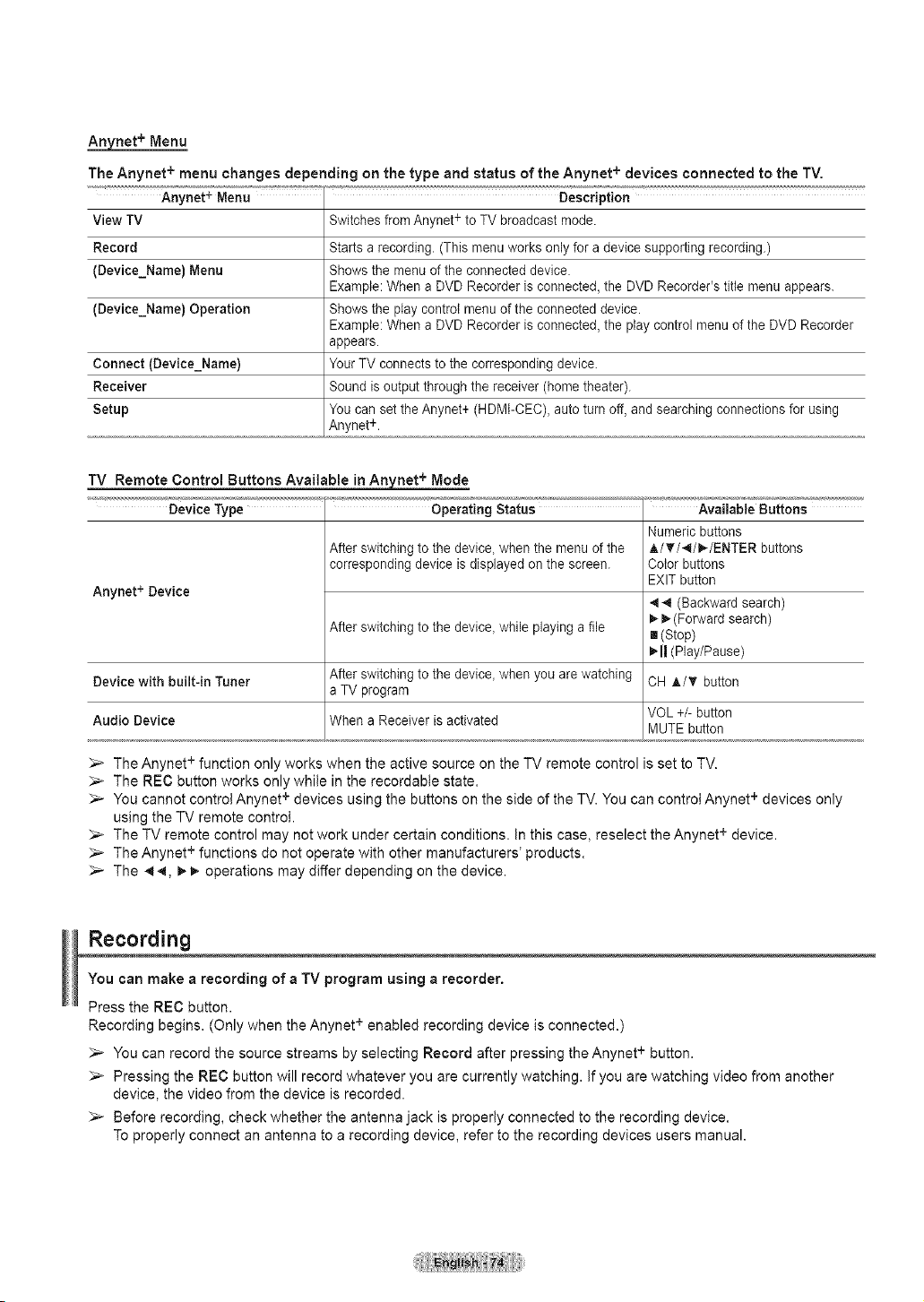
Anynet + Menu
The Anynet + menu changes depending on the type and status of the Anynet + devices connected to the TV.
Anynet + Menu Description
View TV Switches from Anynet + to TV broadcast mode.
Record Starts a recording. (This menu works only for a device supporting recording.)
(Device_Name) Menu Shows the menu of the connected device.
Example: When a DVD Recorder is connected, the DVD Recorder's title menu appears.
(Device_Name) Operation Shows the play control menu of the connected device.
Example: When a DVD Recorder is connected, the play control menu of the DVD Recorder
appears.
Connect (Device_Name) Your TV connects to the corresponding device.
Receiver Sound is output through the receiver (home theater).
Setup You can set the Anynet+ (HDMI-CEC), auto turn off, and searching connections for using
Anynet +.
TV Remote Control Buttons Available in Anynet + Mode
...... Device Type Operating Status ...............Avai"i
Numeric buttons
After switching to the device, when the menu of the A/_r/4/_/ENTER buttons
corresponding device is displayed on the screen. Color buttons
Anynet + Device
After switching to the device, while playing a file
After switching to the device, when you are watching
a TV program
When a Receiver is activated
Device with built-in Tuner
Audio Device
EXIT button
44 (Backward search)
_ (Forward search)
[] (Stop)
_11(Play/Pause)
CH A/_' button
VOL +/- button
MUTE button
The Anynet + function only works when the active source on the TV remote control is set to TV.
_-- The REC button works only while in the recordable state.
_-- You cannot control Anynet + devices using the buttons on the side of the TV. You can control Anynet + devices only
using the TV remote control.
_-- The TV remote control may not work under certain conditions, in this case, reselect the Anynet + device.
_,_ The Anynet + functions do not operate with other manufacturers' products.
_,_ The 44, _i_ operations may differ depending on the device.
Recording
You can make a recording of a TV program using a recorder.
Press the REC button.
Recording begins. (Only when the Anynet + enabled recording device is connected.)
_-- You can record the source streams by selecting Record after pressing the Anynet + button.
_,_ Pressing the REC button will record whatever you are currently watching, if you are watching video from another
device, the video from the device is recorded.
_-- Before recording, check whether the antenna jack is property connected to the recording device.
To properly connect an antenna to a recording device, refer to the recording devices users manual.
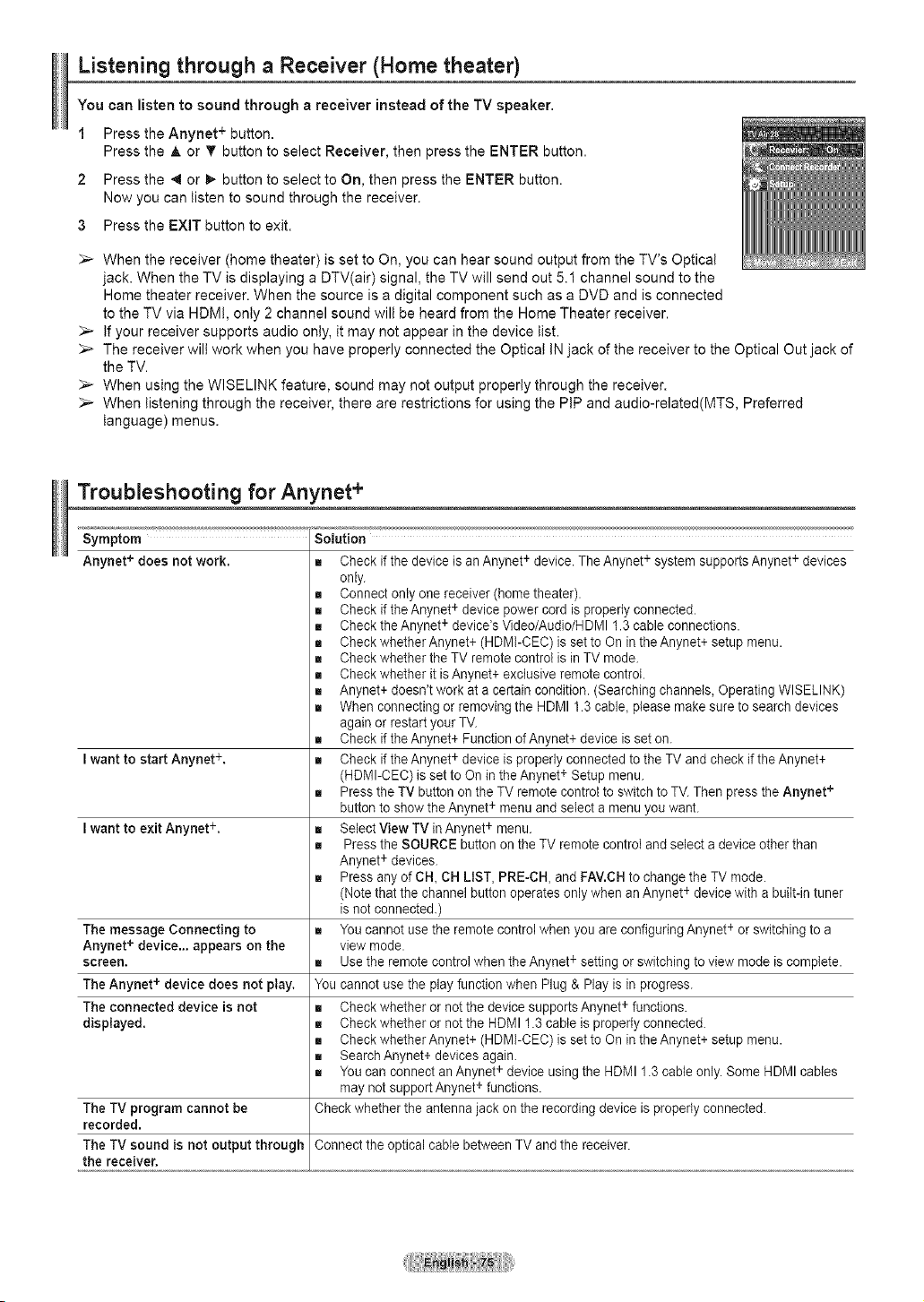
Listening through a Receiver (Home theater)
You can listen to sound through a receiver instead of the TV speaker.
1 Press the Anynet + button.
Press the A or T button to select Receiver, then press the ENTER button.
2 Press the 4 or _- button to select to On, then press the ENTER button.
Now you can listen to sound through the receiver.
3 Press the EXIT button to exit.
When the receiver (home theater) is set to On, you can hear sound output from the TV's Optica(
jack. When the TV is displaying a DTV(air) signal, the TV will send out 5.1 channel sound to the
Home theater receiver. When the source is a digital component such as a DVD and is connected
to the TV via HDM!, only 2 channel sound will be heard from the Home Theater receiver.
_-- If your receiver supports audio on(y, it may not appear in the device list.
The receiver will work when you have properly connected the Optical IN jack of the receiver to the Optical Out jack of
the TV.
_-- When using the WlSELINK feature, sound may not output properly through the receiver.
When listening through the receiver, there are restrictions for using the PIP and audio-related(MTS, Preferred
language) menus.
Troub(eshooting for Anynet +
Symptom Solution
Anynet + does not work. m Check if the device is an Anynet + device. The Anynet + system supports Anynet+ devices
only.
m Connect only one receiver (home theater).
_= Check if the Anynet+ device power cord is properly connected.
m Check the Anynet + device's Video/Audio/HDMI 1.3 cable connections.
m Check whether Anynet+ (HDMI-CEC) is set to On in the Anynet+ setup menu.
m Check whether the TV remote control is in TV mode.
m Check whether it isAnynet+ exclusive remote control.
m Anynet+ doesn't work at a certain condition. (Searching channels, Operating WlSELINK)
m When connecting or removing the HDMI 1.3 cable, please make sure to search devices
again or restart your TV.
m Check if the Anynet+ Function of Anynet+ device is set on.
I want to start Anynet +, m Check if the Anynet+ device is properly connected to the TV and check if the Anynet+
(HDMI-CEC) is set to On in the Anynet+ Setup menu.
m Press the TV button on the TV remote control to switch to TV. Then press the Anynet +
button to show the Anynet + menu and seiect a menu you want.
I want to exit Anynet +, _= Select View TV in Anynet + menu.
m Press the SOURCE button on the TV remote control and select a device other than
Anynet + devices.
m Press any of CH, CH LIST, PRE-CH, and FAV.CHto change the TV mode.
(Note that the channel button operates only when an Anynet + device with a built-in tuner
is not connected.)
The message Connecting to m You cannot use the remote control when you are configuring Anynet+ or switching to a
Anynet + device.., appears on the view mode.
screen, m Use the remote control when the Anynet+ setting or switching to view mode is comp)ete.
The Anynet + device does not play. You cannot use the play function when Plug & Play is in progress.
The connected device is not _= Check whether or not the device supports Anynet+ functions.
displayed, m Check whether or not the HDMI 1.3 cable is properly connected.
m Check whether Anynet+ (HDMI-CEC) is set to On in the Anynet+ setup menu.
_= SearchAnynet+ devices again.
m You can connect an Anynet+ device using the HDMI 1.3 cane only. Some HDMI cabtes
may not support Anynet + functions.
Check whether the antenna jack on the recording device is properly connected.
Connect the optical cabte between TV and the receiver.
The TV program cannot be
recorded.
The TV sound is not output through
the receiver.
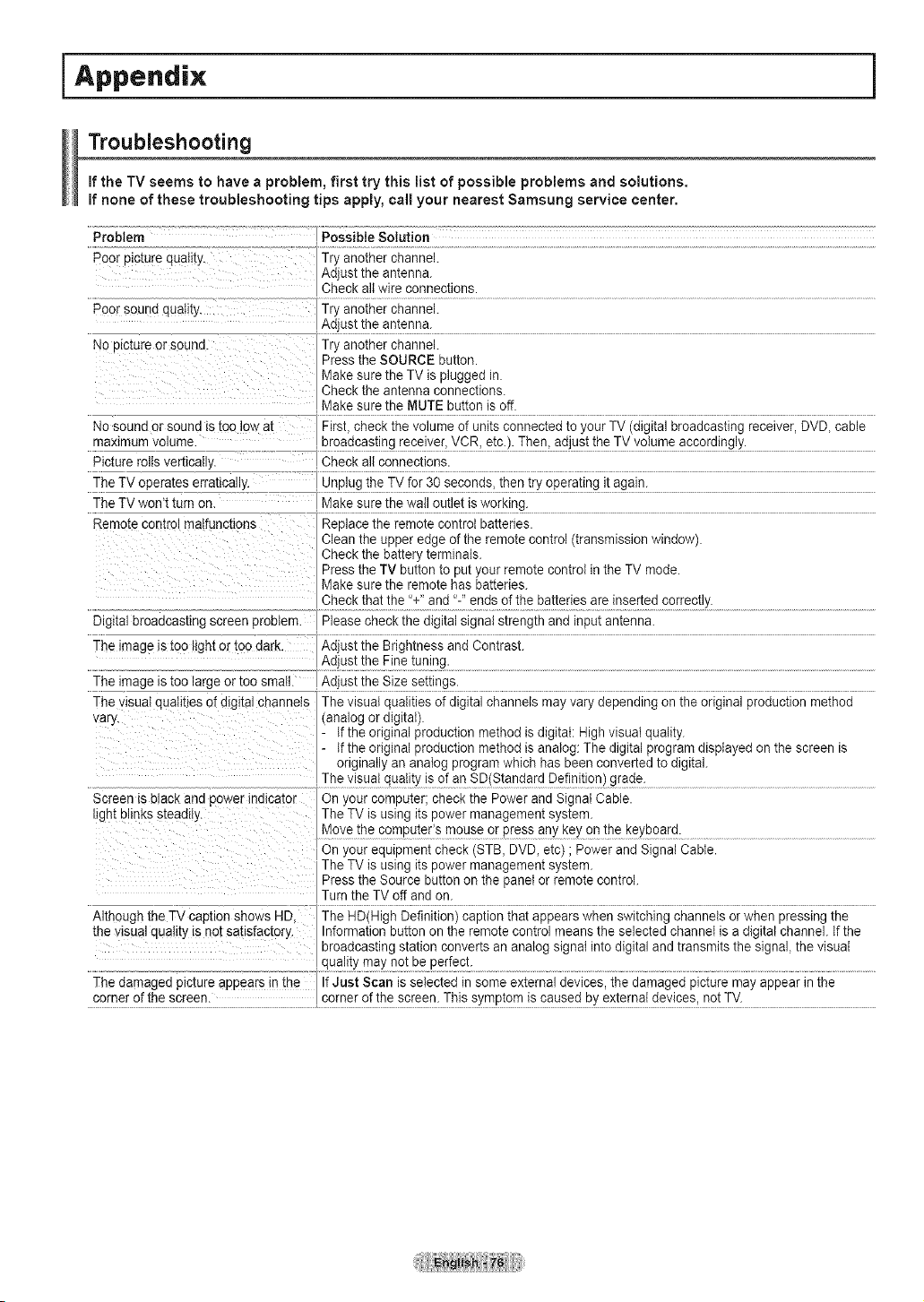
i Appendix
Troubleshooting
if the TV seems to have a problem, first try this list of possible problems and solutions.
if none of these troubleshooting tips apply, call your nearest Samsung service center.
Problem Possible Solution
Poor picture quatlty. Try another channel.
Adjust the antenna.
Check all wire connections.
Poor sounc quaH[y Try another channel.
AciiUStthe aa!er!na:
No picture or souna. Try another channel.
Press the SOURCE button.
Make sure the TV is plugged in.
Check the antenna connections.
, Make su[e the MUTE I_u!!£9is 0ft. ......................................................................
No sound or sound is too low al First, check the volume of units connected to your TV (digital broadcasting receiver, DVD, cane
maximum voJume. , broadcasting receiver, VCR, etc.). Then, adjust the TV volume accordingly.
Picture rolls vertically Check alt connections.
The TV ooerates erratically Unl_]ug!t_eTVf0[ 30 sec£nds, thee try operating it again.
The TV won't turn on. Makt su[e the we!! autle! is walk{Jig-
Remote control malfunctions Replace the remote control batteries.
Clean the upper edge of the remote control (transmission window).
Check the battery terminals.
Press the TV button to put your remote control in the TV mode.
Make sure the remote has batteries.
che£k :[hatthe i'!-I and ":' ends °f the batteries are inse(ted €£[[ectly -
Digital broadcasting screen prouiem. Please check the digital signal strength and input antenna.
The image is too light or too dark. Adjust the Brightness and Contrast.
Adjust the Fine tuning.
The image ,stoo large or 1oosmall. / _ct}_iSiih_ Si_e _ei!i_g_. ................................................................................. ...........
The visual ]uatities of digital channels The visual qualities of digital channets may vary depending on the original production method
cary. (analog or digital).
If the original production method is digital: High visual quality.
If the original production method is analog: The digital program displayed on the screen is
originally an analog program which has been converted to digital.
-heyisual qual!!y !s0[a n SD(Sta_?_ta[d Def!niti0n) glade:
Screen is black aria power indlcato- On your computer; check the Power and Signal Cable.
ight blinks steadtt} The TV is using its power management system.
Moye the fi£mputerlS mouse Or p[ess any key 2!_!be keYb?ard.....
on your equipment cheek (STB, DVD, etc) ; Power and Signal Cable.
The TV is using its power management system.
Press the Source button on the panel or remote control.
Turn the TV off and on.
Although the TV caption shows HD,
the visual quality is not satisfactory. Information button on the remote control means the selected channel is a digital channel. If the
broadcasting station converts an analog signal into digital and transmits the signal, the visual
qua ty may not be perfect.
The damaged picture appears inthe If :Just Scan is seieciect in sonie exiernal devices, ihe clamaged pictuie may appear in :_he
c0[De[ °fthe screen, cc'[ne[ af the sc[ee n. This sYmp!om is caused bY exte[r_a/devices, not T_!-
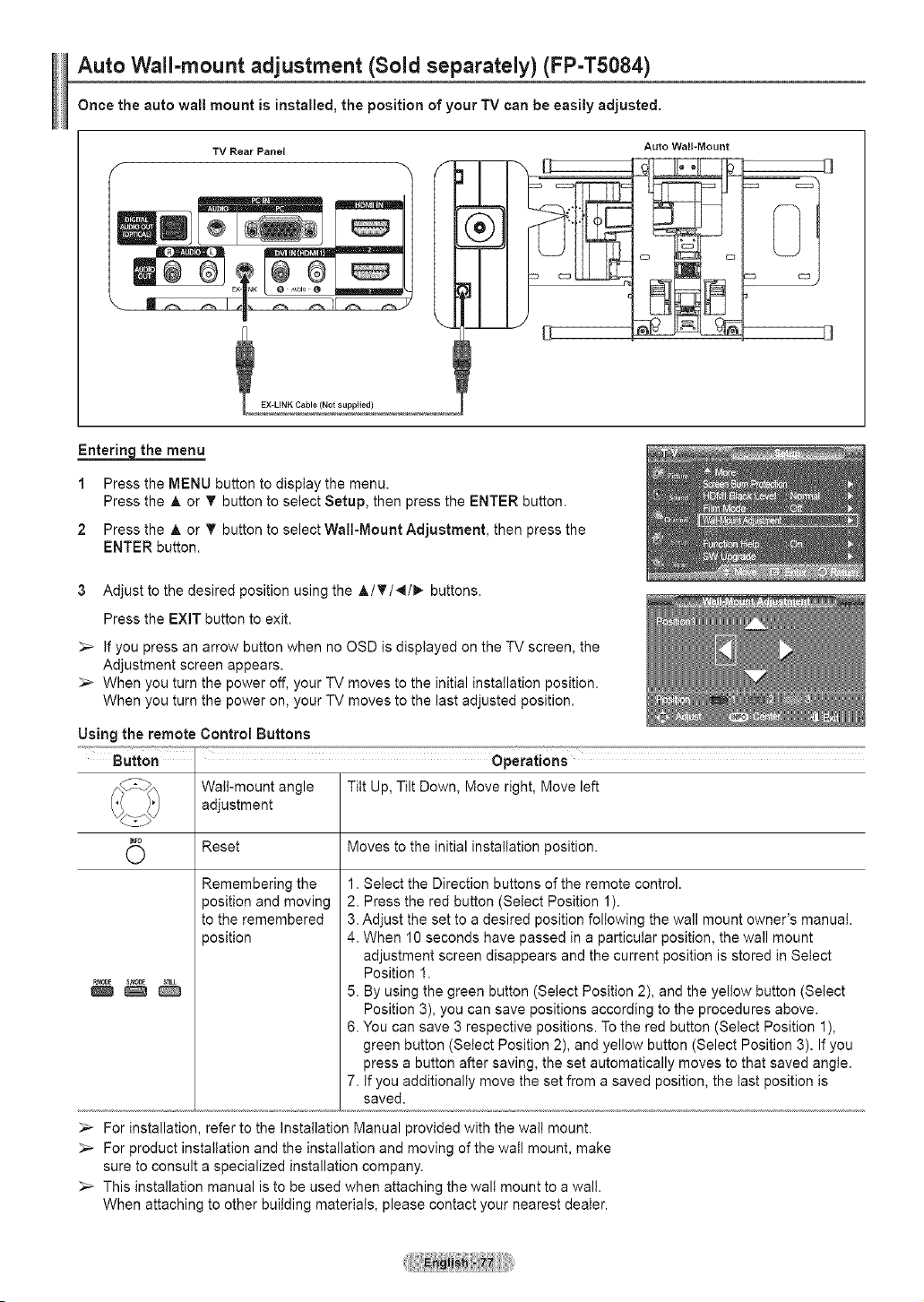
Auto Wall-mount adjustment (Sold separately) (FP=T5084)
Once the auto wall mount is installed, the position of your TV can be easily adjusted.
Auto Wall=Mount
TV Rear Panel
f
EX-UNK Cable (Not supplied)
J i
m
;3
Entering the menu
1
2
Press the MENU button to display the menu.
Press the A or T button to select Setup, then press the ENTER button.
Press the A or T button to select Wall=Mount Adjustment, then press the
ENTER button.
3 Adjust to the desired position using the A/Y/4/_ buttons.
Press the EXIT button to exit.
_-- If you press an arrow button when no OSD is displayed on the TV screen, the
Adjustment screen appears.
_,_ When you turn the power off, your TV moves to the initial installation position.
When you turn the power on, your TV moves to the last adjusted position.
Using the remote Control Buttons
Wall-mount angle Tilt Up, Tilt Down, Move right, Move left
adjustment
(_ Reset Moves to the initial installation position.
m _ _p._0oE S.fa0DE
Remembering the
_osition and moving
to the remembered
_osition
1. Select the Direction buttons of the remote control.
2. Press the red button (Select Position 1).
3. Adjust the set to a desired position following the wall mount owner's manual.
4. When 10 seconds have passed in a particular position, the wall mount
adjustment screen disappears and the current position is stored in Setect
Position 1.
5. By using the green button (Setect Position 2), and the yellow button (Select
Position 3), you can save positions according to the procedures above.
6. You can save 3 respective positions. To the red button (Select Position I),
green button (Setect Position 2), and yellow button (Select Position 3). If you
press a button after saving, the set automatically moves to that saved angle.
7. If you additionally move the set from a saved position, the last position is
saved.
For installation, refer to the Installation Manual provided with the walt mount.
_,_ For product installation and the installation and moving of the watt mount, make
sure to consult a specialized installation company.
_,_ This installation manual is to be used when attaching the wall mount to a wall.
When attaching to other building materials, please contact your nearest dealer.
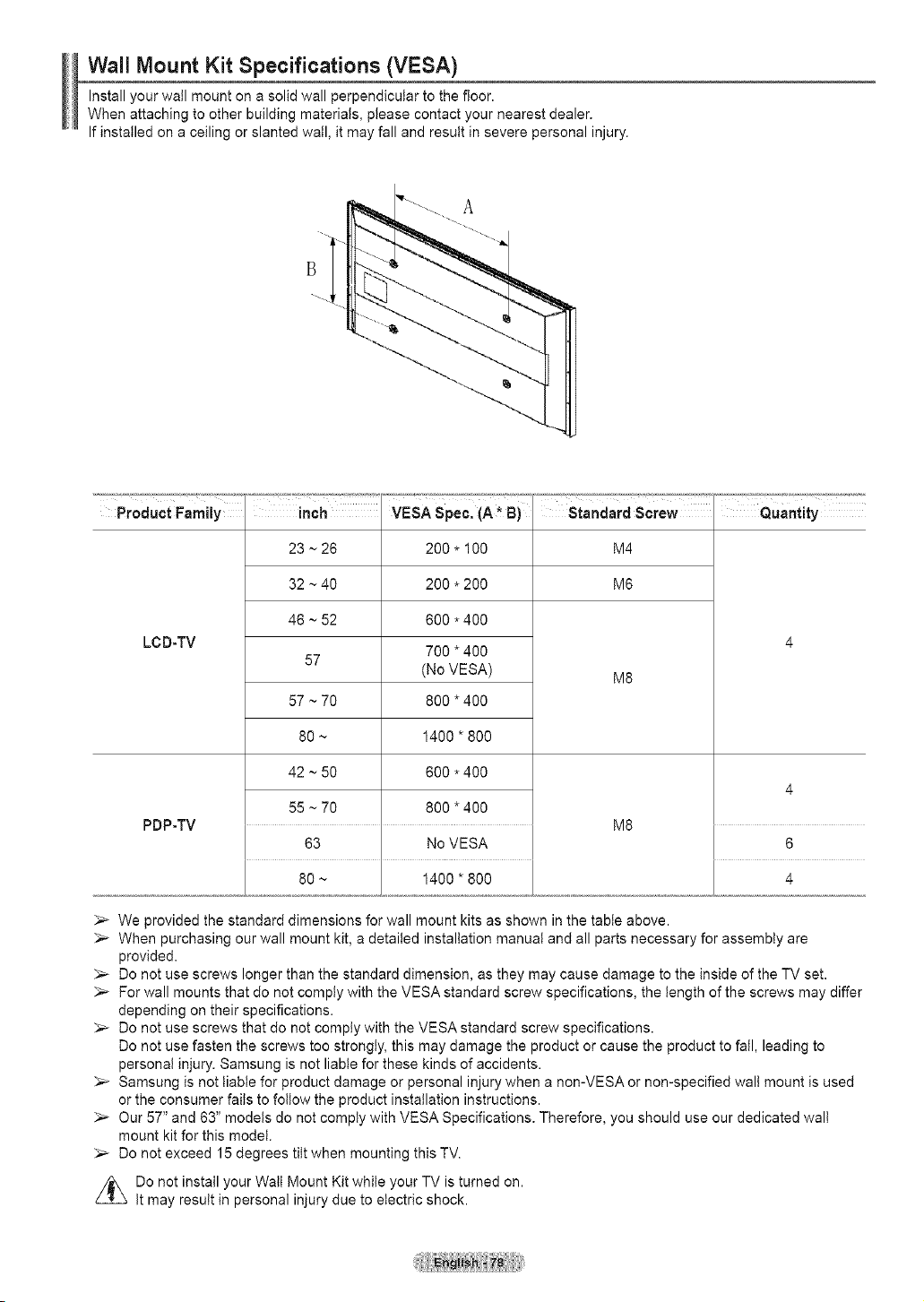
Wall Mount Kit Specifications (VESA)
Install your wall mount on a solid wall perpendicular to the floor.
When attaching to other building materials, please contact your nearest dealer.
If installed on a ceiling or slanted wall, it may fall and result in severe personal injury.
Product Family
LCD-TV
PDP-TV
inch VESA Spec. (A* B) Standard Screw
23 ~ 26 200.100
32 ~40 200*200
46 ~ 52 600*400
700*400
57
(No VESA)
57 ~ 70 800*400
80 ~ 1400"800
42 ~ 50 600*400
55 ~ 70 800*400
63 No VESA
80 ~ 1400"800
M4
M6
M8
M8
Quantity
6
4
_,_ We provided the standard dimensions for wall mount kits as shown in the table above.
_-- When purchasing our wall mount kit, a detailed installation manual and all parts necessary for assembly are
provided.
Do not use screws longer than the standard dimension, as they may cause damage to the inside of the TV set.
_-- For wall mounts that do not comply with the VESA standard screw specifications, the length of the screws may differ
depending on their specifications.
_-- Do not use screws that do not comply with the VESA standard screw specifications.
Do not use fasten the screws too strongly, this may damage the product or cause the product to fall, leading to
personal injury. Samsung is not liable for these kinds of accidents.
_-- Samsung is not liable for product damage or personal injury when a non-VESA or non-specified walt mount is used
or the consumer fails to follow the product installation instructions.
_,_ Our 57" and 63" models do not comply with VESA Specifications. Therefore, you should use our dedicated walt
mount kit for this model.
_,_ Do not exceed 15 degrees tilt when mounting this TV.
z_Do not install your Walt Mount Kit while your TV is turned on.
It may result in personal injury due to electric shock.
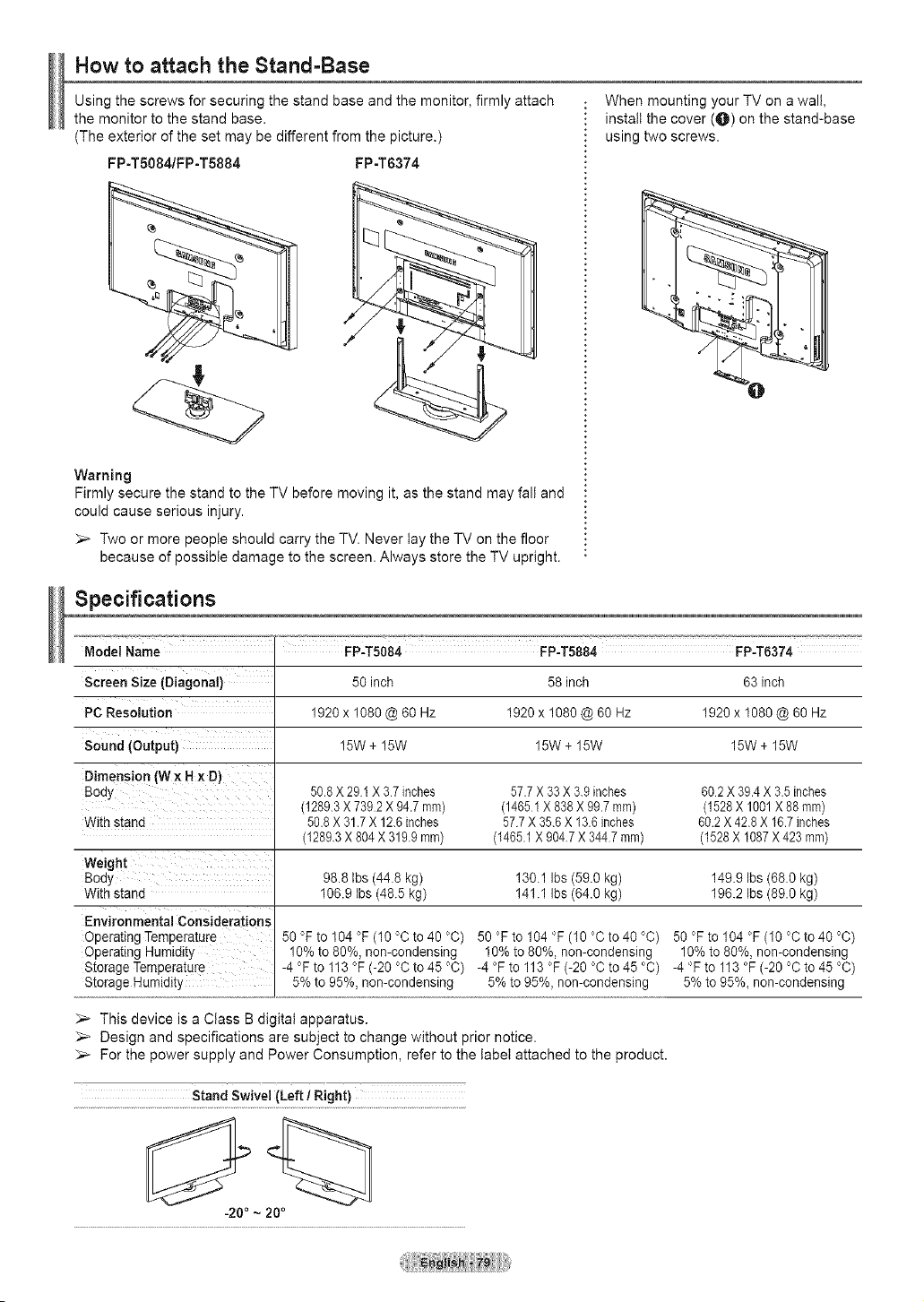
How to attach the Stand-Base
Using the screws for securing the stand base and the monitor, firmly attach
the monitor to the stand base.
(The exterior of the set may be different from the picture.)
FP-T5084/FP-T5884 FP-T6374
Warning
Firmly secure the stand to the TV before moving it, as the stand may fall and
could cause serious injury.
_,_ Two or more people should carry the TV. Never lay the TV on the floor
because of possible damage to the screen. Always store the TV upright.
When mounting your TV on a wall,
install the cover (O) on the stand-base
using two screws.
Specifications
Model Name
Screen Size (Diagonal) 50 inch 58 inch 63 inch
PC Resolution 1920 x 1080 @ 60 Hz 1920 x 1080 @ 60 Hz 1920 x 1080 @ 60 Hz
Sound (Output) 15W + 15W 15W + 15W 15W + 15W
Dimension (Wx H x D)
Bod_, 50.8X 29I X 37 inches 57.7X 33 X 3.9 inches 602 X 39.4X 3.5inches
(1289.3X 7392 X 94.7ram) (14651 X 838X 99.7 ram) (1528X 1001X 88 ram)
With stand 58.8X 31.7X 12.6inches 577 X 35.6 X 13.6inches 602 X 42.8 X 16.7inches
(1289.3X 804X 319.9ram) (1465.1X 904.7X 3447 mm) (1528X 1087X 423 ram)
Weight
Bod_, 98.8 Ibs (44.8 kg) 130.1 Ibs (59.0 kg) 149.9 Ibs (68.0 kg)
With stand 106.9 Ibs (48.5 kg) 141.1 Ibs (64.0 kg) 196.2 Ibs (89.0 kg)
Environmental Considerations
Operating Temperature
Operating Hum=dJty
Storage Temperature
Storage Humidity
50 °F to 104 °F (10 °C to 40 °C) 50 °F to 104 °F (10 °C to 40 °C) 50 °F to 104 °F (10 °C to 40 °C)
10% to 80%, non-condensing 10% to 80%, non-condensing 10% to 80%, non-condensing
-4 °F to 113 °F (-20 °C to 45 °C) -4 °F to 113 °F (-20 °C to 45 °C) -4 °F to 113 °F (-20 °C to 45 °C)
5% to 95%, non-condensing 5% to 95%, non-condensing 5% to 95%_ non-condensing
_-- This device is a Class B digital apparatus.
Design and specifications are subject to change without prior notice.
_-- For the power supply and Power Consumption, refer to the label attached to the product.
Stand Swivel (Left / Right)
-20* ~ 20 °
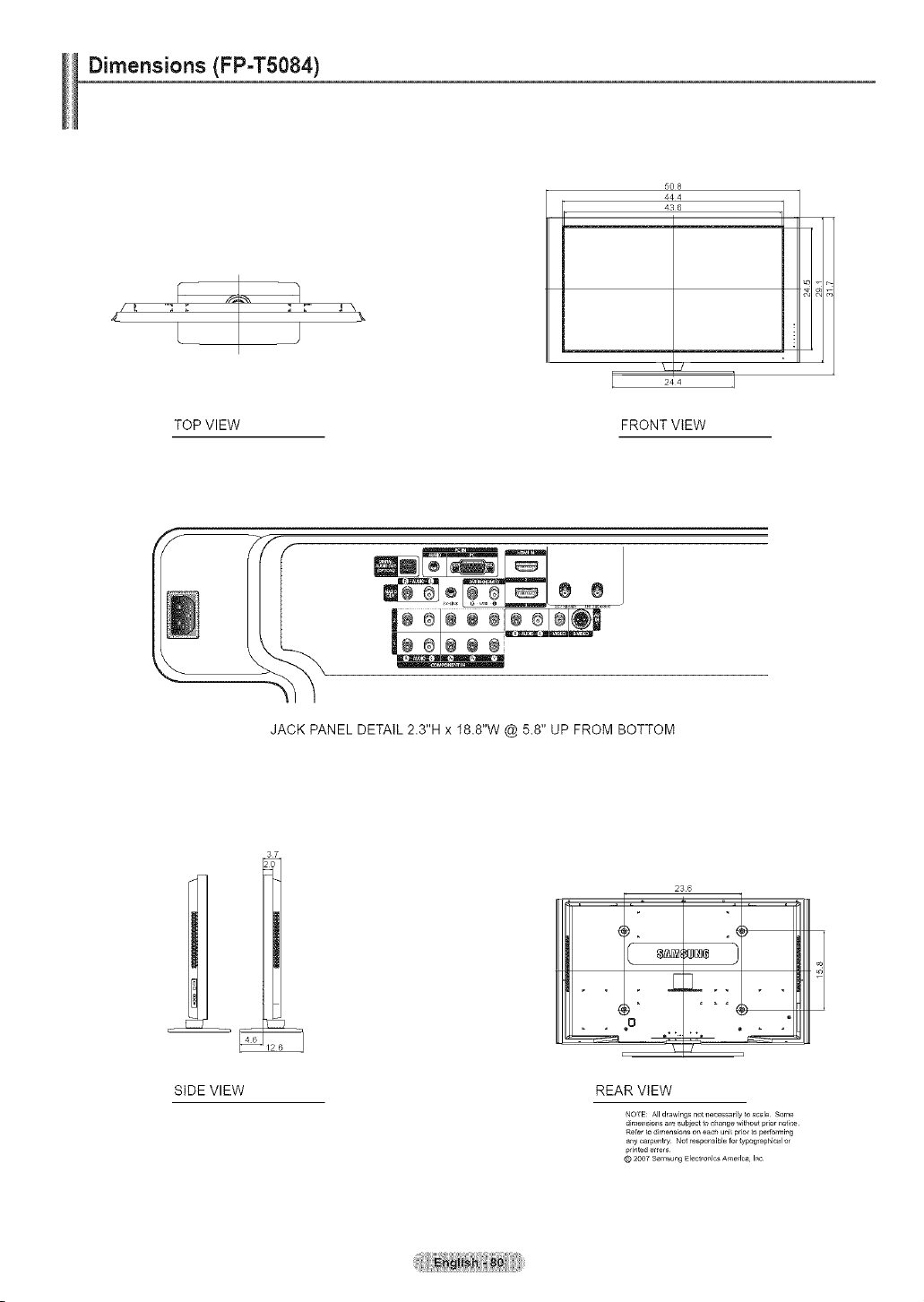
Dimensions (FP-T5084)
, \
5O 8
444
436
TOP VIEW FRONT VIEW
JACK PANEL DETAIL 2.3"H x 18.8"W @ 5.8" UP FROM BOTTOM
SIDE VIEW
236
(-
£
o
=
REAR VIEW
NO1E: All drawings notnecessarily toscale Some
dimensions are subject to _ange withol_t prior no_ice
Refer to dimension8 on eac_ uni_prio_¸ _opedo_min_
any carpentry Not _ospon_ibl_ fo__ypogfaphicalo_
p_in_d e_ro_s
© 2OO7Sa_su_lg Electronics AmeFl_ Inc
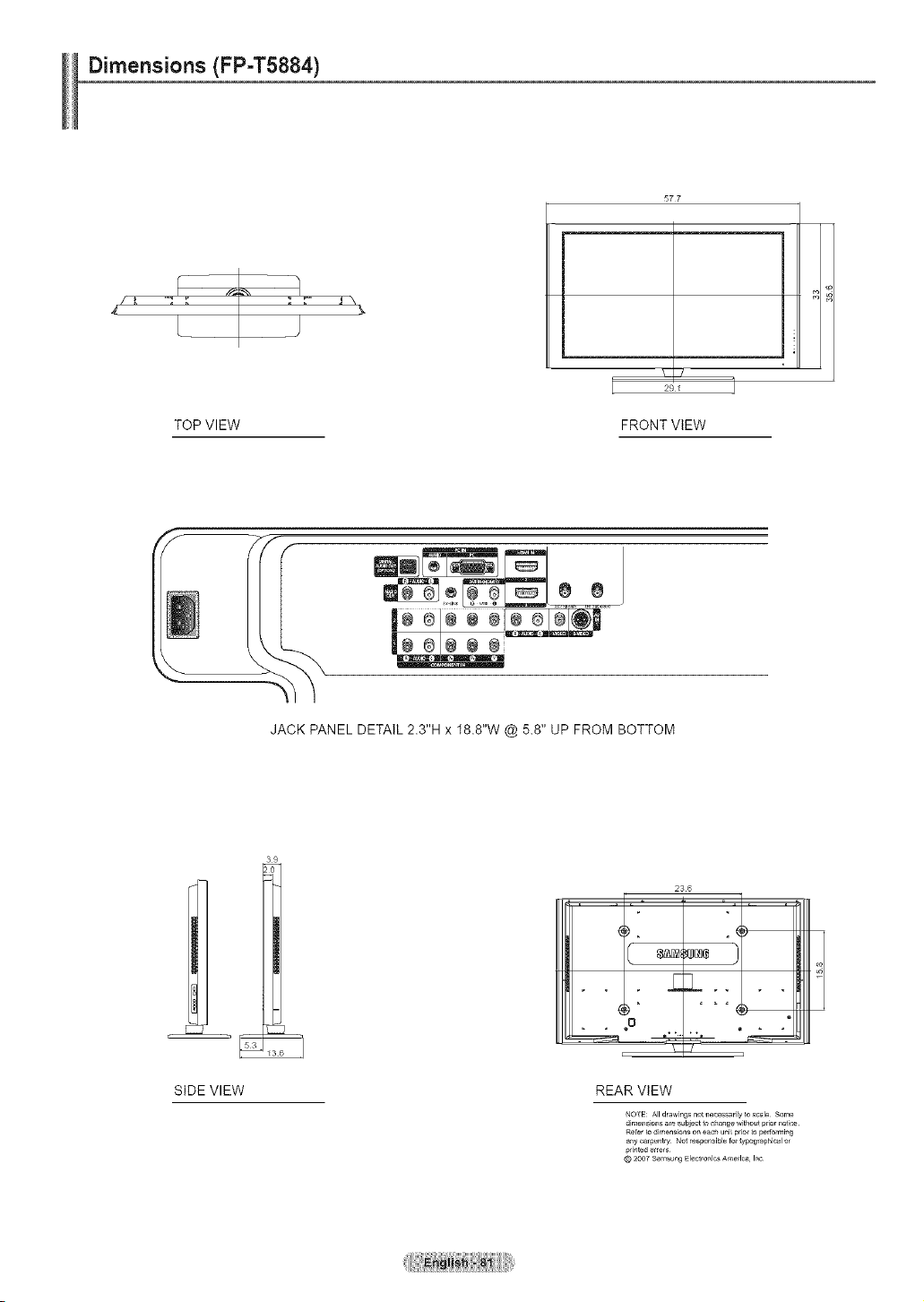
Dimensions (FP-T5884)
577
TOP VIEW FRONT VIEW
JACK PANEL DETAIL 2.3"H x 18.8"W @ 5.8" UP FROM BOTTOM
39
SIDE VIEW
236
£
o
=
REAR VIEW
NO1E: All drawings notnecessarily toscale Some
dimensions are subject to _ange withol_t prior no_ice
Refer to dimension8 on eac_ uni_prio_¸ _opedo_min_
any carpentry Not _ospon_ibl_ fo__ypogfaphicalo_
p_in_d e_ro_s
© 2OO7Sa_su_lg Electronics AmeFl_ Inc
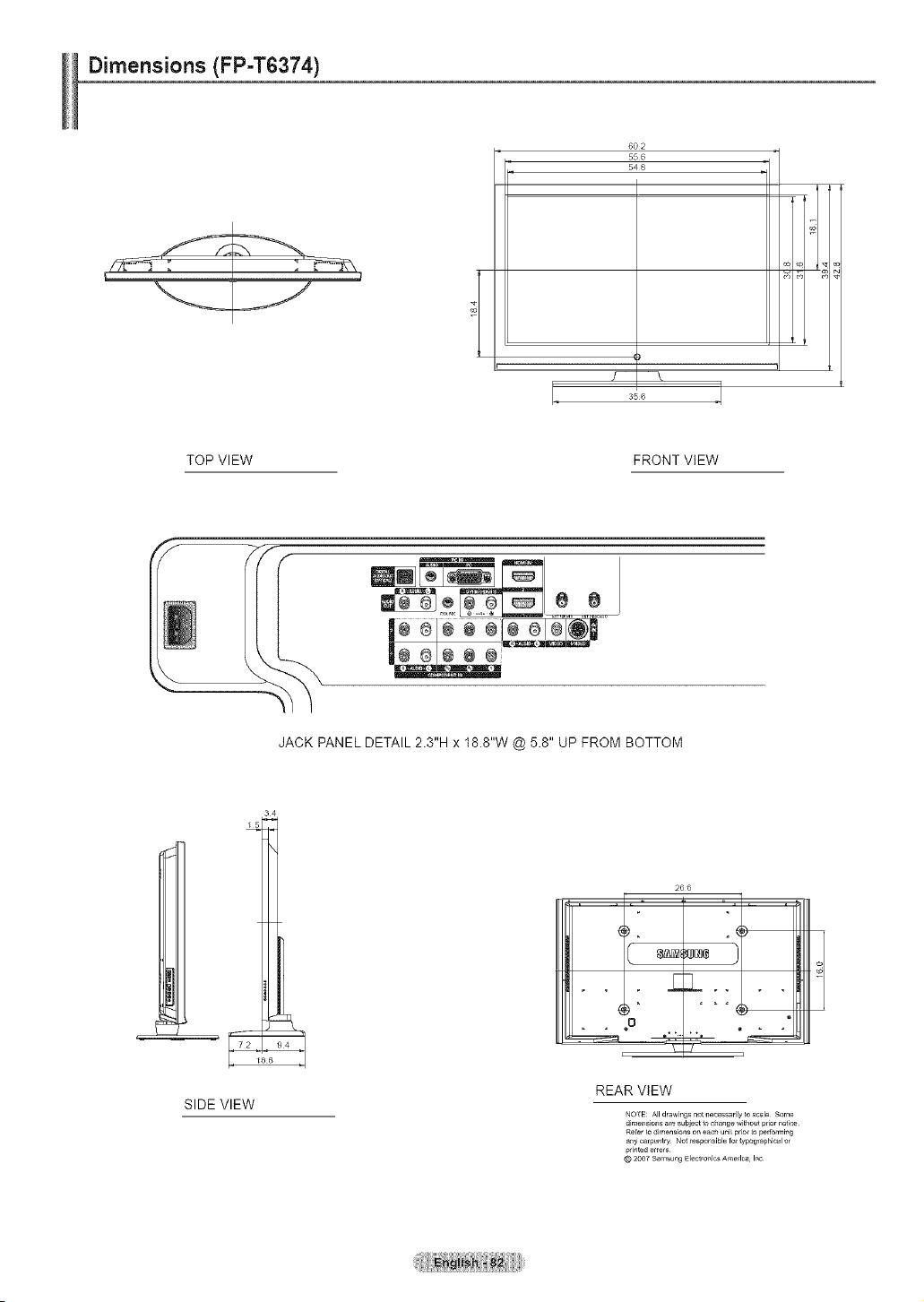
Dimensions (FP-T6374)
6O 2
55 6
54 8
356
TOP VIEW FRONT ViEW
JACK PANEL DETAIL 2.3"H x 18.8"W @ 5.8" UP FROM BOTTOM
34
SIDE VIEW
266
(-
.E
o
=
8£[]I ;0_¢ }
= = ,
REAR ViEW
NO1E: All drawings notnecessarily toscale Some
dimensions are subject t_ _an_e withol_t prior no_ice
Refer to dimension8 on e_c_ uni_prio_¸ _ope4o_min_
a_y carpentry Not _ospon_ibl_ fo__ypogfap_icalo_
p_in_ede_ro_
© 2OO7Samsung ElectronicsAmerlc_ Inc
Contact SAMSUNG WORLD-WIDE
If you have any questions or comments relating to Samsung products, please contact the SAMSUNG customer care center.
Communiquez avec SAMSUNG WORLD-WIDE
Pour toute question ou commentaire se rapportant aux produits Samsung, veuiltez communiquer avec te centre de service a la clientele
SAMSUNG.
Contacte con SAMSUNG WORLD-WIDE
Si tiene atguna pregunta o comentario referente a nuestros productos, per favor contacte con nuestro Servicio de Atenci6n al Cliente.
1-800-SAMSUNG (7267864) www.samsung.com/ca
CANADA
U.S.A 1-800-SAMSUNG (7267864) www.samsung.com
Samsung Electronics Canada Inc., Customer Service
55 Standish Court Mississauga, Ontario L5R 4B2
Canada
Samsung Electronique Canada Inc., Service a la Clientele
55 Standish Court Mississauga, Ontario L5R 4B2
Canada
Samsung Electronics America, Inc.
105 Challenger Road
Ridgefield Park, NJ 07660-0511
BN68-O 11 83Z-01