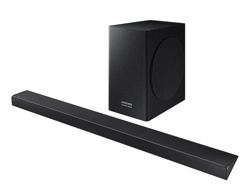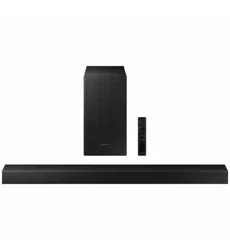

User manual
Imagine the possibilities
Thank you for purchasing this Samsung product.
To receive more complete service, please register your product at
www.samsung.com/register
HW-K650
HW-K651
©2016 Samsung Electronics Co.,Ltd. All rights reserved
2
GETTING STARTED
SAFETY INFORMATION
SAFETY WARNINGS
TO REDUCE THE RISK OF ELECTRIC SHOCK, DO NOT REMOVE THE COVER (OR BACK).
NO USER-SERVICEABLE PARTS ARE INSIDE. REFER SERVICING TO QUALIFIED SERVICE PERSONNEL.
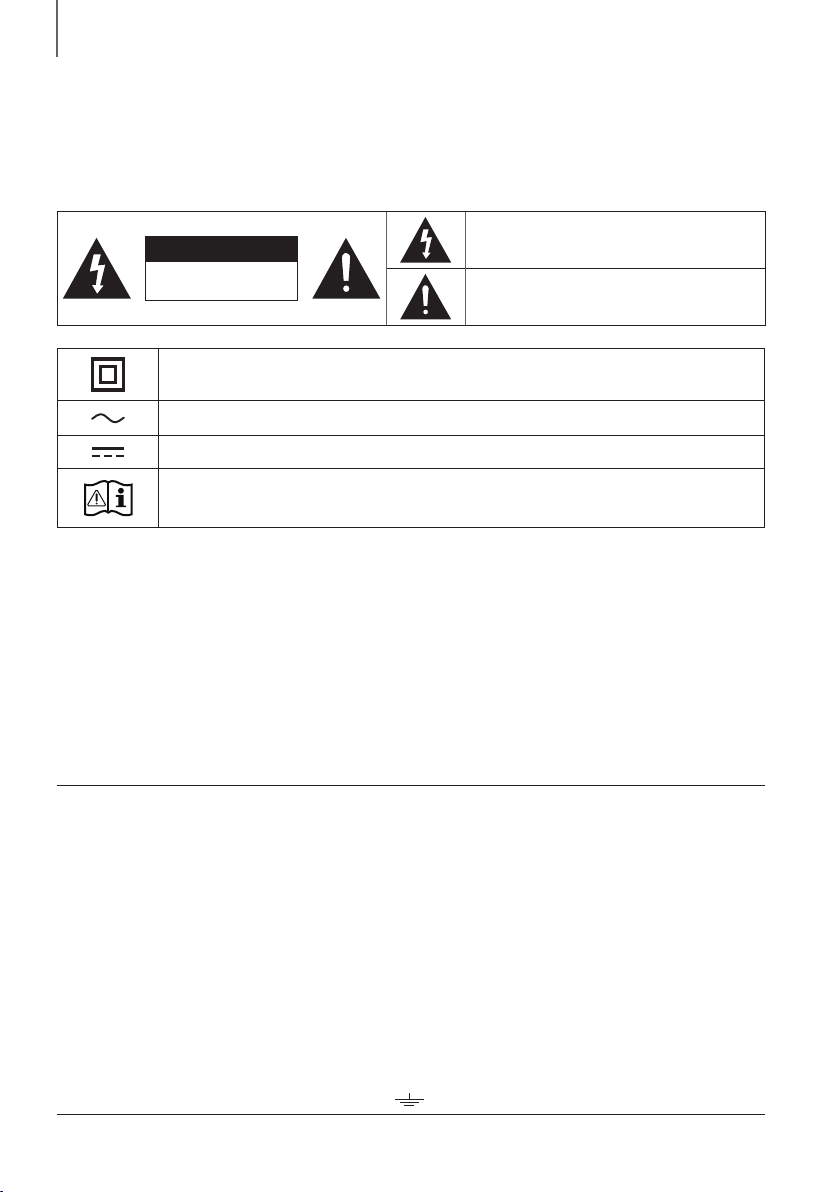
CAUTION
RISK OF ELECTRIC SHOCK.
DO NOT OPEN.
This symbol indicates that high voltage is
present inside. It is dangerous to make any kind
of contact with any internal part of this product.
This symbol indicates that important literature
concerning operation and maintenance has
been included with this product.
Class II product : This symbol indicates that it does not require a safety connection to electrical
earth (ground).
AC voltage : This symbol indicates that the rated voltage marked with the symbol is AC voltage.
DC voltage : This symbol indicates that the rated voltage marked with the symbol is DC voltage.
Caution, Consult instructions for use : This symbol instructs the user to consult the user manual for
further safety related information.
WARNING : To reduce the risk of fire or electric shock, do not expose this appliance to rain or moisture.
CAUTION : TO PREVENT ELECTRIC SHOCK, MATCH WIDE BLADE OF PLUG TO WIDE SLOT, FULLY INSERT.
• This apparatus shall always be connected to a AC outlet with a protective grounding connection.
• To disconnect the apparatus from the mains, the plug must be pulled out from the mains socket, therefore the
mains plug shall be readily operable.
CAUTION
• Do not expose this apparatus to dripping or splashing. Do not put objects filled with liquids, such as vases on the
apparatus.
• To turn this apparatus off completely, you must pull the power plug out of the wall socket. Consequently, the power
plug must be easily and readily accessible at all times.
Wiring the Main Power Supply Plug (UK Only)
IMPORTANT NOTICE
The mains lead on this equipment is supplied with a moulded plug incorporating a fuse. The value of the fuse is
indicated on the pin face of the plug and if it requires replacing, a fuse approved to BS1362 of the same rating must
be used. Never use the plug with the fuse cover removed. If the cover is detachable and a replacement is required,
it must be of the same colour as the fuse fitted in the plug. Replacement covers are available from your dealer. If the
fitted plug is not suitable for the power points in your house or the cable is not long enough to reach a power point,
you should obtain a suitable safety approved extension lead or consult your dealer for assistance. However, if there is
no alternative to cutting off the plug, remove the fuse and then safely dispose of the plug. Do not connect the plug to a
mains socket as there is a risk of shock hazard from the bared flexible cord. Never attempt to insert bare wires directly
into a mains socket. A plug and fuse must be used at all times.
IMPORTANT
The wires in the mains lead are coloured in accordance with the following code:– BLUE = NEUTRAL BROWN = LIVE
As these colours may not correspond to the coloured markings identifying the terminals in your plug, proceed as
follows:– The wire coloured BLUE must be connected to the terminal marked with the letter N or coloured BLUE or
BLACK. The wire coloured BROWN must be connected to the terminal marked with the letter L or coloured BROWN
or RED.
WARNING : DO NOT CONNECT EITHER WIRE TO THE EARTH TERMINAL WHICH IS MARKED WITH THE
LETTER E OR BY THE EARTH SYMBOL
, OR COLOURED GREEN OR GREEN AND YELLOW.
GETTING STARTED
ENG
3
GETTING STARTED
PRECAUTIONS
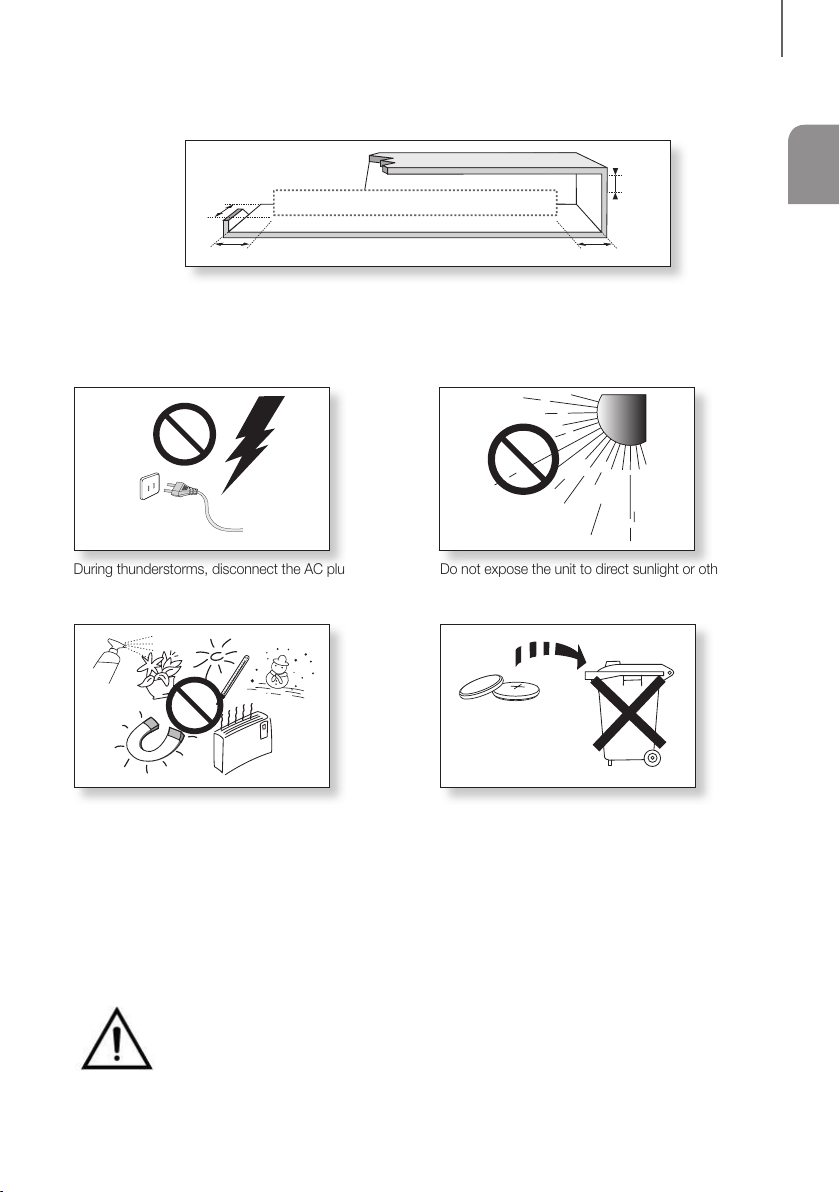
99.1mm 99.1mm
68.6
mm
99.1mm
Ensure that the AC power supply in your house complies with the power requirements listed on the identification sticker
located on the back of your product. Install your product horizontally, on a suitable base (furniture), with enough space
around it for ventilation (7~10 cm). Make sure the ventilation slots are not covered. Do not place the unit on amplifiers or
other equipment which may become hot. This unit is designed for continuous use. To fully turn off the unit, disconnect
the AC plug from the wall outlet. Unplug the unit if you intend to leave it unused for a long period of time.
WARNING: DO NOT INGEST BATTERY. CHEMICAL BURN HAZARD. The remote control supplied
withthis product contains a coin/button cell battery. If the coin/button cell battery is swallowed, it can
cause severe internal burns in just 2 hours and can lead to death. Keep new and used batteries away
from children. If the battery compartment does not close securely, stop using the product and keep it
away from children. If you think batteries might have been swallowed or placed inside any part of the body, seek
immediate medical attention.
During thunderstorms, disconnect the AC plug from the
wall outlet. Voltage peaks due to lightning could damage
the unit.
Protect the product from moisture (i.e. vases), and
excess heat (e.g. a fireplace) or equipment creating
strong magnetic or electric fields. Disconnect the power
cable from the AC supply if the unit malfunctions. Your
product is not intended for industrial use. It is for
personal use only. Condensation may occur if your
product has been stored in cold temperatures. If
transporting the unit during the winter, wait approximately
2 hours until the unit has reached room temperature
before using.
Do not expose the unit to direct sunlight or other heat
sources. This could lead to overheating and cause the
unit to malfunction.
The batteries used with this product contain chemicals
that are harmful to the environment. Do not dispose of
batteries in the general household trash. Do not dispose
of batteries in a fire. Do not short circuit, disassemble, or
overheat the batteries. There is a danger of explosion if
the battery is incorrectly replaced. Replace only with the
same or equivalent type.

4
GETTING STARTED
● Figures and illustrations in this User Manual are
provided for reference only and may differ from
actual product appearance.
● An administration fee may be charged if either
(a) an engineer is called out at your request and
there is no defect with the product (i.e. where
the user manual has not been read).
(b) you bring the unit to a repair centre and there is
no defect with the product (i.e. where the user
manual has not been read).
● You will be informed of the administration fee
amount before a technician visits.
CONTENTS
2 GETTING STARTED
2 Safety Information
5 What’s Included
6 DESCRIPTIONS
6 Front / Right Side Panel
7 Rear / Bottom Panel
8 Remote Control
11 INSTALLATION
11 Installing the Soundbar
11 Installing the Wall Mount
15 Detaching the Soundbar from the Wall
16 CONNECTIONS
16 Connecting the Subwoofer
18 Connecting to a TV
18 TV SoundConnect
19 Connecting to a TV Using an HDMI (Digital)
Cable
20 Connecting to a TV Using a Digital Optical
Cable
21 Connecting to External Devices
21 HDMI Cable
22 Optical or Analogue Audio Cable
23 FUNCTIONS
23 Input Mode
24 Bluetooth
27 Using the Multiroom App
29 Using the Network Standby On
Function
30 Software Update
32 TROUBLESHOOTING
32 Troubleshooting
33 APPENDIX
33 Specifications
ENG
5
GETTING STARTED
WHAT’S INCLUDED
BEFORE READING THE USER’S MANUAL
Note the following terms before reading the user manual.
+ Icons used in this manual
Icon Term Definition
Caution
Indicates a situation where a function does not operate or settings may be cancelled.
Note
Indicates tips or instructions on the page that help you operate a function.
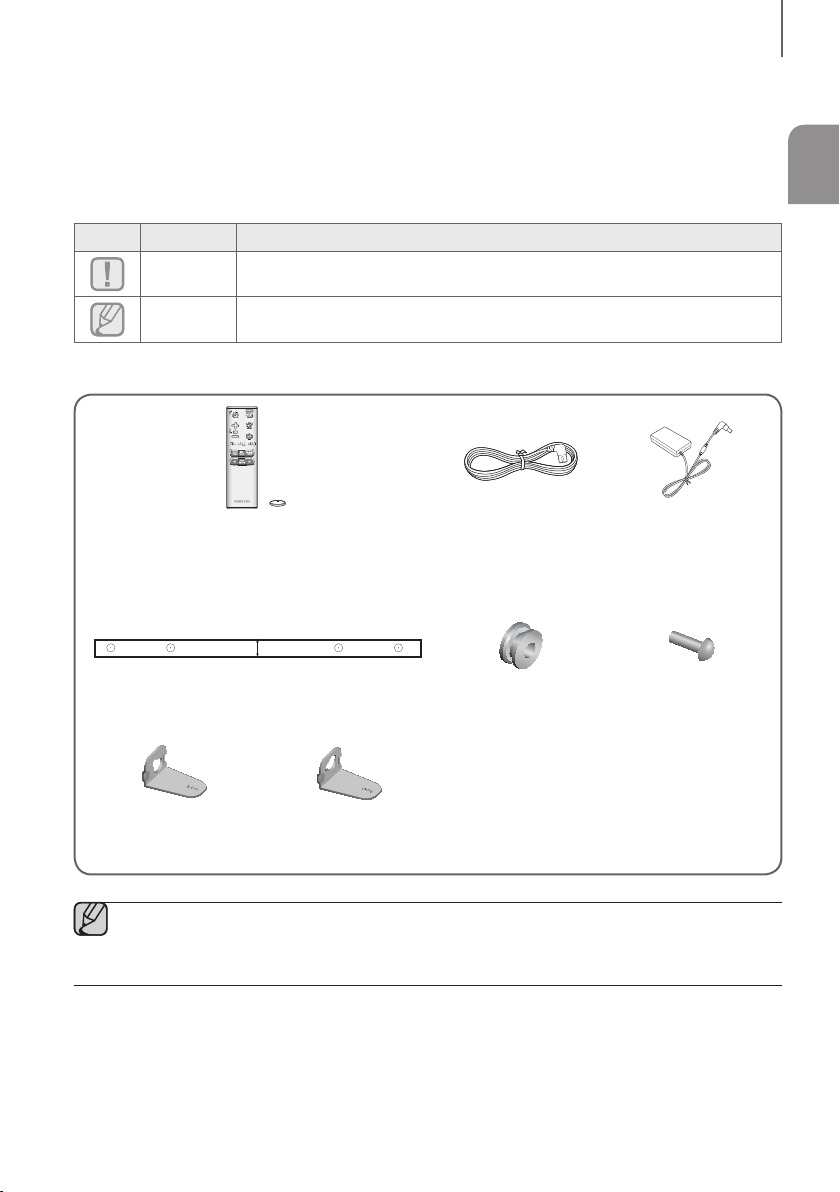
Check for the supplied accessories shown below.
Remote Control / Lithium Battery
(3V : CR2032)
Power Cord : 2 EA AC/DC Adapter
A-TYPE : 616mm
B-TYPE : 360mm
CENTER LINE
A B B A
Wall Mount Guide Holder-Screw : 2 EA Screw : 2 EA
Bracket-Wall Mount L Bracket-Wall Mount R
● The appearance of the accessories may differ slightly from the illustrations above.
● Micro USB to USB adapter and HDMI cables are sold separately. To purchase, contact a Samsung Service
Centre or Samsung Customer Care.
6
DESCRIPTIONS
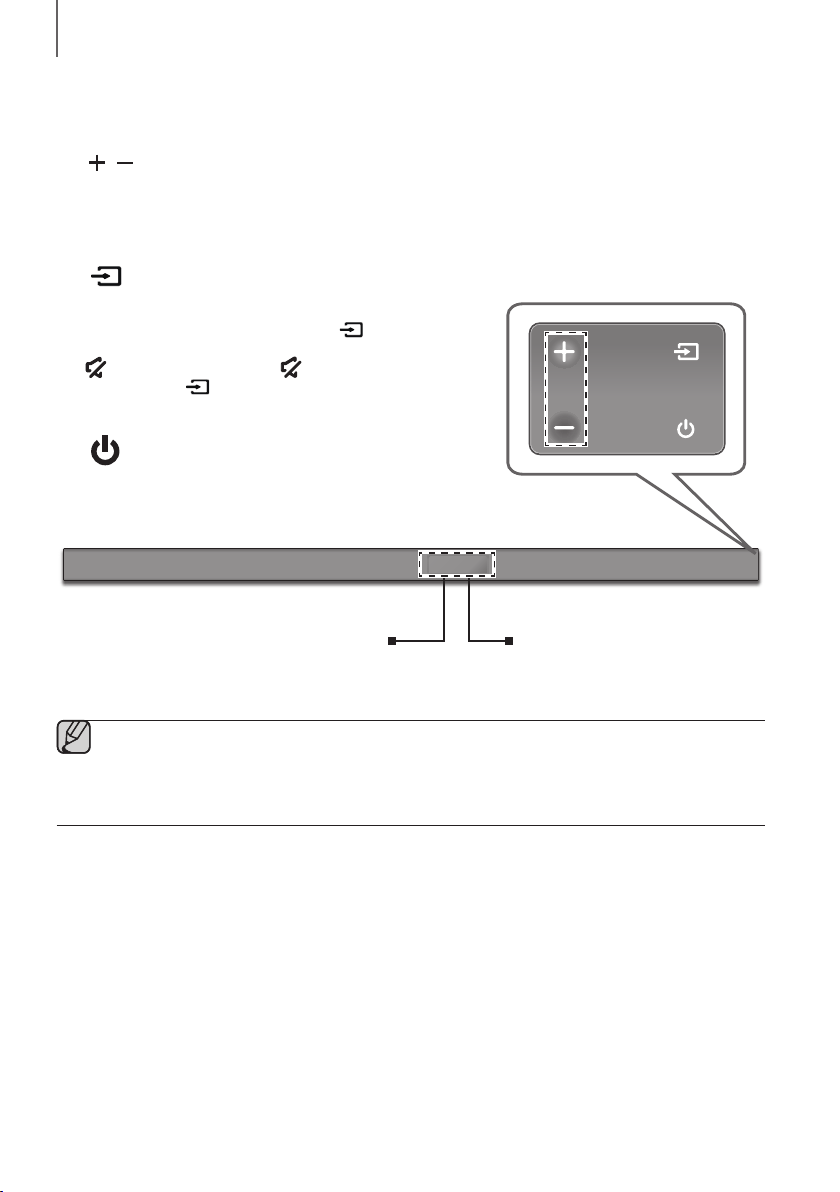
FRONT / RIGHT SIDE PANEL
1
/
(Volume) Button
Controls the volume level.
The numeric value of the volume level appears in the front
panel display.
2 (Source) Button
Selects the D.IN, AUX, HDMI, BT, or TV input.
● While the unit is powered on, pressing the
button
for more than 3 seconds sets the button to act as the
(Mute) button. To cancel the (Mute) button
setup, press the
button for more than 3 seconds
again.
3 (Power) Button
Turns the power on and off.
2
3
Right Side
Display
Displays the current mode.
Remote Control Sensor
1
● When you plug in the AC cord, the power button will begin working in 4 to 6 seconds.
● When you turn on this unit, there will be a 4 to 5 second delay before it produces sound.
● If you want to enjoy sound only from the Soundbar, you must turn off the TV's speakers in the Audio Setup
menu of your TV. Refer to the owner's manual supplied with your TV.
DESCRIPTIONS
ENG
7
DESCRIPTIONS
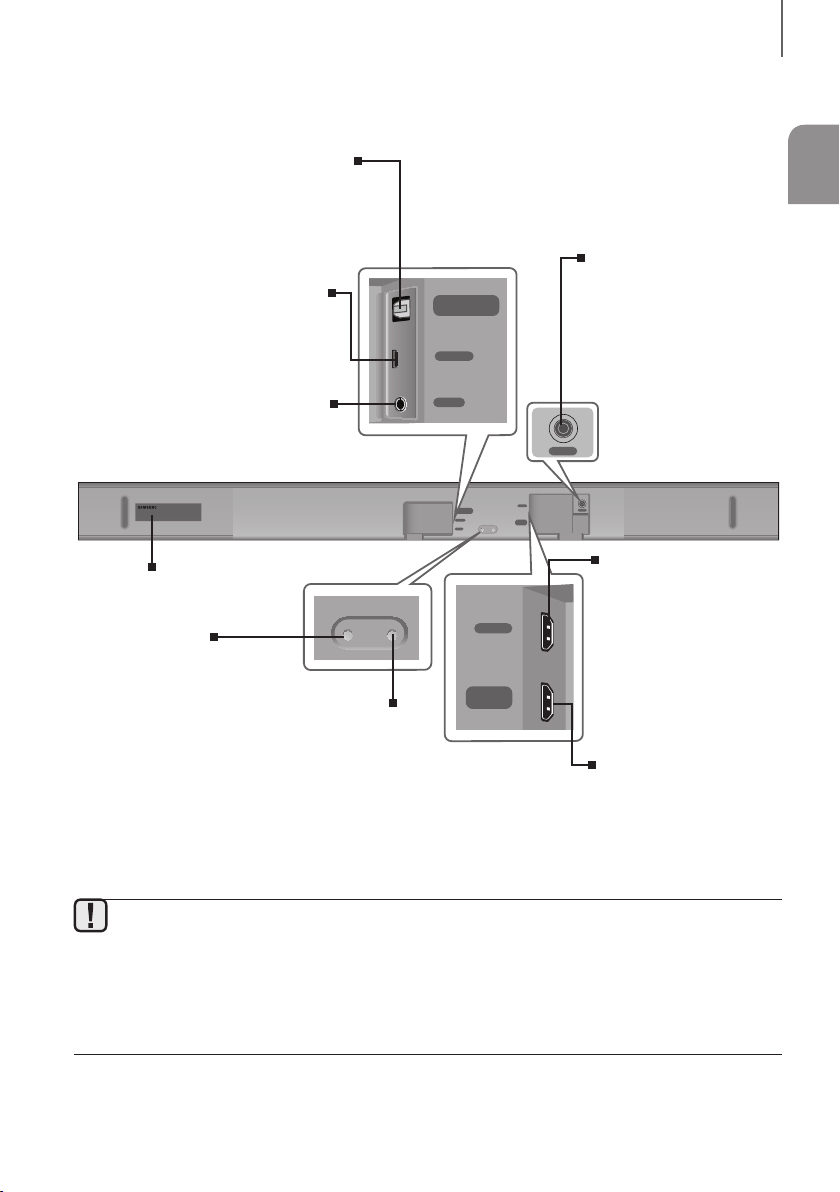
REAR / BOTTOM PANEL
DIGITAL AUDIO IN
(OPTICAL)
AUX IN
HDMI IN
HDMI OUT
(TV-ARC)
DC 24V
SERVICE
Wi-Fi SETUP SPK ADD
DC 24V
DIGITAL AUDIO IN
(OPTICAL)
SERVICE
AUX IN
HDMI IN
HDMI OUT
(TV-ARC)
Wi-Fi SETUP SPK ADD
DC 24V
(Power Supply In)
Connect the DC power
adaptor to the power supply
jack, and then connect the
AC power adaptor plug to a
wall outlet.
SERVICE
To upgrade the product's software
through the USB Port.
DIGITAL AUDIO IN (OPTICAL)
Connect to the digital (optical) output of
an external device.
HDMI OUT (TV-ARC)
Outputs digital video and audio signals
simultaneously using an HDMI cable.
HDMI IN
Inputs digital video and
audio signals
simultaneously using an
HDMI cable. Use when
connecting a supported
external device.
Wi-Fi SETUP
Press this button to
connect your Soundbar to
your network using Wi-Fi
setup. (Requires a smart
device and the Samsung
Multiroom app.
See page 27.)
SPK ADD
Press the button to connect
the Soundbar to a Samsung
HUB (purchased separately)
or a network. (Requires a
smart device and the
Samsung Multiroom app.
See page 27.)
AUX IN
Connect to the Analogue output of an
external device.
LABEL
● When disconnecting the power cable of the AC power adaptor from a wall outlet, pull the plug.
Do not pull the cable.
● Do not connect this unit or other components to an AC outlet until all connections between components
are complete.
● Make sure to rest the AC/DC Adapter flat on a table or the floor. If you place the AC/DC Adapter so that it
is hanging with the AC cord input facing upwards, water or other foreign substances could enter the
Adapter and cause the Adapter to malfunction.
8
DESCRIPTIONS
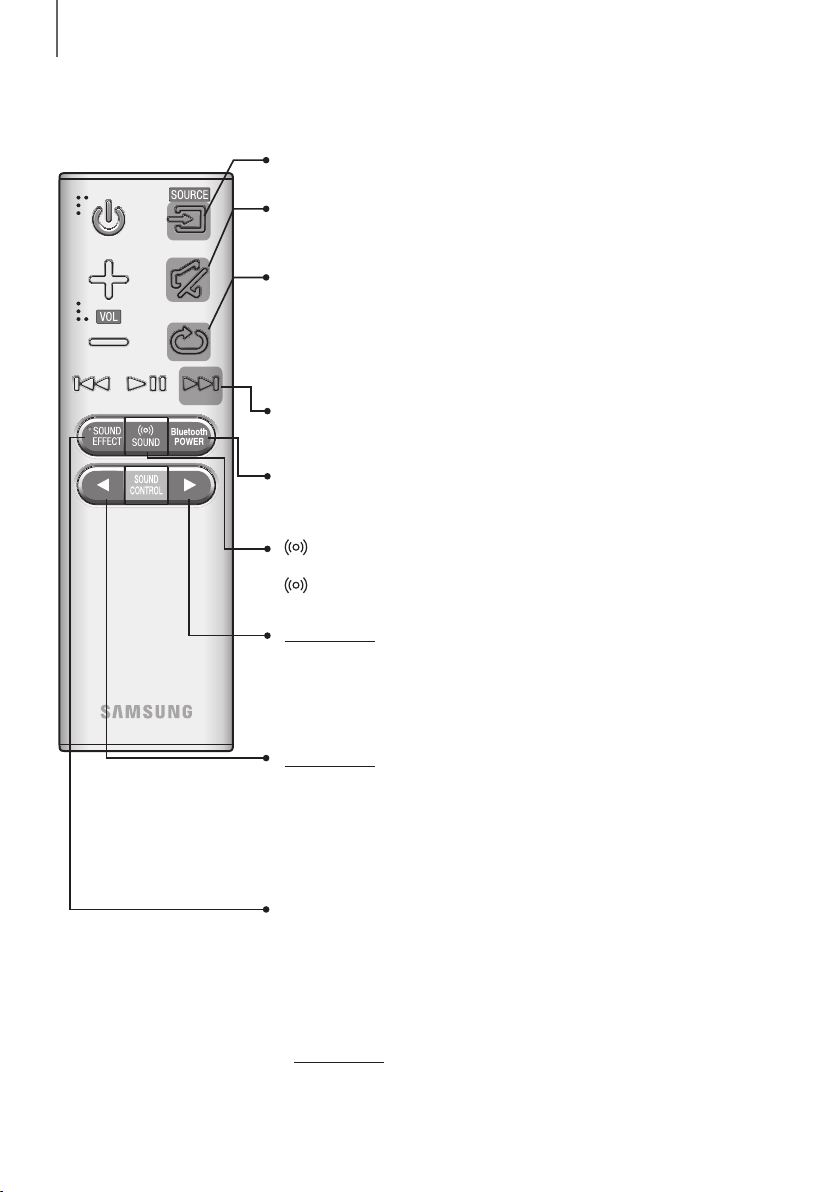
REMOTE CONTROL
Repeat
The Repeat function is available only when playing back music from Songs on phone
or DMS of Samsung Multiroom app.
OFF - REPEAT : Cancels Repeat Playback.
TRACK - REPEAT : Plays a track repeatedly.
ALL - REPEAT : Plays all tracks repeatedly.
Mute
You can turn the volume down to 0 with the push of a button.
Press again to restore the sound to the previous volume level.
SOURCE
Press to select a source connected to the Soundbar.
Skip Forward
If there is more than one file on the device you are playing, and you press
the ] button, the next file is selected.
Bluetooth POWER
Press the Bluetooth POWER button on the remote to turn the Bluetooth
POWER On function on and off. See pages 19 and 25 for details.
SOUND
Surround Sound adds depth and spaciousness to the sound. Pressing the
SOUND button repeatedly cycles through the Surround Sound settings :
ON - SURROUND SOUND, OFF - SURROUND SOUND
SOUND EFFECT
You can select from 6 sound modes - STANDARD (Original Sound), MUSIC,
CLEAR VOICE, SPORTS, MOVIE, and NIGHT - depending on the content
you want to listen to.
Select the STANDARD mode if you want to enjoy the original sound.
* DRC (Dynamic Range Control)
Lets you apply dynamic range control to Dolby Digital.
Press and hold the SOUND EFFECT button for about 5 seconds in
STANDBY mode to turn the DRC (Dynamic Range Control) function on or off.
Press and hold the
button for about 5 seconds to turn the Anynet+ function
on or off.
OFF - ANYNET+, ON - ANYNET+
The Anynet+ function lets you control the Soundbar with the remote from an
Anynet+ compatible Samsung TV.
The Soundbar must be connected to the TV via an HDMI cable.
Press and hold the
button for about 5 seconds to turn the Auto Power Link
function on or off.
OFF - POWER LINK, ON - POWER LINK
* Auto Power Link
Synchronizes the Soundbar to a connected Optical source via the Optical jack
so it turns on automatically when you turn on your TV. (See page 20)
Auto Power Link function is only available in the D.IN mode.
ENG
9
DESCRIPTIONS
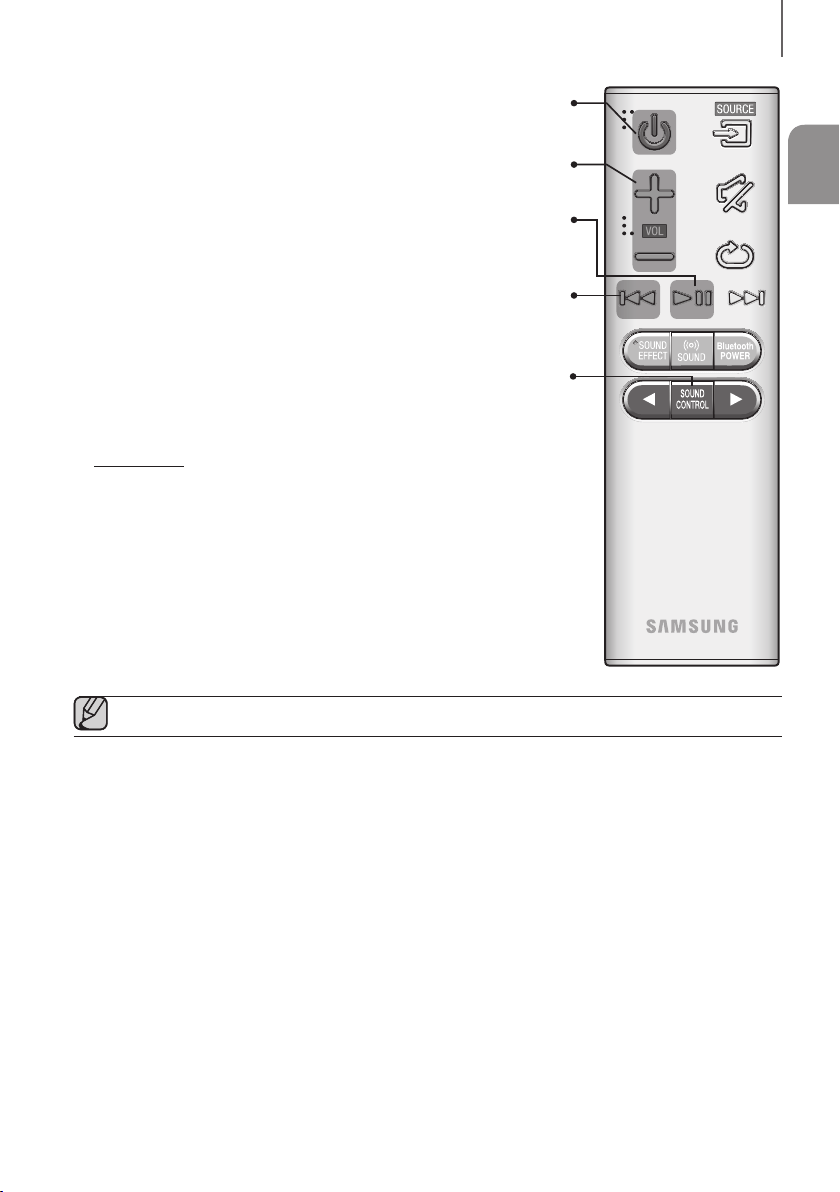
Volume
Adjusts the volume level of the unit.
Power
Turns the Soundbar on and off.
SOUND CONTROL
Press to select TREBLE, BASS, SUBWOOFER LEVEL or AUDIO SYNC.
Then, use the
,
buttons to adjust the TREBLE or BASS volume from
-3 ~ +3, SUBWOOFER LEVEL volume from -12, -6 ~ +6.
Press and hold the SOUND CONTROL button for about 5 seconds to adjust
the sound for each frequency band. 150Hz, 300Hz, 600Hz, 1.2KHz, 2.5KHz,
5KHz, and 10KHz are selectable and each can be adjusted to a setting between
-6 ~ +6.
If the Soundbar is connected to a digital TV and the video appears out of sync
with the audio, press the SOUND CONTROL button to sync the audio with the
video. Use the
,
buttons to set the audio delay between
0 ms ~ 300 ms. In TV mode, and BT mode, the Audio Sync function may not
available.
Play / Pause
Press the
p
button to pause a file temporarily.
Press the
p
button again to play the selected file.
Skip Back
If there is more than one file on the device you are playing, and you press
the
[
button, the previous file is selected.
● Operate the TV using the TV's remote control.
10
DESCRIPTIONS
+ Controlling the Soundbar using Your TV Remote Control
1. Press and hold the SOUND button for more than 5 seconds while the Soundbar is turned on.
2. “ON - TV REMOTE” appears on the Soundbar’s display.
3. In the TV’s menu, set the TV speaker to external speaker.
● Not available if the TV ARC function or HDMI mode is in use.
● All buttons are not available except the VOL +/- and the
buttons in this function.
● TV menus differ by manufacturer and model. Refer to the TV's user manual for further information.
● Manufacturers supporting this function:
- VIZIO, LG, Sony, Sharp, PHILIPS, PANASONIC, TOSHIBA, GRUNDIG, Hisense, RCA
- This function may not be compatible with your TV's remote depending on the remote control's
manufacturer.
● To turn off this function, press the
SOUND button for 5 seconds.
"OFF - TV REMOTE" appears on the Soundbar's display.
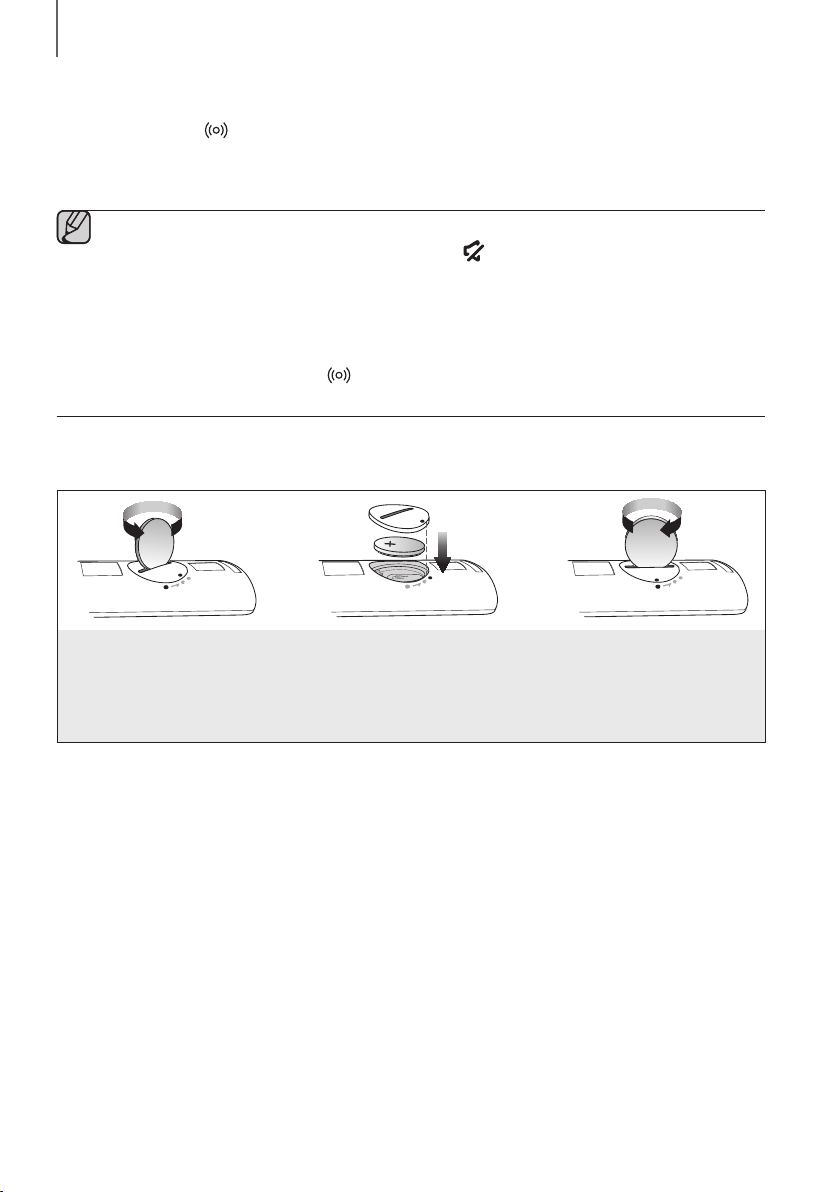
INSTALLING THE BATTERY IN THE REMOTE CONTROL
1. Use a suitable coin to turn the
remote control's battery cover
counterclockwise to remove it
as shown in the figure above.
2. Insert a 3V lithium battery. Keep the
positive (+) pole facing up when inserting
the battery. Put the battery cover on and
align the '●' marks side by side as
shown in the figure above.
3. Use a suitable coin to
turn the remote control
battery cover clockwise
as far as it will go to fix it
in place.
ENG
11
INSTALLATION
INSTALLING THE SOUNDBAR
INSTALLING THE WALL MOUNT
+ Installation Precautions
● Install on a vertical wall only.
● For the installation, avoid a location with high temperature or humidity, or a wall that cannot sustain the weight of
the set.
● Check the strength of the wall. If the wall is not strong enough to support the unit, reinforce the wall or install the
unit on a different wall that can support the unit's weight.
● Purchase and use the fixing screws or anchors appropriate for the kind of wall you have (plaster board,
iron board, wood, etc.). If possible, fix the support screws into wall studs.
● Purchase wall mounting screws according to the type and thickness of the wall you will mount the Soundbar on.
- Diameter: M5
- Length: 35 mm or longer recommended.
● Connect cables from the unit to external devices before you install it on the wall.
● Make sure the unit is turned off and unplugged before you install it. Otherwise, it may cause an electric shock.
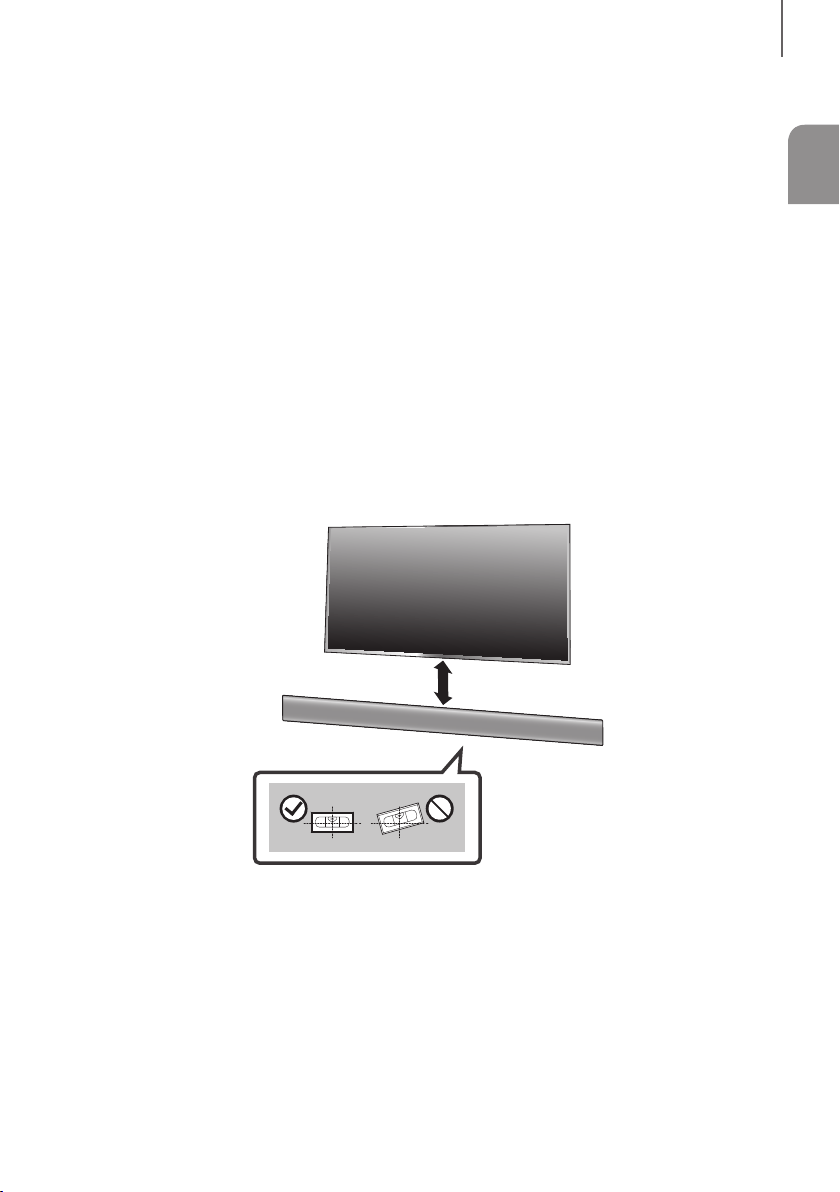
5 cm or more
1. Place the Wall Mount Guide against the wall surface.
• The Wall Mount Guide must be level.
• If the TV is mounted on the wall, install the Soundbar at least 5 cm below the TV.
INSTALLATION
12
INSTALLATION
Centre Line
A-TYPE : 616mm
B-TYPE : 360mm
CENTER LINE
A B B A
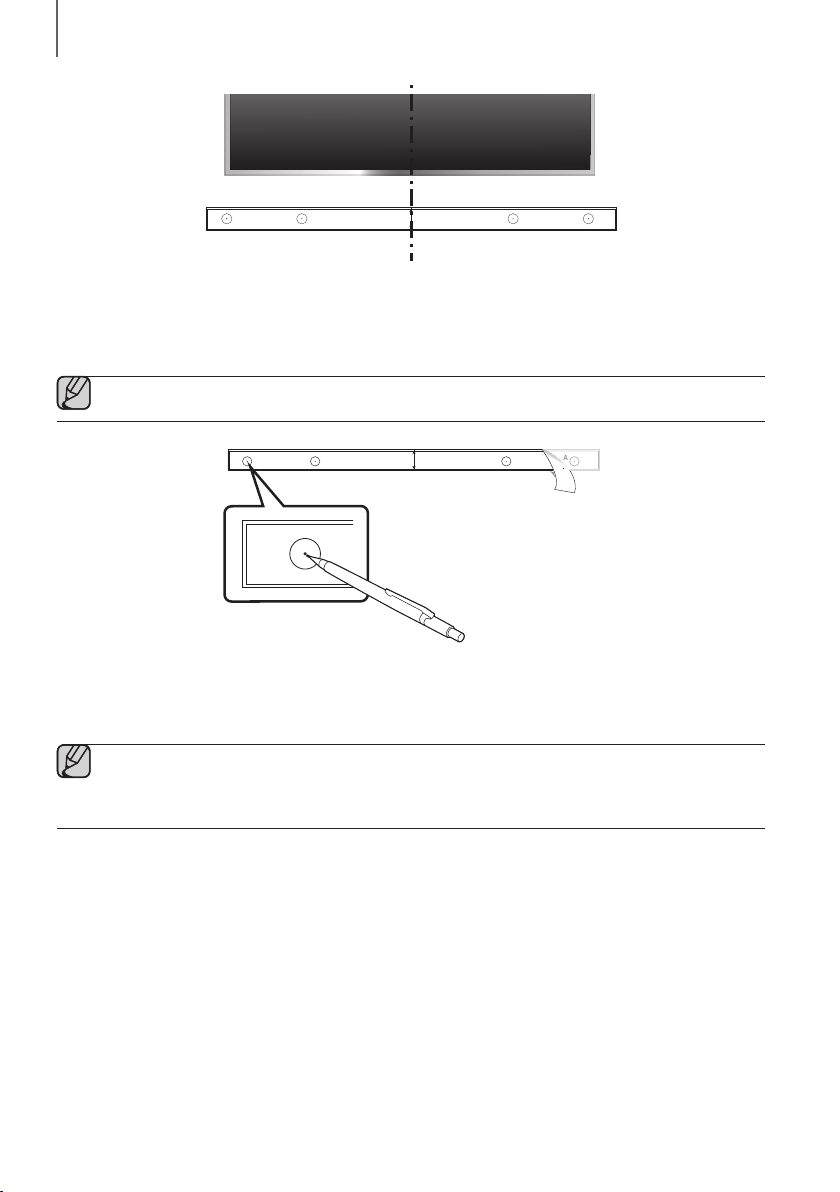
2. Align the Paper Template’s Centre Line with the centre of your TV (if you are mounting the Soundbar
below your TV), and then fix the Wall Mount Guide to the wall using tape.
● If you are not mounting below a TV, place the Centre Line in the centre of the installation area.
A-TYPE : 616mm
B-TYPE : 360mm
CENTER LINE
A B B A
A-TYPE : 616mm
B-TYPE : 360mm
CENTER LINE
A B B
A B
3. Push a pen tip or sharpened pencil tip through the centre of the A-TYPE images on each end of the
Guide to mark the holes for the supporting screws, and then remove the Wall Mount Guide.
4. Using an appropriately sized drill bit, drill a hole in the wall at each marking.
● If the markings do not correspond to the positions of studs, make sure you insert appropriate anchors or
mollies into the holes before you insert the support screws. If you use anchors or mollies, make sure the
holes you drill are large enough for the anchors or mollies you use.
ENG
13
INSTALLATION
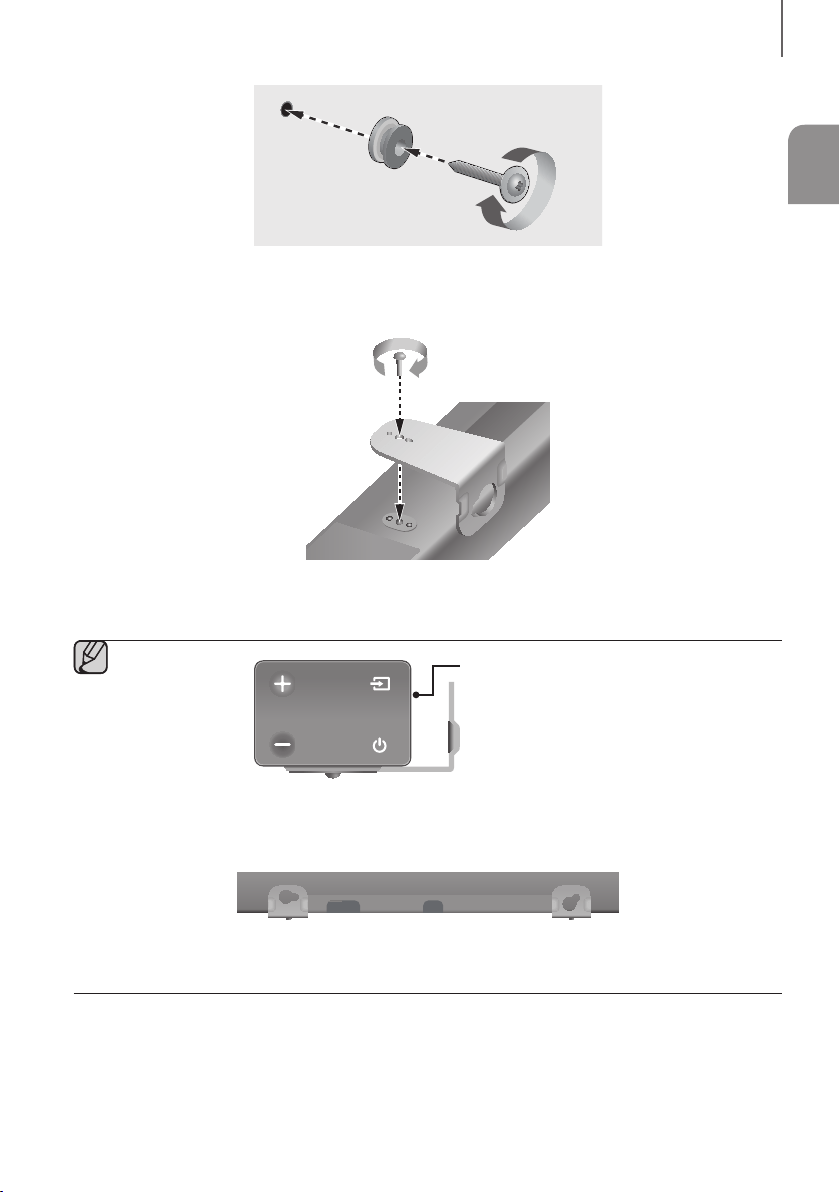
5. Push a screw (not supplied) through each Holder-Screw, and then screw each screw firmly into a
support screw hole.
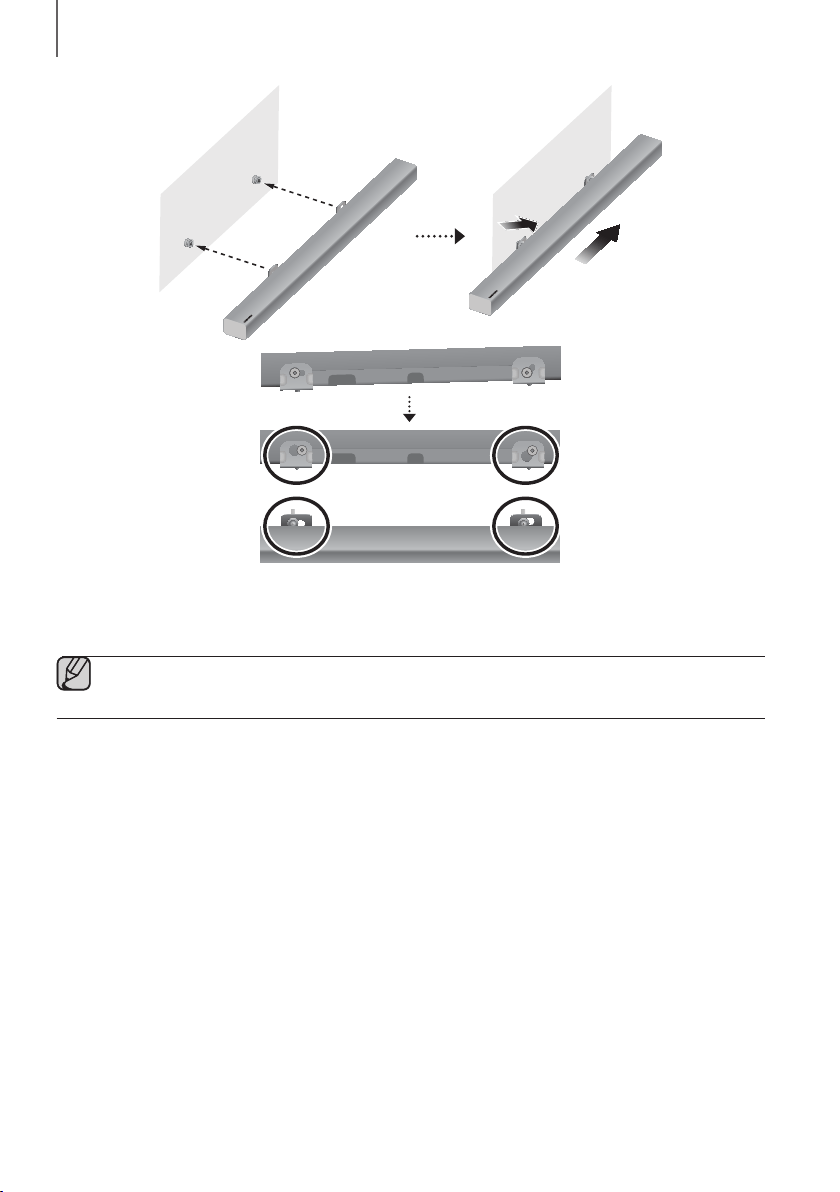
6. Use the two Screws (M4 x L12) to attach both Bracket-Wall Mount L and R to the Soundbar’s bottom.
For a proper fit, make sure to align the bumps on the Soundbar to the holes on the brackets.
Rear side of Soundbar
Right end of Soundbar
● When assembling, make sure the hanger part of Bracket-Wall Mounts faces backwards.
Wall Mount LWall Mount R
● The left and right mounts are different shapes. Make sure to position them correctly.
14
INSTALLATION
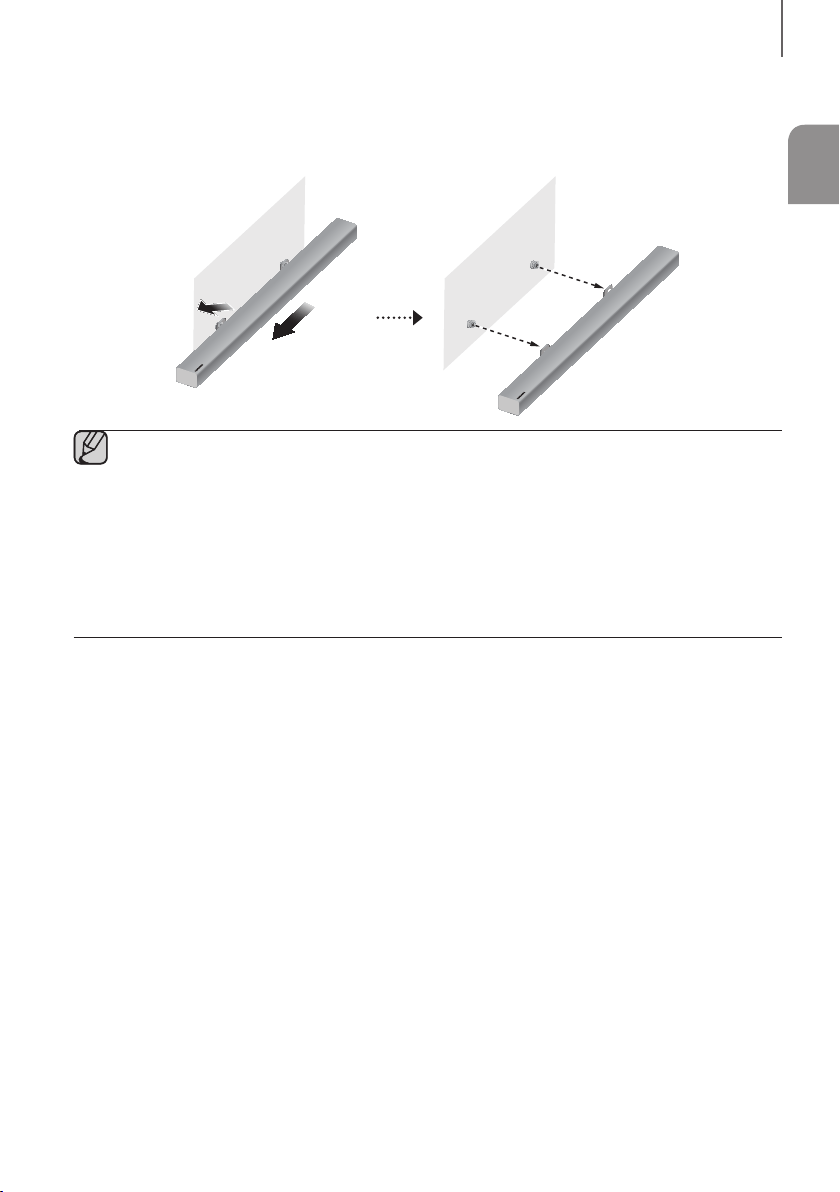
7. Install the Soundbar with the attached Bracket-Wall Mounts by hanging the Bracket-Wall Mounts on
the Holder-Screws on the wall.
● Slightly tilt the Soundbar to insert both Holder-Screw heads into Bracket-Wall Mount holes. Push the
Soundbar in the direction of the arrow to make sure both sides are firmly fixed.
ENG
15
INSTALLATION
DETACHING THE SOUNDBAR FROM THE WALL
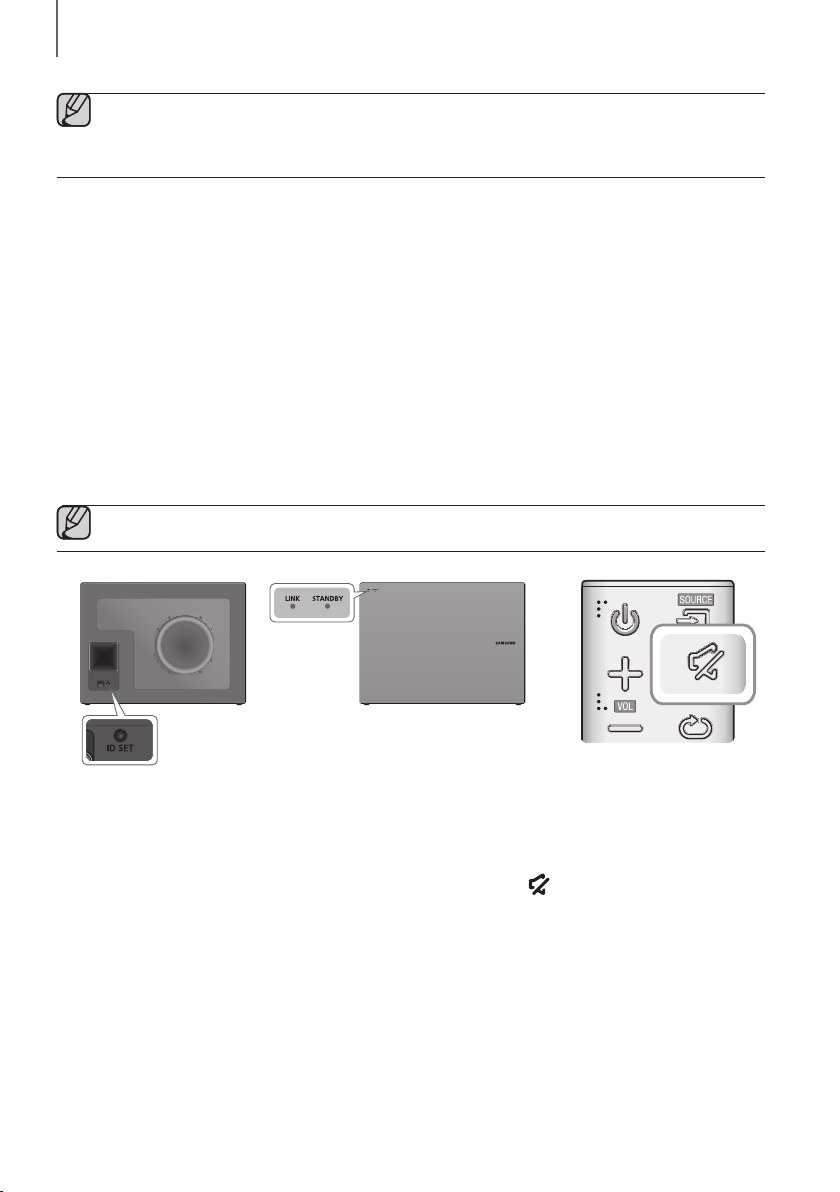
1. To separate the Soundbar from the wall mount, push it in the direction of the arrow, and then pull it away from the
wall as shown.
● Do not hang onto the installed unit and avoid striking or dropping the unit.
● Secure the unit firmly to the wall so that it does not fall off. If the unit falls off, it may cause an injury or
damage the product.
● When the unit is installed on a wall, please make sure that children do not pull any of the connecting
cables, as this may cause it to fall.
● For the optimal performance of a wall mount installation, install the speaker system at least
5 cm below the TV, if the TV is mounted on the wall.
● For your safety, if you do not mount the unit on the wall, install it on a secure, flat surface where it is unlikely
to fall.
16
CONNECTIONS
● Do not connect the power cord of this product or your TV to a wall outlet until all connections between
components are complete.
● Before moving or installing this product, be sure to turn off the power and disconnect the power cord.
CONNECTING THE SUBWOOFER
CONNECTING TO THE SUBWOOFER AUTOMATICALLY
The Subwoofer's linking ID is preset at the factory and the main unit and subwoofer should link (connect wirelessly)
automatically when the main unit and subwoofer are turned on.
• When the subwoofer is completely connected, the blue LED Link Indicator on the subwoofer stops blinking and
glows continuously.
CONNECTING TO THE SUBWOOFER MANUALLY
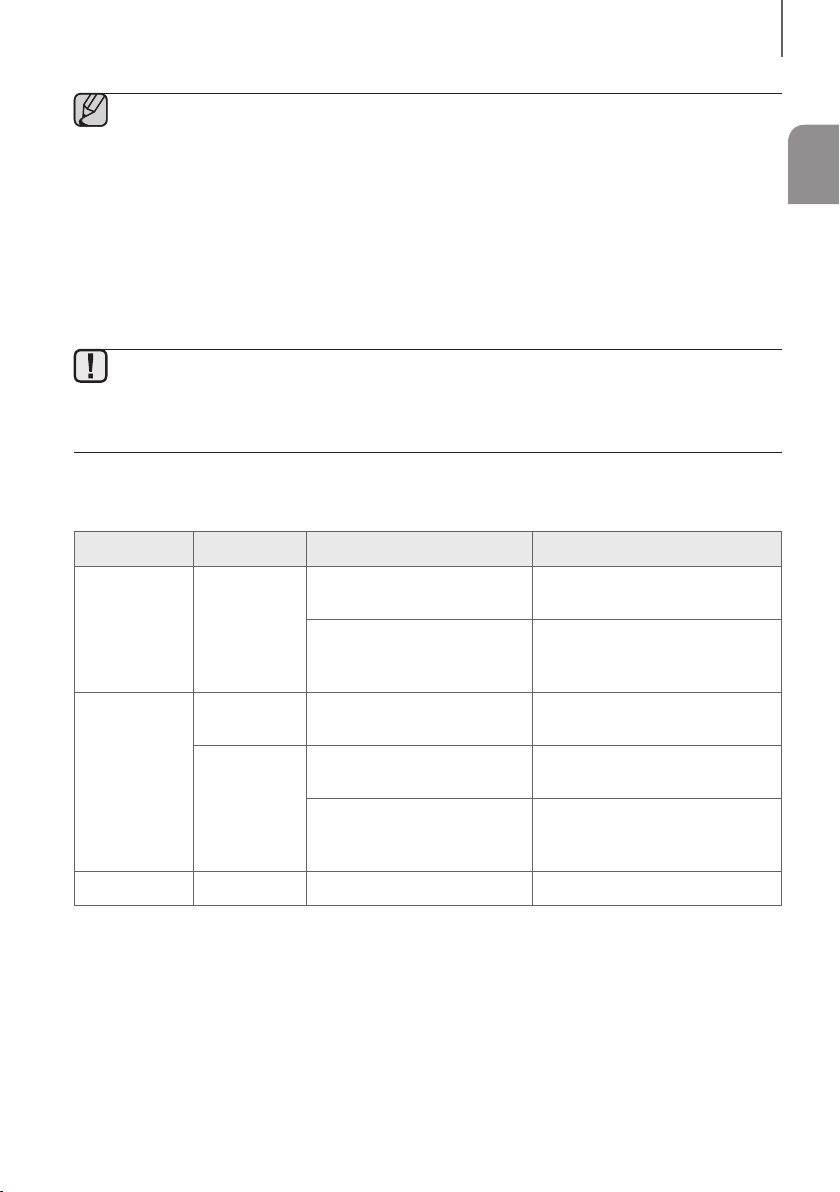
If the blue LED light does not stop blinking when the main unit and subwoofer are turned on, please set the ID by
following the steps below.
● Important: Before you begin, put the battery into the remote. See page 10 for instructions.
POWER
1. Plug the power cords of the main unit and subwoofer into an AC wall outlet.
2. Press the ID SET button on the back of the subwoofer with a small, pointed object for 5 seconds.
• The STANDBY indicator turns off and the LINK indicator (Blue LED) blinks quickly.
3. While the main unit is powered off (in STANDBY mode), press and hold the
(Mute) on the remote control for
5 seconds.
4. The ID SET message appears on the Soundbar's display.
5. To finalise the link, turn the main unit’s power on while the subwoofer’s Blue LED blinks.
• The main unit and the subwoofer should now be linked (connected).
• The LINK indicator (Blue LED) on the subwoofer should be glowing continuously and not blinking.
• If the LINK indicator is not solid blue, the linking process has failed. Turn off the main unit and start again from
Step 2.
• You can enjoy better sound from the wireless subwoofer by selecting a Sound Effect. (See page 8)
CONNECTIONS
ENG
17
CONNECTIONS
● Before moving or installing the product, be sure to turn off the power and disconnect the power cord.
● If the main unit is powered off, the wireless subwoofer will in standy mode and the STANDBY LED on the
front will blink Red directly. (no blue LED).
● If you use a device that uses the same frequency (2.4GHz) as the Soundbar near the Soundbar,
interference may cause some sound interruption.
● The maximum transmission distance of the wireless signal between the main unit and subwoofer is about
10 meters, but may vary depending on your operating environment. If a steel-concrete or metallic wall is
between the main unit and the wireless subwoofer, the system may not operate at all, because the wireless
signal cannot penetrate metal.
● If the main unit doesn't make a wireless connection, follow steps 1-5 on the previous page to re-set the
connection between the main unit and wireless subwoofer.
● The wireless receiving antenna is built into the wireless subwoofer. Keep the unit away from water and
moisture.
● For optimal listening performance, make sure that the area around the wireless subwoofer location is clear
of any obstructions.
LED INDICATOR LAMP STATUS ON SUBWOOFER
LED Status Description Resolution
Red On
Standby (with the Soundbar main
unit turned off)
Check the power supply to the
Soundbar main unit
Connection failed
Connect again
(refer to the instructions on manual
connection in the user manual)
Blue
On
Successfully connected
(normal operation)
-
Blinking
Standby (with the Soundbar main
unit turned off)
Check the power supply to the
Soundbar main unit
Connection failed
Connect again
(refer to the instructions on manual
connection in the user manual)
Red and blue Blinking Malfunction Contact the service center.
18
CONNECTIONS
CONNECTING TO A TV
● Important: Before you begin, put the battery into the remote. See page 10 for instructions.
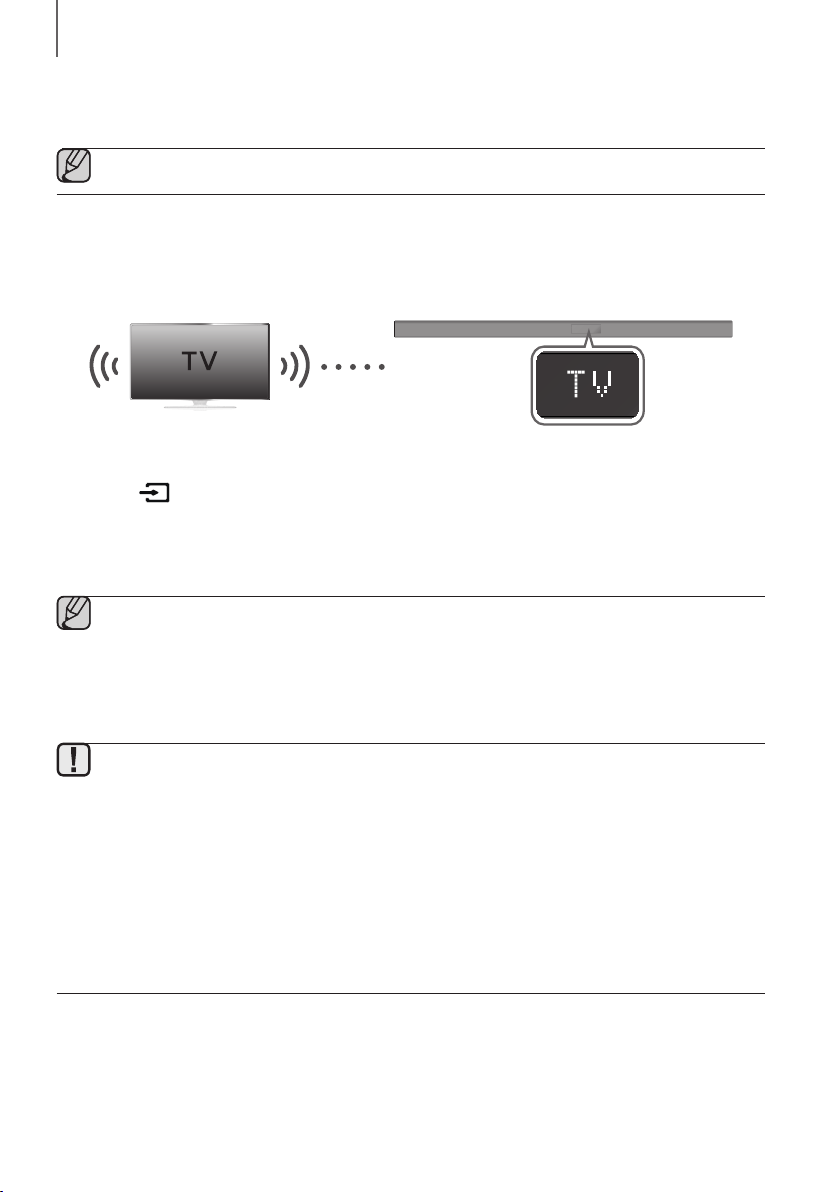
TV SOUNDCONNECT
You can enjoy TV sound through your Soundbar when it is connected to a Samsung TV that supports the
TV SoundConnect function.
Connect
1. Turn on the TV and Soundbar.
2. Press the
button on the main unit’s right side or the SOURCE button on the remote control to select the TV
mode.
3. On the TV, a message asking whether to enable the TV SoundConnect function appears.
4. Select <Yes> using the TV's remote control to finish connecting the TV and Soundbar.
● If the TV SoundConnect linking process fails, navigate to SoundConnect in the TV's Sound menu, select
Add New Device, and set Add New Device to ON. Then, try again.
● Switching the Soundbar’s mode from TV to another mode automatically terminates TV SoundConnect.
●
To connect the Soundbar to another TV, the existing connection must be terminated.
● To terminate the existing connection, press and hold the
p
button on the remote for 5 seconds or switch
to another mode. To connect to the other TV, follow Steps 1 through 4 above.
● The TV SoundConnect (SoundShare) function is supported by some Samsung TVs released from 2012 on.
Check whether your TV supports the TV SoundConnect (SoundShare) function before you begin. (For
further information, refer to the TV’s user manual.).
● If your Samsung TV was released before 2014, check the SoundShare setting menu.
● If the distance between the TV and Soundbar exceeds 10 meters, the connection may not be stable or the
audio may stutter. If this occurs, relocate the TV or Soundbar so that they are within operational range, and
then re-establish the TV SoundConnect connection.
● TV SoundConnect Operational Ranges:
- Recommended pairing range: within 2 meters.
- Recommended operational range: within 10 meters.
● The Play/Pause, Next, and Prev buttons on the Soundbar or Soundbar's remote do not control the TV.
ENG
19
CONNECTIONS
+ Using the Bluetooth POWER On function
The Bluetooth POWER On function is available after you have successfully connected the Soundbar to a Bluetooth
compatible TV using TV SoundConnect. When the Bluetooth POWER On function is ON, turning the connected TV on
or off will turn the Soundbar's power on and off as well.
1. Connect the TV to your Soundbar using the TV SoundConnect function.
2. Press the Bluetooth POWER button on the Soundbar remote. ON - BLUETOOTH POWER appears on
the Soundbar’s display.
• ON - BLUETOOTH POWER : The Soundbar turns on and off when you turn the TV on or off.
• OFF - BLUETOOTH POWER : The Soundbar only turns off when you turn the TV off.
● This function is supported by some Samsung TVs released from 2013 on.
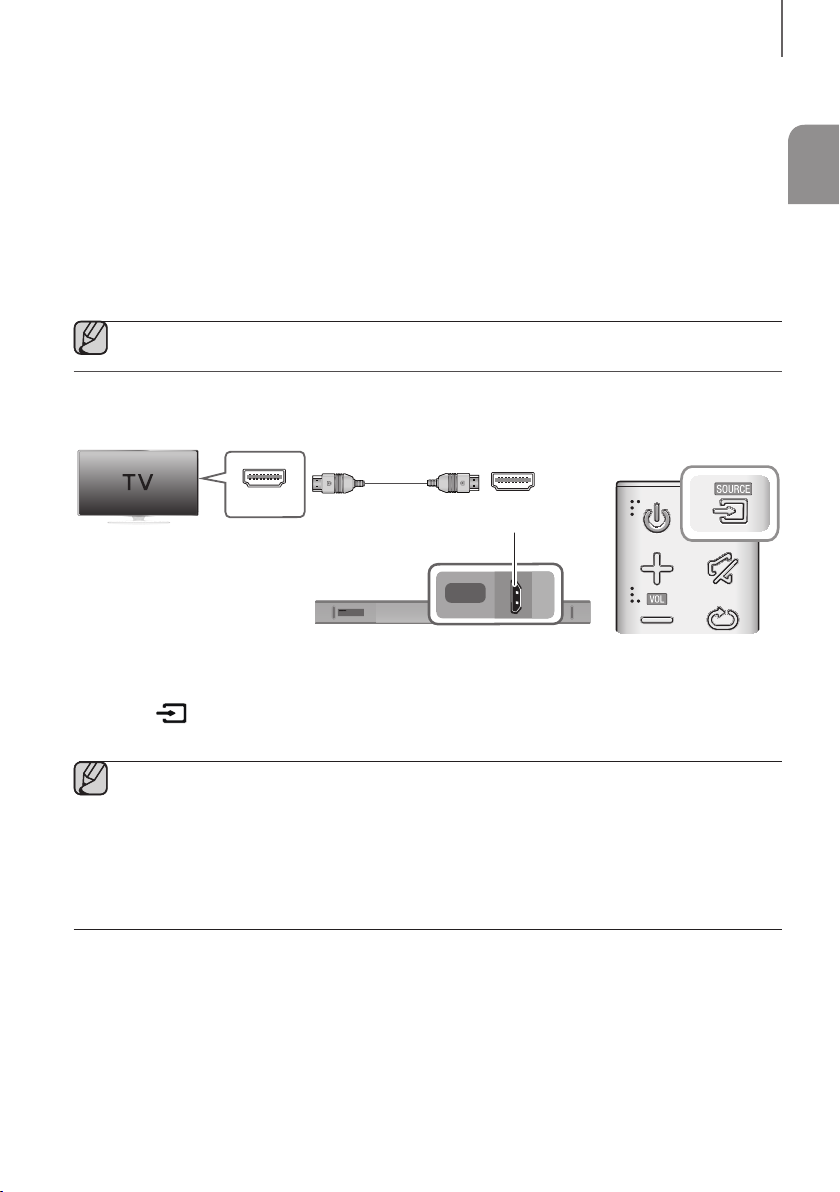
CONNECTING TO A TV USING AN HDMI (DIGITAL) CABLE
Wi-Fi SETUP SPK ADD
DIGITAL AUDIO IN
(OPTICAL)
USB (5V 0.5A)
AUX IN
HDMI IN
HDMI OUT
(TV-ARC)
DC 24V
DIGITAL AUDIO IN
(OPTICAL)
HDMI IN
HDMI OUT
(TV-ARC)
HDMI IN
HDMI OUT
(TV-ARC)
HDMI Cable
(not supplied)
1. Connect an HDMI cable (not supplied) from the HDMI OUT (TV-ARC) jack on the bottom of the product to the
HDMI IN jack on your TV.
2. Press the
button on the right side of the Soundbar or the SOURCE button on the remote control to select
the D.IN mode.
● HDMI is an interface that enables the digital transmission of video and audio data with just a single
connector.
● If the TV provides an ARC port, connect the HDMI cable to the HDMI IN (ARC) port.
● We recommend you use a coreless HDMI cable if possible. If you use a cored HDMI cable, use one whose
diameter is less than 14 mm.
● Anynet+ must be turned on.
● This function is not available if the HDMI cable does not support ARC.
20
CONNECTIONS
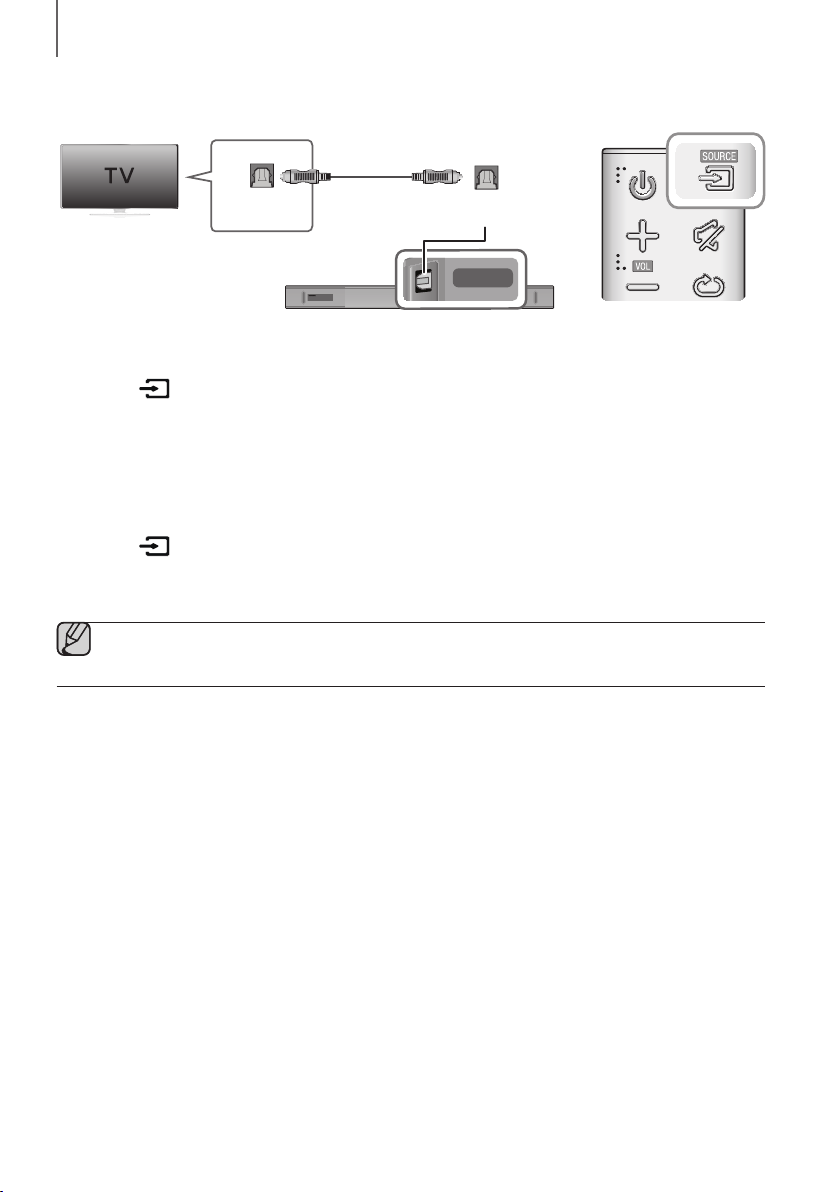
CONNECTING TO A TV USING A DIGITAL OPTICAL CABLE
Wi-Fi SETUP SPK ADD
DIGITAL AUDIO IN
(OPTICAL)
USB (5V 0.5A)
AUX IN
HDMI IN
HDMI OUT
(TV-ARC)
DC 24V
DIGITAL AUDIO IN
(OPTICAL)
DIGITAL AUDIO IN
(OPTICAL)
OPTICAL OUT
Optical Cable
(not supplied)
1. Connect the DIGITAL AUDIO IN (OPTICAL) jack on the Soundbar to the OPTICAL OUT jack of the TV with a
digital optical cable.
2. Press the
button on the right side of the Soundbar or the SOURCE button on the remote control to select
the D.IN mode.
+ Auto Power Link
If you have connected the main unit to a TV with a digital optical cable, you can set the Auto Power function ON
to have the Soundbar turn on automatically when you turn the TV on.
1. Connect the Soundbar and
a TV
with a digital optical cable (not supplied).
2. Press the
button on the main unit’s right side or the SOURCE button on the remote control to select the
D.IN
mode.
3. Press the
button on the remote control for 5 seconds to turn Auto Power Link on or off.
● Auto Power Link is set to ON by default.
● Depending on the connected device, Auto Power Link may not function.
ENG
21
CONNECTIONS
CONNECTING TO EXTERNAL DEVICES
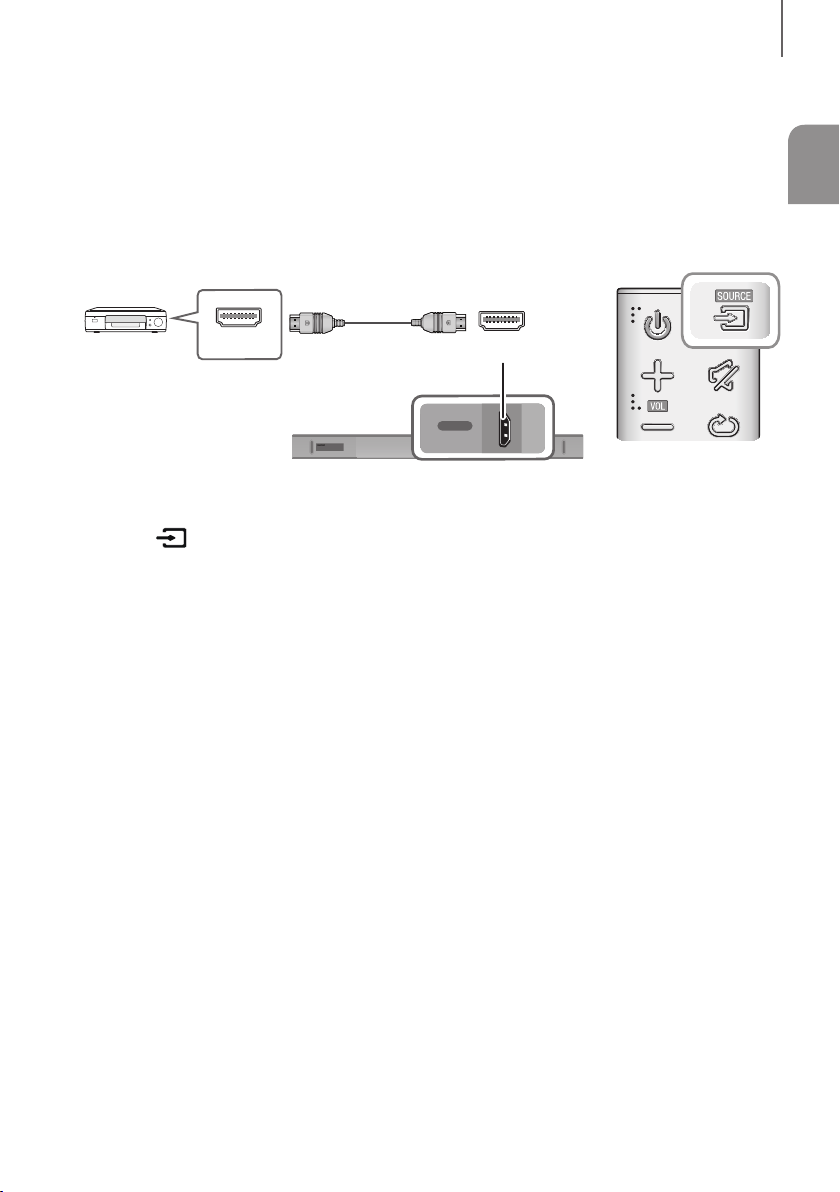
HDMI CABLE
HDMI is the standard digital interface for connecting to TVs, projectors, DVD players, Blu-ray players, set top boxes,
and more.
HDMI prevents any degradation to the signal due to conversion to analogue and maintains the video and audio
quality of the original digital source.
Digital Devices
Wi-Fi SETUP SPK ADD
DIGITAL AUDIO IN
(OPTICAL)
USB (5V 0.5A)
AUX IN
HDMI IN
HDMI OUT
(TV-ARC)
DC 24V
DIGITAL AUDIO IN
(OPTICAL)
HDMI IN
HDMI IN
HDMI OUT
HDMI Cable
(not supplied)
1. Connect an HDMI cable (not supplied) from the HDMI IN jack on the bottom of the product to the HDMI OUT jack
on your digital device.
2. Press the
button on the right side of the Soundbar or the SOURCE button on the remote control to select
the HDMI mode.
22
CONNECTIONS
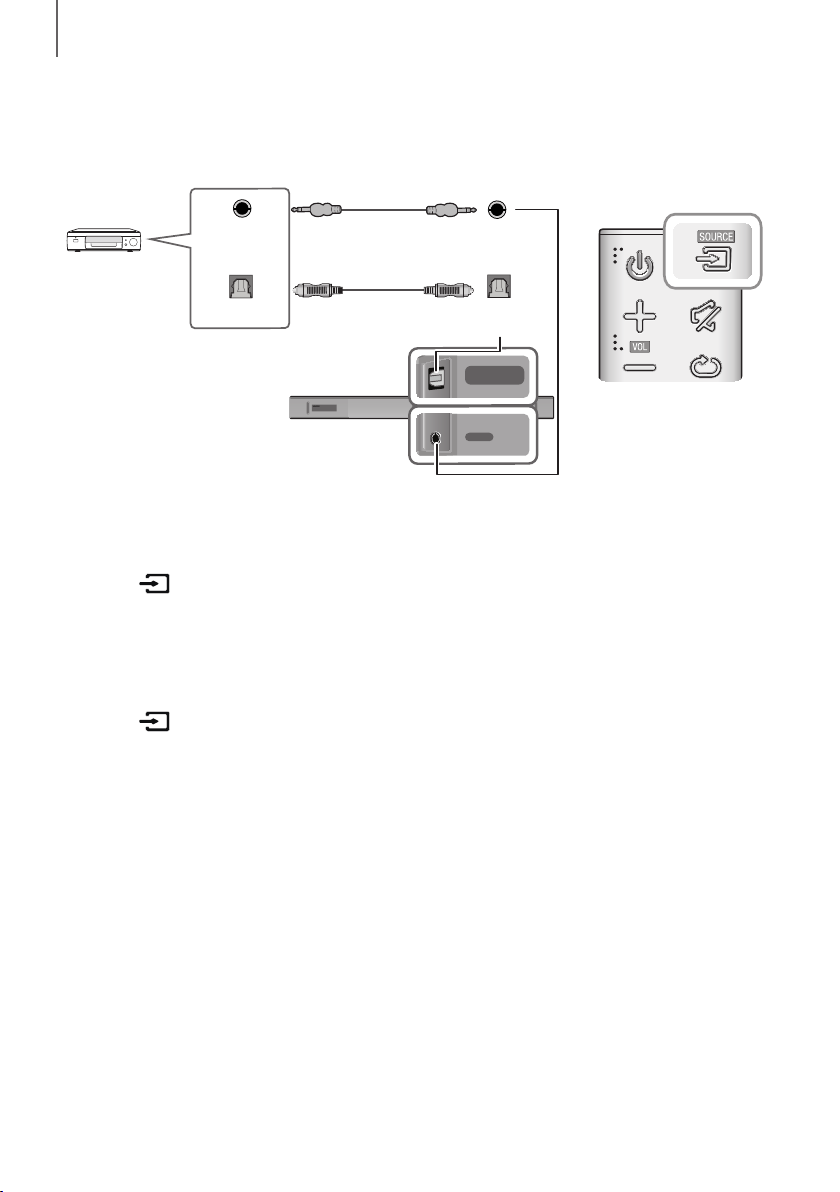
OPTICAL OR ANALOGUE AUDIO CABLE
This unit comes equipped with one digital optical in jack and one analogue audio (AUX) in jack, giving you two
ways to connect it to external devices.
Wi-Fi SETUP SPK ADD
DIGITAL AUDIO IN
(OPTICAL)
USB (5V 0.5A)
AUX IN
HDMI IN
HDMI OUT
(TV-ARC)
DC 24V
DIGITAL AUDIO IN
(OPTICAL)
USB (5V 0.5A)
AUX IN
DIGITAL AUDIO IN
(OPTICAL)
USB (5V 0.5A)
AUX IN
DIGITAL AUDIO IN
(OPTICAL)
OPTICAL OUT
AUX IN
AUX OUT
BD / DVD player /
Set-top box /
Game console
Audio Cable
(not supplied)
Optical Cable
(not supplied)
+ AUX Cable
1. Connect AUX IN (Audio) on the main unit to the AUDIO OUT jack of the Source Device using an audio cable.
2. Press the
button on the right side of the Soundbar or the SOURCE button on the remote control to select
the AUX mode.
+ Optical Cable
1. Connect DIGITAL AUDIO IN (OPTICAL) on the main unit to the OPTICAL OUT jack of the Source Device using a
digital optical cable.
2. Press the
button on the right side of the Soundbar or the SOURCE button on the remote control to select
the D.IN mode.
ENG
23
FUNCTIONS
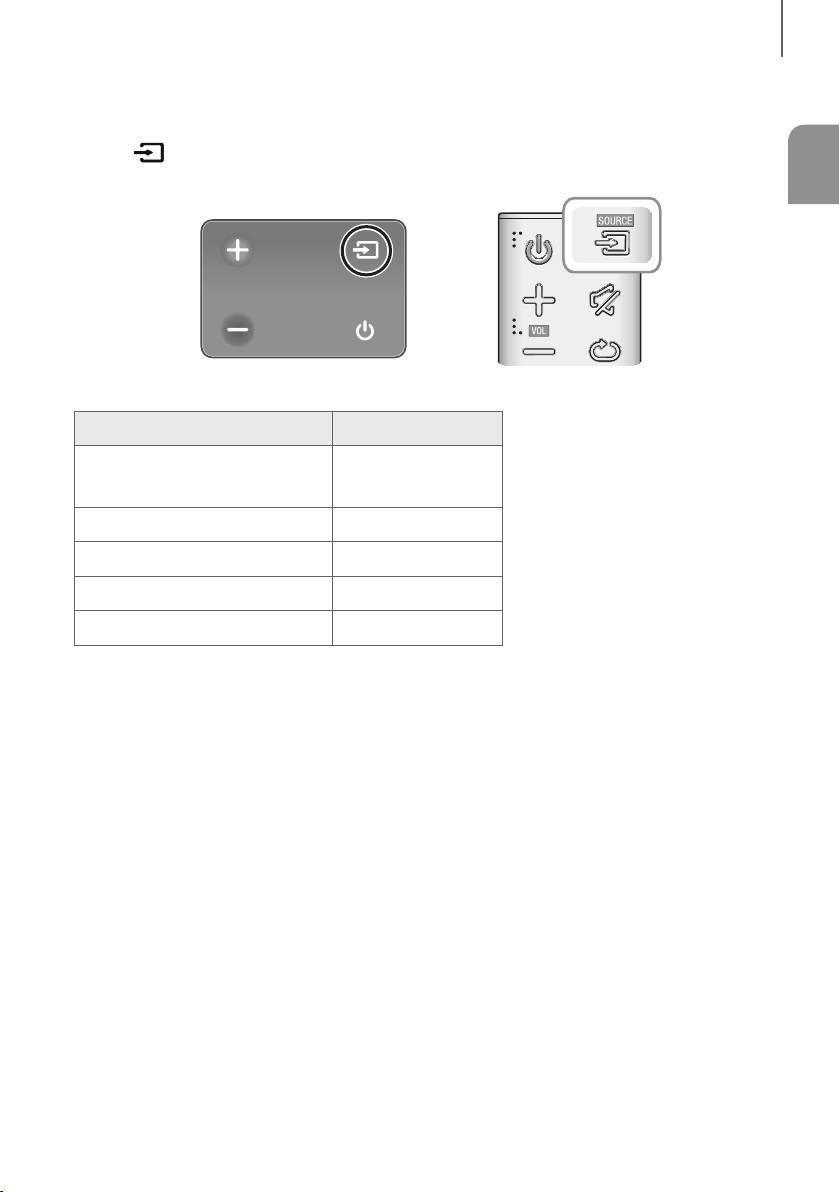
INPUT MODE
Press the button on the main unit’s
rig
ht
side or the
SOURCE button on the remote control to select the mode
you want.
Right end of Soundbar
Input mode Display
Optical Digital input
ARC (HDMI OUT) input
D.IN
AUX input
AUX
HDMI input
HDMI
BLUETOOTH mode
BT
TV SoundConnect
TV
AUTO POWER DOWN FUNCTION
The unit turns off automatically in the following situations.
● D.IN / HDMI / BT / TV Mode
- If there is no audio signal for 5 minutes.
● AUX Mode
- If the AUX cable is disconnected for 5 minutes.
- If there is no KEY input for 8 hours when the AUX cable is connected.
To turn the Auto Power Down function ON or OFF, press and hold the
p
button for 5 seconds.
ON - AUTO POWER DOWN / OFF - AUTO POWER DOWN appears on the display.
FUNCTIONS
24
FUNCTIONS
BLUETOOTH
You can connect a Bluetooth device to the Soundbar and enjoy music with stereo sound, all without wires!
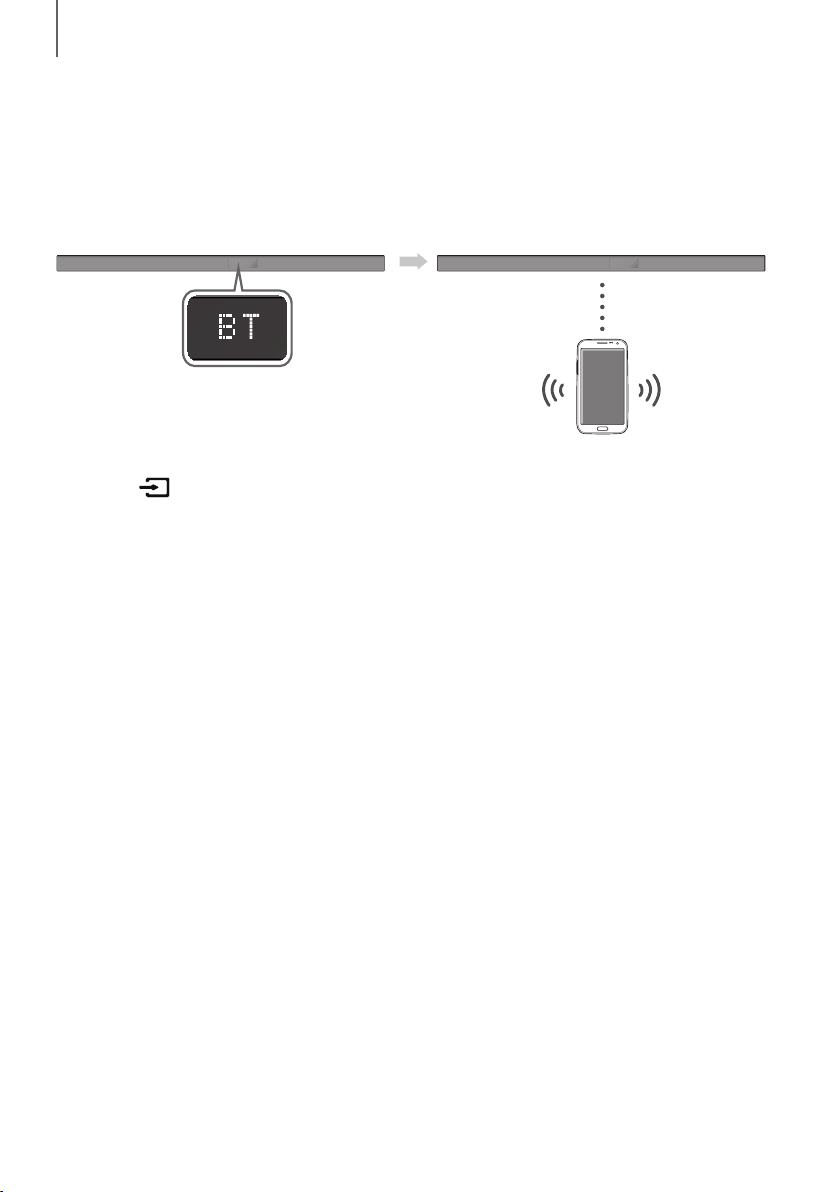
TO CONNECT THE SOUNDBAR TO A BLUETOOTH DEVICE
Check if the Bluetooth device supports the Bluetooth compliant stereo headset function.
Bluetooth device
Connect
1. Press the
button on the main unit’s right side or the
SOURCE button on the remote control to select the BT
mode.
• You will see BT READY on the front display of the Soundbar.
2. Select the Bluetooth menu on the Bluetooth device you want to connect. (Refer to the Bluetooth device's user
manual.)
3. Select "[AV] Samsung Soundbar Kxxx" from the list.
• When the Soundbar is connected to the Bluetooth device, it will display [Bluetooth device name]
BT on
the front display.
• The device name can only be displayed in English. An underline " _ " will be displayed if the name is not in
English.
• If the Bluetooth device has failed to pair with the Soundbar, delete the previous "[AV] Samsung Soundbar
Kxxx" found by the Bluetooth device and have it search for the Soundbar again.
4. Play music on the connected device.
• You can listen to the music playing on the connected Bluetooth device over the Soundbar.
• In BT mode, the Play / Pause / Next / Prev functions are not available. However, these functions are available
on Bluetooth devices supporting AVRCP.

ENG
25
FUNCTIONS
● If asked for a PIN code when connecting a Bluetooth device, enter <0000>.
● Only one Bluetooth device can be paired at a time.
● The Bluetooth connection will be terminated when you turn the Soundbar off.
● The Soundbar may not perform Bluetooth search or connection correctly under the following
circumstances:
- If there is a strong electrical field around the Soundbar.
- If several Bluetooth devices are simultaneously paired with the Soundbar.
- If the Bluetooth device is turned off, not in place, or malfunctions.
● Note that such devices as microwave ovens, wireless LAN adaptors, fluorescent lights, and gas stoves use
the same frequency range as the Bluetooth device, which can cause electric interference.
● The Soundbar supports SBC data (44.1kHz, 48kHz).
● Connect only to a Bluetooth device that supports the A2DP (AV) function.
● You cannot connect the Soundbar to a Bluetooth device that supports only the HF (Hands Free) function.
● Once you have paired the Soundbar to a Bluetooth device, selecting "[AV] Samsung Soundbar Kxxx"
from the device's scanned devices list will automatically change the Soundbar to BT mode.
- Available only if the Soundbar is listed among the Bluetooth device’s paired devices. (The Bluetooth
device and the Soundbar must have been previously paired at least once.)
● Soundbar will appear in the Bluetooth device’s searched devices list only when the Soundbar is displaying
BT READY.
● In the TV SoundConnect mode, the Soundbar cannot be paired to another Bluetooth device.
BLUETOOTH POWER ON (BLUETOOTH POWER)
If a previously paired Bluetooth device tries to pair with the Soundbar when the Bluetooth POWER On function is on
and the Soundbar is turned off, the Soundbar turns on automatically.
1. Press the Bluetooth POWER button on the remote while the Soundbar is turned on.
2. ON - BLUETOOTH POWER appears on the Soundbar’s display.
TO DISCONNECT THE BLUETOOTH DEVICE FROM A
SOUNDBAR
You can disconnect a Bluetooth device from the Soundbar. For instructions, see the Bluetooth device's user manual.
● The Soundbar will be disconnected.
● When the Soundbar is disconnected from the Bluetooth device, the Soundbar will display
BT DISCONNECTED on the front display.
TO DISCONNECT THE SOUNDBAR FROM A BLUETOOTH
DEVICE
Press the SOURCE button on the remote control or the button on the product's
rig
ht side to switch from BT to
another mode or turn off the Soundbar.
● The connected Bluetooth device will wait a certain amount of time for a response from the Soundbar before
terminating the connection. (Disconnection time may differ, depending on the Bluetooth device)

26
FUNCTIONS
● In Bluetooth connection mode, the Bluetooth connection will be lost if the distance between the Soundbar
and the Bluetooth device exceeds 10 meters.
● The Soundbar automatically turns off after 5 minutes in the Ready state.
+ More About Bluetooth
Bluetooth is a technology that enables Bluetooth-compliant devices to interconnect easily with each other using a
short wireless connection.
● A Bluetooth device may cause noise or malfunction, depending on usage, if:
- A part of your body is in contact with the receiving/transmitting system of the Bluetooth device or the
Soundbar.
- It is subject to electrical variation from obstructions caused by a wall, corner, or office partition.
- It is exposed to electrical interference from same frequency-band devices including medical equipment,
microwave ovens, and wireless LANs.
● Pair the Soundbar with the Bluetooth device while they are close together.
● The further the distance between the Soundbar and Bluetooth device, the worse the quality is.
If the distance exceeds the Bluetooth operational range, the connection is lost.
● In poor reception areas, the Bluetooth connection may not work properly.
● The Bluetooth connection only works when it is close to the unit. The connection will be automatically cut off if the
Bluetooth device is out of range. Even within range, the sound quality may be degraded by obstacles such as
walls or doors.
● This wireless device may cause electric interference during its operation.
ENG
27
FUNCTIONS
USING THE MULTIROOM APP
The Samsung Multiroom app lets you connect the Soundbar to a smart device, your network, and the Internet. Once
the Soundbar is connected to a smart device that has the Multiroom App installed, you can also connect the
Soundbar and multiple Samsung Multiroom devices together wirelessly and play audio through them.
BEFORE YOU BEGIN
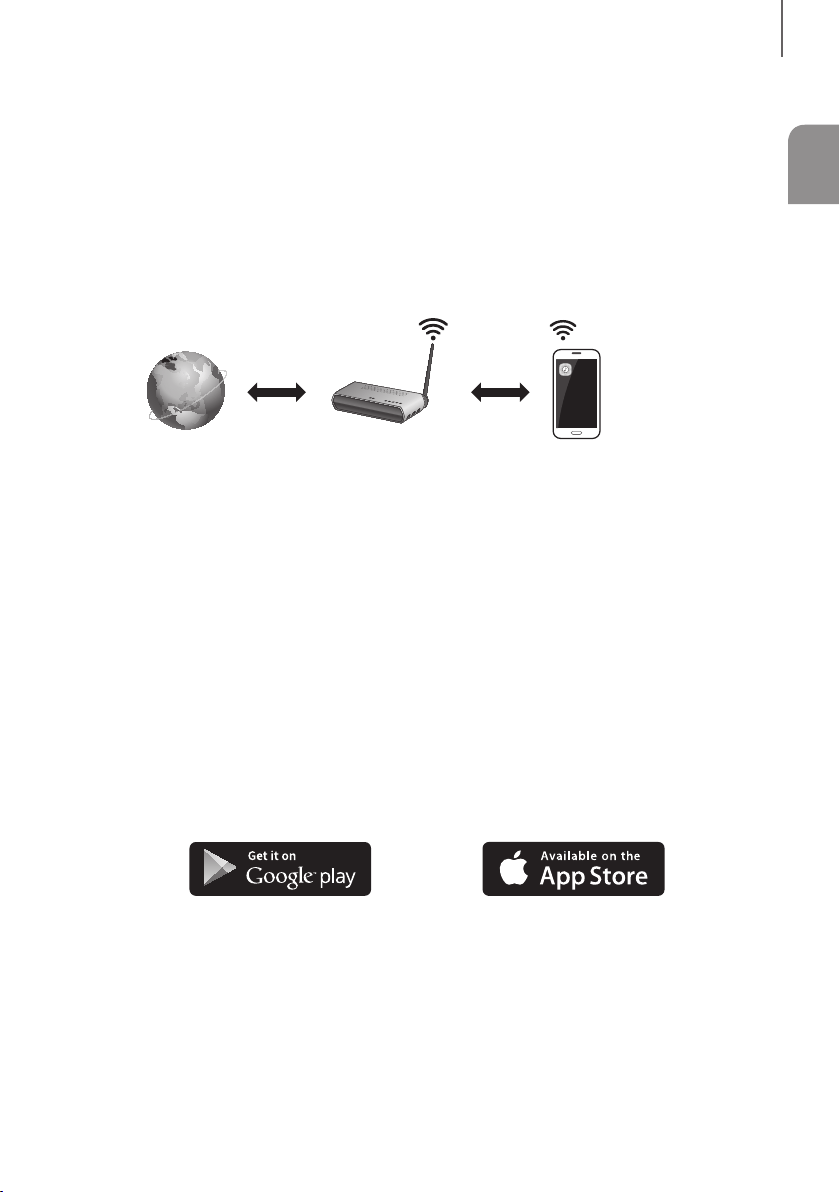
+ Communication Basics
Internet Wireless Router
Smart Device:
Android or iOS
(App Control)
Requirements:
1. A Wireless Router and a Smart Device.
2. The wireless router must be connected to the Internet.
3. The smart device must be connected to the router via a Wi-Fi connection.
INSTALLING THE SAMSUNG MULTIROOM APP
To use the Soundbar with the Samsung Multiroom App, you must download and then install the Samsung Multiroom
App on your smart device. You can download the app from Google Play or the App Store. With the Samsung
Multiroom App installed, you can play music on your Soundbar that is stored on your smart device, located on other
connected devices, provided by other content providers, or streamed from Internet radio stations.
+ Android or iOS
Download the Samsung Multiroom app from Google Play or the App Store of your smart device.
* Market search : Samsung Multiroom
or
28
FUNCTIONS
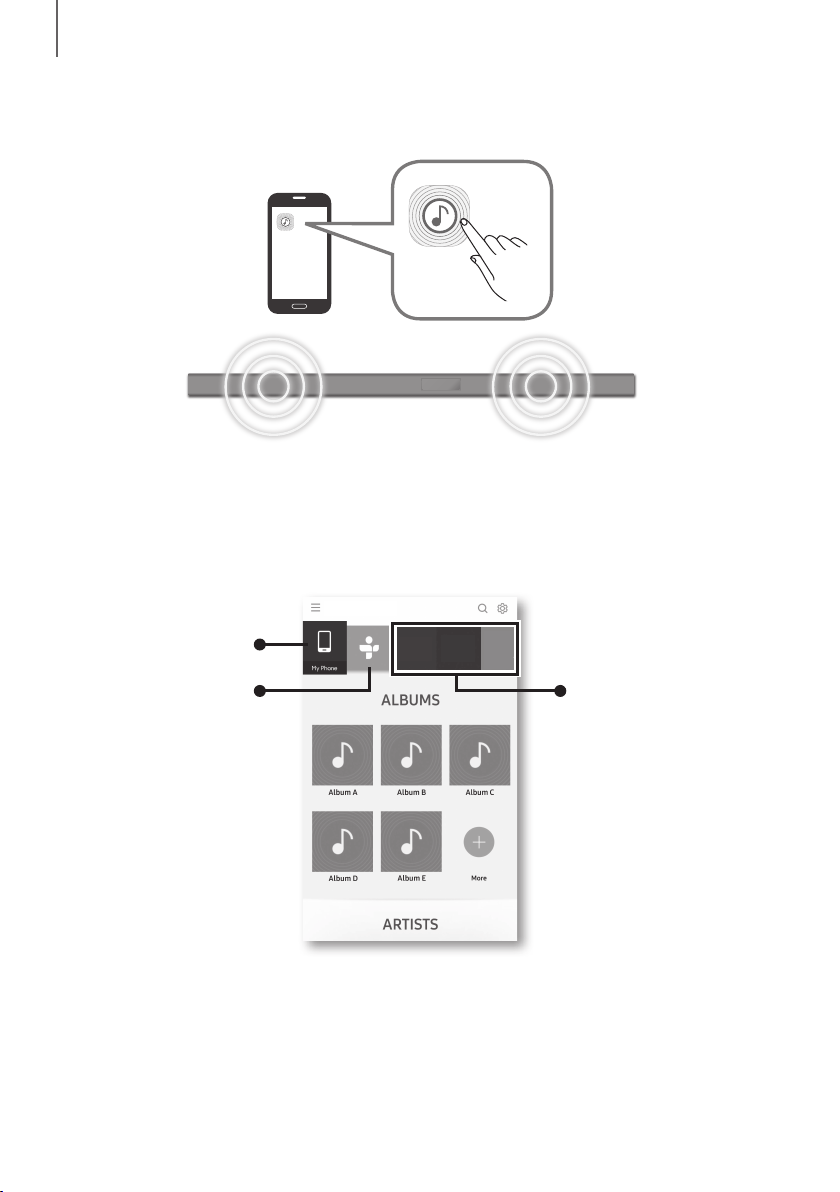
+ Launching the Samsung Multiroom App
To launch the Samsung Multiroom app, tap the Multiroom app icon on your smart device.
CONNECTING THE SOUNDBAR TO YOUR NETWORK
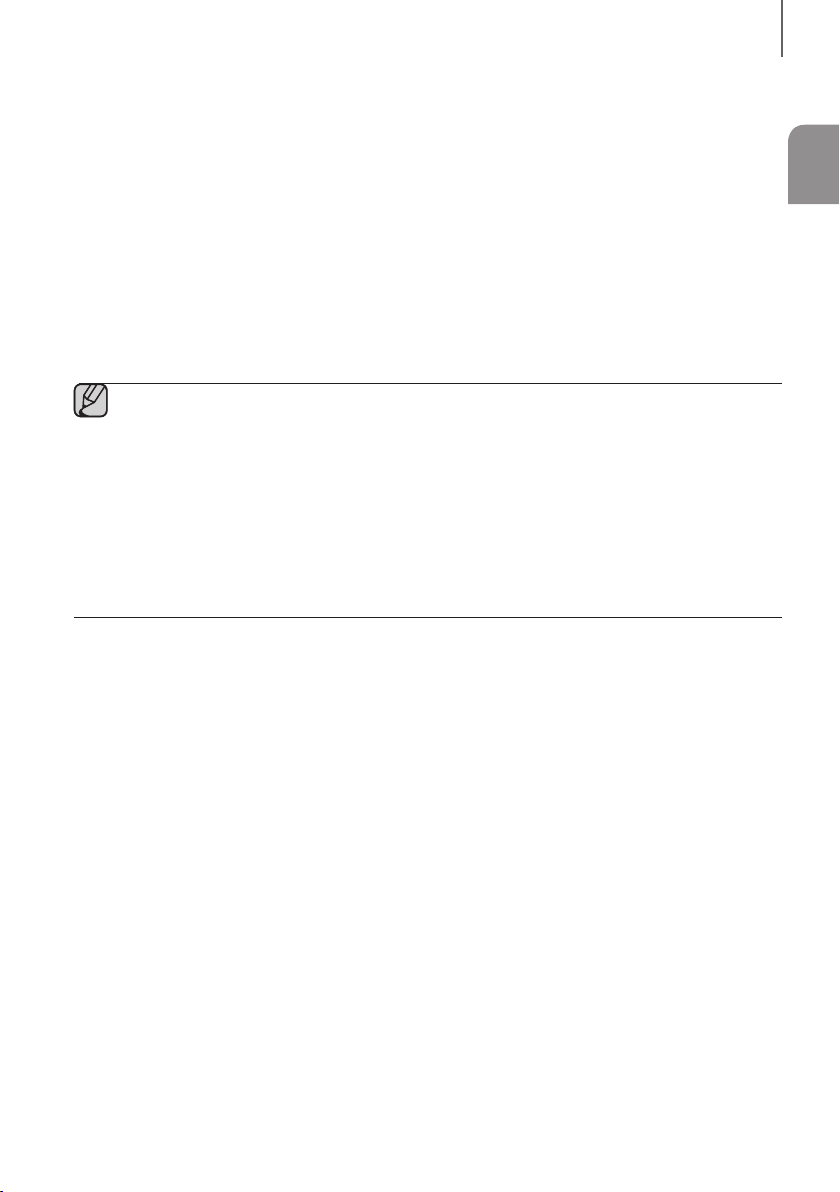
On your smart device, select the Samsung Multiroom app. Follow the directions on your smart device’s screen.
You can use the following music sources with the Samsung Multiroom app.
- Music files stored in your mobile phone, various music sources, and Internet radio.
Music in mobile phone
Internet radio Music service
[AV] Samsung Soundbar Kxxx
ENG
29
FUNCTIONS
USING THE NETWORK STANDBY ON
FUNCTION
The Network Standby On function becomes available if a wireless connection has been properly established between
a smart device and the Soundbar. This function turns on the Soundbar automatically when a smart device attempts to
connect to the Soundbar via Bluetooth or Wi-Fi. If you turn the Soundbar on via a Bluetooth connection, its input
mode is set to BT automatically. To turn the Soundbar on via Wi-Fi, you must have the Samsung Multiroom App
installed on your smart device.
1. Connect the smart device to your Soundbar.
2. Turn the Network Standby On function on by pressing the
]
button on the Soundbar remote for more than
5 seconds. You can turn the function off by pressing the
]
button again for more than 5 seconds.
● Network Standby On is available only if the Soundbar is listed among the smart device’s paired devices.
(The Smart device and the Soundbar must have been previously paired at least once.)
● Soundbar will appear in the smart device’s searched devices list only when the Soundbar is displaying
[BT READY] or [WiFi READY].
● In the TV SoundConnect mode, the Soundbar cannot be paired to another smart device.
● If the Network Standby On function did not work:
- The Network Standby On is set to Off. Set it to ON.
● The Wi-Fi connection to the Soundbar will be terminated if the Soundbar’s power cord is disconnected or
the power is cut off. If the power is cut off, turn on the Soundbar and reconnect it.
● If the Network Standby is set to Off, the Soundbar cannot be turned on by Bluetooth connection.
30
FUNCTIONS
SOFTWARE UPDATE
DIGITAL AUDIO IN
(OPTICAL)
AUX IN
HDMI IN
HDMI OUT
(TV-ARC)
DC 24V
SERVICE
Wi-Fi SETUP SPK ADD
DIGITAL AUDIO IN
(OPTICAL)
SERVICE
AUX IN
Micro USB to
USB adapter Cable
(not supplied)
UPDATING WITH USB
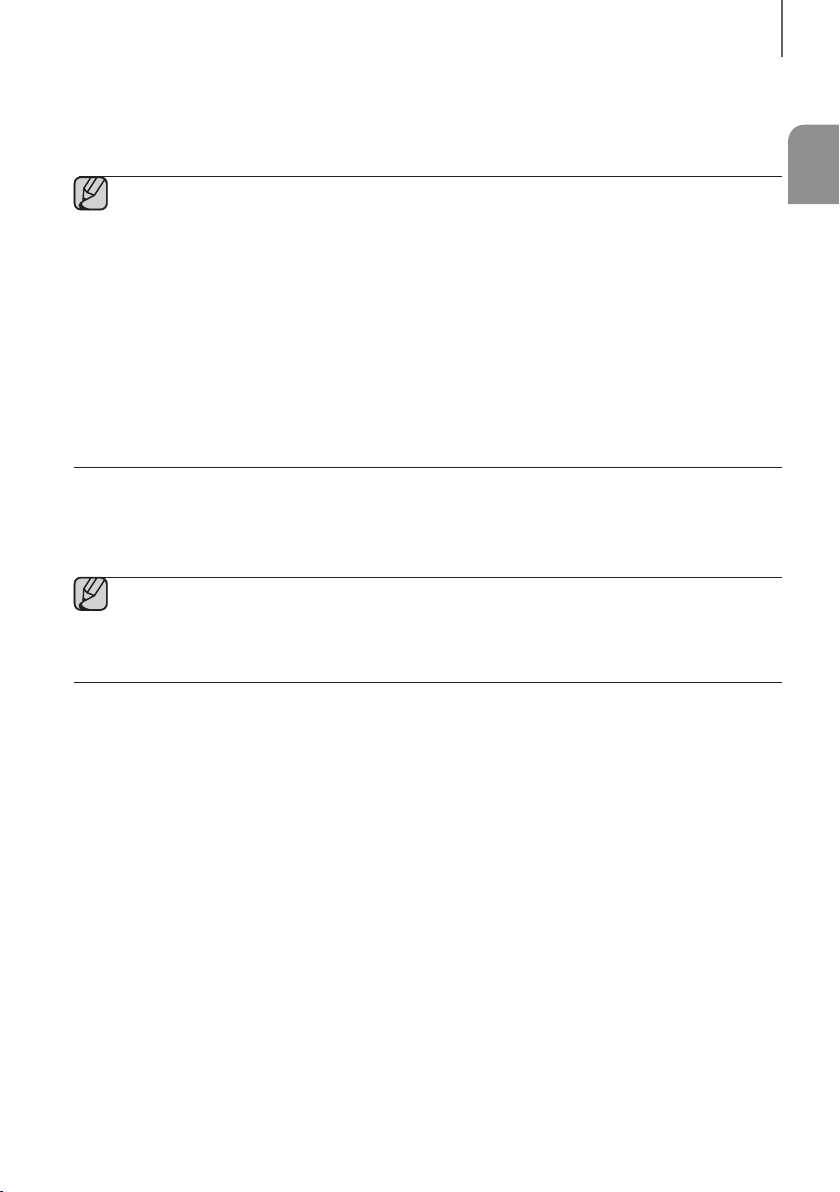
Samsung may offer updates for the Soundbar's system firmware in the future.
If an update is offered, you can update the firmware by connecting a USB device with the firmware update stored on it
to the USB port on your Soundbar.
Note that if there are multiple update files, you must load them onto the USB device singly and use them to update the
firmware one file at a time.
Please visit samsung.com or contact the Samsung call centre to receive more information about downloading update
files.
+ Updating Procedure
1. Connect a Micro USB to USB adapter cable with a male USB 2.0 Micro USB plug (Type B) on one end and a
standard female 2.0 USB jack (Type A) on the other end to the micro USB jack on your Soundbar.
● The Micro USB to USB adapter cable is sold separately. To purchase, contact a Samsung Service Centre
or Samsung Customer Care.
2. Follow the steps below to download the product software:
Go to the Samsung website at (samsung.com/sec) search for the model name - select the customer support
option (the option name is subject to change)
3. Save the downloaded software to a USB stick and select "Extract to the folder name" to unzip the folder.
4. Turn off the Soundbar and connect the USB stick containing the software update to the female port on a Micro
USB adapter cable.
5. Turn on the Soundbar. Within 3 minutes, UPDATE is displayed and updating begins.
6. After the update is complete, the Soundbar turns off and on again.
ENG
31
FUNCTIONS
+ If UPDATE was not displayed
1. Turn off the Soundbar, connect the USB storage device that contains update files to the Soundbar’s USB port.
2. Disconnect the power cord, reconnect it, and then turn on the Soundbar.
● Insert a USB device containing the firmware update into the USB port on the main unit.
● Updating firmware may not work properly if audio files supported by the Soundbar are stored in the USB
storage device.
● Do not disconnect the power or remove the USB device while updates are being applied. The main unit will
turn off automatically after completing the firmware update.
● After update is completed, the user setup in Soundbar is initialised. We recommend you write down your
settings so that you can easily reset them after the update. Note that updating firmware resets the
subwoofer connection too.
If the connection to the subwoofer is not re-established automatically after the update, refer to page 16.
If the software update fails, check that the USB stick is not defective.
● Mac OS users should use MS-DOS (FAT) as the USB format.
● Depending on the manufacturer, some USB devices may not be supported.
AUTO UPDATE
If the Soundbar is connected to the Internet, it will automatically check for the latest firmware and update when new
firmware becomes available, even if it is turned off.
● The Soundbar is configured to run Auto Update by default.
● To use the Auto Update function, the Soundbar must be connected to the Internet.
● The Wi-Fi connection to the Soundbar will be terminated if its power cord is disconnected or the power is
cut off. If the power is cut off, turn on the Soundbar and reconnect it.
32
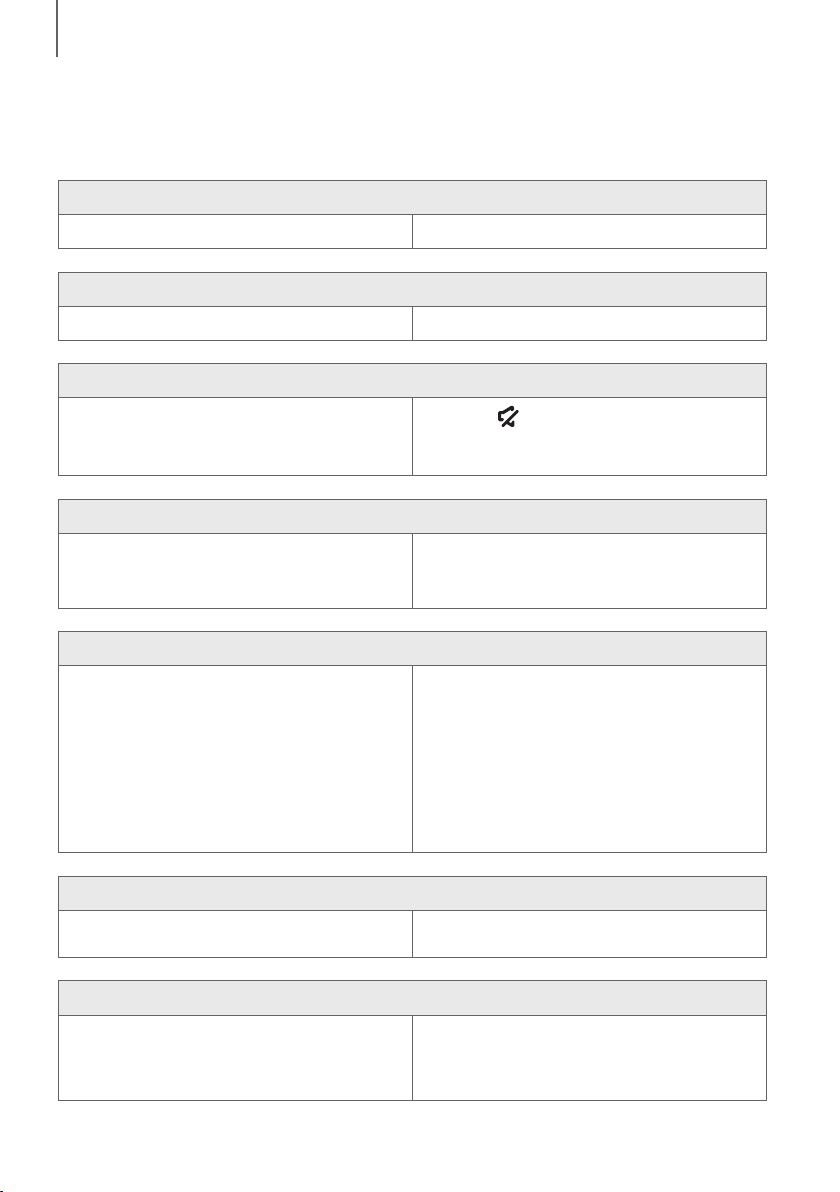
TROUBLESHOOTING
TROUBLESHOOTING
Before requesting service, please check the following.
The unit will not turn on.
• Is the power cord plugged into the outlet? ¼ Connect the power plug to the outlet.
A function does not work when the button is pressed.
• Is there static electricity in the air? ¼ Disconnect the power plug and connect it again.
Sound is not produced.
• Is the Mute function on?
• Is the volume set to minimum?
¼ Press the
(Mute) button to cancel the Mute
function.
¼ Adjust the volume.
The remote control does not work.
• Are the batteries drained?
• Is the distance between the remote control and main
unit too far?
¼ Replace with new batteries.
¼ Move closer to the unit.
The TV SoundConnect (TV pairing) failed.
• Does your TV support TV SoundConnect?
• Is your TV firmware the latest version?
• Does an error occur when connecting?
¼ TV SoundConnect is supported by some Samsung
TVs released from 2012 on. Check your TV to see if it
supports TV SoundConnect.
¼ Update your TV with the latest firmware.
¼ Contact the Samsung Call Centre.
¼ Reset TV SoundConnect and connect again.
To reset the TV SoundConnect connection, press
and hold the
p
button for 5 seconds.
The red LED on the subwoofer blinks and the subwoofer is not producing sound.
• Your subwoofer may not be connected to the
main unit of the product.
¼ Try to connect your subwoofer again.
(See Page 16)
Soundbar is not turned on by Bluetooth or Multiroom App.
• Check the Network Standby option is OFF.
¼ If it's true, BT and Wifi functions are not allowed in
power off state. Press and hold the
]
button for
5 seconds to turn on the Network Standby in power
on state.
TROUBLESHOOTING
ENG
33
APPENDIX
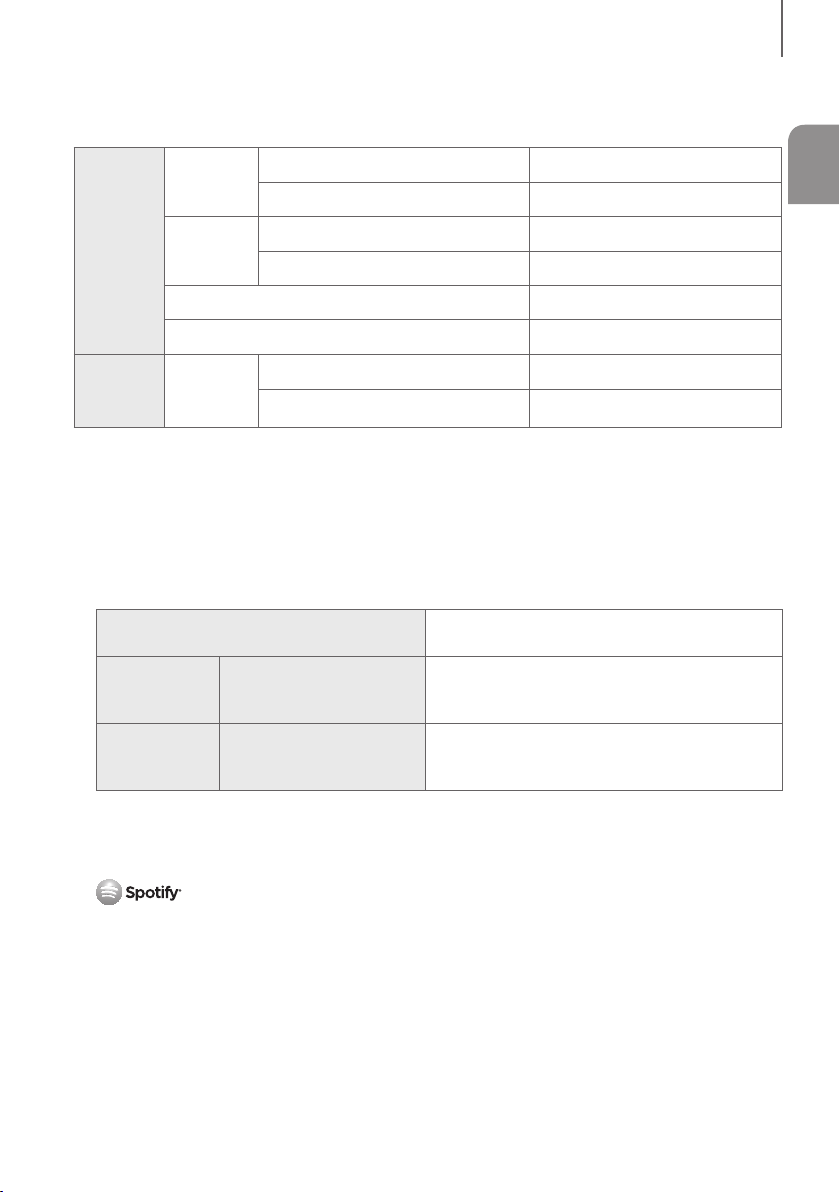
SPECIFICATIONS
GENERAL
Weight
Main Unit
2.6 kg
Subwoofer (PS-WK650, PS-WK651)
6.8 kg
Dimensions
(W x H x D)
Main Unit
1010.5 x 54.0 x 87.5 mm
Subwoofer (PS-WK650, PS-WK651)
452.0 x 335.0 x 154.0 mm
Operating Temperature Range
+5°C to +35°C
Operating Humidity Range
10 % to 75 %
AMPLIFIER
Rated
Output
Power
Main Unit
30W x 6, 6 ohm, THD
≦10%
Subwoofer (PS-WK650, PS-WK651)
160W, 3 ohm, THD≦10%
* Design, specifications and App screen are subject to change without prior notice.
* Nominal specification
- Samsung Electronics Co., Ltd reserves the right to change the specifications without notice.
- Weight and dimensions are approximate.
- For more information about the power supply and power consumption, refer to the label attached to the
product.
a Precaution : The product will restart automatically if you turn on/off Wi-Fi/Ethernet.
Overall Standby Power Consumption (W)
(All the network ports are “ON” condition)
2.8W
Wi-Fi/Ethernet Port deactivation method
Press Wi-Fi SETUP button on the product for 30
seconds or press the
]
button on the Soundbar remote
for more than 5 seconds to turn Wi-Fi/Ethernet On / Off.
Bluetooth Port deactivation method
Press SPK ADD button on the product for 30 seconds or
press the
]
button on the Soundbar remote for more
than 5 seconds to turn Bluetooth On / Off.
a Open Source Licence Notice
- For further information on Open Sources used in this product, please visit the website:
http://opensource.samsung.com
a
Licence
- The Spotify Software is subject to third party licences found here :
www.spotify.com/connect/third-party-licenses.
- For more information about Spotify Connect, please visit www.spotify.com/connect
APPENDIX

34
APPENDIX
LICENCES
Manufactured under licence from Dolby Laboratories. Dolby, Dolby Audio and the double-D symbol are trademarks of
Dolby Laboratories.
For DTS patents, see http://patents.dts.com. Manufactured under licence from DTS Licensing Limited. DTS, the
Symbol, & DTS and the Symbol together are registered trademarks, and DTS 2.0 Channel is a trademark of DTS, Inc.
© DTS, Inc. All Rights Reserved.
The terms HDMI and HDMI High-Definition Multimedia Interface, and the HDMI Logo are trademarks or registered
trademarks of HDMI Licensing LLC in the United States and other countries.
Wireless Models (including the frequency of 5.15GHz-5.35GHz)
Hereby, Samsung Electronics, declares that this equipment is in compliance with the
essential requirements and other relevant provisions of Directive 1999/5/EC.
The original Declaration of Conformity may be found at http://www.samsung.com,
go to Support > Search Product Support and enter the model name.
This equipment may be operated in all EU countries.
This equipment may only be used indoors.
Wireless Models (excluding the frequency of 5.15GHz-5.35GHz)
Hereby, Samsung Electronics, declares that this equipment is in compliance with the essential
requirements and other relevant provisions of Directive 1999/5/EC.
The original Declaration of Conformity may be found at http://www.samsung.com,
go to Support > Search Product Support and enter the model name.
This equipment may be operated in all EU countries.

This Samsung product is warranted for the period of
twelve (12) months from the original date of purchase,
against defective materials and workmanship. In
the event that warranty service is required, you
should return the product to the retailer from whom
it was purchased. However, Samsung Authorised
Dealers and Authorised Service Centres in other EC
Countries will comply with the warranty on the terms
issued to purchasers in the country concerned. In
case of difficulty, details of our Authorised Service
Centres are available from:
Samsung Electronics U.K. Ltd
Samsung Customer Support Centre
Selectapost 38, Sheffield, S97 3FJ
United Kingdom
United Kingdom
Tel : 0330 SAMSUNG (7267864)
www.samsung.com/uk/support
EIRE
Tel : 0818 717100
www.samsung.com/ie/support
@ WARRANTY CONDITIONS
1. The warranty is only valid if, when warranty service
is required, the warranty card is fully and properly
completed and is presented with the original
invoice or sales slip or confirmation, and the serial
number on the product has not been defaced.
2. Samsung’s obligations are limited to the repair or,
at its discretion, replacement of the product or the
defective part.
3. Warranty repairs must be carried out by
Authorised Samsung Dealers or Authorised
Service Centres. No re-imbursement will be made
for repairs carried out by non Samsung Dealers
and, any such repair work and damage to the
products caused by such repair work will not be
covered by this warranty.
4. This product is not considered to be defective in
materials nor workmanship by reason that it
requires adaptation in order to conform to national
or local technical or safety standards in force in
any Country other than the one for which the
product was originally designed and anufactured.
This warranty will not cover, and no re-imbursement
will be made for such adaptation nor any damage
which may result
.
5. This warranty covers none of the following:
a)
Periodic check ups, maintenance and repair or
replacement of parts due to normal wear and
tear.
b) Cost relating to transport, removal or installation
of the product.
c) Misuse, including the faiure to use this product
for its normal purposes or incorrect installation.
d) Damage caused by Lightning, Water, Fire,
Acts of God, War, Public Disturbances, incorrect
mains voltage, improper ventilation or any other
cause beyond the control of Samsung.
6. This warranty is valid for any person who legally
acquired possession of the product during the
warranty period.
7. The consumers statutory rights in any applicable
national legislation whether against the retailer
arising from the purchase contract or otherwise
are not affected by this warranty. Unless there is
national legislation to the contrary, the rights under
this warranty are the consumers sole rights and
Samsung, its subsidiaries and distributors shall
not be liable for indirect or consequential loss or
any damage to records, compact discs, videos or
audio taper or any other related equipment or
material.
SAMSUNG ELECTRONICS (U.K.) LTD.
-2-
UNITED KINGDOM
EIRE
This Samsung product is warranted for the period of twelve (12) months from the origi-
nal date of purchase, against defective materials and workmanship. In the event that
warranty service is required, you should return the product to the retailer from whom it
was purchased. However, Samsung Authorised Dealers and Authorised Service Centres
in other EC Countries will comply with the warranty on the terms issued to purchasers in
the country concerned. In case of difficulty, details of our Authorised Service Centres are
available from:
Samsung Electronics U.K. Ltd. Customer Care CentrePO Box 479
GATESHEAD NE9 9BJ United Kingdom
United Kingdom
Tel : 0330 SAMSUNG (7267864)
Fax: 03307260001
www.samsung.com
Eire
Tel : 0818 717100
Fax: +44 117 915 6736
www.samsung.com
■WARRANTY CONDITIONS
1.
The warranty is only valid if, when warranty service is required, the warranty card is fully
and properly completed and is presented with the original invoice or sales slip or confir-
mation, and the serial number on the product has not been defaced.
2.
Samsung’s obligations are limited to the repair or, at its discretion, replacement of
the product or the defective part.
3. Warranty repairs must be carried out by Authorised Samsung Dealers or
Authorised Service Centres. No re-imbursement will be made for repairs carried
out by non Samsung Dealers and, any such repair work and damage to the prod-
ucts caused by such repair work will not be covered by this warranty.
4.
This product is not considered to be defective in materials nor workmanship by
reason that it requires adaptation in order to conform to national or local technical
or safety standards in force in any Country other than the one for which the product
was originally designed and manufactured. This warranty will not cover, and no re-
imbursement will be made for such adaptation nor any damage which may result.
5. This warranty covers none of the following:
a) Periodic check ups, maintenance and repair or replacement of parts due to
normal wear and tear.
b)
Cost relating to transport, removal or installation of the product.
c)
Misuse, including the faiure to use this product for its normal
purposes or incorrect installation.
d)
Damage caused by Lightning, Water, Fire, Acts of God, War, Public
Disturbances, incorrect mains voltage, improper ventilation or any other cause
beyond the control of Samsung.
6. This warranty is valid for any person who legally acquired
possession of the product during the warranty period.
7.
The consumers statutory rights in any applicable national legislation
whether against
the retailer arising from the purchase contract or otherwise are not affected by this
warranty. Unless there is national legislation to the contrary, the rights under this
warranty are the
consumers sole rights and Samsung, its subsidiaries and distribu-
tors shall not be liable for indirect or consequential loss or any damage to records,
compact discs, videos or audio taper or any other related equipment or material
.
SAMSUNG ELECTRONICS (U.K.) LTD.
-2-
UNITED KINGDOM
EIRE
This Samsung product is warranted for the period of twelve (12) months from the origi-
nal date of purchase, against defective materials and workmanship. In the event that
warranty service is required, you should return the product to the retailer from whom it
was purchased. However, Samsung Authorised Dealers and Authorised Service Centres
in other EC Countries will comply with the warranty on the terms issued to purchasers in
the country concerned. In case of difficulty, details of our Authorised Service Centres are
available from:
Samsung Electronics U.K. Ltd. Customer Care CentrePO Box 479
GATESHEAD NE9 9BJ United Kingdom
United Kingdom
Tel : 0330 SAMSUNG (7267864)
Fax: 03307260001
www.samsung.com
Eire
Tel : 0818 717100
Fax: +44 117 915 6736
www.samsung.com
■WARRANTY CONDITIONS
1.
The warranty is only valid if, when warranty service is required, the warranty card is fully
and properly completed and is presented with the original invoice or sales slip or confir-
mation, and the serial number on the product has not been defaced.
2.
Samsung’s obligations are limited to the repair or, at its discretion, replacement of
the product or the defective part.
3. Warranty repairs must be carried out by Authorised Samsung Dealers or
Authorised Service Centres. No re-imbursement will be made for repairs carried
out by non Samsung Dealers and, any such repair work and damage to the prod-
ucts caused by such repair work will not be covered by this warranty.
4.
This product is not considered to be defective in materials nor workmanship by
reason that it requires adaptation in order to conform to national or local technical
or safety standards in force in any Country other than the one for which the product
was originally designed and manufactured. This warranty will not cover, and no re-
imbursement will be made for such adaptation nor any damage which may result.
5. This warranty covers none of the following:
a) Periodic check ups, maintenance and repair or replacement of parts due to
normal wear and tear.
b)
Cost relating to transport, removal or installation of the product.
c)
Misuse, including the faiure to use this product for its normal
purposes or incorrect installation.
d)
Damage caused by Lightning, Water, Fire, Acts of God, War, Public
Disturbances, incorrect mains voltage, improper ventilation or any other cause
beyond the control of Samsung.
6. This warranty is valid for any person who legally acquired
possession of the product during the warranty period.
7.
The consumers statutory rights in any applicable national legislation
whether against
the retailer arising from the purchase contract or otherwise are not affected by this
warranty. Unless there is national legislation to the contrary, the rights under this
warranty are the
consumers sole rights and Samsung, its subsidiaries and distribu-
tors shall not be liable for indirect or consequential loss or any damage to records,
compact discs, videos or audio taper or any other related equipment or material
.
SAMSUNG ELECTRONICS (U.K.) LTD.
-2-
UNITED KINGDOM
EIRE
This Samsung product is warranted for the period of twelve (12) months from the origi-
nal date of purchase, against defective materials and workmanship. In the event that
warranty service is required, you should return the product to the retailer from whom it
was purchased. However, Samsung Authorised Dealers and Authorised Service Centres
in other EC Countries will comply with the warranty on the terms issued to purchasers in
the country concerned. In case of difficulty, details of our Authorised Service Centres are
available from:
Samsung Electronics U.K. Ltd. Customer Care CentrePO Box 479
GATESHEAD NE9 9BJ United Kingdom
United Kingdom
Tel : 0330 SAMSUNG (7267864)
Fax: 03307260001
www.samsung.com
Eire
Tel : 0818 717100
Fax: +44 117 915 6736
www.samsung.com
■WARRANTY CONDITIONS
1.
The warranty is only valid if, when warranty service is required, the warranty card is fully
and properly completed and is presented with the original invoice or sales slip or confir-
mation, and the serial number on the product has not been defaced.
2.
Samsung’s obligations are limited to the repair or, at its discretion, replacement of
the product or the defective part.
3. Warranty repairs must be carried out by Authorised Samsung Dealers or
Authorised Service Centres. No re-imbursement will be made for repairs carried
out by non Samsung Dealers and, any such repair work and damage to the prod-
ucts caused by such repair work will not be covered by this warranty.
4.
This product is not considered to be defective in materials nor workmanship by
reason that it requires adaptation in order to conform to national or local technical
or safety standards in force in any Country other than the one for which the product
was originally designed and manufactured. This warranty will not cover, and no re-
imbursement will be made for such adaptation nor any damage which may result.
5. This warranty covers none of the following:
a) Periodic check ups, maintenance and repair or replacement of parts due to
normal wear and tear.
b)
Cost relating to transport, removal or installation of the product.
c)
Misuse, including the faiure to use this product for its normal
purposes or incorrect installation.
d)
Damage caused by Lightning, Water, Fire, Acts of God, War, Public
Disturbances, incorrect mains voltage, improper ventilation or any other cause
beyond the control of Samsung.
6. This warranty is valid for any person who legally acquired
possession of the product during the warranty period.
7.
The consumers statutory rights in any applicable national legislation
whether against
the retailer arising from the purchase contract or otherwise are not affected by this
warranty. Unless there is national legislation to the contrary, the rights under this
warranty are the
consumers sole rights and Samsung, its subsidiaries and distribu-
tors shall not be liable for indirect or consequential loss or any damage to records,
compact discs, videos or audio taper or any other related equipment or material
.
SAMSUNG ELECTRONICS (U.K.) LTD.
Contact SAMSUNG WORLD WIDE
If you have any questions or comments relating to Samsung products, please contact the SAMSUNG customer care
Centre.
[Correct disposal of batteries in this product]
(Applicable in countries with separate collection systems)
This marking on the battery, manual or packaging indicates that the
batteries in this product should not be disposed of with other household
waste at the end of their working life. Where marked, the chemical
symbols Hg, Cd or Pb indicate that the battery contains mercury,
cadmium or lead above the reference levels in EC Directive 2006/66.
If batteries are not properly disposed of, these substances can cause
harm to human health or the environment.
To protect natural resources and to promote material reuse, please
separate batteries from other types of waste and recycle them through
your local, free battery return system.
Correct Disposal of This Product
(Waste Electrical & Electronic Equipment)
(Applicable in countries with separate collection systems)
This marking on the product, accessories or literature indicates that
the product and its electronic accessories (e.g. charger, headset,
USB cable) should not be disposed of with other household waste at
the end of their working life. To prevent possible harm to the
environment or human health from uncontrolled waste disposal,
please separate these items from other types of waste and recycle
them responsibly to promote the sustainable reuse of material
resources.
Household users should contact either the retailer where they
purchased this product, or their local government office, for details of
where and how they can take these items for environmentally safe
recycling.
Business users should contact their supplier and check the terms and
conditions of the purchase contract. This product and its electronic
accessories should not be mixed with other commercial wastes for
disposal.
For information on Samsung’s environmental commitments and product specific regulatory obligations e.g.
REACH visit: samsung.com/uk/aboutsamsung/samsungelectronics/corporatecitizenship/data_corner.html
Country Contact Centre
Web Site
`
Europe
U.K 0330 SAMSUNG (7267864) www.samsung.com/uk/support
EIRE 0818 717100 www.samsung.com/ie/support
GERMANY
0180 6 SAMSUNG bzw.
0180 6 7267864*
(*0,20 €/Anruf aus dem dt. Festnetz, aus
dem Mobilfunk max. 0,60 €/Anruf)
www.samsung.com/de/support
FRANCE 01 48 63 00 00 www.samsung.com/fr/support
ITALIA 800-SAMSUNG (800.7267864) www.samsung.com/it/support
SPAIN 34902172678 www.samsung.com/es/support
PORTUGAL 808 20 7267 www.samsung.com/pt/support
LUXEMBURG 261 03 710
www.samsung.com/be_fr/support
NETHERLANDS
0900-SAMSUNG (0900-7267864)
(€ 0,10/Min)
www.samsung.com/nl/support
BELGIUM 02-201-24-18
www.samsung.com/be/support
(Dutch)
www.samsung.com/be_fr/
support (French)
NORWAY 815 56480 www.samsung.com/no/support
DENMARK 70 70 19 70 www.samsung.com/dk/support
FINLAND 030-6227 515 www.samsung.com/fi/support
SWEDEN 0771 726 7864 (0771-SAMSUNG) www.samsung.com/se/support
POLAND
801-172-678* lub +48 22 607-93-33 *
* (koszt połączenia według taryfy operatora)
www.samsung.com/pl/support
HUNGARY
0680SAMSUNG (0680-726-786)
0680PREMIUM (0680-773-648)
www.samsung.com/hu/support
Country Contact Centre
Web Site
AUSTRIA
0800-SAMSUNG (0800-7267864)
[Only for Premium HA] 0800-366661
[Only for Dealers] 0810-112233
www.samsung.com/at/support
SWITZERLAND 0800 726 78 64 (0800-SAMSUNG)
www.samsung.com/ch/support
(German)
www.samsung.com/ch_fr/
support (French)
CZECH 800 - SAMSUNG (800-726786) www.samsung.com/cz/support
SLOVAKIA 0800 - SAMSUNG (0800-726 786) www.samsung.com/sk/support
CROATIA 072 726 786 www.samsung.com/hr/support
BOSNIA 055 233 999 www.samsung.com/support
MONTENEGRO 020 405 888 www.samsung.com/support
SLOVENIA 080 697 267 (brezplačna številka) www.samsung.com/si
SERBIA 011 321 6899 www.samsung.com/rs/support
BULGARIA
*3000 Цена в мрежата
0800 111 31 , Безплатна телефонна линия
www.samsung.com/bg/support
ROMANIA
*8000 (apel in retea)
08008-726-78-64 (08008-SAMSUNG)
Apel GRATUIT
www.samsung.com/ro/support
CYPRUS 8009 4000 only from landline, toll free
www.samsung.com/gr/support
GREECE
80111-SAMSUNG (80111 726 7864) only
from land line (+30) 210 6897691 from
mobile and land line
LITHUANIA 8-800-77777 www.samsung.com/lt/support
LATVIA 8000-7267 www.samsung.com/lv/support
ESTONIA 800-7267 www.samsung.com/ee/support