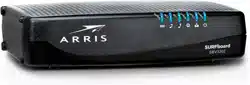
SURFboard® SBV2402
Internet & Voice cable modem
for Xfinity® customers
user guide
March 2019
Copyright 2019, ARRIS Enterprises, LLC. All rights reserved.

ARRIS copyrights and trademarks
© 2019 ARRIS Enterprises, LLC. All rights reserved.
No part of this publication may be reproduced in any form or by any means or used to make
any derivative work (such as translation, transformation, or adaptation) without written
permission from ARRIS Enterprises LLC. (“ARRIS”). ARRIS reserves the right to revise this
publication and to make changes in content from time to time without obligation on the part
of ARRIS to provide notification of such revision or change.
ARRIS, SURFboard, and the ARRIS logo are all trademarks of ARRIS Enterprises, LLC. Other
trademarks and trade names may be used in this document to refer to either the entities
claiming the marks or the names of their products. ARRIS disclaims proprietary interest in
the marks and names of others.
ARRIS provides this guide without warranty of any kind, implied or expressed, including, but
not limited to, the implied warranties of merchantability and fitness for a particular purpose.
ARRIS may make improvements or changes in the product(s) described in this manual at any
time.
The capabilities, system requirements and/or compatibility with third-party products
described herein are subject to change without notice.
Patent notice
Protected under one or more of the following U.S. patents: www.arris.com/legal.
Other patents pending.

PN 365-095-33947 x.1 SBV2402 Internet & Voice cable modem for Xfinity® customers user guide
3
Table of Contents
1. Safety and regulatory information ............................................................................ 5
Important safety instructions ............................................................................................ 5
FCC statements .................................................................................................................. 6
Caring for the environment by recycling your ARRIS equipment ..................................... 8
2. Getting started ......................................................................................................... 9
About your new SBV2402 .................................................................................................. 9
In the box ........................................................................................................................... 9
Additional items needed (not included) ................................................................. 10
System requirements ...................................................................................................... 11
Contact information ........................................................................................................ 12
3. Product overview .................................................................................................... 13
Front panel ...................................................................................................................... 13
Rear panel ........................................................................................................................ 14
Telephony modem label .................................................................................................. 15
4. Installing the telephony modem ............................................................................. 16
Choose an installation location ....................................................................................... 16
Connect the SBV2402 to your client device .................................................................... 17
Connect your telephone ......................................................................................... 18
Wall mount the SBV2402................................................................................................. 19
Tools and materials ................................................................................................. 19
Location ................................................................................................................... 19
Establish an Internet connection ..................................................................................... 19
5. Using the telephony modem ................................................................................... 21
Indicator lights for the SBV2402 ...................................................................................... 21
Wiring problems ..................................................................................................... 21
Patterns: normal operation .................................................................................... 21
Patterns: startup sequence ..................................................................................... 22
6. Using the telephony modem web manager ............................................................ 23
SBV2402 web manager menu links ................................................................................. 23
View the SBV2402 network connection status ............................................................... 23
Status screen ........................................................................................................... 23
HW/FW versions screen ......................................................................................... 24
Event log screen ...................................................................................................... 25
Registration status (CM state) ................................................................................ 25

PN 365-095-33947 x.1 SBV2402 Internet & Voice cable modem for Xfinity® customers user guide
4
7. Troubleshooting ..................................................................................................... 27
Solutions .......................................................................................................................... 27
The SBV2402 is plugged in, but the power light is off ..................................................... 27
I cannot access the internet ............................................................................................ 27
I cannot access the internet (Ethernet) ........................................................................... 28
I can get on the internet, but everything is slow ............................................................. 28
I do not have a dial tone when I pick up the phone ........................................................ 28
Contact ARRIS consumer support .................................................................................... 29
8. Warranty information ............................................................................................. 30
9. Glossary .................................................................................................................. 32

PN 365-095-33947 x.1 SBV2402 Internet & Voice cable modem for Xfinity® customers user guide
5
Chapter 1
Safety and regulatory information
Read all safety and regulatory information before installing your telephony modem and
setting up your home network connection. This ARRIS telephony modem complies with the
applicable requirements for performance, construction, labeling, and information when used
as outlined below:
Important safety instructions
This ARRIS telephony modem complies with the applicable requirements for performance,
construction, labeling, and information when used as outlined below:
CAUTION
◼ Potential equipment damage
Potential loss of service
Connecting the telephony modem to existing telephone wiring should only be performed
by a professional installer. Physical connections to the previous telephone provider must
be removed and the wiring must be checked; there must not be any voltages.
Cancellation of telephone service is not adequate. Failure to do so may result in loss of
service and/or permanent damage to the telephony modem.
◼ Risk of shock
Mains voltages inside this unit. No user serviceable parts inside. Refer service to qualified
personnel only!
◼ Risk of explosion
The telephony modem is designed to be connected directly to a telephone.
• Connecting the to the home’s existing telephone wiring should only be performed by
a professional installer.
• Do not use product near water (i.e., wet basement, bathtub, sink or near a swimming
pool, etc.), to avoid risk of electrocution.
• Do not use the telephone to report a gas leak near the leak.
• The product shall be cleaned using only a damp, lint-free, cloth. No solvents or
cleaning agents shall be used.
• Do not use spray cleaners or aerosols on the device.
• Avoid using and/or connecting the equipment during an electrical storm, to avoid
risk of electrocution.
• Do not locate the equipment within 6 feet (1.9 m) of a flame or ignition source (i.e.
heat registers, space heaters, fireplaces, etc.).

Chapter 1: Safety and regulatory information
PN 365-095-33947 x.1 SBV2402 Internet & Voice cable modem for Xfinity® customers user guide
6
• Use only the AC power adapter (if provided) and power cord included with the
equipment.
• Equipment should be installed near the power outlet and should be easily accessible.
• The shield of the coaxial cable must be connected to earth (grounded) at the
entrance to the building in accordance with applicable national electrical installation
codes. In the U.S., this is required by NFPA 70 (National Electrical Code) Article 820.
In the European Union and in certain other countries, CATV installation equipotential
bonding requirements are specified in IEC 60728-11, Cable networks for television
signals, sound signals and interactive services, Part 11: Safety. This equipment is
intended to be installed in accordance with the requirements of IEC 60728-11 for
safe operation.
• If the equipment is to be installed in an area serviced by an IT power line network, as
is found in many areas of Norway, special attention should be given that the
installation is in accordance with IEC 60728-11, in particular Annex B and Figure B.4.
• In areas of high surge events or poor grounding situations and areas prone to
lightning strikes, additional surge protection may be required (i.e. PF11VNT3 from
American Power Conversion) on the AC, RF, Ethernet and Phone lines.
• When the telephony modem is connected to a local computer through Ethernet
cables, the computer must be properly grounded to the building/residence AC
ground network. All plug-in cards within the computer must be properly installed
and grounded to the computer frame per the manufacturer’s specifications.
• Ensure proper ventilation. Position the telephony modem so that air flows freely
around it and the ventilation holes on the unit are not blocked.
• Do not mount the telephony modem on surfaces that are sensitive to heat and/or
which may be damaged by the heat generated by the telephony modem, its power
supply, or other accessories.
SAVE THESE INSTRUCTIONS
FCC statements
FCC interference statement
This equipment has been tested and found to comply with the requirements for a Class B
digital device under Part 15 of the Federal Communications Commission (FCC) rules. These
requirements are intended to provide reasonable protection against harmful interference in
a residential installation. This equipment generates, uses and can radiate radio frequency
energy and, if not installed and used in accordance with the instructions, may cause harmful
interference to radio communications. However, there is no guarantee that interference will
not occur in a particular installation. If this equipment does cause harmful interference to
radio or television reception, which can be determined by turning the equipment off and on,
the user is encouraged to try to correct the interference by one or more of the following
measures:
◼ Reorient or relocate the receiving antenna.
◼ Increase the separation between the equipment and receiver.

Chapter 1: Safety and regulatory information
PN 365-095-33947 x.1 SBV2402 Internet & Voice cable modem for Xfinity® customers user guide
7
◼ Connect the equipment into an outlet on a circuit different from that to which the
receiver is connected.
◼ Consult the dealer or an experienced radio/TV technician for help.
The operation of this equipment is subject to the following two conditions: (1) This
equipment or device cannot cause harmful interference and (2) this equipment or device
must accept any interference, including interference that may cause some unwanted
operation of the equipment.
This device complies with Part 15 of the FCC Rules. Operation is subject to the following two
conditions: (1) This device may not cause harmful interference, and (2) This device must
accept any interference received, including interference that may cause undesired
operation.
CAUTION
Any changes or modifications to this equipment not expressly approved by ARRIS could void
the user’s authority to operate the equipment.
FCC declaration of conformity
ARRIS Enterprises, LLC, 3871 Lakefield Drive, Suwanee, GA 30024, declares that the
SURFboard DOCSIS 3.0 telephony modem-SBV2402 complies with 47 CFR Parts 2 and 15 of
the FCC rules as a Class B digital device.
FCC radiation exposure statement
This equipment complies with FCC radiation exposure limits set forth for an uncontrolled
environment. To comply with the FCC RF exposure compliance requirements, the separation
distance between the antenna and any person’s body (including hands, wrists, feet and
ankles) must be at least 12 inches (30 centimeters).
This transmitter must not be co-located or operating in conjunction with any other antenna
or transmitter except those already approved in this filing.
The availability of some specific channels and/or operational frequency bands are country
dependent and are firmware programmed at the factory to match the intended destinations.
The firmware setting is not accessible by the end user.

Chapter 1: Safety and regulatory information
PN 365-095-33947 x.1 SBV2402 Internet & Voice cable modem for Xfinity® customers user guide
8
Caring for the environment by recycling your ARRIS
equipment
Please do not dispose of this product or any included electronic accessories, i.e.,
power supply or battery, with your residential or commercial waste. ARRIS devices
may be disposed of through the ARRIS Product Recycling program, further described
at corporateresponsibility.arrisi.com/phoenix.zhtml. You may also contact your local
community authorities for information regarding where you may dispose of your
ARRIS devices.
PN 365-095-33947 x.1 SBV2402 Internet & Voice cable modem for Xfinity® customers user guide
9
Chapter 2
Getting started
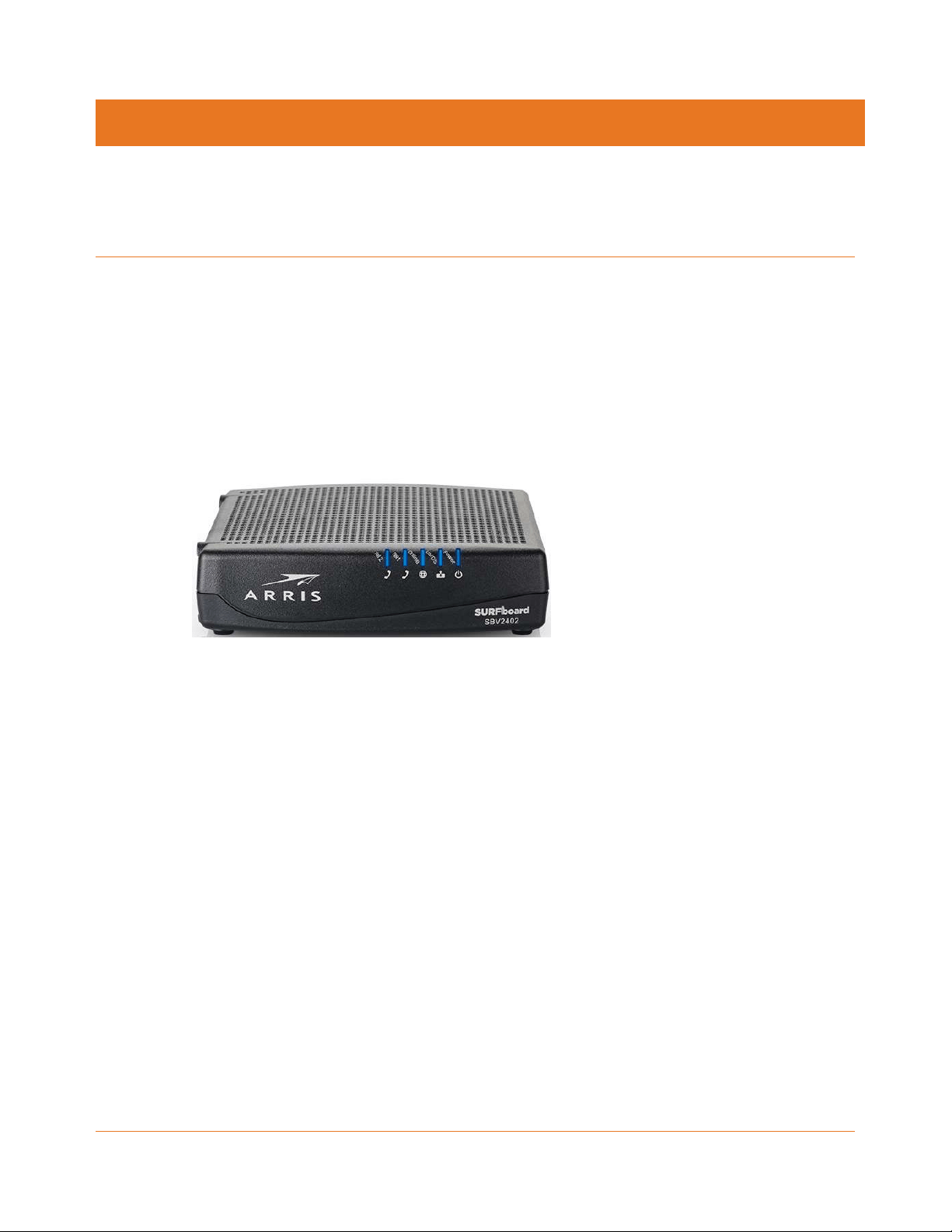
Welcome to the next generation of the SURFboard® ultra-high-speed DOCSIS 3.0® internet &
voice cable modem for Xfinity customers. Get ready to experience the Internet’s express
lane! Whether you are streaming media, downloading new software, checking your email, or
talking on the telephone, the SBV2402 brings it all to you faster and more reliably. All while
providing high-quality Voice over IP telephone service.
The SBV2402 provides an Ethernet connection for use with either a single computer or
home/office Local Area Network (LAN). In addition, the SBV2402 provides two separate lines
of telephone service.
About your new SBV2402
The SURFboard SBV2402 is DOCSIS 3.0 compliant with the following features:
◼ Speed: much faster than dialup or ISDN service; up to eight times faster than DOCSIS 2.0
cable modems.
◼ Connectivity: supports Ethernet connection.
◼ Flexibility: provides two lines of telephone service as well as high-speed data.
◼ Compatibility:
• Data services: DOCSIS 3.0 compliant and backward-compatible with DOCSIS 2.0 or
1.1; supports tiered data services (if offered by your service provider).
• Telephony services: Packet Cable™ 2.0 compliant.
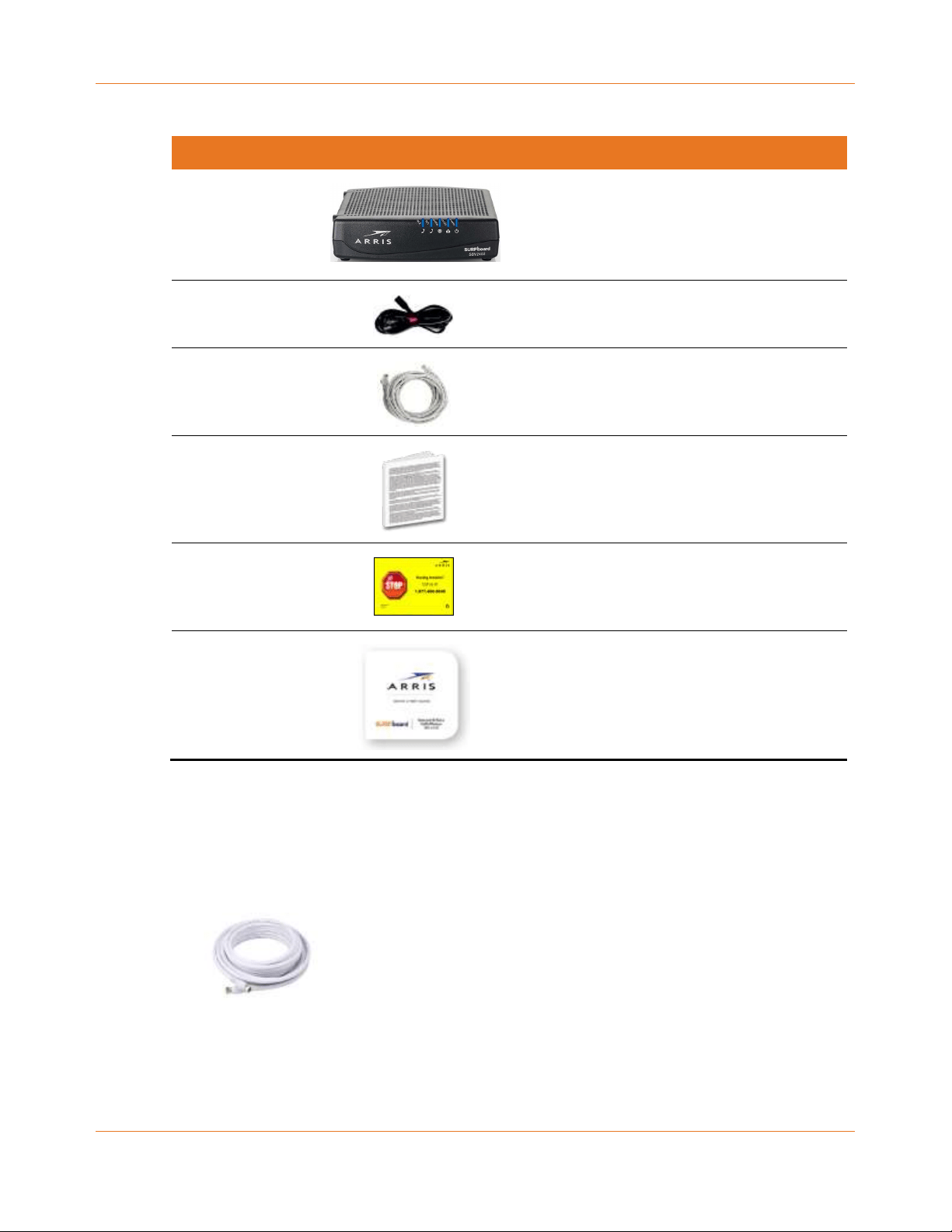
In the box
Before installing your SBV2402, check that the items listed in the following table are included
in the SBV2402 box. If any items are missing, please call ARRIS technical support at
1-877-466-8646 for assistance.
Chapter 2: Getting started
PN 365-095-33947 x.1 SBV2402 Internet & Voice cable modem for Xfinity® customers user guide
10
Table 1. SBV2402 package contents
Item
Description
SBV2402 Internet &
Voice cable modem
High-speed DOCSIS 3.0 telephony cable modem
with two voice-over-IP (VoIP) telephone lines
Power cord
Power supply for an electrical wall outlet
connection
Ethernet cable
Standard category 5e (CAT5e) or higher
network cable
Software License &
Warranty Card
Contains safety and regulatory information,
software license, and warranty for the
telephony cable modem.
Support Information
Card
Provides contact information for obtaining
technical support assistance with any issues
you may have with your SURFboard device.
SBV2402 Quick Start
Guide
Provides information for installing the
telephony cable modem and setting up your
home network.
Additional items needed (not included)
The following items are needed to install your SBV2402. They are not included in the
SBV2402 box and must be purchased separately, if needed.
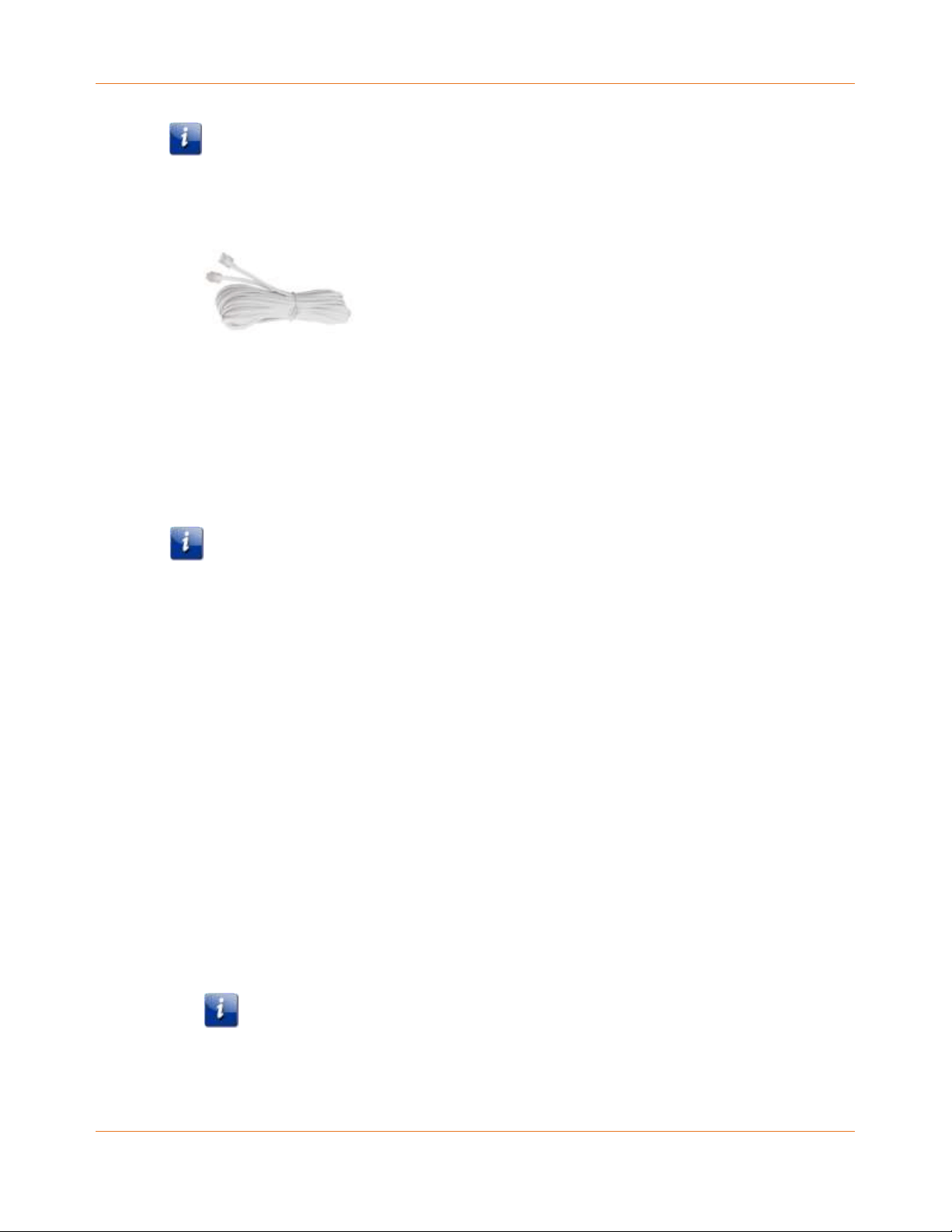
◼ Coaxial cable (coax): round cable with a connector on each end.
This cable is needed if one is not already connected to a cable wall outlet. You can
purchase a coax cable from any electronics retailer and many discount stores. Make sure
the cable you choose has screw-on connectors on both ends. The coax cable should be
long enough to reach from your SBV2402 to the nearest cable outlet.
Chapter 2: Getting started
PN 365-095-33947 x.1 SBV2402 Internet & Voice cable modem for Xfinity® customers user guide
11
Note: For best performance, use a high-quality RG-6 type coaxial cable and minimize or
eliminate splitters between the cable jack and your SBV2402.
◼ Phone cable: a standard telephone cable with standard phone connectors (RJ11 type) on
both ends.
Phone cables are available for purchase from any electronics retailer and many discount
stores.
◼ RF splitter (optional): provides an extra cable connection by splitting a single outlet into
two outlets.
You may need a splitter if you have a TV already connected to the cable outlet that you
want to use. You can buy a splitter from any electronics retailer and most discount
stores. You may also need a short coax cable (with connectors) to connect the RF splitter
to the cable outlet and then connect the SBV2402 and TV to the splitter.
Note: Using several splitters in a line may deteriorate the quality of your television
display, telephone, and/or internet connection.
◼ Wall-mounting hardware (optional): if you want to wall-mount the SBV2402, you will
need to obtain two drywall anchors or wood screws.
◼ Information packet: your service provider should provide a packet containing
information about your home network and telephone service and how to set them up.
Read this information carefully and contact your service provider if you have any
questions.
System requirements
◼ High-speed Internet access account
◼ Web browser access: Internet Explorer, Google Chrome, Firefox, or Safari
◼ Compatible operating systems:
• Windows 10
• Windows 8
• Windows 8.1
• Windows 7 Service Pack 1 (SP1)
Note: Although older versions of Microsoft Windows operating systems are no
longer specifically supported, they should still function with this model.

Chapter 2: Getting started
PN 365-095-33947 x.1 SBV2402 Internet & Voice cable modem for Xfinity® customers user guide
12
• Mac OS 10.4 or later
• UNIX
• Linux
Contact information
For technical support, FAQs, product documentation, and additional ARRIS product
information:
◼ Visit the ARRIS support website: www.arris.com/selfhelp
◼ Call ARRIS technical support: 1-877-466-8646
PN 365-095-33947 x.1 SBV2402 Internet & Voice cable modem for Xfinity® customers user guide
13
Chapter 3
Product overview
Front panel
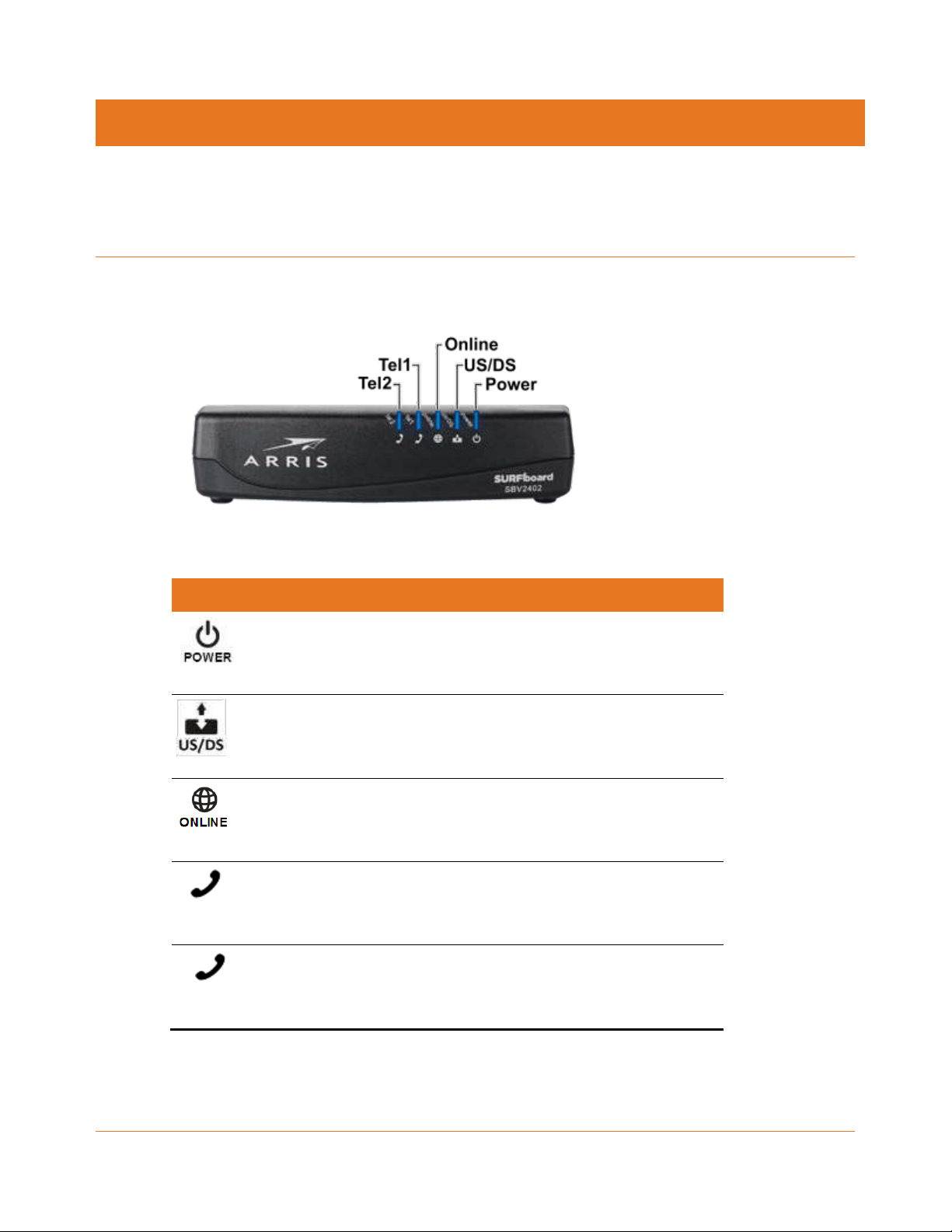
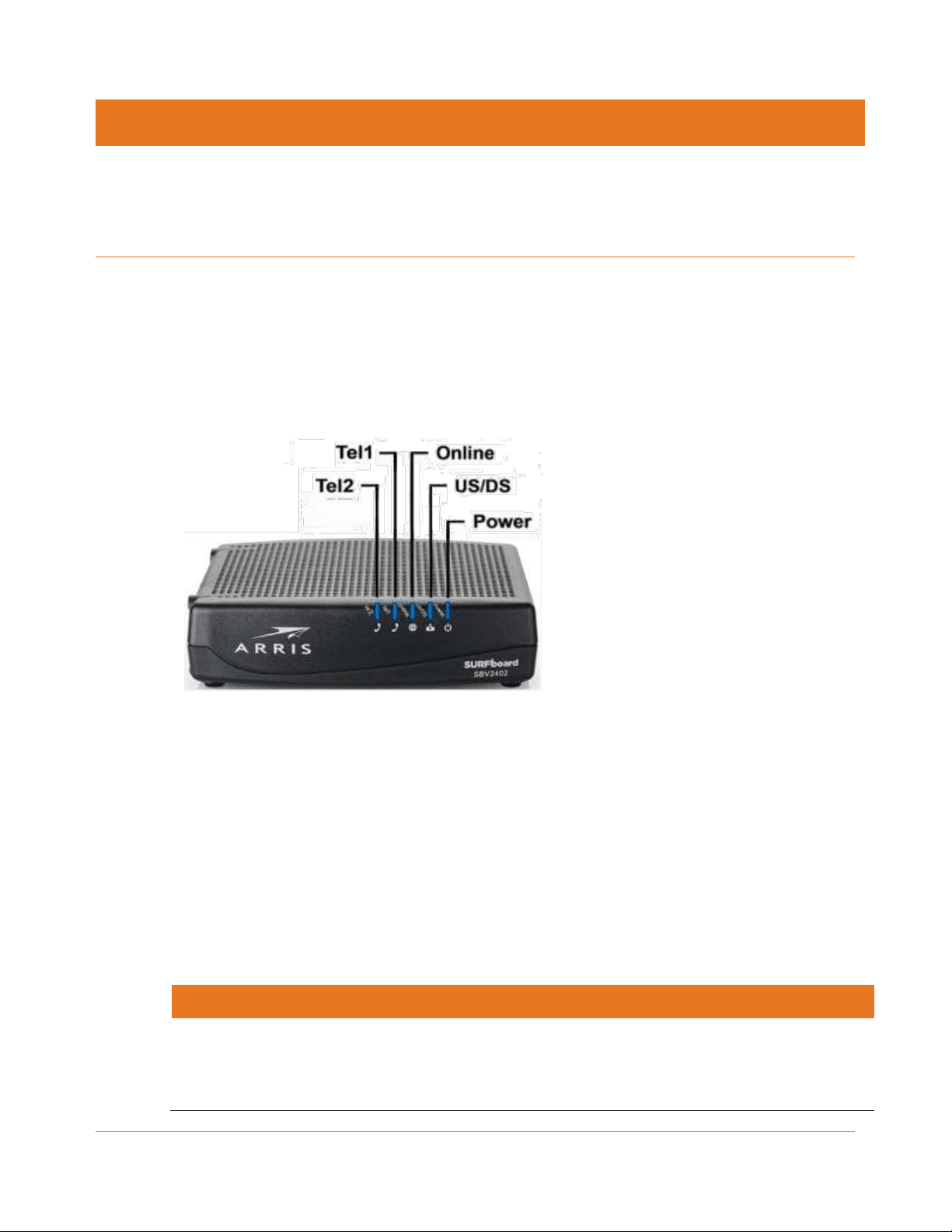
Table 2. SBV2402 front panel LEDs
LED icon
Description
Blinking: not applicable; LED does not blink.
On (solid): power is properly connected with the SBV2402 power
cord.
Blinking: scanning for upstream (send data) and downstream
(receive data) channel connection.
On (solid): upstream and downstream channels are connected.
Blinking: scanning for an Internet connection.
On (solid): SBV2402 is connected to your home network.
Tel1
Blinking: telephone line 1 is either off-hook or a call is in progress.
On (solid): telephone service for line 1 is connected and
activated; on-hook.
Tel2
Blinking: telephone line 2 is either off-hook or a call is in progress.
On (solid): telephone service for line 2 is connected and
activated; on-hook.
Chapter 3: Product overview
PN 365-095-33947 x.1 SBV2402 Internet & Voice cable modem for Xfinity® customers user guide
14
Rear panel
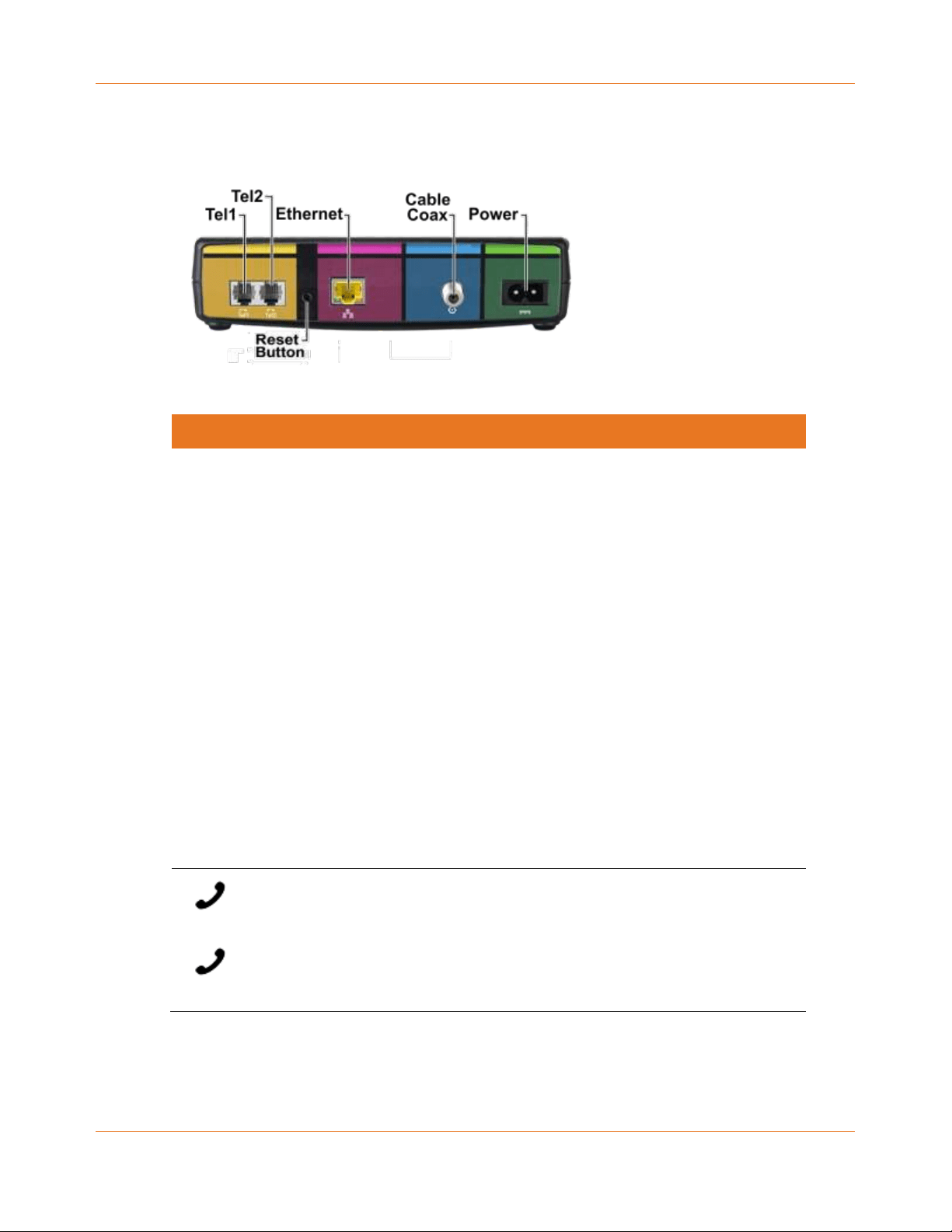
Table 3. SBV2402 rear panel ports & connectors
Port
Description
Reset
button
Recessed button can be used to either reboot the SBV2402 or reset the
SBV2402 configuration settings. The Reset button is recessed to prevent
accidental resets.
Reboot (or restart) the telephony modem
1. Insert the end of a small pointed non-metallic object with a narrow
tip into the Reset opening on the back of your SBV2402.
2. Press and hold the indented Reset button for three to four seconds
only.
3. Remove the small object from the Reset opening.
Reset the telephony modem configuration
Resets the SBV2402 configuration back to the factory default settings:
1. Insert the end of a small pointed non-metallic object with a narrow
tip into the Reset opening on the back of your SBV2402.
2. Press and hold the indented Reset button for 10 seconds or until
the front panel LEDs flash.
3. Remove the small object from the Reset opening.
Tel 1
Tel 2
Two telephony ports for RJ-11 cable connections:
◼ VoIP connection for a single or two-line telephone
◼ VoIP connection for a single-line telephone
Chapter 3: Product overview
PN 365-095-33947 x.1 SBV2402 Internet & Voice cable modem for Xfinity® customers user guide
15
Port
Description
Ethernet
One-gigabit Ethernet port for RJ-45 network cable connection:
◼ Green: LED is ON - Indicates a data transfer rate of one gigabit per
second
◼ Green: LED is blinking - Indicates data traffic is in progress
◼ Amber: LED is ON - Indicates a data transfer rate of less than one
gigabit per second
◼ Amber: LED is blinking - Indicates data traffic is in progress.
Coaxial cable connector
Power port
100 - 240 VAC Power connector
WARNING! To avoid any damage to the SBV2402, only use the power
cord provided in the SBV2402 box.
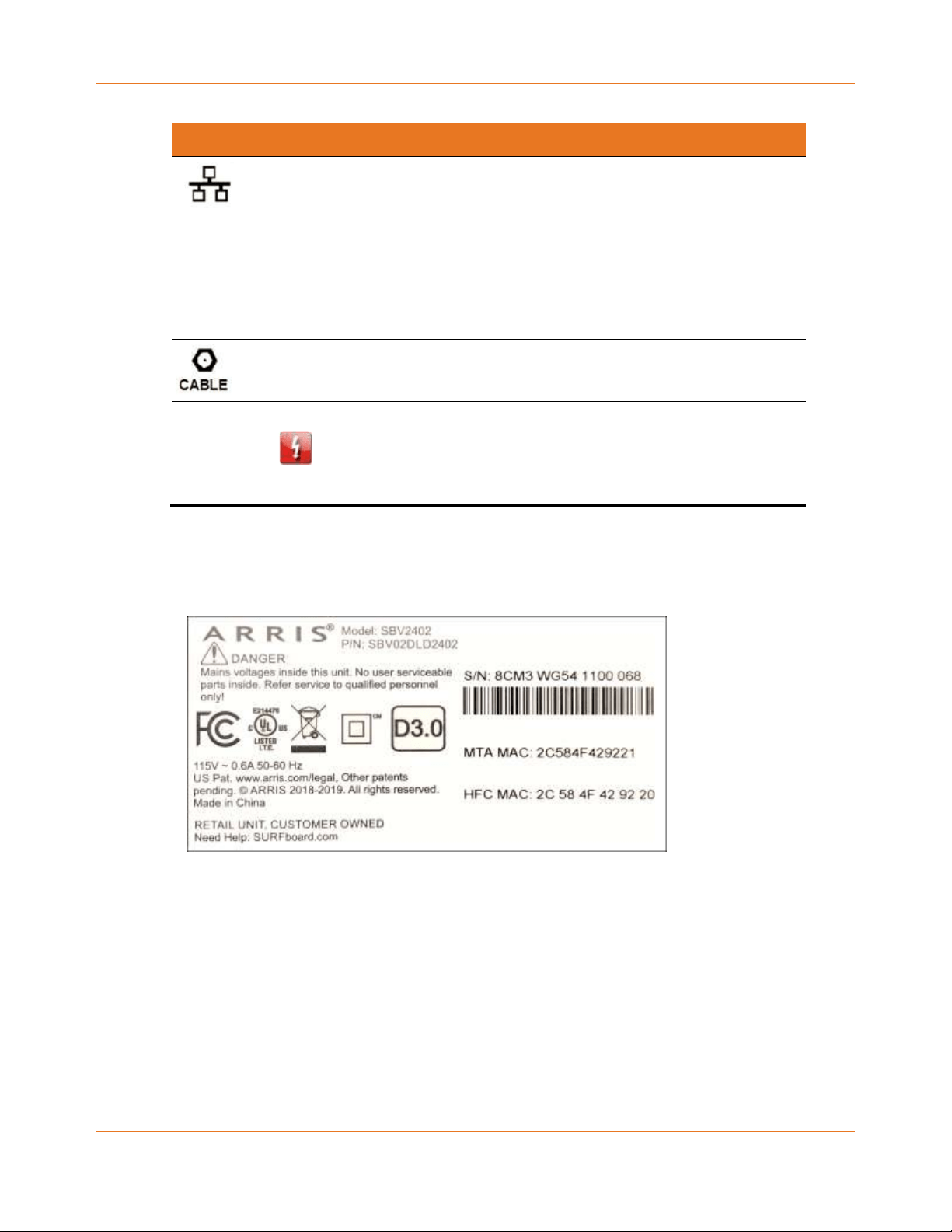
Telephony modem label
The telephony modem label is located on the bottom of your SBV2402. It contains the
specific telephony modem information that you may need when contacting your service
provider or ARRIS technical support (page 12).
To receive Internet service, contact your service provider for assistance. You may have to
provide the following information listed on the telephony modem label:
◼ Telephony modem Model name (SBV2402)
◼ Telephony modem MAC address (HFC MAC)
◼ Telephony modem Serial number (SN)

PN 365-095-33947 x.1 SBV2402 Internet & Voice cable modem for Xfinity® customers user guide
16
Chapter 4
Installing the telephony modem
Caution: This device is for indoor use only. Do not route the Ethernet cable(s) outside of the
building. Exposure of the cables to lightning could create a safety hazard and damage the
product.
Before starting the installation, make sure of the following:
◼ You have all the Additional items needed (not included) (page 10).
◼ You have Establish an Internet connection (page 19)
◼ Cable, phone, and power outlets are available near the computer.
If a cable outlet is not conveniently located, your service provider can install a new one.
Choose an installation location
There are several factors to consider when choosing a location to install your SBV2402:
◼ Choose a location in your home where your SBV2402 and computer are preferably near
existing cable, phone, and electrical wall outlets.
If a cable outlet is not conveniently located, check with your service provider to install
one.
CAUTION
Risk of equipment damage
Only qualified installation technicians should connect your SBV2402 to house
wiring. Incumbent telephone service must be physically disconnected at the outside
interface box before making any connections.
◼ Is an AC outlet available nearby? For best results, the outlet should not be switched and
should be close enough to your SBV2402 that extension cords are not required.
◼ Is a cable jack available? For best performance, keep the number of splitters between
the jack and cable drop to a minimum.
Each splitter attenuates (reduces) the signal available to your SBV2402. Multiple splitters
can slow down your Internet connection and also affect your telephone service.
◼ Can you easily run cables between your SBV2402 and telephones?
◼ If you are connecting devices to an Ethernet port, can you easily run cables between
your SBV2402 and those devices?

Chapter 4: Installing the telephony modem
PN 365-095-33947 x.1 SBV2402 Internet & Voice cable modem for Xfinity® customers user guide
17
◼ If you want to mount your SBV2402 on a wall, does the location provide a solid surface
for a secure attachment?
For best results when mounting your SBV2402 on drywall, position it so that at least one
of the screws are fastened to a stud. This should prevent your SBV2402 from possibly
pulling out of the wall in the future.
◼ If you want to install your SBV2402 on a desk, is there enough space on either side to
keep the vents clear? Blocking the vents may cause your SBV2402 to overheat.
Connect the SBV2402 to your client device
WARNING
Risk of injury or equipment damage
Connecting your SBV2402 to the home’s existing telephone wiring should only be
performed by a professional installer. Physical connections to the previous telephone
provider must be removed and the wiring must be checked; there must not be any
voltage. Cancellation of telephone service is not adequate. Failure to do so may result in
loss of service and/or permanent damage to your SBV2402.
Before installing your SBV2402:
◼ Check with your service provider (or local cable company) to ensure broadband cable
service is available in your area.
Note: When contacting your service provider, you may need your SBV2402
information listed on the telephony modem label on the bottom of your SBV2402
(see Telephony modem label (page 15).
◼ Check that you have all the items you need to install your SBV2402, see Additional items
needed (not included) (page 10).
◼ Choose a location in your home where your computer and SBV2402 are preferably near
existing cable, phone, and electrical wall outlets.
If a cable outlet is not conveniently located, your service provider can install one.
CAUTION
Risk of equipment damage
Only qualified installation technicians should connect your SBV2402 to house
wiring. Incumbent telephone service must be physically disconnected at the outside
interface box before making any connections.
◼ You have the option to mount your SBV2402 on the wall or place it on a desk, table, or
any other flat surface; see Wall mount the telephony modem (page 19) for more
information.
Chapter 4: Installing the telephony modem
PN 365-095-33947 x.1 SBV2402 Internet & Voice cable modem for Xfinity® customers user guide
18
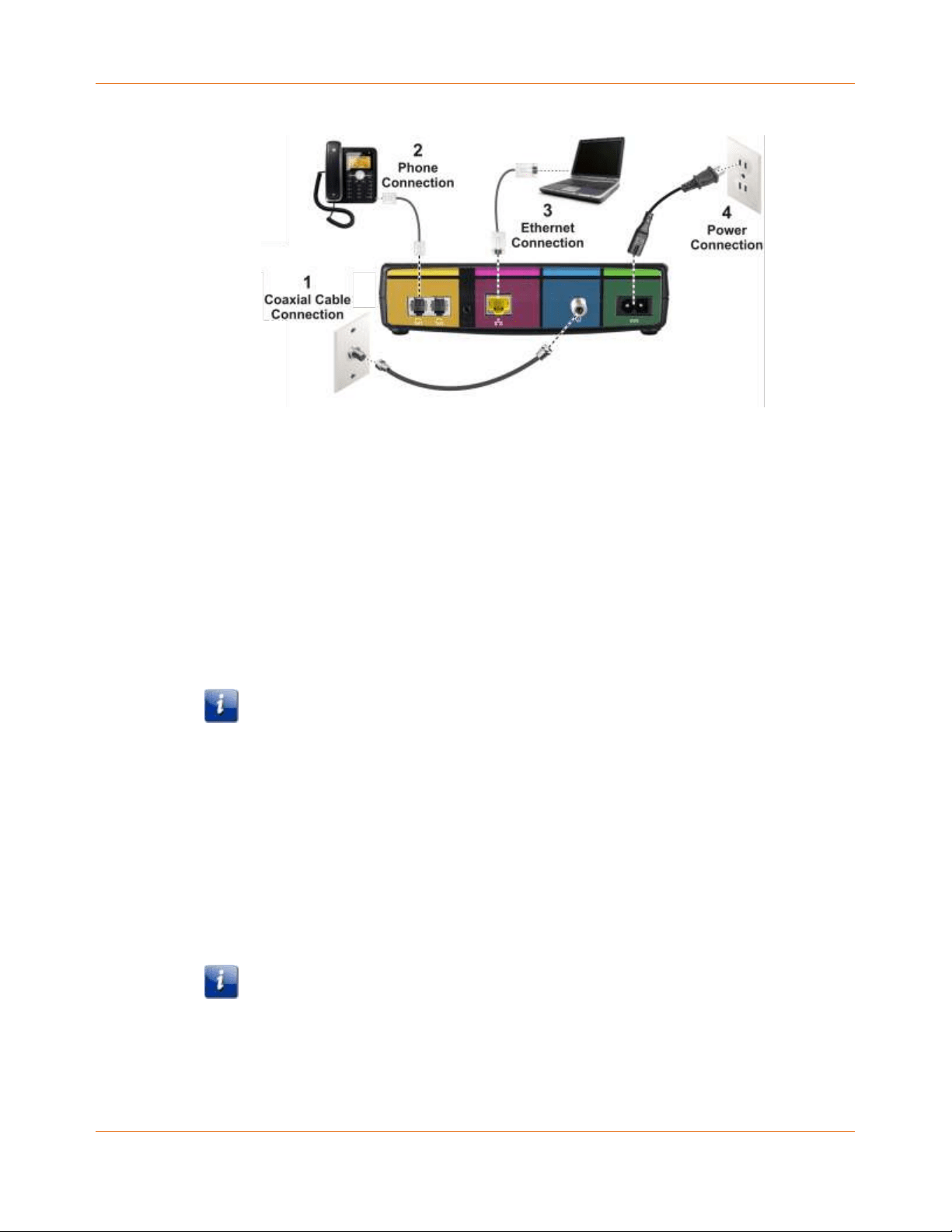
1. Check that a coaxial cable is already connected to a cable wall outlet or an RF splitter
(not included).
2. Connect the other end of the coaxial cable to the Cable connector on the rear of your
SBV2402.
Use your hand to tighten the connectors to avoid damaging them.
3. Connect the Ethernet cable (included) to the Ethernet port on your client device.
4. Connect the other end of the Ethernet cable to the Ethernet port on the rear of your
SBV2402.
5. Connect the power cord (included) to the Power port on the rear of your SBV2402.
6. Plug the other end of the power cord into an electrical wall outlet that is not controlled
by a wall switch.
Note: This automatically powers ON your SBV2402.
Connect your telephone
I
f you are migrating your current XFINITY service from an existing device, your current phone
service and phone number will be transferred to your SBV2402 when the installation is
finished. Please note, that if you do not currently have telephony service from Comcast, call
1-800-Xfinity (1-800-934-6489) to set up an account that includes telephony service.
1. Connect a telephone cord (not included) to the TEL LINE port on your telephone.
2. Connect the other end of the telephone cord to the TEL 1 port on the rear of your
SBV2402.
Note: Use the Tel1 port to connect a two-line telephone. Then, contact a VoIP
service provider to activate your Telephony service.
3. Optional: For a second telephone, connect a telephone cord of a single-line telephone to
the TEL 2 port on the rear of your SBV2402.

Chapter 4: Installing the telephony modem
PN 365-095-33947 x.1 SBV2402 Internet & Voice cable modem for Xfinity® customers user guide
19
Note: For an Alarm System connection with a single telephone line, connect the
Alarm Panel to the Tel2 port. If both telephone lines are providing telephony
services, use an RJ-31X adapter (not included) on the Tel1 port.
4. Check that your telephone has a dial tone.
Wall mount the SBV2402
You can either mount your SBV2402 on a wall or place it on any flat surface such as a desk or
table. For wall-mounting, make sure the SBV2402 front panel indicators are facing upward
(vertical) or to the side (horizontal).
Tools and materials
Make sure you have the following tools and additional items before proceeding:
◼ For mounting on dry wall:
• two 1/4” (6 mm) drywall anchors (not included)
• two #6 x 1.5” (38.1 mm) self-tapping panhead screws (not included)
• a drill with 1/4” (6 mm) bit (not included)
◼ For mounting on plywood or studs: two #6 x 1.5” (38.1 mm) self-tapping panhead wood
screws (not included)
◼ Screw driver (flat-blade or Phillips, depending on what kind of screws you use).
◼ Transparent tape (not included) for temporarily securing the mounting template to the
wall.
Location
Always position your SBV2402:
◼ Within proximity to an AC outlet. The power cord must reach the AC outlet without
stretching it and without using extension cords.
◼ Near a cable outlet (to avoid long cable runs).
Establish an Internet connection
Although your client device may already be configured to automatically connect to the
Internet, you should still perform the following connectivity test to check that your devices
were installed properly and are successfully connected to your home network.
1. Power ON your client device (e.g., laptop) connected to your SBV2402, if it is turned off,
and then log on.
2. Check the front panel LEDs on your SBV2402.

Chapter 4: Installing the telephony modem
PN 365-095-33947 x.1 SBV2402 Internet & Voice cable modem for Xfinity® customers user guide
20
During startup, the Power and US/DS (Upstream/Downstream) LEDs will FLASH and then
light up SOLID blue.
Note: If you are a current Comcast voice subscriber and purchased the SBV2402,
please visit xfinity.com/activate before calling Comcast or ARRIS. If there is an issue
with the activation, please call Comcast at 1-800-Xfinity (1-800-934-6489) to
activate your SBV2402. Make sure you have your Comcast Xfinity account number,
account phone number, and login information (your email address or user name and
password).
Note: If you are a new voice subscriber with Comcast, continue with the following
steps to set up your new Xfinity telephony service account and activate your
SBV2402.
3. Click or type xfinity.com/activate to open the Xfinity Activation page.
4. Follow the online instructions to enter your Xfinity account number and phone number.
5. Enter the following information to set up your online Xfinity login account and network
login information:
• XFINITY account login name
• XFINITY account password
• Network name
• Network password
6. To check for Internet connectivity, open a web browser (Internet Explorer, Google
Chrome, Firefox, or Safari) on your computer or laptop.
7. Click www.surfboard.com or type a valid URL of your choice in the address bar and press
Enter.
The ARRIS SURFboard website or your selected website should open. If the website fails
to open, please call Comcast Customer Support at 1-855-OK-BEGIN (1-855-652-3446) to
set up your Internet service or activate your SBV2402.
PN 365-095-33947 x.1 SBV2402 Internet & Voice cable modem for Xfinity® customers user guide
21
Chapter 5
Using the telephony modem
This chapter describes the controls and features available on your SBV2402 and covers basic
troubleshooting procedures.
Indicator lights for the SBV2402
The SBV2402 LED indicator lights can be helpful when troubleshooting.
Wiring problems
If your SBV2402 begins flashing all its lights for more than 10 seconds, this indicates a
problem with the telephone wiring — the red and green wires may be shorted (touching), or
there may be undesired voltage on the lines. If this pattern persists for more than 10
seconds, disconnect the telephone lines from your SBV2402, replace the telephone cable, or
contact a wiring technician for assistance.
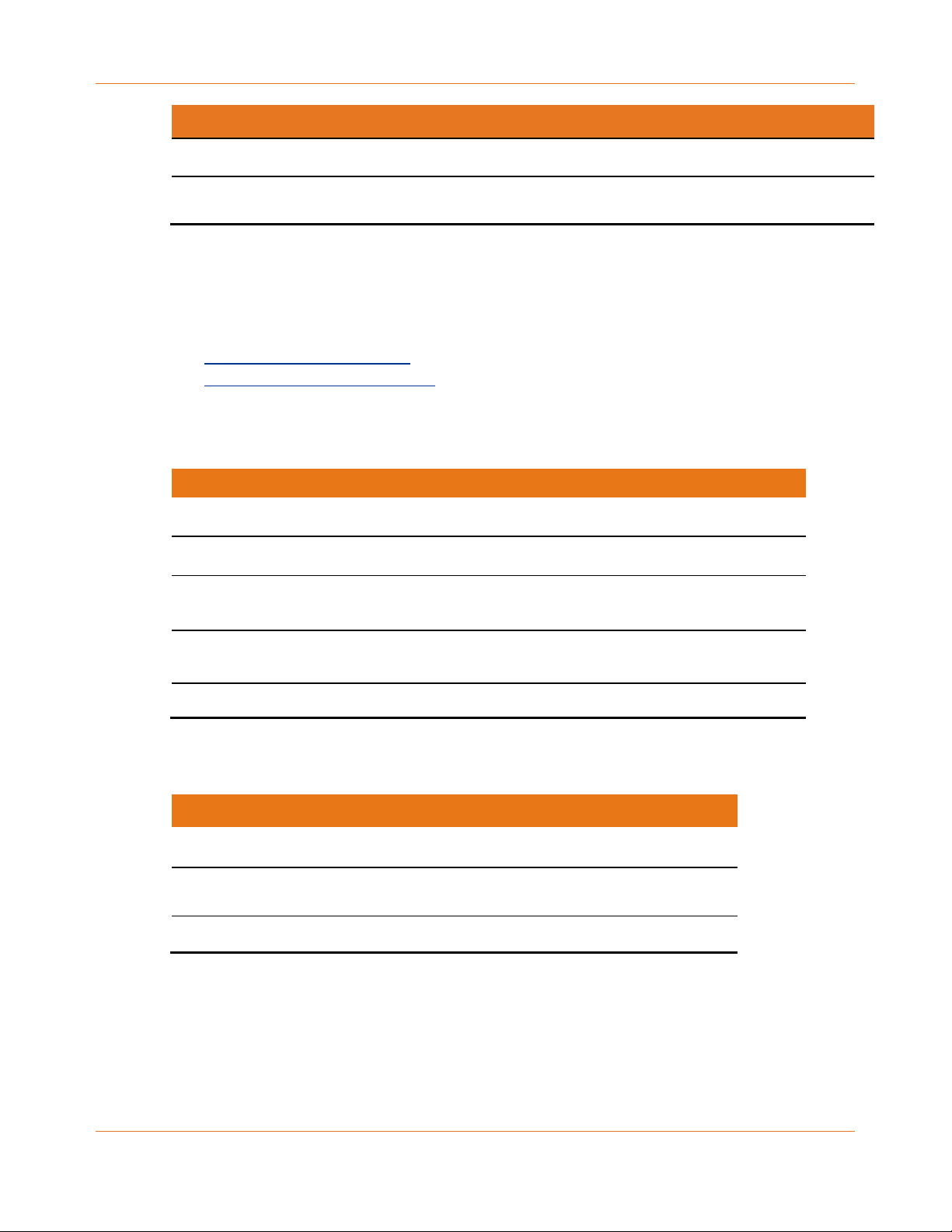
Patterns: normal operation
The following table shows light patterns during normal operation:
Mode
Power
US/DS
Online
Tel 1 / Tel 2
AC power
On
On = connected to the
Internet (ultra-high speed)
Flash = not connected to
the Internet
On = Internet avail
Off = Internet not
available
On = on-hook
Flash = off-hook
Off = disabled
Chapter 5: Using the telephony modem
PN 365-095-33947 x.1 SBV2402 Internet & Voice cable modem for Xfinity® customers user guide
22
Mode
Power
US/DS
Online
Tel 1 / Tel 2
No AC power
Off
Off
Off
Off
Firmware
upgrade
On
Flash
On
(normal operation)
Patterns: startup sequence
There are two SBV2402 light patterns that display during each phase of the startup
sequence:
◼ Telephony startup sequence
◼ Cable modem startup sequence
Telephony startup sequence
Power, US/DS, Online
Telephone 1
Telephone 2
Description
Off
Off
Off
No power to modem
Flash
Flash
Flash
Power-on self-test
On
Flash
Off
Retrieving telephone network
information
On
Off
Flash
Retrieving telephone network
information
On
Flash
Flash
Activating telephone service
Cable modem startup sequence
DS/US
Online
Description
Flash
Off
Downstream or upstream search
On
Flash
Downstream and upstream found; retrieving setup
information from service provider
On
On
Ready for service

PN 365-095-33947 x.1 SBV2402 Internet & Voice cable modem for Xfinity® customers user guide
23
Chapter 6
Using the telephony modem web manager
The SBV2402 web manager is available to view and monitor your SBV2402 operational status
and network configuration settings.
SBV2402 web manager menu links
The SBV2402 main menu links and related submenu option links are displayed along the top
of the SBV2402 web manager screen. Click on the main menu link to view any of the other
available screens.
View the SBV2402 network connection status
Use the SBV2402 web manager to view and monitor the network configuration settings and
operational status of your SBV2402. To open the SBV2402 web manager:
1. Open a web browser (such as Internet Explorer, Google Chrome, Firefox, or Safari) on
the client device connected to your SBV2402.
2. Type 192.168.100.1 in the address bar and then press Enter to open the SBV2402 web
manager. The Status screen opens.
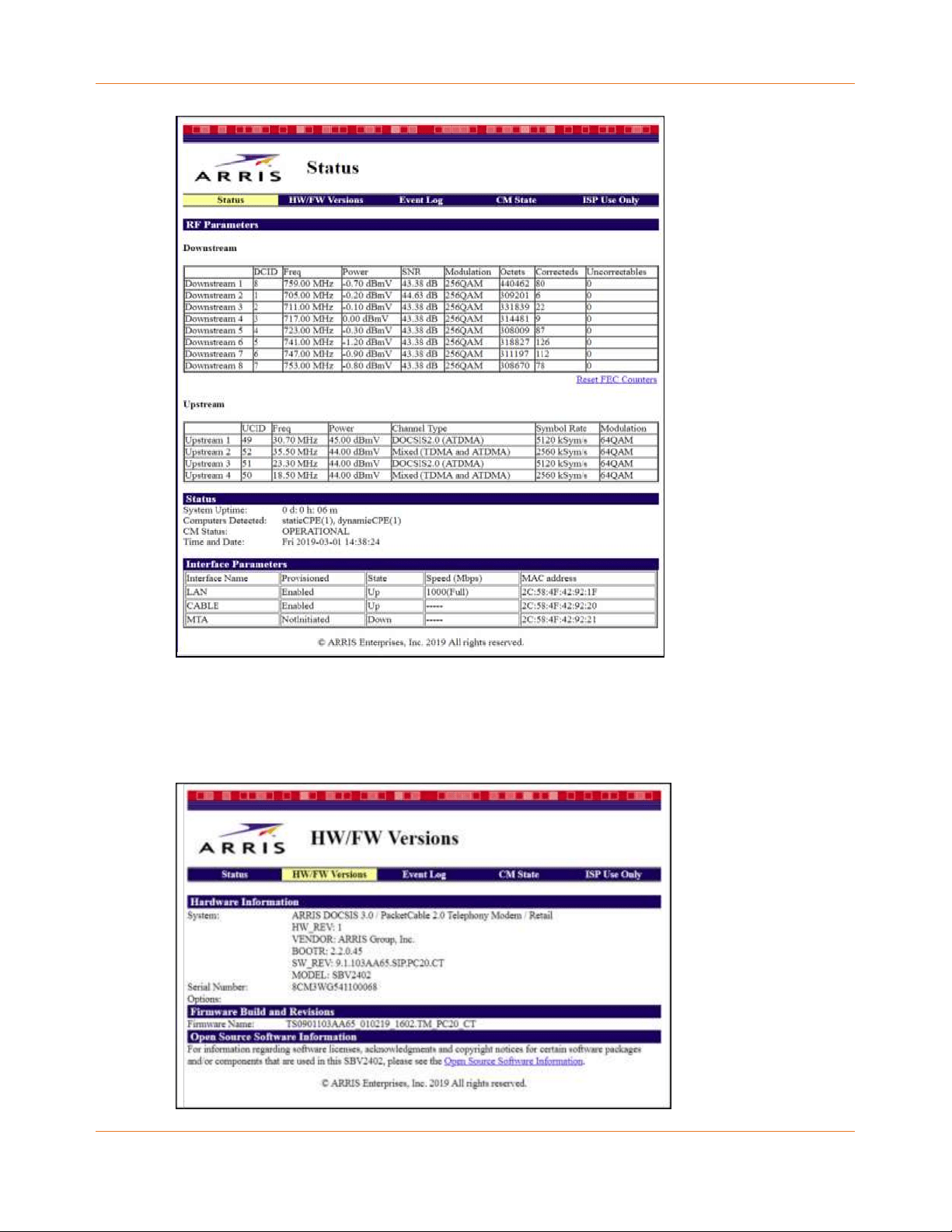
Status screen
The Status screen shows the current status of the upstream and downstream channels for
your SBV2402, including the MAC addresses for various ports.
Chapter 6: Using the telephony modem web manager
PN 365-095-33947 x.1 SBV2402 Internet & Voice cable modem for Xfinity® customers user guide
24
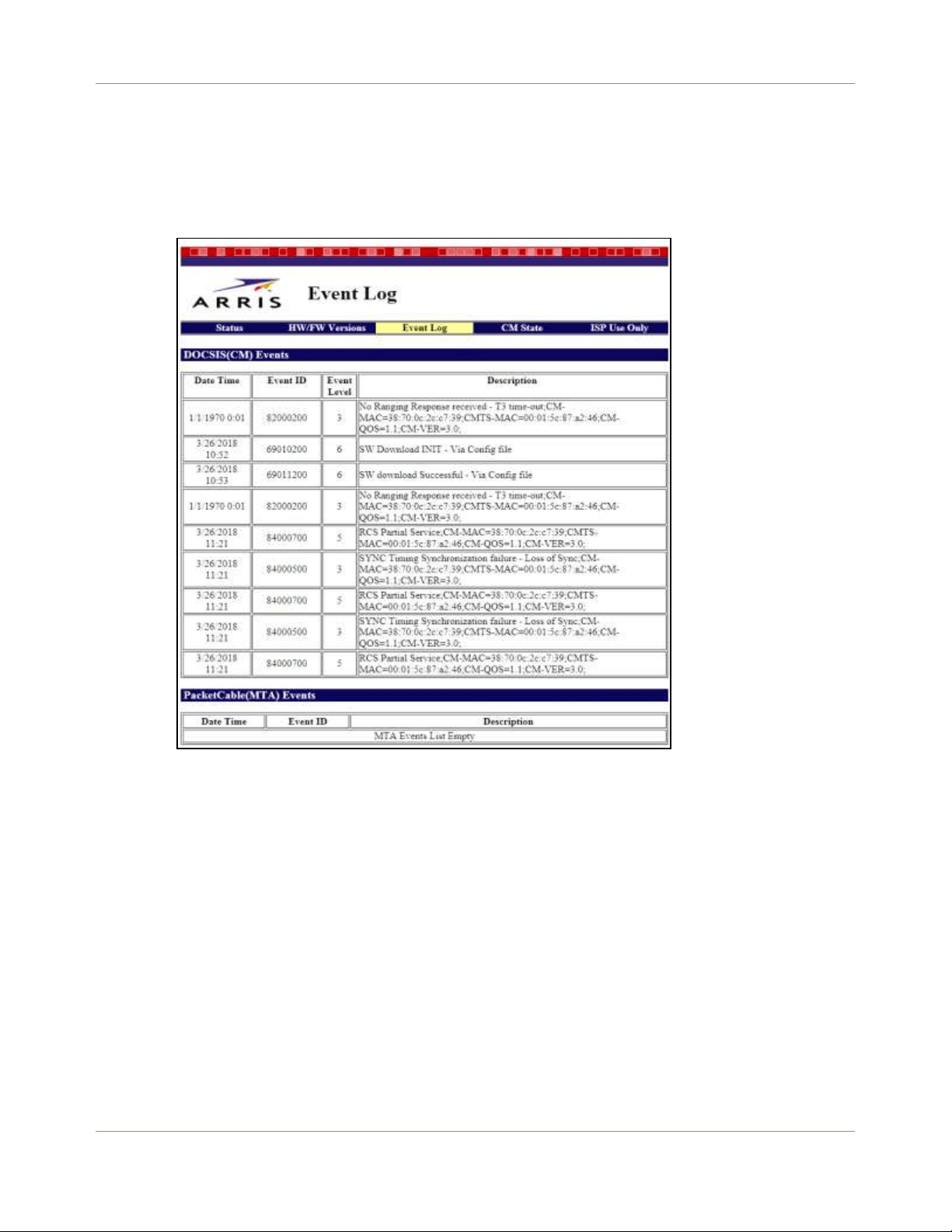
HW/FW versions screen
The HW/FW versions screen includes release and model information for the SBV2402
hardware and firmware. This information includes the serial number for your SBV2402.
Chapter 6: Using the telephony modem web manager
PN 365-095-33947 x.1 SBV2402 Internet & Voice cable modem for Xfinity® customers user guide
25
Event log screen
The Event Log screen includes a list of events that were detected by your SBV2402, including
the date and time of the event, event ID, and event level.
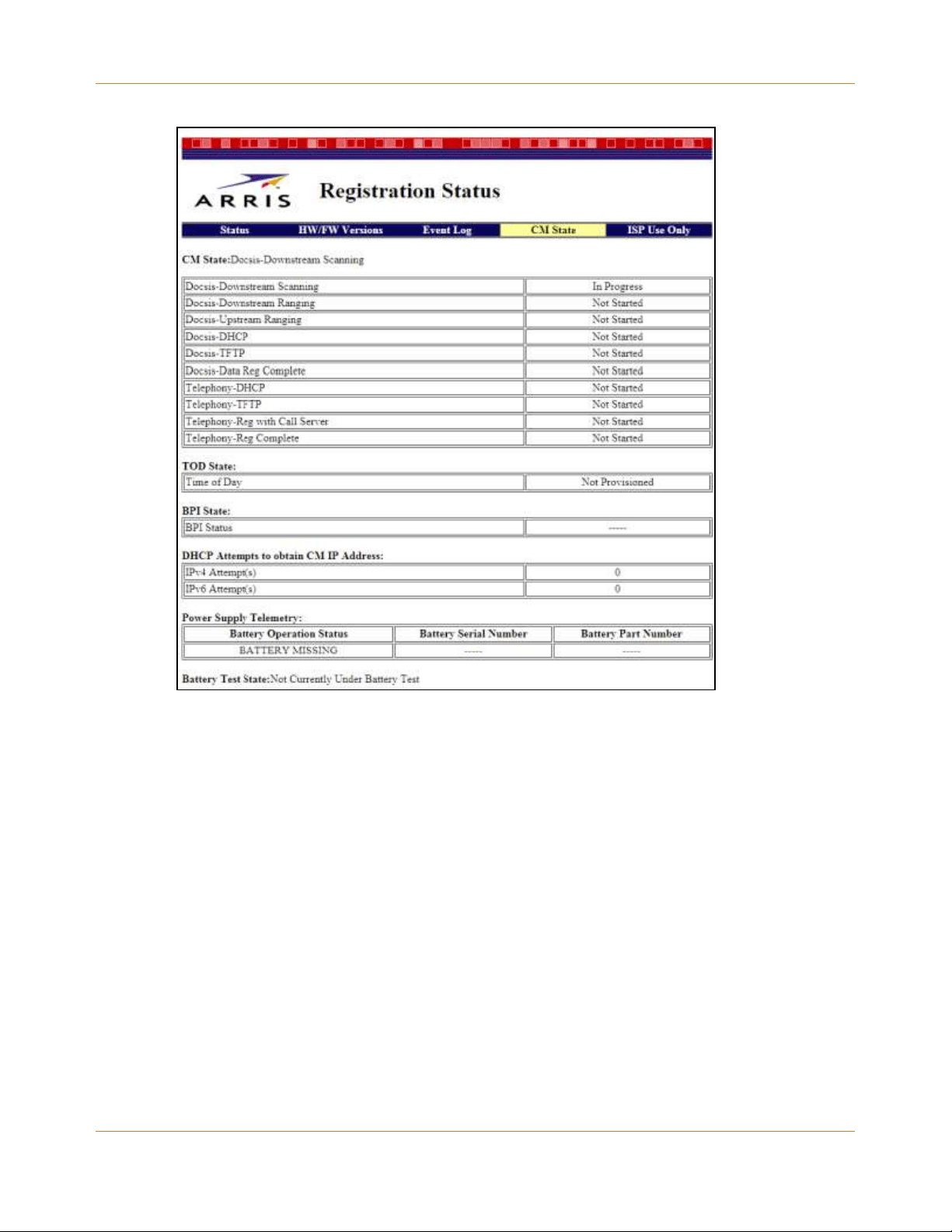
Registration status (CM state)
The Registration Status screen shows the current operating status of your SBV2402 with
regards to DOCSIS and telephony connections.
Chapter 6: Using the telephony modem web manager
PN 365-095-33947 x.1 SBV2402 Internet & Voice cable modem for Xfinity® customers user guide
26

PN 365-095-33947 x.1 SBV2402 Internet & Voice cable modem for Xfinity® customers user guide
27
Chapter 7
Troubleshooting
Solutions
◼ The SBV2402 is plugged in, but the power light is off
◼ I cannot access the Internet
◼ I cannot access the Internet (Ethernet)
◼ I can get on the Internet, but everything is slow
◼ I don't have a dial tone when I pick up the phone
◼ Contact ARRIS consumer support
The SBV2402 is plugged in, but the power light is off
◼ Check all power connections. Is the power cord plugged in firmly at both ends?
◼ If you plugged the power cord into a power strip, make sure the strip is switched on.
◼ Try to plug the power cord into a different outlet. If the outlet is controlled by a wall
switch, make sure the switch is on.
◼ Finally, check the fuse or circuit breaker panel.
I cannot access the internet
The first time you power up your SBV2402 may take over 30 minutes to establish a
connection, especially if there are many people online. Always leave your SBV2402 plugged
into an AC power outlet and connected to the cable system.
Check the front panel lights:
◼ The Power and Online lights should be on.
◼ The Link light should either be on or blinking.
◼ If the Power light blinks for more than 30 minutes, call your service provider for
assistance.
Check your cable connections. Connectors should be tight. The coax cable should not be
pinched, kinked, or bent sharply—any of these can cause a break or short in the cable (you
may have to replace the cable). If you have one or more splitters between your SBV2402 and a
CATV outlet, remove the splitters and connect your SBV2402 directly to the outlet.
Proceed to the Ethernet solution, if necessary.

Chapter 7: Troubleshooting
PN 365-095-33947 x.1 SBV2402 Internet & Voice cable modem for Xfinity® customers user guide
28
I cannot access the internet (Ethernet)
If you are using a hub, is the hub turned on?
Are you using the right type of Ethernet cable? Use the supplied cable for direct connection to
a computer; use a cross-over cable for connection to a hub.
Press the Reset button on the back of the SBV2402.
I can get on the internet, but everything is slow
If the website you are visiting is very popular, that site may be having trouble servicing all the
requests. If other sites download quickly, wait for a few minutes and try again. Usage during
peak hours may also affect the connection speed. Also, other communications on the LAN
may slow down the connection.
I do not have a dial tone when I pick up the phone
For telephone service to be functional on your SBV2402, the service must have been
purchased from your service provider and configured on your SBV2402. The following steps
should help in identifying the source of the problem:
1. Is the Power LED lit?
• If not, check to make sure your SBV2402 is plugged into an electrical wall outlet and
the outlet has power. Use only the external AC power adapter (if provided) and power
cord included with the device.
• If the LED is lit, proceed with the next step.
2. Is the Online LED lit?
• If not, check the coax cable connection between the SBV2402 and the wall. Ensure
they are connected tightly. If they are and you do not have a dial tone, contact your
service provider.
• If the Online LED is lit, go to the next step.
3. Is the Telephone (Tel 1 or Tel 2) LED lit?
• If not, phone service has not been set up on that telephone line. Contact your service
provider.
• If it is blinking, there is a phone off hook somewhere in the house. Find the phone and
hang it up.
• If it is lit, proceed with the next step.
4. Is the phone plugged directly into your SBV2402?
• Make sure the phone is plugged into the Tel 1 port for line 1 or the Tel 2 port for line 2
on the back of your SBV2402.
• If the phone is connected, try connecting a different phone.
Make sure the new phone is a working phone.

Chapter 7: Troubleshooting
PN 365-095-33947 x.1 SBV2402 Internet & Voice cable modem for Xfinity® customers user guide
29
• If a known working phone is used and you still do not have a dial tone, try a different
phone cable. If a new phone and cable do not restore the dial tone, call your service
provider for assistance.
5. Is the SBV2402 plugged into a wall outlet?
• If so, unplug the phone connector at the back of your SBV2402 and plug in a known
working phone. If you now have dial tone, the problem is with the house wiring.
Contact your service provider or a qualified wiring technician to correct the house
wiring. If you still do not have dial tone, contact your service provider.
Contact ARRIS consumer support
For technical support, FAQs, product documentation, and additional ARRIS product
information:
◼ Visit the ARRIS Support website: www.arris.com/selfhelp
◼ Call: 1-877-466-8646
◼ Email: ARRIS technical support
◼ SBV2402 product information: shop.surfboard.com/categories/xfinity-subscribers.html

PN 365-095-33947 x.1 SBV2402 Internet & Voice cable modem for Xfinity® customers user guide
30
Chapter 8
Warranty information
SURFboard SBV2402 Internet & Voice cable modem
ARRIS Enterprises, LLC ("ARRIS")
Retail purchasers: If you purchased this Product directly from ARRIS or from an authorized
ARRIS retail reseller, ARRIS warrants to you, the original end user customer, that (A) the
Product, excluding Software, will be free from defects in materials and workmanship under
normal use, and (B) with respect to Software, (i) the media on which the Software is
provided will be free from defects in material and workmanship under normal use, and (ii)
the Software will perform substantially as described in its documentation. This Limited
Warranty to you, the original end user customer, continues (A) for Software and the media
upon which it is provided, for a period of ninety (90) days from the date of purchase from
ARRIS or an authorized ARRIS reseller, and (B) for the Product (excluding Software), for a
period of two (2) years from the date of purchase from ARRIS or from an authorized ARRIS
reseller. To take advantage of this Limited Warranty or to obtain technical support, you must
call the ARRIS toll-free telephone number 1-877-466-8646. Technical support charges may
apply. ARRIS’ sole and exclusive obligation under this Limited Warranty for retail sales shall
be to repair or replace any Product or Software that does not meet this Limited Warranty. All
warranty claims must be made within the applicable Warranty Period.
Cable operator or service provider arrangements. If you did not purchase this Product
directly from ARRIS or from an ARRIS authorized retail reseller, ARRIS does not warrant this
Product to you, the end-user. A limited warranty for this Product (including Software) may
have been provided to your cable operator or Internet Service Provider ("Service Provider")
from whom you obtained the Product. Please contact your Service Provider if you
experience problems with this Product.
General information. The warranties described in this Section shall not apply: (i) to any
Product subjected to accident, misuse, neglect, alteration, Acts of God, improper handling,
improper transport, improper storage, improper use or application, improper installation,
improper testing or unauthorized repair; or (ii) to cosmetic problems or defects which result
from normal wear and tear under ordinary use, and do not affect the performance or use of
the Product. ARRIS’ warranties apply only to a Product that is manufactured by ARRIS and
identified by ARRIS owned trademark, trade name or product identification logos affixed to
the Product. ARRIS does not warrant to you, the end user, or to anyone else that the
Software will perform error free or without bugs.

Chapter 8: Warranty information
PN 365-095-33947 x.1 SBV2402 Internet & Voice cable modem for Xfinity® customers user guide
31
ARRIS IS NOT RESPONSIBLE FOR, AND PROVIDES "AS IS" ANY SOFTWARE SUPPLIED BY 3RD
PARTIES. EXCEPT AS EXPRESSLY STATED IN THIS SECTION ("WARRANTY INFORMATION"),
THERE ARE NO WARRANTIES OF ANY KIND RELATING TO THE PRODUCT, EXPRESS, IMPLIED
OR STATUTORY, INCLUDING BUT NOT LIMITED TO IMPLIED WARRANTIES OF
MERCHANTABILITY, FITNESS FOR A PARTICULAR PURPOSE, OR THE WARRANTY AGAINST
INFRINGEMENT PROVIDED IN THE UNIFORM COMMERCIAL CODE. Some states do not allow
for the exclusion of implied warranties, so the above exclusion may not apply to you.
What additional provisions should I be aware of? Because it is impossible for ARRIS to know
the purposes for which you acquired this Product or the uses to which you will put this
Product, you assume full responsibility for the selection of the Product for its installation and
use. While every reasonable effort has been made to ensure that you will receive a Product
that you can use and enjoy, ARRIS does not warrant that the functions of the Product will
meet your requirements or that the operation of the Product will be uninterrupted or error-
free.
ARRIS IS NOT RESPONSIBLE FOR PROBLEMS OR DAMAGE CAUSED BY THE INTERACTION OF
THE PRODUCT WITH ANY OTHER SOFTWARE OR HARDWARE. ALL WARRANTIES ARE VOID IF
THE PRODUCT IS OPENED, ALTERED, AND/OR DAMAGED.
THESE ARE YOUR SOLE AND EXCLUSIVE REMEDIES for any and all claims that you may have
arising out of or in connection with this Product, whether made or suffered by you or
another person and whether based in contract or tort.
IN NO EVENT SHALL ARRIS BE LIABLE TO YOU OR ANY OTHER PARTY FOR ANY DIRECT,
INDIRECT, GENERAL, SPECIAL, INCIDENTAL, CONSEQUENTIAL, EXEMPLARY OR OTHER
DAMAGES ARISING OUT OF THE USE OR INABILITY TO USE THE PRODUCT (INCLUDING,
WITHOUT LIMITATION, DAMAGES FOR LOSS OF BUSINESS PROFITS, BUSINESS
INTERRUPTION, LOSS OF INFORMATION OR ANY OTHER PECUNIARY LOSS), OR FROM ANY
BREACH OF WARRANTY, EVEN IF ARRIS HAS BEEN ADVISED OF THE POSSIBILITY OF SUCH
DAMAGES. IN NO CASE SHALL ARRIS’ LIABILITY EXCEED THE AMOUNT YOU PAID FOR THE
PRODUCT.
These matters are governed by the laws of the State of Georgia of the United States of
America, without regard to conflict of laws principles and excluding the provisions of the
United Nations Convention on Contracts for the International Sale of Goods and the Uniform
Computers Information Transactions Act.
Retail purchasers only. If you purchased this product directly from ARRIS or from an ARRIS
authorized retail reseller, please call the ARRIS toll-free phone number, 1-877-466-8646 for
warranty service or technical support. Technical support charges may apply. For online
technical support, please visit www.arris.com/selfhelp.
Cable operator or service provider arrangements. If you did not purchase this Product
directly from ARRIS or from an ARRIS authorized retail reseller, please contact your Service
Provider for technical support.

PN 365-095-33947 x.1 SBV2402 Internet & Voice cable modem for Xfinity® customers user guide
32
Chapter 9
Glossary
No problem
Amp-hour
A measure of battery capacity. For
example, a 1.0Ah battery can nominally
supply one ampere of current for one
hour.
C
Category 5e (cat5e)
A high-quality cable used for gigabit
ethernet (1000Base-T) connections. When
purchasing ethernet cables, always look
for a category 5e cable or higher.
Coaxial cable (coax)
A thin wire used to connect your television
and SBV2402 to the cable TV system. You
can buy coax from any electronics retailer
and many discount stores.
CPE
Customer premise equipment. This is the
equipment that is plugged into the
SBV2402; typically, a computer or hub.
Cross-over
An ethernet cable used to connect two
hubs (or a hub and a cable modem)
together. Also, some ethernet hubs may
have built-in cross-over on one or more
ports, which eliminates the need for a
cross-over cable.
D
DHCP
Dynamic host configuration protocol. An
IP protocol used to provide an IP address
and location of services (such as DNS and
TFTP) needed by a device connecting to
the network. DHCP allows the service
provider to configure your computer’s
networking software for you.
DNS
Domain name service (server). An IP
service that associates a domain name
(such as www.example.com) with an IP
address.
DOCSIS
Data over cable system interface
specification. The interoperability
standards used for data communications
equipment on an HFC network.
Downstream
In an HFC network, the direction from
the head-end to the subscriber. Some
older cable documentation may refer to
this as the forward path.
E
EMTA
Embedded multi-media terminal
adapter. An MTA device that is
integrated with a cable modem.

Chapter 9: Glossary
PN 365-095-33947 x.1 SBV2402 Internet & Voice cable modem for Xfinity® customers user guide
33
Ethernet
A standard method of connecting two or
more computers to a local area network
(LAN).
Event
An informational message used for
monitoring network status.
F
F-connector
The type of connector used on a coaxial RF
cable. There are two common types of F
connectors: slip-on and screw-on. Use coax
cables with screw-on connectors to
connect your SBV2402.
Firewall
A hardware or software device that prevents
unauthorized access to a private network
from the internet. The SBV2402 provides a
built-in firewall.
G
Gateway
The device, usually a router, that connects
devices on a given IP subnet to other IP
subnets.
H
Headend
The “central office” in an HFC network. The
headend houses both video and data
equipment. In larger cable networks, a
“master” headend often feeds several
“remote” headends to provide distributed
services.
HTTP
Hypertext transfer protocol. A set of
rules for transferring text, graphic, and
multi-media files on the internet.
Hub
A box with several ethernet connectors.
Ethernet hubs provide a common point of
contact for all connected devices.
I
IP address
A number assigned to your computer by
your service provider, used to identify your
computer to other systems on the Internet.
ISDN
Integrated services digital network. A
digital telephony standard that provides
communication speeds about twice as fast
as standard dialup.
L
LAN
Local area network. A network that allows
computers in a single location (such as a
building) to communicate with one
another.
LED
Light emitting diode. A semi-conductor
diode that emits light when current is
passed through it.
M
MAC address
Media access control address. A number
that uniquely identifies any device
connected to a network. Your service
provider uses your SBV2402 MAC
address to authorize internet access.

Chapter 9: Glossary
PN 365-095-33947 x.1 SBV2402 Internet & Voice cable modem for Xfinity® customers user guide
34
P
Protocol
A set of rules and formats that determines
the communication behavior of network
entities at a given layer.
Proxy
A device or program that stands in between a
server (for example, a web site) and a client
(your browser), providing a way to relieve
some of the burden from the server. For
example, your service provider may have a
web proxy that keeps copies of popular web
pages; the proxy can send you those pages
instead of fetching them directly from the
web site, resulting in faster page loading and
less network congestion.
R
RF
Radio frequency. Some literature refers to
coax as “RF cable” and the connectors as “RF
connectors.”
RJ-11
A standard 2 conductor modular connector. It
is commonly used in North America for
connecting telephones.
RJ-45
A standard 8-conductor modular connector
commonly used on Ethernet cable. An RJ-45
connector looks like a wide RJ-11 (telephone)
connector.
S
Splitter
A small box with three cable connectors:
one input and two outputs. You may need
a splitter if you have a TV already
connected to the cable outlet that you
want to use for your SBV2402.
You can buy a splitter from any electronics
retailer and most discount stores.
Switched outlet
A power outlet that may be turned on and
off using a wall switch. Usually intended for
lamps. Avoid plugging your computer or
SBV2402 into a switched outlet to avoid
disruptions.
T
TCP/IP
Transmission control protocol/internet
protocol. The protocols used to facilitate
communications across one or more
connected networks.
TDMA
Time division multiple access. A method
used by DOCSIS-compliant cable modems
for sending upstream data with minimal
interference.
U
Upstream
The path from a subscriber device to the
headend. Some older cable documentation
may refer to this as the return path or
reverse path.

Corporate Headquarters
ARRIS · Suwanee · Georgia · 30024 · USA
www.arris.com