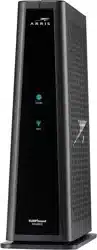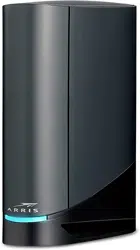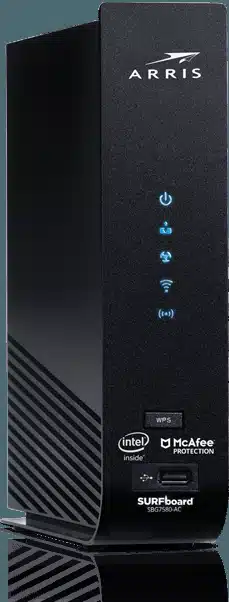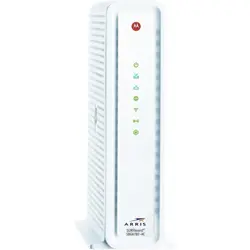
SURFboard
®
G54 DOCSIS
®
3.1 Wi-Fi
®
Cable Modem
User Guide, Revision x.1
P/N 819846-001-00

CommScope legal statements
©
2023 CommScope, Inc. All rights reserved. CommScope and the CommScope logo are registered trademarks of CommScope and/or
its aliates in the U.S. and other countries. A list of CommScope trademarks is available at hps://www.commscope.com/
trademarks. All other product names, trademarks and registered trademarks are property of their respecve owners.
No part of this content may be reproduced in any form or by any means or used to make any derivave work (such as translaon,
transformaon, or adaptaon) without wrien permission from CommScope, Inc. and/or its aliates (“CommScope”). CommScope
reserves the right to revise or change this content from me to me without obligaon on the part of CommScope to provide
nocaon of such revision or change.
Export restricons
These products and associated technical data (in print or electronic form) may be subject to export control laws of the United States
of America. It is your responsibility to determine the applicable regulaons and to comply with them. The following noce is
applicable for all products or technology subject to export control:
These items are controlled by the U.S. government and authorized for export only to the country of ulmate desnaon for use by the
ulmate consignee or end-user(s) herein idened. They may not be resold, transferred, or otherwise disposed of, to any other
country or to any person other than the authorized ulmate consignee or end-user(s), either in their original form or aer being
incorporated into other items, without rst obtaining approval from the U.S. government or as otherwise authorized by U.S. law and
regulaons.
Disclaimer
THIS CONTENT AND ASSOCIATED PRODUCTS OR SERVICES (“MATERIALS”), ARE PROVIDED “AS IS” AND WITHOUT WARRANTIES OF
ANY KIND, WHETHER EXPRESS OR IMPLIED. TO THE FULLEST EXTENT PERMISSIBLE PURSUANT TO APPLICABLE LAW, CommScope
DISCLAIMS ALL WARRANTIES, EXPRESS OR IMPLIED, INCLUDING, BUT NOT LIMITED TO, IMPLIED WARRANTIES OF MERCHANTABILITY
AND FITNESS FOR A PARTICULAR PURPOSE, TITLE, NON-INFRINGEMENT, FREEDOM FROM COMPUTER VIRUS, AND WARRANTIES
ARISING FROM COURSE OF DEALING OR COURSE OF PERFORMANCE. CommScope does not represent or warrant that the funcons
described or contained in the Materials will be uninterrupted or error-free, that defects will be corrected, or are free of viruses or
other harmful components. CommScope does not make any warranes or representaons regarding the use of the Materials in
terms of their completeness, correctness, accuracy, adequacy, usefulness, meliness, reliability, or otherwise. As a condion of your
use of the Materials, you warrant to CommScope that you will not make use thereof for any purpose that is unlawful or prohibited by
their associated terms of use.
Limitaon of liability
IN NO EVENT SHALL CommScope, CommScope AFFILIATES, OR THEIR OFFICERS, DIRECTORS, EMPLOYEES, AGENTS, SUPPLIES,
LICENSORS, AND THIRD-PARTY PARTNERS, BE LIABLE FOR ANY DIRECT, INDIRECT, SPECIAL, PUNITIVE, INCIDENTAL, EXEMPLARY OR
CONSEQUENTIAL DAMAGES, OR ANY DAMAGES WHATSOEVER, EVEN IF CommScope HAS BEEN PREVIOUSLY ADVISED OF THE
POSSIBILITY OF SUCH DAMAGES, WHETHER IN AN ACTION UNDER CONTRACT, TORT, OR ANY OTHER THEORY ARISING FROM YOUR
ACCESS TO, OR USE OF, THE MATERIALS. Because some jurisdicons do not allow limitaons on how long an implied warranty lasts,
or the exclusion or limitaon of liability for consequenal or incidental damages, some of the above limitaons may not apply to you.
Patent marking noce
For applicable patents, see www.cs-pat.com. That website is intended to give noce under 35 U.S.C. § 287(a) of arcles that are
patented or for use under the idened patents. That website idenes the patents associated with each of the patented arcles.
SURFboard
®
G54 DOCSIS
®
3.1 Wi-Fi
®
Cable Modem User Guide DRAFT Revision x.1 2

Safety and regulatory informaon
Important safety instrucons
■ The model number, serial number, and electrical rang are on a label on the base of the
device.
■ Do not locate the device near water.
■ Do not locate the device in direct sunlight or near a heat source.
■ Do not use liquids, aerosols, or forced air to clean the device. It may be cleaned using a
dry, lint-free cloth.
■ Do not block the venlaon holes on this device. Do not stand it on so furnishings or
carpets.
■ Do no use the device in an environment that exceeds 104º F (40º C).
■ Use only the power supply and cord provided with the device. Do not use the power
supply with any other devices.
■ Ground coaxial cable shield at building/residence either close to point of entrance or at
point of aachment. Ground as close as praccal to building/residence to minimize
grounding connector length and reduce potenal voltage dierences between coaxial
cable and other grounding system.
■ Telephones should be connected directly to this device. Physical connecons to a
previous telephone provider must be removed. Failure to do so may cause hazardous
condions, loss of service, and/or permanent damage.
Note: This device will be unable to make or receive telephone calls if there is a loss
of power.
SURFboard
®
G54 DOCSIS
®
3.1 Wi-Fi
®
Cable Modem User Guide DRAFT Revision x.1 3

FCC compliance
ARRIS, 3871 Lakeeld Dr, Suwanee, GA 30024.
This device complies with part 15 of the FCC Rules. Operaon is subject to the following two
condions: (1) This device may not cause harmful interference, and (2) this device must
accept any interference received, including interference that may cause undesired
operaon.
Note: This equipment has been tested and found to comply with the limits for a Class B
digital device, pursuant to part 15 of the FCC Rules. These limits are designed to provide
reasonable protecon against harmful interference in a residenal installaon. This
equipment uses and can radiate radio frequency energy and, if not installed and used in
accordance with the instrucons, may cause harmful interference to radio communicaons.
However, there is no guarantee that interference will not occur in a parcular installaon. If
this equipment does cause harmful interference to radio or television recepon, which can
be determined by turning the equipment o and on, the user is encouraged to try to correct
the interference by one or more of the following measures: Reorient or relocate the
receiving antenna. Increase the separaon between the equipment and set-top. Connect
the equipment into an outlet on a circuit dierent from that to which the set-top is
connected. Consult the dealer or an experienced radio/TV technician for help.
CAUTION: Chang
es or modicaons not expressly approved by the party responsible
for compliance could void the user’s authority to operate the equipment. This
product contains a radio transmier and accordingly has been cered as compliant
with 47 CFR Part 15 of the FCC Rules for intenonal radiators. Products that contain a
radio transmier are labeled with FCC ID and the FCC logo.
CAUTION: Exposur
e to Radio Frequency Radiaon. To comply with the FCC RF
exposure compliance requirements, the separaon distance between the antenna
and any person’s body (including hands, wrists, feet and ankles) must be at least
52cm (21 inches).
This transmier must not be co-located or operang in conjuncon with any other
antenna or transmier.
Note: The c
ountry code selecon is for non-US models only and is not available to all
US models. Per FCC regulaon, all WiFi products marketed in US must x to US
operaon channels only. FCC regulaons restrict the operaon of this device to
indoor use only. This device cannot be used to provide connecons between separate
building or structures.
The operaon of this device is prohibited on oil plaorms, cars, trains, boats, and
aircra, except that operaon of this device is permied in large aircra while ying
above 10,000 feet
Operaon of transmiers in the 5.925-7.125 GHz band is prohibited for control or
Communicaons with unmanned aircra systems.
SURFboard
®
G54 DOCSIS
®
3.1 Wi-Fi
®
Cable Modem User Guide DRAFT R
evision x.1 4

Wireless LAN informaon
Note: This applies to devices that provide Wi-Fi capability.
This device is a wireless network product that uses Direct Sequence Spread Spectrum (DSSS)
and Orthog
onal Frequency-Division Mulple Access (OFDMA) radio technologies. The device
is designed to be interoperable with any other wireless DSSS and OFDMA products that
comply with:
■ The IEEE 802.11 Standard on Wireless LANs (Revision AC, Revision B, Revision G, Revision
N, and Revision ax), as dened and approved by the Instute of electrical electronics
engineers.
■ The wireless delity (Wi-Fi) cercaon as dened by the Wireless Ethernet
Compability Alliance (WECA).
SURFboard
®
G54 DOCSIS
®
3.1 Wi-Fi
®
Cable Modem User Guide DRAFT Revision x.1 5
Caring for the environment by recycling
When you see this symbol on a product, do not dispose of the product
with r
esidenal or commercial waste.
Please recycle product packaging and this document.
Recycling your equipment
Some c
ountries or regions have set up systems to collect and recycle electrical and
electronic waste items. Recycling informaon can be obtained from the WEEE recycling
secon at hp://www.CommScope.com.
SURFboard
®
G54 DOCSIS
®
3.1 Wi-Fi
®
Cable Modem User Guide DRAFT R
evision x.1 6

Table of contents
CommScope legal statements.......................................................................................2
Chapter 1: Introducon.............................................................................9
In your G54 box...............................................................................................................9
System requirements.................................................................................................... 10
Contact informaon......................................................................................................10
Front panel and LED behavior.......................................................................................11
Rear panel and connectors........................................................................................... 12
Sample G54 Product label.............................................................................................13
Chapter 2: Geng started....................................................................... 15
Seng up your G54 home Wi-Fi network using your client device..............................15
Chapter 3: Adding devices to your home Wi-Fi network ......................... 19
Quick connect using the Windows task bar..................................................................20
Connecng using the Windows control panel.............................................................. 22
Chapter 4: Tesng your Wi-Fi network connecvity.................................25
Chapter 5: Using the Wi-Fi Cable Modem Web Manager......................... 26
Starng your G54 Web Manager (rst-me login)....................................................... 26
Starng your G54 Web Manager.................................................................................. 29
Web Manager menu links...................................................................................31
Chapter 6: Conguring your Wi-Fi network..............................................34
Seng up your Wi-Fi network...................................................................................... 34
Changing the Wi-Fi Radio conguraon sengs.......................................................... 36
Changing MAC ltering sengs....................................................................................38
Seng up WPS on your G54 Wi-Fi network................................................................. 39
Chapter 7: Protecng and monitoring your Wi-Fi network.......................41
Seng up rewall protecon....................................................................................... 41
IPv4 security....................................................................................................... 41
IPv6 security....................................................................................................... 43
Seng up Parental Control...........................................................................................43
Seng up Port Forwarding........................................................................................... 48
Seng up Port Triggers.................................................................................................50
Seng up the DMZ host............................................................................................... 51
Seng up the ALG........................................................................................................ 52
SURFboard
®
G54 DOCSIS
®
3.1 Wi-Fi
®
Cable Modem User Guide DRAFT Revision x.1 7

Restoring the default conguraon sengs using your G54 Web Manager................ 53
Exchanging the roung informaon............................................................................. 54
Seng up Dynamic DNS client..................................................................................... 55
Managing the UPnP network........................................................................................56
Seng up MAC bridging............................................................................................... 57
Changing your login password...................................................................................... 57
Chapter 8: Managing your Wi-Fi cable modem and connected
networks............................................................................................. 59
Viewing the G54 system hardware informaon........................................................... 59
Viewing the G54 soware version................................................................................ 59
Viewing the wireless informaon................................................................................. 60
Viewing and downloading the device rmware details................................................61
Managing the front panel LED behavior....................................................................... 62
Managing me servers................................................................................................. 63
Managing Advanced service (Amazon).........................................................................63
Seng up an Ethernet port connecon for your data input........................................ 64
Reboong your G54...................................................................................................... 66
Reboong your G54 using the Web Manager.................................................... 66
Reboong your G54 using the Reset buon...................................................... 66
Restoring the default conguraon sengs using your G54 Web Manager................ 67
Chapter 9: Troubleshoong ps...............................................................69
Soluons....................................................................................................................... 69
SURFboard
®
G54 DOCSIS
®
3.1 Wi-Fi
®
Cable Modem User Guide DRAFT Revision x.1 8

Chapter 1
Introducon
Welcome to the next generaon of ultra, high-speed ARRIS
®
DOCSIS 3.1
®
G54. Your Wi-Fi
cable modem G54 is a combinaon of DOCSIS 3.1 cable modem and mul-port Ethernet
router with Wi-Fi. It uses DOCSIS 3.1 technology to provide ultra, high-speed Internet access
in your home or small business network. Using the connecon capabilies of your G54, you
can upgrade your enre exisng Wi-Fi network by connecng your computer and other
network-enabled devices using the ve Ethernet ports or the 2.4 GHz, 5 GHz, and 6GHz
wireless connecons. Your G54 connects to the exisng coaxial cable connecon in your
home.
The ARRIS SURFboard Central mobile app assists you with your Wi-Fi cable modem setup
and funcons. It takes you through the steps to install your home Wi-Fi network using your
iOS or Android mobile device and lets you manage your home network access, Parental
Control, Guest Access, and more on all your connected devices (e.g., smartphones, cameras,
tablets, computers, smart TVs, gaming consoles, and more) across your home Wi-Fi network.
This guide provides instrucons for installing and conguring your G54, seng up secure Wi-
Fi network connecons for your network devices, and managing your Wi-Fi home network
conguraon.
In your G54 box
Before installing your G54 Wi-Fi cable modem, check that the items listed in the table below
are included in your G54 product box. If any items are missing, visit our ARRIS Support
website hps://arris.com/selelp for assistance.
Table 1: G54 packaging contents
Item Descripon
G54 High-speed DOCSIS 3.1 Wi-Fi cable modem,
wir
eless access point, and ve-port
Ethernet router.
SURFboard
®
G54 DOCSIS
®
3.1 Wi-Fi
®
Cable Modem User Guide DRAFT Revision x.1 9

Item Descripon
Wall power
supply
Power supply for an electrical wall outlet
connecon.
A Quick Start
Car
d
Provides in
formaon on how to install your
G54 and seng up a secure Wi-Fi network
connecon in your home or small business
network.
System requirements
■ High-speed In
ternet access account
■ Web browser access – Internet Explorer, Google Chrome, Firefox, or Safari
■ Compable operang systems:
● Windows
®
11
● Windows
®
10
● Windows 8
● Windows 8.1
● Windows 7 service pack 1 (SP1)
Note: Although older v
ersions of Microso Windows operang systems are no
longer specically supported, they should sll funcon with your G54.
■ Mac
®
10.4 or higher
■ UNIX
®
■ Linux
®
Con
tact informaon
For technical support and addional ARRIS product informaon, you may visit ARRIS Support
website: hps://arris.com/selelp.
Chapter 1: In
troducon
SURFboard
®
G54 DOCSIS
®
3.1 Wi-Fi
®
Cable Modem User Guide DRAFT Revision x.1 10

Front panel and LED behavior
LED behavior
LED behavior Descripon
Amber (Solid) Power is inially applied.
Amber (OFF) No power. Check the power and cable
c
onnecons. You may have to restart your
G54 using the reset buon. For details, see
Reboong your G54 (page 66).
Amber (Flashing) Firmware download is in progress
White (Flashing ve mes) Series of white ashes while holding down
the reset PIN indicates a factory reset has
been iniated
Green (Blinking) Downstream/upstream channel search
(unlocked status)
Green (Solid) Online status is in DOCSIS 3.0 mode
Blue (Solid) Online status is in DOCSIS 3.1 mode
Light Blue (Blinking) WAN over Ethernet mode, cable is
unplugged or no Internet
Chapter 1: Introducon
SURFboard
®
G54 DOCSIS
®
3.1 Wi-Fi
®
Cable Modem User Guide DRAFT Revision x.1 11
LED behavior Descripon
Light Blue (Solid) WAN over Ethernet mode, Internet is
connected
Blue and Green (Alternang colors) Error mode. Check the power and cable
connecons. You may have to restart your
G54 using the reset buon. For details, see
Reboong your G54 (page 66).
Rear panel and connectors
G54 Rear view
Rear panel and connectors
Port name Descripon
Reset buon The Reset buon loc
ated on the rear panel of your cable modem G54 can be
used to either reboot or reset your G54 conguraon sengs.
10/100/1000
Four one-gigabit Ethernet ports for RJ-45 network cable c
onnecons:
■ Green: LED is ON - Indicates a data transfer rate of one gigabit per second
■ Green: LED is Blinking - Indicates data trac is in progress
■ Amber: LED is ON - Indicates a data transfer rate of 10 or 100 megabits
per second
Chapter 1: Introducon
SURFboard
®
G54 DOCSIS
®
3.1 Wi-Fi
®
Cable Modem User Guide DRAFT Revision x.1 12
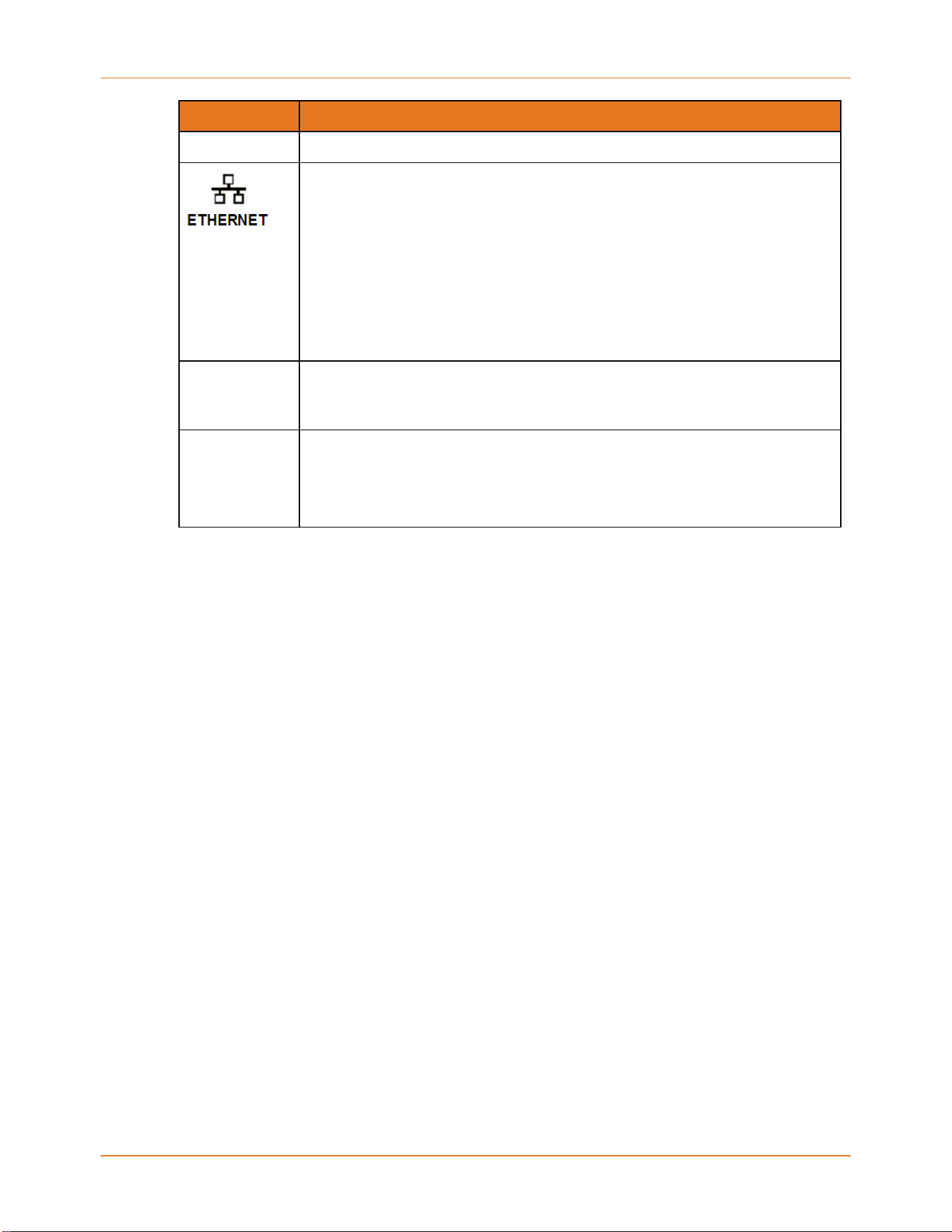
Port name Descripon
■ Amber: LED is Blinking - Indicates data trac is in progress
10G (available
in G54 unit)
One 10G port for RJ-45 network cable connecon:
Note: CAT6 Ethernet cable and 10G Ethernet capable device is required to
achieve Ethernet connecon upto 10 Gbps.
■ Green: LED is ON: Indicates a data transfer rate of 10Gbps per second
■ Green: LED is Blinking: Indicates data trac is in progress
■ Amber: LED is ON: Indicates a data transfer rate of less than 10Gbps per
second
■ Amber: LED is Blinking: Indicates data trac is in progress
Coaxial cable connector
Power port 100 - 240 VAC Power connector must r
eect a 12 VDC @2.5A power
adapter.
Warning: To avoid any damage to your cable modem, only use the power
supply included in your G54 box.
Sample G54 Product label
The product label is located on the boom of y
our cable modem . The labels contain the
informaon you need to acvate your cable modem for your home Internet service or
technical support issues.
Chapter 1: In
troducon
SURFboard
®
G54 DOCSIS
®
3.1 Wi-Fi
®
Cable Modem User Guide DRAFT Revision x.1 13

To acvate your Internet service, contact your service provider for assistance. When
contacng your service provider or ARRIS Technical Support (page 10), you may have to
provide the following informaon listed on the product labels:
■ Model name (G54)
■ Serial number (SN)
■ MAC address (HFC MAC)
Chapter 1: Introducon
SURFboard
®
G54 DOCSIS
®
3.1 Wi-Fi
®
Cable Modem User Guide DRAFT Revision x.1 14

Chapter 2
Geng started
This product is for indoor use only. Do not route the Ethernet cable(s) outside of the
building. Exposure of the cables to lightning could create a safety hazard and damage the
product.
Before installing your G54, check with your service provider (or local cable company) to
ensure broadband cable service is available in your area.
The images used in this document are for references only and may contain images of a
dierent model. The SBC app on your mobile device should represent the model you are
conguring.
You can set up your G54 home Wi-Fi network in one of the following ways.
■ Using the SURFboard Central app (SBC app): It is recommended that you set up your
home Wi-Fi network using the SBC app. For details on how to set up, refer to the
SURFboard Central User Guide for Wi-Fi Cable modems available on the hps://
arris.com/selelp.
■ Using client device (laptop/desktop): If you are using your client device (laptop/Desktop)
with a wired Ethernet connecon to set up your home Wi-Fi network then perform the
following task.
● Seng up your G54 home Wi-Fi network using your client device (page 15)
Seng up your G54 home Wi-Fi network using
your client device
To set up Internet connecon in your home network using your client device (laptop/
desktop):
■ Ensure to choose a locaon in your home where your computer and your G54 are
preferably near exisng cable and electrical wall outlets.
■ Ensure to keep the informaon such as your G54 model name, HFC MAD ID, and the
serial number (SN) listed on your cable modem label (available on the boom of your
modem and on the last page of the Quick Start Card) ready as you may need them while
contacng your service provider. For more informaon, see Sample G54 Product label
(page 13).
Note: You can use the 10G Ethernet port on your G54 as the WAN input in place of
the RF cable connecon. You should be able to connect to an alternate Internet
connecon and use your G54 as your router and a Wi-Fi source. This is a useful
feature if you choose to change your Internet service to a provider that is not a cable
SURFboard
®
G54 DOCSIS
®
3.1 Wi-Fi
®
Cable Modem User Guide DRAFT Revision x.1 15

operator. You can sll use your G54 as your Wi-Fi router.This is a useful feature if you
choose to change your Internet service to a provider that is not a cable operator.
Note: .
You can enable or disable this feature which is available for the 10G as WAN over
Ethernet. For more informaon, see Seng up an Ethernet port connecon for your
data input (page 64).
G54 c
onnecon diagram using the RF cable
G54 c
onnecon diagram using an Ethernet cable
1. You can choose to connect using one of the following ways:
■ If you are using a coaxial cable, then follow step 2 and proceed with step 4 onwards
(skip step 3).
Chapter 2: Geng s
tarted
SURFboard
®
G54 DOCSIS
®
3.1 Wi-Fi
®
Cable Modem User Guide DRAFT Revision x.1 16

■ If you are using WAN via an Ethernet cable, then perform step 3 onwards.
2. If you are connecng through a coaxial cable, connect one end of a coaxial cable to the
Cable connector on the rear panel of your G54 and the other end to a cable wall outlet or
RF splier (not included).
3. If you are using WAN via Ethernet cable, connect the other end of the Ethernet cable (not
included) from the WAN provider to the 10G Ethernet port on the rear panel of your G54.
4. Connect one end of the included power supply to the Power port on the rear panel of
your G54 and the other end to an electrical outlet.
Warning: T
o avoid any damage to your cable modem, use only the power supply
included in your G54 box.
Note: This se
tup requires a Cable/DSL modem or ber ONT device connected to
the ISP.
This automacally powers ON your G54. There may be up to a 15 second delay for the
LED on the front panel of your G54 to light up aer the power is connected.
Although your computer may be congured to automacally access the Internet, you
should sll perform the following connecvity test to verify that the devices are
connected.
5. To proceed further with seng up your G54, follow the on-screen instrucons on your
SBC app. For more informaon, refer to the SURFboard Central Mobile App User Guide
for Wi-Fi Cable modems.
Note: Y
ou can also use the WEB GUI interface to complete the set up of your G54.
6. To acvate (provision) your G54, contact your service provider, you may have to provide
the HFC MAC ID listed on the Wi‑Fi cable modem label.
Note: F
or Xnity Internet, download the Xnity app for modem acvaon. For Cox
or Spectrum Internet, enter your service provider’s web browser URL:
■ Cox: hp://www.cox.com/acvate
■ Spectrum: hp://spectrum.net/selnstall
7. Open a web browser (such as Internet Explorer, Google Chrome, Firefox, or Safari) on
your computer and type www.suroard.com or type a valid URL in the address bar and
then press Enter.
The ARRIS website or the URL of your choice must open. If the website fails to open,
please contact your service provider for assistance.
8. To ensure you are connected successfully to your G54 Wi-Fi network, you can check for
the front panel LED on your G54 lights up in a sequenal order. Refer to the secon Front
panel for LED status informaon.
Note:
■ If the LED does not ligh
t up and you do not have an Internet connecon, you
may have to contact your service provider to reacvate your G54 or check for
signal issues.
Chapter 2: Geng s
tarted
SURFboard
®
G54 DOCSIS
®
3.1 Wi-Fi
®
Cable Modem User Guide DRAFT Revision x.1 17


Chapter 3
Adding devices to your home Wi-Fi
network
Note: You can prefer to modify the default SSID details using the SBC app or from the
WEB GUI interface. However, we recommended you way to set up your SSID using the
SBC app. For more informaon about seng up your Wi-Fi network, refer to the
SURFboard Central Mobile App for Wi-Fi Cable Modems User Guide.
Note: The Wi-Fi Network Name (SSID) and the Wi-Fi Security Key (Network
Password) details are required to connect your client devices to your home network.
The default network name and network password are listed on your G54 Sample G54
Product label (page 13).
Choose from one of the opons listed here for seng up a Wi-Fi network connecon on
your home network using the default SSID. Repeat for each addional device.
■ Windows Computer – You can connect using the Windows task bar or using the Windows
control panel. For more details, refer to your Windows OS documentaon.
■ Android device
From any screen on your Android device:
1. Select to open the Sengs scr
een.
2. Select
to open the Wi-Fi sengs scr
een.
3. Slide to turn on the Wi-Fi opon.
Your device will automacally start searching and then display a list of available Wi‑Fi
networks.
4. Select your Wi-Fi network name (SSID) from the list.
5. If prompted, type your Wi-Fi Security Key (network password). Note that your network
password may be case-sensive.
6. Select Connect. If your Wi-Fi network connecon is successful, "Connected" message
displays below the selected Wi-Fi network name.
■ Apple computer (for example: A MacBook)
From any screen on your apple computer:
1. Click
(Wi-Fi icon) to display a list of available Wi-Fi networks.
2.
Select the Wi-Fi network name (SSID) for your home network from the list.
3. If prompted, enter your network password in the Password eld.
Note: Select R
emember this network if you want your Mac device to
automacally connect to your home network when you log on. Ensure your
device must be within range of your Wi-Fi network to connect to it.
SURFboard
®
G54 DOCSIS
®
3.1 Wi-Fi
®
Cable Modem User Guide DRAFT R
evision x.1 19

4. Click OK.
■ Apple mobile device
From the Home screen on your Apple device:
1. Select Sengs to open the Wi-Fi screen.
2. Select Wi-Fi to turn it ON.
Your device will automacally start searching and then list the available Wi-Fi
networks.
3. Select the Wi-Fi network name (SSID) for your home network from the list to connect.
4. If prompted, enter your network password in the Password eld.
If your Wi-Fi connecon is successful, ✓ will display next to the Wi-Fi network name.
Note: F
or more informaon on seng up your Wi-Fi network connecons,
refer to the user documentaon for your specic client device.
Quick connect using the Windows task bar
1. From the Windows taskbar on your computer, click the Wi-Fi Link icon to open the list of
available Wi-Fi networks.
Sample Microso Windows taskbar icons
Note: If the Wi-Fi Link ic
on is not visible, le click on the Show hidden icons
buon on the Windows taskbar to open the list of addional icons.
Sample available Wi-Fi networks Micr
oso Window
Chapter 3: Adding devices to your home Wi-Fi network
SURFboard
®
G54 DOCSIS
®
3.1 Wi-Fi
®
Cable Modem User Guide DRAFT Revision x.1 20

2. Locate and le-click on the G54 Wi-Fi network name or SSID (for example, G54-####) for
your G54 from the list of available Wi-Fi networks.
The default SSID is located on the boom of your G54.
Note: Y
ou must use the default SSID listed on the product label when installing
your G54 and seng up your rst Wi-Fi network connecon. You can change the
SSID aer your network connecons are up and running. For more informaon,
See Conguring your Wi-Fi network (page 34).
Sample Wi-Fi network c
onnecon screen
3. Select Connect automacally to set up your Wi-Fi devices to automacally connect to
your Wi-Fi network without having to log on using a user password.
4. Click Connect to open the Connect to a Network window and set up your new network
password.
Network security key window
5.
Enter the Network Security Key (your Wi-Fi network password) in the Security key eld.
Note: Y
ou can use the default Wi-Fi Security Key code listed on the product label
or enter your own personal Wi-Fi network password.
If you have already changed your Wi-Fi network password using the G54 Web Manager,
enter that password in the Enter the network security key eld and then click Next.
Chapter 3: Adding devices to your home Wi-Fi network
SURFboard
®
G54 DOCSIS
®
3.1 Wi-Fi
®
Cable Modem User Guide DRAFT Revision x.1 21

Network c
onnecon-create network password window
Connecng using the Windows control panel
1. From the Windows taskbar on your computer, click Start buon and then click Control
Panel.
2. Click Network and Sharing Center to open the Network and Sharing Center window.
3. Click Set up a new connecon or network under Change your networking sengs panel.
Chapter 3: Adding devices to your home Wi-Fi network
SURFboard
®
G54 DOCSIS
®
3.1 Wi-Fi
®
Cable Modem User Guide DRAFT Revision x.1 22

4. Click Manually c
onnect to a wireless network and then click Next.
5. Enter the G54 Wi-Fi network name or SSID (G54-####) in the Ne
twork name eld.
The default SSID is listed on the product label on the boom of your G54 modem.
Note: Y
ou have the opon to change your Wi-Fi network name or SSID aer
seng up your Wi-Fi network connecon. However, you must use the default SSID
listed on the product label aer installing your G54.
6. Select the wireless Security level for your Wi-Fi network from the Security type drop-
down list.
Chapter 3: Adding devices to your home Wi-Fi network
SURFboard
®
G54 DOCSIS
®
3.1 Wi-Fi
®
Cable Modem User Guide DRAFT Revision x.1 23

Note: WPA2-Personal is the r
ecommended wireless security level for your Wi‑Fi
home network. It is the default security level for your G54 and the highest security
level available.
7. Select the password encrypon type from the Encrypon type drop-down list.
This is used for securing your Wi-Fi network.
■ TKIP – Temporal Key Integrity Protocol
■ AES – Advanced Encrypon Standard (recommended). AES is the default encrypon
type for your G54.
8. Enter a security code (passphrase) for your Wi-Fi network password in the Security Key
eld.
You can use the default WI-FI SECURITY KEY listed on the product label or create your
own personal network password.
Note: R
emember to use a unique combinaon of leers, numbers, and special
characters to create a more secure password.
9. Select Hide characters checkbox to prevent your Security Key (network password) from
displaying in the eld.
10.Select Start this connecon automacally so that your Wi-Fi devices will automacally
connect to your Wi-Fi network when they are powered on.
11.Click Next to complete the Wi-Fi network setup.
The Successfully added <Network name> message for your new Wi-Fi network
should appear.
12.Click Close to exit.
Chapter 3: Adding devices to your home Wi-Fi network
SURFboard
®
G54 DOCSIS
®
3.1 Wi-Fi
®
Cable Modem User Guide DRAFT Revision x.1 24

Chapter 4
Tesng your Wi-Fi network connecvity
Perform the following connecvity test to check your Wi-Fi network is established and you
are able to connect your devices to your G54 home Wi-Fi network.
1. Check if your Wi-Fi devices are successfully connected to your G54 Wi-Fi network and
then disconnect the Ethernet cable from your computer and your G54.
2. Check that the LED on your G54 front panel is lit SOLID Green in DOCSIS 3.0 mode and
SOLID Blue in DOCSIS 3.1 mode.
3. Open a web browser on your device (computer) and Type a valid URL (such as
www.suroard.com) in the address bar and then press Enter.
If the website fails to open, then contact your service provider or visit the ARRIS Support
website at hps://arris.com/selelp.
SURFboard
®
G54 DOCSIS
®
3.1 Wi-Fi
®
Cable Modem User Guide DRAFT Revision x.1 25

Chapter 5
Using the Wi-Fi Cable Modem Web
Manager
You can view, monitor, and modify the network conguraon sengs of your G54 using the
SBC app and the WEB GUI opon. We recommend you to use the SBC app to modify the
network sengs. For more informaon, refer to the SURFboard Central Mobile App for Wi-
Fi Cable Modems User Guide.
To congure the network sengs using the WEB GUI opon, see Protecng and monitoring
your Wi-Fi network (page 41).
To ensure that your Wi-Fi home network is secure, we recommend that you follow the
following best pracces for creang your login password:
■ Always create a secure password or pass phrase that is not easily guessed.
■ Use phrases instead of names so that it may be easier for you to remember.
■ Use a combinaon of upper and lowercase leers, numbers, and symbols.
Starng your G54 Web Manager (rst-me login)
Note: T
o ensure the safety of your network, we recommend you to set up your login
password the rst me you log on to your G54 Web Manager, the Gateway Home
Network Wizard opens for you to set up your login password. Your G54 Home
Network wizard walks you through a set of instrucons.
1. Open a web browser (such as Internet Explorer, Google Chrome, Firefox, or Safari) on
y
our client device (for example, a computer or a laptop) that is connected to your G54.
2. Type the default LAN IP address, 192.168.0.1, in the Address bar and then press Enter
to log onto your G54.
The Home Network Wizard Step-1 screen displays.
SURFboard
®
G54 DOCSIS
®
3.1 Wi-Fi
®
Cable Modem User Guide DRAFT R
evision x.1 26

3. Enter your password in the Ne
w Password eld.
Note:
The pass
word is case-sensive and must include each of the following:
■ Minimum of eight characters
■ At least one uppercase alphabec character: A through Z
■ At least one number: 0 to 9
■ One of the following special characters:
~ ! @ # $ % ^ * ( ) - _ = + [ ] { } | ; : , . / ?
4. Enter your password again in the Re-enter New Password eld.
5. Click SHOW to conrm that both passwords match.
Please note that this password is required to log in to the Web Manager. Write it down
and place it in a secure place for future reference and availability, if needed.
6. Enter the CAPTCHA code in the CAPTCHA entry box and then click SAVE SETTINGS .
The Home Network Wizard – Step 2 screen displays.
Chapter 5: Using the Wi-Fi Cable Modem Web Manager
SURFboard
®
G54 DOCSIS
®
3.1 Wi-Fi
®
Cable Modem User Guide DRAFT Revision x.1 27

7. In the Seng Selecon eld, click Single SSID or P
er Band based on your requirement.
8. You may choose to retain the current default Wi-Fi network name or enter a new name in
the Wi-Fi Network Name eld.
The Wi-Fi network name can consist of any combinaon of up to 32 alphanumeric
characters.
9. Select one of the following Wi-Fi network security opons for your G54 Wi-Fi home
network from the Encrypon Method drop-down list:
■ Open (risky): Network security is not set, and your Wi-Fi network is not secure. This
network security opon allows unauthorized access to your Wi-Fi network without a
Wi-Fi Security Key (network password).
■ WPA2-PSK (AES): Wi-Fi Protected Access version 2 with Pre-Shared Key.
■ WPAWPA2-PSK (TKIP/AES) (Recommended): Wi-Fi Protected Access version 2 with
Pre-Shared Key (most compable).
■ WPA3 Personal (AES): Wi-Fi Protected Access version 3 with Pre-Shared Key.
■ WPA 2/WPA3 Mixed Personal (AES) (Recommended): Combinaon Wi-Fi Protected
Access version 2 and Wi-Fi Protected Access version 3 and provides addional
network security.
10.Keep or change the current default Wi-Fi network password in the Network Password
eld.
11.Click NEXT to connue.
Chapter 5: Using the Wi-Fi Cable Modem Web Manager
SURFboard
®
G54 DOCSIS
®
3.1 Wi-Fi
®
Cable Modem User Guide DRAFT Revision x.1 28

12.Select Automac or Manual to set up your me zone.
■ Select Automac to allow the network to automacally set your me zone.
■ Select Manual to choose your me zone from the Time Zone drop-down list.
13.Click FINISH amd the Web Manager Login screen appears.
14.Type your new custom password in the P
assword eld and then click LOGIN to access
your G54 Web Manager.
Starng your G54 Web Manager
When you start your G54 Web Manager, you should be able to see the summary page of
your network and connected devices.
To start your G54 Web Manager:
Chapter 5: Using the Wi-Fi Cable Modem Web Manager
SURFboard
®
G54 DOCSIS
®
3.1 Wi-Fi
®
Cable Modem User Guide DRAFT Revision x.1 29

1. Open a web browser (such as Internet Explorer, Google Chrome, Firefox, or Safari) on the
computer or laptop connected to your G54.
2. Type the default LAN IP address, 192.168.0.1, in the Address bar and then press Enter
to log into your G54 Web Manager Login screen.
3. Type admin (c
ase-sensive) in the Username eld.
4. Type your new custom password in the Password eld.
5. Click LOGIN to open the Web Manager page.
The Product Registraon screen appears.
The Product R
egistraon screen
6. Click Register, Ask me later, or Stop asking to proceed.
Your G54 Summary page appears.
Chapter 5: Using the Wi-Fi Cable Modem Web Manager
SURFboard
®
G54 DOCSIS
®
3.1 Wi-Fi
®
Cable Modem User Guide DRAFT Revision x.1 30

7. To disable Wi-Fi network, click Enable under the Bridg
e Mode eld.
CAUTION: If y
ou enable Bridge mode then you shall not be able to access the WEB
GUI portal. To disable the bridge mode and allowing access to WEB GUI portal, you
need to factory reset your G54. For more informaon on how to reset your G54,
see Reboong your G54 using the Reset buon (page 66)
8. To split the SSID and broadcast for each network (2.4GHz, 5GHz, and 6GHz) individually,
click Enable under the Split Mode eld.
Web Manager menu links
The G54 Web Manager main menu links and its related sub menu opons are displayed
along the le side of your G54 Web Manager screen. Click the main menu link to expand the
list of sub menu opons.
Chapter 5: Using the Wi-Fi Cable Modem Web Manager
SURFboard
®
G54 DOCSIS
®
3.1 Wi-Fi
®
Cable Modem User Guide DRAFT Revision x.1 31

The Web Manager menu links
Table 4: G54 Web Manager menu links
Menu link Funcon
Gateway Displays a summary of your network c
onnecons and a list of the
connected devices on your home network.
Summary Displays the Wi-Fi status for your home network and
network-connected devices.
Connecon Displays the network connecon and status informaon for the G54
network, Local IP network, and your private Wi-Fi network.
Firewall Congures the G54 rewall sengs to protect your home network
from possible aacks from hackers or viruses.
Soware Displays informaon related to the G54 soware version.
Hardware Displays status informaon for the G54 hardware, such as the baery
status, Ethernet connecon(s), and Wi-Fi connecons.
Time Allows you to set the me on your G54 based on your selected me
zone.
Device Allows you to view details about the ash operaons.
Connected Devices Provides general informaon for the connected devices on your home
network.
Parental Control Allows you to manage and limit the usage acvity for specic users and
client devices connected to your home network.
Chapter 5: Using the Wi-Fi Cable Modem Web Manager
SURFboard
®
G54 DOCSIS
®
3.1 Wi-Fi
®
Cable Modem User Guide DRAFT Revision x.1 32

Menu link Funcon
Advanced Allows you to set up Port Forwarding, Port Triggering, Remote
Management for troubleshoong or maintenance purposes, the DMZ
Host, and manage the UPnP network on your home network.
Troubleshoong Provides several opons to help you resolve certain problems that may
occur with your G54.
Chapter 5: Using the Wi-Fi Cable Modem Web Manager
SURFboard
®
G54 DOCSIS
®
3.1 Wi-Fi
®
Cable Modem User Guide DRAFT Revision x.1 33

Chapter 6
Conguring your Wi-Fi network
You have the opon to either use the default network sengs which are unique to your G54
for security purposes or you can congure dierent network sengs. It also supports a
secure method for seng up mulple Wi-Fi networks.
Seng up your Wi-Fi network
1. Open a web browser and log on to open your G54 Web Manager screen.
For informaon about starng your G54 Web Manager, see Starng your G54 Web
Manager (page 29).
2. Click the menu links Gateway > Connecon > Wi-Fi > Networks.
The Gateway Connecon Wi-Fi screen appears.
3. To set up the Network Security mode on your primary Home Wi-Fi network, on the
Primar
y Home Wi-Fi Network tab, click EDIT respecve to the Frequency Band.
The Wi-Fi Networks Edit screen appears.
SURFboard
®
G54 DOCSIS
®
3.1 Wi-Fi
®
Cable Modem User Guide DRAFT Revision x.1 34

4. You can choose to retain the default network name SSID (Service Set Idener) f
or your
Wi-Fi home network. If you prefer to choose a new network name then in the Network
Name (SSID) eld, enter a new network name of your choice.
Note: The Wi-Fi ne
twork name cannot be the same name as any other SSID on
your home network. You can use any combinaon of lowercase and uppercase
leers, numbers, and/or special characters (symbols) up to a maximum of 32
characters.
5. Select one of the following Wi-Fi network security opons for your G54 from the Security
Mode drop-down list:
■ WPA 2/WPA3 Mixed Personal (AES) (Recommended): Combinaon Wi-Fi Protected
Access version 2 and Wi-Fi Protected Access version 3 and provides addional
network security.
■ None (not secure and not recommended): This network security opon does not
provide any level of network security for your Wi-Fi network. It allows outside users to
connect to your Wi-Fi network without having to use a Wi-Fi Security Key (network
password).
■ WPA3 Personal (SAE): Wi-Fi Protected Access version 3 with Pre-Shared Key.
■ WPA2-PSK (AES) security mode: It is an advanced encrypon mechanism which
safeguard network access and data transfer.
6. Enter your Wi-Fi network password in the Network Password eld.
Note: K
eep in mind that network passwords are case-sensive. You can use any
combinaon of uppercase and lowercase leers, special characters, and numbers.
Spaces are not acceptable.
Chapter 6: Conguring your Wi-Fi ne
twork
SURFboard
®
G54 DOCSIS
®
3.1 Wi-Fi
®
Cable Modem User Guide DRAFT Revision x.1 35

7. Select the Show Network Password checkbox to view and conrm your network
password.
8. If you prefer to display your SSID as an available Wi-Fi network to other users, select the
Broadcast Network Name (SSID) Enabled checkbox.
9. To enable mul-media funconality, select the Enable WMM checkbox.
Enabling WMM can help control latency and jier when transming mul-media content
over a Wi-Fi connecon. This quality of service mechanism uses four access categories:
■ Voice
■ Video
■ Best eort
■ Background
WMM ensures that applicaons with low tolerance for latency and jier are treated
with higher priority than less sensive data applicaons. WMM sets dierent wait
mes for the above four categories to provide priority network access for applicaons
that are less tolerant of packet delays.
10.Enter the CAPTCHA code located in the Type CAPTCHA Here entry box.
11.Click SAVE to save the sengs.
12.To set up the Network Security mode on your Guest Wi-Fi network, on the Guest Wi-Fi
Network tab, click EDIT and then perform steps 4 through 11.
13.If you do not want your devices connected to this network to communicate with each
other, then select the AP Isolaon checkbox.
14.Under the Network Opons tab, you can choose to enable or disable the Network
Priories checkbox and the Band Steering checkbox.
15.Click SAVE NETWORK SETTINGS.
Changing the Wi-Fi Radio conguraon sengs
You can manage your Wi-Fi connecon sengs such mode selecon, channel selecon,
dynamic channel selecon, and seng the DCS scan interval.
To change the Wi-Fi Radio conguraon sengs for 2.4GHz, 5GHz and 6GHz
1. Open a web browser and log on to open your G54 Web Manager page.
For more informaon, see Starng your G54 Web Manager (page 29).
2. From any of the G54 Web Manager screen, click the Gateway menu link and then click
the Connecon submenu opons link.
3. Click Wi-Fi > 2.5GHz Radio on the le pane.
Chapter 6: Conguring your Wi-Fi network
SURFboard
®
G54 DOCSIS
®
3.1 Wi-Fi
®
Cable Modem User Guide DRAFT Revision x.1 36
Wi-Fi Network 2.4GHz Radio Connecon scr
een
4. To turn on the 2.4GHz Wi‑Fi frequency range for your Wi-Fi home network, click the
2.4GHz Radio submenu on the le pane and then click the Enable buon.
5. To specify the Wi-Fi standards that your G54 should use to communicate with your client
devices, choose from the Mode drop-down list.
6. Select the Tx (Transmit) Power level of the Wi-Fi radio from the Tx Power drop-down list.
7. Select a channel number (Auto, 1 through 11) from the Channel drop-down list to
determine how the channel in your Wi-Fi network is selected.
Note: In Aut
omac mode, which is the default selecon, your G54 shall select the
channel with the least amount of Wi-Fi interference. But in Manual mode, you can
specify the channel to be used.
Note: For 2.4 GHz Wi-Fi networks, it is recommended to use Channel 1, 6, or 11, if
it is not listed as the Current Channel. In the Wi-Fi spectrum, there are mulple
channels that overlap and thus degrade Wi-Fi network performance. Channels 1,
6, and 11 are used for beer network performance and stability because they do
not overlap.
8. Set the channel bandwidth for your G54 modem from the Channel Bandwidth bo
x.
9. Click Enable under the Dynamic Channel Selecon opon if you want your G54 modem
to periodically scan other Wi-Fi channels and switch to a channel with least amount of
interference.
Note: During sc
anning of the Wi-Fi channels, your Wi-Fi clients may get
temporarily disconnected. This opon is available if you have set Channel selecon
to Automac.
Chapter 6: Conguring your Wi-Fi ne
twork
SURFboard
®
G54 DOCSIS
®
3.1 Wi-Fi
®
Cable Modem User Guide DRAFT Revision x.1 37

10.To determine the me period between Dynamic Channel Selecon scans, set the DCS
scan interval from the DCS Scan Interval drop-down list.
11.Click SAVE SETTINGS.
12.You can change the Wi-Fi connecon sengs for 5GHz Radio, 5GHz High Radio, and 6GHz
Radio as well.
■ 5GHz Radio: and then perform
To change the 5GHz Radio Conguraon sengs:
a. Click Wi-Fi > 5GHz Radio on the le pane of the Wi-Fi Connecon screen.
b. Perform previous steps 5 through 11.
c. To enable 5GHz supported devices on DFS channels, select Enable under the DFS
opon. During this me your system shall scan for DFS channels and disconnects your
5GHz clients that do not support DFS funconality. These clients shall reconnect to
your Wi-Fi network using 2.4GHz.
d. Click SAVE SETTINGS.
To change the 5GHz High Radio Conguraon sengs:
a. Click Wi-Fi > 5GHz High Radio on the le pane of the Wi-Fi Connecon screen.
b. Perform previous steps 5 through 11.
c. To enable 5GHz High supported devices on DFS channels, select Enable under the DFS
opon. During this me your system shall scan for DFS channels and disconnects your
5GHz clients that do not support DFS funconality. These clients shall reconnect to
your Wi-Fi network ranging between 2.4GHz to 160GHz.
d. MU-MIMO: Enable or disable
e. Click SAVE SETTINGS.
To change the 6GHz Radio Conguraon sengs:
a. Click Wi-Fi > 6GHz Radio on the le pane of the Wi-Fi Connecon screen.
b. Perform previous steps 5 through 11.
c. MU-MIMO: You can choose to enable or disable the MU-MIMO opon.
d. PSC: You can choose to enable or disable the PSC opon.
e. Click SAVE SETTINGS.
Changing MAC ltering sengs
You can control the Wi-Fi access to your G54 using the MAC ltering sengs. These sengs
are specic to each Network name (SSID).
To change the MAC ltering mode:
1. Open a web browser and log on to open the G54 Web Manager.
For more informaon, see Starng your G54 Web Manager (page 29).
2. Click the Gateway menu link and then click the Connecon submenu opons link.
3. Click Wi-Fi > MAC Filtering to open the MAC Filtering sengs screen.
Chapter 6: Conguring your Wi-Fi network
SURFboard
®
G54 DOCSIS
®
3.1 Wi-Fi
®
Cable Modem User Guide DRAFT Revision x.1 38

MAC Filtering sengs scr
een
4. Select the SSID to which you prefer to apply the MAC ltering mode.
5. From the MAC Filtering Mode drop-down list, select one of the following:
■ Allow-All: No Mac ltering rules are applied. All wireless clients can connect to your
G54.
■ Allow: On the devices in the "Wi-Fi Control list" are allowed to connect to your G54.
■ Deny: Wireless devices in the "Wi-Fi Control list" are not allowed to connect to your
G54.
Under the Wi-Fi Control List, you can view all the wireless devices (by Network name and
MAC address) that are added manually or auto-learned.
Under the Auto-Learned Wi-Fi Devices tab, it displays all the wireless devices that are
auto-learned by your G54.
6. Under the Manually-Added Wi-Fi Devices tab, type a unique name and MAC address for
the wireless device that you want to manually add and then click ADD.
7. Click SAVE.
Seng up WPS on your G54 Wi-Fi network
You can set up the Wi-Fi Protected Setup (WPS) PIN opon on your G54 to connect WPS-
enabled devices on your Wi-Fi home network.
1. Open a web browser and log on to open the G54 Web Manager.
For more informaon, see Starng your G54 Web Manager (page 29).
2. Click the Gateway menu link and then click the Connecon submenu opons link.
3. Click Wi-Fi > WPS to open the Gateway Connecon Wi‑Fi screen.
Chapter 6: Conguring your Wi-Fi ne
twork
SURFboard
®
G54 DOCSIS
®
3.1 Wi-Fi
®
Cable Modem User Guide DRAFT Revision x.1 39

4. Do one of the following:
■ Click the Wi-Fi Pr
otected Setup (WPS) Enable buon to turn ON WPS Wi-Fi networking
on your home network using the provided AP PIN number.
■ Click the Wi-Fi Protected Setup (WPS) Disable buon to turn OFF WPS Wi-Fi
networking on your home network.
5. Do one of the following:
■ Click the WPS Pin Method Enable buon to turn ON WPS Wi-Fi networking.
■ Click the WPS Pin Method Disable buon to turn OFF WPS Pin connecons.
6. To proceed with the PIN method, click the PIN Method opon and then Enter the WPS
Pin number listed in the AP PIN eld when you are prompted on your WPS device screen.
7. Click PAIR to connect your WPS-enabled device.
8. Repeat steps 6 through 8 for each addional WPS-enabled device that you want to
connect to your Wi-Fi home network.
9. To proceed with the Push buon opon, click the Push Buon (recommended) opon to
connect your wireless client to your network.
10.Click PAIR to connect your WPS-enabled device.
Chapter 6: Conguring your Wi-Fi ne
twork
SURFboard
®
G54 DOCSIS
®
3.1 Wi-Fi
®
Cable Modem User Guide DRAFT Revision x.1 40

Chapter 7
Protecng and monitoring your Wi-Fi
network
Aer you have successfully connected your G54 and your Wi-Fi devices, you should
congure your G54 to protect your Wi-Fi network from unwanted and unauthorized access
by any Wi-Fi devices that are within range of your Wi-Fi network. Although you have
congured the network security for your G54, you can use your G54 Web Manager to set
the level of security and network access that you want to allow on your Wi-Fi network.
Seng up rewall protecon
You can set up rewall lters and rewall alert nocaons to protect your computer(s) and
other connected network devices on your Wi-Fi home network. You can also block Java
Applets, Cookies, AcveX controls, popup windows, Proxies, and website access to protect
the network devices on your home network from hackers, viruses, and other aacks from
the Internet.
To set the rewall protecon level on your Wi-Fi network:
1. From the G54 Web Manager screen, click the Gateway menu link.
2. Click the Firewall submenu link and then click IPv4 security (page 41) or IPv6 security
(page 43) to display the Gateway Firewall Security Level screens.
3. Select the security level that you want to set for your G54 rewall.
4. Click SAVE SETTINGS.
IPv4 security
Firewall IPv4 available security levels screen
SURFboard
®
G54 DOCSIS
®
3.1 Wi-Fi
®
Cable Modem User Guide DRAFT Revision x.1 41

■ High: Safest conguraon, maximum security level
Firewall IPv4 high security level screen
■ Medium: Sa
fer conguraon, medium security level
Firewall IPv4 medium security level screen
■ Lo
w: Common security, low security level, higher risk
Chapter 7: Prot
ecng and monitoring your Wi-Fi network
SURFboard
®
G54 DOCSIS
®
3.1 Wi-Fi
®
Cable Modem User Guide DRAFT Revision x.1 42

■
Firewall IPv4 low security level screen
IPv6 security
Firewall IPv6 available security levels screen
Seng up P
arental Control
You can set up the following parental controls to manage and limit the usage and acvity for
specic users and client devices on your home network:
■ Allow or block access to specic Internet sites.
■ Allow or block access to specic MAC addresses.
■ Allow or block access based on specic keywords.
■ Set me limitaons for computer usage or Internet access.
Note: An
y Parental Control lters that do not include assigned ports, will apply to all
ports. This also applies to MAC addresses.
You can also link each user or client device on your home network to specic rules for login,
me-access, and content ltering.
▶ To set up Parental Control on your home network:
1. From the Web Manager screen, click the Parental Control menu link.
2. Click Managed Sites from the Parental Control submenu opons list to display the
Parental Control Managed Sites screen.
Chapter 7: Prot
ecng and monitoring your Wi-Fi network
SURFboard
®
G54 DOCSIS
®
3.1 Wi-Fi
®
Cable Modem User Guide DRAFT Revision x.1 43

3. Click the Managed Sites Enable buon to turn ON website and keyword blocking. The
Parental Control Managed Sites screen appears.
4. Click +ADD buon in the Block
ed Sites secon. The Add Site to be Blocked screen
appears.
5. To fully block a website, enter the website address in the URL eld and then click Y
es in
the Always Block? eld.
6. Click SAVE.
7. Repeat steps 5 and 6 for each website that you want to block.
8. To block a website for specic days and mes, enter the website address in the URL eld
and then click No in the Always Block? eld.
9. Select the Start from and End on mes of the day in the Set Block Time secon.
10.Select the days of the week in the Set Blocked Days secon.
11.Click SAVE.
12.To manage access by mulple devices in a group on your network, click Manage Groups
from the submenu and then click Enable.
13.To manage from Groups, under Managed Groups tab, you can choose to add groups.
Chapter 7: Prot
ecng and monitoring your Wi-Fi network
SURFboard
®
G54 DOCSIS
®
3.1 Wi-Fi
®
Cable Modem User Guide DRAFT Revision x.1 44

a. Click +ADD GROUP.
The Manually Add GROUP page appears.
b. Enter the group name in the Group Name eld.
c. Enter the number of devices in the Total Device eld that you want to group.
d. Select Yes or No under Block All opon to block all the devices connected to this
network.
e. Click SAVE to save the changes.
14.If you want to block sites, then under Blocked Sites tab, click +ADD and specify the
following details: such as Group name, URL that you prefer to block.
■ Group: Select the group under which you want to block the sites.
■ URL: Specify the URL that you want to block.
■ Date: Select the checkbox specic to the days on which you want the site to be
blocked.
■ Time: Specify the me during which the site has to be blocked.
■ Enable: Select Enable to block the site.
15.If you want to block keywords, then under Blocked Keywords tab, click +ADD and specify
the following details: such as Group name, Keyword that you prefer to block.
■ Group: Select the group under which you want to block the sites.
■ Keyword: Specify the keyword that you want to block.
■ Date: Select the checkbox specic to the days on which you want the site to be
blocked.
■ Time: Specify the me during which the site has to be blocked.
■ Enable: Select Enable to block the keywords.
16.If you want to restrict by me, then under Restricted Times tab, click +ADD and specify
the following details: such as Group name and me.
■ Group: Select the group under which you want to block the sites.
■ Date: Select the checkbox specic to the days on which you want the site to be
blocked.
■ Time: Specify the me during which the site has to be blocked.
■ Enable: Select Enable to block the keywords.
17.Click +ADD buon in the Blocked Services secon to add a service to be blocked. The Add
Blocked Service screen appears.
Chapter 7: Protecng and monitoring your Wi-Fi network
SURFboard
®
G54 DOCSIS
®
3.1 Wi-Fi
®
Cable Modem User Guide DRAFT Revision x.1 45

18.Type the service that you want to block in the User De
ned Service eld.
19.Select UDP, TCP, or TCP/UDP for the port lter type from the Protocol drop-down list.
20.Enter the range of port numbers for the port lter range in the Start Port and End Port
elds.
21.To fully block a service, click Yes, in the Always Block? eld.
22.To block a service for specic days and mes, click No, in the Always Block? eld and
then specify the me and days in the Set Block Time and Set Block Days elds.
23.Click SAVE to save the changes.
24.To manage access to specic devices on your network, click Manage Devices from the
submenu. The Managed Devices screen appears.
25.To manage devices, click Enable.
26.
If you do not want to restrict your devices, click Allow All and then click +ADD BLOCKED
DEVICE to add only the device you want to restrict.
27.If you want to restrict your devices, click Block All and then click +ADD ALLOWED DEVICE
to add only the device you do not want to restrict.
Chapter 7: Prot
ecng and monitoring your Wi-Fi network
SURFboard
®
G54 DOCSIS
®
3.1 Wi-Fi
®
Cable Modem User Guide DRAFT Revision x.1 46

28.To manually block a device, type the De
vice name and the MAC address elds.
29.To fully block a device, click Yes, in the Always Block? eld.
30.To block a device for specic days and mes, click No, in the Always Block? eld and then
specify the me and days in the Set Block Time and Set Block Days elds.
31.Click SAVE to save the changes.
32.To generate, download and print reports based on your parental controls, click Reports
from the sub menu. The Reports screen appears.
33.Select the report type from the Report Types drop-down list and the me frame from the
Time Frame drop-down list.
34.Click GENERATE REPORTS.
Chapter 7: Protecng and monitoring your Wi-Fi network
SURFboard
®
G54 DOCSIS
®
3.1 Wi-Fi
®
Cable Modem User Guide DRAFT Revision x.1 47

Seng up Port Forwarding
Your G54 rewall may be set up to block all device or applicaon connecons from the
Internet to the devices on your Wi-Fi home network. Port Forwarding allows you to open
specic ports or IP addresses on the Internet behind the rewall on your home or small
business network. It also allows for remote access to your wireless computer or other client
devices. The inbound trac from the Internet, such as specic websites or online gaming
applicaons, is forwarded to the designated open ports that you set up.
Note:
ARRIS recommends that you manually congure the TCP/IP sengs listed below on
the client device you are seng up for remote access. Otherwise, remote access to
your client device will not be available on the Internet.
■ IP address
■ Subnet mask
■ Default gateway
■ DNS address (at least one)
To set up Port Forwarding:
1. From the G54 Web Manager screen, click the Advanced menu link.
2. Click Port Forwarding from the Advanced submenu opons list to display the Port
Forwarding Conguraon screen.
Advanced Port Forwarding screen
3.
Click the Port Forwarding Enable buon.
4. Click the +ADD SERVICE buon to open the Add Port Forward screen.
Chapter 7: Prot
ecng and monitoring your Wi-Fi network
SURFboard
®
G54 DOCSIS
®
3.1 Wi-Fi
®
Cable Modem User Guide DRAFT Revision x.1 48
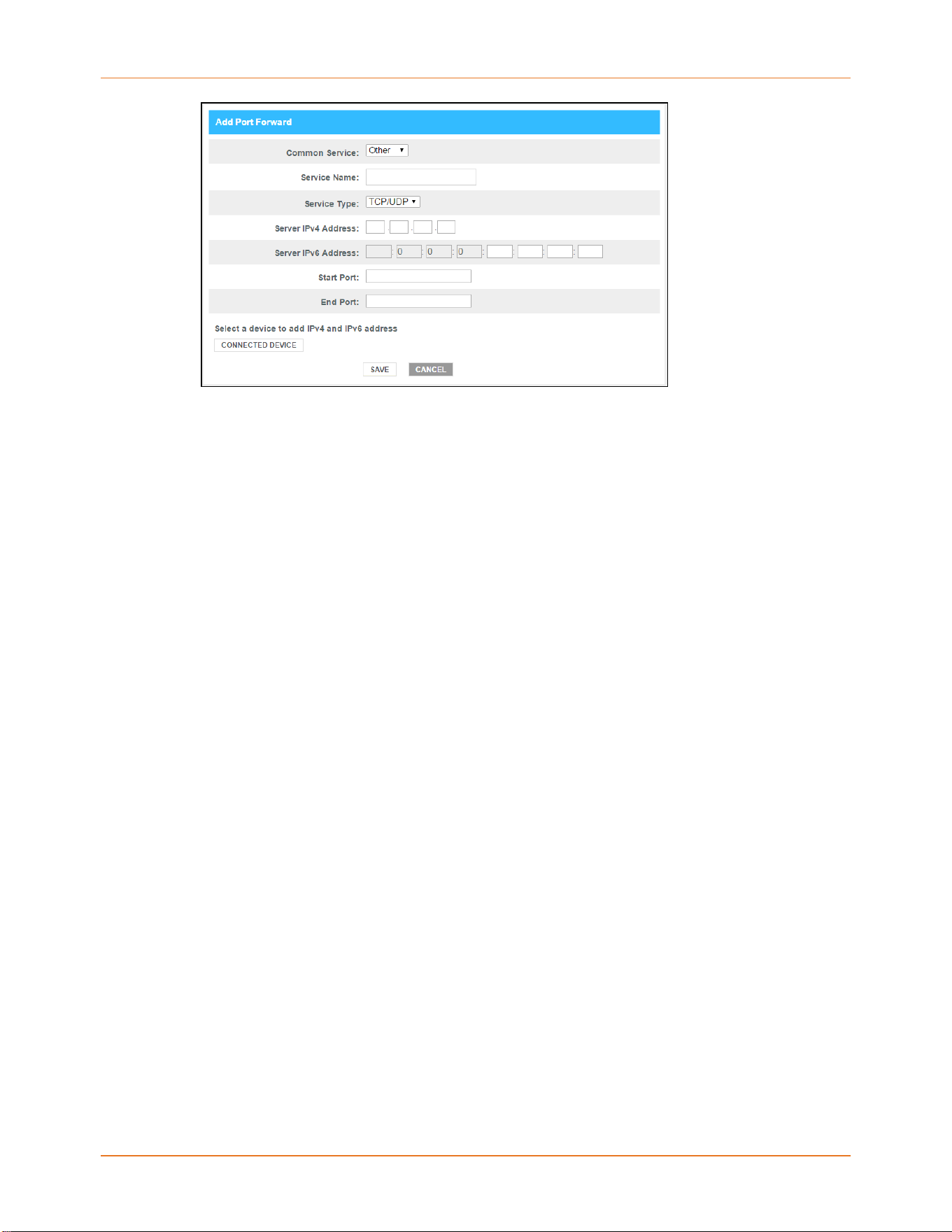
Add Port Forward screen
5.
Select FTP, AIM, HTTP, PPTP, HTTPs, Telnet, SSH, or Other for the Internet data transfer
protocol from the Common Service drop-down list.
Note: When Other is select
ed, the Service Name eld will display. Enter a name
for the service type you will be using.
6. Select TCP/UDP, TCP, or UDP for the Internet data transmission protocol from the Service
Type drop-down list.
7. Do one of the following:
■ Enter the IP address of your local computer that you are seng up for port forwarding
in the Server IPv4 Address eld.
■ Enter the IP address for your local computer that you are seng up for port
forwarding in the Server IPv6 Address eld.
8. Enter the starng port number of the website or online applicaon in the Start Port eld.
9. Enter the ending port number of the website or online applicaon in the End Port eld.
10.Click CONNECTED DEVICE buon to display the list of connected devices on your Wi-Fi
home network.
Connected Devices screen
11.Select the Add selecon box for the device or website you want to connect to.
12.Click Add to exit.
13.Click SAVE.
Chapter 7: Protecng and monitoring your Wi-Fi network
SURFboard
®
G54 DOCSIS
®
3.1 Wi-Fi
®
Cable Modem User Guide DRAFT Revision x.1 49

Seng up Port Triggers
You can use Port Triggers to set up your G54 to monitor outgoing trac on specic ports on
your home network. Port Triggering can be useful for some applicaons such as video
conferencing, online chang, and online gaming that may require specic port numbers
with bi-direconal trac to funcon properly.
Note: If your G54 rewall is enabled and custom port triggers are set up, then you
must congure the rewall to allow trac through those custom ports. For more
informaon see Seng up rewall protecon (page 41).
To congure Port Triggers:
1. From the G54 Web Manager screen, click the Advanced menu link.
2. Click Port Triggering from the Advanced submenu opons list to display the Port
Triggering Conguraon screen.
Advanced Port Triggering screen
3.
Click the Port Triggering Enable buon.
Chapter 7: Prot
ecng and monitoring your Wi-Fi network
SURFboard
®
G54 DOCSIS
®
3.1 Wi-Fi
®
Cable Modem User Guide DRAFT Revision x.1 50

Advanced Add Port Trigger screen
4. Click the +ADD PORT TRIGGER buon to open the Add Port Trigger screen.
5. Enter a name or descripon for the Port Trigger in the Service Name eld.
6. Select TCP/UDP, TCP, or UDP from the Service Type drop-down list.
7. Enter the starng port number in the Trigger Port From eld.
8. Enter the ending port number in the Trigger Port To eld.
9. Enter the starng port number in the Target Port From eld.
10.Enter the ending port number in the Target Port To eld.
11.Click ADD to create the port trigger.
12.Repeat steps 4 through 11 to create addional port triggers.
Advanced Add Port Trigger screen
Seng up the DMZ hos
t
Warning: The g
aming DMZ host is not protected by the G54 rewall. It is exposed to
the Internet which makes it vulnerable to aacks or hacking from any client device
Chapter 7: Prot
ecng and monitoring your Wi-Fi network
SURFboard
®
G54 DOCSIS
®
3.1 Wi-Fi
®
Cable Modem User Guide DRAFT Revision x.1 51

(e.g., computer or laptop) on the Internet. Consider carefully before conguring a
device to be in the DMZ.
You can congure one client device on your home network to be the DMZ Host. That client
device will operate outside of the G54 rewall and allow remote access from the Internet to
your client device, gaming device, or other IP-enabled device. The DMZ Host feature will
only allow outside users to have direct access to the designated DMZ Host device and not
your home network.
To create the DMZ host:
1. From the G54 Web Manager screen, click the Advanced menu link.
2. Click DMZ to display the Advanced DMZ screen.
3. Click the DMZ Enable buon t
o set up the DMZ Host on your home network.
4. Enter the last one to three digits (from 2 to 254) of the IP address of the computer or
gaming device that you are seng up as the DMZ host
5. Click SAVE when you are nished.
Note: T
o disable the DMZ Host, click the DMZ Disable buon and then click SAVE.
Note: R
emember to reset the IP address back to 0 (zero) to close all the ports
when you are nished with the needed applicaon. If you do not reset the IP
address, that computer will be exposed to the public Internet.
Seng up the AL
G
Applicaon Layer Gateway (ALG) allows your router to recognize and treats certain network
protocols.
Note: Please chang
e these sengs if recommended by your service provider.
To set up the ALG:
Chapter 7: Prot
ecng and monitoring your Wi-Fi network
SURFboard
®
G54 DOCSIS
®
3.1 Wi-Fi
®
Cable Modem User Guide DRAFT Revision x.1 52

1. From the G54 Web Manager screen, click the Advanced menu link.
2. Click ALG to display the ALG screen.
3. Click the required check boxes and then click SAVE SETTINGS.
Restoring the default conguraon sengs using
your G54 Web Manager
Warning: This acon will delete your current G54 conguraon sengs and allow
you to restore the default (original) G54 conguraon.
Note: Aer the conguraon sengs are restored, the G54 automacally reboots
and you will have to log in using the default username (admin) and your current
admin password.
To open the Restart/Restore Gateway screen:
1. From the Web Manager screen, click the Troubleshoong menu link.
2. Click Restart/Restore from the Troubleshoong submenu links to display the
Troubleshoong Restart/Restore Gateway screen.
Chapter 7: Protecng and monitoring your Wi-Fi network
SURFboard
®
G54 DOCSIS
®
3.1 Wi-Fi
®
Cable Modem User Guide DRAFT Revision x.1 53

Restore sengs scr
een
3. Click RESTORE Wi-Fi SETTINGS to reset your G54 Wi-Fi sengs.
Restore sengs scr
een
4. Click OK to restore the Wi-Fi factory defaults.
The Operation in Progress for restarng the Wi-Fi radios message displays.
Exchanging the roung informaon
The RIP protocol is used to exchange the roung informaon between the gateway and the
headend.
To enable roung informaon:
1. From the Web Manager screen, click the Advanced menu link.
2. Click Roung to display the Roung screen.
Chapter 7: Prot
ecng and monitoring your Wi-Fi network
SURFboard
®
G54 DOCSIS
®
3.1 Wi-Fi
®
Cable Modem User Guide DRAFT Revision x.1 54

3. Click Enable buon t
o set up the roung informaon.
4. Specify the details for the RIP (Roung Informaon Protocol) and Routed Subnet
Conguraon.
5. Click SAVE to save the changes.
Seng up Dynamic DNS client
You can congure your Gateway's router funconality as a Dynamic DNS client.
To create as DNS client:
1. From the G54 Web Manager screen, click the Advanced menu link.
2. Click Dynamic DNS to display the Dynamic DNS client screen.
Chapter 7: Prot
ecng and monitoring your Wi-Fi network
SURFboard
®
G54 DOCSIS
®
3.1 Wi-Fi
®
Cable Modem User Guide DRAFT Revision x.1 55

3. Click the Enable buon t
o congure your Gateway's router funconality as DNS client.
4. Click +ADD DDNS to congure new DDNS.
5. Click SAVE to save the changes.
Note: T
o disable conguring the DNS client, click the Disable buon and then click
SAVE.
Managing the UPnP network
The UPnP enabled gateway discovers all UPnP devices such as printers and computers. Using
UPnP, the ports are automacally open for appropriate services and applicaons.
1. From the G54 Web Manager screen, click the Advanced menu link.
2. Click Device Discovery to manage UPnP screen.
3. Click the Enable buon for the managing UPnP.
Chapter 7: Protecng and monitoring your Wi-Fi network
SURFboard
®
G54 DOCSIS
®
3.1 Wi-Fi
®
Cable Modem User Guide DRAFT Revision x.1 56

4. Enter the me in the Adversement Period eld to allow your gateway to adverse the
UPnP informaon.
5. Enter the number of steps each UPnP adversement is allowed to propagate before
disappearing in the Time To Live eld.
6. Click the Enable buon to allow devices such as printers and computers to connect to a
network automacally.
7. Click SAVE.
Seng up MAC bridging
Using MAC bridging mechanism, you can allow devices on your LAN network to directly
connect to the WAN network. The bridged device will get the IP address from your Internet
provider and does not have access to your local network.
To set up the MAC bridging:
1. From the G54 Web Manager screen, click the Advanced menu link.
2. Click MAC Bridging to display the MAC Bridging screen.
3. Enter the MAC addresses of the device or the MAC range that you want to allow to
c
onnect to the WAN.
Changing your login password
When logging in to the G54 Web Manager for the rst me, you will be prompted to enter a
new password. However, you can also change your login password again if you want to
based on your requirement.
1. Open a web browser and log on to open the G54 Web Manager.
Chapter 7: Prot
ecng and monitoring your Wi-Fi network
SURFboard
®
G54 DOCSIS
®
3.1 Wi-Fi
®
Cable Modem User Guide DRAFT Revision x.1 57

For more informaon, see Starng your G54 Web Manager (page 29).
2. Click the Gateway menu link and then click the User Account submenu opon.
3. Click Account Management and the Account Management page appears.
4. Enter the current admin password in the Curr
ent Password eld.
5. Enter your new admin password in the New Password eld.
Note: R
emember passwords are case-sensive and that you can use any
combinaon of the following leers, numbers, and special characters:
■ Leers: A through Z (uppercase and lowercase)
■ Numbers: 0 to 9
■ Special characters: ! @ # $ % & *
6. Enter your new admin password in the Re-enter New Password eld.
7. Select the Show Typed Password checkbox to view the new passwords and conrm that
both passwords match.
8. Enter the CAPTCHA code located in the Type CAPTCHA Here entry box.
9. Click SAVE to update your admin password.
10.Find a secure place to write down and keep your new password for future reference.
Chapter 7: Prot
ecng and monitoring your Wi-Fi network
SURFboard
®
G54 DOCSIS
®
3.1 Wi-Fi
®
Cable Modem User Guide DRAFT Revision x.1 58

Chapter 8
Managing your Wi-Fi cable modem and
connected networks
You can also use the Web Manager to view and monitor the network conguraon sengs
and operaonal status of your G54.
Viewing the G54 system hardware informaon
The Gateway Hardware screen displays system hardware informaon for your G54. This
informaon may be helpful if you contact ARRIS, Comcast, or Cox for technical assistance.
To open the G54 Hardware informaon screen:
1. From the G54 Web Manager screen, click the Gateway menu link.
2. Click Hardware from the Gateway submenu links and then click System Hardware from
the Hardware submenu opons.
The Gateway System Hardware screen appears.
Viewing the G54 sow
are version
The Gateway Soware Version screen displays device soware related informaon for your
G54. This informaon may be helpful if you have to contact ARRIS or Comcast for technical
support.
SURFboard
®
G54 DOCSIS
®
3.1 Wi-Fi
®
Cable Modem User Guide DRAFT Revision x.1 59

To open the Soware screen of your G54:
1. From the G54 Web Manager screen, click the Gateway menu link.
2. Click Soware from the Gateway submenu links.
The Gateway Soware screen appears.
Viewing the wireless in
formaon
You can view your G54 wireless components.
To view the wireless informaon screen:
1. From the G54 Web Manager screen, click the Gateway menu link.
2. Click Hardware from the Gateway submenu links and then click Wireless from the
Hardware submenu opons to display your wireless informaon screen.
Chapter 8: Managing your Wi-Fi cable modem and connected networks
SURFboard
®
G54 DOCSIS
®
3.1 Wi-Fi
®
Cable Modem User Guide DRAFT Revision x.1 60

Viewing and downloading the device rm
ware
details
The Gateway Hardware screen displays system hardware informaon for your G54. This
informaon may be helpful if you contact ARRIS, Comcast, or Cox for technical assistance.
To open the G54 Hardware informaon screen:
1. From the G54 Web Manager screen, click the Gateway menu link.
2. Click Device from the Gateway submenu links and then click Firmware Upgrade from the
Hardware submenu opons.
The Device Firmware Upgrade screen appears.
Chapter 8: Managing your Wi-Fi cable modem and connected networks
SURFboard
®
G54 DOCSIS
®
3.1 Wi-Fi
®
Cable Modem User Guide DRAFT Revision x.1 61

3. Under Do
wnload backup tab, click Generate archive to download a set of current
conguraon les.
4. Under Restore backup tab, click Upload archive to restore the conguraon les.
You can upload the previously generated backup archive conguraon les.
Managing the front panel LED behavior
You can manage the front panel LED behavior of your G54.
To manage the front panel LED behavior:
1. From the G54 Web Manager screen, click the Gateway menu link.
2. Click Hardware from the Gateway submenu links and then click Front Panel from the
Hardware submenu opons to display the Gateway Front Panel LED screen.
3. You can choose the following sengs t
o manage your front panel LED behavior:
■ Normal
Chapter 8: Managing your Wi-Fi cable modem and connected networks
SURFboard
®
G54 DOCSIS
®
3.1 Wi-Fi
®
Cable Modem User Guide DRAFT Revision x.1 62

■ O Except Alerts
■ O Always
4. Click SAVE LIGHTING MODE to save your changes.
Managing me servers
You can use this feature to provision accurate me on your G54. The me is retrieved from
the servers listed in the order. If the rst server is not accessible, then the next server shall
be used. You can also choose your preferred mezone for accurate local me.
To provision accurate me and to modify the me zone selecon:
1. From the G54 Web Manager screen, click the Gateway menu link.
2. Click Hardware from the Gateway submenu links and then click Time from the Hardware
submenu opons.
The Time screen appears.
3. Under the Time Server tab, if you prefer to retrieve me from the servers, then click the
Enable buon under Enable Time Server.
4. Under the Time Zone tab, you can choose to select Automac or Manual me zone
selecon and also specify the Time Format and Date Format.
5. Click SAVE TIME SETTINGS.
Managing Advanced service (Amazon)
You can use this feature to setup/install your device easily using Amazon Frustraon Free
Setup (AFFS) technique oered by Amazon.
Chapter 8: Managing your Wi-Fi cable modem and connected networks
SURFboard
®
G54 DOCSIS
®
3.1 Wi-Fi
®
Cable Modem User Guide DRAFT Revision x.1 63
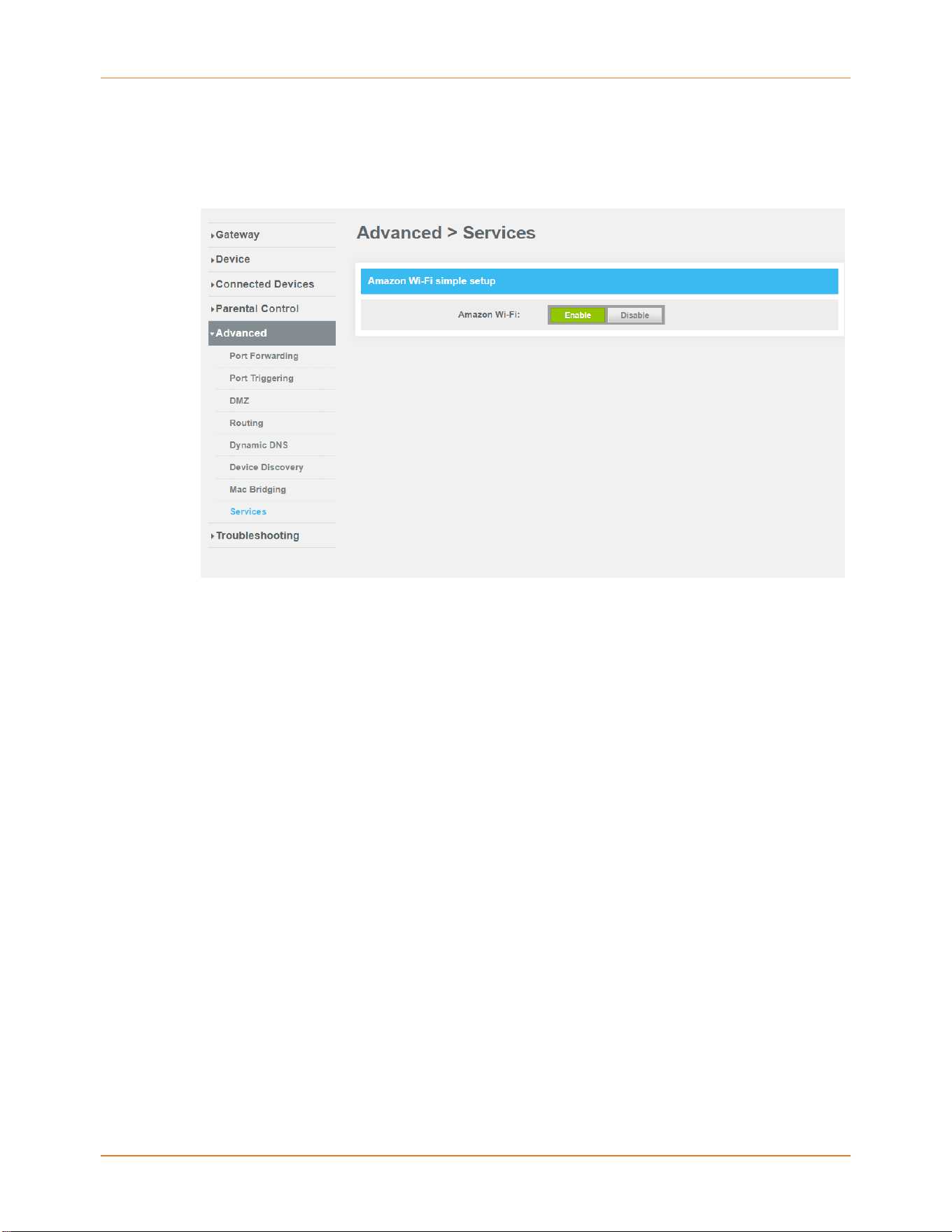
To enable this feature:
1. From the G54 Web Manager screen, click Advanced from the Gateway submenu links
and then click Services.
The Amazon Services screen appears.
2. Under the Amaz
on Wi-Fi tab, click the Enable buon allowing you to setup/install the
device easily using the AFFS technique oered by Amazon.
Seng up an Ethernet port connecon for your
data input
If you have installed your G54 using an Ethernet port for your data input, perform the
following to acvate the Ethernet port.
To open the Gateway hardware Ethernet screen:
1. From the G54 Web manager screen, click the Connecon menu link to display the Status
and WAN submenu links.
2. Click the WAN submenu link to open the Gateway Connecon WAN screen.
Chapter 8: Managing your Wi-Fi cable modem and connected networks
SURFboard
®
G54 DOCSIS
®
3.1 Wi-Fi
®
Cable Modem User Guide DRAFT Revision x.1 64

3. Click EDIT on the W
AN screen.
4. Click Interface CHANGE to select either DOCSIS (for a regular cable connecon) or
Ethernet (for an input signal from a dierent modem device) with an Ethernet connecon
from the modem device to your G54 10G port.
From the G54 Web manager screen, click the Gateway menu link.
1. Click Soware from the Gateway submenu links to display the Gateway Soware screen.
2. Click Ethernet from the Hardware submenu links.
The Gateway Hardware Ethernet screen appears.
3. Click the Enable buon in the LAN E
thernet Port 4 box.
Chapter 8: Managing your Wi-Fi cable modem and connected networks
SURFboard
®
G54 DOCSIS
®
3.1 Wi-Fi
®
Cable Modem User Guide DRAFT Revision x.1 65
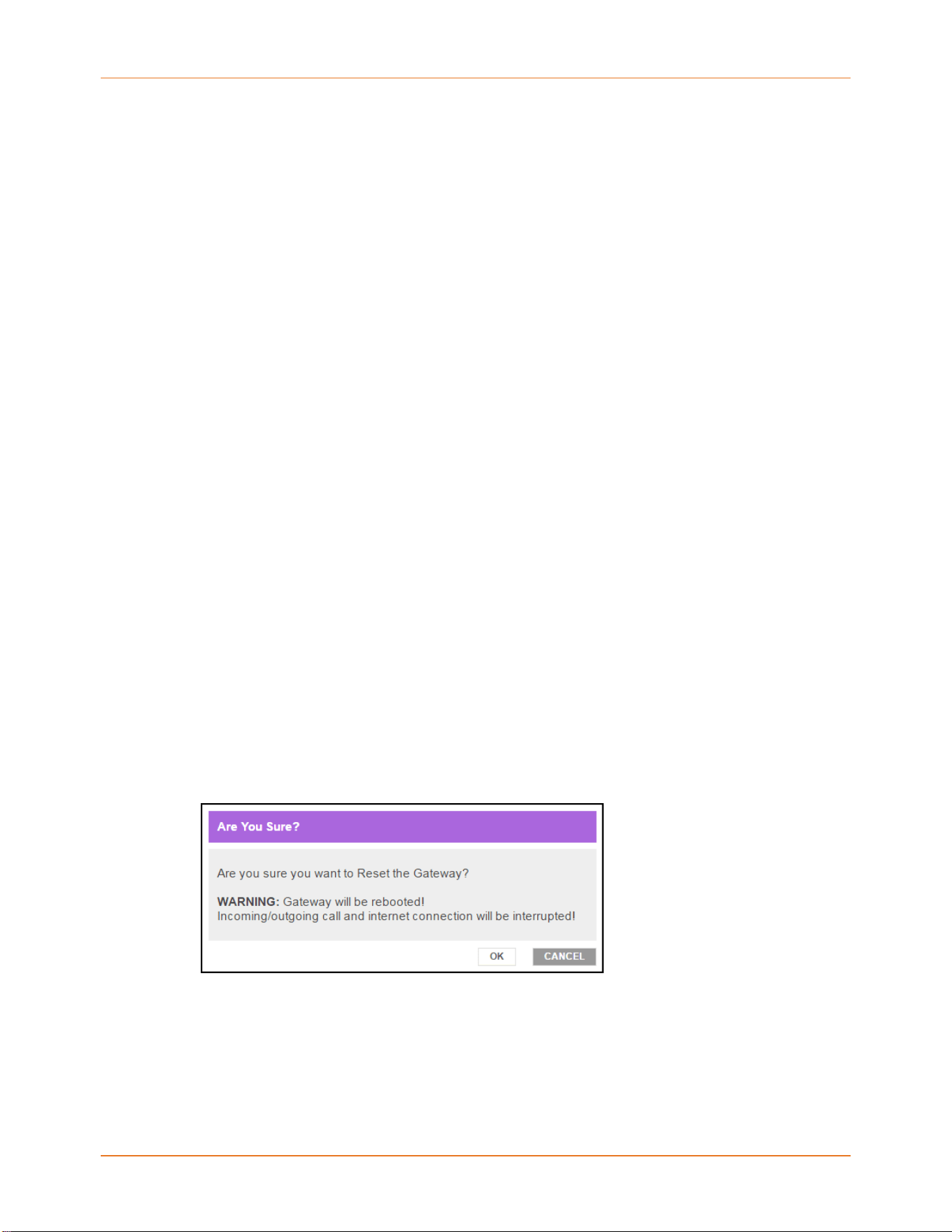
Reboong your G54
Choose one of the following opons to reboot (or restart) your G54:
■ Using the Reboot/restore opon available on your G54 Web Manager screen: Reboong
your G54 using the Web Manager (page 66)
OR
■ Using the Reset buon on the rear panel of your G54: Reboong your G54 using the
Reset buon (page 66)
Reboong your G54 using the Web Manager
To reboot (or restart) your G54 modem using the Web Manager:
1. From any of the G54 Web Manager screen, click the Troubleshoong menu link.
2. Click Restart/Restore Gateway from the Troubleshoong submenu links.
3. Click RE
START GATEWAY located in the Reset / Restore Gateway table.
The following Reset your Gateway message appears.
4. Click OK t
o reboot your G54 modem and then log back in.
Reboong your G54 using the Reset buon
To reboot (or restart) your G54 using the Reset buon:
Chapter 8: Managing your Wi-Fi cable modem and connected networks
SURFboard
®
G54 DOCSIS
®
3.1 Wi-Fi
®
Cable Modem User Guide DRAFT Revision x.1 66

1. Insert the end of a paper clip (or other small object with a narrow p) into the indented
Reset buon opening on the rear panel of your G54.
2. Press and hold the small object in place for three to four seconds.
Warning: Do not pr
ess the Reset buon for more than ve seconds. If you do,
your G54 modem shall reset automacally and your custom gateway conguraon
sengs (e.g., admin password, network name (SSID) and password) shall be
deleted and replaced with the factory default conguraon.
3. Remove the paper clip or small object from the Reset buon opening.
Restoring the default conguraon sengs using
your G54 Web Manager
Warning: This acon will dele
te your current G54 conguraon sengs and allow
you to restore the default (original) G54 conguraon.
Note: Aer the c
onguraon sengs are restored, the G54 automacally reboots
and you will have to log in using the default username (admin) and your current
admin password.
To open the Restart/Restore Gateway screen:
1. From the Web Manager screen, click the Troubleshoong menu link.
2. Click Restart/Restore from the Troubleshoong submenu links to display the
Troubleshoong Restart/Restore Gateway screen.
Restore sengs screen
3. Click RESTORE Wi-Fi SETTINGS to reset your G54 Wi-Fi sengs.
Chapter 8: Managing your Wi-Fi cable modem and connected networks
SURFboard
®
G54 DOCSIS
®
3.1 Wi-Fi
®
Cable Modem User Guide DRAFT Revision x.1 67

Restore sengs scr
een
4. Click OK to restore the Wi-Fi factory defaults.
The Operation in Progress for restarng the Wi-Fi radios message displays.
Chapter 8: Managing your Wi-Fi cable modem and connected networks
SURFboard
®
G54 DOCSIS
®
3.1 Wi-Fi
®
Cable Modem User Guide DRAFT Revision x.1 68

Chapter 9
Troubleshoong ps
If the soluons listed in the Troubleshoong Soluons table below do not solve your
problem, please contact your service provider for assistance.
You may have to reset your G54 conguraon to its original factory sengs if your G54 is
not funconing properly.
Soluons
G54
problem Possible soluon
Cannot Send or
R
eceive Data
Check each end of the coaxial cable connecon on the G54 and
cable wall outlet.
Use your hand to ghten each connector, if necessary.
Check the Ethernet cable (if connected) to make sure it is properly
connected to your G54 and computer.
If you have cable television service, check your television to ensure
your cable service is operang properly.
If none of the above soluons resolves the problem, visit the
ARRIS Support website at hps://arris.com/selelp for assistance.
Cannot Access the
Internet
Check that all cable and power connecons on your G54 and
computer are properly connected.
Check that the front panel LED is lit up solid.
Contact your service provider for assistance.
Wi-Fi Devices Cannot
Send or Receive Data
If the problem connues aer checking the coaxial cable and
Ethernet connecons and your IP address, check the Wi-Fi
Security Mode seng on the Gateway Wi-Fi Connecon screen.
If you enabled Wi-Fi security and congured a passphrase on your
G54, be sure each aected Wi-Fi client has the idencal
passphrase. If this does not solve the problem, check if the Wi-Fi
client supports the selected Wi-Fi security method.
SURFboard
®
G54 DOCSIS
®
3.1 Wi-Fi
®
Cable Modem User Guide DRAFT Revision x.1 69

Warranty Informaon
CommScope, Inc. ("ARRIS")
Retail Purchasers
If you purchased this Product directly from ARRIS or from an authorized ARRIS retail reseller,
ARRIS warrants to you, the original end user customer, that (A) the Product, excluding
Soware, will be free from defects in materials and workmanship under normal use, and (B)
with respect to Soware, (i) the media on which the Soware is provided will be free from
defects in material and workmanship under normal use, and (ii) the Soware will perform
substanally as described in its documentaon. This Limited Warranty to you, the original
end user customer, connues (A) for Soware and the media upon which it is provided, for a
period of ninety (90) days from the date of purchase from ARRIS or an authorized ARRIS
reseller, and (B) for the Product (excluding Soware), for a period of one (1) year from the
date of purchase from ARRIS or from an authorized ARRIS reseller. To take advantage of this
Limited Warranty or to obtain technical support, you must visit the ARRIS Support website at
hps://arris.com/selelp. ARRIS’ sole and exclusive obligaon under this Limited Warranty
for retail sales shall be to repair or replace any Product or Soware that does not meet this
Limited Warranty. All warranty claims must be made within the applicable Warranty Period.
Cable Operator or Service Provider Arrangements
If you did not purchase this Product directly from ARRIS or from a ARRIS authorized retail
reseller, ARRIS does not warrant this Product to you, the end-user. A limited warranty for this
Product (including Soware) may have been provided to your cable operator or Internet
Service Provider ("Service Provider") from whom you obtained the Product. Please contact
your Service Provider if you experience problems with this Product.
General Informaon
The warranes described in this Secon shall not apply: (i) to any Product subjected to
accident, misuse, neglect, alteraon, Acts of God, improper handling, improper transport,
improper storage, improper use or applicaon, improper installaon, improper tesng or
unauthorized repair; or (ii) to cosmec problems or defects which result from normal wear
and tear under ordinary use, and do not aect the performance or use of the Product.
ARRIS’ warranes apply only to a Product that is manufactured by ARRIS and idened by
ARRIS owned trademark, trade name or product idencaon logos axed to the Product.
ARRIS does not warrant to you, the end user, or to anyone else that the Soware will
perform error free or without bugs.
ARRIS IS NOT RESPONSIBLE FOR, AND PROVIDES "AS IS" ANY SOFTWARE SUPPLIED BY 3RD
PARTIES. EXCEPT AS EXPRESSLY STATED IN THIS SECTION ("WARRANTY INFORMATION"),
THERE ARE NO WARRANTIES OF ANY KIND RELATING TO THE PRODUCT, EXPRESS, IMPLIED
OR STATUTORY, INCLUDING BUT NOT LIMITED TO IMPLIED WARRANTIES OF
MERCHANTABILITY, FITNESS FOR A PARTICULAR PURPOSE, OR THE WARRANTY AGAINST
SURFboard
®
G54 DOCSIS
®
3.1 Wi-Fi
®
Cable Modem User Guide DRAFT Revision x.1 70

INFRINGEMENT PROVIDED IN THE UNIFORM COMMERCIAL CODE. Some states do not allow
for the exclusion of implied warranes, so the above exclusion may not apply to you.
What addional provisions should I be aware of? Because it is impossible for ARRIS to know
the purposes for which you acquired this Product or the uses to which you will put this
Product, you assume full responsibility for the selecon of the Product for its installaon and
use. While every reasonable eort has been made to insure that you will receive a Product
that you can use and enjoy, ARRIS does not warrant that the funcons of the Product will
meet your requirements or that the operaon of the Product will be uninterrupted or error-
free.
ARRIS IS NOT RESPONSIBLE FOR PROBLEMS OR DAMAGE CAUSED BY THE INTERACTION OF
THE PRODUCT WITH ANY OTHER SOFTWARE OR HARDWARE. ALL WARRANTIES ARE VOID IF
THE PRODUCT IS OPENED, ALTERED, AND/OR DAMAGED.
THESE ARE YOUR SOLE AND EXCLUSIVE REMEDIES for any and all claims that you may have
arising out of or in connecon with this Product, whether made or suered by you or
another person and whether based in contract or tort.
IN NO EVENT SHALL ARRIS BE LIABLE TO YOU OR ANY OTHER PARTY FOR ANY DIRECT,
INDIRECT, GENERAL, SPECIAL, INCIDENTAL, CONSEQUENTIAL, EXEMPLARY OR OTHER
DAMAGES ARISING OUT OF THE USE OR INABILITY TO USE THE PRODUCT (INCLUDING,
WITHOUT LIMITATION, DAMAGES FOR LOSS OF BUSINESS PROFITS, BUSINESS
INTERRUPTION, LOSS OF INFORMATION OR ANY OTHER PECUNIARY LOSS), OR FROM ANY
BREACH OF WARRANTY, EVEN IF ARRIS HAS BEEN ADVISED OF THE POSSIBILITY OF SUCH
DAMAGES. IN NO CASE SHALL ARRIS’ LIABILITY EXCEED THE AMOUNT YOU PAID FOR THE
PRODUCT.
These maers are governed by the laws of the Commonwealth of Pennsylvania, without
regard to conict of laws principles and excluding the provisions of the United Naons
Convenon on Contracts for the Internaonal Sale of Goods.
Retail Purchasers Only
If you purchased this Product directly from ARRIS or from an ARRIS authorized retail reseller,
please visit the ARRIS Support website at hps://arris.com/selelp, for warranty service.
Cable Operator or Service Provider Arrangements
If you did not purchase this Product directly from ARRIS or from an ARRIS authorized retail
reseller, please contact your Service Provider for technical support.